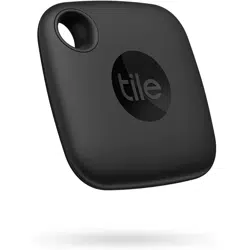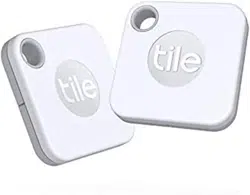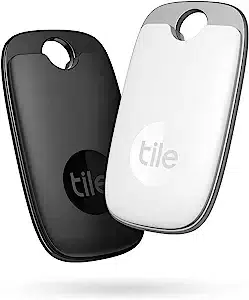
Hey, congrats on
your new Tile tracker.
Let’s get it set up so you can find your thing whatever
and wherever it may be.
Getting set up with Tile | 2
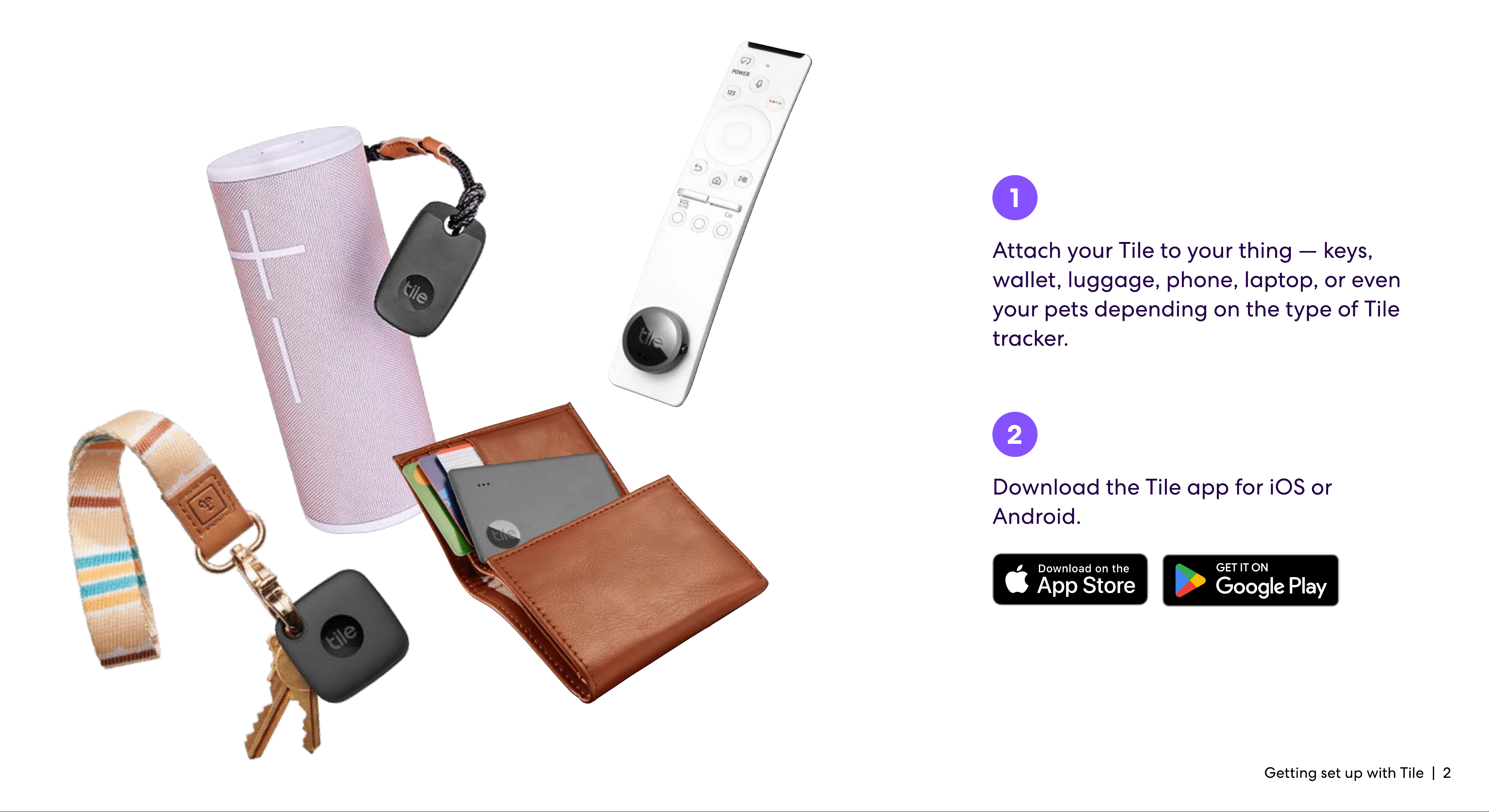
Attach your Tile to your thing — keys,
wallet, luggage, phone, laptop, or even
your pets depending on the type of Tile
tracker.
Download the Tile app for iOS or
Android.
1
2
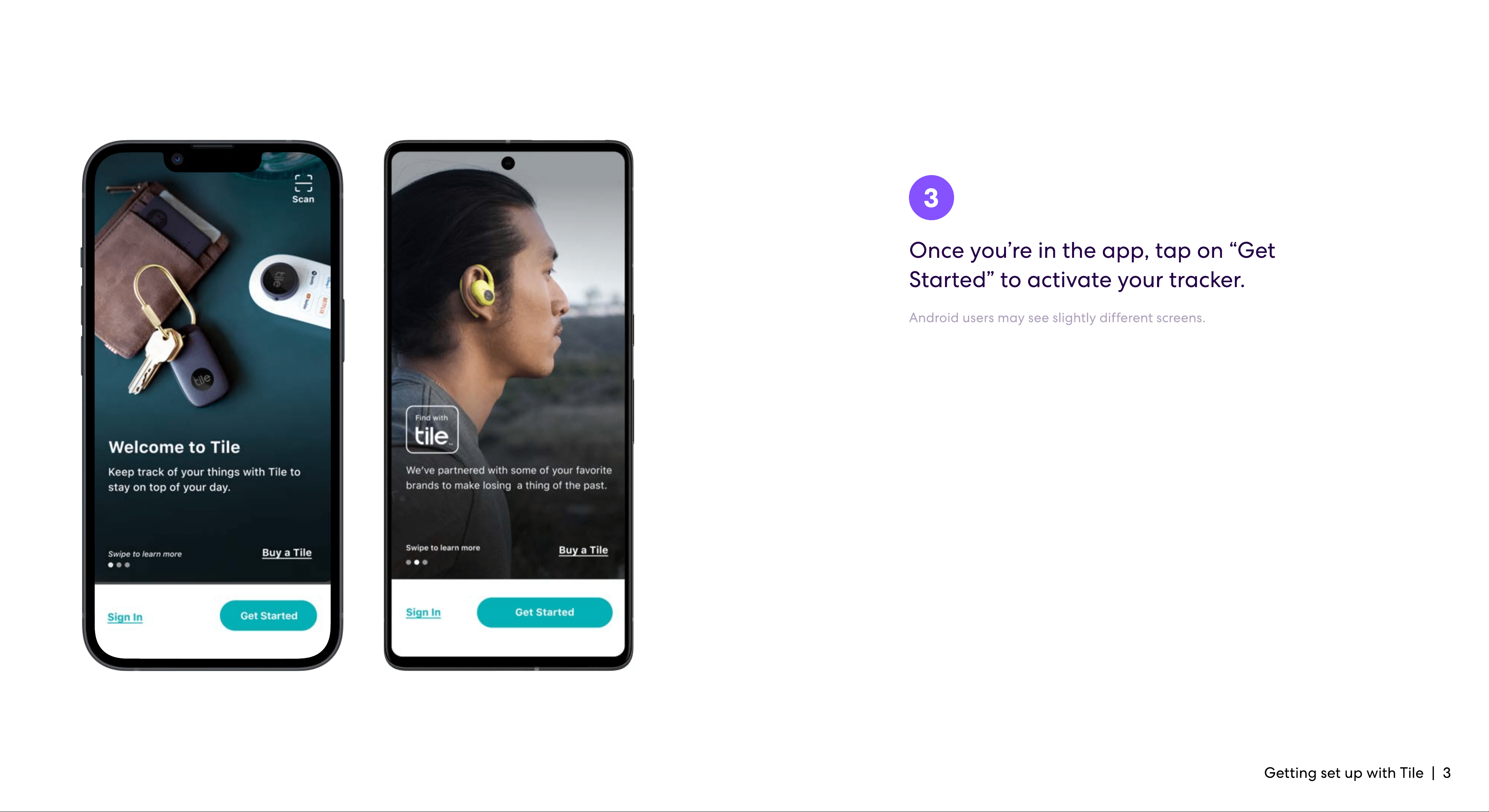
Once you’re in the app, tap on “Get
Started” to activate your tracker.
Android users may see slightly different screens.
3
Getting set up with Tile | 3
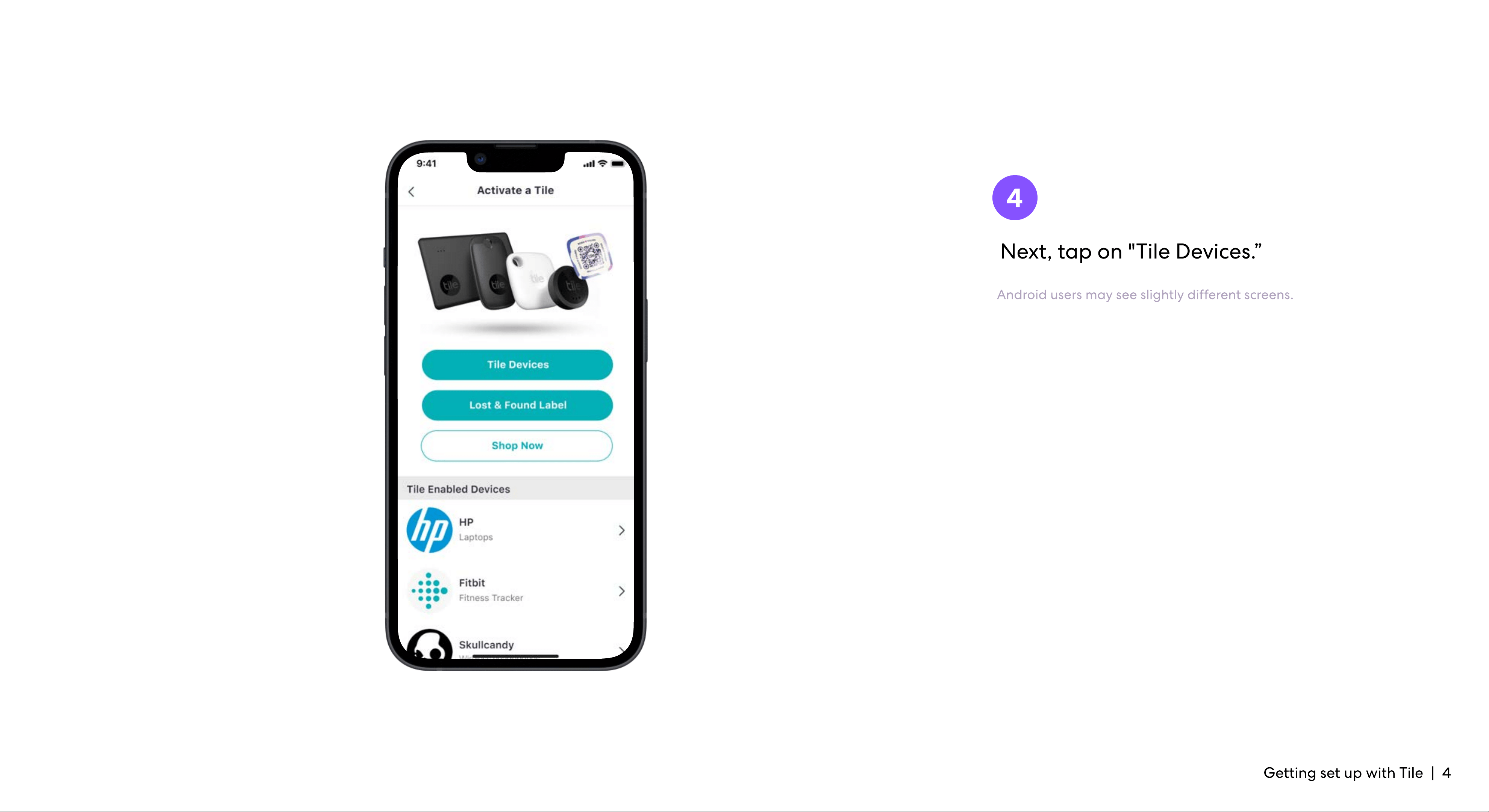
Next, tap on "Tile Devices.”
4
Getting set up with Tile | 4
Android users may see slightly different screens.
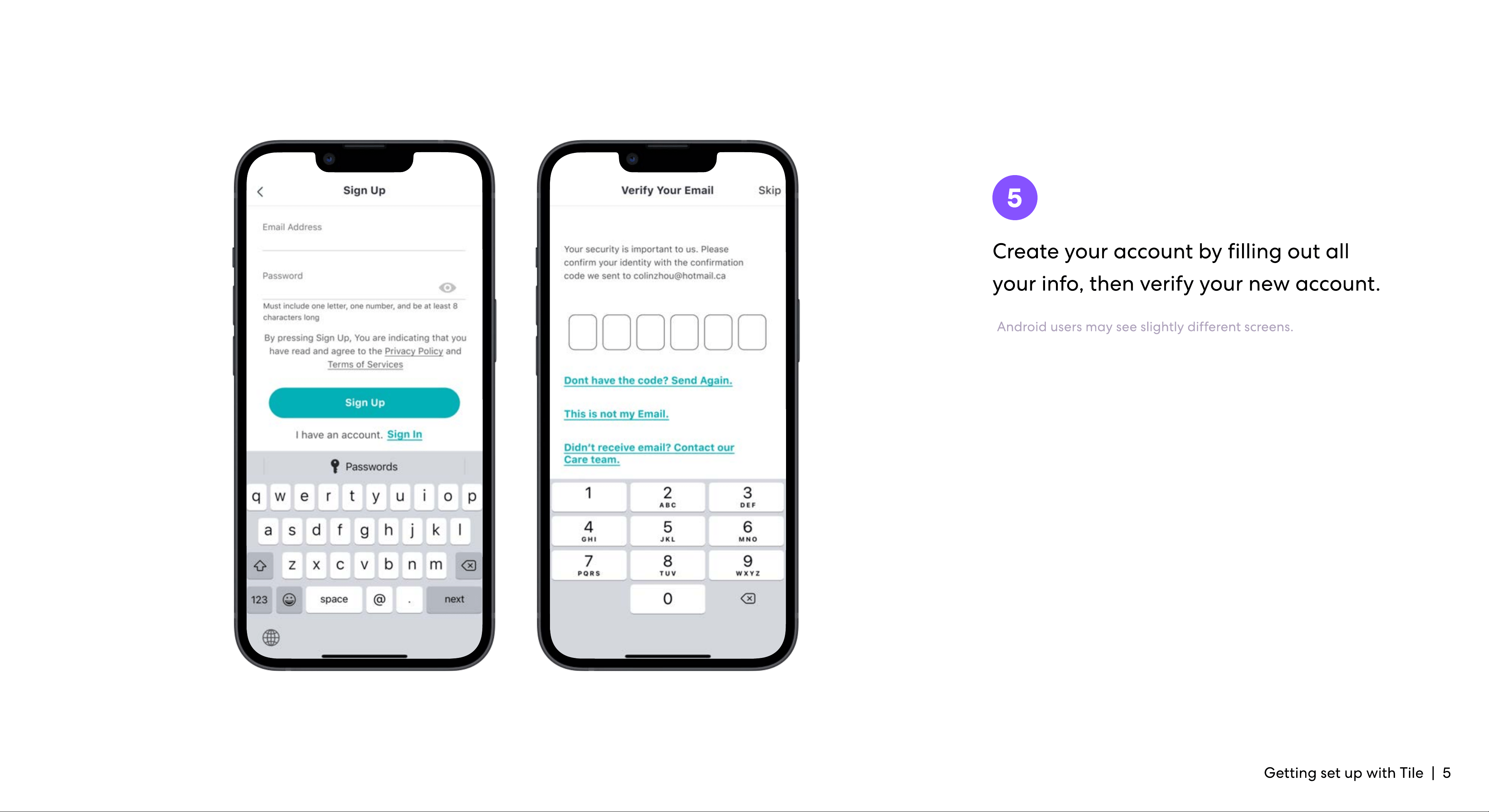
Create your account by filling out all
your info, then verify your new account.
5
Getting set up with Tile | 5
Android users may see slightly different screens.
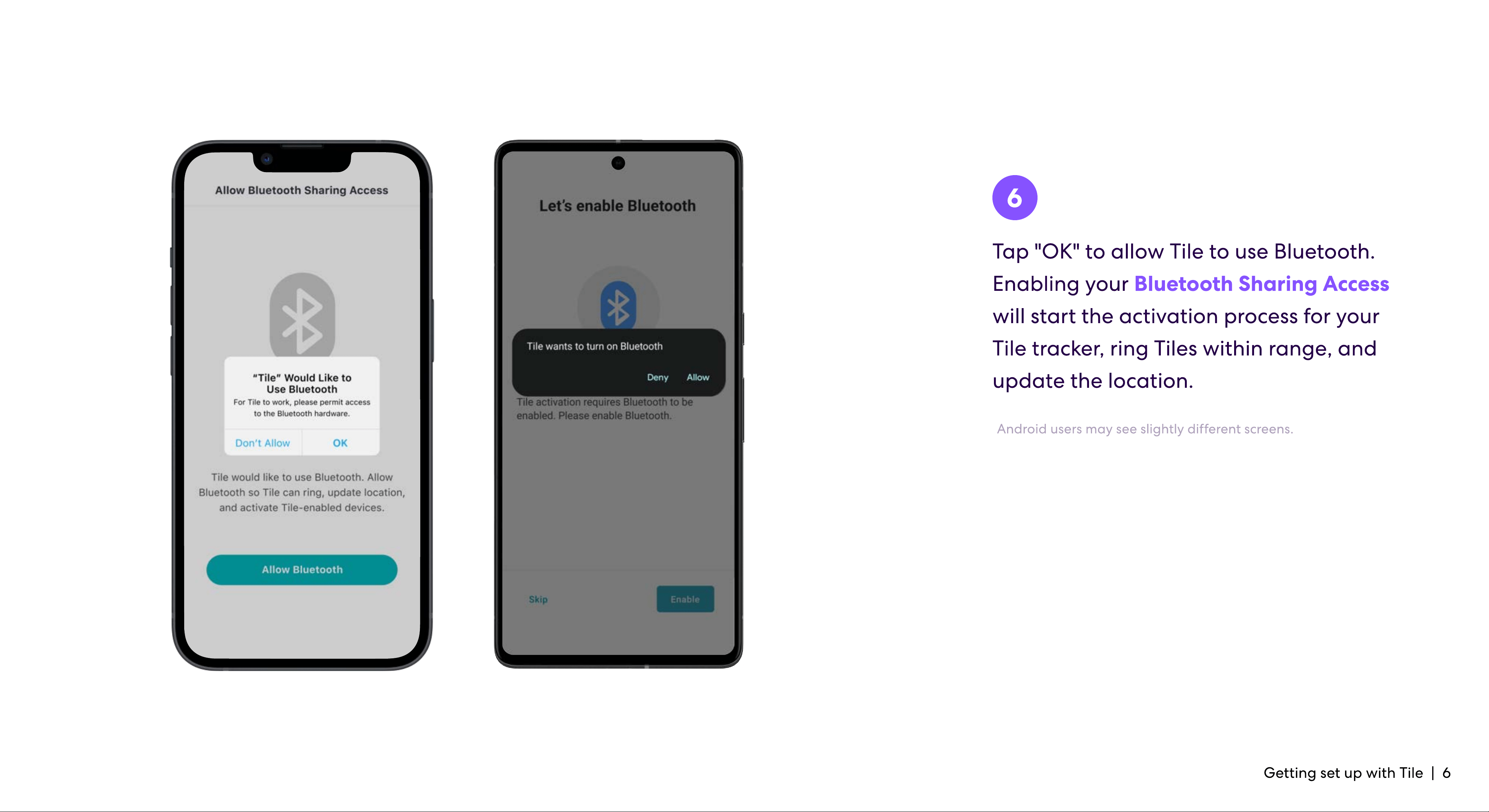
Tap "OK" to allow Tile to use Bluetooth.
Enabling your
will start the activation process for your
Tile tracker, ring Tiles within range, and
update the location.
Bluetooth Sharing Access
6
Getting set up with Tile | 6
Android users may see slightly different screens.
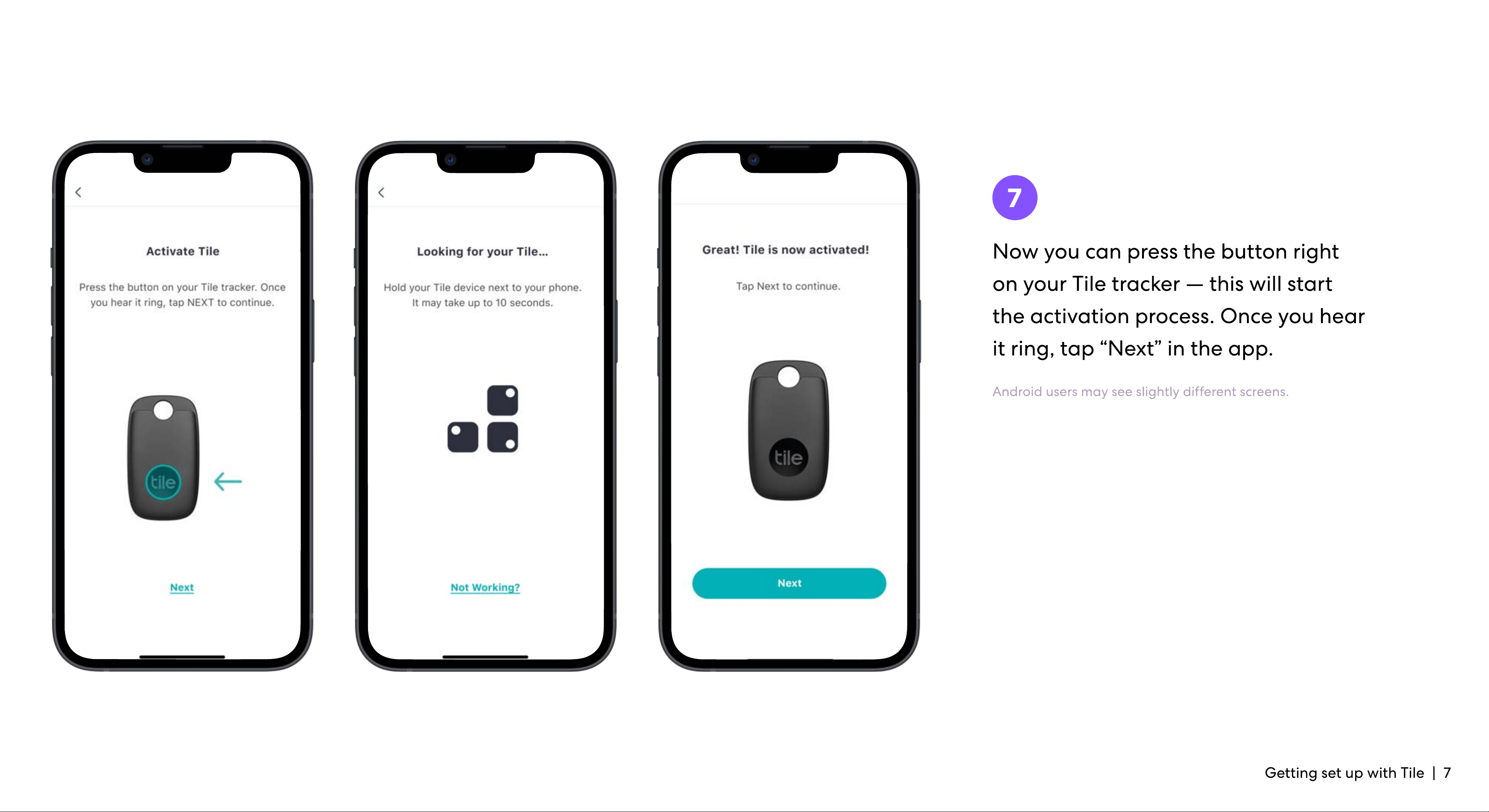
Now you can press the button right
on your Tile tracker — this will start
the activation process. Once you hear
it ring, tap “Next” in the app.
7
Getting set up with Tile | 7
Android users may see slightly different screens.
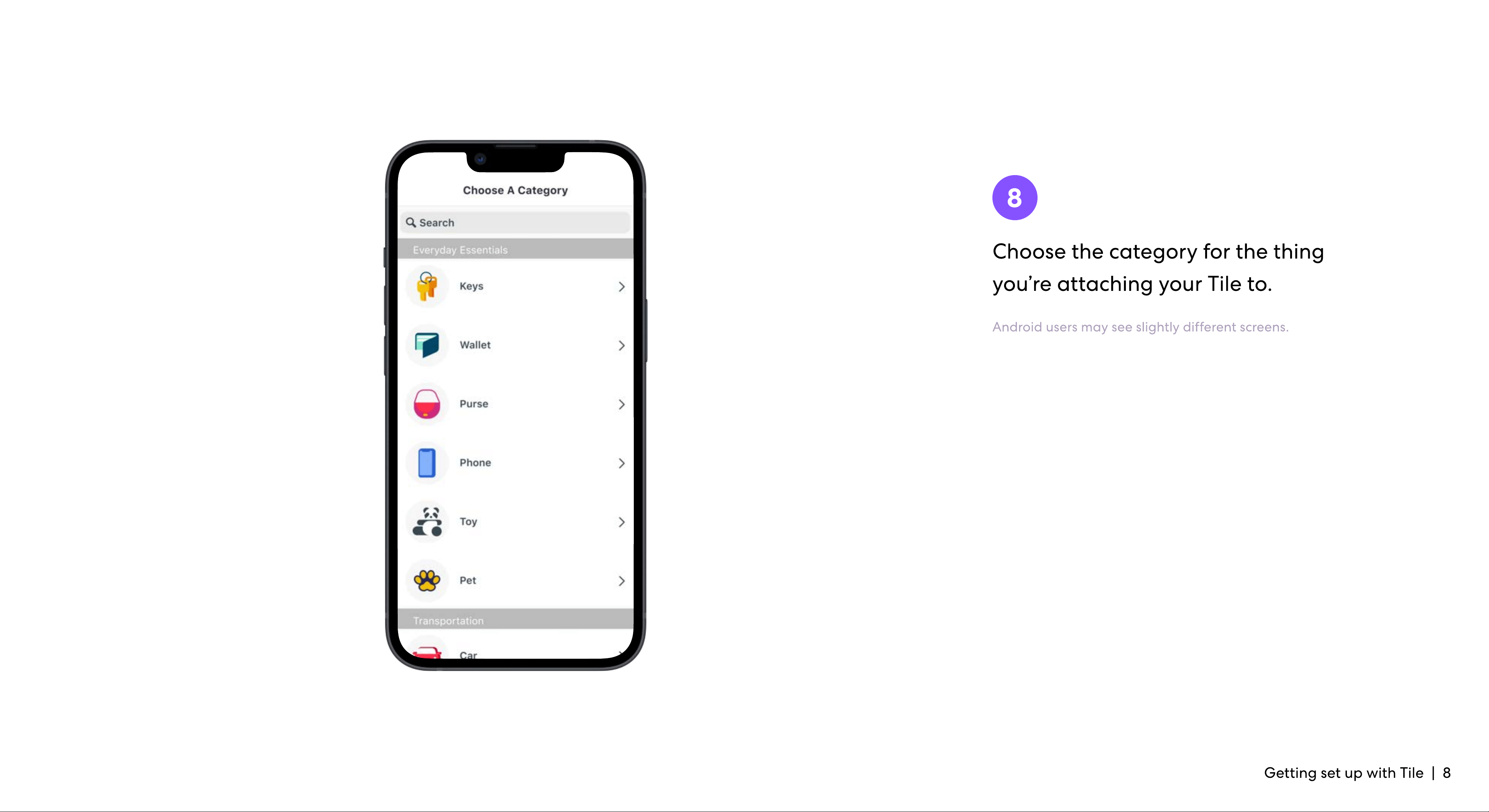
Choose the category for the thing
you’re attaching your Tile to.
8
Getting set up with Tile | 8
Android users may see slightly different screens.
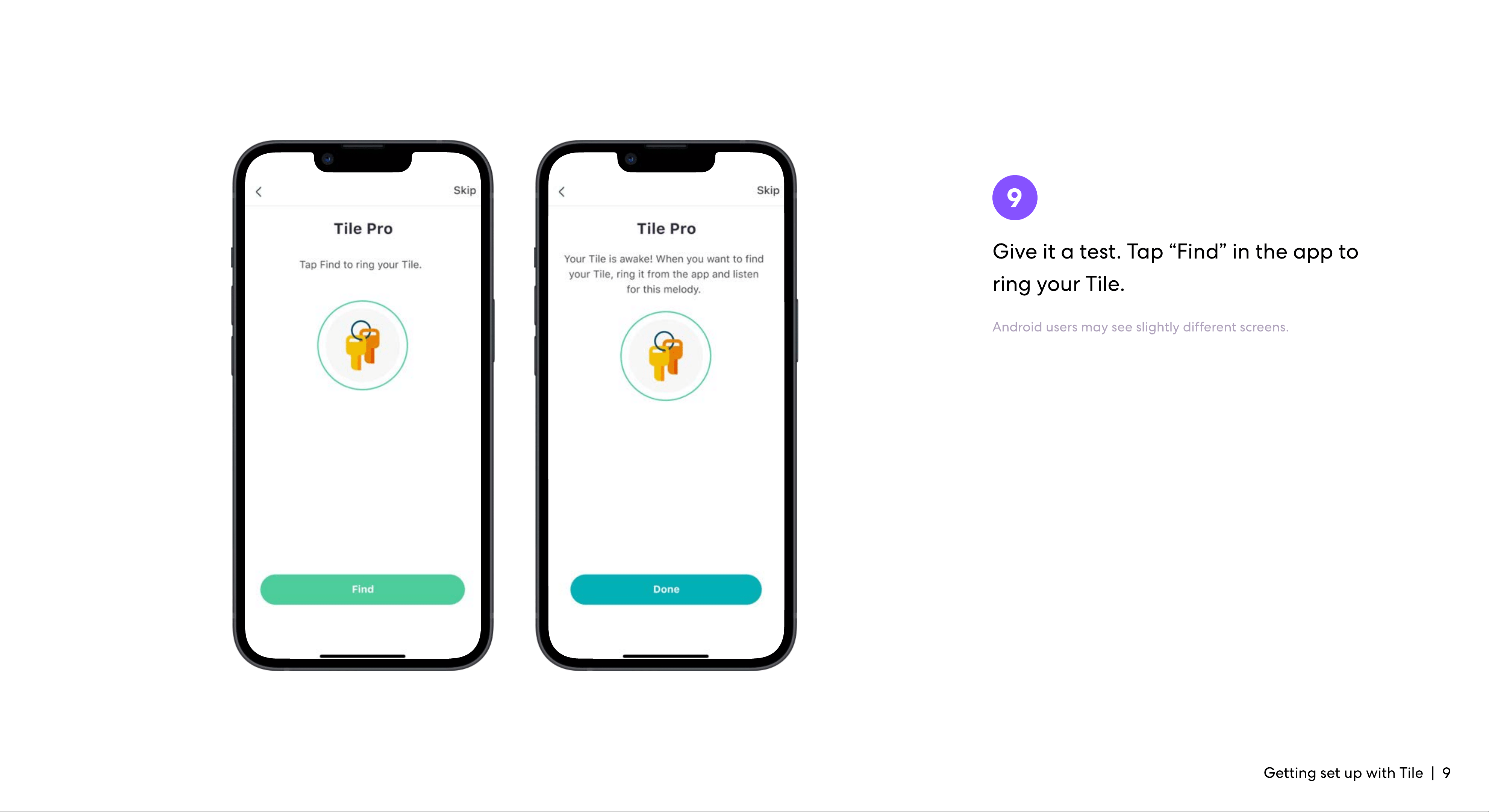
Give it a test. Tap “Find” in the app to
ring your Tile.
9
Getting set up with Tile | 9
Android users may see slightly different screens.
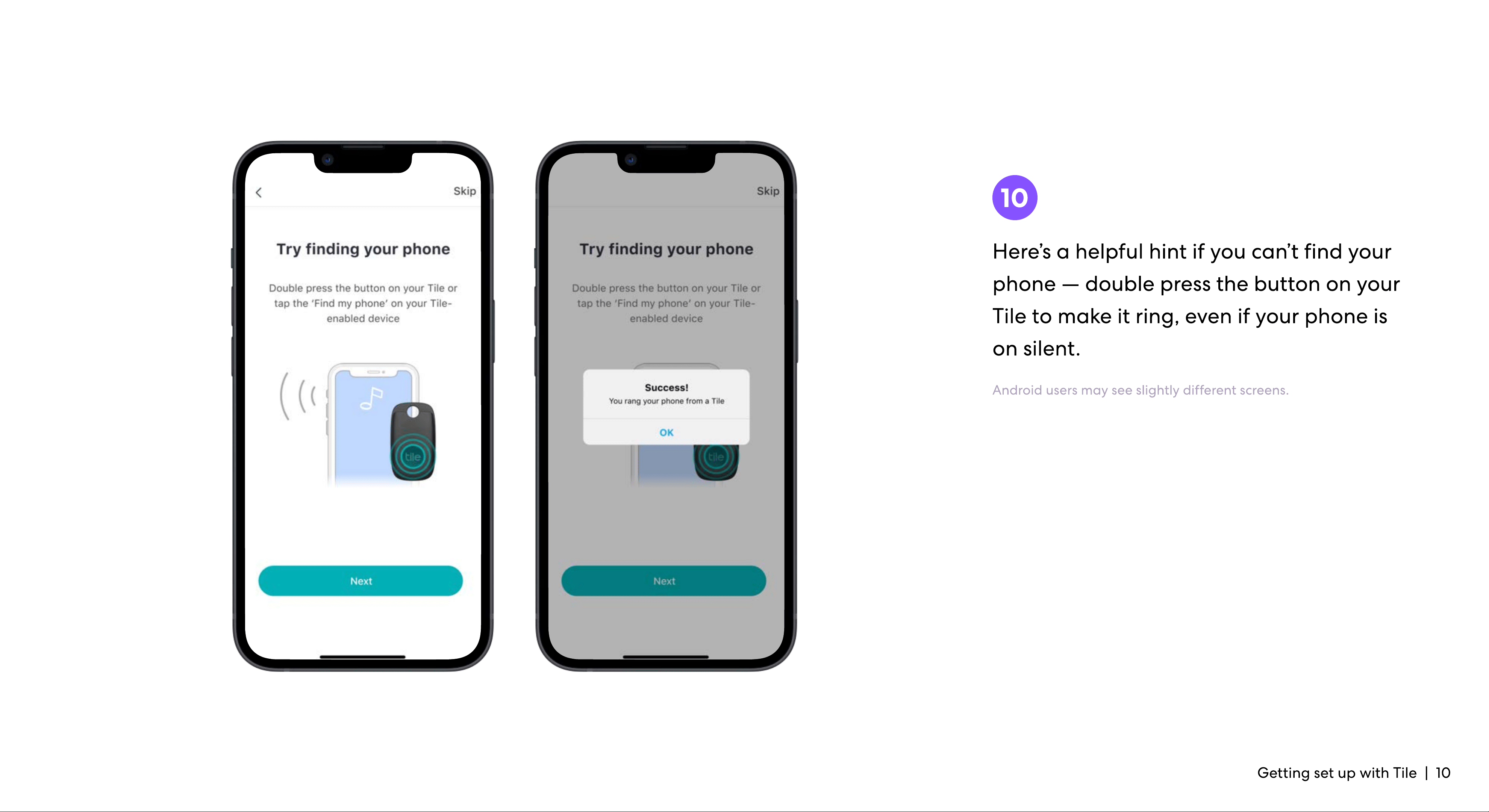
Here’s a helpful hint if you can’t find your
phone — double press the button on your
Tile to make it ring, even if your phone is
on silent
10
Getting set up with Tile | 10
Android users may see slightly different screens.
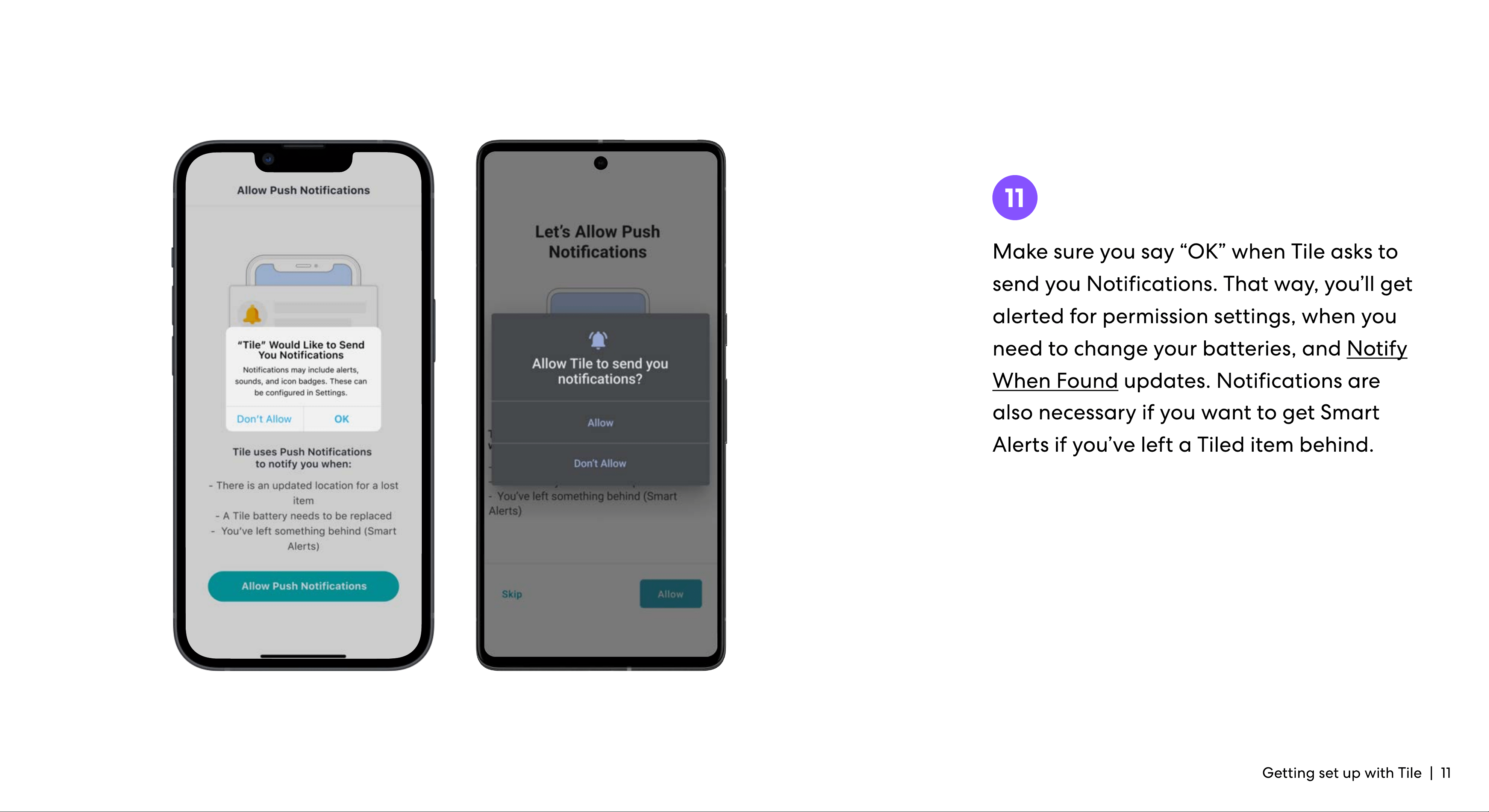
Make sure you say “OK” when Tile asks to
send you Notifications. That way, you’ll get
alerted for permission settings, when you
need to change your batteries, and Notify
When Found updates. Notifications are
also necessary if you want to get Smart
Alerts if you’ve left a Tiled item behind
11
Getting set up with Tile | 11
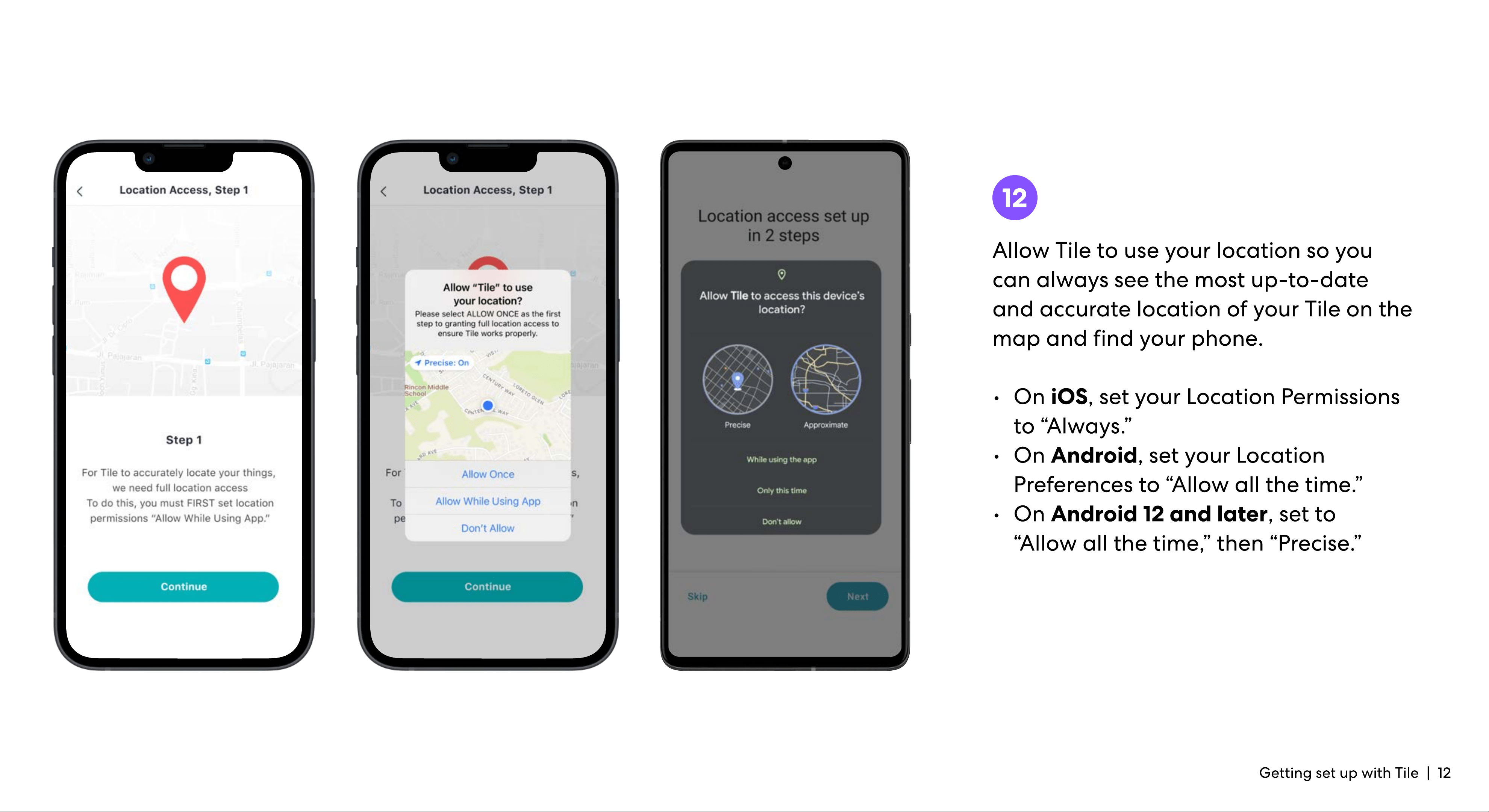
Allow Tile to use your location so you
can always see the most up-to-date
and accurate location of your Tile on the
map and find your phone.
12
Getting set up with Tile | 12
On iOS, set your Location Permissions
to “Always.
On Android, set your Location
Preferences to “Allow all the time.
On Android 12 and later, set to
“Allow all the time,” then “Precise.”
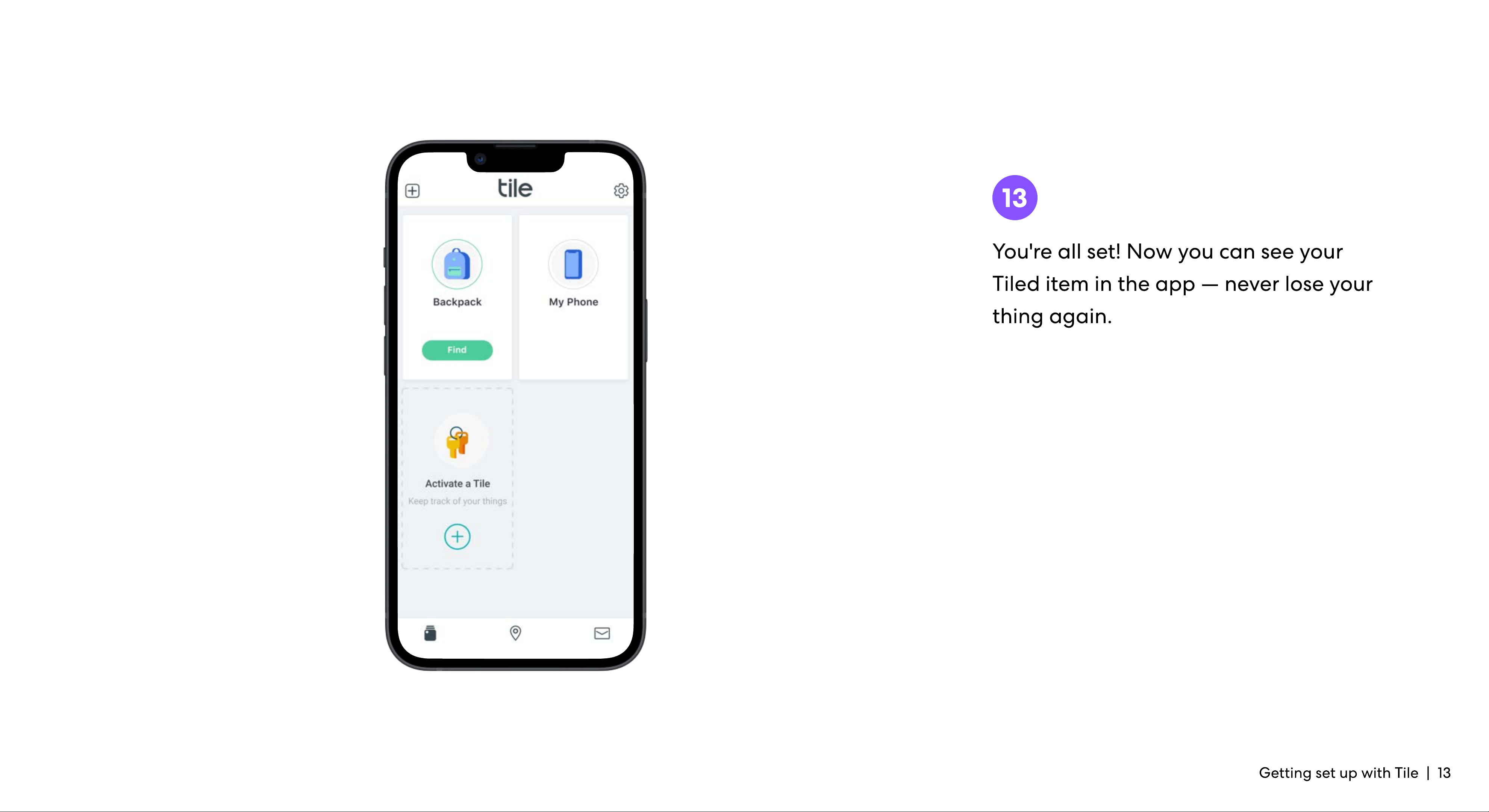
You're all set! Now you can see your
Tiled item in the app — never lose you
thing again.
Getting set up with Tile | 13
13