TQB4GC1532
Thank you for purchasing this Panasonic product.
Please read these instructions carefully before operating this product and
retain them for future reference.
Please carefully read the “Safety Precautions” of this manual before use.
The images shown in this manual are for illustrative purposes only.
For more detailed instructions, please refer to
[eHELP] (Built-in Operating Instructions).
●
How to use [eHELP] (p. 22)
M0216-0
English
Operating Instructions
LED TV
English
Model No.
Australia
New Zealand
TH-50DX700A TH-50DX700Z
TH-58DX700A TH-58DX700Z
TH-65DX700A TH-65DX700Z
English
2
●
For information about the trademarks, refer to
[eHELP] (Support > Licence).
The illustration for TH-58DX700A is used in this
manual unless otherwise mentioned.
Illustrations shown may be different between models
and countries.
Contents
Be Sure to Read
Important Notice··················································· 3
Safety Precautions ··············································· 4
Quick Start Guide
Accessories ························································ 7
Connections ·······················································14
Identifying Controls ··············································18
First time Auto Tuning···········································21
Using your VIERA
Watching TV·······················································22
How to Use eHELP ··············································22
Viewing 3D images ··············································23
Others
FAQs ································································24
Maintenance ······················································25
Specifications ·····················································25
English
3
Important Notice
Panasonic does not guarantee operation and
performance of peripheral devices made by other
manufacturers; and we disclaim any liability or damage
arising from operation and/or performance from usage of
such other maker’s peripheral devices.
The recording and playback of content on this or any
other device may require permission from the owner
of the copyright or other such rights in that content.
Panasonic has no authority to and does not grant
you that permission and explicitly disclaims any right,
ability or intention to obtain such permission on your
behalf. It is your responsibility to ensure that your use
of this or any other device complies with applicable
copyright legislation in your country. Please refer to that
legislation for more information on the relevant laws and
regulations involved or contact the owner of the rights in
the content you wish to record or playback.
This product is licensed under the AVC patent portfolio
license for the personal and non-commercial use of a
consumer to (i) encode video in compliance with the
AVC Standard (“AVC Video”) and/or (ii) decode AVC
Video that was encoded by a consumer engaged in
a personal and non-commercial activity and/or was
obtained from a video provider licensed to provide AVC
Video. No license is granted or shall be implied for any
other use.
Additional information may be obtained from MPEG LA,
LLC.
See http://www.mpegla.com.
Panasonic and its affiliates make no representations or
warranties of any kind with respect to the USB devices
and the performance of communication between the
USB devices and the USB port of Panasonic products,
and expressly disclaims any and all warranties, whether
express or implied or otherwise, including without
limitation any implied warranty of fitness for a particular
purpose, any loss of data, and any implied warranties
arising from course of dealing or course of performance
of data communication between the USB devices and
the USB port of Panasonic products.
Transport only in upright position.
This mark shows that the construction of the product is
double-insulated.
This mark indicates the product operates under AC
voltage.
English
4
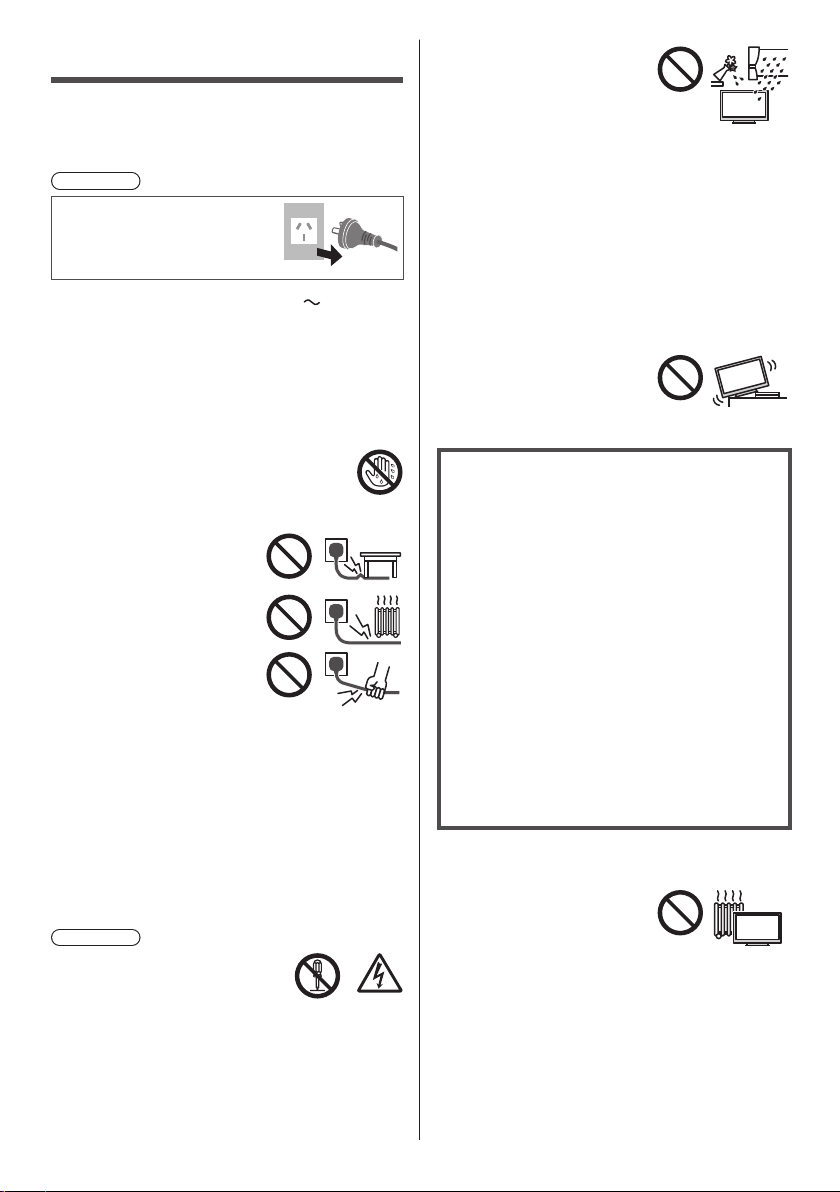
●
Do not expose the TV to rain
or excessive moisture. This
TV must not be exposed to
dripping or splashing water
and objects filled with liquid,
such as vases, must not be
placed on top of or above
the TV.
●
Do not insert foreign objects into the TV through the
air vents.
●
Do not use an unapproved pedestal / mounting
equipment. Be sure to ask your local Panasonic
dealer to perform the setup or installation of approved
wall-hanging brackets.
●
Do not apply any strong force or impact to the display
panel.
●
Ensure that children do not climb on the TV.
●
Do not place the TV on sloping
or unstable surfaces, and
ensure that the TV does not
hang over the edge of the
base.
Important information
If the TV is not positioned in a sufficiently stable
location, it can be potentially hazardous due to
falling. Many injuries, particularly to children, can
be avoided by taking simple precautions such as:
•
Using cabinets or stands recommended by the
manufacturer of the TV.
•
Only using furniture that can safely support the
TV.
•
Ensuring the TV is not overhanging the edge of
the supporting furniture.
•
Not placing the TV on tall furniture (for example,
cupboards or bookcases) without anchoring
both the furniture and the TV to a suitable
support.
•
Not standing the TV on cloth or other materials
placed between the TV and supporting furniture.
•
Educating children about the dangers of
climbing on furniture to reach the TV or its
controls.
●
This TV is designed for indoor use.
●
This TV is designed for table-top use.
●
Do not expose the TV to direct
sunlight and other sources of
heat.
Safety Precautions
To help avoid risk of electrical shock, fire, damage or
injury, please follow the warnings and cautions below:
■ Mains plug and lead
Warning
If you detect anything unusual,
immediately remove the mains
plug.
●
This TV is designed to operate on AC 220-240 V,
50 / 60 Hz.
●
Insert the mains plug fully into the mains socket.
●
To turn Off the apparatus completely, you must pull
the mains plug out of the mains socket. Consequently,
the mains plug should be easily accessible at all
times.
●
Disconnect the mains plug when cleaning the TV.
●
Do not touch the mains plug with wet
hands.
●
Do not damage the mains lead.
•
Do not place a heavy
object on the lead.
•
Do not place the lead near
a high temperature object.
•
Do not pull on the lead.
Hold onto the mains plug
body when disconnecting
the plug.
•
Do not move the TV with the lead plugged into a
mains socket.
•
Do not twist the lead, bend it excessively or stretch
it.
•
Do not use a damaged mains plug or mains
socket.
•
Ensure the TV does not crush the mains lead.
●
Do not use any mains lead other than that provided
with this TV.
■ Take care
Warning
●
Do not remove covers and never
modify the TV yourself as live
parts are accessible and risk
of electric shock when they are
removed. There are no user
serviceable parts inside.
English
5
■ Built-in wireless LAN
Caution
●
Do not use the built-in wireless LAN to connect to any
wireless network (SSID
*
) for which you do not have
usage rights. Such networks may be listed as a result
of searches. However, using them may be regarded
as illegal access.
*
SSID is a name for identifying a particular wireless
network for transmission.
●
Do not subject the built-in wireless LAN to high
temperatures, direct sunlight or moisture.
●
Data transmitted and received over radio waves may
be intercepted and monitored.
●
The built-in wireless LAN uses 2.4 GHz and 5 GHz
frequency bands. To avoid malfunctions or slow
response caused by radio wave interference when
using the built-in wireless LAN, keep the TV away
from other devices that use 2.4 GHz and 5 GHz
signals such as other wireless LAN devices,
microwave ovens, and mobile phones.
●
When problems occur due to static electricity, etc., the
TV might stop operating to protect itself. In this case,
turn the TV off at the Mains power On / Off switch,
then turn it back on.
■ Bluetooth
®
wireless technology
Caution
●
The TV and Touch Pad Controller use the 2.4 GHz
radio frequency ISM band (Bluetooth
®
). To avoid
malfunctions or slow response caused by radio wave
interference, keep the TV and Touch Pad Controller
away from the devices such as other wireless LAN
devices, other Bluetooth devices, microwaves, mobile
phones and the devices that use 2.4 GHz signal.
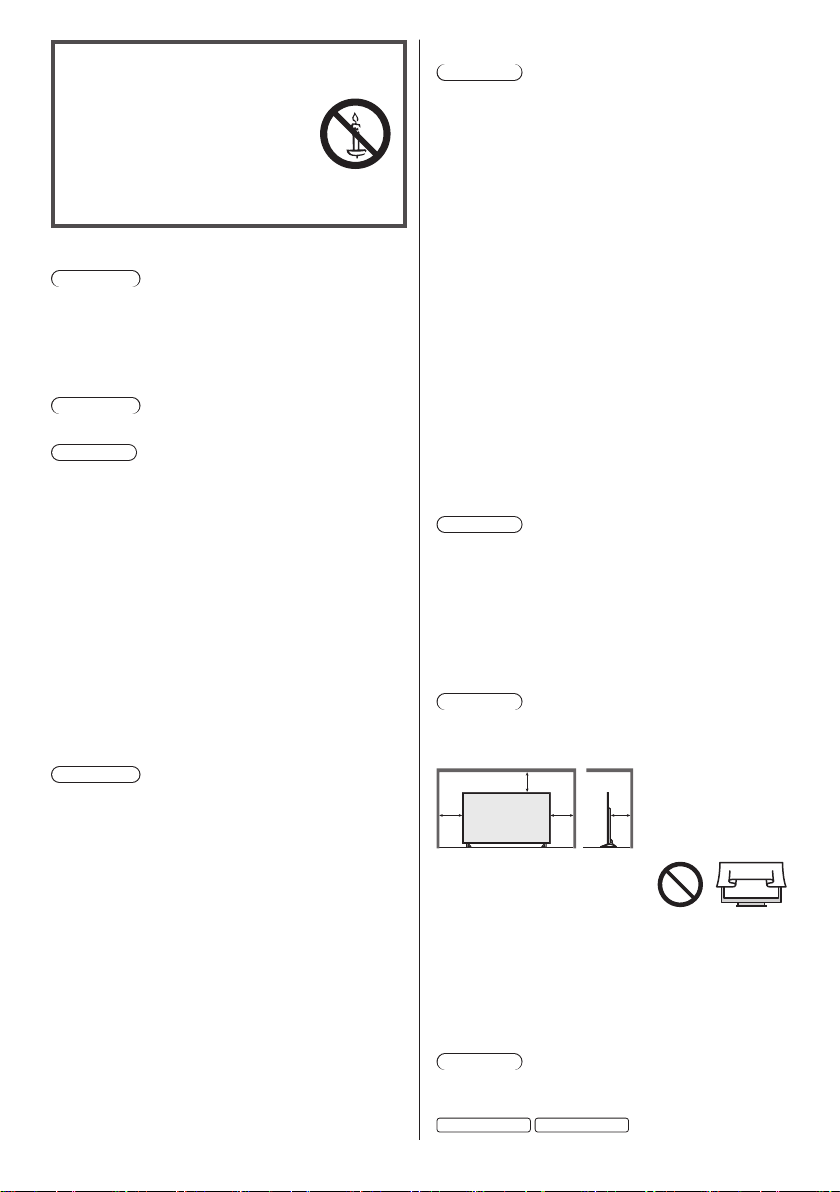
■ Ventilation
Caution
Allow sufficient space (at least 10 cm) around the TV in
order to help prevent excessive heat, which could lead
to early failure of some electronic components.
(cm)
10
10
10
10
●
Ventilation should not be
impeded by covering the
ventilation openings with
items such as newspapers,
tablecloths and curtains.
●
Whether you are using a pedestal or not, always
ensure the vents at the bottom of the TV are not
blocked and there is sufficient space to enable
adequate ventilation.
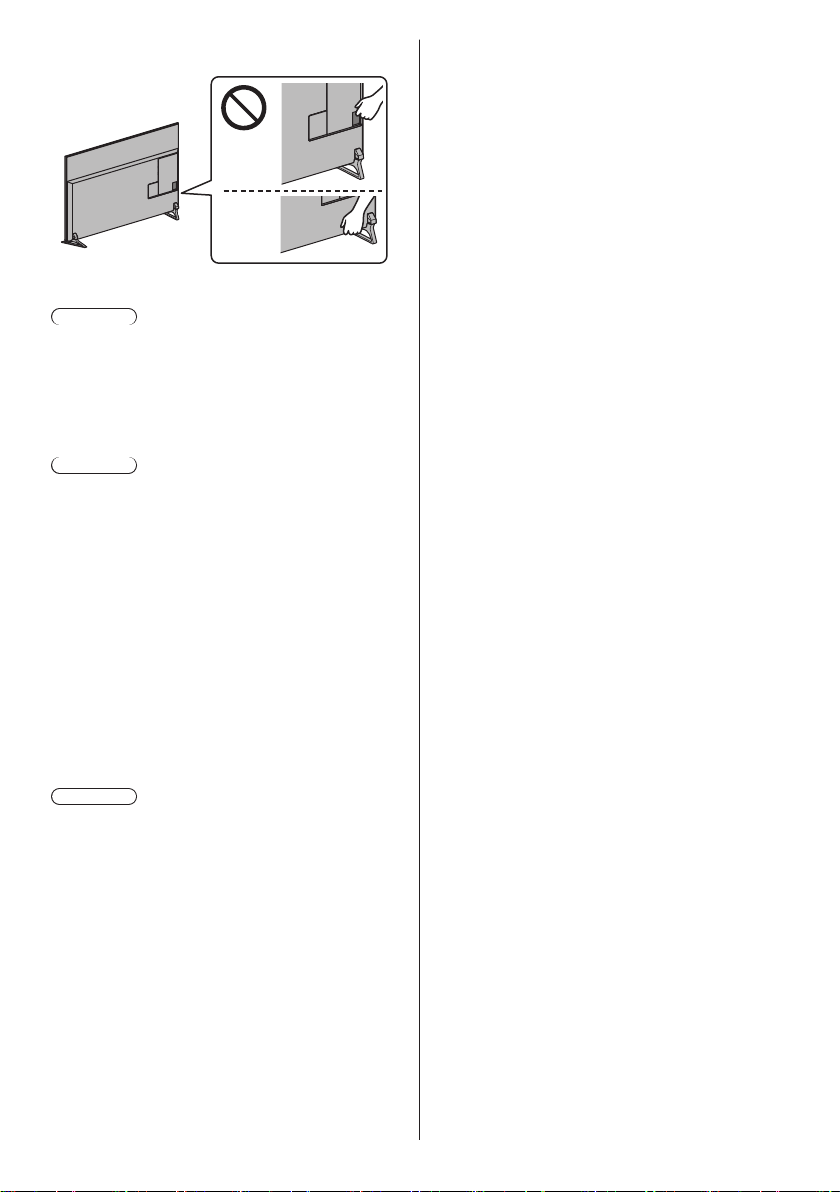
■ Moving the TV
Caution
Before moving the TV, disconnect all cables.
●
At least two people are required to move the TV.
50-inch model
58-inch model
To prevent the
spread of fire, keep
candles or other
open flames away
from this product at
all times
■ Suffocation / Choking Hazard
Warning
●
The packaging of this product may cause suffocation,
and some of the parts are small and may present a
choking hazard to young children. Keep these parts
out of reach of young children.
■ Pedestal
Warning
●
Do not disassemble or modify the pedestal.
Caution
●
Do not use any pedestal other than the one provided
with this TV.
●
Do not use the pedestal if it becomes warped or
physically damaged. If this occurs, contact your
nearest Panasonic dealer immediately.
●
During setup, make sure that all screws are securely
tightened.
●
Ensure that the TV does not suffer any impact during
installation of the pedestal.
●
Ensure that children do not climb onto the pedestal.
●
Install or remove the TV from the pedestal with at
least two people.
●
Install or remove the TV according to the specified
procedure.
■ Radio waves
Warning
●
Do not use the TV and Touch Pad Controller in
any medical institutions or locations with medical
equipment. Radio waves may interfere with the
medical equipment and may cause accidents due to
malfunction.
●
Do not use the TV and Touch Pad Controller near
any automatic control equipment such as automatic
doors or fire alarms. Radio waves may interfere with
the automatic control equipment and may cause
accidents due to malfunction.
●
Keep at least 15 cm away from the TV and Touch
Pad Controller if you have a cardiac pacemaker.
Radio waves may interfere with the operation of the
pacemaker.
●
Do not disassemble or alter the TV and Touch Pad
Controller in any way.
English
6
there are no breakable objects around you to avoid
any accidental damage or injury.
●
The recommended viewing distance is at least
3 times of the image height. Do not view 3D images
from a distance shorter than recommended.
Support the TV as shown below to prevent injury that
may be caused by the tipping or falling of TV.
■ When not in use for a long time
Caution
This TV will still consume some power even in the Off
mode, as long as the mains plug is still connected to a
live mains socket.
●
Remove the mains plug from the wall socket when
the TV is not in use for a prolonged period of time.
■ Battery for the Remote Control
Caution
●
Incorrect installation may cause battery leakage,
corrosion and explosion.
●
Replace only with the same or equivalent type.
●
Do not mix old and new batteries.
●
Do not mix different battery types (such as alkaline
and manganese batteries).
●
Do not use rechargeable batteries (Ni-Cd, etc.).
●
Do not burn or break up batteries.
●
Do not expose batteries to excessive heat such as
sunshine, fire or the like.
●
Make sure you dispose of batteries correctly.
●
Remove the battery from the unit when not using for
a prolonged period of time to prevent battery leakage,
corrosion and explosion.
■ Viewing 3D Images
Caution
●
Pay special attention when children are viewing 3D
images. 3D images should not be viewed by children
younger than about 6 years old, as a guideline.
All children must be fully supervised by parents or
guardians who must ensure their safety and health
while they are viewing 3D images.
●
Stop viewing 3D images immediately if you feel tired,
feel unwell, experience any other uncomfortable
sensation or clearly see double images. Take an
appropriate break before continuing to view. When
you set the 3D effect by using [3D Adjustment], take
into account that the vision of 3D images varies
among different individuals.
●
Do not view 3D images if you have a history of
oversensitivity to light, heart problems or any other
medical conditions.
●
When viewing 3D images, your sense of distance
may be tricked or go wrong. Be careful not to hit the
TV screen or other people unintentionally. Ensure
English
7
Fall-prevention parts
(p. 13)
●
Accessories may not be placed all together. Take care
not to throw them away unintentionally.
Optional accessories
3D Eyewear
●
If you need 3D Eyewear, please purchase Panasonic
optional accessories.
●
Use Panasonic 3D Eyewear supporting Bluetooth
wireless technology for active shutter 3D.
●
For information about 3D Eyewear:
http://panasonic.net/viera/support
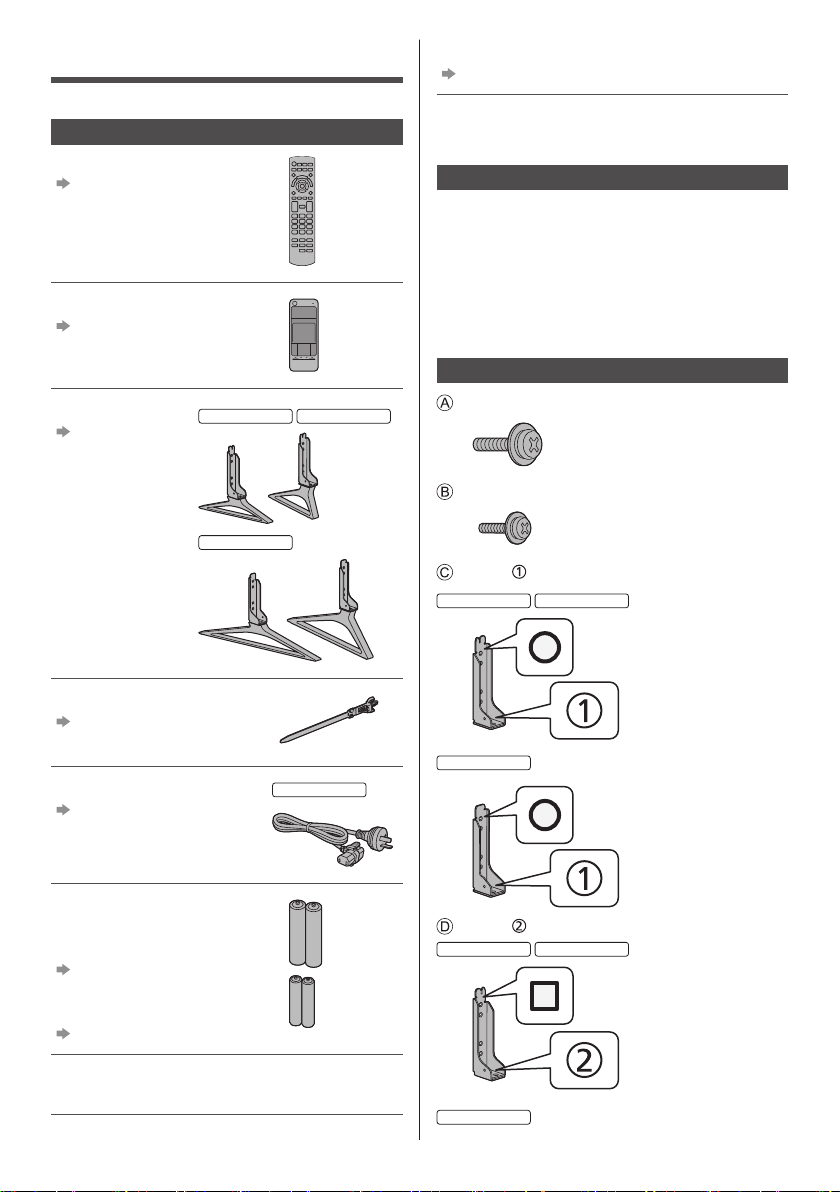
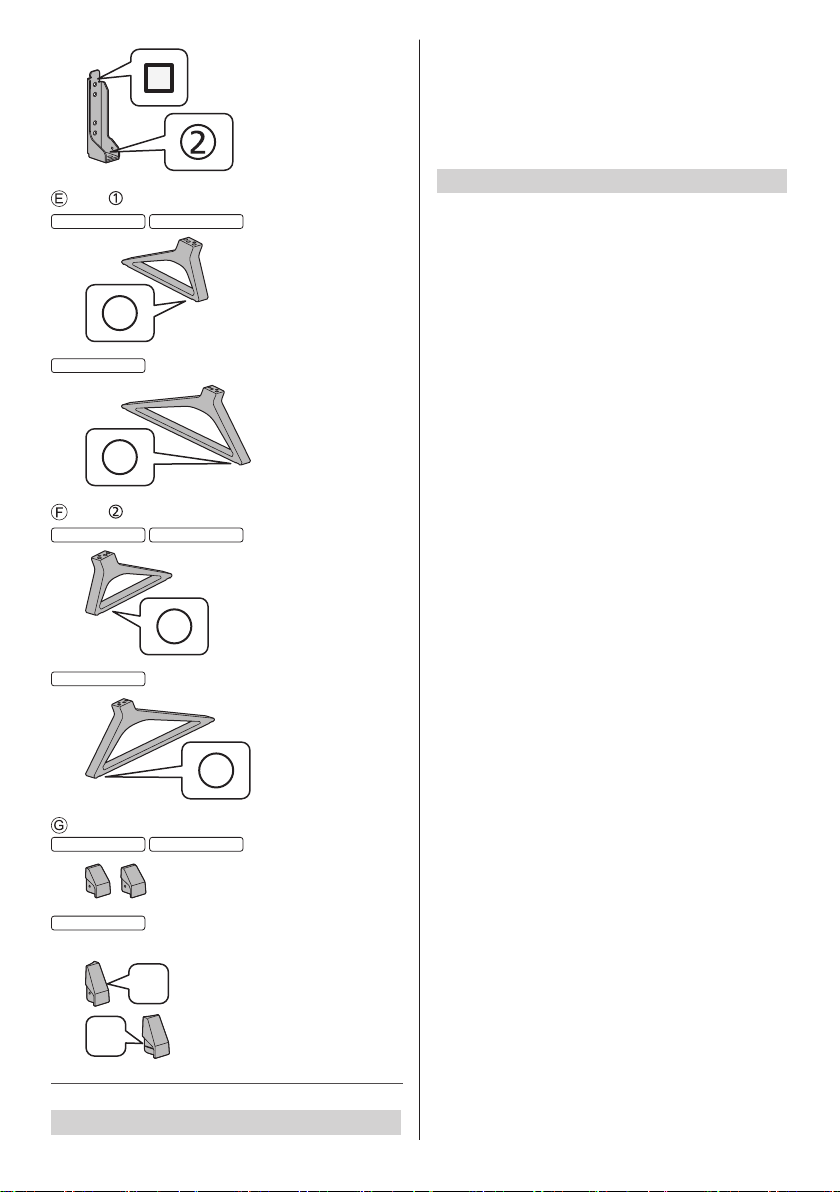
Assembling / Removing the pedestal
Assembly screw (4)
M5 × 14
Assembly screw (4)
M4 × 12
Bracket
50-inch model
58-inch model
65-inch model
Bracket
50-inch model
58-inch model
65-inch model
Accessories
Standard accessories
Remote Control
(p. 18)
●
N2QAYB001008
Touch Pad Controller
(p. 19)
●
N2QBYA000016
Pedestal
(p. 7)
50-inch model
58-inch model
65-inch model
Cable tie (2)
(p. 17)
Mains lead
(p. 15)
65-inch model
Batteries
●
R6 (2)
(For Remote Control)
(p. 19)
●
R03 (2)
(For Touch Pad Controller)
(p. 20)
Operating Instructions with
Warranty statement
English
8
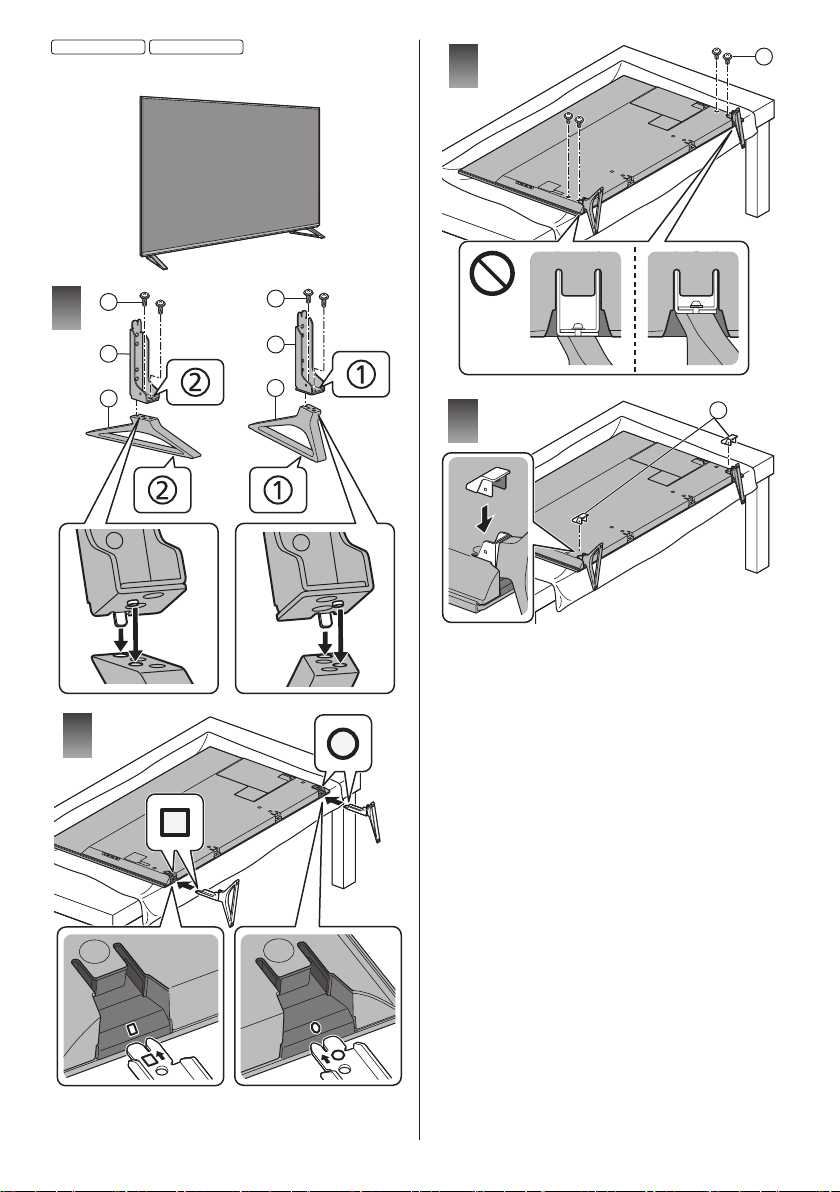
Take out the pedestal and the TV from the packing case
and put the TV onto a work table with the screen panel
down on the clean and soft cloth (blanket, etc.)
●
Use a flat and firm table bigger than the TV.
●
Do not hold the screen panel part.
●
Make sure not to scratch or break the TV.
Assembling the pedestal
●
Select a method to assemble the pedestal from the
following 2 styles.
●
Do not assemble the pedestal by any method other
than those specified below.
Base
50-inch model
58-inch model
1
65-inch model
1
Base
50-inch model
58-inch model
2
65-inch model
2
Cover (2)
50-inch model
58-inch model
65-inch model
●
L / R
L
R
Preparations
English
9
3
B
4
G
50-inch model
58-inch model
■ <Style1>
1
A
C
D
E
F
A
2
English
10
3
B
4
G
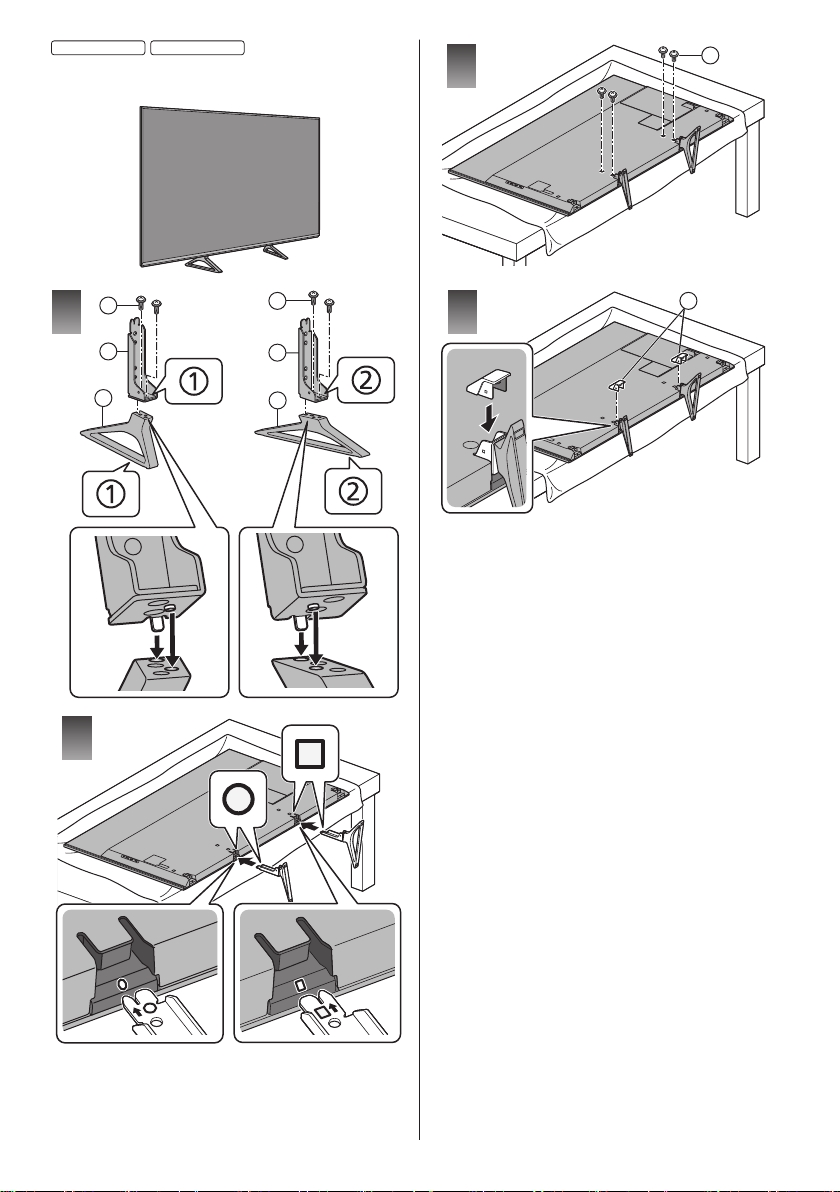
50-inch model
58-inch model
■ <Style2>
1
A
C
E
D
F
A
2

English
11
3
B
4
G
R
L
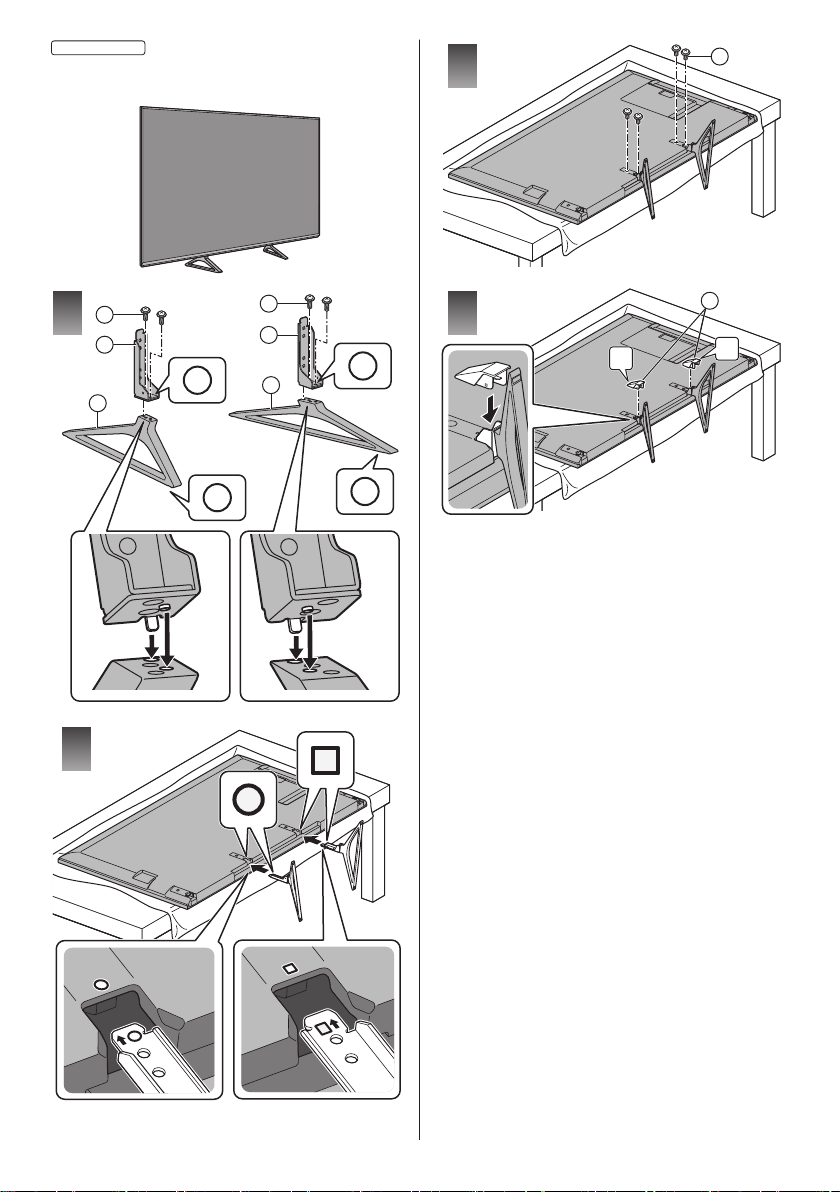
65-inch model
■ <Style1>
2
1
1
2
1
A
A
D
C
F
E
2
English
12
3
B
4
G
R
L
65-inch model
■ <Style2>
2
1
1
2
1
A
C
E
A
D
F
2
English
13
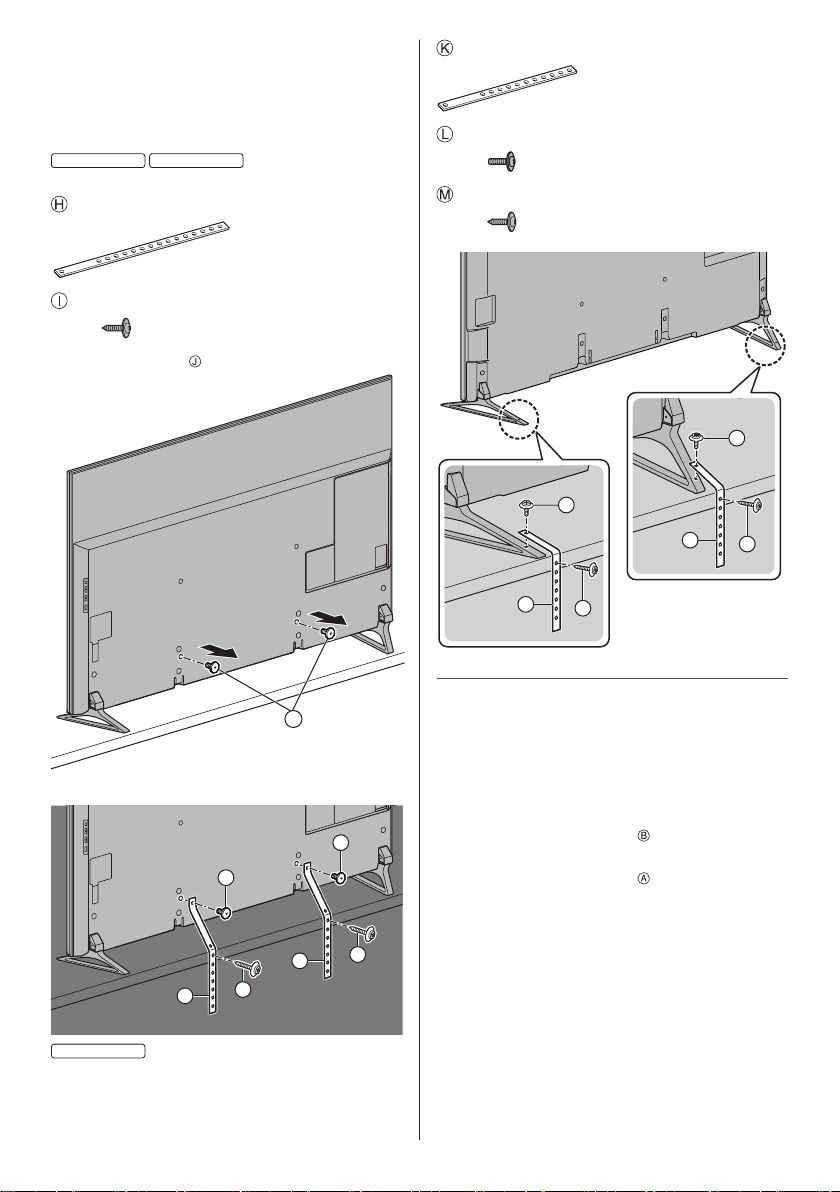
Band (2)
Screw (2)
Wood screw (2)
L
M
K
L
M
K
Removing the pedestal from the TV
Be sure to remove the pedestal in the following way
when using the wall-hanging bracket or repacking the
TV.
1 Put the TV onto a work table with the screen panel
down on the clean and soft cloth.
2 Pull out the cover.
3 Remove the assembly screws
from the TV.
4 Pull out the pedestal from the TV.
5 Remove the assembly screws
from the bracket.
■ Preventing the TV from falling over
It is recommended to secure the pedestal to a furniture
as shown to prevent the TV from falling over.
●
This information is designed to reduce the risk of
injuries caused by the TV falling over. However, no
measure can guarantee protection in all cases.
50-inch model
58-inch model
Attaching the fall-prevention parts
Band (2)
Wood screw (2)
1 Remove the screws
.
J
2 Attach the fall-prevention parts.
H
J
I
H
J
I
65-inch model
Attaching the fall-prevention parts
English
14
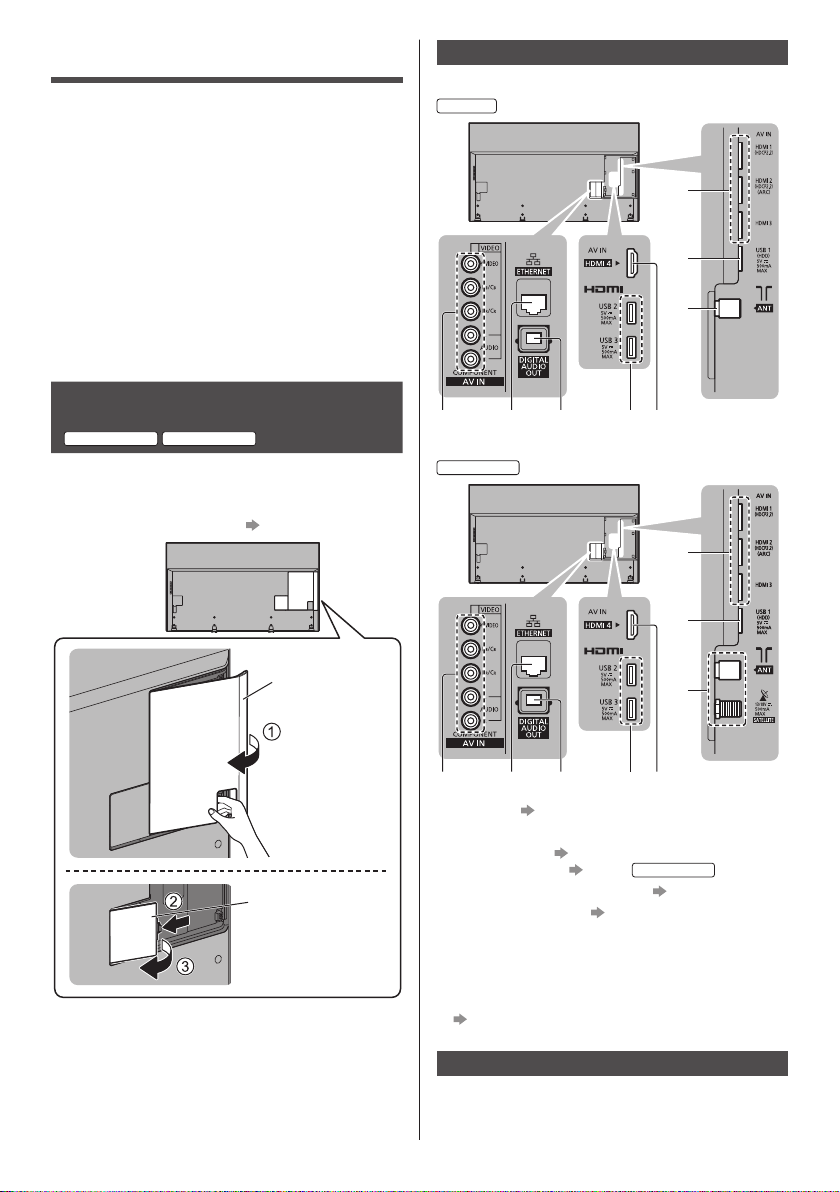
Terminals
Australia
4 5 6
1
2
3
7 8
New Zealand
1
2
3
45678
1 HDMI1 - 3 (p. 15, 15, 16, 16)
2 USB 1 port
3 Aerial terminal
(p. 15)
Satellite terminal (p. 15)
New Zealand
4 AV IN (COMPONENT / VIDEO) (p. 16, 16)
5 ETHERNET terminal
(p. 15)
6 DIGITAL AUDIO OUT
7 USB 2 - 3 port
8 HDMI4
To watch content in 4K format, use HDMI terminal.
(p. 16)
Basic connections
Connections
●
External equipment and cables shown are not
supplied with this TV.
●
Please ensure that the unit is disconnected from the
mains socket before attaching or disconnecting any
cables.
●
Check the terminal type and cable plugs are correct
for connection.
●
Use a fully wired HDMI compliant cable.
●
Keep the TV away from electronic equipment (video
equipment, etc.) or equipment with an infrared sensor,
otherwise distortion of image / sound may occur or
operation of other equipment may be affected.
●
Please also read the manual of the equipment being
connected.
Removing the cable cover / terminal
cover from the TV
50-inch model
58-inch model
●
Be sure to remove the cable cover / terminal cover
before connecting or disconnecting cables.
●
When the connections are completed, attach the
cable cover / terminal cover. (p. 17)
Cable cover
Terminal cover
English
15
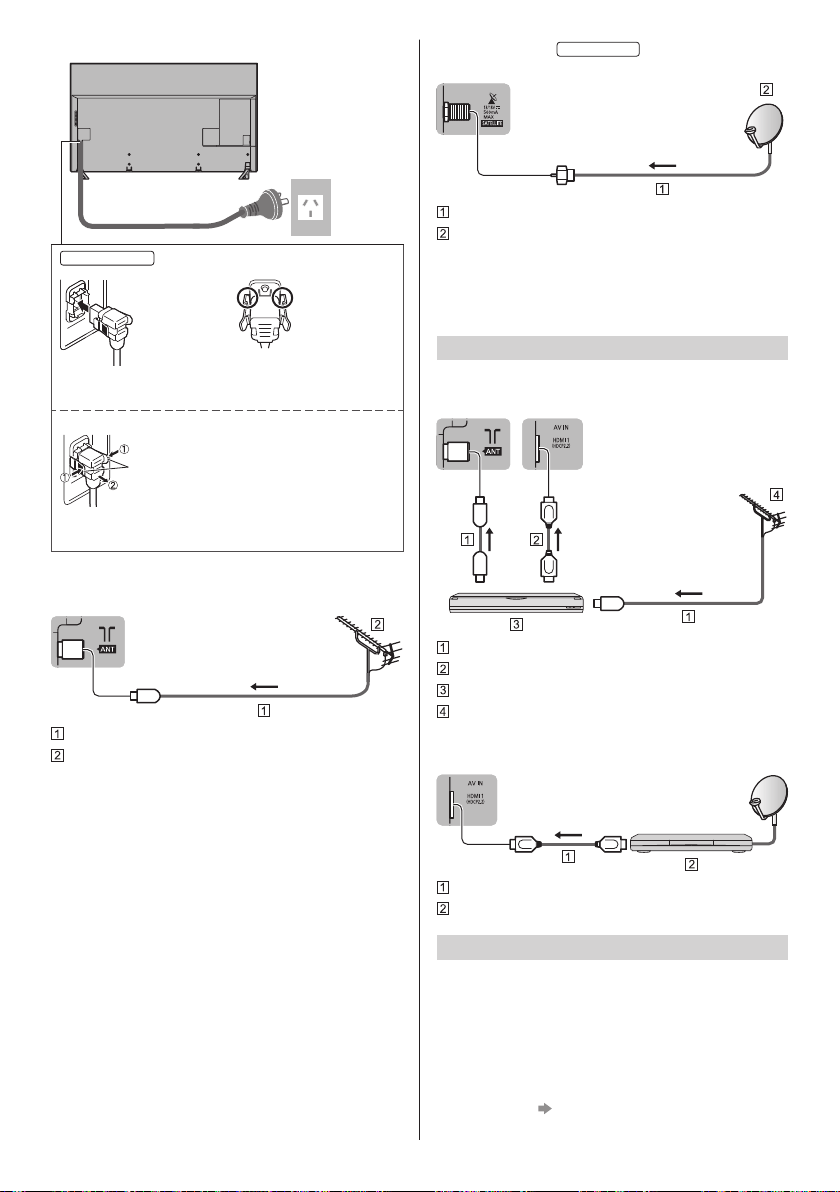
■ Mains lead
AC 220-240 V
50 / 60 Hz
Mains lead
65-inch model
Push until both side
tabs click
Make sure that the
mains lead is securely
fixed
To remove from the TV:
tabs
Press both tabs and pull on mains connector to
release
■ Aerial
TV
RF cable
Aerial
●
For Digital TV, Analogue TV
●
Keep RF (aerial) cable away from the mains lead to
avoid and minimise mains interference pickup.
●
Do not place the RF cable under the TV.
●
An aerial, correct cable (75 coaxial) and correct
terminating plug are required to obtain optimum
quality picture and sound.
●
If a communal aerial system is used, you may require
the correct connection cable and plug between the
wall aerial socket and the TV.
●
Your local Television Service Centre or dealer may
be able to assist you in obtaining the correct aerial
system for your particular area and the accessories
required.
●
Any matters regarding aerial installation, upgrading
of existing systems or accessories required, and
the costs incurred, are the responsibility of you, the
customer.
■ Satellite dish
New Zealand
TV
Satellite cable
Satellite dish
●
For Satellite TV
●
To ensure your satellite dish is correctly installed,
please consult your local dealer. Also consult the
received satellite broadcasting companies for details.
AV devices
■ DVD Recorder / VCR
TV
RF cable
HDMI cable
DVD Recorder / VCR
Aerial
■ Set top box
TV
HDMI cable
Set top box
Network
A broadband network environment is required to be able
to use internet services.
●
If you do not have any broadband network services,
please consult your retailer for assistance.
●
Prepare the internet environment for wired connection
or wireless connection.
●
Setup of the network connection will start when first
using the TV. (p. 21)
English
16
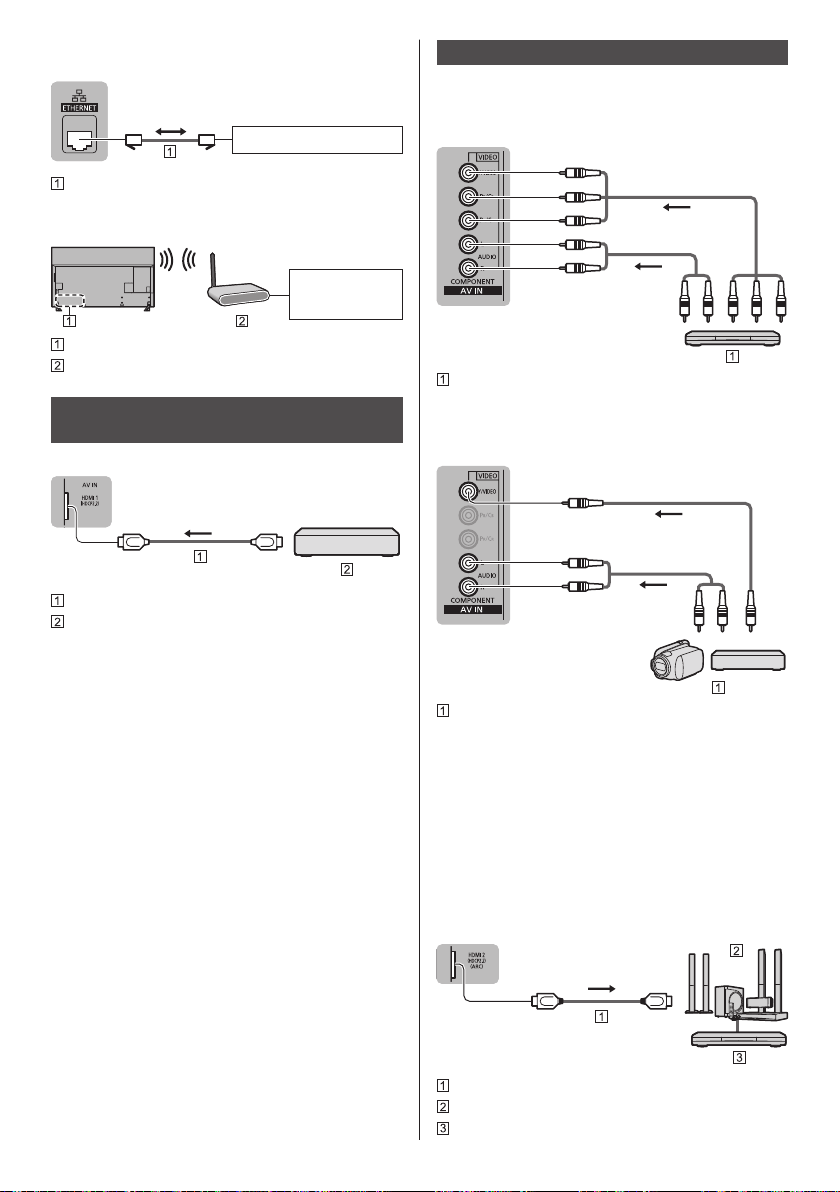
■ Wired connection
TV
Internet environment
LAN cable (Shielded)
●
Use Shielded Twist Pair (STP) LAN cable.
■ Wireless connection
Internet
environment
Built-in wireless LAN
Access point
Connections for 4K compatible
equipment
TV
HDMI cable
4K compatible equipment
●
Connect the 4K compatible equipment to HDMI
terminal using a 4K compatible cable and you can
watch content in 4K format.
●
The valid 4K format varies depending on the HDMI
terminal. For information about the valid format, refer
to [eHELP] (Watching > 4K resolution > Valid 4K
format).
■ [HDMI Auto Setting] (Setup Menu)
Reproduces the image more precisely with the
expanded colour gamut when connecting the 4K
compatible equipment. Select the mode depending on
the equipment.
[Mode1]:
For better compatibility. Set to [Mode1] when the
image or sound in HDMI input is not played properly.
[Mode2]:
For the 4K compatible equipment that has the
function to output the image precisely with the
expanded colour gamut
●
To change the mode
1. Select the HDMI input mode connected to the
equipment.
2. Display the menu and select [HDMI Auto Setting]
(Setup Menu).
●
For information about the valid format, refer to
[eHELP] (Watching > 4K resolution > HDMI Auto
Setting).
Other connections
■ DVD Player
(COMPONENT equipment)
TV
(Viewing)
(Listening)
DVD Player
■ Camcorder / Game equipment
(VIDEO equipment)
TV
(Viewing)
(Listening)
Camcorder / Game equipment
■ Amplifier (listening with external speakers)
●
Use HDMI2 to connect the TV to an amplifier which
has ARC (Audio Return Channel) function.
If connecting to an amplifier without ARC function,
use DIGITAL AUDIO OUT.
●
To enjoy multi-channel sound from external
equipment (e.g. Dolby Digital 5.1ch), connect the
equipment to the amplifier. For information about the
connections, read the manuals of the equipment and
amplifier.
TV
HDMI cable
Amplifier with speaker system
External equipment (DVD Player, etc.)
English
17
■ USB HDD (for recording)
●
Use USB 1 port for connecting the USB HDD.
●
For details, refer to [eHELP] (Recording).
■ VIERA Link
●
Use HDMI1 - 4 for VIERA Link connection.
●
For details, refer to [eHELP] (Functions > VIERA Link
“HDAVI Control™”).
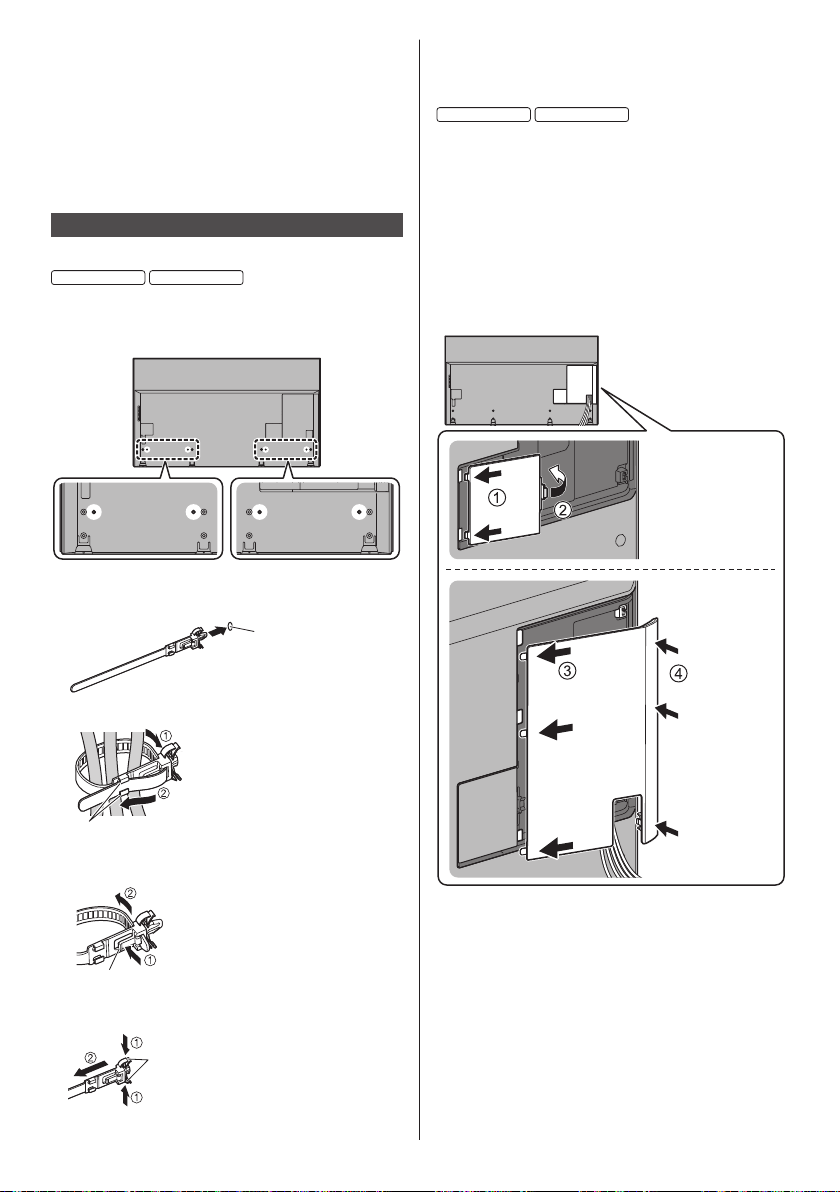
Cable arrangement
Fix the cables using the cable tie.
50-inch model
58-inch model
After fixing the cables, attach the cable cover / terminal
cover to the TV.
■ Fixing the cables using the cable tie
Attach the cable tie
Insert the cable tie in a hole
Hole
Bundle the cables
Hooks
Set the tip in the hooks
To loosen:
Knob
Keep pushing the knob
To remove from the TV:
Keep pushing both side snaps
Snaps
●
Fix cables as necessary.
●
When using the optional accessory, follow the option’s
assembly manual to fix cables.
50-inch model
58-inch model
■ Attaching the cable cover / terminal cover
●
Do not apply load to the cable cover / terminal cover.
●
Be careful not to nip the cables between the TV and
the cable cover / terminal cover.
●
When using USB 2 port or USB 3 port, you cannot
attach the cable cover. Keep the removed cable cover
for future use.
●
When using AV terminal, ETHERNET terminal or
DIGITAL AUDIO OUT, you cannot attach the terminal
cover. Keep the removed terminal cover for future
use.
English
18
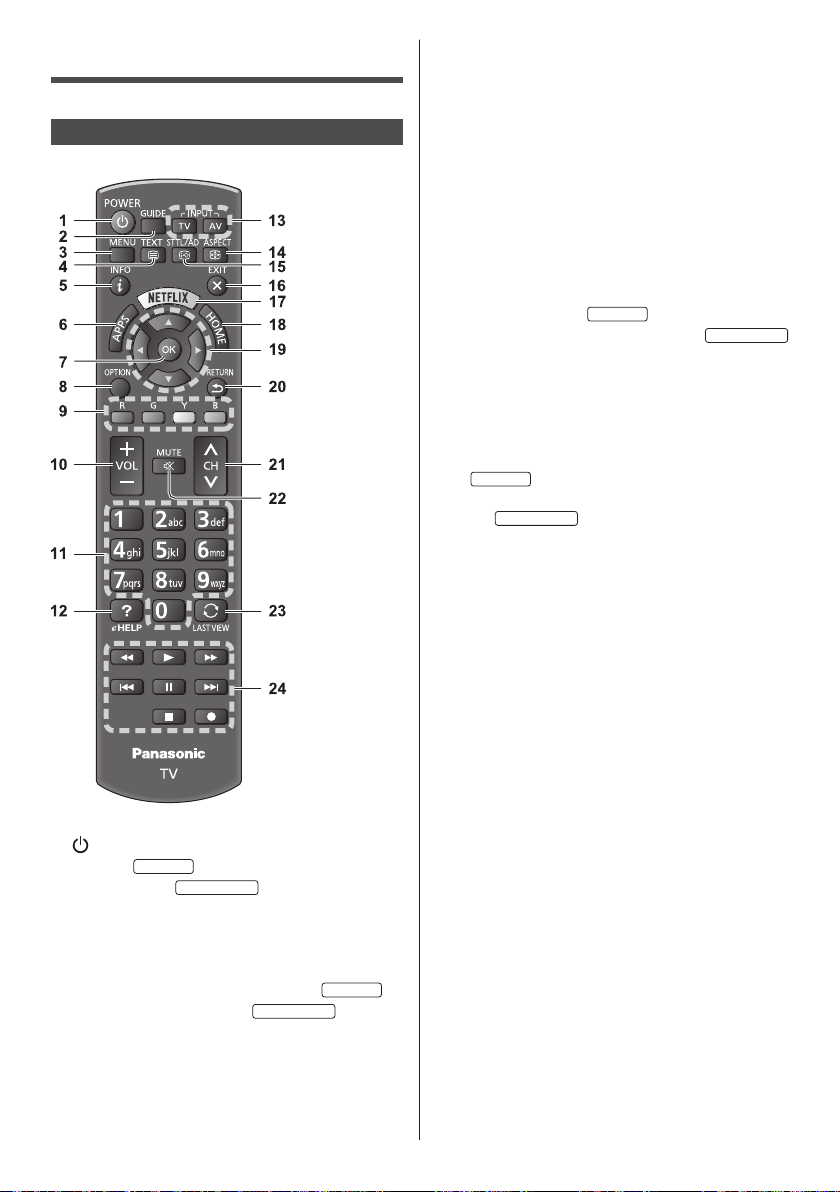
7 OK
●
Confirms selections and choices.
●
Press after selecting channel positions to quickly
change channel.
●
Displays channel list.
8 [Option Menu]
●
Easy optional setting for viewing, sound, etc.
9 Coloured buttons
(red-green-yellow-blue)
●
Used for the selection, navigation and operation of
various functions.
10
Volume Up / Down
11
Numeric buttons
●
Changes channel.
Australia
●
Changes channel and teletext pages.
New Zealand
●
Sets characters.
●
When in Standby mode, switches TV on.
12
[eHELP]
●
Displays [eHELP] (Built-in Operating Instructions).
13
Input mode selection
●
TV - switches to Digital TV / Analogue TV.
Australia
●
TV - switches to Satellite TV / Digital TV / Analogue
TV.
New Zealand
●
AV - switches to AV input mode from Input
Selection list.
14
Aspect
●
Changes aspect ratio.
15
Subtitle / Audio Description
●
Displays [Audio Description / Subtitle Menu].
16
Exit
●
Returns to the normal viewing screen.
17
Netflix
●
Accesses NETFLIX service directly.
●
A broadband network environment is required in
order to fully use this function.
●
This service may be stopped or changed without
notice.
18
HOME
●
Displays [Home Screen].
●
For details, refer to [eHELP] (Read first >
Features).
19
Cursor buttons
●
Makes selections and adjustments.
20
Return
●
Returns to the previous menu / page.
21
Channel Up / Down
22
Sound Mute On / Off
23
Last view
●
Switches to previously viewed channel or input
mode.
24
Operations for contents, connected equipment,
etc.
Identifying Controls
Remote Control
1 [
]: Standby On / Off switch
2 TV Guide
Australia
Freeview Guide
New Zealand
3 [Main Menu]
●
Press to access Picture, Sound, Network, Timer,
Setup and Help Menus, etc.
4 Teletext button
●
This button is not used for this model.
Australia
●
Switches to teletext mode.
New Zealand
5 Information
●
Displays channel and programme information.
6 APPS
●
Displays [Apps] (applications list).
English
19
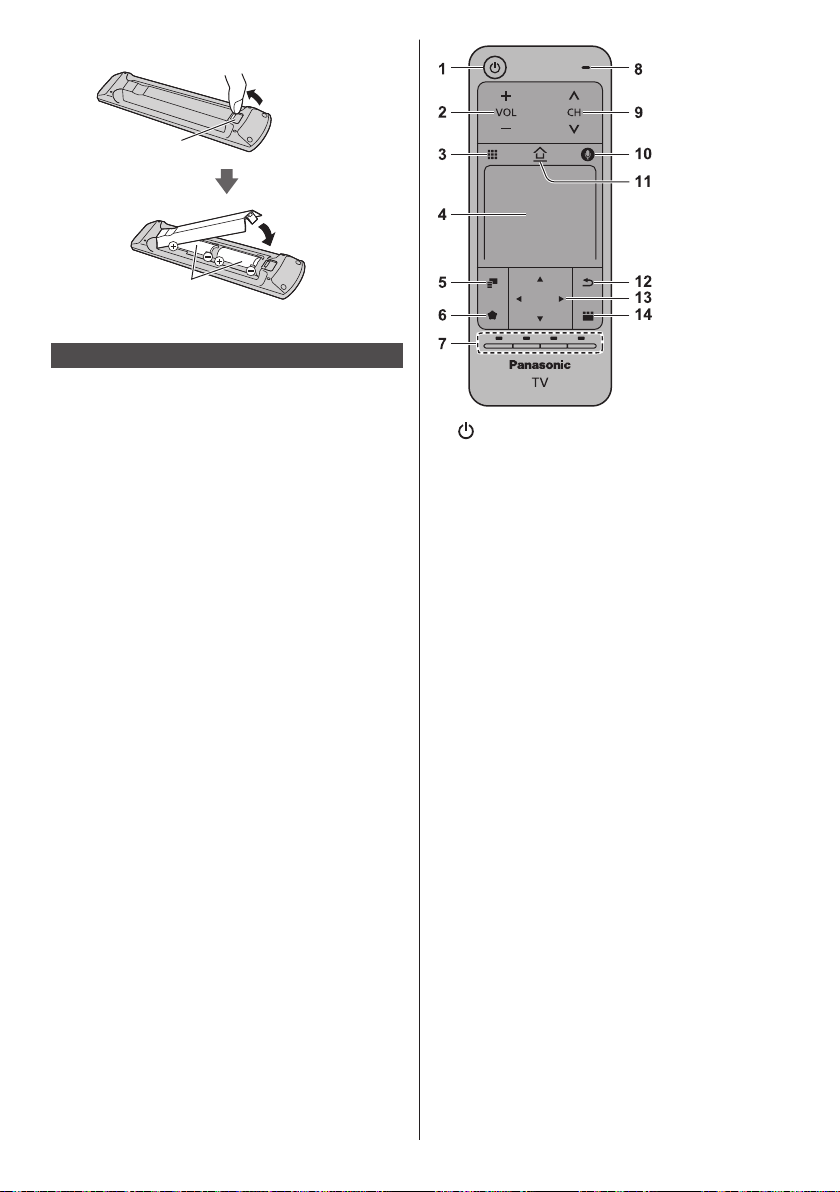
1 [ ]: Standby On / Off switch
2 Volume Up / Down
3 On-screen remote control
●
Press to display the remote control GUI (Graphical
User Interface).
4 Touch pad
●
For information about the operation, refer to
[Operation Guide] in [VIERA Touch Pad Controller]
(Setup Menu).
5 [Option Menu]
6 Registers a shortcut on [Home Screen]
7 Coloured buttons
(red-green-yellow-blue)
●
Used for the selection, navigation and operation of
various functions.
8 Microphone
9 Channel Up / Down
10
Voice Control button
●
Press to use Voice Control function.
11
HOME
●
Displays [Home Screen].
●
For details, refer to [eHELP] (Read first >
Features).
12
Return
●
Returns to the previous menu / page.
13
Cursor buttons
●
Makes selections and adjustments.
14
APPS
●
Displays [Apps] (applications list).
■ Installing / Removing batteries
Pull open
Hook
Note the correct
polarity (+ or -)
Close
Touch Pad Controller
The Touch Pad Controller is designed for convenient
and intuitive operation, especially with [Home Screen] or
internet content.
●
Touch Pad Controller can be used exclusively for
controlling this TV.
●
Register the Touch Pad Controller to this TV with
Bluetooth wireless technology before using.
The registration starts automatically when you press
any buttons (except Standby On / Off switch) after
installing batteries.
●
After registering, you can operate the TV without
pointing this controller at the TV (except Standby On /
Off switch).
●
To use Standby On / Off switch, point the controller
directly at the TV’s remote control signal receiver
because it works with the infrared sensors. (You can
operate the switch without registration.)
●
It is recommended to speak within approx. 15 cm
from the microphone of Touch Pad Controller when
using the Voice Control function.
●
For details, refer to [eHELP] (Functions > Touch Pad
Controller).
English
20
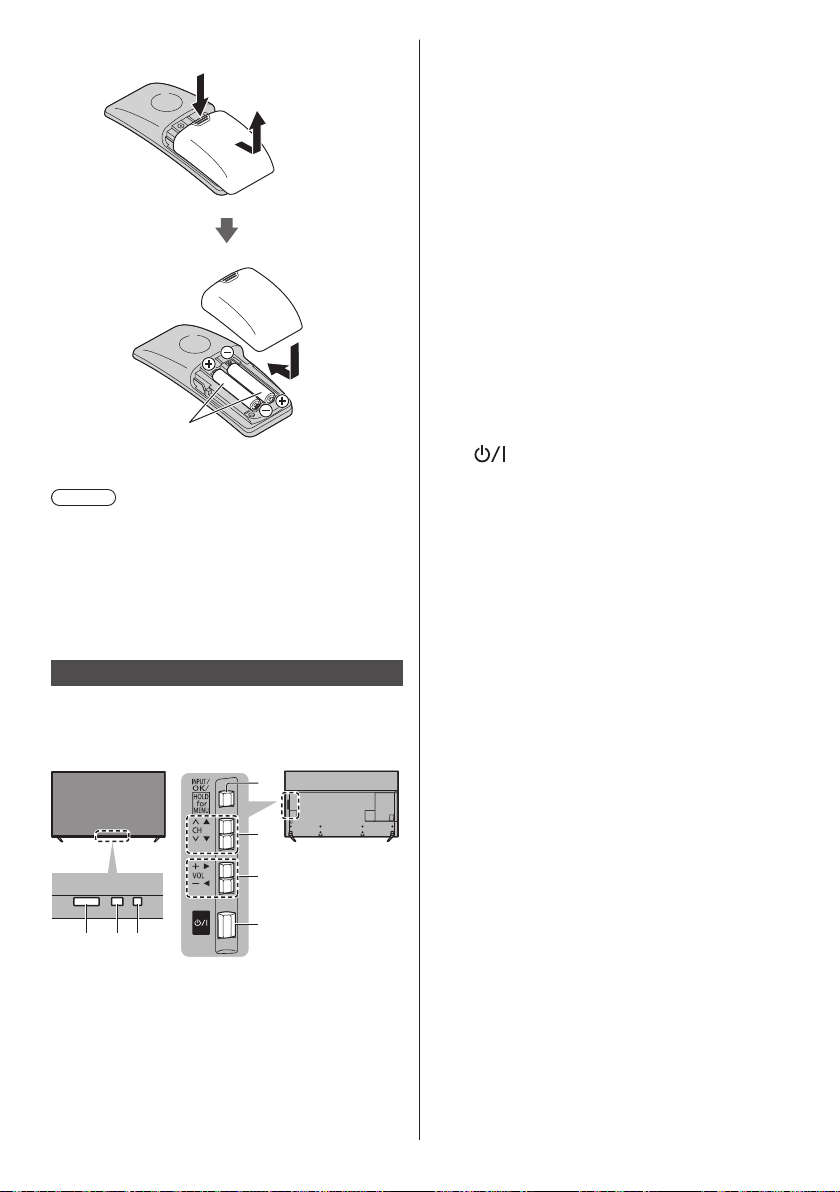
Red: Standby
Green: On
Orange: Standby with some functions (recording,
etc.) active
●
The LED blinks when the TV receives a command
from the remote control.
4 Input mode selection
●
Press repeatedly until you reach the desired mode.
[Main Menu]
●
Press and hold for about 3 seconds to display main
menu.
OK (when in the menu system)
5 Channel Up / Down
●
Cursor Up / Down (when in the menu system)
6 Volume Up / Down
●
Cursor Left / Right (when in the menu system)
7 Mains power On / Off switch
●
Use to switch the mains power.
●
To turn Off the apparatus completely, you must pull
the mains plug out of the mains socket.
●
[ ]: Standby / On
■ Installing / Removing batteries
Slide open
Note the correct polarity
(+ or -)
Close
Note
●
It is recommended to hold Touch Pad Controller with
your hand when using.
●
The battery power will be used whenever you use
Touch Pad Controller (including the touch of the touch
pad) even if not operating the TV. It may decrease the
battery life.
●
Some operations differ depending on the application.
Indicator / Control panel
●
When pressing 4, 5, 6 buttons, the control panel
guide appears on the right side of the screen for
3 seconds to highlight which button has been
pressed.
123
5
6
7
4
Rear side of the TV
1 Remote control signal receiver
●
Do not place any objects between the TV remote
control signal receiver and remote control.
2 Ambient sensor
●
Senses brightness to adjust picture quality when
[Ambient Sensor] in the Picture Menu is set to
[On].
3 Power LED
English
21
Tick the TV signal mode to tune, and then select
[Start Auto Tuning]
: tune (search for the available channels)
: skip tuning
Select your region (Satellite)
New Zealand
Auto Tuning is now complete and the
TV is ready for viewing.
If tuning has failed check the Satellite cable, RF cable,
and the network connection, and then follow the on-
screen instructions.
Note
●
The TV goes into Standby mode when no operation
is performed for 4 hours if [Auto Standby] in the Timer
Menu is set to [On].
●
The TV goes into Standby mode when no signal is
received and no operation is performed for
10 minutes if [No signal Power off] in the Timer Menu
is set to [On].
●
To retune all channels
[Auto Tuning] in [Tuning Menu] (Setup Menu)
●
If no satellite channel is found, set [LNB Band
Frequency] to suit your environment.
New Zealand
[LNB Configuration] in [Satellite TV Tuning
Menu] (Setup Menu)
●
To add the available TV signal mode later
[Add TV Signal] in [Tuning Menu] (Setup Menu)
●
To initialise all settings
[Shipping Condition] in [System Menu] (Setup
Menu)
First time Auto
Tuning
When the TV is turned on for the first time, it will
automatically search for available TV channels and give
options to set up the TV.
●
These steps are not necessary if the setup has been
completed by your local dealer.
●
Please complete connections (p. 14 - 17) and
settings (if necessary) of the connected equipment
before starting Auto Tuning. For information about
the settings for the connected equipment, read the
manual of the equipment.
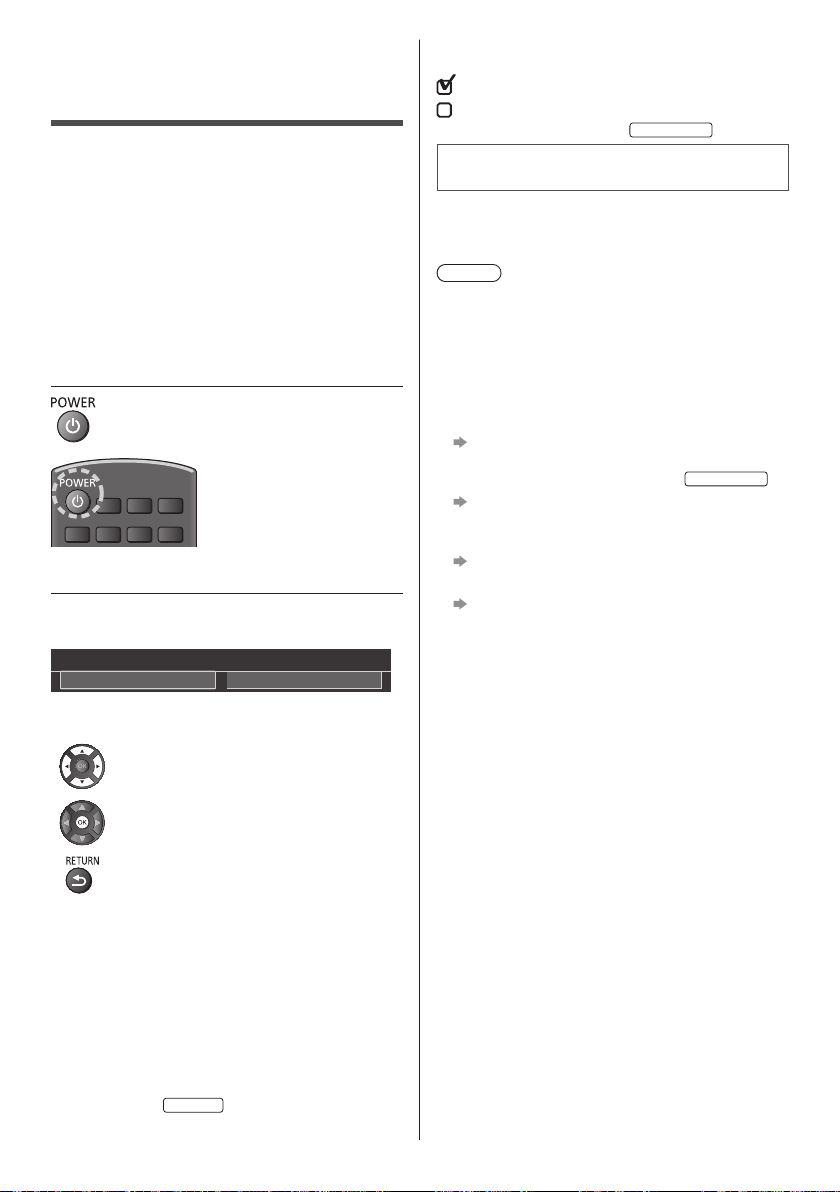
1 Plug the TV into a live mains socket
and turn the power on
●
Takes a few seconds to be displayed.
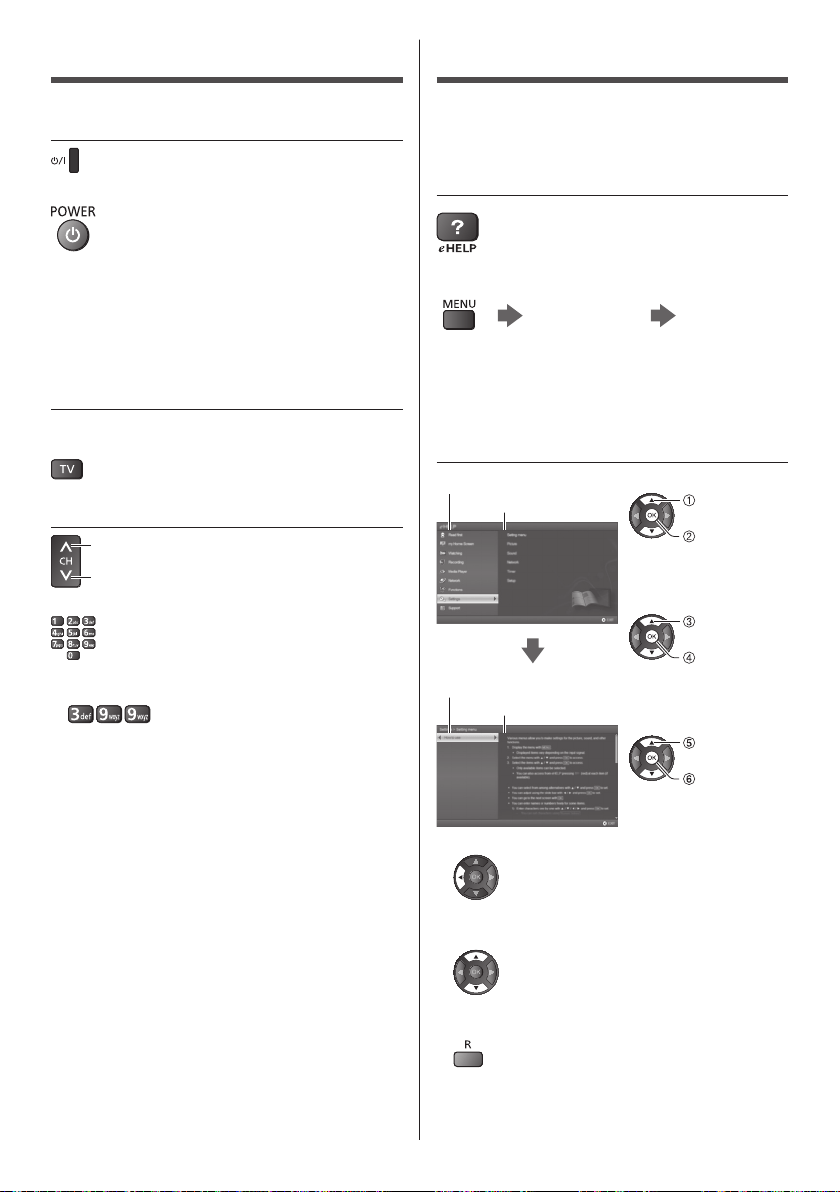
2 Select the following items
Set up each item by following the on-screen instructions.
Example:
Please select your viewing environment.
Home Shop
■ How to use the remote control
Move the cursor
Access the item / store the setting
Return to the previous item (if available)
Select the language
Select [Home]
Select [Home] for use in a home viewing environment.
●
[Shop] is for shop display.
●
To change the viewing environment later on, the set
will need to have all settings initialised by accessing
Shipping Condition.
Set up the network connection
Select your area
Australia
English
22
How to Use eHELP
[eHELP] is the detailed operating instructions built into
the TV, and gives a more detailed explanation for a
better understanding of the operation of each feature.
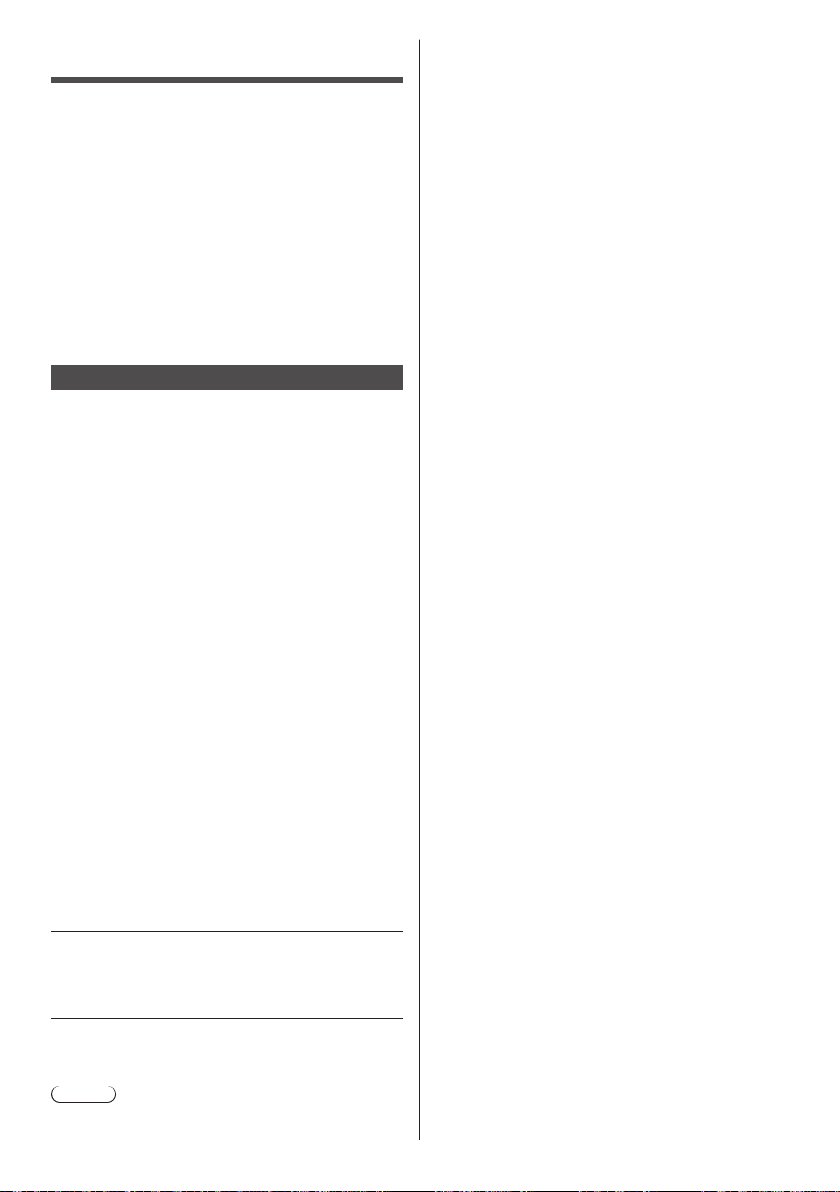
1 Display [eHELP]
or
[Help]
[eHELP]
●
If the [eHELP] has been accessed previously since
the TV was turned on, the confirmation screen is
displayed to select whether to go to the [First page] or
to the [Last viewed page].
2 Select the category and item
Category field
Item field
select
category
access
select item
access
select sub
item
access
Sub item field
Description
●
To return to the previous field
●
To scroll the description (if more than 1 page)
While the description is highlighted
●
To display the menu related to the description (only
for some descriptions)
(red)
●
To check the features of this TV
Read first > Features
Watching TV
1 Turn power on
(TV)
or
(Remote Control)
●
Mains power On / Off switch should be on.
(p. 20)
Displays information bar on the edge of screen for
several seconds.
●
For information about the operation and settings, refer
to [eHELP]. (Read first > Features)
2 Select the mode
●
Selectable modes vary depending on the channels
stored.
3 Select a channel
up
down
or
●
To select a channel position with 2 or more-digit, e.g.
399
English
23
●
Use the 3D Eyewear within approximately 3.2 m from
the TV. You cannot view the 3D images with the 3D
Eyewear too far from the TV, because of the difficulty
of receiving radio waves from the TV.
●
The range may be shortened depending on the
obstacles between the TV and the 3D Eyewear, or the
surrounding environment.
●
When viewing 3D images, make sure your eyes are
in a horizontal position where double vision does not
occur.
●
If the room is lit by fluorescent lights (50 Hz) and light
appears to flicker when using the 3D Eyewear, switch
off the fluorescent light.
●
There are differences in the viewing range of the 3D
Eyewear among individuals.
Viewing 3D images
You can enjoy viewing 3D images of content or
programmes supporting 3D effects by wearing the 3D
Eyewear (optional).
●
The 3D Eyewear must be worn to view 3D images.
●
When using the 3D Eyewear, please also read the
manual of the 3D Eyewear.
●
This TV supports [Frame Sequential]
*
, [Side by Side]
and [Top and Bottom] 3D formats. (3D content in 4K
format is not supported.)
●
For details, refer to [eHELP] (Watching > 3D).
*
: Frame Sequential is the 3D format that the images for
right and left eyes are recorded with high definition
quality and alternately played back.
To view the 3D images
●
Use Panasonic 3D Eyewear supporting Bluetooth
wireless technology for active shutter 3D.
■ Playing back 3D-compatible Blu-ray disc
(Frame Sequential format)
●
Connect the 3D-compatible player via a fully
wired HDMI compliant cable. (If you use the non
3D-compatible player, the images will be displayed in
2D mode.)
●
If the input mode is not switched automatically, select
the input mode connected to the player using the AV
button.
■ 3D-supported broadcast
●
Please consult the suppliers of content or
programmes for availability of this service.
■ 3D photos and 3D videos taken by
3D-compatible Panasonic products
●
Available in Media Player and Network services.
■ 2D images converted to 3D
●
Set to [2D→3D] mode in [3D Mode Selection]
([Picture] > [3D Settings] > [3D Mode]). (Content in 4K
format cannot be converted to 3D mode.)
Ensure that the registration of the 3D Eyewear has
been completed. For details, read the manual of the 3D
Eyewear.
1 Turn the 3D Eyewear on and put it on
Connection status and battery status are displayed on
the bottom right of the screen.
2 View the 3D images
Safety precautions will be displayed when you first
watch the 3D image. Select [Yes] or [No] to continue to
view 3D images.
Note
●
Turn off the 3D Eyewear after using it.
English
24
●
Parts of the TV may become hot. These temperature
rises do not pose any problems in terms of
performance or quality.
When pushed with a finger, the display panel moves
slightly and makes a noise
●
There is a little gap around the panel to prevent
damage to the panel. This is not a malfunction.
FAQs
Before requesting service or assistance, please follow
these simple guides to solve the problem.
●
For details, refer to [eHELP] (Support > FAQs).
The TV does not switch on
●
Check the mains lead is plugged into the TV and the
mains socket.
The TV goes into Standby mode
●
Auto power standby function is activated.
The remote control does not work or is intermittent
●
Are the batteries installed correctly? (p. 19)
●
Has the TV been switched on?
●
The batteries may be running low. Replace them with
new ones.
●
Point the remote control directly at the TV’s remote
control signal receiver (within about 7 m and a
30 degree angle of the signal receiver).
●
Situate the TV away from sunshine or other sources
of bright light so they do not shine on the TV’s remote
control signal receiver.
No image is displayed
●
Check the TV is turned on.
●
Check the mains lead is plugged into the TV and the
mains socket.
●
Check the correct input mode is selected.
●
Check the setting of [AV] ([COMPONENT] / [VIDEO])
in [Input Selection] to match the signal being output
by the external equipment.
●
Is [Backlight], [Contrast], [Brightness] or [Colour] in
the Picture Menu set to the minimum?
●
Check all required cables and connections are firmly
in place.
An unusual image is displayed
●
This TV has a built-in Self Test. Makes a diagnosis of
picture or sound problems.
[TV Self Test] (Help Menu)
●
Turn the TV off with Mains power On / Off switch,
then turn it on again.
●
If the problem persists, initialise all settings.
[Shipping Condition] in [System Menu] (Setup
Menu)
The image or sound from external equipment are
unusual when the equipment is connected via HDMI
●
Set [HDMI Auto Setting] (Setup Menu) to [Mode1]
(p. 16)
Parts of the TV become hot
English
25
Specifications
■ TV
Model No.
50-inch model
:
TH-50DX700A, TH-50DX700Z
58-inch model
:
TH-58DX700A, TH-58DX700Z
65-inch model
:
TH-65DX700A, TH-65DX700Z
Dimensions (W × H × D)
50-inch model
(Style1)
1 115 mm × 692 mm × 203 mm (With Pedestal)
1 115 mm × 647 mm × 40 mm (TV only)
(Style2)
1 115 mm × 707 mm × 203 mm (With Pedestal)
1 115 mm × 647 mm × 40 mm (TV only)
58-inch model
(Style1)
1 290 mm × 805 mm × 239 mm (With Pedestal)
1 290 mm × 753 mm × 41 mm (TV only)
(Style2)
1 290 mm × 820 mm × 239 mm (With Pedestal)
1 290 mm × 753 mm × 41 mm (TV only)
65-inch model
(Style1)
1 453 mm × 903 mm × 363 mm (With Pedestal)
1 453 mm × 838 mm × 61 mm (TV only)
(Style2)
1 453 mm × 918 mm × 363 mm (With Pedestal)
1 453 mm × 838 mm × 61 mm (TV only)
Mass
50-inch model
17.0 Net (With Pedestal)
16.0
Net (TV only)
58-inch model
24.0 Net (With Pedestal)
23.0
Net (TV only)
65-inch model
28.0 Net (With Pedestal)
27.0
Net (TV only)
Power Rating
50-inch model
AC 220-240 V, 50 / 60 Hz x.x A
58-inch model
AC 220-240 V, 50 / 60 Hz x.x A
65-inch model
AC 220-240 V, 50 / 60 Hz x.x A
Maintenance
First, remove the mains plug from the
mains socket.
Display panel, Cabinet, Pedestal
Regular care:
Gently wipe the surface of the display panel, cabinet,
or pedestal by using a soft cloth to remove dirt or
fingerprints.
For stubborn dirt:
(1) First clean the dust from the surface.
(2) Dampen a soft cloth with clean water or diluted
neutral detergent (1 part detergent to 100 parts
water).
(3) Wring out the cloth firmly. (Please note, do not let
liquid enter the TV inside as it may lead to product
failure.)
(4) Carefully wipe moisten and wipe away the stubborn
dirt.
(5) Finally, wipe away all the moisture.
Caution
●
Do not use a hard cloth or rub the surface too hard,
otherwise this may cause scratches on the surface.
●
Take care not to subject the surfaces to insect
repellent, solvent, thinner or other volatile substances.
This may degrade surface quality or cause peeling of
the paint.
●
The surface of the display panel is specially treated
and may be easily damaged. Take care not to tap or
scratch the surface with your fingernail or other hard
objects.
●
Do not allow the cabinet and pedestal to make
contact with a rubber or PVC substance for a long
time. This may degrade surface quality.
Mains plug
Wipe the mains plug with a dry cloth at regular intervals.
Moisture and dust may cause fire or electrical shock.
English
26
Channel, Deep Colour, x.v.Colour™
●
This TV supports “HDAVI Control 5” function.
Normal (Home) mode
50-inch model
xxx W
58-inch model
xxx W
65-inch model
xxx W
Standby power consumption
x.xx W
Visible screen size (diagonal)
50-inch model
126 cm
58-inch model
146 cm
65-inch model
164 cm
Display resolution
3 840 (W) × 2 160 (H)
Panel
LED backlight Liquid Crystal Display
Speaker output
20 W (10 W + 10 W)
Connection terminals
AV IN (COMPONENT / VIDEO)
VIDEO
RCA PIN Type × 1
1.0 V[p-p] (75 )
AUDIO L - R
RCA PIN Type × 2
0.5 V[rms]
Y
1.0 V[p-p] (including synchronisation)
P
B/CB, PR/CR
±0.35 V[p-p]
HDMI 1 / 2 / 3 / 4 input
TYPE A Connectors
HDMI1 / 3 / 4: 4K, 3D (3D content of 4K format is
not supported.), Content Type, Deep
Colour, x.v.Colour™
HDMI2: 4K, 3D (3D content of 4K format is not
supported.), Content Type, Audio Return
ETHERNET
10BASE-T / 100BASE-TX
USB 1 / 2 / 3
USB1: DC
5 V, Max. 900 mA [SuperSpeed USB
(USB 3.0)]
USB2 / 3: DC
5 V, Max. 500 mA [Hi-Speed USB
(USB 2.0)]
DIGITAL AUDIO OUT
PCM / Dolby Digital / DTS, Fibre optic
Receiving systems / Band name
Satellite TV
New Zealand
Digital satellite services
Receiver frequency range - 950 MHz to 2150 MHz
DiSEqC - Version 1.0
Digital TV
Australia
7 MHz VHF / UHF (Australia) free-to-air TV
broadcast reception
New Zealand
8 MHz VHF / UHF (New Zealand) free-to-air TV
broadcast reception
PAL B / G
Reception of Off air broadcast
PAL 60 Hz
Playback of NTSC tape from some PAL Video
recorders (VCR)
M.NTSC
Playback from M.NTSC Video recorders (VCR)
NTSC
Playback from NTSC Video recorders (VCR)
Satellite dish input
New Zealand
Female F-type 75 Ω
Aerial input
Standard Belling & Lee connector
VHF / UHF
Operating conditions
Temperature
0 °C - 35 °C
Humidity
20 % - 80 % RH (non-condensing)
English
27
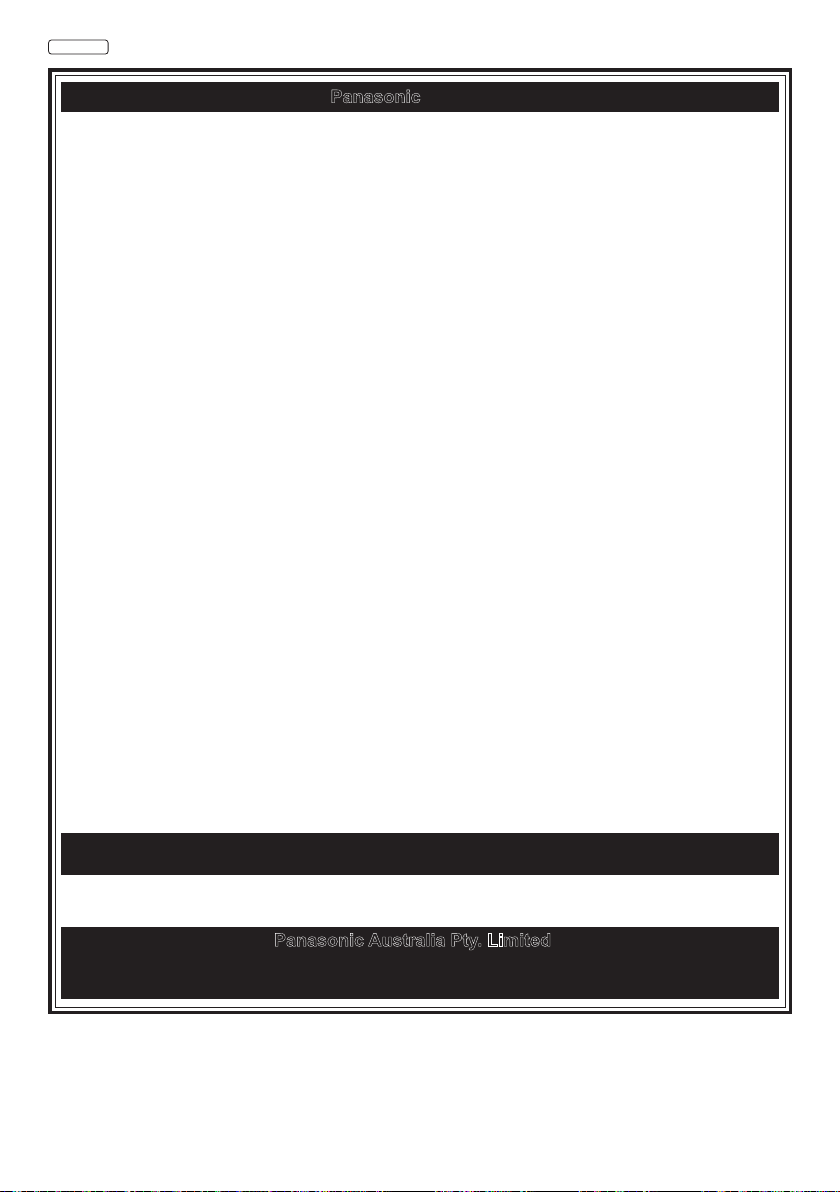
■ When using the wall-hanging bracket
Choosing to wall mount the TV shall be done at the
owner’s risk. Always use a qualified installer to perform
a TV wall bracket installation. Incorrect fitting may cause
equipment to fall, resulting in injury and product damage.
Any such damage will void your warranty.
●
Holes for wall-hanging bracket installation
Rear of the TV
a
b
50-inch model
58-inch model
a: 400 mm
b: 200 mm
65-inch model
a: 400 mm
b: 400 mm
(View from the side)
Depth of screw
50-inch model
minimum: 10 mm
maximum: 15 mm
58-inch model
minimum: 10 mm
maximum: 17 mm
65-inch model
minimum: 11 mm
maximum: 19 mm
Type of screw: M6
Screw for fixing the TV onto the
wall-hanging bracket (not supplied with
the TV)
Warning
●
When optional accessories such as wall brackets, etc.
are used, always read and follow the manufactures
installation and usage instructions.
●
Do not mount the unit directly below ceiling lights
(such as spotlights or halogen lights) which typically
give off high heat. Doing so may warp or damage
plastic cabinet parts.
●
When installing wall brackets you must ensure the
wall bracket is not electrically grounded to metal wall
studs. Always ensure that there are no electrical
cables, pipes, etc. in the wall before you begin the
wall bracket installation.
●
To prevent fall and injury, remove the TV from its fixed
wall position when it is no longer in use.
Built-in wireless LAN
Standard compliance and Frequency range
*
1
IEEE802.11a/n
5.15 GHz - 5.35 GHz, 5.47 GHz - 5.85 GHz
IEEE802.11b/g/n
2.400 GHz - 2.4835 GHz
Security
WPA2-PSK (TKIP/AES)
WPA-PSK (TKIP/AES)
WEP (64 bit/128 bit)
Bluetooth wireless technology
*
2
Standard Compliance
Bluetooth 3.0
Frequency Range
2.402 GHz - 2.480 GHz
*
1: The frequency and channel differ depending on the
country.
*
2: Not all the Bluetooth compatible devices are
available with this TV. Up to 5 devices can be used
simultaneously (except the 3D Eyewear and Touch
Pad Controller).
Note
●
Touch Pad Controller uses Bluetooth wireless
technology.
●
Design and Specifications are subject to change
without notice. Mass and Dimensions shown are
approximate.
●
For information about the open source software, refer
to [eHELP] (Support > Licence).
Australia
1. The product is warranted for 12 months from the date of purchase. Subject to the conditions of this warranty Panasonic or its
Authorised Service Centre will perform necessary service on the product without charge for parts or labour, if in the opinion of
Panasonic, the product is found to be faulty within the warranty period.
2.
This warranty only applies to Panasonic products purchased in Australia and sold by Panasonic Australia or its Authorised Distributors or
Dealers and only where the products are used and serviced within Australia or it's territories. Warranty cover only applies to service carried
out by a Panasonic Authorised Service Centre and only if valid proof of purchase is presented when warranty service is requested.
3. This warranty only applies if the product has been installed and used in accordance with the manufacturer’s recommendations (as noted
in the operating instructions) under normal use and reasonable care (in the opinion of Panasonic). The warranty covers normal domestic
use only and does not cover damage, malfunction or failure resulting from use of incorrect voltages, incorrect installation, accident,
misuse, neglect, build-up of dirt or dust, abuse, maladjustment of customer controls, mains supply problems, thunderstorm activity,
infestation by insects or vermin, tampering or repair by unauthorised persons (including unauthorised alterations), introduction of sand,
humidity or liquids, commercial use such as hotel, office, restaurant, or other business or rental use of the product, exposure to abnormally
corrosive conditions or any foreign object or matter having entered the product.
4. This warranty does not cover the following items unless the fault or defect existed at the time of purchase:
(a) Cabinet Part(s) (e) DVD, Blu-ray, or Recordable Discs
(b) Video or Audio Tapes (f) Video / Audio Heads from wear and tear in normal use
(c) SD cards or USB devices (g) Information stored on Hard Disk Drive, USB stick or SD card
(d) User replaceable Batteries (h) DTV reception issues caused by TV Aerial / Cabling / Wall socket(s)
etc
5. Some products may be supplied with Ethernet connection hardware. The warranty is limited on such products and will not cover
(a) Internet and or DLNA connection / setup related problems
(b) Access fees and or charges incurred for internet connection
(c) The use of incompatible software or software not specifically stipulated in the product operations manual; and
(d) Any indirect or consequential costs associated with the incorrect use or misuse of the hardware, its connection to the internet or
any other device.
6. To claim warranty service, when required, you should:
• Telephone Panasonic’s Customer Care Centre on 132600 or visit our website referred to below and use the Service Centre Locator
for the name/address of the nearest Authorised Service Centre.
• Send or take the product to a Panasonic Authorised Service Centre together with your proof of purchase receipt as a proof of purchase
date. Please note that freight and insurance to and / or from your nearest Authorised Service Centre must be arranged by you.
• Note that home or pick-up/delivery service is available for the following products in the major metropolitan areas of Australia or the
normal operating areas of the nearest Authorised Service Centres:
- Plasma/LCD televisions / displays (screen size greater than 103 cm)
7. The warranties hereby conferred do not extend to, and exclude, any costs associated with the installation, de-installation or
re-installation of a product, including costs related to the mounting, de-mounting or remounting of any screen, (and any other ancillary
activities), delivery, handling, freighting, transportation or insurance of the product or any part thereof or replacement of and do not
extend to, and exclude, any damage or loss occurring by reason of, during, associated with, or related to such installation,
de-installation, re-installation or transit.
Panasonic Authorised Service Centres are located in major metropolitan areas and most regional centres of Australia, however, coverage
will vary dependant on product. For advice on exact Authorised Service Centre locations for your product, please telephone our Customer
Care Centre on 132600 or visit our website and use the Service Centre Locator.
In addition to your rights under this warranty, Panasonic products come with consumer guarantees that cannot be excluded under the
Australian Consumer Law. If there is a major failure with the product, you can reject the product and elect to have a refund or to have the
product replaced or if you wish you may elect to keep the goods and be compensated for the drop in value of the goods. You are also entitled
to have the product repaired or replaced if the product fails to be of acceptable quality and the failure does not amount to a major failure.
If there is a major failure in regard to the product which cannot be remedied then you must notify us within a reasonable period by contacting
the Panasonic Customer Care Centre. If the failure in the product is not a major failure then Panasonic may choose to repair or replace the
product and will do so in a reasonable period of time from receiving notice from you.
Panasonic
THIS WARRANTY CARD AND THE PURCHASE DOCKET (OR SIMILAR PROOF OF PURCHASE)
SHOULD BE RETAINED BY THE CUSTOMER AT ALL TIMES
If you require assistance regarding warranty conditions or any other enquiries, please visit the
Panasonic Australia website www.panasonic.com.au or contact by phone on 132 600
If phoning in, please ensure you have your operating instructions available.
Panasonic Australia Pty. Limited
ACN 001 592 187 ABN 83 001 592 187
1 Innovation Road, Macquarie Park NSW 2113
PRO-031-F11 Issue: 4.0 01-01-2011
Warranty
Customer’s Record
The model number and serial number of this product may be found on its rear panel. You should note this serial
number in the space provided below and retain this book, plus your purchase receipt, as a permanent record of
your purchase to aid in identification in the event of theft or loss, and for Warranty Service purposes.
Model Number Serial Number
Web Site: http://www.panasonic.com
© Panasonic Corporation 2016
English
Printed in Malaysia
Information on Disposal in other Countries outside the European Union
This symbol is only valid in the European Union. If you wish to discard this product,
please contact your local authorities or dealer and ask for the correct method of disposal.
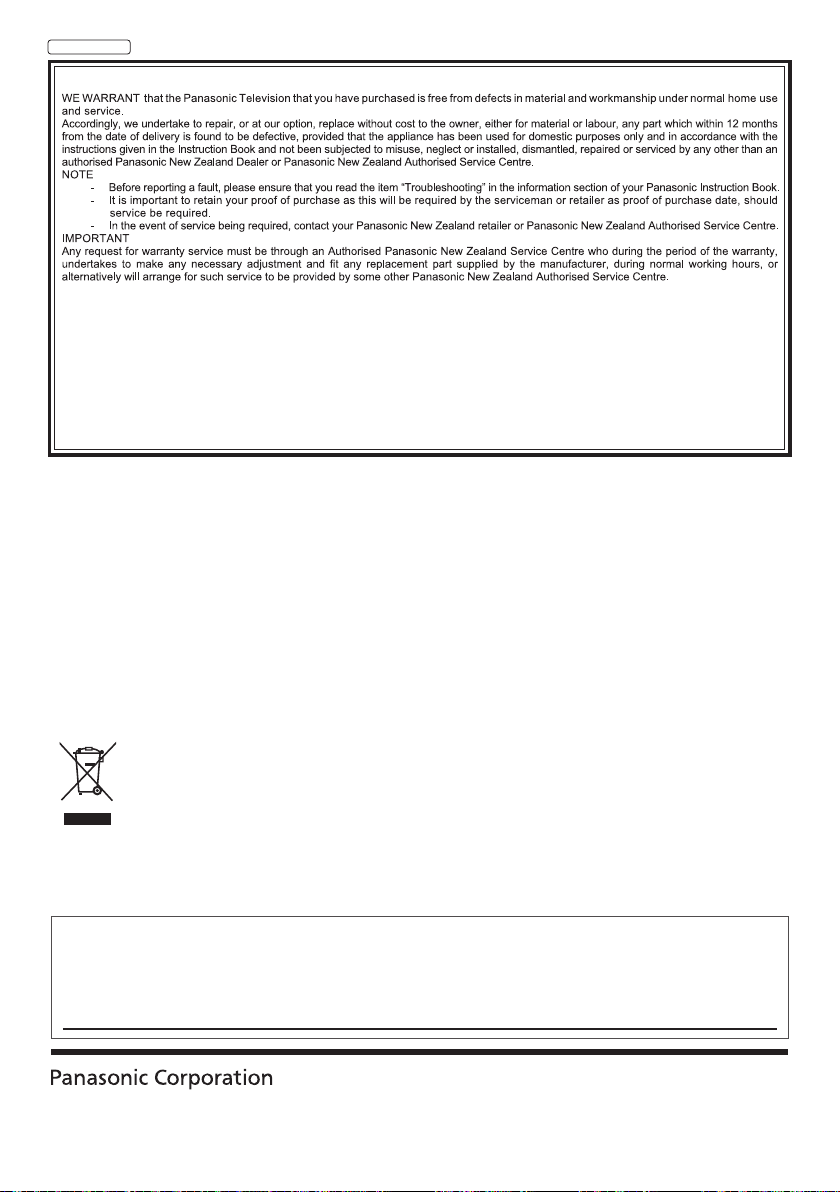
New Zealand
WARRANTY - New Zealand only
Distributed in New Zealand by Panasonic New Zealand Limited
350 Te Irirangi Drive East Tamaki, Private Bag 14911, Panmure Auckland
Tel. 09 272 0100
Customer Care Center
Email: [email protected]
www.panasonic.co.nz
NEW ZEALAND
Warranty
