
▶
English
❑
Using the INFO button (Now & Next guide)
The display identifies the current channel and the status of certain audio-video
settings.
The Now & Next guide shows daily TV programme information for each channel
according to the broadcasting time.
N
When you press the
INFO
button, a channel information banner will appear
on the top of the screen. And then press the ENTER
E
button, you can see
the details of the programme.
●
Scroll
◄
,
►
to view information for a desired programme while watching
the current channel.
●
Scroll
▲
,
▼
to view information for other channels.
Channel Setting

◀ ▶
English
❑
Memorizing channels
■
Aerial
(depending on the country and model and model)
O
MENU
m
→
Broadcasting
→
Aerial
→
ENTER
E
Before your television can begin memorising the available channels, you must
specify the type of signal source that is connected to the TV.

◀ ▶
English
■
Auto Tuning
(depending on the country and model)
O
MENU
m
→
Broadcasting
→
Auto Tuning
→
ENTER
E
N
Automatically allocated programme numbers may not correspond to actual
or desired programme numbers. If a channel is locked, the PIN input window
appears.
●
Auto Tuning
Aerial (Air / Cable): Selects the aerial source to memorise. (Cable: depending
on the country and model)
N
When selecting Air, scans for a channel automatically and stores in the
T V.
Channel Type (Digital & Analogue / Digital / Analogue): Selects the channel
source to memorise.

◀ ▶
English
When selecting Cable
→
Digital & Analogue, Digital or Analogue
–
Operator Selection (depending on the country and model): Selects a
provider of cable services.
–
Search Mode: Scans for all channels with active broadcast stations and
stores them in the TV.
N
If you select Quick, you can set up the Network, Network ID,
Frequency, Modulation and Symbol Rate manually by pressing the
button on the remote control.
–
Network: Selects the Network ID setting mode between Auto or Manual.
●
Network ID: When Network is Manual, you can set up Network ID
using the numeric buttons.

◀ ▶
English
❑
Using the Channel menu
O
MENU
m
→
Broadcasting
→
Channel List
→
ENTER
E
■
Channel List
The Channel List contains the channels your TV displays when you press the
channel button. You can view channel information, All, TV, Radio, Data/Other,
Analogue or Favourites 1-5.
Press
►
(Mode) button to change the channel mode, or press
◄
(Sorting) button
to change the channel order according to channel number or name on the list.
N
When you press the CH LIST button on the remote control, Channel List
screen will be displayed at once.
Channel Sorting
●
Number / Name: Arranges the channel order according to channel number or
name on the list.

◀ ▶
English
Channel Mode
●
Aerial: Switches to Air or Cable. (depending on the country and model)
●
Edit Favourites: Sets channels you watch frequently as favourites.
N
For detailed information about using Edit Favourites, refer to “Edit
Favourites”.
●
Favourites 1-5: Shows all favourite channels, arranged in up to five groups.
Each group has a separate screen.
N
The TV displays Favourites 1-5 only if you have added favourites using
Edit Favourites.
●
All: Shows all currently available channels.
●
TV: Shows all currently available Digital TV channels.
●
Radio: Shows all currently radio channels.
●
Data/Other: Shows all currently available MHP (Multimedia Home Platform) or
other channels.
●
Analogue: Shows all currently available analogue channels.

◀ ▶
English
■
Guide
(Depending on the country and model)
O
MENU
m
→
Broadcasting
→
Guide
→
ENTER
E
The EPG (Electronic Programme Guide) information is provided by broadcasters.
Using programme schedules provided by broadcasters, you can specify
programmes you want to watch in advance so that the channel automatically
changes to the selected programme channel at the specified time. Programme
entries may appear blank or out of date depending on a channel status.
●
a
Red (Quick Nav): Viewing the TV programmes on the list quickly using
▲/▼/◄/►
buttons.
●
b
Green (Channel Category): Selects the type of channels you want to
display.
●
{
Yellow (Schedule Manager): Moves to the reserved programmes in
Schedule Manager.

◀ ▶
English
■
Schedule Manager
O
MENU
m
→
Broadcasting
→
Schedule Manager
→
ENTER
E
You can set a desired channel to be displayed automatically at the intended time.
In addition, you can view, modify or delete a channel you have reserved to watch.
N
You must set the current time first using the Time
→
Clock function in the
System menu to use this function.
1. Press the Schedule on the Schedule Manager screen. The Schedule
Viewing menu appears.
2. Press the
▲/▼/◄/►
buttons to set each option menu.
●
Aerial: Selects the desired broadcasting signal.
●
Channel: Selects the desired channel.

◀ ▶
English
●
Repeat: Selects Once, Manual, Sat~Sun, Mon~Fri or Everyday to set
at your convenience. If you select Manual, you can set the day you want.
N
The (
c
) mark indicates the day you’ve selected.
●
Date: You can set the desired date.
N
It is available when you select Once in Repeat.
●
Start Time: You can set the start time you want.
N
If you want to edit or cancel a reserved schedule, select the reserved
schedule on Schedule Manager. Then press the ENTER
E
button and
select the Edit or Delete.

◀ ▶
English
■
Edit Channel
O
MENU
m
→
Broadcasting
→
Edit Channel
→
ENTER
E
You can edit or delete channels.
1. Go to Edit Channel screen.
2. Press the
▲/▼
buttons to select the desired channel, then press the
ENTER
E
button. The (
c
) mark indicates the channel you’ve selected.
N
You can select more than one channel.
N
Press the ENTER
E
again to deselect the channel.

◀ ▶
English
N
Using the coloured and function buttons with the Edit Channel.
●
a
Red (Change Number): Changes channel order on the channel list.
–
E
(Done): Completes changing the channel order.
N
Digital channel does not support this function when the Edit Channel
Number is set to Disable. (depending on the country and model)
●
b
Green (Delete): Deletes a channel from the channel list.
●
{
Yellow (Lock / Unlock): Locks a channel so that the channel cannot
be selected and viewed. / Unlocks the channel that you locked.
N
This function is available only when the Channel Lock is set to On.
N
The PIN input screen appears. Enter your 4-digit PIN. Change the
PIN using the Change PIN option.

◀ ▶
English
●
}
Blue (Select All / Deselect All): Selects or deselects all channels at
once.
●
(Go To): Goes to channel directly by pressing numbers (0~9).
●
k
(Page): Moves to previous or next page.
●
T
(Tools): Displays the option menu. The option menu items that appear
may differ depending on the channel status and type.
–
Sorting (digital channels only): Changes the list ordered by channel
number or channel name.
–
Aerial: Selects the desired broadcasting signal. (depending on the
country and model)

◀ ▶
English
–
Category: Changes the channel mode to All, TV, Radio, Data/Other,
Analogue, Recently Viewed, Most Viewed. The selected channel
mode is displayed.
–
Edit Favourites: Goes to Edit Favourites screen directly.
–
Rename channel (analogue channels only): Assigns a name of up to
five characters to a channel. For example, Food, Golf, etc. This makes
it easier to find and select the channel.
–
Channel Info: Displays details of the selected channel.
–
Information: Displays details of the selected programme.

◀ ▶
English
■
Edit Favourites
t
O
MENU
m
→
Broadcasting
→
Edit Favourites
→
ENTER
E
You can add, edit or delete favourite channels.
1. Go to Edit Favourites screen.
2. Press the
▲/▼
buttons to select the desired channel, and then press
ENTER
E
button.
3. Choose a specific favourite list among Favourites 1-5 using
b
(Change Fav.)
button, and then press the
}
(Add) button. The selected channel has been
added in Favourites 1-5.
N
One favourite channel can be added in several of favourites among
Favourites 1-5.

◀ ▶
English
N
Using the coloured and function buttons with the Edit Favourites.
●
a
Red (Category / Change order)
–
Category: Changes the channel mode to All, TV, Radio, Analogue,
Data/Other, Recently Viewed, Most Viewed. The selected channel
mode is displayed.
–
Change order: Changes the favourite channel order.
–
E
(Done): Completes changing the channel order.
●
b
Green (Change Fav.): Changes favourite list among Favourites 1-5.
●
{
Yellow (Select All / Deselect All): Selects or deselects all channels at
once.
●
}
Blue (Add / Delete)
–
Add: Adds selected channels to Favourites 1-5.
–
Delete: Deletes the favourite channel from Favourites 1-5.

◀ ▶
English
●
(Go To): Goes to channel directly by pressing numbers (0~9).
●
k
(Page): Moves to previous or next page.
●
T
(Tools): Displays the option menu. The option menu items that appear
may differ depending on the channel status and type.
–
Copy to Favourites: Edits the selected favourite channel in
Favourites 1-5.
–
Rename Favourites: Assigns your own favourite channel name.
–
Aerial: Selects the desired broadcasting signal. (depending on the
country and model)
–
Edit Channel: Goes to Edit Channel screen directly.
–
Information: Displays details of the selected programme.

◀ ▶
English
❑
Locking Programme
■
Programme Rating Lock
(depending on the country and model)
O
MENU
m
→
Broadcasting
→
Programme Rating Lock
→
ENTER
E
Prevents unauthorized users, such as children, from watching unsuitable
programme with a user-defined 4-digit PIN code. If the selected channel is
locked, the “
\
” symbol will be displayed.
N
The items of Programme Rating Lock differs depending on the country and
model.

◀ ▶
English
■
Channel Lock
O
MENU
m
→
Broadcasting
→
Channel Lock
→
ENTER
E
Locks channels in Channel menu to prevent unauthorized users, such as
children, from watching unsuitable programme.
N
Available only when the Source is set to TV.

◀ ▶
English
❑
Other Features
■
Channel Settings
O
MENU
m
→
Broadcasting
→
Channel Settings
→
ENTER
E
●
Country (or Area)
(Depending on the country and model)
Selects your country (or area) so that the TV can correctly auto-tune the
broadcasting channels.
N
The PIN input screen appears. Enter your 4 digit PIN number.

◀ ▶
English
●
Manual Tuning
Scans for a channel manually and stores in the TV.
N
If a channel is locked, the PIN input window appears.
N
According to the channel source, Manual Tuning may be supported.
●
Digital Channel Tuning: Scans for a digital channel manually and stores
in the TV. Press the New button to search the digital channels. Set
the Channel, Frequency, Bandwidth. When scanning has finished, a
channel is updated in the channel list.
N
Bandwidth function is not available at some locations.

◀ ▶
English
●
Analogue Channel Tuning: Scans for an analogue channel. Press the
New button to search the channels by adjusting the Programme, Colour
System, Sound System, Channel, Search.
N
Channel mode
–
P (programme mode): When tuning is complete, the broadcasting
stations in your area have been assigned to the position numbers
from P0 to P99. You can select a channel by entering the position
number in this mode.
–
C (aerial channel mode) / S (cable channel mode): These two
modes allow you to select a channel by entering the assigned
number for each aerial broadcasting station or cable channel.

◀ ▶
English
●
Fine Tune
(analogue channels only)
If the signal is weak or distorted, fine tune the channel manually.
N
Fine tuned channels are marked with an asterisk “*”.
N
To reset the fine-tuning, select Reset.

◀ ▶
English
■
Subtitle
t
O
MENU
m
→
Broadcasting
→
Subtitle
→
ENTER
E
Use this menu to set the Subtitle mode.
●
Subtitle: Switches subtitles on or off.
●
Subtitle Mode: Sets the subtitle mode.
N
If the programme you are watching does not support the Hearing
Impaired function, Normal automatically activates even if the
Hearing Impaired mode is selected.
●
Subtitle Language: Sets the subtitle language.
N
The available language may differ depending on the broadcast.
N
English is the default in cases where the selected language is
unavailable in the broadcast.
●
Primary Subtitle: Sets the primary subtitle.
●
Secondary Subtitle: Sets the secondary subtitle.

◀ ▶
English
■
Audio Options
(digital channels only)
O
MENU
m
→
Broadcasting
→
Audio Options
→
ENTER
E
●
Audio Language
t
Changes the default value for audio languages.
Primary audio / Secondary audio: You can set the primary or secondary
audio.
N
The available language may differ depending on the broadcast.

◀ ▶
English
●
Audio Format
When sound is emitted from both the main speaker and the audio receiver,
a sound echo may occur due to the decoding speed difference between
the main speaker and the audio receiver. In this case, use the TV Speaker
function.
N
Audio Format option may differ depending on the broadcast. 5.1ch
Dolby digital sound is only available when connecting an external speaker
through an optical cable.
●
Audio Description
(not available in all locations)
This function handles the Audio Stream for the AD (Audio Description) which
is sent along with the Main audio from the broadcaster.
Audio Description: Turns the audio description function on or off.
Volume: Adjusts the audio description volume.

◀ ▶
English
■
Teletext Language
(depending on the country and model)
O
MENU
m
→
Broadcasting
→
Teletext Language
→
ENTER
E
●
Teletext Language
N
English is the default in cases where the selected language is unavailable
in the broadcast.
●
Primary teletext / Secondary teletext
N
Primary teletext and Secondary teletext may not be supported in
some locations.

◀ ▶
English
■
Digital Text
(depending on the country and model)
O
MENU
m
→
Broadcasting
→
Digital Text
→
ENTER
E
If the programme broadcasts with digital text, this feature is enabled.
N
Only MHEG EPG will function in New Zealand.

◀ ▶
English
■
Edit Channel Number
(depending on the country and model)
O
MENU
m
→
Broadcasting
→
Edit Channel Number
→
ENTER
E
Use this to change channel number. When channel number is changed, channel
information is not updated automatically.

◀ ▶
English
❑
Changing the Preset Picture Mode
■
Picture Mode
t
O
MENU
m
→
Picture
→
Picture Mode
→
ENTER
E
Selects your preferred picture type.
N
When connecting a PC, you can only make changes to the Entertain and
Standard.
●
Dynamic: Suitable for a bright room.
●
Standard: Suitable for a normal environment.
●
Natural
for LED 5 series 32” and above
: Suitable for reducing eye strain.
●
Movie: Suitable for watching movies in a dark room.
●
Entertain: Suitable for watching movies and games.
N
It is only available when connecting a PC.
Basic Features

◀ ▶
English
❑
Adjusting Picture Settings
■
Samsung MagicAngle
for LED 19", 22" models
O
MENU
m
→
Picture
→
Samsung MagicAngle
→
ENTER
E
Adjusts screen viewing Angle to optimize screen quality according to your viewing
position.
●
Samsung MagicAngle: When viewing the screen at an angle from below or
above by setting the appropriate mode for each position, you can obtain a
similar picture quality as viewing the screen directly from the front.
Off: Selects when viewing from the front position.
Lean Back Mode: Selects when viewing from a slightly lower position.
Standing Mode: Selects when viewing from the upper position.
●
Mode: Adjusts screen viewing angle.
N
When Samsung MagicAngle is set to Lean Back Mode or Standing Mode,
Gamma is not available.

◀ ▶
English
■
Backlight
for LED TV
/ Cell Light
for PDP TV
/ Contrast / Brightness /
Sharpness / Colour / Tint (G/R)
Your television has several setting options for picture quality control.
N
NOTE
●
In analogue TV, AV modes of the PAL system, the Tint (G/R) function is
not available.
●
When connecting a PC, you can only make changes to
Backlight
for LED TV
, Cell Light
for PDP TV
, Contrast, Brightness and
Sharpness.
●
Settings can be adjusted and stored for each external device connected
to the TV.
●
Lowering picture brightness reduces power consumption.

◀ ▶
English
■
Picture Size
O
MENU
m
→
Picture
→
Picture Size
→
ENTER
E
Sets the various picture options such as picture size and aspect ratio.
N
The available items may differ depending on the selected mode.
N
Depending on the input source, the picture size options may vary.
●
Picture Size
t
: Your cable box/satellite receiver may have its own set
of screen sizes as well. However, we highly recommend you use 16:9 mode
most of the time.
Auto Wide (depending on the country and model): Automatically adjusts the
picture size to the 16:9 aspect ratio.

◀ ▶
English
16:9: Sets the picture to 16:9 wide mode.
Wide Zoom: Magnifies the picture size more than 4:3.
N
Adjusts the Position by using
▲
,
▼
buttons.
Zoom: Magnifies the 16:9 wide pictures vertically to fit the screen size.
N
Adjusts the Zoom or Position by using
▲
,
▼
button.
4:3: Sets the picture to basic (4:3) mode.
N
Do not watch in 4:3 format for a long time. Traces of borders displayed
on the left, right and centre of the screen may cause image retention
(screen burn) which are not covered by the warranty.
◀ ▶
English
Screen Fit: Displays the full image without any cut-off when HDMI (720p /
1080i / 1080p) or Component (1080i / 1080p) signals are inputted.
Smart View 1
for LED 5 series 32" and above
: Reduces a 16:9 picture by 50%.
This mode is only available for LED TVs and in HDMI mode.
Smart View 2
for LED 5 series 32" and above
: Reduces a 16:9 picture by 25%.
This mode is only available for LED TVs and in HDMI or DTV mode.
●
Zoom/Position: Adjusts the picture size and position. It is only available in
Zoom.
●
Position: Adjusts the picture position. It is only available in Screen Fit or
Wide Zoom.

◀ ▶
English
N
NOTE
●
After selecting Screen Fit in HDMI (1080i / 1080p) or Component (1080i
/ 1080p) mode, you may need to centre the picture:
1. Select the Position. Press the ENTER
E
button.
2. Press the
▲
,
▼
,
◄
or
►
button to move the picture.
●
If you want to reset the position you adjusted, select Reset in the
Position screen. The picture will be set to its default position.
●
If you use the Screen Fit function with HDMI 720p input, 1 line will be cut
at the top, bottom, left and right as in the overscan function.
●
4:3 Screen Size: Available only when picture size is set to Auto Wide. You
can determine the desired picture size at the 4:3 WSS (Wide Screen Service)
size or the original size. Each country requires different picture size.

◀ ▶
English
■
PIP
t
O
MENU
m
→
Picture
→
PIP
→
ENTER
E
You can watch the TV tuner and one external video source simultaneously. PIP
(Picture-in-Picture) does not function in the same mode.
N
NOTE
●
If you turn the TV off while watching in PIP mode, the PIP window will
disappear.
●
You may notice that the picture in the PIP window becomes slightly
unnatural when you use the main screen to view a game or karaoke.
◀ ▶
English
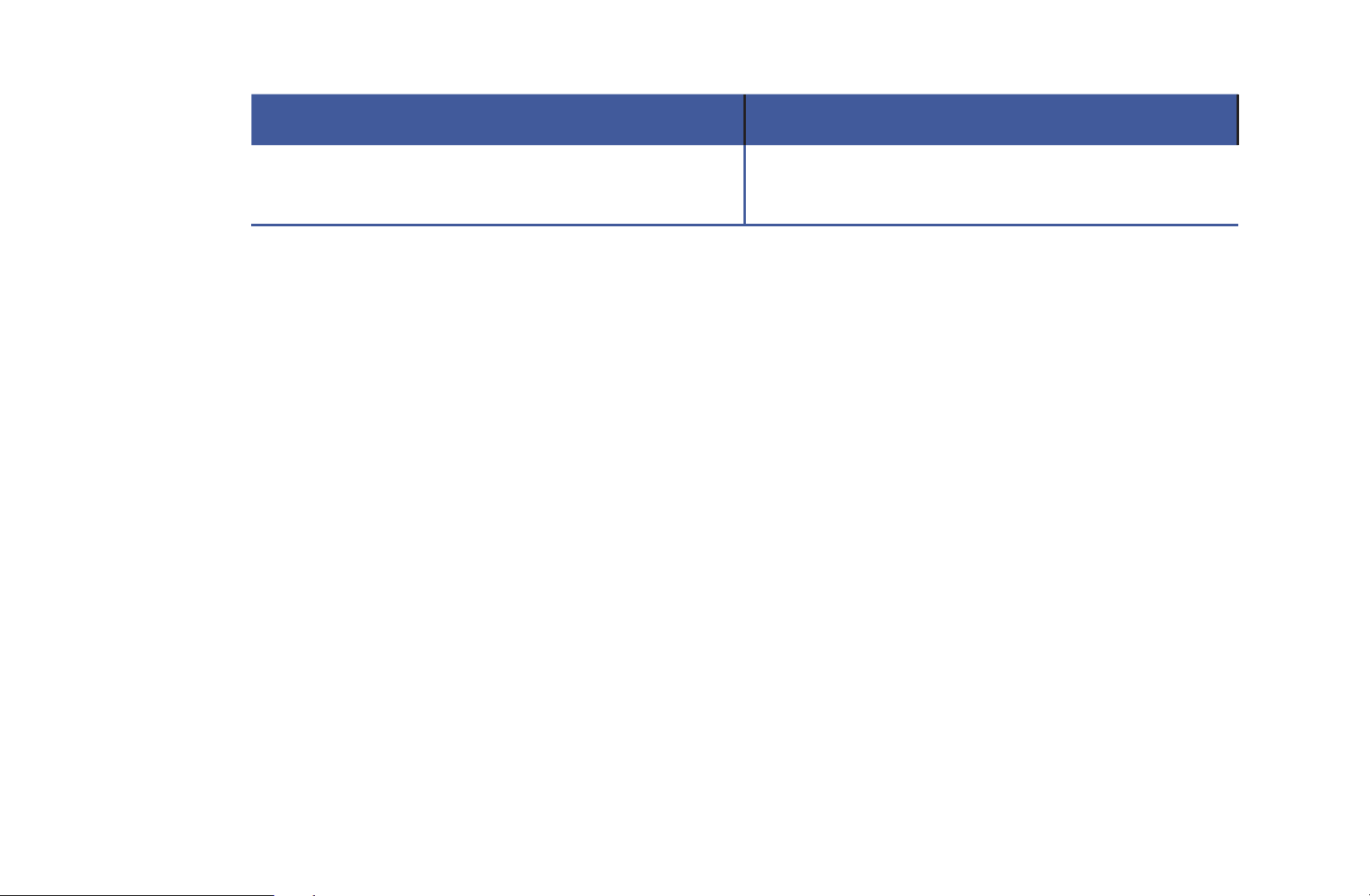
●
PIP settings
Main picture Sub picture
Component, HDMI, HDMI2/DVI TV
●
PIP: Activates or deactivates the PIP function.
●
Channel: Selects the channel for the sub-screen.
●
Size (
ä
/
ã
): Selects a size for the sub-picture.
●
Position (
ã
/
–
/
—
/
œ
): Selects a position for the sub-picture.
●
Sound Select: You can choose the desired sound in PIP mode.

◀ ▶
English
❑
Changing the Picture Options
■
Advanced Settings
O
MENU
m
→
Picture
→
Advanced Settings
→
ENTER
E
(available in Standard / Movie mode)
You can adjust the detailed setting for the screen including colour and contrast.
N
When connecting a PC, you can only make changes to the White Balance
and Gamma.
●
Dynamic Contrast: Adjusts the screen contrast.
●
Black Tone: Selects the black level to adjust the screen depth.
●
Flesh Tone: Adjusts the flesh tone colour.

◀ ▶
English
●
RGB Only Mode: Displays the Red, Green and Blue colour for making fine
adjustments to the hue and saturation.
●
Colour Space: Adjusts the range of colours available to create the image.
N
To adjust Colour, Red, Green, Blue and Reset, set Colour Space to
Custom.
for PDP TV
●
White Balance: Adjusts the colour temperature for a more natural picture.
2 point: Controls the white balance in 2 point interval by adjusting the red,
green, and blue brightness.
●
R-Offset / G-Offset / B-Offset: Adjusts each colour’s (red, green, blue)
darkness.
●
R-Gain / G-Gain / B-Gain: Adjusts each colour’s (red, green, blue)
brightness.
●
Reset: Resets the White Balance to its default settings.

◀ ▶
English
10 point
for PDP TV
: Controls the white balance in 10 point interval by
adjusting the red, green, and blue brightness.
N
Available when the picture mode is set to Movie and when the external
input is set to all input.
N
Some external devices may not support this function.
●
Level: Selects level to adjust.
●
Red: Adjusts the red level.
●
Green: Adjusts the green level.
●
Blue: Adjusts the blue level.
●
Reset: Resets the 10 point White Balance to its default settings.
●
Gamma: Adjusts the primary colour intensity.

◀ ▶
English
●
Motion Lighting: Reduces power consumption by brightness control adapted
motion.
N
This function is not supported in 3D mode.
for PDP 4900
N
Only available in Standard mode.
N
When changing a setting value of Backlight
for LED TV
/ Cell
Light
for PDP TV
, Brightness or Contrast, Motion Lighting will be set to
Off.

◀ ▶
English
■
Picture Options
O
MENU
m
→
Picture
→
Picture Options
→
ENTER
E
N
When connecting a PC, you can only make changes to the Colour Tone.
●
Colour Tone: Adjusts the colour tone.
N
Warm1 or Warm2 will be deactivated when the picture mode is
Dynamic.
N
Settings can be adjusted and stored for each external device connected
to an input on the TV.

◀ ▶
English
●
Digital Clean View: If the broadcast signal received by your TV is weak, you
can activate the Digital Clean View feature to reduce any static and ghosting
that may appear on the screen.
N
When the signal is weak, try other options until the best picture is
displayed.
Auto Visualisation: When changing analogue channels, displays signal
strength.
N
Only available for analogue channels.
N
When the INFO button is pressed, the signal strength bar is displayed.
N
When bar is green, you are receiving the best possible signal.
●
MPEG Noise Filter: Reduces MPEG noise to provide improved picture
quality.

◀ ▶
English
●
HDMI Black Level: Selects the black level on the screen to adjust the screen
depth.
N
Available only in HDMI mode (RGB signals).
●
Film Mode: Sets the TV to automatically sense and process film signals from
all sources and adjust the picture for optimum quality.
N
The Cinema Smooth function is only activated when HDMI 24Hz signal
is inputted.
for PDP TV
N
Available in TV mode and external input mode which supports SD (480i /
576i) and HD (1080i) except in when connected to a PC.
N
If the screen does not seem natural, change its option to Off / Auto1 /
Auto2 in Film Mode.

◀ ▶
English
●
Analogue Clean View (analogue channels only): Reduces diagonal noise in
picture caused by the crosstalk of signals.
●
Black Optimiser
for PDP TV
: Realizes of the black colour deeply and expands
the contrast ratio.
N
When connecting a PC, it will be set to off and deactivated.
N
When the TV is operating other applications, it will be deactivated. (ex.
Media Play, PIP, Teletext)
●
LED Clear Motion
(
depending on the model): Removes drag from fast scenes
with a lot of movement to provide a clear picture.
N
It will be deactivated when the Picture Mode is set to Natural.
N
The screen may become slightly darker when you play LED Clear
Motion.

◀ ▶
English
■
Picture Off
O
MENU
m
→
Picture
→
Picture Off
→
ENTER
E
The screen is turned off but the sound remains on. Press any button except
the power key or volume button to turn on the screen.

◀ ▶
English
■
Reset Picture
O
MENU
m
→
Picture
→
Reset Picture
→
ENTER
E
Resets your current picture mode to its default settings.

◀ ▶
English
❑
Changing the Preset Sound Mode
■
Sound Mode
O
MENU
m
→
Sound
→
Sound Mode
→
ENTER
E
●
Standard: Selects the normal sound mode.
●
Music: Emphasizes music over voices.
●
Movie: Provides the best sound for movies.
●
Clear Voice: Emphasizes voices over other sounds.
●
Amplify: Increases the intensity of high-frequency sound to allow a better
listening experience for the hearing impaired.
N
If Speaker Select is set to External Speaker, Sound Mode is disabled.

◀ ▶
English
❑
Adjusting Sound Settings
■
Sound Effect
(standard sound mode only)
O
MENU
m
→
Sound
→
Sound Effect
→
ENTER
E
●
DTS TruSurround
This function provides a virtual 5.1 channel surround sound experience
through a pair of speakers using HRTF (Head Related Transfer Function)
technology.
●
DTS TruDialog
This function allows you to increase the intensity of a voice over background
music or sound effects so that dialogue can be heard more clearly.

◀ ▶
English
●
Equaliser
Use Equaliser to customize sound setting for each speaker.
Balance: Adjusts the balance between the right and left speaker.
100Hz / 300Hz / 1kHz / 3kHz / 10kHz (Bandwidth Adjustment): Adjusts the
level of specific bandwidth frequencies.
Reset: Resets the equaliser to its default settings.
N
If Speaker Select is set to External Speaker, Sound Effect is disabled.

◀ ▶
English
■
3D Audio
for PDP 4900
O
MENU
m
→
Sound
→
3D Audio
→
ENTER
E
3D audio technology provides the immersive sound corresponding to the pop-up
effect of 3D video by audio depth control in perspective.
N
Available in only when watching 3D image.

◀ ▶
English
■
Speaker Settings
O
MENU
m
→
Sound
→
Speaker Settings
→
ENTER
E
●
Speaker Select
t
A sound echo may occur due to a difference in decoding speed between
the main speaker and the audio receiver. In this case, set the TV to External
Speaker.
N
When Speaker Select is set to External Speaker, the volume and
MUTE buttons will not operate and the sound settings will be limited.
N
When Speaker Select is set to External Speaker.
●
TV Speaker: Off, External Speaker: On
N
When Speaker Select is set to TV Speaker.
●
TV Speaker: On, External Speaker: On
N
If there is no video signal, both speakers will be mute.

◀ ▶
English
●
Auto Volume
To equalize the volume level on each channel, set to Normal.
Night: This mode provides an improved sound experience compared to
Normal mode, making almost no noise. It is useful at night.
N
To use the volume control on the source device connected to the TV,
set Auto Volume to Off on the TV. Otherwise, a change to the volume
control of the source device may not be applied.

◀ ▶
English
■
Additional Settings
O
MENU
m
→
Sound
→
Additional Settings
→
ENTER
E
●
DTV Audio Level (digital channels only): This function allows you to reduce
the disparity of a voice signal (which is one of the signals received during a
digital TV broadcast) to a desired level.
N
According to the type of broadcast signal, MPEG / HE-AAC can be
adjusted between -10dB and 0dB.
N
To increase or decrease the volume, adjust between the range 0 and -10
respectively.

◀ ▶
English
●
Digital Audio Out: Digital Audio Out is used to provide digital sound, reducing
interference going to speakers and various digital devices such as a DVD
player.
Audio Format: You can select the Digital Audio output format. The available
Digital Audio output format may differ depending on the input source.
N
By connecting to 5.1ch speakers in a Dolby Digital setup, maximize your
interactive 3D sound experience.
Audio Delay: Corrects audio-video sync problems, when watching TV or
video, and when listening to digital audio output using an external device such
as an AV receiver (0ms ~ 250ms).

◀ ▶
English
●
Dolby Digital Comp: This function minimizes signal disparity between a dolby
digital signal and a voice signal (i.e. MPEG Audio, HE-AAC, ATV Sound).
N
Select Line to obtain dynamic sound, and RF to reduce the difference
between loud and soft sounds at night time.
Line: Sets the output level for signals greater or less than -31dB (reference) to
either -20dB or -31dB.
RF: Sets the output level for signals greater or less than -20dB (reference) to
either -10dB or -20dB.

◀ ▶
English
■
Reset Sound
O
MENU
m
→
Sound
→
Reset Sound
→
ENTER
E
Resets all sound settings to the factory defaults.
◀ ▶
English
❑
Selecting the Sound Mode
t
When you set to Dual I-II, the current sound mode is displayed on the screen.
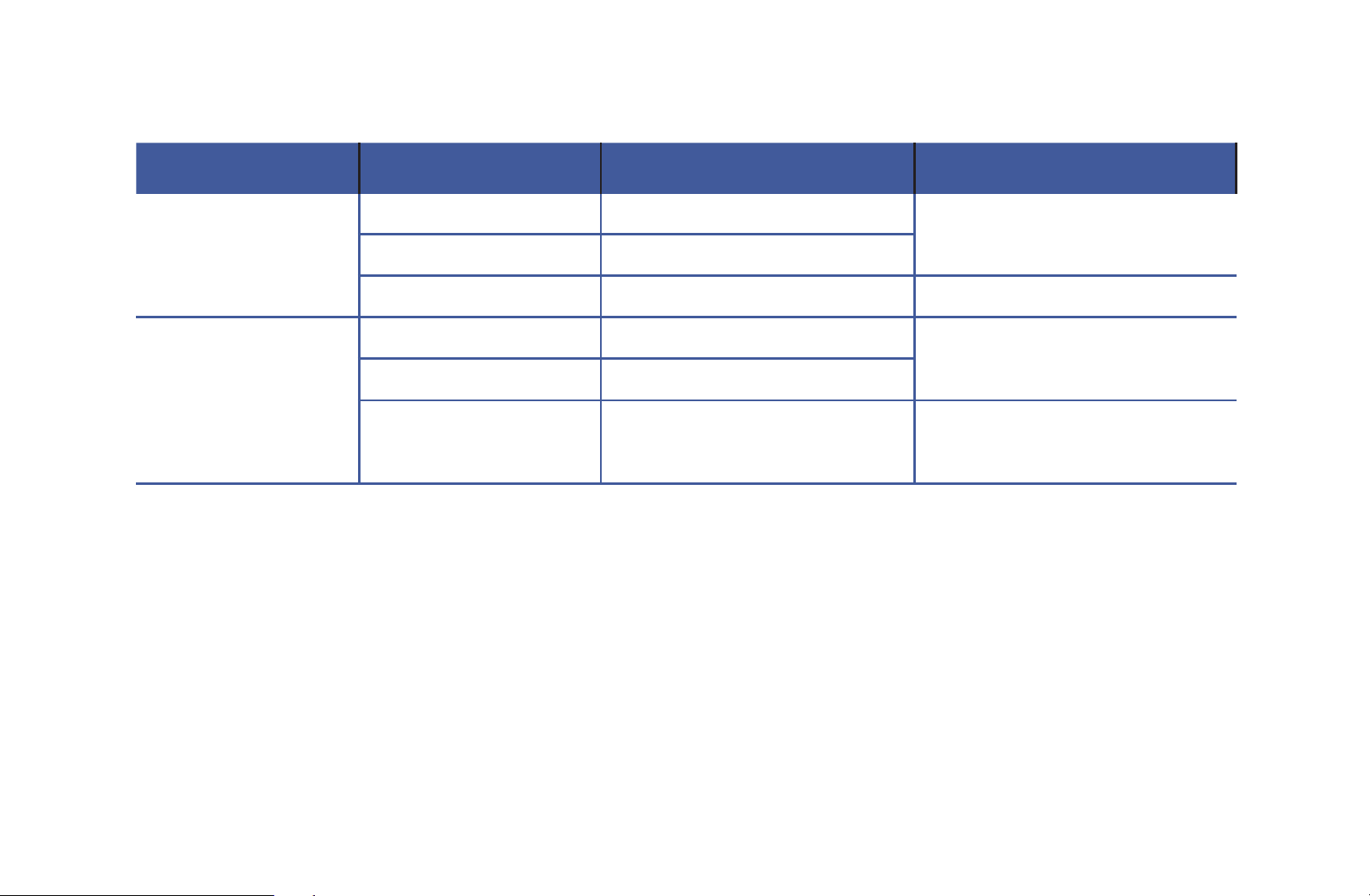
Audio Type Dual I-II Default
A2 Stereo Mono Mono Automatic change
Stereo
Stereo
↔
Mono
Dual
Dual I
↔
Dual II
Dual I
NICAM Stereo Mono Mono Automatic change
Stereo
Mono
↔
Stereo
Dual
Mono
→
Dual I
Dual II
Dual I
N
If the stereo signal is weak and an automatic switching, occurs, then switch
to the mono.
N
Only activated in stereo sound signal.
N
Only available when the Source is set to TV.

◀ ▶
English
❑
Executing initial setup
■
Setup
O
MENU
m
→
System
→
Setup
→
ENTER
E
Configures the channels and the time when setting up the TV for the first time or
when resetting the unit.
N
Execute the initial setup following instructions that the TV guides.
Preference Features

◀ ▶
English
❑
Setting the Time
■
Time
O
MENU
m
→
System
→
Time
→
ENTER
E
The current time will appear every time you press the INFO button.
●
Clock: Setting the clock is for using various timer features of the TV.
N
If you disconnect the power cord, you have to set the clock again.
Clock Mode: Sets up the current time manually or automatically.
–
Auto: Sets the current time automatically using the time from a digital
channel.
N
The aerial must be connected in order to set the time automatically.

◀ ▶
English
–
Manual: Sets the current time manually.
N
Depending on the broadcast station and signal, the auto time set up may
not be correct. In this case, set the time manually.
Clock Set: Sets the Date and Time.
N
Available only when Clock Mode is set to Manual.
N
You can set the Date and Time directly by pressing the number buttons
on the remote control.
Time Zone (depending on the country and model): Selects your time zone.
N
This function is only available when the Clock Mode is set to Auto.
Time Offset
for PDP 4900 series
: Adjusts the time when your TV receives the
time information via Internet. Set the right time by selecting an offset.
N
The current time will be set through a network, if the TV fails to receive
the time information including the broadcast signal from TV stations. (ex:
Watching TV via set-top box, Satellite receiver, or etc)

◀ ▶
English
❑
Using the Sleep Timer
O
MENU
m
→
System
→
Time
→
Sleep Timer
→
ENTER
E
●
Sleep Timer
t
: Automatically shuts off the TV after a preset period of
time. (30, 60, 90, 120, 150 and 180 minutes)
N
Use the
▲
/
▼
buttons to select a period of time, and then press
ENTER
E
. To cancel the Sleep Timer, select Off.

◀ ▶
English
❑
Setting the On / Off Timer
O
MENU
m
→
System
→
Time
→
On Timer <or> Off Timer
→
ENTER
E
●
On Timer: You can set up three separate On Timer configurations. (On Timer
1, On Timer 2, On Timer 3)
Setup: Selects Off, Once, Everyday, Mon~Fri, Mon~Sat, Sat~Sun or
Manual to set at your convenience. If you select Manual, you can set up the
day you want to activate the timer.
N
The
c
mark indicates the day you’ve selected.
Time: Sets the hour and minute.
Volume: Sets the desired volume level.

◀ ▶
English
Source: To select the source of the content that will play when the TV turns
on, you can:
–
Selects TV and have the TV display a specific air channel.
–
Selects USB and have the TV play back photo or audio files from a USB
device.
–
Selects a source on your TV (HDMI1, HDMI2/DVI, AV, Component,
etc.) that you have connected a set-top box to, and have the TV display a
channel from the set-top box.
N
The USB device must be connected to your TV before you can select
USB.

◀ ▶
English
N
If you select a source other than TV or USB, you must:
●
Have a cable or satellite set-top box attached to that source.
●
Set the set-top box to the channel you want to watch when the TV
goes on, and leave the set-top box turned on.
N
When you select a source other than TV or USB, the Aerial and Channel
options will disappear.
Aerial (when the Source is set to TV): Selects ATV or DTV.
Channel (when the Source is set to TV): Selects the desired channel.

◀ ▶
English
Music / Photo (when the Source is set to USB): Selects a folder in the USB
device containing music or photo files to be played when the TV is turned on
automatically.
–
If there is no music file on the USB device or the folder containing a music
file is not selected, the timer function does not operate correctly.
–
When there is only one photo file in the USB device, the slide show will not
play.
–
If a folder name is too long, the folder cannot be selected.
–
Each USB you use is assigned its own folder. When using more than one
of the same type of USB, make sure the folders assigned to each USB
have different names.

◀ ▶
English
–
It is recommended that you use a USB memory stick and a multi card
reader when using On Timer.
–
The On Timer function may not work with USB devices with a built-in
battery, MP3 players, or PMPs made by some manufacturers because
these devices take a long time to be recognized.
●
Off Timer: You can set up three separate Off Timer configurations. (Off Timer
1, Off Timer 2, Off Timer 3)
Setup: Selects Off, Once, Everyday, Mon~Fri, Mon~Sat, Sat~Sun or
Manual to set at your convenience. If you select Manual, you can set up the
day you want to activate the timer.
N
The
c
mark indicates the day you’ve selected.
Time: Set the hour and minute.

◀ ▶
English
❑
Economical Solutions
■
Eco Solution
O
MENU
m
→
System
→
Eco Solution
→
ENTER
E
●
Energy Saving: This adjusts the brightness of the TV in order to reduce
power consumption.
●
Eco Sensor
for PDP TV
for LED 4200 series
for LED 5 series 32" and above
: To
enhance your power savings; the picture settings will automatically adapt to
the light in the room.
N
If you adjust the Backlight
for LED TV
/ Cell Light
for PDP TV
, the Eco
Sensor will be set to Off.
Min. Backlight
for LED TV
/ Min Cell Light
for PDP TV
: When Eco Sensor is
On, the minimum screen brightness can be adjusted manually.
N
If Eco Sensor is On, the display brightness may change (become slightly
darker or brighter) depending on the surrounding light intensity.

◀ ▶
English
●
No Signal Power Off: To avoid unnecessary energy consumption, set how
long you want the TV to remain on if it’s not receiving a signal.
N
Disabled when the PC is in power saving mode.
●
Auto Power Off: The TV will be automatically turned off when no user
operation is received for 4 hours.
N
If the Auto Power Off option is set to Off, the TV will stay on even if no
operations are performed on the TV.

◀ ▶
English
❑
Other Features
■
Menu Language
O
MENU
m
→
System
→
Menu Language
→
ENTER
E
(depending on the country and model)
Sets the menu language.
■
Auto Protection Time
for LED TV
O
MENU
m
→
System
→
Auto Protection Time
→
ENTER
E
If the screen remains idle with a still image for a certain period of time defined by
the user, the screen saver is activated to prevent the formation of ghost images
on the screen.

◀ ▶
English
■
Screen Burn Protection
for PDP TV
O
MENU
m
→
System
→
Screen Burn Protection
→
ENTER
E
To reduce the possibility of screen burn, this unit is equipped with Pixel Shift
screen burn prevention technology. Pixel Shift moves the picture slightly on the
screen. The Time function setting allows you to programme the time between
movement of the picture in minutes.
Your TV also has the following additional screen burn protection functions:
●
Pixel Shift
●
Auto Protection Time
●
Scrolling
●
Side Grey
◀ ▶
English
●
Pixel Shift: Using this function, you can set the TV to move pixels minutely on
the PDP screen in a horizontal or vertical direction to minimize after images on
the screen.
N
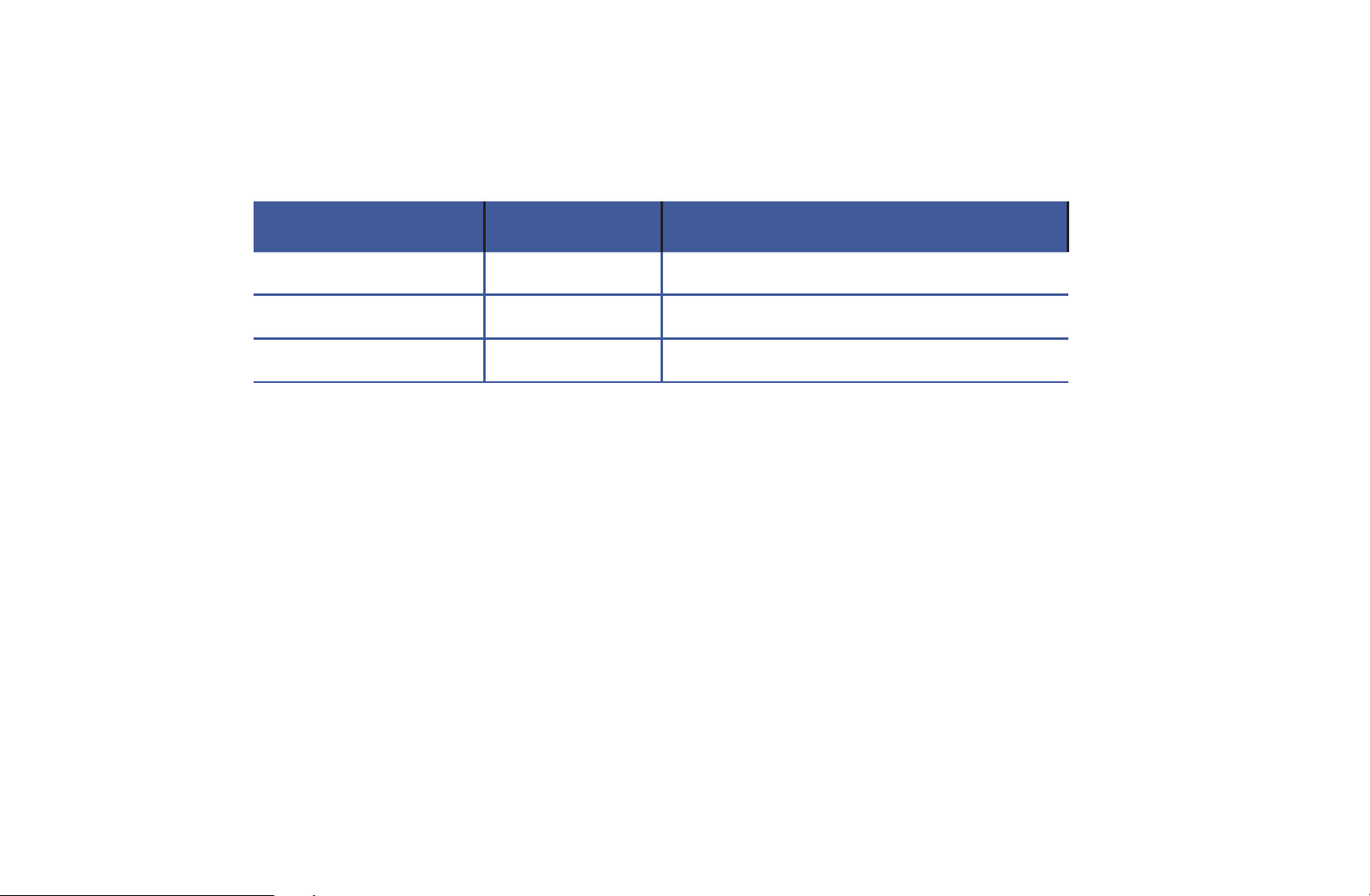
Available Pixel Shift Settings and Optimum Settings
Item TV / HDMI
Horizontal 0~4 4
Vertical 0~4 4
Time (minute) 1~4 min 4 min
N
The Pixel Shift value may differ depending on the monitor size (inches)
and mode.
N
This function is not available in the Screen Fit mode.
●
Auto Protection Time: If the screen displays a still image for a certain period
of time you define, the TV activates the screen saver to prevent the formation
of burnt in ghost images on the screen.

◀ ▶
English
●
Scrolling: This function removes after-images on the screen by illuminating all
the pixels on the PDP according to a pattern. Use this function when there are
after images or symbols on the screen, especially when you displayed a still
image on the screen for a long time.
N
The after-image removal function has to be executed for a long time
(approximately 1 hour) to effectively remove after-images on the screen.
If the after-image is not removed after you apply the function, repeat the
function again.
N
Press any key on the remote control to cancel this feature.
●
Side Grey: When you watch TV with the screen ratio set to 4:3, using the
Side Grey function can prevent damage to the edges of the screen by
adjusting the white balance on the extreme left and right sides.

◀ ▶
English
■
General
O
MENU
m
→
System
→
General
→
ENTER
E
●
Game Mode: When connecting to a game console such as PlayStation™ or
Xbox™, you can enjoy a more realistic gaming experience by selecting game
mode.
N
NOTE
●
Precautions and limitations for game mode
–
To disconnect the game console and connect another external
device, set Game Mode to Off in the setup menu.
–
If you display the TV menu in Game Mode, the screen shakes
slightly.

◀ ▶
English
●
Game Mode is not available in TV mode.
●
After connecting the game console, set Game Mode to On.
Unfortunately, you may notice reduced picture quality.
●
If Game Mode is On:
–
Picture Mode is set to Standard and Sound Mode is set to
Movie.
●
Panel Lock: Locks or unlocks all the keys on the panel.
●
Boot Logo: Displays Samsung logo when the TV is turned on.

◀ ▶
English
■
Change PIN
O
MENU
m
→
System
→
Change PIN
→
ENTER
E
Changes your password required to set up the TV.
N
The PIN input screen appears before the setup screen.
N
Enter your 4-digit PIN. Change the PIN using the Change PIN option.

◀ ▶
English
■
DivX® Video On Demand
O
MENU
m
→
System
→
DivX® Video On Demand
→
ENTER
E
Shows the registration code authorized for the TV. If you connect to the DivX
web site and register with 10-digit registration code, you can download the VOD
activation file.
Once you play it using Videos, the registration is completed.
N
For more information on DivX® VOD, visit http://vod.divx.com.

◀ ▶
English
❑
Using the Source List
■
Source List
O
MENU
m
→
Applications
→
Source List
→
ENTER
E
N
When you press the SOURCE button, Source screen will be displayed at
once.
N
You can only choose external devices that are connected to the TV. In
Source, connected inputs are highlighted.
N
For the detailed information, refer to “Changing the Input Source” in User
Manual.
Advanced Features

◀ ▶
English
❑
Connecting a USB Device
1. Turn on your TV.
2. Connect a USB device containing photo, music and movie files to the USB
port on the side of the TV.
3. When USB is connected to the TV, popup window appears. You can select
the Photos, Videos or Music directly.

◀ ▶
English
N
It might not work properly with unlicenced multimedia files.
N
Need-to-Know List before using Media Contents
●
MTP (Media Transfer Protocol) is not supported.
●
Supported file systems are FAT, exFAT and NTFS.
●
Certain types of USB Digital camera and audio devices may not be
compatible with this TV.
●
Media Contents only supports sequential jpeg format.
●
Media Contents only supports USB Mass Storage Class (MSC) devices.
MSC is a Mass Storage Class Bulk-Only Transport device. Examples
of MSC are Thumb drives, Flash Card Readers (USB HUB are not
supported). Devices should be connected directly to the TV’s USB port.

◀ ▶
English
●
Before connecting your device to the TV, please back up your files to
prevent them from damage or loss of data. SAMSUNG is not responsible
for any data file damage or data loss.
●
Do not disconnect the USB device while it is loading.
●
The higher the resolution of the image, the longer it takes to display on
the screen.
●
The maximum supported JPEG resolution is 15360 x 8640 pixels.
●
For unsupported or corrupted files, the “Not Supported File Format.”
message is displayed.
●
The scene search and thumbnail functions are not supported in the
Videos.

◀ ▶
English
●
MP3 files with DRM that have been downloaded from a non-free site
cannot be played. Digital Rights Management (DRM) is a technology that
supports the creation, distribution and management of the content in an
integrated and comprehensive way, including the protection of the rights
and interests of the content providers, the prevention of the illegal copying
of contents, as well as managing billings and settlements.
●
PTP connection mode is fully available only with digital cameras. When
connecting a smartphone or tablet to the TV using PTP mode, it may not
be recognized.
●
Connect a USB HDD to the dedicated USB (HDD 5V 1A) port. More than
2TB USB HDD is not supported.
for LED 4100, 5100 series
●
A USB device that requires high power (more than 500mA or 5V) may
not be supported. The HDD (Hard Disk Drive) connected to USB is not
supported.
●
If the TV has been no input during time set in Auto Protection Time, the
screen saver will run.

◀ ▶
English
●
The power-saving mode of some external hard disk drives may be
released automatically when connected to the TV.
●
If a USB extension cable is used, the USB device may not be recognized
or the files on the device may not be read.
●
If a USB device connected to the TV is not recognized, the list of files on
the device is corrupted or a file in the list is not played, connect the USB
device to the PC, format the device and check the connection.
●
If a file deleted from the PC is still found when Media Contents is run, use
the “Empty the Recycle Bin” function on the PC to permanently delete the
file.
●
If the number of files and folders saved on a USB storage device is
approximately over 4000, the files and folders may not appear and some
folders may not be opened.

◀ ▶
English
Disconnecting a USB Device
1. Press the SOURCE button.
2. Select a desired USB device, and then press the TOOLS button. The Tools
menu appears.
3. Select Disconnect USB Device, and then wait until the selected USB device
is disconnected. You can remove a USB device from the TV.
N
To remove a USB device from the TV, we recommend to use Disconnect
USB Device function.

◀ ▶
English
❑
Using the Media Contents
O
MENU
m
→
Applications
→
Media Play
→
ENTER
E
Enjoy photos, music and movie files saved on a USB Mass Storage Class (MSC)
device.
1. Press the MEDIA.P button.
2. Press
◄/►
button to select desired menu (Photos, Videos, Music), then
press the ENTER
E
button.
3. Press
◄/►
button to select desired device, then press the ENTER
E
button
again.
4. Press the
▲/▼/◄/►
button to select the desired file in the list, then press the
ENTER
E
button or
∂
(Play) button.

◀ ▶
English
Playing the selected files
1. Press the
▲
button to select Options at the top of each main screen and
select Play Selected.
2. Select the desired files.
N
The check box appears to the left of the selected files.
N
Press ENTER
E
button again to deselect the file.
3. Press the
▲
button to select Play.
N
You can select or deselect all files pressing the Select All / Deselect All.
◀ ▶
English
Copying the files to the other USB device
for LED 4100, 5100 series
1. Press the
▲
button to select Options at the top of the each main screen and
select Copy.
2. Select the desired files.
N
The check box appears to the left of the files.
N
Press ENTER
E
button again to deselect the file.
3. Press the
▲
button to select Copy.
N
You can select or deselect all files pressing the Select All / Deselect All.
N
You can cancel the copy by pressing the Cancel.
4. After press Copy you can select the destination device the copy the file, you
can also cancel the copy pressing the Cancel button.

◀ ▶
English
❑
Playing the Photos / Videos / Music
During playing a file, press the
▲/▼/◄/►
button to select the desired menu.
N
When the option menu is not displayed, press the TOOLS button or
ENTER
E
button.
N
You can also use
∂
/
∑
/
∫
/
π
/
µ
buttons on the remote control during
playback.
N
If you press the INFO button during playback, you can view the playback
information.
◀ ▶
English
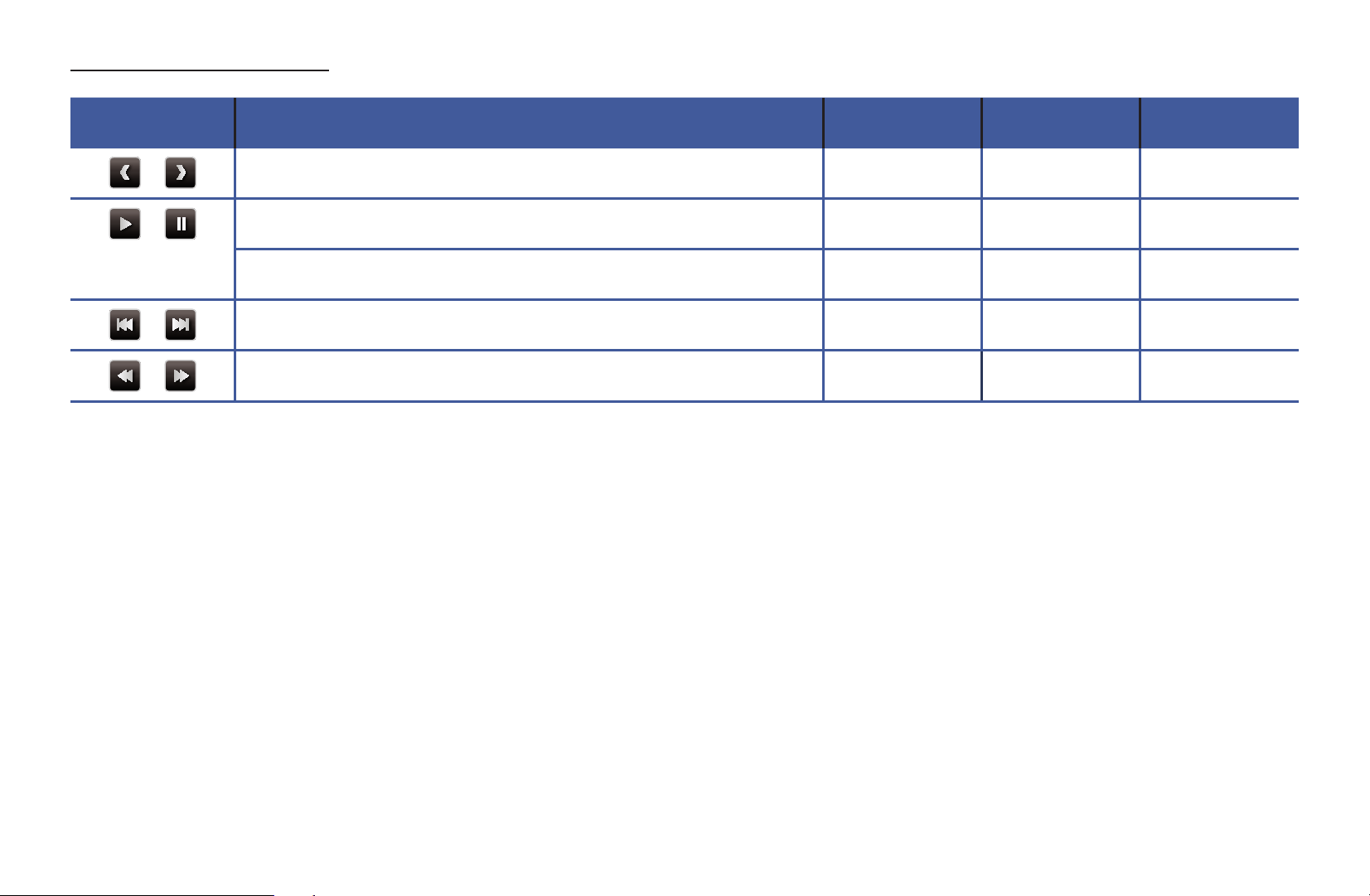
Playback menu
Button Operation Photos Videos Music
/
Previous / Next
●
/
Start Slide Show / Stop Slide Show
●
Play / Pause
Mini Player*
● ●
/
Previous / Next
Mini Player*
● ●
/
Rewind / Fast forward
● ●
*When setting the Background Music to Mini Player in Photos, these buttons appear.
◀ ▶
English
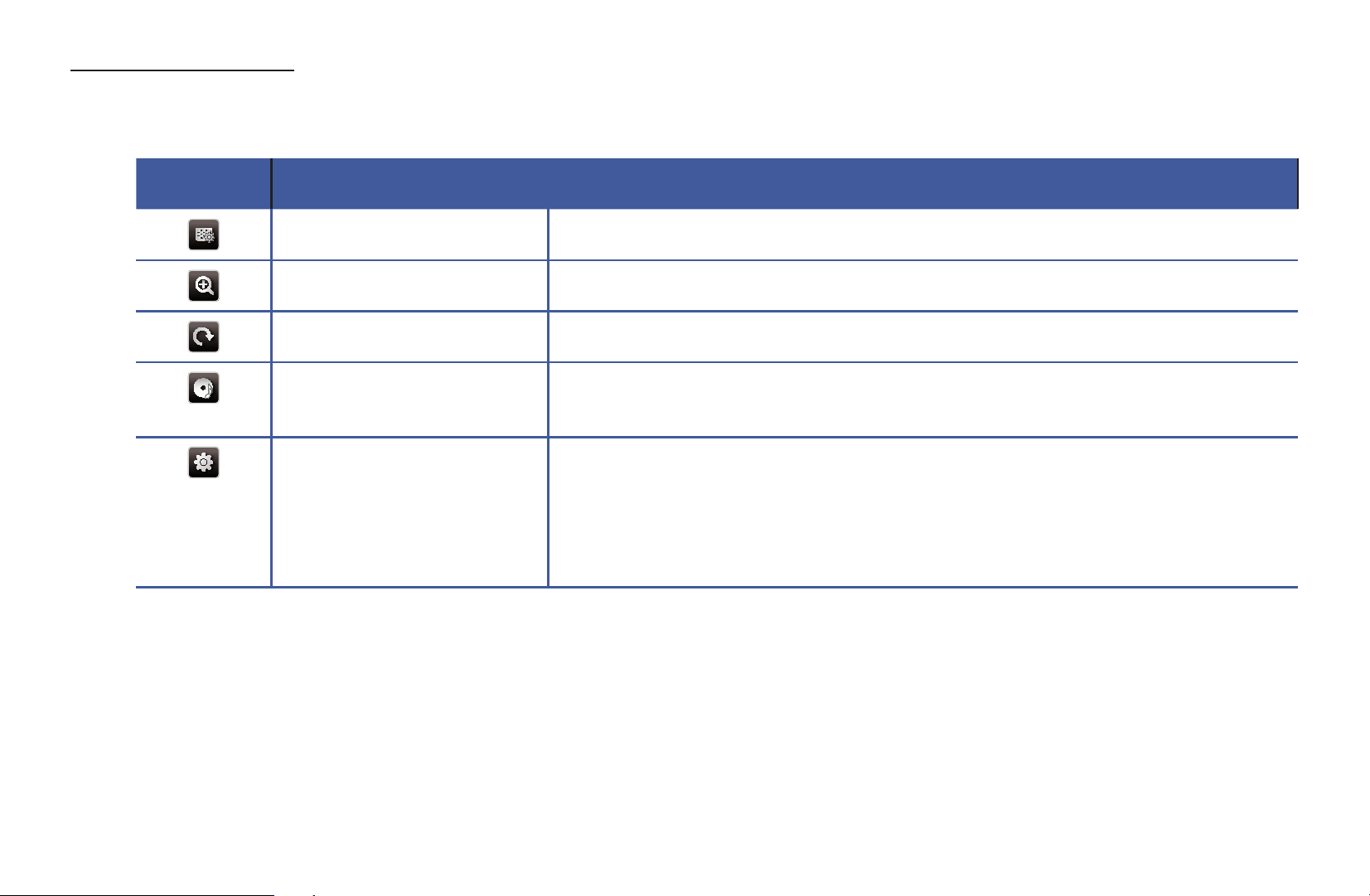
Setting menu
●
Photos
Button Operation
Slide Show Settings You can set the Speed and Effects during the slide show.
Zoom You can zoom into images in full screen mode.
Rotate You can rotate images in full screen mode.
Background Music /
Mini Player
You can set background music when watching a slide show. /
You can control simple playback menus.
Settings Picture Mode / Sound Mode: You can adjust the picture or
sound setting.
Information: You can see detailed information about the played
file.

◀ ▶
English
N
During the slide show, all files in the file list will be displayed in order.
N
When you press the
∂
(Play) button(or
▲
button
→
Options
→
Slide Show)
in the file list, slide show will be started immediately.
N
During the slide show, you can adjust the slide show speed using
π
(REW)
or
µ
(FF) button.
●
Supported Photo Formats
N
For the details, refer to “Specifications” in User Manual.
◀ ▶
English
●
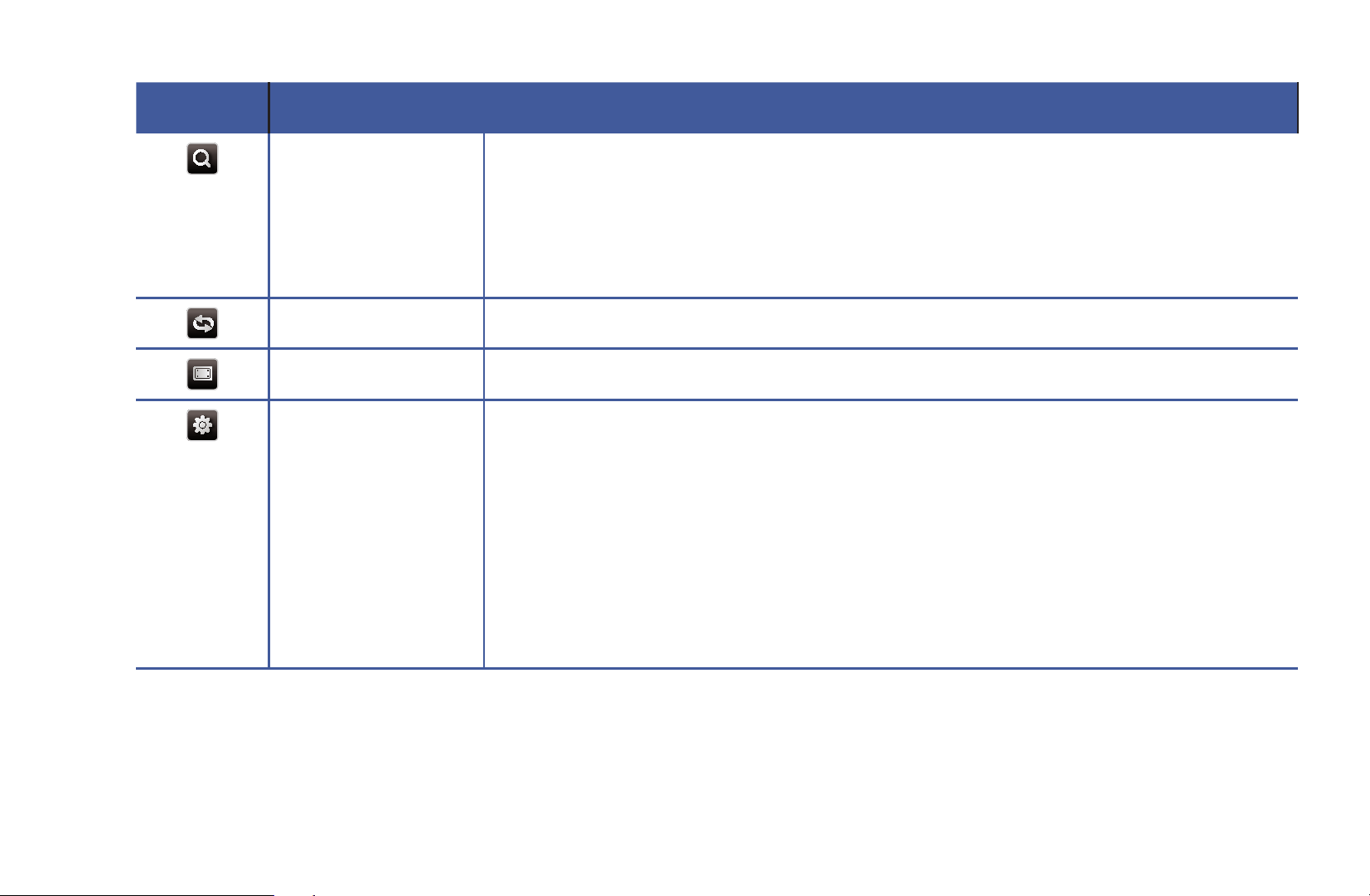
Videos
Button Operation
Search Search Titles: You can move the other file directly.
Search Time Bar: You can search the video using
◄
and
►
button
at one minute interval or entering the number directly.
N
It may not be supported depending on the input source.
Repeat Mode You can play movie files repeatedly.
Picture Size You can adjust the picture size to your preference.
Settings Subtitle Settings: You can play the video with subtitles. This function
only works if the subtitles are the same file name as the video.
Audio Language: You can change the audio language if the video
has more than one language.
Picture Mode / Sound Mode: You can adjust the picture or sound
setting.
Information: You can see detailed information about the played file.

◀ ▶
English
N
If video time information is unknown, play time and progress bar are not
displayed.
N
In this mode, you can enjoy movie clips contained on a Game, but you
cannot play the Game itself.
●
Supported Subtitle / Video Formats
N
For the details, refer to “Specifications” in User Manual.
◀ ▶
English
●
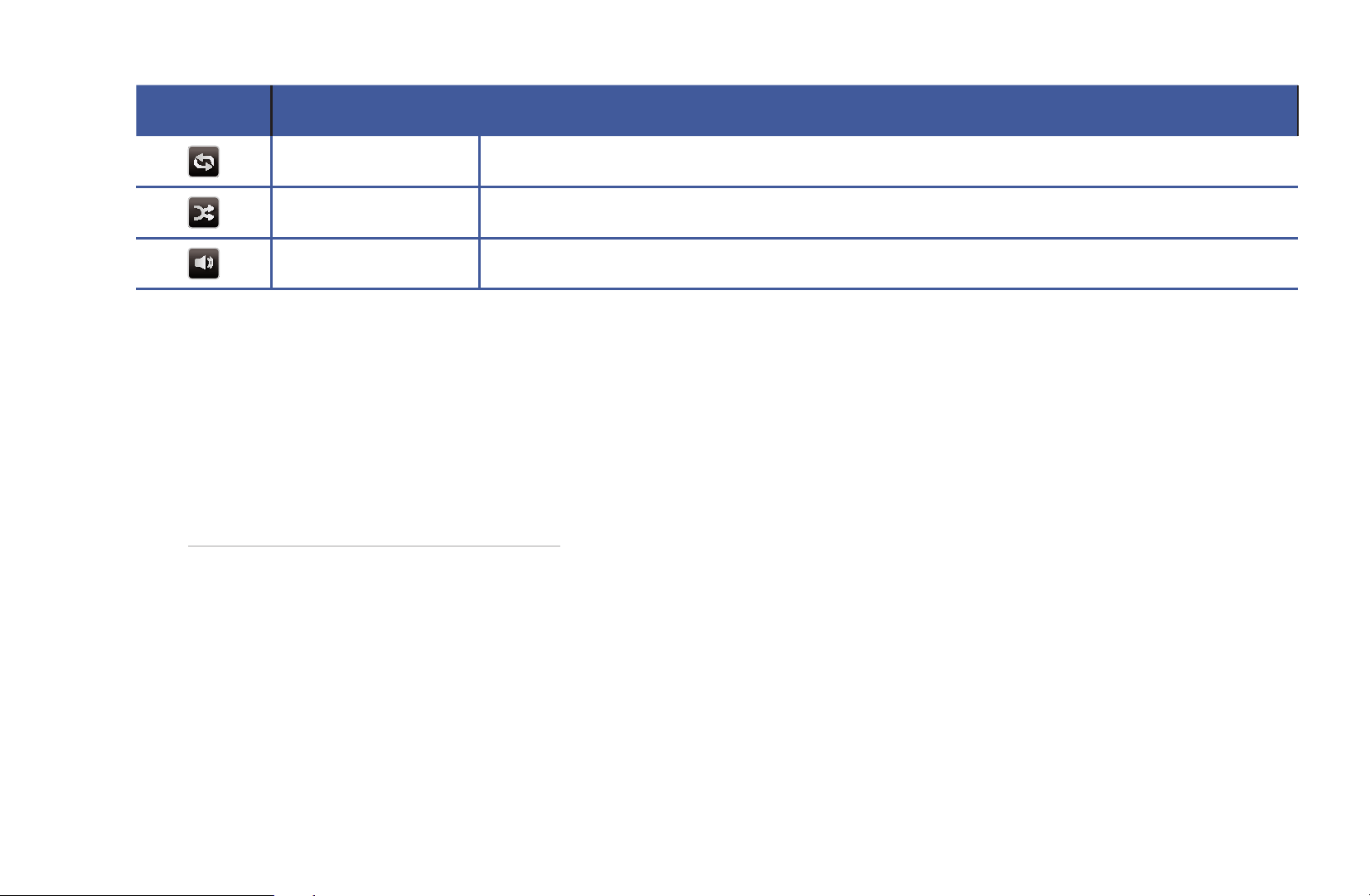
Music
Button Operation
Repeat You can play music files repeatedly.
Shuffle You can play the music randomly.
Sound Mode You can adjust the sound setting.
N
Only displays the files with supported music file extension. Other file
extensions are not displayed, even if they are saved on the same USB device.
N
If the sound is abnormal when playing music files, adjust the Equaliser in the
Sound menu. (An over-modulated music file may cause a sound problem.)
●
Supported Music Formats
N
For the details, refer to “Specifications” in User Manual.

◀ ▶
English
Setting the Encoding language
Sets the encoding language if the text is not supported.
1. Press the
▲
button to select Options at the top of music main screen and
select Encoding.
2. Select the desired encoding language.

◀ ▶
English
❑
Using the 3D function
for PDP 4900
Viewing TV using the 3D function
IMPORTANT HEALTH AND SAFETY INFORMATION FOR 3D PICTURES.
Read and understand the following safety information before using the TV’s 3D
function.
[
WARNING
●
Some viewers may experience discomfort while viewing 3D TV such as
dizziness, nausea and headaches. If you experience any such symptom,
stop viewing 3D TV, remove 3D Active Glasses and rest.
●
Watching 3D images for an extended period of time may cause eye
strain. If you feel eye strain, stop viewing 3D TV, remove your 3D Active
Glasses and rest.

◀ ▶
English
●
A responsible adult should frequently check on children who are using the
3D function. If there are any reports of tired eyes, headaches, dizziness,
or nausea, have the child stop viewing 3D TV and rest.
●
Do not use the 3D Active Glasses for other purposes (such as general
eyeglasses, sunglasses, protective goggles, etc.)
●
Do not use the 3D function or 3D Active Glasses while walking or moving
around. Using the 3D function or 3D Active Glasses while moving around
may result in injuries due to running into objects, tripping, and/or falling.
Before using 3D function...
●
3D Active Glasses from Samsung’s previous product (IR type) or other
manufacturers not be supported.
●
When the TV is initially powered on, may take some time until the 3D display
is optimized.

◀ ▶
English
●
The 3D Active Glasses may not work properly if there is any other 3D product
or electronic devices turned on near the glasses or TV. If there is a problem,
keep other electronic devices as far away as possible from the 3D Active
Glasses.
●
Be sure to stay within the viewing angle and optimum TV viewing distance
when watching 3D pictures. Otherwise, you may not be able to enjoy proper
3D effects.
●
The ideal viewing distance should be three times or more the height of the
screen. We recommend sitting with viewer’s eyes on a level with the screen.
●
If you can not play 3D videos in some of the BD players, take out the disk
from player and put it again, or restart the BD player.

◀ ▶
English
■
3D
O
MENU
m
→
Picture
→
3D
→
ENTER
E
This exciting new feature enables you to view 3D content.
N
"Full HD 3D Glasses™" Logo indicates compatibility between display
products and 3D Glasses which are compliant with the "Full HD 3D
Glasses™" format, and does not indicate picture quality of display products.
N
Some 3D modes may not be available depending on the format of the image
source.
N
When you watch 3D images under flickering lighting such as a fluorescent
lamp (50Hz ~ 60Hz ) or a 3 wavelength lamp, you may notice some screen
flickering. If this occurs, dim or turn off the light.
◀ ▶
English
●
3D Mode
If you want to feel the 3D effect fully, please wear the 3D Active Glasses
first, and then select 3D Mode from the list below that provides the best 3D
viewing experience.
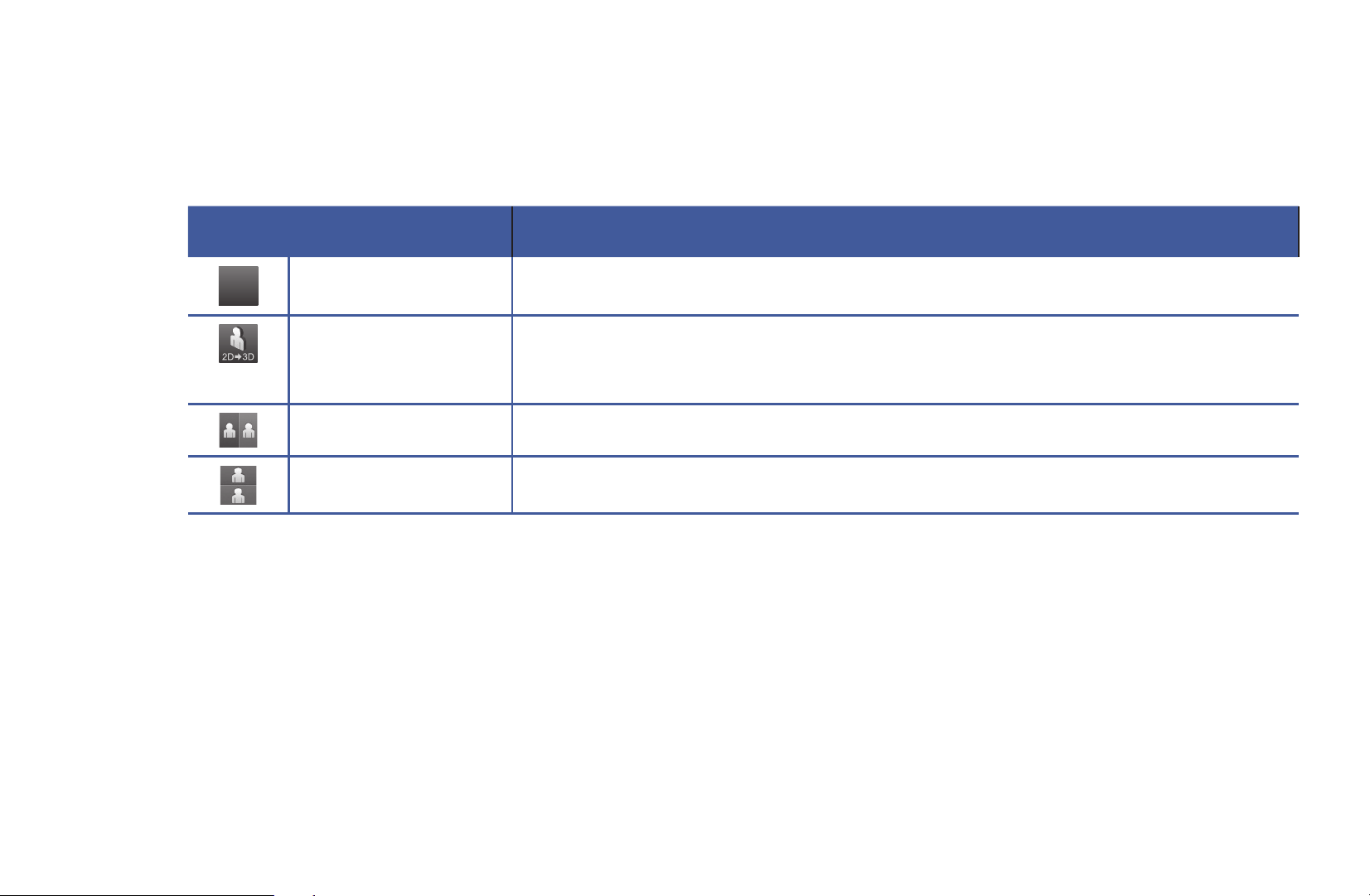
3D Mode Operation
Off
Off
Off Turns the 3D function off.
2D
→
3D
Changes a 2D image to 3D.
N
Some file format may not be supported.
Side by Side Displays two images next to each other.
Top & Bottom Displays one image above another.
N
3D Mode is set to Off automatically when you access Media Play or
e-Manual functions.
N
3D Mode is set to memorised configuration value automatically, when
changing the input source.
◀ ▶
English
●
3D Perspective: Adjusts overall 3D perspective of on-screen image.
●
Depth: Adjusts overall depth.
●
L/R Change: Swaps the left and right pictures.
●
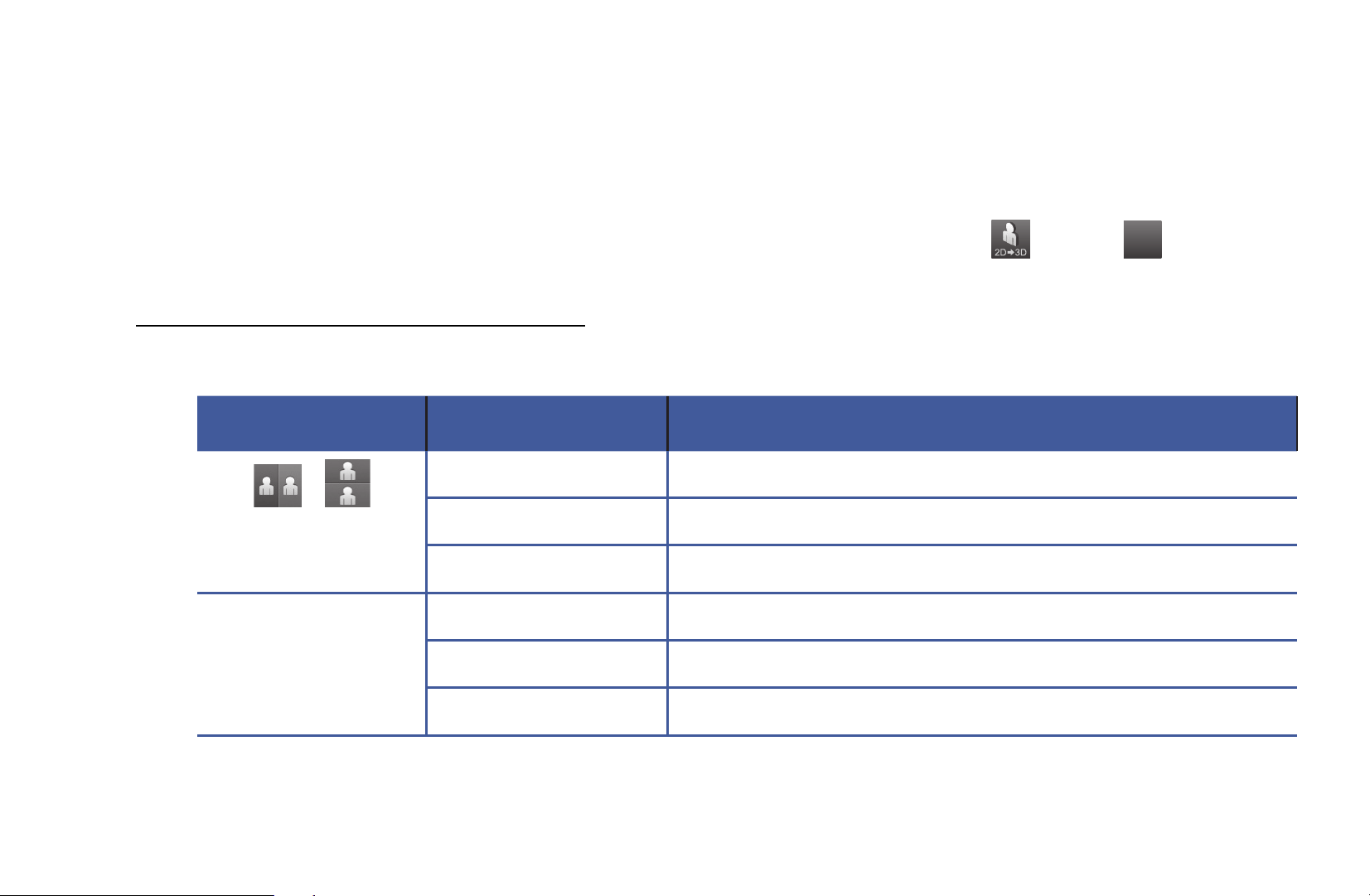
3D
→
2D: Displays the image for the left eye only.
N
This function is deactivated when 3D Mode set to “ ” or “
Off
Off
”.
Support resolution (16:9 only)
●
HDMI
Source Resolution Frequency (Hz)
/
1280 x 720p 50 / 59.94 / 60 Hz
1920 x 1080i 50 / 59.94 / 60 Hz
1920 x 1080p 23.98 / 24 / 25 / 29.97 / 30 / 50 / 59.94 / 60 Hz
Frame Packing 1280 x 720p 50 / 59.94 / 60 Hz
1920 x 1080i 50 / 59.94 / 60 Hz
1920 x 1080p 23.98 / 24 / 25 / 29.97 / 30 Hz

◀ ▶
English
●
Components & DTV
Source Resolution Frequency (Hz)
Components 1280 x 720p 50 / 59.94 / 60 Hz
1920 x 1080i 50 / 59.94 / 60 Hz
1920 x 1080p 23.98 / 24 / 25 / 29.97 / 30 / 50 / 59.94 / 60 Hz
DTV 1280 x 720p 50 / 59.94 / 60 Hz
1920 x 1080i 50 / 59.94 / 60 Hz
1920 x 1080p 25 Hz
●
Videos / Photos (In Media Play)
For the details, refer to “Specifications” in User Manual.

◀ ▶
English
❑
Viewing the e-Manual
■
e-Manual
O
MENU
m
→
Support
→
e-Manual
→
ENTER
E
You can read the introduction and instructions about the TV features stored in
your TV.
N
For the detailed information about e-Manual Screen, refer to “How to use the
e-Manual” in User Manual.
Other Features

◀ ▶
English
❑
Using the Self Diagnosis
■
Self Diagnosis
O
MENU
m
→
Support
→
Self Diagnosis
→
ENTER
E
Self Diagnosis might take few seconds, this is part of the normal operation of the
T V.
●
Picture Test: Uses to check for picture problems.
●
3D Picture Test
for PDP 4900
: Uses to check for 3D picture problems.
●
Sound Test: Uses the built-in melody sound to check for sound problems.
N
If you hear no sound from the TV’s speakers, before performing the
sound test, make sure Speaker Select is set to TV Speaker in the
Sound menu.
N
The melody will be heard during the test even if the sound is muted by
pressing the MUTE button.

◀ ▶
English
●
Signal Information (digital channels only): The HDTV channel reception
quality is either imperfect or the channel are unavailable. Adjust your aerial to
increase signal strength.
●
Reset: Resets all settings to the factory defaults except network settings.
N
The PIN input screen appears before the setup screen.
N
Enter your 4-digit PIN. Change the PIN using the Change PIN option.
N
Choose to restore factory Settings, TV will automatically shut down, and
then restart.

◀ ▶
English
❑
Updating the Software
■
Software Update
O
MENU
m
→
Support
→
Software Update
→
ENTER
E
The Software Update menu lets you upgrade your TV’s software to the latest
version.
Current Version: This is the software version already installed in the TV.
N
When software is upgraded, video and audio settings you have made will
return to their default settings. We advise you to write down your settings so
that you can easily reset them after the upgrade.

◀ ▶
English
●
Update now
–
By USB: Insert a USB drive containing the firmware upgrade file,
downloaded from “www.samsung.com” into the TV.
N
Please be careful not to disconnect the power or remove the USB
drive until upgrades are complete. The TV will be turned off and on
automatically after completing the firmware upgrade.
–
By Channel: Upgrades the software using the broadcasting signal.
N
If the function is selected during the software transmission period,
software will be automatically searched and downloaded.
N
The time required to download the software is determined by the
signal status.
●
Auto update: A manual upgrade will be automatically performed at selected
time. Since the power of the unit is turned on internally, the screen may be
turned on slightly for the product. This phenomenon may continue for more
than 1 hour until the software upgrade is complete.

◀ ▶
English
❑
Changing the Use Mode
■
Use Mode
O
MENU
m
→
Support
→
Use Mode
→
ENTER
E
Selects the Use Mode suitable for your place. We strongly recommend you
select Home Use.
●
Home Use: Home Use is the default setting.
●
Store Demo: Store Demo is for retail environments only. If you select Store
Demo, some functions will not work, and the picture settings will be reset
every 5 minutes.

◀ ▶
English
❑
Viewing the Contact Samsung
■
Contact Samsung
O
MENU
m
→
Support
→
Contact Samsung
→
ENTER
E
Views this information when your TV does not work properly or when you want
to upgrade the software. You can find information regarding our call centres, and
how to download products and software.

◀ ▶
English
❑
Using the Soccer Mode
■
Soccer Mode
t
O
MENU
m
→
Applications
→
Soccer Mode
→
ENTER
E
This mode provides optimized condition for watching sports games.
●
a
(Zoom): Pause playback and divide the picture into 9 parts. Select a part
to zoom it in. Press this button again to resume.
N
When the Soccer Mode is On, the picture and sound modes are set to
Stadium automatically.
N
If you turn the TV off while watching Soccer Mode, the Soccer Mode will be
disable.
N
When the Data Service is running, the Zoom is not available.

◀ ▶
English
❑
Using the Screen&Sound Capture function
■
Screen&Sound Capture
t
O
MENU
m
→
Applications
→
Screen&Sound Capture
→
ENTER
E
N
This feature may not be available, depending on the model or country.
This function provides capture screen or record an audio from the TV screen
being viewing. Additionally, you can save the capture image and record audio on
the USB device connected to the TV. This function provides the TV screen you
watched capture image and record audio.
N
Screen&Sound Capture are for personal use only, not for commercial
purpose or communication to the public.
N
The user may not use those features to capture pictures or audios without
prior approval from the copyright owners or to use it unlawfully.
N
Samsung does not accept responsibility for any misuse of the service.

◀ ▶
English
●
Screen&Sound Capture
Turns the Screen&Sound Capture function on or off.
●
Default Capture Device
You can set the default device for saving captured image files and recorded
audio files.
N
This function is only available when the USB device is connected to the TV.
N
If the Screen&Sound Capture function is running, this function is not
available.
Capturing the Screen
1. To capture the screen while watching TV, press
{
. This captures the screen.
It may take 2 to 3 seconds to capture the screen.
2. Once captured, the image is saved as a .jpg file to the USB device connected
to the TV. Thumbnails of captured images are then displayed on the screen.
N
Select the thumbnail screen to view the saved images on Media Play.
N
Screen capture resolution: 1280 x 720

◀ ▶
English
Recording Audio
1. Press
}
. This records audio in real-time.
N
A popup window will appear on the screen while recording is in progress.
The popup window displays the duration of the recording.
2. To stop recording, press
}
. The recording is stored as a .wav file on the USB
device connected to the TV. Thumbnails of the audio recordings are then
shown on the screen.
N
Select the thumbnail screen to play the saved audio files on Media Play.
N
You cannot change the channel or source to an external device. To
change the channel or the source to an external device, first stop
recording audio.

◀ ▶
English
Restrictions
N
A USB device must be connected to the TV in order to use it.
N
Screen&Sound Capture can only be used if there is more than 5MB free space
available on the USB device connected to the TV.
N
Do not turn off the TV or disconnect the USB device while using Screen&Sound
Capture. The file might not be saved or play if you do so.
N
If the strength of the broadcast signal decreases or the signal is dropped
altogether while using Screen&Sound Capture, the concerned file might not be
saved or play.

◀ ▶
English
N
Images captured while watching the TV in 3D are stored as 2D images.
N
Screen&Sound Capture cannot be used under the following circumstances:
–
While Media Play is running
–
While using PIP
–
While using an external device that is connected via a SCART connection
–
No signal
–
Data Service channels
–
Scrambled channels
–
Service Not Available channels
–
Parental Lock channels

◀ ▶
English
❑
Using the Network
for PDP 4900 series
N
For the details, you can find an additional web manual on our website "www.
samsung.com".

◀ ▶
English
❑
Managing the Network Connected Devices
for PDP 4900 series
N
For the details, you can find an additional web manual on our website "www.
samsung.com".

◀
English
❑
Using the DLNA Functions
for PDP 4900 series
N
For the details, you can find an additional web manual on our website "www.
samsung.com".