ENGLISH
日本語
DEUTSCH ITALIANO
ENGLISH(UK)
简体中文
NEDERLANDS POLSKI
FRANÇAIS CANADIEN TIẾNG VIỆT FRANÇAIS
繁體中文
ESPAÑOL PORTUGUÊS
16MQ70
OWNER’S MANUAL
PORTABLE MONITOR
MFL71878902
www.lg.com
ITALIANO DEUTSCH
日本語
ENGLISH
POLSKI NEDERLANDS
简体中文
ENGLISH(UK)
FRANÇAIS TIẾNG VIỆT FRANÇAIS CANADIEN
PORTUGUÊS ESPAÑOL
繁體中文
MFL71878902
www.lg.com
16MQ70

16MQ70 Series
OWNER’S MANUAL
PORTABLE MONITOR
For safe and convenient use, please read this owner’s manual carefully before starting to use the product.
www.lg.com
Copyright © 2022 LG Electronics Inc. All Rights Reserved
ENGLISH
1
ENGLISH
Important Safety Precautions
Important Safety Precautions �������������������������������������������������������� 1
While using product �����������������������������������������������������������������������������������������������������������1
Checking the Components �������������������������������������������������������������� 2
Product Tour���������������������������������������������������������������������������������������� 2
Using Folio Cover ������������������������������������������������������������������������������� 3
Connecting Monitor �������������������������������������������������������������������������� 3
Setting Screen (Extension Mode) ������������������������������������������������� 4
Adjusting Screen Brightness ���������������������������������������������������������� 4
Installing SW ��������������������������������������������������������������������������������������� 4
Pre-Tech Support Checklist ������������������������������������������������������������� 5
Appendix ���������������������������������������������������������������������������������������������� 5
Product Specifications�������������������������������������������������������������������������������������������������������5
Factory Default Mode��������������������������������������������������������������������������������������������������������6
Registered Trademark and Open Source Software Notice Information ���������������� 6
Symbols ��������������������������������������������������������������������������������������������������������������������������������� 6
Important Safety Precautions
Check the following ‘Important Safety Precautions’ to prevent unexpected
danger or damage in advance.
‘Important Safety Precautions’ is divided into ‘Warning’ and ‘Caution.’
!
WARNING: Noncompliance with the instruction may cause serious
physical damage or fatal injuries.
!
CAUTION: Noncompliance with the instruction may cause minor damage
to the body or the machine
.
While using product
!
WARNING
y
Use the product in a safe place where there is no danger
of the product falling.
y
Do not use the product in a dusty or humid place.
y
Do not use the product in a high or low-temperature
environment.
y
Do not touch the power cord with your hands wet.
y
Keep the power cable port free of foreign substances.
y
Clean the product with a proper agent and dry it
completely before using it again.
!
CAUTION
y
Do not press the monitor screen with fingers or put
objects on it.
y
Do not tap or scratch the screen with a sharp object.
y
If the screen is damaged, do not touch it with your
hands.
y
Keeping a paused image on the screen for an extended
period of time may result in screen burn-in.
y
Use a screensaver, etc.
y
When its temperature is low, turning on the monitor may
cause momentary blinking of the screen.
y
If this is the case, you may see some red, green, and blue
spots on the screen but it is normal.
Contents
2Checking the Components
ENGLISH
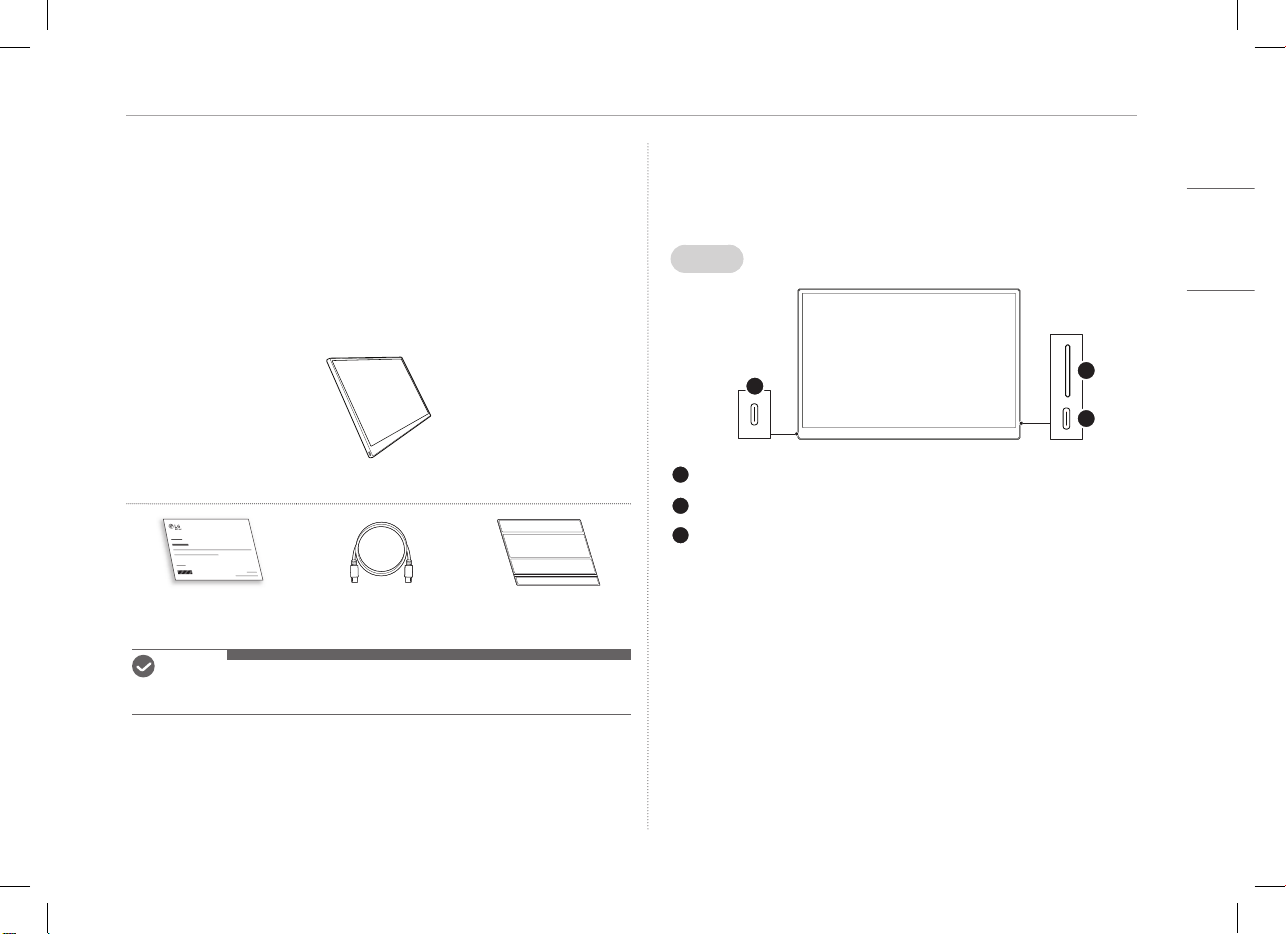
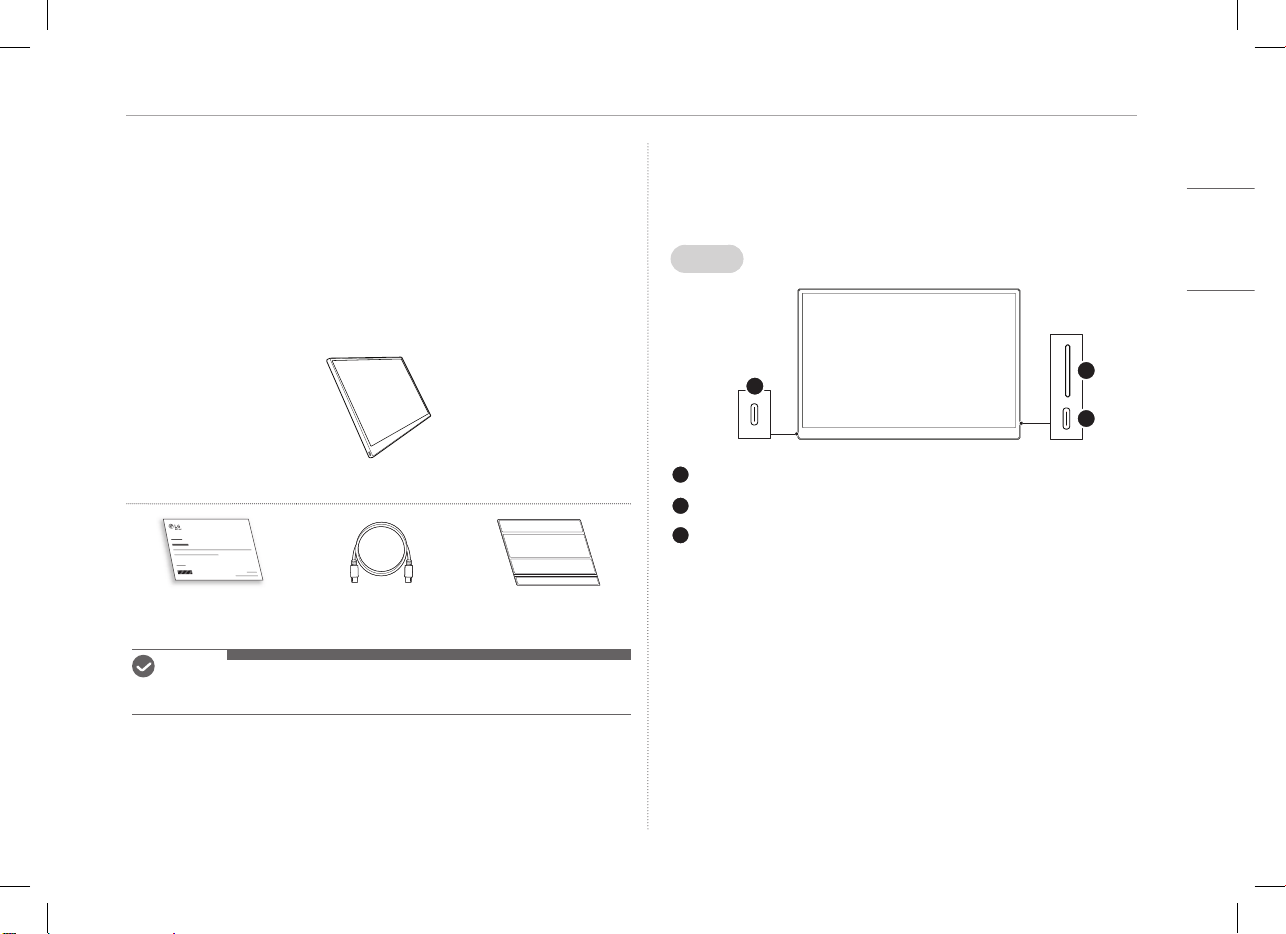
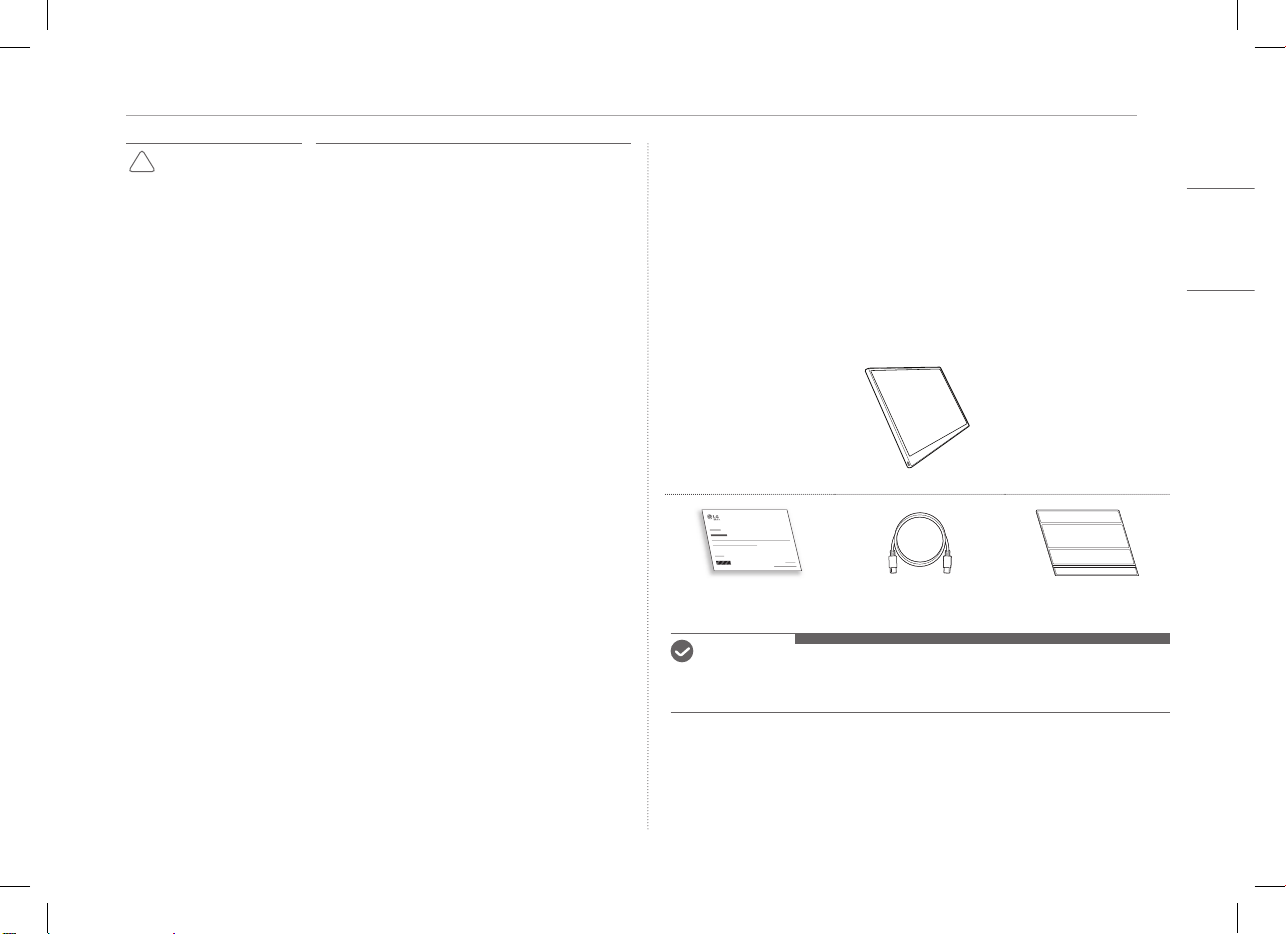
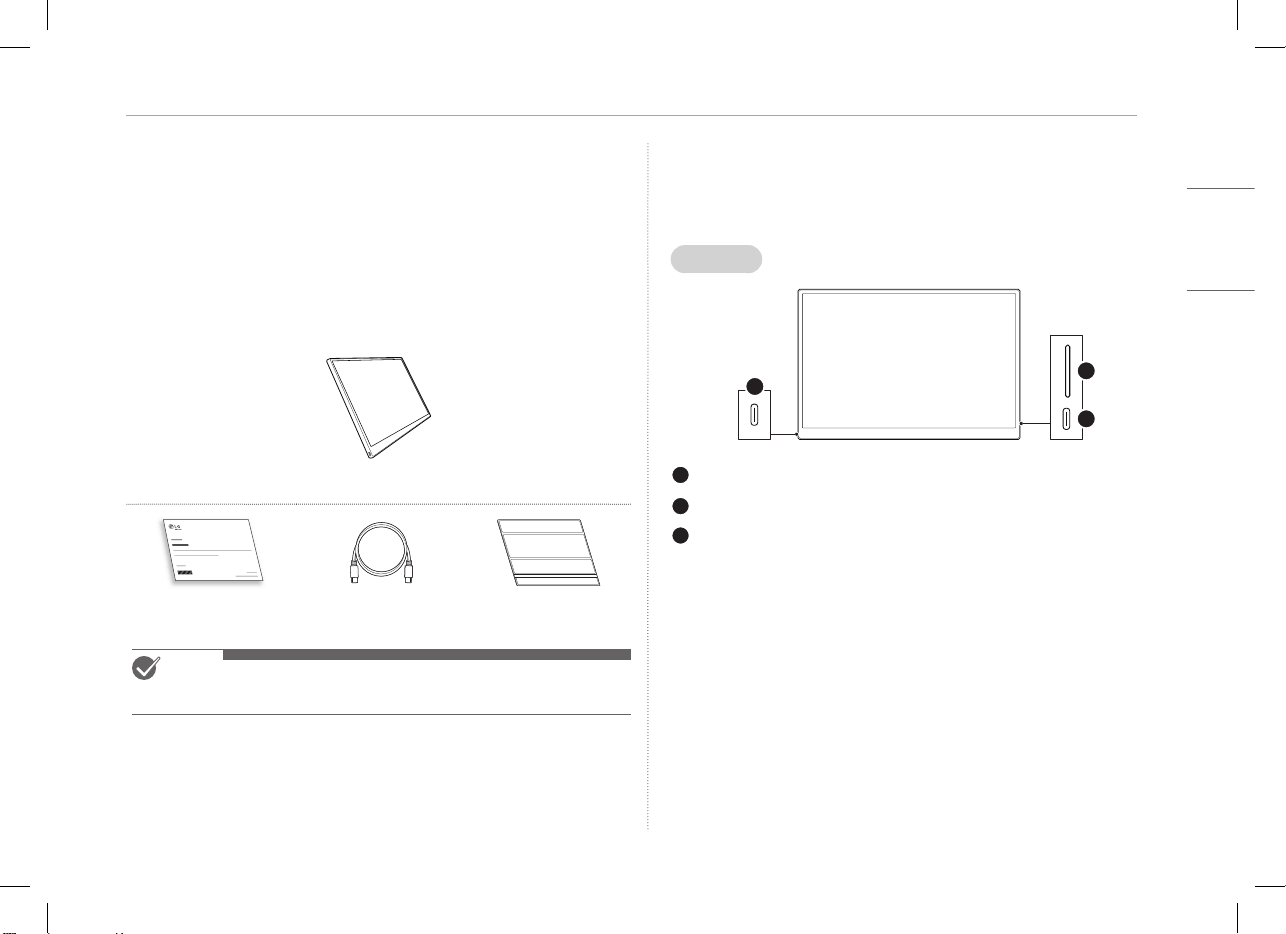
Checking the Components
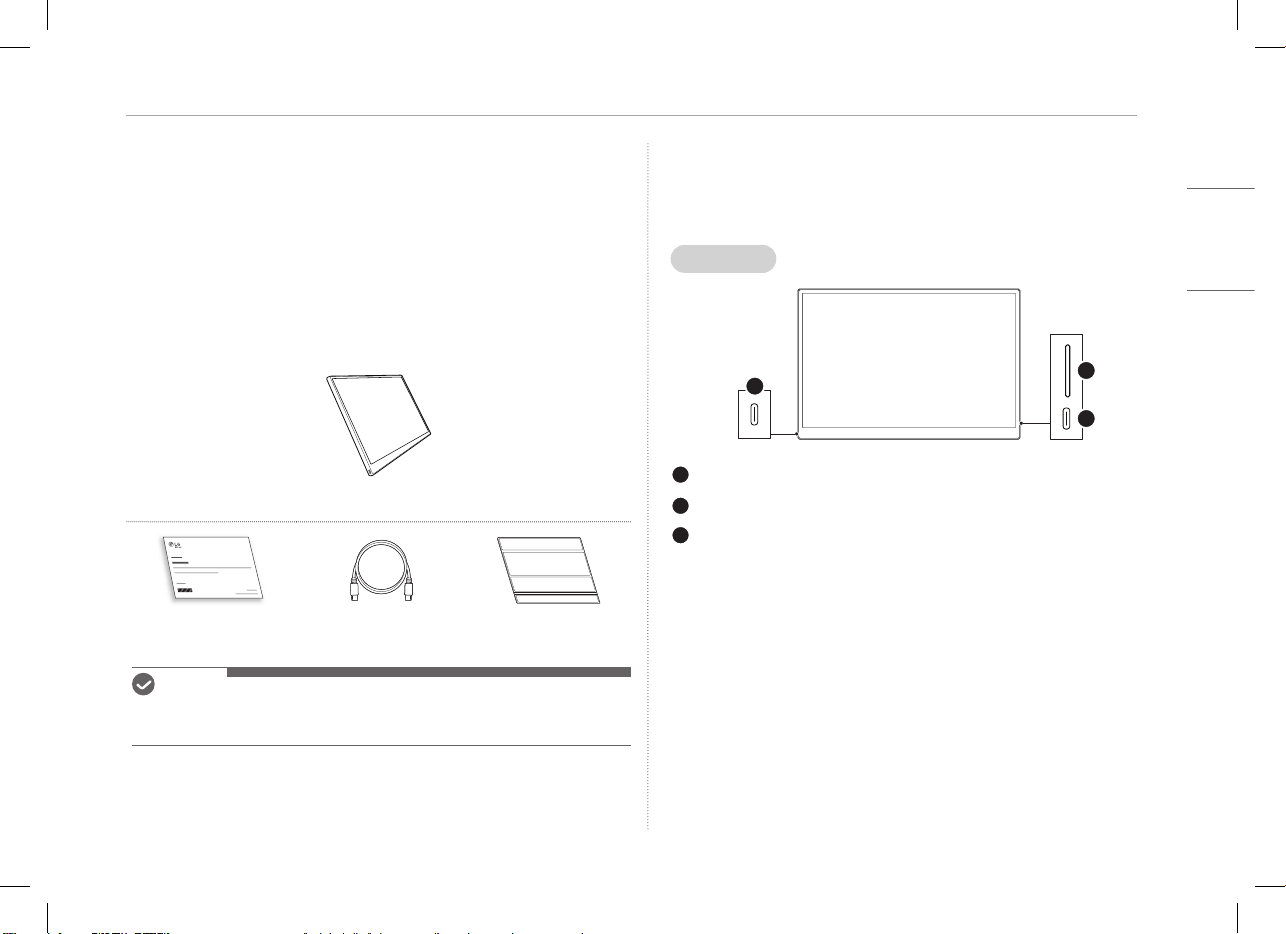
The components shown below are provided when you purchase the product.
Check the components before use.
y
Some of its components may look different in shape and color from the pictures
in certain models.
y
To clean the product, use a dedicated cleaning agent for PC and monitor.
Using thinners, benzene, alcohol or other similar agents may cause product
damage or deformation.
Monitor body
Owner’s manual USB-C™ cable Folio cover
NOTE
y
The figures in the user’s guide are subject to change without prior notice.
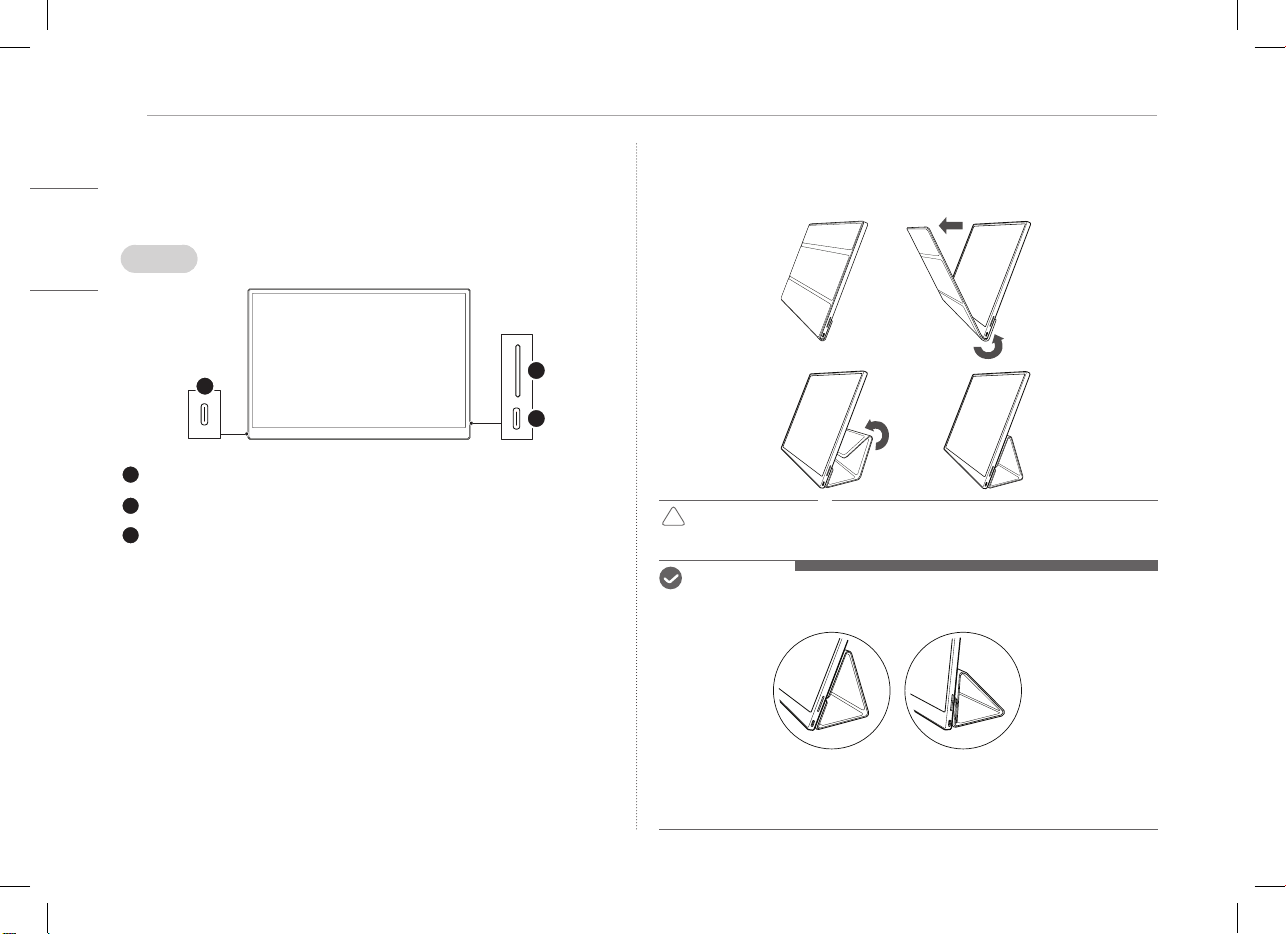
Product Tour
The product may differ in shape and color from the product images included in
this Owner’s manual.
Front
1
2
3
USB-C™ port
USB-C™ port
Screen brightness button
3
ENGLISH
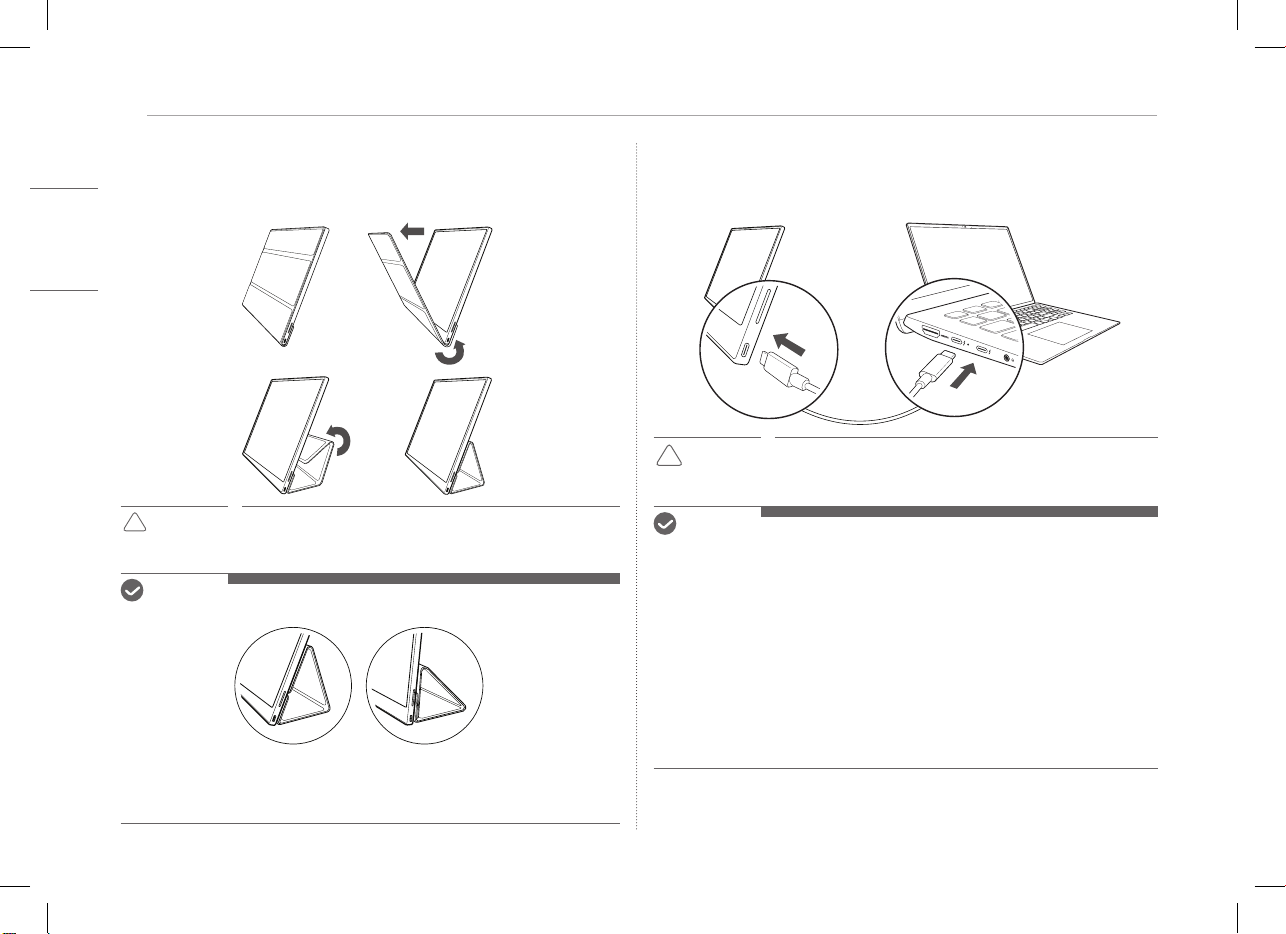
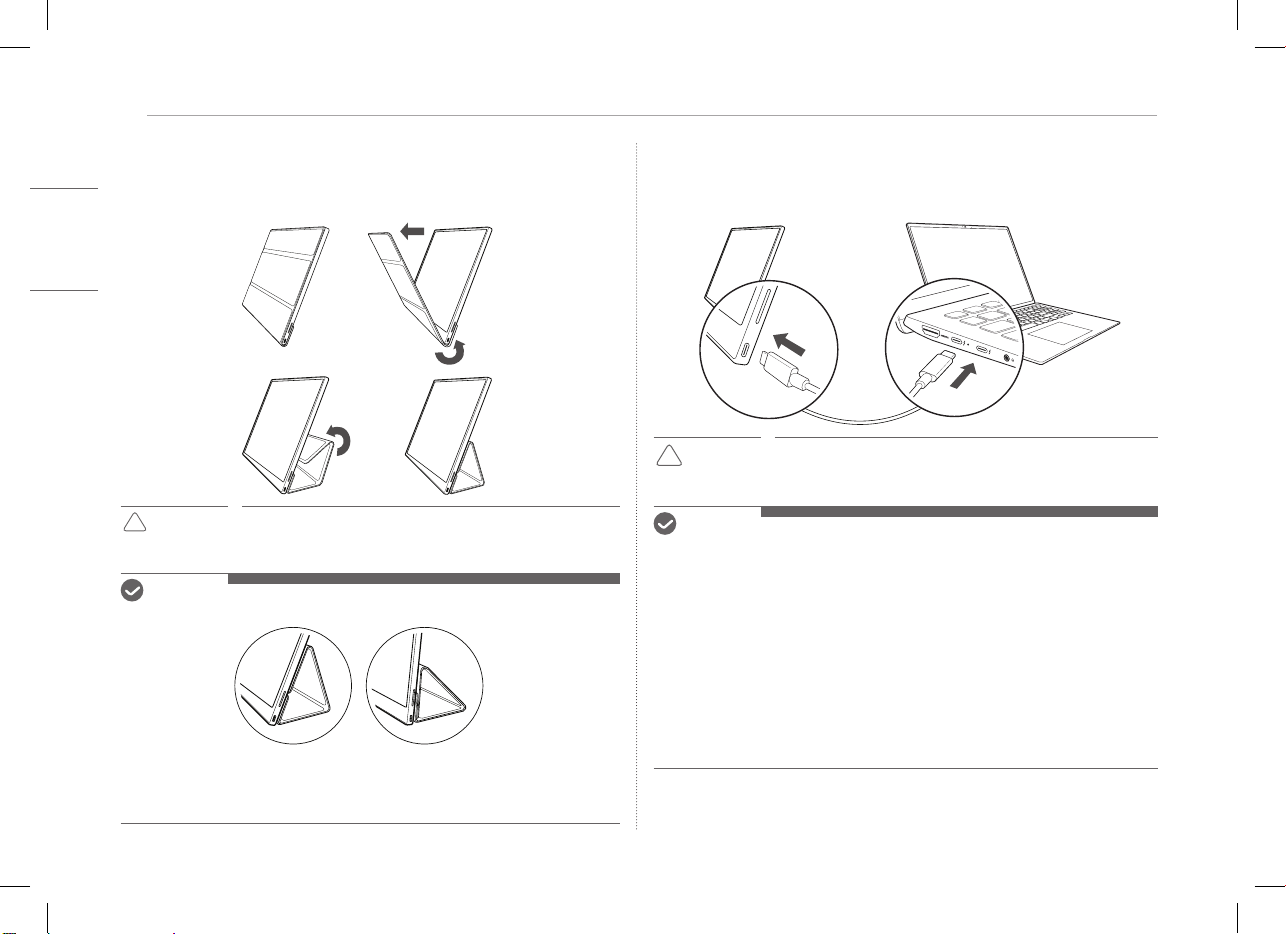
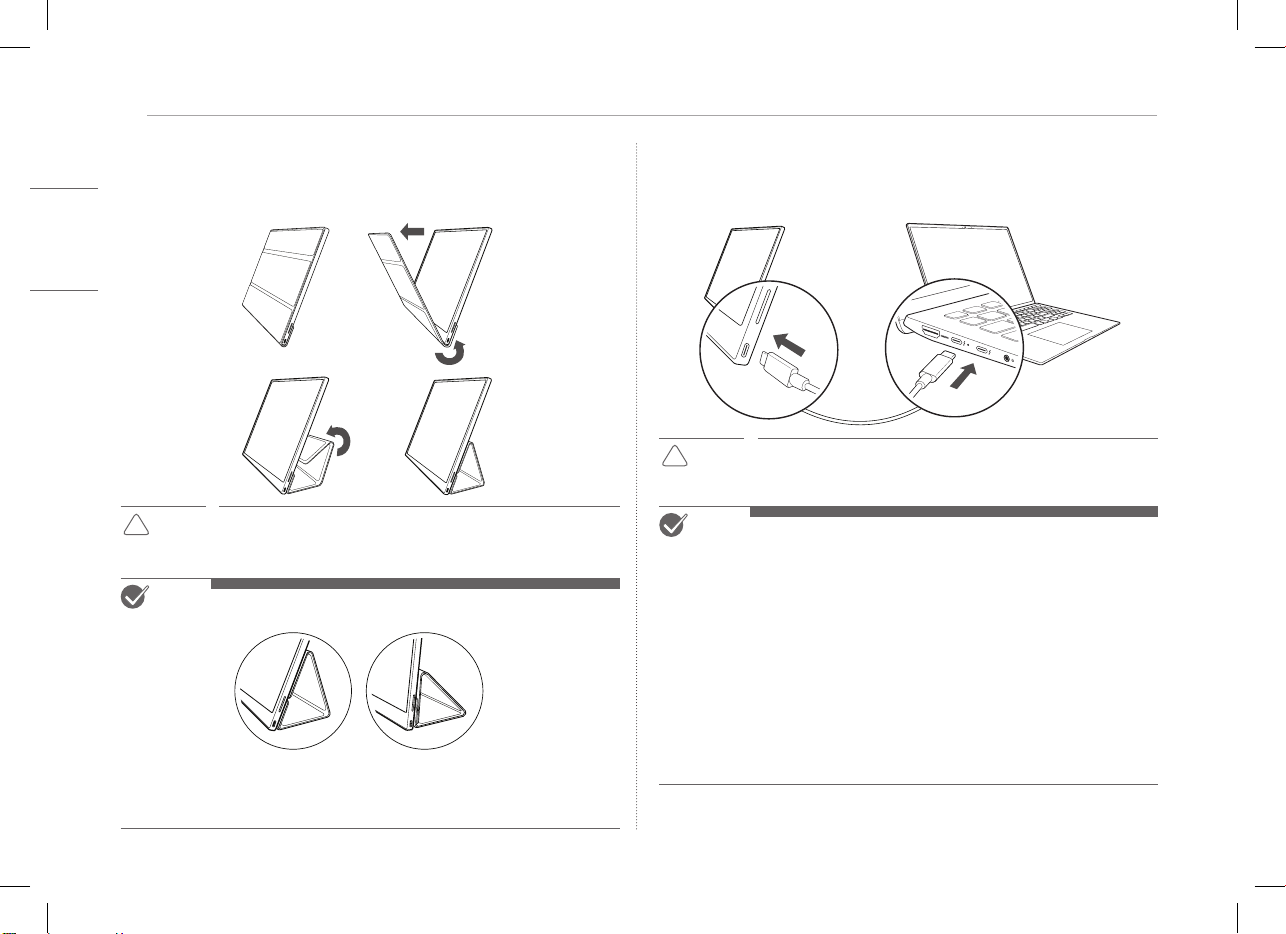
Using Folio Cover
Using Folio Cover
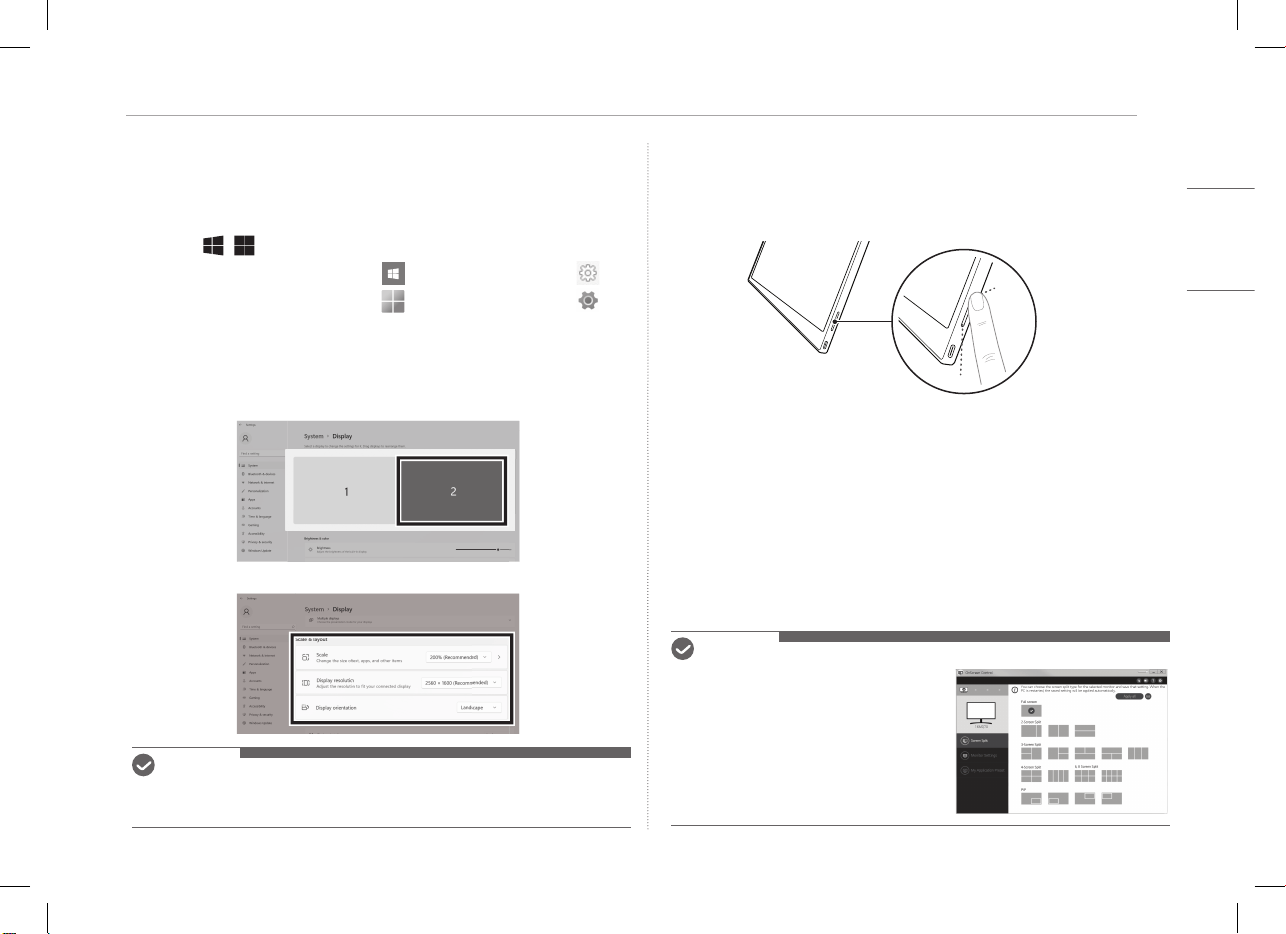
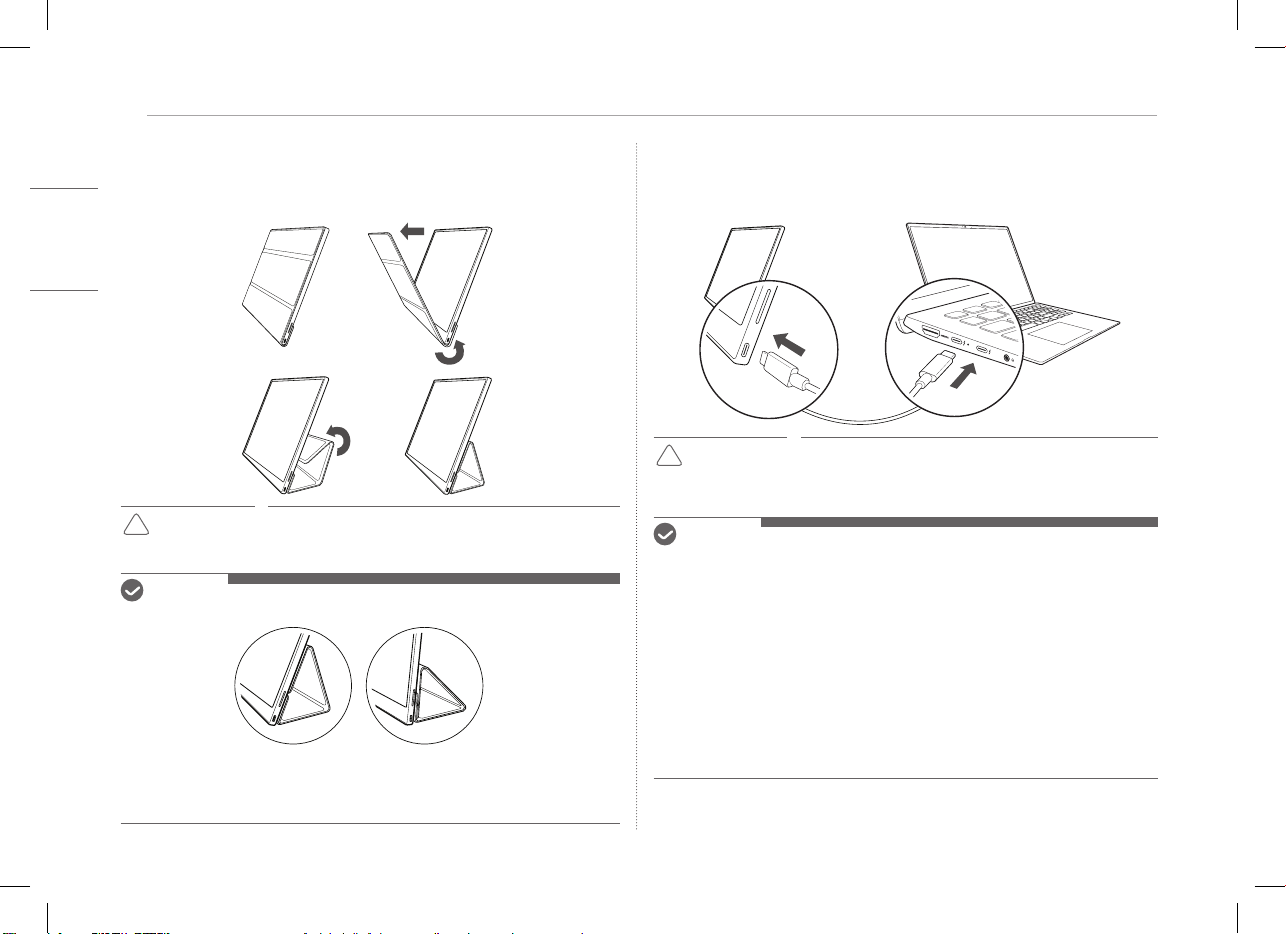
You can fold back the folio cover and use it as a stand.
!
CAUTION
y
When you are moving the product, make sure to keep the
folio cover on it to protect the screen.
NOTE
y
There are two angles available for using the folio cover.
y
The folio cover can be used in the horizontal mode only.
y
The folio cover is a consumable item and can be damaged during use. You can
purchase folio covers separately from LG Electronics Service Center.
Connecting Monitor
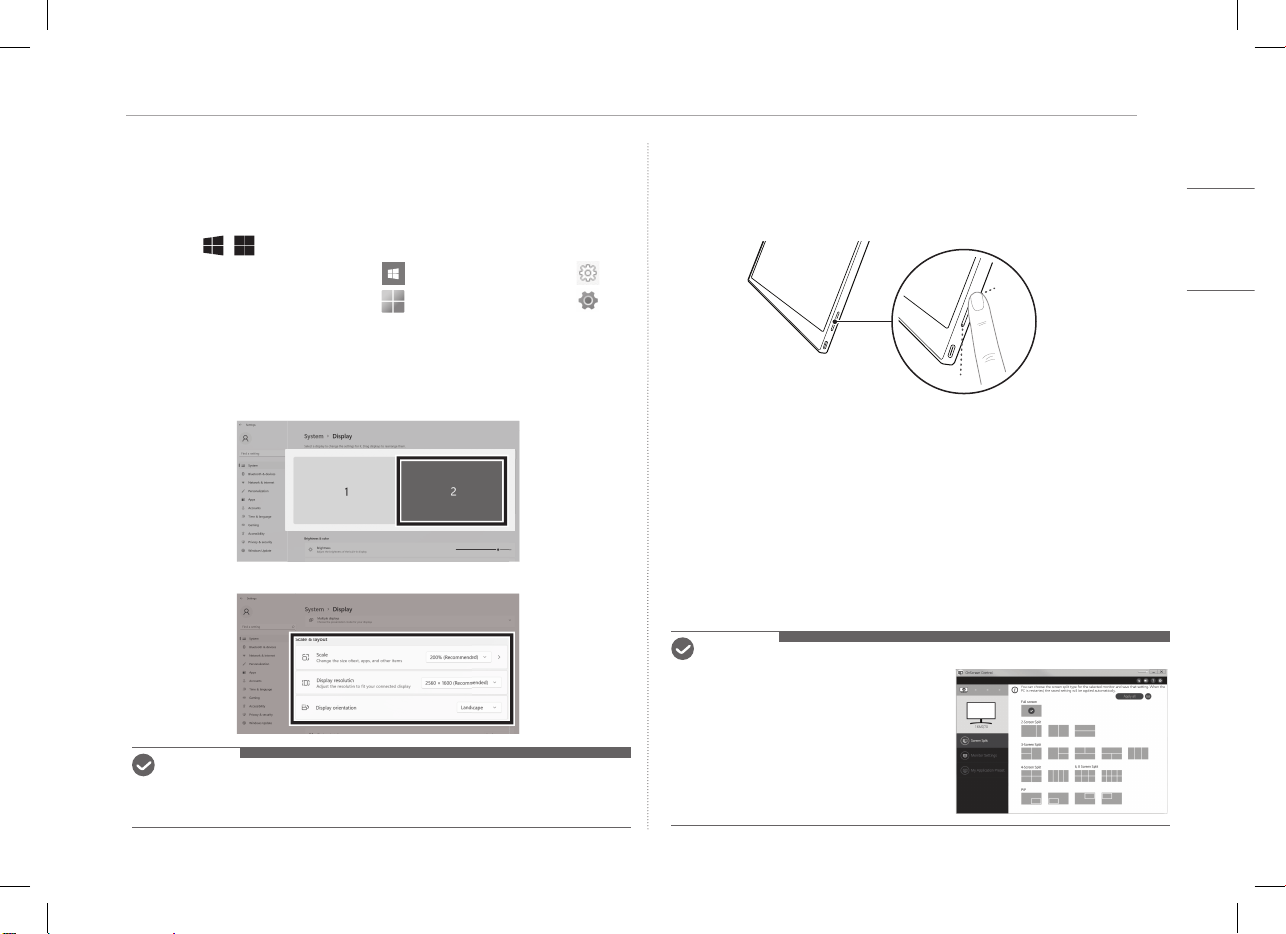
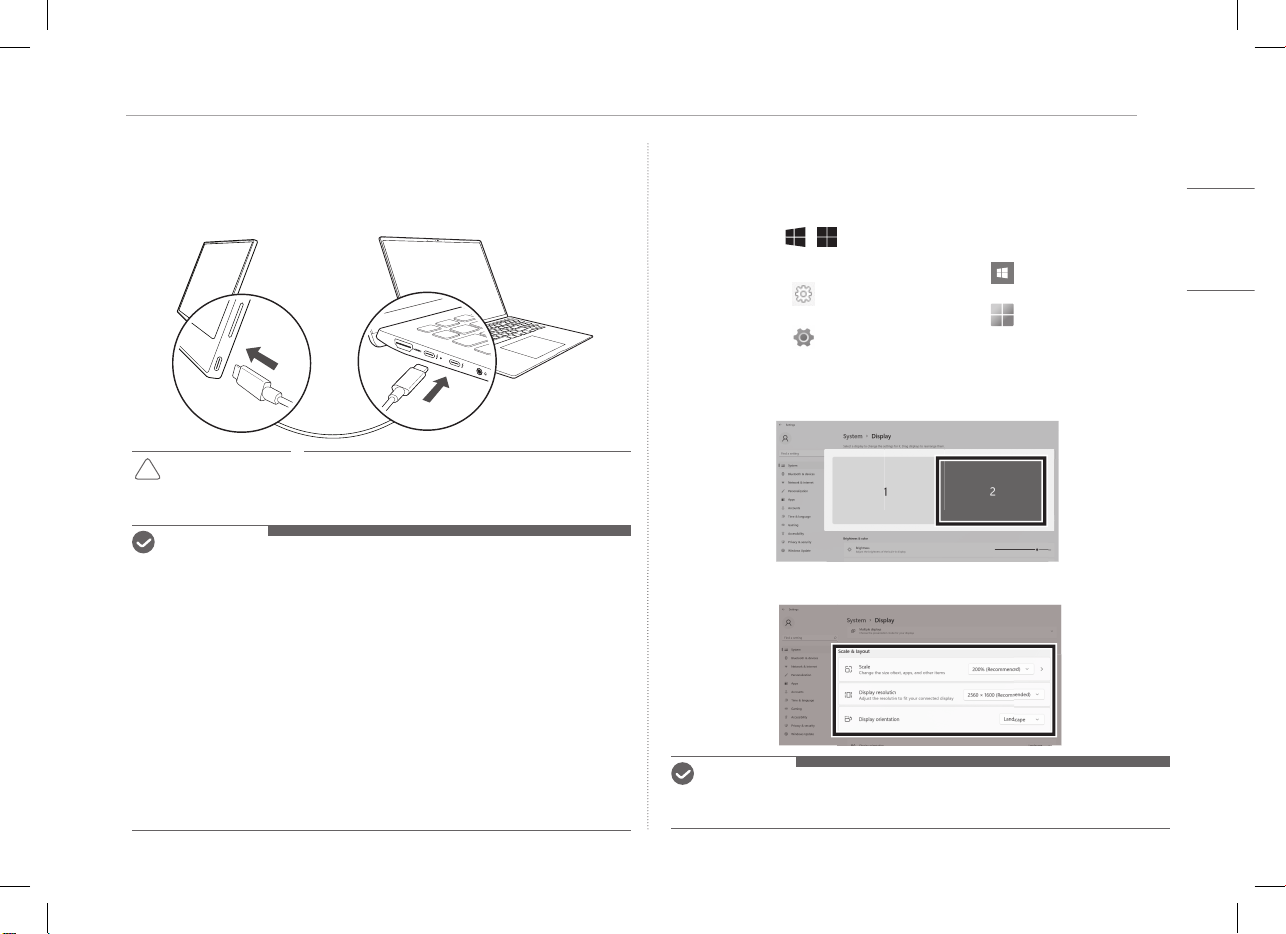
Connect the USB-C™ ports of the monitor and the PC using the USB-C™ cable.
!
CAUTION
y
Do not use any other type of cable than USB-C™ cable for
this connection. Doing so can damage the connector.
NOTE
y
This product is designed to be used only with a laptop. The device to be
connected with the monitor must support DisplayPort Alternate Mode (DP Alt
Mode) and power output (USB PD) at 7.5 W (5 V / 1.5 A) or higher.
y
The
USB-C™
port only supports single connection and does not support multiple
connections.
y
Use the
USB-C™
cable enclosed with the monitor for connection. If a cable for a
different product is used, it may cause the screen to operate abnormally.
y
If the device connected to the monitor has low battery, connection may be
lost.
y
This monitor supports the plug-and-play function.
(Plug-and-play: When a device is connected to a PC, the PC automatically
recognizes the connected device without any environment settings by the user.)
4Setting Screen (Extension Mode)
ENGLISH
Setting Screen (Extension Mode)
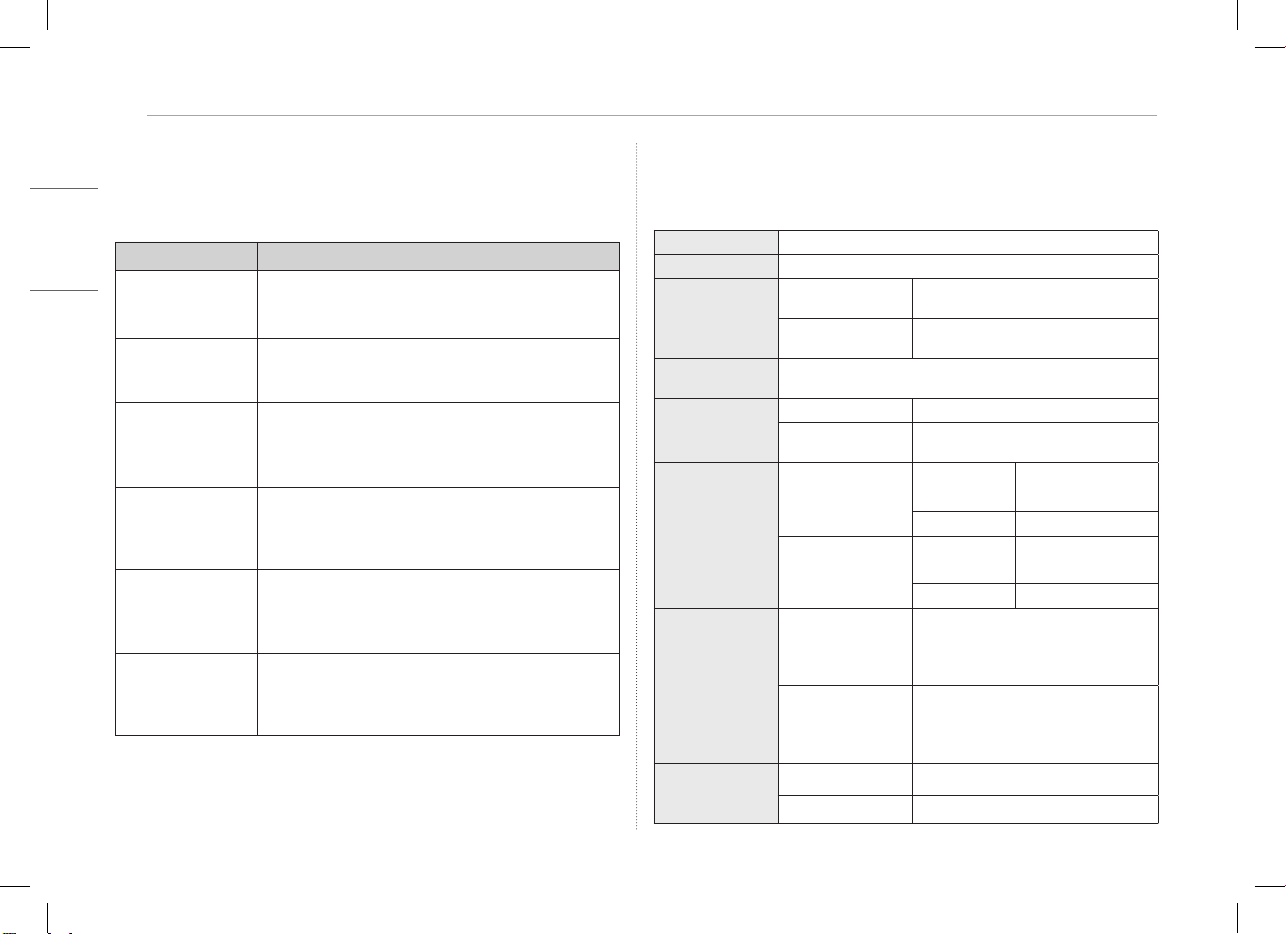
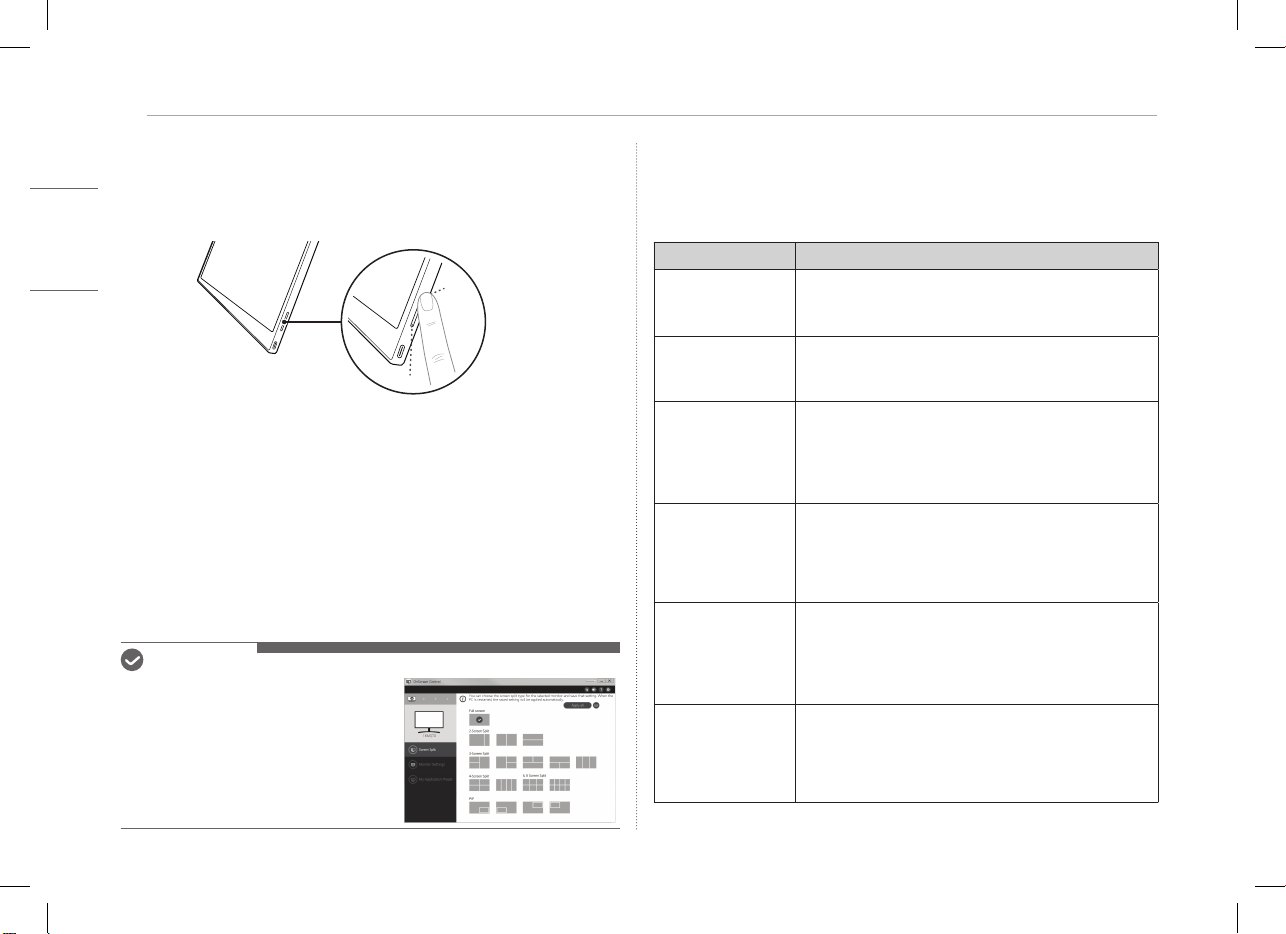
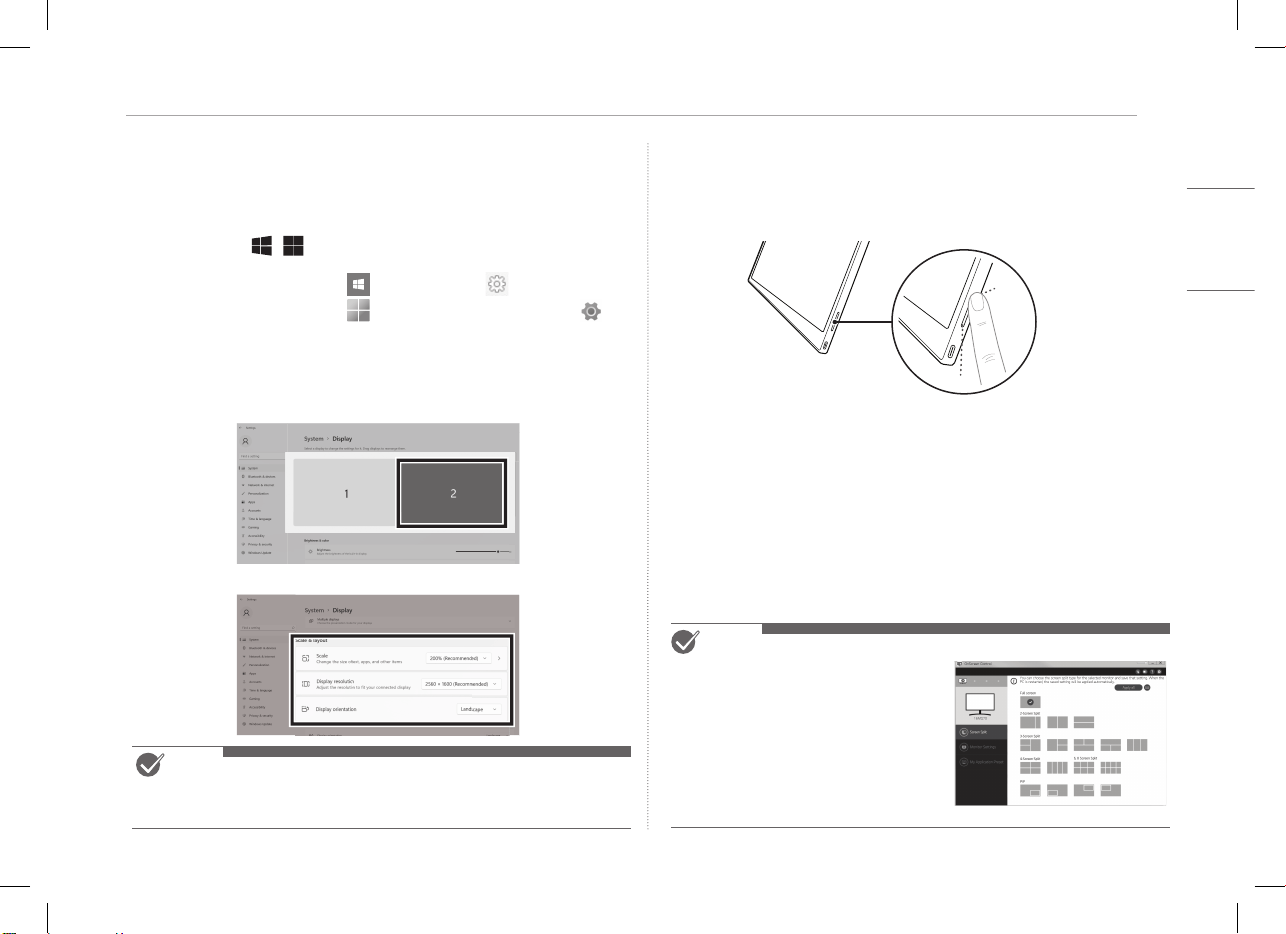
If you set the portable monitor to Extension Mode, you can set the screen
ratio and layout.
1 Press
[
/ ] or
[Ctrl] + [ESC] on your keyboard to bring up the Start menu.
y
Windows 10: Press the Start button [ ] and then select the Settings [ ].
y
Windows 11: Press the Start button [
] and then select the Settings [ ]
on
the start screen.
2 When the Settings screen appears, select [System] > [Display].
3 Windows 10: Select [Extend these displays] under [Multiple displays].
Windows 11: Select [Extend these displays].
4 Select monitor 2.
5 Change settings as desired under [Scale & layout].
NOTE
y
The image is only representative and may vary depending on the Windows version
and language of the country.
Adjusting Screen Brightness
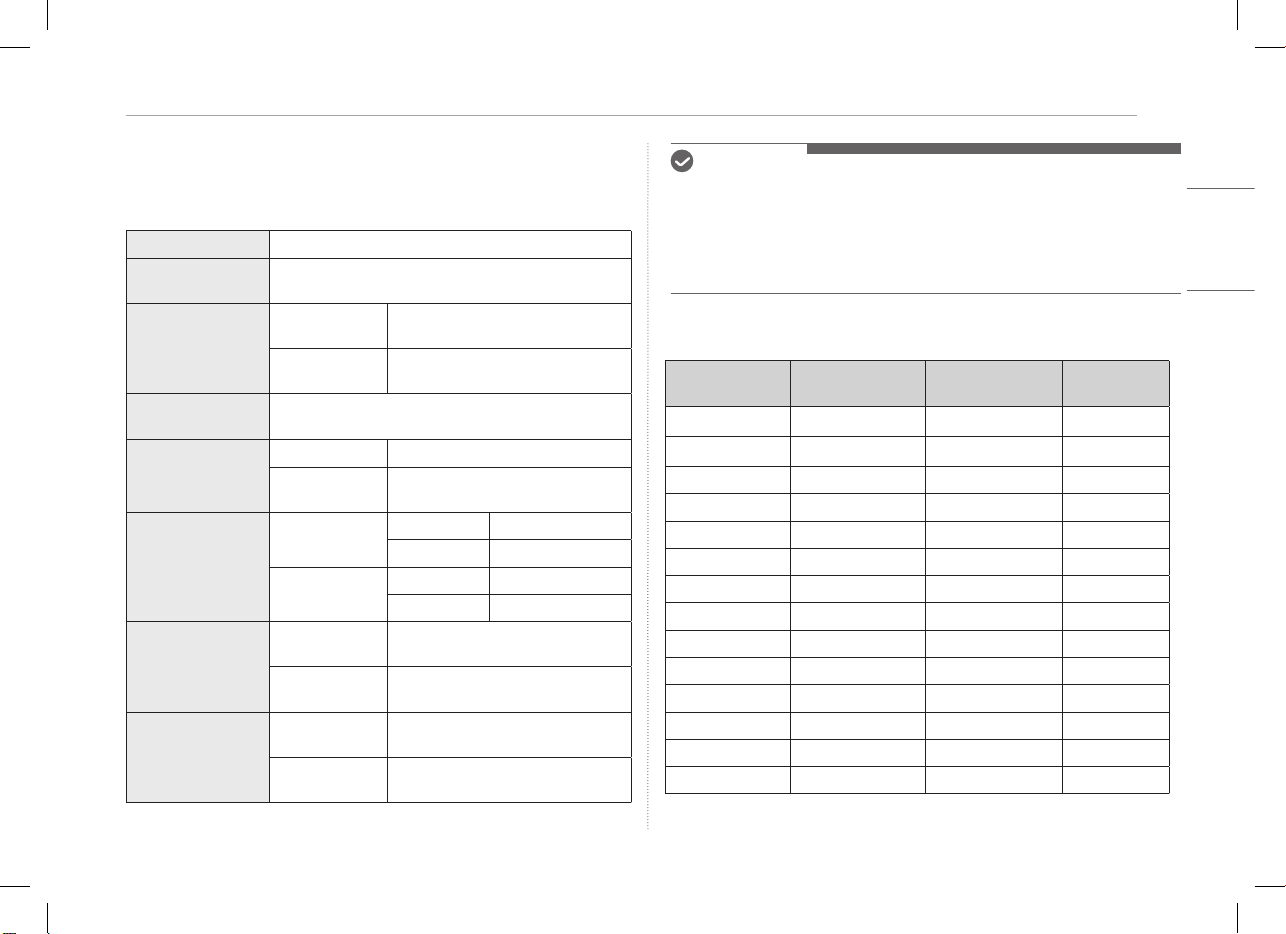
You can use the screen brightness button on the right of the monitor to adjust
the screen brightness.
Installing SW
Install OnScreen Control and use various functions such as screen split,
monitor settings, and screen switch easily and conveniently.
1 Visit the LG Electronics website (http://lg.com).
2 Select the “SUPPORT” menu option and search for the product model.
3 Select “OnScreen Control” and start installing the software.
NOTE
y
After OnScreen Control is installed, you can
see how to use it from the Help menu
provided inside the app.
y
OnScreen Control is available for Windows
only.
y
The Auto Screen Rotation function is available
only while OnScreen Control is enabled.
5
ENGLISH
Pre-Tech Support Checklist
Pre-Tech Support Checklist
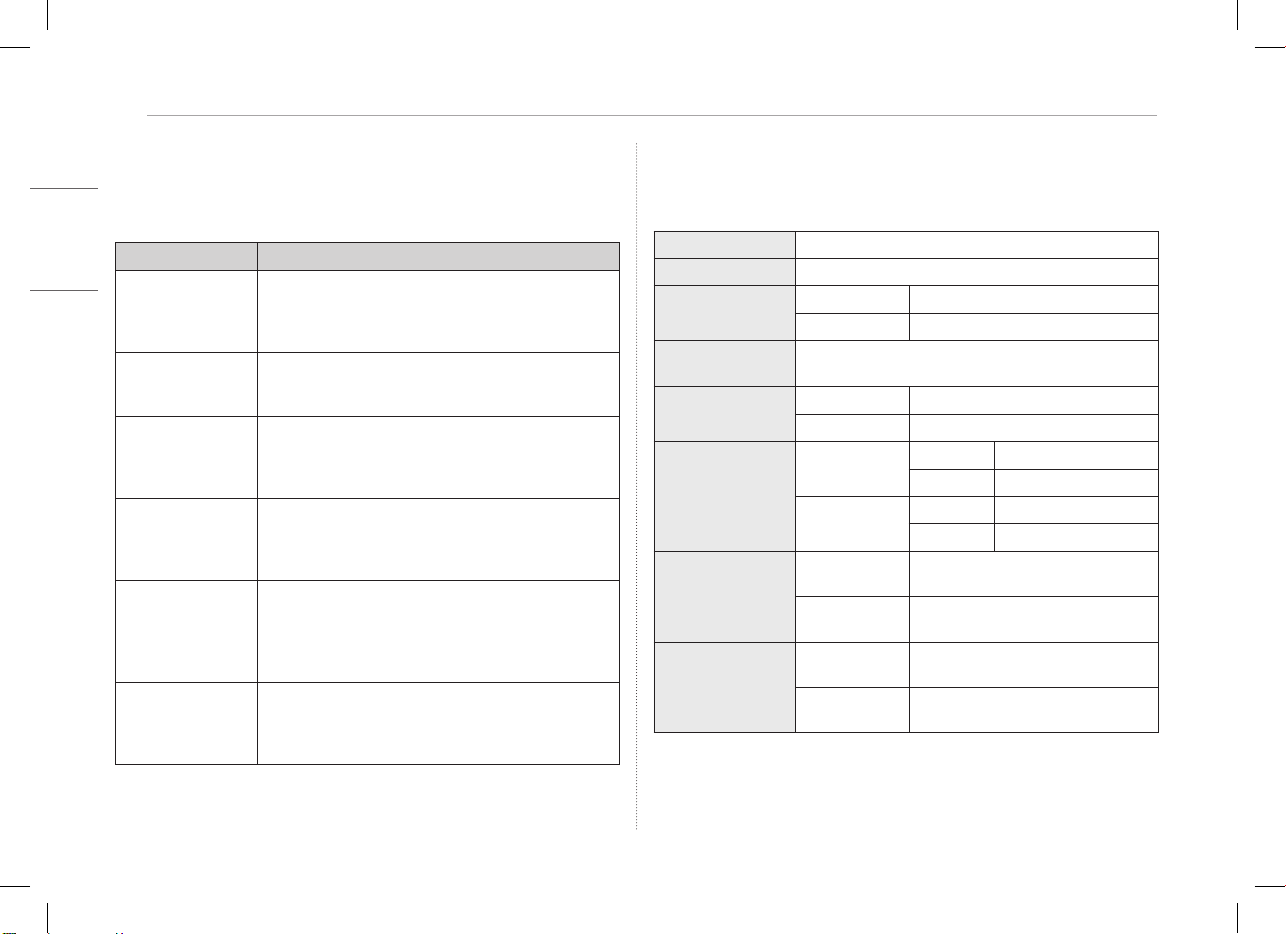
If the following symptoms appear while using the product, check again.
It may not be a malfunction.
Symptom
Cause and Solution
The screen stays
blank or connection is
unstable.
y
Check if the device connected to the monitor supports
DisplayPort Alternate Mode
(DP Alt Mode) and USB Power Delivery(USB PD).
The power does not
turn on.
y
Check if you can properly connect the device to the
monitor using the
USB-C™
cable that comes with the
monitor.
The monitor’s
supported frequency
range has been
exceeded.
y
This phenomenon occurs when the signal sent from the
PC exceeds the horizontal or vertical frequency range.
Refer to the Factory Mode settings and reset the
frequency.
The screen looks
unclear.
y
Setting the screen resolution to any other than the
recommended (optimal) resolution may result in blurry
text or dimming, cropping, or tilting of the screen. Use
the recommended screen resolution setting.
Screen burn-in
remains even when
power is off.
y
Note that having a fixed screen on for an extended
period of time may cause damage to the display and
lead to screen burn-in.
y
To use the monitor for a long time, use a screensaver.
There are spots on
the screen.
y
You may see a few pixel spots (red, green, blue, white,
black) on the screen while using the monitor. This is a
normal phenomenon of an LCD screen. This is unrelated
to the monitor performance and is not an abnormality.
Appendix
Product Specications
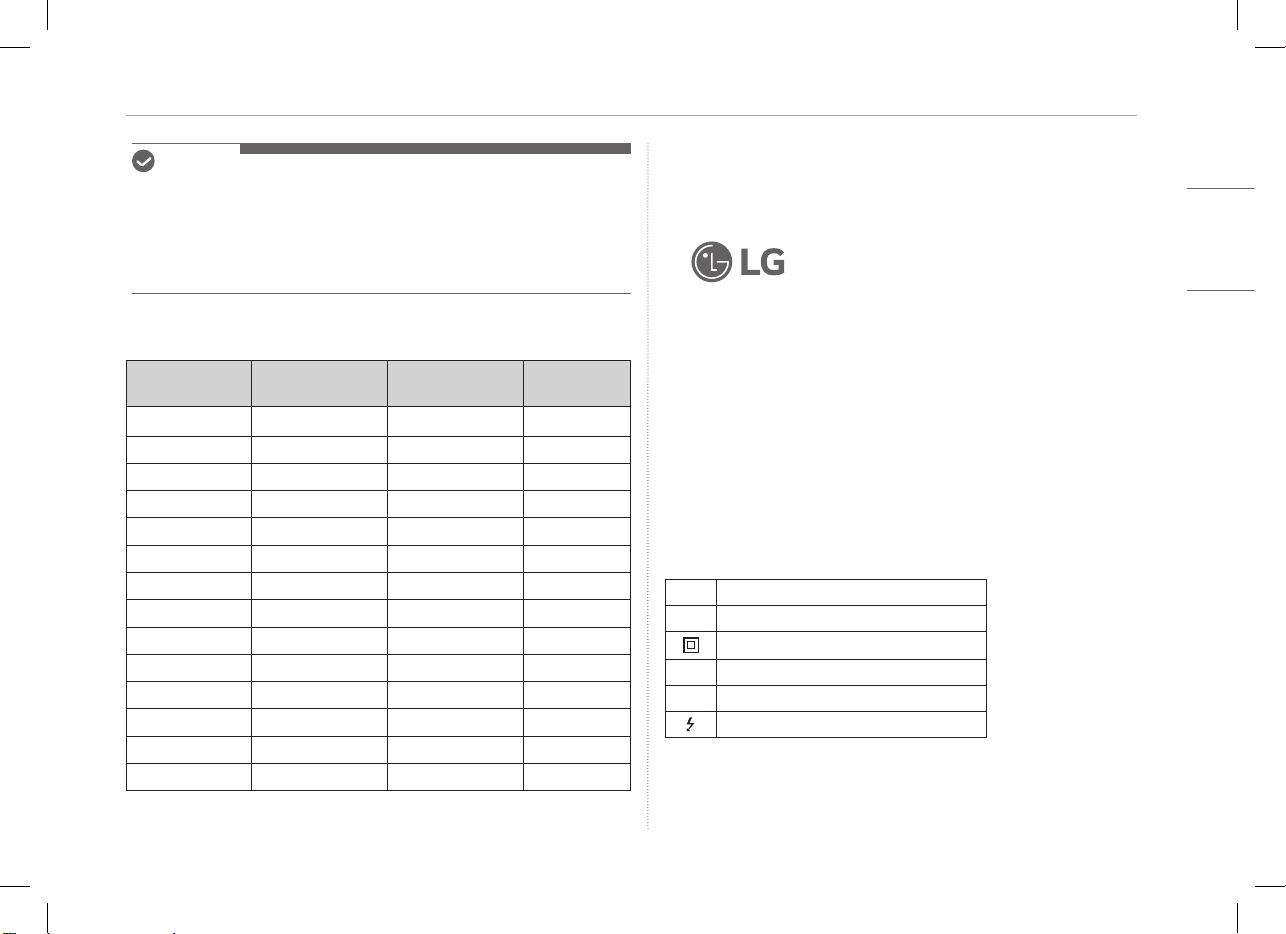
Display 16 inch (40.6 cm) IPS LCD
Color Depth 16.7 million colors (8 bits)
Resolution
Maximum
Resolution
2560 x 1600 @ 60 Hz
Recommended
Resolution
2560 x 1600 @ 60 Hz
Display Standard
Supported
DisplayPort Alternate Mode (DP Alt Mode)
Power
Rated
5 V
0
2 A
Power
Consumption
Operation mode: 8 W general
(factory default)*
Environment
Operation
Temperature
+32 °F to +104 °F
(0 °C to 40 °C)
Humidity Lower than 80 %
Storage
Temperature
-4 °F to +140 °F
(-20 °C to 60 °C)
Humidity 85 % or lower
Dimensions
(not including
package)
With a folio cover
14.3 (width) x 9.8 (height) x 0.4 inch
(thickness) /
(362 (width) x 249 (height) x 11.3 mm
(thickness) )
Without a folio
cover
14.2 (width) x 9.7 (height) x 0.3 inch
(thickness) /
(360 (width) x 245.5 (height) x 8.3 mm
(thickness)
)
Weight
(not including
package)
With a folio cover Approx. 35 oz (990 g)
Without a folio cover Approx. 24 oz (670 g)
6Appendix
ENGLISH
NOTE
y
* Power consumption in On Mode was measured under LGE’s standard testing
conditions (full white pattern, maximum resolution).
y
The product specifications are subject to change without notice for product
improvement.
y
Power consumption level may differ depending on the operating conditions and
monitor settings.
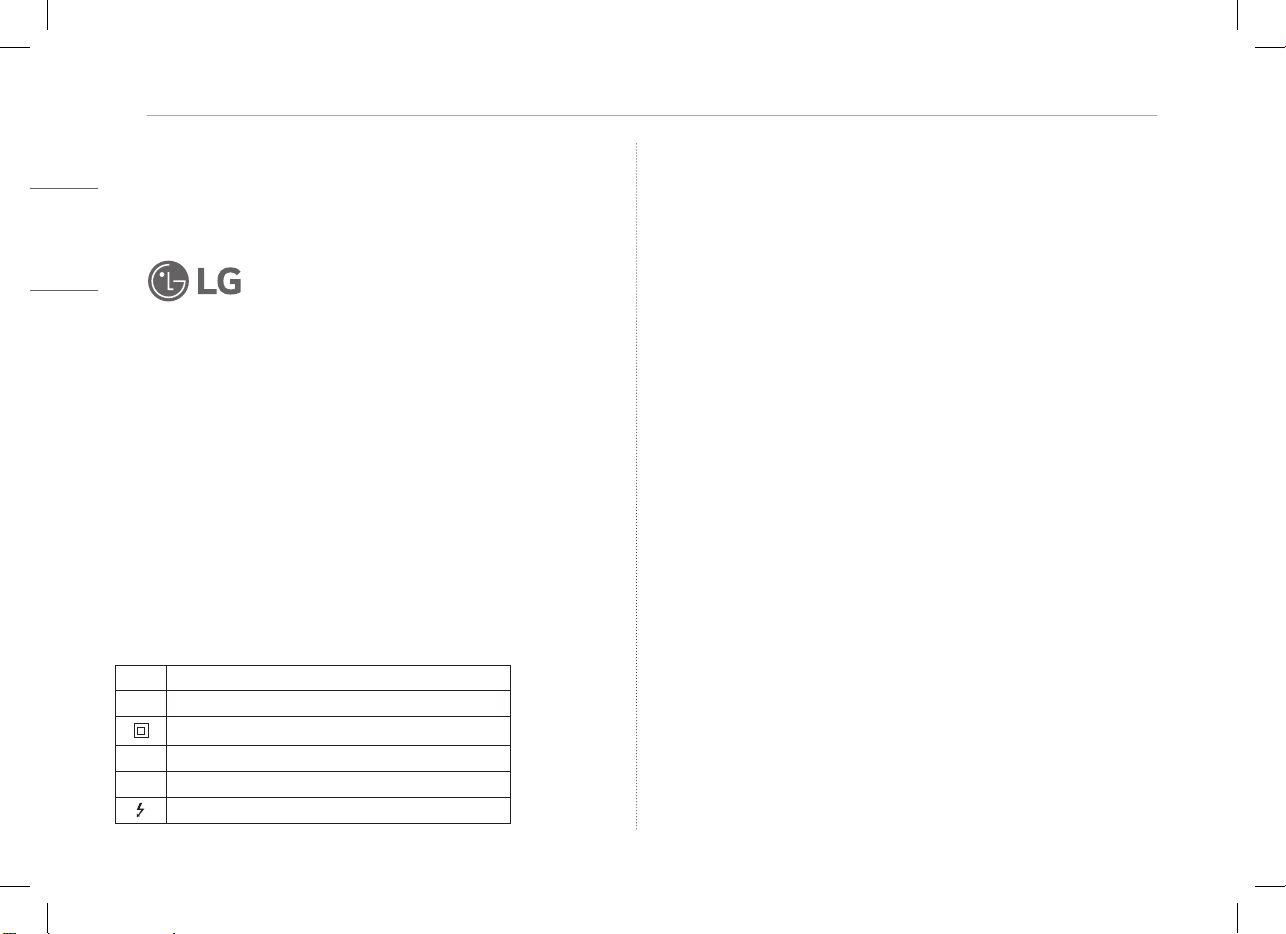
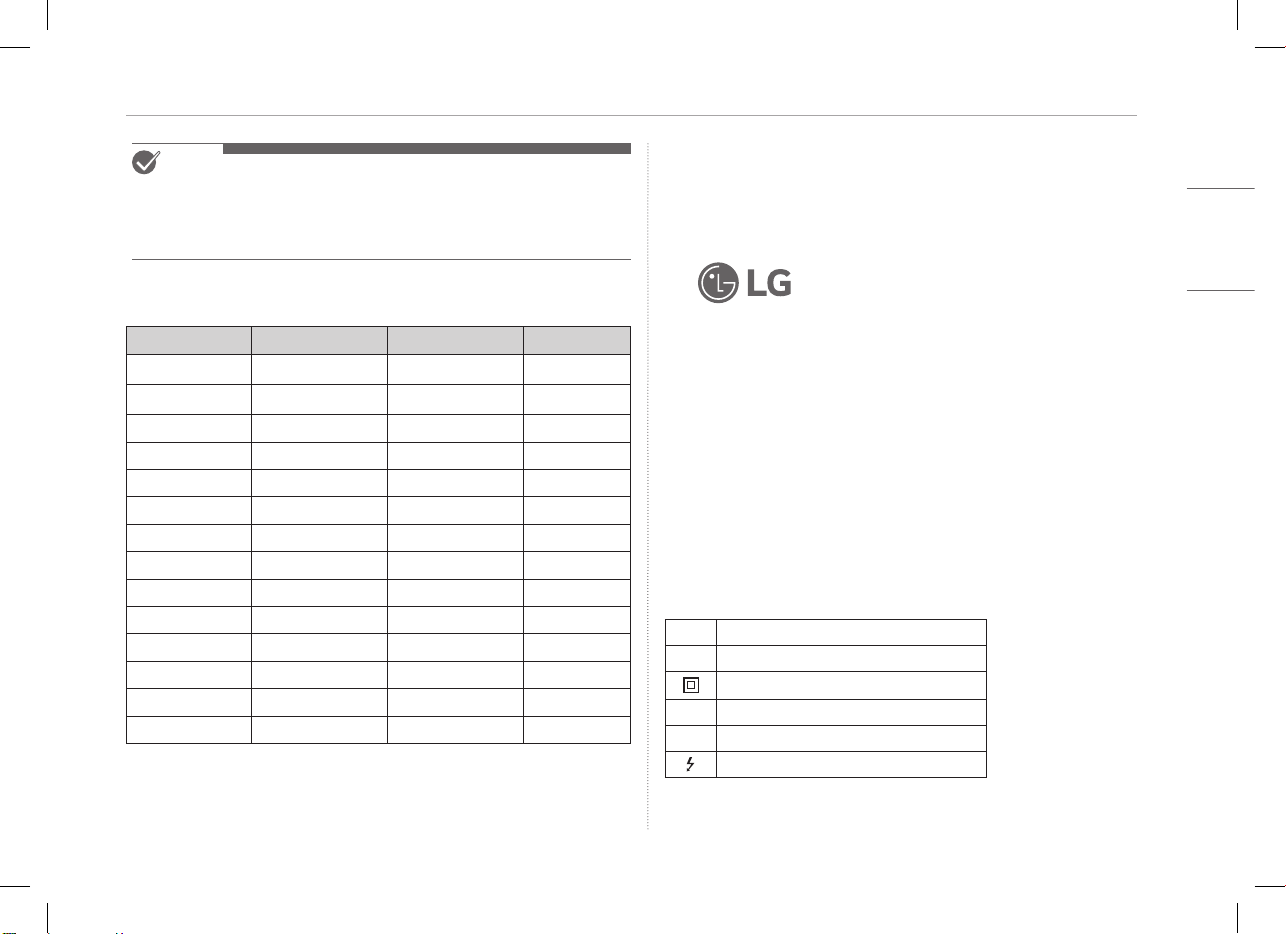
Factory Default Mode
Preset Mode
Horizontal
frequency (kHz)
Vertical frequency
(Hz)
Polarity (H/V)
640 x 480 31.469 59.94 -/-
800 x 600 37.879 60.317 +/+
1024 x 768 48.363 60 -/-
1152 x 864 54.347 60.05 +/+
1280 x 720 45 60 +/+
1280 x 1024 63.981 60.02 +/+
1600 x 900 60 60 +/+
1680 x 1050 65.29 59.954 -/+
1920 x 1080 67.5 60 +/-
1920 x 1080 83.894 74.973 +/-
2560 x 1440 88.79 59.95 +/-
2560 x 1600 48.62 29.96 +/-
2560 x 1600 98.71 59.97 +/-
2560 x 1600 124.26 74.95 +/-
Registered Trademark and Open Source Software Notice
Information
USB Type-C™ and USB-C™ are trademarks of USB Implementers forum.
LG logo is a registered trademark of LG Electronics Inc.
To obtain the source code that is contained in this product, under GPL, LGPL,
MPL, and other open source licenses that have the obligation to disclose
source code, and to access all referred license terms, copyright notices and
other relevant documents please visithttps://opensource.lge.com.
LG Electronics will also provide open source code to you on CD-ROM for a charge
covering the cost of performing such distribution (such as the cost of media,
shipping, and handling) upon email request toopensour[email protected]om.
This offer is valid to anyone in receipt of this information for a period of three
years after our last shipment of this product.
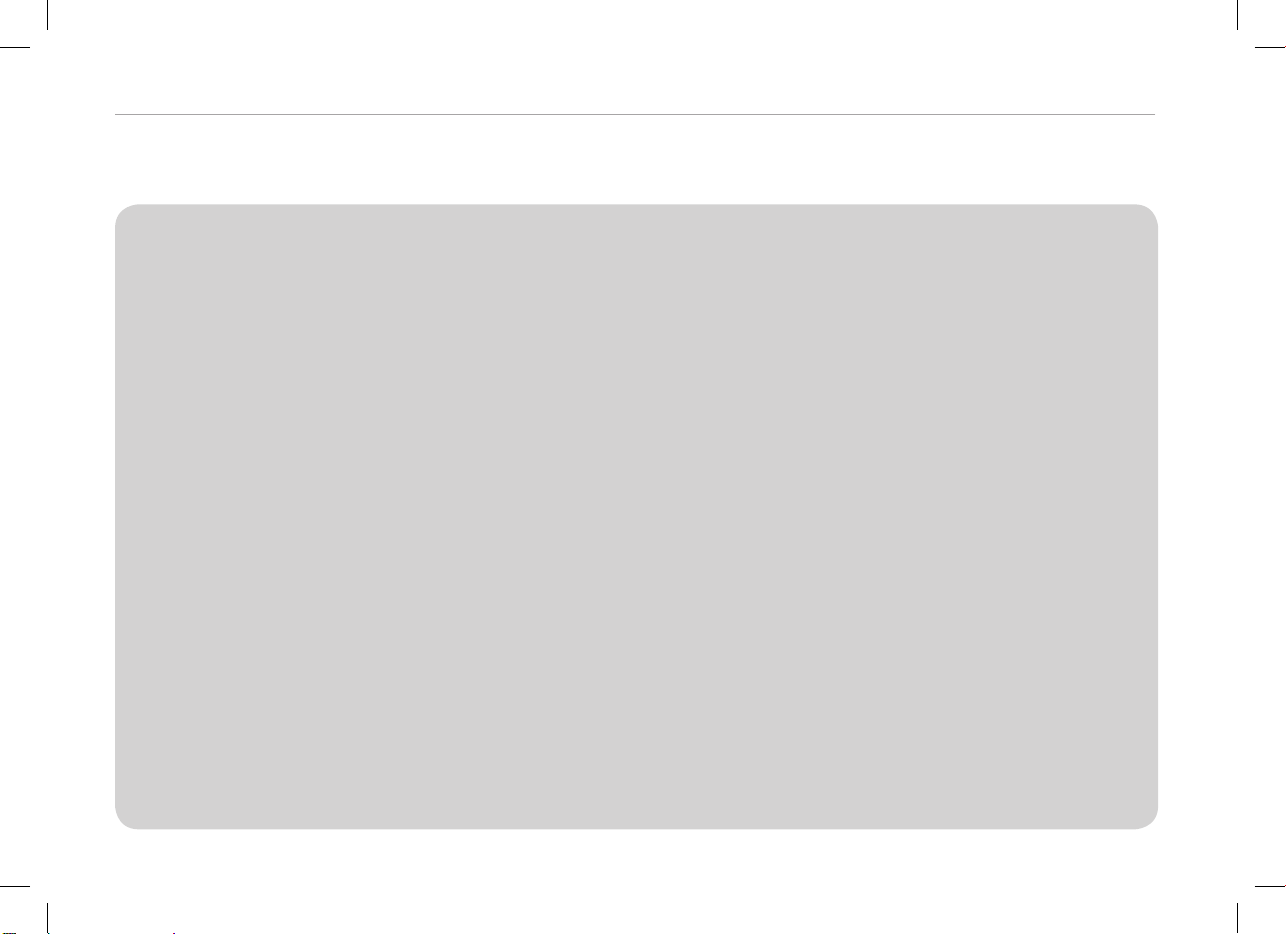
Symbols
~
Refers to alternating current (AC).
0
Refers to direct current (DC).
Refers to class II equipment.
1
Refers to stand-by.
!
Refers to “ON” (power).
Refers to dangerous voltage.
MEMO
16MQ70 Series
OWNER’S MANUAL
PORTABLE MONITOR
For safe and convenient use, please read this owner’s manual carefully before starting to use the product.
www.lg.com
Copyright © 2022 LG Electronics Inc. All Rights Reserved
ENGLISH
1
ENGLISH
Important Safety Precautions
Important Safety Precautions �������������������������������������������������������� 1
While using product �����������������������������������������������������������������������������������������������������������1
Checking the Components �������������������������������������������������������������� 2
Product Tour���������������������������������������������������������������������������������������� 2
Using Folio Cover ������������������������������������������������������������������������������� 3
Connecting Monitor �������������������������������������������������������������������������� 3
Setting Screen (Extension Mode) ������������������������������������������������� 4
Adjusting Screen Brightness ���������������������������������������������������������� 4
Installing SW ��������������������������������������������������������������������������������������� 4
Pre-Tech Support Checklist ������������������������������������������������������������� 5
Appendix ���������������������������������������������������������������������������������������������� 5
Product Specifications�������������������������������������������������������������������������������������������������������5
Factory Default Mode��������������������������������������������������������������������������������������������������������6
Registered Trademark and Open Source Software Notice Information ���������������� 6
Symbols ��������������������������������������������������������������������������������������������������������������������������������� 6
Important Safety Precautions
Check the following ‘Important Safety Precautions’ to prevent unexpected
danger or damage in advance.
‘Important Safety Precautions’ is divided into ‘Warning’ and ‘Caution.’
!
WARNING: Noncompliance with the instruction may cause serious
physical damage or fatal injuries.
!
CAUTION: Noncompliance with the instruction may cause minor damage
to the body or the machine
.
While using product
!
WARNING
y
Use the product in a safe place where there is no danger
of the product falling.
y
Do not use the product in a dusty or humid place.
y
Do not use the product in a high or low-temperature
environment.
y
Do not touch the power cord with your hands wet.
y
Keep the power cable port free of foreign substances.
y
Clean the product with a proper agent and dry it
completely before using it again.
!
CAUTION
y
Do not press the monitor screen with fingers or put
objects on it.
y
Do not tap or scratch the screen with a sharp object.
y
If the screen is damaged, do not touch it with your
hands.
y
Keeping a paused image on the screen for an extended
period of time may result in screen burn-in.
y
Use a screensaver, etc.
y
When its temperature is low, turning on the monitor may
cause momentary blinking of the screen.
y
If this is the case, you may see some red, green, and blue
spots on the screen but it is normal.
Contents
2Checking the Components
ENGLISH
Checking the Components
The components shown below are provided when you purchase the product.
Check the components before use.
y
Some of its components may look different in shape and color from the pictures
in certain models.
y
To clean the product, use a dedicated cleaning agent for PC and monitor.
Using thinners, benzene, alcohol or other similar agents may cause product
damage or deformation.
Monitor body
Owner’s manual USB-C™ cable Folio cover
NOTE
y
The figures in the user’s guide are subject to change without prior notice.
Product Tour
The product may differ in shape and color from the product images included in
this Owner’s manual.
Front
1
2
3
USB-C™ port
USB-C™ port
Screen brightness button
3
ENGLISH
Using Folio Cover
Using Folio Cover
You can fold back the folio cover and use it as a stand.
!
CAUTION
y
When you are moving the product, make sure to keep the
folio cover on it to protect the screen.
NOTE
y
There are two angles available for using the folio cover.
y
The folio cover can be used in the horizontal mode only.
y
The folio cover is a consumable item and can be damaged during use. You can
purchase folio covers separately from LG Electronics Service Center.
Connecting Monitor
Connect the USB-C™ ports of the monitor and the PC using the USB-C™ cable.
!
CAUTION
y
Do not use any other type of cable than USB-C™ cable for
this connection. Doing so can damage the connector.
NOTE
y
This product is designed to be used only with a laptop. The device to be
connected with the monitor must support DisplayPort Alternate Mode (DP Alt
Mode) and power output (USB PD) at 7.5 W (5 V / 1.5 A) or higher.
y
The
USB-C™
port only supports single connection and does not support multiple
connections.
y
Use the
USB-C™
cable enclosed with the monitor for connection. If a cable for a
different product is used, it may cause the screen to operate abnormally.
y
If the device connected to the monitor has low battery, connection may be
lost.
y
This monitor supports the plug-and-play function.
(Plug-and-play: When a device is connected to a PC, the PC automatically
recognizes the connected device without any environment settings by the user.)
4Setting Screen (Extension Mode)
ENGLISH
Setting Screen (Extension Mode)
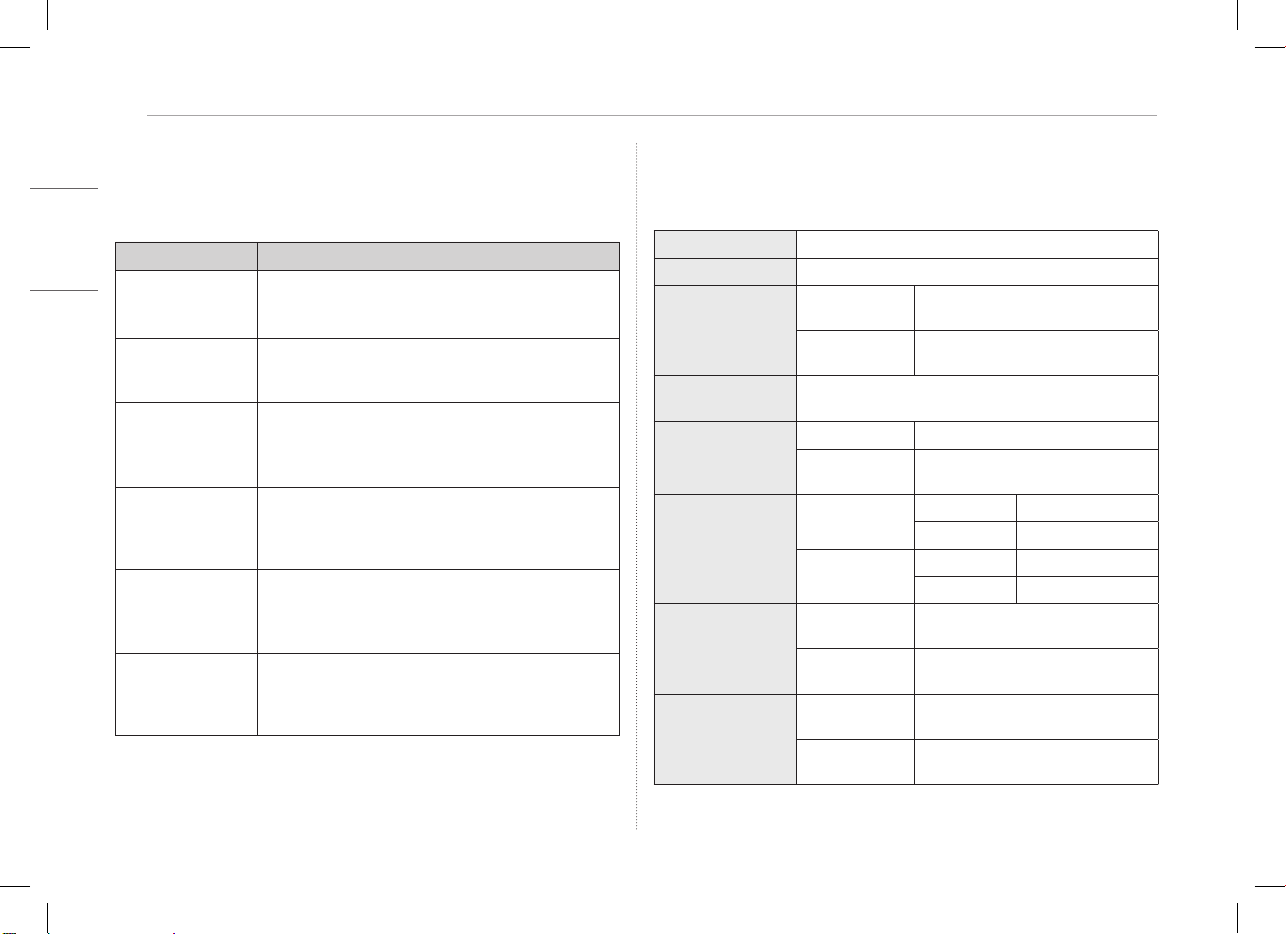
If you set the portable monitor to Extension Mode, you can set the screen
ratio and layout.
1 Press
[
/ ] or
[Ctrl] + [ESC] on your keyboard to bring up the Start menu.
y
Windows 10: Press the Start button [ ] and then select the Settings [ ].
y
Windows 11: Press the Start button [
] and then select the Settings [ ]
on
the start screen.
2 When the Settings screen appears, select [System] > [Display].
3 Windows 10: Select [Extend these displays] under [Multiple displays].
Windows 11: Select [Extend these displays].
4 Select monitor 2.
5 Change settings as desired under [Scale & layout].
NOTE
y
The image is only representative and may vary depending on the Windows version
and language of the country.
Adjusting Screen Brightness
You can use the screen brightness button on the right of the monitor to adjust
the screen brightness.
Installing SW
Install OnScreen Control and use various functions such as screen split,
monitor settings, and screen switch easily and conveniently.
1 Visit the LG Electronics website (http://lg.com/uk).
2 Select the “SUPPORT” menu option and search for the product model.
3 Select “OnScreen Control” and start installing the software.
NOTE
y
After OnScreen Control is installed, you can
see how to use it from the Help menu
provided inside the app.
y
OnScreen Control is available for Windows
only.
y
The Auto Screen Rotation function is available
only while OnScreen Control is enabled.
5
ENGLISH
Pre-Tech Support Checklist
Pre-Tech Support Checklist
If the following symptoms appear while using the product, check again.
It may not be a malfunction.
Symptom
Cause and Solution
The screen stays
blank or connection is
unstable.
y
Check if the device connected to the monitor supports
DisplayPort Alternate Mode
(DP Alt Mode) and USB Power Delivery(USB PD).
The power does not
turn on.
y
Check if you can properly connect the device to the
monitor using the
USB-C™
cable that comes with the
monitor.
The monitor’s
supported frequency
range has been
exceeded.
y
This phenomenon occurs when the signal sent from the
PC exceeds the horizontal or vertical frequency range.
Refer to the Factory Mode settings and reset the
frequency.
The screen looks
unclear.
y
Setting the screen resolution to any other than the
recommended (optimal) resolution may result in blurry
text or dimming, cropping, or tilting of the screen. Use
the recommended screen resolution setting.
Screen burn-in
remains even when
power is off.
y
Note that having a fixed screen on for an extended
period of time may cause damage to the display and
lead to screen burn-in.
y
To use the monitor for a long time, use a screensaver.
There are spots on
the screen.
y
You may see a few pixel spots (red, green, blue, white,
black) on the screen while using the monitor. This is a
normal phenomenon of an LCD screen. This is unrelated
to the monitor performance and is not an abnormality.
Appendix
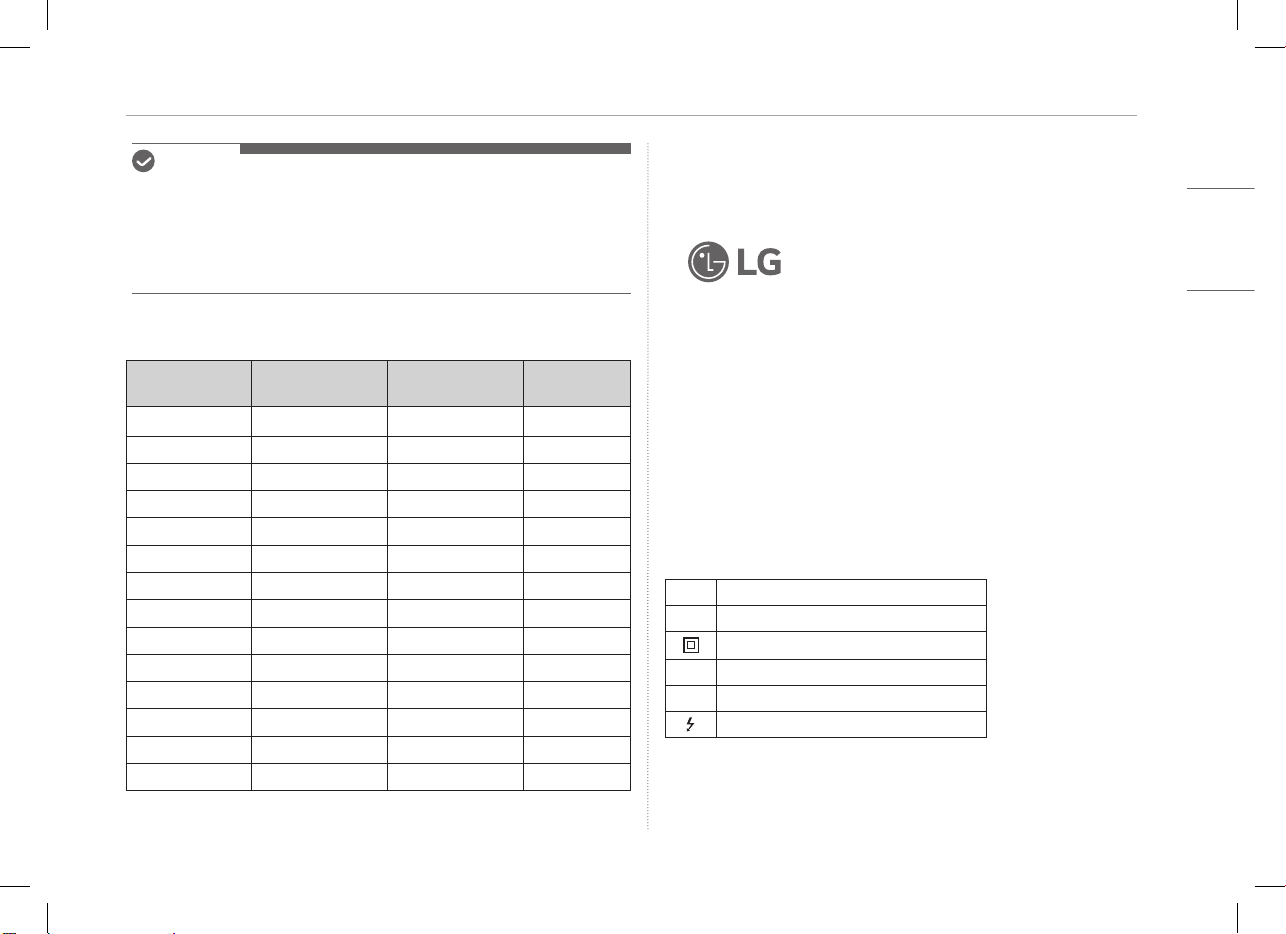
Product Specications
Display 40.6 cm IPS LCD
Color Depth 16.7 million colors (8 bits)
Resolution
Maximum
Resolution
2560 x 1600 @ 60 Hz
Recommended
Resolution
2560 x 1600 @ 60 Hz
Display Standard
Supported
DisplayPort Alternate Mode (DP Alt Mode)
Power
Rated
5 V
0
2 A
Power
Consumption
Operation mode: 8 W general (factory
default)*
Environment
Operation
Temperature 0 °C to 40 °C
Humidity Lower than 80 %
Storage
Temperature -20 °C to 60 °C
Humidity 85 % or lower
Dimensions
(not including
package)
With a folio
cover
362 (width) x 249 (height) x 11.3 mm
(thickness)
Without a folio
cover
360 (width) x 245.5 (height) x 8.3 mm
(thickness)
Weight
(not including
package)
With a folio
cover
Approx. 990 g
Without a folio
cover
Approx. 670 g
6Appendix
ENGLISH
NOTE
y
* Power consumption in On Mode was measured under LGE’s standard testing
conditions (full white pattern, maximum resolution).
y
The product specifications are subject to change without notice for product
improvement.
y
Power consumption level may differ depending on the operating conditions and
monitor settings.
Factory Default Mode
Preset Mode
Horizontal
frequency (kHz)
Vertical frequency
(Hz)
Polarity (H/V)
640 x 480 31.469 59.94 -/-
800 x 600 37.879 60.317 +/+
1024 x 768 48.363 60 -/-
1152 x 864 54.347 60.05 +/+
1280 x 720 45 60 +/+
1280 x 1024 63.981 60.02 +/+
1600 x 900 60 60 +/+
1680 x 1050 65.29 59.954 -/+
1920 x 1080 67.5 60 +/-
1920 x 1080 83.894 74.973 +/-
2560 x 1440 88.79 59.95 +/-
2560 x 1600 48.62 29.96 +/-
2560 x 1600 98.71 59.97 +/-
2560 x 1600 124.26 74.95 +/-
Registered Trademark and Open Source Software Notice
Information
USB Type-C™ and USB-C™ are trademarks of USB Implementers forum.
LG logo is a registered trademark of LG Electronics Inc.
To obtain the source code that is contained in this product, under GPL, LGPL,
MPL, and other open source licenses that have the obligation to disclose
source code, and to access all referred license terms, copyright notices and
other relevant documents please visithttps://opensource.lge.com.
LG Electronics will also provide open source code to you on CD-ROM for a charge
covering the cost of performing such distribution (such as the cost of media,
shipping, and handling) upon email request toopensour[email protected]om.
This offer is valid to anyone in receipt of this information for a period of three
years after our last shipment of this product.
Symbols
~
Refers to alternating current (AC).
0
Refers to direct current (DC).
Refers to class II equipment.
1
Refers to stand-by.
!
Refers to “ON” (power).
Refers to dangerous voltage.
MEMO
Série 16MQ70
MANUEL D’UTILISATION
MONITEUR PORTABLE
Pour une utilisation sûre et pratique, veuillez lire ce manuel d’utilisation attentivement avant de commencer à utiliser le produit.
www.lg.com
Copyright © 2022 LG Electronics Inc. Tous droits réservés
FRANÇAIS
CANADIEN
1
FRANÇAIS
CANADIEN
Consignes de sécurité importantes
Consignes de sécurité importantes ���������������������������������������������� 1
Pendant l’utilisation du produit ��������������������������������������������������������������������������������������� 1
Vérification des composantes��������������������������������������������������������� 2
Tour d’horizon du produit ���������������������������������������������������������������� 3
Utilisation de l’étui protecteur ������������������������������������������������������� 3
Connexion du moniteur �������������������������������������������������������������������� 4
Écran de réglage (Mode d’extension) ������������������������������������������� 4
Réglage de la luminosité de l’écran ����������������������������������������������� 5
Installation du logiciel����������������������������������������������������������������������� 5
Liste de contrôle de l’assistance technique �������������������������������� 5
Annexe�������������������������������������������������������������������������������������������������� 6
Caractéristiques du produit ���������������������������������������������������������������������������������������������6
Mode par défaut �����������������������������������������������������������������������������������������������������������������6
Renseignements sur les avis relatifs aux marques de commerce et aux logiciels
libres ��������������������������������������������������������������������������������������������������������������������������������������� 7
Symboles ������������������������������������������������������������������������������������������������������������������������������� 7
Consignes de sécurité importantes
Vérifiez les «Consignes de sécurité importantes» suivantes pour prévenir tout
danger ou dommage inattendu à l’avance.
Les «Consignes de sécurité importantes» contiennent les sections
«Avertissement» et «Mise en garde».
!
AVERTISSEMENT : Le non-respect des instructions peut causer des
dommages physiques graves ou des blessures
mortelles.
!
MISE EN GARDE : Le non-respect des instructions peut entraîner des
dommages
physiques à l’appareil ou des blessures
mineures.
Pendant l’utilisation du produit
!
AVERTISSEMENTS
y
Utilisez le produit dans un endroit sûr où il ne
risque pas de tomber.
y
N’utilisez pas le produit dans un endroit
poussiéreux ou humide.
y
N’utilisez pas le produit dans un environnement
à haute ou basse température.
y
Ne touchez pas le cordon d’alimentation si vos
mains sont mouillées.
y
Veillez à ce que le port du câble d’alimentation
soit exempt de substances étrangères.
y
Nettoyez le produit avec le produit d’entretien
approprié et séchez-le complètement avant de le
réutiliser.
Table des matières
2Vérification des composantes
FRANÇAIS
CANADIEN
!
MISES EN GARDE
y
N’appuyez pas sur l’écran du moniteur avec les
doigts et ne posez pas d’objets dessus.
y
Ne tapez pas sur l’écran et ne le rayez pas avec
un objet pointu.
y
Si l’écran est endommagé, ne le touchez pas avec
vos mains.
y
Le fait de garder une image en pause sur l’écran
pendant une période prolongée peut entraîner
des images rémanentes sur l’écran.
y
Utilisez un économiseur d’écran, etc.
y
Lorsque la température du moniteur est basse, la
mise en marche peut provoquer un clignotement
momentané de l’écran.
y
Si c’est le cas, vous pouvez voir quelques taches
rouges, vertes et bleues sur l’écran, mais c’est
normal.
Vérification des composantes
Les composantes indiquées ci-dessous sont fournies lorsque vous achetez le
produit. Vérifiez les composantes avant leur utilisation.
y
Certaines composantes peuvent avoir une forme et une couleur différentes des
images sur certains modèles.
y
Pour nettoyer le produit, utilisez un produit d’entretien pour ordinateur et pour
moniteur.
L’utilisation de diluants, de benzène, d’alcool ou d’autres agents nettoyants
similaires peut endommager ou déformer le produit.
Corps du moniteur
Manuel d’utilisation Câble USB-C™ Étui protecteur
REMARQUE
y
Les illustrations figurant dans le guide d’utilisation sont susceptibles d’être
modifiées sans préavis.
3
FRANÇAIS
CANADIEN
Tour d’horizon du produit
Tour d’horizon du produit
Le produit peut différer en forme et en couleur des images du produit incluses
dans ce manuel d’utilisation.
Avant
1
2
3
Port USB-C™
Port USB-C™
Bouton de luminosité de l’écran
Utilisation de l’étui protecteur
Vous pouvez replier l’étui protecteur et l’utiliser comme support.
!
MISE EN GARDE
y
Lorsque vous déplacez le produit, veillez à mettre l’étui
protecteur pour protéger l’écran.
REMARQUES
y
Il y a deux angles de rabat disponibles pour utiliser l’étui protecteur comme
support.
y
L’étui protecteur ne peut être utilisé qu’en mode horizontal.
y
L’étui protecteur est un article consommable et peut être endommagé pendant
son utilisation. Vous pouvez acheter des étuis protecteurs séparément auprès
du centre de service LG Electronics.
4Connexion du moniteur
FRANÇAIS
CANADIEN
Connexion du moniteur
Connectez les ports USB-C™ du moniteur et de l’ordinateur à l’aide du câble
USB-C™.
!
MISE EN GARDE
y
N’utilisez pas d’autre type de câble que le câble
USB-C™ pour cette connexion. Cela pourrait
endommager le connecteur.
REMARQUES
y
Ce produit est conçu pour être utilisé uniquement avec un ordinateur portable.
Le périphérique à connecter au moniteur doit prendre en charge le mode
alternatif DisplayPort (DP Alt Mode) et la puissance de sortie (USB PD) à
7,5 W (5 V/1,5 A) ou plus.
y
Le port
USB-C™
ne prend en charge qu’une seule connexion et ne prend pas en
charge les connexions multiples.
y
Utilisez le câble
USB-C™
fourni avec le moniteur pour la connexion. L’utilisation
d’un câble pour un produit différent peut entraîner un fonctionnement anormal
de l’écran.
y
Si la batterie de l’appareil connecté au moniteur est faible, la connexion peut
être perdue.
y
Ce moniteur prend en charge la fonction prêt à l’emploi (plug-and-play).
(Prêt à l’emploi : Lorsqu’un appareil est connecté à un ordinateur, ce dernier
reconnaît automatiquement l’appareil connecté sans que l’utilisateur n’ait à
effectuer de réglages d’environnement)
Écran de réglage (Mode d’extension)
Si vous configurez le moniteur portable en Mode d’extension, vous pouvez
définir le rapport d’écran et la disposition.
1 Appuyez sur
[
/ ] ou
[Ctrl] + [ESC] sur votre clavier pour afficher le
menu Démarrer.
y
Windows 10 : Appuyez sur le bouton Démarrer [
] et sélectionnez ensuite
Paramètres [
].
y
Windows 11 : Appuyez sur le bouton Démarrer [
] et sélectionnez ensuite
Paramètres [
]
sur l’écran de démarrage.
2 Lorsque la fenêtre Paramètres s’affiche, sélectionnez [Système] > [Affichage].
3 Windows 10 : Sélectionnez [Étendre ces affichages] sous [Plusieurs écrans].
Windows 11 : Sélectionnez [Étendre ces affichages].
4 Sélectionnez l’écran 2.
5 Modifiez les paramètres comme vous le souhaitez sous [Mise en page & mise
à l'échelle].
REMARQUE
y
L’image est seulement représentative et peut varier en fonction de la version de
Windows et de la langue du pays.
5
FRANÇAIS
CANADIEN
Réglage de la luminosité de l’écran
Réglage de la luminosité de l’écran
Vous pouvez utiliser le bouton de luminosité de l’écran situé à droite du
moniteur pour la régler.
Installation du logiciel
Installez OnScreen Control (commandes à l’écran) et utilisez diverses fonctions
telles que la division de l’écran, les réglages du moniteur et le changement
d’écran de manière simple et pratique.
1 Visitez le site Web de LG Electronics (https://www.lg.com/ca_fr).
2 Sélectionnez l’option de menu « ACCUEIL SOUTIEN » et recherchez le modèle
du produit.
3 Sélectionnez « OnScreen Control » et commencez à installer le logiciel.
REMARQUES
y
Après l’installation de OnScreen Control,
vous pouvez voir comment l’utiliser à partir
du menu d’aide fourni dans l’application.
y
Le OnScreen Control est disponible pour
Windows uniquement.
y
La fonction de rotation automatique de
l’écran est disponible uniquement lorsque
le OnScreen Control est activé.
Liste de contrôle de l’assistance technique
Si les problèmes suivants se produisent lors de l’utilisation du produit, re-vérifiez.
Il ne s’agit peut-être pas d’un dysfonctionnement.
Problème Cause et solution
L’écran reste vide
ou la connexion est
instable.
y
Vérifiez si le périphérique connecté au moniteur prend
en charge le mode alternatif DisplayPort (DP Alt Mode)
et la puissance de sortie USB (USB PD)
L’alimentation ne
fonctionne pas.
y
Vérifiez si vous pouvez connecter correctement le
périphérique au moniteur à l’aide du câble
USB-C™
qui a
été fourni avec le moniteur.
La plage des
fréquences prise
en charge par le
moniteur a été
dépassée.
y
Ce phénomène se produit lorsque le signal envoyé par
l’ordinateur dépasse la plage des fréquences horizontale
ou verticale. Reportez-vous aux paramètres du mode
usine et réinitialisez la fréquence.
L’écran n’est pas clair.
y
Si vous réglez la résolution de l’écran sur une valeur
autre que la résolution recommandée (optimale), le
texte risque d’être flou ou l’écran peut être obscurci,
rogné ou incliné. Utilisez le réglage de résolution d’écran
recommandé.
L’altération de l’écran
persiste même
lorsque l’appareil est
éteint.
y
Notez que le fait d’avoir un écran fixe allumé pendant
une période prolongée peut l’endommager et entraîner
des images rémanentes.
y
Pour utiliser le moniteur pendant une longue période,
utilisez un économiseur d’écran.
Il y a des taches sur
l’écran.
y
Vous pouvez voir quelques taches de pixels (rouge,
vert, bleu, blanc, noir) sur l’écran pendant l’utilisation du
moniteur. C’est un phénomène normal pour un écran à
cristaux liquides. Ceci n’est pas lié aux performances du
moniteur et ne constitue pas une anomalie.
6Annexe
FRANÇAIS
CANADIEN
Annexe
Caractéristiques du produit
Écran ACL IPS de 40,6 cm
Profondeur de
couleurs
16,7 millions de couleurs (8 bits)
Résolution
Résolution
maximale
2 560 x 1 600 @ 60 Hz
Résolution
recommandée
2 560 x 1 600 @ 60 Hz
Norme d’affichage
prise en charge
Mode alternatif DisplayPort (DP Alt Mode)
Puissance
Valeur nominale
5 V
0
2 A
Consommation
énergétique
Mode de fonctionnement : 8 W
général (valeur d’usine)*
Environnement
Fonctionnement
Température 0 °C à 40 °C
Humidité Inférieur à 80 %
Entreposage
Température -20 °C à 60 °C
Humidité 85 % ou moins
Dimensions
(sans l’emballage)
Avec l’étui
protecteur
362 (largeur) x 249 (hauteur) x
11,3 mm (épaisseur)
Sans étui
protecteur
360 (largeur) x 245,5 (hauteur) x
8,3 mm (épaisseur)
Poids
(sans l’emballage)
Avec l’étui
protecteur
Environ 990 g
Sans étui
protecteur
Environ 670 g
REMARQUES
y
* La consommation d’énergie en mode Marche a été mesurée dans les conditions
de test standard de LGE (motif blanc complet, résolution maximale).
y
Les caractéristiques du produit peuvent être modifiées sans préavis pour
l’améliorer.
y
Le niveau de consommation d’énergie peut varier en fonction des conditions de
fonctionnement et des réglages du moniteur.
Mode par défaut
Mode de
Pré-réglage
Fréquence
horizontale (kHz)
Fréquence verticale
(Hz)
Polarité (H/V)
640 x 480 31,469 59,94 -/-
800 x 600 37,879 60,317 +/+
1 024 x 768 48,363 60 -/-
1 152 x 864 54,347 60,05 +/+
1 280 x 720 45 60 +/+
1 280 x 1 024 63,981 60,02 +/+
1 600 x 900 60 60 +/+
1 680 x 1 050 65,29 59,954 -/+
1 920 x 1 080 67,5 60 +/-
1 920 x 1 080 83,894 74,973 +/-
2 560 x 1 440 88,79 59,95 +/-
2 560 x 1 600 48,62 29,96 +/-
2 560 x 1 600 98,71 59,97 +/-
2 560 x 1 600 124,26 74,95 +/-
7
FRANÇAIS
CANADIEN
Annexe
Renseignements sur les avis relatifs aux marques de commerce
et aux logiciels libres
USB Type-C™ et USB-C™ sont des marques de commerce de l’USB Implementers
forum.
Le logo de LG est une marque déposée de
LG Electronics Inc.
Pour obtenir le code source conformément aux dispositions de la licence
publique générale, de la licence publique générale limitée, de la licence publique
Mozilla et de toute autre licence régissant les logiciels à code source libre
contenus dans ce produit et exigeant la divulgation du code source, visitez le
site https://opensource.lge.com. En plus du code source, toutes les dispositions
de licence, les avis de droits d’auteurs et autres documents pertinents peuvent
aussi être consultés.
LG Electronics mettra également à votre disposition le code source libre sur
CD-ROM pour un prix couvrant le coût de la distribution (coût du support, de
l’expédition et de la manutention) sur simple demande par courriel à l’adresse
opensourc[email protected].
Cette offre est valable pour une période de trois ans après notre dernière
expédition de ce produit et s’applique à toute personne ayant reçu ces
renseignements.
Symboles
~
Désigne le courant alternatif (CA).
0
Désigne le courant continu (CC).
Fait référence à l’équipement de classe II.
1
Fait référence à la mise en veille.
!
Fait référence à la mise sous tension (alimentation).
Fait référence à une tension dangereuse.
16MQ70 系列
使用者手冊
可攜式顯示器
為方便使用並確保安全,請在開始使用產品前仔細閱讀本使用者手冊。
www.lg.com
Copyright © 2022 LG Electronics Inc. All Rights Reserved
繁體中文
1
繁體中文
重要安全注意事項
重要安全注意事項 �����������������������������������������������������������������������1
使用產品時 ����������������������������������������������������������������������������������������������������������������� 1
檢查元件 ���������������������������������������������������������������������������������������� 2
產品概況 ���������������������������������������������������������������������������������������� 2
使用對摺式保護套 �����������������������������������������������������������������������3
連接顯示器 ����������������������������������������������������������������������������������� 3
設定螢幕(擴充模式) �������������������������������������������������������������� 4
調節螢幕亮度 ������������������������������������������������������������������������������� 4
安裝軟體 ���������������������������������������������������������������������������������������� 4
技術支援前檢查表 �����������������������������������������������������������������������5
附錄 ������������������������������������������������������������������������������������������������ 5
產品規格 ��������������������������������������������������������������������������������������������������������������������� 5
出廠預設模式 ������������������������������������������������������������������������������������������������������������� 6
註冊商標和開放原始碼軟體公告資訊 ������������������������������������������������������������������ 6
符號 ������������������������������������������������������������������������������������������������������������������������������ 6
重要安全注意事項
檢查以下「重要的安全注意事項」,事先預防意外危險或損壞。
「重要的安全注意事項」分為「警告」和「警告」。
!
警告:不遵守此說明可能會導致嚴重的人身受傷或致命傷害。
!
警告:不遵守此說明可能會對身體造成輕微傷害或對機器造成輕微
損壞
。
使用產品時
!
警告
y
請在無產品掉落危險的安全之處使用產品。
y
請勿在多塵或潮濕之處使用產品。
y
請勿在高溫或低溫環境下使用產品。
y
請勿使用濕手觸碰電源線。
y
確保電源線連接埠無異物附著。
y
請使用適當的清潔劑清潔產品,並將其徹底風乾後再使
用。
!
警告
y
請勿使用手指按壓顯示器螢幕或在其上放置物品。
y
請勿使用尖銳物體輕觸或刮擦螢幕。
y
如果螢幕受損,請勿使用手觸摸。
y
在螢幕上長時間保持暫停的畫面可能導致螢幕燒壞。
y
使用螢幕保護程式等。
y
溫度較低時,開啟顯示器可能會導致螢幕短暫閃爍。
y
如果發生這種情況,您可能會在螢幕上看到一些紅色、綠
色和藍色的斑點,但這屬於正常現象。
內容
2檢查元件
繁體中文
檢查元件
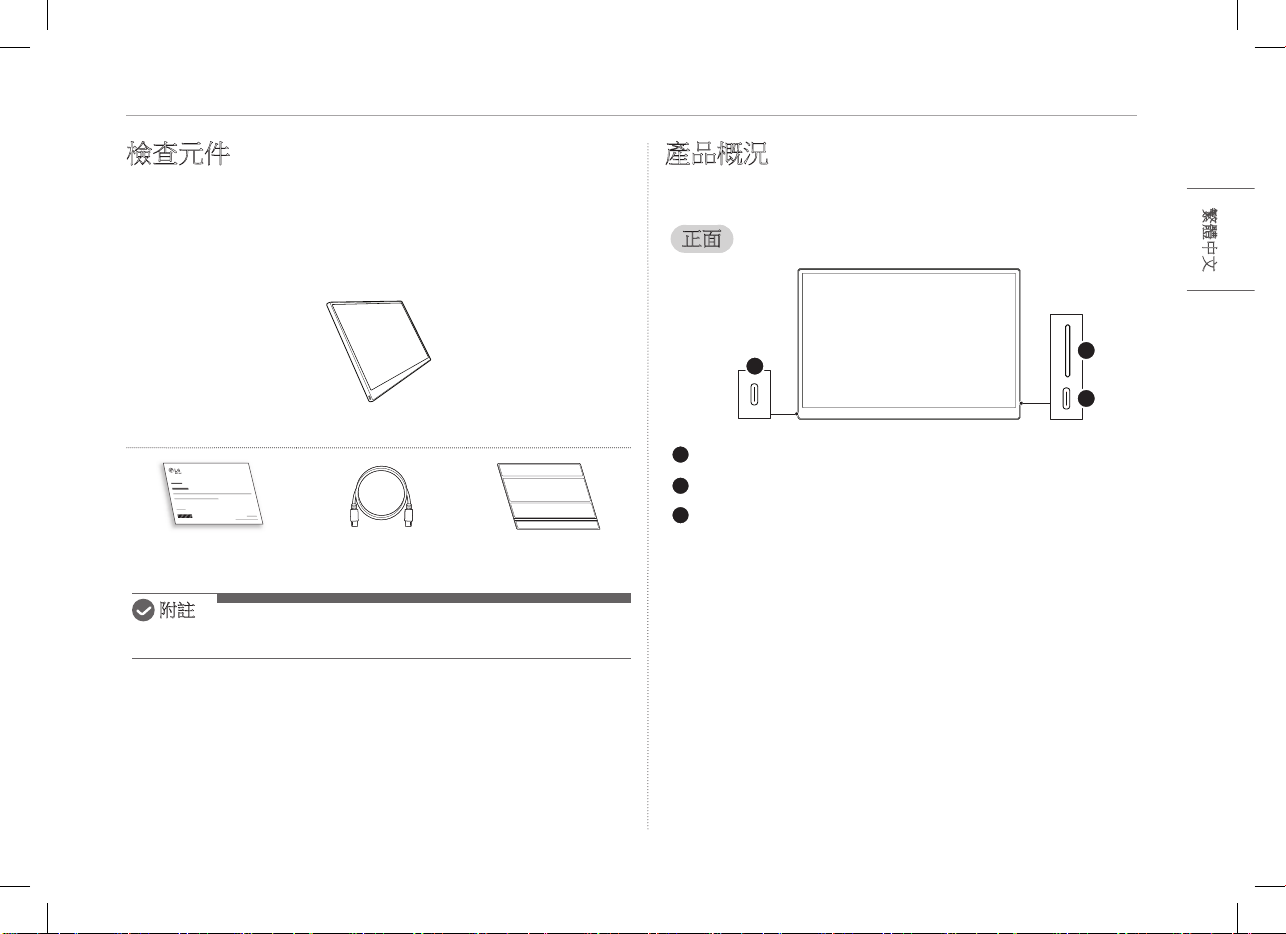
您購買產品時會隨附下圖所示的元件。使用前,請檢查元件是否完好。
y
某些機型的部分元件的外觀或顏色可能與圖片上的不同。
y
如需清潔產品,請使用 PC 和顯示器專用清潔劑。
使用稀釋劑、苯、酒精或其他類似溶劑可能導致產品受損或變形。
顯示器機身
使用者手冊 USB-C™ 纜線 對摺式保護套
附註
y
使用者指南中的數字可能會變化,恕不事先通知。
產品概況
產品可能與本使用者手冊所示產品圖片的外觀及顏色不同。
正面
1
2
3
USB-C™ 連接埠
USB-C™ 連接埠
螢幕亮度按鈕
3
繁體中文
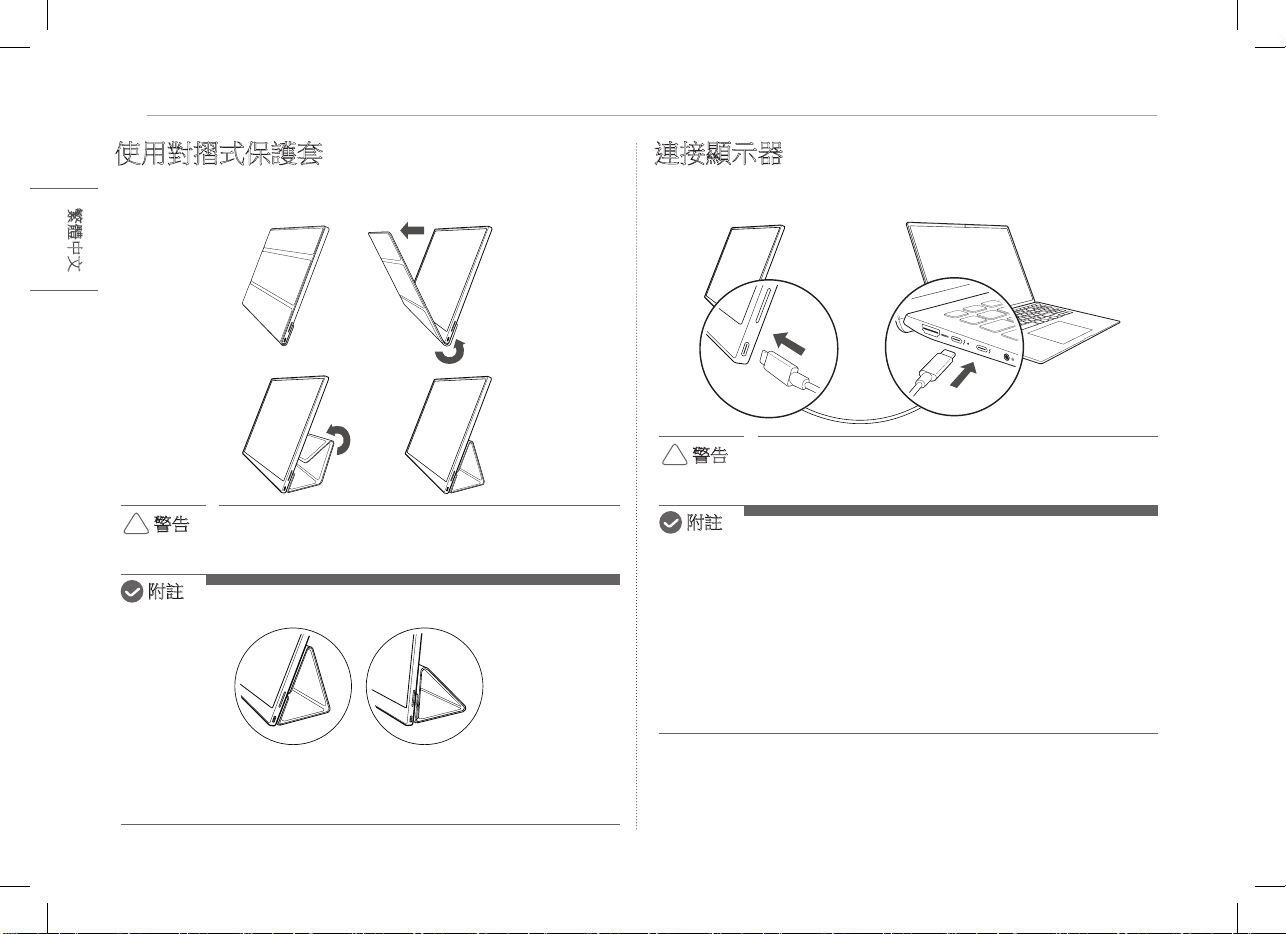
使用對摺式保護套
使用對摺式保護套
您可以向後摺疊對摺式保護套並作為支架使用。
!
警告
y
移動產品時,請確保產品已套好對摺式保護套以保護螢
幕。
附註
y
對摺式保護套有兩個使用角度。
y
對摺式保護套僅可橫向使用。
y
對摺式保護套為消耗品,使用過程中可能會損壞。您可以從
LG Electronics 服務中心另行購買對摺式保護套。
連接顯示器
使用 USB-C™ 纜線連接顯示器和 PC 的 USB-C™ 連接埠。
!
警告
y
進行此連接時,請勿使用除 USB-C™ 纜線以外的任何其他
類型的纜線。否則會損壞連接器。
附註
y
本產品僅適用於筆記型電腦。與本顯示器連接的裝置必須支援
DisplayPort 交替模式 (DP Alt Mode) 和 7.5 W (5 V / 1.5 A) 或更高的電源輸
出 (USB PD)。
y
USB-C™
連接埠僅支援單連接,不支援多連接。
y
使用顯示器隨附的
USB-C™
纜線連接。如果使用不同產品的纜線,可能
導致螢幕運作異常。
y
如果連接到顯示器的裝置電池電量不足,可能會導致連接中斷。
y
本顯示器支援隨插即用功能。
(隨插即用:在裝置連接到 PC 後,PC 會自動識別連接的裝置,無需使
用者進行任何環境設定。)
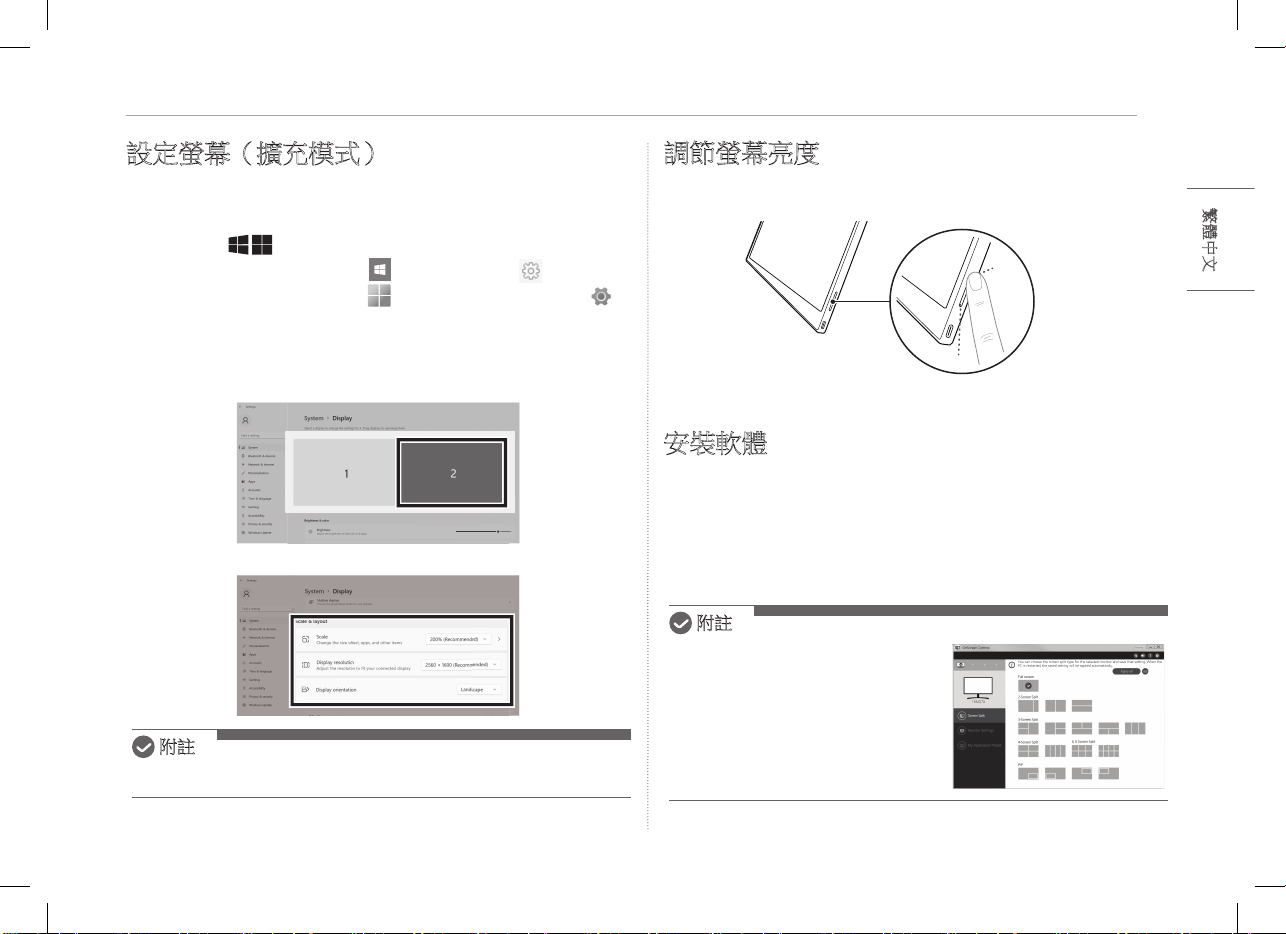
4設定螢幕(擴充模式)
繁體中文
設定螢幕(擴充模式)
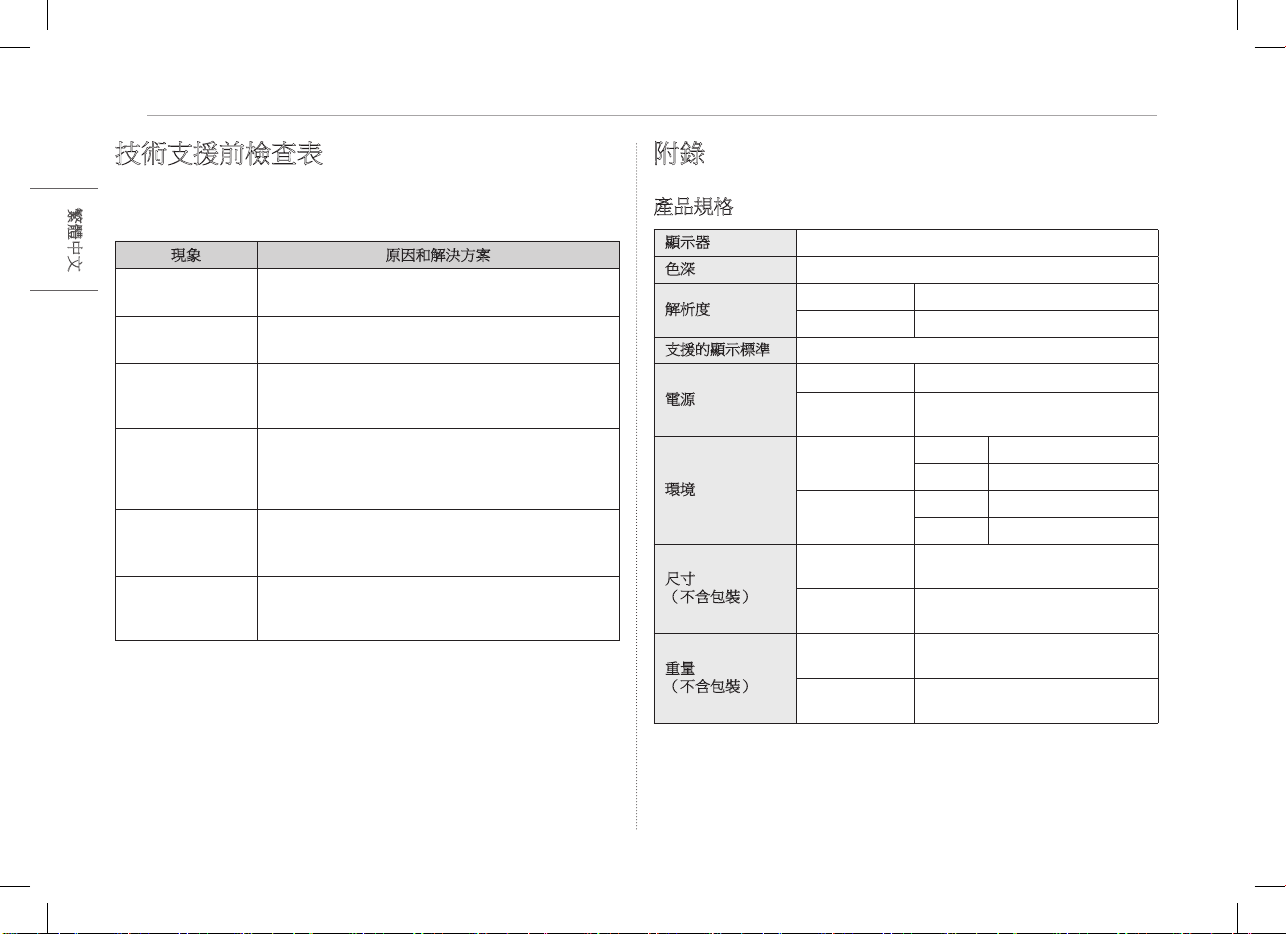
在將可攜式顯示器設定為「擴充模式」時,您可以設定螢幕比例和配
置。
1 按鍵盤的
[
/ ] 或
[Ctrl] + [ESC],取用開始功能表。
y
Windows 10:按下「開始」按鈕 [ ],然後選擇「設定」[ ]。
y
Windows 11:按下「開始」按鈕 [
],
然後在開始螢幕上選擇「設定」[ ]
。
2 出現「設定」螢幕後,選擇 [系统] > [顯示器]。
3 Windows 10:選擇 [多部顯示器] 下的 [延伸這些顯示器]。
Windows 11:選擇 [延伸這些顯示器]。
4 選擇顯示器 2。
5 根據需要,在 [縮放與配置] 下變更設定。
附註
y
圖片僅供參考,可能會因 Windows 版本和國家/地區的語言而不同。
調節螢幕亮度
您可以使用顯示器右側的螢幕亮度按鈕,調整螢幕的亮度。
安裝軟體
安裝 OnScreen Control(屏上控制),輕鬆方便使用螢幕分割、顯示器設
定和螢幕切換等各種功能。
1 瀏覽 LG Electronics 網站 (http://lg.com)。
2 選擇「售後服務與維修」功能表選項並搜尋產品型號。
3 選擇「OnScreen Control」並開始安裝軟體。
附註
y
安裝 OnScreen Control 後,
您可以在應用程式內提供的「說明」
功能表中檢視使用方法。
y
OnScreen Control 僅適用於 Windows。
y
「自動螢幕旋轉」功能僅在
OnScreen Control 啟用後可用。
5
繁體中文
技術支援前檢查表
技術支援前檢查表
如果使用產品時出現以下現象,請再次檢查。
可能並非故障。
現象 原因和解決方案
螢幕空白或連接不
穩定。
y
檢查連接到顯示器的裝置是否支援 DisplayPort 交替
模式 (DP Alt Mode) 和 USB 電源輸出 (USB PD)。
無法開機。
y
檢查是否可以使用顯示器隨附的
USB-C™
纜線將裝
置正確連接到顯示器。
已超出顯示器支援
的頻率範圍。
y
PC 發出的訊號超出水平或垂直頻率範圍時,就會
出現這種現象。請參考「出廠模式」設定並重設頻
率。
螢幕看不清楚。
y
將螢幕解析度設定為除建議(最佳)解析度以外
的任何其他解析度,可能會導致文字模糊或螢幕
變暗、裁切或傾斜。請使用建議的螢幕解析度設
定。
即使關閉電源,螢
幕仍被燒壞。
y
請注意,長時間定格螢幕可能損壞顯示螢幕,導致
螢幕燒壞。
y
要長時間使用顯示器,請使用螢幕保護程式。
螢幕上有斑點。
y
使用顯示器時,您可能會在螢幕上看到一些像素點
(紅、綠、藍、白、黑)。這是 LCD 螢幕的正常
現象。這與顯示器效能無關,並非異常現象。
附錄
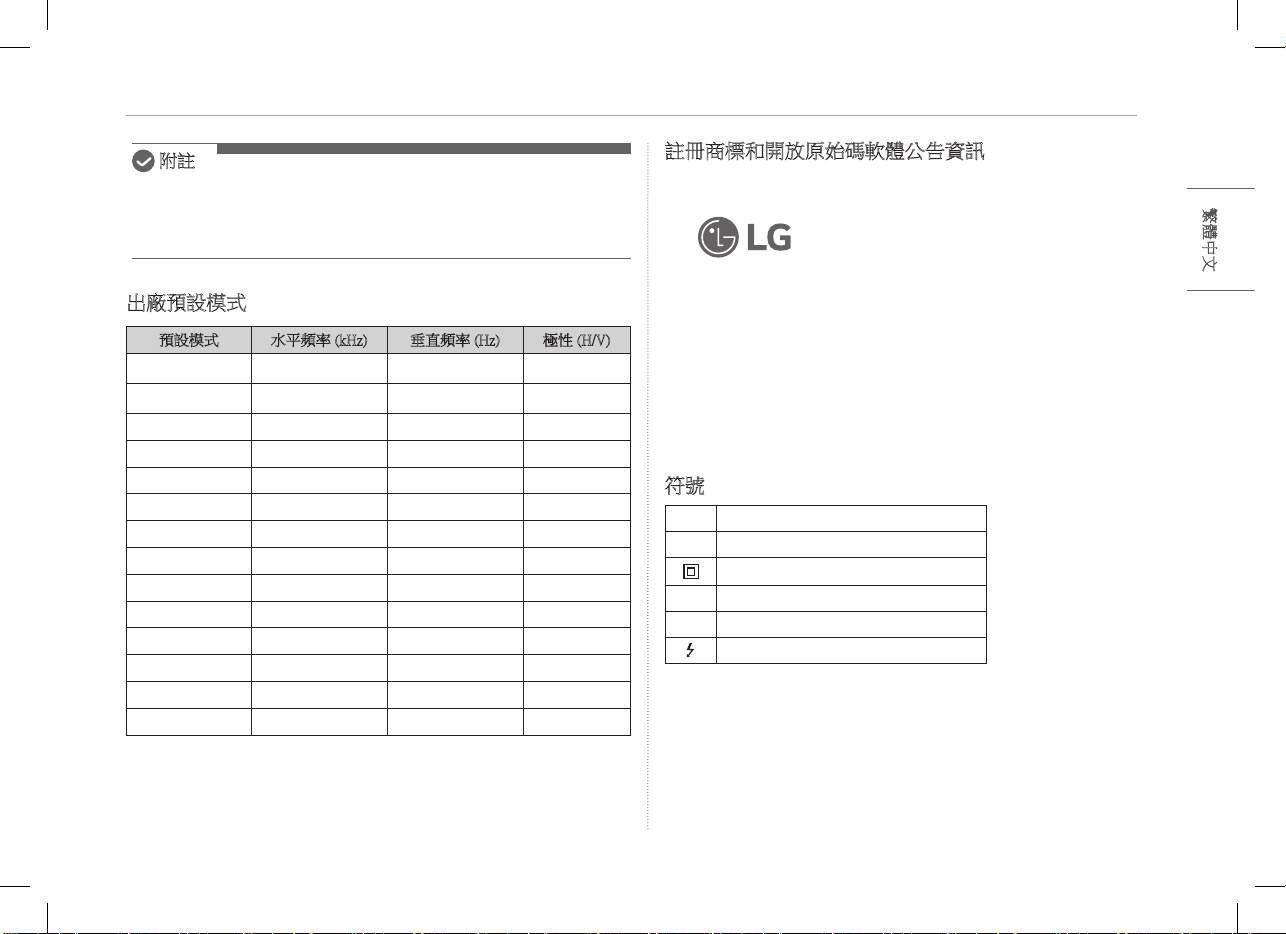
產品規格
顯示器 40.6 公分 IPS LCD
色深 1670 萬色(8 位)
解析度
最大解析度 60 Hz 時,2560 x 1600
建議解析度 60 Hz 時,2560 x 1600
支援的顯示標準 DisplayPort 交替模式 (DP Alt Mode)
電源
額定
5 V
0
2 A
能耗
工作模式:8 W 常規(出廠預設設
定)*
環境
工作
溫度 0 °C 至 40 °C
濕度 低於 80 %
存放
溫度 -20 °C 至 60 °C
濕度 85 % 或更低
尺寸
(不含包裝)
帶對摺式保護
套
362(寬)x 249(高)x 11.3 公釐
(厚)
不帶對摺式保
護套
360(寬)x 245.5(高)x 8.3 公釐
(厚)
重量
(不含包裝)
帶對摺式保護
套
約 990 g
不帶對摺式保
護套
約 670 g
6附錄
繁體中文
附註
y
* 在 LGE 的標準測試條件(全白模式、最大解析度)下,測量開啟模式
下的能耗。
y
因產品改善目的進行的產品規格變更,恕不另行通知。
y
能耗水準可能因操作條件和顯示器設定而不同。
出廠預設模式
預設模式 水平頻率 (kHz) 垂直頻率 (Hz) 極性 (H/V)
640 x 480 31.469 59.94 -/-
800 x 600 37.879 60.317 +/+
1024 x 768 48.363 60 -/-
1152 x 864 54.347 60.05 +/+
1280 x 720 45 60 +/+
1280 x 1024 63.981 60.02 +/+
1600 x 900 60 60 +/+
1680 x 1050 65.29 59.954 -/+
1920 x 1080 67.5 60 +/-
1920 x 1080 83.894 74.973 +/-
2560 x 1440 88.79 59.95 +/-
2560 x 1600 48.62 29.96 +/-
2560 x 1600 98.71 59.97 +/-
2560 x 1600 124�26 74.95 +/-
註冊商標和開放原始碼軟體公告資訊
USB Type-C™ 與 USB-C™ 為 USB Implementers Forum 的商標。
LG 標誌是 LG Electronics Inc 的註冊商標。
要獲得 GPL、LGPL、MPL 及其他有義務公開本產品包含開源代源碼授
權的源始碼,並存取所有提及的授權條款、版權聲明及其他相關文件,
請瀏覽 https://opensource.lge.com。
LG 電子還將通過 CD-ROM 向您提供開源代碼,該項收費包透過電子郵
件 [email protected] 要求進行此類配送(例如媒體、運輸和處理)的
費用。
本產品最後一次出貨後的三年內,任何收到此資訊的人享有本優惠。
符號
~
代表交流電 (AC)。
0
代表直流電 (DC)。
代表 II 級設備。
1
代表待機。
!
代表「開啟」(電源)。
代表危險電壓。
MEMO
16MQ70シリーズ
取扱説明書
ポータブルモニター
安全で便利にお使いいただくために、本製品をご使用になる前にこの取扱説明書をよくお読みください。
www.lg.com/jp
Copyright © 2022 LG Electronics Inc. All Rights Reserved
日本語
1
日本語
重要な安全上のご注意
重要な安全上のご注意�����������������������������������������������������������1
製品使用中の注意事項�����������������������������������������������������������������������������������������1
部品を確認する�����������������������������������������������������������������������2
製品ツアー�������������������������������������������������������������������������������2
フォリオカバーを使用する���������������������������������������������������3
モニターを接続する���������������������������������������������������������������3
画面を設定する(拡張モード)������������������������������������������4
画面の明るさを調整する�������������������������������������������������������4
SWをインストールする���������������������������������������������������������4
技術サポート前のチェックリスト��������������������������������������5
付録�������������������������������������������������������������������������������������������5
製品仕様�����������������������������������������������������������������������������������������������������������������5
工場出荷時モード�������������������������������������������������������������������������������������������������6
登録商標およびオープンソースソフトウェア告知に関する情報���������������6
シンボル�����������������������������������������������������������������������������������������������������������������6
重要な安全上のご注意
予期しない危険または損傷を未然に防ぐため、以下の「重要な安全上の
ご注意」を確認してください。
「重要な安全上のご注意」は、「警告」および「注意」に分かれています。
!
警告:指示に従わない場合、命に関わる負傷や重大な身体の損傷の
原 因 になることがあります。
!
注意:指示に従わない場合、身体や機器への損傷の原因となることが
あります
。
製品使用中の注意事項
!
警告
y
本製品は、落下の恐れのない安全な場所でご使用ください。
y
本製品は、埃の多い場所や湿度の高い場所で使用しないで
ください。
y
本製品は、高温または低温環境では使用しないでください。
y
濡れた手で電源コードに触れないでください。
y
電源ケーブルポートは、常に異物が入っていない状態にし
ておいてください。
y
本製品は、適切な洗剤で清掃し、使用前に完全に乾燥させ
てください。
!
注意
y
モニター画面は指で押したり、物を置いたりしないでくださ
い。
y
尖ったもので画面にタップしたり、引っかいたりしないでく
ださい。
y
画面が破損したときは、絶対に手で触れないでください。
y
一時停止した画像を長時間表示し続けると、画面の焼き付
きが発生することがあります。
y
スクリーンセーバーなどをご利用ください。
y
モニターの温度が低い場合、電源を入れると一瞬画面が点
滅 することがあります。
y
その場合、画面に赤、緑、青の斑点が見えることがあります
が、正常です。
コンテンツ
2部品を確認する
日本語
部品を確認する
以下に示すコンポーネントは、製品の購入時に提供されるものです。ご使
用前にコンポーネントを確認してください。
y
実際のコンポーネントの形状や色が、モデルによっては図と異なる場合が
あります。
y
製品の洗浄には、PCおよびモニター用の洗浄剤を使用してください。
希釈剤、シンナー、ベンゼン、アルコールなどの化学物質を使用すると、製品
が 損 傷したり変 形したりすることが あります。
モニター本体
取扱説明書USB-C™ケーブルフォリオカバー
ヒント
y
取扱説明書にある図は予告なく変更されることがあります。
製品ツアー
製品の形状や色は、この取扱説明書に記載されている製品画像と異なる
場合があります。
フロント
1
2
3
USB-C™ポート
USB-C™ポート
画面の明るさボタン
3
日本語
フォリオカバーを使用する
フォリオカバーを使用する
フォリオカバ ーを 折り返し、スタンドとして使 用 することが できます。
!
注意
y
本製品を移動する際は、画面を保護するために必ずフォリ
オカバーを装着した状態で移動してください。
ヒント
y
フォリオカバーは2つの角度で使用することができます。
y
フォリオカバーは、水平モードでのみ使用できます。
y
フォリオカバーは消耗品であり、使用中に破損する可能性があります。フォリ
オカバーは、LG Electronicsサービスセンターで別途ご購入いただけます。
モニターを接続する
モニターとPCのUSB-C™ポートをUSB-C™ケーブルで接続します。
!
注意
y
この接続には、USB-C™ケーブル以外のケーブルは使用しな
いでください。コネクタが破損する可能性があります。
ヒント
y
本製品はノートパソコンでの使用のみを想定しています。モニターと接続
するデバイスは、DisplayPortオルタネートモード(DP Altモード)および
7.5W(5V/1.5A)以上の電力出力(USB PD)に対応している必要がありま
す。
y
USB-C™
ポートは単体接続のみ対応で、複数接続には対応していません。
y
接続には、モニターに同梱されている
USB-C™
ケーブルをご使用ください。
別製品用のケーブルを使用すると、画面の異常動作につながる場合があ
りま す 。
y
モニターに接続したデバイスの電池が消耗している場合、接続できなくな
ることが あります。
y
このモニターはプラグアンドプレイに対応しています。
(プラグアンドプレイ:PCにデバイスを接続すると、ユーザーによる環境設
定なしに、PCが接続済みのデバイスを自動的に認識する機能)
4画面を設定する(拡張モード)
日本語
画面を設定する(拡張モード)
ポータブルモニターを拡張モードに設定すると、画面の比率およびレイア
ウトを設 定 することがで きます。
1 キーボードの
[
/ ]または
[Ctrl] + [ESC]を押すと、スタートメニューが
表示されます。
y
Windows 10:スタートボタン[]を押してから、設定[]を選択します。
y
Windows 11:スタートボタン[
] を押してから、スタート画面の設定 []
を
選 択します。
2 [設定]画面が表示されるので、[システム] > [ディスプレイ] を選択します。
3 Windows 10:[マルチディスプレイ]の[表示画面を拡張する]を選択します。
Windows 11:[表示画面を拡張する]を選択します。
4 モニター2を選択します。
5 [拡大縮小とレイアウト]で希望の設定に変更します。
ヒント
y
画像は代表的なものであり、Windowsのバージョンや国の言語によって異な
る場合があります。
画面の明るさを調整する
モニターの右側にある画面の明るさボタンを使用して、画面の明るさを調
整 することが できます。
SWをインストールする
OnScreen Controlをインストールすると、画面分割、モニター設定、画面切
り替えなどの様々な機能を簡単かつ便利に使用することができます。
1 LG Electronicsのウェブ(http://lg.com)にアクセスします。
2 [サポート]メニューオプションを選択し、製品モデルを検索します。
3 [OnScreen Control]を選択すると、ソフトウェアのインストールが開始します。
ヒント
y
OnScreen Controlのインストール後、
アプリ内にあるヘ ルプメニューから
使い方を確認することができます。
y
OnScreen Controlは、Windowsでのみ
利用可能です。
y
画面の自動回転機能は、
OnScreen Controlが
有効になっているときのみ利用可能です。
5
日本語
技術サポート前のチェックリスト
技術サポート前のチェックリスト
本製品の使用中に以下の症状が現れた場合は、もう一度確認してください。
故障ではない可能性があります。
症状原因および対処法
画面が真っ白のま
ま、または接続が不
安定である。
y
モニターに接続されているデバイスがDisplayPort
オルタネートモード(DP Altモード)およびUSB
Power Delivery(USB PD)に対応しているかどうか
を 確認します。
電源がオンになら
ない。
y
モニターに付属しているUSB-C™ケーブルを使用し
てデバイスとモニターを正しく接続できるかを確認
しま す。
モニターの対応周
波数範囲を超えてい
る。
y
この現象は、PCから送信される信号が水平または垂
直周波数帯域を超えている場合に発生します。ファク
トリーモードの設定を参照し、周波数をリセットしま
す。
画面が不鮮明に見
える 。
y
画面の解像度を推奨(最適)解像度以外に設定する
と、文字がぼやけたり、画面が暗くなったり、切り抜
かれたり、傾いたりすることがあります。推奨画面解
像度の設定を使用してください。
電源をオフにしたと
きに画面の焼き付
きが残っている。
y
固定画面を長時間点灯させていると、ディスプレイ
が破損し、画面の焼き付きが発生することがありま
すのでご注意ください。
y
長時間モニターを使用する場合は、スクリーンセー
バーを使用してください。
画面に斑点がある。
y
モニターの使用時に、画面に数個の画素の斑点
(赤、緑、青、白、黒)が見えることがあります。これは
液晶ディスプレイの正常な現象です。モニターの性
能とは無関係であり、異常ではありません。
付録
製品仕様
ディスプレイ
40.6cm IPS LCD
色深度
1670万色(8ビット)
解像度
最大解像度2560x1600@60Hz
推奨解像度2560x1600@60Hz
対応ディスプレイ規
格
DisplayPortオルタネートモード(DP Altモード)
電源
定格
5V
0
2A
消費電力動作モード:8W一般(工場出荷時)*
環境
動作
温度0℃~40℃
湿度80%未満
ストレージ
温度-20 ℃~60 ℃
湿度85%以下
外形寸法図
(梱包含まず)
フォリオカバー
あり
362(幅) x 249(高さ) x 11.3mm(厚さ)
フォリオカバー
なし
360(幅) x 245.5(高さ) x 8.3 mm(厚
さ)
重量
(梱包含まず)
フォリオカバー
あり
約990g
フォリオカバー
なし
約670g
6付録
日本語
ヒント
y
*オンモードでの消費電力は、LGEの標準テスト条件(フルホワイトパター
ン、最大解像度)で測定したものです。
y
製品仕様は、製品改良のため予告なく変更することがあります。
y
消費電力は、使用条件やモニターの設定により異なる場合があります。
工場出荷時モード
プリセットモード水平周波数(kHz)垂直周波数(Hz)極性(H/V)
640 x 48031.46959.94-/-
800 x 600 37.87960.317+/+
1024 x 768 48.36360-/-
1152 x 864 54.34760.05+/+
1280 x 7204560+/+
1280 x 102463.98160.02+/+
1600 x 900 6060+/+
1680 x 105065.2959.954-/+
1920 x 108067.560+/-
1920 x 1080 83.89474.973+/-
2560 x 144088.7959.95+/-
2560 x 160048.6229.96+/-
2560 x 160098.7159.97+/-
2560 x 1600124.2674.95+/-
登録商標およびオープンソースソフトウェア告知に関する情
報
USB Type-C™ および USB-C™ は、USB インプリメンターズ・フォーラムの
商標です。
LG ロゴは LG Electronics Inc. の登録商標です。
本製品に実装されているGPL、LGPL、MPLおよびその他のオープンソース
ライセンスに基づく開示義務を有するソースコードの入手は
https://opensource.lge.com/ のWebサイトをご覧ください。
ソースコードと共に、該当するすべてのライセンス内容および著作権表示
をダウンロードすることができます。 また、弊社は有料でCD-ROMによりオ
ープンソースコードを提供しています。 料金にはCD-ROMの代金、送料、
取扱手数料が含まれます。ご希望される場合は、[email protected]ま
で電子メールでお問い合せください。
本サービスは、弊社が本製品を販売後3年間、本情報を受け取られたすべ
ての方に対して有効です。
シンボル
~ 交流(AC)を示しています。
0 直流(DC)を示しています。
クラスⅡの機器を示しています。
1 スタンバイを示しています。
! 「ON」(電源)を示しています。
危険な電圧を示しています。
MEMO
16MQ70 系列
用户手册
便携式显示器
使用产品前请阅读使用说明。
保留备用。
为安全且方便使用本产品,请在开始使用产品之前仔细阅读本用户手册 。
www.lg.com
© 2022 乐金电子(中国)有限公司版权所有
简体中文
1
简体中文
重要的安全注意事项
重要的安全注意事项........................ 1
使用产品时 ....................................... 1
检查部件.................................. 2
产品概况.................................. 2
使用对折式保护套.......................... 3
连接显示器................................ 3
设置屏幕(扩展模式)...................... 4
调节屏幕亮度.............................. 4
安装软件.................................. 4
技术支持前检查表.......................... 5
附录...................................... 5
产品规格 ......................................... 5
出厂默认模式 ..................................... 6
注册商标和开源软件公告信息 ....................... 6
符号 ............................................. 6
重要的安全注意事项
检查以下“重要的安全注意事项”,预防意外危险或损坏事故。
“重要的安全注意事项”分为“警告”和“注意”。
!
警告:
不遵守此说明可能会导致严重的身体伤害或致命伤害。
!
注意:不遵守此说明可能会对身体造成轻微伤害或对机器造
成轻微损坏
。
使用产品时
!
警告
y
请在无产品掉落危险的安全地方使用产品。
y
请勿在多尘或潮湿的地方使用产品。
y
请勿在高温或低温环境下使用产品。
y
切勿用潮湿的手接触电源线。
y
确保电源线端口无异物附着。
y
请使用适当的清洁剂清洁产品,并将其彻底晾干
后再使用。
!
注意
y
请勿用手指按压显示器屏幕或在其上放置物品。
y
请勿用尖锐物体点触或刮擦屏幕。
y
如果屏幕受损,请勿用手触摸。
y
屏幕长时间保持暂停的画面,可能会导致屏幕烧
坏。
y
请使用屏幕保护程序等。
y
当温度较低时,打开显示器可能会导致屏幕短暂
闪烁。
y
如果发生这种情况,您可能会在屏幕上看到一
些红色、绿色和蓝色的斑点,但这属于正常现
象。
内容
2
检查部件
简体中文
检查部件
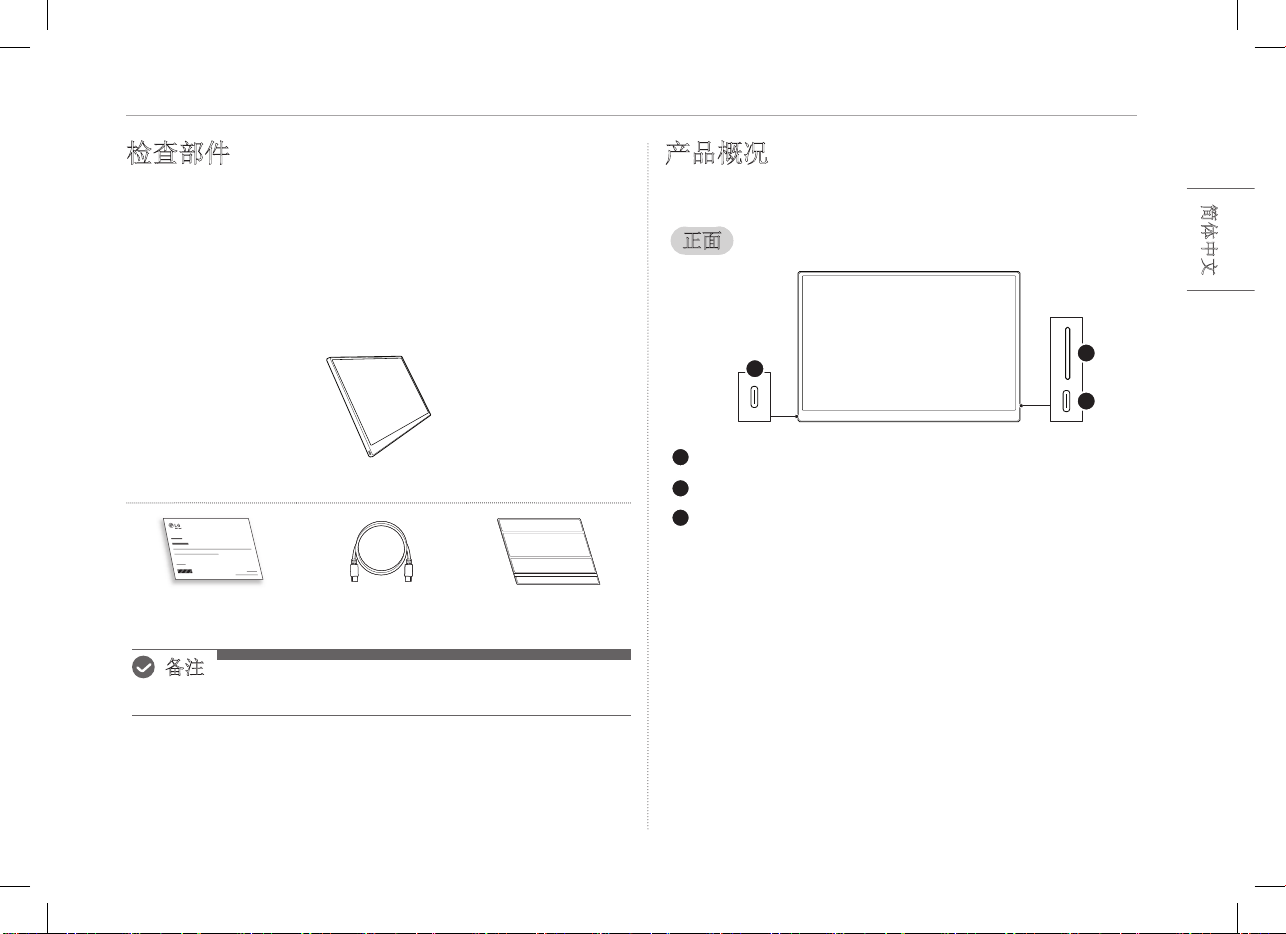
当您购买本产品时,将提供以下组件。请在使用本产品前检查这
些组件。
y
某些型号的组件可能与图中的形状及颜色不同。
y
如需清洁产品,请使用 PC 和显示器专用清洁剂。
使用稀释剂、苯、酒精或其他类似溶剂可能导致产品受损或
变形。
显示器机身
用户手册 USB-C™ 电缆 对折式保护套
备注
y
用户指南中的数据可能会发生变化,恕不事先通知。
产品概况
产品可能与本用户手册中所示产品图像的形状及颜色不同。
正面
1
2
3
USB-C™ 端口
USB-C™ 端口
屏幕亮度按钮
3
简体中文
使用对折式保护套
使用对折式保护套
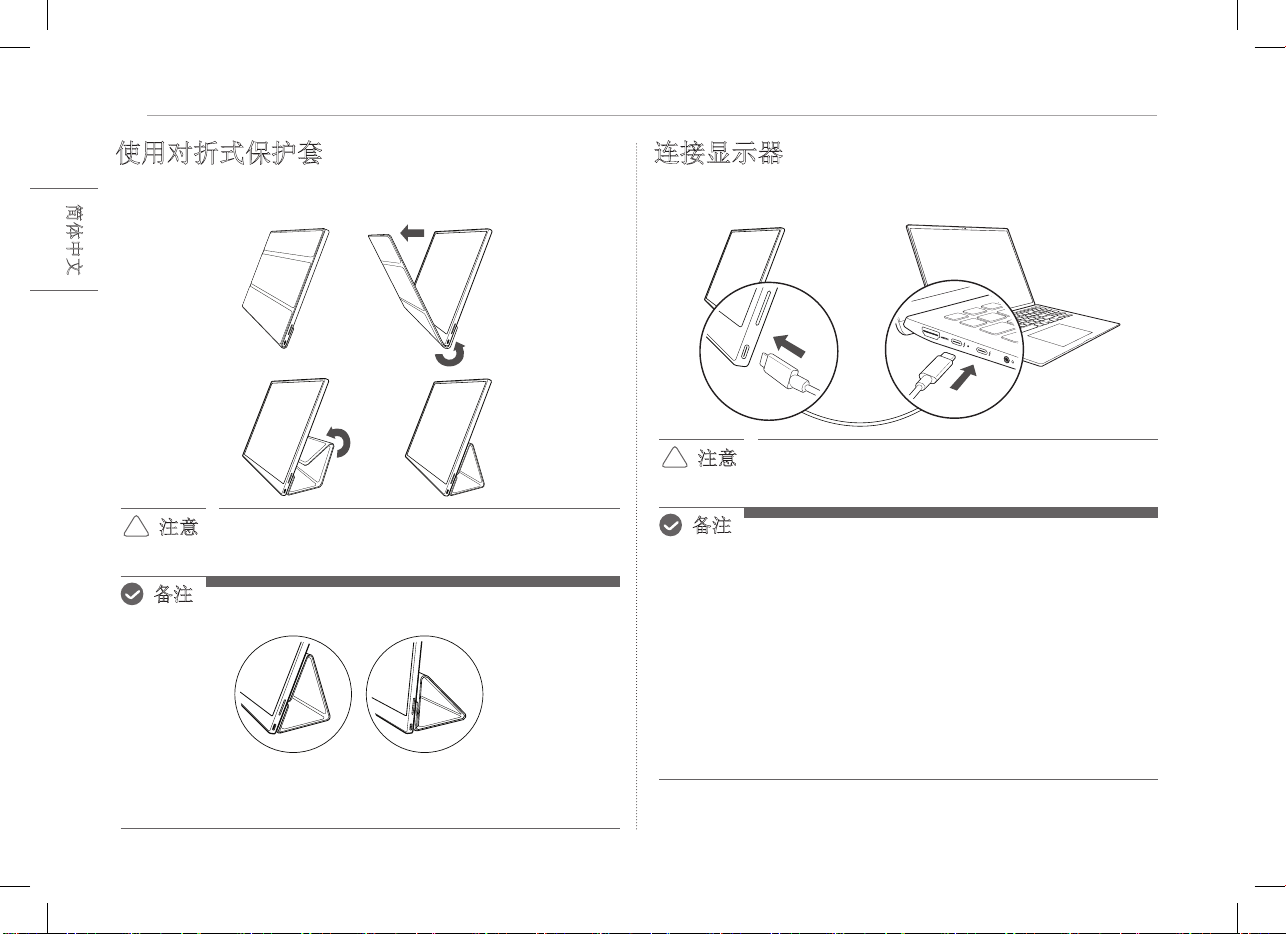
您可以向后折叠对折式保护套并将其作为支架使用。
!
注意
y
在移动产品时,请确保产品已套好对折式保护套
以保护屏幕。
备注
y
对折式保护套有两个可用角度。
y
对折式保护套只能横向使用。
y
对折式保护套为消耗品,在使用过程中可能会损坏。您可以
从 LG Electronics 服务中心单独购买对折式保护套。
连接显示器
使用 USB-C™ 电缆连接显示器和 PC 的 USB-C™ 端口。
!
注意
y
在进行此连接时,请勿使用除 USB-C™ 电缆以外
的任何其他类型的电缆。否则会损坏连接器。
备注
y
本产品仅适用于笔记本电脑。与本显示器连接的设备必须支
持 DisplayPort 交替模式 (DP Alt Mode) 和 7.5 W (5 V
/ 1.5 A) 或更高的电源输出 (USB PD)。
y
USB-C™ 端口仅支持单连接,不支持多连接。
y
使用显示器随附的 USB-C™ 电缆进行连接。如果使用不同产
品的电缆,可能会导致屏幕运行异常。
y
如果连接至显示器的设备电池电量较低,可能会导致连接中
断。
y
本显示器支持即插即用功能。
(即插即用:当设备连接到 PC 后,PC 会自动识别连接的
设备,无需用户进行任何环境设置。)
4
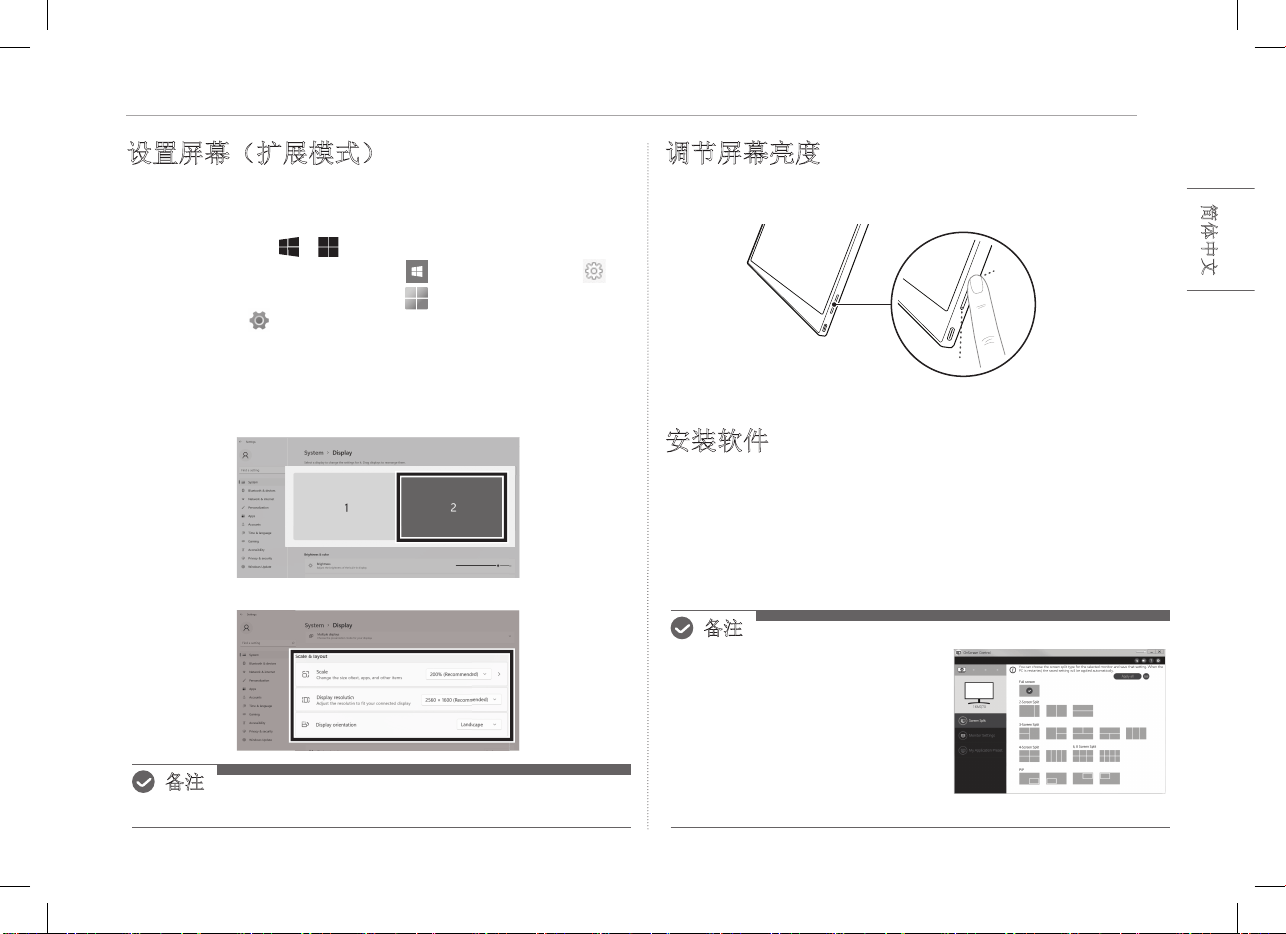
设置屏幕(扩展模式)
简体中文
设置屏幕(扩展模式)
在将便携式显示器设置为“扩展模式”时,您可以设置屏幕比例
和布局。
1 按下键盘上的
[ / ] 或
[Ctrl] + [ESC],调出开始菜单。
y
Windows 10:按下“开始”按钮 [ ],然后选择“设置”[ ]。
y
Windows 11:按下“开始”按钮 [
],然后在开始屏幕上选择
“设置”[
]
。
2 出现“设置”屏幕后,选择 [系统] > [显示]。
3 Windows 10:
选择 [多显示器设
置
] 下的 [扩展这些显示器]。
Windows 11:选择 [扩展这些显示器]。
4 选择显示器 2。
5 根据需要,在 [规模与布局] 下更改设置。
备注
y
图片仅供参考,可能会因 Windows 版本和国家/地区的语言而异。
调节屏幕亮度
您可以使用显示器右侧的屏幕亮度按钮调节屏幕的亮度。
安装软件
安装 OnScreen Control(屏上控制),轻松方便地使用屏幕分
割、显示器设置和屏幕切换等各种功能。
1 请访问 LG Electronics 网站 (www.lg.com)
2 选择“售后服务中心”菜单选项并搜索产品型号。
3 选择“OnScreen Control(屏上控制)”并开始安装软件。
备注
y
OnScreen Control
(屏上控制安装完成后,
您可以在应用程序内提供的
“帮助”菜单中查看使用方法。
y
OnScreen Control(屏上控制)
仅适用于 Windows。
y
“自动屏幕旋转”功能仅在
OnScreen Control(屏上控制)
启用后可用。
5
简体中文
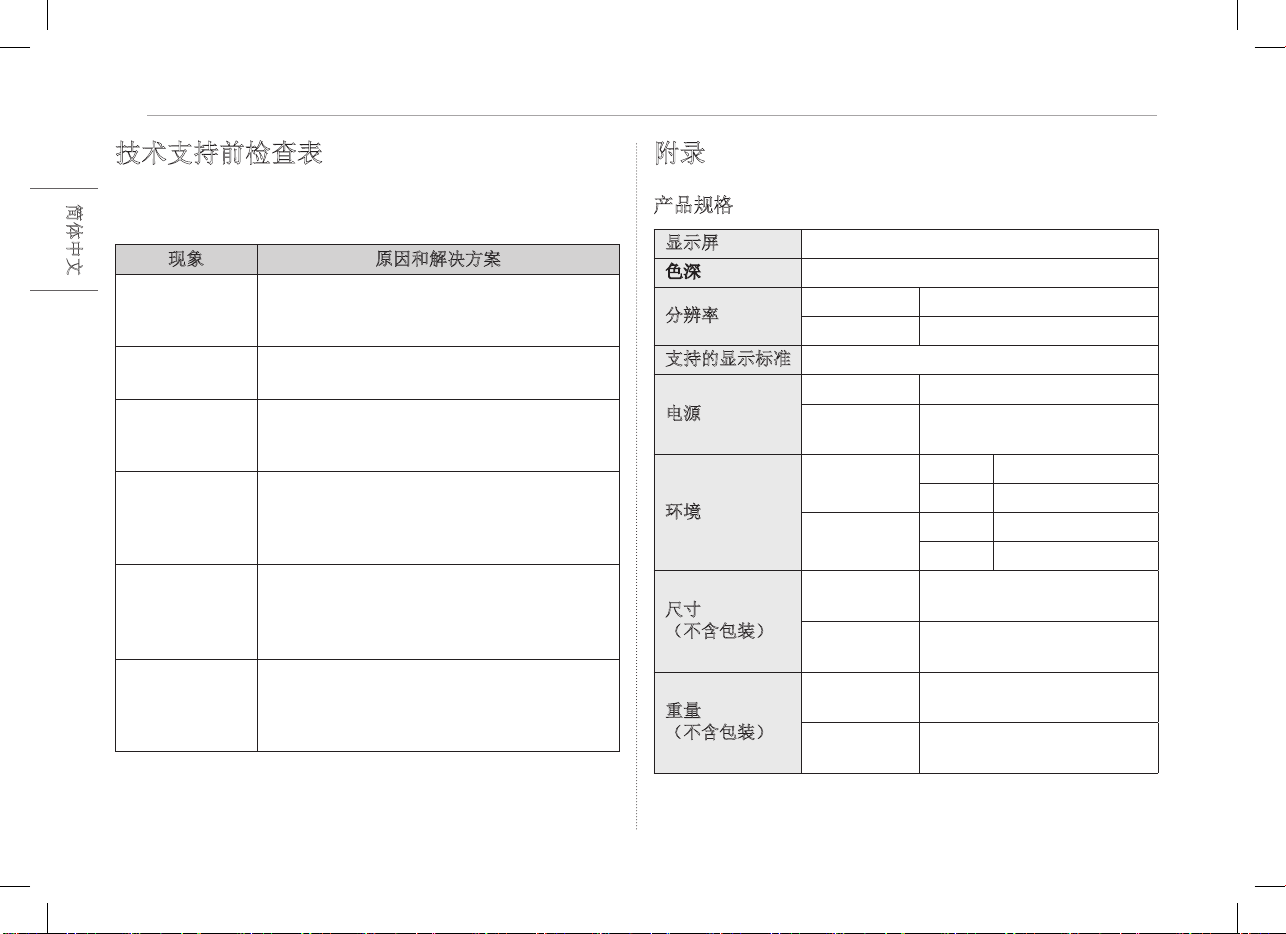
技术支持前检查表
技术支持前检查表
如果在使用产品时出现以下现象,请再次检查。
可能并非故障。
现象 原因和解决方案
屏幕空白或连接
不稳定。
y
检查连接到显示器的设备是否支持
DisplayPort 交替模式
(DP Alt Mode) 和 USB 电源输出 (USB PD)。
无法开机。
y
检查是否可以使用显示器随附的
USB-C™
电缆将设备正确连接到显示器。
已超出显示器支
持的频率范围。
y
当 PC 发出的信号超出水平或垂直频率范
围时,则可能出现这种现象。请参考“出
厂模式”设置并重置频率。
屏幕模糊不清。
y
将屏幕分辨率设置为建议(最佳)分辨率
以外的任何其他分辨率,都可能会导致文
本模糊或屏幕变暗、裁切或倾斜。请使用
建议的屏幕分辨率设置。
即使关闭电源,
屏幕仍被烧坏。
y
请注意,长时间定格屏幕可能会损坏显示
屏,导致屏幕烧坏。
y
若要长时间使用显示器,请使用屏幕保护
程序。
屏幕上有斑点。
y
使用显示器时,您可能会在屏幕上看到一
些像素点(红色、绿色、蓝色、白色、黑
色)。这是 LCD 屏幕的正常现象。这与显
示器性能无关,并非异常。
附录
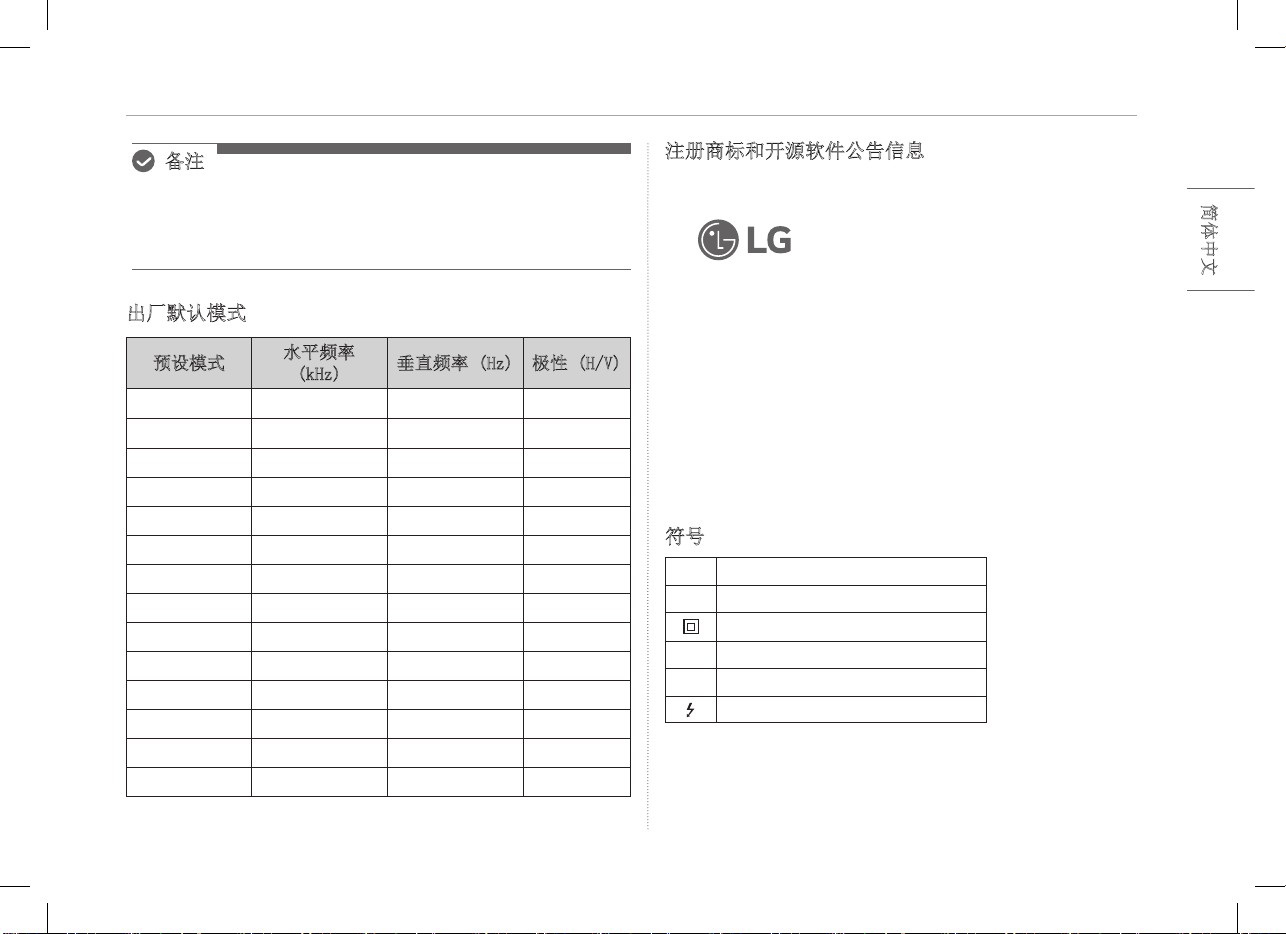
产品规格
显示屏 40.6 厘米 IPS LCD
色深 1670 万色(8 位)
分辨率
最大分辨率 60 Hz 时,2560 x 1600
建议分辨率 60 Hz 时,2560 x 1600
支持的显示标准 DisplayPort 交替模式 (DP Alt Mode)
电源
额定
5 V
0
2 A
电耗
工作模式:8 W 常规(出厂
默认设置)*
环境
工作
温度 0 °C 至 40 °C
湿度 低于 80 %
存储
温度 -20 °C 至 60 °C
湿度 85 % 或更低
尺寸
(不含包装)
带对折式保
护套
362(宽)x 249(高)x 11.3
毫米(厚)
不带对折式
保护套
360(宽)x 245.5(高)x
8.3 毫米(厚)
重量
(不含包装)
带对折式保
护套
约 990 g
不带对折式
保护套
约 670 g
6
附录
简体中文
备注
y
* 在 LGE 的标准测试条件(全白模式、最大分辨率)下,
测量的开启模式下的电量消耗。
y
因产品改进目的进行的产品规格更改,恕不另行通知。
y
电量消耗水平可能因操作条件和显示器设置而异。
出厂默认模式
预设模式
水平频率
(kHz)
垂直频率 (Hz) 极性 (H/V)
640 x 480 31.469 59.94 -/-
800 x 600 37.879 60.317 +/+
1024 x 768 48.363 60 -/-
1152 x 864 54.347 60.05 +/+
1280 x 720 45 60 +/+
1280 x 1024 63.981 60.02 +/+
1600 x 900 60 60 +/+
1680 x 1050 65.29 59.954 -/+
1920 x 1080 67.5 60 +/-
1920 x 1080 83.894 74.973 +/-
2560 x 1440 88.79 59.95 +/-
2560 x 1600 48.62 29.96 +/-
2560 x 1600 98.71 59.97 +/-
2560 x 1600 124.26 74.95 +/-
注册商标和开源软件公告信息
USB Type-C™ 和 USB-C™ 是 USB Implementers Forum 的商标。
LG 徽标是 LG Electronics Inc. 的注册
商标。
如需根据 GPL、LGPL、MPL 和其他有义务公开本产品中所包含之
源代码的开源证书获取源代码,并读取所有提及的许可条款、版
权声明和其他相关文档,请访问 https://opensource.lge.com。
LG 电子也可以 CD-ROM 的形式为您提供开源代码,仅收取执行
配发的费用(如介质费用、运输费和手续费),如有需要,发
邮件申请,邮箱:[email protected]。
该报价自本产品发货之日起三年内对本信息的任何接收者均有
效。
符号
~
指交流电(AC)。
0
指直流电(DC)。
二类电器双重绝缘标示。
1
指电源。
!
指“开”(电源)。
指危险电压。
MEMO
16MQ70 Series
HƯỚNG DẪN SỬ DỤNG
MÀN HÌNH DI ĐỘNG
Để sử dụng an toàn và thuận tiện, vui lòng đọc kỹ hướng dẫn sử dụng trước khi bắt đầu sử dụng sản phẩm.
www.lg.com/vn
Copyright © 2022 LG Electronics Inc. All Rights Reserved
TIẾNG ANH
1
TIẾNG ANH
Lưu ý An toàn Quan trọng
Lưu ý An toàn Quan trọng ...............................................................1
Khi đang sử dụng sản phẩm .............................................................................................1
Kiểm tra các Linh kiện .......................................................................2
Khám phá Sản phẩm ..........................................................................2
Sử dụng Bao da Folio ........................................................................3
Kết nối Màn hình ................................................................................3
Thiết lập màn hình (Chế độ mở rộng) ...........................................4
Điều chỉnh độ sáng màn hình ..........................................................4
Cài đặt Phần mềm .............................................................................4
Danh sách kiểm tra Hỗ trợ Trước Kỹ thuật ..................................5
Phụ lục ..................................................................................................5
Đặc điểm Kỹ thuật của Sản phẩm .................................................................................. 5
Chế độ mặc định gốc .........................................................................................................6
Thông tin thông báo về Nhãn hiệu đã đăng ký và Phần mềm mã nguồn mở ...... 6
Các biểu tượng....................................................................................................................6
Lưu ý An toàn Quan trọng
Kiểm tra phần “Lưu ý An toàn Quan trọng” sau đây để ngăn ngừa trước những
mối nguy hiểm hoặc hư hỏng không mong muốn.
“Lưu ý An toàn Quan trọng” được chia thành hai phần “Cảnh báo” và “Cẩn trọng”.
!
CẢNH BÁO: Việc không tuân thủ hướng dẫn có thể dẫn tới thiệt hại vật
chất nghiêm trọng hoặc thương tích chết người.
!
CẨN TRỌNG: Việc không tuân thủ hướng dẫn có thể dẫn tới tổn thương
nhỏ cho cơ thể hoặc máy móc
.
Khi đang sử dụng sản phẩm
!
CẢNH BÁO
y
Sử dụng sản phẩm ở nơi an toàn và không có nguy cơ
làm rơi sản phẩm.
y
Không sử dụng sản phẩm ở nơi bụi bẩn hoặc ẩm ướt.
y
Không sử dụng sản phẩm trong môi trường nhiệt độ cao
hoặc thấp.
y
Không dùng tay ướt chạm vào dây nguồn.
y
Đảm bảo cho cổng cáp nguồn không có vật lạ.
y
Làm sạch sản phẩm bằng chất tẩy rửa thích hợp và lau
khô hoàn toàn trước khi sử dụng tiếp.
!
CẨN TRỌNG
y
Không dùng ngón tay ấn hoặc đặt đồ vật lên màn
hình.
y
Không chạm vào hoặc làm xước màn hình bằng vật sắc
nhọn.
y
Nếu màn hình bị hỏng, không dùng tay chạm vào màn
hình.
y
Liên tục hiển thị một hình ảnh trên màn hình trong thời
gian dài có thể dẫn đến lỗi lưu ảnh màn hình.
y
Sử dụng trình bảo vệ màn hình, v.v.
y
Khi nhiệt độ xuống thấp, việc bật màn hình có thể gây
ra hiện tượng nhấp nháy màn hình tạm thời.
y
Nếu trường hợp này xảy ra, bạn có thể thấy một số
đốm đỏ, xanh lục và xanh lam trên màn hình nhưng hiện
tượng này là bình thường.
Mục lục
2Kiểm tra các Linh kiện
TIẾNG ANH
Kiểm tra các Linh kiện
Các linh kiện nêu bên dưới được cung cấp khi bạn mua sản phẩm. Kiểm tra các
linh kiện trước khi sử dụng.
y
Một số linh kiện có thể khác về hình dạng và màu sắc so với các hình ảnh trong
một số mẫu nhất định.
y
Để làm sạch sản phẩm, hãy sử dụng chất tẩy rửa chuyên dụng cho Máy tính cá
nhân (PC) và màn hình.
Sử dụng chất pha loãng, benzen, cồn hoặc các chất tương tự khác có thể làm hư
hại hoặc biến dạng sản phẩm.
Thân màn hình
Hướng dẫn sử dụng Cáp USB-C™ Bao da Folio
LƯU Ý
y
Số liệu trong hướng dẫn sử dụng có thể thay đổi mà không cần thông báo
trước.
Khám phá Sản phẩm
Sản phẩm có thể khác về hình dạng và màu sắc so với hình ảnh trong hướng
dẫn sử dụng này.
Mặt trước
1
2
3
Cổng USB-C™
Cổng USB-C™
Nút điều chỉnh độ sáng màn hình
3
TIẾNG ANH
Sử dụng Bao da Folio
Sử dụng Bao da Folio
Bạn có thể gấp bao da folio lại và sử dụng như một giá đỡ.
!
CẨN TRỌNG
y
Khi di chuyển sản phẩm, hãy đảm bảo giữ bao da folio
phủ lên trên sản phẩm để bảo vệ màn hình.
LƯU Ý
y
Bao da folio hiện có thể được sử dụng ở hai góc độ.
y
Bao da folio chỉ có thể được sử dụng ở chế độ nằm ngang.
y
Bao da folio là thiết bị tiêu hao và có thể bị hư hỏng trong quá trình sử dụng.
Bạn có thể mua riêng bao da folio từ trung tâm bảo hành của LG Electronics
Kết nối Màn hình
Kết nối các cổng USB-C™ của màn hình và PC bằng cáp USB-C™.
!
CẨN TRỌNG
y
Không sử dụng bất kỳ loại cáp nào khác ngoài cáp
USB-C™ cho loại kết nối này. Việc này có thể làm hỏng
giắc cắm.
LƯU Ý
y
Sản phẩm này được thiết kế để chỉ được sử dụng với máy tính xách tay. Thiết bị
được kết nối với màn hình phải hỗ trợ Chế độ Thay thế DisplayPort (Chế độ DP
Alt) và đầu ra nguồn (USB PD) ở mức 7,5 W (5 V / 1,5 A) trở lên.
y
Cổng
USB-C™
chỉ hỗ trợ một kết nối và không hỗ trợ đa kết nối.
y
Sử dụng cáp
USB-C™
kèm theo màn hình để kết nối. Sử dụng cáp được thiết kế
dành cho sản phẩm khác có thể khiến màn hình hoạt động không bình thường.
y
Nếu thiết bị kết nối với màn hình có pin yếu, kết nối có thể bị mất.
y
Màn hình này hỗ trợ chức năng plug-and-play (cắm-là-chạy).
(Cắm-là-chạy: Khi một thiết bị được kết nối với PC, PC sẽ tự động nhận dạng
thiết bị được kết nối mà không cần tới thao tác thiết lập môi trường nào từ phía
người dùng).
4Thiết lập màn hình (Chế độ mở rộng)
TIẾNG ANH
Thiết lập màn hình (Chế độ mở rộng)
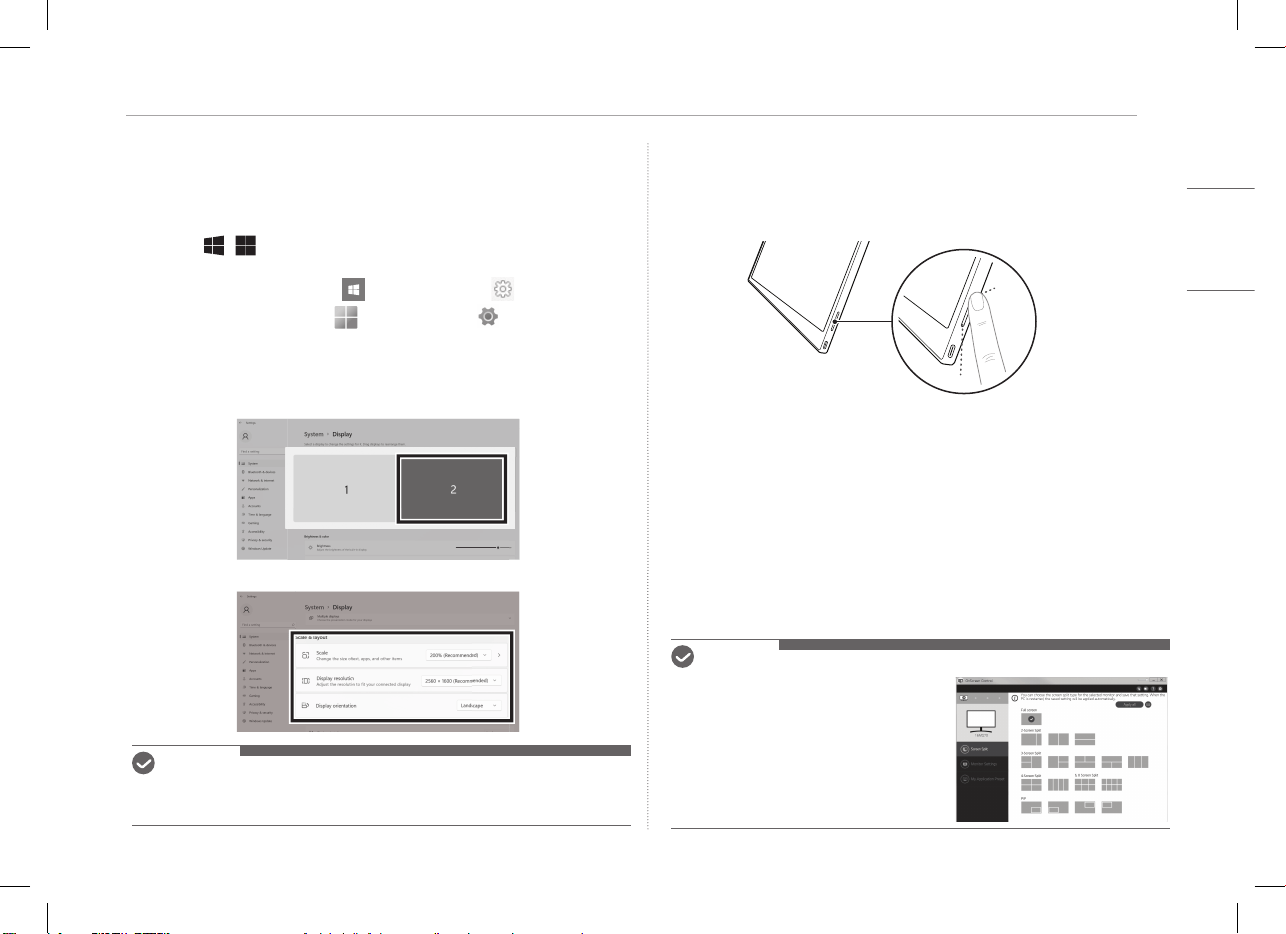
Nếu thiết lập màn hình di động ở Chế độ mở rộng, bạn có thể cài đặt tỷ lệ và bố
cục màn hình.
1 Nhấn
[
/ ] hoặc
[Ctrl] + [ESC] trên bàn phím của bạn để hiển thị menu
Start.
y
Windows 10: Nhấn nút Start [ ] sau đó chọn Cài đặt [ ].
y
Windows 11: Nhấn nút Start [
] sau đó chọn Cài đặt [ ]
trên màn hình Start.
2 Khi màn hình Cài đặt xuất hiện, chọn [Hệ thống] > [Màn hình].
3 Windows 10: Chọn [Mở rộng càc màn hình này] trong [Nhiều màn hình].
Windows 11: Chọn [Mở rộng càc màn hình này].
4 Chọn màn hình 2.
5 Thay đổi cài đặt theo ý muốn trong [ Tỷ lệ & bố cục].
LƯU Ý
y
Hình ảnh chỉ mang tính chất mô tả và có thể thay đổi tùy thuộc vào phiên bản
Windows và ngôn ngữ của quốc gia đó.
Điều chỉnh độ sáng màn hình
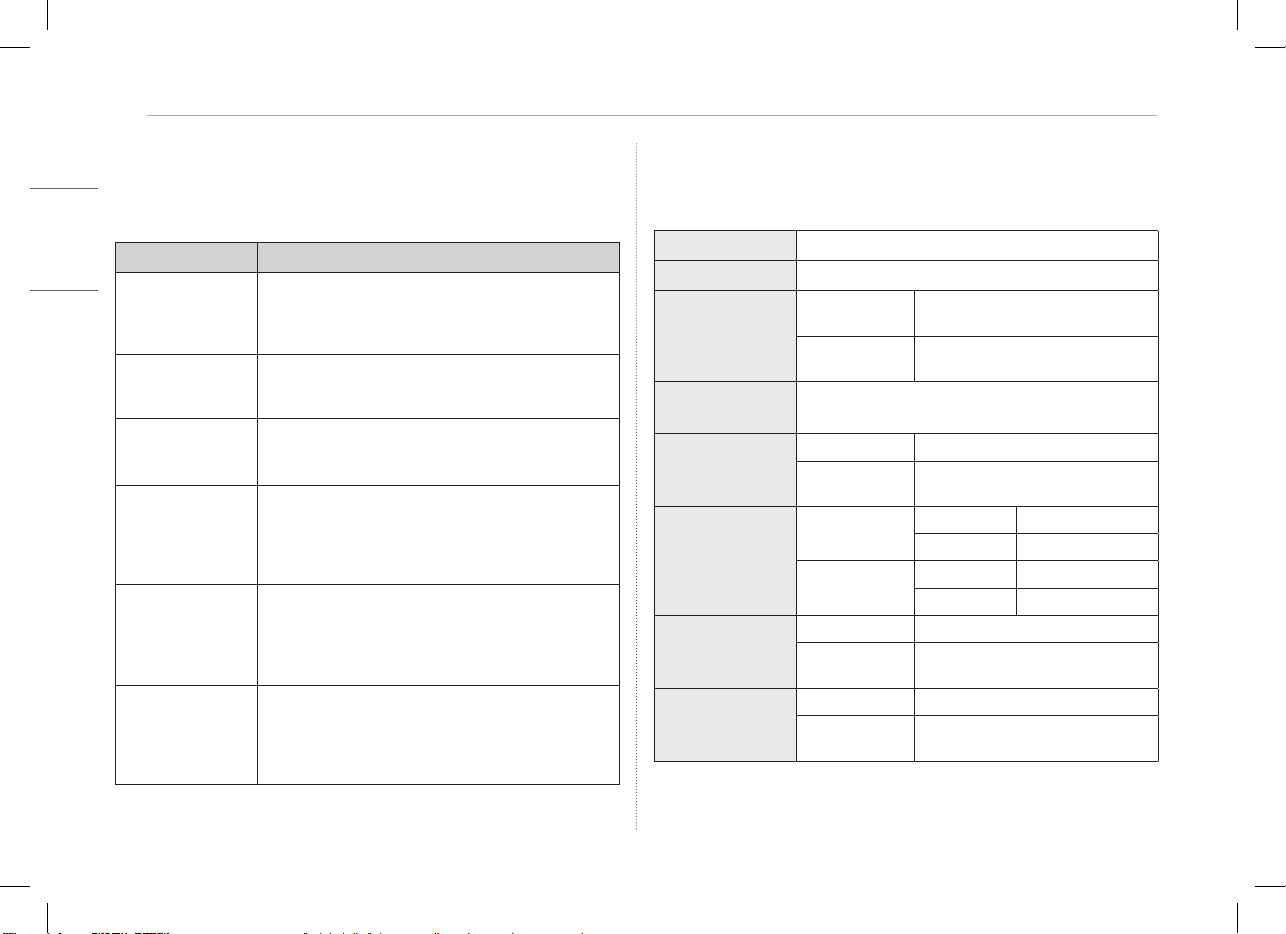
Bạn có thể sử dụng nút độ sáng màn hình ở bên phải sản phẩm để điều chỉnh
độ sáng màn hình.
Cài đặt Phần mềm
Cài đặt OnScreen Control và sử dụng các chức năng khác nhau như chia đôi
màn hình, thiết lập màn hình và chuyển đổi màn hình một cách dễ dàng và
thuận tiện.
1 Truy cập trang web LG Electronics (http://lg.com).
2 Chọn tùy chọn menu “HỖ TRỢ” và tìm kiếm mẫu sản phẩm.
3 Chọn “OnScreen Control” và bắt đầu cài đặt phần mềm.
LƯU Ý
y
Sau khi cài đặt OnScreen Control, bạn có
thể tìm hiểu cách sử dụng nó từ menu
Trợ giúpđược tích hợp bên trong ứng dụng.
y
OnScreen Control chỉ khả dụng trên
Windows.
y
Chức năng Tự động xoay màn hình
chỉ khả dụng khi bật OnScreen Control.
5
TIẾNG ANH
Danh sách kiểm tra Hỗ trợ Trước Kỹ thuật
Danh sách kiểm tra Hỗ trợ Trước Kỹ thuật
Nếu xuất hiện các biểu hiện sau trong khi sử dụng sản phẩm, hãy kiểm tra lại.
Đây có thể không phải là một lỗi.
Biểu hiện Nguyên nhân và Giải pháp
Màn hình không
hiển thị hoặc kết nối
không ổn định.
y
Kiểm tra xem thiết bị được kết nối với màn hình có hỗ
trợ Chế độ Thay thế DisplayPort
(Chế độ DP Alt) và Cấp nguồn qua USB (USB PD) hay
không.
Không bật được
nguồn.
y
Kiểm tra xem liệu bạn có thể kết nối thiết bị với màn
hình đúng cách hay không bằng cách sử dụng cáp
USB-C™
đi kèm với màn hình.
Vượt quá dải tần số
được hỗ trợ của màn
hình.
y
Hiện tượng này xảy ra khi tín hiệu truyền từ PC vượt
quá dải tần số quét ngang hoặc dọc. Tham khảo thiết
lập Chế độ cài đặt gốc và đặt lại tần số.
Màn hình hiển thị
không rõ ràng.
y
Đặt độ phân giải màn hình thành bất kỳ thiết lập độ
phân giải nào khác được đề xuất (tối ưu) có thể dẫn
đến việc văn bản bị nhòe hoặc màn hình bị mờ, cắt hoặc
nghiêng. Sử dụng thiết lập độ phân giải màn hình được
đề xuất.
Hiện tượng lưu ảnh
màn hình vẫn còn
ngay cả khi tắt nguồn.
y
Lưu ý rằng việc bật và giữ nguyên màn hình liên tục
trong thời gian dài có thể gây hỏng màn hình và dẫn
đến lỗi lưu ảnh màn hình.
y
Sử dụng trình bảo vệ màn hình nếu muốn sử dụng màn
hình trong thời gian dài.
Xuất hiện các vết
đốm trên màn hình.
y
Bạn có thể thấy một vài đốm pixel (đỏ, lục, lam, trắng,
đen) trên màn hình khi sử dụng sản phẩm. Đây là hiện
tượng bình thường của màn hình LCD. Điều này không
liên quan đến hiệu suất màn hình và không phải là biểu
hiện bất thường.
Phụ lục
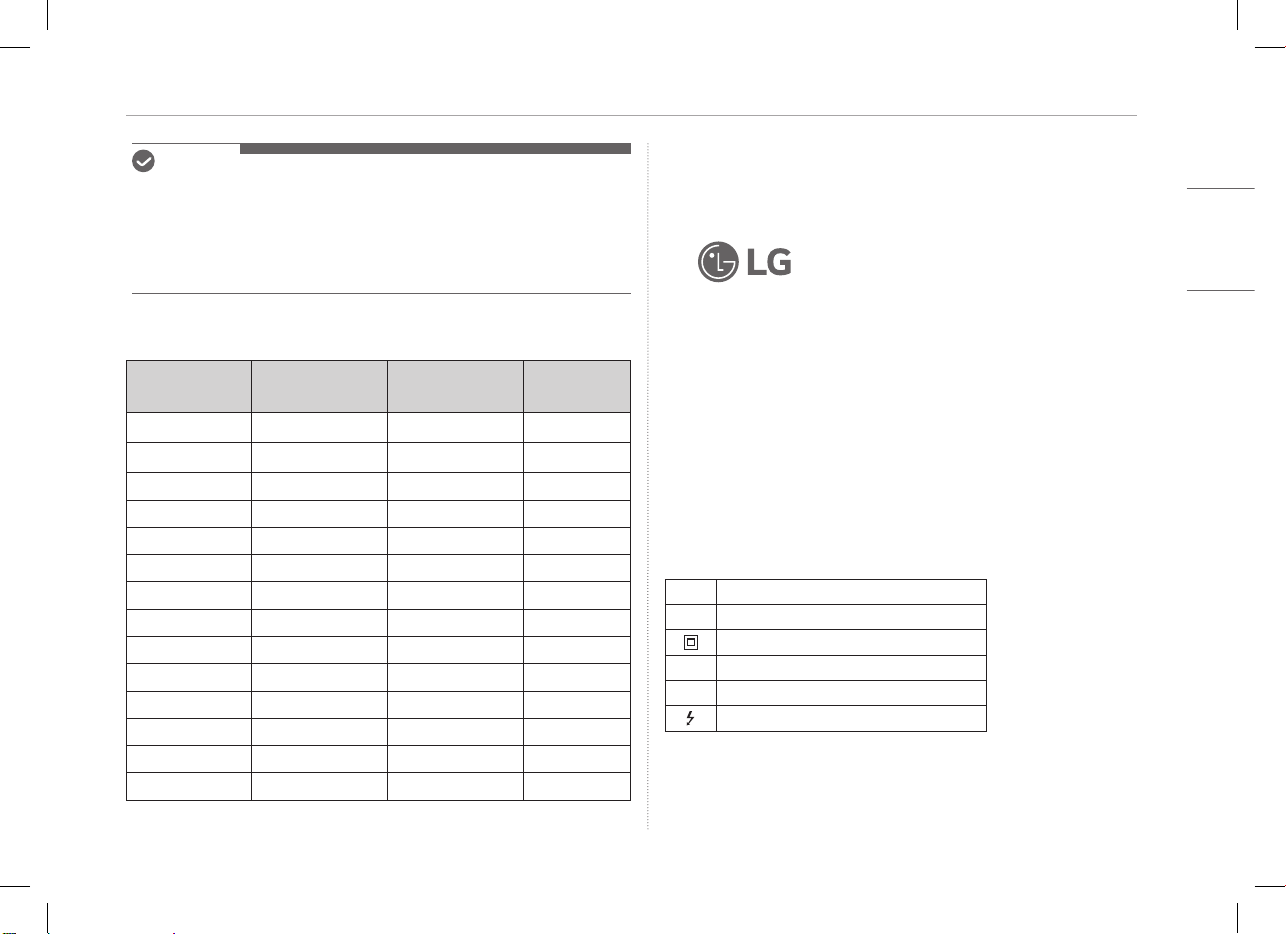
Đặc điểm Kỹ thuật của Sản phẩm
Màn hình
IPS LCD 40,6 cm
Độ sâu màu
16,7 triệu màu (8 bit)
Độ phân giải
Độ phân giải tối
đa
2560 x 1600 @ 60 Hz
Độ phân giải
được đề xuất
2560 x 1600 @ 60 Hz
Chuẩn hiển thị
được hỗ trợ
Chế độ Thay thế DisplayPort (Chế độ DP Alt)
Nguồn
Định mức
5 V
0
2 A
Tiêu thụ điện
năng
Chế độ hoạt động: mức thông thường
8 W (mặc định gốc)*
Môi trường
Hoạt động
Nhiệt độ 0 °C đến 40 °C
Độ ẩm Thấp hơn 80 %
Lưu trữ
Nhiệt độ -20 °C đến 60 °C
Độ ẩm 85 % hoặc thấp hơn
Kích thước
(không bao gồm
bao bì)
Có bao da folio
362 (rộng) x 249 (cao) x 11,3 mm (dày)
Không có bao da
folio
360 (rộng) x 245,5 (cao) x 8,3 mm (dày)
Trọng lượng
(không bao gồm
bao bì)
Có bao da folio Khoảng 990 g
Không có bao da
folio
Khoảng 670 g
6Phụ lục
TIẾNG ANH
LƯU Ý
y
* Mức tiêu thụ điện năng ở Chế độ Bật được đo đạc trong những điều kiện thử
nghiệm tiêu chuẩn của LGE (hình ảnh màu trắng hoàn toàn, độ phân giải tối đa).
y
Các thông số kỹ thuật của sản phẩm có thể thay đổi mà không cần thông báo
khi sản phẩm được cải tiến.
y
Mức tiêu thụ điện năng có thể khác nhau tùy thuộc vào điều kiện hoạt động và
thiết lập của màn hình.
Chế độ mặc định gốc
Chế độ cài đặt
sẵn
Tần số quét
ngang (kHz)
Tần số quét dọc
(Hz)
Phân cực
(H/V)
640 x 480 31,469 59,94 -/-
800 x 600 37,879 60,317 +/+
1024 x 768 48,363 60 -/-
1152 x 864 54,347 60,05 +/+
1280 x 720 45 60 +/+
1280 x 1024 63,981 60,02 +/+
1600 x 900 60 60 +/+
1680 x 1050 65,29 59,954 -/+
1920 x 1080 67,5 60 +/-
1920 x 1080 83,894 74,973 +/-
2560 x 1440 88,79 59,95 +/-
2560 x 1600 48,62 29,96 +/-
2560 x 1600 98,71 59,97 +/-
2560 x 1600 124,26 74,95 +/-
Thông tin thông báo về Nhãn hiệu đã đăng ký và Phần mềm
mã nguồn mở
USB Type-C™ và USB-C™ là những thương hiệu của USB Implementers Forum.
Logo LG là thương hiệu đã được đăng ký của
LG Electronics Inc.
Để lấy mã nguồn theo GPL, LGPL, MPL và các giấy phép nguồn mở khác bắt
buộc tiết lộ mã nguồn có trong sản phẩm này và để truy cập tất cả các điều
khoản cấp phép, thông báo bản quyền và các tài liệu liên quan khác, vui lòng
truy cập https://opensource.lge.com.
LG Electronics cũng sẽ cung cấp mã nguồn mở cho bạn trong CD-ROM có tính
phí để chi trả cho chi phí phát hành (chẳng hạn như các khoản phí về vận chuyển,
đĩa và xử lý) khi nhận được yêu cầu qua email đến địa chỉ opensour[email protected].
Ưu đãi này có hiệu lực cho bất kỳ ai nhận được thông tin này trong khoảng thời
gian ba năm tính từ ngày chúng tôi phân phối sản phẩm này.
Các biểu tượng
~
Nghĩa là dòng điện xoay chiều (AC).
0
Nghĩa là dòng điện một chiều (DC).
Nghĩa là thiết bị loại II.
1
Nghĩa là chế độ chờ.
!
Nghĩa là “BẬT” (nguồn).
Nghĩa là điện áp nguy hiểm.
MEMO
16MQ70 Series
MANUAL DEL PROPIETARIO
MONITOR PORTÁTIL
Para un uso seguro y cómodo, lea atentamente este manual del propietario antes de empezar a utilizar el producto.
www.lg.com
Copyright © 2022 LG Electronics Inc. Todos los derechos reservados
ESPAÑOL
1
ESPAÑOL
Precauciones de seguridad importantes
Precauciones de seguridad importantes ��������������������������������������1
Al utilizar el producto ��������������������������������������������������������������������������������������������������������1
Revisar los componentes ����������������������������������������������������������������� 2
Recorrido por el producto ���������������������������������������������������������������2
Uso de la tapa �������������������������������������������������������������������������������������3
Conexión del monitor �����������������������������������������������������������������������3
Ajuste de la pantalla (modo extendido) ���������������������������������������4
Ajuste del brillo de la pantalla �������������������������������������������������������� 4
Instalación del software ������������������������������������������������������������������4
Lista de comprobación previa al contacto con el servicio de
soporte técnico ����������������������������������������������������������������������������������5
Apéndice ����������������������������������������������������������������������������������������������5
Especificaciones del producto �����������������������������������������������������������������������������������������5
Modo predeterminado de fábrica �����������������������������������������������������������������������������������6
Información de aviso de marcas comerciales registradas y software de
código abierto ���������������������������������������������������������������������������������������������������������������������� 6
Symbols ��������������������������������������������������������������������������������������������������������������������������������� 6
Precauciones de seguridad importantes
Revise con antelación las "Precauciones de seguridad importantes" siguientes
para evitar peligros o daños inesperados.
Las "Precauciones de seguridad importantes" están divididas en "Advertencia"
y "Precaución".
!
ADVERTENCIA: No cumplir la instrucción puede provocar daños físicos
graves o incluso la muerte.
!
PRECAUCIÓN: No cumplir la instrucción puede provocar daños leves
físicos o al equipo
.
Al utilizar el producto
!
ADVERTENCIA
y
Utilice el producto en un lugar seguro donde no haya
riesgo de que se caiga.
y
No utilice el producto en lugares húmedos o llenos
de polvo.
y
No utilice el producto en entornos a altas o bajas
temperaturas.
y
No toque el cable de alimentación con las manos
mojadas.
y
Mantenga el puerto del cable de alimentación exento
de sustancias extrañas.
y
Limpie el producto con un producto adecuado y
séquelo completamente antes de volver a utilizarlo.
!
PRECAUCIÓN
y
No ejerza presión sobre la pantalla del monitor con
los dedos ni coloque objetos sobre ella.
y
No golpee ni arañe la pantalla con objetos puntiagudos.
y
Si la pantalla está dañada, no la toque con las manos.
y
Mantener una imagen en pausa en la pantalla
durante un tiempo prolongado puede hacer que la
pantalla se queme.
y
Utilice un protector de pantalla, etc.
y
Cuando la temperatura es baja, al encender el
monitor puede producirse un parpadeo momentáneo
de la pantalla.
y
Si se diera el caso, puede que vea algunos puntos
rojos, verdes y azules en la pantalla, pero es normal.
Índice
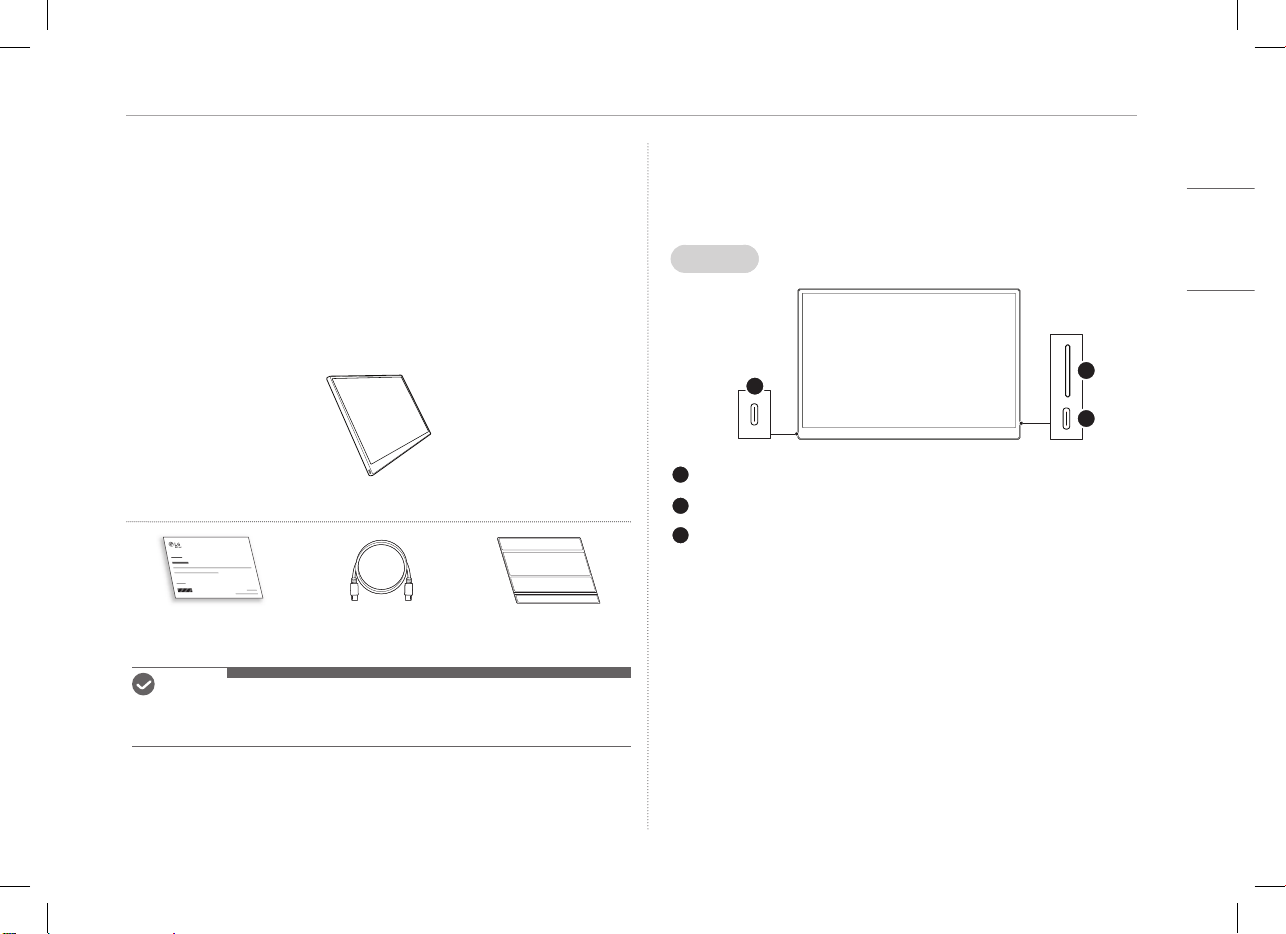
2Revisar los componentes
ESPAÑOL
Revisar los componentes
Los componentes indicados a continuación se proporcionan con la compra del
producto. Revise los componentes antes de usarlos.
y
En algunos modelos, los componentes podrían tener una forma y color diferentes
a los que aparecen en las imágenes.
y
Para limpiar el producto, utilice un producto de limpieza específico para PC y
monitores.
El uso de disolventes, benceno, alcohol u otros agentes similares podría hacer
que el producto se dañara o se deformara.
Carcasa del monitor
Manual del propietario Cable USB-C™ Tapa
NOTA
y
Las ilustraciones que aparecen en el manual de usuario están sujetas a
modificaciones sin previo aviso.
Recorrido por el producto
El producto puede tener una forma y un color distintos de los mostrados en las
imágenes del producto que se incluyen en este manual del propietario.
Frontal
1
2
3
Puerto USB-C™
Puerto USB-C™
Botón de brillo de la pantalla
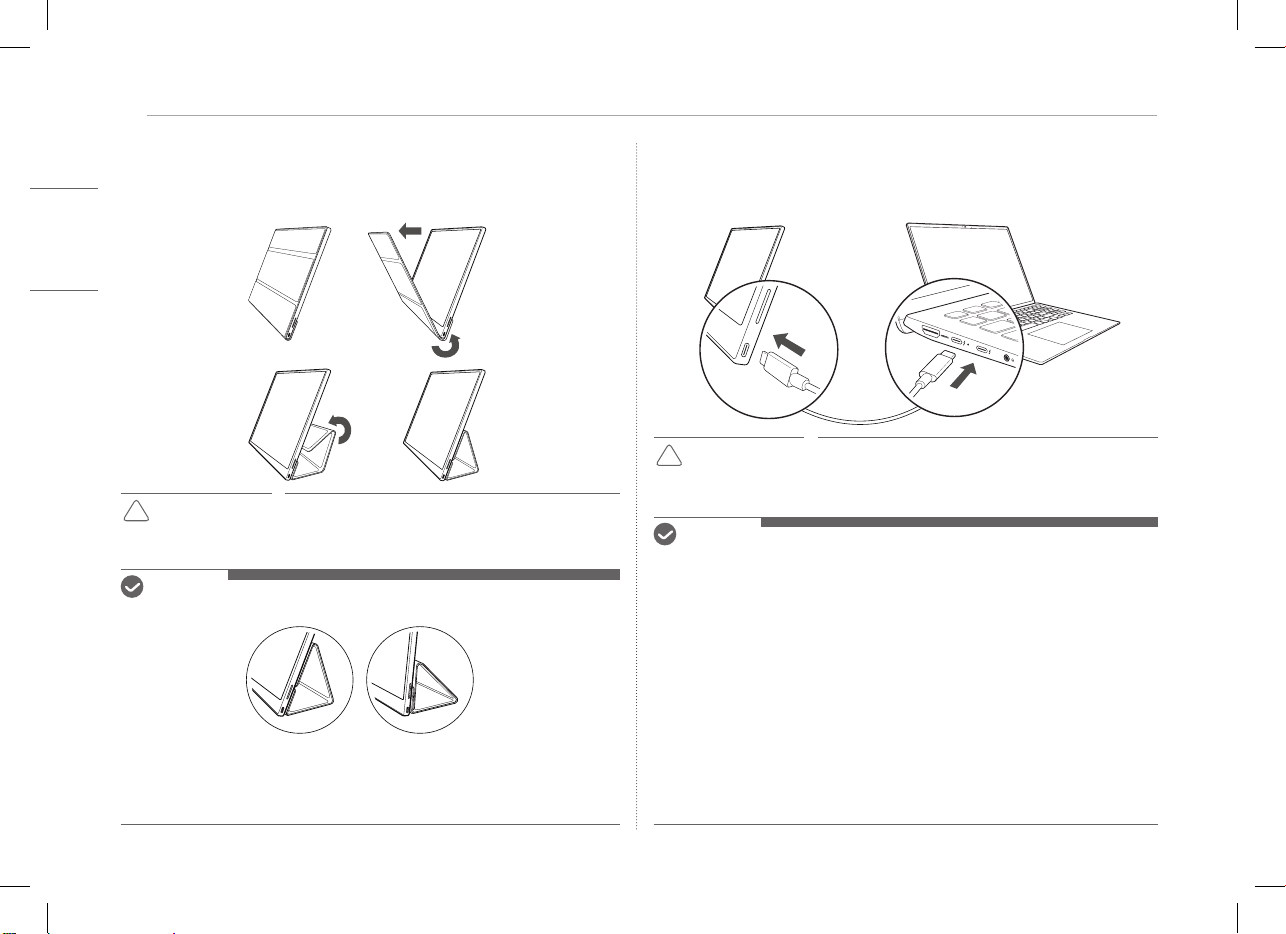
3
ESPAÑOL
Uso de la tapa
Uso de la tapa
Puede plegar la tapa y utilizarla como soporte.
!
PRECAUCIÓN
y
Cuando traslade el monitor a otro lugar, asegúrese
de mantener la tapa sobre la pantalla como método
de protección.
NOTA
y
Puede colocar la tapa en dos ángulos.
y
La tapa solo puede utilizarse en horizontal.
y
La tapa es un elemento fungible y puede dañarse durante su uso.
Puede comprar tapas por separado en el Centro de Atención al Cliente de
LG Electronics.
Conexión del monitor
Conecte los puertos USB-C™ del monitor y del PC con el cable USB-C™.
!
PRECAUCIÓN
y
Para conectarlos, no utilice ningún otro tipo de cable
que no sea un cable USB-C™. Si lo hace, podría dañar
el conector.
NOTA
y
Este producto está diseñado para utilizarse únicamente con un ordenador
portátil. El dispositivo que se conecte al monitor debe ser compatible con el
modo alternativo de DisplayPort (modo Alt de DP) y una potencia de salida
(USB PD) de al menos 7,5W (5V/1,5A).
y
El puerto
USB-C™
solo admite una conexión única; no es compatible con
conexiones múltiples.
y
Para la conexión, utilice el cable
USB-C™
que se incluye con el monitor. Si
se utiliza un cable de un producto diferente, puede hacer que la pantalla no
funcione correctamente.
y
Si la batería del dispositivo conectado al monitor tiene poca carga, la conexión
podría perderse.
y
Este monitor admite la función plug-and-play.
(Plug-and-play: cuando se conecta un dispositivo a un PC, el PC reconoce
automáticamente el dispositivo conectado sin necesidad de que el usuario
configure el entorno).
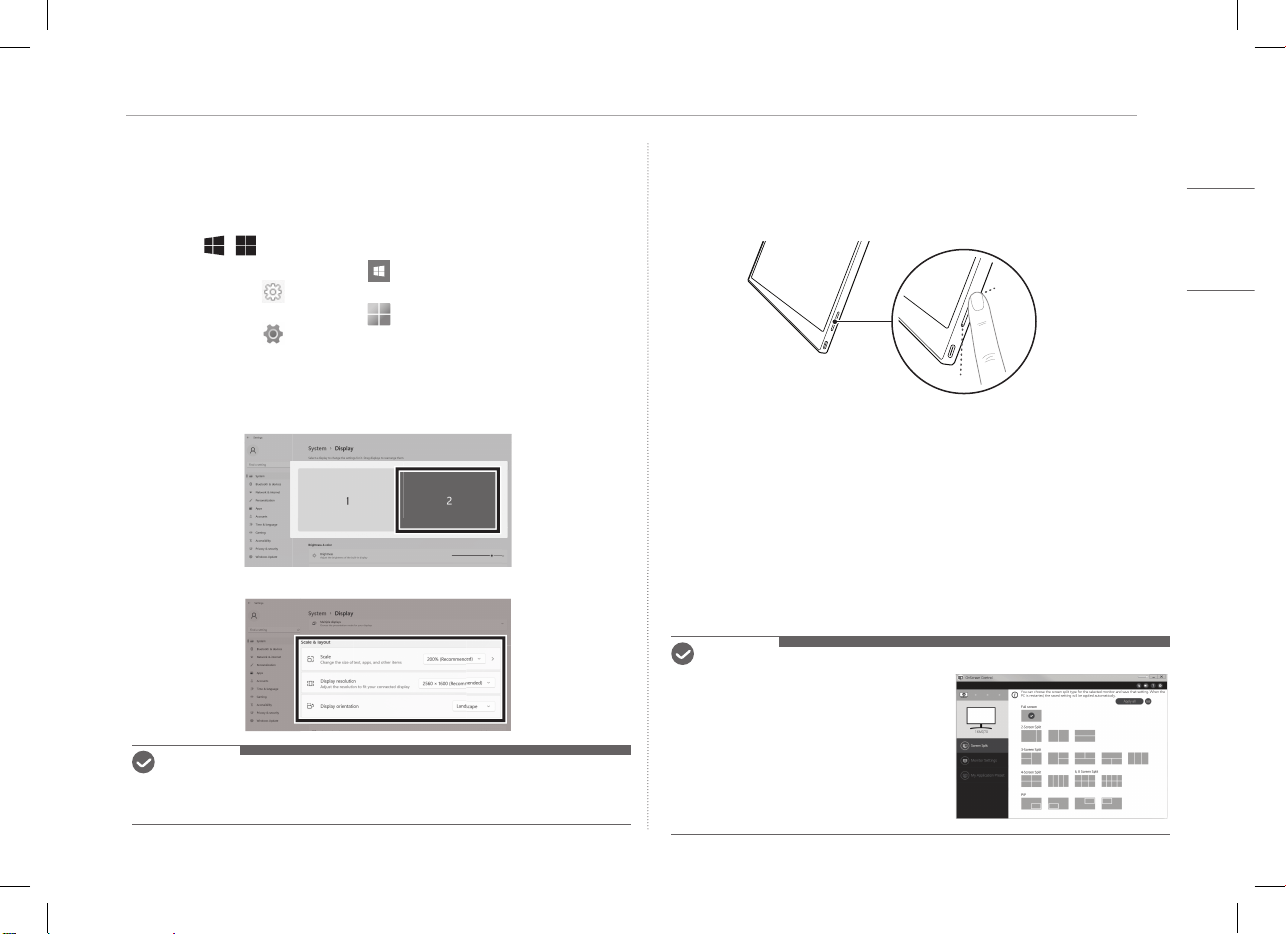
4Ajuste de la pantalla (modo extendido)
ESPAÑOL
Ajuste de la pantalla (modo extendido)
Si establece el monitor portátil en el modo extendido, puede ajustar la relación
y la distribución de la pantalla.
1 Pulse
[
/ ] o
[Ctrl] + [ESC] en el teclado para abrir el menú Inicio.
y
Windows 10: Pulse el botón Inicio [ ] y, a continuación, seleccione
Configuración [ ].
y
Windows 11: Pulse el botón Inicio [ ] y, a continuación, seleccione
Configuración [ ]
en la pantalla de inicio.
2 Cuando aparezca la pantalla Configuración, seleccione [Sistema] > [Pantalla].
3 Windows 10: Seleccione [Extender estas pantallas] en [Varias pantallas].
Windows 11: Seleccione [Extender estas pantallas].
4 Seleccione el monitor 2.
5 Cambie la configuración como desee en [Escala & diseño].
NOTA
y
La imagen es solo representativa y puede variar según la versión de Windows y el
idioma del país.
Ajuste del brillo de la pantalla
Puede utilizar el botón de brillo de la pantalla situado a la derecha del monitor
para ajustar el brillo.
Instalación del software
Instale OnScreen Control y utilice diversas funciones como división de la
pantalla, configuración del monitor y cambio de pantalla de una forma fácil y
cómoda.
1 Visite el sitio web de LG Electronics (http://lg.com).
2 Seleccione la opción del menú “SOPORTE” (Asistencia al cliente) y busque el
modelo del producto.
3 Seleccione “OnScreen Control” e instale el software.
NOTA
y
Cuando OnScreen Control se haya instalado,
puede consultar cómo utilizarlo en el menú
Help (Ayuda) de la aplicación.
y
OnScreen Control solo está disponible para
Windows.
y
La función Auto Screen Rotation (Rotación
de pantalla automática) solo está disponible
cuando OnScreen Control está habilitado.
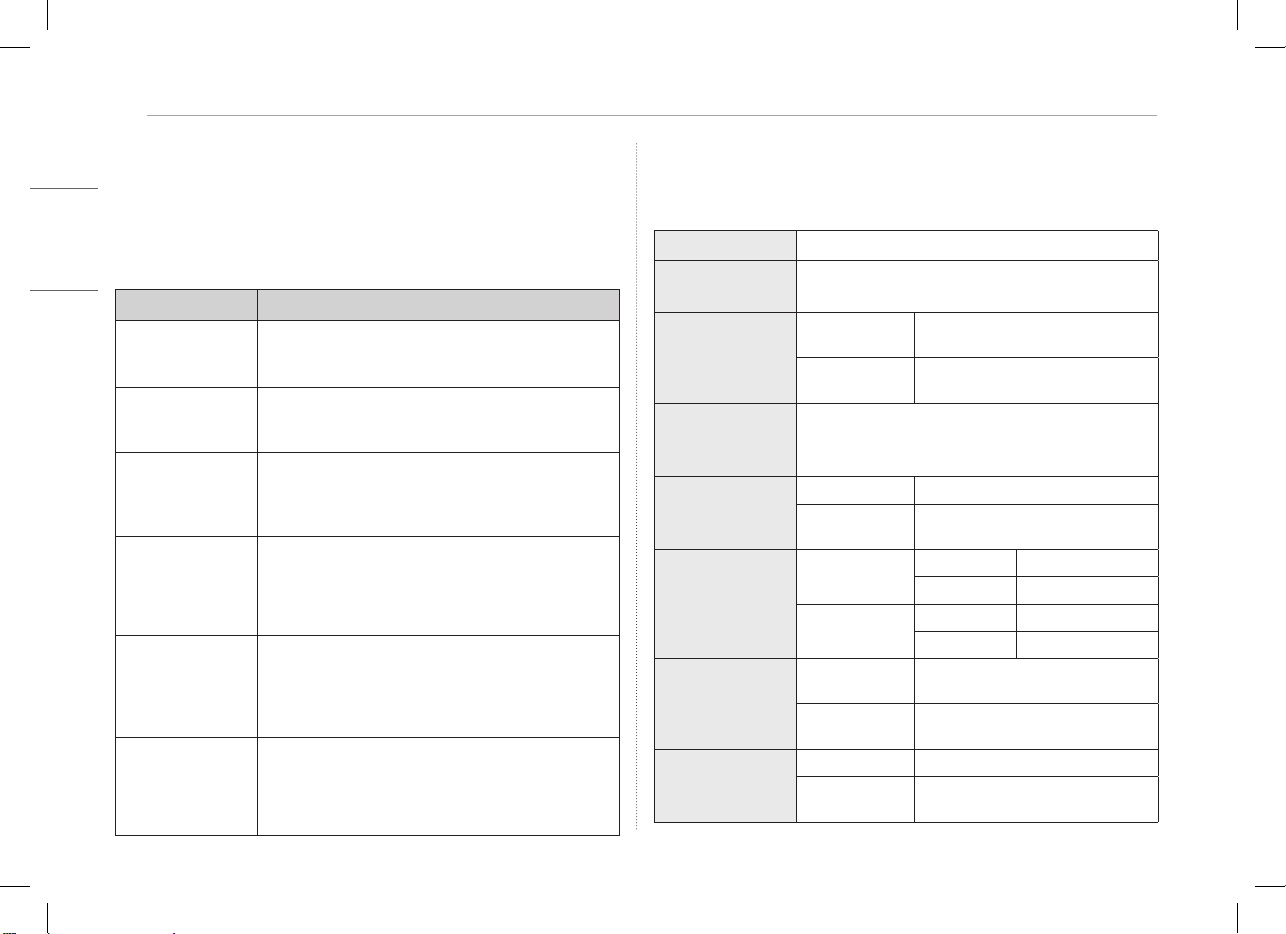
5
ESPAÑOL
Lista de comprobación previa al contacto con el servicio de soporte técnico
Lista de comprobación previa al contacto con
el servicio de soporte técnico
Si aparecen los siguientes síntomas durante la utilización del producto, vuelva a
revisarlo.
Puede que no sea un fallo de funcionamiento.
Síntoma Causa y solución
La pantalla se queda
en blanco o la
conexión es inestable.
y
Compruebe si el dispositivo conectado al monitor es
compatible con el modo alternativo de DisplayPort
(modo Alt de DP) y USB Power Delivery (USB PD).
El dispositivo no se
enciende.
y
Compruebe si puede conectar correctamente el
dispositivo al monitor con el cable
USB-C™
que viene
con el monitor.
Se ha superado el
rango de frecuencia
que admite el
monitor.
y
Este fenómeno se produce cuando la señal enviada
desde el PC supera el rango de frecuencia horizontal o
vertical. Consulte la configuración del modo de fábrica y
restablezca la frecuencia.
La pantalla no se ve
bien.
y
Si no se establece la resolución de pantalla
recomendada (óptima), el texto puede verse borroso,
o puede producirse un oscurecimiento, recorte o
inclinación de la pantalla. Utilice la configuración de
resolución de pantalla recomendada.
La quemadura de la
pantalla se mantiene
incluso cuando está
apagada.
y
Tenga en cuenta que tener una pantalla fija encendida
durante un tiempo prolongado puede dañar la pantalla
y hacer que se queme.
y
Si desea utilizar el monitor durante un rato largo, utilice
un protector de pantalla.
Aparecen puntos en
la pantalla.
y
Es posible que vea en la pantalla puntos de píxeles
(verdes, rojos, azules, blancos y negros) mientras utiliza
el monitor. Es un fenómeno habitual en una pantalla
LCD. No está relacionado con el rendimiento del
monitor y no es una anomalía.
Apéndice
Especicaciones del producto
Pantalla
LCD IPS de 40,6cm
Profundidad del
color
16,7 millones de colores (8bits)
Resolución
Resolución
máxima
2560 × 1600 a 60Hz
Resolución
recomendada
2560 × 1600 a 60Hz
Estándar de
visualización
compatible
Modo alternativo de DisplayPort (modo Alt de DP)
Potencia
nominal
5V
0
2A
Consumo
energético
Modo de funcionamiento: 8W general
(valor predeterminado de fábrica)*
Entorno
Funcionamiento
Temperatura De 0°C a 40°C
Humedad Inferior al 80%
Almacenamiento
Temperatura De −20°C a 60°C
Humedad 85% o inferior
Dimensiones
(sin incluir el
paquete)
Con tapa
362 (ancho) × 249 (alto) × 11,3mm
(grosor)
Sin tapa
360 (ancho) × 245,5 (alto) × 8,3mm
(grosor)
Peso
(sin incluir el
paquete)
Con tapa Alrededor de 990g
Sin tapa Alrededor de 670g
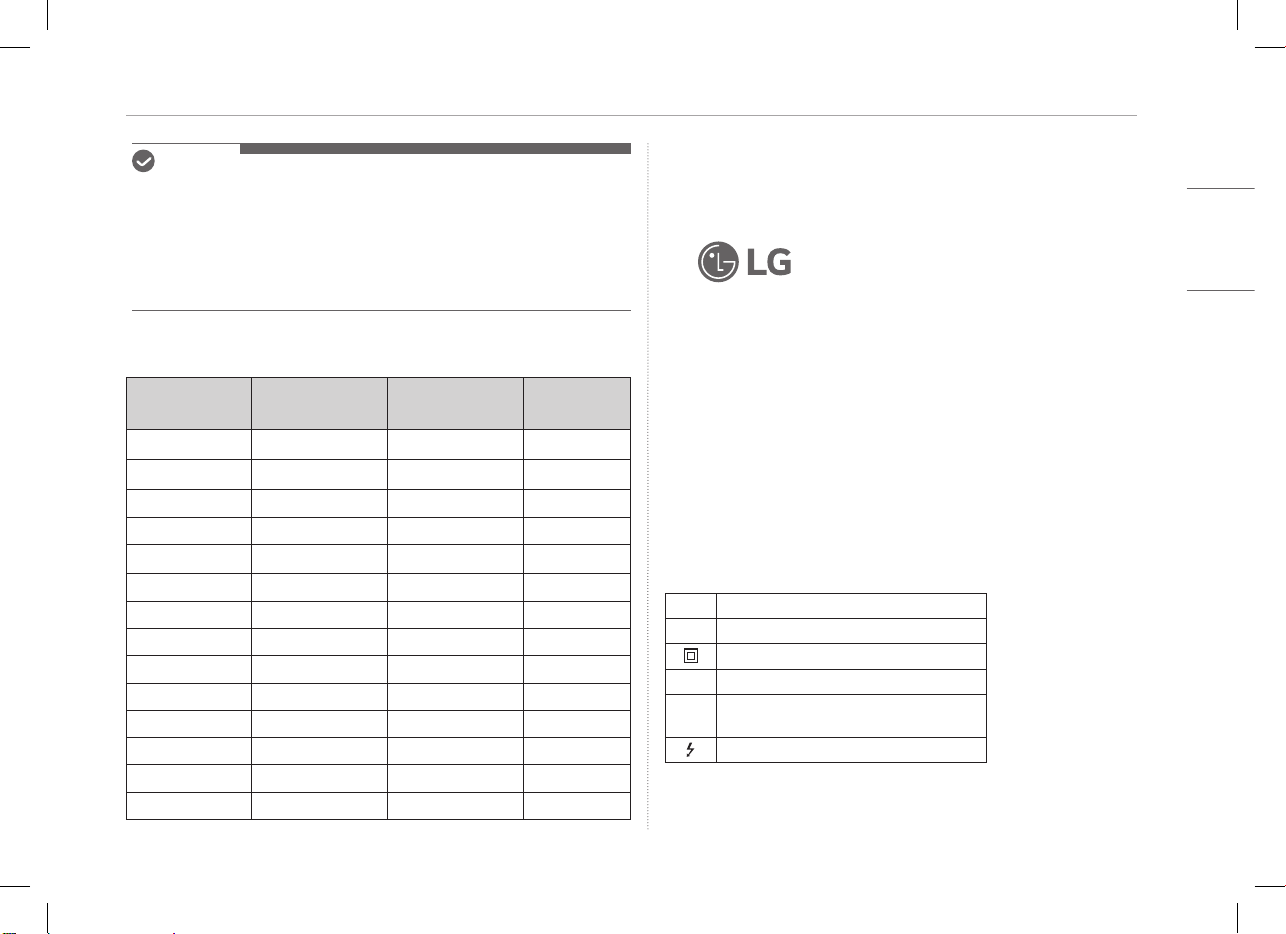
6Apéndice
ESPAÑOL
NOTA
y
*El consumo de energía en el modo de encendido se midió en las condiciones
de pruebas estándar de LGE (patrón completamente blanco y resolución
máxima).
y
Las especificaciones del producto están sujetas a modificaciones sin previo
aviso con fines de mejora del producto.
y
El nivel de consumo de energía puede ser distinto según las condiciones de
funcionamiento y la configuración del monitor.
Modo predeterminado de fábrica
Modo
preconfigurado
Frecuencia
horizontal (kHz)
Frecuencia
vertical (Hz)
Polaridad
(H/V)
640 × 480 31,469 59,94 −/−
800 × 600 37,879 60,317 +/+
1024 × 768 48,363 60 −/−
1152 × 864 54,347 60,05 +/+
1280 × 720 45 60 +/+
1280 × 1024 63,981 60,02 +/+
1600 × 900 60 60 +/+
1680 × 1050 65,29 59,954 −/+
1920 × 1080 67,5 60 +/−
1920 × 1080 83,894 74,973 +/−
2560 × 1440 88,79 59,95 +/−
2560 × 1600 48,62 29,96 +/−
2560 × 1600 98,71 59,97 +/−
2560 × 1600 124,26 74,95 +/−
Información de aviso de marcas comerciales registradas y
software de código abierto
USB Type-C™ y USB-C™ son marcas comerciales de USB Implementers Forum.
El logotipo de LG es una marca comercial registrada
de LG Electronics Inc.
Para obtener el código fuente bajo GPL, LGPL, MPL y otras licencias de fuentes
abiertas que tengan las obligaciones de revelar un código fuente, que esté
contenido en este producto, y para acceder a todos los términos sobre licencia
referidos, así como a los avisos sobre copyright y otros documentos relevantes,
por favor, visite https://opensource.lge.com.
LG Electronics también le proporcionará código abierto en CD-ROM por un
importe que cubre los gastos de su distribución (como el soporte, el envío y la
manipulación) previa solicitud por correo electrónico a opensourc[email protected].
Esta oferta es válida para cualquier persona en posesión de esta información
durante un periodo de tres años después del último envío de este producto.
Symbols
~
Hace referencia a corriente alterna (CA)
0
Hace referencia a corriente continua (CC)
Hace referencia a equipos de clase II.
1
Hace referencia a reposo.
!
Hace referencia a “ENCENDIDO”
(alimentación).
Hace referencia a voltaje peligroso.
MEMO
16MQ70 Series
BETRIEBSANLEITUNG
TRAGBARER MONITOR
Um das Produkt sicher und sachgerecht zu benutzen, lesen Sie bitte erst sorgfältig die Betriebsanleitung, bevor Sie das Produkt in Betrieb nehmen.
www.lg.com
Copyright © 2022 LG Electronics Inc. Alle Rechte vorbehalten
DEUTSCH
1
DEUTSCH
Wichtige Sicherheitshinweise
Wichtige Sicherheitshinweise �������������������������������������������������������� 1
Während der Nutzung des Produkts �����������������������������������������������������������������������������1
Komponenten prüfen ������������������������������������������������������������������������ 2
Produkt-Überblick ����������������������������������������������������������������������������� 3
Folio-Einband benutzen ������������������������������������������������������������������� 3
Monitor anschließen ������������������������������������������������������������������������� 4
Bildschirm einstellen (Erweiterungsmodus) ������������������������������� 4
Bildschirmhelligkeit einstellen �������������������������������������������������������� 5
Software installieren������������������������������������������������������������������������� 5
Checkliste vor Inanspruchnahme des technischen Supports ����������� 5
Anhang ������������������������������������������������������������������������������������������������� 6
Produktspezifikationen �����������������������������������������������������������������������������������������������������6
Modus Werkseinstellung ��������������������������������������������������������������������������������������������������7
Eingetragenes Markenzeichen und Open Source Software Informationen ���������7
Symbole ��������������������������������������������������������������������������������������������������������������������������������� 7
Wichtige Sicherheitshinweise
Lesen Sie nachfolgend „Wichtige Sicherheitshinweise“, um Gefahren und
mögliche Beschädigungen auszuschließen.
„Wichtige Sicherheitshinweise“ ist unterteilt in „Warnung“ und „Achtung“.
!
WARNUNG: Bei Nichtbeachtung der Instruktionen besteht die Gefahr
schwerer Sachschäden oder gar tödlicher Verletzungen.
!
ACHTUNG: Bei Nichtbeachtung der Instruktionen besteht
Verletzungsgefahr, oder das Gerät könnte beschädigt werden
.
Während der Nutzung des Produkts
!
WARNUNG
y
Benutzen Sie das Produkt an einem sicheren Platz, wo
keine Gefahr besteht, dass das Produkt zu Boden fällt.
y
Benutzen Sie das Produkt nicht an einem staubigen oder
feuchten Platz.
y
Benutzen Sie das Produkt nicht an einem Platz, der sehr
hohen oder sehr niedrigen Temperaturen ausgesetzt ist.
y
Fassen Sie das Stromversorgungskabel nicht mit nassen
Händen an.
y
Halten Sie den Anschluss des Stromversorgungskabels
frei von Fremdsubstanzen.
y
Zum Reinigen des Produkt ein geeignetes
Reinigungsmittel benutzen, und danach das Produkt
vollständig trocknen lassen, bevor es erneut benutzt
wird.
Inhalt
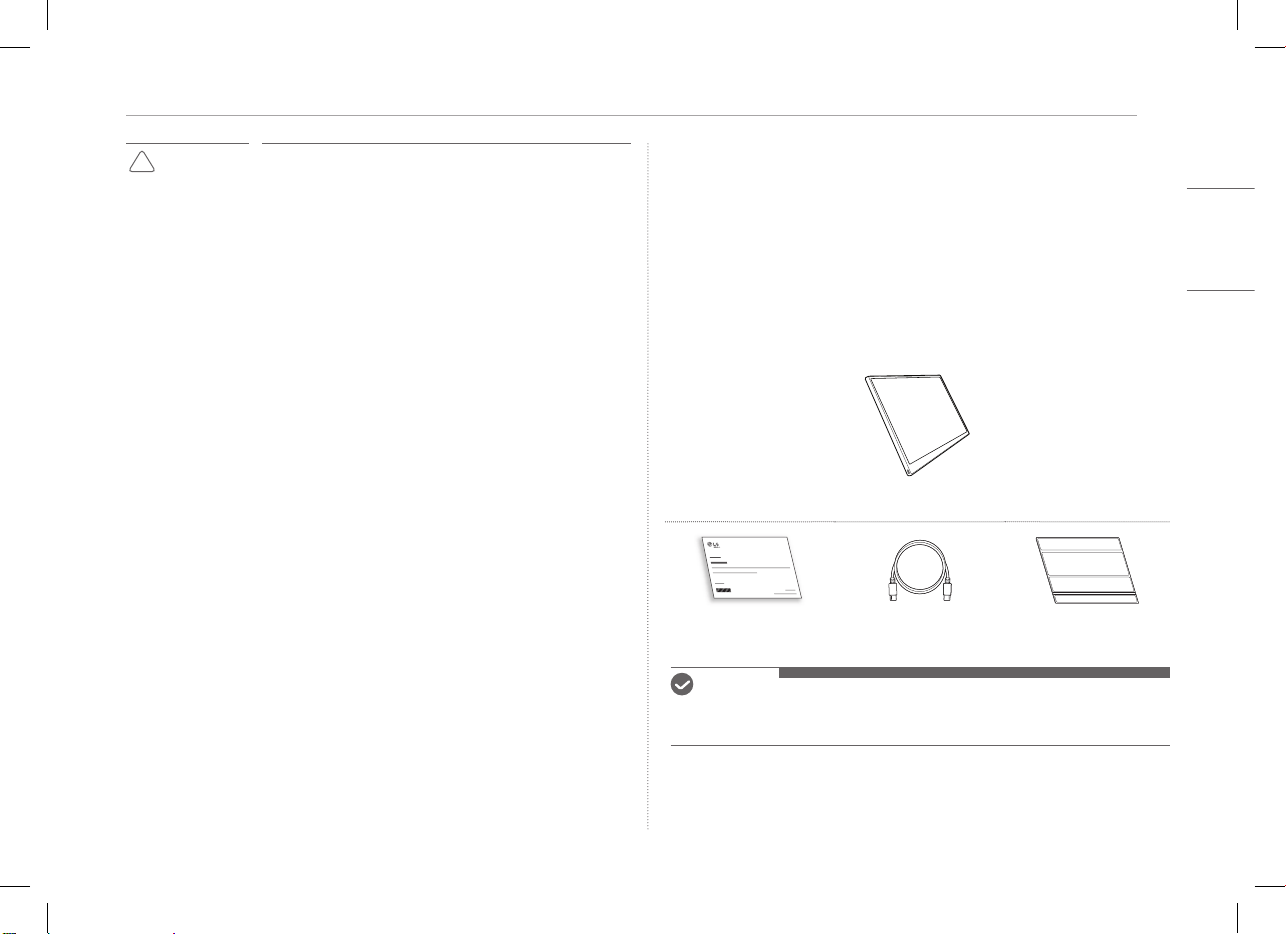
2Komponenten prüfen
DEUTSCH
!
ACHTUNG
y
Nicht mit den Fingern auf den Monitor-Bildschirm
drücken, auch keine Gegenstände auf ihm ablegen.
y
Den Bildschirm nicht mit einem scharfen Gegenstand
berühren oder kratzen.
y
Den Bildschirm nicht mit den Händen berühren, wenn er
beschädigt ist.
y
Wird ein unbewegtes Bild längere Zeit auf dem Bildschirm
angezeigt, könnte es sich einbrennen.
y
Benutzen Sie einen Bildschirmschoner usw.
y
Wird der Monitor bei niedriger Temperatur eingeschaltet,
könnte der Bildschirm kurzzeitig blinken.
y
Wenn das der Fall ist, sehen Sie möglicherweise einige
rote, grüne und blaue Stellen auf dem Bildschirm, aber
das ist normal.
Komponenten prüfen
Das gekaufte Produkt besteht aus den unten abgebildeten Komponenten.
Prüfen Sie diese vor dem Gebrauch auf Vollständigkeit.
y
Das Produkt und einige seiner Komponenten können bei einigen Modellen in
Form und Farbe anderes aussehen als in den Abbildungen.
y
Um das Produkt zu reinigen, benutzen Sie bitte nur ein spezielles
Reinigungsmittel für PC und Monitor.
Wenn Sie stattdessen Verdünner, Benzin, Alkohol oder ähnliche Mittel benutzen,
kann das Produkt beschädigt oder verformt werden.
Monitor-Körper
Betriebsanleitung USB-C™-Kabel Folio-Einband
HINWEIS
y
Die in der Betriebsanleitung gezeigten Abbildungen können jederzeit ohne
Vorankündigung geändert werden.
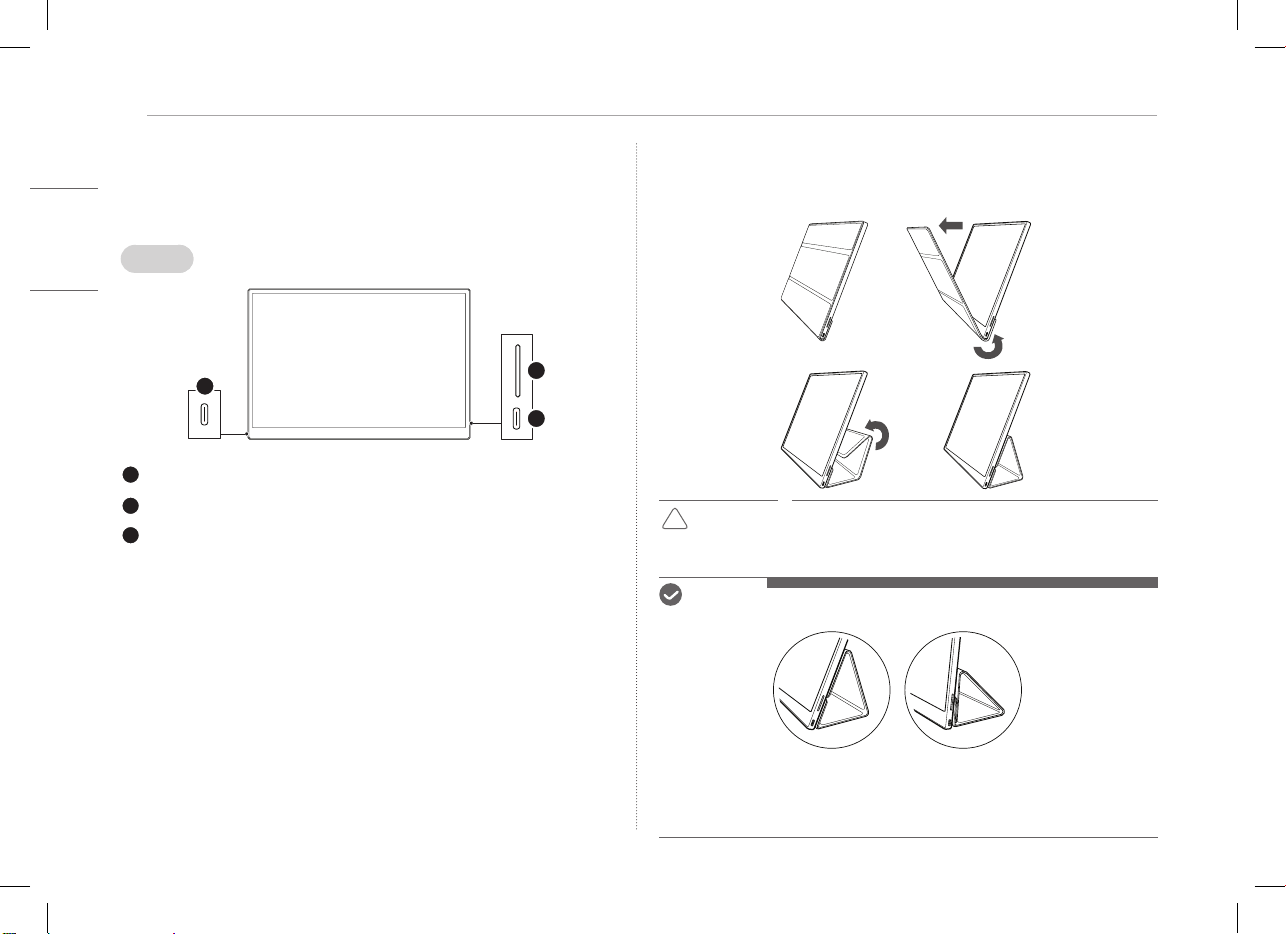
3
DEUTSCH
Produkt-Überblick
Produkt-Überblick
Das Produkt kann in Form und Farbe von den Produkt-Abbildungen in dieser
Betriebsanleitung abweichen.
Front
1
2
3
USB-C™-Anschluss
USB-C™-Anschluss
Bildschirm-Helligkeitsregler
Folio-Einband benutzen
Sie können den Folio-Einband zurückklappen und als Fuß benutzen.
!
ACHTUNG
y
Wenn Sie das Produkt bewegen, dann achten Sie darauf,
den Folio-Einband festzuhalten, um den Bildschirm zu
schützen.
HINWEIS
y
Der Folio-Einband bietet zwei Neigungswinkel.
y
Der Folio-Einband kann nur horizontal benutzt werden.
y
Der Folio-Einband ist ein Verbrauchsartikel und kann durch den Gebrauch
beschädigt werden. Im LG Electronics Service Center können Sie Folio-Einbände
separat kaufen.
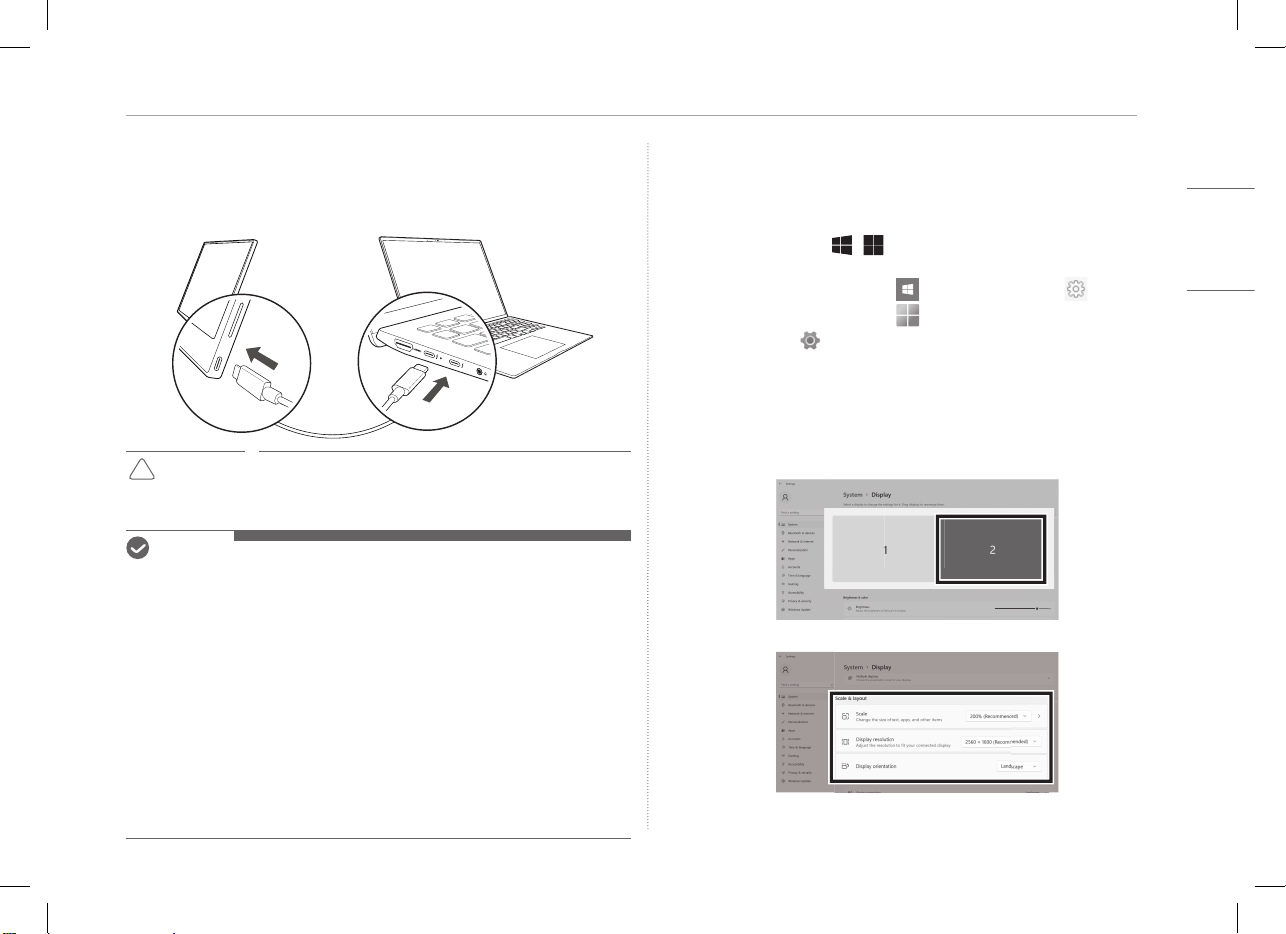
4Monitor anschließen
DEUTSCH
Monitor anschließen
Mit dem USB-C™-Kabel den USB-C™-Anschluss des Monitors am
entsprechenden Anschluss des PCs anschließen.
!
ACHTUNG
y
Benutzen Sie ausschließlich ein USB-C™-Kabel dafür.
Beim Versuch, ein anderes Kabel zu benutzen, kann der
Konnektor beschädigt werden.
HINWEIS
y
Dieses Produkt ist nur für die Benutzung mit einem Laptop konzipiert. Das
Gerät, das am Monitor angeschlossen wird, muss DisplayPort Alternate Mode
(DP Alt Mode) unterstützen und eine Ausgangsleistung (USB PD) von 7,5 W
(5 V / 1,5 A) oder höher haben.
y
Der
USB-C™
-Anschluss unterstützt nur eine einzige Verbindung, nicht
mehrere.
y
Benutzen Sie das mitgelieferte
USB-C™
-Kabel, um den Monitor anzuschließen.
Wird ein Kabel für ein anderes Produkt benutzt, funktioniert der Bildschirm
möglicherweise nicht ordnungsgemäß.
y
Ist beim Gerät, das am Monitor angeschlossen ist, der Akku leer oder fast leer,
wird die Verbindung unterbrochen.
y
Der Monitor unterstützt die Funktion Plug-and-Play.
(Plug-and-Play: Wird das Gerät am PC angeschlossen, erkennt der PC
automatisch das angeschlossene Gerät, sodass der Benutzer oder die
Benutzerin keine Umgebungseinstellungen durchführen muss.)
Bildschirm einstellen (Erweiterungsmodus)
Wenn Sie den tragbaren Monitor auf Erweiterungsmodus stellen, können Sie
das Bildschirmverhältnis und das Layout festlegen.
1 Auf der Tastatur auf
[
/ ] oder
[Strg] + [ESC] drücken, um das
Startmenü aufzurufen.
y
Windows 10: Auf Start drücken [ ] und dann Einstellungen [ ] auswählen.
y
Windows 11: Auf Start drücken [ ] und dann auf dem Start-Bildschirm
Einstellungen [
] auswählen.
2 Wenn der Bildschirm für Einstellungen angezeigt wird, [System] > [Anzeige]
auswählen.
3 Windows 10: Unter [Mehrere Bildschirme] die Option [Diese Anzeigen
erweitern] auswählen.
Windows 11: [Diese Anzeigen erweitern] auswählen.
4 Monitor 2 auswählen.
5 Unter [Skalieren & Layout] die gewünschten Einstellungen vornehmen.
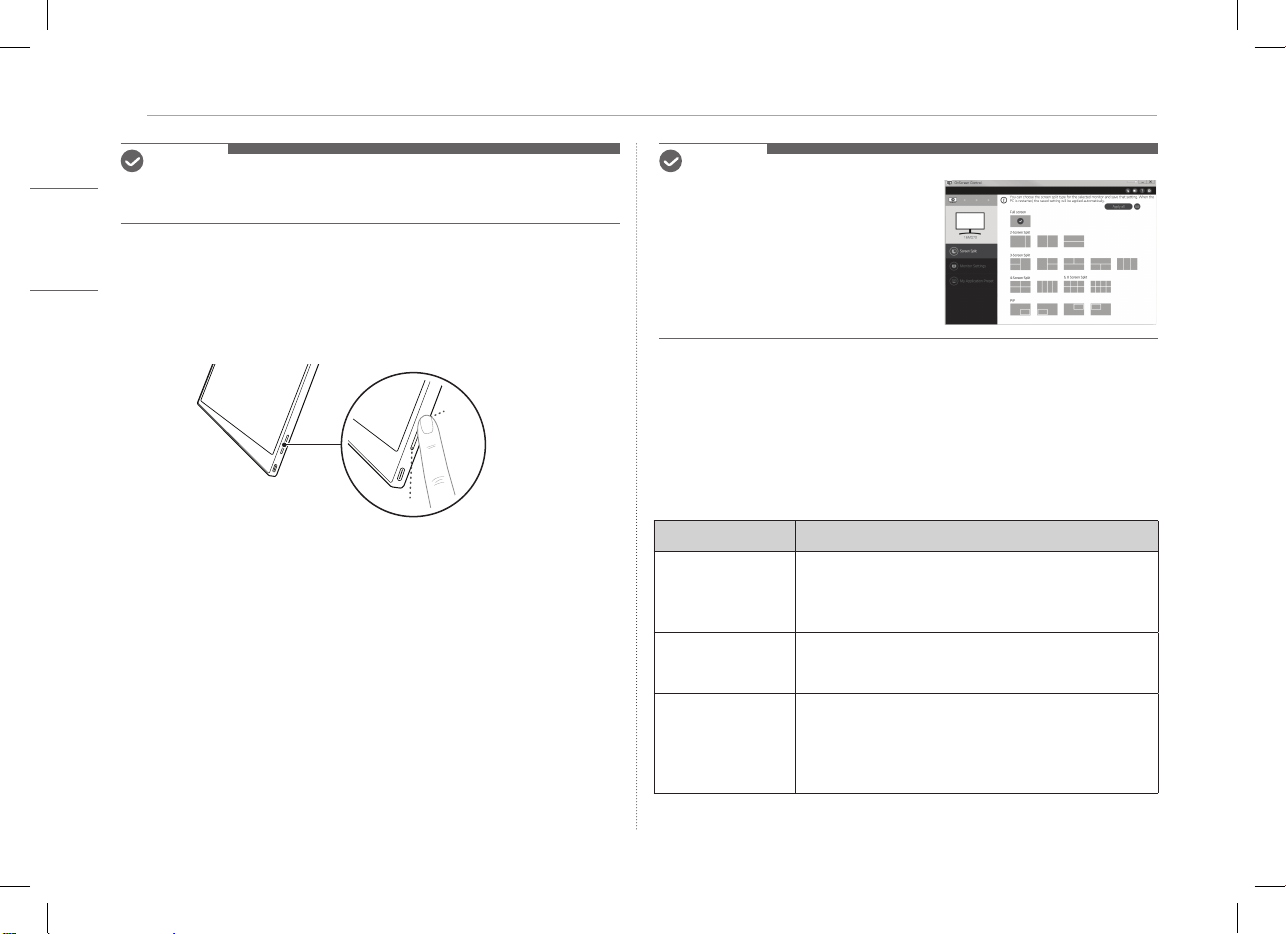
5
DEUTSCH
Bildschirmhelligkeit einstellen
HINWEIS
y
Die Abbildung dient der Veranschaulichung. Je nach Windows-Version und
Landessprache kann die Anzeige anders aussehen.
Bildschirmhelligkeit einstellen
Um die Bildschirmhelligkeit einzustellen, können Sie den Helligkeitsregler auf
der rechten Seite des Monitors benutzen.
Software installieren
Wenn Sie OnScreen Control installieren, können Sie leicht und bequem
verschiedene Funktionen benutzen, z.B. Splitscreen, Monitor-Einstellungen
und Bildschirmumschaltung.
1 Besuchen Sie die Website von LG Electronics (http://lg.com).
2 Suchen Sie unter dem Menüpunkt „SERVICE“ das Modell Ihres Produkts.
3 Wählen Sie „OnScreen Control“ und starten Sie die Installation der Software.
HINWEIS
y
Nachdem OnScreen Control installiert ist,
können Sie dem Hilfe-Menü der App
entnehmen, wie Sie die App benutzen.
y
OnScreen Control gibt es nur für Windows.
y
Die Funktion Auto Screen Rotation ist nur
verfügbar, wenn OnScreen Control aktiviert
ist.
Checkliste vor Inanspruchnahme des
technischen Supports
Wenn bei Benutzung des Produkts die folgenden Symptome auftreten, dann
überprüfen Sie zunächst die folgende Liste.
Möglicherweise handelt es sich nicht um einen Fehler.
Symptom Ursache und Lösung
Der Bildschirm
bleibt leer oder die
Verbindung ist nicht
stabil.
y
Vergewissern Sie sich, dass das am Monitor
angeschlossene Gerät DisplayPort Alternate Mode
(DP Alt Mode) und USB Power Delivery (USB PD)
unterstützt.
Das Gerät lässt sich
nicht einschalten.
y
Vergewissern Sie sich, dass Sie das Gerät
ordnungsgemäß mit dem mitgelieferten
USB-C™
-Kabel
am Monitor anschließen können.
Der vom Monitor
unterstützte
Frequenzbereich
ist überschritten
worden.
y
Dieser Fehler tritt auf, wenn das vom PC ausgegebene
Signal den Bereich der Horizontal- oder Vertikal-
Frequenz überschreitet. Lesen Sie im Abschnitt Modus
Werkseinstellung nach und setzen Sie die Frequenz
entsprechend zurück.
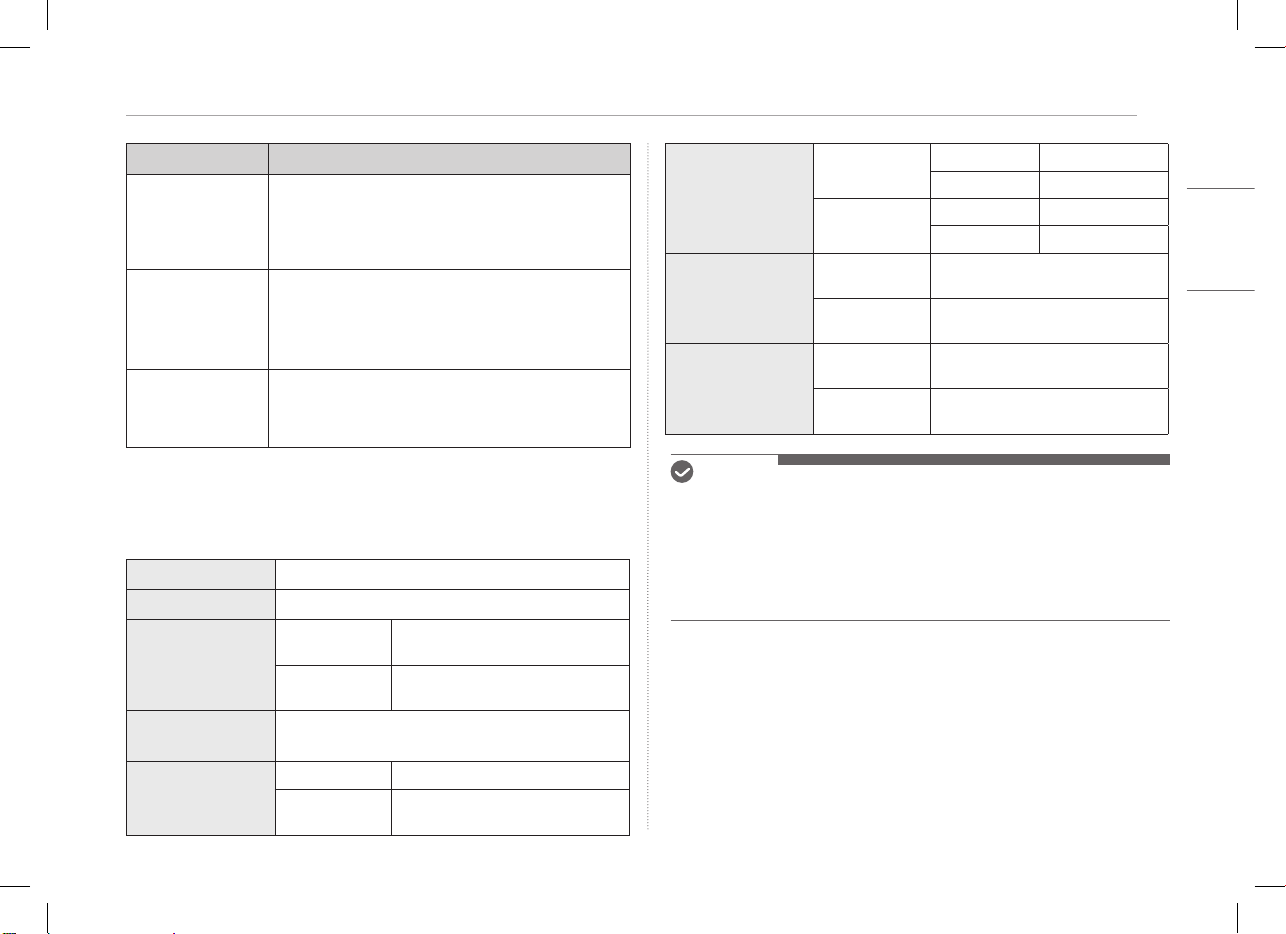
6Anhang
DEUTSCH
Symptom Ursache und Lösung
Das Bild auf dem
Bildschirm ist
undeutlich.
y
Ist die Auflösung auf einen anderen Wert als den
empfohlenen (optimal) eingestellt, könnte Text auf dem
Bildschirm unscharf oder gedämpft, abgeschnitten
oder gekippt dargestellt werden. Benutzen Sie die
empfohlene Bildschirmauflösung.
Ein eingebranntes
Bild ist selbst dann
zu sehen, wenn das
Gerät ausgeschaltet
ist.
y
Beachten Sie, dass sich ein Bild auf dem Bildschirm
einbrennen kann, wenn dieses über längere Zeit auf
dem Bildschirm unverändert angezeigt wird.
y
Benutzen Sie einen Bildschirmschoner, damit so etwas
nicht passieren kann.
Auf dem Bildschirm
sind Flecken zu
sehen.
y
Der Bildschirm könnte bei der Benutzung ein paar
fehlerhafte Pixel (rot, grün, blau, weiß, schwarz)
aufweisen. Bei einem LCD-Bildschirm ist das normal.
Es besteht kein Leistungsverlust und kein Fehler.
Anhang
Produktspezikationen
Display
40,6 cm IPS LCD
Farbtiefe
16,7 Millionen Farben (8 Bit)
Auflösung
Maximale
Auflösung
2560x1600 bei 60 Hz
Empfohlene
Auflösung
2560x1600 bei 60 Hz
Unterstützte
Display Standard
DisplayPort Alternate Mode (DP Alt Mode)
Stromversorgung
Bemessen
5 V
0
2 A
Stromverbrauch
Betriebsmodus: 8 W allgemein
(Werkseinstellung)*
Umgebung
Betrieb
Temperatur 0°C bis 40°C
Luftfeuchtigkeit Unter 80 %
Lagerung
Temperatur -20°C bis 60°C
Luftfeuchtigkeit 85 % oder niedriger
Abmessungen
(ohne Verpackung)
Mit Folio-
Einband
362 (Breite) x 249 (Höhe) x 11,3 mm
(Dicke)
Ohne Folio-
Einband
360 (Breite) x 245,5 (Höhe) x 8,3 mm
(Dicke)
Gewicht
(ohne Verpackung)
Mit Folio-
Einband
Ca. 990 g
Ohne Folio-
Einband
Ca. 670 g
HINWEIS
y
* Stromverbrauch im eingeschalteten Zustand wurde gemessen gemäß
Standard-Testbedingungen von LGE (Muster vollständiges Weiß, maximale
Auflösung).
y
Produktspezifikationen können jederzeit ohne Vorankündigung geändert
werden, um Produktverbesserungen zu erzielen.
y
Je nach Betriebsbedingungen und Monitor-Einstellungen kann der
Stromverbrauch unterschiedlich sein.
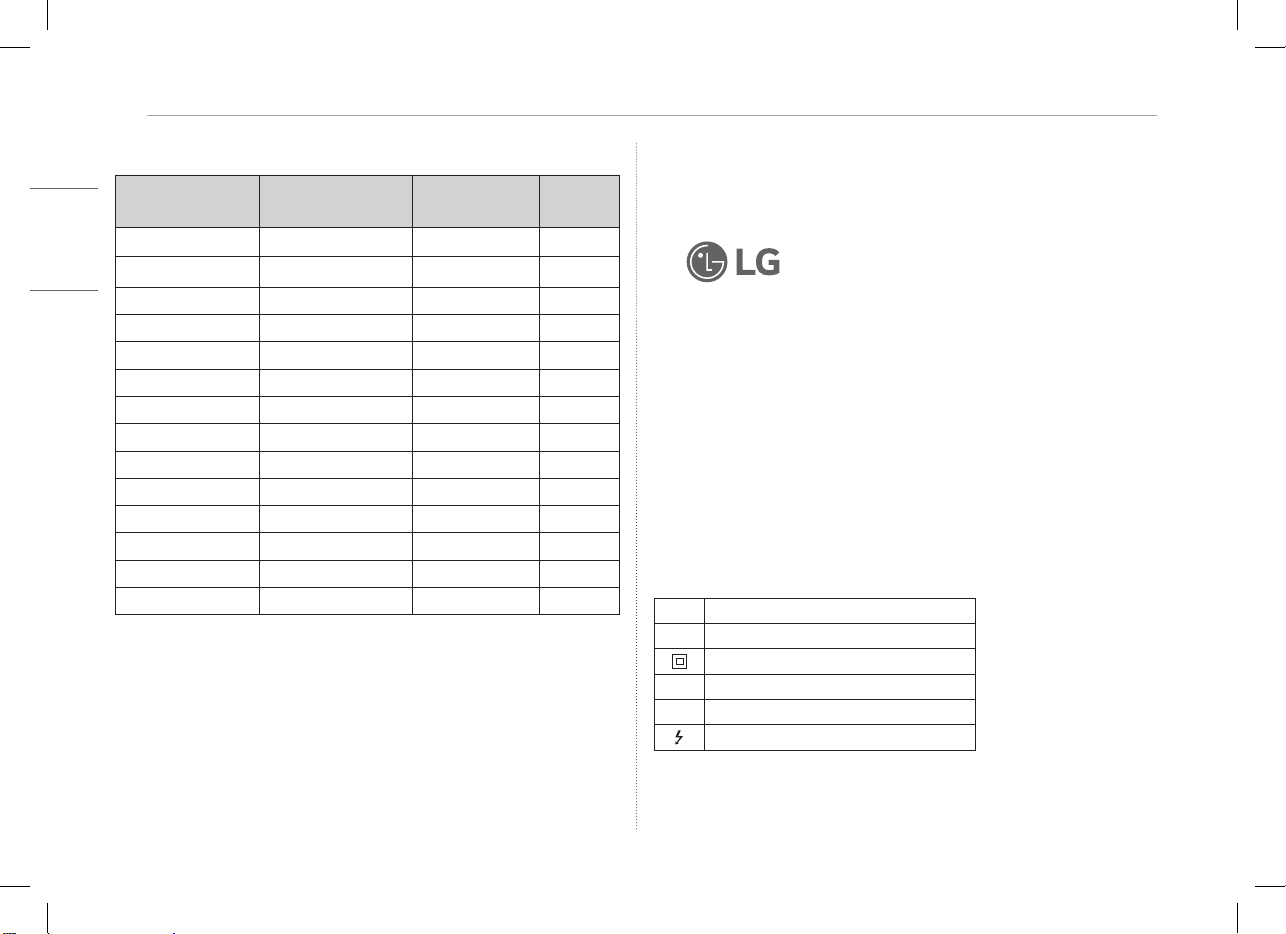
7
DEUTSCH
Anhang
Modus Werkseinstellung
Voreinstellungs-
Modus
Horizontalfrequenz
( kHz)
Vertikale
Frequenz (Hz)
Polarität
(H/V)
640x480 31,469 59,94 -/-
800x600 37,879 60,317 +/+
1024x768 48,363 60 -/-
1152x864 54,347 60,05 +/+
1280x720 45 60 +/+
1280x1024 63,981 60,02 +/+
1600x900 60 60 +/+
1680x1050 65,29 59,954 -/+
1920x1080 67.5 60 +/-
1920x1080 83,894 74,973 +/-
2560x1440 88,79 59,95 +/-
2560x1600 48,62 29,96 +/-
2560x1600 98,71 59,97 +/-
2560x1600 124,26 74,95 +/-
Eingetragenes Markenzeichen und Open Source Software
Informationen
USB Typ-C™ und USB-C™ sind Markenzeichen des USB Implementers Forum.
LG Logo ist ein eingetragenes Markenzeichen von
LG Electronics Inc.
Um den in diesem Produkt enthaltenen Quellcode unter der GPL, LGPL,
MPL und anderen Open-Source-Lizenzen, die zur Offenlegung des
Quellcodes verpflichten, zu erhalten und um Zugang zu allen genannten
Lizenzbedingungen, Copyright-Hinweisen und anderen relevanten Dokumenten
zu erhalten, besuchen Sie bitte https://opensource.lge.com.
LG Electronics bietet gegen eine kostendeckende Gebühr (Medium, Versand
und Bearbeitung) den Quellcode auf CD-ROM an. Senden Sie dazu eine Anfrage
per E-Mail an: opensourc[email protected].
Dieses Angebot gilt für jeden, der diese Informationen erhält, für einen
Zeitraum von drei Jahren nach der letzten Lieferung dieses Produkts.
Symbole
~
Bedeutet Wechselstrom (AC).
0
Bedeutet Gleichstrom (DC).
Bedeutet Gerät der Klasse II.
1
Bedeutet Bereitschaftsbetrieb.
!
Bedeutet “EIN” (Netz).
Bedeutet gefährliche Spannung.
16MQ70 Series
GEBRUIKERSHANDLEIDING
DRAAGBARE MONITOR
Voor een veilig en handig gebruik dient u deze gebruikershandleiding zorgvuldig door te lezen voordat u het product in gebruik neemt.
www.lg.com
Copyright © 2022 LG Electronics Inc. Alle rechten voorbehouden.
NEDERLANDS

1
NEDERLANDS
Belangrijke veiligheidsvoorzorgsmaatregelen
Belangrijke veiligheidsvoorzorgsmaatregelen ���������������������������� 1
Tijdens het gebruik van het product ������������������������������������������������������������������������������1
Controle van de componenten ������������������������������������������������������� 2
Het product ����������������������������������������������������������������������������������������� 3
Gebruiken van de folio-omslag ������������������������������������������������������� 3
Aansluiten van de monitor �������������������������������������������������������������� 4
Instellen van het scherm (uitbreidingsmodus) ��������������������������� 4
Schermhelderheid aanpassen ��������������������������������������������������������� 5
Software installeren�������������������������������������������������������������������������� 5
Checklist vóór technische ondersteuning ����������������������������������� 5
Bijlage ��������������������������������������������������������������������������������������������������� 6
Productspecificaties �����������������������������������������������������������������������������������������������������������6
Fabrieksinstellingen ������������������������������������������������������������������������������������������������������������7
Informatie over geregistreerde handelsmerken en open source-software ���������� 7
Symbolen ������������������������������������������������������������������������������������������������������������������������������7
Belangrijke veiligheidsvoorzorgsmaatregelen
Controleer vooraf de volgende “Belangrijke veiligheidsvoorzorgsmaatregelen”
om onverwacht gevaar of schade te voorkomen.
De “Belangrijke veiligheidsvoorzorgsmaatregelen” zijn onderverdeeld onder de
aanduidingen “Waarschuwing” en “Opgelet”.
!
WAARSCHUWING: Het niet naleven van de instructie kan ernstige fysieke
schade of dodelijk letsel veroorzaken.
!
OPGELET: Het niet naleven van de instructie kan licht letsel of schade aan
de machine veroorzaken
.
Tijdens het gebruik van het product
!
WAARSCHUWING
y
Gebruik het product op een veilige plaats waar
het product niet kan vallen.
y
Gebruik het product niet op een stoffige of
vochtige plaats.
y
Gebruik het product niet in een omgeving met
hoge of lage temperaturen.
y
Raak de voedingskabel niet aan met natte
handen.
y
Houd de voedingskabelpoort vrij van vreemde
stoffen.
y
Maak het product schoon met een gepast
reinigingsmiddel en maak het apparaat volledig
droog voordat u het opnieuw gebruikt.
Inhoudsopgave
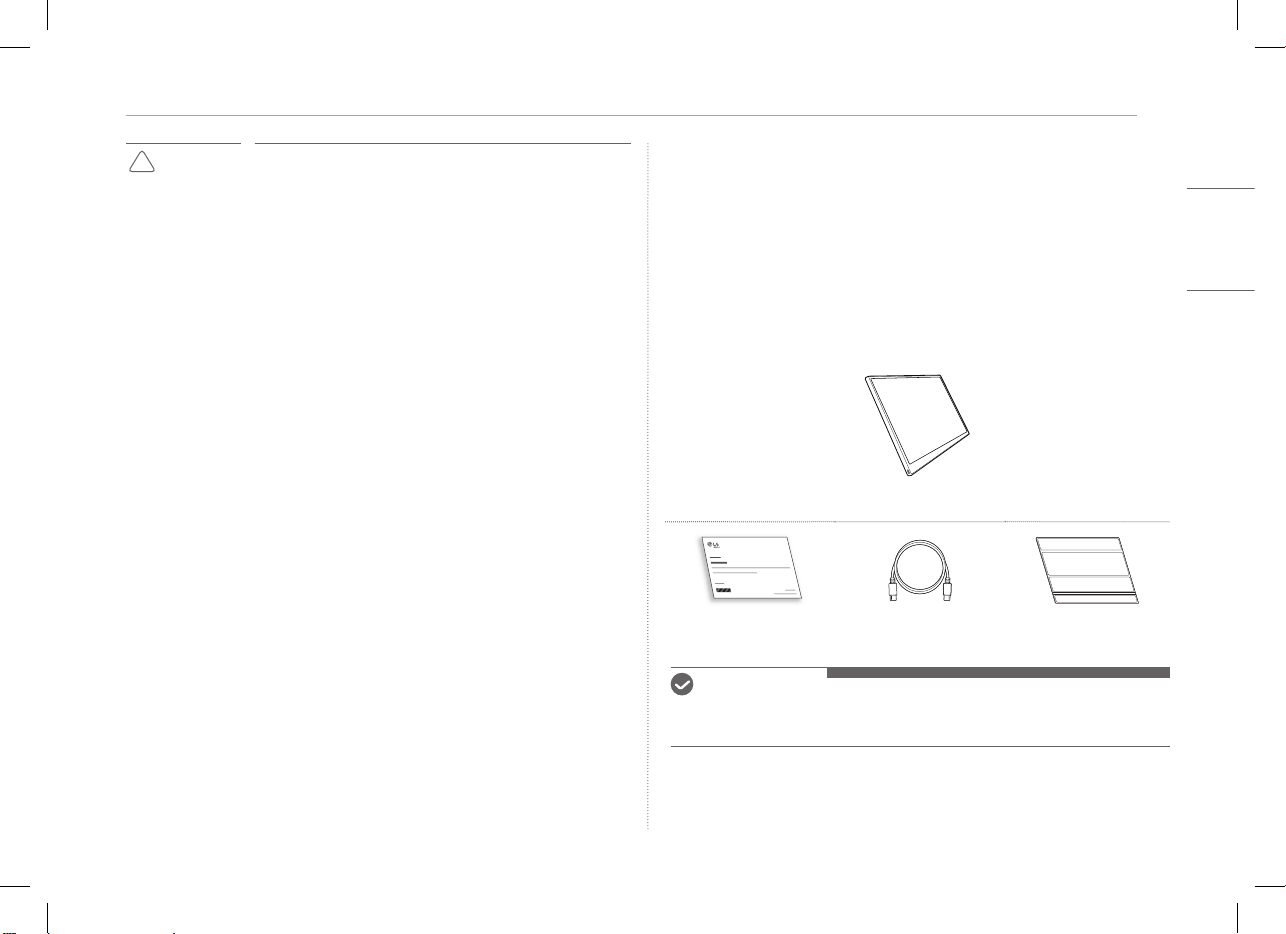
2Controle van de componenten
NEDERLANDS
!
OPGELET
y
Druk niet met de vingers op het monitorscherm en plaats
er geen voorwerpen op.
y
Tik of kras niet op het scherm met een scherp voorwerp.
y
Als het scherm beschadigd is, raak het dan niet met uw
handen aan.
y
Als een gepauzeerd beeld langere tijd op het scherm blijft
staan, kan dit leiden tot inbranden van het scherm.
y
Gebruik een screensaver, enz.
y
Wanneer de temperatuur laag is, kan het inschakelen
van de monitor kortstondig knipperen van het scherm
veroorzaken.
y
Als dit het geval is, ziet u misschien wat rode, groene en
blauwe vlekken op het scherm, maar dat is normaal.
Controle van de componenten
De onderstaande componenten worden meegeleverd wanneer u het product
aanschaft. Controleer de componenten vóór gebruik.
y
Sommige van de componenten kunnen er qua vorm en kleur anders uitzien dan
de afbeeldingen in bepaalde modellen.
y
Gebruik een speciaal reinigingsmiddel voor pc en monitor om het product te
reinigen.
Het gebruik van verdunners, benzeen, alcohol of andere gelijkaardige middelen
kan schade of vervorming van het product veroorzaken.
Frame van de monitor
Gebruikershandleiding USB-C™-kabel Foliohoes
OPMERKINGEN
y
De cijfers in de gebruikershandleiding kunnen zonder voorafgaande
kennisgeving worden gewijzigd.
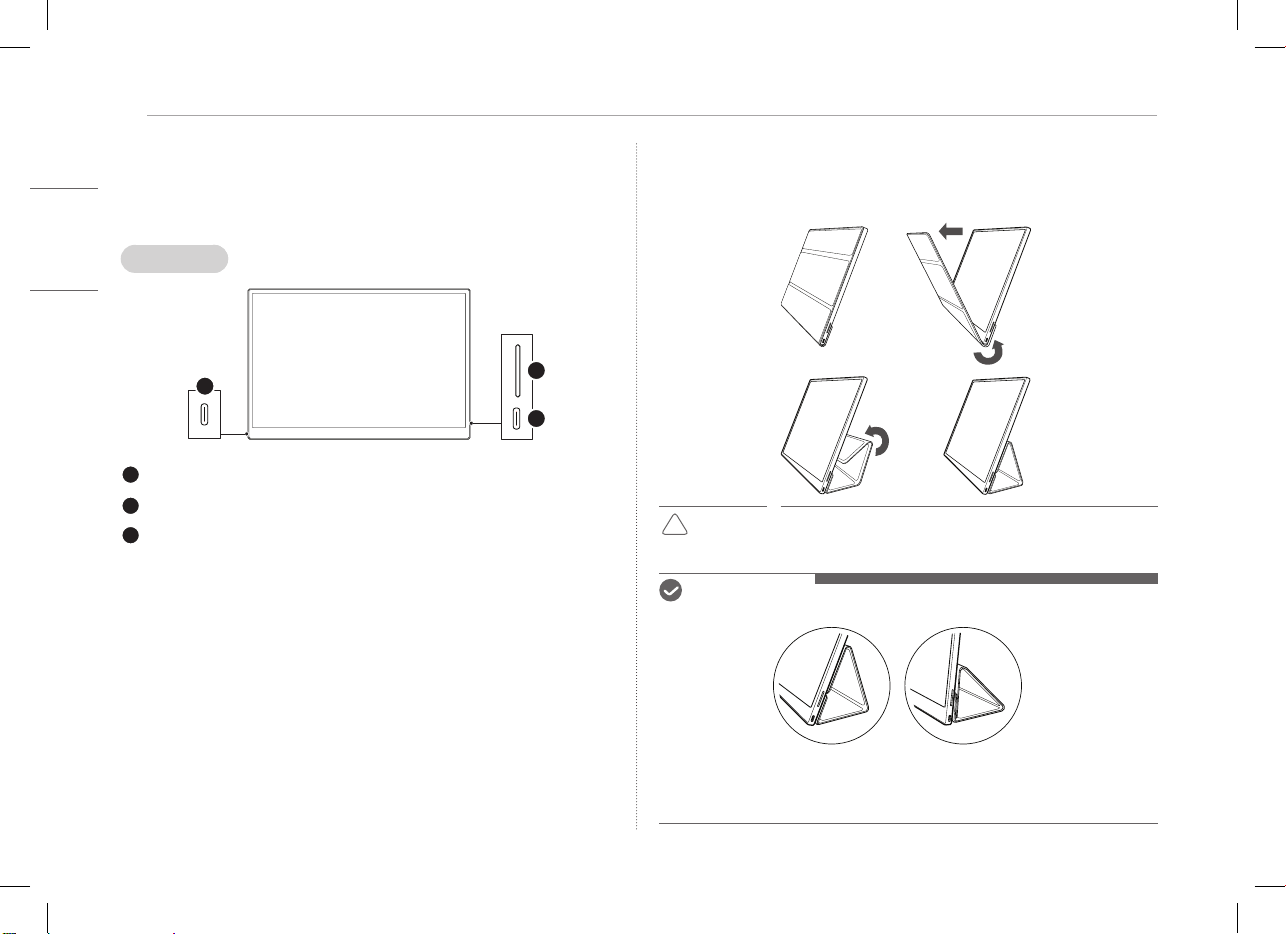
3
NEDERLANDS
Het product
Het product
Het product kan in vorm en kleur afwijken van de productafbeeldingen in deze
gebruiksaanwijzing.
Voorzijde
1
2
3
USB-C™-poort
USB-C™-poort
Knop voor schermhelderheid
Gebruiken van de folio-omslag
U kunt de foliohoes inklappen en als standaard gebruiken.
!
OPGELET
y
Wanneer u het product verplaatst, zorg er dan voor dat de
foliohoes erop zit om het scherm te beschermen.
OPMERKINGEN
y
Er zijn twee hoeken beschikbaar voor het gebruik van de foliohoes.
y
De foliohoes kan alleen in de horizontale stand worden gebruikt.
y
De foliohoes is een verbruiksartikel en kan tijdens het gebruik beschadigd raken.
U kunt de foliohoes apart aanschaffen bij het LG Electronics-servicecentrum.
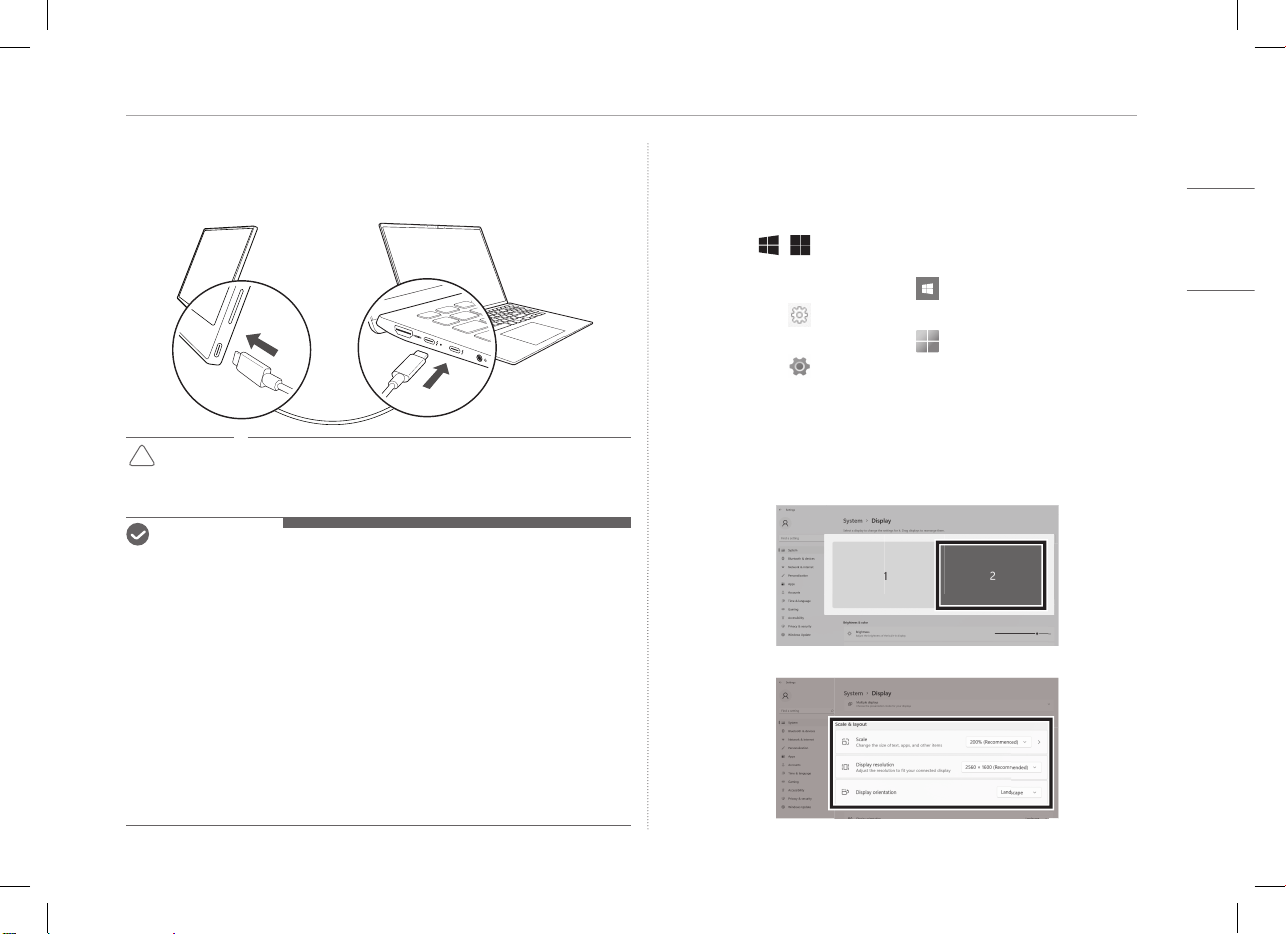
4Aansluiten van de monitor
NEDERLANDS
Aansluiten van de monitor
Sluit de USB-C™-poorten van de monitor en de pc aan met de USB-C™-kabel.
!
OPGELET
y
Gebruik geen ander type kabel dan een USB-C™-kabel
voor deze aansluiting. Als u dat wel doet, kan de connector
beschadigd raken.
OPMERKINGEN
y
Dit product is uitsluitend ontworpen voor gebruik met een laptop. Het apparaat
dat op de monitor moet worden aangesloten, moet DisplayPort Alternate Mode
(DP Alt Mode) en stroomuitvoer (USB PD) bij 7,5 W (5 V / 1,5 A) of hoger
ondersteunen.
y
De
USB-C™
-poort ondersteunt slechts één aansluiting en geen meervoudige
aansluitingen.
y
Gebruik de
USB-C™
-kabel die bij de monitor is geleverd voor aansluiting. Als een
kabel voor een ander product wordt gebruikt, kan dit een abnormale werking
van het scherm veroorzaken.
y
Als de batterij van het apparaat dat op de monitor is aangesloten bijna leeg is,
kan de verbinding verbroken worden.
y
Deze monitor ondersteunt de plug-en-play functie.
(Plug-en-play: Wanneer een apparaat op een pc wordt aangesloten, herkent
de pc automatisch het aangesloten apparaat zonder dat de gebruiker
omgevingsinstellingen hoeft te doen).
Instellen van het scherm (uitbreidingsmodus)
Als u de draagbare monitor instelt op de uitbreidingsmodus, kunt u de
schermverhouding en de indeling instellen.
1 Druk op
[
/ ] of
[Ctrl] + [ESC] op uw toetsenbord om het Startmenu
op te roepen.
y
Windows 10: Druk op de Startknop [ ] en selecteer vervolgens
Instellingen [
].
y
Windows 11: Druk op de Startknop [ ] en selecteer vervolgens
Instellingen [
]
op dit startscherm.
2 Wanneer het scherm Instellingen verschijnt, selecteert u [Systeem] >
[Beeldscherm].
3 Windows 10: Selecteer [Deze beeldschermen uitbreiden] onder
[Meerdere beeldschermen].
Windows 11: Selecteer [Deze beeldschermen uitbreiden].
4 Selecteer monitor 2.
5 Wijzig de instellingen zoals gewenst onder [Schaal en indeling].
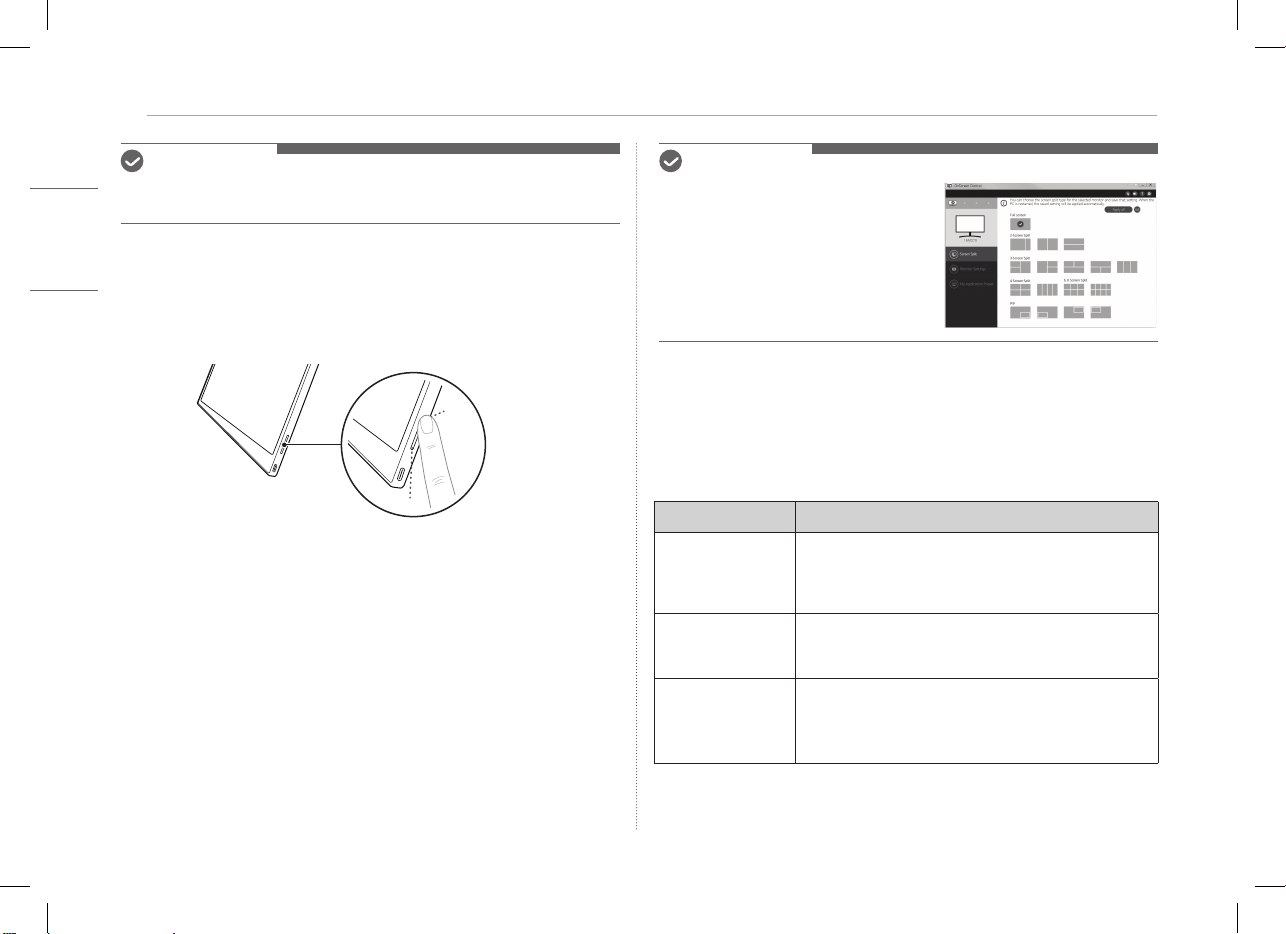
5
NEDERLANDS
Schermhelderheid aanpassen
OPMERKINGEN
y
De afbeelding is slechts representatief en kan variëren afhankelijk van de
Windows-versie en de taal van het land.
Schermhelderheid aanpassen
Met de knop schermhelderheid rechts op de monitor kunt u de
schermhelderheid aanpassen.
Software installeren
Installeer OnScreen Control en gebruik verschillende functies zoals scherm
opsplitsen, monitor instellingen, en scherm omschakelen gemakkelijk en handig.
1 Bezoek de LG Electronics website (http://lg.com).
2 Selecteer de menuoptie “SERVICE” en zoek naar het productmodel.
3 Selecteer “OnScreen Control” en start de installatie van de software.
OPMERKINGEN
y
Nadat OnScreen Control is geïnstalleerd,
kunt u zien hoe u het moet gebruiken in
het Help-menu in de app.
y
OnScreen Control is alleen beschikbaar
voor Windows.
y
De functie Automatische schermrotatie
is alleen beschikbaar wanneer
OnScreen Control is ingeschakeld.
Checklist vóór technische ondersteuning
Als de volgende problemen optreden tijdens het gebruik van het product,
controleer het dan opnieuw.
Misschien is er geen spraken van een storing.
Probleem Oorzaak en oplossing
Het scherm blijft leeg
of de verbinding is
onstabiel.
y
Controleer of het apparaat dat op de monitor is
aangesloten DisplayPort Alternate Mode
(DP Alt Mode) en USB Power Delivery (USB PD)
ondersteunt.
De stroom wordt niet
ingeschakeld.
y
Controleer of u het apparaat goed kunt aansluiten op
de monitor met de
USB-C™
-kabel die bij de monitor
wordt geleverd.
Het ondersteunde
frequentiebereik
van de monitor is
overschreden.
y
Dit verschijnsel treedt op wanneer het signaal dat
door de pc wordt uitgezonden het horizontale of
verticale frequentiebereik overschrijdt. Raadpleeg de
fabrieksinstellingen en stel de frequentie opnieuw in.
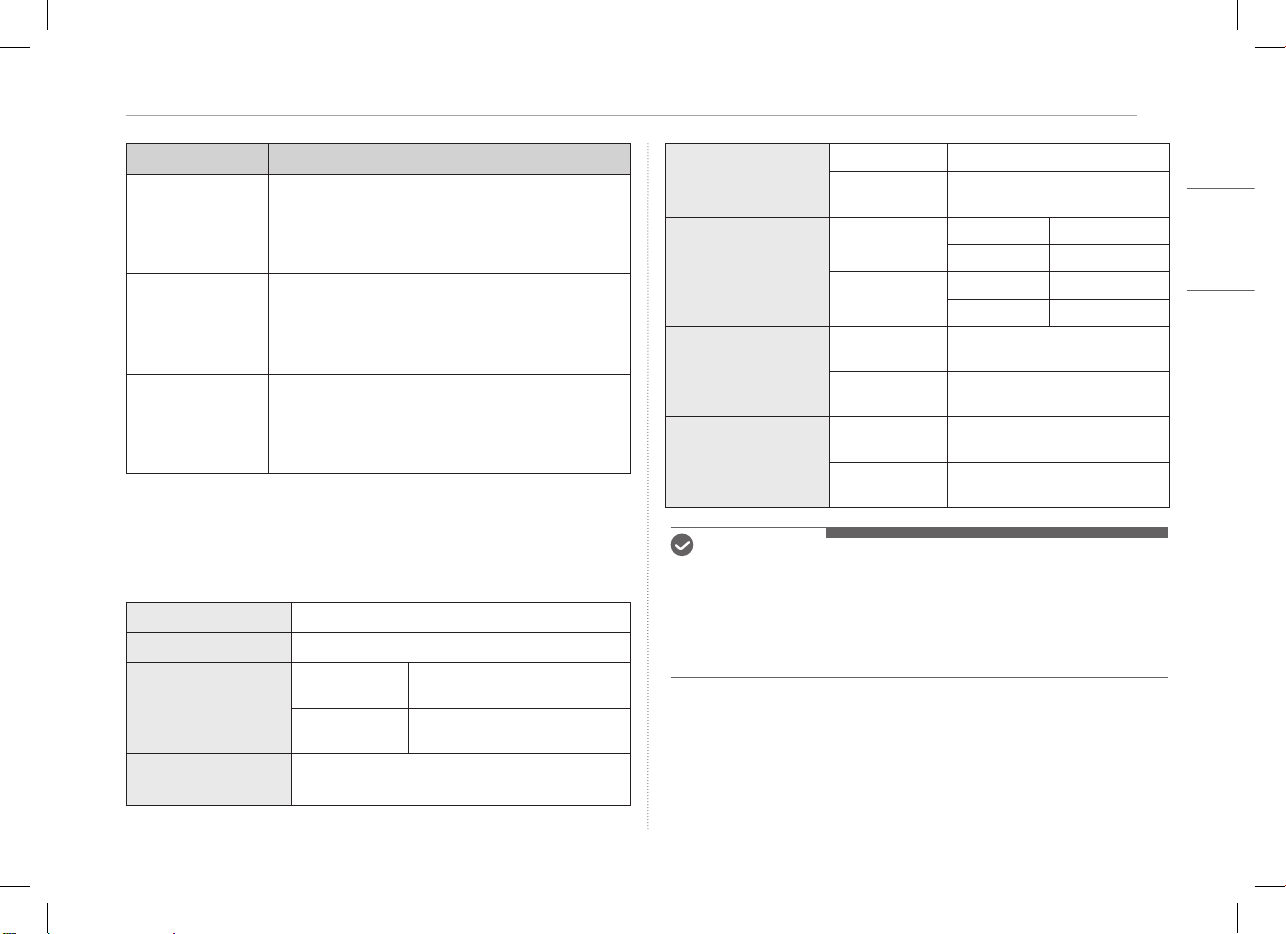
6Bijlage
NEDERLANDS
Probleem Oorzaak en oplossing
Het scherm ziet er
onduidelijk uit.
y
Als u de schermresolutie instelt op een andere dan
de aanbevolen (optimale) resolutie, kan dit leiden tot
wazige tekst of het dimmen, bijsnijden of kantelen van
het scherm. Gebruik de aanbevolen instelling voor de
schermresolutie.
Het inbranden van
het scherm blijft
ook als de stroom is
uitgeschakeld.
y
Als een vast scherm langere tijd aan staat, kan dit
schade aan het scherm veroorzaken en tot inbranden
leiden.
y
Gebruik een screensaver om de monitor gedurende
lange tijd te gebruiken.
Er zijn vlekken op het
scherm.
y
Het is mogelijk dat u enkele pixelvlekjes (rood, groen,
blauw, wit, zwart) op het scherm ziet terwijl u de
monitor gebruikt. Dit is een normaal verschijnsel van
een LCD-scherm. Dit heeft niets te maken met de
prestaties van de monitor en is geen abnormaliteit.
Bijlage
Productspecicaties
Beeldscherm
40,6 cm IPS LCD
Kleurdiepte
16,7 miljoen kleuren (8 bits)
Resolutie
Maximale
resolutie
2560 x 1600 @ 60 Hz
Aanbevolen
resolutie
2560 x 1600 @ 60 Hz
Ondersteunde
weergavestandaard
DisplayPort Alternate Mode (DP Alt Mode)
Stroom
Nominaal
5 V
0
2 A
Stroomverbruik
Bedrijfsmodus: 8 W algemeen
(fabrieksinstelling)*
Omgeving
Werking
Temperatuur 0 °C tot 40 °C
Vochtigheid Lager dan 80 %
Opslag
Temperatuur -20 °C tot 60 °C
Vochtigheid 85 % of lager
Afmetingen
(zonder verpakking)
Met een
foliohoes
362 (breedte) x 249 (hoogte) x 11,3
mm (dikte)
Zonder een
foliohoes
360 (breedte) x 245,5 (hoogte) x 8,3
mm (dikte)
Gewicht
(zonder verpakking)
Met een
foliohoes
Ong. 990 g
Zonder een
foliohoes
Ong. 670 g
OPMERKINGEN
y
* Het stroomverbruik in de Aan-stand is gemeten onder de standaard
testomstandigheden van LGE (volledig wit patroon, maximale resolutie).
y
De productspecificaties kunnen zonder voorafgaande kennisgeving worden
gewijzigd om het product te verbeteren.
y
Het stroomverbruik kan verschillen afhankelijk van de bedrijfsomstandigheden
en de monitorinstellingen.
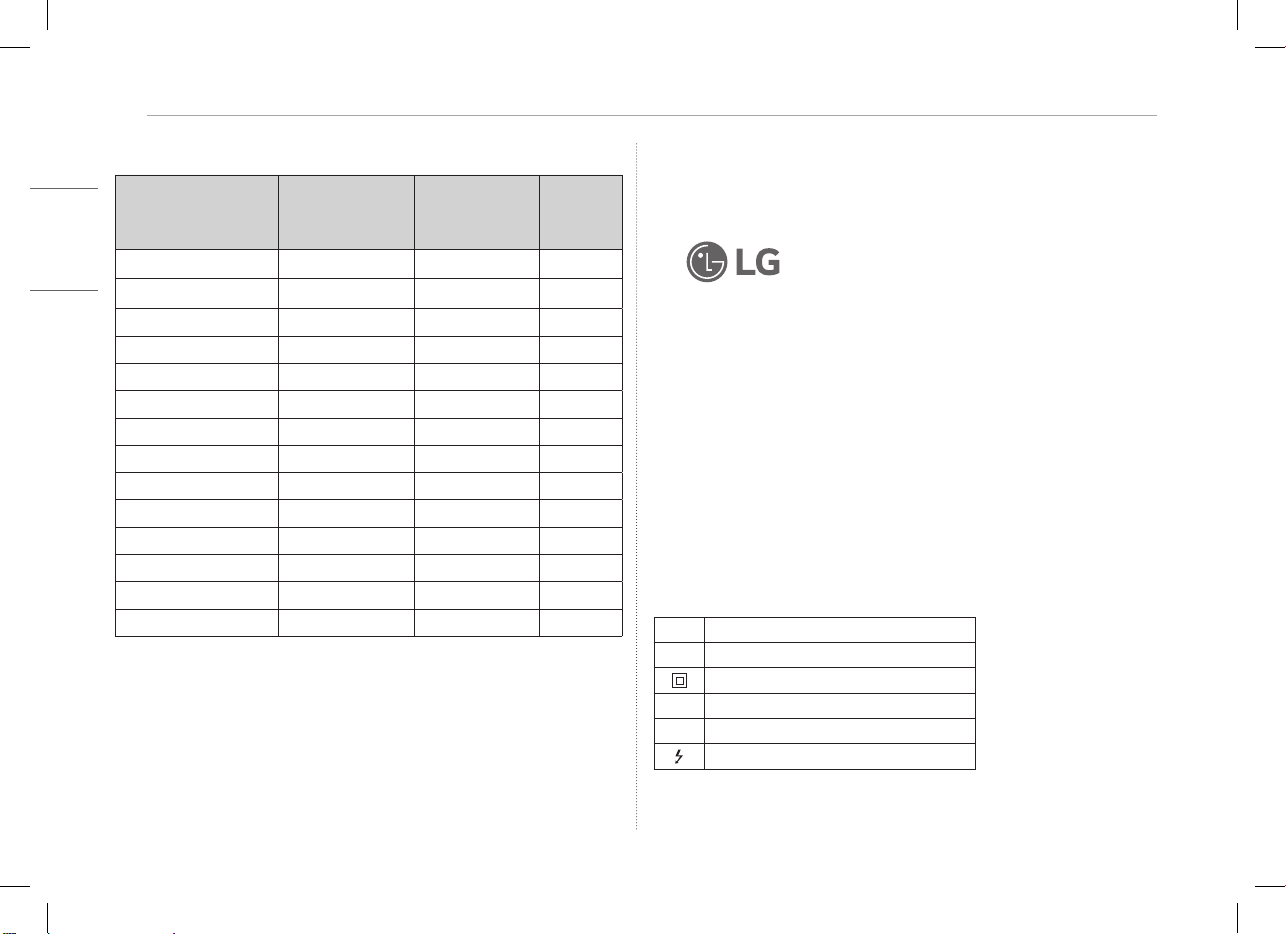
7
NEDERLANDS
Bijlage
Fabrieksinstellingen
Modus
fabrieksinstellingen
Horizontale
frequentie
(kHz)
Verticale
frequentie
(Hz)
Polariteit
(H/V)
640 x 480 31,469 59,94 -/-
800 x 600 37,879 60,317 +/+
1024 x 768 48,363 60 -/-
1152 x 864 54,347 60,05 +/+
1280 x 720 45 60 +/+
1280 x 1024 63,981 60,02 +/+
1600 x 900 60 60 +/+
1680 x 1050 65,29 59,954 -/+
1920 x 1080 67,5 60 +/-
1920 x 1080 83,894 74,973 +/-
2560 x 1440 88,79 59,95 +/-
2560 x 1600 48,62 29,96 +/-
2560 x 1600 98,71 59,97 +/-
2560 x 1600 124,26 74,95 +/-
Informatie over geregistreerde handelsmerken en open
source-software
USB Type-C™ en USB-C™ zijn handelsmerken van USB Implementers Forum.
Het LG-logo is een geregistreerd handelsmerk van
LG Electronics Inc.
Om de broncode te verkrijgen onder GPL, LGPL, MPL, en andere open source
licenties die de verplichting hebben broncode vrij te geven, die in dit product is
opgenomen, en om toegang te krijgen tot alle genoemde licentievoorwaarden,
copyrightkennisgevingen en andere relevante documenten, bezoek
https://opensource.lge.com.
LG Electronics zal u tevens open-source code ter beschikking stellen op
CD-ROM tegen de kostprijs van verspreiding (zoals de kosten voor media,
verzending en handling) na ontvangst van een verzoek per e-mail naar
opensourc[email protected].
Dit aanbod is geldig voor iedereen die deze informatie ontvangt voor een
periode van drie jaar na onze laatste verzending van dit product.
Symbolen
~
Verwijst naar wisselstroom (AC).
0
Verwijst naar gelijkstroom (DC).
Verwijst naar klasse II apparatuur.
1
Verwijst naar stand-by.
!
Verwijst naar "AAN" (stroom)
Verwijst naar gevaarlijk voltage.
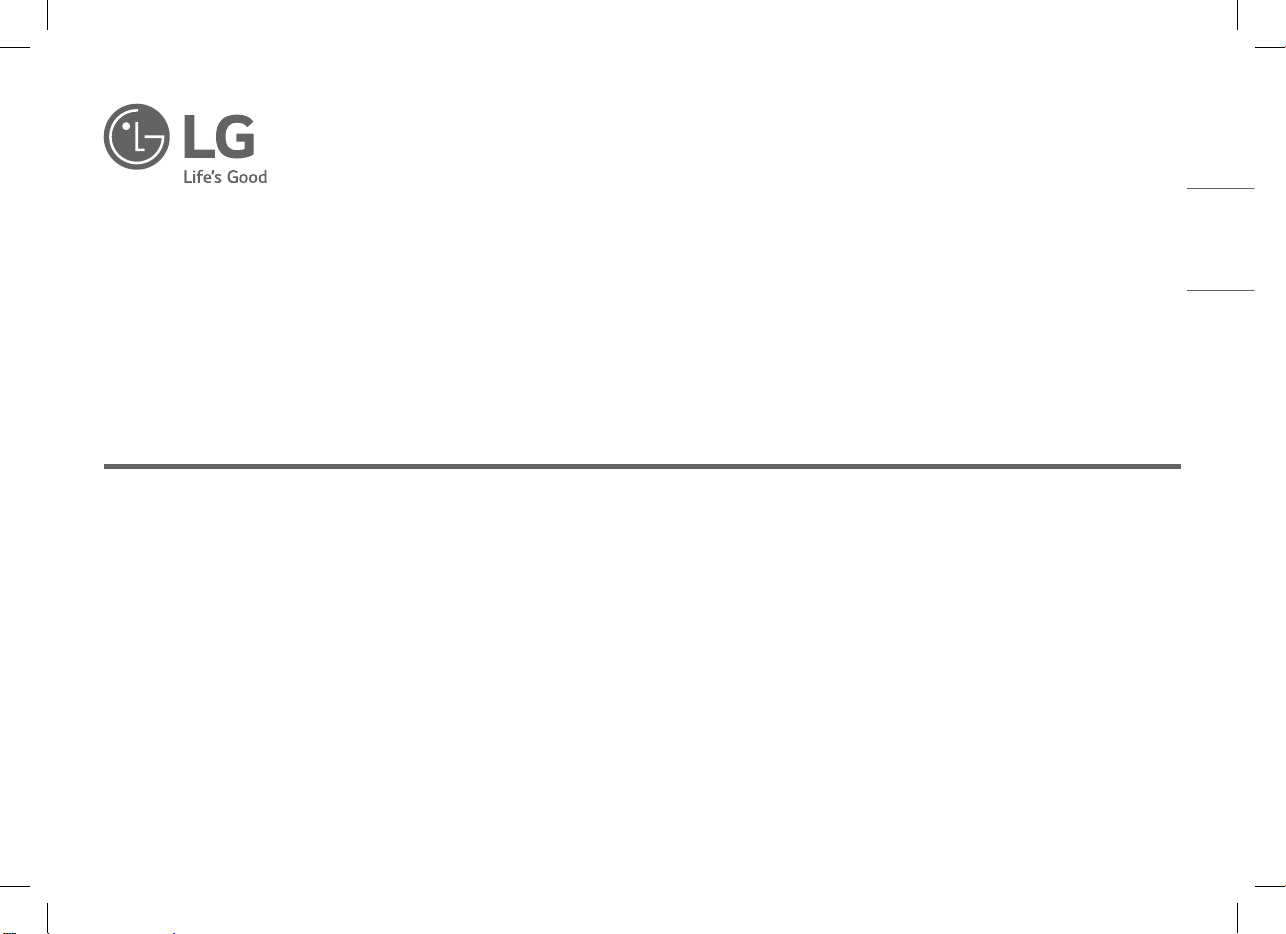
Série 16MQ70
MANUEL D’UTILISATEUR
MONITEUR PORTABLE
Pour une utilisation sûre et pratique, veuillez lire attentivement ce manuel d’utilisateur avant de commencer à utiliser le produit.
www.lg.com
Copyright© 2022 LG Electronics Inc. Tous droits réservés
FRANÇAIS
1
FRANÇAIS
Précautions de sécurité importantes
Précautions de sécurité importantes ������������������������������������������ 1
Lors de l’utilisation du produit�����������������������������������������������������������������������������������������1
Vérification des composants ���������������������������������������������������������� 2
Découverte du produit �������������������������������������������������������������������� 3
Utilisation de la coque Folio ����������������������������������������������������������� 3
Connexion d’un moniteur ���������������������������������������������������������������� 4
Réglage de l’écran (mode extension) ������������������������������������������� 4
Réglage de la luminosité de l’écran ���������������������������������������������� 5
Installation logicielle ������������������������������������������������������������������������ 5
Liste de contrôle de support pré-technique ������������������������������ 5
Annexe ������������������������������������������������������������������������������������������������� 6
Caractéristiques du produit ���������������������������������������������������������������������������������������������6
Mode Usine par défaut ������������������������������������������������������������������������������������������������������ 6
Informations sur le logiciel Open Source et marque déposée ���������������������������������7
Symboles ������������������������������������������������������������������������������������������������������������������������������� 7
Précautions de sécurité importantes
Vérifiez au préalable les «Précautions de sécurité importantes» suivantes
pour éviter tout dommage ou danger inattendu.
La rubrique «Précautions de sécurité importantes» est divisée en
«Avertissement» et «Mise en garde».
!
AVERTISSEMENT: le non-respect des instructions pourrait causer
des dommages physiques graves ou des blessures
mortelles.
!
MISE EN GARDE: le non-respect des instructions pourrait causer des
dommages mineurs à l’appareil ou aux personnes
.
Lors de l’utilisation du produit
!
AVERTISSEMENT
y
Utilisez le produit dans un endroit sûr sans aucun
risque de chute du produit.
y
N’utilisez pas le produit dans un endroit
poussiéreux ou humide.
y
N’utilisez pas le produit dans un environnement à
haute ou basse température.
y
Ne touchez pas le cordon d’alimentation si vous
avez les mains mouillées.
y
Maintenez le câble d’alimentation exempt de
toutes substances étrangères.
y
Nettoyez le produit avec un agent approprié et
assurez-vous qu’il soit complètement sec avant
de le réutiliser.
Contenu
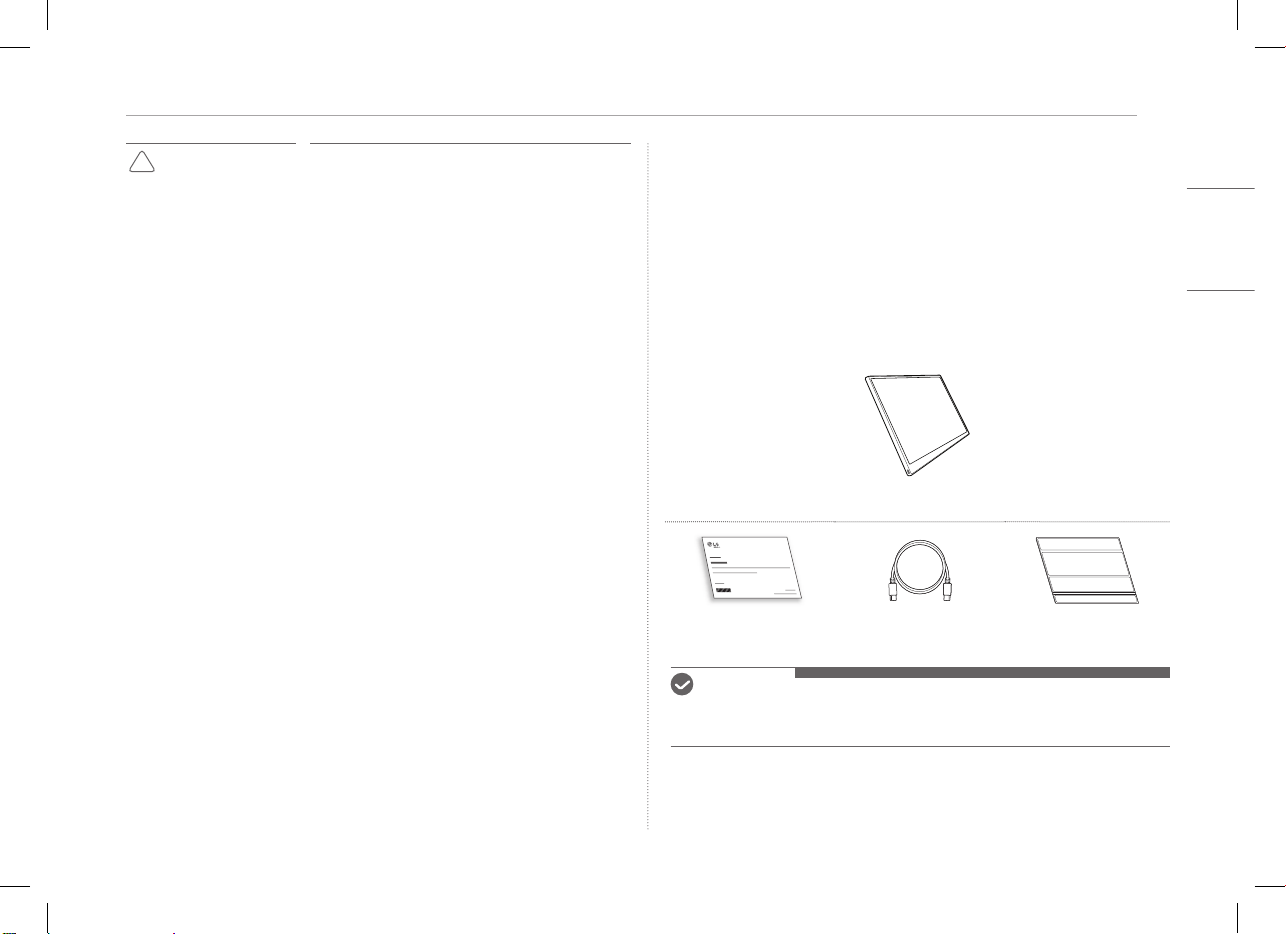
2Vérification des composants
FRANÇAIS
!
MISE EN GARDE
y
N’appuyez pas sur l’écran avec vos doigts, et ne
placez pas d’objets dessus.
y
Ne touchez pas ou n’éraflez pas l’écran avec un
objet pointu.
y
Si l’écran est endommagé, ne le touchez pas avec
vos mains.
y
Le fait de conserver une image en pause sur l’écran
pendant une longue période peut entraîner une
rémanence de l’écran.
y
Utilisez un écran de veille, etc.
y
Quand la température est basse, la mise
sous tension du moniteur peut provoquer un
clignotement momentané de l’écran.
y
Dans ce cas, vous pouvez observer des taches
rouges, vertes et bleues sur l’écran mais cela est
normal.
Vérification des composants
Lorsque vous achetez le produit, les composants illustrés ci-dessous sont
fournis. Vérifiez les composants avant de les utiliser.
y
Certains de ses composants peuvent apparaître sous une forme ou teinte
différente par rapport aux illustrations en fonction des modèles.
y
Pour nettoyer le produit, veuillez utiliser un produit de nettoyage spécial pour
ordinateurs et écrans.
Si vous utilisez du diluant, du benzène, de l’alcool ou d’autres agents similaires, le
produit peut être endommagé ou déformé.
Corps du moniteur
Manuel d’utilisateur Câble USB-C™ Coque Folio
REMARQUE
y
Les illustrations mentionnées dans le guide d’utilisation sont susceptibles d’être
modifiées sans préavis.
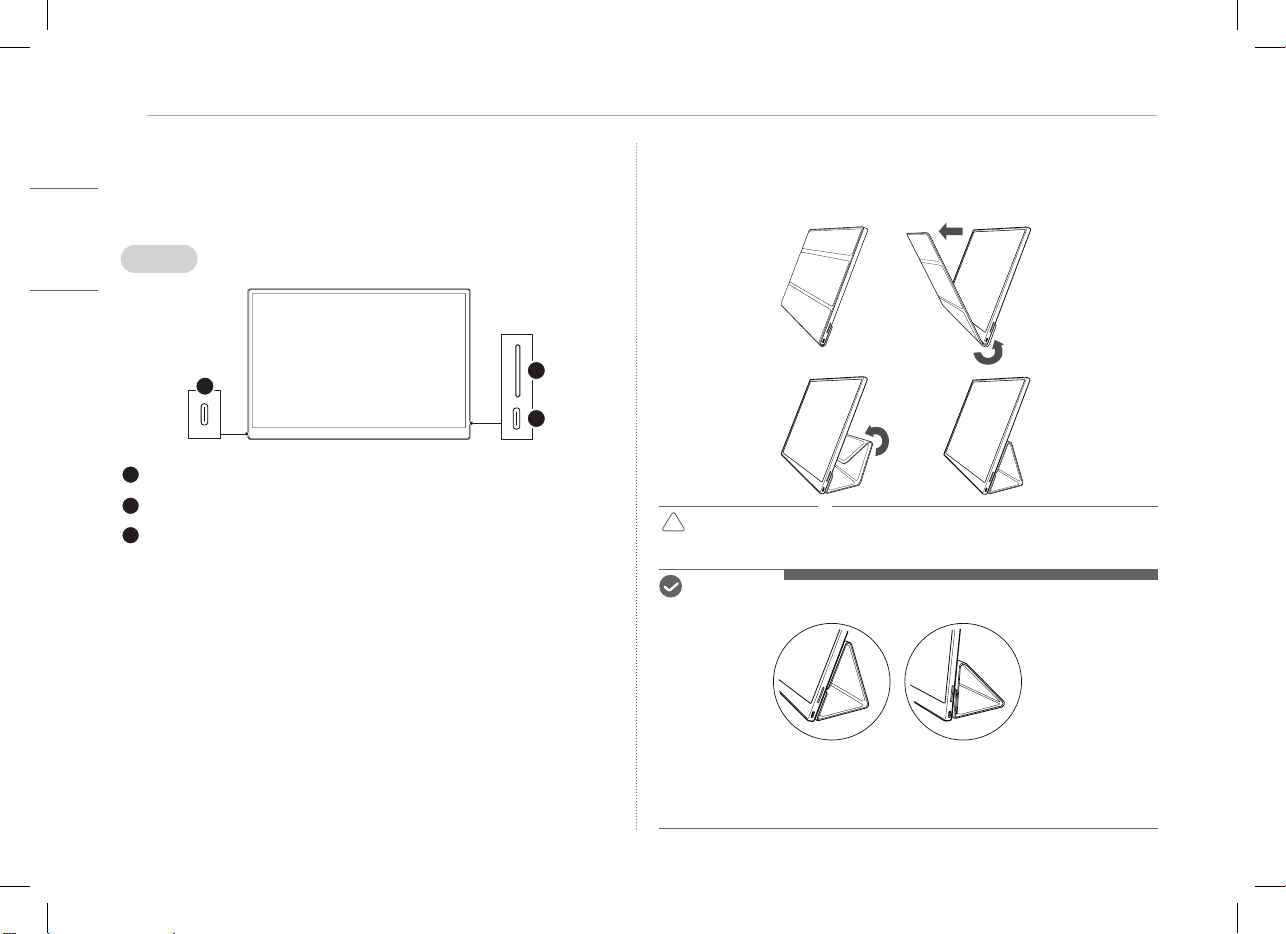
3
FRANÇAIS
Découverte du produit
Découverte du produit
Le produit peut avoir un aspect différent (forme, couleurs) des images du
produit illustrées dans ce manuel d’utilisateur.
Avant
1
2
3
Port USB-C™
Port USB-C™
Touche de luminosité de l’écran
Utilisation de la coque Folio
Vous pouvez replier la coque Folio et l’utiliser comme support.
!
MISE EN GARDE
y
Lorsque vous déplacez le produit, assurez-vous de
laisser la coque Folio dessus afin de protéger l’écran.
REMARQUE
y
Il existe deux inclinaisons possibles pour la coque Folio.
y
La coque Folio peut uniquement être utilisée en mode horizontal.
y
La coque Folio est un consommable pouvant être endommagé pendant son
utilisation. Vous pouvez acheter séparément des coques Folio auprès du centre
de services de LG Electronics.
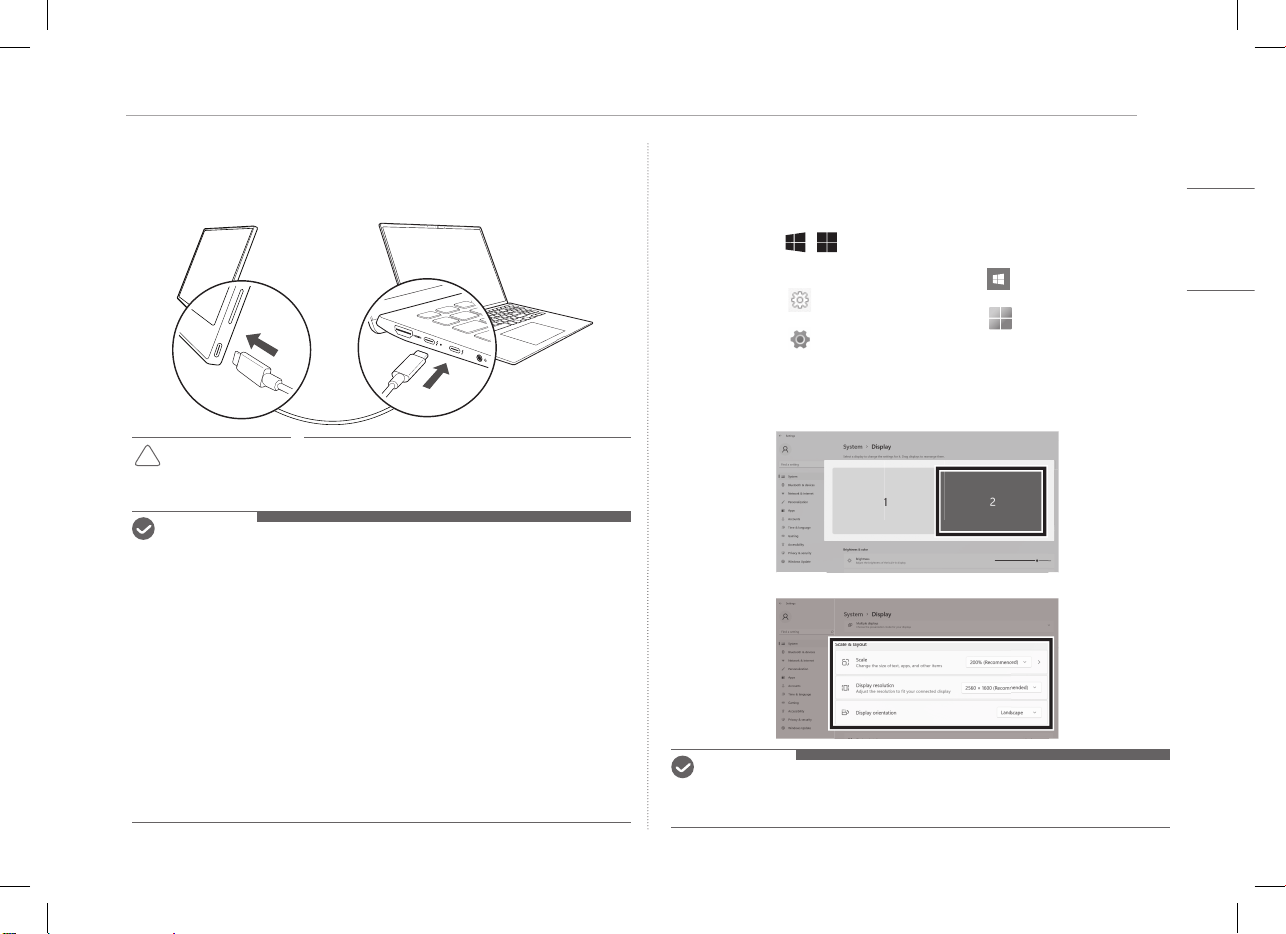
4Connexion d’un moniteur
FRANÇAIS
Connexion d’un moniteur
Connectez les ports USB-C™ au moniteur et au PC à l’aide du câble USB-C™.
!
MISE EN GARDE
y
N’utilisez pas d’autre type de câble qu’un câble
USB-C™ pour effectuer cette connexion. Cela
pourrait endommager le connecteur.
REMARQUE
y
Ce produit est conçu pour n’être utilisé qu’avec un ordinateur portable. Le
périphérique à connecter au moniteur doit prendre en charge le mode alternatif
DisplayPort (Mode DP Alt) et une sortie d’alimentation (USB PD) à 7,5W
(5V/1,5A) ou supérieure.
y
Le port
USB-C™
ne prend en charge qu’une seule connexion et ne prend pas en
charge les connexions multiples.
y
Utilisez le câble
USB-C™
fourni avec le moniteur pour effectuer la connexion. Si
vous utilisez un câble d’un autre produit, cela peut entraîner un fonctionnement
anormal de l’écran.
y
Si le périphérique connecté au moniteur a peu de batterie, la connexion peut
être perdue.
y
Ce moniteur prend en charge la fonction plug-and-play.
(Plug-and-play: lorsqu’un périphérique est connecté à un PC, le PC reconnaît
automatiquement le périphérique connecté sans que l’utilisateur n’effectue
aucun réglage d’environnement.)
Réglage de l’écran (Mode Extension)
Si vous configurez le moniteur portable sur le Mode Extension, vous pouvez
définir le rapport d’écran et sa disposition.
1 Appuyez sur
[
/ ] ou sur
[Ctrl] + [Échap] sur votre clavier pour accéder
au menu Démarrer.
y
Windows10: appuyez sur le bouton Démarrer [
] puis sélectionnez les
paramètres [
].
y
Windows11: Appuyez sur le bouton Démarrer [
] puis sélectionnez les
paramètres [ ]
sur l’écran de démarrage.
2 Lorsque l’écran des paramètres s’affiche, sélectionnez [Système] > [Affichage].
3 Windows10: sélectionnez [Étendre ces affichages] dans [Plusieurs affichages].
Windows11: sélectionnez [Étendre ces affichages].
4 Sélectionnez le moniteur2.
5 Modifiez les paramètres à votre choix dans [Mise à l’échelle et disposition].
REMARQUE
y
L’image n’est donnée qu’à titre représentatif et peut varier en fonction de la
version de Windows et de la langue du pays.
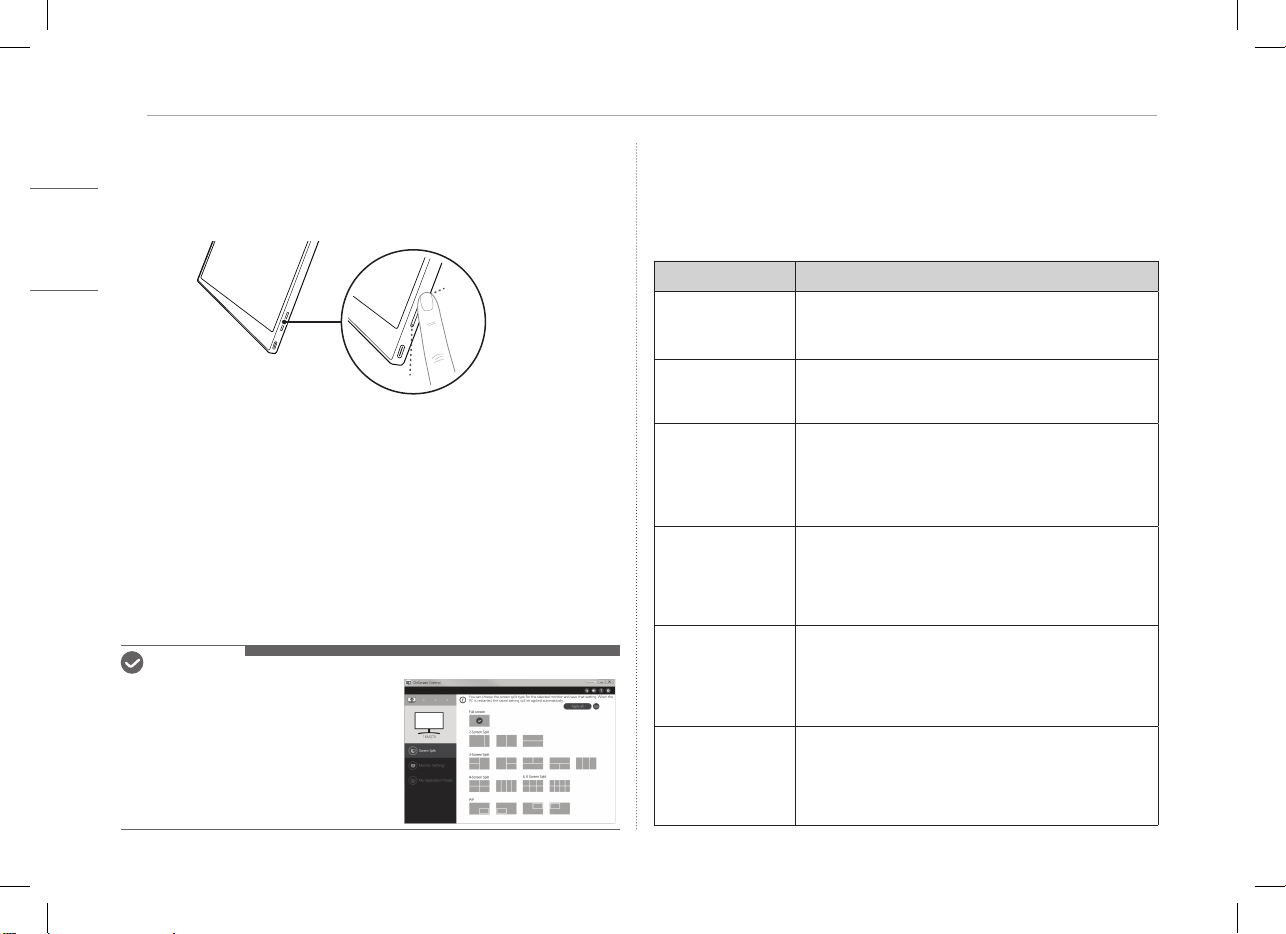
5
FRANÇAIS
Réglage de la luminosité de l’écran
Réglage de la luminosité de l’écran
Vous pouvez utilisez la touche de luminosité de l’écran située à droite du
moniteur pour régler la luminosité de l’écran.
Installation logicielle
Installez OnScreen Control et utilisez diverses fonctions telles que le
fractionnement d’écran, les réglages du moniteur, et le passage facile et
pratique entre les écrans.
1 Visitez le site Web de LG Electronics (https://www.lg.com/fr).
2 Sélectionnez l’option de menu «SERVICE CLIENTS» et recherchez le modèle
du produit.
3 Sélectionnez «OnScreen Control» puis commencez à installer le logiciel.
REMARQUE
y
Lorsque OnScreen Control est installé,
vous pouvez voir comment l’utiliser depuis
le menu Aide intégré à l’application.
y
OnScreen Control est uniquement
disponible pour Windows.
y
La fonction de rotation automatique de
l’écran est uniquement disponible si
OnScreen Control est activé.
Liste de contrôle de support pré-technique
Si les symptômes suivants apparaissent lors de l’utilisation du produit, vérifiez-
les une nouvelle fois.
Il ne s’agit peut-être pas d’un dysfonctionnement.
Symptôme Cause et solution
L’écran demeure blanc
ou la connexion est
instable.
y
Vérifiez si le périphérique connecté au moniteur prend
en charge le mode alternatif DisplayPort (mode DP Alt)
et une alimentation par USB (USB PD).
L’alimentation ne se
met pas en route.
y
Vérifiez si vous pouvez connecter correctement le
périphérique au moniteur à l’aide du câble
USB-C™
fourni avec le moniteur.
La gamme de
fréquences prise
en charge par le
moniteur a été
dépassée.
y
Ce phénomène se produit lorsque le signal envoyé par
le PC dépasse la gamme de fréquences horizontales
ou verticales. Reportez-vous aux paramètres du mode
Usine et réinitialisez la fréquence.
L’écran ne semble pas
net.
y
Régler la résolution de l’écran sur une résolution autre
que celle recommandée (optimale) peut provoquer un
texte flou ou provoquer l’affaiblissement, le rognage
ou l’inclinaison de l’écran. Utilisez le paramètre
recommandé de résolution d’écran.
La rémanence de
l’écran demeure
même hors tension.
y
Sachez que le fait d’avoir un écran fixe pendant une
période prolongée peut endommager l’affichage et
entraîner la rémanence de l’écran.
y
Pour utiliser le moniteur pendant une longue période,
utilisez un écran de veille.
Il y a des taches sur
l’écran.
y
Quelques zones de pixels (rouges, vertes, bleues,
blanches et noires) pourraient être visibles sur le
moniteur. Il s’agit d’un phénomène normal pour un écran
LCD. Cela n’a rien à voir avec le rendement de l’écran et
n’a rien d’anormal.
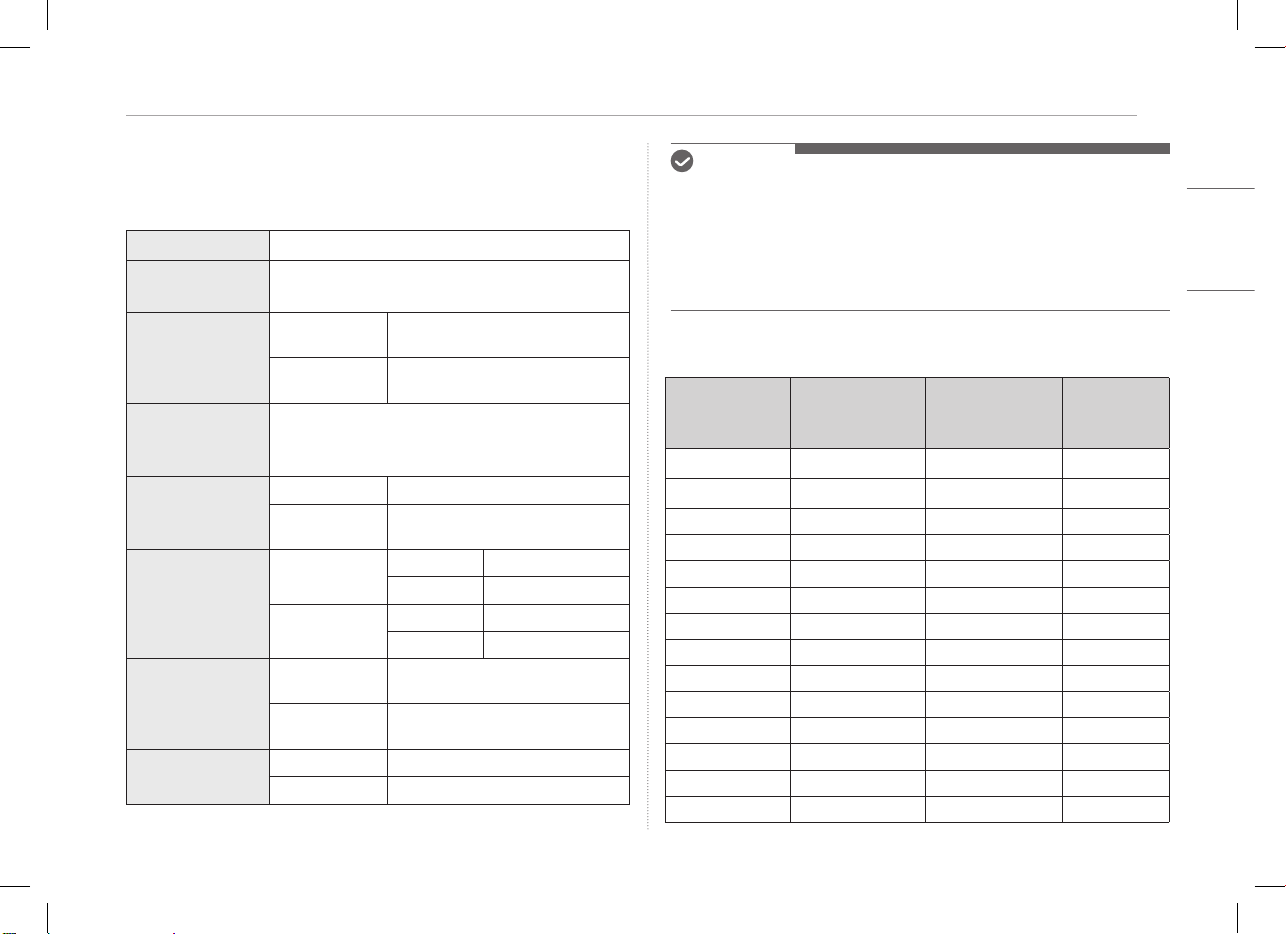
6Annexe
FRANÇAIS
Annexe
Caractéristiques du produit
Affichage
Écran à cristaux liquides (LCD) IPS de 40,6cm
Intensité de
couleurs
16,7millions de couleurs (8bits)
Résolution
Résolution
maximale
2560 x 1600 @ 60Hz
Résolution
conseillée
2560 x 1600 @ 60Hz
Affichage
standard pris en
charge
Mode alternatif DisplayPort (mode DP Alt)
Alimentation
Nominale
5V
0
2A
Consommation
électrique
Mode de fonctionnement: 8W
général (valeurs d’usine par défaut)*
Environnement
Fonctionnement
Température entre 0°C et 40°C
Humidité Inférieure à 80%
Entreposage
Température entre -20°C et 60°C
Humidité 85% ou inférieure
Dimensions
(sans emballage)
Avec coque Folio
362 (largeur) x 249 (hauteur) x
11,3mm (épaisseur)
Sans coque Folio
360 (largeur) x 245,5 (hauteur) x
8,3mm (épaisseur)
Poids
(sans emballage)
Avec coque Folio Environ 990g
Sans coque Folio Environ 670g
REMARQUE
y
* La consommation électrique en mode Allumé a été mesurée selon les
conditions d’essai standard de LGE (motif entièrement blanc, résolution
maximale).
y
Les caractéristiques du produit sont susceptibles d’être modifiées sans préavis
afin d’améliorer le produit.
y
Le niveau de consommation électrique peut varier selon les conditions de
fonctionnement et les paramètres du moniteur.
Mode Usine par défaut
Mode de
préréglage
Fréquence
horizontale
(kHz)
Fréquence
verticale (Hz)
Polarité
(H/V)
640 x 480 31,469 59,94 -/-
800 x 600 37,879 60,317 +/+
1024 x 768 48,363 60 -/-
1152 x 864 54,347 60,05 +/+
1280 x 720 45 60 +/+
1280 x 1024 63,981 60,02 +/+
1600 x 900 60 60 +/+
1680 x 1050 65,29 59,954 -/+
1920 x 1080 67,5 60 +/-
1920 x 1080 83,894 74,973 +/-
2560 x 1440 88,79 59,95 +/-
2560 x 1600 48,62 29,96 +/-
2560 x 1600 98,71 59,97 +/-
2560 x 1600 124,26 74,95 +/-
7
FRANÇAIS
Annexe
Informations sur le logiciel Open Source et marque déposée
USB Type-C™ et USB-C™ sont des marques commerciales d’USB Implementers
Forum.
Le logo LG est une marque déposée de
LG Electronics Inc.
Pour obtenir le code source sous les licences GPL, LGPL, MPL et autres licences
de source ouverte qui ont l'obligation de divulguer le code source, qui est
contenu dans ce produit, et pour accéder à toutes les conditions de licence
mentionnées, aux avis de droits d'auteur et autres documents pertinents,
veuillez visiter le site https://opensource.lge.com.
LG Electronics peut aussi vous fournir le code source sur CD-ROM moyennant
le paiement des frais de distribution (support, envoi et manutention) sur
simple demande adressée par e-mail à opensour[email protected]om.
Cette offre est valable pour toute personne recevant ces informations pendant
une période de trois ans après notre dernière expédition de ce produit.
Symboles
~
Désigne le courant alternatif (CA).
0
Désigne le courant continu (CC).
Désigne un matériel de classe II.
1
Désigne la mise en veille.
!
Désigne la mise en marche.
.
Désigne une tension dangereuse.
Série 16MQ70
MANUAL DO UTILIZADOR
MONITOR PORTÁTIL
Para uma utilização segura e conveniente, leia atentamente este manual do utilizador antes de começar a utilizar o produto.
www.lg.com
Copyright © 2022 LG Electronics Inc. Todos os direitos reservados
PORTUGUÊS
1
PORTUGUÊS
Precauções de segurança importantes
Precauções de segurança importantes ���������������������������������������� 1
Durante a utilização do produto �������������������������������������������������������������������������������������1
Verificar os componentes ���������������������������������������������������������������� 2
Apresentação do produto ���������������������������������������������������������������� 3
Utilizar a capa Folio ��������������������������������������������������������������������������� 3
Ligar o monitor ����������������������������������������������������������������������������������� 4
Definir ecrã (Modo de Expansão) �������������������������������������������������� 4
Ajustar a luminosidade do ecrã ������������������������������������������������������ 5
Instalar software ������������������������������������������������������������������������������� 5
Lista de verificação de assistência pré-tecnologia �������������������� 5
Anexo ���������������������������������������������������������������������������������������������������� 6
Especificações do produto������������������������������������������������������������������������������������������������6
Modo de predefinição de fábrica ������������������������������������������������������������������������������������6
Marca comercial registrada e informações de aviso sobre software de código
-fonte aberto �����������������������������������������������������������������������������������������������������������������������7
Symbols ��������������������������������������������������������������������������������������������������������������������������������� 7
Precauções de segurança importantes
Verifique as "Precauções de segurança importantes" seguintes para evitar
antecipadamente um perigo ou danos inesperados.
As "Precauções de segurança importantes" estão divididas em "Aviso" e
"Cuidado".
!
AVISO: Um incumprimento das instruções poderá causar lesões físicas
graves ou lesões fatais.
!
CUIDADO: Um incumprimento das instruções poderá causar lesões
corporais de menor gravidade ou pequenos danos na máquina.
Durante a utilização do produto
!
AVISO
y
Utilize o produto num local seguro onde não haja perigo de
queda do mesmo.
y
Não utilize o produto num local poeirento ou húmido.
y
Não utilize o produto num ambiente com temperatura alta
ou baixa.
y
Não toque no cabo de alimentação com as mãos húmidas.
y
Mantenha a entrada do cabo de alimentação livre de
substâncias estranhas.
y
Limpe o produto com um produto de limpeza adequado e
seque-o bem antes de voltar a utilizá-lo.
Conteúdos
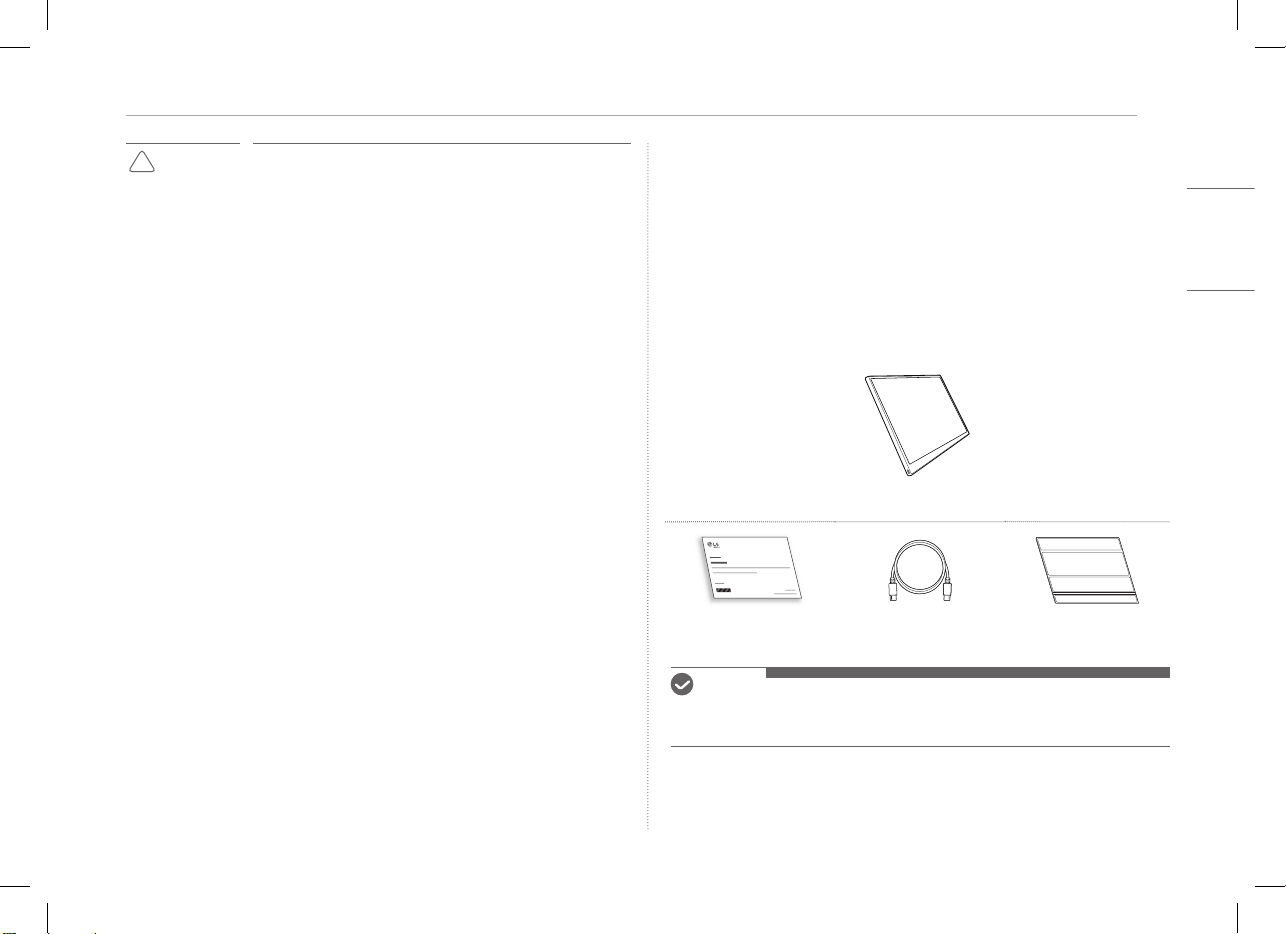
2Verificar os componentes
PORTUGUÊS
!
CUIDADO
y
Não pressione o ecrã do monitor com os dedos nem
coloque objetos sobre o mesmo.
y
Não bata nem risque o ecrã com um objeto afiado.
y
Se o ecrã estiver danificado, não lhe toque com as mãos.
y
Manter uma imagem pausada no ecrã durante um
longo período de tempo poderá resultar em retenção de
imagem.
y
Utilize uma proteção de ecrã, etc.
y
Quando a temperatura for baixa, ligar o monitor poderá
causar uma intermitência momentânea do ecrã.
y
Se isto acontecer, poderá ver alguns pontos vermelhos,
verdes e azuis no ecrã, mas é normal.
Verificar os componentes
Ao comprar o produto, os componentes a seguir serão fornecidos. Verifique os
componentes antes da utilização.
y
Em certos modelos, alguns dos seus componentes poderão parecer diferentes
na forma e na cor relativamente às imagens.
y
Para limpar o produto, utilize um produto de limpeza dedicado para o PC e
monitor.
Utilizar diluentes, benzeno, álcool ou outros agentes semelhantes poderá causar
danos no produto ou deformação.
Corpo do monitor
Manual do utilizador Cabo USB-C™ Capa Folio
NOTA
y
As imagens no manual do utilizador estão sujeitas a alteração sem aviso
prévio.
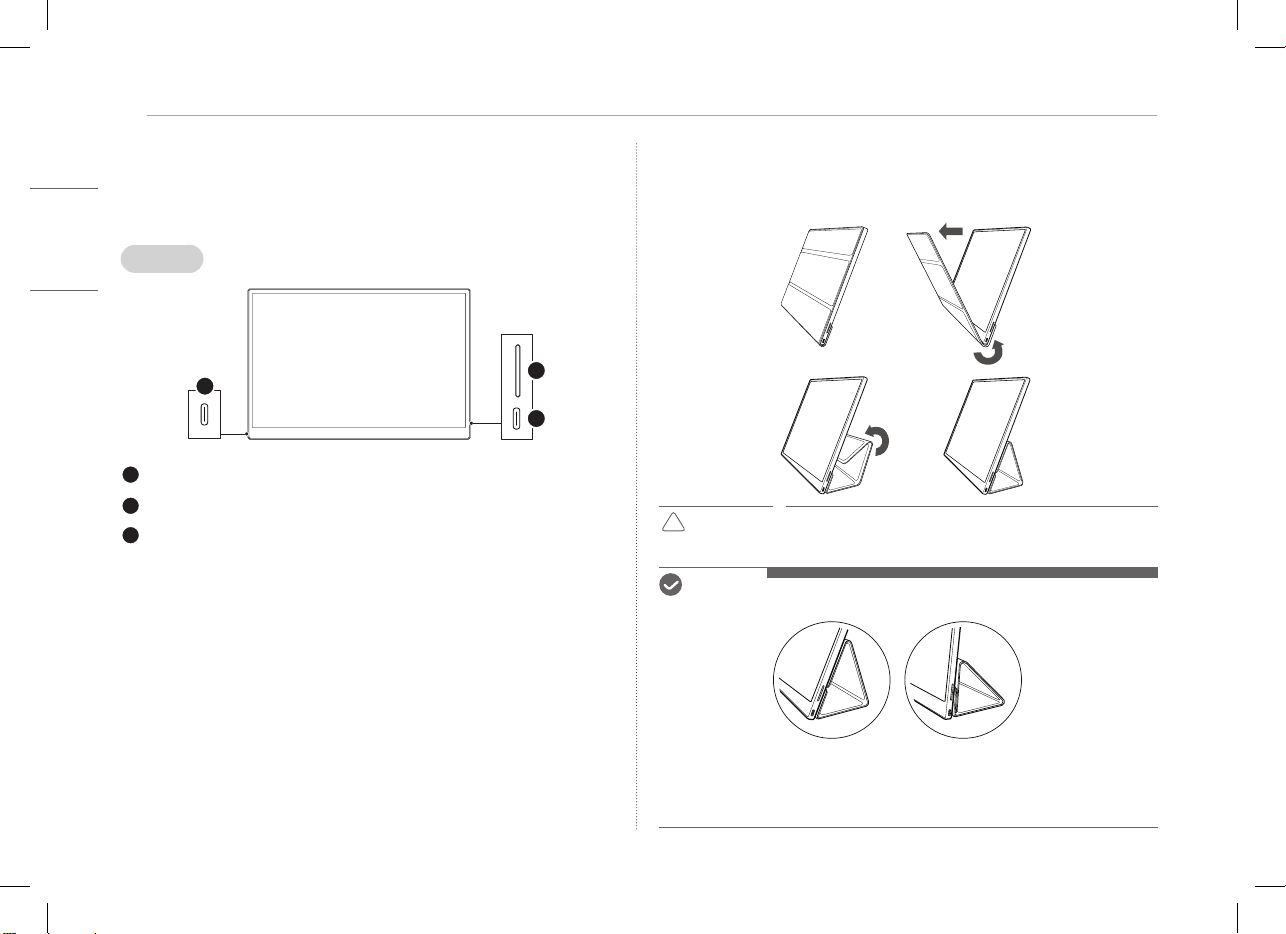
3
PORTUGUÊS
Apresentação do produto
Apresentação do produto
O produto poderá diferir na forma e cor das imagens do produto incluídas
neste Manual do utilizador.
Frente
1
2
3
Entrada USB-C™
Entrada USB-C™
Botão de luminosidade do ecrã
Utilizar a capa Folio
Pode dobrar a capa Folio e utilizá-la como um suporte.
!
CUIDADO
y
Quando estiver a deslocar o produto, certifique-se de que
mantém a capa Folio no produto para proteger o ecrã.
NOTA
y
Existem dois ângulos disponíveis para utilizar a capa Folio.
y
A capa Folio só pode ser utilizada no modo horizontal.
y
A capa Folio é um item consumível e pode ficar danificada durante a utilização.
Pode comprar capas Folio separadamente a partir do Centro de assistência da
LG Electronics.
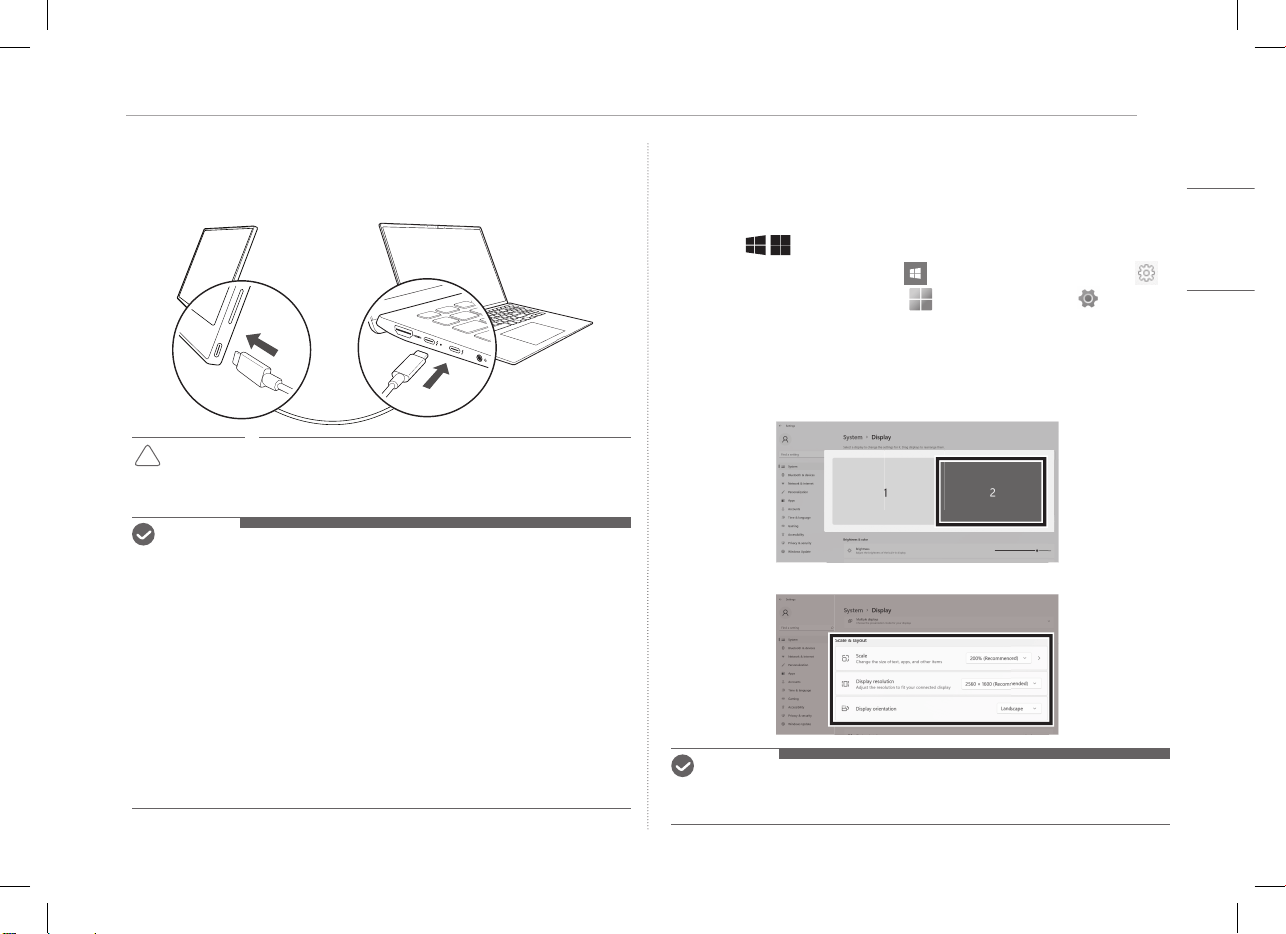
4Ligar o monitor
PORTUGUÊS
Ligar o monitor
Ligue as portas USB-C™ do monitor e do PC utilizando o cabo USB-C™.
!
CUIDADO
y
Não utilize qualquer outro tipo de cabo que não o cabo
USB-C™ para esta ligação. Caso contrário, pode danificar o
conector.
NOTA
y
Este produto foi criado para ser utilizado apenas com um computador portátil.
O dispositivo a ligar ao monitor tem de ser compatível com o modo alternativo
DisplayPort (DP Alt Mode) e a saída de alimentação (USB PD) a 7,5 W (5 V/1,5
A) ou superior.
y
A entrada
USB-C™
só é compatível com ligação única e não é compatível com
várias ligações.
y
Para a ligação, utilize o cabo
USB-C™
incluído com o monitor. Se for utilizado
um cabo para um produto diferente, o ecrã poderá funcionar incorretamente.
y
Se o dispositivo ligado ao monitor tiver a bateria fraca, a ligação poderá ser
perdida.
y
Este monitor é compatível com a função plug-and-play.
(Plug-and-play: quando um dispositivo é ligado a um PC, o PC reconhece
automaticamente o dispositivo ligado sem quaisquer definições de ambiente
por parte do utilizador.)
Definir ecrã (Modo de Expansão)
Se definir o monitor para o Modo de Expansão, pode definir a proporção e o
esquema do ecrã.
1 Prima
[
/ ] ou
[Ctrl] + [ESC] no seu teclado para aceder ao menu Iniciar.
y
Windows 10: prima o botão Iniciar [ ] e, de seguida, selecione as Definições [ ].
y
Windows 11: prima o botão Iniciar [
] e, de seguida, selecione [ ]
no ecrã
Iniciar.
2 Quando surgir o ecrã Definições, selecione [Sistema] > [Ecrã].
3 Windows 10: selecione [Expandir estes ecrãs] em [Vários ecrãs].
Windows 11: selecione [Expandir estes ecrãs].
4 Selecione o monitor 2.
5 Altere as definições, conforme pretendido em [Dimensionamento e esquema].
NOTA
y
A imagem é meramente representativa e poderá variar consoante a versão de
Windows e o idioma do país.
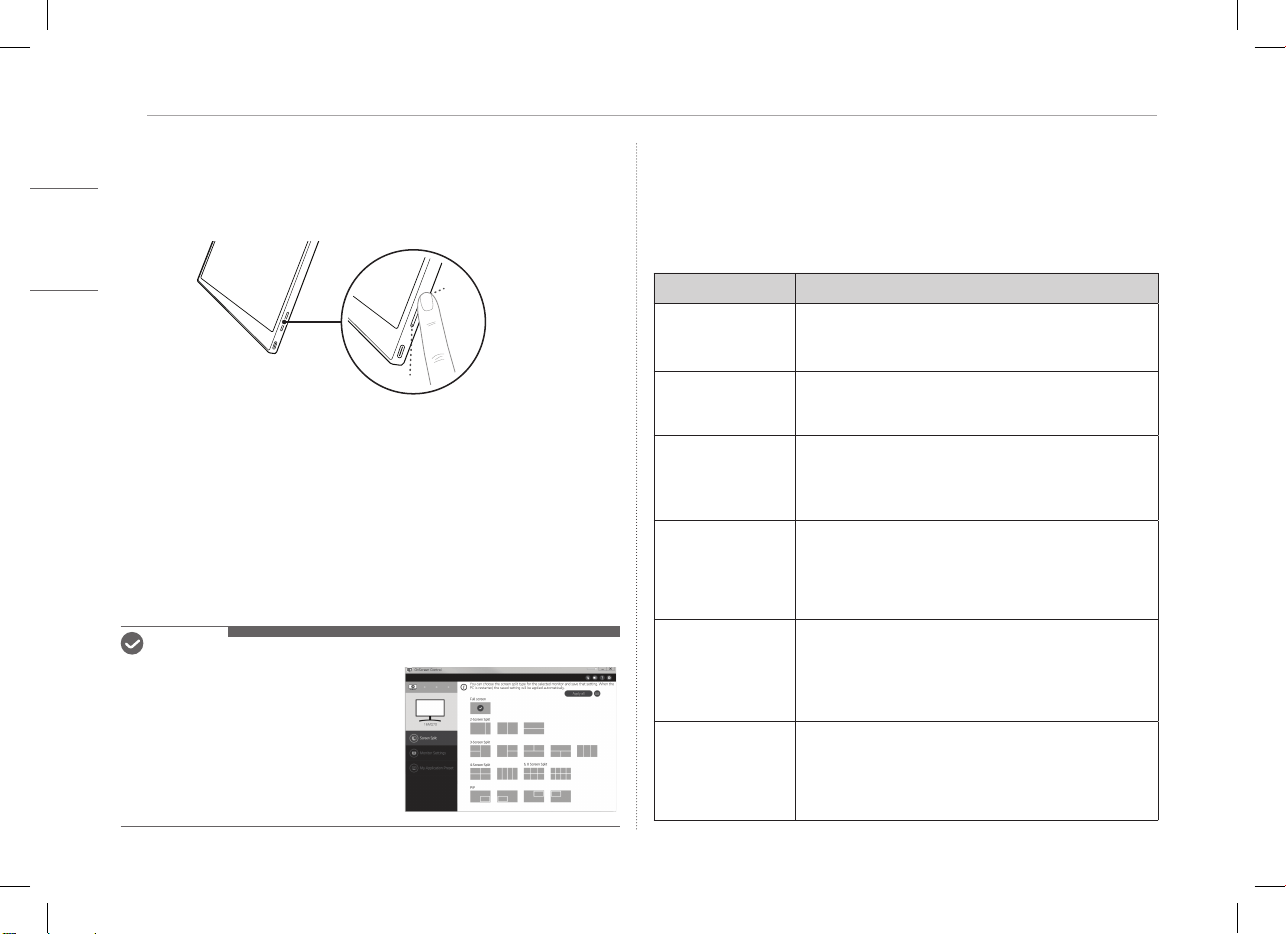
5
PORTUGUÊS
Ajustar a luminosidade do ecrã
Ajustar a luminosidade do ecrã
Pode utilizar o botão de luminosidade do ecrã à direita do monitor para ajustar
a luminosidade do ecrã.
Instalar software
Instale o OnScreen Control e utilize as várias funções, tais como ecrã dividido,
definições do monitor e o ecrã muda fácil e convenientemente.
1 Visite o website da LG Electronics (http://lg.com).
2 Selecione a opção de menu "APOIO AO CLIENTE" e pesquise o modelo do produto.
3 Selecione "OnScreen Control" e comece a instalar o software.
NOTA
y
Após a instalação do OnScreen Control,
pode ver como utilizá-lo a partir do menu
Ajuda fornecido na aplicação.
y
O OnScreen Control só está disponível para
o Windows.
y
A função Rotação Automática do Ecrã só
está disponível enquanto o
OnScreen Control estiver ativado.
Lista de verificação de assistência pré-
tecnologia
Se aparecerem os sintomas seguintes durante a utilização do produto, volte a verificar.
Poderá não ser uma avaria.
Sintoma Causa e solução
O ecrã permanece em
branco ou a ligação
está instável.
y
Verifique se o dispositivo ligado ao monitor é compatível
com o modo alternativo DisplayPort (DP Alt Mode) e o
fornecimento de alimentação por USB (USB PD).
A alimentação não
liga.
y
Verifique se pode ligar corretamente o dispositivo
ao monitor utilizando o cabo
USB-C™
incluído com o
monitor.
O intervalo de
frequência suportado
do monitor foi
excedido.
y
Este fenómeno ocorre quando o sinal enviado do PC
excede o intervalo de frequência horizontal ou vertical.
Consulte as definições do Modo de Fábrica e reponha a
frequência.
O ecrã não parece
nítido.
y
Definir a resolução do ecrã para qualquer outra que
não a resolução recomendada (ideal) poderá resultar
em texto desfocado ou obscurecimento, recorte ou
inclinação do ecrã. Utilize a definição de resolução de
ecrã recomendada.
A retenção de
imagem permanece
mesmo quando a
alimentação está
desligada.
y
Atente que dispor de um ecrã fixo ligado durante um
longo período de tempo poderá causar danos no ecrã e
resultar em retenção de imagem.
y
Para utilizar o monitor durante um longo período de
tempo, utilize uma proteção de ecrã.
Existem pontos no
ecrã.
y
Pode ver alguns pontos de píxeis (vermelhos, verdes,
azuis, brancos, pretos) no ecrã durante a utilização
do monitor. Este é um fenómeno normal de um ecrã
LCD. Isto não está relacionado com o desempenho do
monitor e não é uma anomalia.
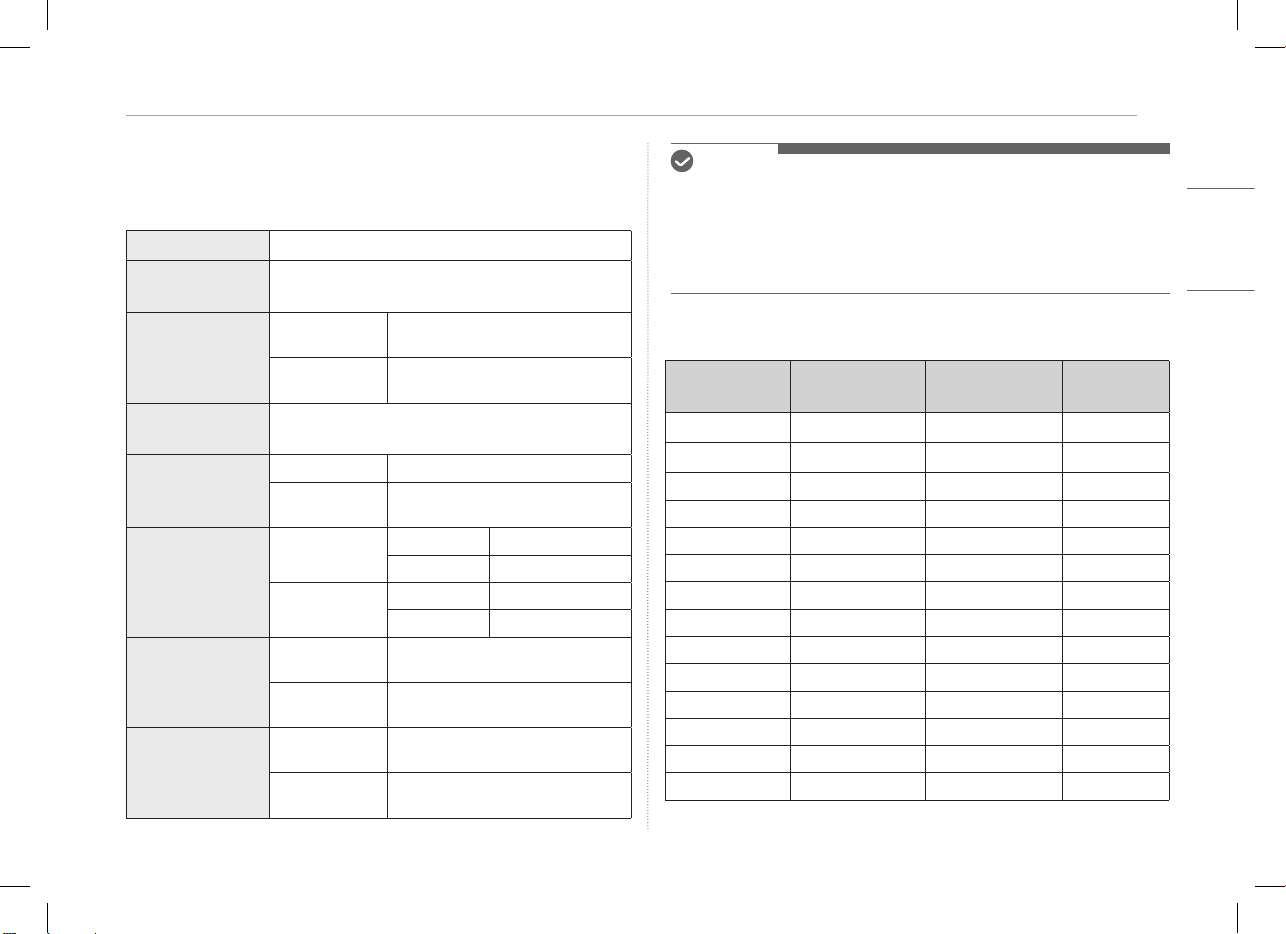
6Anexo
PORTUGUÊS
Anexo
Especicações do produto
Ecrã
LCD IPS de 40,6 cm
Profundidade de
cor
16,7 milhões de cores (8 bits)
Resolução
Resolução
máxima
2560 x 1600 a 60 Hz
Resolução
recomendada
2560 x 1600 a 60 Hz
Norma de ecrã
suportada
Modo alternativo DisplayPort (DP Alt Mode)
Alimentação
Nominal
5 V
0
2 A
Consumo de
energia
Modo de funcionamento: 8 W geral
(predefinição de fábrica)*
Ambiente
Funcionamento
Temperatura 0 °C a 40 °C
Humidade Inferior a 80%
Armazenamento
Temperatura -20 °C a 60 °C
Humidade 85% ou menos
Dimensões
(não incluindo
embalagem)
Com uma capa
Folio
362 (largura) x 249 (altura) x 11,3 mm
(espessura)
Sem uma capa
Folio
360 (largura) x 245,5 (altura) x 8,3 mm
(espessura)
Peso
(não incluindo
embalagem)
Com uma capa
Folio
Aprox. 990 g
Sem uma capa
Folio
Aprox. 670 g
NOTA
y
* O consumo de energia no modo Ligado foi medido sob condições de teste
padrão da LGE (padrão totalmente branco, resolução máxima).
y
As especificações do produto estão sujeitas a alteração sem aviso prévio para
melhoria do produto.
y
O nível de consumo de energia poderá diferir consoante as condições de
funcionamento e as definições do monitor.
Modo de predenição de fábrica
Modo
predefinido
Frequência
horizontal (kHz)
Frequência
vertical (Hz)
Polaridade
(H/V)
640 x 480 31,469 59,94 -/-
800 x 600 37,879 60,317 +/+
1024 x 768 48,363 60 -/-
1152 x 864 54,347 60,05 +/+
1280 x 720 45 60 +/+
1280 x 1024 63,981 60,02 +/+
1600 x 900 60 60 +/+
1680 x 1050 65,29 59,954 -/+
1920 x 1080 67,5 60 +/-
1920 x 1080 83,894 74,973 +/-
2560 x 1440 88,79 59,95 +/-
2560 x 1600 48,62 29,96 +/-
2560 x 1600 98,71 59,97 +/-
2560 x 1600 124,26 74,95 +/-
7
PORTUGUÊS
Anexo
Marca comercial registrada e informações de aviso sobre
software de código-fonte aberto
USB Type-C™ e USB-C™ são marcas comerciais da USB Implementers Forum.
O logótipo LG é uma marca comercial registada da
LG Electronics Inc.
Para obter o código fonte sob GPL, LGPL, MPL, e outras licenças de código
aberto que têm a obrigação de divulgar o código fonte, que está contido neste
produto, e para aceder a todos os termos de licença referidos, avisos de direitos
de autor e outros documentos relevantes, visite https://opensource.lge.com.
A LG Electronics também pode fornecer-lhe o código fonte aberto em CD-ROM
mediante o pagamento de uma taxa que cobre o custo de realização de tal
distribuição (como o custo do suporte, transporte e processamento), a pedido
por e-mail para opensour[email protected].
Esta oferta é válida para qualquer pessoa que receba esta informação durante
um período de três anos após o nosso último envio deste produto.
Symbols
~
Refere-se a corrente alternada (CA).
0
Refere-se à corrente contínua (CC).
Refere-se a equipamentos de classe II.
1
Refere-se a modo em espera.
!
Refere-se a "LIGADO" (alimentação).
Refere-se a tensão perigosa.
Serie 16MQ70
MANUALE DEL PROPRIETARIO
MONITOR PORTATILE
Per un utilizzo comodo e in sicurezza, leggere accuratamente il presente manuale del proprietario prima di iniziare ad usare il prodotto.
www.lg.com
Copyright © 2022 LG Electronics Inc. All Rights Reserved
ITALIANO
1 Importanti precauzioni per la sicurezza
ITALIANO
Importanti precauzioni per la sicurezza ������������������������������������������ 1
Mentre si utilizza il prodotto ...........................................................................................................................1
Controllo dei componenti ������������������������������������������������������������������� 2
Tour del prodotto ���������������������������������������������������������������������������������� 3
Utilizzo della custodia protettiva ����������������������������������������������������� 3
Collegamento del monitor ������������������������������������������������������������������ 4
Schermata di impostazione (Modalità Estesa) ����������������������������� 4
Regolazione della luminosità dello schermo ���������������������������������� 5
Installazione del SW ���������������������������������������������������������������������������� 5
Lista di spunta del supporto pre-tecnologico �������������������������������� 5
Appendice ����������������������������������������������������������������������������������������������� 6
Caratteristiche tecniche .....................................................................................................................................6
Modalità di fabbrica predefinita .....................................................................................................................7
Informazioni sulla registrazione del marchio e sui software open source ..............................7
Symbols .......................................................................................................................................................................7
Importanti precauzioni per la sicurezza
Controllare in anticipo le seguenti "Precauzioni importanti per la sicurezza" per
prevenire pericoli o danni imprevisti.
Le "Precauzioni importanti per la sicurezza" sono divise in "Avvertenza" e
"Attenzione".
!
AVVERTENZA: Il mancato rispetto delle istruzioni può causare gravi danni
fisici o lesioni mortali.
!
ATTENZIONE: Il mancato rispetto delle istruzioni può causare lievi danni
alla persona o all’apparecchio
.
Mentre si utilizza il prodotto
!
AVVERTENZA
• Utilizzate il prodotto in un luogo sicuro dove non vi è
il rischio che il prodotto possa cadere.
• Non utilizzare il prodotto in un luogo polveroso o
umido.
• Non utilizzare il prodotto in un ambiente con
temperatura troppo elevata o troppo bassa.
• Non toccate il cavo di alimentazione con le mani
bagnate.
• Mantenere l’ingresso del cavo libero da sostanze
estranee.
• Pulire il prodotto con un detergente appropriato e
asciugarlo completamente prima di riutilizzarlo.
Sommario
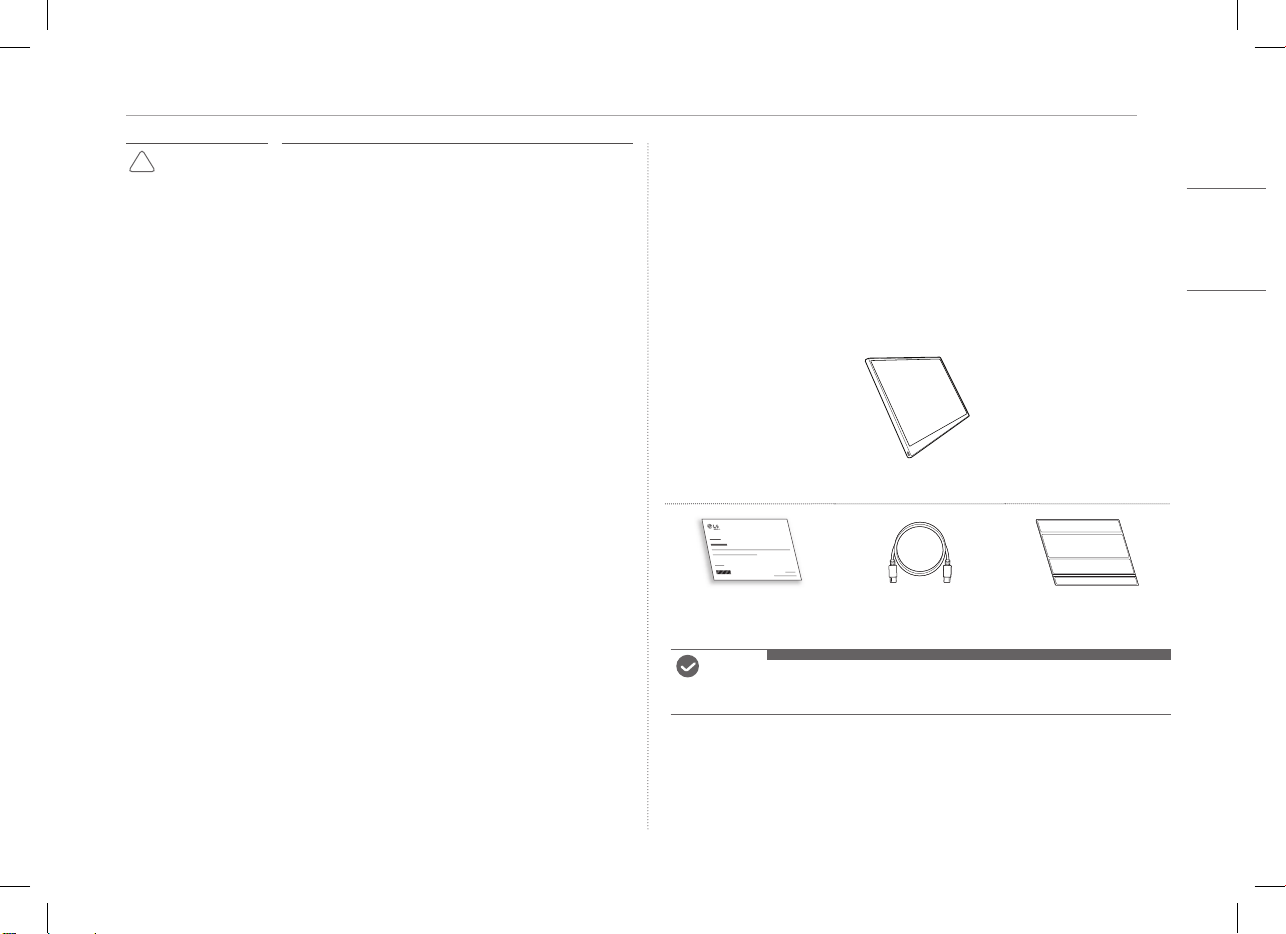
2Controllo dei componenti
ITALIANO
!
ATTENZIONE
• Non premere lo schermo del monitor con le dita e non
mettete oggetti su di esso.
• Non toccare o graffiare lo schermo con oggetti
appuntiti.
• Se lo schermo è danneggiato, non toccarlo con le mani.
• Mantenere un'immagine in pausa sullo schermo per
un periodo di tempo prolungato può causare il burn-in
dello schermo.
• Usare un salvaschermo, ecc.
• Quando la temperatura è molto bassa, l’accensione
del monitor potrebbe causare un temporaneo
lampeggiamento dello schermo.
• In questo caso si potrebbero vedere sullo schermo dei
puntini rossi, verdi e blu, ma è normale.
Controllo dei componenti
All’acquisto del prodotto vengono forniti i componenti illustrati sotto.
Controllare i componenti prima dell’uso.
• Per determinati modelli, alcuni componenti del prodotto potrebbero avere una
forma e un colore diversi da quelli delle immagini.
• Per pulire il prodotto utilizzare un detergente specifico per PC e monitor.
L'uso di diluenti, benzene, alcol o altri simili detergenti potrebbe causare danni o
deformazioni al prodotto.
Corpo del monitor
Manuale del proprietario Cavo USB-C™ Custodia protettiva
NOTA
• I dati nella guida per l'uso sono soggetti a modifiche senza preavviso.
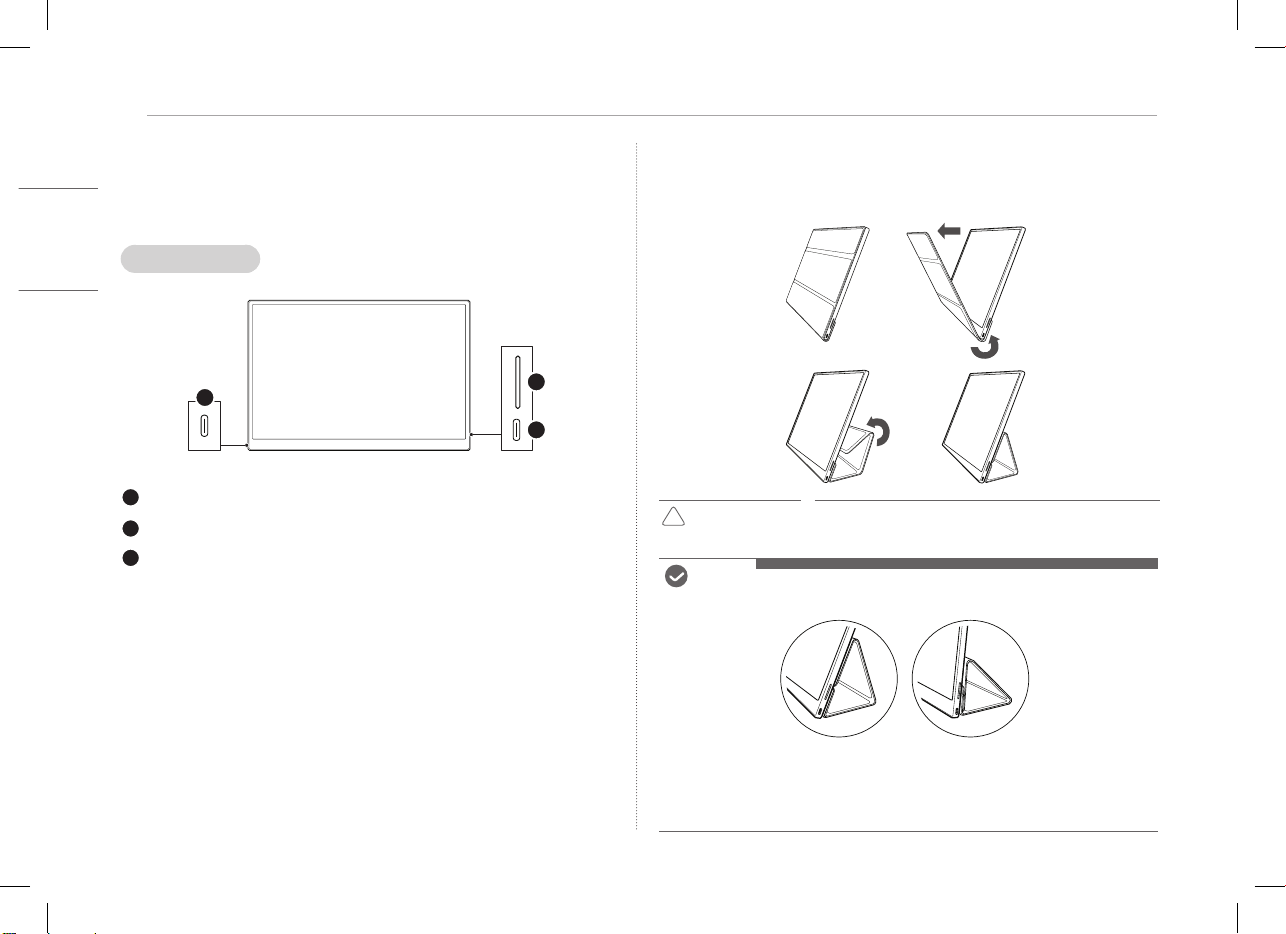
3 Tour del prodotto
ITALIANO
Tour del prodotto
Il prodotto potrebbe presentare forma e colore diversi rispetto alle immagini
contenute nel presente Manuale del proprietario.
Lato anteriore
1
2
3
Porta USB-C™
Porta USB-C™
Pulsante luminosità schermo
Utilizzo della custodia protettiva
La custodia protettiva può essere piegata e usata come supporto.
!
ATTENZIONE
• Quando si sposta il prodotto, assicurarsi che la
custodia protegga lo schermo.
NOTA
• La custodia di protezione può essere utilizzata in due angolazioni.
• La custodia protettiva può essere utilizzata solo nella modalità orizzontale.
• La custodia protettiva è un articolo di consumo e può essere danneggiata
durante l'uso. Le custodie protettive possono essere acquistate separatamente
presso il Centro Assistenza di LG Electronics.
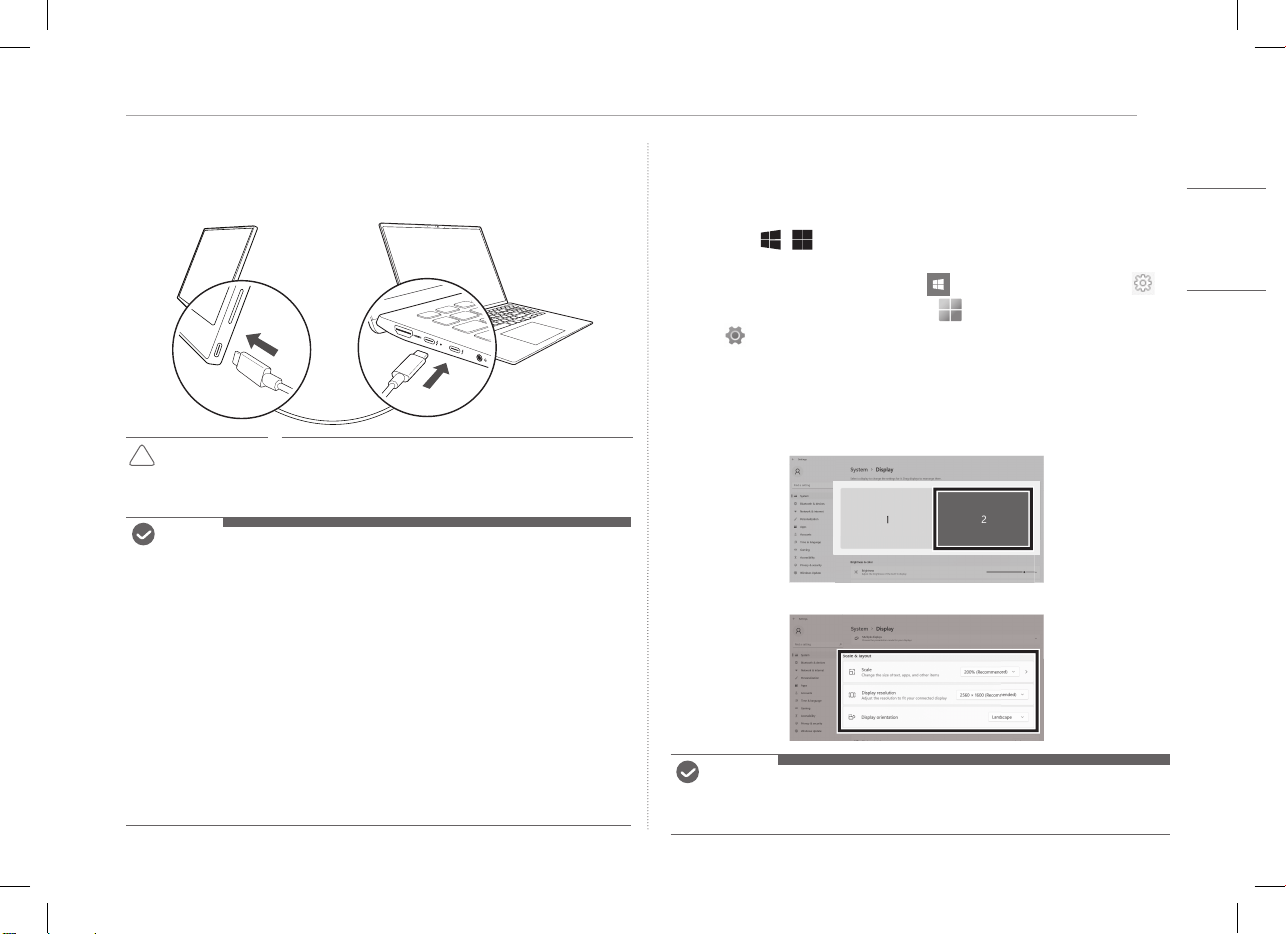
4Collegamento del monitor
ITALIANO
Collegamento del monitor
Collegare l’uscita USB-C™ del monitor e del PC utilizzando il cavo USB-C™.
!
ATTENZIONE
• Per questo collegamento non usare alcun altro tipo
di cavo diverso da un cavo USB-C™. Usando un cavo
diverso si potrebbe danneggiare il connettore.
NOTA
• Questo prodotto è progettato per essere utilizzato solo con un laptop. Il
dispositivo da collegare al monitor deve supportare la modalità Alternate
DisplayPort (Modalità DP Alt) e l'uscita di potenza (USB PD) a 7,5 W
(5 V / 1,5 A) o superiore.
• La porta
USB-C™
supporta solo una connessione singola e non supporta
connessioni multiple.
• Per il collegamento, utilizzare il cavo
USB-C™
in dotazione con il monitor. Se si
utilizza un cavo di un prodotto diverso lo schermo potrebbe funzionare in modo
anomalo.
• Se il livello della batteria del dispositivo collegato al monitor è basso, si
potrebbe perdere la connessione.
• Questo monitor supporta la funzione plug-and-play.
(Plug-and-play: Quando un dispositivo è connesso al PC, quest’ultimo ne
riconosce automaticamente la connessione senza che sia l’utente a doverla
impostare).
Schermata di impostazione (Modalità Estesa)
Impostando il monitor portatile in Modalità Estesa, è possibile impostare le
proporzioni e il layout dello schermo.
1 Premere
[
/ ] o
[Ctrl] + [ESC] sulla tastiera per visualizzare il menu
Start.
• Windows 10: Premere il pulsante Start [ ], quindi selezionare Impostazioni [ ].
• Windows 11: Premere il pulsante Start [ ], quindi selezionare Impostazioni
[
]
nella schermata iniziale.
2 Quando viene visualizzata la schermata Impostazioni, selezionare [Sistema] >
[Schermo].
3 Windows 10: Selezionare [Estendi questi schermi] sotto [Più schermi].
Windows 11: Selezionare [Estendi questi schermi].
4 Selezionare il monitor 2.
5 Cambiare le impostazioni come desiderato sotto [Scalabilità & layout].
NOTA
• L’immagine ha solo una funzione rappresentativa e potrebbe variare a seconda
della versione di Windows e della lingua del Paese.
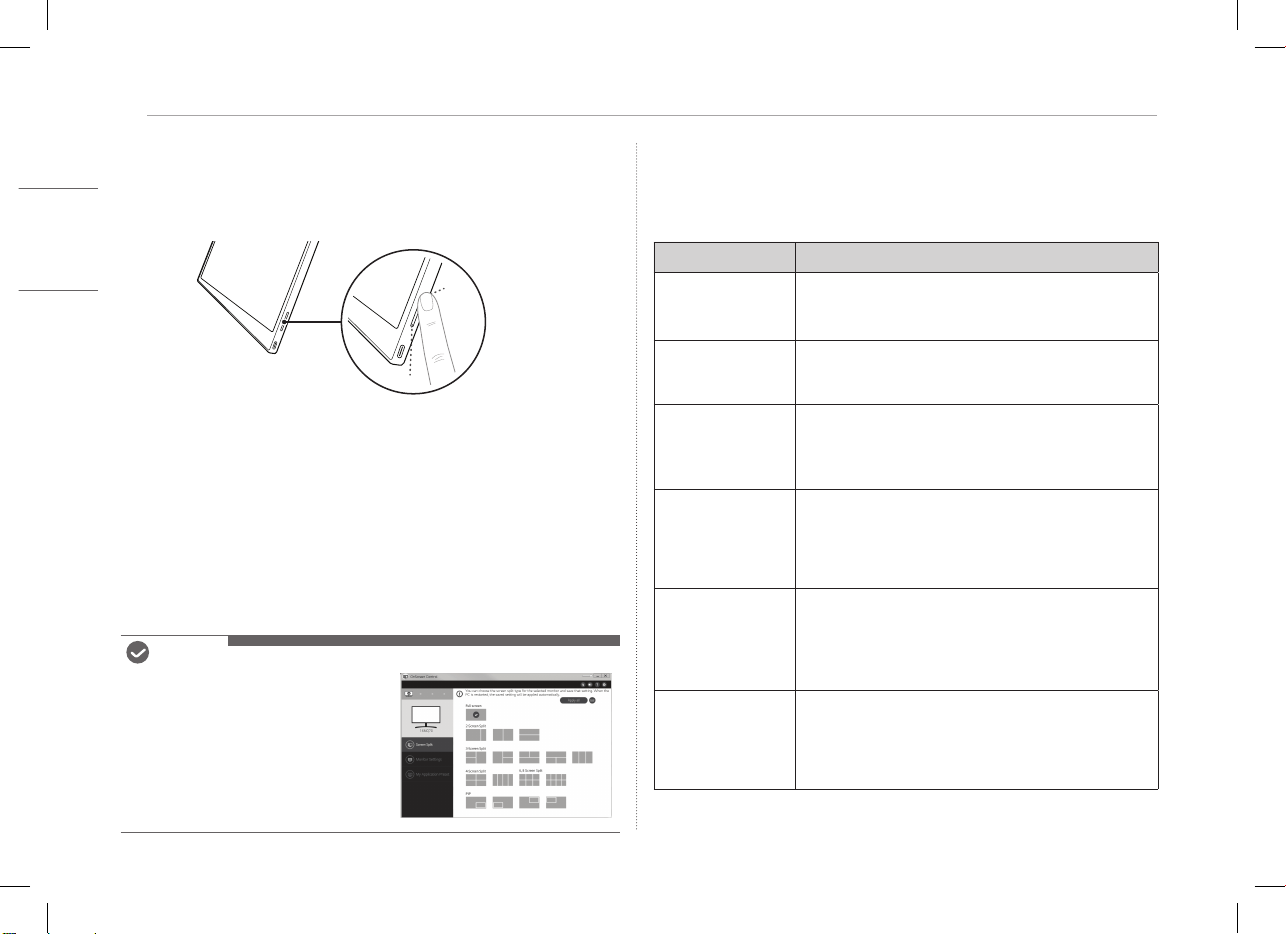
5 Regolazione della luminosità dello schermo
ITALIANO
Regolazione della luminosità dello schermo
Per regolare la luminosità dello schermo, usare il tasto luminosità schermo sulla
destra del monitor.
Installazione del SW
Installare OnScreen Control e utilizzare in modo facile e comodo le varie
funzioni come suddivisione dello schermo, impostazioni del monitor e
commutazione schermo.
1 Visitare il sito LG Electronics (http://lg.com/it).
2 Selezionare l'opzione di menu "SUPPORTO" e cercare il modello del proprio
prodotto.
3 Selezionare "OnScreen Control" e avviare l'installazione del software.
NOTA
• Dopo aver installato OnScreen Control,
è possibile Vederne l’utilizzo sul menu
Guida fornito all'interno dell'app.
• Il OnScreen Control è disponibile solo
per Windows.
• La funzione rotazione automatica dello
schermo è disponibile solo quando
OnScreen Control è abilitato.
Lista di spunta del supporto pre-tecnologico
Se i seguenti problemi appaiono durante l'uso del prodotto, controllare di nuovo.
Potrebbe non essere un malfunzionamento.
Problema Causa e soluzione
Lo schermo è vuoto
o la connessione è
instabile.
• Verificare se il dispositivo collegato al monitor supporta
la modalità Alternate DisplayPort (modalità DP Alt) e
alimentazione USB (USB PD).
Il Portable Monitor
non si accende.
• Verificare se si riesce a collegare correttamente il
dispositivo al monitor utilizzando il cavo
USB-C™
fornito con il monitor.
E’ stata superata la
gamma di frequenza
supportata dal
monitor.
• Questo fenomeno si verifica quando il segnale inviato
dal PC supera la gamma di frequenza orizzontale
o verticale. Fare riferimento alle Impostazioni della
modalità di Fabbrica e ripristinare la frequenza.
Lo schermo non si
vede bene.
• L'impostazione della risoluzione dello schermo su una
risoluzione diversa da quella consigliata (ottimale)
potrebbe causare sfocatura del testo o oscuramento,
ritaglio o inclinazione dello schermo. Utilizzare
l’impostazione della risoluzione consigliata.
Il burn-in dello
schermo persiste
anche quando
l'alimentazione è
spenta.
• Tener presente che avere uno schermo fisso acceso per
un lungo periodo di tempo può causare danni al display
e portare a burn-in dello stesso.
• Per far durare il monitor a lungo, usare uno
screensaver.
Sono presenti puntini
sullo schermo.
• Si potrebbero vedere alcuni puntini (rossi, verdi, blu,
bianchi, neri) sullo schermo mentre viene utilizzato.
Questo è un fenomeno normale con uno schermo
LCD. Non è legato alle prestazioni del monitor e non è
un'anomalia.
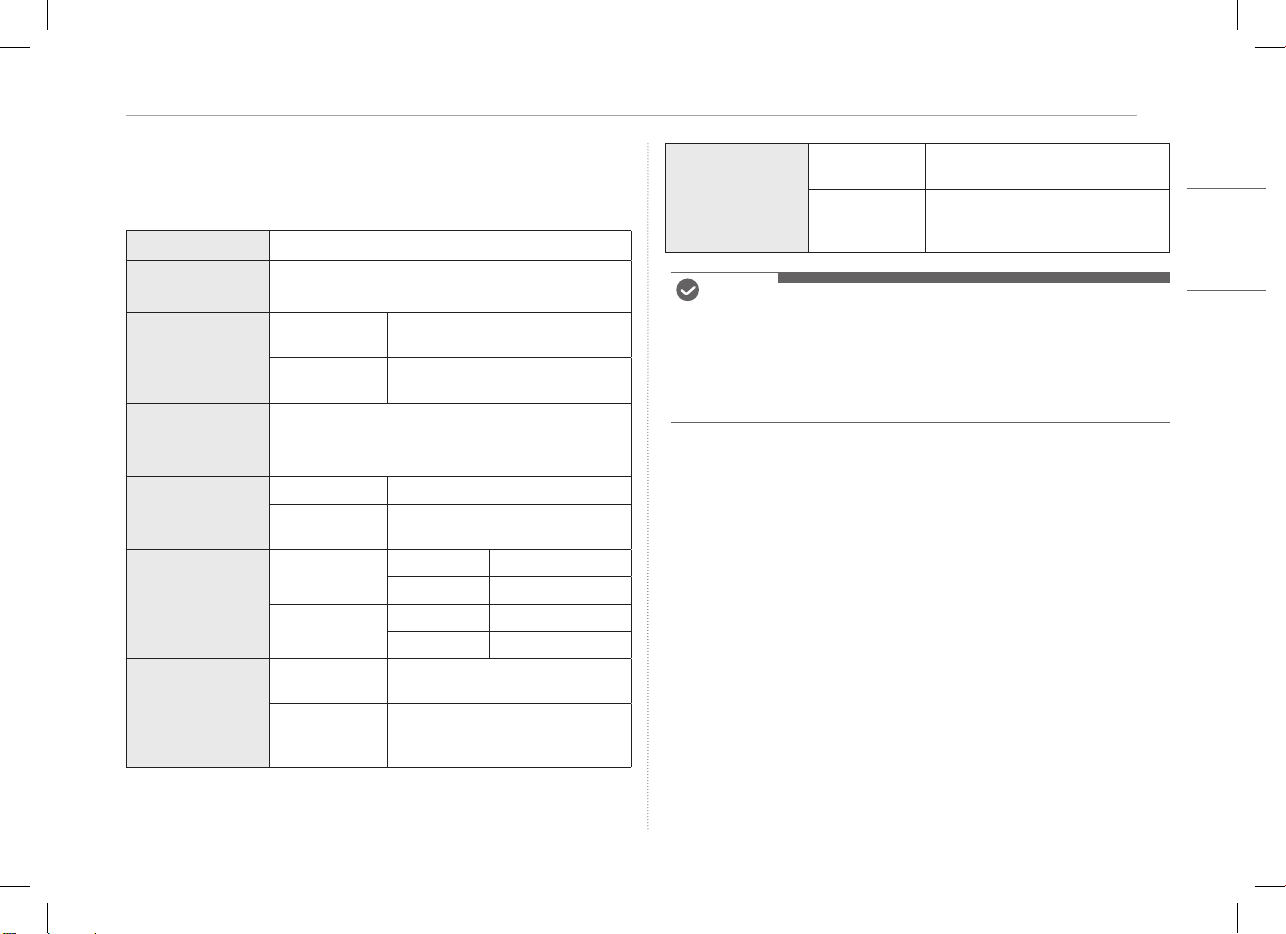
6Appendice
ITALIANO
Appendice
Caratteristiche tecniche
Display
40,6 cm IPS LCD
Profondità del
colore
16,7 milioni di colori (8 bit)
Risoluzione
Risoluzione
massima
2560 x 1600 @ 60 Hz
Risoluzione
raccomandata
2560 x 1600 @ 60 Hz
Standard di
visualizzazione
supportato
Modalità Alternate DisplayPort (modalità DP Alt)
Potenza
Nominale
5 V
0
2 A
Consumi
Modalità operativa: 8 W generale
(impostazione di fabbrica)*
Ambiente
Operazione
Temperatura da 0°C a 40°C
Umidità Inferiore all’80%
Conservazione
Temperatura da -20°C a 60°C
Umidità 85% o più bassa
Dimensioni
(confezione
esclusa)
Con la custodia
di protezione
362 (larghezza) x 249 (altezza) x
11,3 mm (spessore)
Senza la
custodia di
protezione
360 (larghezza) x 245,5 (altezza) x
8,3 mm (spessore)
Peso
(confezione
esclusa)
Con la custodia
di protezione
Approssimativamente 990 g
Senza la
custodia di
protezione
Approssimativamente 670 g
NOTA
• * Il consumo energetico in modalità On è stato misurato in condizioni di test
standard di LGE (schema completamente bianco, risoluzione massima).
• Le specifiche del prodotto sono soggette a modifiche senza preavviso per il
miglioramento del prodotto.
• Il livello di consumo energetico può variare a seconda delle condizioni operative
e delle impostazioni del monitor.
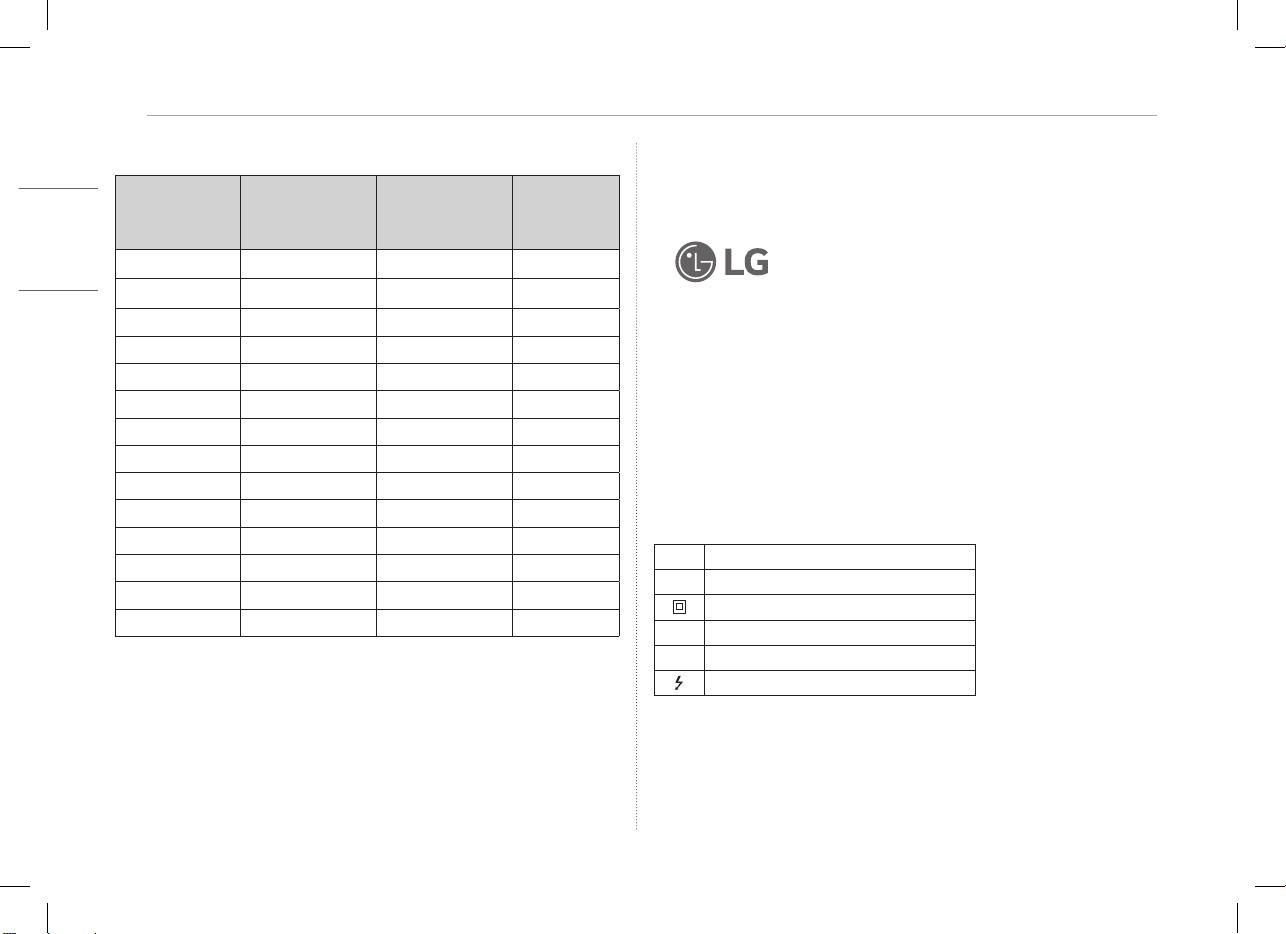
7 Appendice
ITALIANO
Modalità di fabbrica predenita
Modalità
preimpostata
Frequenza
orizzontale
(kHz)
Frequenza
verticale (Hz)
Polarità
(H/V)
640 x 480 31,469 59,94 -/-
800 x 600 37,879 60,317 +/+
1024 x 768 48,363 60 -/-
1152 x 864 54,347 60,05 +/+
1280 x 720 45 60 +/+
1280 x 1024 63,981 60,02 +/+
1600 x 900 60 60 +/+
1680 x 1050 65,29 59,954 -/+
1920 x 1080 67,5 60 +/-
1920 x 1080 83,894 74,973 +/-
2560 x 1440 88,79 59,95 +/-
2560 x 1600 48,62 29,96 +/-
2560 x 1600 98,71 59,97 +/-
2560 x 1600 124,26 74,95 +/-
Informazioni sulla registrazione del marchio e sui software
open source
USB Type-C™ e USB-C™ sono marchi di USB Implementers Forum.
Il logo LG è un marchio registrato di LG Electronics Inc.
Per ottenere il codice sorgente sotto GPL, LGPL, MPL e altre licenze open
source che prevedono l'obbligo di divulgare il codice sorgente, contenuto in
questo prodotto, e per accedere a tutti i termini di licenza citati, alle note sul
copyright e ad altri documenti pertinenti, visitare https://opensource.lge.com.
LG Electronics fornirà anche il codice open source su CD-ROM su richiesta
tramite e-mail all'indirizzo opensourc[email protected] addebitando il costo delle
spese di distribuzione (ad esempio il costo di supporti, spedizione e gestione).
Questa offerta è valida per chiunque riceva queste informazioni per un periodo
di tre anni dalla nostra ultima spedizione di questo prodotto.
Symbols
~
Indica la corrente alternata (CA).
0
Indica la corrente continua (CC).
Indica apparecchi di classe II.
1
Indica lo stato di stand-by.
!
Indica "ON" (acceso).
Indica un voltaggio pericoloso.
Seria 16MQ70
PODRĘCZNIK UŻYTKOWNIKA
MONITOR PZRENOŚNY
W celu bezpiecznego i wygodnego korzystania z produktu prosimy o przeczytanie tego podręcznika użytkownika przed rozpoczęciem użytkowania.
www.lg.com
Copyright © 2022 LG Electronics Inc. Wszelkie prawa zastrzeżone.
POLSKI
1 Ważne zasady bezpieczeństwa
POLSKI
Ważne zasady bezpieczeństwa ........................................................ 1
Podczas użytkowania produktu ..................................................................................................................1
Sprawdzanie komponentów .............................................................. 2
Przewodnik obsługi urządzenia ........................................................ 3
Stosowanie składanej pokrywy ........................................................ 3
Podłączanie monitora ......................................................................... 4
Ustawianie ekranu (tryb rozszerzenia) .......................................... 4
Regulacja jasności ekranu .................................................................. 5
Instalacja oprogramowania ............................................................... 5
Lista kontrolna dotycząca wstępnego wsparcia technicznego 5
Załącznik ................................................................................................ 6
Specyfikacja produktu ...................................................................................................................................... 6
Domyślny tr yb fabryczny ................................................................................................................................6
Informacje o zastrzeżonych znakach towarowych i uwaga o oprogramowaniu Open
Source ....................................................................................................................................................................... 7
Symbols ....................................................................................................................................................................7
Ważne zasady bezpieczeństwa
Sprawdź następujące „Ważne zasady bezpieczeństwa”, aby zawczasu
zapobiegać niespodziewanym zagrożeniom bezpieczeństwa lub uszkodzeniom.
Sekcja „Ważne zasady bezpieczeństwa” została podzielona na części:
„Ostrzeżenie” i „Uwaga”.
!
OSTRZEŻENIE: Nieprzestrzeganie tych instrukcji może skutkować
odniesieniem poważnych obrażeń ciała lub śmiercią.
!
UWAGA: Nieprzestrzeganie tych instrukcji może skutkować odniesieniem
obrażeń ciała lub uszkodzeniem urządzenia
.
Podczas użytkowania produktu
!
OSTRZEŻENIE
• Urządzenie należy użytkować w bezpiecznym
miejscu, gdzie nie ma ryzyka, że spadnie.
• Nie używać w miejscu zapylonym lub wilgotnym.
• Nie używać w środowisku o wysokiej lub niskiej
temperaturze.
• Nie należy dotykać wtyczki mokrymi rękoma.
• Dbać o to, aby na przewodzie zasilania nie gromadziły
się obce substancje.
• Urządzenie należy czyścić za pomocą odpowiednich
środków, a przed ponownym użyciem dokładnie
osuszyć.
Zawartość
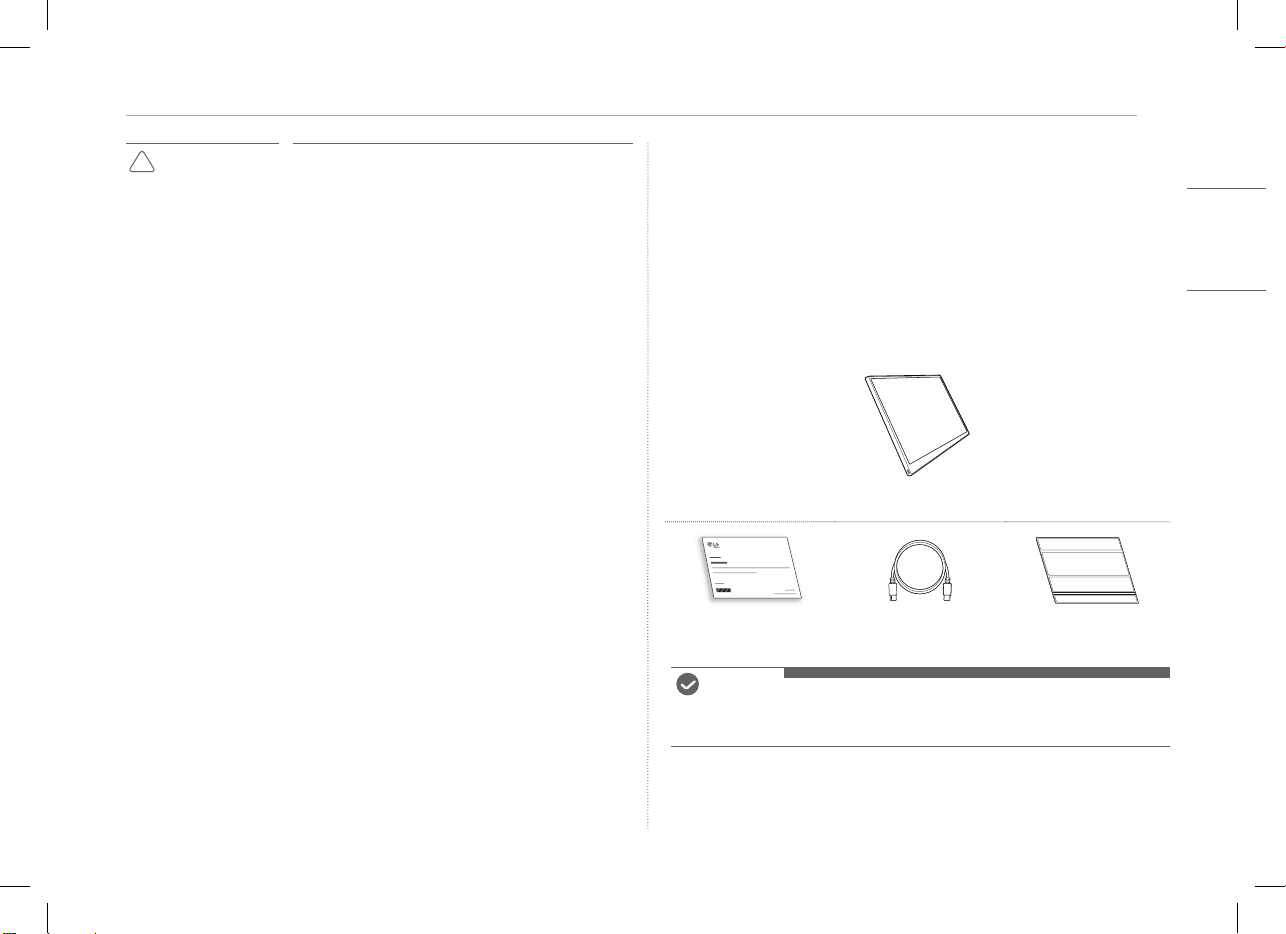
2Sprawdzanie komponentów
POLSKI
!
UWAGA
• Nie naciskać ekranu monitora placami ani nie kłaść
na nim żadnych przedmiotów.
• Nie dotykać ekranu ani nie rysować po nim ostrymi
przedmiotami.
• W przypadku uszkodzenia ekranu nie należy dotykać
go rękami.
• Wyświetlanie nieruchomego obrazu na ekranie przez
długi czas może powodować wypalenie ekranu.
• Należy stosować wygaszacz ekranu itd.
• Gdy temperatura jest niska, po włączeniu monitora
może występować chwilowe miganie ekranu.
• W takim przypadku mogą występować na ekranie
czerwone, zielone lub niebieskie punkty, ale jest to
zjawisko normalne.
Sprawdzanie komponentów
Przedstawione poniżej elementy dostarczane są z zakupionym produktem.
Elementy należy sprawdzić przed użyciem.
y
W przypadku niektórych modeli kształt i kolor niektórych z jego elementów
mogą się różnić od przedstawionych na ilustracjach.
y
Do czyszczenia urządzenia należy używać środka czyszczącego przeznaczonego
dla komputerów i monitorów.
Stosowanie rozcieńczalnika, benzenu, alkoholu lub innych podobnych środków
może spowodować uszkodzenie lub odkształcenie urządzenia.
Korpus monitora
Podręcznik użytkownika Kabel USB-C™ Składana pokrywa
UWAG
• Ilustracje w tym podręczniku użytkownika mogą ulec zmianom bez
uprzedzenia.
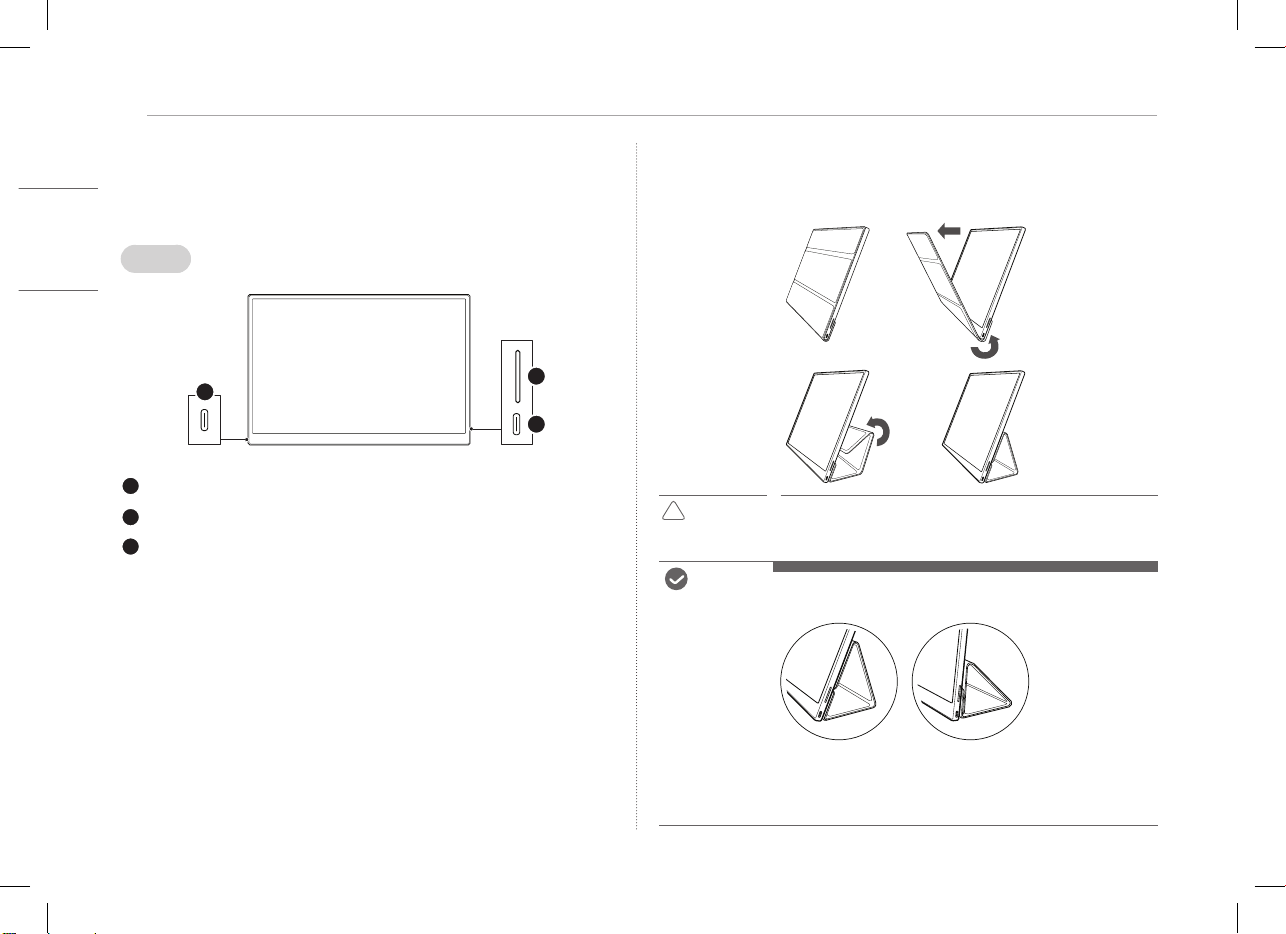
3 Przewodnik obsługi urządzenia
POLSKI
Przewodnik obsługi urządzenia
Produkt może się różnić kształtem i kolorem od ilustracji produktu w tym
Podręczniku użytkownika.
Przód
1
2
3
Gniazdo USB-C™
Gniazdo USB-C™
Przycisk jasności ekranu
Stosowanie składanej pokrywy
Składaną pokrywę można złożyć tak, aby pełniła rolę podpórki.
!
UWAGA
• W przypadku przenoszenia urządzenia należy pamiętać, aby
założyć składaną pokrywę tak, aby chroniła ekran.
UWAG
• Składaną pokrywę można używać pod dwoma kątami.
• Składanej pokrywy można używać tylko w trybie poziomym.
• Składana pokrywa stanowi element, który się zużywa, i może ulec uszkodzeniu
podczas użytkowania. Składane pokrywy można zakupić oddzielnie w Centrum
serwisowym LG Electronics.
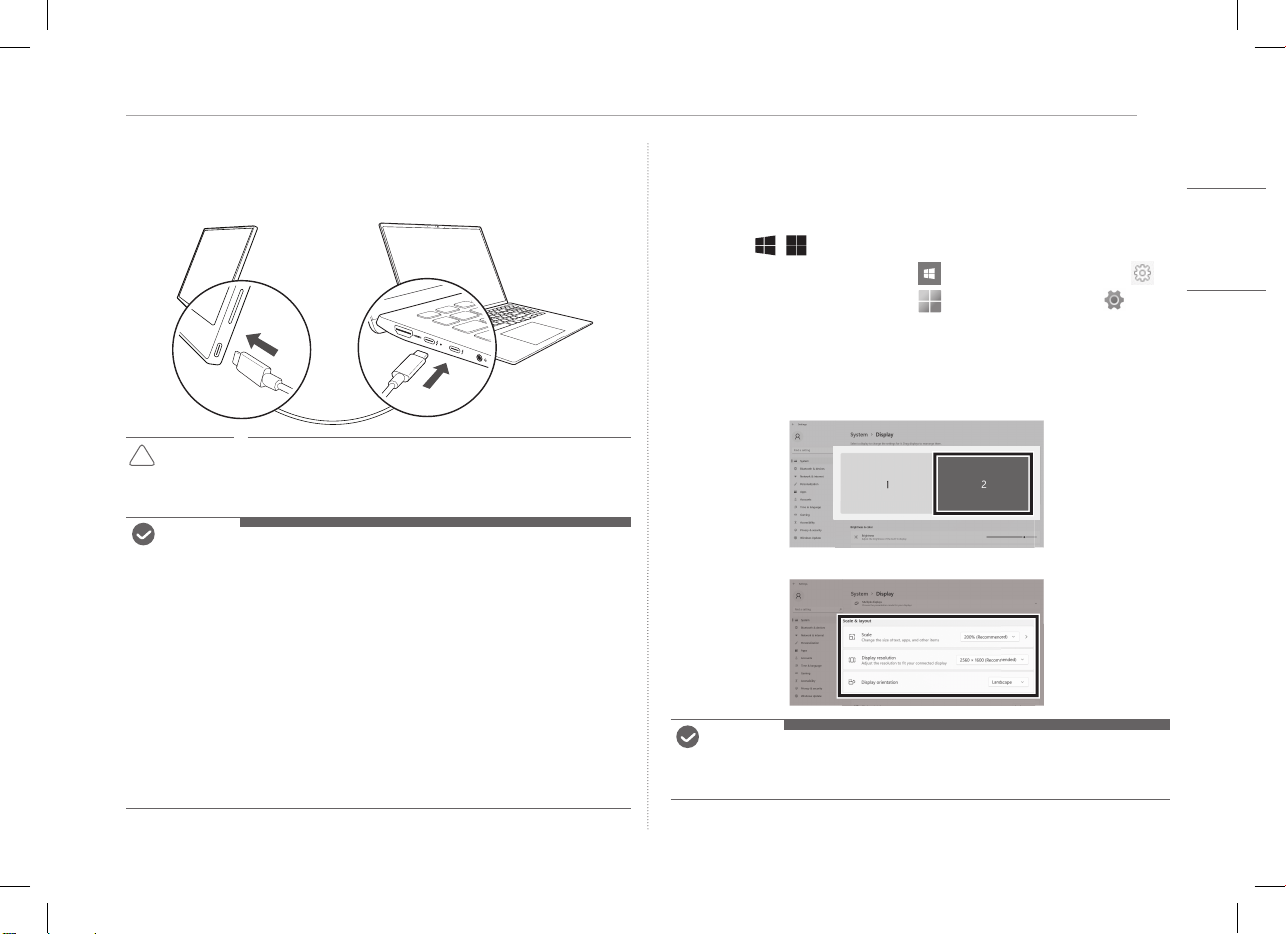
4Podłączanie monitora
POLSKI
Podłączanie monitora
Podłącz porty USB-C™ monitora i komputera za pomocą kabla USB-C™.
!
UWAGA
• Do tego połączenia nie należy używać innego typu kabla niż
USB-C™. W przeciwnym razie mogłoby dojść do uszkodzenia
złącza.
UWAG
• Ten produkt jest przeznaczony do stosowania wyłącznie z laptopami. Urządzenie
łączone z tym monitorem musi obsługiwać tryb DisplayPort Alternate Mode (DP
Alt Mode) i moc wyjściową (USB PD) co najmniej 7,5 W (5 V / 1,5 A).
• Gniazdo
USB-C™
obsługuje tylko jedno połączenie i nie obsługuje wielu
połączeń.
• Do połączenia należy korzystać z kabla
USB-C™
dołączonego do monitora.
W przypadku używania kabla od innego urządzenia może występować
nieprawidłowe działanie monitora.
• Jeśli urządzenie podłączone do monitora ma niski poziom baterii, połączenie
może zostać utracone.
• Ten monitor obsługuje funkcję plug-and-play.
(Plug-and-play: Gdy urządzenie zostaje podłączone do komputera, komputer
automatycznie je rozpoznaje bez konieczności wprowadzania zmian w
ustawieniach środowiska przez użytkownika)
Ustawianie ekranu (tryb rozszerzenia)
W przypadku ustawienia monitora przenośnego na tryb rozszerzenia można
ustawić proporcje i układ ekranu.
1 Naciśnij
[
/ ] lub
[Ctrl] + [ESC] na klawiaturze, aby wyświetlić menu Start.
y
Windows 10: Naciśnij przycisk Start [ ], a następnie wybierz Ustawienia [ ].
y
Windows 11: Naciśnij przycisk Start [
] i wybierz opcję Ustawienia [ ] na
ekranie startowym.
2 Gdy wyświetlony zostanie ekran Ustawienia, wybierz [System] > [Ekran].
3 Windows 10: Wybierz opcję [Rozszerz te ekrany] w obszarze [Wiele ekranów].
Windows 11: Wybierz opcję [Rozszerz te ekrany].
4 Wybierz monitor 2.
5 Zmień ustawienia zgodnie z potrzebami w obszarze [Skala i układ].
UWAG
• Ta ilustracja ma jedynie charakter poglądowy i może się różnić w zależności od
wersji systemu Windows i wybranego języka.
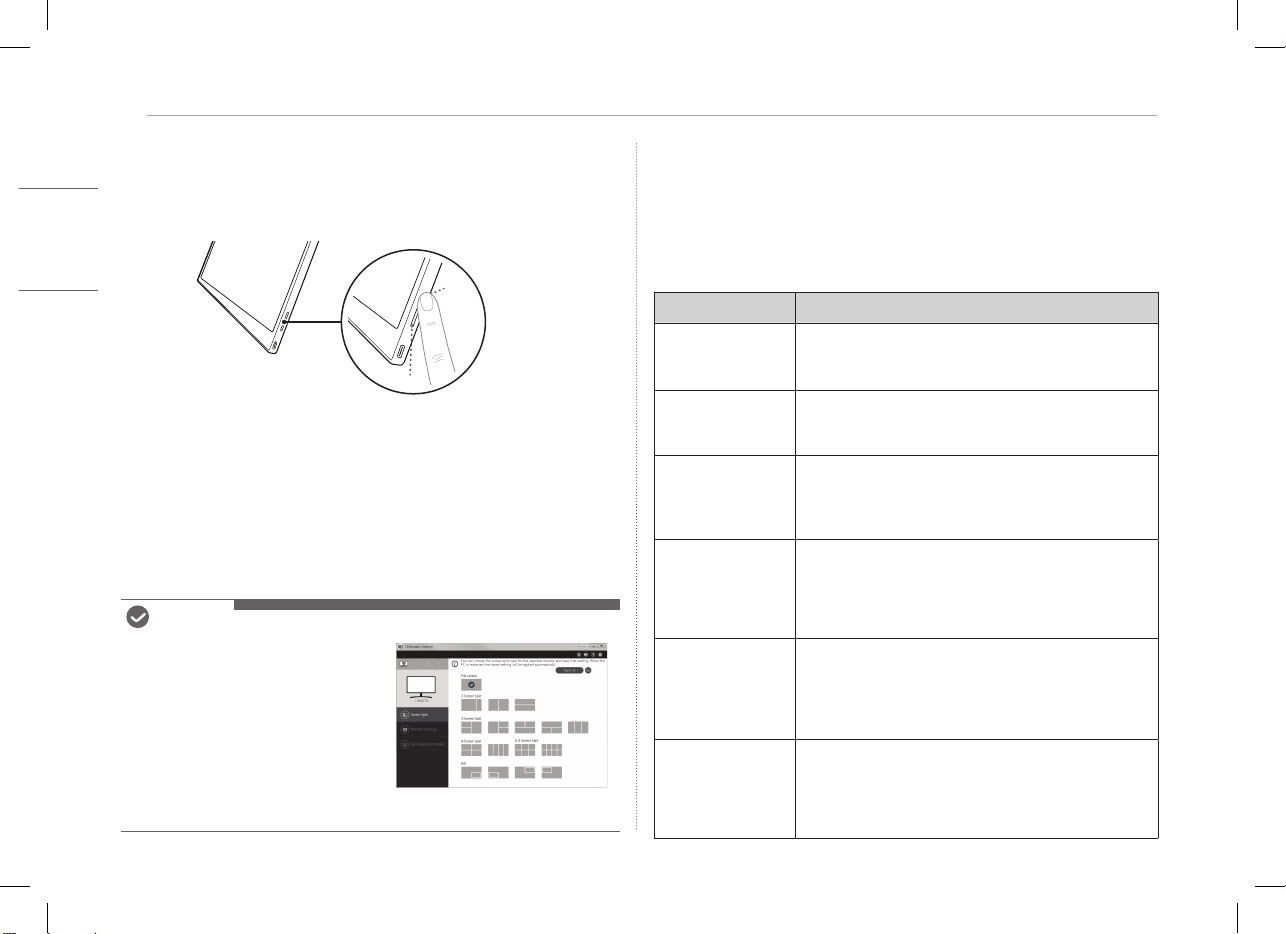
5 Regulacja jasności ekranu
POLSKI
Regulacja jasności ekranu
Do regulacji jasności ekranu można używać przycisk jasności ekranu po prawej
stronie monitora.
Instalacja oprogramowania
Zainstaluj oprogramowanie OnScreen Control i korzystaj z wielu różnych
funkcji np. dzielonego ekranu, ustawień monitora oraz łatwego i wygodnego
przełączania ekranów.
1 Odwiedź witrynę internetową firmy LG Electronics (https://www.lg.com/pl).
2 Wybierz opcję „WSPARCIE” i wyszukaj model produktu.
3 Wybierz „OnScreen Control” i rozpocznij instalowanie oprogramowania.
UWAG
• Po zainstalowaniu oprogramowania
OnScreen Control możesz zobaczyć,
jak z niego korzystać w menu Help
w aplikacji.
• Oprogramowanie OnScreen Control jest
dostępne tylko dla systemu Windows.
• Funkcja Auto Screen Rotation
(Automatyczne obracanie ekranu)
dostępna jest tylko wtedy, gdy włączona
jest aplikacja OnScreen Control.
Lista kontrolna dotycząca wstępnego
wsparcia technicznego
W przypadku wystąpienia następujących symptomów podczas korzystania z
urządzenia, sprawdź ponownie.
Nie musi to oznaczać nieprawidłowego działania.
Symptom Przyczyna i rozwiązanie
Ekran jest pusty
lub połączenie jest
niestabilne.
• Sprawdź, czy urządzenie podłączone do monitora
obsługuje DisplayPort Alternate Mode (DP Alt Mode) i
USB Power Delivery (USB PD).
Brak zasilania. • Sprawdź, czy możesz poprawnie podłączyć urządzenie
do monitora za pomocą kabla
USB-C™
dołączonego do
niego.
Został przekroczony
obsługiwany przez
monitor zakres
częstotliwości.
• Zdarza się to wtedy, gdy sygnał wysyłany z komputera
przekracza zasięg częstotliwości poziomej lub pionowej.
Zobacz ustawienia w trybie fabrycznym i zresetuj
częstotliwość.
Ekran jest
niewyraźny.
• Ustawienie rozdzielczości ekranu na inną niż zalecana
(optymalna) może powodować niewyraźny tekst,
przyciemniony obraz, przycięcie obrazu lub jego
pochylenie. Należy używać zalecanego ustawienia
rozdzielczości ekranu.
Wypalenie ekranu
jest widoczne
nawet o wyłączeniu
urządzenia.
• Należy pamiętać, że wyświetlanie nieruchomego obrazu
przez długi czas może spowodować uszkodzenie
wyświetlacza i powodować jego wypalenie.
• W przypadku używania monitora przez długi czas
należy korzystać z wygaszacza ekranu.
Na ekranie występują
plamki.
• Na ekranie podczas korzystania z monitora widać kilka
pikselowych punktów (czerwone, zielone, niebieskie,
białe, czarne). Jest to normalne w przypadku ekranu
LCD. Nie wpływa to na wydajność monitora i nie
stanowi usterki.
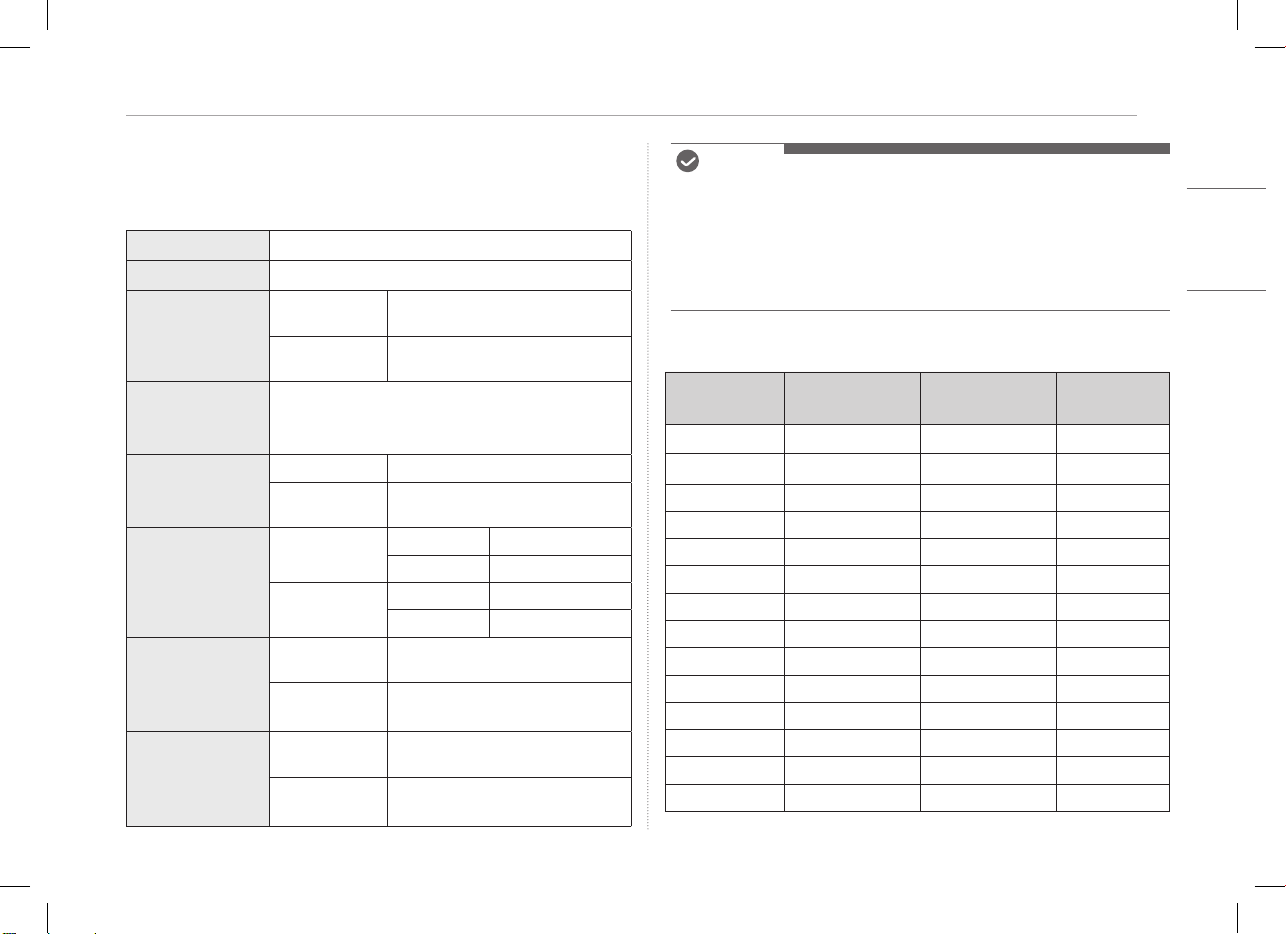
6Załącznik
POLSKI
Załącznik
Specykacja produktu
Wyświetlacz
40,6 cm IPS LCD
Głębia kolorów
16,7 mln kolorów (8 bitowy)
Rozdzielczość
Maksymalna
rozdzielczość
2560 x 1600 przy 60 Hz
Zalecana
rozdzielczość
2560 x 1600 przy 60 Hz
Obsługiwany
standard
wyświetlania
DisplayPort Alternate Mode (DP Alt Mode)
Zasilanie
Znamionowe
5 V
0
2 A
Pobór energii
Tryb pracy: 8 W ogólnie (ustawienie
fabryczne)*
Środowisko
Praca
Temperatura Od 0 °C do 40 °C
Wilgotność Niższa niż 80%
Przechowywanie
Temperatura Od -20 °C do 60 °C
Wilgotność Niższa niż 85%
Wymiary
(bez
uwzględnienia
opakowania)
Ze składaną
pokrywą
362 (szerokość) x 249 (wysokość) x
11,3 mm (grubość)
Bez składanej
pokrywy
360 (szerokość) x 245,5 (wysokość) x
8,3 mm (grubość)
Ciężar
(bez
uwzględnienia
opakowania)
Ze składaną
pokrywą
Ok. 990 g
Bez składanej
pokrywy
Ok. 670 g
UWAG
• * Pobór energii w trybie włączenia został zmierzony zgodnie ze standardowymi
warunkami testowania firmy LGE (pełny biały wzorzec, maksymalna
rozdzielczość).
• Specyfikacje produktu mogą ulec zmianie bez uprzedzenia w związku z
udoskonalaniem urządzenia.
• Poziom poboru energii może się różnić w zależności od warunków pracy i
ustawień monitora.
Domyślny tryb fabryczny
Tryb wstępnie
ustawiony
Częstotliwość
pozioma (kHz)
Częstotliwość
pionowa (Hz)
Biegunowość
(poz./pion.)
640 x 480 31,469 59,94 -/-
800 x 600 37,879 60,317 +/+
1024 x 768 48,363 60 -/-
1152 x 864 54,347 60,05 +/+
1280 x 720 45 60 +/+
1280 x 1024 63,981 60,02 +/+
1600 x 900 60 60 +/+
1680 x 1050 65,29 59,954 -/+
1920 x 1080 67,5 60 +/-
1920 x 1080 83,894 74,973 +/-
2560 x 1440 88,79 59,95 +/-
2560 x 1600 48,62 29,96 +/-
2560 x 1600 98,71 59,97 +/-
2560 x 1600 124,26 74,95 +/-
7 Załącznik
POLSKI
Informacje o zastrzeżonych znakach towarowych i uwaga o
oprogramowaniu Open Source
USB Type-C™ i USB-C™ są znakami towarowymi organizacji USB Implementers
Forum.
Logo LG jest zastrzeżonym znakiem towarowym
firmy LG Electronics Inc.
Aby uzyskać zawarty w tym produkcie kod źródłowy podlegający licencjom
GPL, LGPL, MPL i innym licencjom open source, które mają obowiązek ujawniać
kod źródłowy oraz aby uzyskać dostęp do wszystkich warunków wymienionych
licencji, informacji o prawach autorskich oraz innych istotnych dokumentów,
należy odwiedzić stronę https://opensource.lge.com.
Firma LG Electronics oferuje także dostarczenie kodu źródłowego typu
otwartego na CD-ROM za kwotę pokrywającą koszty takiej dystrybucji (jak
koszty nośnika, transportu i przechowania) po przesłaniu prośby na adres
opensourc[email protected].
Oferta ta jest ważna dla każdego, kto otrzyma tę informację przez okres trzech
lat od ostatniej wysyłki tego produktu.
Symbols
~
Dotyczy prądu zmiennego (AC).
0
Dotyczy prądu stałego (DC).
Dotyczy urządzeń klasy II.
1
Dotyczy stanu gotowości.
!
Dotyczy stanu „WŁĄCZONY” (zasilanie).
Dotyczy niebezpiecznego napięcia.
www.lg.com
РУССКИЙ
1
РУССКИЙ
!
:
!
:
!
•
•
•
•
•
•
1
1
2
3
3
4
4
5
5
5
6
6
7
7
8
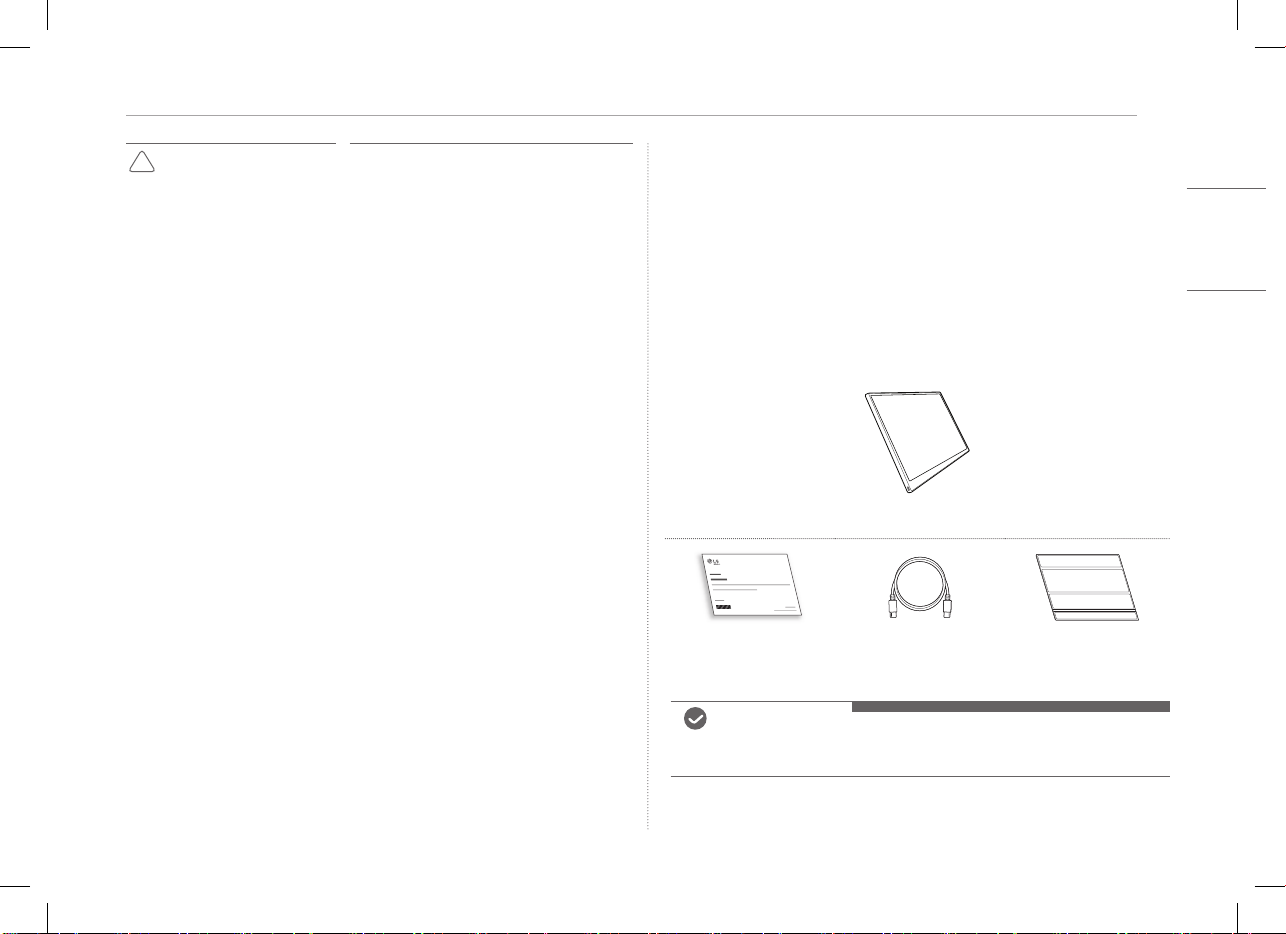
2
РУССКИЙ
!
•
•
•
•
•
•
•
y
y
•
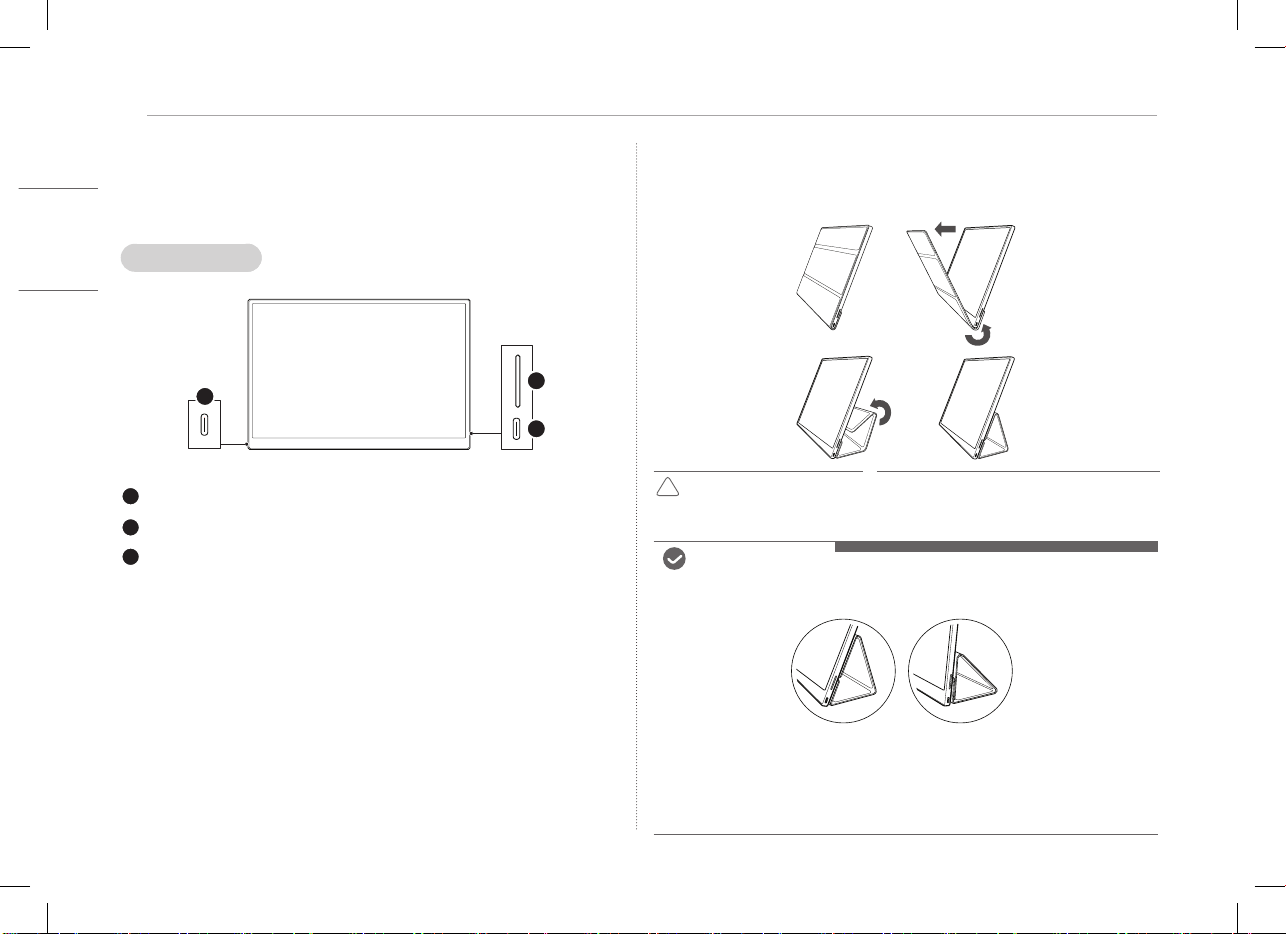
3
РУССКИЙ
1
2
3
!
•
•
•
•
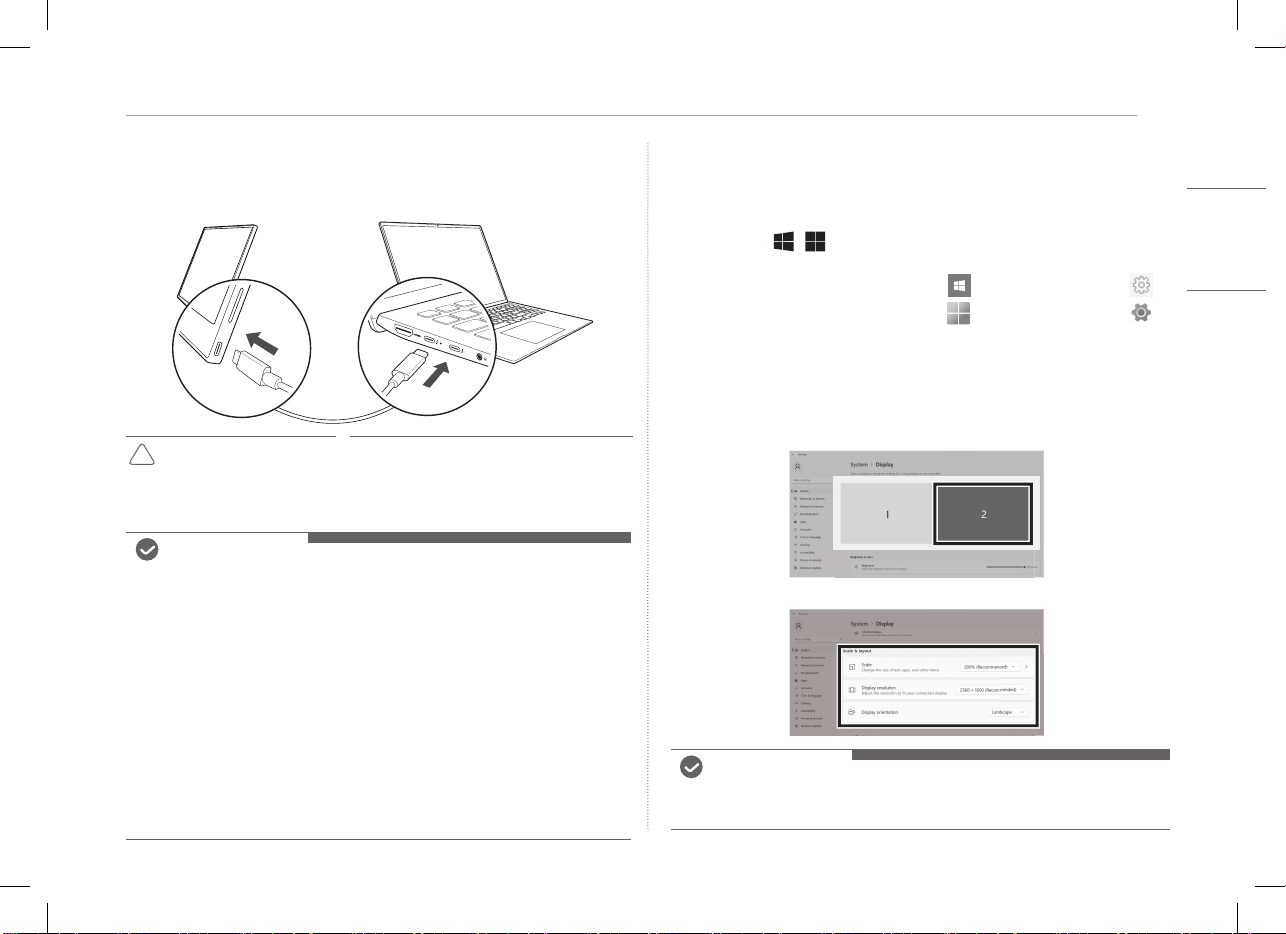
4
РУССКИЙ
!
•
•
•
•
•
•
y
y
•
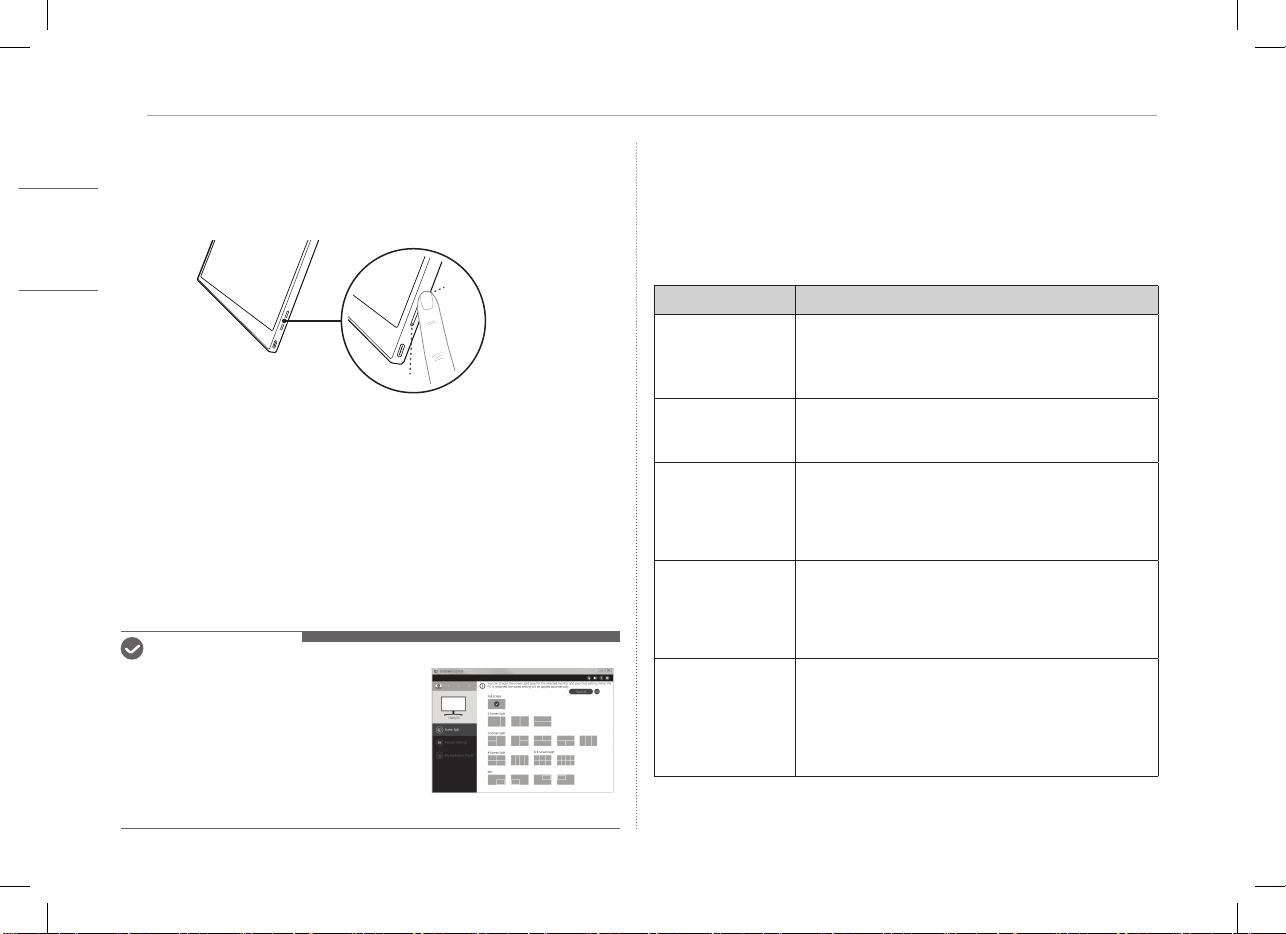
5
РУССКИЙ
•
•
•
•
•
•
•
•
•
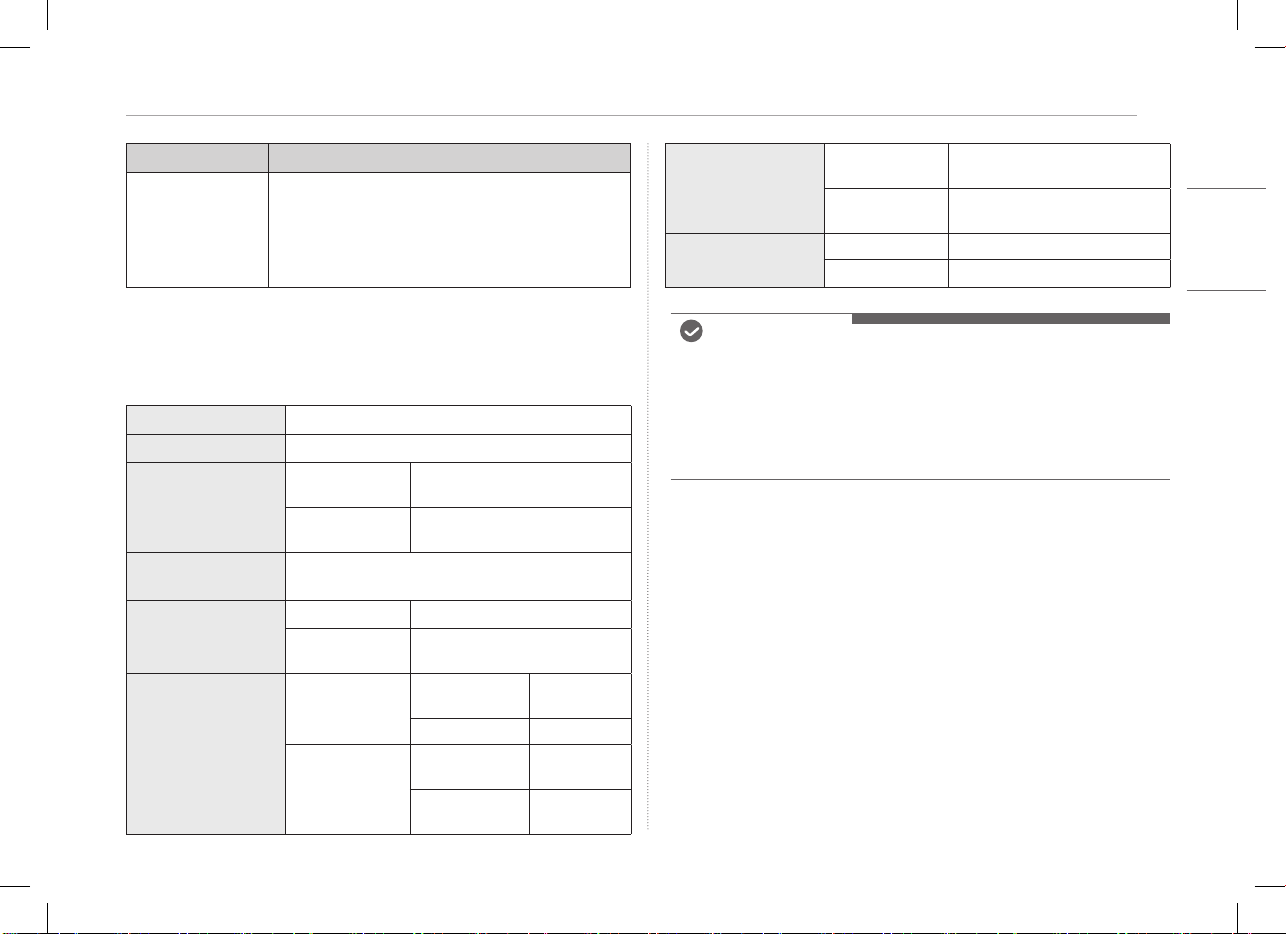
6
РУССКИЙ
•
0
•
•
•
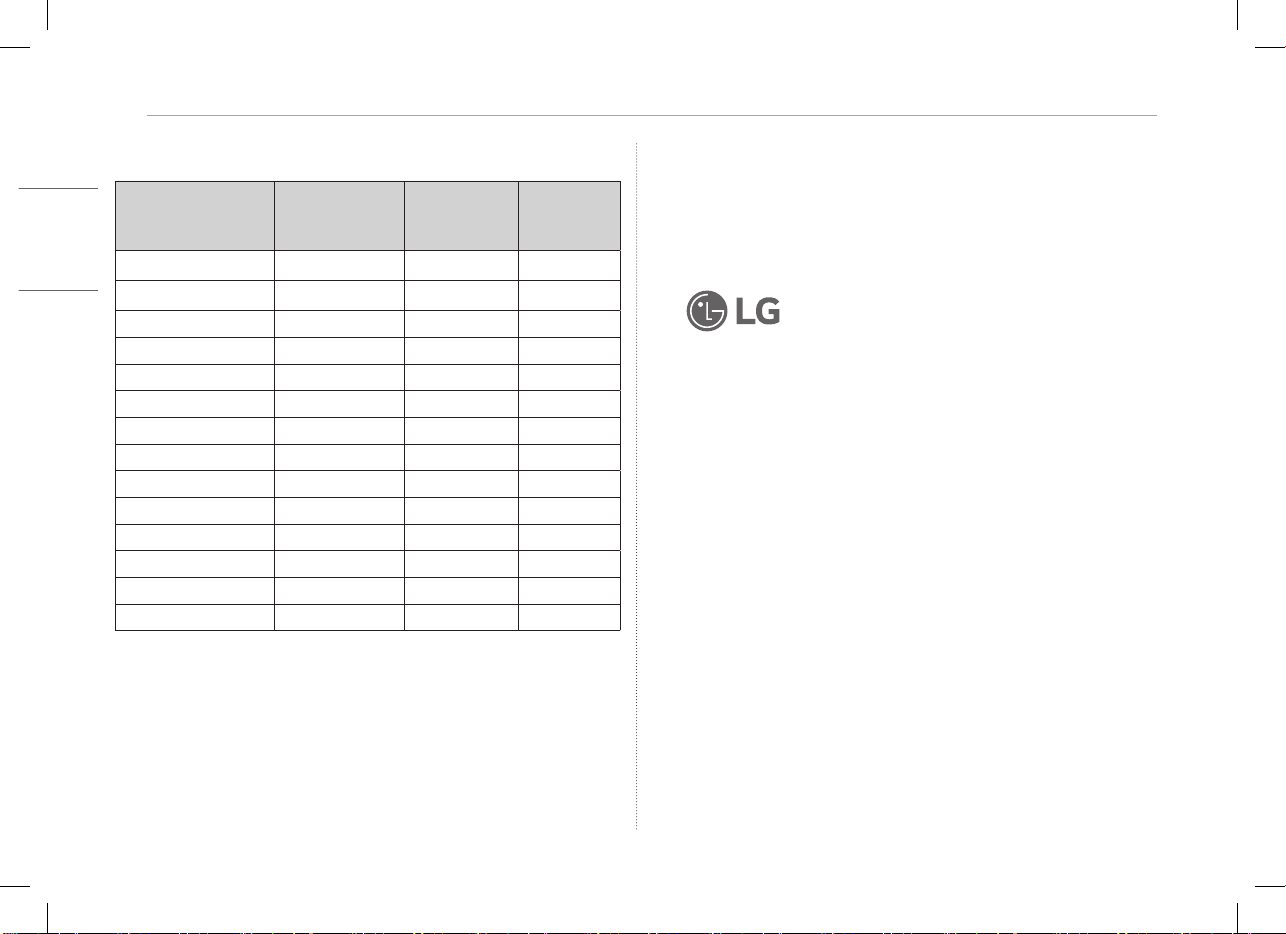
7
РУССКИЙ
45
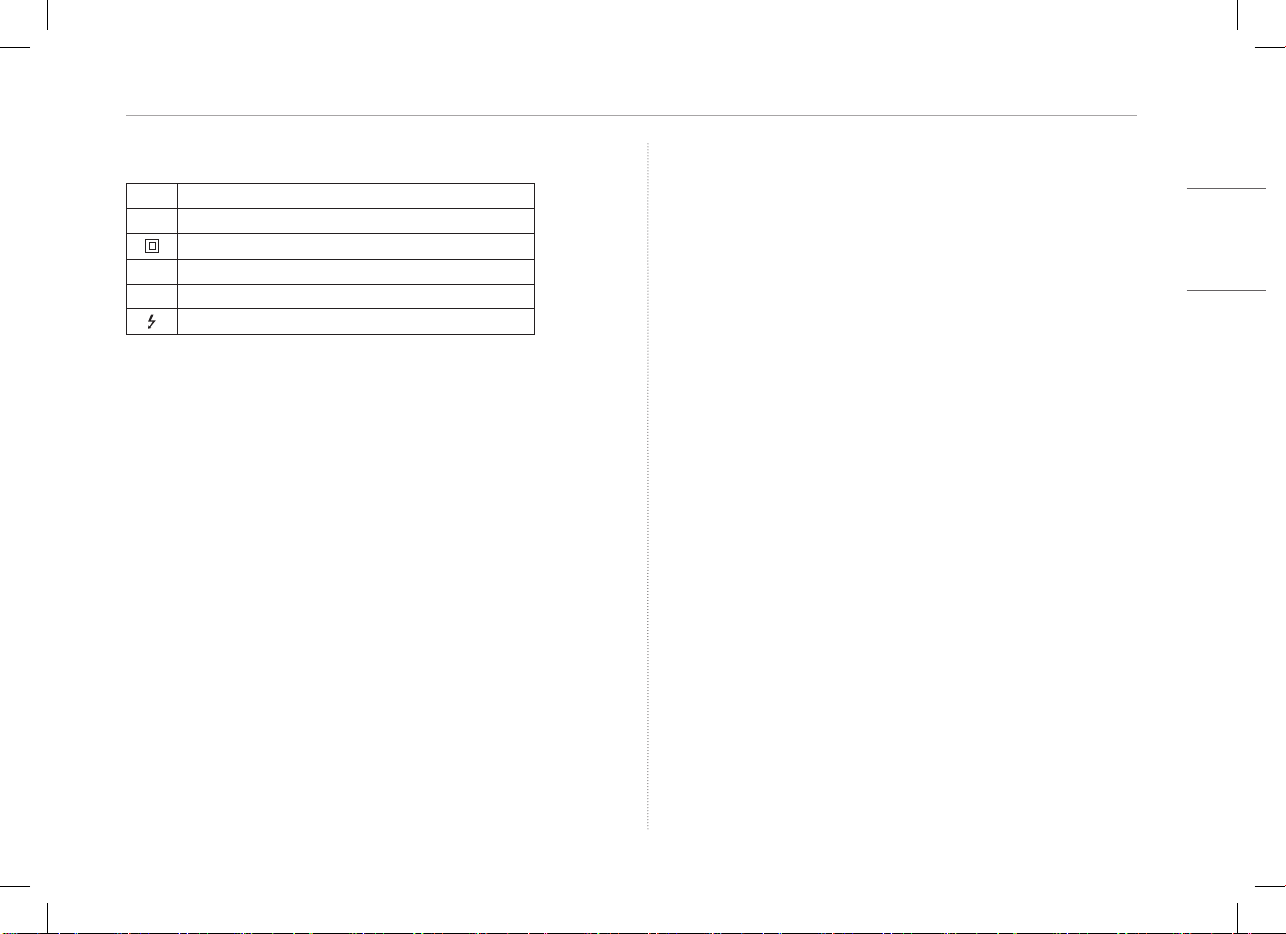
8
РУССКИЙ
~
0
1
!
6
59.94
37.879
115254.347
45
59.954
83.89474.973
88.7959.95
98.7159.97
74.95
.
.LG
.
.
~
0
1
!
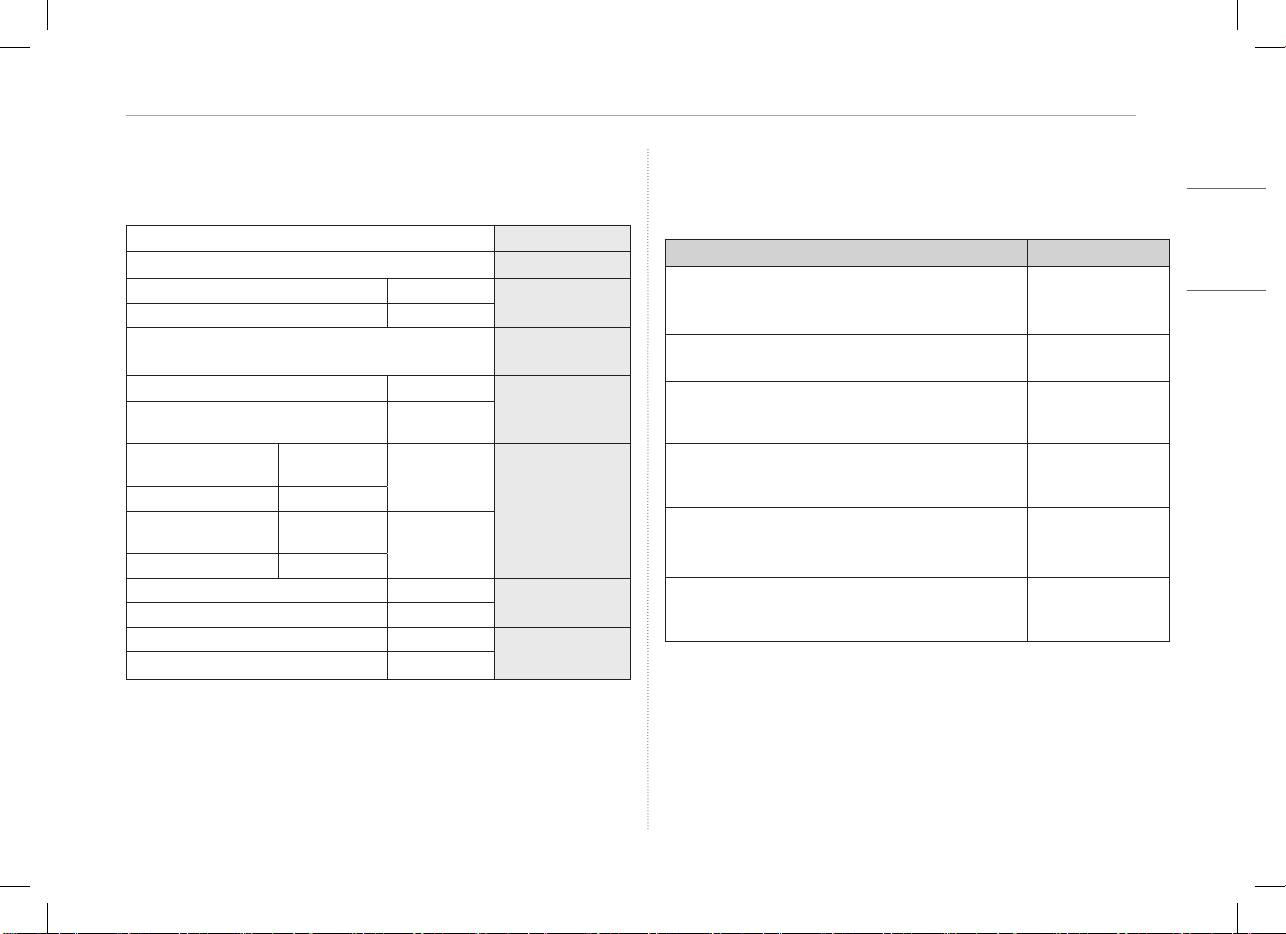
5
USB
(
8
205
8
85
11.3249
8.3245.5
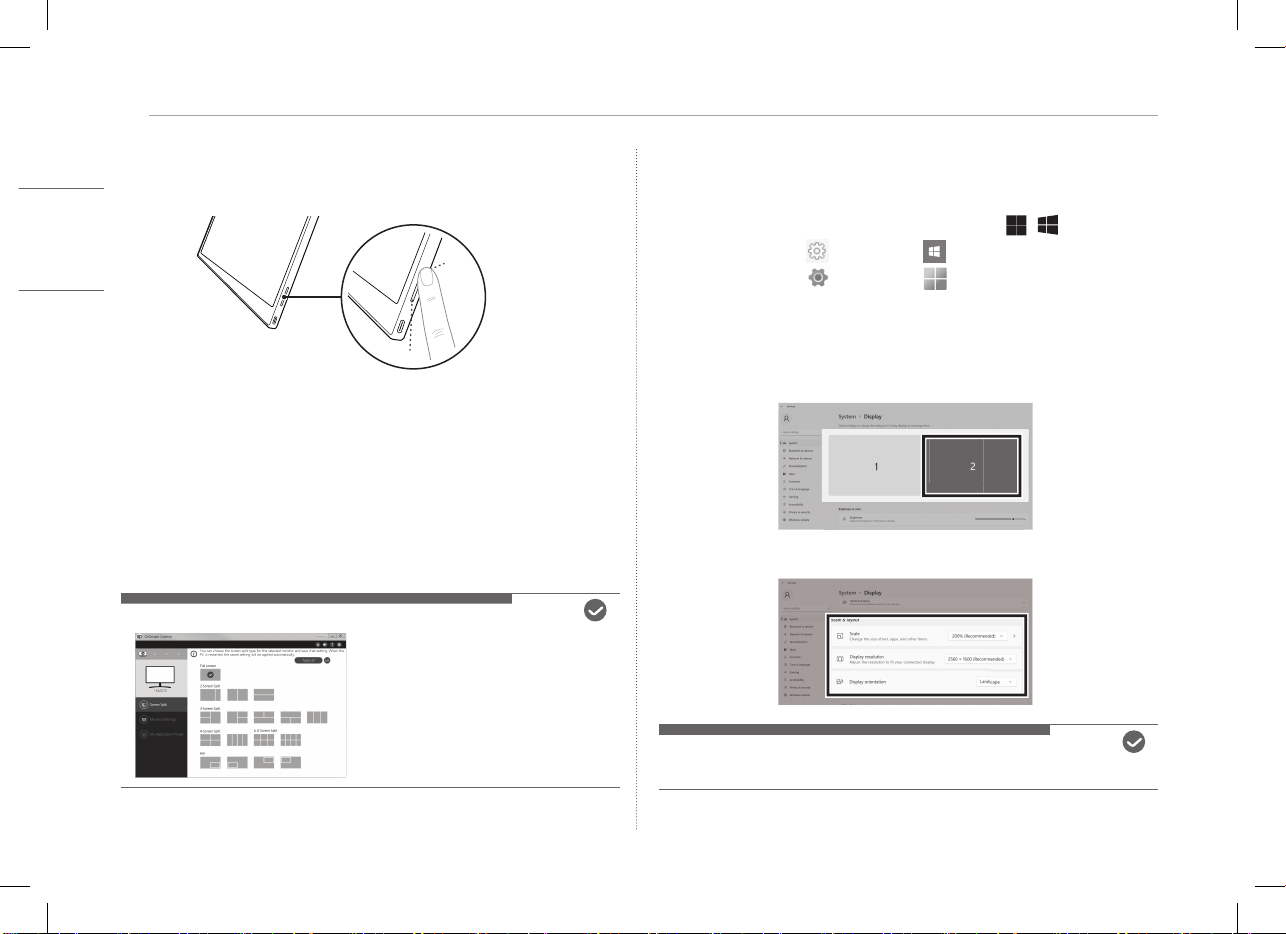
4
1
2
3
4.2
5
1
2
3
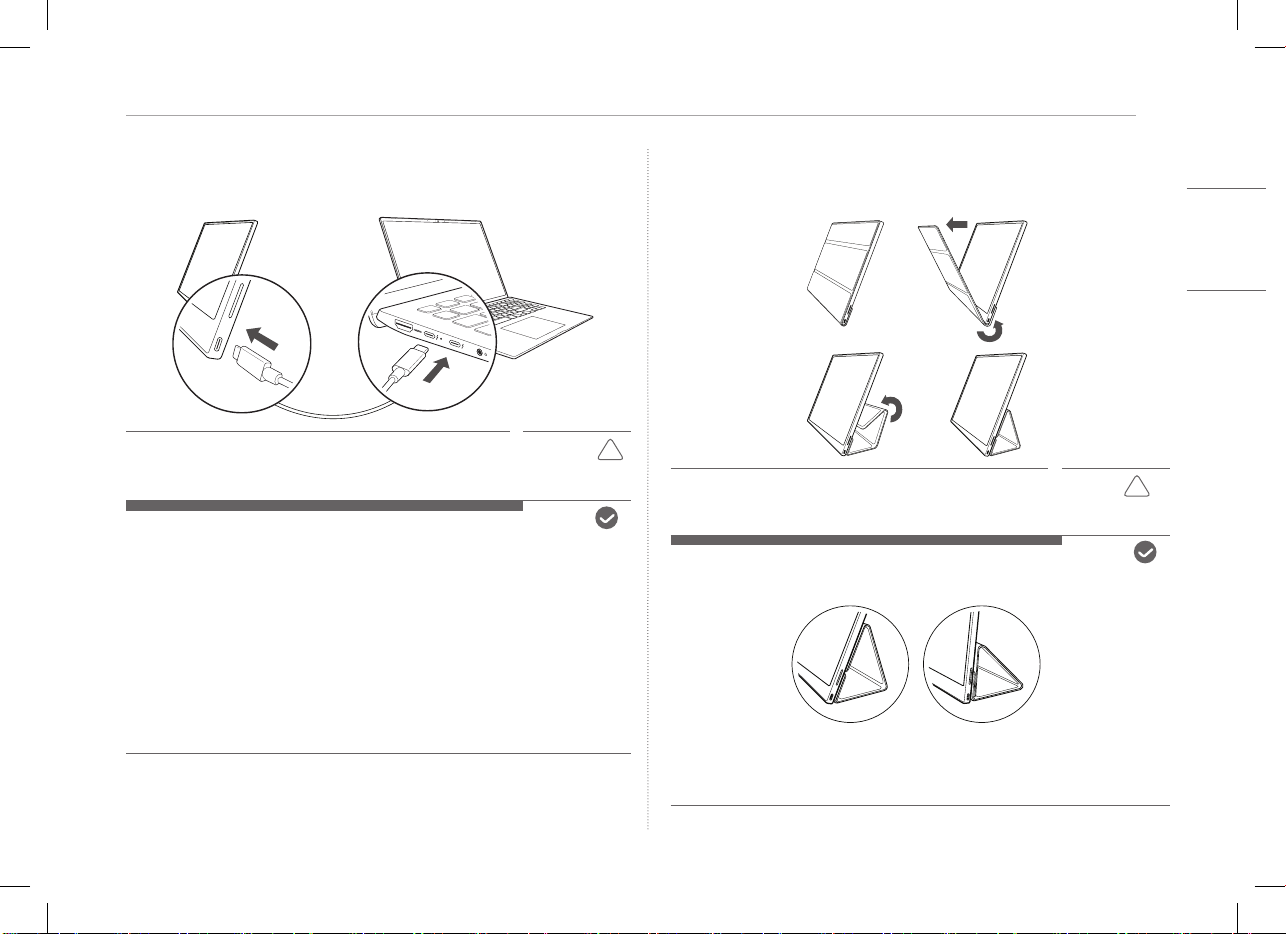
3
!
.
!
1.557.5
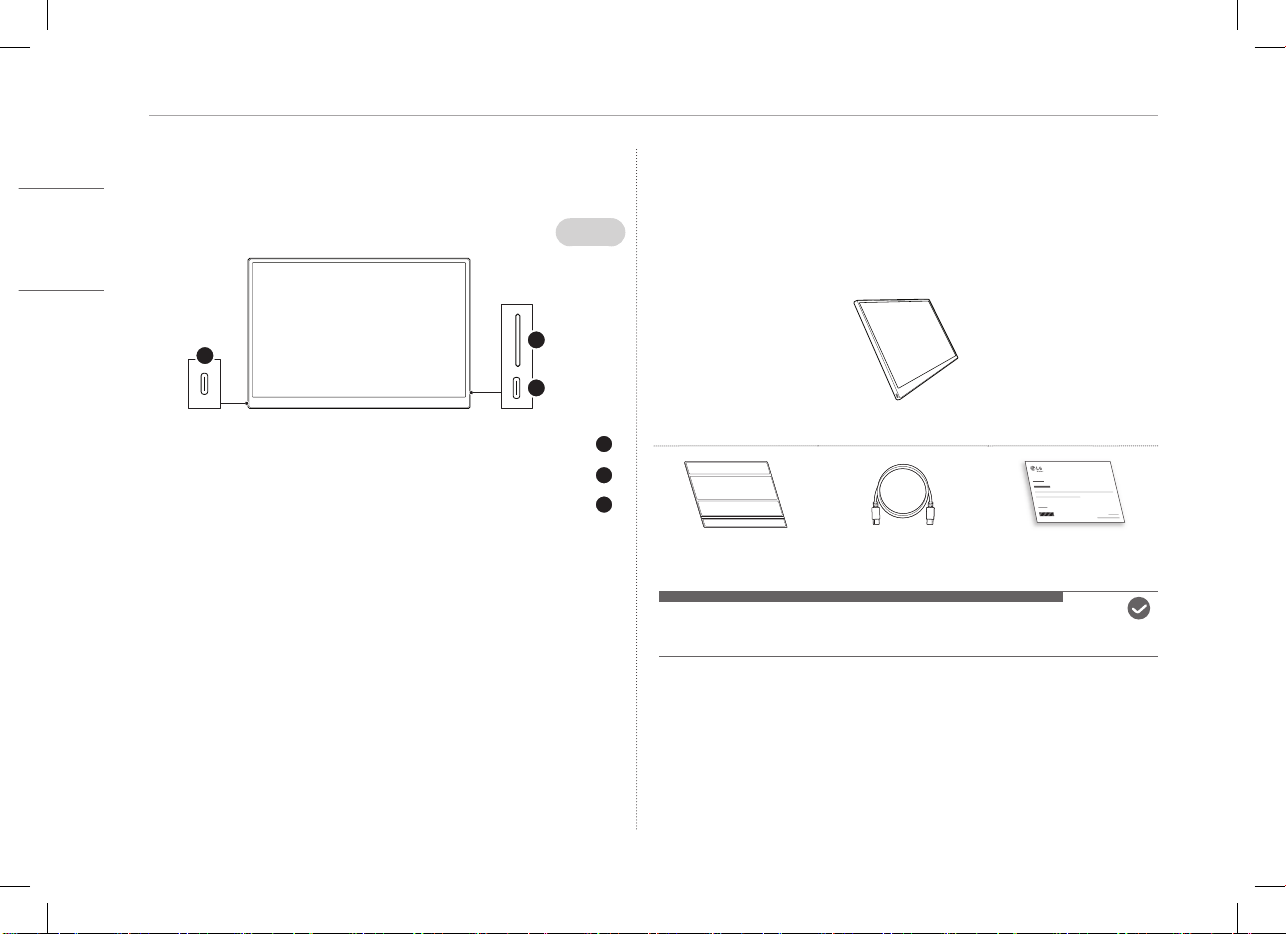
2
USB-C
1
2
3
USB-C
USB-C
1
1 ...........................................................
1 ...........................................................................................
2 ....................................................................
2 ......................................................................
3 ................................................................
3 ...............................................................
4 ...................................................
4 ................................................................
4 ........................................................................
5 .................................................
5 ................................................................................
5 .................................................................................................
6 ...............................................................................
6 ........................
6 .............................................................................................................
:
!
.:
!
!
!
16MQ70
www.lg.com
2022