
1
Operation Manual
Wi-Fi Operation Manual
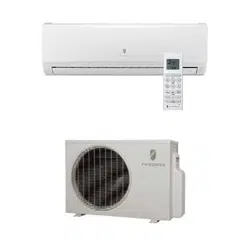
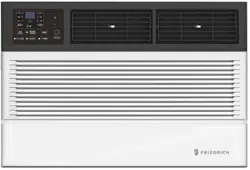
Chill Premier
Unit
FA Pro
FA Premier
93001200_00
Kuhl
Kuhl Q
Wallmaster
Friedrich Connect
Friedrich Go

2
Table of Contents
INTRODUCTION 3
Important Safety Information 3
Personal Injury Or Death Hazards 4
FCC Caution 5
FRIEDRICH CONNECT 6
Kuhl, Kuhl Q, And Wallmaster Controls 6
KUHL, KUHL Q, AND WALLMASTER 8
Wi-Fi SET UP INSTRUCTIONS 8
Wi-Fi TROUBLESHOOTING TIPS 12
FRIEDRICH GO 14
FA Pro/ FA Premier App Info 14
FA Pro, FA Premier Troubleshooting 25
Chill Premier/ Unifit App Info 26
Chill Premier/ Unifit Registration 28
Chill Premier/ Unifit Login 29
Chill Premier/ Unifit Troubleshooting 41
TABLE OF CONTENTS
3
Your safety and the safety of others is very
important.
We have provided many important safety messages in this manual and on your appliance. Always read and obey all
safety messages.
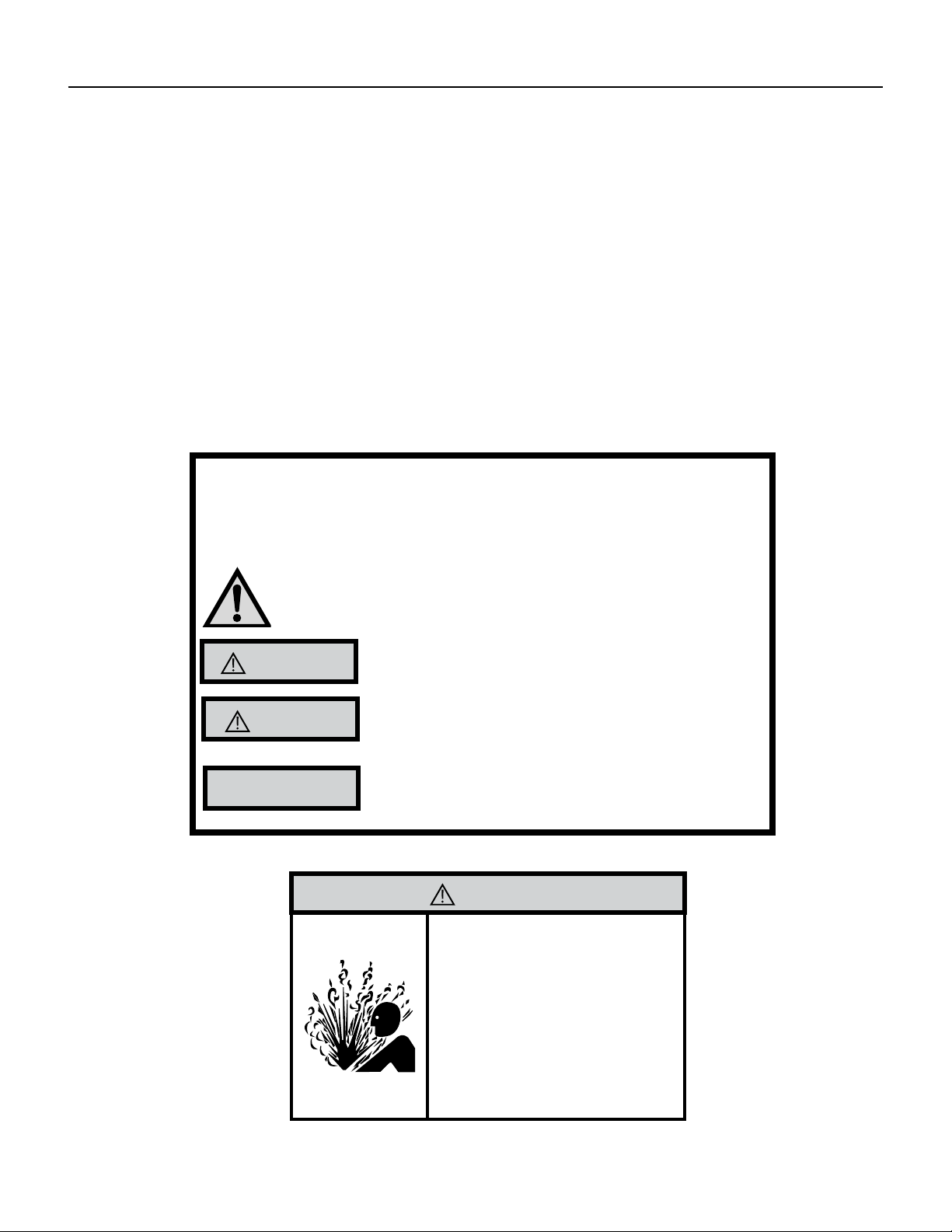
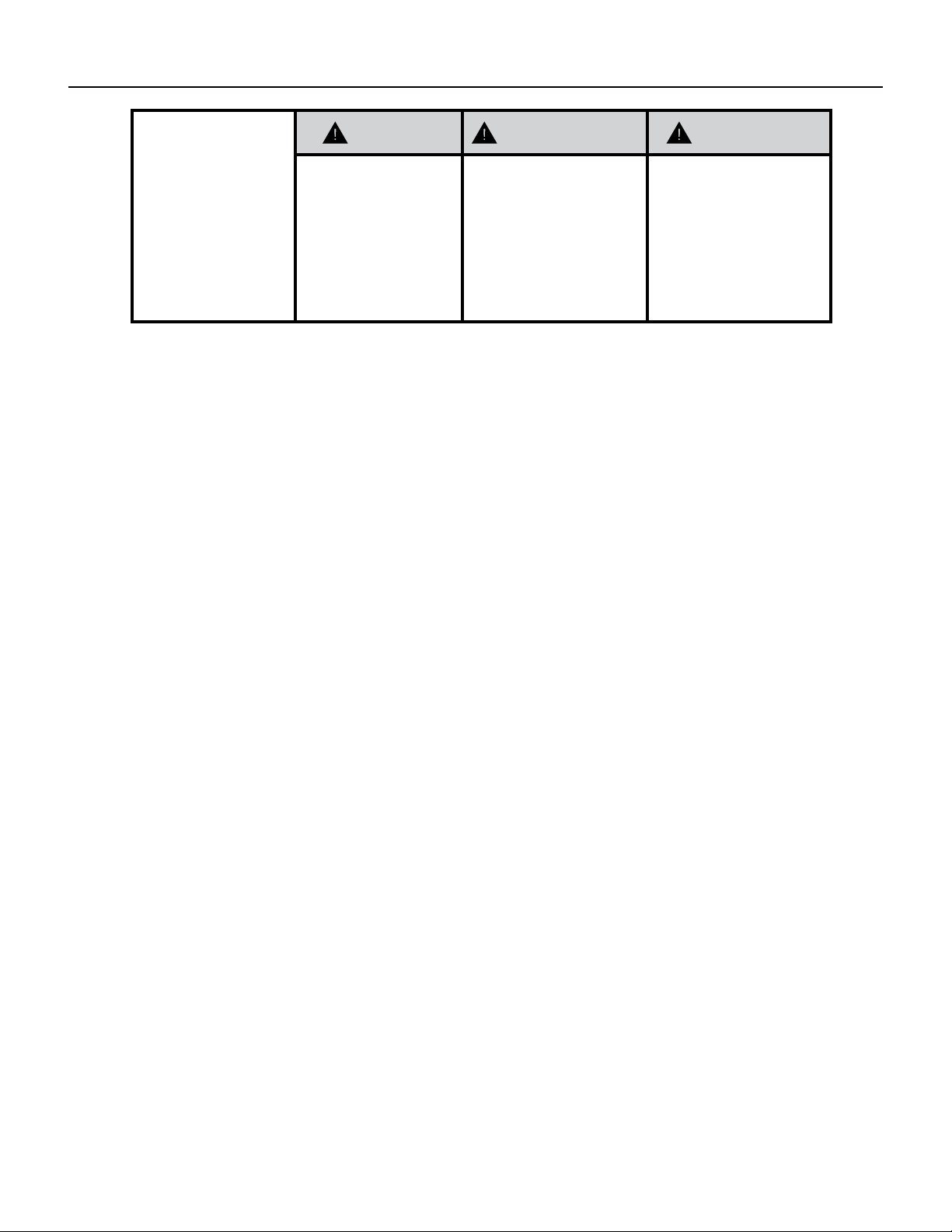
This is a safety Alert symbol.
This symbol alerts you to potential hazards that can kill or hurt you and others.
All safety messages will follow the safety alert symbol with the word “WARNING”
or “CAUTION”. These words mean:
WARNING
Refrigeration system
under high pressure
Do not puncture, heat, expose to ame or incinerate.
Only certied refrigeration technicians should service
this equipment.
R410A systems operate at higher pressures than R22
equipment. Appropriate safe service and handling
practices must be used.
Only use gauge sets designed for use with R410A.
Do not use standard R22 gauge sets.
NOTICE
CAUTION
WARNING
Installation or repairs made by unqualied persons can result in subjecting the unqualied
person making such repairs as well as the persons being served by the equipment to hazards
resulting in injury or electrical shock which can be serious or even fatal.
Safety warnings have been placed throughout this manual to alert you to potential hazards that
may be encountered. If you install or perform service on equipment, it is your responsibility to
read and obey these warnings to guard against any bodily injury or property damage which may
result to you or others.
INTRODUCTION
IMPORTANT SAFETY INFORMATION
4
SAFETY
FIRST
WARNING AVERTISSEMENT ADVERTENCIA
Do not remove, disable or
bypass this unit’s safety
devices. Doing so may cause
re, Doing so may cause re,
injuries, or death.
Ne pas supprime, désactiver ou
contourner cette l´unité des
dispositifs de sécurité, faire vous
risqueriez de provoquer le feu, les
blessures ou la mort.
No eliminar, desactivar o pasar
por alto los dispositivos de
seguridad de la unidad. Si lo hace
podría producirse fuego, lesiones
o muerte.
ELECTRICAL HAZARDS:
• Unplug and/or disconnect all electrical power to the unit before performing
inspections, maintenance, or service.
• Make sure to follow proper lockout/tag out procedures.
• Always work in the company of a qualied assistant if possible.
• Capacitors, even when disconnected from the electrical power source, retain an
electrical charge potential capable of causing electric shock or electrocution.
• Handle, discharge, and test capacitors according to safe, established, standards, and
approved procedures.
• Extreme care, proper judgment, and safety procedures must be exercised if it
becomes necessary to test or troubleshoot equipment with the power on to the unit.
• Do not spray water on the air conditioning unit while the power is on.
• Electrical component malfunction caused by water could result in electric shock or
other electrically unsafe conditions when the power is restored and the unit is turned
on, even after the exterior is dry.
• Use air conditioner on a single dedicated circuit within the specied amperage
rating.
• Use on a properly grounded outlet only.
• Do not cut or modify the power supply cord or remove the ground prong of the plug.
• Never operate the unit on an extension cord.
• Follow all safety precautions and use proper and adequate protective safety aids
such as: gloves, goggles, clothing, properly insulated tools, and testing equipment
etc.
• Failure to follow proper safety procedures and/or these warnings can result in
serious injury or death.
INTRODUCTION
PERSONAL INJURY OR DEATH HAZARDS

5
INTRODUCTION
FCC Caution
This device complies with part 15 of the FCC Rules. Operation is subject to the following two conditions:
(1) This device may not cause harmful interference, and
(2) This device must accept any interference received, including interference that may cause undesired
operation.
Any Changes or modications not expressly approved by the party responsible for compliance could void
the user’s authority to operate the equipment.
Note: This equipment has been tested and found to comply with the limits for a Class B digital device,
pursuant to part 15 of the FCC Rules. These limits are designed to provide reasonable protection against
harmful interference in a residential installation. This equipment generates uses and can radiate radio
frequency energy and, if not installed and used in accordance with the instructions, may cause harmful
interference to radio communications. However, there isno guarantee that interference will not occur in a
particular installation. If this equipment does cause harmful interference to radio or television reception,
which can be determined by turning the equipment o and fon, the user is encouraged to try to correct the
interference by one or more ao the following measures:
- Reorient or relocate the receiving antenna.
- Increase the separation between the equipment and receiver.
- Connect the equipment into an outlet on a circuit dierent from that to which the receiver is
connected.
- Consult the dealer or an experienced radio/TV technician for help.
6
FRIEDRICH CONNECT
Kuhl, Kuhl Q, And Wallmaster Controls
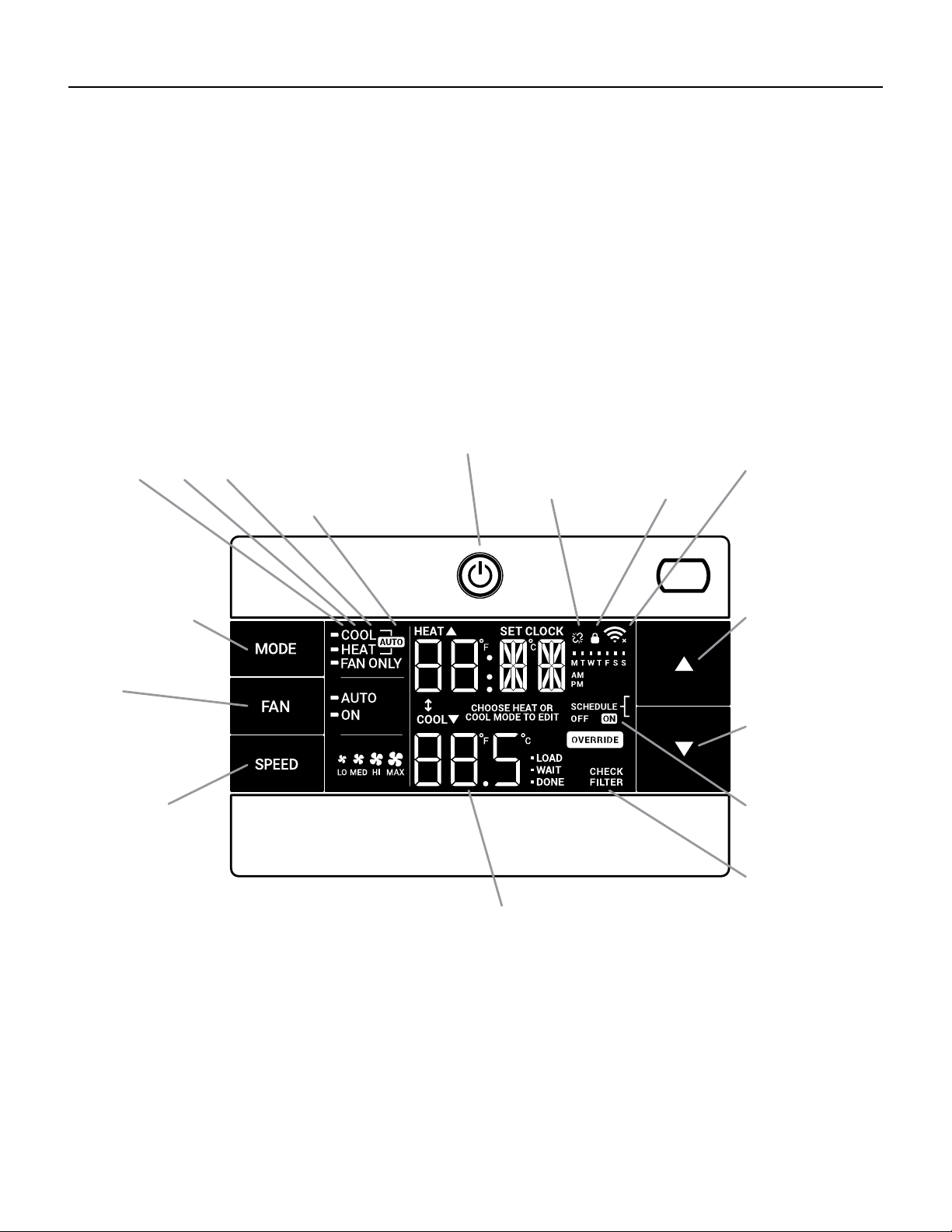
All of the control panel function buttons and mode icons can be viewed in Figures 201.
Power On – Press the button to turn on the air conditioner. The power button illuminates to in-
dicate that the power is on. The backlight on the power switch will automatically turn o after 20
seconds of inactivity. The remote control can also be used to turn power ON / OFF.
Display – The display is a high eciency LCD with a built-in backlight. After 20 seconds of
inactivity, the display switches o. Touching any button automatically changes the display to full
brightness.
There are three control push buttons on each side of the display.
CONTROL PANEL AND DISPLAY
Figure 201
-AUTO-
Automatically switches
between cool & heat
CONTROL
LOCKED
WI-FI OPERATING
STATE
TEMPERATURE
UP
TEMPERATURE
DOWN
2 DIGIT DISPLAY
Shows Setting for:
- Set Point (Temperature)
- Clock (AM/PM)
FILTER
Check / clean
FAN SPEED
Sets fan speed:
LOW, MED, HIGH,
or MAX (Selected
Models Only)
FAN
Sets fan to either:
- Automatically cycle
- Continuously run
COOL HEAT FAN ONLY DISCONNECTED FROM
POWER BOARD
MODE
Cycles between
COOL, HEAT, FAN
ONLY or -AUTO-
(if equipped)
ON / OFF
Turns unit on/off
TIMER
shows on or off
7
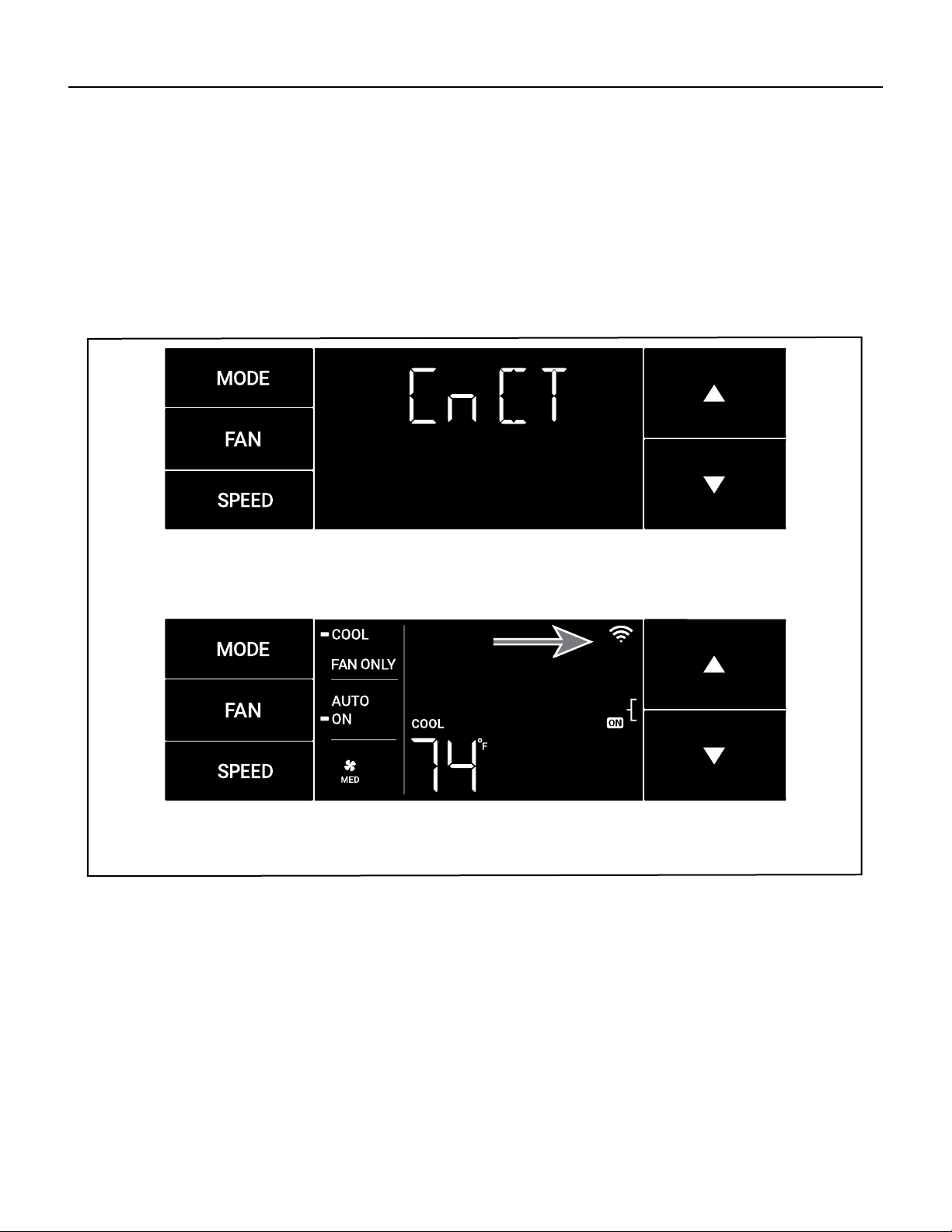
The CnCT Menu (WiFi Connection)
This menu is used to turn on Wi-Fi connection.
This is the CnCT menu. See Figure 202
Pressing the menu button will activate Wi-Fi.
To setup WiFi, refer to Wi-Fi setup instructions.
Figure 202
Figure 203
FRIEDRICH CONNECT
Kuhl, Kuhl Q, And Wallmaster Controls
8
Wi-Fi SET UP INSTRUCTIONS
Below are the set-up instructions for Wi-Fi to use your
unit wirelessly. Follow the instructions below:
1. Write down the following information prior to
beginning this process
(If you do not know this information you can check your
router or contact your internet provider)
a. WI-FI Network Name
(SSID)_______________________
b. WI-FI Network Security Type (Open, wep, wpa,
wpa2) ______________ _________
c. WI-FI Network Password
________________________
2. Using a mobile device such as a smartphone or laptop,
navigate to
www.FriedrichConnect.com.
NOTE: If you do not have an account with
FriedrichConnect you will be given the option to create a
new account.
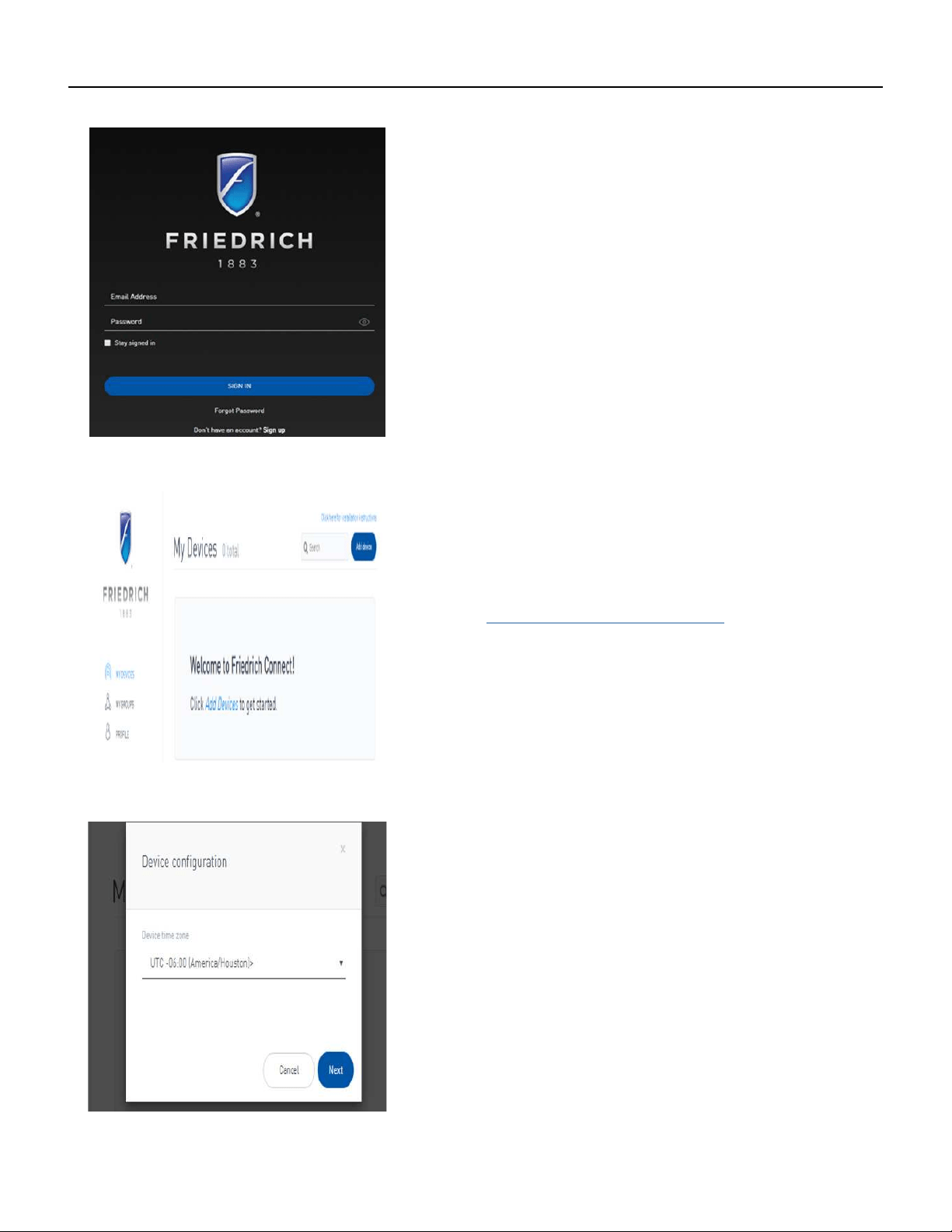
3. Sign-in using your username and password.
4. Click the “Add Device” button.
5. Select the time zone the device is located in and click
the “Next” button.
Step 3 (Login)
Step 4 (Add Device)
Step 5 (Select Time Zone)
FRIEDRICH CONNECT
KUHL, KUHL Q, AND WALLMASTER
9
Wi-Fi SET UP INSTRUCTIONS (CONT)
6. To start the setup process click the menu button on the Control Panel.
NOTE: If the Display is not illuminated, you will need to need click the menu button to
illuminate the Display and then click it again to start the setup process.
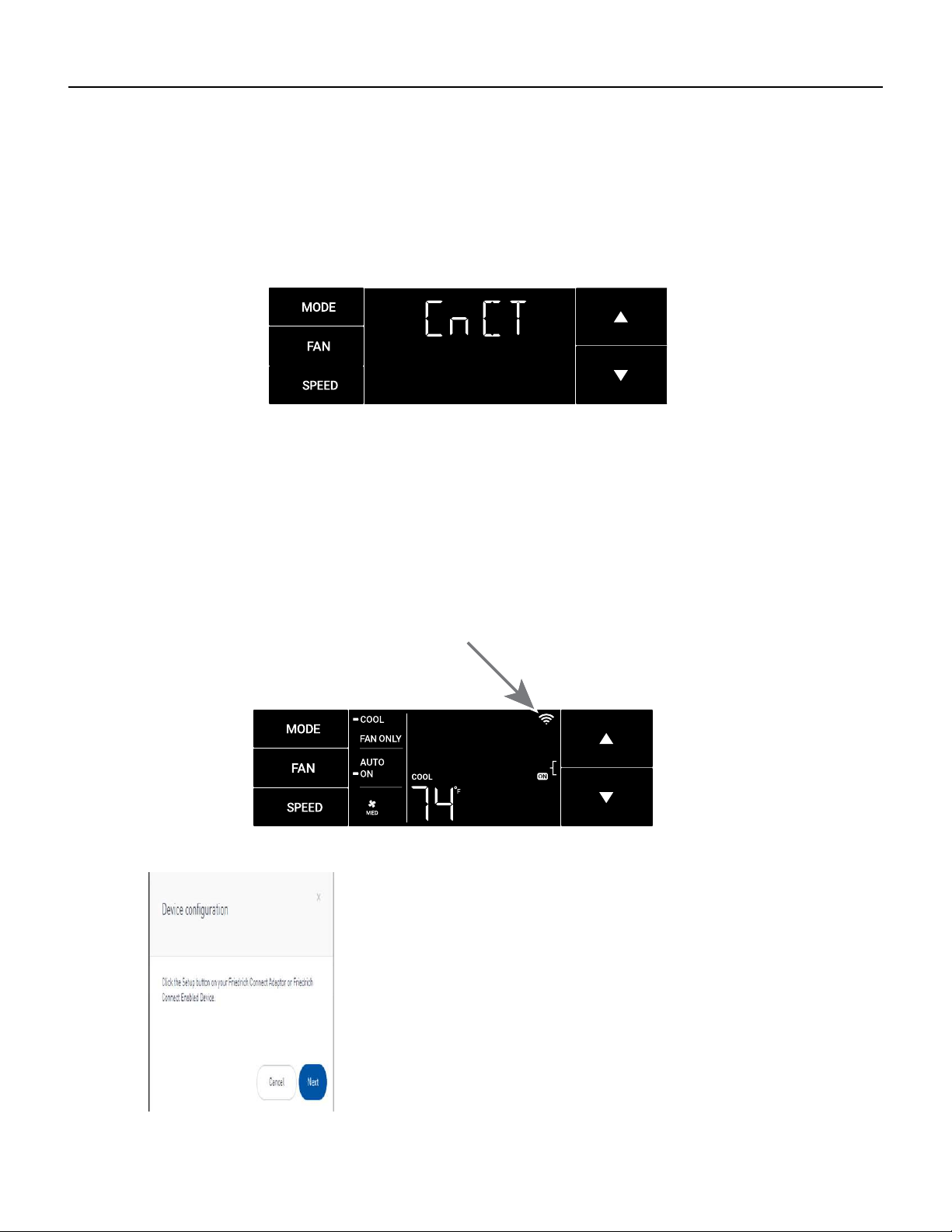
7. Using the up and down arrows, navigate to the CnCT screen.
Step 8 (Begin the Setup Process)
Steps 7 (Get to the CnCT Screen)
8. Click the menu button, this will begin the setup process for your Friedrich Connect enabled
device.
NOTE: When the setup process starts, the WI-FI symbol will begin to ash. This indicates
the A/C unit is trying to connect to your Wi-Fi network
NOTE: Once the setup process has been started, you will have ve minutes to complete the
setup. If the setup can not be completed in ve minutes the system will rest and you will need to
restart the process.
9. After the Wi-Fi symbol starts blinking, click the “Next”
button on your mobile device.
NOTE: If the Wi-Fi setup is not completed on the
rst attempt, you may need to reset the Air Conditioning
control unit. To accomplish this, turn the unit off, and
unplug the Air Conditioning unit for a minimum of
15 seconds. Plug the unit back in and start the setup
process over.
Step 9 (Click Next)
FRIEDRICH CONNECT
KUHL, KUHL Q, AND WALLMASTER
10
Wi-Fi SET UP INSTRUCTIONS (Continued)
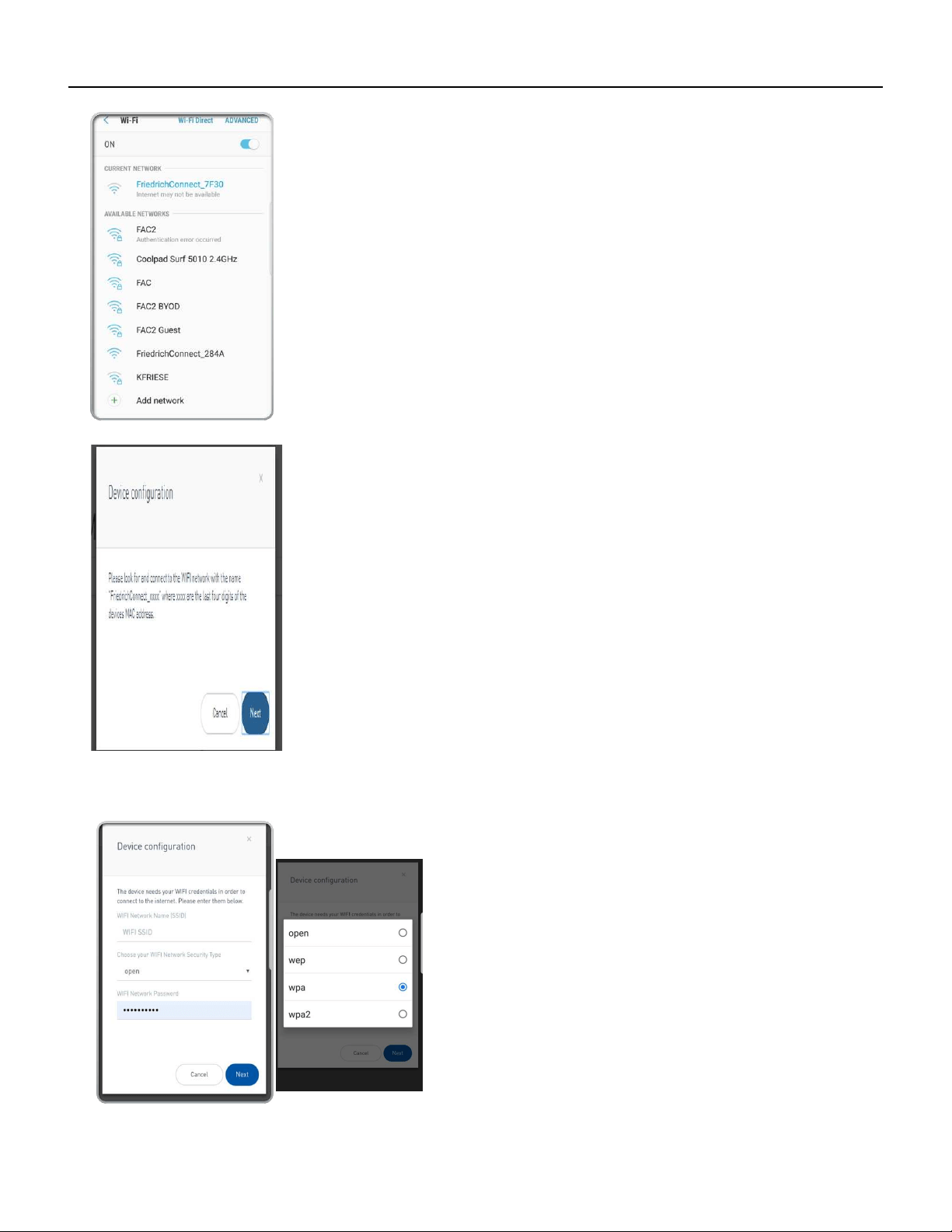
10. Go to the Wi-Fi settings on your mobile device and
connect to “FriedrichConnect_xxxx” network. (xxxx is the
network name of the Friedrich unit)
Step 10 (Connect WiFi to “Friedrich”)
Step 11 (Click next)
12. A screen will appear asking you to enter your Wi-
Fi credentials.
13. Enter the information as you recorded it at the
beginning of the process.
NOTE: Your device may auto populate the elds
incorrectly.
NOTE: Be sure to enter the WIFI SSID, Network
Security Type, and
Wi-Fi network password exactly as you recorded
them.
NOTE: These elds are case-sensitive.
Step 12 an 13 (Enter WiFi Credentials)
11. Go back to the Friedrich instructions on your mobile
device and click next.
FRIEDRICH CONNECT
KUHL, KUHL Q, AND WALLMASTER
11
14. Click next.
NOTE: You will receive a pop up box message stating “Credentials successfully saved.
Please connect back to your Wi-Fi network and click “Next”.
NOTE: You will receive a message (Waiting for network connection).
15. Go back to the Wi-Fi settings on your mobile device and connect back to your Wi-Fi network.
16. Go back to the Friedrich instructions on your mobile device and click next.
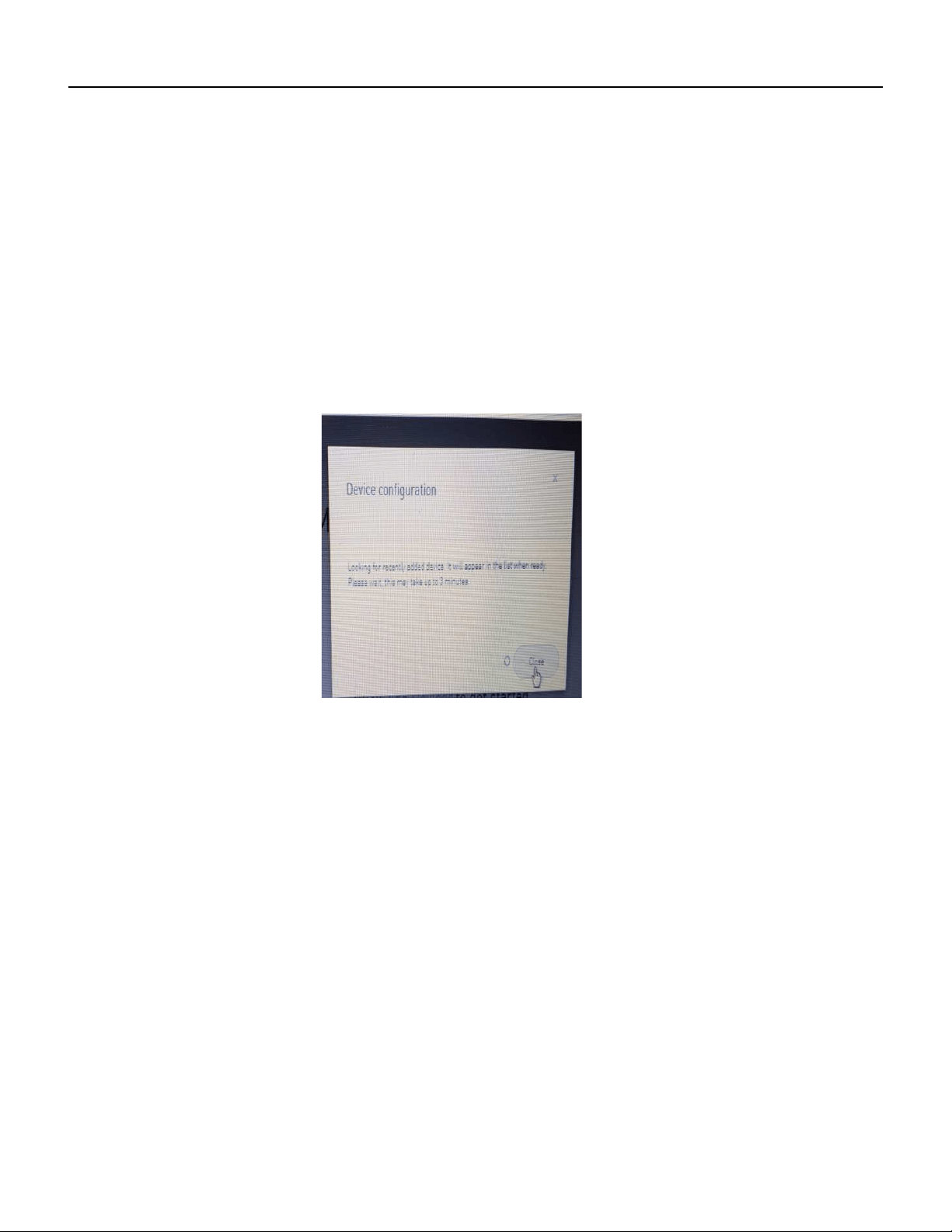
NOTE You will receive a message stating “Looking for recently added device. It will appear in
the list ready. “Please wait, this may take up to 3 minutes”.
FRIEDRICH CONNECT
KUHL, KUHL Q, AND WALLMASTER
NOTE: Please wait and do not close out the box that appears.
If the box is closed before you get a successful message and you do not see your device,
(Friedrich a/c under my devices)
then you will have to restart the setup process again due to the unit not being linked to your
FriedrichConnect account.
NOTE: It will connect to the Friedrich unit before the 3 minute mark in most cases however
it may take up 3 minutes to be connected. Once it is connected you will receive a successfully
connected box.
NOTE: Your Home Screen Wi-Fi symbol will stop ashing and will show steady.
NOTE: A GREEN symbol will appear under the “Status” details and the name of your
Friedrich unit which will appear with a number.
for example: (62601032R01184660025)
12
FRIEDRICH CONNECT
KUHL, KUHL Q, AND WALLMASTER
Wi-Fi TROUBLESHOOTING TIPS
If you received this error message
“Error in association process: Request has been terminated Possible causes: the network
is ofine, Origin is not allowed by Access-Control-Allow-Origin, the page is being unloaded,
etc.”
This means your Wi-Fi (internet connect) has gone off online.
Check your Wi-Fi signal strength, reconnect service to your router or restart your router
depending on your internet services.
Reset your Air Conditioning unit by turning off the power and then unplugging the unit for a
minimum of 5 seconds.
Log back into your account and restart the set up process.
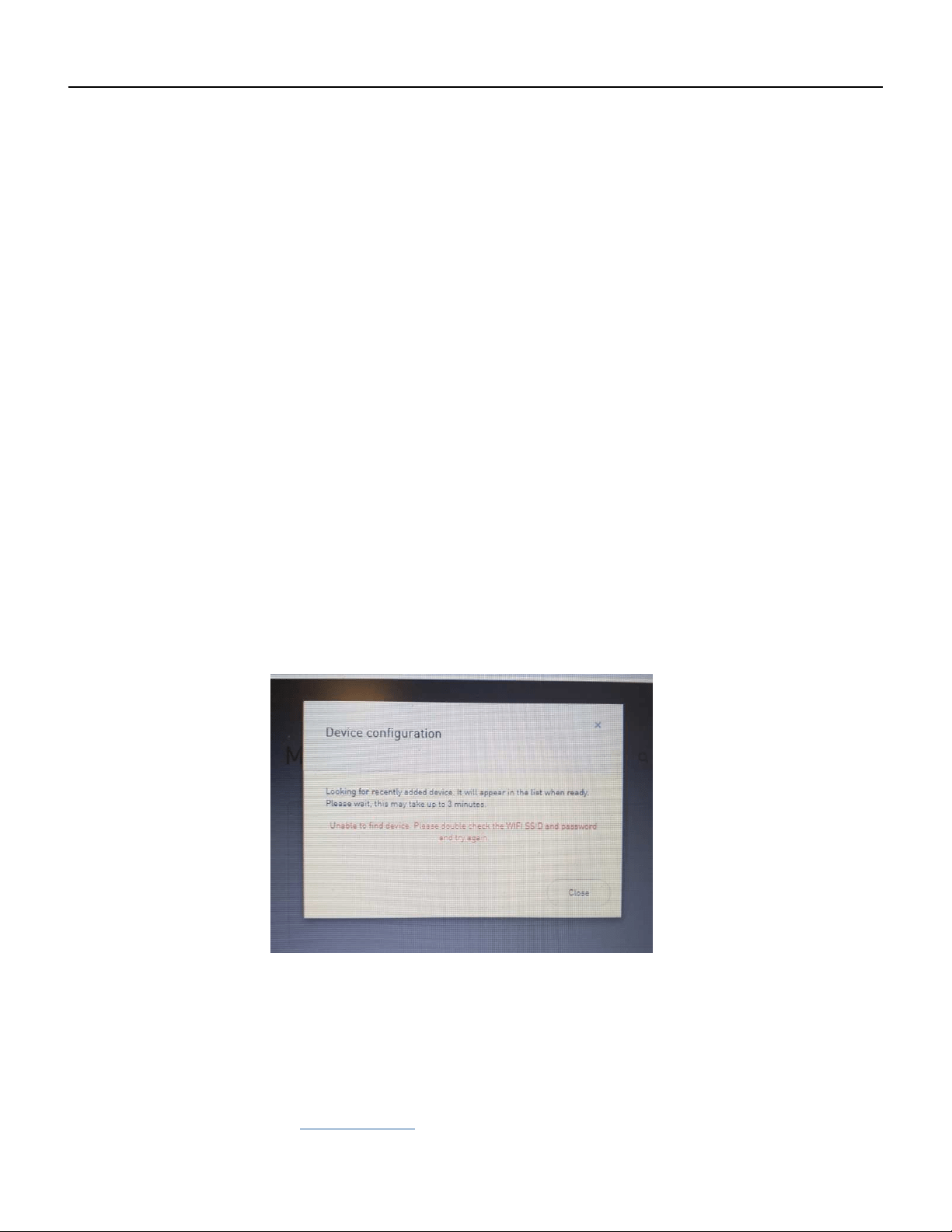
If you are on the last step where it states
“Looking for recently added device. It will appear in the list when ready. Please wait , this
may take up to 3 minutes. Then a message pops up below that states “Unable to nd device.
Please double check the WI-FI SSID and password and try again”.
This means the consumer has entered the wrong WI-FI network name (SSID) or password.
Reset your Air Conditioning unit by turning off the power and then unplugging the unit for a
minimum of 5 seconds.
Log back into your account and restart the set up process.
For More information visit
Friedrich.com

13
FRIEDRICH GO
Thank you for choosing a FRIEDRICH product and welcome to the FRIEDRICH family.
This manual only applies to air conditioners which have Wi-Fi functionality.
Please read the manual carefully before using the product and
keep it for further reference.
Please do not unplug the Wi-Fi module. Due to technical updates and enhancements please expect updates to the
FriedrichGo app. Keeping the Wi-Fi module plugged in will help to keep connection between app and appliance.
Keeping with Friedrich quality standards design and content may change during these updates.
Please check for App updates at the Google Play Store or the
Apple App Store.
This device complies with Part 15 of the FCC Rules. Operation is subject to the following two conditions:
(1) This device may not cause interference.
(2) This device must accept interference which may cause undesirable operation.
FCC ID: 2ANDL-HS01-485
14
Wi-Fi App Installation and Instruction Manual
FriedrichGo
Please note-The FriedrichGo App is supported on 2.4 GHZ Wi-Fi Channels only. Please be sure
your connection is using a Wi-Fi channel broadcasting in 2.4GHZ
iOS
Android
FRIEDRICH GO
FA Pro/ FA Premier App Info
Wi-Fi App Installation and Instruction Manual
FriedrichGo
Please note-The FriedrichGo App is supported on 2.4 GHZ Wi-Fi Channels only. Please be sure
your connection is using a Wi-Fi channel broadcasting in 2.4GHZ
iOS
Android
Wi-Fi App Installation and Instruction Manual
FriedrichGo
Please note-The FriedrichGo App is supported on 2.4 GHZ Wi-Fi Channels only. Please be sure
your connection is using a Wi-Fi channel broadcasting in 2.4GHZ
iOS
Android
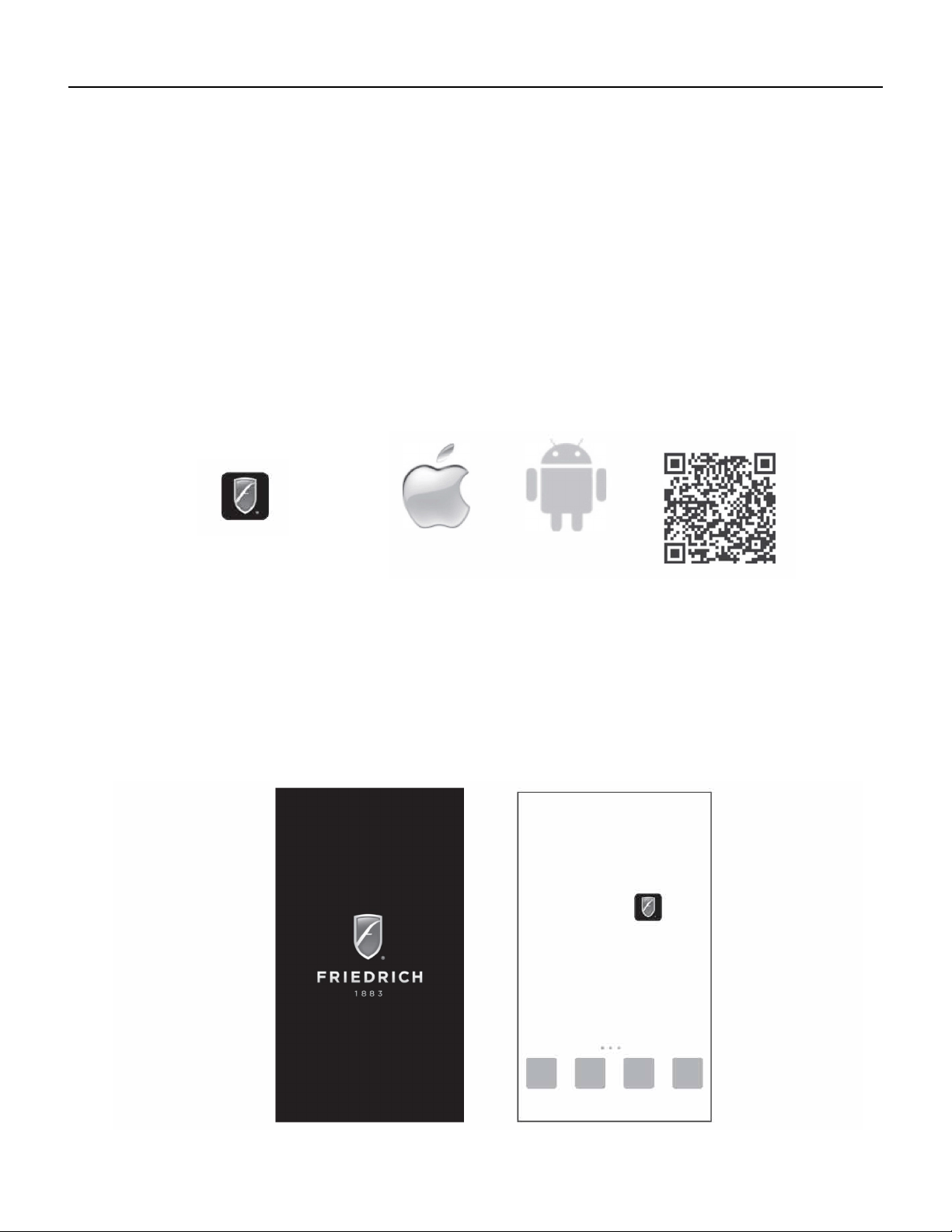
Scan the QR code below using your camera function to download the latest FriedrichGo app software.
The FriedrichGo app can also be found in the Apple iTunes or Google Play stores.
Please note-The FriedrichGo App is supported on 2.4 GHZ Wi-Fi Channels only. Please be sure your connection is
using a Wi-Fi channel broadcasting in 2.4GHZ
After downloading the FriedrichGo App, you will find the “FriedrichGo” icon on your phone/ mobile device.
Home screen.
15
FRIEDRICH GO
FA Pro/ FA Premier
SIGN UP YOUR USER ACCOUNT
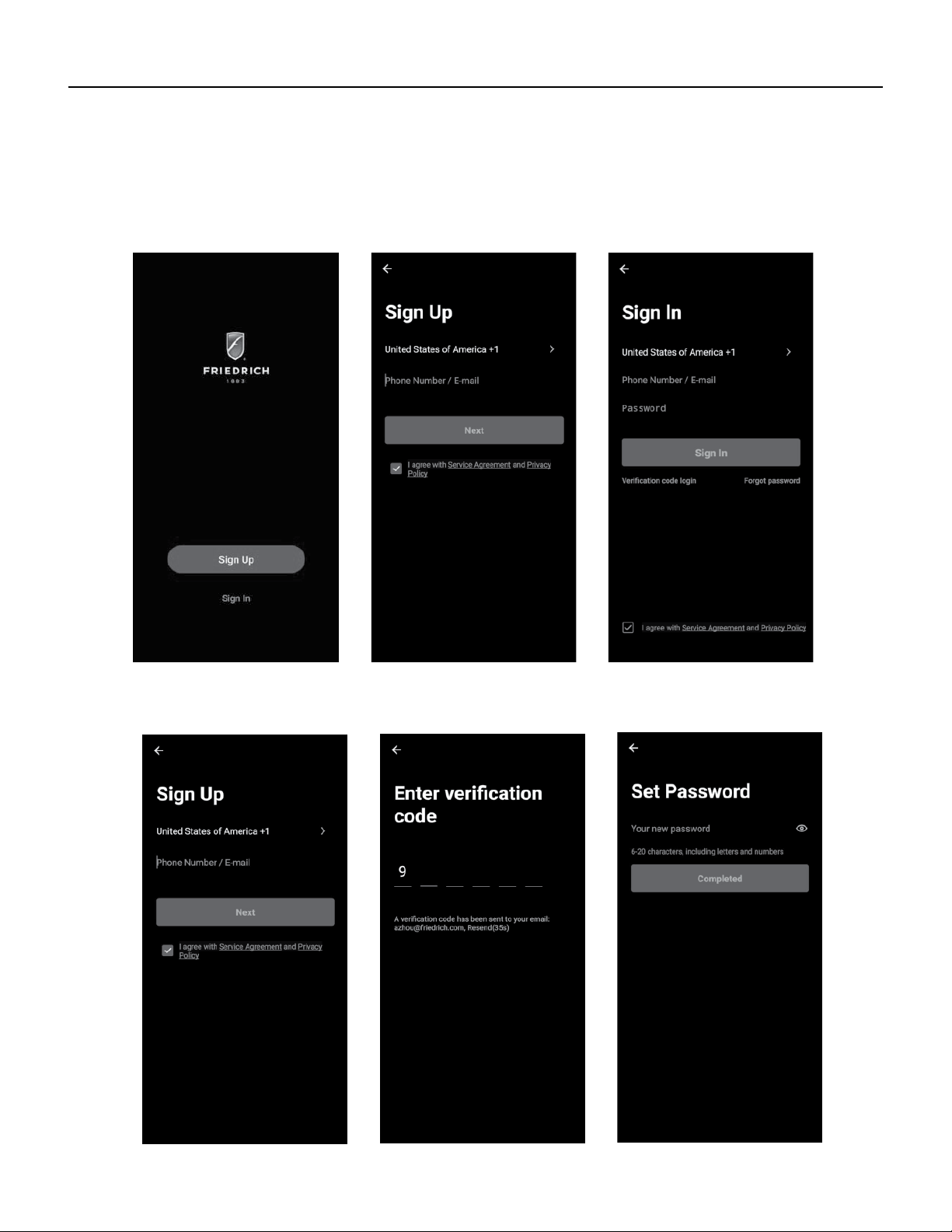
Once you download the App, you will need to create an account. Click the “Sign up” button to begin the registra-
tion process.
You can register with your email address or with a mobile phone number.
Register with an email address:
Register with a mobile phone number:
16
FRIEDRICH GO
FA Pro/ FA Premier
SIGN IN TO YOUR USER ACCOUNT
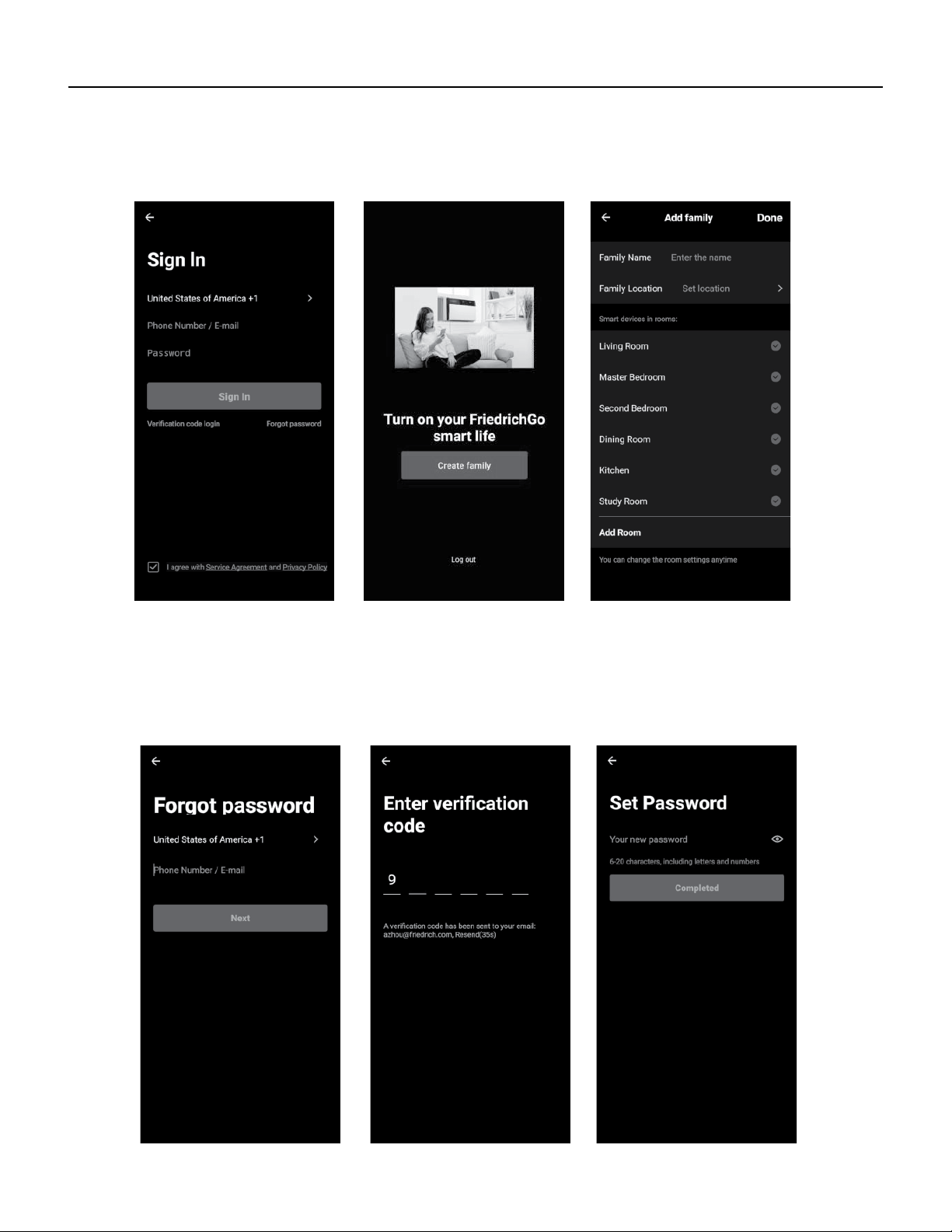
Once you have created an account, click the “Sign In” button to sign in to your account using the email or mobile
phone number that was used for registration.
You can update your home name and select the rooms.
Follow these below steps to retrieve a forgotten password:
1. Press the “Forgot password” button to replace.
2. Type in the registered phone number or email address and press the “Next” button to continue.
3. You will receive a verification code to continue. Type in the code received and set a new password. Press
“Confirm” to finish.
17
FRIEDRICH GO
FA Pro/ FA Premier
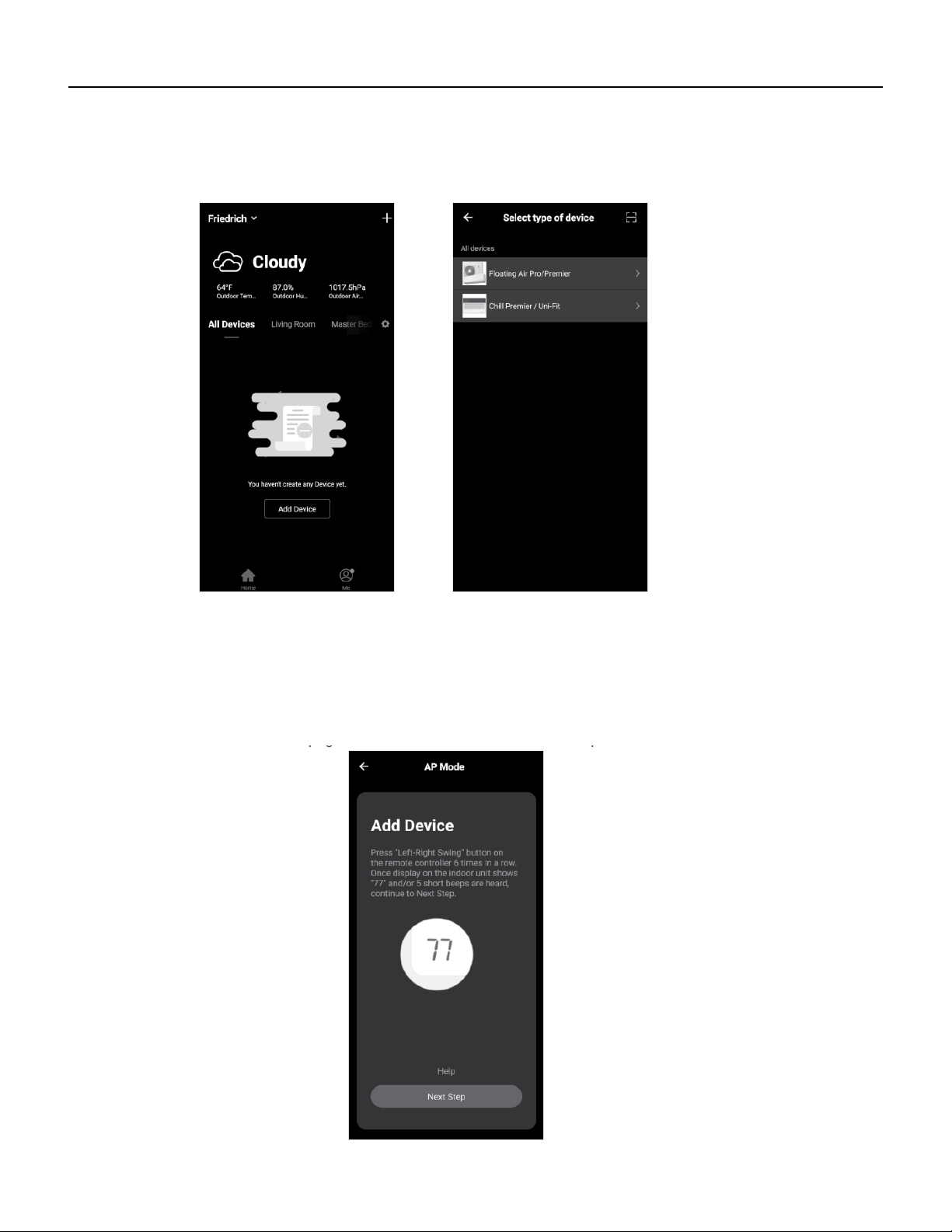
Follow the directions below to add an AC to your FriedrichGo account.
This will allow you to control your units from your mobile app:
1. Press the “+” and click the “Floating Air Pro/Premier” to connect to.
Connecting your AC to a wireless network can be completed using AP (Access Point) Mode.
(Reminder-The FriedrichGo App only works on 2.4 GHZ networks)
Setup Modes:
1. “77” should show on the page as illustrated below. Press “Next Step” to continue.
18
•-
I
-
FRIEDRICH GO
FA Pro/ FA Premier
•-
I
-
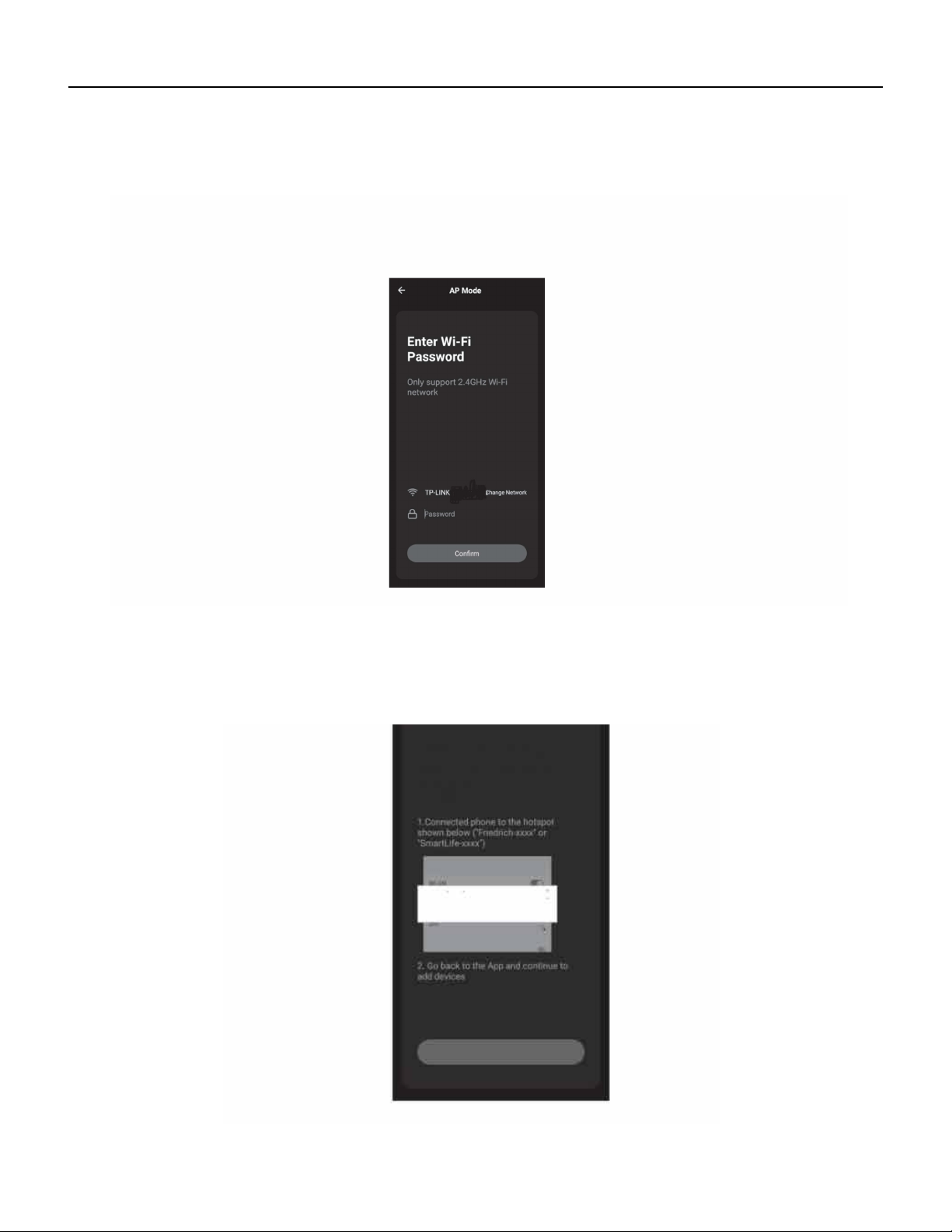
2. Press “Left-Right Swing” on the remote controller 6 times in a row. Once display on the indoor unit shows “77”
and/or 5 short beeps are heard, continue to Next Step.
3. Select the Wi-Fi network you are trying to connect and type in the password and press “Confirm” to continue.
4. 0pen your mobile device settings to get to Wi-Fi connections.
5. ”Friedrich-xxxx” should show as an available network connection option.
6. Connect to the Friedrich-xxxx network.
19
FRIEDRICH GO
FA Pro/ FA Premier
7. After connecting to “Friedrich -xxxx” network using the AC unit’s Wi-Fi adapter, return to the Friedrich Go App
to resume setup.
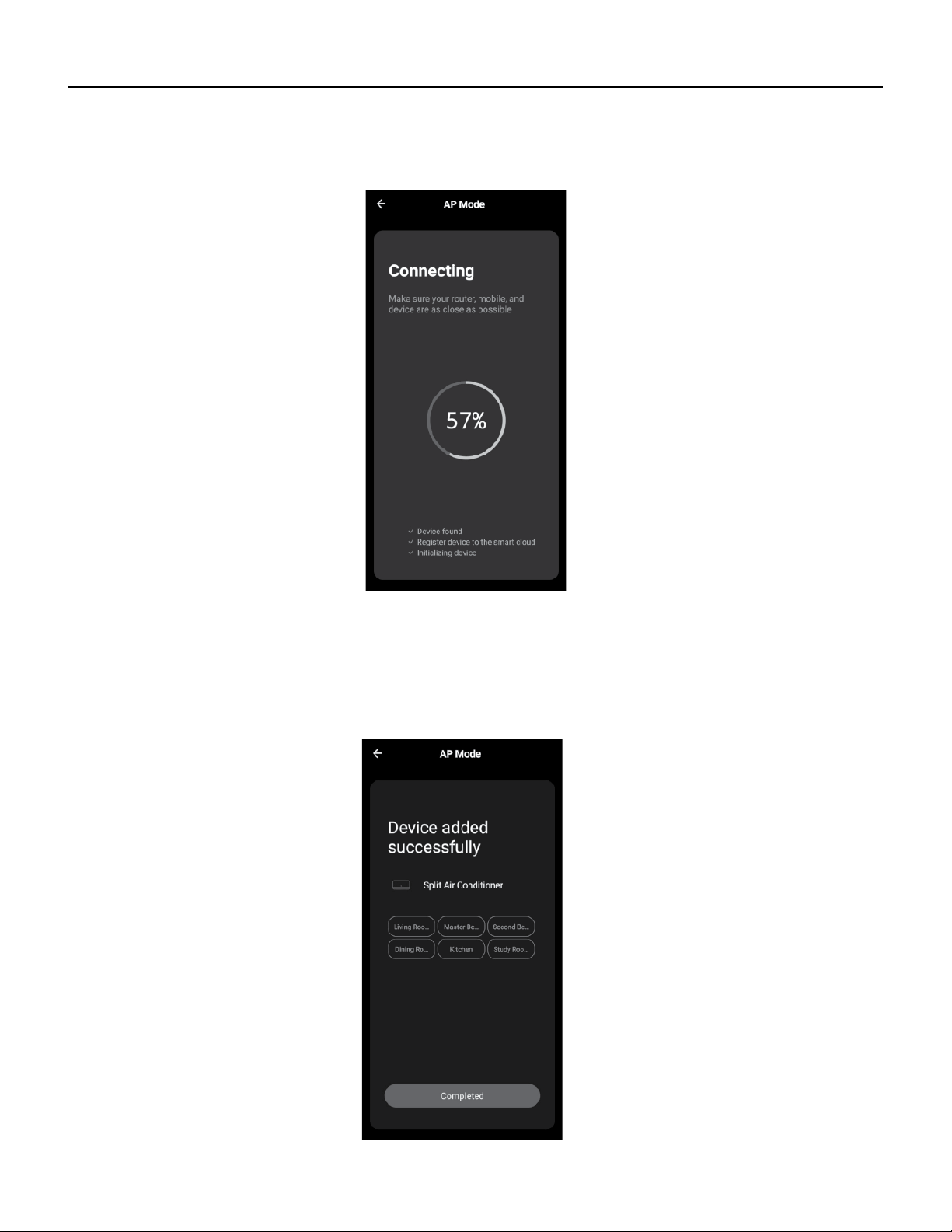
8. The AC unit will automatically begin installing/syncing on the mobile device.
9. When the connection is complete the FriedrichGo App on your mobile device will show the unit as connected
with a check mark as illustrated.
10. lf the setup connection fails, the App will display a warning. Press “Got it” to try the connection again or “View
help”.
11. Once connected, you are ready to begin controlling your AC unit from your mobile device.
20
FRIEDRICH GO
FA Pro/ FA Premier
AIR CONDITIONER CONTROL
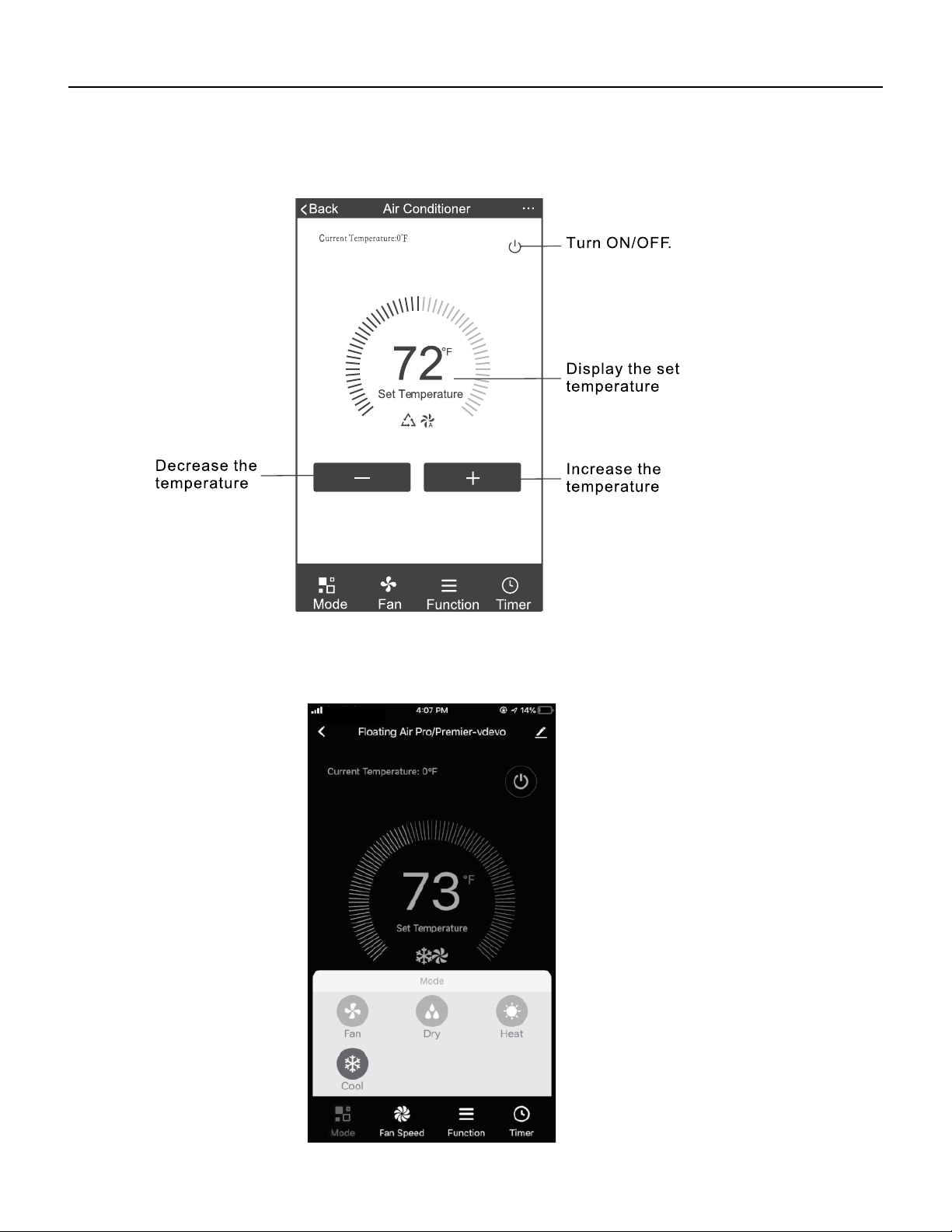
1. Tapping the Air Conditioners name to enter the control mode. Tapping the ON/OFF button for power and then
control your Air Conditioner remotely.
2. Adjusting settings for operation mode, Fan, Dry, Heat or Cool. Tap the “Mode” button and choose the mode.
21
FRIEDRICH GO
FA Pro/ FA Premier
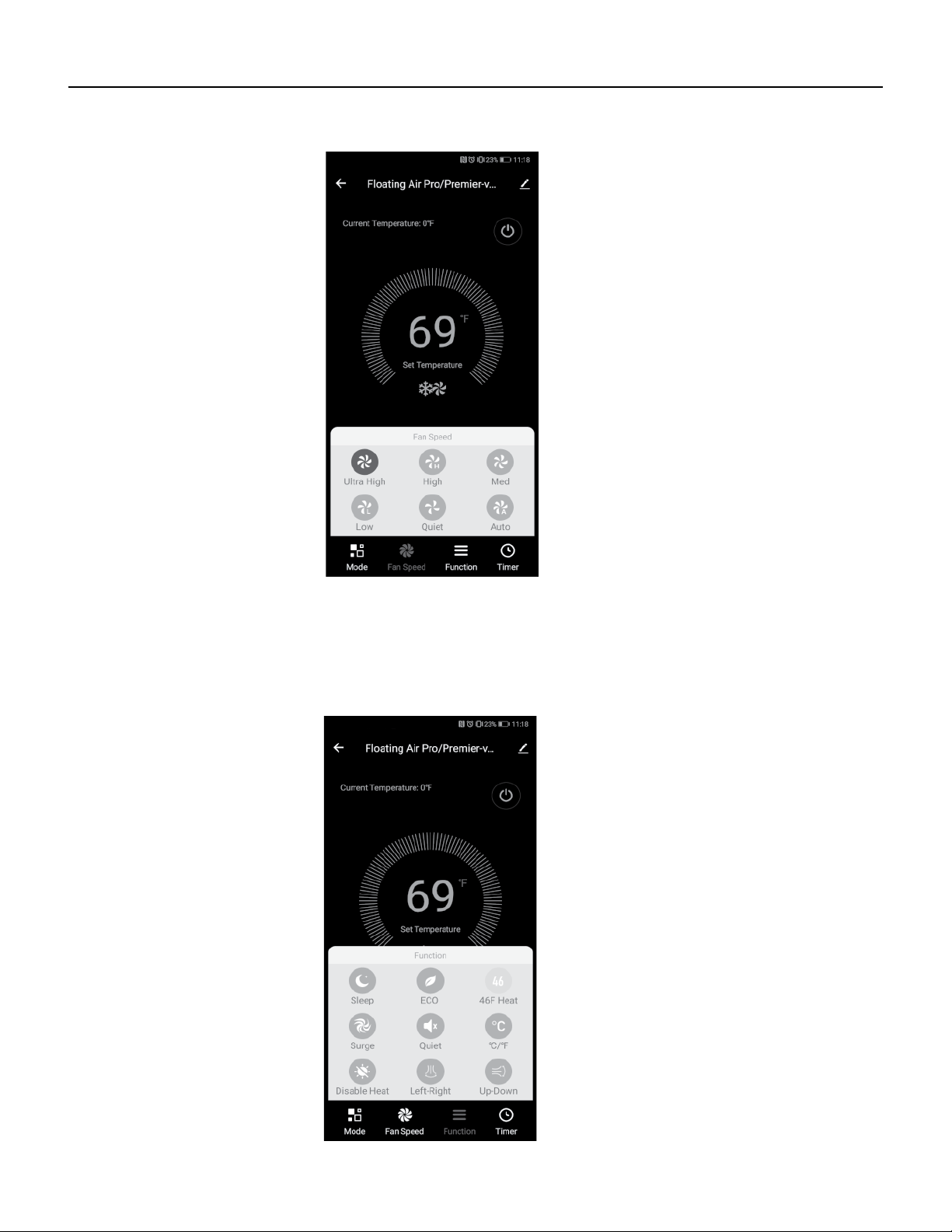
3. For Fan mode, press the “Fan” button and choose the speed: Quiet, Low, Med, High, Ultra High or Auto.
4. Unit Modes, select “Functions”. This will open the modes selections.
22
FRIEDRICH GO
FA Pro/ FA Premier
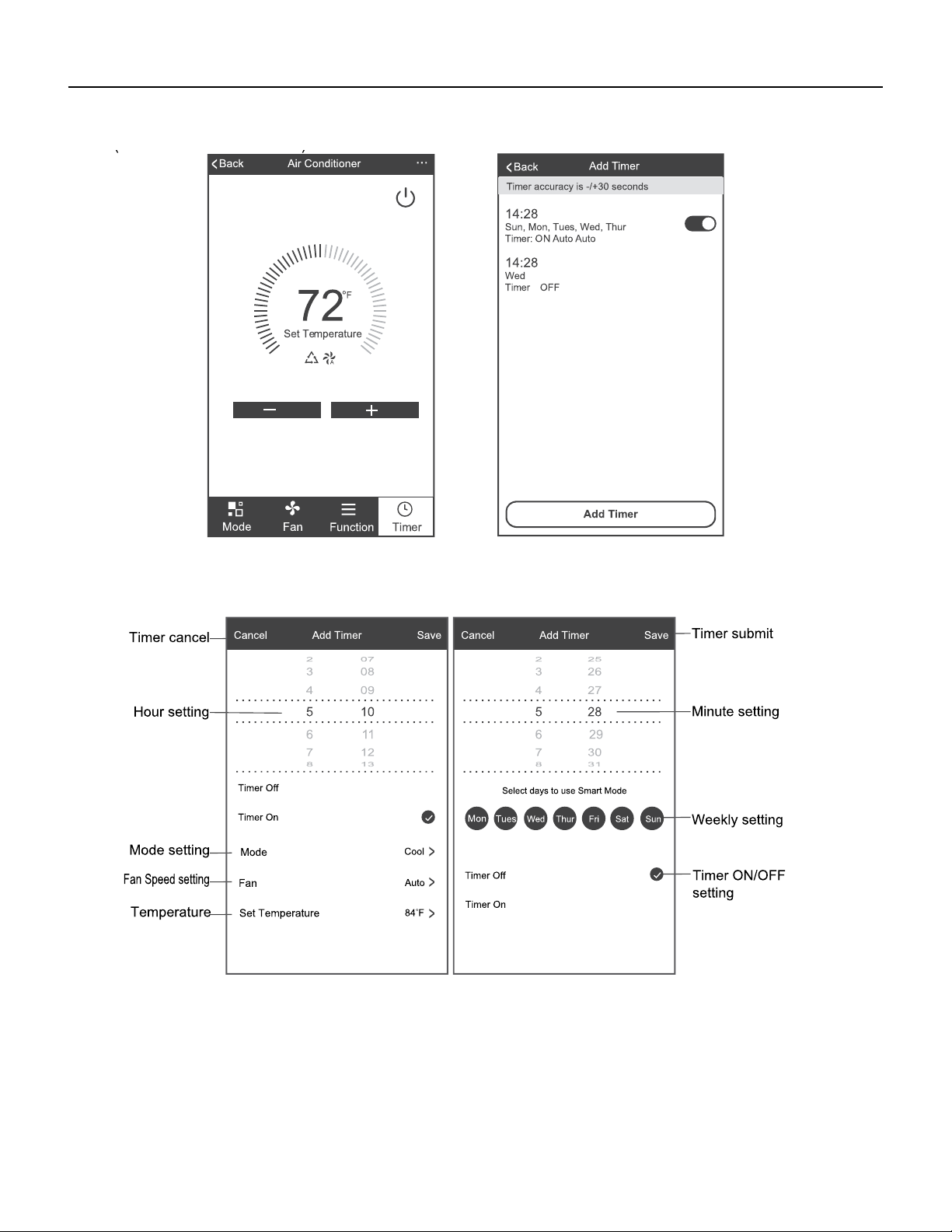
5. To set the Time Function: Tap “Timer”, the App will enter the timer setting screen. Display will show the sched-
ules that were previously set. You can press to edit or add new timers.(Note: Timer is 24hr clock).
6. Click “ON” or “OFF” button to set Timer ON or Timer OFF.
You can set the: Hour, Minute, Operate Mode, Operate Fan Speed. You can also set a weekly timer. After you’re
finished setting the timer, click the button to Cancel or Save.
NOTES:
- Dry mode is preset to 4F/2C lower than room temperature, low fan speed and cannot be changed.
- Heat mode only applies to Heat Pump units.
- Fan mode is preset to 79F/26C and cannot be adjusted. -
Auto mode is preset at 79F/26C for cooling or 72F/22C for heating and cannot be adjusted.
- Cool mode, Temperature settings can be adjusted to the desired temperature.
23
FRIEDRICH GO
FA Pro, FA Premier
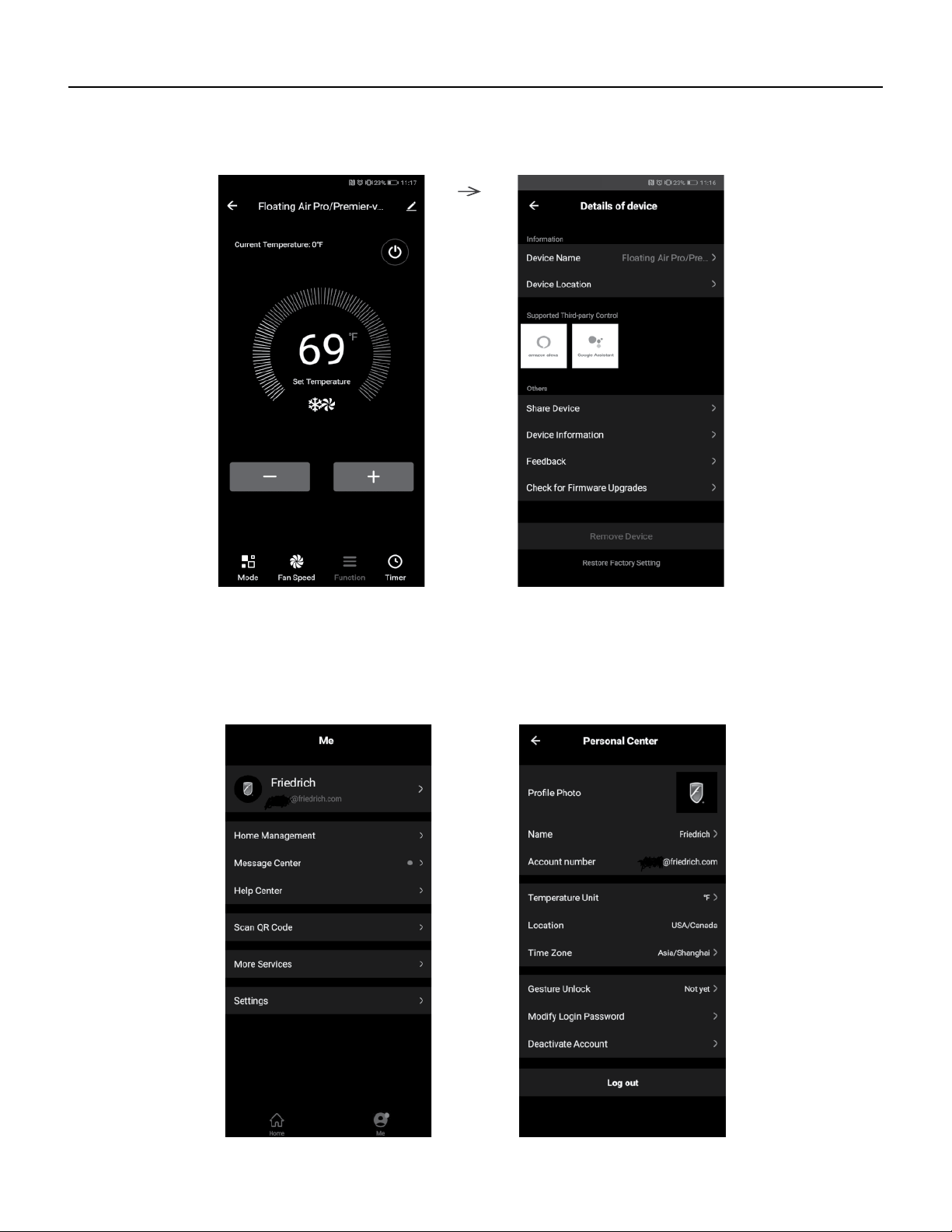
7. For more options tap the 3 dot icon on the upper-right corner of the app. Here you can Modify device name,
Device location, Shared devices, Device info, Feedback, Check for firmware updates, Remove a device or Restore
defaults.
8. User profile, you can manage your personal information, User profile includes:
a. Account information
b. Scan QR code
c. Message center will display any messages sent to the app.
24
FRIEDRICH GO
FA Pro, FA Premier
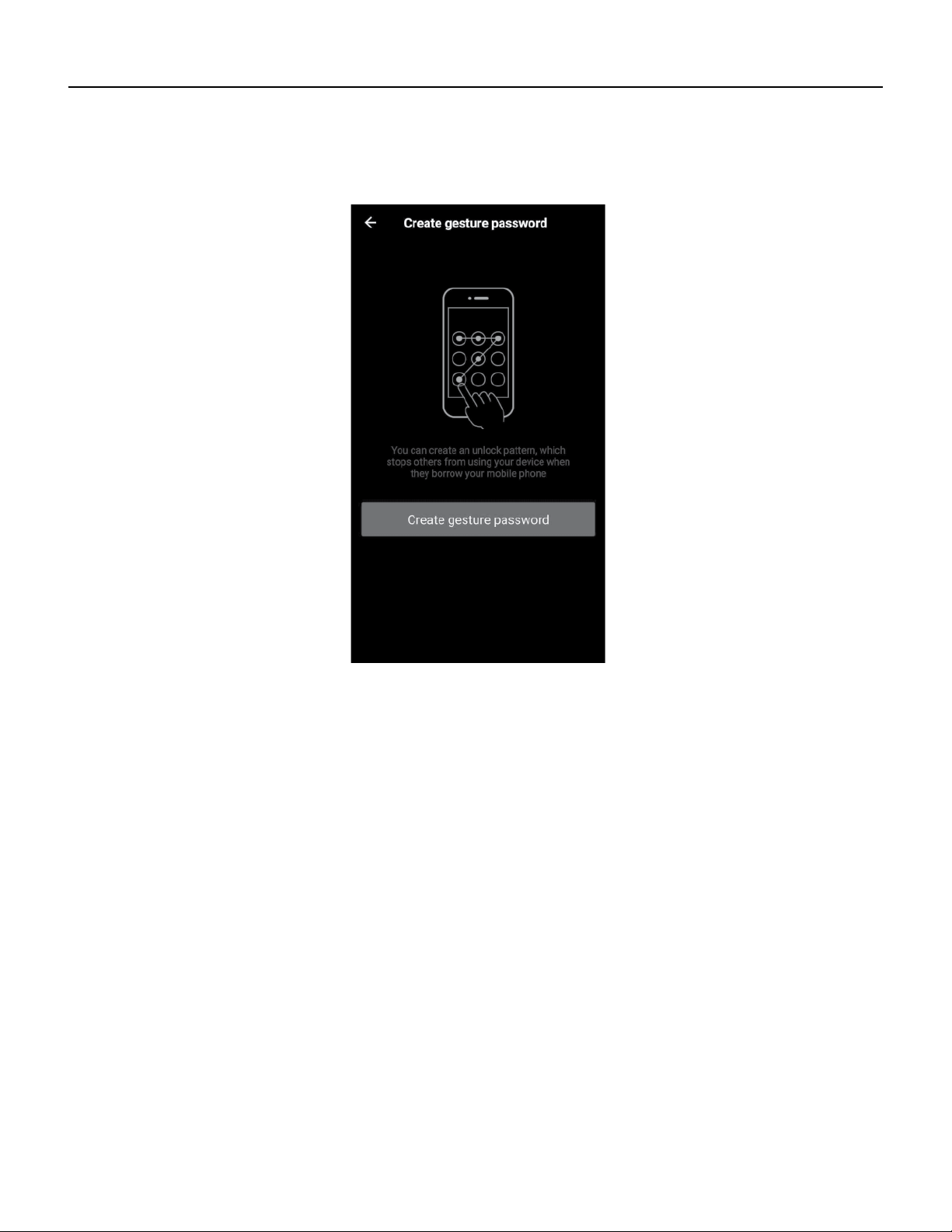
9. Pattern unlock: Tap “Gesture unlock” under the personal center. Here you can set up an unlock pattern. Once
enabled, you will have to use pattern to unlock app.
Note: The first registered mobile device is the main control and other devices can only be shared through the
primary device. Shared accounts need to be setup for the same country.
25
FRIEDRICH GO
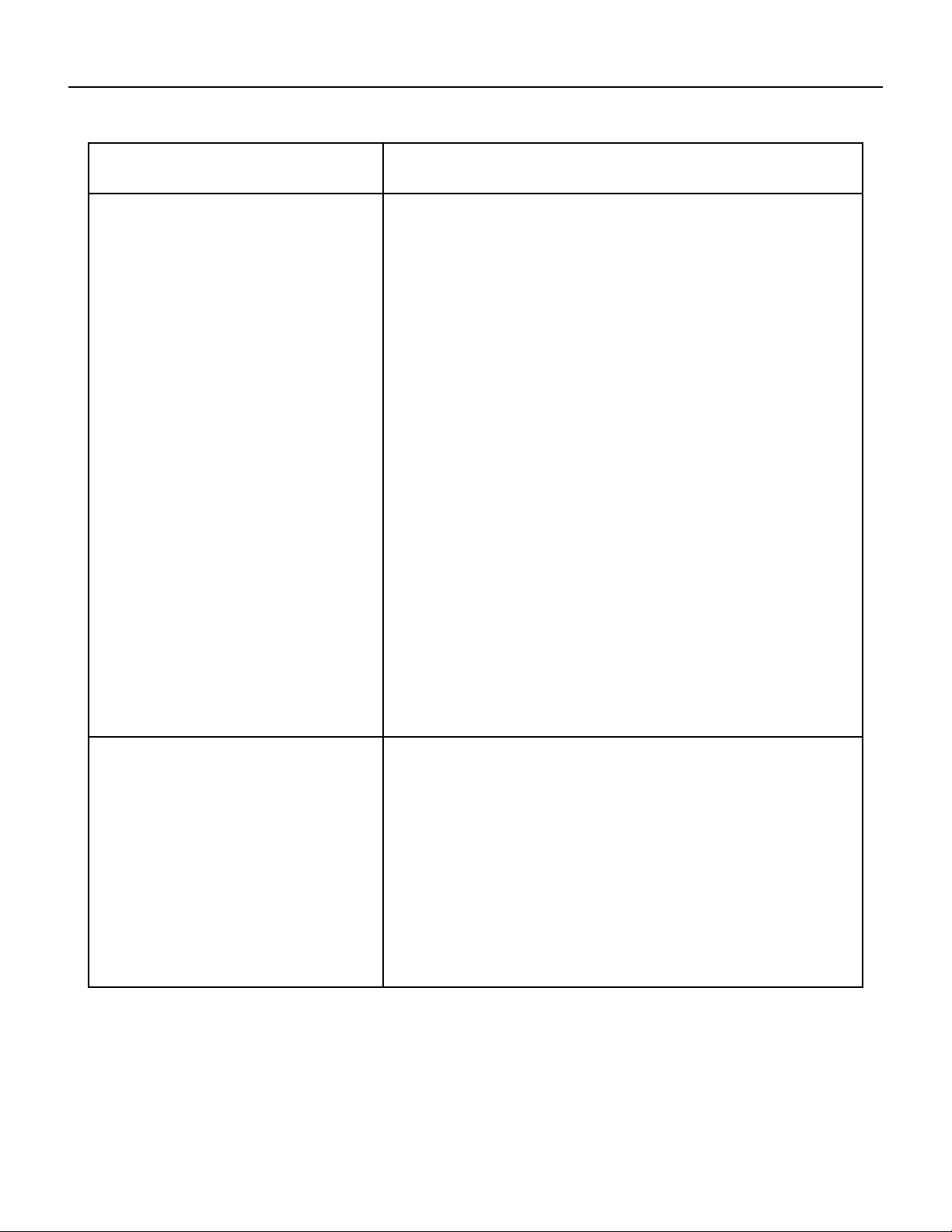
FA Pro, FA Premier Troubleshooting
Description Analysis
Air Conditioner set up unsuccessful!
1. Check that the Wi-Fi address and password is correct for
the network you are trying to connect to.
2. Check the air conditioner under configuration status.
3. Check to make sure no firewalls or other restrictions are
preventing setup on the wireless network.
4. Check that the router is working properly.
5. Make sure air conditioner,router and mobile device are
all within signal range to connect.
6. Check to see if the router is blocking the FriedrichGo App
from connecting
7. Please note-The Friedrich Go App is supported on 2.4
GHZ Wi-Fi Channels only. Please be sure your connection is
using a Wi-Fi channel broadcasting in 2.4GHz.
Mobile Device not controlling Air
Conditioner.
Software display: Identification failed.
This means that the air conditioner has been reset and the
mobile device has lost the control permissions.
Reconnection to the WI-Fl network is required. If this does
not fix the issue. Please delete the selected air conditioner
in the app and reinstall.

26
FRIEDRICH GO
Chill Premier/ Unit App Info
Thank you for choosing a FRIEDRICH product and welcome to the FRIEDRICH family.
This manual only applies to air conditioners which have Wi-Fi functionality.
Please read the manual carefully before using the product and keep it for further reference.
Please do not unplug the Wi-Fi module by yourself. Because of technical updates, there may be periodic App
updates and variances from information outlined within this manual.
The mobile App will continue to be updated with design and content improvements.
Please check for App updates at the Google Play Store or the Apple App Store.
This device complies with Part 15 of the FCC Rules. Operation is subject to the following two conditions:
(1) this device may not cause harmful interference, and
(2) this device must accept any interference received, including interference that may cause undesired operation.
FCC ID: 2AJCLTWAC-TYWFS
27
FRIEDRICH GO
Chill Premier/ Unit App Info
Wi-Fi App Installation and Instruction Manual
FriedrichGo
Please note-The FriedrichGo App is supported on 2.4 GHZ Wi-Fi Channels only. Please be sure
your connection is using a Wi-Fi channel broadcasting in 2.4GHZ
iOS
Android
Wi-Fi App Installation and Instruction Manual
FriedrichGo
Please note-The FriedrichGo App is supported on 2.4 GHZ Wi-Fi Channels only. Please be sure
your connection is using a Wi-Fi channel broadcasting in 2.4GHZ
iOS
Android
Wi-Fi App Installation and Instruction Manual
FriedrichGo
Please note-The FriedrichGo App is supported on 2.4 GHZ Wi-Fi Channels only. Please be sure
your connection is using a Wi-Fi channel broadcasting in 2.4GHZ
iOS
Android
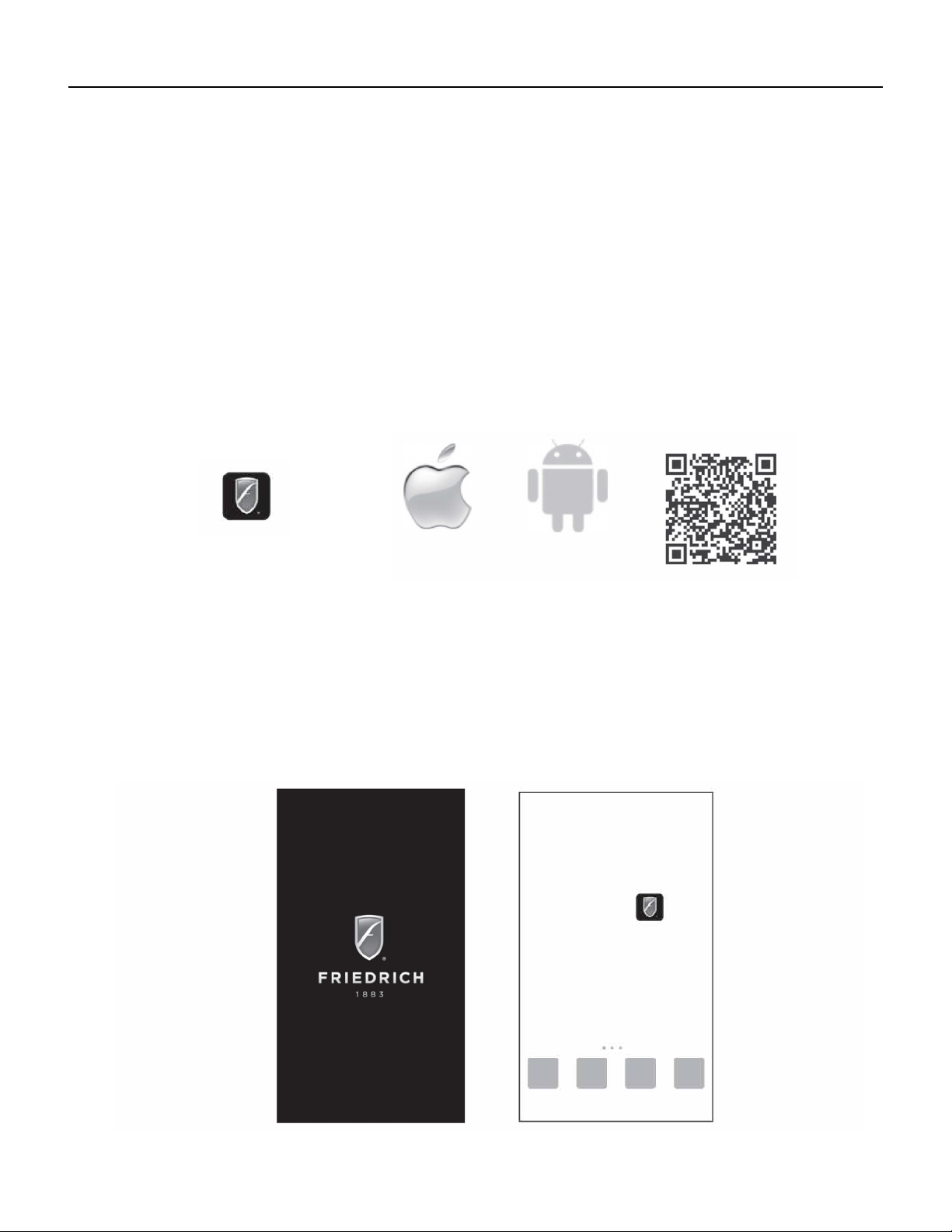
Scan the QR code below using your camera function to download the latest FriedrichGo app software.
The FriedrichGo app can also be found in the Apple iTunes or Google Play stores.
Please note-The FriedrichGo App is supported on 2.4 GHZ Wi-Fi Channels only. Please be sure your connection is
using a Wi-Fi channel broadcasting in 2.4GHZ
After downloading the FriedrichGo App, you will find the “FriedrichGo” icon on your phone/ mobile device. Home
screen.
28
verification code via text to complete the registration process.
FRIEDRICH GO
Chill Premier/ Unit Registration
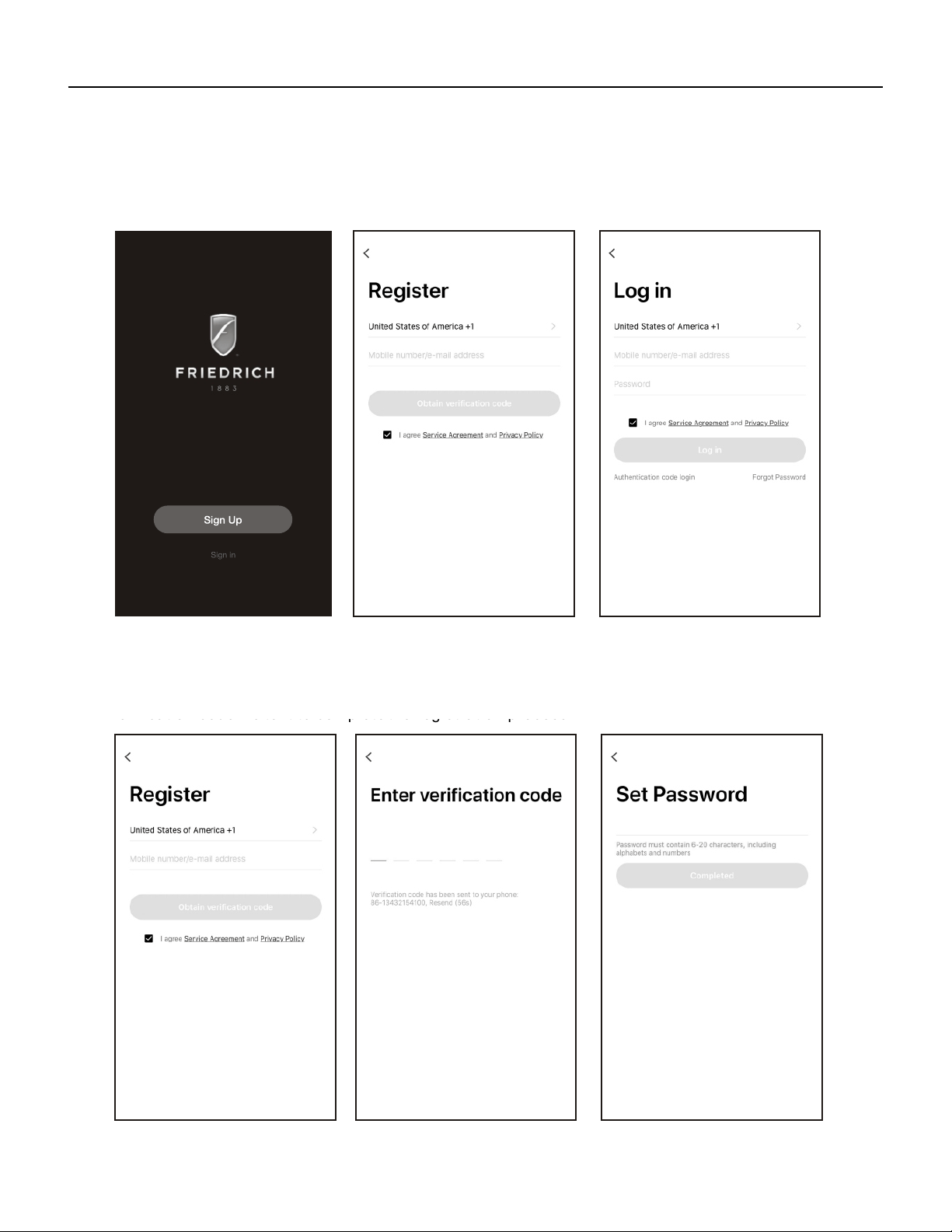
Once you download the App, you will need to create an account. Click the “Register” button to begin the registra-
tion process.
You can register with your email address OR with a mobile phone number
Register with an email address:
Register with a mobile phone number:
Select or Register with Mobile number on the bottom of the screen. You will be sent a verification code via text to
complete the registration process.
29
FRIEDRICH GO
Chill Premier/ Unit Login
LOGIN TO YOUR USER ACCOUNT
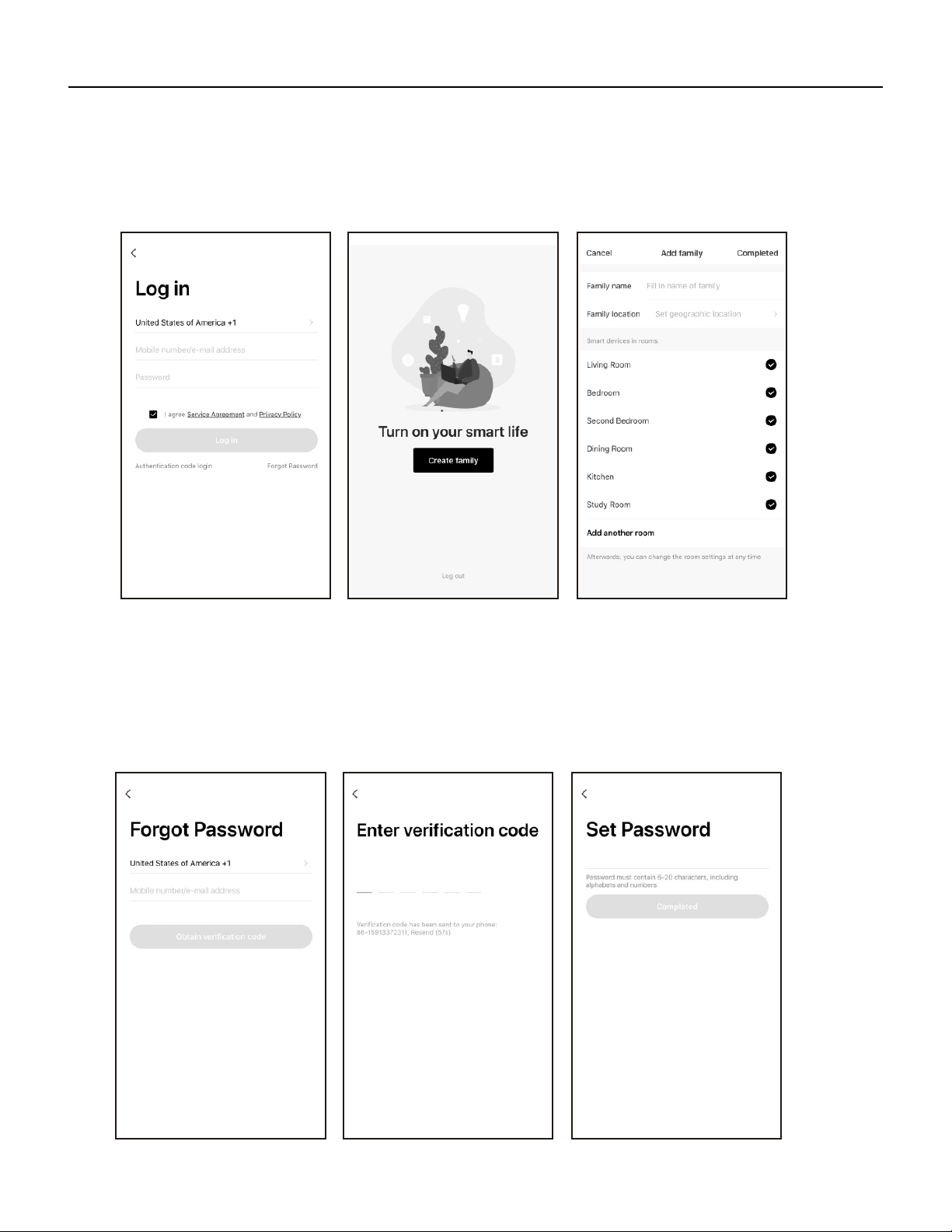
Once you have registered and created an account, click the “Login” button. You will be able to login with the email
account you registered with or the mobile phone number you registered with.
You can set up your home name and select the rooms.
If you forget your password, you can retrieve it by following these instructions:
1. Press the “Forgot password” button to enter the next page.
2. Type in the registered phone number or email address and press the “Next” button to continue.
3. You will receive a verification code to continue. Type in the code received and set a new password.
Press the “Confirm” button to finish.
30
FRIEDRICH GO
Chill Premier/ Unit Login
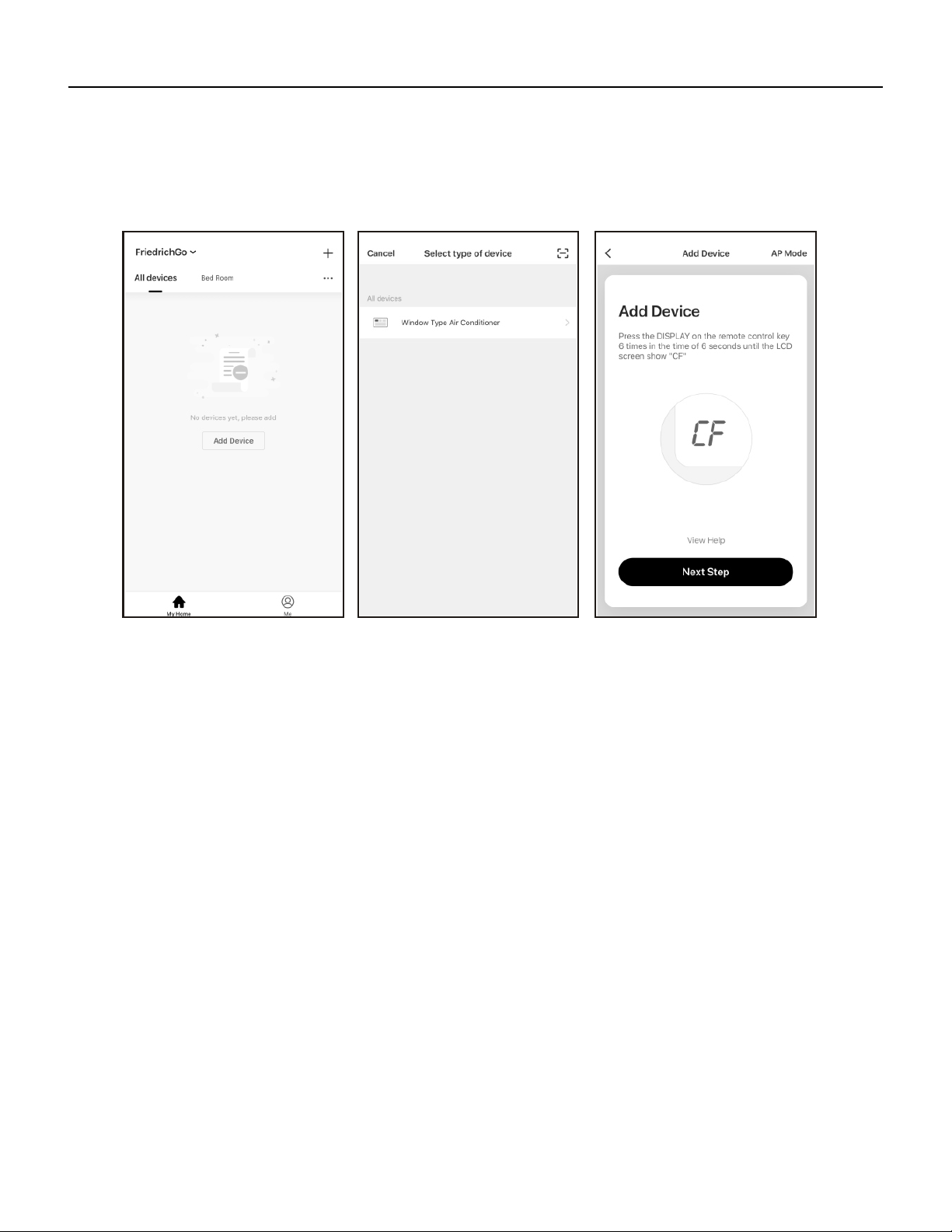
AFTER INSTALLING THE FriedrichGo APP ON YOUR MOBILE DEVICE, YOU MUST THEN ADD YOUR AC UNIT
TO BE CONTROLLED BY YOUR INSTALLED APP. FOLLOW THE DIRECTIONS BELOW:
1. Press the “Add Device” and click the type of product you are connecting to.
There are two setup Modes/Methods to connect the AC unit to the wireless network.
Setup Modes:
CF Mode-When setting up your AC unit using a Wi-Fi connection using the CF mode, the AC unit being connected
for Wi-Fi operation will automatically search for an available wireless network and connects automatically when
the setup directions are followed. The unit and device will be synced together afterwards.
(Reminder-The FriedrichGo App only works on 2.4 GHZ networks)
The default set-up mode will be CF mode when first starting the AC unit.
AP Mode- If your AC unit does not connect to the mobile device through the wireless network using the setup
instruction in CF mode, you can connect the mobile device to the AC unit using the air conditioner s Wi-Fi adapter
or “Device hotspot”. The AC unit will show as a wireless network under the mobile devices Wi-Fi connections as
“SmartLife -xxxx”. You can then connect the mobile device from the AC unit s hotspot. After the AC unit is turned
off/on the next time you use it, the AC unit will connect to the wireless network the phone is connected to.
31
LCD screen in other status
FRIEDRICH GO
Chill Premier/ Unit
ADD THE AC UNIT TO THE WIRELESS NETWORK USING “C F MODE”
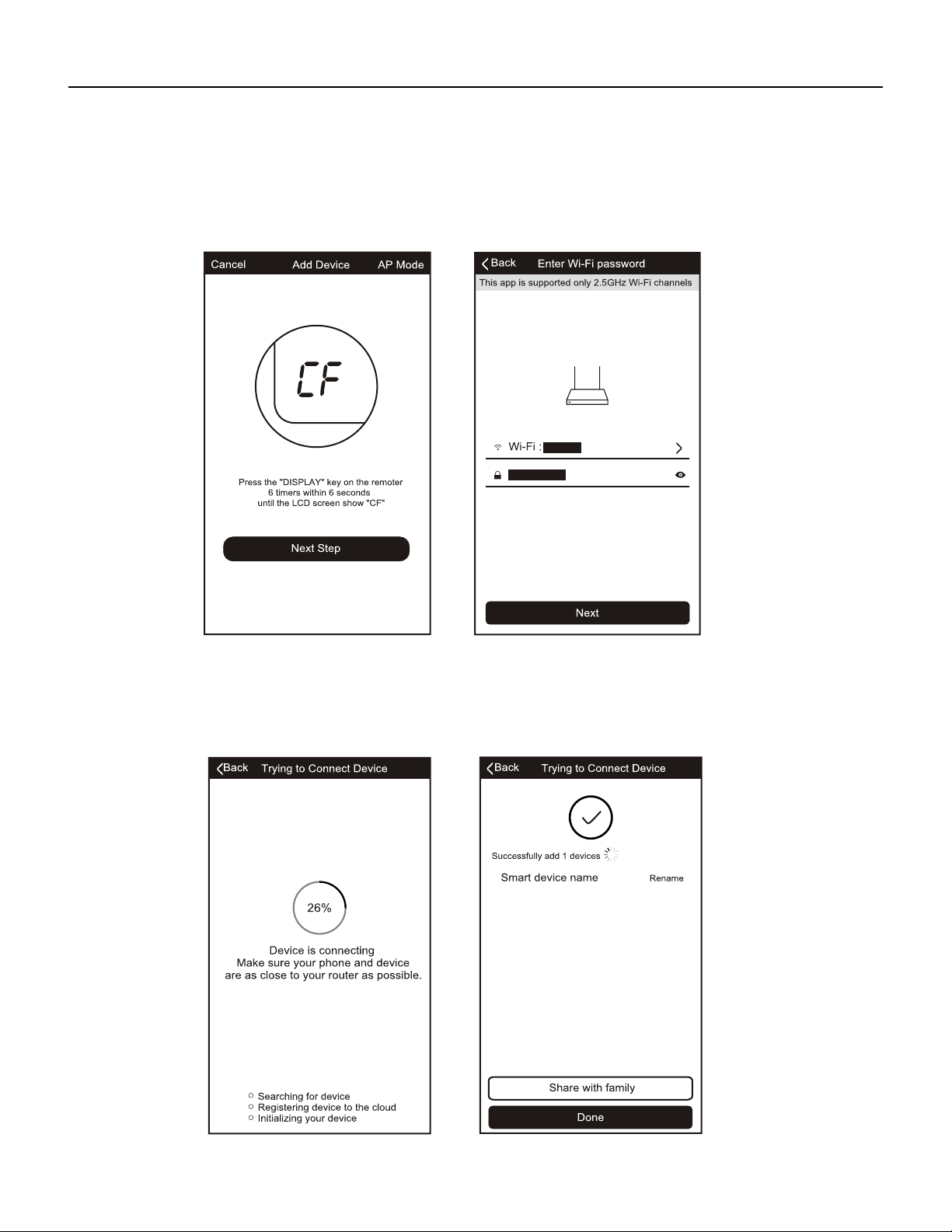
1. The App and AC unit automatically defaults to CF mode upon start up. Follow the prompts on the screen and
then press “ Next Step” to continue.
2. Select the network you wish to connect to, enter the router password and press “Next” to continue.
3. After connecting to the wireless network, The FriedrichGo App software will automatically try to pair the AC
unit. The AC unit s LED screen may display “PP” or “SA”, indicating it is searching for the network signal. This may
take 10-15 seconds to connect the AC to the network.
4. After successfully pairing the AC unit to the network, the page will display as below.
32
View help
How to reset device?
Press the DISPLAY on the remote control key 6
times in the time of 6 seconds until the LCD
screen show CF , indicating connect mode
""
Press the DISPLAY on the remote control key 6
times in the time of 6 seconds until the LCD
screen show AP , indicating hotspot mode
""
FRIEDRICH GO
Chill Premier/ Unit
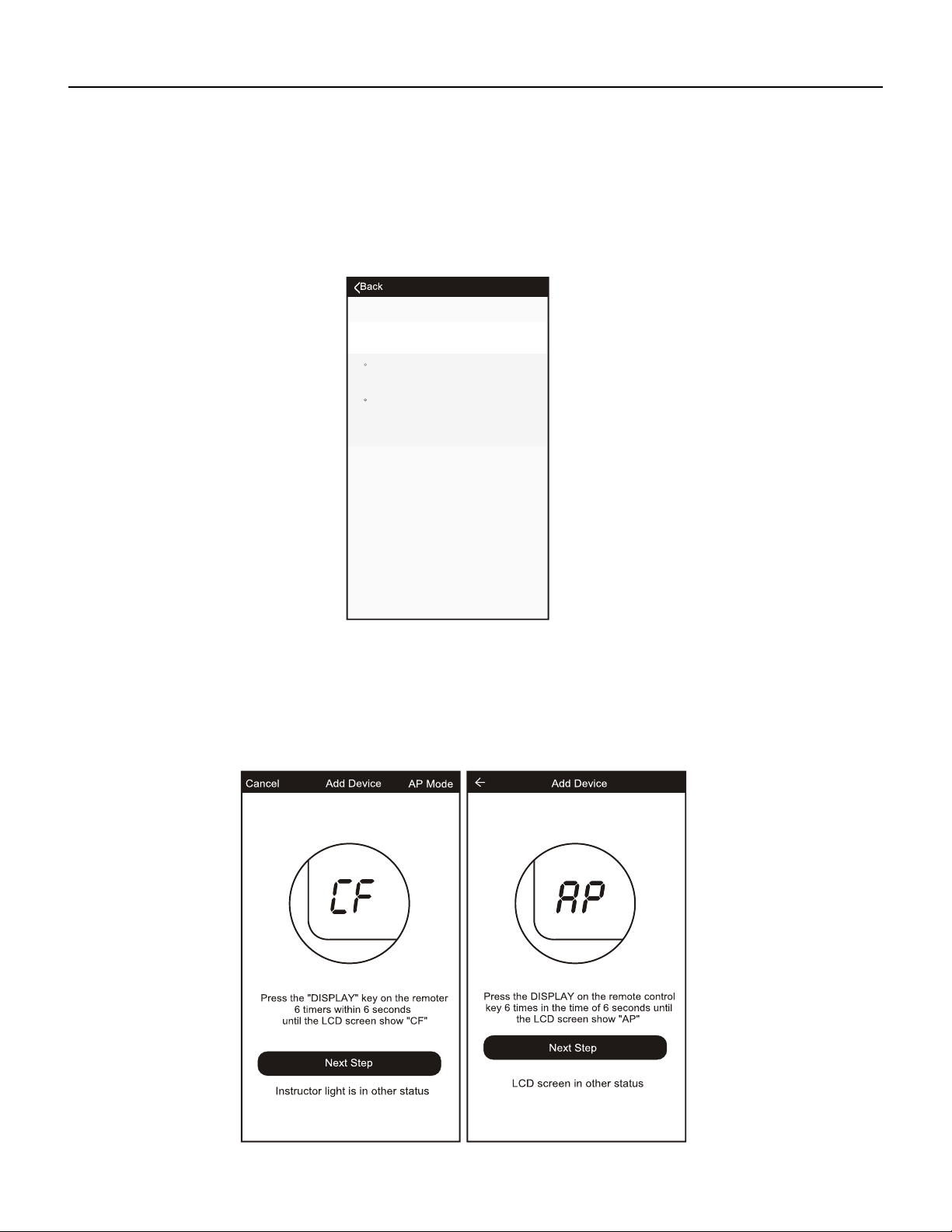
5. Note: If at any time you need to start over- Pressing “Display” on the remote control 6 times will reset the wire-
less setup configuration on the AC unit back to CF mode. Pressing the Display button an additional 6 times after
CF mode appears will switch the unit to AP mode. Please allow the unit 10-15 seconds to switch modes if toggling
from CF to AP modes.
You can “Rename” the AC unit as you like, share with family, or press “Done” to start to controlling the device.
ADD THE AC UNIT TO THE WIRELESS NETWORK USING “AP MODE”
If connections to the wireless network fail using the “CF“ mode , you can connect using the “AP“ mode (using
the AC unit as a mobile hotspot)
1. On the App page indicating CF mode, click AP mode in the top, right-hand corner as illustrated.
2. AP should show on the page as illustrated below. Press “Next Step” to continue.
33
FRIEDRICH GO
Chill Premier/ Unit
Trying to Connect Device
Open phone setting-WLAN and connect to the Wi-
Fi network
Not connecting? Refer to help
""
9:41 AM 100%
Settings Wi-Fi
Wi-Fi
SmartLife-XXXX
CHOOSE A NETWORK...
360WiFi-707
airtake-5G
Connect now
3. To the switch the AC unit over to AP mode - Press “Display” on the remote control 6 times within 6 seconds
so the AC unit switches from “CF mode” to “AP mode”. Allow the unit 10-15 seconds to switch modes and AP will
flash on the AC unit display screen when complete.
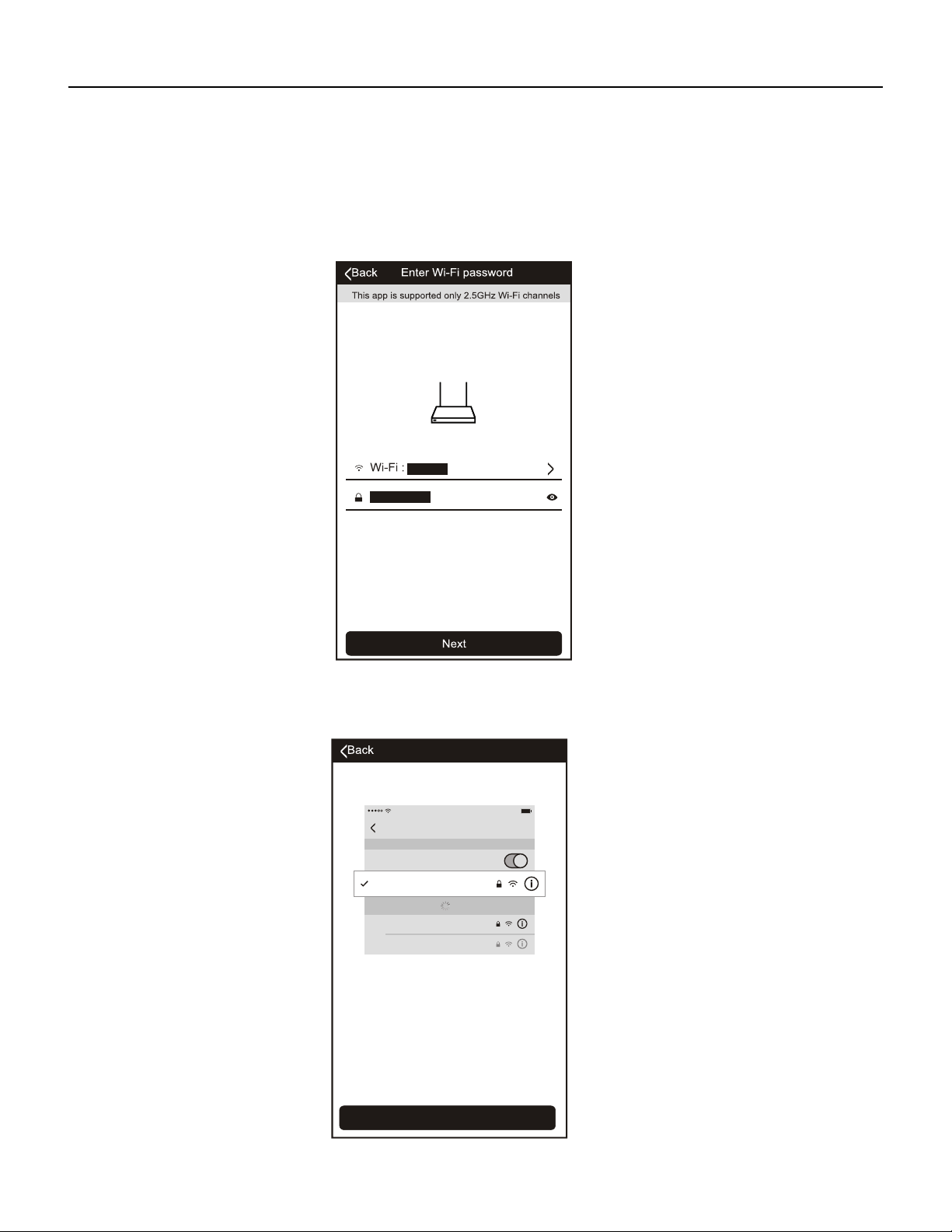
4. Select the Wi-Fi network you are trying to connect to and type in the password and press “Next” to continue.
5. Open your mobile device settings to get to Wi-Fi connections.
6. “SmartLife-xxxx” should show as an available network connection option.
34
FRIEDRICH GO
Chill Premier/ Unit
7. Connect to the SmartLife-xxxx network.
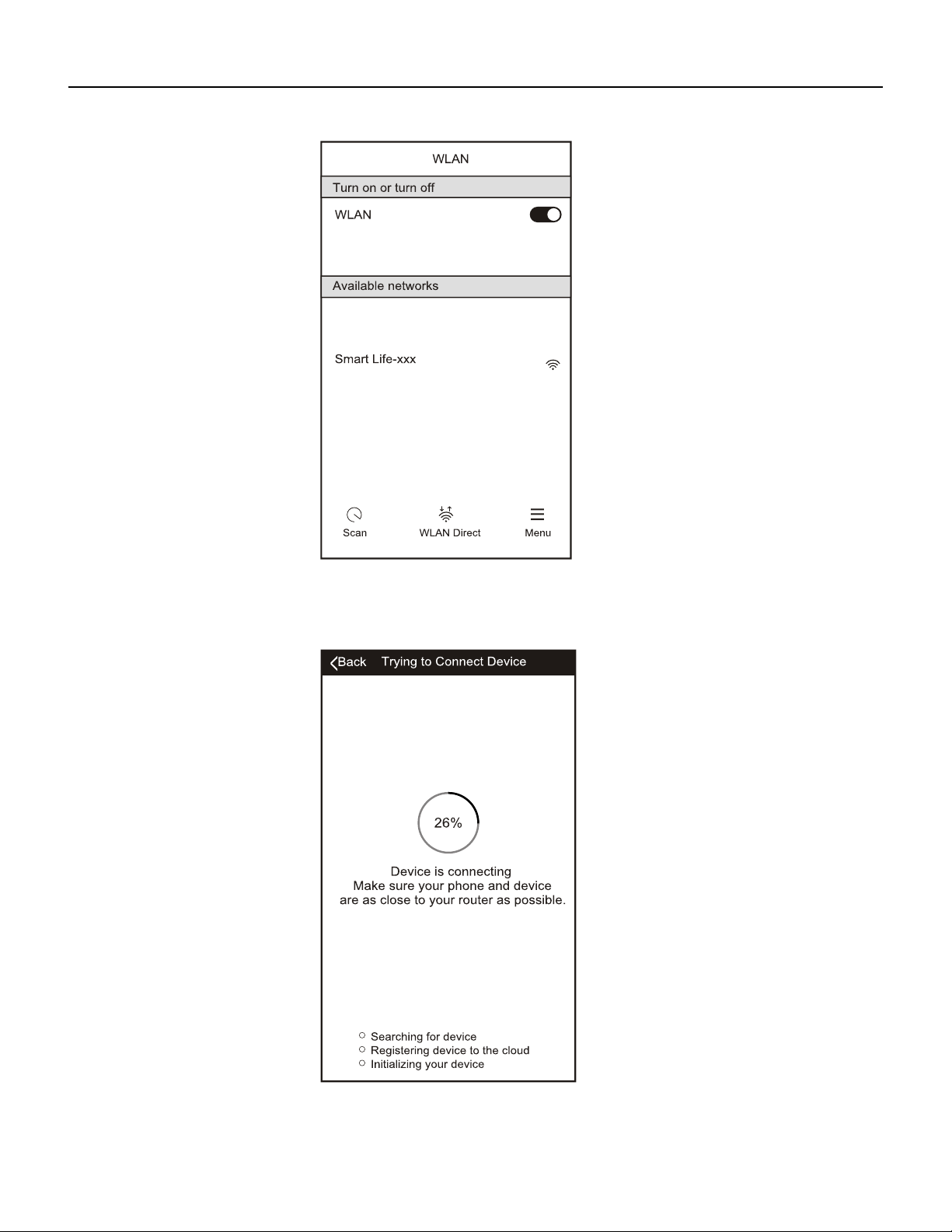
8. After connecting to “SmartLife -xxxx” network using the AC unit’s Wi-Fi adapter, return to the FriedrichGo App
to resume setup.
9. The AC unit will automatically begin installing/syncing on the mobile device.
10. The AC unit s LED screen may display “PP” or “SA”, indicating it is searching for the network signal. This may
take 10-15 seconds to connect the AC to the network.
35
Modify Device Name
Window Type Air Conditioner Add successfully
View help
How to reset device?
Press the DISPLAY on the remote control key 6
times in the time of 6 seconds until the LCD
screen show CF , indicating connect mode
""
Press the DISPLAY on the remote control key 6
times in the time of 6 seconds until the LCD
screen show AP , indicating hotspot mode""
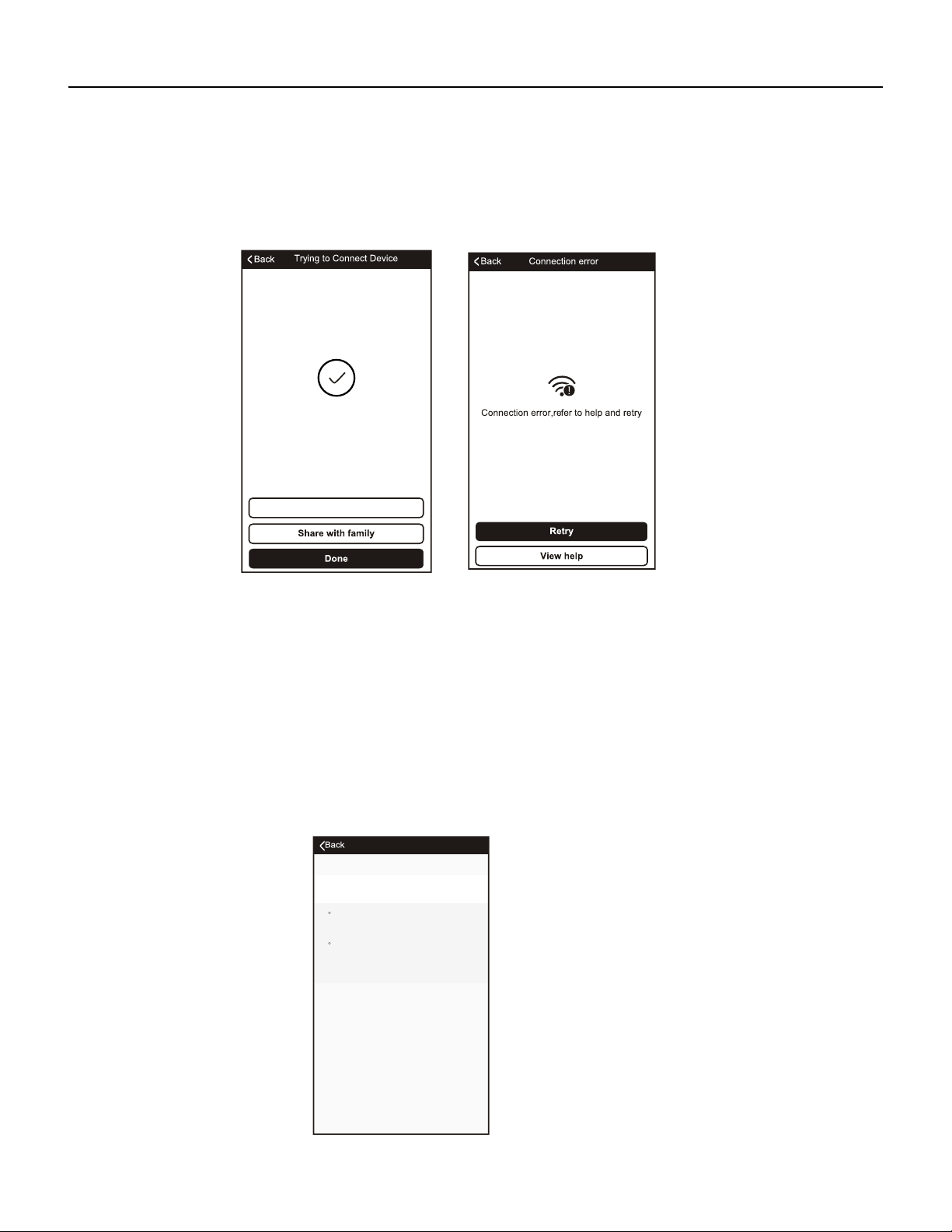
11. When the connection is complete the FriedrichGo App on your mobile device will show the unit as connected
with a check mark as illustrated.
12. If the setup connection fails, the App will display a warning. Press “Retry” to try the connection again or “View
help“.
13. Once connected, you are ready to begin controlling your AC unit from your mobile device.
NOTE : Once your unit cycles on and off after using the AC unit s Wi-Fi adapter to connect, the AC unit will auto-
matically pair with the network your phone is connected to.
Note: If at any time you need to start over- Pressing “Display” on the remote control 6 times will reset the wireless
setup configuration on the AC unit back to CF mode. Pressing the “Display” button an additional 6 times after CF
mode appears will switch the unit to AP mode. Please allow the unit 10-15 seconds to switch modes if toggling
from CF to AP modes.
FRIEDRICH GO
Chill Premier/ Unit
36
FRIEDRICH GO
Chill Premier/ Unit
nly
AIR CONDITIONER CONTROL
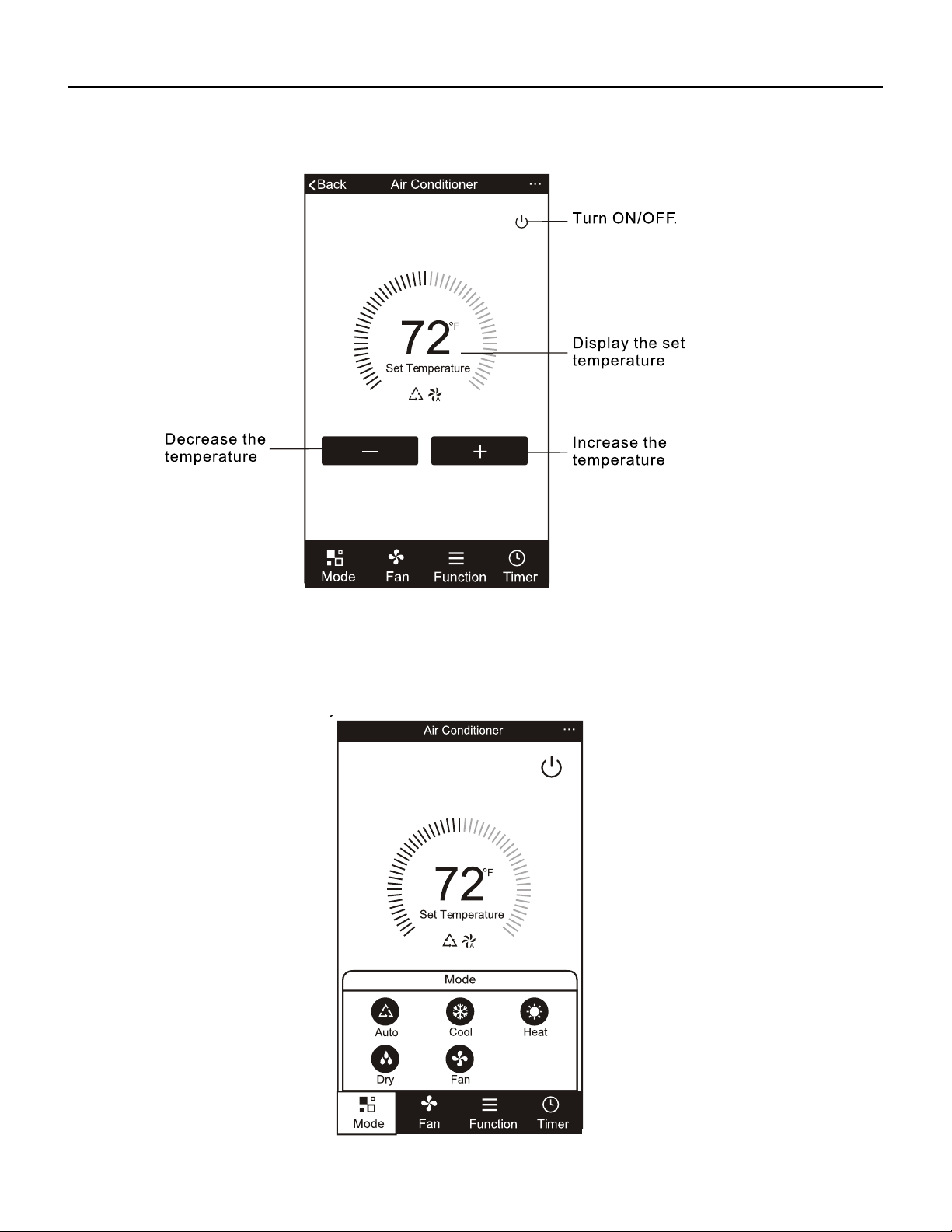
1. Click the air conditioner name to enter the App control panel. Click the ON/OFF button to adjust the settings.
2. You can adjust the settings for the operating mode you want to use: Cool, Heat, Dry, Fan, Auto. Click the “Mode”
button and choose the mode you would like to change. Note: Some units also have a heat function. The Heat mode
on the App will not be functional or change any settings on AC units that are cool only.
37
FRIEDRICH GO
Chill Premier/ Unit
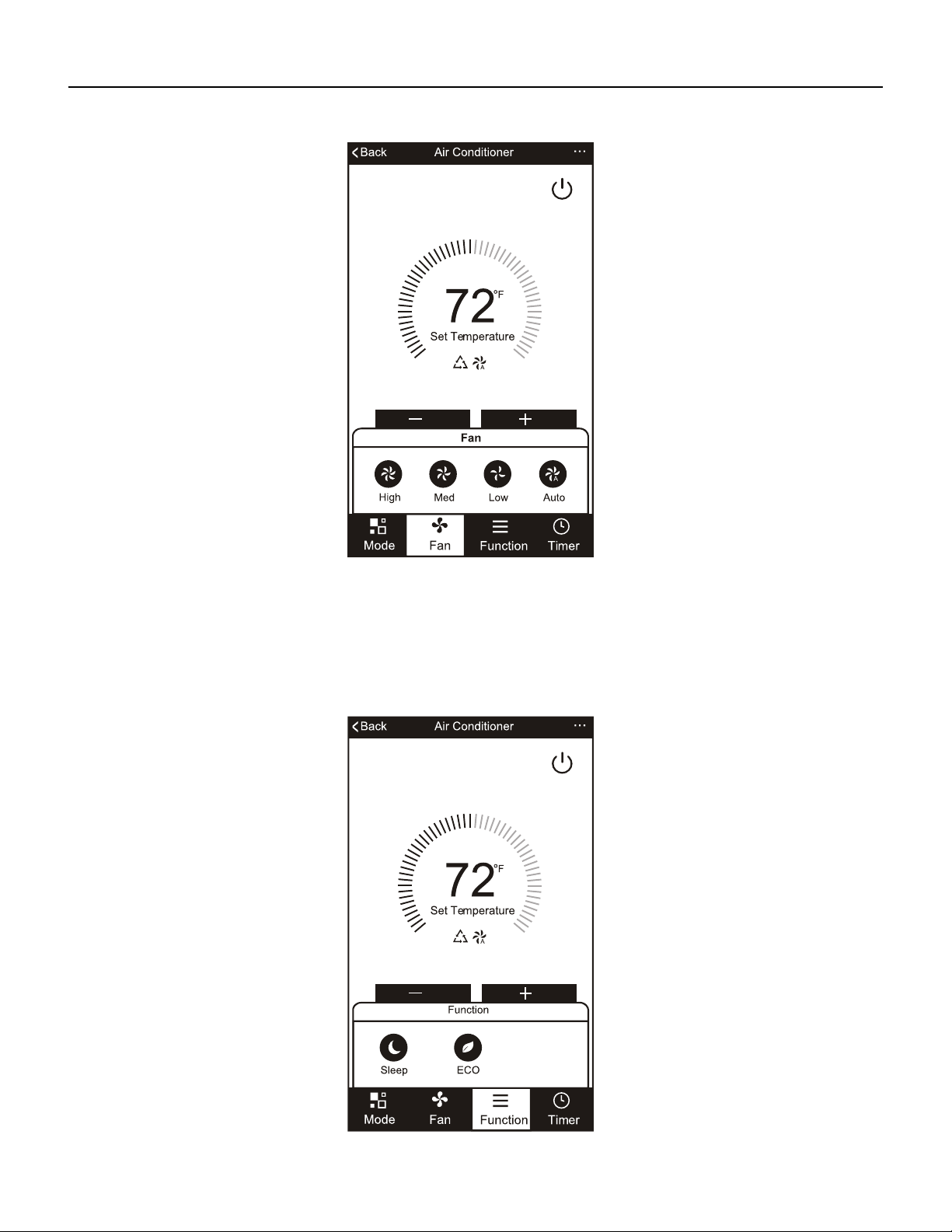
3. For Fan mode, click the “Fan” button and choose the speed you want: Low, Med, High, Auto.
4. Other unit controls can be changed by selecting the “Function” button.
By selecting the Function control, you can select the Sleep or Eco modes.
In Sleep mode, the fan speed will be set to low only.
38
FRIEDRICH GO
Chill Premier/ Unit
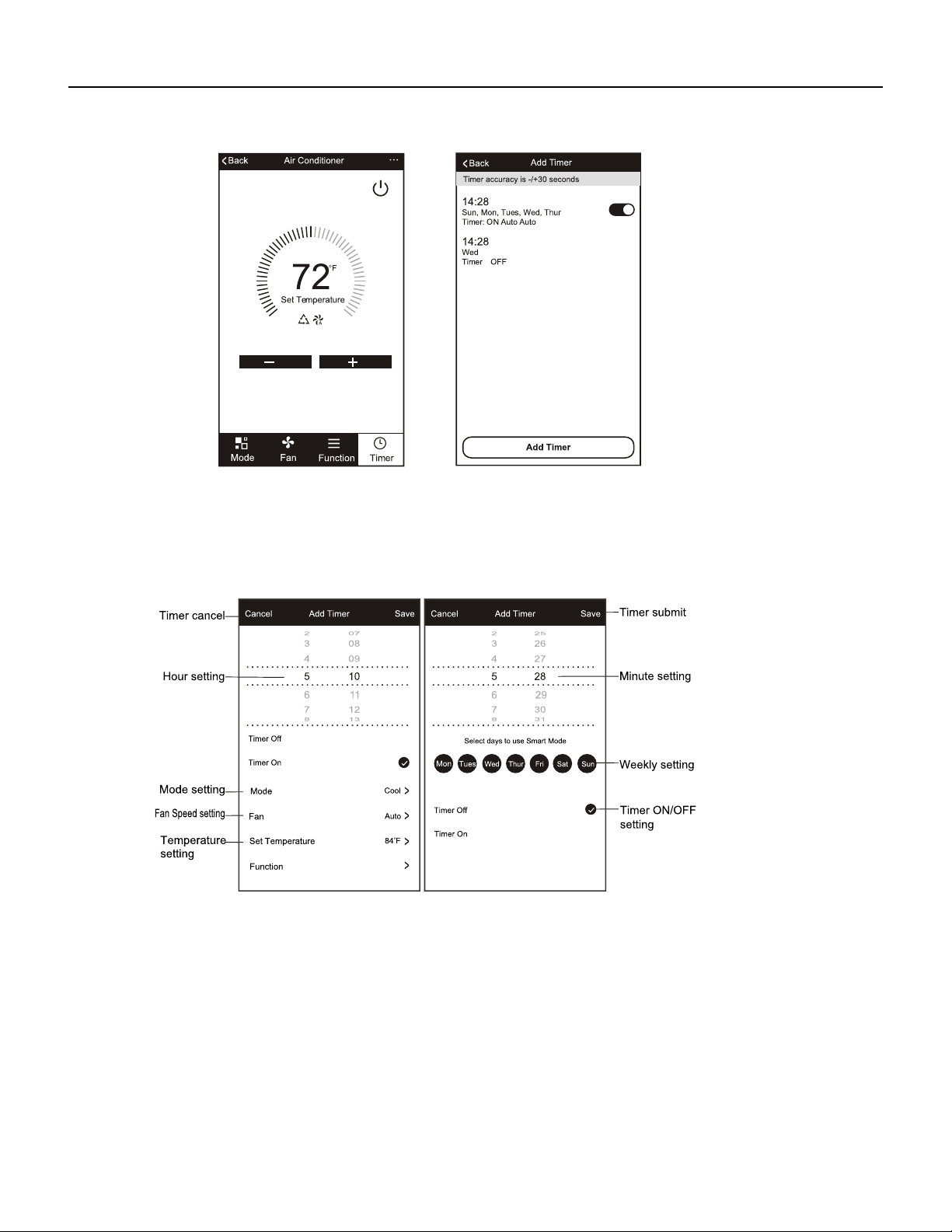
5. To set the Timer function: Click the “Timer” button. The App will enter the timer setting screen. It will display the
time scheduler that was previously set. You can press to edit the timer or create new timers.
6. Click “ON” or “OFF” button to set Timer ON or Timer OFF.
You can set the: Hour, Minute, Operate Mode, Operate Fan Speed, Operate Temperature.
You can also set a weekly timer.
After you’re finished setting the timer, click the button to Cancel or Confirm.
NOTES:
- Dry Mode is preset at 61F/16C and cannot be changed up or down.
- Heat Mode does not apply to all units. If your AC unit does not have a heat function, the heat mode on the App will
not change anything on the AC unit for cooling only models. If your unit has a heater function, you will be able to
adjust the temperature up or down.
- Fan Mode is preset at 73F/23C and cannot be adjusted up or down.
- Auto Mode is preset at 73F/23C and cannot be adjusted up or down.
- Cool mode: Temperature settings can be adjusted to the desired temperature.
39
FRIEDRICH GO
Chill Premier/ Unit
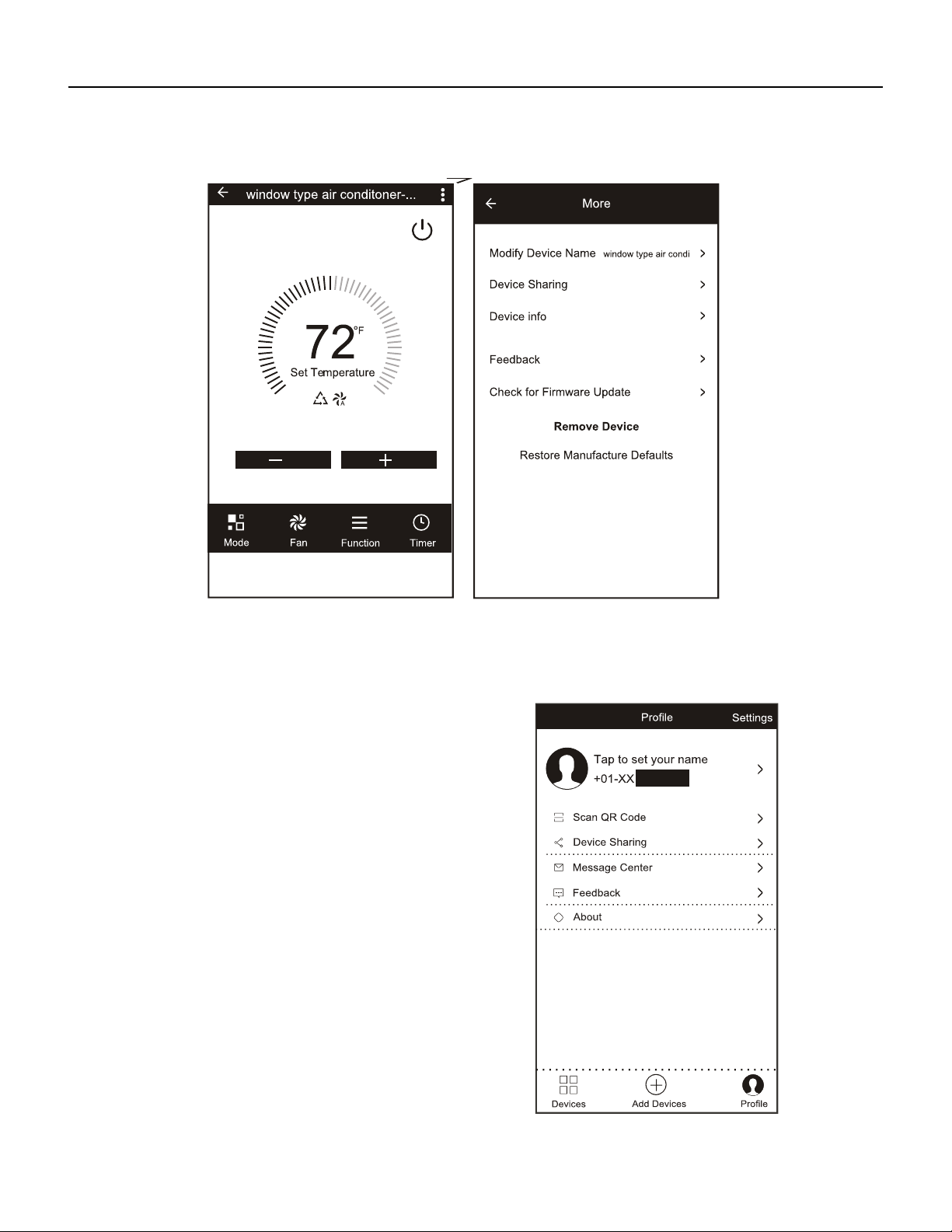
7.More Options- From the upper, right-hand corner, you can view or change the following options:
Modify Device Name, Device Sharing, Device Info, Feedback, Check for Updates, Remove theDevice or Restore
Defaults.
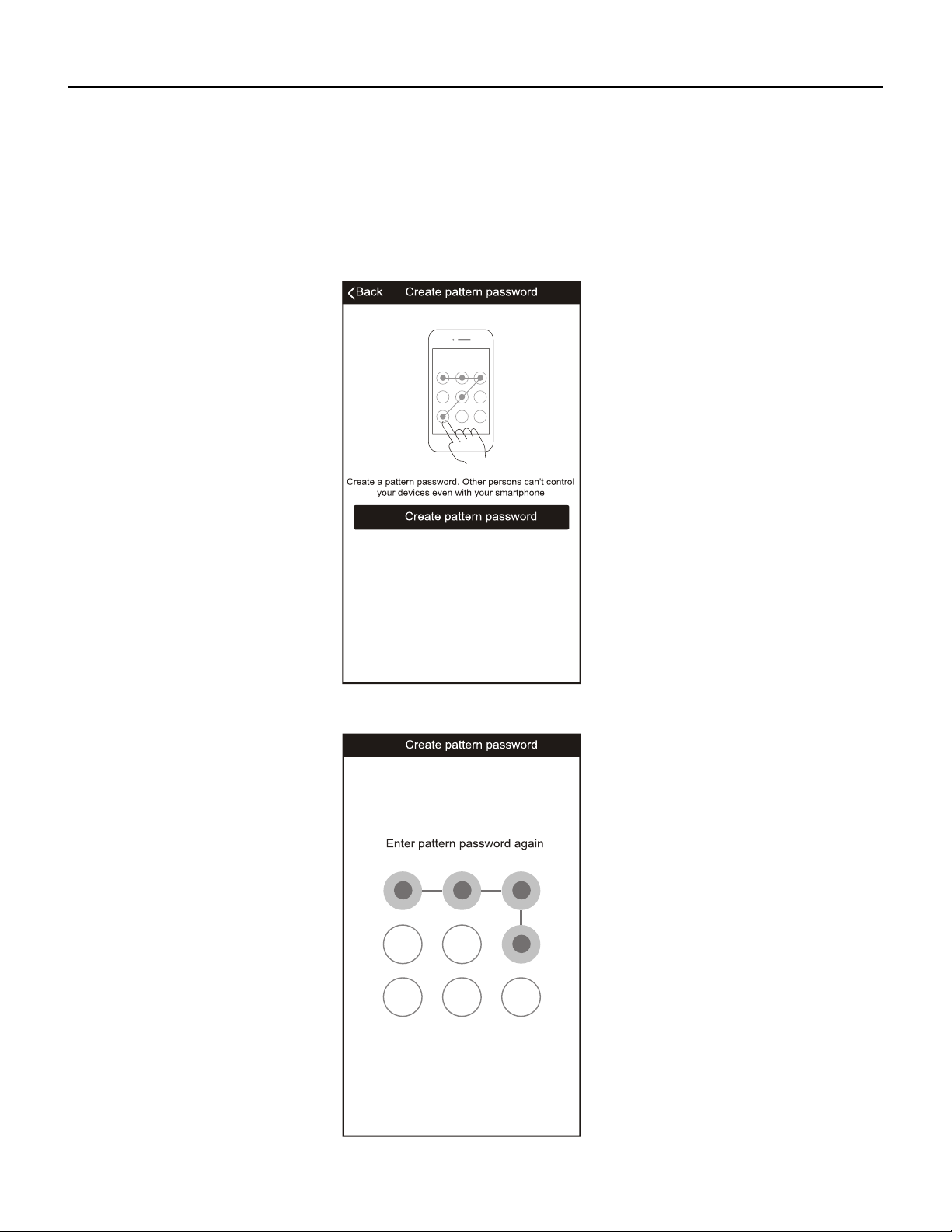
8.Profile. You can manage your personal information. It includes:
a. Account information.
b. Scan QR code: Opens a QR code reader within the App
c. Share Device: Display user s device sharing information.
d. Message Center: Displays all messages that the system sent
to the user.
e. Feedback: Where users could submit feedback online.
f. About: Displays the current App version information.
Note: The first registered mobile device is the main
control and other devices can only be shared
through the primary device. Shared accounts
need to be setup for the same country.
40
FRIEDRICH GO
Chill Premier/ Unit
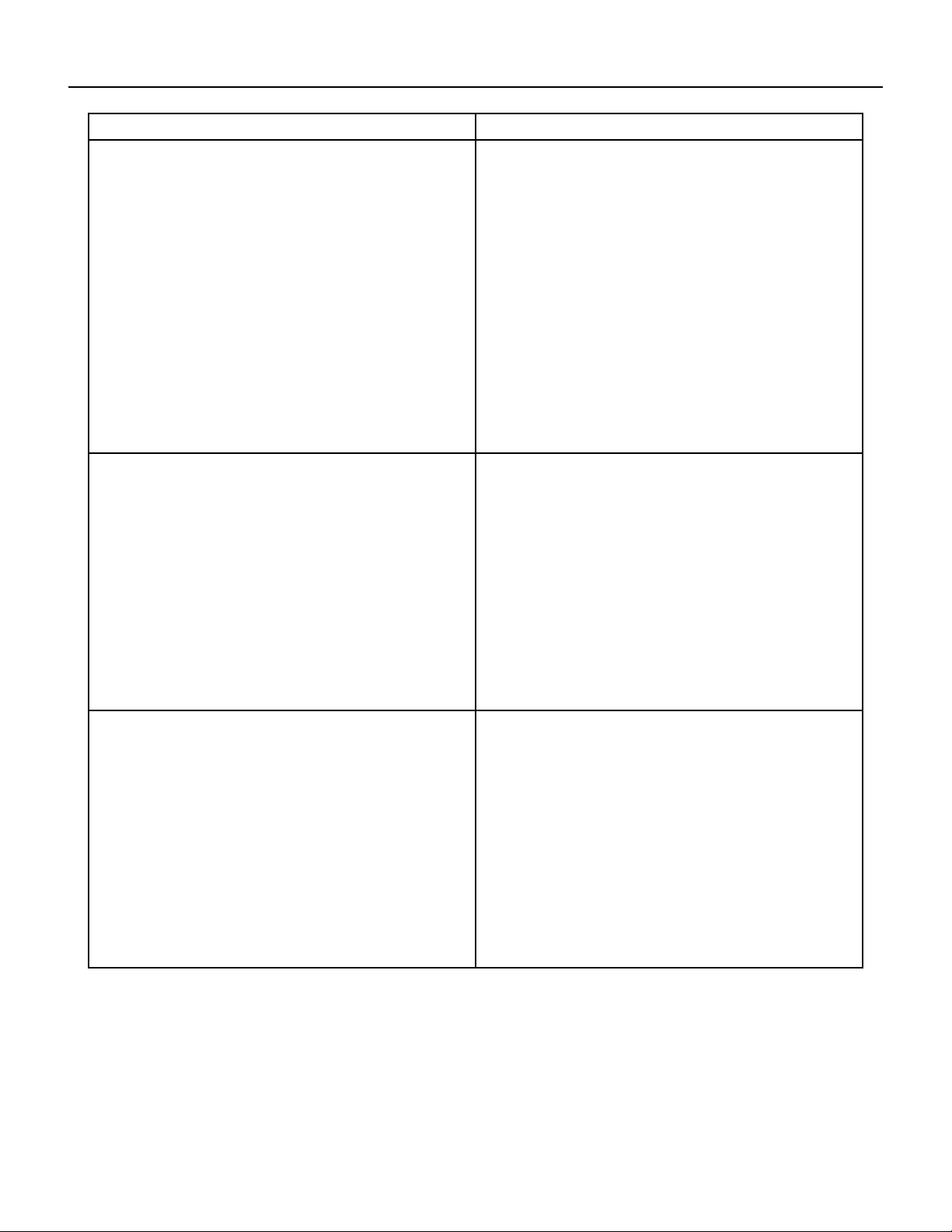
9. Pattern unlock. Tap “Pattern unlock” under the Profile section where you set your name.
You can then set up your App unlock pattern. After it is enabled, you need to draw the pattern to unlock the App.
41
FRIEDRICH GO
Chill Premier/ Unit Troubleshooting
Description Analysis
Air conditioner can’t be set up and configured
successfully
1. Check that the Wi-Fi address and password is cor-
rect for the network you are trying to connect to.
2. Check the air conditioner under configuration status.
3. Check to make sure no firewalls or other restrictions
are preventing setup on the wireless network.
4. Check that the router is working properly.
5. Make sure air conditioner,router and mobile device
are all within signal range to connect.
6. Check to see if the router is blocking the FriedrichGo
App from connecting
7. Please note-The FriedrichGo App is supported on 2.4
GHZ Wi-Fi Channels only. Please be sure your connec-
tion is using a Wi-Fi channel broadcasting in 2.4GHZ.
Air conditioner can’t be controlled with mobile device.
Software display:Identification Failed
This means that the air conditioner has been reset and
the mobile phone lost its control permissions. You will
need to reconnect the Wi-Fi network to get permis-
sions again. If this does not work, please delete the
selected air conditioner in the App and try reinstalling
again.
Mobile device can’t connect to the air conditioner.
Software display: Air conditioner is offline. Please
check Wi-Fi network status.
1. The air conditioner connection setting has been
reconfigured or changed.
2. No power to the air conditioner.
3. No power to the wireless router.
Check all connection settings between the AC unit and
router as well as the mobile device and router to be
sure of connectivity.
42
Friedrich Air Conditioning Co.
10001 Reunion Place, Suite 500 • San Antonio, Texas 78216
1-800-541-6645
www.friedrich.com
TECHNICAL SUPPORT
CONTACT INFORMATION
CUSTOMER SATISFACTION and QUALITY ASSURANCE
Friedrich is a conscientious manufacturer, concerned about customer satisfaction, product quality, and controlling
warranty costs. As an Authorized Service Provider you play a vital role in these areas. By adhering to the policies
and procedures you provide us with vital information on each warranty repair you complete. This information
is used to identify product failure trends, initiate corrective action, and improve product quality, thereby further