Interchangeable Lens
Digital Camera
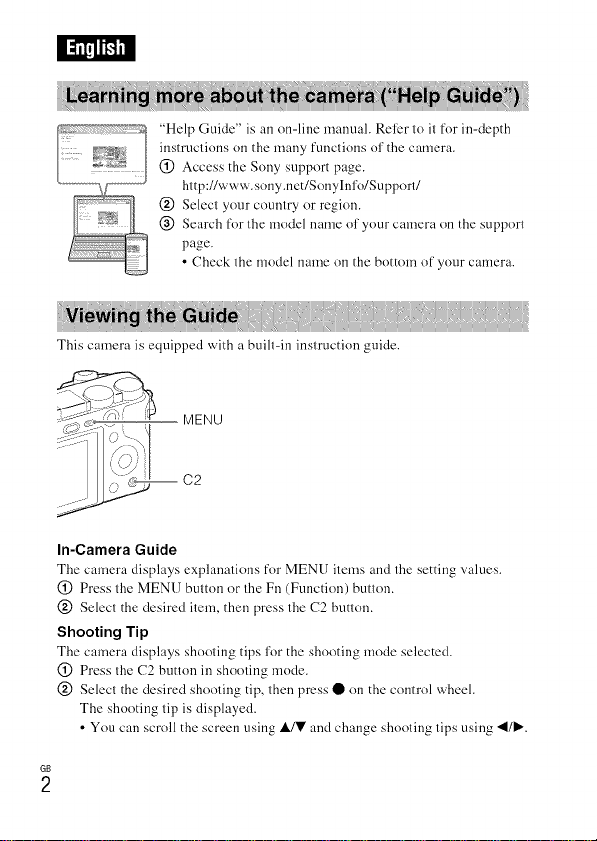
: __'_'_'_ ..... Hel l) Guide" is an on-line manuah Rel)r to it for in-depth
{77 instructions on the many funclions o1'the camera.
, _'_,_ t (_) Access the Sony support page.
http://www, sony.net/Sonyh_l'o/Sul)port/
@ Select your country or region.
@ Search for the model name of your camera on the support
page.
• Check the model name on the bottom of your camera.
This camera is equipped with a built-in instruction guide.
MENU
In-Camera Guide
The camera displays explanations for MENU items and the setting x,alucs.
(_) Press the MENU button or the Fn (Function) button.
@ Select the desired item, then press the C2 button.
Shooting Tip
The camera displays shooting tips for the shooting mode selected.
(_ Press the C2 button in shooting mode.
@ Select the desired shooting tip, then press • on the control wheel.
The shooting tip is displayed.
• You can scroll the screen using IdY and change shooting tips using _1/_.
GB
2
Owner's Record
The model and serial numbers arc located on the bottom. Record the serial number in the
space provided below. Refer to these numbers whenever you call your Sony dealer
regarding this product.
Model No. IL(E-6()0{}
Serial No.
Model No. A(7-UB IOC/AC-UB I 0D
Serial No.
To reduce fire or shock hazard, do not expose the unit to rain or
moisture.
IMPORTANTSAFETYINSTRUCTIONS
-SAVE THESEINSTRUCTIONS
DANGER
TOREDUCETHERISKOFFIREORELECTRIC
SHOCK,CAREFULLYFOLLOWTHESE
INSTRUCTIONS
If the shape of tilt' plug does not fit the power outlut, use an attachment phlg adaptor of tilt'
proper configuration l\_r the power outlet.
Battery pack
If"tilt' baltery pack is mishandlud, lilt' batlery pack can bursl, cause a fire or evun chemical
bui-ns. Obserx e the following cautions.
• Do not disassemble.
• Do not crush and do not expose the bauery pack to any shock or force such as
hammering, dropping or slepping on il.
• Do not sllorl circuil and do not allow metal o[_jecls Io come inlo COll[acl with the batlery
terminals.
• Do nol expose Io high lemperalure above 60(7 (141} F) such as ill direcl sunlighl or in a
car parked in Ihe sun.
• Do not incinerate or dispose of ill fire.
• Do nol handle damaged or leaking lilhium ion balteries.
• Be sure Io charge the baltery pack using a genuine Sony baltery charger or a device that GB
can charge the ba/lery pack. 3
• Keep the battery pack out of the roach of small childr<.n.
• Keep the battery pack dry.
• Replace only with the same or equivalent type recommended by Sony.
• Dispose of used battery packs promptly as described in the instructions.
AC Adaptor
Use the nearby wall outlet (wall socket) when using the AU Adaptor. Disconnect thu A(
Adaptor from the wall outlet (wall socket) immediately if any malfunction occurs while
using the apparatus.
The power cord (mains lead), if supplied, is designed specifically lk_r use with this camera
only. and should not be used with other electrical equipment.
RECYCLING LITHIUM-ION BATTERIES
Lithium-Ion batturies are recyclable.
You can help preserve our environment by returning your used
rechargeable batteries to the collection and recycling location nearest
you.
For more information regarding recycling of rechargeable batteries, call
toll lYee
I-8{}0-822-8837. or visit http://www.call2recycle.org/
O
Caution: Do not handle damaged or leaking Lithium-Ion batteries.
Battery pack and lens (If lens supplied)
This device complies with Part 15 of thu F(-T' Rules. Operation is subject to the following
two conditions:
(1) This device may not cause harmful interference, and (2) this device must accept any
interf<.mnce received, inchlding interference that may cause undesired operation.
CAN I(7ES-3 B/NMB-3 B
This equipment complies with F((/IU radiation exposur<, limits set forth for an
uncontrolled environment and meets the F((7 radio lYequency (RF) Exposure Guidelines
in Supplement C to OET65 and RSS- 102 of the IC radio frequency (RF) Exposur<. rules.
This equipment has very low levels of RF energy that are deemed to comply without
testing of specific absorption ratio (SAR).
GB
4
If you have any questions about this product, you may call:
Sony (ustomer lnfommtion (Tenter
1-800-222-SONY (7669)
The number below is for tile FCC related matters only.
Regulatory Information
Declaration of Conformity
Trade Nume: SONY
Model No.: IL(E-6/)00
Responsible Party: Sony Electronics Inc.
Address: 16530 Via Esprillo.
San Diego. (A 92127 U.S.A.
Telephone No.: 858-942-2230
This device complies with Patti 5 of the F(C Rules. Operation is sut_iect to tile
following two conditions: (1) This device may not cause harmful interference, and (2)
this device must accept any interference received, including interference that may cause
undesired operation.
This equipment must not be co-located or operated in con]unction with any other antenna
or transmitter.
CAUTION
You arc cautioned thut any chungcs or modifications not expressly approved in this munuul
could void your authority to operate this equipment.
Note:
This equipment has bccn tested and fo/ind to comply with tilt' limits for a Ulass B digitul
device, pursuant to Part 15 of tile PCC Rules.
These limits are designed to provide reasonable protection against harmful interference in
a residential installation. This equipment generates, uses. and can radiate radio frequency
energy and. if not installed and used in accordance with the instructions, may cause
Imrmful interference to radio communications. However. them is no guarantee that
interference will not occur in a particular installation. If this equipment does cause harmful
interl\.rence to radio or television reception, which can be determined by turning the
equipment off and on. the user is encouraged to try to correct the interference by one or
more of the following measures:
Reorient or relocate tile receiving antenna.
Increase the separation between tile equipment and receiver.
(7onnect the equipment into an outlet on a circuit different from that to which tile
receiver is connected.
Consult the dealer or an experienced radio/TV technician lk_r help.
Tile supplied interface cable must be used with tile equipment in order to comply with the
limits for a digital de_ice pursuant to Subpart B of Parl 15 of F((7 Rules. GB
5
This device complies with Industry Canada licence-exempt RSS standard(s).
Operation is su_iect to the following two conditions: (1) this device may not cause
interference, and (2) this device must accept any interference, including interference that
may cause undesired operation of the device.
Notice for the customers in the countries applying EU Directives
Manufacturer: Sony Uorporation. 1-7-1 Konun Minato-ku Tokyo, 108-0075 Jupan
For EU product compliance: Sony Deutschland GmbH. Hedelfinger Strasse 61. 70327
Stuttgart, Germany
Hereby, Sony Corporation. declares that this equipment is in compliance with the essential
requirements and other relevant provisions of Directive 1999/5/EC. For details, please
access the following URL:
http://www.compliance.sony.de/
Notice
If static electricity or clectl-omagnctism causes duta transl\.r to discontinue midway (fail),
restart the application or disconnect and connect the communication cable (USB. etc.)
again.
This product has been tested and l\mnd compliant with the limits set out in the EM(
regulation for using connection cables shorter than 3 meters (9.8 feet).
The electromagnetic fields at the specific frequencies may infhlence the picture and sound
of this unit.
GB
6

Disposal of waste batteries and electrical and electronic
equipment (applicable in the European Union and other
European countries with separate collection systems)
This symbol on file product, file battery Ol-on file packaging indicates that
tile product and tile battery shall 11ol be treated as household wasle. On
certain baneries this sylnbol might be used in combination with a
chemical symboh The chemical symbols for mercury (Hg) or lead (Pb) are
added if the banery contains more than ().()005c/_ mercury or 0.004c/_ lead.
By ensuring these products and batteries am disposed of correctly, you
will help prevent potentially negative consequences for the environment and human health
which could otherwise be caused by inappropriate waste handling. The recycling of the
materials will help to conserve natural resources.
113case of products that for safety, performance or data integrity masons require a
pemmnent connection with an incorporated battery, this battery should be replaced by
qualified service staff only. To ensure that the battery and the electrical and electronic
equipment will be treated properly, hand over these products at end-of-life to the
applicable collection point for the recycling of electrical and electronic equipment. For all
other batteries, please view the section on how to remove the battery from the product
sal\,ly. Hand the battery over to the applicable collection point for the recycling of waste
batteries. For morn detailed information about recycling of this product or battery, please
contact your local Civic Office, your household waste disposal service or the shop where
you purchased the product or battery.
Complies with ]
IDA Standards
DB00353
Note
Son'_ecertification marks 17)1-standards supported by thc camera can bc confirmed on the
screen of the camera.
Select MENU --+ _ (Setup) 6 --+ [(ertificalion Logo].
If display is not possible due to problems such as camera failure, contact your Sony dealer
or local authorized Sony service facility.
GB
7
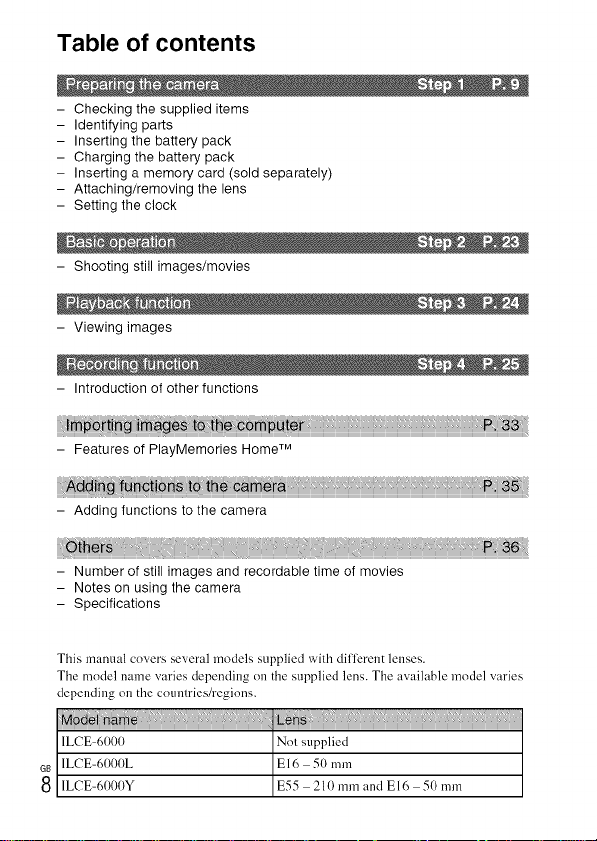
Table of contents
- Checking the supplied items
- Identifying parts
- Inserting the battery pack
- Charging the battery pack
- Inserting a memory card (sold separately)
- Attaching/removing the lens
- Setting the clock
- Shooting still images/movies
- Viewing images
- Introduction of other functions
- Features of PlayMemories Home TM
- Adding functions to the camera
'Ot_ers ,;, 'i::
- Number of still images and recordable time of movies
- Notes on using the camera
- Specifications
This manual covers several models supplied with diflerent lenses.
The model name varies depending on the supplied lens. The available model varies
depending on the countries/regions.
1LCE-6ttt)tt Not supplied
1LCE-6ttt)ttL El6 5(1mm
8 1LCE-6ttt)ttY E55 21(tmm and El6 5(tmm
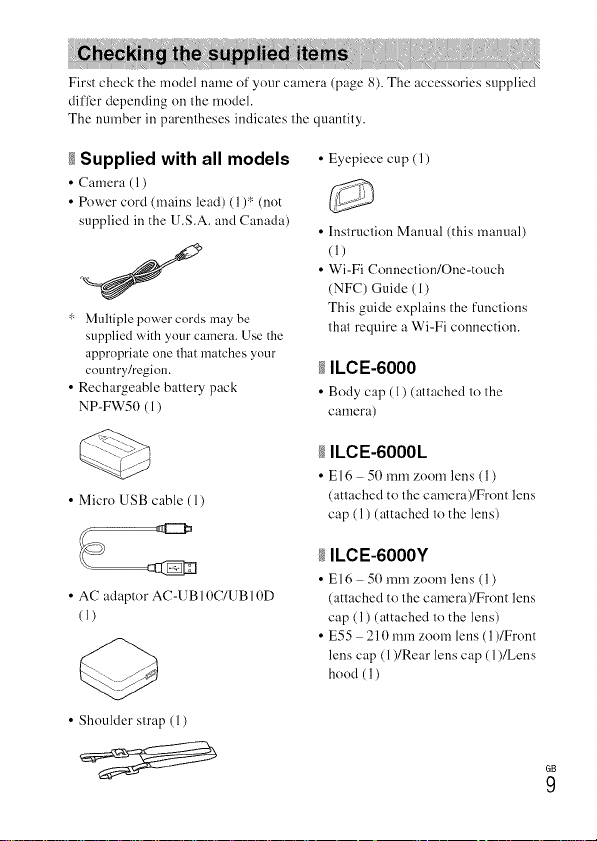
Firstcheckthemodelnameofyourcamera(page8).Theaccessoriessupplied
difl)rdependingonthemodel.
Thenumberinparenthesesindicatesthequantity.
Supplied with all models
• Camera (1)
• Power cord (nmins lead) (1)* (not
supplied in the U.S.A. and Canada)
" Multiple power cords may be
supplied with your camera. Use the
appropriate one that matches your
country/region.
• Rechargeable battery pack
NP-FW50 (1)
• Eyepiece cup (1)
• Instruction Manual (this manual)
(1)
• Wi-Fi Connection/One-touch
(NFC) Guide (1)
This guide explains the functions
that require a Wi-Fi connection.
ILCE-6000
• Body cap (l) (attached to the
camera)
• Micro USB cable (1)
ILCE-6OOOL
• El6 50 mm zoom lens (1)
(attached to the camera)/Front lens
cap (1) (attached to the lens)
• AC adaptor AC-UB 10C/UB 10D
(1)
ILCE-6OOOY
• El6 50 mm zoom lens (l)
(attached to the camera)/Front lens
cap (1) (attached to the lens)
• E55 210 mm zoom lens (1)/Front
lens cap (1)/Rear lens cap (1)/Lens
hood (1)
• Shoulder strap (1)
GD
9
i<i
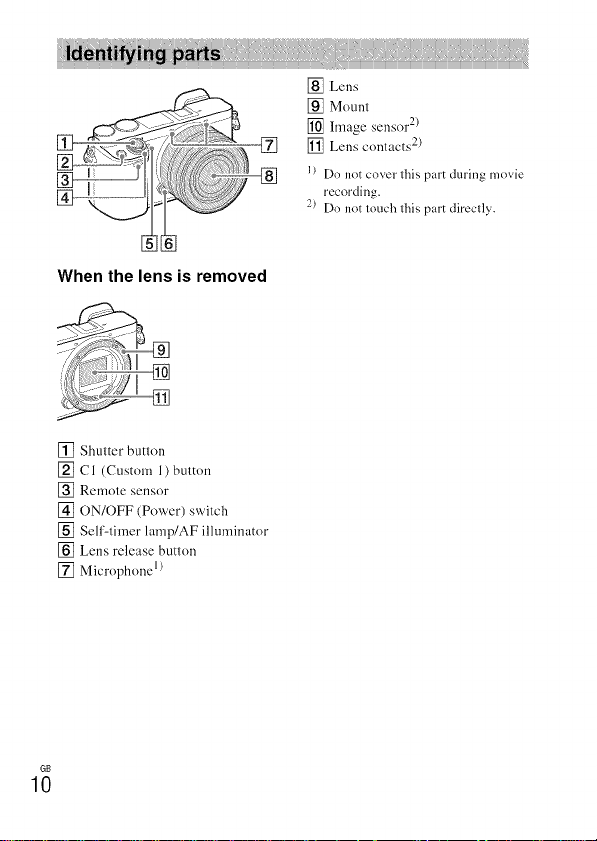
When the lens is removed
[] Lens
[] Mount
[] hnage sensor 2)
[] Lens contacts 2)
l) Do not cover this part during movie
recording.
2) Do not touch this part directly.
[] Shutter button
[] C1 (Custom 1) button
]Remote sensor
[] ON/OFF (Power) switch
[] Self-timer lamp/AF illuminator
[] Lens release button
[] Microphone 1)
GD
10
] ..............
i
J
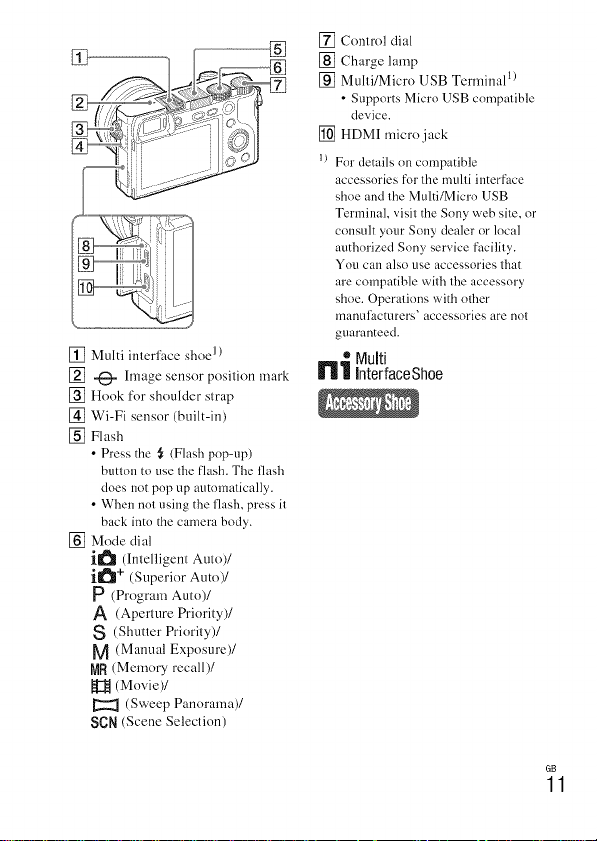
[] Multi interface shoe 1)
[] -_- hnage sensor position mark
[] Hook for shoulder strap
[] Wi-Fi sensor (built-in)
[] Flash
• Press the ,_ (Flash pop-up)
button to use the flash. The flash
does not pop up automatically.
• When not using the flash, press it
back into the camera body.
[] Mode dial
i_ (Intelligent Auto)/
il_l + (Superior Auto)/
P (Program Auto)/
A (Aperture Priority)/
S (Shutter Priority)/
M (Manual Exposure)/
MR (Memory recall)/
[_ (Movie)/
(Sweep Panorama)/
sen (Scene Selection)
[] Control dial
[] Charge lamp
[] Multi/Micro USB Terminal 1)
• Supports Micro USB compatible
device.
[] HDMI micro jack
1_ For details on compatible
accessories for the multi interface
shoe and the Multi/Micro USB
Terminal, visit the Sony web site, or
consult your Sony dealer or local
authorized Sony service facility.
You can also use accessories that
are compatible with the accessory
shoe. Operations with other
manulacturers' accessories are not
guaranteed.
* Multi
_'_ _ Interface Shoe
GB
11
GB
12
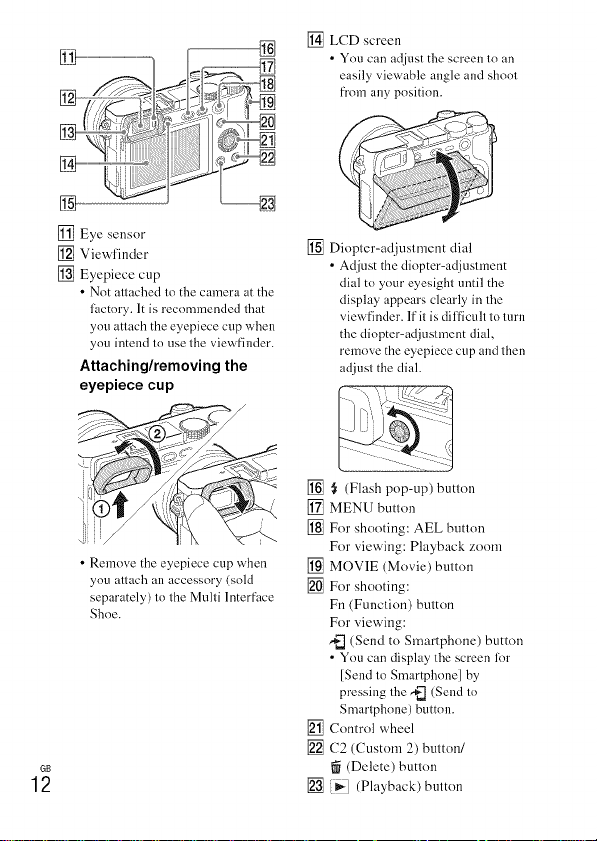
[] Eye sensor
[] Viewfinder
[] Eyepiece cup
• Not attached to the camera at the
lactory. It is recommended that
you attach the eyepiece cup when
you intend to use the viewfinder.
Attaching/removing the
eyepiece cup
• Remove the eyepiece cup when
ou attach an accessory (sold
separately) to the Multi Interface
Shoe.
[] LCD screen
• You can adjnst the screen lo an
easily viewable angle and shool
from any position.
I]
"""_
]
[] Diopter-adjusmlent dial
• Adjust the diopter-adjustment
dial to your eyesight until the
display appears clearly in the
viewfinder. If it is difficult to turn
the diopter=adjustment dial,
remove the eyepiece cup and then
adjust the diah
[] _ (Flash pop-up) button
[] MENU button
[] For shooting: AEL button
For viewing: Playback zoom
[] MOVIE (Movie) button
[] For shooting:
Fn (Function) button
For viewing:
,_ (Send to Smartphone) button
• You can display the screen lot
[Send to Smartphone] by
pressing the _ (Send to
Smartphone) button.
[] Control wheel
[] C2 (Custom 2) button/
(Delete) button
[] )i,-] (Playback)button
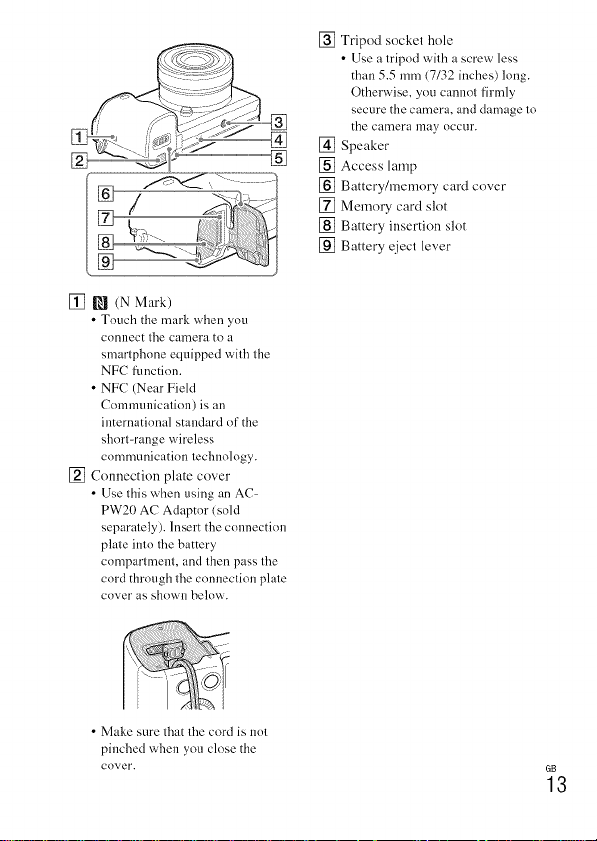
[] Tripodsockethole
•Useatripodwithascrewless
than5.5mm(7/32inches)long.
Otherwise,youcannotfirmly
secure the camera, and damage to
the camera may occur.
[] Speaker
[] Access lamp
[] Battery/memory card cover
[] Memory card slot
[] Battery insertion slot
[] Battery eject lever
[] _ (N Mark)
• Touch the mark wizen you
connect tile camera to a
smartphnne equipped with the
NFC function.
• NFC (Near Field
Communication) is an
international standard of the
short-range wireless
communication technology.
[] Connection plate cover
• Use this wizen using an AC-
PW20 AC Adaptor (sold
separately). Insert the connection
plate into tile battery
compartment, and then pass tile
cord through tile connection plate
coyer as showu below.
• Make sure that tile cord is not
pinched when you close the
coyer.
GB
13
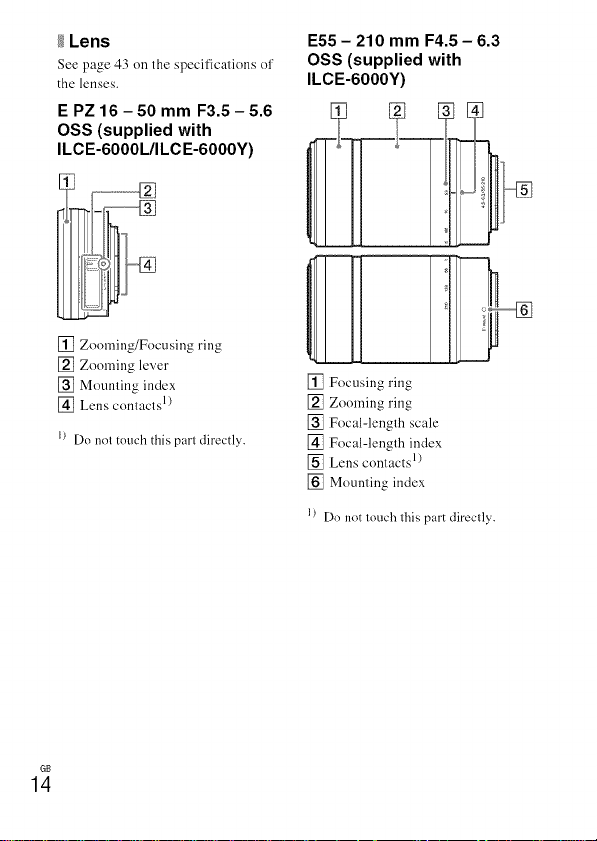
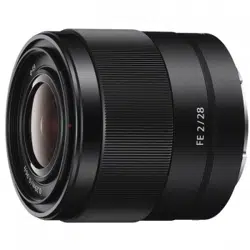
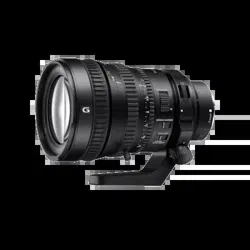
Lens
See page 43 on the specifications of
the lenses.
E PZ 16 - 50 mm F3.5 - 5.6
OSS (supplied with
ILCE-6OOOL/ILCE-6OOOY)
E55 - 210 mm F4.5 - 6.3
OSS (supplied with
ILCE-6OOOY)
[] Zooming/Focusing ring
[] Zooming lever
[] Mounting index
[] Lens contacts I )
I) Do not touch this part directly.
[] Focusing ring
[] Zooming ring
[] Focal-length scale
[] Focal-length index
[] Lens contactsl)
[] Mounting index
l) Do not touch this part directly.
GB
14
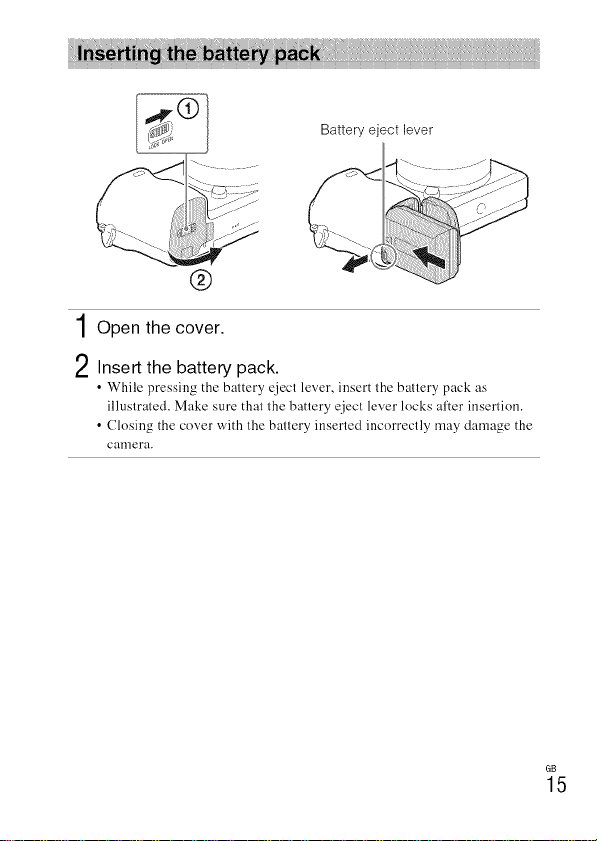
®
Battery eject lever
1Open the cover.
2Insert the battery pack.
• While pressing the battery qject lever, insert the baltery pack as
illustrated. Make sure that the battery ejecl lever locks after insertion.
• Closing the cover with the battery inserted incorrectly may damage the
cal]nera.
GB
15
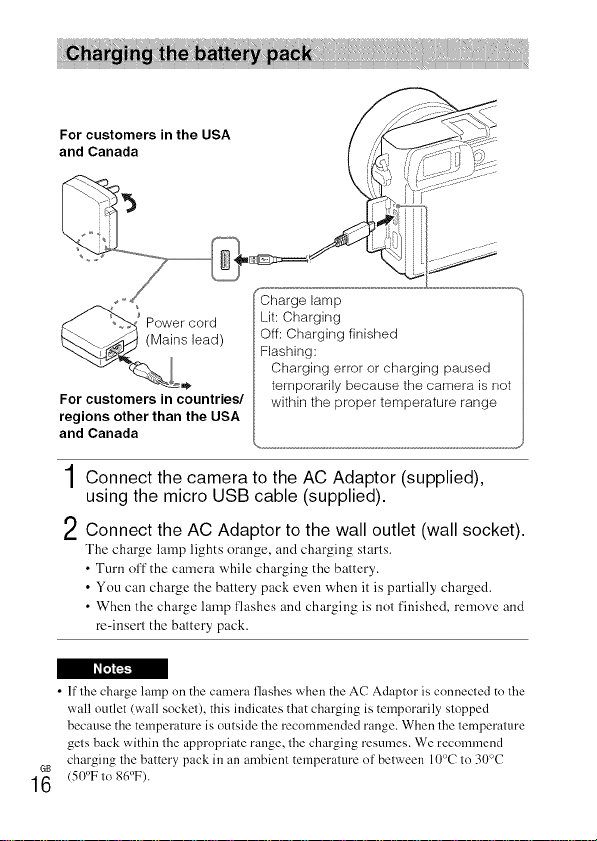
For customers in the USA
and Canada
Power cord
(Mains lead)
For customers in countries/
regions other than the USA
and Canada
Charge lamp
Lit: Charging
Off: Charging finished
Flashing:
Charging error or charging paused
temporarily because the camera is not
within the proper temperature range
1Connect the camera to the AC Adaptor (supplied),
using the micro USB cable (supplied).
2Connect the AC Adaptor to the wall outlet (wall socket).
The charge lamp lights orange, and charging starts.
• Turn oft" the camera while charging the battery.
• Yeu can charge the battery pack even when it is partially charged.
• When the charge lamp flashes and charging is not finished, remove and
rc-inserl the battery pack.
• If the charge lamp on the camera flashes when the AC Adaptor is connected to the
wall outlet (wall socket), this indicates that charging is temporarily stopped
because the temperature is outside the recommended range. When the temperature
gets back within the appropriate range, the charging resumes. We recommend
charging the battery pack in an ambient temperature of between 10°C to 30°C
<50°F1o 86°F).
1
19
•Thebatterypackmaynotbeeffectivelychargediftheterminalsectionofthe
batteryisdirty.Inthiscase,wipeanydustofflightlyusingasol:clothoracotton
swabtocleantheterminalsectionofthebattery.
•ConnecttheACAdaptor(supplied)tothenearestwalloutlet(wallsocket).If
malfunctionsoccurwhileusingtheACAdaptor,disconnecttheplugfromthewall
outlet(wallsocket)immediatelytodisconnectfromthepowersource.
•Whenchargingisfinished,disconnecttheACAdaptorfl'omthewalloutlet(wall
socket).
•BesuretouseonlygenuineSonybrandbatterypacks,microUSBcable(supplied)
andACAdaptor(supplied).
•Powerisnotsuppliedduringshooting/playbackifthecameraisconnectedtoa
walloutlet(wallsocket)withthesuppliedACadaptor.Tosupplypowertothe
cameraduringshootiug/playback,usetheAC-PW20ACadaptor(soldseparately).
gCharging time (Full charge)
The charging time is approximately 310 minutes using the AC Adaptor
(supplied).
• The above charging time applies when charging a fi.dly depleted battery pack at a
temperature of 25°C (77°F). Charging may take longer depending on conditions of
use alld circumstances.
gCharging by connecting to a computer
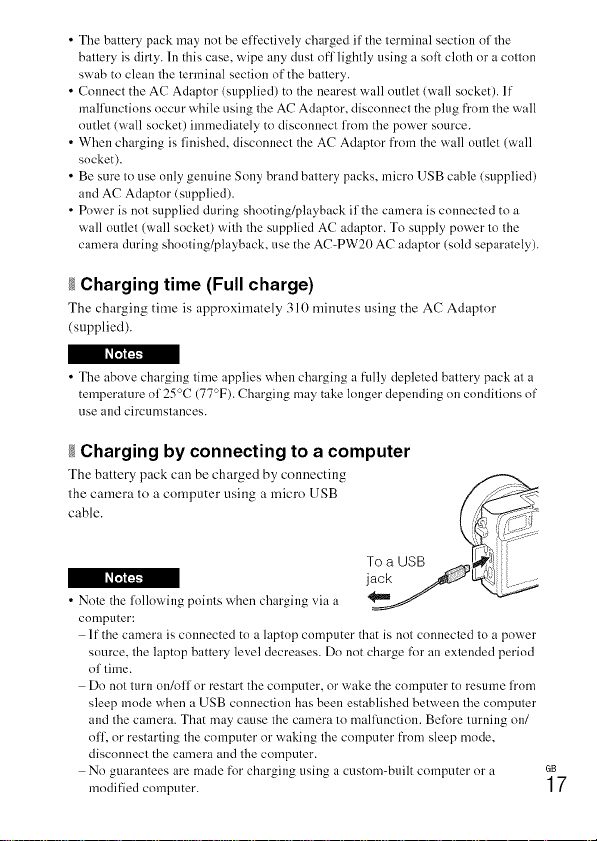
The battery pack can be charged by connecting
the camera to a computer using a micro USB
cable.
• Note the following points when charging via a
computer:
If the camera is connected to a laptop computer that is not connected to a power
source, the laptop battery level decreases. Do not charge for an extended period
of time.
Do not turn on/off or restart the computer, or wake the computer to resume from
sleep mode when a USB connection has been established between the computer
and the camera. That may cause the camera to mallhnction. Befbre turning on/
off, or restarting the computer or waking the computer from sleep mode,
disconnect the camera and the computer.
No guarantees are made for charging using a custom-built computer or a
modified computer.
GB
17

Battery life and number of images that can be
recorded and played back
iiiii iiii ; iiii iii ii ii ii ii ii ii ii ii ii ii iiii ; 'iiiii iiii ; iiii iii ii ii ii ii ii ii ii ii ii iiL!!!!!!i!!!!!!!!!!!i!:i!!!!!!
Shooting (still Screen Approx. 180 min. Approx. 360 images
images) Viewlinder Approx. 155 min. Approx. 31(1 images
Typical movie Screen Approx. 60 min.
shnoling Viewlinder Approx. 60 min.
ContilmoUS Screen Approx. 90 min.
movie shonling Viewlinder Approx. 90 min.
Viewing (still images) Approx. 275 min. Approx. 5500 images
G8
18
• The above number of images applies when the battery pack is lhlly charged. The
number of images may decrease depending on the conditions of use.
• The nmnber of images that can be recorded is fnr shooting under the following
conditions:
Using a Sony Memory Stick PRO Duo _v (Mark2) media (sold separately).
-When an E PZ 16 - 50 mm F3.5 - 5.60SS lens is attached.
The battery pack is used at an ambient temperature of 25°C (77°F).
- [Viewfinder Bright.]: [Manual] [_+01
[Monitor Brightness]: [Manual] [_+01
• The nmnher lot "Shooting (still images)" is based on the C1PA standard, and is for
shooting tinder the IMlowing conditions:
(CIPA: Camera & hnaging Products Association
-D1SP is set to [Display All I nlo.].
[Focus Model: [Automatic AF]
- Shooting once every 30 seconds.
The flash is used once every two times.
The power is turned on and off once every ten runes.
• The nmnber of minutes fnr movie shooting is based on the C1PA standard, and is
fi,_rshooting under the lollowing conditions:
[_ Record Setting]: 60i 17M(FH)/50i 17M(FH).
Typical movie shooting: Battery life based on repeatedly starting/stopping
shooting, zooming, turning on/off, etc.
Continuous movie shooting: Battery life based on non-stnp shooting until the
limit (29 mim/tes) has been reached, and then continued by pressing the MOVIE
buttnn again. Other Rmctions, such as zooming, are not operated.
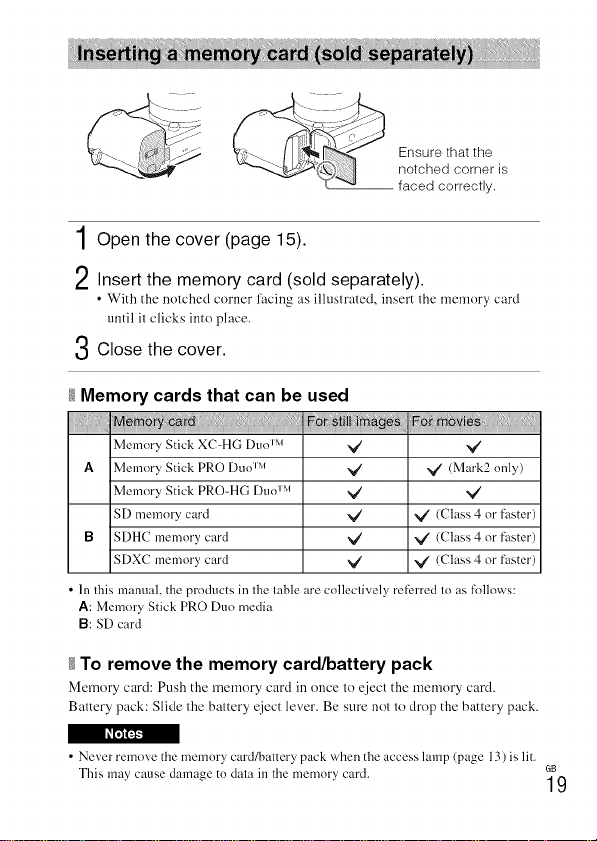
i!iiii! ! iii i iil
Ensure that the
notched corner is
faced correctly.
1Open the cover (page 15).
2Insert the memory card (sold separately).
• With the notched corner l'acing as illustrated, insert the memory card
until it clicks into place.
3 Close the cover.
Memory cards that can be used
Memory Stick XC-HG [)uo I'_ _/ ,_/
A Memory Stick PRO [)uo c'_ _/ _/' (Mark2 only)
Memory Stick PRO-HG [)uo I'_ V' V"
SD memory card V' V' (Class 4 or faster)
B SDHC memory card _/ _" (Class 4 or faster)
SDXC memory card _/' _/ (Class 4 or faster)
• In fills manual, the products in tile table are colleclively refim'ed to as follows:
A: Memory Stick PRO Duo media
El: SD card
To remove the memory card/battery pack
Memory card: Push the memory card in once to eject the memory card.
Battery pack: Slide the battery eject lever. Be sure not to drop the battery pack.
• Never remove the memory card/battery pack when the access lamp (page 13) is lit.
This may cause damage to data ill the memory card. 6B
19
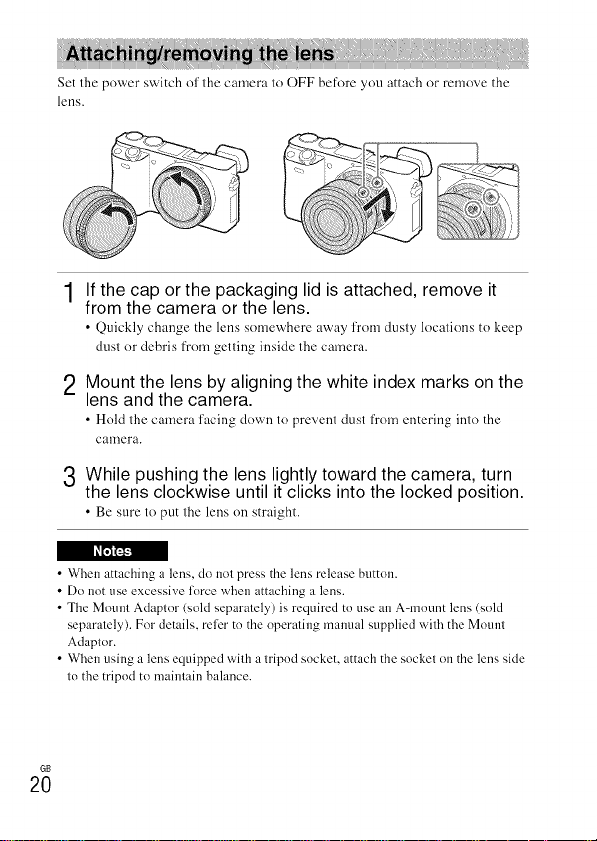
Set Ihe power switch o1'the camera to OFF before you attach or remove the
lens.
If the cap or the packaging lid is attached, remove it
from the camera or the lens.
• Quickly change the lens somevvhure away from dusty locations to keep
dust or debris from getting inside the camera.
2 Mount the lens by aligning the white index marks on the
lens and the camera.
• Hold the camera facing down to prevent dust from entering into thu
camera.
3 While pushing the lens lightly toward the camera, turn
the lens clockwise until it clicks into the locked position.
• Be sure to put the luns on straight.
• When attaching a lens, do not press the lens release button.
• Do not use excessive force when attaching a lens.
• The Mount Adaptor (sold separately) is required to use an A-mount lens (sold
separately). For details, relier to the operating malmal supplied with the Mount
Adaptor.
• When using a lens equipped with a tripnd socket, attach the socket on the lens side
to the tripod to maintain balance.
GD
2O
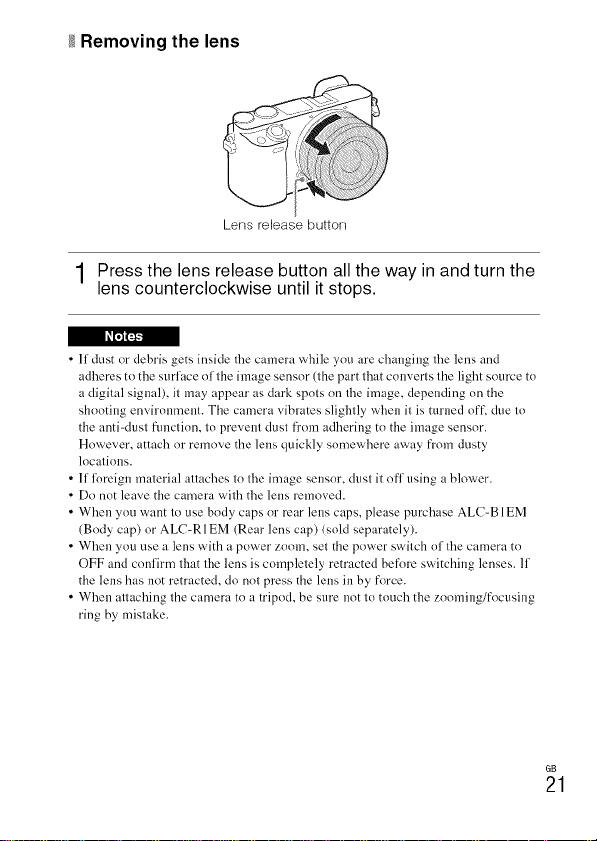
Removing the lens
Lens release button
1 Press the lens release button all the way in and turn the
lens counterclockwise until it stops.
• If dust or debris gets inside the camera while you are changing the lens and
adheres to the surlace of the image sensor (the part that converts the light source to
a digital signal), it may appeal" as dark spots on the image, depending on the
shooting environment. The camera vibrates slightly when it is turned off, due to
the anti-dust flmctinn, to prevent dust from adhering to the image sensor.
However, attach or remove the lens quickly somewhere away from dusty
locations.
• If loreign material attaches to the image sensor, dust it off using a blower.
• Do not leave the camera with the lens removed.
• When you want to use body caps or rear lens caps, please purchase ALC=B 1EM
(Body cap) or ALC=RI EM (Rear lens cap) (sold separately).
• When you use a lens with a power zoom, set the power switch of the camera to
OFF and confirm that the lens is completely retracted before switching lenses. If
the lens has not retracted, do nnt press the lens in by force.
• When attaching the camera to a tripod, be sure not to touch the znoming/fncusing
ring by mistake.
GB
21
2
3
4
5
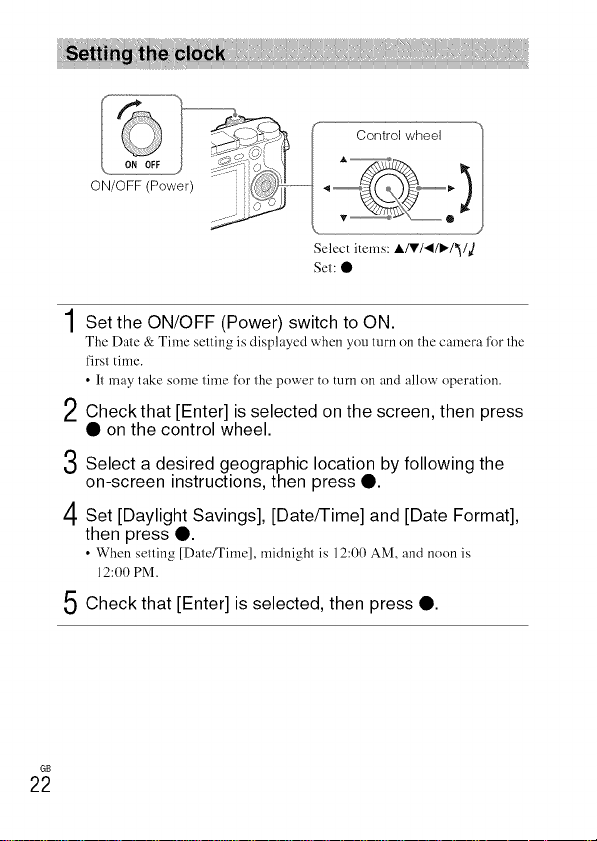
Select items: AfVl411_I_I_]
Set: •
Set the ON/OFF (Power) switch to ON.
The Dale & Time selling is displayed when you turn on the camera l_)r the
t'irsl time.
• It may take some time for the power to turn on and allow operation.
Checkthat [Enter] is selected on the screen, then press
• on the control wheel.
Select a desired geographic location by following the
on-screen instructions, then press •.
Set [Daylight Savings], [Date/Time] and [Date Format],
then press •.
• When sulling [Date/Time], mMnight is 12:00 AM, and noon is
12:00 PM.
Check that [Enter] is selected, then press •.
GB
22
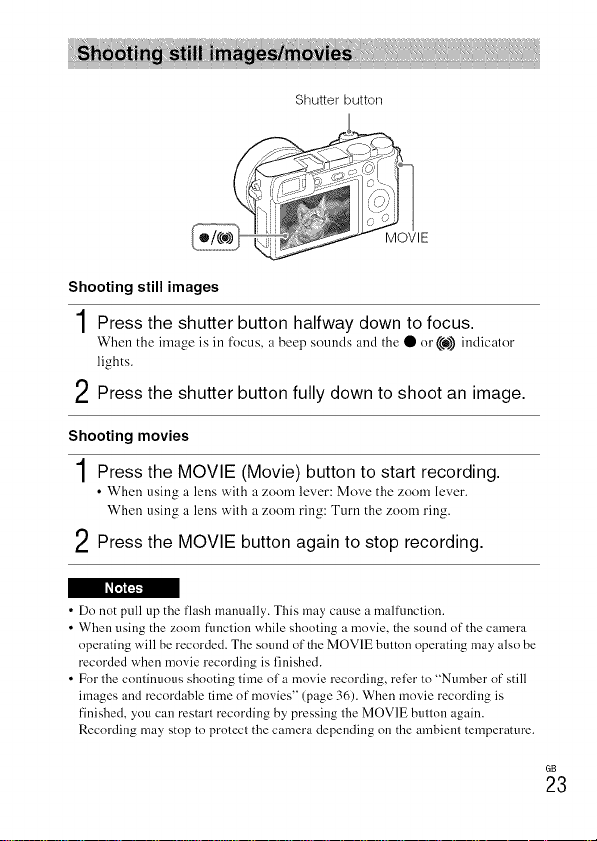
Shutter button
'_'Y i
VIE
Shooting still images
1Press the shutter button halfway down to focus.
When the image is in focus, a bec'p sounds and thu • or ((O))indicator
lights.
2 Press the shutter button fully down to shoot an image.
Shooting movies
1Press the MOVIE (Movie) button to start recording.
• When using a lens with a zoom lever: Move the zoom lever.
When using a lens with a zoom ring: Turn the zoom ring.
2 Press the MOVIE button again to stop recording.
• Do not pull up the flash manually. This may cause a malfimction.
• When using the zoom flmction while shooting a movie, the sound of the camera
operating will be recorded. The sound of the MOVIE button operating may also be
recorded when movie recording is finished.
• For the continuous shooting time nfa movie recording, rellzr to "Number of still
images and recnrdable time of movies" (page 36). When movie recording is
finished, you can restart recording by pressing the MOVIE button again.
Recording may stop to protect the camera depending nu the ambient temperature.
611
23
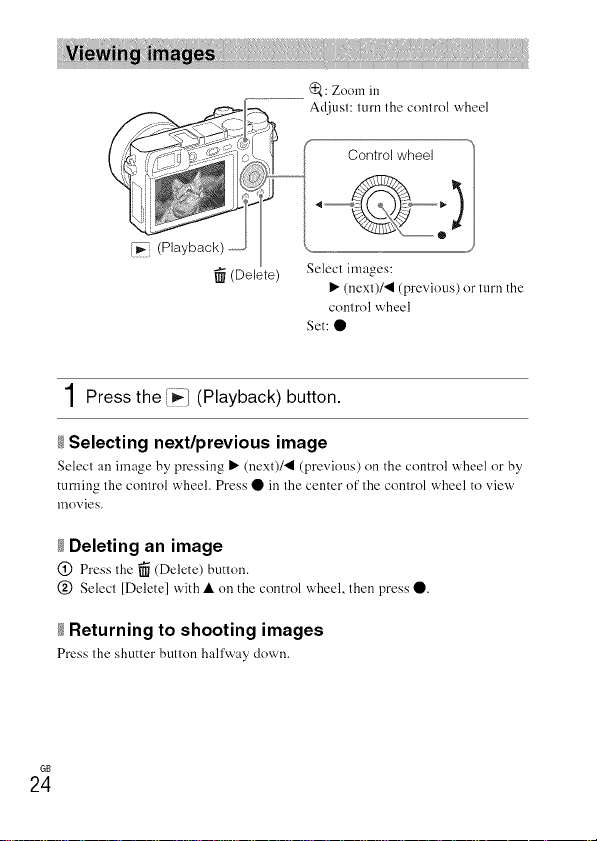
(_: Zoom in
Adjust: turn the control wheel
_! (Playback)
(Delete)
Select images:
I_ (next)/_l (previeus) er turn the
control wheel
Set: •
1Press the [i_1 (Playback) button.
Selecting next/previous image
Selccl an image by pressing I_ (next)/_l (previous) on the centrel wheel er by
turning the control wheel. Press • in the center e[ the control wheel te view
lllevies.
Deleting an image
(_ Press Ihe _ (Delete) butlen.
@ Select [Delete] with • on the control wheel, then press •.
Returning to shooting images
Press thu shutter button hail'way down.
GB
24
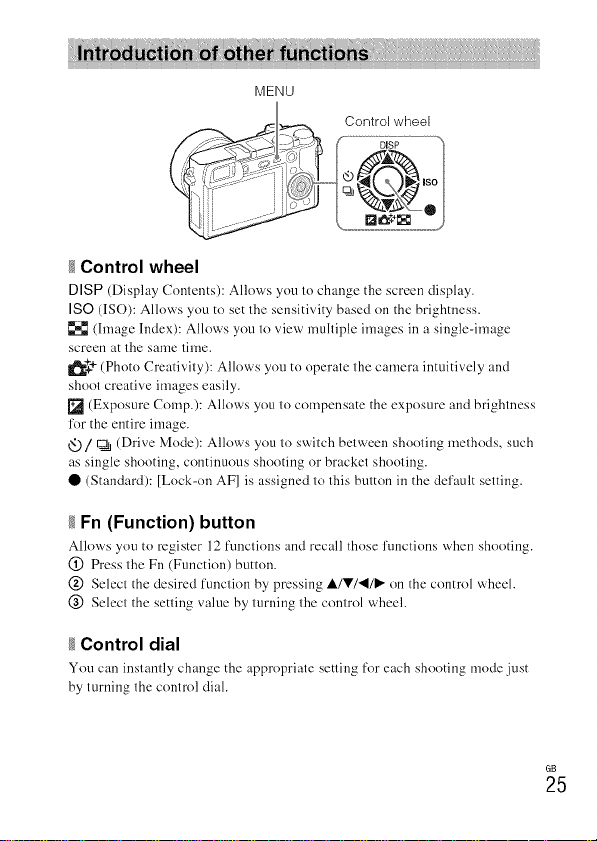
/ Control wheel
DISP (Display Contents): Allews you to change the screcn display.
ISO (IS()): Allows you to set the sensitivity based on the brightness.
(hnage Index): Allows you to view multiple images in a single-image
screen at the same tilIle.
_++ (Phete Creativity): Allews yeu to operate the camera intuitively and
sheet creative images easily.
[] (Expesure Cemp.): Allows yeu te compensate the expesure and brightness
R_rthe entire image.
_t__)/_ (Drive Mode): Allows you te switch between shooting methods, such
as single shooting, continuous shooting er bracket shooting.
• (Standard): [Leck-en AF] is assigned to this button in the default setting.
/ Fn (Function) button
Allews you to register 12 functiens and recall those functions v&en shooting.
(_) Press the Fn (Function) button.
@ Select the desired function by pressing i./V'/_l/ll,- en the control wheel.
@ Select the setting value by turning the control wheel.
/ Control dial
Yeu can instantly change the appropriate setting fer each shooting medc .lust
by turning the control dial.
GB
25
6B
26
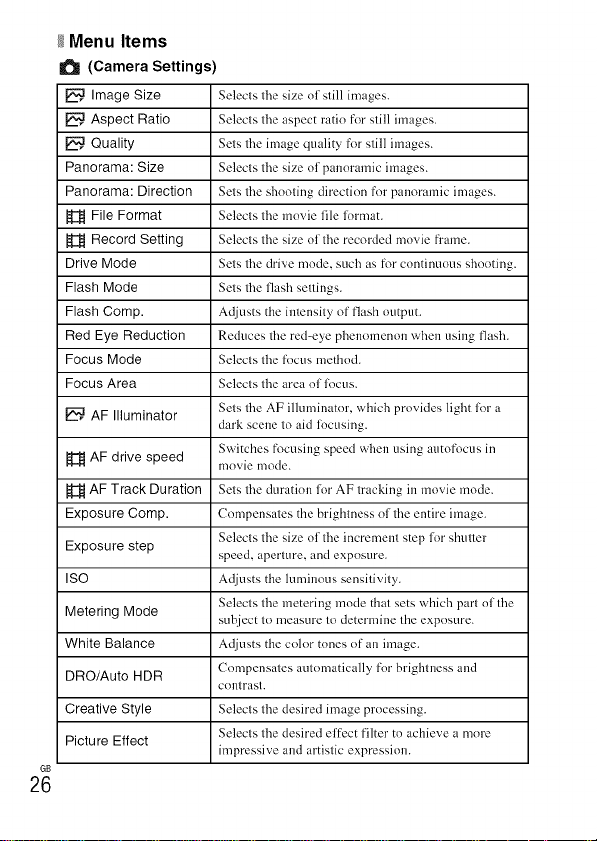
Menu Items
(Camera Settings)
Image Size Sdecls tile size el still images.
Aspect Ratio Selecls tile aspect ratio R>I"still images.
Quality Sets tile image quality R>r still images.
Panorama: Size Selecls tile size el panoramic images.
Panorama: Direction Sets tile shooting direction for panoramic images.
_j_ File Format Selecls tile movie lile lklrmat.
_j_ Record Setting Selecls tile size ol tile recorded movie frame.
Drive Mode Sets tile drive mode, such as R>r continuous shooting.
Flash Mode Sets tile flash seUings.
Flash Comp. Adjusts the intensity of flash output.
Red Eye Reduction Reduces tile red-eye phenomenon when using flash.
Focus Mode Selecls tile focus method.
Focus Area Selecls tile area el focus.
_, AF Illuminator Sets tile AF illuminator, which provides light lklr a
dark scene to aid lklcusing.
Switches focusing speed when using autofocus in
AF drive speed movie mode.
AF Track Duration Sets tile duration lor AF tracking in movie mode.
Exposure Comp. Compensates the brightness ollhe entire image.
Selecls tile size ollhe increment step lor shuuer
Exposure step speed, aperture, and exposure.
ISO Adjusts the luminous sensitivity.
Selects tile metering mode thai sets which part ollhe
Metering Mode subject 1o measure 1o determine the exposure.
White Balance Adjusts the color tones of an image.
DRO/Auto HDR Compensates automatically for brightness and
COllt rasl.
Creative Style Selecls tile desired image processing.
Selecls tile desired elfect filter to achieve a more
Picture Effect
impressive and artistic expression.
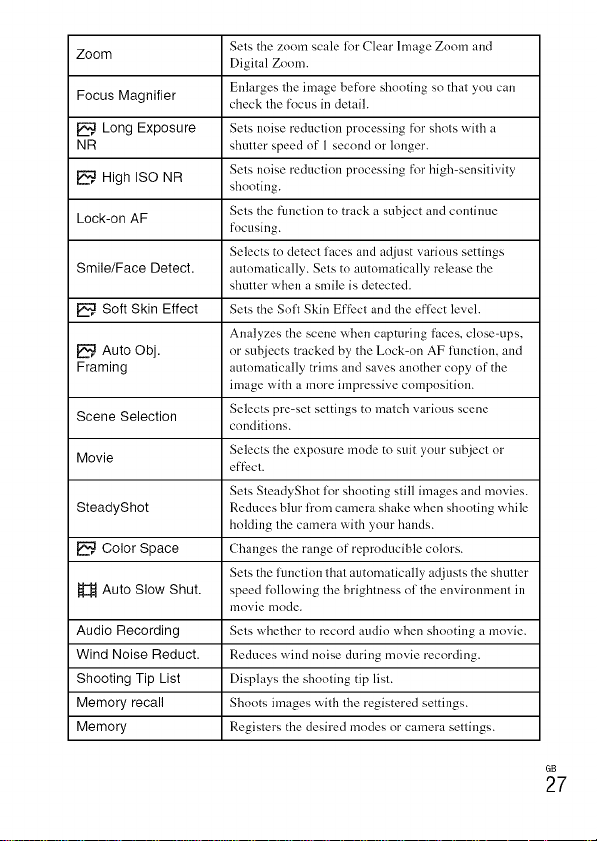
Zoom SetsthezoomscalelotClearImageZoomand
DigitalZoom.
Enlargestheimagebeforeshootingsothatyoucan
Focus Magnifier check the focus in detail.
Long Exposure Sets noise reduction processing for shots with a
NR shutter speed of 1 second or longer.
High ISO NR Sets noise reduction processing for high-sensitivity
shooting.
Lock-on AF Sets the ftmction to track a suhject and continue
focusing.
Selects to detect faces and adjust various settings
Smile/Face Detect. automatically. Sets to automatically release the
shutter when a smile is detected.
Soft Skin Effect Sets the Sofl Skin Effect and the effect level.
Analyzes the scene when capturing faces, close-ups,
Auto Obj. or suhjects tracked by the Lock-on AF lunction, and
Framing automatically trims and sa'_es another copy of the
image with a more impressive composition.
Scene Selection Selects pre-set settings to match various scene
conditions.
Movie Selects the exposure mode to suit your subject or
effect.
Sets SteadyShot for shooting still images and movies.
SteadyShot Reduces blur l_'om camera shake when shooting while
holding the camera with your hands.
Color Space Changes the range of reproducible colors.
Sets the function that automatically adjusts the shutter
H Auto Slow Shut. speed ti41owing the brightness of the environment in
movie mode.
Audio Recording Sets whether to record audio when shooting a movie.
Wind Noise Reduct. Reduces wind noise during movie recording.
Shooting Tip List Displays the shooting tip list.
Memory recall Shoots images with the registered settings.
Memory Registers the desired modes or camera settings.
6B
27
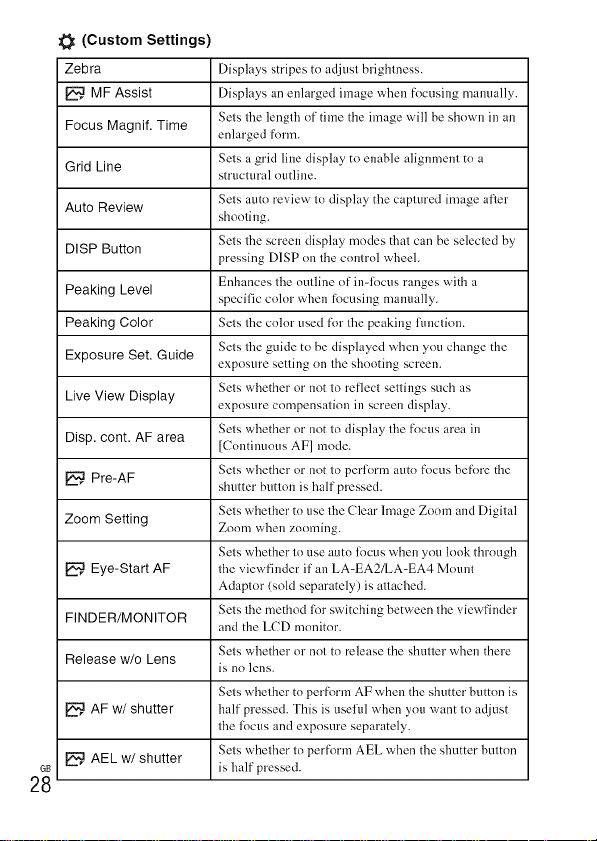
(Custom Settings)
Zebra Displays stripes to adjust brightness.
MF Assist Displays an enlarged image when tk>cusing manually.
Sets the length of time the image will be shown in an
Focus Magnif. Time enlarged form.
Grid Line Setsa grid line display to enable alignment to a
strtlcttlral outline.
Auto Review Sets auto review to display the captured image afler
shooting.
DISP Button Sets tile screen display modes that can be selecled by
pressing D1SP on the control wheel.
Peaking Level Enhances the outline of in-focus ranges with a
specilic color when tk>cusing mamlally.
Peaking Color Sets the color used tk>rthe peaking lunclion.
Sets the guide to be displayed when you change the
Exposure Set. Guide exposure setting on file shooting screen.
Live View Display Sets whether or not to reflecl settings such as
exposure compensation in screen display.
Sets whether or not to display the focus area in
Disp. cont. AF area [Continuous AF] mode.
Sets whether or not to periorm auto R>cus beR>re the
Pre-AF shutter button is half pressed.
Sets whelher to use file Clear Image Zoom and Digital
Zoom Setting Zoom when zooming.
Sets whether to use auto focus when you look through
Eye-Start AF the viewfinder it"an LA-EA2/LA-EA4 Mount
Adaptor (sold separately) is attached.
FINDER/MONITOR Sets the method for switching between Ihe viewfinder
and the LCD monitor.
Sets whether or nol to release the shutter when there
Release w/o Lens
is no lens.
Sets whether to perti>rm AF when the shutter button is
AF w/shutter half pressed. This is usehd when you want to adjust
file focus and exposure separately.
AEL w/shutter Sets whether to perform AEL when the shutter button
is half pressed.
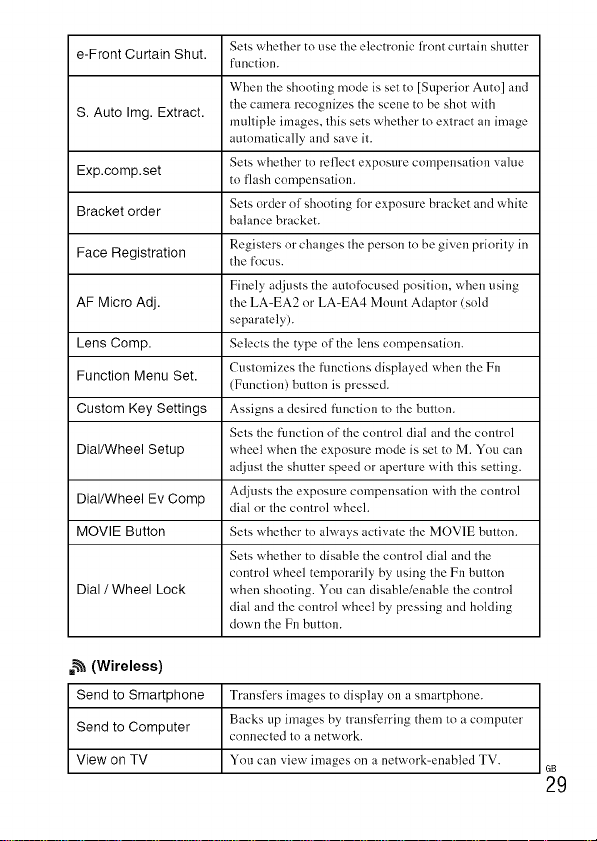
Selswhelhertouselhe electronic h'ont curlain shutter
e-Front Curtain Shut.
function.
When the shooting mode is set to [Superior Auto] and
S. Auto Img. Extract. the camera recognizes the scene to be shot wilh
mulliple images, lifts sets whelher Io exm_ct an image
amomatically and save il.
Sels whelher to reflecl exposure compensation value
Exp.comp.set to flash compensalion.
Bracket order Sels order el shooting for exposure bracket and while
balance bracket.
Regislers or changes lhe person to be given priorily in
Face Registration the focus.
Finely adjusls the aulofocused posilion, when using
AF Micro Adj. the LA-EA2 or LA-EA4 Motnll Adaptor (sold
separalely).
Lens Comp. Selecls the type of the lens compensalion.
Function Menu Set. Cuslomizes 1he functions displayed when the Fn
(Function) bullon is pressed.
Custom Key Settings Assigns a desired ftnlclioll lo lhe bull(in.
Sels the funclion of the colin'el dial and llle comrol
Dial/Wheel Setup wheel when lhe exposure mode is sel to M. You can
adjusl the shuller speed or aperture wid_ lhis setting.
Adjusts file exposure compensation with the coll|rol
Dial/Wheel Ev Comp dial or 1he comrol wheel.
MOVIE Button Sels whelher to always activale the MOVIE bulton.
Sels whefl_er to disable the comrol dial and lhe
control wheel temporarily by using Ihe Fn bulton
Dial / Wheel Lock when shooling. You can disable/enable Ihe conlrol
dial and lhe conlrol wheel by, pressing and holding
down the Fn btltloll.
._%_(Wireless)
Send to Smartphone Transfers images to display on a smartphone.
Backs up images by transferring them lo a computer
Send to Computer connecled lo anetwork.
View on TV You can view images on a network-enabled TV.
GB
29
GB
3O
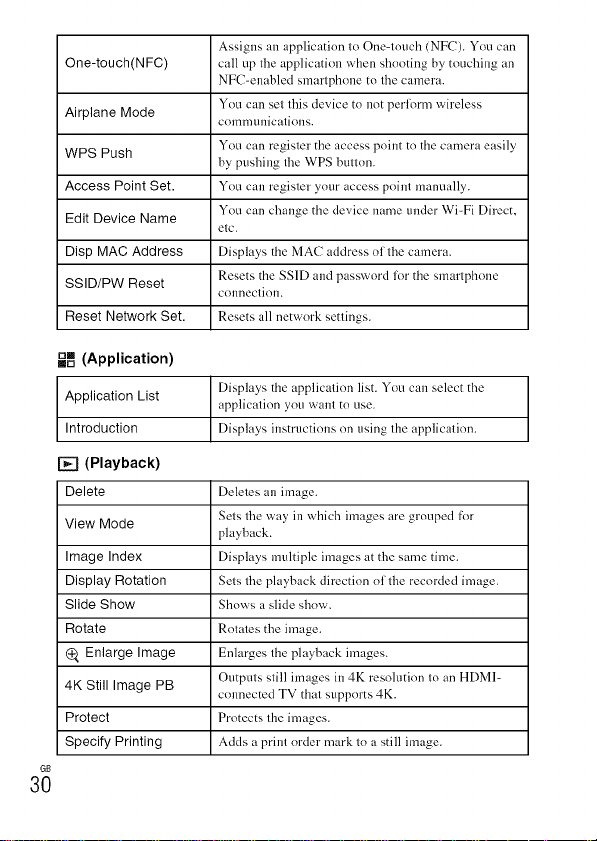
Assigns an application to One-touch (NFC). You can
One-touch(NFC) call up the application when shooting by touching an
NFC-enabled smarlphone to the camera.
Airplane Mode You can setthis device to not perlorm wireless
colnmtllliCaliOllS.
WPS Push You can register the access point to the camera easily
by pusl'dng the WPS button.
Access Point Set. You can register your access point manually.
Edit Device Name You can change the device name under Wi-Fi Direct,
elc.
Disp MAC Address Displays the MAC address (71the camera.
SSID/PW Reset Resets the SS1Dand passwoM lor the smarlphone
COllneclioll.
Reset Network Set. Resets all network settings.
u,,, (Application)
==D
Displays the applicatior, list. You can select the
Application List application you want to use.
Introduction Displays instructions on using the application.
[] (Playback)
Delete Deletes an image.
View Mode Sets the way in which images are grouped tier
playback.
Image Index Displays multiple images at the same time.
Display Rotation Sets the playback direction ollhe recoMed image.
Slide Show Shows a slide show.
Rotate Rolales the image.
@, Enlarge Image Enlarges the playback images.
Outputs still images in 4K resolution to an HDMI-
4K Still Image PB connected TV thai supports 4K.
Protect Protects the images.
Specify Printing Adds a print order mark 1(7a still image.
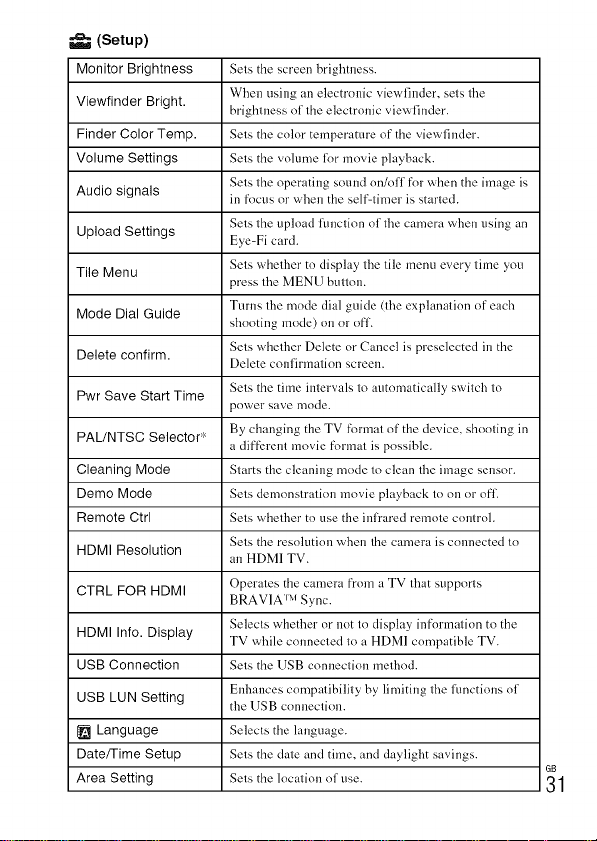
(Setup)
Monitor Brightness
Viewfinder Bright.
Finder Color Temp.
Volume Settings
Audio signals
Upload Settings
Tile Menu
Sets the screen brightness.
When using an electronic viewfinder, sets the
brightness of the electronic view finder.
Sets the color temperature of the view finder.
Sets the volume lor movie playback.
Sets the operating sound on/off fnr when the image is
in fncus or when the self-timer is started.
Sets the upload function of the camera when using an
Eye-Fi card.
Sets whether to display the tile menu every time you
press the MENU button.
Mode Dial Guide Turns the mode dial guide (the explanation of each
shooting mode) on or off.
Delete confirm. Sets whether Delete or Cancel is preselected in the
Delete confirmation screen.
Pwr Save Start Time Sets the time intervals to automatically switch to
power save mode.
PAL/NTSC Selector'- By changing the TV format of the device, shooting in
a different movie R_rmat is possible.
Cleaning Mode Starts the cleaning mode to clean the image sensor.
Demo Mode Sets demonstration movie playback to on or off.
Remote Ctrl Sets whether to use the infrared remote control.
Sets the resolution when the camera is connected tn
HDMI Resolution
an HDMI TV.
CTRL FOR HDMI Operates the camera fl'om a TV that supports
BRAV1A Iv Sync.
HDMI Into. Display Selecls whether or not In display informalion to the
TV while cnnnecled loa HDMI compatible TV.
USB Connection Sets the USB connection method.
Enhances compatibility by limiting the Rmctions nf
USB LUN Setting the USB connection.
{_ Language Selects the language.
Date/Time Setup Sets the (late and time, and daylight savings.
Area Setting Sets the location nf use.
31
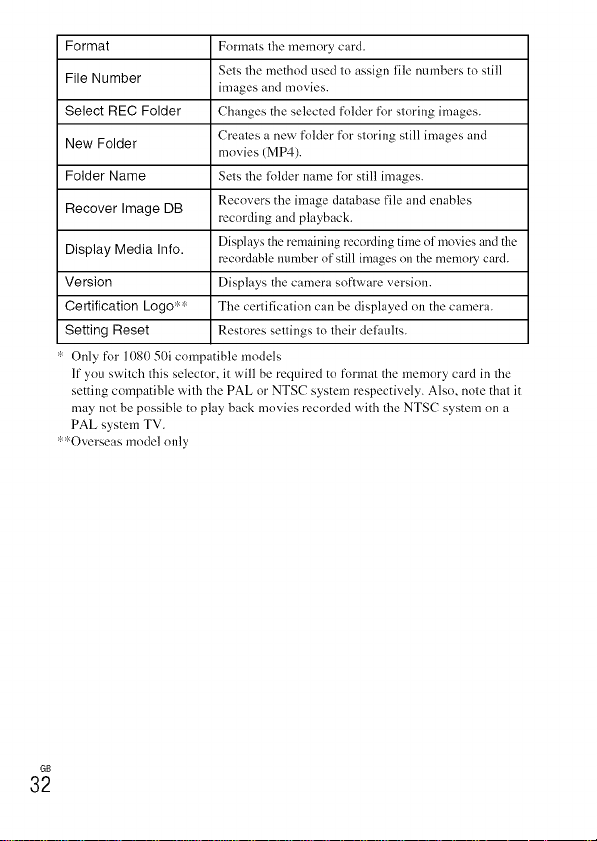
Format
File Number
Select REC Folder
New Folder
Folder Name
Recover Image DB
Display Media Info.
Version
Certification Logo'-'-
Setting Reset
Formats the memory card.
Sets the method used to assign file numbers to still
images and movies.
Changes the selected folder for storing images.
Creates a new folder for storing still images and
movies (MP4).
Sets tile lolder name lot still images.
Recovers the image database file and enables
recording and playback.
Displays the remaining recording time of movies and the
_'cordable nunlber of still images on the memory card.
Displays the camera software version.
The certification can be displayed on the camera.
Restores settings to their delhnlts.
Only for 1080 50i compatible models
If you switch this selector, it will be required to format the memory card in tile
setting compatible with the PAL or NTSC system respectively. Also, note that it
may not be possible to play back movies recorded with the NTSC system on a
PAL system TV.
".':"Overseas model only
GB
32
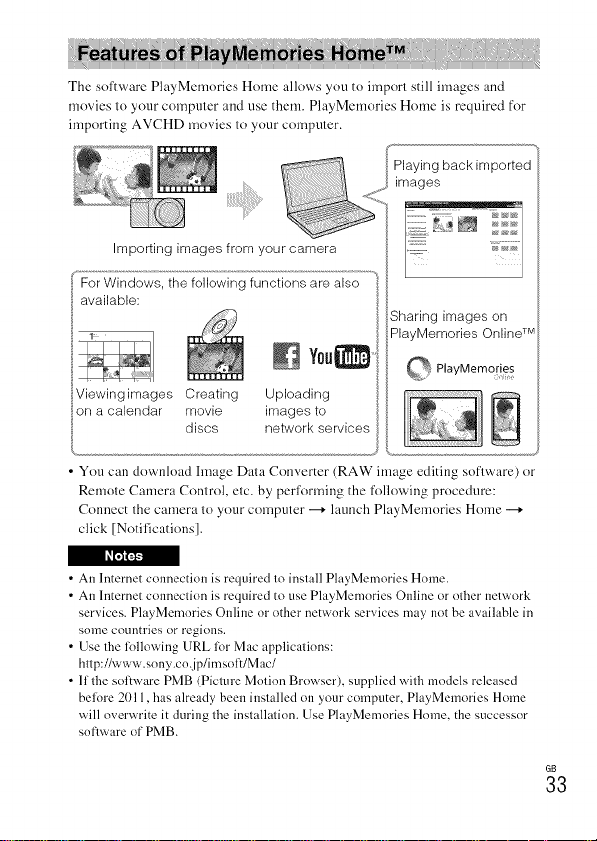
The software PlayMemories Home allows you to import still images and
movies to your computer and use them. PlayMemories Home is required for
importing AVCHD movies to your computer.
Playing back imported
images
Sharing images on
PlayMemories Online TM
Importing images from your camera
'F orW ir_'d'_'o'w"s'['ii_'e'io"i']owi"/l"g""iur_'c {'i''o"il"s'a 'r'e'aIs_-J"°'°i
available:
Viewing images Creating Uploading
on a calendar movie images to
@scs network serwces
• You can download hnage Data Converter (RAW image editing soflwarc) or
Remote Camera Control, etc. by performing the following procedure:
Connect the camera to your computer _ launch PlayMemories Home
click [Notifications].
I_611721_
• An lnternet connection is required to install PlayMemories Home.
• An lnternet connection is required to use PlayMemories Online or other network
services. PlayMemories Online or other network services may not be available in
some countries or regions.
• Use the lollowing URL lot Mac applications:
http:l/www.sony.co,ip/imsoft/Mac/
• If the sol:ware PMB (Picture Motion Browser), supplied with models released
belore 2011, has already been installed on your computer, PlayMemories Home
will overwrite it during the installation. Use PlayMemories Home. the successor
soflware of PMB.
GB
33
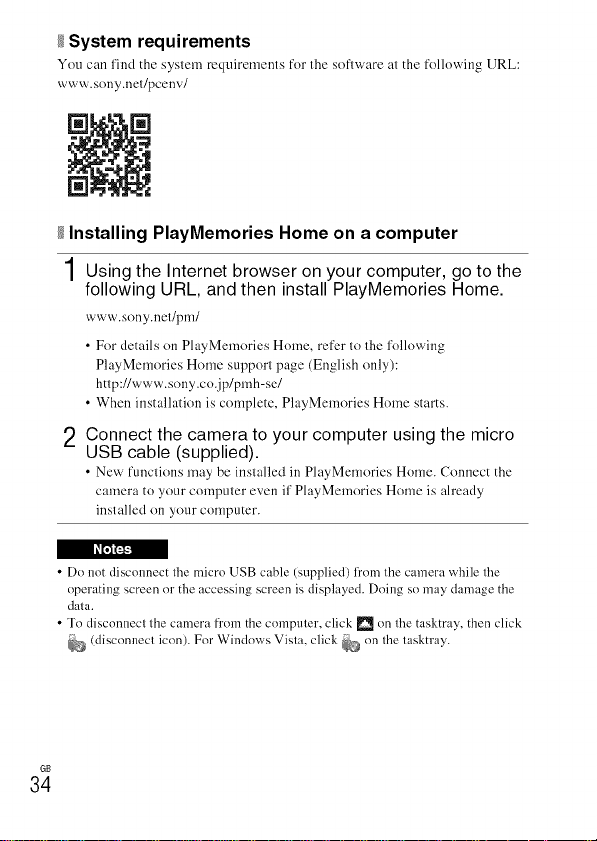
System requirements
You can l'ind the syslem recluircmcnts ['or the software at the t'ollowing URL:
www.sony.net/pcenv/
[] []
[]
Installing PlayMemories Home on a computer
1 Using the Intemet browser on your computer, go to the
following URL, and then install PlayMemories Home.
www.sony.net/pm/
• For details on PlayMemories Home, refer to the following
PlayMemories Home support page (English only):
http://www.sony.co.jp/pmh-se/
• When installation is complete, PlayMemories Home starts.
2 Connect the camera to your computer using the micro
USB cable (supplied).
• New ['unctions may be installed in PlayMemories Home. Connect the
camera to your compuler even il' PlayMemories Home is already
installed on your computer.
• Do not disconnect the micro USB cable (supplied) fl'om the camera while the
operating screen or the accessing screen is displayed. Doing so may damage the
data.
• To disconnect the camera from the computer, click _ on the tasktray, then click
(disconnect icon). For Windows Vista, click _ on the tasktray.
GB
34
You can add the desired functions to your camera by connecting to the
application download website _%, (PlayMemories Camera Apps _) via the
Internet.
http://www.sony.net/pmca
• After installing an application, you can call up the application by touching an
NFC-enabled Android smartphone to the [_ (N mark) on the camera, using
the [One-touch(NFC)] function.
• The application downloading function may nol be available in some countries and
regions. For delails, refer lo lhe applicalion downloading websile above.
GB
35
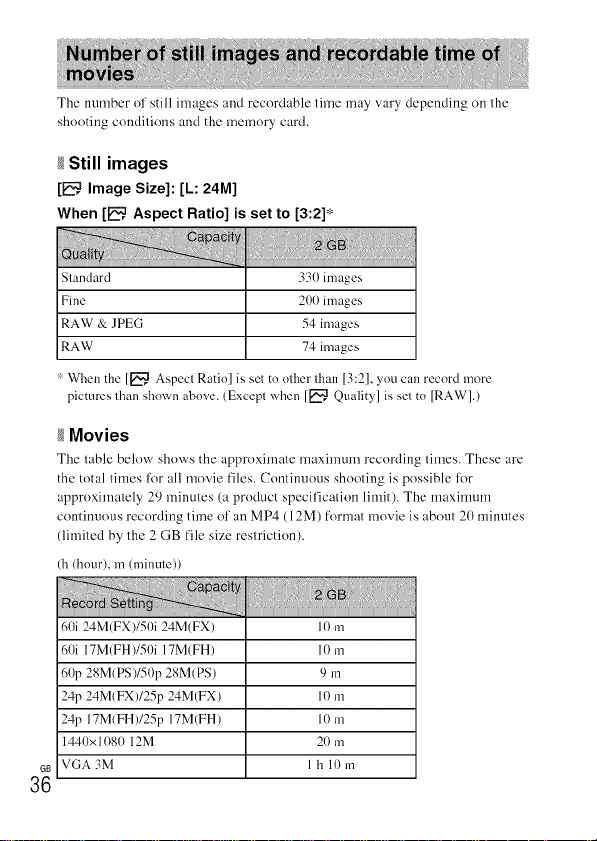
The number of still images and recordable time may vary depending on the
shooting conditions and the memory card.
Still images
[1_ Image Size]: [L: 24M]
When [1_, Aspect Ratio] is set to [3:2]*
Standard 33(1images
Fine 200 images
RAW & JPEG 54 images
RAW 74 images
':' When the [E::_,Aspect Ratio] is set to other than [3:2], you can record more
pictures than shown above. (Except when [_, Quality] is set to [RAW].)
Movies
The table below shows the approximate maximum recording times. These are
the total times for all movie files. Continuous shooting is possible for
approximately 29 minutes (a product specification limit). The maximum
continuous recording time of an MP4 (12M) format movie is about 20 minutes
(limited by the 2 GB file size restriction).
(h (hour), m (minute))
60i 24M(FX)/50i 24M(FX)
60i 17M(FH)/50i 17M(FH)
60p 28M(PS)/50p 28M(PS)
2@ 24M(FX)/25p 24M(FX)
2@ 17M(FH)/25p 17M(FH)
144()xllt8(t 12M
VGA 3M
10 In
10 m
9 in
10 In
10 m
20 m
1 h 10 m
• The recordable time of movies varies because tile camera is equipped with VBR
(Variable Bit-Rate), which automatically adjusts tile image quality depending nn
the sbnoting scene. When ynu record a fast-mnving subject, tile image is clearer
but tile recordable time is shorter because more memory is required for recording.
The recordable time also varies depending nu the shooting conditions, the subject
nr tile image quality/size settings.
Functions built into this camera
• This manual describes 1080 60i-cnmpatible devices and 1080 50i-cnmpatible
devices.
To check whether your camera is a 1080 60i=cnmpatible device or 1081)50i=
compatible device, check lilt tile lollnwing marks ou the bnttom of the camera.
1080 60i=cnmpatible device: 60i
1080 50J-compatible device: 50i
• This camera is compatible with 1080 60p or 50p-fnrmat movies. Unlike standard
recording modes up to now, which recnrd in an interlacing method, this camera
records using a progressive method. This increases the resnlutiou, and provides a
smoother, more realistic image.
On use and care
Avnid rough handling, disassembling, nmdif>ing, ph>sical shnck, or impact such as
hammering, dropping, or stepping on the product. Be particularly carefld nf the lens.
Notes on recording/playback
• Befnre you sturt recording, make a trial recording to n/ake stlre that tile camera is
working correctly.
• This camera is neither dust-prnnf, nor splash-proof, nor water-prnof.
• Dn not look at the sun or a strong light through a removed lens. This may cause
irrecoverable damage to your eyes. Or it may cause a malfnnctinn of the lens.
• If moistm'e condensation occurs, remove it be[k_re using the camera.
• Do not shake or strike tile camera. It may cause a malftmctinn and you may not be
able to record images. Furthermore, the recording media may becnme unusable or
image data may be damaged.
Do not use/store the camera in the following places
• Ill an extremel> hot, cold or humid place
In places such as in a car parked in the sun, the camera body may become
delormed and this may cause a malfunction.
• Under direct sunlight or near a beater
The camera body may become discolored nr defnrmed, and this may cause a
malfimctiou.
• In a location subject to shaking or vibration
GB
37
• Near a location that generates strong radio waves, emits radiation or is strongly
magnetic
In such locations, the camera may not properly record or play back images.
• lu sandy or dusty places
Be careful not to let sand or dust get into tile camera. This may cause tile camera to
malfi.mction, and in some cases this malfunction cannot be repaired.
On storing
Be snre to attach tile frout leus cap when not nsing tile c_mlem.
Notes on the screen, electronic viewfinder and lens
• The screen and electronic viewfinder m'e manufactured using extremel> high-
precision technology, and over 99.99% of tile pixels are operational lilr efli_ctive
use. However, some tiny black and/or bright dots (white, red, blue or green) may
appeal" nn tlle screen and electronic viewfinder. These dots are a norn/al result of
tlle manufacturing process, and do not afflict tile recording.
• When tile lens is operating, be careful not to let your finger be caught by tlle lens.
About the magnet
There is a magnet attached in tlle area around tlle flash. Do not put objects that are
afii_cted by magnetic fields, such as a floppy disk or a credit card to tlle screen nr tile
camera body.
On using the lenses and accessories
It is recommeuded that _ou use Sony leuses/_ccessnries designed to suit tile
characteristics nf this camera.
Using tile products nf other manuf;_cturers may cause tile camera not tn operate to its
capability, or result in accidents and malRmctinus nf tile camera.
Notes on shooting with the viewfinder
When shooting with tile viewfiuder, you may experience slrn/ptoms such as
eyestrain, latigne, travel sickness, or nausea. We recommend that you take a break at
regular intervals when you are shooting with tile viewfinder.
Tile required leugth or frequency nf tile break may dilli_r depending on the
individuals, so you are advised to decide at your own discretion. In case you may
feel uncomfnrtable, refrain fi'om using tlle viewfinder until your condition recnvers,
and consult your doctor as necessary.
Notes on the flash
• Do not CmTy tile cmnem by tlle flash unit, or use excessive lklrce on it.
• If water, dust or sand get into tlle open flash unit, it may cause a malflmction.
• Be sure tn keep your fingers out nf tile way when you press tile flash down.
On camera's temperature
Your camera and battery may get hot due to continuous use, but it is not a
malfimctiou.
GB
38
On the overheat protection
Depending on the camera and batter? tempernture, you rna_ be tumble to recnrd
movies or the power may turn off automatically to protect the camera.
A message will be displayed on the screen befk>re the power turns off or you can no
longer record movies. In this case, leave the power off and wait until the camera and
battery temperature goes down. If you turn on the power without letting the camera
and battery cool down enough, the power may turn off again or you may be unable
to record movies.
On charging the battery
If you charge a battery that has not been used [k>ra long time, you may be unable to
charge it to the proper capacity.
This is due to tlre battery characteristics. Charge the battery again.
Warning on copyright
Tele,dsion programs, fihns, vident;_pes, and other materials rna_ be copyrighted.
Unauthorized recording of such materials may be contrary to the provisions of the
copyright laws.
No guarantee in the case of damaged content or recording failures
Snn_ cannot pro,ride a guarnntee irathe case of fnilure to record nr loss or dmnage nf
recorded content due to a malfimctinn nf the camera or recording media, etc.
Cleaning the camera surface
Clean the camera surf:_ce with a snl: cloth slightly moistened with water, then wipe
tlre surface with a dry cloth. Tn prevent damage to the finish or casing:
Do not expose the camera to chemical products such as thinner, benzine, alcnhnl,
disposable cloths, insect repellent, sunscreen nr insecticide.
Maintaining the screen
• Hand cretan or moisturizer left on the screen rn_l_ dissolve its conting. It" _ou get
any on the screen, wipe it off immediately.
• Wiping forcefully with tissue paper nr other materials can damage the coating.
• If fingerprints or debris are stuck to the screen, we recommend that you gently
remove any debris and then wipe tlre screen clean with a snfl cloth.
Notes on wireless LAN
We nssume no responsibility whatsoever lirr nn_ dmnage caused b_ unauthorized
access to, or unauthorized use oK destinatinns lnaded on the camera, resulting from
loss nr thel:.
GD
39
Camera
[System]
Cmnera type: Interchangeable lens
digital camera
Lens: E-mount lens
[Image sensor]
Image sensor: APS-C lormat (23.5 mm
x 15.6 ram) CMOS image sensor
Total pixel number of image sensor:
Approx. 24 700 000 pixels
Efli_ctive pixel number of camera:
Approx. 24 300 000 pixels
[Anti-dust]
S_stem: Charge protection coating on
Optical Filter and ultrasonic
vibration mechanism
[Auto focus system]
S>stem: Phase detection system/
Contrast detection system
Sensitivity range: EV0 to EV20 (at
1SO 100 equivalent, with F2.8
lens)
[Exposure control]
Metering method: l 200-segment
metering by the image sensor
Metering range: EV0 to EV20 Cat
1SO 100 equivalent, with F2.8
lens)
1SO sensitivity (Recommended
exposure index):
Still images: AUTO, 1SO 100
1so 25 6oo
Movies: AUTO, ISO 100
1SO 12 800 equivalent
GB
4O
Exposure compensation: _+5.0 EV
(switchable between 1/3 and
1/2 EV steps)
[Shutter]
Type: Electronically-controlled,
vertical-traverse, fucal-plane type
Speed range:
Still images: 1/4 000 second to
30 seconds, BULB
Movies: 1/4 000 second to
1/4 second (1/3 EV step),
1(t80 60i-compatible device up to
1/60 second in AUTO mode (up to
1/30 second in [Auto Slow Shut.]
mode)
1080 50i-compatible device up to
1/5(i)second in AUTO mode (up to
1/25 second in [Auto Slow Shut.]
mode)
Flash sync speed: 1/160 second
[Recording medial
Memory Stick PRO Duo media,
SD card
[LCD screen]
LCD panel: Wide, 7.5 cm (3.0 type)
TFT drive
Total number of dots: 921 600 dots
[Viewfinder]
Type: Electronic viewfinder
Total number of dots: 1440 000 dots
Frame coverage: 1(t()_/_
Magnification:
Approx. 1.07 x
Approx. 0.70 x (35 mmqbrmat
equivalent) with 50 mm lens at
infinity, 1 m I (diopter)
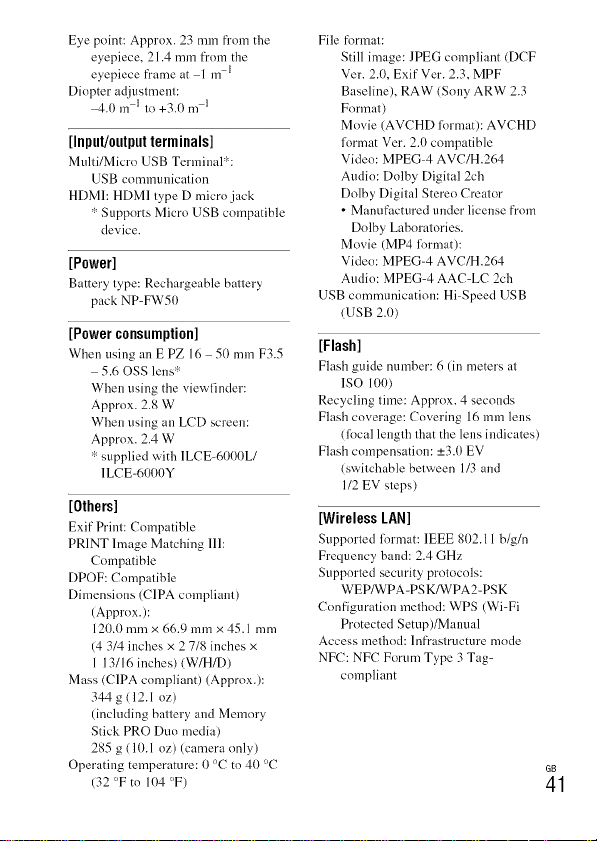
Eyepoint:Approx.23mmfromthe
eyepiece,21.4mmfromthe
eyepieceframeat1m1
Diopteradjustment:
4.0m1to+3.0ml
[Input/output terminals]
Multi/Micro USB Terminalr:
USB communication
HDMI: HDMI type D micro jack
':' Supports Micro USB compatible
device.
[Power]
Battery type: Rechargeable battery
pack NP-FW50
[Power consumption]
When using anEPZ16 50mmF3.5
5.60SS lens':'
When using the viewfinder:
Approx. 2.8 W
When using an LCD screen:
Approx. 2.4 W
':' supplied with 1LCE-6000L/
1LCE-6000Y
[Others]
E×if Print: Coml_atihle
PRINT hnage Matching llI:
Compatible
DPOF: Compatible
Dimensions (CIPA compliant)
(Approx.):
120.0 mmx 66.9 mmx 45.1 mm
(4 3/4 inches x 2 7/8 inches x
1 13/16 inches) (W/H/D)
Mass (C1PA compliant) (Approx.):
344 g (12.1 oz)
(including battery and Memory
Stick PRO Duo media)
285 g (10.1 oz) (camera only)
Operating temperature: 0 °C to 40 °C
(32 °F to 104 °F)
File format:
Still image: JPEG compliant (DCF
Ver. 2.0, Exif Vet. 2.3, MPF
Baseline), RAW (Sony ARW 2.3
Format)
Movie (AVCHD lormat): AVCHD
format Ver. 2.0 compatible
Video: MPEG-4 AVC/H.264
Audio: Dolby Digital 2ch
Dolby Digital Stereo Creator
• Manufactm'ed under license from
Dolby Laboratories.
Movie (MP4 lorrnat):
Video: MPEG-4 AVC/H.264
Audio: MPEG-4 AAC-LC 2ch
USB comnmnication: Hi-Speed USB
(USB 2.0)
[Flash]
Flash guide numher: 6 (in meters at
ISO 100)
Recycling time: Approx. 4 seconds
Flash coverage: Covering 16 mm lens
(local length that the lens indicates)
Flash compensation: _+3.0EV
(switchable between 1/3 and
1/2 EV steps)
[Wireless LAN]
Supported lormat: IEEE 802.11 b/gin
Frequency band: 2.4 GHz
Supported security protocols:
WEP/WPA-PSK/WPA2-PSK
Configuration method: WPS (Wi-Fi
Protected Setup)/Mmmal
Access method: Infrastructure mode
NFC: NFC Forum Type 3 Tag-
compliant
GD
41
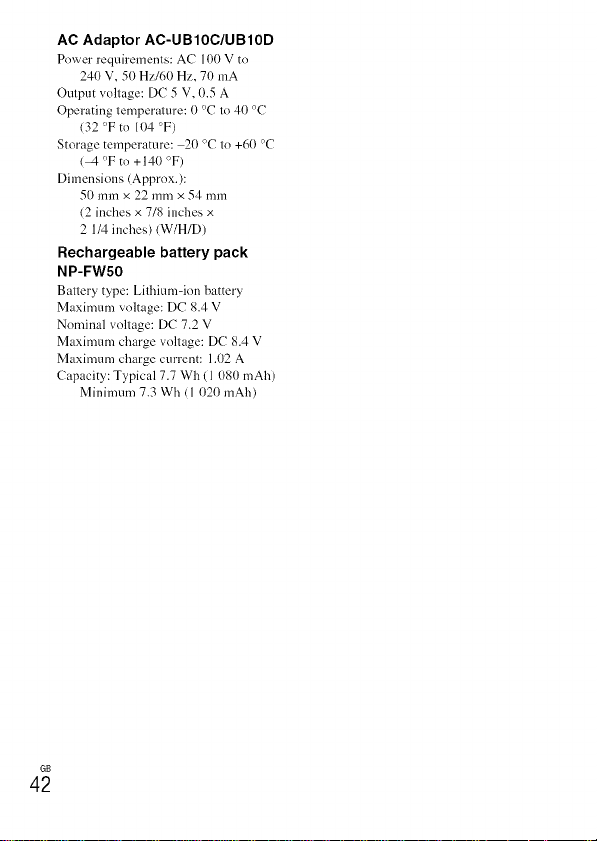
AC Adaptor AC-UB10C/UB10D
Power requirements: AC 100 V to
240 V, 50 Hz/60 Hz, 71)mA
Ontput voltage: DC 5 V, 0.5 A
Operating temperature: () °C to 40 °C
(32 °F to 104 °F)
Storage temperature: 20 °C to +60 °C
(-4 °F to +140 °F)
Dimensions (Approx.):
50 mmx 22 mm x 54 mm
(2 inches x 7/8 inches x
2 1/4 inches) (W/H/D)
Rechargeable battery pack
NP-FW50
B_ltter2rtM_e: Lithium-ion batter_
Maxinmm voltage: DC 8.4 V
Nominal voltage: DC 7.2 V
Maximum charge voltage: DC 8.4 V
Maximum charge current: 1.02 A
Capacity: Typical 7.7 Wh (1 080 mAh)
Mininmm 7.3 Wh (1 020 mAh)
GD
42
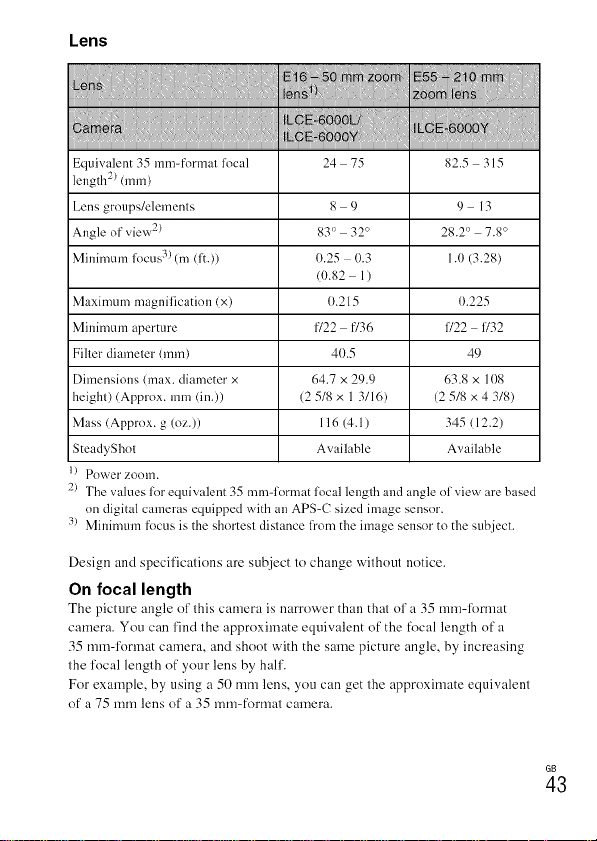
Lens
i ii
mmmmmmmmmmmmmmmmmmmmmmmmmmmmmmmmmmmmmmmmmmmmmmmmmmmmmmmmmmmmmmmmmmmmmmmm_im_m__ _ _iiiii_iii!ii!ii!ii!ii!iiiii iiiiiiiiiiiiiiiiiiiiiiiiiiiiiiiiiiiiiiiiiiiiiiiiiiiiiiiiiiiiiiiiiiiiiiiiiiiiiiiiiiiiiiiiiiiiiiiiiiiiiiiiiiiiiiiiiiiiiiiiiiiiiiiiiiii
Equivalent 35 ram-format focal 24 75 82.5 315
length 2) (ram)
Lens grnups/elements 8 9 9 13
Angle of view 2) 83° 32° 28.2 ° 7.8 °
Mininmm focus 3) (m (1:3) 0.25 - 0.3 1.0 (3.28)
(0.82 1)
Maxinmm magnification (x) (t.215 (t.225
Mininmm aperture f/22 f/36 f/22 f/32
Filter diameter (ram) 41).5 49
Dimensions (max. diameter x 64.7 x 29.9 63.8 x 10⁸
height) (Approx. mm (in.)) (2 5/8 x 1 3/16) (2 5/8 x 4 3/8)
Mass (Approx. g (oz.)) 116 (4.1) 345 (12.2)
SteadyShnt Available Available
Pnwer zonm.
2) The values for equivalent 35 mm-lormat local leuglh and angle ol view are based
on digital cameras equipped with an APS-C sized image sensor.
:_) Minimum ti_cus is the shortesl dislance lrom the image sensor to the subject.
Design and specifications are subject to change without notice.
On focal length
The picture angle of this camera is narrower than that of a 35 mm-lbrmat
camera. You can find the approximate equivalent of the focal length of a
35 ram-format camera, and shoot with the same picture angle, by increasing
the focal length of your lens by hall'.
For example, by using a 50 mm lens, you can get the approximate equivalent
of a 75 mm lens of a 35 ram-format camera.
G[I
43

Trademarks
• Memor_ Stick mid _. are
trademarks or registered trademarks
of Sony Corporation.
• "A¥CttD Progressive" and lhe
"AVCHD Progressive" logotype are
trademarks of Panasonic Corporation
and Sony Corporation.
• Dolby and the double-D symbol are
trademarks of Dolby Laboratories.
• The terms HDMI and HDMI High-
Definition Multimedia Interface, and
*he HDMI Logo are trademarks or
registered trademarks of HDMI
Licensing LLC in the United States
and other cotmtries.
• Windows is a registered trademark of
Microsol: Corporation in the United
States and/or other countries.
• Mac is a registered trademark of
Apple Inc. in the United States and
other countries.
• lOS is a registered trademark or
trademark of Cisco Systems, Inc.
• iPhone and iPad are registered
trademarks of Apple Inc. in the
United States and other countries.
• SDXC logo is a trademark of SD-3C,
LLC.
• Android, Google Play are trademarks
of Google Inc.
• Wi-Fi, the Wi-Fi logo and Wi-Fi
PROTECTED SET-UP are registered
trademarks of lhe Wi-Fi Alliance.
• The N Mark is a trademark or
registered trademark of"NFC Forum,
Inc. in the United States and in other
countries.
• DLNA and DLNA CERTIFIED are
trademarks of Digital Liwing
Network Alliance.
• Facebook and the 'T' logo are
trademarks or registered trademarks
4 G'B4 ot'Facebook, lnc.
• YouTube and the YouTube logo are
trademarks or registered trademarks
of Google Inc.
• Eye-Fi is a trademark of Eye-Fi, Inc.
• In addition, system and product
names used in this mamml are, in
general, trademarks or registered
trademarks of their respective
developers or manufactm'ers.
However, the i_l or ® marks may not
be used in all cases in this manual.
InfoMTHIUM _:1 I
Progressive

GB
45

GB
46

GB
47
[]
http://www.sony.net/Sonylnfo/Support/
Addiliolml inlk)rmation oll this producl and
answers to frequently asked questions can be
found at our Customer Supporl Website.
http://www.sony.net/
© 2014 Sony Corporation Printed in Thailand 4532055110