
e
HELP
English
TH-58DX900U TH-65DX900U
TH-50DX740U TH-58DX740U TH-65DX740U
TH-50DX700A TH-58DX700A TH-65DX700A
TH-55DX640A TH-65DX640A
TH-50DX700Z TH-58DX700Z TH-65DX700Z
TH-55DX640Z TH-65DX640Z

- 2 -
Read first
eHELP
•How to use 13
Features
•4K resolution 14
•Home Screen 15
•Info Frame 16
•Touch Pad Controller
[This feature is available depending on your model.] 17
•TV Anytime
18
•Dual Tuner
[Only for dual tuner model] 19
•Satellite TV
[This feature is available depending on your model.] 20
•Easy Mirroring 21
•Data Service Application 22
Home Screen
Home Screen
•Information 23
•How to use 25
•Pin to HOME 26
•Option menu 27
Live TV
•How to use 28
•Option menu 29
Apps
•How to use 30
•Option menu 31
Devices
•How to use 32
•Option menu 33
Watching
Basic
•Basic connection 34

- 3 -
•Selecting channel 37
•Information banner 38
•AV Options 41
•Subtitle 43
•Last view 44
•Off Timer 45
•Energy saving functions 46
•Adjusting time 48
•Language 50
4K resolution
•4K compatible equipment 51
•HDCP Setting
[This feature is available depending on your model.] 52
•HDMI Auto Setting 53
•Valid 4K format 54
External equipment
•External connection 55
•Watching external input 58
•Operating with TV’s remote control 60
•HDMI features 62
•HDMI HDR Setting
[This feature is available depending on your model.] 64
•Valid input signals 65
For best picture
•Viewing Mode 66
•Ambient Sensor 68
•Aspect 69
•Basic settings 70
•Noise reduction settings 73
•Advanced Settings 74
•Option Settings 80
•Screen Settings 83
•Lock Settings
[This feature is available depending on your model.] 85
•Copy Adjustment 86

- 4 -
For best audio
•Sound mode 87
•Basic settings 88
•Volume settings 90
•Voice Guidance Settings 92
•Audio Description 93
•Advanced settings 94
TV Guide
•Using TV Guide 98
•Timer Programming
100
Teletext
•Viewing Teletext 101
•Teletext mode 103
3D [This feature is available depending on your model.]
•Note 104
•Viewing 3D 105
•3D Mode Selection 107
•3D Settings 108
•Source image format 110
Tuning and editing channels
•Setting menu 111
•Favourites Edit 112
•Channel List 114
•Auto Tuning 115
•Manual Tuning 117
•Update Channel List 118
•New Channel Message 119
•Signal Condition 120
•Add TV Signal 121
Recording
USB HDD setup
•Preparations 122

- 5 -
•Setting for USB HDD 124
Recording current programme
•One Touch Recording 126
Timer Programming
•Setting Timer Programming 127
•Editing Timer Programming 129
•Remote recording 131
•Note 132
Technical information
•USB HDD 133
Media Player
Using Media Player
•Information 134
•Selecting device / mode 136
•Network device 138
•Sharing file 139
Photo mode
•Selecting file 140
•Viewing photo 141
•Sorting photos 142
•Using Slideshow 143
Video mode
•Selecting file 145
•Watching video 146
•Video Setup 148
•Audio output settings 150
Music mode
•Selecting file 151
•Playing music 152
•Music Setup 153

- 6 -
Recorded TV mode
•Selecting content 154
•Watching recorded TV 155
•Grouping content 157
•Deleting content 158
•Chapter List 159
•Audio output settings 160
USB Sharing
•USB Sharing 161
Technical information
•Device handling caution 163
•USB devices 164
•Photo format 165
•Video format 166
•Music format 169
Network
Internet content
•Information 170
•Selecting internet content 171
•Note 172
DLNA
•In-House streaming 173
•Using DLNA 176
Network connections
•Internet connection 177
•DLNA connection 178
•Note 180
Network settings
•Network Connection 181
•Custom - Wireless 183
•Custom - Wired 186
•Custom - Wireless Access Point 188

- 7 -
•Network Status 189
•my Home Cloud Settings 190
•VIERA Name 191
•TV Remote App Settings 192
•Network Link Settings 194
•TV Anytime Settings
196
•File Sharing Settings 197
•Mirroring Settings 198
•Do Not Track Setting 199
•Software Update 200
•New Software Message 201
Photos
•Selecting file 202
•Viewing photo 203
•Using Slideshow 204
Videos
•Selecting file 205
•Watching video 206
•Video Setup 208
•Audio output settings 210
Music
•Selecting file 211
•Playing music 212
•Music Setup 213
DIGA Recorder
•Controlling DIGA Recorder 214
Technical information
•Photo format 215
•Video format 216
•Music format 219

- 8 -
Functions
Info Frame
•Information 220
•How to use 221
•Settings 222
Voice Control
•Information 223
•How to use 224
•Settings 225
•Note 226
Touch Pad Controller [This feature is available depending on your model.]
•Information 227
•Pairing 228
•Identifying controls 229
•Settings 231
TV Anytime
•How to use 232
•TV Anytime Settings 233
Mirroring
•How to use 234
•Mirroring Settings 235
Multi Window [Only for dual tuner model]
•Information 236
•How to use 237
•Note 239
VIERA Link “HDAVI Control™”
•Summary of VIERA Link 240
•Preparations 245
•Easy playback 246
•Power on Link 247
•Power off Link 248
•Standby Power Save 249
•Intelligent Auto Standby 250

- 9 -
•VIERA Link Control 251
•Speaker Selection 253
•Note 254
Child Lock
•Using Child Lock 255
•PIN number 257
•Parental Rating 258
Data Service Application
•Using Data Service Application 259
•Cookie 260
•Note 261
Shipping Condition
•Shipping Condition 262
Updating the TV Software
•Information 263
•Auto update 264
•Manual update 265
Setting characters
•Using Numeric buttons 266
Bluetooth devices [This feature is available depending on your model.]
•Bluetooth Setup 267
Keyboard
•Keyboard 268
Settings
Setting menu
•How to use 269
Picture
•Viewing Mode 271
•Basic settings 272
•Ambient Sensor 275
•Noise reduction settings 276

- 10 -
•Advanced Settings 277
•Option Settings 278
•Screen Settings 281
•3D Settings
[This feature is available depending on your model.] 282
•Lock Settings
[This feature is available depending on your model.] 283
•Copy Adjustment 284
•Reset Picture Defaults 285
Sound
•Mode 286
•Basic settings 287
•Volume settings 288
•Voice Guidance Settings 289
•Audio Description 290
•Advanced settings 291
•Reset Sound Defaults 292
Network
•Network Connection 293
•Network Status 294
•my Home Cloud Settings 295
•VIERA Name 296
•TV Remote App Settings 297
•Network Link Settings 298
•TV Anytime Settings
299
•File Sharing Settings 300
•Mirroring Settings 301
•Do Not Track Setting 302
•Other settings 303
Timer
•Off Timer 304
•Timer Programming
305
•Clock Settings 306
•Auto Standby 307
•No signal Power off 308

- 11 -
Setup
•Eco Navigation 309
•Voice Control Settings 310
•USB Device Setup 311
•Recording Setup
312
•VIERA Touch Pad Controller
[This feature is available depending on your
model.] 313
•Bluetooth Setup
[This feature is available depending on your model.] 314
•Child Lock 315
•Tuning Menu 316
•Language 318
•Display Settings 319
•HDCP Setting
[This feature is available depending on your model.] 321
•HDMI Auto Setting 322
•HDMI HDR Setting
[This feature is available depending on your model.] 323
•VIERA Link Settings 324
•Data Service Application 325
•System Menu 326
•Other Settings 327
Support
Help menu
•Using Help menu 328
FAQs
•Picture 329
•Digital TV 331
•Sound 332
•3D
[This feature is available depending on your model.] 333
•HDMI 334
•Network 335
•Other 337
•Detailed information 339
Maintenance
•Care and Cleaning 340

Read first
eHELP
How to use
■ Meaning of signs
OK :
Letters enclosed in brackets indicate remote control buttons.
Menu :
Letters in cyan indicate on-screen display items.
:
References in this eHELP
When the icon (
- ) is displayed, you can jump to the page for
detailed descriptions pressing Numeric buttons.
(red) :
Displays the menu related to the description (only for some descriptions)
= Note =
●
Design and specifications are subject to change without notice.
●
The images shown in this eHELP are for illustrative purposes only.
●
This eHELP contains the pages for all models and some features are
not available on all models.
●
Refer to a paper manual, actual menu in TV set, etc. to confirm your
model’s features.
- 13 -









Home Screen
Home Screen
Information
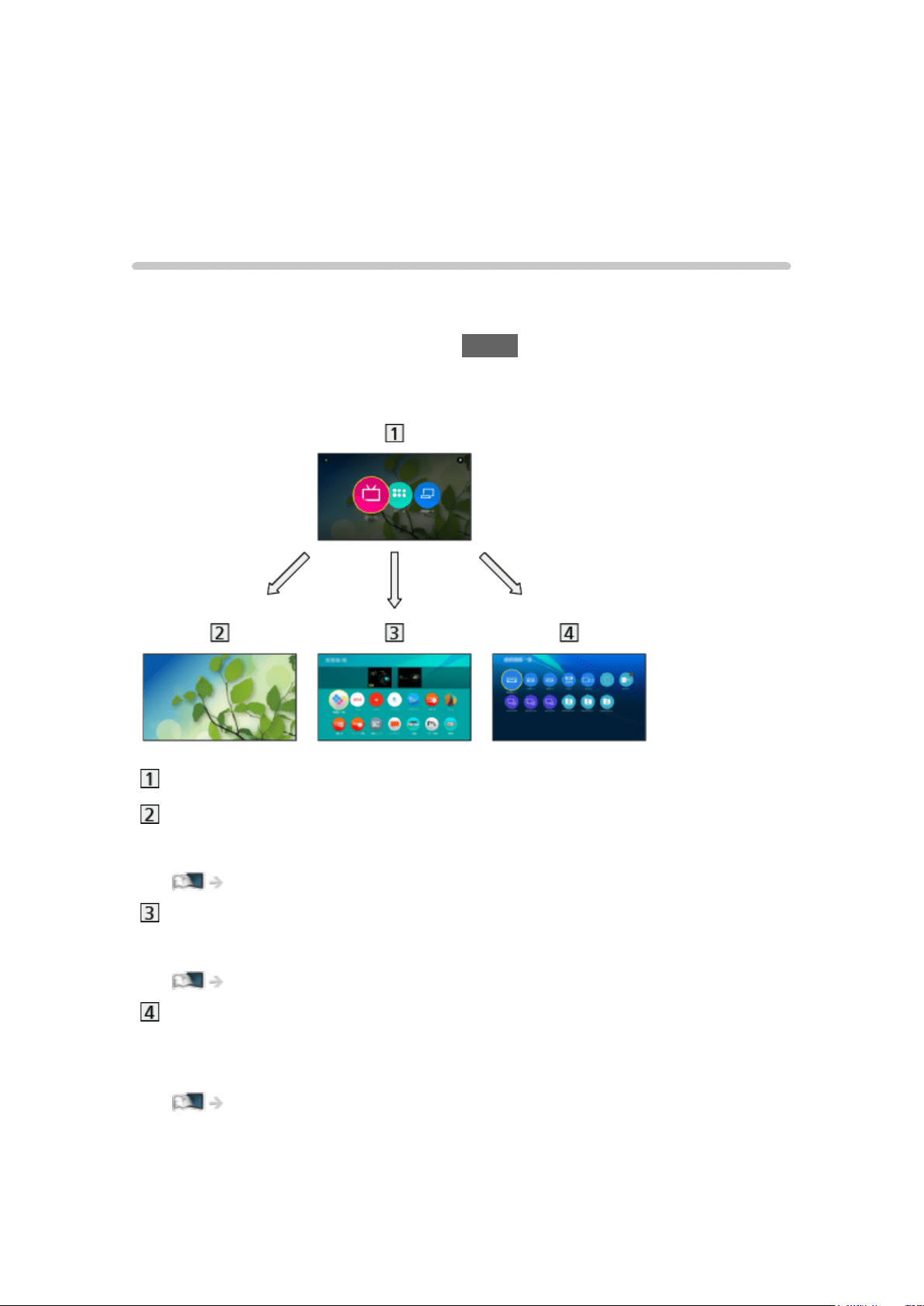
“Home Screen” is a gateway to the TV programmes, applications and
connected devices.
Home Screen is displayed by pressing HOME and it provides you an easy
way to access all the features as shown below (example).
Home Screen
Live TV
– Gateway to TV programmes
Home Screen > Live TV
Apps
– Gateway to various applications (internet content, etc.)
Home Screen > Apps
Devices
– Gateway to connected devices (HDMI equipment, USB device, network
device, etc.)
Home Screen > Devices
- 23 -

How to use
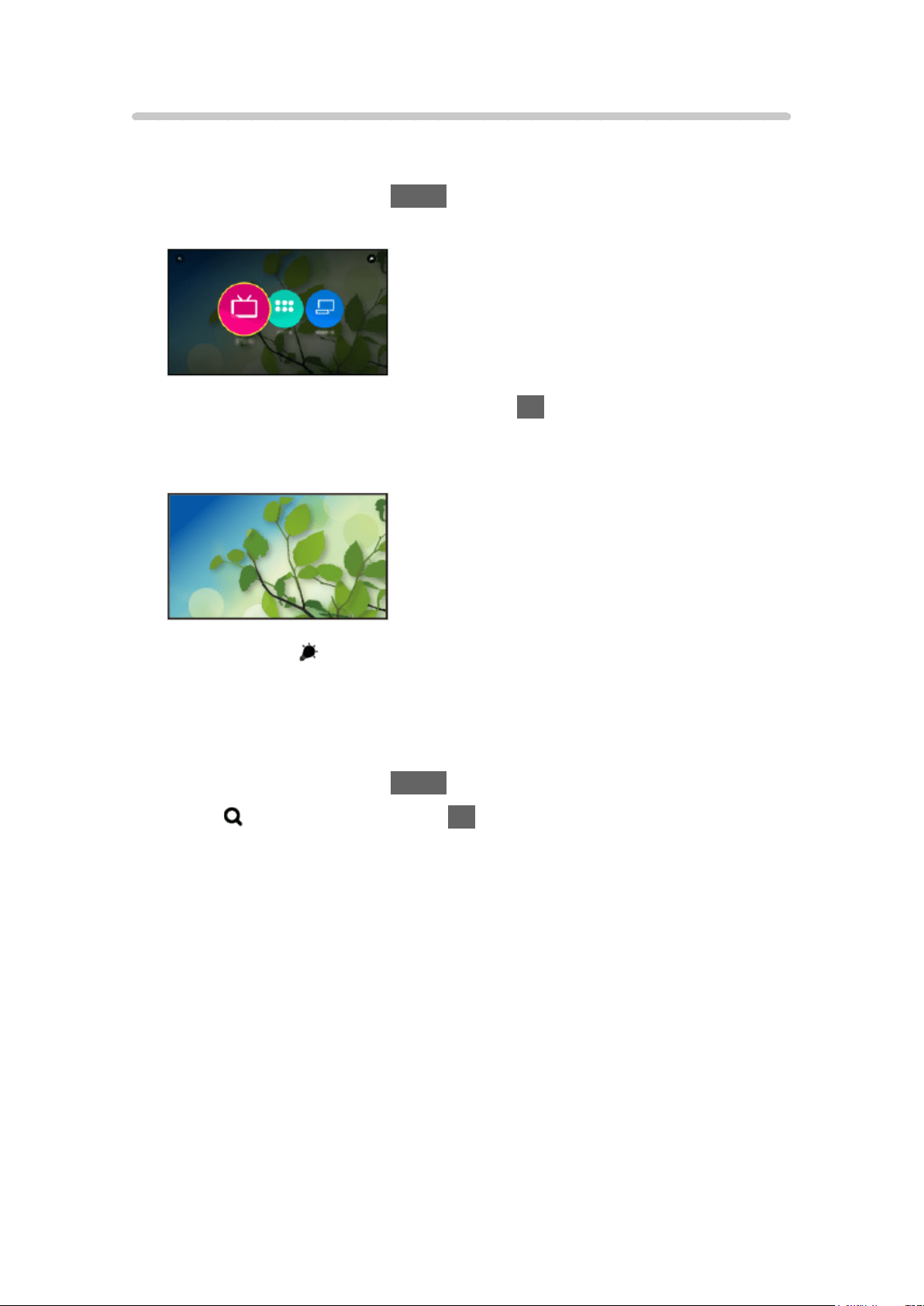
From Home Screen, you can access all the features such as TV programmes,
applications and connected devices.
1. Display Home Screen with HOME.
(Example)
2. Select Live TV / Apps / Devices and press OK to access.
●
To watch full-screen TV, select Live TV.
(Example)
●
Also refer to on Home Screen for the operations.
■ Search
You can search the content from various features.
1. Display Home Screen with HOME.
2. Select
for searching and press OK to access.
3. Follow the on-screen instructions.
- 25 -

Pin to HOME
[Some features are not available on all models.]
You can add a shortcut for a frequently used feature on Home Screen.
1. Display Home Screen with HOME.
2. Select Live TV / Apps / Devices and press OK to access.
3. Select a feature (TV programme / application / device).
4. Display the option menu with OPTION.
5. Select Pin to HOME and press OK to set.
●
You can also add a shortcut by pressing (Pin to HOME) on the Touch
Pad Controller.
●
To remove a shortcut from Home Screen, set Unpin from HOME.
Home Screen > Home Screen > Option menu
- 26 -

Option menu
You can customise Home Screen.
1. Display the option menu with OPTION.
2. Select one of the following items and press OK to access.
Unpin from HOME / Move
3. Set the item and press OK to store.
Unpin from HOME
Remove a shortcut from Home Screen.
Move
Arranges the position of the icons.
- 27 -
Option menu
1. Display the option menu with OPTION.
2. Select one of the following items and press OK to access.
Pin to HOME / Unpin from HOME / Accessibility / AV Options
3. Set the item and press OK to store.
Pin to HOME, Unpin from HOME
Adds / removes a shortcut for a frequently used feature on Home Screen.
Home Screen > Home Screen > Pin to HOME
Accessibility
Guidance settings for visually impaired users
Watching > For best audio > Voice Guidance Settings
AV Options
Easy optional setting for viewing, sound, etc.
Watching > Basic > AV Options
●
Menu items and selectable options vary depending on the TV mode.
- 29 -
Apps
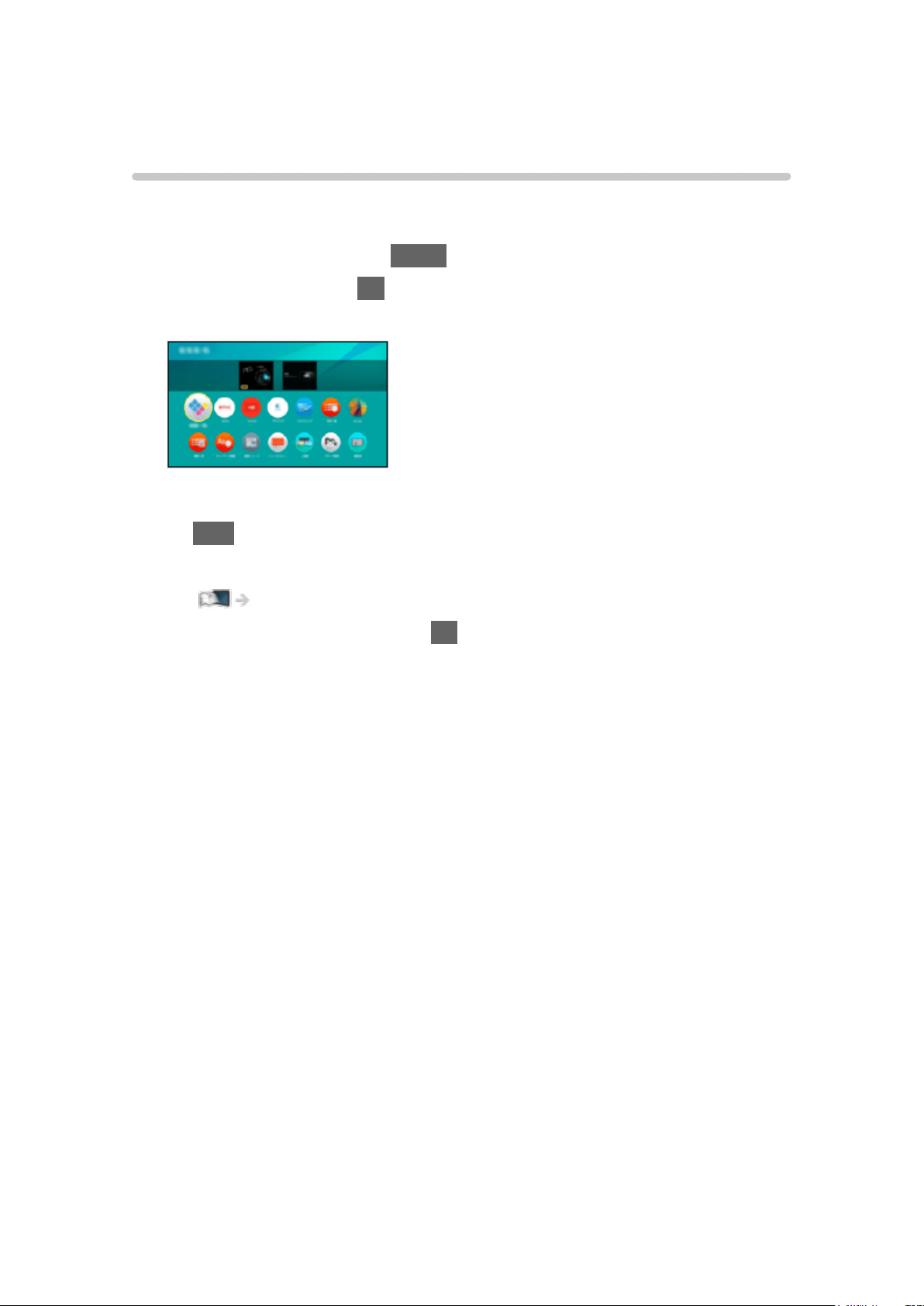
How to use
Various applications (internet content, etc.) can be accessed easily from
Apps.
1. Display Home Screen with HOME.
2. Select Apps and press OK to access.
(Example)
●
To exit Apps
EXIT
●
To add a shortcut icon
Home Screen > Home Screen > Pin to HOME
3. Select an application and press OK to access.
4. Follow the on-screen instructions.
= Note =
●
A broadband network environment is required to fully use this function.
●
Design and specifications are subject to change without notice.
- 30 -
Option menu
1. Display the option menu with OPTION.
2. Select one of the following items and press OK to access.
Pin to HOME / Unpin from HOME / Move / Lock / Unlock / Uninstall / Show
Info.
3. Set the item and press OK to store.
Pin to HOME, Unpin from HOME
Adds / removes a shortcut for a frequently used feature on Home Screen.
Home Screen > Home Screen > Pin to HOME
Move
Arranges the position of the applications.
Lock, Unlock
Locks / unlocks a specific application to restrict access (if available).
●
Child Lock PIN number is required to access to locked application.
Functions > Child Lock > PIN number
Uninstall
Deletes an application from Apps (if available).
Show Info.
Displays the information about the selected application.
- 31 -
Devices
How to use
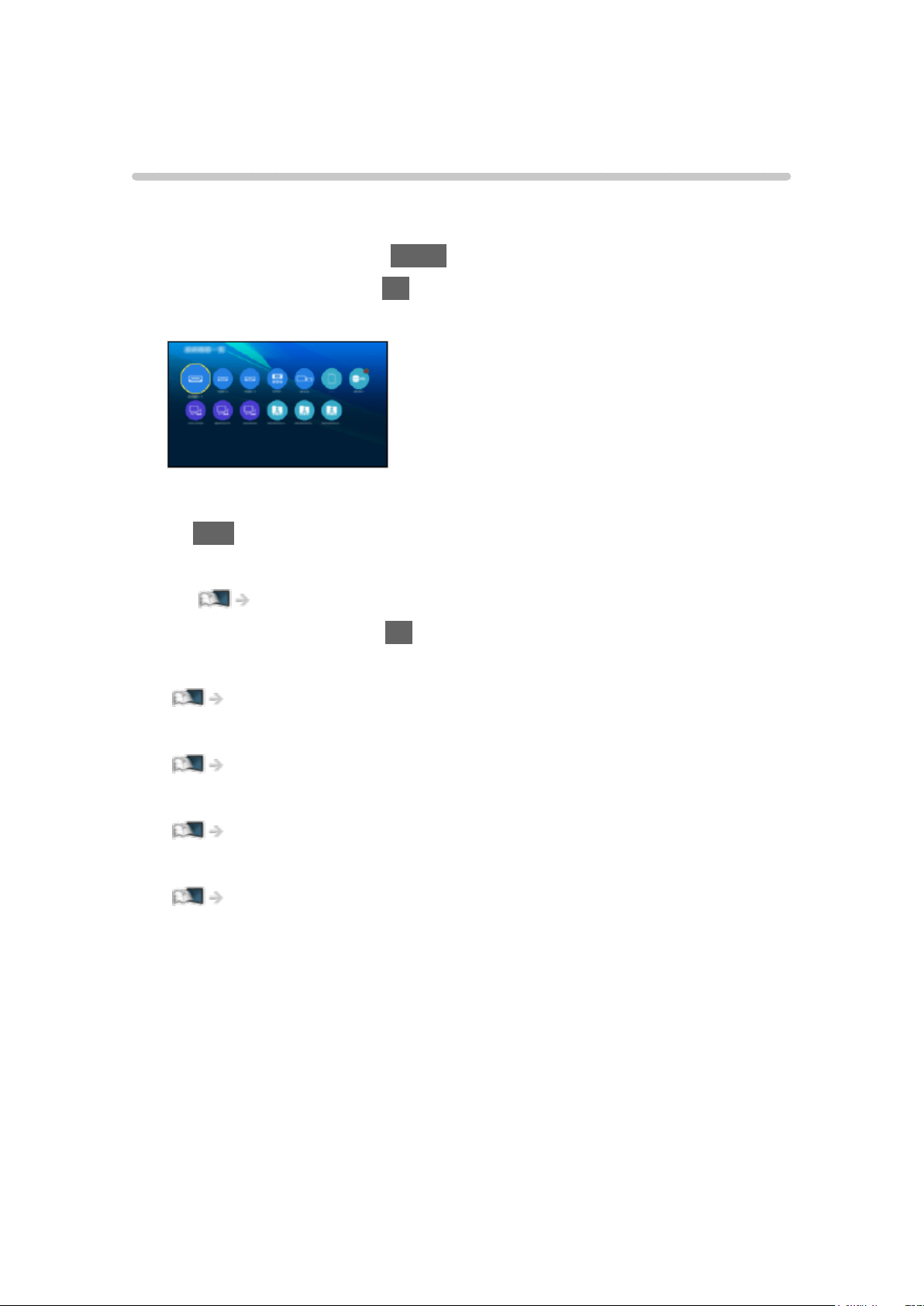
Connected devices (HDMI equipment, USB device, network device, etc.) can
be accessed easily from Devices.
1. Display Home Screen with HOME.
2. Select Devices and press OK to access.
(Example)
●
To exit Devices
EXIT
●
To add a shortcut icon
Home Screen > Home Screen > Pin to HOME
3. Select a device and press OK to access.
●
For external equipment
Watching > External equipment
●
For USB device, network device for Media Player
Media Player
●
For network equipment for DLNA
Network > DLNA
●
For mirroring function
Functions > Mirroring
= Note =
●
Design and specifications are subject to change without notice.
- 32 -
Option menu
1. Display the option menu with OPTION.
2. Select one of the following items and press OK to access.
Pin to HOME / Unpin from HOME / Accessibility / Show Info.
3. Set the item and press OK to store.
Pin to HOME, Unpin from HOME
Adds / removes a shortcut for a frequently used feature on Home Screen.
Home Screen > Home Screen > Pin to HOME
Accessibility
Guidance settings for visually impaired users
Watching > For best audio > Voice Guidance Settings
Show Info.
Displays the information about the selected device.
- 33 -
Watching
Basic
Basic connection
[Some features are not available on all models.]
Please ensure that the unit is disconnected from the mains socket before
attaching or disconnecting any cables.
●
External equipment and cables shown are not supplied with this TV.
●
Depending on the model, it may be necessary to remove the terminal
cover / cable cover before connecting or disconnecting cables.
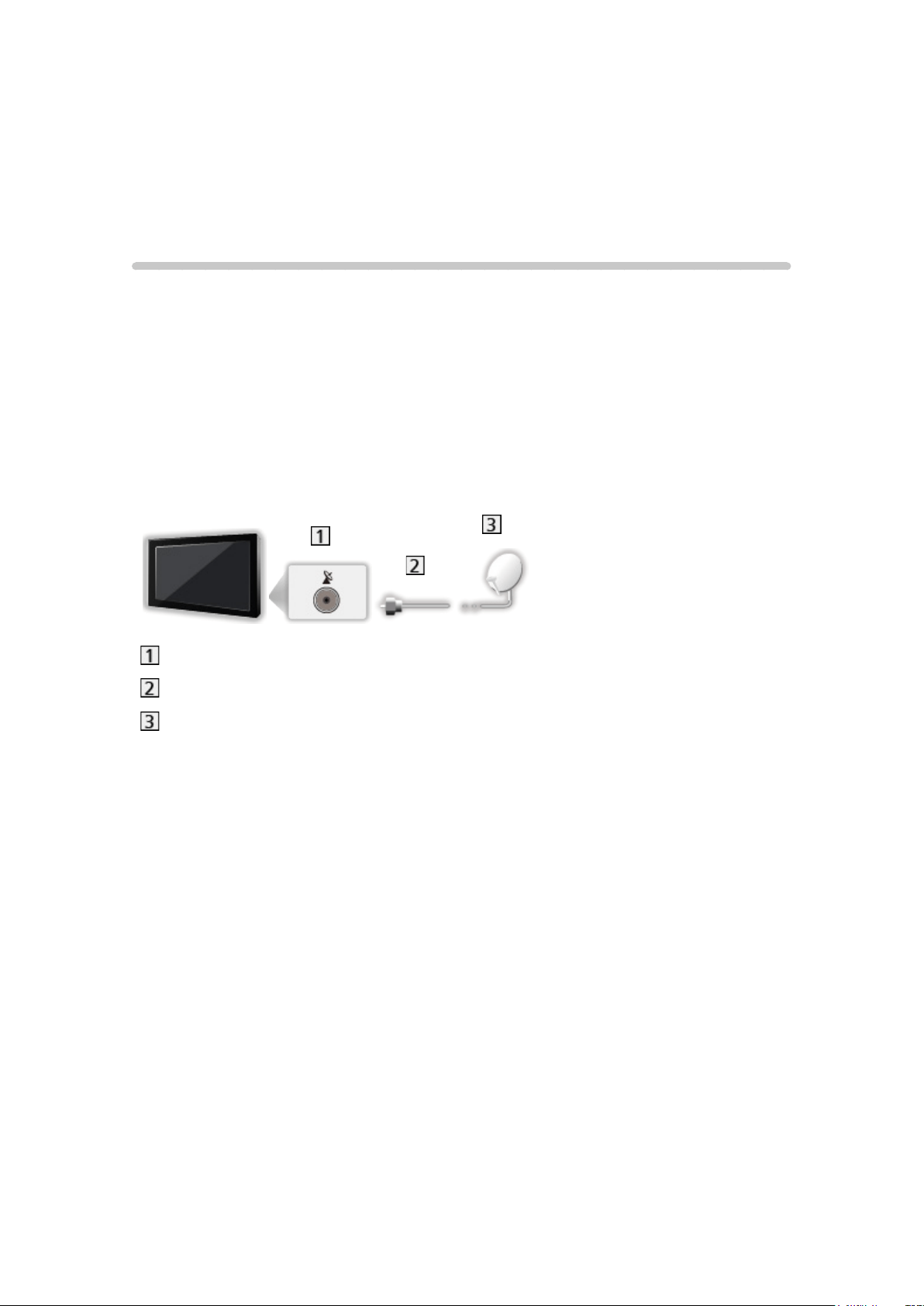
■ Satellite dish
Satellite terminal
Satellite cable
Satellite dish
●
For Satellite TV
●
To ensure your satellite dish is correctly installed, please consult your local
dealer. Also consult the received satellite broadcasting companies for
details.
●
Selectable satellites and dish alignment to tune Satellite TV are as
following.
– OptusD1
– OptusD2
– OptusD3
- 34 -
■ Aerial
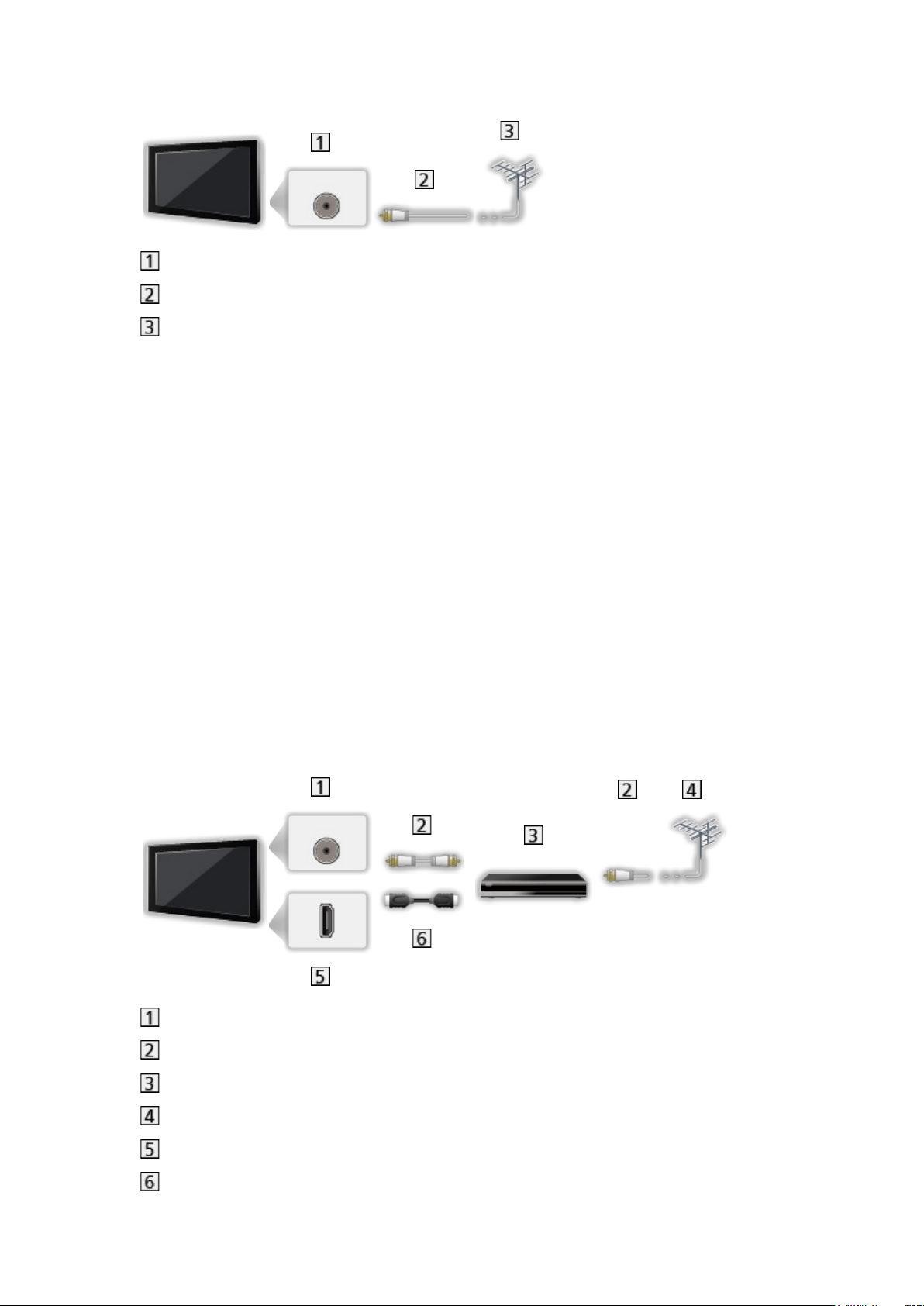
Aerial terminal
RF cable
Aerial
●
Keep RF (antenna) cable away from the mains lead to avoid and minimise
mains interference pickup.
●
Do not place the RF cable under the TV.
●
Anaerial,correctcable(75Ωcoaxial)andcorrectterminatingplugare
required to obtain optimum quality picture and sound.
●
If a communal aerial system is used, you may require the correct
connection cable and plug between the wall aerial socket and the TV.
●
Your local Television Service Centre or dealer may be able to assist you
in obtaining the correct aerial system for your particular area and the
accessories required.
●
Any matters regarding aerial installation, upgrading of existing systems or
accessories required, and the costs incurred, are the responsibility of you,
the Customer.
■ DVD Recorder / VCR
Aerial terminal
RF cable
DVD Recorder / VCR
Aerial
HDMI terminal
HDMI cable
- 35 -
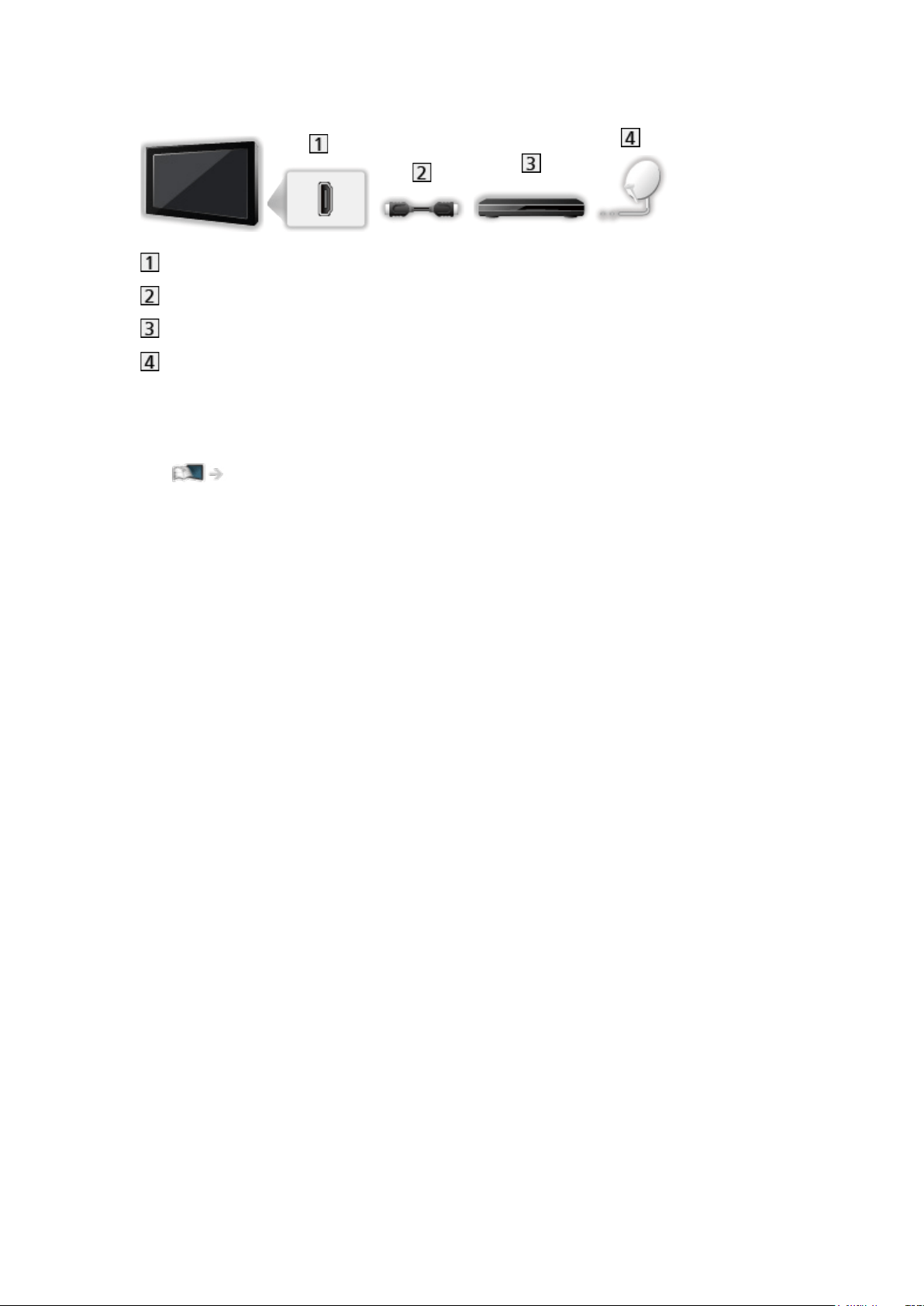
■ Set top box
HDMI terminal
HDMI cable
Set top box
Satellite dish
= Note =
●
For details of VIERA Link connections
Functions > VIERA Link “HDAVI Control™” > Summary of VIERA Link
●
Please also read the manual of the equipment being connected.
●
Keep the TV away from electronic equipment (video equipment, etc.) or
equipment with an infrared sensor, otherwise distortion of image / sound
may occur or operation of other equipment may be affected.
●
Use a fully wired HDMI compliant cable.
●
Check the terminal type and cable plugs are correct for connection.
- 36 -

Selecting channel
[Some features are not available on all models.]
1. Select Satellite TV, Digital TV or Analogue TV with TV.
2. Select a channel with Channel Up / Down or Numeric buttons.
●
Press Numeric buttons to select a channel position with 2 or more-digit
(e.g. 399, press
).
■ To select a channel from the channel list
1. Display the channel list with OK.
2. Select a channel from the list and press OK to watch.
■ To select a channel using information banner
1. Display information banner with INFO if it is not displayed.
2. Select a channel and press OK to watch while the banner is displayed.
Watching > Basic > Information banner
■ To select a channel using TV Guide
●
Not valid in Analogue TV
1. Display TV Guide with GUIDE.
2. Select the current programme and press OK to access.
3. Select View and press OK to watch.
Watching > TV Guide > Using TV Guide
- 37 -
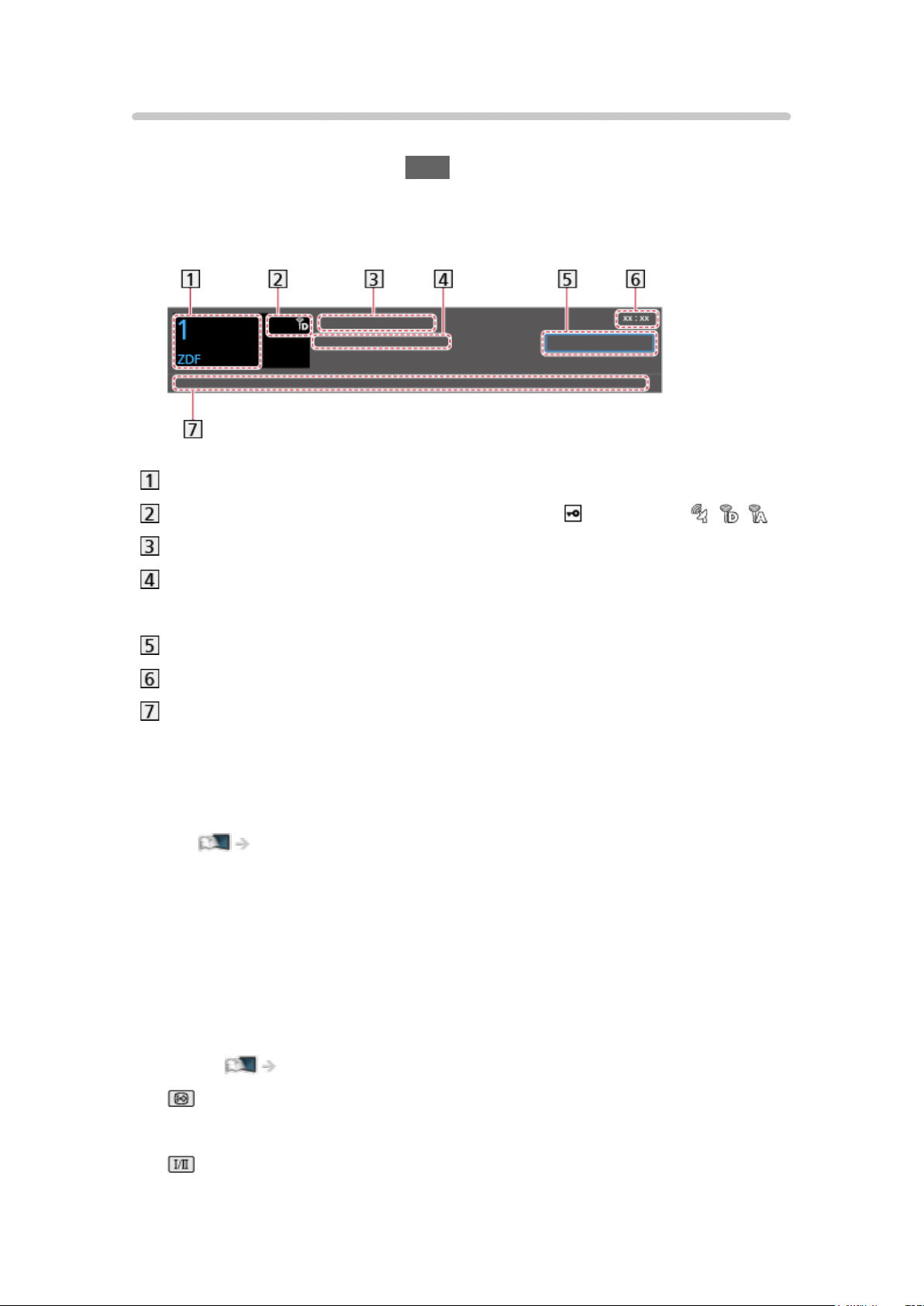
Information banner
[Some features are not available on all models.]
Display information banner with INFO.
●
Also appears when changing a channel.
(Example)
Channel position and name
Channel type (Radio, etc.) / Encrypted channel ( ) / TV mode ( , , )
Programme
Start time / End time (Satellite TV / Digital TV)
Channel position, etc. (Analogue TV)
Category
Current time
Features available / message meanings
Rating:
Rating information
Functions > Child Lock > Parental Rating
Bad signal:
Poor quality TV signal
AD:
Audio Description service available
●
This function can aid visually-impaired viewers by providing an
additional audio track to describe events on screen.
Watching > For best audio > Audio Description
:
Subtitle service available
:
Multiple image or audio available
- 38 -
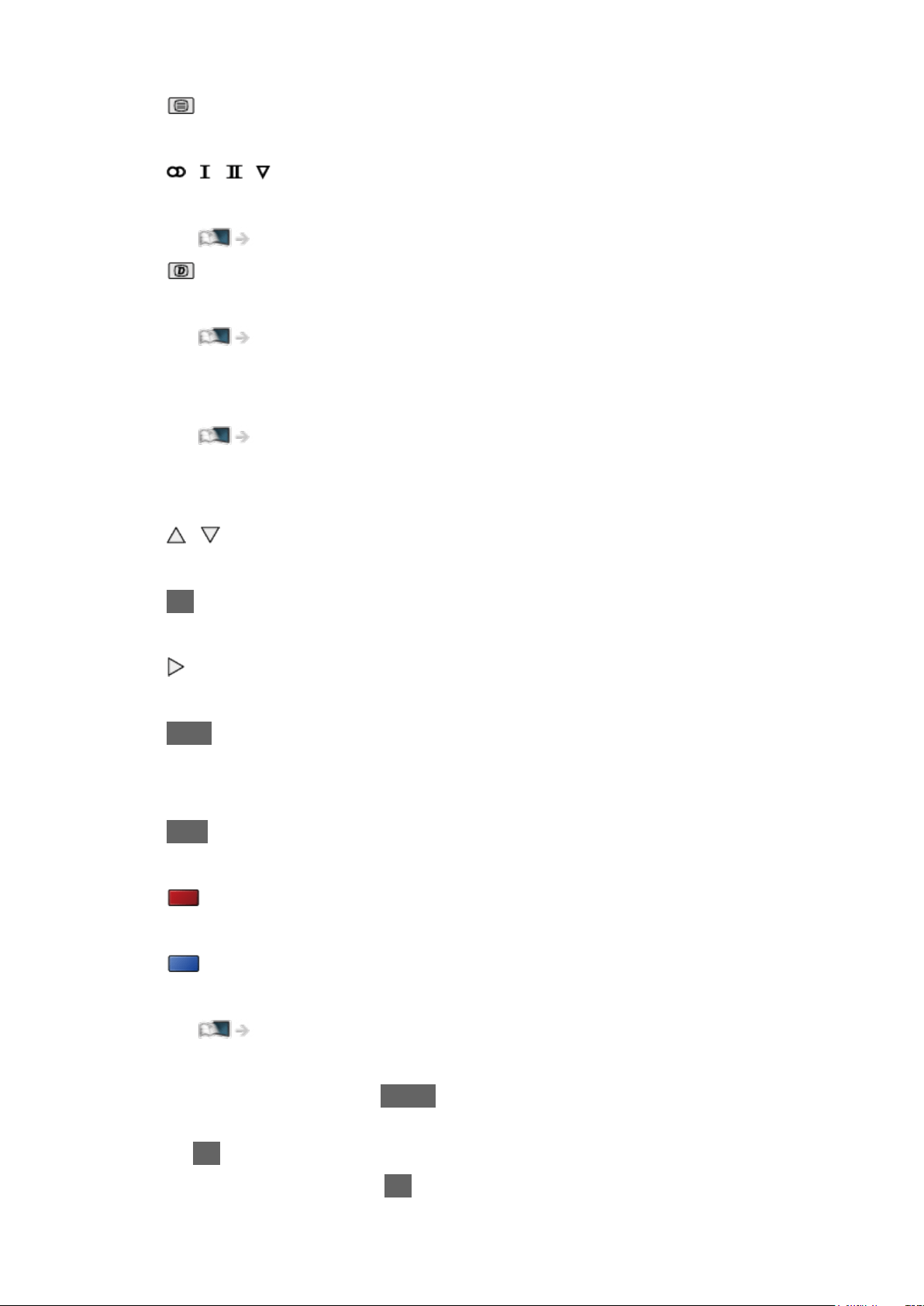
:
Teletext service available
, , , :
Audio mode
Watching > For best audio > Advanced settings
:
Data service (Hybrid Broadcast Broadband TV application) available
Functions > Data Service Application > Using Data Service Application
1 – 90:
Off Timer remaining time
Watching > Basic > Off Timer
●
To confirm another tuned channel
/
●
To watch the channel listed in the banner
OK
●
Information on the next programme (Satellite TV / Digital TV)
●
Extra information (Satellite TV / Digital TV)
INFO
– Press again to hide the banner.
●
To hide the banner
EXIT
●
To update the TV software (if available)
(red)
●
To select a favourite list (Satellite TV / Digital TV)
(blue)
– If the favourite list is created in Favourites Edit.
Watching > Tuning and editing channels > Favourites Edit
●
To adjust banner timeout, set Banner Display Timeout.
1) Display the menu with MENU.
2) Select Setup > Display Settings > Banner Display Timeout and press
OK to access.
3) Set the item and press OK to store.
- 39 -

●
To display the introduction banner for the internet service
1) Display the menu with MENU.
2) Select Setup > Display Settings > Smart Banner and press OK to
access.
3) Select On / Off and press OK to set.
- 40 -

AV Options
Confirm or change the current status.
●
Display the full-screen TV to use this function.
1. Display the option menu with OPTION.
2. Select AV Options and press OK to access.
3. Select one of the following items and press OK to access.
Audio Description / Video Selection / Audio Selection / AD / Dual Audio /
Subtitle Language / MPX / Volume Correction
●
The function items vary depending on the TV mode.
4. Set the item and press OK to store.
Audio Description
Set to Auto if the programme has Audio Description service, then you will hear
an additional audio track to describe events on screen (if available).
●
Not valid in Analogue TV
●
Not valid in multi window mode
●
To adjust the volume for Audio Description
Watching > For best audio > Audio Description
Video Selection
Selects from a group of multiple videos (if available).
●
Not valid in Analogue TV
●
New Zealand only
Audio Selection / AD
Selects between alternative language or Audio Description for sound tracks (if
available).
●
This setting is not memorised and it returns to the default setting once you
exit the current programme.
●
Not valid in Analogue TV
Dual Audio
Selects stereo / monaural (if available).
●
Not valid in Analogue TV
- 41 -

Subtitle Language
Selects between alternative subtitle languages or types (if available).
●
This setting is not memorised and it returns to the default setting once you
exit the current programme.
●
Not valid in Analogue TV
●
Not valid on the sub screen in multi window mode
●
New Zealand only
MPX
Selects multiplex sound mode (if available).
Watching > For best audio > Advanced Settings
●
For Analogue TV
Volume Correction
Adjusts the volume of each individual channel or input mode.
- 42 -

Subtitle
For New Zealand
Sets the subtitle setting.
1. Display the subtitle menu with STTL/AD.
2. Select Subtitle and press OK to access.
3. Select one of the following items and press OK to access.
●
Not valid in Analogue TV
Subtitle Type
(Standard / Hard of Hearing)
Selects the preferred subtitle type.
●
Hard of Hearing provides aids in understanding and enjoyment with digital
channel subtitles (depending on the broadcaster).
●
You can also select the preferred subtitle type from Subtitle Type in Setup
Menu.
Subtitle Language
Selects between alternative subtitle languages or types (if available).
●
This setting is not memorised and it returns to the default setting once you
exit the current programme.
●
Preferred Subtitles in Language are given priority.
Watching > Basic > Language
For Australia
Display / hide subtitles (if available).
1. Display the subtitle menu with STTL/AD.
2. Select Subtitle and press OK to access.
3. Select Subtitles On / Subtitles Off and press OK to store.
●
For Digital TV
= Note =
●
Subtitles may not be displayed properly in 3D images.
●
Not valid on the sub screen in multi window mode
- 43 -

Last view
Switch to a previously viewed channel or input mode easily with LAST VIEW.
●
Press again to return to the current view.
= Note =
●
Switching channel may not be available depending on the condition.
●
Watching less than 10 seconds is not reflected in the previously viewed
channel or input mode.
- 44 -

Off Timer
Switch to TV Standby mode automatically after a fixed period.
1. Display the menu with MENU.
2. Select Timer > Off Timer and press OK to access.
3. Select the time in 15-minute increments and press OK to set.
90 / 75 / 60 / 45 / 30 / 15 / Off (minutes)
●
To cancel, set to Off or turn the TV off.
●
The remaining time is displayed on the bottom right of the screen.
●
The remaining time will flash on the screen when less than 3 minutes.
- 45 -

Energy saving functions
The TV can be eco-friendly using energy-saving functions.
The TV goes into Standby mode in the following conditions:
●
Eco Navigation is set to Set to Eco.
●
Off Timer is active.
Watching > Basic > Off Timer
●
No operation is performed for 4 hours while Auto Standby is set to On.
●
No signal is received and no operation is performed for 10 minutes while
No signal Power off is set to On.
= Note =
●
This function does not affect the recording.
■ Auto Standby
1. Display the menu with MENU.
2. Select Timer > Auto Standby and press OK to access.
3. Select On / Off and press OK to set.
Auto Standby
(On / Off)
Automatically turns the TV to Standby mode for energy saving when no
operation is performed for 4 hours.
●
Automatic input switching with the connected equipment affects this
function and time-count resets.
●
A notification message will appear 3 minutes before going into Standby
mode.
●
Changing the default configuration may result in higher energy
consumption of the product.
- 46 -

■ No signal Power off
1. Display the menu with MENU.
2. Select Timer > No signal Power off and press OK to access.
3. Select On / Off and press OK to set.
No signal Power off
(On / Off)
Automatically turns the TV to Standby mode to prevent unnecessary power
consumption when no signal is received and no operation is performed for 10
minutes.
●
A notification message will appear 3 minutes before going into Standby
mode.
■ Eco Navigation
Automatically sets the TV to the most suitable energy-saving mode.
The concerned items and their current settings are displayed. Select Set to
Eco to set them to the energy-saving settings at once.
1. Display the menu with MENU.
2. Select Setup > Eco Navigation and press OK to access.
3. Select Set to Eco and press OK to set.
●
Auto Standby and No signal Power off are active when Eco Navigation is
set to Set to Eco.
- 47 -
Adjusting time
Settings for the system time of this TV.
1. Display the menu with MENU.
2. Select Timer > Clock Settings and press OK to access.
3. Select one of the following items and press OK to set.
Mode / Date / Time / Daylight Saving Time / Region Select
4. Set with Cursor buttons or Numeric buttons and press OK to store.
Mode
(Auto / Manual)
Selects the clock setting mode for this TV.
●
Set to Auto to adjust the time automatically using the time information from
the digital broadcast. Set to Manual to adjust manually.
Date
Sets the current date manually.
Time
Sets the current time manually.
Daylight Saving Time
Selects time offset from the standard time for Summer Time. (Base on GMT)
(+ 1 hour / + 1/2 hour / Off / Auto)
●
If there is a gap between displayed time and actual time, set this function.
●
Normally select Auto to adjust as following for the region has been set in
Region Select.
NSW / ACT / Victoria / Tasmania: +11:00
South Australia: +10:30
Queensland: +10:00
Northern Territory: +9:30
Western Australia: +8:00
●
Australia only
- 48 -

Region Select
Selects the region where you live to adjust the standard time. (Base on GMT)
(NSW / ACT / Victoria / Queensland / South Australia / Western Australia /
Northern Territory / Tasmania)
●
The time contained in the broadcast signal is UTC (Universal Time
coordinated) formally known as GMT (Greenwich Mean Time).
NSW / ACT / Victoria / Queensland / Tasmania: +10:00
South Australia / Northern Territory: +9:30
Western Australia: +8:00
●
Australia only
- 49 -

Language
1. Display the menu with MENU.
2. Select Setup > Language and press OK to access.
3. Select one of the following items and press OK to access.
OSD Language / Preferred Audio Language / Preferred Subtitles
4. Set the item and press OK to store.
2. Select Setup > Language > OSD Language and press OK to access.
3. Set the item and press OK to store.
OSD Language
Changes language for on-screen displays.
Preferred Audio Language
Selects the preferred language for digital TV multi audio (depending on the
broadcaster).
●
New Zealand only
Preferred Subtitles
Selects the default language for digital TV subtitles (depending on the
broadcaster).
●
To display subtitles
Watching > Basic > Subtitle
●
New Zealand only
- 50 -
4K resolution
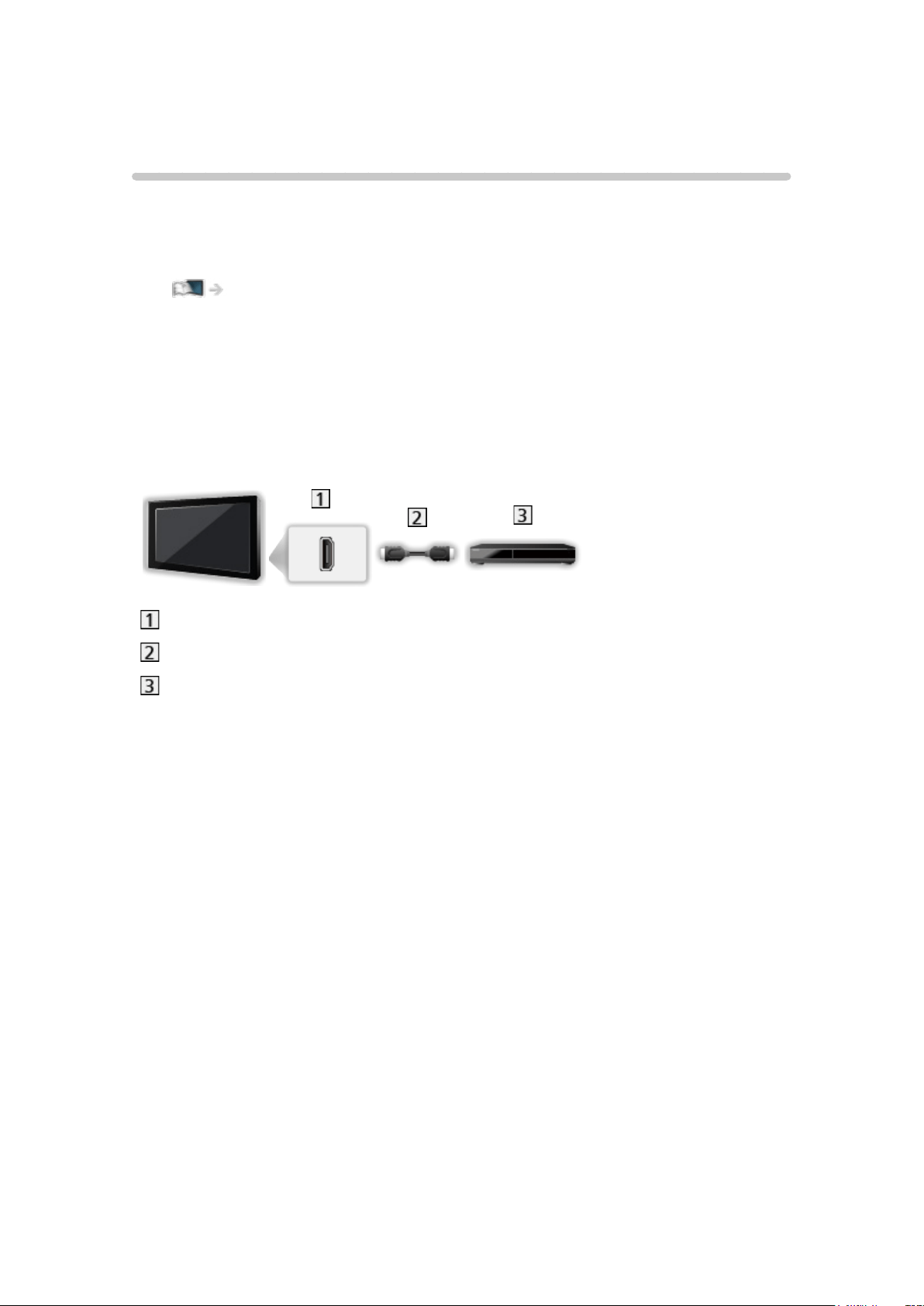
4K compatible equipment
You can watch content in 4K format that has twice the horizontal and vertical
resolution of the 1080p signal.
●
For details of valid 4K format
Watching > 4K resolution > Valid 4K format
●
Connect the 4K compatible equipment to HDMI terminal using a 4K
compatible cable and you can watch content in 4K format.
●
Depending on the model, it may be necessary to remove the terminal
cover / cable cover before connecting or disconnecting cables.
■ 4K compatible equipment
HDMI terminal
HDMI cable
4K compatible equipment
●
Check the terminal type and cable plugs are correct for connection.
●
Use a fully wired HDMI compliant cable.
- 51 -

HDCP Setting [This feature is available depending on your model.]
[Available menu items are displayed on your TV screen.]
1. Display the menu with MENU.
2. Select Setup > HDCP Setting and press OK to access.
3. Set the item and press OK to store.
HDCP Setting
(Auto / 2.2 / 1.4)
Select a version of HDCP according to the content you watch.
●
HDCP is a technology of copy protection for digital audio / video content.
●
For HDMI
- 52 -

HDMI Auto Setting
1. Display the menu with MENU.
2. Select Setup > HDMI Auto Setting and press OK to access.
3. Set the item and press OK to store.
HDMI Auto Setting
(Mode1 / Mode2)
Reproduces the image more precisely with the expanded colour gamut when
connecting the 4K compatible equipment. Select the mode depending on the
equipment.
Mode1:
For better compatibility. Set to Mode1 when the image or sound in
HDMI input is not played properly.
Mode2:
For the 4K compatible equipment that has the function to output the
image precisely with the expanded colour gamut
●
The setting can be stored for each HDMI input.
●
For HDMI [Available terminals vary depending on your model.]
●
Valid format (4K)
– Mode1: 4:4:4 / 4:2:2 (30p, 25p, 24p), 4:2:0 (60p, 50p)
– Mode2: 4:4:4 / 4:2:2 (30p, 25p, 24p), 4:4:4 / 4:2:2 / 4:2:0 (60p, 50p)
– HDCP version: 2.2 / 1.4
- 53 -

Valid 4K format
■ Valid 4K format (HDMI)
●
4K UHD
3 840 × 2 160 (60p, 50p, 30p, 25p, 24p)
– Aspect is fixed to 16:9.
●
DCI 4K
4 096 × 2 160 (60p, 50p, 30p, 25p, 24p)
– Actual resolution is 3 840 × 2 160p.
– Aspect is fixed to V Full.
= Note =
●
Connect to HDMI1 or HDMI2 for the following formats. [This feature is
available depending on your model.]
– 4K UHD
30p, 25p, 24p / 4:4:4 (10 bit, 12 bit)
60p, 50p
– DCI 4K
25p, 24p / 4:4:4 (10 bit, 12 bit)
60p, 50p, 30p
●
The above signals are reformatted for optimal viewing on your display.
●
3D content in 4K format is not supported.
●
For details of aspect
Watching > For best picture > Aspect
- 54 -
External equipment
External connection
[Some features are not available on all models.]
These diagrams show our recommendations for connection of your TV to
various pieces of equipment. For other connections, consult the instructions
for each piece of equipment.
●
For details of basic connection
Watching > Basic > Basic connection
●
To use the specific devices supporting Bluetooth wireless technology
Functions > Bluetooth devices
●
Check the terminal type and cable plugs are correct for connection.
●
External equipment and cables shown are not supplied with this TV.
●
Depending on the model, it may be necessary to remove the terminal
cover / cable cover before connecting or disconnecting cables.
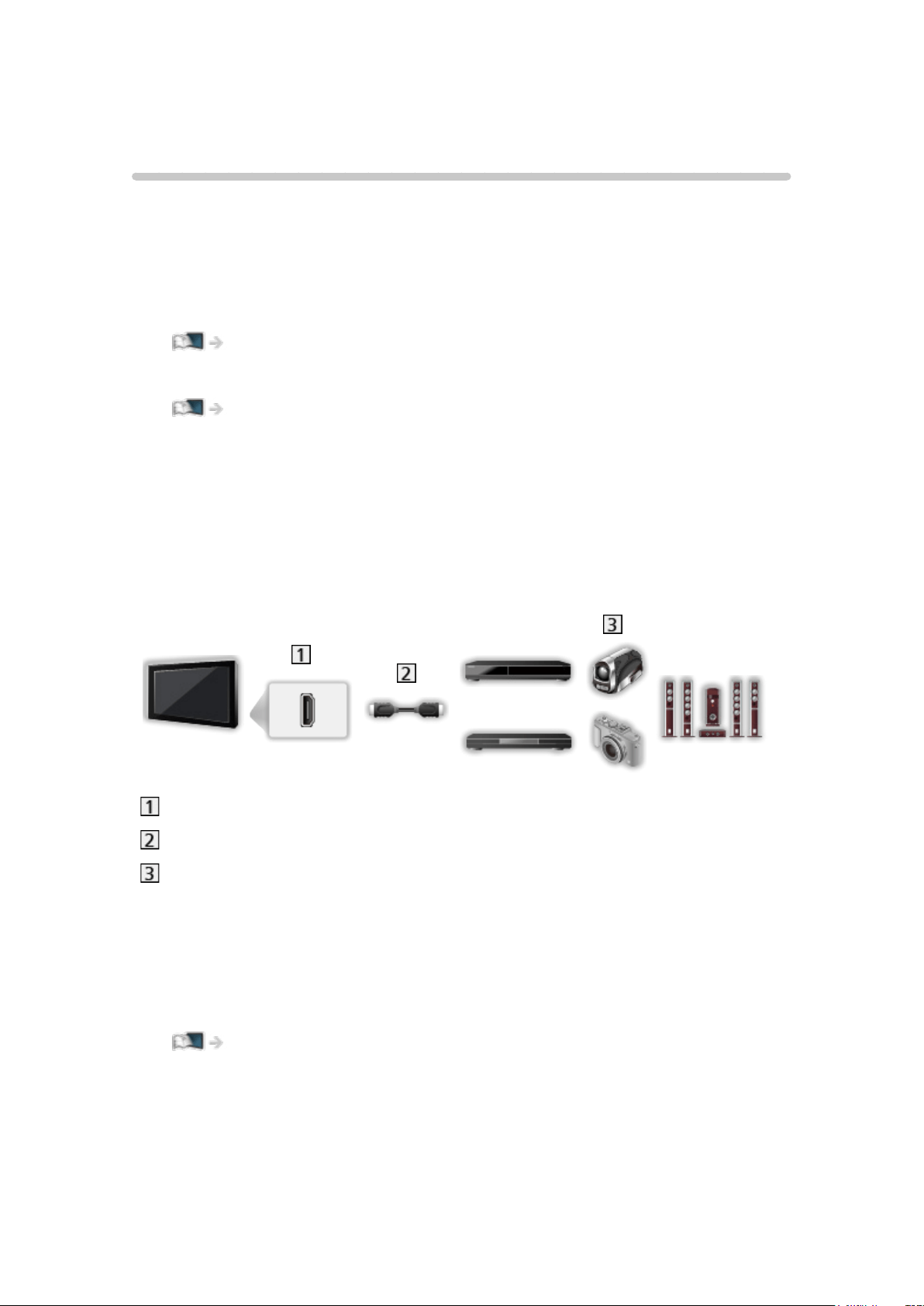
■ HDMI equipment
HDMI terminal
HDMI cable
Recorder / Player / Set top box / Camcorder / Amplifier with speaker
system
= Note =
●
Use a fully wired HDMI compliant cable.
●
For details of VIERA Link connections
Functions > VIERA Link “HDAVI Control™” > Summary of VIERA Link
●
Use HDMI2 to connect the TV to an amplifier which has ARC (Audio
Return Channel) function.
- 55 -
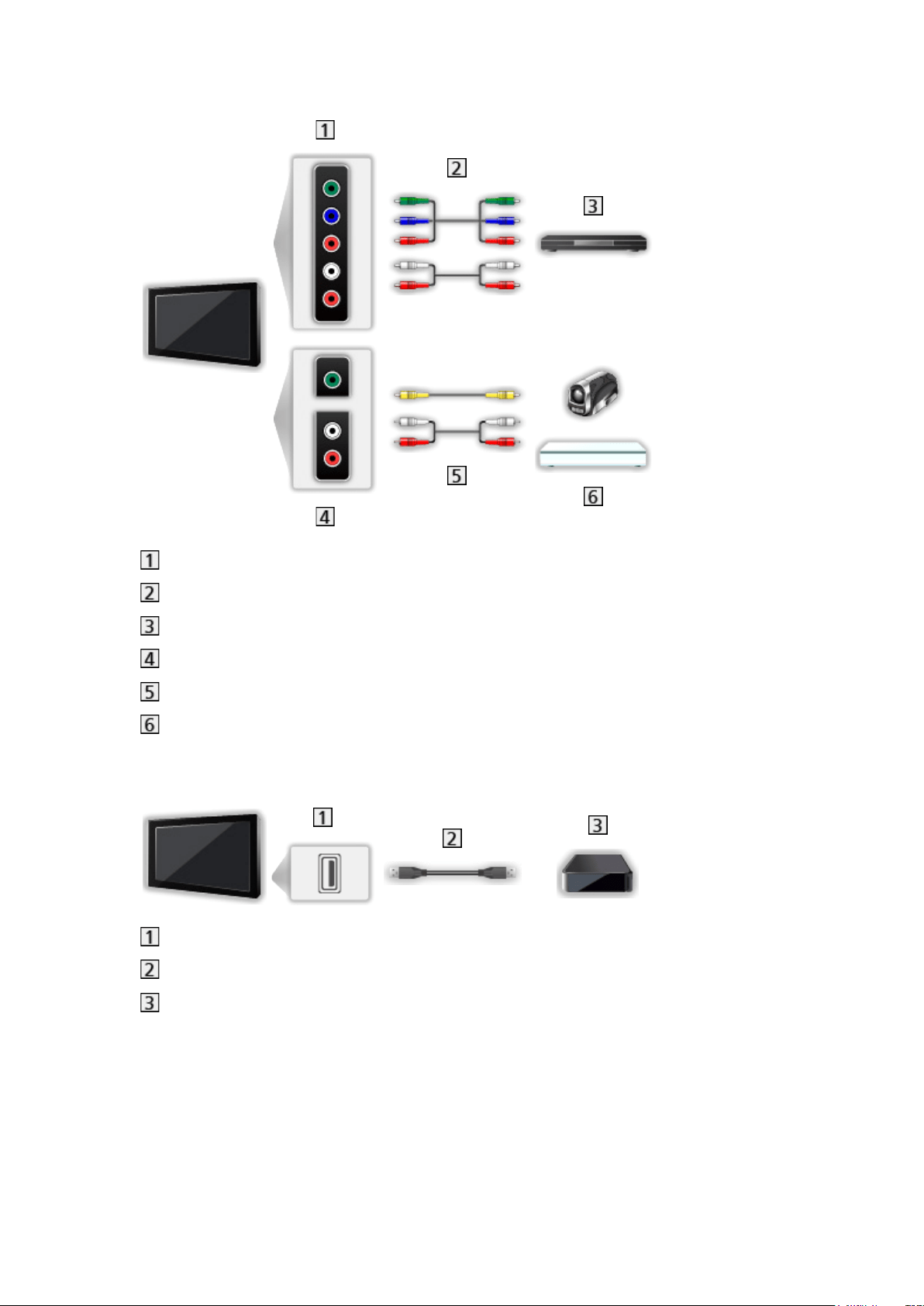
■ AV devices
AV IN (COMPONENT) terminals
Component cables
DVD Player
AV IN (VIDEO) terminals
Composite cables
Camcorder / Game equipment
■ USB devices
USB port
USB cable
USB HDD, etc.
= Note =
●
It is recommended to connect the device to the TV’s USB port directly.
●
You cannot use two or more of the same kind of USB devices
simultaneously except USB Flash Memory or USB HDD.
●
Use USB 1 or USB 3 port for connecting the USB HDD. [Refer to the
terminal indication of TV set.]
- 56 -
●
Some USB devices or USB HUB may not be used with this TV.
●
You cannot connect any devices by using USB card reader.
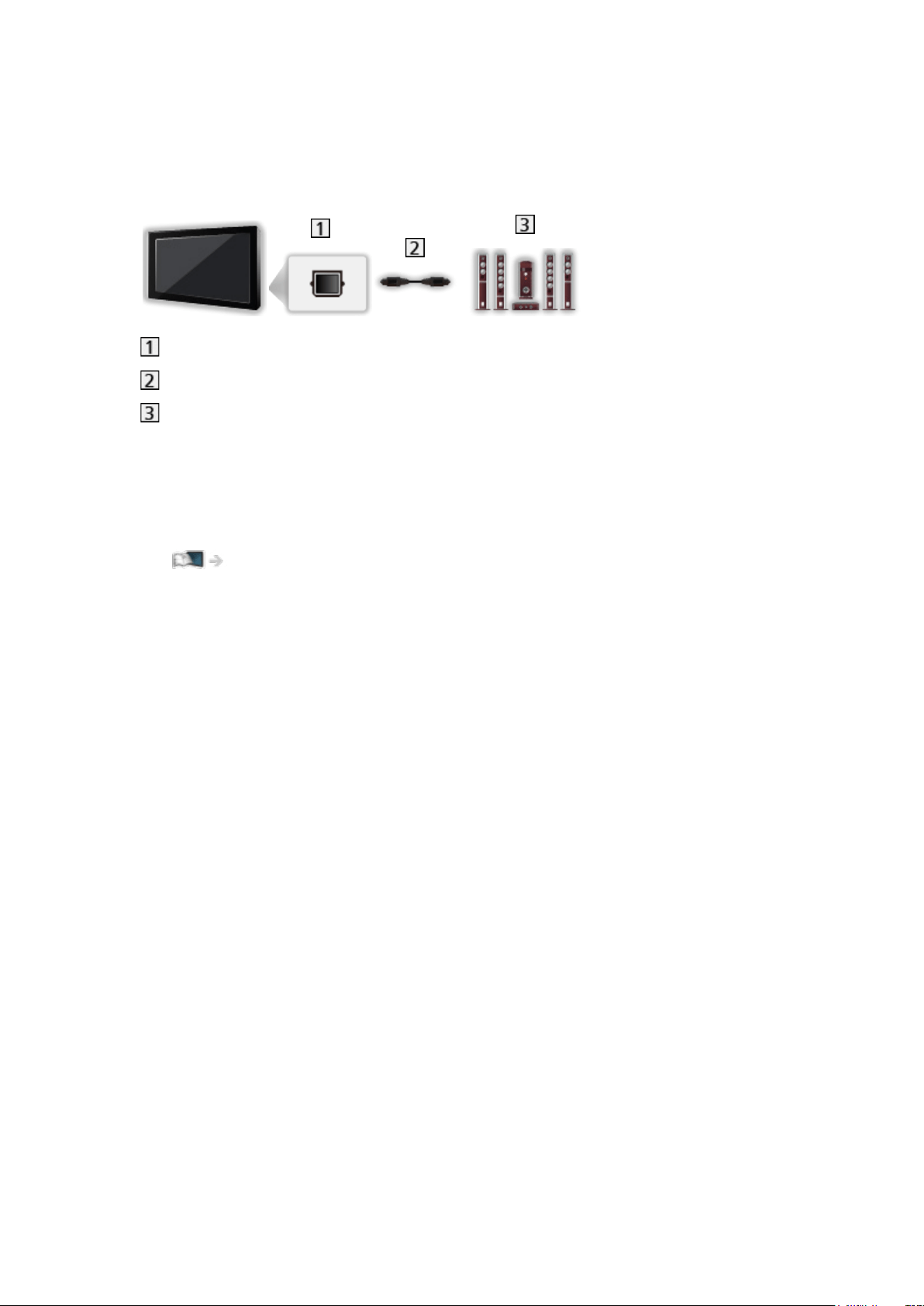
■ Listening with external speakers
DIGITAL AUDIO OUT
Optical digital audio cable
Amplifier with speaker system
●
To enjoy multi-channel sound from external equipment (e.g. Dolby Digital
5.1ch), connect the equipment to the amplifier. For information about the
connections, read the manuals of the equipment and amplifier.
●
To select the sound output, set TV Speaker.
Watching > For best audio > Volume settings
- 57 -

Watching external input
Connect the external equipment (VCR, DVD, etc.) and you can watch through
the input.
1. Display the input selection menu with AV.
2. Select the input mode connected to the equipment and press OK to watch.
(The selected mode is displayed on the top left of the screen.)
●
You can also select the input pressing AV. Press repeatedly until the
desired input is selected.
●
You can select COMPONENT and VIDEO in AV.
●
You can label or skip each input mode. Skipped inputs will not be
displayed when AV is pressed. (Input Labels)
●
The remote control is capable of operating the content or external
equipment.
Watching > External equipment > Operating with TV’s remote control
●
To return to TV mode
TV
= Note =
●
If the external equipment has an aspect adjustment function, set it to 16:9.
●
For details, read the manual of the equipment or ask your local dealer.
■ Input Labels
Accessing the input labels list allows you to change the input name or skip
the input if unconnected, improving identification and selection in the Input
Selection banner.
Watching > Basic > Information banner
1. Display the menu with MENU.
2. Select Setup > Display Settings > Input Labels and press OK to access.
3. Set the item and press OK to set.
●
To name each input mode freely, select User input and set characters
(maximum 10 characters).
●
To skip the input mode, select Skip.
- 58 -

■ Playing Time Display
Set to On to display a time period of continuous use in Game Mode on the top
right of the screen every 30 minutes.
1. Display the menu with MENU.
2. Select Setup > Display Settings > Playing Time Display and press OK to
access.
3. Select On / Off and press OK to set.
●
This function is available when Game Mode is set to On.
- 59 -

Operating with TV’s remote control
You can operate the content in Media Player / media server, recording
functions or the connected equipment with the following buttons of this TV’s
remote control.
:
Playback (VCR / DVD / video content)
:
Stop the operations
:
Rewind, view the picture rapidly in reverse (VCR)
Skip to the previous track, title or chapter (DVD / video content)
(also available for the operation of USB HDD Recording) (Australia only)
:
Rewind, view the picture rapidly in reverse (VCR)
Search backward (DVD / video content)
:
Fast-forward, view the picture rapidly forward (VCR)
Skip to the next track, title or chapter (DVD / video content)
(also available for the operation of USB HDD Recording) (Australia only)
:
Fast-forward, view the picture rapidly forward (VCR)
Search forward (DVD / video content)
:
Pause / Resume
Press and hold to play at slow speed (DVD)
:
One Touch Recording
Recording > Recording current programme > One Touch Recording
- 60 -

■ How to change the code
Each Panasonic product has its own remote control code. Change the code
according to the product for operation.
1. Press and hold Standby On / Off switch during the following operations.
2. Enter the appropriate code as follows with Numeric buttons.
●
Codes for each product and features
70: DVD Recorder, DVD Player, Blu-ray Disc Player
71: Player theatre, Blu-ray Disc theatre
72: VCR
73 (default):
Using in USB HDD recording, Media Player, DLNA features or VIERA
Link
3. Press
to change.
= Note =
●
Confirm if the remote control works correctly after changing the code.
●
The codes may be reset to defaults if batteries are replaced.
●
Some operations may not be available depending on the equipment.
- 61 -

HDMI features
[Some features are not available on all models.]
HDMI (high-definition multimedia interface) is the world’s first complete digital
consumer AV interface complying with a non-compression standard.
HDMI allows you to enjoy high-definition digital images and high-quality
sound by connecting the TV to external equipment.
HDMI-compatible equipment
with an HDMI or DVI output terminal, such as a
DVD player, a set top box or game equipment, can be connected to the HDMI
terminal using a fully wired HDMI compliant cable.
Watching > External equipment > External connection
: The HDMI logo is displayed on HDMI-compliant equipment.
■ Applicable HDMI features
●
Input audio signal:
2ch LPCM, Dolby Digital, Dolby Digital Plus
– Audio settings can be made on HDMI Audio Format in the Sound
Menu.
Watching > For best audio > Advanced settings
●
Input video signal:
Matches the output setting of the digital equipment.
Watching > External equipment > Valid input signals
●
VIERA Link (HDAVI Control 5)
Functions > VIERA Link “HDAVI Control™” > Summary of VIERA Link
●
Content Type
●
Deep Colour
●
Audio Return Channel
– Audio Return Channel (ARC) is a function to send digital sound signals
via an HDMI cable.
– For HDMI2
●
3D
●
x.v.Colour™
●
4K
Watching > 4K resolution > Valid 4K format
- 62 -

■ DVI connection
If the external equipment has only a DVI output, connect to the HDMI terminal
via a DVI to HDMI adaptor cable. When using the DVI to HDMI adaptor
cable, connect the audio cable to the audio input terminal (use AV IN audio
terminals).
●
Enquire HDMI adaptor cable at your local digital equipment retailer shop.
= Note =
●
Audio settings can be made on HDMI Audio Format / HDMI Input in the
Sound Menu.
Watching > For best audio > Advanced settings
●
If the connected equipment has an aspect adjustment function, set the
aspect ratio to “16:9”.
●
These HDMI connectors are “type A”.
●
These HDMI connectors are compatible with HDCP (High-Bandwidth
Digital Content Protection) copyright protection.
●
Equipment having no digital output terminal may be connected to the input
terminal of component or video to receive analogue signals.
●
This TV incorporates HDMI™ technology.
- 63 -

HDMI HDR Setting [This feature is available depending on your model.]
[Available menu items are displayed on your TV screen.]
1. Display the menu with MENU.
2. Select Setup > HDMI HDR Setting and press OK to access.
3. Set the item and press OK to store.
HDMI HDR Setting
(On / Off)
Set to On when the HDR device is connected to the TV.
●
Please turn Off this function if the image looks unnatural. This may occur
in some cases such as compatibility with the connected device, source
images or with use of multi-window function.
●
Image may disappear for a few seconds when the setting is changed.
●
For HDMI [Available terminals vary depending on your model.]
- 64 -
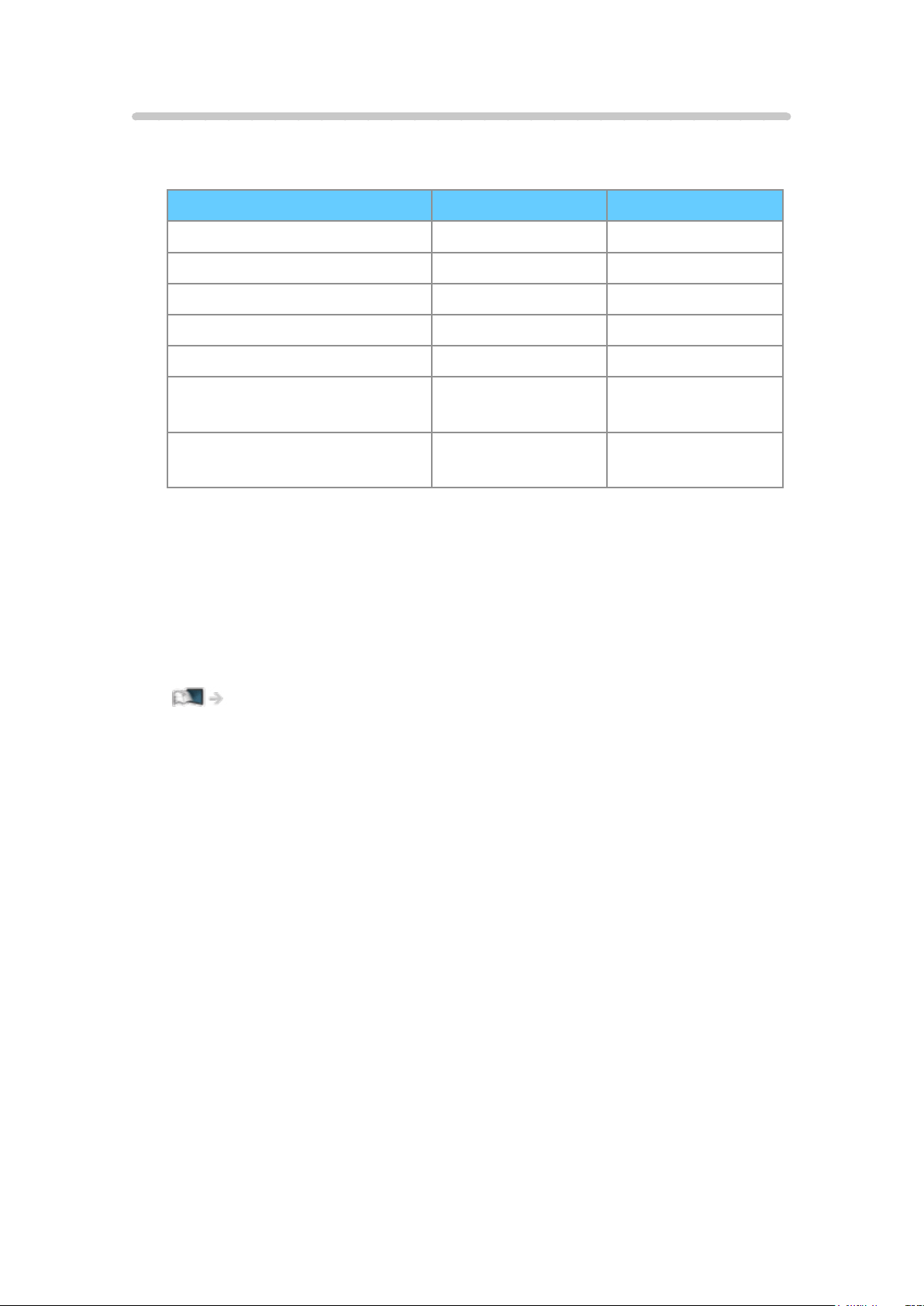
Valid input signals
■ COMPONENT, HDMI
Signal name COMPONENT HDMI
525 (480) / 60i, 60p ○ ○
625 (576) / 50i, 50p ○ ○
750 (720) / 60p, 50p ○ ○
1 125 (1 080) / 60i, 50i ○ ○
1 125 (1 080) / 60p, 50p, 24p ○
3 840 × 2 160 / 60p, 50p,
30p, 25p, 24p
○
4 096 × 2 160 / 60p, 50p,
30p, 25p, 24p
○
○:Applicableinputsignal
= Note =
●
Signals other than above may not be displayed properly.
●
The above signals are reformatted for optimal viewing on your display.
●
For details of valid 4K format
Watching > 4K resolution > Valid 4K format
- 65 -

For best picture
Viewing Mode
[Some features are not available on all models. Available menu items are displayed on
your TV screen.]
1. Display the menu with MENU.
2. Select Picture > Viewing Mode and press OK to access.
3. Select the mode and press OK to set.
Viewing Mode
(Dynamic / Normal / Cinema / THX Cinema / THX Bright Room / True Cinema
/ Custom / Professional1 / Professional2)
Selects your favourite picture mode for each input.
Dynamic:
Improves contrast and sharpness for viewing in a bright room.
Normal:
Normal use for viewing in a normal lighting condition.
Cinema:
Improves the performance of contrast, black and colour reproduction
for watching movies in a darkened room.
THX Cinema
:
Reproduces the original image quality precisely in a darkened room.
●
Not valid in 3D mode
THX Bright Room
:
Reproduces the original image quality precisely in a bright room.
●
Not valid in 3D mode
True Cinema:
Reproduces the original image quality precisely without any revision.
Custom:
Adjusts each menu item manually to suit your favourite picture quality.
Professional1 / 2:
Allows you to set and lock the professional picture settings.
Watching > For best picture > Advanced Settings
●
If a certified professional dealer sets these modes, Professional1
and Professional2 may be displayed as isf Day and isf Night.
- 66 -

●
The following items can be adjusted and stored for each mode.
Backlight / Contrast / Brightness / Colour / Tint / Sharpness / Colour
Temperature / Vivid Colour / Colour Remaster / Rec.2020 Colour
Remaster / Reversal Film Effect / Adaptive Backlight Control / Ambient
Sensor / Noise Reduction / MPEG Remaster / Resolution Remaster /
Dynamic Range Remaster / Intelligent Frame Creation
●
You can set Viewing Mode in 2D and 3D mode for each.
: THX modes are used to mirror the picture settings used by professional
filmmakers, faithfully reproducing the image quality of THX Certified
movies. THX Certified movies have the THX logo on the disc. THX modes
are not available for photo content.
- 67 -

Ambient Sensor
1. Display the menu with MENU.
2. Select Picture > Ambient Sensor and press OK to access.
3. Select On / Off and press OK to set.
Ambient Sensor
(On / Off)
●
Automatic Brightness Control function
Adjusts picture settings automatically depending on ambient lighting
condition.
- 68 -

Aspect
Change the aspect ratio (image size) with ASPECT.
■ To change the aspect ratio manually
1. Display Aspect Selection with ASPECT.
2. Select the mode and press OK to set.
●
You can also change the mode pressing ASPECT.
(Press repeatedly until you reach the desired mode.)
16:9:
Directly displays the image at 16:9 without distortion (anamorphic).
4:3:
Displays the image at the standard 4:3 without distortion.
Zoom:
Displays a 16:9 letterbox or 4:3 image without distortion.
V Full:
Displays the image enlarged vertically to fit the screen without distortion.
●
For DCI 4K format
= Note =
●
Display the image (TV, external input, etc.) full-screen to use this function
completely.
●
Aspect mode can be memorised separately for SD (Standard definition)
and HD (High definition) signals.
●
Aspect cannot be changed in teletext service and 3D format signals.
●
Aspect is fixed to 16:9 in the following conditions:
– 4K content except DCI 4K
– Game Mode is set to On.
– 1080p Pixel by 4pixels is set to On.
– 1080p Pure Direct is set to On.
– 4K Pure Direct is set to On.
●
Aspect cannot be changed in 3D format signals.
- 69 -

Basic settings
[Some features are not available on all models. Available menu items are displayed on
your TV screen.]
1. Display the menu with MENU.
2. Select Picture and press OK to access.
3. Select one of the following items and press OK to access.
Backlight / Contrast / Brightness / Colour / Tint / Sharpness / Colour
Temperature / Vivid Colour / Colour Remaster / Rec.2020 Colour
Remaster / Reversal Film Effect / Adaptive Backlight Control / Resolution
Remaster /Dynamic Range Remaster / Intelligent Frame Creation
4. Set the item and press OK to store.
Backlight, Contrast, Brightness, Colour, Tint, Sharpness
Adjusts the levels of these options according to your personal preference.
●
Sharpness is not available when 1080p Pixel by 4pixels is set to On.
Colour Temperature
Sets the overall colour tone of the picture (bluer - redder).
Vivid Colour
(On / Off)
Automatically adjusts colours to vivid ones.
Colour Remaster
(Max / Min / Off)
Displays the vivid images with the expanded colour gamut.
●
Not valid in the following conditions:
– Photo content
– Viewing Mode is THX mode.
Rec.2020 Colour Remaster
(Max / Min / Off)
Displays the vivid images with the suitable colour gamut.
●
This function is available only for Rec. 2020 and displayed instead of
Colour Remaster.
- 70 -

Reversal Film Effect
(Max / Min / Off)
Provides the picture effect such as the reversal film for photo content.
●
For photo content
●
Not valid when Viewing Mode is THX mode
Adaptive Backlight Control
Automatically controls the level of backlight according to the images.
Resolution Remaster
(Auto / Max / Mid / Min / Off)
Enhances picture resolution to make the image sharper.
●
Not valid in the following conditions:
– Game Mode is set to On.
– 1080p Pixel by 4pixels is set to On.
– 1080p Pure Direct is set to On.
– 4K Pure Direct is set to On.
Dynamic Range Remaster
(On / Off)
Enhances bright areas of the image closer to the original luminance making
improved picture impact.
●
Not valid in the following conditions:
– 3D
– Multi window
– Adaptive Backlight Control is set to Off.
– Contrast Control is set to Off.
Intelligent Frame Creation
(Custom / Max / Mid / Min / Off)
Automatically compensates the picture frame rate and removes juddering
movements to make the images smooth.
●
Depending on the content, images may be noisy. To prevent the noise,
change the setting.
- 71 -

●
Select Custom to set Intelligent Frame Creation manually.
Blur Reduction:
Adjusts the smoothness of camera content to minimise blur.
Film Smooth:
Adjust the smoothness of film content.
Clear Motion:
Makes the moving pictures more clear by controlling the level of
backlight.
●
Not valid in 3D mode
Reset to Defaults:
Resets items for Intelligent Frame Creation.
●
Not valid in the following conditions:
– Game Mode is set to On.
– 1080p Pixel by 4pixels is set to On.
– 1080p Pure Direct is set to On.
– 4K Pure Direct is set to On.
- 72 -

Noise reduction settings
1. Display the menu with MENU.
2. Select Picture > Noise Reduction / MPEG Remaster and press OK to
access.
3. Set the item and press OK to store.
Noise Reduction
(Auto / Max / Mid / Min / Off)
Reduces unwanted picture noise.
●
Not valid in the following conditions:
– Game Mode is set to On.
– 1080p Pixel by 4pixels is set to On.
– 1080p Pure Direct is set to On.
– 4K Pure Direct is set to On.
MPEG Remaster
(Auto / Max / Mid / Min / Off)
Reduces flicker noise in contoured parts of a picture and block noise.
●
Not valid in the following conditions:
– Game Mode is set to On.
– 1080p Pixel by 4pixels is set to On.
– 1080p Pure Direct is set to On.
– 4K Pure Direct is set to On.
- 73 -

Advanced Settings
[Some features are not available on all models. Available menu items are displayed on
your TV screen.]
You can adjust and set up the detailed picture settings when Viewing Mode
is set to Cinema, True Cinema, Custom or Professional1 / 2. The settings in
True Cinema, Custom or Professional1 / 2 can be stored for each input.
Watching > For best picture > Viewing Mode
1. Select the input mode with AV or TV.
2. Display the menu with MENU.
3. Select Picture > Viewing Mode and press OK to access.
4. Select the mode and press OK to set.
Cinema / True Cinema / Custom / Professional1 / Professional2
Cinema / True Cinema / Custom
■ Adjust the detailed picture settings
1. Display the menu with MENU.
2. Select Picture > Advanced Settings and press OK to access.
3. Select one of the following items and press OK to access.
Contrast Control / Colour Gamut / Backlight Black Level / White Balance /
Colour Management / Gamma / Reset Picture Defaults
4. Set the item and press OK to store.
- 74 -

■ Contrast Control
Contrast Control
(Custom / Auto / Off)
Automatically adjusts the detailed contrast settings. Select Custom to set
Contrast Control Setting manually.
Contrast Control Setting
Adaptive Gamma Control:
Adjusts the gamma curve to make the image brighter.
Black Expander:
Gradually adjusts the shades of black.
Clear White Effect:
Makes the white area clearer.
Reset Contrast Control:
Resets items for Contrast Control Setting.
- 75 -

■ Colour Gamut
Colour Gamut
(Native / Rec. 709 / SMPTE-C / EBU / Rec. 2020 / DCI / Auto / Normal)
Reproduces image colour precisely according to the colour gamut standards.
Native:
Displays deep colours by expanding the colour gamut to its maximum.
Rec. 709:
Standard for HD (High definition)
SMPTE-C:
Standard for NTSC
EBU:
Standard for PAL
Rec. 2020:
Provides the suitable colour gamut for Rec. 2020.
DCI:
Provides the suitable colour gamut for DCI 4K.
Auto:
Automatically adjusts the colour gamut according to the input signal.
Normal:
Displays colours according to the colour gamut.
●
Set Colour Remaster, Rec.2020 Colour Remaster and Reversal Film
Effect to Off to use this function.
■ Backlight Black Level
Backlight Black Level
(Bright / Normal / Dim)
Adjust the black expression of the Adaptive Backlight Control.
●
Not valid in the following conditions:
– 3D
– Adaptive Backlight Control is set to Off.
- 76 -

■ White Balance
R-Gain / G-Gain / B-Gain
Adjusts the white balance of bright red / green / blue areas.
R-Cutoff / G-Cutoff / B-Cutoff
Adjusts the white balance of dark red / green / blue areas.
More Detailed Adjustment
Adjusts more detailed items for White Balance.
Input Signal Level:
Adjusts the input signal level.
R-Gain / G-Gain / B-Gain:
Adjusts the detailed white balance of bright red / green / blue areas.
Reset White Balance:
Resets items for More Detailed Adjustment.
Reset White Balance
Resets White Balance to the default settings.
- 77 -

■ Colour Management
R-Hue / R-Saturation / R-Luminance
Adjusts the picture hue / saturation / luminance of red areas.
G-Hue / G-Saturation / G-Luminance
Adjusts the picture hue / saturation / luminance of green areas.
B-Hue / B-Saturation / B-Luminance
Adjusts the picture hue / saturation / luminance of blue areas.
More Detailed Adjustment
Adjusts more detailed items for Colour Management.
C-Hue / M-Hue / Y-Hue:
Adjusts the picture hue of cyan / magenta / yellow areas.
C-Saturation / M-Saturation / Y-Saturation:
Adjusts the saturation of cyan / magenta / yellow areas.
C-Luminance / M-Luminance / Y-Luminance:
Adjusts the luminance of cyan / magenta / yellow areas.
Reset Colour Management:
Resets items for More Detailed Adjustment.
Reset Colour Management
Resets Colour Management to the default settings.
- 78 -

■ Gamma
Gamma
Switches the gamma curve.
●
Please note the numerical values are reference for the adjustment.
More Detailed Adjustment
Adjusts more detailed items for Gamma.
Input Signal Level:
Adjusts the input signal level.
Gain:
Adjusts the gain of gamma for selected signal level.
Reset Gamma:
Reset items for More Detailed Adjustment.
Reset Gamma
Reset Gamma to the default settings.
■ Reset Picture Defaults
Reset Picture Defaults
Resets Advanced Settings to the default settings.
- 79 -

Option Settings
[Some features are not available on all models. Available menu items are displayed on
your TV screen.]
1. Display the menu with MENU.
2. Select Picture > Option Settings and press OK to access.
3. Select one of the following items and press OK to access.
Game Mode / Film Cadence Mode / 1080p Pure Direct / 4K Pure Direct /
1080p Pixel by 4pixels / HDMI Content Type / HDMI EOTF Type / HDMI
Colorimetry Type / HDMI RGB Range / HDMI YCbCr Range / 3D-COMB
4. Set the item and press OK to store.
Game Mode
(On / Off)
Provides suitable images for fast response signals when playing games.
●
Not valid in the following conditions:
– TV mode
– 1080p Pixel by 4pixels is set to On.
– 1080p Pure Direct is set to On.
– 4K Pure Direct is set to On.
●
To display a continuous record of time spent using Game Mode, set
Playing Time Display.
Film Cadence Mode
(Auto / On / Off)
Improves vertical resolution for movie images.
●
This function is available for interlaced signals (except in Network services
or when Game Mode is set to On).
●
This function is available for interlaced signals (except in the mode of multi
window, Network services or when Game Mode is set to On).
- 80 -

1080p Pure Direct
(On / Off)
Reproduces the original image quality in detail for 1080p (HDMI) input signal.
●
Not valid in the following conditions:
– 3D
– Multi window
– 1080p Pixel by 4pixels is set to On.
4K Pure Direct
(On / Off)
Reproduces the original image quality in detail for 4K (HDMI) input signal.
●
Not valid in the following conditions:
– 3D
– Multi window
1080p Pixel by 4pixels
(On / Off)
Displays like pixel by pixel to make the image sharper for 1080p signal.
●
For HDMI
●
Not all image may be displayed as pixel by pixel precisely.
●
Not valid in the following conditions:
– 3D
– Multi window
HDMI Content Type
(Graphics / Photos / Auto / Off)
Adjusts the picture settings of each HDMI input according to the selected
content type.
Auto:
Automatically adjusts the picture settings according to the received
HDMI content if the connected equipment supports HDMI Content
Type.
●
To set the availability of each content type for Auto mode, select Auto
Detail Setting.
●
For HDMI
- 81 -

HDMI EOTF Type
(Auto / Traditional gamma / ST.2084)
Selects the EOTF type for each HDMI input.
●
For HDMI
HDMI Colorimetry Type
(Auto / Rec. 601 / Rec. 709 / Rec. 2020)
Selects the colourimetry type for each HDMI input.
●
For HDMI
HDMI RGB Range
(Auto / Full / Normal)
Adjusts the black level of the image for each HDMI input.
●
When the black level is not suitable, select Full.
●
For HDMI
HDMI YCbCr Range
(Full / Normal)
Adjusts the black level of the image in the YCbCr signal for each HDMI input.
●
For HDMI
3D-COMB
(On / Off)
Makes still or slow moving pictures more vivid.
●
Occasionally, while viewing still or slow moving pictures, colour patterning
may be seen. Set to On to display sharper and more accurate colours.
●
For PAL / NTSC signal reception in TV mode or from composite
connection
- 82 -

Screen Settings
1. Display the menu with MENU.
2. Select Picture > Screen Settings and press OK to access.
3. Select one of the following items and press OK to access.
16:9 Overscan / Zoom Adjustments / Screen Display
4. Set the item and press OK to store.
16:9 Overscan
(On / Off)
Selects the screen area displaying the image for 16:9 aspect.
On:
Enlarges the image to hide the edge of the image.
Off:
Displays the image in the original size.
●
Set to On if noise occurs on the edge of the screen.
●
This function can be memorised for SD (Standard definition) and HD (High
definition) signals respectively.
●
Not valid in the following conditions:
– 4K content
– Photo content
– Game Mode is set to On.
– 1080p Pixel by 4pixels is set to On.
– 1080p Pure Direct is set to On.
– 4K Pure Direct is set to On.
– Multi window
Zoom Adjustments
Adjusts the vertical position and size when aspect is set to Zoom.
●
Not valid in the following conditions:
– 4K content
– Multi window
– 3D
- 83 -

Screen Display
(On / Off)
Turns the screen off when you select Off.
●
This function is effective in reducing power consumption when listening to
the sound without watching the TV screen.
●
Press any buttons (except Standby On / Off switch) to turn the screen on.
- 84 -
Lock Settings [This feature is available depending on your model.]
[Available menu items are displayed on your TV screen.]
Locks the settings of Professional1 / 2 for each input.
●
Select Professional1 / Professional2 in Viewing Mode in advance.
Watching > For best picture > Viewing Mode
1. Display the menu with MENU.
2. Select Picture > Lock Settings and press OK to access.
3. Enter the PIN number (4 digits) with Numeric buttons.
●
Enter the PIN number twice at first setting.
●
Make a note of the PIN number in case you forget it.
4. Select Adjustment Lock and press OK to access.
5. Select On and press OK to set.
●
The following items can be locked.
Backlight / Contrast / Brightness / Colour / Tint / Sharpness / Colour
Temperature / Vivid Colour / Adaptive Backlight Control / Resolution
Remaster / Dynamic Range Remaster / Advanced Settings / Reset Picture
Defaults
■ To change the PIN number
1. Select Change PIN and press OK to access.
2. Enter a new PIN number twice with Numeric buttons.
- 85 -

Copy Adjustment
[Some features are not available on all models. Available menu items are displayed on
your TV screen.]
Copies the picture settings of True Cinema, Custom, Professional1 or
Professional2 to those of the other input mode or Viewing Mode.
1. Display the menu with MENU.
2. Select Picture > Copy Adjustment > Destination Viewing Mode /
Destination Input and press OK to access.
3. Select the destination to copy to and press OK to set.
4. Select Copy Start and press OK to copy.
5. When a confirmation screen is displayed, select Yes and press OK to set.
= Note =
●
Option Settings, Screen Settings and 3D Settings are not copied.
●
You cannot copy to the locked mode.
- 86 -

For best audio
Sound mode
1. Display the menu with MENU.
2. Select Sound > Mode and press OK to access.
3. Select the mode and press OK to set.
Mode
(Standard / Music / Ambience / User)
Selects your favourite sound mode for each input.
Standard:
Provides the suitable sound quality for all types of scenes.
Music:
Improves sound quality for watching music videos, etc.
Ambience:
Improves spatial effects and provides clear sounds.
User:
Adjusts the sounds manually using the equaliser to suit your favourite
sound quality.
●
The following items can be adjusted and stored for each mode.
Bass / Treble / Surround / Bass Boost
●
For the User mode, Equaliser is available in the Sound Menu instead of
Bass and Treble. Select Equaliser and adjust the frequency.
Watching > For best audio > Basic settings
●
This function is effective only for the sound from TV speakers.
- 87 -

Basic settings
[Some features are not available on all models. Available menu items are displayed on
your TV screen.]
1. Display the menu with MENU.
2. Select Sound and press OK to access.
3. Select one of the following items and press OK to access.
Bass / Treble / Equaliser / Balance / Surround / Bass Boost
4. Set the item and press OK to store.
Bass
Adjusts level to enhance or minimise lower, deeper sound output.
Treble
Adjusts level to enhance or minimise sharper, higher sound output.
Equaliser
Adjusts the frequency level to suit your favourite sound quality.
●
This function is available when Mode is set to User.
●
Select the frequency and adjust the frequency level.
●
To enhance the bass sound, raise the level of the lower frequency. To
enhance the treble sound, raise the level of the higher frequency.
●
To reset the levels of each frequency to the default settings, select Reset
Equaliser Settings and press OK.
●
This function is effective only for the sound from TV speakers.
Balance
Adjusts volume level of right and left speakers.
- 88 -

Surround
(Diffuse Surround / Virtual Surround / Off)
Selects surround sound settings.
Diffuse Surround:
Provides a more progressive enhancer and reverberation to simulate
improved spatial effects.
Virtual Surround:
Provides a dynamic enhancer of width and depth to simulate improved
spatial effects.
●
This function is effective only for the sound from TV speakers.
Bass Boost
(On / Off)
Enhances the effect of bass sounds.
●
This function is effective only for the sound from TV speakers.
- 89 -
Volume settings
1. Display the menu with MENU.
2. Select Sound and press OK to access.
3. Select one of the following items and press OK to access.
Speaker Selection / TV Speaker / Auto Gain Control / Volume Correction /
Speaker Distance to Wall
4. Set the item and press OK to store.
Speaker Selection
(TV / Home Cinema)
Enables controlling the theatre speaker with this TV’s remote control by
pointing at the TV’s signal receiver.
TV:
TV speakers are active.
Home Cinema:
The sound is delivered from theatre speakers. Player theatre, Blu-
ray Disc theatre or Amplifier will be automatically turned on if it is in
Standby mode.
●
The sound of TV speakers is mute. When the equipment is turned
off, TV speakers will be activated.
●
You can use Volume Up / Down and MUTE.
●
This function is available when the theatre speakers supporting VIERA
Link function is connected to this TV.
TV Speaker
(On / Off)
Set to Off when using the external speakers.
Auto Gain Control
(On / Off)
Automatically regulates large sound level differences between channels and
inputs.
- 90 -

Volume Correction
Adjusts the volume of each individual channel or input mode.
Speaker Distance to Wall
(Up to 30cm / Over 30cm)
Compensates for the low frequency sound due to the distance between the
speakers and the wall.
●
If the back space between the TV and wall is within 30 cm, Up to 30cm is
recommended.
●
If the back space between the TV and wall is over 30 cm, Over 30cm is
recommended.
●
This function is effective only for the sound from TV speakers.
- 91 -

Voice Guidance Settings
1. Display the menu with MENU.
2. Select Sound > Voice Guidance Settings and press OK to access.
3. Select one of the following items and press OK to access.
Voice Guidance / Speed / Volume / Language / User Level / Web Browser
4. Set the item and press OK to store.
Voice Guidance
(On / Off)
Set to On to enable voice guidance of the basic features (on-screen
messages, etc.) for visually impaired users.
●
Not valid in multi window mode
Speed
(Fast / Normal / Slow)
Selects the readout speed for the voice guidance.
Volume
(Max / Mid / Min)
Selects the volume for the voice guidance.
Language
Changes language for the voice guidance.
User Level
(Beginner / Expert)
Selects the level of verbosity for the voice guidance.
Web Browser
(On / Off)
Set to On to enable voice guidance of the network content in web browser
function.
= Note =
●
Voice guidance function may not correspond exactly.
- 92 -

Audio Description
1. Display the menu with STTL/AD.
2. Select Audio Description and press OK to access.
3. Select one of the following items and press OK to access.
Audio Description / Volume / Speakers / Audio Selection
4. Set the item and press OK to store.
●
You can also select this function from Audio Description in the Sound
Menu.
Audio Description
(Auto / Off)
Narration settings for visually impaired users
Set to Auto to activate the narration sound track when available on the
broadcast.
●
The availability of audio description sound track is indicated by AD in the
information banner.
●
Not valid in Analogue TV
●
Not valid in multi window mode
Volume
Adjusts the volume for Audio Description.
●
Not valid in Analogue TV
Speakers
(Mix / Standard)
Set to Mix to activate the description sound track from TV speakers.
●
Not valid in Analogue TV
Audio Selection
Selects between alternative languages for sound tracks (if available).
●
This setting is not memorised and it returns to the default setting once you
exit the current programme.
●
Not valid in Analogue TV
- 93 -
Advanced settings
1. Display the menu with MENU.
2. Select Sound and press OK to access.
3. Select one of the following items and press OK to access.
MPX / Digital Audio Preference / SPDIF Selection / HDMI Audio Format /
PCM Optical Level / HDMI Input
4. Set the item and press OK to store.
MPX
Selects multiplex sound mode (if available).
Stereo:
Use this normally.
Mono:
When stereo signal cannot be received
M1 / M2:
Available while mono signal is transmitted
●
For Analogue TV
When you receive the stereo / bilingual sound system, sound output modes
can be selected by using the MPX in the Sound Menu.
●
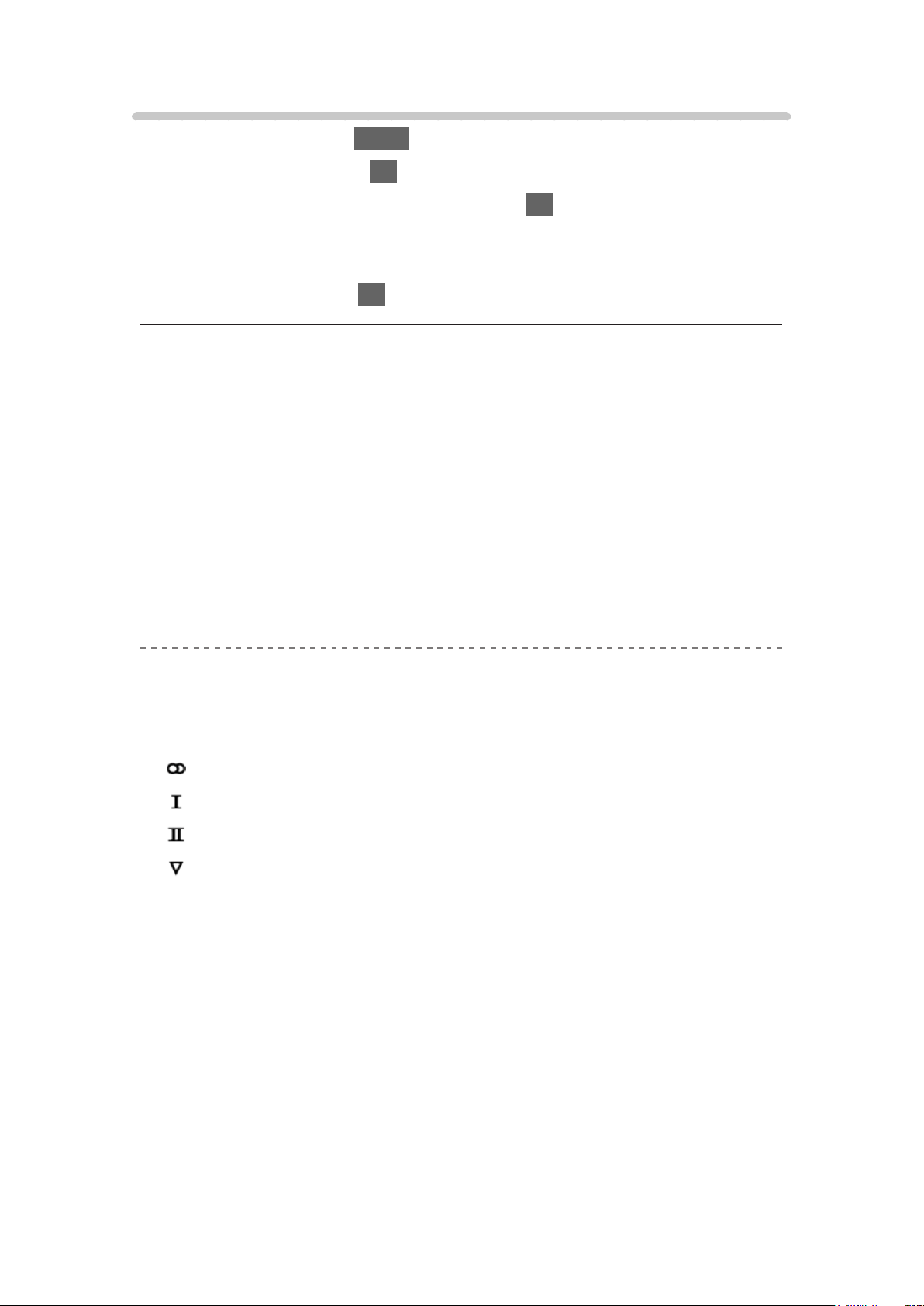
Meanings of mode indicators
: STEREO
: MAIN I
: SUB II
: MONO
- 94 -

■ Available mode indicator for each type of broadcast
●
NICAM - Used in New Zealand, Singapore, Hong Kong, etc.
– Regular broadcast (Standard Audio): No indicator /
– Regular + NICAM MONO I (MAIN I): /
– NICAM STEREO: /
– NICAM DUAL MONO (MAIN I / SUB II): / /
●
A2 (German) - Used in Australia, Malaysia, etc.
– Regular broadcast (Standard Audio): No indicator /
– BILINGUAL or DUAL MONO (MAIN I / SUB II): /
– STEREO: /
= Note =
●
If the stereo signal is poor or the receiving conditions are not optimum or if
STEREO:MONO automatic switching occurs, it is recommended to switch
from STEREO to MONO.
●
Selected mode is not affected when the contents of the receiving signal
change.
●
When the receiving conditions deteriorate, listening will be easier if the
mode is set to the MONO position pressing the Sound Selection button.
●
DUAL, also known as DUAL MONO or as BILINGUAL is not currently
transmitted in some countries.
Digital Audio Preference
(Dolby D / MPEG / HE-AAC)
Selects the initial setting for audio tracks.
Dolby D:
The priority is given to Dolby Digital.
MPEG:
The priority is given to MPEG. (Australia only)
HE-AAC:
The priority is given to HE-AAC. (New Zealand only)
●
Dolby Digital is the method of coding digital signals developed by the
Dolby Laboratories. Apart from stereo (2ch) audio, these signals can also
be multichannel audio.
●
MPEG is an audio compression method that compresses audio to the
smaller size without any considerable loss of audio quality. (Australia only)
- 95 -

●
HE-AAC is a perceptual coding method used to compress digital audio for
efficient storage and transmission. (New Zealand only)
●
Not valid in Analogue TV
SPDIF Selection
(Auto / PCM)
Selects the initial setting for digital audio output signal from DIGITAL AUDIO
OUT and HDMI2 (ARC function) terminals.
●
SPDIF is a standard audio transfer file format.
Auto:
Dolby Digital Plus, Dolby Digital and HE-AAC multi-channel are output
as Dolby Digital Bitstream. MPEG is output as PCM.
PCM:
Digital output signal is fixed to PCM.
●
ARC (Audio Return Channel) is a function of digital audio output using
HDMI cable.
●
For digital TV, video content
Media Player > Video mode > Audio output settings
Network > Videos > Audio output settings
HDMI Audio Format
(Auto / Bitstream / PCM)
Selects the audio format for the HDMI input signal.
Auto:
When the TV speakers are active, audio format is fixed to PCM. When
the sound is delivered from theatre speakers, audio format is fixed to
Bitstream.
Bitstream:
Dolby Digital Plus and Dolby Digital are output as Dolby Digital
Bitstream. Other digital audio output signals are output as PCM.
PCM:
Digital audio signal is output as PCM.
PCM Optical Level
Adjusts the audio level of PCM output from DIGITAL AUDIO OUT and HDMI2
(ARC function) terminals to equalise with that of the other audio types.
- 96 -

TV Guide
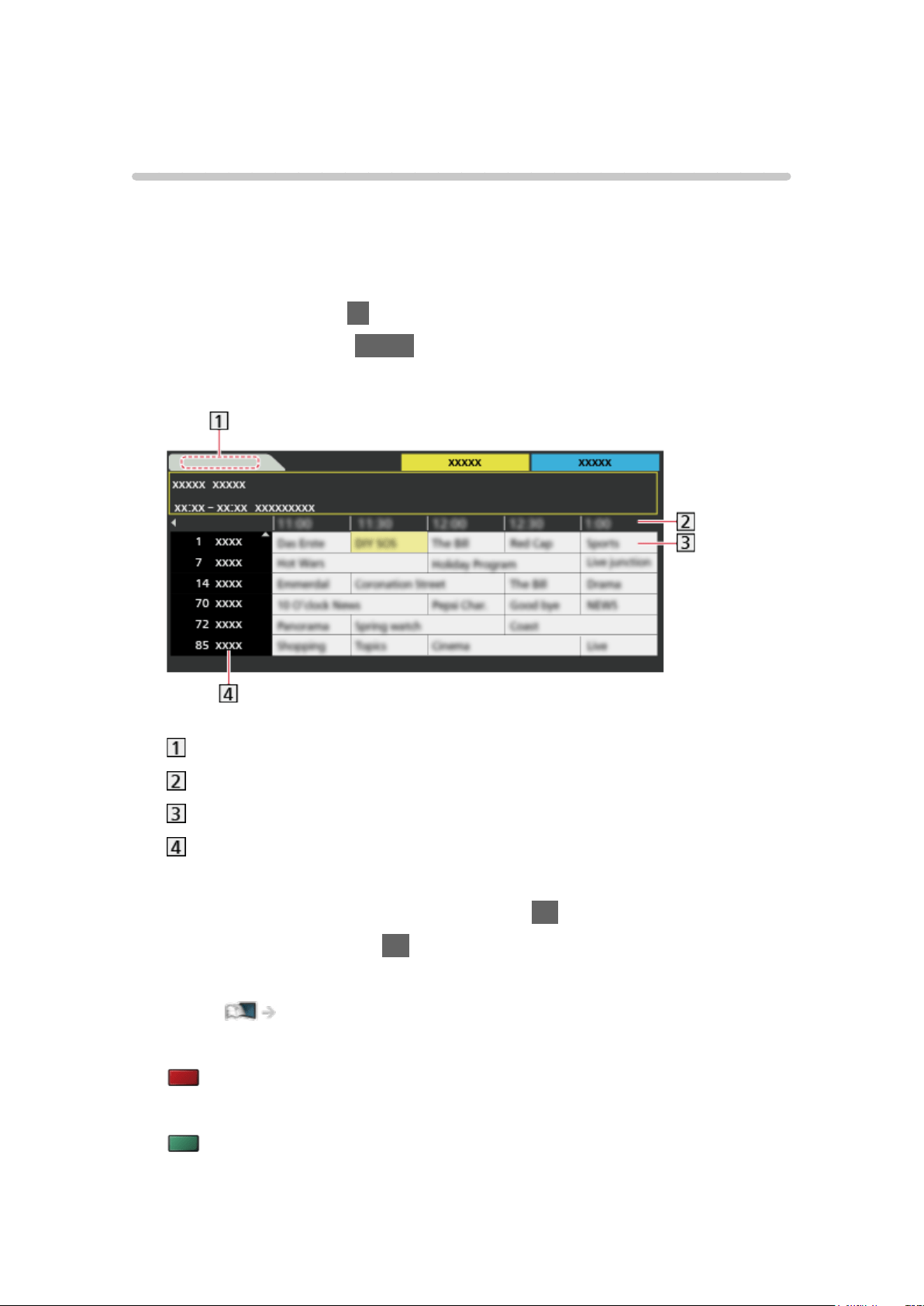
Using TV Guide
TV Guide - Electronic Programme Guide (EPG) provides an on-screen listing
of the programmes currently broadcast and the forthcoming broadcasts over
the next seven days (depending on the broadcaster).
●
Not valid in Analogue TV
1. Select Digital TV with TV.
2. Display TV Guide with GUIDE.
(Example)
Date
Time
Programme
Channel position and name
●
To watch the programme
1) Select the current programme and press OK to access.
2) Select View and press OK to watch.
– To use Timer Programming
Watching > TV Guide > Timer Programming
●
To the previous day
(red)
●
To the next day
(green)
- 98 -

●
To view a channel list of the selected type
1) Display the type list with
(yellow).
2) Select the type and press OK to view.
●
To view a channel list of the selected favourite list
1) Display the favourite list with
(blue).
2) Select the favourite and press OK to view.
– To list favourite channels, set Favourites Edit.
Watching > Tuning and editing channels > Favourites Edit
●
To view more details of the programme
1) Select the programme.
2) Press INFO to view.
– Press again to return to TV Guide.
●
To exit TV Guide
EXIT
= Note =
●
When this TV is turned on for the first time, or the TV is switched off for
more than a week, it may take some time before TV Guide is completely
shown.
- 99 -

Timer Programming
This function allows you to select programmes that you want to record to the
USB HDD.
1. Display TV Guide with GUIDE.
2. Select the forthcoming programme and press OK to access.
●
To check / change / cancel a timer event
Recording > Timer Programming > Editing Timer Programming
●
LED turns to orange in Standby mode when Timer Programming is set.
●
To return to TV Guide
RETURN
●
If you select the current programme, a confirmation screen asking
whether you want to watch or record the programme appears. Select
Timer Programming and press OK to set USB HDD Rec. to record from
the time you finish the timer event setting.
= Note =
●
Not valid in Analogue TV
●
Timer Programming only works reliably if correct time information is
received via the signal from the broadcaster or service provider.
●
No other channels can be selected while recording of Timer Programming
is in progress. [Only for single tuner model]
●
When recording programmes to the USB HDD, be sure to format the USB
HDD and enable it to record in USB Device Setup.
Recording > USB HDD setup
●
To set timer programming events of this TV on the network equipment
(smartphone, etc.) from outside the home network
Recording > Timer Programming > Remote recording
- 100 -
Teletext
Viewing Teletext
For New Zealand
1. Switch to teletext with TEXT.
●
Displays the index page (content varies depending on the broadcaster).
●
Current / sub page numbers are displayed on the top left of the screen.
●
Time / date is displayed on the top right of the screen.
●
Colour bar is displayed on the bottom of the screen.
2. Select the page with Cursor buttons, Numeric buttons or
(coloured buttons).
●
To adjust contrast
1) Press MENU three times to display Contrast.
2) Adjust and press OK to set.
●
To exit teletext
EXIT
■ Reveal hidden data
1. Press MENU.
2. Reveal with
(red).
●
Press again to hide.
■ To view a favourite page stored
Press STTL/AD to view a favourite page.
●
Call up the page stored on (blue). (List mode)
●
Factory setting is “P103” for Digital teletext, “P801” for Analogue teletext.
■ FULL / TOP / BOTTOM
1. Press MENU.
2. Press
(green) to change the layout.
- 101 -
■ Watch TV and teletext in two windows at once
1. Press MENU twice.
2. Set Picture and text to On / Off.
●
Operations can be made only in teletext screen.
■ Store frequently viewed pages in the colour bar (List mode)
1. Press
(coloured buttons) while the page is displayed.
2. Press and hold OK.
●
The stored page number changes to white.
●
To change stored pages
1) Press
(coloured buttons) to change.
2) Enter a new page number with Numeric buttons.
3) Press and hold OK.
■ View sub page
The number of sub pages is displayed on the top of the screen. Press /
to view sub page. (Only when teletext has more than one page.)
●
The number of sub pages varies depending on the broadcaster (up to 79
pages).
●
Searching may take time while you are watching TV.
●
To view a specific sub page
1) Press MENU.
2) Press
(blue).
3) Enter the 4-digit number (e.g. P6, press
).
- 102 -

Teletext mode
For New Zealand
Teletext services are the text information provided by the broadcaster.
●
The features may vary depending on the broadcaster.
1. Display the menu with MENU.
2. Select Setup > Display Settings > Teletext and press OK to access.
3. Select TOP (FASTEXT) / List and press OK to set.
■ TOP mode (For TOP text broadcasting)
TOP is a particular improvement of the standard teletext service that results in
an easier search and effective guide.
●
Fast overview of the teletext information available
●
Easy to use step-by-step selection of the topical subject
●
Page status information on the bottom of the screen
●
Available page up / down
(red) / (green)
●
To select among subject blocks
(blue)
●
To select next subject within the subject block
(yellow)
(After the last subject, it moves to the next subject block.)
■ FASTEXT mode (For FASTEXT broadcasting)
In FASTEXT mode, four differently coloured subjects are situated on the
bottom of the screen.
To access more information about one of these subjects, press the
appropriate coloured button.
This facility enables fast access to information on the subjects shown.
■ List mode
In List mode, four differently coloured page numbers are situated on the
bottom of the screen. Each of these numbers can be changed and stored in
the TV’s memory.
Watching > Teletext > Viewing Teletext
- 103 -

3D [This feature is available depending on your model.]
Note
●
Display the image (TV, external input, etc.) full-screen for viewing 3D.
●
If the room is lit by fluorescent lights (50 Hz) and light appears to flicker
when using the 3D Eyewear, switch off the fluorescent light.
●
Do not apply pressure on or scratch the lens of the 3D Eyewear.
●
3D content will not be correctly visible if the 3D Eyewear is worn upside
down or back-to-front.
●
When viewing 3D images, make sure your eyes are in a horizontal position
where double vision does not occur.
●
Do not wear the 3D Eyewear for purposes other than viewing 3D images.
Liquid crystal displays (such as computer screen, digital clock, calculator,
etc.) may be difficult to see while wearing the 3D Eyewear.
●
Do not use the 3D Eyewear as a substitute for sunglasses.
●
3D effects may be perceived differently depending on the person.
- 104 -

Viewing 3D
[Available menu items are displayed on your TV screen.]
You can enjoy viewing 3D images of content or programmes supporting 3D
effects by wearing the 3D Eyewear.
●
This TV supports Frame Sequential, Side by Side and Top and Bottom 3D
formats.
– Frame Sequential is the 3D format that the images for right and left
eyes are recorded with high definition quality and alternately played
back.
●
3D content in 4K format is not supported.
1. Turn the 3D Eyewear on and put it on.
●
Use Panasonic 3D Eyewear supporting Bluetooth wireless technology
for active shutter 3D.
●
Connection status and battery status are displayed on the bottom right
of the screen.
2. View the 3D images.
●
Safety precautions will be displayed when you first watch the 3D image.
Select Yes or No to continue to view 3D images.
If you select Yes, this message will be displayed again in the same
condition after Mains Power On / Off switch is next turned on. Select
No if you do not want to display this message again.
●
Turn off the 3D Eyewear after using it.
■ Playing back 3D-compatible Blu-ray disc (Frame Sequential)
●
Connect the 3D-compatible player via a fully wired HDMI compliant cable.
(If you use the non 3D-compatible player, the images will be displayed in
2D mode.)
●
If the input mode is not switched automatically, select the input mode
connected to the player.
Watching > External equipment > Watching external input
■ 3D-supported broadcast
●
Please consult the suppliers of content or programmes for availability of
this service.
- 105 -

■ 3D photos and 3D videos taken by 3D-compatible Panasonic
products
●
Available in Media Player and Network services
Media Player
Network
■ 2D images converted to 3D
●
Set to 2D→3D mode in 3D Mode Selection.
Watching > 3D > 3D Mode Selection
●
Content in 4K format cannot be converted to 3D mode.
- 106 -

3D Mode Selection
[Available menu items are displayed on your TV screen.]
You can change the viewing mode for 3D image.
1. Display the menu with MENU.
2. Select Picture > 3D Settings > 3D Mode and press OK to access.
3. Select the mode and press OK to set.
●
Items for 3D Mode Selection vary depending on the condition.
Original:
Displays the source image as it is.
●
Use to identify the format type of the source image.
Watching > 3D > Source image format
Side by Side - 3D / Top and Bottom - 3D:
Displays the mode you select.
●
For digital signals
2D→3D:
Converts 2D images into 3D.
●
Please note the 3D images appear slightly different from the originals.
●
Using this function for profit-making purposes, or publically showing
images converted from 2D to 3D in places such as shops, hotels,
etc. may infringe on the rights of the copyright holder protected under
copyright law.
- 107 -
3D Settings
[Available menu items are displayed on your TV screen.]
1. Display the menu with MENU.
2. Select Picture > 3D Settings and press OK to access.
3. Select one of the following items and press OK to access.
3D Mode / 2D→3DDepth / 3D Adjustment / L/R Picture Swap / Safety
Precautions
4. Set the item and press OK to store.
●
To exit the menu screen
EXIT
3D Mode
Selects the 3D format manually.
Watching > 3D > 3D Mode Selection
2D→3DDepth
(Max / Mid / Min)
Selects a level of 3D-image depth for viewing converted 2D images.
3D Adjustment
(On / Off)
Adjusts the 3D effect while viewing 3D image (except in 2D→3D mode).
Set to On to enable Effect setting.
●
When setting to On, a safety precaution message will appear. Read it
carefully and press RETURN to go to Effect setting.
●
When adjusting, take into account that the vision of 3D images varies
among different individuals.
Effect:
Adjusts the 3D depth according to the content or to your preference.
(This setting is not memorised when changing the input mode or
channel.)
- 108 -

L/R Picture Swap
(L/R (Normal) / R/L (Reversed))
Swaps pictures for left eye and right eye (except in 2D→3D mode).
Select R/L (Reversed) if you feel that the sense of depth is unusual.
●
This setting is not memorised when changing the input mode or channel.
Safety Precautions
Displays the precautions for viewing 3D images.
= Note =
●
Display the image (TV, external input, etc.) full-screen to use this function
completely.
- 109 -
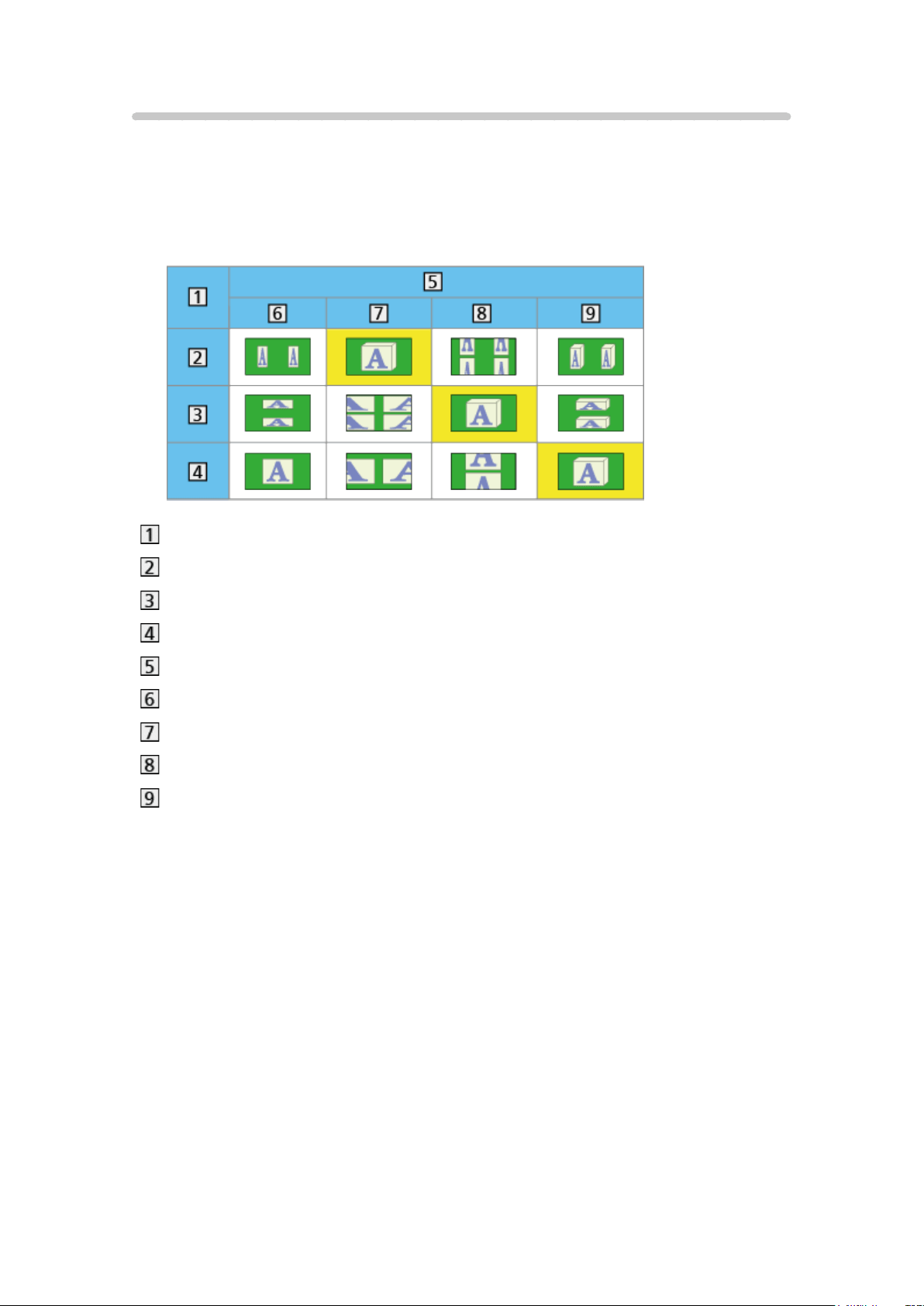
Source image format
If the picture appears to be abnormal, refer to the table of images that can be
seen for each 3D Mode Selection and each source image format, and select
the correct 3D mode.
●
3D images are displayed correctly with the appropriate 3D formats shown
in the yellow boxes below.
Source image format
Side by Side
Top and Bottom
Normal format (2D)
3D Mode Selection
Original
Side by Side - 3D
Top and Bottom - 3D
2D→3D
●
Depending on the player or broadcast, the image may be different from the
above illustrations.
- 110 -

Tuning and editing channels
Setting menu
[Some features are not available on all models. Available menu items are displayed on
your TV screen.]
You can retune channels, create your favourite channel lists, skip unwanted
channels, etc.
1. Select Satellite TV, Digital TV or Analogue TV with TV.
2. Display the menu with MENU.
3. Select Setup > Tuning Menu and press OK to access.
Satellite TV Tuning Menu / Digital TV Tuning Menu / Analogue TV Tuning
Menu
●
The menu name varies depending on the TV mode.
4. Select one of the functions and press OK to access.
Favourites Edit / Channel List / Auto Tuning / Manual Tuning / Update
Channel List / New Channel Message / Signal Condition / Add TV Signal
- 111 -
Favourites Edit
■ List favourite digital TV channels
Create your favourite channel lists from various broadcasters (up to 4:
Favourites 1 to 4).
The favourites lists are available for switching in the information banner and
the TV Guide screen.
Watching > Basic > Information banner
Watching > TV Guide > Using TV Guide
1. Select Favourites Edit and press OK to access.
2. Select a channel to list from all digital TV channels.
●
appears when the channel is encrypted.
●
To display other favourites
(green)
3. Press OK to add it to favourites list.
●
To add all channels to the list
(yellow)
4. Press RETURN and OK to store.
■ Edit favourites list
You can edit the favourites list while the cursor is on the channel in the
favourites list.
●
To move the channel
1) Select the channel.
2) Press
(green).
3) Select the new position with Cursor buttons or Numeric buttons.
4) Press (green) to store.
●
To delete the channel
1) Select the channel.
2) Press OK to delete.
– Press
(yellow) to delete all channels.
- 112 -

●
To name the favourites
1) Press
(red).
2) Enter characters (maximum 10 characters) with Cursor buttons or
Numeric buttons, and press OK to set.
3) Press RETURN to store.
= Note =
●
Channel numbers are defined by the broadcaster and cannot be changed.
●
Hidden channels can be selected but not viewed.
- 113 -
Channel List
■ Skip unwanted channels
You can hide (skip) unwanted channels. The hidden channels cannot be
displayed except in this function.
1. Select Channel List and press OK to access.
2. Select a channel.
3. Press OK to set Reveal / Hide (skip).
: Reveal
: Hide (skip)
●
To reveal all channels (if available)
(yellow)
■ Edit channels
●
To swap / move the channel position (if available)
1) Press
(green) to edit.
2) Set the new position with Cursor buttons or Numeric buttons, and press
(green) to store.
●
To retune each channel (Manual Tuning)
(red)
Watching > Tuning and editing channels > Manual Tuning
●
To rename the channel name (Analogue TV)
1) Press
(blue) to edit.
2) Enter characters (maximum 5 characters) with Cursor buttons or
Numeric buttons, and press OK to set.
3) Press RETURN to store.
= Note =
●
If a VCR is connected only with the RF cable in Analogue TV, edit VCR.
- 114 -

Auto Tuning
[Some features are not available on all models. Available menu items are displayed on
your TV screen.]
Automatically retunes the channels received in the area.
●
All the previous tuning settings are erased.
●
Search begins in the order from the lower channels to the higher channels.
●
Child Lock PIN number is required to retune locked channels.
Functions > Child Lock > PIN number
●
If tuning has not been done completely, set Manual Tuning.
Watching > Tuning and editing channels > Manual Tuning
■ Satellite TV
1. Select Antenna System and press OK to access.
2. Select One LNB / Dual LNB / DiSEqC 1.0 and press OK to set.
One LNB:
Compatible with single LNB.
Dual LNB:
Up to 2 LNBs can be controlled.
DiSEqC 1.0:
Up to 4 LNBs can be controlled.
●
You can receive several satellites if you have DiSEqC control antenna
system.
●
This TV supports DiSEqC Version 1.0.
3. Select LNB Configuration and press OK to access.
4. Select LNB / Satellite and set.
1) Set LNB first.
– If you set to One LNB, LNB is not selectable. LNB Power can be set
for the electrical output.
– If you set to Dual LNB, select from LNB AA and AB.
– If you set to DiSEqC 1.0, select from LNB AA, AB, BA and BB.
– If you set to Dual LNB and use 22 KHz switch, set Tone Switch to
On.
2) Set Satellite for the selected LNB.
– Select No Satellite if you do not know the connected satellite.
– Select User defined to set Test Transponder Frequency manually.
- 115 -

5. Press RETURN to store.
6. Select Auto Tuning and press OK to access.
7. Select Search Mode / Scan Mode and press OK to access.
8. Set the item and press OK to store.
●
Scan Mode
Full:
Scans the whole frequency range.
Quick:
Scans the suitable frequency for the selected satellite.
●
After settings, select Start scan and press OK to access.
9. A confirmation screen is displayed and press OK to access.
10. Select the region and press OK to start Auto Tuning. (Settings are made
automatically.)
●
When the operation is completed, the channel at the lowest position will
be displayed.
●
If no satellite channel is found, set LNB Band Frequency in LNB
Configuration to suit your environment.
■ Digital TV / Analogue TV
1. Select Auto Tuning and press OK to access.
2. A confirmation screen is displayed and press OK to start Auto Tuning.
(Settings are made automatically.)
●
When the operation is completed, the channel at the lowest position will
be displayed.
●
This setting is applicable only for the selected TV mode.
■ Auto Tuning using the buttons on the TV
1. Press and hold INPUT/OK/HOLD for MENU button for 3 seconds to
display the menu.
2. Set Auto Tuning with following control panel buttons.
●
Move the cursor / select from a range of options / select the menu item
●
Access the menu / store settings after adjustments have been made or
options have been set with INPUT/OK/HOLD for MENU button
- 116 -

Manual Tuning
[Some features are not available on all models. Available menu items are displayed on
your TV screen.]
■ Satellite TV
●
Please consult the received satellite broadcasting companies for the
setting.
1. Select Transponder Frequency / Symbol Rate / Polarisation / Modulation /
Service ID and set with Cursor buttons or Numeric buttons.
2. Select Start scan and press OK to search.
●
Depending on the search mode you select in Auto Tuning, this function
may not be available.
■ Digital TV
Normally use Auto Tuning or Update Channel List to retune Digital TV
channels.
If tuning has not been done completely or for adjusting the direction of the
aerial, use this function.
●
All Digital TV channels are added to Channel List.
1. Select physical channel and offset.
2. Press OK to search.
■ Analogue TV
Set Analogue TV channel manually after Auto Tuning.
1. Select the channel position with Numeric buttons.
2. Select the channel with Channel Up / Down.
3. Set Manual Tuning.
4. Select Store and press OK to set.
●
If a VCR is connected only with the RF cable, select channel position 0.
- 117 -

Update Channel List
[Some features are not available on all models. Available menu items are displayed on
your TV screen.]
By updating the Satellite TV or Digital TV channel list, you can add new
channels, delete removed channels or change channel names and positions
automatically.
●
The channel list is updated while keeping your settings in Favourites Edit,
Channel List, Child Lock, etc.
●
Depending on the signal condition, the update may not work properly.
●
To update Satellite TV channels, set Search Mode and Scan Mode before
updating.
1) Select Search Mode / Scan Mode and press OK to access.
2) Set each item and press OK to store.
3) After settings, select Start scan and press OK to access.
4) Select the region and press OK to search.
- 118 -

New Channel Message
For Australia
Selects whether to give a notification message when a new digital TV channel
is found or not.
●
When a notification message appears, you can perform Update Channel
List pressing OK.
●
Sometimes, mainly during summer months at night, the TV may pick up
distant TV stations outside your broadcast due to favourable short term
ionosphere conditions. In such circumstances when you press OK, the TV
does not add any new channels. This is normal.
- 119 -

Signal Condition
Selects a channel and checks the signal condition with indicators.
●
A good Signal Strength is not an indication of suitable signal reception.
●
To change the channel
●
Not valid in Analogue TV
- 120 -

Add TV Signal
Adds the TV mode.
●
Allows you to add any TV mode which was skipped during initial Auto
Tuning.
- 121 -
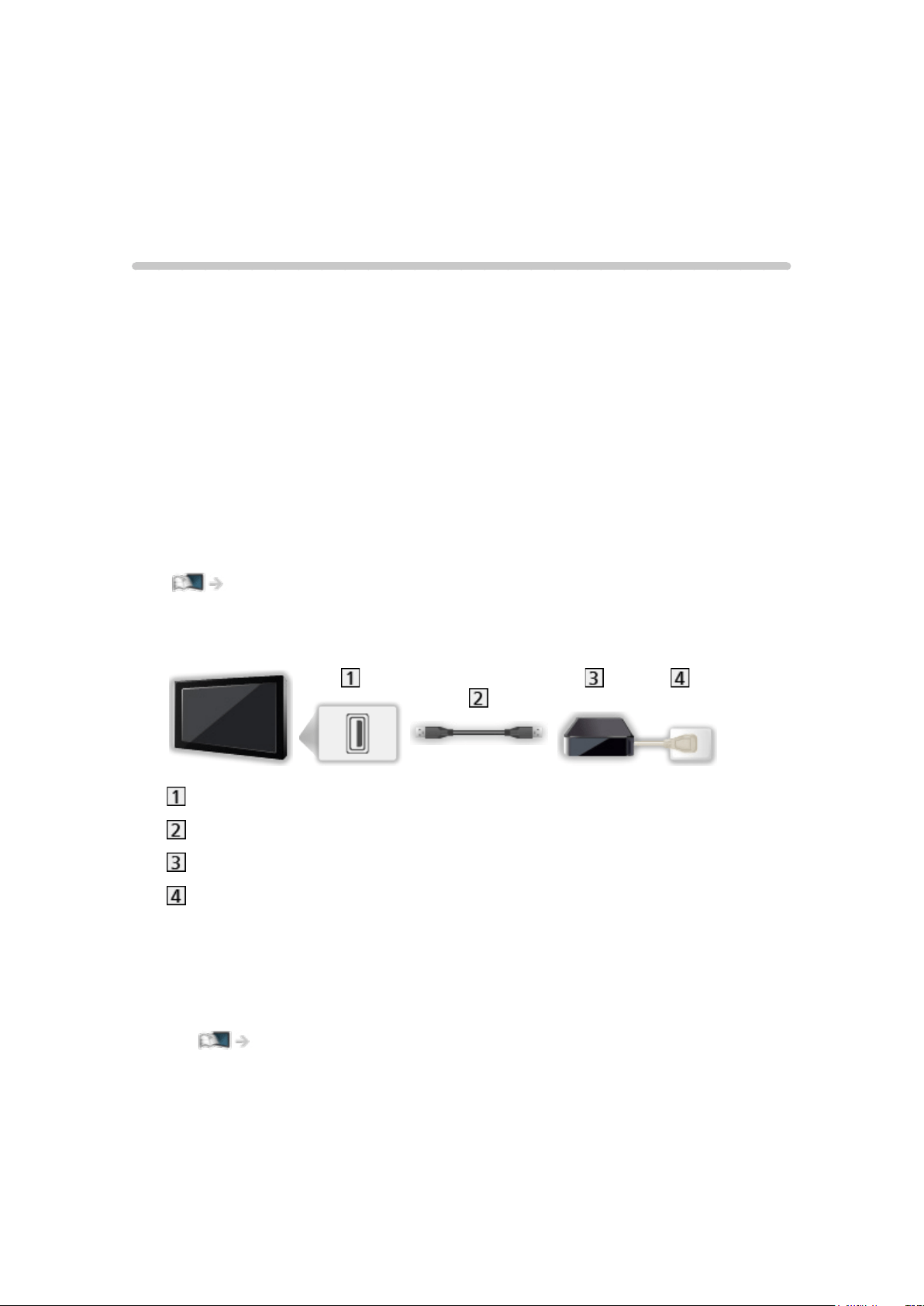
Recording
USB HDD setup
Preparations
You can record the digital TV programmes to the connected USB HDD and
enjoy playing back in various ways.
●
Prepare the USB HDD for the exclusive use of recording with this TV.
●
Depending on the model, it may be necessary to remove the terminal
cover / cable cover before connecting or disconnecting cables.
●
Use USB 1 or USB 3 port for connecting the USB HDD. [Refer to the
terminal indication of TV set.]
●
Be sure to connect the USB HDD to the mains socket.
●
To remove the USB HDD safely from the TV, perform Safely remove USB
in USB Device Setup.
Recording > USB HDD setup > Setting for USB HDD
●
Check the terminal type and cable plugs are correct for connection.
USB port
USB cable
USB HDD
Mains socket
= Caution =
●
All data in the USB HDD will be erased in the following cases:
– When formatting the USB HDD with this TV
Recording > USB HDD setup > Setting for USB HDD
– When formatting the USB HDD to use on PC, etc.
●
When the TV is repaired due to a malfunction, you may have to format
the USB HDD again with this TV to use it. (All data will be erased after
formatting.)
- 122 -

●
To use the USB HDD with your PC after recording with this TV, format it
again on your PC. (Special operations or tools may be necessary to format
on your PC. For details, read the manual of the USB HDD.)
●
The data recorded on the USB HDD with this TV can only be played back
on this TV. You cannot play back its content with another TV (including the
TV of the same model number) or any equipment.
●
Do not turn the TV off, pull out the mains plug or remove the USB HDD
during operation (formatting, recording, etc.). Doing so may cause
malfunction of the device or damage the recorded data. (An electric
outage may also be a cause of malfunction.)
= Note =
●
Analogue TV programme cannot be recorded on the USB HDD.
●
The data broadcasting (MHEG, etc.), radio broadcasting are not recorded,
and also the recording function does not work during the period without
any signal.
●
Not all the programmes can be recorded depending on the broadcaster
and service provider.
●
You cannot copy the recorded TV programmes of the USB HDD.
●
The recorded content may not be played back properly depending on the
progress of recording. [Only for dual tuner model]
●
For details of the USB HDD
Recording > Technical information > USB HDD
- 123 -

Setting for USB HDD
Format and set up the USB HDD with this TV in order to use it for recording.
All the USB devices recognised as a mass storage device are listed.
●
Please note that USB HDD will be formatted and all data in it will be
erased after this setup.
●
Before setting, connect the USB HDD and be sure to turn on the USB
HDD.
Recording > USB HDD setup > Preparations
1. Display the menu with MENU.
2. Select Setup > USB Device Setup and press OK to access.
3. Select the USB HDD for recording and press OK to start setup.
●
Some USB HDD may not be displayed.
●
To display information of the highlighted device
INFO
4. When the caution and confirmation screen for using USB HDD is
displayed, select Yes and press OK to proceed.
5. When a confirmation screen of USB HDD name is displayed, select Yes
and press OK to set.
●
The name for the USB HDD is created automatically. If you want to edit
the name, select Yes.
1) Enter characters with Cursor buttons or Numeric buttons, and press
OK to set.
2) Press RETURN to store.
6. When a confirmation screen to enable USB HDD for recording is
displayed, select Yes and press OK to set.
●
If another formatted USB HDD for recording already exists, this
confirmation screen will be displayed to switch to enable this USB HDD
for recording.
●
Mode of the USB HDD
: The USB HDD is available for recording / playing back.
Only one USB HDD on the list is available for recording.
: The USB HDD is available for playing back.
- 124 -

●
To change the mode
OK
●
To edit USB HDD name
(green)
●
To format
(red)
●
To remove the USB HDD safely from the TV
(yellow)
= Note =
●
You can only select one USB HDD for recording at a time.
●
You cannot change the settings for the USB HDD while recording is in
progress.
- 125 -

Recording current programme
One Touch Recording
Records the current programme to the USB HDD immediately.
●
Confirm the remote control code is “73”.
Watching > External equipment > Operating with TV’s remote control
1. Display the menu with MENU.
2. Select Setup > Recording Setup > One Touch Recording and press OK to
access.
3. Select the maximum recording time 30 / 60 / 90 / 120 / 180 (minutes) and
press OK to set.
■ To start One Touch Recording
Press to start.
●
Other channels cannot be selected while recording is in progress. [Only for
single tuner model]
■ To stop recording in progress
Press to stop.
■ To play back or delete the recorded content
Recorded TV programmes can be played back in Media Player.
1. Display Home Screen with HOME.
2. Select Devices and press OK to access.
3. Select USB HDD for recording and press OK to access.
●
Even if One Touch Recording is in progress, you can play back all the
content. (Depending on the USB HDD, playback may not be possible or
the recording may not work properly during playback.)
- 126 -
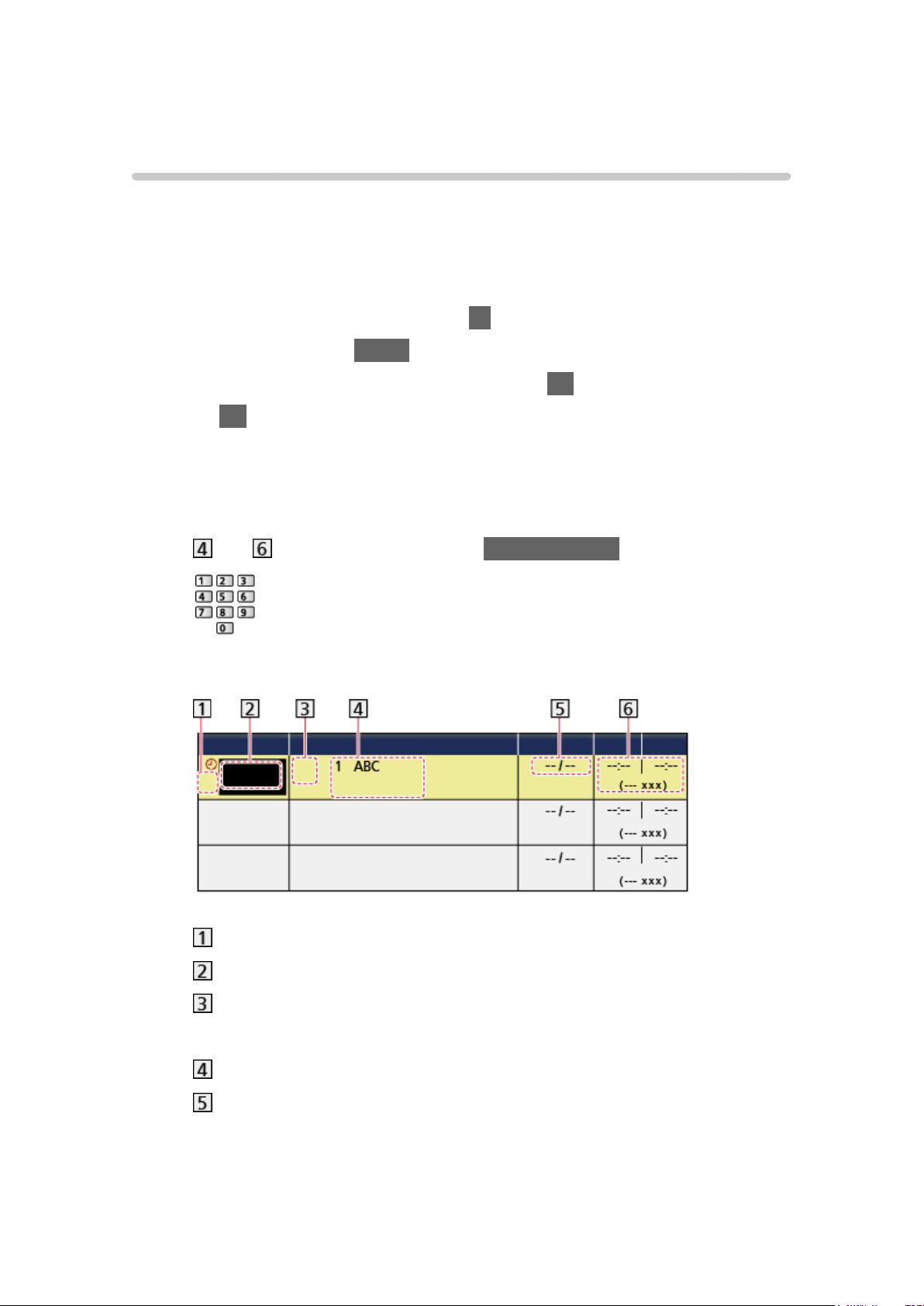
Timer Programming
Setting Timer Programming
[Some features are not available on all models.]
This function allows you to select programmes that you want to record to the
USB HDD.
●
Not valid in Analogue TV
1. Select Satellite TV or Digital TV with TV.
2. Display the menu with MENU.
3. Select Timer > Timer Programming and press OK to access.
4. Press OK to start making the settings.
USB HDD Rec.:
Records the programme to the USB HDD.
5. Select and set the item (channel, date, start time, end time).
●
and can also be entered with Numeric buttons.
(Example)
!: Overlapped timer events
Function (USB HDD Rec.)
D: Digital TV
S: Satellite TV
Channel position, channel name, etc.
Date
– Daily Sun-Sat: Sunday to Saturday
– Daily Mon-Sat: Monday to Saturday
– Daily Mon-Fri: Monday to Friday
- 127 -

– Weekly Sun / Mon / Tue / Wed / Thu / Fri / Sat: Same time on the
same day every week
Start time / End time / Duration (automatic display)
6. Store with OK.
- 128 -
Editing Timer Programming
[Some features are not available on all models.]
1. Display the menu with MENU.
2. Select Timer > Timer Programming and press OK to access.
3. Select the event.
●
To change a timer event
OK
– Correct as necessary.
Recording > Timer Programming > Setting Timer Programming
●
To delete a timer event
1) Press
(red).
2) Press OK to delete.
■ To adjust the clock
If you cannot get the time information, set Clock Settings manually.
1. Display the menu with MENU.
2. Select Timer > Clock Settings > Mode and press OK to access.
3. Select Manual and press OK to set.
4. Set Date / Time with Cursor buttons or Numeric buttons.
●
Clock Settings are reset when the TV is turned off with Mains Power On /
Off switch.
Watching > Basic > Adjusting time
■ To stop recording
1. Press .
2. Select the programme and press OK to access (when 2 recordings are in
progress).
3. Select Yes and press OK to stop.
■ To play back or delete the recorded content
Recorded TV programmes can be played back in Media Player.
1. Display Home Screen with HOME.
- 129 -


Remote recording
You can set timer programming with the network equipment (smartphone,
etc.) from outside the home network using TV Anytime function.
●
Ensure the network connections and network settings are completed.
Network > Network connections
Network > Network settings
●
Set TV Anytime to On to use this function.
Functions > TV Anytime > TV Anytime Settings
●
To use TV Anytime function, you need to install the application for
controlling VIERA on your smartphone.
Support > FAQs > Detailed information
For the operations, refer to the support information of the application.
= Note =
●
This function is not available when the TV is turned off with Mains Power
On / Off switch.
●
Due to network conditions or certain broadcaster restrictions, this function
may not be available.
- 131 -

Note
●
TV Guide may also be used to set timer event.
Watching > TV Guide > Timer Programming
●
Timer Programming can store up to 15 events.
●
Timer Programming only works reliably if correct time information is
received via the signal from the broadcaster or service provider.
●
For recording using Timer Programming, the TV must be either on or in
Standby.
●
Depending on the progress of recording, analogue channel may not be
selected.
[Only for dual tuner model]
●
No other channels can be selected while recording of Timer Programming
is in progress. [Only for single tuner model]
●
Recording an encrypted (copy-protected) programme may not be possible.
●
When the start time comes, the channel may be switched automatically
and the video and audio signals may be output. 2 minutes before the start
time, a reminder message may appear if you are watching TV. [Only for
dual tuner model]
●
When the start time comes, the channel will be switched automatically and
the video and audio signals will be output. 2 minutes before the start time,
a reminder message appears if you are watching TV. [Only for single tuner
model]
– To remove the message and start the programming, press OK.
– To cancel the programming, press EXIT.
●
LED turns to orange in Standby mode when Timer Programming is set.
●
“!” identifies that three or more timer events are overlapped. As for
the overlapped recording events, the first event starts and finishes as
programmed. The next event can then start. [Only for dual tuner model]
●
The recording of Timer Programming may automatically change the
channel to the programmed channel a few seconds before the start time.
[Only for dual tuner model]
●
“!” identifies that two or more timer events are overlapped. As for the
overlapped recording events, the first event starts and finishes as
programmed. The next event can then start. [Only for single tuner model]
●
The recording of Timer Programming automatically changes the channel
to the programmed channel a few seconds before the start time. [Only for
single tuner model]
●
For details of the USB HDD
Recording > Technical information
- 132 -

Technical information
USB HDD
■ USB HDD
(for recording the digital TV programmes with this TV)
●
The capacity of USB HDD that works with this TV is from 160 GB to 3 TB.
●
Connect the USB HDD to the mains socket to record and play back
properly with this TV.
●
Use the USB HDD formatted with this TV.
Recording > USB HDD setup > Setting for USB HDD
●
Regarding performance, not all USB HDDs are guaranteed.
= Note =
●
Data modified with a PC may not be displayed.
●
Do not remove the device while the TV is accessing data. Otherwise this
can damage the device or TV.
●
Do not touch the pins on the device.
●
Do not subject the device to a high pressure or impact.
●
Insert the device in the correct direction. Otherwise this can damage the
device or TV.
●
Electrical interference, static electricity, or erroneous operation may
damage the data or device.
- 133 -
Media Player
Using Media Player
Information
[Some features are not available on all models.]
Media Player allows you to enjoy photo, video or music recorded on the USB
Flash Memory / USB HDD / network device, and content recorded with this
TV to the formatted USB HDD.
(Example)
Photo mode:
Still pictures recorded with digital cameras are displayed.
Video mode:
Moving pictures recorded with digital video cameras and digital video data
are played back.
Music mode:
Digital music data are played back.
Recorded TV mode:
(For exclusive USB HDD) TV programmes recorded on the USB HDD with
this TV are played back.
●
During the operation, audio signal is output from DIGITAL AUDIO OUT and
HDMI2 (ARC function) terminals. But no video signals are output. To use
HDMI2 with ARC function, connect an amplifier that has ARC function and
set to use theatre speakers.
Functions > VIERA Link “HDAVI Control™”
●
Date shows the date on which the recording was made by the recording
equipment. For a file without a valid record date “ ” is shown.
●
Pictures may not appear correctly on this TV depending on the recording
equipment used.
●
Displaying may take some time when there are many files and folders.
●
Partially degraded files may be displayed with reduced resolution.
- 134 -
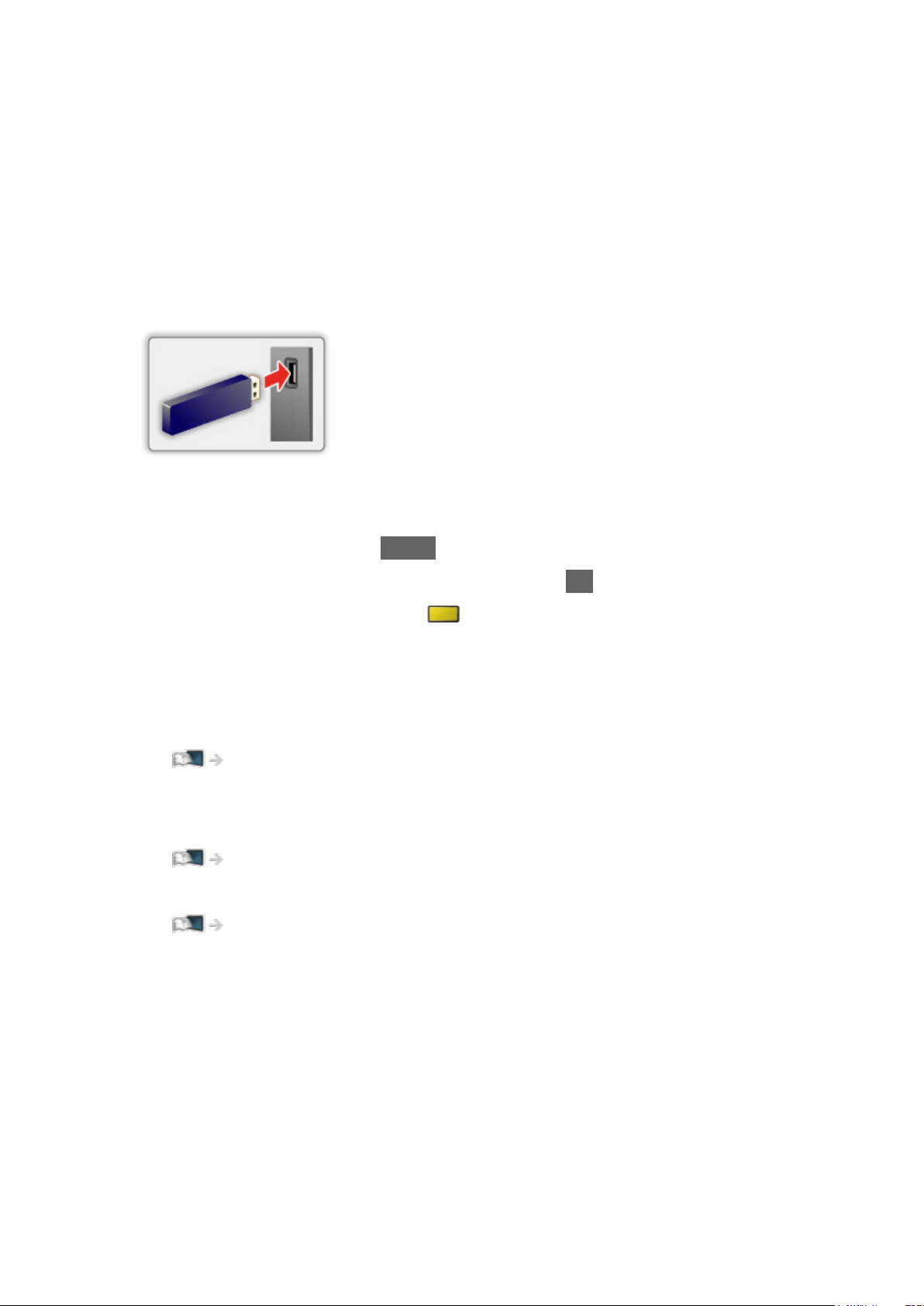
●
Picture setting may not work depending on the condition.
●
Folder and file names may be different from those on the digital camera or
digital video camera used.
■ To insert or remove the USB Flash Memory
●
Depending on the model, it may be necessary to remove the terminal
cover / cable cover before inserting or removing the USB Flash Memory.
Ensure alignment is straight and complete when inserting or removing.
●
To remove the USB Flash Memory safely from the TV, perform Safely
remove USB in USB Device Setup.
1) Display the menu with MENU.
2) Select Setup > USB Device Setup and press OK to access.
3) Select the device and press
(yellow) to set.
●
Connect the USB Flash Memory to the USB 1, 2 or 3 port.
= Note =
●
To connect the USB HDD
Recording > USB HDD setup
●
Check the terminal type and devices are correct for connection.
●
For details of the devices
Media Player > Technical information
●
For details of supported file formats
Media Player > Technical information
- 135 -

Selecting device / mode
1. Insert the USB Flash Memory to the TV.
Media Player > Using Media Player > Information
●
To play back content in the USB HDD, ensure the connection and
settings are completed.
Recording > USB HDD setup
●
To play back content in the network device, ensure the connection and
settings are completed.
Media Player > Using Media Player > Network device
2. Display Home Screen with HOME.
3. Select Devices and press OK to access.
4. Select the device (USB Flash Memory / USB HDD / network device) and
press OK to access.
●
When a confirmation screen about the network device is displayed,
enter User / Password to access.
5. Select Photo / Video / Music / Recorded TV and press OK to access.
Photo
Media Player > Photo mode
Video
Media Player > Video mode
Music
Media Player > Music mode
Recorded TV
Media Player > Recorded TV mode
6. The thumbnail view is displayed.
(Example)
●
To display / hide information of the highlighted content
INFO
- 136 -

= Note =
●
Recorded TV is available for content recorded on the USB HDD with this
TV.
●
Select the appropriate device and content for playing back each file.
●
You can use the following buttons during playback. Confirm the remote
control code is “73”.
Watching > External equipment > Operating with TV’s remote control
■ To change the mode
You can switch to another mode of Media Player from the thumbnail view.
1. Display the content selection screen with
(blue) while the thumbnail is
displayed.
2. Select the content and press OK to access.
●
The mode can be switched in the current device.
- 137 -

Network device
You can enjoy photo, video or music stored in the network devices.
●
To enable this function, connect this TV to your home network.
Network > Network connections
Network > Network settings
■ How to set User / Password
1. Display the menu with MENU.
2. Select Network > File Sharing Settings > Network Device List and press
OK to access.
3. Select the network device and press OK to access.
4. Enter User / Password with Cursor buttons or Numeric buttons and press
OK to set.
●
Press RETURN to store.
●
To register the new network device, set Server Name / Shared Folder.
For details, read the manual of the equipment.
5. Select Register and press OK to set.
●
To delete the registered device, select Delete and press OK to set.
= Note =
●
Regarding performance, not all servers are guaranteed.
●
Up to 48 devices can be registered.
- 138 -

Sharing file
You can share the files between PC and devices connected to this TV.
●
To enable this function, connect this TV to your home network.
Network > Network connections
Network > Network settings
1. Display the menu with MENU.
2. Select Network > File Sharing Settings > File Sharing Server and press
OK to access.
3. Select On and press OK to set.
4. Operate your PC to share the files.
●
This function is not available when the TV is turned off with Mains Power
On / Off switch. You can share the files in Standby mode when DLNA
Server is set to On.
= Note =
●
Regarding performance, not all PCs are guaranteed.
●
Do not turn the TV off, pull out the mains plug or remove the device during
operation (reading, copying, etc.). Doing so may cause malfunction of the
device or damage the recorded data.
●
All data in the USB HDD will be erased when you format the USB HDD
with this TV for recording.
●
To connect the USB HDD
Recording > USB HDD setup
●
Picture noise may occur on the screen when playback starts during
operation (reading, copying, etc.).
●
For details of the devices
Media Player > Technical information
- 139 -

Photo mode
Selecting file
Select the file in the thumbnail view and press OK to start playback.
: Error display
●
To change the size of photos in the thumbnail view
1) Display the option menu with OPTION.
2) Select Change Size and press OK to change.
●
For details of supported file formats
Media Player > Technical information > Photo format
■ Thumbnail view
●
To display / hide information of the highlighted content
INFO
●
To display Slideshow Settings
(red)
Media Player > Photo mode > Using Slideshow
●
To sort
(green)
●
To change the content
(blue)
- 140 -

Viewing photo
■ Playback
●
To operate Single view
: To the previous photo
: To the next photo
: Stop (return to thumbnail)
OK : Slideshow
●
To display / hide the operation guide
INFO
●
To rotate 90°
(blue)
●
To return to thumbnail
RETURN
- 141 -

Sorting photos
■ To sort by folder, recorded date or recorded month
1. Display the view selection in the thumbnail view with (green).
2. Select Folder view / Sort by Date / Sort by Month and press OK to set.
Folder view:
Displays the thumbnail grouped by folder.
●
Files which are in the root folder are collected to the folder named
“/”.
Sort by Date / Sort by Month:
Displays the thumbnail grouped by the same date or month.
●
The group of the photos without recorded dates is shown as
Unknown.
●
To return to the thumbnail of all photos
1) Display the view selection in the thumbnail view with
(green).
2) Select All photos and press OK to set.
- 142 -

Using Slideshow
1. Select the file from the thumbnail of photos for the first view.
2. Start Slideshow with
(red) and OK.
●
To display / hide the operation guide
INFO
●
To pause (return to Single view)
OK
●
To return to thumbnail
RETURN
●
You can change the back ground music by setting Back Ground Music
in Slideshow Settings (see below).
■ Slideshow Settings
Set up the settings for Photo mode.
1. Display the option menu with OPTION.
2. Select Slideshow Settings with OK.
3. Select one of the following items and press OK to access.
Screen Mode / Interval / Repeat / Back Ground Music
4. Set the item and press OK to store.
Screen Mode
(Normal / Zoom)
Selects enlarged or normal viewing.
●
Depending on the photo size, the photo may not be fully enlarged to fill the
screen (e.g. portrait style picture).
Interval
(Long / Normal / Short)
Selects slideshow interval.
Repeat
(On / Off)
Slideshow repeat
- 143 -

Back Ground Music
(Off / Type1 / Type2 / Type3 / Type4 / Type5 / User / Auto)
Selects the background music during Photo mode.
Type1 - 5:
Music files installed on this TV at the factory settings are played back.
Auto:
Music files stored in the current device are played back.
●
If there is no available music data, no sound is played back.
User:
Music files in the device registered by yourself are played back.
●
If no music files have been registered or the device which had
registered music files is removed, no sound is played back.
●
To register music
1) Select the music file and press OK to access.
●
Depending on the condition of the device, select folders until you
reach the desired music file.
2) Select File / Folder and press OK to set.
File:
The selected music file is registered.
Folder:
All the music files in the folder which contains the selected music file
are registered.
= Note =
●
Picture quality may be degraded depending on the slideshow setting.
●
Picture setting may not work depending on the slideshow setting.
- 144 -
Video mode
Selecting file
1. Select the title in the thumbnail view.
: Error display
: The file does not support thumbnail view.
●
The preview will start when the title / scene is highlighted in the
thumbnail view if it supports a preview. To turn off the preview, set
Video Preview to Off.
Media Player > Video mode > Video Setup
2. Start playback with (red).
●
If you have stopped the last playback halfway, a confirmation screen
may be displayed to select whether to start from where you stopped
last time or from the beginning.
●
For details of supported file formats
Media Player > Technical information > Video format
■ Thumbnail view
●
To display / hide information of the highlighted content
INFO
●
To start playback
(red)
●
To change the content
(blue)
- 145 -
Watching video
■ Playback from the selected scene in the title
Playback of the selected scene starts and continues until the end of the title.
1. Select the title and press OK to access.
2. Select the scene.
3. Start playback with
(red).
●
The structure of titles and scenes may vary depending on the digital video
camera used.
●
Playback may not continue depending on the condition.
●
To repeat playback
Media Player > Video mode > Video Setup
■ Playback
●
To operate playback
: Rewind
: Fast forward
: Stop
OK : Pause (displays the time seek bar) / Playback
●
To jump to the specified time point
1) Display the time seek bar with OK.
2) While the time seek bar is displayed
Press
/ :
Search approx. 10 seconds
Press and hold
/ :
Search rapidly
3) Jump to the specified time point with OK.
●
To display / hide the operation guide and information banner
INFO
●
To the previous title / scene
(red)
●
To the next title / scene
(green)
- 146 -

●
To change aspect
1) Display Aspect Selection with ASPECT.
2) Select the mode and press OK to set.
Aspect1:
Displays the content in original size.
Aspect2:
Displays the content enlarged without distortion.
– You can also change the mode pressing ASPECT. (Press repeatedly
until you reach the desired mode.)
– Aspect cannot be changed depending on the content.
●
To return to thumbnail
RETURN
- 147 -

Video Setup
Set up the settings for Video mode.
1. Display the option menu with OPTION.
2. Select Video Setup with OK.
3. Select one of the following items and press OK to access.
Video Preview / Audio Selection / Dual Mono Audio / Repeat / Subtitle
Settings
●
Menu items and selectable options vary depending on the content.
4. Set the item and press OK to store.
Video Preview
(On / Off)
Sets to start the preview of the title or scene in the thumbnail view.
●
Images may not be displayed for an instant in the thumbnail view. Set the
preview Off to solve this.
●
This function is available in the thumbnail view.
Audio Selection, Dual Mono Audio
Selects for selectable sound tracks (if available).
●
It may take several seconds to change the sound.
●
This function is available during playback.
Repeat
(On / Off)
Playback repeat within the title or selected file (depending on the content)
Subtitle Settings
Sets the subtitle setting.
●
This function is available during playback.
Subtitle:
Display / hide subtitles (if available).
Subtitle Text:
Selects the font type to display subtitles correctly (if available).
Subtitle Text Size:
Selects the font size of subtitles.
- 148 -

Subtitle Text Colour:
Selects the colour of subtitles.
Subtitle Text Position:
Adjusts the position of subtitles on the screen.
Subtitle Text Delay:
Adjusts the delay time for the subtitles.
- 149 -

Audio output settings
You can enjoy the multi-channel sound via an amplifier connected to DIGITAL
AUDIO OUT or HDMI2 (ARC function) terminal.
●
To confirm or change the current sound status
Media Player > Video mode > Video Setup
1. Display the menu with MENU.
2. Select Sound > SPDIF Selection and press OK to access.
3. Select Auto / PCM and press OK to set.
SPDIF Selection
(Auto / PCM)
Selects the initial setting for digital audio output signal from DIGITAL AUDIO
OUT and HDMI2 (ARC function) terminals.
●
SPDIF is a standard audio transfer file format.
Auto:
Dolby Digital Plus, Dolby Digital and HE-AAC multi-channel are output
as Dolby Digital Bitstream. MPEG is output as PCM.
PCM:
Digital output signal is fixed to PCM.
●
ARC (Audio Return Channel) is a function of digital audio output using
HDMI cable.
- 150 -
Music mode
Selecting file
1. Select the folder in the thumbnail view.
2. Start playback with
(red).
●
For details of supported file formats
Media Player > Technical information > Music format
■ Thumbnail view
●
To display / hide information of the highlighted content
INFO
●
To start playback
(red)
●
To change the content
(blue)
- 151 -
Playing music
■ Playback of the selected file in the folder
1. Select the folder and press OK to access.
2. Select the file.
3. Start playback with
(red).
■ Playback
●
To operate playback
: Rewind
: Fast forward
: Stop
OK : Pause (displays the time seek bar) / Playback
●
To jump to the specified time point
1) Display the time seek bar with OK.
2) While the time seek bar is displayed
Press
/ :
Search approx. 10 seconds
Press and hold
/ :
Search rapidly
3) Jump to the specified time point with OK.
●
To display / hide the operation guide
INFO
●
To the previous track
(red)
●
To the next track
(green)
●
To return to thumbnail
RETURN
- 152 -

Music Setup
Set up the setting for Music mode.
●
This function is available in the thumbnail view.
1. Display the option menu with OPTION.
2. Select Music Setup > Repeat with OK.
3. Select Off / Folder / One and press OK to set.
Folder:
Playback repeat within the selected folder
One:
Playback repeat of the selected one file
- 153 -

Recorded TV mode
Selecting content
●
For exclusive USB HDD
●
To play back content in the USB HDD, ensure the connection and settings
are completed.
Recording > USB HDD setup
1. Content list of the selected device is displayed in Recorded TV mode.
●
Remaining capacity of the selected device is displayed on the top right.
(This value may not be accurate depending on the condition.)
●
Content list is displayed as All or Not Viewed.
All:
All the recorded TV programmes are listed.
Not Viewed:
Content not played back yet are listed.
●
Icons are displayed.
: Content not played back yet (Once you play back the content, this
icon will disappear.)
: Protected content cannot be deleted.
: Currently recording (You can play back this recording content.)
: Group of content
2. Select the content and press OK to start playback.
●
If you have stopped the last playback halfway, a confirmation screen
may be displayed to select whether to start from where you stopped
last time or from the beginning.
●
If the content has multiple programmes with different parental ratings,
the highest restriction is applied to the content. Once you unlock the
restriction, all the programmes in the content can be played back.
●
For details of supported file formats
Media Player > Technical information > Video format
- 154 -
Watching recorded TV
■ Playback
●
To operate playback
: Manual skip
– Press to skip forward approx. 30 seconds.
– Press and hold to skip backward approx. 15 seconds.
– Australia only
: Rewind
: Fast forward
: Stop
OK : Pause / Playback
– The time seek bar is displayed while pausing. (Australia only)
●
To jump to the specified time point
1) Display the time seek bar with OK.
2) While the time seek bar is displayed
Press
/ :
Search approx. 10 seconds
Press and hold
/ :
Search rapidly
3) Jump to the specified time point with OK.
– Australia only
●
To display / hide the operation guide and information banner
INFO
●
To repeat between the starting point “A” and finishing point “B”
(blue)
(Set “A” and “B” in order.)
– The points are reset by pressing again or by other operations.
– Australia only
●
To the previous / next chapter
(red) / (green)
– A recorded content is automatically divided into chapters (approx. 5
minutes for each).
– Australia only
- 155 -

●
To change aspect
ASPECT
Watching > For best picture > Aspect
●
To display the subtitle (if available)
STTL/AD
●
To confirm or change the current status (if available)
Watching > Basic > AV Options
●
To return to list
RETURN
= Note =
●
The recorded content may not be played back properly depending on the
progress of recording. [Only for dual tuner model]
- 156 -

Grouping content
1. Select the content to edit and press (blue) to tick in the content list.
2. Display the option menu with OPTION.
3. Select Create Group / Release Group / Exclude from Group / Change
Protect Status and press OK to set.
Create Group:
Create a group of content. Select and tick all the desired content, and
then select Create Group.
Release Group:
Select the created group to release, and then select Release Group.
(To release several groups at once, tick all the desired groups.)
Exclude from Group:
Select the group and press OK to display the grouped content. To
exclude specific content from the group, tick it and then select Exclude
from Group. (To exclude some of the content at once, tick all the
desired content.)
Change Protect Status:
Select the content to protect from deletion, and then select Change
Protect Status. Perform the same way to cancel the protection. (To
change the status of some of the content at once, tick all the desired
content.)
- 157 -

Deleting content
1. Select the content to edit and press (blue) to tick in the content list.
2. Delete the content with
(red).
3. When a confirmation screen is displayed, select Yes and press OK to set.
- 158 -

Chapter List
For Australia
You can start playback from the chapter list you select.
1. Display the chapter list with
(yellow).
2. Select the chapter and press OK to start playback.
= Note =
●
The chapter list is not displayed while the selected content is being
recorded.
●
Depending on the recorded programmes, some playback operations may
not work properly.
- 159 -

Audio output settings
You can enjoy the multi-channel sound via an amplifier connected to DIGITAL
AUDIO OUT or HDMI2 (ARC function) terminal.
●
To confirm or change the current sound status
Media Player > Video mode > Video Setup
1. Display the menu with MENU.
2. Select Sound > SPDIF Selection and press OK to access.
3. Select Auto / PCM and press OK to set.
SPDIF Selection
(Auto / PCM)
Selects the initial setting for digital audio output signal from DIGITAL AUDIO
OUT and HDMI2 (ARC function) terminals.
●
SPDIF is a standard audio transfer file format.
Auto:
Dolby Digital Plus, Dolby Digital and HE-AAC multi-channel are output
as Dolby Digital Bitstream. MPEG is output as PCM.
PCM:
Digital output signal is fixed to PCM.
●
ARC (Audio Return Channel) is a function of digital audio output using
HDMI cable.
- 160 -

USB Sharing
USB Sharing
You can copy the content from one device to another using the USB ports.
●
To enable this function, connect the source drive and destination drive to
the TV.
Media Player > Using Media Player > Information
Source drive:
USB device which contains the data to be copied.
Destination drive:
USB device which you copy to.
1. Display Apps with APPS.
2. Select USB Sharing and press OK to access.
3. Select the drive from Source drive and press OK to access.
4. Select the folder or file to copy and press
(red) to set.
●
To select all folders or files at once
(green)
5. Press
to go to Destination drive.
6. Select the drive and press OK to access.
●
You cannot select the source drive as the destination drive.
7. Select Copy Here and press OK to access.
8. When a confirmation screen is displayed, select Yes and press OK to start
copying.
●
Copy progress is shown on the top right of the TV screen. When copying
is finished, Complete!! is displayed.
●
To cancel the copying, select USB Sharing from Apps again.
●
To watch TV while data copying is in progress, press TV.
- 161 -

■ Create a folder or delete a folder
You can create a new folder or delete an old folder while the cursor is in
Destination drive.
●
To create a new folder
1) Display the option menu with OPTION.
2) Select Create Folder and press OK to access.
3) Enter characters (maximum 16 characters) with Cursor buttons or
Numeric buttons, and press OK to set.
4) Press RETURN to store.
●
To delete an old folder
1) Select the folder.
2) Display the option menu with OPTION.
3) Select Delete and press OK to access.
4) When a confirmation screen is displayed, select Yes and press OK to
delete.
= Note =
●
Not valid for the content in the network device
●
Some files may not be copied properly.
●
Please note there may be a risk of file corruption due to power failure or
sudden shut down during USB Sharing process.
●
In consideration of possible loss of the data included in your USB devices
for any reasons, Panasonic recommends to store or back up the data
included in the USB devices to the other places (storage medium) before
inserting the same in the USB port, and please do not turn the TV off
during data communication / transfer.
- 162 -

Technical information
Device handling caution
●
Data modified with a PC may not be displayed.
●
Do not remove the device while the TV is accessing data. Otherwise this
can damage the device or TV.
●
Do not touch the pins on the device.
●
Do not subject the device to a high pressure or impact.
●
Insert the device in the correct direction. Otherwise this can damage the
device or TV.
●
Electrical interference, static electricity, or erroneous operation may
damage the data or device.
●
Back up the recorded data at regular intervals to prevent data
deterioration, data damage or erratic operation of the TV. Panasonic is not
liable for any deterioration or damage of recorded data.
- 163 -

USB devices
●
It is recommended to connect the device to the TV’s USB port directly.
●
Some USB devices or USB HUB may not be used with this TV.
●
You cannot connect any devices using a USB card reader.
■ USB Flash Memory
USB Flash Memory format:
FAT16, FAT32 or exFAT
●
USB HDDs formatted on a PC are not guaranteed to work in Media Player.
■ USB HDD
●
The capacity of USB HDD that works with this TV is from 160 GB to 3 TB.
●
Connect the USB HDD to the mains socket to record and play back
properly with this TV.
●
Use the USB HDD formatted with this TV.
Recording > USB HDD setup > Setting for USB HDD
●
Regarding performance, not all USB HDDs are guaranteed.
- 164 -

Photo format
[Some features are not available on all models.]
■ Supported Photo formats
●
JPEG (.jpg, .jpeg, .mpo)
Sub-sampling:
4:4:4, 4:2:2, 4:2:0
Image resolution (pixel):
8 × 8 to 30 719 × 17 279
●
DCF and EXIF standards
●
Progressive JPEG is not supported.
= Note =
●
Some files may not be played back even if they fulfil these conditions.
●
Do not use multi-byte characters or other special codes for file names.
●
Connected devices may become unusable with this TV if the file or folder
names are changed.
- 165 -

Video format
■ Supported Video formats
●
AVI (.avi)
Video codec:
H.264, MPEG1, MPEG2, MPEG4, VC-1, WMV9
Audio codec:
AAC, ADPCM, Dolby Digital, Dolby Digital Plus, HE-AAC, LPCM, MP3,
WMA, WMA Pro
●
MP4 (.f4v, .m4v, .mp4)
Video codec:
H.264, H.265 (HEVC), MPEG1, MPEG2, MPEG4
Audio codec:
AAC, Dolby Digital, Dolby Digital Plus, HE-AAC, MP3
●
This TV supports this container recorded with Panasonic products. For
details, read the manual of the products.
●
MKV (.mkv)
Video codec:
H.264, H.265 (HEVC), MPEG1, MPEG2, MPEG4
Audio codec:
AAC, Dolby Digital, Dolby Digital Plus, HE-AAC, MP3, Vorbis
●
ASF (.asf, .wmv)
Video codec:
MPEG4, VC-1, WMV9
Audio codec:
AAC, Dolby Digital, Dolby Digital Plus, HE-AAC, LPCM, MP3, WMA,
WMA Pro
●
Copy-protected files cannot be played back.
- 166 -

●
FLV (.flv)
Video codec:
H.264
Audio codec:
AAC, MP3
●
3GPP (.3gp, .3g2)
Video codec:
H.264, MPEG4
Audio codec:
AAC, HE-AAC
●
PS (.mod, .mpg, .mpeg, .vob, .vro)
Video codec:
H.264, MPEG1, MPEG2, VC-1
Audio codec:
AAC, Dolby Digital, Dolby Digital Plus, HE-AAC, LPCM, MP3
●
TS (.mts, .m2ts, .tp, .trp, .ts, .tts)
Video codec:
H.264, H.265 (HEVC), MPEG1, MPEG2, VC-1
Audio codec:
AAC, Dolby Digital, Dolby Digital Plus, HE-AAC, MP3
●
WebM (.webm)
Video codec:
VP9
Audio codec:
Vorbis
■ Supported Subtitles formats
- 167 -

●
MicroDVD, SubRip, TMPlayer (.srt, .sub, .txt)
●
The video file and subtitles text file are inside the same folder, and the file
names are the same except for the file extensions.
●
If there are more than one subtitles text files inside the same folder, they
are displayed in the following order of priority: “.srt”, “.sub”, “.txt”.
= Note =
●
Some files may not be played back even if they fulfil these conditions.
●
Some subtitles or chapter functions may not be available.
●
Do not use multi-byte characters or other special codes for file names.
●
Connected devices may become unusable with this TV if the file or folder
names are changed.
●
Supported formats are different in Media Player and media server.
- 168 -

Music format
■ Supported Music formats
●
MP3 (.mp3)
●
AAC / Apple Lossless (.m4a)
●
Copy-protected files cannot be played back.
●
FLAC (.flac)
●
WMA / WMA Pro (.wma)
●
Copy-protected files cannot be played back.
●
LPCM (.wav)
= Note =
●
Some files may not be played back even if they fulfil these conditions.
●
Do not use multi-byte characters or other special codes for file names.
●
Connected devices may become unusable with this TV if the file or folder
names are changed.
- 169 -
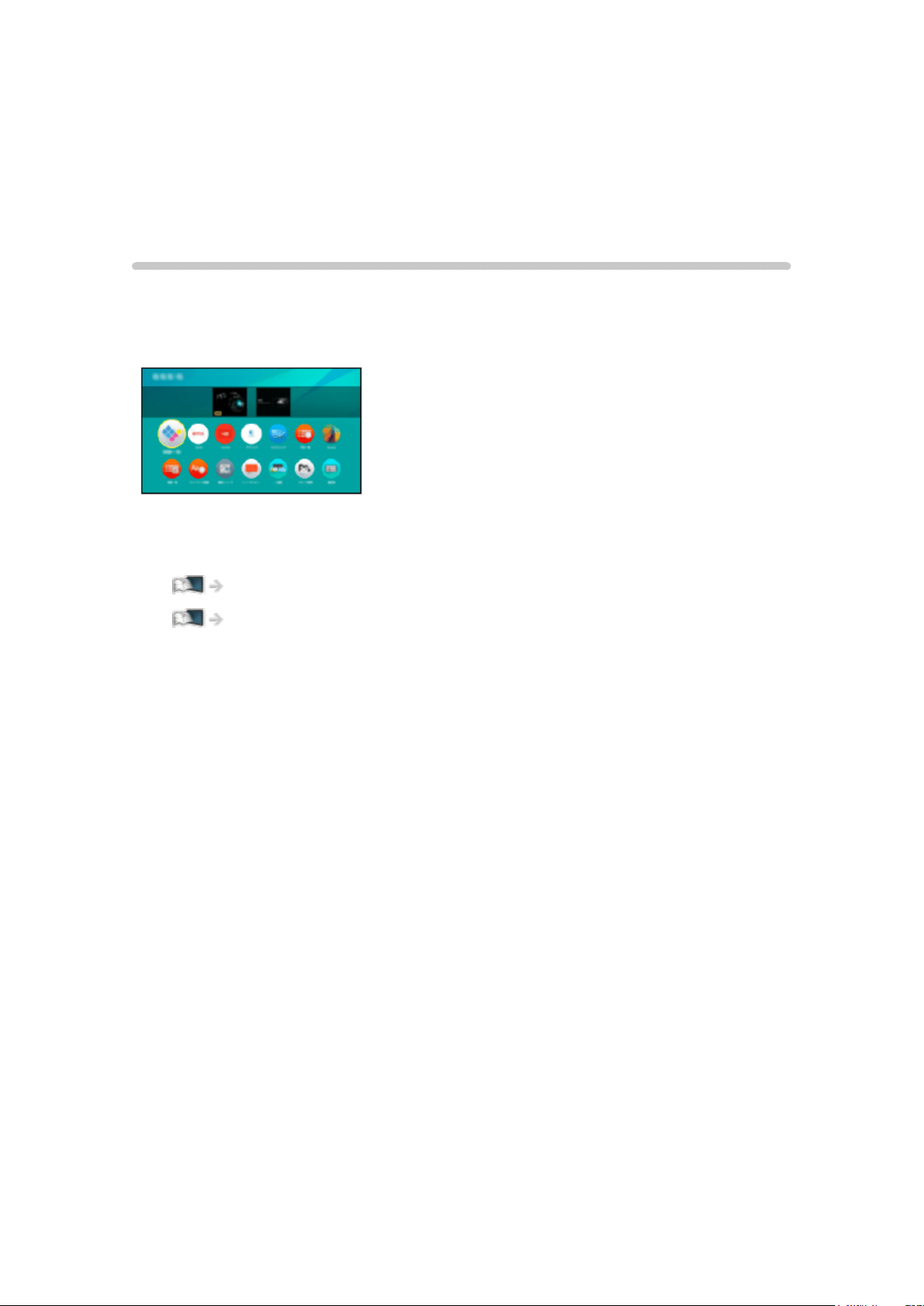
Network
Internet content
Information
You can access some specific websites supported by Panasonic, and enjoy
internet content such as videos, games, communication tools, etc. from Apps.
(Example)
●
A broadband network environment is required to use this function. Ensure
the network connections and network settings are completed.
Network > Network connections
Network > Network settings
- 170 -
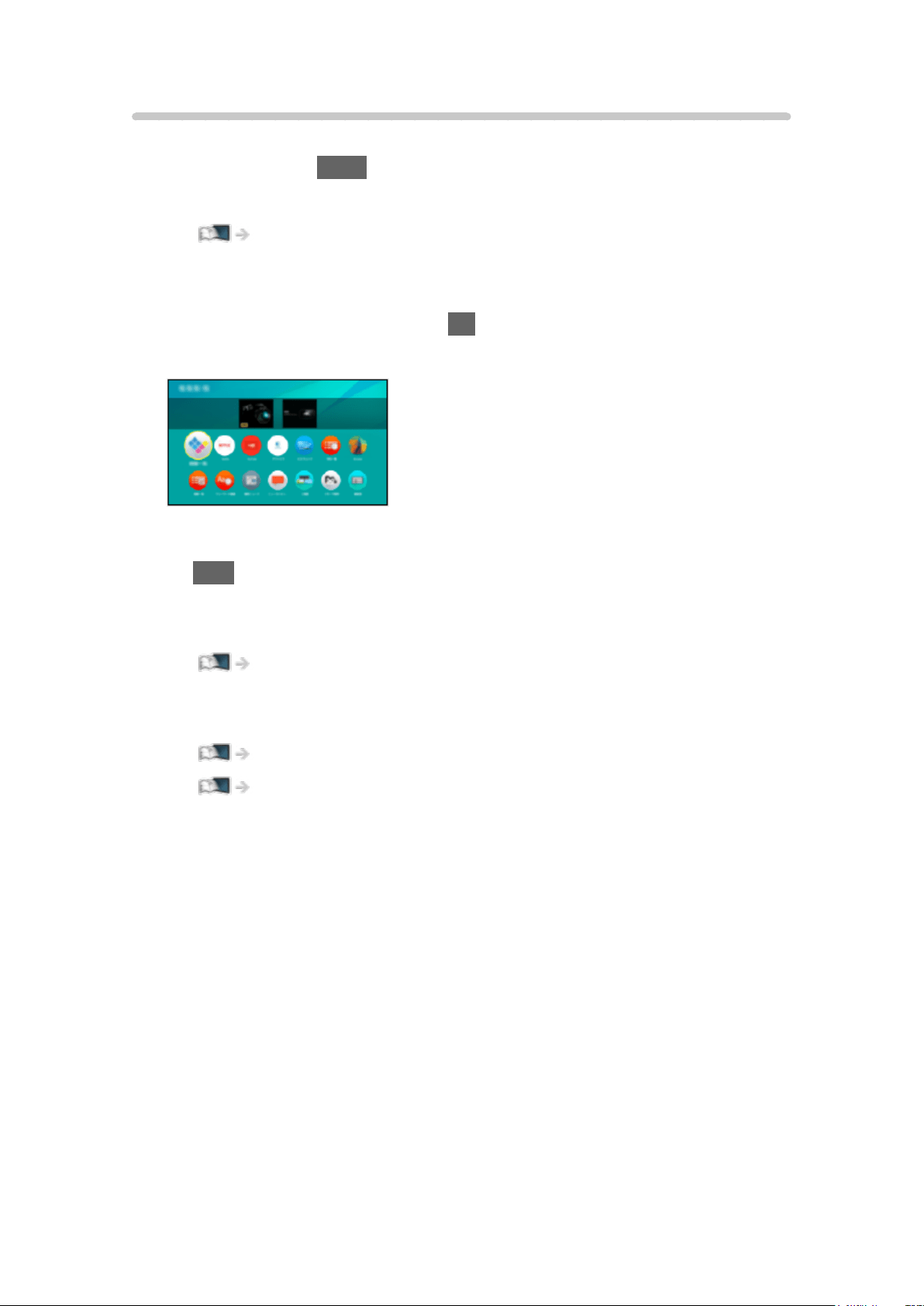
Selecting internet content
[Some features are not available on all models.]
1. Display Apps with APPS.
●
For details of Apps
Home Screen > Apps
●
Depending on the usage conditions, it may take a while to read all the
data.
2. Select the desired item and press OK to access.
(Example)
●
To exit Apps
EXIT
●
You may operate the internet content with the free cursor and Voice
Control function of Touch Pad Controller (supplied).
Functions > Voice Control
●
You can connect a keyboard for character input in the applications. You
can also use the keyboard for TV operation.
Functions > Bluetooth devices
Functions > Keyboard
- 171 -

Note
●
If you cannot access the internet content, check the network connections
and settings.
Network > Network connections
Network > Network settings
●
Design and specifications are subject to change without notice.
●
Not all the features of the websites are available.
●
Be sure to update the software when a software update notice is displayed
on the TV screen. If the software is not updated, you may not be able to
use Apps. You can update the software later manually.
Network > Network settings > Software Update
●
The services through Apps are operated by their respective service
providers and such service may be discontinued either temporarily or
permanently without notice. Therefore, Panasonic will make no warranty
for the content or the continuity of the services.
●
Content may not be available depending on the country you select.
●
Content may be presented in specific languages.
●
Depending on the connection environment, the internet connection may be
slow or may not be successful.
- 172 -
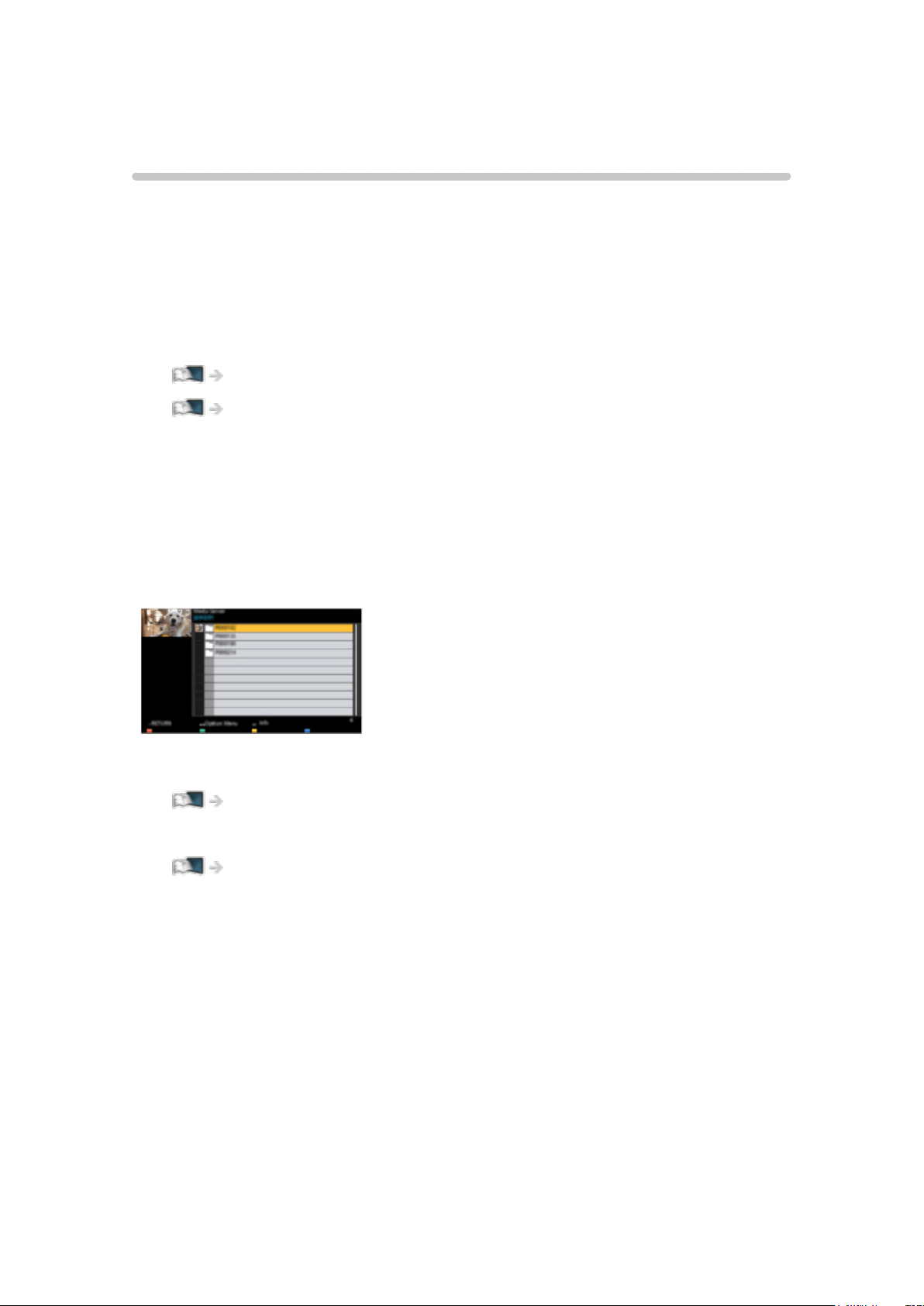
DLNA
In-House streaming
[Some features are not available on all models.]
This TV is a DLNA Certified™ product.
DLNA
®
(Digital Living Network Alliance) is a standard that makes DLNA
Certified digital electronics easier and more convenient to use on a home
network. To learn more, visit www.dlna.org.
●
To enable this function, connect this TV to your home network.
Network > Network connections
Network > Network settings
■ Playback of sharing content stored in the media server
Store photo, video or music content into the DLNA Certified media server (for
example, PC, DIGA Recorder, etc.) connected to your home network. And
then you can enjoy the content on this TV.
(Example)
●
For details of watching and operating content on this TV
Network > DLNA > Using DLNA
●
For details of supported file formats
Network > Technical information
●
To use a DLNA compatible DIGA Recorder as a media server
By connecting a DLNA compatible DIGA Recorder to your home network, you
can control it as one of the media servers.
●
Please read the manual of your DIGA Recorder to check if the recorder is
compatible with DLNA.
- 173 -

■ Playback of sharing content on this TV with the DMC (Digital
Media Controller) network equipment
You can enjoy content stored in the media server by controlling with the DMC
network equipment (smartphone, PC, etc.) connected to your home network.
●
To use this function with your smartphone or PC, set TV Remote App
Settings of this TV.
Network > Network settings > TV Remote App Settings
And you need to install the application for controlling VIERA on your
smartphone.
Support > FAQs > Detailed information
For the operations, refer to the support information of the application.
■ Sharing the content of this TV with another piece of network
equipment
You can enjoy the content of this TV with another network equipment
connected to your home network.
Available content:
●
Photo, video or music content of this TV
●
Current digital TV programme
●
TV programmes recorded on USB HDDs with this TV
Available network equipment:
●
DLNA Certified VIERA
●
Smartphone, etc.
●
To use this function with your smartphone, you need to install the
application for controlling VIERA on your smartphone.
Support > FAQs > Detailed information
For the operations, refer to the support information of the application.
●
To use this function with another DLNA Certified VIERA, set Network Link
Settings of this TV.
Network > Network settings > Network Link Settings
●
Sharing the current programme may not be available when selecting
radio channels, encrypted (copy-protected) programmes, digital satellite
broadcasts or when the broadcast prohibits the output of video and audio.
●
Display the TV full-screen for sharing the TV programme with another
piece of network equipment.
●
Only 1 piece of other equipment can share the content of this TV.
- 174 -

= Note =
●
This function is not available when the TV is turned off with Mains Power
On / Off switch.
●
This function may not be available in the following condition of this TV:
– While the recording is in progress
●
Selecting the channel or TV mode on your smartphone may not be
available while the recording is in progress.
- 175 -
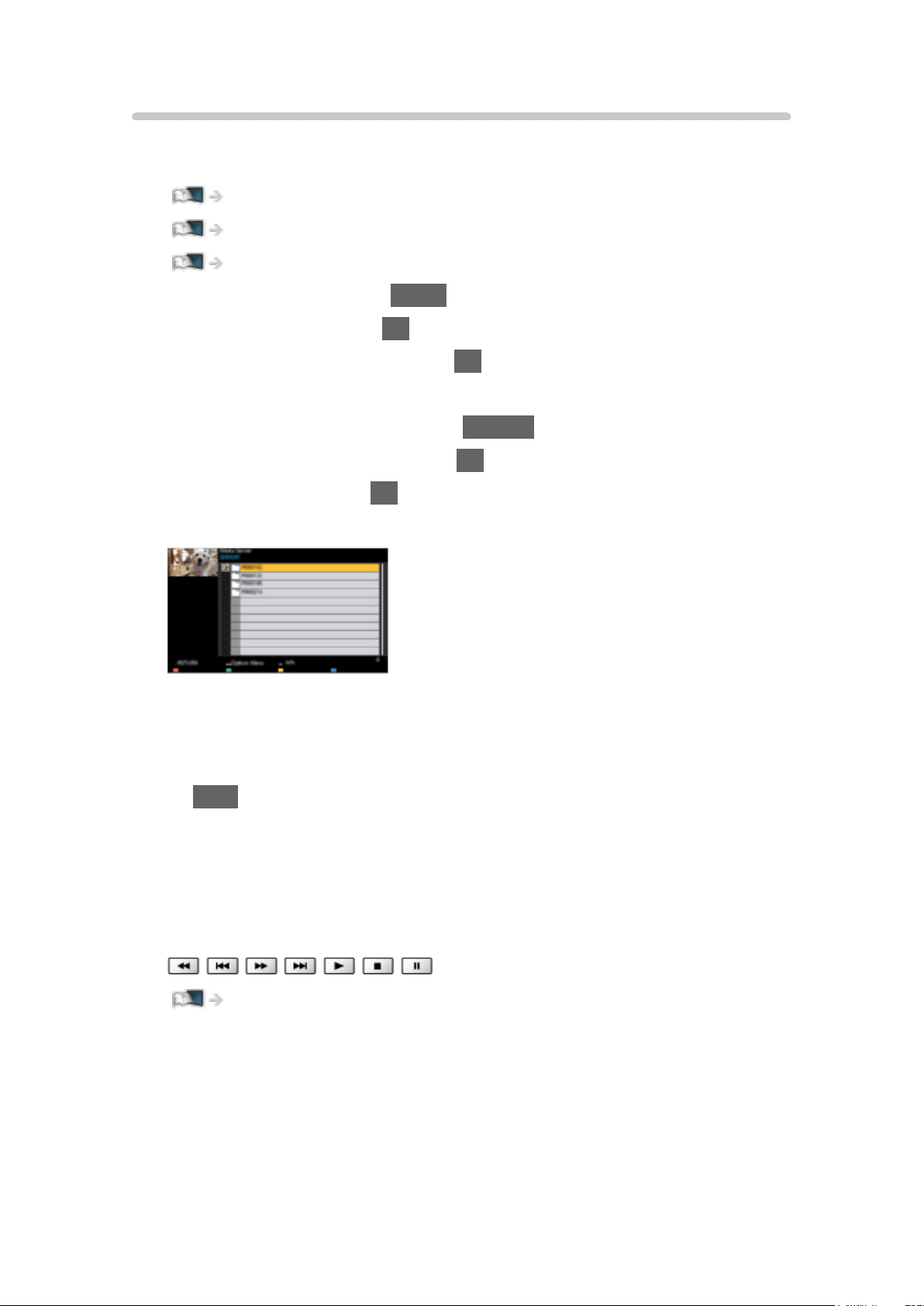
Using DLNA
To use DLNA
®
features, ensure the preparations of the media server, network
connections and network settings are completed.
Network > DLNA > In-House streaming
Network > Network connections
Network > Network settings
1. Display Home Screen with HOME.
2. Select Devices and press OK to access.
3. Select the media server and press OK to access.
●
To display / hide information of the highlighted media server
1) Display the option menu with OPTION.
2) Select Show Info. and press OK to access.
4. Select the file and press OK to access.
(Example)
●
Depending on the condition of media server, you may need to select
the folder before selecting the file.
●
To display / hide information of the highlighted file
INFO
= Note =
●
Non-playable files are also listed but cannot be selected.
●
You can use the following buttons during playback. Confirm the remote
control code is “73”.
Watching > External equipment > Operating with TV’s remote control
●
Some operations may not be available depending on the content.
- 176 -
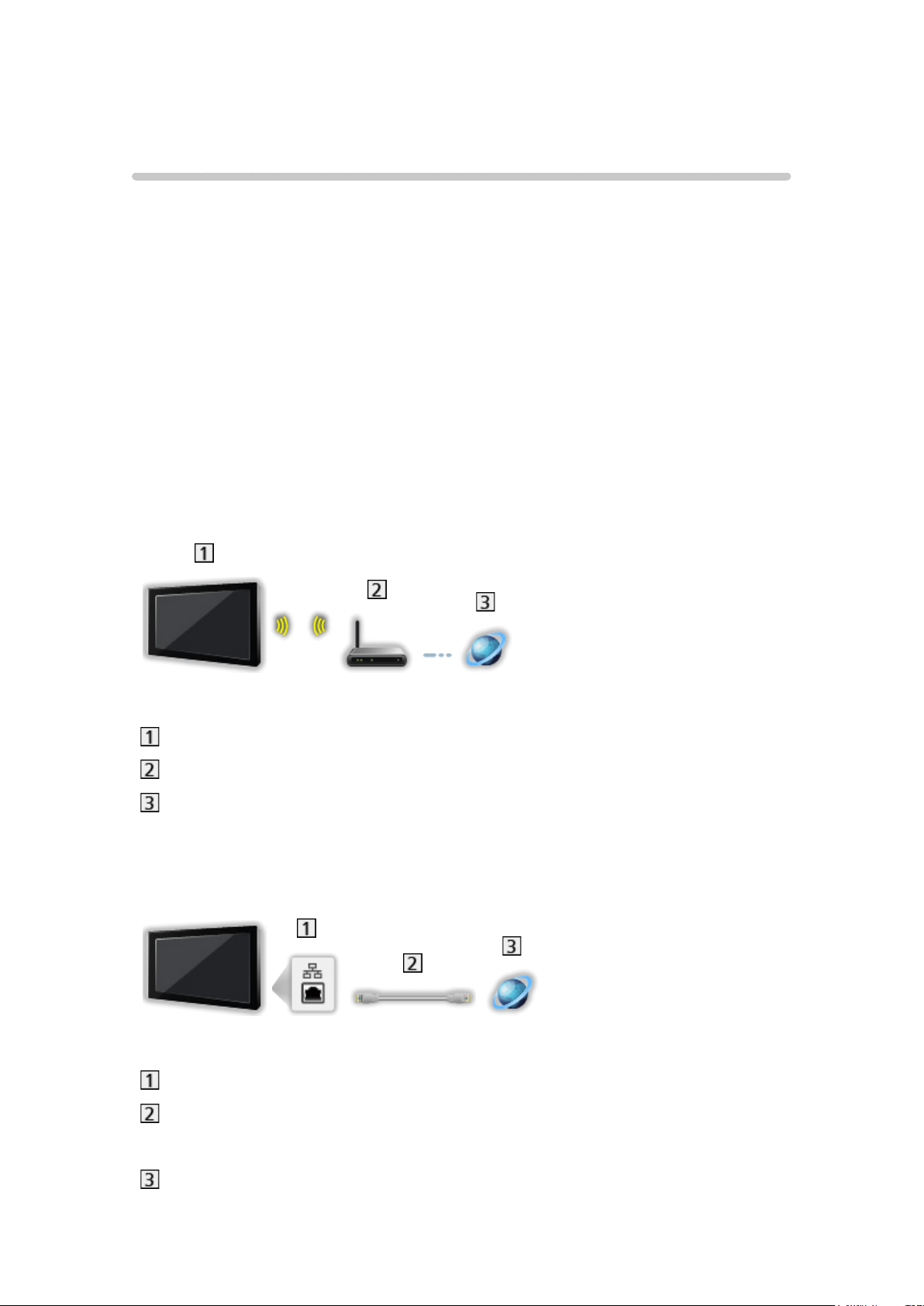
Network connections
Internet connection
A broadband network environment is required to use internet services.
●
Depending on the model, it may be necessary to remove the terminal
cover / cable cover before connecting or disconnecting the LAN cable.
●
If you do not have any broadband network services, please consult your
retailer for assistance.
●
Dial-up internet connections cannot be used.
●
Required speed (effective): at least 1.5 Mbps for SD (Standard Definition)
and 6 Mbps for HD (High Definition) picture quality, respectively. If the
transfer speed is not enough, content may not be played back properly.
■ Wireless connection
Built-in wireless LAN (Rear of the TV)
Access point
Internet environment
■ Wired connection
ETHERNET terminal
LAN cable (Shielded)
●
Use Shielded Twist Pair (STP) LAN cable.
Internet environment
- 177 -

DLNA connection
To use DLNA features, you need a home network environment and you can
operate the features without a broadband network environment.
●
A broadband network environment is required to use internet services.
Network > Network connections > Internet connection
●
Depending on the model, it may be necessary to remove the terminal
cover / cable cover before connecting or disconnecting the LAN cable.
■ Wireless connection (For DLNA and internet service)
Built-in wireless LAN (Rear of the TV)
Access point
Hub / Router
Internet environment
Smartphone, etc.
DLNA Certified media server (PC, etc.)
- 178 -
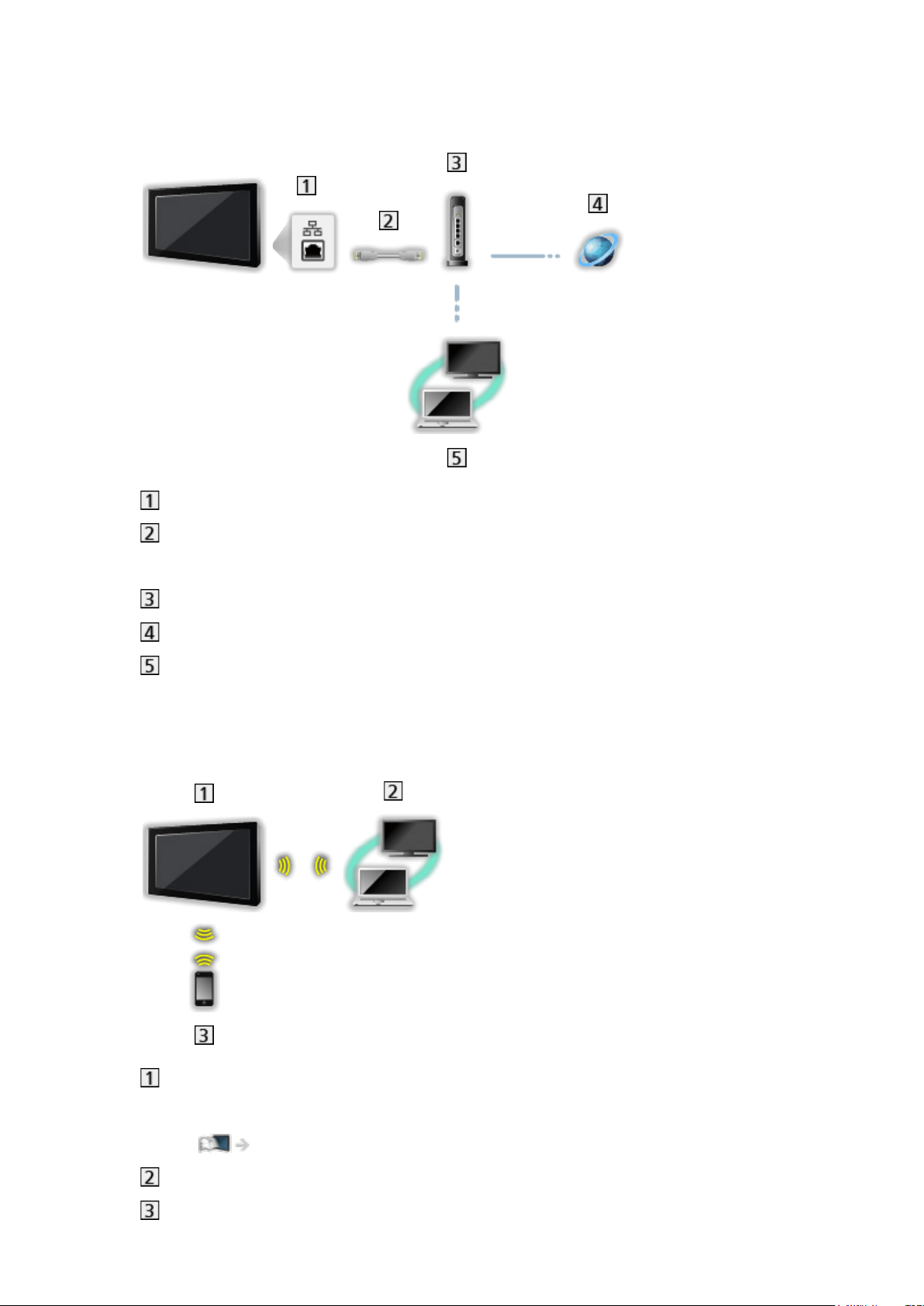
■ Wired connection (For DLNA and internet service)
ETHERNET terminal
LAN cable (Shielded)
●
Use Shielded Twist Pair (STP) LAN cable.
Hub / Router
Internet environment
DLNA Certified media server (PC, etc.)
■ Wireless connection (For DLNA)
TV
●
To use the TV as a wireless access point
Network > Network settings > Custom - Wireless Access Point
DLNA Certified media server (PC, etc.)
Smartphone, etc.
- 179 -

Note
●
Ensure to use a LAN straight cable.
●
Set up and connect equipment required for the network environment. You
cannot make such settings on this TV. Read the manual of the equipment.
●
If your modem has no broadband router functions, use a broadband router.
●
If your modem has broadband router functions but there are no vacant
ports, use a hub.
●
Ensure that the broadband routers and hubs are compatible with
10BASE-T / 100BASE-TX.
●
If you use the equipment compatible only with 100BASE-TX, category 5 or
later LAN cables are required.
●
Contact your Internet Service Provider (ISP) or telecommunications
company for further assistance regarding the network equipment.
●
Confirm the terms and conditions of the contracts with your Internet
Service Provider (ISP) or telecommunications company. Depending on the
contracts, additional fees may be charged or multiple connections to the
internet may be impossible.
●
Turn the TV off with Mains Power On / Off switch, and then on again when
changing or making the network connection again.
●
Depending on the network condition, the content may not be played back
properly.
- 180 -

Network settings
Network Connection
Ensure the connections are completed before starting network setup.
Network > Network connections
■ Quick setup - Wireless
1. Display the menu with MENU.
2. Select Network > Network Connection and press OK to access.
●
Confirm the encryption key, settings and position of your access point
before starting setup. For details, read the manual of the access point.
3. Select Quick setup and press OK to access.
●
When the LAN cable is connected, wired setup will be done
automatically.
4. Select your desired access point and press OK to access.
●
Available Wireless Networks are displayed automatically.
: Encrypted access point
●
For WPS(Push button)
1) Select Easy setup with Push button and press OK to access.
2) Press the WPS button on the access point until the light flashes.
3) Connect the TV with the access point with OK.
– WPS: Wi-Fi Protected Setup™
– If the connection fails, check the settings and positions of your
access point. And then, follow the on-screen instructions.
●
It is recommended to select the encrypted access point.
5. Enter the encryption key of the access point and press OK to set.
●
You can set characters using Numeric buttons.
●
Press RETURN to store.
6. Automatically setup is done and Network Status is displayed.
Network > Network settings > Network Status
7. Select Exit and press OK to set.
●
To set manually
Network > Network settings > Custom - Wireless
- 181 -

■ Quick setup - Wired
1. Display the menu with MENU.
2. Select Network > Network Connection and press OK to access.
3. Select Quick setup and press OK to access.
4. Automatically setup is done and Network Status is displayed.
Network > Network settings > Network Status
5. Select Exit and press OK to set.
●
To set manually
Network > Network settings > Custom - Wired
= Note =
●
To deactivate wireless, set Easy Mirroring to Off and confirm the network
connection type is set to Wired.
- 182 -
Custom - Wireless
Ensure the connections are completed before starting network setup.
Network > Network connections
1. Display the menu with MENU.
2. Select Network > Network Connection > Custom > Wireless and press OK
to access.
●
Confirm the encryption key, settings and position of your access point
before starting setup. For details, read the manual of the access point.
3. Select your desired access point and press OK to access.
●
Available Wireless Networks are displayed automatically.
: Encrypted access point
●
For WPS(Push button)
1) Press
(red).
2) Press the WPS button on the access point until the light flashes.
3) Connect the TV with the access point with OK.
– WPS: Wi-Fi Protected Setup™
– If the connection fails, check the settings and positions of your
access point. And then, follow the on-screen instructions.
●
For WPS(PIN)
1) Press
(green).
2) Enter the PIN code to the access point.
3) Connect the TV with the access point with OK.
●
For Manual
1) Press
(yellow).
2) You can set up SSID, security settings and encryption key manually.
3) Follow the on-screen instructions and set manually.
●
To search access points again
(blue)
●
To display / hide information of the highlighted access point
INFO
●
It is recommended to select the encrypted access point.
- 183 -
4. Enter the encryption key of the access point and press OK to set.
●
You can set characters using Numeric buttons.
●
Press RETURN to store.
5. IP/DNS Settings is displayed.
Acquire IP Address / Acquire DNS Address
●
Auto is recommended.
●
Available settings are displayed automatically.
●
To set manually, select and set IP Address / Subnet Mask / Default
Gateway / DNS Address.
Proxy Settings
●
It is not required for normal household use.
●
Some internet services may not be available depending on the proxy
setting.
Proxy:
This is the address of the relay server which is connected between the
browser and the target server to send data to the browser.
1) Select Proxy and press OK to access.
2) Enter the address with Cursor buttons or Numeric buttons, and
press OK to set.
3) Press RETURN to store.
Proxy Port:
This number is also specified by the provider with the proxy address.
1) Select Proxy Port.
2) Enter the number with Numeric buttons.
3) Press RETURN to store.
- 184 -

Custom - Wired
Ensure the connections are completed before starting network setup.
Network > Network connections
1. Display the menu with MENU.
2. Select Network > Network Connection > Custom > Wired and press OK to
access.
3. IP/DNS Settings is displayed.
Acquire IP Address / Acquire DNS Address
●
Auto is recommended.
●
Available settings are displayed automatically.
●
To set manually, select and set IP Address / Subnet Mask / Default
Gateway / DNS Address.
Proxy Settings
●
It is not required for normal household use.
●
Some internet services may not be available depending on the proxy
setting.
Proxy:
This is the address of the relay server which is connected between the
browser and the target server to send data to the browser.
1) Select Proxy and press OK to access.
2) Enter the address with Cursor buttons or Numeric buttons, and
press OK to set.
3) Press RETURN to store.
Proxy Port:
This number is also specified by the provider with the proxy address.
1) Select Proxy Port.
2) Enter the number with Numeric buttons.
3) Press RETURN to store.
- 186 -


Custom - Wireless Access Point
You can use the TV as a wireless access point and connect the network
equipment without an access point.
●
Confirm the PIN code, network settings of the equipment before starting
setup. For details, read the manual of the equipment.
1. Display the menu with MENU.
2. Select Network > Network Connection > Custom > Wireless Access Point
and press OK to access.
3. Select Connect to device in WPS and press OK to access.
●
To set manually, select Change settings (see below).
4. Select and set WPS(Push button) / WPS(PIN) and press OK to access.
WPS(Push button):
Set up the equipment for WPS(Push button). For details, read the
manual of the equipment.
WPS(PIN):
Enter the PIN code of the equipment.
●
If the connection fails, check the settings and positions of the
equipment. And then, follow the on-screen instructions.
■ Change settings
You can set up Network name(SSID), Encryption key, Wireless type and
Channel setting method manually.
Follow the on-screen instructions and set manually.
●
Set Reset settings to reset the items for Change settings.
= Note =
●
You cannot connect the internet service while the TV is set to Wireless
Access Point.
●
You can connect up to 7 devices. But the transfer rate varies according to
communication environment or the numbers of connected equipment.
●
To confirm the current network settings
Network > Network settings > Network Status
●
Ensure the equipment to connect supports WPS for this setup.
●
WPS: Wi-Fi Protected Setup™
- 188 -

Network Status
Displays and checks the network status (MAC Address, current network
settings, etc.).
1. Display the menu with MENU.
2. Select Network > Network Status and press OK to access.
3. Automatically testing is done and Network Status is displayed.
Try Again:
Performs automatic testing of the network connection for the TV and
displays the current status again.
Status Details:
Displays the detailed network status (SSID, security settings, etc.).
●
For information about the network connection, select Help.
- 189 -

my Home Cloud Settings
Displays the terms of service.
1. Display the menu with MENU.
2. Select Network > my Home Cloud Settings > Notices and press OK to
access.
3. Follow the on-screen instructions.
- 190 -

VIERA Name
Sets your favourite name for this TV.
1. Display the menu with MENU.
2. Select Network > VIERA Name and press OK to access.
3. Enter characters and press OK to set.
●
This name is used as the name of this TV on the screen of the other
network equipment.
●
When you use two or more TVs in your network environment, set the
names of the TVs for each.
- 191 -

TV Remote App Settings
Sets to control the TV with the equipment (smartphone, etc.) connected to
your network.
1. Display the menu with MENU.
2. Select Network > TV Remote App Settings and press OK to access.
3. Select one of the following items and press OK to access.
TV Remote / Powered On by Apps / Wake on LAN / Wireless LAN / Home
Streaming / Device to upload contents
4. Set the item and press OK to store.
TV Remote
(On / Off)
Enables controlling the TV from the network equipment (smartphone, etc.).
Powered On by Apps
(On / Off)
Enables turning the TV on from the network equipment (smartphone, etc.).
●
Depending on the network condition, you may have to turn the TV on with
Standby On / Off switch of the TV’s remote control.
●
Changing the default configuration may result in higher energy
consumption of the product.
●
LED turns to orange in Standby mode when Powered On by Apps is set to
On.
Wake on LAN / Wireless LAN
(On / Off)
Enables turning the TV on via the LAN cable or wireless LAN using a wake-up
message sent from the network equipment in the home network.
●
Changing the default configuration may result in higher energy
consumption of the product.
- 192 -

Home Streaming
(Always / Only when powered on)
Enables sharing the TV programme and content of this TV with the network
equipment (smartphone, etc.) in the home network.
●
Changing the default configuration may result in higher energy
consumption of the product.
●
LED turns to orange in Standby mode when Home Streaming is set to
Always.
Device to upload contents
Selects device to upload content from the network equipment (smartphone,
etc.).
= Note =
●
This function is not available when the TV is turned off with Mains Power
On / Off switch.
●
You need to install the application for controlling VIERA on your
smartphone.
Support > FAQs > Detailed information
For the operations, refer to the support information of the application.
●
Depending on the network condition, this function may not be available.
●
Depending on the area, this function may not be available. For details,
consult your local Panasonic dealer.
- 193 -

Network Link Settings
Sets to control the TV with devices connected to the network.
1. Display the menu with MENU.
2. Select Network > Network Link Settings and press OK to access.
3. Select one of the following items and press OK to access.
DLNA Server / Registration Type / Remote Device List
4. Set the item and press OK to store.
DLNA Server
(On / Off)
Enables sharing the TV programme and content of this TV with the network
equipment (DLNA Certified VIERA, etc.).
●
To use this function with another VIERA, select the name of this TV from
the DLNA server list of another VIERA, and then select the content to
share. Also read the manual of another VIERA.
●
To use this function with your smartphone, you need to install the
application for controlling VIERA on your smartphone.
Support > FAQs > Detailed information
For the operations, refer to the support information of the application.
●
Changing the default configuration may result in higher energy
consumption of the product.
●
LED turns to orange in Standby mode when DLNA Server is set to On.
Registration Type
(Auto / Manual)
Selects the type to restrict the access to this TV for each piece of equipment
on the home network.
Auto:
All available equipment on the home network is accessible (maximum
16 pieces of equipment).
Manual:
Sets the restrictions for each piece of equipment in Remote Device List.
Remote Device List
Lists the equipment accessible to this TV on the home network.
- 194 -

= Note =
●
Depending on the area, this function may not be available. For details,
consult your local Panasonic dealer.
- 195 -


File Sharing Settings
File Sharing Server
(On / Off)
Sets to share the files between PC and devices connected to this TV.
Media Player > Using Media Player > Sharing file
Network Device List
Lists the accessible network devices to play back the content in Media Player.
Media Player > Using Media Player > Network device
- 197 -


Do Not Track Setting
Sets to notify websites and some applications about tracking your browsing
activities.
1. Display the menu with MENU.
2. Select Network > Do Not Track Setting and press OK to access.
3. Select Tracking Mode / About Do Not Track and press OK to access.
4. Set the item and press OK to store.
Tracking Mode
(Mode1 / Mode2 / Mode3)
Mode1:
Notifies websites that you want to be tracked.
Mode2:
Notifies websites that you do not want to be tracked.
Mode3:
Sends no configuration information about tracking.
About Do Not Track
Displays the information about tracking.
●
A broadband network environment is required to display the detailed
information.
- 199 -

Software Update
Accesses the specific website to update the TV’s software if any updates are
available.
1. Display the menu with MENU.
2. Select Network > Software Update and press OK to access.
3. Follow the on-screen instructions.
●
A broadband network environment is required to use this function.
- 200 -

New Software Message
Selects whether to give a notification message when new software is found
via network or not.
1. Display the menu with MENU.
2. Select Network > New Software Message and press OK to access.
3. Select On / Off and press OK to set.
- 201 -

Photos
Selecting file
Ensure the preparations of the media server, network connections and
network settings are completed.
Network > DLNA > In-House streaming
Network > Network connections
Network > Network settings
1. Display Home Screen with HOME.
2. Select Devices and press OK to access.
3. Select the media server and press OK to access.
●
To display / hide information of the highlighted media server
1) Display the option menu with OPTION.
2) Select Show Info. and press OK to access.
4. Select the file and press OK to access.
●
Depending on the condition of media server, you may need to select
the folder before selecting the file.
●
To display / hide information of the highlighted file
INFO
= Note =
●
Non-playable files are also listed but cannot be selected.
- 202 -

Viewing photo
■ Playback
●
To operate Single view
: To the previous photo
: To the next photo
: Stop (return to list)
OK : Slideshow
●
To display / hide the operation guide
INFO
●
To rotate 90°
(blue)
●
To return to list
RETURN
- 203 -

Using Slideshow
1. Select the file from the thumbnail of photos for the first view.
2. Start Slideshow with
(red) and OK.
●
To display / hide the operation guide
INFO
●
To pause (return to Single view)
OK
●
To return to list
RETURN
■ Slideshow Settings
Set up the settings for photo file operations on this TV.
1. Display the option menu with OPTION.
2. Select Slideshow Settings and press OK to access.
3. Select one of the following items and press OK to access.
Interval / Repeat / Back Ground Music
4. Set the item and press OK to store.
Interval
(Long / Normal / Short)
Selects slideshow interval.
Repeat
(On / Off)
Slideshow repeat
Back Ground Music
(Off / Type1 / Type2 / Type3 / Type4 / Type5)
Selects the background music during Photo mode.
- 204 -

Videos
Selecting file
Ensure the preparations of the media server, network connections and
network settings are completed.
Network > DLNA > In-House streaming
Network > Network connections
Network > Network settings
1. Display Home Screen with HOME.
2. Select Devices and press OK to access.
3. Select the media server and press OK to access.
●
To display / hide information of the highlighted media server
1) Display the option menu with OPTION.
2) Select Show Info. and press OK to access.
4. Select the file and press OK to access.
●
Depending on the condition of media server, you may need to select
the folder before selecting the file.
●
To display / hide information of the highlighted file
INFO
= Note =
●
Non-playable files are also listed but cannot be selected.
- 205 -
Watching video
■ Playback
If you have stopped the last playback halfway, a confirmation screen may be
displayed to select whether to start from where you stopped last time or from
the beginning.
●
To operate playback
: Manual skip (if available)
– Press to skip forward approx. 30 seconds.
: Rewind
: Fast forward
: Stop
OK : Pause (displays the time seek bar / slow playback) / Playback
●
To jump to the specified time point
1) Display the time seek bar with OK.
2) While the time seek bar is displayed
Press
/ :
Search approx. 10 seconds
Press and hold
/ :
Search rapidly
3) Jump to the specified time point with OK.
●
To play back slowly
1) Press and hold OK for 5 seconds.
Press
/ :
Search slowly
2) Return to the normal playback with OK.
●
To display / hide the operation guide and information banner
INFO
●
To the previous content
(red)
●
To the next content
(green)
●
To change aspect
1) Display Aspect Selection with ASPECT.
2) Select the mode and press OK to set.
- 206 -

Aspect1:
Displays the content in original size.
Aspect2:
Displays the content enlarged without distortion.
– You can also change the mode pressing ASPECT. (Press repeatedly
until you reach the desired mode.)
– Aspect cannot be changed depending on the content.
●
To return to list
RETURN
- 207 -

Video Setup
Set up the settings for video file operations on this TV.
1. Display the option menu with OPTION.
2. Select Video Setup and press OK to access.
3. Select one of the following items and press OK to access.
Video Preview / Audio Selection / Dual Audio / Dual Mono Audio / Repeat /
Subtitle Settings
●
Menu items and selectable options vary depending on the content.
4. Set the item and press OK to store.
Video Preview
(On / Off)
Sets to start the preview of the title or scene in the thumbnail view.
●
Images may not be displayed for an instant in the thumbnail view. Set the
preview Off to solve this.
Audio Selection, Dual Audio, Dual Mono Audio
Selects for selectable sound tracks (if available).
●
It may take several seconds to change the sound.
●
This function is available during playback.
Repeat
(On / Off)
Playback repeat within the selected file
Subtitle Settings
Sets the subtitle setting.
●
This function is available during playback.
Subtitle:
Display / hide subtitles (if available).
Subtitle Text:
Selects the font type to display subtitles correctly (if available).
Subtitle Text Size:
Selects the font size of subtitles.
- 208 -

Subtitle Text Colour:
Selects the colour of subtitles.
Subtitle Text Position:
Adjusts the position of subtitles on the screen.
Subtitle Text Delay:
Adjusts the delay time for the subtitles.
- 209 -

Audio output settings
You can enjoy the multi-channel sound via an amplifier connected to DIGITAL
AUDIO OUT or HDMI2 (ARC function) terminal.
●
To confirm or change the current sound status
Network > Videos > Video Setup
1. Display the menu with MENU.
2. Select Sound > SPDIF Selection and press OK to access.
3. Select Auto / PCM and press OK to set.
SPDIF Selection
(Auto / PCM)
Selects the initial setting for digital audio output signal from DIGITAL AUDIO
OUT and HDMI2 (ARC function) terminals.
●
SPDIF is a standard audio transfer file format.
Auto:
Dolby Digital Plus, Dolby Digital and HE-AAC multi-channel are output
as Dolby Digital Bitstream. MPEG is output as PCM.
PCM:
Digital output signal is fixed to PCM.
●
ARC (Audio Return Channel) is a function of digital audio output using
HDMI cable.
= Note =
●
During the operation, audio signal is output from DIGITAL AUDIO OUT and
HDMI2 (ARC function) terminals. But no video signals are output. To use
HDMI2 with ARC function, connect an amplifier that has ARC function and
set to use theatre speakers.
Functions > VIERA Link “HDAVI Control™”
- 210 -

Music
Selecting file
Ensure the preparations of the media server, network connections and
network settings are completed.
Network > DLNA > In-House streaming
Network > Network connections
Network > Network settings
1. Display Home Screen with HOME.
2. Select Devices and press OK to access.
3. Select the media server and press OK to access.
●
To display / hide information of the highlighted media server
1) Display the option menu with OPTION.
2) Select Show Info. and press OK to access.
4. Select the file and press OK to access.
●
Depending on the condition of media server, you may need to select
the folder before selecting the file.
●
To display / hide information of the highlighted file
INFO
= Note =
●
Non-playable files are also listed but cannot be selected.
- 211 -
Playing music
■ Playback
●
To operate playback
: Rewind
: Fast forward
: Stop
OK : Pause (displays the time seek bar) / Playback
●
To jump to the specified time point
1) Display the time seek bar with OK.
2) While the time seek bar is displayed
Press
/ :
Search approx. 10 seconds
Press and hold
/ :
Search rapidly
3) Jump to the specified time point with OK.
●
To display / hide the operation guide
INFO
●
To the previous track
(red)
●
To the next track
(green)
●
To return to list
RETURN
- 212 -

Music Setup
Set up the settings for music file operations on this TV.
1. Display the option menu with OPTION.
2. Select Music Setup > Repeat with OK.
3. Select Off / Folder / One and press OK to set.
Folder:
Playback repeat within the selected folder
One:
Playback repeat of the selected one file
- 213 -
DIGA Recorder
Controlling DIGA Recorder
Ensure the preparations of the media server, network connections and
network settings are completed.
Network > DLNA > In-House streaming
Network > Network connections
Network > Network settings
1. Display Home Screen with HOME.
2. Select Devices and press OK to access.
3. Select DIGA and press OK to access.
4. The screen of the DIGA Recorder is displayed. You can control the
functions of the DIGA Recorder with this TV’s remote control according to
the operation guide.
(Example)
●
For details, read the manual of the DIGA Recorder.
- 214 -

Technical information
Photo format
[Some features are not available on all models.]
■ Supported Photo formats
●
JPEG (.jpg, .jpeg, .mpo)
Sub-sampling:
4:4:4, 4:2:2, 4:2:0
Image resolution (pixel):
8 × 8 to 30 719 × 17 279
●
DCF and EXIF standards
●
Progressive JPEG is not supported.
= Note =
●
Some files may not be played back even if they fulfil these conditions.
●
Do not use multi-byte characters or other special codes for file names.
●
Connected devices may become unusable with this TV if the file or folder
names are changed.
- 215 -

Video format
■ Supported Video formats
●
AVI (.avi)
Video codec:
H.264, MPEG1, MPEG2, MPEG4, VC-1, WMV9
Audio codec:
AAC, ADPCM, Dolby Digital, Dolby Digital Plus, HE-AAC, LPCM, MP3,
WMA, WMA Pro
●
MP4 (.f4v, .m4v, .mp4)
Video codec:
H.264, H.265 (HEVC), MPEG1, MPEG2, MPEG4
Audio codec:
AAC, Dolby Digital, Dolby Digital Plus, HE-AAC, MP3
●
This TV supports this container recorded with Panasonic products. For
details, read the manual of the products.
●
MKV (.mkv)
Video codec:
H.264, H.265 (HEVC), MPEG1, MPEG2, MPEG4
Audio codec:
AAC, Dolby Digital, Dolby Digital Plus, HE-AAC, MP3, Vorbis
●
ASF (.asf, .wmv)
Video codec:
MPEG4, VC-1, WMV9
Audio codec:
AAC, Dolby Digital, Dolby Digital Plus, HE-AAC, LPCM, MP3, WMA,
WMA Pro
●
Copy-protected files cannot be played back.
- 216 -

●
FLV (.flv)
Video codec:
H.264
Audio codec:
AAC, MP3
●
3GPP (.3gp, .3g2)
Video codec:
H.264, MPEG4
Audio codec:
AAC, HE-AAC
●
PS (.mod, .mpg, .mpeg, .vob, .vro)
Video codec:
MPEG1, MPEG2
Audio codec:
Dolby Digital, LPCM
●
TS (.mts, .m2ts, .tp, .trp, .ts, .tts)
Video codec:
H.264, H.265 (HEVC), MPEG1, MPEG2
Audio codec:
AAC, Dolby Digital, Dolby Digital Plus, HE-AAC
●
WebM (.webm)
Video codec:
VP9
Audio codec:
Vorbis
- 217 -

■ Supported Subtitles formats
●
MicroDVD, SubRip, TMPlayer (.srt, .sub, .txt)
●
The video file and subtitles text file are inside the same folder, and the file
names are the same except for the file extensions.
●
If there are more than one subtitles text files inside the same folder, they
are displayed in the following order of priority: “.srt”, “.sub”, “.txt”.
= Note =
●
Some files may not be played back even if they fulfil these conditions.
●
Some subtitles or chapter functions may not be available.
●
Do not use multi-byte characters or other special codes for file names.
●
Connected devices may become unusable with this TV if the file or folder
names are changed.
●
Supported formats are different in Media Player and media server.
- 218 -

Music format
■ Supported Music formats
●
MP3 (.mp3)
●
AAC / Apple Lossless (.m4a)
●
Copy-protected files cannot be played back.
●
FLAC (.flac)
●
WMA / WMA Pro (.wma)
●
Copy-protected files cannot be played back.
●
LPCM (.wav)
= Note =
●
Some files may not be played back even if they fulfil these conditions.
●
Do not use multi-byte characters or other special codes for file names.
●
Connected devices may become unusable with this TV if the file or folder
names are changed.
- 219 -

Functions
Info Frame
Information
Info Frame is a convenient feature to provide you relevant information of the
programme being watched, recommendations, etc. It is displayed on the edge
of screen when you need it.
(Example)
●
A broadband network environment is required to fully use this function.
= Note =
●
Design and specifications are subject to change without notice.
- 220 -
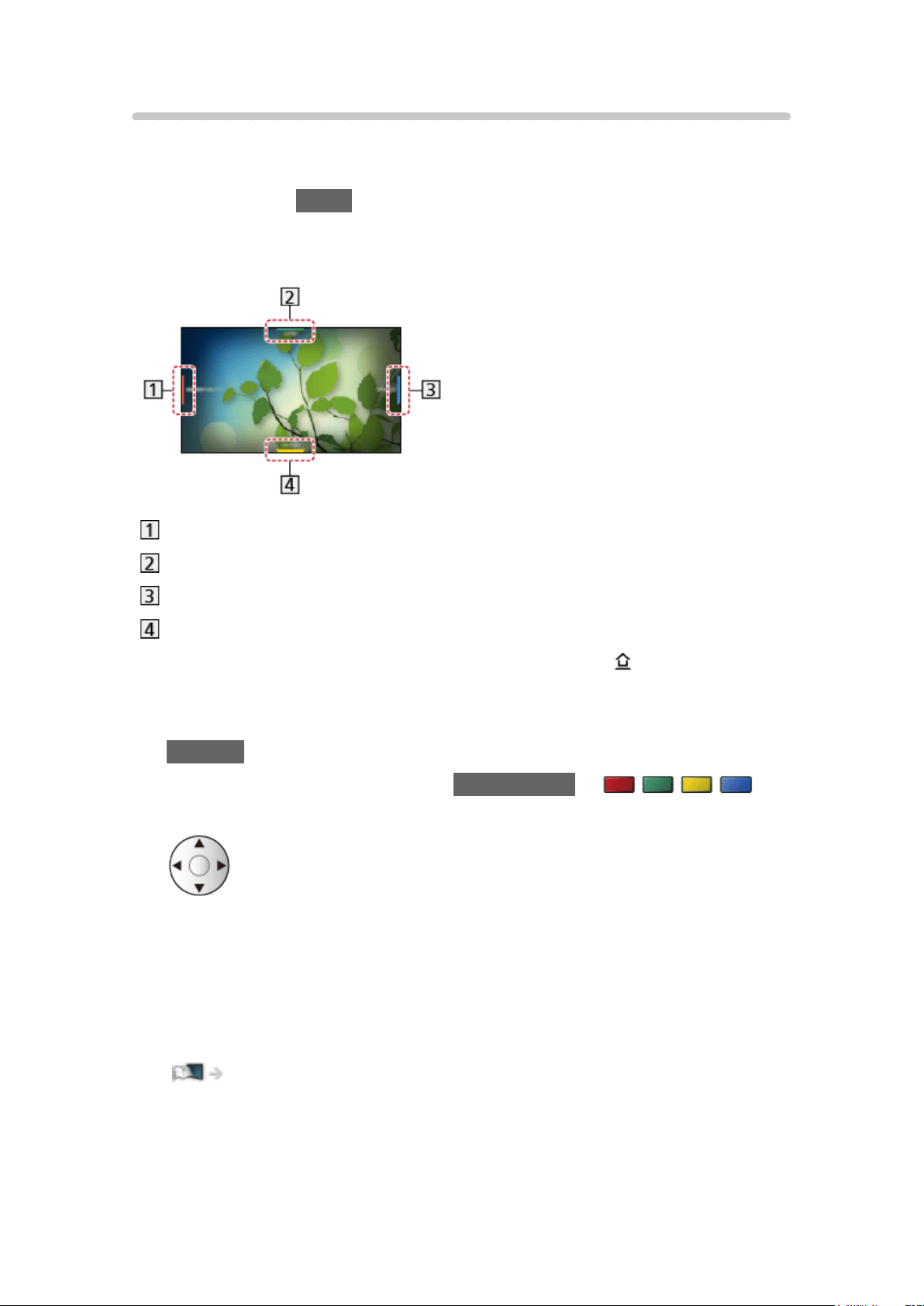
How to use
[Some features are not available on all models.]
You can check useful information using Info Frame while watching TV.
1. Press and hold HOME.
●
Info Frame is displayed on the edge of screen.
(Example)
Current programme information, etc.
Relevant information (weather forecast, etc.)
Notification message
Recommended content (TV programme, internet content, etc.)
●
You can also display Info Frame pressing and holding (HOME) on
Touch Pad Controller.
●
To exit Info Frame
RETURN
2. Select one side of Info Frame with Cursor buttons or
(coloured buttons) while Info Frame is displayed.
●
You can also select by sliding your finger on Touch Pad Controller.
3. Follow the on-screen instructions.
= Note =
●
Info Frame is displayed for several seconds each time the TV is turned on.
Functions > Info Frame > Settings
- 221 -

Settings
You can set items for Info Frame.
1. Display the menu with MENU.
2. Select Setup > Display Settings > Info Frame at Power on and press OK to
access.
3. Set the item and press OK to store.
Info Frame at Power on
(On / Off)
Displays Info Frame when the TV is turned on.
- 222 -

Voice Control
Information
[Some features are not available on all models.]
Voice Control function allows you to operate the TV (e.g. selecting a channel),
search the content from various features, etc. with your speech.
●
A broadband network environment is required to fully use this function.
Ensure the network connections and network settings are completed.
Network > Network connections
Network > Network settings
●
To use this function with Touch Pad Controller, ensure the pairing is
completed.
Functions > Touch Pad Controller > Pairing
●
To use this function with your smartphone, you need to install the
application for controlling VIERA on your smartphone.
Support > FAQs > Detailed information
For the operations, refer to the support information of the application.
- 223 -
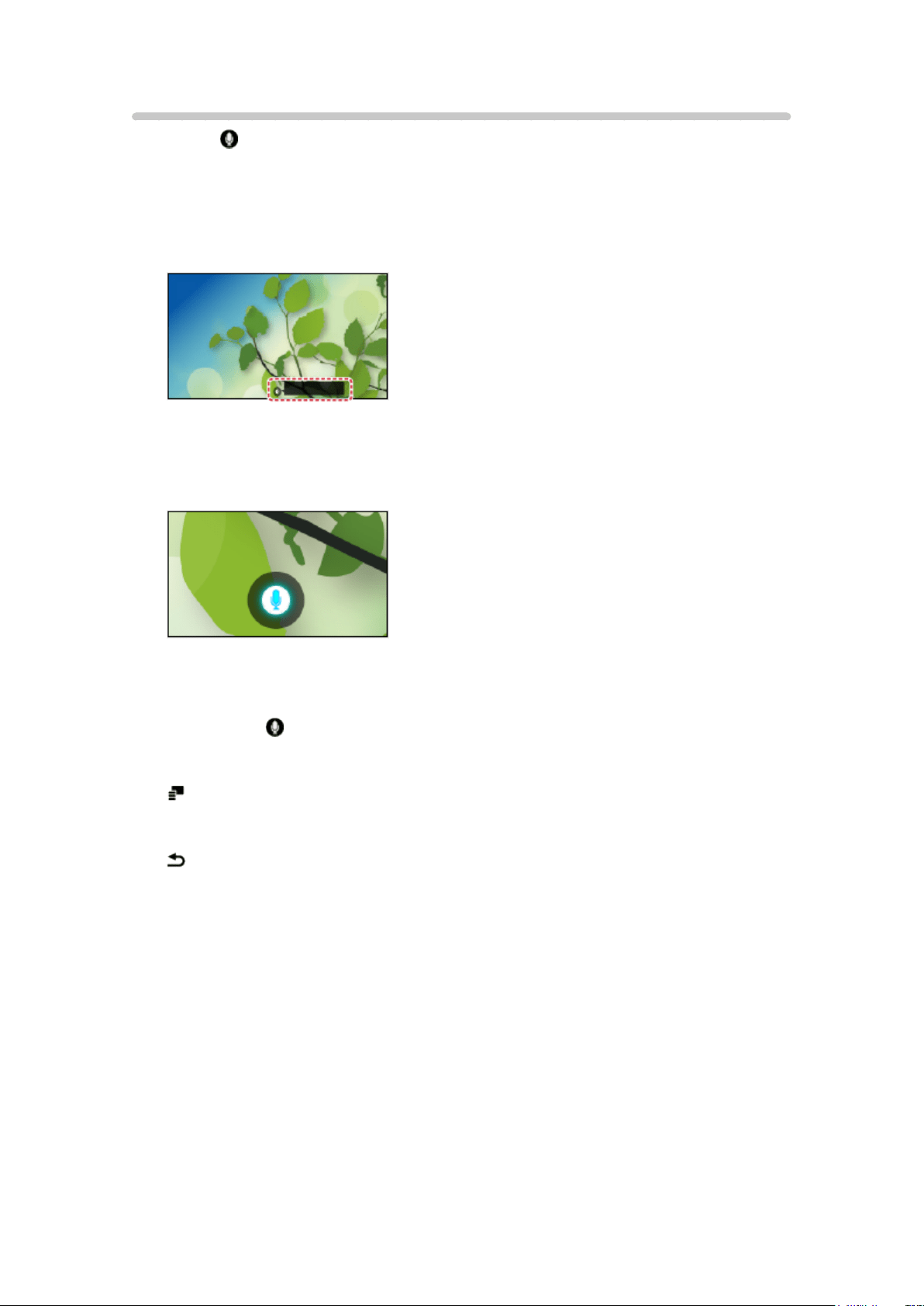
How to use
1. Press on the Touch Pad Controller or the screen of your smartphone to
display the operation guide.
●
When a confirmation screen is displayed, read carefully and start Voice
Control function.
(Example)
2. Say a key word (e.g. my Home Screen) to the microphone while the
operation guide is displayed.
(Example)
●
The operation guide turns to blue during processing.
●
The operation guide automatically disappears after a certain period of
time. Press again to start the Voice Control function.
●
To display voice command list
●
To exit Voice Control function
- 224 -

Settings
You can set items for Voice Control function.
1. Display the menu with MENU.
2. Select Setup > Voice Control Settings and press OK to access.
3. Select one of the following items and press OK to access.
Language / Speech Detection Level / Terms of Service / Instructions for
Voice Control
4. Set the item and press OK to store.
Language
Select the language for Voice Control function.
●
All languages may not be available. When the selected language is not
supported, Language is set to English automatically.
Speech Detection Level
(High / Standard)
Adjusts the sensitivity to recognise your speech.
Terms of Service
Displays the terms of service.
Instructions for Voice Control
Displays details of Voice Control function in eHELP.
- 225 -

Note
[Some features are not available on all models.]
●
When you start Voice Control function, sound level of the TV becomes low.
●
Voice Control function may not work properly in the following conditions:
– Not pronouncing words clearly and correctly
– Speaking too loudly or too quietly.
– Surrounded by loud background noise.
●
Phrases other than Voice Command may not be recognised.
●
It is recommended to speak within approx. 15 cm from the microphone
when using Touch Pad Controller.
●
Voice Control function may not work properly depending on the
microphone of the smartphone.
●
Design and specifications are subject to change without notice.
●
A broadband network environment is required to fully use this function,
because this function accesses the speech recognition server with the
internet connection. Even if you have the internet environment, this
function may not be available depending on the proxy setting. Please
connect the internet without proxy settings. (Proxy settings are not
required for normal household use. For details of the internet environment,
consult your Internet Service Provider (ISP) or telecommunications
company.)
- 226 -

Touch Pad Controller [This feature is available depending
on your model.]
Information
The Touch Pad Controller is designed for convenient and intuitive operation,
especially with the Home Screen or internet content.
●
Touch Pad Controller can be used exclusively for controlling this TV.
●
Register the Touch Pad Controller to this TV with Bluetooth wireless
technology before using. The registration starts automatically when
you press any buttons (except Standby On / Off switch) after installing
batteries. To register again, set VIERA Touch Pad Controller in the Setup
Menu.
Functions > Touch Pad Controller > Pairing
●
After registering, you can operate the TV without pointing this controller at
the TV (except Standby On / Off switch).
●
It is recommended to speak within approx. 15 cm from the microphone of
Touch Pad Controller when using the Voice Control function.
- 227 -

Pairing
[Available menu items are displayed on your TV screen.]
Perform the registration when Touch Pad Controller is used for the first time.
The registration starts automatically when you press any buttons (except
Standby On / Off switch) after installing batteries.
To register again, take following steps.
1. Display the menu with MENU.
2. Select Setup > VIERA Touch Pad Controller > Pairing and press OK to
access.
3. Follow the on-screen instructions.
= Note =
●
Place Touch Pad Controller within 50 cm from the TV while registration is
in progress.
●
Only 1 Touch Pad Controller can be registered.
- 228 -
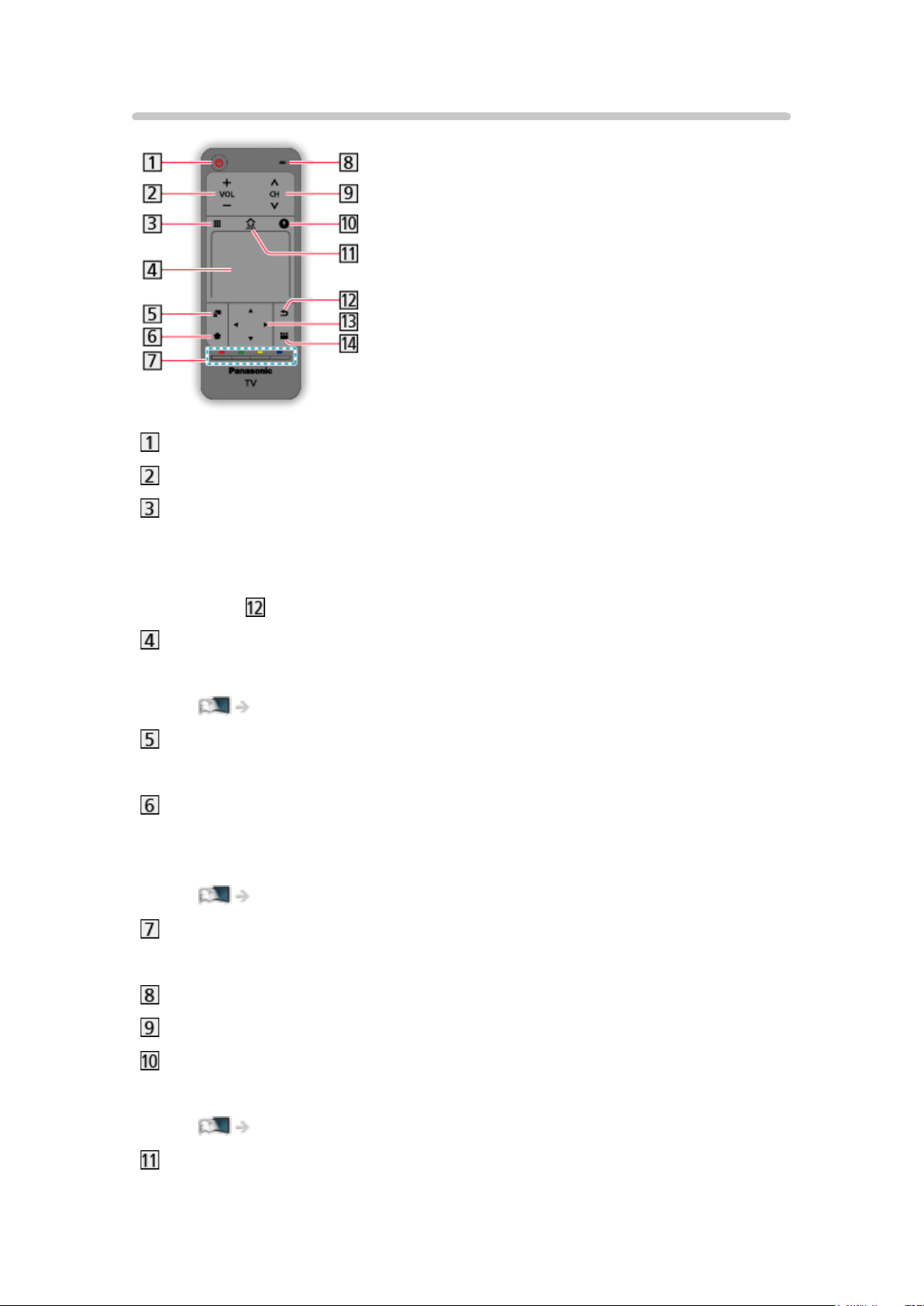
Identifying controls
Standby On / Off switch
Volume Up / Down
On-screen remote control
– Press to display the remote control GUI (Graphical User Interface).
– Press again to move the position of GUI. Swipe to select the button.
– Press
to exit the on-screen remote control.
Touch pad
– For operations, refer to Operation Guide in the Setup menu.
Functions > Touch Pad Controller > Settings
Option menu
– Easy optional setting for viewing, sound, etc.
Pin to HOME
– Adds a shortcut for a frequently used feature (TV programme /
application / device) on Home Screen.
Home Screen > Home Screen > Pin to HOME
Coloured buttons (red-green-yellow-blue)
– Used for the selection, navigation and operation of various functions.
Microphone
Channel Up / Down
Voice Control button
– For details of Voice Control function
Functions > Voice Control
HOME
– Displays Home Screen.
- 229 -

Return
– Returns to the previous menu / page.
Cursor buttons
APPS
– Displays Apps.
= Note =
●
To use Standby On / Off switch, point the controller directly at the TV’s
remote control signal receiver because it works with infrared sensors. (You
can operate the switch without registration.)
- 230 -
Settings
[Available menu items are displayed on your TV screen.]
1. Display the menu with MENU.
2. Select Setup > VIERA Touch Pad Controller and press OK to access.
3. Select one of the following items and press OK to access.
Pairing / Cursor Sensitivity / Operation Guide
4. Follow the on-screen instructions.
Pairing
Registers Touch Pad Controller (supplied) to this TV.
Functions > Touch Pad Controller > Pairing
Cursor Sensitivity
(Max / Mid / Min)
Adjusts the sensitivity of the cursor.
Operation Guide
Displays the operation guide of Touch Pad Controller.
- 231 -

TV Anytime
How to use
You can watch TV and set timer event with the network equipment
(smartphone, etc.) from outside the home network.
Smartphone, etc.
TV
●
Ensure the network connections and network settings are completed.
Network > Network connections
Network > Network settings
1. Set TV Anytime to On.
Functions > TV Anytime > TV Anytime Settings
2. Connect the device (smartphone, etc.) to the home network and access to
the TV.
●
You need to install the application for controlling VIERA on your
smartphone.
Support > FAQs > Detailed information
For the operations, refer to the support information of the application.
= Note =
●
This function is not available when the TV is turned off with Mains Power
On / Off switch.
●
Due to network conditions or certain broadcaster restrictions, this function
may not be available.
- 232 -

TV Anytime Settings
1. Display the menu with MENU.
2. Select Network > TV Anytime Settings and press OK to access.
3. Select one of the following items and press OK to access.
TV Anytime / Powered on by Swipe & Share / Device ID / Device
Password
4. Follow the on-screen instructions.
TV Anytime
(On / Off)
Enables watching TV and setting timer event with the network equipment
(smartphone, etc.) from outside the home network.
●
Changing the default configuration may result in higher energy
consumption of the product.
●
LED turns to orange in Standby mode when TV Anytime is set to On.
Powered on by Swipe & Share
(On / Off)
Enables turning on the TV automatically when the Swipe & Share function is
activated from the other devices (smartphone, etc.).
●
Set TV Anytime to On to use this function.
●
Use the Swipe & Share function to turn on the TV only when you can see
the status of the TV.
Device ID
Displays the device ID of this TV.
Device Password
Displays the device password of this TV.
- 233 -
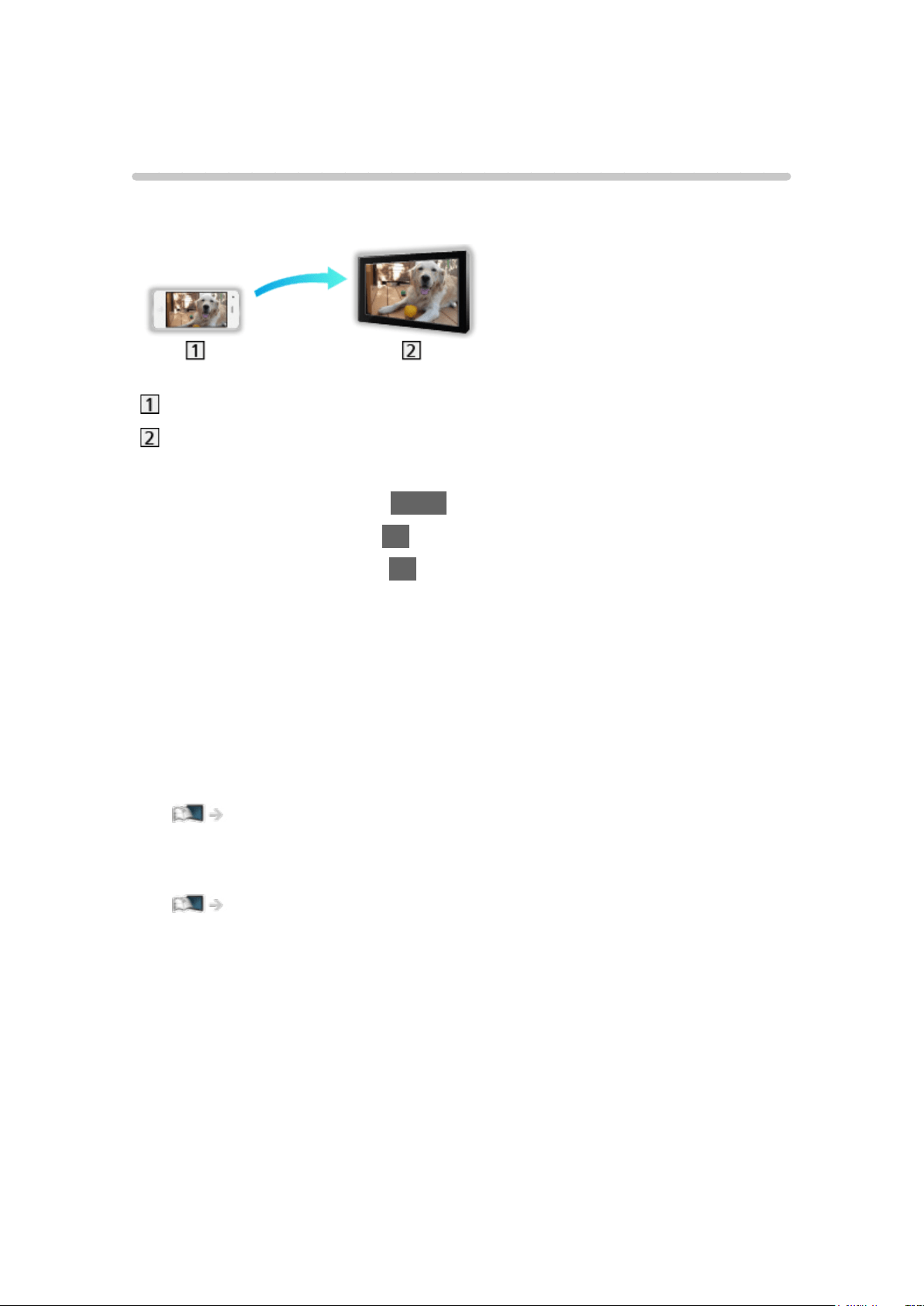
Mirroring
How to use
You can watch and display images of other devices (smartphone, etc.) on the
TV screen using a mirroring function.
Smartphone, etc.
TV
1. Display Home Screen with HOME.
2. Select Devices and press OK to access.
3. Select Mirroring and press OK.
4. Follow the on-screen instructions.
●
Pairing information of the device (smartphone, etc.) is registered once you
use this function.
■ Easy Mirroring
You can also start the mirroring function from the other devices (smartphone,
etc.) when Easy Mirroring is set to On.
Functions > Mirroring > Mirroring Settings
●
You cannot use Easy Mirroring function while the TV is set to Wireless
Access Point.
Network > Network settings > Network Status
= Note =
●
This function is available with the other devices (smartphone, etc.)
supporting the mirroring function. For details, refer to the operating
instructions of the devices.
- 234 -

Mirroring Settings
You can set items for the mirroring function.
1. Display the menu with MENU.
2. Select Network > Mirroring Settings and press OK.
3. Select one of the following items and press OK to access.
Easy Mirroring / Powered On by Easy Mirroring / Delete All Pairings
4. Set the item and press OK to store.
Easy Mirroring
(On / Off)
Enables starting the mirroring function from the other devices (smartphone,
etc.) without operating the TV.
●
To deactivate wireless, set Easy Mirroring to Off and confirm the network
connection type is set to Wired.
Network > Network settings > Network Status
●
Not valid when the TV is set to Wireless Access Point
Powered On by Easy Mirroring
(On / Off)
Enables turning on the TV automatically when the mirroring function is
activated from the other devices (smartphone, etc.).
●
Changing the default configuration may result in higher energy
consumption of the product.
●
Use the mirroring function to turn on the TV only when you can see the
status of the TV.
●
Register the devices (smartphone, etc.) before using this function.
●
LED turns to orange in Standby mode when Powered On by Easy
Mirroring is set to On.
Delete All Pairings
Delete the pairing information for all paired devices.
- 235 -
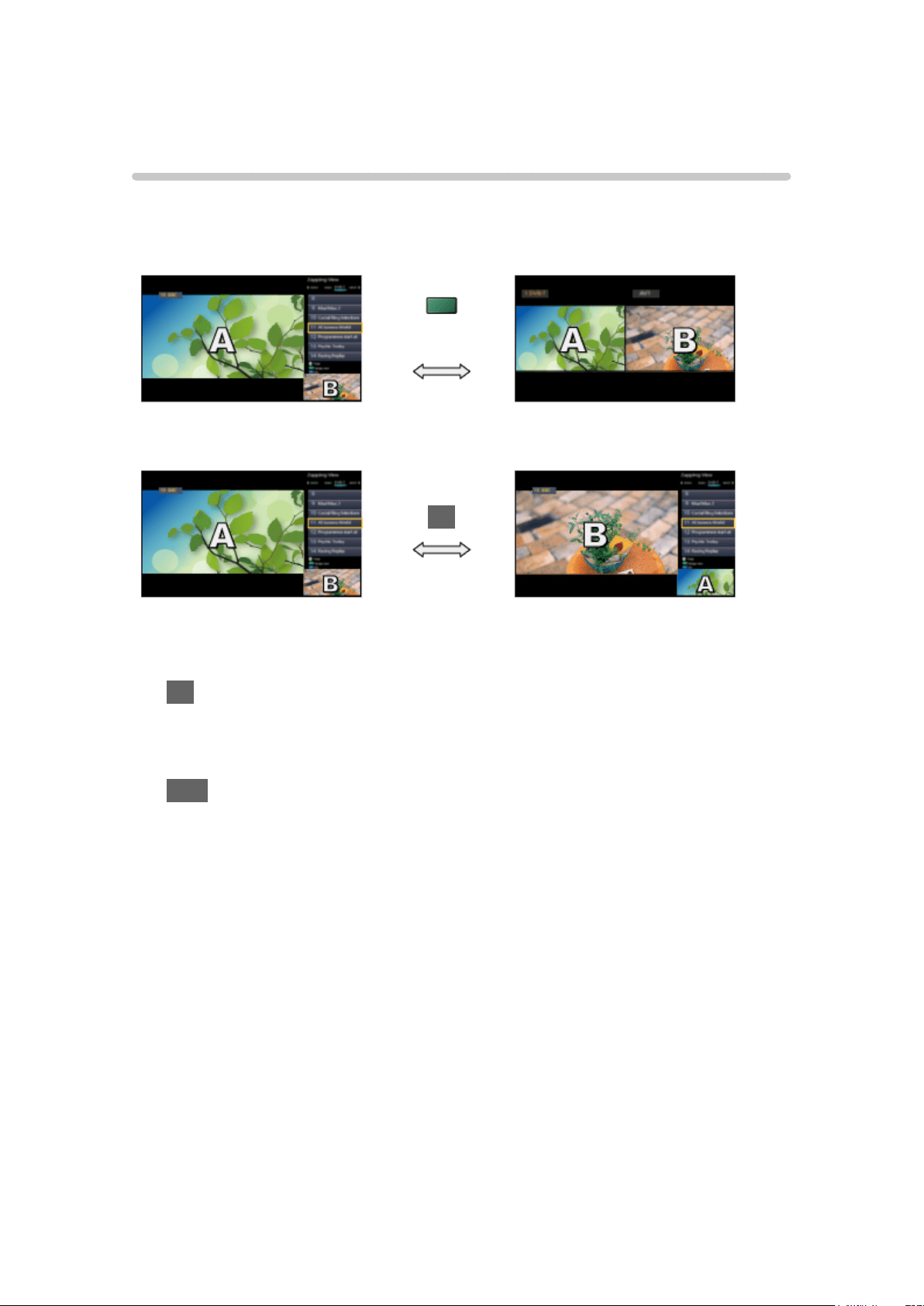
Multi Window [Only for dual tuner model]
Information
Displays two windows at once for viewing the TV programmes or external
input (AV / COMPONENT / HDMI) as shown below (example).
(green)
Pre-view Dual view
OK
Pre-view Pre-view
●
To swap windows
OK
– Not valid while recording is in progress
●
To exit multi window
EXIT
- 236 -
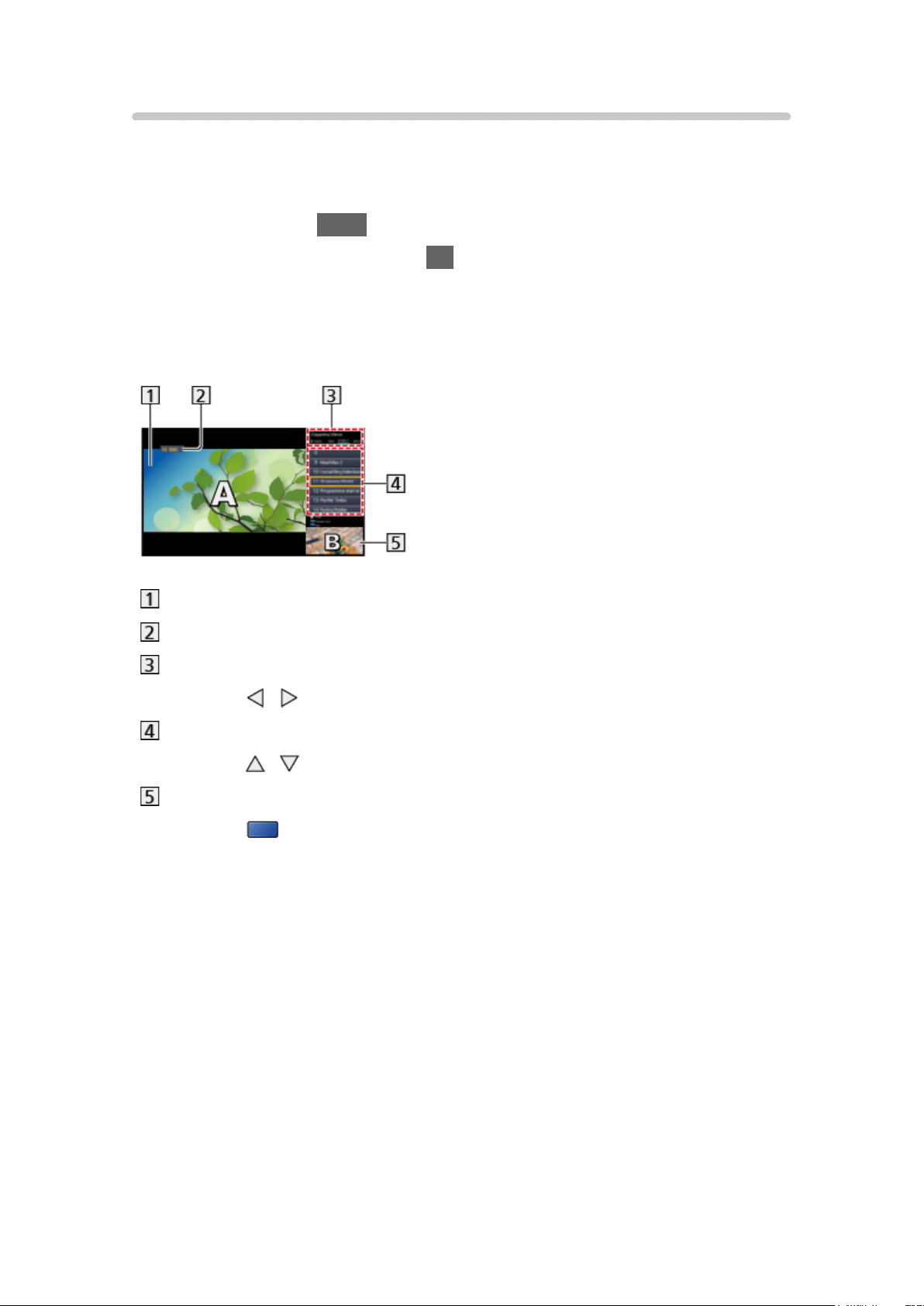
How to use
[Available menu items are displayed on your TV screen.]
You can select a channel while watching another programme or external
input.
1. Display Apps with APPS.
2. Select Multi Window and press OK to access.
■ Pre-view
(Example)
Main screen
TV mode / Input mode / Channel position and name (for main screen)
TV mode / Input mode (for sub screen)
– Press
/ to select the TV mode / input mode of the sub screen.
Current programme information (if available) (for sub screen)
– Press
/ to select the programme of the sub screen.
Sub screen / information screen
– Press
(blue) to change the screen.
●
The sound comes only from the main screen.
- 237 -
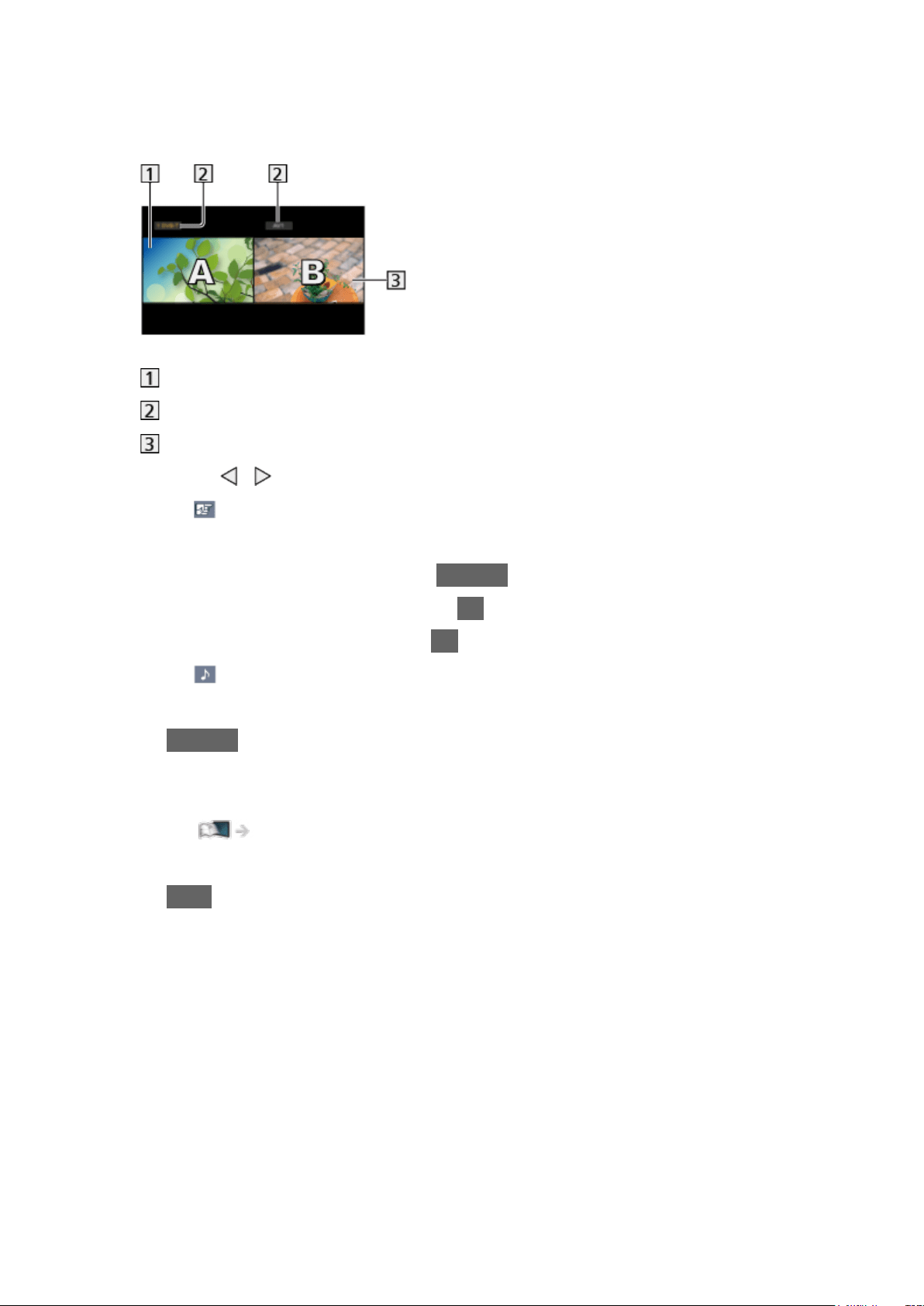
■ Dual view
(Example)
Main screen
TV mode / Input mode / Channel position and name
Sub screen
●
Press / to select the screen to operate.
–
displays on the screen.
●
To select the sound
1) Display the option menu with OPTION.
2) Select Sound Output and press OK to access.
3) Select Main / Sub and press OK to set.
–
displays on the screen.
●
To confirm or change the current status
OPTION
– Menu items and selectable options vary between the main screen and
sub screen.
Watching > Basic > AV Options
●
To display / hide the operation guide
INFO
- 238 -

Note
●
This function may not work properly depending on the signal format.
●
Not valid in Analogue TV
●
Data services are not available in multi window.
●
You cannot change the aspect ratio in multi window.
●
External input mode can only be displayed either on the main screen or
sub screen.
●
HDMI is available for the main screen.
●
Some signals are reformatted for suitable viewing on your display.
●
Playback in fast-forward or in reverse on the sub screen may affect the
picture quality on the main screen.
- 239 -

VIERA Link “HDAVI Control™”
Summary of VIERA Link
Enjoy additional HDMI Inter-Operability with Panasonic products which have
“HDAVI Control™” function.
VIERA Link (HDAVI Control) connects the TV and the equipment with
VIERA Link function, and enables easy control, playback, energy saving,
creating home theatre, etc. without complicated settings. Connections to the
equipment (DVD Recorder, HD Video Camera, Player theatre, Amplifier, etc.)
with HDMI cables allow you to interface them automatically. These features
are limited to models incorporating “HDAVI Control” and “VIERA Link”.
●
This TV supports “HDAVI Control 5” function.
●
Some functions are not available depending on the equipment’s version
of HDAVI Control. Confirm the connected equipment’s version of HDAVI
Control.
●
VIERA Link “HDAVI Control” is a unique function that we have developed
and added based on the control functions provided by HDMI which is an
industry standard known as HDMI CEC (Consumer Electronics Control).
As such, its operation with other manufacturers’ product that supports
HDMI CEC cannot be guaranteed.
●
VIERA Link features may be available even with other manufacturers’
equipment supporting HDMI CEC.
●
Please refer to individual manuals for other manufacturers’ product
supporting VIERA Link function.
●
About applicable Panasonic product, consult your local Panasonic dealer.
- 240 -

■ VIERA Link (HDMI connection)
●
Depending on the model, it may be necessary to remove the terminal
cover / cable cover before connecting or disconnecting cables.
●
Use a fully wired HDMI compliant cable.
●
Connect the equipment supporting VIERA Link to the TV’s HDMI terminal
via an HDMI cable.
About HDMI cable for connecting Panasonic HD Video Camera or LUMIX
Camera, read the manual of the equipment.
HDMI terminal
HDMI cable
Equipment with VIERA Link function (DVD Recorder / DVD Player / Blu-
ray Disc Player / HD Video Camera / LUMIX Camera)
■ Available features (HDMI connection)
DVD Recorder / DVD Player / Blu-ray Disc Player
●
Easy playback
●
Power on Link
●
Power off Link
●
Standby Power Save
●
Intelligent Auto Standby
●
VIERA Link Control
HD Video Camera / LUMIX Camera
●
Easy playback
●
Power on Link
●
Power off Link
●
VIERA Link Control
: For equipment which has “HDAVI Control 2 or later” function.
: For equipment which has “HDAVI Control 4 or later” function.
- 241 -
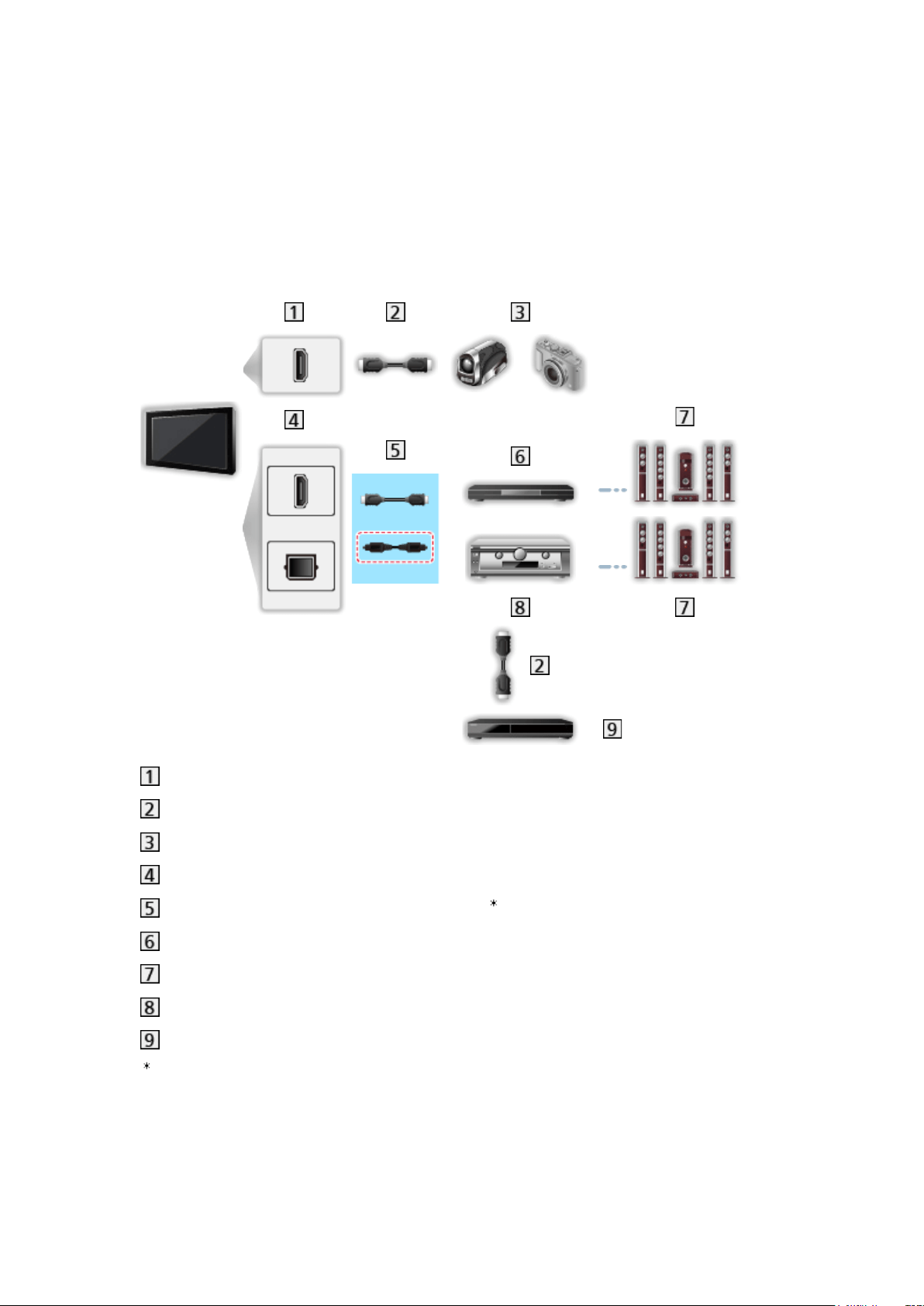
■ VIERA Link (HDMI and Audio out connections)
●
Depending on the model, it may be necessary to remove the terminal
cover / cable cover before connecting or disconnecting cables.
●
Use a fully wired HDMI compliant cable.
●
Connect the equipment supporting VIERA Link to the TV’s HDMI terminal
via an HDMI cable.
●
Use the optical digital audio cable for audio output from the TV.
HDMI terminal
HDMI cable
HD Video Camera / LUMIX Camera with VIERA Link function
HDMI terminal / DIGITAL AUDIO OUT
HDMI cable (Optical digital audio cable )
Player theatre / Blu-ray Disc theatre with VIERA Link function
Speaker system
Amplifier with VIERA Link function
DVD Recorder with VIERA Link function
: If the connected equipment has “HDAVI Control 5” function, you do not
have to use this audio cable (Optical digital audio cable). In this case,
connect the equipment to the TV’s HDMI2 terminal via an HDMI cable.
- 242 -

■ Available features (HDMI and Audio out connections)
Player theatre
●
Easy playback
●
Power on Link
●
Power off Link
●
Intelligent Auto Standby
●
VIERA Link Control
●
Speaker Selection
Blu-ray Disc theatre
●
Easy playback
●
Power on Link
●
Power off Link
●
Standby Power Save
●
Intelligent Auto Standby
●
VIERA Link Control
●
Speaker Selection
Amplifier
●
Power off Link
●
Intelligent Auto Standby
●
Speaker Selection
: For equipment which has “HDAVI Control 2 or later” function.
: For equipment which has “HDAVI Control 4 or later” function.
: While playing a disc
: Except for watching a disc
- 243 -

■ VIERA Link Control of compatible equipment
The following is the maximum number of compatible equipment that can be
controlled by VIERA Link Control. This includes connections to equipment
already connected to the TV.
For example, DVD Recorder connected to Amplifier which is connected to the
TV via an HDMI cable.
Functions > VIERA Link “HDAVI Control™” > VIERA Link Control
●
Recorder:
Maximum 3
●
Player:
Maximum 3 (DVD Player, Blu-ray Disc Player, HD Video Camera,
LUMIX Camera, Digital Camera, Player theatre, Blu-ray Disc theatre,
etc.)
●
Audio system:
Maximum 1 (Player theatre, Blu-ray Disc theatre, Amplifier, etc.)
●
Tuner:
Maximum 4 (Set top box, etc.)
- 244 -

Preparations
●
Connect the equipment supporting VIERA Link.
●
For details of VIERA Link connections
Functions > VIERA Link “HDAVI Control™” > Summary of VIERA Link
●
Use a fully wired HDMI compliant cable.
●
Set up the connected equipment. Read the manual of the equipment.
●
Set VIERA Link to On in the Setup Menu.
●
Set up the TV. After connection, turn the equipment on and then switch the
TV on. Select the HDMI input from Input Selection with AV and make sure
that an image is displayed correctly. (This setup should be done each time
the following conditions occur.)
– First time operation
– Adding or reconnecting equipment
– Changing setup
- 245 -

Easy playback
Automatic input switching - When the connected equipment is operated, the
input mode is switched automatically.
- 246 -

Power on Link
Set Power on Link to On in VIERA Link Settings to use this function.
When the connected equipment is operated, the TV is automatically turned
on. (Only when the TV is in Standby mode.)
- 247 -

Power off Link
Set Power off Link to On in VIERA Link Settings to use this function.
When the TV is set to Standby mode, the connected equipment is also
automatically set to Standby.
●
This function will work even if the TV enters Standby mode automatically
by auto power standby function.
- 248 -

Standby Power Save
Set Standby Power Save to On in VIERA Link Settings to use this function.
The power consumption of the connected equipment in Standby mode is
controlled higher or lower in synchronisation with the TV on / off state to
reduce the consumption.
When the TV is set to Standby mode, the connected equipment is
automatically set to Standby and the power consumption of the connected
equipment is automatically minimised.
When the TV is turned on, the connected equipment is still in Standby mode,
but the power consumption is increased to quickly start the connected
equipment.
●
This function is effective if the connected equipment can change the power
consumption in Standby mode and is set to higher consumption.
●
This function works when Power off Link is set to On.
- 249 -

Intelligent Auto Standby
Set Intelligent Auto Standby to On in VIERA Link Settings to use this function.
When the TV is on, non-used connected equipment goes into Standby mode
automatically to reduce the power consumption. For example, when the input
mode is switched from HDMI or when Speaker Selection is changed to TV
(except for watching a disc).
●
This function may not work properly depending on the connected
equipment. In this case, set to Off.
- 250 -

VIERA Link Control
You can control some functions of the connected equipment with this TV’s
remote control by pointing at the TV’s signal receiver.
1. Display Apps with APPS.
2. Select VIERA Link and press OK to access.
3. Select VIERA Link Control and press OK to access.
4. Select one of the following items and press OK to access.
Recorder / Player / Home Cinema / Video Camera / LUMIX / Digital
Camera / Other
(The menu of the accessed equipment is displayed. The input mode is
changed automatically.)
●
The displayed item may vary depending on the connected equipment.
●
Home Cinema means Player theatre, Blu-ray Disc theatre or Recorder
theatre.
●
Other means Tuner set top box.
5. Follow the on-screen instructions to operate the menu of the equipment.
●
Confirm the remote control code is “73”.
Watching > External equipment > Operating with TV’s remote control
●
To display the operation guide
OPTION
(If other manufacturers’ product is accessed, Setup / Contents
Selection menu may be displayed.)
●
Available TV’s remote control buttons depend on the connected
equipment.
■ If multiple recorders or players are connected
Each recorder / player is numbered. The number is given from the TV’s
lower number of HDMI terminal connected to the same type of equipment.
For example, when two recorders are connected to HDMI2 and HDMI3, the
recorder connected to HDMI2 is displayed as Recorder1, and the recorder
connected to HDMI3 is displayed as Recorder2.
■ If you access non-VIERA Link equipment
The type of the connected equipment is displayed. Although you can access
the connected equipment, you cannot operate it. Use the remote control of
the connected equipment.
- 251 -

= Note =
●
If you cannot operate the equipment, check the settings and the
equipment.
Functions > VIERA Link “HDAVI Control™” > Summary of VIERA Link
●
Some operations may not be available depending on the equipment. In
this case, use the remote control of the connected equipment.
●
For details of the operations for the connected equipment, read the
manual of the equipment.
- 252 -

Speaker Selection
You can control the theatre speaker with this TV’s remote control by pointing
at the TV’s signal receiver.
1. Display Apps with APPS.
2. Select VIERA Link and press OK to access.
3. Select Speaker Selection and press OK to access.
4. Select TV / Home Cinema and press OK to set.
TV:
TV speakers are active.
Home Cinema:
The sound is delivered from theatre speakers. Player theatre, Blu-
ray Disc theatre or Amplifier will be automatically turned on if it is in
Standby mode.
●
The sound of TV speakers is mute. When the equipment is turned
off, TV speakers will be activated.
●
You can use Volume Up / Down and MUTE.
■ Multi-channel sound
If you want to enjoy the multi-channel sound (e.g. Dolby Digital 5.1ch) via
an Amplifier, connect it with an HDMI cable and Optical digital audio cable,
and then select Home Cinema. If your Amplifier has the “HDAVI Control 5”
function, you only need to connect it with an HDMI cable to the TV’s HDMI2
terminal.
To enjoy multi-channel sound from DIGA Recorder, connect an HDMI cable
from the DIGA Recorder to the Amplifier.
= Note =
●
If you cannot operate the equipment, check the settings and the
equipment.
Functions > VIERA Link “HDAVI Control™” > Summary of VIERA Link
●
Some operations may not be available depending on the equipment.
- 253 -

Note
●
These functions may not work properly depending on the connected
equipment.
●
Image or sound may not be delivered for the first few seconds when the
input mode is switched.
●
“HDAVI Control 5” is the newest standard for HDAVI Control compatible
equipment. This standard is compatible with conventional HDAVI
equipment.
●
To confirm the HDAVI Control version of this TV
Support > Help menu > Using Help menu
- 254 -

Child Lock
Using Child Lock
You can lock specific channels / AV input terminals to restrict access to them.
When the locked channel / input is selected, a message appears. Enter the
PIN number to watch.
1. Display the menu with MENU.
2. Select Setup > Child Lock and press OK to access.
3. Enter the PIN number (4 digits) with Numeric buttons.
●
“0000” has been stored as the default PIN number.
4. Select Child Lock List and press OK to access.
5. Select the channel / input and press OK to lock.
●
appears when the channel / input is locked.
●
To cancel
1) Select the locked channel / input.
2) Press OK.
●
To lock all
(green)
●
To cancel all locks
(yellow)
●
To jump to the head of the next channel / input group
(blue)
■ Show Adult App
Set to Off to lock specific applications to restrict access to them (if available).
= Note =
●
For internet content
■ Player PIN Control
Applies access control for some digital text services.
- 255 -

= Note =
●
For digital TV
●
New Zealand only
- 256 -

PIN number
You can change the PIN number.
1. Select Change PIN and press OK to access.
2. Enter a new PIN number twice with Numeric buttons.
= Note =
●
Setting Shipping Condition erases the PIN number and all settings.
●
If you have forgotten your changed PIN, input “6969” as the PIN number.
- 257 -

Parental Rating
To watch the digital TV programme that has rating information on the selected
age, enter the PIN number (depending on the broadcaster).
1. Select Parental Rating and press OK to access.
2. Select an age for the restriction of programmes and press OK to set.
■ Meaning of rating
For Australia
No Block: Not classified
R: Restricted 18+
AV 15+: Adult strong Violence 15+
MA 15+: Mature Adult 15+
M: Mature
PG: Parental Guidance recommended
G: General
C: Children
P: Pre school
For New Zealand
No Block: Not classified
AO: Adults Only
PGR: Parental Guidance Recommended
G: General
= Note =
●
Setting Shipping Condition erases the PIN number and all settings.
●
If you have forgotten your changed PIN, input “6969” as the PIN number.
- 258 -

Data Service Application
Using Data Service Application
You can enjoy Hybrid Broadcast Broadband TV application that may be
provided via digital broadcasting as interactive data services.
1. Select Digital TV with TV.
2. Display the menu with MENU.
3. Select Setup > Data Service Application > Service and press OK to
access.
4. Select Auto Start On and press OK to set.
●
A notification message will appear when the application is available.
Follow the on-screen instructions.
●
is displayed on the information banner if the programme has Hybrid
Broadcast Broadband TV application.
Watching > Basic > Information banner
●
To terminate the running application. (The default application may start
immediately.)
EXIT
- 259 -

Cookie
1. Display the menu with MENU.
2. Select Setup > Data Service Application > Store Cookie / Delete Cookie
and press OK to access.
Store Cookie
(On / Off)
Enables storing the technical information that a data service application
leaves into the TV in order to recognise to use it again.
Delete Cookie
Deletes all of technical information left by a data service application.
- 260 -

Note
●
A broadband network environment is required to fully use Hybrid
Broadcast Broadband TV application. Ensure the network connections and
network settings are completed.
Network > Network connections
Network > Network settings
●
Not all the data services are available depending on the area and
broadcaster.
●
Not valid in multi window mode
●
Depending on the connection environment, the internet connection may be
slow or may not be successful.
●
Operations may vary depending on the broadcaster. Follow the on-screen
instructions.
●
On-screen instructions may not correspond to the remote control buttons.
- 261 -

Shipping Condition
Shipping Condition
Resets the TV to its original condition (i.e. no channels tuned in).
All settings other than USB Device Setup are reset (channels, picture, sound
settings, etc.).
1. Display the menu with MENU.
2. Select Setup > System Menu > Shipping Condition and press OK to
access.
3. When a confirmation screen is displayed, select Yes and press OK to set.
4. Follow the on-screen instructions.
●
Auto Tuning automatically starts.
= Note =
●
To retune TV channels only (e.g. after moving house), set Auto Tuning.
Watching > Tuning and editing channels > Auto Tuning
- 262 -

Updating the TV Software
Information
A new version of software may be released for download to enhance the
performance or operations of the TV.
If there is an update available and the channel has the update information, a
notification message is displayed.
●
To download
OK
– Press EXIT when not downloading.
- 263 -

Auto update
You can update new software automatically.
1. Display the menu with MENU.
2. Select Setup > System Menu > System Update > Auto Update Search in
Standby and press OK to access.
3. Select Immediately / 1 hour after / Off and press OK to set.
●
If System Update is performed, the software will be updated (TV functions
may be changed). If you do not want to do so, set Auto Update Search in
Standby to Off.
●
Every time you set, the TV automatically performs search in Standby and
downloads an update if any software updates are available.
●
The automatic updating cannot be performed in the following conditions:
– TV turned off with Mains Power On / Off switch
– Recording is in progress.
= Note =
●
Download may take a few hours.
●
During software download and update, DO NOT switch off the TV.
●
A notification message may be a reminder. In this case, schedule
information (the date when the new version can be used) will appear. You
can set the reservation for update. The update will not start when the TV is
off.
- 264 -

Manual update
You can update new software manually.
1. Display the menu with MENU.
2. Select Setup > System Menu > System Update > System Update Search
Now and press OK to access.
3. Searches for an update (for several minutes) and displays a corresponding
message if any.
4. Download with OK.
= Note =
●
Download may take a few hours.
●
During software download and update, DO NOT switch off the TV.
●
To update via the internet
Network > Network settings > Software Update
- 265 -

Setting characters
Using Numeric buttons
You can enter characters for free input items using Numeric buttons.
Press Numeric buttons repeatedly until you reach the desired character.
: . @ / 1 ! : # + - * _ ( ) “ ‘ % & ? , ; = $ [ ] ~ < > { } | ` ^ \
: a b c 2 A B C
: d e f 3 D E F
: g h i 4 G H I
: j k l 5 J K L
: m n o 6 M N O
: p q r s 7 P Q R S
: t u v 8 T U V
: w x y z 9 W X Y Z
: Space 0
●
The character is set automatically if you leave for 1 second.
●
You can also set the character pressing OK or other Numeric buttons less
than 1 second.
●
The characters may vary depending on the input item.
- 266 -

Bluetooth devices [This feature is available depending on your
model.]
Bluetooth Setup
[Available menu items are displayed on your TV screen.]
You can use Bluetooth keyboards and mouse with this TV by setting
Bluetooth Setup in the Setup Menu.
: HID (Human Interface Device Profile) compliant keyboards / mouse can be
used.
1. Display the menu with MENU.
2. Select Setup > Bluetooth Setup > Devices and press OK to access.
Devices
Searches the available device and displays the status.
●
Place the device within 50 cm from the TV while registration is in progress.
●
Turn the device on for registering. The setup for registration may be
required depending on the device. Read the manual of the device.
Not paired:
The device is not registered. Register the device by following the on-
screen instructions to use with this TV.
Connected:
The device is registered and you can use with this TV.
Not connected:
The device is already registered, but not connected to this TV. Check
the device is turned on and set within the available range.
●
This setup is not designed for the 3D Eyewear and Touch Pad Controller
supporting Bluetooth wireless technology.
- 267 -
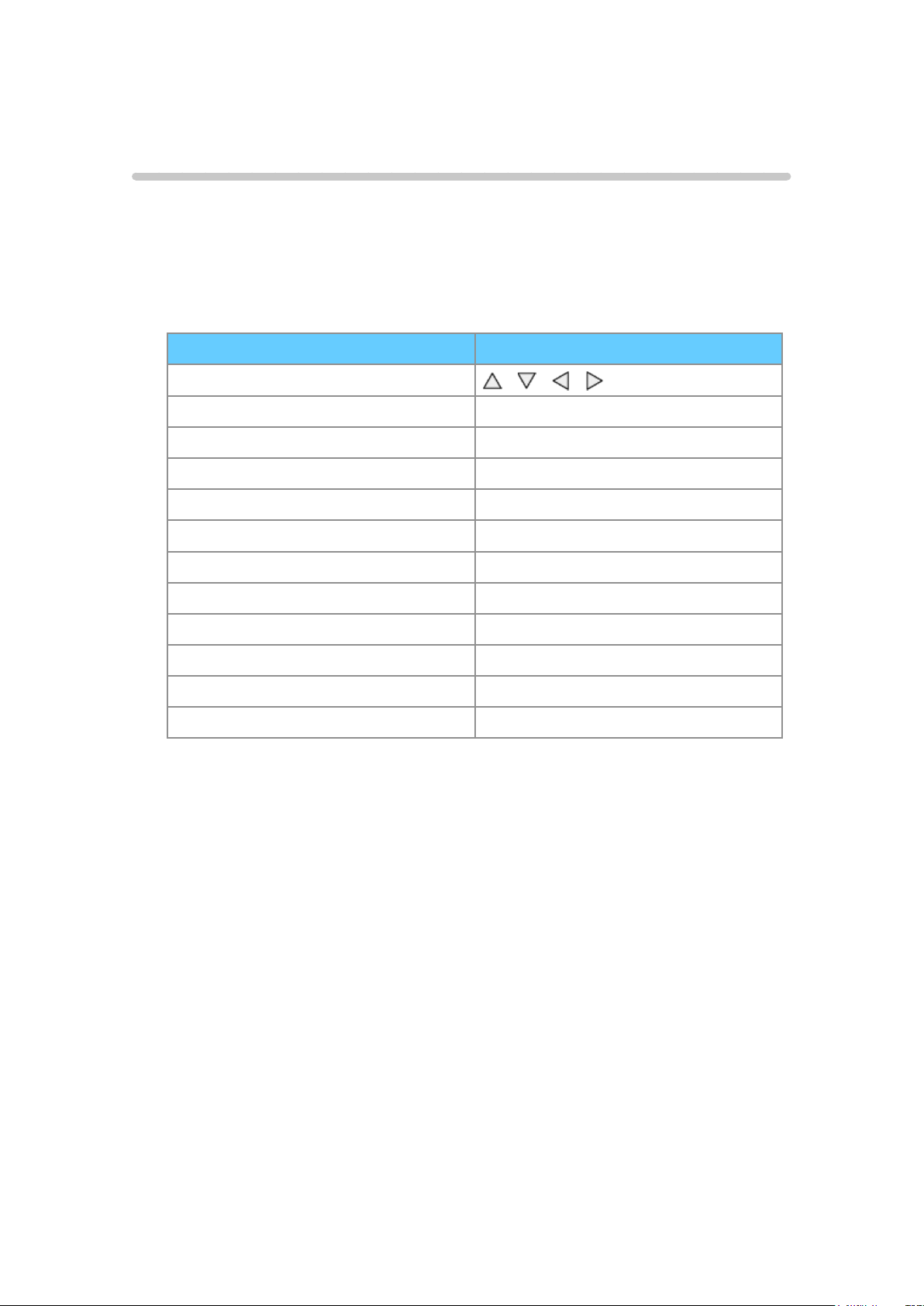
Keyboard
Keyboard
●
Keyboards requiring the drivers are not supported.
●
Characters may not be displayed correctly on the TV screen depending on
the connected keyboard.
●
Some of the keys of keyboards may correspond to the operation of the
remote control.
Keyboard Remote Control
↑/↓/←/→
/ / /
Enter OK
Backspace RETURN
Esc EXIT
0 - 9 / Character Numeric buttons
F1 HOME
F2 APPS
F3 MENU
F4 AV
F5 / F6 Channel Down / Up
F7 / F8 Volume Down / Up
F9 / F10 / F11 / F12 Coloured buttons
- 268 -
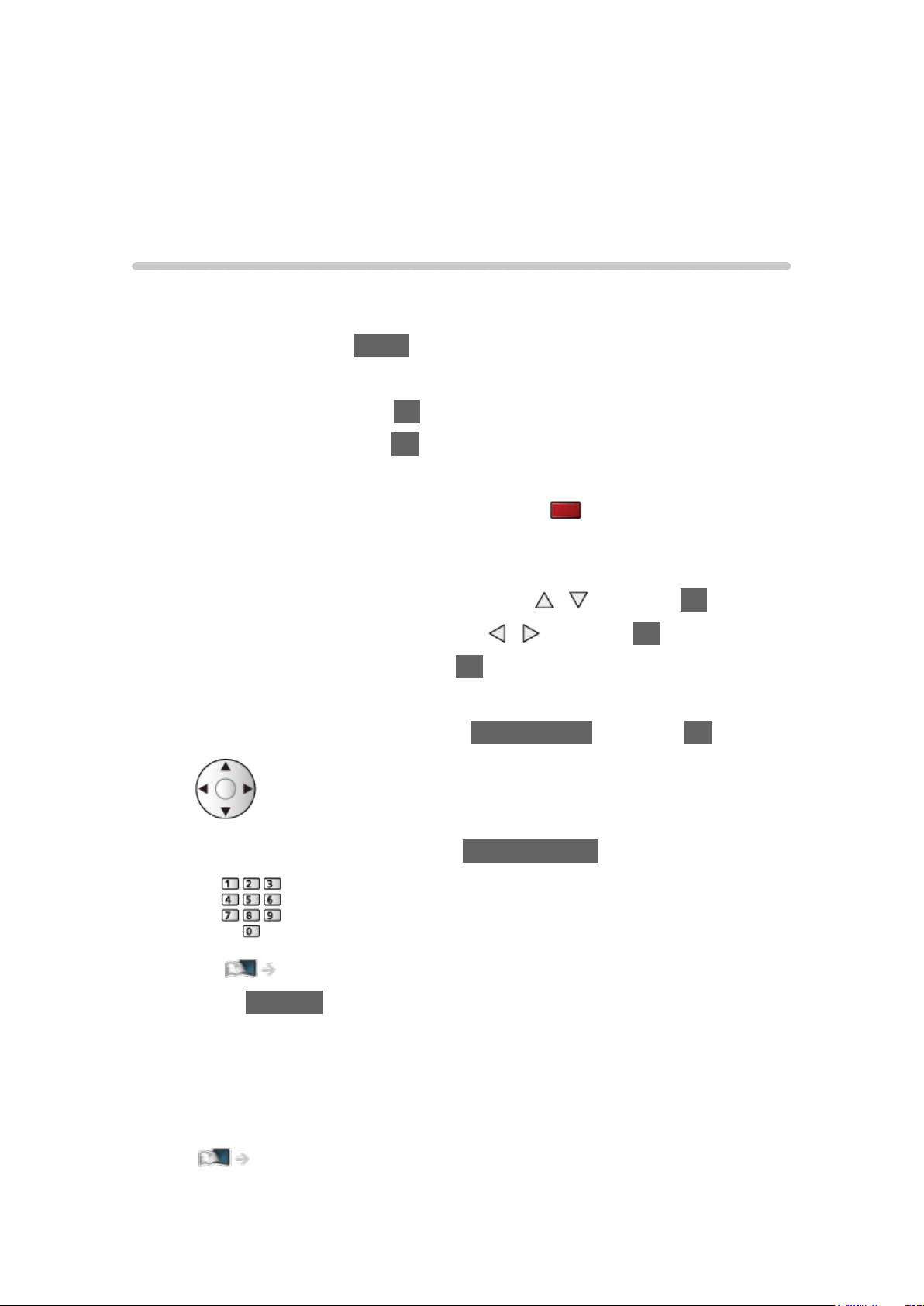
Settings
Setting menu
How to use
Various menus allow you to make settings for the picture, sound, and other
functions.
1. Display the menu with MENU.
●
Displayed items vary depending on the input signal.
2. Select the menu and press OK to access.
3. Select the items and press OK to access.
●
Only available items can be selected.
●
You can also access from eHELP pressing (red) at each item (if
available).
●
You can select from among alternatives with / and press OK to set.
●
You can adjust using the slide bar with
/ and press OK to set.
●
You can go to the next screen with OK.
●
You can enter names or numbers freely for some items.
1) Enter characters one by one with Cursor buttons and press OK to set.
– You can set characters using Numeric buttons.
Functions > Setting characters > Using Numeric buttons
2) Press RETURN to store.
●
To reset the settings
– To initialise picture or sound settings only, select Reset Picture Defaults
in the Picture Menu or Reset Sound Defaults in the Sound Menu.
– To initialise all settings, select Shipping Condition.
Functions > Shipping Condition
- 269 -

●
To exit the menu screen
EXIT
●
To return to the previous screen
RETURN
= Note =
●
Menu items and selectable options vary depending on the mode (TV
mode, Media Player, Network services, etc.).
●
Some settings in Picture menu may also affect the menu screen when
watching content in 4K format.
■ Using control panel buttons
1. Press and hold INPUT/OK/HOLD for MENU button for 3 seconds to
display the menu.
2. Select and set with following control panel buttons.
●
Move the cursor / select from a range of options / select the menu item
/ adjust levels
●
Access the menu / store settings after adjustments have been made or
options have been set with INPUT/OK/HOLD for MENU button
- 270 -

Picture
Viewing Mode
[Some features are not available on all models. Available menu items are displayed on
your TV screen.]
Selects your favourite picture mode for each input.
(Dynamic / Normal / Cinema / THX Cinema / THX Bright Room / True Cinema
/ Custom / Professional1 / Professional2)
Watching > For best picture > Viewing Mode
- 271 -
Basic settings
[Some features are not available on all models. Available menu items are displayed on
your TV screen.]
Backlight, Contrast, Brightness, Colour, Tint, Sharpness
Adjusts the levels of these options according to your personal preference.
Watching > For best picture > Basic settings
●
Sharpness is not available when 1080p Pixel by 4pixels is set to On.
Colour Temperature
Sets the overall colour tone of the picture (bluer - redder).
Watching > For best picture > Basic settings
Vivid Colour
(On / Off)
Automatically adjusts colours to vivid ones.
Watching > For best picture > Basic settings
Colour Remaster
(Max / Min / Off)
Displays the vivid images with the expanded colour gamut.
Watching > For best picture > Basic settings
●
Not valid in the following conditions:
– Photo content
– Viewing Mode is THX mode.
Rec.2020 Colour Remaster
(Max / Min / Off)
Displays the vivid images with the suitable colour gamut.
Watching > For best picture > Basic settings
●
This function is available only for Rec. 2020 and displayed instead of
Colour Remaster.
- 272 -

Reversal Film Effect
(Max / Min / Off)
Provides the picture effect such as the reversal film for photo content.
Watching > For best picture > Basic settings
●
For photo content
●
Not valid when Viewing Mode is THX mode
Adaptive Backlight Control
Automatically controls the level of backlight according to the images.
Watching > For best picture > Basic settings
Resolution Remaster
(Auto / Max / Mid / Min / Off)
Enhances picture resolution to make the image sharper.
Watching > For best picture > Basic settings
●
Not valid in the following conditions:
– Game Mode is set to On.
– 1080p Pixel by 4pixels is set to On.
– 1080p Pure Direct is set to On.
– 4K Pure Direct is set to On.
Dynamic Range Remaster
(On / Off)
Enhances bright areas of the image closer to the original luminance making
improved picture impact.
Watching > For best picture > Basic settings
●
Not valid in the following conditions:
– 3D
– Multi window
– Adaptive Backlight Control is set to Off.
– Contrast Control is set to Off.
- 273 -

Intelligent Frame Creation
(Custom / Max / Mid / Min / Off)
Automatically compensates the picture frame rate and removes juddering
movements to make the images smooth.
Watching > For best picture > Basic settings
●
Depending on the content, images may be noisy. To prevent the noise,
change the setting.
●
Not valid in the following conditions:
– Game Mode is set to On.
– 1080p Pixel by 4pixels is set to On.
– 1080p Pure Direct is set to On.
– 4K Pure Direct is set to On.
- 274 -


Noise reduction settings
Noise Reduction
(Auto / Max / Mid / Min / Off)
Reduces unwanted picture noise.
Watching > For best picture > Noise reduction settings
●
Not valid in the following conditions:
– Game Mode is set to On.
– 1080p Pixel by 4pixels is set to On.
– 1080p Pure Direct is set to On.
– 4K Pure Direct is set to On.
MPEG Remaster
(Auto / Max / Mid / Min / Off)
Reduces flicker noise in contoured parts of a picture and block noise.
Watching > For best picture > Noise reduction settings
●
Not valid in the following conditions:
– Game Mode is set to On.
– 1080p Pixel by 4pixels is set to On.
– 1080p Pure Direct is set to On.
– 4K Pure Direct is set to On.
- 276 -

Advanced Settings
[Some features are not available on all models. Available menu items are displayed on
your TV screen.]
You can adjust and set up the detailed picture settings.
Watching > For best picture > Advanced Settings
●
This function is available when Viewing Mode is set to Cinema, True
Cinema, Custom or Professional1 / 2.
- 277 -

Option Settings
[Some features are not available on all models. Available menu items are displayed on
your TV screen.]
Game Mode
(On / Off)
Provides suitable images for fast response signals when playing games.
Watching > For best picture > Option Settings
●
Not valid in the following conditions:
– TV mode
– 1080p Pixel by 4pixels is set to On.
– 1080p Pure Direct is set to On.
– 4K Pure Direct is set to On.
Film Cadence Mode
(Auto / On / Off)
Improves vertical resolution for movie images.
Watching > For best picture > Option Settings
●
This function is available for interlaced signals (except in the mode of multi
window, Network services or when Game Mode is set to On).
1080p Pure Direct
(On / Off)
Reproduces the original image quality in detail for 1080p (HDMI) input signal.
Watching > For best picture > Option Settings
●
Not valid in the following conditions:
– 3D
– 1080p Pixel by 4pixels is set to On.
●
Not valid in the following conditions:
– 3D
– Multi window
– 1080p Pixel by 4pixels is set to On.
- 278 -

4K Pure Direct
(On / Off)
Reproduces the original image quality in detail for 4K (HDMI) input signal.
Watching > For best picture > Option Settings
●
Not valid in 3D mode
– 3D
– Multi window
1080p Pixel by 4pixels
(On / Off)
Displays like pixel by pixel to make the image sharper for 1080p signal.
Watching > For best picture > Option Settings
●
For HDMI
●
Not all image may be displayed as pixel by pixel precisely.
●
Not valid in the following conditions:
– 3D
– Multi window
HDMI Content Type
(Graphics / Photos / Auto / Off)
Adjusts the picture settings of each HDMI input according to the selected
content type.
Watching > For best picture > Option Settings
●
For HDMI
HDMI EOTF Type
(Auto / Traditional gamma / ST.2084)
Selects the EOTF type for each HDMI input.
Watching > For best picture > Option Settings
●
For HDMI
- 279 -

HDMI Colorimetry Type
(Auto / Rec. 601 / Rec. 709 / Rec. 2020)
Selects the colourimetry type for each HDMI input.
Watching > For best picture > Option Settings
●
For HDMI
HDMI RGB Range
(Auto / Full / Normal)
Adjusts the black level of the image for each HDMI input.
Watching > For best picture > Option Settings
●
For HDMI
HDMI YCbCr Range
(Full / Normal)
Adjusts the black level of the image in the YCbCr signal for each HDMI input.
Watching > For best picture > Option Settings
●
For HDMI
3D-COMB
(On / Off)
Makes still or slow moving pictures more vivid.
Watching > For best picture > Option Settings
●
For PAL / NTSC signal reception in TV mode or from composite
connection
- 280 -

Screen Settings
16:9 Overscan
(On / Off)
Selects the screen area displaying the image for 16:9 aspect.
Watching > For best picture > Screen Settings
●
Not valid in the following conditions:
– 4K content
– Photo content
– Game Mode is set to On.
– 1080p Pixel by 4pixels is set to On.
– 1080p Pure Direct is set to On.
– 4K Pure Direct is set to On.
– Multi window
Zoom Adjustments
Adjusts the vertical position and size when aspect is set to Zoom.
Watching > For best picture > Screen Settings
●
Not valid in the following conditions:
– 4K content
– Multi window
– 3D
●
Not valid in the following conditions:
– 4K content
– 3D
Screen Display
(On / Off)
Turns the screen off when you select Off.
Watching > For best picture > Screen Settings
- 281 -
3D Settings [This feature is available depending on your model.]
[Available menu items are displayed on your TV screen.]
3D Mode
Selects the 3D format manually.
Watching > 3D > 3D Mode Selection
2D→3DDepth
(Max / Mid / Min)
Selects a level of 3D-image depth for viewing converted 2D images.
Watching > 3D > 3D Settings
3D Adjustment
(On / Off)
Adjusts the 3D effect (except in 2D→3D mode).
Watching > 3D > 3D Settings
L/R Picture Swap
(L/R (Normal) / R/L (Reversed))
Swaps pictures for left eye and right eye (except in 2D→3D mode).
Watching > 3D > 3D Settings
Safety Precautions
Displays the precautions for viewing 3D images.
Watching > 3D > 3D Settings
- 282 -


Copy Adjustment
[Some features are not available on all models. Available menu items are displayed on
your TV screen.]
Copies the picture settings of True Cinema, Custom, Professional1 or
Professional2 to those of the other input mode or Viewing Mode.
Watching > For best picture > Copy Adjustment
- 284 -

Reset Picture Defaults
Resets the current Picture Viewing Mode to the default settings.
- 285 -

Basic settings
[Some features are not available on all models. Available menu items are displayed on
your TV screen.]
Bass
Adjusts level to enhance or minimise lower, deeper sound output.
Watching > For best audio > Basic settings
Treble
Adjusts level to enhance or minimise sharper, higher sound output.
Watching > For best audio > Basic settings
Equaliser
Adjusts the frequency level to suit your favourite sound quality.
Watching > For best audio > Basic settings
Balance
Adjusts volume level of right and left speakers.
Watching > For best audio > Basic settings
Surround
(Diffuse Surround / Virtual Surround / Off)
Selects surround sound settings.
(Virtual Surround / Off)
Selects surround sound settings.
Watching > For best audio > Basic settings
Bass Boost
(On / Off)
Enhances the effect of bass sounds.
Watching > For best audio > Basic settings
- 287 -

Volume settings
Speaker Selection
(TV / Home Cinema)
Enables controlling the theatre speaker with this TV’s remote control by
pointing at the TV’s signal receiver.
Watching > For best audio > Volume settings
●
This function is available when the theatre speakers supporting VIERA
Link function is connected to this TV.
TV Speaker
(On / Off)
Set to Off when using the external speakers.
Watching > For best audio > Volume settings
Auto Gain Control
(On / Off)
Automatically regulates large sound level differences between channels and
inputs.
Watching > For best audio > Volume settings
Volume Correction
Adjusts the volume of each individual channel or input mode.
Watching > For best audio > Volume settings
Speaker Distance to Wall
(Up to 30cm / Over 30cm)
Compensates for the low frequency sound due to the distance between the
speakers and the wall.
Watching > For best audio > Volume settings
- 288 -
Voice Guidance Settings
Voice Guidance
(On / Off)
Set to On to enable voice guidance of the basic features (on-screen
messages, etc.) for visually impaired users.
Watching > For best audio > Voice Guidance Settings
●
Not valid in multi window mode
Speed
(Fast / Normal / Slow)
Selects the readout speed for the voice guidance.
Watching > For best audio > Voice Guidance Settings
Volume
(Max / Mid / Min)
Selects the volume for the voice guidance.
Watching > For best audio > Voice Guidance Settings
Language
Changes language for the voice guidance.
Watching > For best audio > Voice Guidance Settings
User Level
(Beginner / Expert)
Selects the level of verbosity for the voice guidance.
Watching > For best audio > Voice Guidance Settings
Web Browser
(On / Off)
Set to On to enable voice guidance of the network content in web browser
function.
Watching > For best audio > Voice Guidance Settings
- 289 -

Audio Description
Audio Description
(Auto / Off)
Narration settings for visually impaired users
Watching > For best audio > Audio Description
●
Not valid in Analogue TV
●
Not valid in multi window mode
Volume
Adjusts the volume for Audio Description.
Watching > For best audio > Audio Description
●
Not valid in Analogue TV
Speakers
(Mix / Standard)
Set to Mix to activate the description sound track from TV speakers.
Watching > For best audio > Audio Description
●
Not valid in Analogue TV
Audio Selection
Selects between alternative languages for sound tracks (if available).
Watching > For best audio > Audio Description
●
Not valid in Analogue TV
- 290 -

Advanced settings
MPX
Selects multiplex sound mode (if available).
Watching > For best audio > Advanced settings
●
For Analogue TV
Digital Audio Preference
(Dolby D / MPEG / HE-AAC)
Selects the initial setting for audio tracks.
Watching > For best audio > Advanced settings
●
Not valid in Analogue TV
SPDIF Selection
(Auto / PCM)
Selects the initial setting for digital audio output signal from DIGITAL AUDIO
OUT and HDMI2 (ARC function) terminals.
Watching > For best audio > Advanced settings
●
For digital TV, video content
HDMI Audio Format
(Auto / Bitstream / PCM)
Selects the audio format for the HDMI input signal.
Watching > For best audio > Advanced settings
PCM Optical Level
Adjusts the audio level of PCM output from DIGITAL AUDIO OUT and HDMI2
(ARC function) terminals to equalise with that of the other audio types.
Watching > For best audio > Advanced settings
HDMI Input
(Digital / Analogue)
Selects to fit the input signal.
Watching > For best audio > Advanced settings
●
For HDMI
- 291 -

Reset Sound Defaults
Resets the current Sound Mode to the default settings.
- 292 -








File Sharing Settings
File Sharing Server
(On / Off)
Sets to share the files between PC and devices connected to this TV.
Media Player > Using Media Player > Sharing file
Network Device List
Lists the accessible network devices to play back the content in Media Player.
Media Player > Using Media Player > Network device
- 300 -



Other settings
Software Update
Checks for available software updates from the Panasonic website.
Network > Network settings > Software Update
New Software Message
(On / Off)
Selects whether to give a notification message when new software is found
via network or not.
Network > Network settings > New Software Message
- 303 -


Clock Settings
Mode
(Auto / Manual)
Selects the clock setting mode for this TV.
Watching > Basic > Adjusting time
Date
Sets the current date manually.
Watching > Basic > Adjusting time
Time
Sets the current time manually.
Watching > Basic > Adjusting time
Daylight Saving Time
Selects time offset from the standard time for Summer Time.
(+ 1 hour / + 1/2 hour / Off / Auto)
Watching > Basic > Adjusting time
●
Australia only
Region Select
Selects the region where you live to adjust the standard time.
(NSW / ACT / Victoria / Queensland / South Australia / Western Australia /
Northern Territory / Tasmania)
Watching > Basic > Adjusting time
●
Australia only
- 306 -







VIERA Touch Pad Controller [This feature is available depending
on your model.]
[Available menu items are displayed on your TV screen.]
Pairing
Registers Touch Pad Controller (supplied) to this TV.
Functions > Touch Pad Controller > Pairing
Cursor Sensitivity
(Max / Mid / Min)
Adjusts the sensitivity of the cursor.
Functions > Touch Pad Controller > Settings
Operation Guide
Displays the operation guide of Touch Pad Controller.
Functions > Touch Pad Controller > Settings
- 313 -


Tuning Menu
[Some features are not available on all models. Available menu items are displayed on
your TV screen.]
Favourites Edit
Creates a list of favourite channels.
Watching > Tuning and editing channels > Favourites Edit
●
Not valid in Analogue TV
Channel List
Skips unwanted channels or edits channels.
Watching > Tuning and editing channels > Channel List
Auto Tuning
Automatically searches for receivable channels.
Watching > Tuning and editing channels > Auto Tuning
Manual Tuning
Searches for channels manually.
Watching > Tuning and editing channels > Manual Tuning
Update Channel List
Updates the channel list while keeping your settings.
Watching > Tuning and editing channels > Update Channel List
●
Not valid in Analogue TV
New Channel Message
(On / Off)
Selects whether to give a notification message when a new channel is found
or not.
Watching > Tuning and editing channels > New Channel Message
●
Not valid in Analogue TV
●
Australia only
- 316 -
Signal Condition
Checks the signal condition.
Watching > Tuning and editing channels > Signal Condition
●
Not valid in Analogue TV
Antenna System
(One LNB / Dual LNB / DiSEqC 1.0)
Sets the antenna system to use plural LNBs for receiving several satellites.
Watching > Tuning and editing channels > Auto Tuning
●
For Satellite TV
LNB Configuration
Selects the satellite for each LNB.
Watching > Tuning and editing channels > Auto Tuning
●
For Satellite TV
Add TV Signal
Adds the TV mode.
Watching > Tuning and editing channels > Add TV Signal
= Note =
The settings in Tuning Menu are applicable only for the selected TV mode.
The menu name varies depending on the TV mode. (Satellite TV Tuning
Menu / Digital TV Tuning Menu / Analogue TV Tuning Menu)
- 317 -

Language
OSD Language
Changes language for on-screen displays.
Watching > Basic > Language
Preferred Audio Language
Selects the preferred language for digital TV multi audio (depending on the
broadcaster).
Watching > Basic > Language
●
New Zealand only
Preferred Subtitles
Selects the default language for digital TV subtitles (depending on the
broadcaster).
Watching > Basic > Language
●
New Zealand only
- 318 -
Display Settings
Subtitle Type
(Standard / Hard of Hearing)
Selects the preferred subtitle type.
Watching > Basic > Subtitle
Teletext
(TOP (FASTEXT) / List)
Selects teletext display mode.
Watching > Teletext > Teletext mode
●
New Zealand only
Input Labels
Accessing the input labels list allows you to change the input name or skip
the input if unconnected, improving identification and selection in the Input
Selection banner.
Watching > External equipment > Watching external input
Banner Display Timeout
(10 / 9 / 8 / 7 / 6 / 5 / 4 / 3 / 2 / 1 / 0 (No display) (seconds))
Sets how long the information banner stays on screen.
Watching > Basic > Information banner
Smart Banner
(On / Off)
Displays the introduction banner for the internet service.
Watching > Basic > Information banner
Playing Time Display
(On / Off)
Set to On to display a time period of continuous use in Game Mode on the top
right of the screen every 30 minutes.
Watching > External equipment > Watching external input
●
This function is available when Game Mode is set to On.
- 319 -




HDMI HDR Setting [This feature is available depending on your model.]
[Available menu items are displayed on your TV screen.]
Set to On when the HDR device is connected to the TV.
(On / Off)
Watching > External equipment > HDMI HDR Setting
●
For HDMI [Available terminals vary depending on your model.]
- 323 -

VIERA Link Settings
VIERA Link
(On / Off)
Sets to use VIERA Link functions.
Functions > VIERA Link “HDAVI Control™” > Preparations
Power on Link
(On / Off)
Sets to use Power on Link functions.
Functions > VIERA Link “HDAVI Control™” > Power on Link
Power off Link
(On / Off)
Sets to use Power off Link functions.
Functions > VIERA Link “HDAVI Control™” > Power off Link
Standby Power Save
(On / Off)
Controls the connected equipment to reduce power consumption in Standby.
Functions > VIERA Link “HDAVI Control™” > Standby Power Save
●
This function is available when VIERA Link is set to On and Power off Link
is set to On.
Intelligent Auto Standby
(On / Off)
Makes non-watched or non-used connected equipment go into Standby mode
to reduce the power consumption.
Functions > VIERA Link “HDAVI Control™” > Intelligent Auto Standby
●
This function is available when VIERA Link is set to On.
- 324 -

Data Service Application
Service
(Auto Start On / Auto Start Off / Off)
Sets to use Hybrid Broadcast Broadband TV application.
●
Not all the data services are available depending on the area and
broadcaster.
Functions > Data Service Application > Using Data Service Application
●
Not valid in Analogue TV
Store Cookie
(On / Off)
Sets to store the information from a data service to the TV in order to access
again quickly.
Functions > Data Service Application > Cookie
Delete Cookie
Deletes all the information from a data service.
Functions > Data Service Application > Cookie
- 325 -


Other Settings
[Some features are not available on all models. Available menu items are displayed on
your TV screen.]
USB Charge in Standby
(On / Off)
Enables charging from the USB port in Standby mode.
●
Available for charging the rechargeable 3D Eyewear (optional accessory)
●
This function is available when in Standby mode.
Power Save
(On / Off)
Reduces brightness of the picture to economise on power consumption.
- 327 -

Support
Help menu
Using Help menu
1. Display the menu with MENU.
2. Select Help and press OK to access.
3. Select About Firefox OS / TV Self Test / System Information / Device
Information and press OK to access.
About Firefox OS
Displays the information about Firefox OS.
TV Self Test
Makes a diagnosis of picture or sound problems.
Follow the on-screen instructions.
System Information
Displays the system information of this TV.
Device Information
Displays the device information of this TV.
- 328 -
FAQs
Picture
Before requesting service or assistance, please follow these simple guides to
solve the problem. Also makes a diagnosis of picture problem in TV Self Test.
Support > Help menu > Using Help menu
If the problem still persists, please contact your local Panasonic dealer for
assistance.
Black and white picture
●
Check that the output of the external equipment matches the input of the
TV.
Chaotic image, noisy
●
Set Noise Reduction and MPEG Remaster in the Picture Menu to remove
noise.
Watching > For best picture > Noise reduction settings
●
Check nearby electrical equipment (car, motorcycle, fluorescent lamp).
No image is displayed
●
Check the correct input mode is selected.
●
Check the setting of AV (COMPONENT / VIDEO) in Input Selection to
match the signal being output by the external equipment.
Watching > External equipment
●
Is Backlight, Contrast, Brightness or Colour in the Picture Menu set to the
minimum?
Watching > For best picture > Basic settings
●
Check all required cables and connections are firmly in place.
Blurry or distorted image (no sound or low volume)
●
Reset channels.
Watching > Tuning and editing channels > Auto Tuning
- 329 -

White spots or shadow images (noise)
●
Check the position, direction, and connection of the aerial.
There may be red spots, blue spots, green spots and black spots on the
screen
●
An image on a TV screen is created by many small groups of dots known
as pixels (which is similar to the image in a newspaper). It also naturally
follows that higher panel resolutions contain more pixels. To create a
colour image, each pixel consists of three tiny coloured dots (known as
sub-pixels), one each of red, green and blue. Each one of these dots is
precisely controlled by the electronics of the TV to produce the picture.
Whilst Panasonic maintains the highest standards in manufacturing
technology and processes in the construction of these panels, there are a
number of allowable pixel / subpixel failures that still allow the panel to be
defined as a good panel. It is not possible to guarantee absolutely no pixel
loss.
Shop appears on screen at switch on
●
Shop was selected in first time Auto Tuning when the TV is turned on for
the first time. Reset settings in Shipping Condition, then select Home in
first time Auto Tuning.
Functions > Shipping Condition > Shipping Condition
- 330 -
Digital TV
[Some features are not available on all models.]
Before requesting service or assistance, please follow these simple guides to
solve the problem.
If the problem still persists, please contact your local Panasonic dealer for
assistance.
●
Due to the digital reception technologies involved, quality of the Digital TV
signals may be relatively low in some cases, despite good reception of
Analogue TV channels.
No satellite channel is found
●
Set LNB Band Frequency in LNB Configuration to suit your environment.
Watching > Tuning and editing channels > Auto Tuning
Unable to receive signals with a high-performance aerial
●
Install an aerial individually for the TV and VCR (or use a splitter).
Interference or frozen / disappearing image
●
Check Signal Condition. If the level of Signal Quality is low, check aerial or
dish.
Watching > Tuning and editing channels > Signal Condition
●
Turn the TV off with Mains Power On / Off switch, then turn it on again.
Faulty dish message appears
●
The satellite cable may be short-circuited or there may be connection
problems of the cable. Check the cable and connection and then turn the
TV off with Mains Power On / Off switch, and turn it on again.
●
If the message persists, consult a dish installer for checking the dish and
cable.
- 331 -
Sound
Before requesting service or assistance, please follow these simple guides to
solve the problem. Also makes a diagnosis of sound problem in TV Self Test.
Support > Help menu > Using Help menu
If the problem still persists, please contact your local Panasonic dealer for
assistance.
No sound is produced
●
Is “Sound mute” active? Press MUTE to switch sound mute on or off.
●
Is the volume set to the minimum?
●
Check connections and setting of external equipment.
Watching > External equipment
●
Ensure that Speaker Selection is set to TV.
Watching > For best audio > Volume settings
Functions > VIERA Link “HDAVI Control™” > Speaker Selection
●
Ensure that TV Speaker is set to On.
Watching > For best audio > Volume settings
Sound level is low or sound is distorted
●
Sound signal reception may be poor.
●
Set MPX in the Sound Menu to Mono. (Analogue TV)
Watching > For best audio > Advanced settings
Unusual sound from the TV
●
When the power is on, whirring sound of cooling fan or drive noise may be
heard from inside the TV (not a sign of faulty operation).
- 332 -
3D [This feature is available depending on your model.]
[Available menu items are displayed on your TV screen.]
Before requesting service or assistance, please follow these simple guides to
solve the problem.
If the problem still persists, please contact your local Panasonic dealer for
assistance.
Cannot view 3D images
Cannot register a 3D Eyewear to the TV
●
Check the 3D Eyewear status as follows:
– Has the 3D Eyewear been switched on and set to 3D mode?
– Check the remaining battery level of the 3D Eyewear. (Battery status is
displayed on the screen when the 3D Eyewear is turned on.) When the
battery is running low, replace it with a new one.
– Use the 3D Eyewear within approx. 3.2 m from the TV. (The range
may be shortened depending on the obstacle between the TV and the
eyewear, or the surrounding environment.)
– Does the 3D Eyewear support Bluetooth wireless technology?
●
Some 3D image signals may not be automatically recognised as 3D
images. Set 3D Mode Selection to match the picture format.
Watching > 3D > Viewing 3D
●
For some people, the 3D images may be difficult to see, or cannot be
seen, especially among users who have a different level of eyesight
between the right and left eyes. Take necessary measures (wearing
glasses, etc.) to correct your eyesight before use.
3D Eyewear is turned off automatically
●
Check that there are no obstacles between the TV and the 3D Eyewear.
There is something wrong with the 3D images
●
Check the setting of L/R Picture Swap.
Watching > 3D > 3D Settings
- 333 -
HDMI
Before requesting service or assistance, please follow these simple guides to
solve the problem.
If the problem still persists, please contact your local Panasonic dealer for
assistance.
Sound is unusual
●
Check the setting of HDMI Audio Format in the Sound Menu to match the
audio signal from the connected equipment.
Watching > For best audio > Advanced settings
●
Check the HDMI Input setting in the Sound Menu.
Watching > For best audio > Advanced settings
●
If digital sound connection has a problem, select analogue sound
connection.
Watching > External equipment > HDMI features
●
Set HDMI Auto Setting in the Setup Menu to Mode1.
Watching > 4K resolution > HDMI Auto Setting
Pictures from external equipment are unusual when the equipment is
connected via HDMI
●
Check the HDMI cable is connected properly.
Watching > External equipment > External connection
●
Turn the TV and equipment off, then turn them on again.
●
Check an input signal from the equipment.
Watching > External equipment > Valid input signals
●
Use equipment compliant with EIA/CEA-861/861D.
●
Set HDMI Auto Setting in the Setup Menu to Mode1.
Watching > 4K resolution > HDMI Auto Setting
●
For details of valid 4K format
Watching > 4K resolution > Valid 4K format
- 334 -
Network
Before requesting service or assistance, please follow these simple guides to
solve the problem.
If the problem still persists, please contact your local Panasonic dealer for
assistance.
Cannot connect to the network
●
Check the LAN cable or wireless LAN is connected properly.
Network > Network connections
●
Check the connections and settings.
Network > Network connections
Network > Network settings
●
Check the network equipment and network environment.
●
The router may not be set to issue IP address automatically. If the
network administrator prefers to allocate an IP address, set an IP address
manually.
Network > Network settings
●
The router may be using MAC address filtering (security setting). Confirm
the MAC Address of this TV and set the router to use it.
Network > Network settings > Network Status
●
If the problem persists, consult your Internet Service Provider or
telecommunications company.
Cannot select the file during DLNA operations
●
Is media server of the connected equipment prepared?
Network > DLNA > In-House streaming
●
Check applicable data format.
Network > Technical information
●
Check the settings of Network Link Settings.
Network > Network settings > Network Link Settings
- 335 -

Other
[Some features are not available on all models.]
Before requesting service or assistance, please follow these simple guides to
solve the problem.
If the problem still persists, please contact your local Panasonic dealer for
assistance.
VIERA Link function does not work and an error message appears
●
Check the connections.
Functions > VIERA Link “HDAVI Control™” > Summary of VIERA Link
●
Turn the connected equipment on and then switch the TV on.
Functions > VIERA Link “HDAVI Control™”
Parts of the TV become hot
●
Parts of the TV may become hot. These temperature rises do not pose
any problems in terms of performance or quality.
Overcurrent error message appears
●
The connected USB device may cause this error. Remove the device and
turn the TV off with Mains Power On / Off switch, then turn it on again.
●
Check foreign objects are not inside the USB port.
An error message appears
●
Follow the message’s instructions.
●
If the problem persists, contact your local Panasonic dealer or the
authorised service centre.
- 337 -
Touch Pad Controller does not work or cannot be registered
●
Are the batteries installed correctly?
●
The batteries may be running low. Replace them with new ones.
●
Register again.
Functions > Touch Pad Controller > Settings
●
Use Touch Pad Controller within approx. 3.2 m from the TV. (The range
may be shortened depending on the obstacle between the TV and the
controller, or the surrounding environment.)
Voice Control function does not work
●
Voice Control function may not work properly depending on the
pronunciation, noise and network environment.
●
For details of the Voice Control function
Functions > Voice Control
LED does not turn to red in Standby mode
●
LED turns to orange in Standby mode in the following conditions:
– Recording is in progress
– Timer Programming is set.
– DLNA Server is set to On.
– Powered On by Apps is set to On.
– Home Streaming is set to Always.
– TV Anytime is set to On.
– Powered On by Easy Mirroring is set to On.
When pushed with a finger, the display panel moves slightly and makes a
noise
●
There is a little gap around the panel to prevent damage to the panel. This
is not a malfunction.
- 338 -

Detailed information
Support information about the application, optional devices, operation, etc.
may be found on the following website.
http://panasonic.net/viera/support (English only)
- 339 -

Maintenance
Care and Cleaning
First, remove the mains plug from the mains socket.
■ Display panel, Cabinet, Pedestal
Regular care:
Gently wipe the surface of the display panel, cabinet, or pedestal by using
a soft cloth to remove dirt or fingerprints.
For stubborn dirt:
(1) First clean the dust from the surface.
(2) Dampen a soft cloth with clean water or diluted neutral detergent (1
part detergent to 100 parts water).
(3) Wring out the cloth firmly. (Please note, do not let liquid enter the TV
inside as it may lead to product failure.)
(4) Carefully wipe moisten and wipe away the stubborn dirt.
(5) Finally, wipe away all the moisture.
= Caution =
●
Do not use a hard cloth or rub the surface too hard, otherwise this may
cause scratches on the surface.
●
Take care not to subject the surfaces to insect repellent, solvent, thinner
or other volatile substances. This may degrade surface quality or cause
peeling of the paint.
●
The surface of the display panel is specially treated and may be easily
damaged. Take care not to tap or scratch the surface with your fingernail
or other hard objects.
●
Do not allow the cabinet and pedestal to make contact with a rubber or
PVC substance for a long time. This may degrade surface quality.
■ Mains plug
●
Wipe the mains plug with a dry cloth at regular intervals. Moisture and dust
may lead to fire or electrical shock.
- 340 -

Licence
Licence
Even if no special notation has been made of company or product
trademarks, these trademarks have been fully respected.
DiSEqC™ is a trademark of EUTELSAT.
THX and the THX Logo are trademarks of THX Ltd., which may be registered
in some jurisdictions. All rights reserved.
“RealD 3D” is a trademark of RealD.
The Bluetooth
®
word mark and logos are registered trademarks owned by
Bluetooth SIG, Inc. and any use of such marks by Panasonic Corporation
is under license. Other trademarks and trade names are those of their
respective owners.
DLNA
®
, the DLNA Logo and DLNA CERTIFIED™ are trademarks, service
marks, or certification marks of the Digital Living Network Alliance.
The terms HDMI and HDMI High-Definition Multimedia Interface, and the
HDMI Logo are trademarks or registered trademarks of HDMI Licensing, LLC
in the United States and other countries.
x.v.Colour™ is a trademark.
HDAVI Control™ is a trademark of Panasonic Corporation.
Manufactured under license from Dolby Laboratories.
Dolby, Dolby Audio, and the double-D symbol are trademarks of Dolby
Laboratories.
Speech Powered by Dragon
2002-2016 Nuance Communications, Inc. All rights reserved.
- 341 -

“PlayReady” is a trademark registered by Microsoft. Please be aware of the
following.
(a) This product contains technology subject to certain intellectual property
rights of Microsoft. Use or distribution of this technology outside of this
product is prohibited without the appropriate license(s) from Microsoft.
(b) Content owners use Microsoft PlayReady™ content access technology to
protect their intellectual property, including copyrighted content. This device
uses PlayReady technology to access PlayReady-protected content and/or
WMDRM-protected content. If the device fails to properly enforce restrictions
on content usage, content owners may require Microsoft to revoke the
device’s ability to consume PlayReady-protected content. Revocation should
not affect unprotected content or content protected by other content access
technologies.
Content owners may require you to upgrade PlayReady to access their
content.
If you decline an upgrade, you will not be able to access content that requires
the upgrade.
Firefox
®
OS is a registered trademark of the Mozilla Foundation.
- 342 -

This product incorporates the following software:
(1) the software developed independently by or for Panasonic Corporation,
(2) the software owned by third party and licensed to Panasonic Corporation,
(3) Firefox OS is powered by Mozilla,
(4) the software licensed under the GNU LESSER GENERAL PUBLIC
LICENSE Version 2.1 (LGPL V2.1) and/or,
(5) open sourced software other than the software licensed under the LGPL
V2.1.
About the software categorized as (3), please refer to the “About Firefox OS”
menu.
The software categorized as (4) and (5) are distributed in the hope that it will
be useful, but WITHOUT ANY WARRANTY, without even the implied warranty
of MERCHANTABILITY or FITNESS FOR A PARTICULAR PURPOSE.
Please refer to the detailed terms and conditions thereof shown in the
“Software License”menu on this product.
At least three (3) years from delivery of this product, Panasonic will give to
any third party who contacts us at the contact information provided below,
for a charge no more than our cost of physically performing source code
distribution, a complete machine-readable copy of the corresponding source
code covered under LGPL V2.1 or the other licenses with the obligation to do
so, as well as the respective copyright notice thereof.
Contact Information: [email protected]
The source code and the copyright notice are also available for free in our
website below.
http://www.unipf.jp/dl/EUIDTV16/
- 343 -

v.4.300
