TOSHIBA
introduction
VIDEO/AUDIO _ [_I_IT£_L£_U[31U
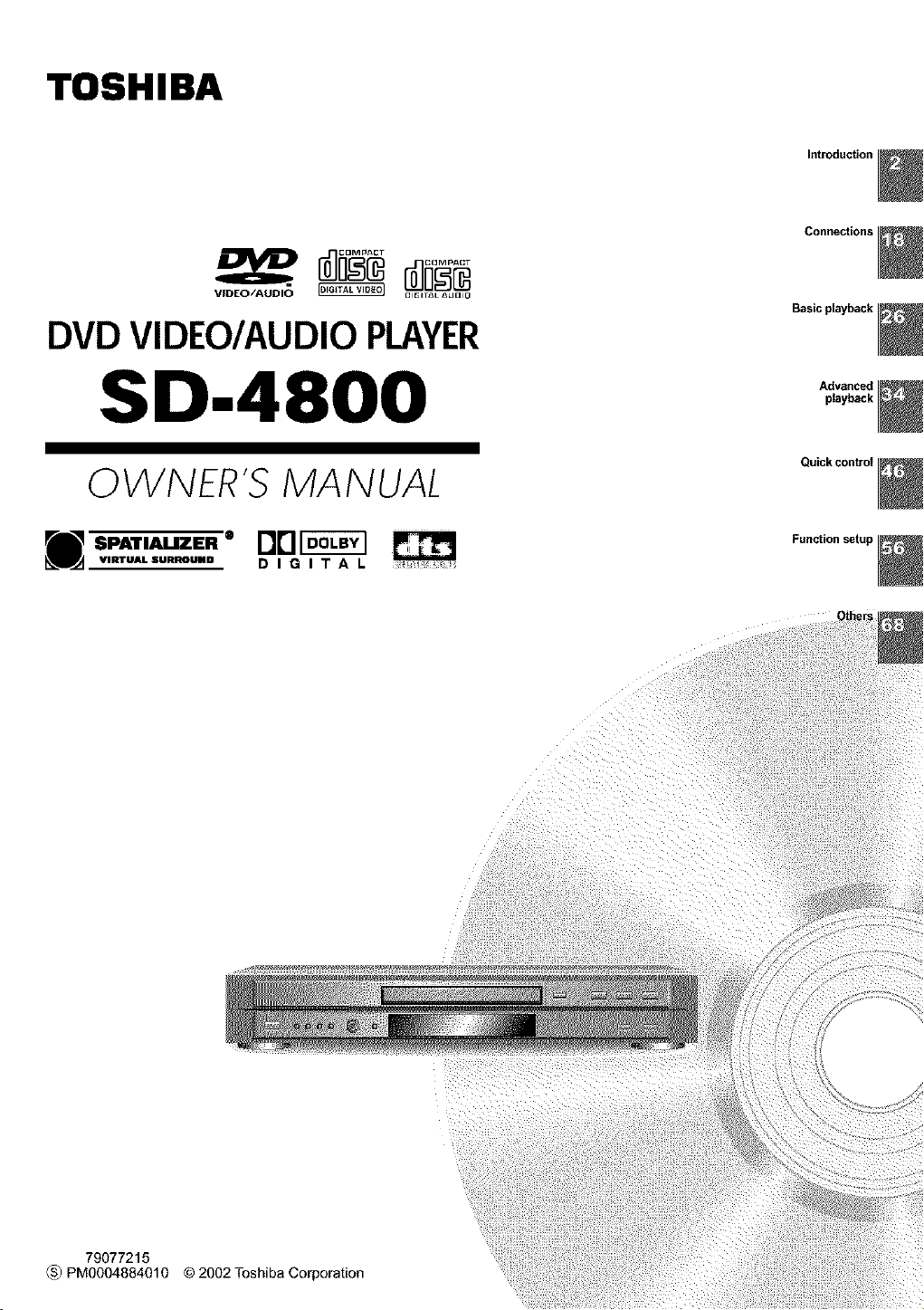
DVD VIDEO/AUDIO PLAYER
SD.4800
Connections
Basic playback
Advanced
playback
0 VVNER'S MA N UAL
Quick control
•H..-..-uz-• oo_
VIRTUALSURROUNO D I G I T A L
Function setup
79077215
(_ PM0004884010 © 2002 Toshiba Corporation
SAFETY PRECAUTIONS
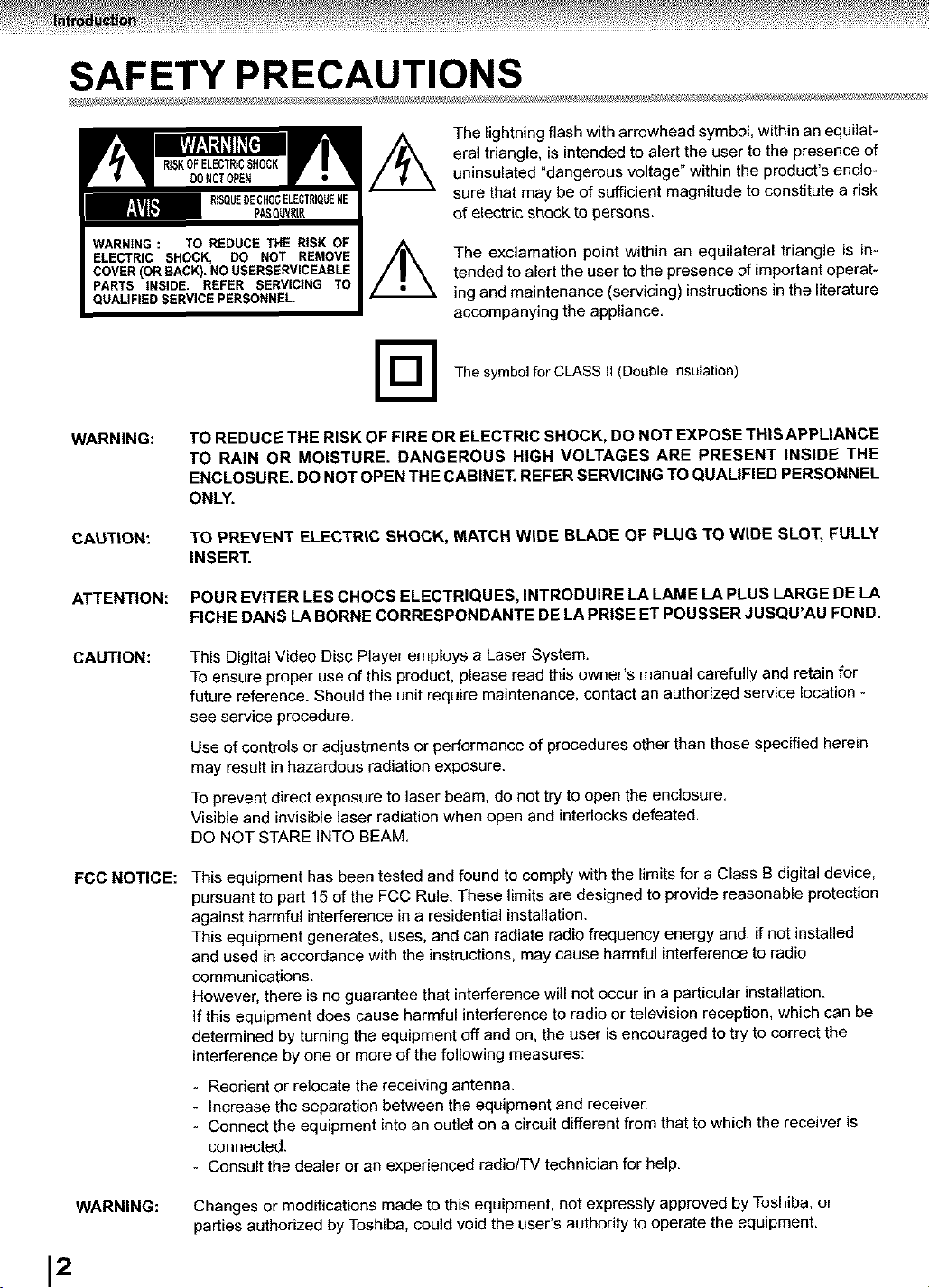
The lightning flash with arrowhead symbol, within an equilat-
eral triangle, is intended to alert the user to the presence of
uninsulated "dangerous voltage" within the product's enclo-
sure that may be of sufficient magnitude to constitute a risk
of electric shock to persons.
@
The exclamation point within an equilateral triangle is in-
tended to alert the user to the presence of important operat-
ing and maintenance (servicing) instructions in the literature
accompanying the appliance.
The symbol for CLASS II (Double Insulation)
WARNING:
TO REDUCE THE RISK OF FIRE OR ELECTRIC SHOCK, DO NOT EXPOSE THIS APPLIANCE
TO RAIN OR MOISTURE. DANGEROUS HIGH VOLTAGES ARE PRESENT INSIDE THE
ENCLOSURE. DO NOT OPEN THE CABINET. REFER SERVICING TO QUALIFIED PERSONNEL
ONLY.
CAUTION:
TO PREVENT ELECTRIC SHOCK, MATCH WIDE BLADE OF PLUG TO WIDE SLOT, FULLY
INSERT.
ATTENTION: POUR EVITER LES CHOCS ELECTRIQUES, INTRODUIRE LA LAME LA PLUS LARGE DE LA
FICHE DANS LA BORNE CORRESPONDANTE DE LA PRISE ET POUSSER JUSQU'AU FOND.
CAUTION: This Digital Video Disc Player employs a Laser System.
To ensure proper use of this product, please read this owner's manual carefully and retain for
future reference. Should the unit require maintenance, contact an authorized service location -
see service procedure.
Use of controls or adjustments or performance of procedures other than those specified herein
may result in hazardous radiation exposure.
To prevent direct exposure to laser beam, do not try to open the enclosure.
Visible and invisible laser radiation when open and interlocks defeated.
DO NOT STARE INTO BEAM,
FCC NOTICE: This equipment has been tested and found to comply with the limits for a Class B digital device,
pursuant to part 15 of the FCC Rule. These limits are designed to provide reasonable protection
against harmful interference in a residential installation.
This equipment generates, uses, and can radiate radio frequency energy and, if not installed
and used in accordance with the instructions, may cause harmful interference to radio
communications.
However, there is no guarantee that interference will not occur in a particular installation.
if this equipment does cause harmful interference to radio or television reception, which can be
determined by turning the equipment off and on, the user is encouraged to try to correct the
interference by one or more of the following measures:
- Reorient or relocate the receiving antenna.
- Increase the separation between the equipment and receiver.
- Connect the equipment into an outlet on a circuit different from that to which the receiver is
connected.
- Consult the dealer or an experienced radio/TV technician for help.
WARNING:
Changes or modifications made to this equipment, not expressly approved by Toshiba, or
parties authorized by Toshiba, could void the user's authority to operate the equipment.
12
The instructions shall state that an ALL-POLE MAINS SWITCH with a contact separation of at least 3 mm in
each pole shall be incorporated in the electrical installation of the building.
CAUTION: These servicing instructions are for use by qualified service personnel only. To reduce the risk of
electric shock do not perform any servicing other than that contained in the operating
instructions unless you are qualified to do so.
In the spaces provided below, record the Model and Serial No. located on the rear panel of your DVD player.
Model No. Serial No.
Retain this information for future reference.
a
€
O
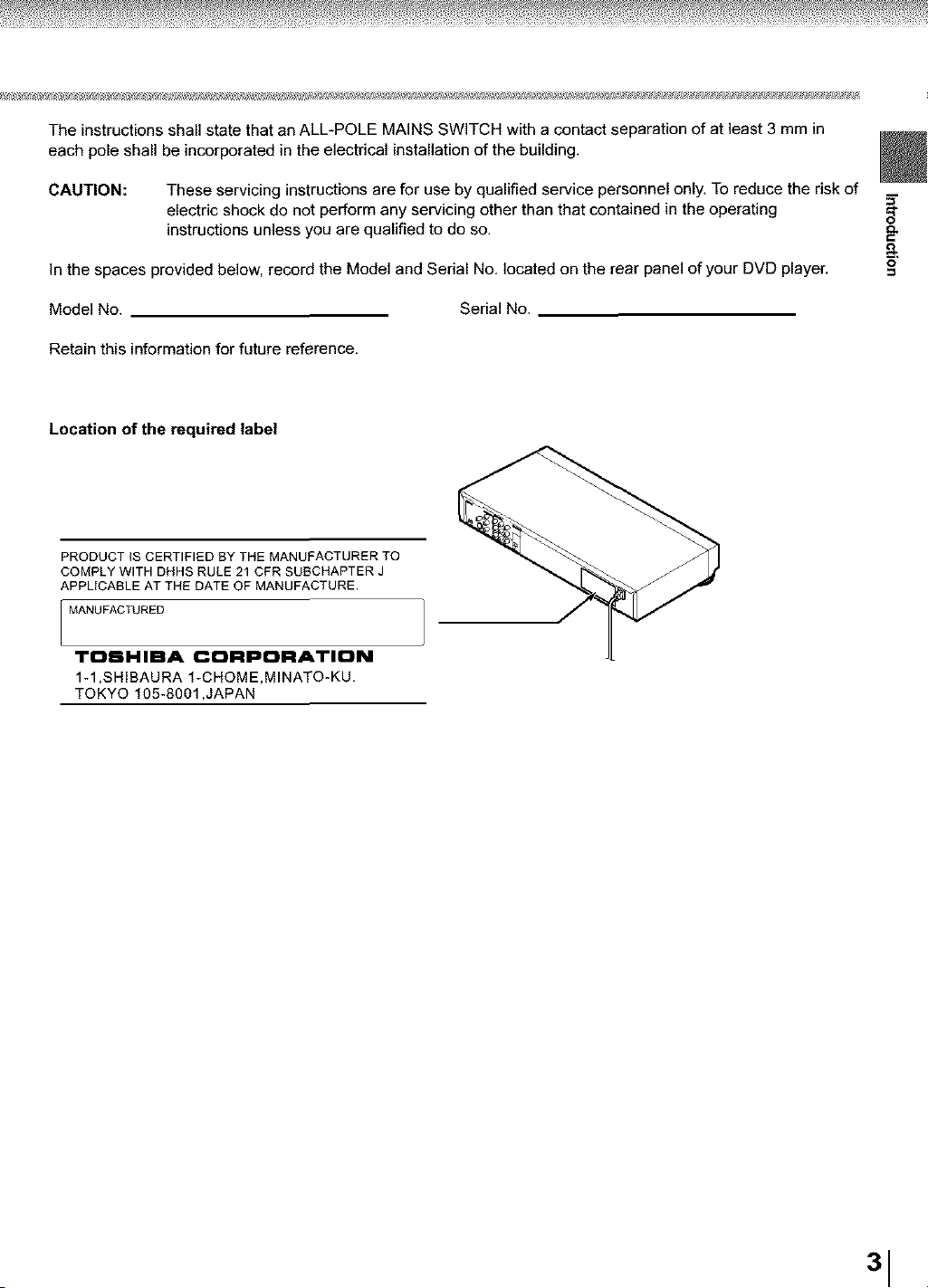
Location of the required label
PRODUCT IS CERTIFIED BY THE MANUFACTURER TO
COMPLY WITH DHHS RULE 21 CFR SUBCHAPTER J
APPLICABLE AT THE DATE OF MANUFACTURE.
MANUFACTURED
TOBHIBA CORPORATION
1-1,SHIBAURA 1-CHOME,MINATO-KU.
TOKYO 105-8001 ,JAPAN
31
IMPORTANT SAFETY INSTRUCTIONS
CAUTION: PLEASE READ AND OBSERVE ALL WARNINGS AND INSTRUCTIONS GIVEN IN THIS
OWNER'S MANUAL AND THOSE MARKED ON THE UNIT. RETAIN THIS BOOKLET FOR
FUTURE REFERENCE.
This set has been designed and manufactured to assure personal safety. Improper use can result in electric
shock or fire hazard. The safeguards incorporated in this unit will protect you if you observe the following
procedures for installation, use and servicing. This unit is fully transistorized and does not contain any parts that
can be repaired by the user.
DO NOT REMOVE TH E CABINET COVER, OR YOU MAY BE EXPOSED TO DANGEROUS VOLTAGE.
REFER SERVICING TO QUALIFIED SERVICE PERSONNEL ONLY.
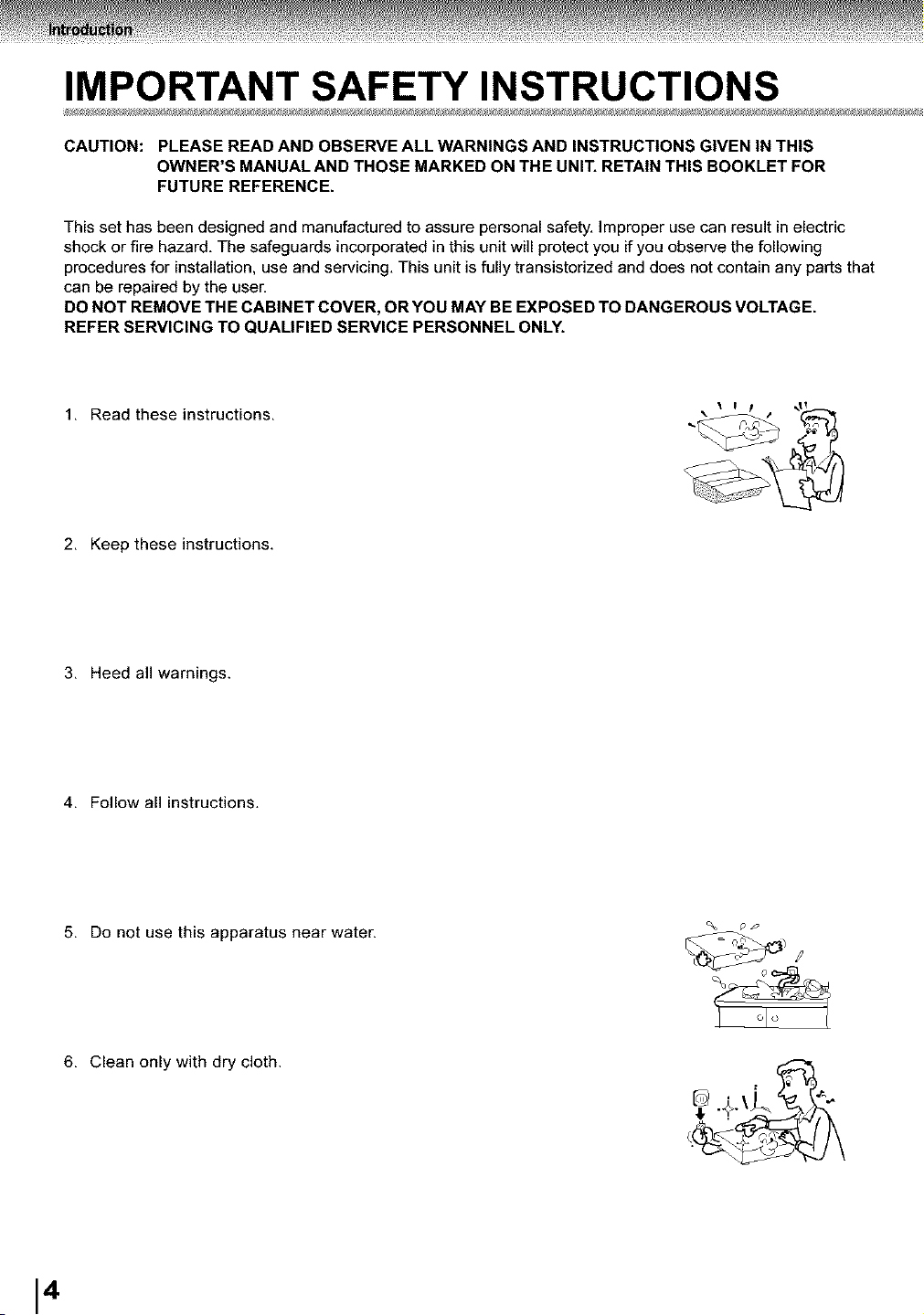
1. Read these instructions.
2. Keep these instructions.
3. Heed all warnings.
4. Follow all instructions.
5. Do not use this apparatus near water.
pP
6. Clean only with dry cloth.
14
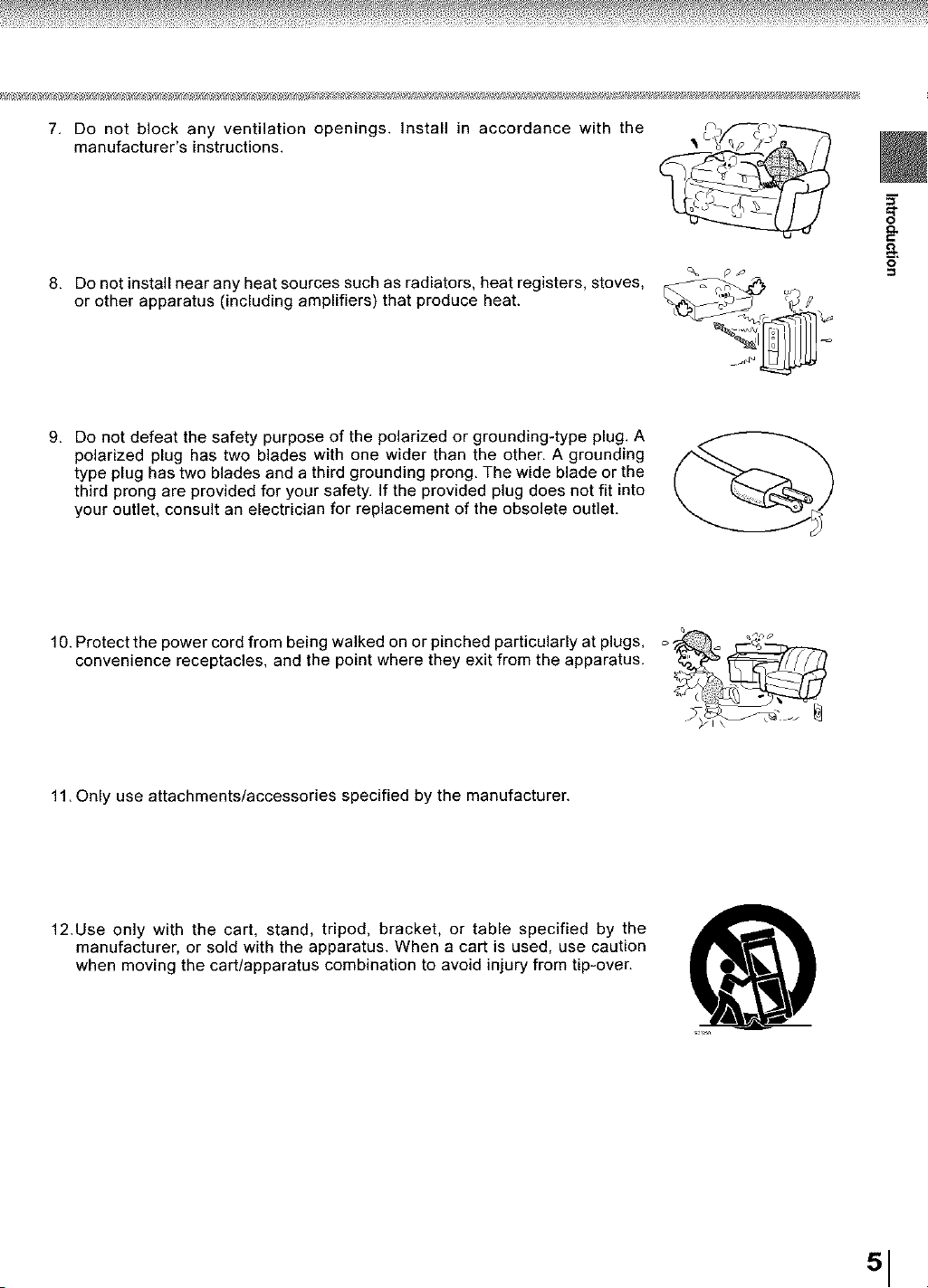
7, Do not block any ventilation openings. Install in accordance with the
manufacturer's instructions.
8. Do not install near any heat sources such as radiators, heat registers, stoves,
or other apparatus (including amplifiers) that produce heat.
O
9. Do not defeat the safety purpose of the polarized or grounding-type plug. A
polarized plug has two blades with one wider than the other. A grounding
type plug has two blades and a third grounding prong. The wide blade or the
third prong are provided for your safety. If the provided plug does not fit into
your outlet, consult an electrician for replacement of the obsolete outlet.
10. Protect the power cord from being walked on or pinched particularly at plugs, o = _;'_'_
convenience receptacles, and the point where they exit from the apparatus.
11. Only use attachments/accessories specified by the manufacturer.
12.Use only with the cart, stand, tripod, bracket, or table specified by the
manufacturer, or sold with the apparatus. When a cart is used, use caution
when moving the cart/apparatus combination to avoid injury from tip-over.
51
IMPORTANT SAFETY INSTRUCTIONS
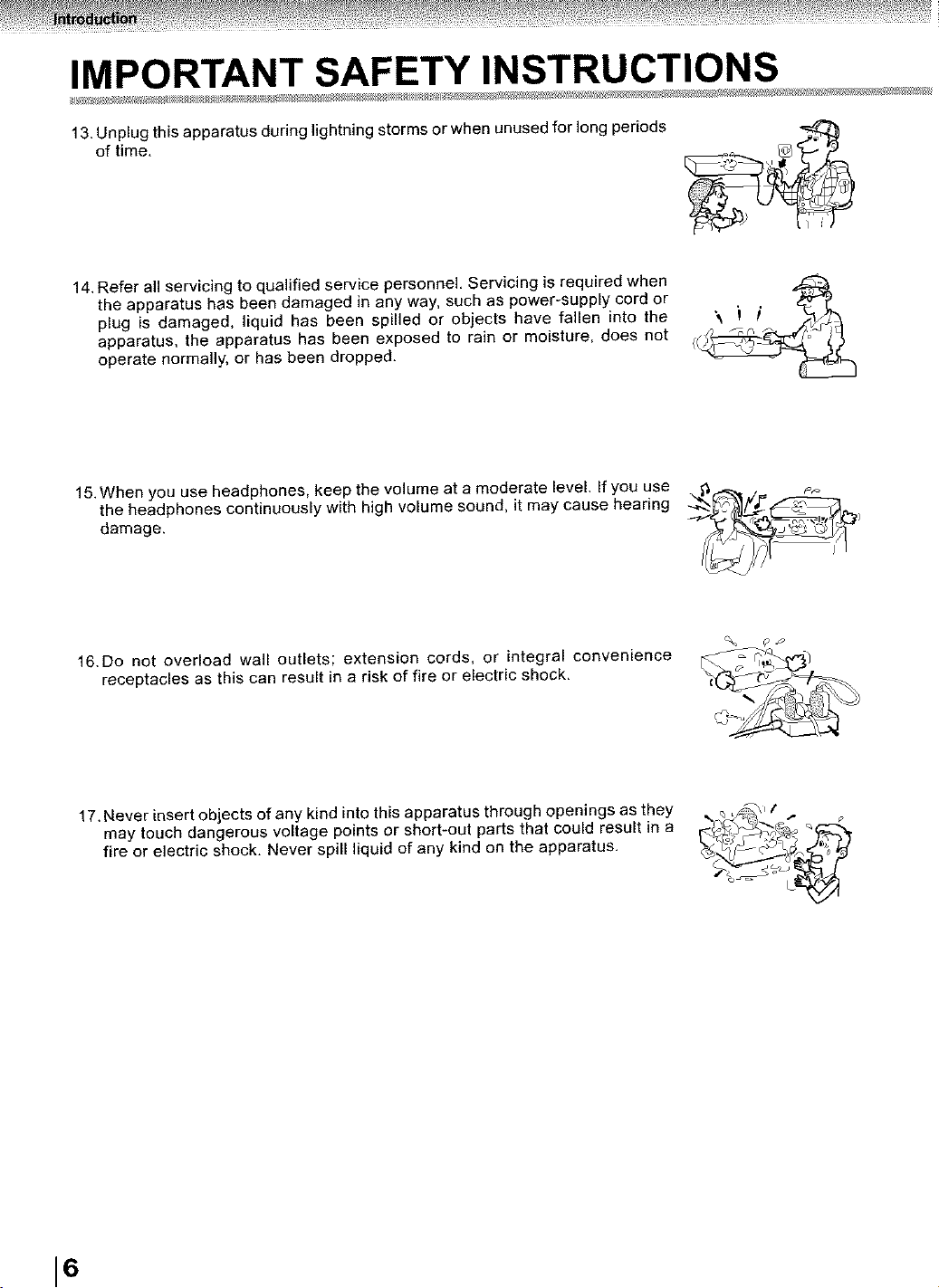
13. Unplug this apparatus during lightning storms or when unused for long periods
of time.
14. Refer all servicing to qualified service personnel. Servicing is required when
the apparatus has been damaged in any way, such as power-supply cord or
plug is damaged, liquid has been spilled or objects have fallen into the
apparatus, the apparatus has been exposed to rain or moisture, does not
operate normally, or has been dropped.
15. When you use headphones, keep the volume at a moderate level. If you use ;1 _,_
the headphones continuously with high volume sound, it may cause hearing -_ _^
damage. _'_/__'
16. Do not overload wall outlets; extension cords, or integral convenience
receptacles as this can result in a risk of fire or electric shock,
17. Never insert objects of any kind into this apparatus through openings as they
may touch dangerous voltage points or short-out parts that could result in a
fire or electric shock. Never spill liquid of any kind on the apparatus.
16
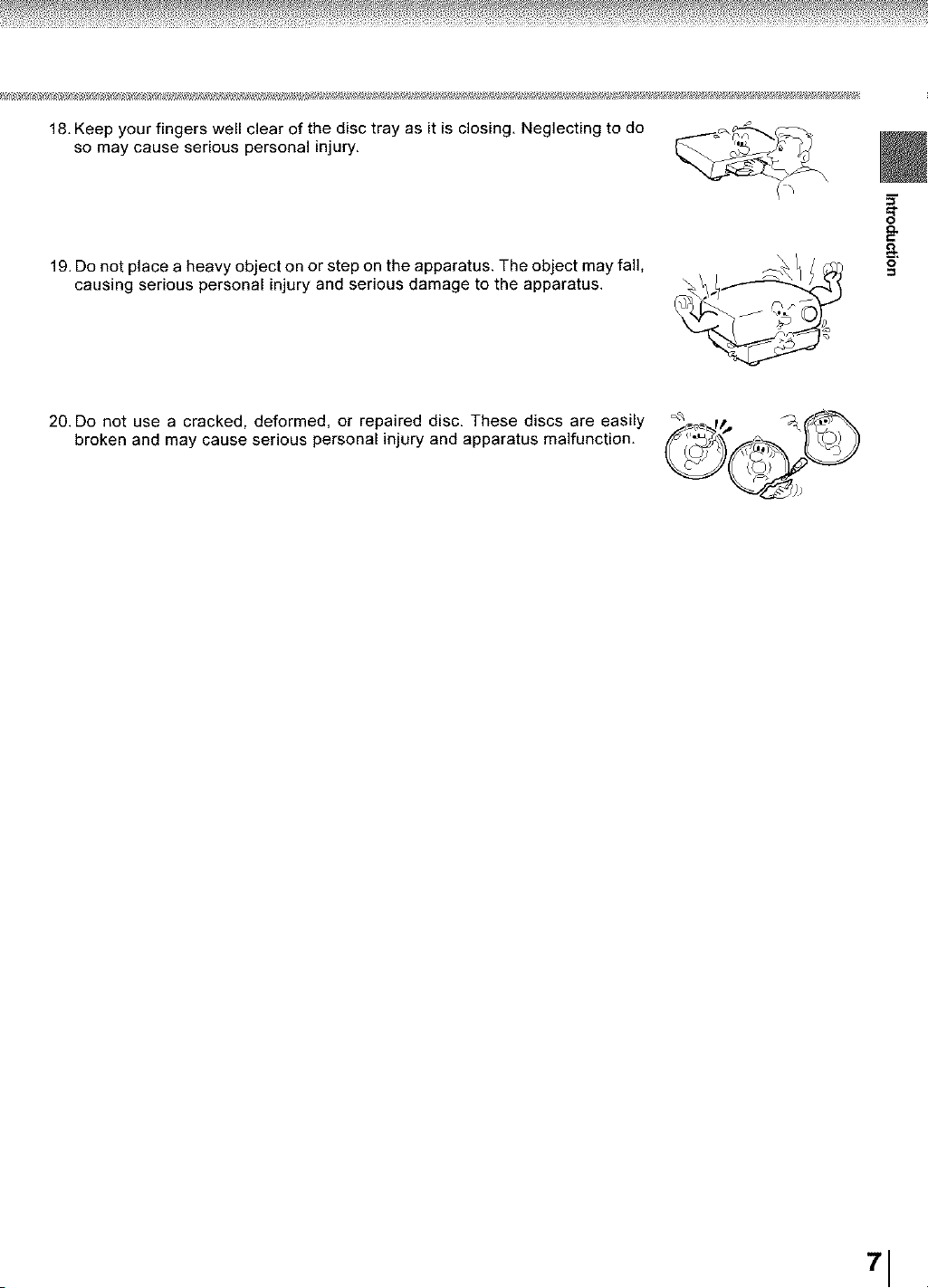
18. Keep your fingers well clear of the disc tray as it is closing. Neglecting to do
so may cause serious personal injury.
19. Do not place a heavy object on or step on the apparatus. The object may fall,
causing serious personal injury and serious damage to the apparatus.
a
€
O
20. Do not use a cracked, deformed, or repaired disc. These discs are easily
broken and may cause serious personal injury and apparatus malfunction.
71
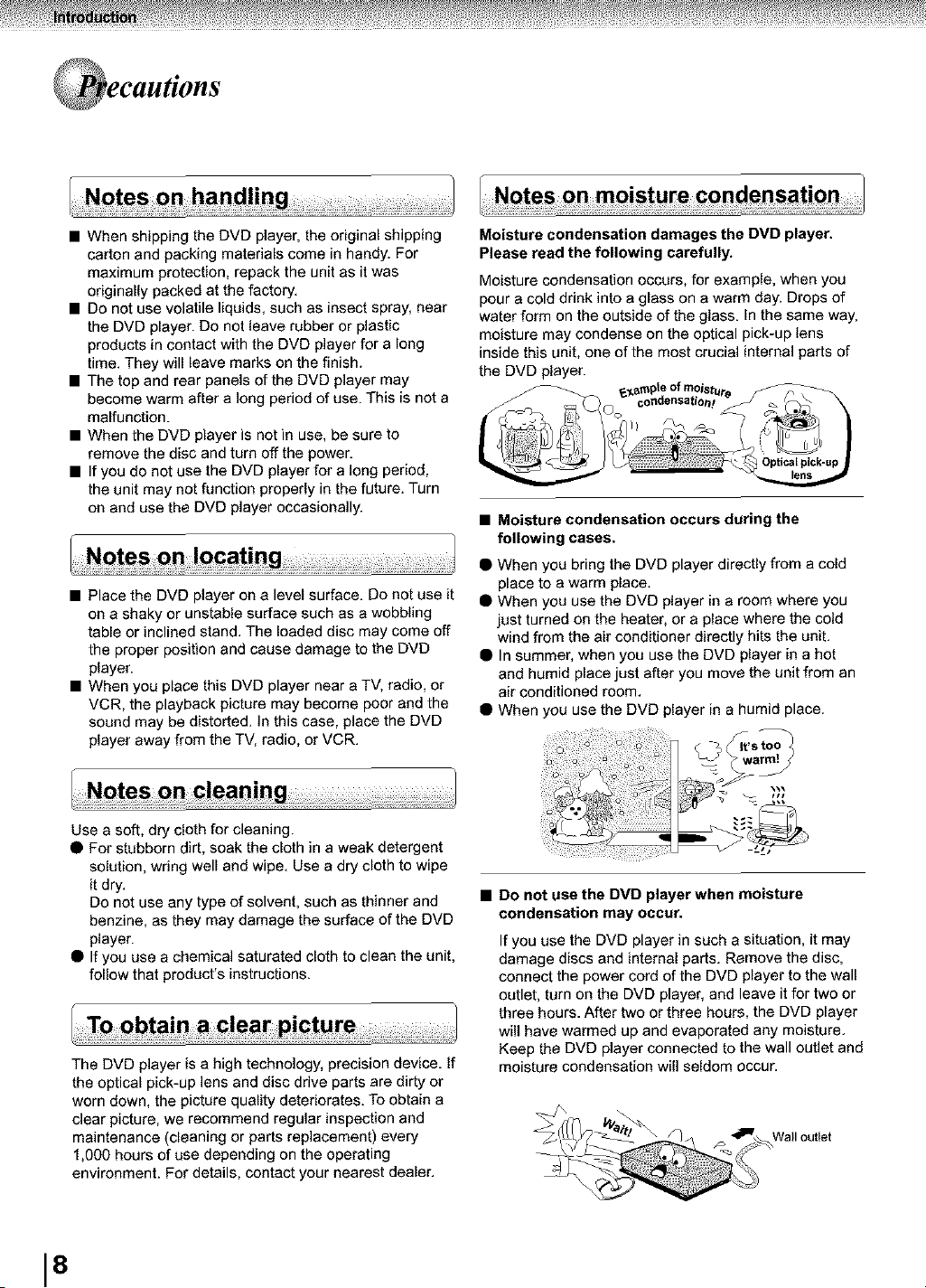
• When shipping the DVD player, the original shipping
carton and packing materials come in handy. For
maximum protection, repack the unit as it was
originally packed at the factory.
• Do not use volatile liquids, such as insect spray, near
the DVD player. Do not leave rubber or plastic
products in contact with the DVD player for a long
time. They will leave marks on the finish.
• The top and rear panels of the DVD player may
become warm after a long period of use. This is not a
malfunction.
• When the DVD player is not in use, be sure to
remove the disc and turn off the power.
• If you do not use the DVD player for a long period,
the unit may not function properly in the future. Turn
on and use the DVD player occasionally.
• Place the DVD player on a level surface. Do not use it
on a shaky or unstable surface such as a wobbling
table or inclined stand. The loaded disc may come off
the proper position and cause damage to the DMD
player.
• When you place this DVD player near a TV, radio, or
VCR, the playback picture may become poor and the
sound may be distorted. In this case, place the DVD
player away from the TV, radio, or VCR.
Moisture condensation damages the DVD player.
Please read the following carefully.
Moisture condensation occurs, for example, when you
pour a cold drink into a glass on a warm day. Drops of
water form on the outside of the glass. In the same way,
moisture may condense on the optical pick-up lens
inside this unit, one of the most crucial internal parts of
the DVD player.
• Moisture condensation occurs during the
following cases.
• When you bring the DVD player directly from a cold
place to a warm place.
• When you use the DVD player in a room where you
just turned on the heater, or a place where the cold
wind from the air conditioner directly hits the unit.
• In summer, when you use the DVD player in a hot
and humid place just after you move the unit from an
air conditioned room.
• When you use the DVD player in a humid place.
Use a soft, dry cloth for cleaning.
• For stubborn dirt, soak the cloth in a weak detergent
solution, wring well and wipe. Use a dry cloth to wipe
it dry.
Do not use any type of solvent such as thinner and
benzine, as they may damage the surface of the DVD
player.
• If you use a chemical saturated cloth to clean the unit,
follow that product's instructions.
The DVD player is a high technology, precision device. If
the optical pick-up lens and disc drive parts are dirty or
worn down, the picture quality deteriorates. To obtain a
clear picture, we recommend regular inspection and
maintenance (cleaning or parts replacement) every
1,000 hours of use depending on the operating
environment. For details, contact your nearest dealer.
• Do not use the DVD player when moisture
condensation may occur.
If you use the DVD player in such a situation, it may
damage discs and internal parts. Remove the disc,
connect the power cord of the DVD player to the wall
outlet, turn on the DVD player, and leave it for two or
three hours. After two or three hours, the DVD player
will have warmed up and evaporated any moisture.
Keep the DVD player connected to the wall outlet and
moisture condensation will seldom occur.
18
on Discs
• Do not touch the playback side of the disc.
O
Playback side
• Do not attach paper or tape to discs.
• Fingerprints and dust on the disc cause picture and
sound deterioration. Wipe the disc from the center
outwards with a soft cloth. Always keep the disc
• If you cannot wipe off the dust with a soft cloth, wipe
the disc tightlywith a slightly moistened soft cloth and
finish with a dry cloth.
• Do not use any type of solvent such as thinner,
benzine, commercially available cleaners or antistatic
spray for vinyl LPs. It may damage the disc.
• Do not store discs in a place subject to direct sunlight
or near heat sources.
• Do not store discs in places subject to moisture and
dust such as a bathroom or near a humidifier.
• Store discs vertically in a case. Stacking or placing
objects on discs outside of their case may cause
warping.
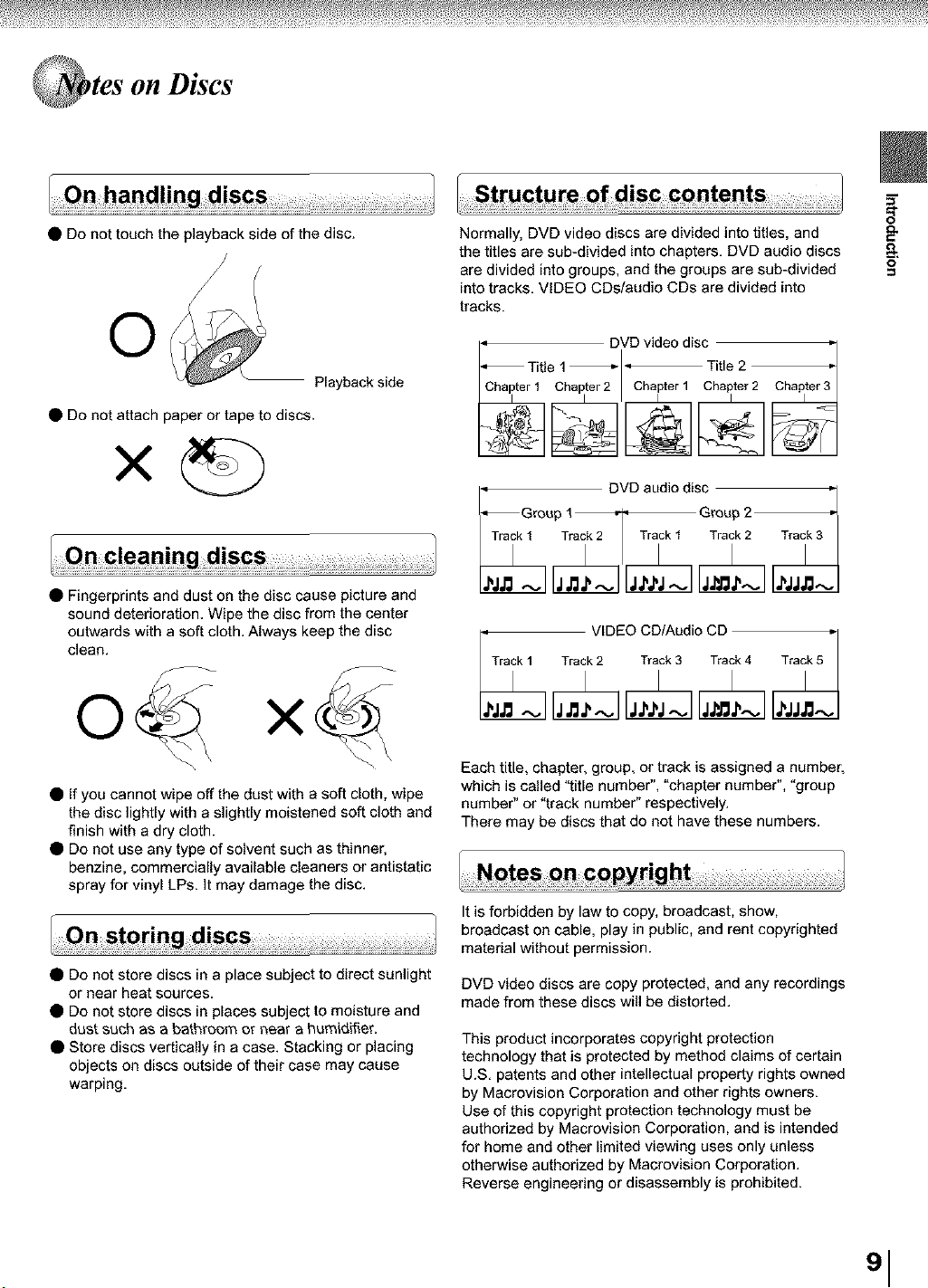
Normally, DVD video discs are divided into titles, and
the titles are sub-divided into chapters. DVD audio discs
are divided into groups, and the groups are sub-divided
into tracks. VIDEO CDs/audio CDs are divided into
tracks.
• DVD video disc ,'
Title 1 _ _ Title 2
Chapterl Chapter2 Chapter1 Chapter2 Chapter3
• DVD audio disc ,,
_Greup 1 ,,, Group 2
J,jJ: ~ jJ:J,~
VIDEO CD/Audio CD Traik 5 "
Traik 1 Traik 2 Tralck 3 Traik 4
Each title, chapter, group, or track is assigned a number
which is called "title number", "chapter number", "group
number" or "track number" respectively.
There may be discs that do not have these numbers.
It is forbidden by law to copy, broadcast, show,
broadcast on cable, play in public, and rent copyrighted
material without permission.
DVD video discs are copy protected, and any recordings
made from these discs will be distorted.
This product incorporates copyright protection
technology that is protected by method claims of certain
U.S. patents and other intellectual property rights owned
by Macrovision Corporation and other rights owners.
Use of this copyright protection technology must be
authorized by Macrovision Corporation, and is intended
for home and other limited viewing uses only unless
otherwise authorized by Macrovision Corporation.
Reverse engineering or disassembly is prohibited.
a
€
O
'1
on Discs (continued)
This owner's manual explains the basic instructions of
this DVD player. Some DVD video discs are produced in
a manner that allows specific or limited operation during
playback. As such, the DVD player may not respond to
all operating commands. This is not a defect in the DVD
player. Refer to instruction notes of discs.
"_" may appear on the TV screen during operation,
A "_" means that the operation is not permitted by the
DVD player or the disc.
The region number of this DVD player is 1. If region
numbers, which stand for their playable area, are printed
DVD video disc and you do not find _ oron
your 1
disc playback will not be allowed by the player. (In this
case, the DVD player will display a message on-screen.)
This DVD player supports VIDEO CDs equipped with
the PBC (Version 2.0) function. (PBC is the abbreviation
of Playback Control.) You can enjoy two playback
variations depending on types of discs.
• VIDEO CD not equipped with PBC function
(Version 1.1)
Sound and movie can be played on this DVD player in
the same way as an audio CD.
• VIDEO CD equipped with PBC function
(Version 2.0)
In addition to operation of a VIDEO CD not equipped
with the PBC function, you can enjoy playback of
interactive software with search function by using the
menu displayed on the TV screen (Menu Playback).
Some of the functions described in this owner's
manual may not work with some discs.
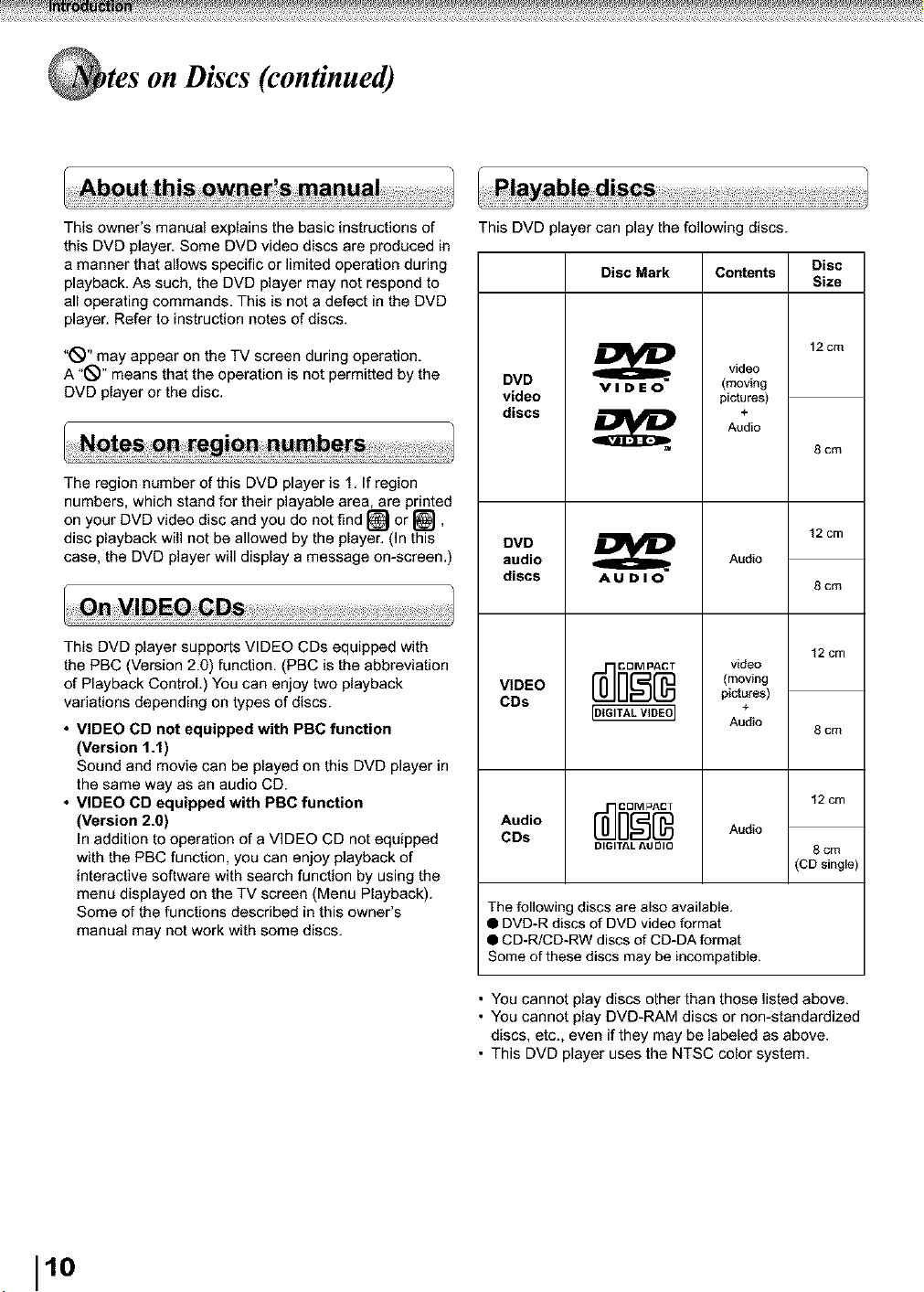
This DVD player can play the following discs.
Disc Mark
DVD
video
discs
DVD
audio
discs
VIDEO
CDs
Audio
CDs
VIDEO
AUDIO
DIGITAL AU DIO
Contents Disc
Size
12cm
video
(moving
pictures)
+
Audio
8 cm
12 cm
Audio
8 cm
12 cm
video
(moving
pictures)
+
Audio
8 cm
12 cm
Audio
8 cm
(CD single)
The following discs are also available.
• DVD-R discs of DVD video format
• CD-R/CD-RW discs of CD-DA format
Some of these discs may be incompatible.
• You cannot play discs other than those listed above.
• You cannot play DVD-RAM discs or non-standardized
discs, etc., even if they may be labeled as above.
• This DVD player uses the NTSC color system.
1lo
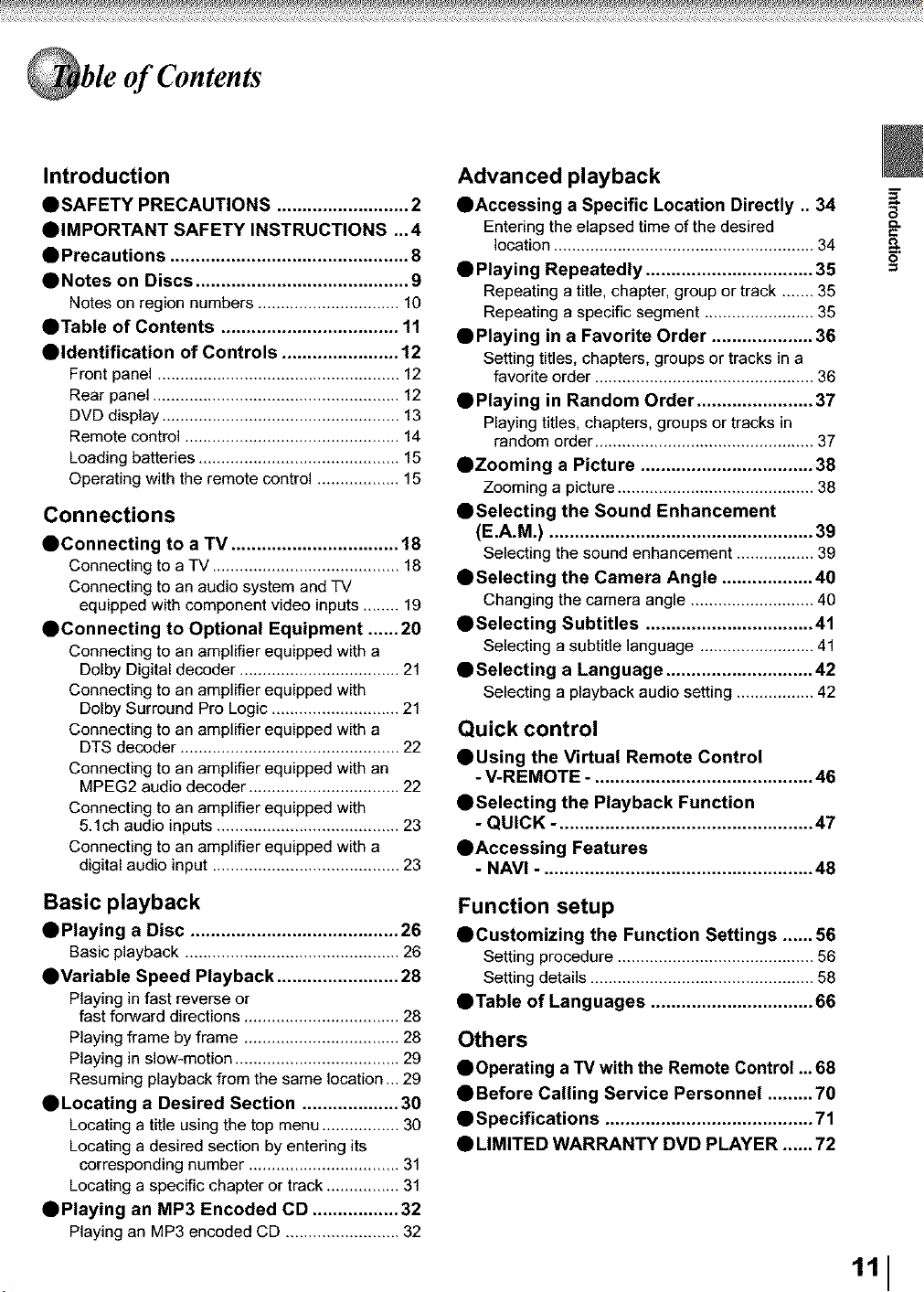
of Contents
Introduction
• SAFETY PRECAUTIONS .......................... 2
• IMPORTANT SAFETY INSTRUCTIONS _,4
• Precautions ............................................... 8
• Notes on Discs .......................................... 9
Notes on region numbers ............................... 10
• Table of Contents ................................... 11
• Identification of Controls ....................... 12
Front panel ..................................................... 12
Rear panel ...................................................... 12
DVD display .................................................... 13
Remote control ............................................... 14
Loading batteries ............................................ 15
Operating with the remote control .................. 15
Connections
• Connecting to a "IV ................................. 18
Connecting to a TV ......................................... 18
Connecting to an audio system and TV
equipped with component video inputs ........ 19
• Connecting to Optional Equipment ...... 20
Connecting to an amplifier equipped with a
Dolby Digital decoder ................................... 21
Connecting to an amplifier equipped with
Dolby Surround Pro Logic ............................ 21
Connecting to an amplifier equipped with a
DTS decoder ................................................ 22
Connecting to an amplifier equipped with an
MPEG2 audio decoder ................................. 22
Connecting to an amplifier equipped with
5.1ch audio inputs ........................................ 23
Connecting to an amplifier equipped with a
digital audio input ......................................... 23
Basic playback
• Playing a Disc ......................................... 26
Basic playback ............................................... 26
• Variable Speed Playback ........................ 28
Playing in fast reverse or
fast forward directions .................................. 28
Playing frame by frame .................................. 28
Playing in slow-motion .................................... 29
Resuming playback from the same location... 29
• Locating a Desired Section ................... 30
Locating a title using the top menu ................. 30
Locating a desired section by entering its
corresponding number ................................. 31
Locating a specific chapter or track ................ 31
• Playing an MP3 Encoded CD ................. 32
Playing an MP3 encoded CD ......................... 32
Advanced playback
• Accessing a Specific Location Directly .. 34
Entering the elapsed time of the desired
location ......................................................... 34
• Playing Repeatedly ................................. 35
Repeating a title, chapter, group or track ....... 35
Repeating a specific segment ........................ 35
• Playing in a Favorite Order .................... 36
Setting titles, chapters, groups or tracks in a
favorite order ................................................ 36
• Playing in Random Order ....................... 37
Playing titles, chapters, groups or tracks in
random order ................................................ 37
• Zooming a Picture .................................. 38
Zooming a picture ........................................... 38
• Selecting the Sound Enhancement
(E.A.M.) .................................................... 39
Selecting the sound enhancement ................. 39
• Selecting the Camera Angle .................. 40
Changing the camera angle ........................... 40
• Selecting Subtitles ................................. 41
Selecting a subtitle language ......................... 41
• Selecting a Language ............................. 42
Selecting a playback audio setting ................. 42
Quick control
• Using the Virtual Remote Control
- V-REMOTE -. .......................................... 46
• Selecting the Playback Function
- QUICK -. ................................................. 47
• Accessing Features
- NAVI -. .................................................... 48
Function setup
• Customizing the Function Settings ...... 56
Setting procedure ........................................... 56
Setting details ................................................. 58
• Table of Languages ................................ 66
Others
• Operating a "IV with the Remote Control ... 68
• Before Calling Service Personnel ......... 70
• Specifications ......................................... 71
• LIMITED WARRANTY DVD PLAYER ...... 72
a
€
O
111
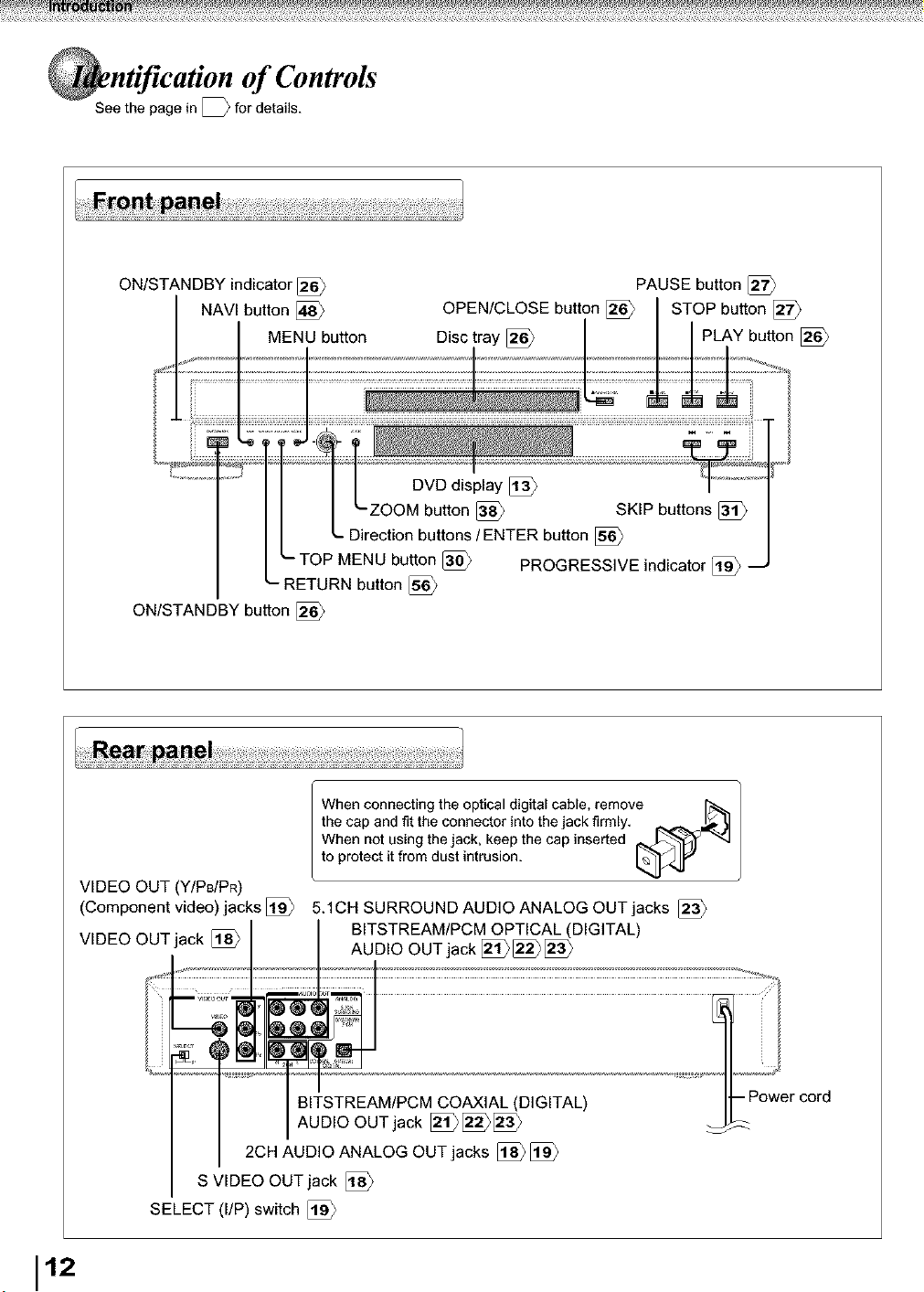
of Controls
See the page in[ _ for details.
ON/STANDBY indicator [_
NAVI button [_
MENU button
OPEN/CLOSE button
Disc tray [_
PAUSE button [_
STOP button [_
PLAY button [_
RETURN button [_
ON/STANDBY button [_
PROGRESSIVE indicator [_
VIDEO OUT (Y/Ps/PR)
(Component video) jacks [_
VIDEO OUT jack [_
When connecting the optical digital cable, remove
the cap and fit the connector into the jack firmly. _1
When not using the jack, keep the cap inserted _._'_'_ "=4
to protect it from dust intrusion. I _'1_ p"
BITSTREAM/PCM COAXIAL (DIGITAL)
AUDIO OUT jack [_[_[_
2CH AUDIO ANALOG OUT jacks [_ [_
5.1CH SURROUND AUDIO ANALOG OUT jacks [_
BITSTREAM/PCM OPTICAL (DIGITAL)
AUDIO OUT jack [_[_
ur _
-- Power cord
S VIDEO OUT jack [_
SELECT (I/P) switch
112
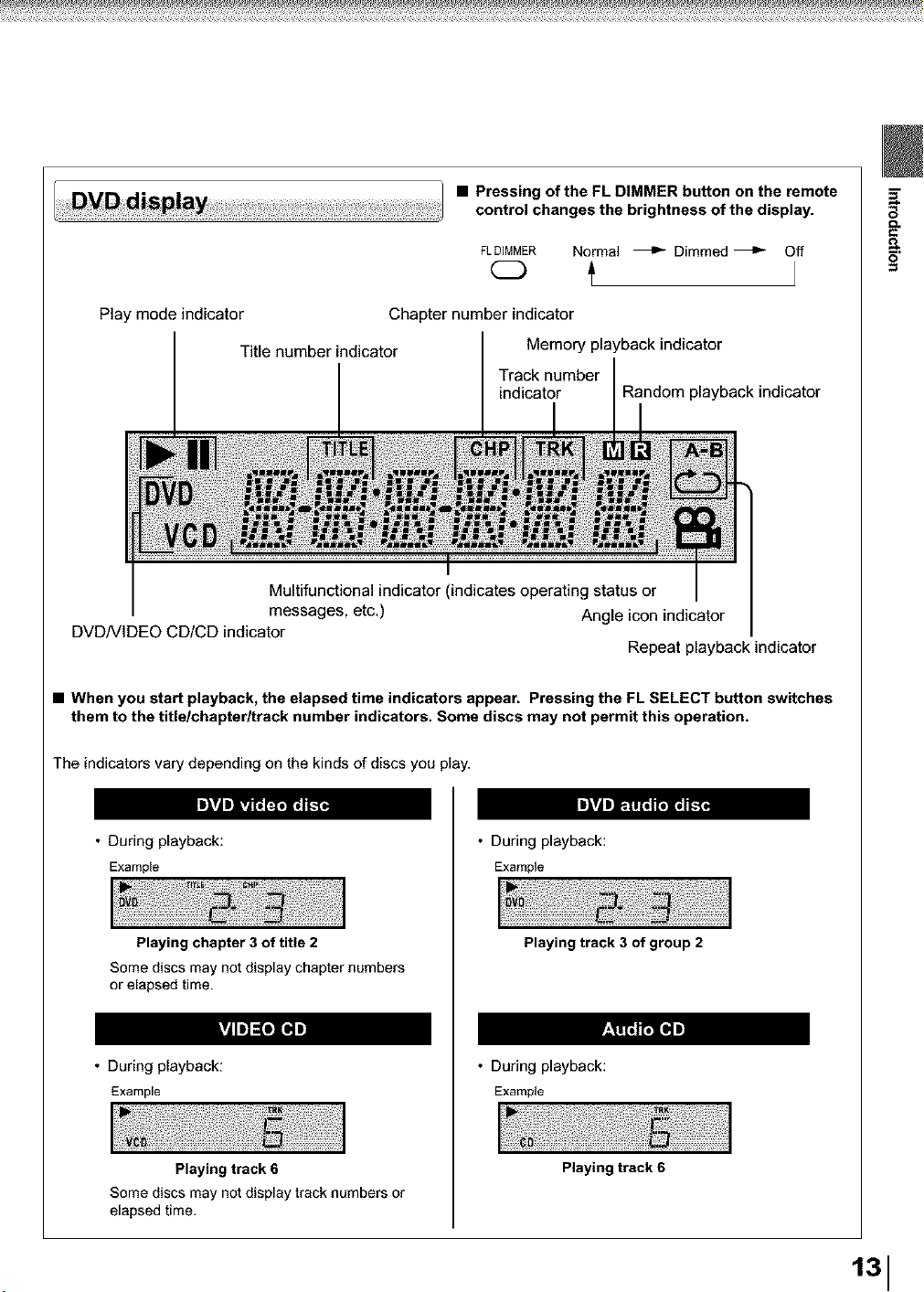
• Pressing of the FL DIMMER button on the remote
control changes the brightness of the display.
FLDIMMER Normal _ Dimmed _ Off
Play mode indicator Chapter number indicator
Title number indicator Memory playback indicator
Track number
indicator Random playback indicator
Multifunctional indicator (indicates operating status or
messages, etc,) Angle icon indicator
DVDNIDEO CD/CD indicator
Repeat playback indicator
• When you start playback, the elapsed time indicators appear. Pressing the FL SELECT button switches
them to the title/chapter/track number indicators. Some discs may not permit this operation.
The indicators vary depending on the kinds of discs you play.
• During playback:
Example
Playing chapter 3 of title 2
Some discs may not display chapter numbers
or elapsed time.
• During playback:
Example
Playing track 6
Some discs may not display track numbers or
elapsed time.
• During playback:
Example
Playing track 3 of group 2
• During playback:
Example
Playing track 6
131
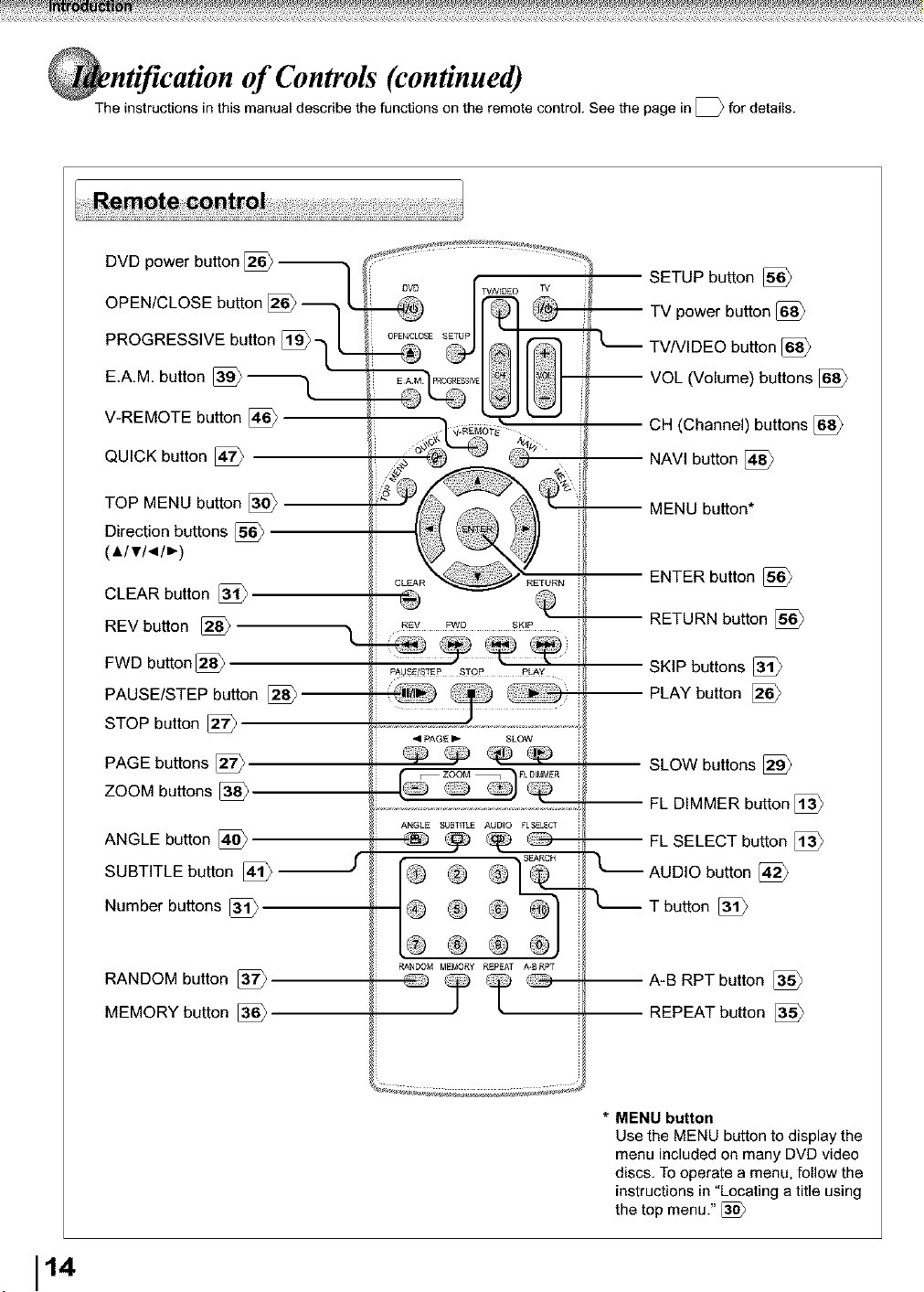
of Controls (continued)
The instructions in this manual describe the functions on the remote control See the page in [ _ for details.
DVD power button [_
OPEN/CLOSE button [_ -_
PROGRESSIVE button [_q [
E.AM, button [_ "_
V-REMOTE button [_
QUICK button [f_
TOP MENU button [_
Direction buttons 5_
(A/v/-_/_)
CLEAR button [_
REV button [_
FWD button [_
PAUSE/STEP button [_--
STOP button [_
PAGE buttons [_
ZOOM buttons [_
ANGLE button [_
SUBTITLE button _
Number buttons
RANDOM button [_r7_
MEMORY button
R_V FWD SKIP
ANGLE SUBT_TL_ AUDIO FLSEL_C_
@
RANDOM MEMORY REPEAT _-_RPT
SETUP button [_
-- TV power button [_
['_ TV/VIDEO button [_
-- VOL (Volume) buttons [_
CH (Channel) buttons [_
NAVI button [_
-- MENU button*
ENTER button
-- RETURN button
SKIP buttons [_
-- PLAY button [_
SLOW buttons [_
FL DIMMER button [_
FL SELECT button [_
AUDIO button [_
Tbutton
A-B RPT button [_
REPEAT button [_
* MENU button
Use the MENU button to display the
menu included on many DVD video
discs. To operate a menu, folow the
instructions in "Locating a title using
the top menu."
114
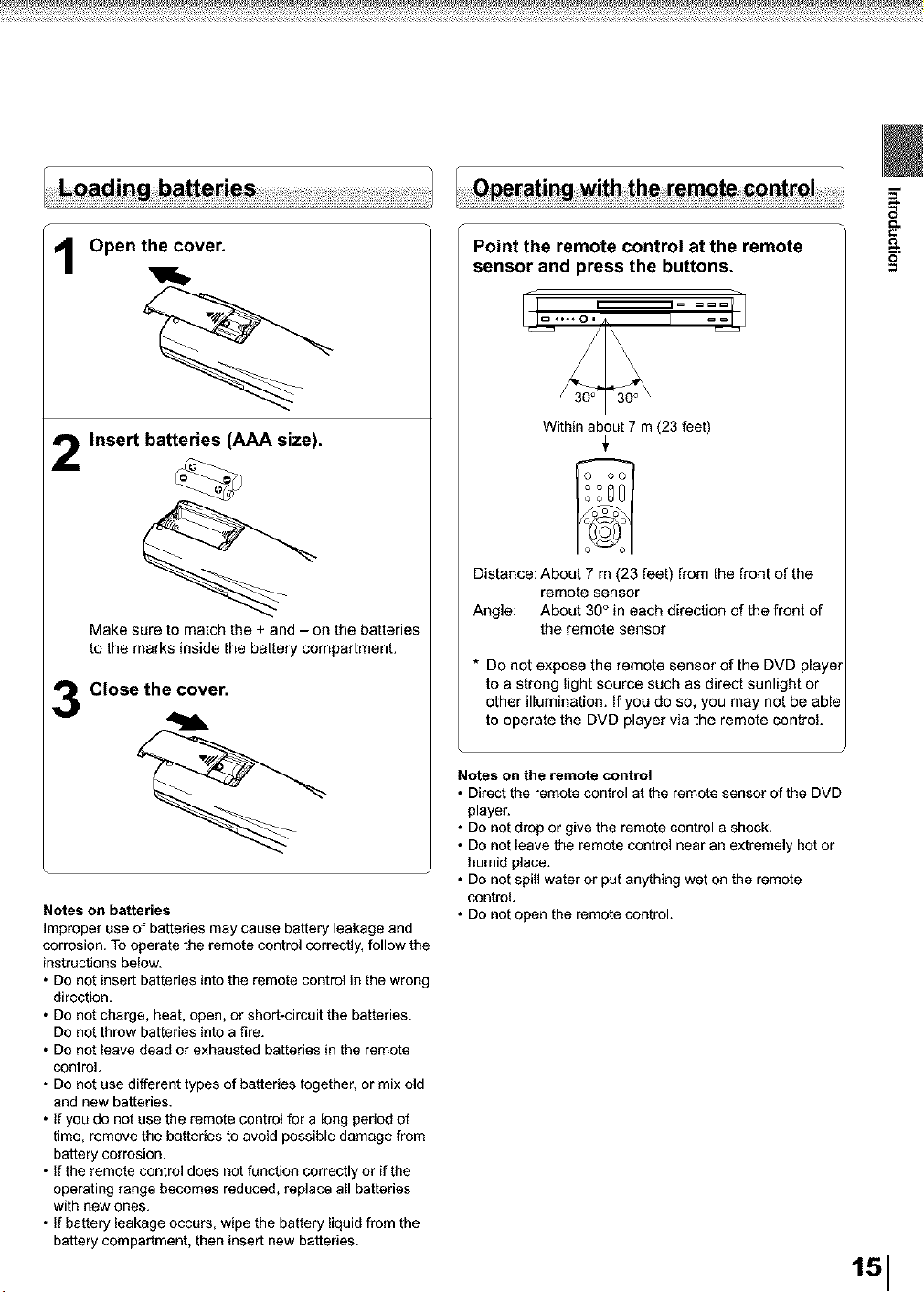
Open the cover.
12
13
Insert batteries (AAA size).
Make sure to match the + and - on the batteries
to the marks inside the battery compartment.
Close the cover.
Notes on batteries
improper use of batteries may cause battery leakage and
corrosion. To operate the remote control correctly, follow the
instructions below.
• Do not insert batteries into the remote control in the wrong
direction.
• Do not charge, heat, open, or short-circuit the batteries.
Do not throw batteries into a fire.
• Do not leave dead or exhausted batteries in the remote
control.
• Do not use different types of batteries together, or mix old
and new batteries.
• If you do not use the remote control for a long period of
time, remove the batteries to avoid possible damage from
battery corrosion.
• If the remote control does not function correctly or if the
operating range becomes reduced, replace all batteries
with new ones.
• If battery leakage occurs, wipe the battery liquid from the
battery compartment, then insert new battedes.
Point the remote control at the remote
sensor and press the buttons.
Within about 7 m (23 feet)
Distance: About 7 m (23 feet) from the front of the
remote sensor
Angle: About g0 ° in each direction of the front of
the remote sensor
* Do not expose the remote sensor of the DVD player
to a strong light source such as direct sunlight or
other illumination. If you do so, you may not be able
to operate the DVD player via the remote control.
Notes on the remote control
• Direct the remote control at the remote sensor of the DVD
player.
• Do not drop or give the remote control a shock.
• Do not leave the remote control near an extremely hot or
humid place.
• Do not spill water or put anything wet on the remote
control.
• Do not open the remote control.
O
151
i_l_llliii_ll_l_i!i_l_i(_li!i_l_i(_ll_ill!l_li!i_l_i(_li!i_l_i(_li!i_l_i(_li!i_l_i(_li!i_l_i(_li!i_l_i(_li!i_l_i(_li!i_l_i(_li!i_l_i(_li!i_l_i(_li!i_l_i(_li!i_l_i(_li!i_l_i(_li!i_l_i(_li!i_l_i(_li!i_l_i(_li!i_l_i(_li!i_l_i(_li!i_l_i(_li!i_l_i(_li!i_l_i(_li!i_l_i(_li!i_l_i(_li!i_l_i(_li!i_l_i(_li!i_l_i(_li!i_l_i(_li!i_l_i(_li!i_l_i(_li!i_l_i(_li!i_l_i(_li!i_l_i(_li!i_l_i(_li!i_l_i(_li!i_l_i(_li!i_l_i(_li!i_l_i(_li!i_l_i(_li!i_l_i(_li!i_l_i(_li!i_l_i(_li!i_l_i(_li!i_l_i(_li!i_l_i(_li!i_l_i(_li!i_l_i(_li!i_l_i(_li!i_l_i(_li!i_l_i(_li!i_l__I
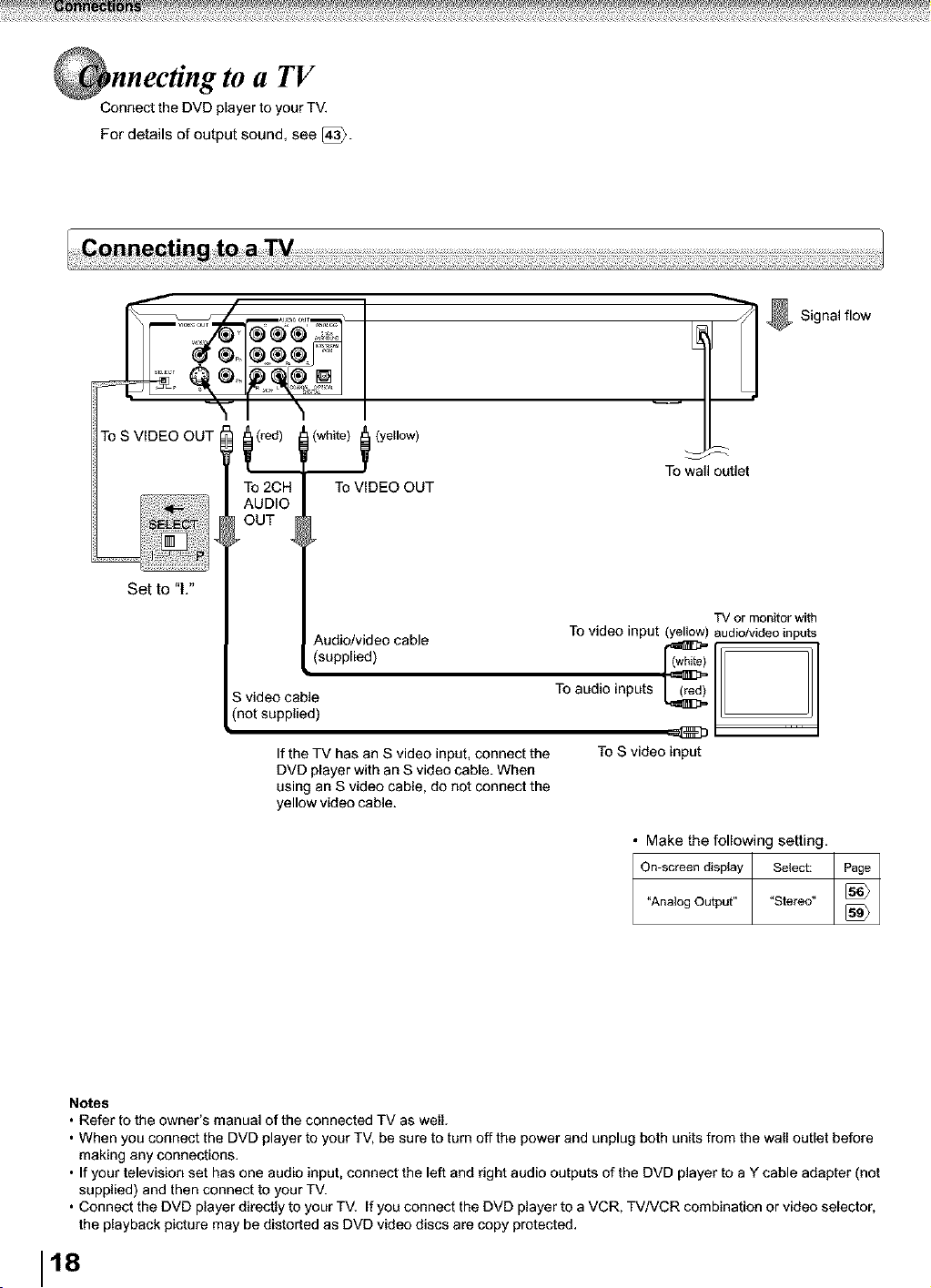
a TV
Connect the DVD player to your TM
For details of output sound, see [43}.
(white) _ {yellow)
To VIDEO OUT
To S VIDEO OUT ] _(red) I
TO 2CH
AUDIO
Set to '1."
_udio/video cable
(supplied)
S video cable
(not supplied)
If the TV has an S video input, connect the
DVD player with an S video cable. When
using an S video cable, do not connect the
yellow video cable.
To wall outlet
TV or monitor with
TO video input (yellow) audio/video inputs
Signal flow
To audio inputs
To S video input
Make the following setting.
On-screen display Select:
"Analog Output" "Stereo°
Notes
• Refer to the owner's manual of the connected TV as well.
• When you connect the DVD player to your TV, be sure to turn off the power and unplug both units from the wall outlet before
making any connections.
• If your television set has one audio input, connect the left and right audio outputs of the DVD player to a Y cable adapter (not
supplied) and then connect to your TV.
• Connect the DVD player directly to your TV. If you connect the DVD player to a VCR, TVNCR combination or video selector,
the playback picture may be distorted as DVD video discs are copy protected.
118
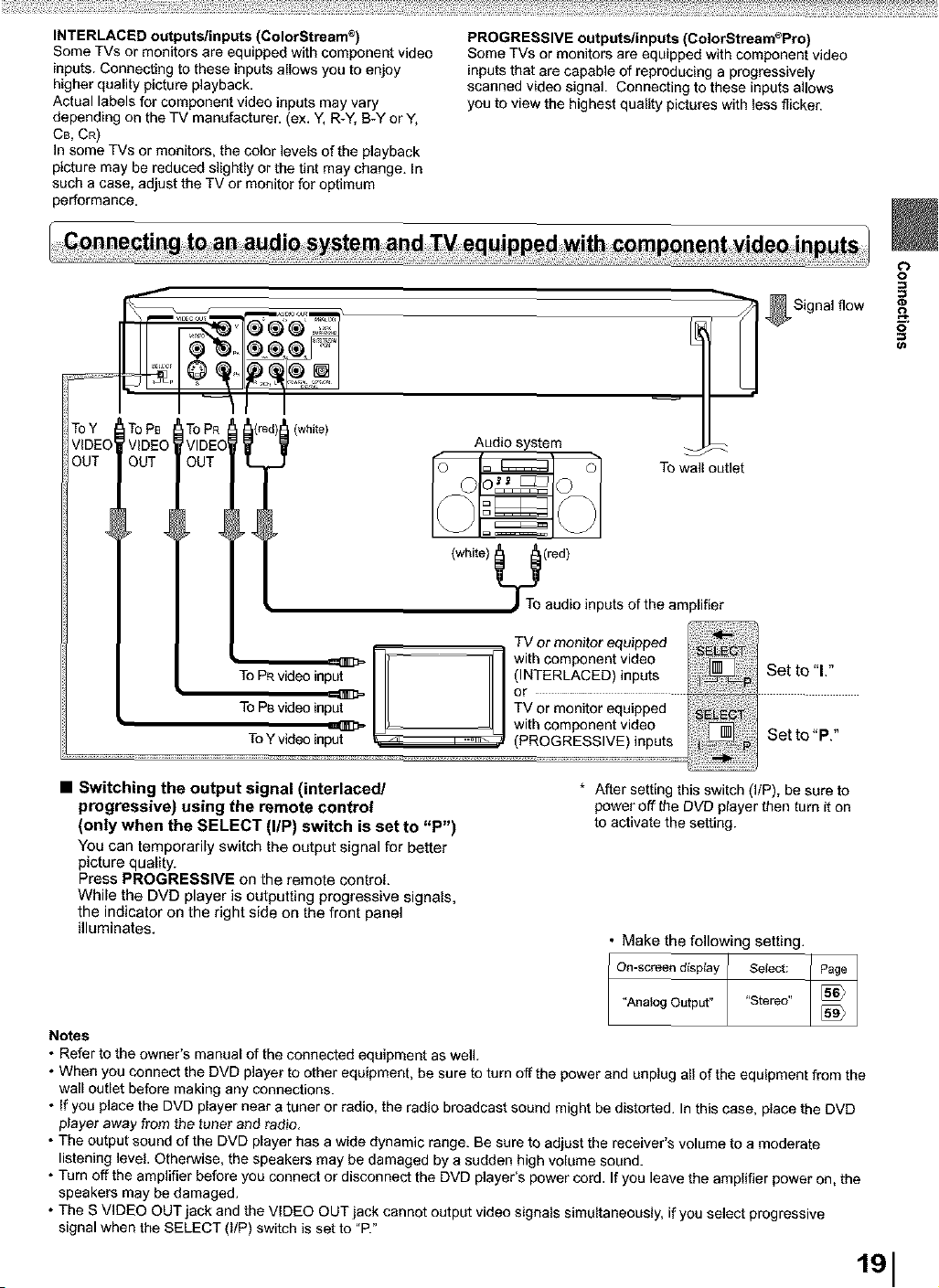
INTERLACED outputs/inputs (ColorStream _)
Some TVs or monitors are equipped with component video
inputs. Connecting to these inputs allows you to enjoy
higher quality picture playback.
Actual labels for component video inputs may vary
depending on the TV manufacturer. (ex. Y, R-Y, B-Y or Y,
C_, CR)
In some TVs or monitors, the color levels of the playback
picture may be reduced slightly or the tint may change. In
such a case, adjust the TV or monitor for optimum
performance.
PROGRESSIVE outputs/inputs (ColorStream_Pro)
Some TVs or monitors are equipped with component video
inputs that are capable of reproducing a progressively
scanned video signal. Connecting to these inputs allows
you to view the highest quality pictures with less flicker.
TOPR )_1 (white)
VIDEO
OUT
ToY I FoP8
VIDEO /IDEOI
OUT 3UT
To PRvideo inp_ _ "=_H
To PSvideo in%::= EL JU
To Y video input __
Audio system _
O C _ = (_ _ To wail outlet
TV or monitor equipped
with component video
(INTERLACED) inputs Set to "1."
or
TV or monitor equipped _EFO_
with component video
(PROGRESSIVE) inputs Set to "P."
* After setting this switch (I/P), be sure to
power off the DVD player then turn it on
to activate the setting.
Make the following setting.
On-screen disptay Select:
"Analog Output" "Stereo"
• Switching the output signal (interlaced/
progressive) using the remote control
(only when the SELECT (I/P) switch is set to "P")
You can temporarily switch the output signal for better
picture quality.
Press PROGRESSIVE on the remote control.
While the DVD player is outputting progressive signals,
the indicator on the right side on the front panel
illuminates.
0
g
Notes
• Refer to the owner's manual of the connected equipment as well.
• When you connect the DVD player to other equipment, be sure to turn off the power and unplug all of the equipment from the
wall outlet before making any connections.
• If you place the DVD player near a tuner or radio, the radio broadcast sound might be distorted. In this case, place the DVD
player away from the tuner and radio.
• The output sound of the DVD player has a wide dynamic range. Be sure to adjust the receiver's volume to a moderate
listening level. Otherwise, the speakers may be damaged by a sudden high volume sound.
• Turn off the amplifier before you connect or disconnect the DVD player's power cord. If you leave the amplifier power on, the
speakers may be damaged.
• The S VIDEO OUT jack and the VIDEO OUT jack cannot output video signals simultaneously, if you select progressive
signal when the SELECT (I/P) switch is set to "P."
191
iiii_il_iili_ii!i_i!i_!_l!i_li_!i_!_l!i_li_!_ii!ili_!i_!_l!i_li_!i_!_l!i_li_!i_!_l!i_li_!i_!_l!i_li_!i_!_l!i_li_!i_!_l!i_li_!i_!_l!i_li_!i_!_l!i_li_!i_!_l!i_li_!i_!_l!i_li_!i_!_l!i_li_!i_!_l!i_li_!i_!_l!i_li_!i_!_l!i_li_!i_!_l!i_li_!i_!_l!i_li_!i_!_l!i_li_!i_!_l!i_li_!i_!_l!i_li_!i_!_l!i_li_!i_!_l!i_li_!i_!_l!i_li_!i_!_l!i_li_!i_!_l!i_li_!i_!_l!i_li_!i_!_l!i_li_!i_!_l!i_li_!i_!_l!i_li_!i_!_l!i_li_!i_!_l!i_li_!i_!_l!i_li_!i_!_l!i_li_!i_!_l!i_li_!i_!_l!i_li_!i_!_l!i_li_!i_!_l!i_li_!i_!_l!i_li_!i_!_l!i_li_!i_!_l!i_li_!i_!_l!i_li_!i_!_l!i_li_!i_!_l!i_li_!i_!_l!i_li_!i_!_l!i_li_!i_!_l!i_li_!i_!_l!i_li_!i_!_l!i_li_!i_!_l!i_li_!i_!_l!i_li_!i_!__I
nnecting to Optional Equipment
You can enjoy high quality dynamic sounds by connecting the DVD player to
optional audio equipment.
• For connection to your TV, see "Connecting to a TV"
• For details of output sound, see [_.
• This section uses the following reference marks.
: Front speaker
: Rear speaker
] : Sub woofer
[_ : Center speaker
: Signal flow
Notes
• DO NOT connect the BITSTREAM/PCM (DIGITAL)
AUDIO OUT jack of the DVD player to the AC-3 RF input
of a Dolby Digital Receiver. This input on your A!V
Receiver is reserved for Laserdisc use only and is
incompatible with the BITSTREAM/PCM (DIGITAL)
AUDIO OUT jack of the DVD player.
• Connect the BITSTREAM/PCM (DIGITAL) AUDIO OUT
jack of the DVD player to the "DIGITAL (OPTICAL)" or
"DIGITAL (COAXIAL)" input of a Receiver or Processor.
• Refer to the owner's manual of the connected equipment
as well.
• When you connect the DVD player to other equipment, be
sure to turn off the power and unplug all of the equipment
from the wall outlet before making any connections.
• The output sound of the DVD player has a wide dynamic
range. Be sure to adjust the receiver's volume to a
moderate listening level. Otherwise, the speakers may be
damaged by a sudden high volume sound.
• Turn off the amplifier before you connect or disconnect the
DVD player's power cord. If you leave the amplifier power
on, the speakers may be damaged.
f
Warning
• When you are connecting (via the BITSTREAM/PCM
(DIGITAL) AUDIO OUT jack) an AV decoder that does
not have Dolby Digital or MPEG2 decoding function, be
sure to set "Digital Output" to "PCM" from the on-screen
displays [_ [_. Otherwise, high volume sound may
damage your hearing as well as the speakers.
• DO NOT play DTS-encoded discs when you are
connecting an AV decoder that does not have DTS
decoding function.
• When playing DTS-encoded discs (audio CDs),
excessive noise may be output from the analog audio
output jacks. To avoid possible damage to the audio
system, you should take proper precautions when the
analog audio output jacks of the DVD player are
connected to an amplification system. To enjoy DTS
Digital Surround TM playback, an external 5.1 channel
DTS Digital Surround TM decoder system must be
connected to the BITSTREAM/PCM (DIGITAL) AUDIO
OUT jack of the DVD player.
12o
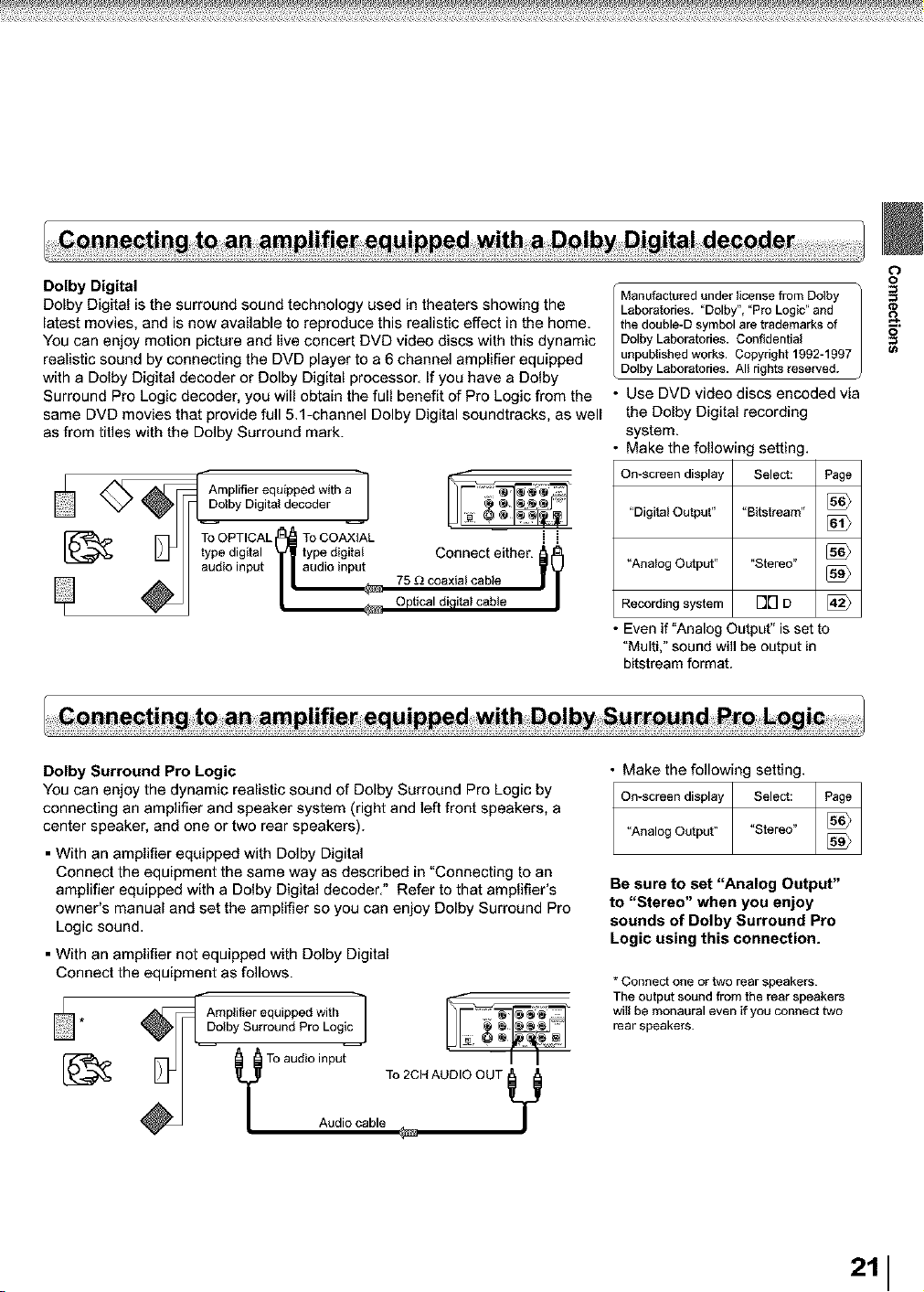
Dolby Digital
Dolby Digital is the surround sound technology used in theaters showing the
latest movies, and is now available to reproduce this realistic effect in the home.
You can enjoy motion picture and live concert DVD video discs with this dynamic
realistic sound by connecting the DVD player to a 6 channel amplifier equipped
with a Dolby Digital decoder or Dolby Digital processor. If you have a Dolby
Surround Pro Logic decoder, you will obtain the full benefit of Pro Logic from the
same DVD movies that provide full 5.1-channel Dolby Digital soundtracks, as well
as from titles with the Dolby Surround mark.
tba
To OPTICAL To COAXIAL
type digital type digital
audio input
Connect either. _ 0
75 _ coaxial cable J |
Optical digital cable |
Manufactured under license from Dolby
Laboratories. "Dolby", "Pro Logic" and
the double-D symbol are trademarks of
Dolby Laboratories. Confidential
unpublished works. Copyright 1992-1997
Dolby Laboratories. All rights reserved.
• Use DVD video discs encoded via
the Dolby Digital recording
system.
Make the following setting.
On-screen display Select: Page
"Digital Output" "Bitstream"
"Analog Output .... Stereo"
Recording system r][] D [42}
• Even if "Analog Output" is set to
"Multi," sound will be output in
bitstream format.
Dolby Surround Pro Logic
You can enjoy the dynamic realistic sound of Dolby Surround Pro Logic by
connecting an amplifier and speaker system (right and left front speakers, a
center speaker, and one or two rear speakers).
• With an amplifier equipped with Do]by Digital
Connect the equipment the same way as described in "Connecting to an
amplifier equipped with a Dolby Digital decoder," Refer to that amplifier's
owner's manual and set the amplifier so you can enjoy Dolby Surround Pro
Logic sound,
• With an amplifier not equipped with Dolby Digital
Connect the equipment as follows.
Ampi0ereqoi00e0with
Dolby Surround Pro Logic
Eq _ _ To aud,o input "
y To2OHAUDIOOUTy
Audio cable __
Make the following setting.
On-screen display Select:
"Analog Output" "Stereo"
Be sure to set "Analog Output"
to "Stereo" when you enjoy
sounds of Dolby Surround Pro
Logic using this connection.
* Connect one or two rear speakers.
The output sound from the rear speakers
wiII be monaural even if you connect two
rear speakers.
211
i_l_ilii_l_ii;I_i!i_I_!i_i_!i_I_!i_i_!Iii!i_i_!i_I_!i_i_!i_I_!i_i_!i_I_!i_i_!i_I_!i_i_!i_I_!i_i_!i_I_!i_i_!i_I_!i_i_!i_I_!i_i_!i_I_!i_i_!i_I_!i_i_!i_I_!i_i_!i_I_!i_i_!i_I_!i_i_!i_I_!i_i_!i_I_!i_i_!i_I_!i_i_!i_I_!i_i_!i_I_!i_i_!i_I_!i_i_!i_I_!i_i_!i_I_!i_i_!i_I_!i_i_!i_I_!i_i_!i_I_!i_i_!i_I_!i_i_!i_I_!i_i_!i_I_!i_i_!i_I_!i_i_!i_I_!i_i_!i_I_!i_i_!i_I_!i_i_!i_I_!i_i_!i_I_!i_i_!i_I_!i_i_!i_I_!i_i_!i_I_!i_i_!i_I_!i_i_!i_I_!i_i_!i_I_!i_i_!i_I_!i_i_!i_I_!i_i_!i_I_!i_i_!i_I_!i_i_!i_I_!i_i_!i_I_!i_i_!i_I_!i_i_!i_I_!i_i_!i_I_!i_i_!i_I_!i_i_!i_I__I
nnecting to Optional Equipment (Continued)
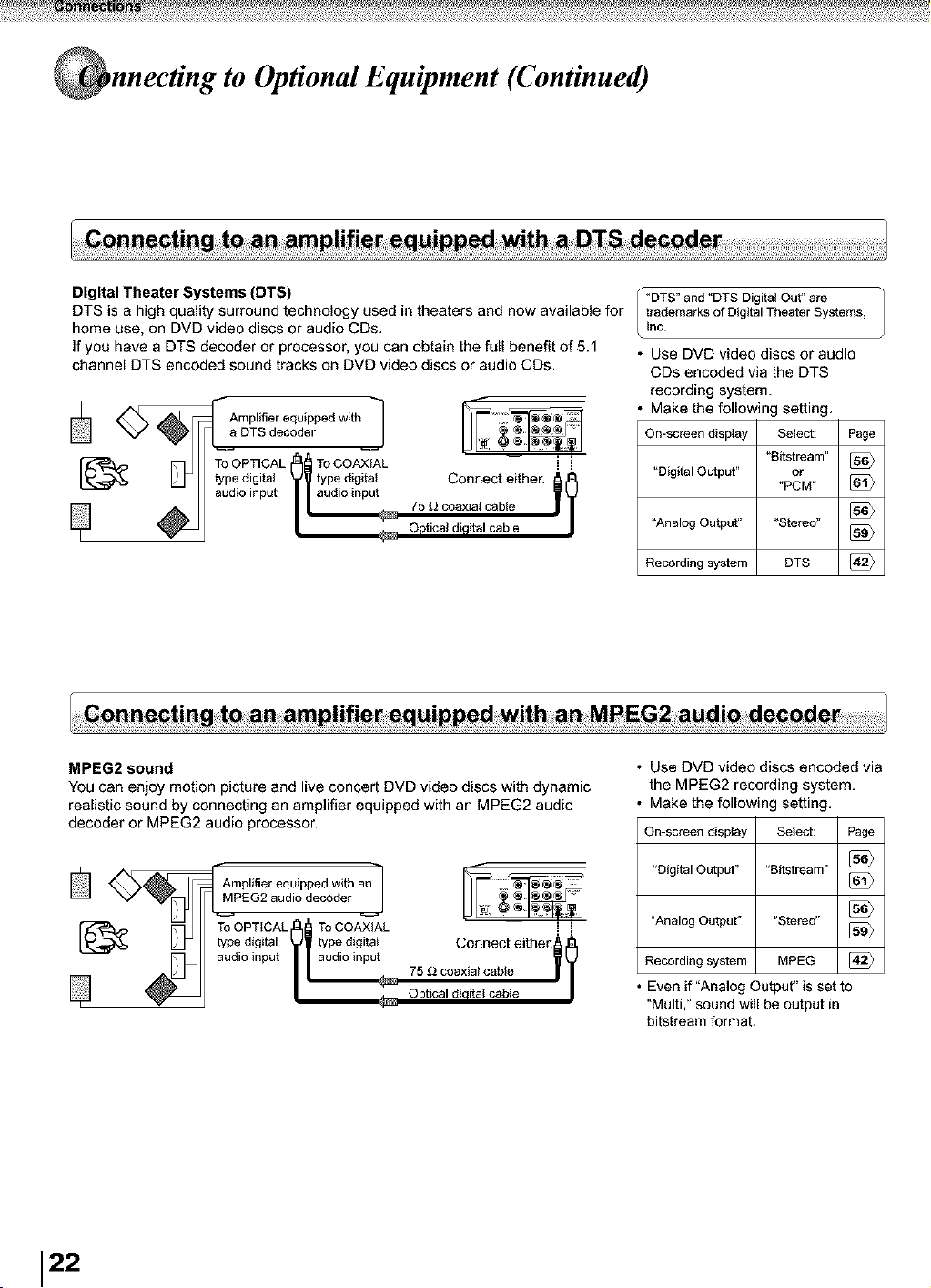
Digital Theater Systems (DTS)
DTS is a high quality surround technology used in theaters and now available for
home use, on DVD video discs or audio CDs.
If you have a DTS decoder or processor, you can obtain the full benefit of 5.1
channel DTS encoded sound tracks on DVD video discs or audio CDs.
r edwith
To OPTICAL To COAXIAL
type digital type digital
audio input Connect either. _l
75 _ coaxial cable
Optical digital cable
"DTS" and "DTS Digital Out" are
trademarks of Digital Theater Systems,
Inc.
• Use DVD video discs or audio
CDs encoded via the DTS
recording system.
Make the following setting,
On-screen display Select: Page
"eitstream" [_
"Digital Output" or
"PCM ° [_
"Analog Output" "Stereo" [_
Recording system DTS [_
MPEG2 sound
You can enjoy motion picture and live concert DVD video discs with dynamic
realistic sound by connecting an amplifier equipped with an MPEG2 audio
decoder or MPEG2 audio processor.
Amplifier equipped with a_"
MPEG2 audio decoder
tyT°pOPiTIitCAL_ _ tyT°peCOdigitA)lalAL
audio input
Connect either._ 0
75 [_ coaxial cable | 1
Optical digital cable
• Use DVD video discs encoded via
the MPEG2 recording system.
• Make the following setting.
On-screen display Select: Page
"Digital Output" "eitstream"
"Analog Output" "Stereo" [_
Recording system MPEG [_
• Even if "Analog Output" is set to
"Multi," sound will be output in
bitstream format.
22
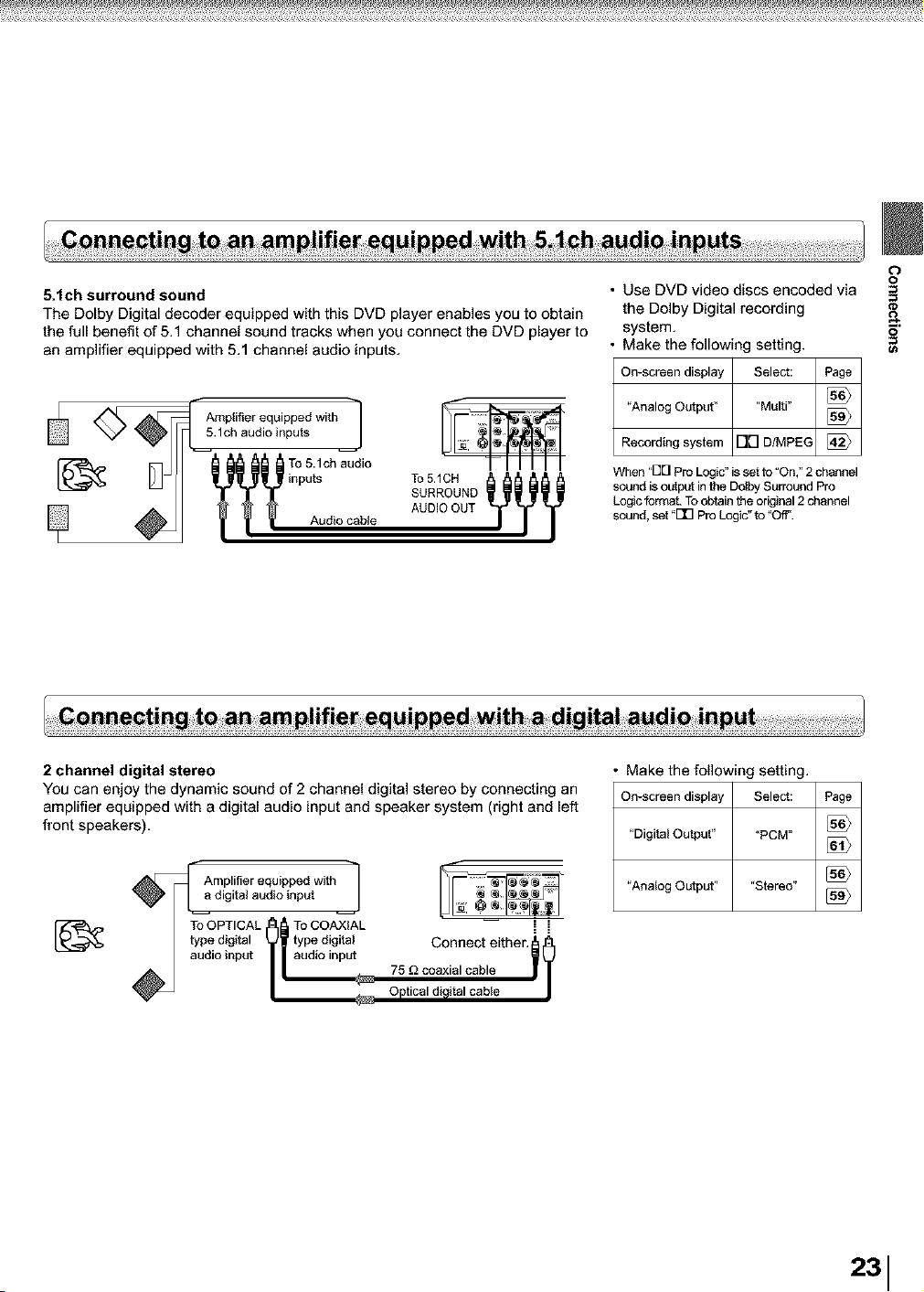
5.tch surround sound
The Dolby Digital decoder equipped with this DVD player enables you to obtain
the full benefit of 5.1 channel sound tracks when you connect the DVD player to
an amplifier equipped with 5.1 channel audio inputs,
[_ _,_? TO S.t ch audio Y_F_
inputs To 5.1CH
SURROUND
AUDIO OUT
Audio cable
O
• Use DVD video discs encoded via ==
the Dolby Digital recording
system. _'
Make the following setting. =_
On-screen display Select: Page
"Analog Output" "Multi"
Recording system 17[-I D/MPEG [_
When "E][[] Pro Logic" is set to "On," 2 channel
sound is output in the Dolby Surround Pro
Logic format. To obtain the original 2 channel
sound, set .Flrq Pro Logic"to"OfF.
2 channel digital stereo
You can enjoy the dynamic sound of 2 channel digital stereo by connecting an
amplifier equipped with a digital audio input and speaker system (right and left
front speakers).
A _iPliitfia_raeqiui_Pn PdUtwit h
/ tyT°peOPi_IitCAL _l tyT°pCOdigitA)laAL
audio input
Connect either._ 0
75 £_coaxial cable _ |
Optical digital cable
Make the following setting.
On-screen display Select:
"Digital Output" "PCM"
"Analog Output.... Stereo"
Page
231
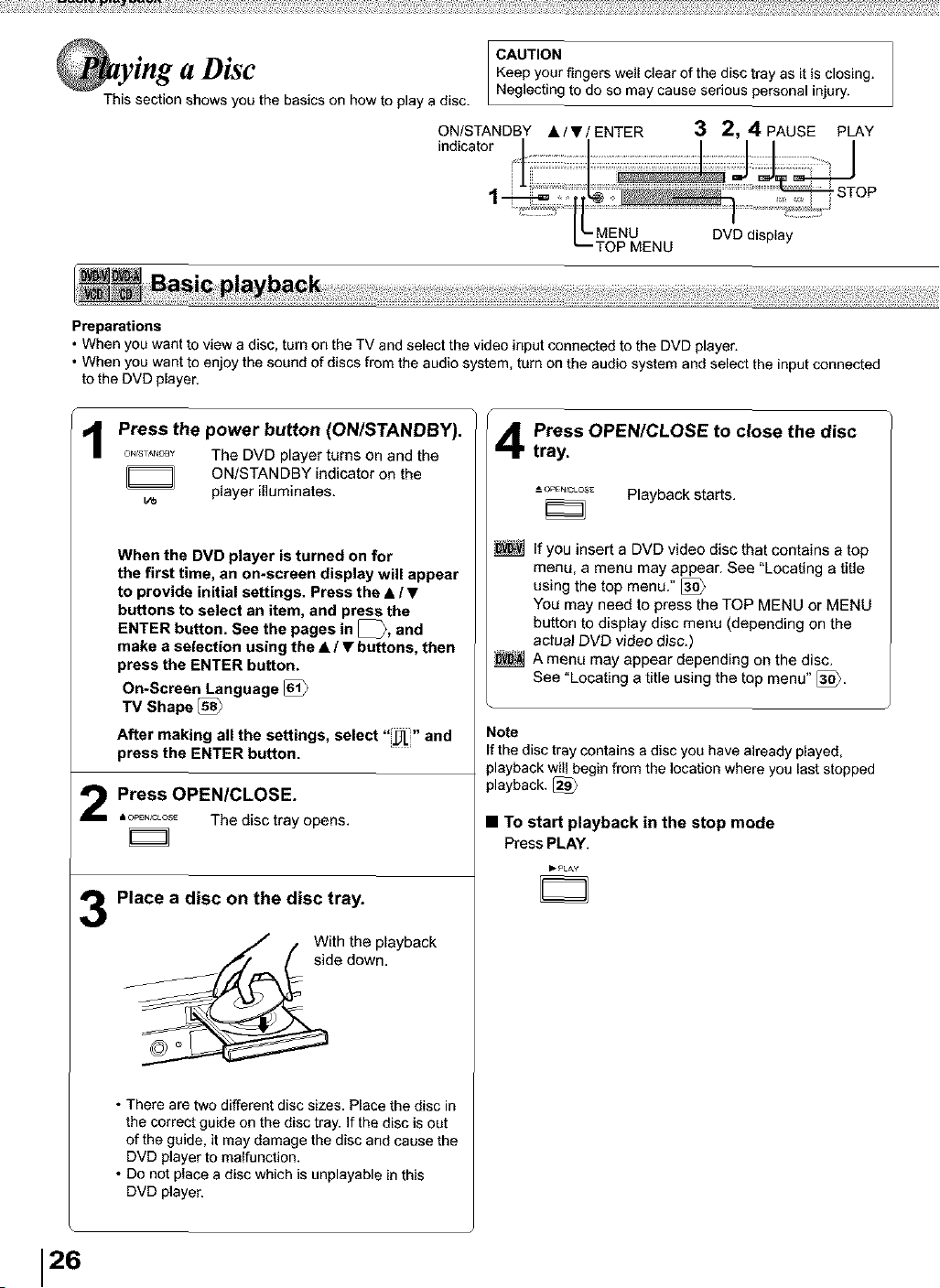
CAUTION
a DiSC Keep your fingers well clear of the disc tray as it is closing.
This section shows you the basics on how to play a disc. Neglecting to do so may cause serious personal injury.
ON/STANDBY •IV/ENTER 3 2, 4 PAUSE PLAY
Preparations
• When you want to view a disc, turn on the TV and select the video input connected to the DVD player.
• When you want to enjoy the sound of discs from the audio system, turn on the audio system and select the input connected
to the DVD player.
Press the power button (ON/STANDBY).
o._sA_ The DVD player taros on and the
ON/STANDBY indicator on the
w player illuminates.
When the DVD player is turned on for
the first time, an on-screen display will appear
to provide initial settings. Press the • / •
buttons to select an item, and press the
ENTER button. See the pages in _, and
make a selection using the • / • buttons, then
press the ENTER button.
On-Screen Language
TV Shape
After making all the settings, select "_" and
press the ENTER button.
Press OPEN/CLOSE.
•_"_°_ The disc tray opens,
3
Place a disc on the disc tray.
With the playback
side down.
• There are two different disc sizes. Place the disc in
the correct guide on the disc tray. if the disc is out
of the guide, it may damage the disc and cause the
DVD player to malfunction.
• Do not place a disc which is unplayable in this
DVD player.
Press OPEN/CLOSE to close the disc
tray.
_OPE[_LOS_ Playback starts.
If you insert a DVD video disc that contains a top
menu, a menu may appear. See "Locating a title
using the top menu."
You may need to press the TOP MENU or MENU
button to display disc menu (depending on the
actua_ DVD video disc.)
A menu may appear depending on the disc.
See "Locating a title using the top menu" [3_>.
Note
If the disc tray contains a disc you have already played,
playback will begin from the location where you last stopped
playback, [_
• To start playback in the stop mode
Press PLAY.
I_ PLay
26
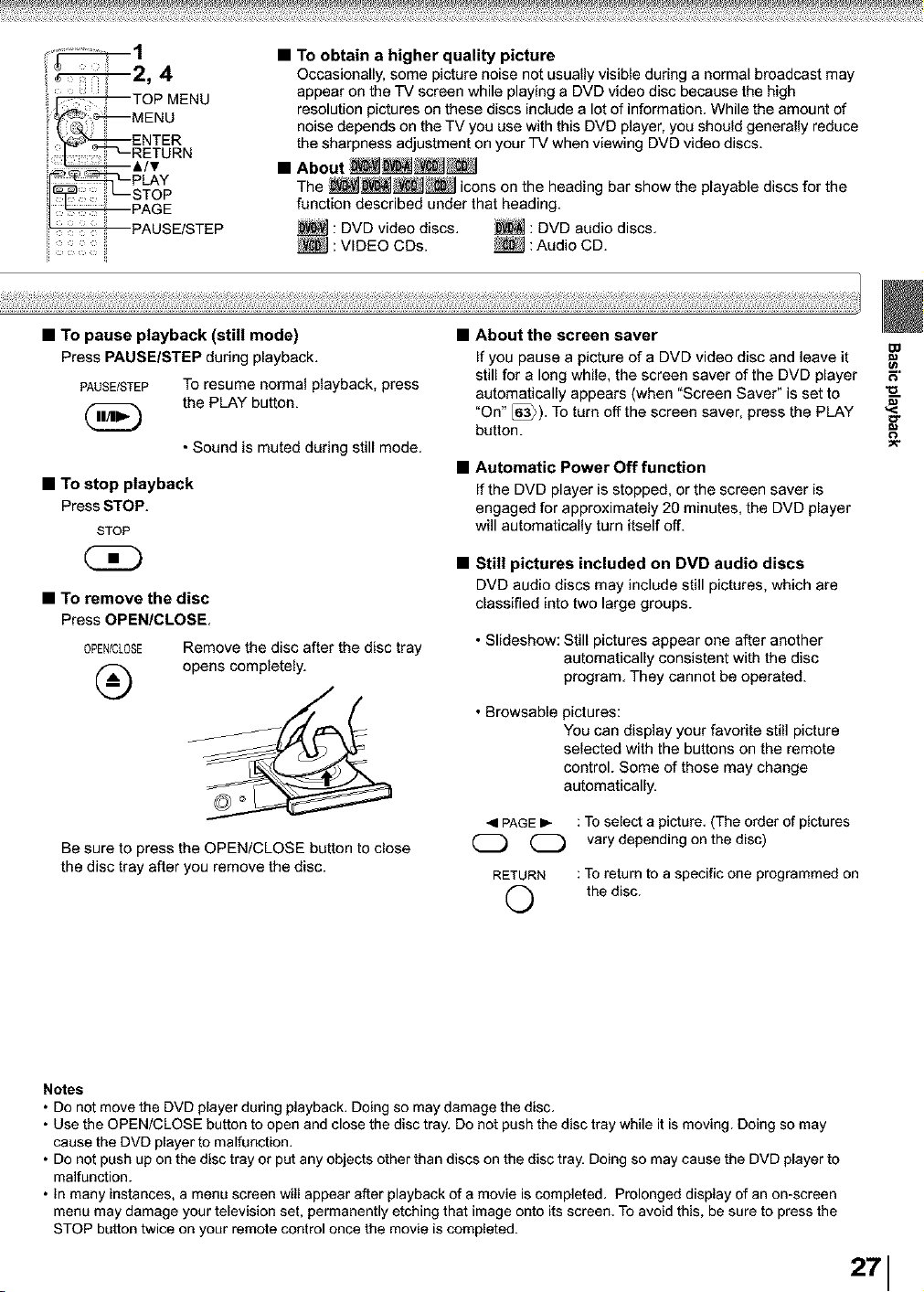
_PLAYsToP
_PAGE
PAUSE/STEP
• TO obtain a higher quality picture
Occasionally, some picture noise not usually visible during a normal broadcast may
appear on the TV screen while playing a DVD video disc because the high
resolution pictures on these discs include a let of information. While the amount of
noise depends on the TV you use with this DVD player, you should generally reduce
the sharpness adjustment on your TV when viewing DVD video discs.
The __ iconson the heading bar show the playable discs for the
function described under that heading.
: DVD video discs. _ : DVD audio discs.
: VIDEO CDs.
• To pause playback (still mode)
Press PAUSEISTEP during playback.
PAUSE/STEP TOresume normal playback, press
(_ the PLAY button.
• Sound is muted during still mode.
• To stop playback
Press STOP.
STOP
• To remove the disc
Press OPENICLOSE,
0PEN/CLOSE
®
Remove the disc after the disc tray
opens completely.
Be sure to press the OPEN/CLOSE button to close
the disc tray after you remove the disc.
About the screen saver
¢
If you pause a picture of a DVD video disc and leave it =
still for a long while, the screen saver of the DVD player F;
automatically appears (when "Screen Saver" is set to _--
"On" [_). To turn off the screen saver, press the PLAY "_
button.
Automatic Power Off function
If the DVD player is stopped, or the screen saver is
engaged for approximately 20 minutes, the DVD player
will automatically turn itself off.
• Still pictures included on DVD audio discs
DVD audio discs may include still pictures, which are
classified into two large groups.
• Slideshow: Still pictures appear one after another
automatically consistent with the disc
program. They cannot be operated.
• Browsable pictures:
You can display your favorite still picture
selected with the buttons on the remote
control. Some of those may change
automatically.
RETURN
©
: To select a picture. (The order of pictures
vary depending on the disc)
: To return to a specific one programmed on
the disc.
Notes
• Do not move the DVD player during playback. Doing so may damage the disc.
• Use the OPEN/CLOSE button to open and close the disc tray. Do not push the disc tray while it is moving. Doing so may
cause the DVD player to malfunction.
• Do not push up on the disc tray or put any objects other than discs on the disc tray. Doing so may cause the DVD player to
malfunction.
• in many instances, a menu screen will appear after playback of a movie is completed. Prolonged display of an on-screen
menu may damage your television set, permanently etching that image onto its screen. To avoid this, be sure to press the
STOP button twice on your remote control once the movie is completed.
271
iiii::ili''
_ iii
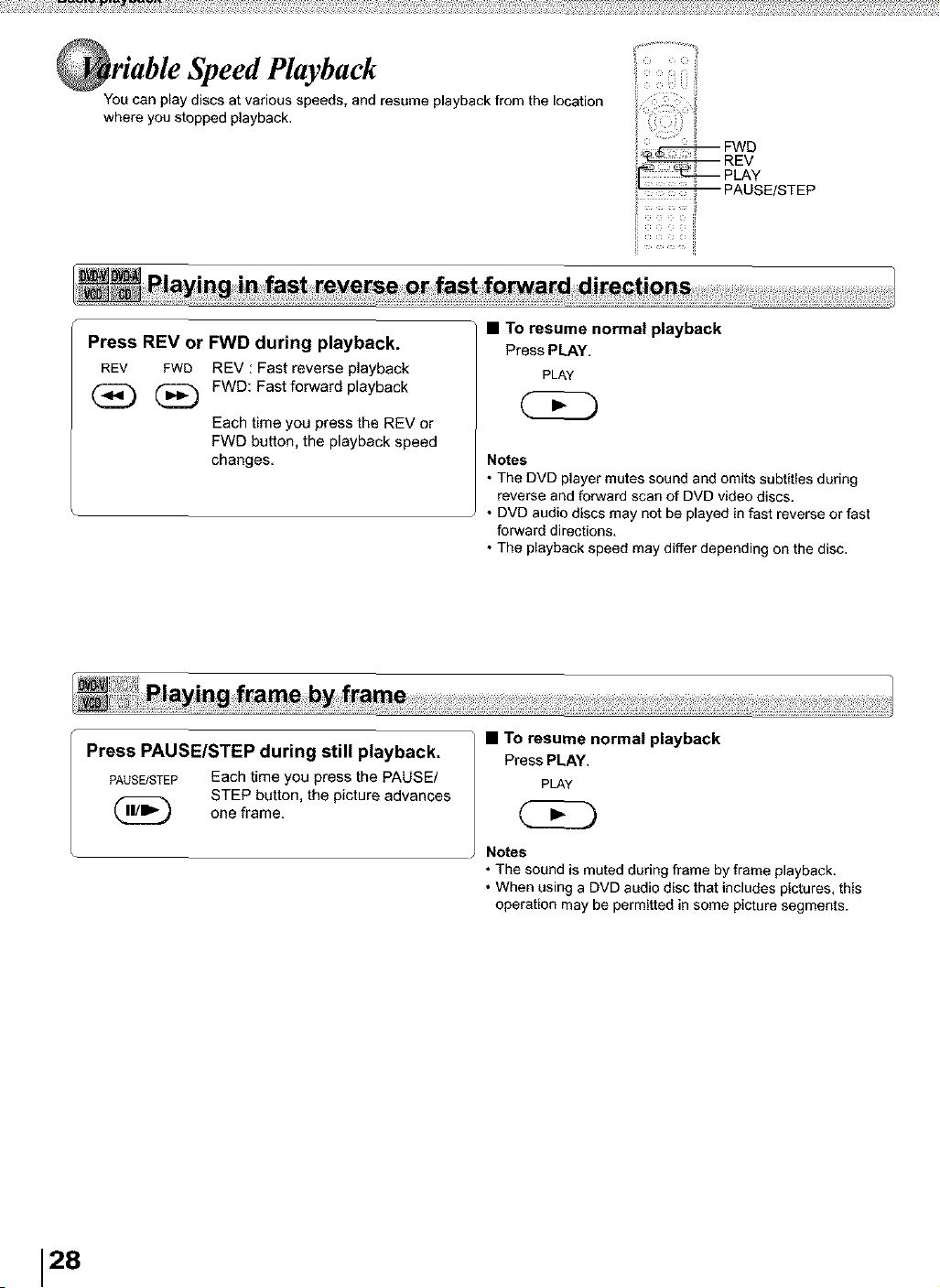
You can play discs at various speeds, and resume playback from the location
where you stopped playback,
PLAY
Press REV or FWD during playback.
REV FWD REV : Fast reverse playback
(_) (_ FWD: Fast forward playback
Each time you press the REV or
FWD button, the playback speed
changes,
• TO resume normal playback
Press PLAY.
PLAY
Notes
• The DVD player mutes sound and omits subtitles during
reverse and forward scan of DVD video discs.
• DVD audio discs may not be played in fast reverse or fast
forward directions,
• The playback speed may differ depending on the disc.
Press PAUSE/STEP during still playback.
PAUSE/STEP Each time you press the PAUSE/
STEP button, the pictureadvances
(_ one frame.
• TO resume normal playback
Press PLAY,
PLAY
C? D
Notes
• The sound is muted during frame by frame playback.
• When using a DVD audio disc that includes pictures, this
operation may be permitted in some picture segments.
28
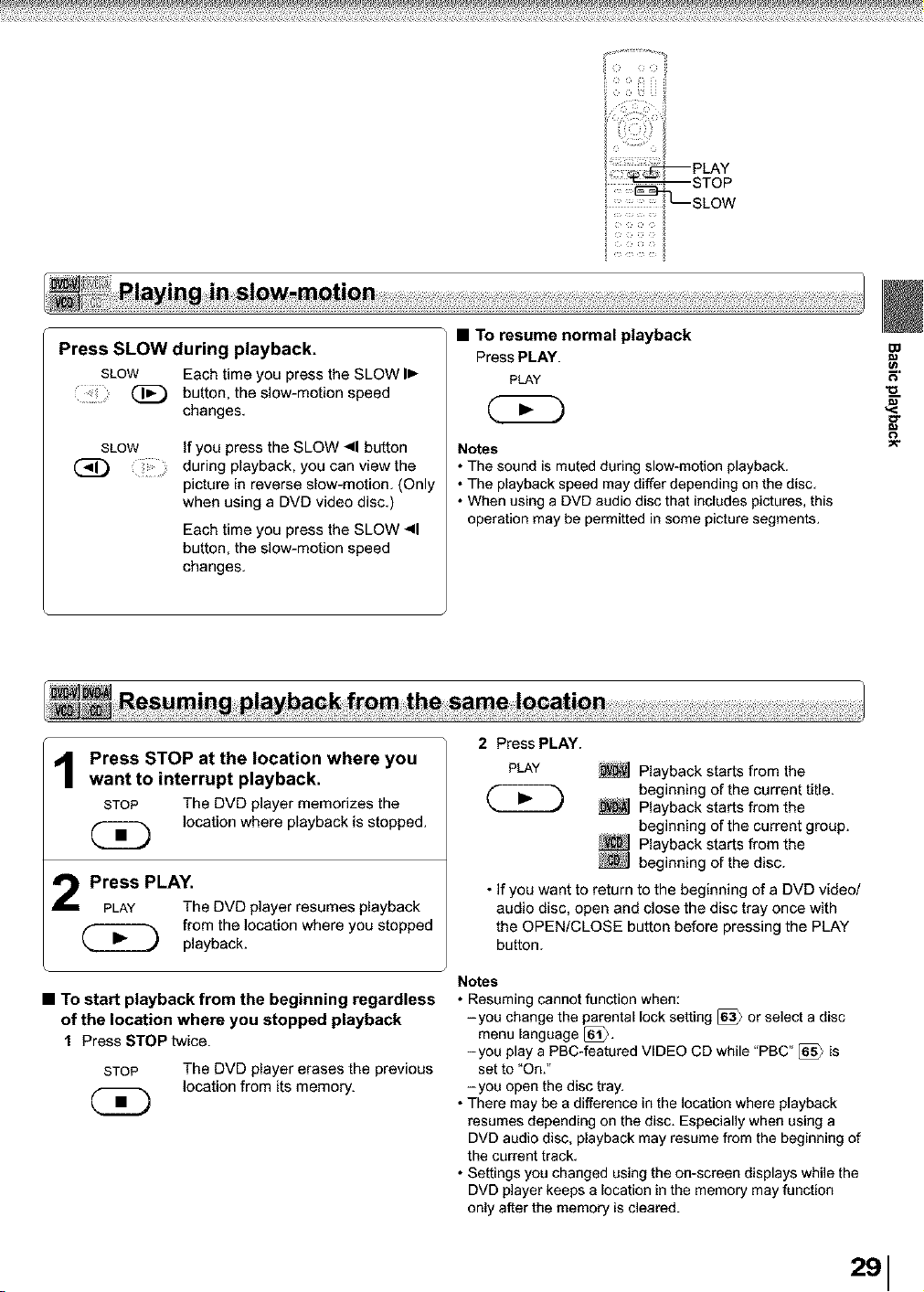
Press SLOW during playback.
SLOW Each time you press the SLOW I_-
(_ button, the slow-motion speed
changes.
SLOW
If you press the SLOW _11button
during playback, you can view the
picture in reverse slow-motion. (Only
when using a DVD video disc.)
Each time you press the SLOW <1
button, the slow-motion speed
changes.
• To resume normal playback
Press PLAY.
PLAY
Notes
• The sound is muted during slow-motion playback.
• The playback speed may differ depending on the disc,
• When using a DVD audio disc that includes pictures, this
operation may be permitted in some picture segments.
=#
=#
1
Press STOP at the location where you
want to interrupt playback.
STOP The DVDplayer memorizesthe
locationwhere playbackis stopped.
Press PLAY.
PLAY The DVD player resumes playback
from the location where you stopped
(_ playback.
• To start playback from the beginning regardless
of the location where you stopped playback
t Press STOP twice.
STOP The DVD player erases the previous
location from its memory.
2 Press PLAY.
PLAY
Playback starts from the
beginning of the current title.
Playback starts from the
beginning of the current group.
Playback starts from the
beginning of the disc.
• If you want to return to the beginning of a DVD video/
audio disc, open and close the disc tray once with
the OPEN/CLOSE button before pressing the PLAY
button.
Notes
• Resuming cannot function when:
-you change the parental lock setting [63_ or select a disc
menu language [_.
-you play a PBC-featured VIDEO CD while "PBC" [_ is
set to "On."
-you open the disc tray.
• There may be a difference in the location where playback
resumes depending on the disc. Especially when using a
DVD audio disc, playback may resume from the beginning of
the current track.
• Settings you changed using the on-screen displays while the
DVD player keeps a location in the memory may function
only after the memory is cleared.
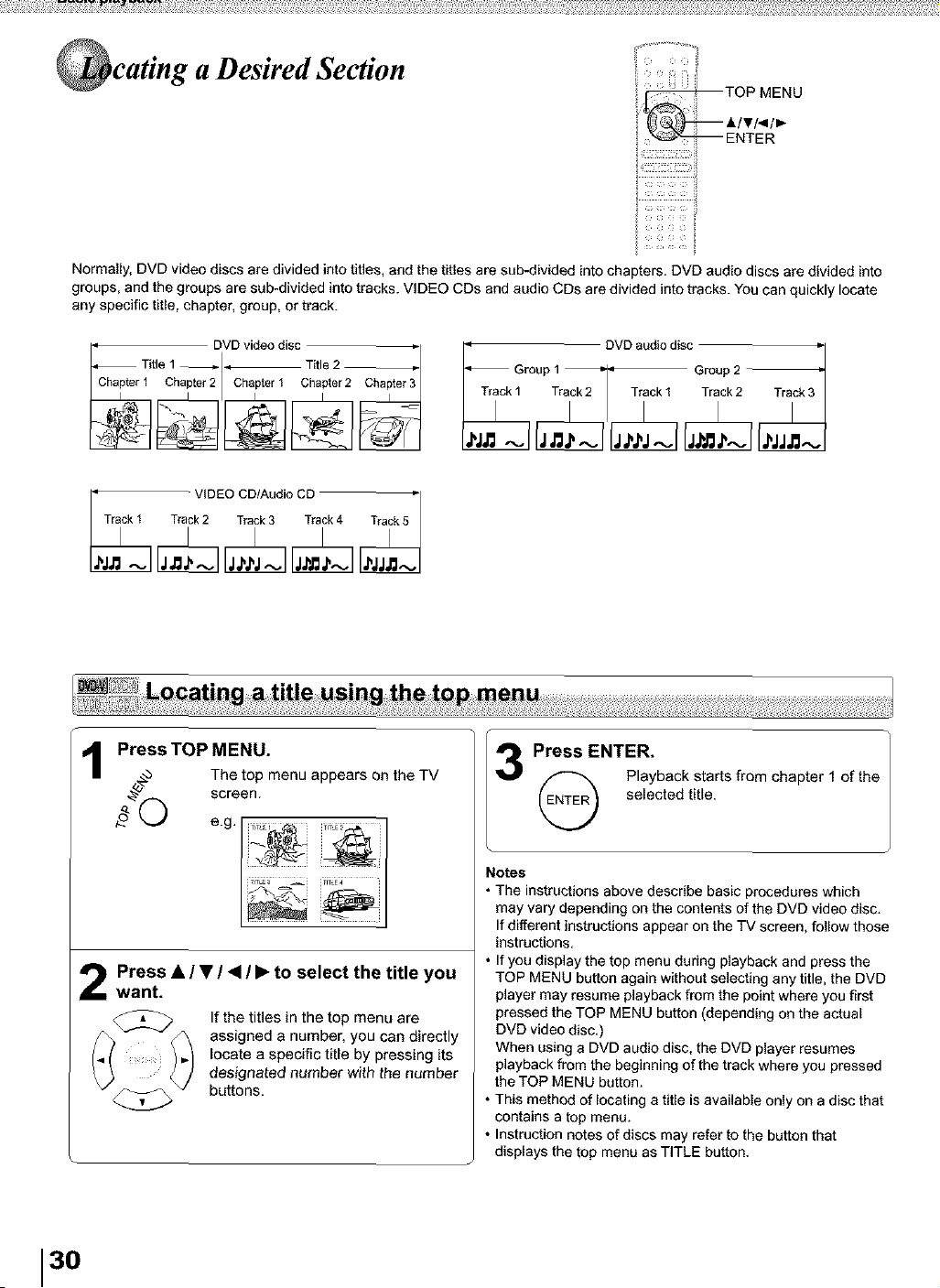
a Desired Section
i'_i;i!iiiiilCi_i_iiii%%_i__il
i ..............i
Normally, DVD video discs are divided into titles, and the fitles are sub-divided into chapters. DVD audio discs are divided into
groups, and the groups are sub-divided into tracks. VIDEO CDs and audio CDs are divided into tracks. You can quickly locate
any specific fitle, chapter, group, or track.
DVD video disc _
Title 1 _ _ Title 2 _.
____Chapter1 Chapter 2 Chapter I Chapter 2
DVD audio disc
____Tra_Gr°up 1 • • Group2
____- VIDEO CD/Audio CD
TOP appears on the TV
Press MENU.
screen.
.4_"(_') The top menu
e.g,
i,,
Press • / • / <1/ • to select the title you
want.
If the titles in the top menu are
assigned a number, you can directly
locate a specific title by pressing its
designated number with the number
buttons.
Press_NTER.
Playbtckt_larts from chapter 1 of the
Notes
• The instructions above describe basic procedures which
may vary depending on the contents of the DVD video disc.
If different instructions appear on the TV screen, follow those
instructions.
• If you display the top menu during playback and press the
TOP MENU button again without selecting any title, the DVD
player may resume playback from the point where you first
pressed the TOP MENU button (depending on the actual
DVD video disc.)
When using a DVD audio disc, the DVD player resumes
playback from the beginning of the track where you pressed
the TOP MENU button.
• This method of locating a title is available only on a disc that
contains a top menu.
• Instruction notes of discs may refer to the button that
displays the top menu as TITLE button.
30
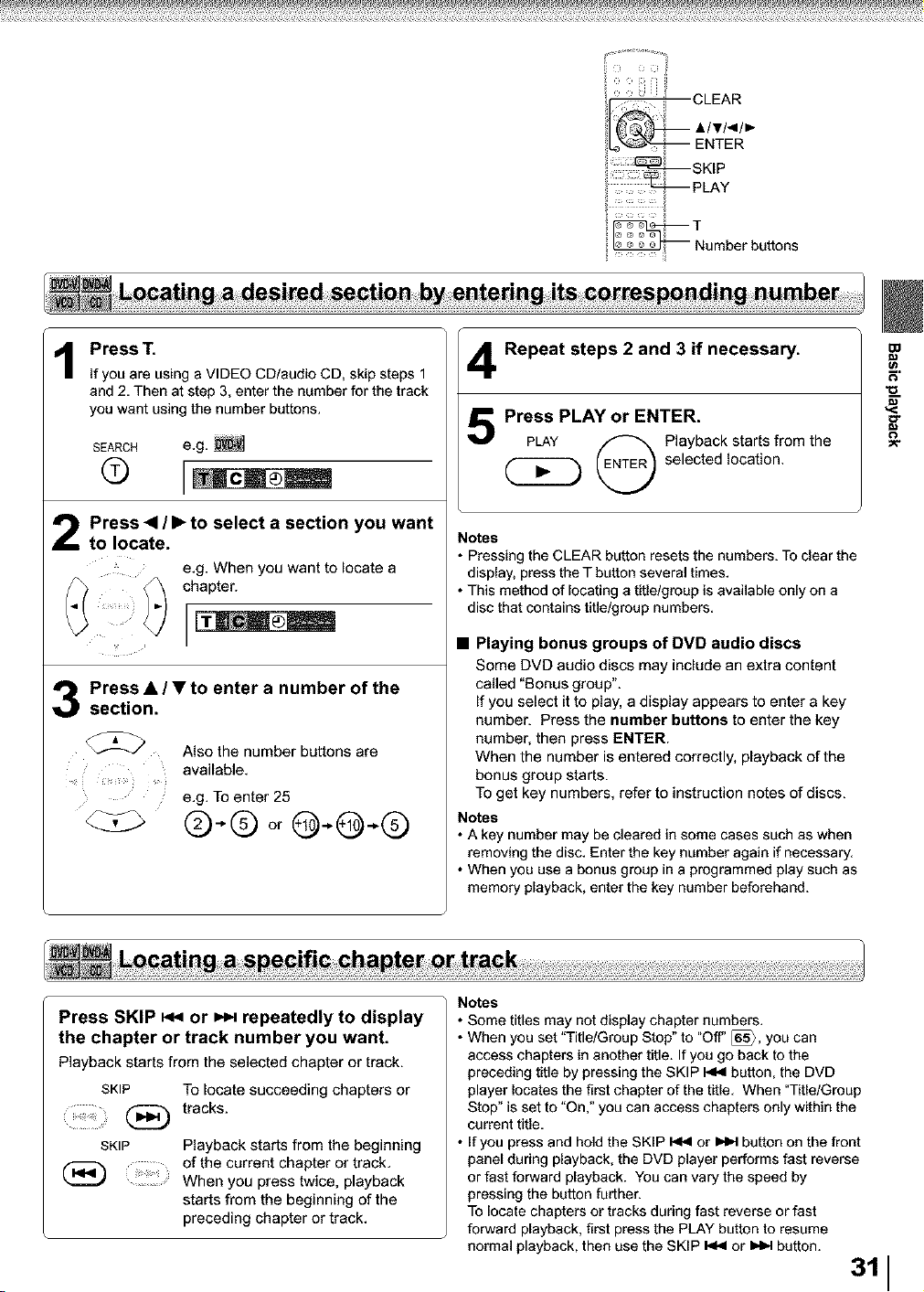
CLEAR
A/V/</_
ENTER
Press T.
If you are using a VIDEO CD/audio CD, skip steps 1
and 2. Then at step 3, enter the number for the track
you want using the number buttons.
SEARCH e.g.
Press <1/ • to select a section you want
to locate.
e.g. When you want to locate a
chapter.
3 Press • / • to enter a number of the
section.
_L_ Also the number buttons are
available.
e.g. To enter 25
<:z> ®-,.@or@..@-,.®
5
Repeat steps 2 and 3 if necessary.
Press PLAY or ENTER,
PLAY _ Playback starts from the
selected location.
Notes
• Pressing the CLEAR button resets the numbers. To clear the
display, press the T button several times.
• This method of locating a title/group is available only on a
disc that contains title/group numbers.
• Playing bonus groups of DVD audio discs
Some DVD audio discs may include an extra content
called "Bonus group".
If you select it to play, a display appears to enter a key
number. Press the number buttons to enter the key
number, then press ENTER.
When the number is entered correctly, playback of the
bonus group starts.
To get key numbers, refer to instruction notes of discs.
Notes
• A key number may be cleared in some cases such as when
removing the disc, Enter the key number again if necessary.
• When you use a bonus group in a programmed play such as
memory playback, enter the key number beforehand.
Press SKIP _ or =.Hrepeatedly to display
the chapter or track number you want.
Playbackstartsfrom the selectedchapter or track.
SKIP TOlocate succeeding chapters or
(_
tracks.
SKIP Playback starts from the beginning
_ of the current chapter or track.
When you press twice, playback
starts from the beginning of the
preceding chapter or track.
Notes
• Some titles may not display chapter numbers.
• When you set "Title/Group Stop" to "Off" _, you can
access chapters in another title. If you go back to the
preceding title by pressing the SKIP 14,11button, the DVD
player locates the first chapter of the title. When "TiUe/Group
Stop" is set to "On," you can access chapters only within the
current title.
• If you press and hold the SKIP _ or _ button on the front
panel during playback, the DVD player performs fast reverse
or fast forward playback. You can vary the speed by
pressing the button further.
To locate chapters or tracks during fast reverse or fast
forward playback, first press the PLAY button to resume
normal playback, then use the SKIP _ or _ button.
311
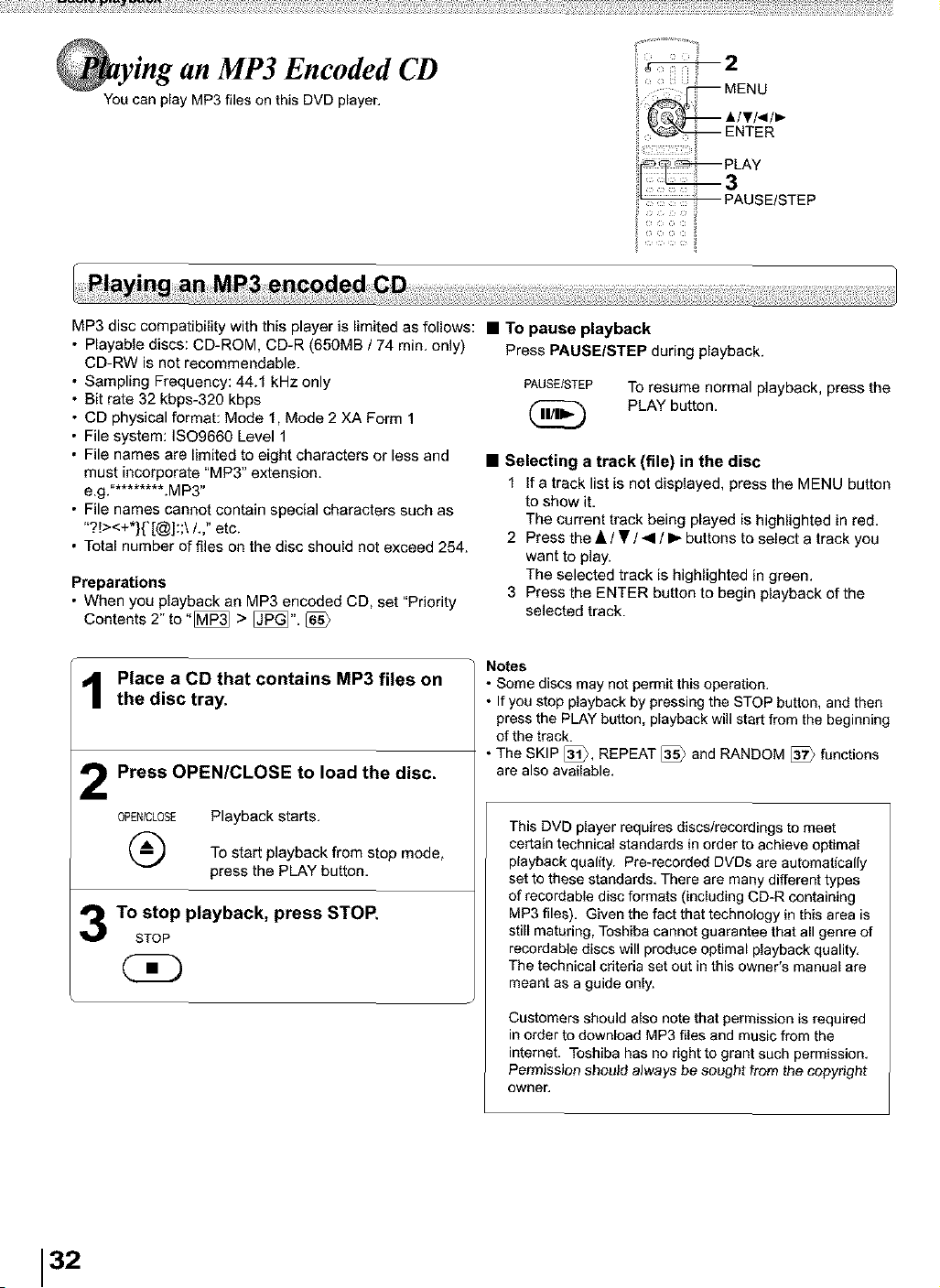
ii ..........iY
MP3 disc compatibili_ with this player is limited as follows: • TO pause playback
• Playable discs: CD-ROM, CD-R (650MB / 74 min. only)
CD-RW is not recommendable.
• Sampling Frequency: 44.1 kHz only
• Bit rate 32 kbps-320 kbps
• CD physical format: Mode 1, Mode 2 XA Form 1
• File system: ISO9660 Level 1
• File names are limited to eight characters or less and
must incorporate "MP3" extension.
e.g."********.M P3"
• File names cannot contain special characters such as
"?t><+*}{'[@]:;\ /.," etc.
• Total number of files on the disc should not exceed 254.
Preparations
• When you playback an MP3 encoded CD, set "Priority
Contents 2" to "[_ > [_". [_
Press PAUSEISTEP during playback.
PAUSE/STEP To resume normal playback, press the
(_ PLAY button.
• Selecting a track (file) in the disc
1 If a track listis not displayed, pressthe MENU button
to show it.
The current track being played is highlighted in red.
2 Press the • / • / _1/ I_ buttons to select a track you
want to play.
The selected track is highlighted in green.
3 Press the ENTER button to begin playback of the
selected track.
1
2
3
Place a CD that contains MP3 files on
the disc tray.
Press OPEN/CLOSE to load the disc.
0PENICLOSE Playback starts.
(_ To start playback from stop mode,
press the PLAY button.
To stop playback, press STOP.
STOP
CK)
Notes
Some discs may not permit this operation.
If you stop playback by pressing the STOP button, and then
press the PLAY button, playback will start from the beginning
of the track.
The SKIP _, REPEAT [_ and RANDOM [_ functions
are also available.
This DVD player requires discs/recordings to meet
certain technical standards in order to achieve optimal
playback quality. Pre-recorded DVDs are automatically
set to these standards. There are many different types
of recordable disc formats (including CD-R containing
MP3 files). Given the fact that technology in this area is
still maturing, Toshiba cannot guarantee that all genre of
recordable discs will produce optimal playback quality.
The technical cdteda set out in this owner's manual are
meant as a guide only.
Customers should also note that permission is required
in order to download MP3 files and music from the
internet. Toshiba has no right to grant such permission.
Permission should always be sought from the copyright
owner,
32
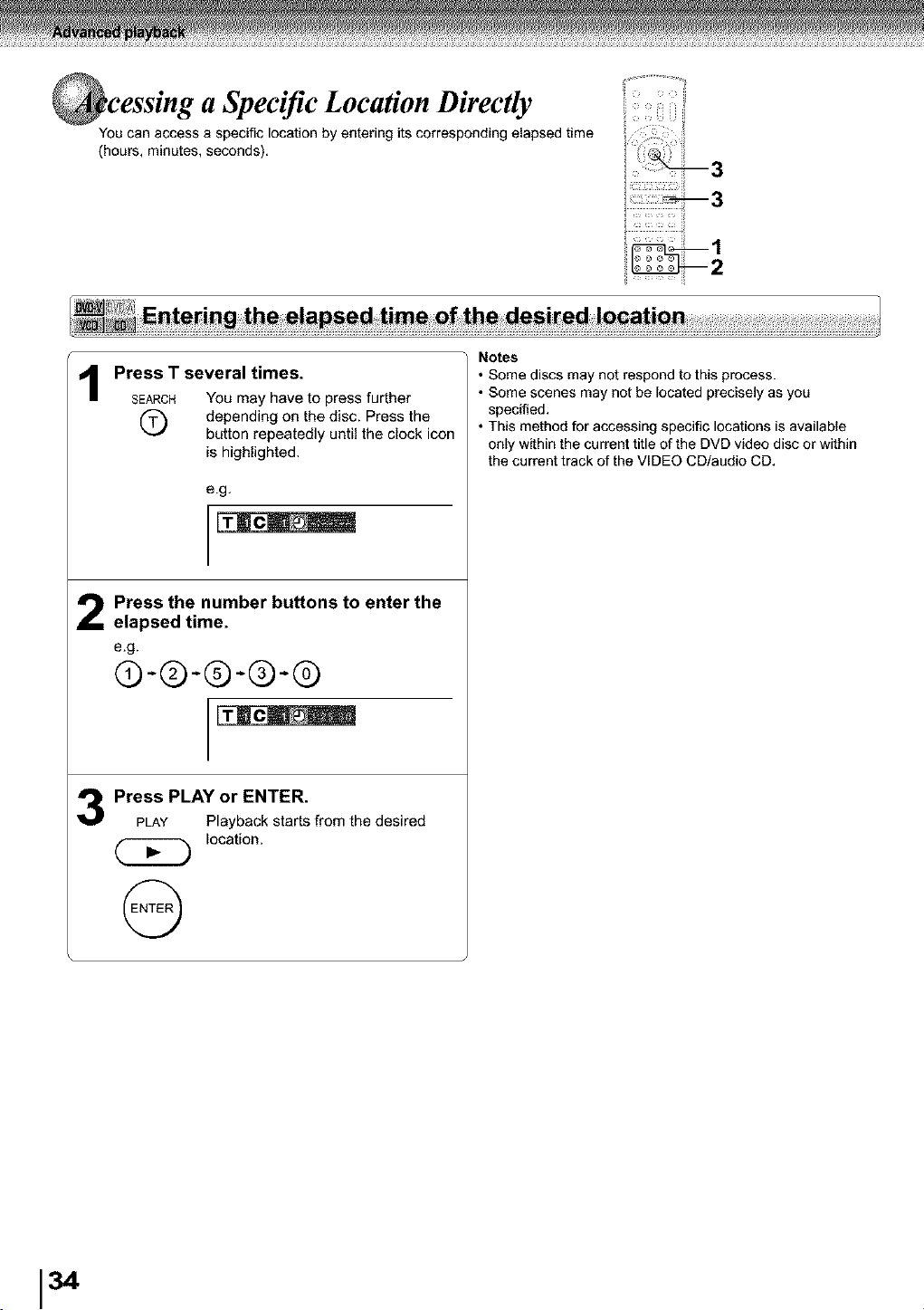
cessing a Specific Location Directly
You can access a specific location by entering its corresponding elapsed time
(hours, minutes, seconds).
ii .............il
1
2
3
Press T several times.
SEARCH YOUmay have to press further
depending on the disc. Press the
button repeatedly until the clock icon
is highlighted.
e.g,
Press the number buttons to enter the
elapsed time.
e,g.
@-®-®.-®-®
Press PLAY or ENTER.
PLAY Playback starts from the desired
location.
@
Notes
• Some discs may not respond to this process.
• Some scenes may not be located precisely as you
specified.
• This method for accessing specific locations is available
only within the current title of the DVD video disc or within
the current track of the VIDEO CD/audio CD.
34
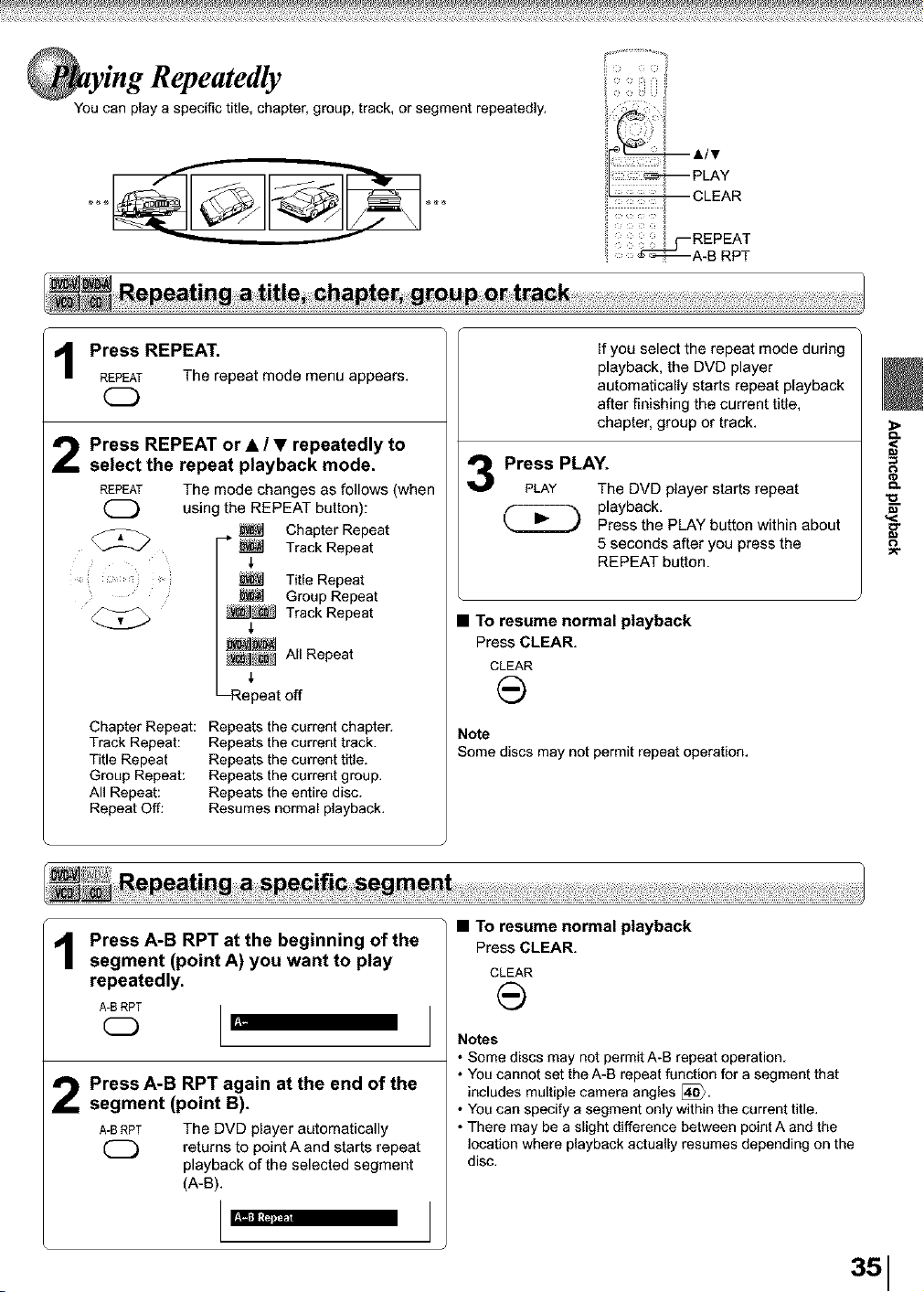
You can play a specific title, chapter, group, track, or segment repeatedly.
Press REPEAT.
REPEAT The repeat mode menu appears.
C)
12
Press REPEAT or • / • repeatedly to
select the repeat playback mode.
REPEAT The mode changes as follows (when
(_ using the REPEAT button):
Chapter Repeat
Track Repeat
Title Repeat
Group Repeat
_ Track Repeat
_ All Repeat
J,
-Repeat off
Chapter Repeat: Repeats the current chapter.
Track Repeat: Repeats the current track.
Title Repeat Repeats the current title.
Group Repeat: Repeats the current group.
All Repeat: Repeats the entire disc.
Repeat Off: Resumes normal playback.
3
If you select the repeat mode during
playback, the DVD player
automatically starts repeat playback
after finishing the current title,
chapter, group or track.
Press PLAY.
PLAY The DVD player starts repeat
playback.
Press the PLAY button within about
5 seconds after you press the
REPEAT button.
• To resume normal playback
Press CLEAR.
CLEAR
Note
Some discs may not permit repeat operation.
;>
<
12
Press A-B RPT at the beginning of the
segment (point A) you want to play
repeatedly,
A-B RPT
CD
Press A-B RPT again at the end of the
segment (point B).
A-BRPT The DVD player automatically
(_ returns to point A and starts repeat
playback of the selected segment
(A-B).
• To resume normal playback
Press CLEAR.
CLEAR
Notes
• Some discs may not permit A-B repeat operation,
• You cannot set the A-B repeat function for a segment that
includes multiple camera angles [_,
• You can specify a segment only within the current title,
• There may be a slight difference between point A and the
location where playback actually resumes depending on the
disc,
1
351
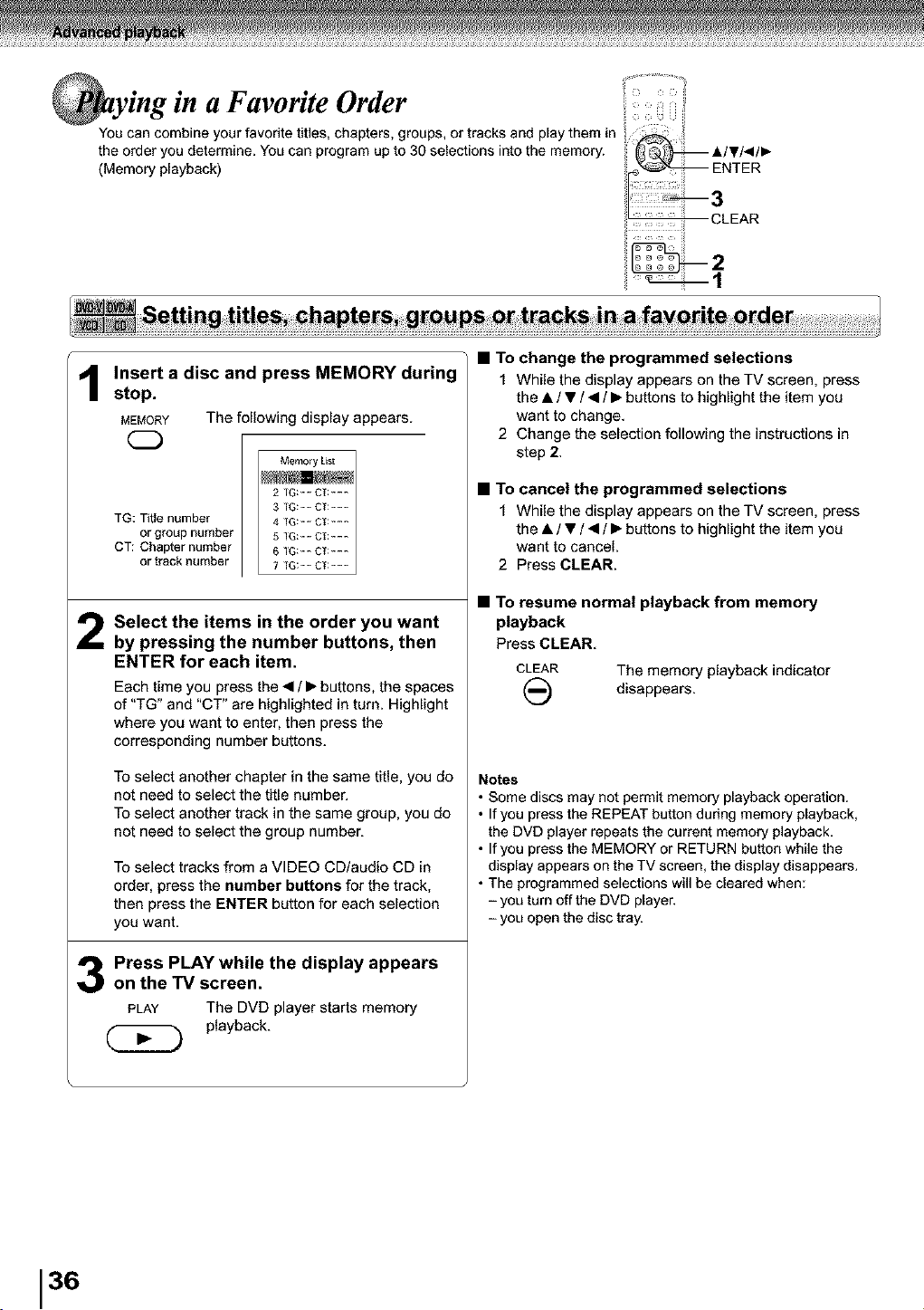
in a Favorite Order
You can combine your favorite titles, chapters, groups, or tracks and play them in
the order you determine. You can program up to 30 selections into the memory.
(Memory playback)
il
Insert a disc and press MEMORY during
stop.
MEMORY The following display appears.
CD
Memory List
2 TG: CI:---
3 TG: CI:--_
TG: Title number ,! TG: CT:_-_
or group number 5 1G: CT:_-
CT: Chapter number 6 1G:_ CT:_-_
or track number 7 TG:-_ CT:_-
Select the items in the order you want
by pressing the number buttons, then
ENTER for each item.
Each time you press the • / • buttons, the spaces
of "TG" and "CT" are highlighted in turn. Highlight
where you want to enter, then press the
corresponding number buttons.
To select another chapter in the same title, you do
not need to select the title number.
To select another track in the same group, you do
not need to select the group number.
To select tracks from a VIDEO CD/audio CD in
order, press the number buttons for the track,
then press the ENTER button for each selection
you want.
Press PLAY while the display appears
on the TV screen.
PLAY The DVDplayerstarts memory
(_ playback.
• To change the programmed selections
1 While the display appears on the TV screen, press
the • / • / • / • buttons to highlight the item you
want to change.
2 Change the selection following the instructions in
step 2.
• To cancel the programmed selections
1 While the display appears on the TV screen, press
the • / • / • / • buttons to highlight the item you
want to cancel.
2 Press CLEAR.
• TO resume normal playback from memory
playback
Press CLEAR.
CLEAR The memory playback indicator
(_ disappears.
Notes
• Some discs may not permit memory playback operation.
• If you press the REPEAT button during memory playback,
the DVD player repeats the current memory playback.
• If you press the MEMORY or RETURN button while the
display appears on the TV screen, the display disappears.
• The programmed selections will be cleared when:
- you turn off the DVD player.
- you open the disc tray.
36
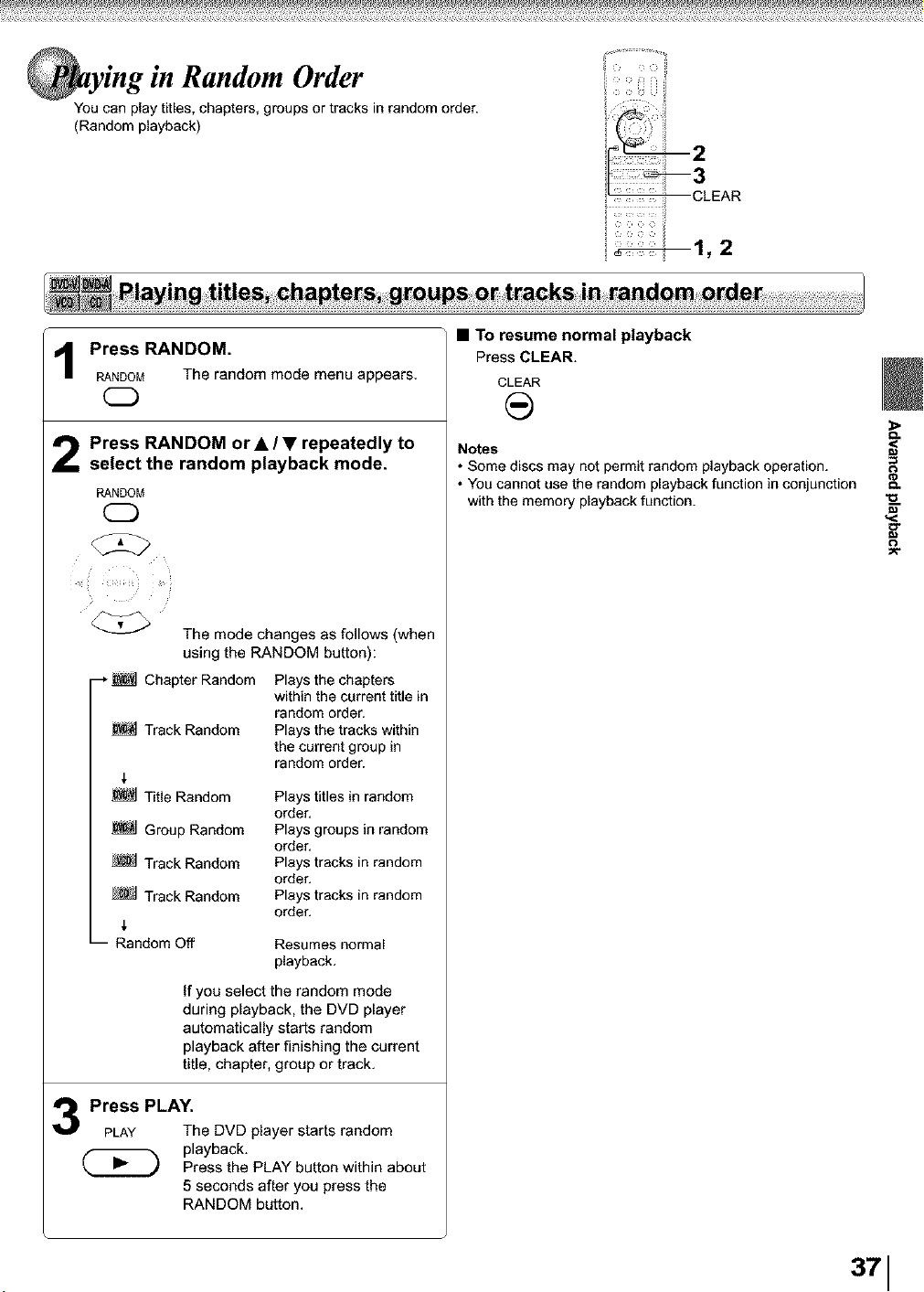
in Random Order
You can play titles, chapters, groups or tracks in random order.
(Random playback)
i ¸ i
2
Press RANDOM.
RANDOM The random mode menu appears,
2 Press RANDOM or • / • repeatedly to
select the random playback mode.
RANDOM
CD
C2>
The mode changes as follows (when
using the RANDOM button):
--* _ Chapter Random
Track Random
Title Random
Group Random
Track Random
Track Random
-- Random Off
Plays the chapters
within the current title in
random order.
Plays the tracks within
the current group in
random order.
Plays titles in random
order.
Plays groups in random
order.
Plays tracks in random
order.
Plays tracks in random
order.
Resumes normal
playback.
If you select the random mode
during playback, the DVD player
automatically starts random
playback after finishing the current
title, chapter, group or track.
Press PLAY.
PLAY
The DVD player starts random
playback.
Press the PLAY button within about
5 seconds after you press the
RANDOM button.
• To resume normal playback
Press CLEAR.
CLEAR
Notes
• Some discs may not permit random playback operation.
• You cannot use the random playback function in conjunction
with the memory playback function.
;>
g_
<
371
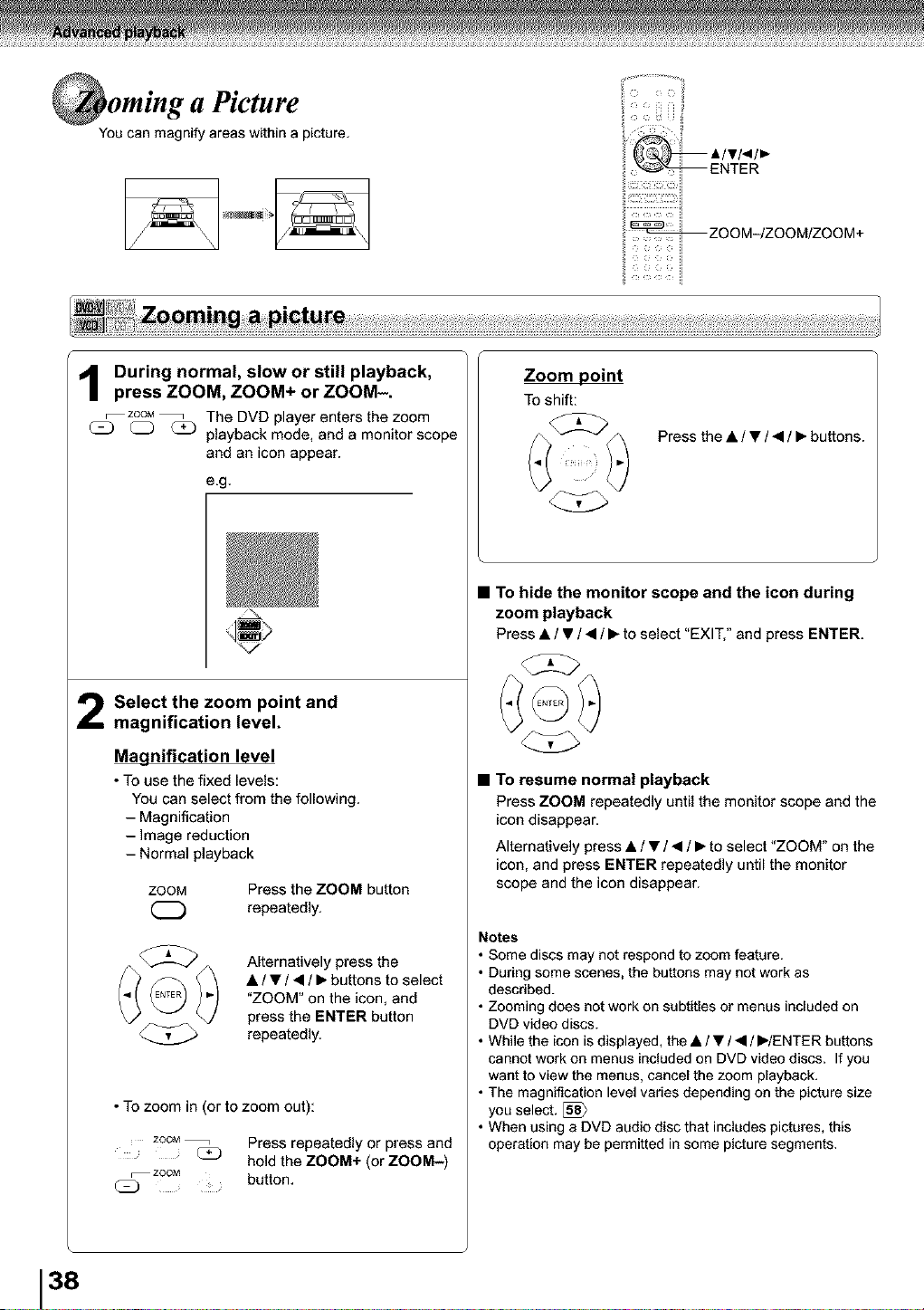
a Picture :
You can magnify areas within a picture.
ZOOM-/ZOOM/ZOOM+
k
38
During normal, slow or still playback,
press ZOOM, ZOOM+ or ZOOM-.
zoom_ The DVD player enters the zoom
__) C_) _ playback mode, and a monitor scope
and an icon appear.
e.g.
Select the zoom point and
magnification level.
Magnification level
• To use the fixed levels:
You can select from the following.
- Magnification
- Image reduction
- Normal playback
ZOOM Press the ZOOM button
(_) repeatedly.
Alternatively press the
• / • / • / • buttons to select
"ZOOM" on the icon, and
press the ENTER button
repeatedly.
• TO zoom in (or to zoom out):
ZOOM
ZOOM
Press repeatedly or press and
hold the ZOOM+ (or ZOOM-)
button,
Zoom point
Toshift:
Press the • / • / • / • buttons.
• To hide the monitor scope and the icon during
zoom playback
Press • / • / • / • to select "EXIT," and press ENTER.
• TO resume normal playback
Press ZOOM repeatedly until the monitor scope and the
icon disappear.
Alternatively press • / • / • / • to select "ZOOM" on the
icon, and press ENTER repeatedly until the monitor
scope and the icon disappear.
Notes
• Some discs may not respond to zoom feature.
• During some scenes, the buttons may not work as
descdbed.
• Zooming does not work on subtitles or menus included on
DVD video discs.
• While the icon is displayed, the • / • / • / •/ENTER buttons
cannot work on menus included on DVD video discs. If you
want to view the menus, cancel the zoom playback.
• The magnification level vades depending on the picture size
you select. [_
• When using a DVD audio disc that includes pictures, this
operation may be permitted in some picture segments.
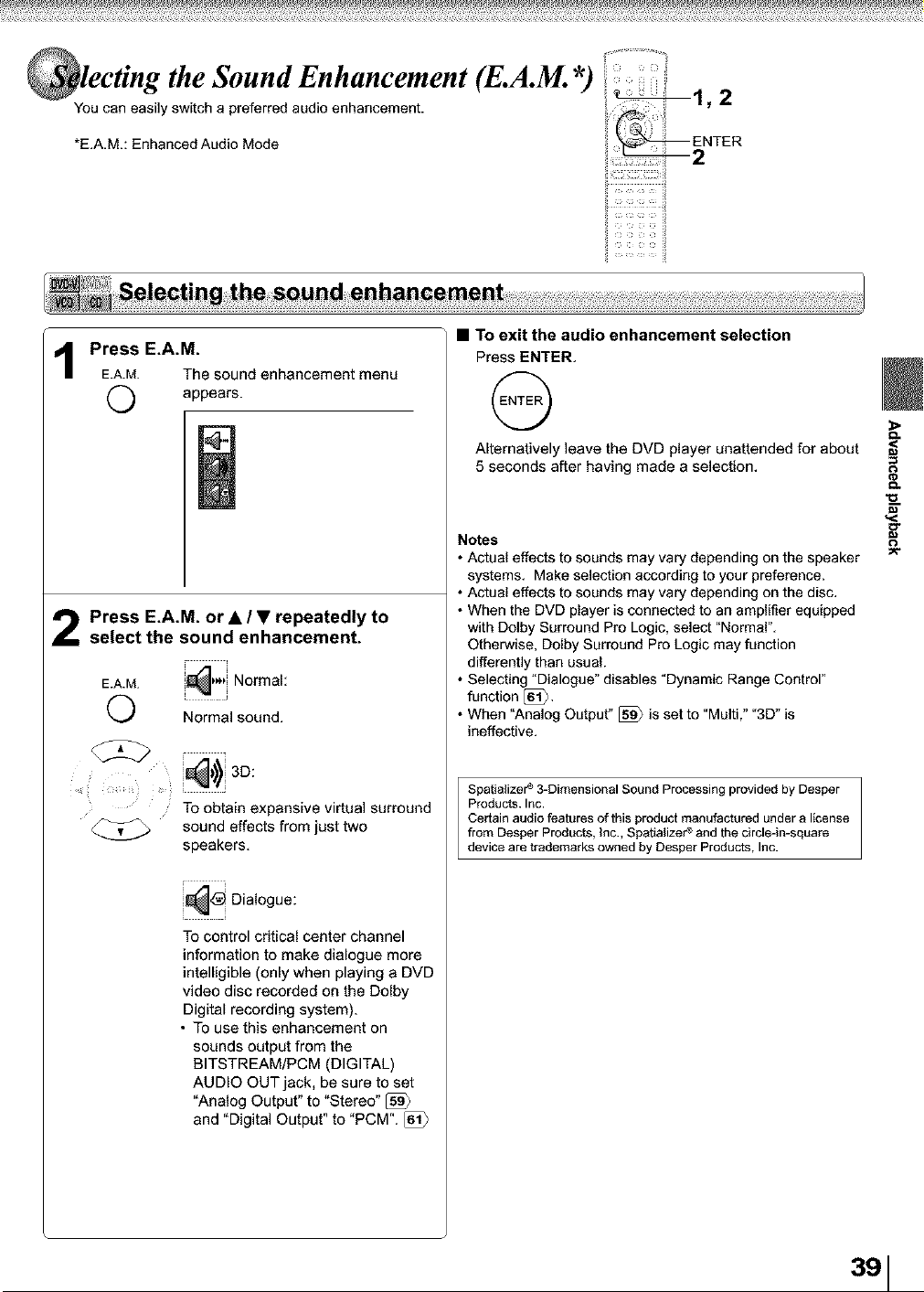
the Sound Enhancement (E.A.M. *) '
You can easily switch a preferred audio enhancement.
*E.A.M.: Enhanced Audio Mode
il ............il
ii .......... il
Press E.A.M.
E.A.M. The sound enhancement menu
appears.
2 Press E.A.M. or • / • repeatedly to
select the sound enhancement.
_w,) Norma
E.A.M. i
Normal sound.
To obtain expansive virtual surround
sound effects from just two
speakers,
Dia,ogue:
To control critical center channel
information to make dialogue more
intelligible (only when playing a DVD
video disc recorded on the Dolby
Digital recording system).
• To use this enhancement on
sounds output from the
BITSTREAM/PCM (DIGITAL)
AUDIO OUT jack, be sure to set
"Analog Output" to "Stereo" [_
and "Digital Output" to "PCM". [61}
• To exit the audio enhancement selection
Press ENTER,
Alternatively leave the DVD player unattended for about
5 seconds after having made a selection.
Notes
• Actual effects to sounds may vary depending on the speaker
systems. Make selection according to your preference.
• Actual effects to sounds may vary depending on the disc.
• When the DVD player is connected to an amplifier equipped
with Dolby Surround Pro Logic, select "Normal".
Otherwise, Dolby Surround Pro Logic may function
differently than usual.
• Selecting "Dialogue" disables "Dynamic Range Control"
function [)i_.
• When "Analog Output" [_ is set to "Multi," "3D" is
ineffective.
Spatializer ¢ 3-Dimensional Sound Processing provided by Desper
Products. Inc.
Certain audio features of this product manufactured under a license
from Desper Products, inc., Spatializer _ and the circle-in-square
device are trademarks owned by Desper Products, Inc.
.<,
g
3,I
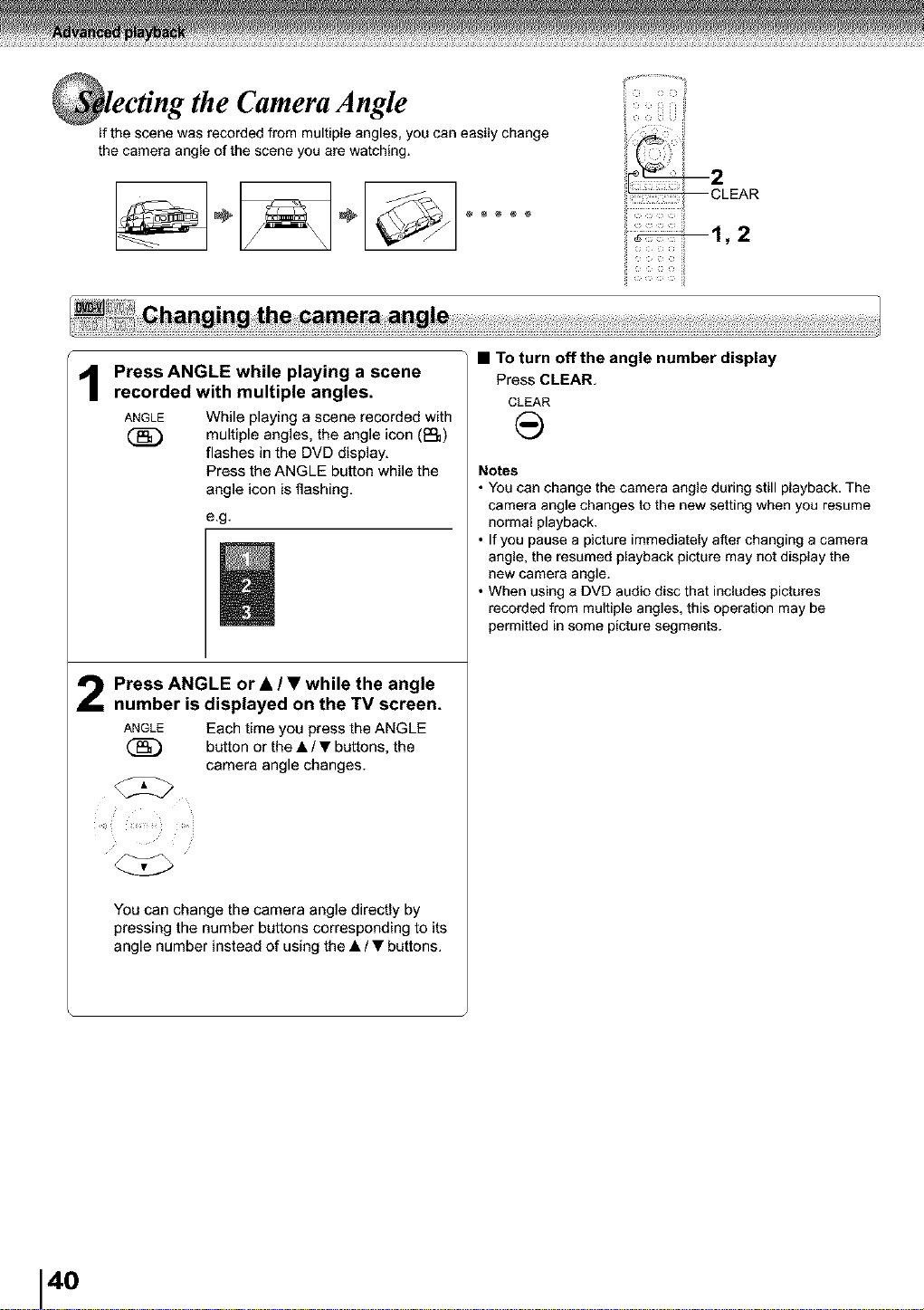
the Camera Angle
if the scene was recorded from multiple angles, you can easily change
the camera angle of the scene you are watching.
m2
--CLEAR
ii .......... il
1
2
Press ANGLE while playing a scene
recorded with multiple angles.
ANGLE While playing a scene recorded with
(_ multiple angles, the angle icon (_)
flashes in the DVD display,
Press the ANGLE button while the
angle icon is flashing,
e.g.
Press ANGLE or • / • while the angle
number is displayed on the TV screen.
ANGLE Each time you press the ANGLE
(_) button or the • / • buttons, the
camera angle changes.
You can change the camera angle directly by
pressing the number buttons corresponding to its
angle number instead of using the • / • buttons.
• To turn off the angle number display
Press CLEAR,
CLEAR
Notes
• You can change the camera angle during still playback. The
camera angle changes to the new setting when you resume
normal playback.
• If you pause a picture immediately after changing a camera
angle, the resumed p[ayback picture may not display the
new camera angle.
• When using a DVD audio disc that includes pictures
recorded from multiple angles, this operation may be
permitted in some picture segments.
40
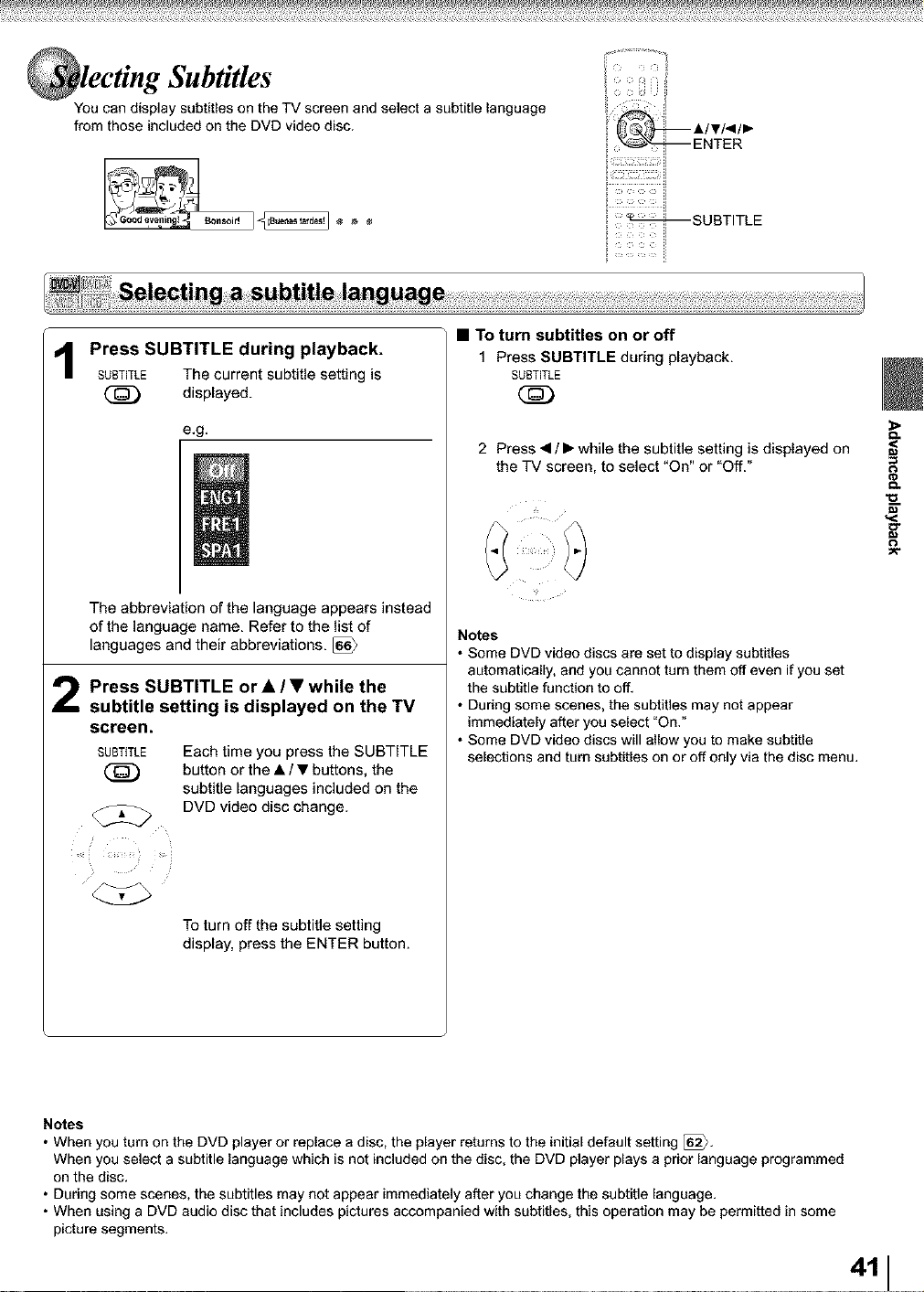
Subtitles
You can display subtitles on the TV screen and select a subtitle language
from those included on the DVD video disc.
/
_SUBTITLE
Press SUBTITLE during playback.
SUBTITLE The current subtitle setting is
@ displayed.
e.g,
The abbreviation of the language appears instead
of the language name. Refer to the list of
languages and their abbreviations.
2 Press SUBTITLE or • / • while the
subtitle setting is displayed on the TV
screen.
SUBTITLE Each time you press the SUBTITLE
button or the • / • buttons, the
subtitle languages included on the
DVD video disc change.
To turn off the subtitle setting
display, press the ENTER button.
• To turn subtitles on or off
1 Press SUBTITLE during playback.
SUBTITLE
2 Press < / • while the subtitle setting is displayed on
the TV screen, to select "On" or "Off."
Notes
• Some DVD video discs are set to display subtitles
automatically, and you cannot turn them off even if you set
the subtitle function to off.
• During some scenes, the subtitles may not appear
immediately after you select "On."
• Some DVD video discs will allow you to make subtitle
selections and turn subtitles on or off only via the disc menu.
g_
<
Notes
• When you turn on the DVD player or replace a disc, the player returns to the initial default setting [_.
When you select a subtitle language which is not included on the disc, the DVD player plays a prior language programmed
on the disc.
• During some scenes, the subtitles may not appear immediately after you change the subtitle language.
• When using a DVD audio disc that includes pictures accompanied with subtitles, this operation may be permitted in some
picture segments.
411
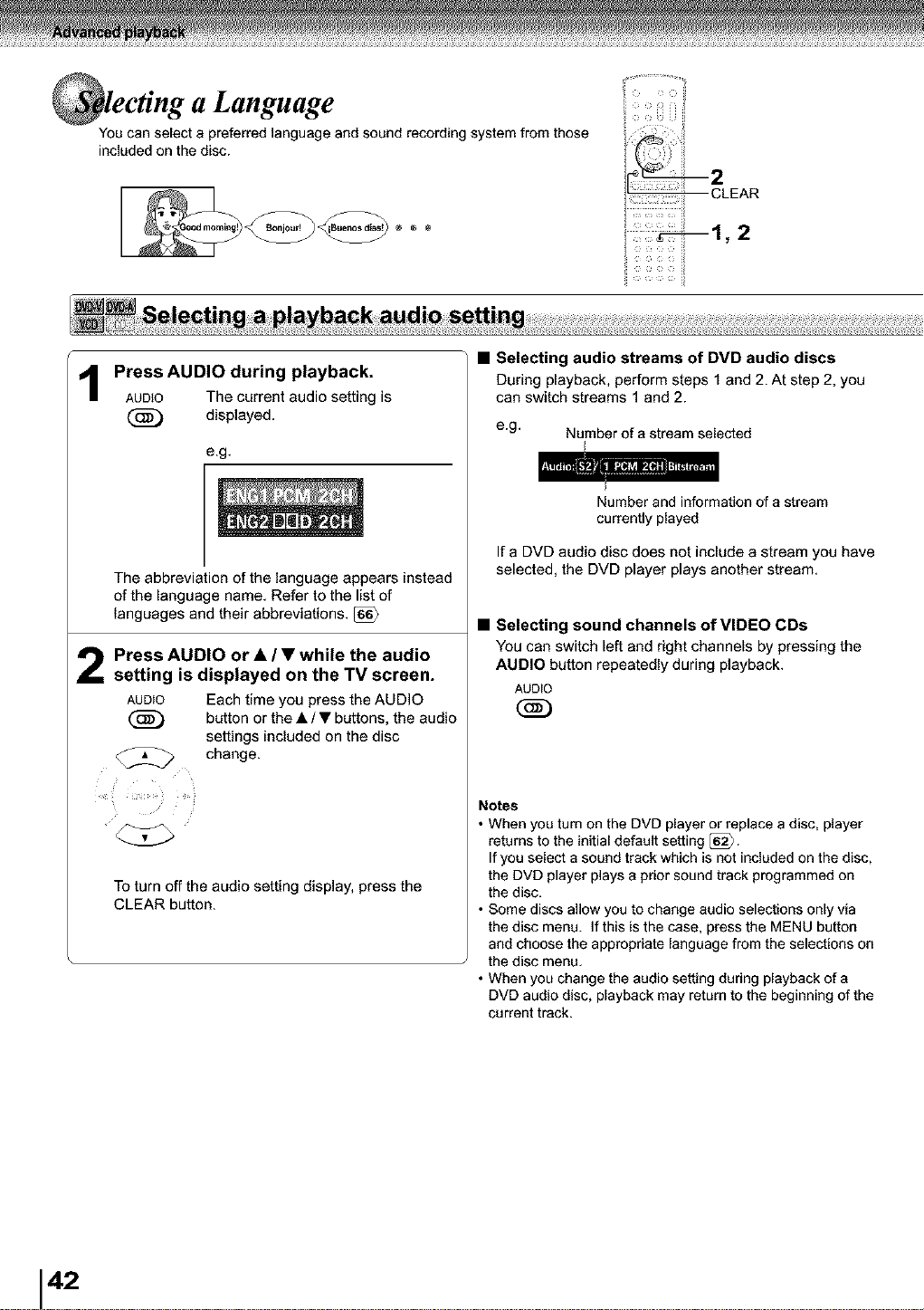
' a Language
You can select a preferred language and sound recordhlg system from those
included on the disc.
I iiiiiiiiiiiiii_J_
_1, 2
> [}
PressAUDIO during playback.
AUDIO The current audio setting is
(_ displayed.
2
e.g.
The abbreviation of the language appears instead
of the language name. Refer to the list of
languages and their abbreviations.
Press AUDIO or • / • while the audio
setting is displayed on the TV screen.
AUDIO Each time you press the AUDIO
(_ button or the • / • buttons, the audio
settings included on the disc
change.
To turn off the audio setting display, press the
CLEAR button.
• Selecting audio streams of DVD audio discs
During playback, perform steps 1 and 2. At step 2, you
can switch streams 1 and 2.
e.g. Number of a stream selected
Number and information of a stream
currently played
If a DVD audio disc does not include a stream you have
selected, the DVD player plays another stream,
• Selecting sound channels of VIDEO CDs
You can switch left and right channels by pressing the
AUDIO button repeatedly during playback.
AUDIO
Notes
• When you turn on the DVD player or replace a disc, player
returns to the initial default setting [)_.
If you select a sound track which is not included on the disc,
the DVD player plays a prior sound track programmed on
the disc.
• Some discs allow you to change audio selections only via
the disc menu. If this is the case, press the MENU button
and choose the appropriate language from the selections on
the disc menu.
• When you change the audio setting during playback of a
DVD audio disc, playback may return to the beginning of the
current track.
42
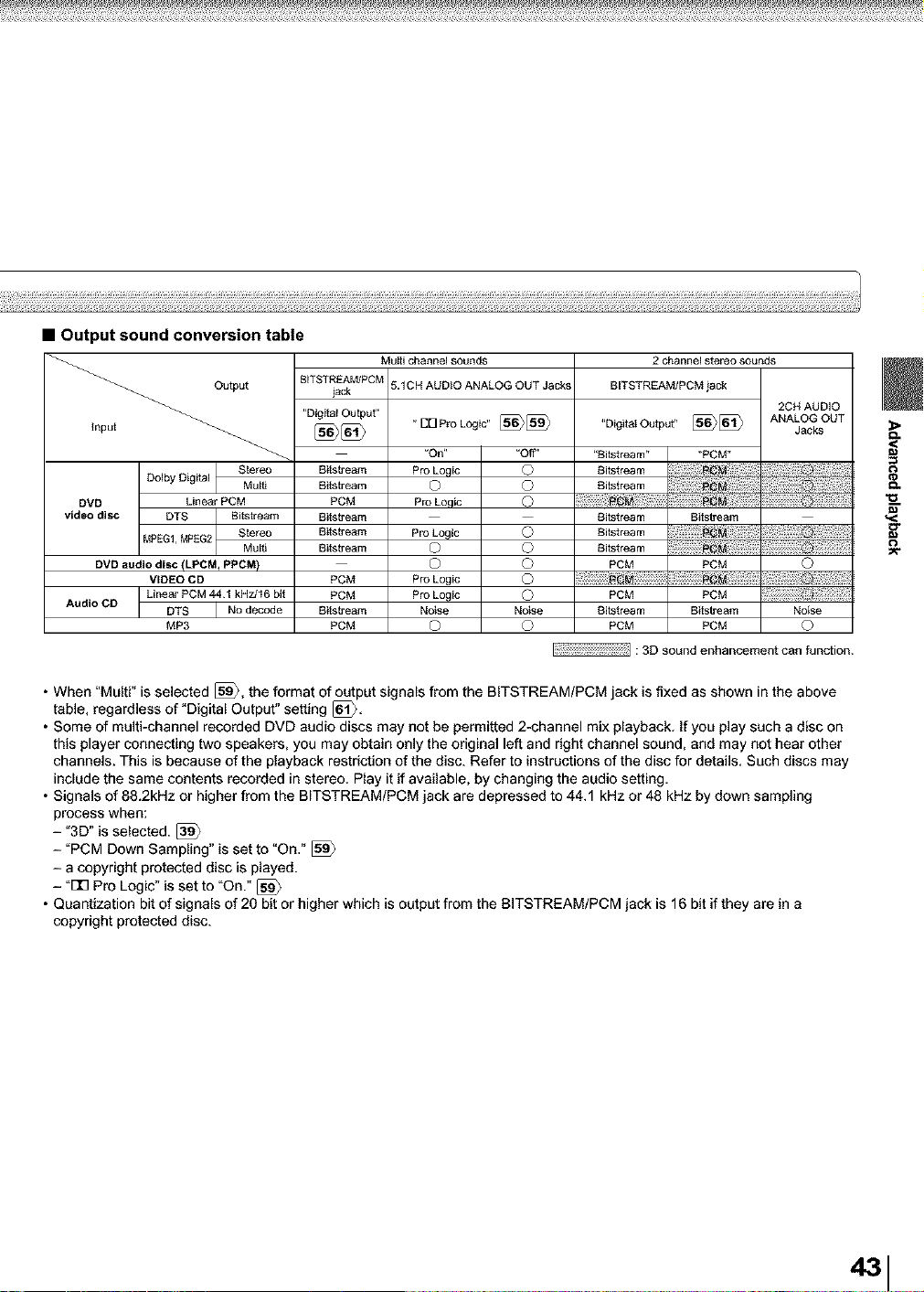
• Output sound conversion table
Multi channel sounds 2 channel stereo sounds
Output
Dolby Digital I
Stereo
Mult_
i
DVD Linear PCM
video disc DTS Bitstream
MPEG1, MPEG2 StereoMult_
DVD audio disc (LPCMt PPCM)
VIDEO CD
Linear PCM 441 kHzJ16 bit
Audio CO
I No decode
DTS
MP3
BITSTREAM/PCM
lack
"Digital Output"
aitstream
aitstream
PCM
aitstream
aitstream
aitstream
PCM
PCM
aitstream
PCM
5.10H AUDIO ANALOG OUT Jacks BITSTREAM]PCM jack
"UUP,-oLo_c"[_[_ "a_ita_Output"[_[_
"On" "Off"
Pro Logic O
O O
Pro Logic O
Pro Logic O
o o
o o
Pro Logic O
Pro Logic O
Noise Noise
O O
"Bit.stream" "PCM"
Bitstream
aitstream
Bitstream Bitstream
Bitstream
Bit.stream
PCM PCM
PCM PCM
Bitstream Bitstream
PCM PCM
2OH AUDIO
ANALOG OUT
Jacks
o
Noise
o
: 3D sound enhancement can function.
• When "Multi" is selected [_, the format of output signals from the BITSTREAM/PCM jack is fixed as shown in the above
table, regardless of "Digital Output" setting [61_.
• Some of multi-channel recorded DVD audio discs may not be permitted 2-channel mix playback. If you play such a disc on
this player connecting two speakers, you may obtain only the original left and right channel sound, and may not hear other
channels. This is because of the playback restriction of the disc. Refer to instructions of the disc for details. Such discs may
include the same contents recorded in stereo. Play it if available, by changing the audio setting.
• Signals of 88.2kHz or higher from the BITSTREAM/PCM jack are depressed to 44.1 kHz or 48 kHz by down sampling
process when:
- "3D" is selected. [_
-"PCM Down Sampling" is set to "On."
- a copyright protected disc is played.
- 't313Pro Logic" is set to "On." [_
• Quantization bit of signals of 20 bit or higher which is output from the BITSTREAM/PCM jack is 16 bit if they are in a
copyright protected disc.
<
m

the Virtual Remote Control
- V-REMOTE-
Pressing one button can display a graphics based on-screen remote control that
allows you to control playback as if you were doing it from the actual remote
control.
il ...........il
ii .......... il
During playback, press V-REMOTE.
_/.REM01"_ The graphic remote control (Virtual
Remote) appears.
For the meaning of each icon, see
right.
e.g._
2 Press • / • / <1/ • to select the icon,
and press ENTER.
• To turn off the Virtual Remote
Press V-REMOTE
"q-REMOTe:
©
Note
Some discs may not permit this operation.
• Icons and features
See the pages in [_ for details on the features.
Icon Function Page
_[_* Current title/track number
Current group number
Current chapter number
(_* Elapsed time of the current title/track
Audio setting [_
_** Subtitle setting
_** Angle setting [4_
<1 Reverse slow motion playback
=ln_l_ Pause / Frame by frame playback [;_
I_" To begin slow motion playback
Playback starts from the beginning of [_
the current chapter or track.
I_ Normal playback [_
_,_ To locate succeeding chapters or
tracks.
Fast reverse playback [;_
• To stop playback.
Fast forward playback [_
._. To turn off the Virtual Remote.
* You can access a desired location. After step 2,
perform the steps below:
7/( /©:steps 3to,on
(_ : steps 2 and 3 on
** After step 2, a sub menu will appear. Perform step 2
on the page in [_}.
146
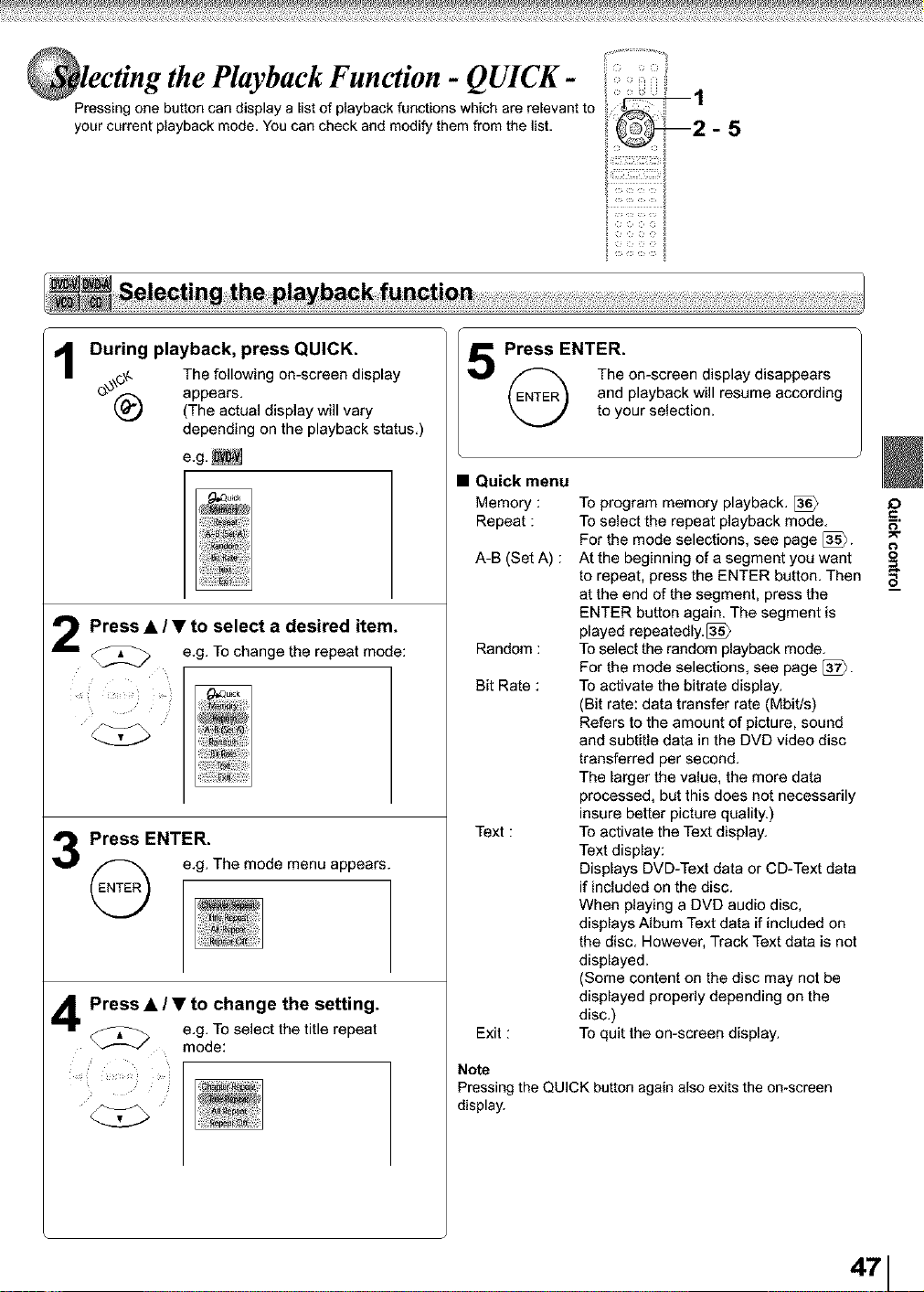
' the Playback Function - QUICK-
Pressing one button can display a list of playback functions which are relevant to
your current playback mode, You can check and modify them from the list,
ii ......
2-
i_:i:_i_ii:;ii=!i::iiii:iiiii
1
During playback, press QUICK.
_\(_ The following on-screen display
appears.
(The actual display will vary
depending on the playback status.)
e.g,_
2 Press • / • to select a desired item.
e.g. To change the repeat mode:
3 Press ENTER.
e.g.The mode menuappears.
Press • / • to change the setting.
e.g. TO select the title repeat
mode:
Press ENTER.
The on-screen display disappears
and playback will resume according
to your selection.
• Quick menu
Memory :
Repeat :
A-B (Set A) :
Random :
Bit Rate :
Text :
Exit :
To program memory playback.
To select the repeat playback mode.
For the mode selections, see page [_{>.
At the beginning of a segment you want
to repeat, press the ENTER button. Then
at the end of the segment, press the
ENTER button again. The segment is
played repeatediy.[_
To select the random playback mode.
For the mode selections, see page [_>.
To activate the bitrate display.
(Bit rate: data transfer rate (Mbit/s)
Refers to the amount of picture, sound
and subtitle data in the DVD video disc
transferred per second.
The larger the value, the more data
processed, but this does not necessarily
insure better picture quality.)
To activate the Text display.
Text display:
Displays DVD-Text data or CD-Text data
if includedon the disc.
When playing a DVD audio disc,
displays Album Text data if includedon
the disc. However, Track Text data is not
displayed.
(Some content on the disc may not be
displayed properly depending on the
disc.)
To quit the on-screen display.
Note
Pressing the QUICK button again also exits the on-screen
display.
I0
0
471
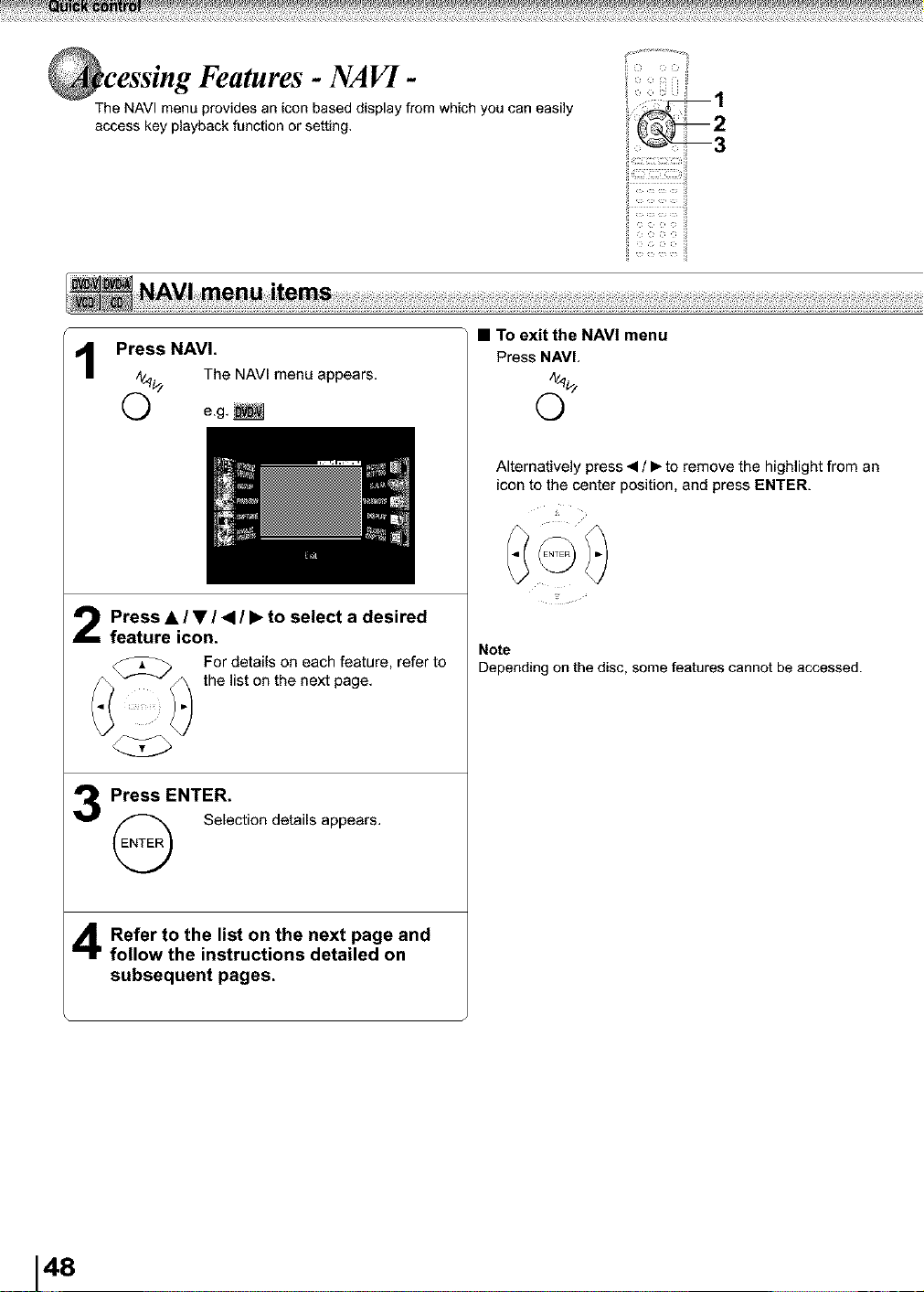
_cessing Features- NAVI-
The NAVI menu provides an icon based display from which you can easily
access key playback function or setting,
ii
il............il
il
ii .......... il
Press NAVI.
(_/ The NAV[ menu appears,
12
Press • / • / _1/ • to select a desired
feature icon.
For details on each feature, refer to
the list on the next page,
3 Press ENTER.
Selectiondetailsappears,
Refer to the list the next and
on
page
follow the instructions detailed on
subsequent pages,
• TO exit the NAVI menu
Press NAVL
d
Alternatively press• / • to remove the highlight from an
icon to the center position, and press ENTER.
Note
Depending on the disc, some features cannot be accessed.
148
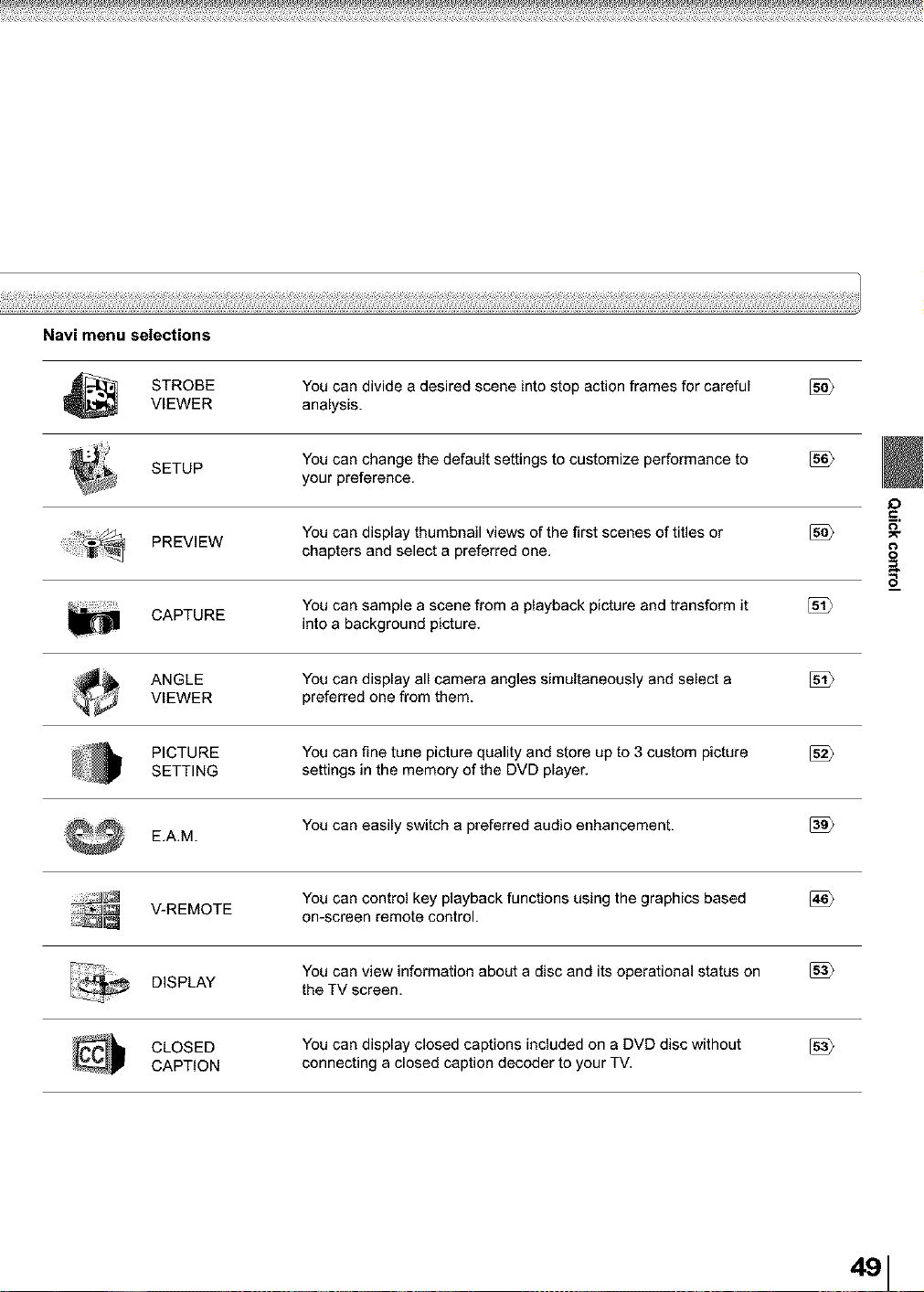
Navi menu selections
STROBE You can divide a desired scene into stop action frames for careful
VIEWER analysis.
SETUP You can change the default settings to customize performance to
your preference.
You can display thumbnail views of the first scenes of titles or
PREVIEW chapters and select a preferred one.
CAPTURE You can sample a scene from a playback picture and transform it
into a background picture,
ANGLE You can display all camera angles simultaneously and select a
VIEWER preferred one from them.
PICTURE You can fine tune picture quality and store up to 3 custom picture
SETTING settings in the memory of the DVD player,
E,AM. You can easily switch a preferred audio enhancement.
You can control key playback functions using the graphics based [_
V-REMOTE on-screen remote control.
You can view information about a disc and its operational status on [_
DISPLAY the TV screen,
CLOSED You can display closed captions included on a DVD disc without
CAPTION connecting a closed caption decoder to your TV,
_O
0
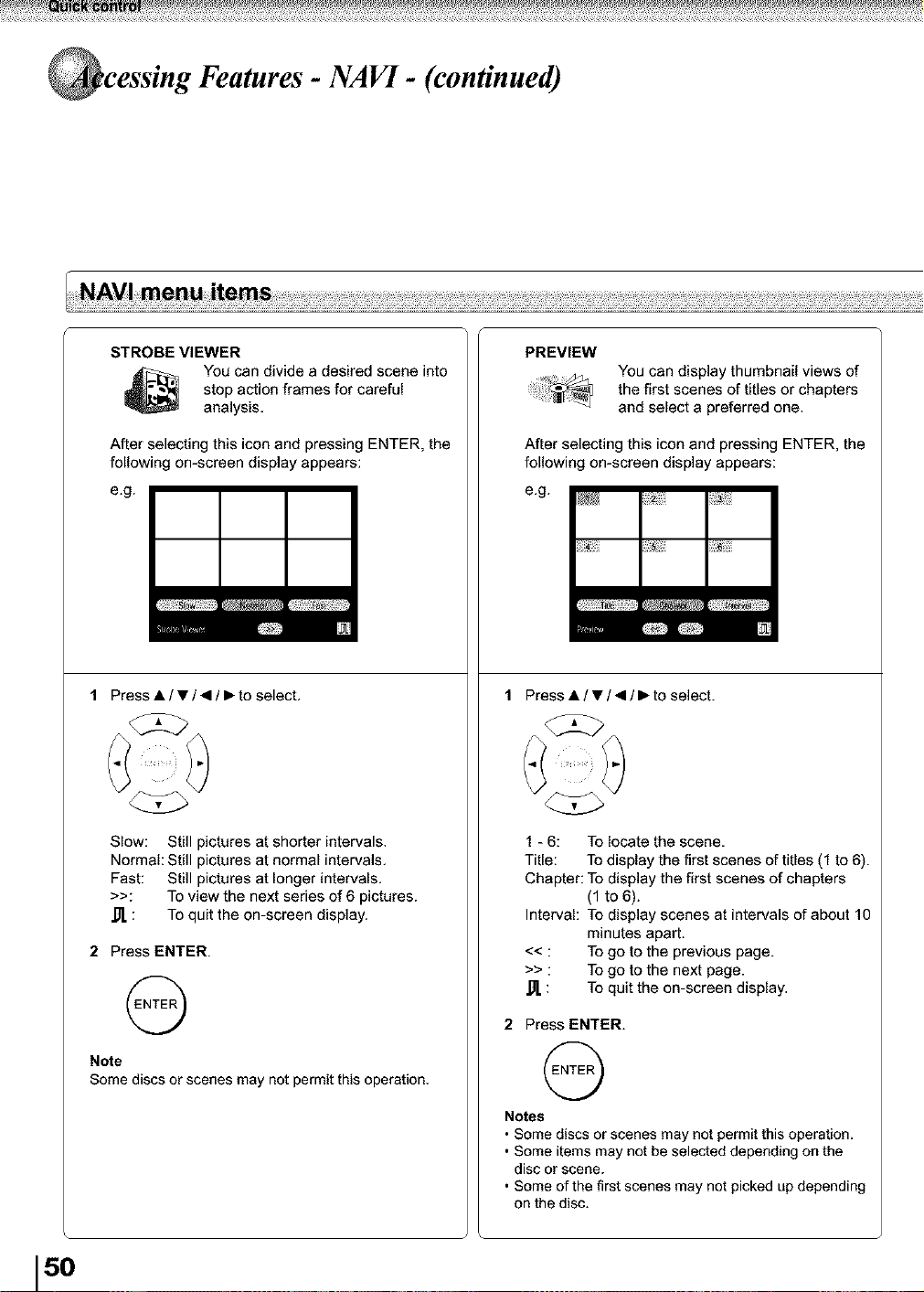
cessing Features - NAVI - (continued)
STROBE VIEWER
You can divide a desired scene into
stop action frames for careful
analysis,
After selecting this icon and pressing ENTER, the
following on-screen display appears:
e.g.
1 Press • / • / • / • to select,
PREVIEW
You can display thumbnailviews of
the first scenes of titles or chapters
and select a preferred one.
After selecting this icon and pressing ENTER, the
following on-screen display appears:
e.g.
1 Press • / • / • / • to select.
Slow: Still pictures at shorter intervals.
Normal: Still pictures at normal intervals.
1 - 6: To locate the scene,
Title: To display the first scenes of titles (1 to 6).
Fast: Still pictures at longer intervals.
>>: To view the next series of 6 pictures.
: To quit the on-screen display.
2 Press ENTER.
@
Note
Some discs or scenes may not permit this operation,
Chapter: To display the first scenes of chapters
(f to 6).
Interval: TO display scenes at intervals of about 10
minutes apart.
<< : To go to the previous page.
>> : To go to the next page.
,_ : To quit the on-screen display.
2 Press ENTER.
@
Notes
• Some discs or scenes may not permit this operation.
• Some items may not be selected depending on the
disc or scene.
• Some of the first scenes may not picked up depending
on the disc.
15o
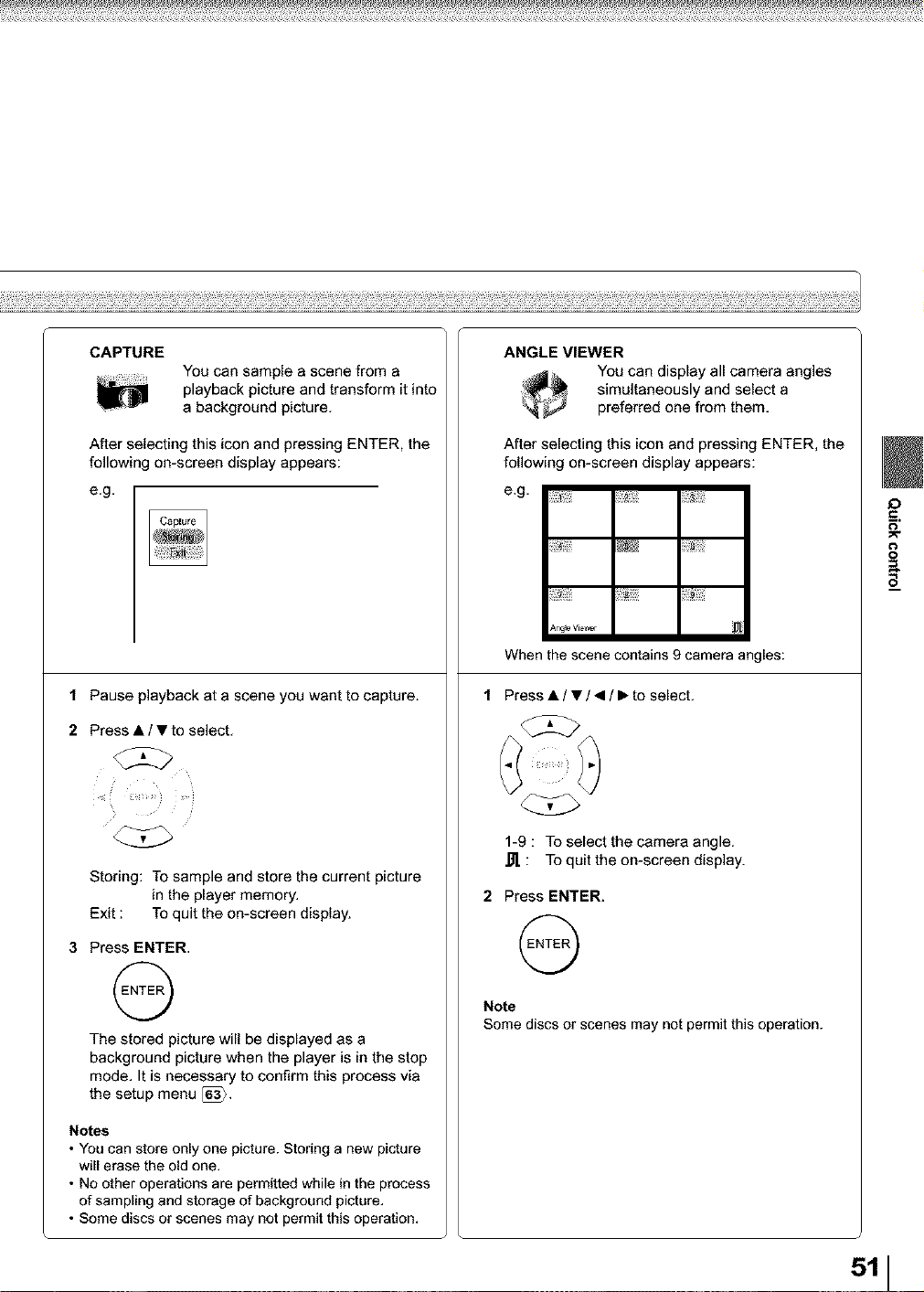
CAPTURE
You can sample a scene from a
playback picture and transform it into
a background picture.
After selecting this icon and pressing ENTER, the
following on-screen display appears:
e.g.
1 Pause playback at a scene you want to capture.
2 Press • / • to select,
Storing: TOsample and store the current picture
in the player memory.
Exit : To quit the on-screen display.
3 Press ENTER,
@
The stored picturewill be displayed as a
background picture when the player is in the stop
mode. It is necessary to confirm this processvia
the setup menu [_.
Notes
• You can store only one picture. Storing a new picture
will erase the old one.
• No other operations are permitted while in the process
of sampling and storage of background picture.
• Some discs or scenes may not permit this operation.
ANGLE VIEWER
YOUcan display all camera angles
simultaneously and select a
preferred one from them.
After selecting this icon and pressing ENTER, the
following on-screen display appears:
e.g.
_ng_eV_wer
When the scene contains 9 camera angles:
1 Press • / • / • / • to select,
1-9 : To select the camera angle.
,_. : To quit the on-screen display.
2 Press ENTER.
@
Note
Some discs or scenes may not permit this operation.
511
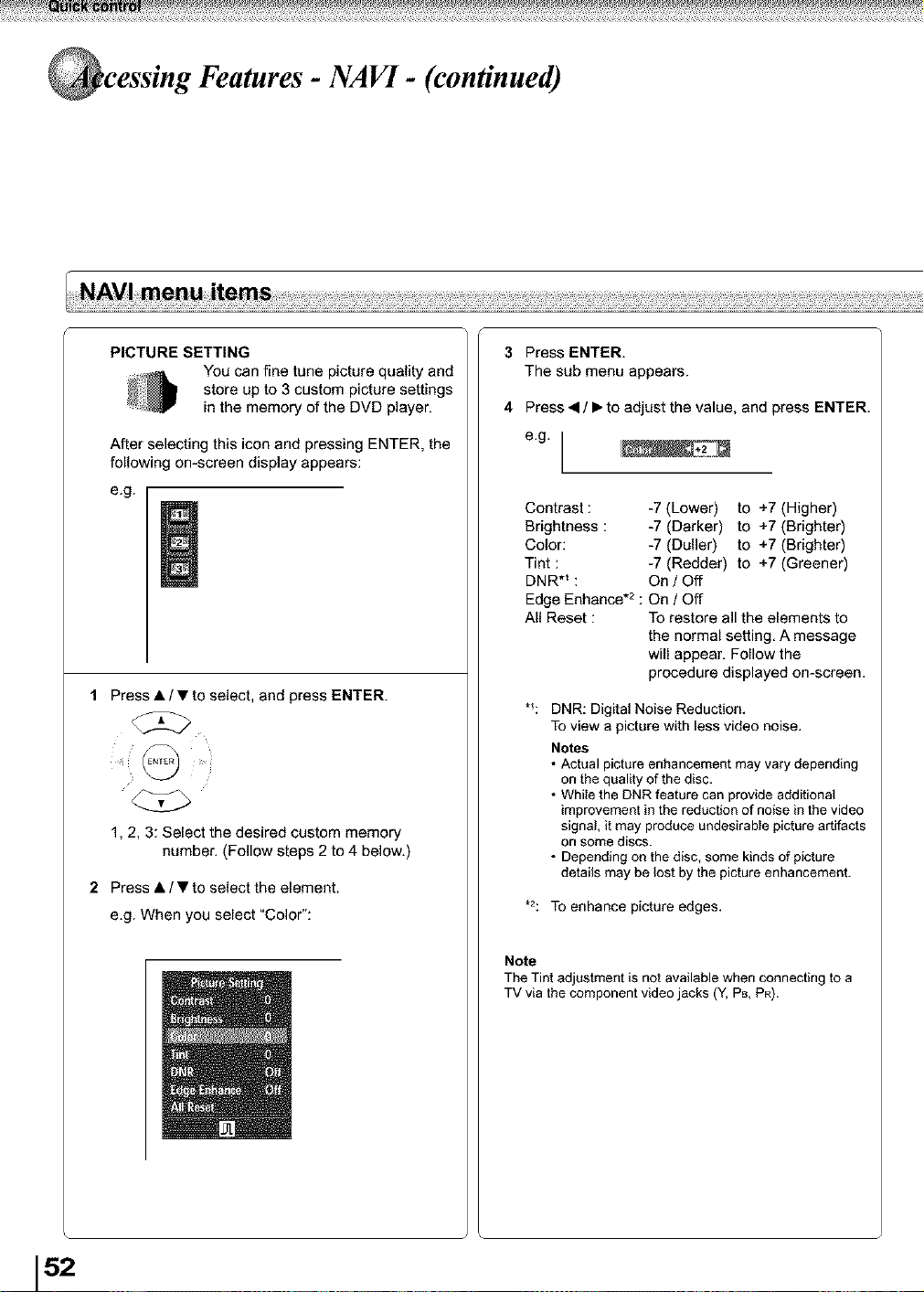
cessing Features - NAVI - (continued)
PICTURE SETTING
YOUcan fine tune picture quality and
store up to 3 custom picture settings
in the memory of the DVD player.
After selecting this icon and pressing ENTER, the
following on-screen display appears:
e.g.
1 Press • / • to select, and press ENTER.
@ ......
1, 2, 3: Select the desired custom memory
number. (Follow steps 2 to 4 below.)
2 Press • / • to select the element.
e.g. When you select "Color":
3
4
Press ENTER.
The sub menu appears.
Press • / • to adjust the value, and press ENTER.
e.g.
Contrast: -7 (Lower) to +7 (Higher)
Brightness : -7 (Darker) to +7 (Brighter)
Color: -7 (Duller) to +7 (Brighter)
Tint : -7 (Redder) to +7 (Greener)
DNR*_ : On/Off
Edge Enhance*= : On / Off
All Reset : To restore all the elements to
the normal setting, A message
will appear, Follow the
procedure displayed on-screen,
*_: DNR: Digital Noise Reduction,
To view a picture with less video noise,
Notes
• Actual picture enhancement may vary depending
on the quality of the disc.
• Whi_ethe DNR feature can provide additional
improvement in the reduction of noise in the video
signal, it may produce undesirable picture artifacts
on some discs.
• Depending on the disc, some kinds of picture
details may be lost by the picture enhancement.
•2: To enhance picture edges,
Note
The Tint adjustment is not available when connecting to a
TV via the component video jacks (Y, PB, PR).
152
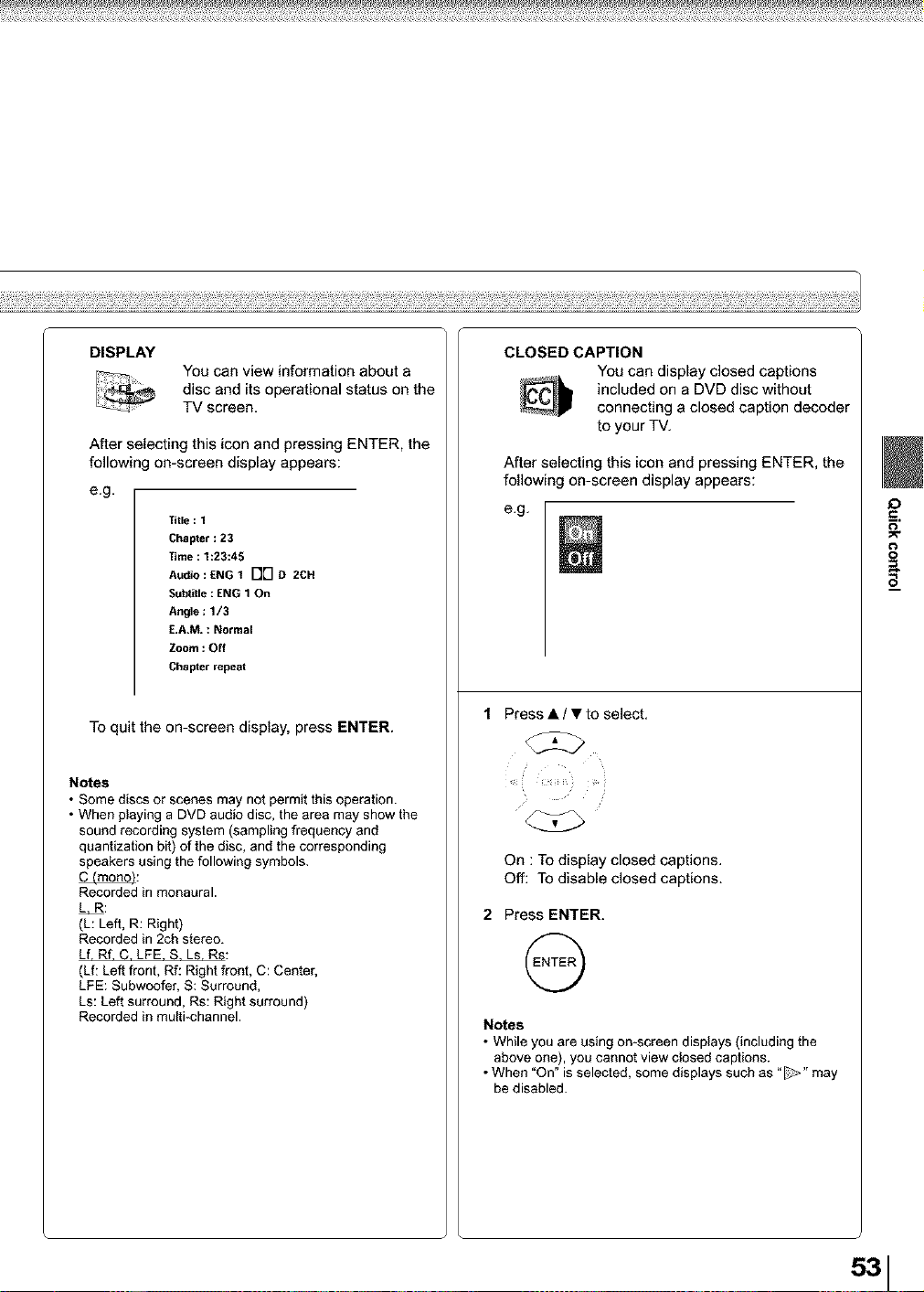
DISPLAY
You can view information about a
disc and its operational status on the
TV screen,
After selecting this icon and pressing ENTER, the
following on-screen display appears:
e.g.
Title : 1
Chapter : 23
Time : 1:23:45
At_Jio : £NG T FIN D 2CH
Subtle : ENG 1 On
Angle : 1/3
E,A,M. : Normal
Zoom : Off
Chapter repeat
To quit the on-screen display, press ENTER.
Notes
• Some discs or scenes may not permit this operation.
• When playing a DVD audio disc, the area may show the
sound recording system (sampling frequency and
quantization bit) of the disc, and the corresponding
speakers using the following symbols.
Recorded in monaural.
L=RR:
(L: Left, R: Right)
Recorded in 2ch stereo.
Lf. Rf. C. LFE. S. Ls. Rs:
(Lf: Left front, Rf: Right front, C: Center,
LFE: Subwoofer, S: Surround,
Ls: Left surround, Rs: Right surround)
Recorded in multi_channel.
CLOSED CAPTION
YOUcan display closed captions
included on a DVD disc without
connecting a closed caption decoder
to your TV,
After selecting this icon and pressing ENTER, the
following on-screen display appears:
e,g,
1 Press • / • to select.
C2>
?
On : To display closed captions.
Off: To disable closed captions.
2 Press ENTER.
Notes
• While you are using on-screen displays (including the
above one), you cannot view closed captions.
• When 'On" is selected, some displays such as "_" may
be disabled.
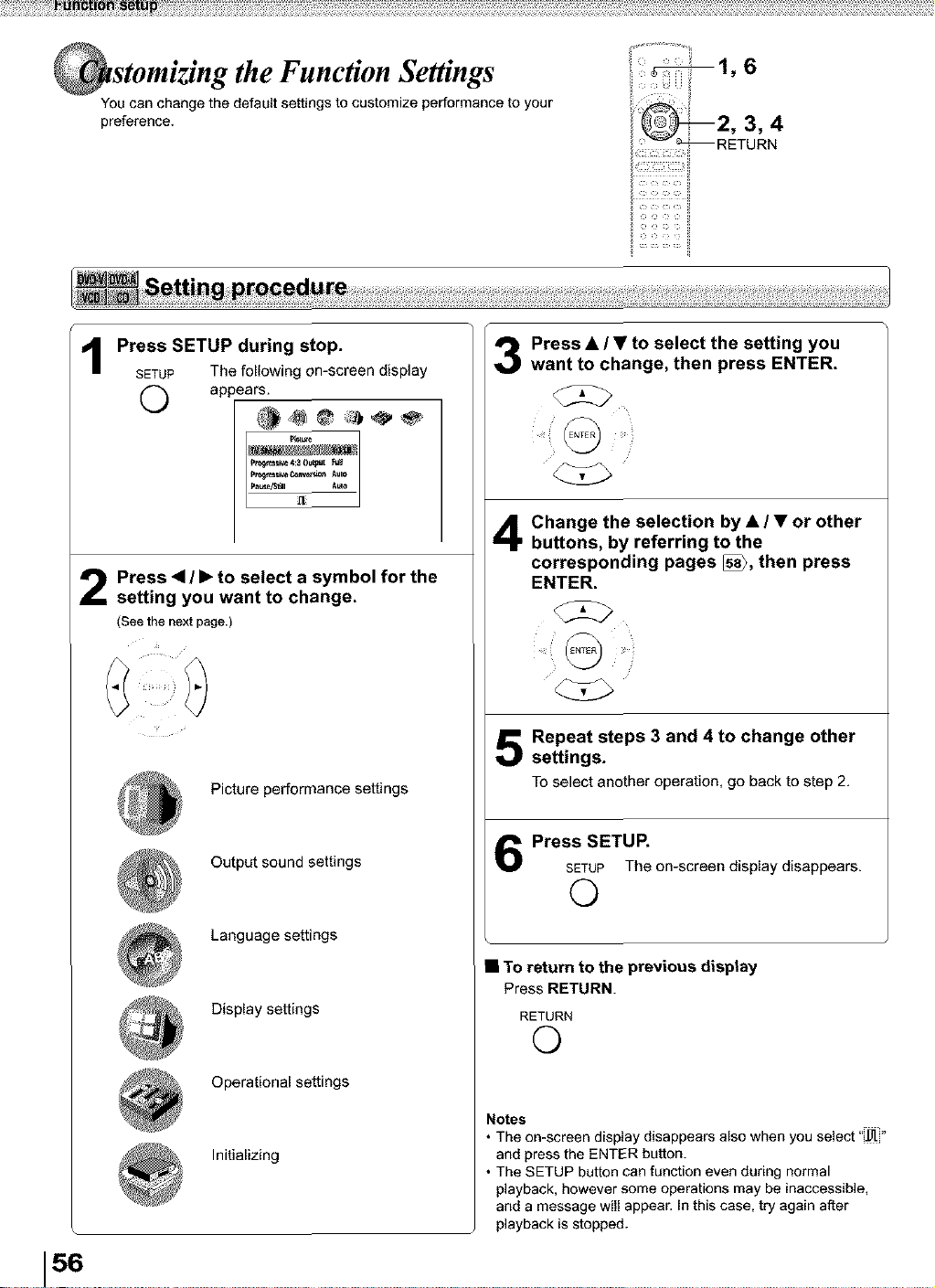
stomizing the Function Settings
You can change the default settings to customize performance to your
preference.
i ................ii
156
1
Press SETUP during stop.
SETUP The following on-screen display
O appears.
Press <1/ • to select a symbol for the
setting you want to change.
(See the next page.)
Picture performance settings
Output sound settings
Language settings
Display settings
Operational settings
Initializing
[3
Press • / • to select the setting you
want to change, then press ENTER.
Change the selection by • / • or other
buttons, by referring to the
corresponding pages [_, then press
ENTER.
i ! _
V
Repeat steps 3 and 4 to change other
settings.
To select anotheroperation,go backto step 2.
Press SETUP.
SETUP The on-screen display disappears.
0
• TO return to the previous disptay
Press RETURN.
RETURN
©
Notes
• The on-screen display disappears a[so when you select "_"
and press the ENTER button.
• The SETUP button can function even during normal
playback, however some operations may be inaccessible,
and a message will appear. In this case, try again after
playback is stopped.
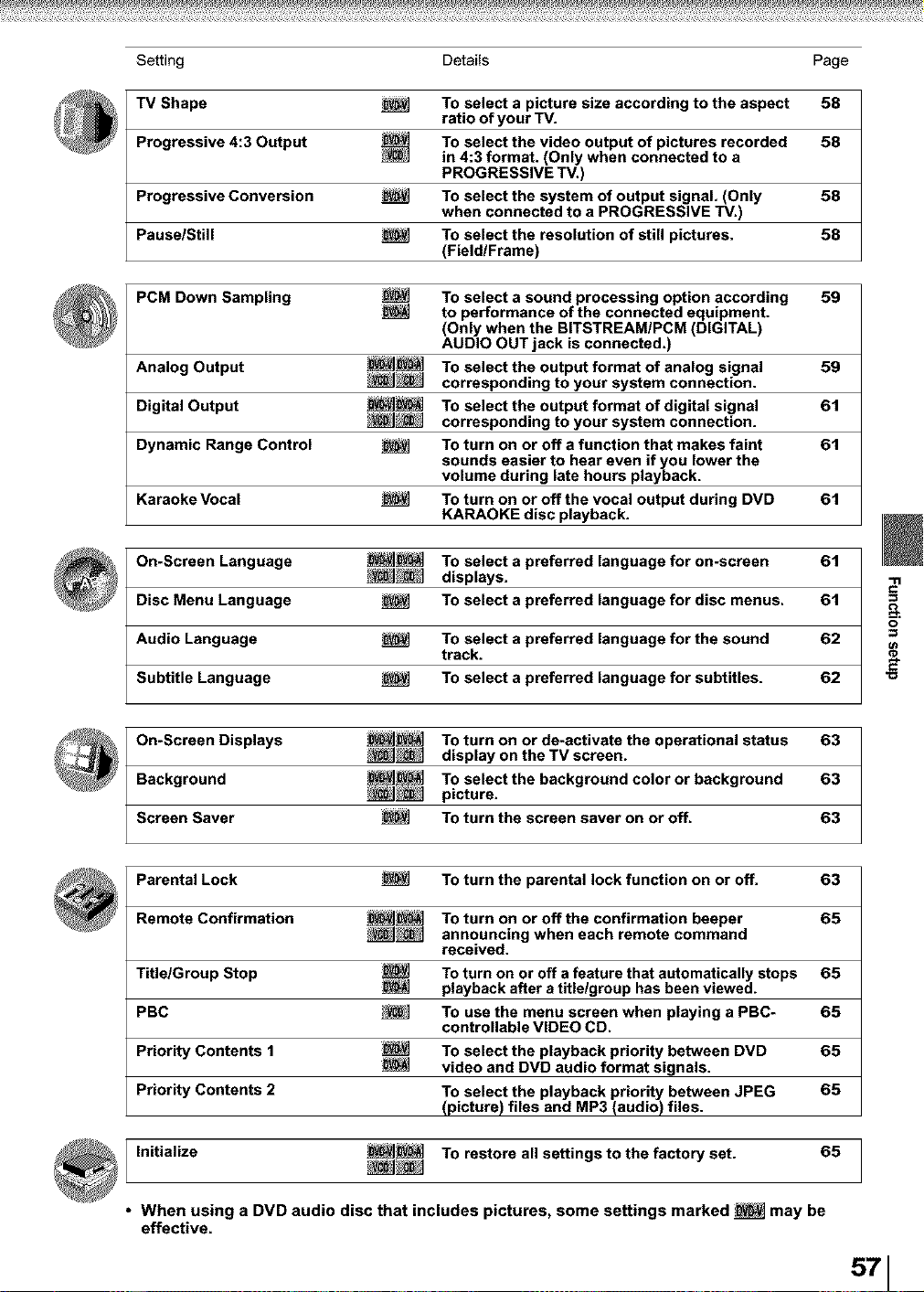
Setting Details Page
TV Shape To select a picture size according to the aspect 58
ratio of your TV.
Progressive 4:3 Output To select the video output of pictures recorded 58
in 4:3 format. (Only when connected to a
PROGRESSIVE TV.)
Progressive Conversion _ To select the system of output signal. (Only 58
when connected to a PROGRESSIVE "iV.)
Pause/Still To select the resolution of still pictures. 58
(Field/Frame)
PCM Down Sampling _ To select a sound processing option according 59
to performance of the connected equipment.
(Only when the BITSTREAM/PCM (DIGITAL)
AUDIO OUT jack is connected.)
Analog Output _ To select the output format of analog signal 59
corresponding to your system connection.
Digital Output _ To select the output format of digital signal 61
corresponding to your system connection.
Dynamic Range Control To turn on or off a function that makes faint 61
sounds easier to hear even if you lower the
volume during late hours playback.
Karaoke Vocal _ To turn on or off the vocal output during DVD 61
KARAOKE disc playback.
On-Screen Language _ To select a preferred language for on-screen 61
displays.
Disc Menu Language To select a preferred language for disc menus. 61
Audio Language _ To select a preferred language for the sound 62
track.
Subtitle Language _ To select a preferred language for subtitles. 62
On-Screen Displays _ To turn on or de-activate the operational status 63
display on the TV screen.
Background _ To select the background color or background 63
picture.
Screen Saver To turn the screen saver on or off. 63
Parental Lock To turn the parental lock function on or off. 63
Remote Confirmation _ To turn on or off the confirmation beeper 65
announcing when each remote command
received.
Title/Group Stop To turn on or off a feature that automatically stops 65
playback after a title/group has been viewed.
PBC _ To use the menu screen when playing a PBC- 65
controllable VIDEO CD.
Priority Contents 1 _ To select the playback priority between DVD 65
video and DVD audio format signals.
Priority Contents 2 To select the playback priority between JPEG 65
(picture) files and MP3 (audio) files.
Initialize _ To restore all settings to the factory set. 65
• When using a DVD audio disc that includes pictures, some settings marked _ may be
effective.
571
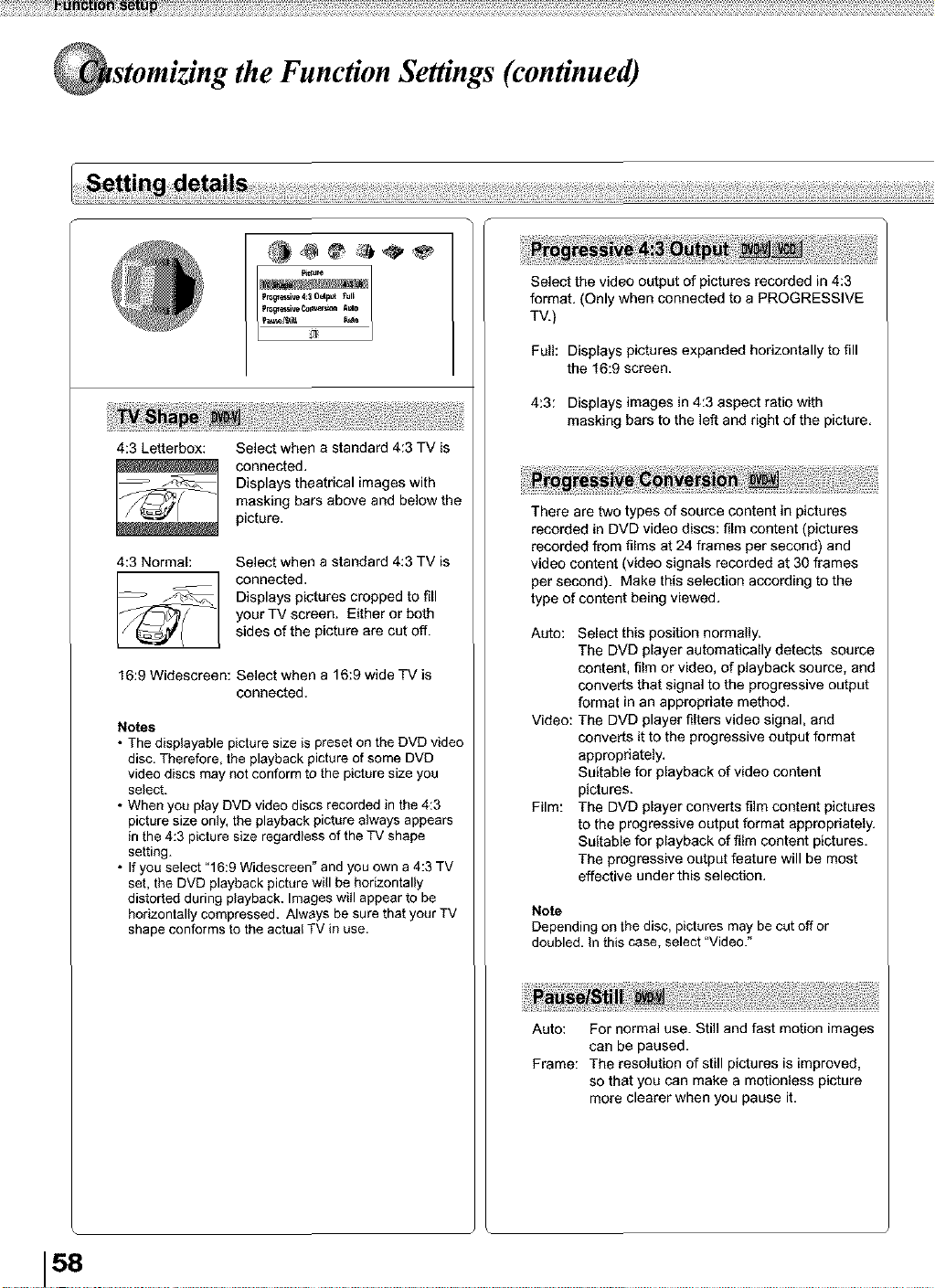
stomizing the Function Settings (continued)
_re
4:3 Letterbox:
4:3 Normal:
Select when a standard 4:3 TV is
connected.
Displays theatrical images with
masking bars above and below the
picture.
Select when a standard 4:3 TV is
connected,
Displays pictures cropped to fill
your TV screen. Either or both
sides of the picture are cut off.
16:9 Widescreen: Select when a 16:9 wide TV is
connected,
Notes
• The displayable picture size is preset on the DVD video
disc. Therefore, the playback picture of some DVD
video discs may not conform to the picture size you
select.
• When you play DVD video discs recorded in the 4:3
picture size only, the playback picture always appears
in the 4:3 picture size regardless of the TV shape
setting.
• If you select "16:9 Widescreen" and you own a 4:3 TV
set, the DVD playback picture will be horizontally
distorted during playback. Images will appear to be
horizontally compressed. Always be sure that your TV
shape conforms to the actual TV in use.
Select the video output of pictures recorded in 4:3
format. (Only when connected to a PROGRESSIVE
TV.)
Full: Displays pictures expanded hodzontally to fill
the 16:9 screen.
4:3: Displays images in 4:3 aspect ratio with
masking bars to the left and right of the picture.
There are two types of source content in pictures
recorded in DVD video discs: film content (pictures
recorded from films at 24 frames per second) and
video content (video signals recorded at 30 frames
per second). Make this selection according to the
type of content being viewed,
Auto: Select this position normally.
The DVD player automatically detects source
content, film or video, of playback source, and
converts that signal to the progressive output
format in an appropriate method.
Video: The DVD player filters video signal, and
converts it to the progressive output format
appropdately.
Suitable for playback of v+deo content
pictures.
Film: The DVD player converts film content pictures
to the progress+ve output format appropriately.
Suitable for playback of film content pictures.
The progressive output feature will be most
effective under this selection.
Note
Depending on the disc, pictures may be cut off or
doubled. In this case, select "Video."
Auto: For normal use. Still and fast motion images
can be paused.
Frame: The resolution of s611pictures is improved,
so that you can make a motionless picture
more clearer when you pause it.
158
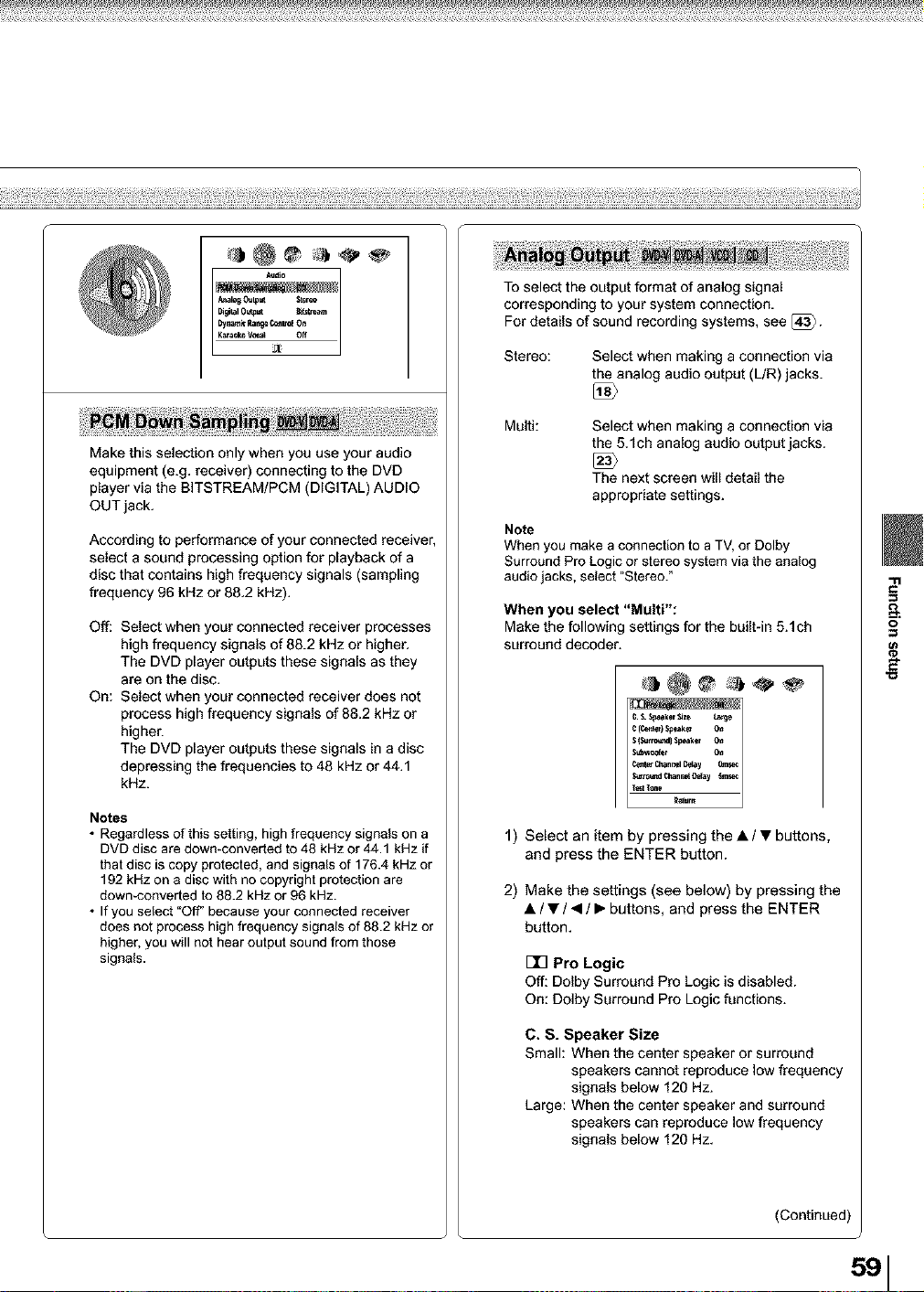
I "'°
_log OulpUl
Ka_aekeVe_a__ off
Make this selection only when you use your audio
equipment (e.g. receiver) connecting to the DVD
player via the BITSTREAM/PCM (DIGITAL) AUDIO
OUT jack.
According to performance of your connected receiver,
select a sound processing option for playback of a
disc that contains high frequency signals (sampling
#equency 96 kHz or 88,2 kHz),
Off: Select when your connected receiver processes
high frequency signals of 88.2 kHz or higher.
The DVD player outputs these signals as they
are on the disc.
On: Select when your connected receiver does not
process high frequency signals of 88.2 kHz or
higher.
The DVD player outputs these signals in a disc
depressing the frequencies to 48 kHz or 44.1
kHz.
Notes
• Regardless of this setting, high frequency signals on a
DVD disc are down-converted to 48 kHz or 44.1 kHz if
that disc is copy protected, and signals of 176.4 kHz or
192 kHz on a disc with no copyright protection are
down*converted to 88.2 kHz or 96 kHz.
• If you select "O_ because your connected receiver
does not process high frequency signals of 88.2 kHz or
higher, you will not hear output sound from those
signals.
To select the output format of analog signal
corresponding to your system connection.
Far details of sound recording systems, see [_3"_.
Stereo:
Select when making a connection via
the analog audio output (L/R) jacks.
Multi:
Select when making a connection via
the 5.1 ch analog audio output jacks.
The next screen will detail the
appropriate settings.
Note
When you make a connection to a TV, or Dolby
Surround Pro Logic or stereo system via the analog
audio jacks, select "Stereo."
When you select "Multi":
Make the following settings for the built-in 5.1ch
surround decoder.
1) Select an item by pressing the • / • buttons,
and press the ENTER button.
2) Make the settings (see below) by pressing the
• / • / < / • buttons, and press the ENTER
button,
rlq Pro Logic
Off: Dolby Surround Pro Logic is disabled.
On: Dolby Surround Pro Logic functions.
C. S. Speaker Size
Small: When the center speaker or surround
speakers cannot reproduce low frequency
signals below 120 Hz.
Large: When the center speaker and surround
speakers can reproduce low frequency
signals below 120 Hz.
(Continued)
5,I
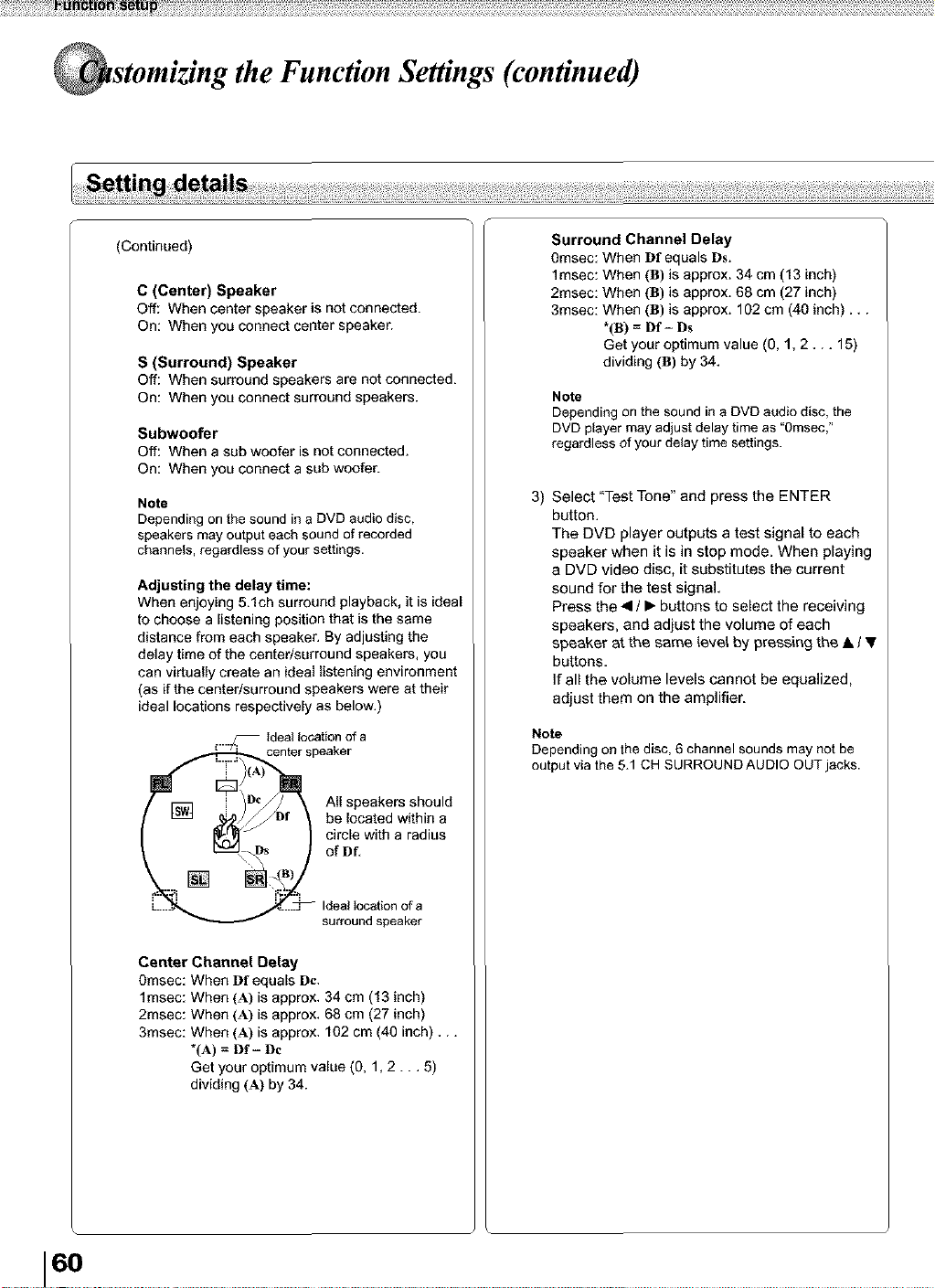
stomizing the Function Settings (continued)
(Continued)
C (Center) Speaker
Off: When center speaker is not connected.
On: When you connect center speaker.
S (Surround) Speaker
Off: When surround speakers are not connected.
On: When you connect surround speakers.
Subwoofer
Off: When a sub woofer is not connected.
On: When you connect a sub woofer.
Note
Depending on the sound in a DVD audio disc,
speakers may output each sound of recorded
channels, regardless of your settings.
Adjusting the delay time:
When enjoying 5.1ch surround playback, it is ideal
to choose a listening position that is the same
distance from each speaker. By adjusting the
delay time of the center/surround speakers, you
can virtually create an ideal listening environment
(as if the center/surround speakers were at their
ideal locations respectively as below.)
center speaker
All speakers should
be located within a
circle with a radius
of Df.
Ideal location of a
surround speaker
Center Channel Delay
0msec: When Df equals Dc.
lmsec: When (A) is approx. 34 cm (13 inch)
2msec: When (A) is approx. 68 cm (27 inch)
3msec: When (A) is approx. 102 cm (40 inch)...
*(A) = Df - Dc
Get your optimum value (O, 1,2... 5)
dividing (A) by 34.
Surround Channel Delay
0msec: When Df equals Ds.
lmsec: When (B) is approx. 34 cm (13 inch)
2msec: When (B) is approx. 68 cm (27 inch)
3msec: When (B) is approx. 102 cm (40 inch)...
*(B) = Df- Ds
Get your optimum value (0, 1, 2... 15)
dividing (B) by 34.
Note
Depending on the sound in a DVD audio disc, the
DVD player may adjust delay time as "0msec,"
regardless of your delay time settings.
3) Select "Test Tone" and press the ENTER
button.
The DVD player outputs a test signal to each
speaker when it is in stop mode. When playing
a DVD video disc, it substitutes the current
sound for the test signal.
Press the • / • buttons to select the receiving
speakers, and adjust the volume of each
speaker at the same _evel by pressing the • / •
buttons.
If all the volume levels cannot be equalized,
adjust them on the amplifier.
Note
Depending on the disc, 6 channel sounds may not be
output via the 5.1 CH SURROUND AUDIO OUT jacks.
16o
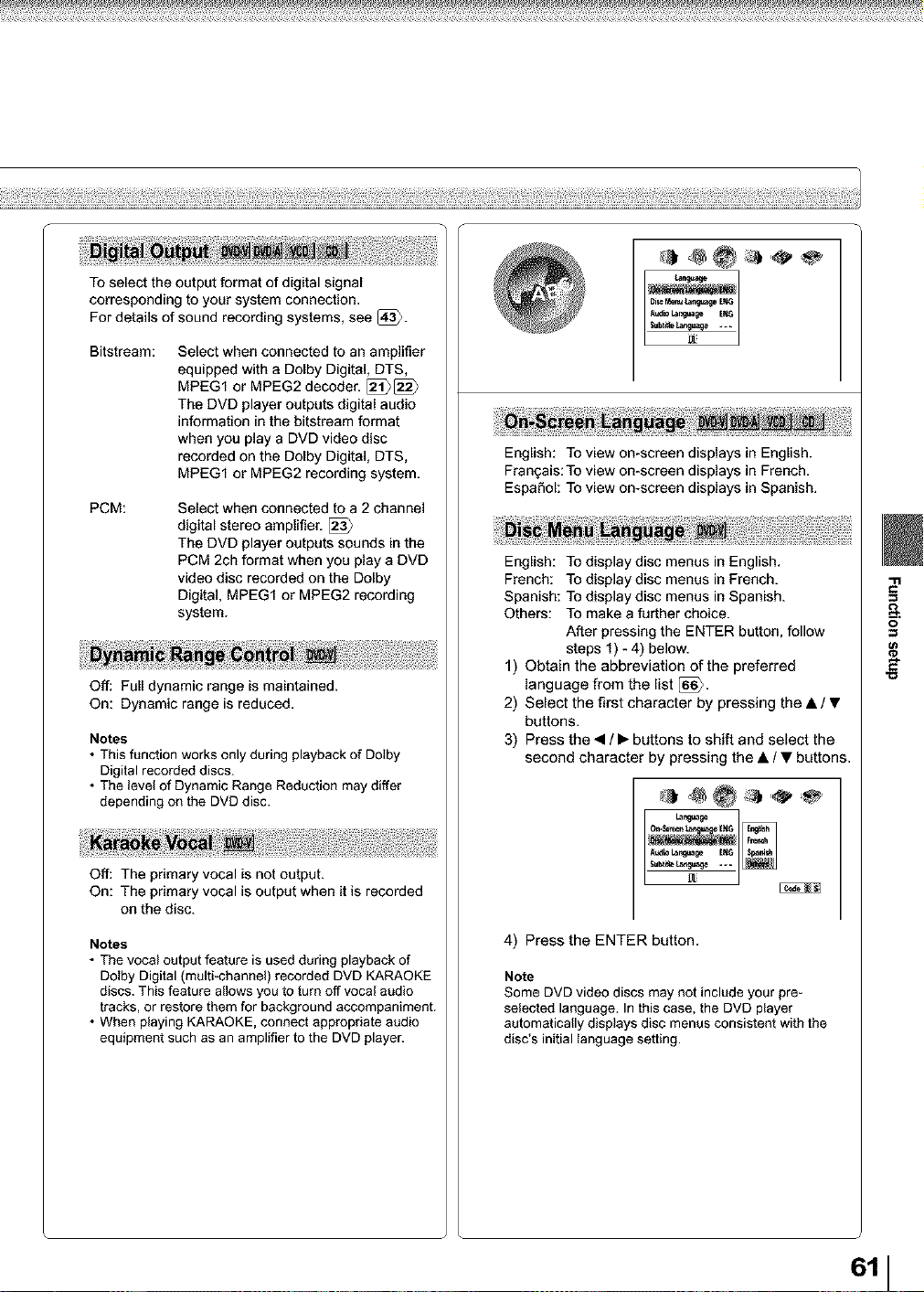
To select the output format of digital signal
corresponding to your system connection.
For details of sound recording systems, see [_4_.
Bitstream:
Select when connected to an amplifier
equipped with a Dolby Digital, DTS,
MPEG1 or MPEG2 decoder. [_[_
The DVD player outputs digital audio
information in the bitstream format
when you play a DVD video disc
recorded on the Dolby Digital, DTS,
MPEG1 or MPEG2 recording system.
PCM: Select when connected to a 2 channel
digital stereo amplifier. [_
The DVD player outputs sounds in the
PCM 2ch format when you play a DVD
video disc recorded on the Dolby
Digital, MPEG1 or MPEG2 recording
system.
Off: Full dynamic range is maintained.
On: Dynamic range is reduced.
Notes
• This function works only during playback of Do,by
Digital recorded discs.
• The level of Dynamic Range Reduction may differ
depending on the DVD disc.
Off: The primary vocal is not output.
On: The primary vocal is output when it is recorded
on the disc.
Notes
• The vocal output feature is used during playback of
Dolby Digital (multi-channel) recorded DVD KARAOKE
discs. This feature allows you to turn off vocal audio
tracks, or restore them for background accompaniment.
• When playing KARAOKE, connect appropriate audio
equipment such as an amplifier to the DVD player.
$ube_e_ .-.
English: To view on-screen displays in English.
Frangais: To view on-screen displays in French.
EspaSol: To view on-screen displays in Spanish.
English: To display disc menus in English.
French: To display disc menus in French.
Spanish: To display disc menus in Spanish.
Others: To make a further choice.
After pressing the ENTER button, follow
steps 1) - 4) below.
1) Obtain the abbreviation of the preferred
language from the list [_.
2) Select the first character by pressing the • / •
buttons.
3) Press the • / • buttons to shift and select the
second character by pressing the • / • buttons.
4) Press the ENTER button.
Note
Some DVD video discs may not include your pre_
selected language. In this case. the DVD player
automatically displays disc menus consistent with the
disc's initial _anguage setting.
611
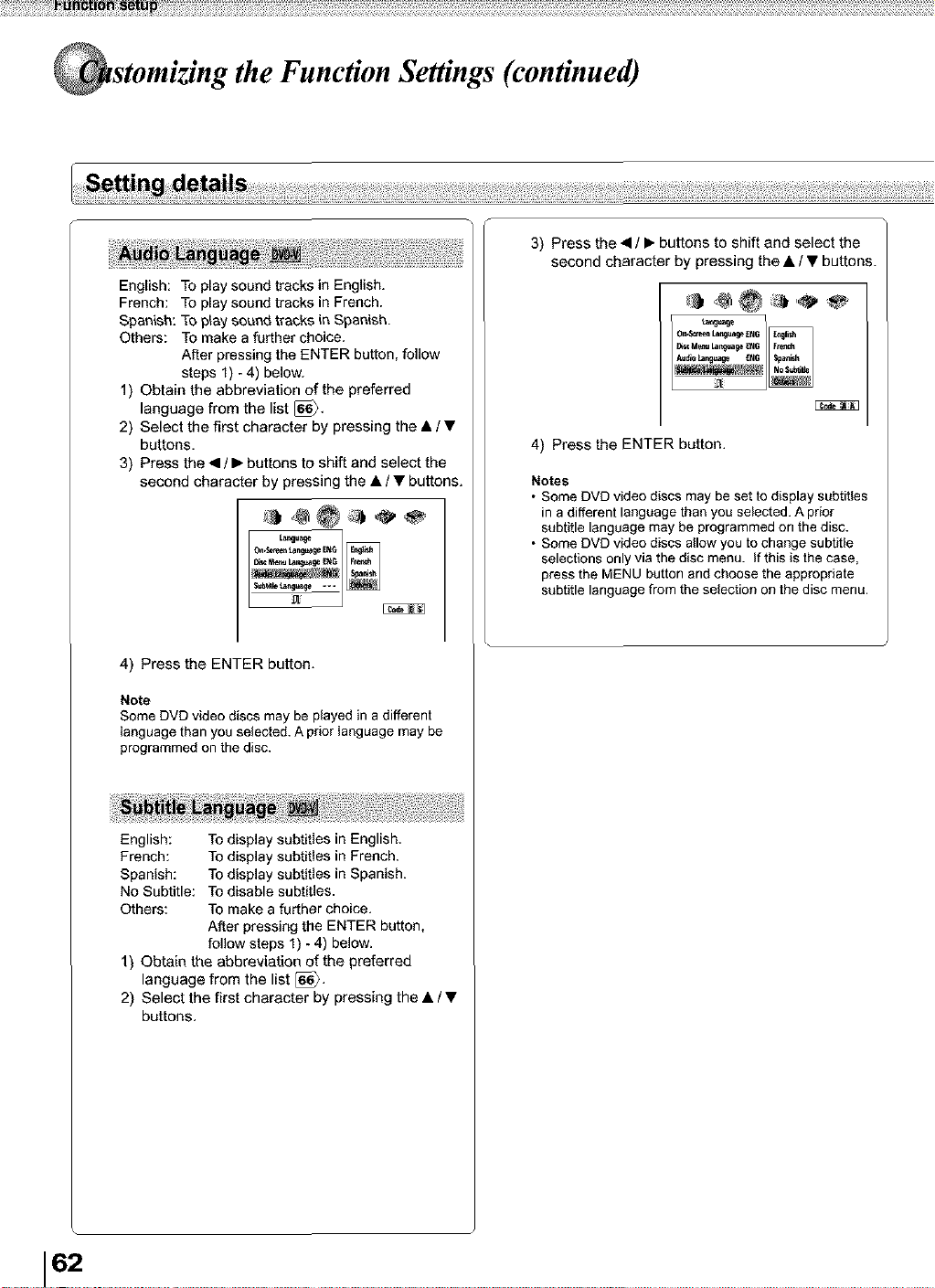
stomizing the Function Settings (continued)
English: To play sound tracks in English.
French: To play sound tracks in French.
Spanish: To play eo_nd t_acke in Spanish.
Others: TO make a further choice.
After pressing the ENTER button, follow
steps 1) -4) below.
1) Obtain the abbreviation of the preferred
language from the list [_i_.
2) Select the first character by pressing the • / •
buttons.
3) Press the • / • buttons to shift and select the
second character by pressing the • / • buttons.
4) Press the ENTER button.
Note
Some DVD video discs may be played in a different
language than you selected. A prior language may be
programmed on the disc.
English: To display subtitles in English.
French: To display subtitles in French.
Spanish: To display subtitles in Spanish.
No Subtitle: To disable subtitles.
Others: To make a further choice.
After pressing the ENTER button,
follow steps 1) - 4) below.
1) Obtain the abbreviation of the preferred
language from the list [_,
2) Select the first character by pressing the • / •
buttons,
3) Press the • / • buttons to shift and select the
second character by pressing the • / • buttons.
4) Press the ENTER button.
Notes
• Some DVD video discs may be set to display subtitles
in a different language than you selected. A prior
subtitle language may be programmed on the disc.
• Some DVD video discs allow you to change subtitle
selections only via the disc menu. If this is the case,
press the MENU button and choose the appropriate
subtitle language from the selection on the disc menu.
162
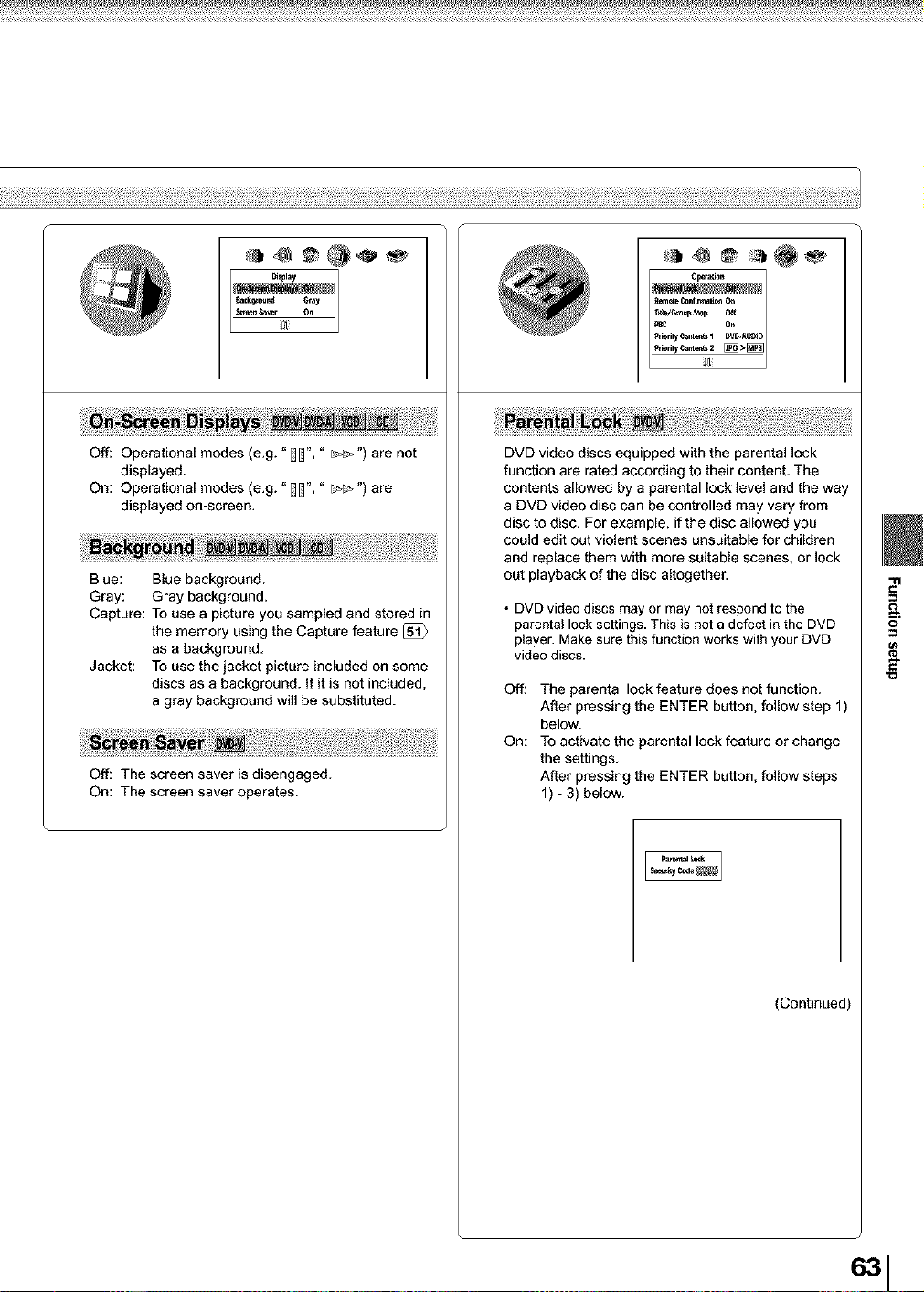
Off: Operational modes (e.g. ° _', " _") are not
displayed.
On: Operational modes (e.g. ° _', " _") are
displayed on-screen.
Blue: Blue background.
Gray: Gray background.
Capture: To use a picture you sampled and stored in
the memory using the Capture feature [_
as a background.
Jacket: To use the jacket picture included on some
discs as a background. If it is not included,
a gray background will be substituted.
Off: The screen saver is disengaged.
On: The screen saver operates.
_emele _r_alJe_, 0_,
O_
DVD video discs equipped with the parental lock
function are rated according to their content. The
contents allowed by a parental lock level and the way
a DVD video disc can be controlled may vary from
disc to disc. For example, if the disc allowed you
could edit out violent scenes unsuitable for children
and replace them with more suitable scenes, or lock
out playback of the disc altogether.
• DVD video discs may or may not respond to the
parental lock settings. This is not a defect in the DVD
player. Make sure this function works with your DVD
video discs.
Off: The parental lock feature does not function.
After pressing the ENTER button, follow step 1)
below.
On: To activate the parental lock feature or change
the settings.
After pressing the ENTER button, follow steps
1) - 3) below.
(Continued)
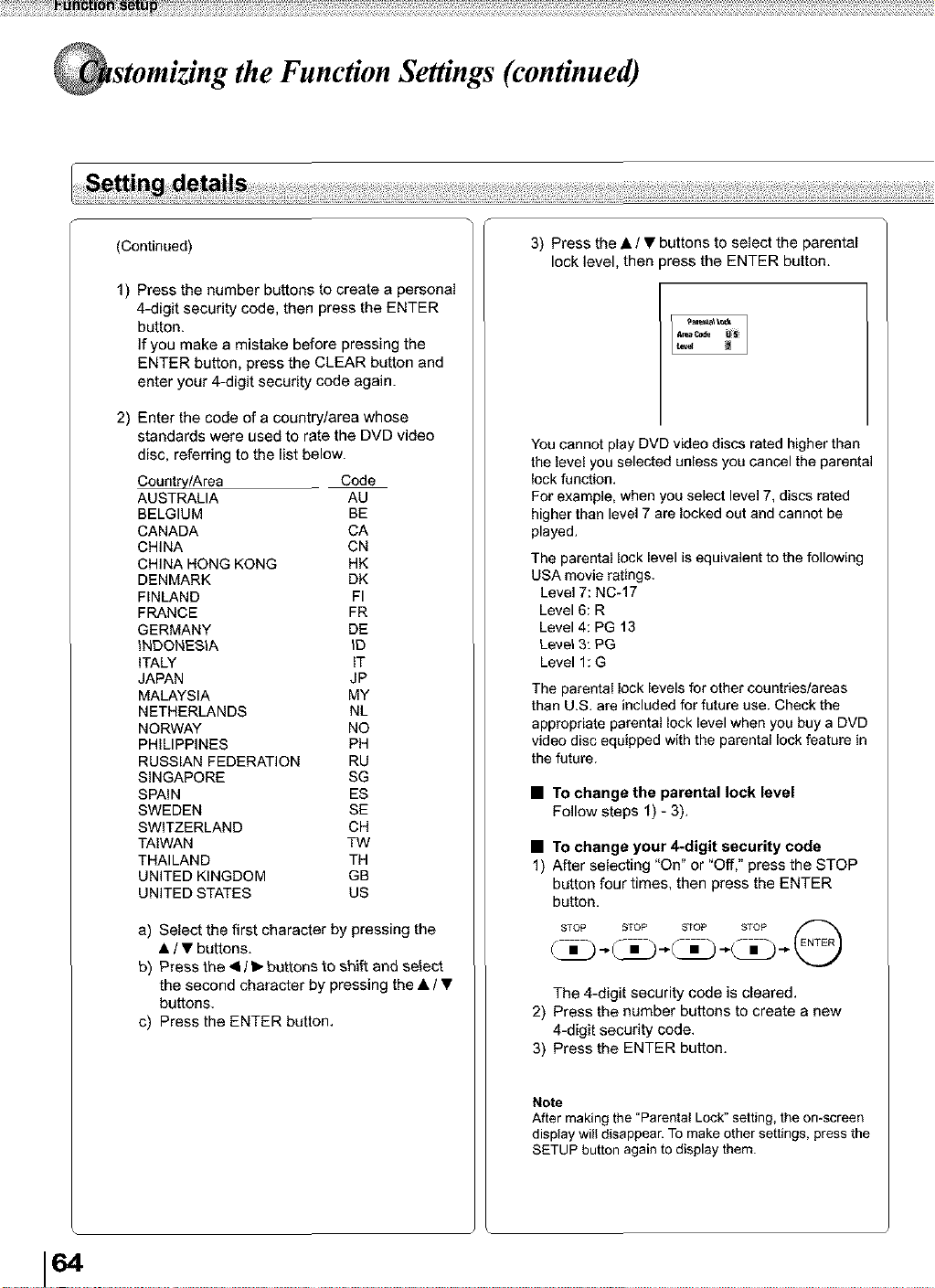
stomizing the Function Settings (continued)
(Continued)
1)
2)
Press the number buttons to create a personal
4-digit security code, then press the ENTER
button.
If you make a mistake before pressing the
ENTER button, press the CLEAR button and
enter your 4-digit security code again.
Enter the code of a country/area whose
standards were used to rate the DVD video
disc, referring to the list below.
Country/Area Code
AUSTRALIA AU
BELGIUM BE
CANADA CA
CHINA CN
CHINA HONG KONG HK
DENMARK DK
FINLAND FI
FRANCE FR
GERMANY DE
INDONESIA ID
ITALY IT
JAPAN JP
MALAYSIA MY
NETHERLANDS NL
NORWAY NO
PHILIPPINES PH
RUSSIAN FEDERATION RU
SINGAPORE SG
SPAIN ES
SWEDEN SE
SWITZERLAND CH
TAIWAN TW
THAILAND TH
UNITED KINGDOM GB
UNITED STATES US
a) Select the first character by pressing the
• / • buttons.
b) Press the • / • buttons to shift and select
the second character by pressing the • / •
buttons.
c) Press the ENTER button.
3) Press the • / • buttons to select the parental
lock level, then press the ENTER button.
You cannot play DVD video discs rated higher than
the level you selected unless you cancel the parental
lock function.
For example, when you select level 7, discs rated
higher than level 7 are locked out and cannot be
played.
The parental lock level is equivalent to the following
USA movie ratings.
Level 7:N0-17
Level 6: R
Level 4: PG 13
Level 3: PG
Level 1: G
The parental lock levels for other countries/areas
than U.S. are included for future use. Check the
appropriate parental lock level when you buy a DVD
video disc equipped with the parental lock feature in
the future.
• TOchange the parental lock level
Follow steps 1) - 3).
• TOchange your 4-digit security code
1) After selecting "On" or "Off," press the STOP
button four times, then press the ENTER
button.
The 4-digit security code is cleared.
2) Press the number buttons to create a new
4-digit security code.
3) Press the ENTER button.
Note
After making the "Parental Lock" setting, the omscreen
display will disappear. To make other settings, press the
SETUP button again to display them.
164
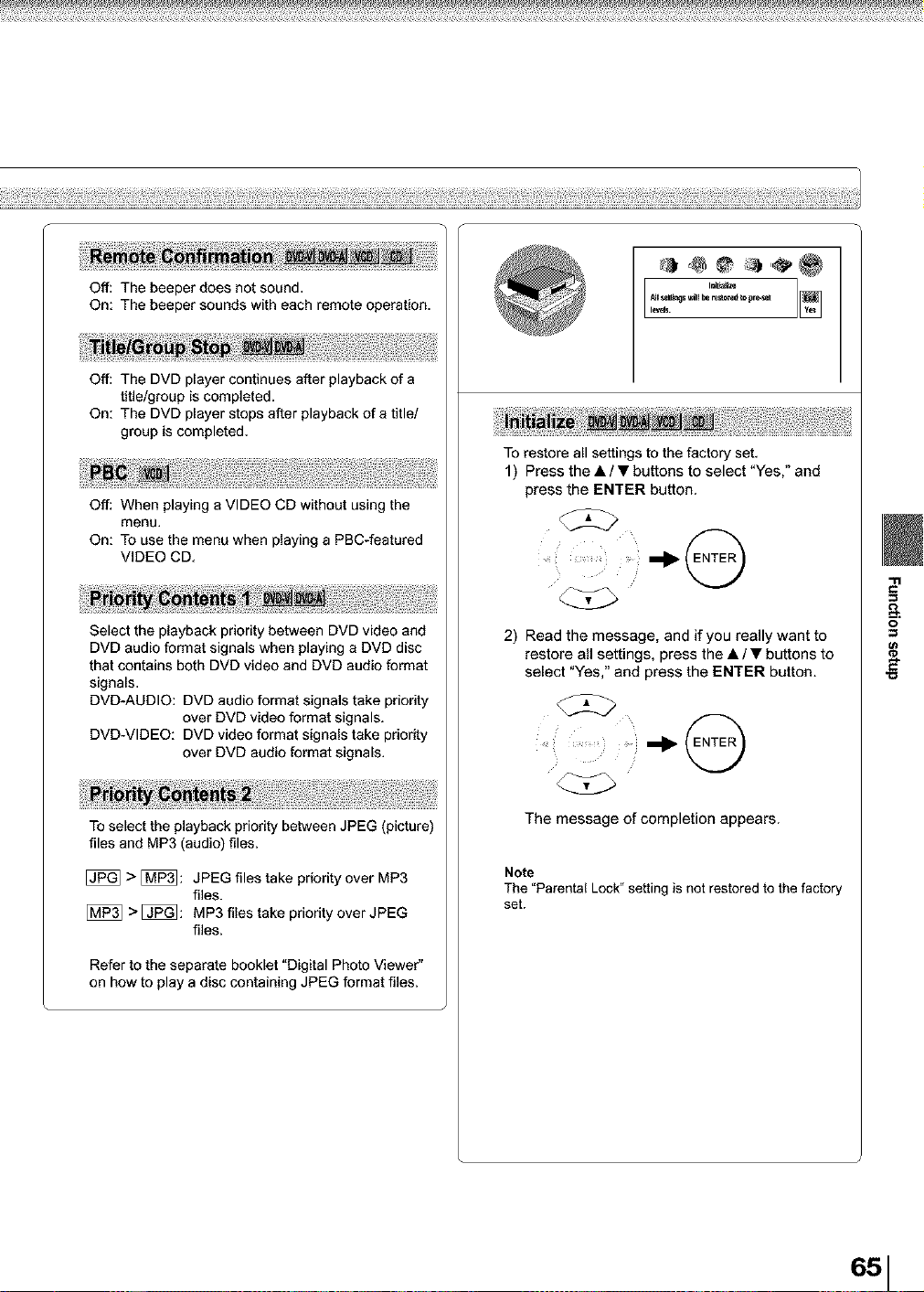
Off: The beeper does not sound,
On: The beeper sounds with each remote operation.
Off: The DVD player continues after playback of a
title/group is completed.
On: The DVD player stops after playback of a title/
group is completed,
Off: When playing a VIDEO CD without using the
menu.
On: To use the menu when playing a PBC-featured
VIDEO CD,
Select the playback priority between DVD video and
DVD audio format signals when playing a DVD disc
that contains both DVD video and DVD audio format
signals,
DVD-AUDIO: DVD audio format signals take priodty
over DVD video format signals.
DVD-VIDEO: DVD video format signals take priority
over DVD audio format signals,
To select the playback priority between JPEG (picture)
files and MP3 (audio) files.
[_ >[_: JPEG filestake pdorityover MP3
files.
[_ >[_: MP3 files take priodtyover JPEG
files.
Refer to the separate booklet "Digital Photo Viewer"
on how to play a disc containing JPEG format files.
I i_ze
_ _elunO__l he restm_ to pre._e[
le_.
To restore all settings to the factory set.
1) Press the • / • buttons to select "Yes," and
press the ENTER button.
_ _'_i _ii mI_(ENTER )
2) Read the message, and if you really want to
restore all settings, press the • / • buttons to
select "Yes," and press the ENTER button.
',.._j
The message of completion appears.
Note
The "Parental Lock" setting is not restored to the factory
set.
651
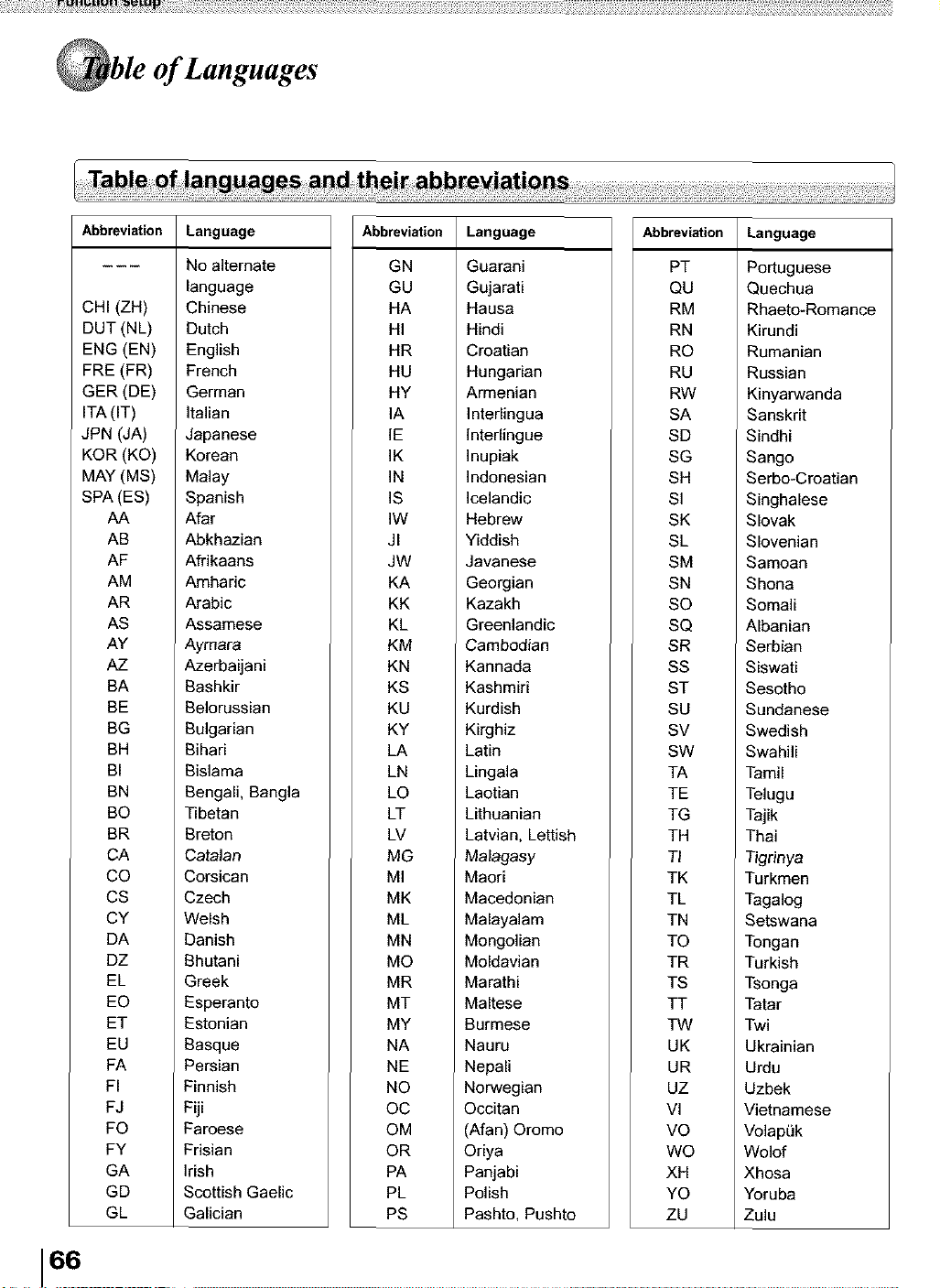
!;ili; ; ;_ _ _1! _!! ! ! ! ! ! ! ! ! ! ! ! ! ! ! ! ! ! ! ! h ¸h h h h h h h h h h h h h h h h h! ¸_ _ _ _ _ _ _ _ _ _ _ _ _ _ _ _ _ _! j!!! J!!! J!!! J!!! J!!! J!!!
of Languages
Abbreviation Language Abbreviation Language Abbreviation Language
CHI (ZH)
DUT (NL)
ENG (EN)
FRE (FR)
GER (DE)
ITA (IT)
JPN (JA)
KOR (KO)
MAY (MS)
SPA (ES)
AA
AB
AF
AM
AR
AS
AY
AZ
BA
BE
BG
BH
BI
BN
BO
BR
CA
CO
CS
CY
DA
DZ
EL
EO
ET
EU
FA
FI
FJ
FO
FY
GA
GD
GL
No alternate
language
Chinese
Dutch
English
French
German
Italian
Japanese
Korean
Malay
Spanish
Afar
Abkhazian
Afrikaans
Amharic
Arabic
Assamese
Aymara
Azerbaijani
Bashkir
Belorussian
Bulgarian
Bihari
Bislama
Bengali, Bangla
Tibetan
Breton
Catalan
Corsican
Czech
Welsh
Danish
Bhutani
Greek
Esperanto
Estonian
Basque
Persian
Finnish
Fiji
Faroese
Frisian
Irish
Scottish Gaelic
Galician
GN
GU
HA
HI
HR
HU
HY
IA
IE
IK
IN
IS
IW
JI
JW
KA
KK
KL
KM
KN
KS
KU
KY
LA
LN
LO
LT
LV
MG
MI
MK
ML
MN
MO
MR
MT
MY
NA
NE
NO
OC
OM
OR
PA
PL
PS
Guarani
Gujarati
Hausa
Hindi
Croatian
Hungarian
Armenian
Interlingua
Interlingue
Inupiak
Indonesian
Icelandic
Hebrew
Yiddish
Javanese
Georgian
Kazakh
Greenlandic
Cambodian
Kannada
Kashmiri
Kurdish
Kirghiz
Latin
Lingala
Laotian
Lithuanian
Latvian, Lettish
Malagasy
Maori
Macedonian
Malayalam
Mongolian
Moldavian
Marathi
Maltese
Burmese
Nauru
Nepali
Norwegian
Occitan
(Afan) Oromo
Oriya
Panjabi
Polish
Pashto, Pushto
PT
QU
RM
RN
RO
RU
RW
SA
SD
SG
SH
SI
SK
SL
SM
SN
SO
SQ
SR
SS
ST
SU
SV
SW
TA
TE
TG
TH
TI
TK
TL
TN
TO
TR
TS
TT
TW
UK
UR
UZ
VI
VO
WO
XH
YO
ZU
Portuguese
Quechua
Rhaeto-Romance
Kirundi
Rumanian
Russian
Kinyarwanda
Sanskrit
Sindhi
Sango
Serbo-Croatian
Singhalese
Slovak
Slovenian
Samoan
Shona
Somali
Albanian
Serbian
Siswati
Sesotho
Sundanese
Swedish
Swahili
Tamil
Telugu
Tajik
Thai
Tigrinya
Turkmen
Tagalog
Setswana
Tongan
Turkish
Tsonga
Tatar
Twi
Ukrainian
Urdu
Uzbek
Vietnamese
VolapL_k
Wolof
Xhoea
Yoruba
Zulu
66
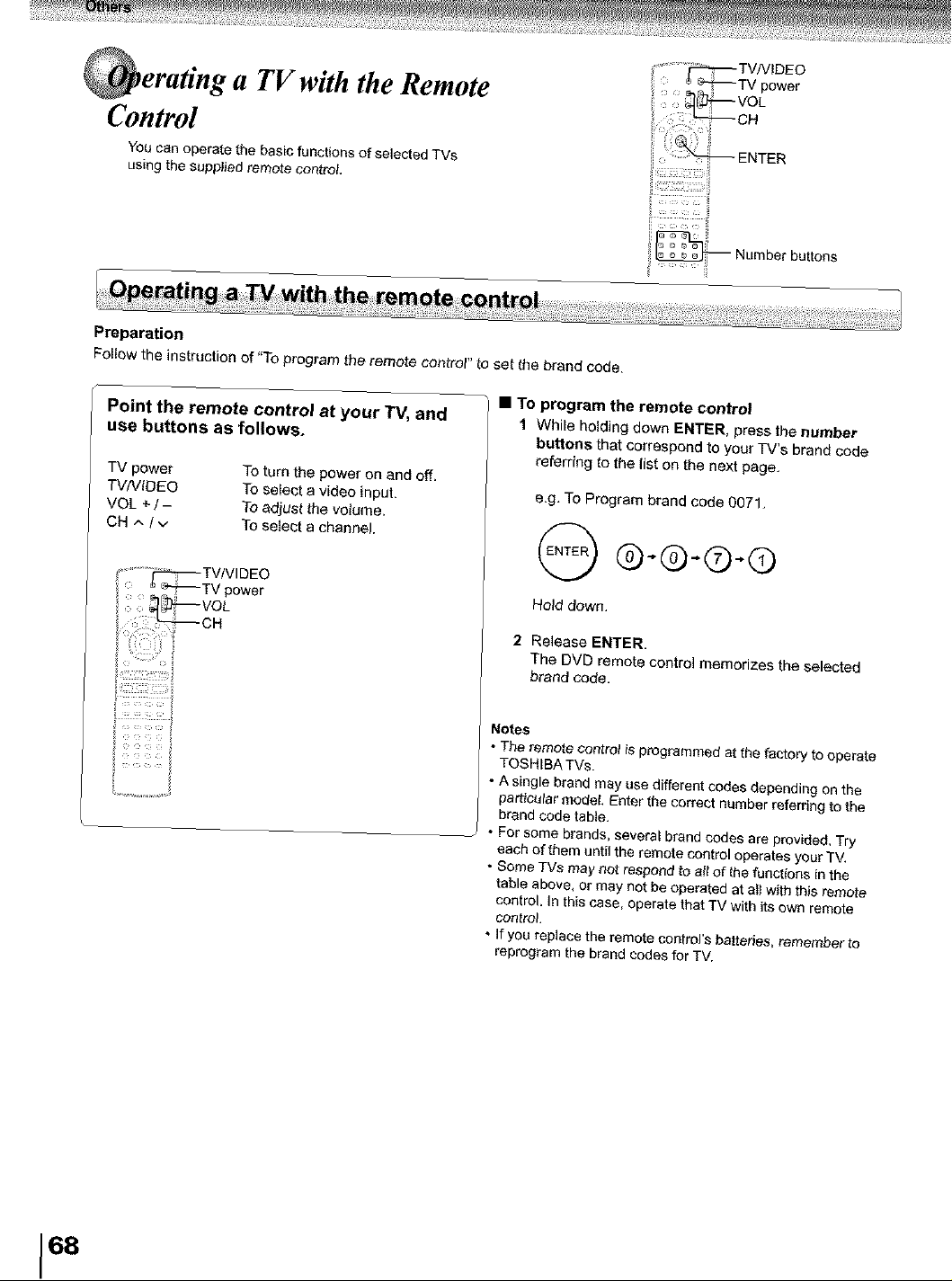
a TVwith the Remote
Control
You can operate the basic functions of selected TVs
using the supplied remote control,
Preparation
Follow the instruction of "To program the remote control" to set the brand code.
il.........;_iii
i _ Number buttons
Point the remote control at your TV, and
use buttons as follows.
TV power
TVN(O_O
VOL ÷ / -
CH t,/v
To turn the power on and off.
To seleot a video input.
To adjust the voturne.
To select a channel.
• To program the remote control
t While herding down ENTER, press the number
buttons that correspond to yourTV's brand code
referring to the list on the next page.
e.g. To Program b_and code 0071.
@-@-©-©
HoJd down.
2 Release ENTER.
The DVD remote control memorizes the selected
brand code.
Notes
• The remote control is programmed at the factory to operate
TOSHIBA TVs.
• A single brand may use different codes depending on the
particular model. Enter the correct number referdng to the
brand code table.
• For some brands, severa_ brand codes are provided. Try
each of them until the remote control operates your TV.
• Some TVs may not respond to art of the functions In the
table above, or may net be operated at al) with this remote
control. In this case, operate that TV with its own remote
control.
• ff you replace the remote contro)'s battenes, remember to
reprogram the brand codes for TV.
68
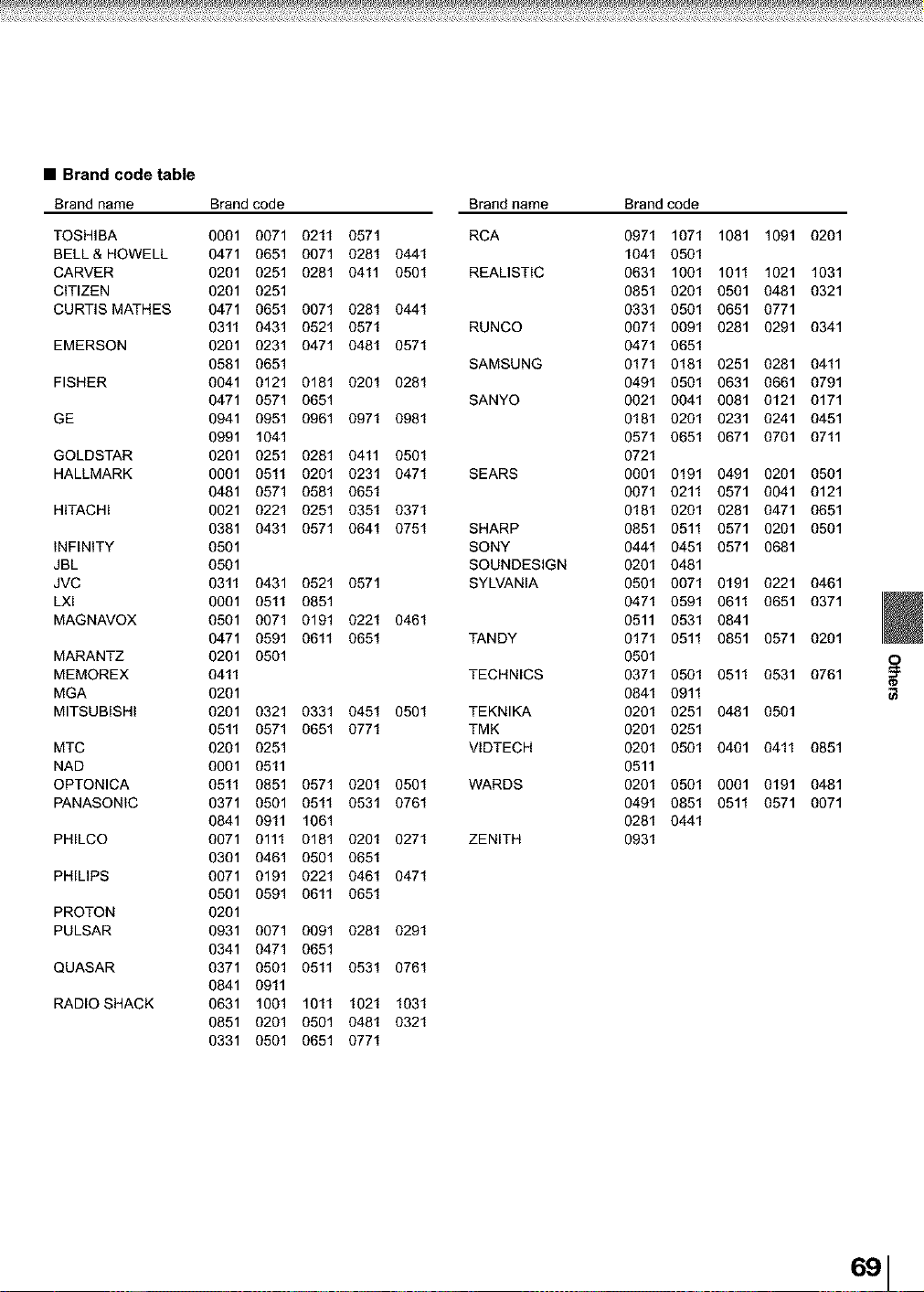
• Brand code table
Brand name Brand code Brand name Brand code
TOSHIBA 0001 0071 0211 0571 RCA 0971 1071 1081 1091
BELL& HOWELL 0471 0651 0071 0281 0441 1041 0501
CARVER 0201 0251 0281 0411 0501 REALISTIC 0631 1001 1011 1021
CITIZEN 0201 0251 0851 0201 0501 0481
CURTIS MATHES 0471 0651 0071 0281 0441 0331 0501 0651 0771
0311 0431 0521 0571 RUNCO 0071 0091 0281 0291
EMERSON 0201 0231 0471 0481 0571 0471 0651
0581 0651 SAMSUNG 0171 0181 0251 0281
FISHER 0041 0121 0181 0201 0281 0491 0501 0631 0661
0471 0571 0651 SANYO 0021 0041 0081 0121
GE 0941 0951 0961 0971 0981 0181 0201 0231 0241
0991 1041 0571 0651 0671 0701
GOLDSTAR 0201 0251 0281 0411 0501 0721
HALLMARK 0001 0511 0201 0231 0471 SEARS 0001 0191 0491 0201
0481 0571 0581 0651 0071 0211 0571 0041
HITACHI 0021 0221 0251 0351 0371 0181 0201 0281 0471
0381 0431 0571 0641 0751 SHARP 0851 0511 0571 0201
INFINITY 0501 SONY 0441 0451 0571 0681
JBL 0501 SOUNDESIGN 0201 0481
JVC 0311 0431 0521 0571 SYLVANIA 0501 0071 0191 0221
LXl 0001 0511 0851 0471 0591 0611 0651
MAGNAVOX 0501 0071 0191 0221 0461 0511 0531 0841
0471 0591 0611 0651 TANDY 0171 0511 0851 0571
MARANTZ 0201 0501 0501
MEMOREX 0411 TECHNICS 0371 0501 0511 0531
MGA 0201 0841 0911
MITSUBISHI 0201 0321 0331 0451 0501 TEKNIKA 0201 0251 0481 0501
0511 0571 0651 0771 TMK 0201 0251
MTC 0201 0251 VlDTECH 0201 0501 0401 0411
NAD 0001 0511 0511
OPTONICA 0511 0851 0571 0201 0501 WARDS 0201 0501 0001 0191
PANASONIC 0371 0501 0511 0531 0761 0491 0851 0511 0571
0841 0911 1061 0281 0441
PHILCO 0071 0111 0181 0201 0271 ZENITH 0931
0301 0461 0501 0651
PHILIPS 0071 0191 0221 0461 0471
0501 0591 0611 0651
PROTON 0201
PULSAR 0931 0071 0091 0281 0291
0341 0471 0651
QUASAR 0371 0501 0511 0531 0761
0841 0911
RADIO SHACK 0631 1001 1011 1021 1031
0851 0201 0501 0481 0321
0331 0501 0651 0771
0201
1031
0321
0341
0411
0791
0171
0451
0711
0501
0121
0651
0501
0461
0371
0201
£
o761
0851
0481
0071
691
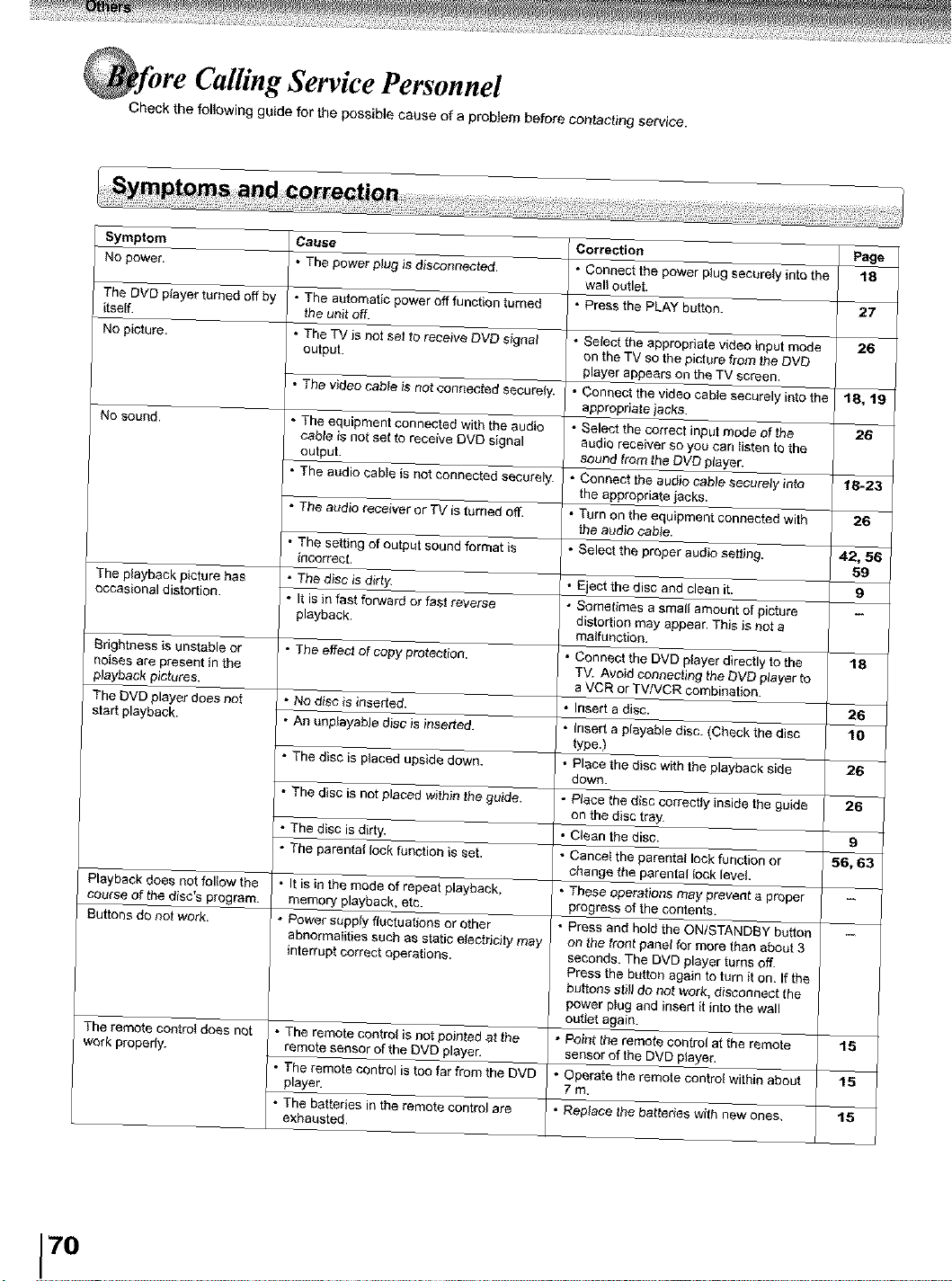
Calling Service Personnel
Check the following guide for the possible cause of a problem before contacting service.
Symptom
No power.
The DVD player turned off by
itself.
No picture.
No sound.
The playback picture has
occasional distortion.
Brightness is unstable or
noises are present in the
playback pictures.
The ['v'D player does not
start playback.
Playback does not follow the
course of the dis_,'spcogfam.
Buttons do not work.
The remote control does not
work propedy.
Cause
• The power plug is disconnected.
• The automatic power off function turned
the unit off.
• The TV is not set to receive DVD signal
output.
• The v}deocable is not connected securely.
• The equipment connected with the audio
cable is not set to rece(ve OVO signal
output.
• The audio cable is not connected securely.
• The aedio receiver or 75/is turned off.
• The setting of output sound format is
incorrect.
• The disc is dirty
• It is in fast forward or fast reverse
playback.
• The effec_of copy protection.
• NOd}so is inserted.
• An unplayable disc is inserted.
• The disc is placed upside down.
• The disc is not placed within the guide.
• The disc is dirty.
• The parental lock function is set.
• It is in the mode of repeat playback,
memory playbaak, etc.
° Power supply fluctuations or other
abnormalities such as static eJectdcity may
interrupt correct operations.
• The remote control is not pointed at the
remote sensor of the DVD player.
The remote control is too far from the DVD
player.
• The batteries in the remote control are
exhausted.
Correction Page
pow.pl.gsoo Oly,.totho
Select the appropriate video input mode
on the TV so the picture from the DVD ]
• player appears on the TV screen.
Connect the video cable securely into the 18, 19
Select the correct input mode of the I 26
audio receiver so yo,._can _iste_tothe
_bio s_ure_y in_o1_2_23_•sound from the DVD player.
the appropriate jacks.
• Turn on the equipment connected with _26
• the audio cable.
Select the proper audio selling.
•Eiect the disc and clean it.
• Sometimes a small amount of picture --
distortion may appear. This is not a
TV. Avoid connecti,qg the eve player to _
a VCR or TV/VCR combination.
_Che_kthedi_c_]••Insert a disc.
Place the disc with the playback side )26
• down.
_ iosi_et_.Ude zs
• on the disc tray.
• Clean the disc.
sB,s3 I
__per_ochange the parental lock level.
_ theeON/_ut_oon_Pr°gressof the contents.
on the front panel for more than about 3
seconds. The DVD player turns off.
II
Press the button again to turn it on. If the
buttons still do not work, disconnect the I I
power plug and insert it into the wall
sensor of the OVO player.
• Operate the remote control within about
7O
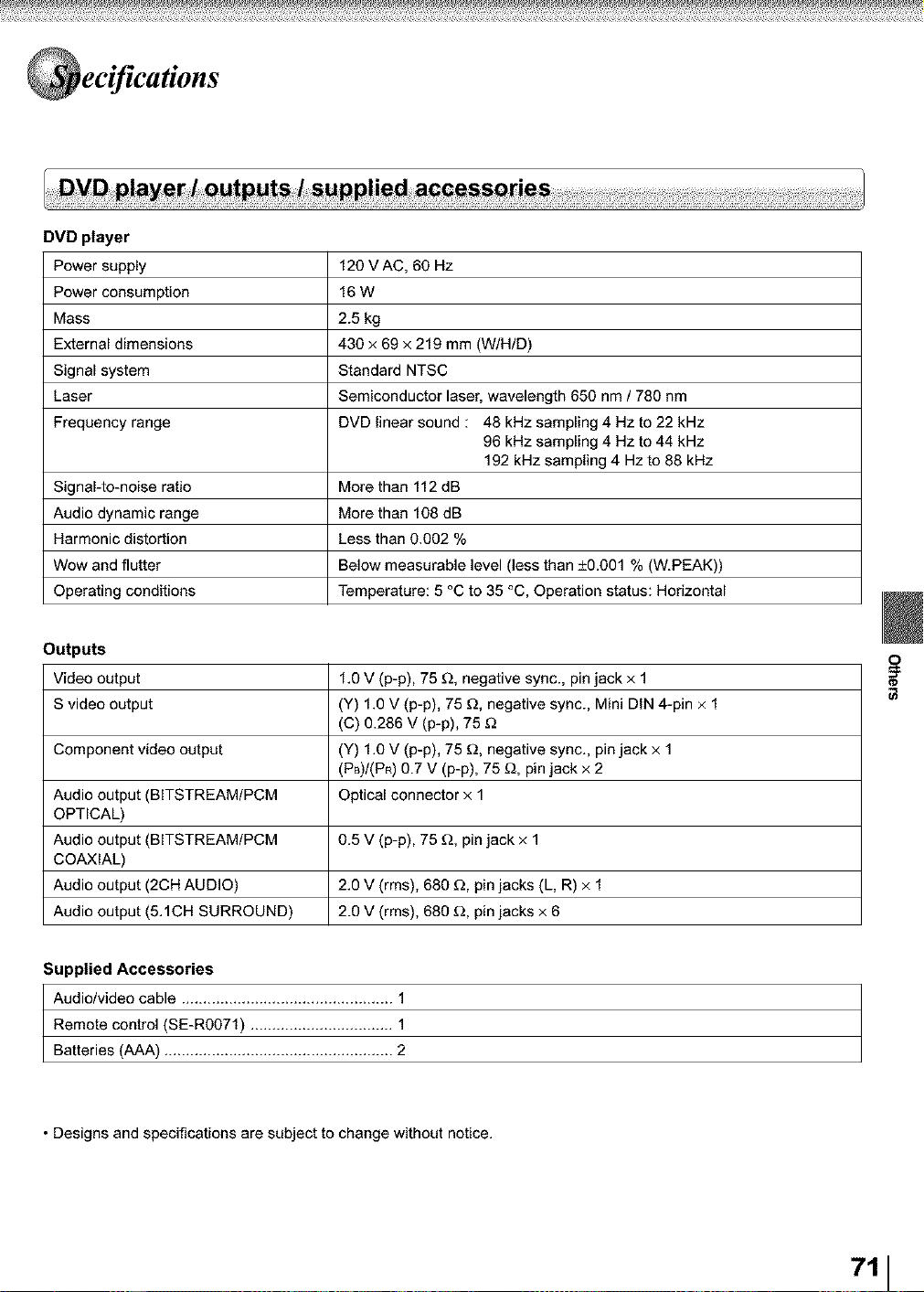
DVD player
Power supply 120 V AC, 60 Hz
Power consumption 16 W
Mass 2.5 kg
External dimensions 430 x 69 x 219 mm (W/H/D)
Signal system Standard NTSC
Laser Semiconductor laser, wavelength 650 nm / 780 nm
Frequency range DVD linear sound : 48 kHz sampling 4 Hz to 22 kHz
96 kHz sampling 4 Hz to 44 kHz
192 kHz sampling 4 Hz to 88 kHz
Signal-to-noise ratio More than 112 dB
Audio dynamic range More than 108 dB
Harmonic distortion Less than 0.002 %
Wow and flutter Below measurable level (less than ±0.001% (W.PEAK))
Operating conditions Temperature: 5 °C to 35 °C, Operation status: Horizontal
Outputs
Video output 1.0 V (p-p), 75 _, negative sync., pin jack x 1
S video output (Y) 1.0 V (p-p), 75 _, negative sync., Mini DIN 4-pin × 1
(C) 0.286 V (p-p), 75 _
Component video output (Y) 1.0 V (p-p), 75 _2,negative sync., pin jack x 1
(Pa)/(PR)0.7 V (p-p), 75 _), pin jack x 2
Audio output (BITSTREAM/PCM Optical connector x 1
OPTICAL)
Audio output (BITSTREAM/PCM 0.5 V (p-p), 75 [_, pin jack x 1
COAXIAL)
Audio output (2CH AUDIO) 2.0 V (rms), 686 D, pin jacks (L, R) × 1
Audio output (5.1CH SURROUND) 2.0 V (rms), 680 D, pin jacks x 6
Supplied Accessories
Audio/video cable ................................................. 1
Remote control (SE-R0071) ................................. 1
Batteries (AAA) ..................................................... 2
• Designs and specifications are subject to change without notice.
711
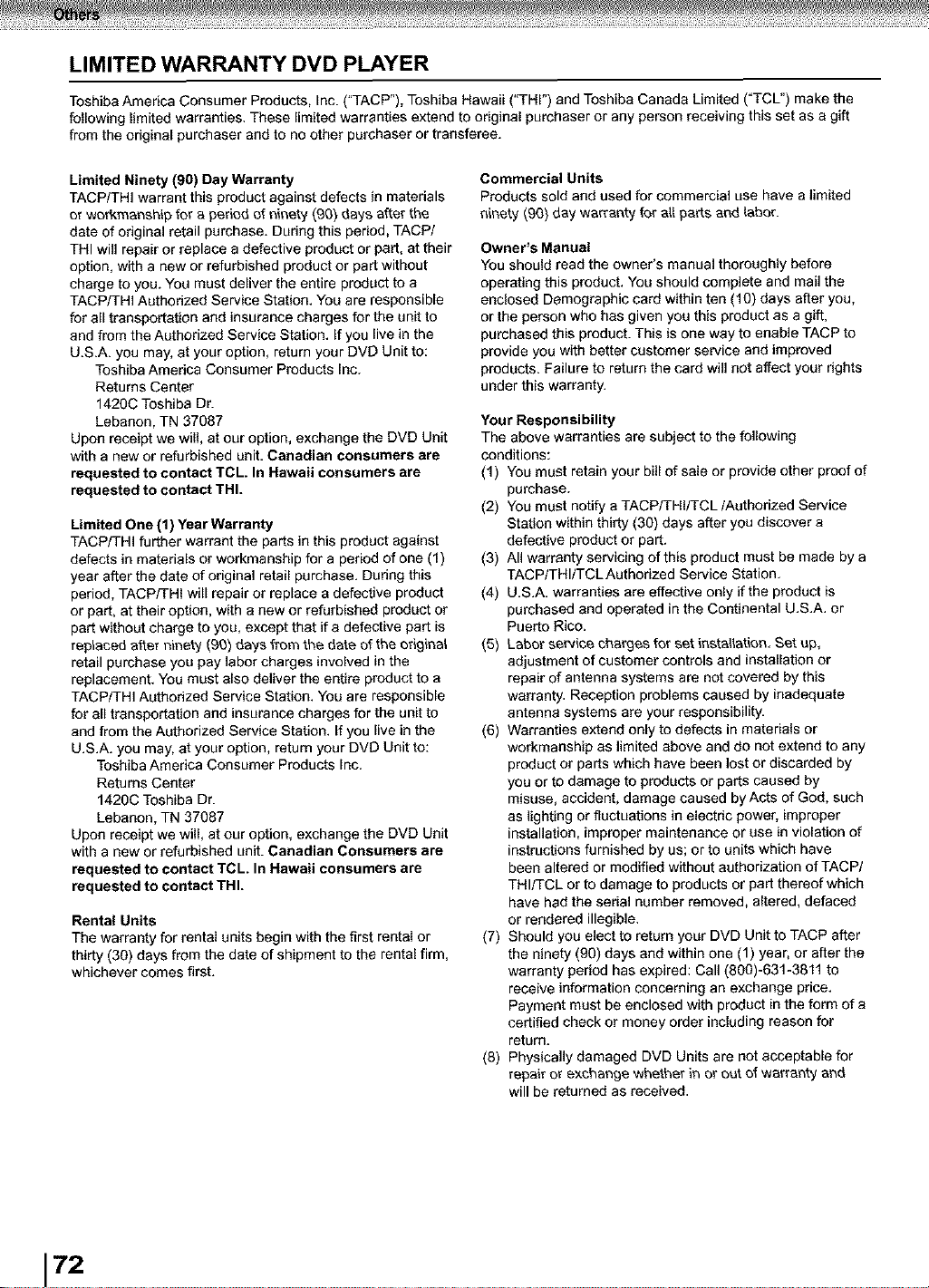
LIMITED WARRANTY DVD PLAYER
Toshiba America Consumer Products, Inc. ("TACP"), Toshiba Hawaii ("THI") and Toshiba Canada Limited ("TCL") make the
following limited warranties. These limited warranties extend to original purchaser or any person receiving this set as a gift
from the original purchaser and to no other purchaser or transferee.
Limited Ninety (90) Day Warranty
TACP/THI warrant this product against defects in materials
or workmanship for a perked of ninety (90) days after the
date of original retail purchase. During this period, TACP/
THI will repair or replace a defective product or part, at their
option, with a new or refurbished product or part without
charge to you. You must deliver the entire product to a
TACP/THI Authorized Service Station. You are responsible
for all transportation and insurance charges for the unit to
and from the Authorized Service Station. If you live in the
U.S.A. you may, at your option, return your DVD Unit to:
Toshiba America Consumer Products Inc.
Returns Center
1420C Toshiba Dr.
Lebanon, TN 37087
Upon receipt we will, at our option, exchange the DVD Unit
with a new or refurbished unit. Canadian consumers are
requested to contact TCL. In Hawaii consumers are
requested to contact THI.
Limited One (1) Year Warranty
TACP/THI further warrant the parts in this product against
defects in materials or workmanship for a period of one (1)
year after the date of original retail purchase. During this
period, TACPFFHI will repair or replace a defective product
or part, at their option, with a new or refurbished product or
part without charge to you, except that if a defective part is
replaced after ninety (90) days from the date of the ofigina_
retail purchase you pay labor charges involved in the
replacement. You must also deliver the entire product to a
TACP/THI Authorized Service Station. You are responsible
for all transportation and insurance charges for the unit to
and from the Authorized Service Station. If you live in the
U.S.A. you may, at your option, return your DVD Unit to:
Toshiba America Consumer Products Inc.
Returns Center
1420C Toshiba Dr.
Lebanon, TN 37087
Upon receipt we will, at our option, exchange the DVD Unit
with a new or refurbished unit. Canadian Consumers are
requested to contact TCL. In Hawaii consumers are
requested to contact THI.
Rental Units
The warranty for rental units begin with the first rental or
thirty (30) days from the date of shipment to the rental firm,
whichever comes first.
Commercial Units
Products sold and used for commercial use have a limited
ninety (90) day warranty for all parts and labor.
Owner's Manual
You should read the owner's manual thoroughly before
operating this product. You should complete and mail the
enclosed Demographic card within ten (10) days after you,
or the person who has given you this product as a gift,
purchased this product. This is one way to enable TACP to
provide you with better customer service and improved
products. Failure to return the card wii] not affect your rights
under this warranty.
Your Responsibility
The above warranties are subject to the following
conditions:
(1) You must retain your bill of sale or provide other proof of
purchase.
(2) You must notify a TACP/THI/TCL/Authorized Service
Station within thirty (30) days after you discover a
defective product or part.
(3) All warranty servicing of this product must be made by a
TACP/THI/TCLAuthorized Service Station.
(4) U.S.A. warranties are effective only if the product is
purchased and operated in the Continental U.S.A. or
Puerto Rico.
(5) Labor service charges for set installation. Set up,
adjustment of customer controls and installation or
repair of antenna systems are not covered by this
warranty. Reception problems caused by inadequate
antenna systems are your responsibility.
(6) Warranties extend only to defects in materials or
workmanship as limited above and do not extend to any
product or parts which have been lost or discarded by
you or to damage to products or parts caused by
misuse, accident, damage caused by Acts of God, such
as lighting or fluctuations in electric power, improper
installation, improper maintenance or use in violation of
instructions furnished by us; or to units which have
been altered or modified without authorization of TACP/
THI/TCL or to damage to products or part thereof which
have had the serial number removed, altered, defaced
or rendered illegible.
(7) Should you elect to return your DVD Unit to TACP after
the ninety (90) days and within one (1) year, or after the
warranty period has expired: Call (800)-631-3811 to
receive information concerning an exchange price.
Payment must be enclosed with product in the form of a
certified check or money order including reason for
return.
(8) Physically damaged DVD Units are not acceptable for
repair or exchange whether in or out of warranty and
will be returned as received.
172
How to Obtain Warranty Service
(1) Refer to the troubleshooting guide in your owner's manual. This check list may solve your problem.
(2) In the U.S.A., only call the TACP toll free number 800-631-3811, or if in Hawaii or Canada see listing below within (30)
days after you find a defective product or part.
(3) Arrange for the delivery of the product to the TACP/THl/TCLAuthorized Service Station or TACP Return Center.
Products shipped to the Service Station must be insured and safely and securely packed, preferably in the original
shipping carton, and a letter explaining the defect and also a copy of the bill of sale or other proof of purchase must be
enclosed,
Inthe Continental United States contact: In Hawaii contact:
Toshiba Hawaii Inc.
327 Kamakee Street
Honolulu, HA 96814
(808)-521-5377
In Canada contact:
Consumer Electronics Group
191 McNabb Street
Markham, Ontario L3R 8H2
(905)-470-5400
Consumer Electronics Group
22171 Fraserwood Way
Richmond, B.C. V6W IJ5
(604)-303-2500
Consumer Electronics Group
1643 North Service Road
Droval, QC H9P 1Jt
(514)-856-4100
All warranties implied by state law, including the implied warranties of merchantability and fitness for a particular purpose, are
expressly limited to the duration of the limited warranties set forth above. With the exception of any warranties implied by state
law as hereby limited, the foregoing warranty is exclusive and in lieu of all other warranties, guarantees, agreements and
similar obligations of manufacturer or seller with respect to the repair or replacement of any parts, in no event shall TACP/THI
be liable for consequential or incidental damages.
No person, agent, distributor, dealer or company is authorized to change, modify or extend the terms of these warranties in
any manner whatsoever. The time within which an action must be commenced to enforce any obligation of TACP/THI arising
under the warranty or under any statute, or law of the United States or any state thereof, is hereby limited to ninety (90) days
from the date you discover or should have discovered, the defect. This limitation does not apply to implied warranties arising
under state law.
This warranty gives you specific legal rights and you may also have other rights which may vary from state to state. Some
states do not allow limitation on how long an implied warranty lasts, when an action may be brought, or the exclusion or
limitation of incidental or consequential damages, so the above provisions may not apply to you.
ATTENTION CANADIAN CONSUMERS:
Canadian consumers are requested to complete the special Canadian "Warranty Registration Form" enclosed, and forward
this completed form with a copy of bill of sale to TOSHIBA OF CANADA to "Register and Validate" their warranty. Product
must be purchased from an Authorized Canadian Dealer. Products purchased in the U.S.A. and used in Canada are not
covered by these warranties.
IMPORTANT: PACKING AND SHIPPING INSTRUCTION
When you send the product to a Service Station, you must use the original carton box and packing material, then insert the
original carton box containing the unit into another carton using more packing material.
731

TOSHIBA
Printed in China