1
QM00971-1
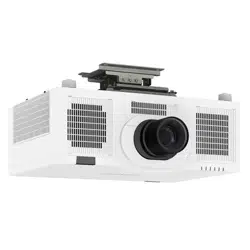
LCD Projector
MP-WU8101W/MP-WU8101B
User's Manual (detailed)
Operating Guide
Thank you for purchasing this projector.
►Before using this projector, read all the manuals for this
projector. Read Safety Guide rst. After reading the manuals, store them in a
safe place for future reference.
WARNING
NOTE
Trademark acknowledgment
Various symbols are used in this manual. The meanings of these symbols are
described below.
About this manual
WARNING
CAUTION
This entry warns of a risk of serious personal injury or even
death.
This entry warns of a risk of personal injury or physical damage.
Refer to the pages written following this symbol.
• VESA and DDC are trademarks of the Video Electronics Standard Association.
•
HDMI
®
, HDMI High-Denition Multimedia Interface
®
and HDMI
®
logo are trademarks or
registered trademarks of HDMI Licensing Administrator, Inc. in the United States and other
countries.
•
PJLink trademark and logo are trademarks applied for registration
or are already registered in Japan, the United States of America and
other countries and areas.
• Blu-ray Disc
TM
and Blu-ray
TM
are trademarks of Blu-ray Disc Association.
• DICOM
®
is the registered trademark of the National Electrical Manufacturers Association
for its standards publications relating to digital communications of medical information.
• HDBaseT
TM
and the HDBaseT Alliance logo are trademarks of the HDBaseT Alliance.
•
DisplayPort
TM
is trademark owned by the Video Electronics Standards Association (VESA
®
) in
the United States and other countries.
All other trademarks are the properties of their respective owners.
NOTICE This entry notices of fear of causing trouble.
• The information in this manual is subject to change without notice.
• The illustrations in this manual are for illustrative purposes. They may dier
from your projector.
• The manufacturer assumes no responsibility for any errors that may appear in
this manual.
• The reproduction, transfer or copy of all or any part of this document is not
permitted without express written consent.

2
QM00971-1
Contents
Introduction ...............3
Features ......................3
Checking the contents of package
....3
Warnings, Cautions, and Notices .....4
Part names ...................16
Projector, Control panel and Indicators,
Ports, Remote control
Setting up ................20
Arrangement ..................2 2
Connecting with your devices .....2 6
Attaching the terminal cover ......3 5
Using the security bar and slot ....3 6
Connecting to a power supply .....3 7
Remote control ............ 39
Installing the batteries ...........3 9
Using the REMOTE ID function ...4 0
Changing the frequency of remote control signal
. . 4 0
About the remote control signal ...4 1
Power on/off ..............42
Turning on the power ...........4 2
Turning o the power ...........4 3
Operating ................44
Adjusting the volume ...............4 4
Temporarily turning o the screen and audio
. . 4 4
Selecting an input signal .........4 5
Selecting an aspect ratio .........4 6
Limiting OSD display
.............4 7
Adjusting the projector's elevator
....4 8
Adjusting the lens ..............4 9
Adjusting the zoom and focus,
Adjusting the lens position, Lens memory
Correcting the distortion .........5 2
Using the EDGE BLENDING features
. . 5 5
Using the magnify feature ........5 9
Temporarily freezing the screen ...6 0
Temporarily shading the screen ...6 0
PbyP (Picture by Picture) /
PinP (Picture in Picture) ...6 1
Using the menu function .........6 5
Indication in OSD, Menu items
EASY MENU. . . . . . . . . . . . . . . 68
PICTURE menu ............70
IMAGE menu ..............74
INPUT menu .............. 77
SETUP menu ..............83
AUDIO menu .............. 91
SCREEN menu .............92
OPTION menu .............98
NETWORK menu ..........116
SECURITY menu ..........117
Maintenance .............124
Cleaning and replacing the air lter . 12 4
Inserting or replacing the
internal
clock battery
. .........12 6
Other care ...................12 7
Troubleshooting .......... 129
Related messages ..............12 9
Regarding the indicator lamps ...13 1
Resetting all settings ...........13 6
Issues that may be easy to
be mistaken for machine defects
. . 13 7
Specications ............146
3
QM00971-1
Introduction
Introduction
The projector provides you with the broad use by the following features.
ü The HDMI
TM
/DisplayPort
TM
/HDBaseT
TM
ports can support various image
equipment which have digital interface to get clearer pictures on a screen.
ü The super bright light source and high quality optical system can fulll the
demands of professional uses.
ü Optional lens units and a wide range of the lens shift feature provide more
exibility in where you can install the projector.
ü The multiple I/O ports is believed to support any business scene.
ü HDCR and ACCENTUALIZER features are original image stabilizer for a
clearer image.
ü Equipped with an original contrast optimizer function to improve contrast
and vividness.
ü A DICOM
®
(“Digital Imaging and Communication in Medicine”) provides
simulation mode. This mode simulates the DICOM standard, which is a
standard applicable to digital communications in medicine.
ü COLOR MANAGEMENT corrects an image by dividing it into three-
dimensional space such as color phase, color saturation, and brightness.
Features
• Keep the original packing materials for future shipment. Use the
original packing materials when moving the projector. Remove the lens unit and
attach the lens hole cover when moving the projector.
NOTE
Checking the contents of package
See the Contents of package section in the User’s Manual (concise) which is a
book. Your projector should come with the items shown there. Consult your dealer
immediately if any items are missing.
►Keep small parts away from children and pets. Take care not
to put in the mouth. If swallowed, consult a physician immediately for emergency
treatment.
WARNING

4
QM00971-1
Introduction
Warnings, Cautions, and Notices
►Never use the projector if a problem should occur.
• Otherwise it can cause re or electric shock.
• If any of the following abnormalities occur, urgently stop using the product and
unplug it from the power outlet:
-
The product is giving o smoke or strange smell, or making a strange sound.
- A foreign object or liquid has entered the product.
- The product was impacted by being dropped or hit.
- The product, or the power cord or cables connected is damaged.
• After making sure that the smoke or odor has stopped, contact your dealer.
•
The power outlet should be close to the projector and easily accessible. Never
repair the product by yourself because it is dangerous.
►Use special caution for children and pets.
• Incorrect handling could result in re, electrical shock, injury, burn or vision
problem.
• Keep the battery and small parts away from children and pets. Take care that
they should not swallow.
• Install the product away from children and pets. If swallowed, consult a
physician immediately for emergency treatment.
►Do not let any things or any liquids enter to the inside of the product.
• Penetration of liquids or foreign objects could result in re or electrical shock. If
ammable air or liquid goes into the projector, it may cause re or injury due to
explosion caused by catching re.
• Do not put anything wet, small, containing air or liquid around the projector. Do
not use aerosols or sprays to or around the product.
• To avoid penetration of foreign objects, do not put the projector into a case
or bag together with any thing except the accessories of the projector, signal
cables and connectors.
• If liquids or foreign object should enter the projector, immediately turn o the
power switch, disconnect the power plug from the power outlet and contact
your dealer.
WARNING
(continued on next page)

5
QM00971-1
Introduction
Warnings, Cautions, and Notices (continued)
►Do not get the product wet.
• It could result in a re, an electric shock, and/or malfunction to the projector.
• Do not place the projector near water, such as in a bathroom, kitchen, or
poolside.
• Do not place the projector outdoors or by the window.
► Do not place the projector on an unstable surface. Install the projector in
a stable position. Do not give the projector any shock or impact.
• If the projector should be dropped and/or broken, it could result in an injury,
and continued use could result in re or electrical shock.
• If the projector is shocked, immediately turn o the power switch, disconnect
the power plug from the power outlet and contact your dealer.
• Remove all the attachments including the power cord and cables from the
projector when carrying the projector.
• Use the caster brakes placing the projector on a stand with casters.
• For special installation such as ceiling mounting, be sure to consult your dealer
beforehand.
• Install the projector in the way specied in "Setting up", "Arrangement", and
"Adjusting the projector's elevator".
• Do not put the projector on its side, front or rear position.
► Do not place the projector in the following place where oils or chemicals
are used:
- near the kitchen which oil smoke comes from
- oils such as machine oils or aromatic oils are used
- smoke or bubbles for a show or a performance are used
- solvents, medicines, or detergent volatiles or adheres
- corrosive gas is generated
Do not use adhesive such as threadlocker, lubricant and so on.
• Oils adhere to the product due to oil smoke, resulting in re, electrical shock, or
malfunction.
• Degradation of plastic harms the product, resulting in injury, re, electrical
shock, or malfunction due to falling from the ceiling, wall, or high mounted
position.
WARNING
(continued on next page)

6
QM00971-1
Introduction
Warnings, Cautions, and Notices (continued)
►Never disassemble and modify.
• The product contains high voltage components and/or laser light-emitting part
beyond the scope of Class 1 (IEC60825-1). Modication and/or disassembly of
the product could result in re, electrical shock, or injury to eyes or skin.
•
Do not open or remove any portion of the product unless the manuals direct it.
• For internal maintenance, leave it to your dealer or their service personnel.
►Be cautious of high temperatures of the projector.
• High temperatures are generated when the light source is lit.
• Do not touch the USB wireless adapter while the projector is receiving AC
power.
• If combustibles or aerosol sprays are around the projector, it may cause re or
injury due to catching re or rupture.
• Do not install the projector near thermally conductive or ammable things.
• Do not touch around the exhaust vents during use or just after use, since it is
too hot.
►Never look through the lens or openings when the light source is on.
• A strong light is emitted when the projector’s power is on. Do not look into the
lens and the openings on the projector while the light source is on, since the
projection ray may cause a trouble on your eyes.
► When you turn o the projected image while the light source is on,
follow the specied procedure.
• If you wish to have a blank screen while the light source is on, use the BLANK
function.
• Keep any object away from concentrated projection light beam. Blocking the
beam by something causes high temperature and could result in re or smoke.
WARNING
(continued on next page)

7
QM00971-1
Introduction
Warnings, Cautions, and Notices (continued)
►Use the accessory cable or a designated type cable for the connection.
• If you use a power cord or a signal cable that are not comply with the
specication, it causes re, electric shock, malfunction, or radio wave
interference.
• Only use the power cord that came with the projector.
• Consult your dealer to properly use connection cables or connectors other than
coming with the projector.
• The power cord that came with the projector is only for this projector. Do not
use it for other devices.
►Clean the power plug by using a soft and dry cloth.
• If dust or metal adheres to or around the AC (power terminal) of this projector
or the power plug, it may cause re or electric shock.
►Insert the power plug into a power outlet rmly.
• Use extra caution when connecting the power cord, as incorrect or faulty
connections may result in re and/or electrical shock.
• Incorrect power supply could result in re or electrical shock.
• Be sure to plug the power cord into an outlet that has specied voltage.
• Avoid using a loose, unsound outlet or contact failure.
• Do not distribute the power supply to multiple devices. It may overload the
outlet and connectors, loosen the connection, or result in re, electric shock or
other accidents.
►Be sure to connect with ground wire.
• Connect the ground terminal of AC inlet of this unit with the ground terminal
provided at the building using the correct power cord; otherwise, re or electric
shock can result.
• If you connect the ground wire to the outlet, it may cause re or electric shock.
WARNING
(continued on next page)

8
QM00971-1
Introduction
Warnings, Cautions, and Notices (continued)
►Do not damage the power cord, cables, and connectors.
• If you keep using a damaged the power cord or cables, it can cause a re or
electrical shock.
• If it is damaged, consult your dealer to get a new one.
►Do not touch the power cord with a wet hand.
• It results in electric shock.
►Before cleaning, turn o and unplug the projector.
• Neglect could result in re or electrical shock.
• Before cleaning, turn o and unplug the projector.
• Take right care of the projector by following the manual.
►Be careful in handling the battery.
• Improper use may result in battery explosion, cracking or leakage, which could
result in re, injury and/or pollution of the surrounding environment. Children or
pets may swallow the battery because it is small.
• If swallowed, consult a physician immediately for emergency treatment.
• If you observe battery leakage, wipe out the leakage and then replace a
battery. If the leakage adheres to your body or clothes, rinse well with water
immediately. If it entered your eye, wash it with clean water immediately and
consult a physician.
• Be sure to use only the specied batteries.
• Do not allow the battery in a re or water. Avoid re or high-temperature
environment. Keep the battery in a dark, cool and dry place.
• Keep the battery away from children and pets.
• Obey the local laws on disposing a battery.
► Do not put anything on top of the projector or hang anything from the
projector.
• Placing anything on the projector could result in loss of balance or falling, and
cause an injury or damage.
• Do not attach nor place anything on the projector unless otherwise specied in
the manual.
WARNING
(continued on next page)

9
QM00971-1
Introduction
Warnings, Cautions, and Notices (continued)
► Do not place the projector in a place where it can be hot nor block the
projector's ventilation openings.
• The projector may shut down automatically, or may malfunction due to high
internal temperature if it is placed in a place where it can be hot or ventilation
does not operate normally.
• The heat could have adverse inuence on the cabinet of the projector and
other parts.
• Place the projector in a cool place with sucient ventilation.
• Do not place the projector in direct sunlight or near hot objects such as heaters.
• Do not place the projector where the air from an air conditioner or similar unit
will blow on it directly.
• Do not put the projector or the accessories in a microwave oven.
• Do not stop up, block nor cover the projector's vent holes.
• Do not place anything around the projector that could be sucked in or stuck to
the projector's intake vents.
• Do not place the projector on carpet, cushions or bedding.
► Avoid placing the projector in smoky, humid, or dusty place, or in a place
where it can be aected by soil salinity.
• Accumulations of dust inside the projector result in re or malfunction.
• Do not place the projector near a smoky, humid or dusty place (ex. a smoking
space, a kitchen, a beach, etc.).
• Do not place the projector near humidiers. Especially for an ultrasonic
humidier, chlorine and minerals contained in tap water are atomized and could
be deposited in the projector causing image degradation or other problems.
• Do not place the projector outdoors.
CAUTION
(continued on next page)

10
QM00971-1
Introduction
Warnings, Cautions, and Notices (continued)
►Avoid Magnetism.
• Magnetic objects may cause interruption of the projector's internal mechanical
performance which may interfere with cooling fans speed or stopping, and may
cause the projector to completely shut down.
• The projector may shutdown automatically or may malfunction if its internal
temperature is too high.
• Avoid any magnetic contact that is not shielded or protected on or near the
projector itself.
► Unplug the projector from the power outlet if the projector is not being
used.
• Unplug the power cord for complete disconnection.
• If you leave the projector with the power cord connected to the outlet, it can
result in a re or an electric shock.
►Do not use the product during electrical storms.
• If the projector is used while a lightning strike occurs, it may result in re or
electric shock.
• If there is a possibility that a lightning strike occurs, stop using the product and
unplug it from the power outlet.
► The designated USB wireless adapter that is sold as an option is
required to use the wireless network function of this projector.
► Before connecting the projector to a network system, be sure to obtain
the consent of the administrator of the network.
• Some networks may have the excessive voltage. Do not connect the LAN port
to any network that might have the excessive voltage.
• You cannot connect this product directly to communication lines (including
public wireless LAN) of telecommunications carriers such as mobile
telecommunications companies, xed-line telecommunications companies, and
internet service providers. When you connect this product to the internet, be
sure to connect it via a router and so on.
CAUTION
(continued on next page)

11
QM00971-1
Introduction
Warnings, Cautions, and Notices (continued)
►Ask your dealer to clean the inside of the projector about every year.
• Accumulations of dust inside the projector result in re or malfunction.
• To ensure the safe use of your projector, ask your dealer to clean and inspect it
about once a year. Do not clean the inside by yourself because it is dangerous.
►Clean the air lter periodically.
• If the air lter becomes clogged by dust and so on, internal temperatures rise
and could cause a re, a burn or malfunction to the projector.
• Use only the air lter of the specied type.
• Do not use the projector without the air lter or the lter cover. It could result in
a re or malfunction to the projector.
• When the indicators or a message prompts you to clean the air lter, clean the
air lter as soon as possible.
CAUTION
(continued on next page)

12
QM00971-1
Introduction
Warnings, Cautions, and Notices (continued)
►Take care not to fatigue your eyes.
• Watching the display continuously for a long time makes your eyes tired.
• Rest the eyes periodically.
►Take care of the lens.
• It may cause breakage, malfunction, or image failure.
• Attach the lens cover to prevent the lens surface being scratched when the
projector is not used.
• Be careful not to scratch the lens with hard objects.
• Use commercially available lens tissue to clean the lens (used to clean
cameras, eyeglasses, etc.).
►Do not directly touch the lens surface with hands.
• Do not touch the lens to prevent fog or dirt of the lens that cause deterioration
of display quality.
►Do not give the remote control any physical impact.
• A physical impact could cause damage or malfunction of the remote control.
• Take care not to drop the remote control.
• Do not place the projector or heavy objects on the remote control.
►Do not get the remote control wet.
• It may cause a malfunction or battery leakage.
• Do not place the product in a place where it may get wet.
► The remote control uses infrared light to send signals to the projector
(Class 1 LED), so be sure to use the remote control in an area free from
obstacles that could block the remote control’s signal to the projector.
• If the signal transmission of the remote control is blocked, the remote control
may not operate.
NOTICE
(continued on next page)

13
QM00971-1
Introduction
Warnings, Cautions, and Notices (continued)
►Caring for the cabinet and remote control
• Incorrect care could cause not only an injury but adverse inuence such as
discoloration, peeling paint, etc. Take right care of the projector according to
the following.
• Wipe lightly with gauze or a soft cloth.
If the projector is extremely dirty, dip soft cloth in water or a neutral cleaner
diluted in water, and wipe lightly after wringing well. Then, wipe lightly with a
soft, dry cloth.
• Do not use an aerosol sprays, solvents, volatile substances or abrasive
cleaner.
• Do not allow long-term close contact with rubber or vinyl.
• Before using chemical wipes, be sure to read and observe the instructions.
►Keep the original packing materials for future reshipment.
• Be sure to use the original packing materials when moving the projector.
• Use special caution for the lens.
►Set the sound volume at a suitable level to avoid bothering other people.
• It is better to keep the volume level low and close the windows at night to
protect the neighborhood environment.
NOTICE
(continued on next page)

14
QM00971-1
Introduction
Warnings, Cautions, and Notices (continued)
►Characteristics of the projector
• Positional deviation or distortion of a projected image, or shift of the focus
may occur due to ambient conditions, and so on. They tend to occur until the
operation becomes stable, especially within about 30 minutes after the light
source is turned on. Check and readjust them as necessary.
►About consumables
• Light Source, LCD panels, polarizers and other optical components, and air
lter and cooling fans have a dierent lifetime in each. These parts may need
to be replaced after a long usage time.
• This product is not designed for continuous use of long time. In the case of
continuous use for 6 hours or more, or use for 6 hours or more every day
(even if it is not continuous), or repetitious use, the lifetime may be shortened,
and these parts may need to be replaced even if one year has not passed
since the beginning of using.
►Image characteristics
• This projector is a projection device using liquid crystal panel. The display
condition of the projector (such as color, contrast, etc.) depends on
characteristic of the screen because the projector uses a liquid crystal display
panel.
• Do not use a polarized screen. It can cause red image.
►Be careful of printing of the LCD panel. (for LCD models only)
• This projector is a projection device using liquid crystal panel. If the projector
continues projecting a still image, inactive images or 16:9 aspect images in
case of 4:3 panel, etc., for long time, the LCD panel might possibly be printed.
►About bright spots or dark spots
• This projector is a projection device using liquid crystal panel. Although bright
spots or dark spots may appear on the screen, this is a unique characteristic
of liquid crystal displays, and it does not constitute or imply a machine defect.
NOTE
(continued on next page)

15
QM00971-1
Introduction
Warnings, Cautions, and Notices (continued)
►Be careful of condensation.
• It is not a malfunction even if a projected image becomes blurred or cannot
be seen due to condensation of internal lens or mirror when the projector
is moved out of a room with a low temperature to a room with a high
temperature.As the projector adapts to the ambient temperature, condensation
is gone and the projected image goes back to normal.
►Noise of cooling fans
• The projector has the function that controls the rotation speed of cooling fans
adjusting to the conditions of use. When the temperature around the projector
is high, cooling fans rotate faster and becomes noisier.
►Connecting with notebook computer
• If you connect this projector and a notebook computer, you need output the
display to an external monitor, or output simultaneously to the internal display
and an external monitor. Refer to the manual of your notebook computer for
details.
►Using the security bar and slot
• The security bar and slot is not comprehensive theft prevention measures. It is
intended to be used as supplemental theft prevention measure.
NOTE
16
QM00971-1
Introduction
Part names
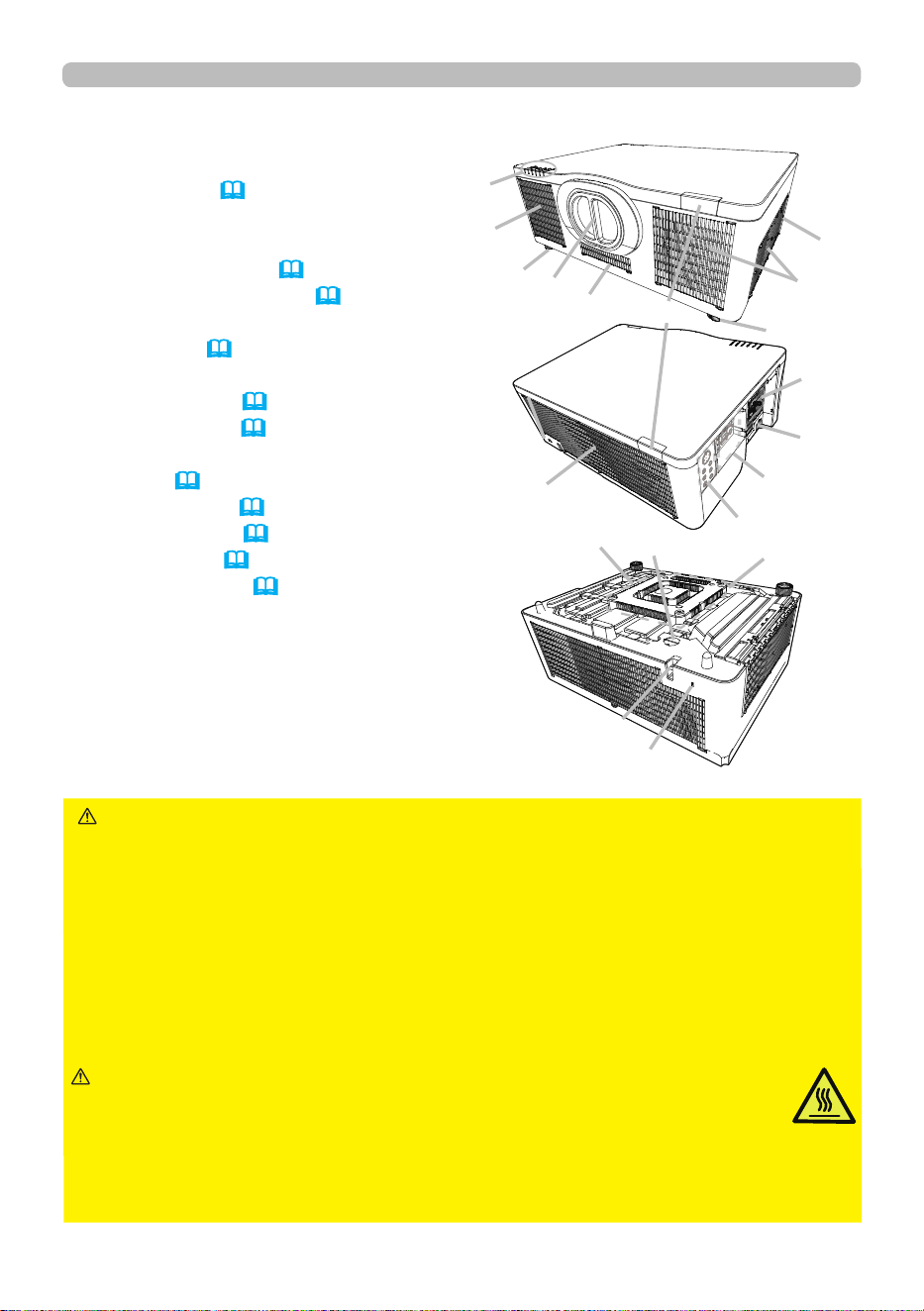
Projector
(1) Filter cover (
124)
The air lter and intake vent
are inside.
(2) Elevator feet (x2) (48)
(3) Remote sensors (x2) (41, 110)
(4) Lens hole cover
(5) Indicators (17)
(6) Intake vents
(7) Control panel (17)
(8) AC (AC inlet) (37)
(9) Exhaust vents
(10) Ports (18)
(11) Security bar (36)
(12) Security slot (36)
(13) Safety bar (36)
(14) Battery cover (126)
►Do not open or remove any portion of the projector, unless
the manuals direct it.
►Do not subject the projector to unstable conditions.
►
Do not apply a shock or pressure to this projector. Remove all the attachments
including the power cord and cables, from the projector when carrying the projector.
►Do not look into the lens and the openings on the projector while the light
source is on as the projection ray may cause a trouble on your eyes.
►Keep any object away from concentrated projection light beam. High
temperatures are generated when the light source is lit. Blocking the beam
causes high temperature and could result in re or smoke.
WARNING
►Do not approach or touch the lens or the ventilation
openings while using the projector or for a while after using it to prevent a
burn. Take care of ventilation.
►Do not place anything around the lens and ventilation openings of the projector.
►Do not attach anything onto the lens except the lens cover of this projector
because it could damage the lens, such as melting the lens.
CAUTION
(continued on next page)
(1)
(3)
(2)
(4)
(5)
(12)
(8)
(11)
(14)
(7)
(6)
(2)
(9)
(10)
(9)
(6)
(6)
(6)
(13)
17
QM00971-1
Control panel and Indicators
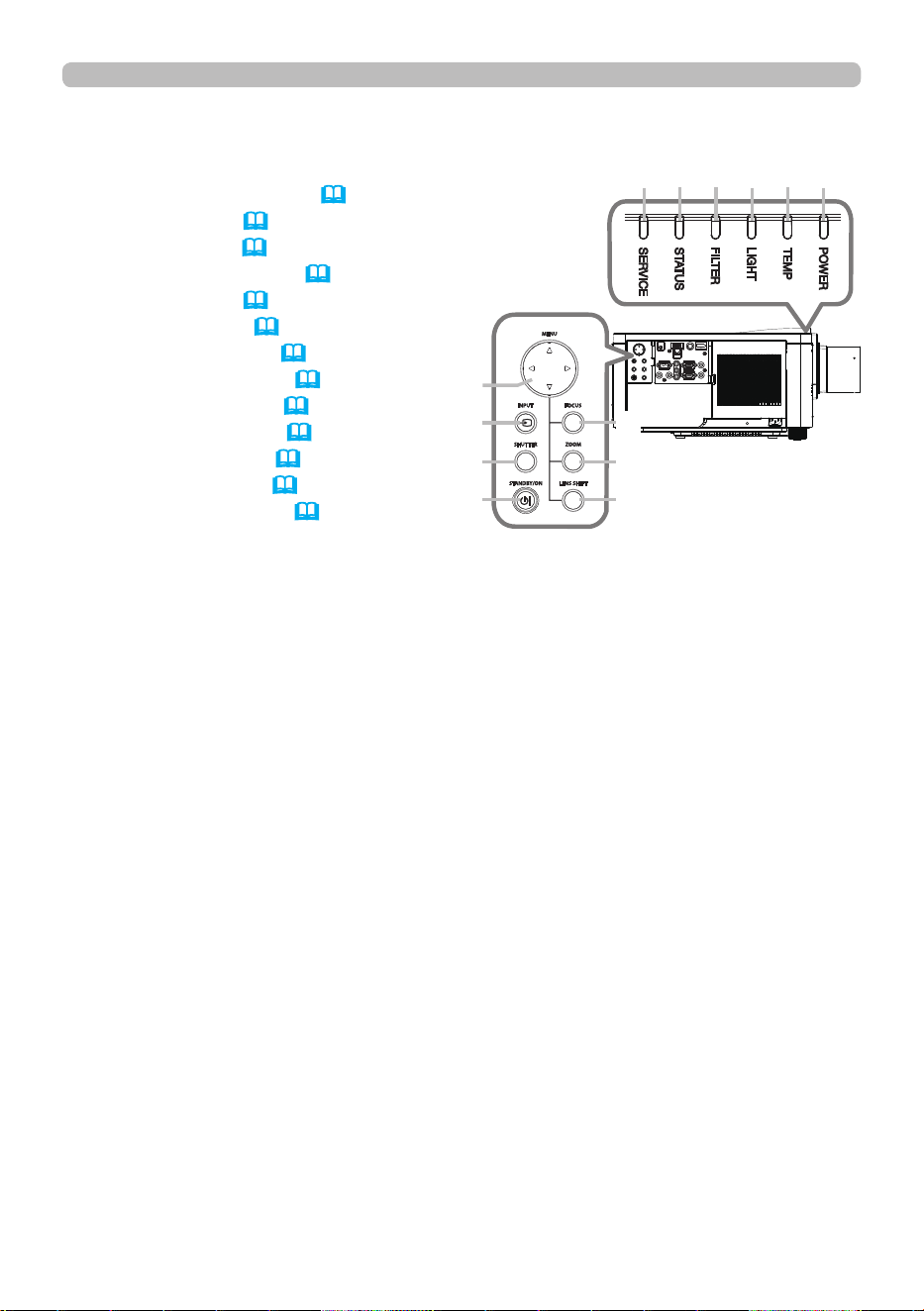
(1) STANDBY/ON button (
42)
(2) INPUT button (45, 65)
(3) MENU button (65)
(4) LENS SHIFT button (50)
(5) ZOOM button (49)
(6) FOCUS button (49)
(7) SHUTTER button (60)
(8) SERVICE indicator (134, 135)
(9) STATUS indicator (132 ~ 134)
(10) FILTER indicator (133)
(11) LIGHT indicator (134)
(12) TEMP indicator (134, 135)
(13) POWER indicator (42, 131 ~ 135)
Introduction
Part names (continued)
(continued on next page)
(3)
(2)
(7)
(1)
(8) (9) (10) (11) (12) (13)
(6)
(5)
(4)
18
QM00971-1
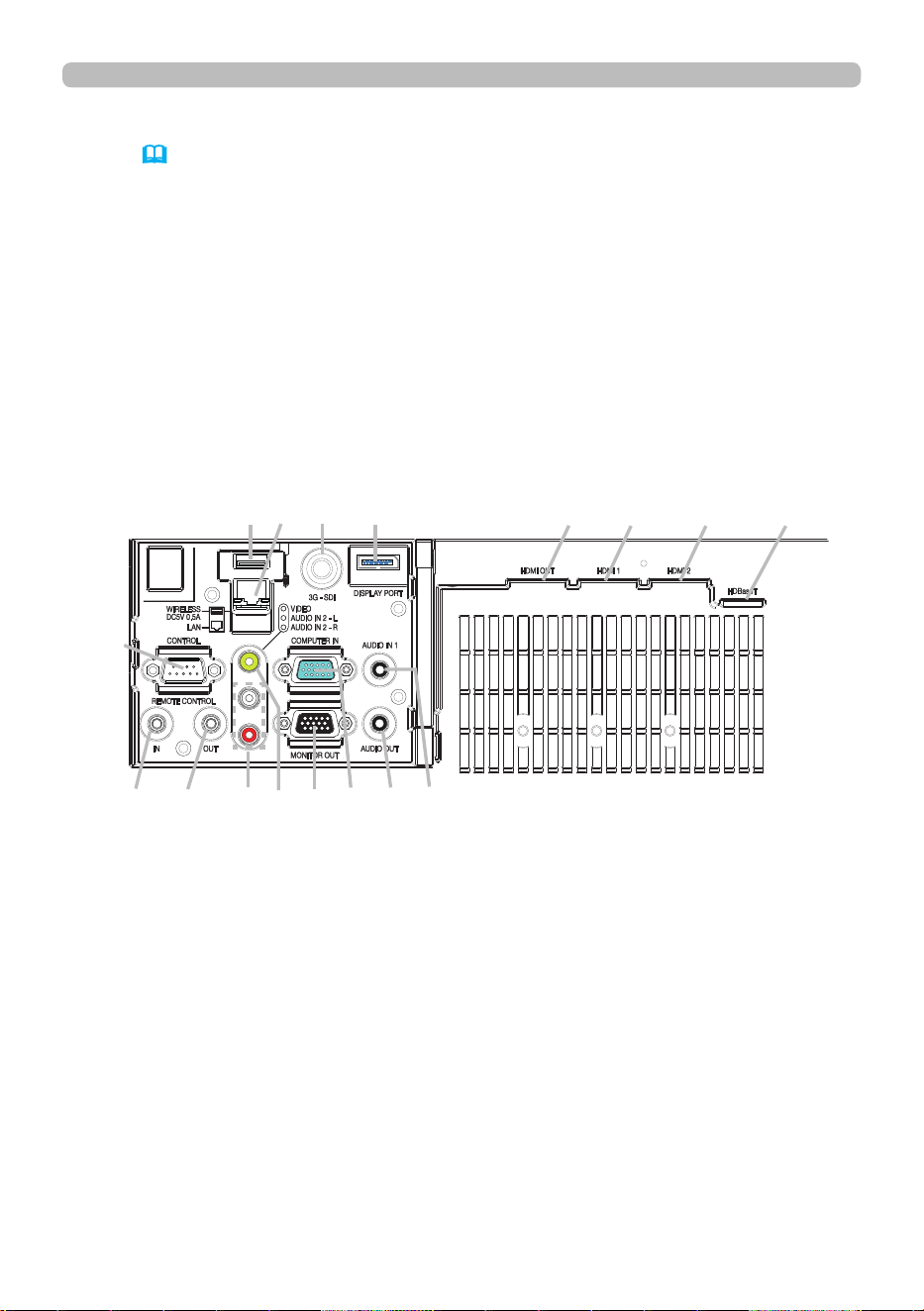
Ports (26 ~ 34)
(1) COMPUTER IN port
(2) HDBaseT port
(3) LAN port
(4) WIRELESS port
(5) HDMI 1 port
(6) HDMI 2 port
(7) DisplayPort port
(8) VIDEO port
(9) 3G-SDI port
(10) AUDIO IN1 port
(11) AUDIO IN2 (L, R) ports
(12) AUDIO OUT port
(13) MONITOR OUT port
(14) REMOTE CONTROL IN port
(15) REMOTE CONTROL OUT port
(16) CONTROL port
(17) HDMI OUT port
Introduction
Part names (continued)
(1)
(2)
(3)
(15)
(13)
(8)
(16)
(5) (6)
(7)
(10)
(11)
(12)
(14)
(9)
(4)
(17)
19
QM00971-1
Introduction
Part names (continued)
• When you press the button marked with *1, the input signal selection
menu is displayed.
• Any button marked with *2 is not supported on this projector (
130) .
• Each time you press any button (except ID buttons), the ID button of current
selected ID number lights (
40) .
NOTE
Remote control
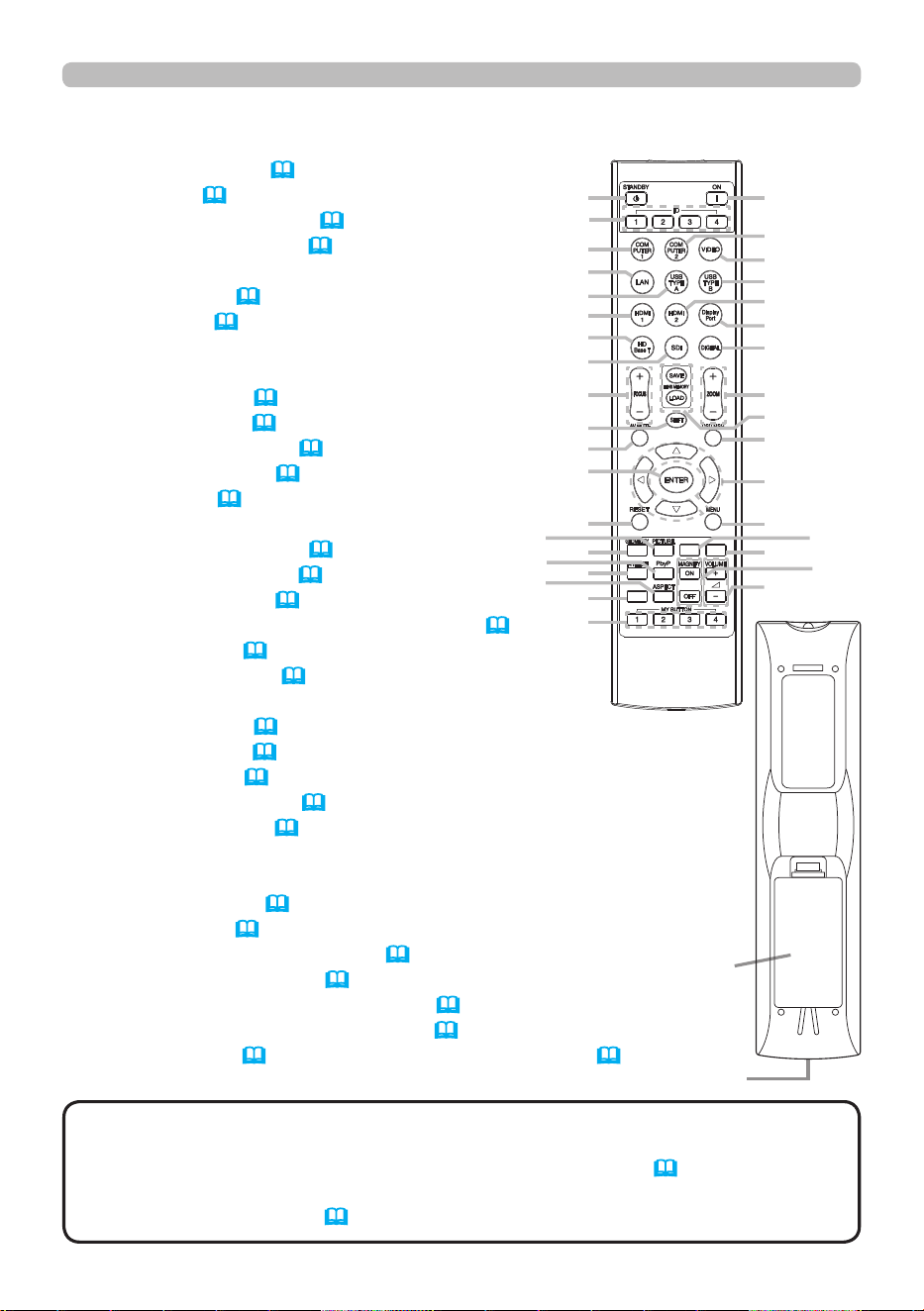
(1) STANDBY button (43)
(2) ON button (
42)
(3) ID - 1 / 2 / 3 / 4 buttons (
40)
(4) COMPUTER 1 button (
45)
(5) COMPUTER 2 button *1
(6) VIDEO button (
45)
(7) LAN button (
45)
(8) USB TYPE A button *1
(9) USB TYPE B button *1
(10) HDMI 1 button (
45)
(11) HDMI 2 button (
45)
(12) DisplayPort button (
45)
(13) HDBaseT button (
45)
(1 4) SDI button (
45)
(15) DIGITAL button *1
(16) FOCUS + / - buttons (
49)
(17) ZOOM + / - buttons (
49)
(18) AV MUTE button (
44)
(19) LENS MEMORY LOAD / SAVE buttons (
51)
(20) SHIFT button (
50)
(21) OSD MSG button (
47)
(22) ▲/▼/◄/►cursor buttons
(23) ENTER button (
65)
(24) RESET button (
65)
(25) MENU button (
65)
(26) GEOMETRY button (
52)
(27) PICTURE button (
71, 72)
(28) NETWORK button
(29) INTERACTIVE button *2
(30) FREEZE button (
60)
(31) PbyP button (
61)
(32) MAGNIFY ON / OFF buttons (
59)
(33) VOLUME + / - buttons (
44)
(34) INFO button (35) ASPECT button (
46)
(36) MY BUTTON - 1 / 2 / 3 / 4 buttons (
101, 102)
(37) Battery cover (
39) (38) Wired remote control port (33)
Back of
the remote control
(1)
(3)
(4)
(7)
(8)
(10)
(13)
(14)
(16)
(20)
(18)
(23)
(24)
(26)
(30)
(34)
(36)
(2)
(5)
(6)
(9)
(11)
(12)
(15)
(17)
(19)
(21)
(22)
(25)
(29)
(33)
(37)
INFO
NETWORK
INTERACTIVE
(27)
(28)
(38)
(31)
(32)
(35)
2 0
QM00971-1
Setting up
Setting up
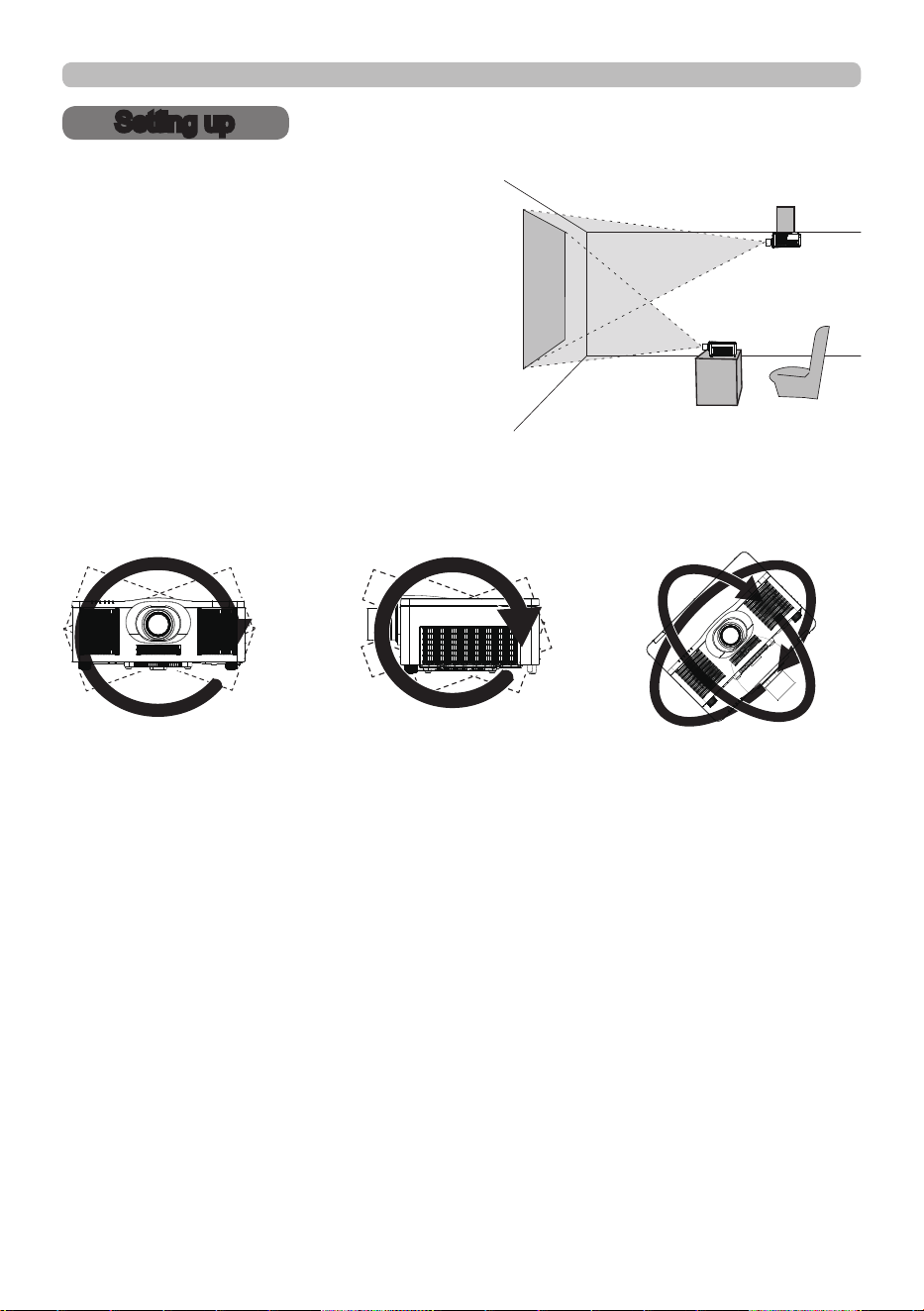
Install the projector according to the
environment and manner the projector will be
used in.
This projector will perform in a free tilt
angle, as shown in the gures below.
For the case of installation in a special
state such as ceiling mount, the specied
mounting accessories and service may be
required. Before installing the projector,
consult your dealer about your installation.
Tilt 360°
Horizontal 360° Vertical 360° (combination of
horizontal and vertical)
2 1
QM00971-1
Installing the lens unit
See the manual of the optional lens.
Setting up
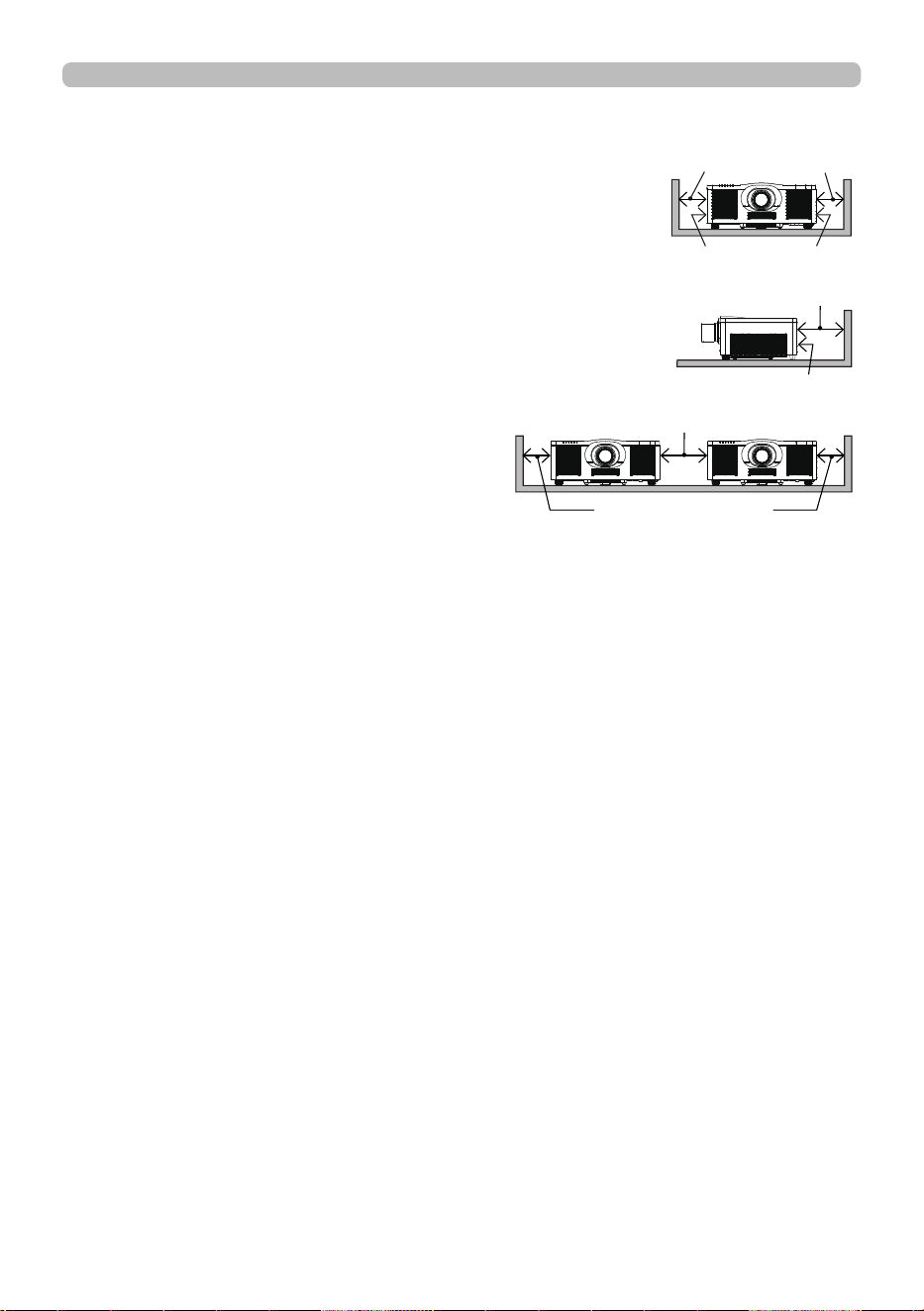
Secure a clearance of 25 cm or greater between the intake
vents of the projector and other objects such as walls.
There are intake vents on the left and right sides.
Secure a clearance of 15 cm or greater between the exhaust
vents of the projector and other objects such as walls.
There are exhaust vents on the back side.
When installing the projectors side by side, secure a
clearance of 50 cm or greater between both projectors.
Assume that there is enough clearance in
the front and top of the projector.
These also apply to the portrait mode
installation.
50 cm or greater
25 cm or greater
Intake vents
25 cm or greater
15 cm or greater
Exhaust vents
Setting up (continued)
2 2
QM00971-1
Setting up
Arrangement
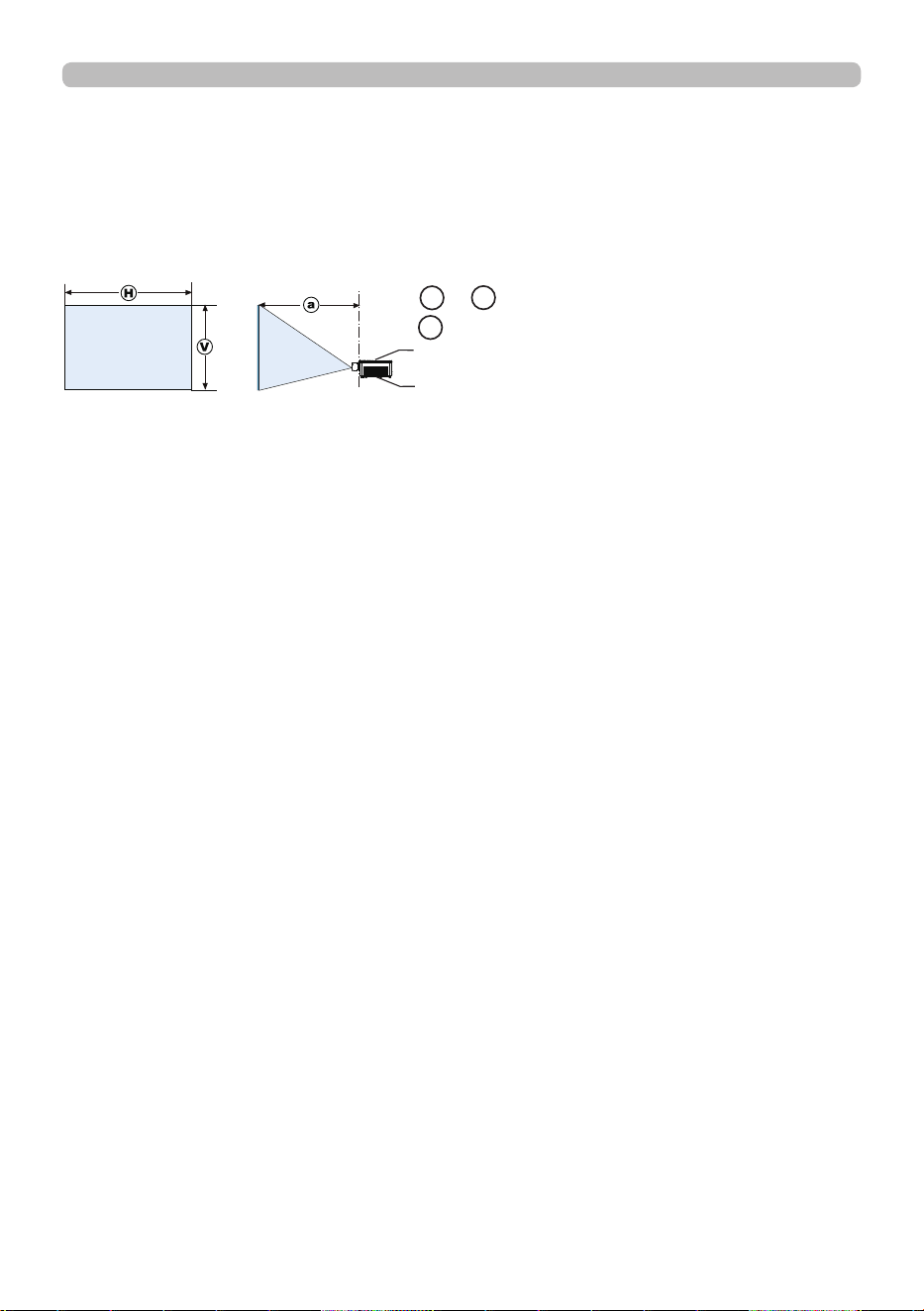
Refer to table T-2 at the back of User’s Manual (concise) as well as the following
to determine the screen size and projection distance. The values shown in the
table are calculated for a full size screen.
The values may be di erent slightly.
(continued on next page)
H x V : Screen size
a : Projection distance
Projector top
Projector bottom

2 3
QM00971-1
Setting up
Arrangement (continued)
WARNING
(continued on next page)
►Install the projector where you can access the power
outlet easily. If an abnormality should occur, unplug the projector immediately.
Otherwise it could cause a re or electric shock.
►Do not subject the projector to unstable conditions. If the projector falls
or topples over, it could result in injury or damage to the projector and the
surrounding things. Using a damaged projector could result in a re and an
electric shock.
• Do not place the projector in unstable places, such as an inclined surface,
places subject to vibration, on top of a wobbly table or cart, or a surface that is
smaller than the projector.
• Do not put the projector on its side, front or rear position.
• Do not attach nor place anything on the projector unless otherwise specied in
the manual.
• Do not use any mounting accessories except the accessories specied by the
manufacturer. Read and keep the manuals of the accessories used.
• For special installation such as ceiling mounting, be sure to consult your dealer
beforehand.
• You can install the projector for any direction with specied mounting
accessories. Consult with your dealer about such a special installation.
• Remove all the attachments including the power cord and cables, from the
projector when carrying the projector.
►Do not install the pro
jector near thermally conductive or ammable
things. Such things when heated by the projector could result in a re and burns.
• Do not place the projector on a metal stand.
► Do not place the projector in the following place where oils or chemicals
are used:
- near the kitchen which oil smoke comes from
- oils such as machine oils or aromatic oils are used
- smoke or bubbles for a show or a performance are used
- solvents, medicines, or detergent volatiles or adheres
- corrosive gas is generated
Do not use adhesive such as threadlocker, lubricant and so on.
• Oils adhere to the product due to oil smoke, resulting in re, electrical shock, or
malfunction.
• Degradation of plastic harms the product, resulting in injury, re, electrical
shock, or malfunction due to falling from the ceiling, wall, or high mounted
position.

2 4
QM00971-1
Setting up
Arrangement (continued)
►Place the projector in a cool place with sucient
ventilation. The projector may shutdown automatically or may malfunction if its
internal temperature is too high.
Using a damaged projector could result in a re and an electric shock.
• Do not place the projector in direct sunlight or near hot objects such as heaters.
• Do not place the projector where the air from an air conditioner or similar unit
directly blows on it.
• Do not place the projector on carpet, cushions or bedding.
• Do not stop up, block nor cover the projector's vent holes. Do not place
anything around the projector that could be sucked in or stuck to the projector's
intake vents.
• Do not place the projector at places that are exposed to magnetic elds, doing
so can cause the cooling fans inside the projector to malfunction. Manufacture
strongly recommends to avoid any magnetic contact that is not shielded or
protected on or near the projector itself.(i.e..,. Magnetic Security Devices, or
other projector accessory that contains magnetic material that has not been
provided by the manufacture etc.)
CAUTION
WARNING
►Do not place the projector in a place where it may get
wet. Getting the projector wet or inserting liquid into the projector could cause a
re and an electric shock, and damage the projector.
•
Do not place the projector near water, such as in a bathroom, kitchen, or poolside.
• Do not place the projector outdoors or by the window.
• Do not place anything containing liquid near the projector.
►Do not block the intake vents and exhaust vents of the projector. If the
intake vents and exhaust vents of the projector are blocked, the accumulated
inside heat may cause re.
(continued on next page)
2 5
QM00971-1
Setting up
Arrangement (continued)
►Do not place the product in smoky, humid or dusty
place. (e.g. smoking area, kitchen, beach and near humidiers.) Placing the
projector in such places could cause a re, an electric shock and malfunction of
the projector.
• Do not place the projector near humidiers. Especially for an ultrasonic
humidier, chlorine and minerals contained in tap water are atomized and could
be deposited in the projector causing image degradation or other problems.
• Do not place the projector in a smoking area, kitchen, passageway or by the
window.
• Position the projector to prevent light from directly hitting the
projector's remote sensor.
• Positional deviation or distortion of a projected image, or shift of the focus
may occur due to ambient conditions, and so on. They tend to occur until the
operation becomes stable, especially within about 30 minutes after the light
source is turned on. Check and readjust them as necessary.
• Do not place the projector in a place where radio interference may be caused.
Any interfering radiation could cause disordered image or noises. Avoid radio
generator such as a mobile telephone, transceiver, etc. around the projector.
• Keep heat-sensitive things away from the projector. Otherwise, they may be
damaged by the heat from the projector.
CAUTION
NOTICE
• When the ambient temperature is around 35 to 45°C, the brightness
of light source is reduced automatically.
NOTE

2 6
QM00971-1
Setting up
Connecting with your devices
Before connecting the projector to a device, consult the manual of the device to
conrm that the device is suitable for connecting with this projector and prepare
the required accessories, such as a cable in accord with the signal of the device.
Consult your dealer when the required accessory did not come with the projector
or the accessory is damaged.
After making sure that the projector and the devices are turned o, perform
the connection, according to the following instructions. Refer to the gures in
subsequent pages.
Before connecting the projector to a network system, read Network Guide too.
►Use only the appropriate accessories. Otherwise it could
cause a re or damage the projector and devices.
• Use only the accessories specied or recommended by the projector’s
manufacturer. It may be regulated under some standard.
• Neither disassemble nor modify the projector and the accessories.
• Do not use the damaged accessory. Be careful not to damage the accessories.
Do not place the projector or heavy objects on the power cord and cables.
Also, do not place a spread, cover, etc., over them because this could result
in the inadvertent placing of heavy objects on the concealed power cord or
cables. Route a cable so that it is neither stepped on nor pinched out.
• Do not place the cord near the heater or the exhaust vents of the projector.
• Do not pull the power cord and cables. When connecting and disconnecting the
power cord or cables, do it with your hand holding the plug or connector.
• Do not throw or drag the cables.
• Do not attempt to work on the power cord.
• Avoid bending the power cord sharply.
WARNING
►For a cable with a core at only one end, connect the end
with the core to the projector. Do not take the core of power cord away. That
may be required by EMI regulations.
CAUTION
(continued on next page)

2 7
QM00971-1
Setting up
• Plug-and-Play is a system composed of a computer, its operating system and
peripheral equipment (such as display devices). This projector is VESA DDC
2B compatible. Plug-and-Play can be used by connecting this projector to a
computer that is VESA DDC (display data channel) compatible.
- Take advantage of this feature by connecting a computer cable to the
COMPUTER IN port (DDC 2B compatible). Plug-and-Play may not work
properly if any other type of connection is attempted.
- Use the standard drivers in your computer as this projector is a Plug-and-Play
monitor.
• Do not turn on or o the projector while connected to a device in
operation, unless directed in the manual of the device. Otherwise it may cause
malfunction in the device or projector.
• The function of some input ports can be selected according to your
requirements.
• Be careful not to mistakenly connect a connector to a wrong port. Otherwise it
may cause malfunction in the device or projector.
- When connecting a connector to a port, make sure that the shape of the
connector ts the port.
- Tighten the screws to connect a connector equipped with screws to a port.
- Use the cables with straight plugs, not L-shaped ones, as the input ports of
the projector are recessed.
About Plug-and-Play capability
NOTE
Connecting with your devices (continued)
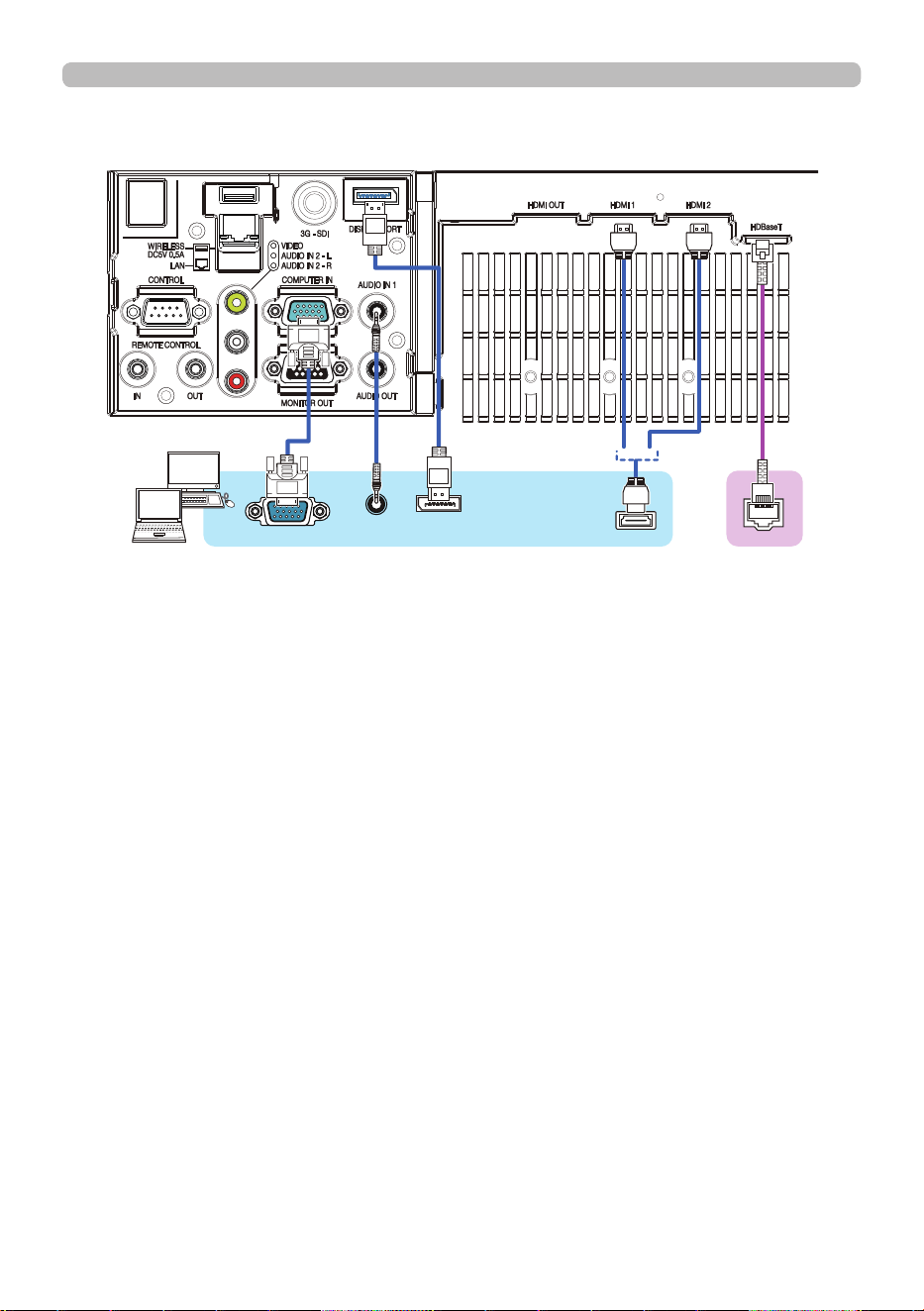
2 8
QM00971-1
Setting up
Connecting with your devices (continued)
(continued on next page)
Computer
RGB OUT
AUDIO
OUT
DISPLAY
PORT
HDMI
TM
HDBaseT
TM

2 9
QM00971-1
• Before connecting the projector to a computer, consult the computer’s
manual and check the compatibility of the signal level, the synchronization
methods and the display resolution output to the projector.
- Depending on the input signal, an adapter may be required or the projector
may not display the images correctly.
- Some computers have multiple screen display modes that may include some
signals which are not supported by this projector.
- Although the projector can display signals with a resolution up to 4K
(4096x2160), the signal is converted to the projector’s panel resolution before
being displayed. The best display performance is achieved if the resolutions
of the input signal and the projector panel are identical.
• If you connect this projector and a notebook computer, you must output the
display to an external monitor, or output simultaneously to the internal display
and an external monitor. Consult the computer's manual for the setting.
• Depending on the input signal, the automatic adjustment function of this
projector may take some time and not function correctly.
- Depending on the display mode of the computer and the type of signal (such
as signal format, resolution, and frequency), the projector may not display the
images.
- If the automatic adjustment function does not work correctly, you may not see
the dialog to set the display resolution. In such a case, use an external display
device. You may see the dialog and set an appropriate display resolution.
• Use DisplayPort cables conforming to the DisplayPort standard.
• Use of DisplayPort cables not conforming to the DisplayPort standard may
cause abnormal operations such as images with interruption or not displayed.
• When the projector is connected to the output of the computer with an early
type of chipset or graphics card that supports the DisplayPort, the projector
and/or computer may not operate normally. In that case, turn o the projector
and/or computer, then turn on again.
•
When connecting the output of the DisplayPort to the input of the projector,
use of the computer with the newest chipset or graphics card is recommended.
• Commercially available DisplayPort cables may have a lock system. When
unplugging the cable, push the button on the connector of the cable.
• Some computers may take a long time to display the image.
• Power supply is available to the connected device with the input port of
DisplayPort. However, it is not available to the computer.
• When the signal from the device with a signal converting adapter is connected
to the input port of DisplayPort, the image may not be displayed.
• Use a commercially available converter when connecting the output port of
HDMI of the computer with the input port of DisplayPort of the projector.
NOTE
(continued on next page)
Setting up
Connecting with your devices (continued)
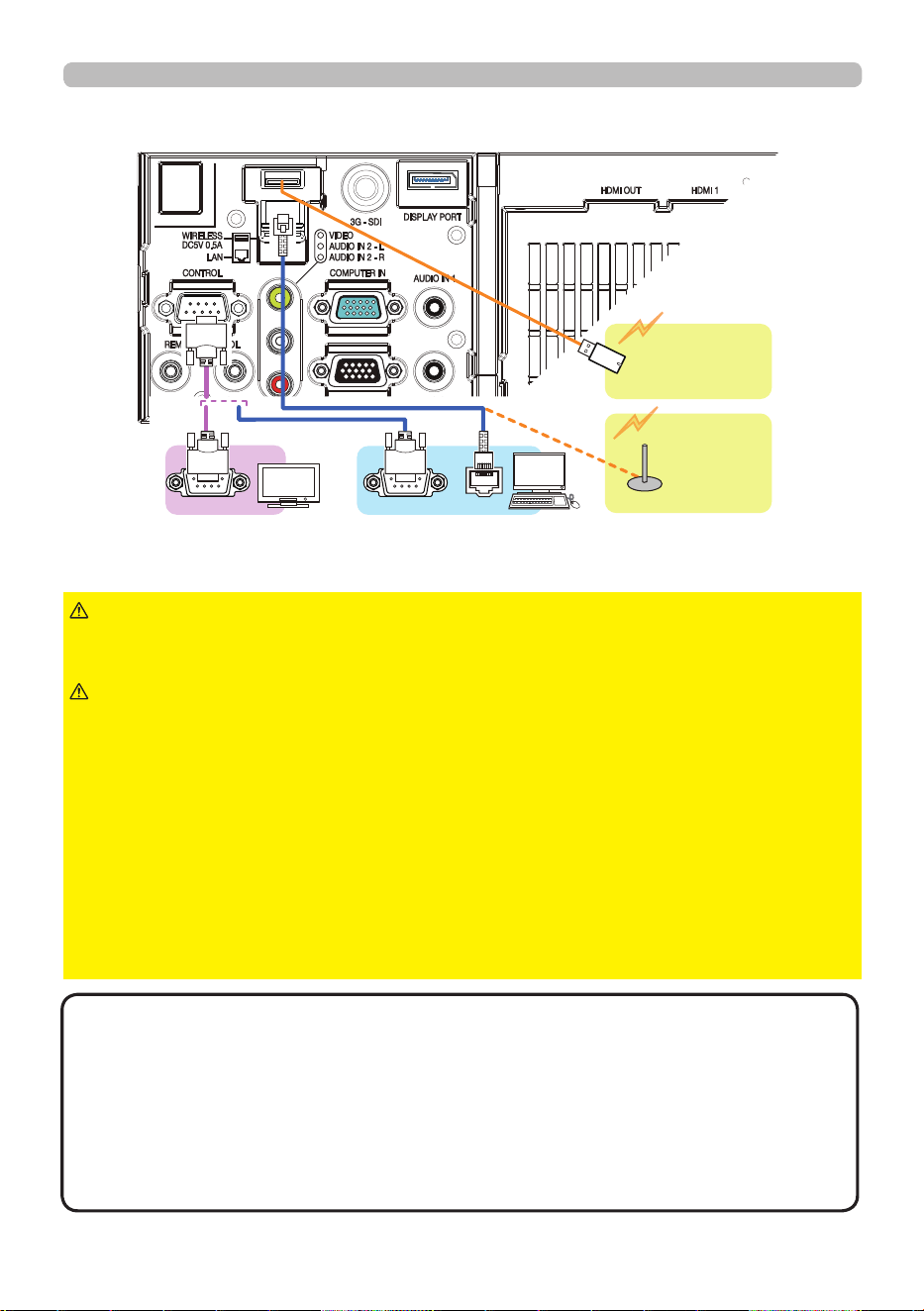
3 0
QM00971-1
► Before connecting the projector to a network system, obtain
the consent of the administrator of the network.
►
Do not connect the LAN port to any network that might have the excessive voltage.
►
The designated USB wireless adapter sold as an option is required to use the
wireless network function of this projector. Before connecting the USB wireless
adapter, turn o the power of the projector and disconnect the power cord. Do not
use any extension cable or device when connecting the adapter to the projector.
►To connect both the LAN cable and USB wireless adapter to the projector, use
a LAN cable that is at on the side where the plug’s wire is visible. Otherwise,
both of them cannot be connected correctly, or the wire may break (malfunction).
• If an oversized USB storage device blocks the LAN port, use a USB extension
cable to connect the USB storage device.
CAUTION
►Heat may build up in the USB wireless adapter, to avoid
possible burns disconnect the projector power cord for 10 minutes before
touching the adapter.
WARNING
(continued on next page)
Setting up
Connecting with your devices (continued)
Computer
External
device
RS-232C RS-232C
LAN
USB wireless
adapter
(optional)
Access
point
• HDBaseT is a technology to transmit image, sound, ethernet or serial control
signal using a LAN cable.
• LAN or HDBaseT input port can be selected as ethernet signal input by
switching in the menu.
• Use LAN cables of up to 100m long. Up to 70m long for 4K signal. Exceeding
this length, the image and sounds are deteriorated, and even experience
malfunction on LAN transmission.
About HDBaseT™ connection
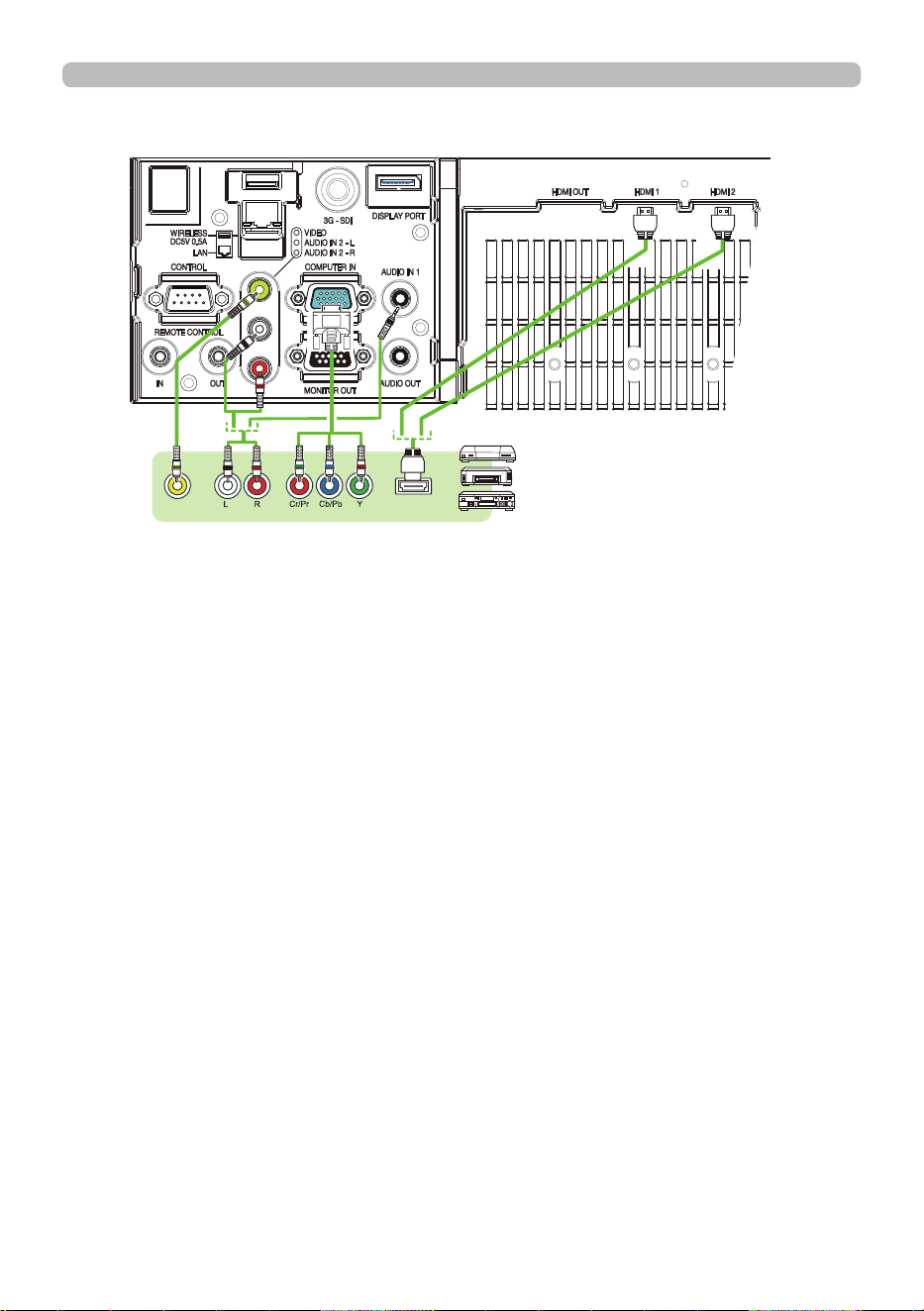
3 1
QM00971-1
Setting up
Connecting with your devices (continued)
(continued on next page)
VIDEO
AUDIO OUT COMPONENT
HDMI
TM
VCR/DVD/
Blu-ray Disc
TM
player

3 2
QM00971-1
(continued on next page)
Setting up
Connecting with your devices (continued)
• The HDMI ports of this model are compatible with HDCP (High-band-
width Digital Content Protection) and therefore capable of displaying video
signals from HDCP compatible DVD players or the like.
- The HDMI ports support the following signals:
Video signal : See the Operating Guide - technical for details.
Audio signal : Format Linear PCM
Sampling frequency 48kHz / 44.1kHz / 32kHz
Computer signal : See the Operating Guide - technical for details.
- This projector can be connected with another equipment that has HDMI
TM
connector, but with some equipment the projector may not work properly,
something like no video.
- Qualied cable is required for HDBaseT connection.
- Use an HDMI
TM
cable that has the HDMI
TM
logo.
- Use a Category 2-certied HDMI
TM
cable to input 1080p@50/60 signal to the
projector.
- When the projector is connected with a device having DVI connector, use a
DVI to HDMI
TM
cable to connect with the HDMI
TM
input.
• The HDMI
TM
cables might come o due to the lack of a mechanical lock on
the cables and connectors.
• This projector has HDMI input/output ports and can be connected to multiple
devices such as projectors or monitors with HDMI cable.
• The projected image is output when HDMI 1 or HDBaseT is selected.
• The resolution of the signal input to the projector and signal output from the
projector may be restricted by the maximum resolution of the connected device
such as projector or monitor.
• HDMI output operation in normal standby depends on the setting of the menu
(90). It is not output when standby mode is NETWORK(WOL) or SAVING.
• When outputting HDMI signal, turn on the output side connected device
before inputting image signal to the projector.
• Up to 4 devices can be connected in series for HDMI output port of this
projector.
• The number of devices that can be connected varies depending on HDCP
version, the restriction of the number of devices for HDCP repetition of source
device, and the quality of a cable.
• The projected image from the projector may be interrupted when POWER
OFF/ON, input switching, or HDMI cable removal/insertion is executed on the
second or subsequent projector or monitor.
• HDMI output may be interrupted when the projector is turned on/o.
NOTE
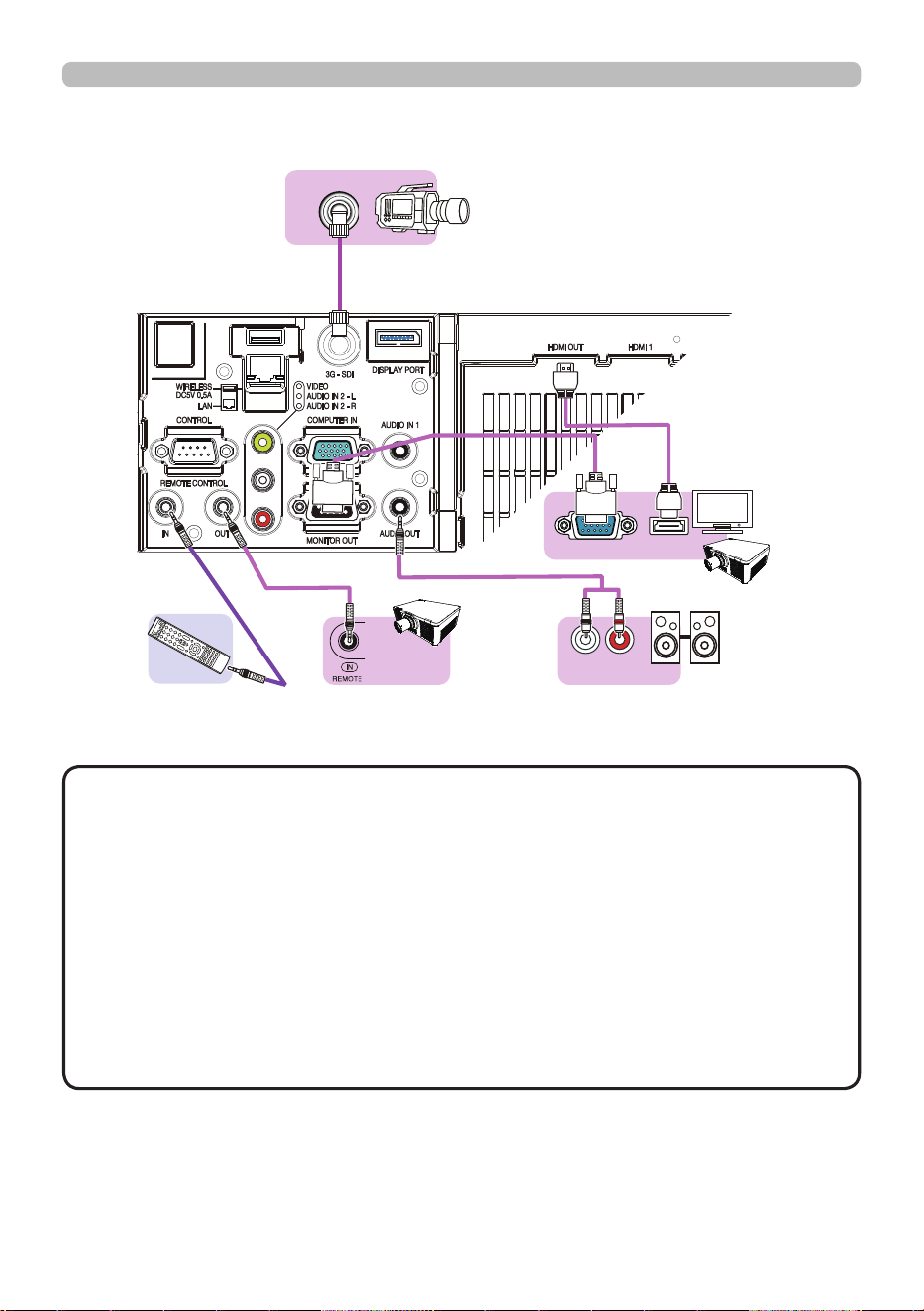
3 3
QM00971-1
Setting up
Connecting with your devices (continued)
(continued on next page)
RGB IN
HDMI
TM
3G-SDI OUT
Speakers
(with an ampli er)
(Wired) Remote
control
Monitor
Another
projector
• To use a wired remote control, connect a wired remote control to the
REMOTE CONTROL IN port. You can also connect another projector to the
REMOTE CONTROL OUT port to control it from the wired remote control. You
can use this projector as a remote control-relay with the REMOTE CONTROL
IN and OUT ports. To connect the wired remote control or another projector
to the REMOTE CONTROL IN or OUT ports, use audio cables with 3.5 mm
diameter stereo mini plugs. This function is useful when a wireless remote
signal may not reliably reach the projector.
• The signal received in a remote sensor and the remote control signal input
from HDBaseT
TM
are also output from REMOTE CONTROL OUT.
• The projector may not be operated correctly if they are operated from multiple
remote controls at the same time.
NOTE
Camera for
commercial use

3 4
QM00971-1
Setting up
Connecting with your devices (continued)
• The 3G-SDI port of this model supports the following SDI signals:
SD-SDI signal: conforming to SMPTE ST 259-C standard
YCBCR 4:2:2 10-bit
480i, 576i
Single link HD-SDI signal: conforming to SMPTE ST 292 standard
YPBPR 4:2:2 10-bit
720p@50/60, 1080i@50/60, 1080sf@25/30
3G-SDI Level-A signal: conforming to SMPTE ST 424 standard
YPBPR 4:2:2 10-bit
1080p@50/60
- This projector can be connected with other equipment that has SDI connector,
but with some equipment the projector may not work properly.
- Use a cable of 5CFB or greater (5CFB, 7CFB, and so on), or Belden 1694A or
greater to transmit the image properly. Use a cable with a length of 100m or
less.
- Setting by MENU is necessary depending on a connected device.
NOTE
3 5
QM00971-1
Setting up
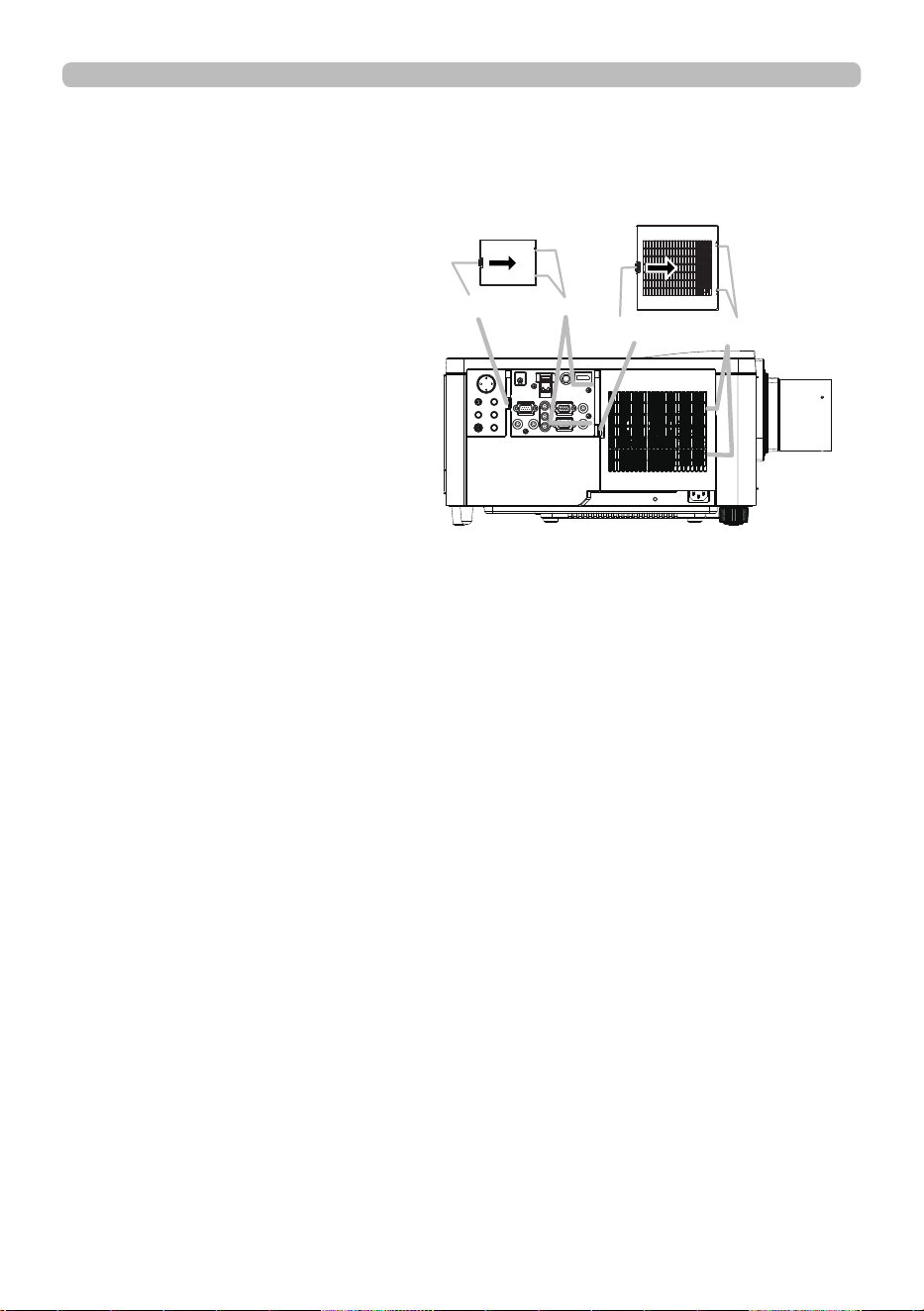
Attaching the terminal covers
Two types of terminal covers for the ports side of the projector are available.
The smaller one is the cover for the left part. The larger one is the cover for the
right part.
To attach the terminal cover, insert
the two claws of the cover into the
hole on the projector and fasten the
cover with the hook.
To detach the terminal cover, while
pushing lightly the hook in the
direction of arrow in the gure, pull it
toward you.
Hook
Claws
Hook
Claws
Ports side
3 6
QM00971-1
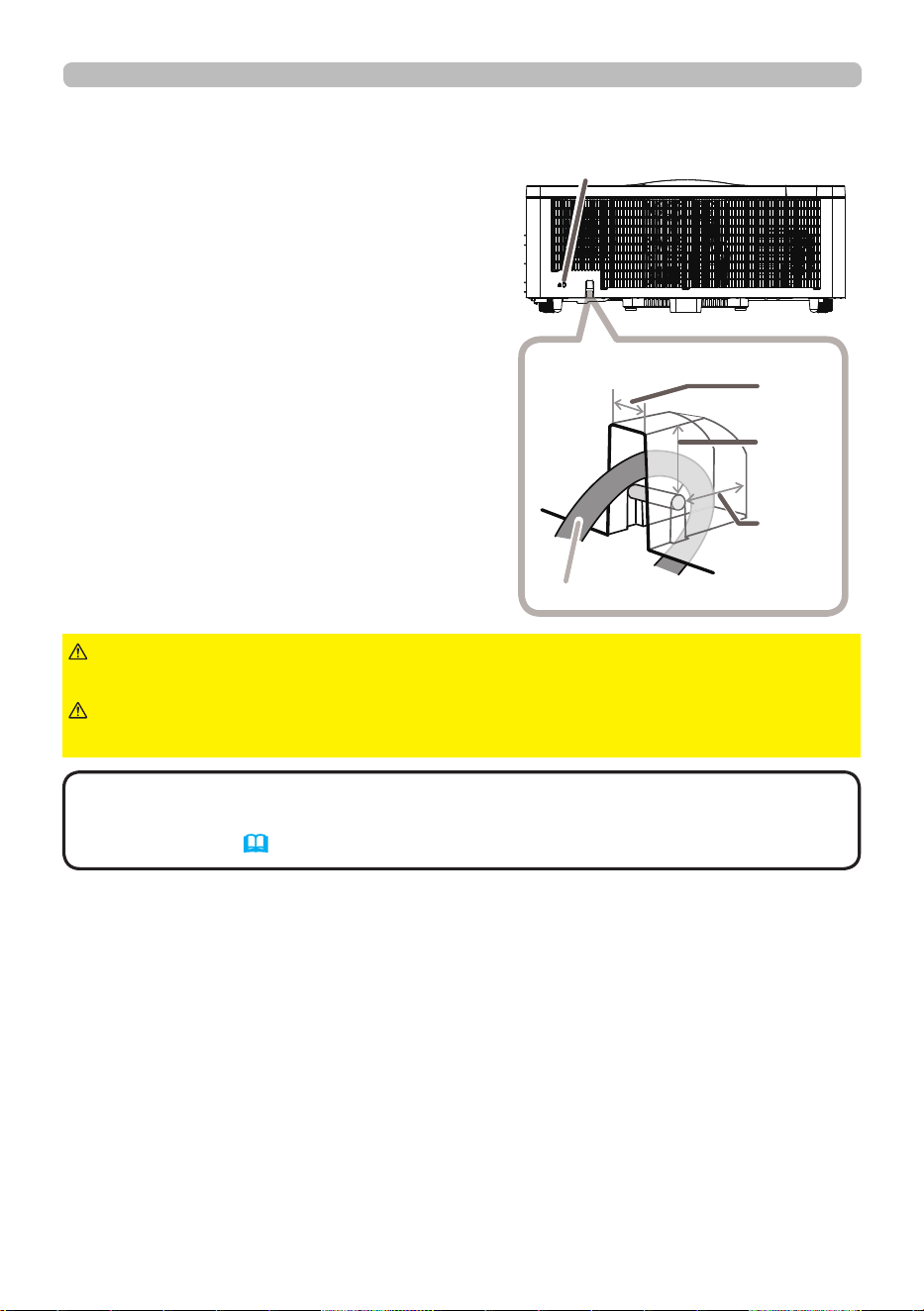
Using the security bar and slot
A commercially available anti-theft chain or
wire can be attached to the security bar on
the projector. Refer to the gure to choose
an anti-theft chain or wire.
This projector has the security slot for the
Kensington lock.
For details, see the manual of the security
tool.
►Do not use the security bars and slot to prevent the projector
from falling down, as it is not designed for it.
►Do not place anti-theft chain or wire near the exhaust vents.
It may become too hot.
WARNING
CAUTION
• The security bar and slot is not comprehensive theft prevention
measures. It is intended to be used as supplemental theft prevention measure.
• The safety bar (16) can be used for the same purpose as the security bar.
NOTE
Setting up
11 mm
19 mm
15 mm
Security bar
Security slot
Anti-theft chain or wire
Back side
3 7
QM00971-1
Setting up
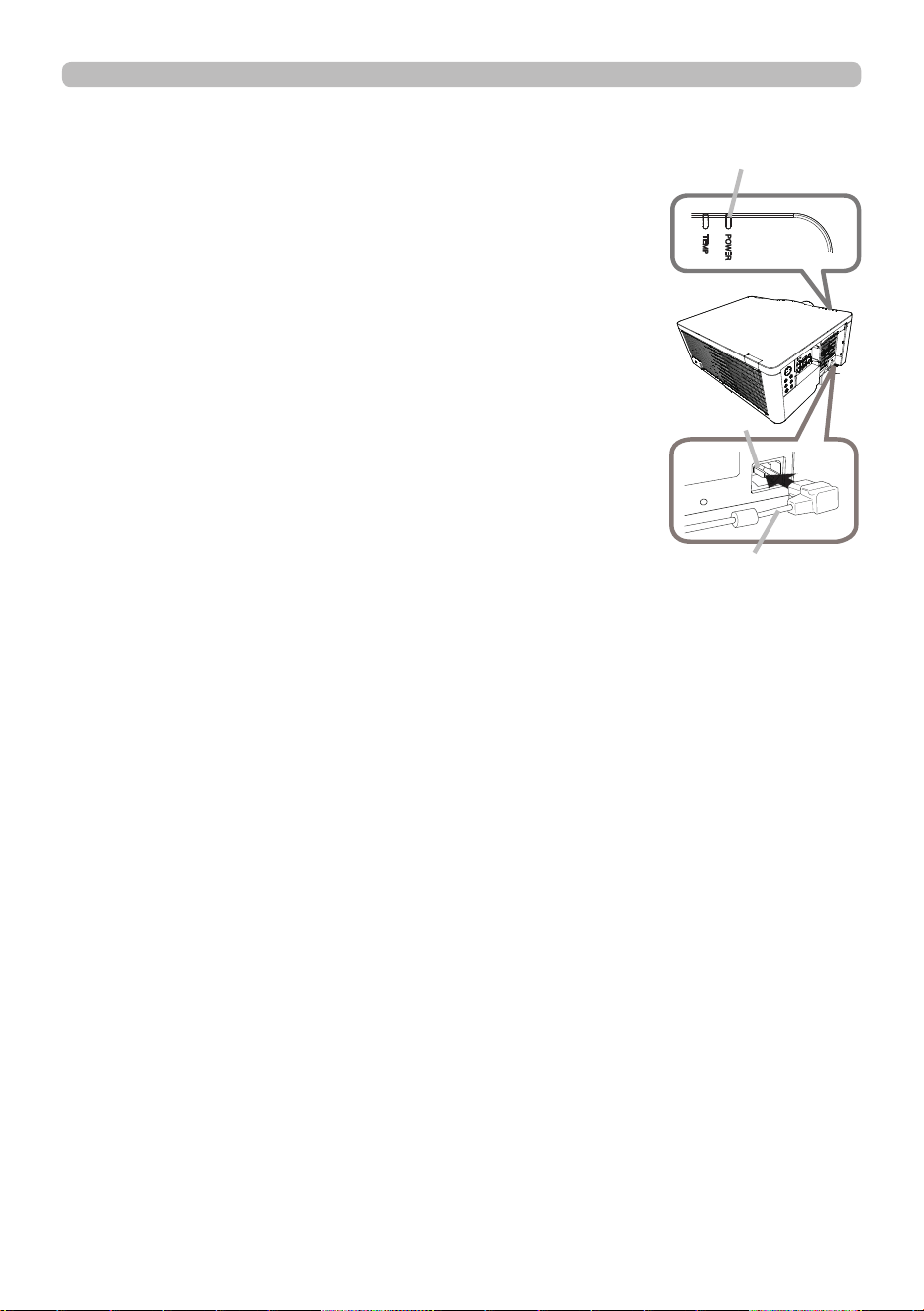
Connecting to a power supply
1.
Put the connector of the power cord into the AC
(AC inlet) of the product.
2.
Firmly plug the power cord’s plug into the outlet. In a
couple of seconds after the power supply connection,
the POWER indicator lights up in steady orange. When the
DIRECT POWER ON function activated, the connection of
the power supply makes the projector turn on.
When the AUTO POWER ON function is activated and
the projector is receiving an input signal, it is turned on by
connecting to the power supply.
AC
POWER indicator
Power cord
(continued on next page)

3 8
QM00971-1
Setting up
Connecting to a power supply (continued)
►Do not connect the projector to a power supply while no lens
unit is attached to it.
►Use extra caution when connecting the power cord, as incorrect or faulty
connections may result in re and/or electrical shock.
• Do not touch the power cord with a wet hand.
• Only use the power cord that came with the projector. If it is damaged, consult
your dealer to get a new one. Never modify the power cord. The power cord that
came with the projector is only for this projector. Do not use it for other devices.
• Only plug the power cord into an outlet whose voltage is matched to the power
cord. The power outlet should be close to the projector and easily accessible.
Remove the power cord for complete separation.
• Do not distribute the power supply to multiple devices. It may overload the
outlet and connectors or loosen the connection. A loose connection in the plug
could result in burns or accidents due to heat generation of the plug.
• Do not place the projector or heavy objects on the power cord and cables.
• Connect the ground terminal for the AC inlet of this unit to the ground terminal
of the building using an appropriate power cord (bundled).
• Do not use the power cord remaining tied together. It could result in high
temperature, re and smoke.
• This projector is also designed for IT power systems with a phase-
to-phase voltage of 220 to 240 V.
WARNING
NOTICE
3 9
QM00971-1
Remote control
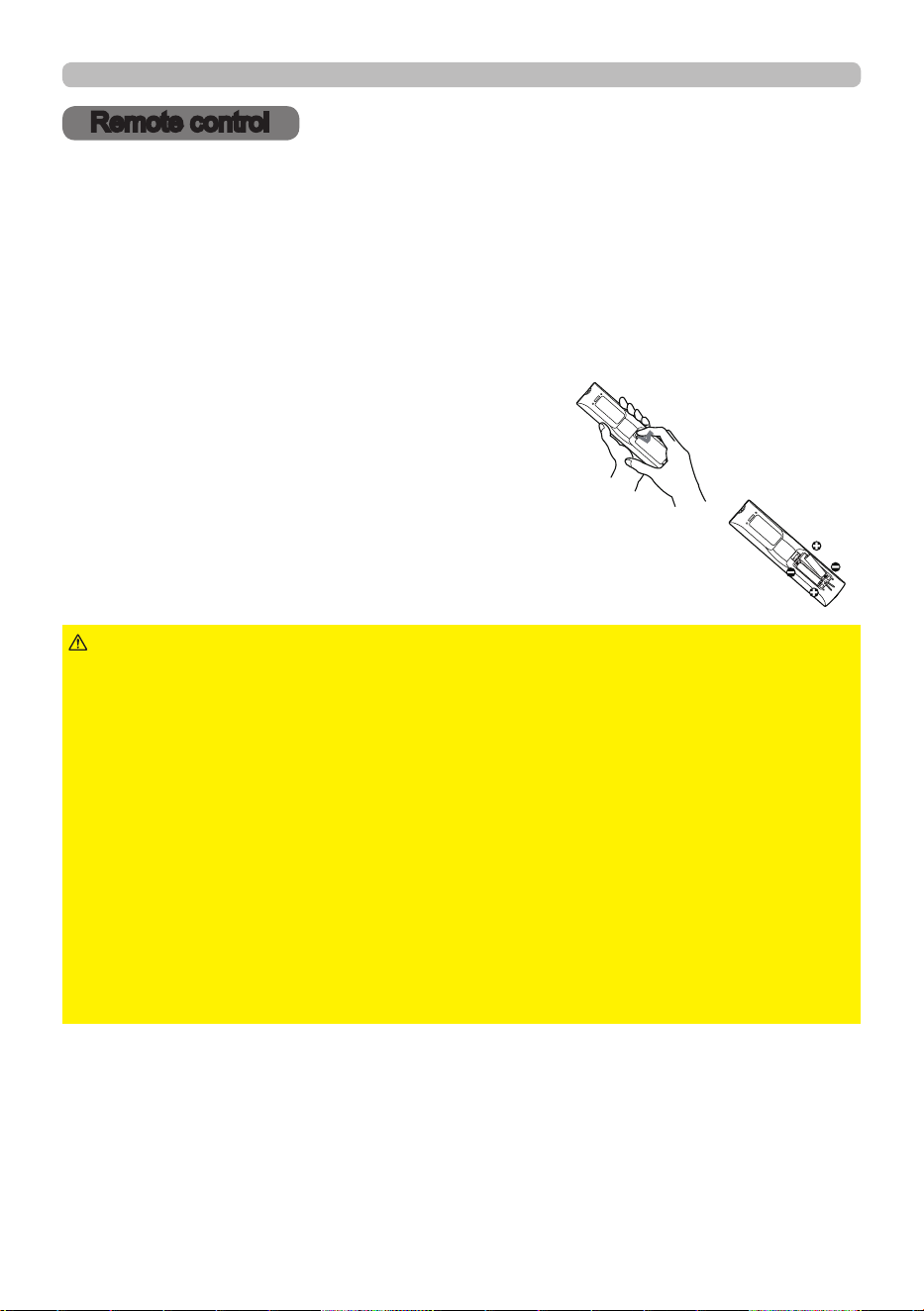
Installing the batteries
Insert the batteries into the remote control before using it.
Use the appropriate AA carbon-zinc or alkaline batteries (non-rechargeable) in
accordance with laws and regulations.
If the remote control starts to malfunction, try to replace the batteries. If you will
not use the remote control for long period, remove the batteries from the remote
control and store them in a safe place.
1.
Remove the battery cover.
2.
Align and insert the two AA batteries
according to their plus and minus terminals
as indicated in the remote control.
3.
Put the battery cover back to the former state.
►Always handle the batteries with care and use them only as
directed. Improper use may result in battery explosion, cracking or leakage, which
could result in re, injury and/or pollution of the surrounding environment.
• Be sure to use only the batteries specied. Do not use batteries of dierent types at
the same time. Do not mix a new battery with used one.
• Make sure the plus and minus terminals are correctly aligned when loading a battery.
• Keep a battery away from children and pets. If you think batteries might have been
swallowed or placed inside any part of the body, seek immediate medical attention.
• Do not recharge, short circuit, solder or disassemble a battery. Do not use any metal
tools.
• Do not place a battery in a re or water. Avoid re or high-temperature environment.
Keep batteries in a dark, cool and dry place.
• If you observe battery leakage, wipe out the leakage and then replace a battery.
If the leakage adheres to your body or clothes, rinse well with water immediately.
• Obey the local laws on disposing the battery.
WARNING
Remote control
4 0
QM00971-1
Remote control
Changing the frequency of remote control signal
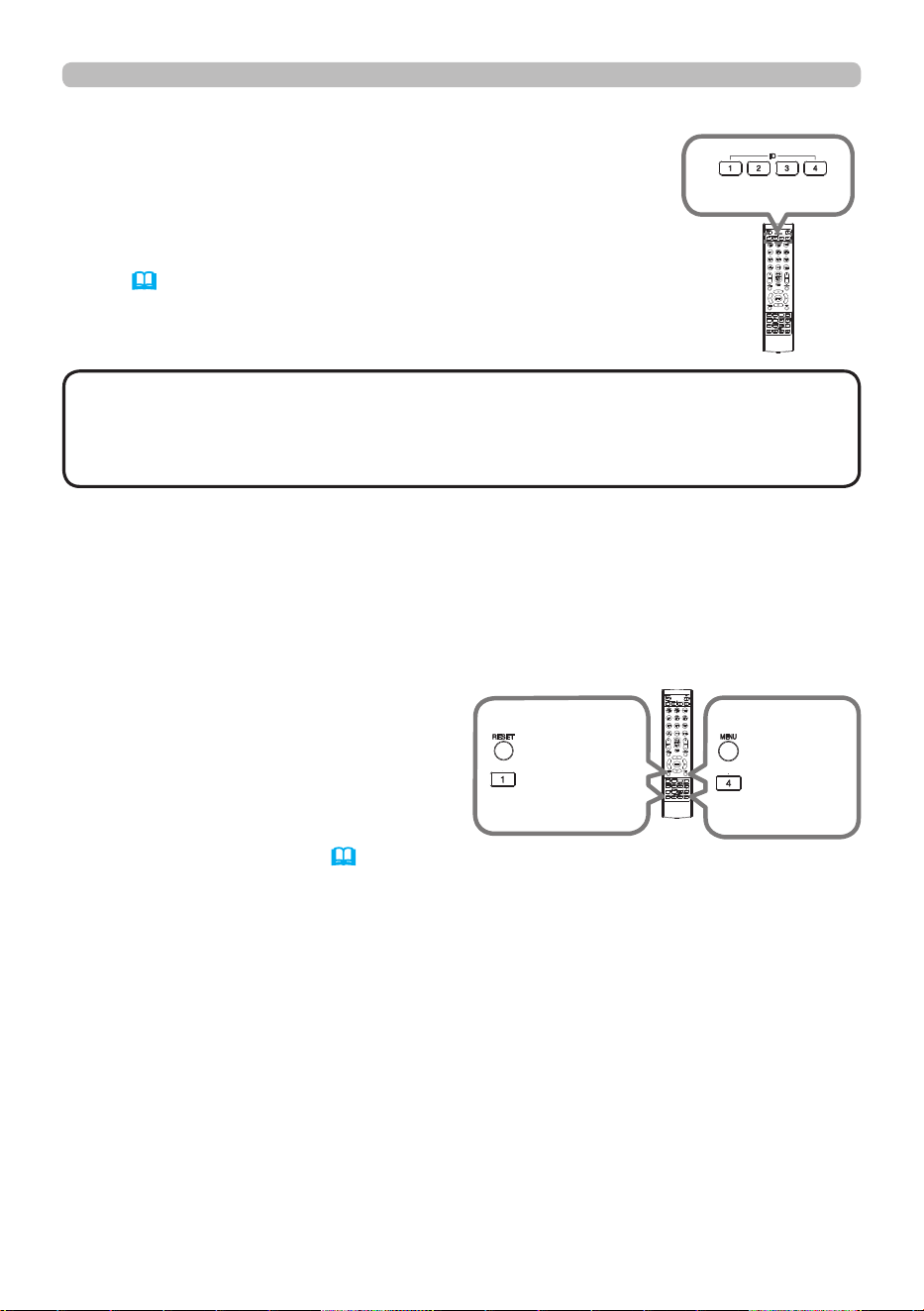
The accessory remote control has the two choices on signal frequency Mode
1:NORMAL and Mode 2:HIGH. If the remote control does not function properly,
attempt to change the signal frequency.
To set the Mode, press the combination of two buttons listed below simultaneously
for about three seconds.
(1) Set to Mode 1:NORMAL
MENU and MY BUTTON-4 buttons
(2) Set to Mode 2:HIGH
RESET and MY BUTTON-1 buttons
The REMOTE FREQ. in the SERVICE
item of the OPTION menu
(
110)
of the projector to be controlled should be set
to the same mode as the remote control.
INFO
NETWORK
INTERACTIVE
(1)
MY
BUTTON-4
button
MENU
button
(2)
MY
BUTTON-1
button
RESET
button
Using the REMOTE ID function
Use this function to control specic projectors by the remote
control assigned the same ID number when you use multiple
projectors of the same type at the same time.
Assign an ID number to each projector before using the
REMOTE ID item in the SERVICE menu of the OPTION
menu (110). Press the ID button with the same ID number
as assigned to the projector you are going to control. The ID
button selected lights for several seconds.
• Each time you press any button (except ID buttons), the ID button of
current selected ID number lights.
• To conrm the projector's current ID, press any ID button for three seconds.
Its number is shown on each screen regardless of set ID of projector.
NOTE
INFO
NETWORK
INTERACTIVE
ID buttons
INFO
NETWORK
INTERACTIVE
4 1
QM00971-1
3 0°
3 0°
3 m
3 0°
3 0°
3 0°
3 0°
3 0°
3 0°
3 0°
3 0°
3 m
(approx.)
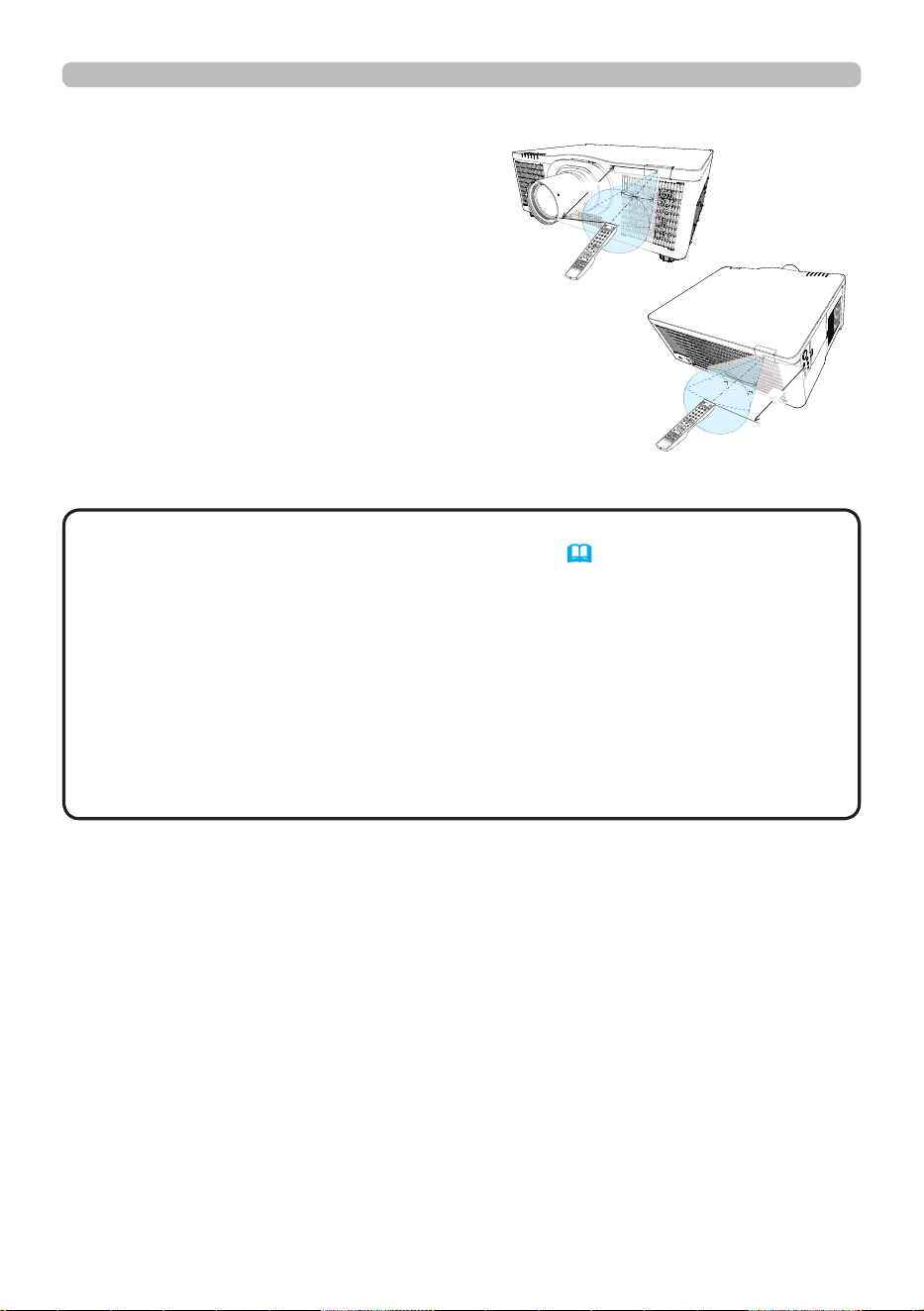
About the remote control signal
The remote control works with
the projector’s remote sensor.
This projector has two remote
sensors on the front and back
sides.
The sensors can sense signals
within the following range:
60 degrees (30 degrees to the
left and right of the sensor)
within about 3 meters.
• You can deactivate one of the sensors using the REMOTE RECEIV.
item in the SERVICE menu of the OPTION menu (110).
• The remote control signal re ected in the screen may be available. If it is
di cult to send the signal to the sensor directly, try to make the signal re ect.
• The remote control uses infrared light to send signals to the projector (Class
1 LED). Use the remote control in an area free from obstacles that could block
the remote control’s signal to the projector.
• The remote control may not work correctly if strong light (such as direct
sun light) or light from an extremely close range (such as from an inverter
uorescent lamp) shines on the remote sensor of the projector. Adjust the
position of projector avoiding those lights.
NOTE
Remote control
4 2
QM00971-1
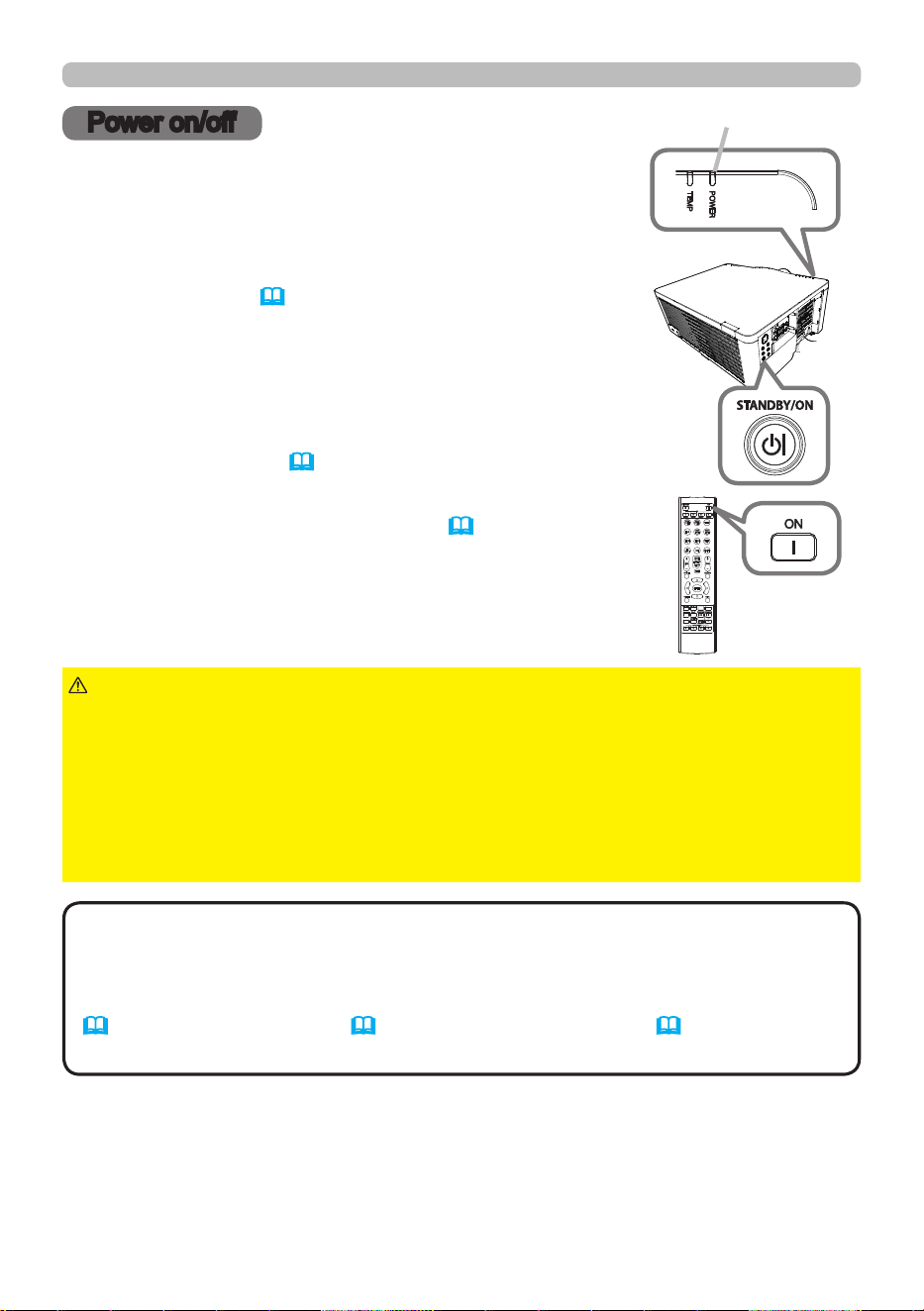
1.
Make sure that the power cord is rmly and correctly
connected to the projector and the outlet.
Turning on the power
2.
Make sure that the POWER indicator is lighted in
steady orange (131). Then remove the lens cover.
3.
Press STANDBY/ON button on the projector
or the ON button on the remote control.
The projection light source lights up and the POWER
indicator begins blinking in green. When the power is
completely on, the indicator stops blinking and light
in a steady green (131).
Power on/o
To display the picture, select an input signal according to
the section Selecting an input signal (45).
Power on/off
POWER indicator
INFO
NETWORK
INTERACTIVE
►A strong light is emitted when the projector’s power is on.
Do not look into the lens of the projector or look inside of the projector through
any of the projector’s openings since the projection ray may cause a trouble on
your eyes.
►Keep any object away from concentrated projection light beam. Blocking the
beam by something causes high temperature and could result in re or smoke.
►Do not touch around the exhaust vents during use or just after use, since it is
too hot.
WARNING
• Please power on the projector prior to the connected devices. Do not
turn on or o the projector while connected to a device in operation, unless that
is directed in the manual of the device.
•
This projector can automatically turn on/o. Refer to the DIRECT POWER ON
(99), AUTO POWER ON (99)
and AUTO POWER OFF
(100)
items of the
OPTION menu.
NOTE
4 3
QM00971-1
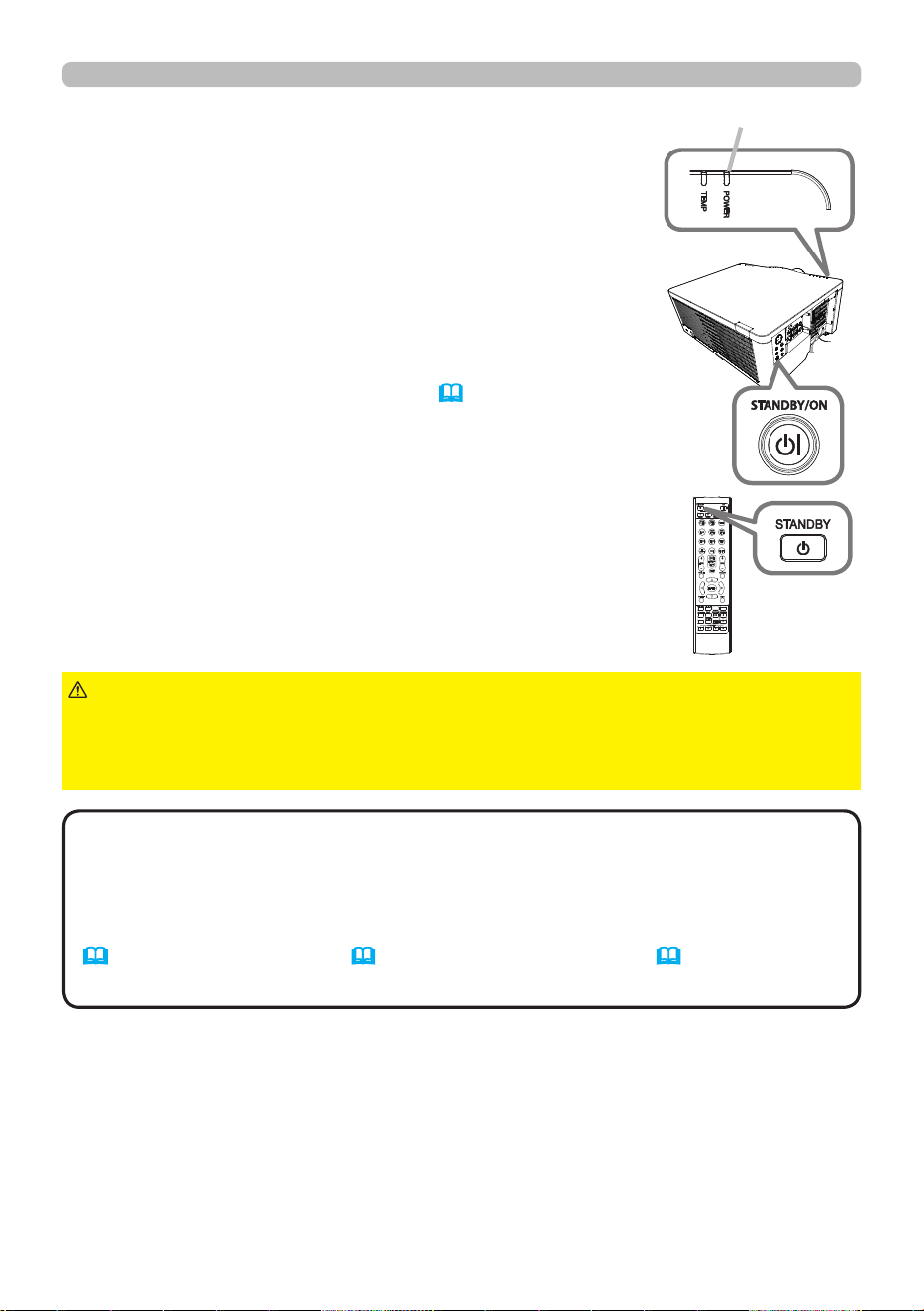
1.
Press the STANDBY/ON button on the projector or
the STANDBY button on the remote control.
The message “Power o?” appears on the screen for
about ve seconds.
Turning off the power
2.
Press the STANDBY/ON or STANDBY button again
while the message appears.
The light source goes o, and the POWER indicator
begins blinking in orange. The POWER indicator
stops blinking and lights in a steady orange when the
light source cooling is completed (131).
3.
Attach the lens cover, after the POWER indicator
turns to steady orange.
Power on/off
INFO
NETWORK
INTERACTIVE
POWER indicator
►Do not touch around the exhaust vents during use or just after
use, as it is too hot.
►Unplug the projector from the power outlet if the projector is not being used.
Remove the power cord for complete separation.
WARNING
• Turn o the projector by following the correct procedure. Power o
the projector after any connected devices are powered o. Do not turn on or o
the projector while connected to a device in operation, unless that is directed in
the manual of the device.
•
This projector can automatically turn on/o. Refer to the DIRECT POWER ON
(99), AUTO POWER ON (99)
and AUTO POWER OFF
(100)
items of the
OPTION menu.
NOTE
4 4
QM00971-1
Operating
Operating
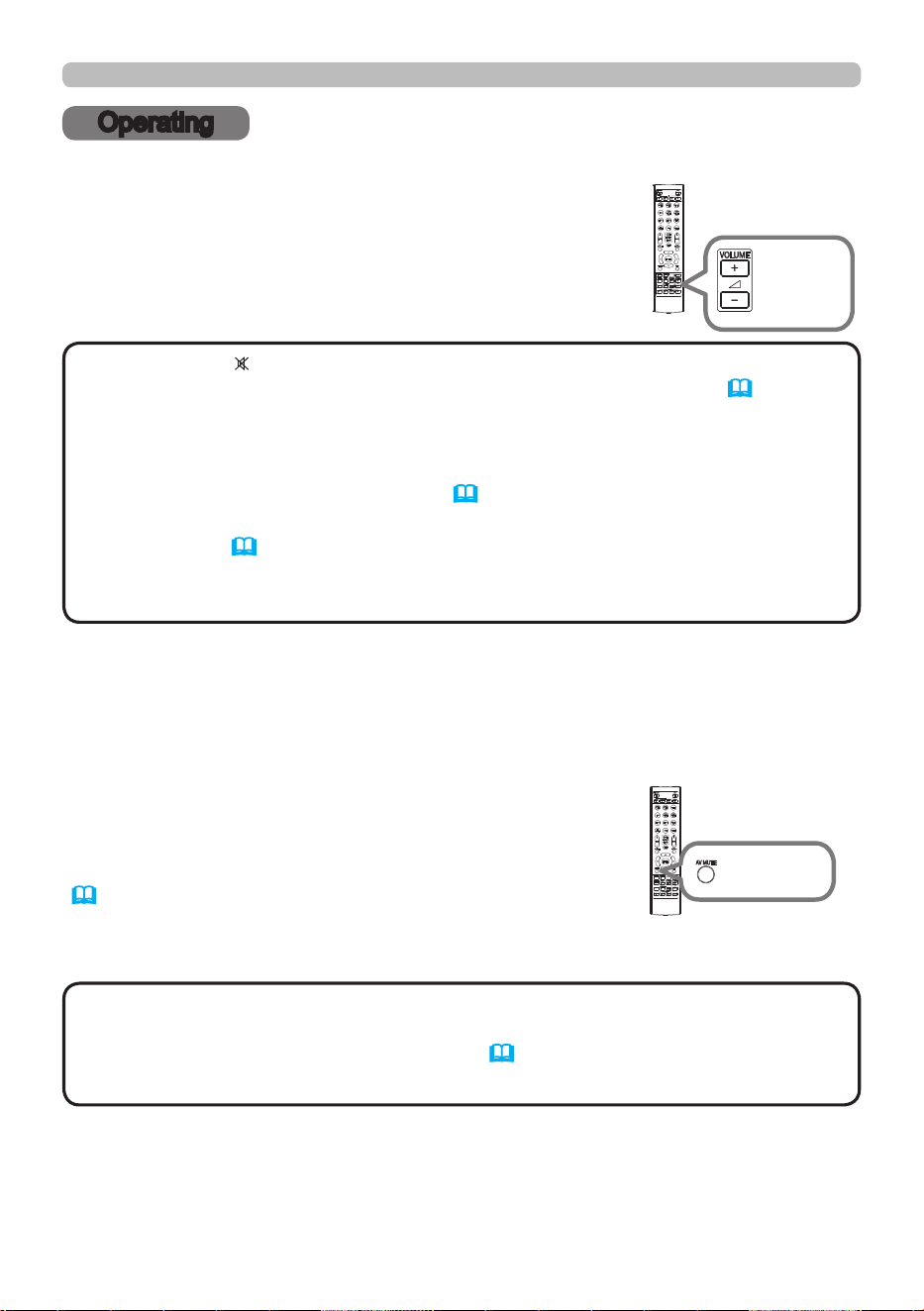
Adjusting the volume
Use the VOLUME + / - buttons to adjust the volume.
A dialog appears on the screen to help you in adjusting
the volume. If you do nothing, the dialog automatically
disappears after a few seconds.
•
When is selected for current picture input port, the volume
adjustment is disabled. See AUDIO SOURCE item of AUDIO menu (91).
• If the projector is in the standby mode, the volume is adjustable when both of
the following conditions are true:
- An option other than OFF is selected for AUDIO OUT in the STANDBY
OUTPUT item of the SETUP menu (90) .
- NORMAL or QUICK START is selected in the STANDBY
MODE item of the
SETUP menu
(87).
• You cannot adjust the volume when ON is selected in OPTION - SERVICE -
AUDIO VOLUME LOCK.
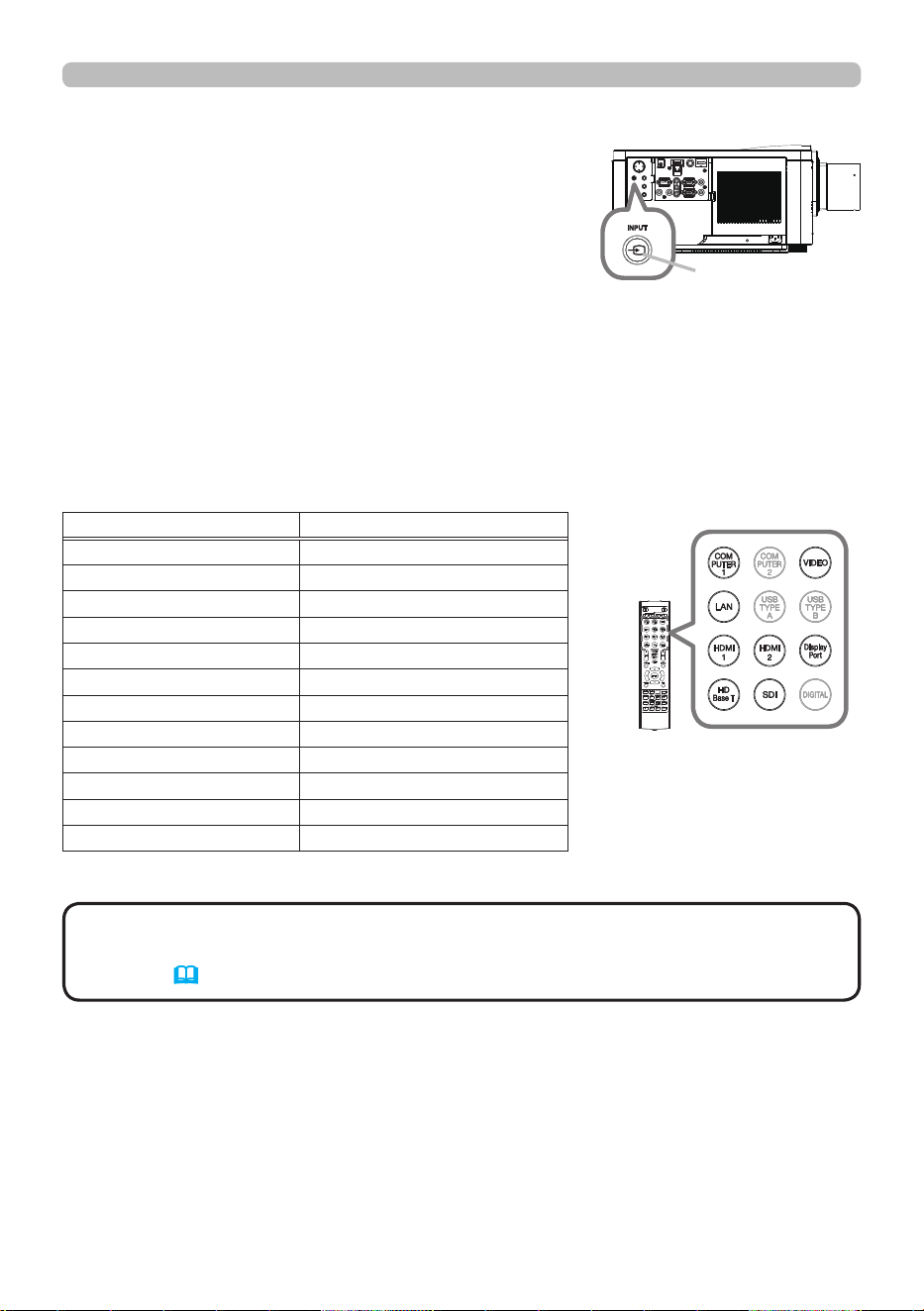
Press AV MUTE button on the remote control.
The BLANK screen is displayed instead of the screen
of input signals and the sound is muted. Refer to the
BLANK item in SCREEN menu about the BLANK screen
(
93).
To exit from the AV MUTE mode and restore the
screen and audio, press AV MUTE button again.
INFO
NETWORK
INTERACTIVE
VOLUME
+ / -
buttons
INFO
NETWORK
INTERACTIVE
AV MUTE
button
NOTE
NOTE
Temporarily turning off the screen and audio
• The projector automatically exits from the AV MUTE mode when
some control buttons are pressed.
• Refer to "Regarding the indicator lamps"(131) about the indicator when
Blank(black) or AV Mute(black) is on.
4 5
QM00971-1
Operating
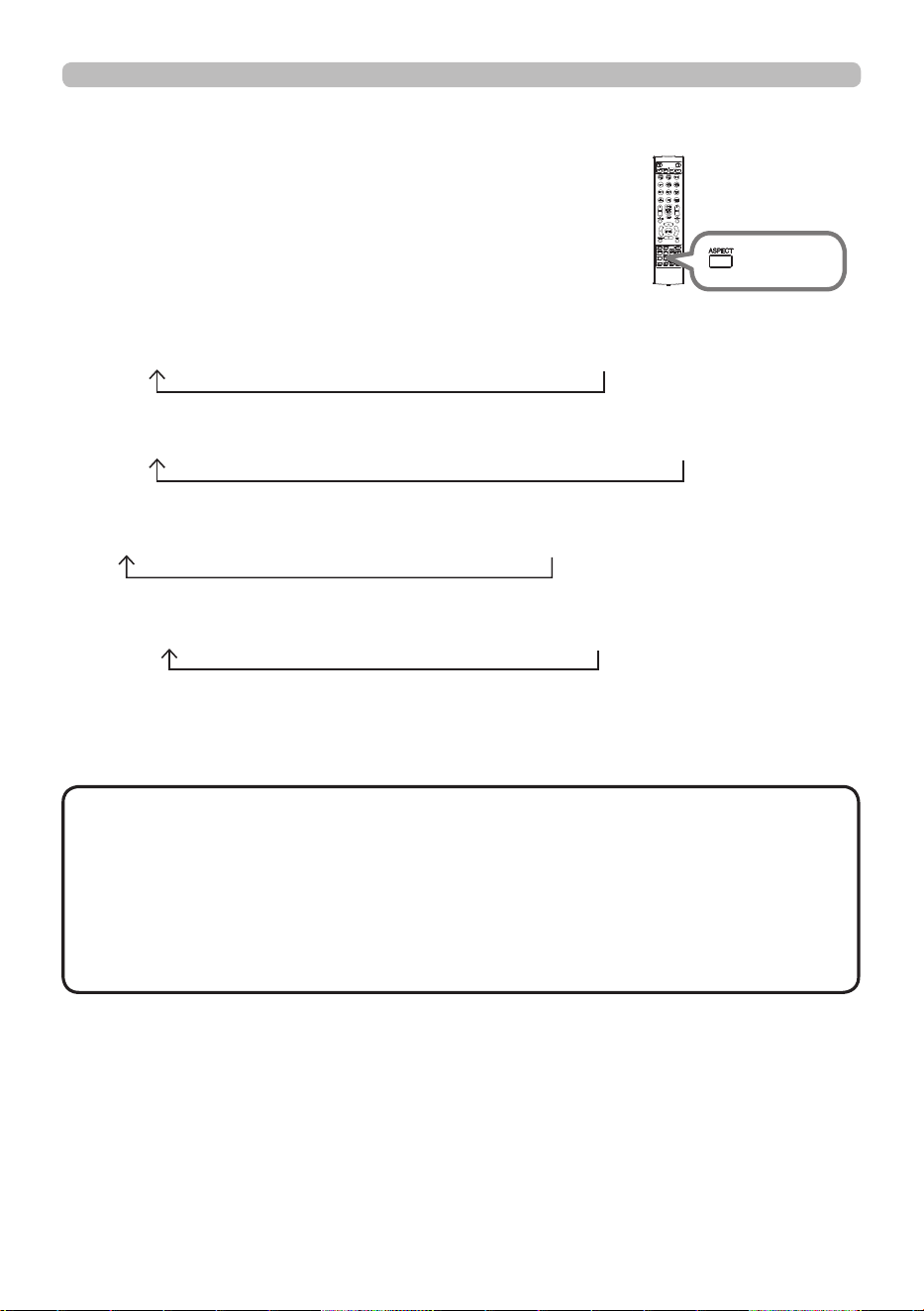
Press INPUT button on the projector.
Select a desirable input referring to the displayed
input list.
Selecting an input signal
INPUT button
INFO
NETWORK
INTERACTIVE
Buttons for input
ports
• While ON is selected for AUTO SEARCH item in the OPTION menu,
the projector keeps checking every port sequentially until an input signal is
detected (98).
NOTE
Press COMPUTER 1, VIDEO, LAN, HDMI 1 / 2, DisplayPort, HDBaseT or SDI
button on the remote control.
The port corresponding to each button is selected as below.
Button Ports
COMPUTER 1 COMPUTER IN
COMPUTER 2 -
VIDEO VIDEO
LAN LAN
USB TYPE A -
USB TYPE B -
HDMI 1 HDMI 1
HDMI 2 HDMI 2
DisplayPort DisplayPort
HDBaseT HDBaseT
SDI 3G-SDI
DIGITAL -
4 6
QM00971-1
Operating
INFO
NETWORK
INTERACTIVE
Selecting an aspect ratio
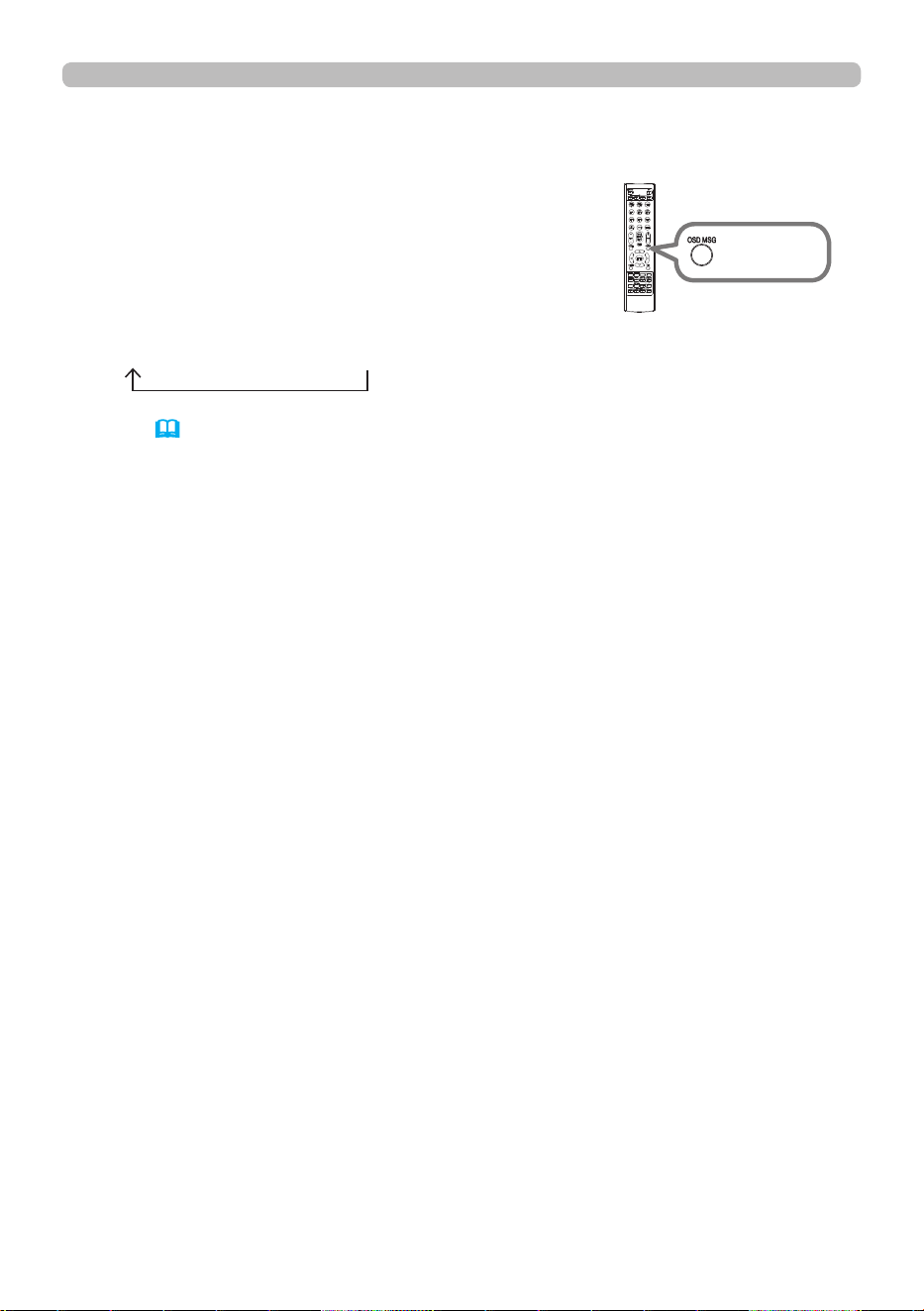
Press the ASPECT button on the remote control.
Each time you press the button, the projector switches
the mode for aspect ratio in sequence.
ASPECT
button
• The ASPECT button does not work when no proper signal is input.
• NORMAL mode keeps the original aspect ratio setting.
• You cannot select NATIVE when inputting 4K signal.
• If the ASPECT button is pressed when no signal is input, the pattern for
checking the aspect ratio is displayed. Use it to check the aspect ratio of a
screen when installing the projector. It disappears if the ASPECT button is
pressed again while the pattern is displayed.
NOTE
For an input signal from the LAN port, or if there is no signal
16:10 (xed)
For a computer signal
NORMAL 4:3 16:9 16:10 ZOOM NATIVE
For a video signal or component video signal
4:3 16:9 16:10 14:9 ZOOM NATIVE
For HDMI
TM
, HDBaseT
TM
, and DisplayPort
TM
signals
NORMAL 4:3 16:9 16:10 14:9 ZOOM NATIVE
For an SDI signal
NORMAL 4:3 16:9 16:10 ZOOM NATIVE
4 7
QM00971-1
Operating
To change this function, follow the steps below.
1. Press the OSD MSG button on the remote control
for 3 seconds.
2. The OSD MESSAGE dialog will be displayed.
While this OSD is displayed, press the OSD MSG
button again on the remote control.
3. Toggle and change the function.
NORMAL SILENT INHIBIT
Refer to (
89) for details.
Limiting OSD display
INFO
NETWORK
INTERACTIVE
OSD MSG
button
4 8
QM00971-1
Operating
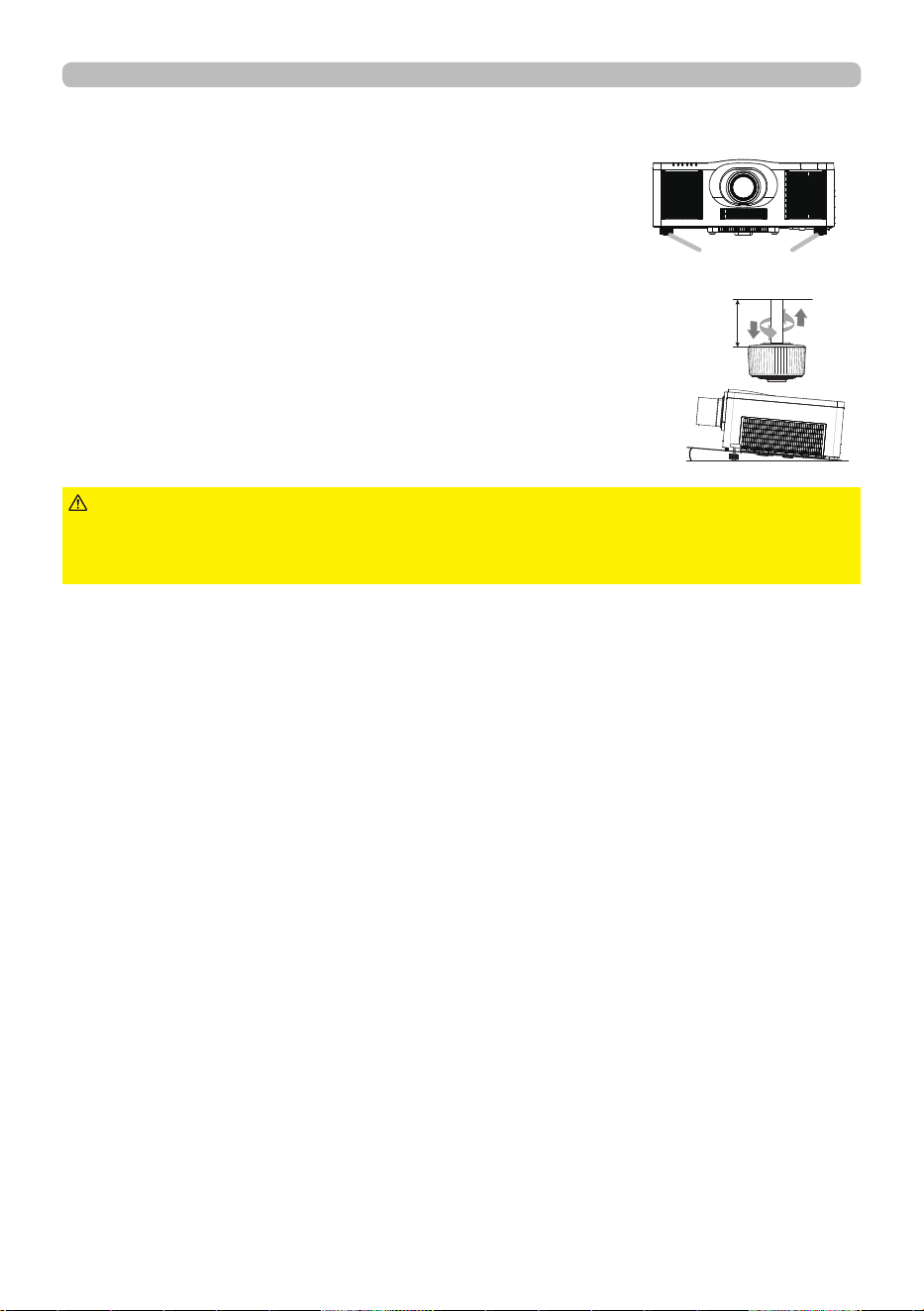
Adjusting the projector’s elevator
Increasing or shortening the length of
the elevator feet shifts the projection
position and the projection angle.
Turn the elevator feet each to adjust
their length.
►Do not lengthen the elevator feet exceeding 30 mm. The foot
lengthened exceeding the limit may come o and drop the projector down, and
result in an injury or damaging the projector.
WARNING
3 °
max.
30 mm
Elevator feet
4 9
QM00971-1
Operating
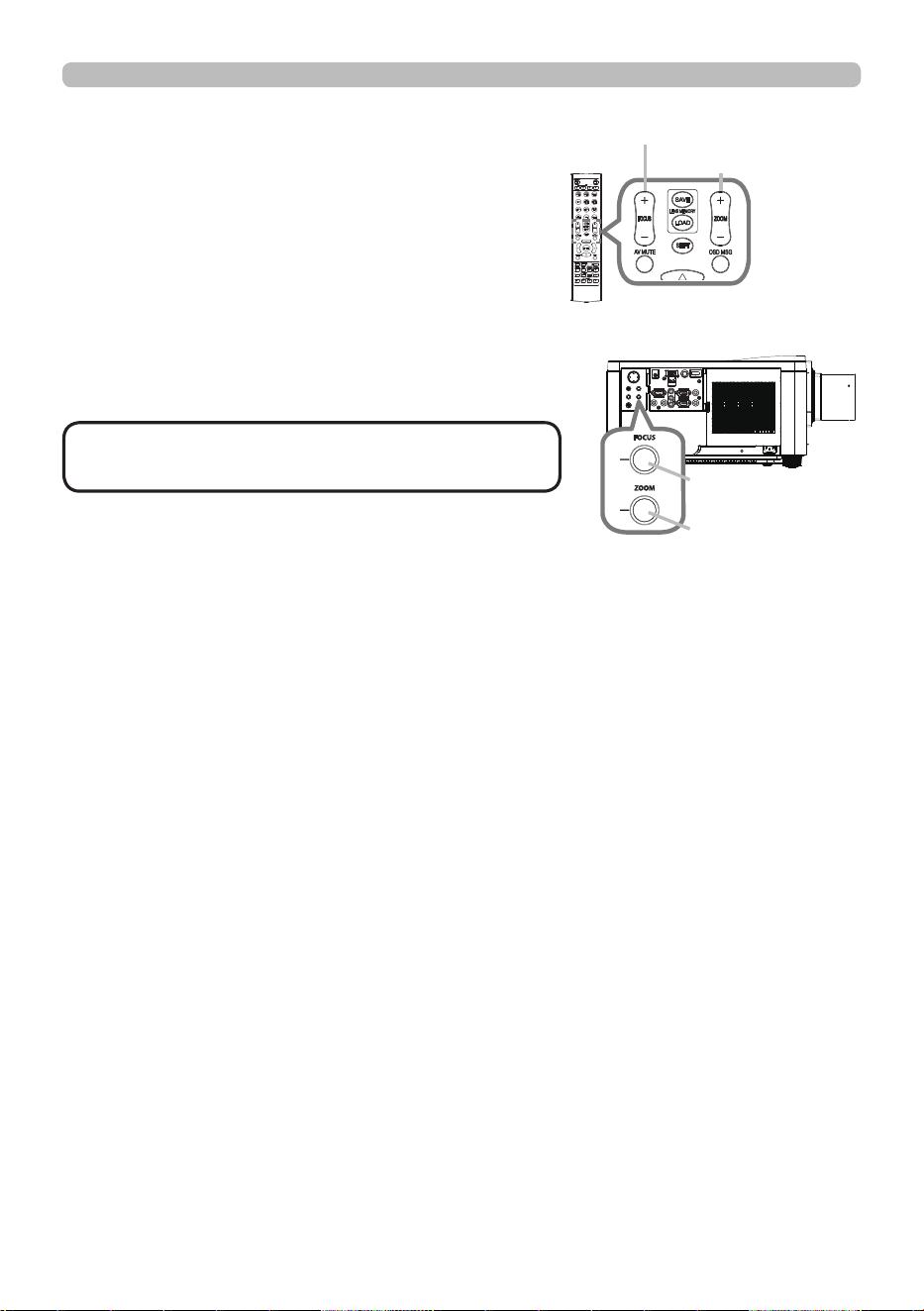
The ZOOM or FOCUS dialog appears when you
press any of the buttons from ZOOM, ZOOM -,
ZOOM +, FOCUS, FOCUS + and FOCUS -.
1.
Use the ZOOM + / - buttons on the remote
control or ZOOM button and ◄/► cursor buttons
on the projector to adjust the screen size.
2.
Use the FOCUS + / - buttons on the remote
control or FOCUS button and ◄/► cursor
buttons on the projector to focus the picture.
Adjusting the lens
Adjusting the zoom and focus
• The projector may ignore the operation
by other buttons while the lens is moving.
NOTE
INFO
NETWORK
INTERACTIVE
FOCUS + / - buttons
ZOOM + / - buttons
INFO
NETWORK
INTERACTIVE
FOCUS button
ZOOM button
5 0
QM00971-1
Operating
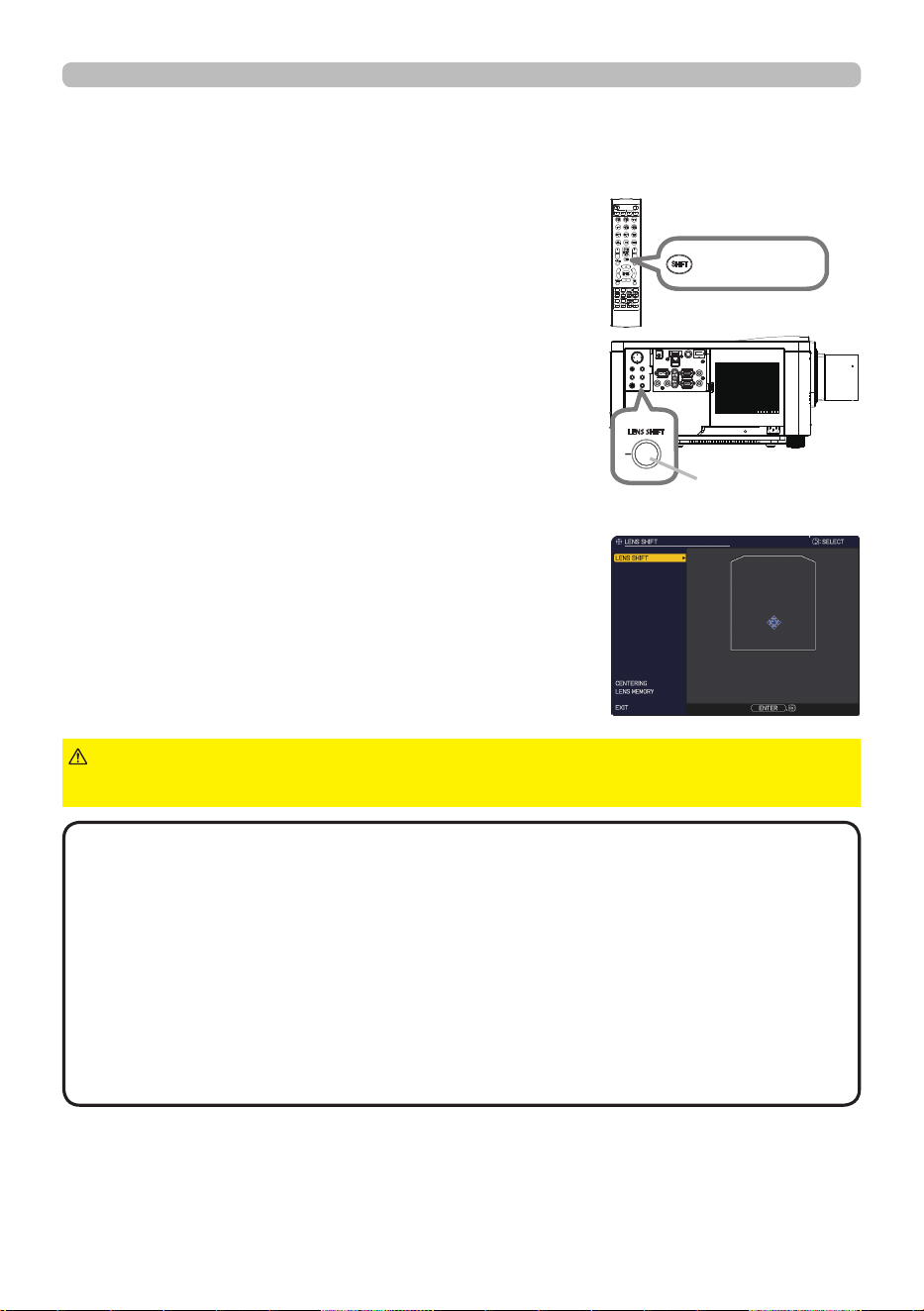
Press the LENS SHIFT button on the projector or the
SHIFT button on the remote control to display the LENS
SHIFT menu. Press the
►
or ENTER button to select
LENS SHIFT, then shift the lens with the ▲/▼/
◄
/
►
buttons. Generally, better image quality can be got when
the lens is set to the center.
Press the ◄ or ENTER button to go back to menu
selection. To exit the LENS SHIFT function, press the
LENS SHIFT button while LENS SHIFT menu is
displayed, or select EXIT and press the ► or ENTER
button.
CENTERING
Select CENTERING in LENS SHIFT menu and press
the ► or ENTER button to execute the CENTERING
feature which adjusts the lens to the center.
A message dialog is displayed for conrmation.
Pressing the ►button performs CENTERING. You can
also perform CENTERING in the standby mode by
pressing the INPUT and LENS SHIFT buttons on the
control panel for three seconds at the same time.
Adjusting the lens position
►Do not put your ngers or any other things around the lens. The
moving lens could catch them in the space around the lens and result in an injury.
CAUTION
• While the lens is moving to the center, the menu disappears and an
hourglass icon appears on the screen. CENTERING may take some time until the
lens reaches the center.
• The projector may ignore operation by buttons while moving the lens.
•
The CENTERING feature while the projector is in the standby mode is disabled if
the STANDBY MODE item of SETUP menu is set to NETWORK(WOL) or SAVING.
Perform CENTERING before the projector's power is turned o, or set the STANDBY
MODE to NORMAL or QUICK START.
• The adjustable range of LENS SHIFT varies depending on the lens unit mounted
on the projector to maintain picture quality. Therefore, LENS SHIFT adjustment may
not reach the end of the indicator in the dialog. This is not a failure.
NOTE
Adjusting the lens (continued)
INFO
NETWORK
INTERACTIVE
SHIFT button
INFO
NETWORK
INTERACTIVE
LENS SHIFT button
5 1
QM00971-1
Operating
• The projector may ignore the operation by buttons while moving the lens.
• You can perform the SAVE or LOAD function using LENS MEMORY button.
NOTE
Adjusting the lens (continued)
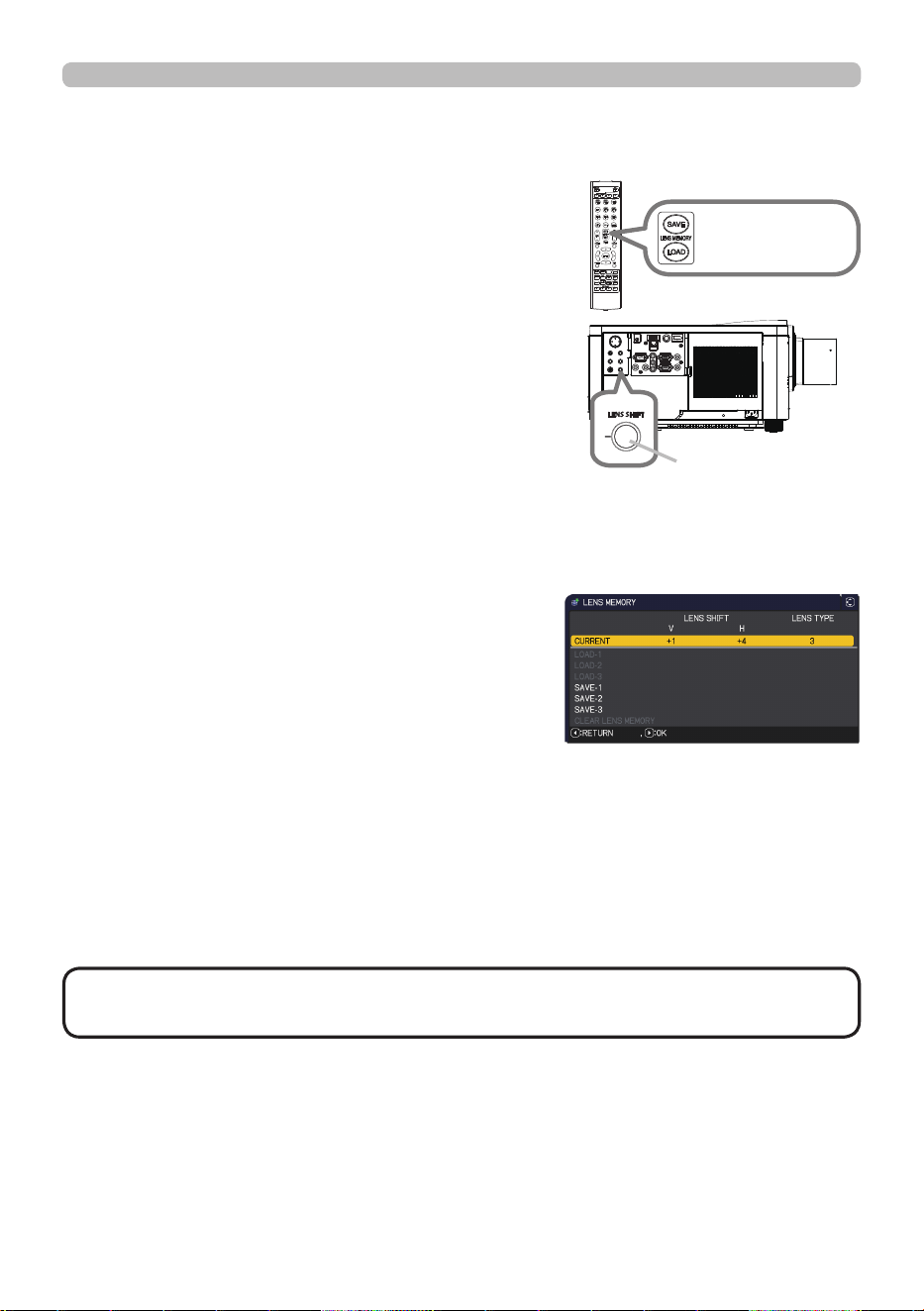
This projector is equipped with memory functions for the
lens adjustments (LENS SHIFT and LENS TYPE). Up
to three sets of adjustments can be stored.
To use the lens memory feature, press the LOAD
or SAVE button, or select LENS MEMORY in LENS
SHIFT menu and press the ► or ENTER button. Then
the LENS MEMORY dialog appears. The current lens
adjustments are displayed on the “CURRENT” line.
The adjustments already stored in the lens memory are
displayed on the lines of SAVE and LOAD-1 to 3.
Lens memory
SAVE:
To store the current lens adjustments, select one of the
"SAVE" options numbered 1 to 3 (number of the lens
memory) and press the ►or ENTER button.
Remember that the current data being stored
of a memory is lost by saving new data into the
memory.
LOAD:
To recall stored adjustments, select one of the
"LOAD" options numbered 1 to 3 (number of the
lens memory) and press the ►or ENTER button.
Remember that the current adjusted condition is lost by loading data. If you want to
keep the current adjustment, save it before performing a LOAD function.
CLEAR LENS MEMORY:
To clear the adjustment stored in a lens memory, select CLEAR LENS MEMORY
and press the ►or ENTER button. A message dialog is displayed for conrmation.
Press the ►button again to clear the lens memory.
LENS MEMORY
button
INFO
NETWORK
INTERACTIVE
INFO
NETWORK
INTERACTIVE
LENS SHIFT button
5 2
QM00971-1
Operating
KEYSTONE: Adjust the vertical and horizontal
keystone.
PERFECT FIT:
Adjust each of the screen corners and
sides to correct the distortion.
WARPING:
Project an image on several types of
screen.
• The menu or dialog automatically disappears after several seconds
of inactivity. Press the GEOMETRY button again, or point the cursor at EXIT in
the dialog and press the ►or ENTER button to end the operation and close the
menu or dialog.
NOTE
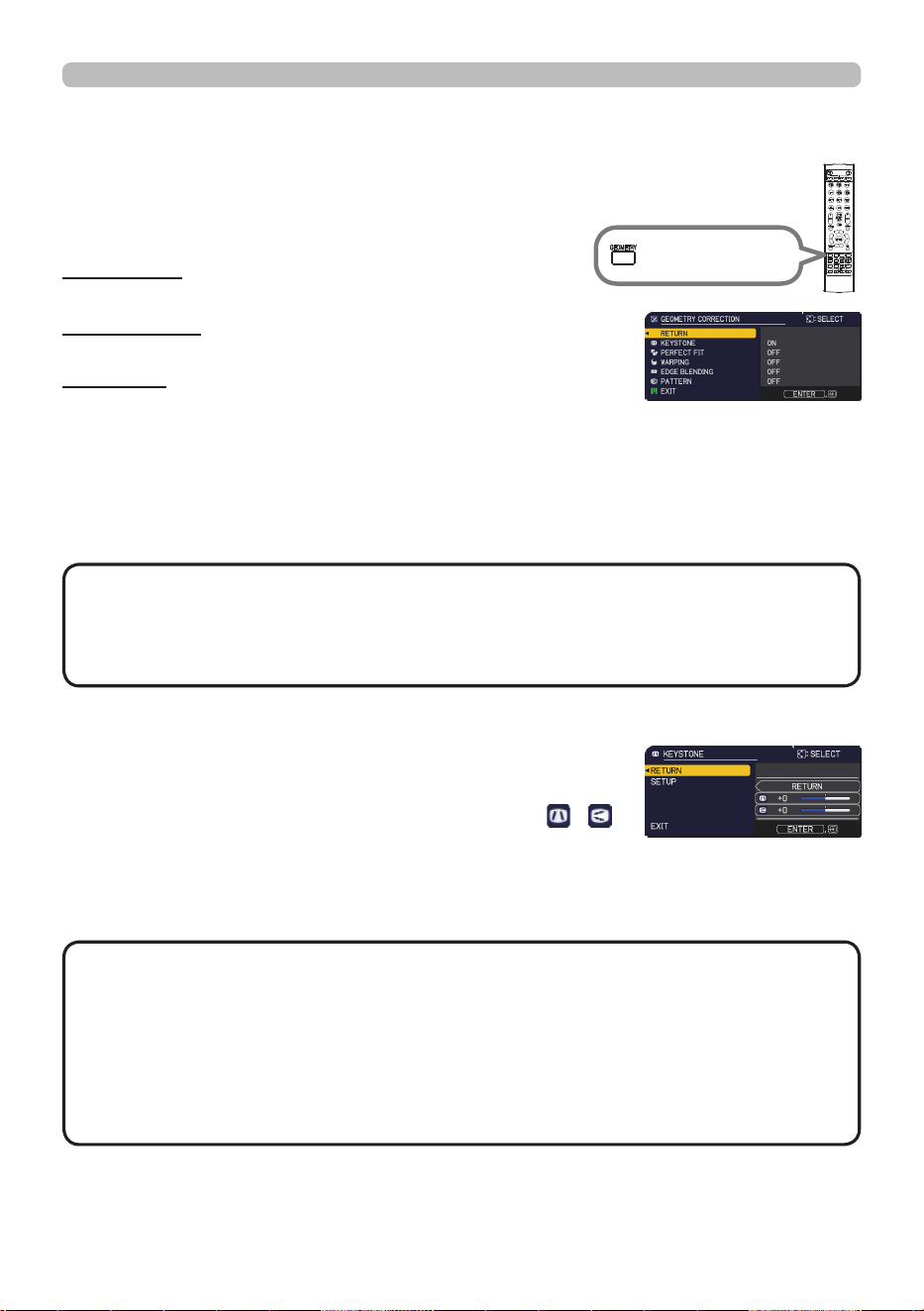
To correct the distortion of projected screen, you can select one of three
options, KEYSTONE, PERFECT FIT, and WARPING. First press the
GEOMETRY button to display the GEOMETRY CORRECTION menu, and
point at one of the items with the ▲/▼ buttons.
Correcting the distortion
Complete the following procedure for the item you selected.
INFO
NETWORK
INTERACTIVE
GEOMETRY
button
Use
Keystone/Perfect Fit/Warping
for adjustment. When one is selected, other
items are not available.
KEYSTONE:
When KEYSTONE is pointed at, pressing the ► or
ENTER button displays the KEYSTONE dialog.
1.
Select the vertical or horizontal keystone ( / )
with the ▲/▼ buttons.
2.
Use the ◄/► buttons to adjust the keystone distortion.
• When the zoom adjustment is set to the TELE (telephoto focus),
this function may be excessive. This function should be used when the zoom
adjustment is set to the full WIDE (wide-angle focus).
• When the horizontal lens shift is not set to the center, this function may not
work correctly.
• Point at RETURN in the dialog with the ▲/▼ buttons and press ◄ or ENTER
button to return to the GEOMETRY CORRECTION menu.
NOTE

5 3
QM00971-1
Operating
PERFECT FIT:
When PERFECT FIT is pointed at, pressing the
► or ENTER button displays the PERFECT FIT
dialog.
This projector is equipped with a test pattern for
PERFECT FIT. Select PATTERN with the
▲/▼
buttons, then press the
◄/►
buttons to switch on
and o.
1.
Select SETUP with the
▲/▼
buttons and
press the
►
or ENTER button.
2.
Select one of the corners or sides to be adjusted
with the ▲/▼/◄/► buttons and press the
ENTER or INPUT button.
3.
Adjust the selected part as below.
● To adjust a corner, use the ▲/▼/◄/► buttons to adjust the position of the
corner.
● To adjust the upper or lower side, use the ▲/▼ buttons to adjust the
distortion of the side.
● To adjust the left or right side, use the ◄/► buttons to adjust the distortion
of the side.
● To adjust another corner or side, press the ENTER or INPUT button and
follow the procedure from step 2.
Correcting the distortion (continued)
(continued on next page)

5 4
QM00971-1
Operating
Correcting the distortion (continued)
•
The LOAD functions whose linked memories have no data are skipped.
• There may be some noise and the screen may icker for a moment when
loading data. This is not malfunction.
NOTE
WARPING:
Projection on several types of screen can be performed by WARPING function.
This function is operated by using dedicated PC tool, "Warping Tool".
PC and projector are required to be connected with LAN cable to use this
function.
You can get the PC tool from our website.
Refer to Application Manual for operations.
4.
This projector is equipped with a memory feature for PERFECT FIT
adjustment. Up to three sets of adjustments can be stored.
● LOAD:
To recall stored adjustments, select one of the "LOAD" options numbered
1 to 3 (number of the memory) with the ▲/▼ buttons and press the ►,
ENTER or INPUT button.
The current adjusted condition is lost by loading data. If you want to keep
the current adjustment, save it before performing a LOAD function.
● SAVE:
To store the current PERFECT FIT adjustment, select one of the "SAVE"
options numbered 1 to 3 (number of the memory) with the ▲/▼ buttons
and press the ►, ENTER or INPUT button.
The current data being stored is lost by saving new data.
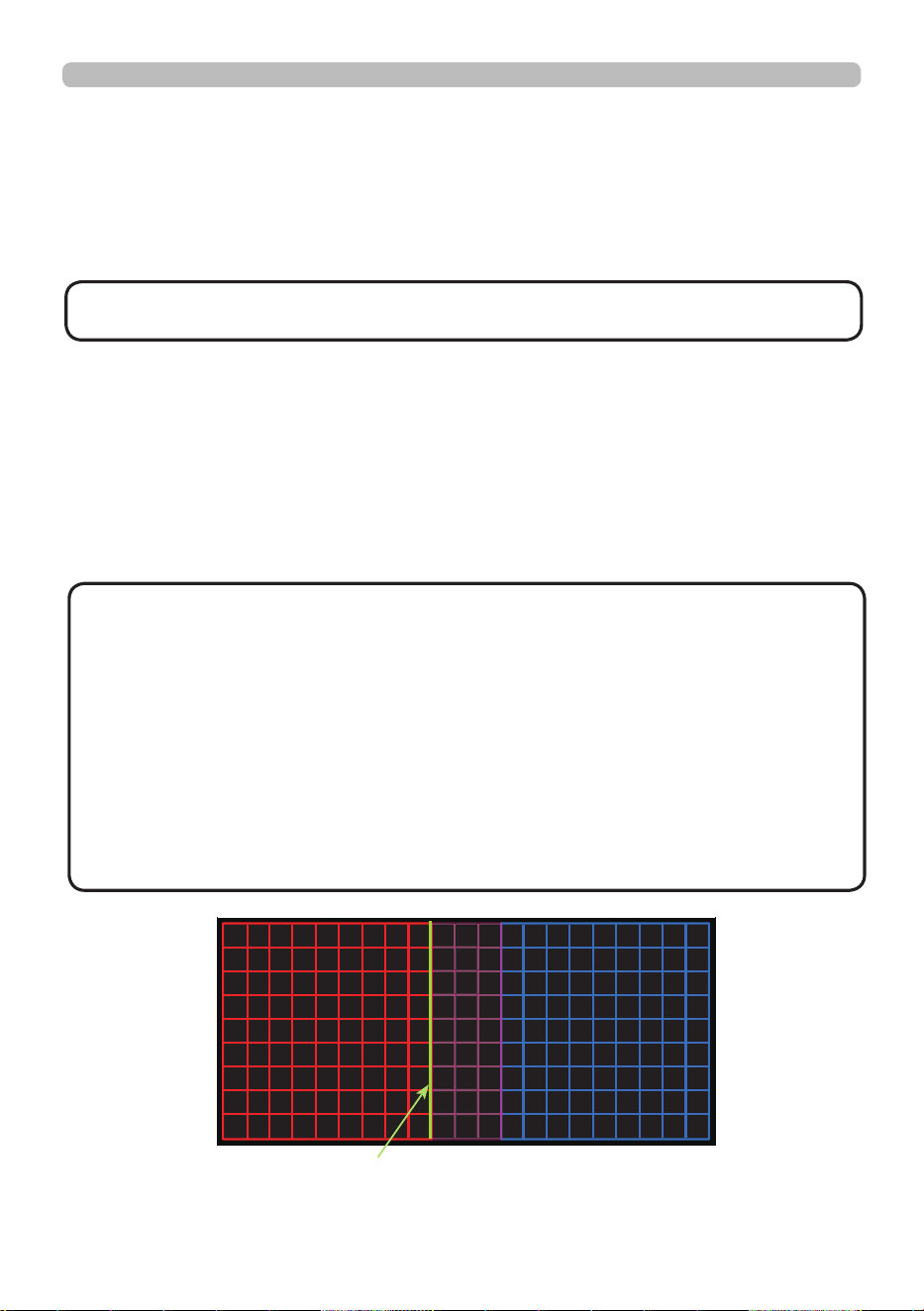
5 5
QM00971-1
Operating
Using the EDGE BLENDING features
1. Mode (Manual/Camera)
OFF:
Disables the Blending function.
Manual: Allows you to adjust Blending Region or Blending Level by using menu.
Camera: Allows you to perform automatic adjustment by using Camera in Projector
Blending Tool.
2. Blending Region
2.1 Specifying Blending Region
Select one of the four sides with ▲/▼/
◄/► buttons
and press ENTER or INPUT
button. Blending Region can be speci ed for left and right sides with
◄/►
buttons
and for top and bottom sides with ▲/▼
buttons
.
Specify Blending Region for each projector.
Adjust them referring to the guide displayed during the adjustment of Blending
Region.
(continued on next page)
Guide line
Blend Region
Left Image
Right Image
• Keystone/Perfect Fit/Warping are not selectable when CAMERA is
selected in MODE.
NOTE
• The minimum value of Blending Region is 200 dots when MANUAL is
selected in MODE.
• If you adjust BLACK LEVEL when CAMERA is selected in MODE, specify the
Blending Region to specify the adjustment area of BLACK LEVEL.
• When CAMERA is selected in MODE, the menu may not be displayed in the
screen. In that case, you can move the menu to a visible position by using
MENU POSITION. To call MENU POSITION directly, press MENU button
on the remote control for 3 seconds or more. Refer to MENU POSITION in
the SCREEN menu for details of MENU POSITION. You can assign MENU
POSITION to MY BUTTON (1-4) before performing Edge Blending. Refer to
MY BUTTON in the OPTION menu for details of MY BUTTON.
NOTE

5 6
QM00971-1
Operating
(continued on next page)
3.1 Displaying Cropping Menu
Select CROPPING with ▲/▼ buttons and press
►
,
ENTER or INPUT button to display Cropping Menu.
3.2 Setting Cropping
Select MODE with ▲/▼ buttons and select ON with
◄/► buttons
.
The input image is automatically cut out according to
the settings of Blending Region.
3. Cropping
When inputting the same image to each projector, The cropping function
enables two projectors to cut out a part of input image and display one image
on a large screen. The following patterns are supported.
1 x 2
2 x 2
2 x 1
• The cropping function is available only when MANUAL is selected in MODE.
NOTE
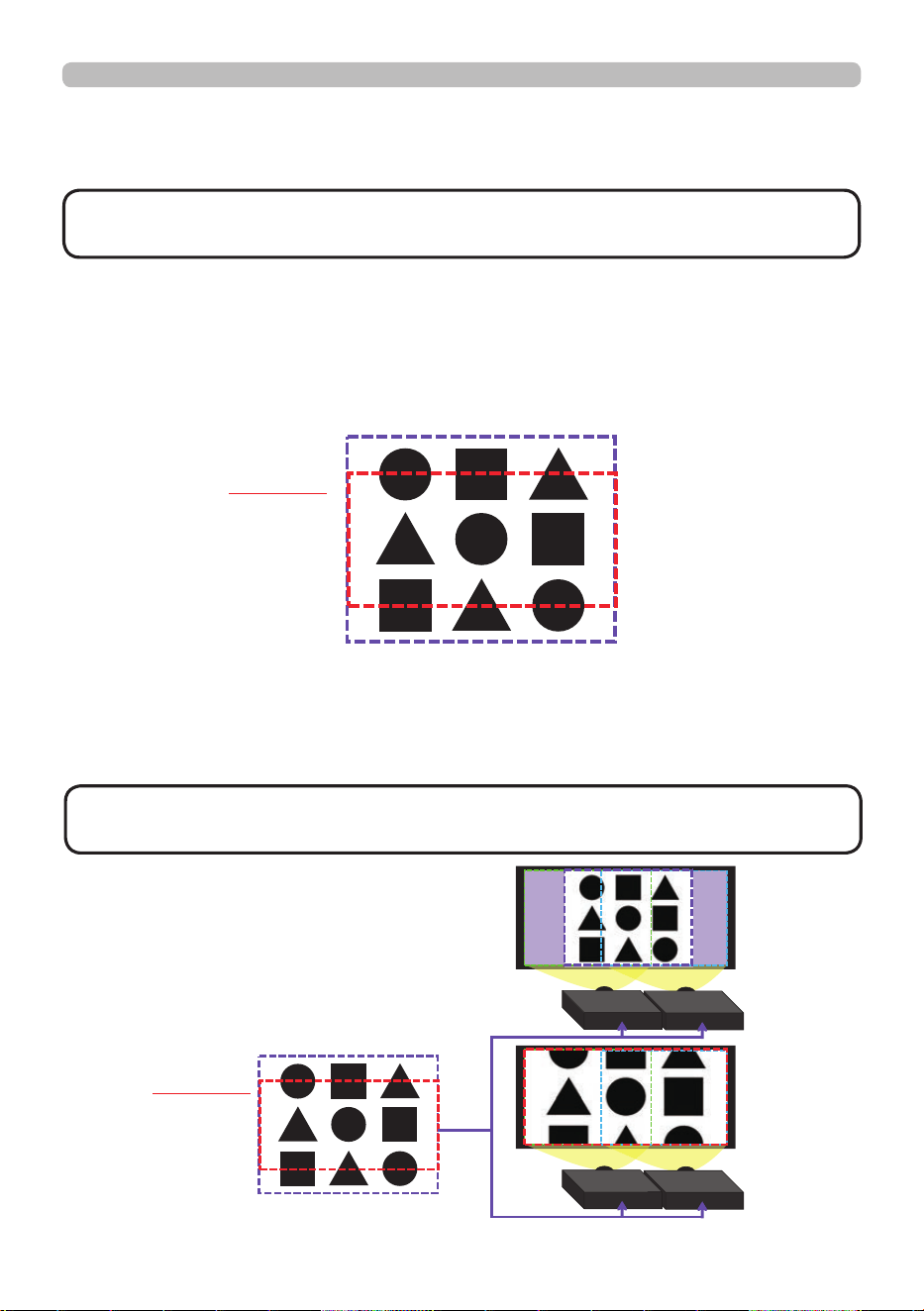
5 7
QM00971-1
Operating
3.3 Adjusting Cropping Area
Adjust the Cropping Area when cutting out a part of input image.
Select SETUP with ▲/▼ buttons and press
►
, ENTER or INPUT button.
Select [LT]/[WH] with ▲/▼ buttons and press the ENTER or INPUT button.
Move the guide display with ▲/▼/
◄/► buttons
to select the region of the
screen to be cut out.
Press the ENTER or INPUT button and then press
◄ button
to select SETUP,
and MODE switches to ON automatically.
(continued on next page)
3.4 Adjust Cropping Area of the other projector.
Set the Cropping Area of the other projector with the same value as one
projector.
The input image is automatically cut out according to the settings of the
Blending Region.
Input Image
Cropping
• To keep input image from not being seen while setting up, set BLANK
to ON.
NOTE
Input Image
Cropping
• MODE is set to [OFF] temporarily and the guide of the Cropping Area
is displayed.
NOTE

5 8
QM00971-1
Operating
4. Selecting Blending Level
Select the BLENDING LEVEL with ▲/▼ buttons.
[1-25] can be selected with
◄/► buttons
.
Adjust the brightness of the Blending Region according to the settings.
5. LIGHT OUTPUT
Adjusts the brightness of the projectors which are using Blending.
6. WHITE BALANCE
Adjusts the white balance of the whole screen.
6.1. OFFSET
Changes the color intensity on the whole tones.
6.2. GAIN
Mainly aects color intensity on the brighter tones.
7. BLACK LEVEL
Adjusts black color level of the projectors which are using Blending.
Adjusts the adjustment value of R/G/B at the same time when W is selected.
When each of R/G/B is selected, the adjustment value of R/G/B can be
adjusted respectively.
• The positional deviation of the screen may occur after installing
the projector over time. Perform the screen adjustment again to correct the
positional deviation.
NOTE
• Blending Level adjustment is available only when MANUAL is
selected in MODE.
NOTE
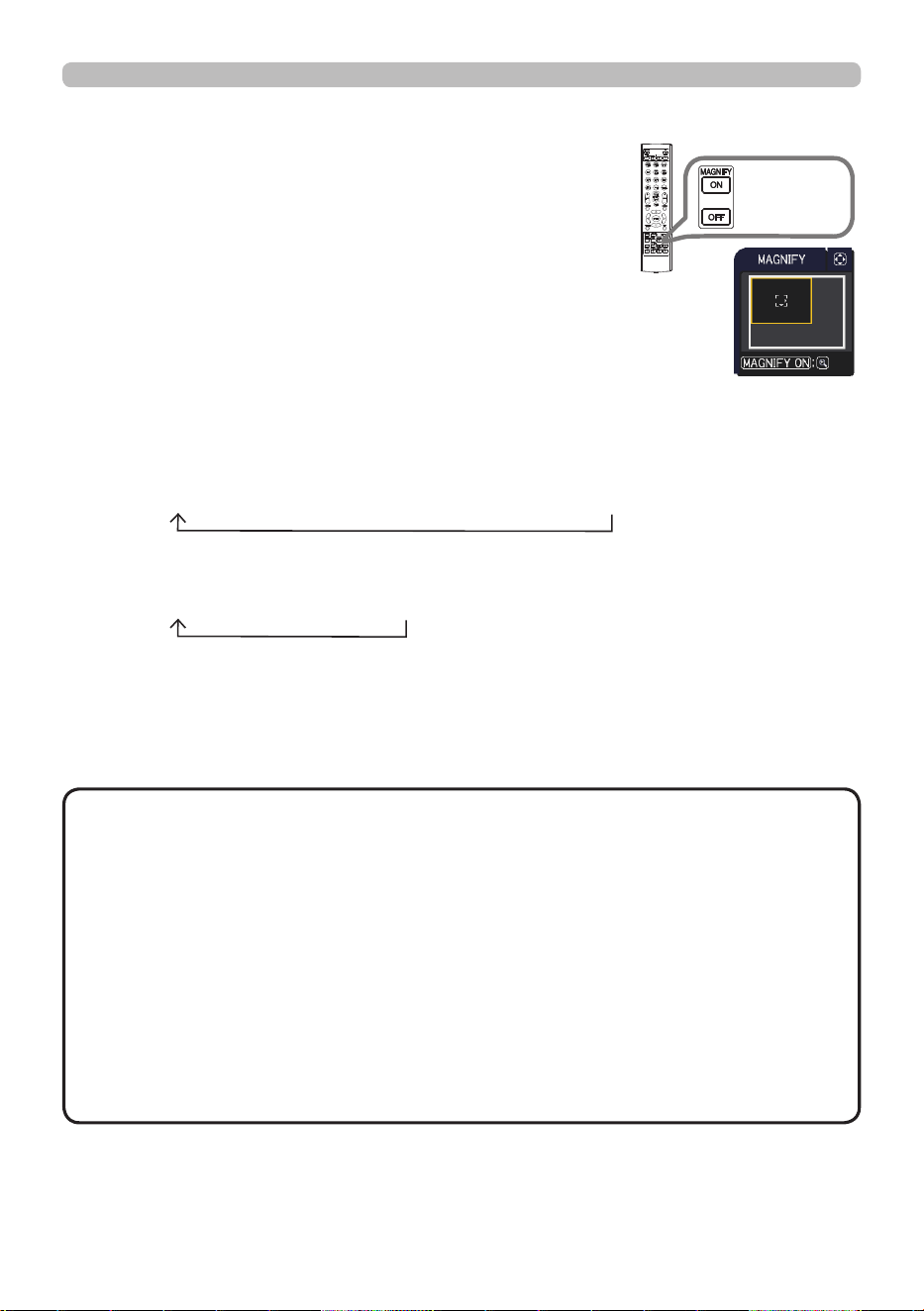
5 9
QM00971-1
Operating
1.
Using the magnify feature
2.
3.
4.
Press the MAGNIFY ON button on the remote
control.
The picture is magnied, and the MAGNIFY dialog
appears on the screen. When the MAGNIFY ON
button is pressed for the rst time after the projector
is turned on, the picture is zoomed by 1.5 times. On
the dialog, triangle marks to show each direction are
displayed.
The display magnication of the projector switches with every
press of the MAGNIFY ON button.
For computer signals, RGB signals for HDMI
TM
, HDBaseT
TM
and
DisplayPort
TM
, input signals from the LAN port
1.5 times 2 times 3 times 4 times 1 time
For video signals, Component signals for HDMI
TM
, HDBaseT
TM
and
DisplayPort
TM
, SDI signals
1.5 times 2 times 1 time
While the triangles are displayed on the dialog, use the ▲/▼/◄/► cursor
buttons to shift the magnifying area.
Press the MAGNIFY OFF button on the remote control to exit magnication.
INFO
NETWORK
INTERACTIVE
MAGNIFY
ON / OFF
button
• The MAGNIFY dialog automatically disappears in several seconds
with no operation. The dialog appears again if the MAGNIFY ON button is
pressed when the dialog has automatically disappeared.
• The magnication is automatically disabled when the displaying signal or its
display condition is changed.
• While the magnication is active, the keystone distortion condition may vary. It
is restored when the magnication is disabled.
• Some horizontal stripes might be visible on the image while magnication is
active.
• This function is not available in the following cases:
- A sync signal in the range not supported is input.
- There is no input signal.
NOTE
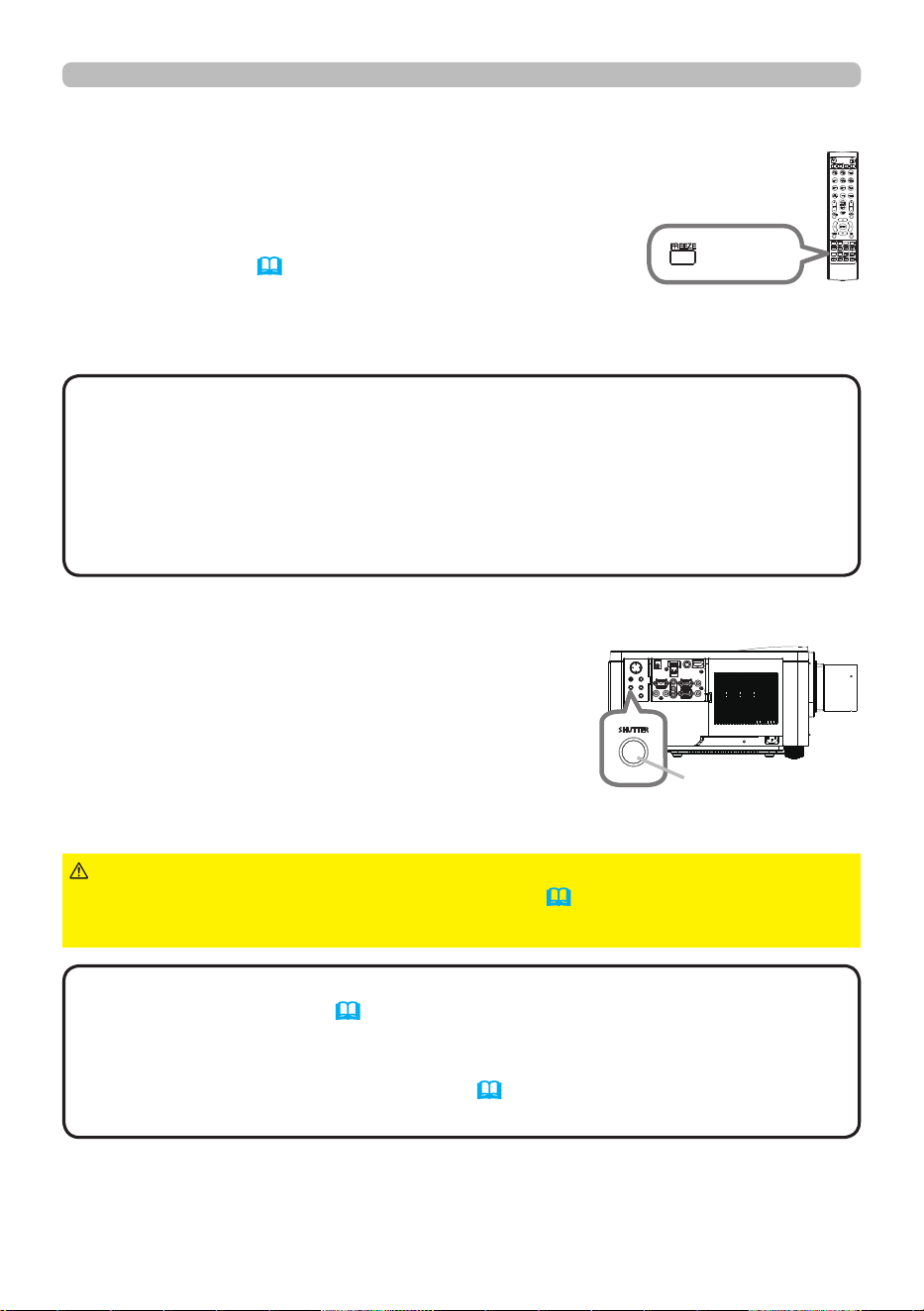
6 0
QM00971-1
Operating
Press the FREEZE button on the remote control.
The “FREEZE” indication appears on the screen
(however, the indication does not appear when the
SILENT or INHIBIT is selected for the OSD MESSAGE
item in the SETUP (89)), and the projector goes into
the FREEZE mode, which the picture is frozen.
To exit the FREEZE mode and restore the screen to normal, press the
FREEZE button again.
Temporarily freezing the screen
• The projector automatically exits from the FREEZE mode when some
control buttons are pressed.
• If the projector continues projecting a still image for a long time, the LCD
panel might possibly be burned in. Do not leave the projector in the FREEZE
mode for too long.
• Images might appear degraded when this function is operated, but it is not a
malfunction.
NOTE
INFO
NETWORK
INTERACTIVE
FREEZE
button
Press the SHUTTER button on the control panel.
Light source output is turned o.
To open the shutter and restore the screen, press
the SHUTTER button again.
Temporarily shading the screen
•
The projector turns o automatically when the time set up by the
SHUTTER TIMER passes
(100)
.
• When turning o the projector by the normal procedure with the shutter function
on, the function is automatically set to o.
• Refer to "Regarding the indicator lamps"(
131
) about the indicator when the
shutter function is on.
NOTE
►If you want a blank screen while the light source is lit, use the
shutter function above or the AV MUTE function (44). Any other action may
cause the damage on the projector.
CAUTION
SHUTTER button
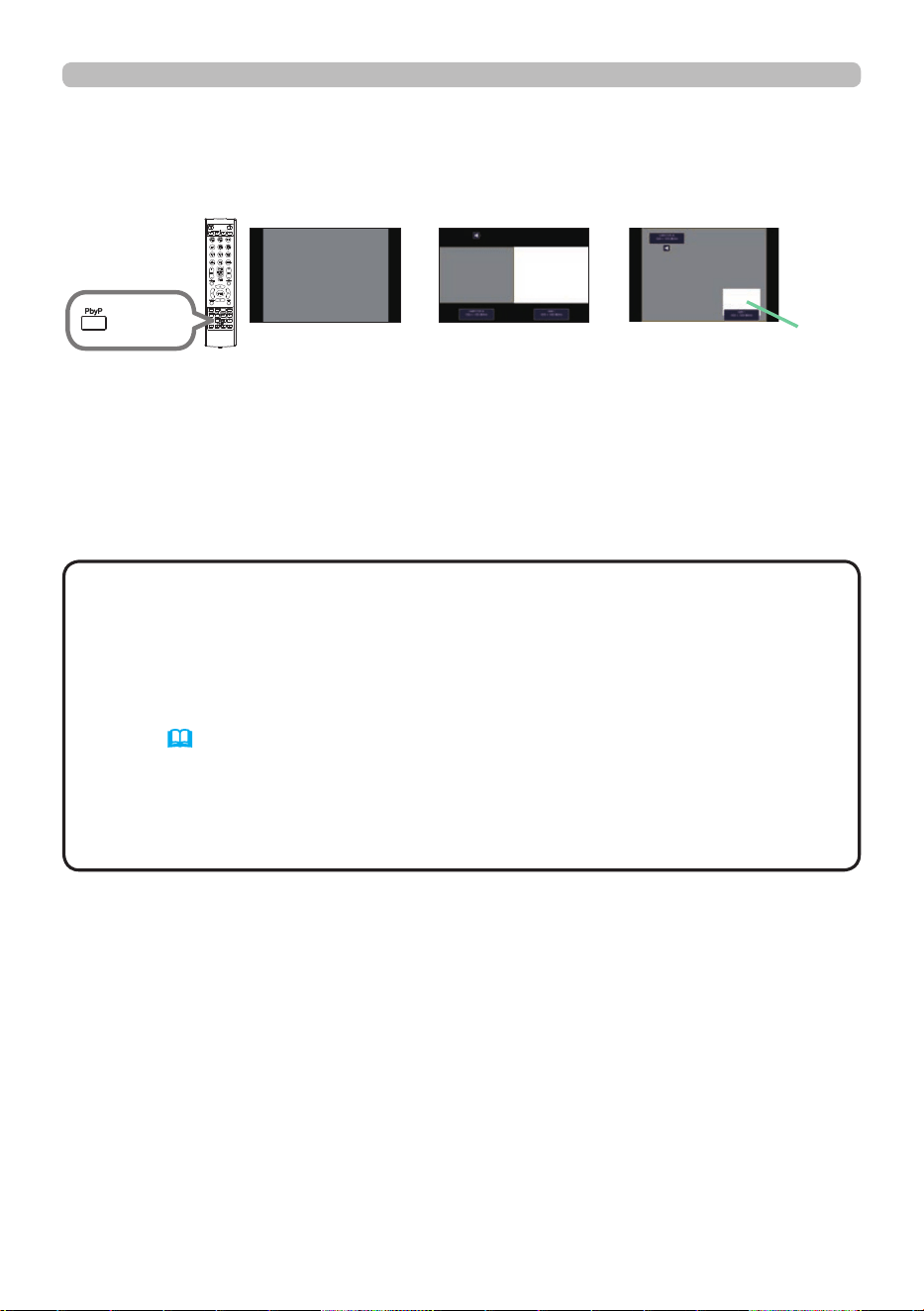
6 1
QM00971-1
Operating
The PbyP / PinP is a function for displaying two dierent picture signals on a
screen that is separated into main and sub areas for each signal.
PbyP (Picture by Picture) / PinP (Picture in Picture)
INFO
NETWORK
INTERACTIVE
PbyP
button
• If the LAN port is selected when the PbyP button is pressed, input
from other port is displayed on the main area.
• When in the PbyP / PinP mode, use the MENU button on the remote control
or ▲/▼ buttons on the control panel to display the OSD menu.
•
Some functions that cannot be used when in the PbyP / PinP mode.
• Normally a message is displayed when buttons that cannot be used are
pressed (130). However, the messages are not displayed for some unusable
buttons.
• The functions on the OSD menu that cannot be used are displayed in gray
and cannot be selected.
• When in the PbyP / PinP mode, image quality may deteriorate.
NOTE
Normal mode PbyP mode
main
area
sub
area
(continued on next page)
PinP mode
Press the PbyP button on the remote control. This activates the PbyP mode.
Then, press the PbyP button again. The projector goes into PinP mode. The
screen which is displayed before the PbyP button was pressed is displayed as the
main area. Most of operations are eective for the main area only.
To quit the PinP mode, press the PbyP button again.
ð
ð
main
area
sub area
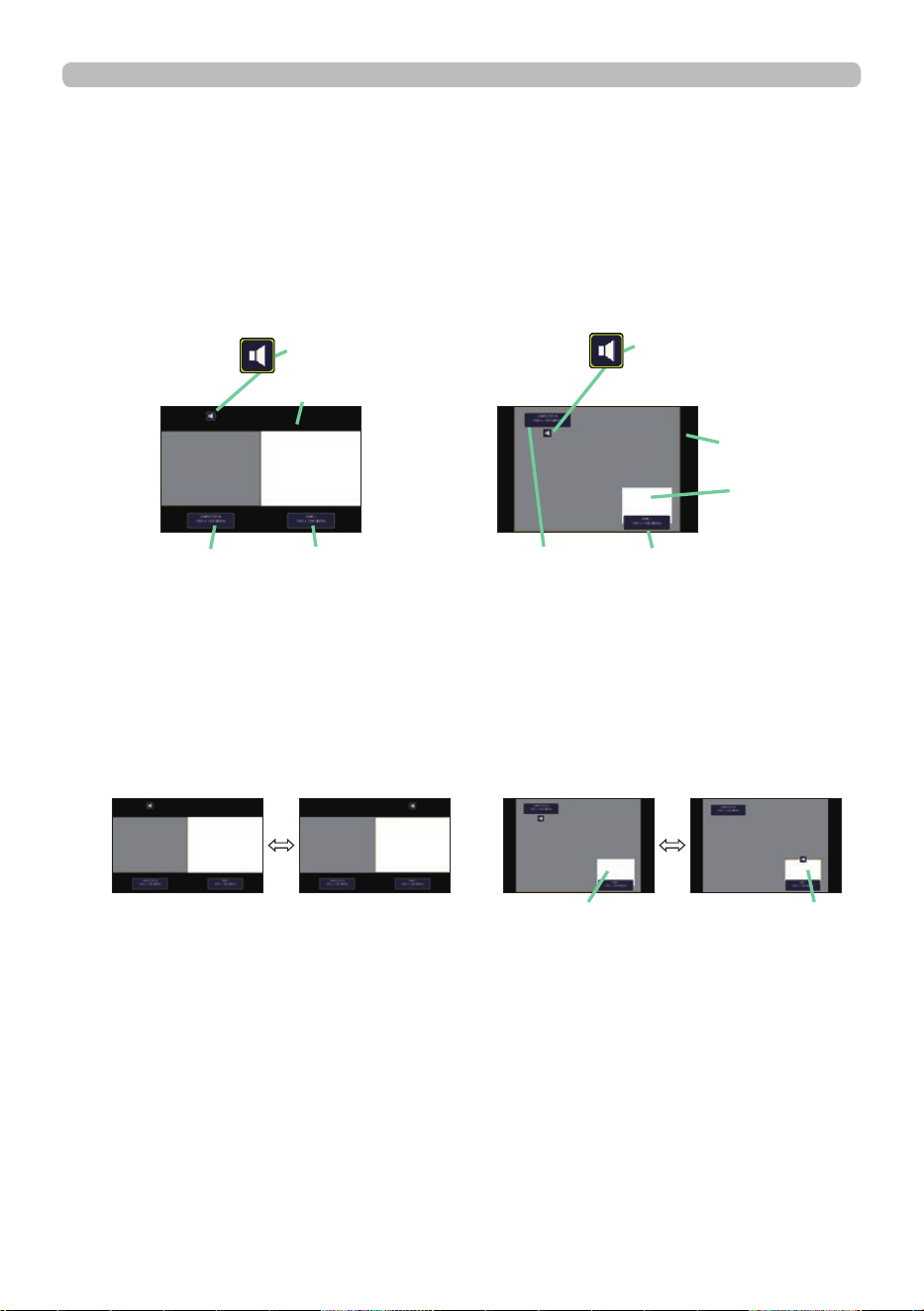
6 2
QM00971-1
Operating
PbyP (Picture by Picture) / PinP (Picture in Picture) (continued)
The position of the main area can be toggled with the ◄/► buttons when the
setting information is displayed on the screen. The frame and the audio mark
move together with it.
Changing the main area
main
area
sub
area
main
area
sub
area
The setting information appears for several seconds when the PbyP / PinP
function is started. Displays the input information for each area. A frame will be
displayed around the main area and an audio mark indicating the audio output is
also displayed.
The information can be redisplayed with the ◄/► buttons after it has been erased.
Setting information
main area sub area
Input information
Frame
PbyP mode
PbyP mode
main area sub area
(continued on next page)
main area
PinP mode
sub area
PinP mode
main area
sub area
Input information
Frame
Audio mark
Audio mark
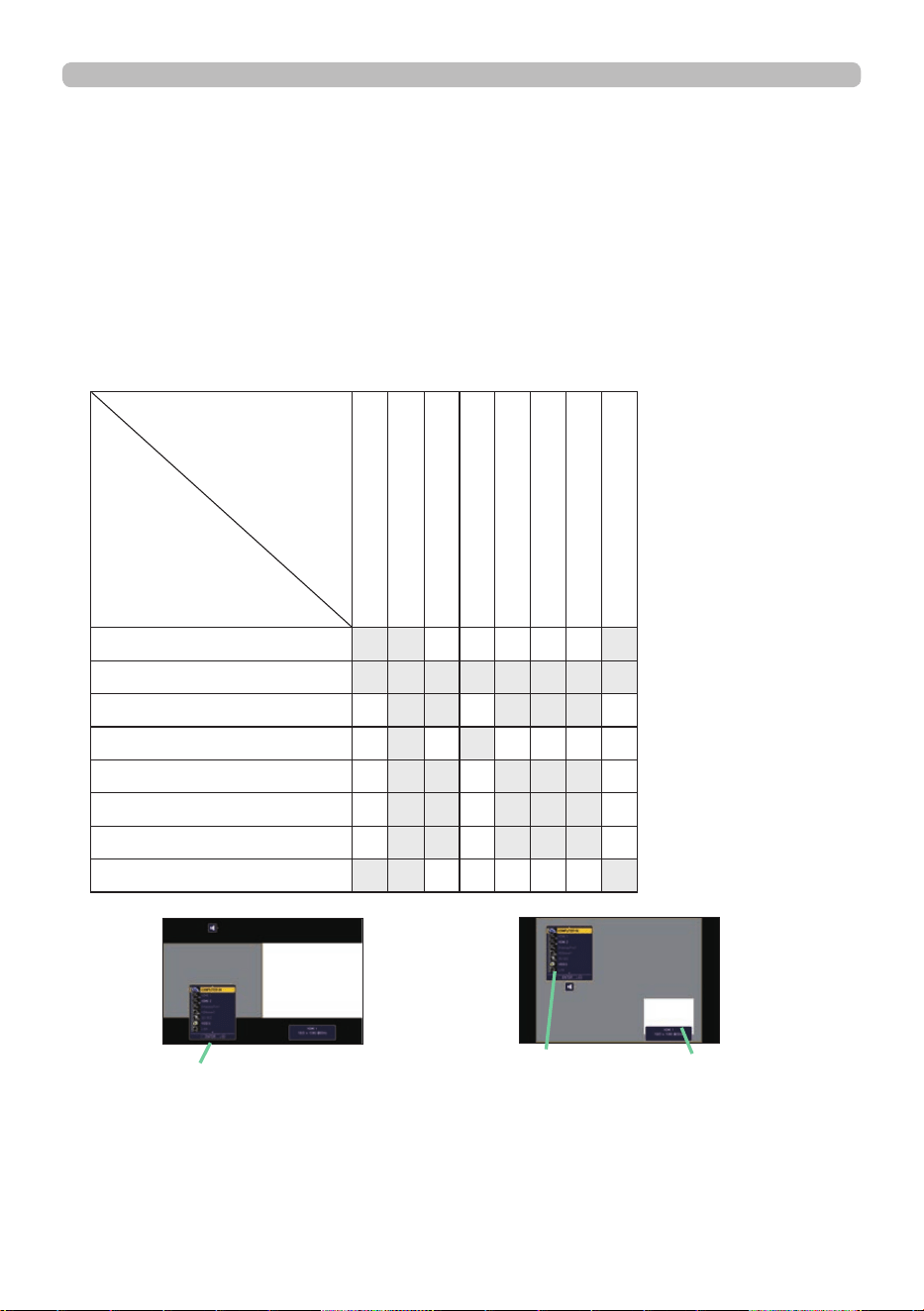
6 3
QM00971-1
Operating
Press any button to select an input port on the remote control or press the
INPUT button on the control panel. A dialog box to select the input signal for
the main area is displayed. Choose a signal using the ▲/▼ buttons. To change
the signal in the sub area, switch temporarily across to the main area with the
◄/► buttons.
Displaying the same signal on the both areas is not allowed. Refer to the table
for details on available input signal combinations. Any combinations marked
with "X" cannot be selected.
Changing the picture input signal
Sub area
Main area
COMPUTER IN
LAN
HDMI 1
HDMI 2
DisplayPort
HDBaseT
3G-SDI
VIDEO
COMPUTER IN
X X O O O O O X
LAN
X X X X X X X X
HDMI 1
O X X O X X X O
HDMI 2
O X O X O O O O
DisplayPort
O X X O X X X O
HDBaseT
O X X O X X X O
3G-SDI
O X X O X X X O
VIDEO
X X O O O O O X
main area sub area
Input signal
PbyP (Picture by Picture) / PinP (Picture in Picture) (continued)
PbyP mode
(continued on next page)
main area
sub area
Input signal
PinP mode
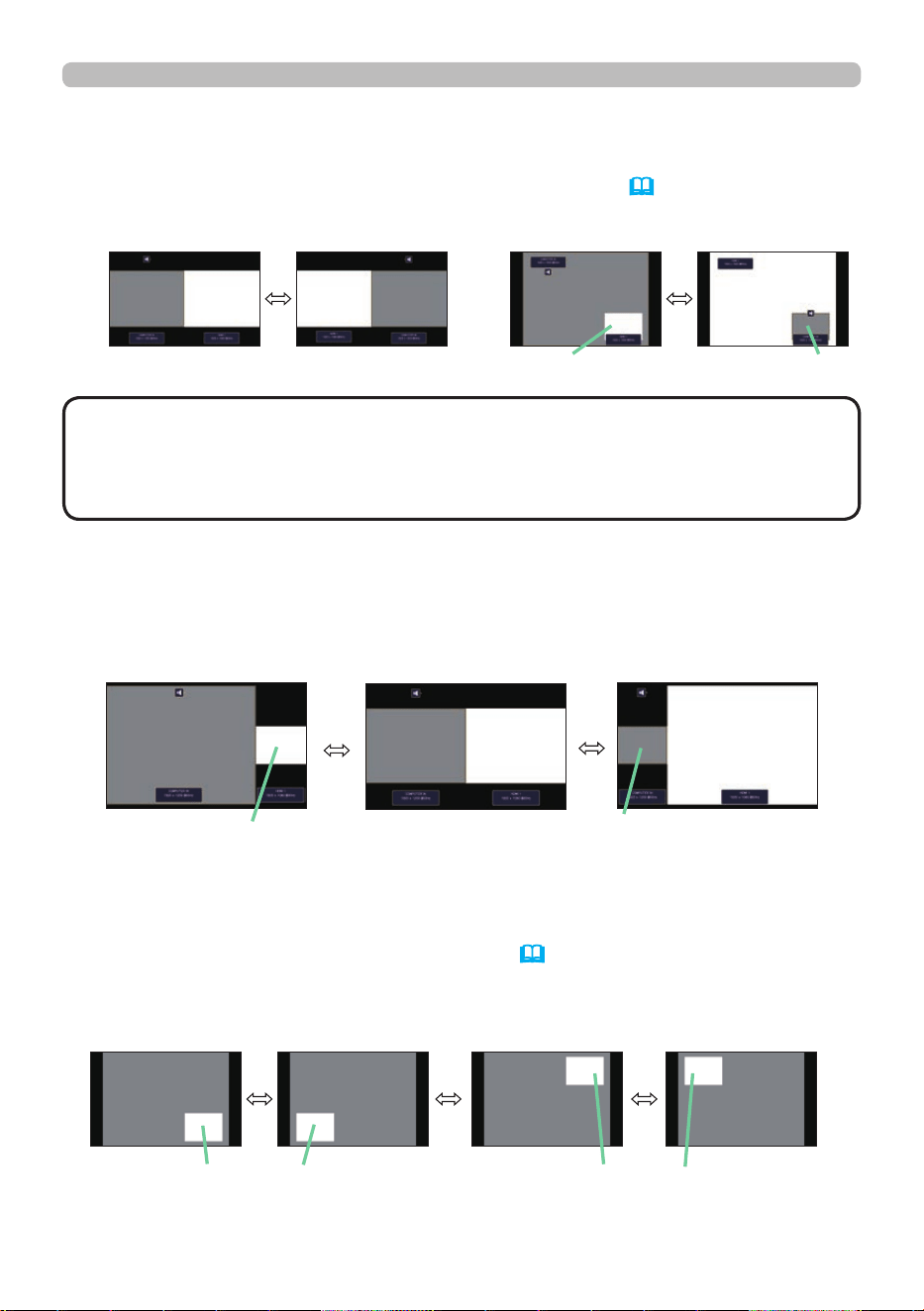
6 4
QM00971-1
Operating
Using ▲/▼ buttons on the remote control changes the size of main area in
PbyP mode.
Changing the size of main area in PbyP mode
1. Select PinP POSITION in INPUT MENU (
82).
2. Using ▲/▼ buttons on the remote control changes the position of sub area
in PinP mode.
Changing the position of sub area in PinP mode
main area
sub area
main area
sub area
PbyP (Picture by Picture) / PinP (Picture in Picture) (continued)
• For some signals, it may not be displayed correctly in the PbyP / PinP
mode, even if it can be displayed properly in the normal mode.
• PbyP/PinP is unavailable when other than OFF is selected in GEOMETRY
CORRECTION > EDGE BLENDING > MODE.
NOTE
Press the MY BUTTON assigned the PbyP / PinP SWAP (
101). The position of
the area is exchanged without any setting change.
PbyP / PinP SWAP function
main
area
sub
area
main
area
sub
area
main area
sub area
main area
sub area
PbyP mode PinP mode
main area
sub area
main area
sub area
main area
sub area
main area
sub area sub area
main area
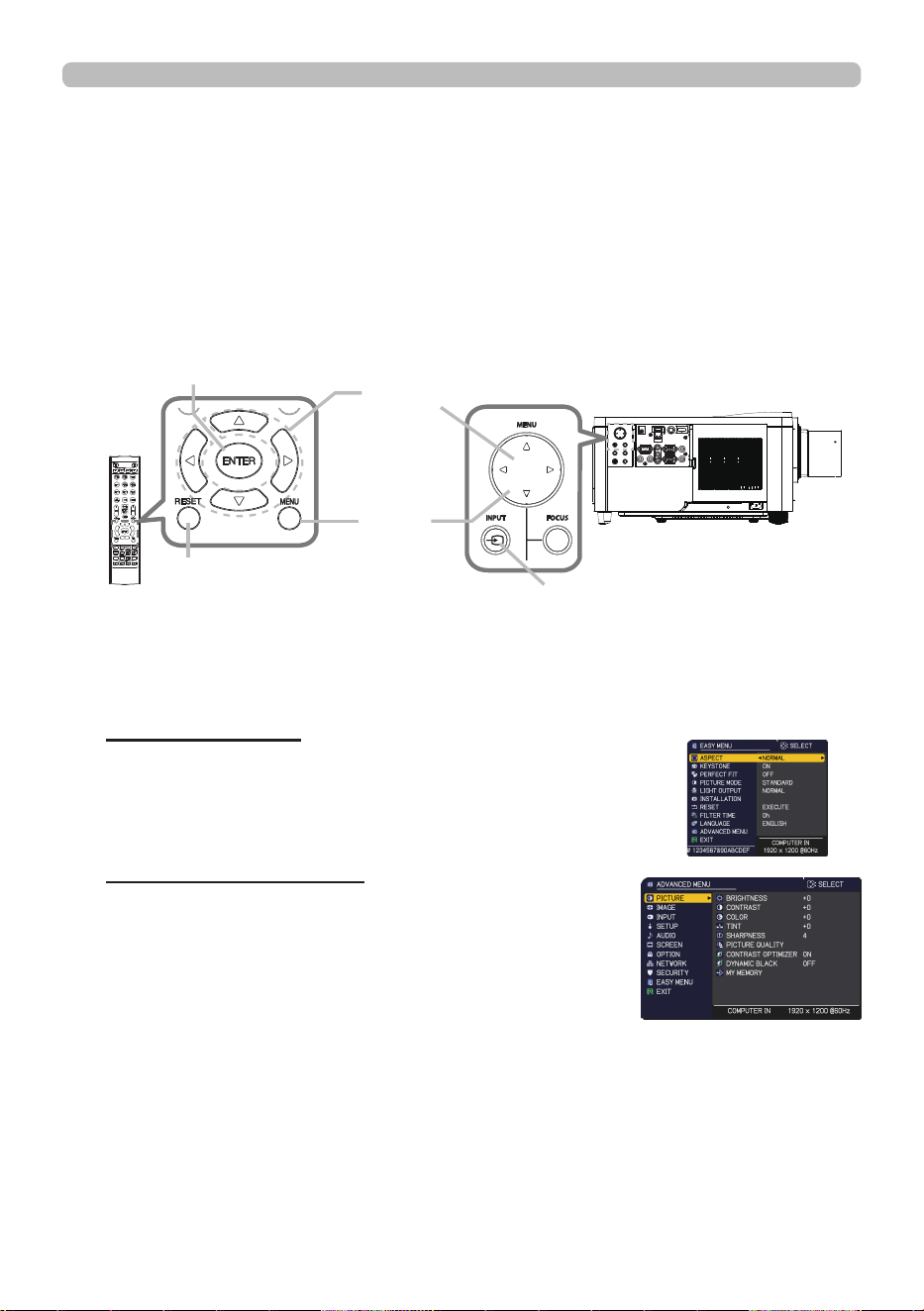
6 5
QM00971-1
Operating
1.
To start the MENU, press the MENU button. The MENU you last used (EASY
or ADVANCED) appears. EASY MENU has priority to appear just after
powered on.
Using the menu function
2.
(1) Use the ▲/▼ cursor buttons to select an item to
operate. To change it to the ADVANCED MENU,
select the ADVANCED MENU.
(2) Use the ◄/► cursor buttons to operate the item.
This projector has the following menus:
PICTURE, IMAGE, INPUT, SETUP, AUDIO, SCREEN, OPTION, NETWORK,
SECURITY and EASY MENU.
EASY MENU consists of functions often used, and the other menus are classi ed
into each purpose and brought together as the ADVANCED MENU.
Each menu is operated using the same methods. While the projector is displaying
any menu, the MENU button on the projector works as the cursor buttons. The
basic operations of these menus are as follows.
In the EASY MENU
(continued on next page)
(1) Use the ▲/▼ cursor buttons to select a menu.
To change it to the EASY MENU, select the EASY
MENU.
The items in the menu appear on the right side.
(2) Press the ► cursor button or ENTER button to
move the cursor to the right side. Then use the
▲/▼ cursor buttons to select an item to operate and press the ► cursor
button or ENTER button to progress. The operation menu or dialog of the
selected item appears.
(3) Use the buttons as instructed in the OSD to operate the item.
In the ADVANCED MENU
MENU
button
RESET button
ENTER button
INFO
NETWORK
INTERACTIVE
INFO
NETWORK
INTERACTIVE
Cursor buttons
INPUT button
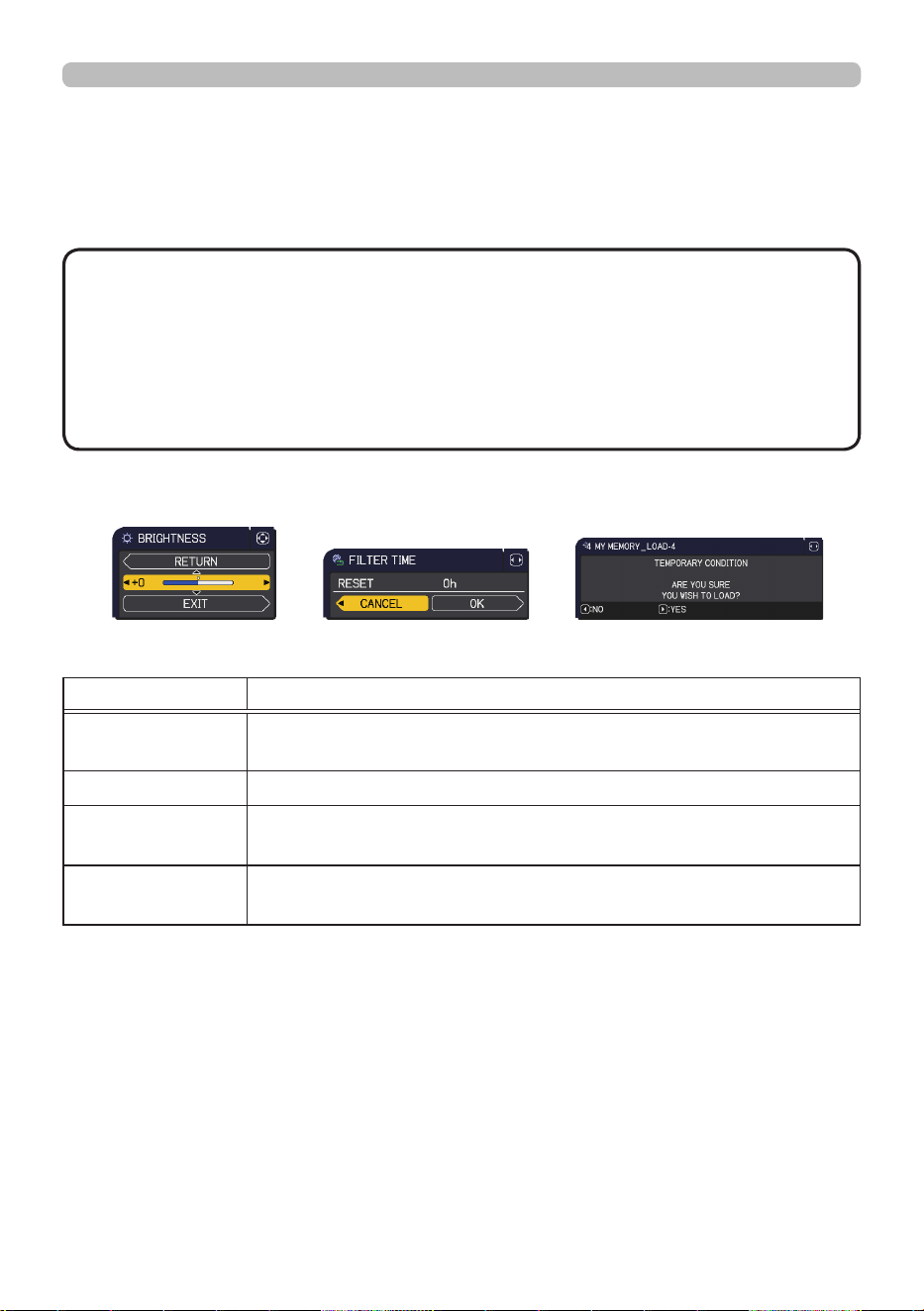
6 6
QM00971-1
Operating
Using the menu function (continued)
3.
To close the MENU, press the MENU button again or select EXIT and press
the ◄ cursor button or ENTER button. If you do not do anything, the dialog
automatically disappears after about 30 seconds with some exceptions.
Indication in OSD (On Screen Display)
The meanings of the general words on the OSD are as follows.
Indication Meaning
EXIT
Closes the OSD menu. It is the same as pressing the MENU
button.
RETURN Returns the menu to the previous menu.
CANCEL or NO
Cancels the operation in the present menu and returns to the
previous menu.
OK or YES
Executes the prepared function or shifts the menu to the next
menu.
• Some functions cannot be performed when a certain input port is
selected, or when a certain input signal is displayed.
• To reset the operation, press RESET button on the remote control during the
operation. Note that some items (such as LANGUAGE, VOLUME) cannot be
reset.
• In the ADVANCED MENU, when you want to return to the previous display,
press the ◄ cursor button on the remote control.
NOTE
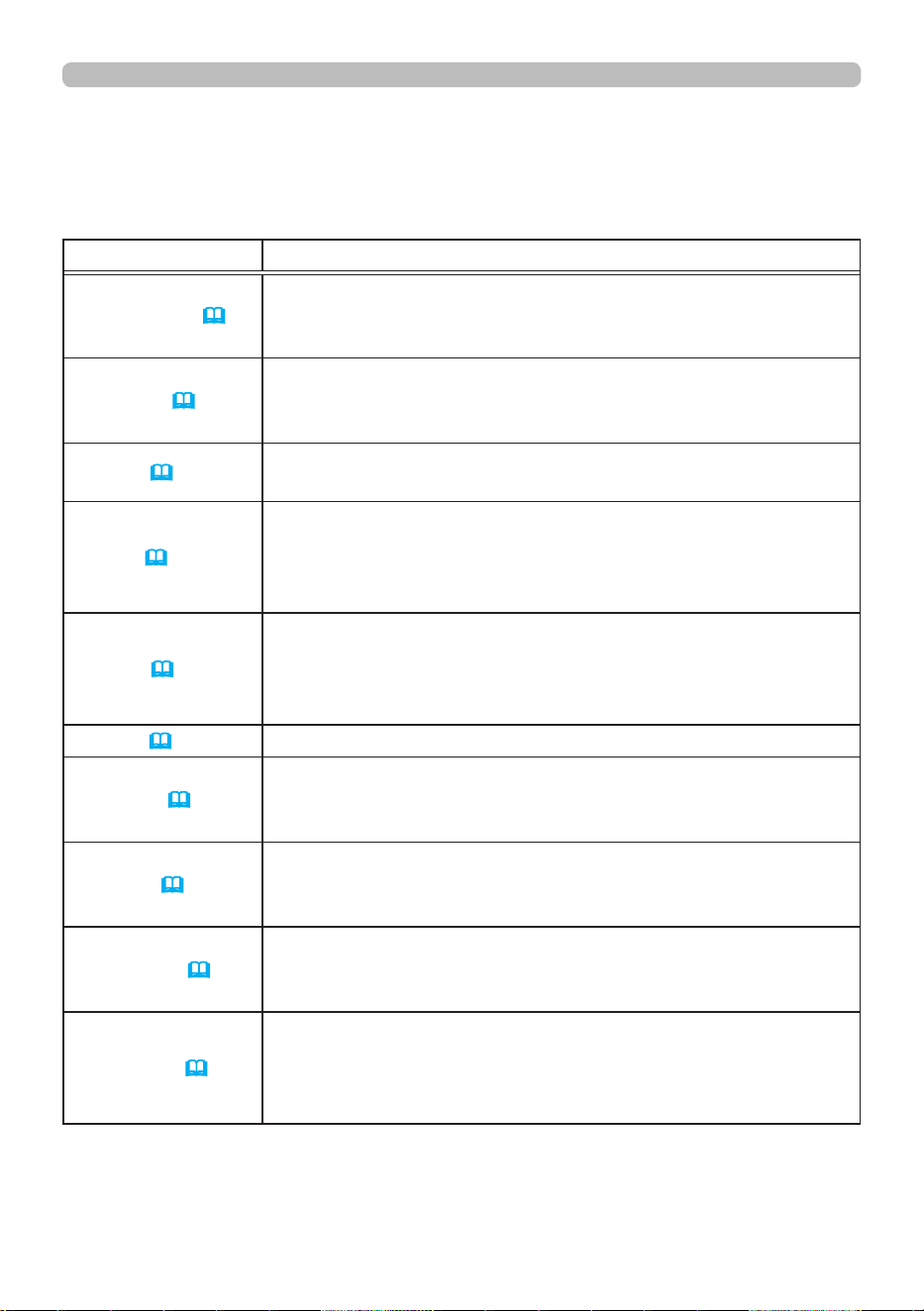
6 7
QM00971-1
Operating
Using the menu function (continued)
Menu items
The items contained in the menus are as below:
Menu Items
EASY MENU (
68)
ASPECT, KEYSTONE, PERFECT FIT, PICTURE MODE,
LIGHT OUTPUT, INSTALLATION, RESET, FILTER TIME,
LANGUAGE, ADVANCED MENU, EXIT
PICTURE (
70)
BRIGHTNESS, CONTRAST, COLOR, TINT, SHARPNESS,
PICTURE QUALITY, CONTRAST OPTIMIZER,
DYNAMIC BLACK, MY MEMORY
IMAGE (
74)
ASPECT, OVER SCAN, V POSITION, H POSITION, H PHASE,
H SIZE, AUTO ADJUST EXECUTE
INPUT (
77)
PROGRESSIVE, VIDEO NR, COLOR SPACE, HDR DETECT,
VIDEO FORMAT, DIGITAL SIGNAL FORMAT, DIGITAL RANGE,
COMPUTER IN, FRAME LOCK, RESOLUTION,
PbyP/PinP SETUP
SETUP (
83)
GEOMETRY CORRECTION, LIGHT & FILTER,
PICTURE POSITION, INSTALLATION, STANDBY MODE,
COLOR UNIFORMITY, OSD MESSAGE, HDMI OUTPUT,
STANDBY OUTPUT
AUDIO (
91) VOLUME, AUDIO SOURCE
SCREEN (
92)
LANGUAGE, MENU POSITION, BLANK, AUTO BLANK,
START UP, MyScreen, MyScreen Lock, SOURCE NAME,
TEMPLATE, C.C.
OPTION (
98)
SEARCH SKIP, AUTO SEARCH, DIRECT POWER ON,
AUTO POWER ON, AUTO POWER OFF, SHUTTER TIMER,
MY BUTTON, SCHEDULE, SERVICE
NETWORK (
116)
NETWORK INFORMATION, WIRELESS NETWORK,
NETWORK SETUP, MY IMAGE, EXTERNAL CONTROL,
OTHER OPERATION
SECURITY (
117)
ENTER PASSWORD, SECURITY PASSWORD CHANGE,
MyScreen PASSWORD, PIN LOCK, TRANSITION DETECTOR,
MY TEXT PASSWORD, MY TEXT DISPLAY, MY TEXT WRITING,
SECURITY INDICATOR, STACK LOCK
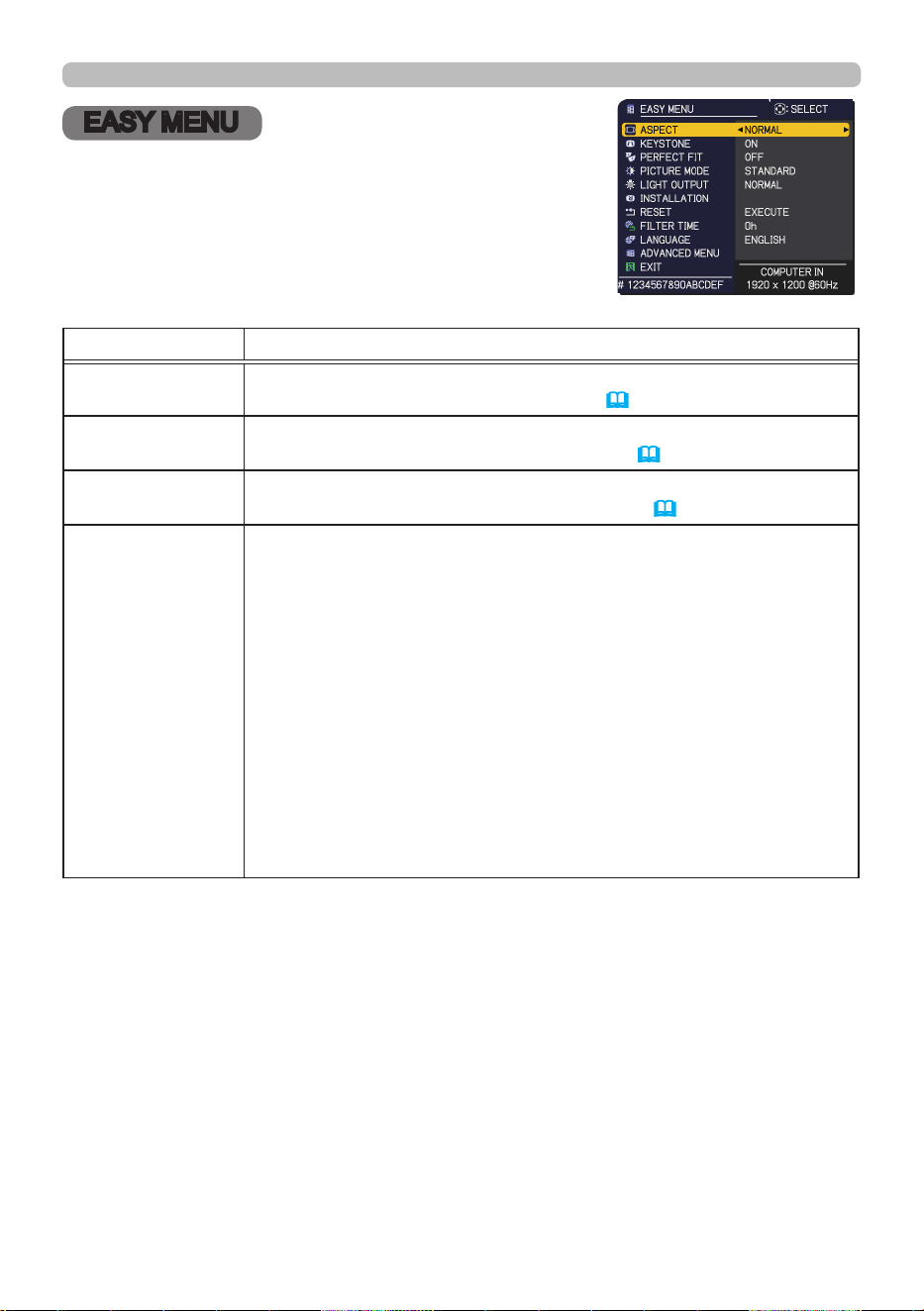
6 8
QM00971-1
EASY MENU
EASY MENU
Select an item from the EASY menu using the ▲/▼
cursor buttons. Then perform it according to the
following table.
Item Description
ASPECT
Using the ◄/► buttons switches the mode for aspect ratio.
See the ASPECT item in IMAGE menu (
74) .
KEYSTONE
Pressing the ► button displays the KEYSTONE dialog.
See the KEYSTONE item in SETUP menu (
83) .
PERFECT FIT
Pressing the ► button displays the PERFECT FIT dialog.
See the
PERFECT FIT
item in SETUP menu (
83) .
PICTURE MODE
Using the ◄/► buttons switches the picture mode.
The picture modes are combinations of GAMMA and COLOR TEMP
settings. Choose a suitable mode according to the projected source.
• Lines or other noise might appear on the screen when this function
is operated, but it is not a malfunction.
• DICOM SIM. is the projector's DICOM
®
("Digital Imaging and
Communication in Medicine") simulation mode. This mode
simulates the DICOM standard, which is a standard applicable to
digital communications in medicine, and can be useful for displaying
medical images, such as X-rays photos. This projector is not a
medical device and is not compliant to the DICOM standard, and
neither the projector nor the DICOM SIM. mode should be used for
medical diagnosis.
• Selected picture mode is not reected when HDR DETECT is
enabled and HDR signal is input
.
(continued on next page)
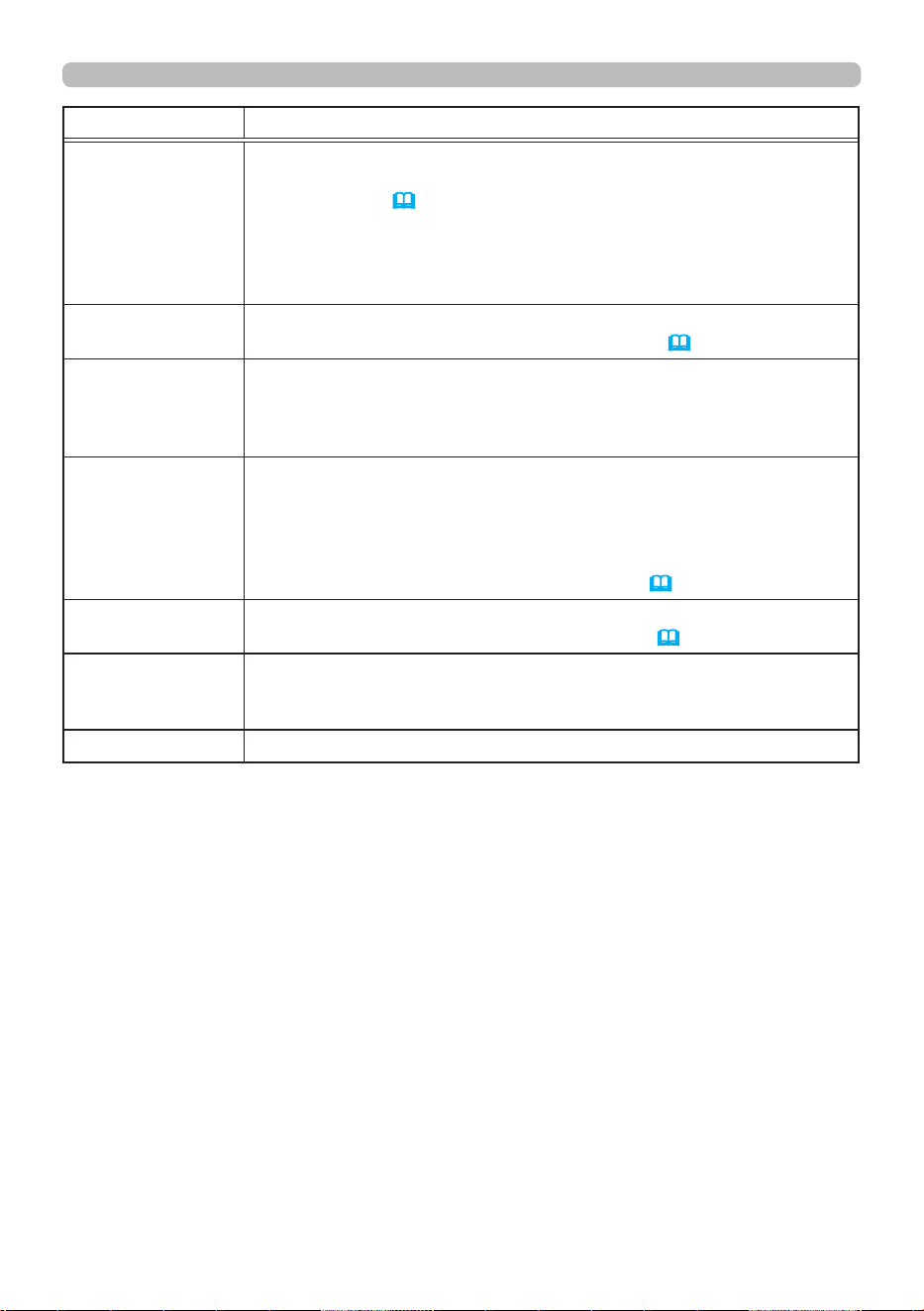
6 9
QM00971-1
EASY MENU
Item Description
LIGHT OUTPUT
Pressing the ► button displays the dialog for light output.
See the LIGHT OUTPUT item of the LIGHT & FILTER item in
SETUP menu. (
84)
• When the ambient temperature is around 35 to 45°C, the
brightness of light source is reduced automatically.
• The brightness of the light source may be reduced depending on
the direction of the projection.
INSTALLATION
Pressing the ► button displays the INSTALLATION dialog.
See the INSTALLATION item in SETUP menu (
86).
RESET
Selecting this item resets all of the EASY MENU items except the
FILTER TIME and LANGUAGE.
A dialog is displayed for conrmation. Selecting the OK using the ►
button performs resetting.
FILTER TIME
The usage time of the air lter is shown in the menu.
Selecting this item resets the lter time which counts usage time of
the air lter.
A dialog is displayed for conrmation. Selecting OK using the ►
button initiates the reset.
See the FILTER TIME item in SETUP menu (
85).
LANGUAGE
Using the ◄/► buttons changes the display language.
See the LANGUAGE item in SCREEN menu (
92) .
ADVANCED MENU
Press the ► or ENTER button to use the menu of PICTURE,
IMAGE, INPUT, SETUP, AUDIO, SCREEN, OPTION, NETWORK or
SECURITY.
EXIT Press the ◄ or ENTER button to close the OSD menu.
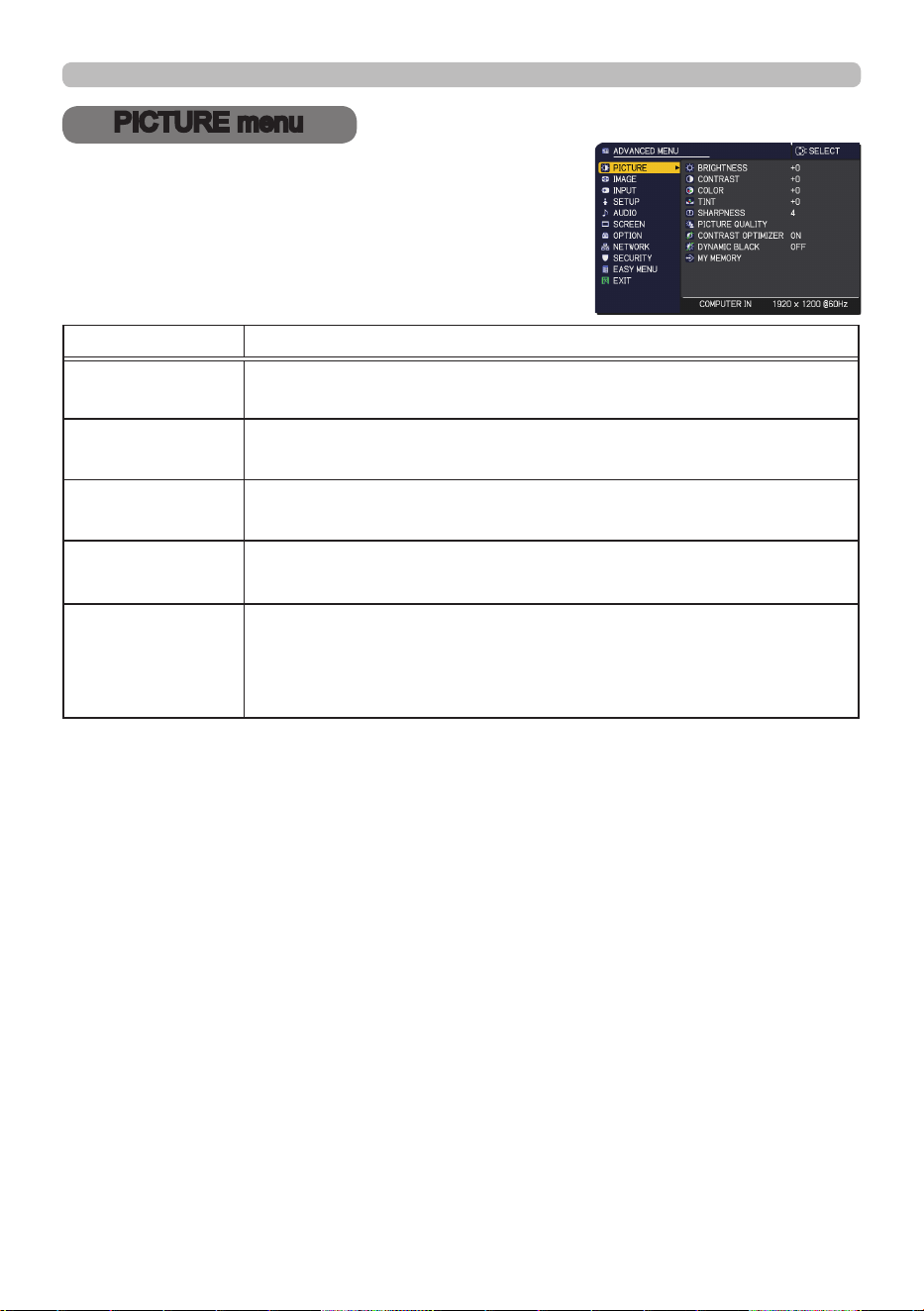
70
QM00971-1
PICTURE menu
PICTURE menu
Select an item from the PICTURE menu using the
▲/▼ cursor buttons, and press the ► cursor button
or ENTER button to execute the item. Then perform
it according to the following table.
Item Description
BRIGHTNESS
Using the
◄/►
buttons adjusts the brightness.
Dark
ó
Light
CONTRAST
Using the
◄/►
buttons adjusts the contrast.
Weak
ó
Strong
COLOR
Using the ◄/► buttons adjusts the strength of whole color.
Weak
ó
Strong
TINT
Using the ◄/► buttons adjusts the tint.
Reddish
ó
Greenish
SHARPNESS
Using the ◄/► buttons adjusts the sharpness.
Weak
ó
Strong
• There may be some noise and/or the screen may icker for a
moment when an adjustment is made. This is not a malfunction.
(continued on next page)
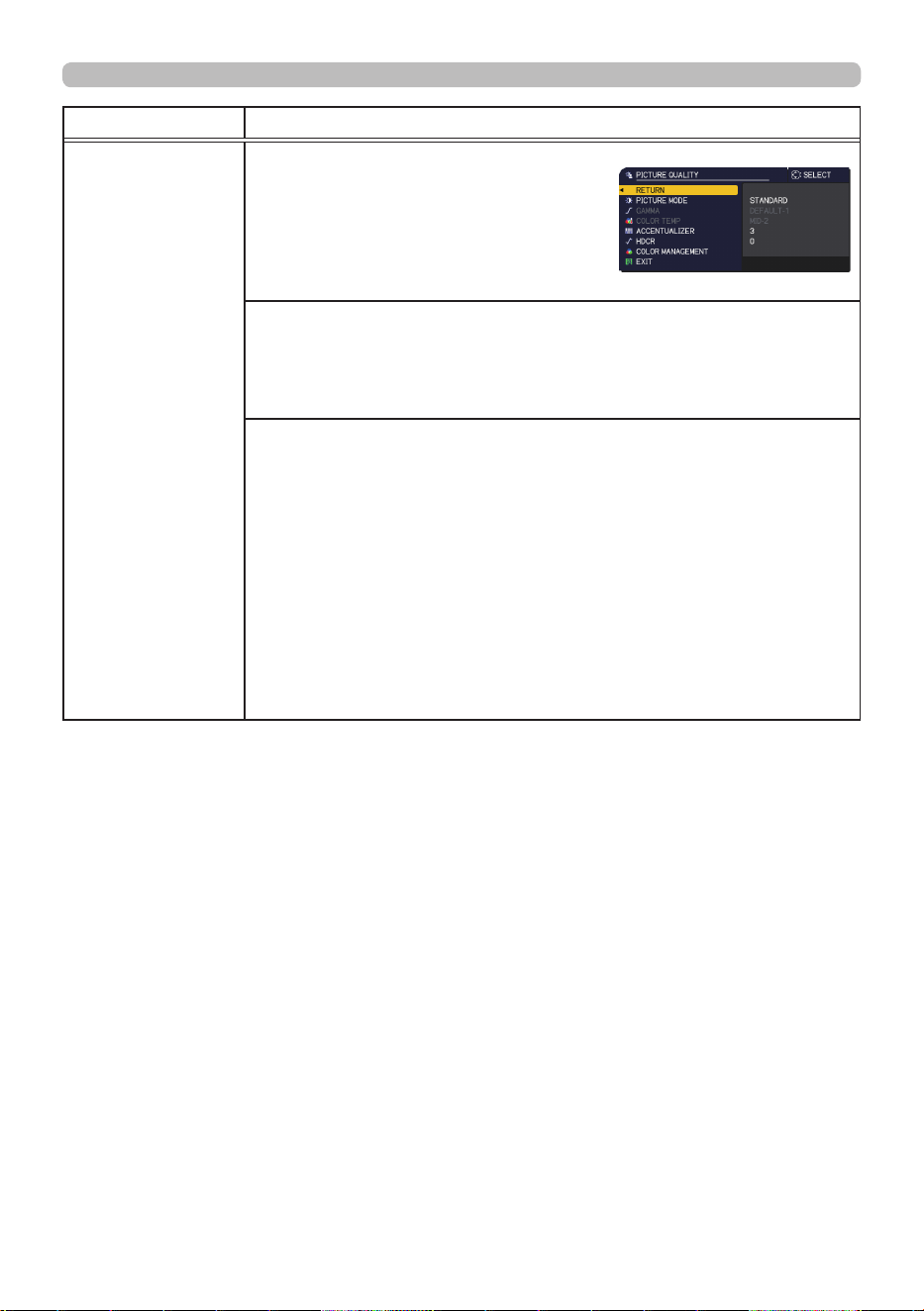
71
QM00971-1
PICTURE menu
Item Description
PICTURE
QUALITY
Selecting this item displays the PICTURE
QUALITY menu.
Select an item using the ▲/▼ buttons,
and press the ► button or the ENTER
button on the remote control to execute
the item.
PICTURE MODE
After selecting USER-1 / USER-2 / USER-3, the following features
are adjustable.
Gamma, Color Temp
GAMMA
This feature is only available when USER-1 / USER-2 / USER-3 is
selected.
Using the ▲/▼ buttons switches the gamma mode.
Selecting a mode whose name includes CUSTOM and then
pressing the ► button or the ENTER button displays
a dialog to help you in adjusting the mode. This function is useful
when you want to change the brightness of particular tones.
Choose an item using the ◄/► buttons, and adjust the level using
the ▲/▼ buttons.
• Lines or other noise might appear on the screen when this function
is operated, but it is not a malfunction.
(continued on next page)

72
QM00971-1
PICTURE menu
Item Description
PICTURE
QUALITY
(continued)
COLOR TEMP
This feature is only available when USER-1 / USER-2 / USER-3 is
selected.
Using the ▲/▼ buttons switches the color temperature mode.
Selecting a mode whose name includes CUSTOM and then pressing
the ► button or the ENTER button displays a dialog to aid you in
adjusting the OFFSET and GAIN of the selected mode.
OFFSET adjustments change the color intensity on the whole tones.
GAIN adjustments mainly aect color intensity on the brighter tones.
Choose an item using the ◄/► buttons, and adjust the level using
the ▲/▼ buttons.
• Lines or other noise might appear on the screen when this function
is operated, but it is not a malfunction.
ACCENTUALIZER
ACCENTUALIZER is a function to improve the legibility.
Using the ◄/► buttons adjusts the sharpness.
Weak
ó
Strong
• There may be some noise and/or the screen may icker for a
moment when an adjustment is made. This is not a malfunction.
HDCR
A function to show a clear picture in a bright room.
Using the◄/► buttons adjusts the contrast.
COLOR MANAGEMENT
A function to adjust color phase, color saturation, and brightness
respectively for red, yellow, green, cyan, blue, and magenta.
73
QM00971-1
PICTURE menu
Item Description
CONTRAST
OPTIMIZER
Turns on/o the CONTRAST OPTIMIZER function.
This function makes gradation of image more lively to improve
contrast and vividness.
ON
ó
OFF
• This function is disabled when the EDGE BLENDING function or
the PbyP / PinP function is enabled
.
• This function is disabled when HDR DETECT is enabled and HDR
signal is input.
• Even if this function is set to ON, this function may be disabled
depending on the PICTURE MODE setting. In that case, this item
cannot be selected from the menu.
DYNAMIC BLACK
Turn on/o the DYNAMIC BLACK function.
Congures the projector to automatically adjust the contrast of
the input image. When a dark video signal is input, the projector
dynamically adjusts the picture contrast.
ON
ó
OFF
• This function may not work correctly when analog signals contain
noise.
MY MEMORY
This projector has four memories for adjustment data (for all the
items of the PICTURE menu).
Selecting a function using the ▲/▼ buttons and pressing the ► or
ENTER button performs each function.
SAVE-1
ó
SAVE-2
ó
SAVE-3
ó
SAVE-4
LOAD-4
ó
LOAD-3
ó
LOAD-2
ó
LOAD-1
LOAD-1, LOAD-2, LOAD-3, LOAD-4
Performing a LOAD function loads the data from the memory linked
in the number included in the function’s name, and adjusts the
picture automatically depending on the data.
• The LOAD functions whose linked memory has no data are
skipped.
• Remember that the current adjusted condition is lost by loading
data. To keep the current adjustment, save it before performing a
LOAD function.
• There may be some noise and the screen may icker for a
moment when loading data. This is not malfunction.
• You can perform the LOAD function using MY BUTTON. See MY
BUTTON item in OPTION menu (
101).
SAVE-1, SAVE-2, SAVE-3, SAVE-4
Performing a SAVE function saves the current adjustment data into
the memory linked in the number included in the function’s name.
• Remember that the current data being stored of a memory is lost
by saving new data into the memory.
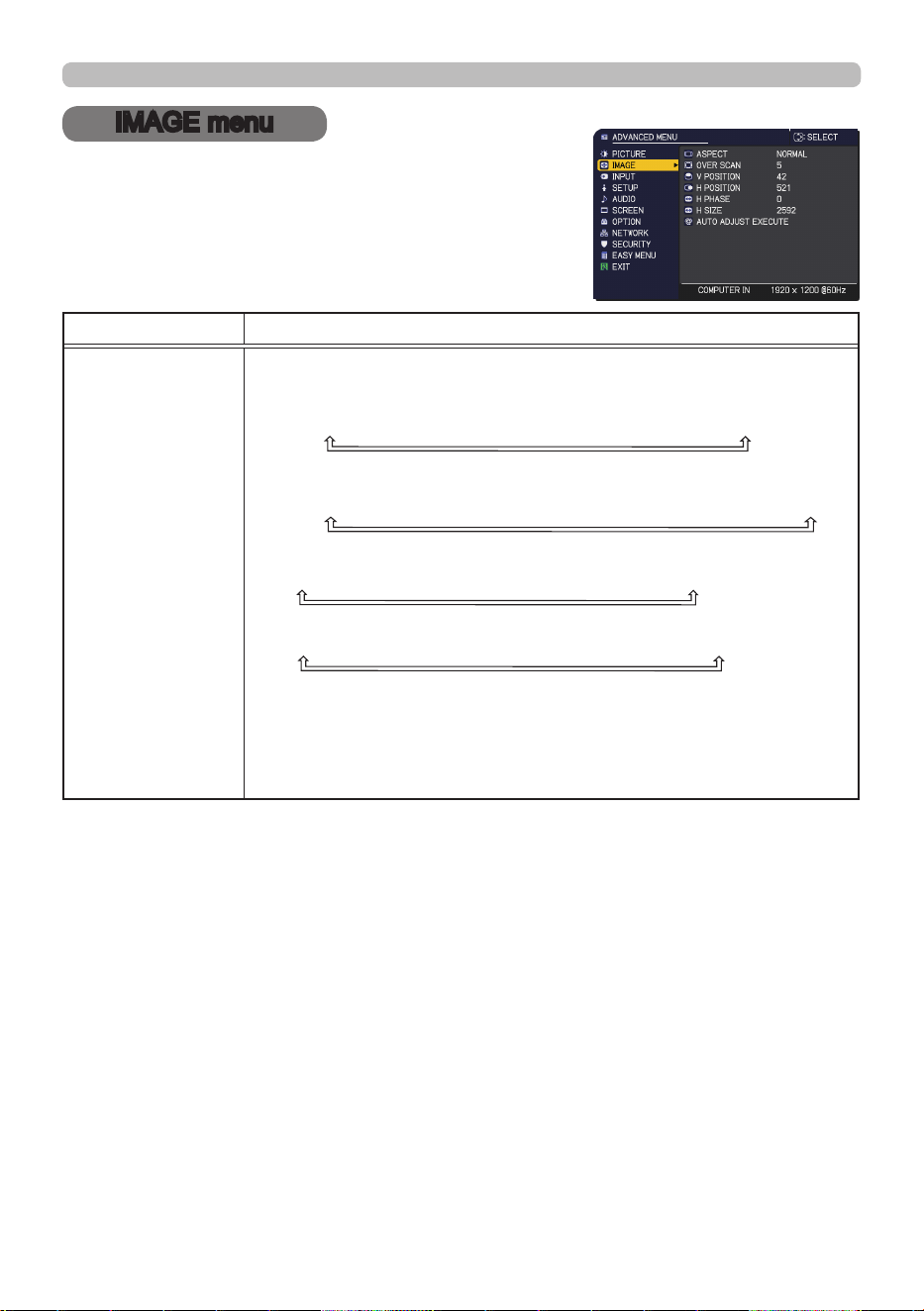
74
QM00971-1
IMAGE menu
IMAGE menu
Select an item from the IMAGE menu using the ▲/▼
cursor buttons, and press the ► cursor button or
ENTER button to execute the item. Then perform it
according to the following table for selected port.
Item Description
ASPECT
Using the ▲/▼ buttons switches the mode for aspect ratio.
For a computer signal
NORMAL
ó
4:3
ó
16:9
ó
16:10
ó
ZOOM
ó
NATIVE
For HDMI
TM
, HDBaseT™, and DisplayPort™ signals
NORMAL
ó
4:3
ó
16:9
ó
16:10
ó
14:9
ó
ZOOM
ó
NATIVE
For a video signal
4:3
ó
16:9
ó
16:10
ó
14:9
ó
ZOOM
ó
NATIVE
For an SDI signal
NORMAL
ó
4:3
ó
16:9
ó
16:10
ó
ZOOM
ó
NATIVE
For an input signal from the LAN port, or if there is no signal
16:10 (xed)
• The NORMAL mode keeps the original aspect ratio of the signal.
• You cannot select NATIVE when inputting 4K signal.
(continued on next page)
75
QM00971-1
IMAGE menu
Item Description
OVER SCAN
Using the ◄/► buttons adjusts the over-scan ratio.
Small (It magnies picture)
ó
Large (It reduces picture)
• This item cannot be selected for a computer signal of
COMPUTER IN port and LAN port.
V POSITION
Using the ◄/► buttons adjusts the vertical position.
Down
ó
Up
• Over-adjusting the vertical position may cause noise to appear on
the screen. If this occurs, reset the vertical position to the default
setting. Pressing the RESET button when the V POSITION is
selected resets the V POSITION to the default setting.
• When this function is performed on a video signal, the range of
this adjustment depends on OVER SCAN (
above) setting. You
cannot adjust when OVER SCAN is set to 10.
• This function is unavailable for a signal from the LAN, HDMI 1 / 2,
HDBaseT,
DisplayPort, or 3G-SDI port.
H POSITION
Using the ◄/► buttons adjusts the horizontal position.
Right
ó
Left
•
Over-adjusting the horizontal position may cause noise to appear on
the screen. If this occurs, reset the horizontal position to the default
setting. Pressing the RESET button when the H POSITION is selected
resets the H POSITION to the default setting.
• When this function is performed on a video signal, the range of
this adjustment depends on OVER SCAN (
above) setting. You
cannot adjust when OVER SCAN is set to 10.
• This function is unavailable for a signal from the LAN, HDMI 1 / 2,
HDBaseT,
DisplayPort, or 3G-SDI port.
(continued on next page)
76
QM00971-1
IMAGE menu
Item Description
H PHASE
Using the
◄/►
buttons adjusts the horizontal phase to eliminate icker.
Right
ó
Left
• This item can be selected only for a computer signal or a
component video signal. This function is unavailable for a signal
from the LAN, HDMI 1 / 2, HDBaseT, DisplayPort, or 3G-SDI port.
H SIZE
Using the ◄/► buttons adjusts the horizontal size.
Small
ó
Large
• This item can be selected only for a computer signal. This function
is unavailable for a signal from the LAN, VIDEO, HDMI 1 / 2,
HDBaseT,
DisplayPort, or 3G-SDI port.
• When this adjustment is excessive, the picture may not be
displayed correctly. If this occurs, reset the adjustment by pressing
the RESET button on the remote control during this operation.
• Images might appear degraded when this function is operated, but
it is not a malfunction.
AUTO ADJUST
EXECUTE
Selecting this item performs the automatic adjustment feature.
For a computer signal
The vertical position, the horizontal position and the horizontal
phase are automatically adjusted.
Make sure that the application window is set to its maximum size
prior to attempting to use this feature. A dark picture may still be
incorrectly adjusted. Use a bright picture when adjusting.
For a video signal
The video format best suited for the respective input signal is
selected automatically. This function is available only when the
AUTO is selected for the VIDEO FORMAT item in the INPUT
menu (
78). The vertical position and horizontal position are
automatically set to the default.
• The automatic adjustment operation requires approx. 10 seconds.
Note that it may not function correctly with some input.
• When this function is performed for a video signal, an extra line
may appear outside a picture.
• When this function is performed for a computer signal, a black
frame may be displayed on the edge of the screen, depending on
the computer model.
• The items adjusted by this function may vary when the FINE or
DISABLE is selected for the AUTO ADJUST item of the SERVICE
item in the OPTION menu (
106).
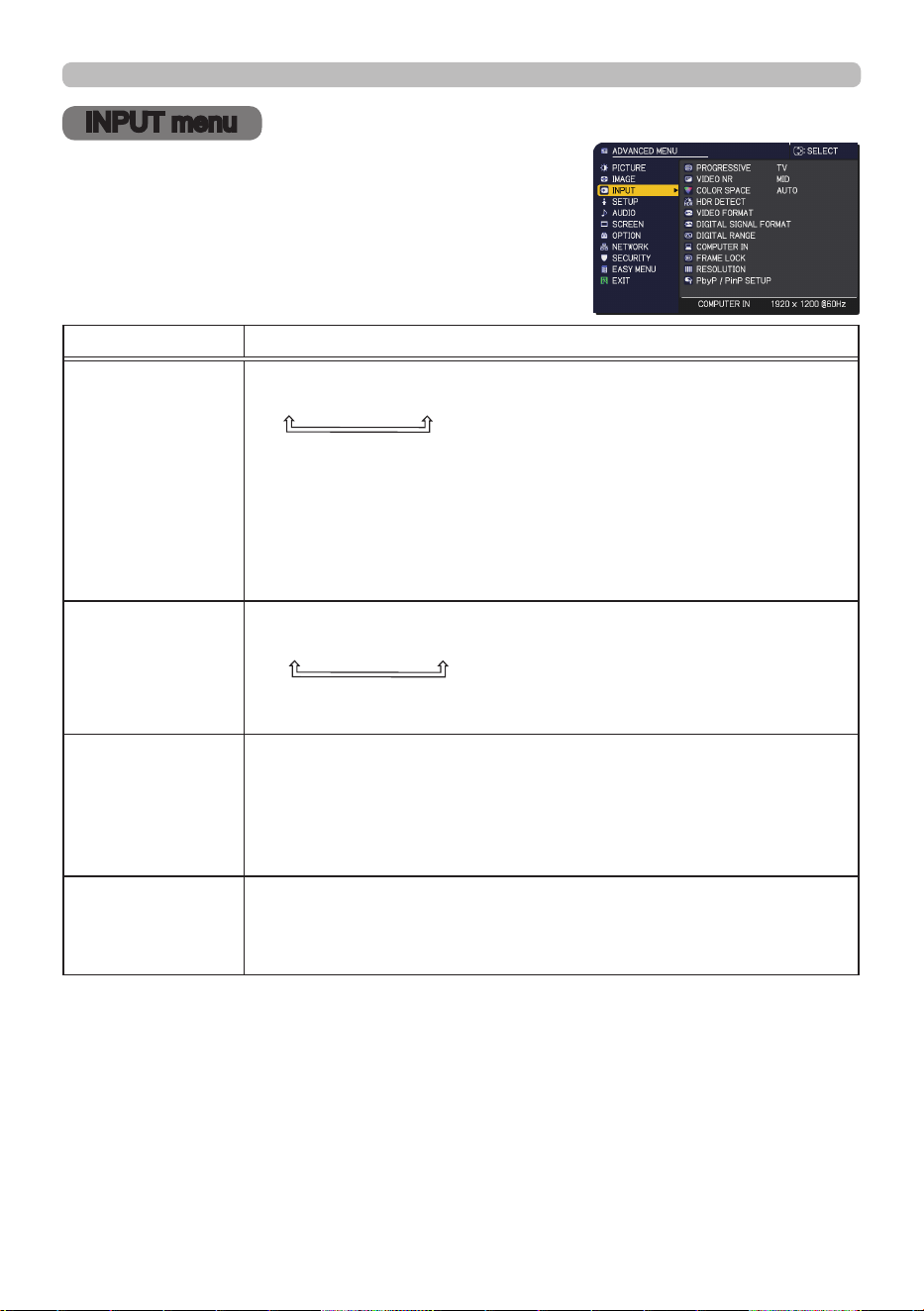
77
QM00971-1
INPUT menu
INPUT menu
Select an item from the Input menu using the ▲/▼
cursor buttons, and press the ► cursor button or
ENTER button to execute the item. Then perform it
according to the following table.
Item Description
PROGRESSIVE
Using the ▲/▼ buttons switches the progress mode.
TV
ó
FILM
ó
OFF
•
This function works only for a video signal, 480i@60, 576i@50, or
1080i@50/60.
• When TV or FILM is selected, the screen image is sharp. FILM
adapts to the 2-3 Pull-Down conversion system. But these may
cause a certain defect (for example, jagged line) of the picture for
a quick moving object. If this occurs, select OFF, even if the screen
image loses sharpness.
VIDEO NR
Using the ▲/▼ buttons switches the noise reduction mode.
HIGH
ó
MID
ó
LOW
•
This function works only for a video signal, 480i@60, 576i@50, or
1080i@50/60.
COLOR SPACE
Using the ▲/▼ buttons switches the mode for color space.
• This function is unavailable for a signal from the LAN, VIDEO or
3G-SDI port.
• The AUTO mode automatically selects the optimum mode.
• The AUTO operation may not work correctly at some signals. If
this occurs, select a suitable mode except AUTO.
HDR DETECT
When this function is enabled and HDR signal is input, picture
quality switches to the one suitable to HDR signal.
• Selected picture mode is not reected when this function is
enabled and HDR signal is input.
(continued on next page)
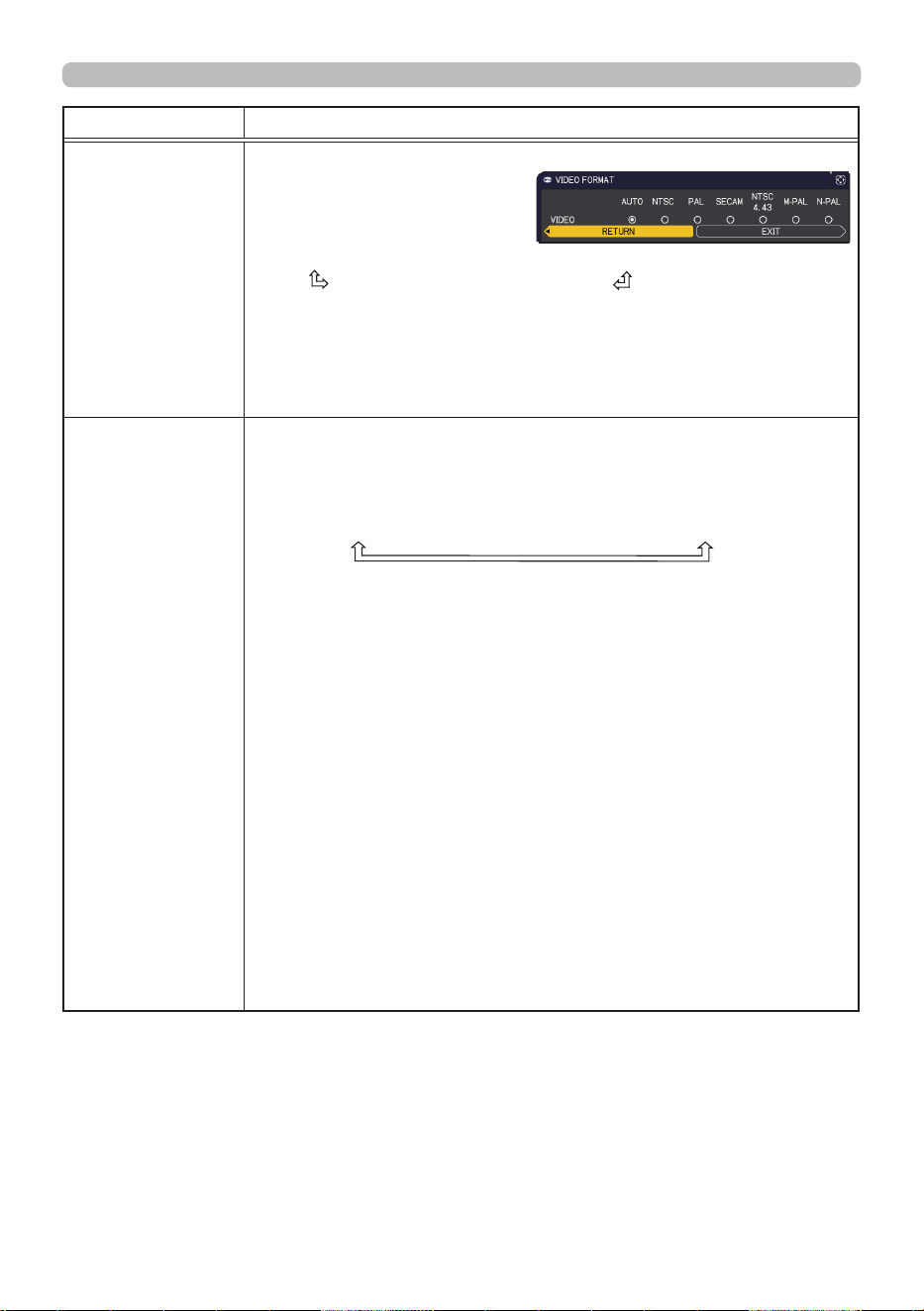
78
QM00971-1
INPUT menu
Item Description
VIDEO FORMAT
The video format for VIDEO port can be set.
Using the ◄/► buttons
switches the mode for video
format.
AUTO
ó
NTSC
ó
PAL
ó
SECAM
N-PAL
ó
M-PAL
ó
NTSC4.43
• This item is used only for a video signal from the VIDEO port.
• The AUTO mode automatically selects the optimum mode.
• The AUTO operation may not work well for some signals. If the
picture becomes unstable (for example, an irregular picture, lack of
color), select the mode according to the input signal.
DIGITAL SIGNAL
FORMAT
Switches the signal format supported by HDMI 1 / HDBaseT /
DisplayPort.
Select the DIGITAL SIGNAL FORMAT.
4K ENHANCED
ó
4K STANDARD
ó
2K COMPATIBLE
4K ENHANCED : This mode supports 4K 50Hz/60Hz 4:4:4
*
1
,
4:2:2
*
1
, 4:2:0 format and 24Hz/25Hz/30Hz 4:4:4,
4:2:2 format.
(*1 : Not supported by HDBaseT.)
Select this when you use a device which supports
4K image signal described above.
Select 4K STANDARD when picture or sound
cannot be played correctly.
Use a Premium High Speed HDMI Cable which
supports 18Gbps when selecting 4K
ENHANCED.
4K STANDARD : This mode supports 4K 50Hz/60Hz 4:2:0 format
and 24Hz/25Hz/30Hz 4:4:4, 4:2:2 format.
Select this when you use a device not
supporting 50Hz/60Hz 4:4:4, 4:2:2 format of 4K
signal or when picture or sound cannot be played
correctly after selecting 4K ENHANCED.
(continued on next page)
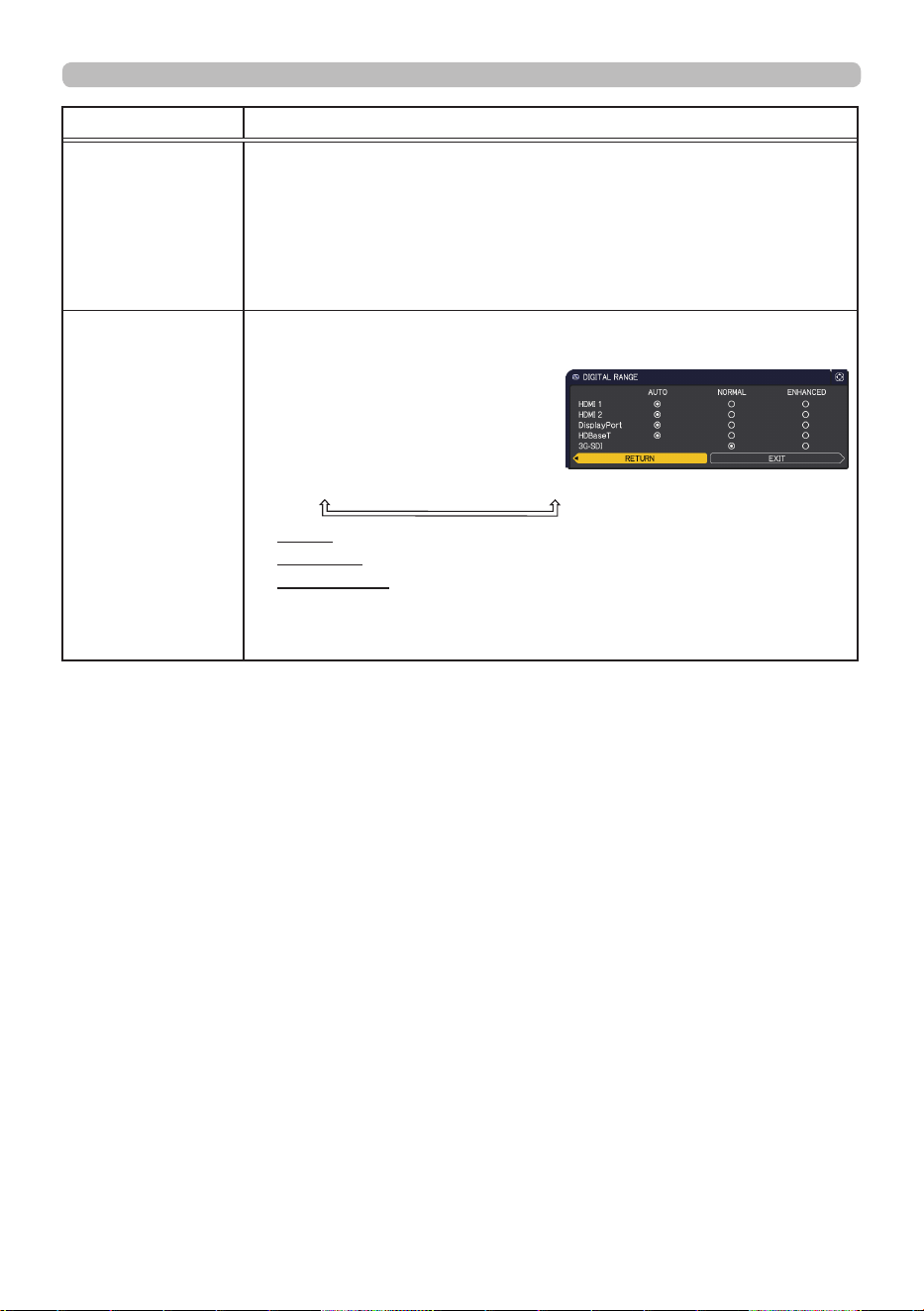
79
QM00971-1
INPUT menu
Item Description
DIGITAL SIGNAL
FORMAT
(continued)
2K COMPATIBLE : This mode gives priority to compatibility with a
connected device.
Select this when you use a device not
supporting 4K signal or when picture or sound
cannot be played correctly after selecting 4K
ENHANCED or 4K STANDARD.
DIGITAL RANGE
The digital range of HDMI
TM
input signals from the HDMI 1/ 2,
HDBaseT, DisplayPort, and 3G-SDI ports can be set.
(1) Use the ▲/▼ buttons to select
the port to be set.
(2) Use the ◄/►buttons to select
the digital range.
AUTO
ó
NORMAL
ó
ENHANCED
AUTO: automatically sets the optimum mode.
NORMAL: sets the suitable mode for DVD signals. (16-235)
ENHANCED: sets the suitable mode for computer signals. (0-255)
((1-254) for SDI)
• If the contrast of the screen image is too strong or weak, try nding
a more suitable mode.
(continued on next page)
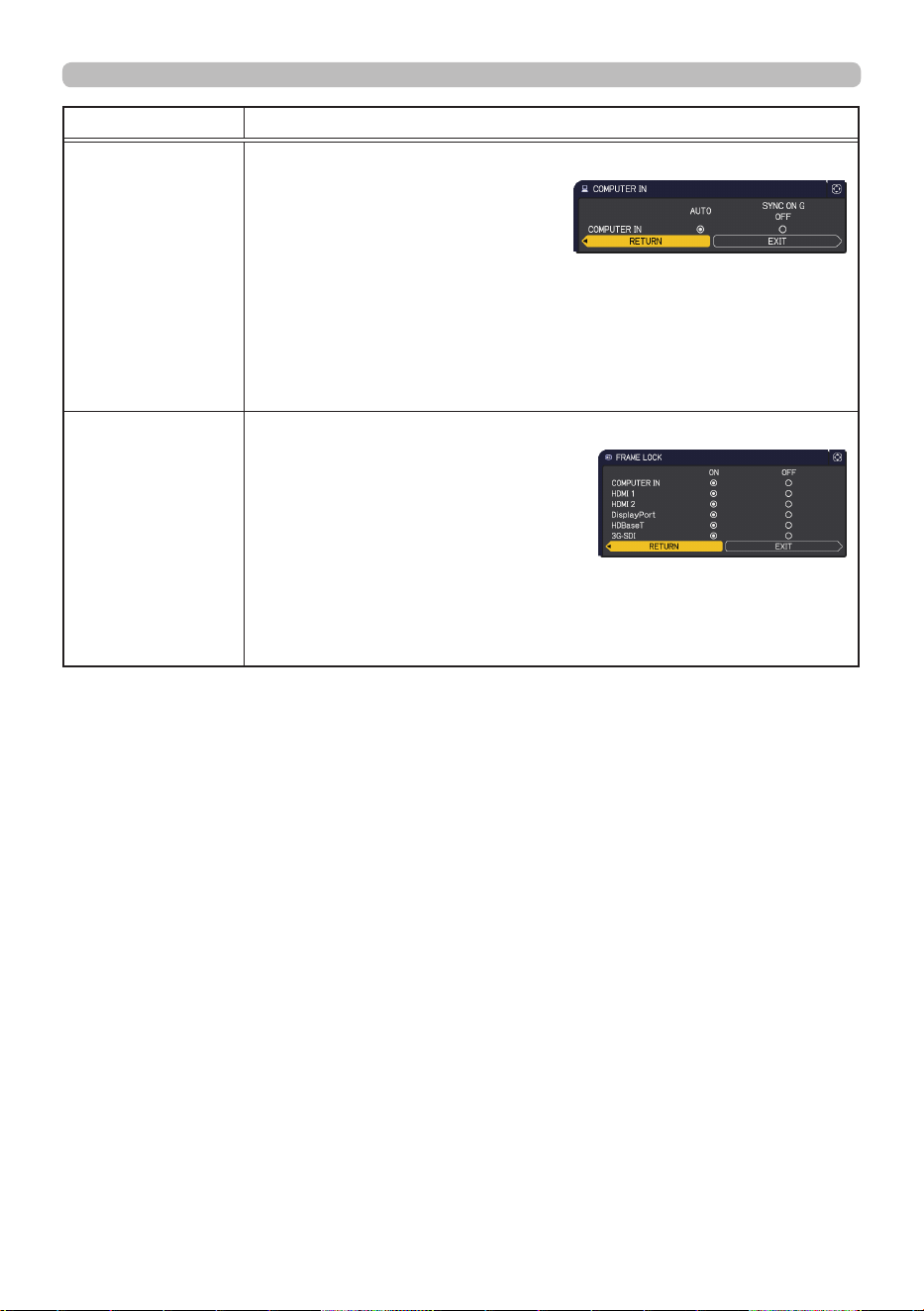
8 0
QM00971-1
INPUT menu
Item Description
COMPUTER IN
The computer input signal type for COMPUTER IN port can be set.
Use the ◄/► buttons to select the
computer input signal type.
AUTO
ó
SYNC ON G OFF
• Selecting the AUTO mode, you
can input a sync on G signal or component video signal from the
port.
• In the AUTO mode, the picture may be distorted with certain input
signals. If this occurs, remove the signal connector so that no signal
is received and select the SYNC ON G OFF, and then reconnect the
signal.
FRAME LOCK
Set the frame lock function on/o for each port.
(1) Use the ▲/▼ buttons to select the
input ports.
(2) Use the ◄/► buttons to turn the
frame lock function on/o.
ON
ó
OFF
• When ON is selected, moving pictures are displayed more
smoothly.
• This item can be performed only on a signal with a vertical
frequency of 24 to 25Hz, 30Hz, 49 to 51Hz, or 59 to 61 Hz.
(continued on next page)
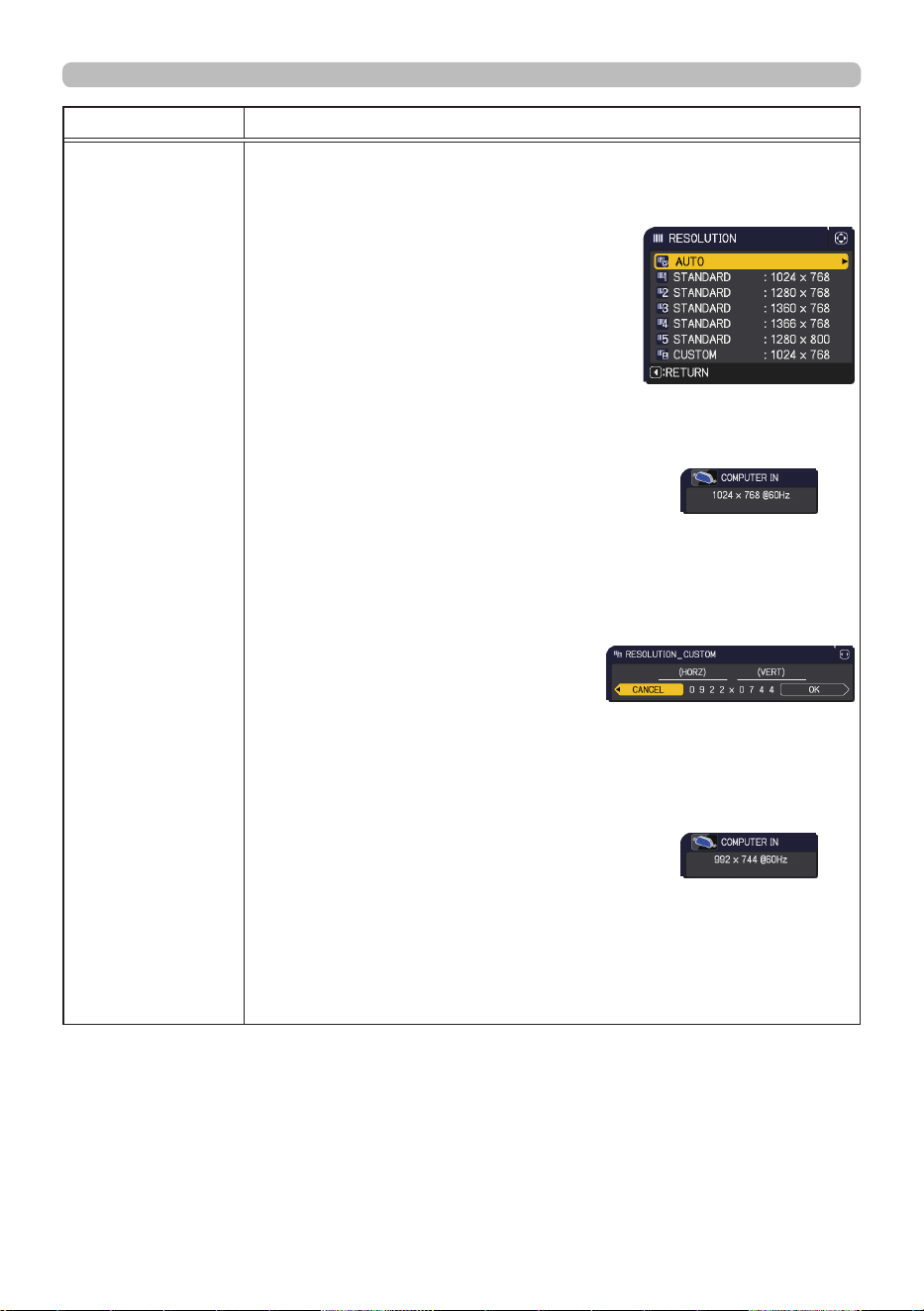
8 1
QM00971-1
INPUT menu
Item Description
RESOLUTION
The resolution for the COMPUTER IN input signal can be set on this
projector.
(1) In the INPUT menu select the RESOLUTION using the ▲/▼
buttons and press the ► button.
The RESOLUTION menu is
displayed.
(2) In the RESOLUTION menu select the
resolution you wish to display using
the ▲/▼ buttons.
Selecting AUTO sets a resolution
appropriate to the input signal.
(3) Pressing the ► or ENTER button when
selecting a STANDARD resolution
automatically adjusts the horizontal
and vertical positions, clock phase and
horizontal size.
The INPUT_INFORMATION dialog is
displayed.
(4) To set a custom resolution, use the ▲/▼ buttons to select the
CUSTOM and the RESOLUTION_CUSTOM box.
Set the (HORZ) and (VERT)
resolutions using the ▲/▼/◄/►
buttons.
This function may not support all
resolutions.
(5) Move the cursor to OK on the screen and press the ► or
ENTER button. The message "ARE YOU SURE YOU WISH TO
CHANGE RESOLUTION?" appears. To save the setting, press
the ► button.
The horizontal and vertical positions, clock phase and horizontal
size are automatically adjusted.
The INPUT_INFORMATION dialog is
displayed.
(6) To revert to the previous resolution without saving changes,
move the cursor to CANCEL on screen and press the ◄ or
ENTER button.
The screen then returns to the RESOLUTION menu displaying
the previous resolution.
• For some pictures, this function may not work well.
(continued on next page)
STANDARD
↓
CUSTOM
↓
8 2
QM00971-1
INPUT menu
Item Description
PbyP / PinP
SETUP
PinP POSITION
Using ▲/▼ buttons on the remote control changes the position of
sub area in PinP mode (
64
) .
PbyP / PinP FRAME LOCK
Select the screen that enables FRAME LOCK function when using
PbyP or PinP.
LEFT / PRIMARY: Enables FRAME LOCK function for input on left
screen of PbyP or on primary area of PinP.
RIGHT / SECONDARY: Enables FRAME LOCK function for input
on right screen of PbyP or on secondary area of PinP.
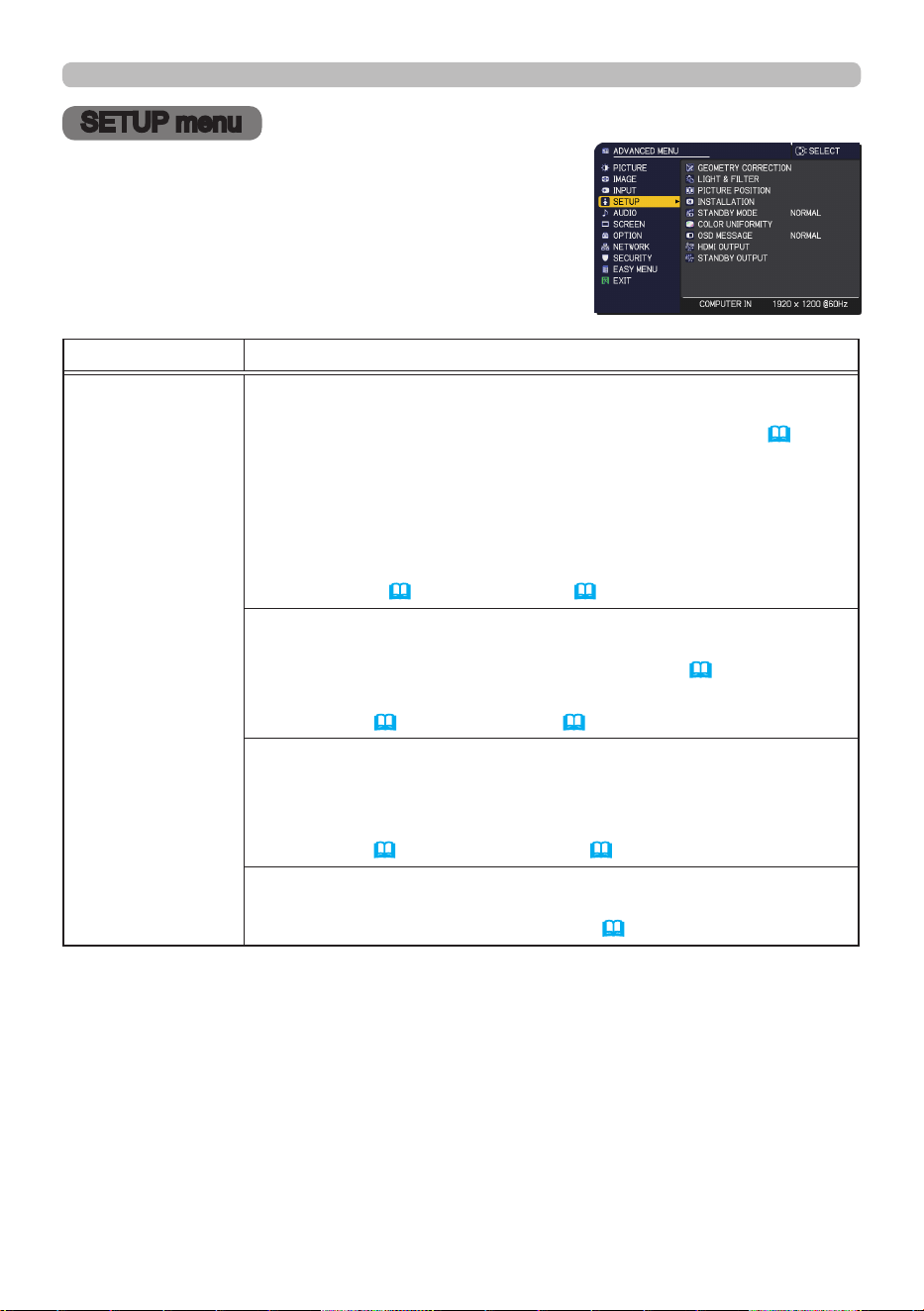
8 3
QM00971-1
SETUP menu
SETUP menu
Select an item from the Setup menu using the ▲/▼
cursor buttons, and press the ► cursor button or
ENTER button to execute the item. Then perform it
according to the following table.
Item Description
GEOMETRY
CORRECTION
KEYSTONE
Selecting this item displays the KEYSTONE dialog.
For details, see KEYSTONE in Correcting the distortion(
52
) .
• When the zoom adjustment is set to the TELE (telephoto focus),
this function may be excessive. This function should be used when
the zoom adjustment is set to the full WIDE (wide-angle focus).
• When the horizontal lens shift is not set to the center, this function
may not work correctly.
•
This function is unavailable when the screen is activated by
PERFECT FIT (
53
), or WARPING (
54
).
PERFECT FIT
Selecting this item displays the PERFECT FIT dialog. For details,
see PERFECT FIT in Correcting the distortion (
53
).
• This function is unavailable when the screen is activated by
KEYSTONE (
52), or WARPING (
54).
WARPING
Selecting this item displays the WARPING dialog. For details, see
Application Manual of this feature.
• This function is unavailable when the screen is activated by
KEYSTONE
(
52
)
or PERFECT FIT
(
53
)
.
EDGE BLENDING
Selecting this item displays the EDGE BLENDING dialog. For
details, see EDGE BLENDING feature (
55
~ 58
).
(continued on next page)
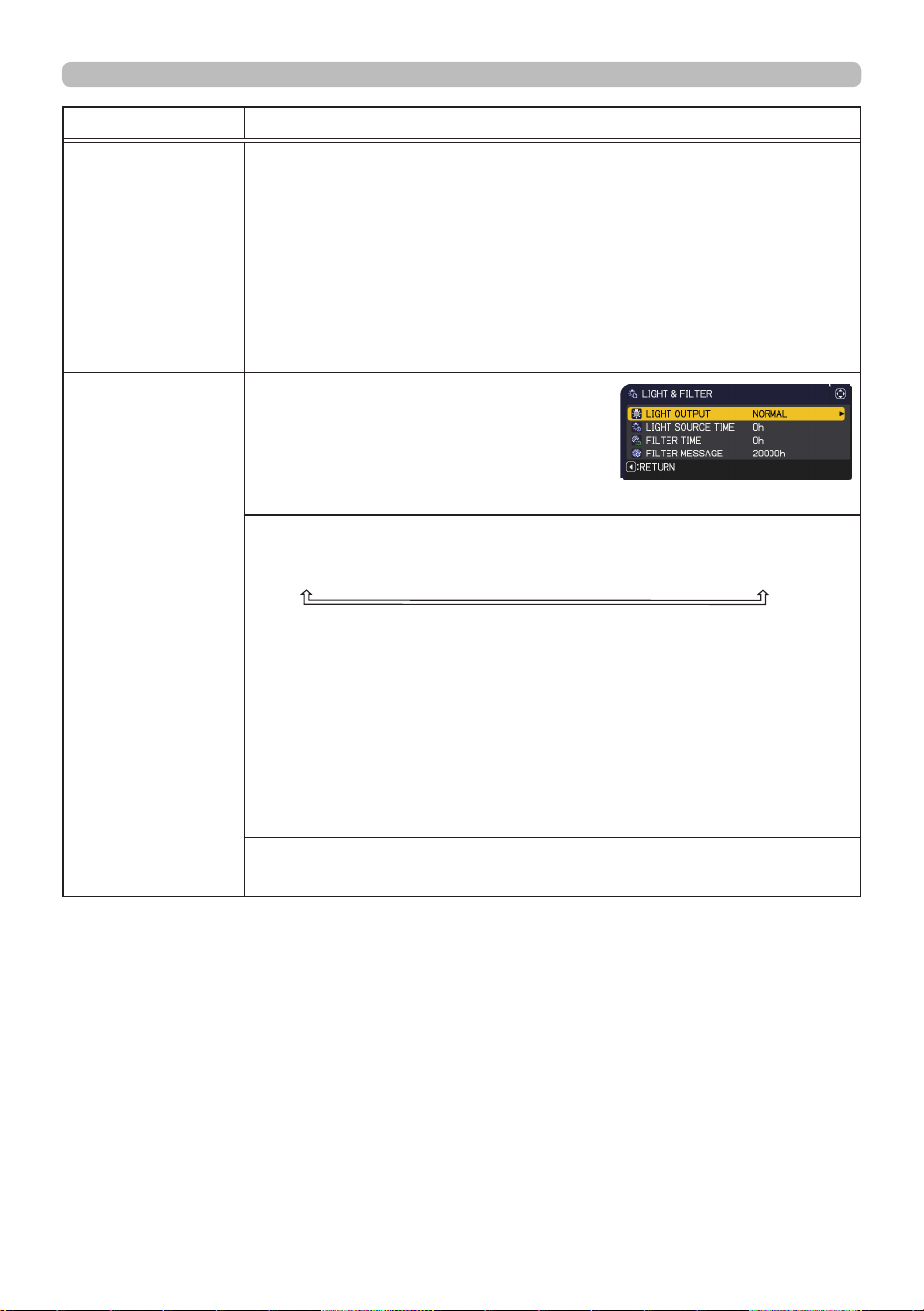
8 4
QM00971-1
SETUP menu
Item Description
GEOMETRY
CORRECTION
(continued)
PATTERN
Select PATTERN with ▲/▼ buttons.
Displayed pattern [O/1/2/3/4/5/6] can be switched with ◄/► buttons.
PATTERN 1: Frame
PATTERN 2: Red Grid
PATTERN 3: Green Grid
PATTERN 4: Blue Grid
PATTERN 5: Vertical 9 steps
PATTERN 6: Horizontal 9 steps
OFF: Displays the input signal.
LIGHT & FILTER
Selecting this item displays the LIGHT
& FILTER menu.
Select an item using the ▲/▼ buttons,
and press the ► button or the ENTER
button on the remote control to
execute the item.
LIGHT OUTPUT
Using the ▲/▼ buttons switches the LIGHT OUTPUT.
NORMAL
ó
LONG LIFE 1
ó
LONG LIFE 2
ó
WHISPER
• When the ambient temperature is around 35 to 45°C, the
brightness of light source is reduced automatically.
• When NORMAL is selected, you can change the brightness.
• LONG LIFE 1 and LONG LIFE 2 are specialized modes for long
life of the light source. They restrict the brightness of a light source
and perform appropriate cooling for the long life of a light source.
• WHISPER is a specialized mode for low noise. It restricts the
brightness of a light source.
• The brightness of the light source may be reduced depending on
the direction of the projection.
LIGHT SOURCE TIME
The light source time is the usage time of the light source.
(continued on next page)

8 5
QM00971-1
SETUP menu
Item Description
LIGHT & FILTER
(continued)
FILTER TIME
Displays the usage time of the air lter, counted after the last
resetting.
Pressing the RESET button on the remote control or the ► button
of the projector displays a dialog.
To reset the lter time, select the OK using the ► button.
CANCEL
ð
OK
• Reset the lter time only when you have cleaned or replaced the
air lter, for a suitable indication about the air lter.
• For the air lter cleaning, see the section Cleaning and replacing
the air lter (
124
) .
FILTER MESSAGE
Use the ▲/▼ button to set the timer for notifying by the message
when to replace the lter unit.
After choosing an item except OFF, the message “REMINDER ***
HOURS PASSED ....” appears after the timer reaches the interval
time set by this feature.
When the OFF is chosen, the message does not appear. Use this
feature to keep the air lter clean, setting the suitable time according
to your environment of this projector.
• Clean the lter periodically. If the air lter becomes to be blocked
by dust or other matter, the internal temperature rises, which could
cause malfunction, or reduce the lifetime of the projector.
• Be careful with the operating environment of the projector and the
condition of the lter unit.
(continued on next page)
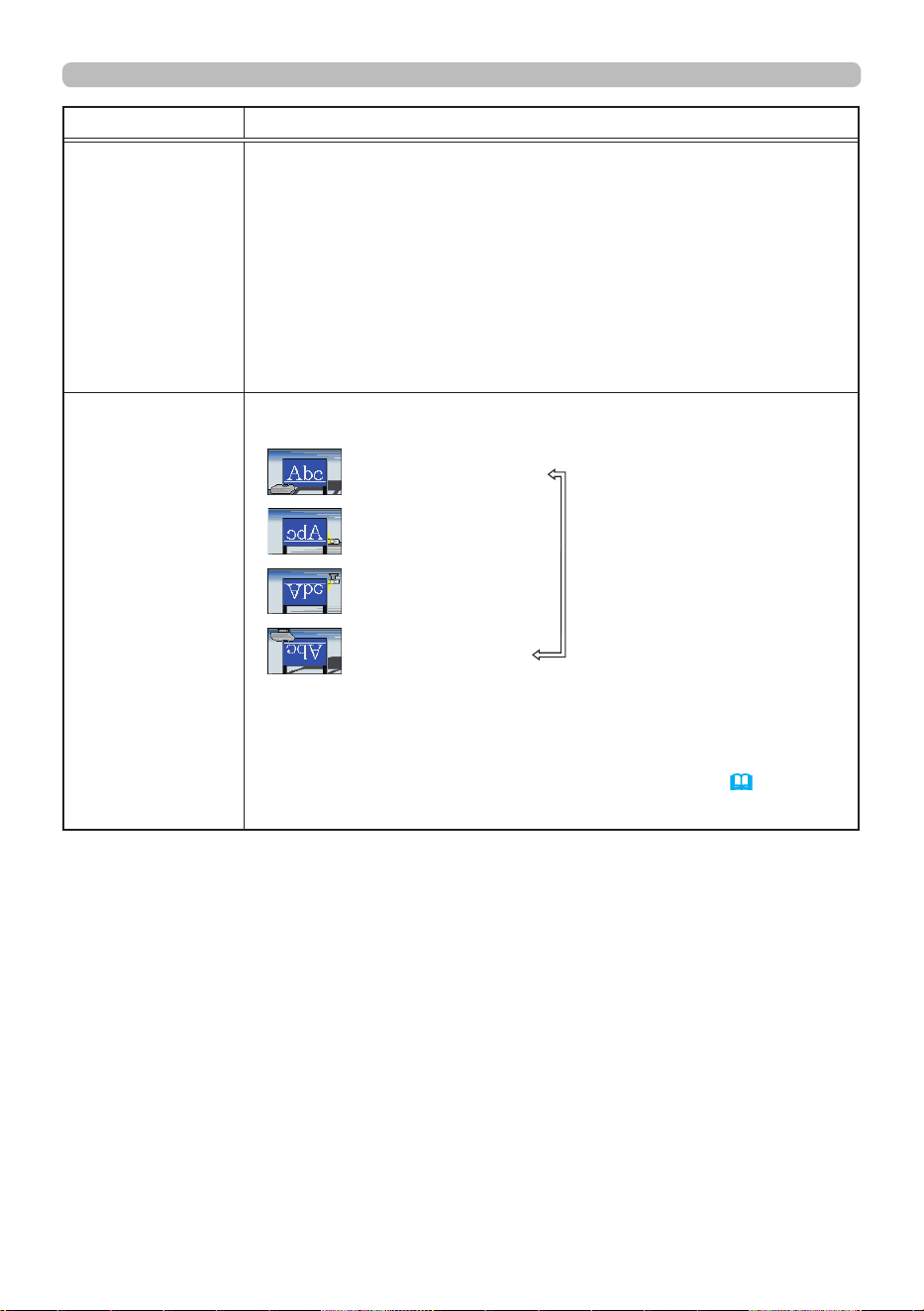
8 6
QM00971-1
SETUP menu
Item Description
PICTURE
POSITION
Using the ▲/▼/◄/► cursor buttons selects the required picture
position.
The PICTURE POSITION is not changed if any of the following
cases apply.
• There is no non-display area (black display or background display)
or it is not displayed on the screen.
• One of the following messages is displayed on the screen:
"NO INPUT IS DETECTED"
"SYNC IS OUT OF RANGE"
"INVALID SCAN FREQ."
• The BLANK or TEMPLATE function is selected.
INSTALLATION
Pressing the ►button displays the dialog for changing the
INSTALLATION setting.
FRONT / DESKTOP
REAR / DESKTOP
REAR / CEILING
FRONT / CEILING
Use the ▲/▼ buttons to select the required setting on the
INSTALLATION dialog, and press the ENTER button of the remote
control or the INPUT button of the projector to execute.
If TRANSITION DETECTOR is ON and the INSTALLATION status
is changed, the TRANSITION DETECTOR ON alarm (
120
) is
displayed when the projector is restarted.
(continued on next page)
8 7
QM00971-1
SETUP menu
Item Description
STANDBY MODE
Using ▲/▼ buttons switches the standby mode setting.
QUICK
START: For quick start-up (Standby power increases).
When the projector is set to QUICK START and in standby
mode, POWER indicator blinks in Green 2 times for about 3
seconds. QUICK START is disabled in 30 minutes and the
mode switches to NORMAL standby.
In this case, POWER indicator lights in orange.
Startup screen is not displayed when the projector is started
in QUICK START.
Fan operates while QUICK START is enabled.
NORMAL:
For using communication functions in the standby mode.
NETWORK(WOL):
For using Wake on LAN (WOL) function
on wired network while reducing power
consumption.
SAVING: Reduces power consumption minimally.
• When NETWORK(WOL) or SAVING is selected, the following
restrictions apply.
- The RS-232C communication control except to turn the projector
on are disabled while the projector is in the standby mode. If the
COMMUNICATION TYPE in the COMMUNICATION menu is set to
NETWORK BRIDGE, all of the RS-232C commands are disabled
(
111
)
.
- STANDBY OUTPUT is invalid.
- The HDMI Link and HDBaseT
TM
functions are disabled while the
projector is in the standby mode.
- SCHEDULE function (Ex. POWER-ON) in the standby mode will
not be operated.
- It takes a while until the projector is available after starting up.
-
The CENTERING feature while the projector is in the standby
mode is disabled if the STANDBY MODE item of SETUP menu is
set to NETWORK(WOL) or SAVING (
50
) . Perform CENTERING
before the projector's power is turned o, or set the STANDBY
MODE to NORMAL or QUICK START.
• When NETWORK(WOL) is set, WIRED NETWORK in OPTION
menu > SERVICE > CONTROL TERMINAL is xed to LAN.
• When NETWORK(WOL) is selected, only Wake on LAN (WOL) on
wired LAN is accepted while the projector is in the standby mode.
• This function is available only when OFF is selected for STACK
MODE.
• You cannot select NETWORK(WOL) when HDBaseT is selected in
SERVICE menu - CONTROL TERMINAL - WIRED NETWORK.
(continued on next page)
8 8
QM00971-1
SETUP menu
If you select NETWORK(WOL) in SETUP menu > STANDBY MODE, you can
use the Wake-On LAN(WOL) function of wired network while saving power
consumption in standby state.
Operation
Various communication functions can be used after the projector goes into
NORMAL standby mode by receiving WOL Magic packet in standby state.
However, the projector automatically goes back to NETWORK(WOL) standby
mode with less power consumption if 10 minutes have passed after the
projector goes into NORMAL standby mode by WOL Magic packet.
It takes about 1 minute on a wired network or about 2 minutes on a wireless
network until communication functions are available after WOL Magic packet
has been received.
WOL Magic packet
Item Specications
Network Wired network only
Protocol UDP
Destination address Broadcast address
Destination port number Arbitrary
WOL Magic packet A packet using MAC address of wired LAN of the projector
(FF:FF:FF:FF:FF:FF(6 bytes))
followed by 102-byte data with MAC Address(6 bytes)
repeated 16 times
(Example) WOL Magic packet for MAC Address: 01:02:03:04:05:06
FF:FF:FF:FF:FF:FF: 01:02:03:04:05:06: 01:02:03:04:05:06: 01:02:03:04:05:06:
01:02:03:04:05:06: 01:02:03:04:05:06: 01:02:03:04:05:06: 01:02:03:04:05:06:
01:02:03:04:05:06: 01:02:03:04:05:06: 01:02:03:04:05:06: 01:02:03:04:05:06:
01:02:03:04:05:06: 01:02:03:04:05:06: 01:02:03:04:05:06: 01:02:03:04:05:06:
01:02:03:04:05:06:
NOTICE
Supported WOL Magic packet is a packet to be sent to broadcast address.
General routers may not forward a packet of broadcast address to a device
with a dierent network address by default.
If you use a router like this, WOL function cannot be used for the projector that
is not in the same network address.
Consult with your network administrator about router settings.
This function is available only in wired network and is not supported in wireless
network.
Wake-On LAN (WOL) function

8 9
QM00971-1
SETUP menu
Item Description
COLOR
UNIFORMITY
Selects image level and region must be required corrected, and
adjusts Color Balance.
Divides the screen into nine regions and adjusts gain of R/G/B of
each region.
OSD MESSAGE
Using the ▲/▼ buttons turns on/o the message function.
For more information, see “Limiting OSD display” (
47) .
NORMAL
ó
SILENT
ó
INHIBIT
■SILENT
: The following message functions do not work.
“AUTO IN PROGRESS” while automatically adjusting
“NO INPUT IS DETECTED”
“SYNC IS OUT OF RANGE”
“INVALID SCAN FREQ.”
“NOT AVAILABLE”
“Searching….” while searching for the input
“Detecting….” while an input signal is detected
The indication of the ZOOM displayed by changing
*While operating from the remote control only.
The indication of the FOCUS displayed by changing
*While operating from the remote control only.
The indication of the input signal displayed by changing
The indication of the aspect ratio displayed by changing
The indication of the PICTURE MODE displayed by changing
The indication of the MY MEMORY displayed by changing
The indication of “FREEZE” and “II” while freezing the screen by
pressing the FREEZE button.
The indication of the TEMPLATE displayed by changing.
The indication of the LIGHT OUTPUT displayed by changing.
■INHIBIT
: All message functions do not work.
The available buttons are as follows.
STANDBY, ON
(continued on next page)
90
QM00971-1
SETUP menu
Item Description
HDMI OUTPUT
To select the image output on the HDMI OUT in the normal
operation.
STANDBY
OUTPUT
AUDIO OUT
To select the sound output in the standby mode.
HDMI OUT
To select the image output on the HDMI OUT in the standby mode.
MONITOR OUT
To select the image output on the MONITOR OUT in the standby mode.
• When the STANDBY MODE is set to NETWORK(WOL) or SAVING, the
STANDBY OUTPUT menu cannot be operated.
• You cannot output image from HDMI OUT port while
selecting DisplayPort.
NOTE
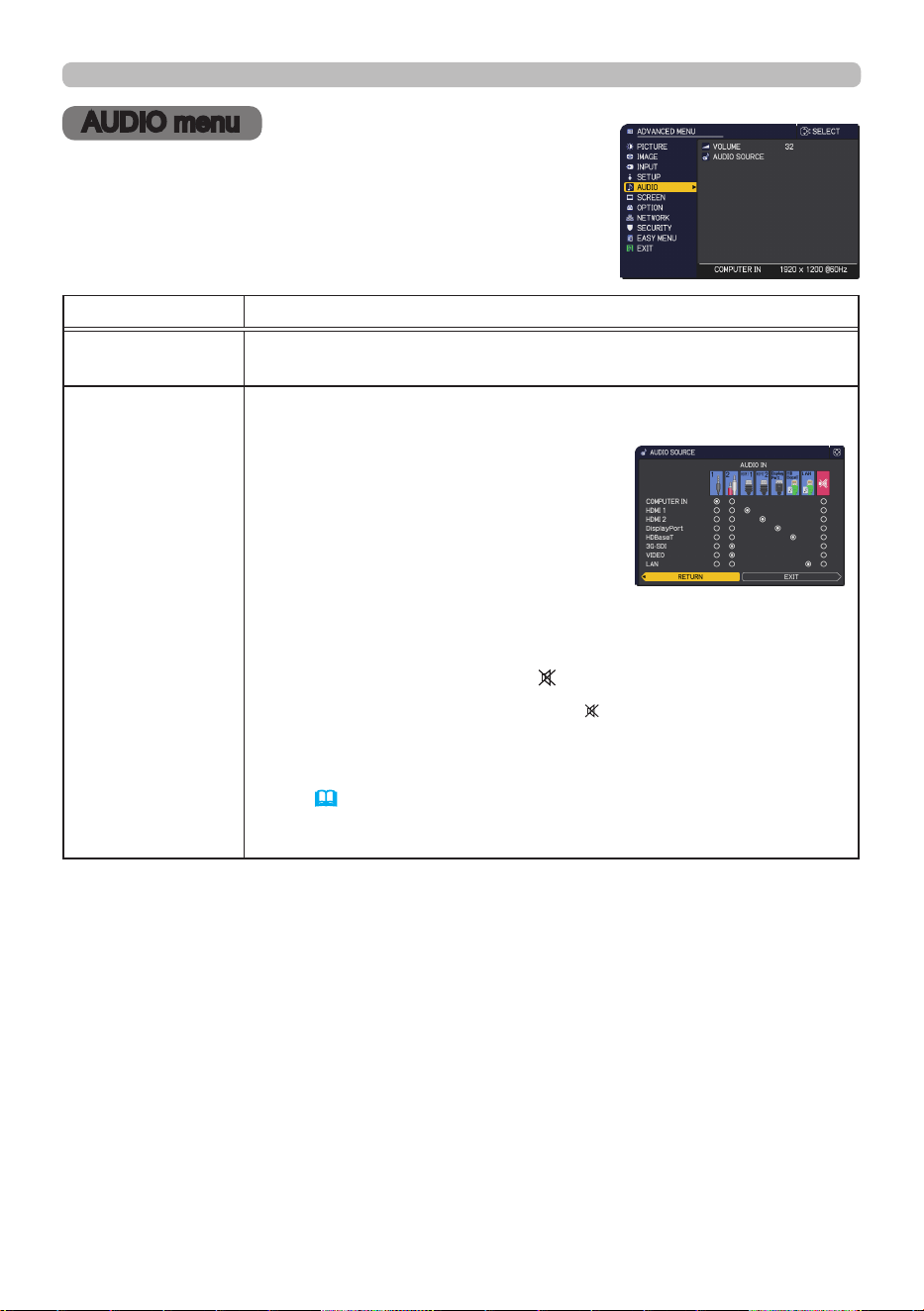
91
QM00971-1
AUDIO menu
AUDIO menu
Select an item from the Audio menu using the ▲/▼
cursor buttons, and press the ► cursor button or the
ENTER button to execute the item. Then perform it
according to the following table.
Item Description
VOLUME
Using the ◄/► buttons adjusts the volume of the audio output.
Low
ó
High
AUDIO SOURCE
While the image signal from the input port chosen in step (1) is
projected, the audio signal from the input port selected in step (2) is
output to the AUDIO OUT port.
(1) Choose a picture input port using
the ▲/▼ buttons.
(2)
Select an audio input port or the
mute icon using the ◄/► buttons.
The icons indicate the following;
No.1: AUDIO IN1 port No.2: AUDIO IN2 port
No.3: HDMI 1 port No.4: HDMI 2 port
No.5: DisplayPort port No.6: HDBaseT port
No.7: LAN port
: mutes the sound
• C.C. is automatically activated when
is selected and an input
signal containing C.C. is received. This function is available only
when the signal is NTSC for VIDEO or COMPUTER IN, and when
AUTO is selected for DISPLAY in the C.C. menu under the SCREEN
menu (
97).
• For the setting of AUDIO OUT, refer to AUDIO OUT of STANDBY
OUTPUT in the SETUP menu.
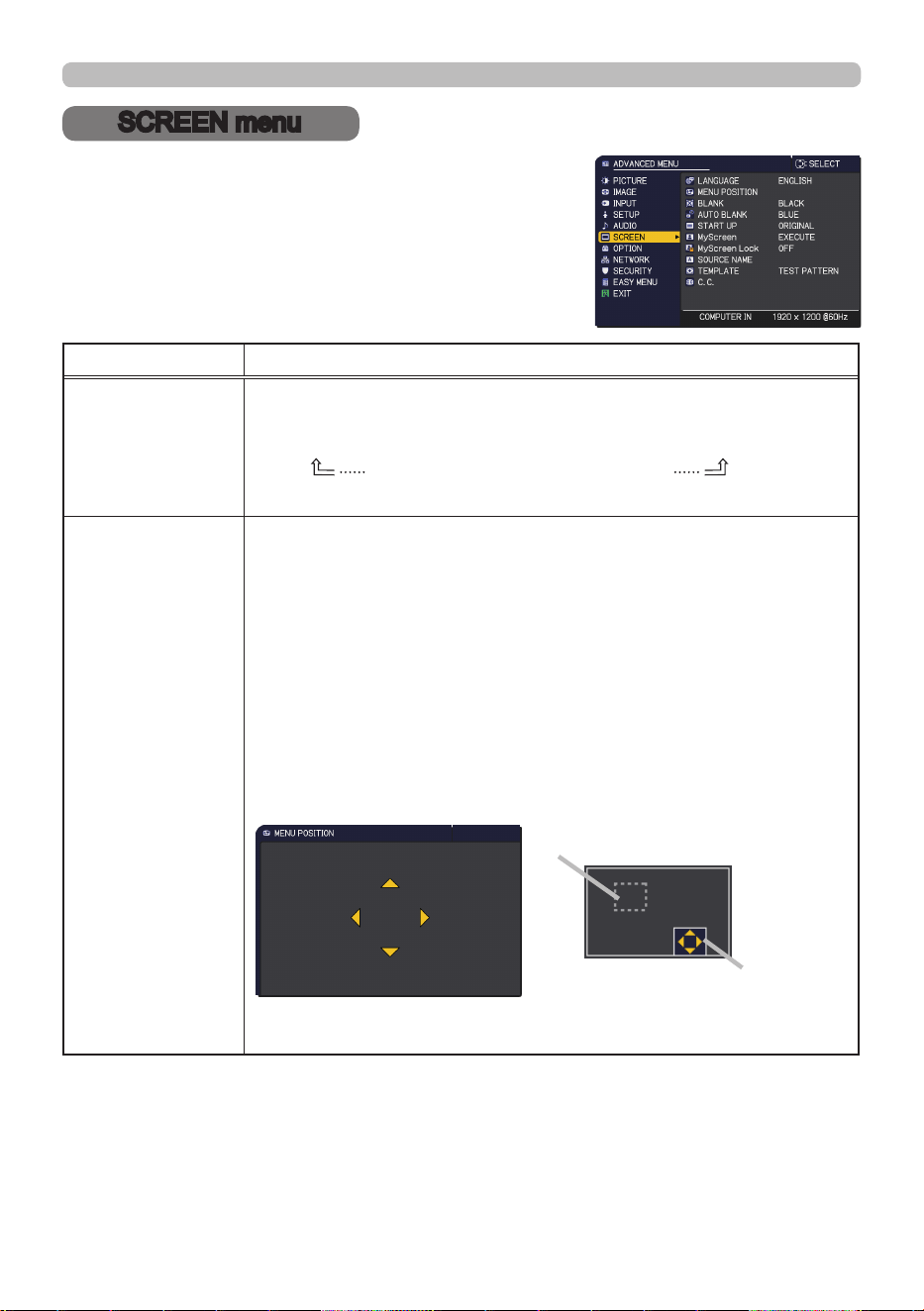
92
QM00971-1
SCREEN menu
SCREEN menu
Select an item from the SCREEN menu using the
▲/▼ cursor buttons, and press the ► cursor button
or ENTER button to execute the item. Then perform
it according to the following table.
Item Description
LANGUAGE
Using the ▲/▼/◄/► buttons switches the OSD (On Screen
Display) language.
ENGLISH
ó
FRANÇAIS
ó
DEUTSCH
ó
ESPAÑOL
(shown in the LANGUAGE dialog)
Press the ENTER or INPUT button to save the language setting.
MENU POSITION
The “MENU POSITION OSD” that shows the current menu position,
and the “Menu position adjustment guide” that shows the positional
relationship between the menu and each area of the screen are
displayed.
Using the ▲/▼/◄/► buttons adjusts the menu position.
To quit the operation, press the MENU button on the remote control
or do not perform any operation for about 10 seconds.
When the menu is not displayed in the screen and you cannot
select MENU POSITION from the menu, you can call MENU
POSITION directly by pressing MENU button on the remote control
for 3 seconds or more. You can move the menu to a visible position
by moving the "Menu position" in the "Menu position adjustment
guide" to the "Target menu position".
(continued on next page)
Menu position OSD Menu position adjustment guide
Target menu position
Menu position
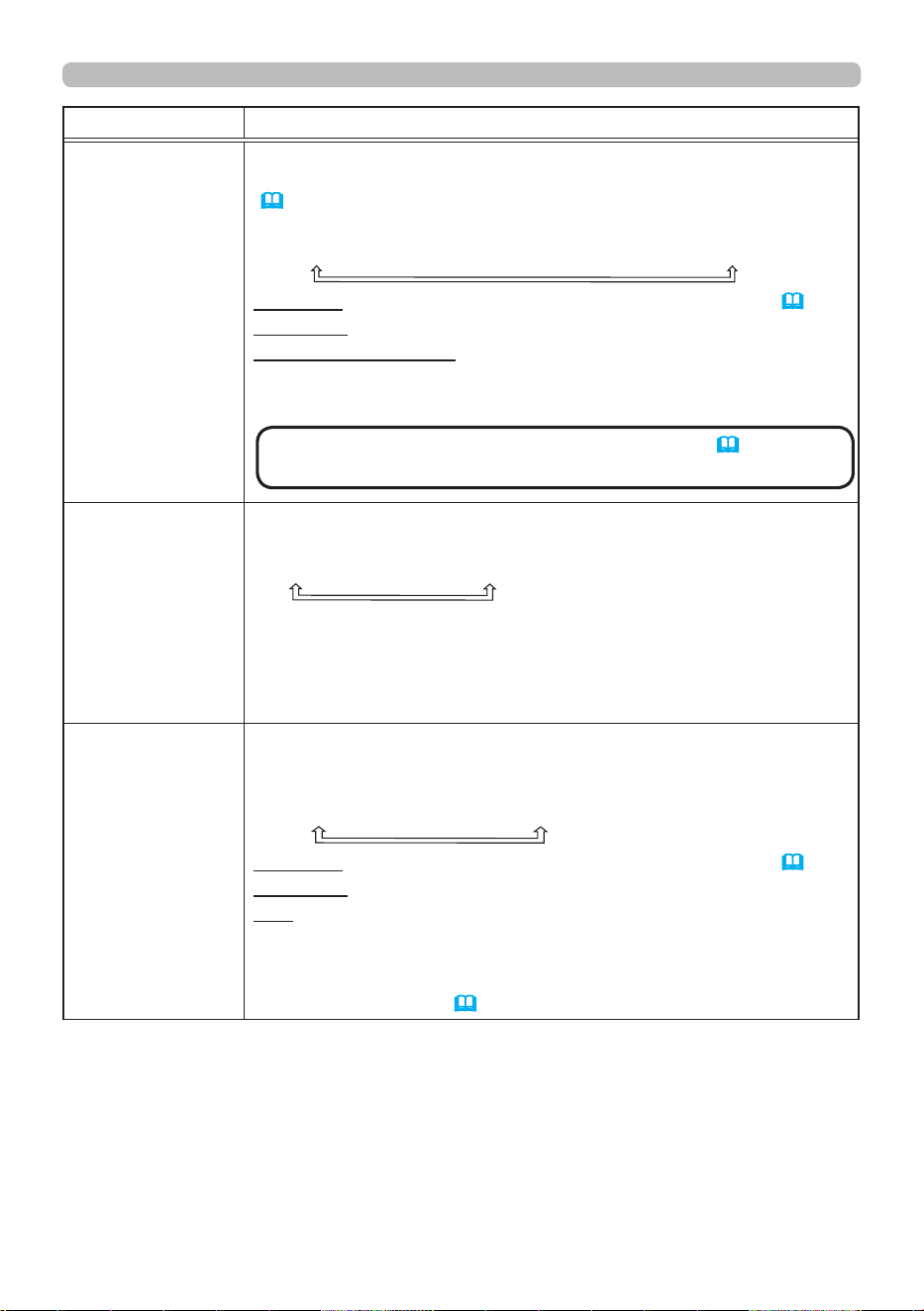
93
QM00971-1
SCREEN menu
Item Description
BLANK
Using the ▲/▼ buttons switches the mode for the blank screen.
The blank screen is a screen for the temporarily blanking feature
(
44) . It is displayed by pressing the AV MUTE button on the
remote control.
MyScreen
ó
ORIGINAL
ó
BLUE
ó
WHITE
ó
BLACK
MyScreen :
Screen can be registered by the MyScreen item (
94).
ORIGINAL : Screen preset as the standard screen.
BLUE, WHITE, BLACK : Plain screens in each color.
• To avoid remaining as an afterimage, the MyScreen or ORIGINAL
screen changes to the AUTO BLANK screen after several minutes.
AUTO BLANK
Using the ▲/▼ buttons switches the mode for the AUTO BLANK
screen.
BLUE
ó
WHITE
ó
BLACK
• To avoid remaining as an afterimage, displayed image changes
to the designated blank color screen by AUTO BLANK after several
minutes at the following conditions.
- When MyScreen or ORIGINAL is displayed as BLANK screen.
- When start-up screen is displayed.
START UP
Using the ▲/▼ buttons switches the mode for the start-up screen.
The start-up screen is a screen displayed when no signal or an
unsuitable signal is detected.
MyScreen
ó
ORIGINAL
ó
OFF
MyScreen :
Screen can be registered by the MyScreen item (
94).
ORIGINAL : Screen preset as the standard screen.
OFF : Plain black screen.
• To avoid the image burning into the screen, the START UP screen
changes to the AUTO BLANK screen after several minutes.
• When the ON is selected to the MyScreen PASSWORD item in
the SECURITY menu (
118) , the START UP is fixed to MyScreen.
(continued on next page)
• Refer to "Regarding the indicator lamps"(
131) about
the indicator when Blank(black) or AV Mute(black) is on.
NOTE
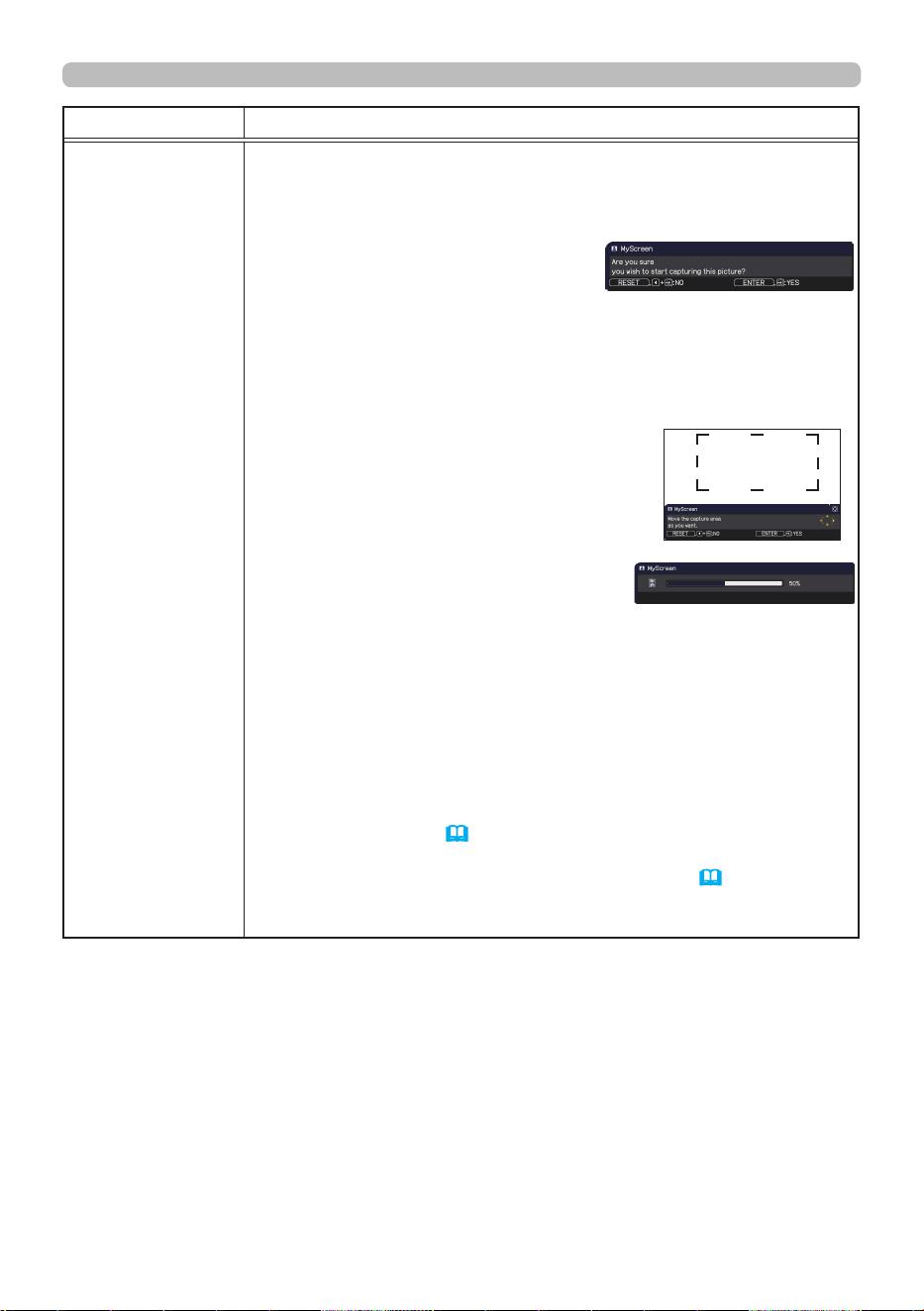
94
QM00971-1
SCREEN menu
Item Description
MyScreen
You can capture an image for use as a MyScreen image which
can be used as the BLANK screen and START UP screen. Display
the image you want to capture before executing the following
procedure.
(1) Selecting this item displays a dialog
titled “MyScreen”. It asks you if you
start capturing an image from the
current screen.
Wait for the target image to be displayed, and press the ENTER
or INPUT button when the image is displayed. The image
freezes and the frame for capturing appears.
To stop performing, press the RESET button on the remote
control.
(2) Using the ▲/▼/◄/► buttons adjusts
the frame position.
Move the frame to the position of the
image which you want to use. The frame
may not be able to be moved for some
input signals.
To start registration, press the ENTER
or INPUT button on the remote control.
To restore the screen and return to the previous dialog, press the
RESET button on the remote control.
Registration may take several minutes.
When the registration is completed, the registered screen and
the following message is displayed for several seconds:
“MyScreen registration is nished.”
If the registration failed, the following message is displayed:
“A capturing error has occurred. Please try again.”
• This function cannot be selected when ON is selected for the
MyScreen Lock item (
95) .
• This function cannot be selected when ON is selected for the
MyScreen PASSWORD item in SECURITY menu (
118) .
• This function is unavailable for a signal from the LAN, HDMI 1 / 2,
DisplayPort, HDBaseT or 3G-SDI port.
(continued on next page)
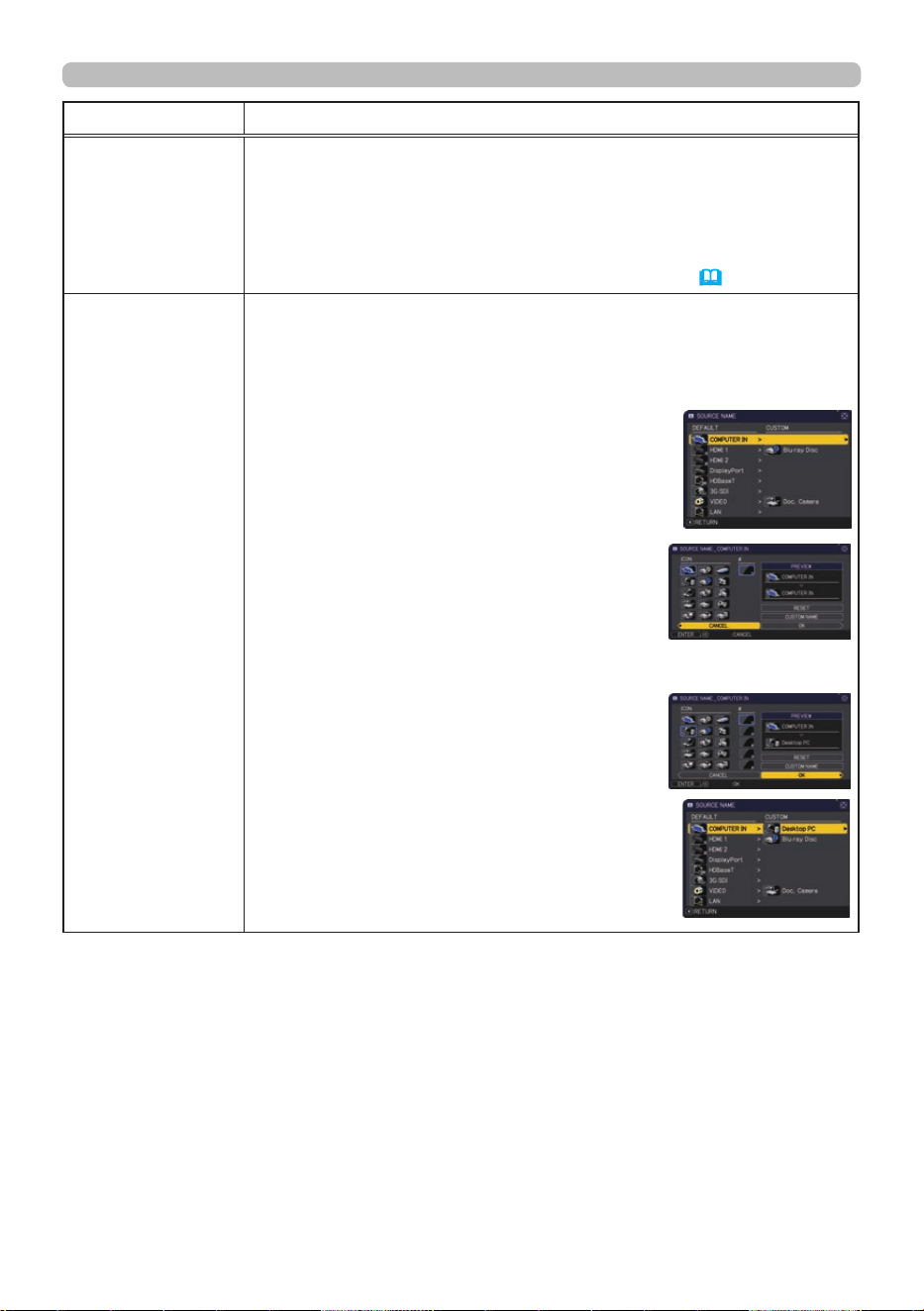
95
QM00971-1
SCREEN menu
Item Description
MyScreen Lock
Using the ▲/▼ buttons turns on/o the MyScreen lock function.
ON
ó
OFF
When the ON is selected, the item MyScreen is locked. Use this
function for protecting the current MyScreen.
• This function cannot be selected when the ON is selected to the
MyScreen PASSWORD item in SECURITY menu (
118) .
SOURCE NAME
Each input port for this projector can have a name applied to it.
(1) Use the ▲/▼ buttons on the SCREEN menu to select SOURCE
NAME and press the ► or ENTER button.
The SOURCE NAME menu is displayed.
(2) Use the ▲/▼ buttons on the SOURCE
NAME menu to select the port to be
named and press the ► button. The
SOURCE NAME dialog is displayed.
Right side of the menu is blank until a
name is specied.
(3) Select an icon you want to assign to the
port in the SOURCE NAME dialog.
The name assigned to the port is
automatically switched according to
your icon selection. Press the ENTER
or INPUT button to determine your icon
selection.
(4) Select a number you want to assign to the
port along with the icon. You can select
the number either from blank (no number
assigned), 1, 2, 3, or 4.
Then press the ENTER or INPUT button.
(5) If you want to modify the name assigned
to the port, select CUSTOM NAME and
press the ENTER or INPUT button.
(continued on next page)
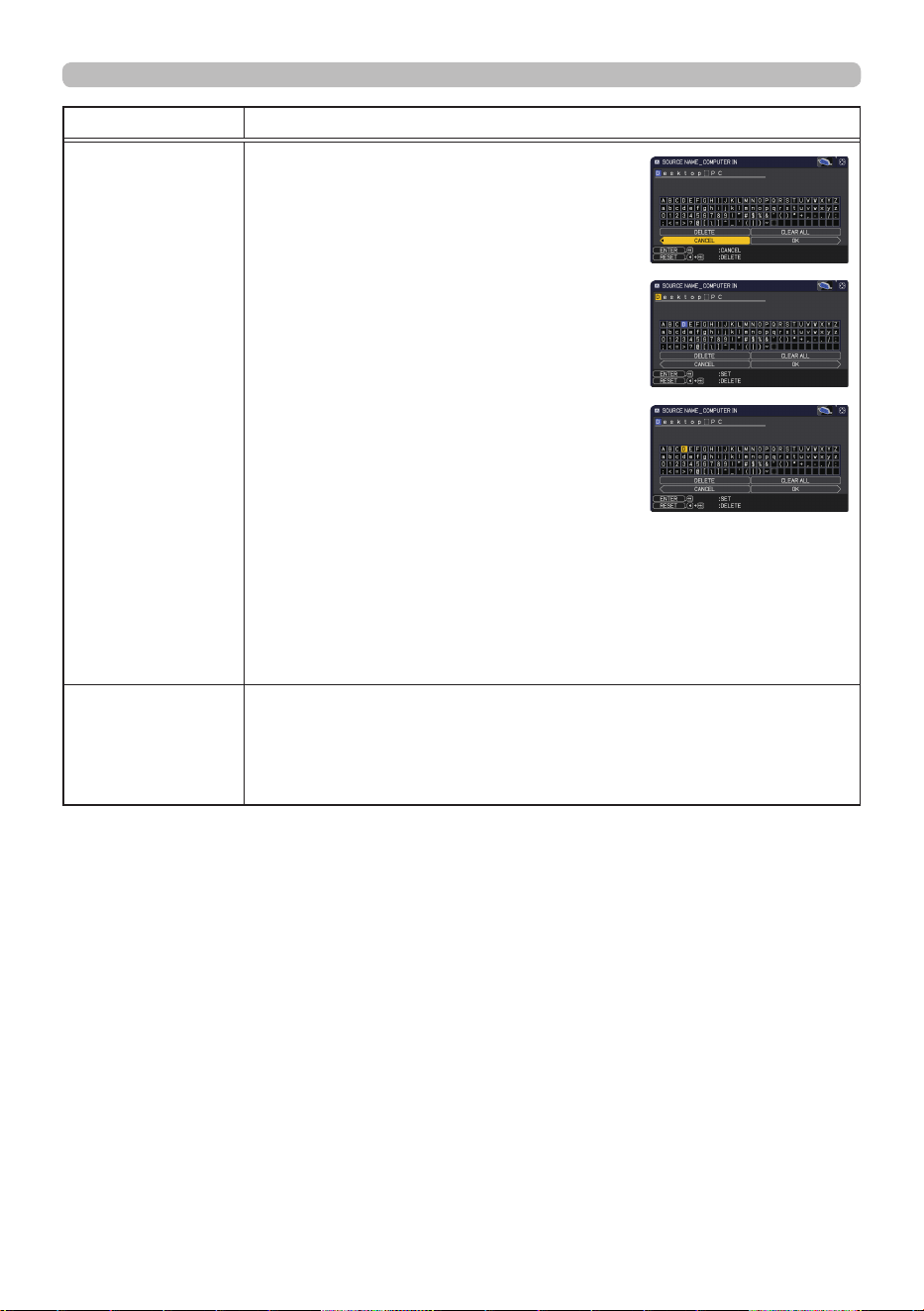
96
QM00971-1
SCREEN menu
Item Description
SOURCE NAME
(continued)
(6) The current name is displayed on the
rst line. Use the ▲/▼/◄/► buttons and
the ENTER or INPUT button to select
and enter characters. To erase one
character at a time, press the RESET
button or press the ◄ and INPUT button
simultaneously. Also, if you move the
cursor to DELETE or CLEAR ALL on
screen and press the ENTER or INPUT
button, one or all characters are erased.
The name can be a maximum of 16
characters.
(7) To change an already inserted character,
press the ▲ button to move the cursor to
the rst line, and use the ◄/► buttons to
move the cursor on the character to be
changed.
After pressing the ENTER or INPUT button, the character is
selected. Then, follow the same procedure as described at the
item (6) above.
(8) To nish entering text, move the cursor to the OK on screen and
press the ►, ENTER or INPUT button. To revert to the previous
name without saving changes, move the cursor to the CANCEL
on screen and press the ◄, ENTER or INPUT button.
TEMPLATE
Using the ▲/▼ cursor buttons switches the mode for the template
screen.
Press the ► cursor (or the ENTER) button to display the selected
template, and press the ◄ cursor button to close the displayed
screen.
(continued on next page)
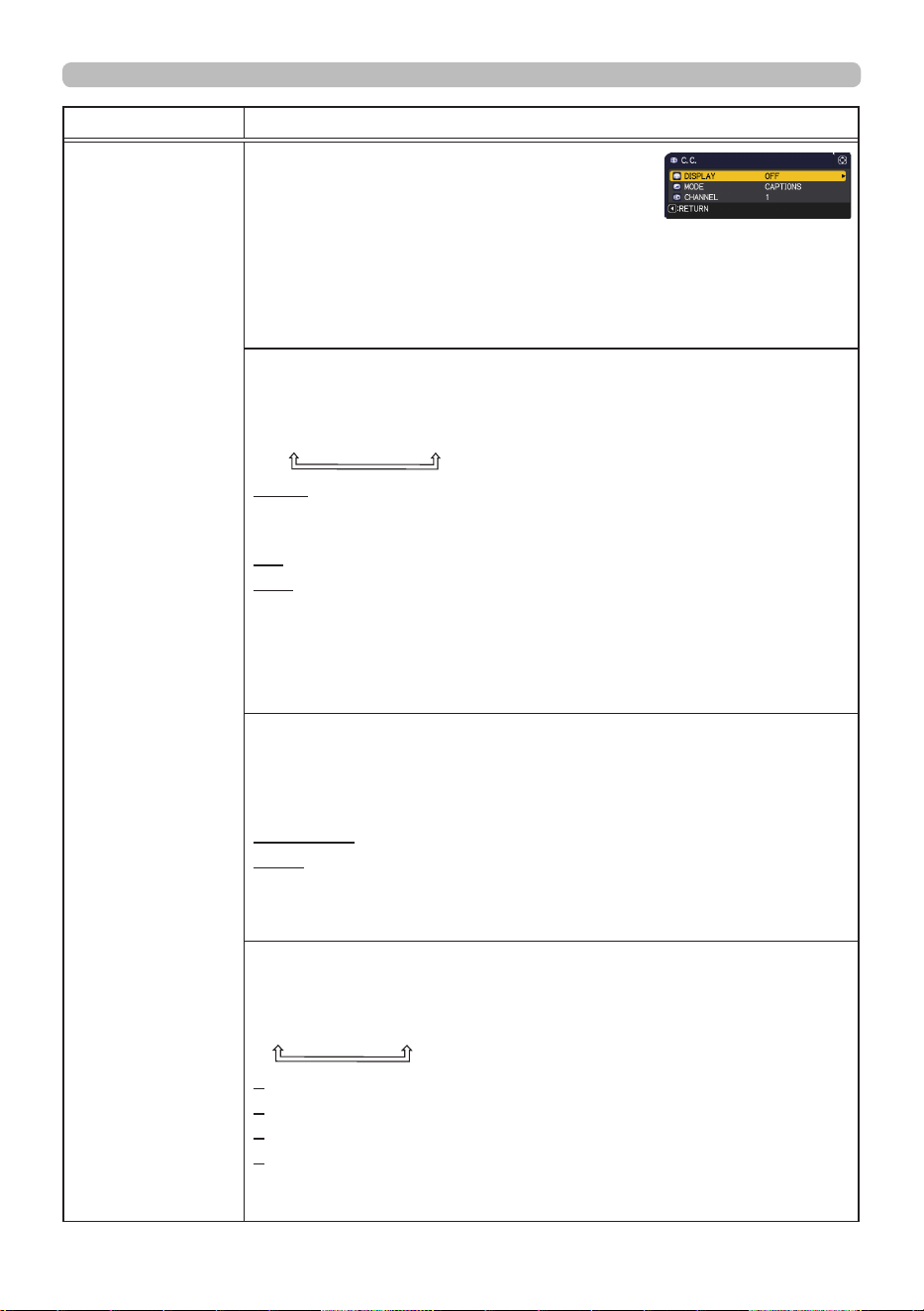
97
QM00971-1
SCREEN menu
Item Description
C.C.
The C.C. is the function that displays a
transcript or dialog of the audio portion of
a video, les or other presentation or other
relevant sounds. It must have NTSC format
video or 480i@60 format component video
source supporting C.C. feature to utilize this
function.
It may not work properly, depending on equipment or signal source.
In this case, turn o the Closed Caption.
DISPLAY
Select Closed Caption DISPLAY setting from following options using
▲/▼ buttons.
AUTO
ó
ON
ó
OFF
AUTO : Closed Caption automatically appears when the input signal
(C.C. compatible) from the port with the mute icon set at
AUDIO SOURCE is selected.
ON : Closed Caption is on.
OFF : Closed Caption is o.
• The caption is not displayed when the OSD menu is active.
•
The Closed Caption is the function to display the dialog, narration,
and / or sound eects of a television program or other video sources.
The Closed Caption availability depends upon broadcaster and/or
content.
MODE
Select Closed Caption MODE setting from following options using
▲/▼ buttons.
CAPTIONS
ó
TEXT
CAPTIONS : Display Closed Caption.
TEXT : Display Text data, which is for additional information such as
news reports or a TV program guide. The information covers
the entire screen. Not all of the C.C. program has Text
information.
CHANNEL
Select Closed Caption CHANNEL from following options using ▲/▼
buttons.
1
ó
2
ó
3
ó
4
1: Channel 1, primary channel / language
2 : Channel 2
3 : Channel 3
4 : Channel 4
The channel data may vary, depending on the content. Some
channel might be used for secondary language or empty.
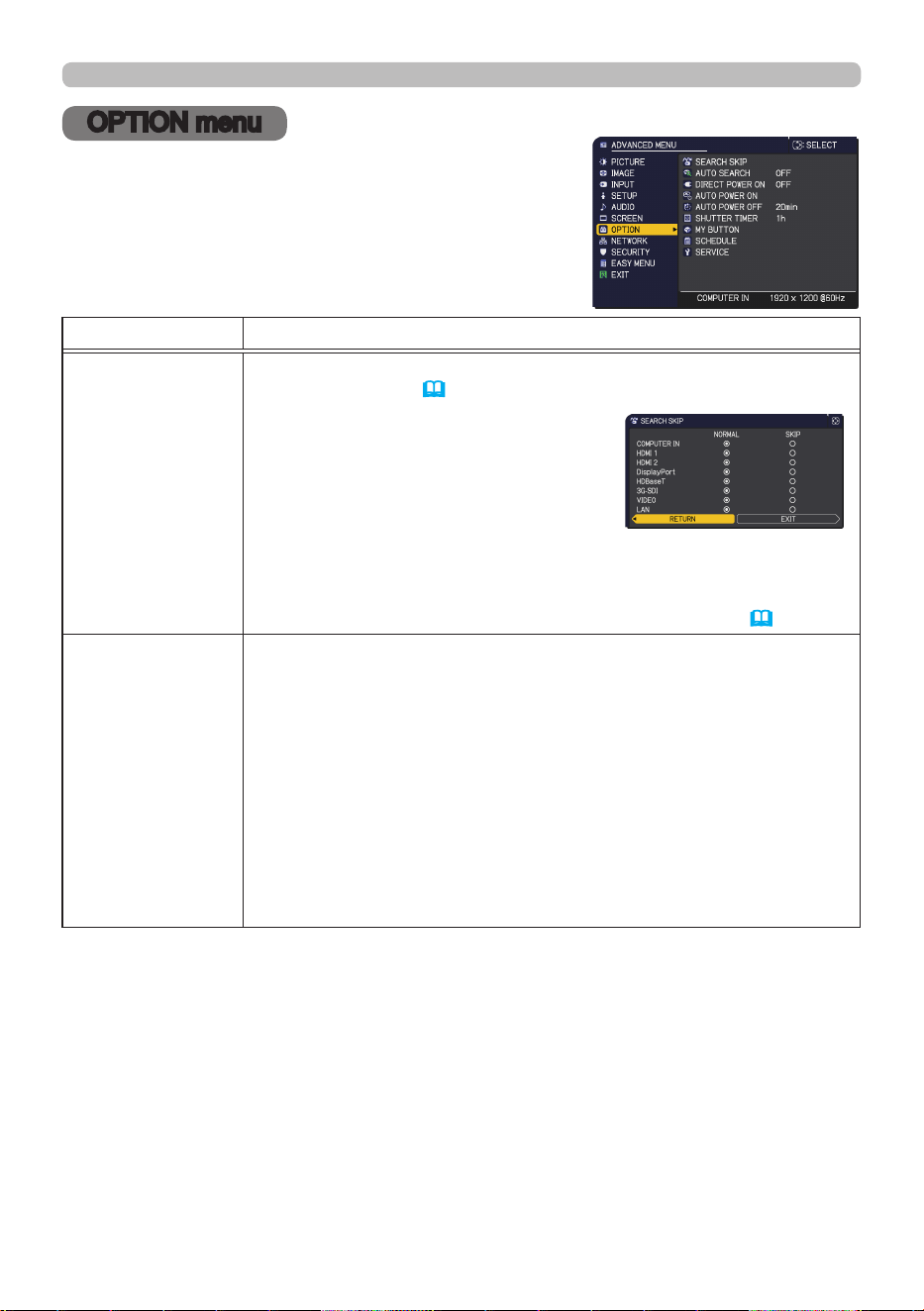
98
QM00971-1
OPTION menu
OPTION menu
Select an item from the Option menu using the ▲/▼
cursor buttons, and press the ► cursor button or
ENTER button to execute the item. Then perform it
according to the following table.
Item Description
SEARCH SKIP
The ports can be set to be ignored in searching by the AUTO
SEARCH function (
below) or in selecting by buttons on the control
panel.
(1) Choose a picture input port using
the ▲/▼ buttons.
(2) Using the ◄/►buttons turns on/o
the SEARCH SKIP function.
NORMAL
ó
SKIP
The port that is set to SKIP is ignored.
• You cannot set SKIP to all ports at the same time.
• This setting is not valid when in the PbyP / PinP mode (
61) .
AUTO SEARCH
Using the ▲/▼ buttons turns on/o the automatic signal search
function.
ON
ó
OFF
When ON is selected, detecting no signal automatically cycles
through input ports in the following order. The search is started
from the current port. When an input is found, the projector stops
searching and display the image.
LAN
ð
COMPUTER IN
ð
HDMI 1
VIDEO HDMI 2
3G-SDI
ï
HDBaseT
ï
DisplayPort
(continued on next page)
99
QM00971-1
OPTION menu
Item Description
DIRECT POWER
ON
Using the ▲/▼ buttons turns on/o the DIRECT POWER ON
function.
ON
ó
OFF
When set to the ON, the light source in projector will be automatically
turned on without the usual procedure (
42) , only when the projector
is supplied with the power after the power was cut while the light source
was on.
• This function does not work as long as the power has been
supplied to the projector while the light source is o.
•
After turning the light source on by the DIRECT
POWER
ON
function, if neither input nor operation is detected for about 20
minutes, the projector is turned o, even if the AUTO
POWER
OFF
function (
100) is disabled.
►
Be sure to conrm that the projector has been
installed and connected safely even if it is turned on automatically.
WARNING
AUTO POWER
ON
When the projector is in the standby mode and detects the video
signal input from external device, this function starts up the projector
to display the image automatically on the screen. This function can
be enabled by selecting an input referring to the displayed list.
• This function is unavailable when STANDBY MODE is set to
NETWORK(WOL) or SAVING.
• This function may work unintentionally by connected external
device.
(continued on next page)
►
When this function is enabled, the projector
may turn on unintentionally by operating the device connected to it.
Be sure not to put anything on or around the projector.
►
Be sure to conrm that the projector has been installed and
connected safely even if it is turned on automatically.
WARNING
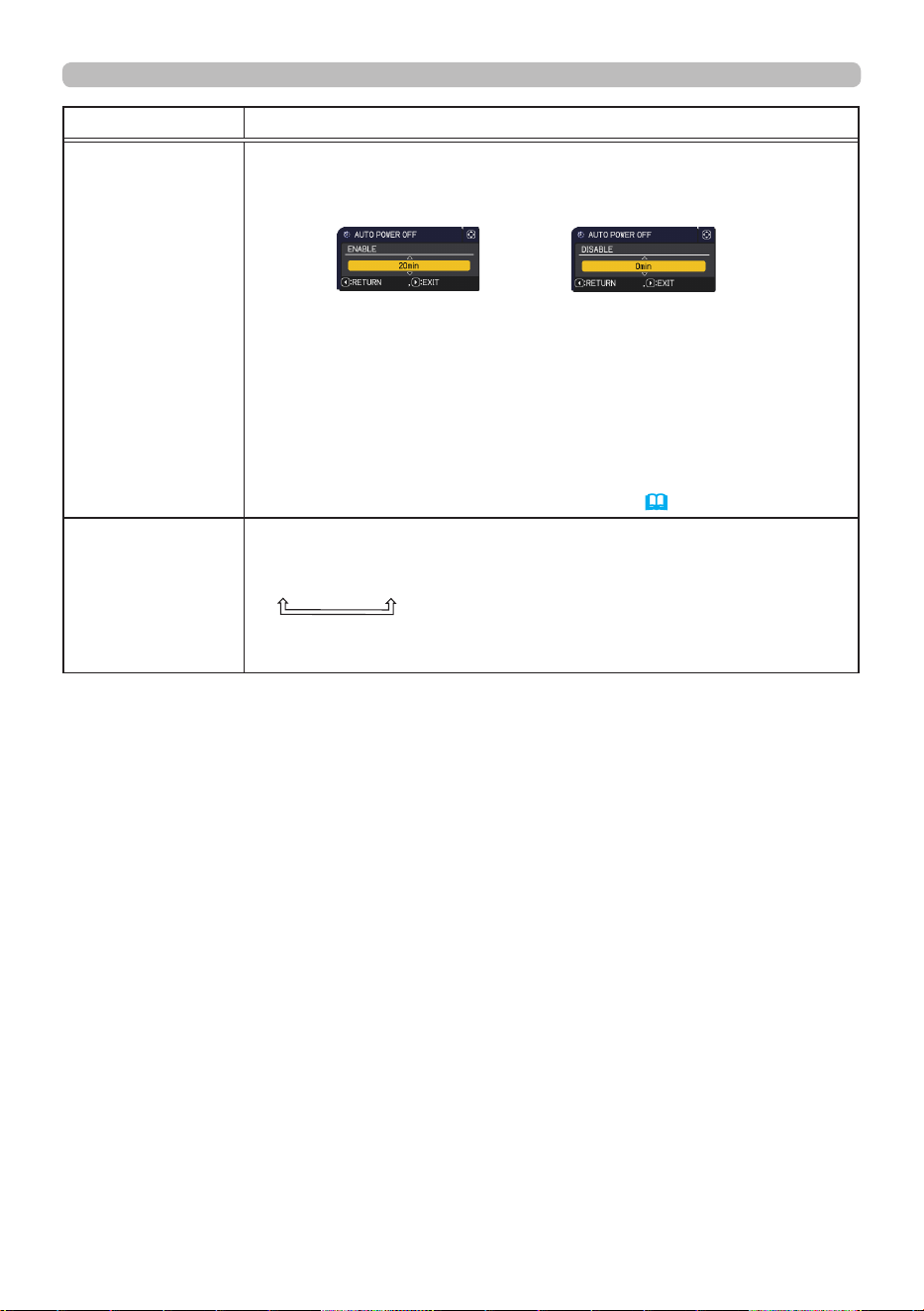
100
QM00971-1
OPTION menu
Item Description
AUTO POWER
OFF
Using the ▲/▼ buttons adjusts the time to count down to
automatically turn the projector o.
Long (max. 99 minutes)
ó
Short (min. 0 minute = DISABLE)
When the time is set to 0, the projector is not turned o
automatically.
When the time is set to 1 to 99, and when the passed time with
no-signal or an unsuitable signal reaches at the set time, the light
source is turned o.
If one of the projector's buttons or the remote control buttons
is pressed or one of the commands (except get commands) is
transmitted to the CONTROL port during the corresponding time,
the projector is not turned o.
Refer to the section Turning o the power (
43) .
SHUTTER TIMER
Set the time between enabling the shutter function and turning o
the projector automatically with the ▲/▼ buttons.
1h
ó
3h
ó
6h
• The shutter function is automatically set to o when turning the
projector on again.
(continued on next page)
101
QM00971-1
OPTION menu
Item Description
MY BUTTON
This item is to assign one of the following functions to MY BUTTON
(1 to 4) on the remote control (
19) .
(1) Use the ▲/▼ buttons on the MY BUTTON menu to select a MY
BUTTON (1-4).
(2) Then using the ◄/► buttons sets one of the following functions
to the chosen button.
MY IMAGE: Displays the MY IMAGE menu (
5. My Image
Function in the Network Guide).
MESSENGER: Turns the messenger text displayed on the screen
on/o (
6. Messenger Function in the Network Guide).
When there is no transferred text data to display, the message
”NO MESSENGER DATA" appears.
BLANK: Switches the BLANK function to on or o.
SHUTTER: Turns the shutter closed and opened (
60) .
PbyP / PinP SWAP: Swaps the picture on the right with one on
the left in the PbyP mode. Swaps the primary picture and the
secondary picture in the PinP mode (
61) .
PinP POSITION: Toggles the PinP position.
INFORMATION: Displays SYSTEM_INFORMATION,
INPUT_INFORMATION (
115) , WIRELESS_INFORMATION,
WIRED_INFORMATION, OTHER INFORMATION or nothing.
MY MEMORY: Loads one of adjustment data stored (
73) .
When more than two data are saved, the adjustment
changes every time the MY BUTTON is pressed.
When no data is saved in memory, the
dialog "No saved data" appears.
When the current adjustment is not
saved to memory, the dialog as shown in
the right appears.
To keep the current adjustment, press
the ► button to exit. Otherwise loading a data overwrites the
current adjusted condition.
PICTURE MODE: Changes the PICTURE MODE (
71) .
FILTER RESET: Displays the lter time reset conrmation dialog
(
85) .
TEMPLATE: Makes the template pattern selected to the TEMPLATE
item (
96) appear or disappear.
MUTE: Turns the audio mute on/o.
RESOLUTION: Turns on/o the RESOLUTION dialog (
81) .
LIGHT OUTPUT: Changes the LIGHT OUTPUT dialog (
84) .
(continued on next page)
102
QM00971-1
OPTION menu
Item Description
MY BUTTON
(continued)
ACCENTUALIZER:
Turns on/o the ACCENTUALIZER dialog (
72) .
HDCR: Turns on/o the HDCR dialog
(
72) .
MENU POSITION
: Adjusts the menu position with the ▲/▼/◄/►
buttons
(
92) .
MY BUTTON: Turns on/o the MY BUTTON dialog
(
101)
.
SCHEDULE
■ How to setup the item
1. Use the ▲/▼/◄/► cursor buttons to select or adjust.
2. Select OK to nish the settings.
(continued on next page)
Item Description
DATE & TIME
Inputs the current date (year/month/day) and
the time (24-hour clock) to set a reference time
in the projector.
SPECIFIC DATE
Species the date (month/day) if you execute
only one specic day.
You can set 10 dierent schedules from
SPECIFIC DATE-1 to SPECIFIC DATE-10.
PROGRAM EDIT
Sets what event to execute at what time of
the day. One program can be set in one day,
and up to 16 programs can be set. Up to 20
events can be set in one program.
■ Setting procedure
Determine the current date/time as reference in DATE AND
TIME.
Make a schedule of what event to execute at what time of
the day in PROGRAM EDIT.
Select the date (one specic day: SPECIFIC DATE or the
days of the week: every week) to be scheduled, then select
a program.
Switch the screen of the days of the week and SPECIFIC
DATE by vertical scroll.
(Page 1 of 2: Days of the week, Page 2 of 2: SPECIFIC DATE)
• Refer to the actual on-screen display(OSD) for
appropriate operation.
NOTE
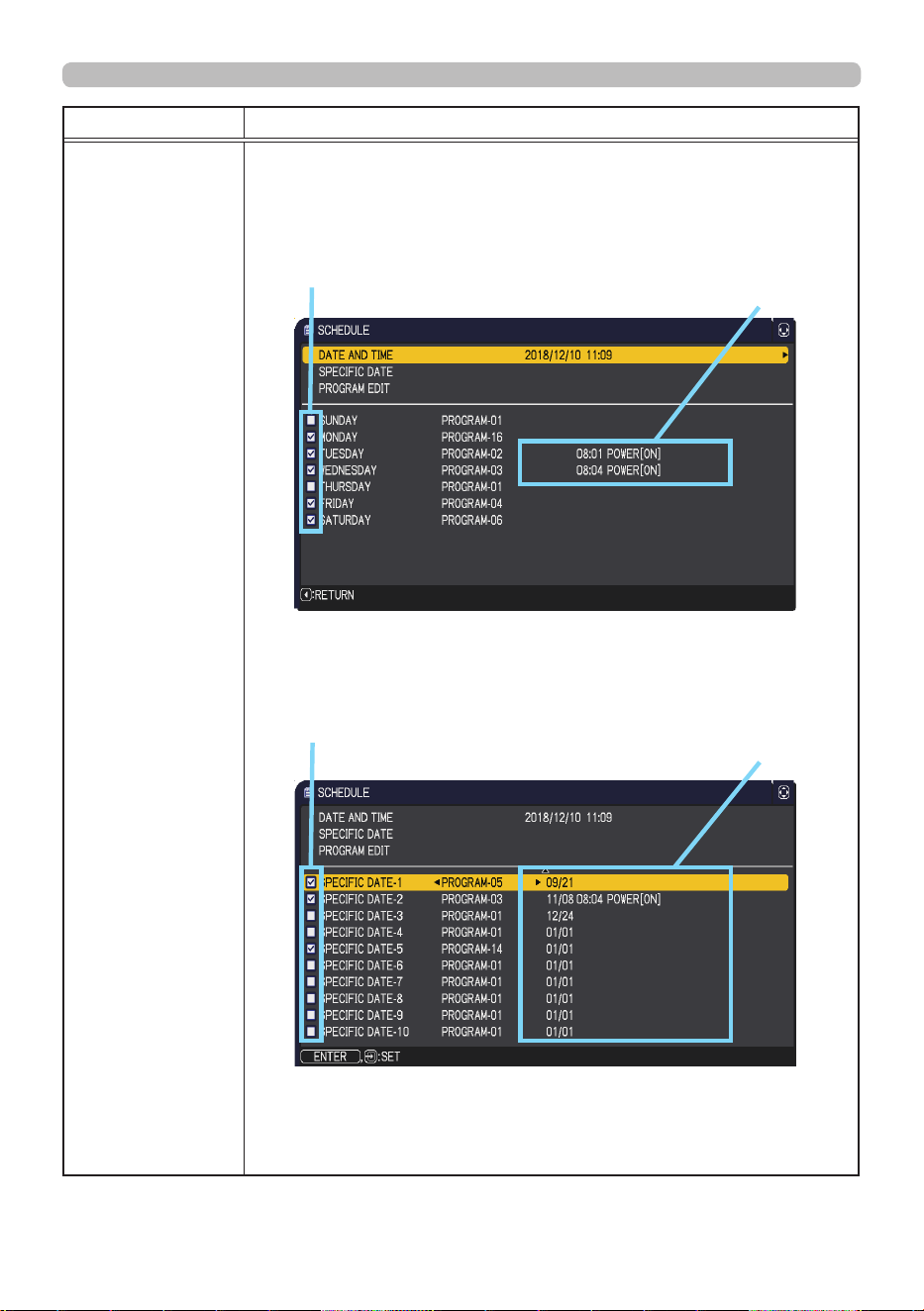
103
QM00971-1
OPTION menu
Item Description
SCHEDULE
(continued)
Press the ▼ cursor button to move from 1/2 page to 2/2 page with
the state of selecting "SATURDAY".
(continued on next page)
■ How to activate (DATE AND TIME / SPECIFIC DATE)
Place a checkmark in the box.
Checkmark
in the box
Date and rst
setup info could
be seen with the
check mark.
1/2 page (Set the DATE(Year/Month/Date) and Time(24-hour scale).)
Checkmark
in the box
Date and rst
setup info could
be seen with the
check mark.
2/2 page (Set specic date from 1 to 10.)
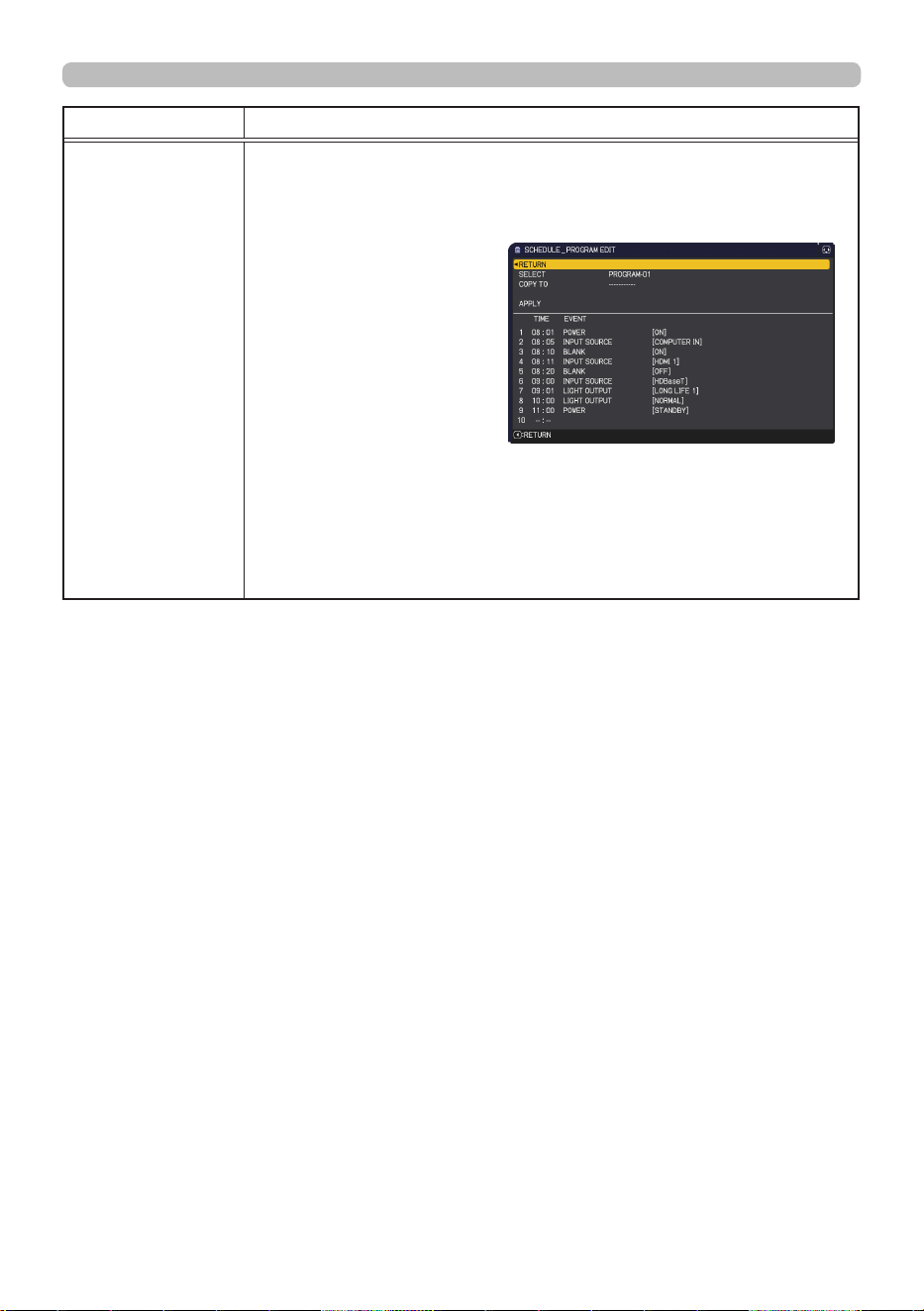
104
QM00971-1
OPTION menu
Item Description
SCHEDULE
(continued)
■ PROGRAM EDIT
The TIME and EVENT for Program 1 to 16 can be edited.
• RETURN
Select this to return to
the top menu of the
SCHEDULE.
• SELECT
Select from PROGRAM-01
to 16 to edit.
Up to 20 events can be
set in each program.
• COPY TO
The selected program (with the settings of TIME and EVENT) can
be copied to other program.
• APPLY
Select this to apply and save all adjustments and settings.
(continued on next page)
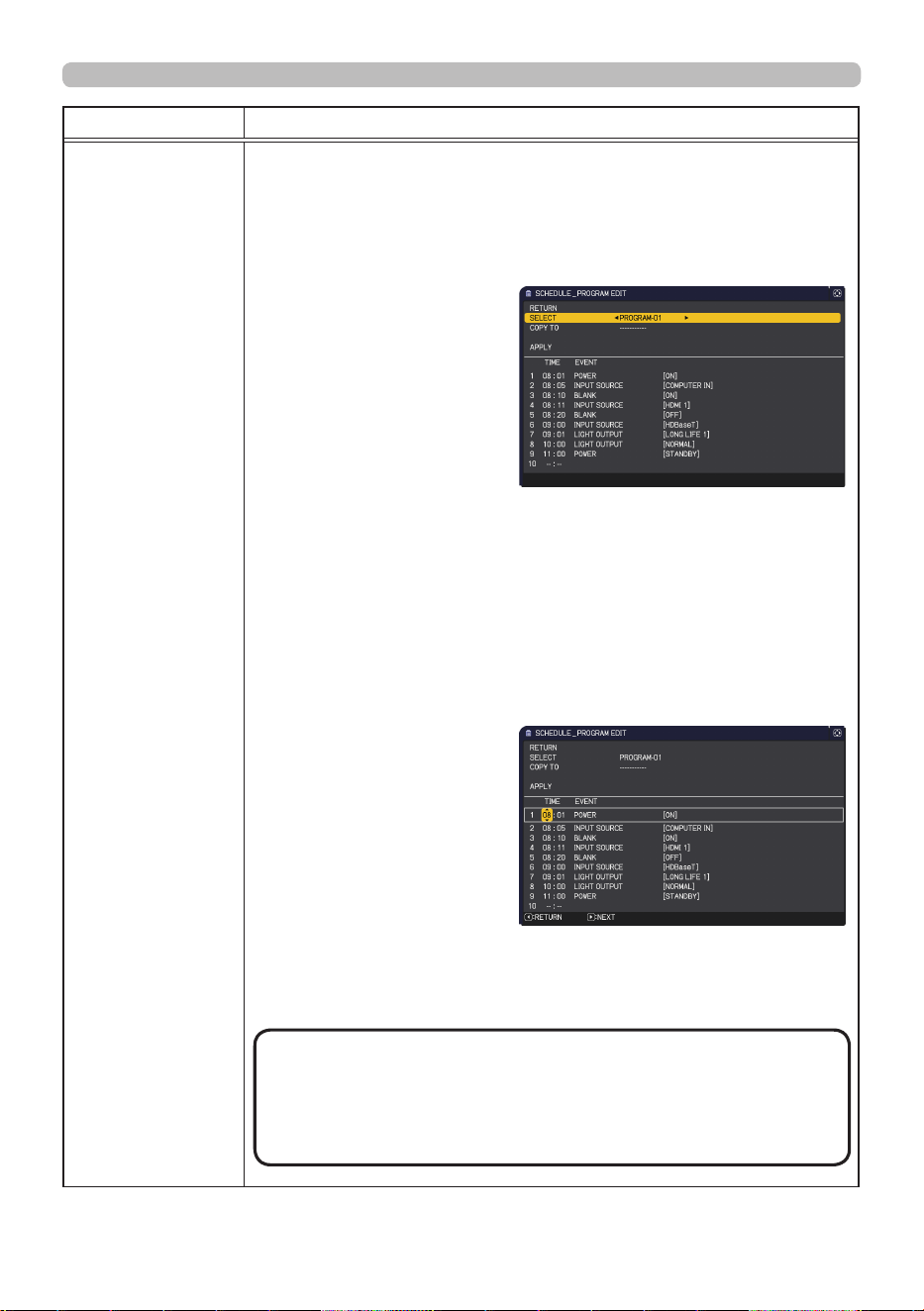
105
QM00971-1
OPTION menu
Item Description
SCHEDULE
(continued)
■ How to edit the selected PROGRAM
1. Select from 1 to 20 events.
Use the ▲/▼ cursor buttons to select.
Press ► cursor button to set the TIME and EVENT.
2. Use the ◄/► cursor
buttons to select.
3. Use the ▲/▼ cursor
buttons to adjust.
EVENT can be selected as listed below.
◦ POWER − ON, STANDBY
◦ INPUT SOURCE − "input source" channel
◦ MY IMAGE − IMAGE-1 to 4, IMAGE OFF
◦ MESSENGER − TEXT-1 to 12, TEXT OFF
◦ LIGHT OUTPUT − NORMAL, LONG LIFE 1, LONG LIFE 2,
WHISPER
◦ BLANK − ON, OFF
4. Press ► cursor button to finish the settings.
5. Select APPLY to save the settings.
(continued on next page)
• Refer to the on-screen display(OSD) for the
appropriate operation.
• When the STANDBY MODE is set to NETWORK(WOL) or
SAVING, SCHEDULE function at STANBY MODE (Ex:POWER-
ON) will not be operated.
NOTE
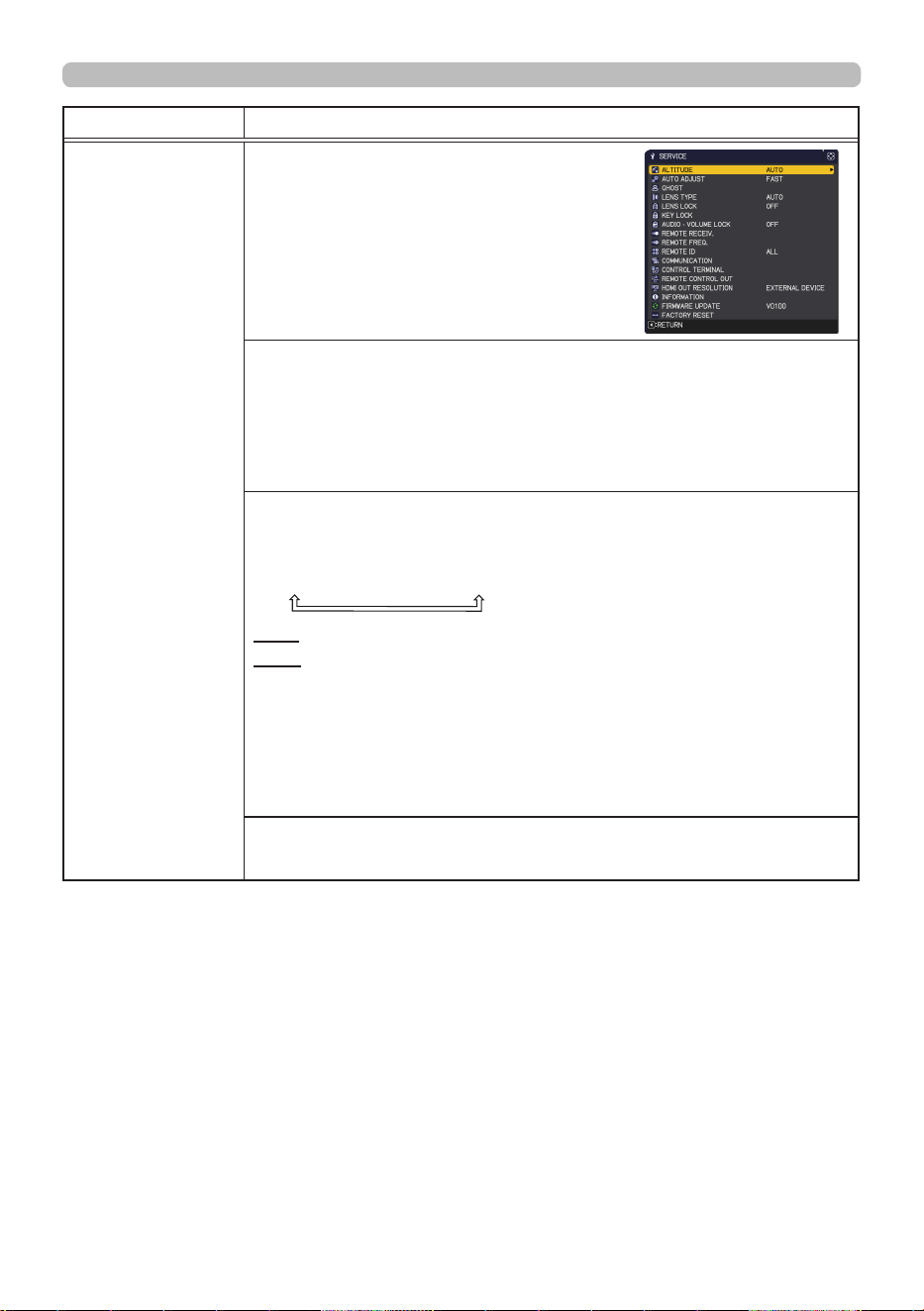
106
QM00971-1
OPTION menu
Item Description
SERVICE
Selecting this item displays the SERVICE
menu.
Select an item using the ▲/▼ buttons,
and press the ► button or the ENTER
button on the remote control to execute
the item.
ALTITUDE
Using the ▲/▼ buttons switches the rotation speed of the cooling
fans. If the projector is used at an altitude of about 1600 m or higher,
select HIGH. Note that the projector is noisier when the HIGH is
selected.
HIGH
ó
AUTO
AUTO ADJUST
Using the ▲/▼ buttons to select one of the mode. When the
DISABLE is selected, the automatic adjustment feature is disabled.
FINE
ó
FAST
ó
DISABLE
FINE: Finer tuning including H.SIZE adjustment.
FAST: Faster tuning, setting H.SIZE to prearranged data for the
input signal.
• Depending on conditions, such as input image, signal cable to
the projector, environment around the projector, and so on, the
automatic adjustment may not work correctly. If this occurs, choose
DISABLE to disable the automatic adjustment, and make the
adjustment manually.
GHOST
Adjust the settings using the ▲/▼ buttons to eliminate ghosting.
(continued on next page)

107
QM00971-1
OPTION menu
Item Description
SERVICE
(continued)
LENS TYPE
(1) Select the lens type currently used using the ▲/▼ buttons and
press the ► or ENTER button. If AUTO is selected, the projector
determines the lens type automatically.
(2) A message dialog is displayed for conrmation. Press the ► or
ENTER button to save the lens type.
• This setting has an inuence on the keystone distortion and so on.
• The lens type determined by the projector is displayed on the right
of "AUTO".
• If the projector cannot determine the lens type automatically when
this item is set to AUTO, "UNKNOWN LENS" is displayed on the
right of "AUTO".
• For information about the optional lens, contact your dealer.
LENS LOCK
Using the ▲/▼ buttons turns on/o the lens lock feature. When ON
is selected, the buttons (ZOOM, ZOOM + / -, FOCUS, FOCUS + / -,
SHIFT, LENS SHIFT, LENS MEMORY) are locked.
ON
ó
OFF
(continued on next page)
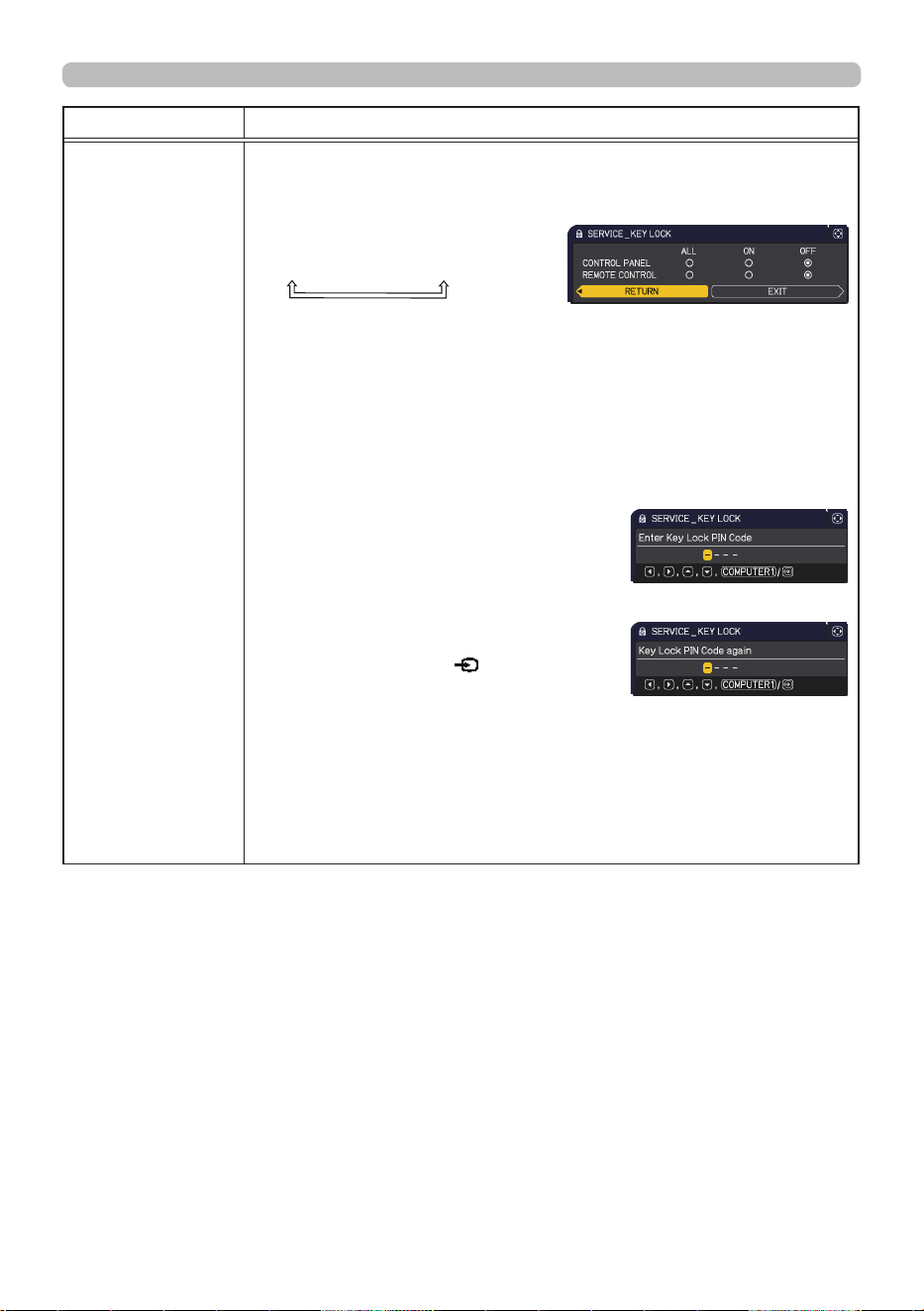
108
QM00971-1
OPTION menu
Item Description
SERVICE
(continued)
KEY LOCK
(1) Use the ▲/▼ buttons to choose the operations control.
CONTROL PANEL
ó
REMOTE CONTROL
(2) Use the ◄/► buttons to select
ALL, ON or OFF.
ALL
ó
ON
ó
OFF
If you select ALL, all key functions are disabled.
Selecting ON in Step 2 locks the buttons except STANDBY/ON on
the operations control selected in Step 1.
Selecting OFF releases the locked buttons on the operations control
selected in Step 1.
• Use this function to prevent tampering or accidental operation.
• It is not possible to disable both options at the same time.
• If you select ALL, the screen for setting a PIN code appears. Set it
as follows.
1. Setting a PIN code
1) When using the ◄/► button to select
ALL, a conrmation message appears.
2) Press the ► button to display the
Enter Key Lock PIN Code box.
3) Input a 4 part PIN code using the
▲/▼/◄/►, INPUT, or
button.
The Key Lock PIN Code again box will
appear.
Reenter the same PIN code. This will complete the PIN code
registration.
If there is no key input for about 55 seconds while the Enter
Key Lock PIN Code box or the Key Lock PIN Code again box is
displayed, the menu will close.
• Write down the PIN code so as not to forget it.
(continued on next page)
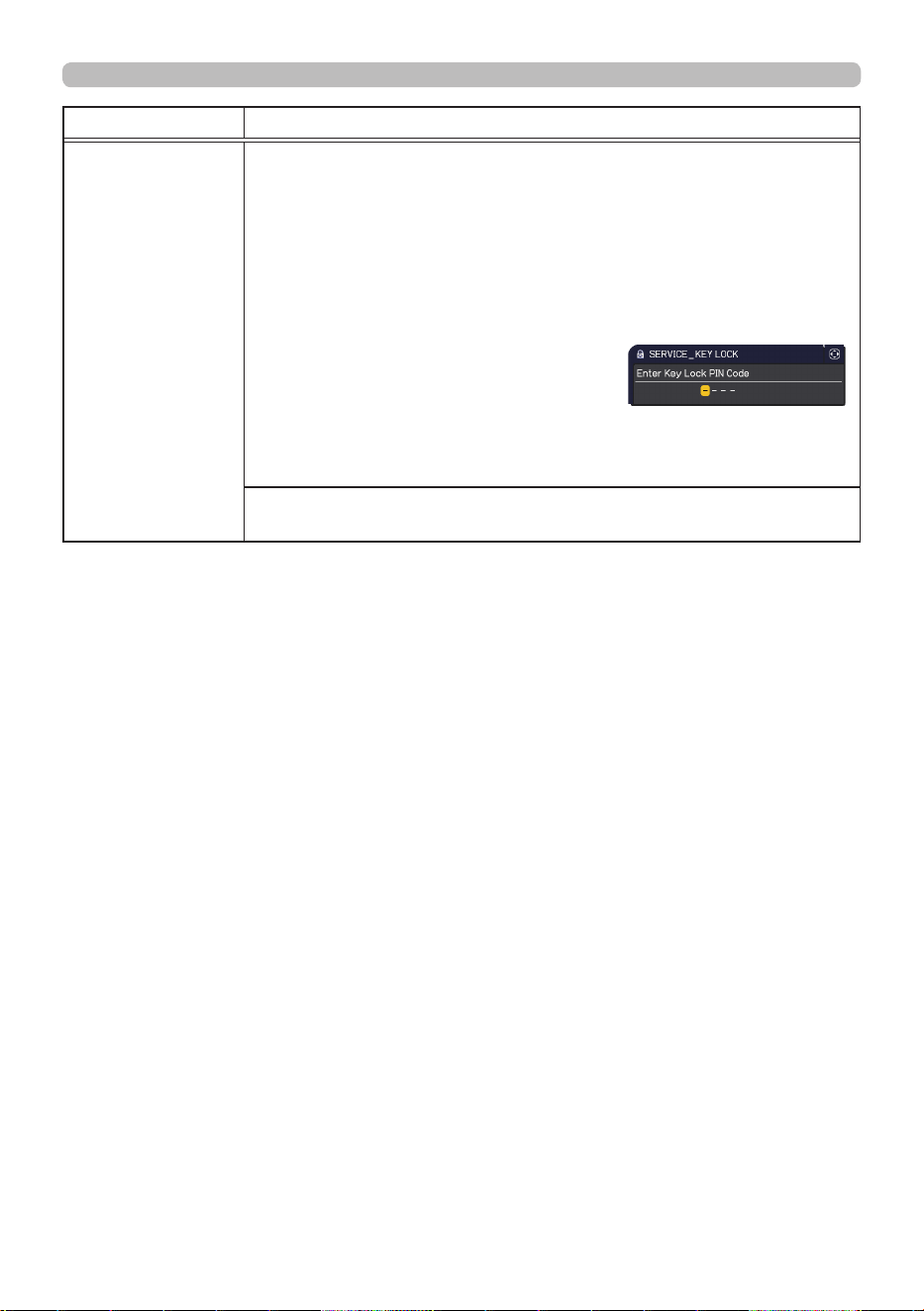
109
QM00971-1
OPTION menu
Item Description
SERVICE
(continued)
2. Disabling the PIN code lock function
If you unlock this item by locked keys, enter registered PIN code
while OSD is not displayed. The SECURITY indicator blinks while
entering the PIN code.
If you unlock this item by unlocked keys, follow the steps below.
Unlocked keys: If REMOTE CONTROL is set to ALL, they are
control panel. If CONTROL PANEL is set to ALL, they are remote
control.
When you press the ► button while ALL
is set, the Enter Key Lock PIN Code box
appears.
The PIN code lock function is
disabled when the registered PIN code is entered.
If an incorrect PIN code is input, the dialog box will be displayed
again.
AUDIO - VOLUME LOCK
When this function is enabled, volume adjustment is inhibited.
(continued on next page)
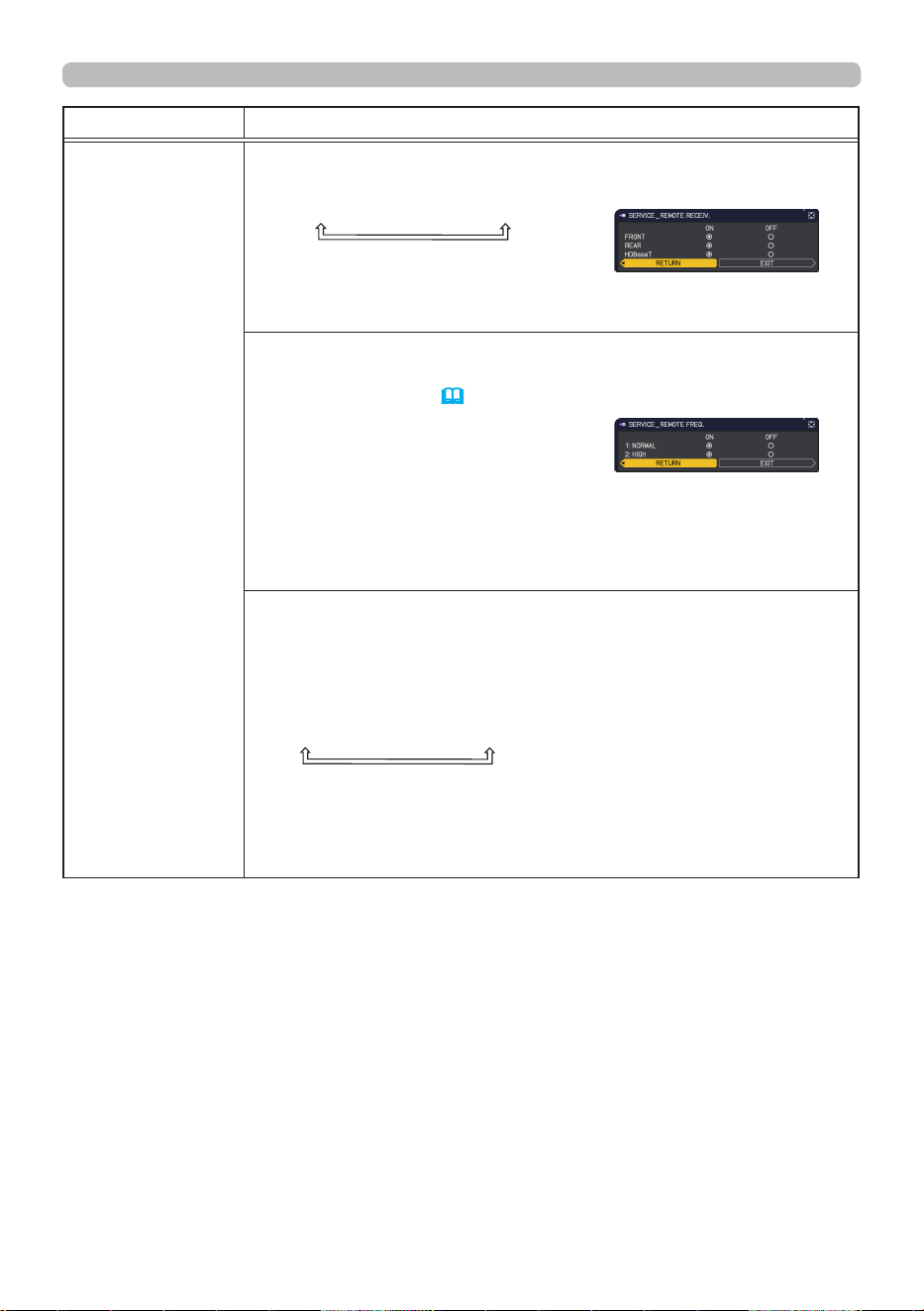
110
QM00971-1
OPTION menu
Item Description
SERVICE
(continued)
REMOTE RECEIV.
(1) Select a remote sensor using the ▲/▼ button.
FRONT
ó
REAR
ó
HDBaseT
(2) Switch it using the ◄/► button.
ON
ó
OFF
• When one sensor is turned o, the other cannot be turned o.
REMOTE FREQ.
(1) Use the ▲/▼ button to change the projector's remote sensor
frequency setting (
16, 40).
1:NORMAL
ó
2:HIGH
(2) Use the ◄/► button to change the
projector's remote sensor on or o.
ON
ó
OFF
If the remote control does not function correctly, disable either of
them.
• You cannot disable both options at the same time.
REMOTE ID
This menu is displayed when selecting this item and pressing any of
the ID 1-4 buttons of the optional remote control.
Use the ▲/▼ buttons on the REMOTE ID menu to select ID and
press the ► button.
ALL
ó
1
ó
2
ó
3
ó
4
The projector is controlled by the remote control whose ID button
is set the same number as this number. When the ALL is selected,
the projector is controlled by a remote control irrespective of the ID
setting.
(continued on next page)
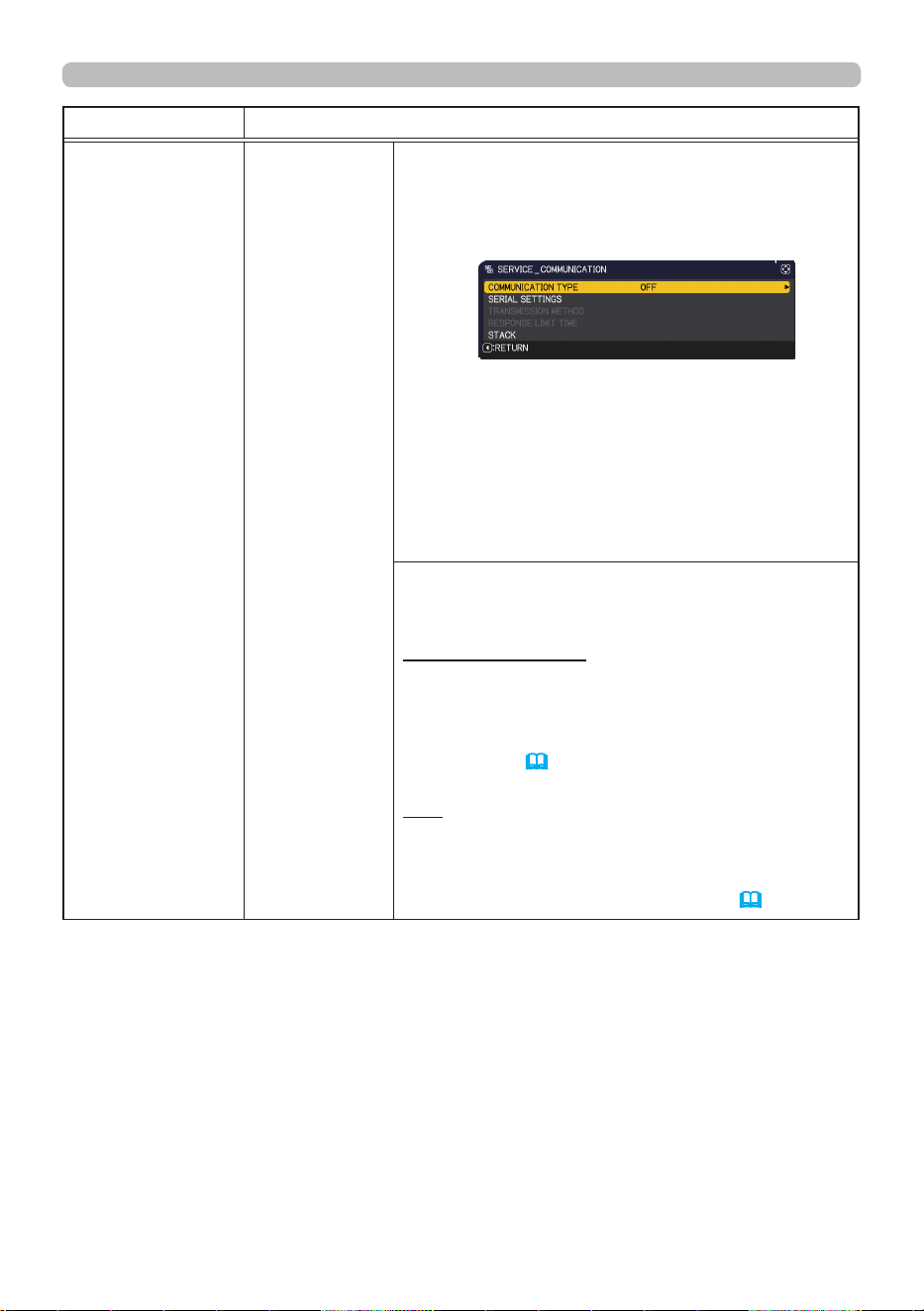
111
QM00971-1
OPTION menu
Item Description
SERVICE
(continued)
COMMUNICATION
Selecting this item displays COMMUNICATION
menu.
In this menu, you can congure the serial
communication settings of the projector using the
CONTROL port.
• Select an item using the cursor buttons ▲/▼.
Then pressing the ► button opens the submenu
for the setting item you selected. Or, pressing
the ◄ button instead of the ► button makes the
menu back to the previous one without changing
the setup. Each submenu can be operated as
described above.
• For the function of serial communication, refer to
the Network Guide.
COMMUNICATION TYPE
Select the communication type for transmission
using the CONTROL port.
NETWORK BRIDGE: Select this type, if it is
required to control an external device as a
network terminal, using this projector from the
computer.
The CONTROL port does not accept RS-232C
commands (
7. Network Bridge Function in
the Network Guide).
OFF: Select this mode to receive RS-232C
commands using the CONTROL port.
• OFF is the default setting.
• When you select the NETWORK BRIDGE, check
the item, TRANSMISSION METHOD (
112).
(continued on next page)
112
QM00971-1
OPTION menu
Item Description
SERVICE
(continued)
COMMUNICATION
(continued)
SERIAL SETTINGS
Select the serial communication condition for the
CONTROL port.
BAUD RATE
4800bps
ó
9600bps
ó
19200bps
ó
38400bps
PARITY
NONE
ó
ODD
ó
EVEN
TRANSMISSION METHOD
Select the transmission method for communication by
the NETWORK BRIDGE from the CONTROL port.
HALF-DUPLEX
ó
FULL-DUPLEX
HALF-DUPLEX: This method lets the projector
make two way communication, but only one
direction, either transmitting or receiving data, is
allowed at a time.
FULL-DUPLEX: This method lets the projector
make two way communication, transmitting and
receiving data at the same time.
• HALF-DUPLEX is selected as the default setting.
• If you select HALF-DUPLEX, check the setting of
the item RESPONSE LIMIT TIME (
113) .
(continued on next page)
113
QM00971-1
OPTION menu
Item Description
SERVICE
(continued)
COMMUNICATION
(continued)
RESPONSE LIMIT TIME
Select the time period to wait for receiving
response data from other device communicating by
the NETWORK BRIDGE and the HALF-DUPLEX
through the CONTROL port.
OFF
ó
1s
ó
2s
ó
3s
OFF: Select this mode if it is not required to check
the responses from the device that the projector
sends data to. In this mode, the projector can
send out data from the computer continuously.
1s /2s /3s: Select the time period to keep the
projector waiting for response from the device
that the projector sends data to. While waiting a
response, the projector does not send out any
data from the CONTROL port.
• This menu is available only when the NETWORK
BRIDGE is selected for the COMMUNICATION
TYPE and the HALF-DUPLEX is selected for the
TRANSMISSION METHOD (
112) .
• OFF is selected as the default setting.
STACK
Selecting this item displays the STACK menu. For
more information, see the Instant Stack Guide.
• When STACK MODE is set to MAIN or SUB,
the other items in COMMUNICATION menu are
invalid.
CONTROL
TERMINAL
WIRED NETWORK
Selects whether to use LAN or HDBaseT port.
LAN
ó
HDBaseT
(continued on next page)
• Only the LAN or HDBaseT port
can be used for the connection to the network.
Switch it according to the environment.
•
You cannot operate CONTROL
TERMINAL when NETWORK(WOL) is
selected in SETUP menu - STANDBY
MODE.
NOTE
114
QM00971-1
OPTION menu
Item Description
SERVICE
(continued)
REMOTE
CONTROL
OUT
Switches REMOTE CONTROL OUT port.
1) Use the ▲ / ▼ buttons to select switching
mode.
REMOTE CONTROL: Switches ON/OFF of the
signal of an infrared remote control or a wired
remote control.
HDBaseT: Switches ON/OFF of the remote control
signal from HDBaseT.
2) Use the ◄/► buttons to switch ON/OFF.
ON
ó
OFF
The projector or the projector connected to
REMOTE CONTROL OUT may not operate
correctly if they are operated from multiple remote
controls at the same time.
HDMI OUT
RESOLUTION
Selects the device to refer to the resolution
information of HDMI output.
EXTERNAL DEVICE
ó
PROJECTOR
• When EXTERNAL DEVICE is selected, the
resolution of the signal input to the projector and
signal output from the projector may be restricted
by the maximum resolution of the connected
device such as projector or monitor.
• When PROJECTOR is selected, the image from
the device connected to HDMI OUT may not be
displayed normally.
(continued on next page)
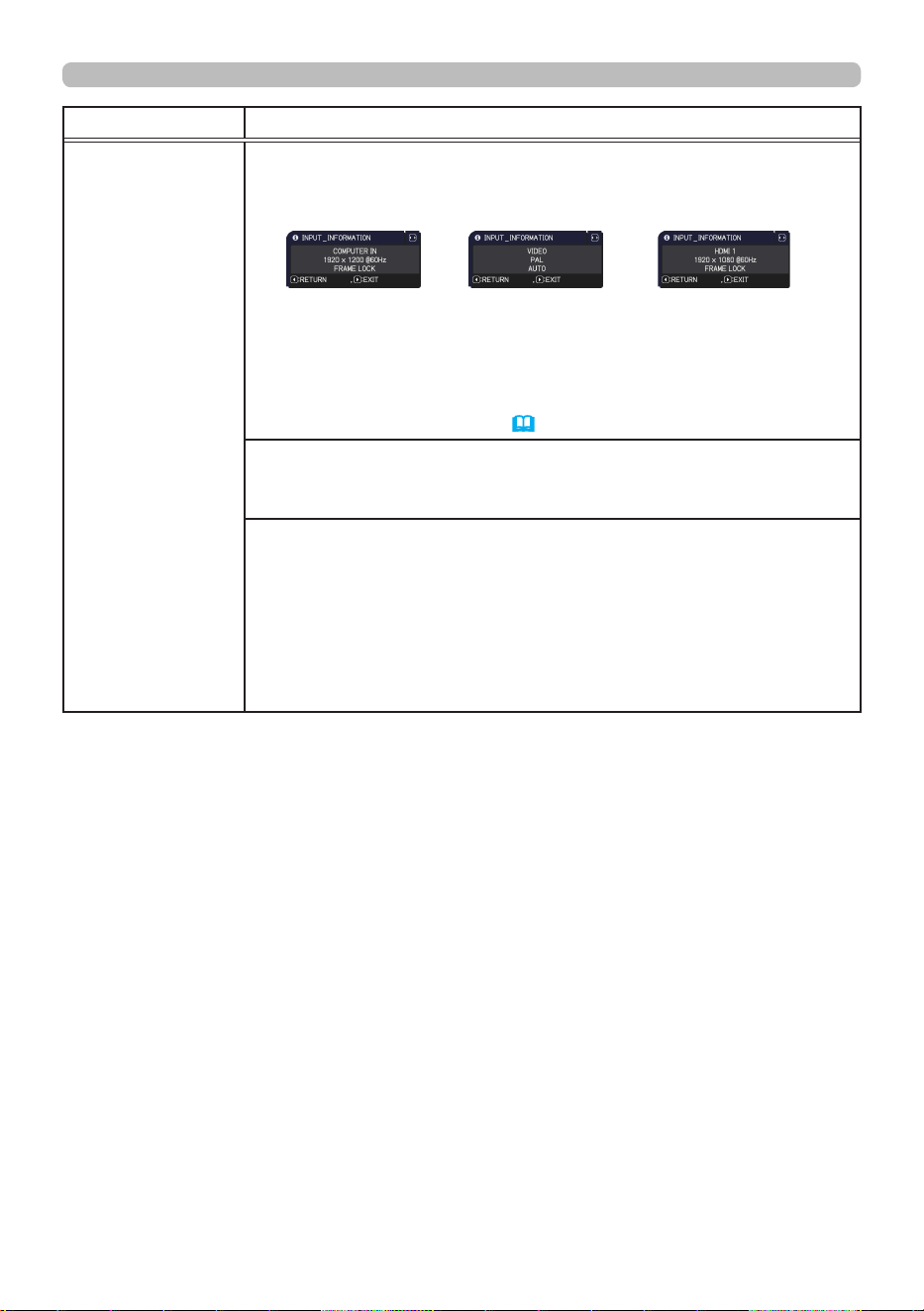
115
QM00971-1
OPTION menu
Item Description
SERVICE
(continued)
INFORMATION
Selecting this item displays a dialog titled “INPUT_INFORMATION”.
It shows the information about the current input.
• The “FRAME LOCK” message on the dialog means the frame lock
function is working.
• This item cannot be selected for no signal and sync out.
• When the MY TEXT DISPLAY is set to ON, the MY TEXT is
displayed together with the input information in the
INPUT_INFORMATION box (
122) .
FIRMWARE UPDATE
For the details of the rmware update of the projector, refer to our
website.
FACTORY RESET
Selecting OK using the ► button performs this function. By this
function, all menu items are collectively returned to the initial
setting. Note that the items LIGHT SOURCE TIME, FILTER TIME,
LANGUAGE, AUTO BLANK, FILTER MESSAGE, STANDBY MODE,
COMMUNICATION, SCHEDULE, CONTROL TERMINAL, REMOTE
CONTROL OUT, NETWORK and SECURITY settings are not reset.
CANCEL
ð
OK

116
QM00971-1
NETWORK menu
See the Network Guide for details of NETWORK operation.
Remember that incorrect network settings on this projector may cause trouble
on the network. Consult with your network administrator before connecting to an
existing access point on your network.
NETWORK menu
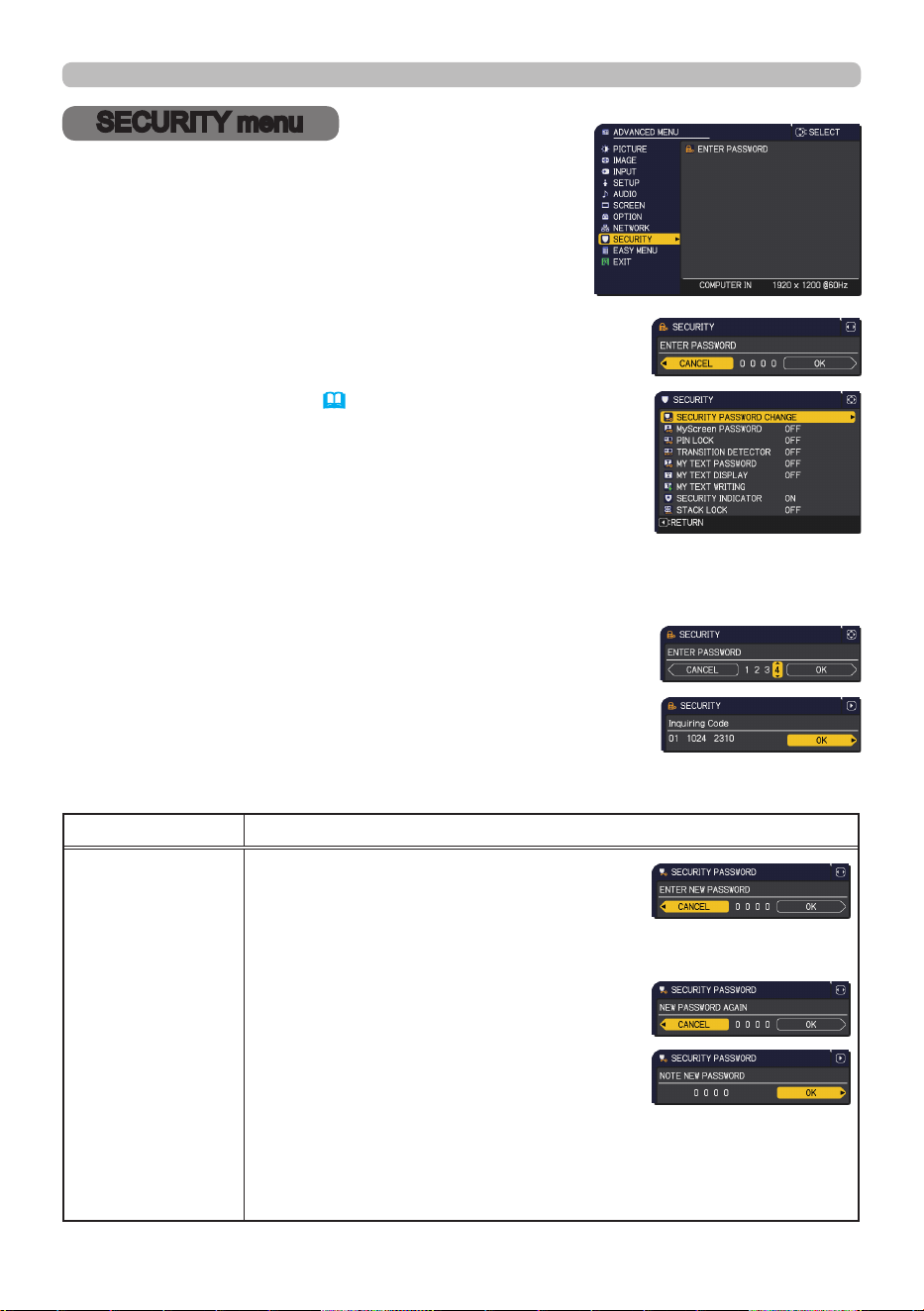
117
QM00971-1
SECURITY menu
This projector is equipped with security functions.
From the SECURITY menu, items shown in the table
below can be performed.
To use SECURITY menu: User registration is required
before using the security functions.
Enter to the SECURITY menu
1. Press the ► button. The ENTER PASSWORD box is displayed.
2. Use the ▲/▼/◄/► buttons to enter the registered password. The
factory default password is as follows.
2516
This password can be changed
(
below)
. Move the cursor to the
right side of the ENTER PASSWORD box and press the ► button to
display the SECURITY menu.
• It is strongly recommended the factory default password to be
changed as soon as possible.
• If an incorrect password is input, the ENTER PASSWORD box
is displayed again. If incorrect password is input three times, the
projector turns o. Afterwards the projector then turns o every time
an incorrect password is input.
3. Items shown in the table below can be performed.
If you have forgotten your password
(1) While the ENTER PASSWORD box is displayed, press and hold
the RESET button on the remote control for approximately three
seconds or press and hold the INPUT button for three seconds while
pressing the ► button on the projector.
(2) The 10 digit Inquiring Code is displayed. Contact your dealer with
the 10 digit Inquiring Code. Your password is sent after your user
registration information is conrmed.
• If there is no key input for approximately 55 seconds while the Inquiring Code is displayed, the menu
closes. If necessary, repeat the process from (1).
Item Description
SECURITY
PASSWORD
CHANGE
(1) Use the ▲/▼ buttons on the SECURITY
menu to select SECURITY PASSWORD
CHANGE and press the ► button to display
the ENTER NEW PASSWORD box.
(2) Use the ▲/▼/◄/► buttons to enter the new password.
(3) Move the cursor to the right side of the ENTER
NEW PASSWORD box and press the ► button
to display the NEW PASSWORD AGAIN box,
enter the same password again.
(4)
Move the cursor to the right side of the NEW
PASSWORD AGAIN box and press the ►
button and the NOTE NEW PASSWORD box
is displayed for
approximately
30 seconds.
Make note of the password during this time.
Pressing the ENTER button on the remote
control or
►
button on the projector closes the
NOTE NEW PASSWORD box.
• Do not forget your password.
(continued on next page)
SECURITY menu
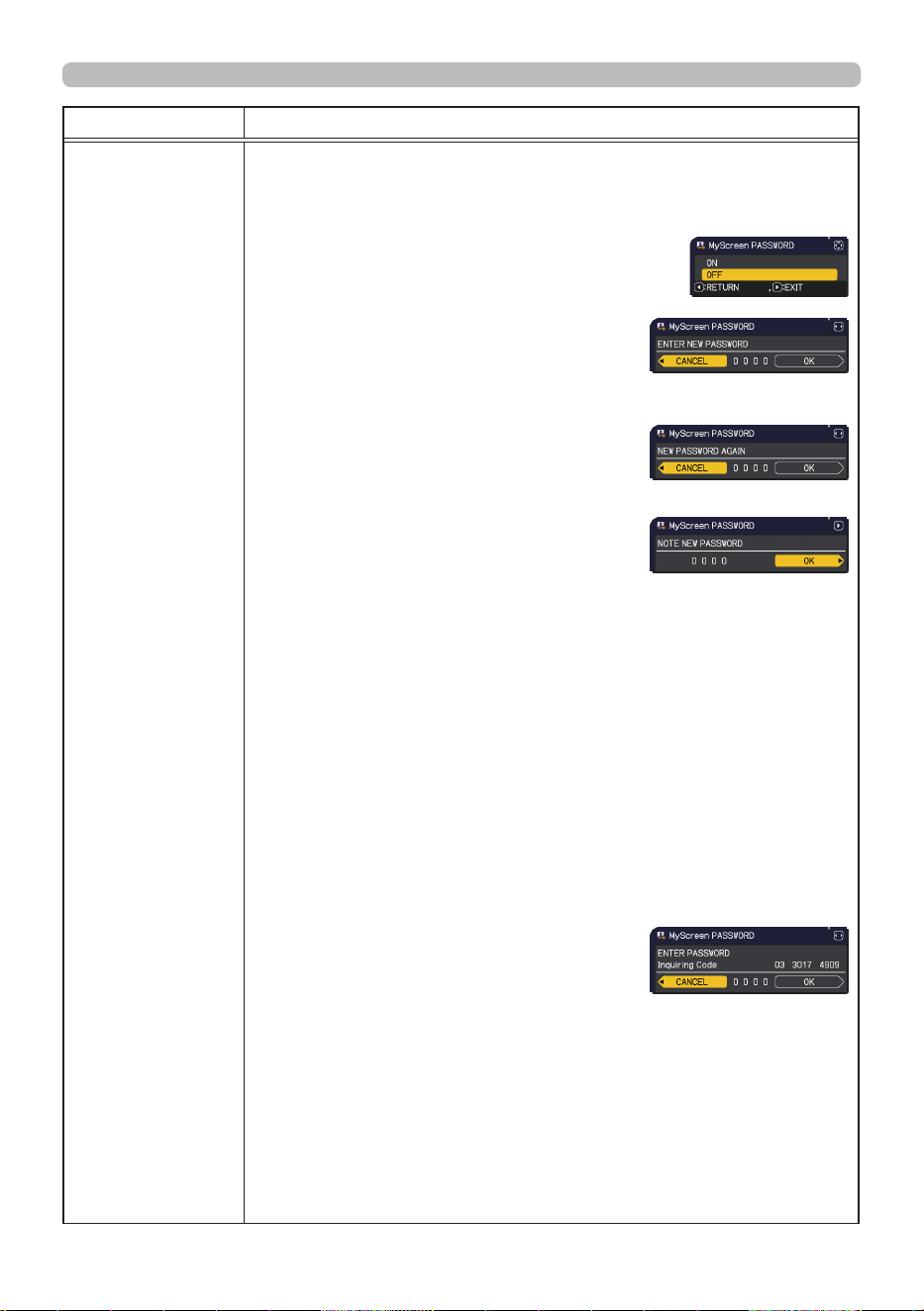
118
QM00971-1
SECURITY menu
Item Description
MyScreen
PASSWORD
The MyScreen PASSWORD function can be used to prohibit access to the
MyScreen function and prevent the currently registered MyScreen image
from being overwritten.
1 Turning on the MyScreen PASSWORD
1-1 Use the ▲/▼ buttons on the SECURITY menu to
select MyScreen PASSWORD and press the ►
button to display the MyScreen PASSWORD on/
o menu.
1-2 Use the ▲/▼ buttons on the MyScreen
PASSWORD on/o menu to select ON.
The ENTER NEW PASSWORD box (small)
is displayed.
1-3 Use the ▲/▼/◄/► buttons to enter the
password. Move the cursor to the right side
of the ENTER NEW PASSWORD box (small)
and press the ► button to display the NEW
PASSWORD AGAIN box, enter the same
PASSWORD again.
1-4 Move the cursor to the right side of the
NEW PASSWORD AGAIN box and press
the ► button to display the NOTE NEW
PASSWORD box for approximately 30
seconds. Make note of the password during
this time.
Pressing the ENTER button on the remote
control or ► button on the projector returns
to MyScreen PASSWORD on/o menu.
When a password is set for MyScreen:
•
The MyScreen registration function (and menu) are unavailable.
•
The MyScreen Lock menu is unavailable.
•
The START UP setting is locked on MyScreen (and the menu is
unavailable).
Turning the MyScreen PASSWORD o allows normal operation of these
functions.
•
Do not forget your MyScreen PASSWORD.
2 Turning o the MyScreen PASSWORD
2-1 Follow the procedure in 1-1 to display the MyScreen PASSWORD on/o
menu.
2-2
Select OFF to display the ENTER
PASSWORD box (large). Enter the registered
password and the screen returns to the
MyScreen PASSWORD on/o menu.
If an incorrect PASSWORD is entered, the menu
closes. If necessary, repeat the process from 2-1.
3 If you have forgotten your password
3-1 Follow the procedure in 1-1 to display the MyScreen PASSWORD on/o
menu.
3-2 Select OFF to display the ENTER PASSWORD box (large). The 10 digit
Inquiring Code is displayed inside the box.
3-3 Contact your dealer with the 10 digit Inquiring Code. Your password is
sent after your user registration information is conrmed.
(continued on next page)
ENTER NEW PASSWORD
box (small)
ENTER PASSWORD box
(large)
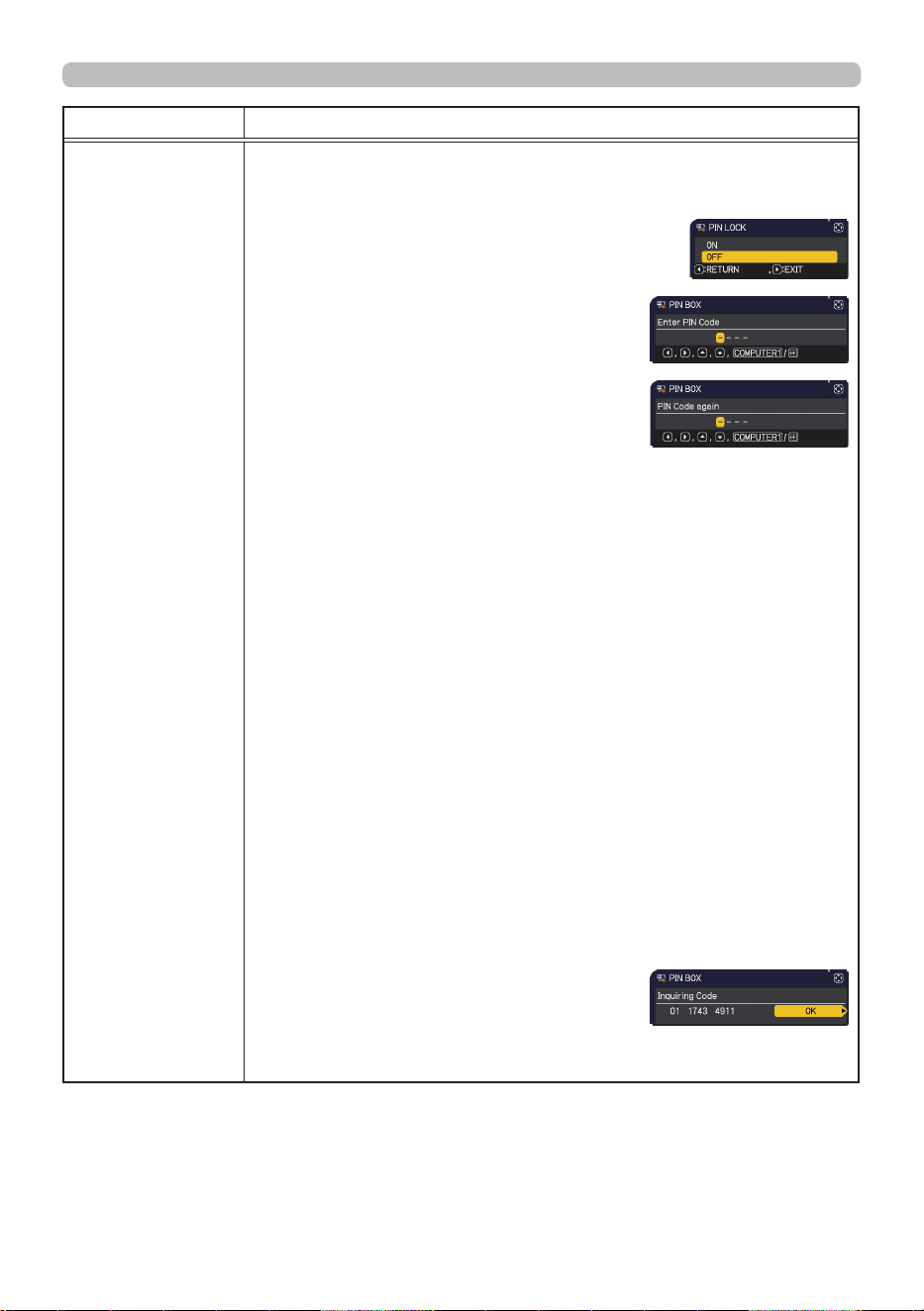
119
QM00971-1
SECURITY menu
Item Description
PIN LOCK
PIN LOCK is a function which prevents the projector from being used unless
a registered Code is input.
1 Turning on the PIN LOCK
1-1 Use the ▲/▼ buttons on the SECURITY menu
to select PIN LOCK and press the ► button or
the ENTER button to display the PIN LOCK on/o
menu.
1-2 Use the ▲/▼ buttons on the PIN LOCK on/
o menu to select ON and the Enter PIN
Code box is displayed.
1-3 Input a four part PIN code using the
▲/▼/◄/►, COMPUTER 1 or INPUT button.
The PIN Code again box appears. Reenter
the same PIN code. This completes the PIN
code registration.
•
If there is no key input for approximately 55 seconds
while the Enter PIN Code box or the PIN Code again box is displayed,
the menu closes. If necessary, repeat the process from 1-1.
Anytime the projector is restarted after AC power is turned o, the Enter PIN
Code box is displayed. Enter the registered PIN code.
The projector can be used after entering the registered PIN code. If an
incorrect PIN code is input, the Enter PIN code box is displayed again.
If an incorrect PIN code is input three times, the projector turns o.
Afterwards the projector turns o every time an incorrect PIN code is input.
The projector also turns o if there is no key input for approximately ve
minutes while the Enter PIN code box is displayed.
This function activates only when the projector is started after AC power is
turned o.
•
Do not forget your PIN code.
2 Turning o the PIN LOCK
2-1 Follow the procedure in 1-1 to display the PIN LOCK on/o menu.
2-2 Use the ▲/▼ buttons to select OFF and the Enter PIN Code box is
displayed.
Enter the registered PIN code to turn the PIN LOCK function o.
If an incorrect PIN code is input three times, the projector turns o.
3 If you have forgotten your PIN code
3-1 While the Enter PIN code box is displayed, press and hold the RESET
button for three seconds or press and hold the INPUT button for three
seconds while pressing the ► button on the projector.
The 10 digit Inquiring Code is displayed.
•
If there is no key input for approximately
ve minutes while the Inquiring Code is
displayed, the projector turns o.
3-2 Contact your dealer with the 10 digit Inquiring Code. Your PIN code is
sent after your user registration information is conrmed.
(continued on next page)
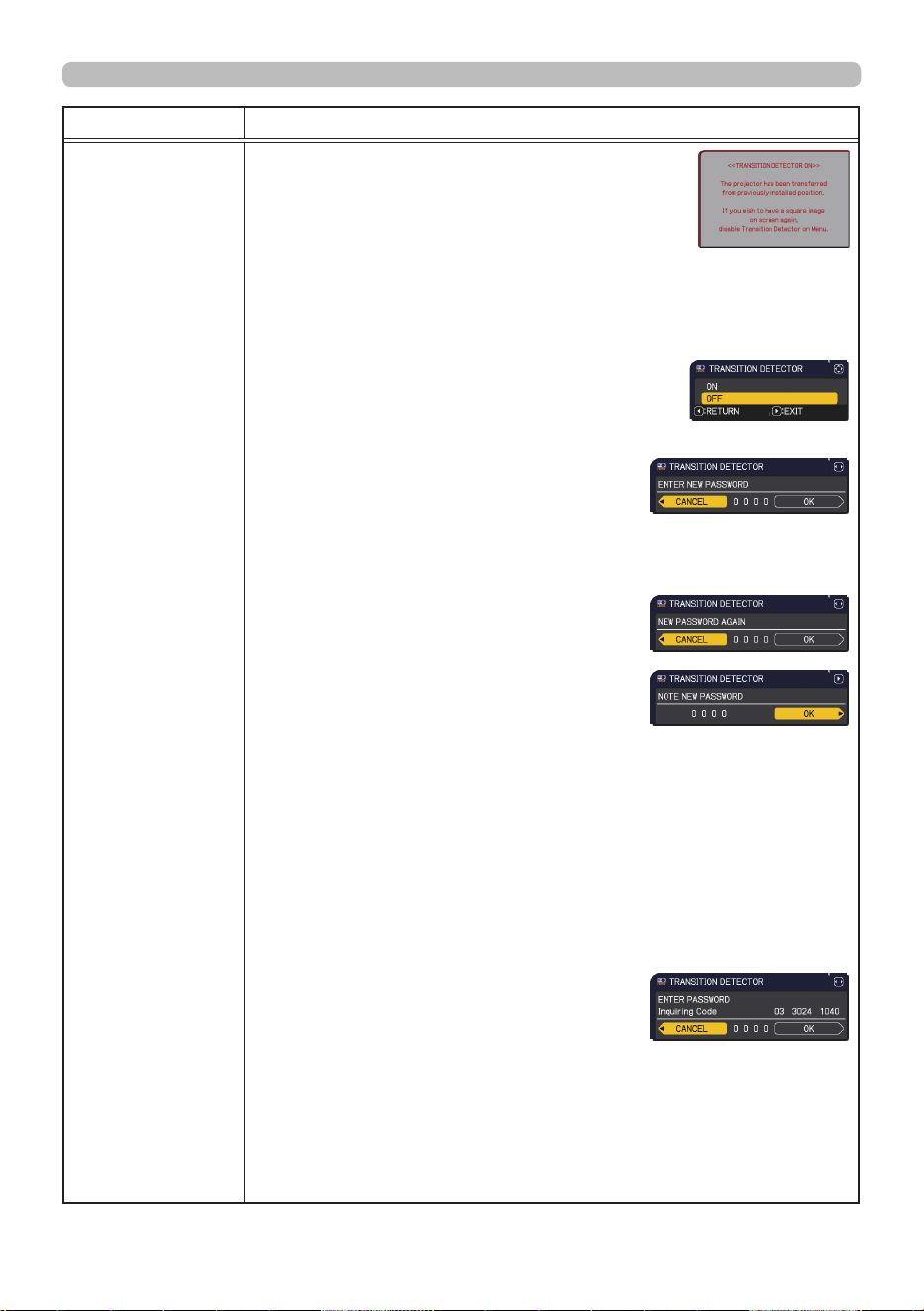
12 0
QM00971-1
SECURITY menu
Item Description
TRANSITION
DETECTOR
If this function is set to ON and the vertical angle of
the projector or the INSTALLATION setting is dierent
from the previous recorded setting, the TRANSITION
DETECTOR ON alarm is displayed and the input signal
is not displayed.
• To display the signal again, set this function OFF.
• After approximately ve minutes of displaying the TRANSITION
DETECTOR ON alarm, the light source turns o.
1 Turning on the TRANSITION DETECTOR
1-1 Use the ▲/▼ buttons on the SECURITY menu to
select TRANSITION DETECTOR and press the ►
or the ENTER button to display the TRANSITION
DETECTOR on/o menu.
1-2
Use the ▲/▼ buttons on the TRANSITION
DETECTOR on/o menu to select ON.
Selecting ON saves the setting of the current
angle and the INSTALLATION setting. The
ENTER NEW PASSWORD box (small) is
displayed.
1-3
Use the ▲/▼/◄/► buttons to enter a
password. Move the cursor to the right side
of the ENTER NEW PASSWORD box (small)
and press the ► button to display the NEW
PASSWORD AGAIN box, enter the same
password again.
1-4 Move the cursor to the right side of the
NEW PASSWORD AGAIN box and press
the ► button to display the NOTE NEW
PASSWORD box for about 30 second.
Make note of the password.
Pressing the ENTER button on the remote control or the
►
button on the
projector returns to the TRANSITION DETECTOR on/o menu.
• Do not forget your TRANSITION DETECTOR password.
• This function activates only when the projector is started after turning o
the AC power.
• This feature may not function properly if the projector is not in a stable
position when ON is selected.
2 Turning o the TRANSITION DETECTOR
2-1
Follow the procedure in 1-1 to display the TRANSITION DETECTOR on/o menu.
2-2
Select OFF to display the ENTER
PASSWORD box (large). Enter the registered
password and the screen returns to the
TRANSITION DETECTOR on/o menu.
If an incorrect password is entered, the menu
closes. If necessary, repeat the process from 2-1.
3 If you have forgotten your password
3-1
Follow the procedure in 1-1 to display the TRANSITION DETECTOR on/o menu.
3-2 Select OFF to display the ENTER PASSWORD box (large). The 10 digit
Inquiring Code is displayed inside the box.
3-3 Contact your dealer with the 10 digit Inquiring Code. Your password is
sent after your user registration information is conrmed.
(continued on next page)
ENTER NEW PASSWORD
box (small)
ENTER PASSWORD box
(large)
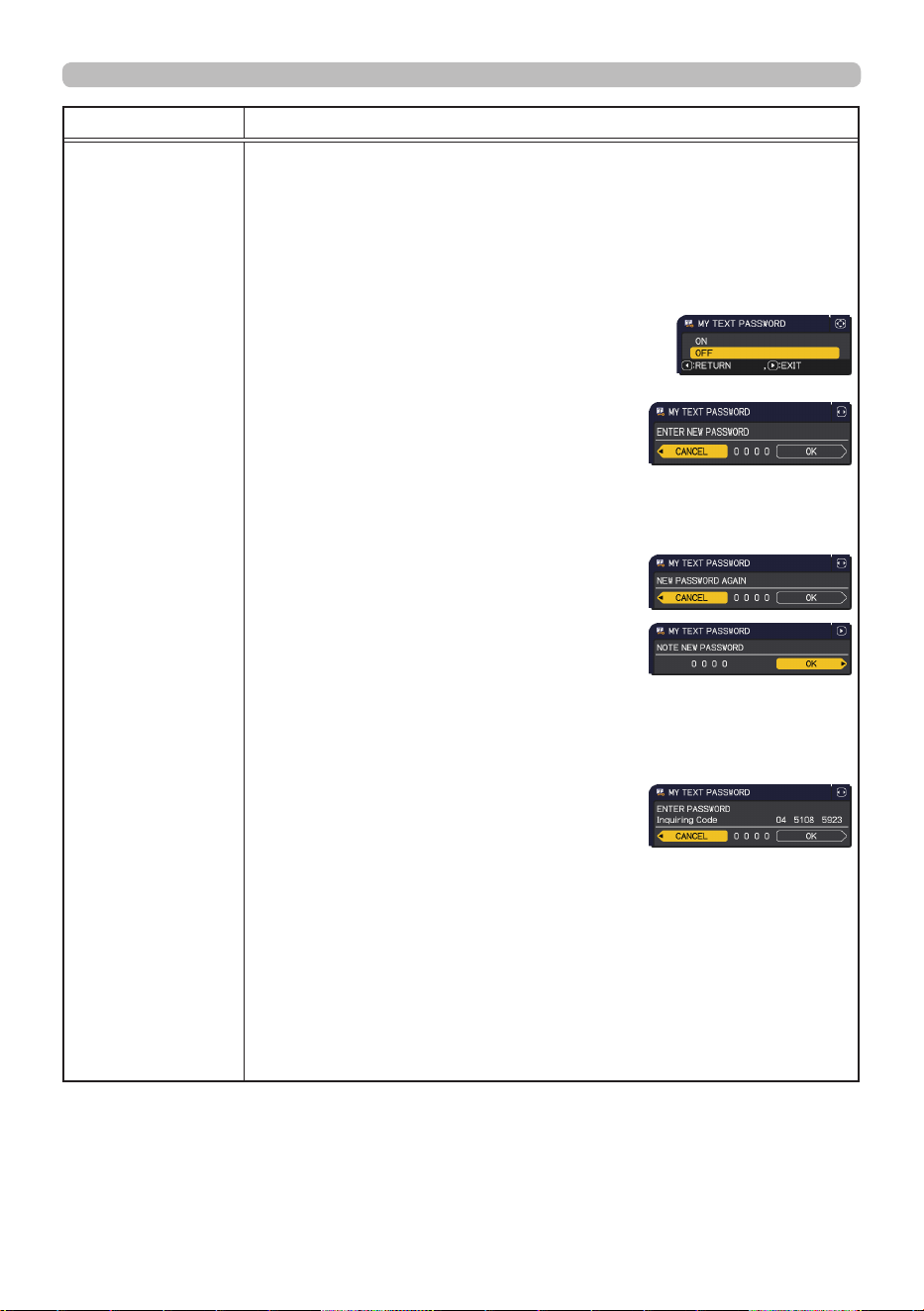
12 1
QM00971-1
SECURITY menu
Item Description
MY TEXT
PASSWORD
The MY TEXT PASSWORD function can prevent the MY TEXT from being
overwritten. When the password is set for the MY TEXT;
• The MY TEXT DISPLAY menu is unavailable, which can prohibit changing
the DISPLAY setting.
• The MY TEXT WRITING menu is unavailable, which can prevent the MY
TEXT from being overwritten.
1 Turning on the MY TEXT PASSWORD
1-1 Use the ▲/▼ buttons on the SECURITY menu to
select the MY TEXT PASSWORD and press the
► button to display the MY TEXT PASSWORD
on/o menu.
1-2 Use the ▲/▼ buttons on the MY TEXT
PASSWORD on/o menu to select ON. The
ENTER NEW PASSWORD box (small) is
displayed.
1-3 Use the ▲/▼/◄/► buttons to enter the
password. Move the cursor to the right side
of the ENTER NEW PASSWORD box (small)
and press the ► button to display the NEW
PASSWORD AGAIN box, and then enter the
same password again.
1-4 Move the cursor to the right side of the NEW
PASSWORD AGAIN box and press ► button
to display the NOTE NEW PASSWORD
box for about 30 seconds. Make note of the
password.
Pressing the ENTER button on the remote control or ► button on the
projector returns to the MY TEXT PASSWORD on/o menu.
2 Turning o the MY TEXT PASSWORD
2-1 Follow the procedure in 1-1 to display
the MY TEXT PASSWORD on/o menu.
2-2 Select OFF to display the ENTER
PASSWORD box (large). Enter the registered
password and the screen returns to the MY
TEXT PASSWORD on/o menu.
If an incorrect password is input, the menu closes.
If necessary, repeat the process from 2-1.
3 If you have forgotten your password
3-1 Follow the procedure in 1-1 to display the MY TEXT PASSWORD on/o
menu.
3-2 Select OFF to display the ENTER PASSWORD box (large). The 10 digit
inquiring code is displayed inside the box.
3-3 Contact your dealer with the 10 digit inquiring code. Your password is
sent after your user registration information is conrmed.
(continued on next page)
ENTER NEW PASSWORD
box (small)
ENTER PASSWORD box
(large)
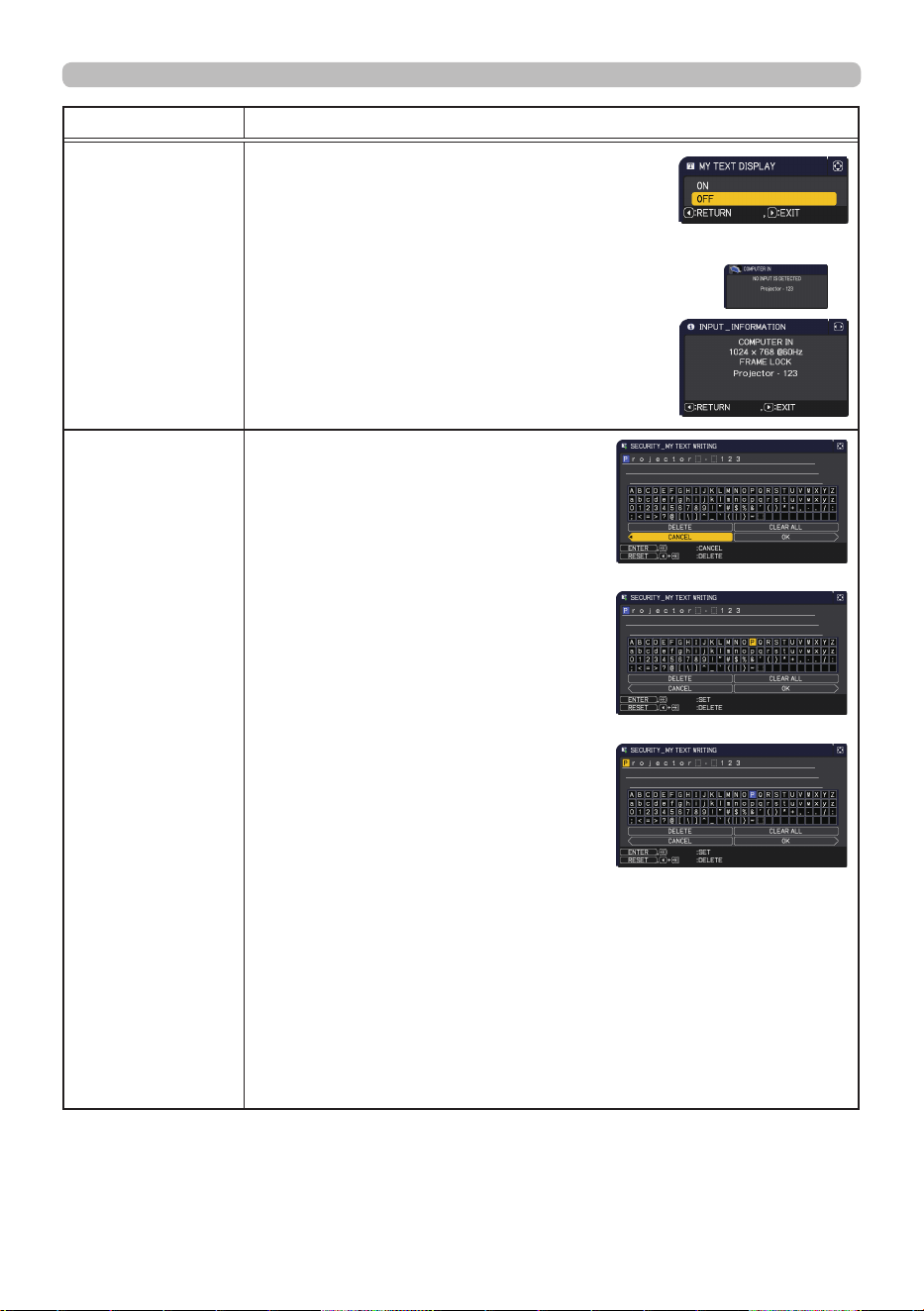
12 2
QM00971-1
SECURITY menu
Item Description
MY TEXT
DISPLAY
(1) Use the ▲/▼ buttons on the SECURITY menu to
select the MY TEXT DISPLAY and press the ► or
ENTER button to display the MY TEXT DISPLAY
on/o menu.
(2) Use the ▲/▼ buttons on the MY TEXT DISPLAY
on/o menu to select on or o.
ON
ó
OFF
When it is set ON, the MY TEXT is displayed on the
START UP screen and the INPUT_INFORMATION
when the INFORMATION on the SERVICE menu is
chosen.
• This function is available only when the MY TEXT
PASSWORD function is set to the OFF.
MY TEXT
WRITING
(1) Use the ▲/▼ buttons on the
SECURITY menu to select the MY
TEXT WRITING and press the ►
button. The MY TEXT WRITING dialog
is displayed.
(2) The current MY TEXT is displayed on
the rst three lines. If not yet written, the
lines is blank.
Use the ▲/▼/◄/► buttons and the
ENTER or INPUT button to select and
enter characters. To erase 1 character
at one time, press the RESET button or
press the ◄ and INPUT button at the
same time. If you move the cursor to
DELETE or CLEAR ALL on screen and
press the ENTER or INPUT button, one
or all characters are erased. The MY
TEXT can be input up to 24 characters
on each line.
(3) To change an already inserted
character, press the ▲/▼ button to
move the cursor to one of the rst three
lines, and use the ◄/► buttons to
move the cursor on the character to be
changed.
After pressing the ENTER or INPUT button, the character is selected.
Then, follow the same procedure as described at the item (2) above.
(4) To nish entering text, move the cursor to the OK on screen and press
the ►, ENTER or INPUT button. To revert to the previous MY TEXT
without saving changes, move the cursor to the CANCEL on screen and
press the ◄, ENTER or INPUT button.
•
The MY TEXT WRITING function is available only when the MY TEXT
PASSWORD function is set to OFF.
(continued on next page)

12 3
QM00971-1
SECURITY menu
Item Description
SECURITY
INDICATOR
Selecting this item displays the SECURITY INDICATOR dialog. Use
the ▲/▼ buttons to select ON or OFF.
ON
ó
OFF
When ON is selected while PIN LOCK or TRANSITION DETECTOR
is ON, it is notied by lighting/blinking of indicator in the standby
mode (
119, 120) .
Refer to "Regarding the indicator lamps" (
131) about the indicator.
STACK LOCK
Selecting this item displays the STACK LOCK dialog. For more
information, see the Instant Stack Guide.
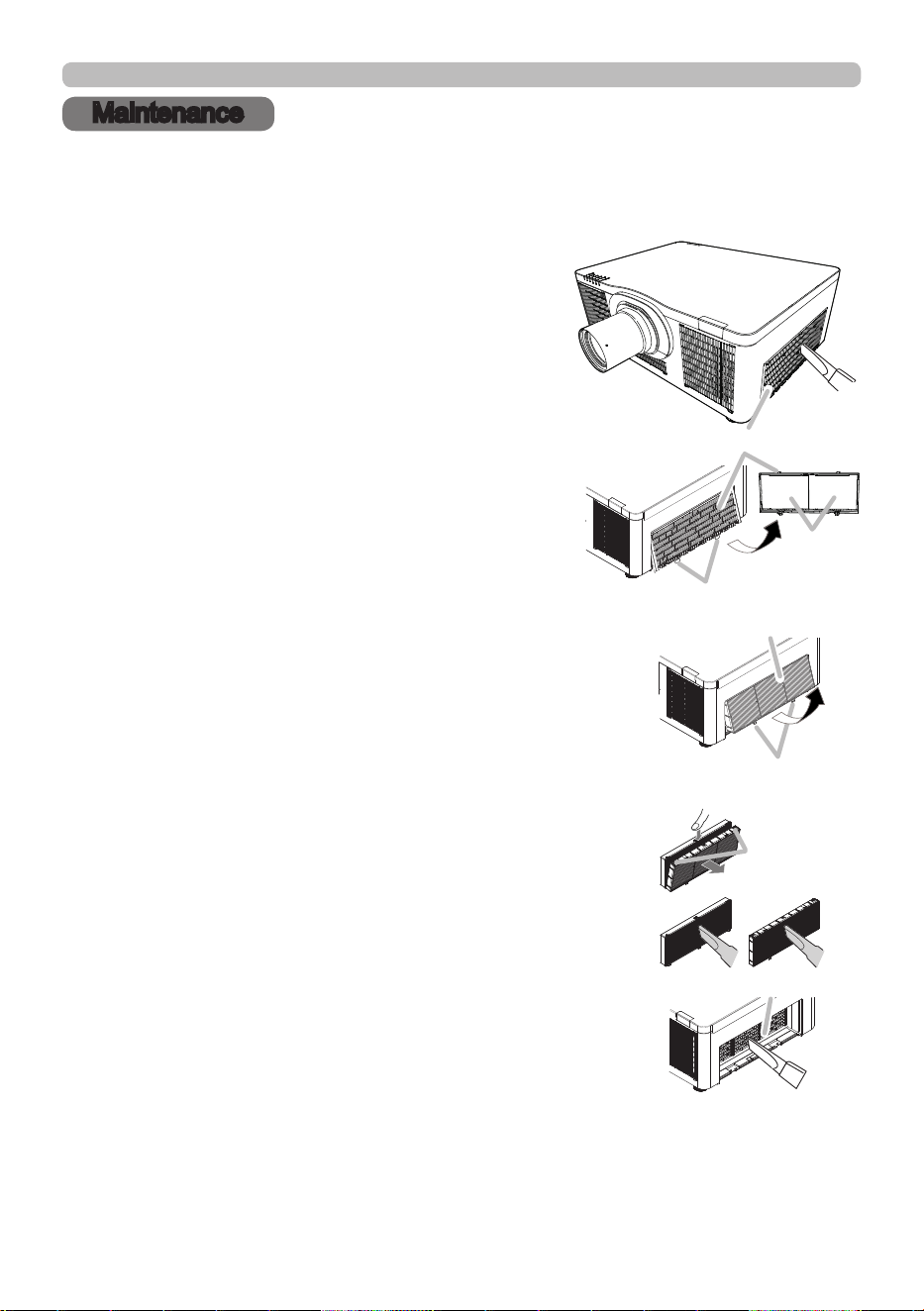
12 4
QM00971-1
Maintenance
Maintenance
Cleaning and replacing the air lter
Check and clean the air lter periodically. When the indicators or a message
prompts you to clean the air lter, comply with it as soon as possible.
1.
Turn the projector o, and unplug the power
cord. Allow the projector to suciently cool down.
2.
Use a vacuum cleaner on and around the lter
cover.
3.
Pick and pull up the lter cover knobs to take it
o.
4.
Press up slightly the bottom side knobs to unlock
the bottom side of the air lter, and take it o.
5.
The air lter consists of two parts.
Press down around the interlocking parts to
unlock, then separate the two parts.
Use a vacuum cleaner for both sides of the air lter.
If the air lter is damaged or heavily soiled, replace it with
the new one. Request for an air lter with the following type
number from your dealer when purchasing a new one.
Type number: UX43482
6 .
Use a vacuum cleaner for the lter vent of the projector.
7.
Put back the air lter and lter cover into their place.
8.
Turn the projector on and reset the lter time using the
FILTER TIME item in the EASY MENU.
(1) Press the MENU button to display a menu.
(2) Point at the FILTER TIME using the ▲/ ▼ buttons,
then press the ► button. A dialog will appear.
(3) Press the ► button to select “OK” on the dialog.
It performs resetting the lter time.
(continued on next page)
5
Filter vent
Air lter knobs
4
Air lter
6
Interlocking
Parts
2
Filter cover
Filter cover knobs
3
Extra
air lter
12 5
QM00971-1
Maintenance
► Before taking care of the air lter, make sure the power cord
is not plugged in, then allow the projector to cool suciently. Taking care of
the air lter in a high temperature state of the projector could cause an electric
shock, a burn or malfunction to the projector.
►Use only the air lter of the specied type. Do not use the projector without the
air lter or the lter cover. It could result in a re or malfunction to the projector.
►Clean the air lter periodically. If the air lter becomes clogged by dust or the
like, internal temperatures rise and could cause a re, a burn or malfunction to
the projector.
WARNING
• Replace the air lter when it is damaged or heavily soiled.
• Reset the lter time only when you have cleaned or replaced the air lter, for a
suitable indication about the air lter.
• When the projector displays the “CHECK THE AIR FLOW” message, turn o
the projector to prevent the internal heat level rising.
NOTE
Cleaning and replacing the air lter (continued)
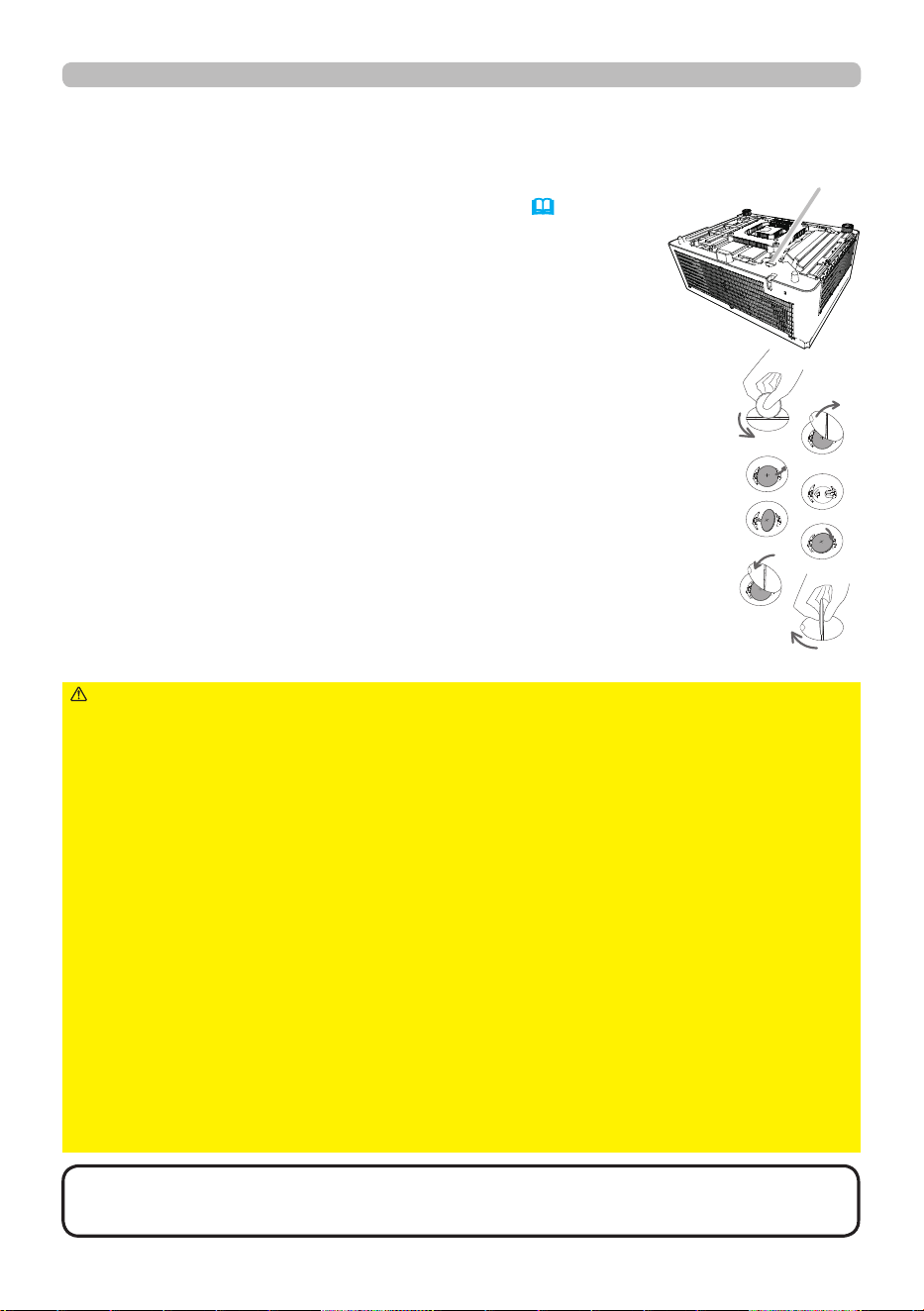
12 6
QM00971-1
WARNING
Always handle the batteries with care and use them only as directed.
Battery may explode if mistreated. Do not recharge, disassemble or dispose of in re.
And also improper use may result in cracking or leakage, which could result in re,
injury and/or pollution of the surrounding environment.
Do not ingest battery. Chemical Burn Hazard.
It can cause severe internal burns in just 2 hours and can lead to death.
► If you think batteries might have been swallowed or placed inside any part of the
body, seek immediate medical attention.
-
Keep new and used batteries away from children and pets. If the battery compartment
does not close securely, stop using the product and keep it away from children and pets.
►
If you observe battery leakage, wipe out the leakage and then replace a battery.
If the leakage adheres to your body or clothes, rinse well with water immediately.
► Be sure to use only the speci ed batteries.
- Do not use damaged batteries.
- Do not use any metal tools.
-
Make sure the plus and minus terminals are correctly aligned when loading a battery.
- Do not short circuit or solder a battery.
►
Do not allow a battery in a re or water. Keep batteries in a dark, cool and dry place.
►
Obey the local laws on disposing a battery.
Maintenance
Inserting or replacing the internal clock battery
This product has an internal clock. The battery for the internal clock
is not contained at the time of factory shipment. When you
use the function that requires the internal clock ("Event
Scheduling" in the Network Guide), install a new battery
according to the following procedure.
Use the following type of battery.
MAXELL, Part No. CR2032 or CR2032H
1.
Turn the projector o , and unplug the power cord.
Allow the projector to cool su ciently.
2.
Turn the battery cover fully counterclockwise using
a coin or the like, and pick the cover up to remove it.
3.
Pry up the old battery using a athead screwdriver or the like to
take it out. Do not use any metal tools. While prying it up, put a
nger lightly on the battery since it may pop out of the holder.
4.
Insert the new battery or replace the battery with a new one.
Slide the battery in under the plastic claw, and push it into
the holder until it clicks.
5 .
Place the battery cover in place, then turn it clockwise using
such as coins to x.
90°
90°
Battery Cover
Bottom side
• The internal battery is required to be replaced when the time is o
soon after setting date and time.
NOTE

12 7
QM00971-1
Maintenance
Other care
To ensure the safe use of your projector, have it cleaned and inspected by your
dealer every year.
1.
Turn the projector o, and unplug the power cord. Allow the projector to cool
suciently.
2.
After making sure that the projector is cool adequately, lightly wipe the lens
with a commercially available lens-cleaning wipe. Do not touch the lens
directly with your hand.
If the lens is awed, soiled or fogged, it could cause deterioration of display
quality. Take care of the lens, being cautious of handling.
Inside of the projector
Caring for the lens
• Use commercially available lens tissue to clean the lens (used to clean cameras,
eyeglasses, etc.).
• If the lens is heavily soiled, wipe it with a cloth moistened with little water.
• Never use polishing agents, detergents, chemicals, or solvents such as benzine
or thinner.
• Excepting for lens, use a soft cloth to clean. When excessively soiled, dilute a
neutral detergent in water, wet and wring out the soft cloth.

12 8
QM00971-1
Maintenance
►Make sure the power cord is not plugged in, and allow
the projector to cool suciently. Caring for the projector with the power plug
connected may result in re or electric shock. The high temperature state of the
projector could cause a burn and/or malfunction to the projector.
►Do not clean or service the inside of the projector. Doing is so dangerous.
►Do not look into the lens and the openings on the projector while the light
source is on, since the projection ray may cause a trouble on your eyes.
►Avoid wetting the projector or inserting liquids in the projector. It could result in
a re, an electric shock, and/or malfunction to the projector.
• Do not put anything containing water, cleaners or chemicals near the projector.
If liquids or foreign object should enter the projector, immediately turn o the
power switch, disconnect the power plug from the power outlet and contact
your dealer.
• Do not use aerosols or sprays.
WARNING
►Do not use water or a neutral cleaner diluted in water other
than caring for the cabinet and remote control.
►Do not use a vacuum cleaner for lens as it could cause a malfunction.
►Do not polish or wipe the lens and the projector with hard objects.
NOTICE ►Do not directly touch the lens surface with hands.
CAUTION
1.
Turn the projector o, and unplug the power cord. Allow the projector to cool
suciently.
2.
After making sure that the projector is cool adequately, lightly wipe with gauze
or a soft cloth.
If the projector is extremely dirty, dip a soft cloth in water or a neutral cleaner
diluted in water, and wipe lightly after wringing well. Then, wipe lightly with a
soft, dry cloth.
Incorrect care could have adverse inuence such as discoloration, peeling paint,
etc.
Caring for the cabinet and remote control
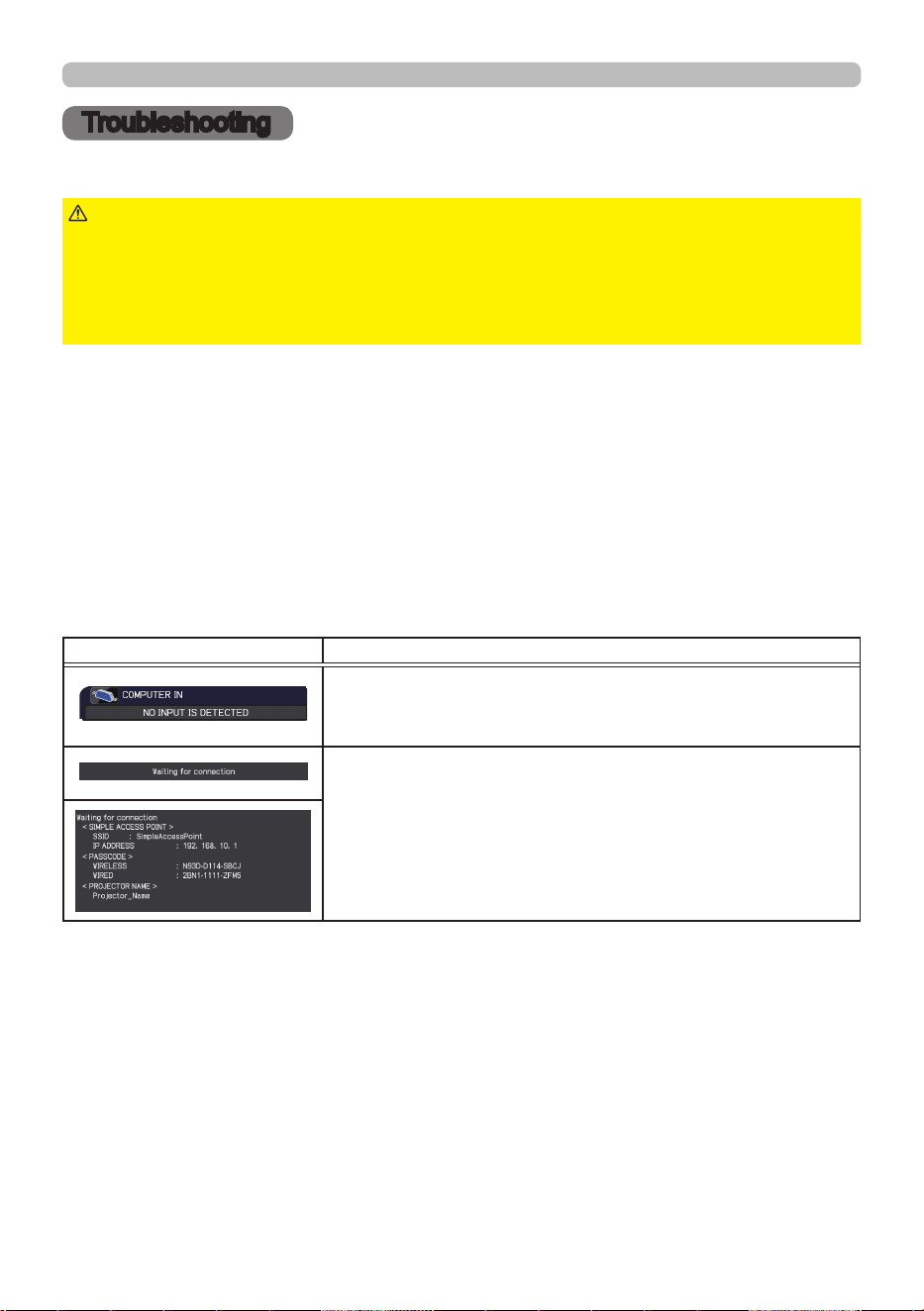
12 9
QM00971-1
Troubleshooting
Troubleshooting
If an abnormal operation should occur, stop using the projector immediately.
If a problem occurs with the projector, the following checks and measures are
recommended before requesting repair.
If this does not resolve the problem, contact your dealer or service company. They
tell you what warranty condition is applied.
►Never use the projector if abnormal operations such as
smoke, strange odor, excessive sound, damaged casing or elements or cables,
penetration of liquids or foreign matter, and so on should occur. In such cases,
immediately disconnect the power plug from the power outlet. After making sure
that the smoke or odor has stopped, contact to your dealer or service company.
WARNING
Related messages
When some messages appear, check and deal with it according to the following
table. Although these messages automatically disappear after several minutes,
they reappear when the power is turned on.
Message Description
There is no input signal.
Conrm the signal input connection, and the status of
the signal source.
Projector is waiting for an image le.
Check the hardware connection, settings on the projector
and network-related settings.
The computer-Projector network connection might be
disconnected. Re-connect them.
(continued on next page)
Troubleshooting
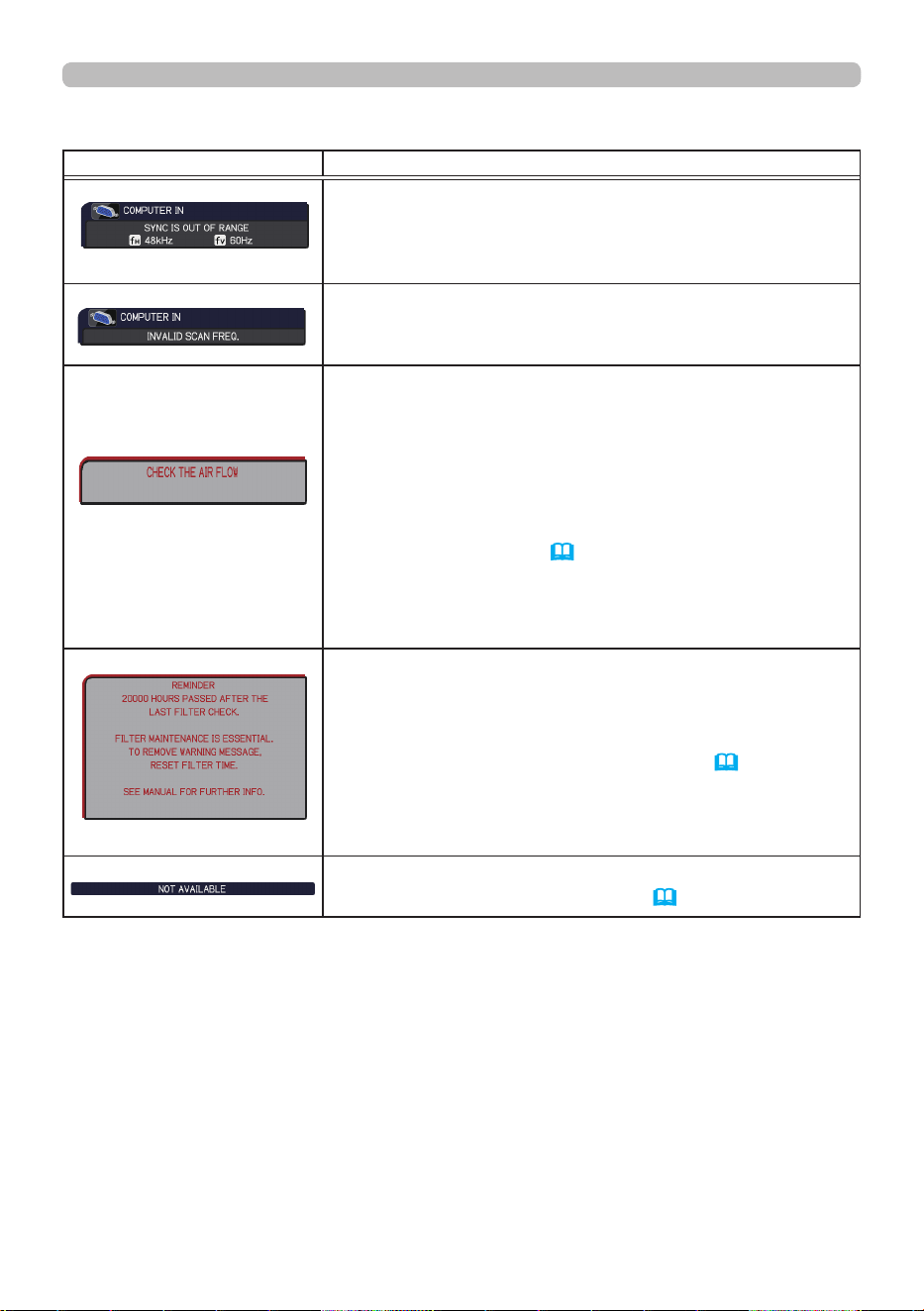
13 0
QM00971-1
Message Description
The horizontal or vertical frequency of the input
signal is not within the specied range.
Conrm the specs for your projector or the signal source
specs.
An improper signal is input.
Conrm the specs for your projector or the signal source
specs.
The internal temperature is rising.
Turn the power o, and allow the projector to cool down
at least 20 minutes. After having conrmed the following
items, turn the power ON again.
• Is there blockage of the air passage aperture?
• Is the air lter dirty?
• Use the unit within the usage temperature parameters
(0°C to 40°C or 45°C (
User's Manual (concise))).
• Is the exhaust air (hot/cold) from peripheral
equipments blowing against the ventilation opening of
projector?
A note of precaution when cleaning the air lter.
Immediately turn the power o, and clean or change the
air lter referring to the Cleaning and replacing the air
lter section of this manual. After you have cleaned or
changed the air lter, reset the lter time (
85, 124).
The button operation is not available.
Check the button you want to use (
19) .
Troubleshooting
Related messages (continued)
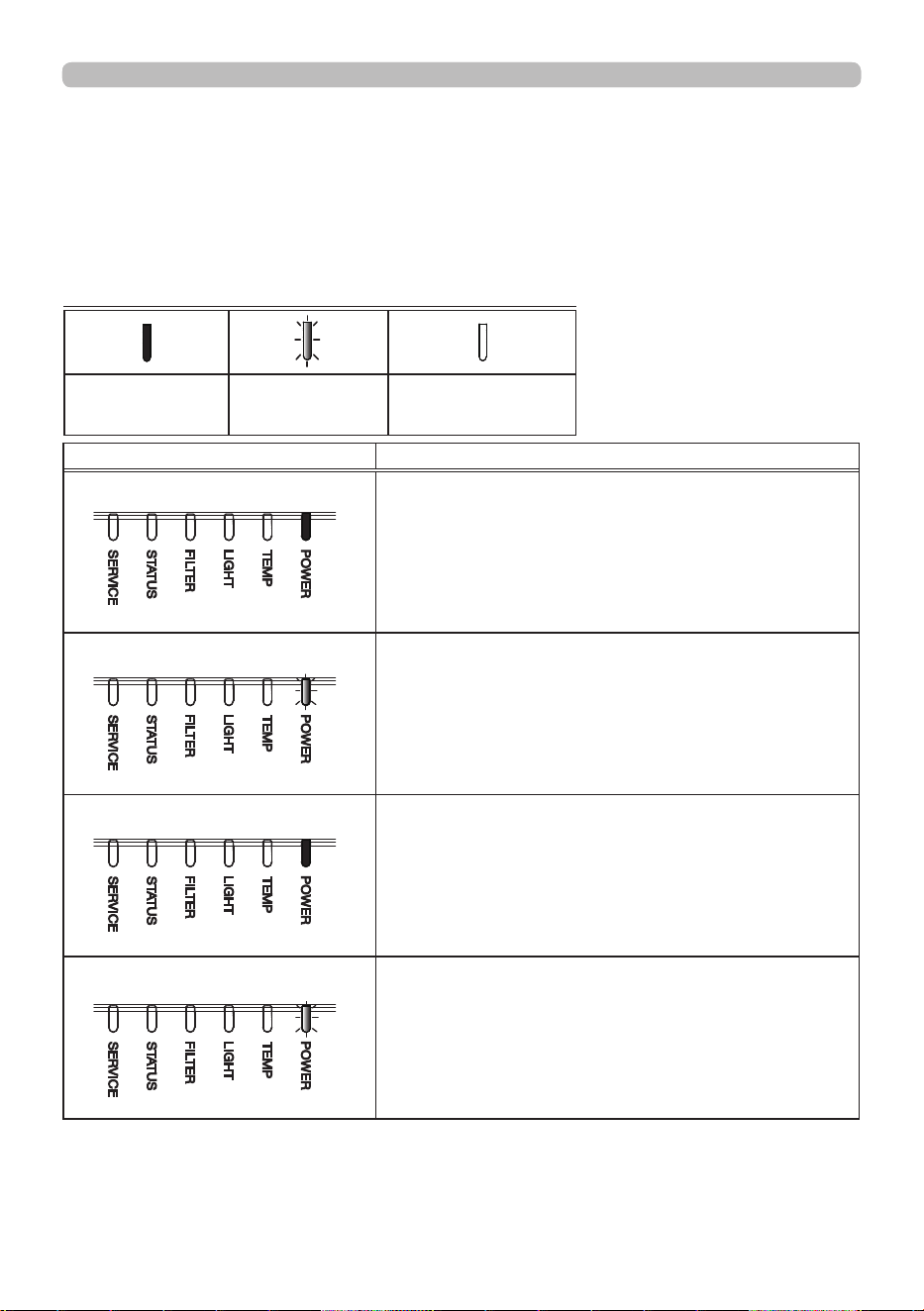
13 1
QM00971-1
Troubleshooting
Indicator Status Description
The projector is in a standby state.
Refer to the section “Power on/o”.
The projector is warming up.
Wait for the projector to warm up.
The projector is in an on state.
Ordinary operations may be performed.
The projector is cooling down.
Wait for the projector to cool down.
(continued on next page)
Regarding the indicator lamps
The indicators may dier from this manual, check and deal with it according to
the following table. If the same indication is displayed after the remedy or if other
indication not described in the table below is displayed, contact your dealer or
service company.
The indicators are described as below.
Lit
Steady light
Blinking O
Regarding the indicator lamps
Orange
Green
Orange
Green
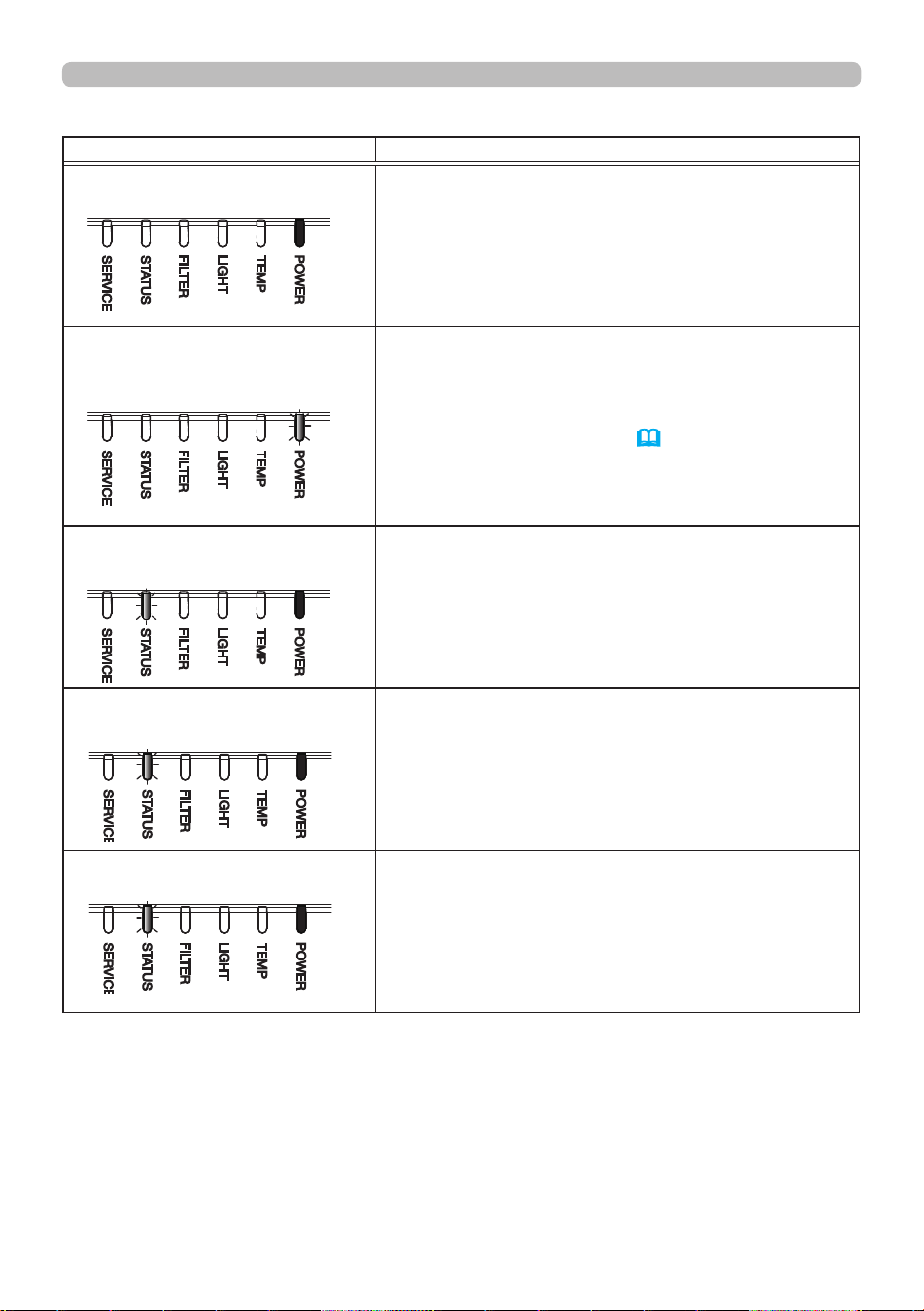
13 2
QM00971-1
Regarding the indicator lamps
Regarding the indicator lamps (continued)
Indicator Status Description
At least 1 "Power ON" schedule is saved to the
projector.
Refer to Schedule Settings section of User’s
Manual - Network Guide.
STANDBY MODE is set to QUICK START.
Refer to STANDBY MODE.
(
87)
Blank(black) or AV Mute(black) is on.
Press any button on the remote control or on the
control panel to disable Blank or AV Mute.
Light source output is o by the shutter
function.
To display the image, press the SHUTTER button on
the remote control or on the control panel to disable
the shutter function.
The projector received the remote control
signal when ALL is selected for REMOTE
CONTROL in KEY LOCK.
CONTROL PANEL was operated when ALL is
selected for CONTROL PANEL in KEY LOCK.
(continued on next page)
Blinking In Green 1 time
Normally lighting in Orange.
Blinking In Green 2 times for
approx. 3 seconds.
Blinking In Green 2 times
Green
Blinking In Green 3 times
GreenGreen
Green
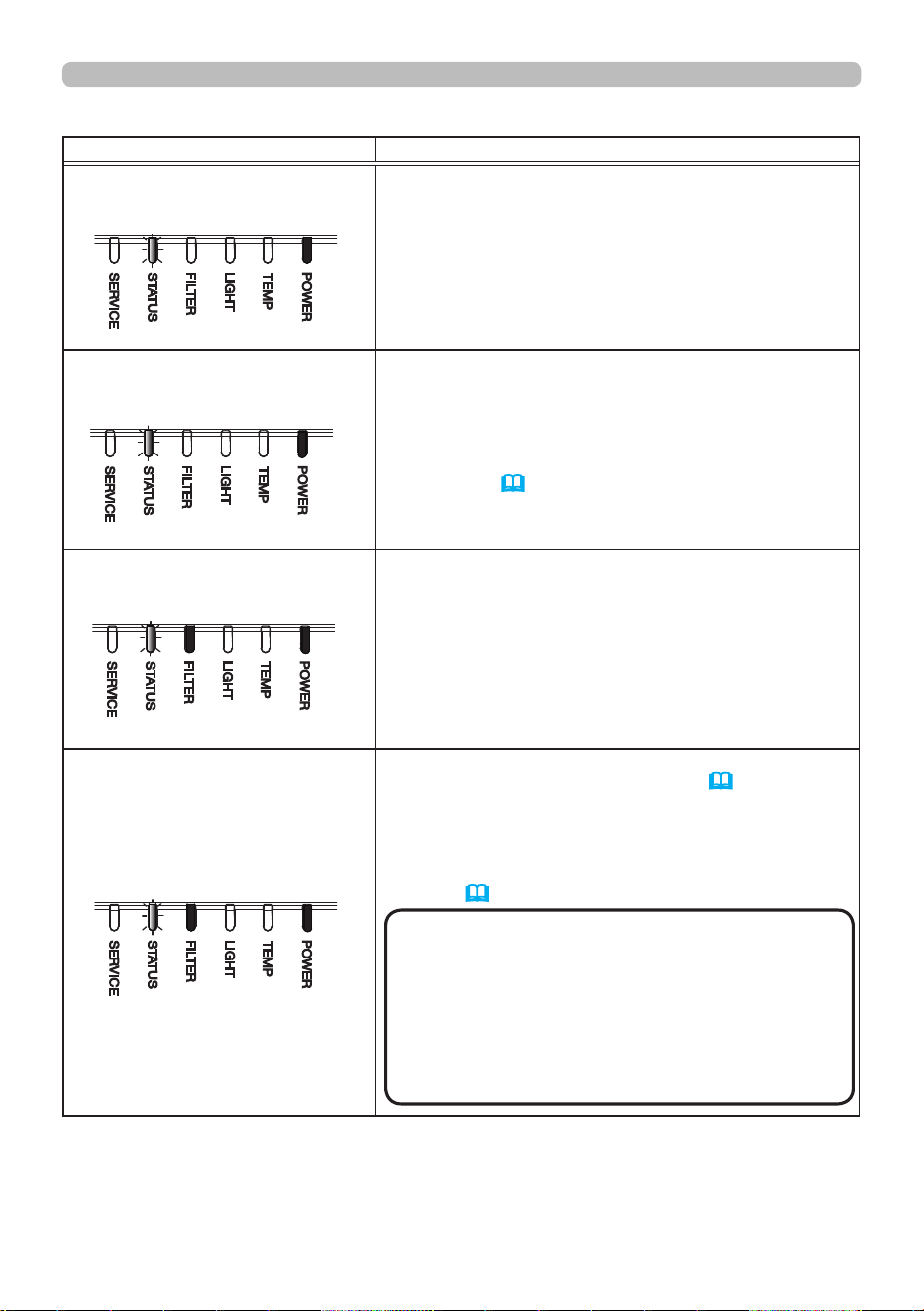
13 3
QM00971-1
Red
Regarding the indicator lamps
Regarding the indicator lamps (continued)
Indicator Status Description
Firmware update is in progress.
For the details of the rmware update of the
projector, refer to our website.
PIN LOCK or TRANSITION DETECTOR
function is active.
See SECURITY menu > PIN LOCK or TANSITION
DETECTOR(
119, 120, 123).
It is time to clean the air lter.
Turn the power o immediately, and clean or change
the air lter referring to the section Cleaning and
replacing the air lter. After cleaning or changing
the air lter, reset the lter time.
After the remedy, restart the projector.
The air lter is clogged or dirty.
(
124)
Check and clean the air lter.
Make sure the power cord is not plugged in, then
allow the projector to cool suciently.
See the section "The interior portion has become
heated" (
134).
NOTE
• The FILTER indicator might light up
in red when something blocks the intake vents
even though the air lter is clean.
•
The FILTER indicator might light up
dierently from other indicators or display
messages related to cleaning the air lter.
Follow the prompt that is displayed earlier.
(continued on next page)
Blinking In Green 1 time
Blinking In Red 1 time
Green
Red
Blinking In Red 2 ~ 3 times
Green
Orange
Blinking In Orange 1 time
Orange or Green
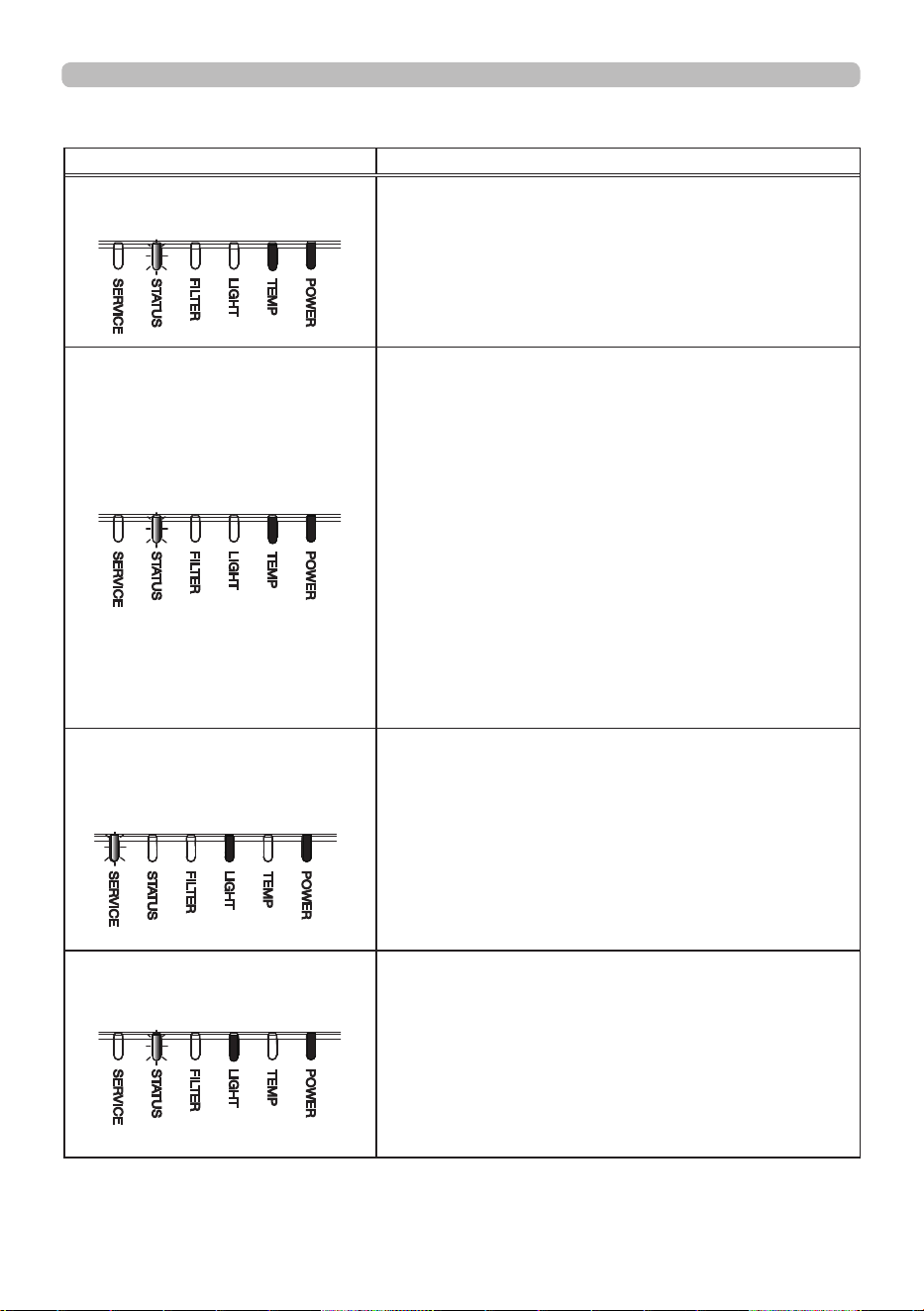
13 4
QM00971-1
Indicator Status Description
The internal temperature is rising.
Turn the power o, and allow the projector to cool
down at least 20 minutes. After having conrmed the
following items, turn the power on again.
• Is there blockage of the air passage aperture?
• Is the air lter dirty?
• Does the peripheral temperature exceed 45°C?
The interior portion has become heated.
Turn the power o, and allow the projector to cool
down at least 20 minutes. After the projector has
suciently cooled down, conrm the following items,
and then turn the power on again.
• Is there blockage of the air passage aperture?
• Is the air lter dirty?
• Does the peripheral temperature exceed 45°C?
• Is the setting for ALTITUDE appropriate?
• Is the exhaust air (hot/cold) from peripheral
equipments blowing against the ventilation opening
of projector?
For details on ALTITUDE, refer to ALTITUDE of
SERVICE in the OPTION menu. If the projector is
used with a wrong setting, it may cause damage to
the projector itself or the parts inside.
All or part of light sources are not lighting.
Turn o the projector and unplug the power cord, and
then turn on the projector again.
Lens unit is not installed.
Make sure that the lens unit is installed correctly, and
turn on the projector again.
(continued on next page)
Regarding the indicator lamps
Regarding the indicator lamps (continued)
Red
Blinking In Red 2 ~ 6 times
Red
Red
Blinking In Red 1 ~ 5 times
Red or
Green
Red
Blinking In Red 1 time
Red
Red
Blinking In Red 1 time
Green
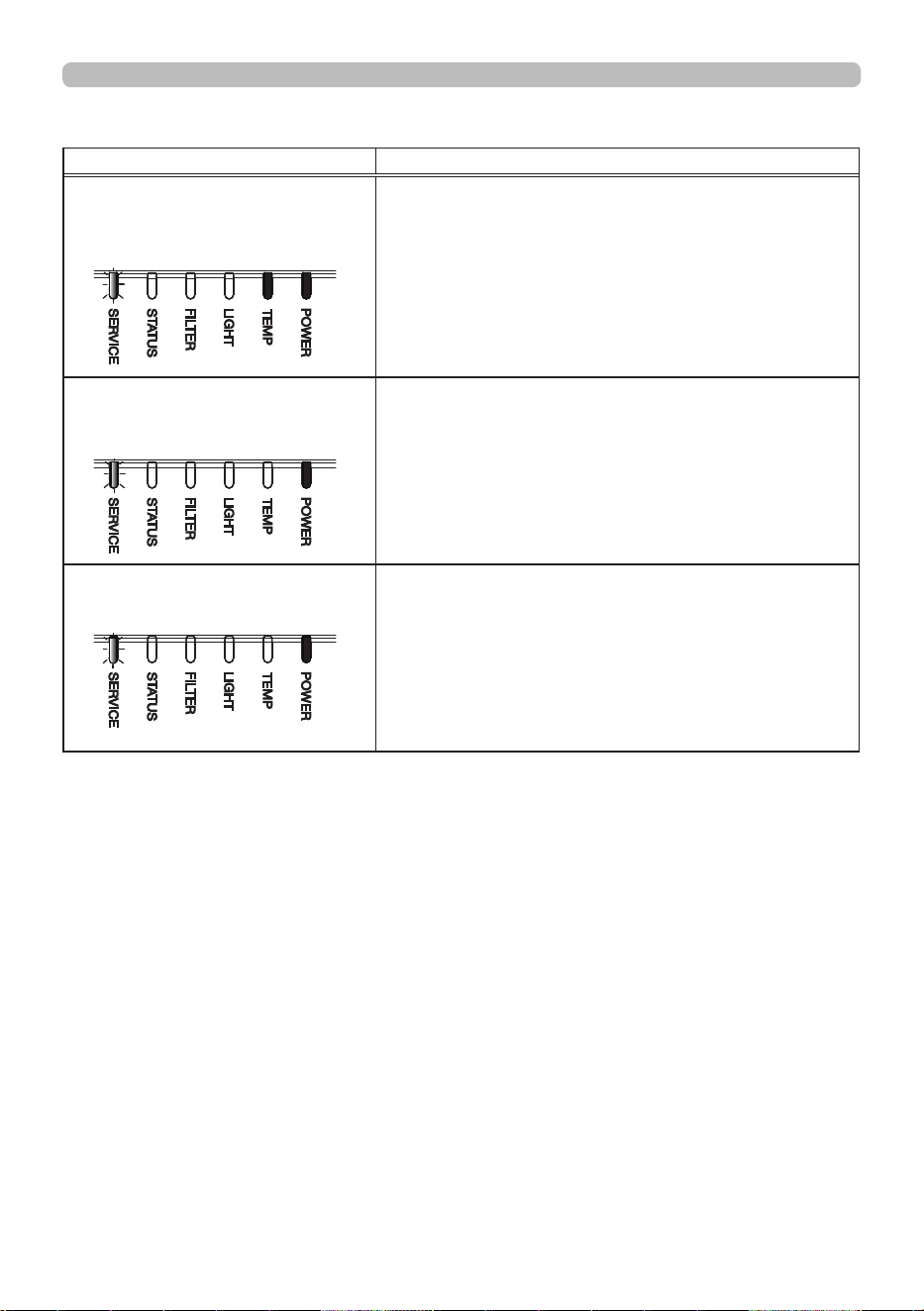
13 5
QM00971-1
Regarding the indicator lamps
Regarding the indicator lamps (continued)
Indicator Status Description
The cooling fan is not operating.
Turn the power o, and allow the projector to cool
down at least 20 minutes. After the projector has
suciently cooled down, conrm that no foreign
matter has become caught in the fan, and so on and
then turn the power on again.
Lens shift does not work correctly.
Turn o the projector and install the lens unit
correctly. Remove obstacles if they are around the
lens.
There is a possibility that the interior portion
has become overcooled.
• Use the unit within the temperature range.
WHISPER: 0 to 45°C
Other than WHISPER: 0 to 40°C
Red
Blinking In Red 1 ~ 11 times
Red or
Green
Blinking In Orange 1 time
Orange or Green
Green
Blinking In Orange 2 ~ 6 times

13 6
QM00971-1
Resetting all settings
When it is dicult to correct wrong settings, the FACTORY RESET function of
SERVICE item in OPTION menu (115) can reset all settings (except settings such
as LANGUAGE, AUTO BLANK, LIGHT SOURCE TIME, FILTER TIME, FILTER
MESSAGE, STANDBY MODE, COMMUNICATION, SCHEDULE, CONTROL
TERMINAL, REMOTE CONTROL OUT, SECURITY and NETWORK)
to the factory default.
• When the interior portion has become overheated, for safety
purposes, the projector is automatically shut down, and the indicator lamps may
also be turned o. In such a case, disconnect the power cord, and wait at least
20 minutes. After the projector has suciently cooled down, turn the power on
again.
NOTE
Regarding the indicator lamps
Regarding the indicator lamps (continued)
13 7
QM00971-1
Troubleshooting
Issues that may be easy to be mistaken for machine defects
An issue may be confused with a machine defect, check and deal with it according
to the following table.
Issue Cases not involving a machine defect
Reference
page
Power does not
come on.
The electrical power cord is not plugged in.
Correctly connect the power cord.
3 7
The main power source has been interrupted during
operation such as by a power outage (blackout), etc.
Disconnect the power plug from the power outlet, and
allow the projector to cool down at least 20 minutes, then
turn the power on again.
3 7
Operations
other than
power on/o are
not available.
OSD MESSAGE is set to INHIBIT.
Press the OSD MSG button on the remote control for
more than 3 seconds to display the OSD MESSAGE
dialog, then change the setting.
47, 89
Neither sounds
nor pictures are
output.
The signal cables are not correctly connected.
Correctly connect the connection cables.
26 ~ 34
Signal source does not correctly work.
Correctly set up the signal source device by referring to
the manual of the source device.
–
The input changeover settings are mismatched.
Select the input signal, and correct the settings.
4 5
AV MUTE function is working.
Press AV MUTE button on the remote control.
4 4
Is the shutter function on?
Check if the shutter function is on by checking the
indicator.
Press the SHUTTER button on the control panel if the
shutter function is on.
Refer to "Regarding the indicator lamps" about the
indicator when the shutter function is on.
6 0, 132
(continued on next page)
13 8
QM00971-1
Troubleshooting
Issues that may be easy to be mistaken for machine defects (continued)
Issue Cases not involving a machine defect
Reference
page
Sound does not
come out.
The signal cables are not correctly connected.
Correctly connect the audio cables.
26 ~ 34
The volume is adjusted to an extremely low level.
Adjust the volume to a higher level using the menu
function or the remote control.
44, 91
The AUDIO SOURCE setting is not correct.
Correctly set the AUDIO SOURCE in AUDIO menu.
91
The Sound checkbox in LiveViewer is disabled.
If you have selected LAN, check the Sound checkbox in
the Option menu of LiveViewer.
–
No pictures are
displayed.
The signal cables are not correctly connected.
Correctly connect the connection cables.
26 ~ 34
The brightness is adjusted to an extremely low level.
Adjust BRIGHTNESS to a higher level using the menu
function.
70
The computer cannot detect the projector as a plug
and play monitor.
Make sure that the computer can detect a plug and play
monitor using another plug and play monitor.
2 7
(continued on next page)
13 9
QM00971-1
Issue Cases not involving a machine defect
Reference
page
The remote
control does not
work.
The batteries in the remote control are near the end.
Replace the batteries.
3 9
The ID numbers set in the projector and the remote
control are dierent.
Press the ID button with the same ID number as the
projector, then perform the desired operation. The ID
number set in the projector can be displayed by pressing
any of the ID buttons on the remote control for three
seconds while the light source is on.
4 0
Video screen
display freezes.
The FREEZE function is working.
Press FREEZE button to restore the screen to normal.
6 0
Colors have
a faded-out
appearance,
or color tone is
poor.
Color settings are not correctly adjusted.
Perform picture adjustments by changing the COLOR TEMP,
COLOR and/or TINT settings, using the menu functions.
70, 72
COLOR SPACE setting is not suitable.
Change the COLOR SPACE setting.
77
Pictures appear
dark.
The brightness and/or contrast are adjusted to an
extremely low level.
Adjust BRIGHTNESS and/or CONTRAST settings to a
higher level using the menu function.
70
The projector is operating in LONG LIFE 1, LONG
LIFE 2 or WHISPER.
Set LIGHT OUTPUT in the LIGHT & FILTER menu to
NORMAL(100).
8 4
The light source is approaching the end of its
product lifetime.
Contact your local dealer.
–
When the internal temperature is high (even if
the ambient temperature is lower than 35°C),
the brightness of light source might be reduced
automatically.
Clean or replace the air lter.
12 4
Fan or light source may be in failure.
Contact your local dealer.
133, 134
(continued on next page)
Troubleshooting
Issues that may be easy to be mistaken for machine defects (continued)
14 0
QM00971-1
Issue Cases not involving a machine defect
Reference
page
Pictures appear
blurry.
The lens cover is attached.
Remove the lens cover.
–
Either the focus and/or horizontal phase settings are
not properly adjusted.
Adjust the focus using the FOCUS + / - buttons on
the remote control or FOCUS button and ◄/► cursor
buttons on the projector, and/or H PHASE using the
menu function.
4 9, 76
The lens is dirty or misty.
Clean the lens referring to the section Caring for the lens.
12 7
Some kind
of image
degradation
such as
ickering or
stripes appear
on screen.
When the projector is operating in LONG LIFE 1,
LONG LIFE 2 or WHISPER, ickering may appear on
screen.
Set LIGHT OUTPUT in the LIGHT & FILTER menu to
NORMAL(100).
8 4
The OVER SCAN ratio is too big.
Adjust OVER SCAN in the IMAGE menu smaller.
75
Excessive VIDEO NR.
Change the setting of VIDEO NR in the INPUT menu.
77
The FRAME LOCK function cannot work on the
current input signal.
Set FRAME LOCK in the INPUT menu to OFF.
8 0
RS-232C does
not work.
The SAVING/NETWORK(WOL) function is working.
Select NORMAL or QUICK START for STANDBY MODE
item in the SETUP menu.
8 7
The COMMUNICATION TYPE for the CONTROL port
is set to NETWORK BRIDGE.
Select OFF for COMMUNICATION TYPE item in the
OPTION - SERVICE - COMMUNICATION menu.
111
(continued on next page)
Troubleshooting
Issues that may be easy to be mistaken for machine defects (continued)
14 1
QM00971-1
Troubleshooting
Issues that may be easy to be mistaken for machine defects (continued)
Issue Cases not involving a machine defect
Reference
page
Network does
not work.
The SAVING/NETWORK(WOL) function is working.
Select NORMAL or QUICK START for STANDBY MODE
item in the SETUP menu.
8 7
The same network address is set for both wireless
and wired LAN.
Change the network address setting for wireless or wired
LAN.
–
Displayed
image is
partially dark.
Blending Region is set.
Set all Blending Region to OFF or set Blending – Mode
to OFF.
5 5
The IR and
RS-232C does
not work on
HDBaseT
connection.
The SAVING/NETWORK(WOL) function is working.
Select NORMAL or QUICK START for STANDBY MODE
item in the SETUP menu.
8 7
HDBaseT
connection
does not work.
The SAVING/NETWORK(WOL) function is working.
Select NORMAL or QUICK START for STANDBY MODE
item in the SETUP menu.
8 7
The connected equipment may not be supported by
HDBaseT.
Refer to User's manual (detailed) for connection.
2 8
IR and LAN
does not work
via HDBaseT.
Check if the IR setting is OFF under HDBaseT.
EASY MENU > ADVANCED MENU > OPTION >
SERVICE
> REMOTE RECEIV.
110
Check if the LAN setting is HDBaseT.
EASY MENU > ADVANCED MENU >
OPTION>SERVICE>CONTROL TERMINAL > WIRED
NETWORK
–
(continued on next page)
14 2
QM00971-1
Troubleshooting
Issues that may be easy to be mistaken for machine defects (continued)
Issue Cases not involving a machine defect
Reference
page
LAN does not
work, if LAN is
connected to
the projector
while having
an input signal
from HDBaseT.
Check if the LAN setting is HDBaseT.
EASY MENU > ADVANCED MENU >
OPTION>SERVICE>CONTROL TERMINAL > WIRED
NETWORK
–
This projector is compatible with 100BASE-T only.
Check the specication of the connected equipments.
–
If the LAN cable is connected with the hub, try to change
the connected port at the hub.
–
If the LAN cable is connected directly to the computer,
try to connect to other computer.
–
No image is
displayed via
HDBaseT.
Check the LAN cable if it is CAT5e certied or higher.
–
Try to change the LAN cable.
–
If the LAN cable is connected with more than three
extension connector, the transmission of 100 meters
may fail.
–
Check if the extension connector is compatible with
CAT5e.
All LAN cable and extension connector connected with
HDBaseT port must be CAT5e certied.
–
No image is
displayed via
3G-SDI.
Check if it is connected with a cable of 5CFB or greater,
or Belden 1694A or greater.
–
Check if a cable with a length of 100m or less is used.
–
Try to change the cable.
–
Check if a supported signal format is input.
–
(continued on next page)
14 3
QM00971-1
Issue Cases not involving a machine defect
Reference
page
No image is
displayed via
DisplayPort.
Check if DisplayPort cables conforming to the
DisplayPort standard is used for connection.
–
When the projector is connected to the computer with
an early type of chipset or graphics card that supports
the DisplayPort, the projector and/or computer may not
operate normally.
–
The problem may be solved by upgrading the driver of
graphic accelerator of the computer to the latest version.
–
Turn o the projector and the external device, and turn
on again.
–
Check if the supported signal format is input.
–
NETWORK
BRIDGE
function does
not work.
The NETWORK BRIDGE function is turned o.
Select NETWORK BRIDGE for COMMUNICATION TYPE
item in the OPTION - SERVICE - COMMUNICATION
menu.
111
(continued on next page)
Troubleshooting
Issues that may be easy to be mistaken for machine defects (continued)

14 4
QM00971-1
Troubleshooting
Issue Cases not involving a machine defect
Reference
page
Schedule
function does
not work.
The SAVING/NETWORK(WOL) function is working.
Select NORMAL or QUICK START for STANDBY MODE
item in the SETUP menu.
8 7
The internal clock has been reset.
Once you turn o the projector in the SAVING/
NETWORK(WOL) mode or the AC power, the current
date and time setting is reset.
Check the DATE AND TIME setting in OPTION -
SCHEDULE or install the battery.
–
STANDBY
OUTPUT
(AUDIO OUT,
HDMI OUT,
MONITOR
OUT) does
not work with
standby mode.
Check if SAVING/NETWORK(WOL) is set in SETUP -
STANDBY MODE.
Set NORMAL or QUICK START in the menu above.
If the signal is not output yet, check if a desirable item is
set in SETUP - STANDBY OUTPUT.
87, 90
The signal from
HDMI OUT is
not output in the
external device.
Check if PROJECTOR is set in OPTION - SERVICE -
HDMI OUT RESOLUTION.
Set EXTERNAL DEVICE in the menu above.
If the signal is not output yet, check the supported
resolution of the external device.
114
(continued on next page)
Issues that may be easy to be mistaken for machine defects (continued)
14 5
QM00971-1
• Although bright spots or dark spots may appear on the screen, this
is a unique characteristic of liquid crystal displays, and it does not constitute or
imply a machine defect.
NOTE
Issue Cases not involving a machine defect
Reference
page
When the
projector is
connected to
the network, it
powers o and
on as described
below.
Powers o
POWER
indicator blinks
in orange a few
times
Goes into
standby mode
Disconnect the LAN cable and check that the
projector is working properly.
If this issue occurs after connecting to the network, there
may be a loop between two Ethernet switching hubs
within the network.
- Two or more Ethernet switching hubs are in a network.
- Two of the hubs are doubly connected by LAN cables.
- This double connection forms a loop between the two
hubs.
Such a loop may have an adverse eect on the projector
as well as the other network devices.
Check the network connection and remove the loop by
disconnecting the LAN cables such that there is only one
connecting cable between two hubs.
–
Troubleshooting
Issues that may be easy to be mistaken for machine defects (continued)
14 6
QM00971-1
Specications
Specications
See the Specications in the User’s Manual (concise) which is a book.
End User License Agreement for the Product Software
• Software in the projector consists of the plural number of independent software
modules and there exist our copyright and/or third party copyrights for each of
such software modules.
• Read “End User License Agreement for the Product Software” which is
separated document.