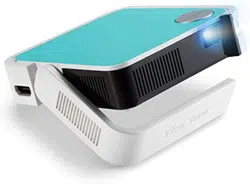
M1 mini
Portable LED Projector
User Guide
Model No. VS18039
P/N: M1 mini
IMPORTANT: Please read this User Guide to obtain important information on installing and using your product in
a safe manner, as well as registering your product for future service. Warranty information contained in this User
Guide will describe your limited coverage from ViewSonic® Corporation, which is also found on our web site at
http://www.viewsonic.com in English, or in specific languages using the Regional selection box in the upper right
corner of our website. “Antes de operar su equipo lea cu idadosamente las instrucciones en este manual”

2
Thank you for choosing ViewSonic®
As a world-leading provider of visual solutions, ViewSonic® is dedicated to exceeding
the world’s expectations for technological evolution, innovation, and simplicity.
At ViewSonic®, we believe that our products have the potential to make a positive
impact in the world, and we are confident that the ViewSonic® product you have
chosen will serve you well.
Once again, thank you for choosing ViewSonic®!

3
Please read the following before you start using the projector.
• Keep this user guide in a safe place for later reference.
• Read all warnings and follow all instrucons.
• Allow at least 20“ (50 cm) clearance around the projector to ensure proper
venlaon.
• Place the projector in a well-venlated area. Do not place anything on the
projector that prevents heat dissipaon.
• Do not place the projector on an uneven or unstable surface. The projector may
fall over, causing personal injury or projector malfuncon.
• Do not use if the projector is lted at an angle of more than 10° degrees le or
right, nor at an angle of more than 15° degrees forwards or backwards.
• Do not look straight at the projector lens during operaon. The intense light
beam may damage your eyes.
• Always open the lens shuer or remove the lens cap when the projector lamp is
on.
• Do not block the projecon lens with any objects when the projector is under
operaon as this could cause objects to become heated and deformed or even
cause a re.
• The lamp becomes extremely hot during operaon. Allow the projector to
cool for approximately 45 minutes prior to removing the lamp assembly for
replacement.
• Do not use lamps beyond the rated lamp life. Excessive use of lamps beyond the
rated life could cause them to break on rare occasions.
• Never replace the lamp assembly or any electronic component unless the
projector is unplugged.
• Do not aempt to disassemble the projector. There are dangerous high voltages
inside which may cause death if you should come into contact with live parts.
• When moving the projector, be careful not to drop or bump the projector on
anything.
• Do not place any heavy objects on the projector or connecon cables.
• Do not stand the projector on end vercally. Doing so may cause the projector to
fall over, causing personal injury or projector malfuncon.
• Avoid exposing the projector to direct sunlight or other sources of sustained
heat. Do not install near any heat sources such as radiators, heat registers,
stoves, or other devices (including ampliers) that may increase the temperature
of the projector to dangerous levels.

4
• Do not place liquids near or on the projector. Liquids spilled into the projector
may cause it to fail. If the projector does become wet, disconnect it from the
power supply and call your local service center to have the projector serviced.
• When the projector is under operaon, you may sense some heated air and odor
from its venlaon grill. It is a normal operaon and not a defect.
• Do not aempt to circumvent the safety provisions of the polarized or
grounding-type plug. A polarized plug has two blades with one wider than the
other. A grounding-type plug has two blades and a third grounding prong. The
wide and third blade are provided for your safety. If the plug does not t into
your outlet, obtain an adapter and do not aempt to force the plug into the
outlet.
• When connecng to a power outlet, DO NOT remove the grounding prong.
Please ensure grounding prongs are NEVER REMOVED.
• Protect the power cord from being treaded upon or pinched, parcularly at the
plug, and at the point where it emerges from the projector.
• In some countries, the voltage is NOT stable. This projector is designed to
operate safely within a voltage between 100 to 240 volts AC, but could fail if
power cuts or surges of ±10 volts occur. In areas where voltage may uctuate
or cut out, it is recommended that you connect your projector through a power
stabilizer, surge protector, or uninterruptable power supply (UPS).
• If smoke, an abnormal noise, or a strange odor is present, immediately switch
the projector o and call your dealer or ViewSonic®. It is dangerous to connue
using the projector.
• Use only aachments/accessories specied by the manufacturer.
• Disconnect the power cord from the AC outlet if the projector is not being used
for a long period of me.
• Refer all servicing to qualied service personnel.

5
Contents
Safety Precautions ....................................................... 3
Introduction ................................................................ 8
Features ............................................................................8
Package Contents ..............................................................9
Product Overview .................................................................................................10
Projector ................................................................................................................ 10
Remote Control ..................................................................................................... 11
Remote Control - Effective Range ......................................................................... 12
Remote Control - Replacing the Batteries ............................................................. 12
Initial Setup ............................................................... 13
Choosing a Location - Projection Orientation ..... ..................................................13
Projection Dimensions .................................................................... ......................14
Top Plate Removal/Installation .......................................................................15
Making Connections .................................................. 16
Connecting to Power ............................................................................................16
Using the Battery ..................................................................................................17
Battery Usage Time Information ........................................................................... 17
Connecting to External Devices ............................................................................18
HDMI Connection .................................................................................................. 18
USB Connection ..................................................................................................... 18
Using the Projector .................................................... 19
Starting Up the Projector .................................................................... ..................19
Adjusting the Projected Image .............................................................................20
Adjusting the Projector's Height and Projection Angle ......................................... 20
Adjusting the Focus ............................................................................................... 21
Shutting Down the Projector ................................................................................22

6
Operating the Projector ............................................. 23
Home Screen ..................................................................................................23
Menu Operations .................................................................................................24
Photo ..................................................................................................................... 24
Music ..................................................................................................................... 25
Movie .................................................................................................................... 27
How to Use the Media Control Bar Buttons .......................................................... 29
Supported File Formats ......................................................................................... 30
HDMI ..................................................................................................................... 31
Settings - On-Screen Display (OSD) Tree ..............................................................33
Image Setting Menu .............................................................................................. 36
Basic Settings Menu .............................................................................................. 39
Information ........................................................................................................... 39
Firmware Upgrade ................................................................................................ 40
Power Bank Function ............................................................................................ 41
Appendix ................................................................... 42
Specifications .................................................................... .................................... 42
Projector Dimensions ............................................................................................ 43
Timing Chart .........................................................................................................43
HDMI Video Timing ............................................................................................... 43
HDMI Support PC Timing ....................................................................................... 44
LED Indicators .......................................................................................................45
Glossary ................................................................................................................46
Troubleshooting ...................................................................................................48
Maintenance.........................................................................................................50
General Precautions .............................................................................................. 50
Cleaning the Lens .................................................................................................. 50
Cleaning the Case .................................................................................................. 50
Storing the Projector ............................................................................................. 50

7
Regulatory and Service Information .......................... 51
Compliance Information ....................................................................................... 51
FCC Compliance Statement ................................................................................... 51
CE Conformity for European Countries ................................................................. 52
Declaration of RoHS2 Compliance......................................................................... 53
Indian Restriction of Hazardous Substances ......................................................... 54
Remote control: .................................................................................................... 54
Battery: .................................................................................................................. 54
Product Disposal at End of Product Life ................................................................ 55
Copyright Information ..........................................................................................56
Customer Service .................................................................................................. 57
Limited Warranty .................................................................................................. 58
Mexico Limited Warranty ...................................................................................... 61

8
This Lamp Free Pocket Cinema provides users with high-performance LED
projecon and a user-friendly design to deliver high reliability and ease of use.
Some of the features may not be available on your projector. Actual
performance may vary and subject to model specicaons.
Features
• Short throw lens design allows for a projected 39” screen size from only 1 meter
away.
• Auto V. keystone to correct a distorted image automacally.
• Excellent audio performance by JBL.
• Instant on/o and great colors.
• Swappable color top plates and exible angle adjustment.
• Mul-language On-Screen Display (OSD) menus.
• Embedded baery for easy outdoor projecon.
• User-friendly UI design for easy navigaon.
• LED light source with excellent light source life (30,000 hours).
• Color modes for every occasion.
The apparent brightness of the projected image will vary depending on
the ambient lighng condions, selected input signal contrast/brightness
sengs, and projecon distance.
9
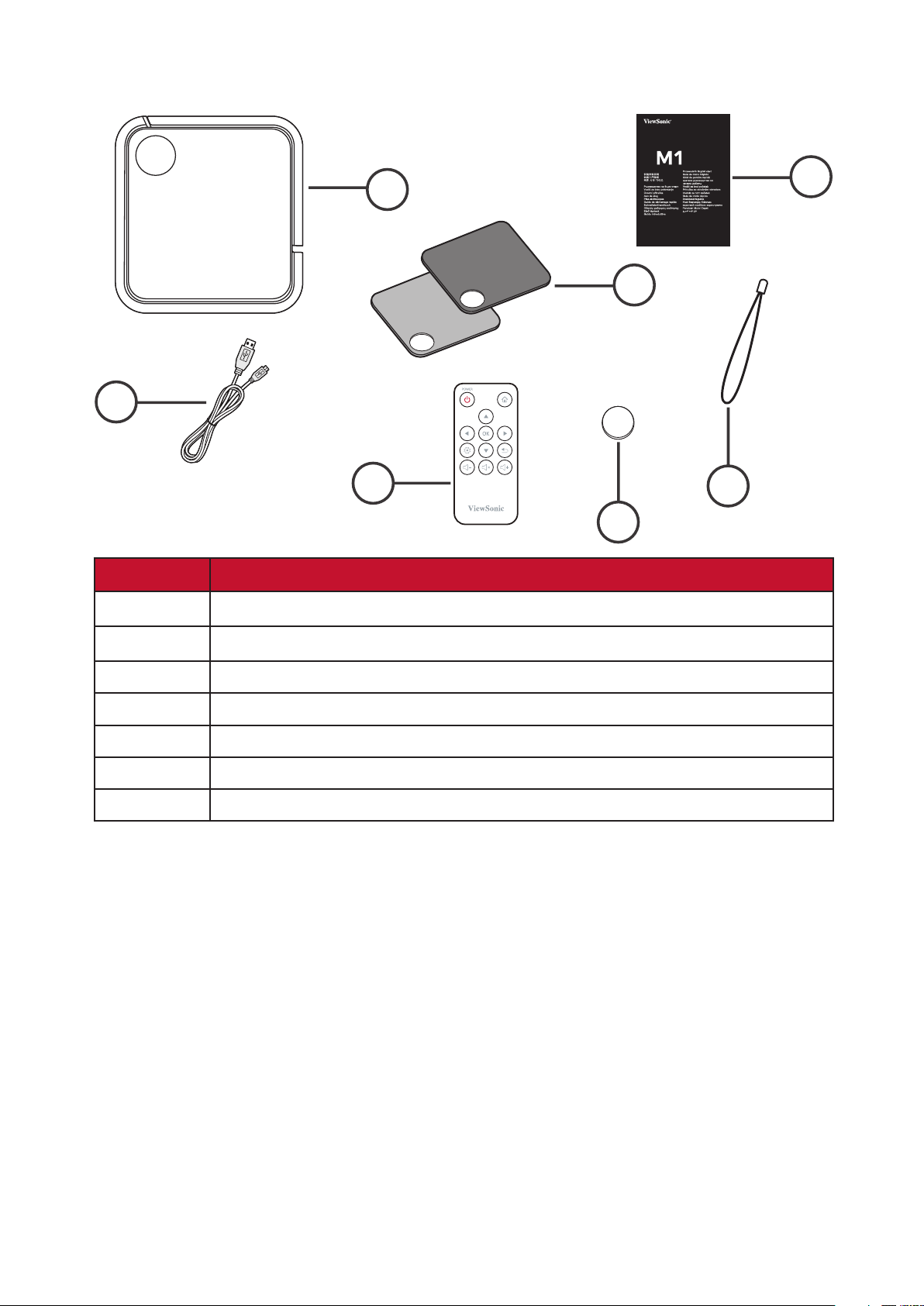
Package Contents
Quick Start Guide
クイックスタートガイド
Mini
+
CR2032
1
2
3
6
4
5
7
Item
[1] M1 mini Projector
[2] Swappable Top Plate
[3] Quick Start Guide
[4] Lanyard
[5] CR2032 Battery
[6] Remote Control
[7] Micro USB Cable
10
Product Overview
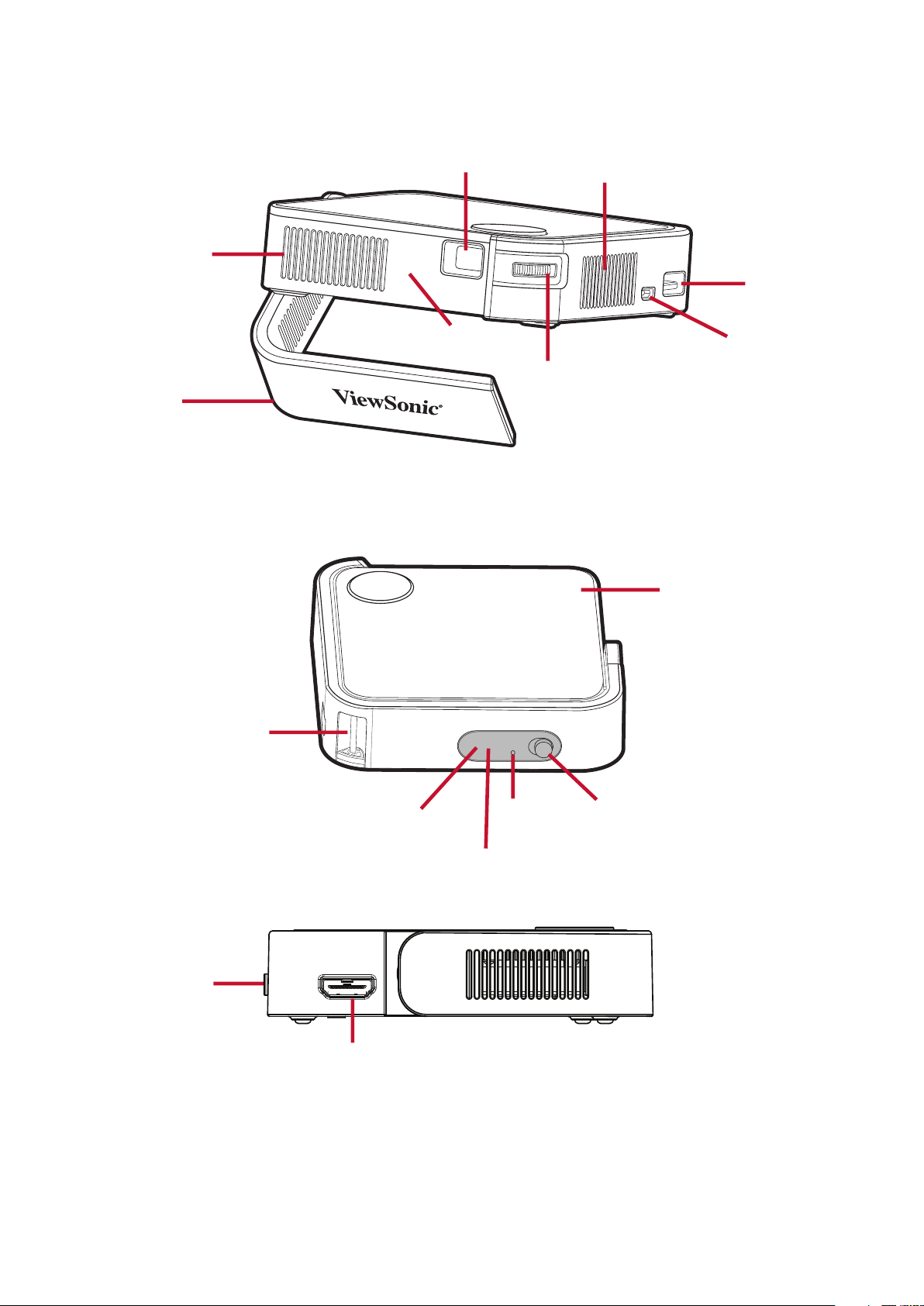
Projector
HDMI
1. In the event of a system crash, use the to restart the projector.
Focus Ring
Power Switch
IR Receiver
LED
Indicator
IR Receiver
USB Type A
Port
DC
(Micro USB Port)
HDMI Port
Power Switch
Reset
Buon¹
Smart Stand
Vent
Lens
Top Plate
Lanyard
Aachment
Point
Speaker
11
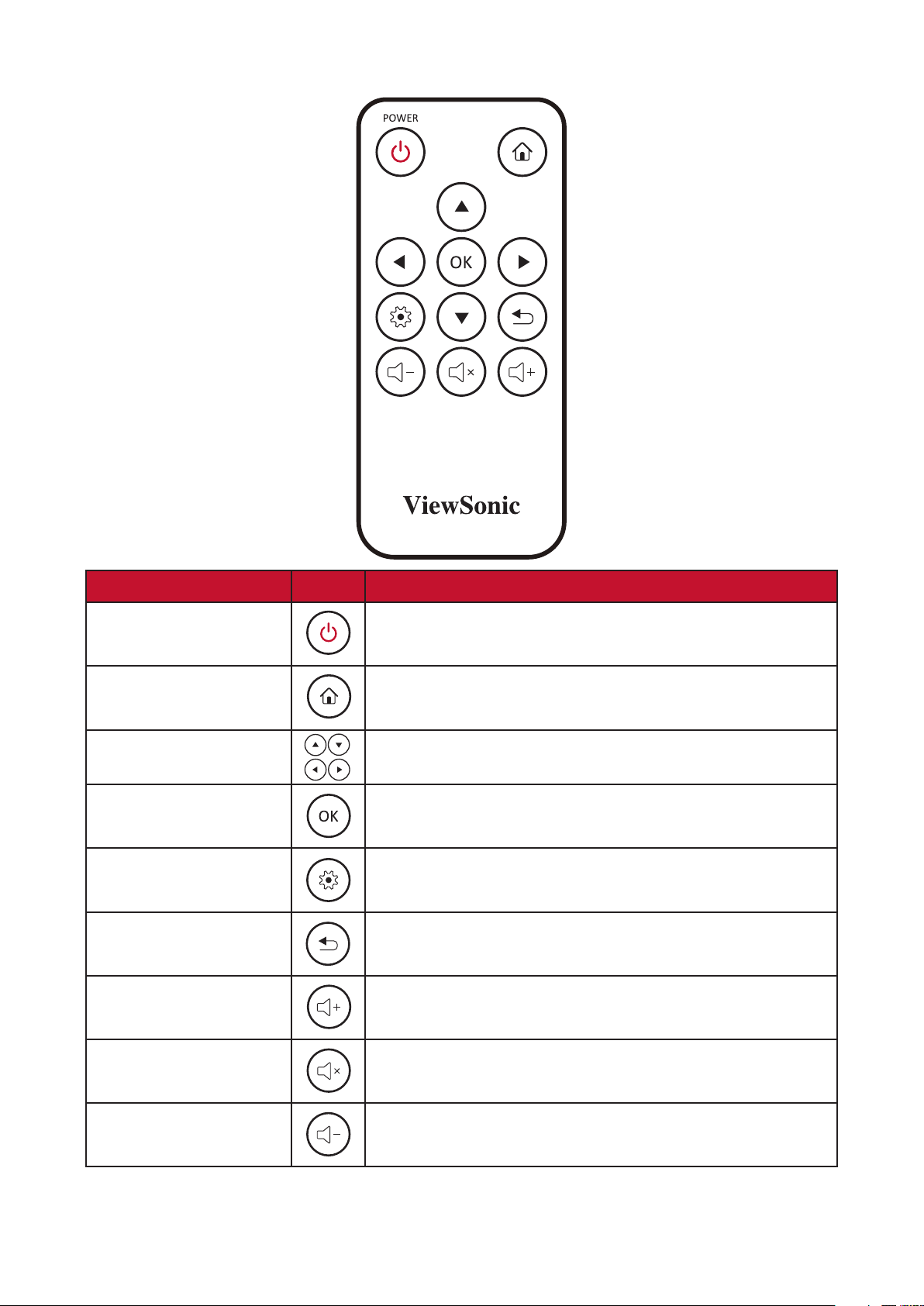
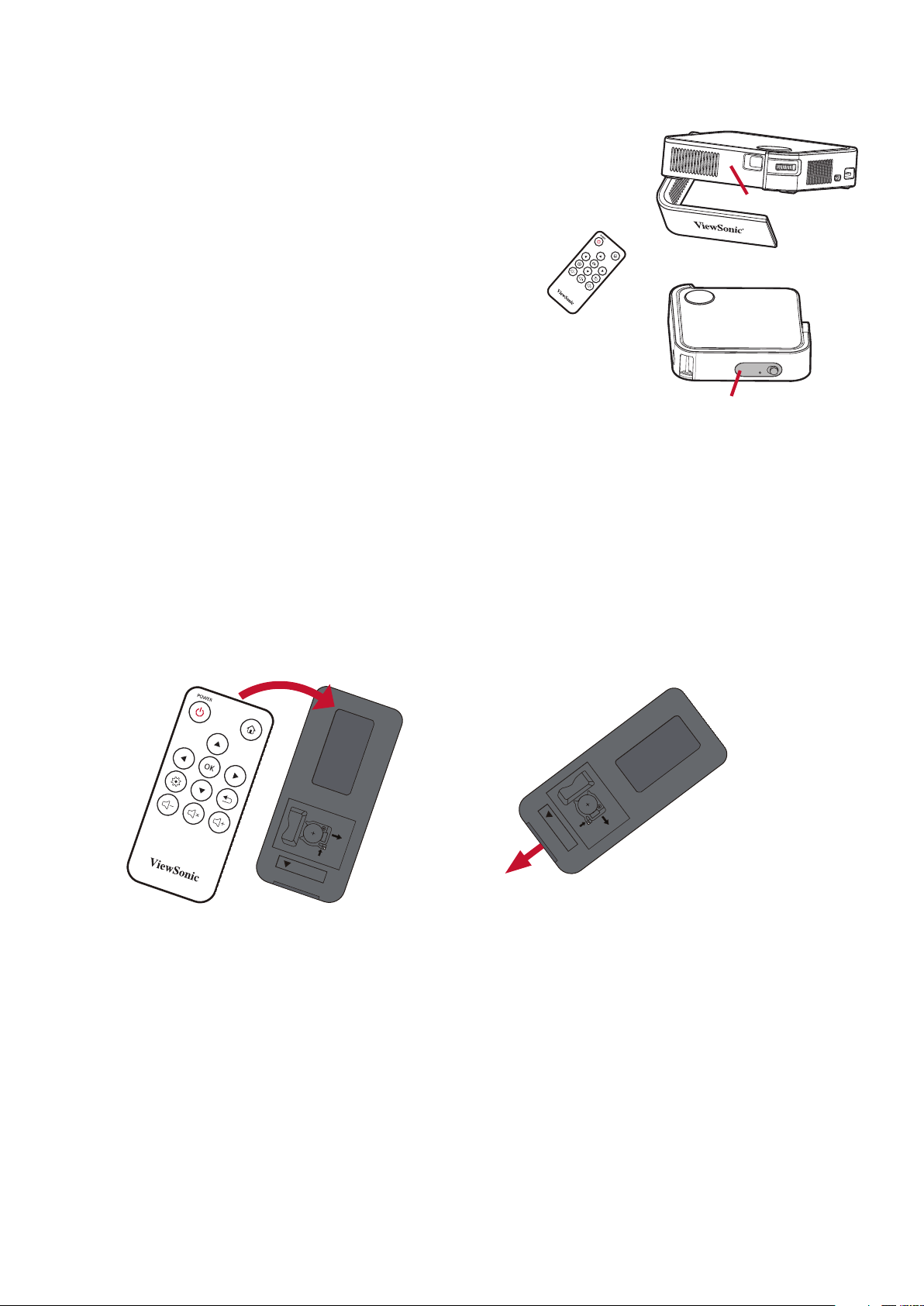
Remote Control
Icon
Power
Turns the projector On or O
Home
Access the Home menu
Up/Down/Le/Right
Navigates and selects the desired menu items and
makes adjustments
OK
Conrms the selecon
Sengs
Displays the menu
Return
Returns to the previous screen
Volume Up
Increase the volume level
Mute
Mute the volume
Volume Down
Decrease the volume level
12
To ensure proper funcon of the remote control
follow the steps below:
1. The remote control must be held at an angle
within 30° perpendicular to the projector’s IR
remote control sensor(s).
2. The distance between the remote control and
the sensor(s) should not exceed 8 m (26 .)
Refer to the illustraon for the locaon
of the infrared (IR) remote control
sensor(s).
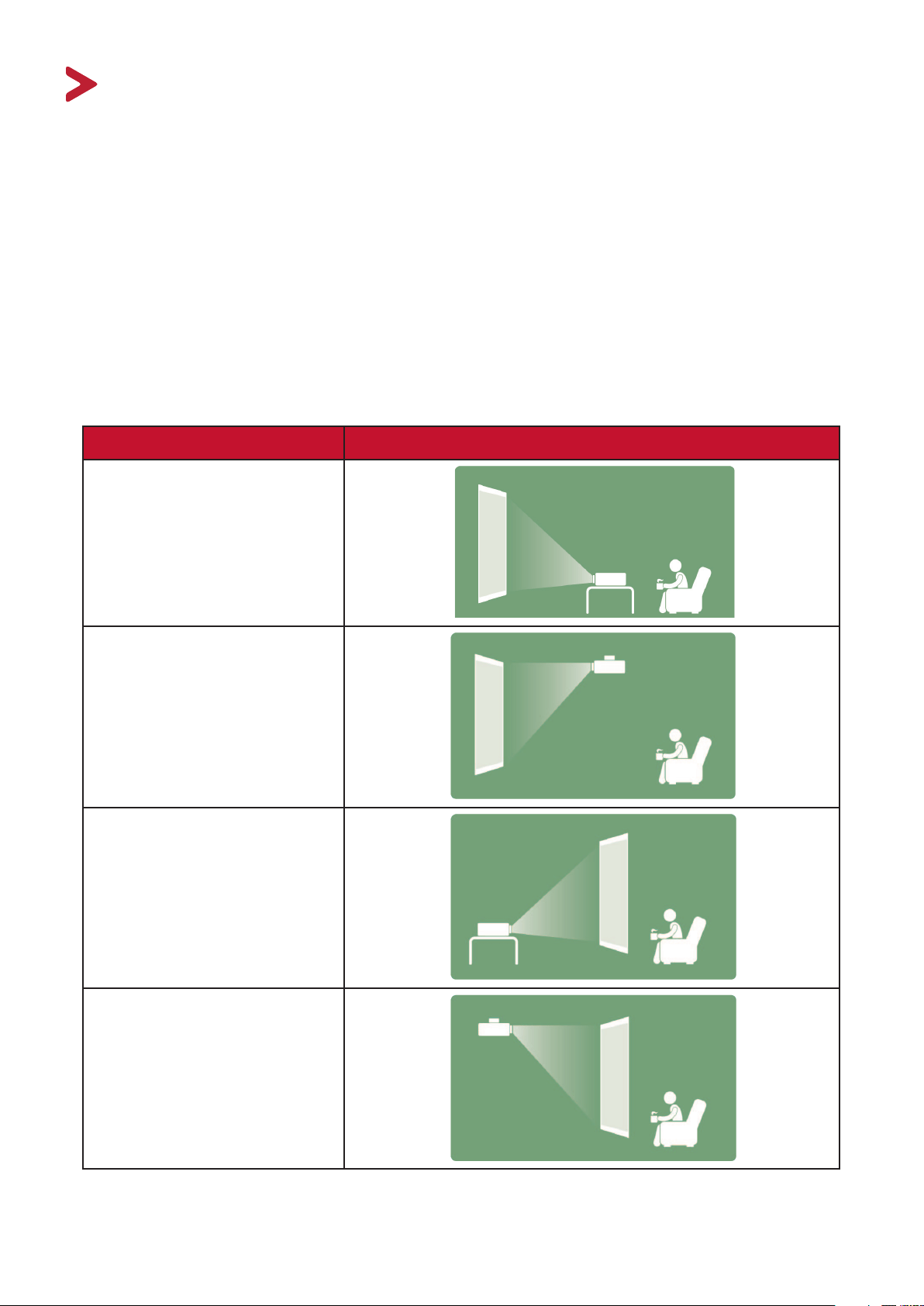
IR Receiver
IR Receiver
1. Place the remote control facedown and remove the baery tray from the boom
of the remote control by pressing the side tab and pulling it out.
2. Remove any exisng baery (if necessary) and install one CR2032 baery.
Observe the baery’s polaries as indicated.
3. Replace the baery tray by aligning it with the base and pushing it back into
posion.
CR2032
OPEN
PUSH
RELEASE
CR2032
OPEN
PUSH
RELEASE
• Avoid leaving the remote control and baeries in excessive heat or a humid
environment.
• Replace only with the same or equivalent type recommended by the
baery manufacturer.
• If the baery is drained or if you will not be using the remote control for
an extended period of me, remove the baery to avoid damage to the
remote control.
• Dispose of used baeries according to the manufacturer’s instrucons and
local environment regulaons for your region.
1313
This secon provides detailed instrucons for the inial set up your projector.
Personal preference and room layout will decide the installaon locaon. Consider
the following:
•
Size and position of your screen.
• Location of a suitable power outlet.
• Location and distance between the projector and other equipment.
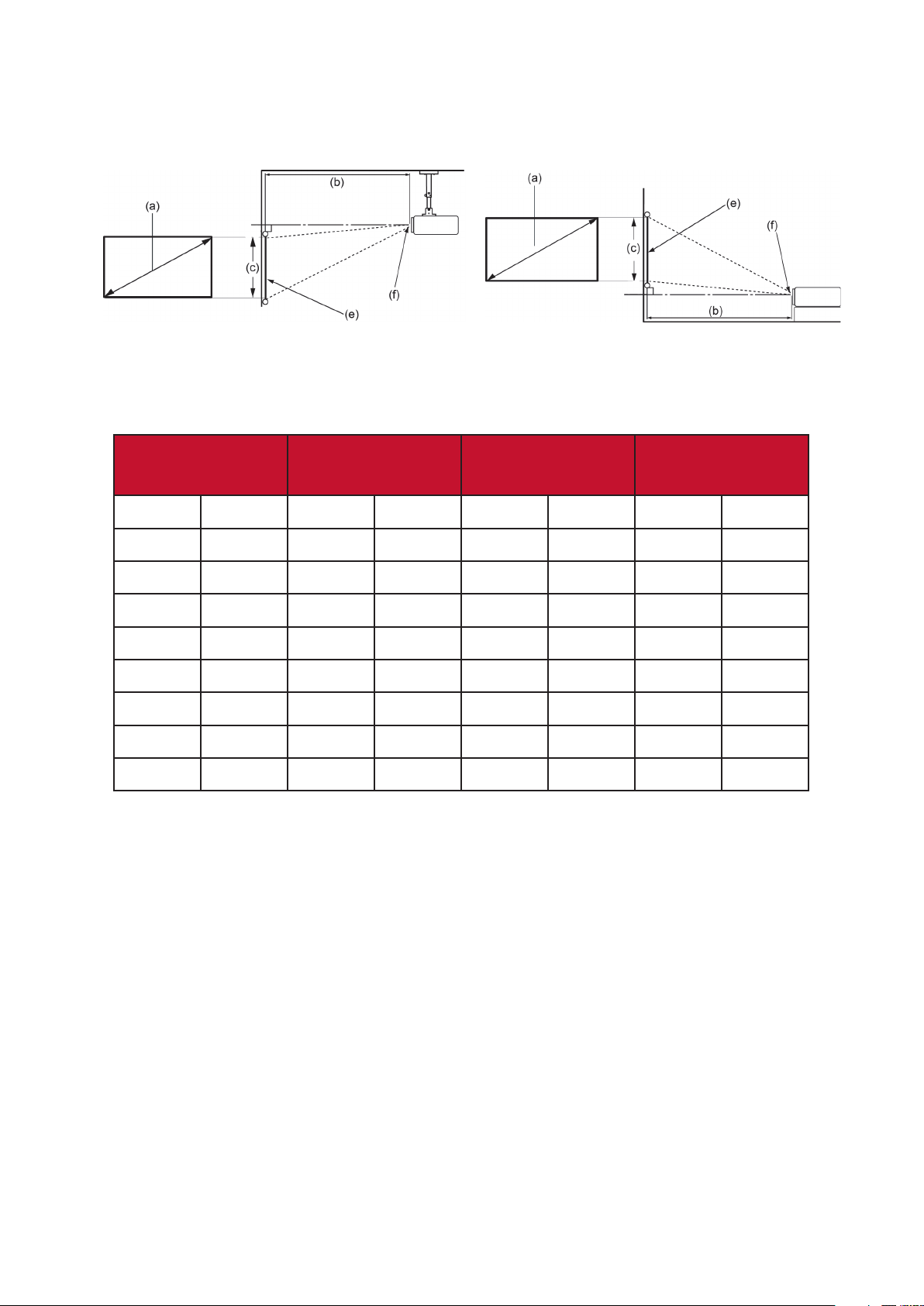
The projector is designed to be installed in one of the following locations:
Front Table
The projector is placed near
the oor in front of the screen.
Front Ceiling
The projector is suspended
upside-down from the ceiling
in front of the screen.
Rear Table¹
The projector is placed near
the oor behind the screen.
Rear Ceiling¹
The projector is suspended
upside-down from the ceiling
behind the screen.
1. A rear projecon screen is required.
1414
•
16:9 Image on a 16:9 Screen
(e) = Screen / (f) = Center of Lens
16:9 Image on a 16:9 Screen
(a) Screen Size
Distance
(c) Image Height Image Width
in.
cm
in.
m
in.
cm
in.
mm
30 76.2 32.16 0.82 14.7 37.36 26.15 664
40 101.6 42.88 1.09 19.6 49.81 34.86 886
50 127 53.6 1.36 24.5 62.26 43.58 1107
60 152.4 64.32 1.63 29.4 74.72 52.29 1328
70 177.8 75.04 1.91 34.3 87.17 61.01 1550
80 203.2 85.76 2.18 39.2 99.62 69.73 1771
90 228.6 96.48 2.45 44.1 112.07 78.44 1992
100 254 107.2 2.72 49 124.53 87.16 2214
There is a 3% tolerance among these numbers due to optical component
variations. It is recommended to physically test the projection size and
distance before permanently installing the projector.
1515
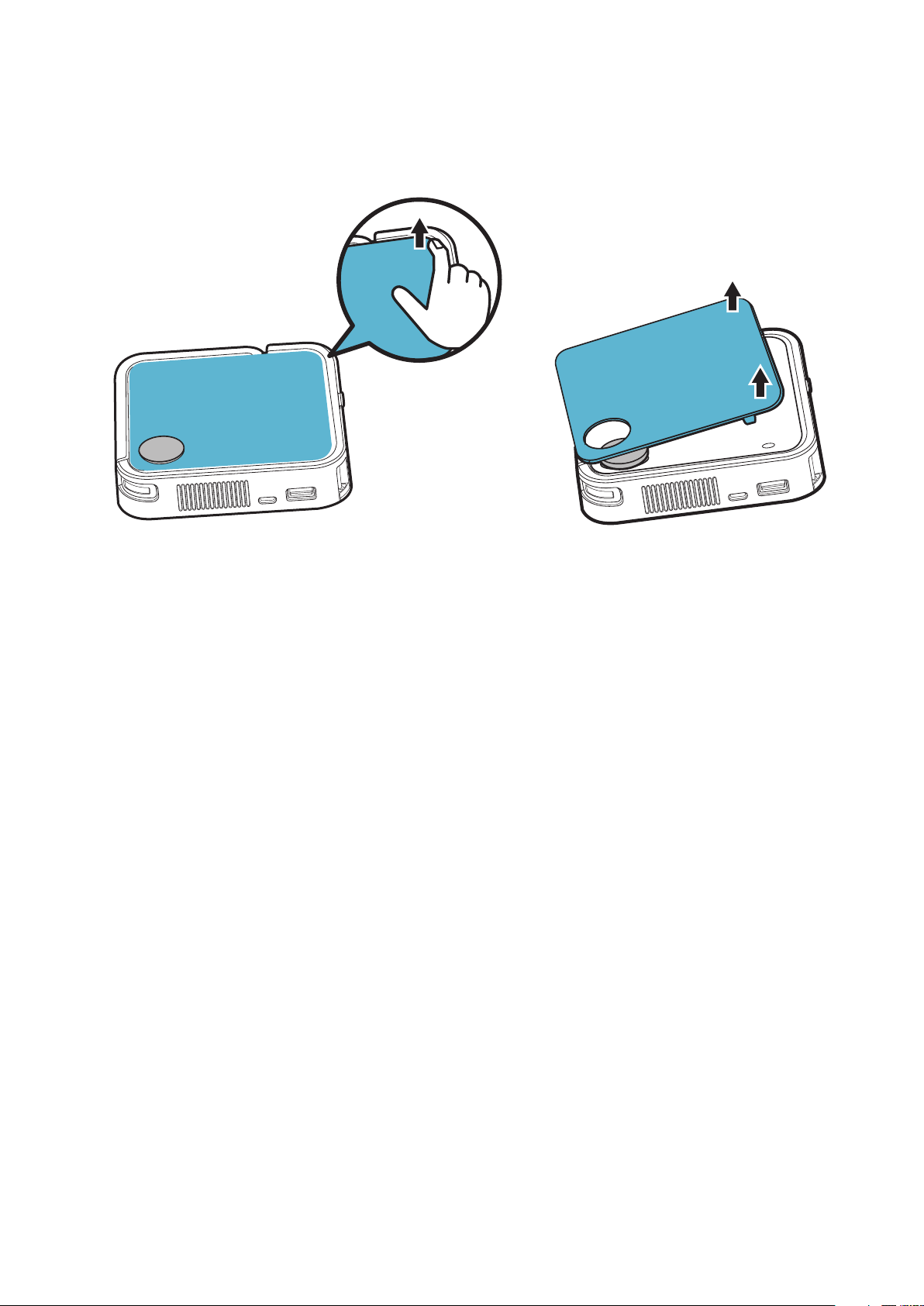
Top Plate Removal/Installation
The M1 mini comes with different color top plates.
1
2
To change the top plate:
1. Remove the top plate by carefully prying up one corner and lifting the top plate
off (as shown above).
2. To install a top plate, line up the circular hole and prongs located under the top
plate with the spacing and holes of the projector. Gently press the top plate into
place.
16
This section guides you on how to connect the projector with other equipment.
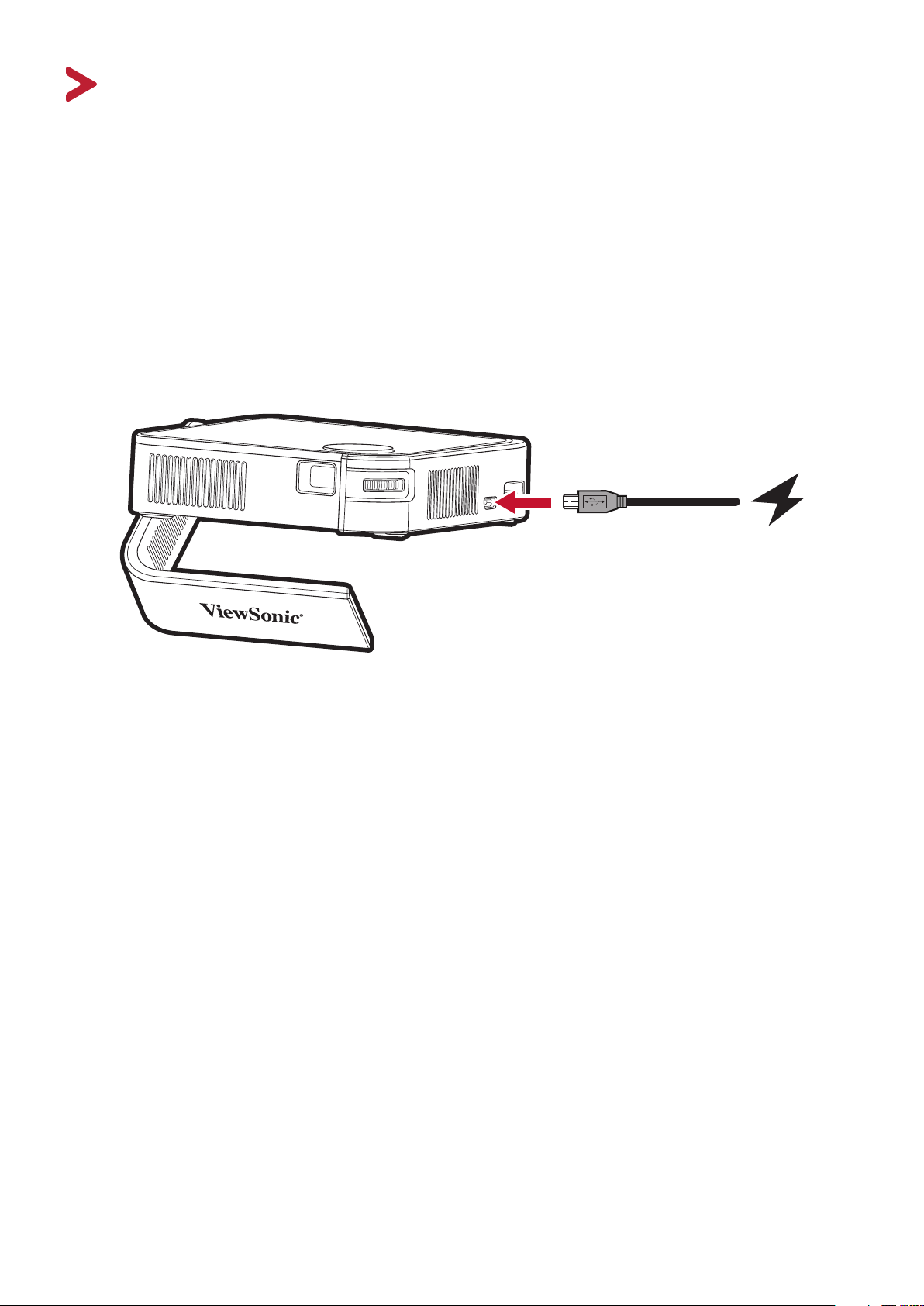
1. Connect the USB cord to the Micro USB Port on the side of the projector.
2. Plug the other end of the USB cord into a power bank, smartphone adapter, or PC
(5V/2A).
Charge the projector for 2 hours (5V/2A) before using it in baery mode
for the rst me.

17
The baery level icon will show at the top right of the Home Screen. As the
baery’s power level runs low, the screen will show a “low baery message”.
Charging
About 2 hours (5V/2A)
1
Usage Hours
2.1 hours (Normal) / 2.4 hours (ECO)
During Charging: Red LED light is On
Full Charge: Red LED light is O
• When the projector is in use, a 5V/2A power adapter is required to fully
recharge the projector.
• When the projector is in use, using the USB A port to power other devices,
e.g. wireless dongle, may prevent the projector baery from being fully
recharged.
• When the projector is in use at low baery status, using the 2.5W loading
from USB A port with plugging DC in for some while, the projector will turn
o or restart automacally, suggest to remove USB A connected device to
have baery fully charged.
• To keep the projector powered on and prevent shutdown, a 5V/2A power
input and the supplied cable should be used.
1 Charging me can be longer than two hours if using less than 5V/2A.
1818
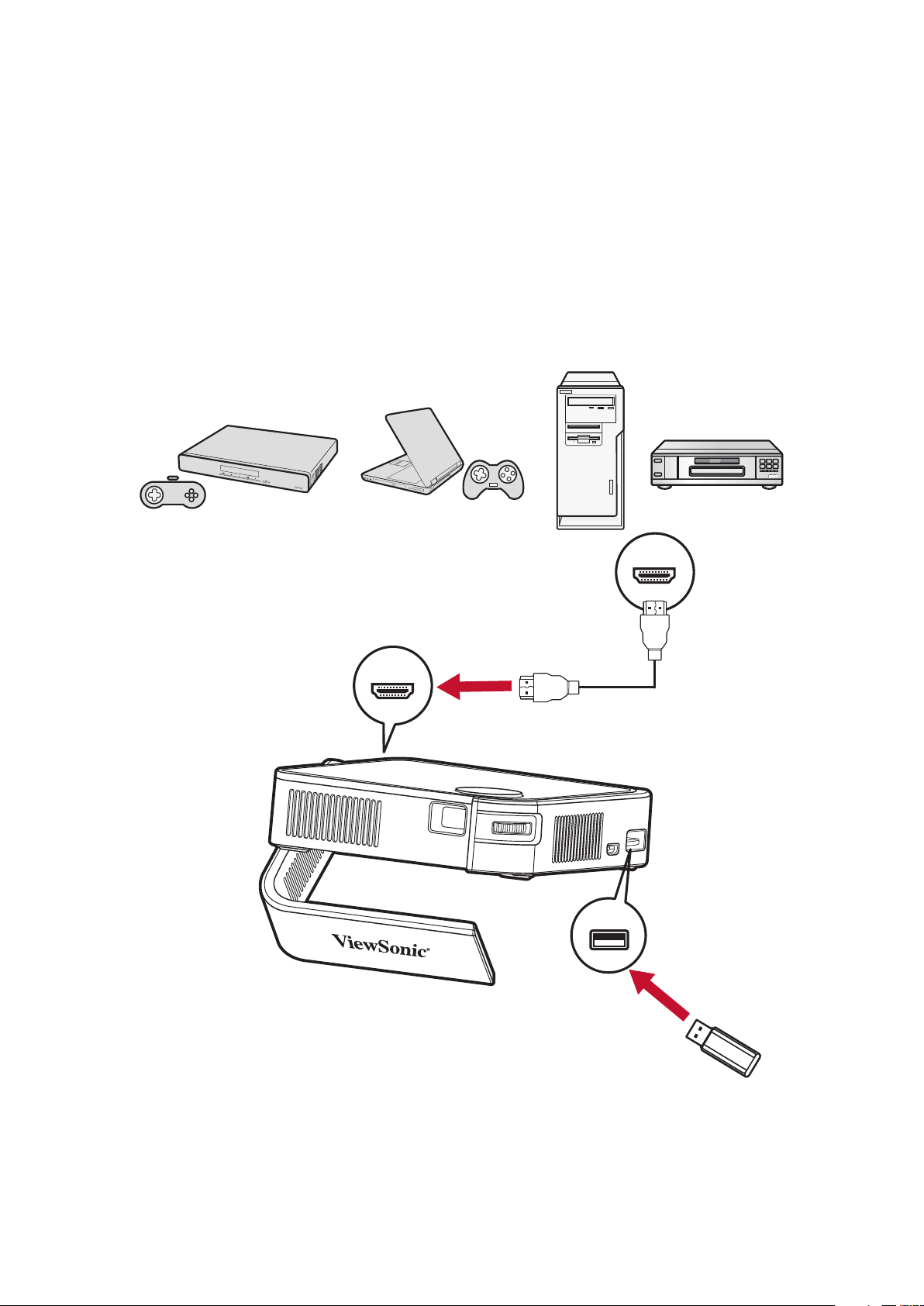
Connect one end of an HDMI cable to the HDMI port of your video device. Then
connect the other end of the cable to the HDMI port (supports HDCP 1.4/HDMI 1.4)
of your projector.
To enjoy photos, music, and movies, simply plug in a USB ash drive to the USB
Type A port. For supported le formats, see page 30.
HDMI
USB A
HDMI
19
Using the Projector
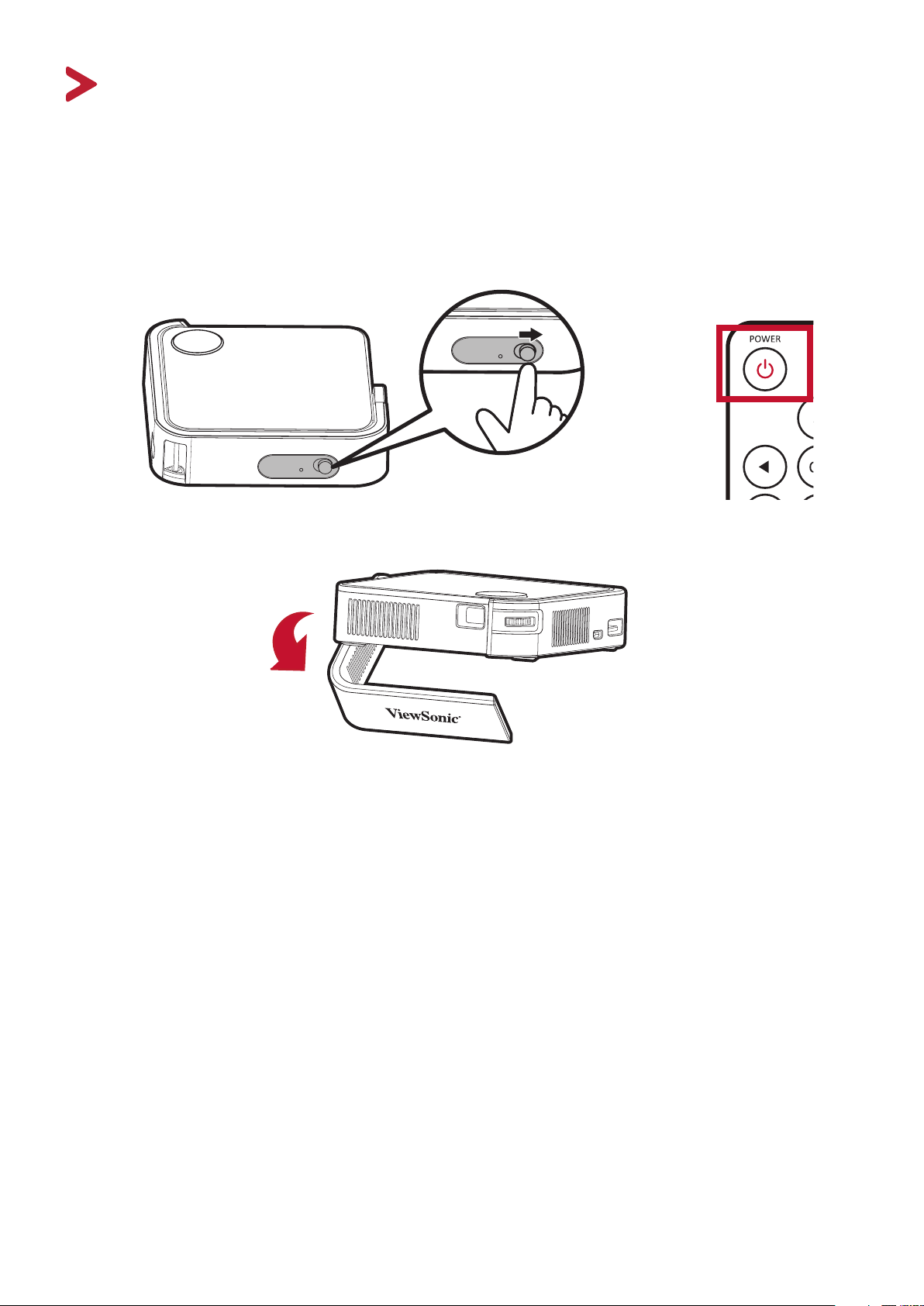
1. Ensure the projector is connected to a power source or that the baery has
sucient charge.
2. Push the Power Switch to turn on the projector. Alternavely, press the Power
buon on the remote control.
3. Move the Smart Stand to your desired viewing angle.
When not in use, please push the Power Switch to O. If only using the
Power buon on the remote control to power o, the projector will
enter standby mode and the embedded baery will sll consume some
power.
or
2020
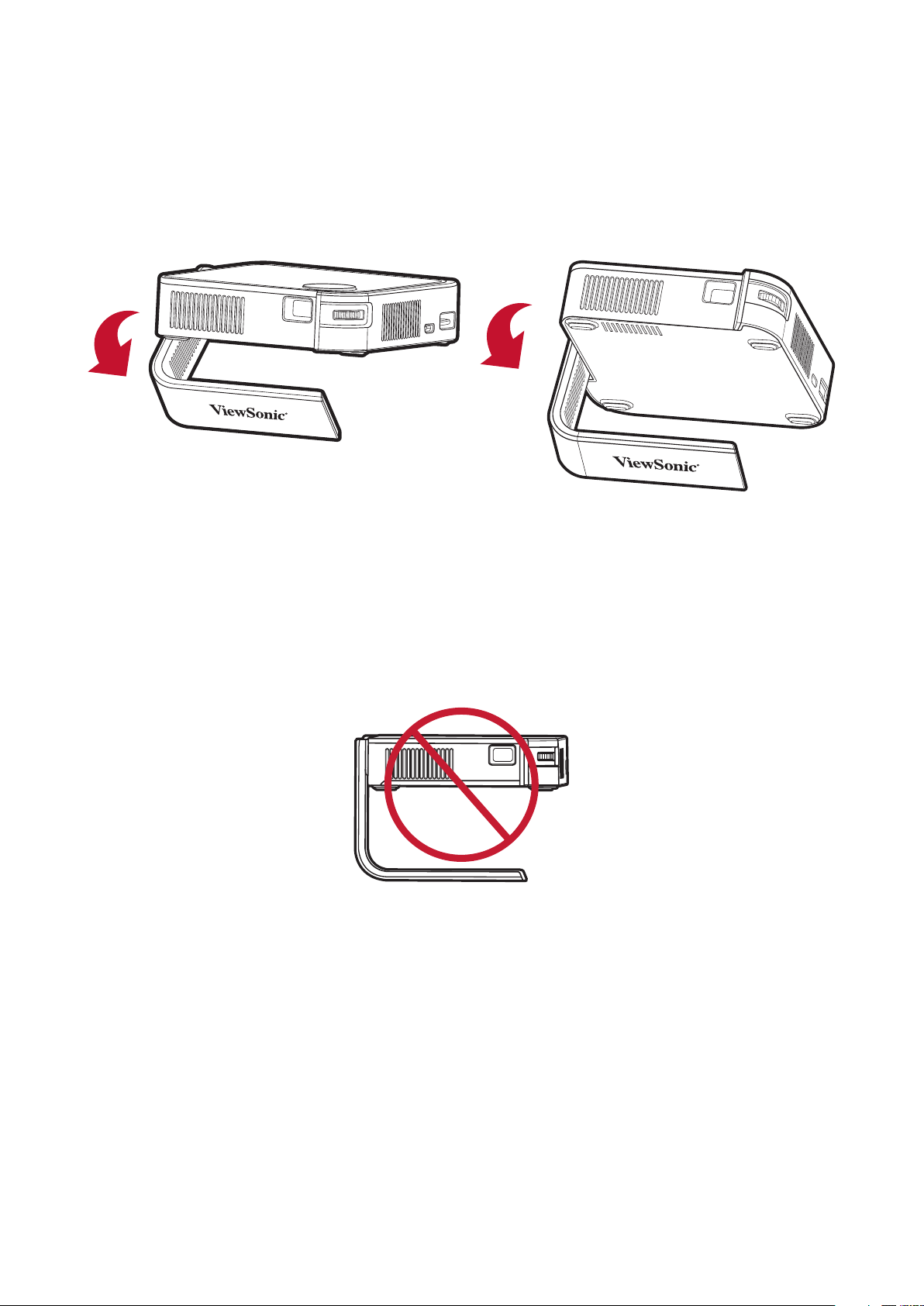
The projector is equipped with one (1) Smart Stand. Adjusng the stand will change
the projector’s height and the vercal projecon angle. Carefully adjust the stand to
ne tune the projected image’s posion.
• If the projector is not placed on a at surface or the screen and the
projector are not perpendicular to each other, the projected image can
become trapezoidal. However, the “Auto Vercal Keystone” funcon will
correct the issue automacally.
• It is not recommended to use the Smart Stand at 90° degrees.
2121
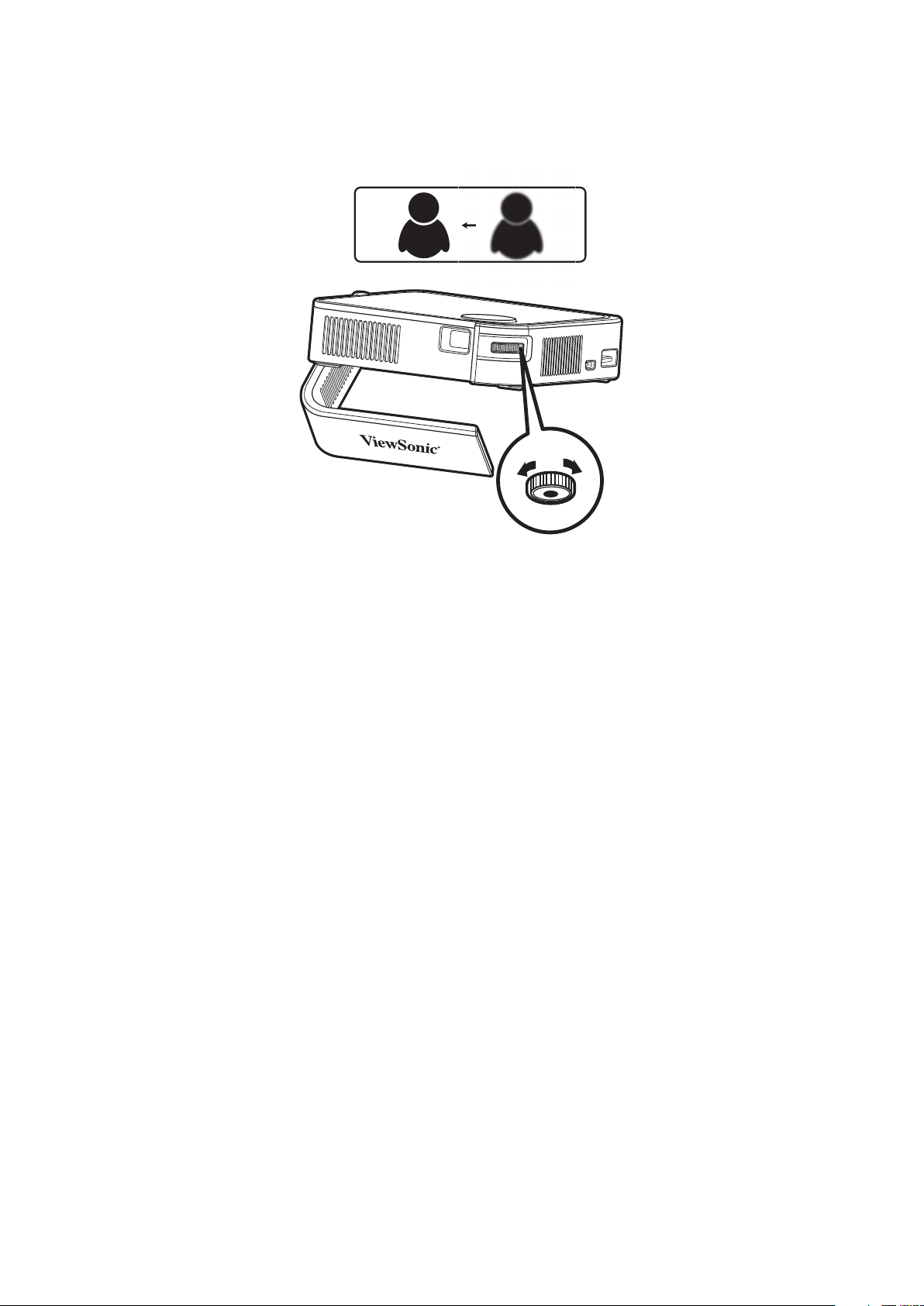
To adjust the image focus of the on-screen image, slowly move the focus ring
forwards and backwards.

2222
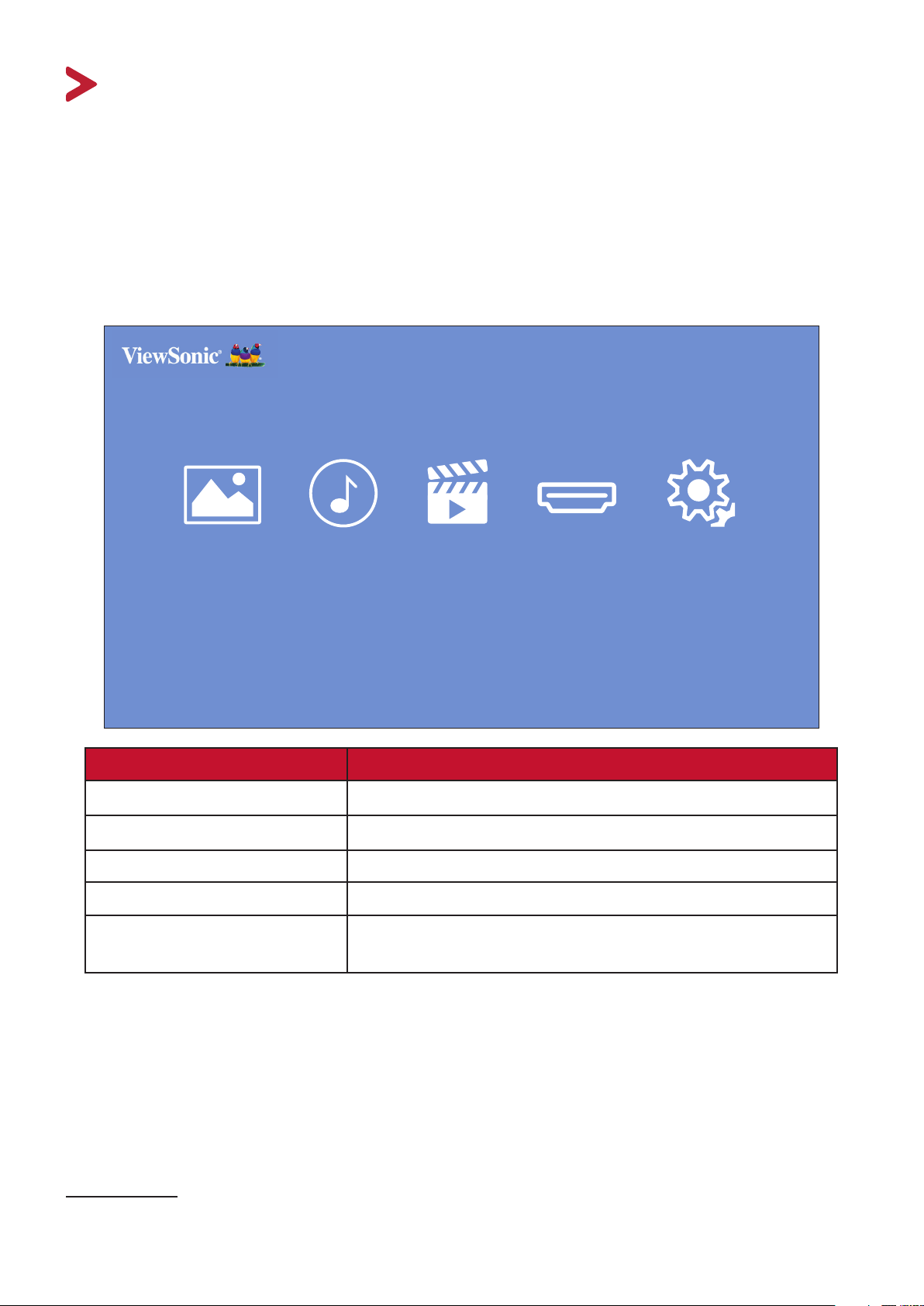
1. Push the Power Switch on the projector or the Power buon on the remote
control and the following conrmaon message will appear:
Photo Music Movie
HDMI
Setting
Press the Power Button Again to Power Off
2. Push the Power Switch or press the Power buon on the remote control again to
turn o the projector. To cancel, press any other buon on the remote control.
When not in use, please push the Power Switch to O. If only using the
Power buon on the remote control to power o, the projector will
enter standby mode and the embedded baery will sll consume some
power.
23
This secon will introduce the Home Screen and its menus.
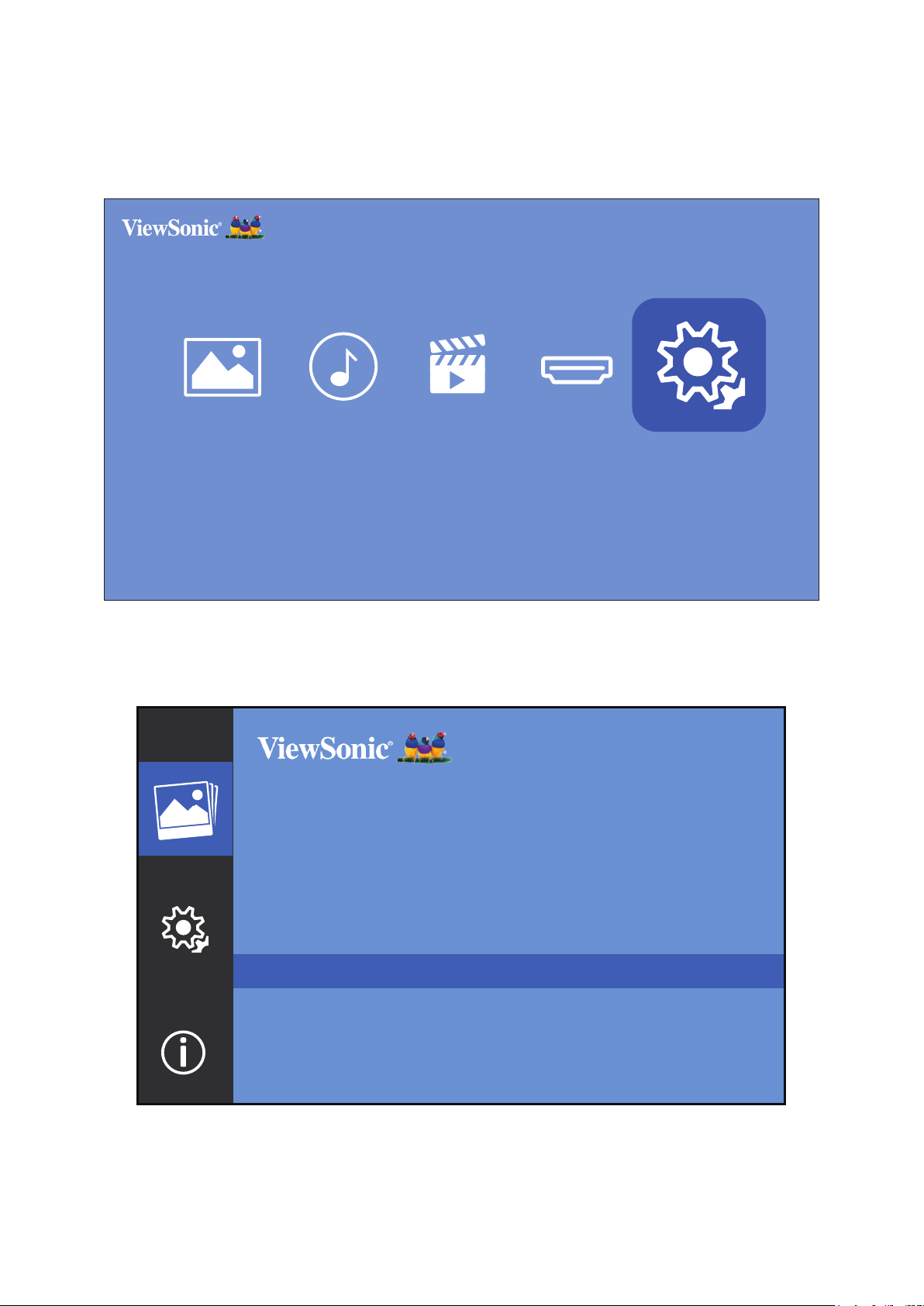
Home Screen
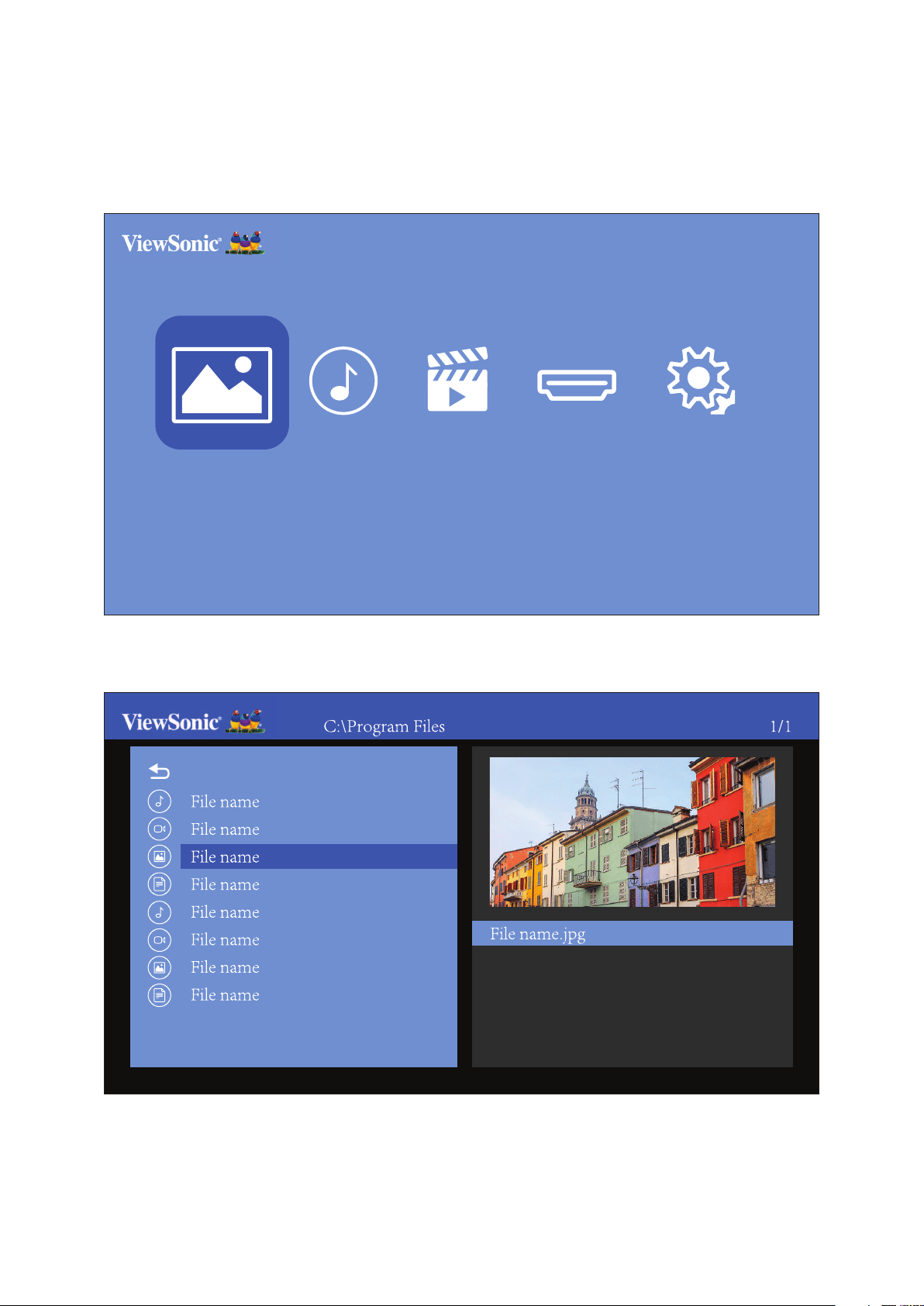
The Home Screen is displayed every me you start the projector. To navigate the
Home Screen, simply use the direconal buons on the remote control. You can
return to the main Home Screen at any me by pressing the Home buon on the
remote control.
Photo Music Movie
HDMI
Setting
Menu
Photo View photo files.
Music View and play music files.
Video View and play video files.
HDMI Switch to the connected HDMI source.
Manage various categories such as: Image settings,
Basic settings, and System Information.
Picture Mode and Aspect Rao cannot be adjusted on the Home Screen.
1 A USB ash drive with the relevant media must be connected to the projector to use.
2424
Photo
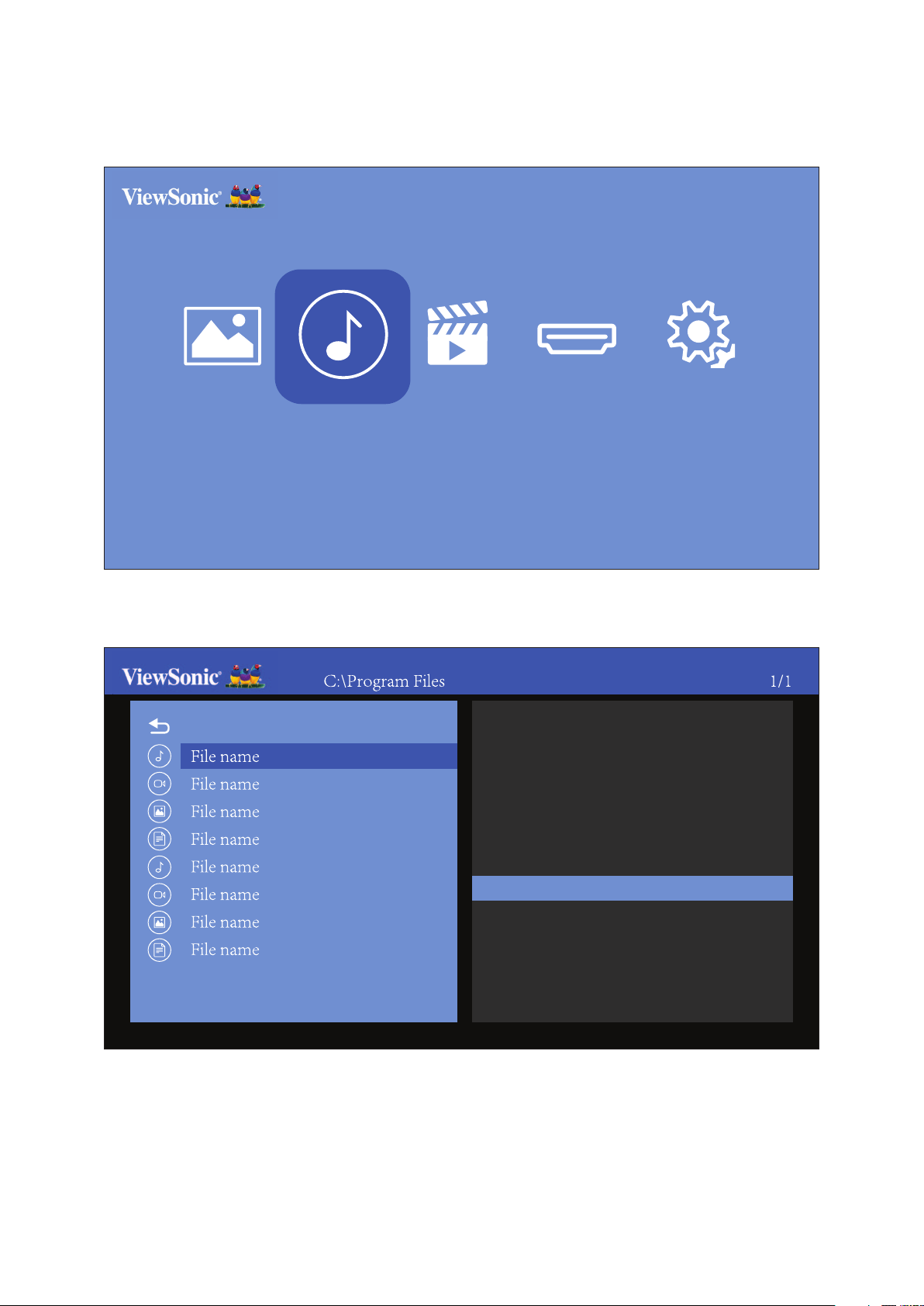
View and display image les on your USB ash drive.
1. Using the direconal buons on the remote control select Photo, and press OK.
Photo
Music Movie
HDMI
Setting
2. Use the direconal buons to navigate the folders/les. When you nd your
preferred image le, press the OK buon to open and view it.
Return
Resolution:
Size:
Date:
Time:
1920 x 1080
338 KB
2019/01/01
11:03:01
2525
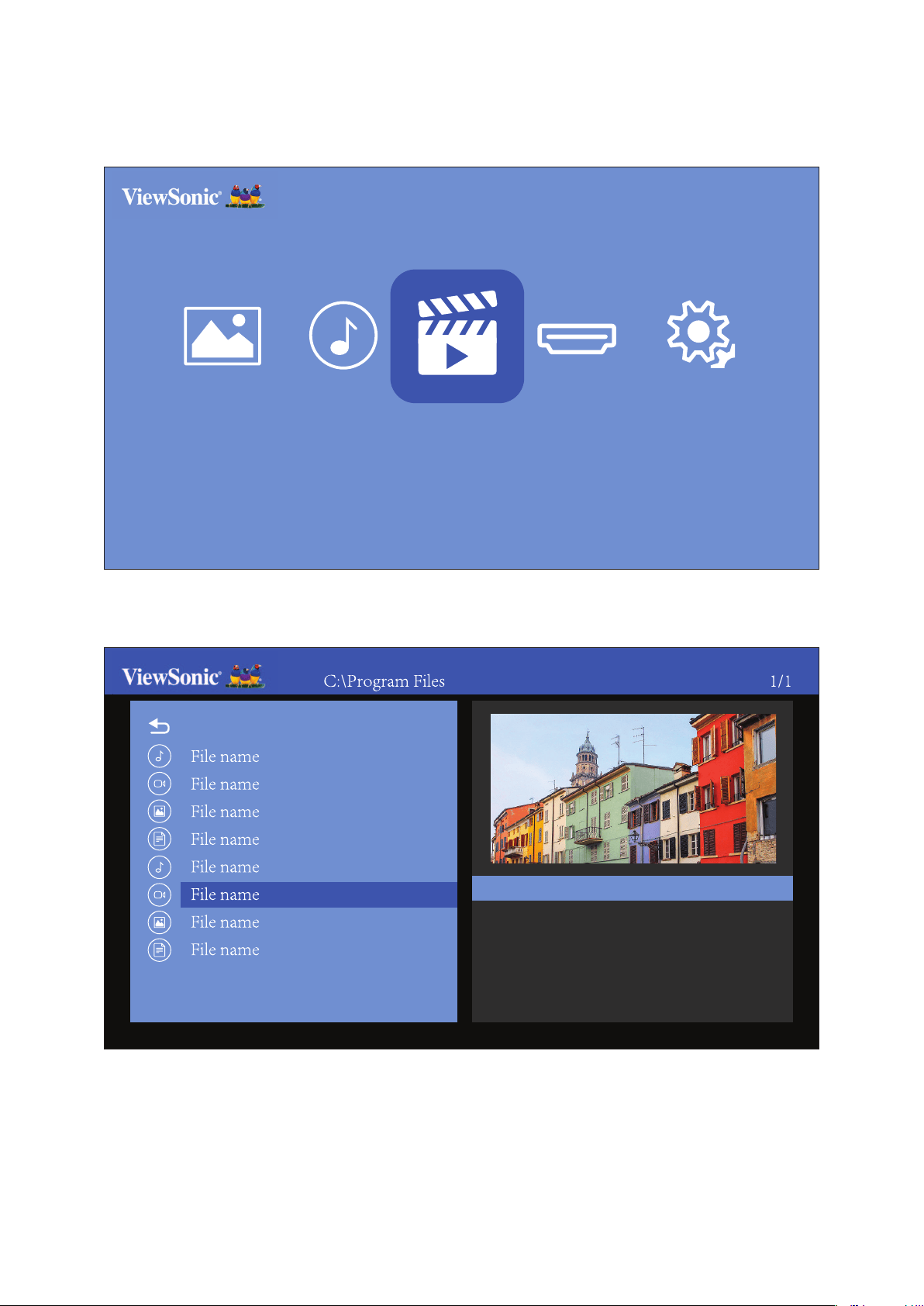
Music
View and play your music from your USB ash drive.
1. Using the direconal buons on the remote control select Music, and press OK.
Photo
Music
Movie
HDMI
Setting
2. Use the direconal buons to navigate the folders/les. When you nd your
preferred music le, press the OK buon.
Return
Album:
Title:
Bit Rate:
Artist:
Sampling:
Year:
Album Name
Title Name
112K
Artist Name
44K
2018
26
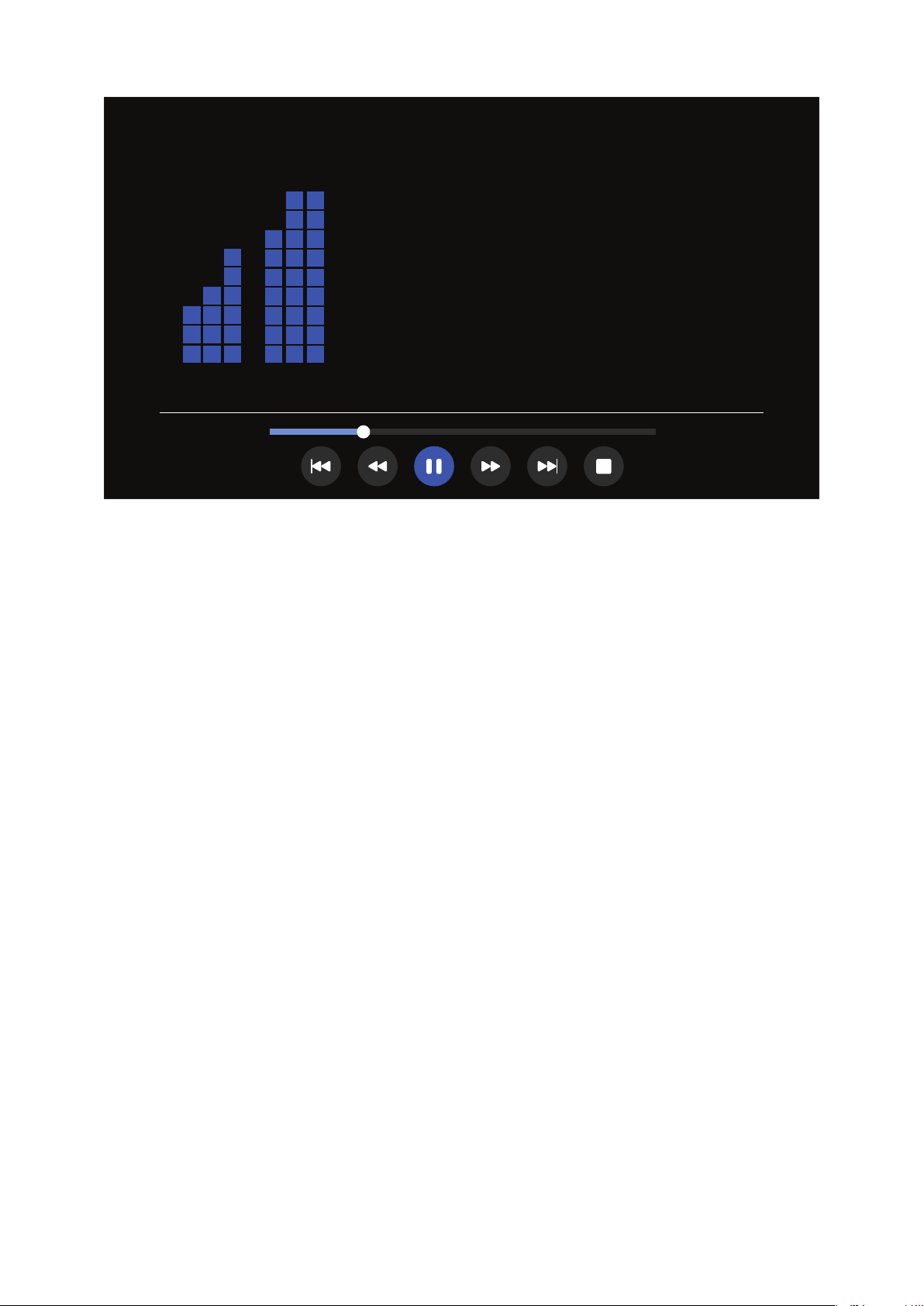
3. The media player will open and play the music le.
01.music.mp3
00:00:0400:00:30
If the audio le includes the album cover, it will be displayed on the right
side of the screen.
2727
Movie
View and play your videos from your USB ash drive.
1. Using the direconal buons on the remote control select Movies, and press OK.
Photo
Movie
HDMI
Setting
Music
2. Use the direconal buons to navigate the folders/les. When you nd your
preferred video le, press the OK buon.
Return
Resolution:
Audio Track:
Subtitle:
Program:
Size:
1920 x 1080
1/1
OFF
--/0
3870KB
File name.mp4
28
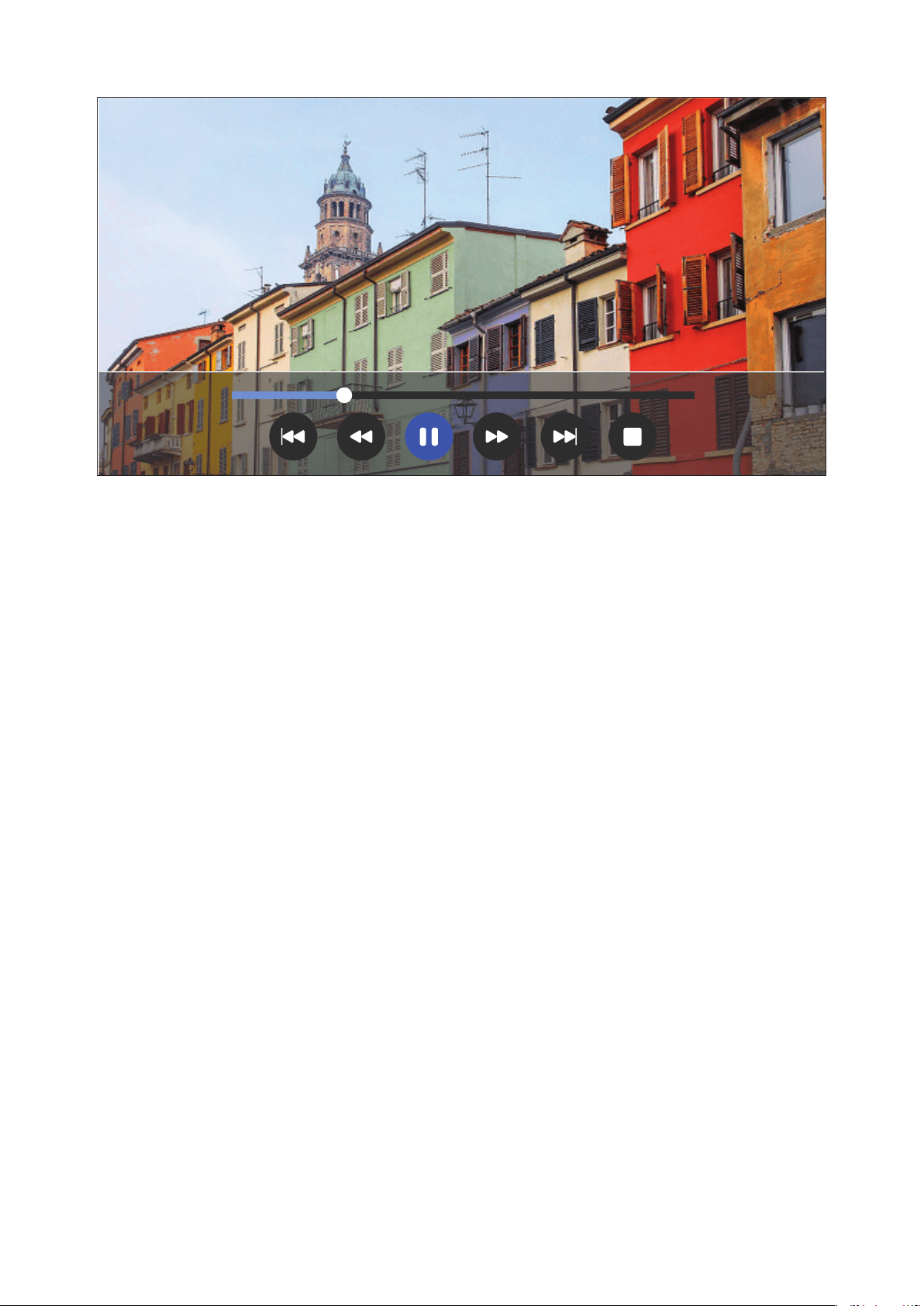
3. The media player will open and play the video le.
Return
File name.mp4
File name.mp4
00:00:0400:00:15
• During playback, press the OK buon to access the media control bar.
• Audio soundtrack and subtles are not supported.
29
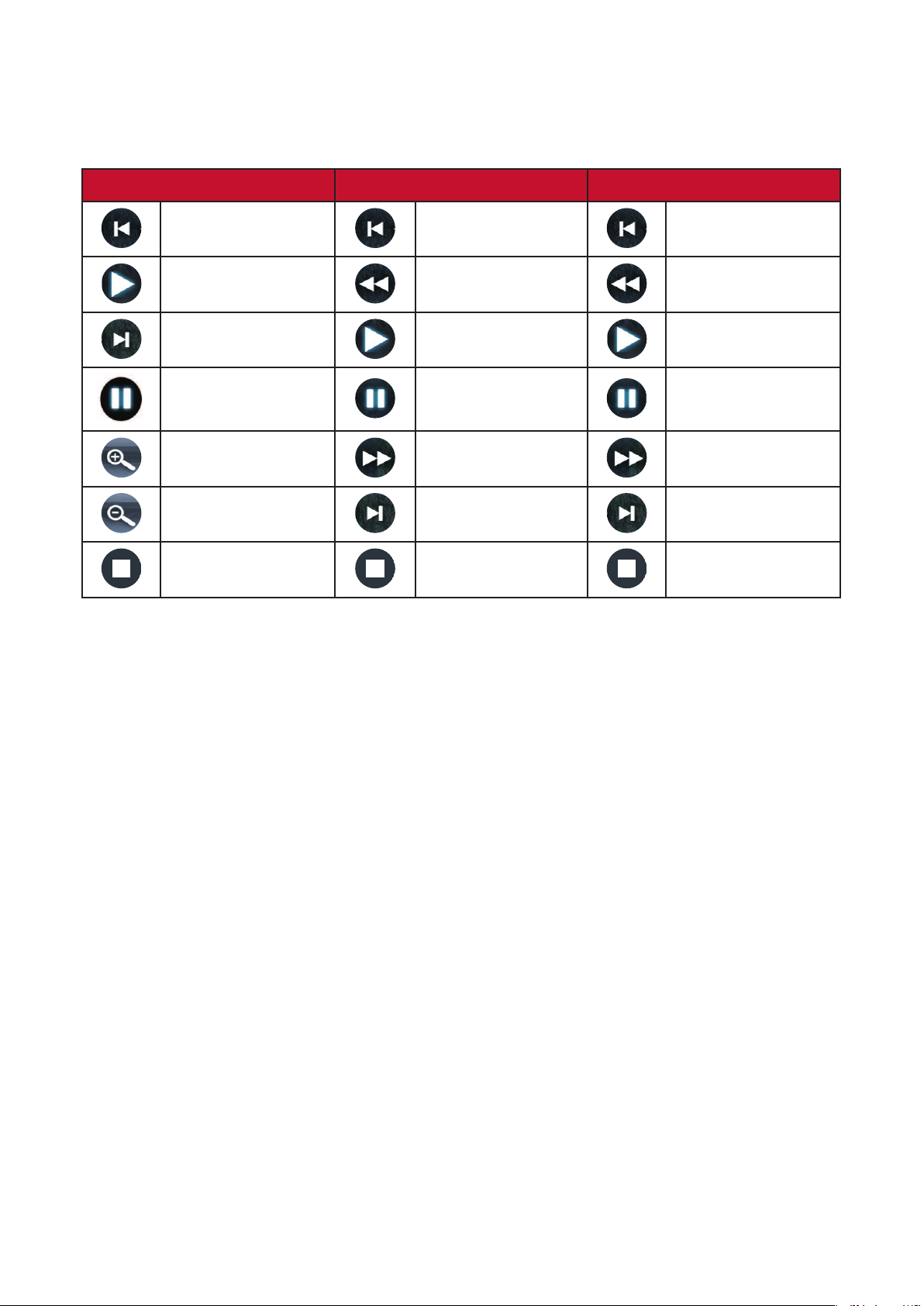
The media control bar buons will appear on screen if a video, music, or photo le
are selected to be opened.
Picture Video Music
Back Back Back
Play Rewind Rewind
Next Play Play
Pause Pause Pause
Zoom in Fast Forward Fast Forward
Zoom out Next Next
Stop Stop Stop
Tips for Using USB
When using USB for reading and/or storage please keep in mind the following:
1. Some USB storage devices may not be compable.
2. If you use an USB extension cable, the USB device may not recognize the USB.
3. Only use USB storage devices formaed with Windows FAT32 or NTFS le
system.
4. Larger les will need extra me to load.
5. Data on USB storage devices may be damaged or lost. Back up important les.
30
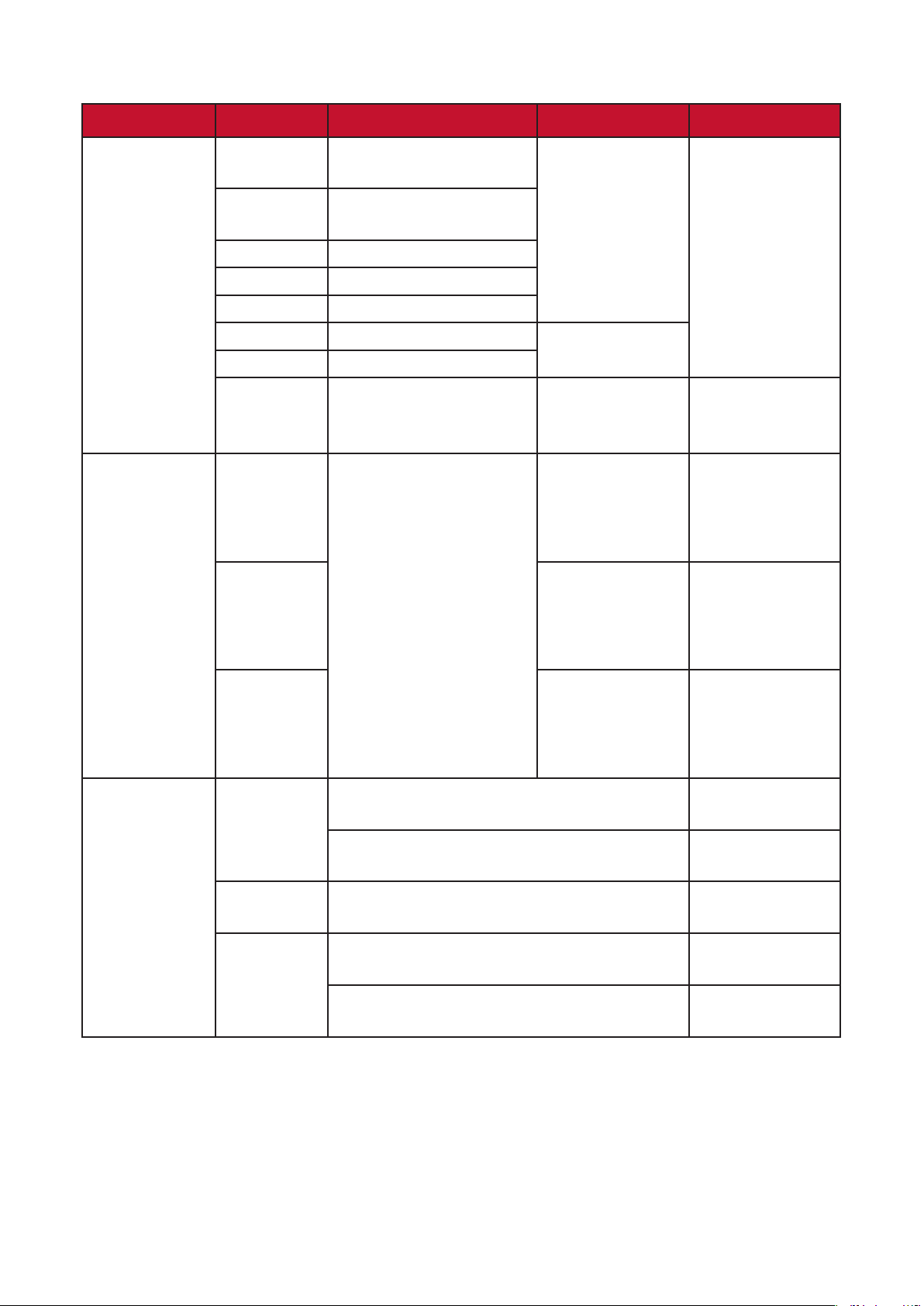
Supported File Formats
Format Video Audio Comment
Movie
.avi
Xvid, MPEG-2, MPEG-4,
Divx, H.264
MP3, WMA,
AAC, MP2, PCM
Max resoluon:
1920 x 1080
@30 FPS
.mp4
MPEG-2, MPEG-4, Divx,
H.264
.ts/.trp MPEG-4, H.264
.mkv/.mov MPEG-4, H.264
.mpg MPEG-1, MPEG-2
.dat MPEG-1
MP2
.vob MPEG-2
.rm/.rmvb RV8, RV9, RV10 COOK
Max resoluon:
1280 x 720
@ 30 FPS
Music
.mp3 MP3
Sampling rate:
32K ~ 48 KHz
Bit rate:
32K ~ 320 Kbps
.wma WMA
Sampling rate:
8K ~ 48 KHz
Bit rate:
128K ~ 320 Kbps
.m4a/.aac AAC
Sampling rate:
8K ~ 48 KHz
Bit rate:
128K ~ 442 Kbps
Photo
.jpg/.jpeg
Progressive JPEG
Max resoluon:
1024 x 768
Baseline JPEG
Max resoluon:
15360 x 8640
.bmp
Max resoluon:
9600 x 6400
.png
Non-interlaced
Max resoluon:
9600 x 6400
Interlaced
Max resoluon:
1200 x 800

3131
HDMI
Project content from your media player, PC, or other HDMI compable device.
Photo
Movie
HDMI
Setting
Music
1. Connect your media player, PC, or other HDMI compable device to the projector
via an HDMI cable.
2. Using the direconal buons on the remote control select HDMI, and press OK.
3. While in HDMI mode, Image and Basic sengs can be adjusted by pressing the
] buon on the remote control.
If there is no signal in HDMI input for 20 minutes, the system will power
o automacally.
3232
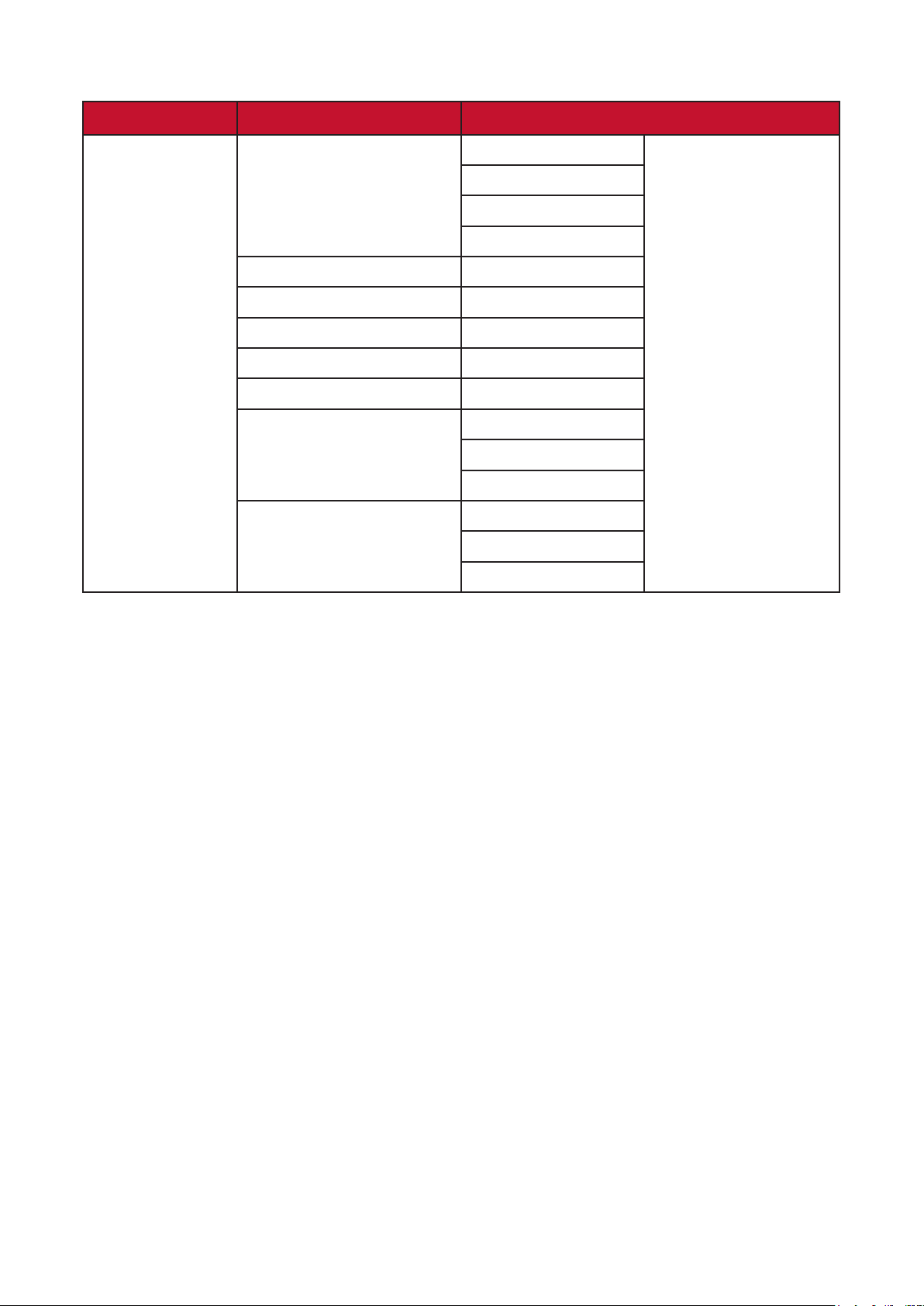
Under you can adjust Image and Basic Sengs, update Firmware, and view
Informaon.
1. Using the direconal buons on the remote control select , and press OK.
Photo
Movie
HDMI
Setting
Music
2. Use the Up and Down buons to select the desired seng and press OK.
Then use the and Right buons or the OK buon to make adjustments or
selecons.
Picture Mode
Brightness
Contrast
Sharpness
Saturation
Tint
Color Temperature
Aspect Ratio
Movie
0
0
0
10
0
Medium
Auto
3333
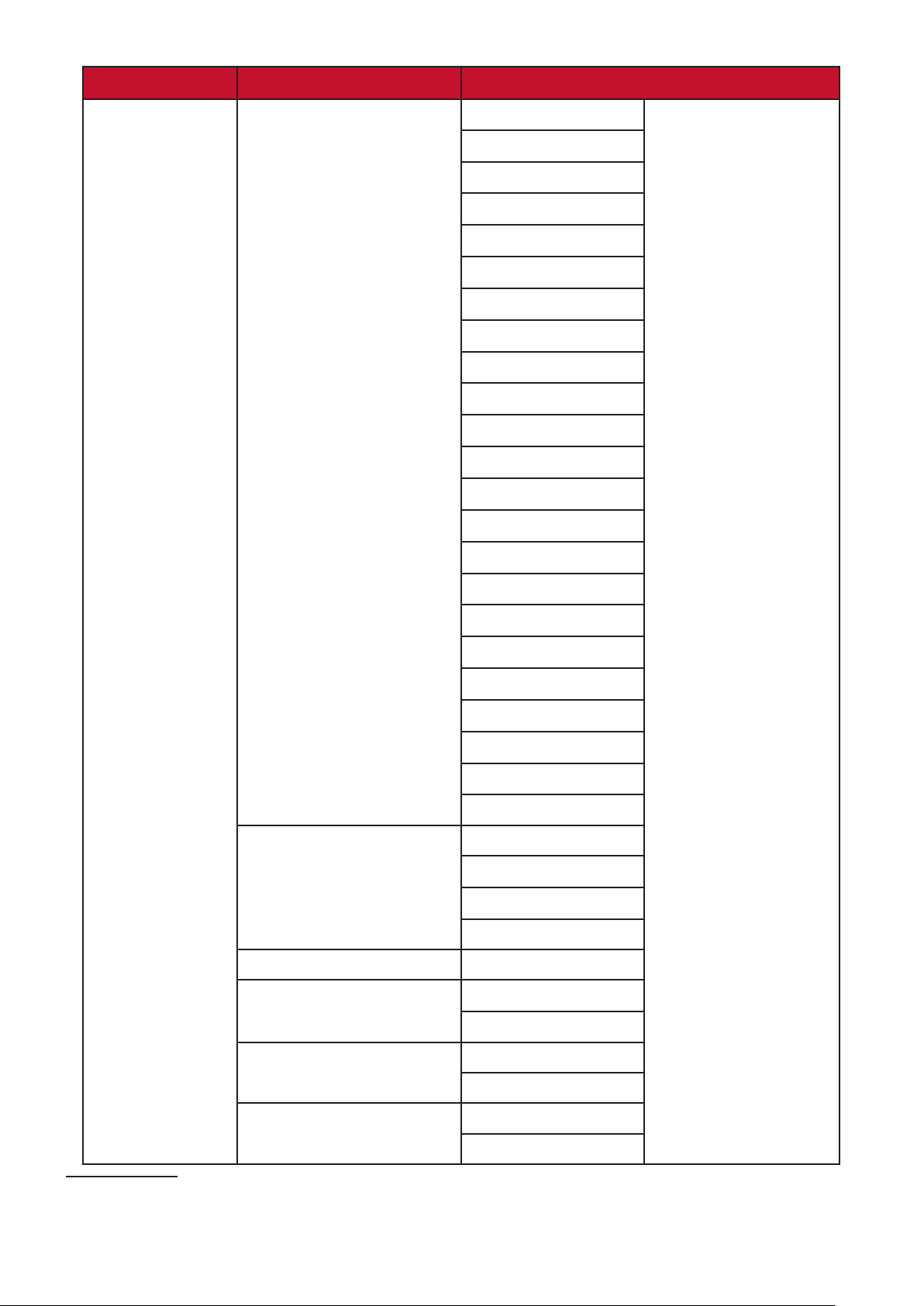
Main Menu Sub-menu
Picture Mode Brightest
TV
Movie
User
Brightness (-/+, 0~100)
Contrast (-/+, 0~100)
Sharpness (-/+, 0~100)
Saturaon (-/+, 0~100)
Tint (-/+, 0~100)
Color Temperature 6500K
7500K
9300K
Aspect Rao Auto
4:3
16:9
3434
Main Menu Sub-menu
Language
1
English
Deutsch
Français
Español
Italiano
Norsk
Português
Russian
繁體中文
簡體中文
日本語
韓語
Swedish
Dutch
Turkish
Czech
Thai
Polish
Finnish
Arabic
Indonesian
Hindi
Vietnamese
Projector Projecon Front Table
Front Ceiling
Rear Table
Rear Ceiling
Keystone (-/+, -40~40)
Auto Keystone On
O
Light Source Level Full
Eco
Reset to Factory Default Yes
No
1 Language support will vary by region. If some of the languages are not shown on the language list, the
font for those languages will not display correctly.

35
Main Menu Sub-menu
Light Source Hours
System Version
Resoluon
36
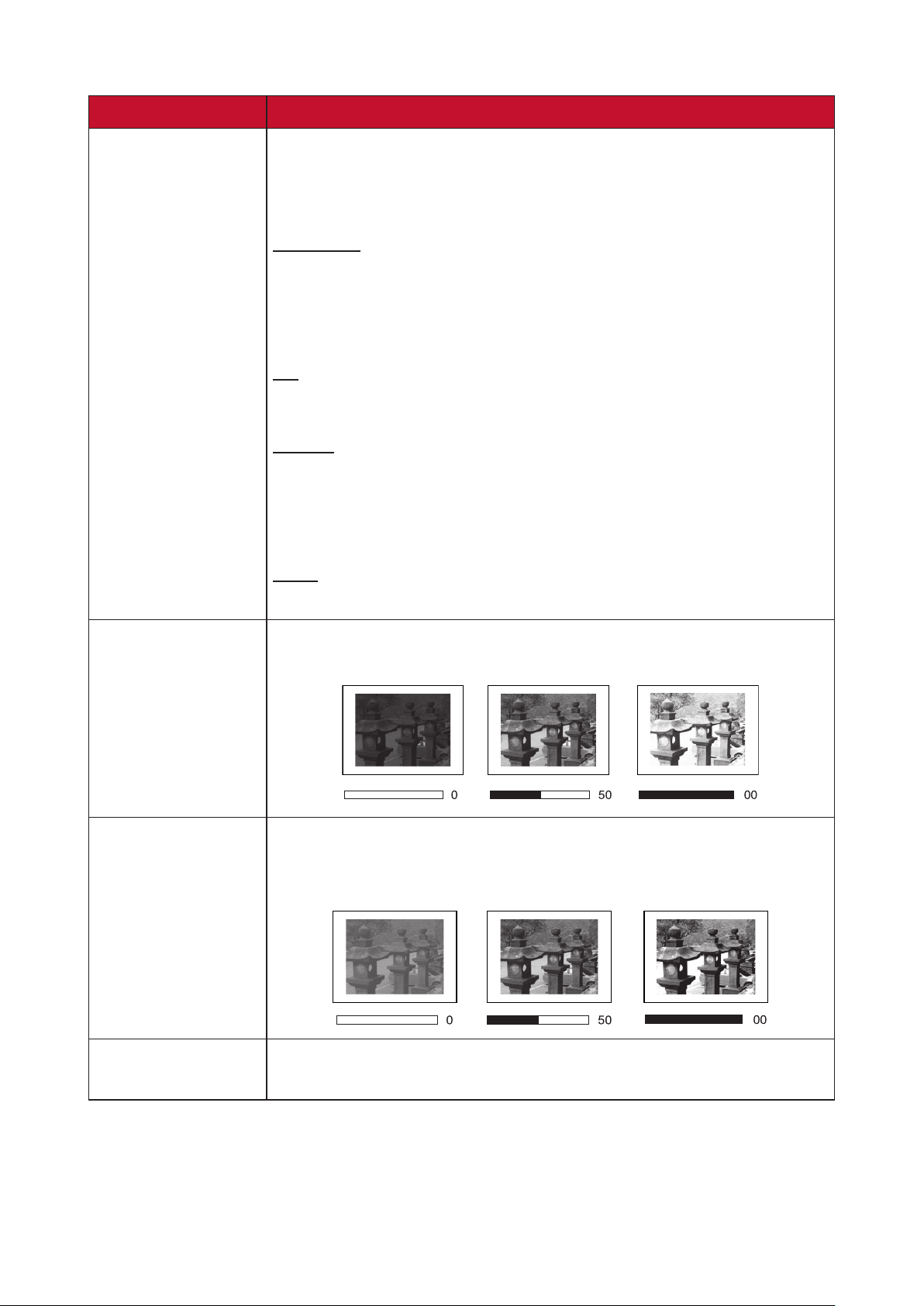
Color Mode The projector is preset with several predened picture
modes so that you can choose one to suit your operang
environment and input signal.
Brightest
Maximizes the brightness of the projected image. This
mode is suitable for environments where extra-high
brightness is required, i.e. well-lit rooms.
TV
Opmized for viewing sports in well-lit environments.
Movie
Appropriate for colorful movies, video clips from digital
cameras, or DVs through the PC input. Best for low-light
environments.
User
Recalls the customized user sengs.
Brightness The higher the value, the brighter the image. Lower values
will result in a darker image.
1
Contrast Use this to set the peak white level aer you have
previously adjusted the Brightness seng to suit your
selected input and viewing environment.
1
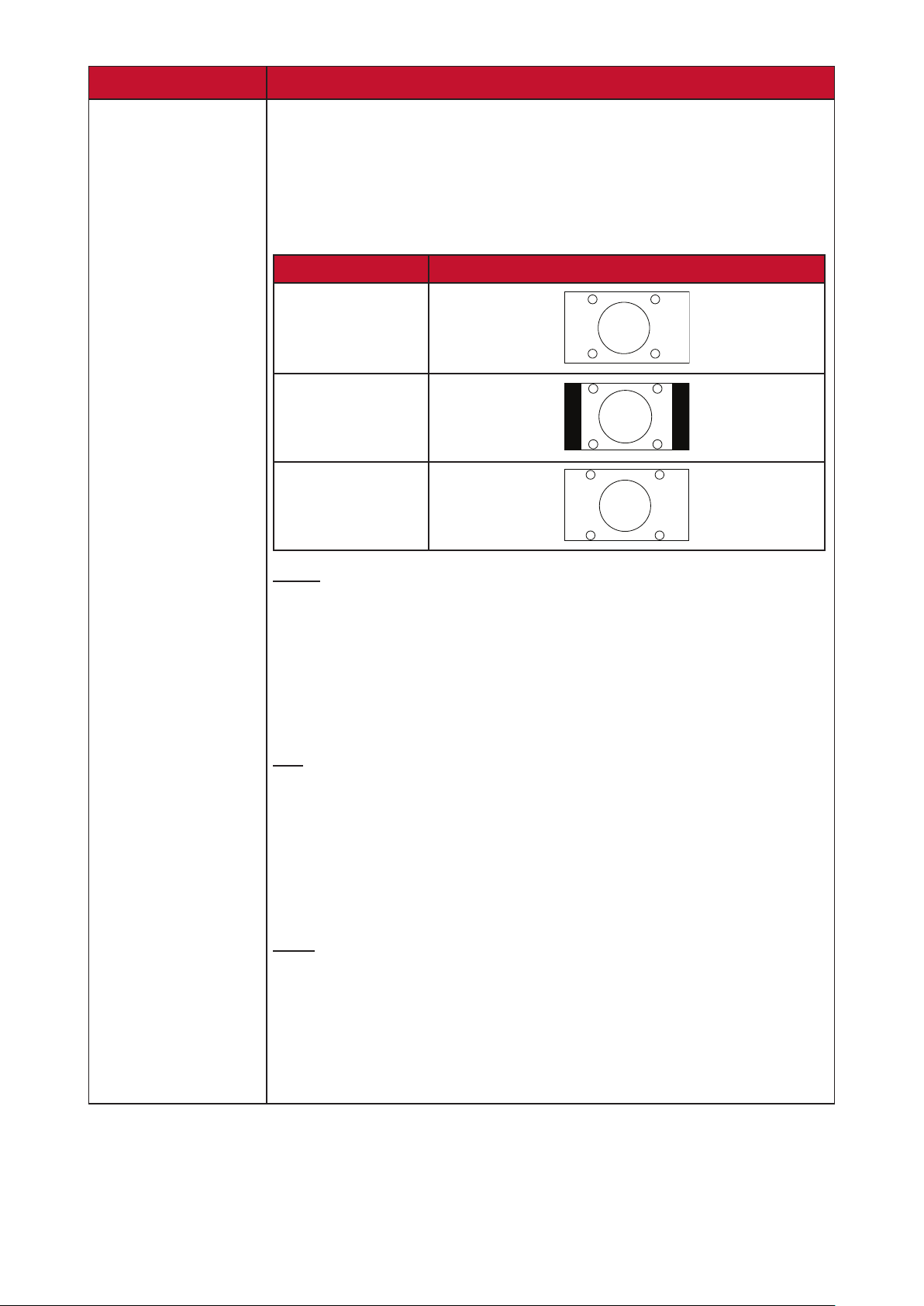
Sharpness A high value results in a sharper picture; a low value
soens the picture.

37
Saturaon Refers to the amount of that color in a video picture.
Lower sengs produce less saturated colors; in fact,
a seng of “0” removes that color from the image
enrely. If the saturaon is too high, that color will be
overpowering and unrealisc.
Tint The higher the value, the more greenish the picture
becomes. The lower the value, the more reddish the
picture becomes.
Color Temp Select the color temperature seng.
• 6500K: Maintains normal white coloring.
• 7500K: A higher, cooler color temperature than 6500K.
• 9300K: The highest color temperature; makes the image
appear the most bluish-white.
38
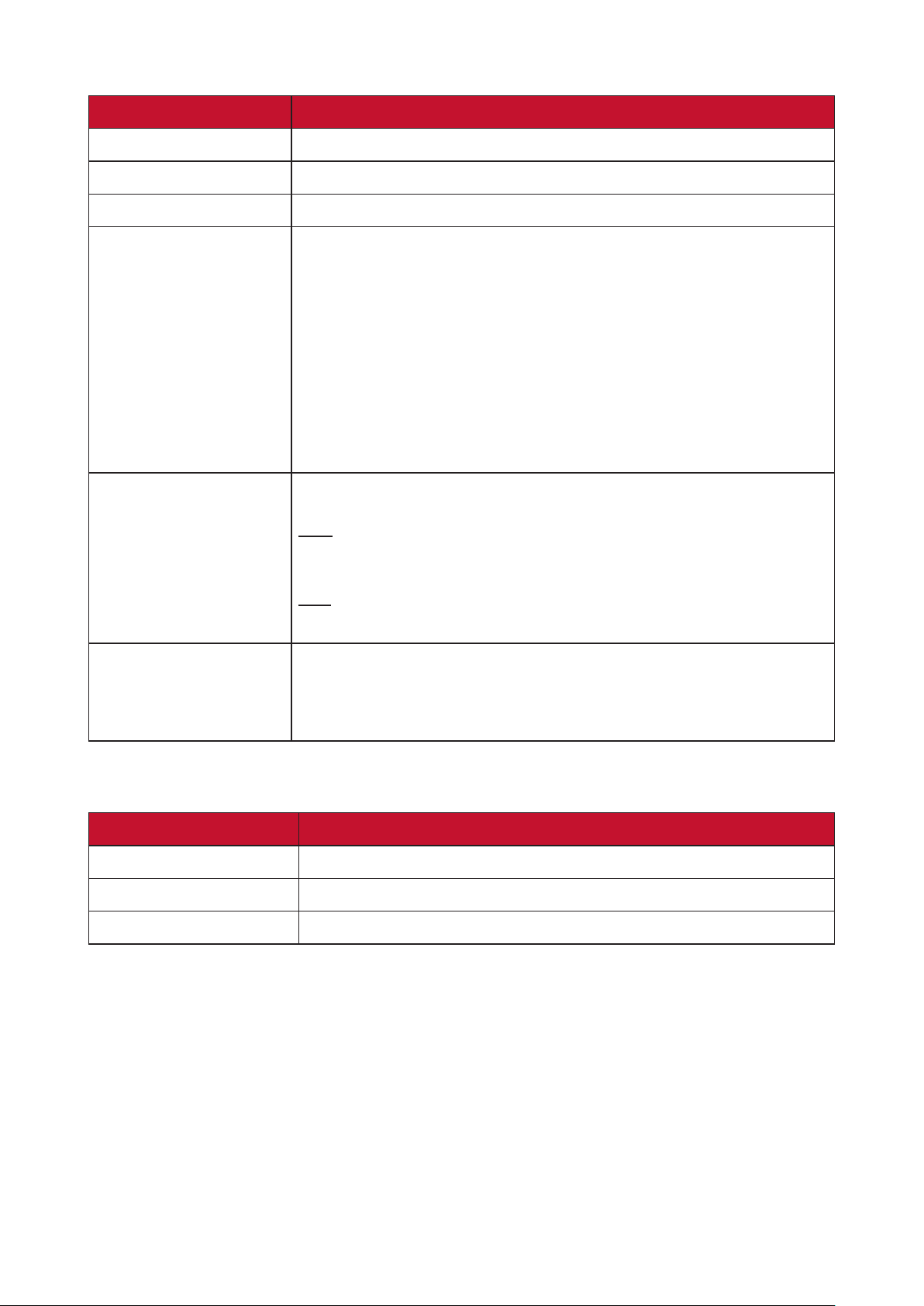
Aspect Rao The is the rao of the image width to the
image height. With the advent of digital signal processing,
digital display devices, like this projector, can dynamically
stretch and scale the image output to a dierent aspect
than that of the image input signal.
Auto
4:3
16:9
Auto
Scales an image proporonally to t the projector’s nave
resoluon in its horizontal width. This is suitable for the
incoming image which is neither 4:3 nor 16:9 and you
want to make the most use of the screen without altering
the image’s aspect rao.
4:3
Scales an image so that it is displayed in the center of the
screen with a 4:3 aspect rao. This is most suitable for 4:3
images like computer monitors, standard denion TV,
and 4:3 aspect DVD movies, as it displays them without
aspect alteraon.
16:9
Scales an image so that it is displayed in the center of
the screen with a 16:9 aspect rao. This is most suitable
for images which are already in a 16:9 aspect, like high
denion TV. for images which are already in a 16:9
aspect, like high denion TV.
39
Language Select an available language for the OSD Menu.
Projector Projecon Select the preferred projecon posion.
Keystone Manually adjust from -40 to 40.
Auto Keystone Provides a rectangular screen image by automacally
adjusng the keystone number when there is a
trapezoidal screen image caused by the lng of the
projector.
• On: Automacally adjust the keystone number.
• : Manually adjust the keystone number.
If Keystone is selected, Auto Keystone will
change to automacally.
Light Source Level
Select a suitable power consumpon of the LED.
Full
100%
Eco
70%
Reset to Factory
Default
Resets all sengs to their default values.
Light Source Hours, Projector Projecon, and
Language will remain unchanged.
Light Source Hours Displays total usage hours.
System Version Displays current system version.
Resoluon Current displayed resoluon.
4040
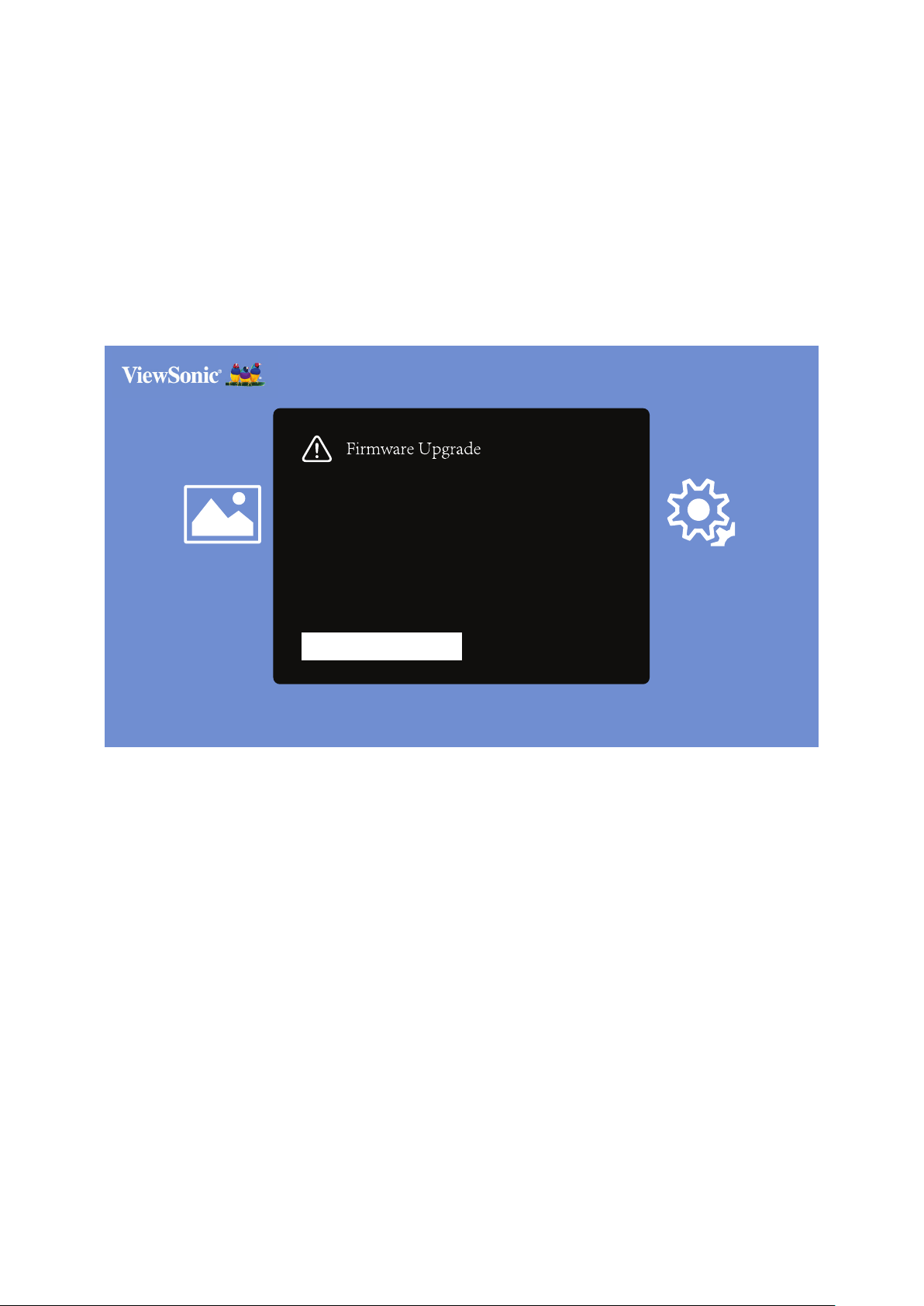
Firmware Upgrade
Users can update the rmware by USB.
Do not unplug the power cord or USB during the upgrading process.
Firmware Update by USB
1. Download the latest version from the ViewSonic website and copy the le to a
USB device.
USB format: FAT32
2. Power on the projector and plug in the USB with the new Firmware.
Photo Music Movie
HDMI
Setting
Yes Cancel
Do you want to update the current firmware?
3. The system will display the above dialog message.
4. Aer selecng Yes, a progress bar will appear as the update process begins.
5. Aer reaching 100% the projector will restart. The whole process will take about
ve (5) minutes.
6. Aer updang the Firmware, it will take a few minutes to restart the projector.
41
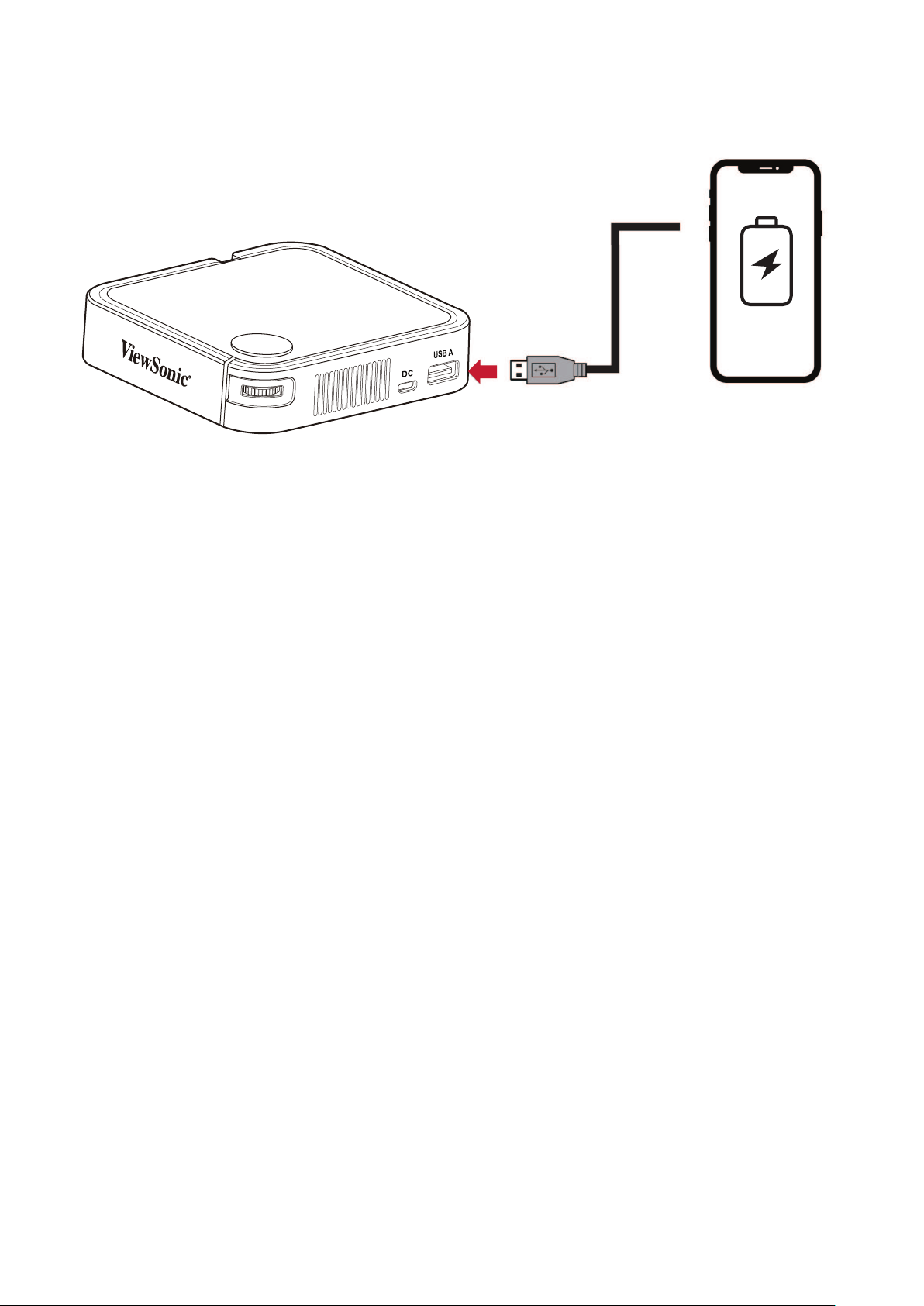
The projector can also act as a power bank for your mobile device.
To charge your mobile device:
1. Turn o the projector by pushing the Power Switch.
2. Use the USB Type A port on the projector to connect to a mobile device.
3. A 5V/1A power charge can be provided to the mobile device.
The Power Bank funcon can only work when the projector is powered
o.
42
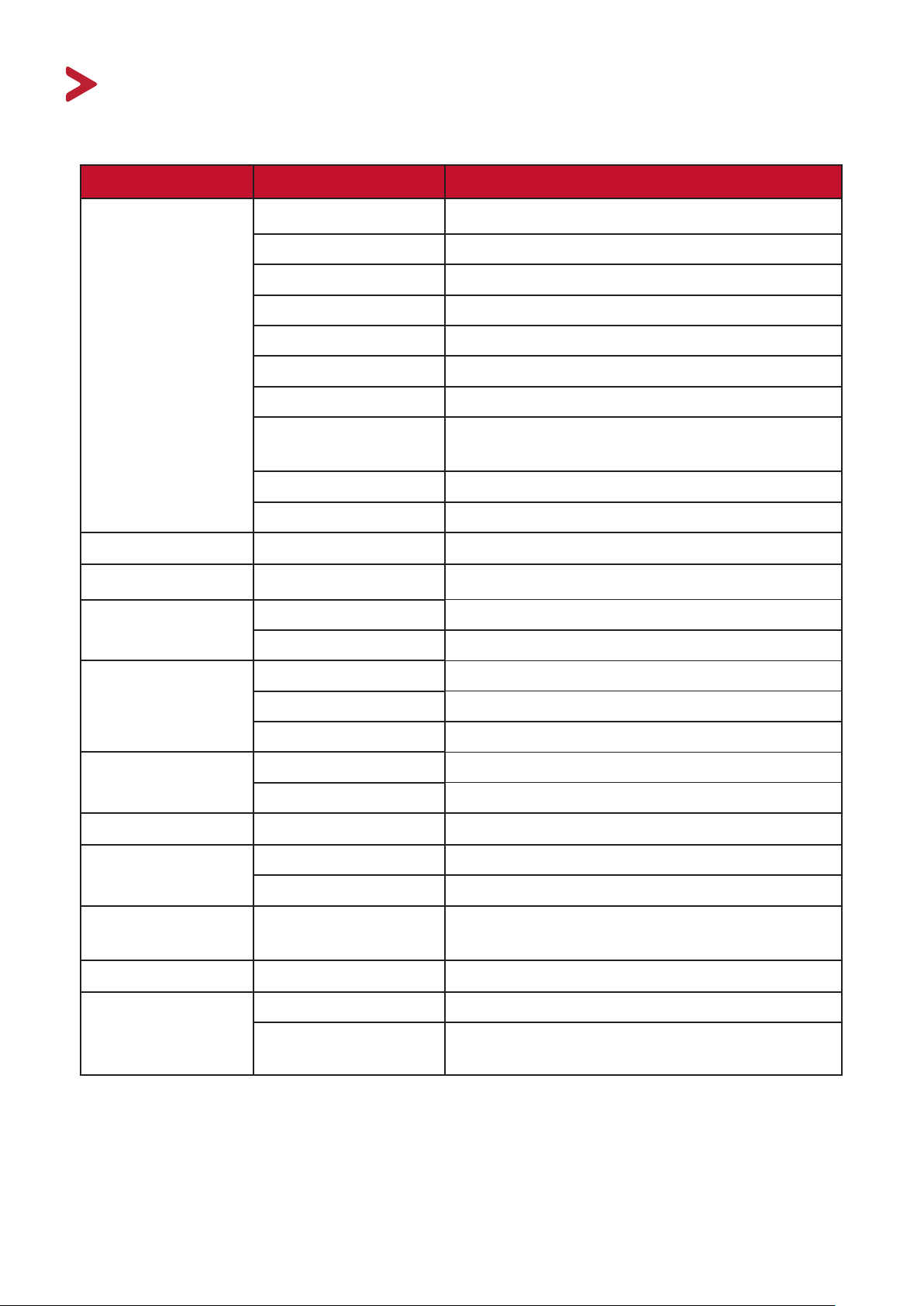
Appendix
Item Category
Projector
Type 0.2” WVGA, LED
Display Size 24”~100”
Brightness 120 LED Lumens
Throw Distance 0.64-2.66 m (39”@1 m)
Lens F=1.7, f=7.5 mm
Opcal Zoom Fixed
Light Source Type RGB LED
Light Source Life
(Normal)
up to 30,000 hours
Display Color 1.07 Billion Colors
Keystone -/+ 40 (Vercal)
Baery Capacity 5000 mAh, 3.7V
Input Signal
HDMI
f
h
: 15h~135KHz, f
v
:23~120Hz,
Resoluon
Nave 854 x 480
Support VGA (640 x 480) to FullHD (1920 x 1080)
Input
HDMI 1 (HDMI 1.4, HDCP 1.4)
USB Type-A 1 (USB 2.0 Reader; share with power)
Micro USB 1 (Power input)
Ouput
Speaker 2W Cube x 1
USB Type A (Power) 1 (USB 2.0, 5V/0.5A; share with USB reader)
Power Input
Input Voltage 5V/2A
Operang
Condions
Temperature 0°C to 40°C (32°F to 104°F)
Humidity 0% to 90% (non-condensing)
Dimensions
Physical
(W x H x D)
110 x 104 x 27 mm
(4.3” x 4.1” x 1.06”)
Weight
Physical 0.3 kg (0.67 lbs)
Power Modes
On 8W (Typical)
O < 0.5W (Standby)
< 0.006W (Power O)
4343
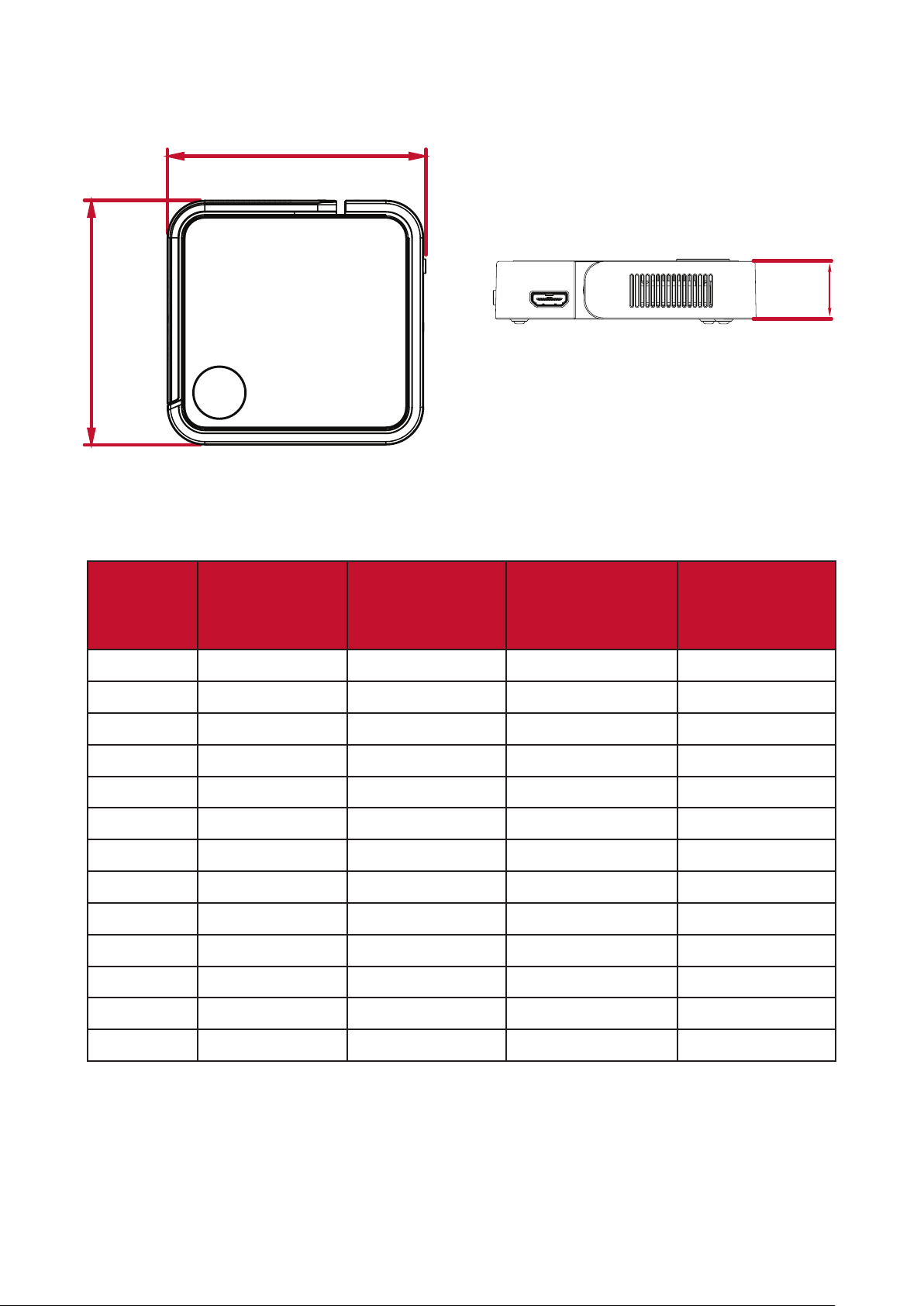
Projector Dimensions
110 mm (W) x 104 mm (H) x 27 mm(D)
109.98 mm
103.98 mm
27.2 mm
Timing Chart
HDMI Video Timing
Timing
Horizontal
Frequency
(kHz)
Frequency (Hz)
Dot Clock
Frequency
(MHz)
480i
720(1440) x 480 15.73 59.94 27
480p
720 x 480 31.47 59.94 27
576i
720(1440) x 576 15.63 50 27
576p
720 x 576 31.25 50 27
720/50p
1280 x 720 37.5 50 74.25
720/60p
1280 x 720 45 60 74.25
1080/24P
1920 x 1080 27 24 74.25
1080/25P
1920 x 1080 28.13 25 74.25
1080/30P
1920 x 1080 33.75 30 74.25
1080/50i
1920 x 1080 28.13 50 74.25
1080/60i
1920 x 1080 33.75 60 74.25
1080/50P
1920 x 1080 56.25 50 148.5
1080/60P
1920 x 1080 67.5 60 148.5
4444
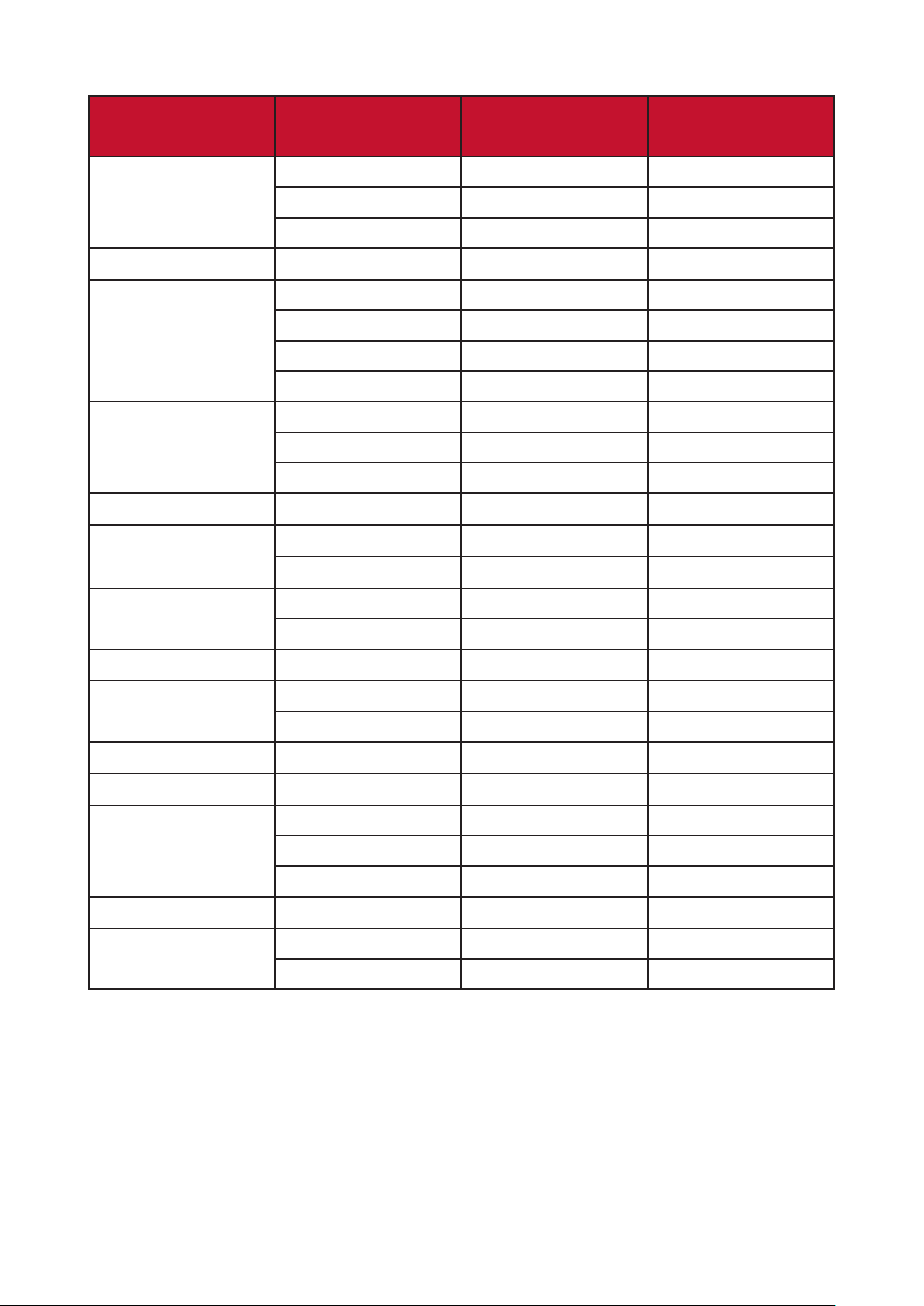
HDMI Support PC Timing
Refresh Rate (Hz)
Horizontal
Frequency (kHz)
Dot Clock
Frequency (MHz)
640 x 480
59.94 31.469 25.175
72.809 37.861 31.5
75 37.5 31.5
720 x 400
70.087 31.469 28.3221
800 x 600
56.250 35.156 36
60.317 37.879 40
72.188 48.077 50
75 46.875 49.5
1024 x 768
60.004 48.363 65
70.069 56.476 75
75.029 60.023 78.75
1152 x 864
75 67.5 108
1280 x 768
59.87 47.776 79.5
74.893 60.289 102.25
1280 x 800
59.81 49.702 83.5
74.934 62.795 106.5
1280 x 960
60 60 108
1280 x 1024
60.02 63.981 108
75.025 79.976 135
1360 x 768
60.015 47.712 85.5
1400 x 1050
59.978 65.317 121.75
1440 x 900
59.887 55.935 106.5
60 55.469 88.75
74.984 70.635 136.75
1600 x 1200
60 75 162
1680 x 1050
59.883 64.674 119.000
59.954 65.29 146.25

4545
LED Indicators
Light
Blue
Power On
Red
Stand-by Mode
Red
Projector Charging
Baery is Fully Charged

46
Glossary
This secon describes the standard glossary of terms used in all projector models.
All terms are listed in alphabecal order.
NOTE: Some terms may not be applicable to your projector.
A
Refers to the rao of the image width to the image height.
B
Brightest Mode
Maximizes the brightness of the projected image. This mode is ideal for
environments where extra-high brightness is required, such as using the
projector in well lit rooms.
Brightness
Adjusts brightness levels of the screen image
C
Color
Adjusts the color saturaon.
Color Temp
Allows users to select specic color temperature sengs to further
customize their viewing experience.
Contrast
Adjusts the dierence between the image background (black level) and the
foreground (white level).
F
Focus
Manually improve the clarity of the projected image.
H
HDMI
Audio/Video interface used to transmit video and audio via a single cable.
I
Displays the ming mode (video signal input), the projector model number,
the serial number, and the ViewSonic® website URL.

47
K
Keystone
The distoron of an image caused by projecng it onto an angled surface.
L
Light Source Level
Use Normal or Eco mode to adjust the brightness level and power
consumpon.
M
Movie Mode
A Picture Mode appropriate for playing colorful movies, video clips
from digital cameras, or DVs through the PC input. Best for a low light
environment.
S
Sharpness
Adjusts the picture quality.

48
This secon describes some common problems that you may experience when
using the projector.
Problem or Issue
The projector does not
turn on
• Ensure the power cord is properly aached to the
projector and to the power outlet.
• If the cooling process has not completed, please
wait unl it has nished then try to turn on the
projector again.
• If the above does not work, try another power
outlet or another electrical device with the same
power outlet.
• Check that the baery has remaining power
1
, or
needs external power (5V/2A). When projector is
at low baery, it may automacally turn o and on
repeatedly, please switch projector o and charge
the baery for at least 30 minutes.
There is no picture • Ensure the video source cable is connected
properly, and that the video source is turned on.
• If the input source is not selected automacally,
select the correct source with the Source key on
either the projector or the remote control.
The image is blurred • Adjusng the Focus Ring will help correctly focus
the projecon lens.
• Ensure the projector and screen are aligned
properly. If necessary, adjust the height of the
projector as well as the projecon angle and
direcon.
The remote control
does not work
• Ensure there are no obstacles between the remote
control and projector; and that they are within 8 m
(26 ) of each other.
• The baeries may be out of power, please check
and replace if necessary.
1 The baery may need to be charged for two (2) hours (5V/2A) rst if the device has not been used for a
long me.

49
Problem or Issue
The projector/system
is frozen and will not
respond
• Using a paper clip, carefully insert it into the Reset
buon at the rear of the projector to reset the
device.

50
Maintenance
• Make sure the projector is turned o and the power cable is unplugged from the
power outlet.
• Never remove any parts from the projector. Contact ViewSonic® or a reseller
when any part of the projector needs replacing.
• Never spray or pour any liquid directly onto the case.
• Handle the projector with care, as a darker-colored projector, if scued, may
show marks more clearly than a lighter-colored projector.
Cleaning the Lens
• Use a canister of compressed air to remove dust.
• If the lens is sll not clean, use lens-cleaning paper or moisten a so cloth with
lens cleaner and gently wipe the surface.
CAUTION: Never rub the lens with abrasive materials.
Cleaning the Case
• Use a so, lint-free, dry cloth to remove dirt or dust.
• If the case is sll not clean, apply a small amount of non-ammonia, non-alcohol
based, mild non-abrasive detergent onto a clean, so, lint-free cloth, then wipe
the surface.
CAUTION: Never use wax, alcohol, benzene, thinner, or other chemical
detergents.
Storing the Projector
If you intend to store the projector for an extended period of me:
• Ensure the temperature and humidity of the storage area are within the
recommend range.
• Retract the adjuster foot completely.
• Remove the baeries from the remote control.
• Pack the projector in its original packaging or equivalent.
Disclaimer
• ViewSonic® does not recommend the use of any ammonia or alcohol-based
cleaners on the lens or case. Some chemical cleaners have been reported to
damage the lens and/or case of the projector.
• ViewSonic® will not be liable for damage resulng from use of any ammonia or
alcohol-based cleaners.

51
This secon addresses all connected requirements and statements regarding
regulaons. Conrmed corresponding applicaons shall refer to nameplate labels
and relevant markings on the unit.
FCC Compliance Statement
This device complies with part 15 of FCC Rules. Operaon is subject to the following
two condions: (1) this device may not cause harmful interference, and (2) this
device must accept any interference received, including interference that may
cause undesired operaon. This equipment has been tested and found to comply
with the limits for a Class B digital device, pursuant to part 15 of the FCC Rules.
These limits are designed to provide reasonable protecon against harmful
interference in a residenal installaon. This equipment generates, uses, and
can radiate radio frequency energy, and if not installed and used in accordance
with the instrucons, may cause harmful interference to radio communicaons.
However, there is no guarantee that interference will not occur in a parcular
installaon. If this equipment does cause harmful interference to radio or television
recepon, which can be determined by turning the equipment o and on, the user
is encouraged to try to correct the interference by one or more of the following
measures:
• Reorient or relocate the receiving antenna.
• Increase the separaon between the equipment and receiver.
• Connect the equipment into an outlet on a circuit dierent from that to which
the receiver is connected.
• Consult the dealer or an experienced radio/TV technician for help.
Warning: You are cauoned that changes or modicaons not expressly approved
by the party responsible for compliance could void your authority to operate the
equipment.

52
CE Conformity for European Countries
The device complies with the EMC Direcve 2014/30/EU and Low Voltage
Direcve 2014/35/EU.
The mark shown to the right is in compliance with the Waste Electrical
and Electronic Equipment Directive 2012/19/EU (WEEE). The mark
indicates the requirement NOT to dispose of the equipment as unsorted
municipal waste, but use the return and collection systems according to
local law.
53
This product has been designed and manufactured in compliance with Direcve
2011/65/EU of the European Parliament and the Council on restricon of the use
of certain hazardous substances in electrical and electronic equipment (RoHS2
Direcve) and is deemed to comply with the maximum concentraon values issued
by the European Technical Adaptaon Commiee (TAC) as shown below:
Substance Proposed Maximum
Lead (Pb) 0.1% < 0.1%
Mercury (Hg) 0.1% < 0.1%
Cadmium (Cd) 0.01% < 0.01%
Hexavalent Chromium (Cr6⁺) 0.1% < 0.1%
Polybrominated biphenyls (PBB) 0.1% < 0.1%
Polybrominated diphenyl ethers
(PBDE)
0.1% < 0.1%
Bis (2-Ethylhexyl) phthalate (DEHP) 0.1% < 0.1%
Benzyl butyl phthalate (BBP) 0.1% < 0.1%
Dibutyl phthalate (DBP) 0.1% < 0.1%
Diisobutyl phthalate (DIBP) 0.1% < 0.1%
Certain components of products as stated above are exempted under the Annex
are:
• Mercury in cold cathode uorescent lamps and external electrode uorescent
lamps (CCFL and EEFL) for special purposes not exceeding (per lamp):
Short length (500 mm): maximum 3.5 mg per lamp.
Medium length (> 500 mm and 1,500 mm): maximum 5 mg per lamp.
Long length (> 1,500 mm): maximum 13 mg per lamp.
• Lead in glass of cathode ray tubes.
• Lead in glass of uorescent tubes not exceeding 0.2% by weight.
• Lead as an alloying element in aluminum containing up to 0.4% lead by weight.
• Copper alloy containing up to 4% lead by weight.
• Lead in high melng temperature type solders (i.e. lead-based alloys containing
85% by weight or more lead).
• Electrical and electronic components containing lead in a glass or ceramic other
than dielectric ceramic in capacitors, e.g. piezoelectronic devices, or in a glass or
ceramic matrix compound.

54
Restricon on Hazardous Substances statement (India). This product complies
with the “India E-waste Rule 2011” and prohibits use of lead, mercury, hexavalent
chromium, polybrominated biphenyls or polybrominated diphenyl ethers in
concentraons exceeding 0.1 weight % and 0.01 weight % for cadmium, except for
the exempons set in Schedule 2 of the Rule.
Remote control:
The elements of the instruconal safeguard shall be as follows:
• element 1a: not available
• element 2: “Do not ingest baery, Chemical Burn Hazard” or equivalent wording
• element 3:
the following or equivalent text
[The remote control supplied with] This product contains a coin / buon cell
baery.
If the coin / buon cell baery is swallowed, it can cause severe internal
burns in just 2 hours and can lead to death.
• element 4:
the following or equivalent text
Keep new and used baeries away from children.
If the baery compartment does not close securely, stop using the product
and keep it away from children.
If you think baeries might have been swallowed or placed inside any part
of the body, seek immediate medical aenon.
• high or low extreme temperatures that a baery can be subjected to during use,
storage or transportaon; and low air pressure at high altude.
• replacement of a baery with an incorrect type that can defeat a safeguard (for
example, in the case of some lithium baery types);
• disposal of a baery into re or a hot oven, or mechanically crushing or cung
of a baery, that can result in an explosion;
• leaving a baery in an extremely high temperature surrounding environment
that can result in an explosion or the leakage of ammable liquid or gas;
• a baery subjected to extremely low air pressure that may result in an explosion
or the leakage of ammable liquid or gas.

55
Product Disposal at End of Product Life
ViewSonic® respects the environment and is commied to working and living
green. Thank you for being part of Smarter, Greener Compung. Please visit the
ViewSonic® website to learn more.
USA & Canada:
http://www.viewsonic.com/company/green/recycle-program/
Europe:
http://www.viewsoniceurope.com/eu/support/call-desk/
Taiwan:
https://recycle.epa.gov.tw/

56
Copyright© ViewSonic® Corporaon, 2021. All rights reserved.
Macintosh and Power Macintosh are registered trademarks of Apple Inc.
Microso, Windows, and the Windows logo are registered trademarks of Microso
Corporaon in the United States and other countries.
ViewSonic®, the three birds logo, OnView, ViewMatch, and ViewMeter are
registered trademarks of ViewSonic® Corporaon.
VESA is a registered trademark of the Video Electronics Standards Associaon.
DPMS, DisplayPort, and DDC are trademarks of VESA.
ENERGY STAR® is a registered trademark of the U.S. Environmental Protecon
Agency (EPA).
As an ENERGY STAR® partner, ViewSonic® Corporaon has determined that this
product meets the ENERGY STAR® guidelines for energy eciency.
Disclaimer: ViewSonic® Corporaon shall not be liable for technical or editorial
errors or omissions contained herein; nor for incidental or consequenal damages
resulng from furnishing this material, or the performance or use of this product.
In the interest of connuing product improvement, ViewSonic® Corporaon
reserves the right to change product specicaons without noce. Informaon in
this document may change without noce.
No part of this document may be copied, reproduced, or transmied by any means,
for any purpose without prior wrien permission from ViewSonic® Corporaon.
M1_Mini_UG_ENG_1b_20210415
57
Customer Service
For technical support or product service, see the table below or contact your
reseller.
NOTE: You will need the product’s serial number.
Country/ Region Website Country/ Region Website
Australia www.viewsonic.com/au/ Bangladesh www.viewsonic.com/bd/
中国 (China)
www.viewsonic.com.cn
香港 (繁體中文)
www.viewsonic.com/hk/
Hong Kong (English) www.viewsonic.com/hk-en/ India www.viewsonic.com/in/
Indonesia www.viewsonic.com/id/ Israel www.viewsonic.com/il/
日本 (Japan)
www.viewsonic.com/jp/ Korea www.viewsonic.com/kr/
Malaysia www.viewsonic.com/my/ Middle East www.viewsonic.com/me/
Myanmar www.viewsonic.com/mm/ Nepal www.viewsonic.com/np/
New Zealand www.viewsonic.com/nz/ Pakistan www.viewsonic.com/pk/
Philippines www.viewsonic.com/ph/ Singapore www.viewsonic.com/sg/
臺灣 (Taiwan)
www.viewsonic.com/tw/
ประเทศไทย
www.viewsonic.com/th/
Việt Nam
www.viewsonic.com/vn/ South Africa & Maurius www.viewsonic.com/za/
Americas
United States www.viewsonic.com/us Canada www.viewsonic.com/us
Lan America www.viewsonic.com/la
Europe
Europe www.viewsonic.com/eu/ France www.viewsonic.com/fr/
Deutschland www.viewsonic.com/de/ Қазақстан www.viewsonic.com/kz/
Россия www.viewsonic.com/ru/ España www.viewsonic.com/es/
Türkiye www.viewsonic.com/tr/ Україна www.viewsonic.com/ua/
United Kingdom www.viewsonic.com/uk/

58
Limited Warranty
ViewSonic® Projector
What the warranty covers:
ViewSonic® warrants its products to be free from defects in material and
workmanship, under normal use, during the warranty period. If a product
proves to be defecve in material or workmanship during the warranty period,
ViewSonic® will, at its sole opon, repair or replace the product with a like product.
Replacement product or parts may include remanufactured or refurbished parts or
components.
Limited Three (3) year General Warranty:
Subject to the more limited one (1) year warranty set out below, North and South
America: Three (3) years warranty for all parts excluding the lamp, three (3) years
for labor, and one (1) year for the original lamp from the date of the rst consumer
purchase.
Other regions or countries: Please check with your local dealer or local ViewSonic®
oce for the warranty informaon.
Limited One (1) year Heavy Usage Warranty:
Under heavy usage sengs, where a projector’s use includes more than fourteen
(14) hours average daily usage, North and South America: One (1) year warranty
for all parts excluding the lamp, one (1) year for labor, and ninety (90) days for the
original lamp from the date of the rst consumer purchase; Europe: One (1) year
warranty for all parts excluding the lamp, one (1) year for labor, and ninety (90) days
for the original lamp from the date of the rst consumer purchase. Other regions
or countries: Please check with your local dealer or local ViewSonic® oce for the
warranty informaon. Lamp warranty subject to terms and condions, vericaon
and approval. Applies to manufacturer’s installed lamp only. All accessory lamps
purchased separately are warranted for 90 days.
Who the warranty protects:
This warranty is valid only for the rst consumer purchaser.
What the warranty does not cover:
1. Any product on which the serial number has been defaced, modied, or
removed.
2. Damage, deterioraon, or malfuncon resulng from:

59
Accident, misuse, neglect, re, water, lightning, or other acts of nature,
unauthorized product modicaon, or failure to follow instrucons supplied
with the product.
Operaon outside of product specicaons.
Operaon of the product for other than the normal intended use or not
under normal condions.
Repair or aempted repair by anyone not authorized by ViewSonic®.
Any damage of the product due to shipment.
Removal or installaon of the product.
Causes external to the product, such as electric power uctuaons or
failure.
Use of supplies or parts not meeng Viewsonic’s specicaons.
Normal wear and tear.
Any other cause which does not relate to a product defect.
3. Removal, installaon, and set-up service charges.
How to get service:
1. For informaon about receiving service under warranty, contact ViewSonic®
Customer Support (Please refer to the “Customer Support” page). You will need
to provide your product’s serial number.
2. To obtain warranted service, you will be required to provide: (a) the original
dated sales slip, (b) your name, (c) your address, (d) a descripon of the problem,
and (e) the serial number of the product.
3. Take or ship the product, freight prepaid, in the original container to an
authorized ViewSonic® service center or ViewSonic®.
4. For addional informaon or the name of the nearest ViewSonic® service center,
contact ViewSonic®.
There are no warranes, express or implied, which extend beyond the descripon
contained herein including the implied warranty of merchantability and tness for a
parcular purpose.

60
Exclusion of damages:
ViewSonic’s liability is limited to the cost of repair or replacement of the product.
ViewSonic® shall not be liable for:
1. Damage to other property caused by any defects in the product, damages based
upon inconvenience, loss of use of the product, loss of me, loss of prots, loss of
business opportunity, loss of goodwill, interference with business relaonships,
or other commercial loss, even if advised of the possibility of such damages.
2. Any other damages, whether incidental, consequenal or otherwise.
3. Any claim against the customer by any other party.
This warranty gives you specic legal rights, and you may also have other rights
which vary from local authority. Some local governments do not allow limitaons
on implied warranes and/or do not allow the exclusion of incidental or
consequenal damages, so the above limitaons and exclusions may not apply to
you.
Sales outside the U.S.A. and Canada:
For warranty informaon and service on ViewSonic® products sold outside of the
U.S.A. and Canada, contact ViewSonic® or your local ViewSonic® dealer.
The warranty period for this product in mainland China (Hong Kong, Macao,
and Taiwan Excluded) is subject to the terms and condions of the Maintenance
Guarantee Card.
For users in Europe and Russia, full details of warranty provided can be found at:
http://www.viewsonic.com/eu/ under “Support/Warranty Informaon”.
Projector Warranty Term Template In UG
VSC_TEMP_2005

61
Mexico Limited Warranty
ViewSonic® Projector
What the warranty covers:
ViewSonic® warrants its products to be free from defects in material and
workmanship, under normal use, during the warranty period. If a product
proves to be defecve in material or workmanship during the warranty period,
ViewSonic® will, at its sole opon, repair or replace the product with a like product.
Replacement product or parts may include remanufactured or refurbished parts or
components & accessories.
3 years for all parts excluding the lamp, 3 years for labor, 1 year for the original
lamp from the date of the rst consumer purchase.
Lamp warranty subject to terms and condions, vericaon and approval. Applies
to manufacturer’s installed lamp only.
All accessory lamps purchased separately are warranted for 90 days.
Who the warranty protects:
This warranty is valid only for the rst consumer purchaser.
What the warranty excludes and does not cover:
1. Any product on which the serial number has been defaced, modied or removed.
2. Damage, deterioraon, or malfuncon resulng from:
Accident, misuse, neglect, re, water, lightning, or other acts of nature,
unauthorized product modicaon, unauthorized aempted repair, or
failure to follow instrucons supplied with the product.
Any damage of the product due to shipment.
Causes external to the product, such as electrical power uctuaons or
failure.
Use of supplies or parts not meeng ViewSonic®’s specicaons.
Normal wear and tear.
Any other cause which does not relate to a product defect.
3. Any product exhibing a condion commonly known as “image burn-in” which
results when a stac image is displayed on the product for an extended period of
me.
4. Removal, installaon, insurance, and set-up service charges.

62
How to get service:
For informaon about receiving service under warranty, contact ViewSonic®
Customer Support (Please refer to the aached “Customer Service” page). You
will need to provide your product’s serial number, so please record the product
informaon in the space provided below on your purchase for your future use.
Please retain your receipt of proof of purchase to support your warranty claim.
For Your Records
Product Name: Model Number:
Document Number: Serial Number:
Purchase Date: Extended Warranty Purchase? (Y/N)
If so, what date does warranty expire?
1. To obtain warranty service, you will be required to provide (a) the original dated
sales slip, (b) your name, (c) your address, (d) a descripon of the problem, and
(e) the serial number of the product.
2. Take or ship the product, in the original container packaging, to an authorized
ViewSonic® service center.
3. Round trip transportaon costs for in-warranty products will be paid by
ViewSonic®.
There are no warranes, express or implied, which extend beyond the descripon
contained herein including the implied warranty of merchantability and tness for a
parcular purpose.
Exclusion of damages:
ViewSonic®’s liability is limited to the cost of repair or replacement of the product.
ViewSonic® shall not be liable for:
1. Damage to other property caused by any defects in the product, damages based
upon inconvenience, loss of use of the product, loss of me, loss of prots, loss of
business opportunity, loss of goodwill, interference with business relaonships,
or other commercial loss, even if advised of the possibility of such damages.
2. Any other damages, whether incidental, consequenal or otherwise.
3. Any claim against the customer by any other party.
4. Repair or aempted repair by anyone not authorized by ViewSonic®.
63
Contact Informaon for Sales & Authorized Service (Centro Autorizado de Servicio) within Mexico:
Name, address, of manufacturer and importers:
México, Av. de la Palma #8 Piso 2 Despacho 203, Corporavo Interpalmas,
Col. San Fernando Huixquilucan, Estado de México
Tel: (55) 3605-1099 hp://www.viewsonic.com/la/soporte/index.htm
NÚMERO GRATIS DE ASISTENCIA TÉCNICA PARA TODO MÉXICO: 001.866.823.2004
Hermosillo:
Distribuciones y Servicios Computacionales SA de CV.
Calle Juarez 284 local 2
Col. Bugambilias C.P: 83140
Tel: 01-66-22-14-9005
E-Mail: [email protected]ared.net.mx
Villahermosa:
Compumantenimietnos Garanzados, S.A. de C.V.
AV. GREGORIO MENDEZ #1504
COL, FLORIDA C.P. 86040
Tel: 01 (993) 3 52 00 47 / 3522074 / 3 52 20 09
E-Mail: compumantenimientos@prodigy.net.mx
Puebla, Pue. (Matriz):
RENTA Y DATOS, S.A. DE C.V. Domicilio:
29 SUR 721 COL. LA PAZ
72160 PUEBLA, PUE.
Tel: 01(52).222.891.55.77 CON 10 LINEAS
E-Mail: dat[email protected]ed.net.mx
Veracruz, Ver.:
CONEXION Y DESARROLLO, S.A DE C.V. Av.
Americas # 419
ENTRE PINZÓN Y ALVARADO
Fracc. Reforma C.P. 91919
Tel: 01-22-91-00-31-67
E-Mail: gacost[email protected]
Chihuahua:
Soluciones Globales en Computación
C. Magisterio # 3321 Col. Magisterial
Chihuahua, Chih.
Tel: 4136954
E-Mail: Cef[email protected]
Cuernavaca:
Compusupport de Cuernavaca SA de CV
Francisco Leyva # 178 Col. Miguel Hidalgo
C.P. 62040, Cuernavaca Morelos
Tel: 01 777 3180579 / 01 777 3124014
E-Mail: aquevedo@compusupportcva.com
Distrito Federal:
QPLUS, S.A. de C.V.
Av. Coyoacán 931
Col. Del Valle 03100, México, D.F.
Tel: 01(52)55-50-00-27-35
E-Mail : gacost[email protected]
Guadalajara, Jal.:
SERVICRECE, S.A. de C.V.
Av. Niños Héroes # 2281
Col. Arcos Sur, Sector Juárez
44170, Guadalajara, Jalisco
Tel: 01(52)33-36-15-15-43
E-Mail: mmir[email protected]
Guerrero Acapulco:
GS Computación (Grupo Sesicomp)
Progreso #6-A, Colo Centro
39300 Acapulco, Guerrero
Tel: 744-48-32627
Monterrey:
Global Product Services
Mar Caribe # 1987, Esquina con Golfo Pérsico
Fracc. Bernardo Reyes, CP 64280
Monterrey N.L. México
Tel: 8129-5103
E-Mail: a[email protected]x
MERIDA:
ELECTROSER
Av Reforma No. 403Gx39 y 41
Mérida, Yucatán, México CP97000
Tel: (52) 999-925-1916
E-Mail: rrrb@sureste.com
Oaxaca, Oax.:
CENTRO DE DISTRIBUCION Y
SERVICIO, S.A. de C.V.
Murguía # 708 P.A., Col. Centro, 68000, Oaxaca
Tel: 01(52)95-15-15-22-22
Fax: 01(52)95-15-13-67-00
E-Mail. [email protected]om
Tijuana:
STD
Av Ferrocarril Sonora #3780 L-C
Col 20 de Noviembr
Tijuana, Mexico
FOR USA SUPPORT:
ViewSonic® Corporaon
381 Brea Canyon Road, Walnut, CA. 91789 USA
Tel: 800-688-6688
E-Mail: hp://www.viewsonic.com
Projector Mexico Warranty Term Template In UG
VSC_TEMP_2006