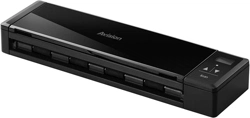
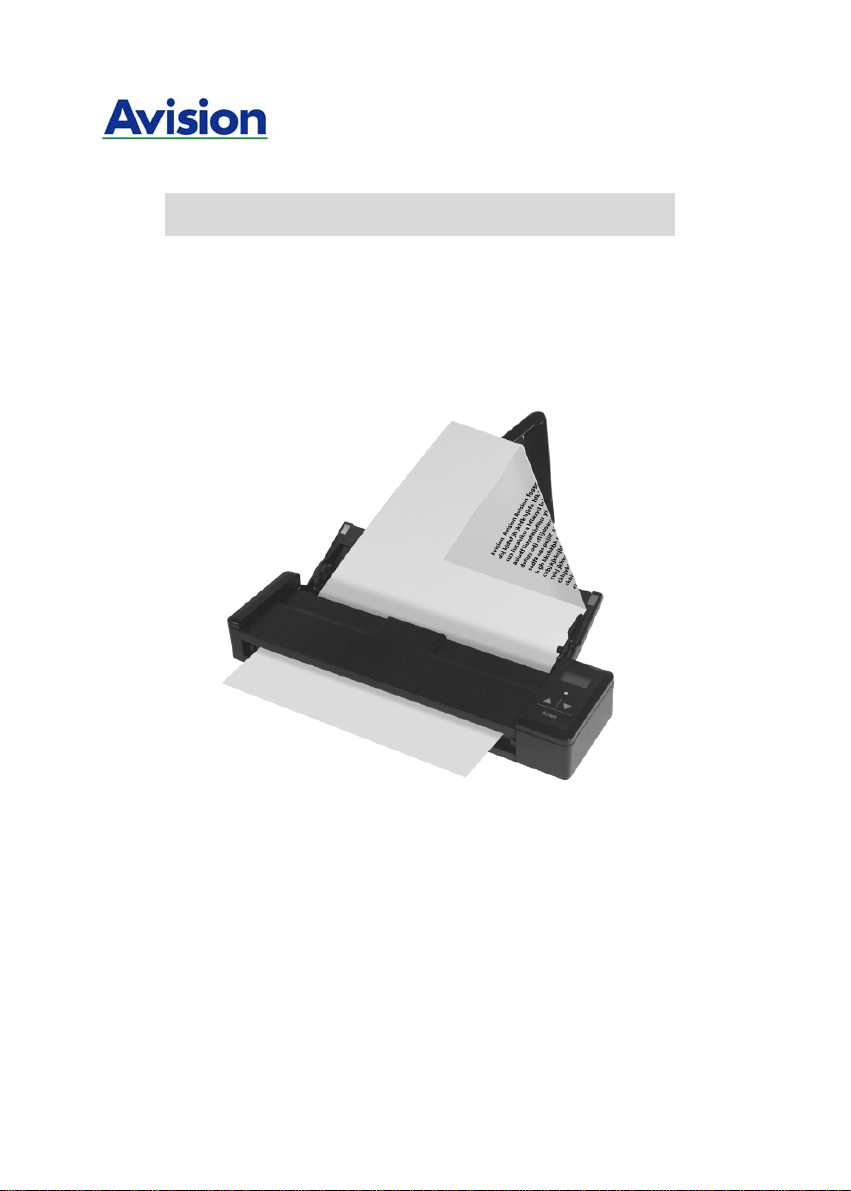
Mobile Scanner
User’s Manual
Regulatory model: FF-1301S
manual-en-250-0844-E-AV110v1
Avision Inc.

User’s Manual
ii
Trademarks
Microsoft is a U.S. registered trademark of Microsoft Corporation.
Windows, Windows Vista, Windows 7 and Windows 8 are either
registered trademarks or trademarks of Microsoft Corporation in
the United States and/or other countries.
Energy Star
®
is a registered trademark of the U.S. government.
IBM, IBM PC are registered trademarks of International Business
Machines Corp.
Other brands and product names herein are trademarks or
registered trademarks of their respective holders.
Copyright
All rights reserved. No part of this publication may be
reproduced, transmitted, transcribed, stored in a retrieval
system, or translated into any language or computer language,
in any form or by any means, electronic, mechanical, magnetic,
optical, chemical, manual, or otherwise, without the prior written
permission of Avision Inc.
Material scanned by this pr oduct may be protected by
governmental laws and other re gulations, such as copyright
laws, the customer is solely respon sible f or comply ing w ith all
such laws and regulations.
Warranty
The in formation con tained in t his docu ment is su bject t o
change without notice.
Avision makes no warranty of any ki nd wi th regard to thi s
material, including, but not limited to, t he implied warranties
of fitness for a particular purpose.
Avision sh all n ot be liable f or errors con tained herein or for
incidental or consequenti al damages i n connecti on wi th the
furnishing, performance, or use of this material.

User’s Manual
iii
Warning and Precautions of the lithium-ion battery
Warning:
Danger warning to prevent the possibility of the battery from
leaking, heating, explosion, please observe the following
precautions:
Don’t immerse the battery in water and seawater. Please
put it in cool and dry environment if no using.
Do not discard or leave the battery near a heat source as
fire or heater
Being charged, using the battery charger specifically for
that purpose
Don’t reverse the positive and negative terminals
Don’t connect the battery to an electrical outlet directly.
Don’t connect the positive and negative terminal directly
with metal objects such as wire. Short terminals of battery
is strictly prohibited, it may damage battery.
Do not transport and store the battery together with metal
objects such as necklaces, hairpins.
Do not strike, throw or trample the battery.
Do not directly solder the battery and pierce the battery
with a nail or other sharp object.
Do not use lithium ion battery and others different lithium
polymer battery model in mixture.
Prohibition of use of damaged cells.
Don’t bend or fold sealing edge. Don’t open or deform
folding edge. Don’t fillet the end of the folding edge.
Don’t fall, hit, bend battery body.
Battery pack designing and packing Prohibition injury
batteries.
Never disassemble the cells.
Keep the battery away from babies.
Any components contacting these two edges, they must be
insulated.

User’s Manual
iv
Caution:
Risk of explosion if battery is replaced by an incorrect type.
Dispose the battery according to local regulations.
Never place batteries or devices on or in heating devices,
such as microwave ovens, stoves, or radiators. Batteries
may explode when overheated or its performance will be
degenerate and its service life will be decreased.
Do not use it in a location where is electrostatic and
magnetic greatly, otherwise, the safety devices may be
damaged, causing hidden trouble of safety.
If the battery leaks, and the electrolyte get into the eyes.
Do not wipe eyes, instead, rinse the eyes with clean running
water, and immediately seek medical attention. Otherwise,
eyes injury can result.
If the battery gives off an odor, generates heat, becomes
discolored or deformed, or in any way appear abnormal
during use, recharging or storage, immediately remove it
from the device or battery charge and stop using it.
Avoid charging batteries for more than a week, as
overcharging may shorten battery life. Over time, unused
batteries will discharge and must be recharged before use.
Disconnect chargers from power sources when not in use.
Use batteries only for their intended purposes.
Store the battery at 0°C to 40°C.
Avoid exposing your device and batteries to very cold or
very hot temperatures. Extreme temperatures can cause
the deformation of the device and reduce the charging
capacity and life of your device and batteries.
Prevent batteries from contacting metal objects, as this can
create a connection between the + and – terminals of your
batteries and lead to temporary or permanent battery
damage.
In case the battery terminals are dirt, clean the terminals
with a dry cloth before use. Otherwise power failure or
charge failure may occur due to the poor connection with
the instrument.
Be aware discharged batteries may cause fire. Follow all
local regulations when disposing of used batteries or devices.
Never crush or puncture the battery. Avoid exposing the
battery to high external pressure, which can lead to an
internal short circuit and overheating.

User’s Manual
v
Federal Communications Commission (FCC) compliance
information statement
Part 15
This equipment has been tested and found to comply with the
limits for a Class B digital device, pursuant to Part 15 of the FCC
Rules. These limits are designed to provide reasonable
protection against harmful interference in a residential
installation. This equipment generates, uses and can radiate
radio frequency energy and, if not installed and used in
accordance with the instructions, may cause harmful
interference to radio communications.
However, there is no guarantee that interference will not occur
in a particular installation. If this equipment does cause harmful
interference to radio or television reception, which can be
determined by turning the equipment off and on, the user is
encouraged to try to correct the interference by one of the
following measures:
Reorient or relocate the receiving antenna.
Increase the separation between the equipment and
receiver.
Connect the equipment into an outlet on a circuit
different from that to which the receiver is connected.
Consult the dealer or an experienced radio/TV technician
for help.
This device complies with Part 15 of the FCC Rules. Operation is
subject to the following two conditions: (1) This device may not
cause harmful interference, and (2) this device must accept any
interference received, including interference that may cause
undesired operation.

User’s Manual
vi
European Union Regulatory Notice
Products bearing the CE marking comply with the following EU
Directives:
Low Voltage Directive 2006/95/EC
EMC Directive 2004/108/EC
Restriction of the use of certai n hazardous substances (RoHS)
Directive 2011/65/EU
CE compliance of this product is valid if powered with the correct
CE-marked AC adapter provide by Avision.
This product satisfies the Class B limits of EN55022, EN55024,
safety requirements of EN 60950 and ROHS requirements of
EN50581.
*This machine is certified as Class 1 LED product.

User’s Manual
vii
Disposal of Waste Equipment by Users in Private Union
This symbol on the product or on its packaging indicates that the
product can not be disposed of with your other household waste.
Instead it should be sent to appropriate facilities for recovery
and recycling in an effort to protect human health and the
environment. Fore more information about where you can drop
off your waste equipment for recycling, please contact your local
city office, your household waste disposal service or the shop
where you purchased the product.
As an ENERGY STAR
®
Partner, Avision Inc. has
determined that this product meets the ENERGY
STAR guidelines for energy efficiency.
System Requirements
CPU: Inte l
®
Core™ 2 Duo or higher
Memory: 32 bit: 1 GB
64 bit: 2 GB
Optical Drive: DVD-ROM Drive
USB Port: USB port 2.0 (compatible with USB 1.1)
Compatible
Operating
System:
Microsoft Windows XP(SP3), Windows Vista,
Windows 7, Windows 8.x (32-bit/64-bit)

User’s Manual
viii
Table of Contents
1. Introduction.............................................. 1-1
1.1 Package Items............................................ 1-1
1.2 Front View ................................................. 1-4
1.3 Rear View .................................................. 1-6
1.4 Side View................................................... 1-6
1.5 LCD Display ............................................... 1-7
2. Scanner Installation.................................. 2-1
2.1 Precautions ................................................ 2-1
2.2 Installing the Battery................................... 2-1
2.3 Charging the Battery ................................... 2-3
2.4 Installing the Feed Extension Plate ................ 2-4
2.5 Installing the Scanner Driver ........................ 2-6
2.6 Turning on the Power .................................. 2-7
2.7 Connecting to a Computer............................ 2-8
3. Completing Your First Scan....................... 3-1
3.1 Suitable and Unsuitable Original Types........... 3-1
3.1.1 Loading Your Document in the ADF
Paper Tray ...................................... 3-2
3.1.2 Loading Your Card............................ 3-4
3.2 Verifying Your Scanner Installation ................ 3-5
3.3 A Glance of the Scanner Properties Dialog Box 3-9
4. Using the Scanner Properties Dialog Box.. 4-1
4.1 Buttons on the Scanner Properties Dialog Box . 4-2
4.2 Showing or Hiding Tabs ............................... 4-4
4.3 The Image Tab ........................................... 4-6
4.3.1 The Image Selection Box .................. 4-7
4.3.2 Other Image Options ...................... 4-11
4.3.3 Scanning color images.................... 4-23
4.3.4 Scanning grayscale images.............. 4-23
4.3.5 Scanning B&W images .................... 4-23
4.3.6 Editing Profiles .............................. 4-24

User’s Manual
ix
4.4
The Compression Tab ................................ 4-27
4.5 The Color Dropout Tab............................... 4-29
4.5.1 Color Dropout Selection .................. 4-29
4.5.2 Other Color Dropout Options ........... 4-37
4.6 The Paper Tab .......................................... 4-39
4.6.1 Cropping....................................... 4-40
4.6.2 Other Paper Selection..................... 4-46
4.7 The Multi-Feed Detection Tab ..................... 4-52
4.8 The Preview Tab ....................................... 4-56
4.9 The Enhancement Tab ............................... 4-57
4.10 The Rotation Tab................................... 4-63
4.11 The Separation Tab ............................... 4-68
4.12 The Setting Tab .................................... 4-72
4.13 The Imprinter Tab ................................. 4-75
4.14 The Information Tab .............................. 4-79
5. Using the Buttons ..................................... 5-1
5.1 Installing Button Manager V2........................ 5-1
5.2 Checking the Button Configurations before
Scanning ................................................... 5-2
5.3 Scanning From One Touch of the Buttons ....... 5-4
6. Maintenance ............................................. 6-1
6.1 Clean the Scanner Glass, Separation Pad and
Rollers....................................................... 6-1
6.2 Calibrate the Scanner .................................. 6-3
6.3 Replace the Feed Roller................................ 6-6
6.4 Replace the Separation Pad ........................ 6-10
7. Troubleshooting........................................ 7-1
7.1 Clear a paper jam ....................................... 7-1
7.2 Error Conditions.......................................... 7-2
7.3 Frequently asked questions and answers ........ 7-3
7.4 Technical Service ........................................ 7-6
8. Specifications............................................ 8-1
Index ...................................................................a

User’s Manual
1-1
1. Introduction
Congratulations on your purchase of the color sheet-fed
image scanner. With this scanner, you can scan documents
from the auto document feeder increase your productivity.
Before you install and operate the new scanner, please take a
few minutes to read through this manual. It provi des proper
instructions f or y ou t o u npack, install, operate and maintain
the scanner.
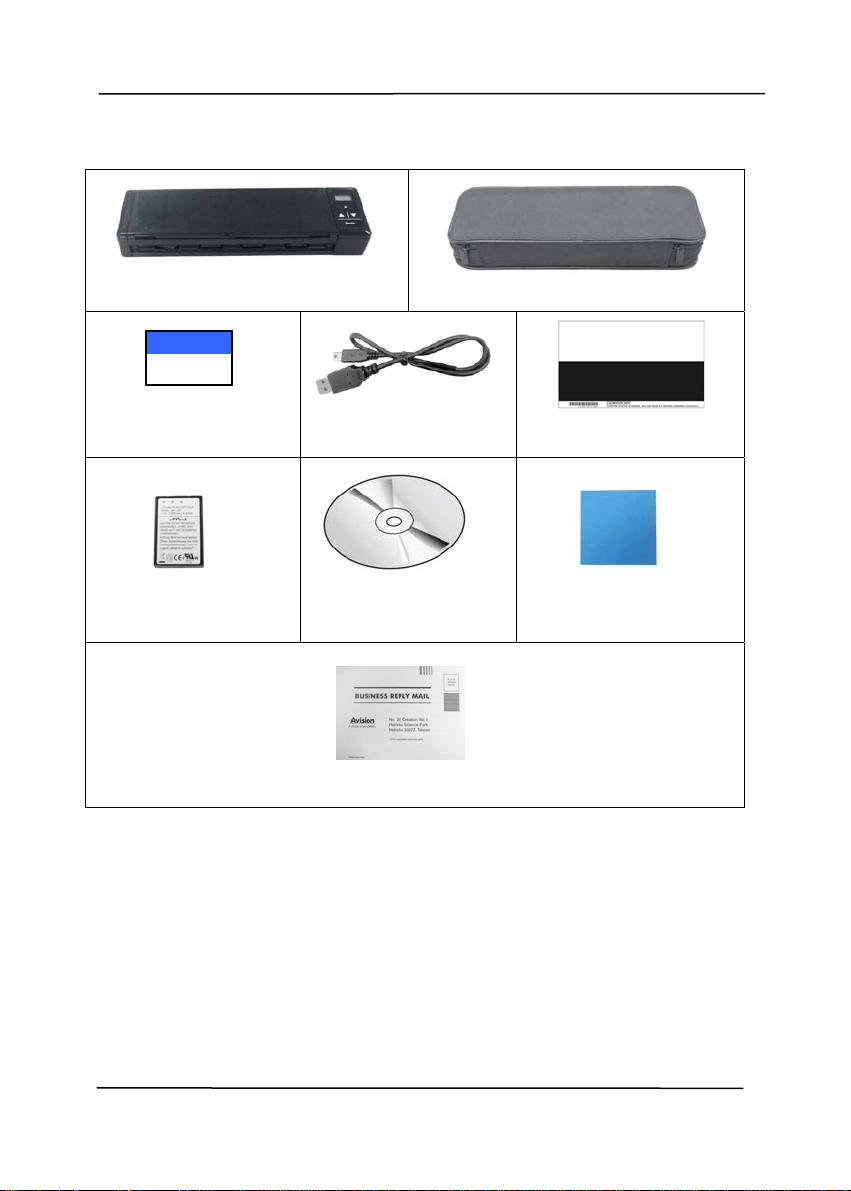
1.1 Package Items
T
h
e f ollowing f igure in dicates the package contents. Please
check all the items against your checklist. If you do not
receive all t he it ems, please contact your authorized local
dealer immediately.
User’s Manual
1-2
Scanner
Carry Bag
Quick Guide
USB Cable
Calibration Sheet
Li-Ion Battery
Software CD
Cleaning Cloth
Online Registration Notice

User’s Manual
1-3
Note:
1. Only use the Li-ion Battery AP-120 made by APACK/CB-PD
(NP-120) made by City Bright included in the product. Using
other battery may damage the machine and void the
warranty.
2. Please unpack the packing carefully, and check the contents
against the checklist. If any items are missing or damaged,
please contact your dealer immediately.
3. To access more service supports, please visit our official web
site at www.avision.com to register your product.
User’s Manual
1-4
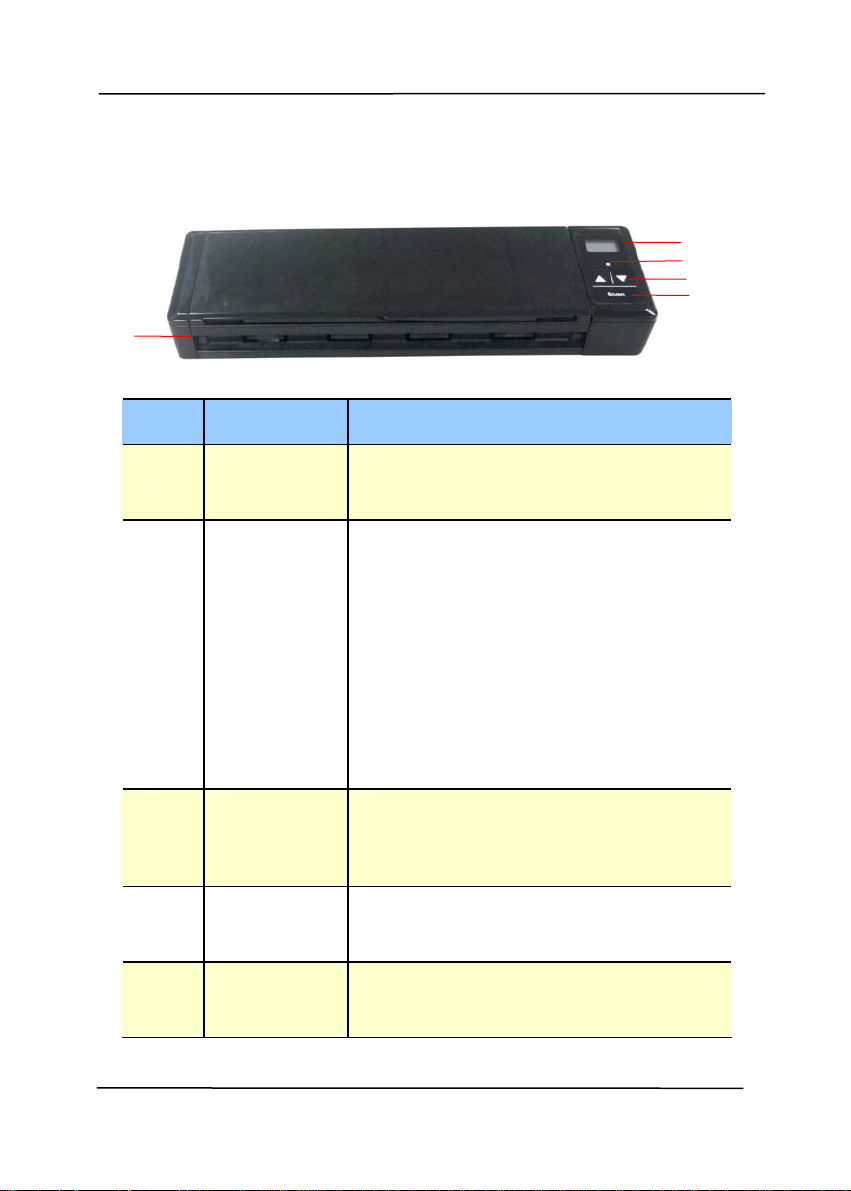
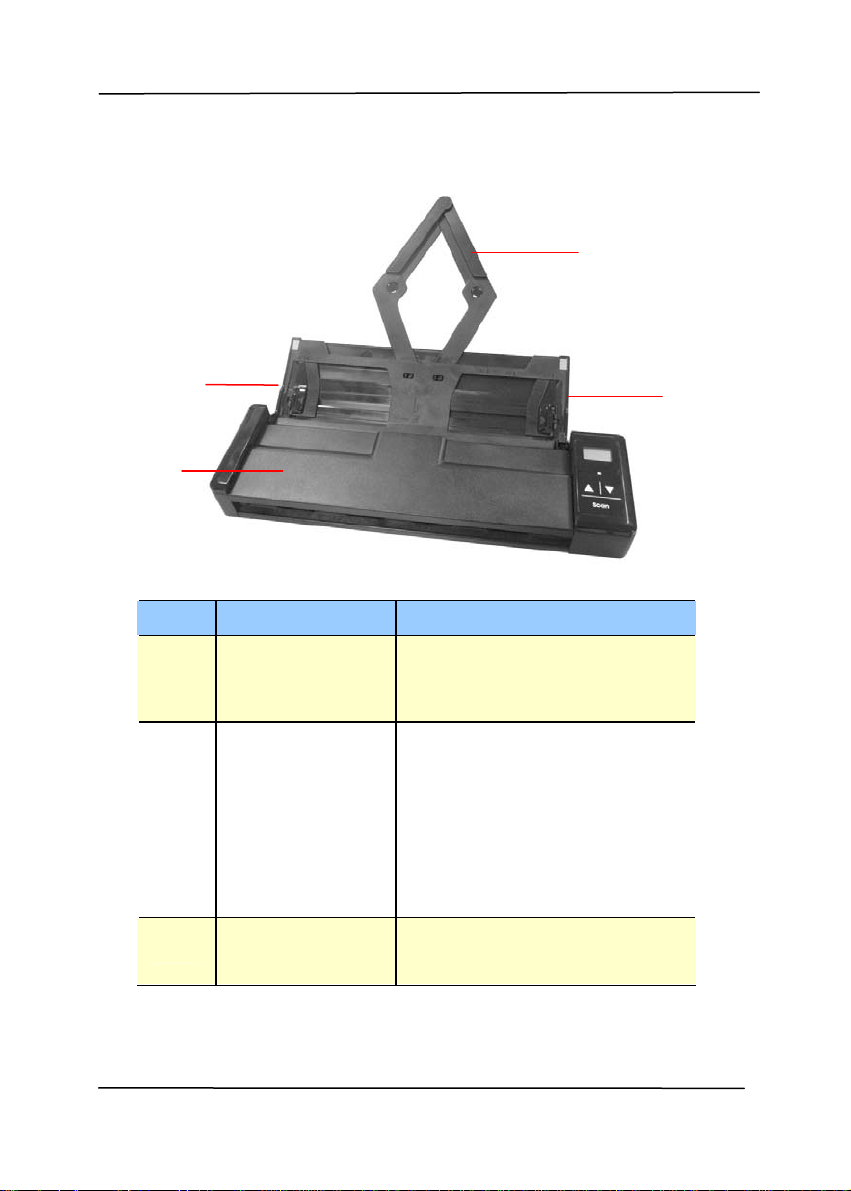
1.2 Front View
Item
Name Description
1
LCD
display
Displays the battery status and
function button via the software
application - Button Manager V2.
2
System
indicator
light
Indicates the operating/warning
status of the scanner.
Solidly lit in green color: The
power is turned on.
Flashing in red color:
Paper is jammed.
A double feed has been
detected and the scanner has
stopped.
The top unit is open.
3
Up/Down
Arrow
Used to scroll up and down to
select your function button via the
software application - Button
Manager V2.
4
Scan
Press to start a scan via the
software application - Button
Manager V2.
5
Feed tray
This tray is used for feeding
documents. Open it when scanning
documents.
1
2
3
4
5
User’s Manual
1-5
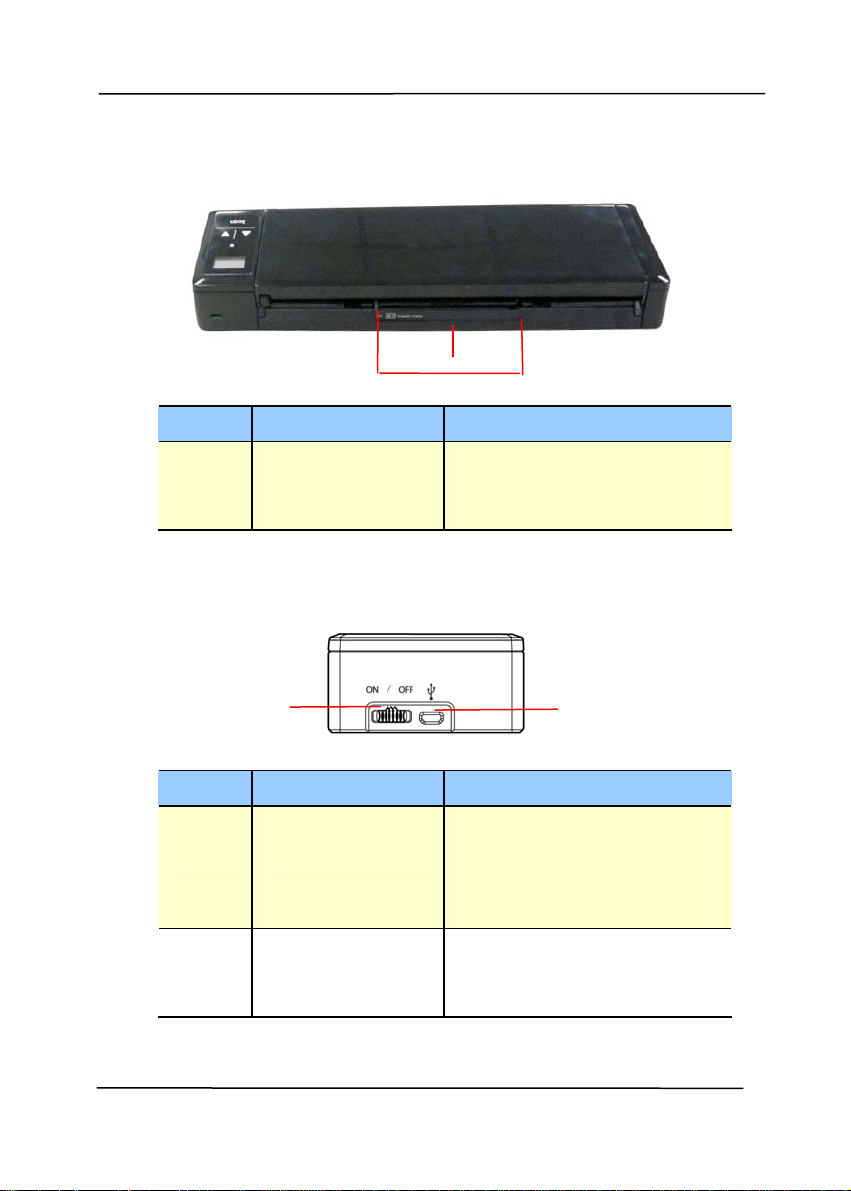
Item Name Description
1
Document
Extension
Plate
Open the plate to support
the document when
loading a long document.
2
Document
Guides
These guides ensure
documents are fed
straight. Raise the guides
when loading a document,
and then align them to the
edges of the document to
be scanned.
3
Feeder Cover
Open this when cleaning
the scanner.
1
2
2
3
User’s Manual
1-6
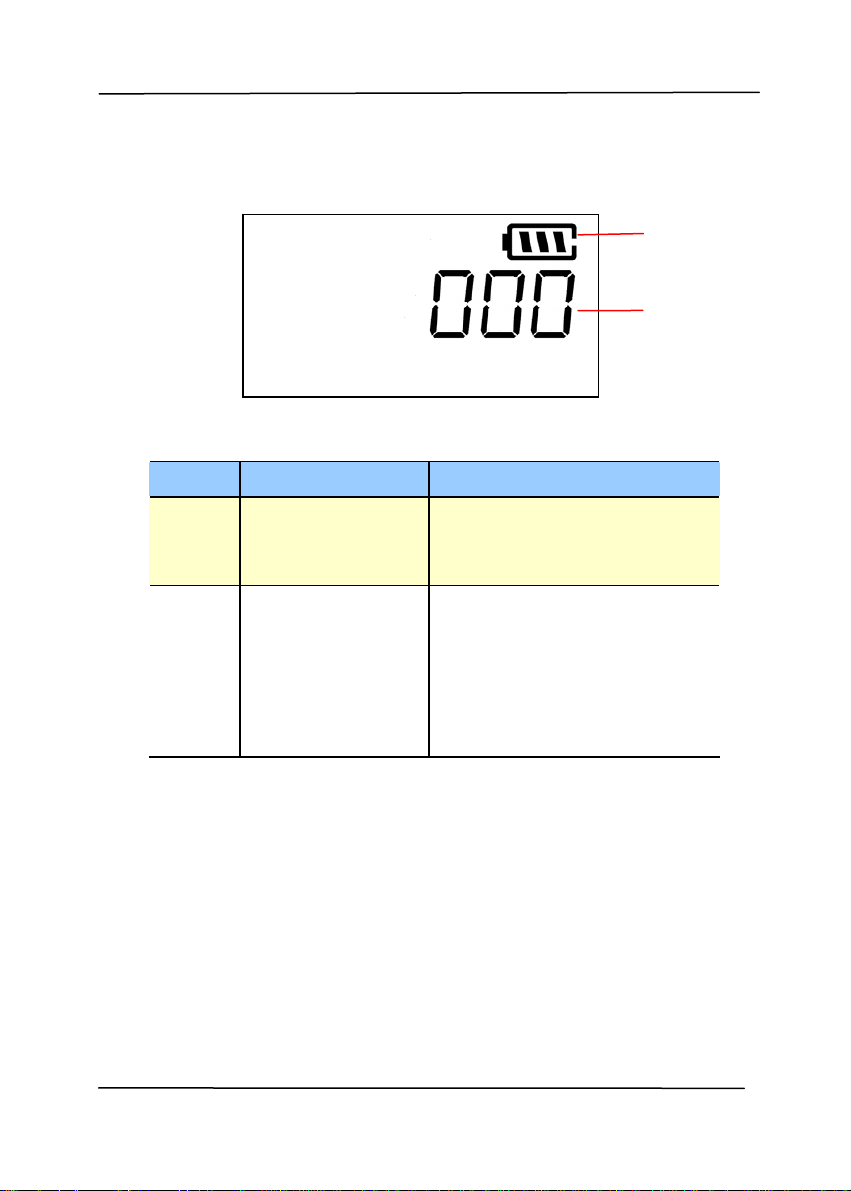
1.3 Rear View
Item Name Description
1
Plastic card
feeder
Used to insert and hold a
business card or a plastic
card.
1.4 Side View
Item Name Description
1 Power switch
Turn to the [ON] position
to power on the scanner
or turn to the [OFF]
position to power off the
scanner.
2 Micro USB port
Used to plug the micro
end of the USB cable to
connect to PC.
2
1
1
User’s Manual
1-7
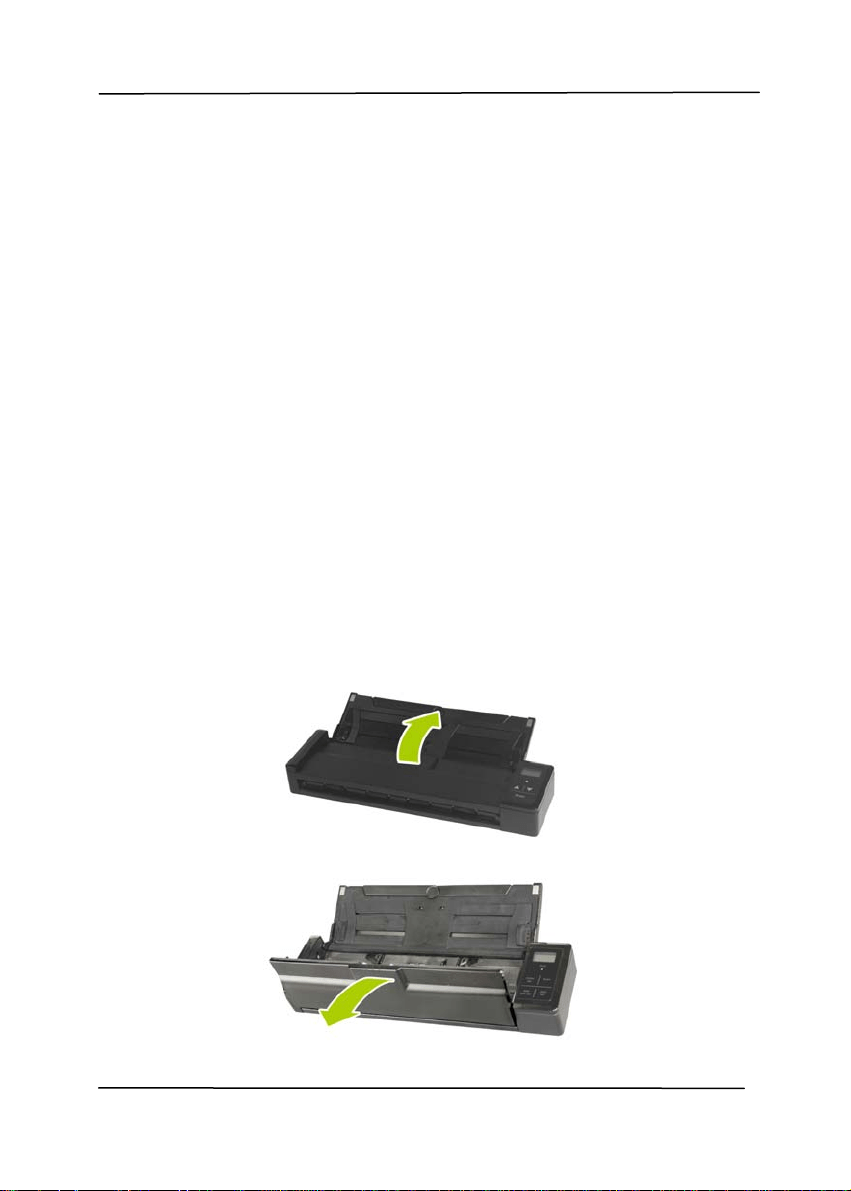
1.5 LCD Display
Item Name Description
1 Battery status
Indicates the power
status of the battery.
2
Button
Number
000: Indicates no
computer has been
connected.
001~009: Indicates the
function number via the
software application –
Button Manager V2.
1
2
User’s Manual
2-1
2. Scanner Installation
2.1 Precautions
Keep the scanner out of direct sunli
ght. Direct exposure
to the sun or excessive heat may cause damage to the
unit.
Do not install the scanner in a humid or dusty place.
Place the scanner securely on an even, flat surface.
Tilted or uneven surfaces may cause mechanical or
paper-feeding problems.
Retain the scanner box an d packing materials for
shipping purposes.
2.2 Installing the Battery
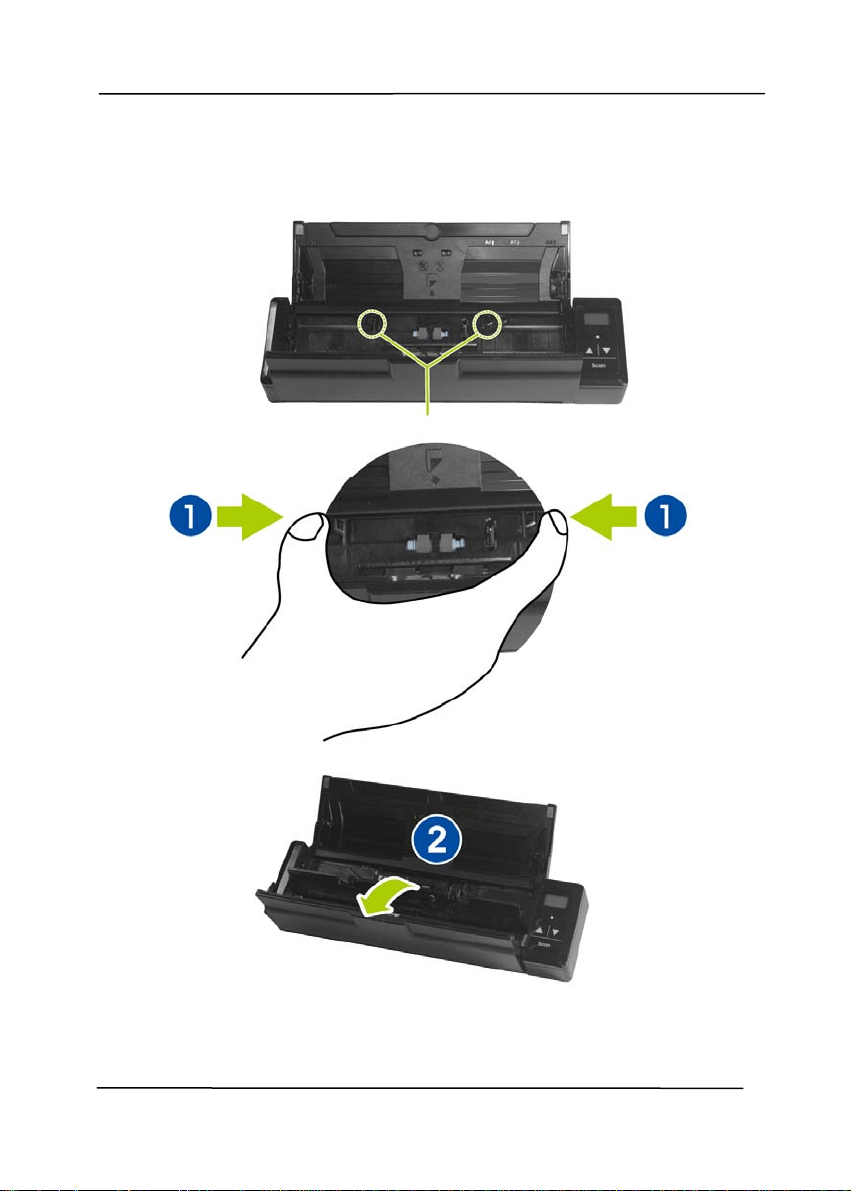
1. Open the feed tray.
2. Open the feeder cover.
User’s Manual
2-2
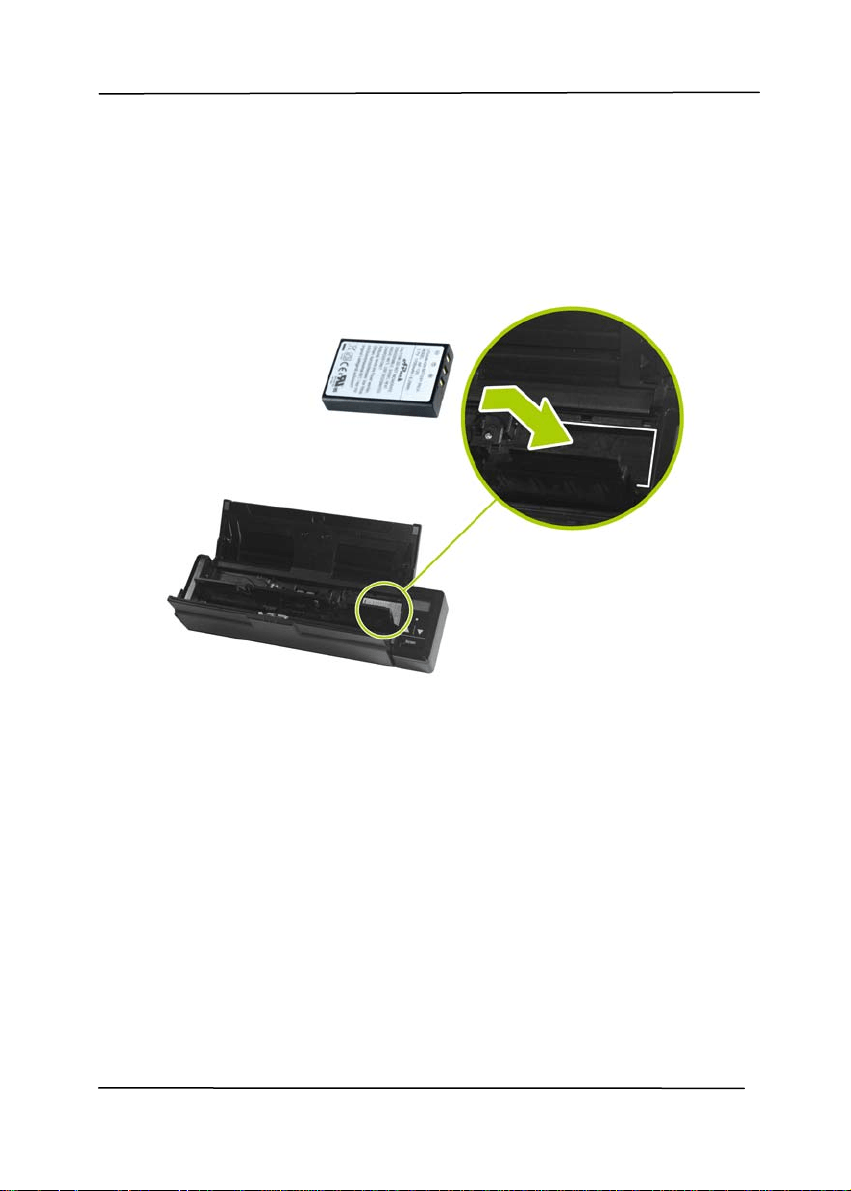
3. Open the battery cover.
User’s Manual
2-3
4. Load the battery into the battery container. Make sure the
battery is loaded with the correct polarity. Note the copper
strips on the battery should be touching the copper strips
on the device. Note: Please use only the supplied battery.
5. Close the battery cover and feeder cover.
2.3 Charging the Battery
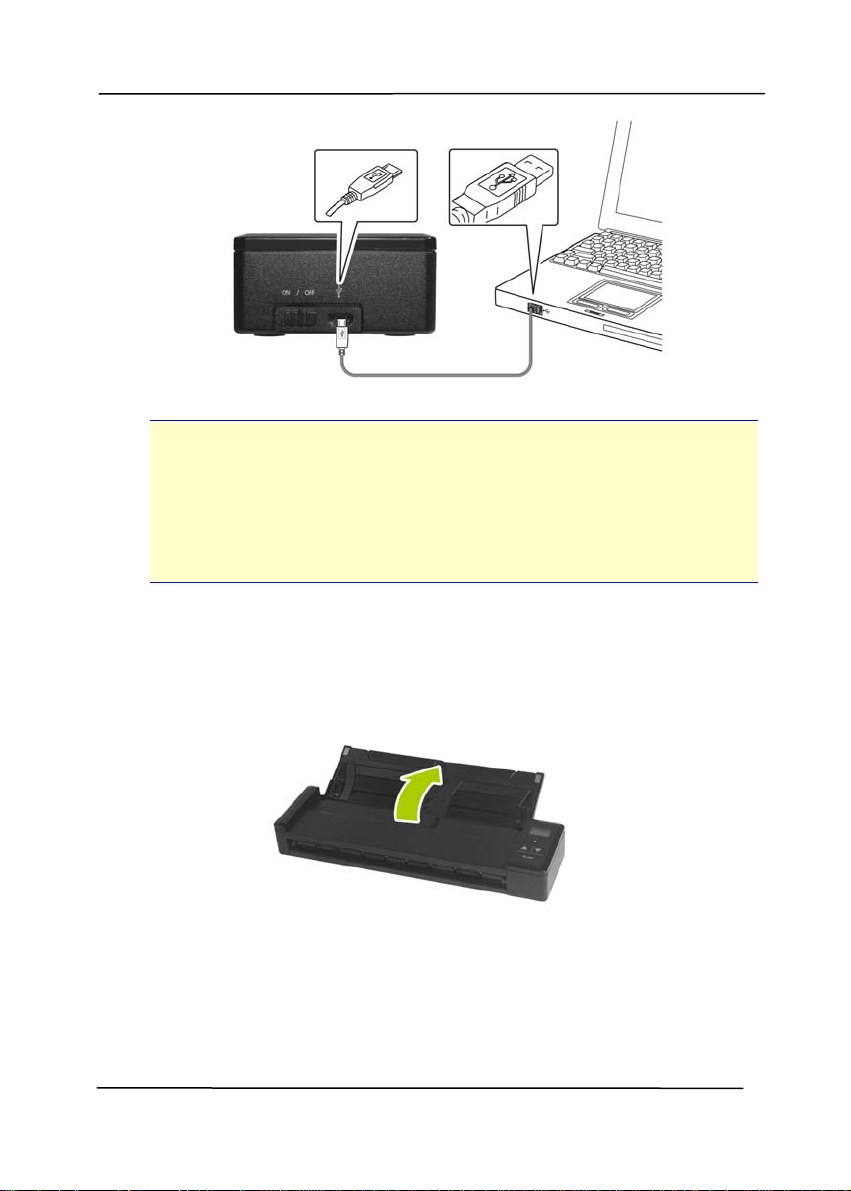
1. Turn off the scanner.
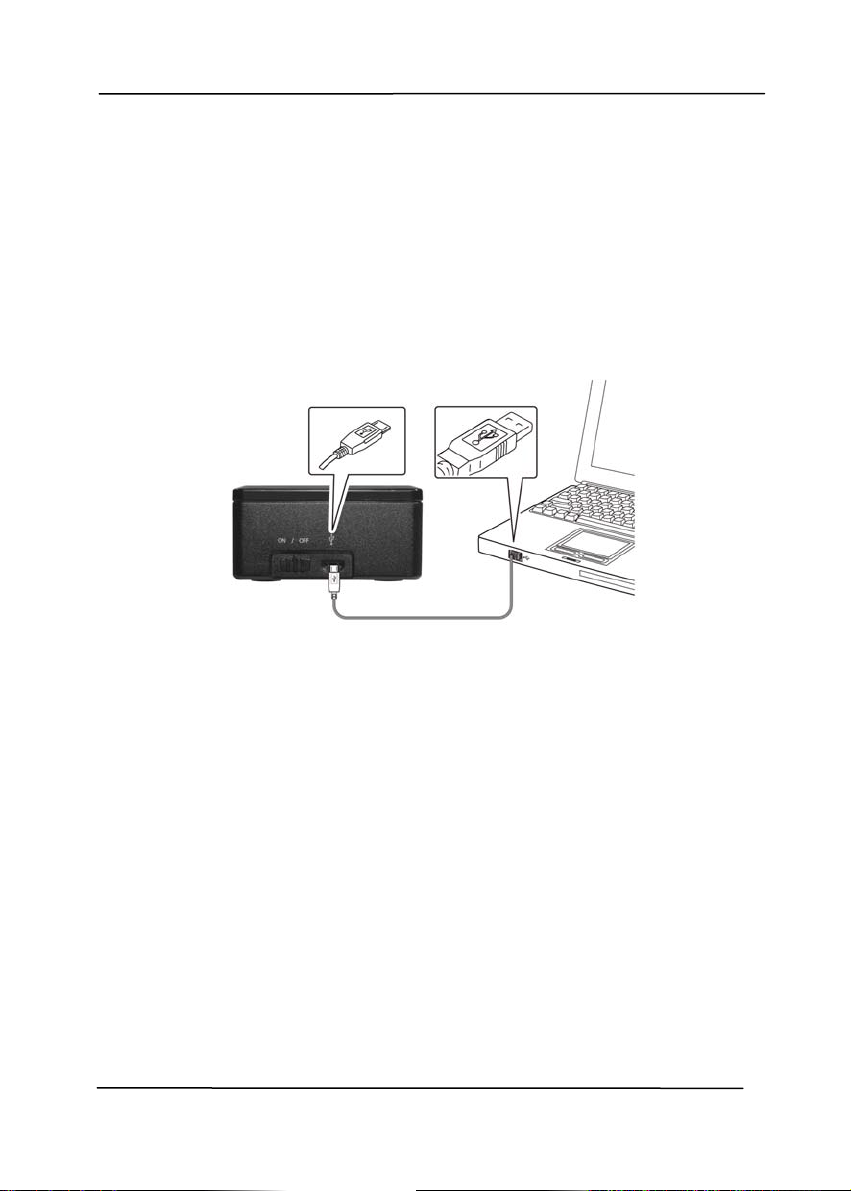
2. Co
nnect the micro USB connector to the USB port of the
scanner.
3. Connect the other USB connector to the USB port on your
computer.
User’s Manual
2-4
Important:
For first-time use, please charge the battery for at least
4 hours.
While charging the battery, the blue LED light will be
solidly on. After the charging is completed, the LED light
will be extinguished.
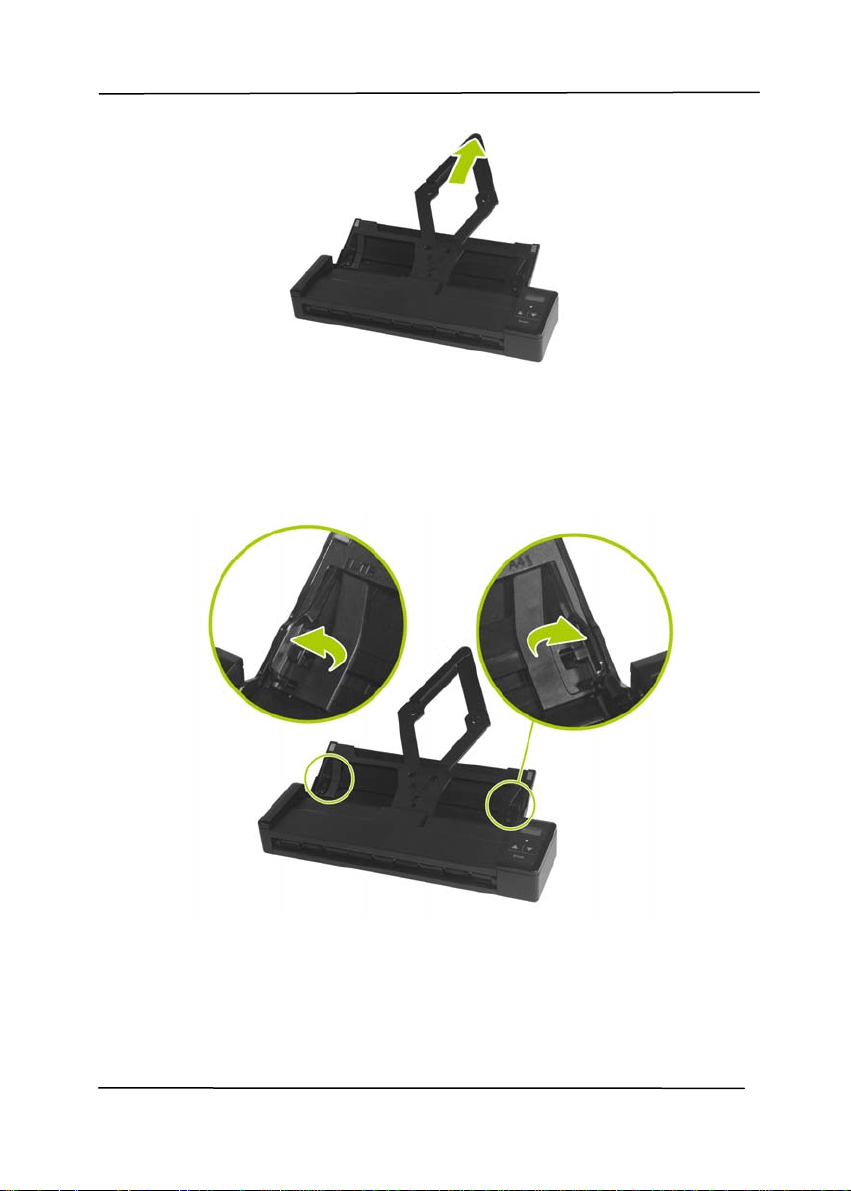
2.4 Installing the Feed Extension Plate
1. Open the feed tray.
2. Open the feed extension plate.
User’s Manual
2-5
3. Raise the right and left document guides to load your
document.

User’s Manual
2-6
2.5 Installing the Scanner Driver
NOTE:
1). To ensure your computer can identify the USB scanner,
please install scanner driver first before connecting the
scanner to your computer.
2). The scanner driver contains TWAIN driver. After the
installation of scanner driver is completed, this scanner
allows you to scan via a TWAIN interface. Start your
TWAIN-compliant image editing software application to
select a TWAIN interface.
1. Place the supplied CD-ROM onto your CD-ROM drive.
2. The software installation graphic appears. If not, run
“setup.exe”.

User’s Manual
2-7
Contents on the installation graphic:
Install Scanner Driver: To communicate with your
scanner, you need to install the scanner driver.
Install Button Manager V2: To use the buttons on
the scanner, you need to install Button Manager V2.
To ensure Button Manager V2 works properly, please
FIRST install scanner driver before installing the
Button Manager V2.
Install Adobe Reader: To view the user’s manuals
for the scanner and Button Manager V2, you need to
use Adobe Reader to open and view the manuals in
pdf file format. If you already have Adobe Reader
installed on your computer, you may disregard this
item.
View Manual: Click “View Manual” to view or
print the detailed user manual for the scanner and
Button Manager V2 respectively.
3. Click Install Scanner Driver t o in stall t he scan ner driv er
and t hen click Install Button Manager V2 t o in stall t he
Button Manager V2 unto your computer. If you have
installed Button M anager V2 bef ore in stalling t he scan ner
driver, you need to restart your computer.
2.6 Turning on the Power
Turn the Power Switch to the [ON] posi
ti
on to turn on the
scanner.
User’s Manual
2-8
2.7 Connecting to a Computer
1. Co
nnect the micro USB connector to the USB port of the
scanner.
2. Connect the other USB connector to the USB port of your
computer. (If you are connecting to a desktop computer,
please connect to the USB port at the rear side of your
computer.)
3. The computer should detect a new USB device and prompt a
“New Hardware Found” message.
4. F ollow the on-screen instructions clicking the [Next] button.
When t he cert ification screen is prompt ed, click [Continue
Anyway] to complete the installation.
5. When the Finish dialog is prompted, click the Finish button.

User’s Manual
3-1
3. Completing Your First
Scan
3.1 Suitable and Unsuitable Original Types
Suitable Original Types
The scanner used with the feeder dock is desi
gned to obtain the
best scanning results with the following types of originals:
Photos and documents (3”x5”, 4”x6”, 5”x7”, 8.5”x14”) (76 x
127mm, 102 x 152 mm, 127 x 177 mm, 216 x 356 mm)
Business cards [standard 3.5” x 2” (88 x 50 mm) or larger]
Document weight: 60 ~ 107 g/m² (16 to 28 lb)
Long Page (216 x 916 mm) (available for 300 DPI only)
Unsuitable Original Types
Do not use the following types of originals for scanning in the
feeder dock, otherwise the feeder dock may malfunction or
cause the original to jam in the slot.
Originals thicker than 0.76 mm
Original with either side shorter than 50 mm
Originals with lots of black or dark colors
Original with dark colors surrounding the edges
Printed media (newspapers, magazines, etc
Soft and thin materials (thin paper, cloth, etc.)
Curl or wrinkle originals
Originals with staples or paper clips.
Originals that exceed acceptable size – 8.5” (width) x
14”(length) (216 x 356 mm) (in 600 dpi)

User’s Manual
3-2
3.1.1 Loading Your Document in the ADF Paper Tray
Fanning Your Document
Note:
To avoid occasional multi-feeds or paper jams, please fan
your documents and align the top edges before feeding them
into the scanner. The auto document feeder can hold up to 8
pages (75 g/m
2
, 20 lbs) at a time.
1. Hold both ends of the documents and fan them a few
times.
2. Rotate the documents by 90 degrees and fan them in the
same manner.
3. Align the edges of the docume nts in a st ep-like pat tern
(see picture below).
Step-like
Scanning
Direction
User’s Manual
3-3
Document Feeding
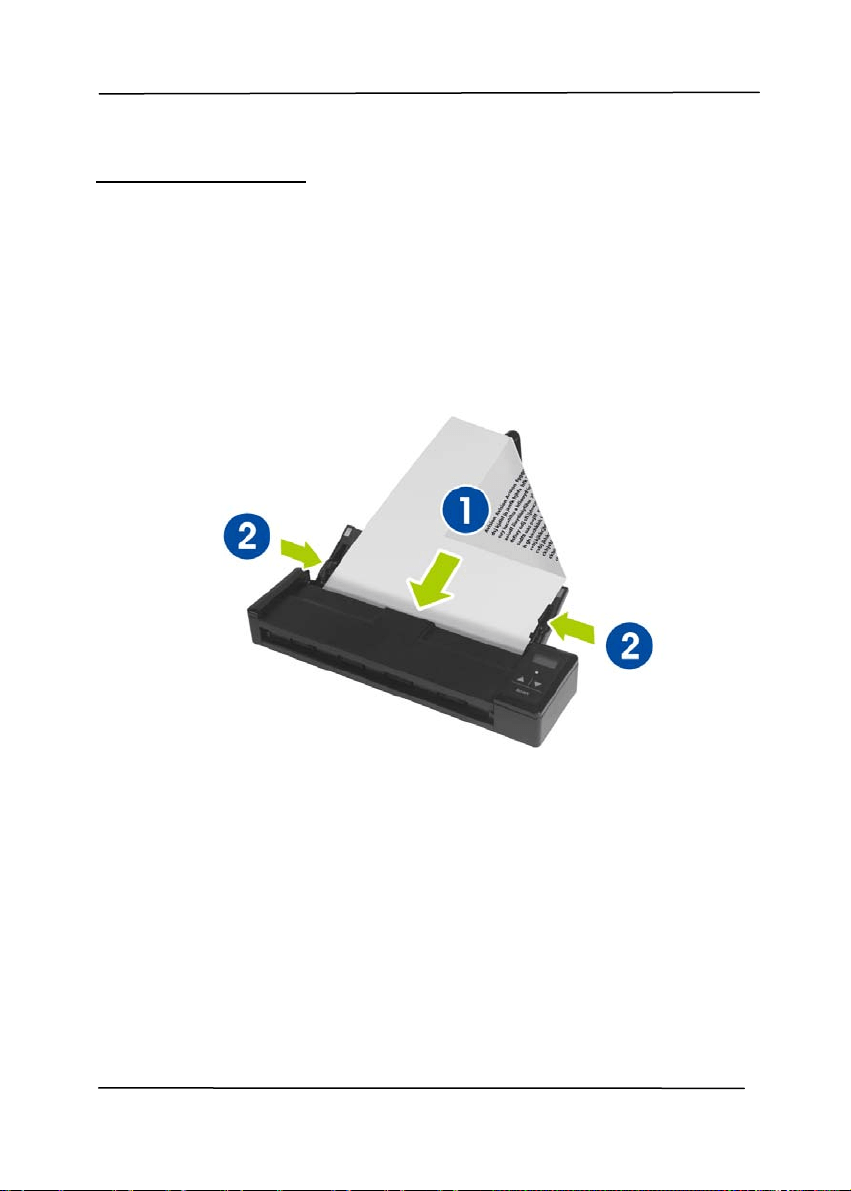
1. Load the stack of document FACE DOWN with the top of
the pages pointing into the feeder. Up to 8 pages of plain
paper can be loaded at one time in the feeder.
2. Make sure the document gu ides are aligned with the
edges of the stack.
User’s Manual
3-4
3.1.2 Loading Your Card
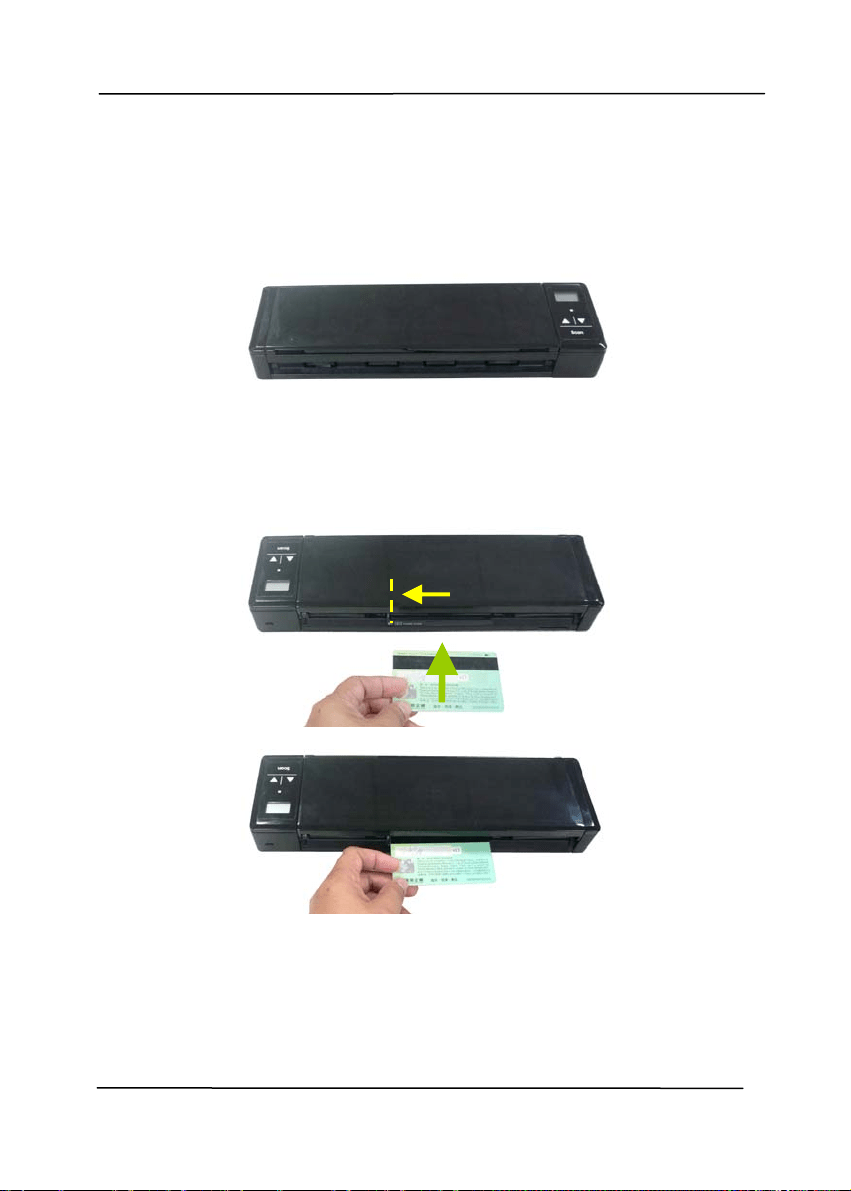
1. Make sure the feeder cover and paper tray are closed as
shown.
2. Insert your plastic card FACE DOWN, TOP EDGE FIRST
into the scanner’s feeding slot for cards at the back of the
scanner, align it to the left edge of the slot (
), and gently
push the card into the feeding slot (
) as indicated.
User’s Manual
3-5
3.2 Verifying Your Scanner Installation
T
o v
erify if your scanner installation is correct, Avision provides
you a useful test program called Avision Capture Tool. With this
tool, you can perform simple scans and view the captured
images. In addition, it helps you complete your scan at a rated
speed.
The following procedure describes how to verify your scanner
installation. If the installation is not correct, please review the
preceding section to check if the cable connection and scanner
driver have been successfully installed.
Before you begin, be sure the scanner is on.
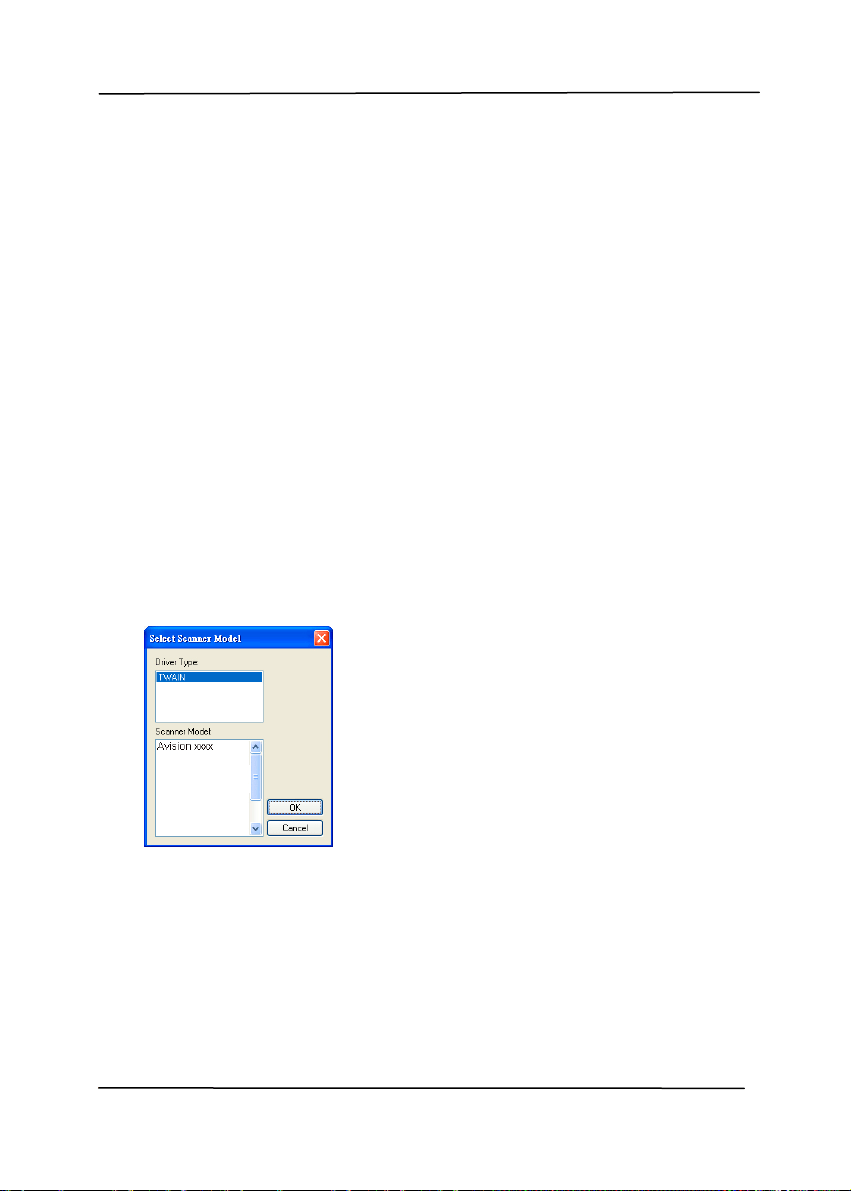
1. Select Start>Programs>Avision xxx Scanner>Avision
Capture Tool. The Select Scanner Model dialog box will be
displayed.
2. Select your driver type and scanner model and click OK.
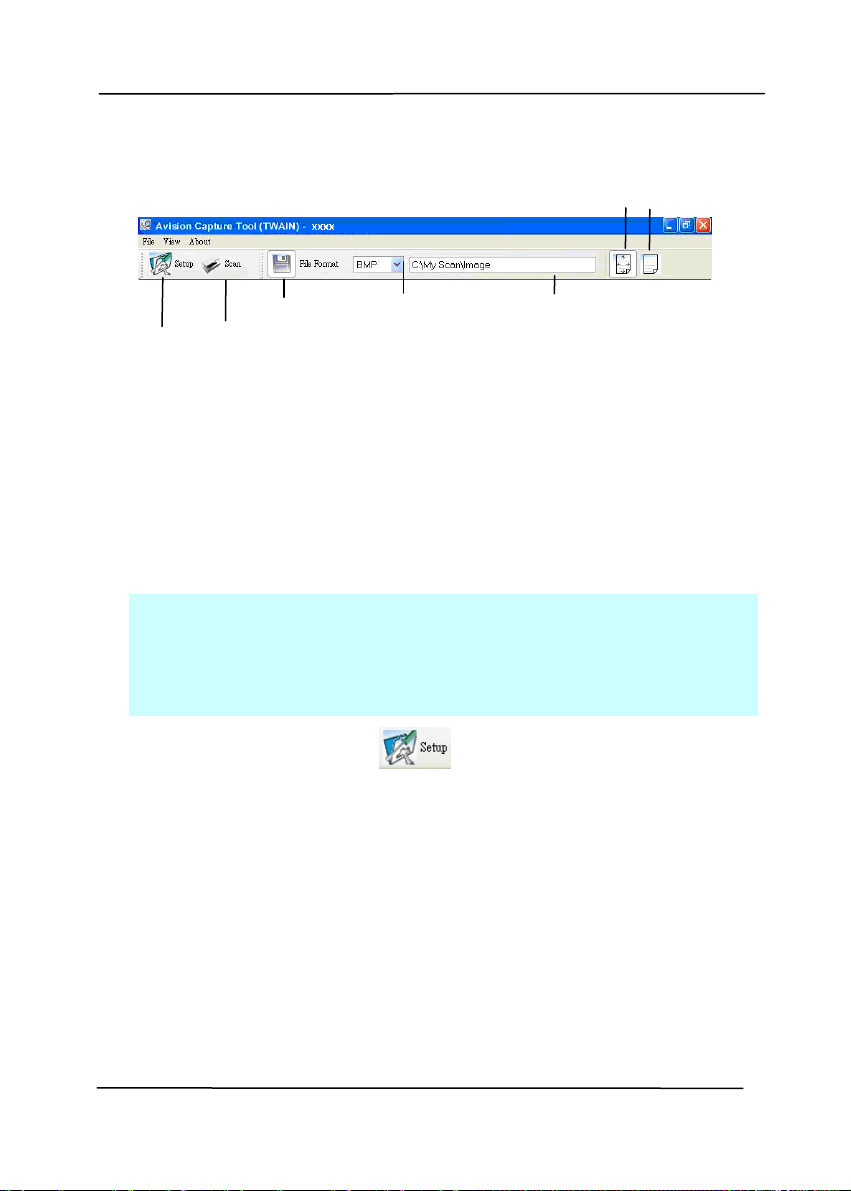
The following Avision Capture Tool dialog box will be
displayed.
User’s Manual
3-6
3. Choose your desired file format from the File Format drop
down list box. (Default is JPEG, other choice includes TIFF,
MTIFF, PDF, MPDF, GIF, and BMP.) The supported file
formats vary depending on your scanner model.
4. Type your desired folder name and file name in the File Path
box. (Default is C:\Documents and Settings\user Name\My
Documents\My Scan\Image.)
Note: If you do not wish to save the scanned image,
deselect the Save button since default is Save Enable. In this
case, the thumbnail view will be disabled. And therefore,
after viewing all the scanned images, only the last one will
remain on the screen.
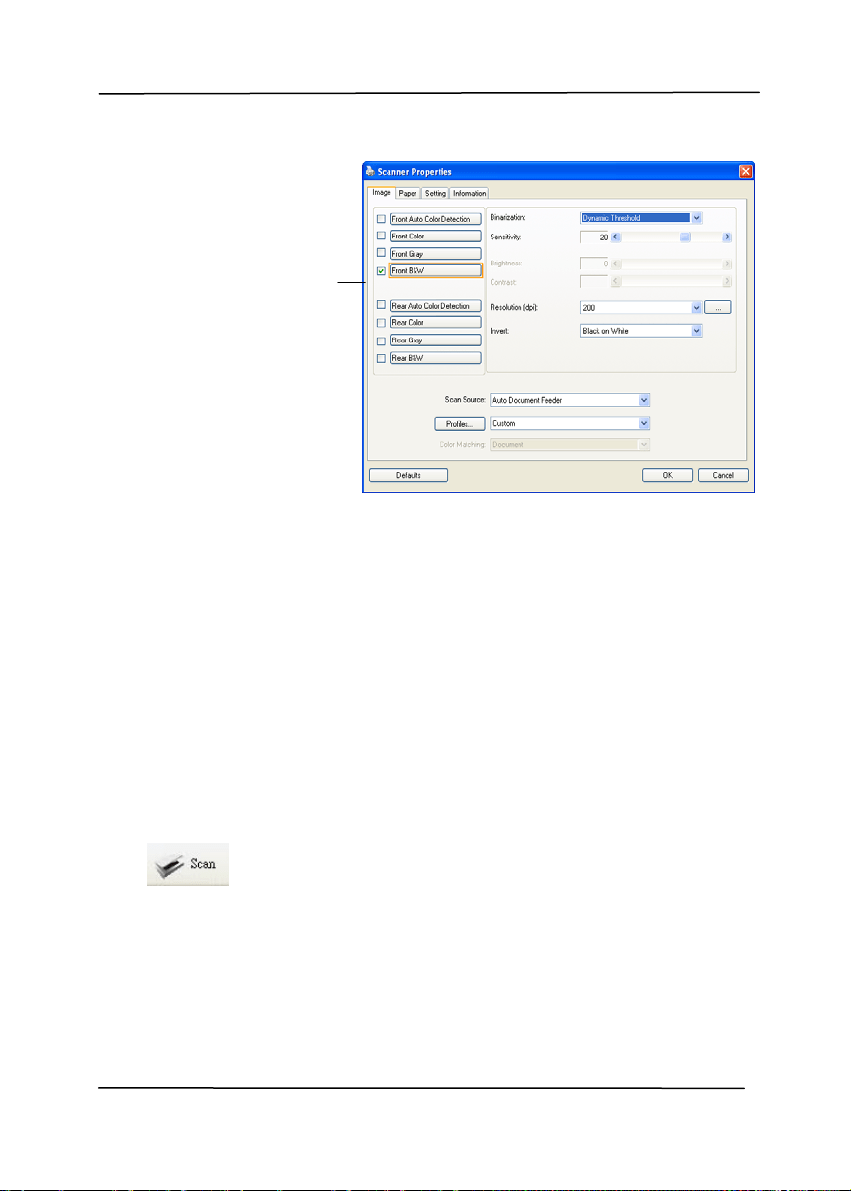
5. Click the Setup button (
) or choose Setup from the
File menu to prompt the Scanner Properties dialog box.
Setup
Actual
Size
Fit
Page
Scan
File Format
Save File Path
User’s Manual
3-7
6. From the Image Selection Box, choose your desired image
type for your scanned image. (Default is Front B&W) If you
have a duplex scanner, choose Front and Rear to scan both
sides of your document.
7. Click OK to quit the Scanner Properties dialog box. (To
learn more details about the Scanner Properties dialog box,
please see the subsequent chapter, Using the Scanner
Properties Dialog Box.)
8. Place your document face down on the document glass or
face up in the auto document feeder.
9. In the Scan Validation dialog box, click the Scan button
(
) or choose Scan from the File menu.
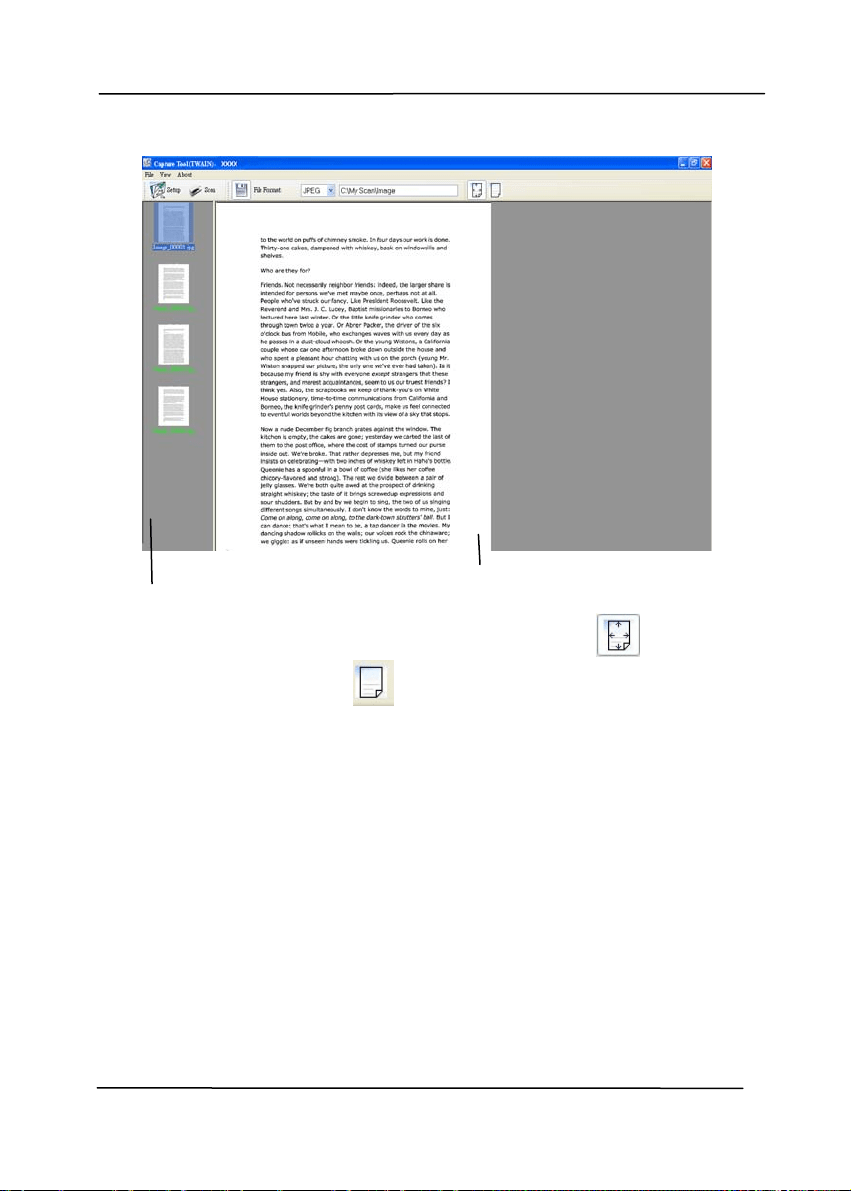
10. The document will be scanned and displayed in the Scan
Validation screen. After the scanned images have been
displayed, your scanner installation verification is completed.
Image
Selection
Box
User’s Manual
3-8
11. You can view the scanned image in Fit Page (
) or Actual
Size (100%) button (
) from the Viewing toolbars at the
right side.
12. Click the Close box or Quit from the File menu to exit the
Scan Validation Tool.
Fit Page View
Thumbnail View
User’s Manual
3-9
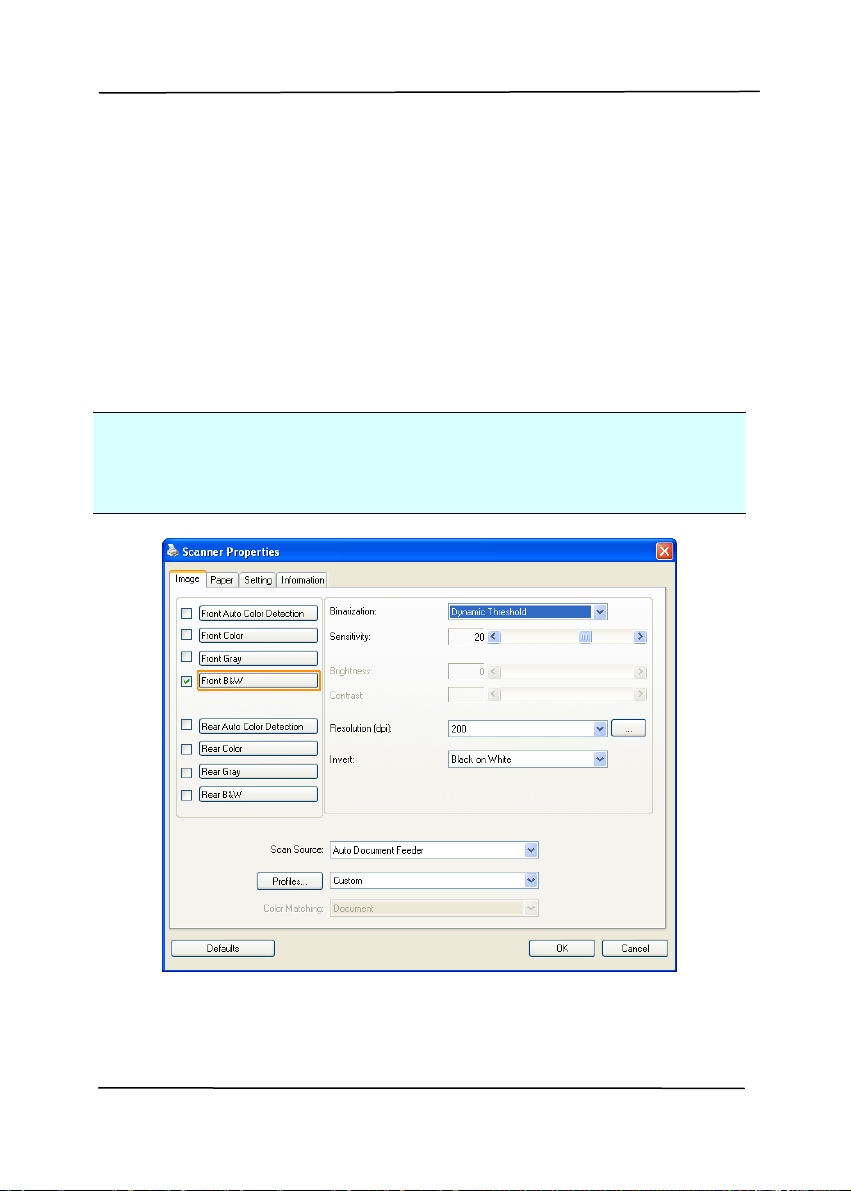
3.3 A Glance of the Scanner Properties Dialog Box
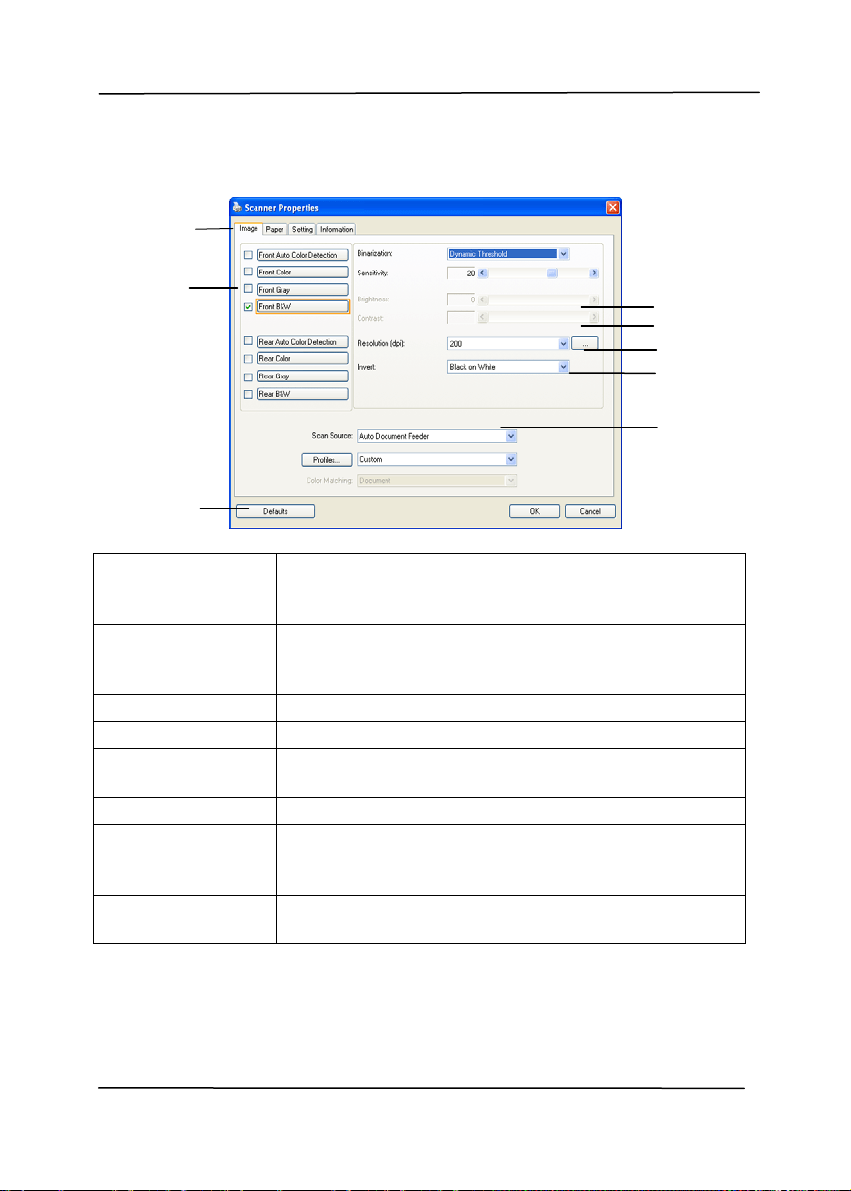
1. Tab Options Choice: Image, Compression, Color Dropout,
Paper, Multi-Feed Detection, Preview, Options,
Settings, Information.
2. Image
Selection Box
Choose your image type and the side of
document you wish to scan. Options vary
based on type of scanner.
3. Brightness Adjust the brightness level from –100 to +100.
4. Contrast Adjust the contrast level from –100 to +100.
5. Resolution
Determine the quality of the scanned image.
The industry standard is 200 dpi.
6. Invert Reverse the color of your scanned image.
7. Scan Source
Choice: Auto Document Feeder, Flatbed,
Flatbed (Book), Automatic (varies due to
different scanner model)
8. Defaults Reset all values on the tabs to the factory
default settings.
3
4
5
6
7
1
2
8
User’s Manual
4-1
4. Using the Scanner
Properties Dialog Box
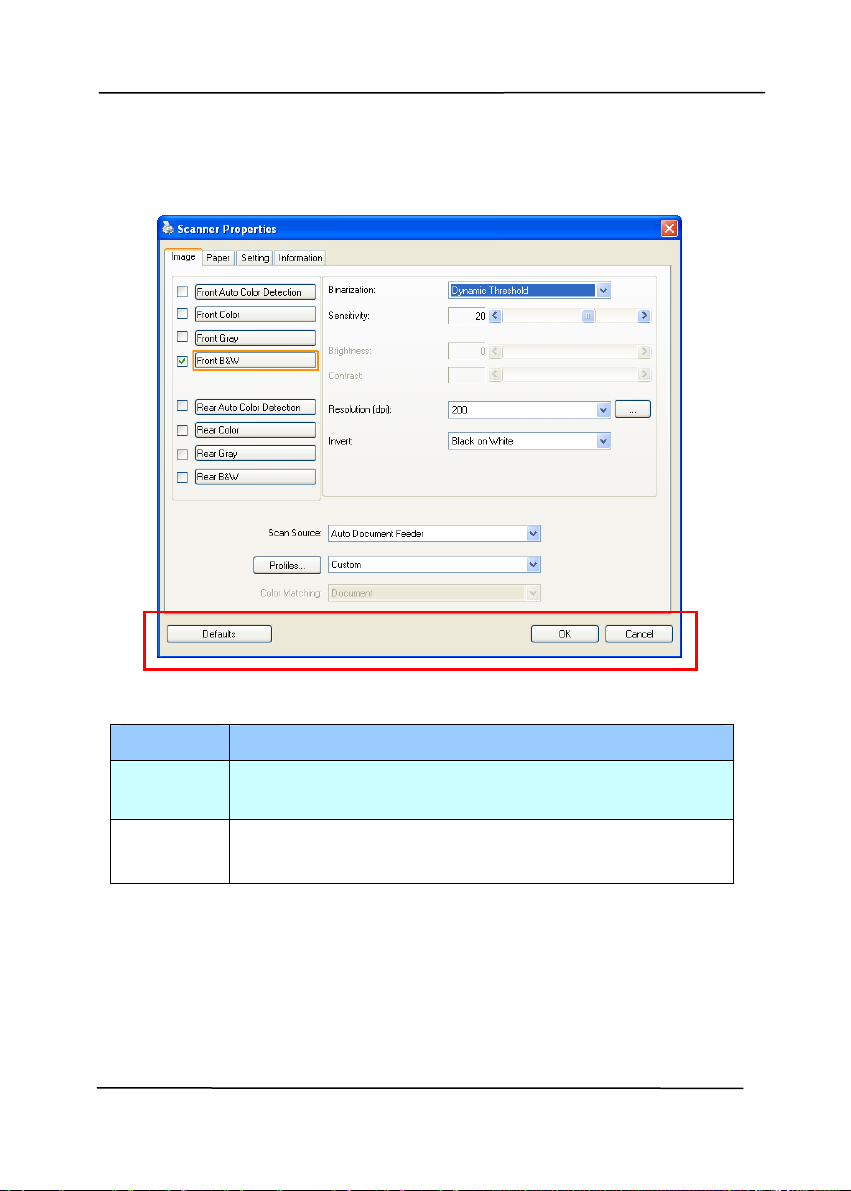
The Scanner Properties dialog box allows you to configure the
scanner’s settings. It consists of several tabbed windows each
of which will be described in this chapter.
Note: In this chapter, all options are available based on a
duplex (double-side) scanner. If you have purchased a simplex
(single-side) scanner, all options are available for single sided
only.
The Scanner Properties dialog box
User’s Manual
4-2
4.1 Buttons on the Scanner Properties Dialog Box
The buttons on the Scanner Properties dialog box
Buttons
Description
Defaults Click the Defaults button, the factory default
settings will be shown on each tab.
Cancel Click the Cancel button to leave the Scanner
Properties dialog box.

User’s Manual
4-3
The following table shows the default settings:
Tab name Default settings
Image Image:Front B&W
Binarization:Dynamic Threshold
Resolution:200 dpi
Invert:Blank on White
Scan Source:Auto Document Feeder
Threshold:None
Brightness:None
Contrast:None
Compression None
Color Dropout
None
Paper Cropping:Automatic
Deskew:Yes
Orientation:Portrait
OverScan:0.00
Unit:Inch
Multi-Feed
Detection
None
Preview None
Options Rotation Degrees:None
Blank Page Removal:None
Edge Fill:White,0 mm
Image Control Option:None
Setting Enable Energy Saver:Enable, 15
minutes after last scan action
Show Scanning Progress:Yes
Show Warning Message:Yes
Save Settings after Closing:Yes
Imprinter Digital Imprinter

User’s Manual
4-4
4.2 Showing or Hiding Tabs
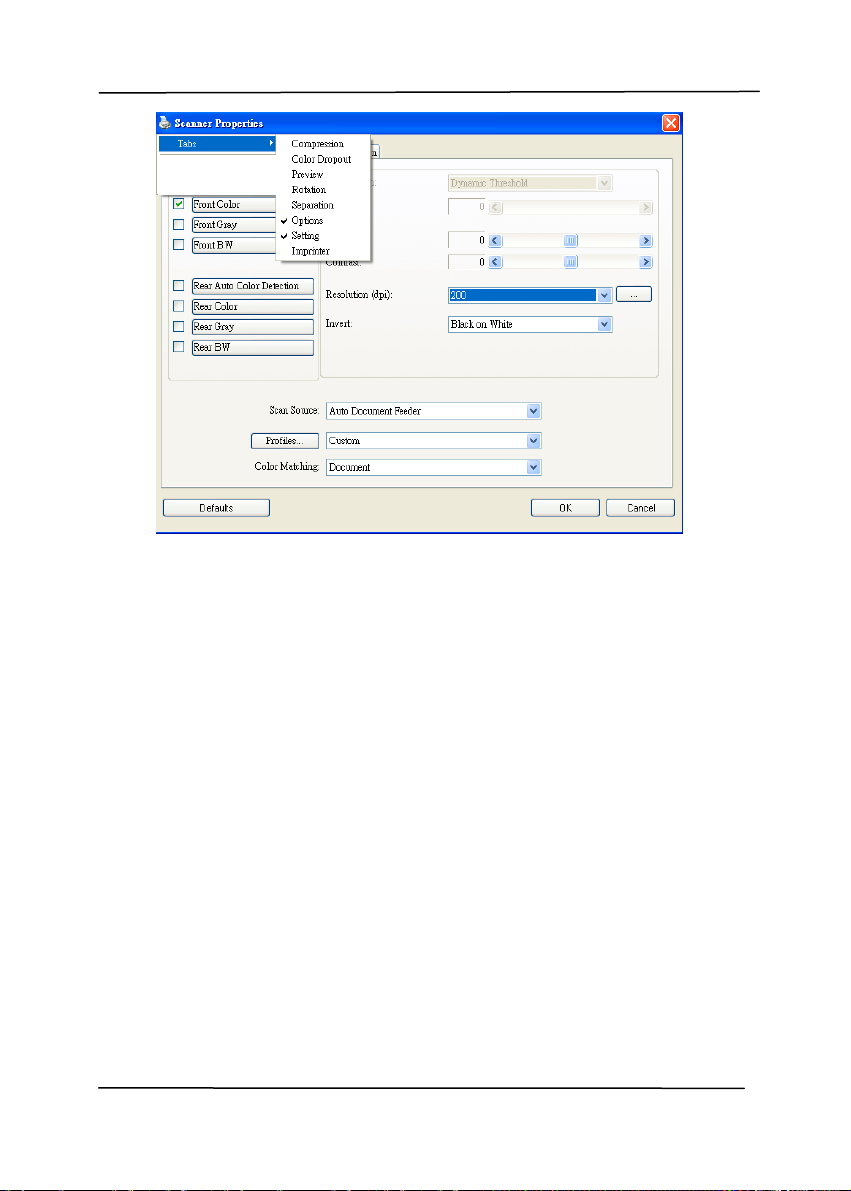
The [Scanner Properties] dialog box is displayed in default
with three basic tabs - Image, Paper, and Information. To
show more tabs, click the [Scanner Properties] icon to access
more scan settings.
To show more tabs,
1. Click the [Scanner Properties] icon (
) on the upper
left corner, and choose [Tab ] to show available tab
names. The available tabs include Compression, Color
Drop out, Preview, Rotation, Separation, Multi-Feed,
Options, Settings, and Imprinter. (Note: the options vary
based on scanner model.)
2. Choose the tab you want to display. The selected tab will
be shown with a check mark and then displayed in the
[Scanner Properties] dialog box.
3. To access the settings, click the selected tab on the top of
the [Scanner Properties] dialog box. The page of the
selected tab will be displayed.
To hide a tab window,
1. Click the [Scanner Properties] icon (
) on the upper
left corner, and choose [Tabs] to show available tab
names.
2. Choose the tab you want to hide. Then, the selected tab
will be hided in the [Scanner Properties] dialog box.
Note: The [Image], [Paper], and [Information] tab can
not be hided since they preprogrammed to be displayed by
default.
User’s Manual
4-5
User’s Manual
4-6
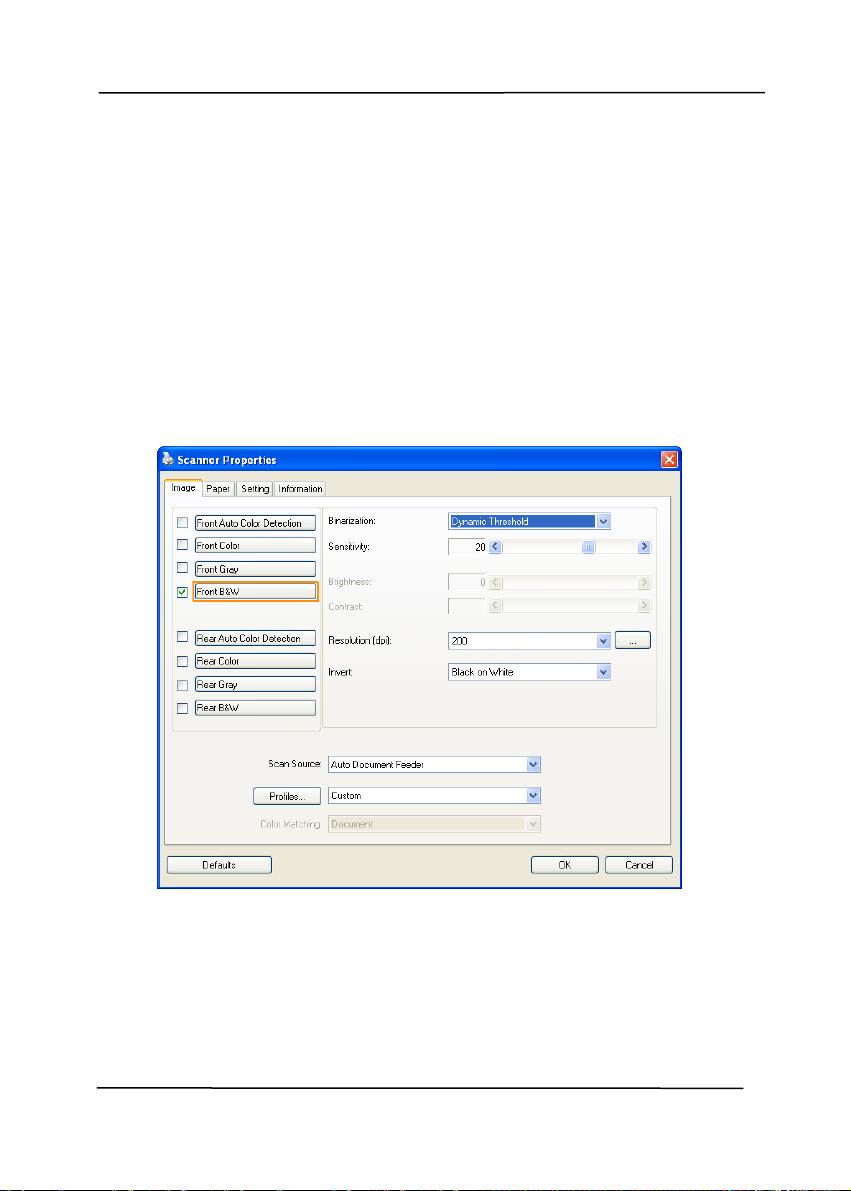
4.3 The Image Tab
The Image tab allows you to choose the front side and (or) the
rear side of your document, the type of image, and to set
several basic scan settings. Note that except for the resolution,
you can set individual scan settings for the front side and the
rear side. For example, all settings in the Image tab,
Compression tab, Color Dropout tab can be set individually for
the front and the rear side. However, the settings in the Paper
tab, the Option tab, and the Setting tab have to be set the
same for the front and rear side.
The Image tab dialog box
User’s Manual
4-7
4.3.1 The Image Selection Box
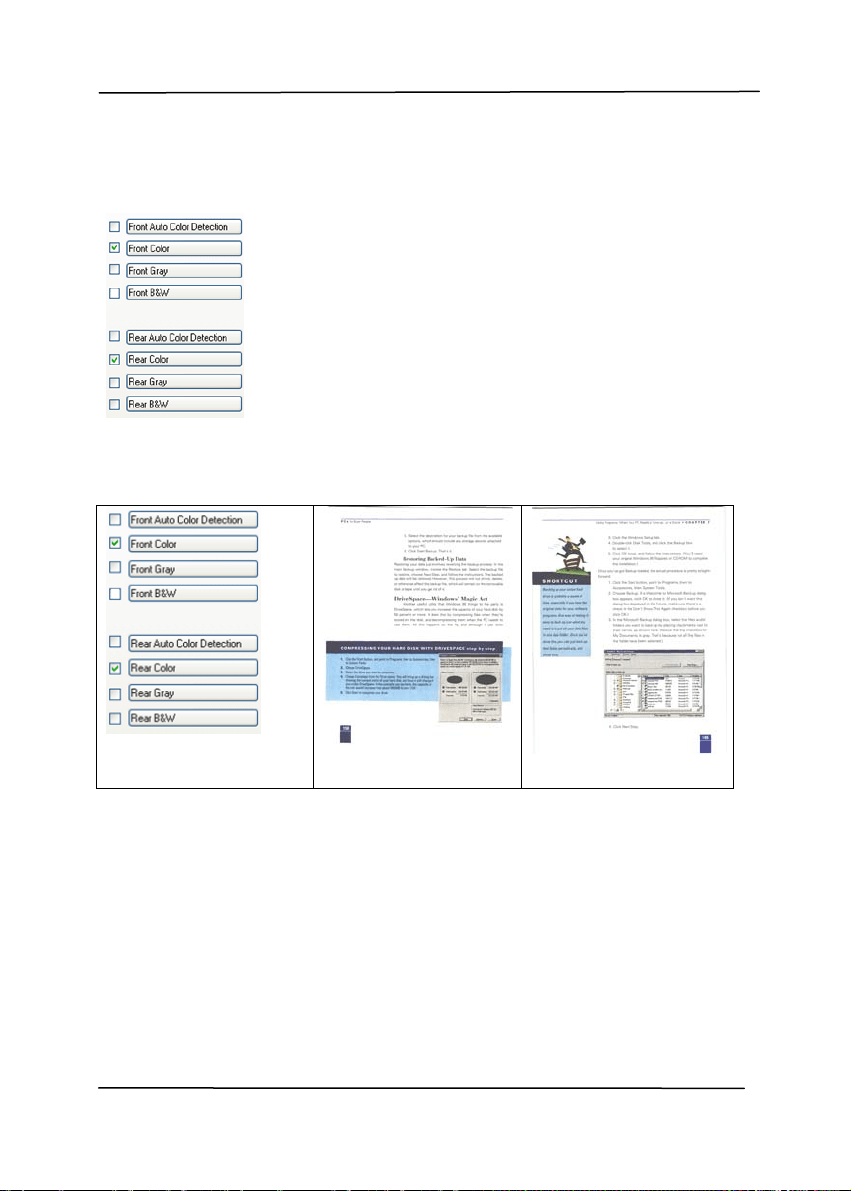
The Image Selection box includes the
image type and document side option. If
you wi sh to scan both the front si de and
the rear side of your color document, you
can check both Front Color and Rear Color
at the same ti me. Note the options vary
based on type of scanner.
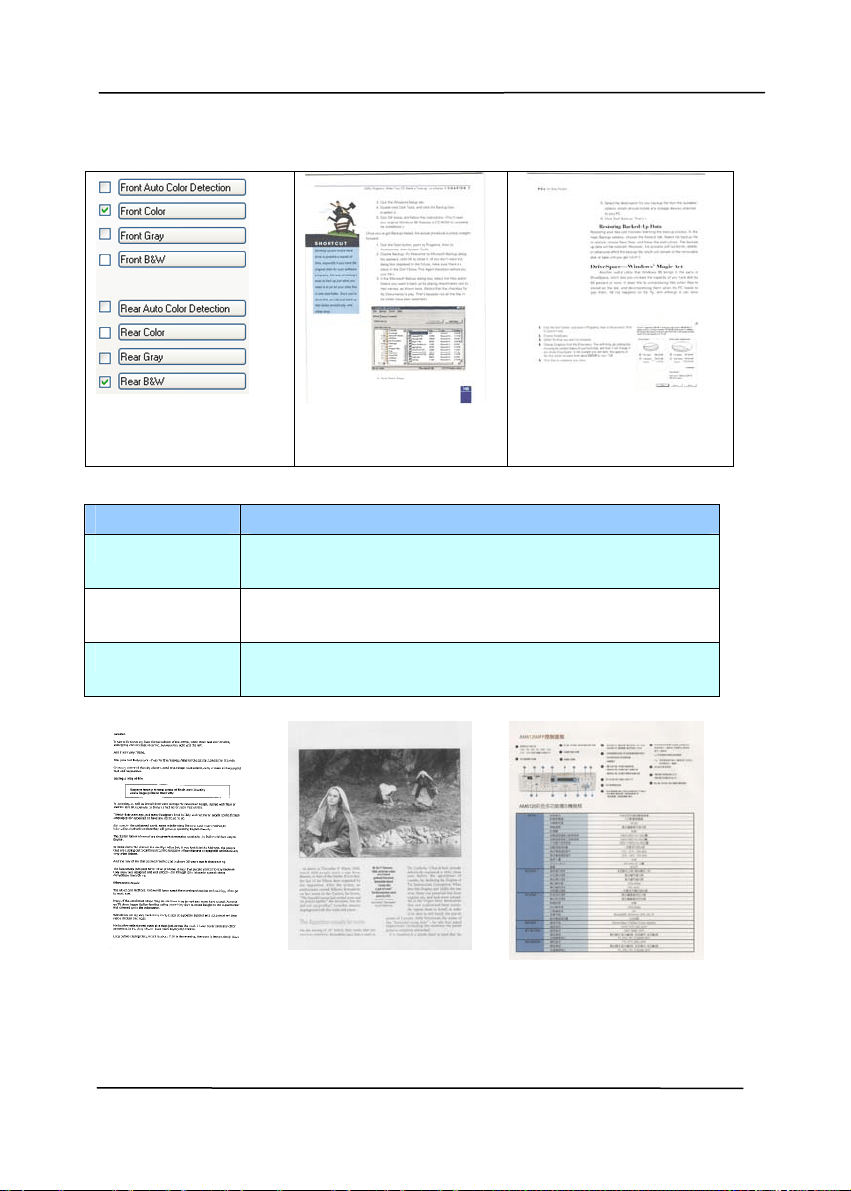
Example 1:Scanning a two-sided color document, both
sides in color
Side/Image
Selection
Front
Rear
User’s Manual
4-8
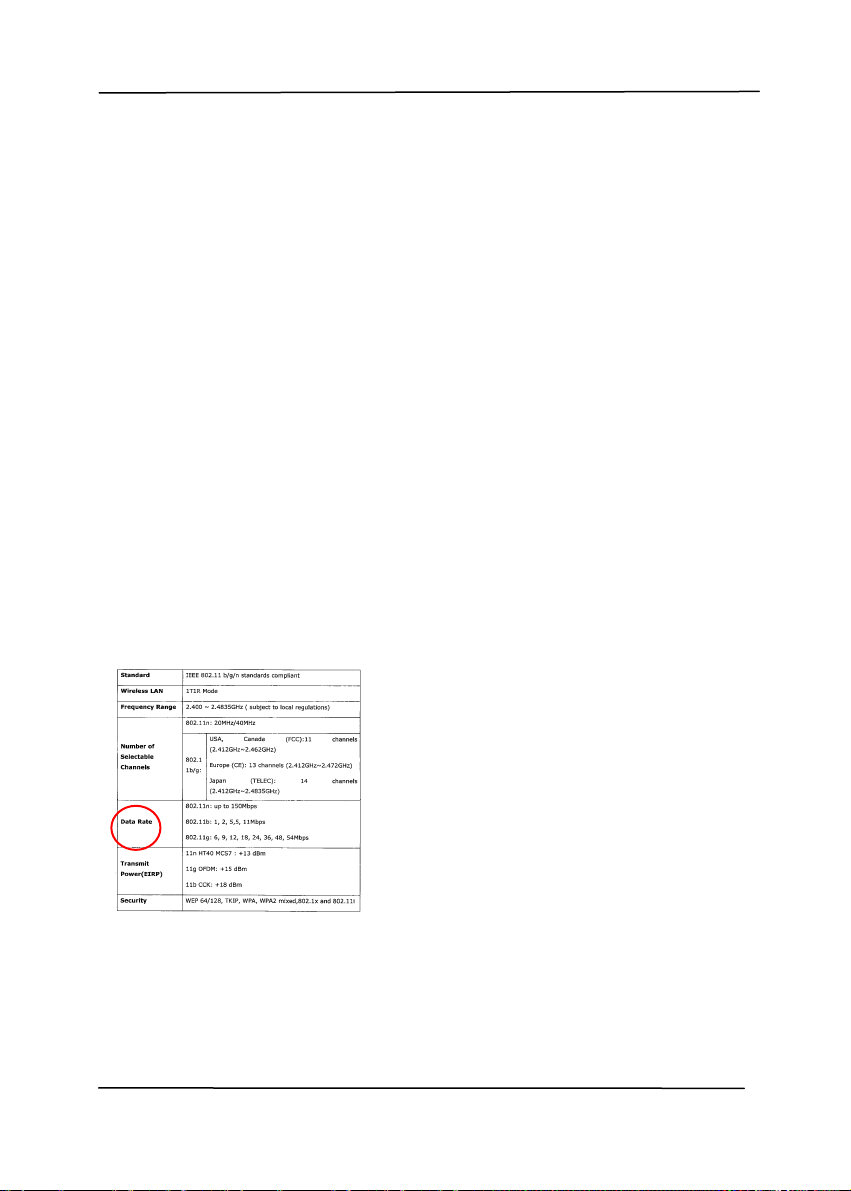
Example 2:Scanning a two-sided color document, one
in B&W, the other in color
Side/Image
Selection
Front
Rear
Image Type Description
Color Choose Color if you wish to scan a color
image for your original in color.
Gray Choose Gray image if your original contains
actual shades of gray.
B&W Choose B&W if your original contains only
text, pencil or ink sketch.
B&W Gray Color
User’s Manual
4-9
Front/Rear Auto Color Detection:
Click to automatically detect and scan the front or the rear
page of your color document in color image mode. If your
document is in colors, the scanner will automatically scan the
document into a color image. If your document is non-color,
you can choose the output to be either B&W or Gray from the
Non-Color Selection option. This option is useful when you
have a mixture of color and non-color document.
Note: If you choose Front Rear Auto Color Detection, you can
not specify the image mode of your rear page and vice versas.
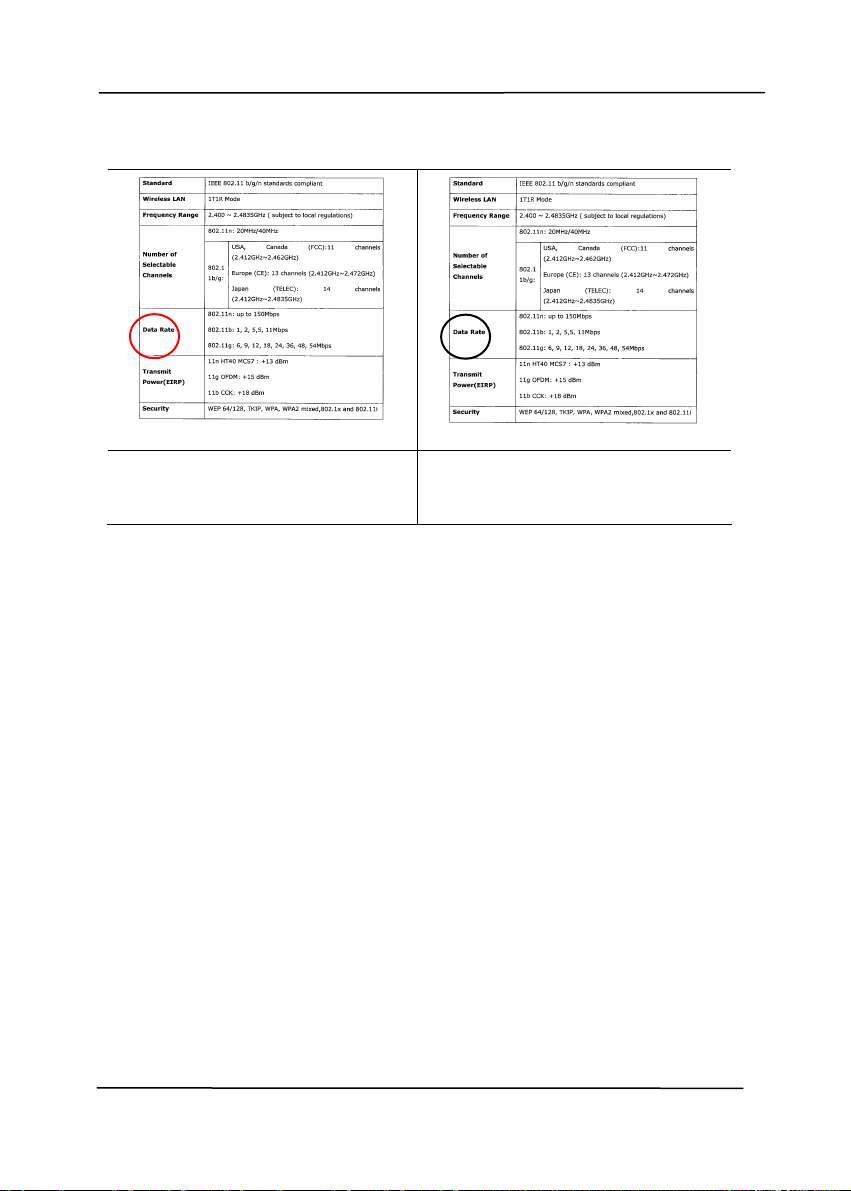
Sensitivity of Auto Color Detection
If your documents contain primarily B&W text and small
amount of light or pale colors and you do not wish them to be
recognized as color image to save the file size, you can
increase the sensitivity value to let these images to be detected
as B&W. The value ranges from 1 to 100. The default is 37.
Original
User’s Manual
4-10
Sensitivity: 1
(The image is recognized as
a color one)
Sensitivity: 100
(The image is recognized as
a black and white one)

User’s Manual
4-11
4.3.2 Other Image Options
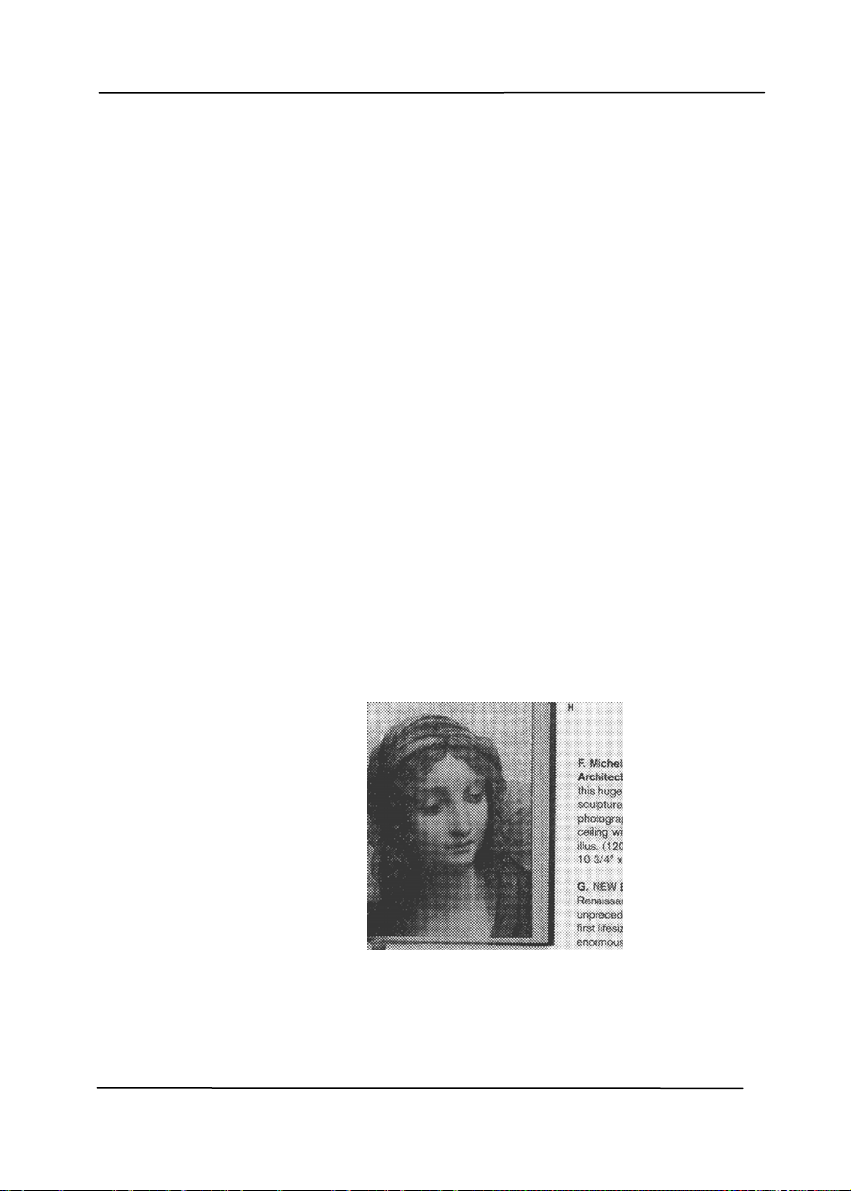
Binarization This is the process of converting a
grayscale or color image to a bi-tonal
image. There are several different
methods of performing this conversion.
Options: Dynamic Threshold, Fixed
Processing, Halftone 1~5, Error
Diffusion.
Dynamic Threshold:
Selecting
Dynamic Threshold allows the scanner
to dynamically evaluate each document
to determine the optimal threshold value
to produce the highest quality image.
This is used to scan mixed document
containing faint text, shaded background,
or color background with a single setting.
If Dynamic Threshold is selected,
Threshold, Brightness, and Contrast are
not available.
Sensitivity of Dynamic Threshold
Occasionally your scanned image may
contain small dots or speckles. To remove
these spots, increase the sensitivity value
by moving the bar to the right. The value
ranges from 1 to 30. The default is 20.
User’s Manual
4-12
Fixed Processing: Used for black-and-
white and other high contrast documents. A
single level is set to determine the black-
and-white transition. The threshold is
programmable over the entire density
range. Fixed Processing sets Contrast to
0. If Fixed Processing is selected,
Contrast is not available.
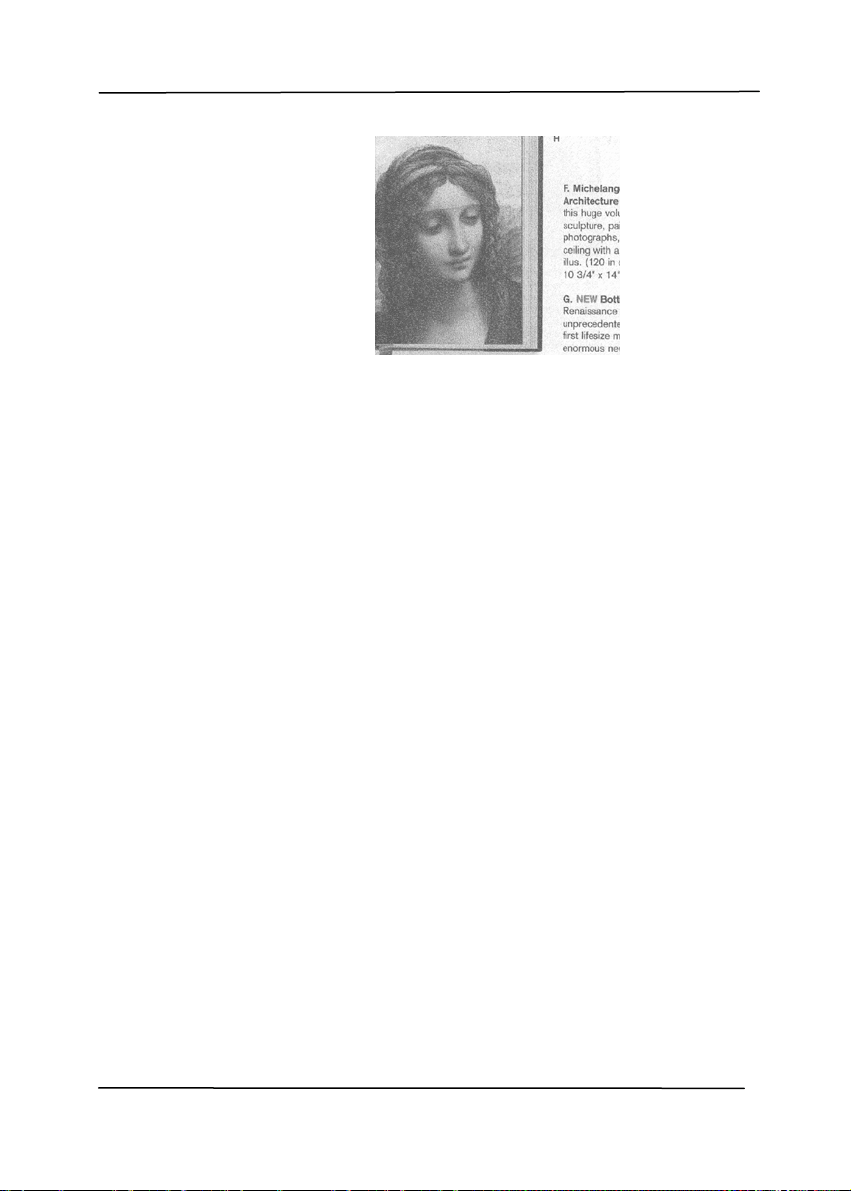
Halftone: In addition to the black and
white display, Halftone can present a
somehow gray shade of image by using
different size of dots. Halftone image looks
like the picture we have seen in the
newspaper. Options include Halftone 1,
Halftone 2, Halftone 3, Halftone 4,
Halftone 5.
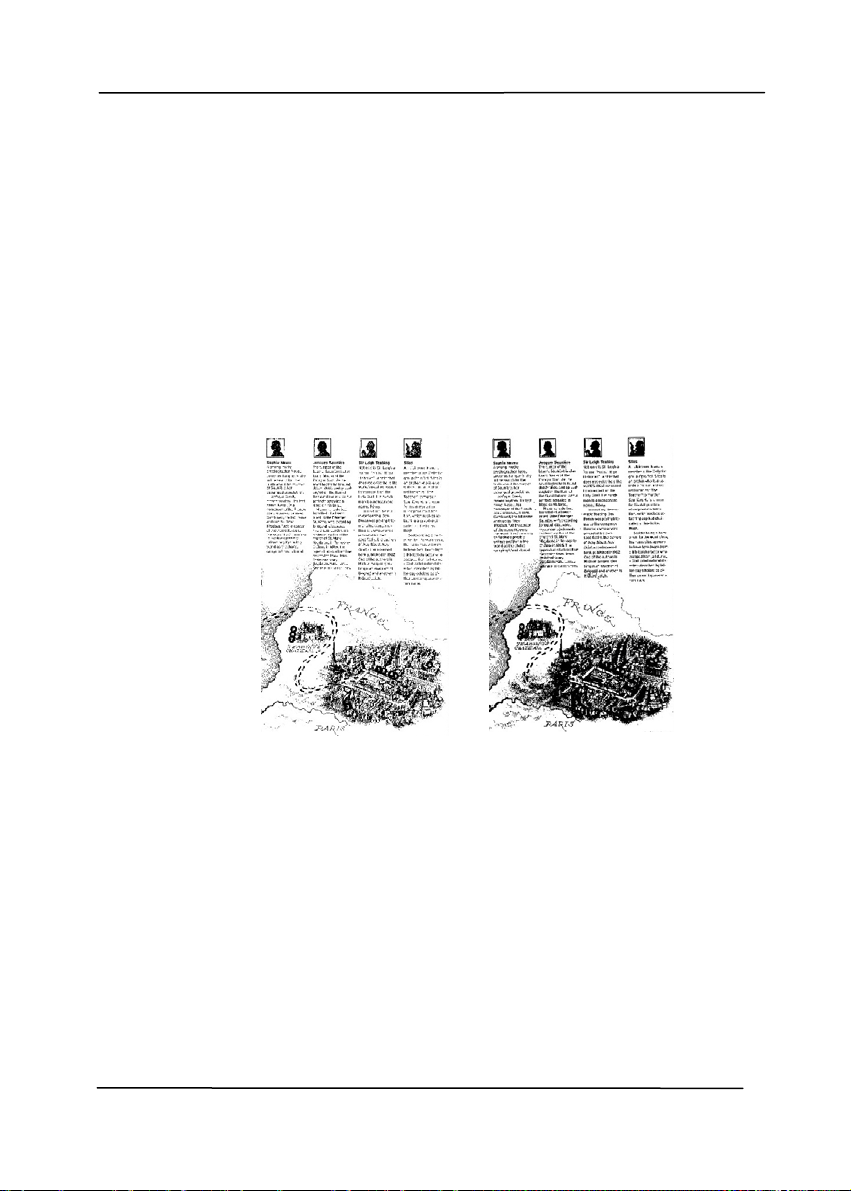
Error Diffusion: Error Diffusion is a type
of Halftone. Error Diffusion gives good
image texture and makes text in images
more readable than Halftone.
Halftone Image
User’s Manual
4-13
Error Diffusion Image
User’s Manual
4-14
Threshold Used to convert a grayscale image to a
bi-tonal image. The value ranges from 0 to
255. A low threshold value produces a
lighter image, and can be used to subdue
backgrounds and subtle, unneeded
information. A high threshold value produces
a darker image, and can be used to help pick
up faint images.
Adjust the threshold setting by dragging the
Threshold sliding bar to the left or right to
achieve the desired threshold setting.
200 dpi,
Threshold:50,
Brightness: 0
200 dpi,
Threshold:100,
Brightness: 0

User’s Manual
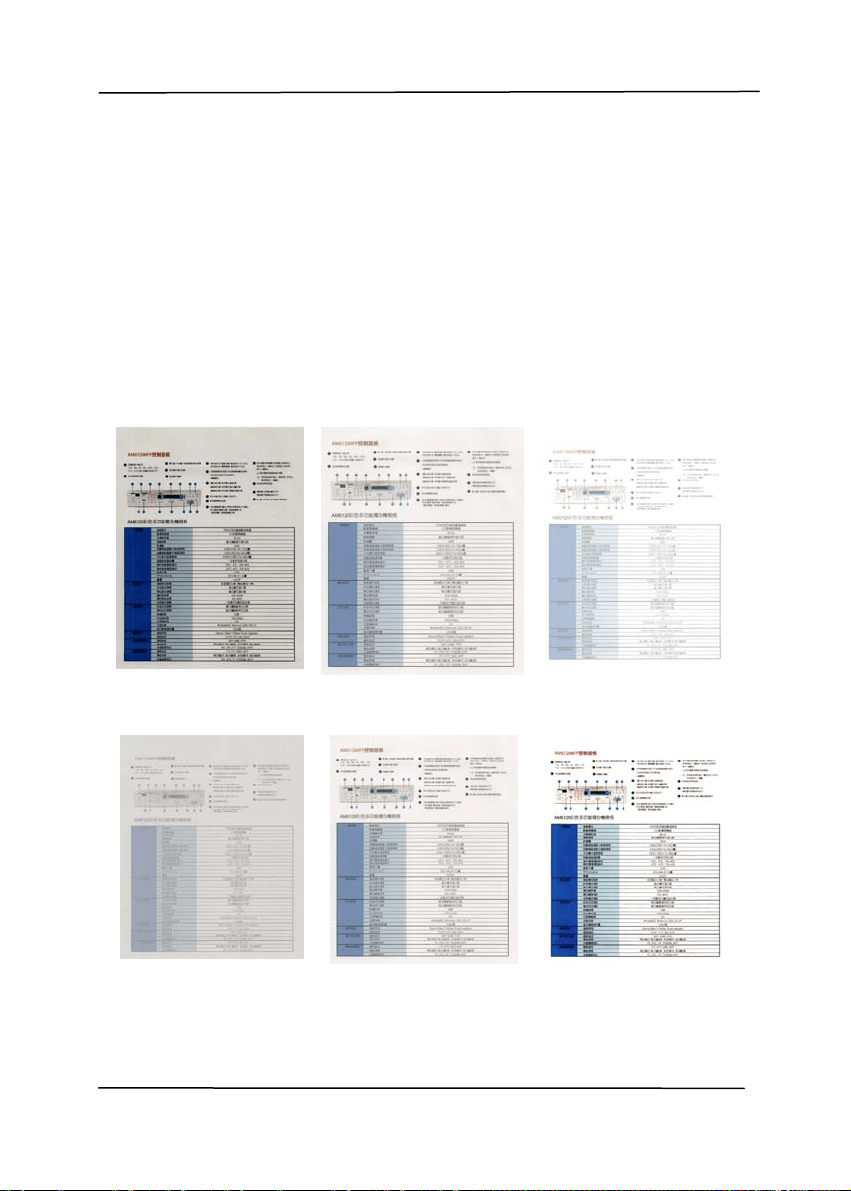
4-15
Gray
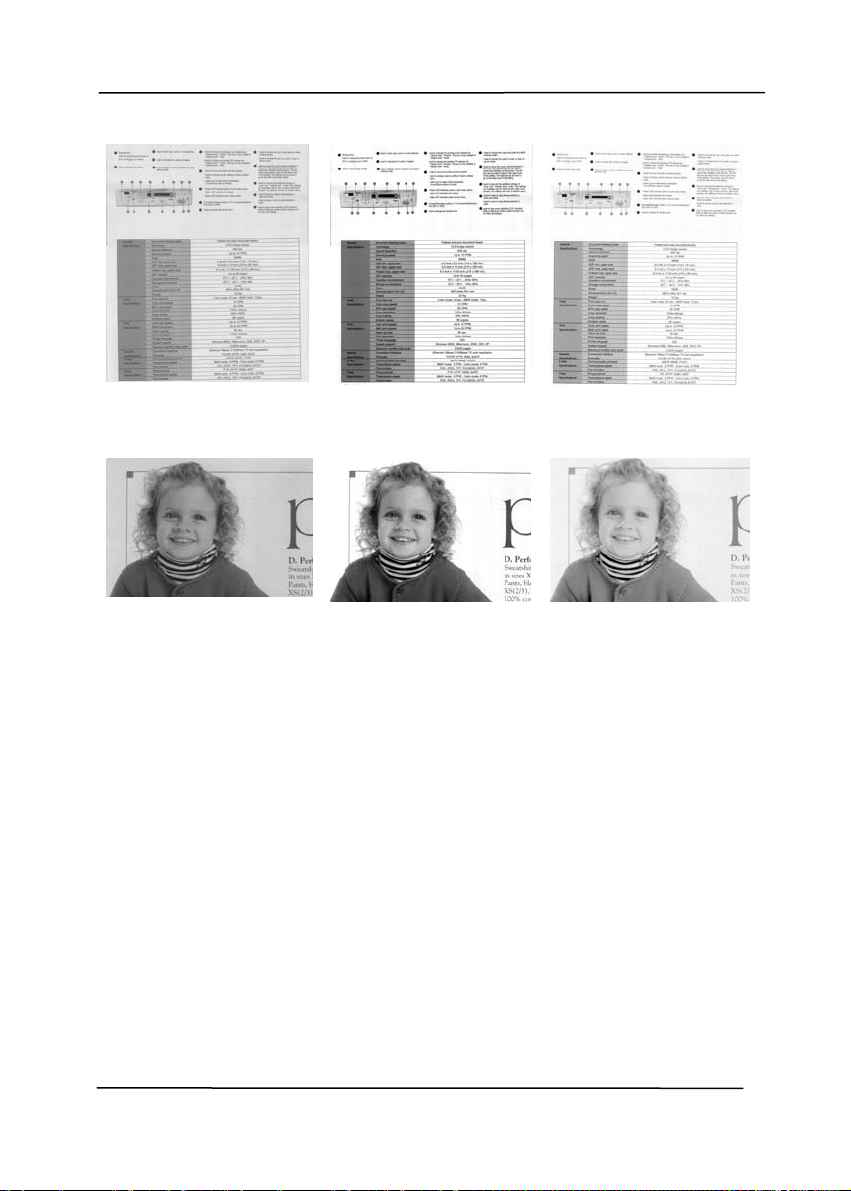
Document Type: Choice: Normal, Photo, Document
Three options of document type are provided when you choose
Gray as the image type for your scanned document. Choice:
Normal, Photo, Document.
Document: Choose Document if your original contains
pure text or a mixture of text and graphic since it is an
optimal setting for regular business document. When
using Document, only Threshold can be adjusted.
Photo: Choose Photo if your original contains photo to
reproduce your photo in vivid grayscale image. When
using Photo, no Threshold and Contrast can be adjusted.
Normal: When using Normal, Threshold, Brightness, and
Contrast can be adjusted.
Threshold: The value ranges from 0 to 255. The default is
230. A low threshold value produces a lighter image, and can
be used to subdue backgrounds and subtle, unneeded
information. A high threshold value produces a darker image,
and can be used to help pick up faint images. Adjust the
threshold setting by dragging the Threshold sliding bar to the
left or right to achieve the desired threshold setting.
User’s Manual
4-16
Normal
Photo
Document
(Threshold: 230)
Normal
Photo
Document
(Threshold: 230)
User’s Manual
4-17
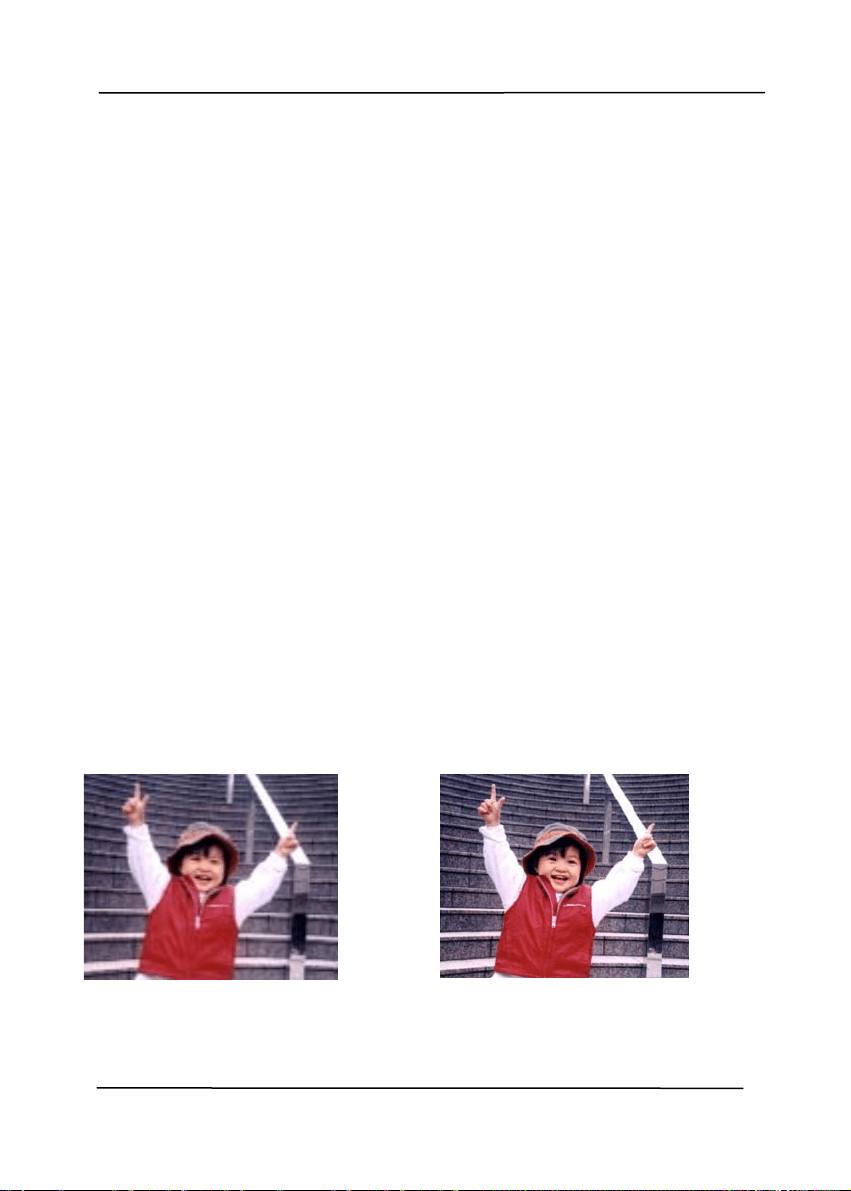
Brightness Adjusts the lightness or darkness of an
image. The higher the value, the brighter
the image. Drag the slider to the right or
left to increase or decrease the brightness.
The range is from –100 to +100.
Contrast Adjusts the range between the darkest and
the lightest shades in the image. The
higher the contrast, the bigger the different
grayscale. Drag the slider to the right or
left to increase or decrease the contrast.
The range is from –100 to +100.
Brightness: -50 Brightness: 0
(Normal)
Brightness: +50
Contrast: -50 Contrast: 0
(Normal)
Contrast: +50
User’s Manual
4-18
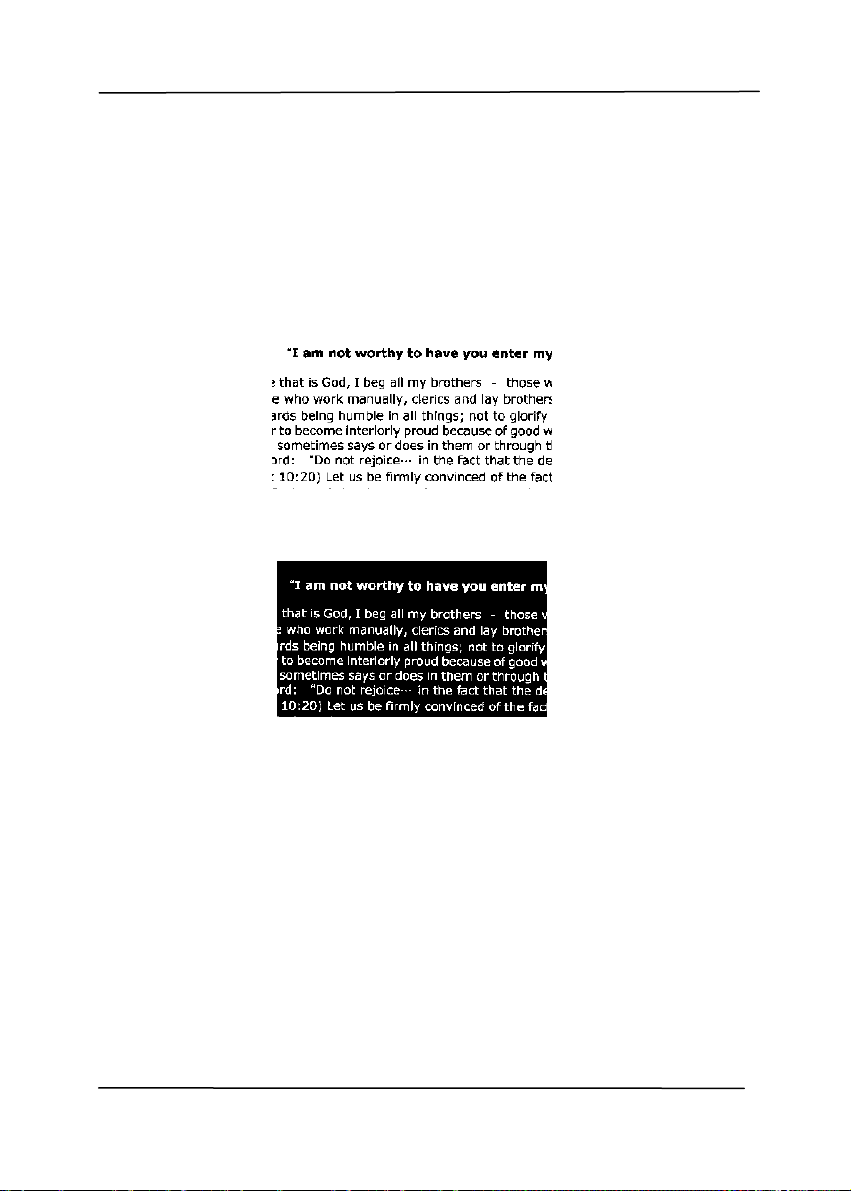
Resolution A good control of the resolution results a
good detail of an image that scans. The
resolution is measured by dots per inch
(dpi). Normally, the greater the dpi number,
the higher the resolution and the image file
size. Be aware that greater resolution takes
more time to scan, and more disk space for
the scanning image. For your information,
an A4 size color image scanned at 300 dpi at
True Color mode consumes approximately 25
MB of disk space. A higher resolution
(usually means over 600 dpi) is only
recommended when you need to scan a
small area at True Color mode.
Choose a resolution value from the drop
down list. The default value is 200 dpi.
Available resolutions are 75, 100, 150,
200,300, 400 and 600. Or you may choose
your desired value by clicking the box in the
right side of the drop down list and press the
arrow key to select your desired value and
then click the Add button to include it in the
drop down list. Note: The resolution is up to
300 dpi if an imprinter or a MICR reader is
installed or connected to the scanner.
Resolution: 75 dpi
Resolution: 150 dpi
User’s Manual
4-19
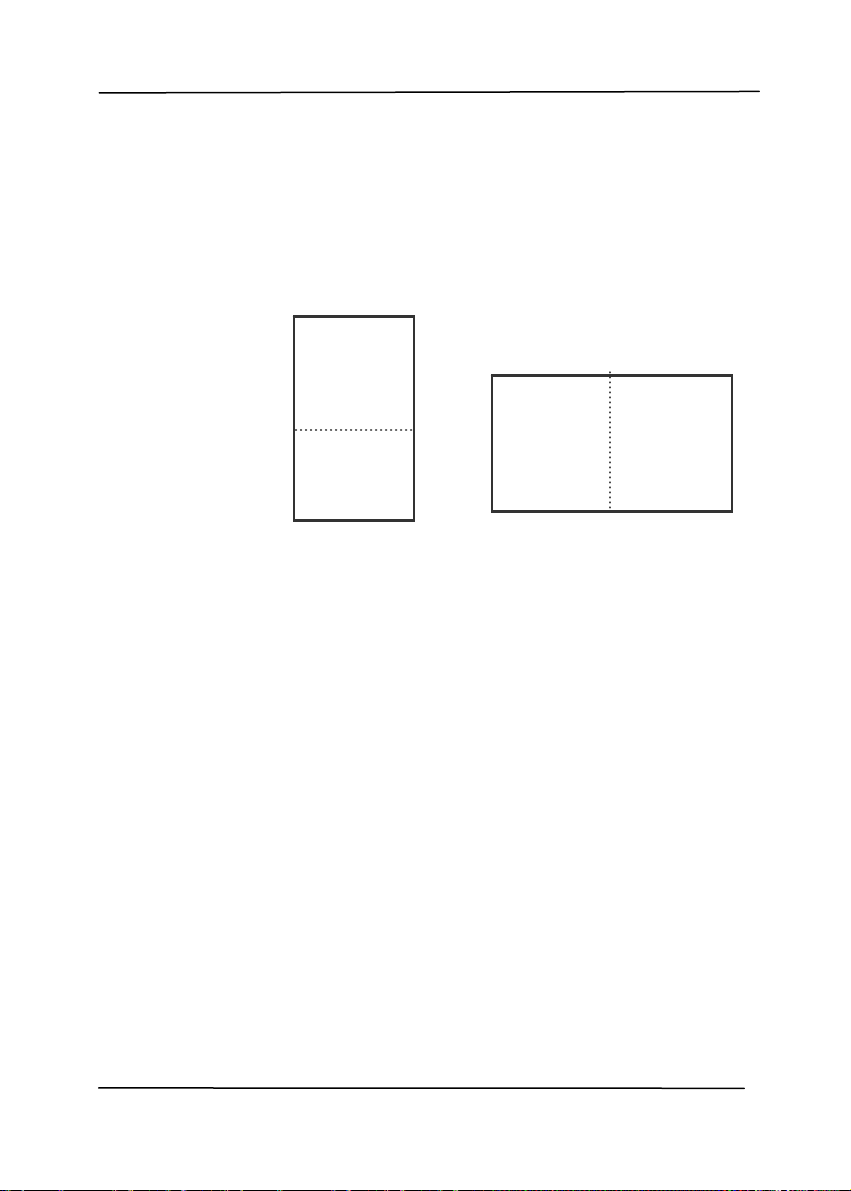
Invert Reverses the brightness and the colors in the
image. The default setting is Black on a White
background. Reverse mode is White on a Black
background. For color images, each pixel will be
changed into its complementary color at the
command of Invert.
Black on White
White on Black

User’s Manual
4-20
Scan
Source
Choice:
Auto Document Feeder: Used to scan
multiple pages.
Flatbed: Used to scan a single page. For
example, pages from newspaper clipping,
paper with wrinkles or curls.
Flatbed (book): Used to scan several
inside pages from book.
Automatic: Allow the scanner automatically
set its scan source. If Automatic is selected
and there is document i n both the auto
document feeder (ADF) and the flatbed, then
the scan sou rce w ill be au tomatically set t o
ADF. If Automatic is selected and there is
document on ly in f latbed, then the scan
source will be set to flatbed.
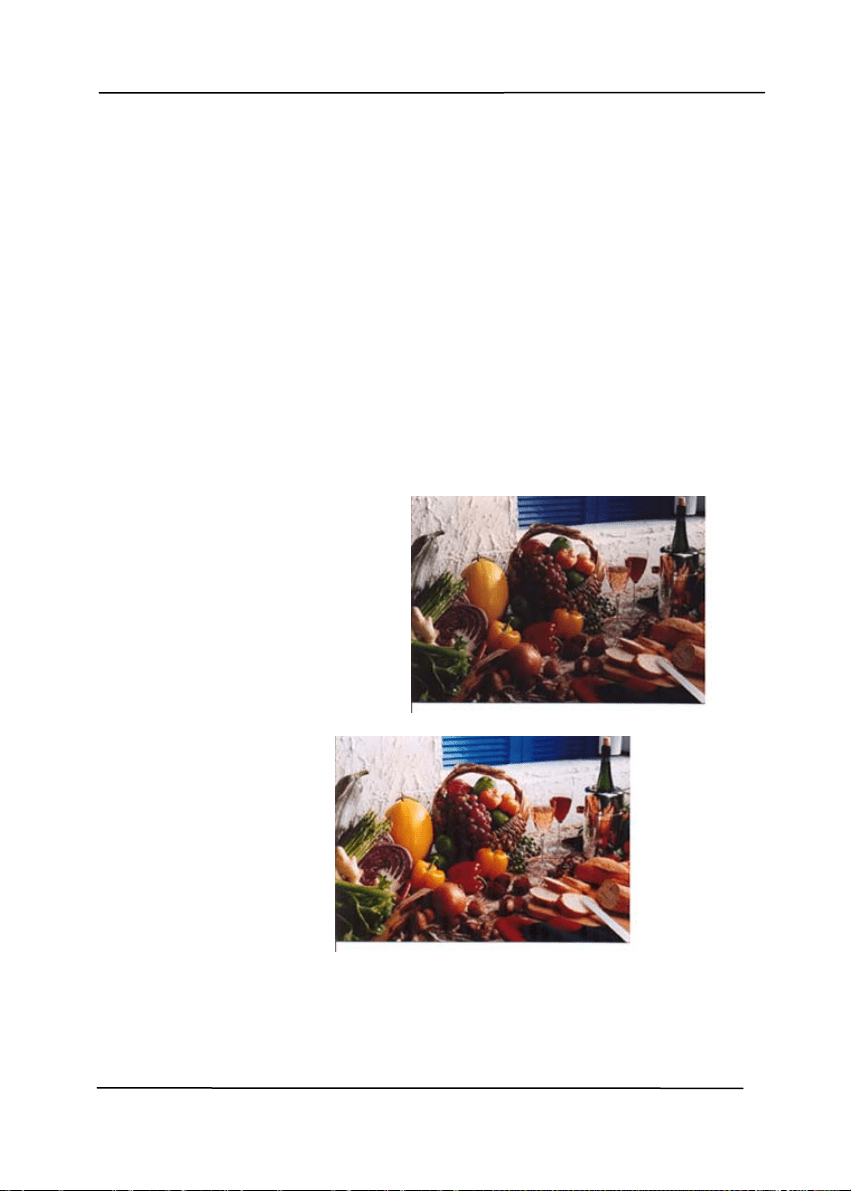
Merge Two Sides into One Image:
If you have a sheet-fed duplex scanner with
front input tray, you can scan an A3 size
document with an innovative method. Thus,
fold your A3 size document into A4, and then
load the paper in the front tray. Choose
Merge Two Sides from the Scan Source
option and then the scanner is able to scan
both sides of your document and merge two
A4 images into one A3 image.
When you select Merge Two Sides into One
Image, the Cropping or Multi-feed function
will be disabled.
Note: The feature must be used with a
carrier sheet. Regarding how to load a
document with a carrier sheet, refer to
section 4.6.2, Other Paper Selection.
Note the options vary based on type of
scanner.
User’s Manual
4-21
Select the “Merge Vertically” option to merge
the front side and the rear side of a page into
one image vertically. If the “Merge Vertically”
option has not been selected, the front side and
the rear side of a page will be merged into one
page horizontally.
Note the options vary based on type of
scanner.
Front
Side
Rear
Side
Merge Vertically
Front
Side
Rear
Side
Merge Horizontally
User’s Manual
4-22
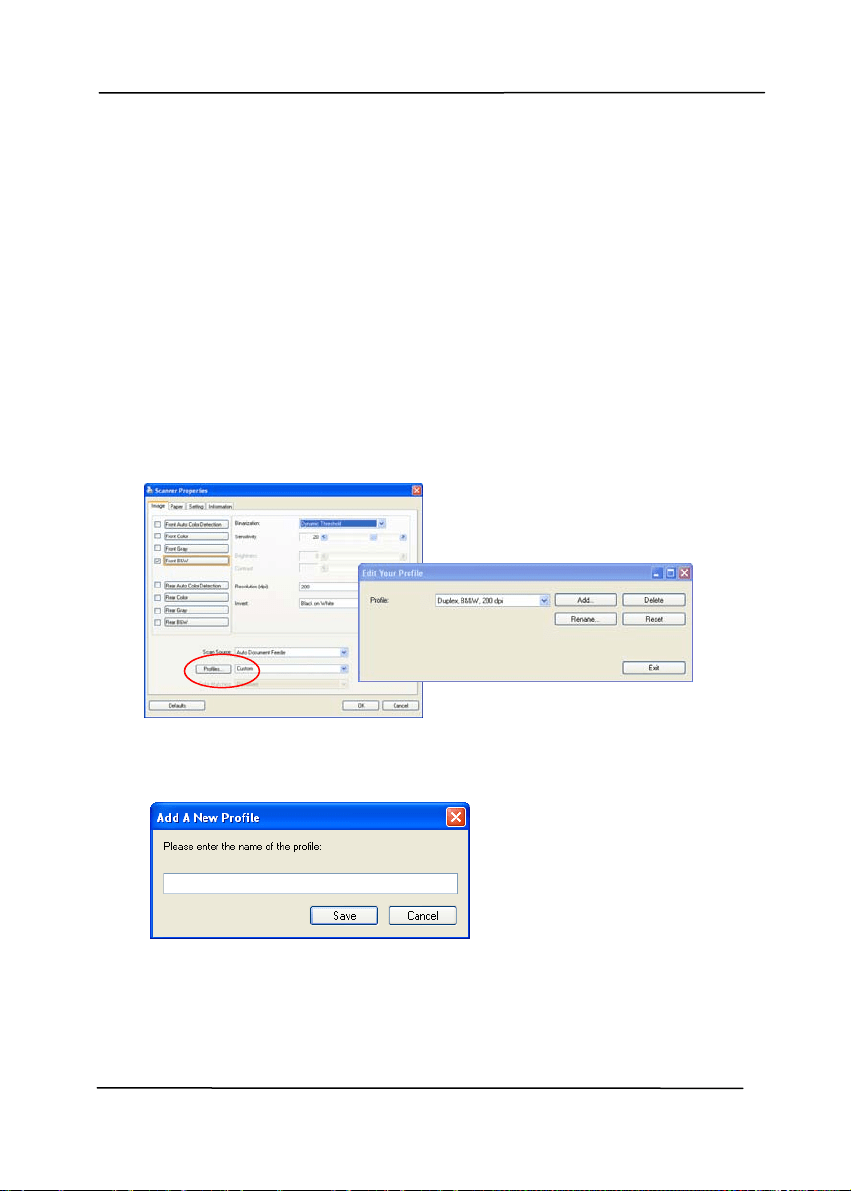
Color
Matching
The purpose of Color Matching is getting the
accurate color. This option uses the default
parameters (ICC profile) to adjust the colors
of the image.
Choice: None, Document, Photo
None: C hoose “None” to disable this
option.
Document: Choose “Document” if your
original contains pure text or a mixture of
text and graphic since it is an optimal
setting for regular business document.
Photo: Choose “Photo” if y our origin al
contains photo to reproduce your photo
in vivid color image.
Normal
After Color Matching

User’s Manual
4-23
4.3.3 Scanning color images
Th
e following options are available for scanning color images.
Brightness
Contrast
Resolution
Invert
4.3.4 Scanning grayscale images
The following options are available for scanning gray images.
Brightness
Contrast
Resolution
Invert
4.3.5 Scanning B&W images
Th
e following options are available for scanning B&W images.
Binarization (Dynamic Threshold)
Resolution
Invert
Or
Binarization (Fix Processing)
Threshold
Brightness
Resolution
Invert
User’s Manual
4-24
4.3.6 Editing Profiles
The Scanner Properties dialog box allows you to change and
save your frequently
used scan settings into a profile. You can
edit these profiles by renaming or deleting them.
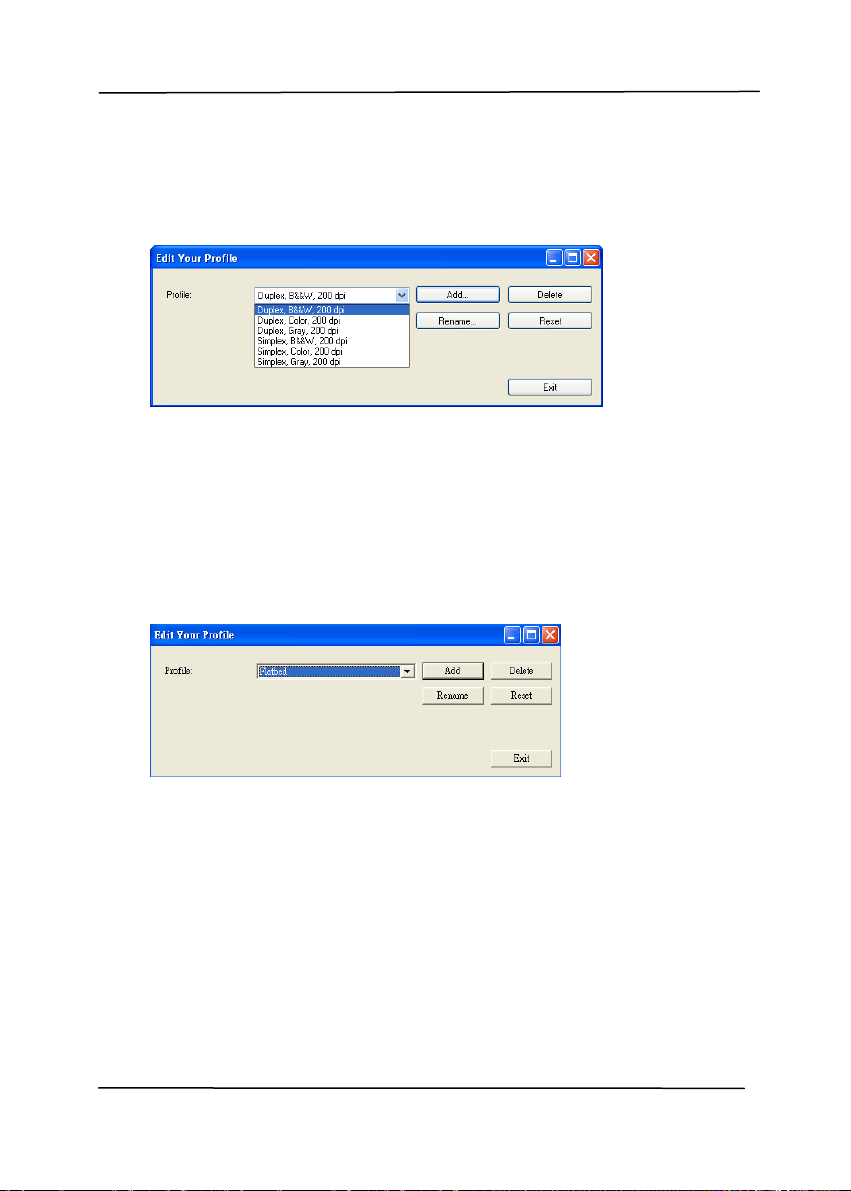
To add a new profile,
1. Customize your settings. (For example, change your
resolution, image type, cropping method, scan size, or
other scan settings.)
2. Click the Image tab and then choose “Profiles” to prompt
the “Edit Your Profile” dialog box.
3. Click “Add” to enter the name of the profile and then
choose “Save”.
4. The new profile will be saved and shown in the “Profiles”
dropdown list box.
User’s Manual
4-25
To load a profile,
1. From the Image tab dialog box, choose your favorable
profile from the “Profiles” dropdown list box.
2. Your favorable profile will be immediately loaded and
displayed on Scanner Properties dialog box.
To delete a profile,
1. From the Image tab dialog box, click “Profiles” to prompt
the Edit Your Profile dialog box.
2. Choose the profile you want to delete from the dropdown
list box.
3. Click “Delete”. A Confirm message “Are you sure you want
to delete this profile?” is prompted.
4. Choose “Yes” to delete or “Cancel” to quit.
User’s Manual
4-26
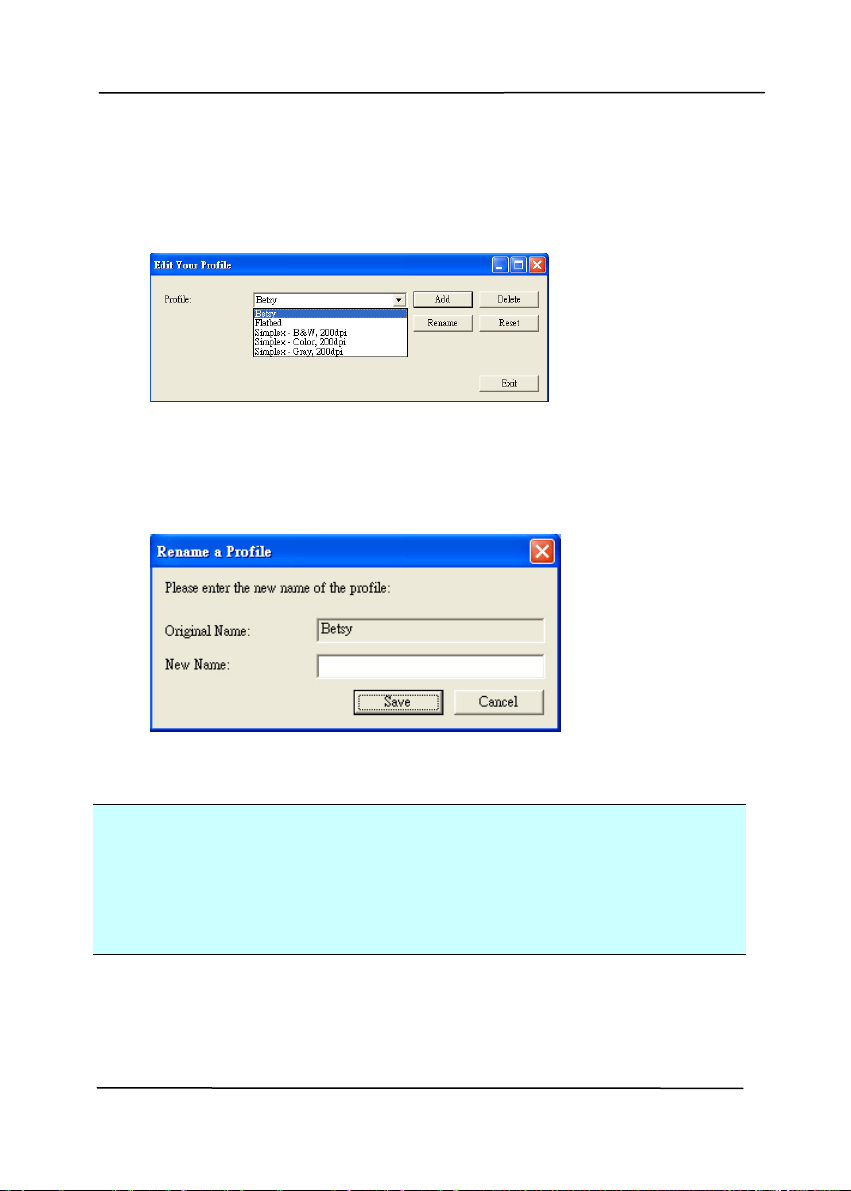
To rename a profile,
1. From the Image tab dialog box, click “Profiles” to prompt
the Edit Your Profile dialog box.
2. Choose the profile you want to rename from the dropdown
list box and then click the Rename button.
3. Enter new name for the profile.
4. Choose “Save” to save the new profile or “Cancel” to quit.
Note:
The preset default profiles include Flatbed, Simplex-B&W, 200
dpi, Simplex-Gray, 200 dpi, Simplex-Color, 200 dpi, Duplex-
B&W, 200 dpi, Duplex-Gray, 200 dpi, Duplex-Color, 200 dpi. If
you have a simplex or a sheetfed scanner, the duplex or the
flatbed option will not be available.

User’s Manual
4-27
4.4 The Compression Tab
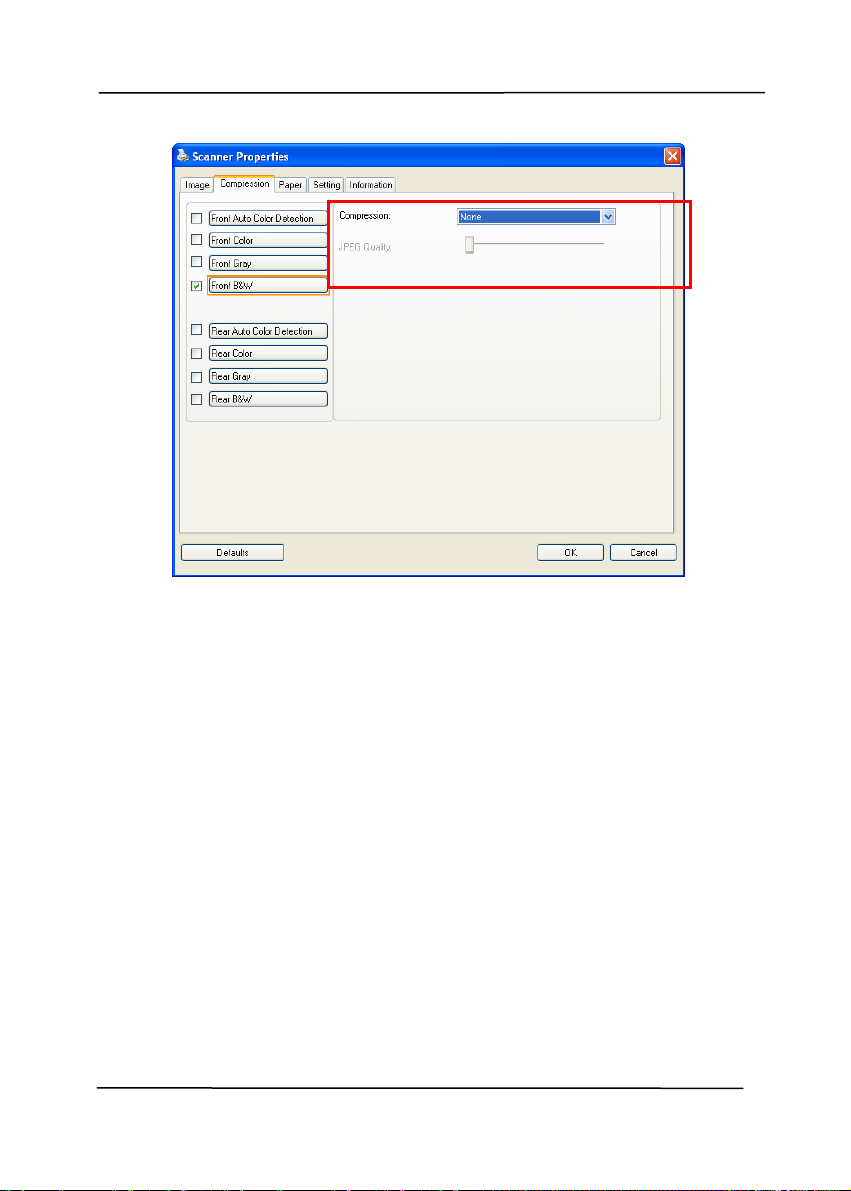
The Compression tab allows you to compress your scanned
image and choose the level of compression. Bi-tonal images
are normally compressed using CCITT standard called Group 4
(G4). Color and grayscale images are often compressed using
JPEG technol
o
gy. Move the JPEG Quality slider to the right or
left to increase or decrease the level of compression. Note the
greater the compression level, the lower image quality. Default
is 50%.
Note that the compression depends on your image editing
application. If your image editing application does not support
the type of compression format, then either a warning
message will appear or the image quality of the compressed file
will not be acceptable.
JPEG (Joint Photographic Editor Group). This group developed
and lent their name to a file compression standard for color and
grayscale images that is widely used by scanners, and software
applications. On Microsoft Windows-based systems, a file with
the extension .jpg has normally been compressed using this
standard.
For scanning color or gray images, the following compressions
are available:
None
JPEG
For scanning B&W images, the following compressions are
available:
None
G4
User’s Manual
4-28
The Compression tab dialog box

User’s Manual
4-29
4.5 The Color Dropout Tab
4.5.1 Color Dropout Selection
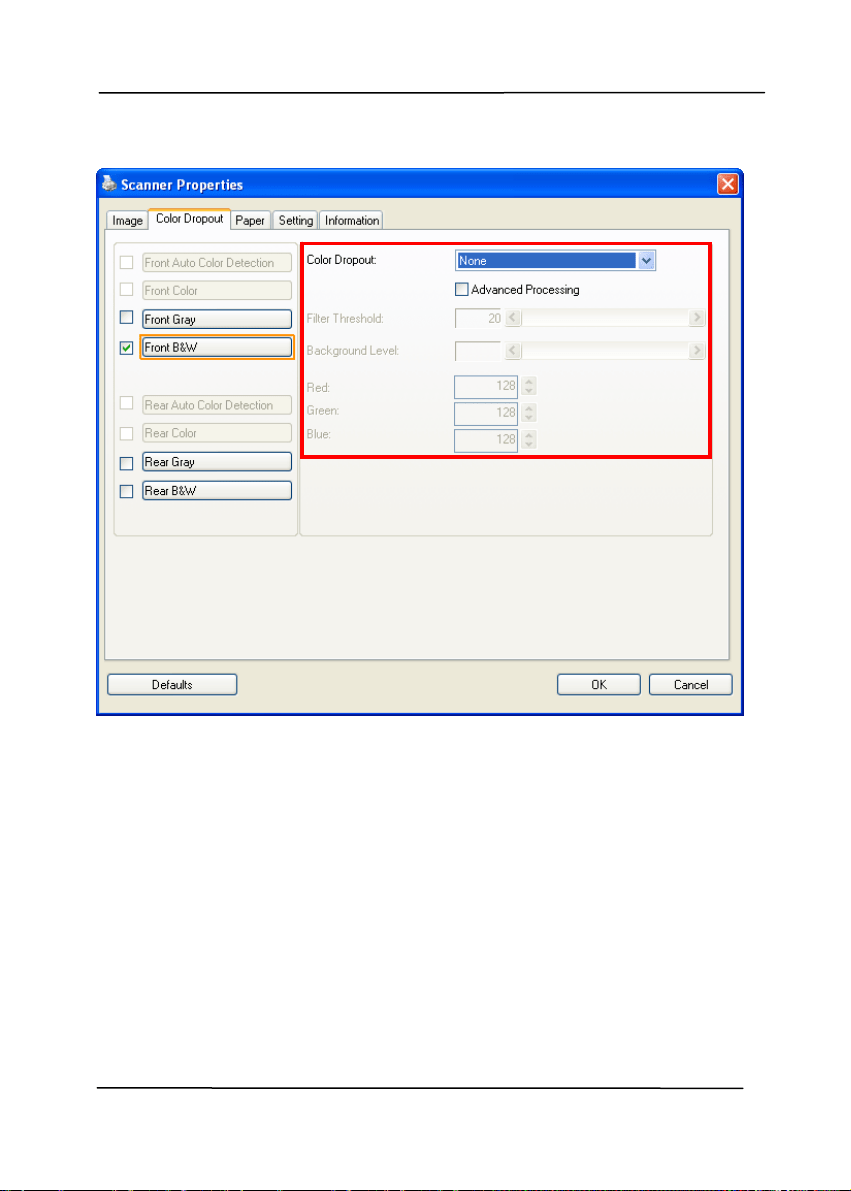
Colo
r Dropout tab allows you to drop either of the red, blue, or
green color in your scanned image. If your image contains red
color watermark or background, choose the R (Red) channel
then any red watermark or background will be removed. This
feature is used to sharpen your text when using OCR (Optical
Character Recognition) software.
The “Custom” option allows you to specify your desired color to
be removed by entering its RGB (Red, Green, and Blue) value
respectively.
Tolerance: Specify the allowable color range to be removed for
the color you selected. Specified range: 1 ~ 100
The large the numeric value, the wider the color dropout range
is.
Note that this function supports only black & white and gray
images. Therefore, be sure to choose any black & white or
gray image type while applying this function.
User’s Manual
4-30
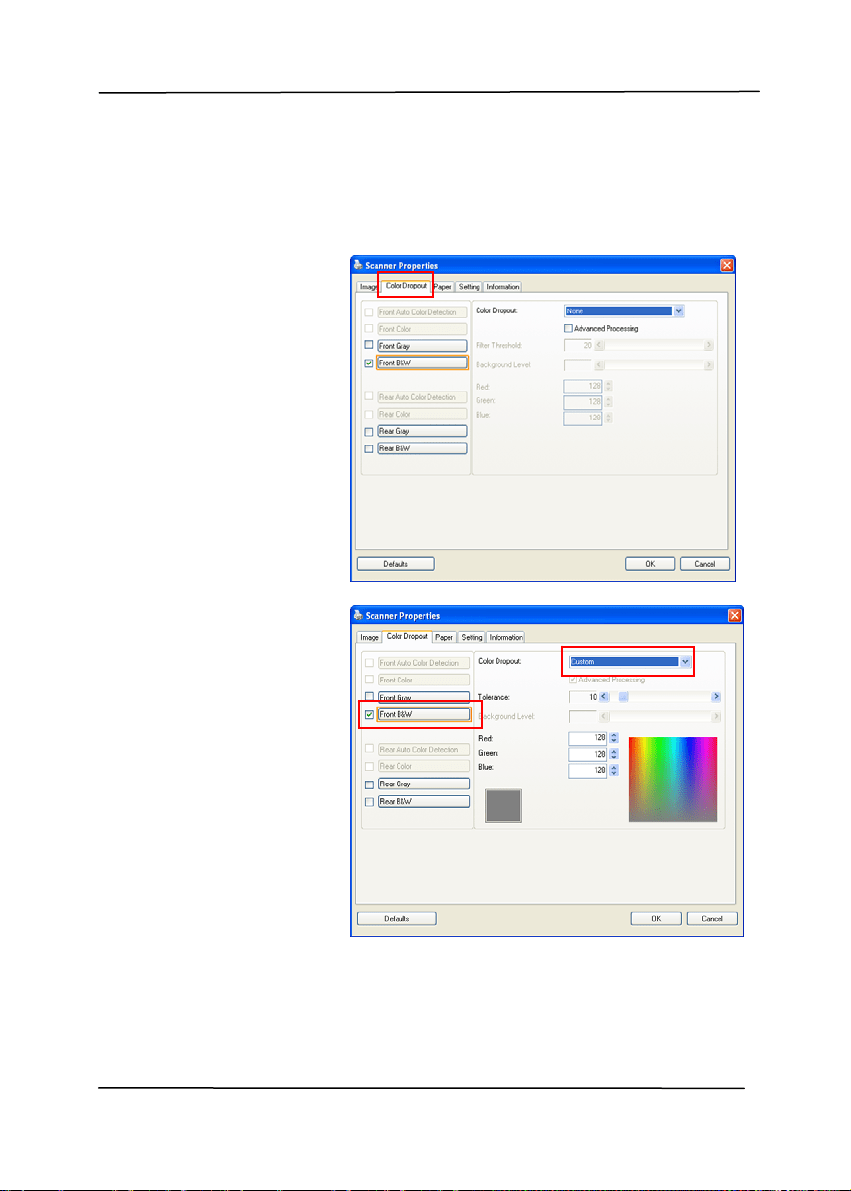
The Color Dropout dialog box
User’s Manual
4-31
To select a color on the Color palette,
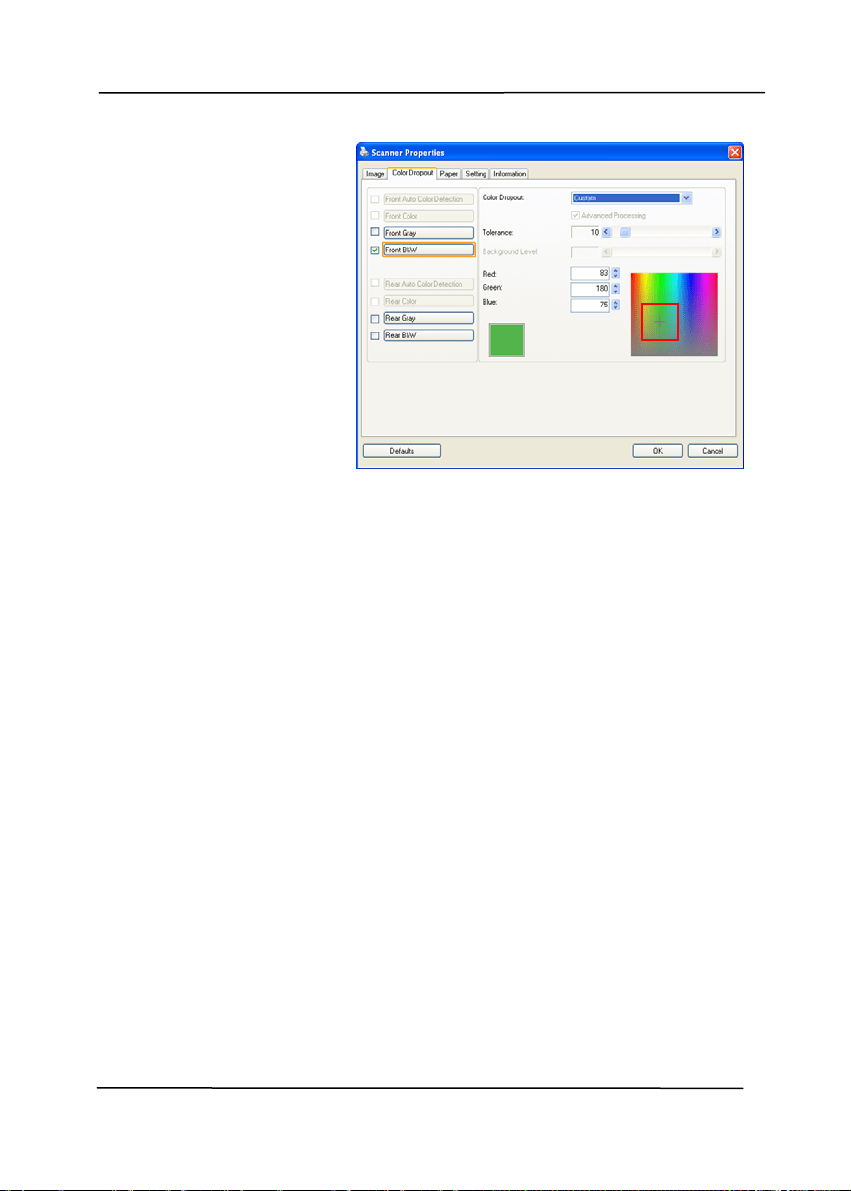
1. Click the Color
Dropout tab from
the Scanner
Properties dialog
box.
2. Choose Gray or
B&W from the
Image Selection
box and click
“Custom” from
the Color Dropout
drop-down menu.
The Color palette
appears.
User’s Manual
4-32
3. Move your cursor
over the palette.
The cursor
becomes a cross
sign.
4. Click t o ch oose a color. T he RGB values are changed
simultaneously.
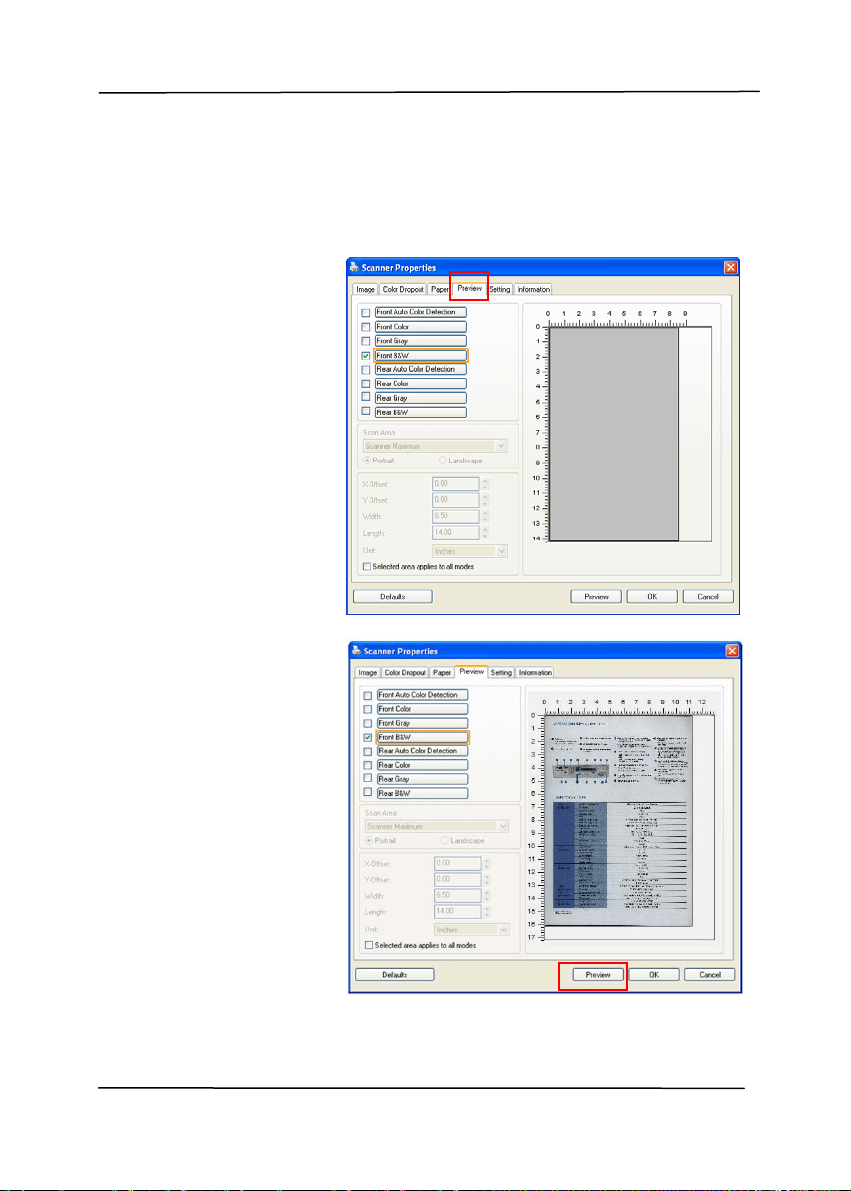
User’s Manual
4-33
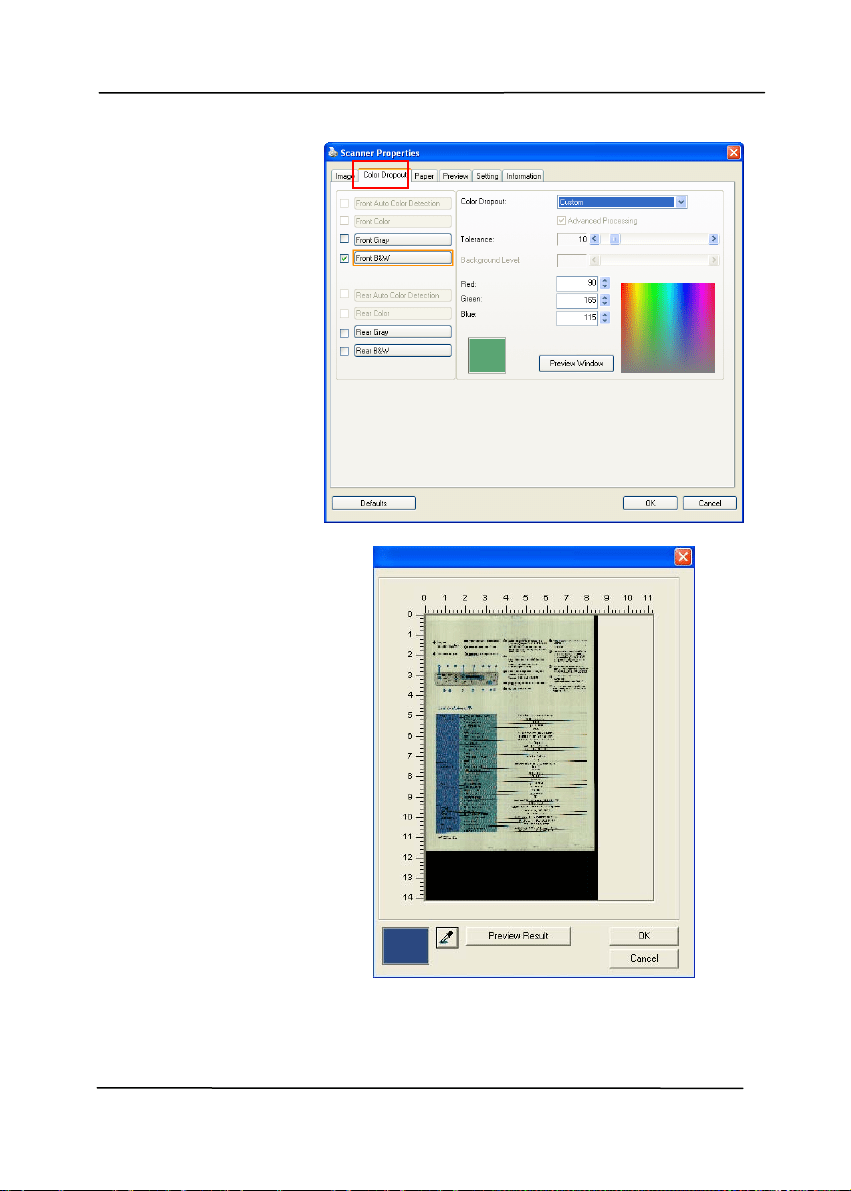
To select a color or view a color dropout result via the Preview
window,
1. Click the Preview
tab to open the
Preview dialog
box.
2. Place your
document on the
flatbed or load
your document in
the ADF Paper
Tray. Then, click
the Preview
button to get a
preview image at
a low resolution.
The preview
image will be
displayed.
User’s Manual
4-34
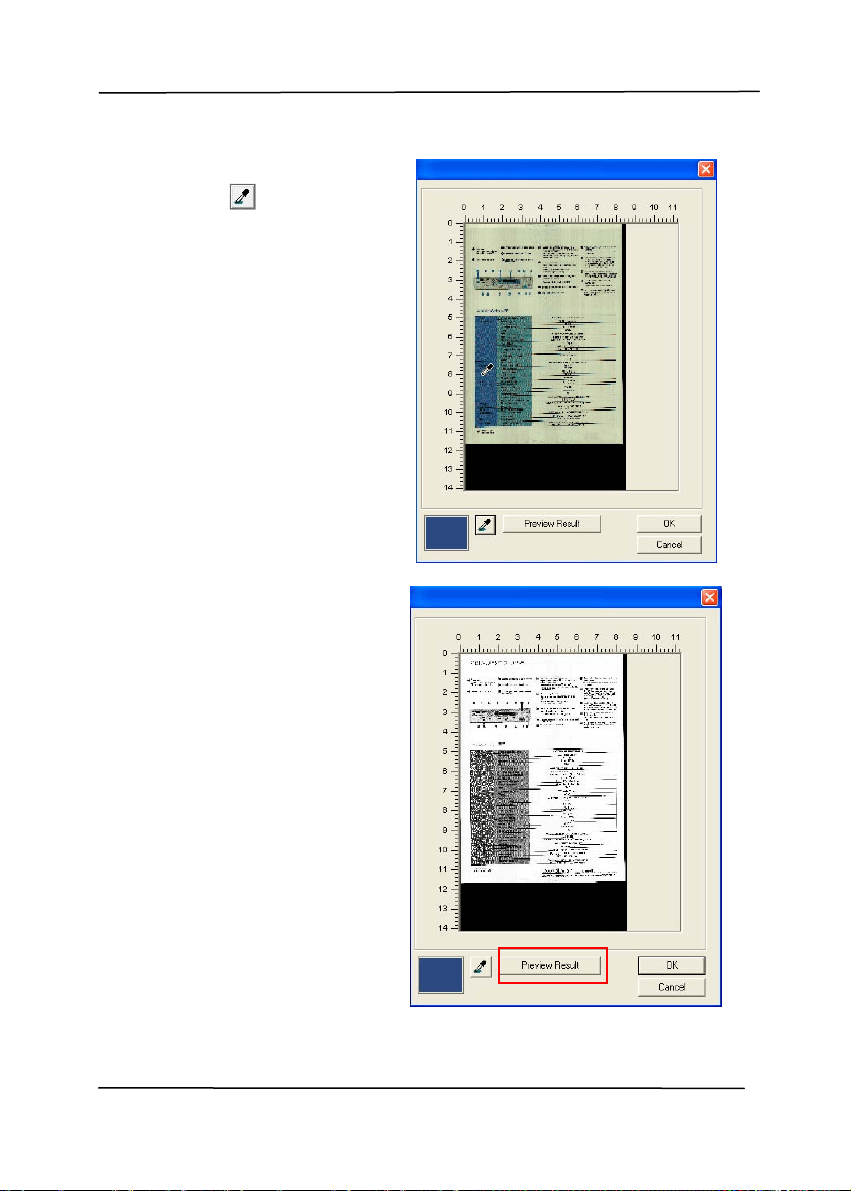
3. Click the Color
Dropout tab.
The Color
Dropout dialog
box is
displayed with
a Preview
Window button.
4. Click the
Preview
Window button
to prompt the
Preview
window as
shown.
User’s Manual
4-35
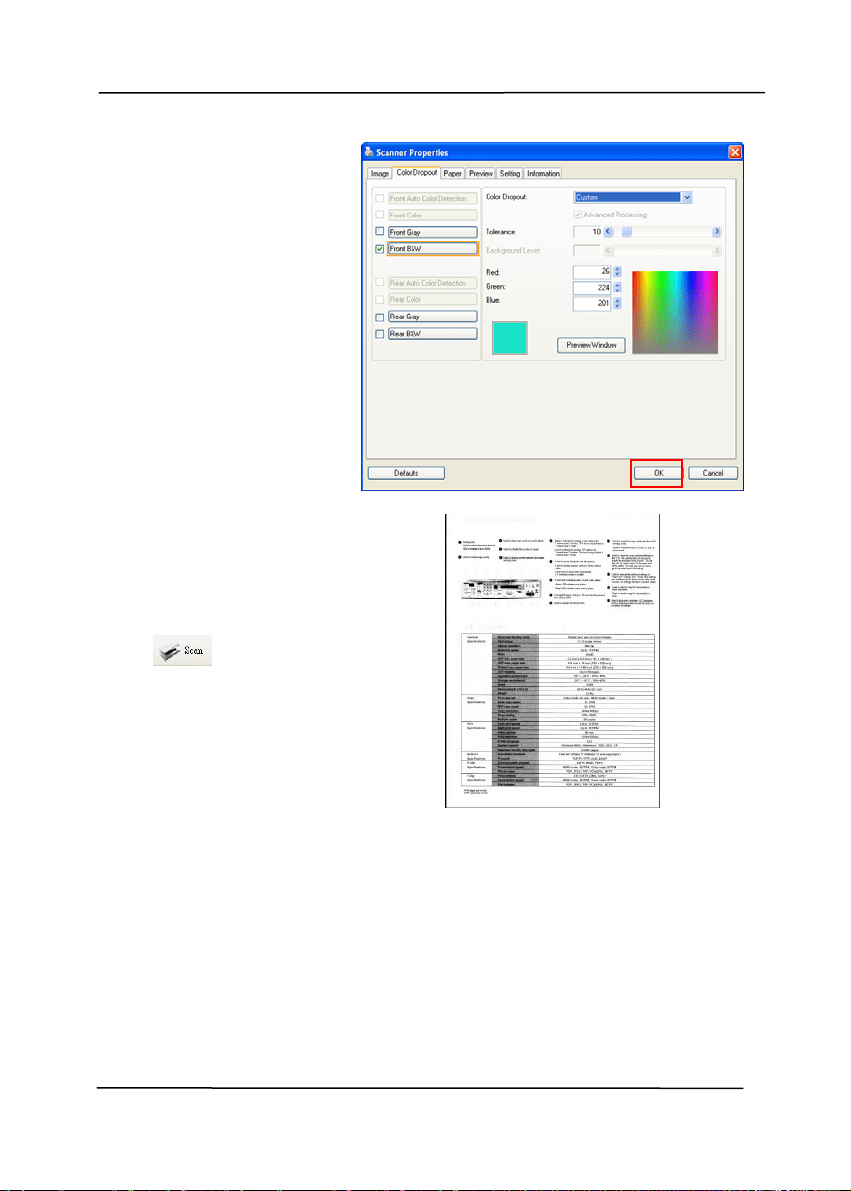
5. Click the E yedropper
button (
) and then
move the cursor over
the preview image.
Click t o select a color
which you wi sh to
remove.
6. Click the Preview
Result button to view
the result after
removing the
specified color.
User’s Manual
4-36
7. If the result is
satisfactory, click
“OK” to close the
Preview window
and return to the
Color Dropout
dialog box.
8. Click “OK” to leave
the Scanner
Properties dialog
box and click the
Scan button
(
) on the
main window of
Avision Capture
Tool to perform
your final scan.
The specified color
is removed
accordingly.
The image after color dropout
User’s Manual
4-37
4.5.2 Other Color Dropout Options
Advanced Processing provides two options that can adjust
you
r scanned image in the best optimal result.
Filter
Threshold
This value is used to determine the color
which will be dropped out. A lower value will
drop more of the selected color out, while a
higher value will leave more of the selected
color in.
Background
Level
The pixel which is higher than the
background value will be adjusted to the
lightest point. Adjust the value for both the
Filter Threshold and Background Level to
produce the best optimal result.
Example, slightly adjusting the background value makes
your text more clear.
Original
User’s Manual
4-38
Remove Blue, Threshold: 20,
Background: 255
Remove Blue, Threshold: 20,
Background Level: 210
User’s Manual
4-39
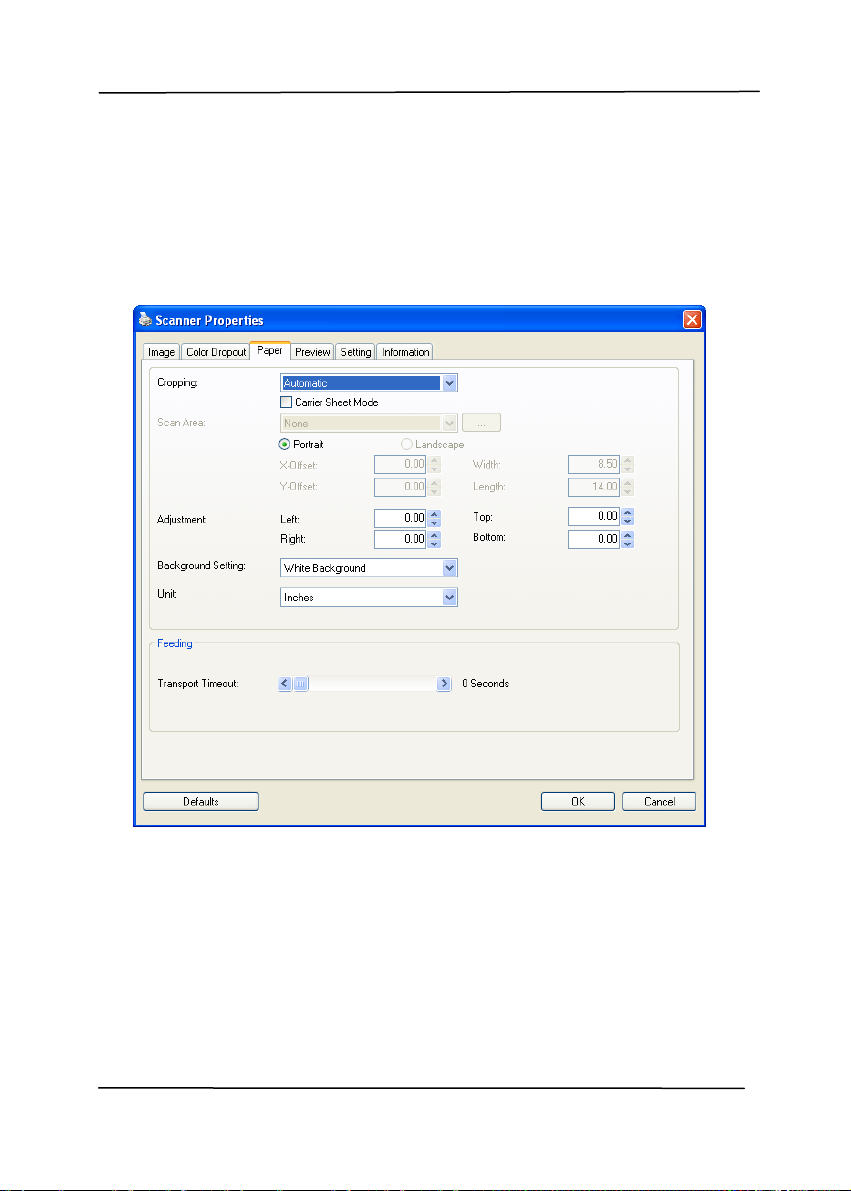
4.6 The Paper Tab
The Paper tab allows you to define values relating to image
output (i.e., Auto Crop or not, Scan Area, OverScan, Multi-Feed
Detection).
The Paper tab dialog box

User’s Manual
4-40
4.6.1 Cropping
Cropping al
lows you to capture a portion of the document
being scanned. Choice: Automatic, Fixed to
Transport, EOP (End of Page) Detection, Automatic
Multiple, Relative to Documents.
Options Description
Automatic Automatic adjusts the cropping window
according to different document sizes and
automatically straighten a skewed
document. Use this option for batches of
mixed-sized documents.
Fixed to
Transport
This feature allows you to define the area
or zone to be imaged. Use for batches of
same-sized documents. If you select this
option, you can use the arrow keys to
define the x and y offset values, width and
length to redefine your scanned area. The
Display window will show image placement
as you change the values.
EOP (End of
Page)
Detection
This feature allows you to define the area
or zone to be imaged. Use for batches of
same-width but different length
documents. If you select this option, you
can use the arrow keys to define the x and
y offset values, width and length to
redefine your scanned area. The Display
window will show image placement as you
change the values.

User’s Manual
4-41
Automatic
Multiple
This option allows you to place various
sized documents such as photos, ID Cards,
or business cards on the flatbed (if
available) and lets you create multiple
individually cropped images in one scan.
Note: To correctly create multiple images,
please make sure there is at least 12mm
(0.5”) of space between each document.
Relative to
Document
This option allows you to crop different
areas on your documents and deliver these
images in B&W, Gray, or Color separately.
For example, there are applications which
require you to store the entire document in
B&W and a part of the document in color to
save storage space. This is useful for
documents where a photograph or
signature appears in a consistent area on
the document such as resumes, and so on.
The following options are only available when Fixed to
Transport is selected.
X-Offset — the distance from the left end of the
scanner to the left edge of the scanning area.
Y-Offset — the position from the top end of the
document to the top end of the scanning area.
Width — the width of the scanning area.
Length — the length of the scanning area.
Center: automatically calculates the x-offset for center-
fed feeding based upon document size selected.
— relocate the scan area by click the arrow key on
the cross sign while retain the scan size. View the result
from the Display window.

User’s Manual
4-42
The Adjustment option is available when [Automatic] is
selected.
Adjustment —adds a positive/negative margin value
top/bottom or toward left/right of the image. Adjustment is
used when the automatic document feeder is used. Adjustment
reduces the possibility of corner clipping on skewed images. To
set Adjustment values, use the [UP/Down] buttons to select
where you want to apply the Adjustment values: Top/Bottom or
Left/Right, and then select the amount of inches/mm/pixels
applied. Select a value within the range of 0.00 to 1.00 / -1.00.
User’s Manual
4-43
Relative to Document: (used for batches of same-sized
documents)
This option allows you to crop different areas on your
documents and deliver these images in B&W, Gray, or Color
separately. For example, there are applications which require
you to store the entire document in B&W and a part of the
document in color to save storage space. This is useful for
documents where a photograph or signature appears in a
consistent area on the document such as resumes, and so on.
The following procedure describes how to reproduce the entire
document in B&W and a portion of document (picture) in color.
1. On the Paper tab, choose “Relative to Document” or “Fixed
to Transport” from the Cropping option.
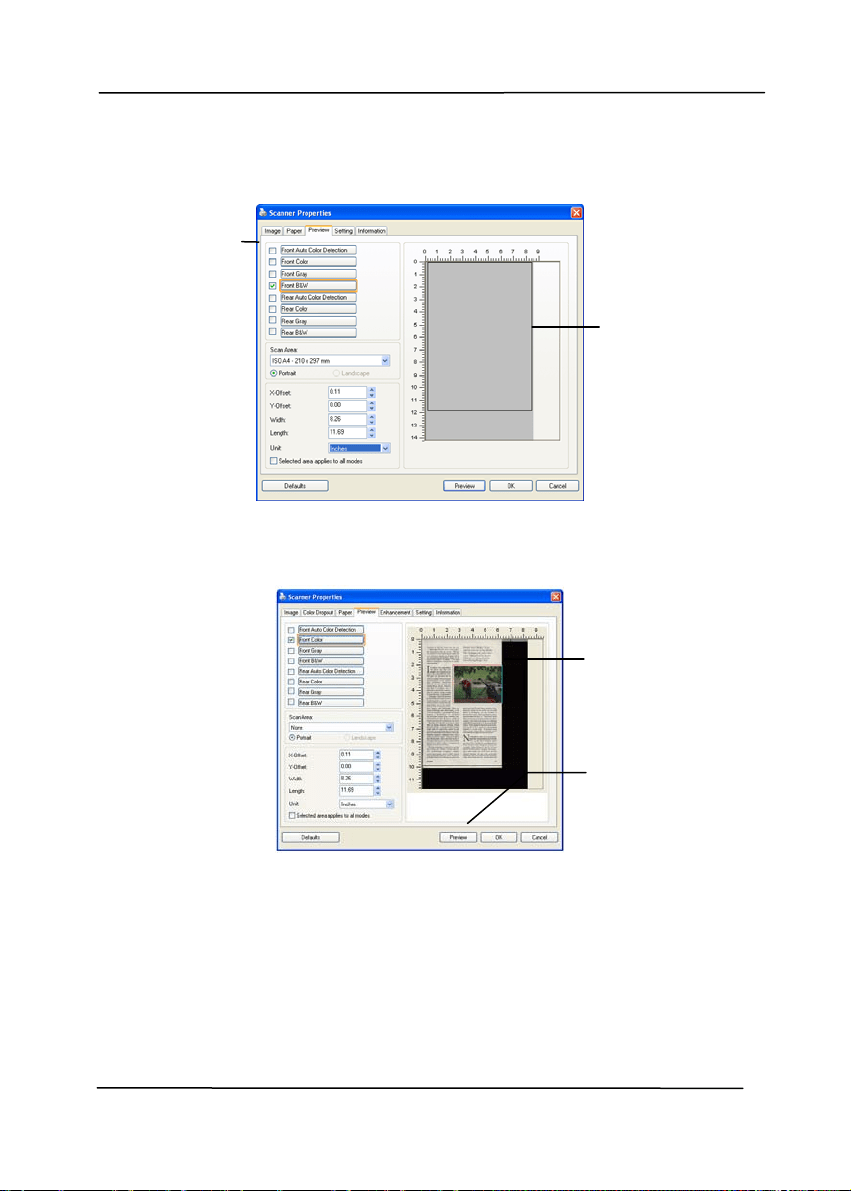
2. Choose your scan size from the Scan Area option. The
selected scan size will be displayed in a red rectangular
box. This is also the scan size of your entire document.
(For example, ISO B5. If you have not chosen a scan area
and leave the selection as None, then the default area will
be the scanner’s maximum.)
A red
rectangular
box
User’s Manual
4-44
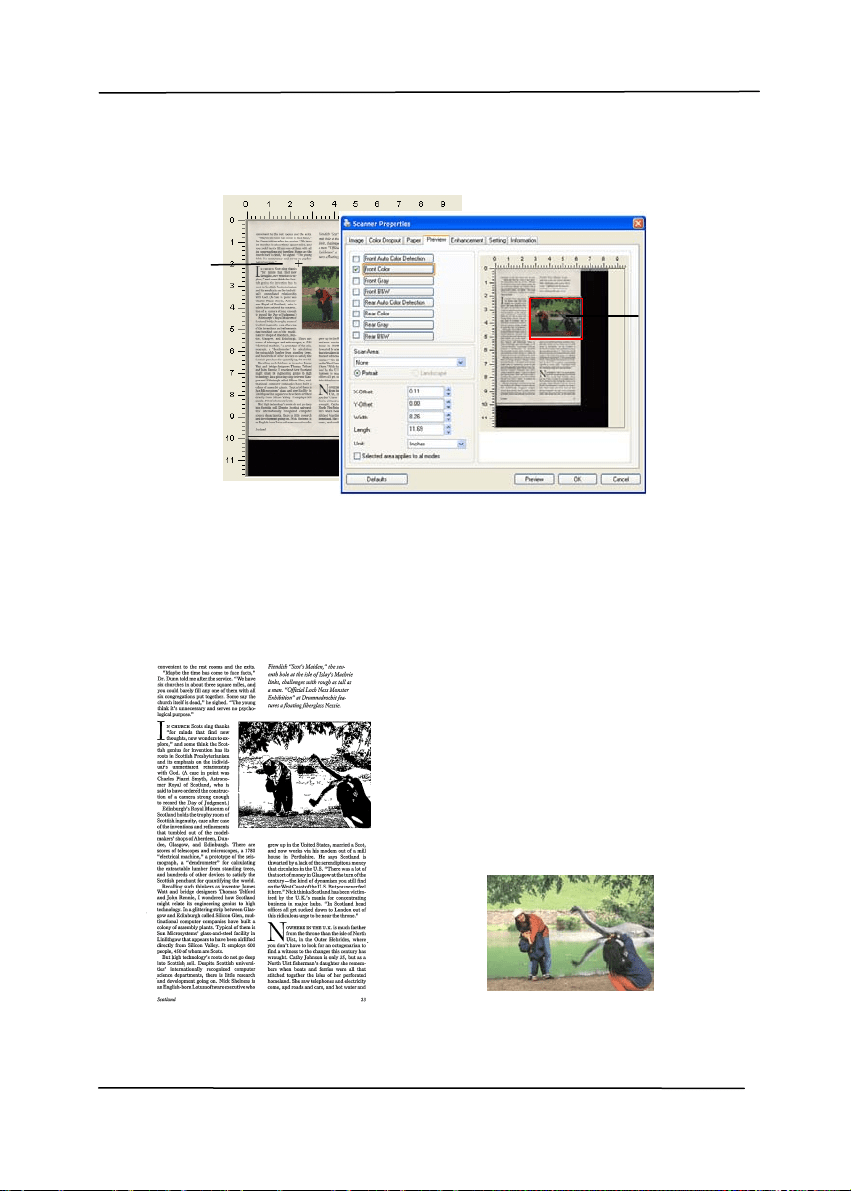
3. Click the Preview tab to display the Preview window. A
black rectangular box appears to indicate the max. scan
size your have just selected.
4. Click the Preview button to view the entire image in low
resolution to correctly crop your relative scan area.
5. Select image type from the Image Selection box. The
selected image will appear in highlighted color. (For
example, Front Color)
6. Place your cursor on the Preview window and click your
left mouse button. A cross sign will appear as illustrated.
Create your relative scan size diagonally by dragging the
left mouse button to your preferable size. The selected
area will appear in a red box as illustrated.
A black
rectangular
box
T
he Preview
Image
T
he Preview
Button
The Image
Selection
Box
User’s Manual
4-45
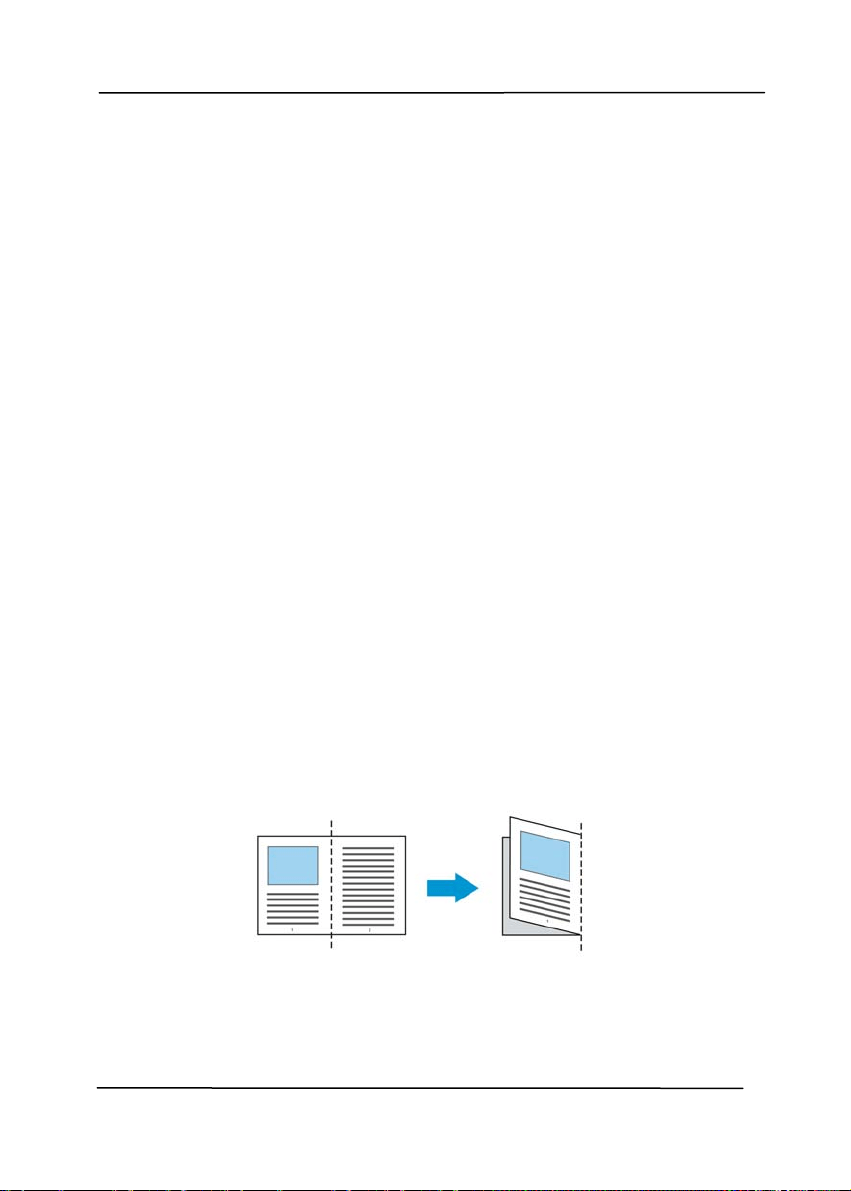
7. Check the B&W image from the Image Selection box to
scan the entire document.
8. Click the Scan button to start scanning the document in
two image types and sizes. (See the result in below.)
The entire document in B&W The relative area in color
T
he
Relative
Area
A Cross
Sign
User’s Manual
4-46
4.6.2 Other Paper Selection
Carrier Sheet Mode:
Check this opti
on to automatically crop the scan window
according to your document size when scanning non-standard
document (fragile, irregular-size document) with a carrier sheet
(optional). Note: The availability of this option varies due to
scanner model.
Loading Documents Using a Carrier Sheet
A Carrier Sheet is a plastic sheet specifically used for loading
non-standard document onto the scanner. It allows you to scan
document that can not be scanned in the regular way. Also,
documents larger than A4 size, such as A3 and B4, can be
scanned by folding in half, inserting into the Carrier Sheet, and
scanning in duplex mode. You can also scan documents that
can be damaged quite easily such as photographs, or irregular
size documents that are difficult to load directly such as
clippings.
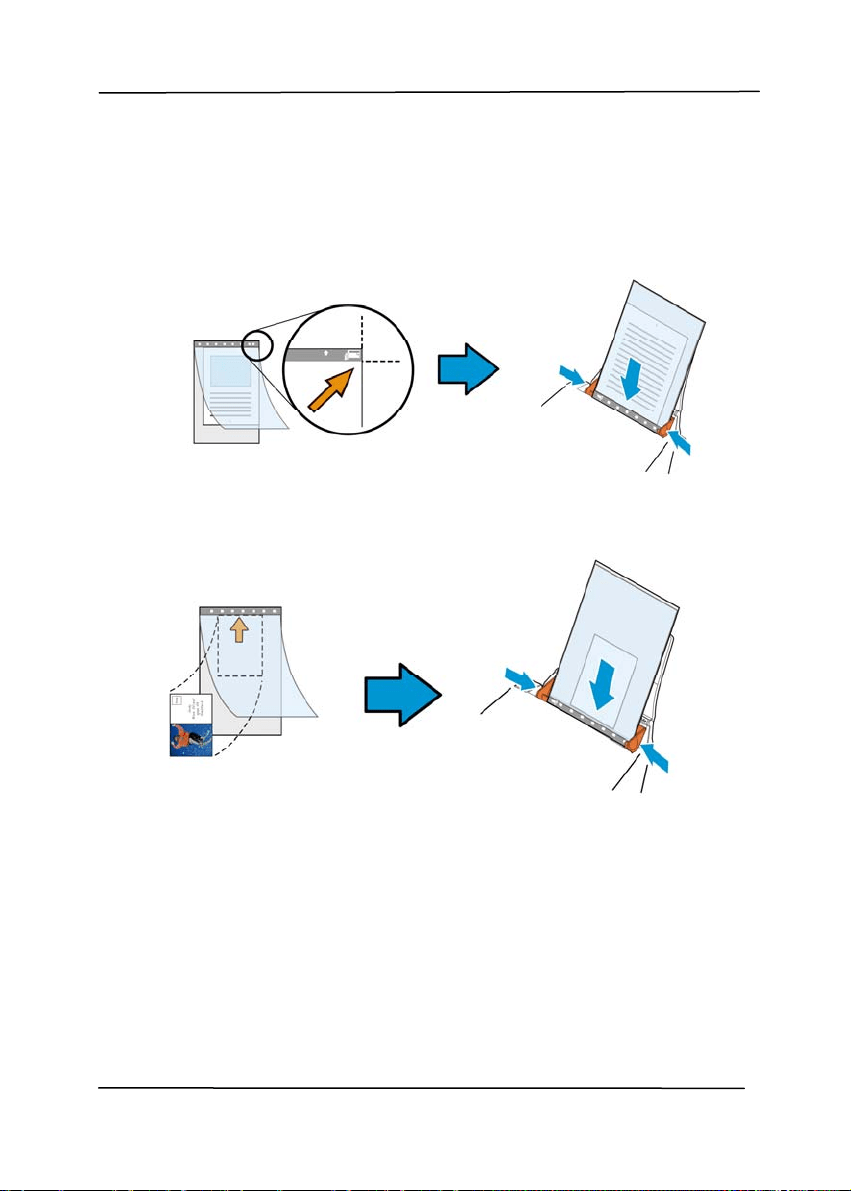
To scan document using a Carrier Sheet,
For documents larger than A4/Letter size, such as A3
a. Fold the sheet to be scanned in half.
b. Fold the sheet tightly and smooth out crease. Otherwise,
the sheet may be skewed during scanning.
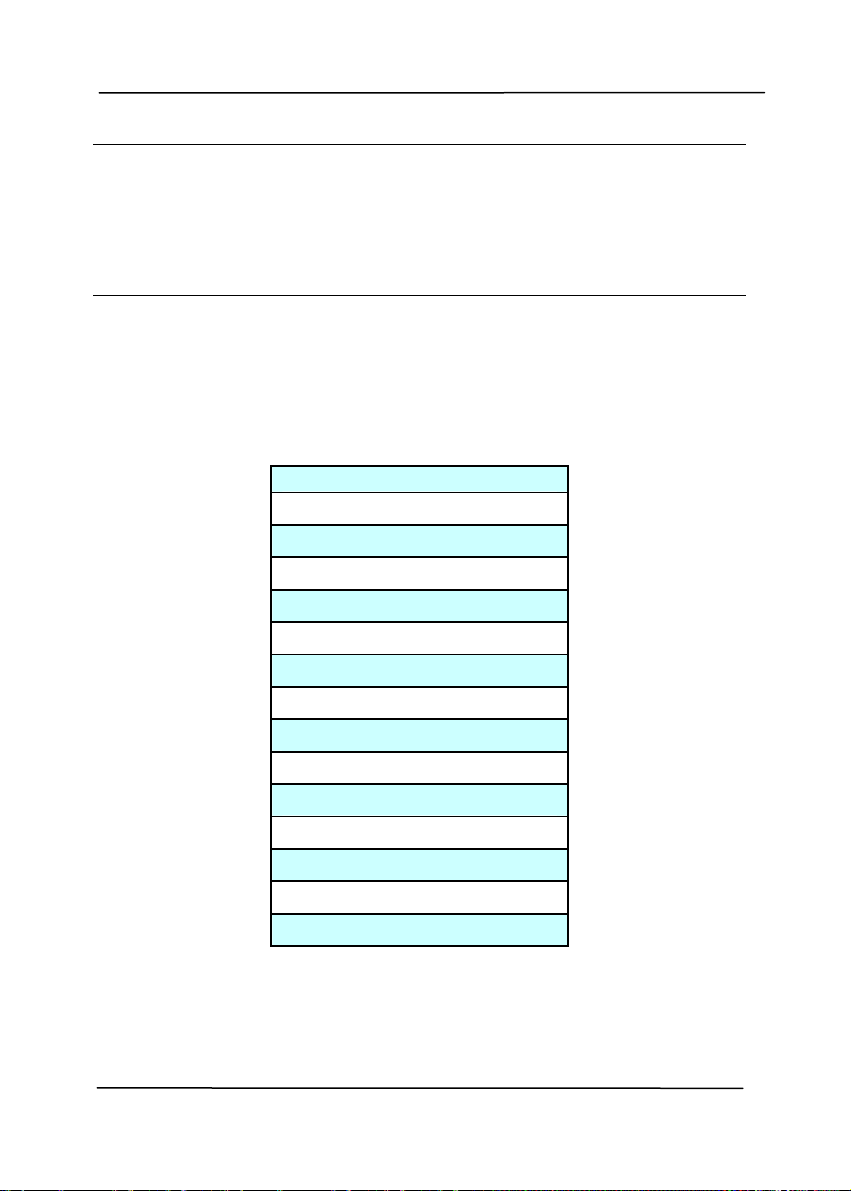
1. Open the Carrier Sheet and place the document
inside.
Align the top of the document to the top of the Carrier
Sheet (the printed area).
User’s Manual
4-47
For documents larger than A4/letter size, such as
A3
Align the top of the document to the top of the Carrier
Sheet (the printed section) and the folded portion to the
right edge of the Carrier Sheet so that the document fits
into the Carrier Sheet at the upper corner.
For non-standard document
Center your document in the Carrier Sheet.
2. Load the Carrier Sheet with the gray section (printed
section) facing downwards.
3. Adjust the paper guides to the width of the Carrier Sheet.
Adjust the paper guides so that there is no space
between the guides and the Carrier sheet. Space between
the guides and Carrier Sheet may cause the Carrier Sheet
to become unaligned during scanning, and skew the
scanned image.
4. Start the scan.
User’s Manual
4-48
Notice:
[Carrier Sheet] is available for the models that support the
Carrier Sheet.
Some functions are disabled when [Carrier Sheet] is
checked.
This option may not work properly on some applications.
Scan Area
Choose your desired paper size with the drop-down list box. Or
you may select a custom paper size by clicking the Scan Area
box and then click Add to include in the choice.
None
US Letter- 8.5”x 11”
US Legal – 8.5” x 14”
ISO A4 – 21 x 29.7 cm
ISO A5 – 14.8 x 21 cm
ISO A6 – 10.5 x 14.8cm
ISO A7 – 7.4 x 10/5 cm
ISO B5 – 17.6 x 25 cm
ISO B6 – 12.5 x 17.6 cm
ISO B7 – 8.8 x 12.5 cm
JIS B5 – 18.2 x 25.7 cm
JIS B6 – 12.8 x 18.2 cm
JIS B7 – 9.1 x 12.8 cm
Scanner Maximum
Long Page (<118”)

User’s Manual
4-49
Long Page (<118”):
When you need to scan documents whose length exceeds
scanner maximum, please choose Long Page. Note if Long
Page is selected, the Multi-Feed Detection will not be
available. (Note: This option and the maximum allowable
document length vary due to type of scanner.)
When Long Page (<118”) is selected, be sure to specify your
document size in the Length and Width field.
Notice when scanning long page document:
1. Pull out the extension in the ADF Paper Tray.
2. Secure enough space around the Output Tray to prevent
the ejected paper from falling off the Output Tray.
3. To ensure the performance, in color mode, set the
resolution to be 300 dpi or lower; in Black and White
mode, set the resolution to be 600 dpi or lower.
4. Depending on your system environments, application, or
your specified paper size, there may be insufficient
memory to perform scanning.
OverScan
Overscan allows you to add a specific margin at top and bottom
or right and left (Options vary based on the type of scanner) of
the edge of the image. This is used to reduce possible corner
clipping on the skewed images and often applied to a batch of
skewed document to be scanned in the auto document feeder.
Select a value between 0 and +5 mm. Note the overscan
result will not be shown in the Display window and that the
availability of the function varies based on type of scanner.

User’s Manual
4-50
Pre-Feed
Choice: Enable, Disable. If enable is selected, you can set the
amount of time the scanner starts pre-feeding your paper after
your documents has been loaded into the feeder. The default is
disabled. Note: The availability of this option varies due to
scanner model.
Transport Timeout
Set the amount of time the scanner will wait and then start
auto scan after the first scan job is completed. If you have
many separate documents need to be scanned at the same
scan settings, this feature is especially useful. The default is 0.
The value ranges from 0 to 30 seconds.
Note:
1 Within the specified timeout period, if you load your
document to the feeder, the scanner starts scanning
automatically.
2 If your scanner has a flatbed option and you place your
paper on the flatbed, after the timeout period, you need
to click the Scan button on the TWAIN user interface to
start scanning.
User’s Manual
4-51
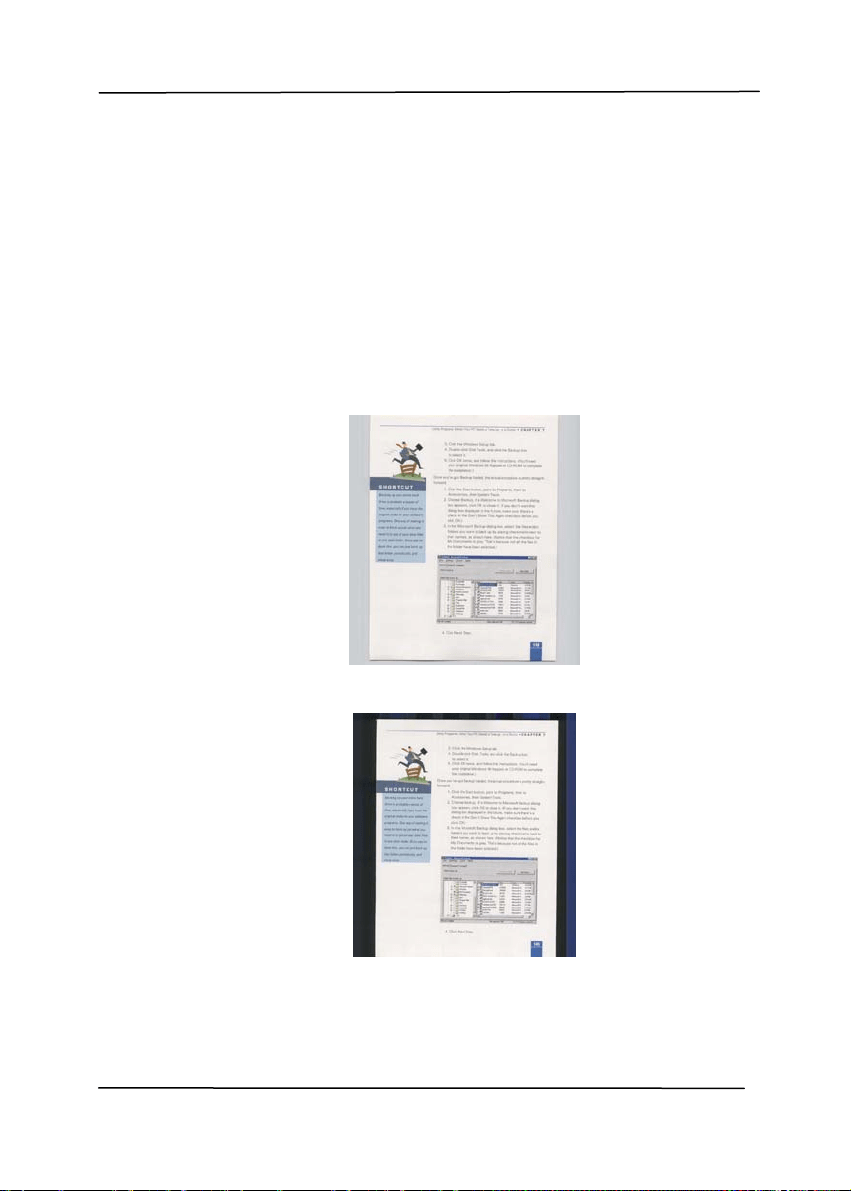
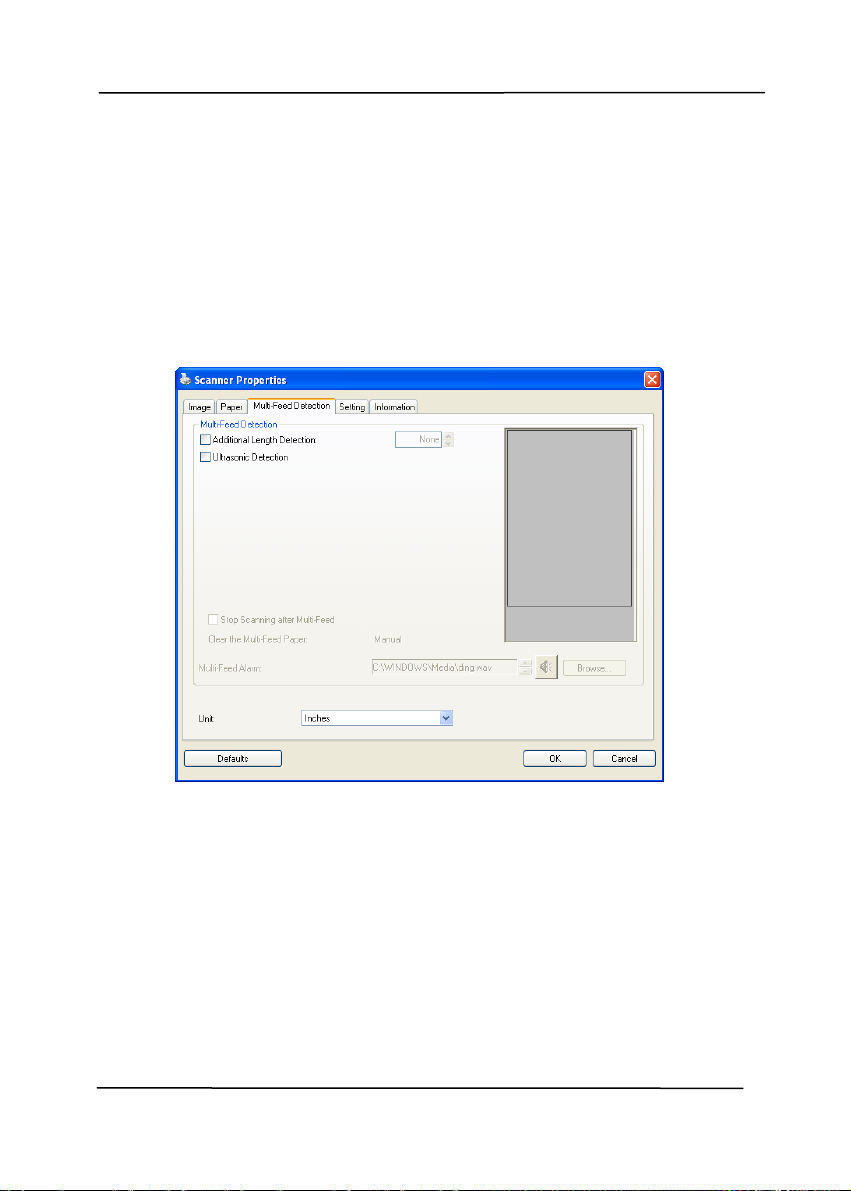
Background
Setting
This option allows you to set your scan
background. Choice: White Background,
Black Background.
Note: For a sheet-fed scanner with an auto
document feeder, this option is currently
available only in the “Auto crop” mode. For a
scanner with a flatbed platen, this option is
available either in the “Auto crop” or the
“Fixed to Transport” mode.
White Background
Black Background
User’s Manual
4-52
4.7 The Multi-Feed Detection Tab
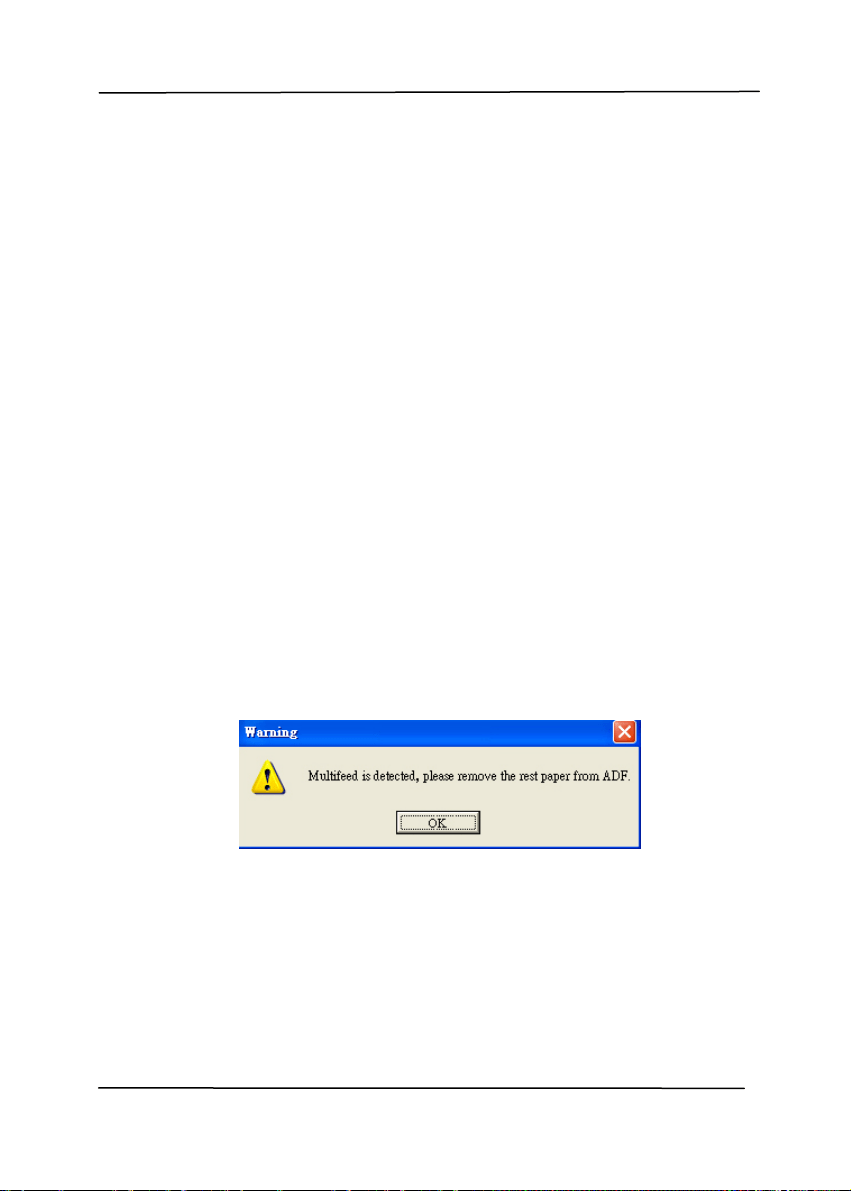
Multi-Feed Detection
Mu
lti-Feed Detection allows you to detect overlapped document
that go through the auto document feeder. Multi-Feed usually
occurs due to stapled documents, adhesives on documents, or
electro-statically charged document. Note: The availability of
the function varies based on type of scanner.
User’s Manual
4-53
Additional Length Detection
Additional Length Detection allows you to define the length of
document being multi-fed. This value indicates the additional
length exceeding your scan area. The Display window will
show the size of the document as you change the value. A
value of 0 indicates no additional length detection. The
Additional Length Detection is best used when scanning same-
size documents in the auto document feeder.
Ultrasonic Detection
Ultrasonic Detection allows you to set overlapped document by
detecting paper thickness between documents. Note: The
availability of the function varies based on type of scanner.
There are two options available if Multi-Feed is detected.
Stop Scanning after Multi-Feed
If this is selected, the scanner will stop the feeder and
display the following Warning dialog box if multi-feed is
detected.
Action:
1. Follow the instruction on the Warning dialog box to
remove the rest pages on the feeder.
2. Click OK to close the Warning dialog box.
3. Scan the rest pages.

User’s Manual
4-54
Clear the Multi-Fed Paper: Auto
If this is checked, once multi-feed is detected and scanning
operation is stopped, the scanner will automatically clear the
transport of the multi-fed paper. If this is not checked, once
multi-feed is detected and scanning operation is stopped, you
need to manually clear the transport of the multi-fed paper.
Note: The availability of this option varies based on type of
scanner.
Multi-Feed Alarm
If a wave file is added, the scanner will make a sound
alarm if multi-feed is detected yet no Warning dialog box
will be displayed.
If “Stop Scanning after Multi-Feed” is selected, the scanner
will stop the feeder.
If “Stop Scanning after Multi-Feed” has not been selected,
the scanner will continue to scan till the end of your
document.
Action:
1. If “Stop Scanning after Multi-Feed” is selected, follow
the action described in the preceding section “Stop
Scanning after Multi-Feed” on the previous page to
complete your job.
2. If “Stop Scanning after Multi-Feed” has not been
selected, rescan the pages where multi-feed is
detected.

User’s Manual
4-55
How to add the sound alarm:
1. Click the Browse button on the right side of the speaker
icon. The Open dialog box appears.
2. Choose your wave file.
3. Click the Open button. The wave file is added.
Units
Defines the primary measurement system. Inches,
Millimeters, and Pixels are available.
User’s Manual
4-56
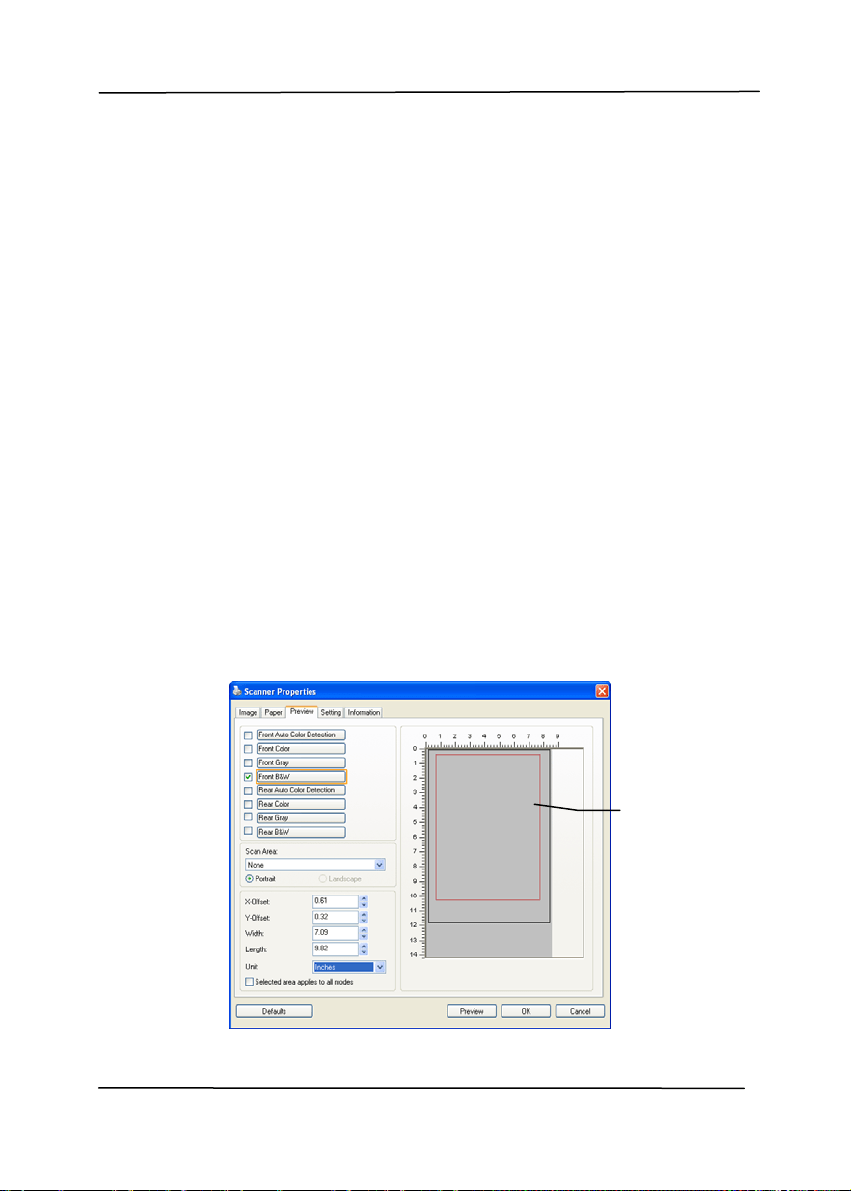
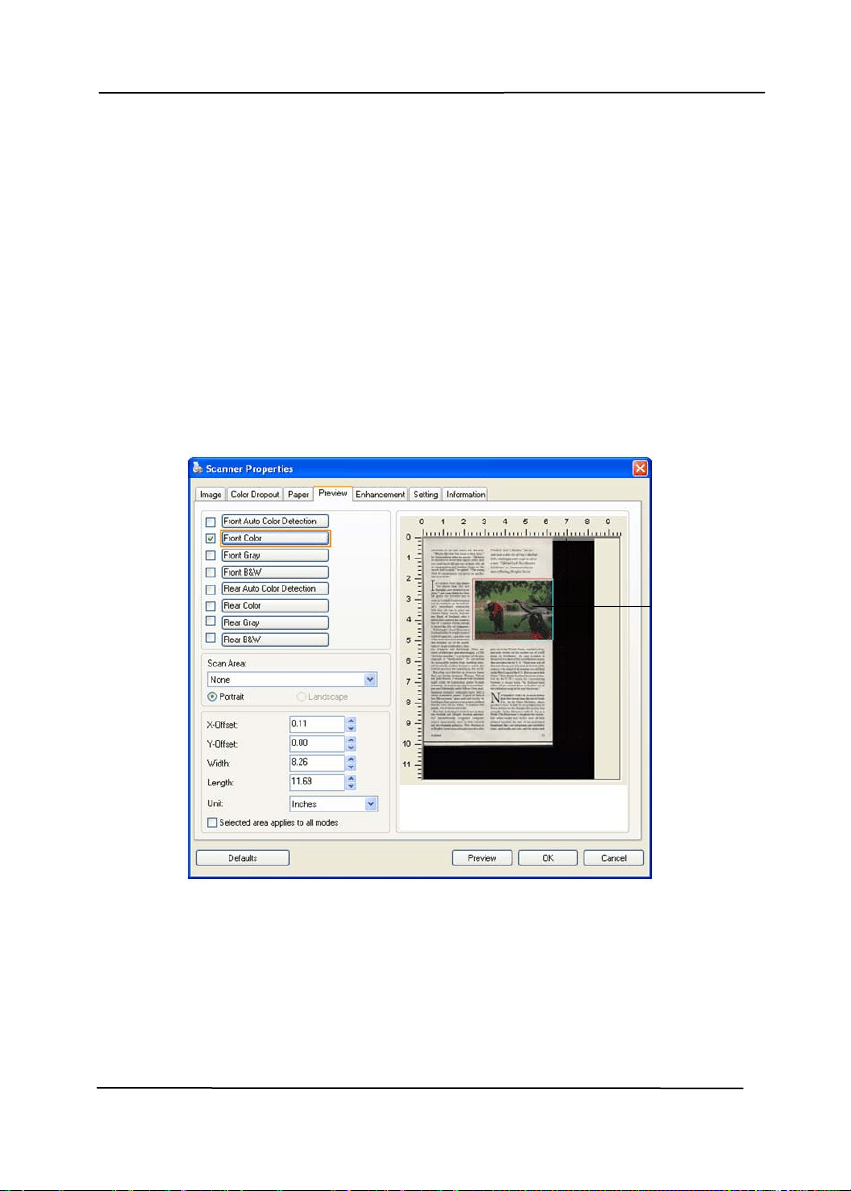
4.8 The Preview Tab
The Preview tab allows you to preview (a low-resolution scan)
your image before final scan. This preview image lets you
allocate your scan area. You can choose your scan area by the
“Scan Area” drop down list box or placing your cursor on the
Display window and dragging it diagonally on the Display
window. Then, a red rectangle box will appear to indicate the
selected area.
Note: If you choose “Automatic Cropping” on the “Paper Tab”,
then to select a scan area on the Preview tab is not allowed.
The Preview Tab
The Display
Window
User’s Manual
4-57
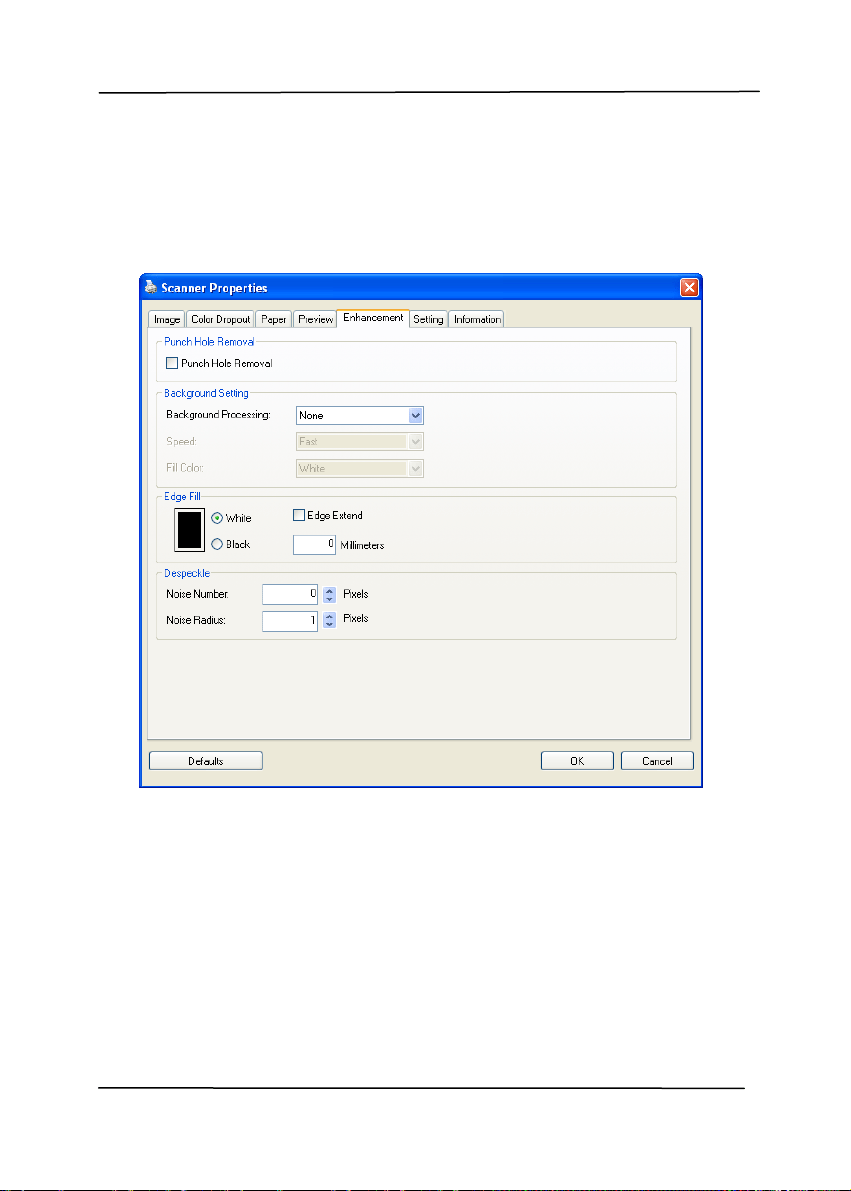
4.9 The Enhancement Tab
The Enhancement tab allows you to set following additional
image processing settings.
The Option tab dialog box
User’s Manual
4-58
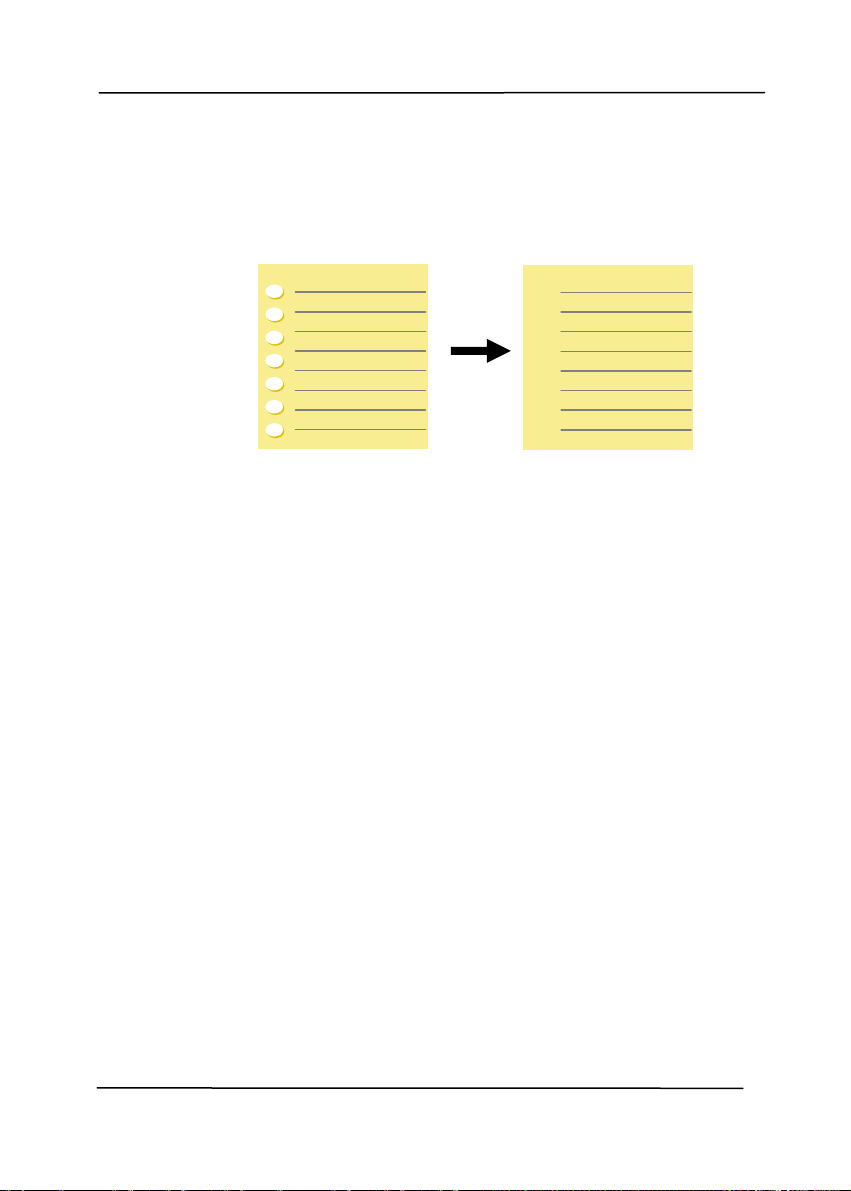
Punch
Hole
Removal
You can remove punch holes from the output
scanned image when scanning punched document.
Note the availability of this feature varies
depending on your scanner model.
Punch holes can not be removed when:
Resolution is set lower than 150dpi
The hole is near the edge of the document
The holes are not aligned along the edge of the
document
Punch Hole Removal is available only when
“Auto Crop” is enabled. If either “Fixed to
Transport”, “EOP (End of Page) Detection”,
“Automatic Multiple”, “Relative to Documents” is
selected from the Cropping option on the Paper
tab, the Punch Hole Removal option will be
disabled.
Original
Output image

User’s Manual
4-59
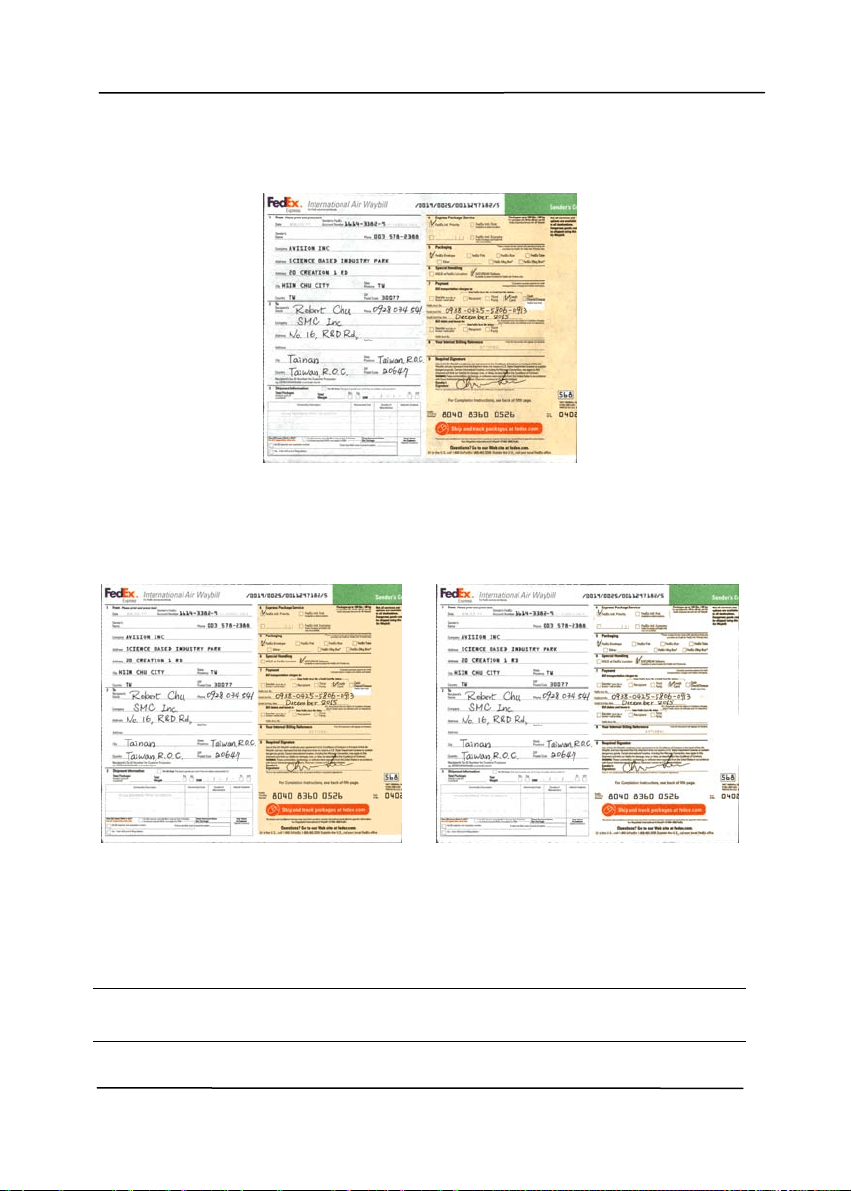
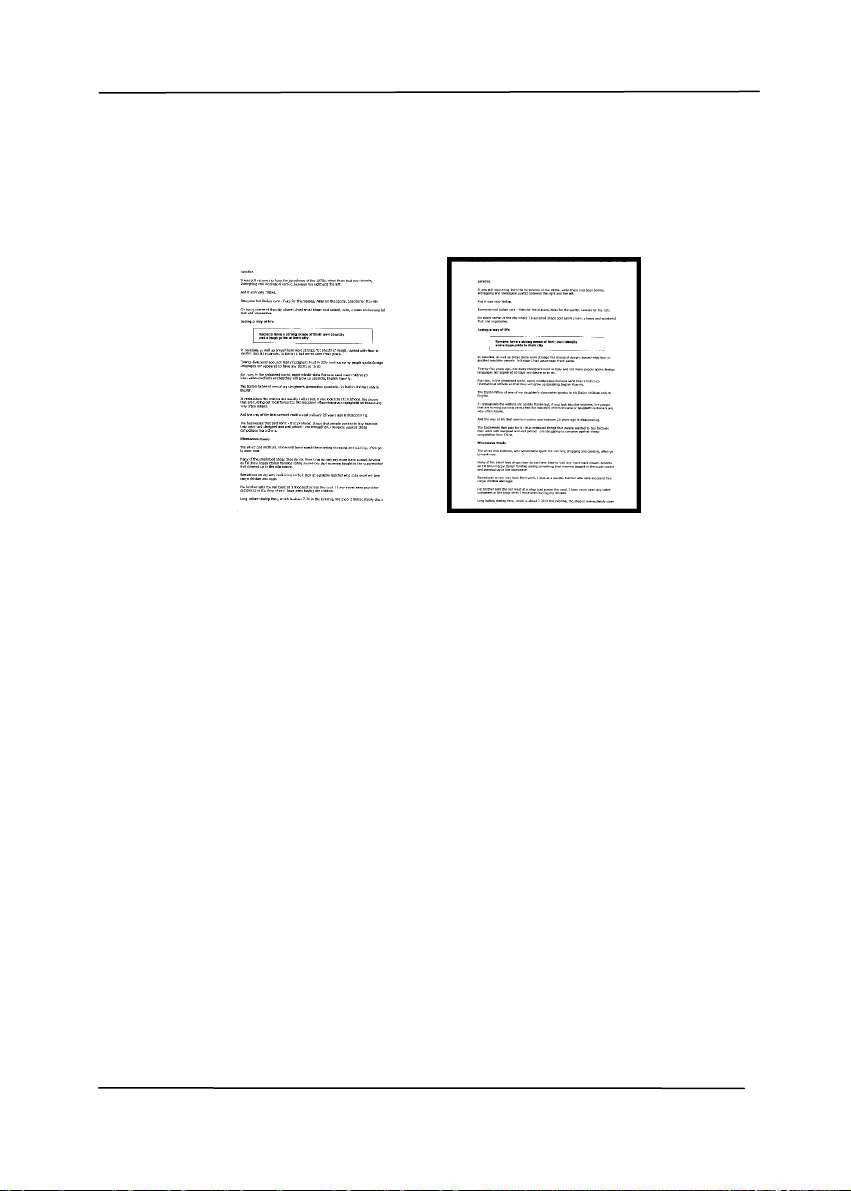
Background Processing: The [Background Processing]
option allows you to smooth background color or remove it to
make image clearer. The option is especially useful for
documents with color forms such as invoices.
Choices: None (default), Smooth, Removal
- None - no background processing will be performed
(default)
- Smooth - produces images with a more uniform
background color. This option improves image quality.
- Removal - identifies the background color and then
removes it.
Speed: Use this option to select the operating speed to
proceed the background processing.
Choice: Fast, Quality.
- Fast – proceeds the operation in speed mode.
- Quality - proceeds the operation in normal mode with
better processing result.
Mode: Auto, Moiré
If [Smooth] is selected in the [Background Processing]
option, then the choices for the [Mode] option includes Auto,
and Moiré.
- Auto - uses the factory preprogrammed mode to proceed
background smoothing.
- Moiré – Remove the moiré patterns that appear on the
background of the image when scanning printed material.
If [Removal] is selected in the [Background Processing]
option, then the [Mode] option will be replaced with [Fill
Color]. Choices: White, Auto.
- White - identifies the background color and substitutes it
with white.
- Auto - identifies the background color and substitutes it
with the color of the largest background zone.
User’s Manual
4-60
Background Processing: None
Background Processing:
Smooth
Background Processing:
Removal
Fill Color: White
Note: Background color in small zone will not be processed or
removed.
User’s Manual
4-61
Edge
Fill
Check White or Black if you wish to add white or
black edge on the border of your scanned image.
Enter the value from 0 to 5 mm. Default value is 0.
Original
Edge Fill: 5mm (Black)
User’s Manual
4-62
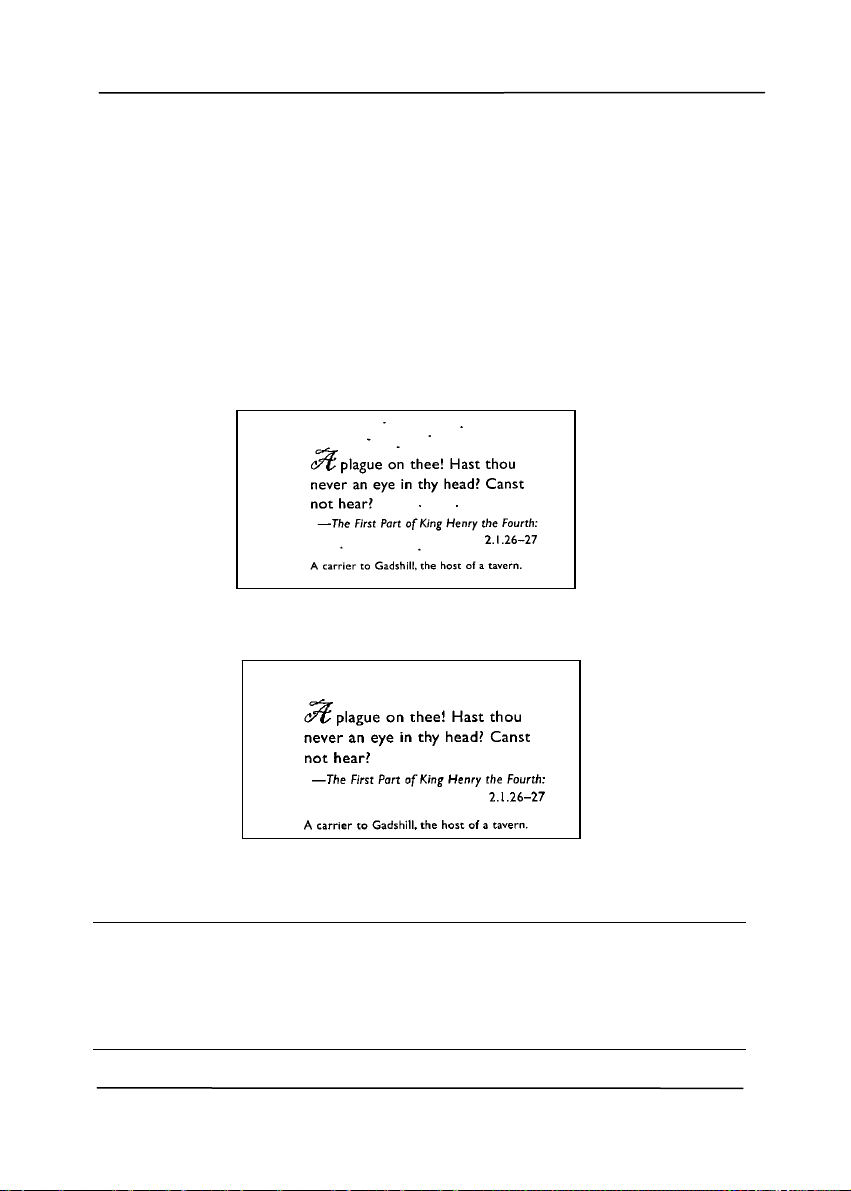
Despeckle
Occasionally small dots or specks appear in the background of
a scanned image. Remove unwanted speckles provides a
cleaner image for OCR (Optical Character Recognition)
processing, and also helps to reduce compressed file size.
Define the speckles (also known as image noise) you wish to
remove by specifying its number (size) and radius (range). The
measuring unit is pixel. The higher the number, the more
speckles will be removed.
Before Despeckle
(noise number:0, noise radius:1)
After Despeckle
(noise number:22, noise radius:10)
Note:
The function is currently available for Black and White
image only.
To scan at rated speed, it is recommended to set the
noise radius up to 10 pixels.
User’s Manual
4-63
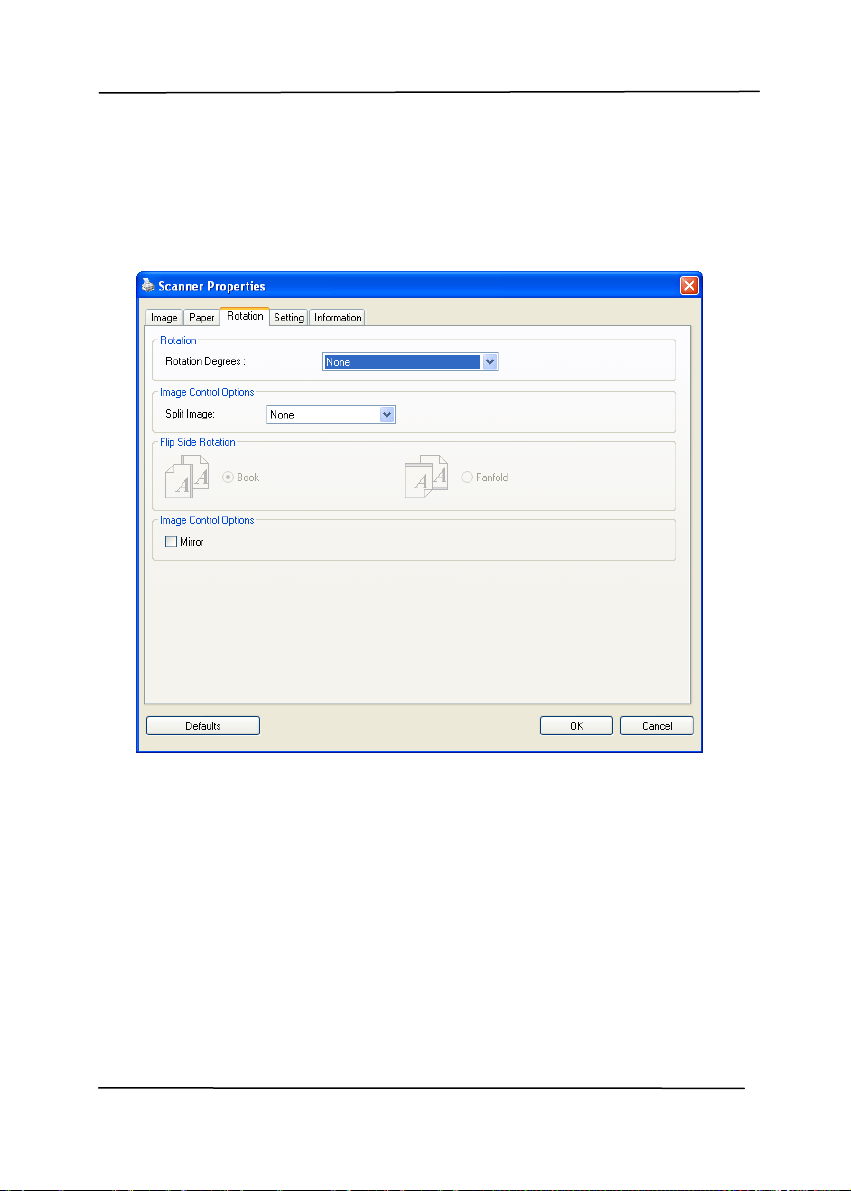
4.10 The Rotation Tab
The Rotation tab allows you to set the following image rotating
options:
User’s Manual
4-64
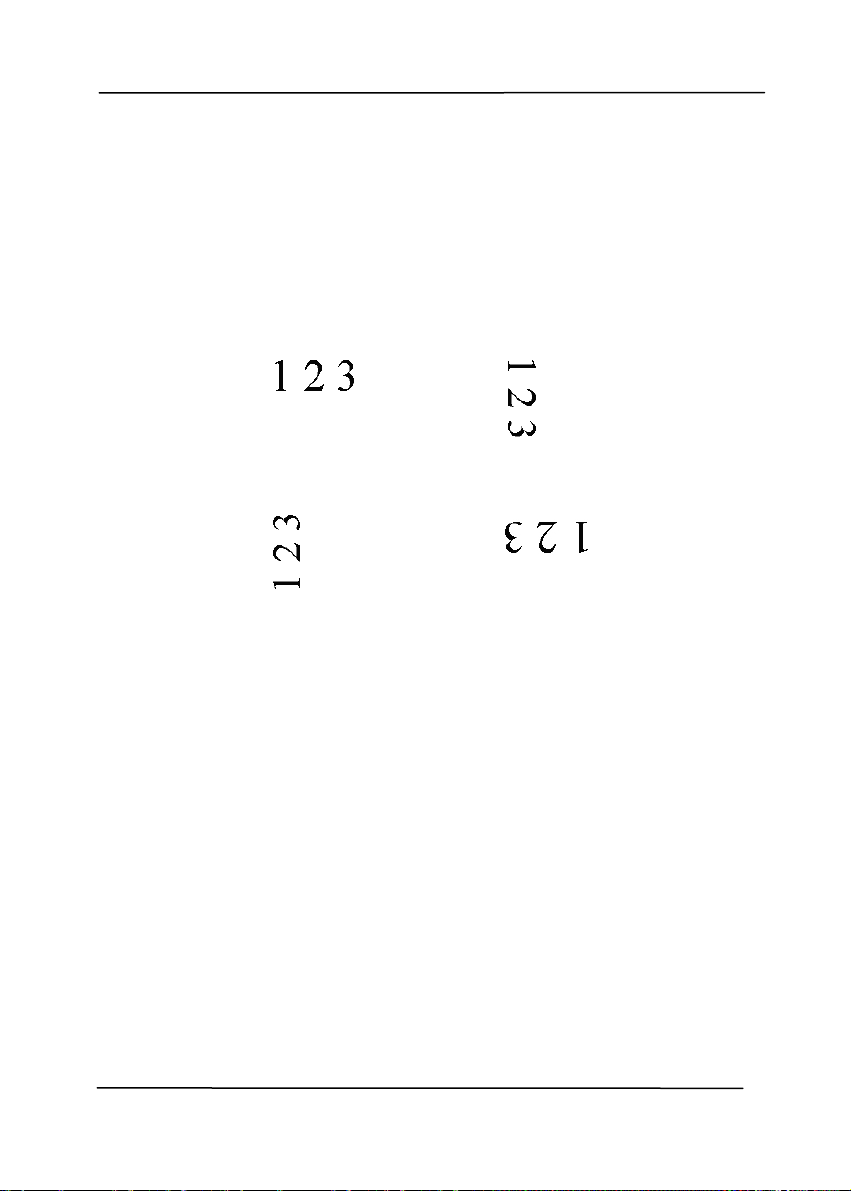
Rotate
Image
Choose the rotation angle from the drop down
list if you wish to rotate your scanned image.
Choice: None, 90°CW(clockwise),
90°CCW(counter clockwise), 180°, Auto
based on contents. Auto rotate every
even page.
Original
Rotate 90°CW
Rotate 90°CCW
Rotate 180°
Auto based on contents: When Auto
based on contents is selected, images can
be rotated to their proper orientations based
on their contents.
Auto rotate every even page:
Automatically rotate 180° on every even
page. This is especially useful when you scan
the inside pages from a book. As a result, if
you choose “Flatbed (book)” from the “Scan
Source” option, “auto rotate every even page”
will be selected as default.
Note: This option varies based on type of
scanner.
User’s Manual
4-65
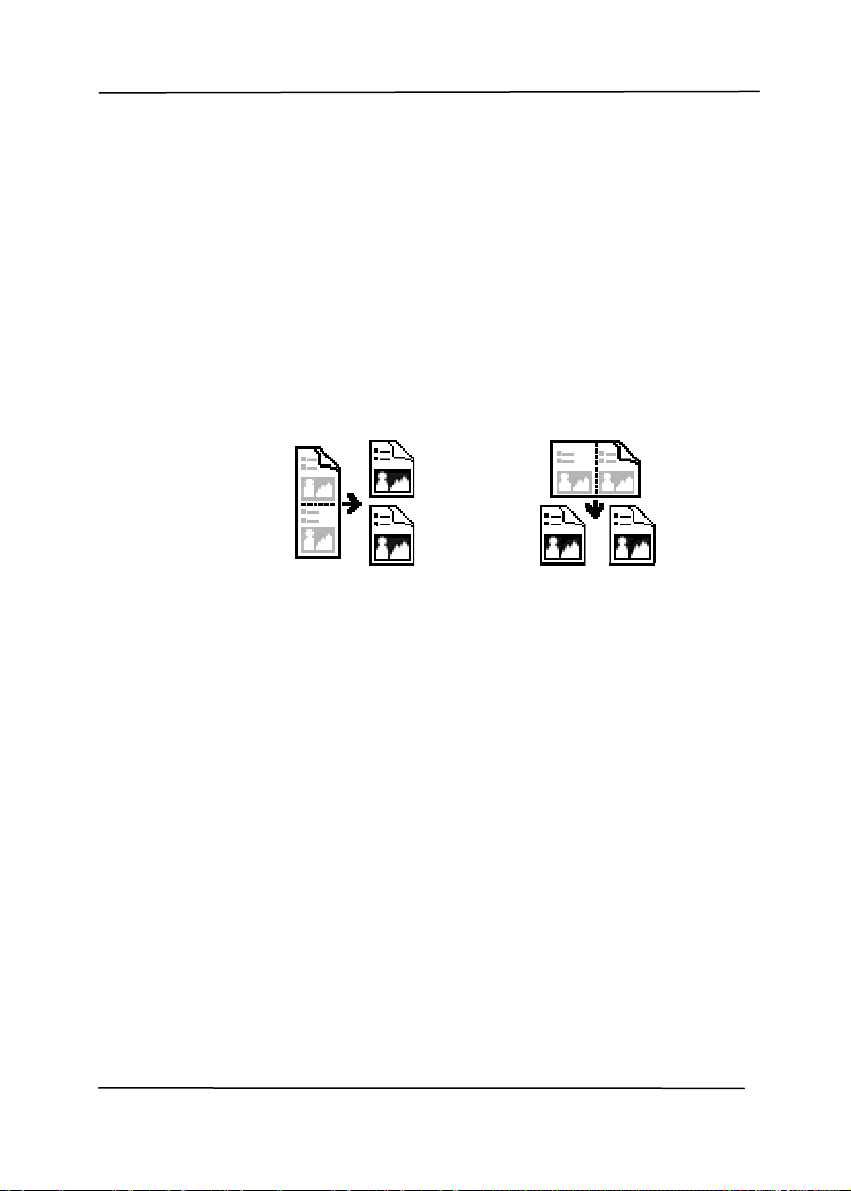
Split
Image
By splitting an image, two separate images are
created horizontally or vertically. This is useful
for documents containing two pages per image
when you want to save them as two images
(one page for one image). Choice: None,
Horizontal, Vertical. Default is None.
Horizontal: Divide one image into the upper
half and the lower half.
Vertical: Divide one image into the left half and
the right half.
Split Horizontally
Split Vertical
User’s Manual
4-66
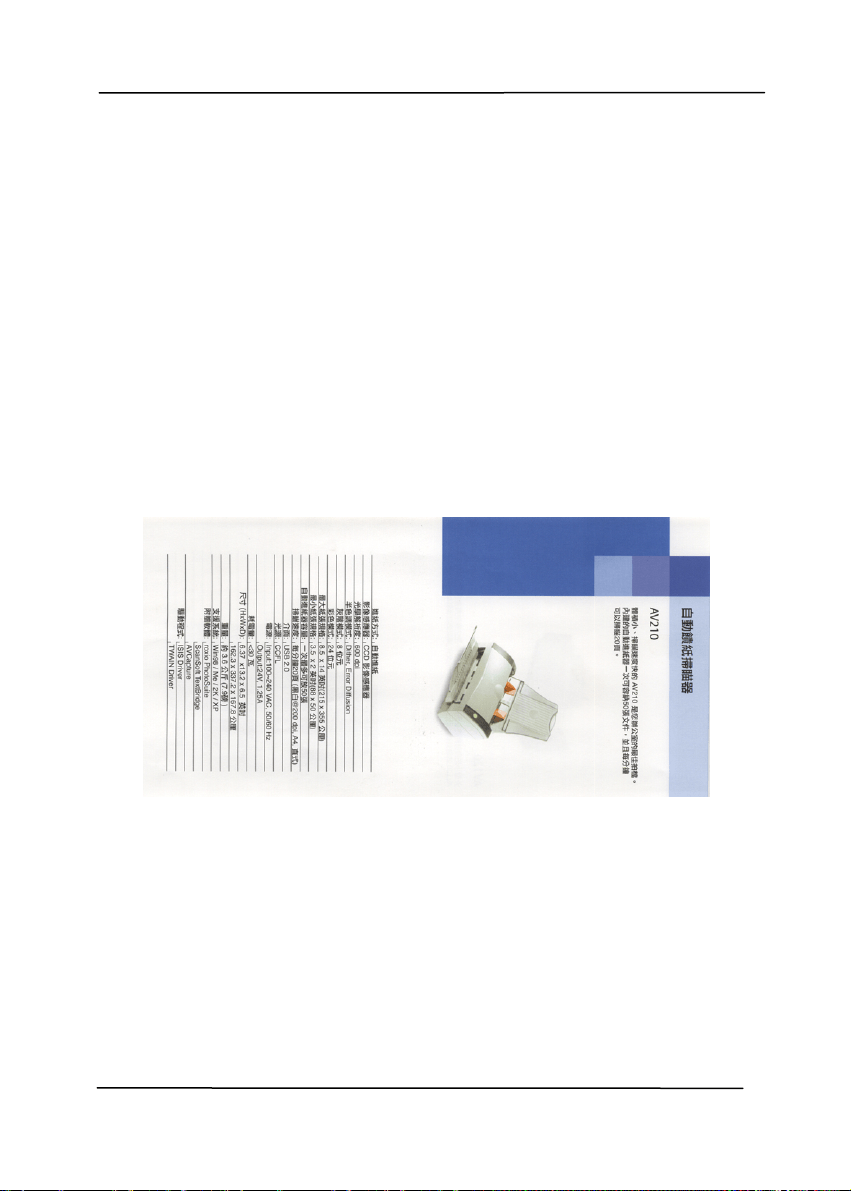
Flip Side
Rotation
Select “fanfold” to rotate the image of the
reverse side to 180 degrees.
This is applied to double-sided document
which are viewed in portrait are sometime
fed into the scanner in landscape or vice
versa.
Choice: Book, Fanfold.
If “Book” is selected, the image of the
reverse side will not be rotated.
The following illustration shows the documents which should
be viewed in portrait are fed into the scanner in landscape
User’s Manual
4-67
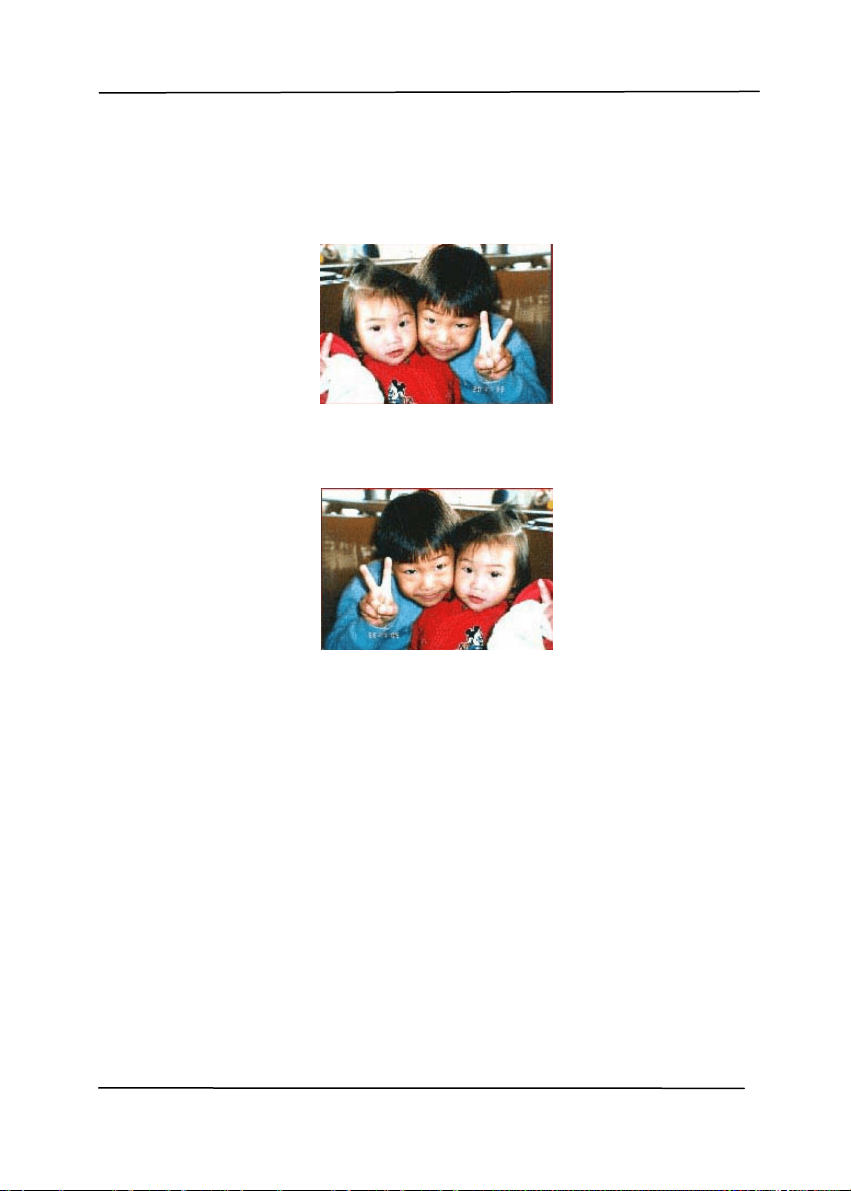
Image
Control
Option
Check the Mirror box if you wish to reverse the right
and left side of your image.
Original
The Mirror Effect
User’s Manual
4-68
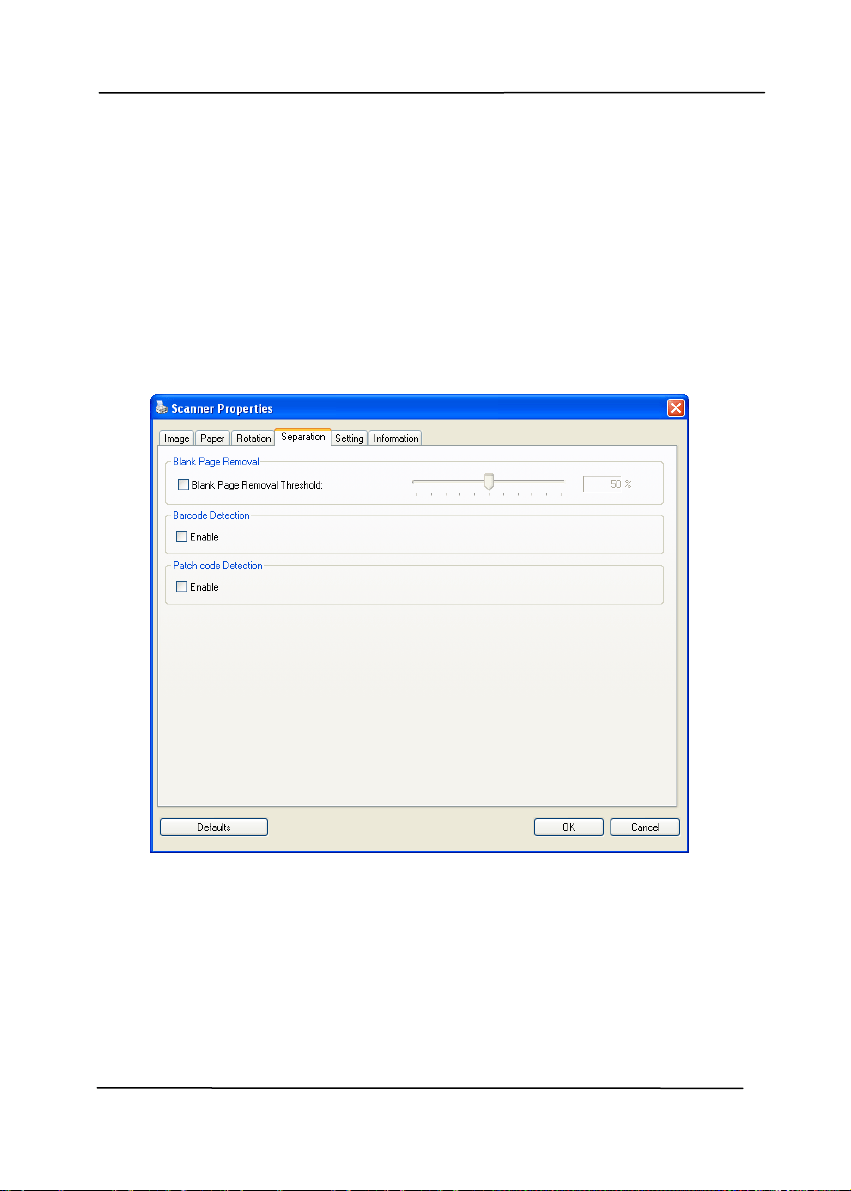
4.11 The Separation Tab
The Separation tab allows you to enable the detection engine to
detect the blank page, barcode, and patch code and then notify
t
h
e software application which supports document separation to
separate your multi-page documents. Choices: Blank Page
Removal, Barcode Detection, Patch Code Detection.
Blank Page
Removal
Check if you wish to remove the blank page
and move the slider to the left or right to your
desired threshold.

User’s Manual
4-69
When the bar code has been detected successfully,a file
[avbarcode.ini] will be created and stored in the following path:
Windows XP: C:\Documents and Settings\All Users\Application
Data\%PRODUCTNAME%
Vista, Windows 7, Windows 8:
C:\ProgramData\%PRODUCTNAME%
Barcode Detection:
Check [Enable] to detect barcode and notify the software
application for advanced processing. Please note the whole
document will be checked and no specific detection area needs
to be designated.
Barcode Types:
The following barcode types can be detected.
One-dimensional barcodes:
Code 39
Code 93
Code 128
EAN-8
EAN-13
ITF (Interleaved 2 of 5)
UPC-A
Codabar
GS1 DataBar (formerly RSS-14)
Two-dimensional codes
Aztec
DataMatrix
MaxiCode
QR Code
PDF417 (MicroPDF417 not supported)
User’s Manual
4-70
Note:
Recommended resolution: 200~600 dpi for regular
barcode, 300~600 dpi for QR code
Skewed barcodes may not be recognized correctly.
Using the same sheet repeatedly may decrease the
recognition accuracy due to accumulated dirt on the sheets.
If the sheet is not recognized correctly or gets smudged,
replace it with a new sheet.
Patch code Detection:
Check [Enable] to detect patch codes and notify the software
application for advanced processing.
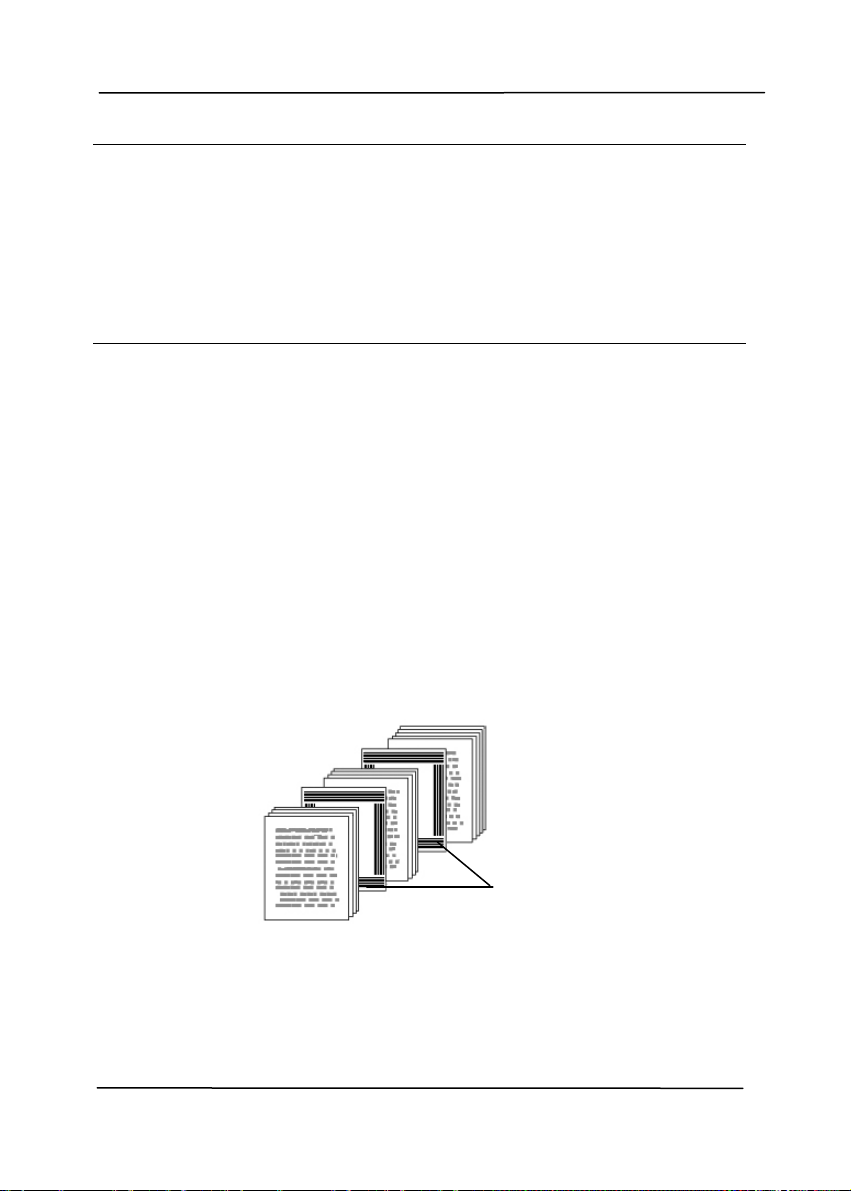
A patch code is a pattern of parallel, alternating black bars and
spaces (i.e. a barcode) that is printed on a document. Patch
code sheet is most commonly used as a document separator in
a stack of document.
You can find various sizes of patch codes (PDF) by choosing
[Start] menu>[All Programs]>[Avision Scanner
Series]>[Patch code] in succession.
Simply print the PDF file to produce the patch code sheet.
Insert the patch code sheets to wherever you want the file to
separate.
Patch code sheet

User’s Manual
4-71
Notes to print the patch codes:
Use blank white paper.
Set the scaling to 100%. The sheet is not recognized
correctly when printed in a size smaller than the original.
Do not use toner saving mode. The sheet is not recognized
correctly when the print is too light.
Do not use thin paper in order to avoid bleed-through from
the back.
When you copy a patch code sheet that you printed out,
make sure to copy by the same size and brightness as the
original copy.
Use the same sheet repeatedly may decrease the
recognition accuracy due to accumulated dirt on the sheets.
If the sheet is not recognized correctly or gets smudged,
replace it with a new sheet.
User’s Manual
4-72
4.12 The Setting Tab
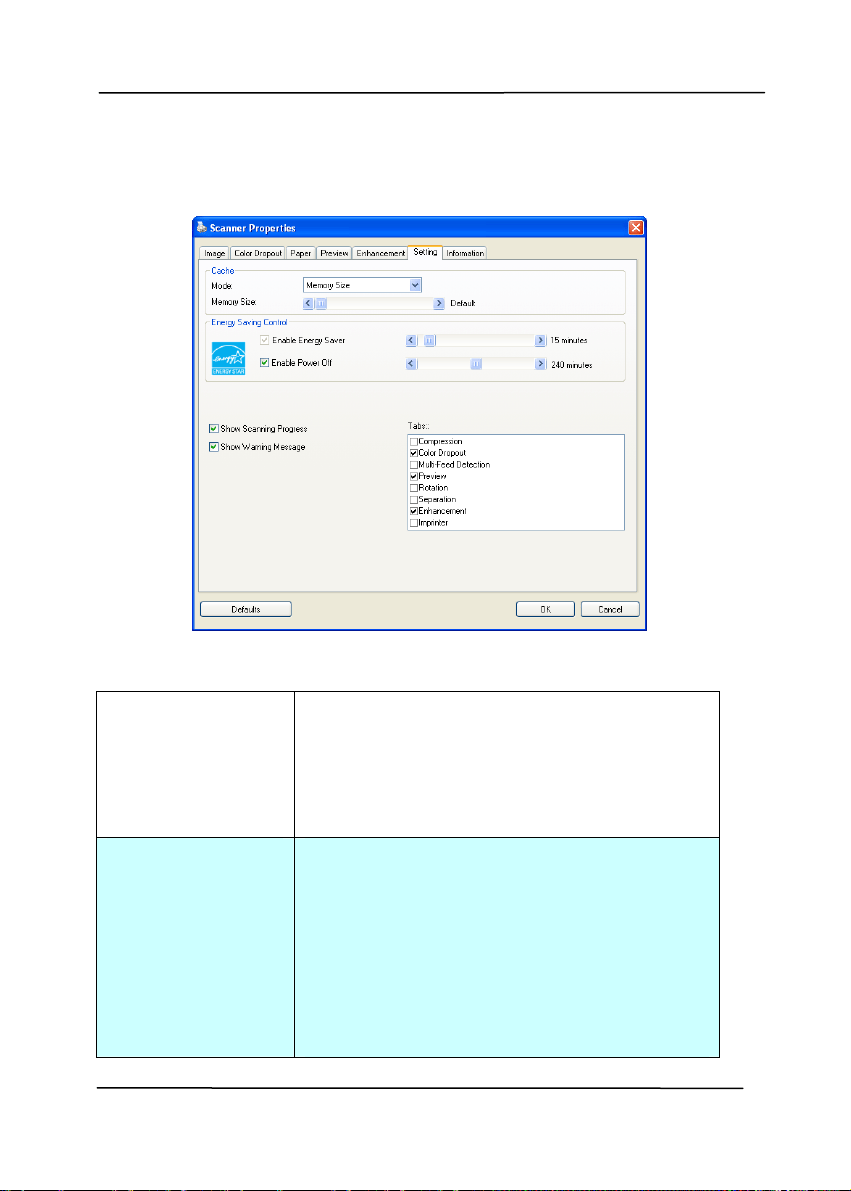
The Setting tab al
lows you to set the following settings:
The Setting tab dialog box
Energy Saving
Control
Check the Enable Energy Saver box
and move the slider to set the amount
of time to start the energy saver after
your last action. The range is from 1 to
242 minutes. The default value is 15
minutes.
Enable Power
Off
Check the Enable Power Off box and
move the slider to set the amount of
time to automatically turn off the
scanner after your last action. The
range is from 1 to 480 minutes. The
default is 242 minutes (4 hours). Note
the value of “Power Off” has to be
greater than or equal to the value of
“Energy Saving”.

User’s Manual
4-73
Cache
Mode: None, Page Number, Memory
Size.
This option allows you to assign a specified
memory size from the available RAM to
process the image data. By specifying a
smaller memory size, you can free more
memory for other applications you are
running. By specifying a larger memory
size, you can have more memory to
process the image data especially when you
have a large amount of documents needed
to be scanned.
You can also specify your memory size by
the page number. For your information, an
A4 color document scanning at 300 dpi
consumes approximates 24MB.
Image Count
When the selected cache mode is “none”,
the image count option allows you to assign
number of pages you need to scan. For
example, if you wish to scan the first two
pages, simply move the page slider to 2,
and the scan action will be stopped when
the scanning of the first two pages have
been completed.

User’s Manual
4-74
Show Scanning
Progress
Check and the scanning progress bar
will be shown during scanning.
Show Warning
Message
Check to show the warning messages
such as “ADF pad count exceeds
50,000 scans (the number varies based
on type of scanner). Please replace the
ADF pad and reset the pad count.”
Save Settings
after Closing
Check to save your scanner properties
settings after leaving the dialog box.
Next time when you open the Scanner
Properties dialog box, the previously
saved settings will be shown.
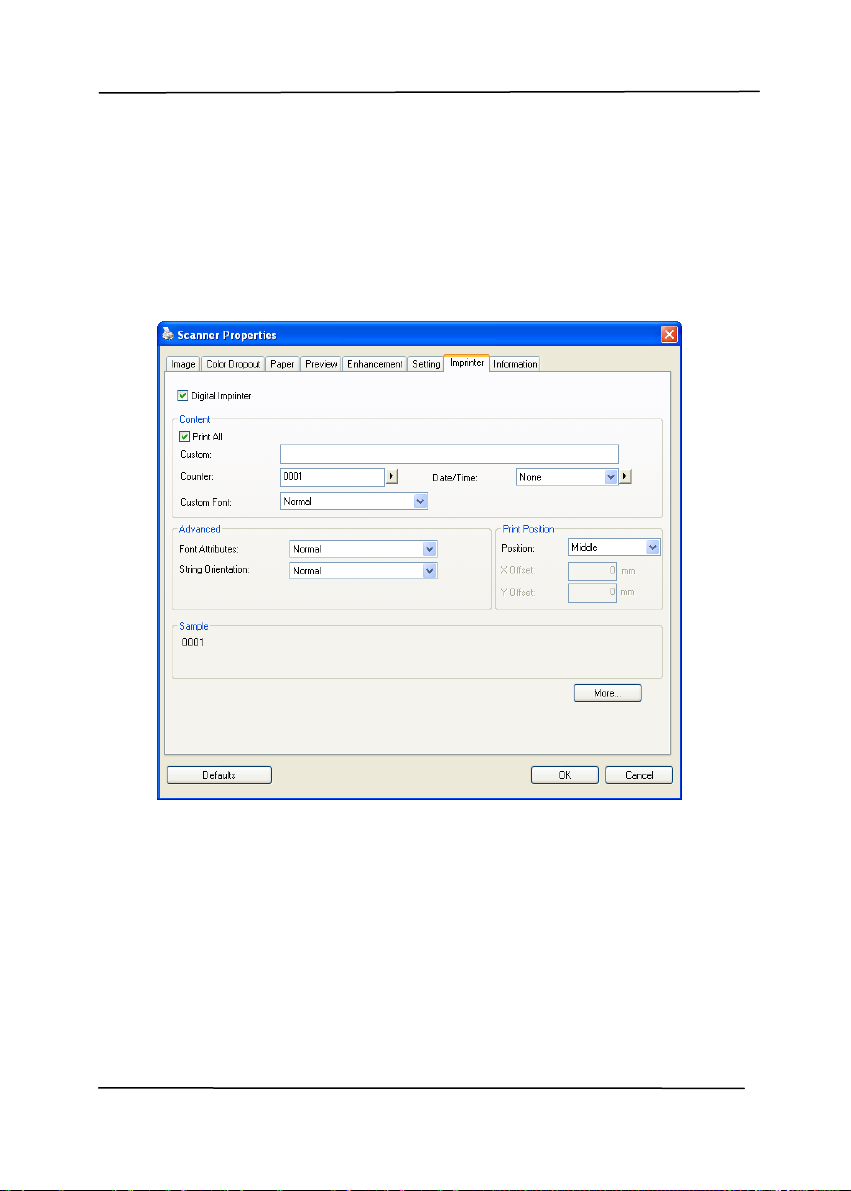
User’s Manual
4-75
4.13 The Imprinter Tab
The Imprin
ter tab allows you to print alphanumeric characters,
date, time, document count and custom message on your
scanned image if digital imprinter is selected or at the back of
your document if external imprinter is selected.
Choice: External Imprinter, Digital Imprinter. If you have
installed an external imprinter, choose external imprinter. If
you do not have an imprinter, choose digital imprinter. Note
External Imprinter provides a vertical and rear-side print
capability while digital printer provides a horizontal and front-
side print capability.

User’s Manual
4-76
Contents
Print All Check Print All to automatically print the
text at all pages of your documents.
Uncheck Print All to print the text for the
first page of your documents only.
Custom Enter your custom text to be included in your
print string.
Counter Show the document count for the scan
session. This value is increased sequentially
by the scanner.
Date/Time Choose if you wish to include the date and
time in your print string.
Format: YYYYMMDDHHSS For example,
20090402170645-check0001 indicates year,
month, date, hour, seconds, your custom
text and the counter.
Custom
Font
Choose your desired font.
Choice: Normal, Fixed Width
Fixed Width (Mono spaced) fonts have a
fixed character spacing. So each character
occupies the same width.
Advanced
Font
Attributes
Choose your font attributes. Choice:
Normal, Underline, Double, and Bold.
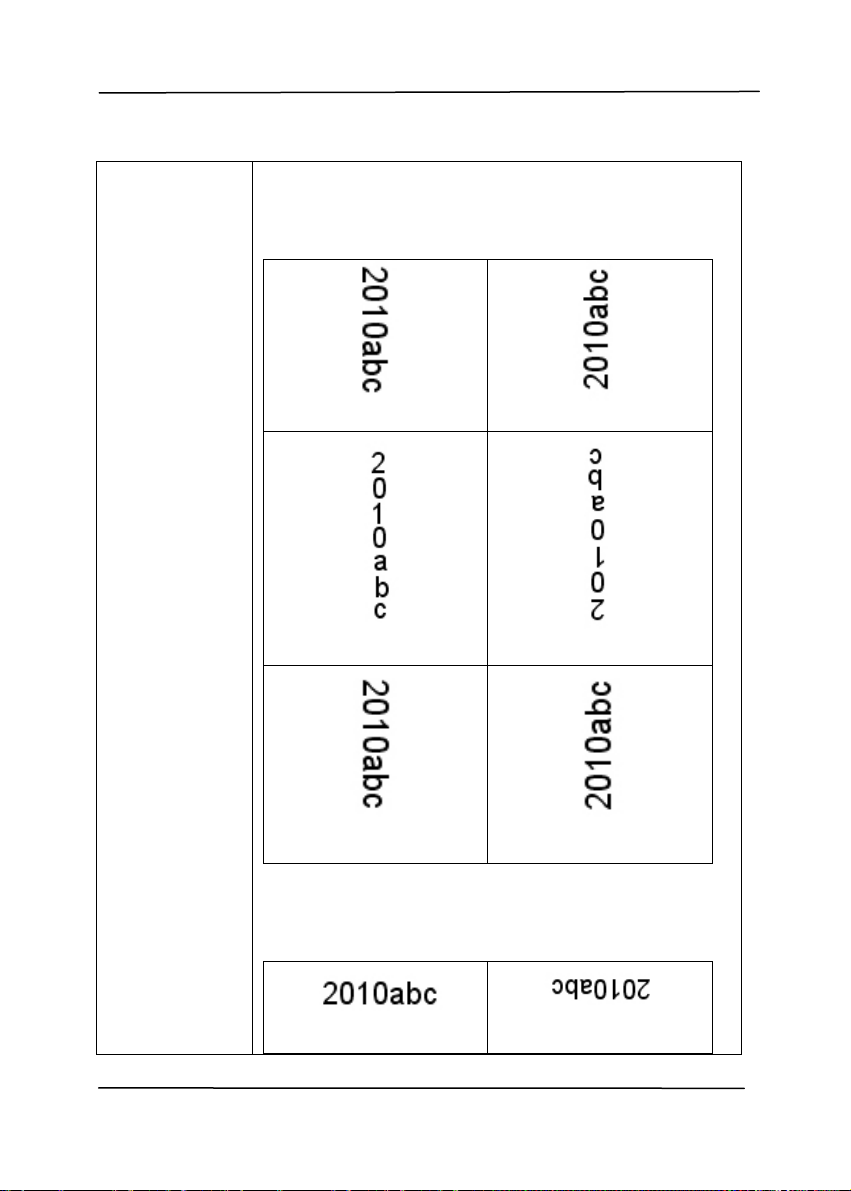
User’s Manual
4-77
String
Orientation
Choose your string orientation.
Choice: Normal, Rotated, Vertical,
Vertical Inversion, 90 degrees CW, 90
degrees CCW
Normal
Rotated
Vertical
Vertical Inversion
90 degrees CW
90 degrees CCW
If you check the digital imprinter to stamp
text on your scanned image, the illustration of
normal and rotated string is shown below:
Normal
Rotated
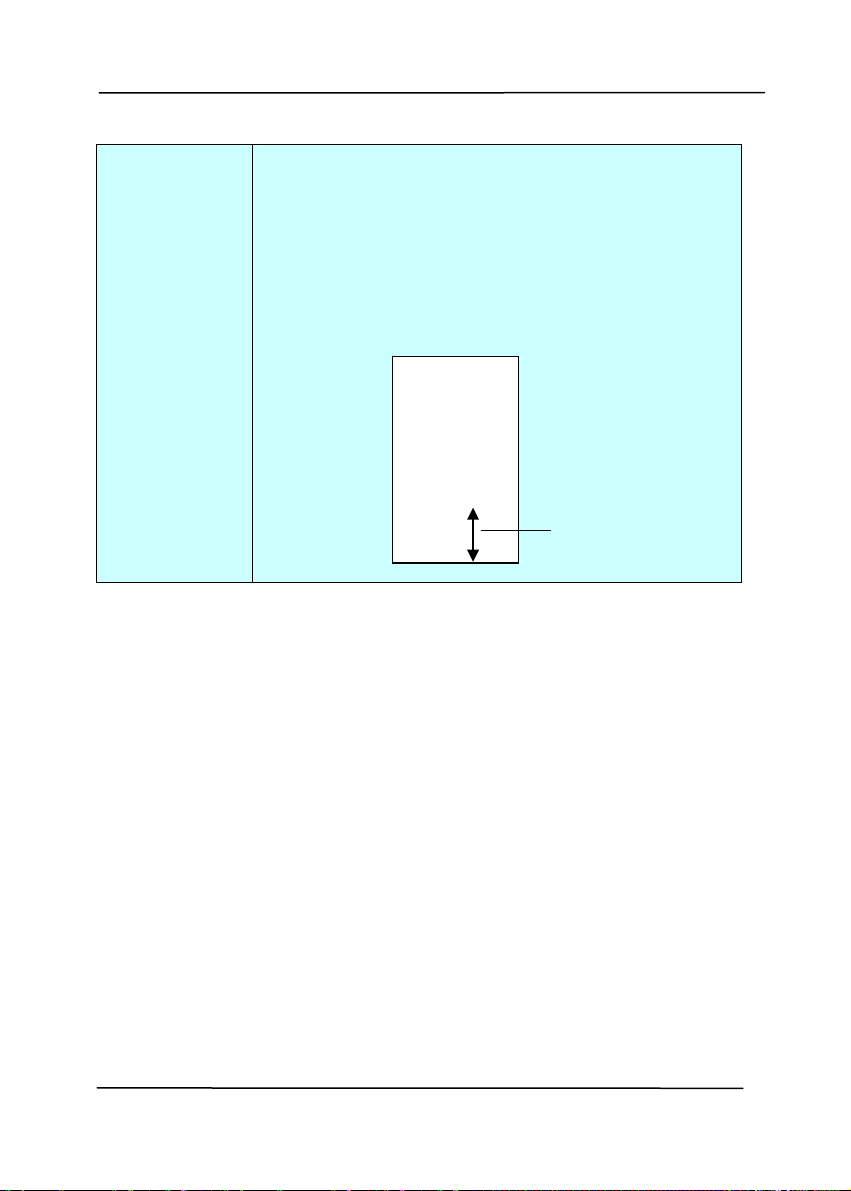
User’s Manual
4-78
Print
Position
Choose the position you wish to print your
string. Move the slider to the right to increase
the value or to the left to decrease the value.
Range: 0~355mm, default:0 mm
The value indicates the height from the
bottom of your paper to the last letter of your
string. This option is available only if an
external imprinter is installed.
Print Position (for digital imprinter)
Choose the position of your printed string. Choice: Top,
Middle, Bottom, Custom. If Custom is selected, enter the X
and Y offset value to specify the position.
T
he value o
f
Print Position
0001abc 2010
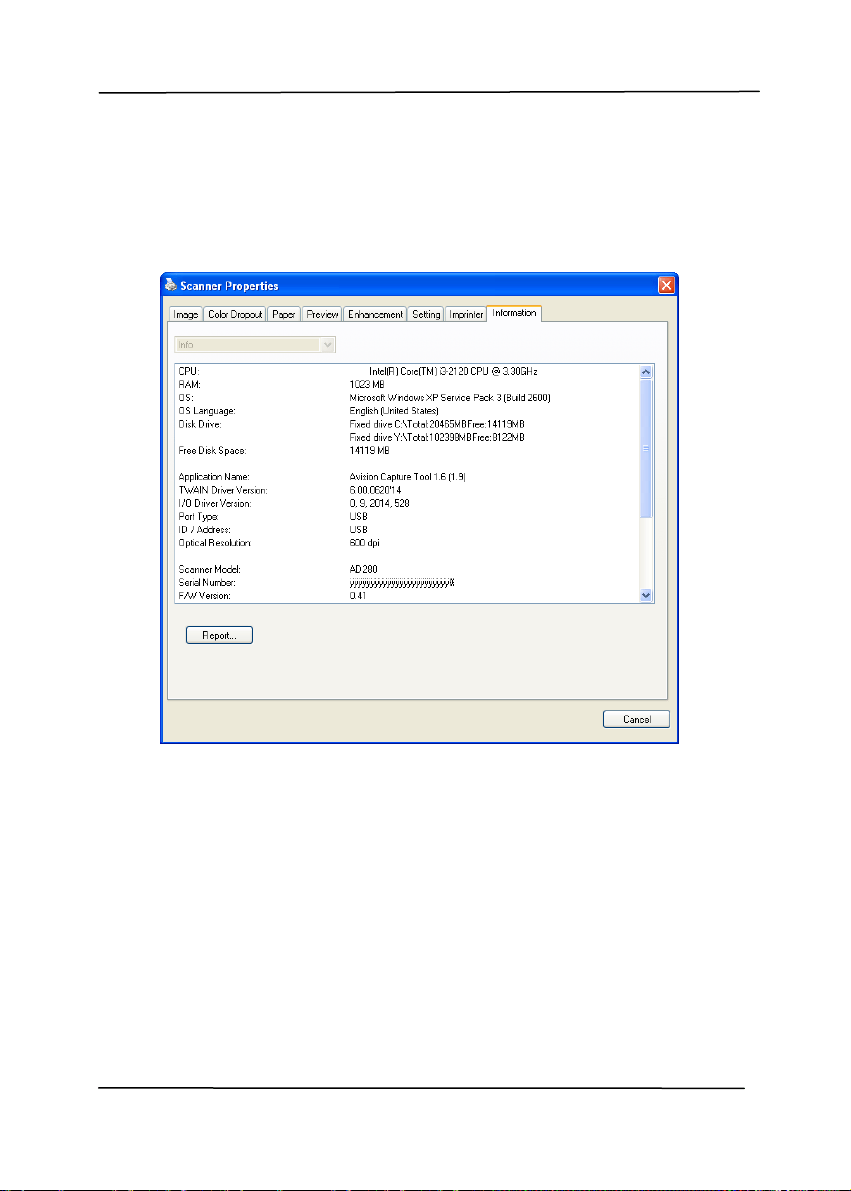
User’s Manual
4-79
4.14 The Information Tab
The Information tab displays the following system and scanner
in
f
ormation.
The Information tab dialog box
The “Report” button:
If you encounter any error message while using the scanner,
click the Report button. A report.txt file [Windows XP:
C:\Documents and Settings\All Users\Application
Data\%PRODUCTNAME%; Vista, Windows 7, Windows 8:
C:\ProgramData\%PRODUCTNAME% (C: system drive)] will be
generated. Please send this file to the nearest service center
for trouble shooting.

User’s Manual
4-80
The “Reset Roller Count” button:
After scanning over a recommended number of pages (refer to
subsequent section 6.4 Replacing the ADF Roller) through the
ADF, the ADF roller may be worn out and you may experience
problems with document feeding. In this case, it is highly
recommended to replace the ADF roller with a new one. (Note
the replacement of the ADF roller has to be performed only by
authorized service center. Therefore, please return your
scanner for roller replacement.) After replacing the ADF roller,
click the “Reset Roller Count” button to reset the roller count.
Note:
The lifetime and the replacing procedure vary based on type of
scanner.
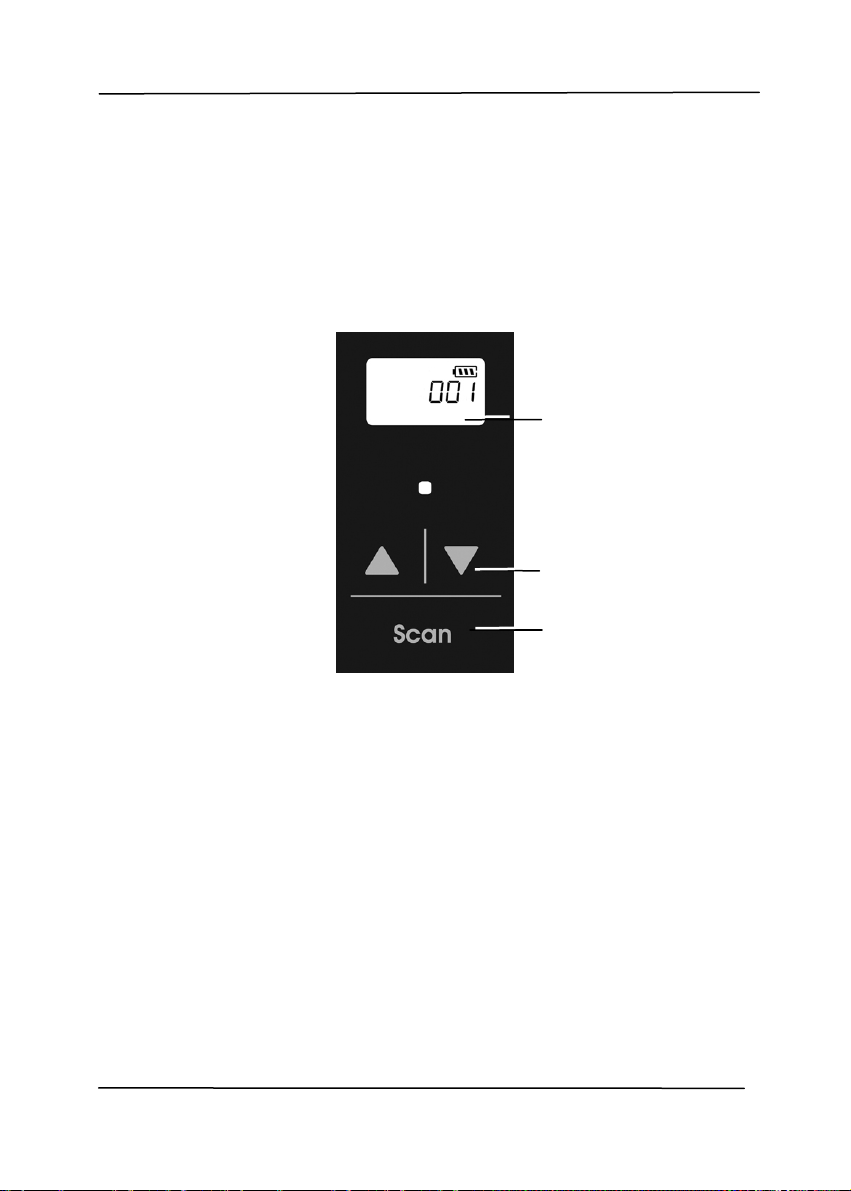
User’s Manual
5-1
5. Using the Buttons
The following picture shows the 3 buttons and 1 function
screen on the scanner.
5.1 Installing Button Manager V2
Button Manager V2 provi
des you an easy way to scan your
document and then link the scanned image to your designated
sof
tware application. All this can be done by a simple touch of
the button on the scanner. Yet, before you scan, it is
recommended to check the button configurations first to ensure
a proper file format and a destination application.
Function Screen
Function-Select
Button
Scan Button
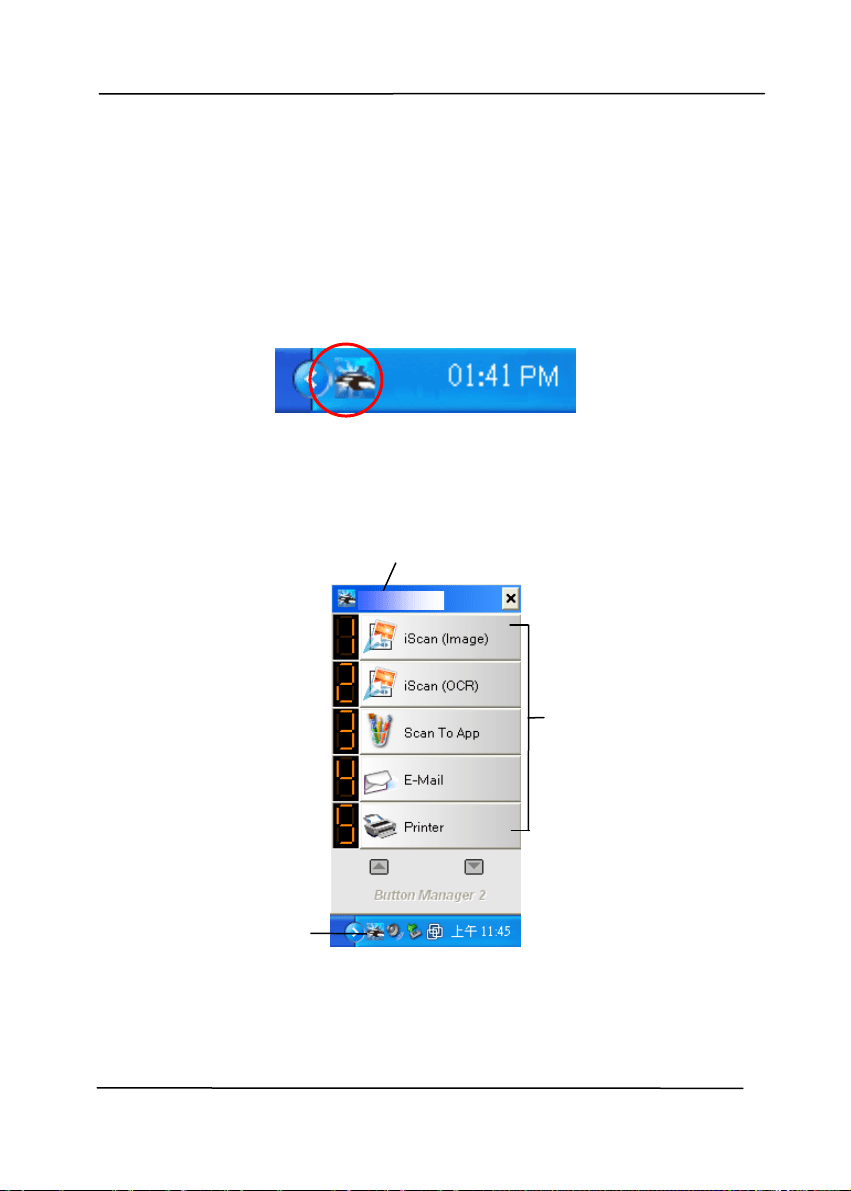
User’s Manual
5-2
5.2 Checking the Button Configurations before Scanning
1. Button Manager V2 runs from the system tray. After Button
Manager V2 and the scanner driver are properly installed,
Bu
t
ton Manager V2 is started and the Button icon will be
displayed on the system tray at the bottom right corner of
your computer screen.
2. Left-click the Button Manager V2 icon to prompt the
following Button Panel.
The Button Panel
T
his indicates
the scanner model
The Button
Icon
The Function
Icon
(The number of
function icons
vary based on
type of
scanner.)
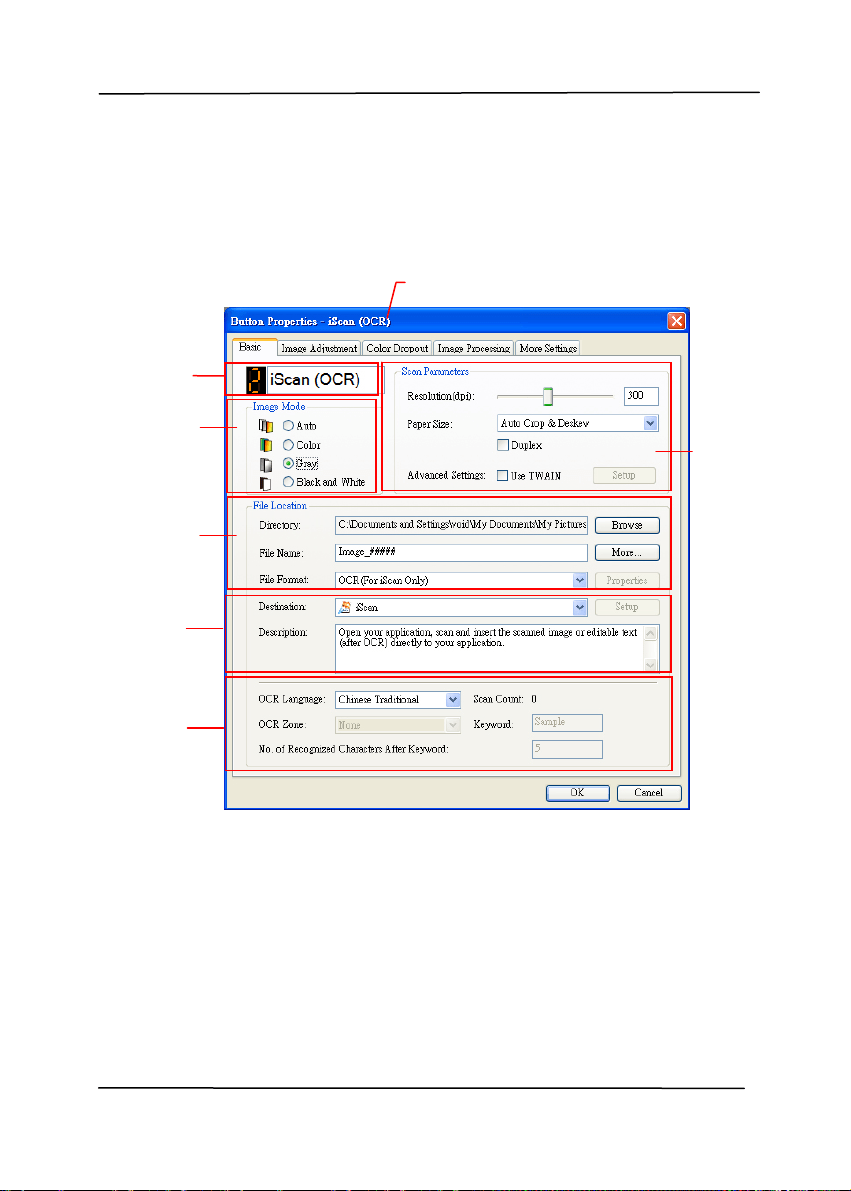
User’s Manual
5-3
3. The Button Panel shows the first five scanning buttons.
Right-click the button (function) you wish to check. The
Button Properties window appears.
If you wish to change the setting, use this window to reset
the setting for the file format, destination application, or
other scan settings.
4. Click the OK button to leave the window.
Folder and
file name
for the
scanned
image
Image Mode
Selection
Box
Name of the Selected Button
Scan To
destination
and settings
Button
Name
OCR
settings
Basic Scan
Parameters
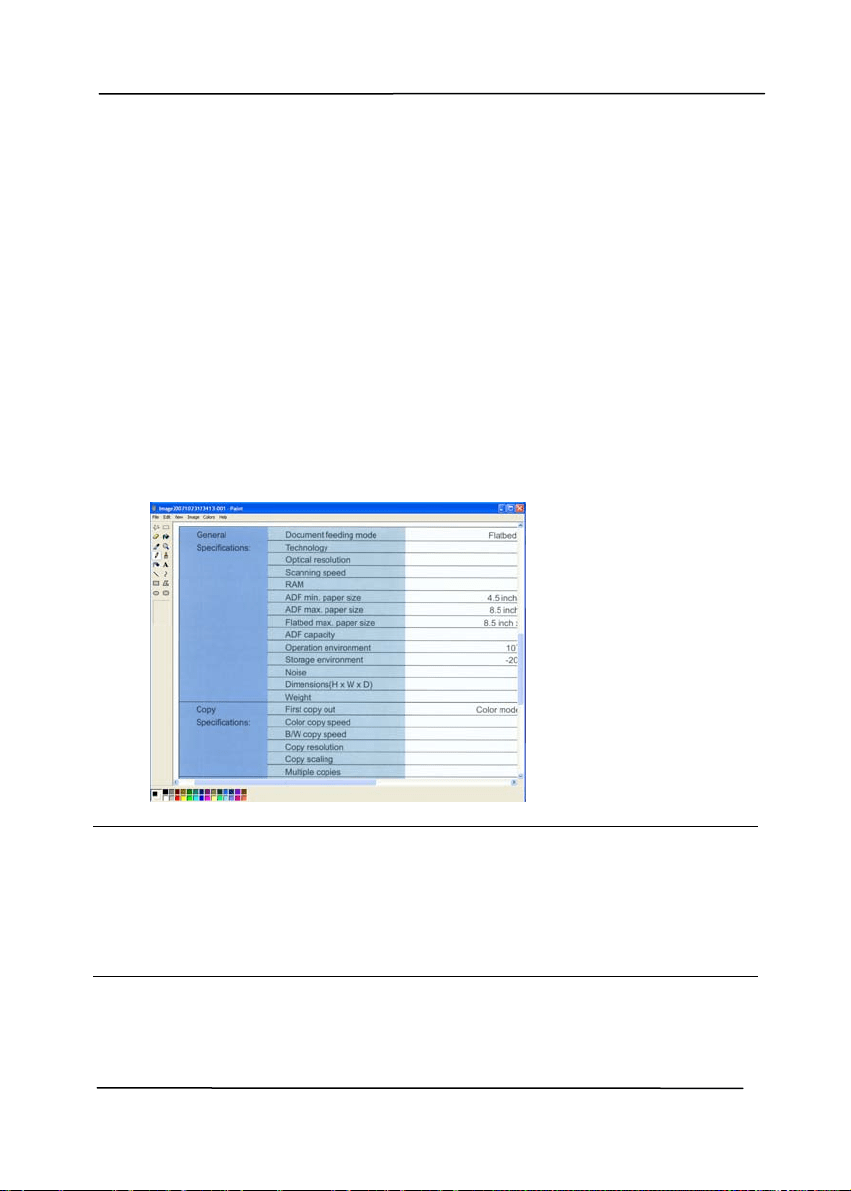
User’s Manual
5-4
5.3 Scanning From One Touch of the Buttons
1. Adjust the paper guide for the width of paper and load the
document with thei
r tops into the automatic document feeder.
2. Check the number on LCD screen on the scanner to ensure if
you are selecting the proper scan settings and destination
application. (For example, if you wish to scan with button
“Scan to App” which opens Microsoft Paint and displays the
scanned image in the window of Microsoft Paint, the LCD
screen should show #3).
3. Press the Scan button on the scanner.
4. After the scanning is finished, the Microsoft Paint software
will be launched and the scanned image appears in the main
window of Microsoft Paint as below.
Note:
1. For details information on how to use the Button Manager
V2, please refer to the user’s manual in the supplied CD.
2. You may also use Button Manager V2 on your desktop by
starting Button Manager V2 from All Programs or double
clicking the Avision Scanner Utility from the Control Panel.
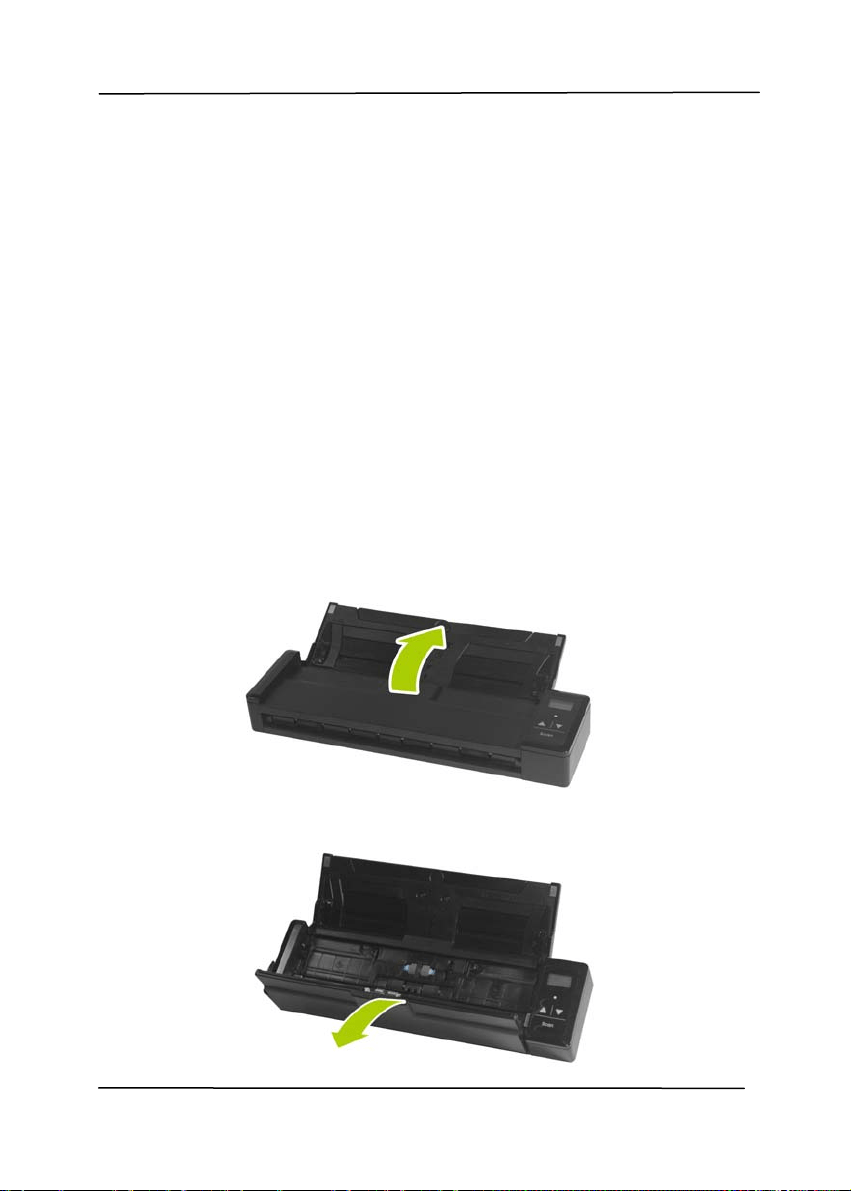
User’s Manual
6-1
6. Maintenance
6.1 Clean the Scanner Glass, Separation Pad and Rollers
If the scanned i
m
ages contain streaks or scanned documents
become dirty, the scanning glass, separation pad and roller
inside the scanner are likely to be dirty. Clean them periodically.
Use only the recommended or supplied tool to clean the scanner
and feeder dock.
Cleaning steps:
1. Open the feed tray.
2. Open the feeder cover.
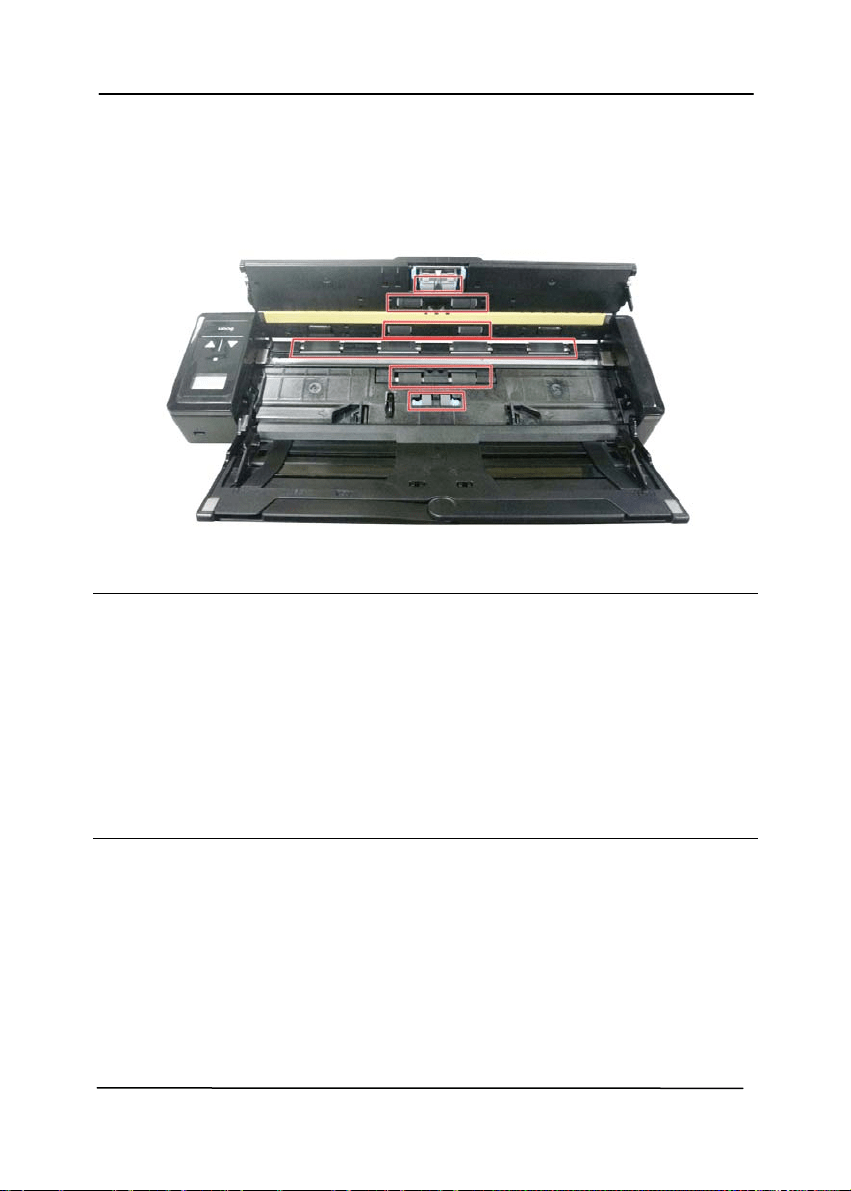
User’s Manual
6-2
3. Wipe the separation pad, rollers and the glass with the
included cleaning cloth.
Note:
Adding some isopropyl alcohol (95%) on the cleaning cloth
is more efficient when cleaning the rollers.
Do not use any solvents or corrosive liquid (i.e., alcohol,
kerosene, etc.) to clean any part of the scanner, otherwise
the plastic material will be permanently damaged.
Make sure the surface of the document or photo doesn’t
have any paper clips, etc. or this could damage the scanner
glass lens.

User’s Manual
6-3
6.2 Calibrate the Scanner
Calibrate only if the scanned image looks fuzzy, the color looks
abnormal (e.g., darker than normal), after more than 8,000
scans, or the scanner has been stored without use for a long
time. The calibration process resets the Contact Image Sensor
to resume its color and sharpness precision.
1. Turn on the scanner.
2. Start your TWAIN-compliant image editing software
application such as Avision Capture Tool by choosing
Start>Programs>Avision XXXX Scanner>Avision Capture
Tool (XXXX indicates your scanner model). The Select
Scanner Model dialog box will be displayed.
3. Select your driver type and scanner model and click OK.
The Avision Capture Tool dialog box will be displayed.
4. Click the “Setup” button to prompt the TWAIN user
interface.
5. Click the “Settings” tab and then click the “Calibration”
button. An “Insert calibration sheet” dialog box appears.
6. Hold the edges of the calibration sheet (included) and insert
it with the text face up and the white area feeding first to
the feeder of the scanner as shown.
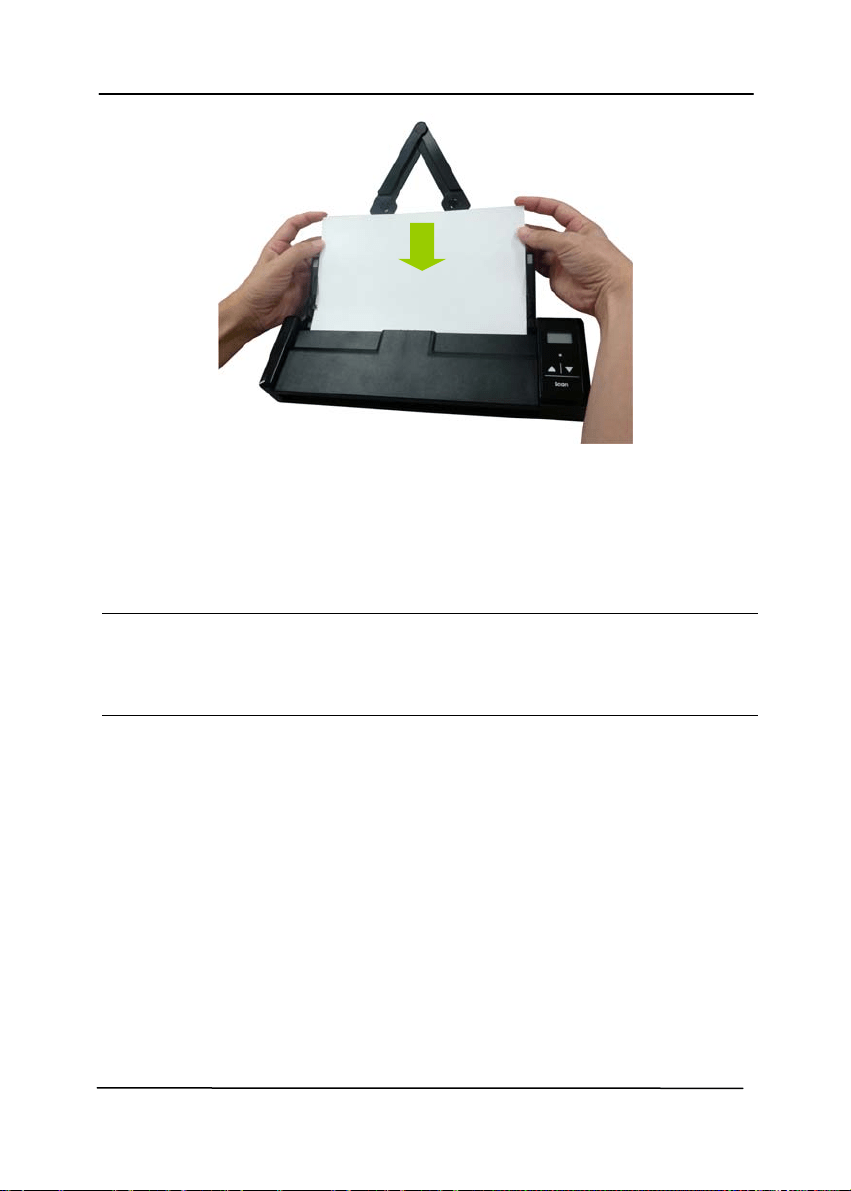
User’s Manual
6-4
7. Click the “OK” button on the “Insert calibration sheet”
dialog box to start calibrating the scanner.
8. After the calibration process is finished, [OK] will be
displayed on the screen.
Warning:
If the calibration process failed, the Red LED will be flashing
and [E19] will be displayed on the screen. Power off the
scanner and then repeat the calibration step again.

User’s Manual
6-5
Warning:
Do not interrupt the calibration sequence or try to shut off
the device while it is calibrating. If you stop the calibration
before it has completed, a calibration error may occur. As a
result, you will have to power off the unit and repeat the
instructions in this section.
Calibrate the scanner only when color of the scanned image
looks abnormal.
Keep the calibration sheet from dust and debris. Any dirt
may make the calibration chart invalid or impact the
calibration result.
Use only the included calibration sheet to calibrate the
scanner.
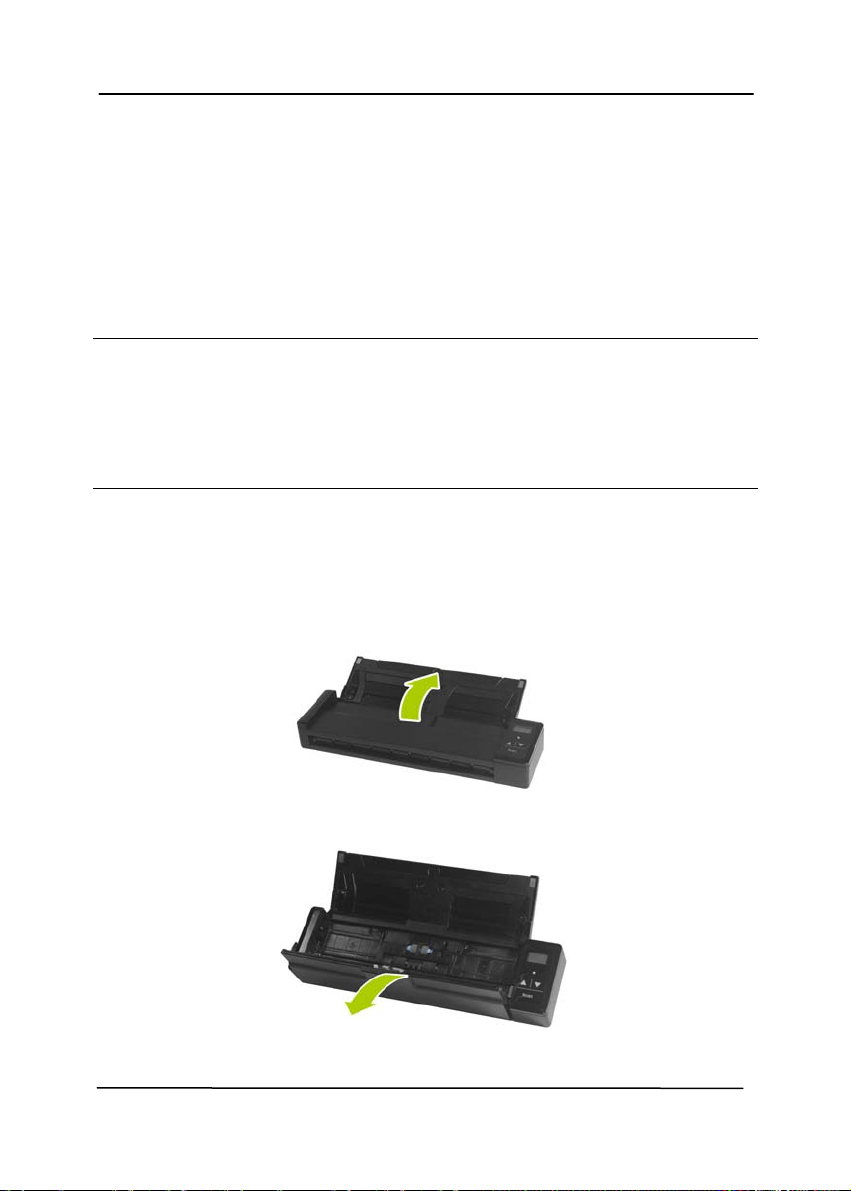
User’s Manual
6-6
6.3 Replace the Feed Roller
The feed roller and separation pad inside the scanner wear with
scanning. If the feed rol
ler and separation pad are worn,
documents may not feed correctly and paper jams may occur.
When document feed performance deteriorates, replace the feed
roller and separation pad.
Note:
It is recommended to replace the feed roller or separation pad
when the total number of pages of documents fed in the scanner
exceeds one of the following quantities:
Feed Roller: 100,000 sheets
Separation Pad: 10,000 sheets
Follow these steps to replace the separation pad and feed roller.
To replace the Feed Roller,
1. Open the feed tray.
2. Open the feeder cover.
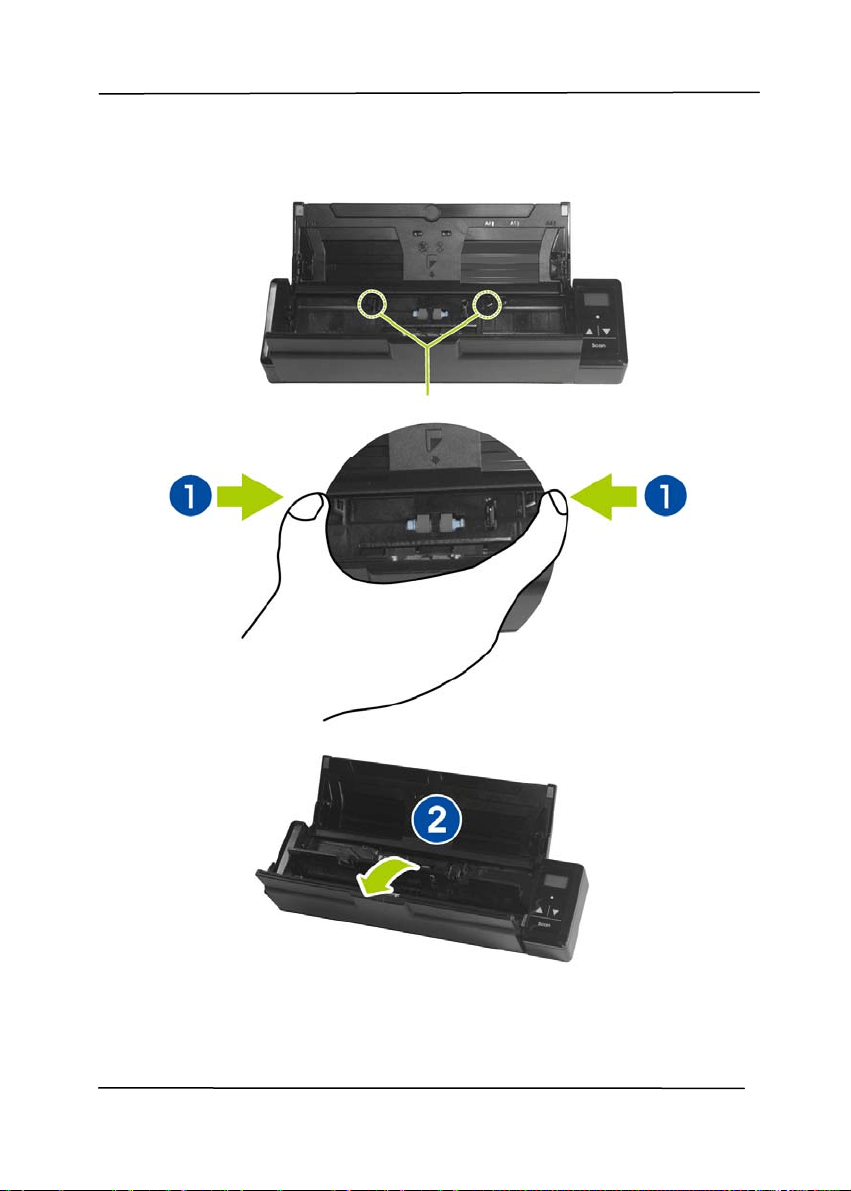
User’s Manual
6-7
3. Open the roller cover.
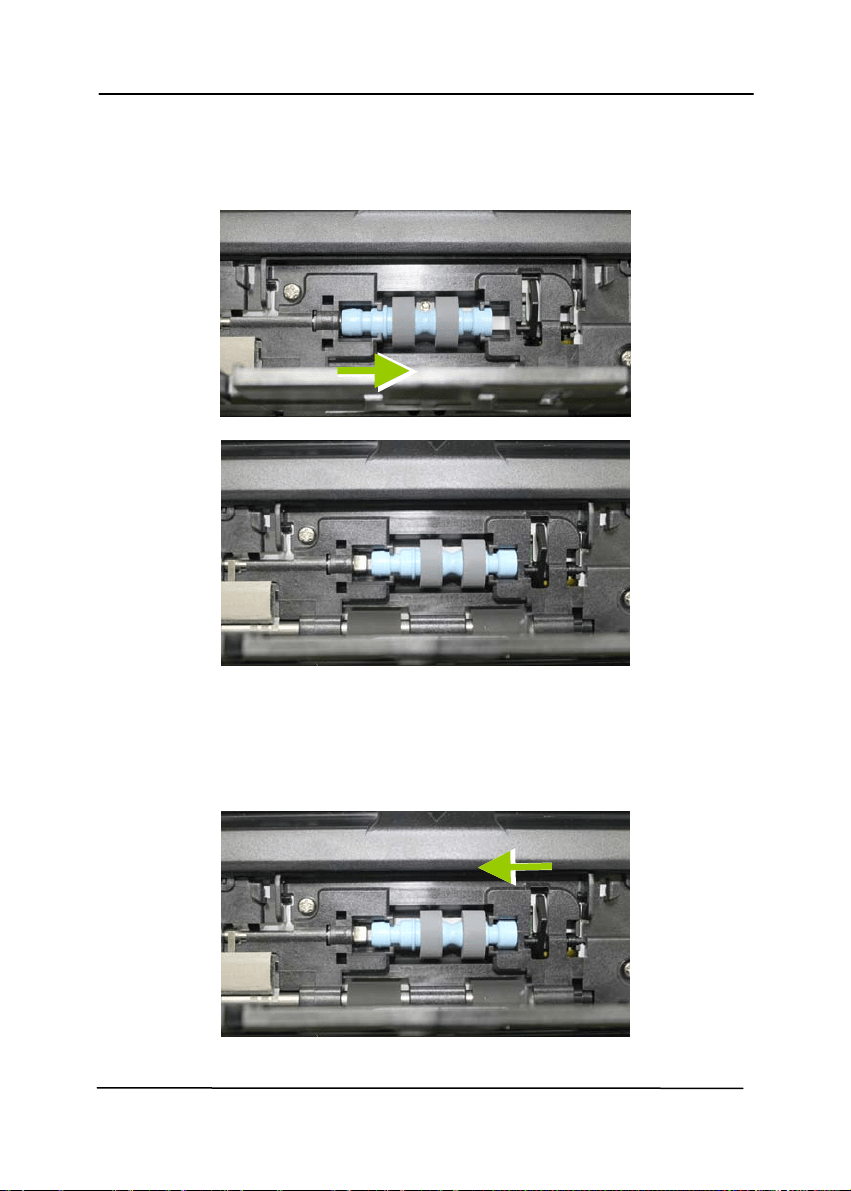
User’s Manual
6-8
4. Slide the feed rollers to the right.
5. Remove the feed rollers.
6. Attach the feed rollers. Insert the left end of the shaft to
the notch. A snap-in sound could be heard.
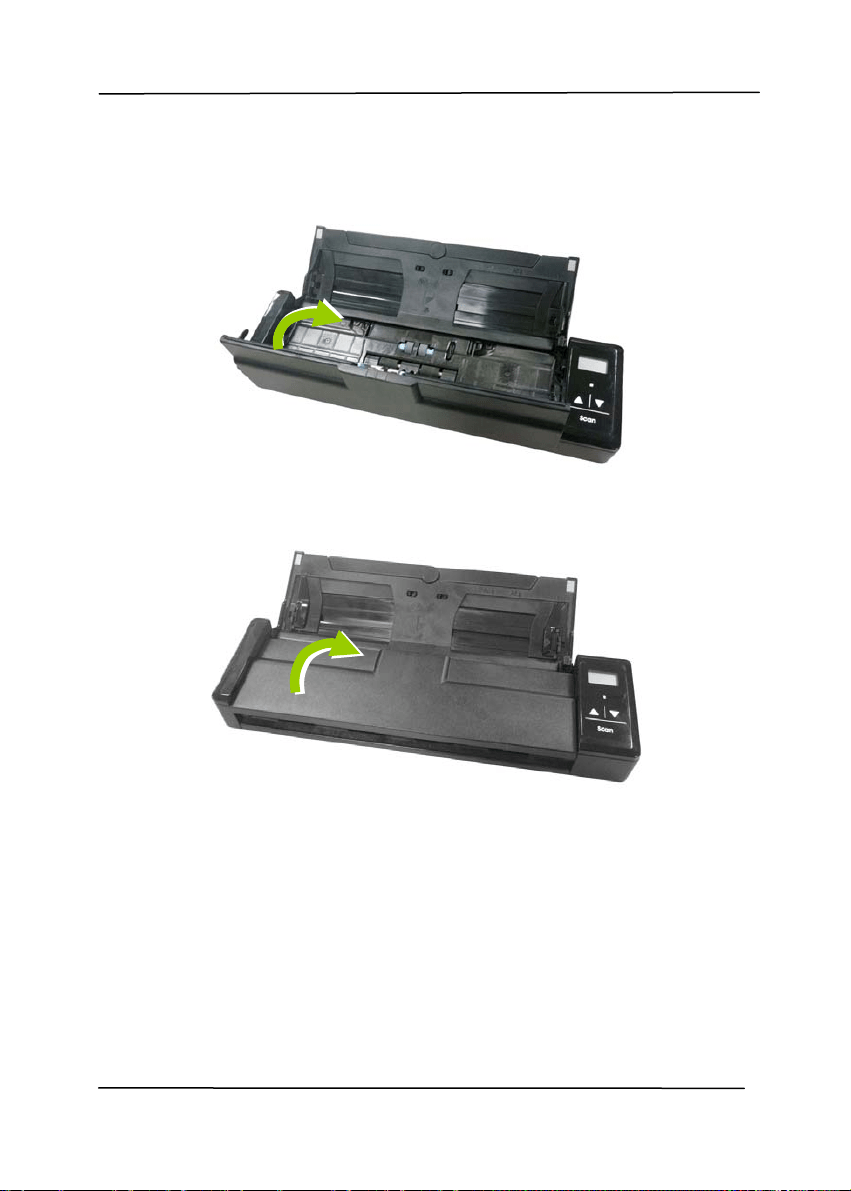
User’s Manual
6-9
7. Completely close the roller cover so that it clicks into
place.
8. Close the feeder cover.
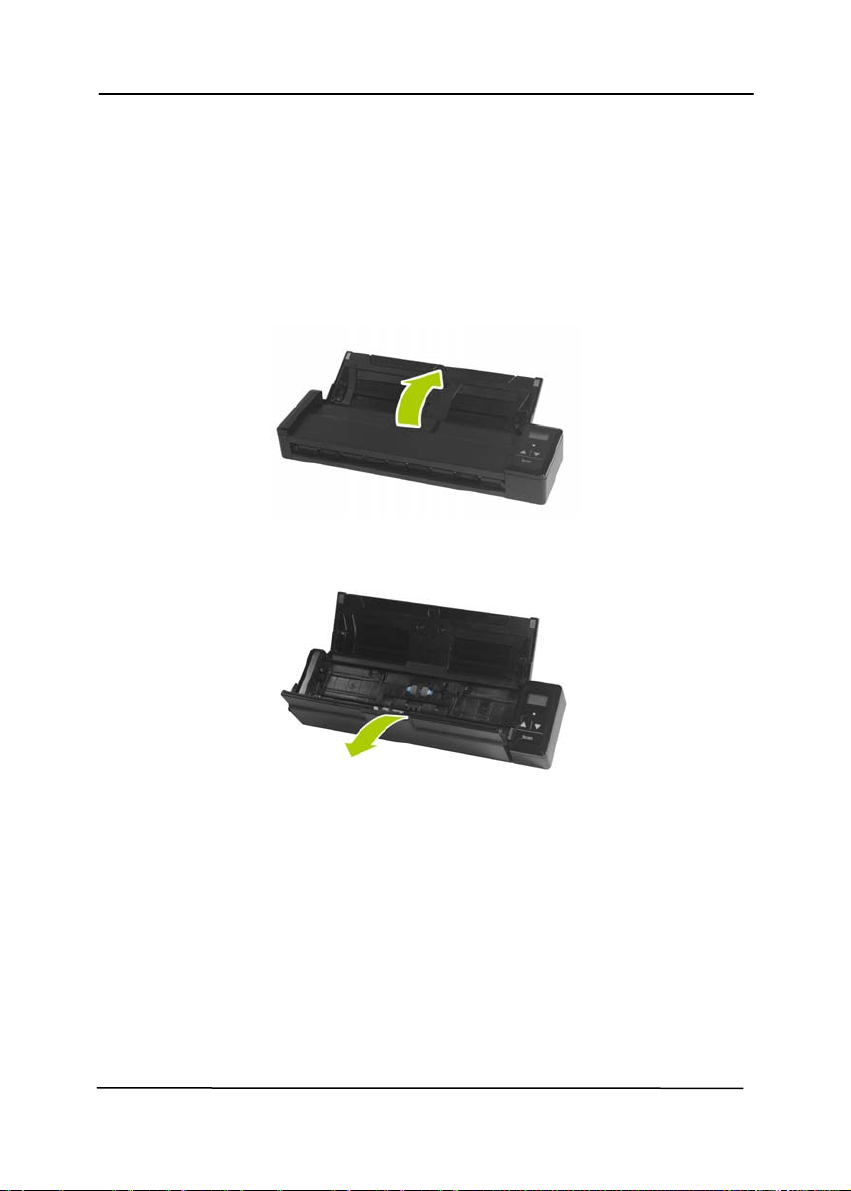
User’s Manual
6-10
6.4 Replace the Separation Pad
To replace the Separation Pad,
1. Open the feed tray.
2. Open the feeder cover.
3. Press two arms of the separation pad inwardly with two
fingers (
) and lift it up () to remove the separation
pad.
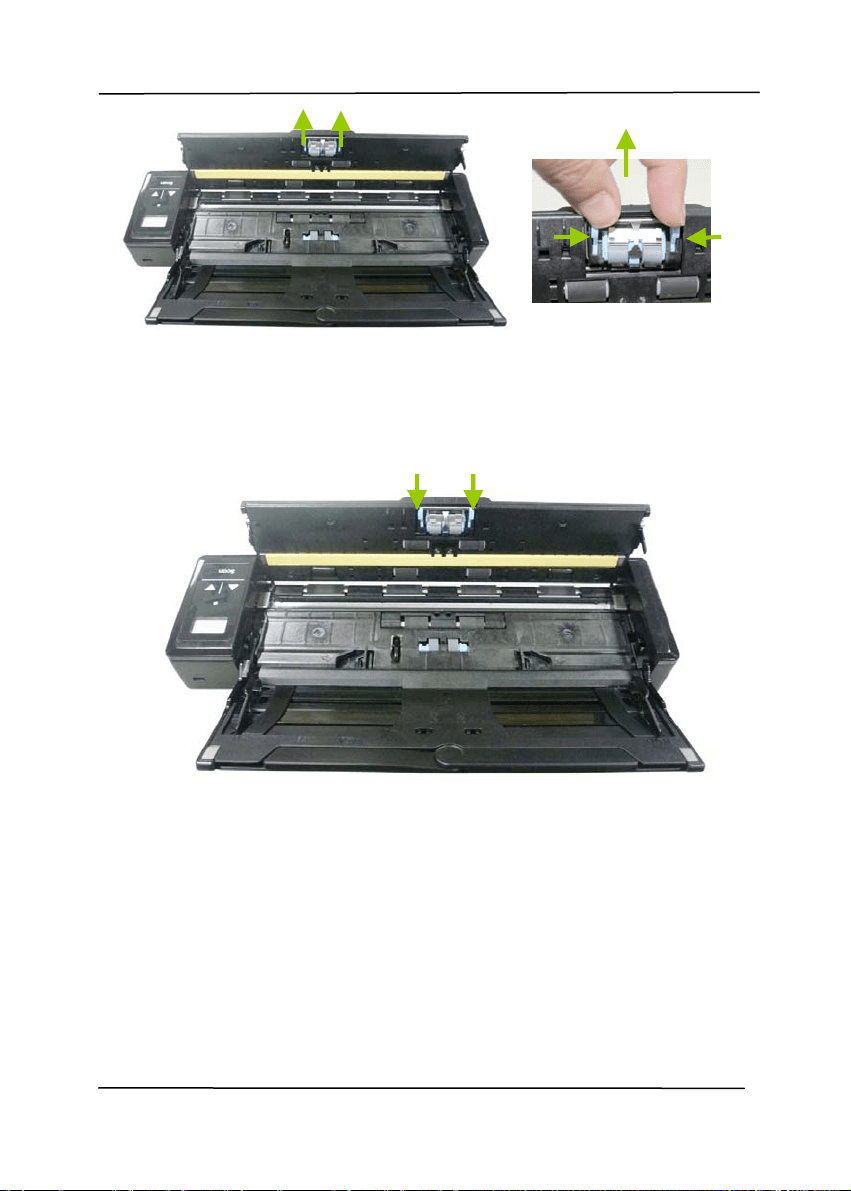
User’s Manual
6-11
4. Hold two arms of the separation pad with two fingers
and attach the new separation pad to the scanner.
5. Close the feeder cover.
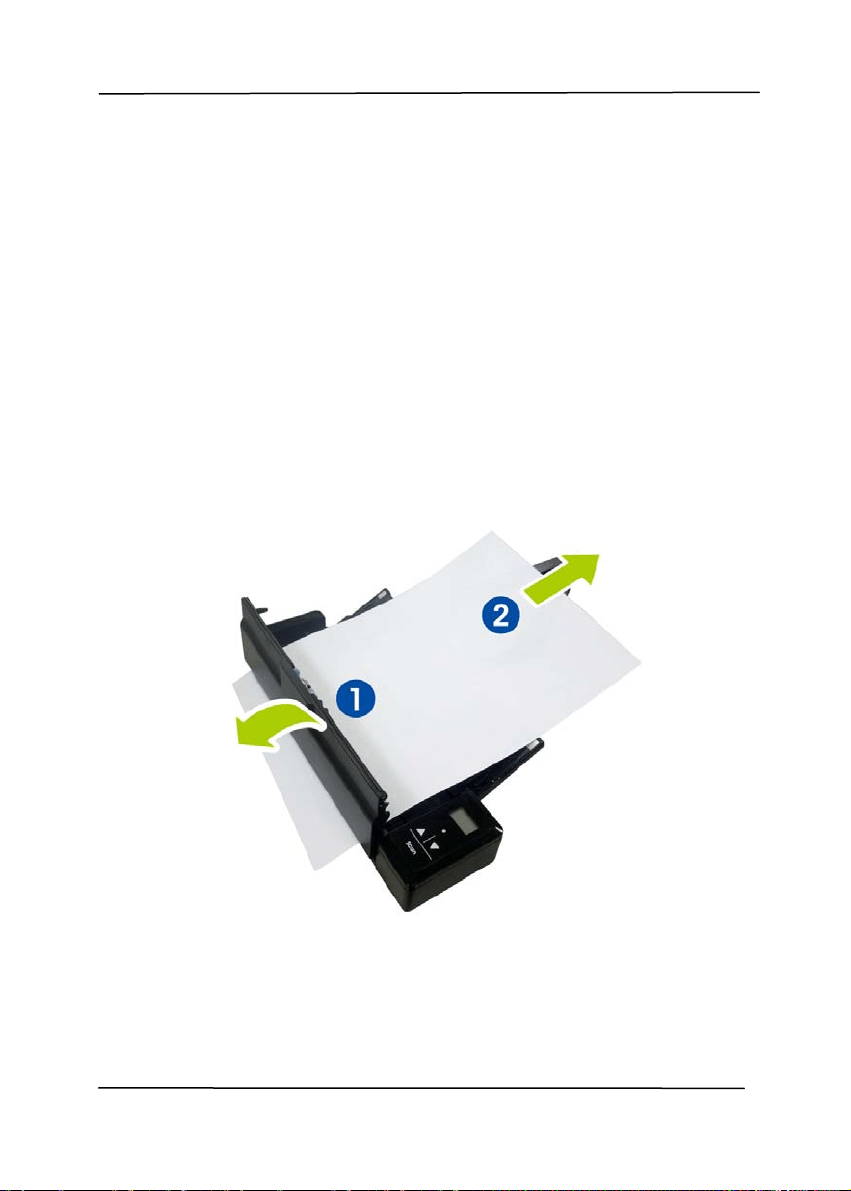
User’s Manual
7-1
7. Troubleshooting
7.1 Clear a paper jam
In the event of a paper jam, follow the procedures below to
remove the paper:
1. Gently open the feeder cover.
2. Carefull
y pull the paper out of the feed tray.
3. Close the feeder cover. Your Scanner is now ready to use.
User’s Manual
7-2
7.2 Error Conditions
If t
here is error during scanning, the LED light will be flashing in
red color and error codes will be displayed. Refer to the following
table to clear the error conditions.
Error
Code/Meaning
Cause How to restore
E04
Paper jam
1. Original has
become stuck in
the feeder.
2. Original exceeds
max. length
[300 dpi: 36”
(914mm), 600
dpi: 14”
(356mm)]
Open the feeder
cover and pull the
original out of the
feeder.
E06
Cover opens
Feeder cover opens.
Close the feeder
cover.
E19
Calibration Fails
Internal check failed
and found
calibration data
error
Recalibrate the
scanner (see the
“Calibrate Scanner”
section.
* Warning:
If "low battery" ( ) is indicated on the LCD display, it is
recommended to recharge the battery to prevent possible
incomplete scanned images or other operational problems.

User’s Manual
7-3
7.3 Frequently asked questions and answers
Q: Paper becomes jammed or multi-fed.
A:
1. Flatten the corners and edges of your
documents.
2. Thoroughly fan your documents before
loading them into the scanner. Document
might stick together because of static
electricity.
3. Reduce the number of pages that you
load into the scanner at one time.
Q: Paper becomes skewed in the scanner.
A:
1. Align the document guides to fit the
documents as closely as possibly and
place the documents so that they feed in
straight.
2. Check the condition of the feeding roller.
If necessary, follow the cleaning
directions in Section 5.1 and perform the
cleaning.
Q: Why does not my scanner turn on?
A:
The batteries may not enough power or may
not be inserted correctly.

User’s Manual
7-4
Q: Why there are strange lines on the scanned
document?
A:
Please check the following:
1. Are there scratches on the original or is the
original clean?
2. Remove any stains or dust from the original
before scanning.
3. Clean the rollers and glass with the included
cleaning cloth. (Refer to the section “Cleaning
the Rollers and Glass)
Q: Why there is a red or gray background with
lines on my scanned image?
A: The scanner does not enough power to perform a
scan. Charge your batteries and restart the scan.
Q: Should the scanner feel warm to the touch?
A: It is normal for the scanner to emit a small
amount of heat after prolonged use. However, if
there are strange odors coming from the scanner
or the scanner feels a little bit hot to the touch,
turn the scanner off immediately.

User’s Manual
7-5
Q: Why does my scanned image always come
out too dark?
A: 1) Please adjust the screen settings to sRGB.
2) Please adjust the brightness settings on the
screen from application software.
Q:
When I choose optical resolution to be
600 dpi, the "auto crop" and "deskew"
functions will be disabled.
A: Since to perform auto crop and deskew
consumes great deal of system memory, it is
suggested if you wish to perform "auto crop"
and "deskew" functions, please choose your
optical resolution to be smaller than 600 dpi to
prevent a error message.

User’s Manual
7-6
7.4 Technical Service
Before contact Avision, please refer to Section 4.14, The
Information tab and prepare the following information:
Scanner serial & revision number (located on the bottom of
the scanner);
Hardware configuration (e.g., your host CPU type, RAM size,
free disk space, display card, interface card);
The name and version of your scanning software application;
The version of your scanner driver.
Please call us at:
Headquarter
Avision Inc.
No. 20, Creation Road I, Science-Based Industrial Park,
Hsinchu 300, Taiwan, ROC
TEL: +886 (3) 578-2388
FAX: +886 (3) 577-7017
E-MAIL: [email protected]
Web Si
te: http://www.avi
sion.com.tw
US and Canada Area
Avision Labs, Inc.
6815 Mowry Ave., Newark CA 94560, USA
TEL: +1 (510) 739-2369
FAX: +1 (510) 739-6060
E-MAIL: [email protected]
Web Si
te: http://www.avi
sion.com

User’s Manual
7-7
China Area
Hongcai Technology Limited
7A,No.1010, Kaixuan Road, Shanghai 200052 P.R.C.
TEL :+86-21-62816680
FAX :+86-21-62818856
E-MAIL :[email protected]
Web Site:http://www.avision.com.cn
Europe Area
Avision Europe GmbH
Bischofstr. 101 D-47809 Krefeld Germany
TEL: +49-2151-56981-40
FAX: +49-2151-56981-42
E-MAIL: [email protected]
Web Site: http://www.avision.de
Espaço Brasil
Avision Brasil Ltda.
Avenida Jabaquara, 2958 - Cj. 75 - Mirandópolis –
CEP: 04046-500 - São Paulo, Brasil
TEL: +55-11-2737-6062
E-MAIL: suporte@avisionbrasil.com.br
Web Site: http://www.avisionbrasil.com.br

User’s Manual
8-1
8. Specifications
All specifications are subject to change without notice.
Model Number: FF-1301S
Optical Resolution: 600 dpi
Scanning Modes: Black & White/Gray/Color
ADF Capacity: Up to 8 pages (75 g/m
2
) (20 lbs)
Max. Document Size: 216 x 356 mm (8.5” x 14”)
Min. Document Size: 88 x 50 mm (3.5” x 2”)
Long Page Mode: 916 mm (36”)
(Available for 300 dpi only)
Paper Weight: 60 ~ 107 g/m² (16 to 28 lb)
ID Card Thickness: <0.76 mm
Interface: Micro USB port compatible with USB
2.0
USB Power: 5Vdcm, 500mA
Battery: Rechargeable Li-ion battery AP-120
(APACK)/CB-PD(NP-120) (City
Bright) 3.7V, 1700mAh
Power Consumption: <4W (operation)
<2.9W (power saving)
Operating Temperature: 10ºC~35ºC
Dimensions: (WxDxH) 295 x 81 x 41 mm
(11.6” x 3.2” x 1.6”)
Weight: 800 g (1.8 lb)

User’s Manual
a
Index
A
Additional Length Detection, 4-
52
Auto Color Detection
sensitivity, 4-9
B
B&W, 4-8
Background Level,
4-37
Background Setting, 4-50
Binarization
Dynamic Threshold, Fixed
Processing,
4-11
Blank Page Removal,
4-67
Brightness,
4-17
Button Panel, 5-2
Button Properties window, 5-3
C
Cache
None, Page Number, Memory
Size, 4-72
Color, 4-8
Color Dropout
Remove Red, Remove Green,
Remove Blue, Custom,
4-
29
Color Matching,
4-22
Contrast,
4-17
Cropping
Automatic, Fix to Transport,
EOP Detection,
4-40
Custom Font
Normal, Fixed Width, 4-75
D
default settings, 4-3
Despeckle, 4-61
Noise Number, Noise Radius,
4-61
Document Type
Normal, Photo, Document, 4-
15
Dynamic Threshold
sensitivity, 4-11
E
Edge Fill, 4-60
Enable Power Off,
4-71
Energy Saving,
4-71
F
Filter Threshold, 4-37
Fixed Width, 4-75
Flip Side Rotation,
4-65
Font Attributes
Normal, Underline, Double,
Bold, 4-75
G
G4, 4-27
Gray, 4-8, 4-15
I
Invert, 4-19

User’s Manual
b
J
JPEG, 4-27
M
Mirror, 4-66
Multi-Feed Detection,
4-51
O
OverScan, 4-48
P
Print All, 4-75
Print Position, 4-77
Punch Hole Removal, 4-57
R
Reset Roller Count, 4-79
Resolution, 4-18
Rotate Image,
4-63
S
Scan Area, 4-47
Split Image
None, Horizontal, Vertical,
4-64
String Orientation
Normal, Rotated, Vertical,
Vertical Inversion, 90 deg
CW, 90 deg CCW, 4-76
T
Transport Timeout, 4-48
U
Ultrasonic Detection, 4-52