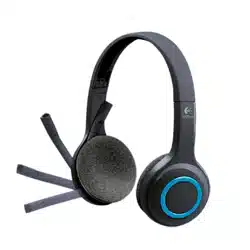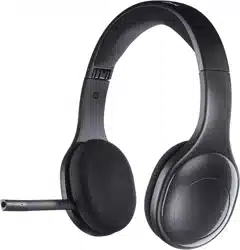
Logitech for Business
Logitech® Wireless Headset Mono H820e (A-00058)
Logitech® Wireless Headset Dual H820e (A-00059)
Setup Guide
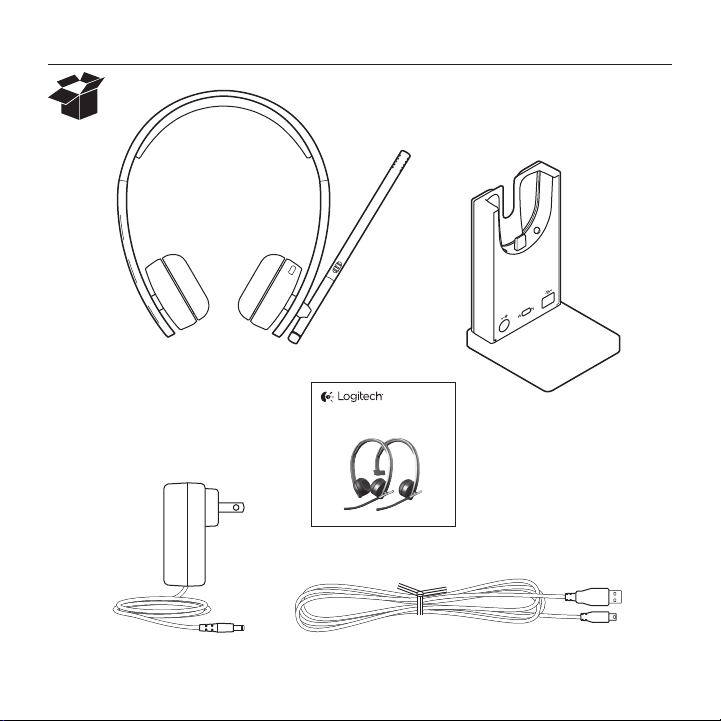
Logitech Wireless Headset Mono H820e/Dual H820e
2
Logitech for Business
Logitech® Wireless Headset Mono H820e (A-00058)
Logitech® Wireless Headset Dual H820e (A-00059)
Setup Guide
Logitech Wireless Headset Mono H820e/Dual H820e
4 English
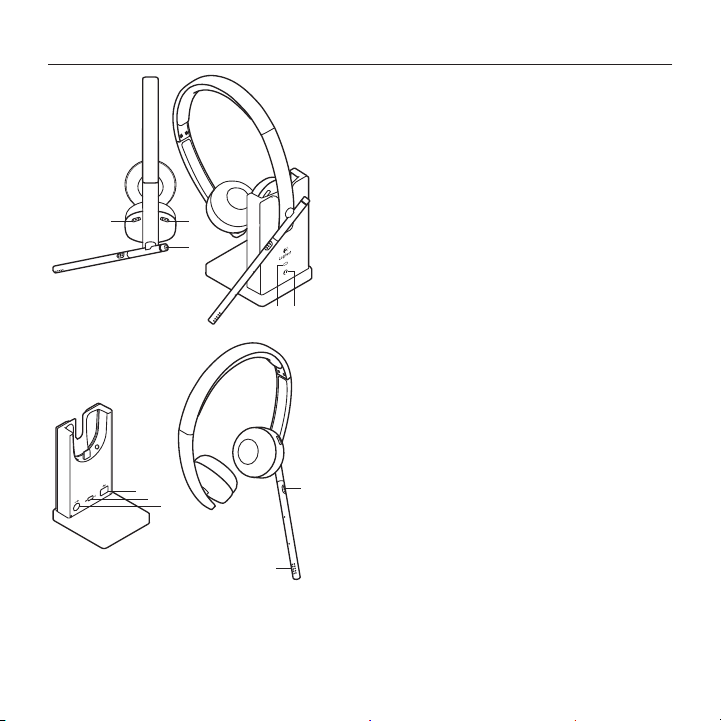
Features
1. Volume up
2. Volume down
3. Call answer/end button
•LED lit when on a call
(supported by Microsoft Lync)
4. Battery icon
•Solid white: full charge
•Blinking white: charging
•Solid red: very low
5. Headset icon
•Blinking white: headset pairing
to base
•Solid white: headset paired to base
•Solid red: headset not paired to base
6. USB connection for PC
7. Wide Band/Narrow Band switch
•Default (WB)
•See Troubleshooting section
8. Power connection for wall power
9. Mute button
10. Mute LED
•Lit when microphone mute
2
4 5
9
7
6
8
3
1
10
CAUTION:
Please do not open.
No user serviceable parts.
Logitech Wireless Headset Mono H820e/Dual H820e
English 5
USB
1
2
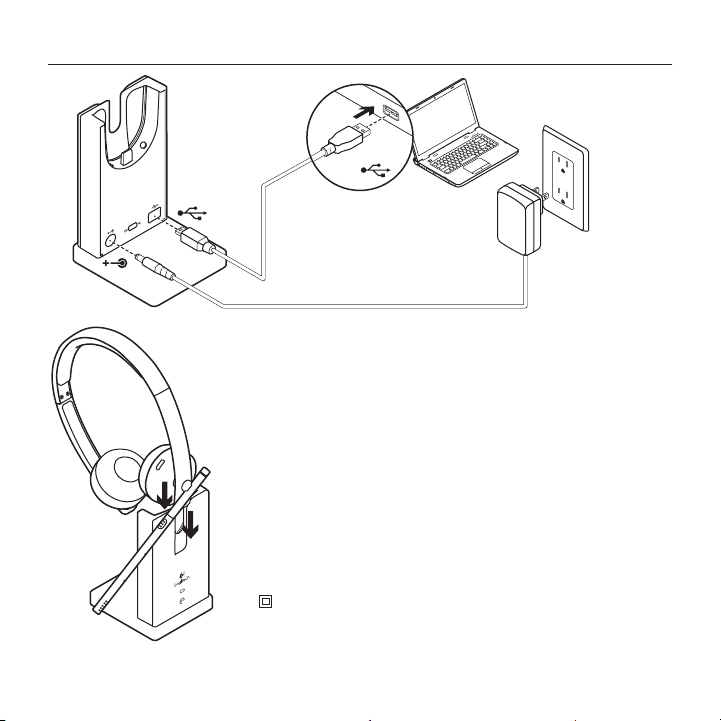
1. Connect the base to power using the Class 2 power
source provided.
2. Connect the base to the PC using the USB connection.
3. Use only adaptor supplied by Logitech, model list:
– KSAS0060510100D5D, 5.1VDC, 1A
– AD631MC, 5.15VDC, 1A
4. The equipment is to be supplied from an identified
USB port complying with the requirements of Limited
Power Source.
For charging, the Headset must sit on the base charger
between the Ear Cup and Headband. The battery icon (4)
will be lit when connected properly.
Please use only with Class 2 power source.
Logitech Wireless Headset Mono H820e/Dual H820e
6 English
Troubleshooting
Bad or no audio?
•Check if USB cable is fully inserted
into the computer’s USB port.
Using a non-powered USB hub may
degrade headset performance.
•Headset must be paired with base.
Ensure base icon is solid white.
•If the headset becomes unpaired
to the base, or if you’re pairing a new
headset to the base follow these steps:
1. Place the headset in the base.
2. After 5 seconds you will hear a tone
played through the headset speaker
that signals pairing has started.
– The headset icon will flash
indicating pairing is taking place.
The icon will be solid white
when paired.
– If after 5 seconds you do not
hear the tone and the icon
does not flash, remove and redock
the headset.
•Check the volume level in both
your media/voice application and your PC.
•Try restarting your media/voice
application. Ensure the microphone
is not muted.
•If you have several H820e headsets in
close proximity you may experience poor
audio quality which will be improved by
switching the headset to narrow band
mode. Dock the headset in the base.
Move the switch to N for narrow band.
Wait a few seconds until you hear a tone
to indicate the setting has been updated.
•Make sure the Logitech H820e Headset
is the default audio device.
Windows Vista, Windows 7:
•Close all media/voice applications
•Go to Start/Control Panel/ Sound/
Playback Devices tab.
•Choose either “Logitech Dual H820e”
or “Logitech Mono H820e”.
•Click on Set Default.
•Click on the “Recording” tab.
•Choose either “Logitech Dual H820e”
or “Logitech Mono H820e”.
•Click on “Set Default”.
•Restart your media/video application.

Logitech Wireless Headset Mono H820e/Dual H820e
English 7
Windows 8:
•Close all media/voice applications
•From the Start Menu,
select “Desktop” tile.
•From the Charms menu,
select Settings > Control Panel >
Hardware and then Sound.
•Go to Sound and select
the “Playback” tab.
•Choose either “Logitech Dual H820e”
or “Logitech Mono H820e”.
•Click on Set Default.
•Click on the “Recording” tab.
•Choose either “Logitech Dual H820e”
or “Logitech Mono H820e”.
Click on “Set Default”.
•Restart the media/video application.
Mac OS X:
•Close all media/voice applications
•Open System Preferences.
•Select Sound/ Output tab,
and then select either “Logitech Dual
H820e” or “Logitech Mono H820e”.
•Restart media/video application.
USB Jack Statement
The equipment is to be supplied from
an identified USB port complying with
the requirements of Limited Power Source.