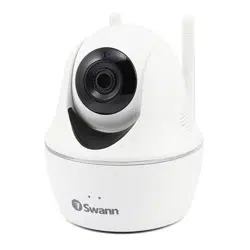

Wi-Fi Pan & Tilt Camera
AlwaysSafe App Manual
iOS and Android

Contents
Contents
Contents
Getting Started
Adding a Camera 4
Conguring Initial Settings 6
Setting up Email Alerts 8
Editing the Email Alerts Schedule 11
Adjusting Motion Detection Sensitivity 14
Setting up a MicroSD Memory Card 16
Sharing Access to a Camera 18
About the App Interface
The Devices Screen 21
The Camera Menu 22
The Live View Screen 23
The Live View Screen: Using Pan & Tilt Controls 24
The Live View Screen: Saving & Calling Preset Positions 25
The Live View Screen: Using Two-Way Talk 26
The Playback Screen 27
The Settings Screen 28
App General Settings 34
Appendix
Adding a Camera via Ethernet 37
Frequently Asked Questions 40

3
Getting Started
4
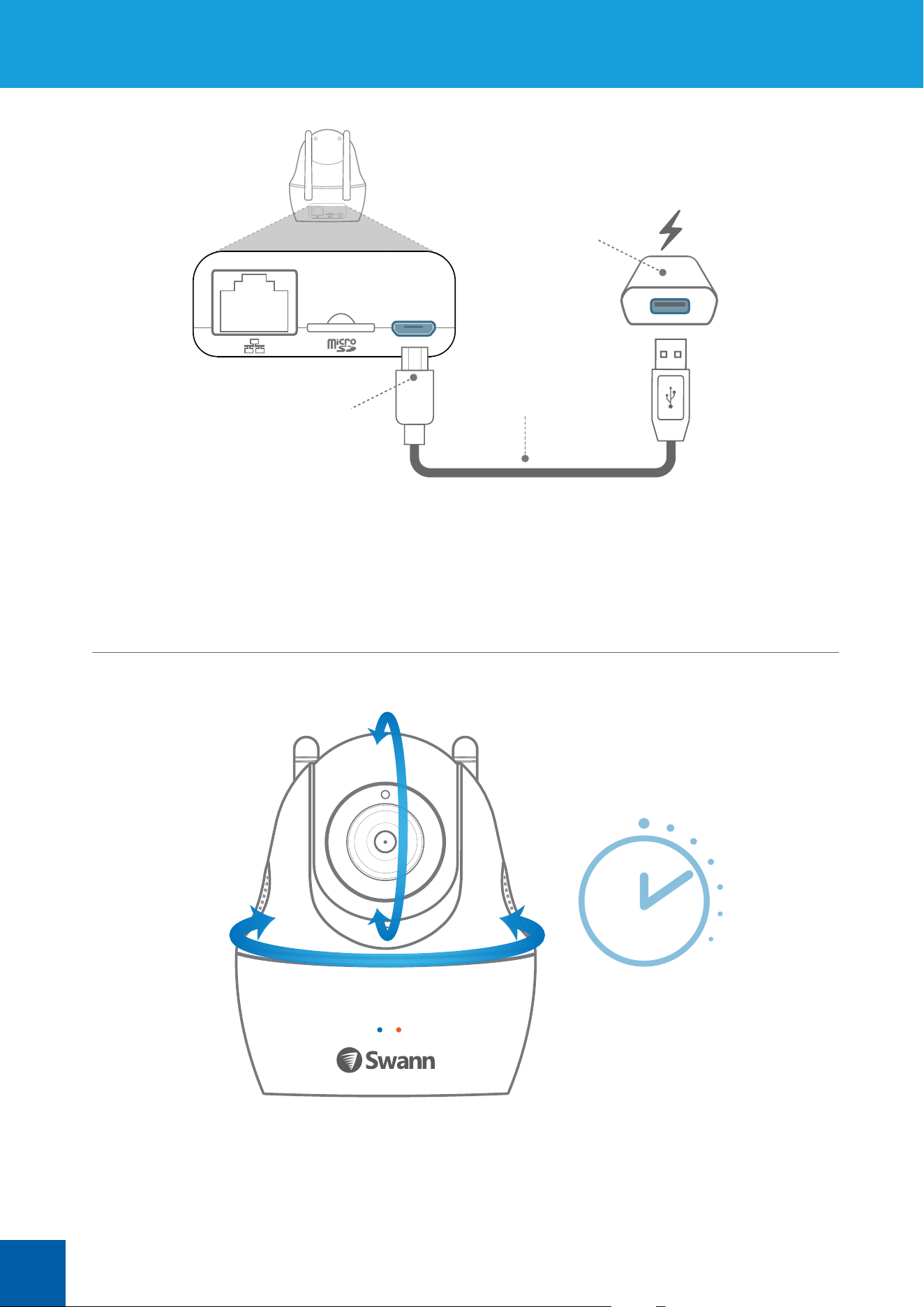
If you have not already done so, connect the camera to power
using the supplied USB cable and power adapter.
The camera will begin rotating as part of its startup sequence.
Power Adapter
Micro-USB Connector
USB Cable
Wait ~30s
Adding a Camera
5
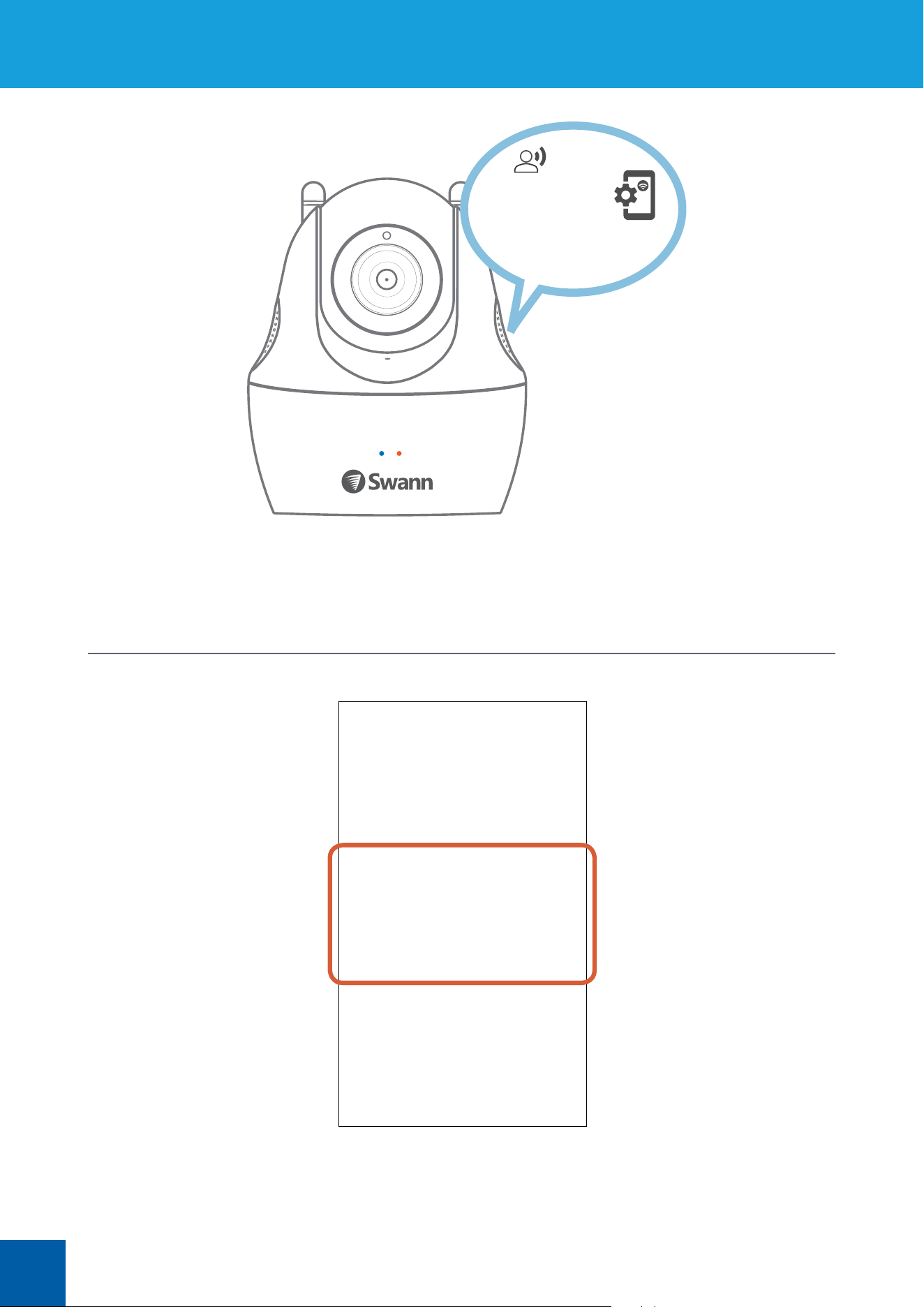
Once the camera has nished starting up, it will go into Wi-Fi conguration mode and guide
you through the Wi-Fi setup process.
Listen carefully and follow the voice prompts from the camera. You’ll need to connect your
smartphone to the camera’s temporary Wi-Fi network.
Open the AlwaysSafe app when prompted (your smartphone should now be connected to
the camera’s temporary Wi-Fi), then wait for the Setup box to be displayed as shown above.
Tap OK then follow the on-screen instructions to congure your home Wi-Fi network settings
for the camera. Once you have nished Wi-Fi setup, the app will display the Live View screen
streaming live video from your camera. Before using the camera any further, rst set the time
and date. See “Conguring Initial Settings” on page 6.
Please open the Wi-Fi settings
option on your smartphone and
connect to your camera’s network
........................................................................
..................................................................
....................................................
Adding a Camera
6
Conguring Initial Settings
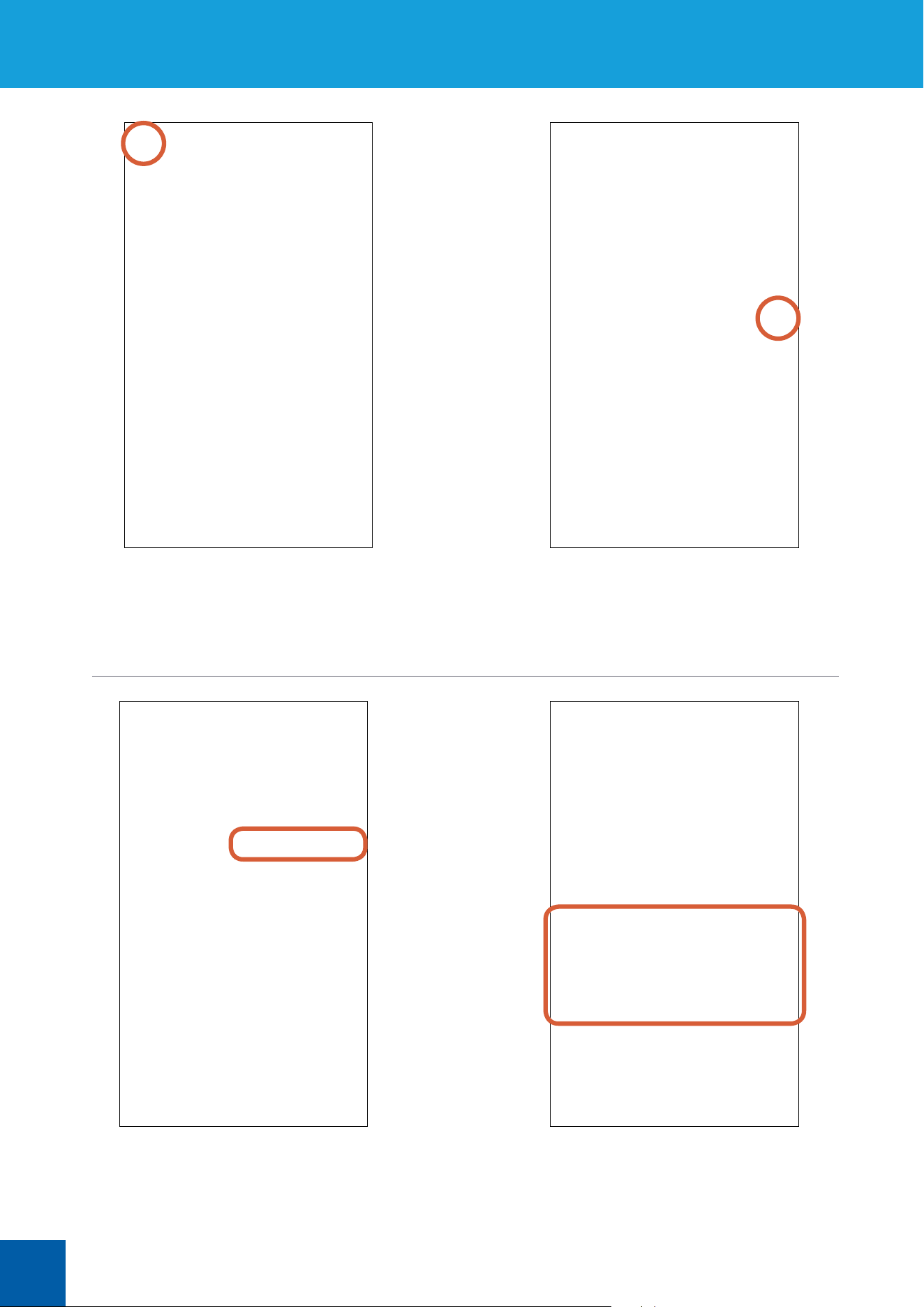
At the top left of the Live View screen, tap the
highlighted icon to open the Devices screen.
Tap the Synchronize phone time button to
allow the camera to automatically sync its
date, time and timezone to the clock on your
smartphone.
Tap the Init button.
Select your preferred date and time formats, and
if DST (Daylight Saving Time) is observed in your
country or region, turn on Enable DST, then tap
DST Settings to manually congure when DST
starts and ends during the year.
Tap the Next button to continue.
7
Conguring Initial Settings
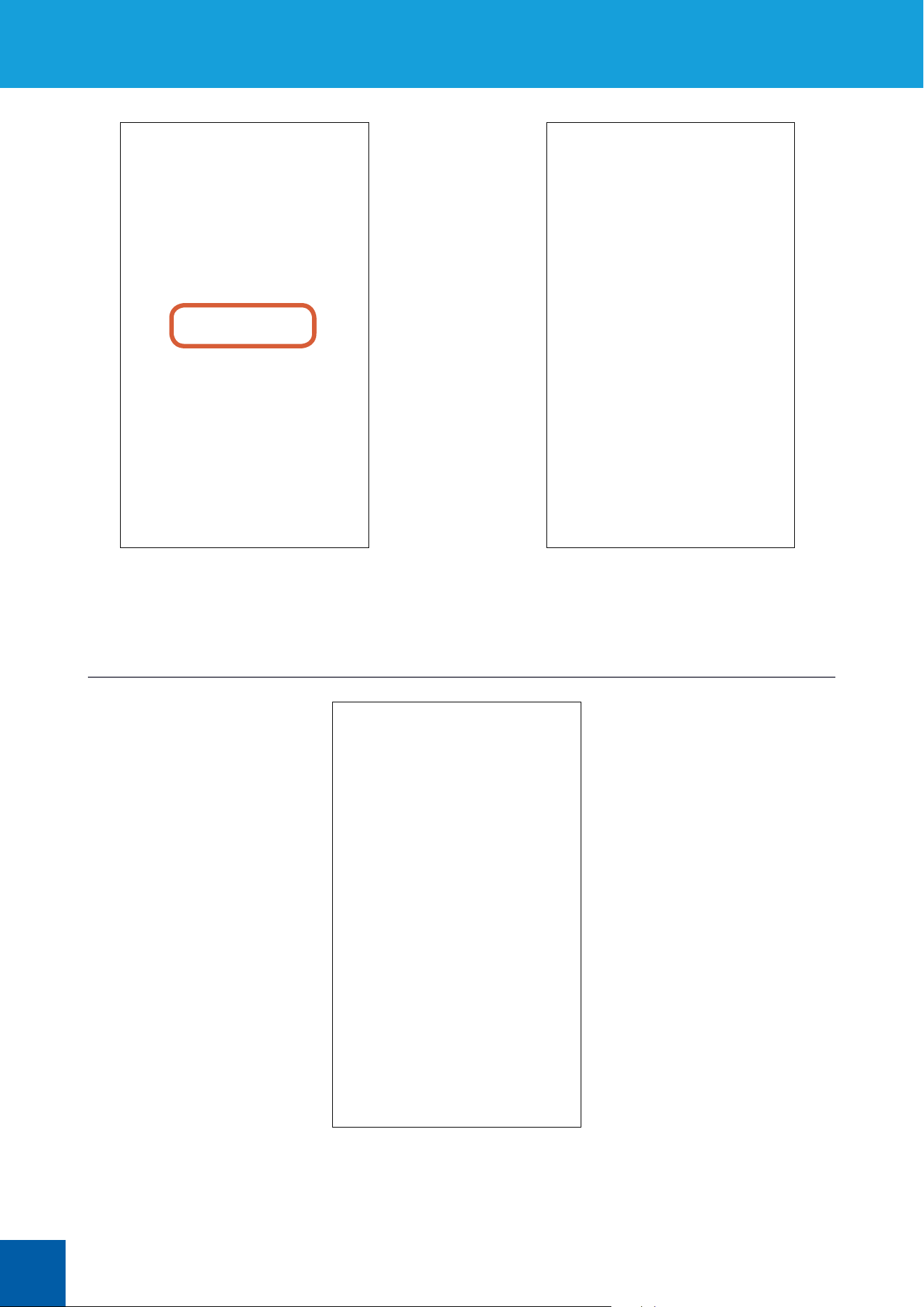
Tap the 50HZ (e.g., Australia, UK) or 60HZ (e.g., USA,
Canada) button to select the power frequency setting
matching the AC power frequency in your country.
The correct setting will prevent video ickering.
Tap the Next button to continue.
The Devices screen appears once you have nished conguring
initial settings for your camera. From here, you can see the
connection status of your camera, share camera access, manage
camera settings, and more.
See “The Devices Screen” on page 21 for more information.
Tap the Finish button.
8
Setting up Email Alerts
From the Devices screen, tap the
Settings button to access the camera
settings.
Tap Email Server Type to select your email
provider.
Scroll down to Notication. Make sure
E-mail is turned on, then tap Email
Settings.
Tap the name of your email provider—Gmail,
Yahoo or Hotmail/Live. Email server settings
for these services have been automatically
congured. Tap the Left arrow icon to return to the
Email Settings screen.
If your email provider is not any of the above, tap
Other.
9
If Other is chosen, manually enter your email
provider’s SMTP server address and SMTP port
number. Contact your email provider for details or
try googling rst. Once done, tap the Left arrow to
return to the Email Settings screen.
Enter your email address and its password in
Sender E-mail and Password. This is the email
address that you want the camera to send alerts
from.
Tap Attachment and select whether to include
a snapshot or a short video clip (about 30
seconds long), or none, from the motion event
in the alert emails.
Setting up Email Alerts
Under Recipient E-mail, enter the email
address you want alerts to be sent to. You can
send alerts to up to three email addresses.
To add another email address, simply tap
.
To remove an existing additional email address,
tap
.
10
Tap E-mail Interval and select the time —30 seconds, 1 minute, 5
minutes, 10 minutes or 30 minutes—in between alert emails arriving
in your inbox.
Setting up Email Alerts
Tap E-mail Test to verify your email settings and
send a test email to the specied recipient email
addresses. You’ll get a pop-up stating that the
test is successful if the settings you’ve entered are
working properly. Tap the Save icon at the top
right corner to save your email settings.
Check that your sender email address and password
are correct, then try again.
If you’re using Gmail and have correctly entered all
the settings, but still get the “test failed” pop-up, look
in your inbox for a “Review blocked sign-in attempts”
email from Google. You need to open that email, tap
the “allow access to less secure apps” link and then
turn on “Allow less secure apps” as shown above.
Email Test Failed?
11
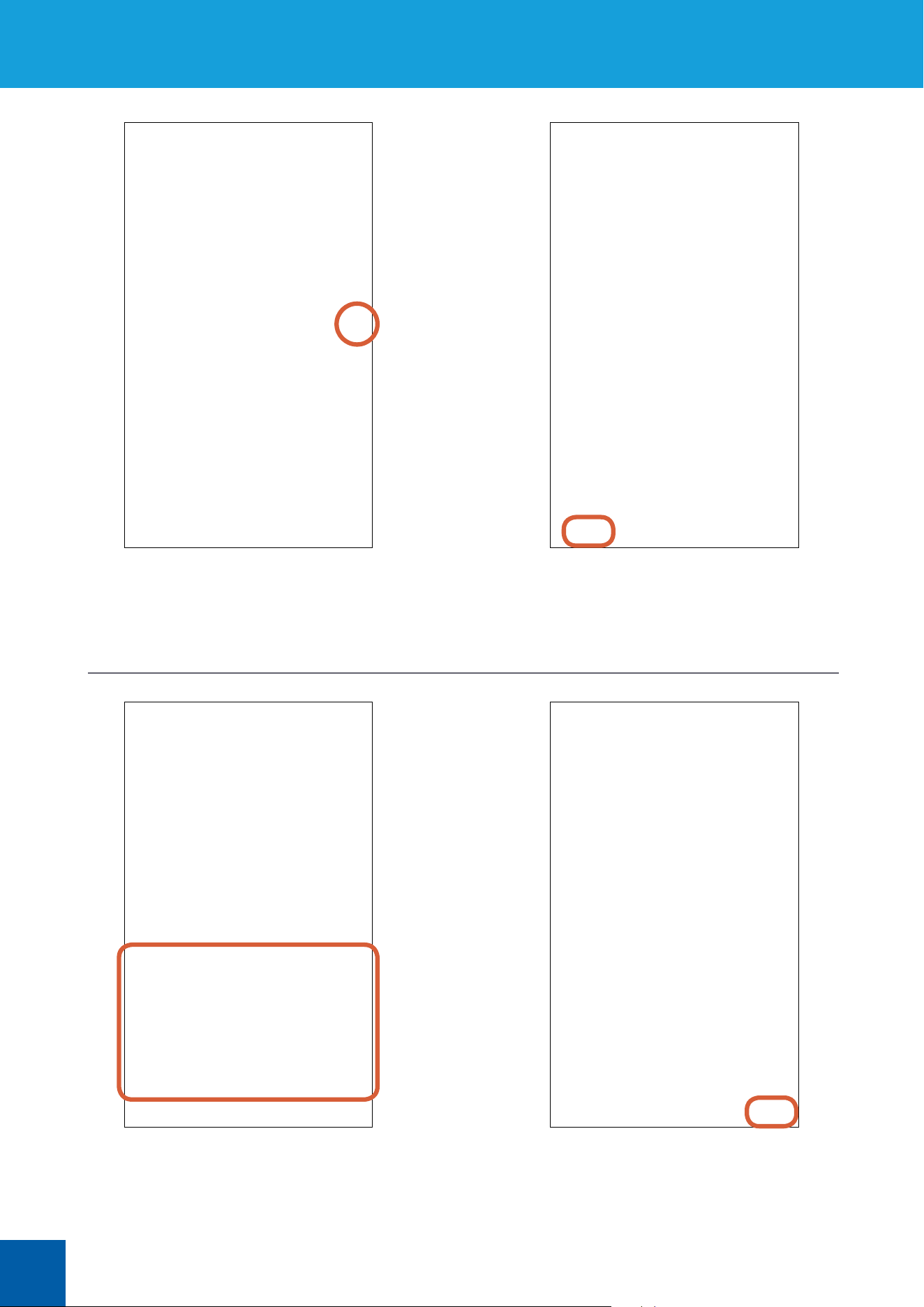
From the Devices screen, tap the Settings
button to access the camera settings.
By default, the camera is scheduled to send
emails when motion detection events happen.
Do not edit the motion detection schedule if
you want to receive alert emails at all times.
Scroll down to Notication. Make sure E-mail
is turned on, then tap Email Schedule. If you
haven’t set up email alerts for the camera yet,
see “Setting up Email Alerts” on page 8.
To schedule the camera to only send
emails during certain hours of the day,
rst pick the day of the week that you
want to schedule. The current day is
selected automatically.
Editing the Email Alerts Schedule
12
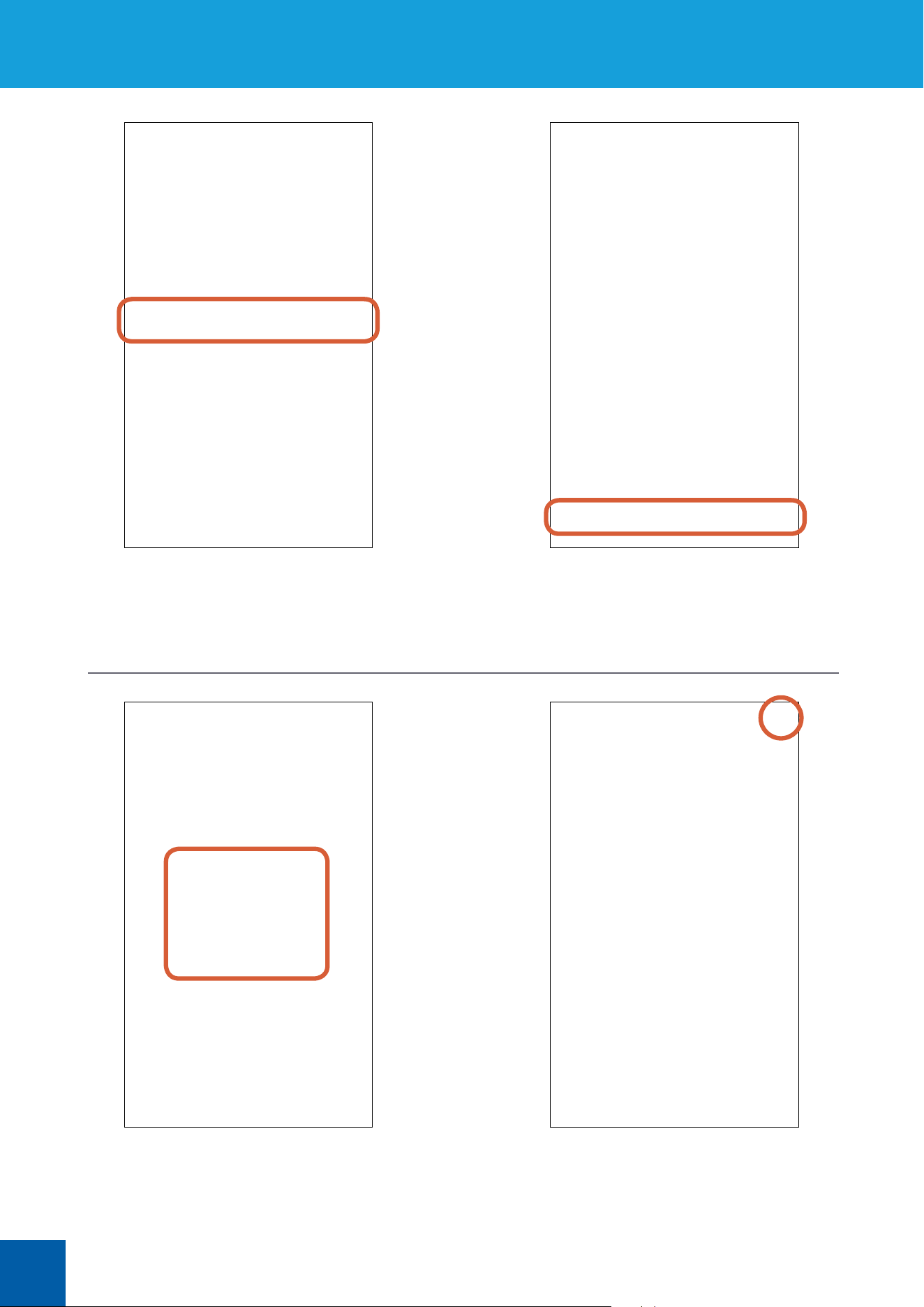
Tap the pencil & paper icon of the
Motion Detection schedule.
Tap the times (24-hour format) you want
to receive emails when motion is detected.
For example, you can set a schedule to
only receive emails from 7am to 11pm so
that the camera doesn’t send emails when
you’re in bed.
Uncheck the All box.
Tap Done.
Editing the Email Alerts Schedule
13
Editing the Email Alerts Schedule
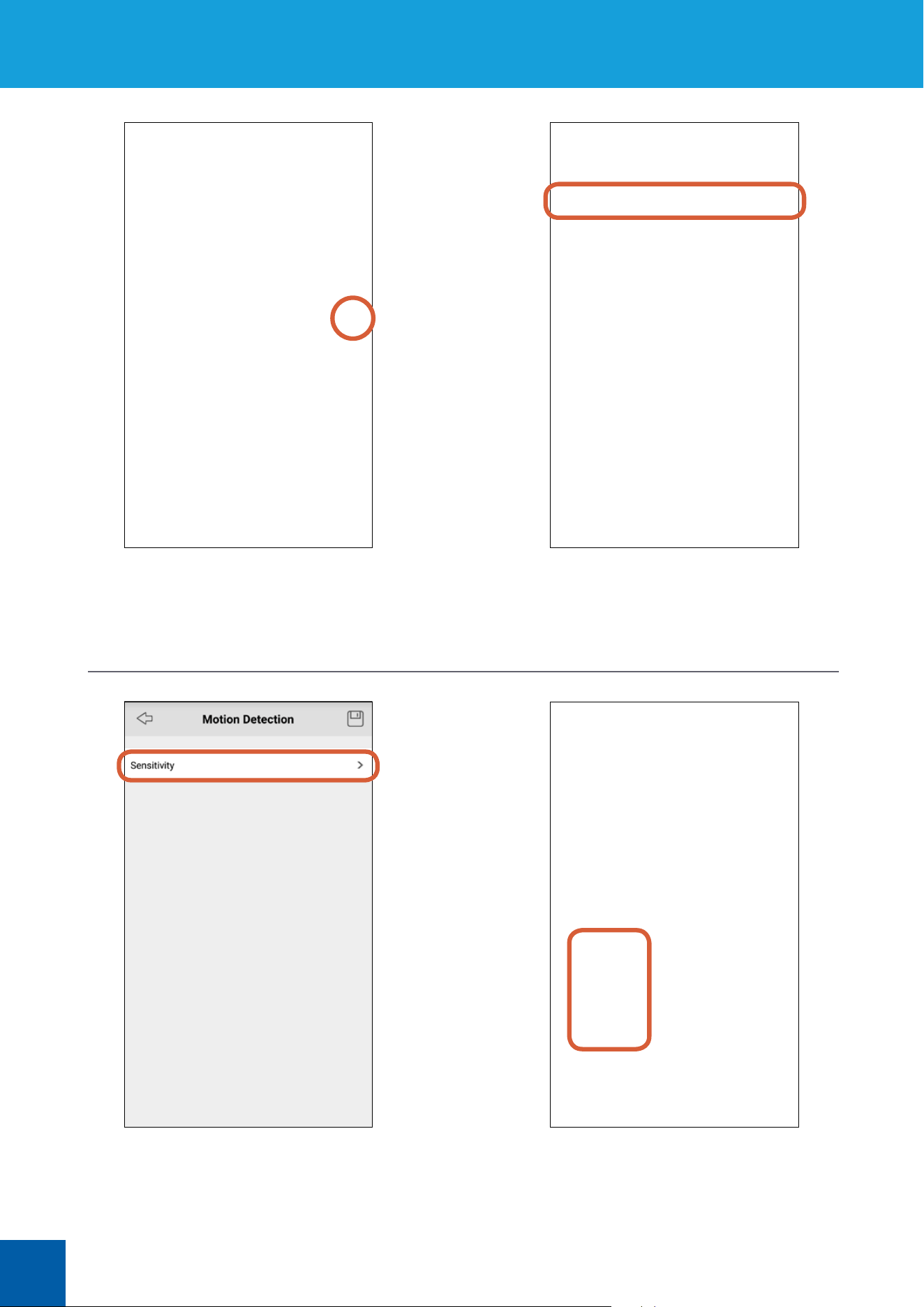
The new email alerts schedule for the
day that you’ve just edited is displayed.
Tap Every Day, Monday to Friday, Weekend
or Custom(you can choose which days) to
select the days which you want to apply the
same schedule to.
If you want the same schedule to repeat
over the other days of the week, tap the
Copy To button.
Tap the Save icon at the top right corner
to save your new email alerts schedule.
14
Adjusting Motion Detection Sensitivity
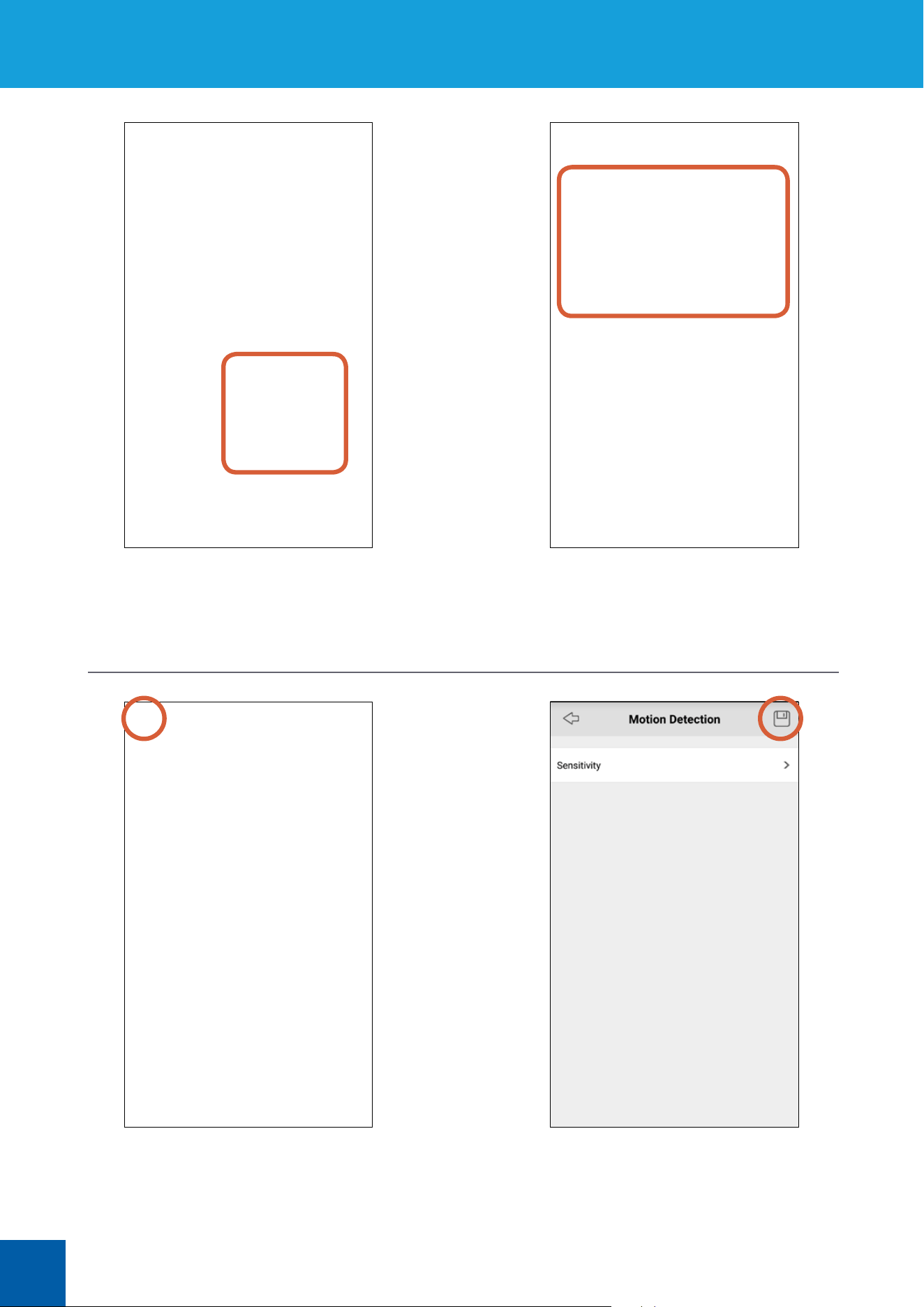
From the Devices screen, tap the
Settings button to access the camera
settings.
Tap Sensitivity.
Scroll down to Alarm, and tap
MD Settings.
Tap the highlighted end time of the rst, second or
third time period to dene the time periods in the
day (24-hour format). The start time of the next
time period will be updated automatically.
15
Drag the slider left or right to decrease or increase
the camera’s sensitivity to movement during each
time period. If you receive too many or too few alerts
at the default levels, simply adjust the sensitivity
slider to nd what works best for you.
Once you’ve customized the motion
detection sensitivity settings according to
your individual requirements, tap the Left
arrow icon.
The 24-hour graphical display quickly shows
you the schedule of the camera’s motion
detection sensitivity over the four dened
time periods.
Tap the Save icon to save your motion
detection sensitivity settings.
Adjusting Motion Detection Sensitivity
16
Setting up a MicroSD Memory Card
From the Devices screen, tap the Settings
button to access the camera settings.
Scroll down to Storage, and tap SD-Card.
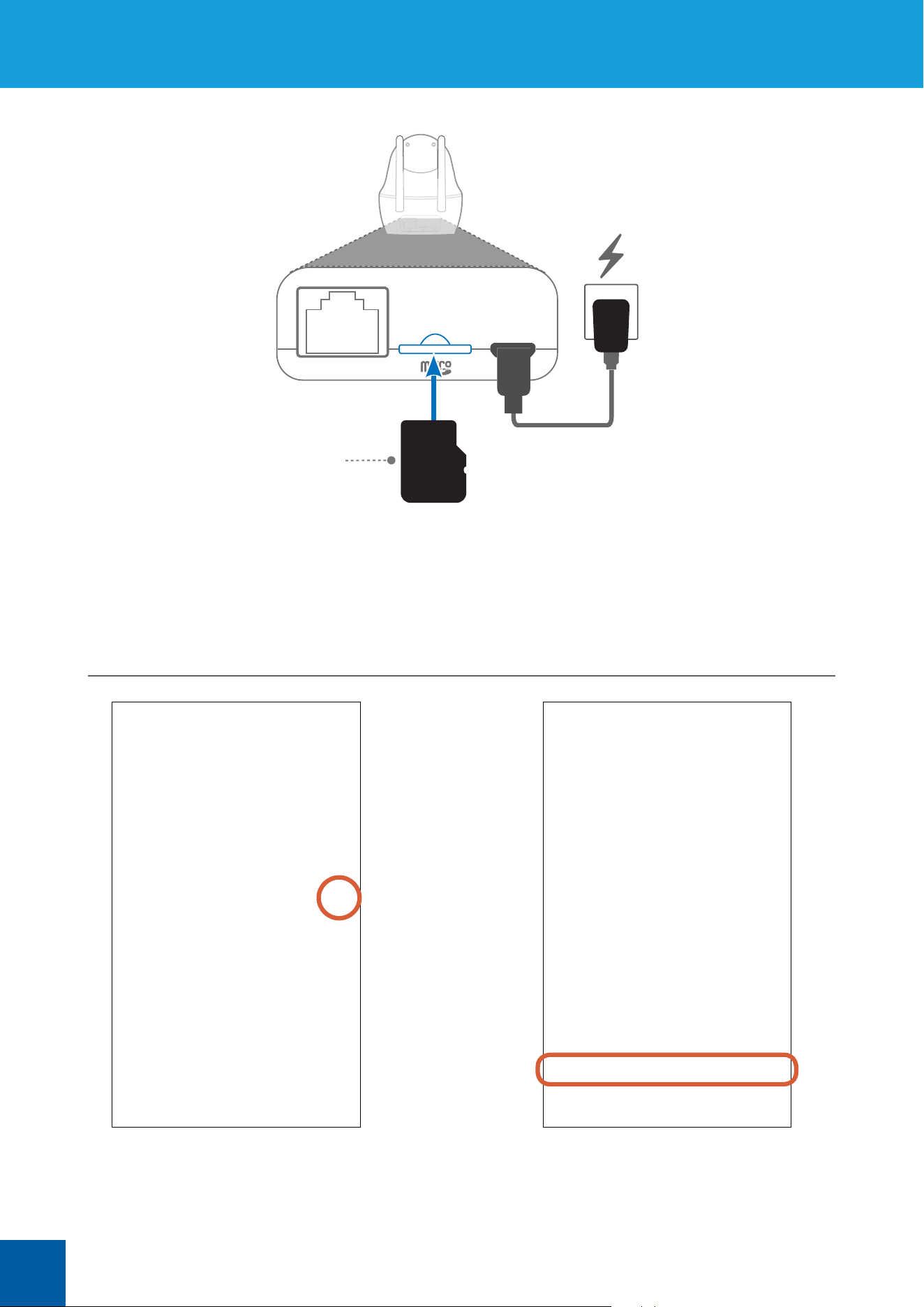
Insert a microSD memory card into the microSD card slot on the back of the camera, with
the gold contacts facing down, until it clicks into place. To ensure smooth performance and
plenty of space for recording motion events, we recommend using a fast memory card (class
6 or higher), with at least 16 GB of capacity. Note: We do not guarantee compatibility with
microSD cards from all manufacturers. Only use good quality microSD cards from well-
known manufacturers.
MicroSD card
17
Setting up a MicroSD Memory Card
Before using a microSD card for the rst time
on the camera, you’ll need to format it. Tap the
Format button. The camera will format the
memory card and restart automatically for the
memory card to take eect.
Scroll down to Storage. In SD-Card, you can
see the amount of remaining space on the
memory card for motion detection recordings.
When the camera has nished restarting,
tap the Settings button to access the
camera settings again.
After you’ve installed a microSD card in your
camera, you can make adjustments to the
default recording schedule and settings. By
default, the camera is scheduled to record
motion detection events at all times. See
“Storage” on page 30 for details.
18
Sharing Access to a Camera
From the Devices screen, tap the icon to
open the camera menu. Make sure that
your camera is online.
Tap the Share
icon.
A unique QR code is created for your
camera. Important: Only share this code
with the people you trust completely to
have access to your camera, for example, a
close family member.
On your family member’s smartphone,
download the latest version of the AlwaysSafe
app from the Apple App Store or Google Play
Store, open the app once installed, and tap +
icon at the top right of the screen.
19
Sharing Access to a Camera
Scan the QR code of the camera that is being shared by
aligning the QR code in the viewing guide.
To log into your camera, provide your camera’s admin
login password (this is the password created during
Wi-Fi setup), then tap the Login button.
Note: A Guest account can be created to provide
limited access to your camera (Live View and Playback
only). Visit our support center website for more
information.
From here on, your camera can be accessed
at anytime from your family member’s
smartphone as long as there is internet access.
Your smartphone
Family’s smartphone

20
About the
App Interface
21
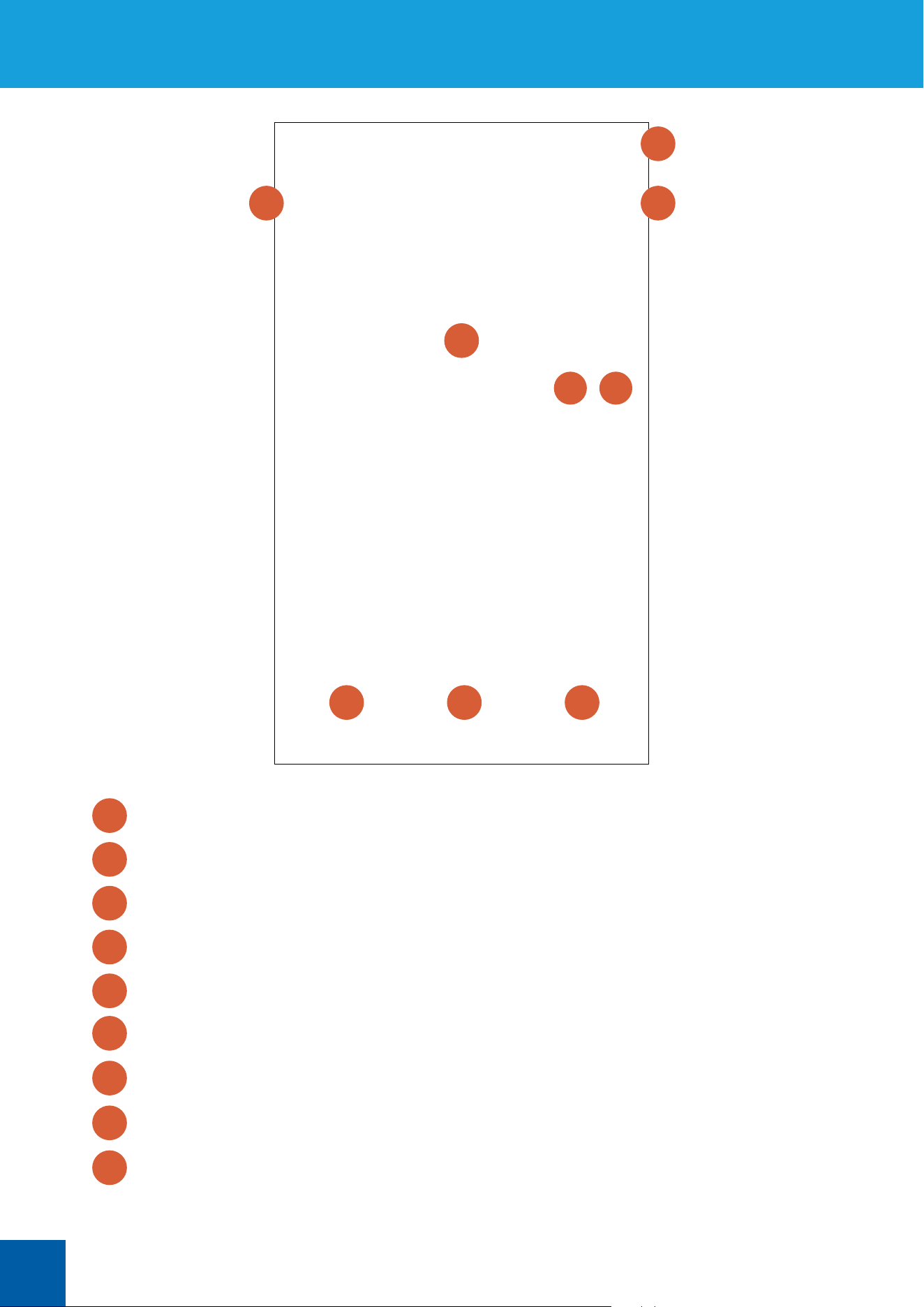
Shows the name and the connection status of the camera.
Manually add a camera by scanning the camera’s QR code.
Opens the quick menu where you can share camera access, edit camera name & login details, and delete
the camera. See “The Camera Menu” on page 22 for more information.
The camera preview window. Tap anywhere on the window to start streaming live video from the
camera.
View information about the camera’s Wi-Fi connection. You can also connect to a dierent Wi-Fi
network from the list of networks available at the time.
Manage the camera’s settings such as the date & time, camera password, motion detection sensitivity,
email alerts, and more. To learn about the settings available, see “The Settings Screen” on page 28.
The currently displayed screen is highlighted in blue.
Quickly start live view of the last watched camera.
Congure app startup settings, and view app version information and privacy policy. See “App General
Settings” on page 34 for more information.
The Devices Screen
1
2
3
4
5
6
7
8
9
1
4
87 9
5 6
2
3
22
The Camera Menu
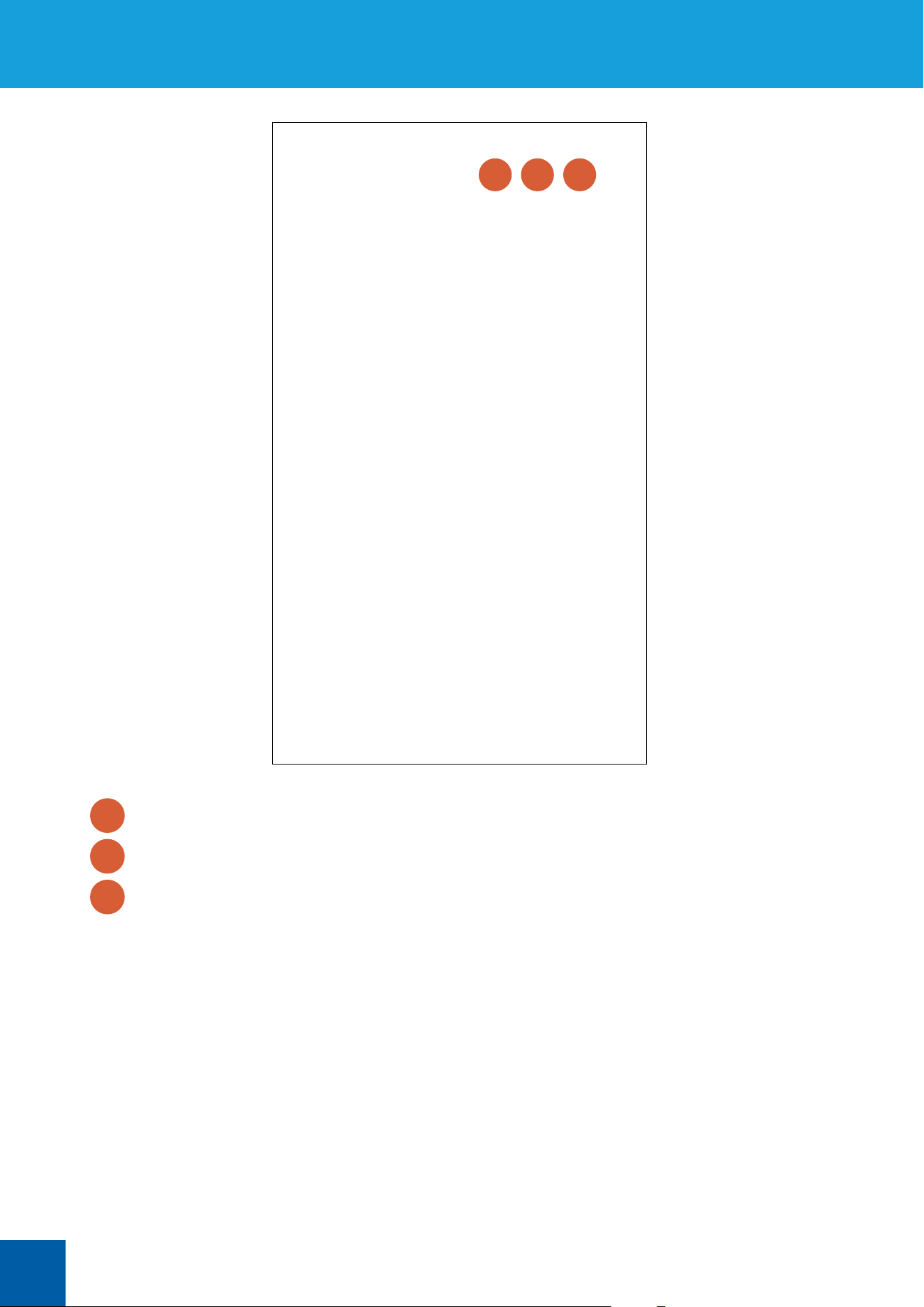
Tap to generate a QR code for the camera and share access to the camera using this code. See “Sharing
Access to a Camera” on page 18.
Tap to edit the name of your camera and the login details such as the username and password. The default
login username is “admin”—if you set up the camera, you’re the administrator.
2
1
1 2 3
Tap to delete the camera from the app.
3
23
The Live View Screen
2
1 3
4 5 6 7 8
10 11 12
9
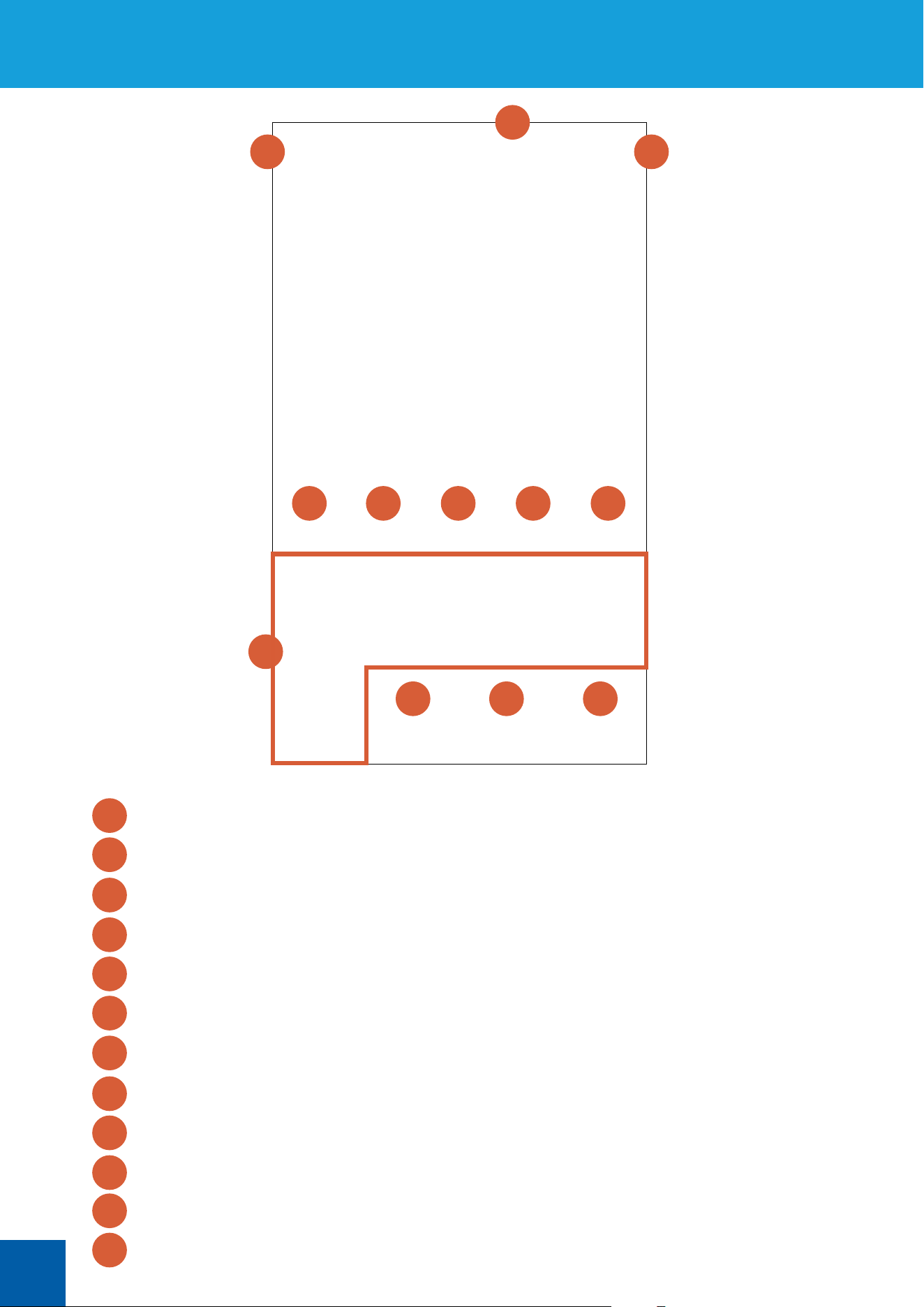
Tap to go to the Devices screen.
Tap to access the Playback screen where you can search and play motion events recorded on the camera’s
MicroSD memory card. To nd out more, see the “The Playback Screen” on page 27.
Select multiple cameras, if available, to view live video simultaneously or on separate video windows.
Tap to stop/start live video streaming.
Tap to start recording a clip from the live video. Tap again to stop recording. Recorded clips are
automatically saved to your smartphone’s internal memory—look for the “AlwaysSafe” folder.
Tap to capture a photo from the live video. Photos are automatically saved to your smartphone’s internal
memory—look for the “AlwaysSafe” folder.
Tap to view the video window in full screen (landscape).
Multi-camera window options. Multi-camera option is not available if streaming in “Clear” quality. Only live
video from one camera will be streamed on a single window at a time.
Tap to access pan & tilt control buttons. See “The Live View Screen: Using Pan & Tilt Controls” on page 24.
Tap to access the talk button.
Tap to change the live stream quality between Fluent (smoother movement) and Clear (higher quality).
Tap to unmute/mute the audio from the live stream. If you have multiple cameras streaming, only audio
from the camera selected on the video window will be heard.
2
3
4
6
7
8
9
10
11
12
5
1
24
The Live View Screen: Using Pan & Tilt Controls
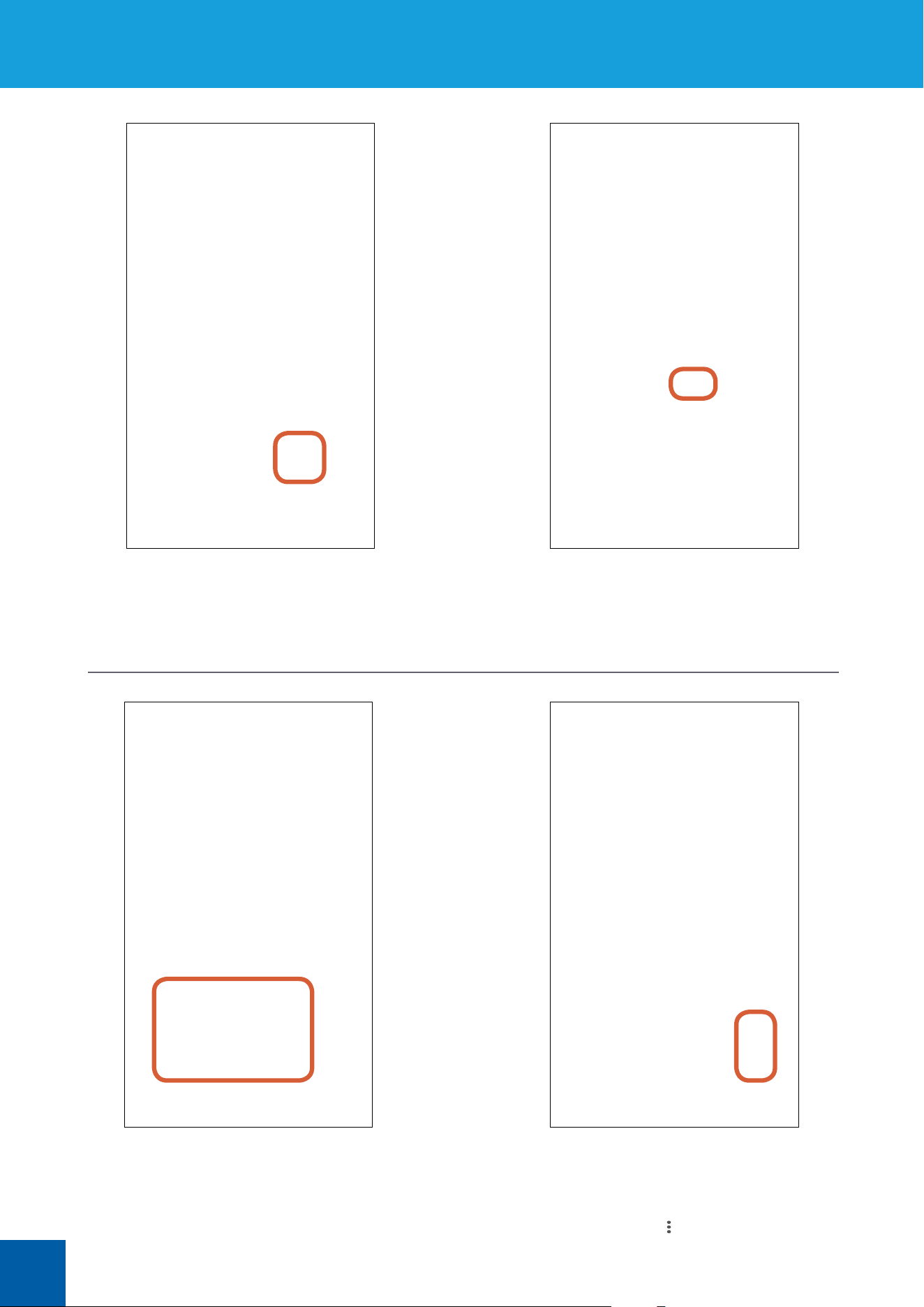
From the Live View screen, tap the
PTZ icon at the bottom of the screen.
Pan and tilt the camera using the joystick.
Drag and release quickly for incremental movements, or
drag and hold for continuous pan or tilt.
Do not manually pan or tilt the camera with your hands.
Doing so will damage the camera.
25
The Live View Screen: Saving & Calling Preset Positions
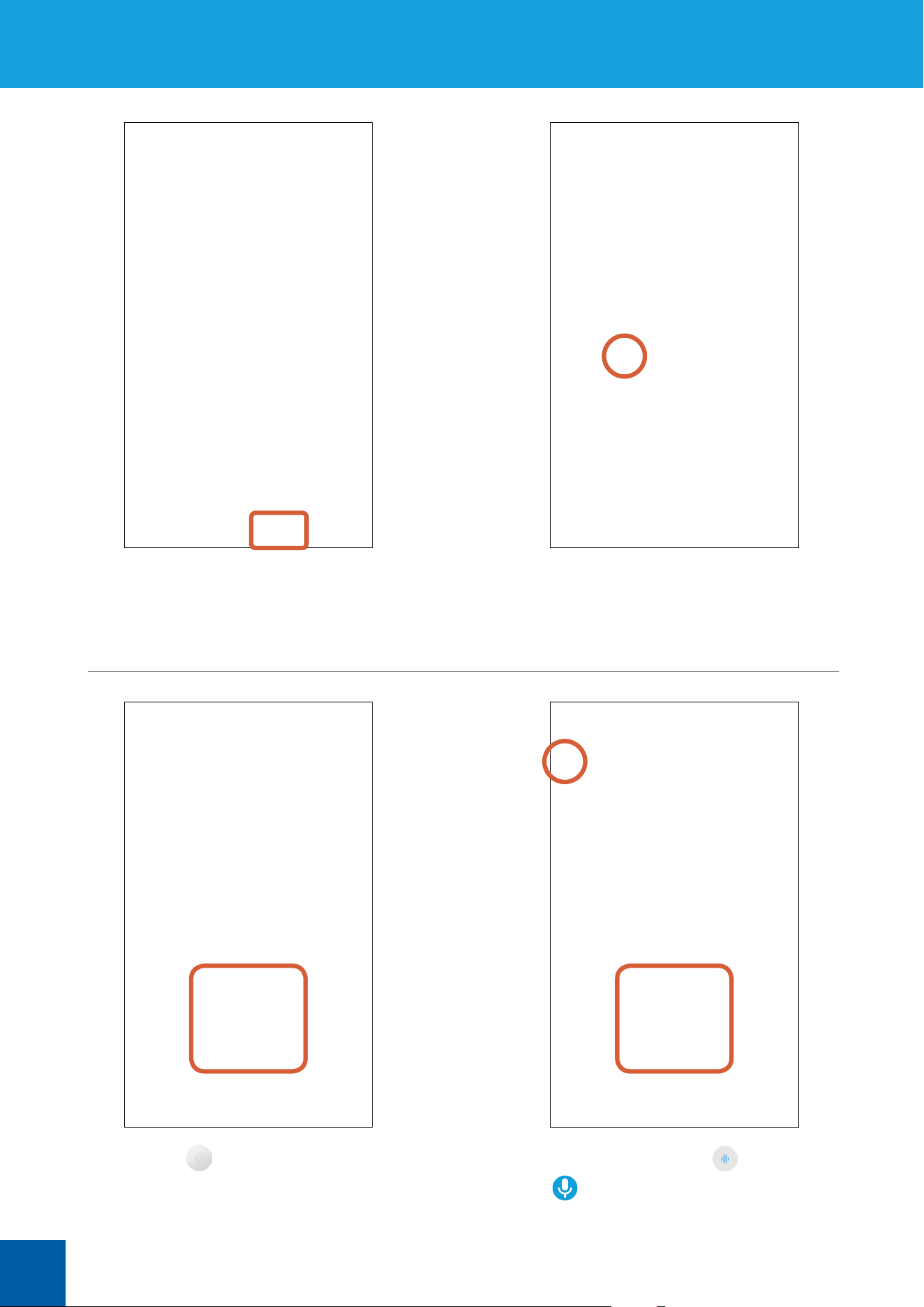
You can save multiple viewpoints as preset
positions to call upon later and position the
camera automatically. Simply tap the Mark
button and give the preset an appropriate
name for each viewpoint you want to save.
To select and call the preset positions
that you’ve saved, tap the Position tab.
Swipe up or down to scroll through the list
of preset positions and highlight the preset
position that you want to call. The number
in the blue circle indicates the number of
presets available.
Tap the Call button to move the camera
viewpoint to the highlighted preset
position.
To delete a preset position, highlight it,
then tap > Delete.
26
The Live View Screen: Using Two-Way Talk
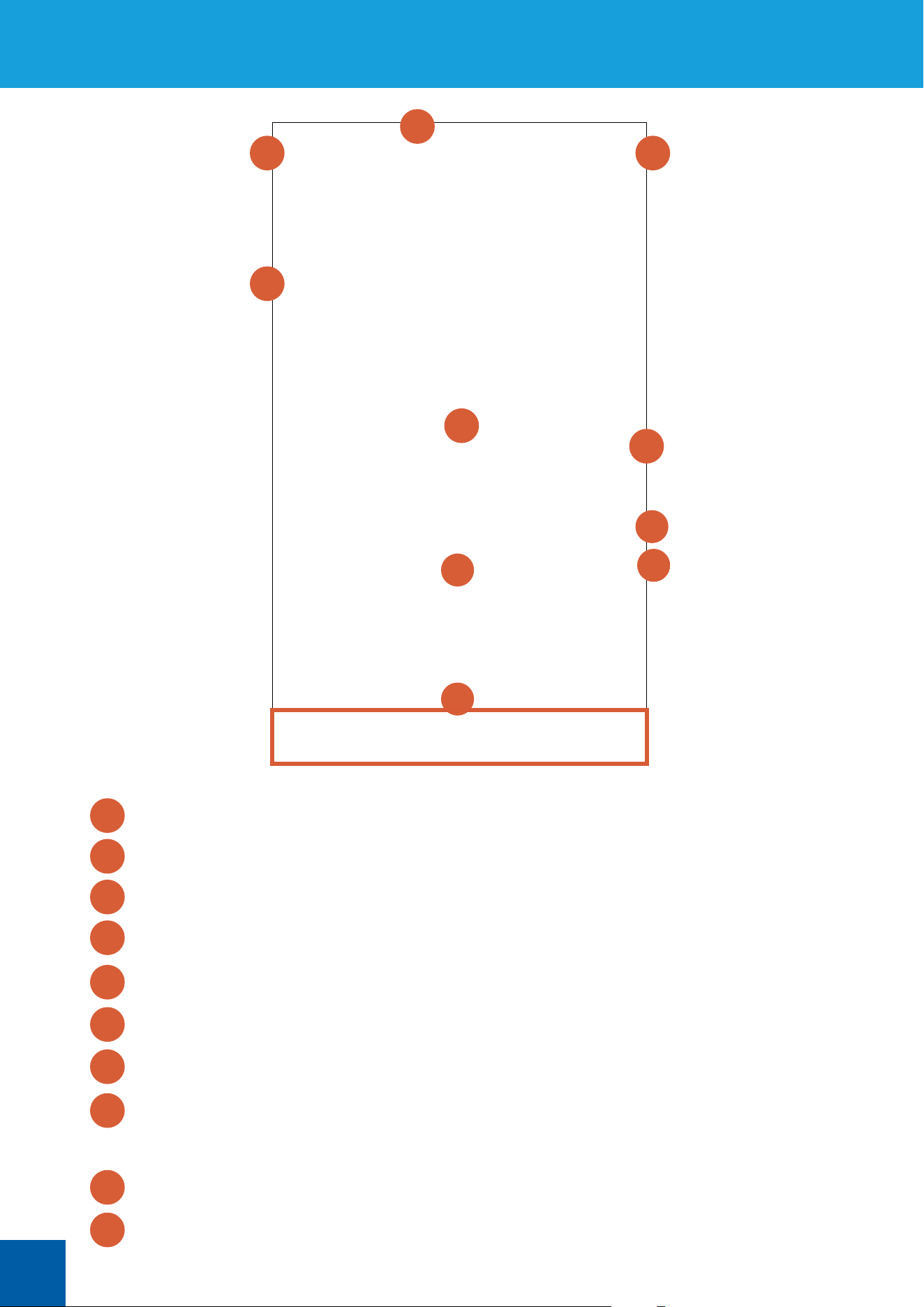
From the Live View screen, tap the
Talk icon at the bottom of the screen.
Tap the
button to start talking.
Tap the Speaker button to listen.
Tap again to stop listening.
To stop talking, tap the
button.
The
icon at the top left corner of the video
window will tell you that the Talk function is
currently ON even if you have the Screens, PTZ, or
Stream tab displayed.
27
The Playback Screen
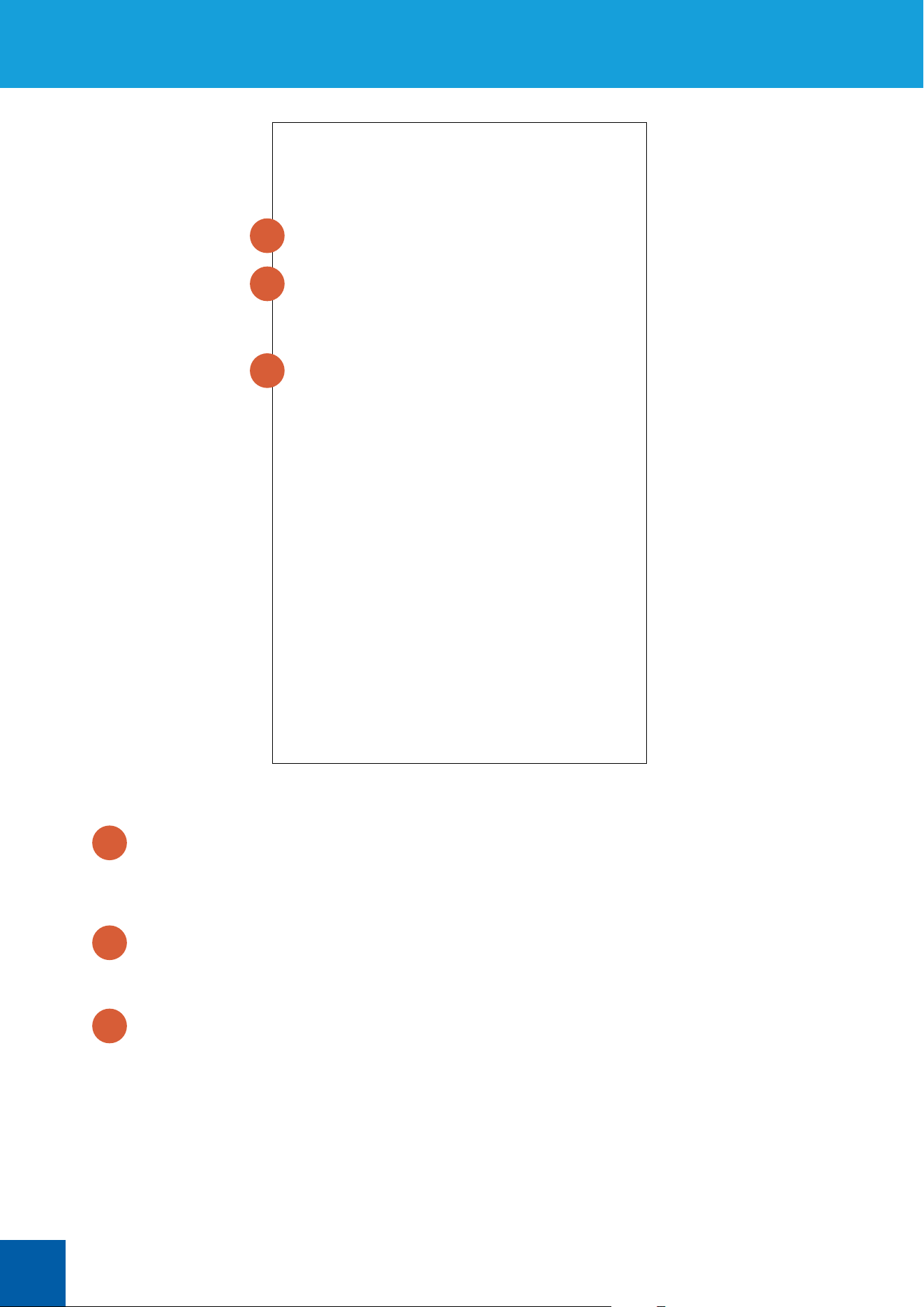
Tap to go to the Devices screen.
Tap to return to the Live View screen.
1
4
2
1
5
3
6
7
9
10
8
Tap to search for recorded motion events from a dierent camera.
Note: The camera must contain a microSD memory card for the playback feature to work.
Tap to start playing all available event videos from the point where the red timeline marker is positioned.
Swipe left or right across the timeline to quickly fast forward or rewind.
Change the video stream quality between Fluent (smoother movement) and Clear (higher quality).
Tap to view the video window in full screen (landscape).
Tap to open the calendar and select a specic date to view recorded motion events from.
The timeline showing the history of recorded motion events for the selected date. To zoom in and out on
the timeline, place two ngers here at once, and spread them apart or pinch them together. To scroll to a
certain part of the timeline, swipe left or right across the timeline. Blue highlighted parts of the timeline
represent when your camera recorded motion events.
Tap to refresh the timeline.
Tap the corresponding button to capture a photo, start/stop recording a clip, start/stop playing videos, or
unmute/mute audio.
3
4
5
6
7
8
9
10
2
28
The Settings Screen
1
2
3
Tap to view the Wi-Fi network that the camera is currently using. You can also connect the camera to a
dierent Wi-Fi network, if available. The camera supports both 2.4GHz and 5GHz Wi-Fi networks.
TIP
If you’ve recently changed your network settings or installed a new wireless router, you’ll need to reset
your camera and set it up again.
Tap to customize the video window with these display options:
• Name What to display as the camera name.
• Name Position Where to display the camera name.
• Display Date Whether to show the time and date.
• Date Position Where to display the time and date.
• Rotation Whether to ip the display upside down. Note: Orientation of text in the video
window will not be aected by enabling Rotation.
• Mirroring Whether to reverse the display left to right. Note: Orientation of text in the video
window will not be aected by enabling Mirroring.
• Anti-Flicker Select one of the following refresh rates if lights are ickering in the video:
Outdoor (natural outdoor lighting), 50Hz (Australia/UK), or 60Hz (North America).
Network
Video & Audio
Tap to view details about the camera’s network connection, including the IP address and the MAC address
of the camera.
2
1
3
29
4
5
Tap to adjust video quality settings related to the Fluent and Clear video streams. The following settings
are available:
• Resolution Select the video resolution to be used.
• Frame
Rate(fps)
Select the speed at which the images from the camera are refreshed. The higher
the frame rate, the smoother the movement of people and objects will be,
however, images displayed may appear delayed and the audio may get out of
sync when talking to the camera over a slow or congested connection. Reducing
the number of fps can potentially improve the data-rate per frame and lower the
amount of bandwidth required by the camera.
• Max
Bitrate(kbps)
Select the maximum data rate that can be utilized by the camera to stream video.
The higher the bitrate, the better (ner detail and sharper) the quality of the
streaming video but a good, strong and fast internet connection with adequate
bandwidth will be needed.
TIP
The default settings are the optimal settings for the camera to stream video over a typical fast internet
connection. If the video loads slowly or frequently stops mid-stream, you may have a slow or unstable
connection to the internet. Try adjusting the quality settings (like reducing bitrate and frame rate) to
improve performance or contact your internet service provider to ask if your connection can be improved.
Video & Audio
You can disable audio completely in the video stream. Leave this setting ON to listen to and record
ambient sound.
5
4
The Settings Screen
30
The Settings Screen
6
7
8
Tap to adjust the recording schedule and customize the times and days in which the camera is allowed to
record videos to the microSD card when motion is detected.
Tap to view details about your microSD card, including the total capacity and the amount of free space
available. You can also reformat the memory card to erase all video recordings.
Storage
Tap to congure how videos are recorded to the microSD card. You can congure any of the following:
• Overwrite Whether to allow the camera to overwrite the oldest video les on the microSD card
when memory space is insucient. Leave this setting ON so that the camera can
continue to record new events but make sure that you regularly transfer important
video recordings to a computer (via a memory card reader) or another storage
device before any video le gets deleted automatically.
• Pre-record Whether to allow the camera to start recording to the clip approximately 4 seconds
before an event. Leave this setting ON to get additional footage showing the scene
prior to the event.
• Record
Extension
Set the amount of time—15 seconds, 30 seconds, 1 minute—that the camera
should continue recording to the clip after it has stopped detecting any movement
in the event.
7
6
8
NOTE Storage settings will only be displayed when a microSD memory card has been installed in the camera. To
learn more, see “Setting up a MicroSD Memory Card” on page 16.
31
The Settings Screen
9
10
11
Tap to adjust motion detection sensitivity settings in 4 dierent time periods of the day. See “Adjusting
Motion Detection Sensitivity” on page 14 for more information.
You can disable the camera’s built-in infrared LEDs which help to illuminate the scene in low light
conditions. By default, the infrared LEDs will turn on automatically when the camera detects there is not
enough ambient light.
Tap to change the camera’s admin login password.
TIP After you’ve changed the password, you’ll be prompted to log in again with the new password.
Alarm
LED
Account Security
9
11
10
32
The Settings Screen
You can turn o or on the camera’s email alerts feature.
Tap to adjust the email schedule and customize the times and days in which the camera is allowed to
send you alert emails when motion detection is triggered. If you want to receive less notications, you can
schedule the camera to send you emails only during certain times of a day. To learn more, see “Editing the
Email Alerts Schedule” on page 11.
Tap to set up the email alert feature. To learn more, see “Setting up Email Alerts” on page 8.
Turn on or o the alarm feature. If ON, the camera will sound an alarm when it detects motion. The alarm
sound will stop automatically about 10 seconds after complete absence of motion in the event.
13
14
15
12
Notication
12
14
13
15
33
The Settings Screen
16
18
17
19
20
21
Tap to view device information about the camera.
You can synchronize the date & time and timezone on the camera to the clock on your smartphone,
change the date and time formats, and turn on or o DST(Daylight Saving Time).
Tap to reset the camera. This will reboot the camera and restore all settings to factory defaults, including
previously congured Wi-Fi settings and email alert settings. You’ll need to set up your camera again. To
set up your camera, see “Adding a Camera” on page 4.
TIP
You can also reset the camera by pressing the Reset button on the camera for 10 seconds with the
supplied reset pin tool.
Tap to restart the camera. If you are having diculties with your camera, try restarting it. A simple restart
can often x connectivity issues quickly.
Tap to check if the camera has the latest rmware version. By default, the Auto Upgrade option is
ON so that the camera can automatically download and install the update when a new rmware is
released. Firmware updates are periodically released for the camera, and can include bug xes or feature
improvements. If you prefer to manually update the camera, simply turn Auto Upgrade OFF.
Tap to change the video standard between NTSC (broadcast format used in North America) and
PAL(broadcast format used in Australia/UK), if necessary.
System
16
18
19
20
21
17
34
App General Settings
When your smartphone is connected to the Wi-Fi network, you can choose whether to allow the app to
automatically start live streaming once it’s launched.
When your smartphone is connected to the cellular network, you can choose whether to allow the app to
automatically start live streaming once it’s launched.
TIP
If you’re concerned about exceeding your cellular data caps or limits, leave this setting OFF.
You can prevent someone from opening the app on your smartphone by creating a password. You’ll be
prompted to enter this password the next time the app is launched.
TIP
If you’ve forgotten the password, simply uninstall and reinstall the app to remove password-protection.
Tells you if the app is the latest version available.
2
3
4
1
Settings
1
3
2
4
35
App General Settings
5
7
6
Tap to open the Swann Support Center website on the web browser.
Tap to view the AlwaysSafe application version information and the privacy policy.
Tap to view technical information about the camera’s network connection.
Help
5
7
6

36
Appendix
37
Adding a Camera via Ethernet
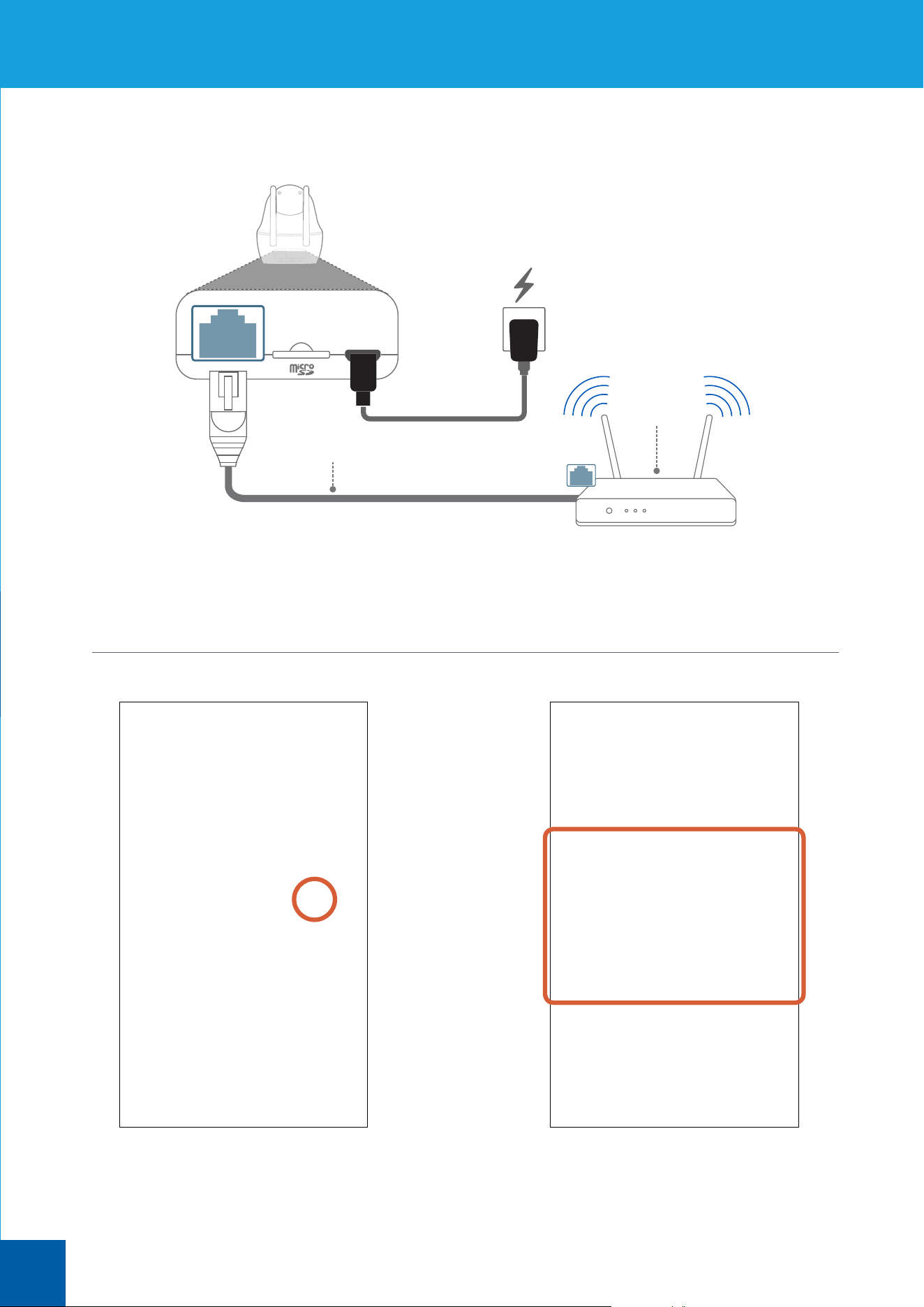
Connect the camera to your Wi-Fi router using the included Ethernet cable.
Note: You will not hear instructions from the camera when it detects an Ethernet connection
is being used.
Ethernet Cable
Wi-Fi Router
LAN
If, for any reason, you’re having trouble joining the camera to your Wi-Fi network using the
assistance of the camera’s Wi-Fi conguration mode, try connecting rst with Ethernet.
Open the AlwaysSafe app, and wait
for the camera to be detected, then
tap the Wi-Fi button.
From the list of available nearby networks,
choose a Wi-Fi network for the camera to join,
and enter its password.
38
Adding a Camera via Ethernet
Tap the Save icon to save your Wi-Fi
network settings to the camera.
Tap the Left arrow icon to return to the
Devices screen.
Tap the Init button.
Tap the Synchronize phone time button
to allow the camera to automatically sync
its date, time and timezone to the clock on
your smartphone.
39
Adding a Camera via Ethernet
Enter a name for the camera (for
example, the location where it’ll be
placed), create a login password then
conrm the login password.
Tap the Next button to continue.
Tap the Finish button. You can now
unplug the Ethernet cable and move the
camera to the desired location—as long as
it is within range of your Wi-Fi router, the
camera will automatically reconnect.
Select your preferred date and time formats, and
if DST (Daylight Saving Time) is observed in your
country or region, turn on Enable DST then tap DST
Settings to congure when DST starts and ends.
Tap the Next button to continue.
Tap the 50HZ (e.g., Australia, UK) or 60HZ
(e.g., USA, Canada) button to select the
power frequency setting matching the AC
power frequency in your country.
Tap the Next button to continue.

40
Frequently Asked Questions
My camera is mounted upside down.
How do I ip the camera’s video
orientation?
Go to your camera’s settings in the app and,
under Video & Audio, tap Display then turn
Rotation setting ON. Your camera’s live video,
including any future recordings, will now be the
right-side up.
Will I be able to clearly see what’s
going on when the lights are o?
When there is not enough ambient light, your
camera’s light detection sensor will automatically
activate the built-in infrared LEDs (you can see
the visible faint red glow coming from the LEDs),
illuminating the area in front of it, so that you
can have a clear and proper view of the scene.
In night vision mode, videos will appear in black
and white.
Why is there sometimes lag or delay
when loading the live stream from my
camera?
You may have a slow or unstable connection to
the internet. Whether you use a Wi-Fi connection
or cellular connection to stream live video can
also make a big dierence. As a general rule,
streaming from a smartphone that is connected
to the same Wi-Fi network as your camera will
make the video start more quickly, whereas
streaming using a cellular connection is often
reliant on the cellular coverage and signal
conditions, which may not be good at the time
you want to start live streaming.
Will my camera still record activity
to its microSD card if my home Wi-Fi
network lost internet connection?
Yes. Your camera will continue to detect and
record motion activity to its microSD card, as
long as recording has been scheduled for that
particular time period. You can stream live video
from the camera and playback recordings once
your internet connection is restored.
Why has my camera stopped recording
motion activity to the microSD
memory card?
If you’ve recently ejected your microSD card
from the camera, for example, to copy les to
your computer, and then re-inserted the card
back in, the camera may not have recognized
and mounted your microSD card properly. Try
restarting the camera. To restart the camera,
go the camera’s settings in the app and, under
System, tap Reboot.

41
Is it possible to turn o the infrared
LEDS around the camera lens at night?
Yes, if, for some reason, you’d like the infrared
LEDs disabled, simply go to your camera’s
settings in the app and, under LED, turn LED
Lights setting. Please note that turning o the
infrared LEDs may result in poor night vision
performance.
I am getting audio feedback while
talking on the app. How do I reduce it?
This is not unusual and may occur for a number
of reasons depending on your environment (for
example, background noise, proximity between
your smartphone and the camera, interference
from other nearby electronic devices, etc).
If you hear audio feedback, try plugging in
your headset or earphones, or lowering your
smartphone’s speaker volume to reduce the
audio feedback.
How do I reconnect my camera if I’ve
changed my Wi-Fi network settings?
If you’ve recently changed your network settings
or installed a new wireless router, you’ll need
to reset your camera and set it up again. To
reset the camera, press the Reset button on the
camera for 10 seconds using the supplied reset
pin tool.
The app still detects the camera which
I’ve just removed from the Devices
screen. How do I completely delete it?
The camera remembers the wireless network
settings it has connected to, and will
automatically connect to the network when it
is powered. To completely delete the camera
from your Wi-Fi network and stop the app from
detecting it while your phone is connected to
the same network, simply reset the camera and
restore its factory default settings. To reset the
camera, press the Reset button on the camera for
10 seconds using the supplied reset pin tool.
How do I know if my camera has the
latest rmware?
To check if your camera has the latest rmware,
go to your camera’s settings in the app and,
under System, tap Upgrade.
Frequently Asked Questions

42
© 2017 Swann Communications
MALWAYSSAFEAPPVER1E