XG270Q
Display
User Guide
Model No. VS18278
P/N: XG270Q
IMPORTANT: Please read this User Guide to obtain important information on installing and using your product in
a safe manner, as well as registering your product for future service. Warranty information contained in this User
Guide will describe your limited coverage from ViewSonic® Corporation, which is also found on our web site at
http://www.viewsonic.com in English, or in specific languages using the Regional selection box in the upper right
corner of our website. “Antes de operar su equipo lea cu idadosamente las instrucciones en este manual”

2
Thank you for choosing ViewSonic®
As a world-leading provider of visual solutions, ViewSonic® is dedicated to exceeding
the world’s expectations for technological evolution, innovation, and simplicity.
At ViewSonic®, we believe that our products have the potential to make a positive
impact in the world, and we are confident that the ViewSonic® product you have
chosen will serve you well.
Once again, thank you for choosing ViewSonic®!

3
Safety Precauons
Please read the following Safety Precauons before you start using the device.
• Keep this user guide in a safe place for later reference.
• Read all warnings and follow all instrucons.
• Sit at least 18" (45 cm) away from the device.
• Allow at least 4" (10 cm) clearance around the device to ensure proper
venlaon.
• Place the device in a well-venlated area. Do not place anything on the device
that prevents heat dissipaon.
• Do not use the device near water. To reduce the risk of re or electric shock, do
not expose the device to moisture.
• Avoid exposing the device to direct sunlight or other sources of sustained heat.
• Do not install near any heat sources such as radiators, heat registers, stoves, or
other devices (including ampliers) that may increase the temperature of the
device to dangerous levels.
• Use a so, dry cloth to clean the external housing. For more informaon, refer to
the "Maintenance" secon on page 69.
• Oil may collect on the screen as you touch it. To clean the greasy spots on the
screen, refer to the "Maintenance" secon on page 69.
• Do not touch the screen surface with sharp or hard objects, as it may cause
damage to the screen.
• When moving the device, be careful not to drop or bump the device on anything.
• Do not place the device on an uneven or unstable surface. The device may fall
over resulng in an injury or a malfuncon.
• Do not place any heavy objects on the device or connecon cables.
• If smoke, an abnormal noise, or a strange odor is present, immediately turn the
device o and call your dealer or ViewSonic®. It is dangerous to connue using
the device.
• Do not aempt to circumvent the safety provisions of the polarized or
grounding-type plug. A polarized plug has two blades with one wider than the
other. A grounding-type plug has two blades and a third grounding prong. The
wide blade and the third prong are provided for your safety. If the plug does not
t into your outlet, obtain an adapter and do not aempt to force the plug into
the outlet.

4
• When connecng to a power outlet, DO NOT remove the grounding prong.
Please ensure grounding prongs are NEVER REMOVED.
• Protect the power cord from being treaded upon or pinched, parcularly at the
plug, and at the point where it emerges from the equipment. Ensure that the
power outlet is located near the equipment so that it is easily accessible.
• Only use aachments/accessories specied by the manufacturer.
• When a cart is used, use with cauon when moving the cart/equipment
combinaon to avoid injury from pping over.
• Disconnect the power plug from the AC outlet if the device is not being used for
a long period of me.
• Refer all servicing to qualied service personnel. Service will be required when
the unit has been damaged in any way, such as:
if the power supply cord or plug is damaged
if liquid is spilled onto or objects fall in the unit
if the unit is exposed to moisture
if the unit does not operate normally or has been dropped
• NOTICE: LISTENING THROUGH EAR-/HEADPHONES AT A HIGH VOLUME FOR
EXTENDED PERIODS CAN CAUSE HEARING DAMAGE/HEARING LOSS. When using
ear-/headphones, adjust the volume to appropriate levels, or hearing damage
may result.
• NOTICE: THE MONITOR MAY OVERHEAT AND SHUTDOWN! If the device shuts
down automacally, please turn on your monitor again. Aer reboong, change
your monitor's resoluon and refresh rate. For details, please refer to the
graphics card's user guide.

5
Contents
Safety Precautions ....................................................... 3
Introduction ................................................................ 7
Package Contents ...................................................................................................7
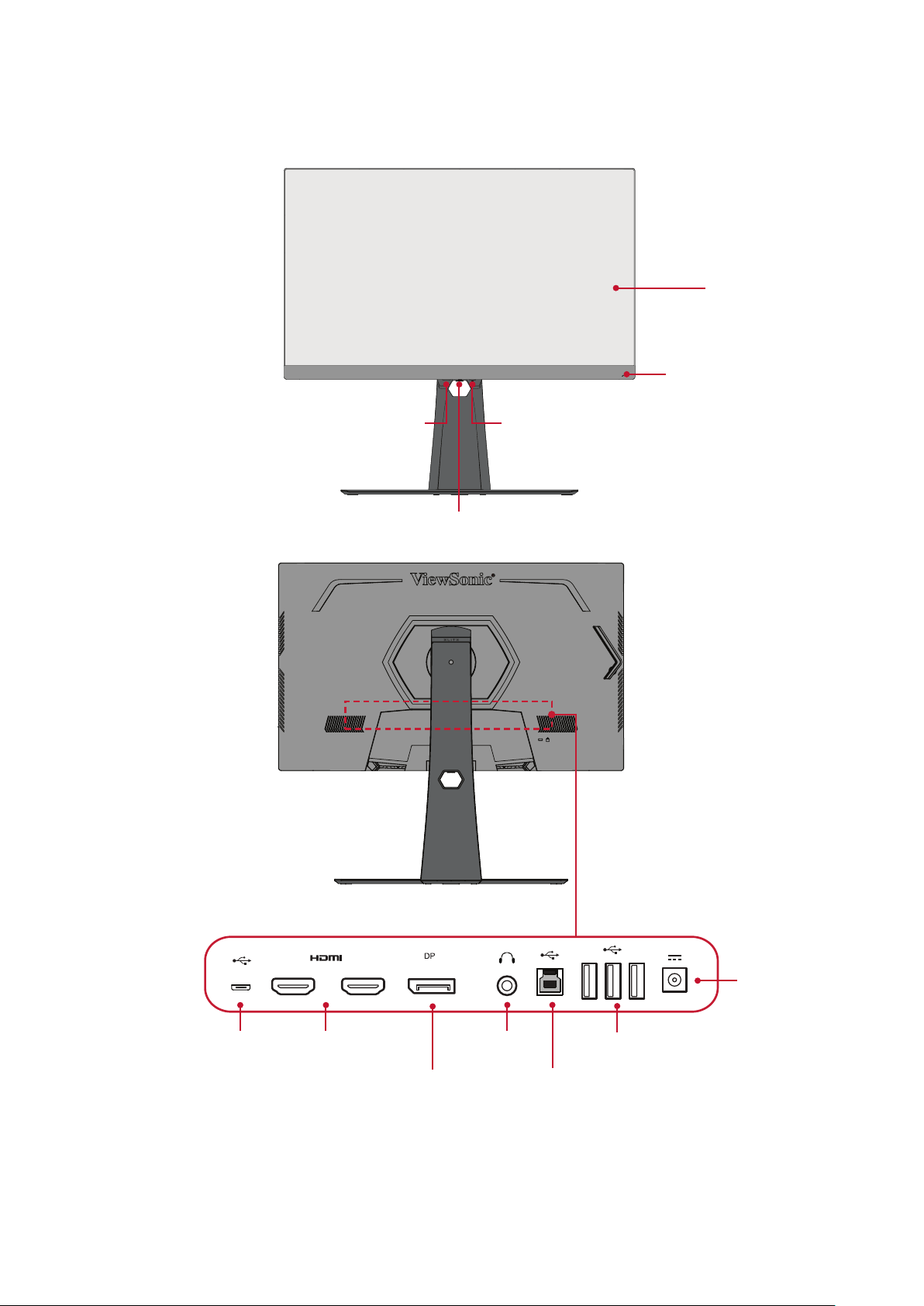
Product Overview ...................................................................................................8
Initial Setup ................................................................. 9
Installing the Stand .................................................................................................9
Using the Mouse Anchor ......................................................................................12
Wall Mounting ...................................................................................................... 13
Using the Security Slot .................................................................... ...................... 15
Making Connections .................................................. 16
Connecting to Power ............................................................................................16
Connecting External Devices ................................................................................17
HDMI Connection .................................................................................................. 17
DisplayPort Connection ......................................................................................... 18
USB Connection ..................................................................................................... 19
Audio Connection .................................................................................................. 20
Using the Monitor ..................................................... 21
Adjusting the Viewing Angle .................................................................... ............. 21
Height Adjustment ................................................................................................ 21
Tilt Angle Adjustment ............................................................................................ 22
Screen Orientation Adjustment (Monitor Pivot) ................................................... 22
Swivel Angle Adjustment ....................................................................................... 24
Turning the Device On/Off ...................................................................................25
Quick Access Menu .............................................................................................. 26
Using the Control Panel Keys .................................................................... ............26
Hot Keys ................................................................................................................ 27
Configuring the Settings .......................................................................................29
General Operations ............................................................................................... 29
On-Screen Display (OSD) Menu Tree .................................................................... 32
Menu Options ....................................................................................................... 38

6
Advanced Features and Settings ................................ 49
Adaptive Sync .......................................................................................................49
PureXP™ ...............................................................................................................50
Hertz Limiter ......................................................................................................... 51
Response Time OD................................................................................................52
Blue Light Filter and Eye Health ..... ............................................................... ........53
Quick Access Blue Light Filter Setup ...................................................................... 53
Calculating Breaks ................................................................................................. 54
Looking at Distant Objects .................................................................................... 54
Eye and Neck Exercises ......................................................................................... 54
ViewScale ..............................................................................................................55
Quick Access .........................................................................................................56
Elite RGB Lighting .................................................................................................57
Crosshair ............................................................................................................... 58
Firmware Update .................................................................... ..............................59
Appendix ................................................................... 61
Specifications .................................................................... .................................... 61
Glossary ................................................................................................................62
Troubleshooting ...................................................................................................67
Maintenance.........................................................................................................69
General Precautions .............................................................................................. 69
Cleaning the Screen ............................................................................................... 69
Cleaning the Case .................................................................................................. 69
Regulatory and Service Information .......................... 70
Compliance Information ....................................................................................... 70
FCC Compliance Statement ................................................................................... 70
Industry Canada Statement ................................................................................... 70
Declaration of RoHS2 Compliance......................................................................... 71
Indian Restriction of Hazardous Substances ......................................................... 72
Product Disposal at End of Product Life ................................................................ 72
Copyright Information ..........................................................................................73
Customer Service .................................................................................................. 74
Limited Warranty .................................................................................................. 75
Mexico Limited Warranty ...................................................................................... 78

7
Introducon
Package Contents
•
Monitor
• Power cord
• Video cable
• Quick start guide
NOTE: The power cord and video cables included in your package may vary
depending on your country. Please contact your local reseller for more
informaon.
9
Inial Setup
This secon provides detailed instrucons for seng up your monitor.
Installing the Stand
1. Place the monitor on a at, stable surface with the screen facing down.
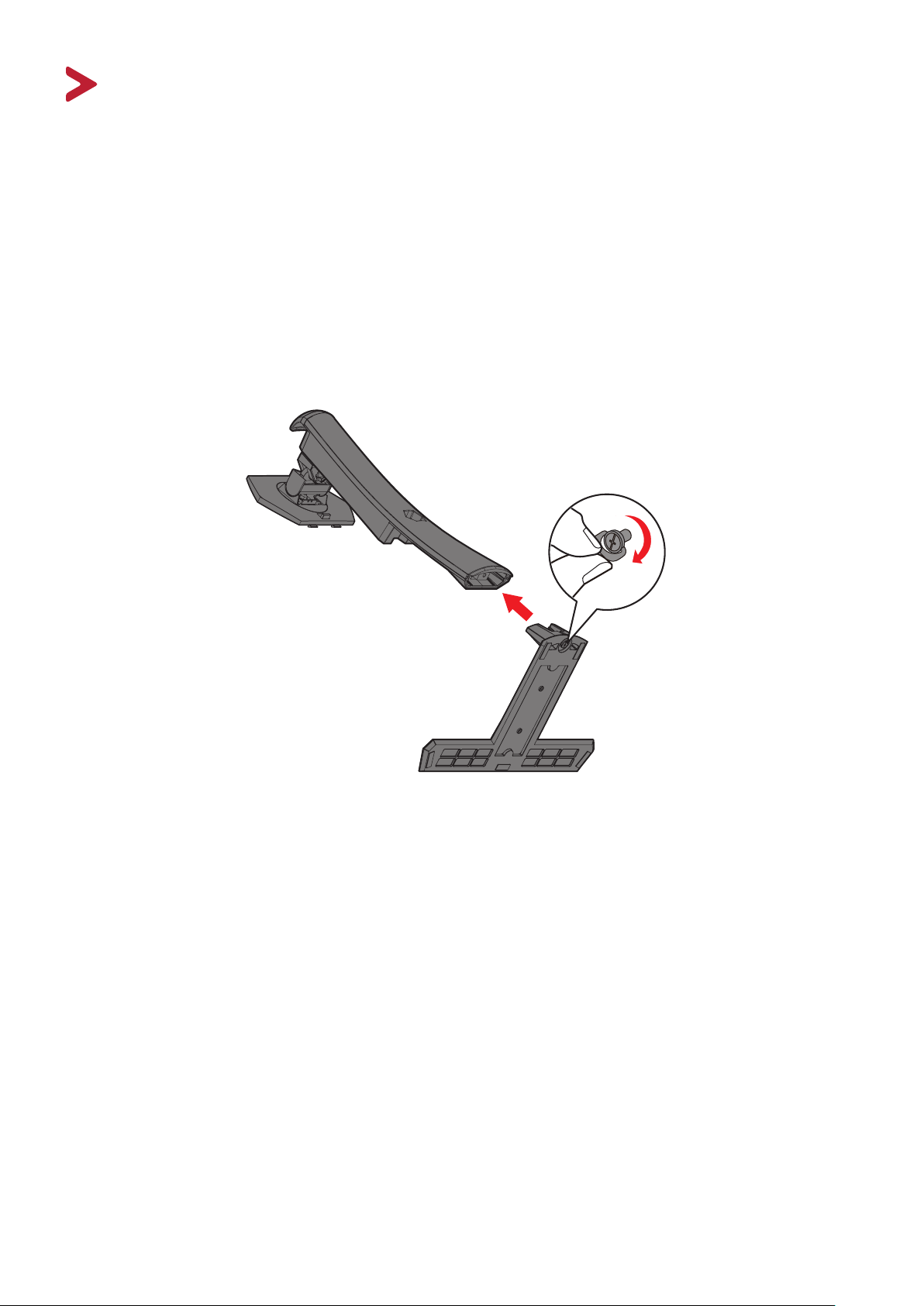
2. Align and connect the two (2) points on the monitor stand’s base with the
monitor stand’s neck.
3. Use the captured screw in the monitor stand’s base and secure it to the monitor
stand’s neck.
10
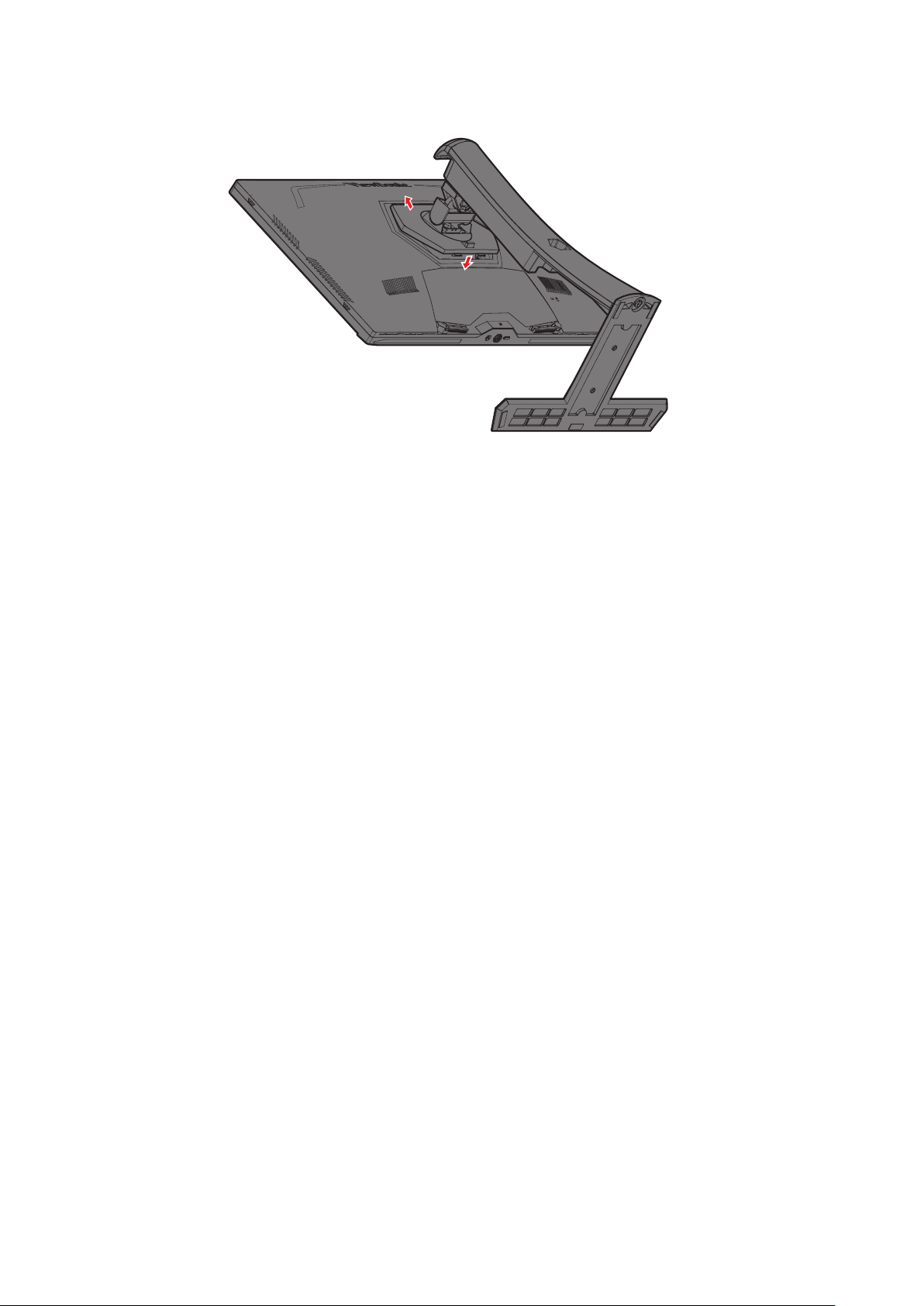
4. Align and slide the upper hooks of the monitor stand into the stand mounng
slots as shown in the illustraon below:
NOTE: Ensure the stand is secure and the quick release tab posively clicks into
place.
11
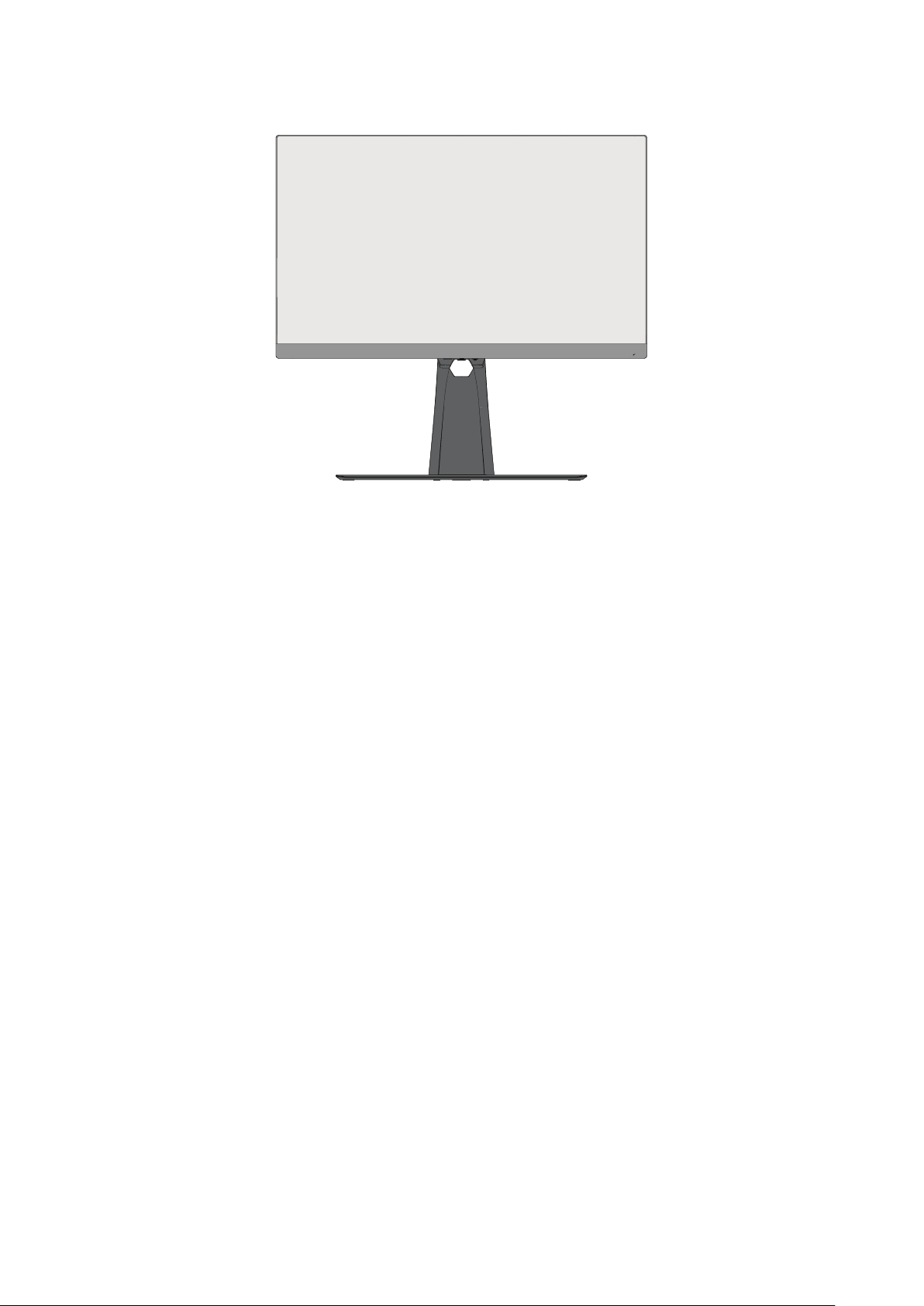
5. Using the stand’s handle, li the device into its upright posion on a at, stable
surface.
NOTE: Always place the device on a at, stable surface. Failure to do so may
cause the device to fall and damage the device and/or result in personal
injury.
12
Using the Mouse Anchor
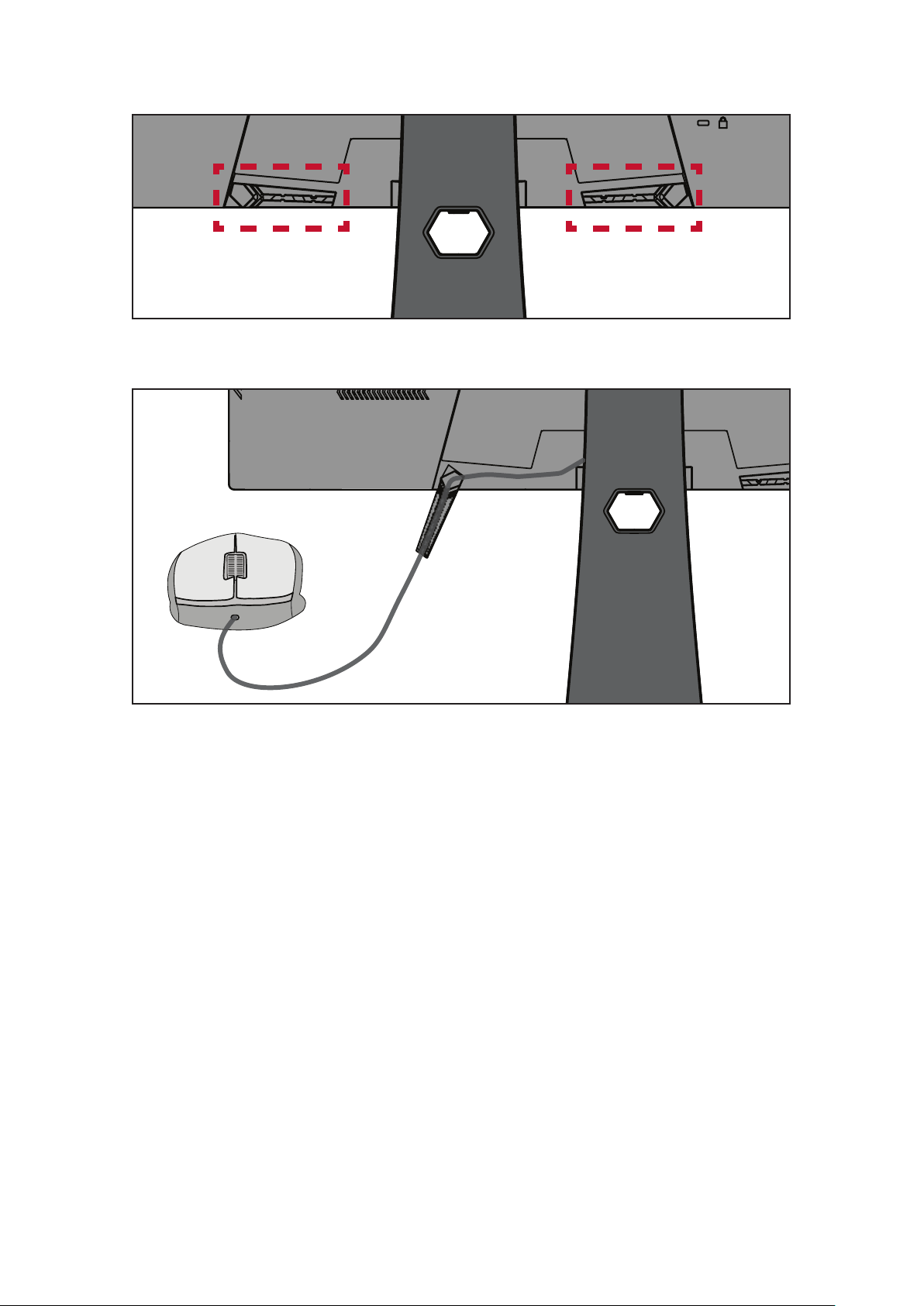
Included at the rear of the display, under the I/O ports, are two mouse anchors. Use
these to prevent mouse cable dragging and personalize your mouse use setup.
13
Wall Mounng
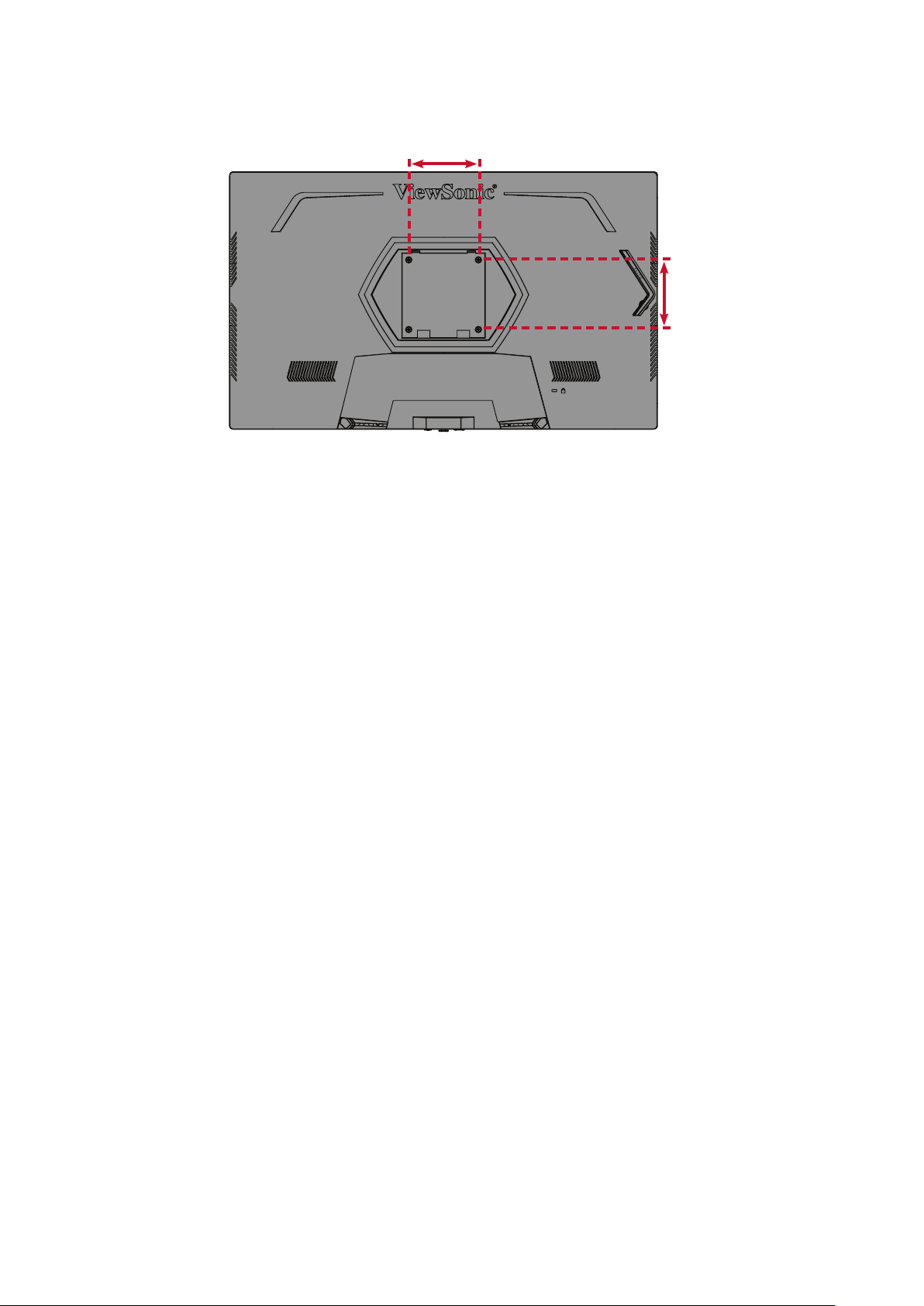
Refer to the table below for the standard dimensions for wall mount kits.
NOTE: For use only with a UL cered wall mount kit/bracket. To obtain a wall-
mounng kit or height adjustment base, contact ViewSonic® or your
local dealer.
Maximum
Loading
Hole paern
(W x H)
Interface Pad
(W x H x D)
Pad Hole
Screw Specicaon
& Quanty
14 kg 100 x 100 mm 115 x 115 x 2.6 mm Ø 5 mm
M4 x 10 mm
4 pieces
NOTE: Wall mount kits are sold separately.
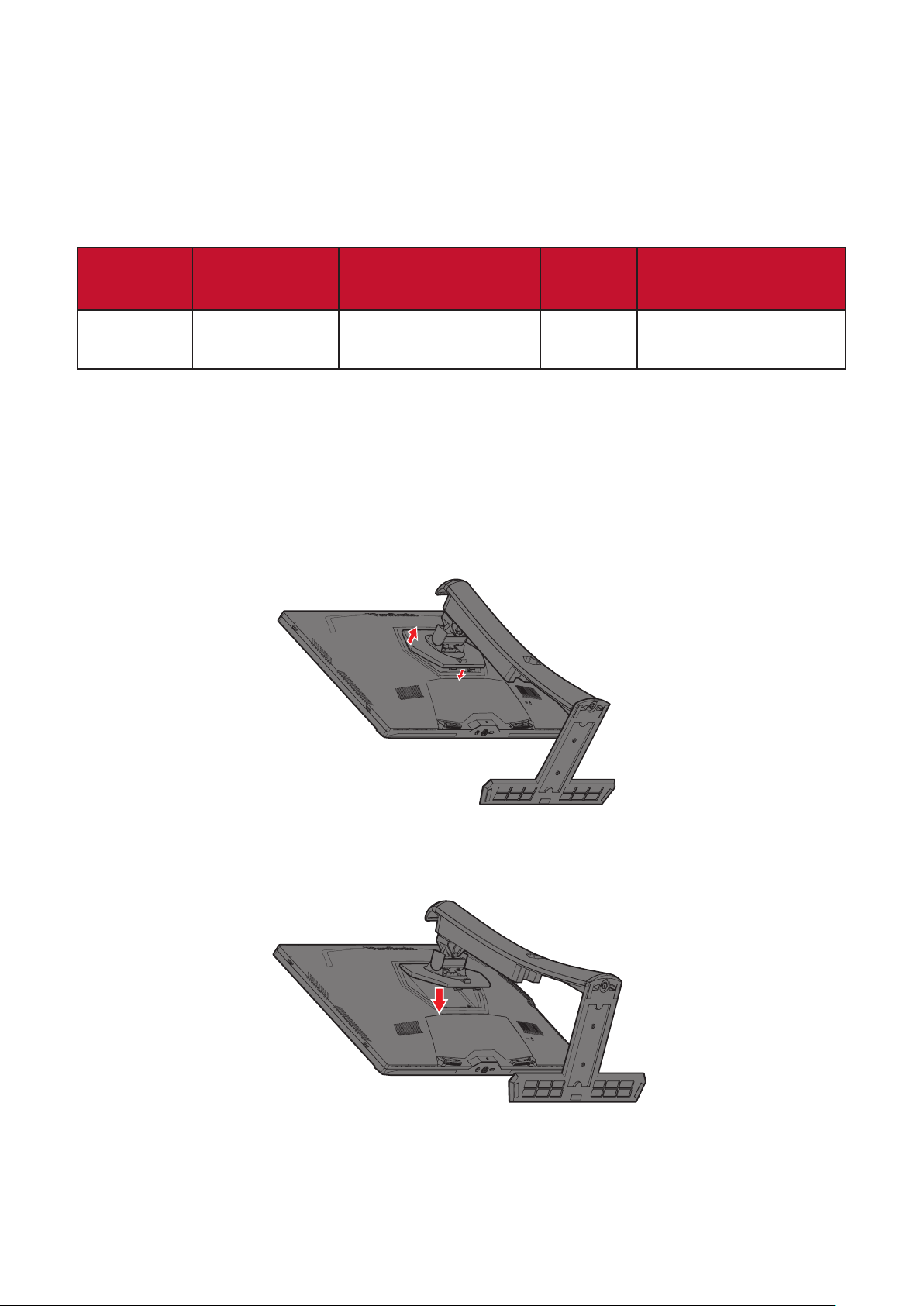
1. Turn o the device and disconnect all cables.
2. Place the device on a at, stable surface with the screen facing down.
3. Press and hold the quick release tab and carefully li the stand.
4. Pull down slightly to disengage the hooks and remove the stand.
14
5. Aach the mounng bracket to the VESA mounng holes at the rear of the
monitor. Then secure it with four (4) screws (M4 x 10 mm).
100 mm
100 mm
6. Follow the instrucons that come with the wall mounng kit to mount the
monitor onto the wall.
15
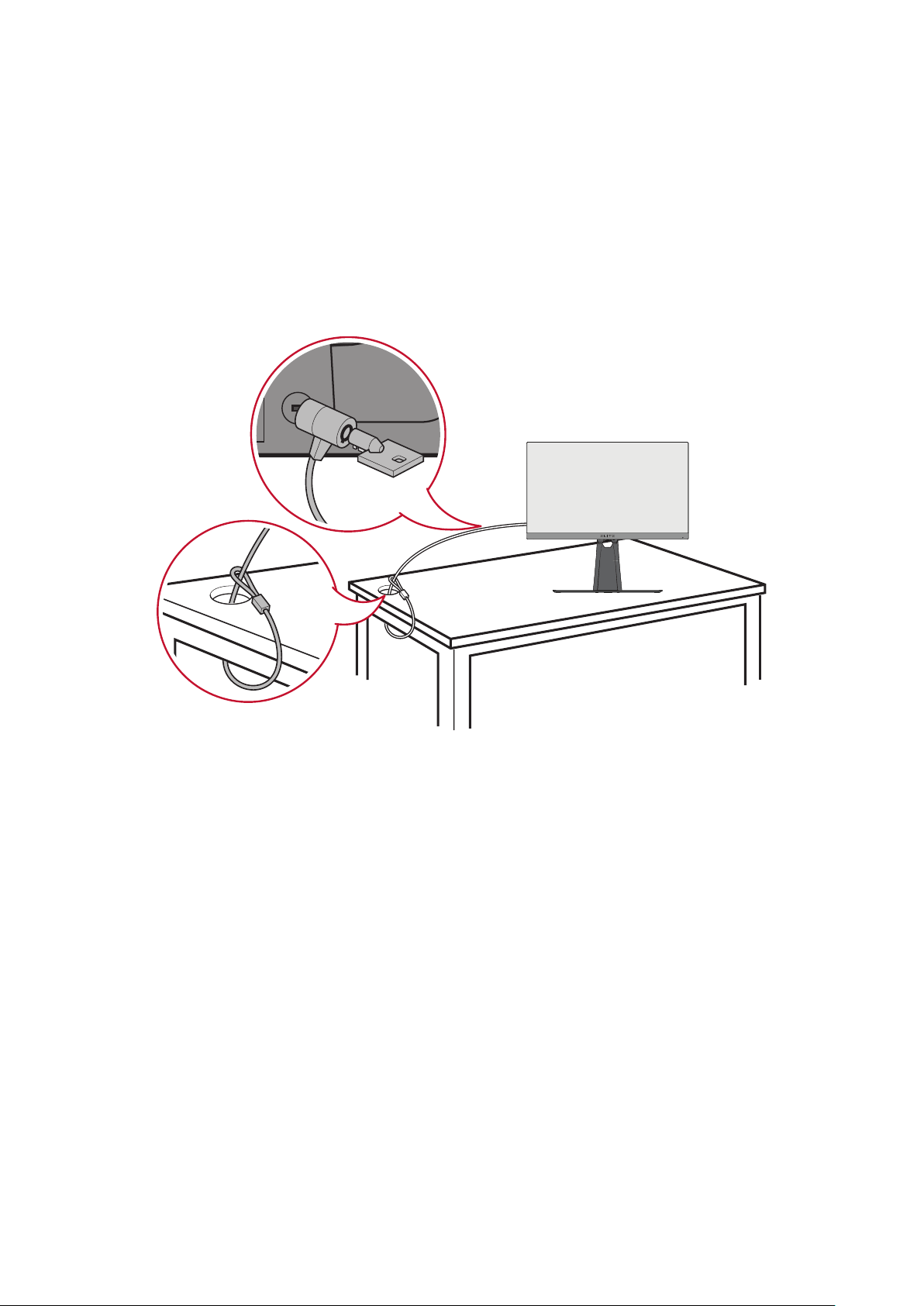
Using the Security Slot
To help prevent the device from being stolen, use a security slot locking device to
secure the device to a xed object.
Addionally, fastening the monitor to a wall or xed object using a security cable
can help support the weight of the monitor in order to prevent the monitor from
falling over.
Below is an example of seng up a security slot locking device on a table.
16
Making Connecons
This secon guides you on how to connect the monitor with other equipment.
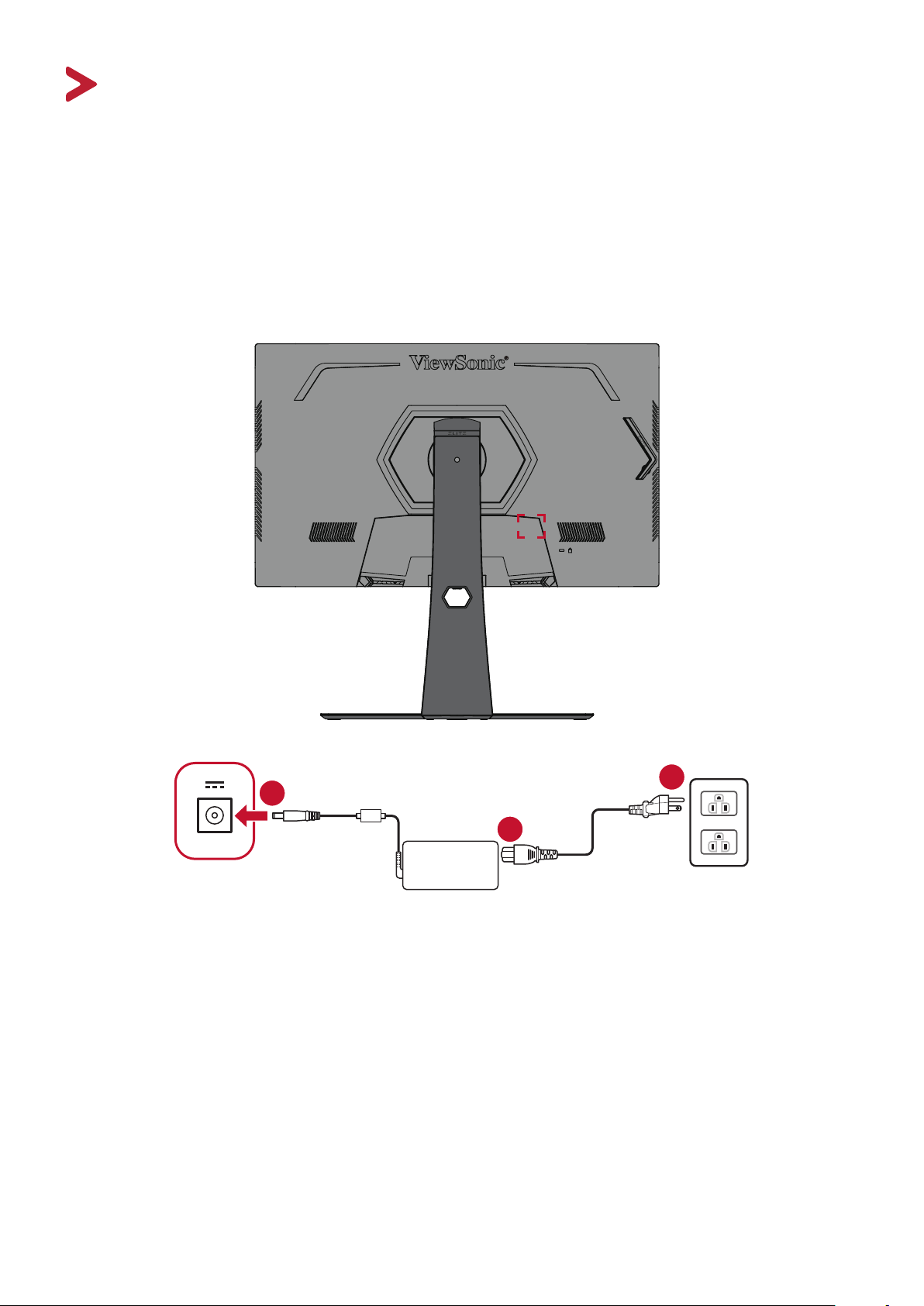
Connecng to Power
1. Connect the power cord to the power adapter.
2. Connect the power adapter to the DC IN jack at the rear of the device.
3. Connect the power cord plug to a power outlet.
2
1
3
17
Connecng External Devices
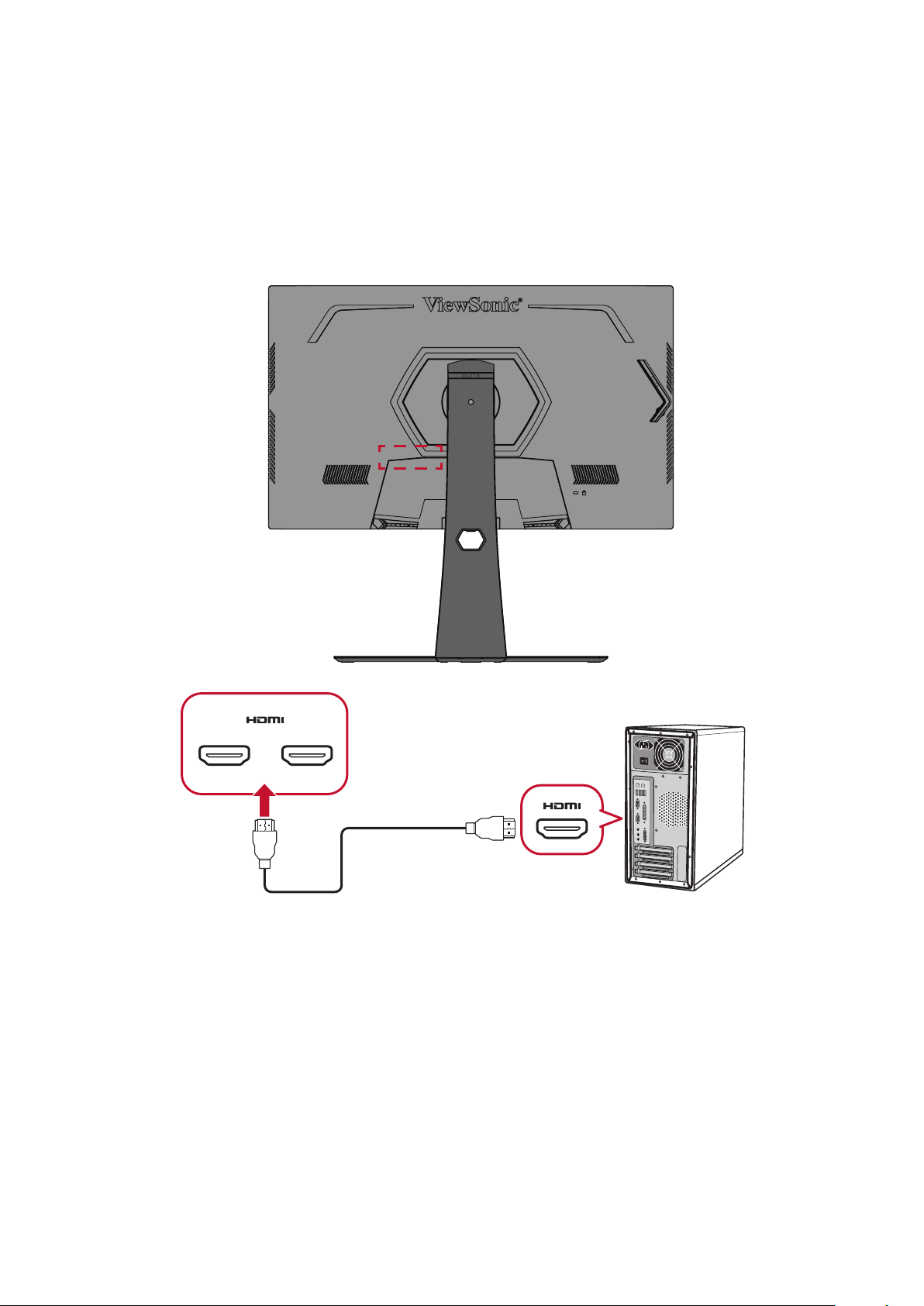
HDMI Connecon
Connect one end of an HDMI cable to the HDMI port of your monitor. Then connect
the other end of the cable to the HDMI port of your computer.
NOTE:
The monitor is equipped with two HDMI 2.0 ports.
21
18
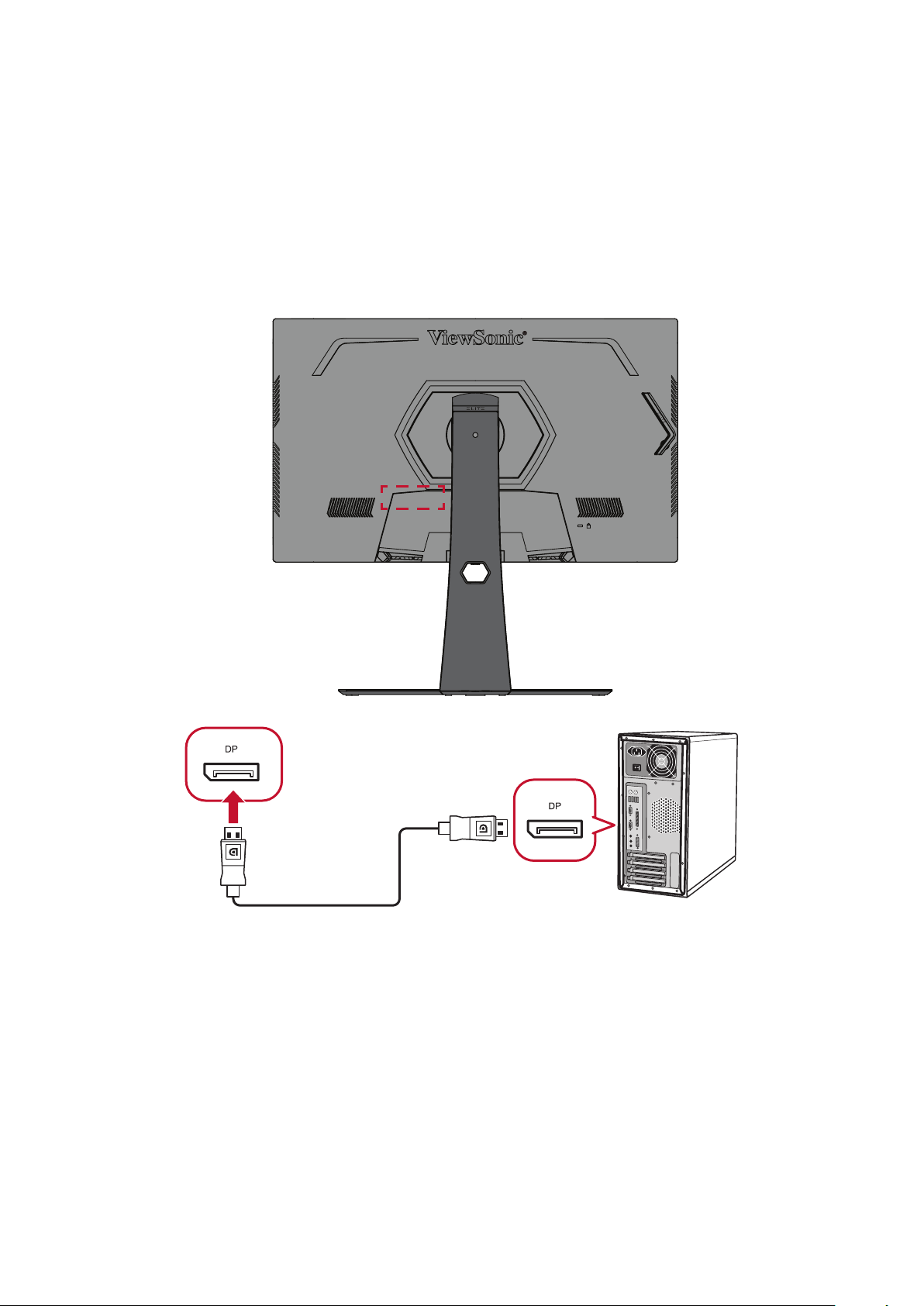
DisplayPort Connecon
Connect one end of a DisplayPort cable to the DisplayPort port. Then connect the
other end of the cable to the DisplayPort or mini DP port of your computer.
NOTE: To connect the monitor to the Thunderbolt port (v. 1&2) on your Mac,
connect the mini DP end of the “mini DP to DisplayPort cable” to the
Thunderbolt output of your Mac. Then connect the other end of the
cable to the DisplayPort port of the monitor.
19
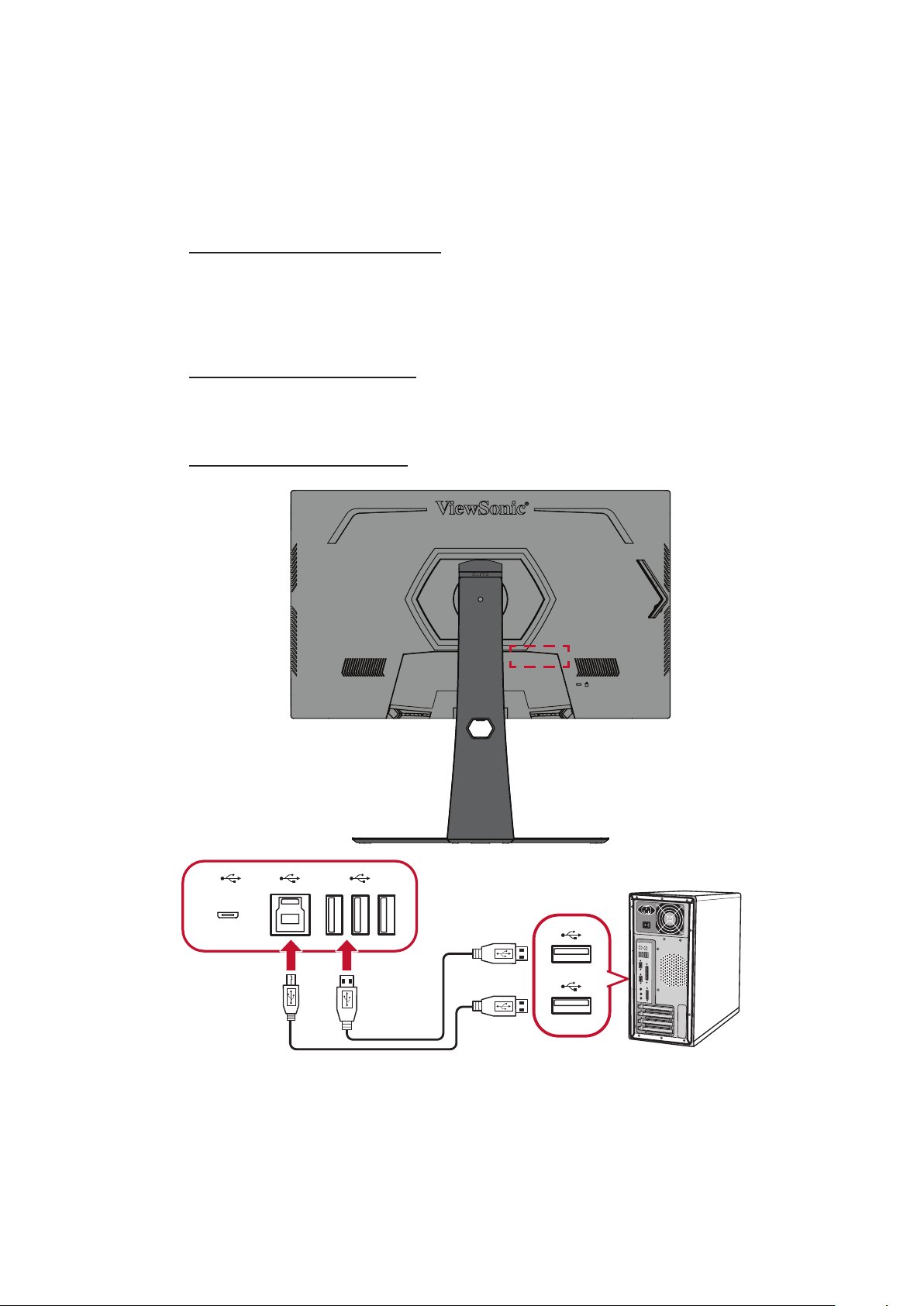
USB Connecon
Connect one end of a USB cable to a USB port of the monitor. Then connect the
other end of the cable to a USB port of your computer.
NOTE: The monitor supports two (2) types of USB ports. When making the
connecon(s), observe the following guidelines:
• Three (3) USB Type A ports: Connecon for your Type A peripheral
device(s) (i.e. storage device, keyboard, mouse).
NOTE: To use some peripherals, please ensure your computer is
also connected to the monitor’s USB Type B port.
• One (1) USB Type B port: Connect the USB Type B male cable (square
with 2 cut corners) to this port, and then connect the other end of the
cable to the USB downstream port of your computer.
• One (1) micro USB port: For Elite Ally use only.
NOTE: The USB Type A port next to the USB Type B port can support 5V 2.1A
fast charging. The other two USB Type A ports can support 5V 0.9A
charging.
20
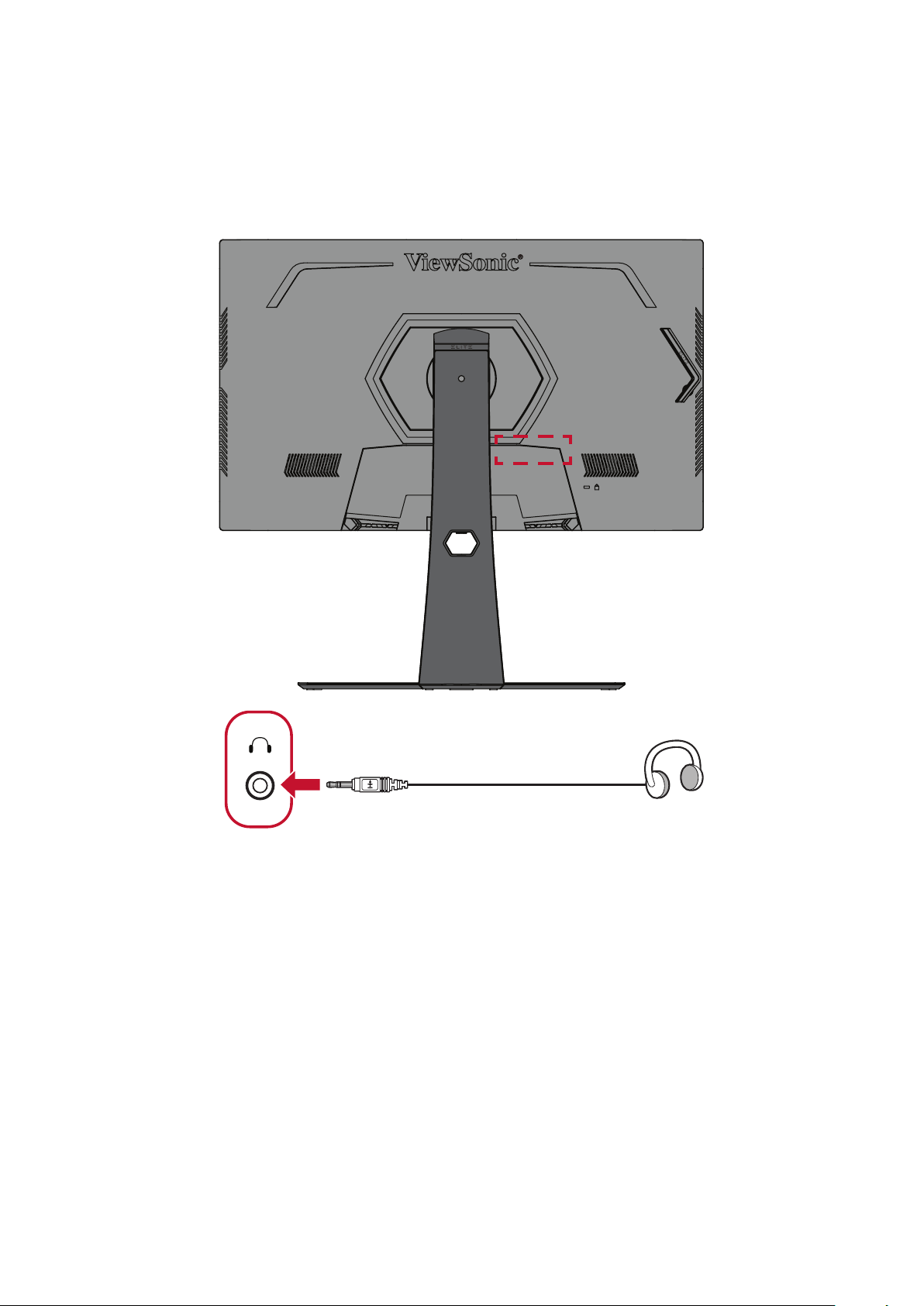
Audio Connecon
Plug the audio jack of the ear-/headphones into the Audio Out port of the monitor.
Addionally, you can connect the monitor to a sound bar using an audio cable.
NOTE: The monitor is also equipped with dual speakers.
21
Using the Monitor
Adjusng the Viewing Angle
For opmal viewing, you can adjust the viewing angle using any of the following
methods:
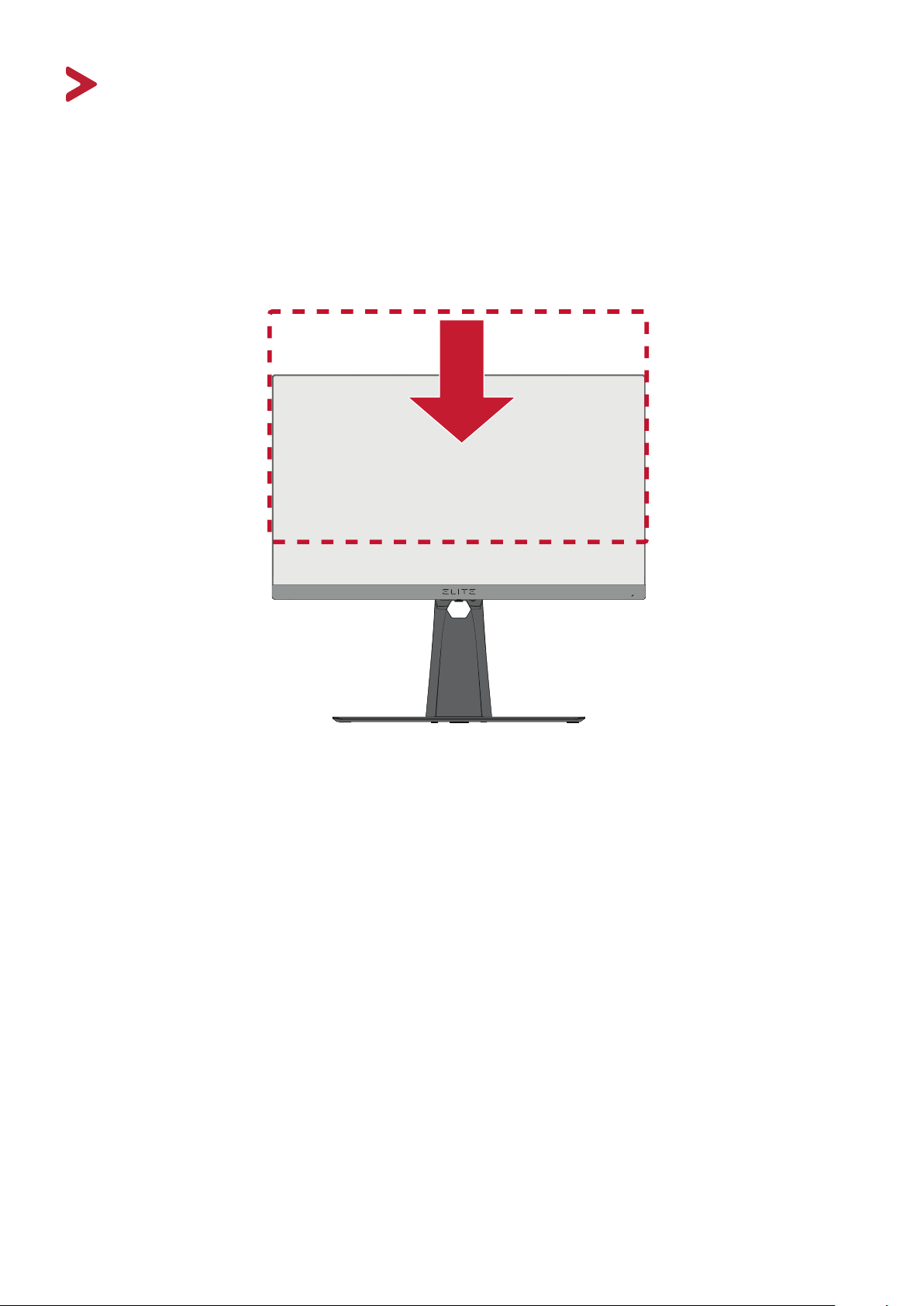
Height Adjustment
Lower or raise the monitor to the desired height (0 to 120 mm).
NOTE: When adjusng, press down rmly along the adjustment track holding
the monitor with both hands on the side.
22
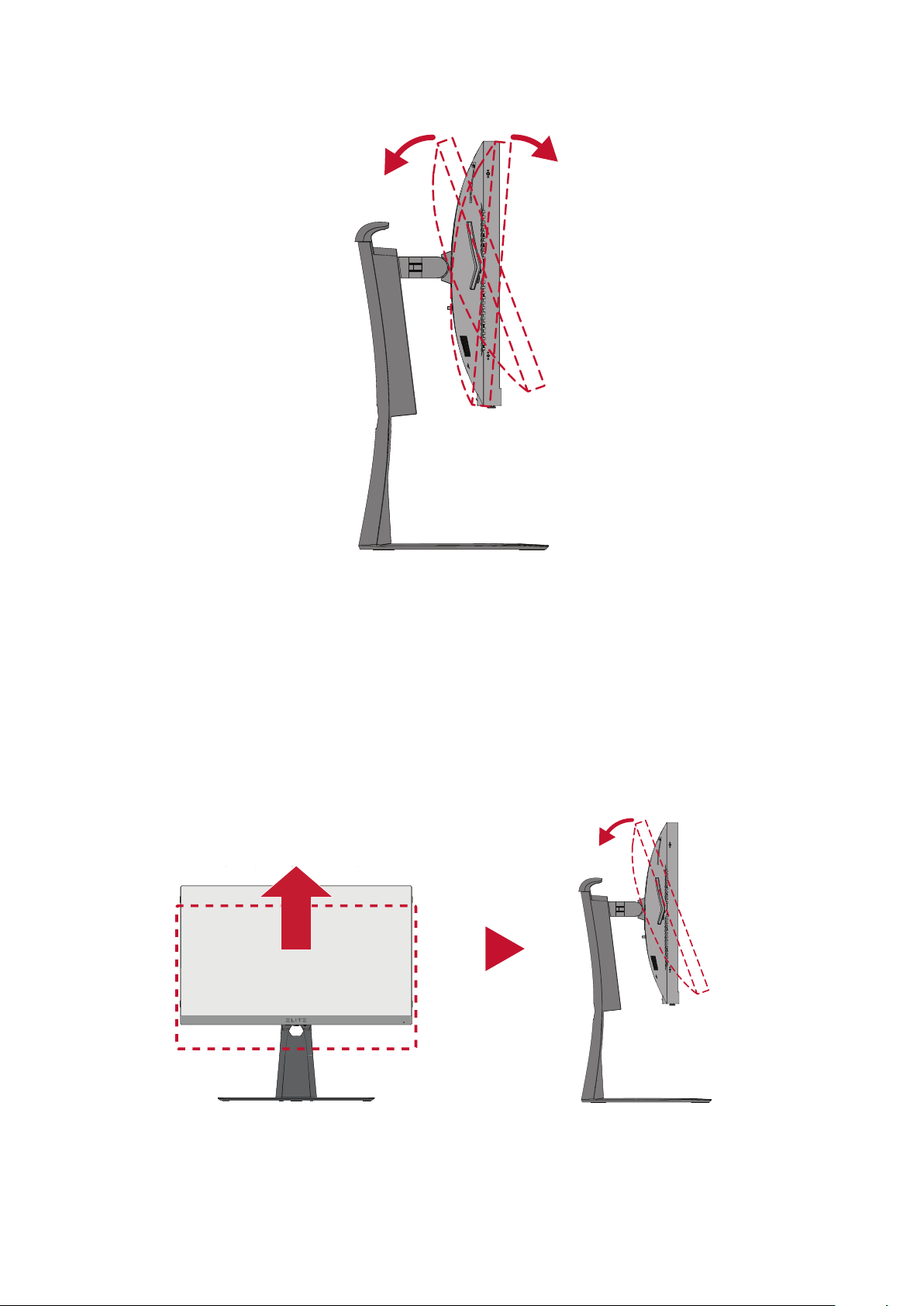
Tilt Angle Adjustment
Tilt the monitor forwards or backwards to the desired viewing angle (-5˚ to 20˚).
NOTE: When adjusng, support the stand rmly with one hand while lng the
monitor forwards or backwards with the other hand.
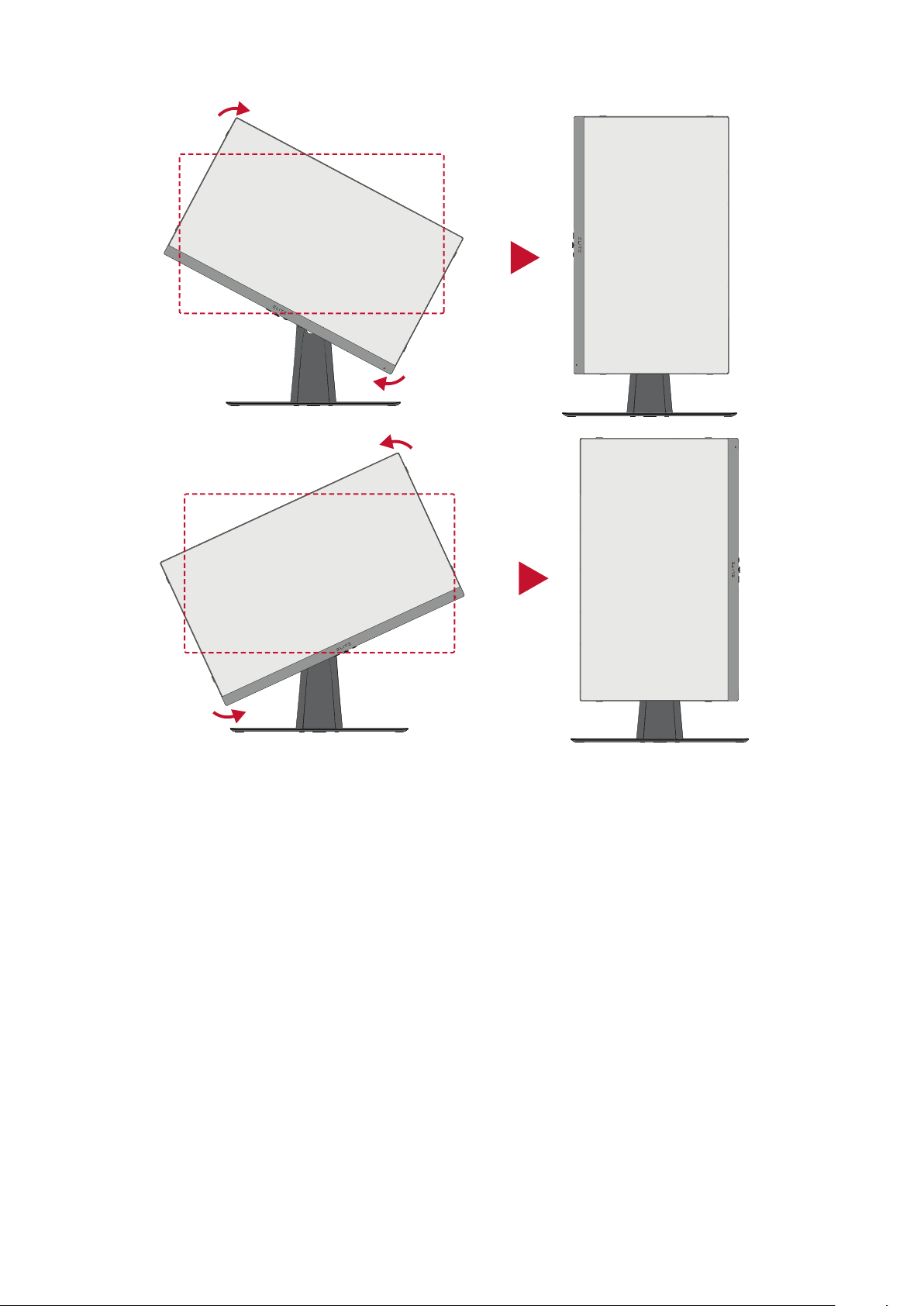
Screen Orientaon Adjustment (Monitor Pivot)
1. Adjust the monitor height to the highest posion. Then lt the monitor
backwards to the full lt posion.
NOTE: Ensure the Elite Hood is removed or folded in prior to pivong.
23
2. Rotate the monitor 90° from landscape to portrait orientation.
NOTE:
• When adjusng, make sure to hold both sides of your monitor rmly with
both hands.
• To rotate the screen image, manually change the computer system’s
display orientaon sengs.
24
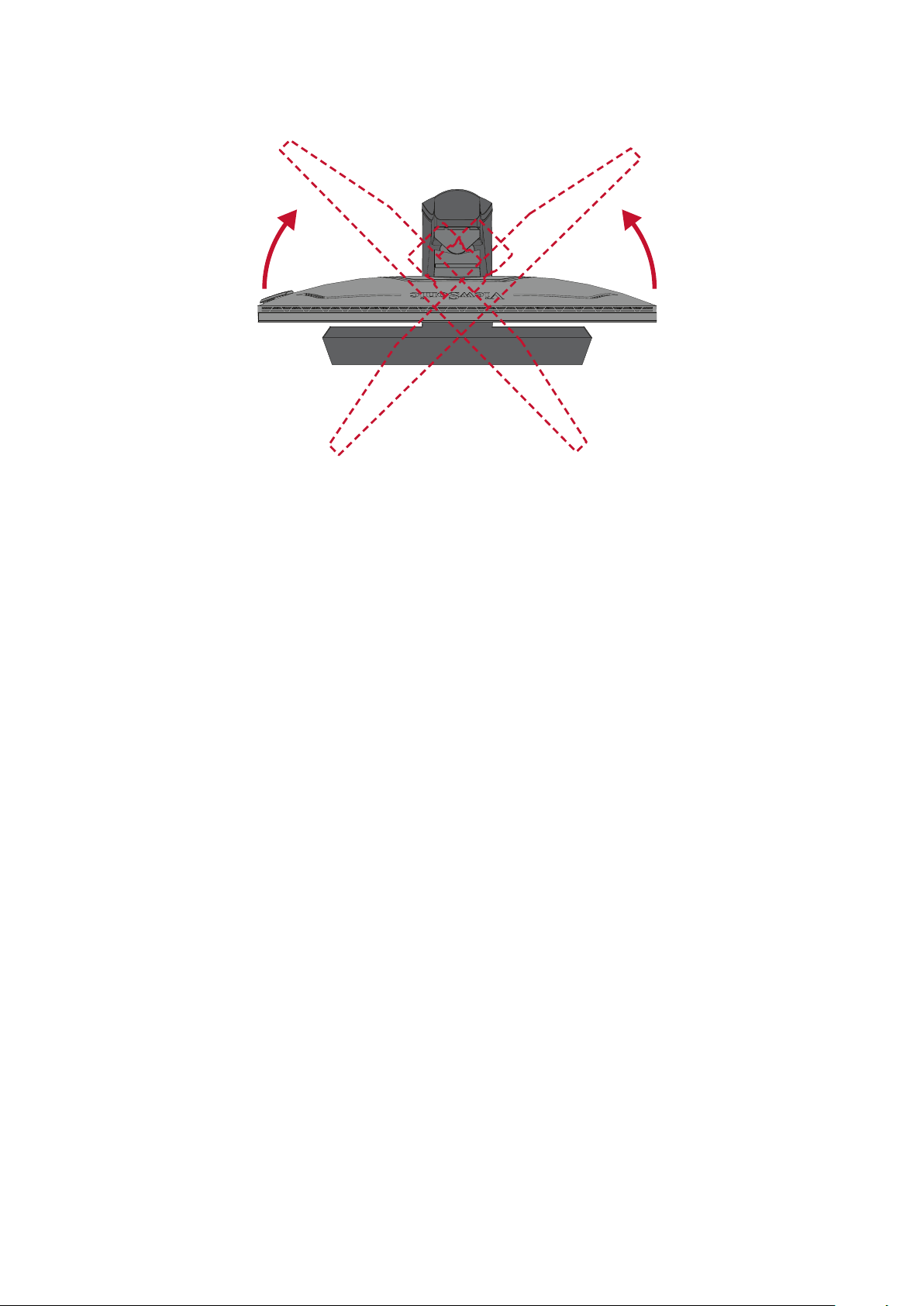
Swivel Angle Adjustment
Swivel the monitor to the le or right for the desired viewing angle (30˚).
25
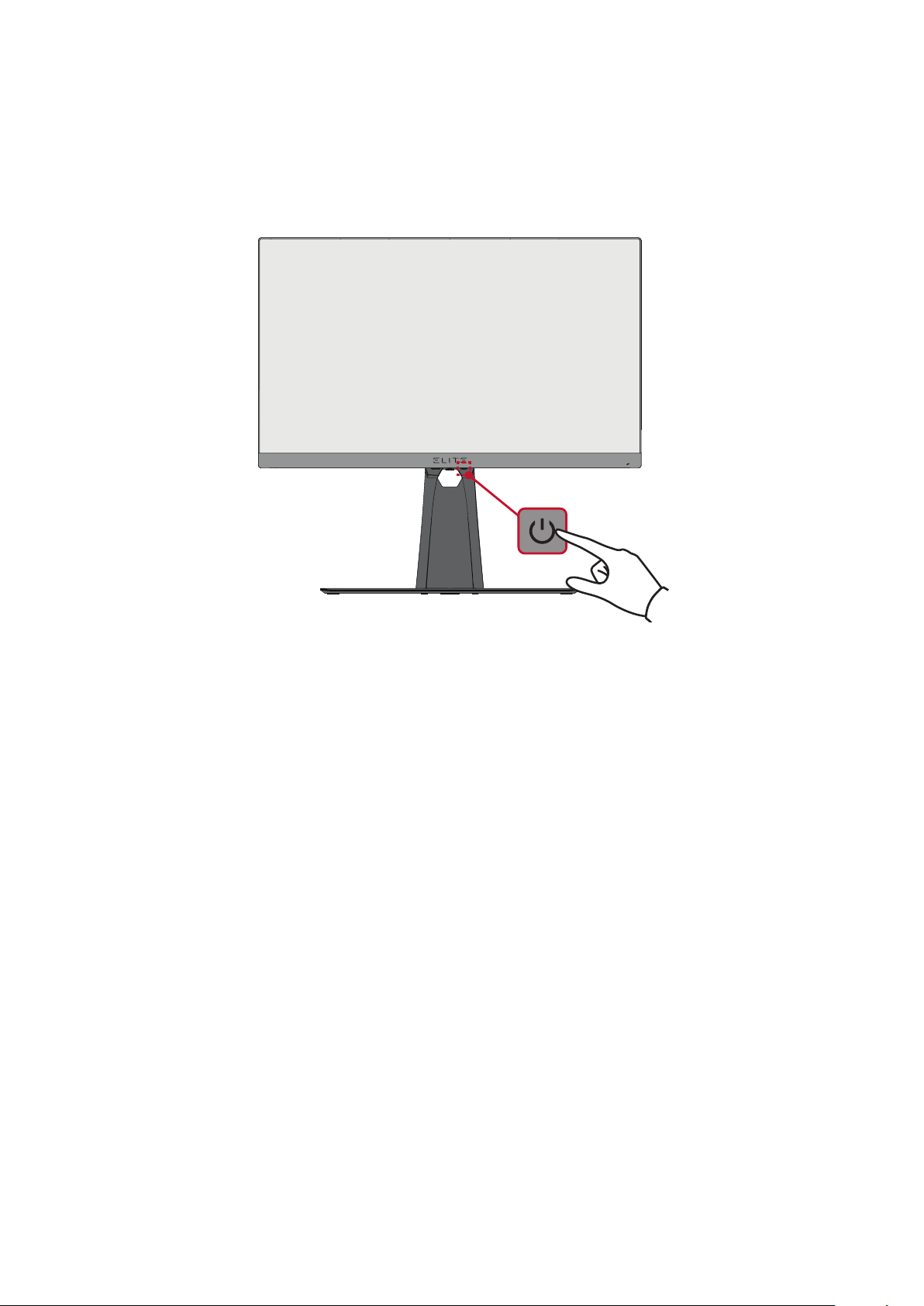
Turning the Device On/O
1. Plug the connected power cord into a power outlet.
2. Press the Power buon to turn on the monitor.
3. To turn the monitor o, press the Power buon again.
NOTE: The monitor will sll consume some power as long as the power cord
is connected to the power outlet. If the monitor is not being used for a
long period of me, please disconnect the power plug from the power
outlet.
26
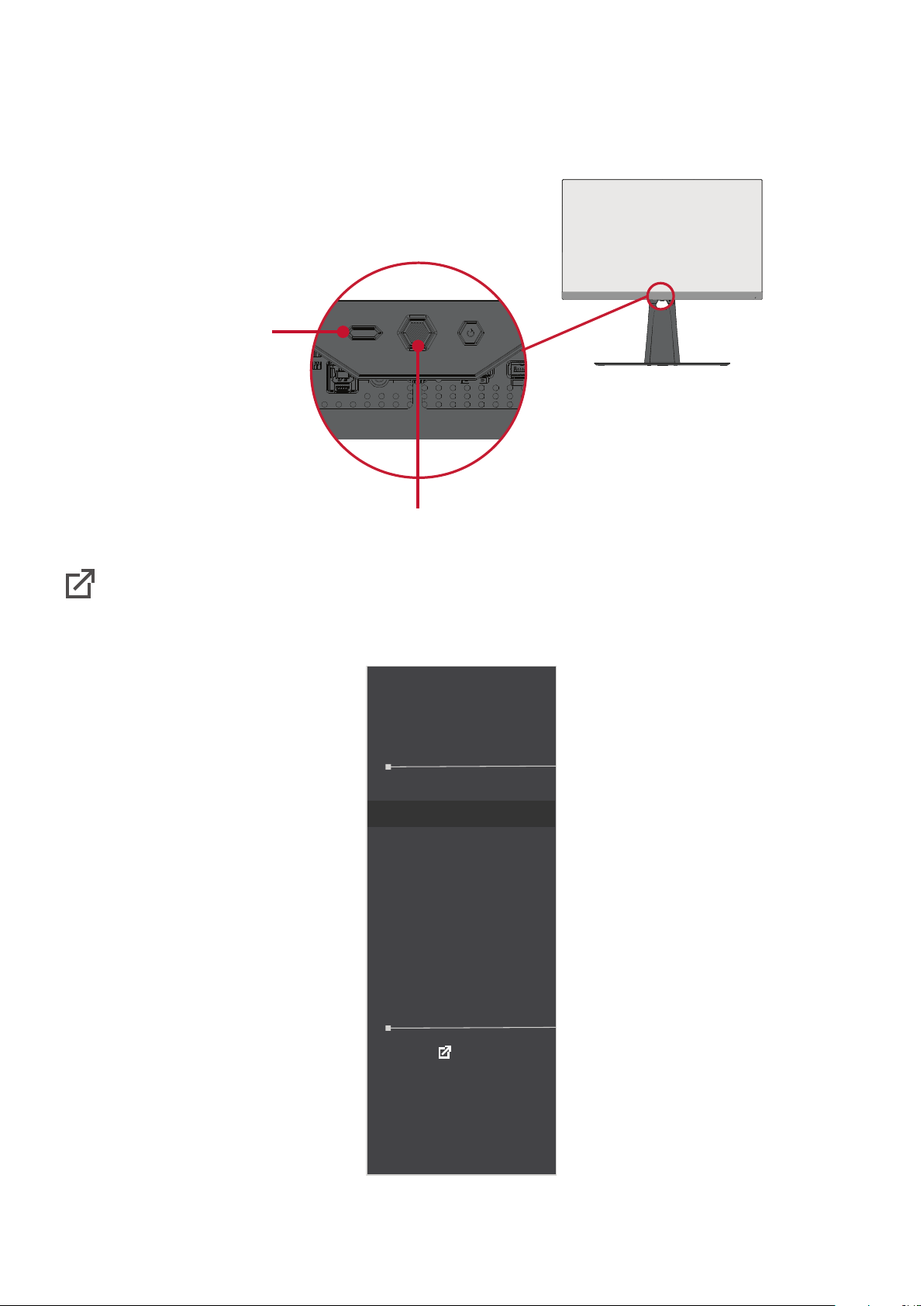
Using the Control Panel Keys
Use the control panel keys to access the Quick Access Menu, navigate the On-
Screen Display (OSD) Menu, and change the sengs.
Quick Access Key
Joy Key
Quick Access Menu
Press the Quick Access Key to acvate the Quick Access Menu. To learn more,
see page 56.
Quick Access
Blue Light Filter
PureXP™
OverClocking
Return
Press to go to next
27
Hot Keys
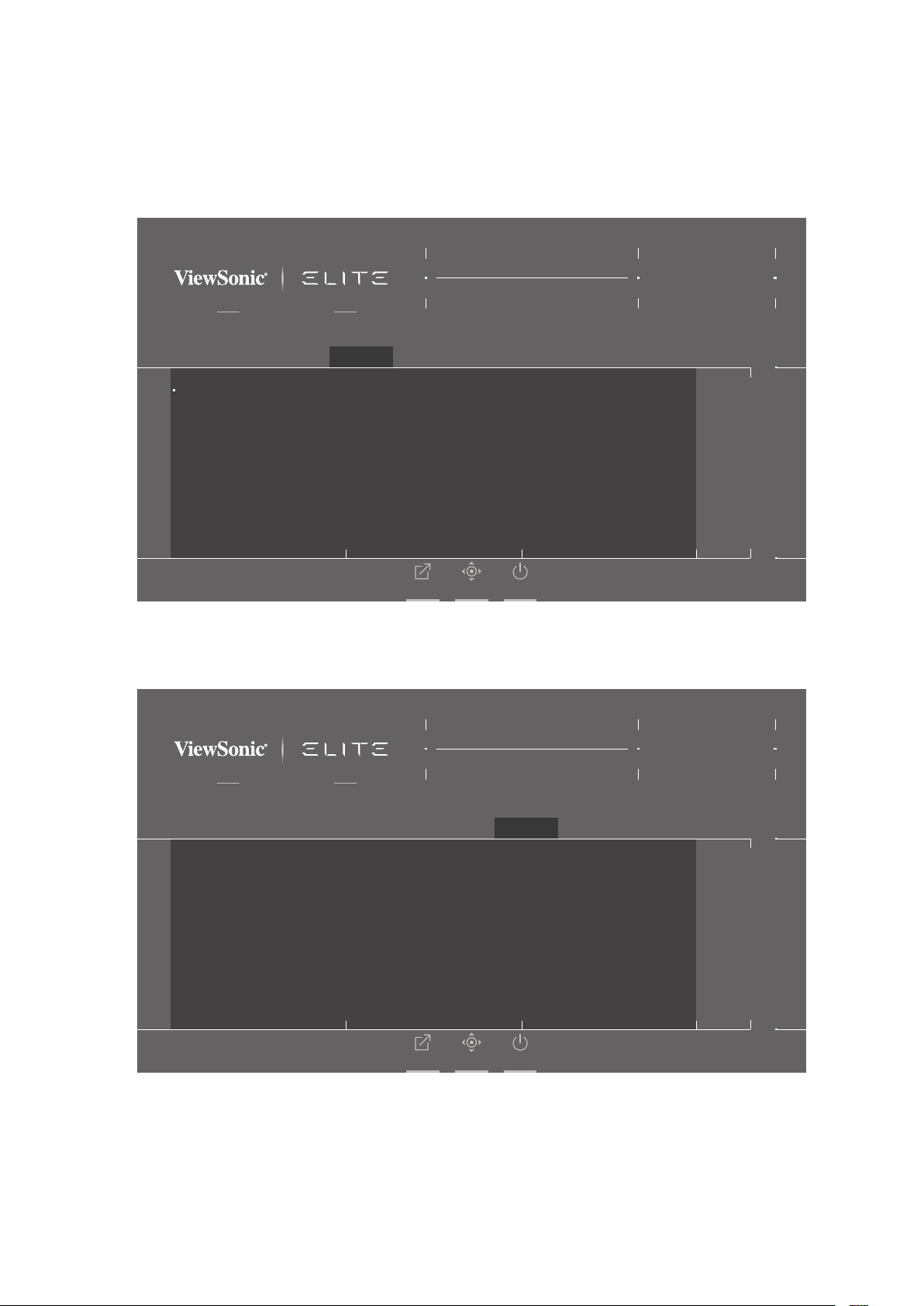
When the On-Screen Display (OSD) Menu is o, you can quickly access special
funcons by using the control panel keys.
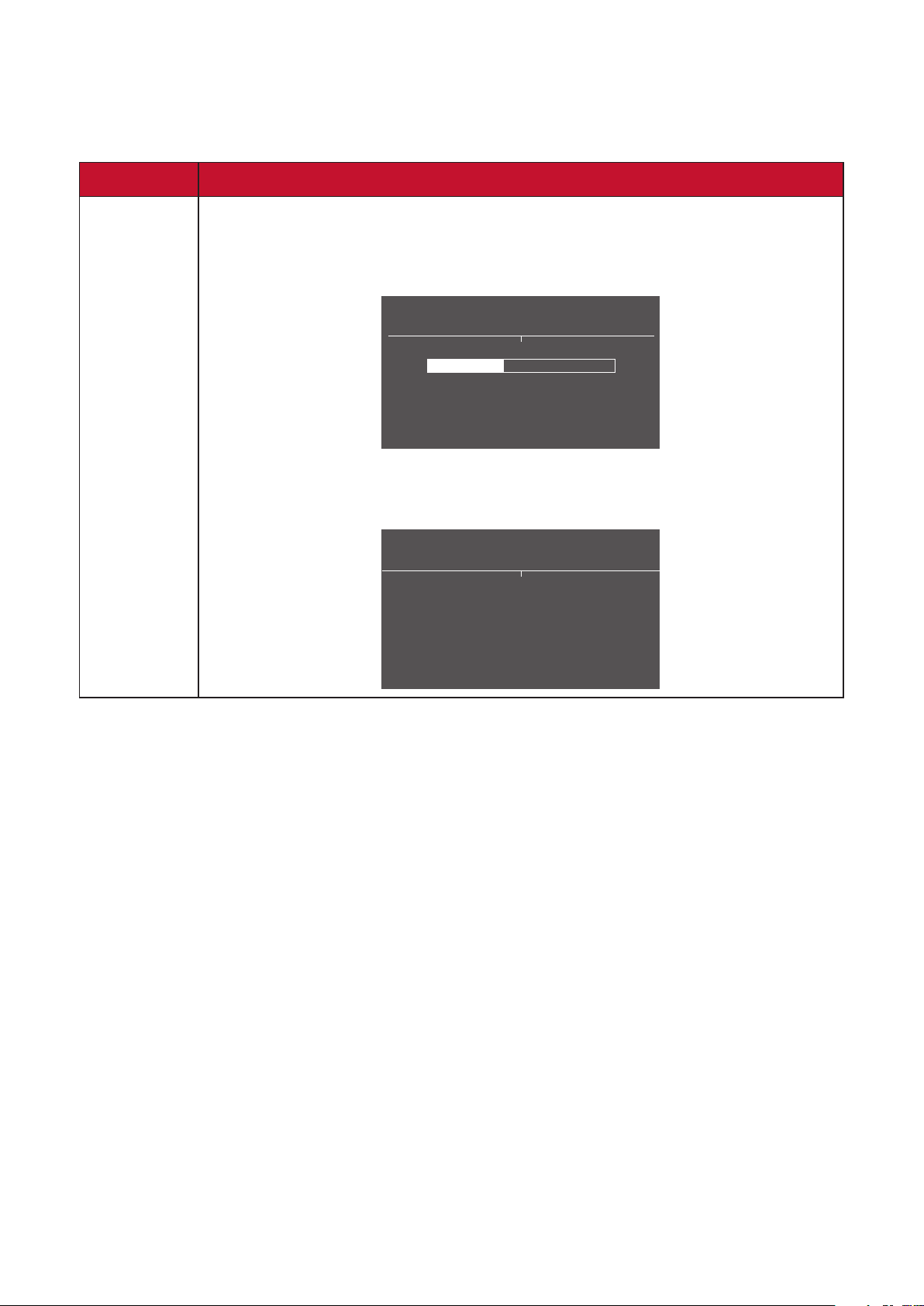
Key Descripon
[◄]
Press and hold the key for 5 seconds to lock/unlock the OSD Menu.
When the menu appears on the screen, connue holding the key
for 10 seconds to lock/unlock the OSD Menu.
Locking OSD
Press and hold for 10s to lock OSD
If the OSD Menu is locked, the below message will appear on the
screen:
OSD Lock/Unlock
OSD Locked
28
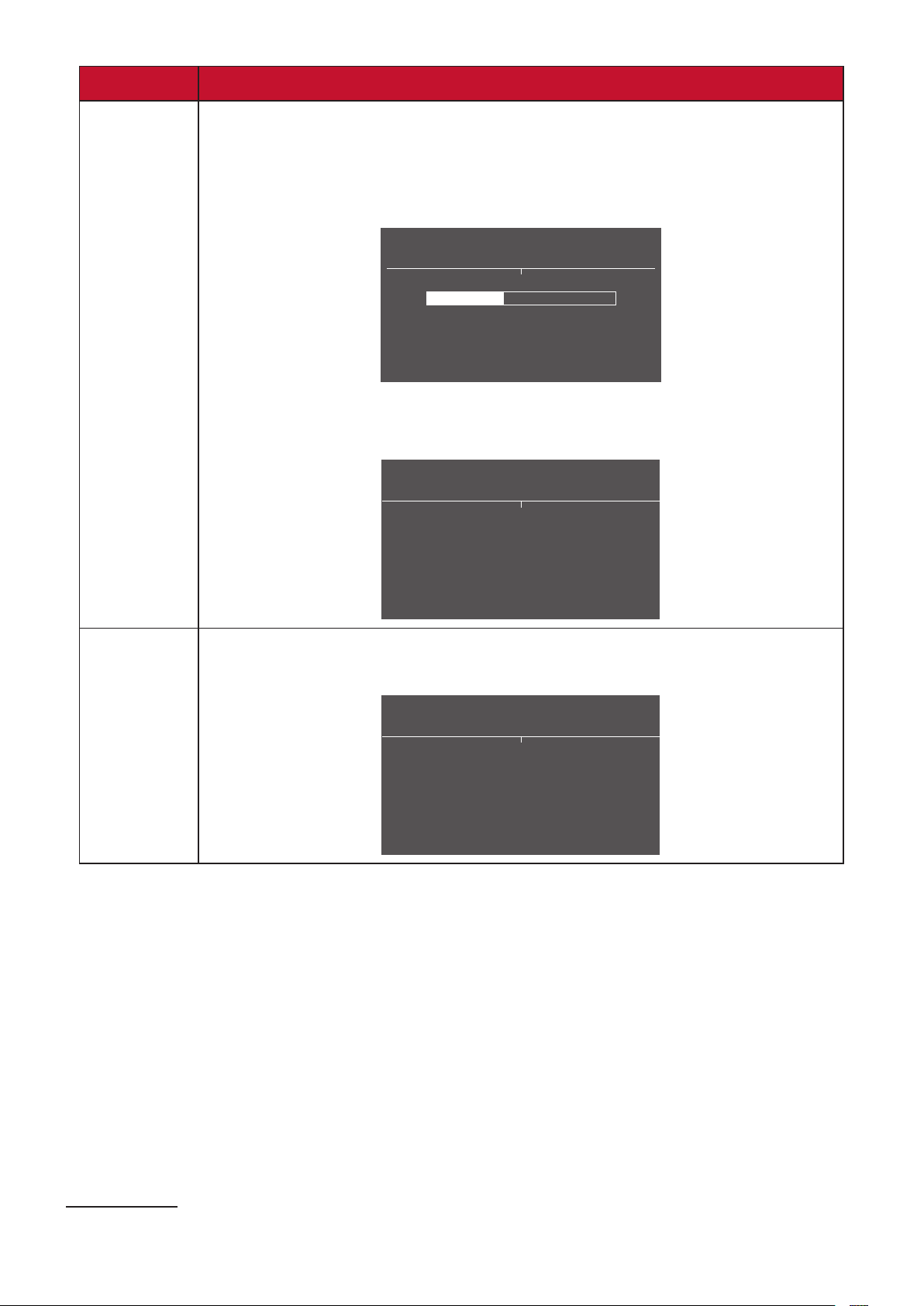
Key Descripon
[►]
1
Press and hold the key for 5 seconds to lock/unlock the Power
buon.
When the menu appears on the screen, connue holding the key
for 10 seconds to lock/unlock the Power buon.
Locking Power Button
Press and hold for 10s to lock Power
If the Power buon is locked, the below message will appear on
the screen:
Power Lock/Unlock
Power Button Locked
[▲]
Press and hold the key for 5 seconds to display/hide the boot up
screen when the device is turned on.
Boot Up Screen On/Off
Off
Press to Turn On
1 Only pressing this key will enable the Input Select funcon.
29
Conguring the Sengs
General Operaons
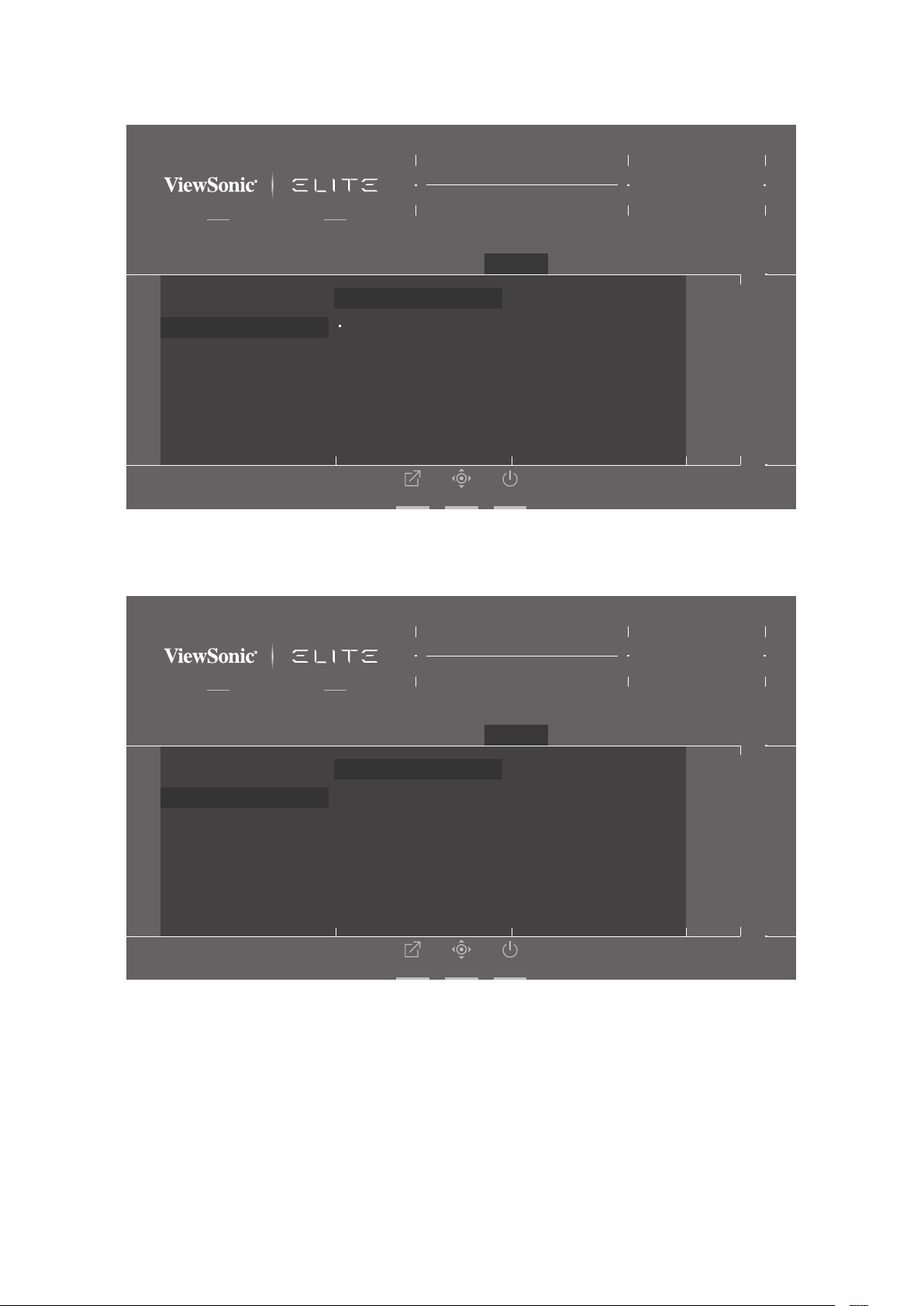
1. Press the [●] key or move the joy key [◄] or [▲] or [▼] to display the On-Screen
Display (OSD) Menu.
Adaptive Sync
Game Modes
ON
HDMI 1
HDMI 2
DisplayPort
Game Modes Display Input Select ViewMode Audio Adjust Setup Menu
Hz165
Custom 1
Max. Refresh Rate
XG270Q
Exit Navi. Power
2. Move the joy key [◄] or [►] to select the main menu. Then move the joy key [▼]
to enter the selected menu.
Adaptive Sync
Game Modes
ON
Volume
Mute
Game Modes Display Input Select ViewMode Audio Adjust Setup Menu
Hz165
Custom 1
Max. Refresh Rate
XG270Q
Exit Navi. Power
30
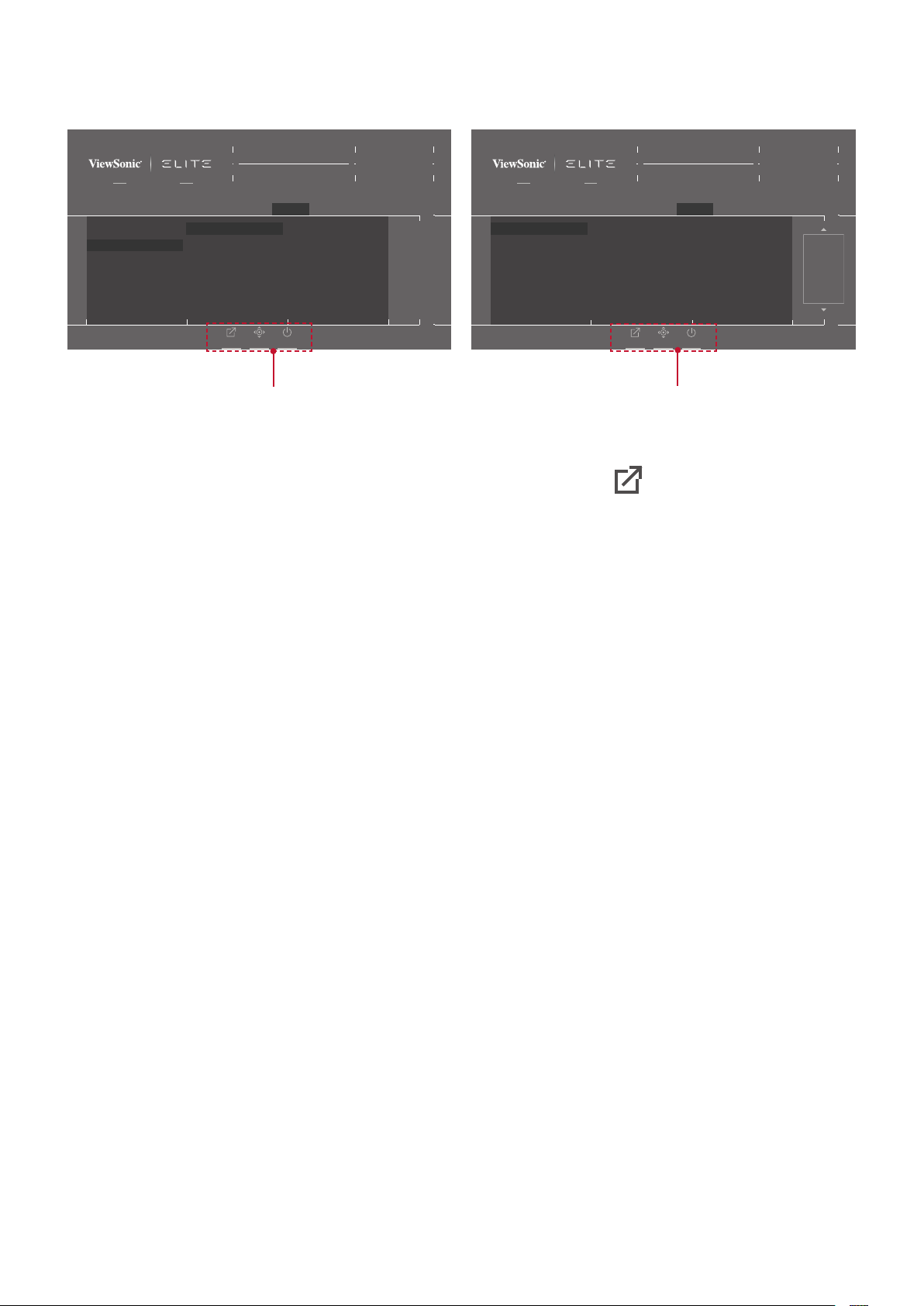
3. Move the joy key [▲] or [▼] to select the desired menu opon. Then move the
joy key [►] to enter the sub-menu.
Adaptive Sync
Game Modes
ON
Volume
Mute
On
Off
Game Modes Display Input Select ViewMode Audio Adjust Setup Menu
Hz165
Custom 1
Max. Refresh Rate
XG270Q
Exit Navi. Power
4. Move the joy key [▲] or [▼] to adjust/select the seng. Then press the [●] key
to conrm.
Adaptive Sync
Game Modes
ON
Volume
Mute
On
Off
Game Modes Display Input Select ViewMode Audio Adjust Setup Menu
Hz165
Custom 1
Max. Refresh Rate
XG270Q
Exit Navi. Power
31
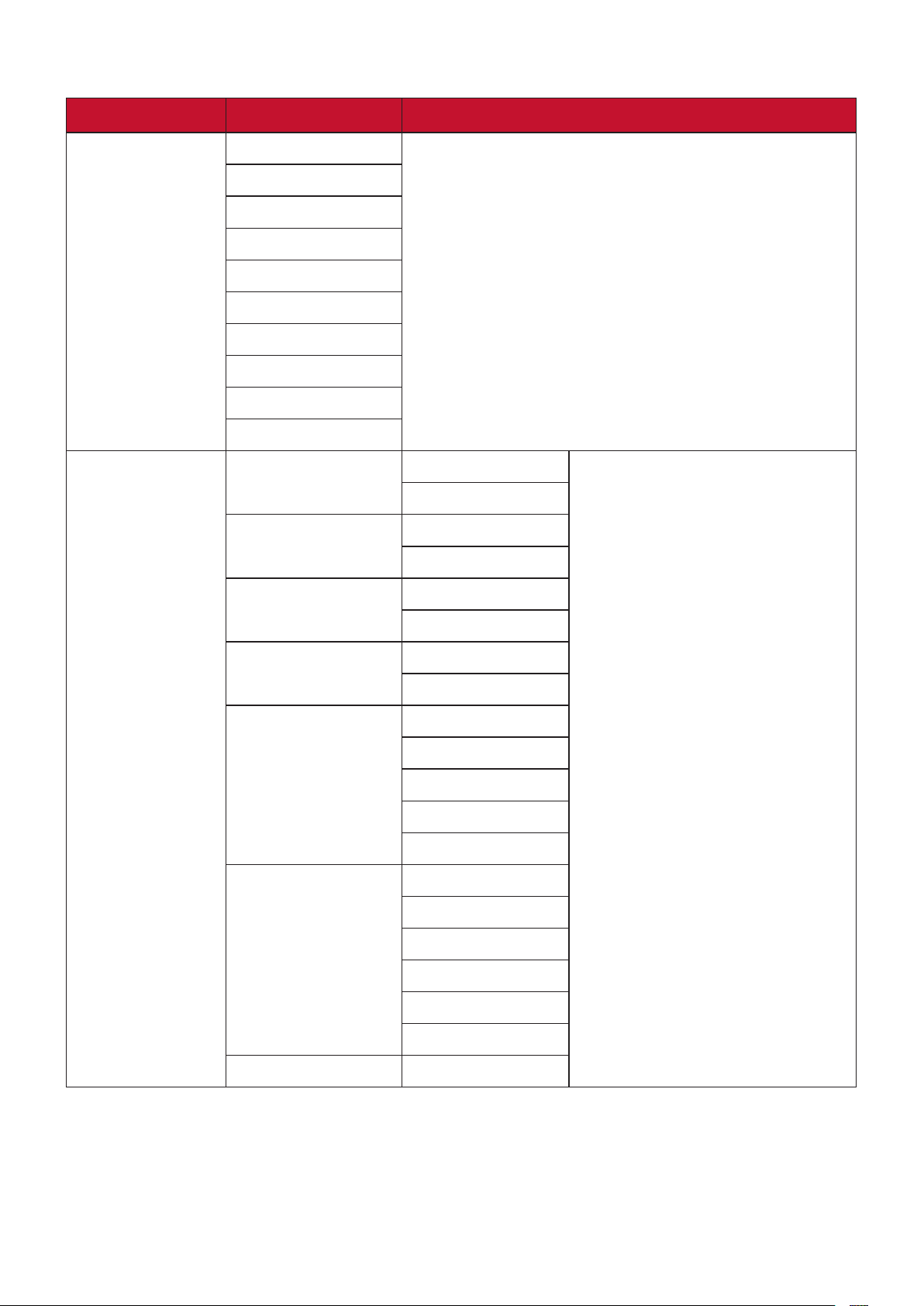
NOTE: Certain menu opon adjustments do not require the user to press the
[●] key to conrm the selecon.
Adaptive Sync
Game Modes
ON
Volume
Mute
On
Off
Game Modes Display Input Select ViewMode Audio Adjust Setup Menu
Hz165
Custom 1
Max. Refresh Rate
XG270Q
Exit Navi. Power
Adaptive Sync
Game Modes
ON
Volume
Mute
Game Modes Display Input Select ViewMode Audio Adjust Setup Menu
Hz165
Custom 1
Max. Refresh Rate
XG270Q
Exit Navi. Power
50
/100
Key Guide Key Guide
5. Press the [◄] key to return to the previous menu.
NOTE: To exit the OSD Menu, press the Quick Access (
)key.
32
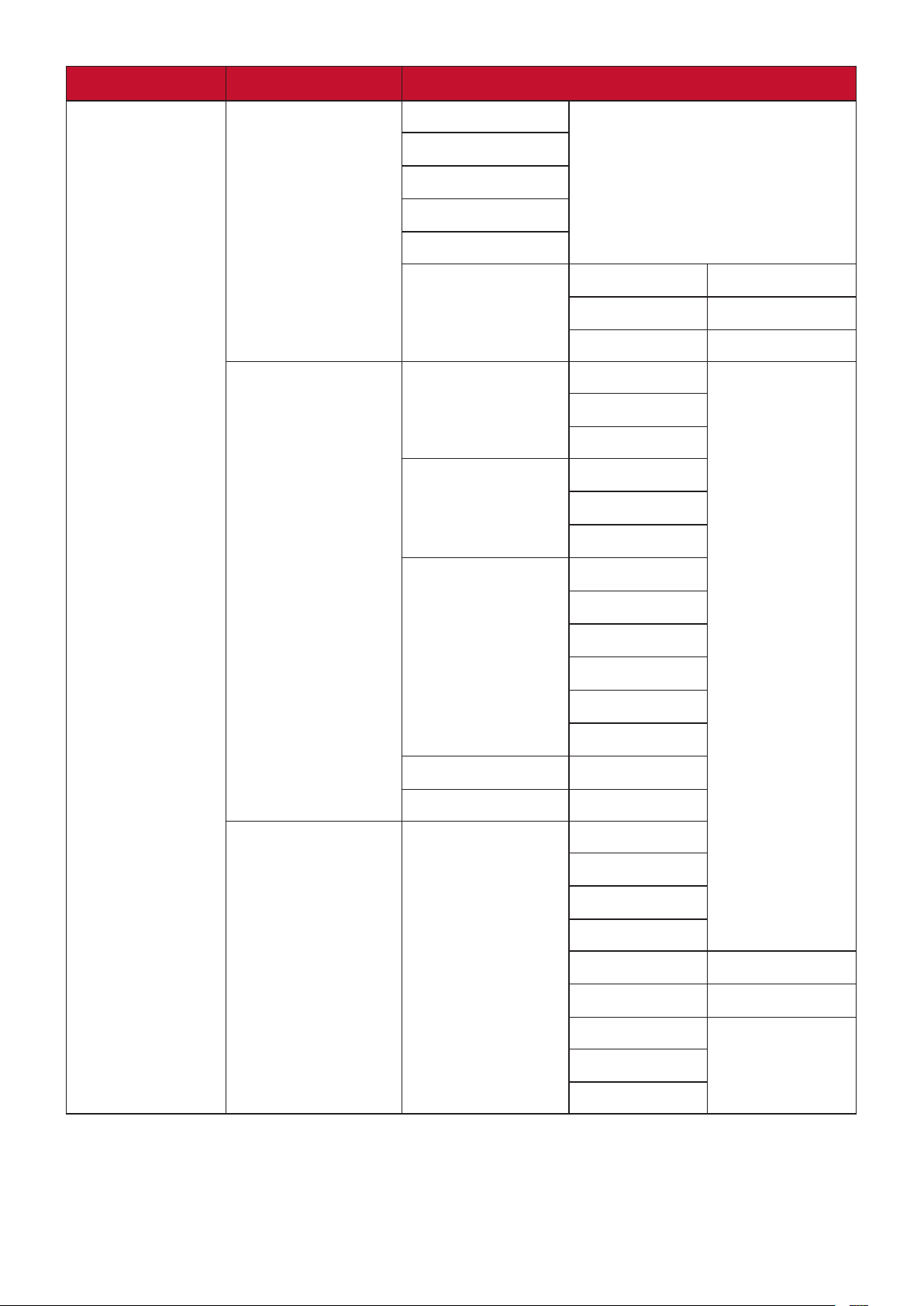
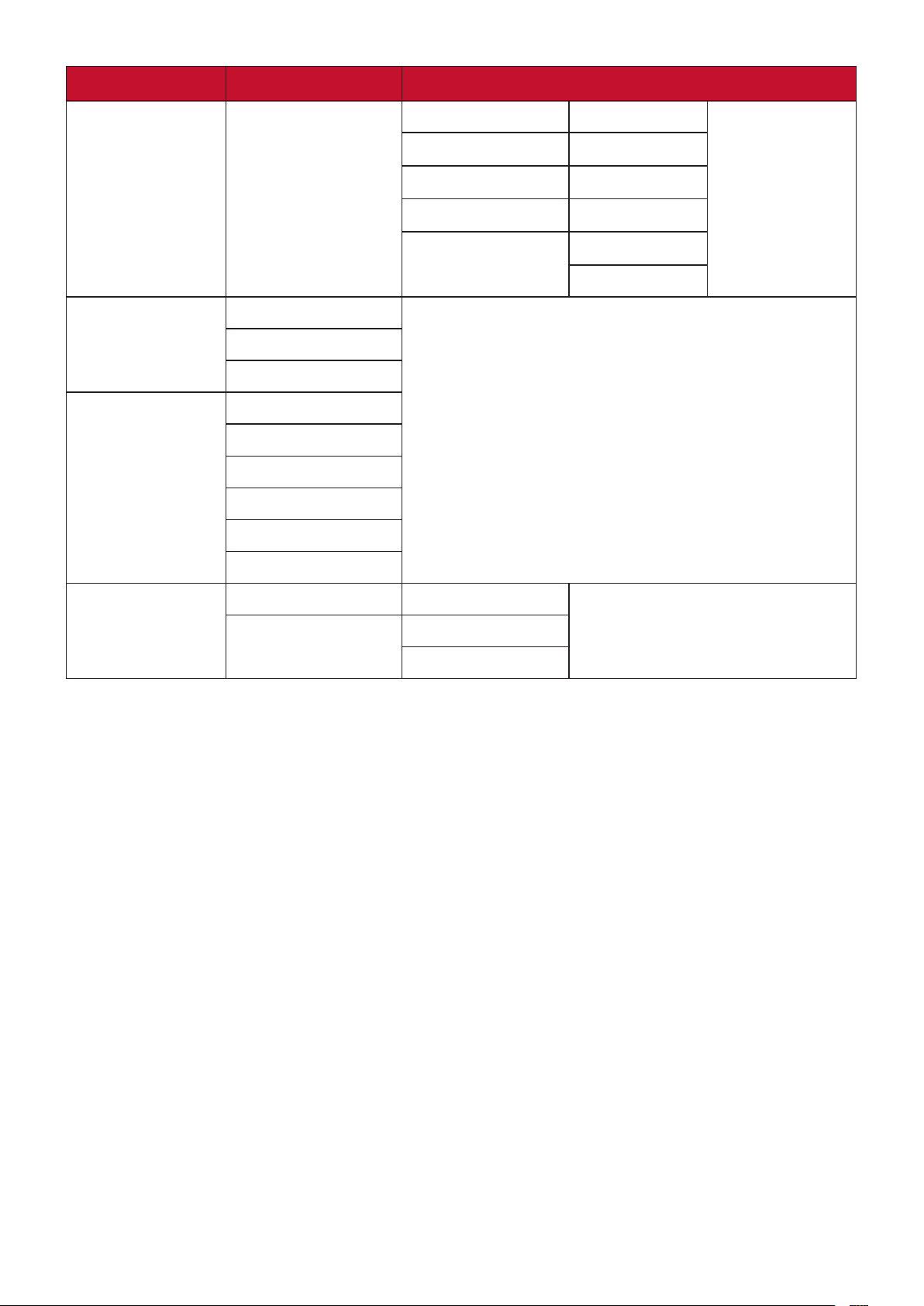
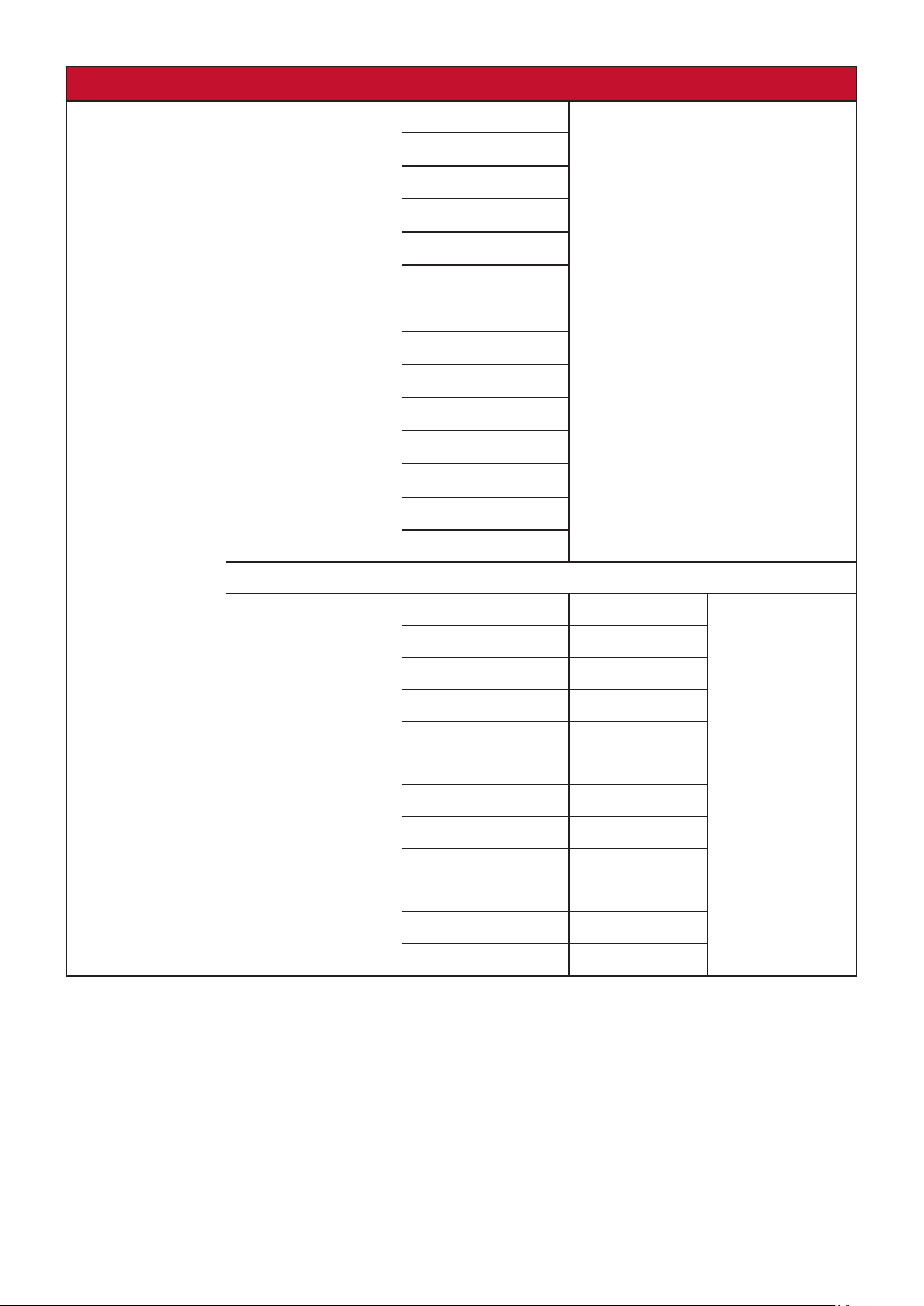
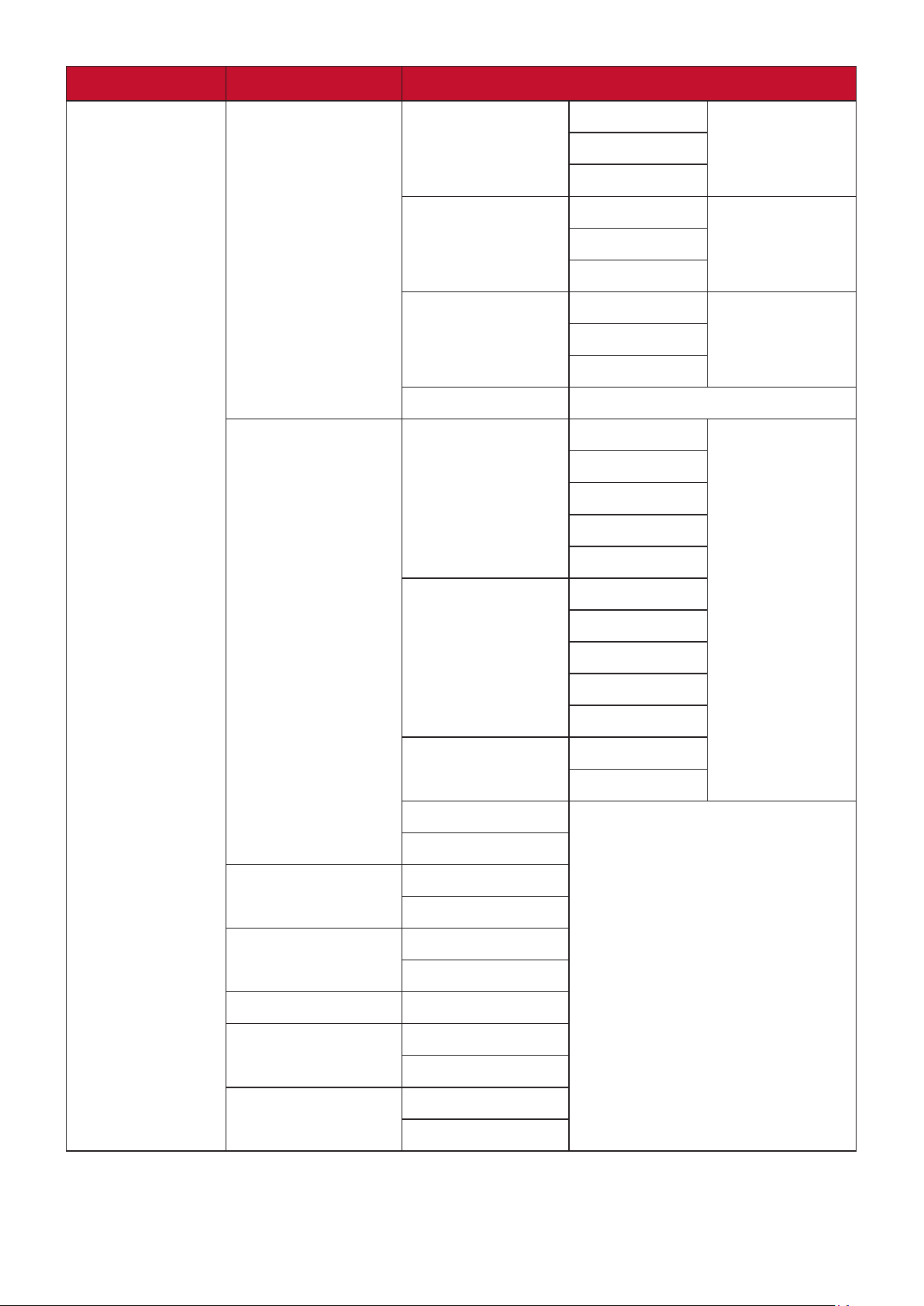
On-Screen Display (OSD) Menu Tree
Main Menu Sub-menu Menu Opon
Gaming Modes
Standard
Custom 1
Custom 2
FPS
MOBA
Bale Royale
Realisc
Vibrant
Console Speed
Console Color
Display
Adapve Sync On
O
HDR Auto
O
PureXP™ On
O
OverClocking On
O
Hertz Limiter Nave
60Hz
100Hz
144Hz
165Hz
Response Time OD Standard
Fast
Faster
Ultra Fast
Fastest
Explanaon (i)
Blue Light Filter (-/+, 0~100)
33
Main Menu Sub-menu Menu Opon
Display
Color Temperature sRGB
Bluish
Cool
Nave
Warm
Full Color Control Red (-/+, 0~100)
Green (-/+, 0~100)
Blue (-/+, 0~100)
Color Adjust Color Space Auto
RGB
YUV
Color Range Auto
Full Range
Limited Range
Gamma 1.8
2.0
2.2
2.4
2.6
2.8
Color Saturaon (-/+, 0~100)
Black Stabilizaon (-/+, 0~22)
Image Adjust ViewScale Full
Aspect
1:1
19” (4:3)
19”W (16:10) (-/+, 0~100)
21.5” (16:9) (-/+, 0~100)
22”W (16:10)
23.6”W (16:9)
24”W (16:9)
34
Main Menu Sub-menu Menu Opon
Display
Image Adjust Contrast (-/+, 0~100)
Brightness (-/+, 0~100)
Sharpness (-/+, 0~100)
Advanced DCR (-/+, 0~20)
Overscan On
O
Input Select
HDMI 1
HDMI 2
DisplayPort
ViewMode
Standard
Movie
Web
Text
MAC
Mono
Audio Adjust
Volume (-/+, 0~100)
Mute On
O
35
Main Menu Sub-menu Menu Opon
Setup Menu
Language English
Français
Deutsch
Español
Italiano
Suomi
Русский
Türkçe
日本語
한국어
繁體中文
简体中文
Česká
Svenska
Informaon
Quick Access Blue Light Filter On/O
PureXP™ On/O
OverClocking On/O
FPS On/O
MOBA On/O
Bale Royale On/O
Realisc On/O
Vibrant On/O
Console Speed On/O
Console Color On/O
Custom 1 On/O
Custom 2 On/O
36
Main Menu Sub-menu Menu Opon
Setup Menu
Crosshair Type A Green
Preview ImageWhite
Yellow
Type B Green
Preview ImageWhite
Yellow
Type C Green
Preview ImageWhite
Yellow
O
Elite RGB Rear Rainbow
Breathing
Stack
Others
O
Base Rainbow
Breathing
Stack
Others
O
Always On On
O
Reset
O
Resoluon Noce On
O
Boot Up Screen On
O
OSD Timeout 5/15/30/60
OSD Background On
O
OSD Pivot On
O
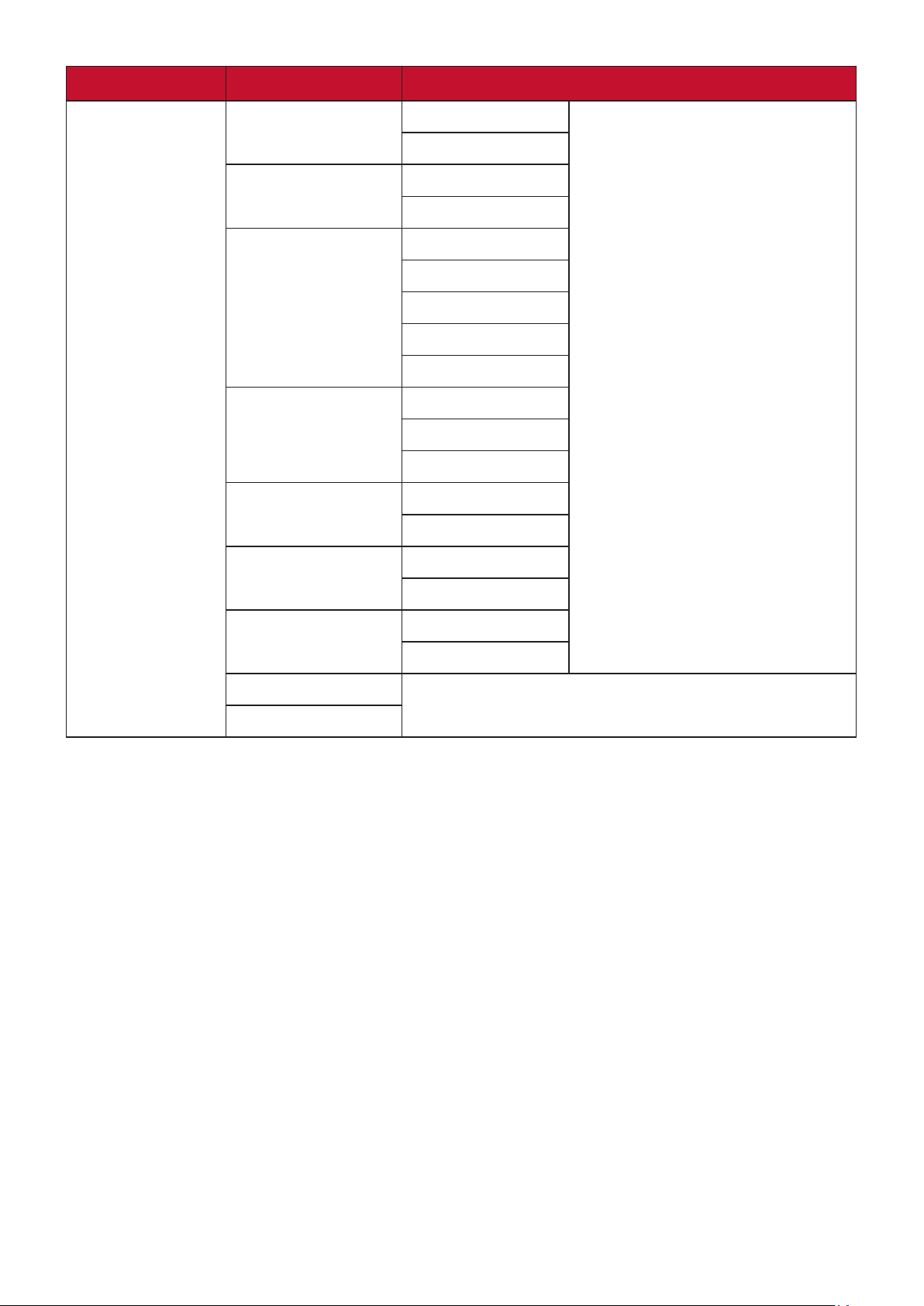
37
Main Menu Sub-menu Menu Opon
Setup Menu
Power Indicator On
O
Auto Power O On
O
Sleep 30 Minutes
45 Minutes
60 Minutes
120 Minutes
O
ECO Mode Standard
Opmize
Conserve
DDC/CI On
O
DisplayPort 1.1 On
O
Standby Charger On
O
Rename
Memory Recall
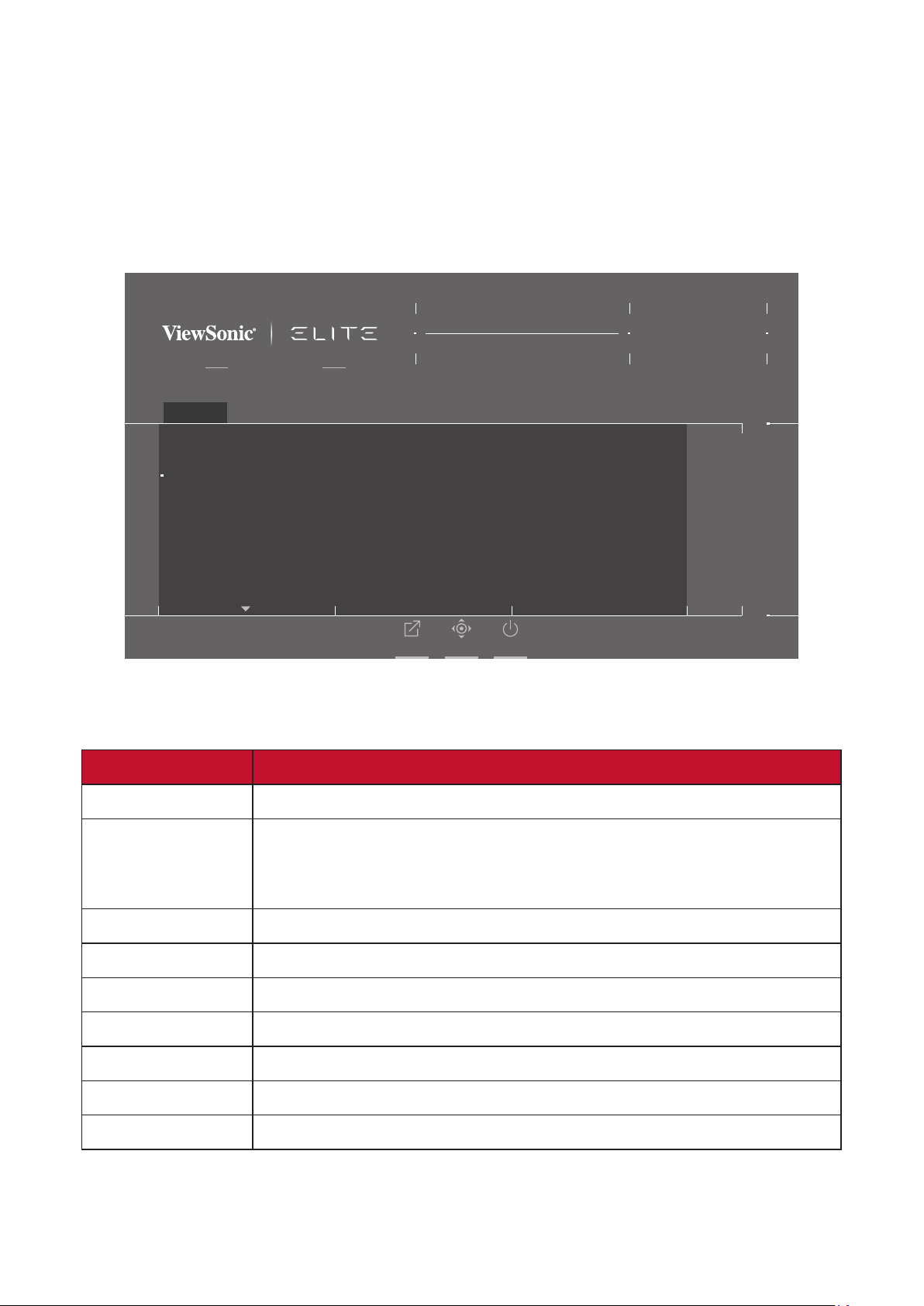
38
Menu Opons
Game Modes
1. Press the [●] key or move the joy key [◄] or [▲] or [▼] to display the On-Screen
Display (OSD) Menu.
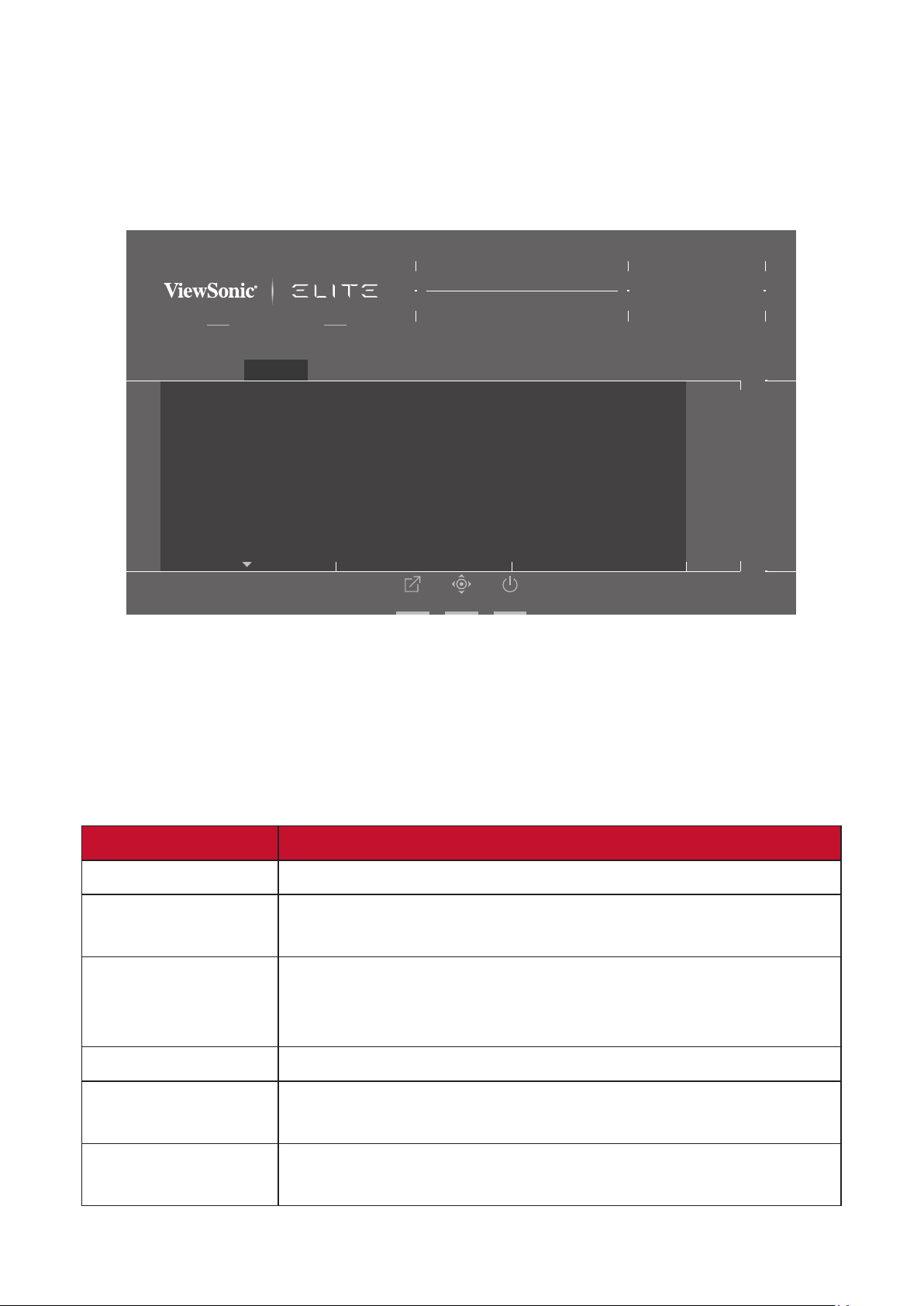
2. Move the joy key [◄] or [►] to select Game Modes. Then move the joy key [▼]
to enter the Game Modes menu.
Adaptive Sync
Game Modes
ON
Standard
Custom 1
Custom 2
FPS
MOBA
Battle Royale
Game Modes Display Input Select ViewMode Audio Adjust Setup Menu
Hz165
Custom 1
Max. Refresh Rate
XG270Q
Exit Navi. Power
3. Move the joy key [▲] or [▼] to select the seng. Then press the [●] key to
conrm the selecon.
Menu Opon Descripon
Standard Select this opon for general use.
Custom 1/2 Two customizable “Custom” sengs are available to help
match individual preferences and adapt to every type of
game on the market.
FPS Ideal for First-Person Shooter games.
MOBA Select this opon for Mulplayer Online Bale Arena games.
Bale Royale Tuned for Bale Royale games.
Realisc True-to-life color representaon.
Vibrant Lush and saturated colors.
Console Speed Speed focused for console use.
Console Color Color accuracy focus for console use.
39
Display
1. Press the [●] key or move the joy key [◄] or [▲] or [▼] to display the On-Screen
Display (OSD) Menu.
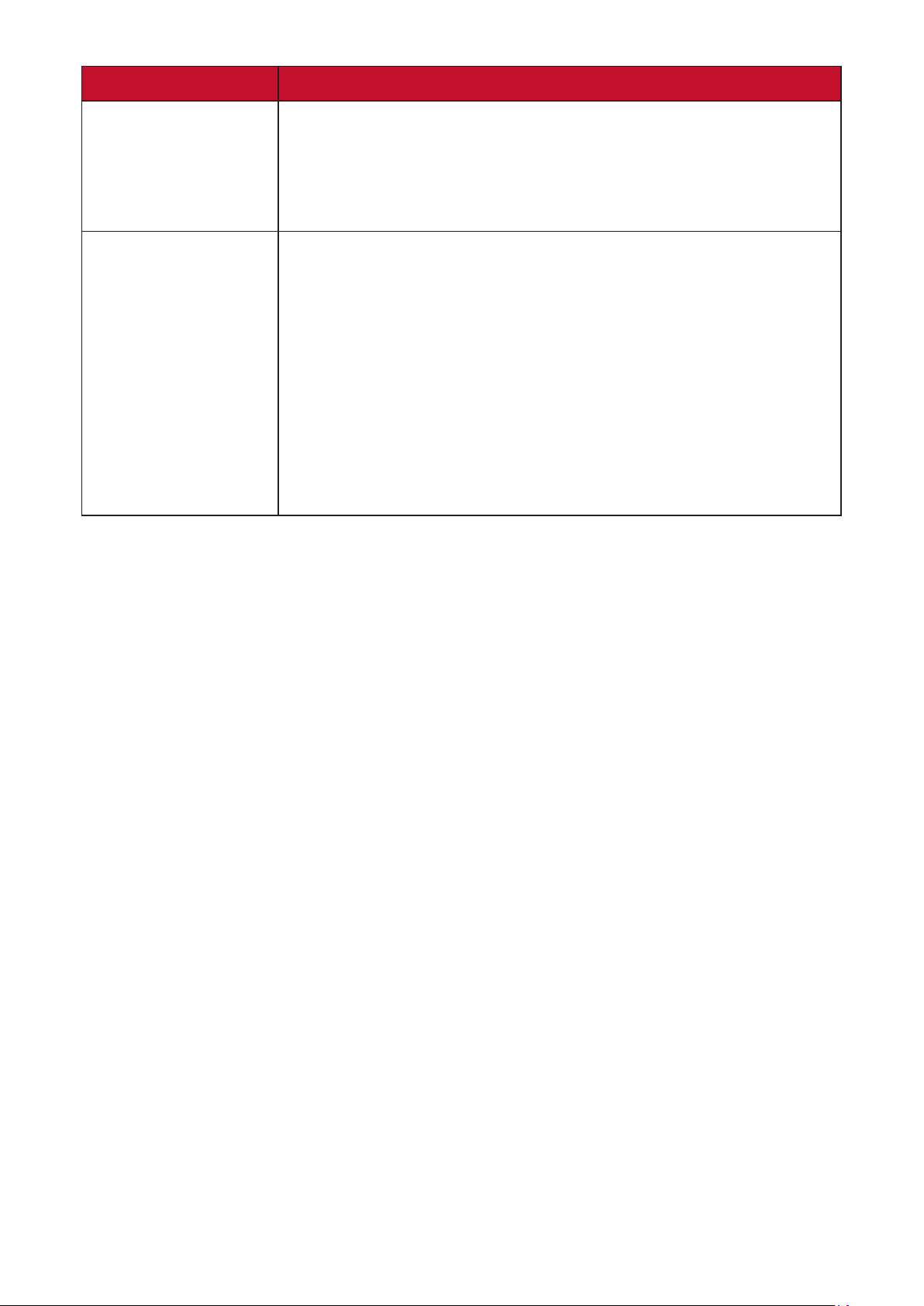
2. Move the joy key [◄] or [►] to select Display. Then move the joy key [▼] to
enter the Display menu.
Adaptive Sync
Game Modes
ON
Adaptive Sync
HDR
PureXP™
OverClocking
Hertz Limiter
Response Time OD
Game Modes Display Input Select ViewMode Audio Adjust Setup Menu
Hz165
Custom 1
Max. Refresh Rate
XG270Q
Exit Navi. Power
3. Move the joy key [▲] or [▼] to select the menu opon. Then move the joy key
[►] to enter its sub-menu.
4. Move the joy key [▲] or [▼] to adjust/select the seng. Then press the [●] key
to conrm (if applicable).
NOTE: Some sub-menu opons may have another sub-menu. To enter the
respecve sub-menu, move the joy key [►].
Menu Opon Descripon
Adapve Sync Eliminates stuering and tearing during gameplay.
HDR Reduce the overall contrast of a given scene so that detail
in the highlights and shadows can be seen.
PureXP™ Short for “Pure Experience”, this feature can enhance the
visual quality of moving objects, making them less vague
with a clearer view.
OverClocking When “On” go beyond the monitor’s 165Hz refresh rate.
Hertz Limiter Allows users to control how many frames the monitor can
output.
Response Time OD An advanced tuning funcon for users that want to adjust
their monitor’s response me.
40
Menu Opon Descripon
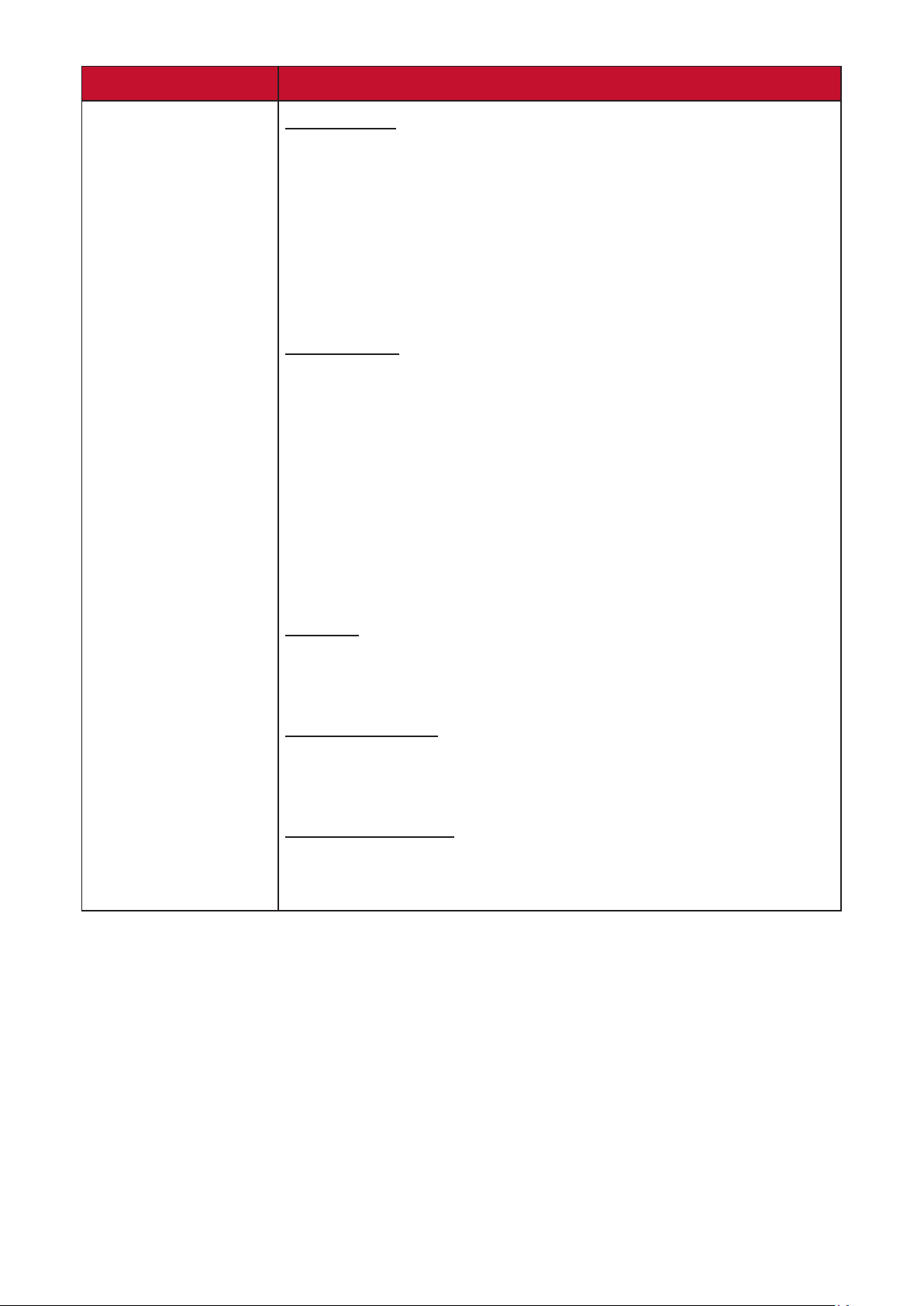
Blue Light Filter Adjustable lter, available in all Game Modes, that blocks
high-energy blue light for a more comfortable viewing
experience.
For more informaon, see page 53.
Color Temperature Select the color temperature seng.
• sRGB: Lower brightness and more natural colors.
• Bluish: Set the color temperature to 9300K.
• Cool: Set the color temperature to 7500K.
• Nave: Default color temperature. Recommended for
regular use.
• Warm: Set the color temperature to 5000K.
• Full Color Control: Adjust red, green, and blue values as
desired.
41
Menu Opon Descripon
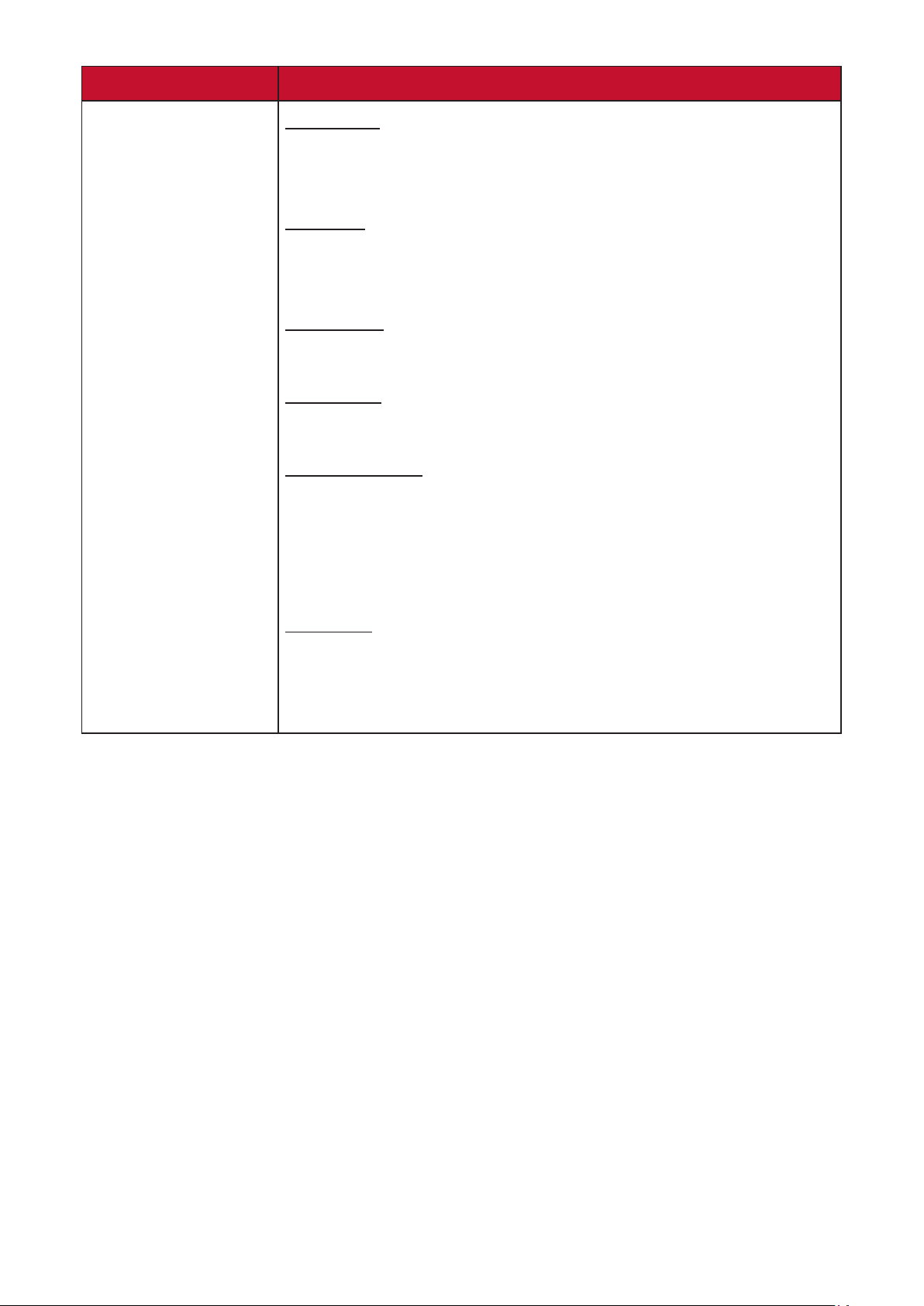
Color Adjust Color Space
Allows users to choose which color space they would like
to use for color output.
• Auto: Automacally recognizes the color format and
black and white levels.
• RGB: The input signal color is RGB.
• YUV: The input signal color is YUV.
Color Range
The monitor can detect the input signal color range
automacally. You can manually change the color range
opons to t the correct color range if the colors are not
displayed correctly.
• Auto: Automacally recognizes the color format and
black and white levels.
• Full Range: Black and white levels are full.
• Limited Range: Black and white levels are limited.
Gamma
Allows users to manually adjust the brightness level of the
monitor’s grayscale levels.
Color Saturaon
Adjusts the color depth of each color (red, green, blue,
cyan, magenta, and yellow).
Black Stabilizaon
Provides heightened visibility and detail by brightening
dark scenes.
42
Menu Opon Descripon
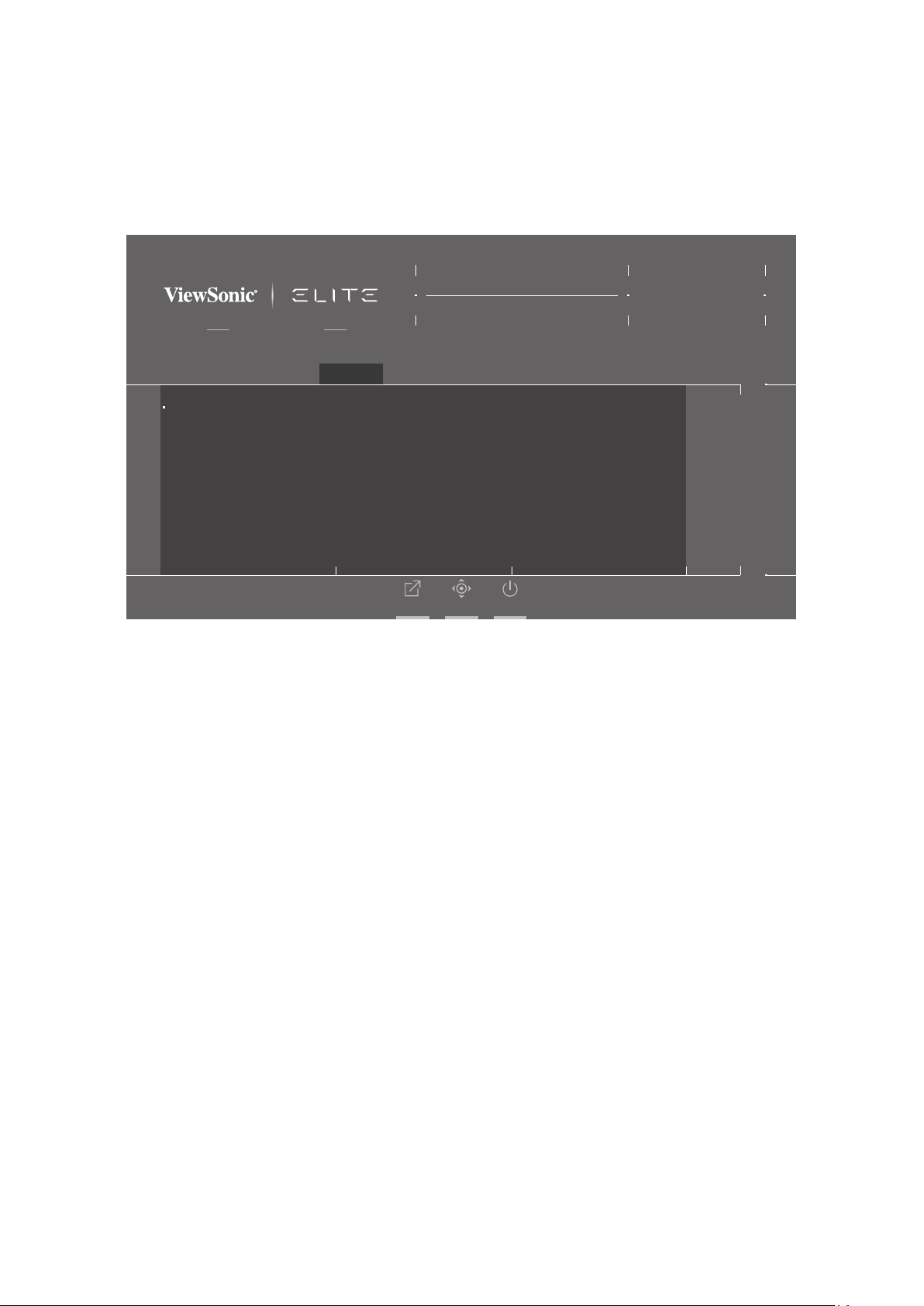
Image Adjust ViewScale
Users have the ability to adjust the display size of the
image on the monitor, allowing for a “best t” scenario.
Contrast
Adjusts the dierence between the image background
(black level) and the foreground (white level).
Brightness
Adjusts background black levels of the screen image.
Sharpness
Adjusts the picture quality of the monitor.
Advanced DCR
Automacally detects the image signal and intelligently
controls the backlight brightness and color to improve on
the ability to make the black blacker in a dark scene, and
make the white whiter in a bright environment.
Overscan
Refers to a cropped image on your monitor’s screen. A
seng on your monitor zooms in on movie content, so
that you cannot see the outermost edges of the lm.
43
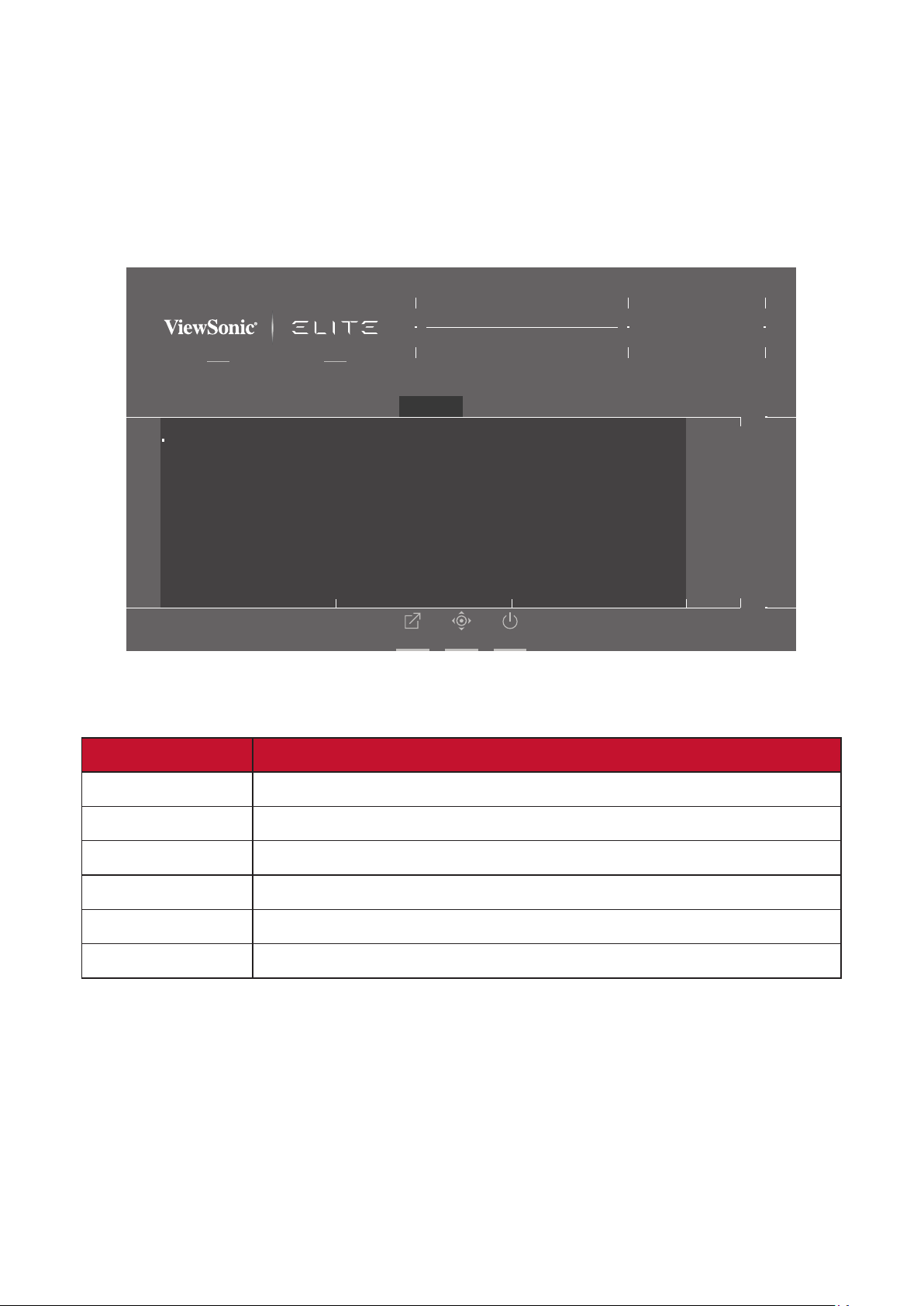
Input Select
1. Press the [●] key or move the joy key [◄] or [▲] or [▼] to display the On-Screen
Display (OSD) Menu.
2. Move the joy key [◄] or [►] to select Input Select. Then move the joy key [▼] to
enter the Input Select menu.
Adaptive Sync
Game Modes
ON
HDMI 1
HDMI 2
DisplayPort
Game Modes Display Input Select ViewMode Audio Adjust Setup Menu
Hz165
Custom 1
Max. Refresh Rate
XG270Q
Exit Navi. Power
3. Move the joy key [▲] or [▼] to select the desired input source. Then press the
[●] key to conrm the selecon.
44
ViewMode
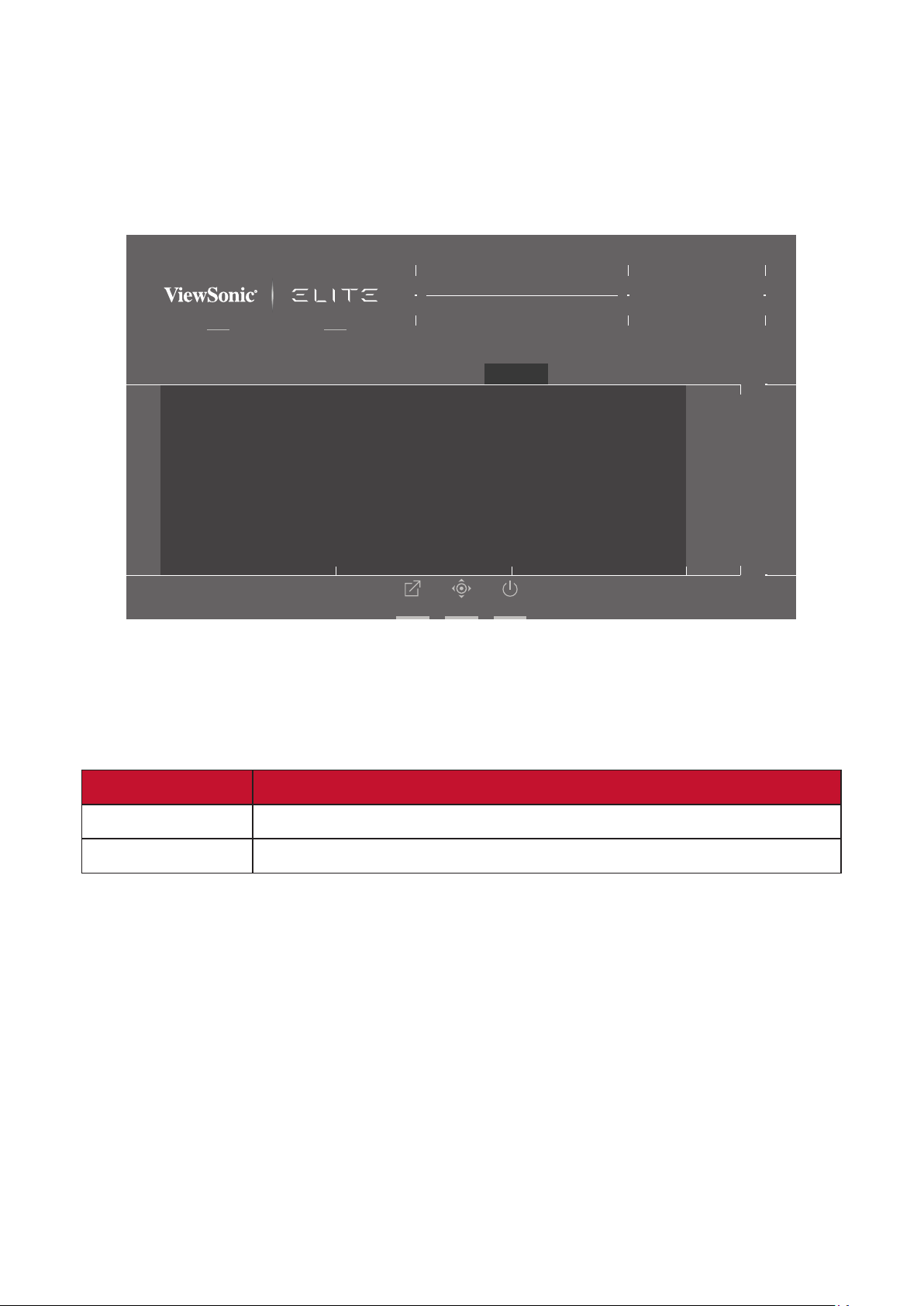
NOTE: ViewMode is only accessible when using Custom 1 or 2 Game Modes.
1. Press the [●] key or move the joy key [◄] or [▲] or [▼] to display the On-Screen
Display (OSD) Menu.
2. Move the joy key [◄] or [►] to select ViewMode. Then move the joy key [▼] to
enter the ViewMode menu.
Adaptive Sync
Game Modes
ON
Standard
Movie
Web
Text
MAC
Mono
Game Modes Display Input Select ViewMode Audio Adjust Setup Menu
Hz165
Custom 1
Max. Refresh Rate
XG270Q
Exit Navi. Power
3. Move the joy key [▲] or [▼] to select the seng. Then press the [●] key to
conrm the selecon.
Menu Opon Descripon
Standard Select this opon for general use.
Movie Select this opon for watching movies.
Web Select this opon for surng the web.
Text Select this opon for text-based tasks.
MAC Select this opon when connecng to Mac computers.
Mono Select this opon for monochrome.
45
Audio Adjust
1. Press the [●] key or move the joy key [◄] or [▲] or [▼] to display the On-Screen
Display (OSD) Menu.
2. Move the joy key [◄] or [►] to select Audio Adjust. Then move the joy key [▼]
to enter the Audio Adjust menu.
Adaptive Sync
Game Modes
ON
Volume
Mute
Game Modes Display Input Select ViewMode Audio Adjust Setup Menu
Hz165
Custom 1
Max. Refresh Rate
XG270Q
Exit Navi. Power
3. Move the joy key [▲] or [▼] to select the desired opon. Then move the joy key
[►] to enter its sub-menu.
4. Move the joy key [▲] or [▼] to adjust/select the seng, and press the [●] key to
conrm the selecon (if applicable).
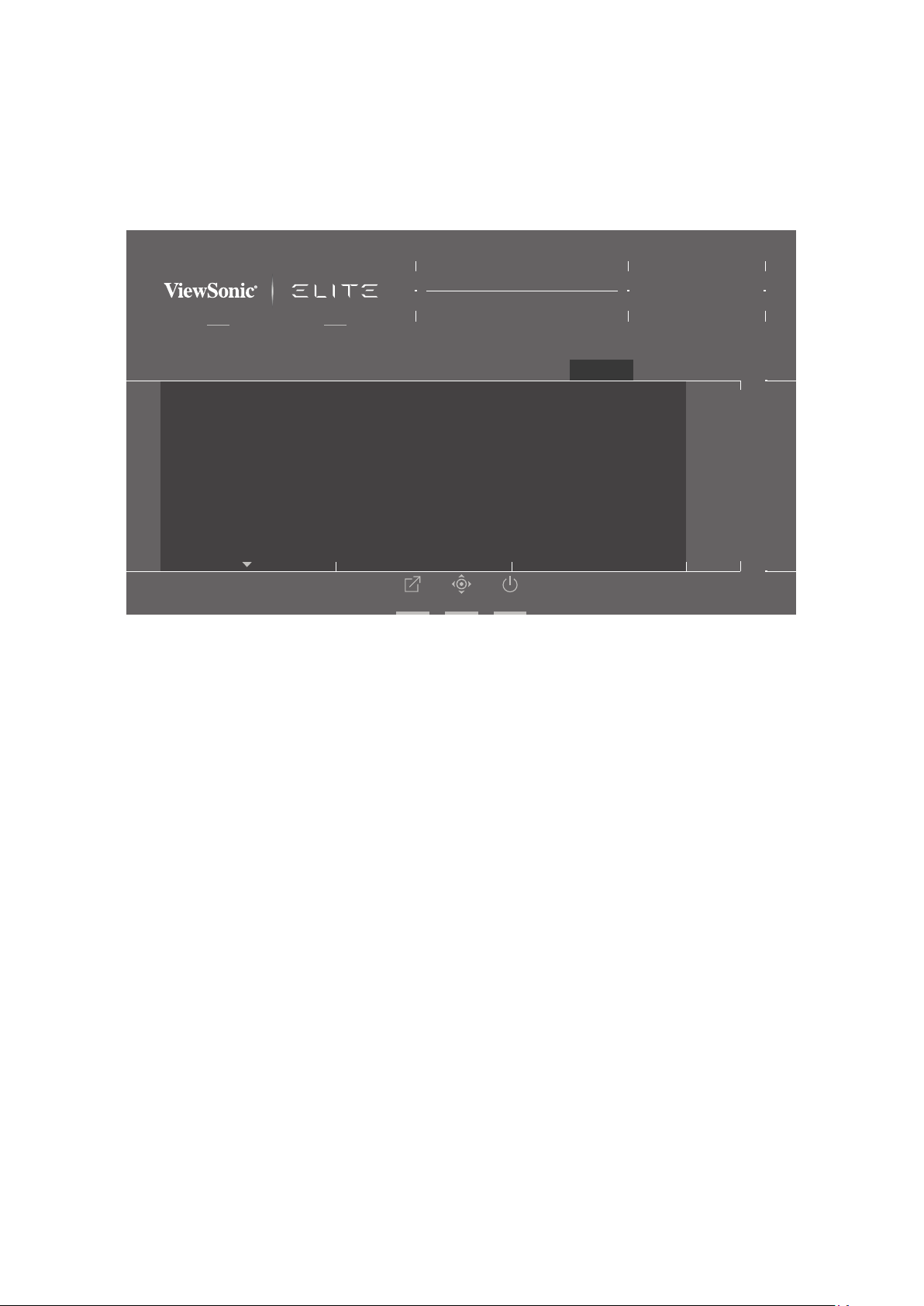
Menu Opon Descripon
Volume Adjust the volume level.
Mute Enable to disable the sound.
46
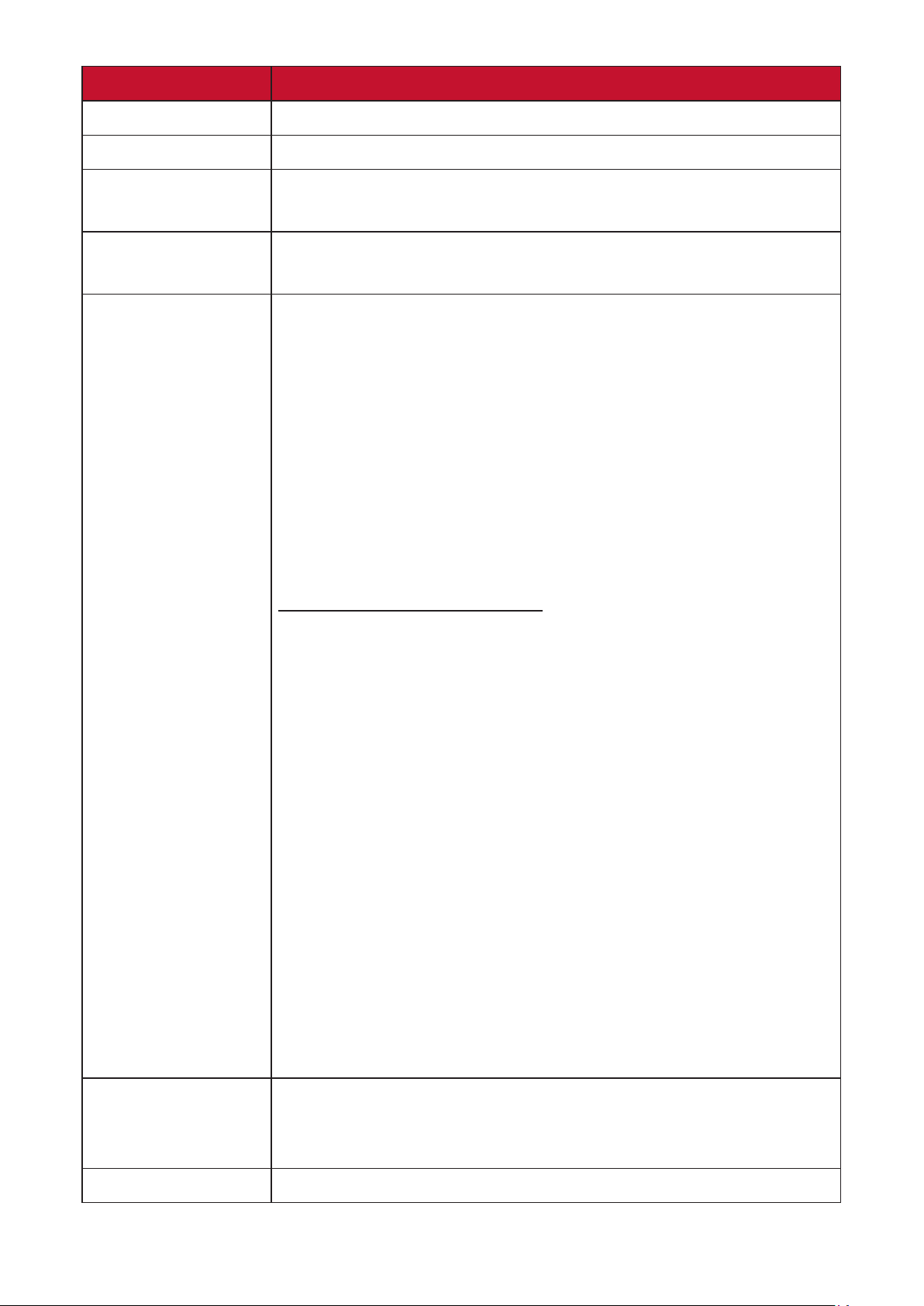
Setup Menu
1. Press the [●] key or move the joy key [◄] or [▲] or [▼] to display the On-Screen
Display (OSD) Menu.
2. Move the joy key [◄] or [►] to select Setup Menu. Then move the joy key [▼] to
enter the Setup Menu menu.
Adaptive Sync
Game Modes
ON
Language Select
Information
Quick Access
Crosshair
Elite RGB
Resolution Notice
Game Modes Display Input Select ViewMode Audio Adjust Setup Menu
Hz165
Custom 1
Max. Refresh Rate
XG270Q
Exit Navi. Power
3. Move the joy key [▲] or [▼] to select the menu opon. Then move the joy key
[►] to enter its sub-menu.
4. Move the joy key [▲] or [▼] to adjust/select the seng. Then press the [●] key
to conrm (if applicable).
NOTE: Some sub-menu opons may have another sub-menu. To enter the
respecve sub-menu, move the joy key [►].
47
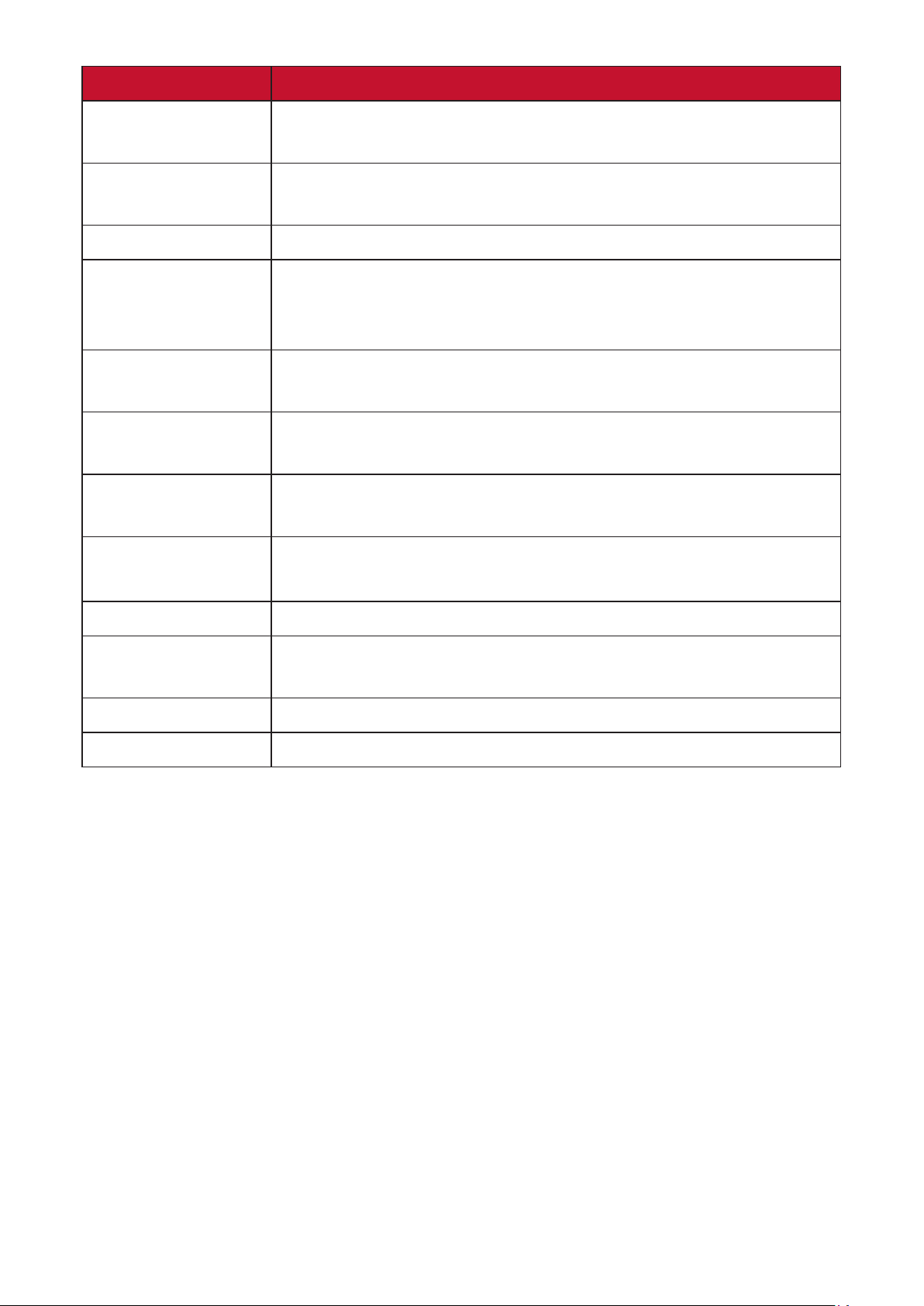
Menu Opon Descripon
Language Select Select an available language for the OSD Menu.
Informaon Display the monitor informaon.
Quick Access Select which opons to have present in the Quick Access
Menu.
Crosshair Aim more clearly and quickly during FPS games with the
on-screen overlay. For more, see page 58.
Elite RGB This seng controls the RGB lighng on the back of the
monitor and under the bezel in order to enhance your RGB
experience. When switched on, or aer being reset, the
default ‘Breathing’ will acvate.
In addion, the RGB lights are also synced with several
key partners. Downloading their soware will give you the
power to manipulate your RGB capabilies even further.
If you would like to leverage partnered soware see the
advanced setup below.
Partner Soware RGB Setup
• Visit hps://www.viewsonic.com/elite/rgb/ and choose
a partner RGB soware to download.
• Download and install your soware of choice.
• Included with your monitor is a USB 3.0 A-Male to
B-Male cable. Plug in the USB 3.0 B-Male connector to
your monitor and the USB 3.0 A-Male connector to your
PC.
• Run the partner soware and start customizing your
RGB lighng!
You can also check out our RGB soware setup tutorials
online at hps://www.viewsonic.com/elite/rgb/.
*Mode variaons, customizaon features and any other
features or uses shall be based on and subject to the
terms of use, end user license agreement and the soware
capabilies as specied or provided in partners’ soware.
Resoluon Noce Enable this opon to allow the system to inform users that
the current viewing resoluon is not the correct nave
resoluon.
Boot Up Screen Toggle the start screen On or O.
48
Menu Opon Descripon
OSD Timeout Adjust the length of me the OSD Menu remains on
screen.
OSD Background Show/Hide the OSD background when the OSD Menu
appears on the screen.
OSD Pivot Set the OSD Menu orientaon.
Power Indicator Set the Power Indicator On or O. If the seng is set to
On, the power indicator lights blue when the device is
turned on.
Auto Power O Enable this opon to allow the monitor to automacally
turn o aer a certain amount of me.
Sleep Set the amount of idle me before the monitor enters
Sleep mode.
ECO Mode Choose between various modes, based on power
consumpon.
DDC/CI Enable this opon to allow the monitor control via the
graphics card.
DispayPort 1.1 Enable/Disable DisplayPort 1.1 support.
Standby Charger When acvated, the USB will connue to supply power
even when the monitor is in standby mode.
Rename Rename the personalized custom prole.
Memory Recall Resets all sengs to their default values.

4949
Advanced Features and Sengs
This secon describes advanced features of the monitor.
Adapve Sync
Enabling Adapve Sync will put an end to choppy gameplay and broken games with
uid, arfact-free performance at virtually any frame rate.
To enable the Adapve Sync funcon:
1. Press the [●] key or move the joy key [◄] or [▲] or [▼] to display the On-Screen
Display (OSD) Menu.
2. Move the joy key [◄] or [►] to select Display. Then move the joy key [▼] to
enter the Display menu.
3. Move the joy key [▲] or [▼] to select Adapve Sync. Then move the joy key [►]
to conrm the selecon.
4. Move the joy key [▲] or [▼] to select On or O. Then press the [●] key to
conrm the selecon.
NOTE: To use the G-Sync funcon, a DisplayPort connecon must be used.
Addionally, please note:
1. Your computer must be equipped with a GeForce GTX 10-Series or
GeForce RTX 20-Series graphics card.
2. The latest GeForce Driver should be installed.
3. For more informaon on how to enable G-Sync on an Adapve Sync
monitor, please visit: hps://www.nvidia.com/en-us/geforce/news/
geforce-rtx-2060-g-sync-compable-game-ready-driver/ .

50
PureXP™
Short for “Pure Experience”, this feature can enhance the visual quality of moving
objects, making them less vague with a clearer view. XP is also a play on the life
bar in some games. XP is a common & cool way for naming, just like video industry,
video eect as VFX. It also adds a more gaming & technological touch.
This is ViewSonic’s exclusive technology to opmize the moving picture response
me (MPRT) for beer performance during gaming.
To enable the PureXP™ funcon:
1. Press the [●] key or move the joy key [◄] or [▲] or [▼] to display the On-Screen
Display (OSD) Menu.
2. Move the joy key [◄] or [►] to select Display. Then move the joy key [▼] to
enter the Display menu.
3. Move the joy key [▲] or [▼] to select PureXP™. Then move the joy key [►] to
conrm the selecon.
4. Move the joy key [▲] or [▼] to select your preferred experience. Then press the
[●] key to conrm the selecon.
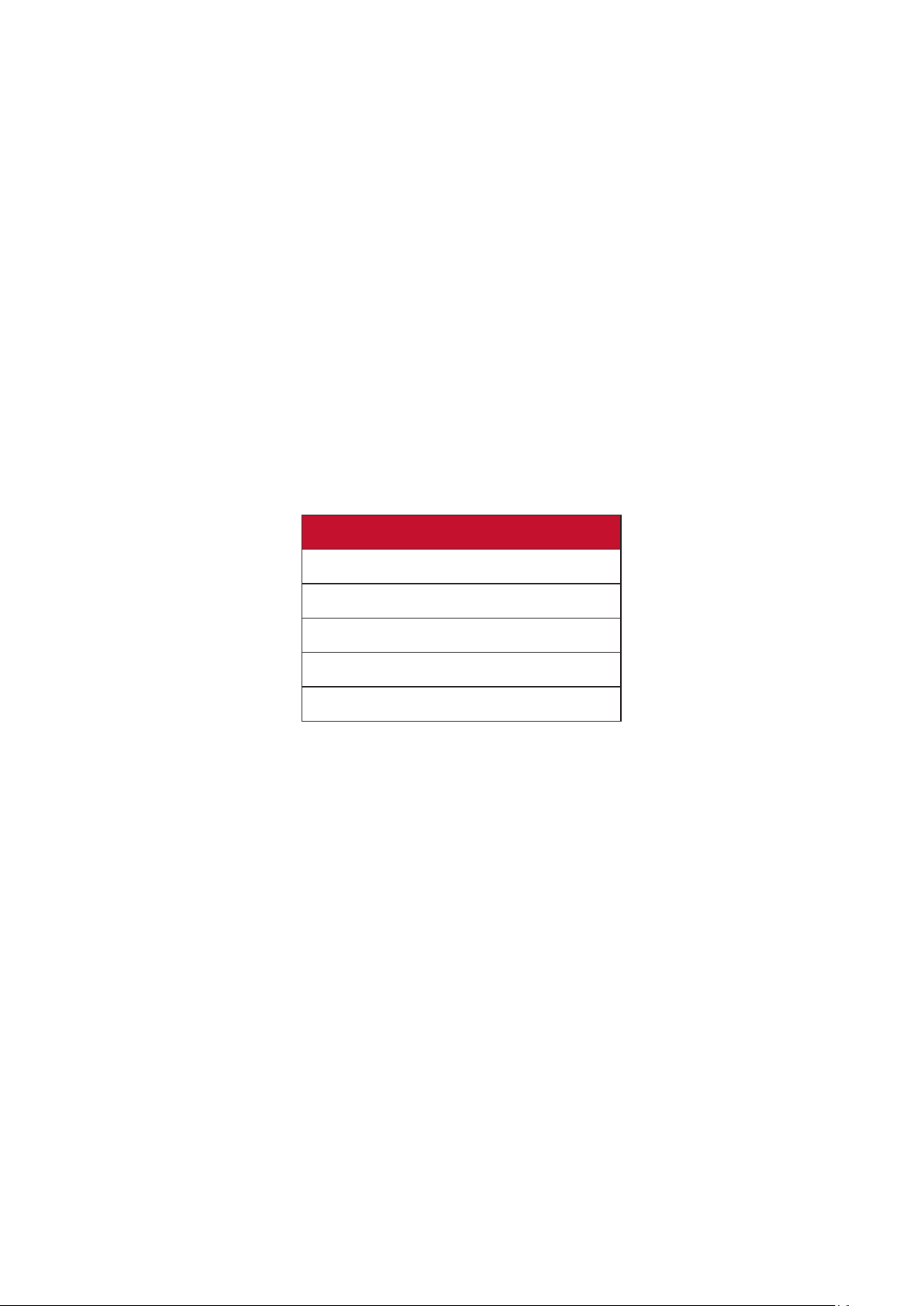
51
Hertz Limiter
A monitor hertz controller allows users to control how many frames the monitor
can output. The monitor will put a cap on the maximum amount of frames that can
be rendered from the monitor to save power and loading from the monitor’s side.
To adjust the Hertz Limiter:
1. Press the [●] key or move the joy key [◄] or [▲] or [▼] to display the On-Screen
Display (OSD) Menu.
2. Move the joy key [◄] or [►] to select Display. Then move the joy key [▼] to
enter the Display menu.
3. Move the joy key [▲] or [▼] to select Hertz Limiter. Then move the joy key [►]
to conrm the selecon.
4. Move the joy key [▲] or [▼] to select your preferred frame output. Then press
the [●] key to conrm the selecon.
Menu Opons
Nave
60Hz
100Hz
144Hz
165Hz
NOTE:
• If Adapve Sync is “On”, Hertz Limiter will be disabled.
• ViewScale may not support all Hz levels.

5252
Response Time OD
Adjusng the Response Time OD seng will allow the user to ne-tune their
desired response me. With ve (5) sengs to choose from, users can precisely
select the best t for each use scenario.
Each seng will increase response me speed, allowing users the ability to match
their PC and game type, creang a “best t” scenario.
To enable the Response Time OD funcon:
1. Press the [●] key or move the joy key [◄] or [▲] or [▼] to display the On-Screen
Display (OSD) Menu.
2. Move the joy key [◄] or [►] to select Display. Then move the joy key [▼] to
enter the Display menu.
3. Move the joy key [▲] or [▼] to select Response Time OD. Then move the joy key
[►] to conrm the selecon.
4. Move the joy key [▲] or [▼] to select your preferred response me. Then press
the [●] key to conrm the selecon.
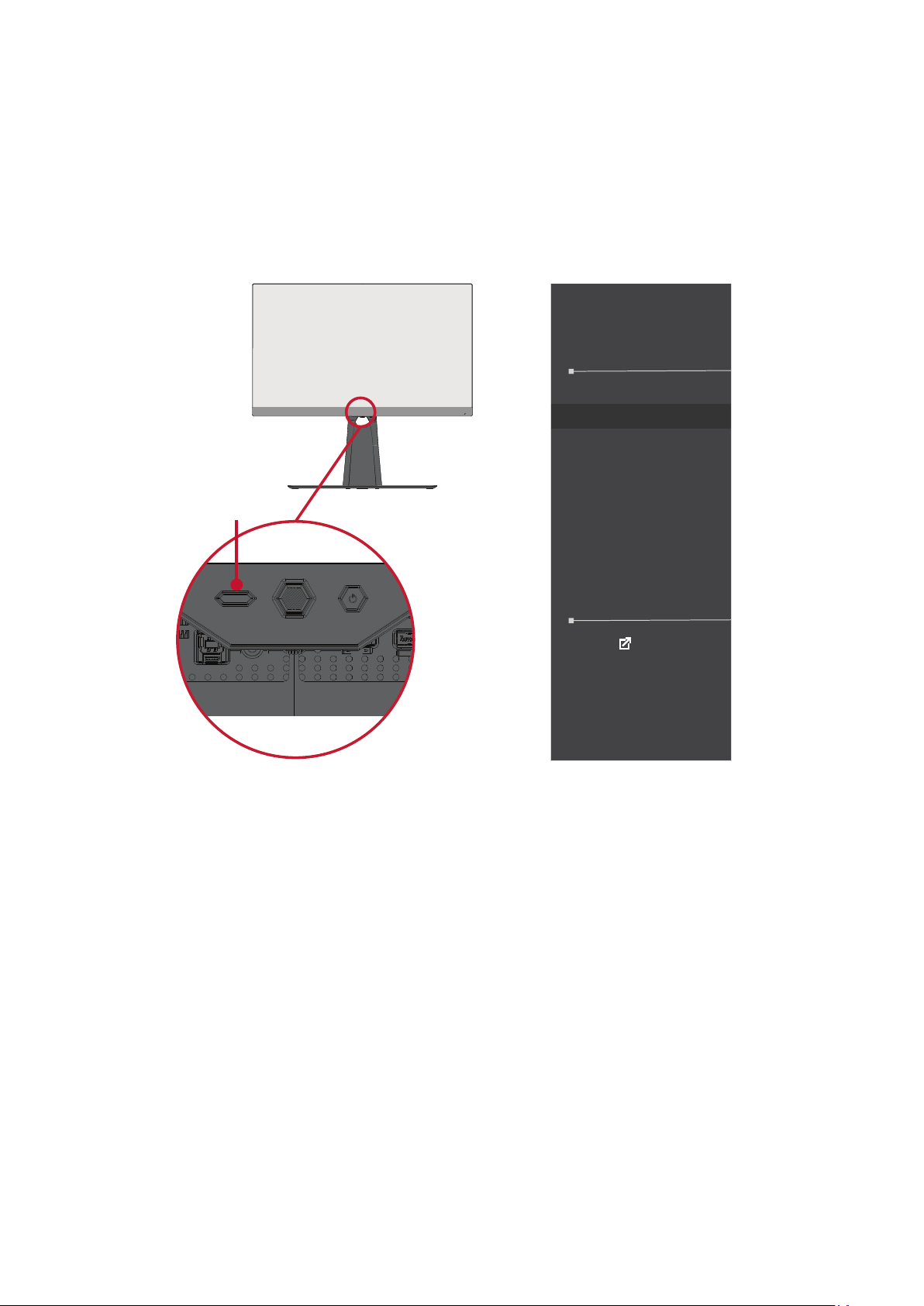
53
Blue Light Filter and Eye Health
The Blue Light Filter blocks high-energy blue light for a more comfortable viewing
experience.
Quick Access Blue Light Filter Setup
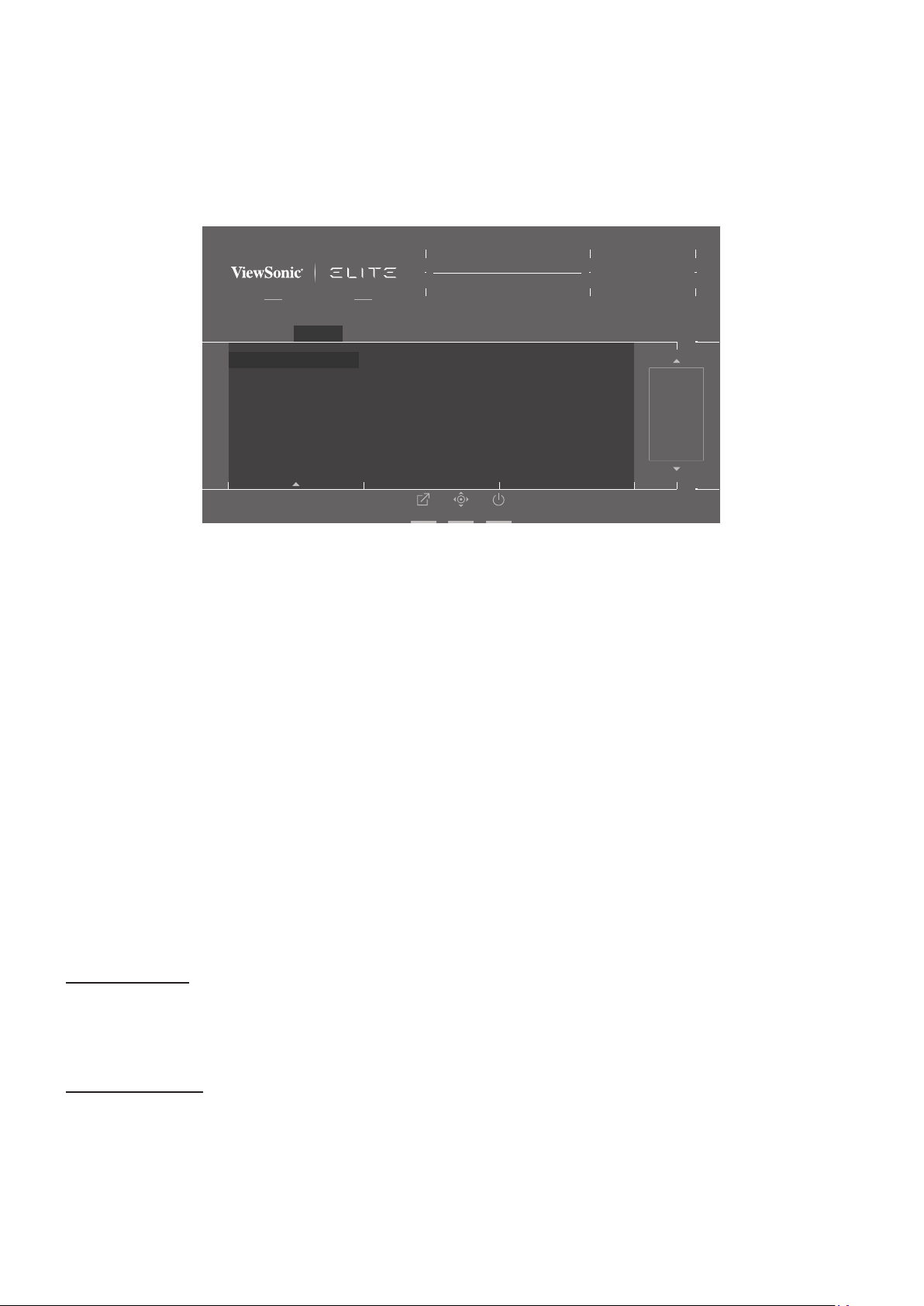
Enabling and disabling the Blue Light Filter can be done on the y via the Quick
Access Key.
Quick Access
Blue Light Filter
PureXP™
OverClocking
Return
Press to go to next
NOTE: When enabling the Blue Light Filter (BLF) via the Quick Access Key, the
BLF value will be 100 which is cered by TÜV. However, the BLF value
will be 0 if the user chooses another funcon via the Quick Access Key.
Quick Access Key
54
While using and enjoying your monitor please keep the following in mind:
• Viewing computer screens for extended periods of me may cause eye irritaon
and discomfort. To reduce these eects, it is recommended to take periodic
breaks from viewing to allow the eyes to relax.
• Users can customize the Blue Light Filter value through the Display Menu.
Adaptive Sync
Game Modes
ON
Blue Light Filter
Color Temperature
Color Adjust
Image Adjust
Game Modes Display Input Select ViewMode Audio Adjust Setup Menu
Hz165
Custom 1
Max. Refresh Rate
XG270Q
Exit Navi. Power
50
/100
• The monitor also supports Flicker-Free, which reduces or eliminates screen
icker, thus easing potenal eye strain.
Calculang Breaks
When viewing the monitor for extended periods, it is recommended to take
periodic breaks from viewing. Short breaks of at least ve (5) minutes are
recommended aer one (1) to two (2) hours of connuous viewing.
Taking shorter, more frequent breaks are generally more benecial than longer, less
frequent breaks.
Looking at Distant Objects
While taking breaks, users can further reduce eye strain and dryness by focusing on
objects that are further away from them.
Eye and Neck Exercises
Eye Exercises
Eye exercises can help minimize eye strain. Slowly roll your eyes to the le, right,
up, and down. Repeat as many mes as needed.
Neck Exercises
Neck exercises can also help minimize eye strain. Relax your arms and let them
hang at your sides, bend forward slightly to stretch the neck, turn your head to the
right and to the le. Repeat as many mes as needed.
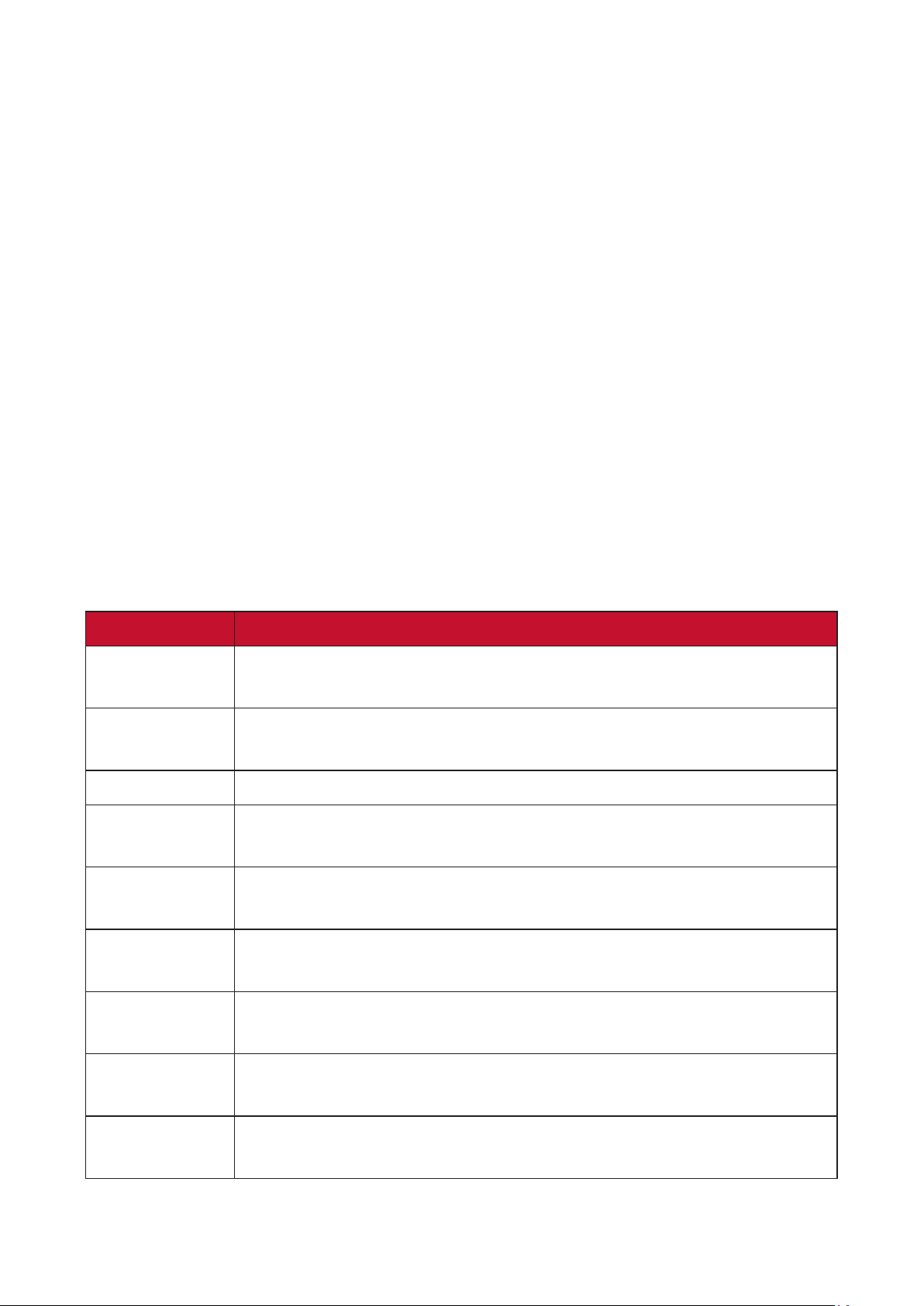
55
ViewScale
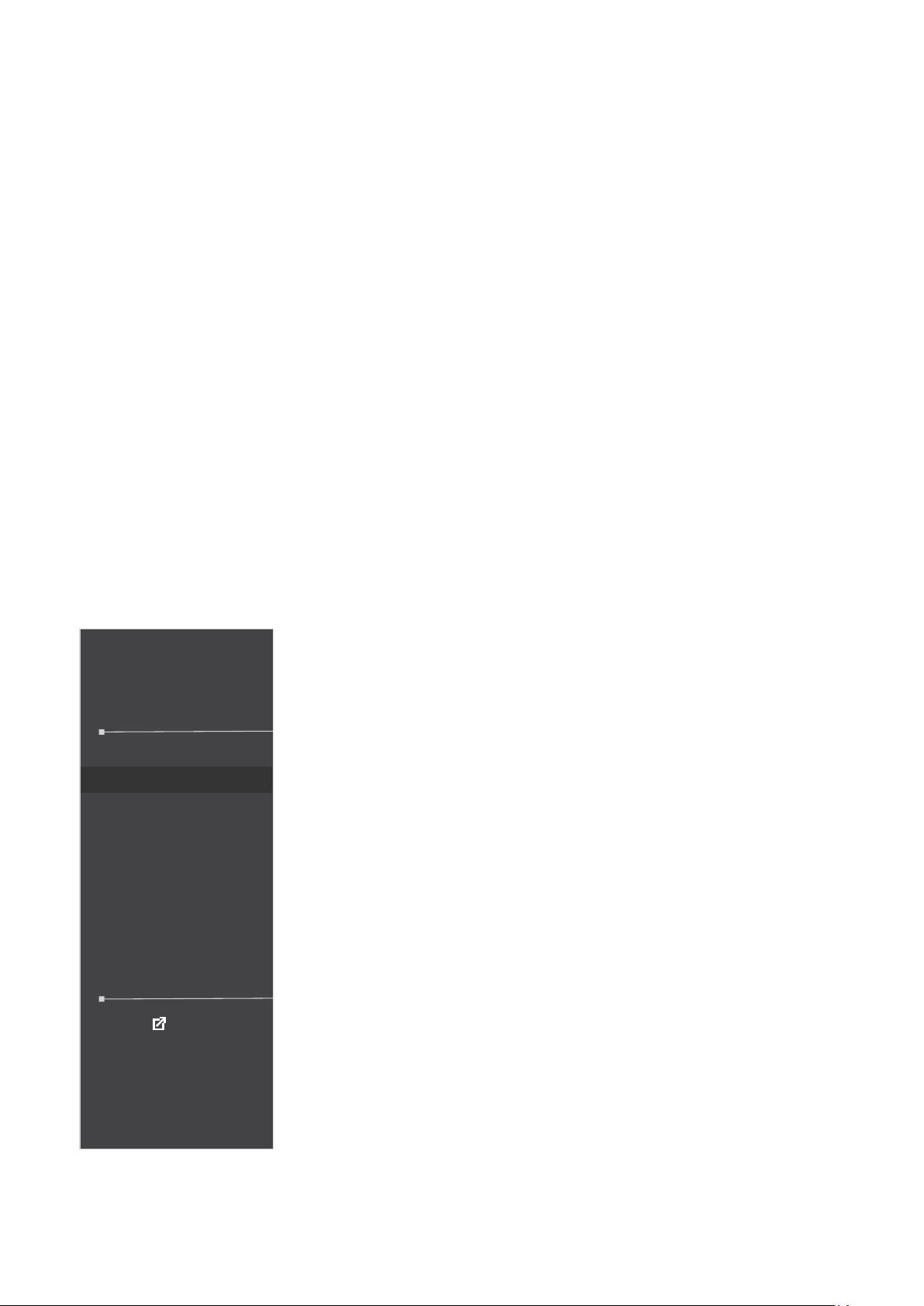
Under ViewScale, users can adjust their current aspect rao to t their specic
usage scenario. Below are the listed aspect raos.
NOTE: If users choose a ViewScale aspect mode that is not nave, it may impact
the user’s experience.
To enable ViewScale:
1. Press the [●] key or move the joy key [◄] or [▲] or [▼] to display the On-Screen
Display (OSD) Menu.
2. Move the joy key [◄] or [►] to select Display. Then move the joy key [▼] to
enter the Display menu.
3. Move the joy key [▲] or [▼] to select Image Adjust Then move the joy key [►] to
enter its sub-menu.
4. Move the joy key [▲] or [▼] to select ViewScale. Then move the joy key [►] to
enter its sub-menu.
5. Move the joy key [▲] or [▼] to select your preferred aspect rao. Then press the
[●] key to conrm the selecon.
Aspect Rao Descripon
Full Scales the inpued image to ll the screen, this is the default
input choice and is ideal for 16:9 images.
Aspect The inpued image is allowed to ll the screen as large as it
can go without image distoron.
1:1 The image is directly displayed without scaling.
19” (4:3) Simulates the inpued image in a 4:3 aspect rao and 19”
display size.
19”W (16:10) Simulates the inpued image in a 16:10 aspect rao and 19”W
display size.
21.5” (16:9) Simulates the inpued image in a 16:9 aspect rao and 21.5”
display size.
22”W (16:10) Simulates the inpued image in a 16:10 aspect rao and 22”W
display size.
23.6”W (16:9) Simulates the inpued image in a 16:9 aspect rao and
23.6”W display size.
24”W (16:9) Simulates the inpued image in a 16:9 aspect rao and 24”W
display size.
56
Quick Access
Quickly iniate some funcons and modes through the Quick Access key and menu.
Users can also dene which funcons or modes they prefer in the Quick Access
Menu via the Setup Menu in OSD. The funcon/mode will be enabled as soon as
the light-bar moves on the item, and will disable aer removing the light-bar.
In the Quick Access Menu, “Return” means users can “automacally” go back to the
mode they chose before entering the Quick Access Menu.
For example, if users chose “Console Speed” mode before entering the Quick
Access Menu and there is an exisng FPS opon in the Quick Access Menu,
according to the Quick Access denion, users will enable FPS mode when the light-
bar moves on the item. Then, when moving the light-bar to “Return,” the mode will
be changed into “Console Speed” automacally which is same as the mode before
user entering the Quick Access Menu.
To acvate the Quick Access Menu:
1. Press the Quick Access Key to display the Quick Access Menu.
2. Press the Quick Access Key to select your preference.
Quick Access
Blue Light Filter
PureXP™
OverClocking
Return
Press to go to next
NOTE:
• To change the Quick Access Menu’s default
funcons (Blue Light Filter, PureXP™, and
OverClocking), remove one or more default
funcons via the OSD Setup Menu rst.
• The Quick Access Menu will disappear aer three
(3) seconds automacally.
To Change the Quick Access Menu opons:
1. Press the [●] key or move the joy key [◄] or [▲] or [▼] to
display the On-Screen Display (OSD) Menu.
2. Move the joy key [◄] or [►] to select Setup Menu. Then
move the joy key [▼] to enter the Setup Menu menu.
3. Move the joy key [▲] or [▼] to select Quick Access. Then
move the joy key [►] to enter its sub-menu.
4. Move the joy key [▲] or [▼] to select your preference.
Then press the [●] key to conrm the selecon.
NOTE: Some sub-menu opons may have another sub-
menu. To enter the respecve sub-menu, move
the joy key [►].
57
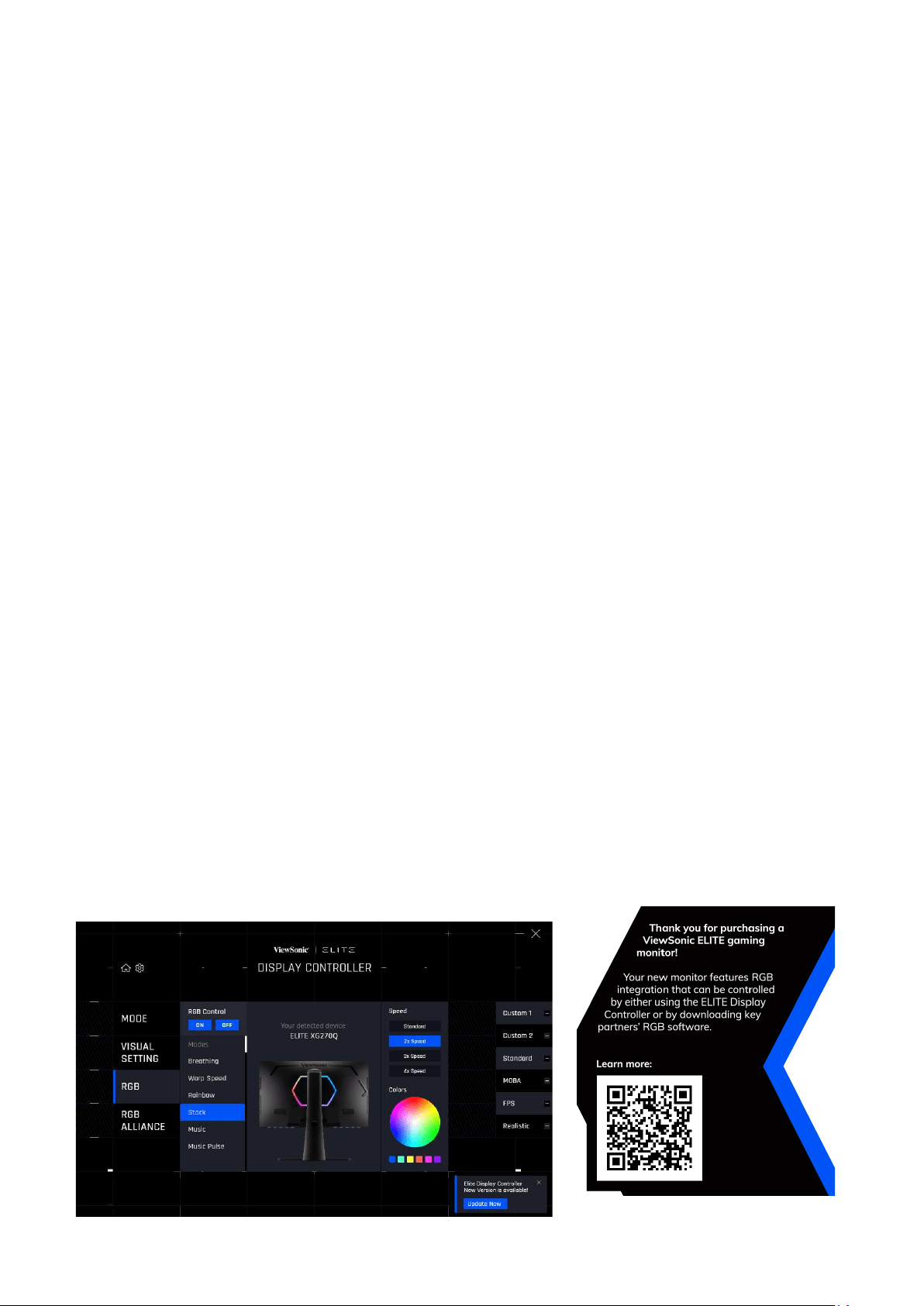
Elite RGB Lighng
This seng controls the RGB lighng on the back of the monitor and beneath the
bezel. When “On”, or aer being reset, the default ‘Breathing’ mode will be acve.
To enter the Elite RGB menu:
1. Press the [●] key or move the joy key [◄] or [▲] or [▼] to display the On-Screen
Display (OSD) Menu.
2. Move the joy key [◄] or [►] to select Setup Menu. Then move the joy key [▼] to
enter the Setup Menu menu.
3. Move the joy key [▲] or [▼] to select Elite RGB. Then move the joy key [►] to
enter its sub-menu.
4. Move the joy key [▲] or [▼] to select your preference. Then press the [●] key to
conrm the selecon.
NOTE: Some sub-menu opons may have another sub-menu. To enter the
respecve sub-menu, move the joy key [►].
In addion, the RGB backlights are also synced with several key partners.
Downloading their soware will give you the power to adjust your RGB capabilies
further.
To setup up partner RGB soware:
1. Visit: hps://www.viewsonic.com/elite/rgb/
2. Select a partner RGB soware, and download it.
3. Connect one end of the USB Type B cable to the monitor and the other end to
your computer.
4. Run and install the partner soware.
5. Start customizing the monitor’s RGB lighng.
58
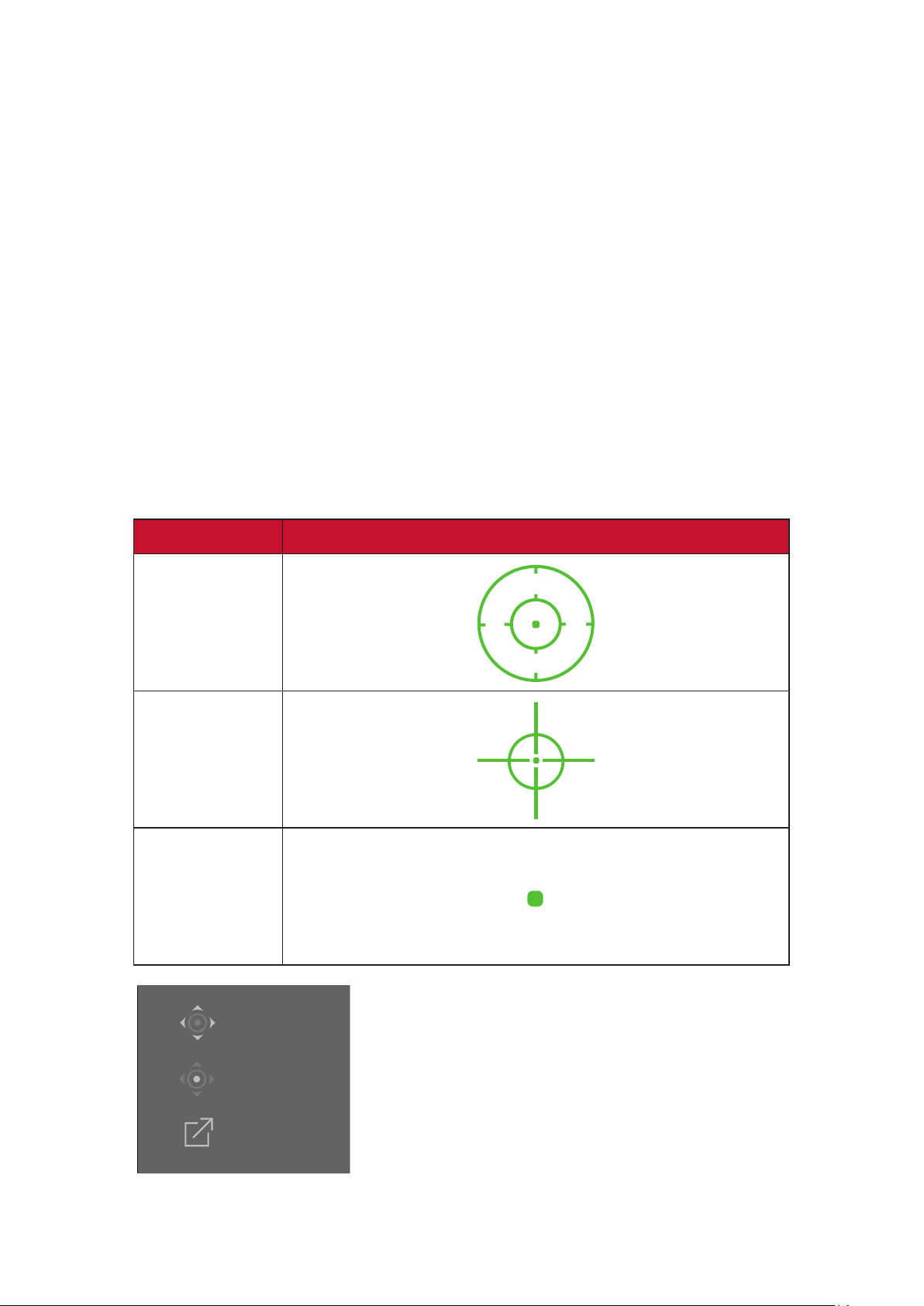
Crosshair
Select from dierent crosshair styles and colors to overlay on your screen.
To enable the Crosshair funcon:
1. Press the [●] key or move the joy key [◄] or [▲] or [▼] to display the On-Screen
Display (OSD) Menu.
2. Move the joy key [◄] or [►] to select Setup Menu. Then move the joy key [▼] to
enter the Setup Menu menu.
3. Move the joy key [▲] or [▼] to select Crosshair. Then move the joy key [►] to
conrm the selecon.
4. Move the joy key [▲] or [▼] to select your preferred crosshair style and color.
Then press the [●] key to conrm the selecon.
NOTE: A preview image of the crosshair (type and color) will be displayed on the
right side of the OSD Menu before conrming.
Crosshair Descripon
Type A
Type B
Type C
Exit
Adjust
Main Menu
NOTE: This message box will appear with
the crosshair, and disappear aer
three (3) seconds automacally.
59
Firmware Update
For the best display performance and to resolve any known issues, it is best to keep
your monitor updated with the latest rmware version. With the USB cable and
rmware update tool, you can easily update your monitor rmware any me.
You can visit: hps://www.viewsonic.com/elite/display-controller/ to check and
download the latest rmware version with the update tool.
To update the rmware:
1. Check and download the Firmware Update Tool with latest rmware version for
your monitor from: hp://www.viewsonic.com/elite/display-controller/.
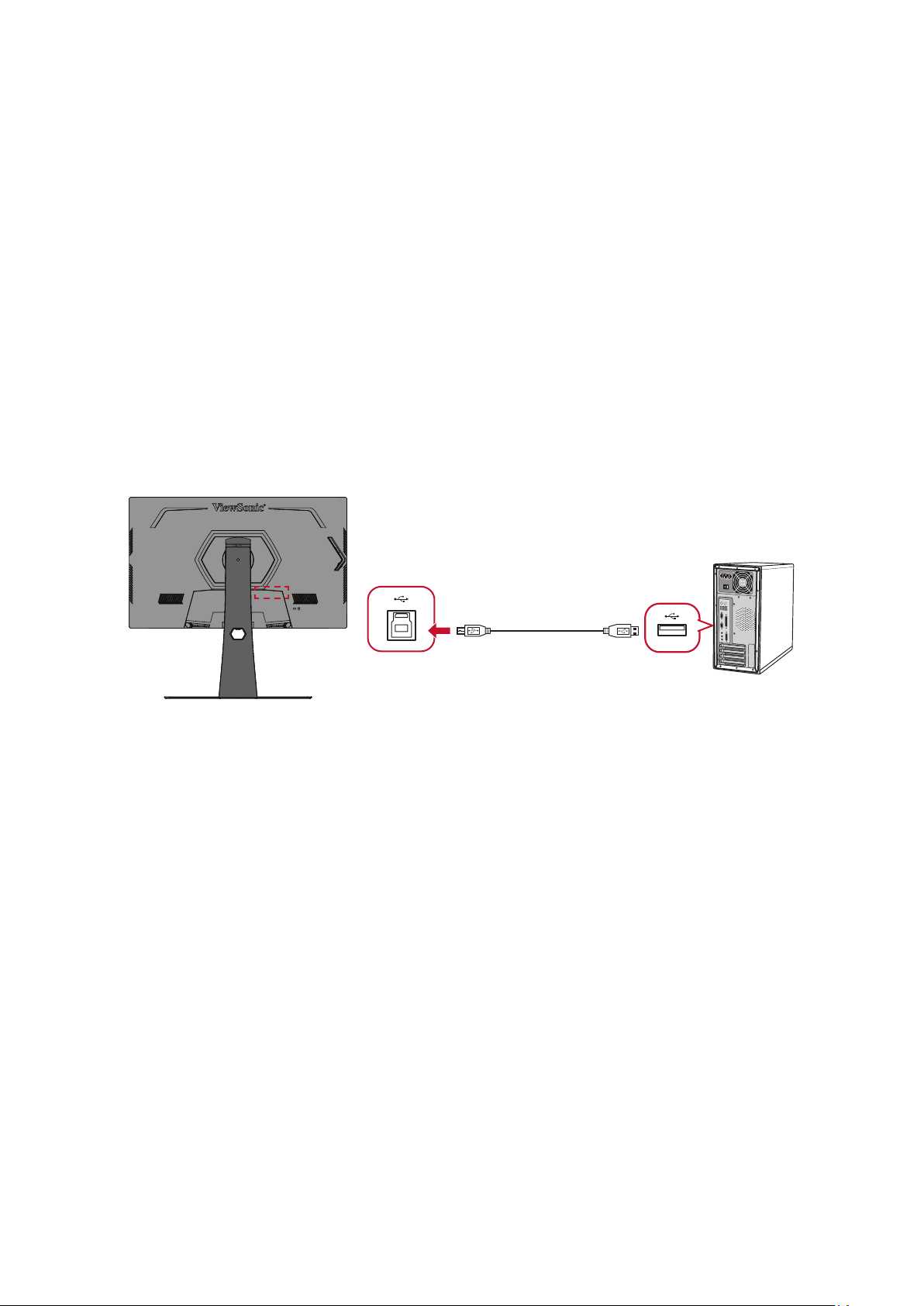
2. Connect the USB Type B male cable (square with 2 cut corners) to the USB Type B
port of your monitor. Then connect the other end of the cable to the USB port of
the computer.
3. Unzip the downloaded Firmware Update Tool and double-click on the .exe le
or .pkg le. Then follow the on-screen instrucons to complete the applicaon
installaon.
4. Launch the Firmware Update Tool. The applicaon will automacally detect and
verify your monitor model and current rmware version.
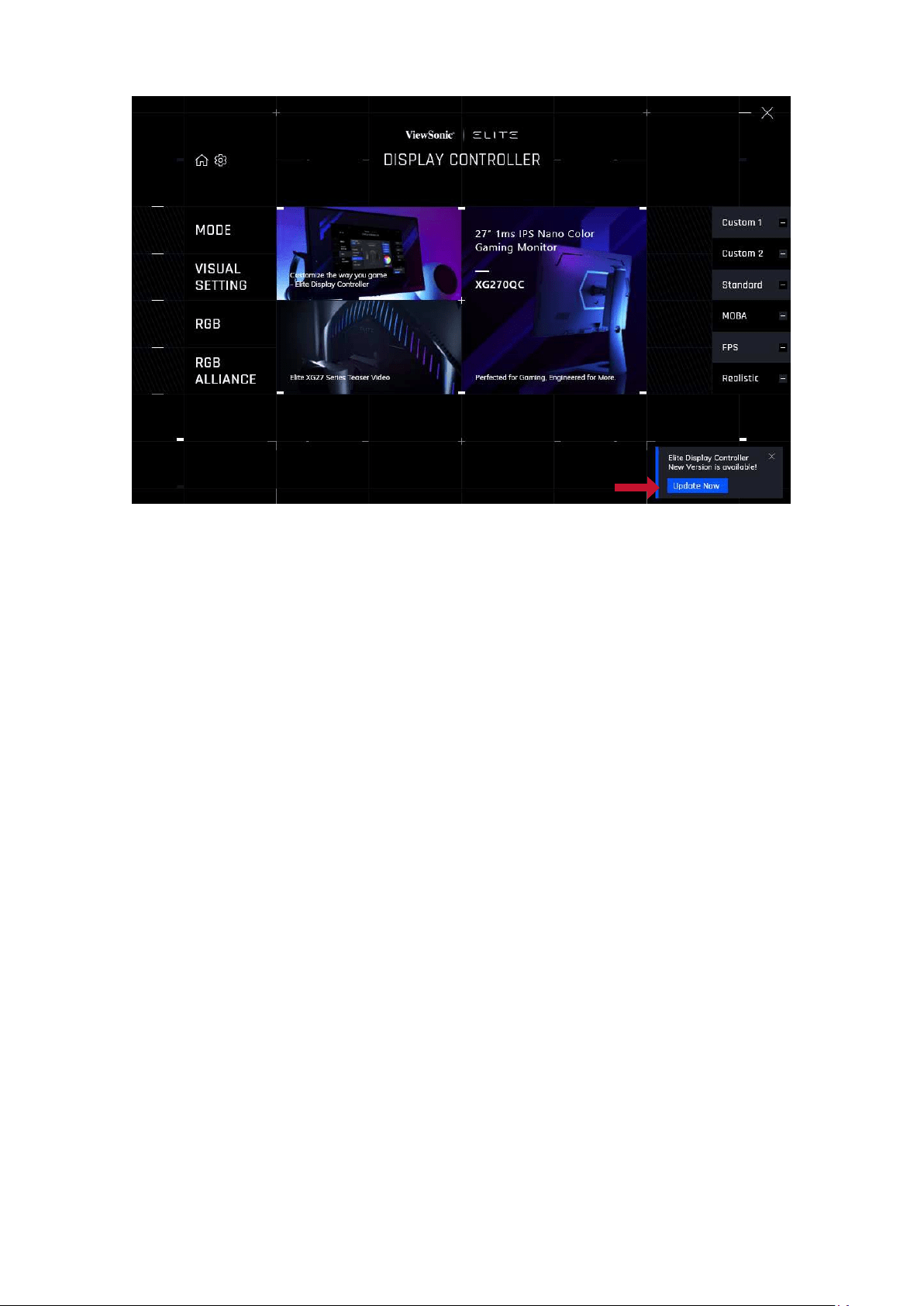
60
5. Click Update to upgrade your monitor rmware.
6. Wait unl the upgrade process is complete.
NOTE:
• Any interrupons during the rmware upgrade process may permanently
damage your monitor. Do not disconnect the USB cable or turn o your PC
and monitor.
• By using the Elite Display Controller, users can receive an auto-nocaon
when new rmware is available.
61
Appendix
Specicaons
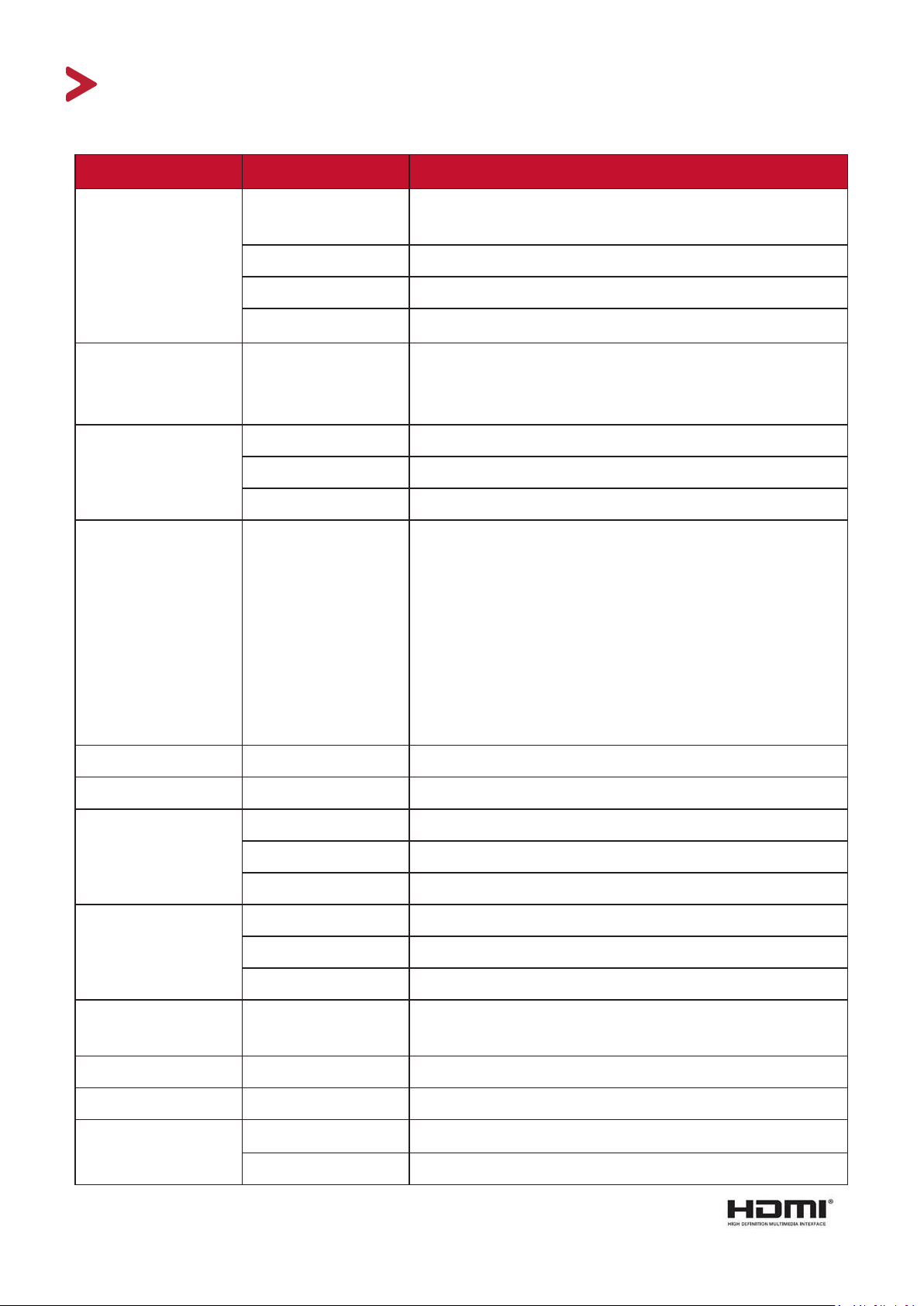
Item Category Specicaons
LCD Type TFT, Acve Matrix 2560 x 1440 LCD,
0.2331 mm x 0.2331 mm pixel pitch
Display Size 68.6 cm, 27" (27" viewable)
Color Filter RGB vercal stripe
Glass Surface
Anti-Glare type, 3H hard coang
Input Signal Video Sync TMDS digital (100 Ω)
HDMI: f
h
:30-230 Khz, f
v
:48-144 Hz
DisplayPort: f
h
:30-250 Khz, f
v
:48-165 Hz
Compability PC up to 2560 x 1440
Macintosh up to 2560 x 1440
Recommended 2560 x 1440 @ 165Hz
Resoluon
1
Supported • 2560 x 1440 @ 100, 120, 144, 165Hz
• 1920 x 1080 @ 100, 120, 144Hz
• 1680 x 1050 @ 60Hz
• 1440 x 900 @ 60, 75Hz
• 1280 x 1024 @ 60, 75Hz
• 1024 x 768 @ 50, 60, 70, 72, 75Hz
• 800 x 600 @ 56, 60, 72, 75Hz
• 720 x 400 @ 70Hz
• 640 x 480 @ 50, 60, 67, 72, 75Hz
Power Adapter
2
Input Voltage AC 100-240V, 50/60Hz (auto switch)
Display Area Full Scan (H x V) 596.736 x 335.664 mm (23.49” x 13.22”)
Operang
condions
Temperature 0° C to 40° C (32° F to 104° F)
Humidity 20% to 90% (non-condensing)
Altude 10,000 feet (3.048 km)
Storage
condions
Temperature -20° C to 60° C (-4° F to 140° F)
Humidity 5% to 90% (non-condensing)
Altude 40, 000 feet (12.1 km)
Dimensions Physical
(W x H x D)
614.2 x 458.7~571.6 x 265.2 mm
(24.18” x 18.06~22.50” x 10.44”)
Wall Mount Dimensions 100 x 100 mm
Weight Physical 11.95 kg (26.35 lbs)
Power saving
modes
On
3
50W (Typical)
4
O < 0.3W (Max)
1
Do not set the graphics card in your computer to exceed these ming modes; doing so may result in permanent damage to the display.
2
Please use the power adapter from ViewSonic® or an authorized source only.
3
The test condion follows EEI standards.
4
Without USB and audio.

62
Glossary
This secon describes the standard glossary of terms used in all LCD display models.
All terms are listed in alphabecal order.
NOTE: Some terms may not be applicable to your monitor.
A
Advanced DCR
Advanced DCR technology automacally detects the image signal and
intelligently controls the backlight brightness and color to improve on the
ability to make the black blacker in a dark scene, and make the white whiter
in a bright environment.
Adapve Sync
Adapve Sync technology puts an end to choppy gameplay and broken
frames with uid, arfact-free performance at virtually any frame rate.
Audio Adjust
Adjusts the volume, mutes the sound, or toggles between inputs if you have
more than one source.
Auto Detect
If the current input source has no signal, the monitor will automacally
switch to the next input opon. This funcon, on some models, is disabled
by default.
B
Black Stabilizaon
ViewSonic’s Black Stabilizaon provides heightened visibility and detail by
brightening dark scenes.
Blue Light Filter
Adjusts the lter that blocks high-energy blue light for a more comfortable
viewing experience.
Boot Up Screen
Turning o the boot screen will disable the on-screen message from
displaying when turning on the monitor.
Brightness
Adjusts background black levels of the screen image.
63
C
Color Adjust
Provides several color adjustment modes to help adjust the color sengs to
t the user’s needs.
Color Range
The monitor can detect the input signal color range automacally. You can
manually change the color range opons to t the correct color range if the
colors are not displayed correctly.
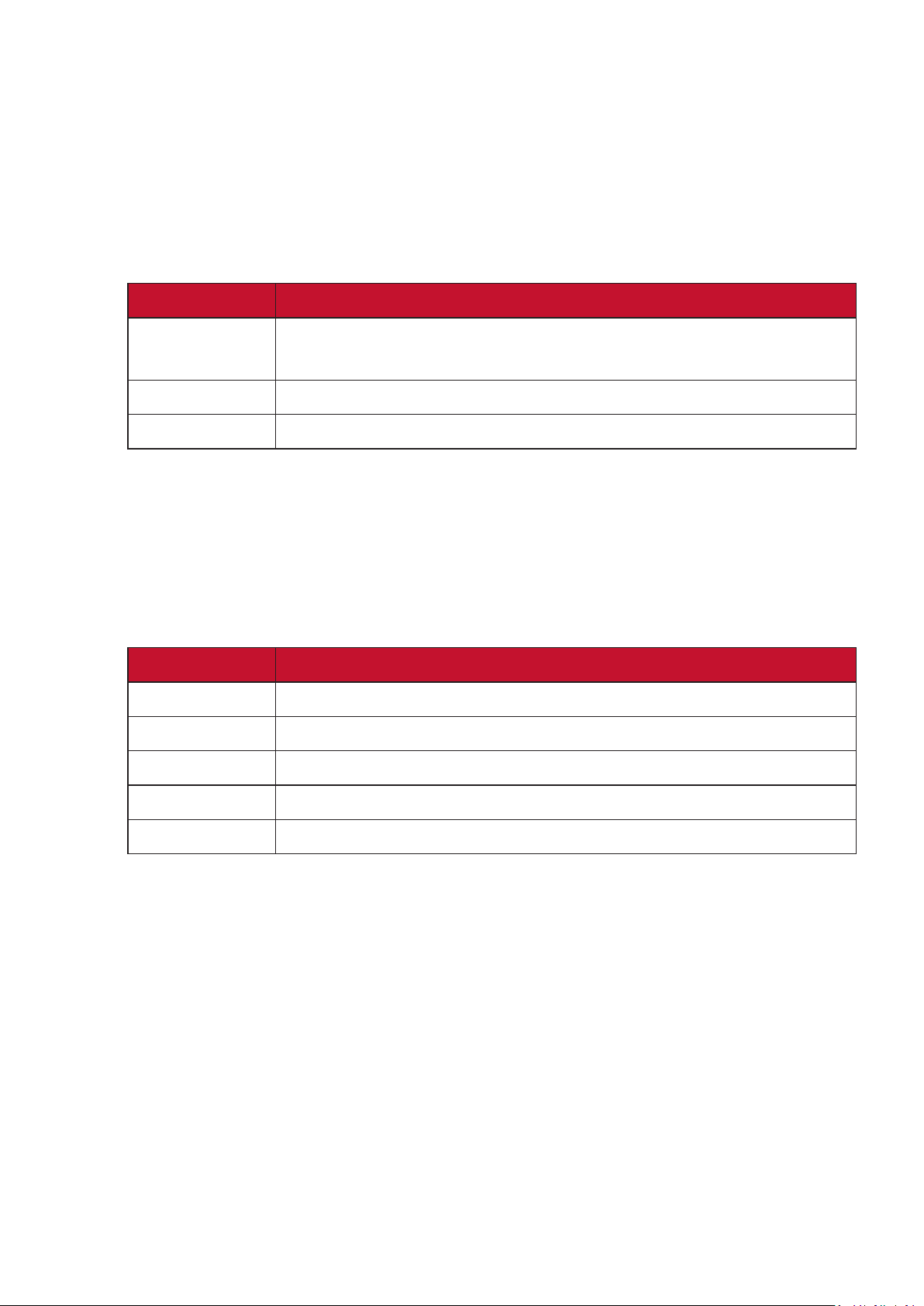
Opons Descripon
Auto The monitor automacally recognizes the color format and
black and white levels.
Full Range The color range of the black and white levels are full.
Limited Range The color range of the black and white levels are limited.
Color Space
Allows users to choose which color space they would like to use for monitor
color output (RGB, YUV).
Color Temperature
Allows users to select specic color temperature sengs to further
customize their viewing experience.
Panel Default Panel Original Status
sRGB Standard color space used for the Windows system.
Bluish Set the color temperature to 9300K.
Cool Set the color temperature to 7500K.
Nave Default color temperature. Recommended for general use.
Warm Set the color temperature to 5000K.
ColorX
A unique color mode, balancing speed and color, for fast-paced acon.
Best for games that require twitch-like reexes and precise color for quick
reacons.
Contrast
Adjusts the dierence between the image background (black level) and the
foreground (white level).
Crosshair
Select from dierent crosshair styles and colors to overlay on your screen.

64
E
Elite RGB Lighng
This seng controls the RGB lighng on the back of the monitor and
beneath the bezel. Both the color and style of the RGB lighng can be
adjusted.
G
Game Mode
Integrang a gaming-oriented OSD design including pre-calibrated FPS,
RTS, and MOBA gaming sengs. Each mode is funconally customized
with in-game tesng and adjustments made for the best blend of color and
technology.
Gamma
Allows users to manually adjust the brightness level of the monitor’s
grayscale levels. There are six selecons: 1.8, 2.0, 2.2, 2.4, 2.6, and 2.8.
H
Hertz Limiter
Allows users to control how many frames the monitor can output. The
monitor will put a cap on the maximum amount of frames that can be
rendered from the monitor to save power and loading from the monitor’s
side.
Hue
Adjusts the nt of each color (red, green, blue, cyan, magenta, and yellow).
I
Informaon
Displays the ming mode (video signal input) coming from the graphics
card in the computer, the LCD model number, the serial number, and the
ViewSonic® website URL. See your graphics card’s user guide for instrucons
on changing the resoluon and refresh rate (vercal frequency).
NOTE: VESA 1024 x 768 @ 60Hz, for example, means that the resoluon
is 1024 x 768 and the refresh rate is 60Hz.
Input Select
Toggles between the various input opons that are available for the
monitor.

65
L
Low Input Lag
ViewSonic® oers low input lag, ulizing a monitor process reducer, which
decreases signal latency. Under the “Low Input Lag” sub-menu, you can
select the appropriate speed for your desired use from the opons.
M
Manual Image Adjust
Displays the “Manual Image Adjust” menu. You can manually set a variety of
image quality adjustments.
Memory Recall
Returns the adjustments back to factory sengs if the display is operang in
a factory preset ming mode listed in the “Specicaons” of this manual.
NOTE: (Excepon) This control does not aect changes made in the
“Language Select” or “Power Lock” seng.
O
Oset
Adjusts black levels for red, green, and blue. The gain and oset funcons
allow users to control the white balance for the upmost control when
manipulang contrast and dark scenes.
OSD Pivot
Sets the monitor OSD Menu display direcon.
Overscan
Refers to a cropped image on your monitor’s screen. A seng on your
monitor zooms in on movie content, so that you cannot see the outermost
edges of the lm.
P
Power Indicator
The light that displays whether the monitor is on or o. This seng also
controls the lighng on the stand. Users can turn o the lighng eect
under “Power Indicator”. Addionally, the power indicator displays an
average color directly interpreng the input color signal received on screen.
PureXP™
Short for “Pure Experience”, this feature can enhance the visual quality of
moving objects, making them less vague with a clearer view. XP is also a
play on the life bar in some games. XP is a common & cool way for naming,
just like video industry, video eect as VFX. It also adds a more gaming &
technological touch.

66
Q
Quick Access
Quickly iniate some funcons and modes through the Quick Access key
and menu. Users can also dene which funcons or modes they prefer in
the Quick Access Menu via the Setup Menu in OSD. The funcon/mode will
be enabled as soon as the light-bar moves on the item, and will disable aer
removing the light-bar.
R
Recall
Resets the ViewMode monitor sengs.
Resoluon Noce
The noce tells users that the current viewing resoluon is not the correct
nave resoluon. This noce will appear in the display sengs window
when seng up the display resoluon.
Response Time OD
An advanced tuning funcon for users that want to adjust their monitor’s
response me. They can select from ve (5) dierent levels to more
precisely tune the response to be as fast as needed while reducing blurring
or ghosng based on each unique gaming scenario.
S
Setup Menu
Adjusts On-Screen Display (OSD) Menu sengs. Many of these sengs can
acvate on-screen display nocaons so users do not have to reopen the
menu.
Sharpness
Adjusts the picture quality of the monitor.
V
ViewMode
ViewSonic’s unique ViewMode feature oers “Game”, “Movie”, “Web”,
“Text”, “MAC”, and “Mono” presets. These presets are specically designed
to deliver an opmized viewing experience for dierent screen applicaons.
ViewScale
Gamers have the ability to adjust the display size of the image on the
monitor, allowing for a “best t” scenario.
67
Troubleshoong
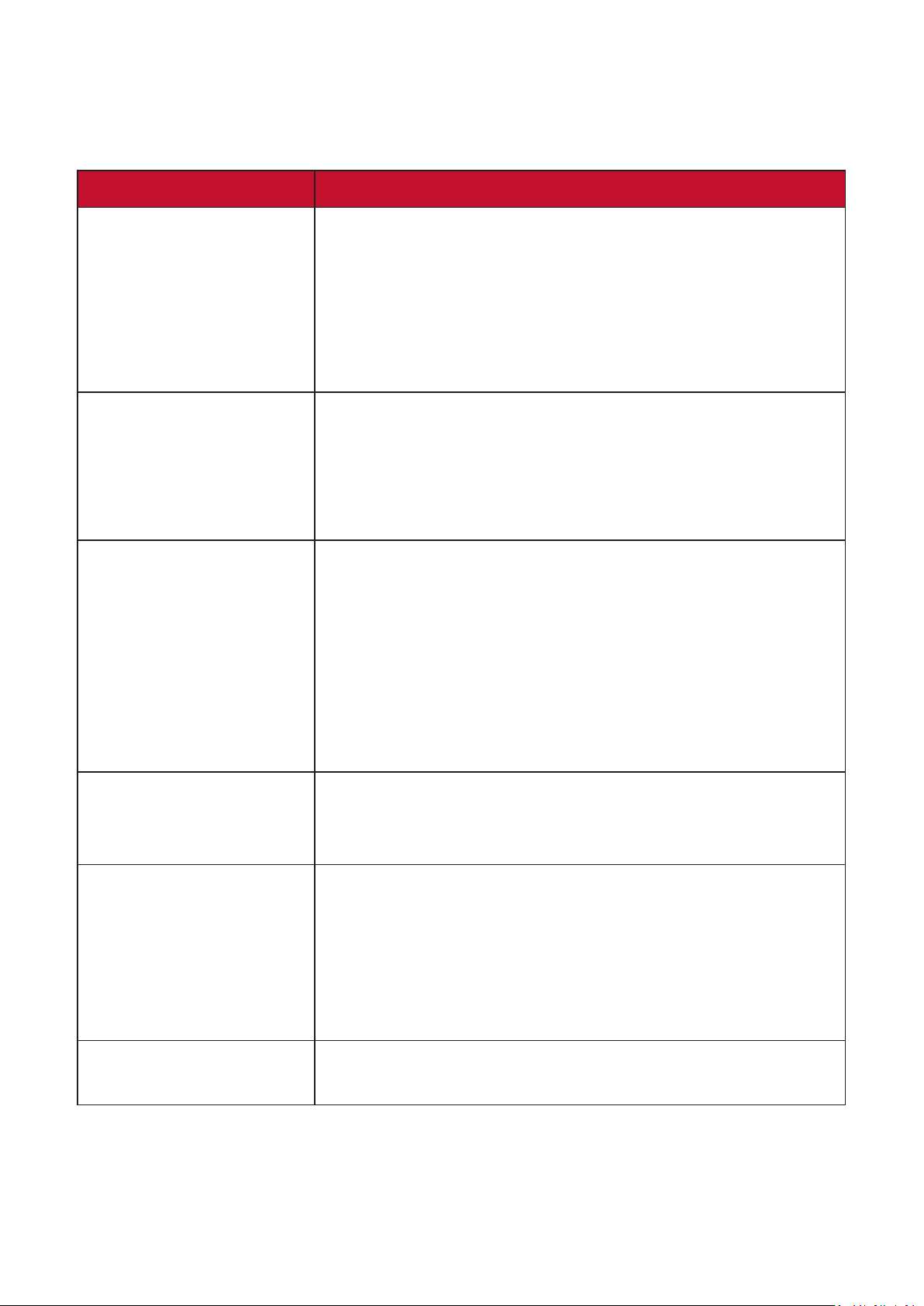
This secon describes some common problems that you may experience when
using the monitor.
Problem or Issue Possible Soluons
No power • Make sure you have turned on the monitor by
pressing the Power buon.
• Make sure the power cord is properly and securely
connected to the monitor and power outlet.
• Plug another electrical device into the power outlet
to verify that the outlet is supplying power.
Power is On, but no
image appears on
screen
• Make sure the video cable connecng the
monitor to the computer is properly and securely
connected.
• Adjust the brightness and contrast sengs.
• Make sure the correct input source is selected.
Wrong or abnormal
colors
• If any colors (red, green, or blue) are missing,
check the video cable to make sure it is properly
and securely connected. Loose or broken pins
in the cable connector could cause an improper
connecon.
• Connect the monitor to another computer.
• If you have an older graphics card, contact
ViewSonic® for a non-DDC adapter.
Screen image is too
light or dark
• Adjust brightness and contrast sengs via the OSD
Menu.
• Reset the monitor to factory sengs.
Screen image cuts in
and out
• Make sure the correct input source is selected.
• Check for bent or broken pins in the video cable
connector.
• Make sure the video cable connecng the
monitor to the computer is properly and securely
connected.
Screen image is
blurred
• Adjust the resoluon to the correct Aspect Rao.
• Reset the monitor to factory sengs.
68
Problem or Issue Possible Soluons
The screen isn’t
centered correctly
• Adjust the horizontal and vercal controls via the
OSD Menu.
• Check the Aspect Rao.
• Reset the monitor to factory sengs.
The screen appears
yellow
• Make sure the “Blue Light Filter” is O.
The OSD Menu
does not appear
on the screen/the
OSD controls are
inaccessible
• Check whether the OSD Menu is locked.
• Turn o the monitor, unplug the power cord, plug it
back in, and then turn on the monitor.
• Reset the monitor to factory sengs.
Control panel keys do
not work
• Press only one key at a me.
• Restart the computer.
Some menus aren’t
selectable in the OSD
• Adjust the ViewMode or the input source.
• Reset the monitor to factory sengs.
No audio output • If using ear-/headphones, ensure the mini stereo
jack is connected.
• Make sure the volume is not muted, nor set to 0.
• Check the Audio Input seng.
The monitor will not
adjust
• Make sure there are no obstrucons near or on the
monitor, and that there is adequate spacing.
• For more informaon, see “Adjusng the Viewing
Angle” on page 21.
USB devices connected
to the monitor do not
work
• Make sure the USB cable is connected properly.
• Try changing to another USB port (if applicable).
• Some USB devices require a higher electric current;
connect the device directly to the computer.
The external device
is connected, but no
image appears on the
screen
• Make sure the Power is On
• Adjust brightness and contrast via the OSD Menu.
• Check the connecng cable and make sure it
is properly and securely connected. Loose or
broken pins in the cable connector could cause an
improper connecon.

69
Maintenance
General Precauons
• Make sure the monitor is turned o and the power cable is unplugged from the
power outlet.
• Never spray or pour any liquid directly onto the screen or case.
• Handle the monitor with care, as a darker-colored monitor, if scued, may show
marks more clearly than a lighter-colored monitor.
Cleaning the Screen
• Wipe the screen with a clean, so, lint-free cloth. This removes dust and other
parcles.
• If the screen is sll not clean, apply a small amount of non-ammonia, non-
alcohol based glass cleaner onto a clean, so, lint-free cloth; then wipe the
screen.
Cleaning the Case
• Use a so, dry cloth.
• If the case is sll not clean, apply a small amount of non-ammonia, non-alcohol
based, mild non-abrasive detergent onto a clean, so, lint-free cloth, then wipe
the surface.
Disclaimer
• ViewSonic® does not recommend the use of any ammonia or alcohol-based
cleaners on the display screen or case. Some chemical cleaners have been
reported to damage the screen and/or case of the monitor.
• ViewSonic® will not be liable for damage resulng from use of any ammonia or
alcohol-based cleaners.

70
Regulatory and Service Informaon
Compliance Informaon
This secon addresses all connected requirements and statements regarding
regulaons. Conrmed corresponding applicaons shall refer to nameplate labels
and relevant markings on the unit.
FCC Compliance Statement
This device complies with part 15 of FCC Rules. Operaon is subject to the following
two condions: (1) this device may not cause harmful interference, and (2) this
device must accept any interference received, including interference that may
cause undesired operaon. This equipment has been tested and found to comply
with the limits for a Class B digital device, pursuant to part 15 of the FCC Rules.
These limits are designed to provide reasonable protecon against harmful
interference in a residenal installaon. This equipment generates, uses, and
can radiate radio frequency energy, and if not installed and used in accordance
with the instrucons, may cause harmful interference to radio communicaons.
However, there is no guarantee that interference will not occur in a parcular
installaon. If this equipment does cause harmful interference to radio or television
recepon, which can be determined by turning the equipment o and on, the user
is encouraged to try to correct the interference by one or more of the following
measures:
• Reorient or relocate the receiving antenna.
• Increase the separaon between the equipment and receiver.
• Connect the equipment into an outlet on a circuit dierent from that to which
the receiver is connected.
• Consult the dealer or an experienced radio/TV technician for help.
Warning: You are cauoned that changes or modicaons not expressly approved
by the party responsible for compliance could void your authority to operate the
equipment.
Industry Canada Statement
CAN ICES-3 (B)/NMB-3(B)
71
The following informaon is only for EU-member states:
The mark shown to the right is in compliance with the Waste Electrical
and Electronic Equipment Directive 2012/19/EU (WEEE). The mark
indicates the requirement NOT to dispose of the equipment as unsorted
municipal waste, but use the return and collection systems according to
local law.
Declaraon of RoHS2 Compliance
This product has been designed and manufactured in compliance with Direcve
2011/65/EU of the European Parliament and the Council on restricon of the use
of certain hazardous substances in electrical and electronic equipment (RoHS2
Direcve) and is deemed to comply with the maximum concentraon values issued
by the European Technical Adaptaon Commiee (TAC) as shown below:
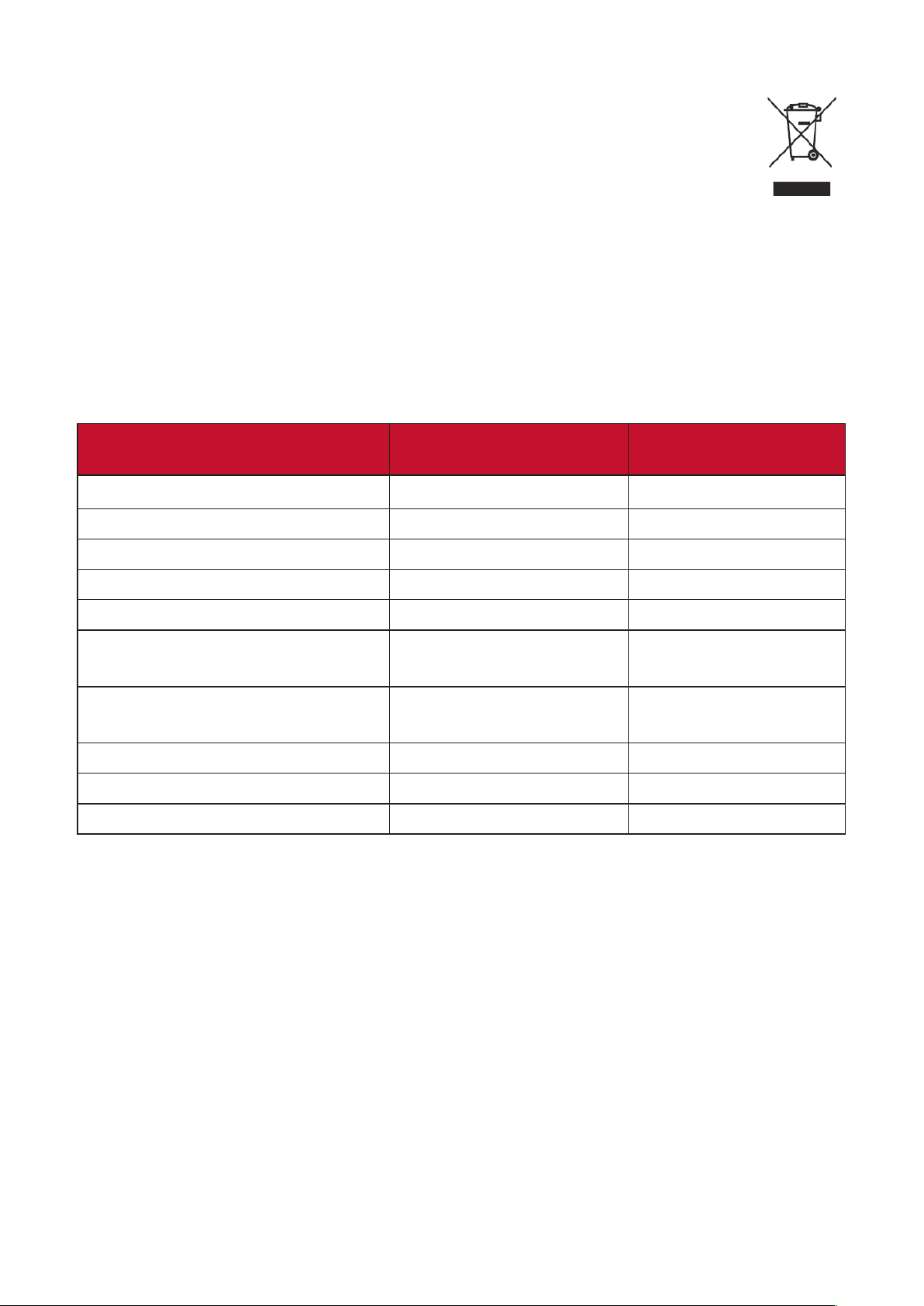
Substance Proposed Maximum
Concentraon
Actual Concentraon
Lead (Pb) 0.1% < 0.1%
Mercury (Hg) 0.1% < 0.1%
Cadmium (Cd) 0.01% < 0.01%
Hexavalent Chromium (Cr6⁺) 0.1% < 0.1%
Polybrominated biphenyls (PBB) 0.1% < 0.1%
Polybrominated diphenyl ethers
(PBDE)
0.1% < 0.1%
Bis (2-ethylhexyl) phthalate
(DEHP)
0.1% < 0.1%
Butyl benzyl phthalate (BBP) 0.1% < 0.1%
Dibutyl phthalate (DBP) 0.1% < 0.1%
Diisobutyl phthalate (DIBP) 0.1% < 0.1%
Certain components of products as stated above are exempted under the Annex
III of the RoHS2 Direcves as noted below. Examples of exempted components
are:
• Mercury in cold cathode uorescent lamps and external electrode uorescent
lamps (CCFL and EEFL) for special purposes not exceeding (per lamp):
Short length (≦ 500 mm): maximum 3.5 mg per lamp.
Medium length (> 500 mm and ≦ 1,500 mm): maximum 5 mg per lamp.
Long length (> 1,500 mm): maximum 13 mg per lamp.
• Lead in glass of cathode ray tubes.
• Lead in glass of uorescent tubes not exceeding 0.2% by weight.
• Lead as an alloying element in aluminum containing up to 0.4% lead by weight.
• Copper alloy containing up to 4% lead by weight.

72
• Lead in high melng temperature type solders (i.e. lead-based alloys containing
85% by weight or more lead).
• Electrical and electronic components containing lead in a glass or ceramic other
than dielectric ceramic in capacitors, e.g. piezoelectronic devices, or in a glass or
ceramic matrix compound.
Indian Restricon of Hazardous Substances
Restricon on Hazardous Substances statement (India). This product complies
with the “India E-waste Rule 2011” and prohibits use of lead, mercury, hexavalent
chromium, polybrominated biphenyls or polybrominated diphenyl ethers in
concentraons exceeding 0.1 weight % and 0.01 weight % for cadmium, except for
the exempons set in Schedule 2 of the Rule.
Product Disposal at End of Product Life
ViewSonic® respects the environment and is commied to working and living
green. Thank you for being part of Smarter, Greener Compung. Please visit the
ViewSonic® website to learn more.
USA & Canada:
http://www.viewsonic.com/company/green/recycle-program/
Europe:
http://www.viewsoniceurope.com/eu/support/call-desk/
Taiwan:
https://recycle.epa.gov.tw/

73
Copyright Informaon
Copyright© ViewSonic® Corporaon, 2019. All rights reserved.
Macintosh and Power Macintosh are registered trademarks of Apple Inc.
Microso, Windows, and the Windows logo are registered trademarks of Microso
Corporaon in the United States and other countries.
ViewSonic®, the three birds logo, OnView, ViewMatch, and ViewMeter are
registered trademarks of ViewSonic® Corporaon.
VESA is a registered trademark of the Video Electronics Standards Associaon.
DPMS, DisplayPort, and DDC are trademarks of VESA.
ENERGY STAR® is a registered trademark of the U.S. Environmental Protecon
Agency (EPA).
As an ENERGY STAR® partner, ViewSonic® Corporaon has determined that this
product meets the ENERGY STAR® guidelines for energy eciency.
Disclaimer: ViewSonic® Corporaon shall not be liable for technical or editorial
errors or omissions contained herein; nor for incidental or consequenal damages
resulng from furnishing this material, or the performance or use of this product.
In the interest of connuing product improvement, ViewSonic® Corporaon
reserves the right to change product specicaons without noce. Informaon in
this document may change without noce.
No part of this document may be copied, reproduced, or transmied by any means,
for any purpose without prior wrien permission from ViewSonic® Corporaon.
XG270Q_UG_ENG_Rev. 1A_2020-07-03
74
Customer Service
For technical support or product service, see the table below or contact your
reseller.
NOTE: You will need the product’s serial number.
Country/ Region Website Country/ Region Website
Asia Pacic & Africa
Australia www.viewsonic.com/au/ Bangladesh www.viewsonic.com/bd/
中国 (China)
www.viewsonic.com.cn
香港 (繁體中文)
www.viewsonic.com/hk/
Hong Kong (English) www.viewsonic.com/hk-en/ India www.viewsonic.com/in/
Indonesia www.viewsonic.com/id/ Israel www.viewsonic.com/il/
日本 (Japan)
www.viewsonic.com/jp/ Korea www.viewsonic.com/kr/
Malaysia www.viewsonic.com/my/ Middle East www.viewsonic.com/me/
Myanmar www.viewsonic.com/mm/ Nepal www.viewsonic.com/np/
New Zealand www.viewsonic.com/nz/ Pakistan www.viewsonic.com/pk/
Philippines www.viewsonic.com/ph/ Singapore www.viewsonic.com/sg/
臺灣 (Taiwan)
www.viewsonic.com/tw/
ประเทศไทย
www.viewsonic.com/th/
Việt Nam
www.viewsonic.com/vn/ South Africa & Maurius www.viewsonic.com/za/
Americas
United States www.viewsonic.com/us Canada www.viewsonic.com/us
Lan America www.viewsonic.com/la
Europe
Europe www.viewsonic.com/eu/ France www.viewsonic.com/fr/
Deutschland www.viewsonic.com/de/ Қазақстан www.viewsonic.com/kz/
Россия www.viewsonic.com/ru/ España www.viewsonic.com/es/
Türkiye www.viewsonic.com/tr/ Україна www.viewsonic.com/ua/
United Kingdom www.viewsonic.com/uk/

75
Limited Warranty
ViewSonic® Display
What the warranty covers:
ViewSonic® warrants its products to be free from defects in material and
workmanship during the warranty period. If a product proves to be defecve
in material or workmanship during the warranty period, ViewSonic® will, at its
sole opon, and as your sole remedy, repair or replace the product with a similar
product. Replacement Product or parts may include remanufactured or refurbished
parts or components. The repair or replacement unit or parts or components will
be covered by the balance of the me remaining on the customer’s original limited
warranty and the warranty period will not be extended. ViewSonic® provides
no warranty for any third-party soware whether included with the product or
installed by the customer, installaon of any unauthorized hardware parts or
components (e.g. Projector Lamps). (Please refer to: “What the warranty excludes
and does not cover” secon).
How long the warranty is eecve:
ViewSonic® displays are warranted for between 1 and 3 years, depending on your
country of purchase, for all parts including the light source and for all labor from
the date of the rst consumer purchase.
Who the warranty protects:
This warranty is valid only for the rst consumer purchaser.
What the warranty excludes and does not cover:
• Any product on which the serial number has been defaced, modied, or
removed.
• Damage, deterioraon, or malfuncon resulng from:
Accident, misuse, neglect, re, water, lightning, or other acts of nature,
unauthorized product modicaon, or failure to follow instrucons supplied
with the product.
Repair or aempted repair by anyone not authorized by ViewSonic®.
Damage to or loss of any programs, data, or removable storage media.
Normal wear and tear.
Removal or installaon of the product.
• Soware or data loss occurring during repair or replacement.
• Any damage of the product due to shipment.

76
• Causes external to the product, such as electric power uctuaons or failure.
• Use of supplies or parts not meeng ViewSonic’s specicaons.
• Failure of owner to perform periodic product maintenance as stated in the User
Guide.
• Any other cause which does not relate to a product defect.
• Damage caused by stac (non-moving) images displayed for lengthy periods of
me (also referred to as image burn-in).
• Soware - Any third-party soware included with the product or installed by the
customer.
• Hardware/Accessories/Parts/Components – Installaon of any unauthorized
hardware, accessories, consumable parts or components (e.g. Projector Lamps).
• Damage to, or abuse of, the coang on the surface of the display through
inappropriate cleaning as described in the product User Guide.
• Removal, installaon, and set-up service charges, including wall-mounng of the
product.
How to get service:
• For informaon about receiving service under warranty, contact ViewSonic®
Customer Support (Please refer to the “Customer Service” page). You will need
to provide your product’s serial number.
• To obtain warranty service, you will be required to provide: (a) the original dated
sales slip, (b) your name, (c) your address, (d) a descripon of the problem, and
(e) the serial number of the product.
• Take or ship the product, freight prepaid, in the original container to an
authorized ViewSonic® service center or ViewSonic®.
• For addional informaon or the name of the nearest ViewSonic® service center,
contact ViewSonic®.
Limitaon of implied warranes:
There are no warranes, express or implied, which extend beyond the descripon
contained herein including the implied warranty of merchantability and tness for a
parcular purpose.

77
Display Warranty Term Template In UG
VSC_TEMP_2007
Exclusion of damages:
ViewSonic’s liability is limited to the cost of repair or replacement of the product.
ViewSonic® shall not be liable for:
• Damage to other property caused by any defects in the product, damages
based upon inconvenience, loss of use of the product, loss of me, loss of
prots, loss of business opportunity, loss of goodwill, interference with business
relaonships, or other commercial loss, even if advised of the possibility of such
damages.
• Any other damages, whether incidental, consequenal or otherwise.
• Any claim against the customer by any other party.
• Repair or aempted repair by anyone not authorized by ViewSonic®.
Eect of state law:
This warranty gives you specic legal rights, and you may also have other rights
which vary from state to state. Some states do not allow limitaons on implied
warranes and/or do not allow the exclusion of incidental or consequenal
damages, so the above limitaons and exclusions may not apply to you.
Sales outside the U.S.A. and Canada:
For warranty informaon and service on ViewSonic® products sold outside of the
U.S.A. and Canada, contact ViewSonic® or your local ViewSonic® dealer.
The warranty period for this product in mainland China (Hong Kong, Macao,
and Taiwan Excluded) is subject to the terms and condions of the Maintenance
Guarantee Card.
For users in Europe and Russia, full details of warranty provided can be found at:
http://www.viewsonic.com/eu/ under “Support/Warranty Informaon”.

78
Mexico Limited Warranty
ViewSonic® Display
What the warranty covers:
ViewSonic® warrants its products to be free from defects in material and
workmanship, under normal use, during the warranty period. If a product
proves to be defecve in material or workmanship during the warranty period,
ViewSonic® will, at its sole opon, repair or replace the product with a like product.
Replacement product or parts may include remanufactured or refurbished parts or
components & accessories.
How long the warranty is eecve:
ViewSonic® LCD displays are warranted for between 1 and 3 years, depending on
your country of purchase, for all parts including the light source and for all labour
from the date of the rst consumer purchase.
Who the warranty protects:
This warranty is valid only for the rst consumer purchaser.
What the warranty excludes and does not cover:
• Any product on which the serial number has been defaced, modied or
removed.
• Damage, deterioraon, or malfuncon resulng from:
Accident, misuse, neglect, re, water, lightning, or other acts of nature,
unauthorized product modicaon, unauthorized aempted repair, or
failure to follow instrucons supplied with the product.
Causes external to the product, such as electrical power uctuaons or
failure.
Use of supplies or parts not meeng ViewSonic®’s specicaons.
Normal wear and tear.
Any other cause which does not relate to a product defect.
• Any product exhibing a condion commonly known as “image burn-in” which
results when a stac image is displayed on the product for an extended period of
me.
• Removal, installaon, insurance, and set-up service charges.

79
How to get service:
For informaon about receiving service under warranty, contact ViewSonic®
Customer Support (Please refer to the aached “Customer Service” page). You
will need to provide your product’s serial number, so please record the product
informaon in the space provided below on your purchase for your future use.
Please retain your receipt of proof of purchase to support your warranty claim.
For Your Records
Product Name: Model Number:
Document Number: Serial Number:
Purchase Date: Extended Warranty Purchase? (Y/N)
If so, what date does warranty expire?
• To obtain warranty service, you will be required to provide (a) the original dated
sales slip, (b) your name, (c) your address, (d) a descripon of the problem, and
(e) the serial number of the product.
• Take or ship the product, in the original container packaging, to an authorized
ViewSonic® service center.
• Round trip transportaon costs for in-warranty products will be paid by
ViewSonic®.
Limitaon of implied warranes:
There are no warranes, express or implied, which extend beyond the descripon
contained herein including the implied warranty of merchantability and tness for a
parcular purpose.
Exclusion of damages:
ViewSonic®’s liability is limited to the cost of repair or replacement of the product.
ViewSonic® shall not be liable for:
• Damage to other property caused by any defects in the product, damages
based upon inconvenience, loss of use of the product, loss of me, loss of
prots, loss of business opportunity, loss of goodwill, interference with business
relaonships, or other commercial loss, even if advised of the possibility of such
damages.
• Any other damages, whether incidental, consequenal or otherwise.
• Any claim against the customer by any other party.
• Repair or aempted repair by anyone not authorized by ViewSonic®.
80
Contact Informaon for Sales & Authorized Service (Centro Autorizado de Servicio) within Mexico:
Name, address, of manufacturer and importers:
México, Av. de la Palma #8 Piso 2 Despacho 203, Corporavo Interpalmas,
Col. San Fernando Huixquilucan, Estado de México
Tel: (55) 3605-1099 hp://www.viewsonic.com/la/soporte/index.htm
NÚMERO GRATIS DE ASISTENCIA TÉCNICA PARA TODO MÉXICO: 001.866.823.2004
Hermosillo:
Distribuciones y Servicios Computacionales SA de CV.
Calle Juarez 284 local 2
Col. Bugambilias C.P: 83140
Tel: 01-66-22-14-9005
E-Mail: [email protected]ared.net.mx
Villahermosa:
Compumantenimietnos Garanzados, S.A. de C.V.
AV. GREGORIO MENDEZ #1504
COL, FLORIDA C.P. 86040
Tel: 01 (993) 3 52 00 47 / 3522074 / 3 52 20 09
E-Mail: compumantenimientos@prodigy.net.mx
Puebla, Pue. (Matriz):
RENTA Y DATOS, S.A. DE C.V. Domicilio:
29 SUR 721 COL. LA PAZ
72160 PUEBLA, PUE.
Tel: 01(52).222.891.55.77 CON 10 LINEAS
E-Mail: dat[email protected]x
Veracruz, Ver.:
CONEXION Y DESARROLLO, S.A DE C.V. Av.
Americas # 419
ENTRE PINZÓN Y ALVARADO
Fracc. Reforma C.P. 91919
Tel: 01-22-91-00-31-67
E-Mail: g[email protected]om.mx
Chihuahua:
Soluciones Globales en Computación
C. Magisterio # 3321 Col. Magisterial
Chihuahua, Chih.
Tel: 4136954
E-Mail: Cef[email protected]
Cuernavaca:
Compusupport de Cuernavaca SA de CV
Francisco Leyva # 178 Col. Miguel Hidalgo
C.P. 62040, Cuernavaca Morelos
Tel: 01 777 3180579 / 01 777 3124014
E-Mail: aquev[email protected]om
Distrito Federal:
QPLUS, S.A. de C.V.
Av. Coyoacán 931
Col. Del Valle 03100, México, D.F.
Tel: 01(52)55-50-00-27-35
E-Mail : g[email protected]om.mx
Guadalajara, Jal.:
SERVICRECE, S.A. de C.V.
Av. Niños Héroes # 2281
Col. Arcos Sur, Sector Juárez
44170, Guadalajara, Jalisco
Tel: 01(52)33-36-15-15-43
E-Mail: mmir[email protected]
Guerrero Acapulco:
GS Computación (Grupo Sesicomp)
Progreso #6-A, Colo Centro
39300 Acapulco, Guerrero
Tel: 744-48-32627
Monterrey:
Global Product Services
Mar Caribe # 1987, Esquina con Golfo Pérsico
Fracc. Bernardo Reyes, CP 64280
Monterrey N.L. México
Tel: 8129-5103
E-Mail: a[email protected]
MERIDA:
ELECTROSER
Av Reforma No. 403Gx39 y 41
Mérida, Yucatán, México CP97000
Tel: (52) 999-925-1916
E-Mail: rrrb@sureste.com
Oaxaca, Oax.:
CENTRO DE DISTRIBUCION Y
SERVICIO, S.A. de C.V.
Murguía # 708 P.A., Col. Centro, 68000, Oaxaca
Tel: 01(52)95-15-15-22-22
Fax: 01(52)95-15-13-67-00
E-Mail. [email protected]om
Tijuana:
STD
Av Ferrocarril Sonora #3780 L-C
Col 20 de Noviembr
Tijuana, Mexico
FOR USA SUPPORT:
ViewSonic® Corporaon
381 Brea Canyon Road, Walnut, CA. 91789 USA
Tel: 800-688-6688
E-Mail: hp://www.viewsonic.com
LCD Mexico Warranty Term Template In UG
VSC_TEMP_2008