WIRELESS NETWORK CD MUSIC SYSTEM
S-52
Owner’s Manual
Manuel de l’Utilisateur
Manual del usuario
I
n
SAFETY PRECAUTIONS
CAUTION
RISK OF ELECTRIC SHOCK
DO NOT OPEN
CAUTION:
TO REDUCE THE RISK OF ELECTRIC SHOCK, DO NOT REMOVE
COVER (OR BACK). NO USER-SERVICEABLE PARTS INSIDE.
REFER SERVICING TO QUALIFIED SERVICE PERSONNEL.
The lightning flash with arrowhead symbol, within an equilateral
triangle, is intended to alert the user to the presence of
uninsulated “dangerous voltage” within the product’s enclosure
that may be of sufficient magnitude to constitute a risk of electric
shock to persons.
The exclamation point within an equilateral triangle is intended
to alert the user to the presence of important operating
and maintenance (servicing) instructions in the literature
accompanying the appliance.
WARNING:
TO REDUCE THE RISK OF FIRE OR ELECTRIC SHOCK, DO NOT
EXPOSE THIS APPLIANCE TO RAIN OR MOISTURE.
IMPOTANT SAFETY
INSTRUCTIONS
1. Read these instructions.
2. Keep these instructions.
3. Heed all warnings.
4. Follow all instructions.
5. Do not use this apparatus near water.
6. Clean only with dry cloth.
7. Do not block any ventilation openings.
Install in accordance with the manufacturer’s instructions.
8. Do not install near any heat sources such as radiators, heat registers, stoves,
or other apparatus (including amplifiers) that produce heat.
9. Do not defeat the safety purpose of the polarized or grounding-type plug. A
polarized plug has two blades with one wider than the other. A grounding
type plug has two blades and a third grounding prong. The wide blade or the
third prong are provided for your safety. If the provided plug does not fit into
your outlet, consult an electrician for replacement of the obsolete outlet.
10. Protect the power cord from being walked on or pinched particularly at
plugs, convenience receptacles, and the point where they exit from the
apparatus.
11. Only use attachments/accessories specified by the manufacturer.
12. Use only with the cart, stand, tripod, bracket, or table
specified by the manufacturer, or sold with the apparatus.
When a cart is used, use caution when moving the cart/
apparatus combination to avoid injury from tip-over.
13. Unplug this apparatus during lightning storms or when
unused for long periods of time.
14. Refer all servicing to qualified service personnel.
Servicing is required when the apparatus has been damaged in any way,
such as power-supply cord or plug is damaged, liquid has been spilled or
objects have fallen into the apparatus, the apparatus has been exposed to
rain or moisture, does not operate normally, or has been dropped.
15. Batteries shall not be exposed to excessive heat such as sunshine, fire or
the like.
CAUTION:
USE OF CONTROLS OR ADJUSTMENTS OR PERFORMANCE
OF PROCEDURES OTHER THAN THOSE SPECIFIED HEREIN MAY
RESULT IN HAZARDOUS RADIATION EXPOSURE.
THIS PRODUCT SHOULD NOT BE ADJUSTED OR REPAIRED BY
ANYONE EXCEPT PROPERLY QUALIFIED SERVICE PERSONNEL.
n
Laser Class (IEC 60825-1:2001)
n
Copyrights / Droits d’auteur / Derechos de Autor
• It is prohibited by law to reproduce, broadcast, rent or play discs in
public without the consent of the copyright holder.
• La reproduction, la diffusion, la location, le prêt ou la lecture
publique de ces disques sont interdits sans le consentement du
détenteur des droits d’auteur.
• De acuerdo con las leyes está prohibido reproducir, emitir, alquilar
o interpretar discos en público sin la autorización del propietario de
los derechos de autor.
ESPAÑOLENGLISH FRANCAIS
$-"44
-"4&3
130%6$5
n
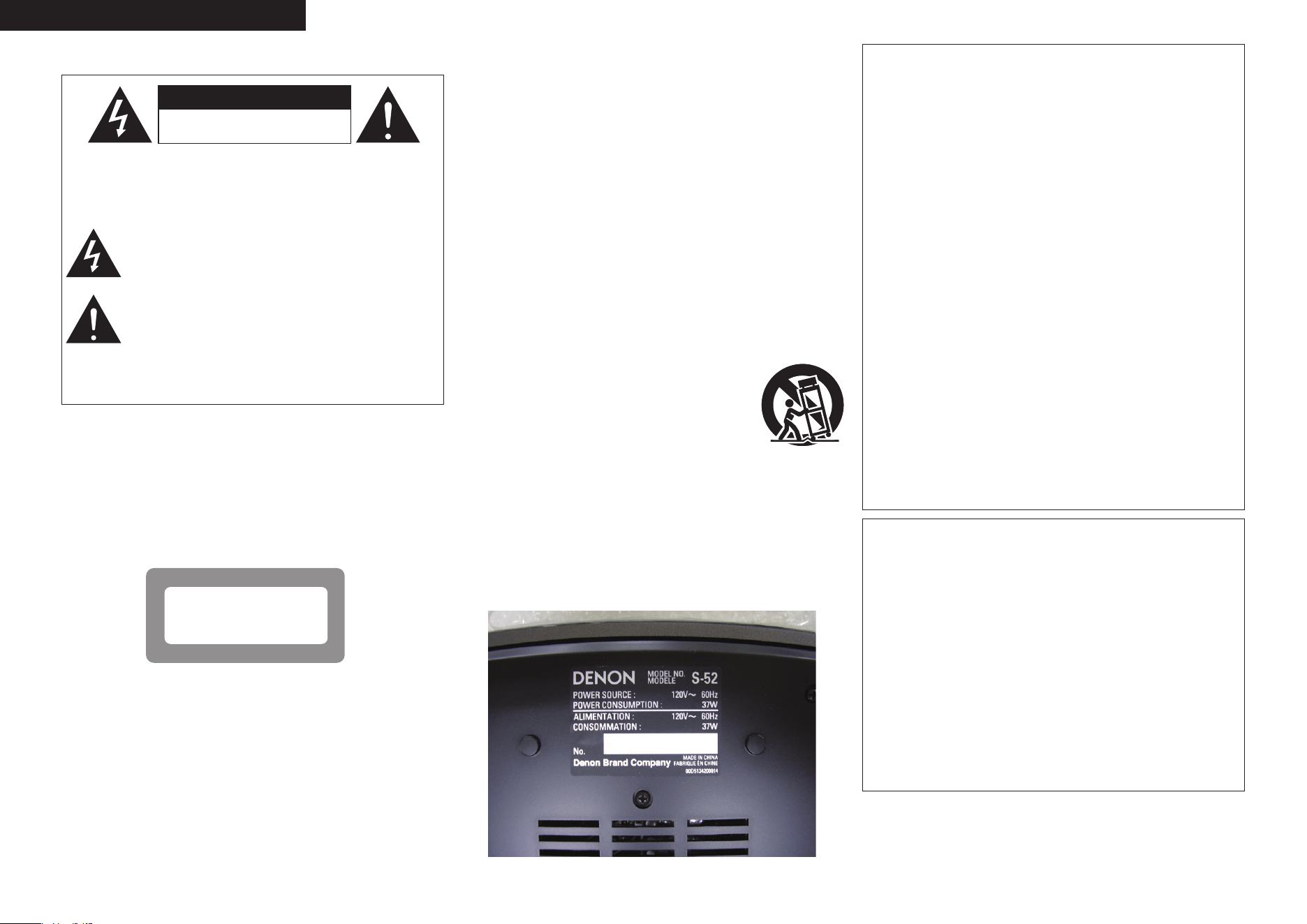
Rating Label
LOCATION: BOTTOM
CAUTION:
• The ventilation should not be impeded by covering the ventilation
openings with items, such as newspapers, tablecloths, curtains,
etc.
• No naked flame sources, such as lighted candles, should be
placed on the unit.
• Observe and follow local regulations regarding battery disposal.
• Do not expose the unit to dripping or splashing fluids.
• Do not place objects filled with liquids, such as vases, on the
unit.
ATTENTION:
• La ventilation ne doit pas être gênée en recouvrant les ouvertures
de la ventilation avec des objets tels que journaux, rideaux, tissus,
etc.
• Aucune flamme nue, par exemple une bougie, ne doit être placée
sur l’appareil.
• Veillez à respecter les lois en vigueur lorsque vous jetez les piles
usagées.
• L’appareil ne doit pas être exposé à l’eau ou à l’humidité.
• Ne pas poser d’objet contenant du liquide, par exemple un vase,
sur l’appareil.
PRECAUCIÓN:
• La ventilación no debe quedar obstruida por haberse cubierto las
aperturas con objetos como periódicos, manteles, cortinas, etc.
• No debe colocarse sobre el aparato ninguna fuente inflamable sin
protección, como velas encendidas.
• A la hora de deshacerse de las pilas, respete la normativa para el
cuidado del medio ambiente.
• No exponer el aparato al goteo o salpicaduras cuando se utilice.
• No colocar sobre el aparato objetos llenos de líquido, como
jarros.
CAUTION:
To completely disconnect this product from the mains, disconnect
the plug from the wall socket outlet.
The mains plug is used to completely interrupt the power supply to
the unit and must be within easy access by the user.
PRECAUTION:
Pour déconnecter complètement ce produit du courant secteur,
débranchez la prise de la prise murale.
La prise secteur est utilisée pour couper complètement
l’alimentation de l’appareil et l’utilisateur doit pouvoir y accéder
facilement.
PRECAUCIÓN:
Para desconectar completamente este producto de la alimentación
eléctrica, desconecte el enchufe del enchufe de la pared.
El enchufe de la alimentación eléctrica se utiliza para interrumpir por
completo el suministro de alimentación eléctrica a la unidad y debe
de encontrarse en un lugar al que el usuario tenga fácil acceso.
II
FCC Information (For US customers)
1. COMPLIANCE INFORMATION
Product Name: Wireless Network CD Music System
Model Number: S-52
This product contains FCC ID: BV2- MPGBR052.
This product complies with Part 15 of the FCC Rules. Operation is subject to the following two conditions: (1) this
product may not cause harmful interference, and (2) this product must accept any interference received, including
interference that may cause undesired operation.
Denon Electronics (USA), LLC
100 Corporate Drive, Mahwah, NJ 07430-2041
Tel. 201-762-6500 (Main)
2. IMPORTANT NOTICE: DO NOT MODIFY THIS PRODUCT
This product, when installed as indicated in the instructions contained in this manual, meets FCC requirements.
Modification not expressly approved by DENON may void your authority, granted by the FCC, to use the product.
3. CAUTION
• To comply with FCC RF exposure compliance requirement, separation distance of at least 20 cm must be
maintained between the antenna of this product and all persons.
• This product and its antenna must not be co-located or operating in conjunction with any other antenna or
transmitter.
4. NOTE
This product has been tested and found to comply with the limits for a Class B digital device, pursuant to Part 15
of the FCC Rules. These limits are designed to provide reasonable protection against harmful interference in a
residential installation.
This product generates, uses and can radiate radio frequency energy and, if not installed and used in accordance
with the instructions, may cause harmful interference to radio communications. However, there is no guarantee
that interference will not occur in a particular installation. If this product does cause harmful interference to radio or
television reception, which can be determined by turning the product OFF and ON, the user is encouraged to try to
correct the interference by one or more of the following measures:
• Reorient or relocate the receiving antenna.
• Increase the separation between the equipment and receiver.
• Connect the product into an outlet on a circuit different from that to which the receiver is connected.
• Consult the local retailer authorized to distribute this type of product or an experienced radio/TV technician for
help.
IC Information (For Canadian customers)
1. PRODUCT
This product contains IC 6963A-MPGBR052.
This product complies with RSS-210 of Industry Canada. Operation is subject to the following two conditions:
(1) this product may not cause harmful interference, and (2) this product must accept any interference received,
including interference that may cause undesired operation.
This Class B digital apparatus complies with Canadian ICES-003.
APPAREIL
Cet appareil contiens IC 6963A- MPGBR052.
Cet appareil est conforme à la norme CNR-210 du Canada. L
’utilisation de ce dispositif est autorisée seulement
aux deux conditions suivantes : (1) il ne doit pas produire de brouillage, et (2) l’utilisateur du dispositif doit être
prêt à accepter tout brouillage radioélectrique reçu, même si ce brouillage est susceptible de compromettre le
fonctionnement du dispositif.
Cet appareil numérique de la classe B est conforme à la norme NMB-003 du Canada.
2. CAUTION
To reduce potential radio interference to other users, the antenna type and its gain should be so chosen that the
equivalent isotropically radiated power (e.i.r.p.) is not more than that permitted for successful communication.
ATTENTION
Afin de réduire le risque d’interférence aux autres utilisateurs, il faut choisir le type d’antenne et son gain de façon à
ce que la puissance isotrope rayonnée équivalente (p.i.r.e.) ne soit pas supérieure au niveau requis pour l’obtention
d’une communication satisfaisante.
ENGLISHFRANCAISESPAÑOL
III
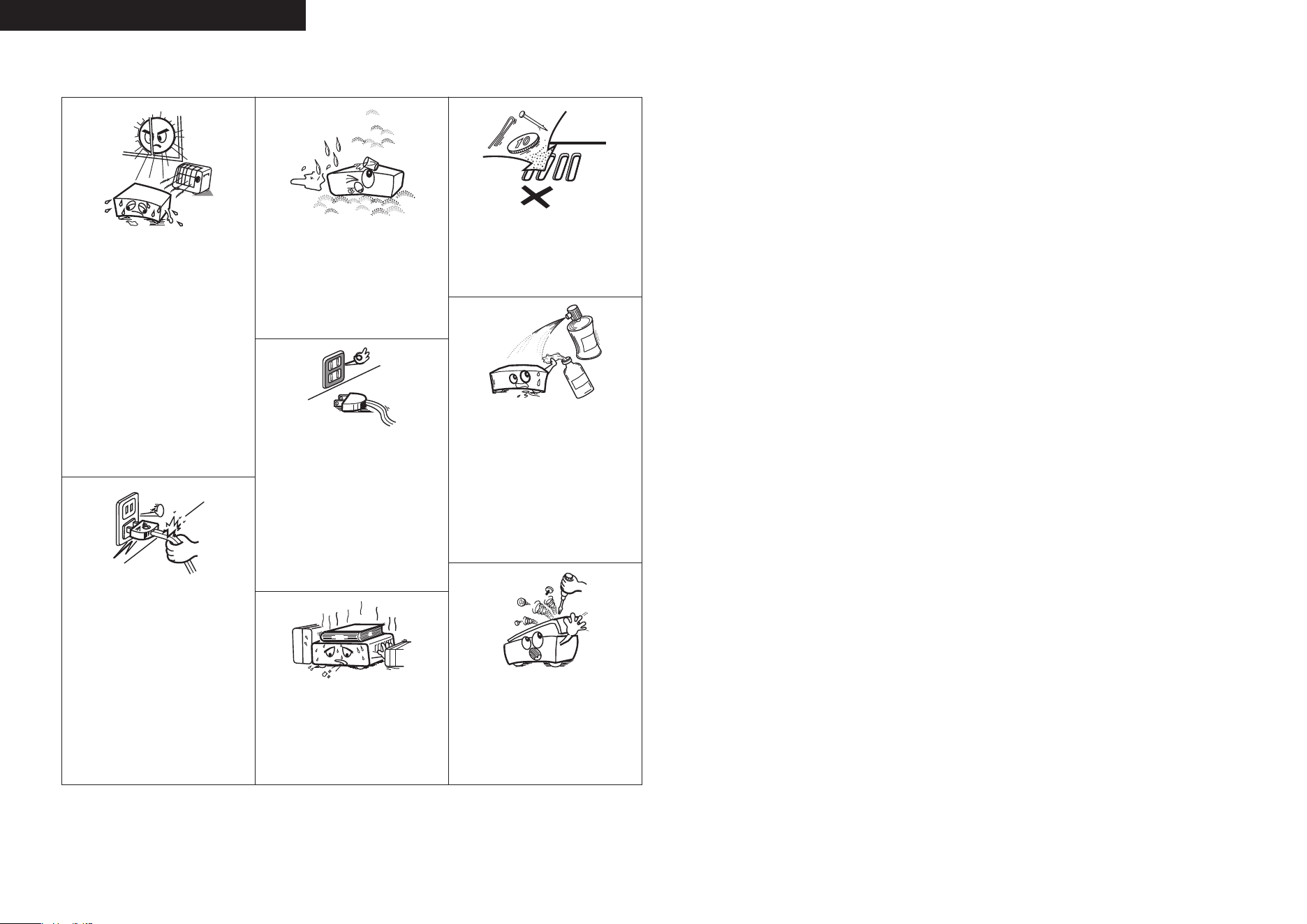
• Avoid high temperatures.
Allow for sufficient heat dispersion when
installed in a rack.
• Eviter des températures élevées.
Tenir compte d’une dispersion de chaleur
suffisante lors de l’installation sur une
étagère.
• Evite altas temperaturas.
Permite la suficiente dispersión del calor
cuando está instalado en la consola.
• Handle the power cord carefully.
Hold the plug when unplugging the cord.
• Manipuler le cordon d’alimentation avec
précaution.
Tenir la prise lors du débranchement du
cordon.
• Maneje el cordón de energía con cuidado.
Sostenga el enchufe cuando desconecte el
cordón de energía.
• Keep the unit free from moisture, water,
and dust.
• Protéger l’appareil contre l’humidité, l’eau
et la poussière.
• Mantenga el equipo libre de humedad,
agua y polvo.
• Unplug the power cord when not using the
unit for long periods of time.
• Débrancher le cordon d’alimentation
lorsque l’appareil n’est pas utilisé pendant
de longues périodes.
• Desconecte el cordón de energía cuando
no utilice el equipo por mucho tiempo.
* (For apparatuses with ventilation holes)
• Do not obstruct the ventilation holes.
• Ne pas obstruer les trous d’aération.
• No obstruya los orificios de ventilación.
• Do not let foreign objects into the unit.
• Ne pas laisser des objets étrangers dans
l’appareil.
• No deje objetos extraños dentro del
equipo.
• Do not let insecticides, benzene, and
thinner come in contact with the unit.
• Ne pas mettre en contact des insecticides,
du benzène et un diluant avec l’appareil.
• No permita el contacto de insecticidas,
gasolina y diluyentes con el equipo.
• Never disassemble or modify the unit in
any way.
• Ne jamais démonter ou modifier l’appareil
d’une manière ou d’une autre.
• Nunca desarme o modifique el equipo de
ninguna manera.
n
NOTE ON USE / OBSERVATIONS RELATIVES A L’UTILISATION / NOTAS
SOBRE EL USO
ESPAÑOLENGLISH FRANCAIS
ENGLISH
Accessories ······················································································2
Cautions on Handling ·····································································2
Cautions on Installation ·································································2
Discs ·································································································3
Discs Usable on the S-52 ·······························································3
Holding Discs ·················································································3
Loading Discs ·················································································3
Cautions on Loading Discs ·····························································3
Cautions on Handling ·····································································3
Cautions on Storing Discs ······························································3
Cleaning Discs ···············································································3
About the Remote Control Unit ····················································4
Inserting the Batteries ····································································4
Operating Range of the Remote Control Unit ································4
Part Names and Functions ·····························································5
Top Panel ························································································5
Front Panel ·····················································································5
Rear Panel ······················································································6
Remote Control Unit ······································································6
Getting Started
Connections
Contents
Preparations ····················································································7
Cables Used for Connections ························································7
Connecting the Playback Components ········································7
iPod
®
·····························································································7
Connections to Other Devices ·······················································7
Antenna Terminals ·······································································7, 8
XM Connector ················································································8
USB Port ························································································8
Connection to a Subwoofer ···························································8
Network Audio ···············································································9
Connecting the Power Cord ························································· 10
Menu Operations
Operations ····················································································· 11
Menu Map ····················································································· 11
Setup
SETUP ···························································································· 11
a Clock ······················································································· 11
s Network Setting ······························································12 ~ 14
d Firmware Update ···································································· 14
Preparations ·················································································· 15
Turning the Function ON and OFF ················································15
Input Source Switching ·······························································15
Adjusting the Master Volume ······················································ 15
Switching the Display ·································································· 15
Switching the Display’s Brightness ············································ 15
Listening with Headphones ························································· 15
Playing Network Audio································································· 16
Listening to Internet Radio ·························································· 17
Tuning in Broadcast Stations ························································ 17
Listening to PC Music···································································18
Playing Files Stored on a Computer ·············································18
Listening to Rhapsody ·································································19
About Rhapsody ··········································································· 19
Listening to Rhapsody ································································· 19
Enter a Character Search For the Track You Want to Listen to ······ 19
Search From Rhapsody Latest Information ·································· 19
Registering Tracks in My Library ··················································· 19
Listening to Tracks Registered in My Library ································ 19
Displaying the Search Menu During Play ····································· 19
Listening to iPod ···········································································20
iPod
®
Playback ·············································································20
Listening to Music ·······································································20
Listening to FM/AM ·····································································21
Listening to HD Radio Stations ···················································21
Selecting Audio Programs ····························································21
Tuning in Broadcast Stations ························································21
Presetting Radio Stations (Preset Memory) ·································21
Listening to Preset Stations ·························································21
Listening to XM ············································································22
Listening to XM Satellite Radio Programs ·································22
Checking the XM Signal Level and Radio ID ································22
Channel Selection ········································································22
Searching Categories/Searching Direct ········································23
Listening to CD ·············································································23
Playing a CD ·················································································23
Various Playback Function ····························································23
Playing Music Files ·······································································24
Before Playing MP3 or WMA Files ···············································24
Creating MP3 and WMA Files Compatible
with the S-52 (CD-R/CD-RW) ·······················································24
Playing MP3 or WMA Files ··························································24
Listening to USB ···········································································25
Playing Files Stored on USB Memory Devices ····························25
Various Playback Function ····························································25
Listening to AUX ···········································································26
Playing a Portable Audio ······························································26
Favorite ··························································································26
Playback Advanced Operation
Alarm Setting ················································································27
Setting the Sleep Timer ·······························································27
Convenient Functions ··································································28
Personal Memory Plus Function ··················································28
Last Function Memory ·································································28
Backup Memory ···········································································28
Auto Power On ·············································································28
Resetting the Microprocessor ······················································28
Troubleshooting ···································································31 ~ 33
Specifications ··············································································· 34
Other Information ································································· 29 , 30
Connections Setup Playback Information Troubleshooting
ENGLISH
• Before turning the power switch on
Check once again that all connections are correct and that there are
no problems with the connection cables.
•
Power is supplied to some of the circuitry even when the unit is
set to the standby mode. When traveling or leaving home for long
periods of time, be sure to unplug the power cord from the power
outlet.
• Sufficiently ventilate the place of installation
If the unit is left in a room full of the smoke from cigarettes, etc., for
long periods of time, the surface of the optical pickup could get dirty,
in which case it will not be able to read the signals properly.
• About condensation
If there is a major difference in temperature between the inside of
the unit and the surroundings, condensation (dew) may form on
the operating parts inside the unit, causing the unit not to operate
properly.
If this happens, let the unit sit for an hour or two with the power
turned off and wait until there is little difference in temperature
before using the unit.
• Cautions on using mobile phones
Using a mobile phone near this unit may result in noise. If so, move
the mobile phone away from this unit when it is in use.
• Moving the unit
Turn off the power and unplug the power cord from the power
outlet.
Next, disconnect the connection cables to other system units before
moving the unit.
•
Note that the illustrations in these instructions may differ from the
actual unit for explanation purposes.
Cautions on Handling
Note:
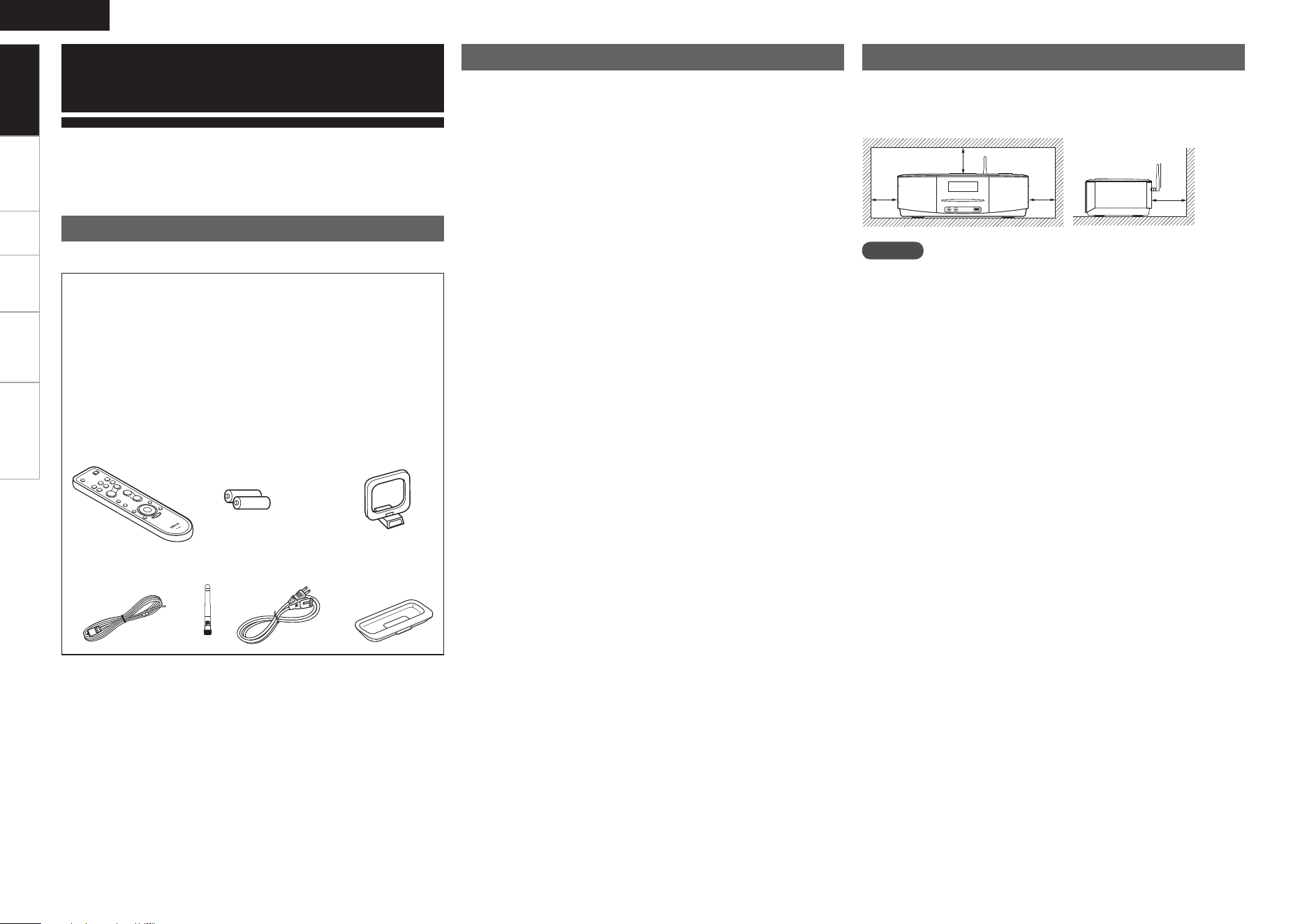
For proper heat dispersal, do not install this unit in a confined
space, such as a bookcase or similar enclosure.
Cautions on Installation
b Note
b b b
Wall
Check that the following parts are supplied with the product.
Thank you for purchasing this DENON product. To ensure proper
operation, please read this owner’s manual carefully before using the
product.
After reading them, be sure to keep them for future reference.
Getting Started
Accessories
Getting Started
w
e
yt
q
r u
q Remote control (RC-1083) .......................................................1
w R03/AAA batteries ..................................................................2
e AM loop antenna ..................................................................... 1
r FM indoor antenna ..................................................................1
t Rod antenna for wireless LAN ................................................. 1
y Power cord (Cord length: Approx. 6 ft / 2 m) ........................... 1
u Universal Adapter (3 types) .............................................1 each
i Owner’s manual ......................................................................1
o Warranty (for North America model only) ................................ 1
Q0 Service station list ................................................................... 1
NOTE
• If the bass is unusually strong, then place unit on a hard stand such
as a concrete block etc.
• There are strong magnets attached to the speakers on the S-52. Do
not place watches, magnetic tapes etc. near them.
• Sometimes the color on the S-52 may become distorted on
account of the type of television used. When this happens, turn
off the television and then turn it back on after 15-30 minutes. The
television’s own degaussing circuit should improve the screen. If the
color distortion remains, move the main unit further away from the
television.
Connections Setup Playback Information Troubleshooting
ENGLISH
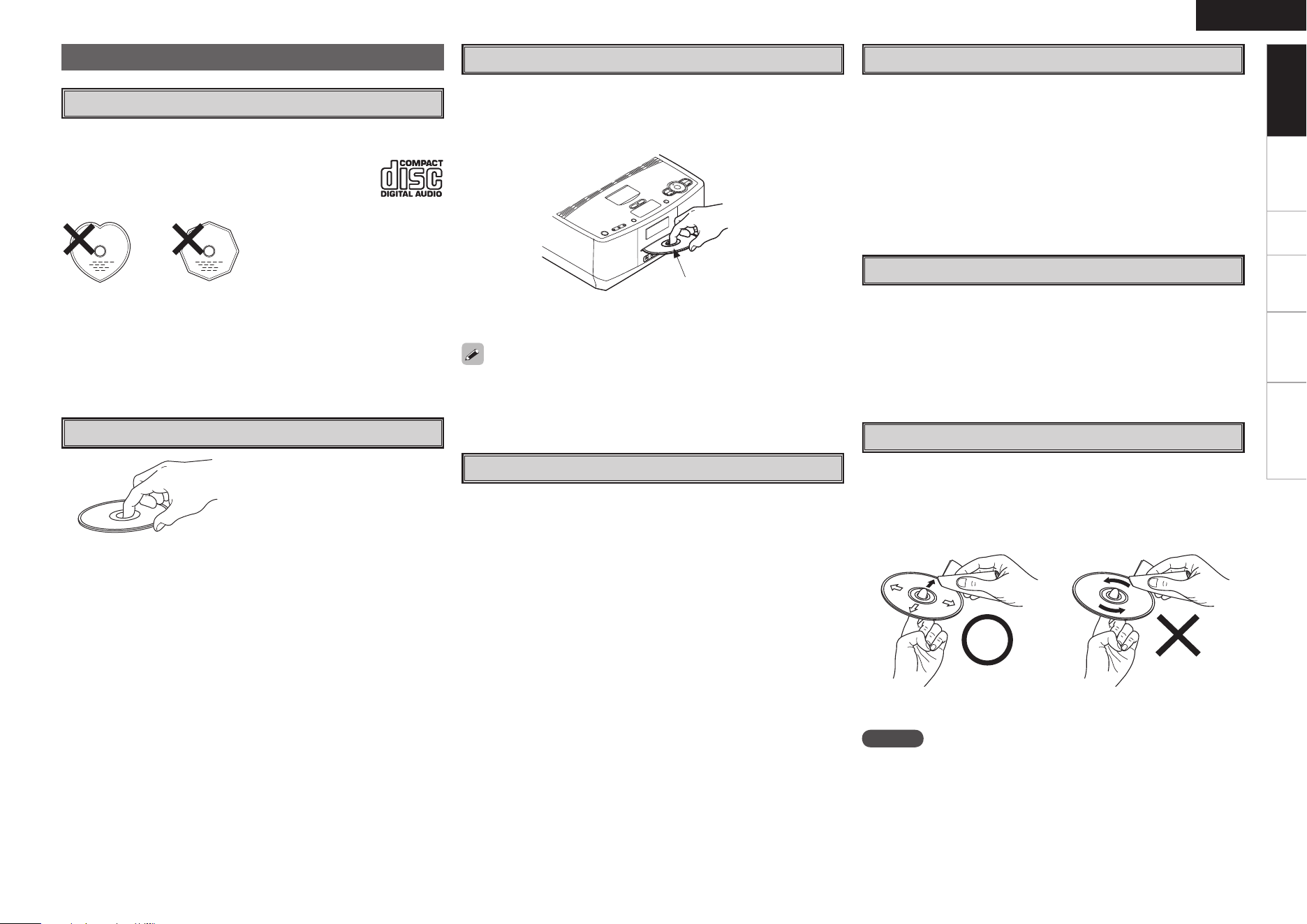
q Music CDs
Discs marked with the logotype below can be played in this unit.
Discs with special shapes (heart-shaped discs, octagonal
discs, etc.) cannot be played. Do not attempt to play
them, as doing so can damage the product.
Do not touch the signal surface.
•
Set the disc with the labeled side facing up.
• Insert the disc into the CD slot slowly. Release your hand once the
disc is drawn in.
Discs
Discs Usable on the S-52
b Playing discs with special shapes
could damage the set. Do not use
such discs.
w CD-R/CD-RW
Some discs and some recording formats may not be playable.
Non-finalized discs cannot be played.
b What is finalization?
Finalization is the process that makes recorded CD-R/CD-RW discs
playable on compatible players.
Holding Discs
Loading Discs
12 cm disc
In the following cases, “No Disc” is shown on the display:
• When no disc is loaded.
• When the disc is loaded upside-down.
• When the disc’s information could not be read properly.
Cautions on Loading Discs
• Only load one disc at a time. Loading two or more discs can damage
the unit or scratch the discs.
• Do not use cracked or warped discs or discs that have been repaired
with adhesive, etc.
• Do not use discs on which the sticky part of cellophane tape or labels
is exposed or on which there are traces of where labels have been
removed. Such discs can get caught inside the player and damage
it.
Cautions on Handling
• Do not get fingerprints, oil or dirt on discs.
• Take special care not to scratch discs when removing them from
their cases.
• Do not bend or heat discs.
• Do not enlarge the hole at the center.
• Do not write on the labeled (printed) surface with ball-point pens,
pencils, etc., or stick new labels on discs.
• Water droplets may form on discs if they are moved suddenly from a
cold place (outdoors for example) to a warm place, but do not try to
dry them off using a hairdryer, etc.
Cautions on Storing Discs
• Be sure to remove discs after using them.
• Be sure to store discs in their cases to protect them from dust,
scratches, warping, etc.
• Do not store discs in the following places:
1. Places exposed to direct sunlight for long periods of time
2. Dusty or humid places
3. Places exposed to heat from heating appliances, etc.
Cleaning Discs
• If there are fingerprints or dirt on discs, wipe them off before using
the disc. Fingerprints and dirt can impair sound quality and cause
interruptions in playback.
• Use a commercially available disc cleaning set or a soft cloth to clean
discs.
Gently wipe the disc from the
inside towards the outside.
Do not wipe with a circular
motion.
NOTE
Do not use record spray, antistatic agents, or benzene, thinner or other
solvents.
•
8 cm discs cannot be used on this player. Do not insert 8 cm discs
into the CD slot.
Getting Started
Connections Setup Playback Information Troubleshooting
ENGLISH
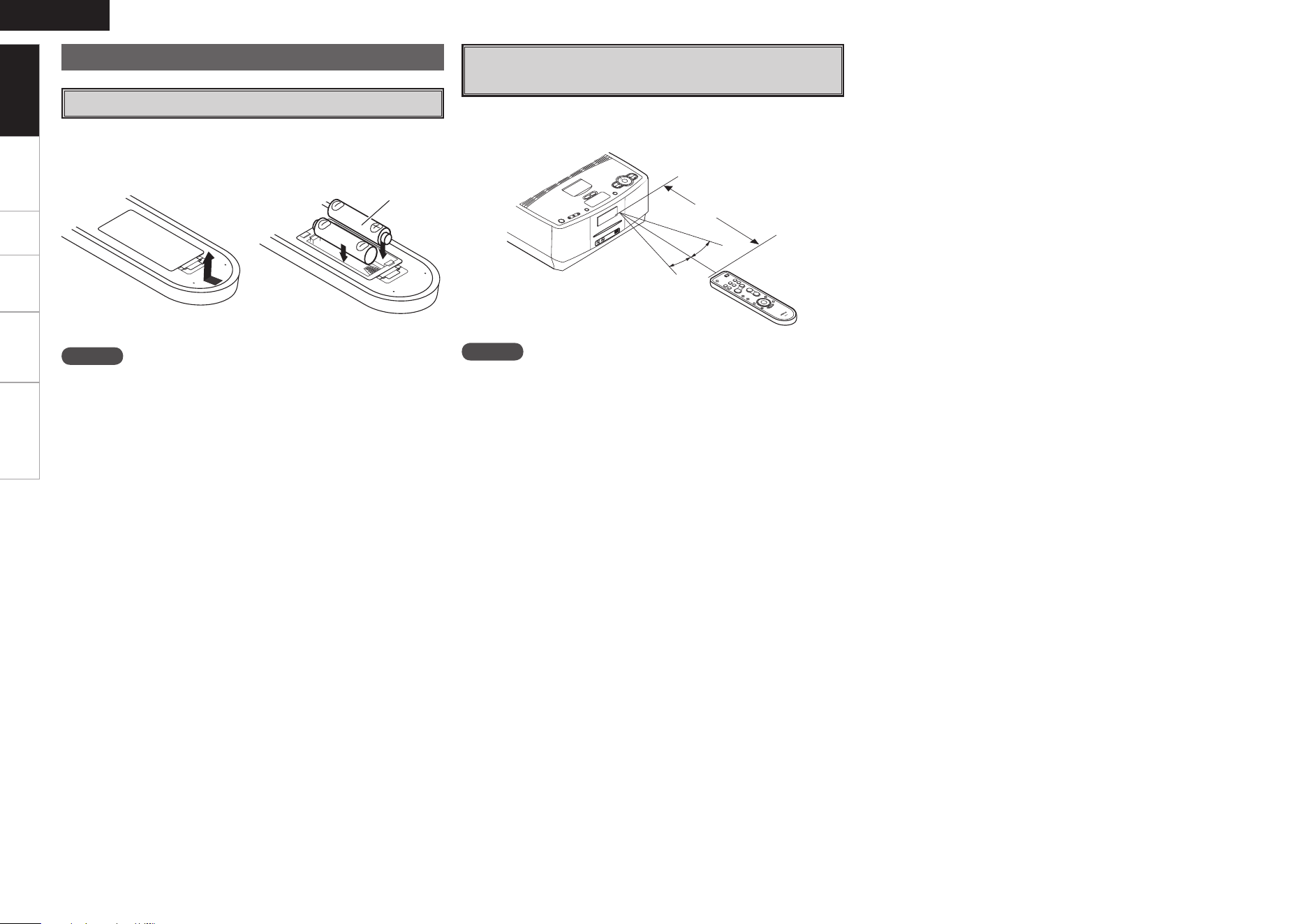
Inserting the Batteries
About the Remote Control Unit
q Remove the remote control
unit’s rear cover.
w Load the two batteries properly
as indicated by the marks in the
battery compartment.
e Put the rear cover back on.
NOTE
• Replace the batteries with new ones if the set does not operate even
when the remote control unit is operated close to the unit.
• The supplied batteries are only for verifying operation.
• When inserting the batteries, be sure to do so in the proper direction,
following the “q” and “w” marks in the battery compartment.
• To prevent damage or leakage of battery fluid:
• Do not use a new battery together with an old one.
• Do not use two different types of batteries.
• Do not attempt to charge dry batteries.
• Do not short-circuit, disassemble, heat or dispose of batteries in
flames.
• If the battery fluid should leak, carefully wipe the fluid off the inside
of the battery compartment and insert new batteries.
• Remove the batteries from the remote control unit if it will not be in
use for long periods.
• When replacing the batteries, have the new batteries ready and
insert them as quickly as possible.
NOTE
The set may function improperly or the remote control unit may not
operate if the remote control sensor is exposed to direct sunlight,
strong artificial light from an inverter type fluorescent lamp or infrared
light.
R03/AAA
Getting Started
Point the remote control unit at the remote sensor when operating it.
Operating Range of the Remote Control
Unit
30°
30°
Approx. 23 feet / 7 m
Connections Setup Playback Information Troubleshooting
ENGLISH
RETURN
FUNCTION
ON / OFF
ALARM
SETTING
SLEEP
DIMMER
CD EJECT
iPod
PLAY/PAUSE
SOURCE
MUTE / SNOOZE
ALARM ON OFF
ALARM
1
ALARM
2
q wer t u o Q0
Q6
Q2
Q4
Q3
Q7
Q1iy
Q5
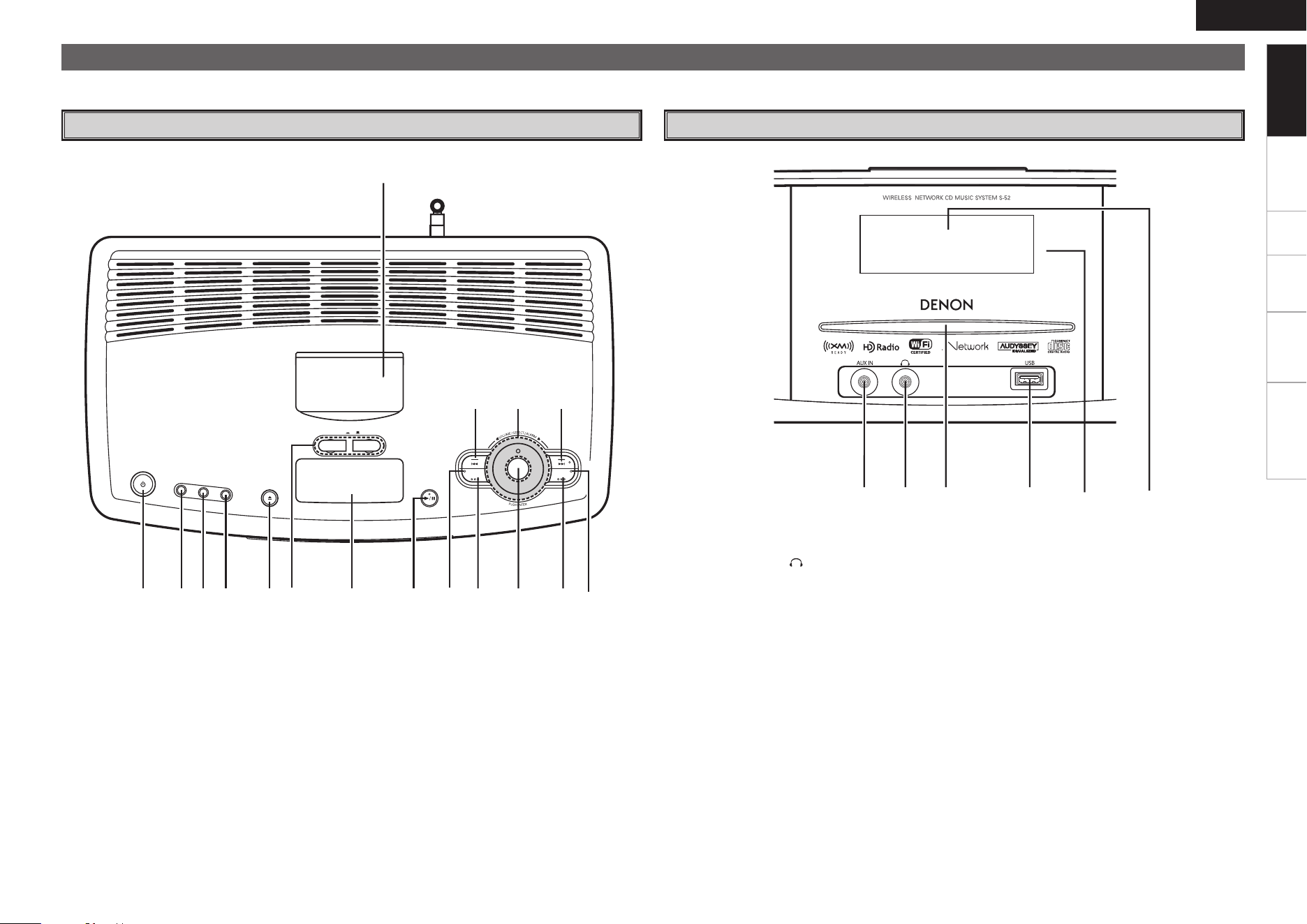
Q8 AUX IN jack ················································(26)
Q9 Headphones jack ( ) ································(15)
W0 CD slot ··························································(3)
W1 USB port ·······················································(8)
W2 Remote control sensor ································(4)
W3 Display
For buttons not explained here, see the page indicated in parentheses ( ).
Part Names and Functions
Top Panel
q Power operation button
(FUNCTION ON / OFF) ····························· (15)
w ALARM SETTING button·························· (27)
e SLEEP button ············································ (27)
r DIMMER button ········································ (15)
t CD EJECT button (5) ································ (23)
y ALARM1, 2 ON / OFF buttons ················· (27)
u MUTE / SNOOZE button ···················· (15, 27)
i PLAY / PAUSE button (1/3) ···················· (20)
o SOURCE indicator ···································· (15)
Q0 SOURCE button ·········································(11)
Front Panel
Q1 ENTER button ··········································· (11)
Q2 RETURN button ········································· (11)
Q3 RETURN indicator······································(15)
Q4 Forward-skip /
Fast-forwarding button (9) ··················(18)
TUNING + button·······································(21)
Q5 Multi jog dial /
Master volume control ························ (11, 15)
Q6 Reverse-skip /
Fast-reversing button (8) ·····················(18)
TUNING – button ·······································(21)
Q7 Dock for iPod ················································(7)
Getting Started
Q8 Q9 W0 W1 W2 W3
Connections Setup Playback Information Troubleshooting
ENGLISH
w
o
Q0
Q1
Q3
Q2
Q5
Q4
Q6
e
r
t
y
u
i
q
Rear Panel Remote Control Unit
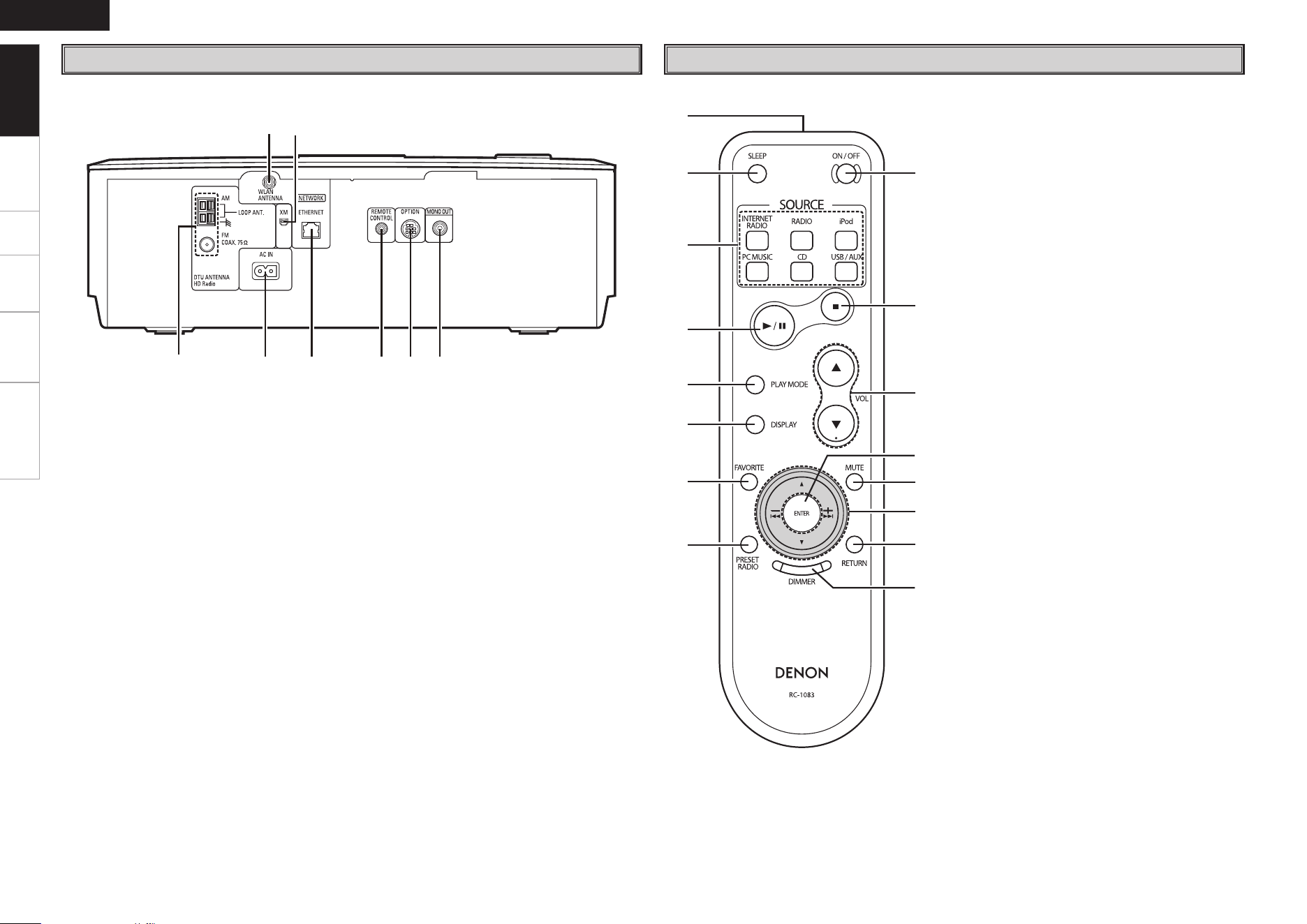
q Remote control signal transmitter ·············· (4)
w SLEEP button ·············································· (27)
e SOURCE select buttons ····························· (15)
r Play / Pause button (1/3) ·························· (20)
t PLAY MODE button ···································· (20)
y DISPLAY button ·········································· (15)
u FAVORITE button ········································ (26)
i PRESET RADIO button ······························· (21)
o Function ON / OFF button ························· (15)
Q0 Stop button (2) ··········································· (17)
Q1 Master volume control buttons (VOL) ······ (15)
Q2 ENTER button ··············································(11)
Q3 Muting button (MUTE) ······························· (15)
Q4 Cursor (ui) / Skip (8 9) /
TUNING + – buttons ························(11, 18, 21)
Q5 RETURN button ···········································(11)
Q6 DIMMER button ·········································· (15)
Getting Started
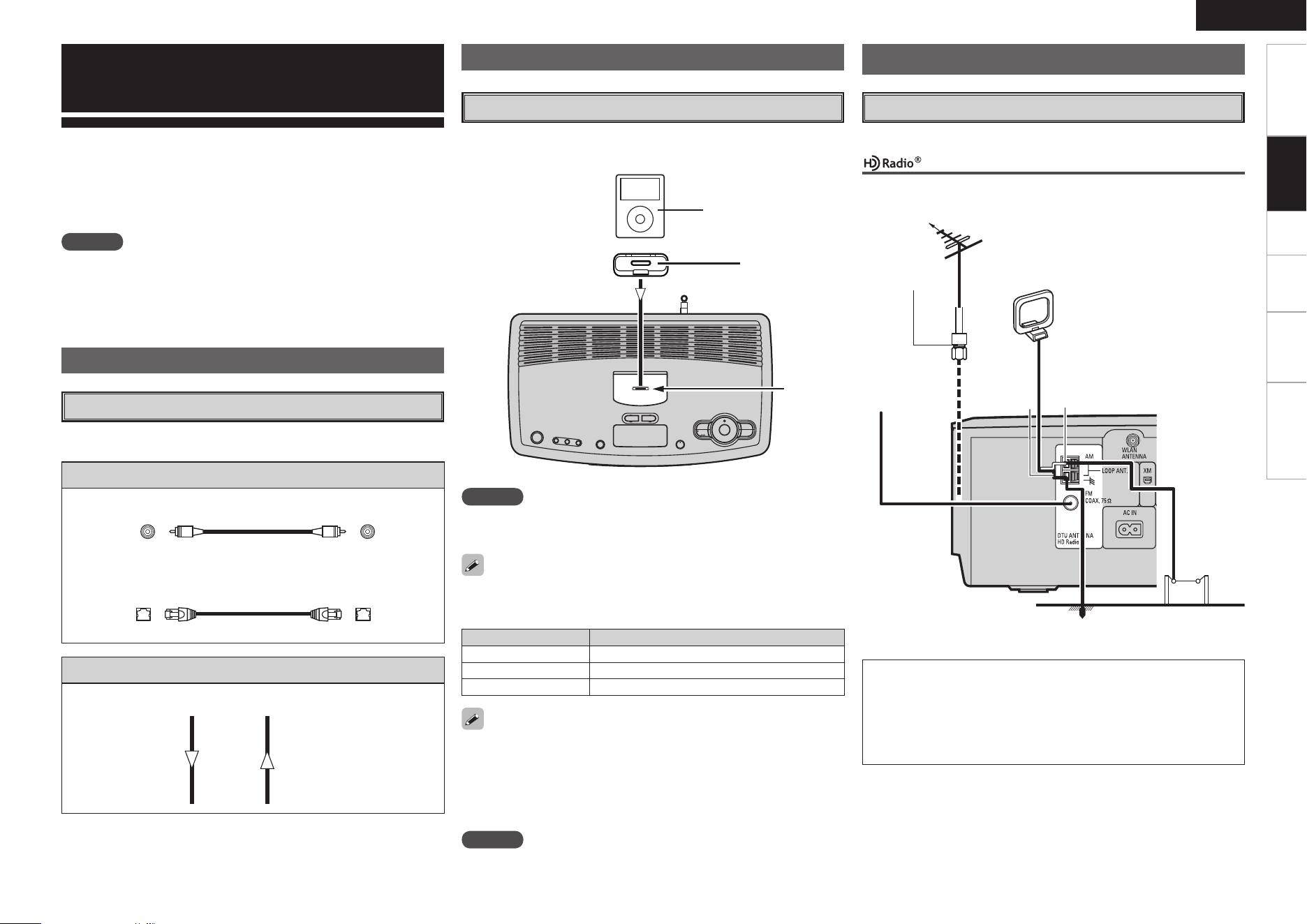
q w re
ui
t y
q
FM/AM antenna / HD Radio antenna terminals
(ANTENNA / DTU ANTENNA HD Radio)
·······(7)
w AC inlet (AC IN) ··········································· (10)
e ETHERNET connector ··································· (9)
r REMOTE CONTROL jack
This jack will be used in the future for additional
functions.
t OPTION connector
This connector will be used in the future for
additional functions.
y Monaural audio connector (MONO OUT) ······ (8)
u XM connector ··············································· (8)
i WLAN ANTENNA terminal ··························· (9)
Getting Started Setup Playback Information Troubleshooting
ENGLISH
NOTE
• Do not plug in the power cord until all connections have been
completed.
• When making connections, also refer to the owner’s manual of the
other components.
Connections
Connections for all compatible audio signal formats are described
in these operating instructions. Please select the types of
connections suited for the equipment you are connecting.
With some types of connections, certain settings must be made
on the S-52. For details, refer to the instructions for the respective
connection items below.
Select the cables according to the equipment being connected.
Preparations
Cables Used for Connections
Audio cables
Analog connections (Subwoofer)
(Black)
Pin - plug cable
Network connections (Wired LAN)
LAN cable
Signal direction
Audio signal:
Output
Input
Input
Output
NOTE
Note that leaning the iPod forward or backward when connecting it to or
disconnecting it from the dock for iPod may damage the connector.
Keep the dock for iPod’s lid closed when your iPod is not connected to
prevent any foreign objects from getting inside.
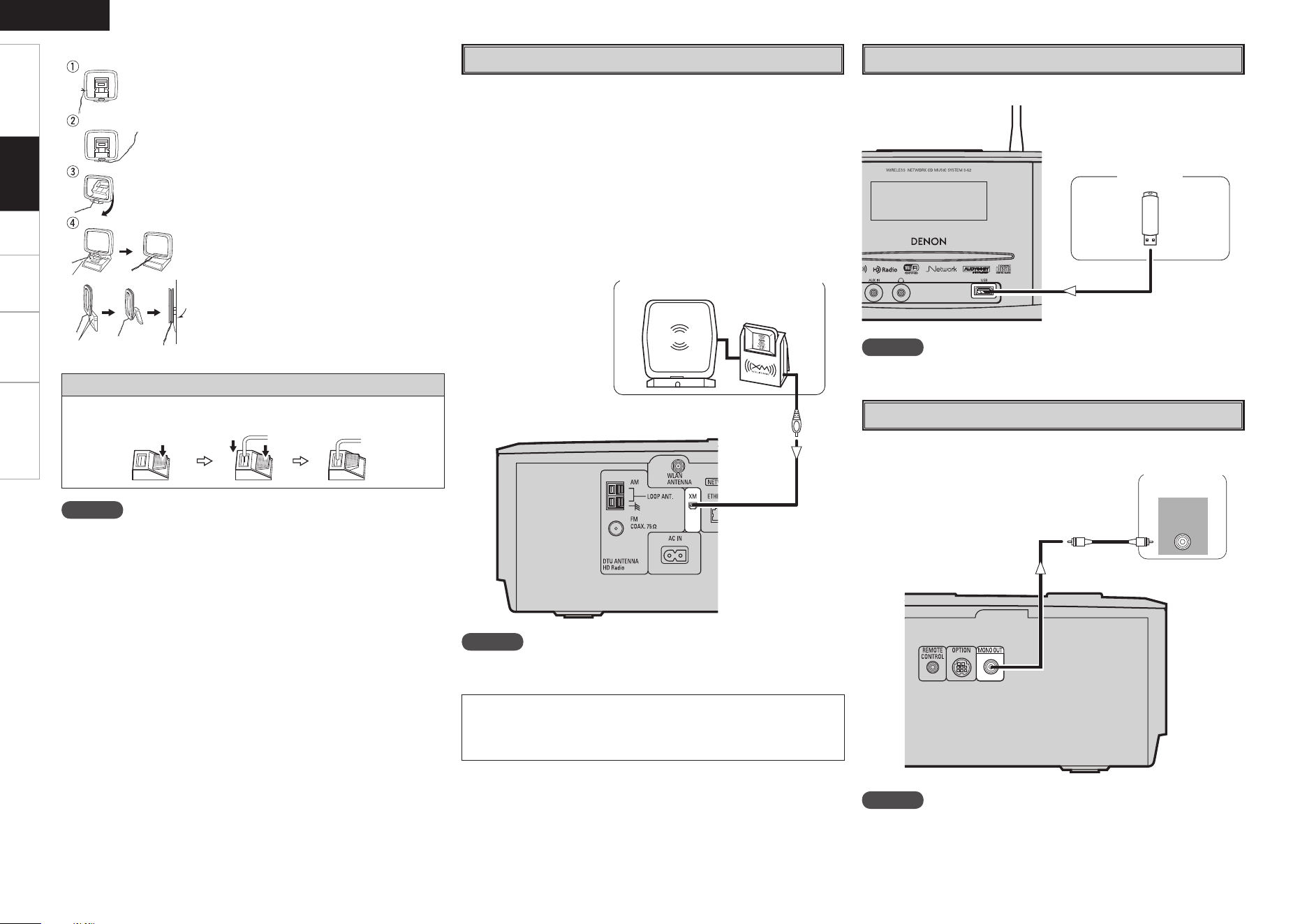
iPod
Adapter
Open the lid and mount the adapter suited for your iPod onto the S-
52’s adapter insertion slot.
Connecting the Playback Components
iPod
®
Stamped indication iPod connectable to the S-52
mini iPod mini
Photo 20, 30 GB iPod Photo 30 GB/iPod 20 GB with color display
Photo 60 GB iPod Photo 60 GB/iPod 40 GB with color display
Connections
Connections to Other Devices
An F-type FM antenna cable plug can be connected directly.
Antenna Terminals
Note to CATV system installer:
This reminder is provided to call the CATV system installer’s
attention to Article 820-40 of the NEC which provides guidelines for
proper grounding and, in particular, specifies that the cable ground
shall be connected to the grounding system of the building, as
close to the point of cable entry as practical.
HD Radio / AM/FM Reception
Direction of broadca sting station.
FM antenna
75 Ω/ohms
Coaxial cable
FM indoor
antenna
(Supplied)
Ground
AM outdoor antenna
AM loop antenna
(Supplied)
(White)(Black)
Connector
• A genuine iPod dock adapter can be mounted on this S-52.
• To connect an “iPod nano” or 5th generation iPod, use the dock
adapter included with the iPod.
•
The 4th generation iPod (with Dock Connector) requires the Apple iPod
Universal Dock Adapter 3-Pack that fits your iPod model (separately
available from Apple Inc.) in order to be connected to the S-52
.
NOTE
The S-52 is not compatible with the iPod shuffle.
Getting Started Setup Playback Information Troubleshooting
ENGLISH
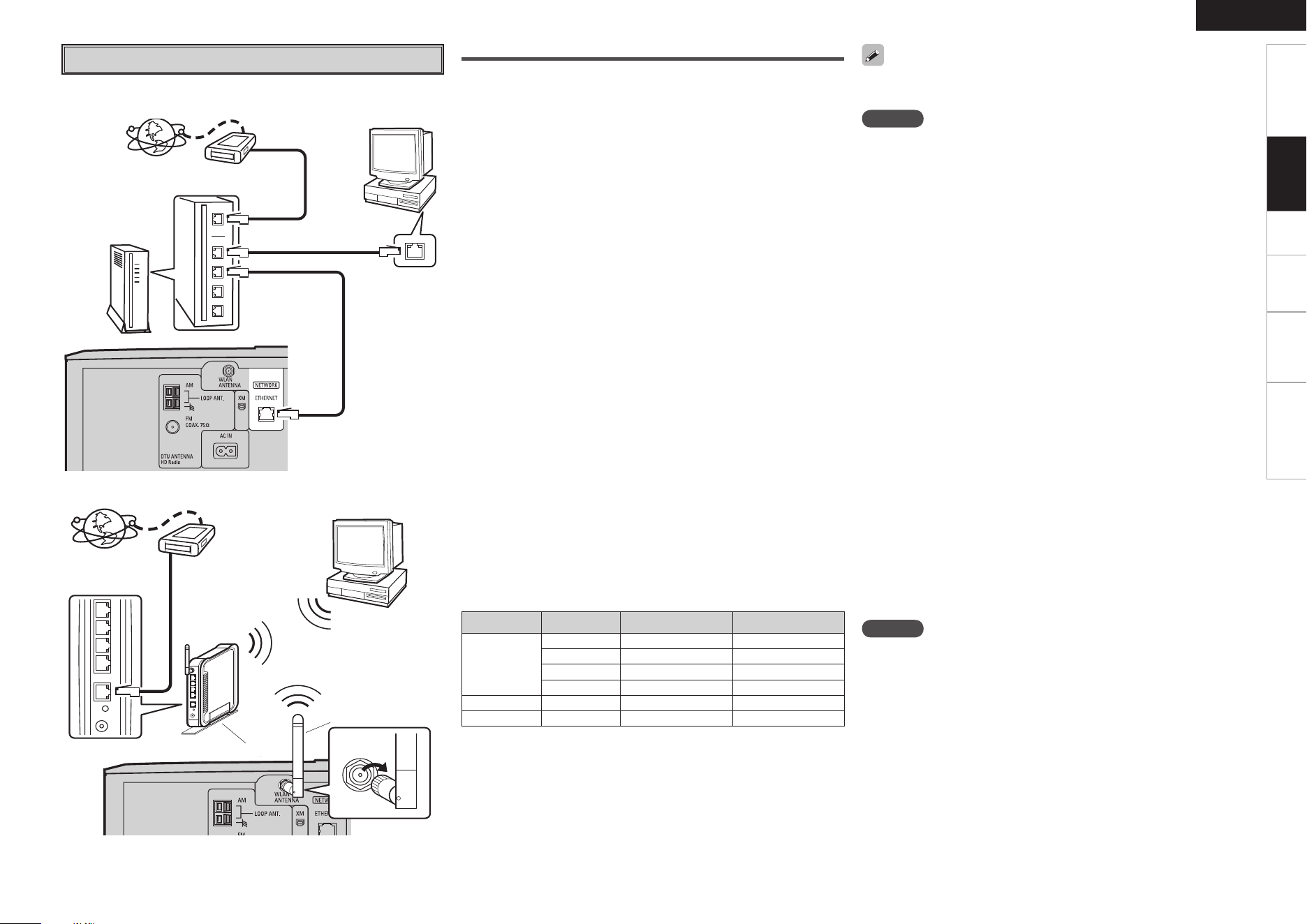
AM loop antenna assembly
Remove the vinyl tie and take out the connection
line.
Connect to the AM antenna terminals.
Bend in the reverse direction.
a. With the antenna on top any stable
surface.
Mount
b. With the antenna attached to a wall.
Installation hole Mount on wall, etc.
Connection of AM antennas
1. Push the
lever.
2. Insert the
conductor.
3. Return the
lever.
NOTE
• Do not connect two FM antennas simultaneously.
• Even if an external AM antenna is used, do not disconnect the AM
loop antenna.
• Make sure the AM loop antenna lead terminals do not touch metal
parts of the panel.
USB Port
n Front panel
Use connected to a subwoofer.
Connection to a Subwoofer
NOTE
When turning the power ON/OFF:
ON: First turn on the power to the main unit, then turn on the power
to the subwoofer.
OFF: First turn off the power to the subwoofer, then turn off the power
to the main unit.
Connections
XM
NOTE
Keep the power cord unplugged until the XM Mini-Tuner and Home
Dock connection have been completed.
XM Connector
• The S-52 is an XM Ready
®
receiver. You can receive XM
®
Satellite
Radio by connecting to the XM Mini-Tuner and Home Dock (includes
home antenna, sold separately) and subscribing to the XM service.
• Plug the XM Mini-Tuner and Home Dock into the XM connector on
the rear panel.
• Position the Home Dock antenna near a south-facing window to
receive the best signal.
For details, see “Listening to XM Satellite Radio Programs” (vpage
22).
When making connections, also refer to the operating instructions of
the XM Mini-Tuner and Home Dock.
XM Mini-Tuner and Home Dock
• The XM name and related logo are registered trademarks of XM
Satellite Radio Inc. All rights reserved.
• XM Ready is a registered trademark of XM Satellite Radio Inc. All
rights reserved.
USB
46#800'&3
*/
Subwoofer
NOTE
The main S-52’s USB port cannot be connected to PCs using a USB
cable.
Getting Started Setup Playback Information Troubleshooting
ENGLISH
Format Bit rate Per minute Per hour
MP3 / WMA
MPEG-4 AAC
128 kbps Approx. 1 MB Approx. 60 MB
192 kbps Approx. 1.5 MB Approx. 90 MB
256 kbps Approx. 2 MB Approx. 120 MB
392 kbps Approx. 3 MB Approx. 180 MB
WAV (LPCM) 1400 kbps Approx. 10 MB Approx. 600 MB
FLAC 1080 kbps Approx. 7.7 MB Approx. 464 MB
(1 MB = 10
6
bytes)
Required System
n Broadband Internet Connection
A broadband line connection to the Internet is required in order to
use the S-52’s Internet radio function.
n Modem
This is a device that is connected to the broadband line to
communicate with the Internet.
n Router
When using the S-52, we recommend you to use a router equipped
with the following functions:
• Built-in DHCP (Dynamic Host Configuration Protocol) server
This function automatically assigns IP addresses on the LAN.
• Built-in 100BASE-TX switch
When connecting multiple devices, we recommend a switching
hub with a speed of 100 Mbps or greater.
n Ethernet Cable (CAT-5 or greater recommended)
The S-52 does not come with an Ethernet cable.
Purchase a cable of the required length.
n Computer
A computer with the following specifications is required to operate
the music server:
• OS
Windows® XP Service Pack2, Windows Vista
• Software
· .NET Framework 1.1, Windows Media Connect (Windows XP)
· Windows Media Player Ver.11
· DLNA-compatible server software
• Internet browser
Microsoft Internet Explorer 5.01 or later
• LAN port
• 300 MB or more free disk space
b Free space is required to save music files. The following sizes are
approximate.
For connections to the Internet, contact an ISP (Internet Service
Provider) or a computer shop.
n Others
• If you have an ISP contract for a line on which network settings are
made manually, make the settings at “Network Setting” (vpage
12, 13).
• When using a broadband router (DHCP function), the S-52 makes
the network settings automatically, so there is no need to make
them yourself.
• If connecting the S-52 to a network with no DHCP function, make
the settings at “Network Setting” (vpage 12, 13).
• The S-52 is not compatible with PPPoE. A PPPoE-compatible router
is required if you have a contract for a line of the type with which
the PPPoE is set.
• Depending on the ISP with which you have your contract, it may
be necessary to make proxy server settings to use the Internet
radio function. If you made proxy server settings on the computer
to connect to the Internet, make the same proxy server settings on
the S-52.
• The S-52 uses the DHCP and Auto IP functions to make the network
settings automatically.
n Ethernet Cable (CAT-5 or greater recommended)
No Ethernet cable is included with the S-52. Procure a cable with
the necessary length.
NOTE
Be sure to use a shielded type cable for USB/Ethernet connections.
Depending on the connected computer/router, there may be much
noise generated from the cable.
Connections
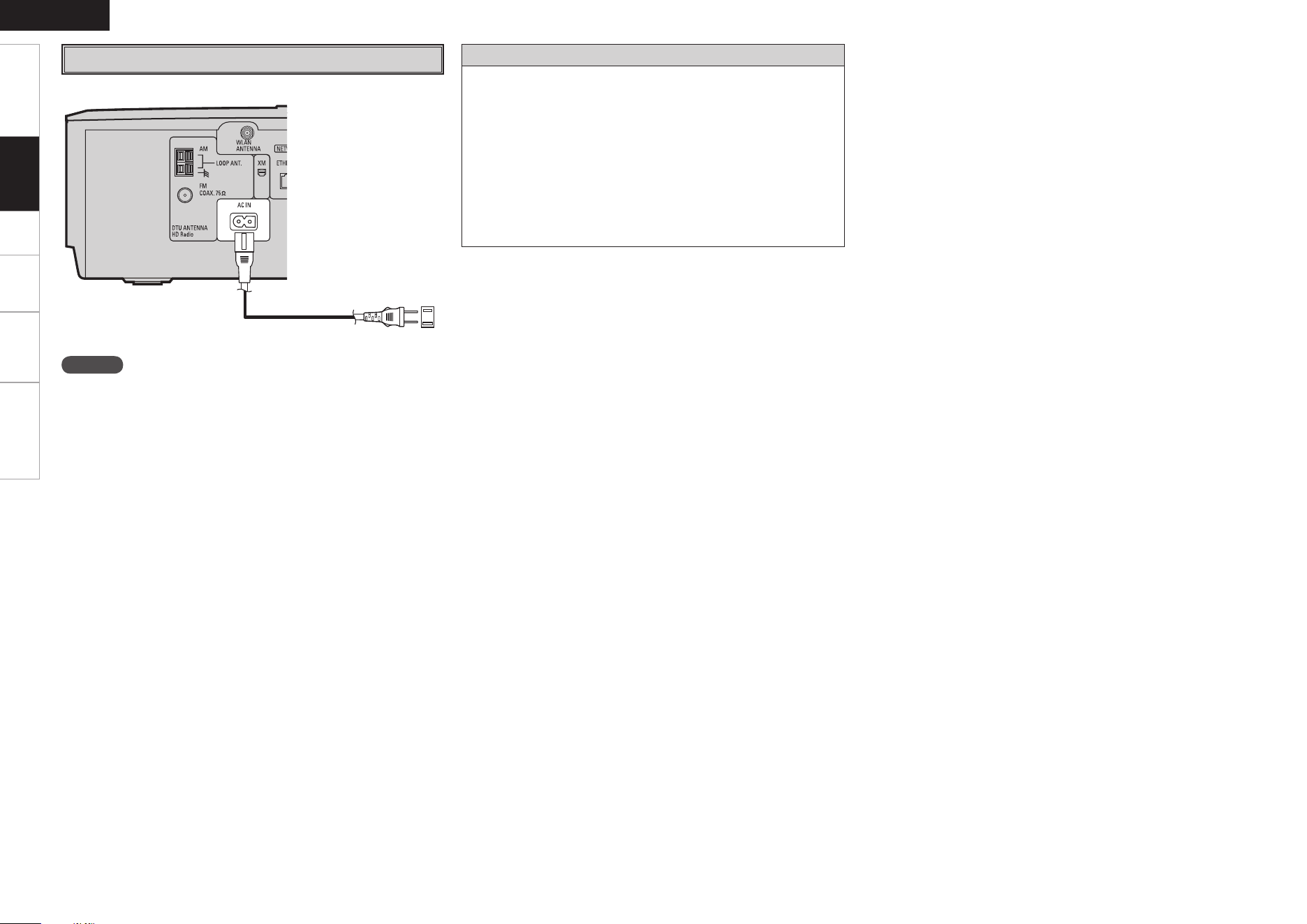
[Wired LAN]
Network Audio
To WAN side
Internet radio
Router
Computer
To LAN port
To LAN port
LAN port/
Ethernet port
Modem
[Wireless LAN]
To WAN side
Internet radio
Modem
Computer
Wireless LAN rod
antenna (Supplied)
Turn clock
wise
Router with access point
NOTE
• A contract with an ISP is required to connect to the Internet.
No additional contract is needed if you already have a broadband
connection to the Internet.
• Depending on the server, video files may be displayed, but they
cannot be played on the S-52.
• The types of routers that can be used depend on the ISP. Contact an
ISP (Internet Service Provider) or a computer shop for details.
0
Getting Started Setup Playback Information Troubleshooting
ENGLISH
Protector circuit
The protection circuit will be activated in the following cases:
• When the temperature around the set is extremely high
• When the set is used for long periods of time with a high output
and the internal temperature rises
Speaker output is suspended when the protector circuit operates.
In this case, remove the power cord, make sure there is adequate
ventilation and wait for the main unit to cool down. Afterwards, re-
insert the power cord.
If the protection circuit is activated again even though there are no
problems with the wiring or the ventilation around the unit, switch off
the power and contact a DENON service center.
Connections
Power cord (Supplied)
To household power outlet
(AC 120 V, 60 Hz)
Connecting the Power Cord
NOTE
• Only use the supplied power cord.
• Be sure the power cord is unplugged from the power outlet before
connecting or disconnecting it to the AC inlet.
Getting Started Connections Playback Information Troubleshooting
ENGLISH
Time Zone
: Choose the region in which the set is installed in order
to correct for the time difference.
DST
: Make the daylight saving time setting.
With the S-52, settings and operations for most functions can be
performed by operating while looking at the menu displayed on the
display.
Menu Operations
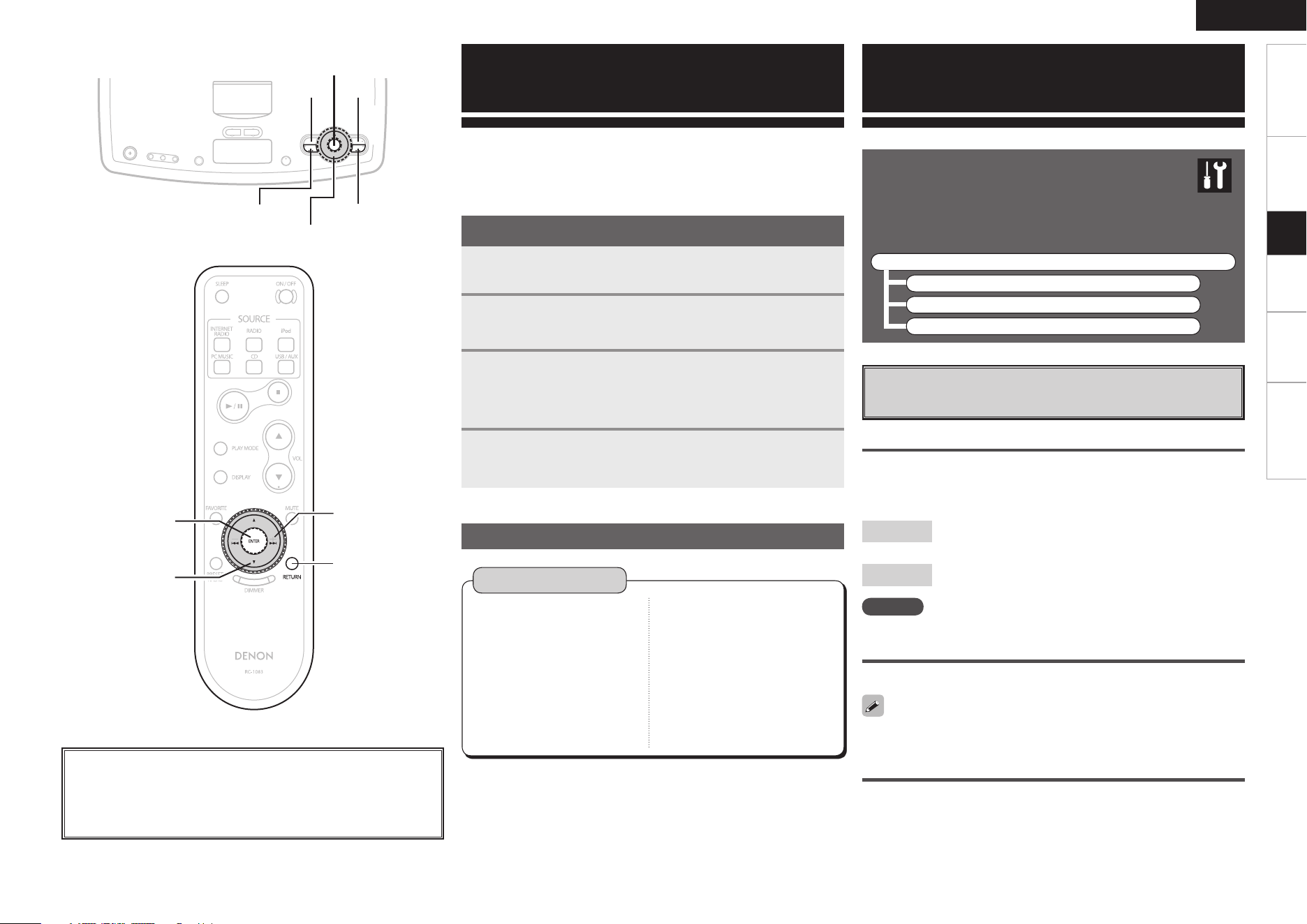
1
Press <SOURCE>.
The menu is displayed.
2
Turn <Multi Jog> or press 8 9 to select
“SETUP”, then press ENTER.
3
Turn <Multi Jog> or press [ui] to select the menu
to be set or operated.
b To return to the previous item, press
RETURN
.
4
Press ENTER to enter the setting.
Operations
Menu Map
Setup
a
Clock
Use this procedure to set the time.
Auto Adjust
Connect to the network to set the current time automatically.
[Selectable items]
NOTE
Network connections are required.
Manual Adjust
Set the current time manually.
When setting the clock, move the cursor using the 8 9 and set
with <Multi Jog> or [ui].
12H/24H
Choose whether to display the time in the 12-hours or 24-hours mode.
Setup
<Multi Jog>
<SOURCE>
ENTER
8 9
RETURN
[
ui
]
8, 9
ENTER
RETURN
About the button names in these explanations
< > : Buttons on the main unit
[ ] : Buttons on the remote control unit
Button name only:
Buttons on the main unit and remote control unit
n SETUP
• Clock
· Auto Adjust
Time Zone
DST
· Manual Adjust
· 12H/24H
12H
24H
• Network Setting
Network Setting
Others
Network Info
Rhapsody Setting
• Firmware Update
SETUP
SETUP
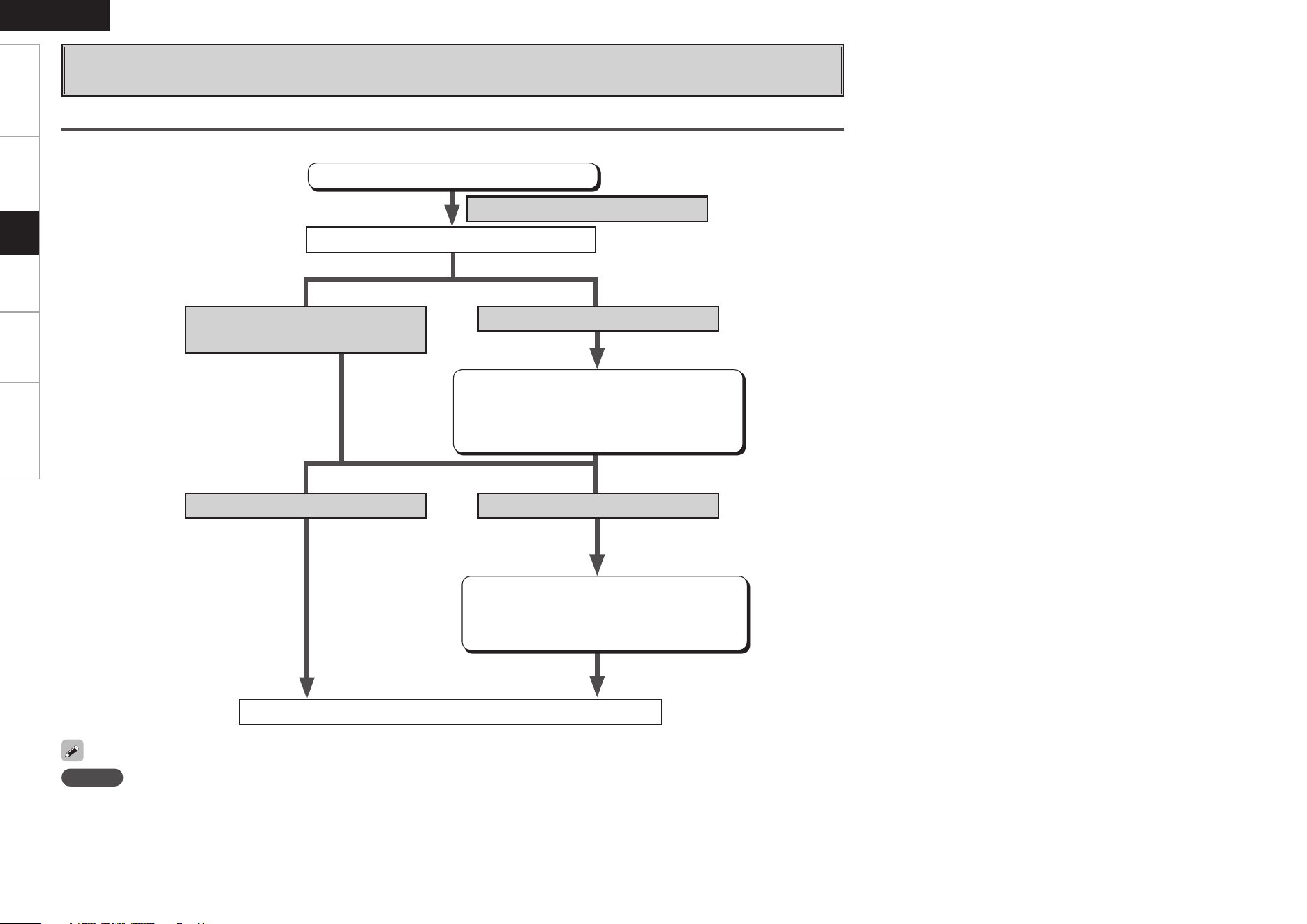
Use the procedures described below to make various
settings.
F Menu tree F
SETUP
a Clock
s Network Setting
d Firmware Update
Getting Started Connections Playback Information Troubleshooting
ENGLISH
s
Network Setting
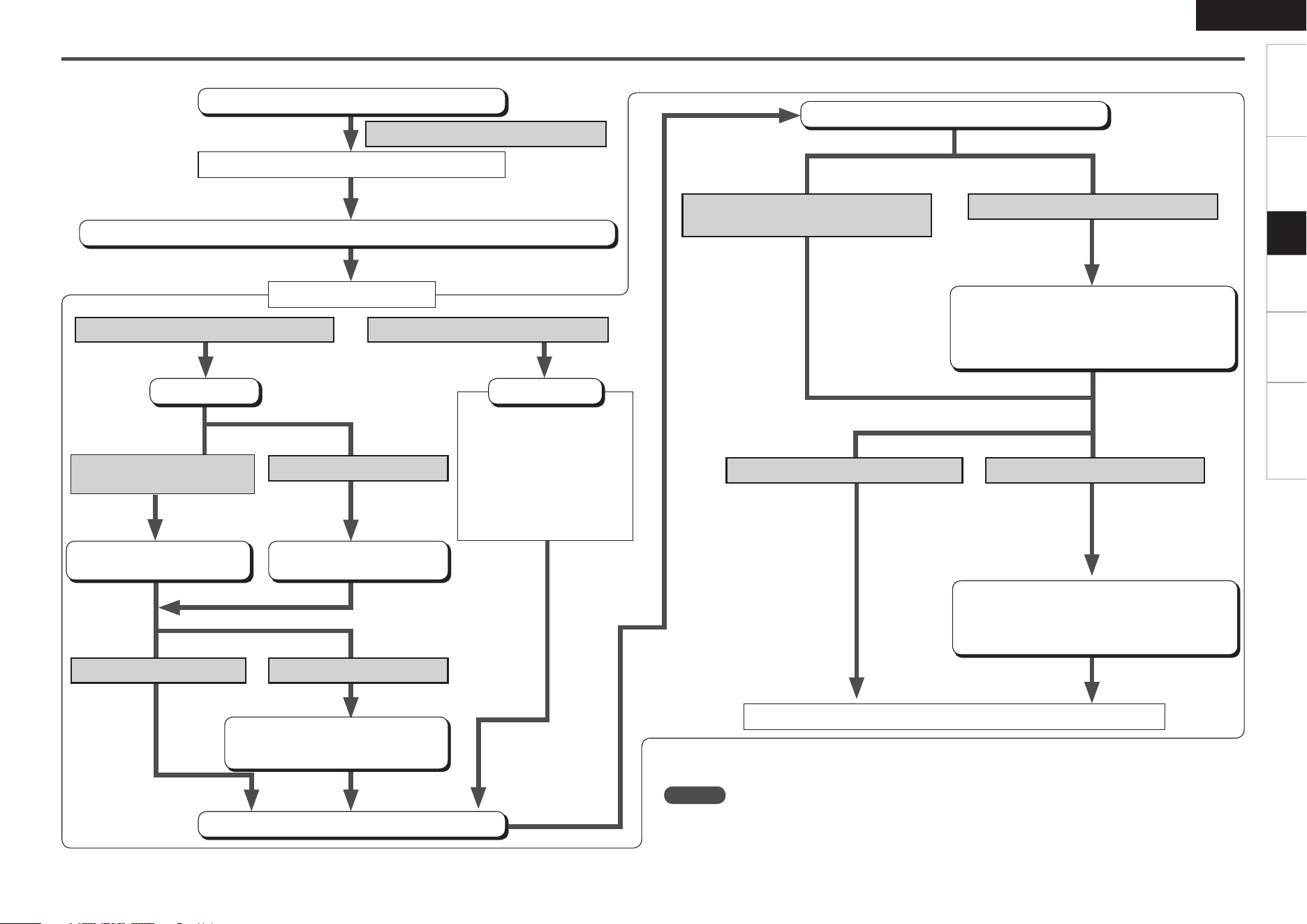
Make settings for wired or wireless LAN.
Wired LAN
Make settings for wired LAN.
If a Ethernet cable is connected
To acquire the IP address automatically
using the DHCP function
To enter the IP address manually
Turn on the S-52’s power.
At the menu “SETUP” – “Network Setting”
– “Network Setting” – “Detail” setting, set
“DHCP” to “Off” and enter the IP Address,
Subnet Mask, Gateway, Primary DNS and
Secondary DNS.
To not pass through the proxy server To connect via proxy server
This setting is required when the network
is established via proxy servers.
Recheck the connections and settings if you cannot connect to the Internet (vpage 9).
The mode automatically switches to “Wired”.
This completes the setting.
NOTE
Knowledge about networks is required to make the IP Address and Proxy settings. For details, consult a network administrator.
At the menu “SETUP” –“Network Setting” –
“Network Setting” – “Detail” – “Proxy” setting,
set “Proxy” to “On” and enter the address or
domain name and port numbers.
Setup
Getting Started Connections Playback Information Troubleshooting
ENGLISH
Wireless LAN Settings
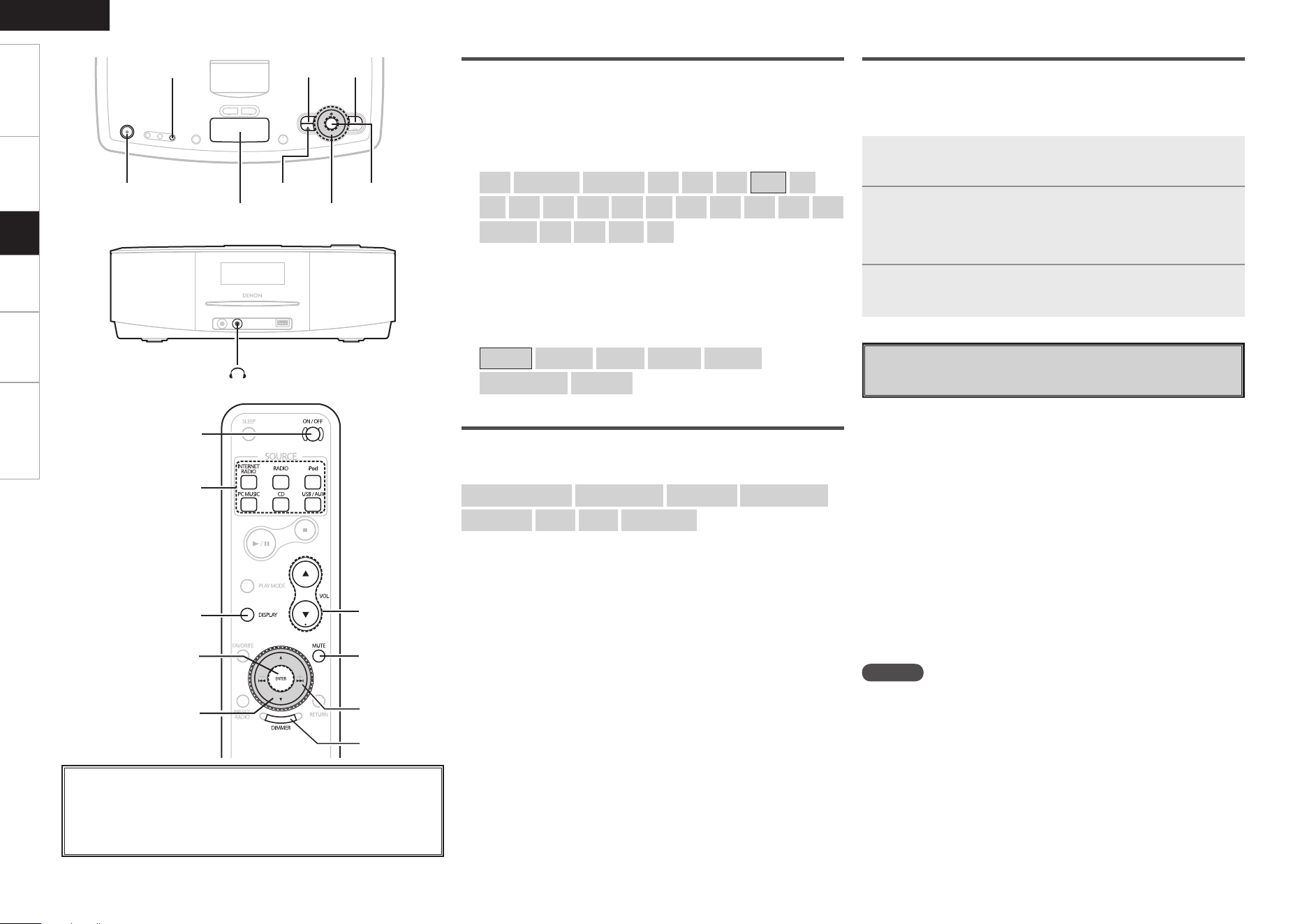
Make settings for wireless LAN.
z: This is the flow for infrastructure type communications. For ad-hoc communications, set “Mode” at
the “Detail” settings to “Ad-hoc”.
The mode automatically switches to “Wireless”.
If no Ethernet cable is connected
Turn on the S-52’s power.
Display menu “SETUP” – “Network Setting” – “Network Setting”.
To search for the network automatically
Access point settings
Search
Select the access point to
be set.
Without security With security
Select “Key” through “Default
Key” (usually by selecting “1” ).
Input code key with “ Key ” setting.
Connection (continued on right page)
If searching is not possible
To set manually
z
q Input the SSID.
w If there is security, select
the encryption method.
e Input the encryption key.
r If “WEP” was selected in
step w, select the default
key.
Normally select “1”.
“Detail” setting
If searching is possible, the
access points are displayed.
Make the SSID setting at
“Manual”.
To enter the IP Address manually
Connection
To acquire the IP Address
automatically using the DHCP function
At the menu “SETUP” – “Network Setting”
– “Network Setting” – “Detail” setting, set
“DHCP” to “Off” and enter the IP Address,
Subnet Mask, Gateway, Primary DNS and
Secondary DNS.
This completes the setting.
This setting is required
when the network is
established via proxy
servers.
At the menu “SETUP” –“Network Setting” –
“Network Setting” – “Detail” – “Proxy” setting,
set “Proxy” to “On” and enter the address or
domain name and port numbers.
To connect via proxy serverTo not pass through the proxy server
NOTE
Knowledge about networks is required to make the IP Address and Proxy settings. For details,
consult a network administrator.
Setup
Getting Started Connections Playback Information Troubleshooting
ENGLISH
Normally there is no need to use this function, aside from the cases
described below.
• The Firmware Update function is only used for updating the firmware
via the Internet, for example for the purpose of adding functions to
the S-52 in the future.
• Information regarding the Firmware Update function will b e
announced on the DENON web site each time related plans are
defined.
• A broadband connection to the Internet is required to use this
function (v page 12).
• Even with a broadband connection to the Internet, approximately
30 minutes is required for the updating procedure to be completed.
Once updating starts, normal operations on the S-52 cannot be
performed until updating is completed.
Furthermore, updating the firmware may reset the backup data for
the parameters, etc., set for the S-52.
d
Firmware Update
Update the firmware.
NOTE
• Connection to the network and specific settings are required to
update the firmware. For details, see page 9, 12.
• Do not turn off the power until updating is completed.
• When updating firmware, the settings may be reset.
• When the update is complete, the display disappears or a final screen
message is displayed. When this happens, plug out the power cord,
and plug in again after a few seconds.
Other
Make setting for computer language environment.
n PC Language
Select computer environment language.
[Selectable items]
ara
chi (smpl)
chi (trad)
cze
dan
dut
eng
fin
fre
ger
gre
heb
hun
ita
jpn
kor
nor
pol
por
por (BR)
rus
spa
swe
tur
Network Information
Display network information.
[Items to be checked]
n Default Language
Select the language you want to display Internet Radio
information.
[Selectable items]
English
German
French
Italian
Spanish
Nederlandish
Swedish
Setup
FUNCTION ON/OFF
<MUTE/SNOOZE>
<Multi Jog/VOLUME>
<SOURCE>
ENTER
8 9
DIMMER
[VOL df]
[MUTE]
DIMMER
FUNCTION ON/OFF
[INTERNET RADIO],
[PC MUSIC], [iPod],
[RADIO], [CD],
[USB/AUX]
[
ui
]
8, 9
ENTER
[DISPLAY]
About the button names in these explanations
< > : Buttons on the main unit
[ ] : Buttons on the remote control unit
Button name only:
Buttons on the main unit and remote control unit
< >
n How to Enter Characters
1
Either turn <Multi Jog> or press [ui] to choose the
letter to be inserted.
2
Use 8 9 to choose the cursor position.
b Repeat operation 1.2.
3
Once you are nished inputting, press ENTER.
Rhapsody Setting
Set or change Username and Password.
“Listening to Rhapsody” (v page 19)
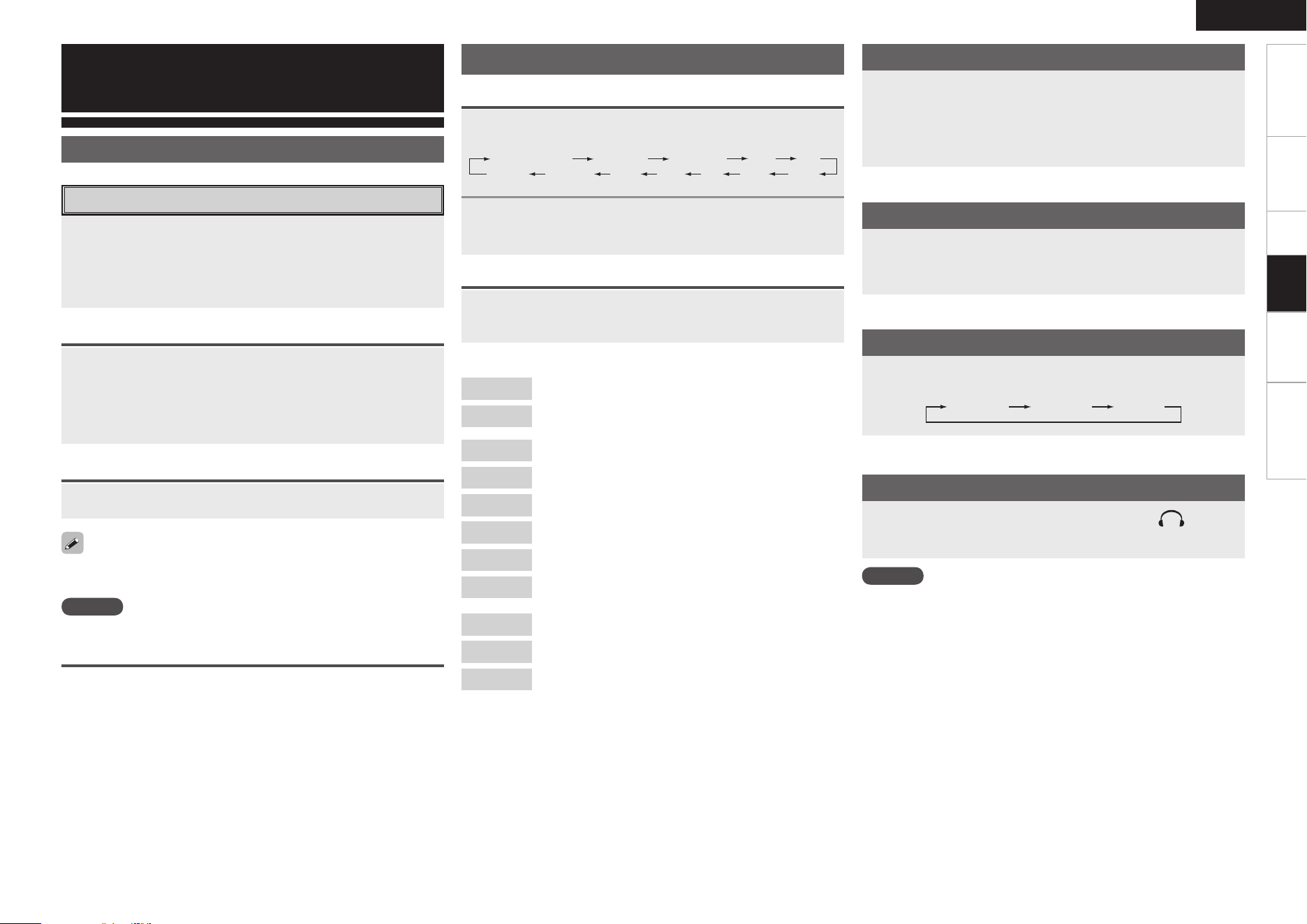
DHCP= On or Off
MAC Address
IP Address
Subnet Mask
Gateway
SSID
Key
Default Key
Getting Started Connections Setup Information Troubleshooting
ENGLISH
Internet Radio
:
You can listen to the Internet radio.
PC Music
:
You can listen to music files stored on a computer
(music server).
Rhapsody
:
You can listen to the Rhapsody.
iPod
:
You can listen to music stored on an iPod.
FM, AM
:
You can listen to HD Radio (AM or FM) broadcasts.
XM
:
You can listen to the XM broadcasts.
CD
:
You can listen to the CDs.
USB
:
You can listen to music stored on a USB memory
device.
AUX
:
You can listen to the sound of an AUX IN jack.
Favorite
:
You can register and call out your favorites.
Setup
:
You can set the time and network.
Playback
Preparations
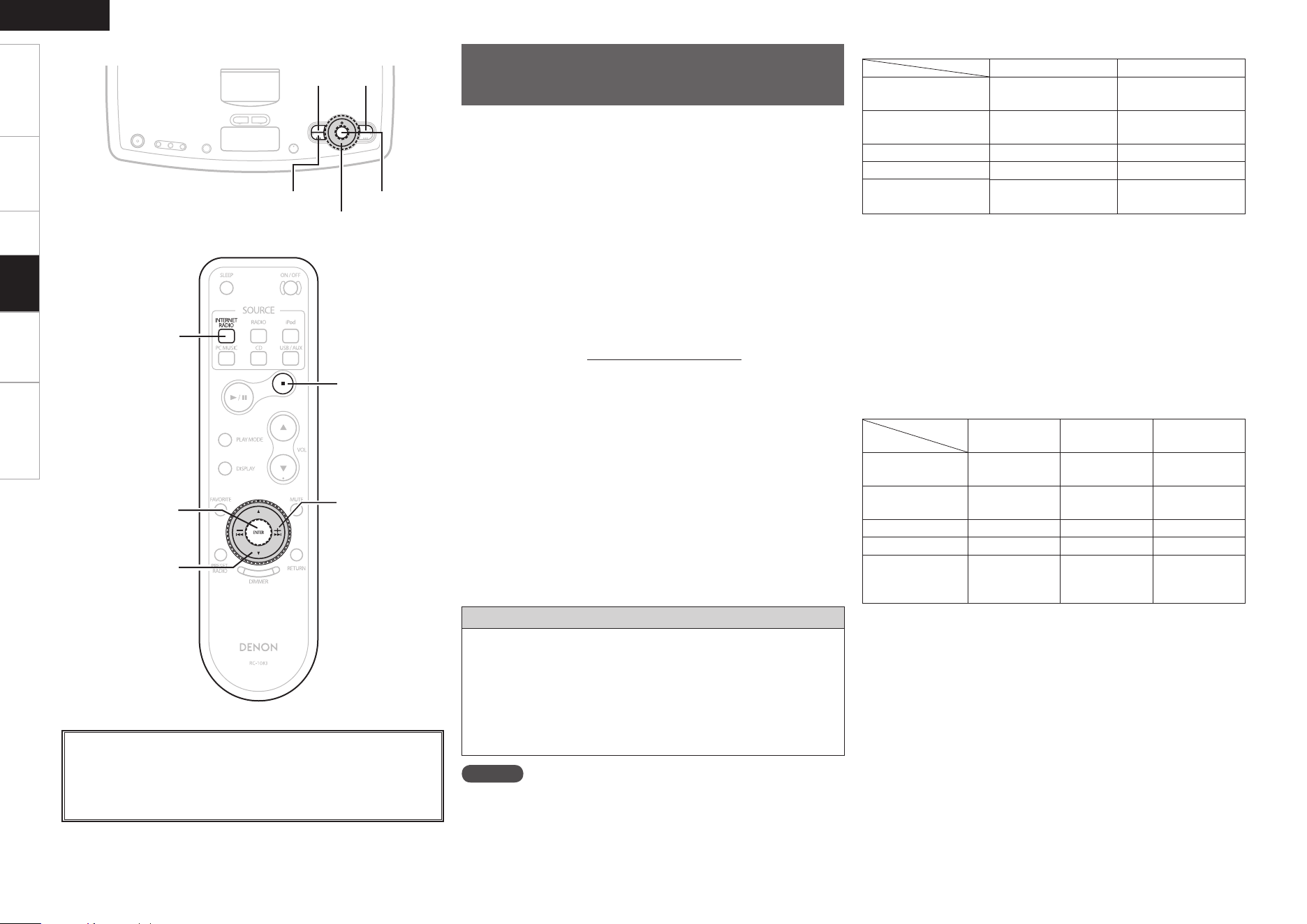
Turning the Function ON and OFF
Press FUNCTION ON/OFF.
ON : Power ON, Function ON
OFF : Power ON, Function OFF
• The time is displayed.
• An iPod can be charged and the alarm can be operated.
Setting the Power to the Standby Mode
Press FUNCTION ON/OFF and hold it in for at least two
seconds.
Standby : Low power consumption mode
(Power consumption: 0.4 W)
• The alarm can be operated.
Turning the Sound Off Temporarily (Muting)
Press <MUTE/SNOOZE> or [MUTE].
To cancel, either press <MUTE/SNOOZE> or [MUTE] again or adjust the
volume using <VOLUME> or [VOL df].
Viewing Information During Playback
During playback, press ENTER to display the playback information.
Either turn <Multi Jog> or press [ui] to select the information.
b Information is only displayed when it is available.
n Canceling track information
Press ENTER again to return to the previous display.
b Information is only displayed when it is available.
Input Source Switching
Operation on the Main Unit
Operation on the Remote Control Unit
1
Press <SOURCE>.
The “SOURCE” indicator lights.
iPodPC Music RhapsodyInternet Radio
FM
AMXM
CDUSBAUX
SETUP
Favorite
2
Turn <Multi Jog> to select the input source, then press
ENTER.
Press [INTERNET RADIO], [PC MUSIC], [iPod], [RADIO],
[CD] or [USB/AUX] to select the input source.
[Selectable items]
Adjusting the Master Volume
Either turn <VOLUME> or press [VOL df].
The volume level is displayed.
b Operate <Multi Jog> while the “SOURCE” and “RETURN”
indicators are off to adjust the sound.
Playback
Switching the Display’s Brightness
Press DIMMER.
The brightness switches each time this is pressed.
Dark
Medium
Bright
Switching the Display
Press [DISPLAY].
During playback, the time is displayed. The time is also displayed
when the power is turned on.
Listening with Headphones
Plug the headphones (sold separately) into < >.
b The sound from the speakers is automatically cut off.
NOTE
Be careful not to set the volume too high when using headphones.
NOTE
Cannot be cancelled with <VOLUME> when in iPod REMOTE mode.
Getting Started Connections Setup Information Troubleshooting
ENGLISH
<Multi Jog>
<SOURCE>
ENTER
8 9
[
ui
]
[2]
[INTERNET
RADIO]
8, 9
ENTER
About the button names in these explanations
< > : Buttons on the main unit
[ ] : Buttons on the remote control unit
Button name only:
Buttons on the main unit and remote control unit
Playing Network Audio
This procedure can be used to play Internet radio stations or
music stored on a computer.
n About the Internet radio function
• Internet radio refers to radio broadcasts distributed over the
Internet. Internet radio stations from around the world can be
tuned in.
The S-52 is equipped with the following Internet radio functions:
· Stations can be selected by genre and region.
· Your favorite Internet radio stations can be registered in
Favorites.
· Internet radio stations in MP3 and WMA (Windows Media Audio)
format can be listened to.
· Your favorite radio stations can be registered by acc essing an
exclusive DENON Internet radio URL from a Web browser on a
computer.
b The function is managed for individual users, so you must
provide your MAC or e-mail address.
Exclusive URL: http://www.radiodenon.com
b The radio station database service may be suspended without
notice.
• The S-52’s Internet radio station list is created using a radio station
database service (vTuner). This database service provides a list
edited and created for the S-52.
vTuner services may be discontinued without notice.
n Music server
This function lets you play music files and playlists (m3u, wpl)
stored on a computer (music server) connected to the S-52 via a
network.
With the S-52’s network audio playback function, connection to the
server is possible using one of the technologies below.
· Windows Media Player Network Sharing Service
· Windows Media DRM10
Installing Windows Media Player ver. 11
q If Windows XP Service Pack 2 has not yet been installed, either
download it free of charge from Microsoft or install it via a
Windows update installer.
w Download the latest version of Windows Media Player ver.
11, either directly from Microsoft or using a Windows update
installer.
b When using Windows Vista, there is no need to download a new
version of Windows Media Player.
Playback
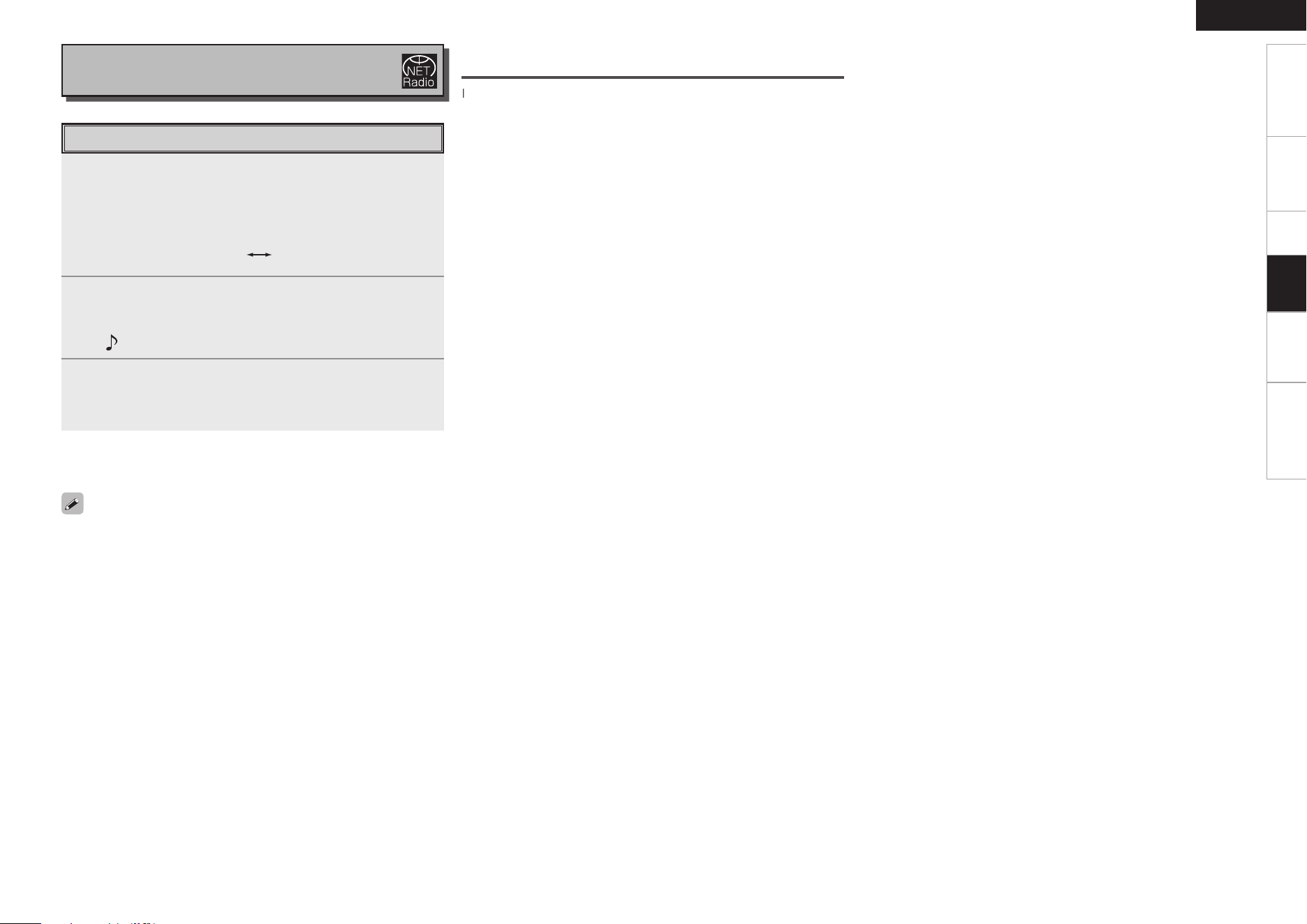
[Compatible formats]
Internet radio
Music server
b
WMA (Windows
Media Audio)
S S
MP3 (MPEG-1 Audio
Layer-3)
S S
WAV
z
–
S
MPEG-4 AAC –
S
z
FLAC (Free Lossless
Audio Codec)
–
S
A server or server software compatible with distribution in the
corresponding formats is required to play music files via a network.
z: Only files that are not protected by copyright can be played on the
S-52.
b Contents downloaded from pay sites on the Internet are copyright
protected. Also, files encoded in WMA format when ripped from
a CD, etc., on a computer may be copyright protected, depending
on the computer’s settings.
• The S-52 is compatible with MP3 ID3-Tag (Ver. 2) standards.
• The S-52 is compatible with WMA META tags.
[Playable formats]
Sampling
frequency
Bit rate Extension
WMA (Windows
Media Audio)
32/44.1/48 kHz 48~192 kbps .wma
MP3 (MPEG-1
Audio Layer-3)
32/44.1/48 kHz 32~320 kbps .mp3
WAV 32/44.1/48 kHz – .wav
MPEG-4 AAC 32/44.1/48 kHz 16~320 kbps .aac/.m4a/.mp4
FLAC (Free
Lossless Audio
Codec)
32/44.1/48 kHz – .flac
WAV format Quantization bit rate: 16 bits.
NOTE
The S-52 connects to the network when the power is turned on and
when the input is switched to a network audio source (“Internet
Radio”, “PC Music” or “Rhapsody”).
Depending on the network connection environment and the load on
the server being accessed, some time may be required to connect to
the network.
Getting Started Connections Setup Information Troubleshooting
ENGLISH
Tuning in Broadcast Stations
1
Either turn <Multi Jog> or press 8 9 after
pressing <SOURCE> to select “Internet Radio” then
press the ENTER, or press [INTERNET RADIO].
b The display changes as follows each time you press a remote control
button.
RhapsodyInternet Radio
2
Either turn <Multi Jog> or press [ui] to select the
item you want to play, then press ENTER.
The station list is displayed.
A “ ” mark is indicated in front of stations that can be played.
3
Either turn <Multi Jog> or press [ui] to select the
station, then press ENTER.
Playback starts once buffering reaches “100%”.
To stop
During the play mode, press [2].
• Before listening to Internet radio
•
Check the network environment, then turn on the S-52’s power.
(“Turning the Function ON and OFF” (vpage 15), “Network
Audio” (vpage 9).)
•
If settings are required, make the network settings.
(“Network Setting” ( vpage 12, 13).)
• There are many Internet radio stations on the Internet, and the
quality of the programs they broadcast as well as the bit rate of the
tracks varies widely.
Generally, the higher the bit rate, the higher the sound quality, but
depending on the communication lines and server traffic, the music
or audio signals being streamed may be interrupted.
Inversely, lower bit rates mean a lower sound quality but less
tendency for the sound to be interrupted.
• “Server Full” or “Connection Down” is displayed if the station is
busy or not broadcasting.
• On the S-52, folder and file names can be displayed as titles. Any
characters that cannot be displayed are replaced with “ . (period)”.
Registering Internet Radio Stations as Your
Favorites
Internet Radio stations can be stored in the favorites and played.
“Favorite” (vpage 26)
Listening to Internet Radio
Playback
Getting Started Connections Setup Information Troubleshooting
ENGLISH
1/3
<Multi Jog>
RETURN
<SOURCE>
ENTER
8 9
[
ui
]
8, 9
[PC MUSIC]
[INTERNET RADIO]
RETURN
ENTER
1/3
About the button names in these explanations
< > : Buttons on the main unit
[ ] : Buttons on the remote control unit
Button name only:
Buttons on the main unit and remote control unit
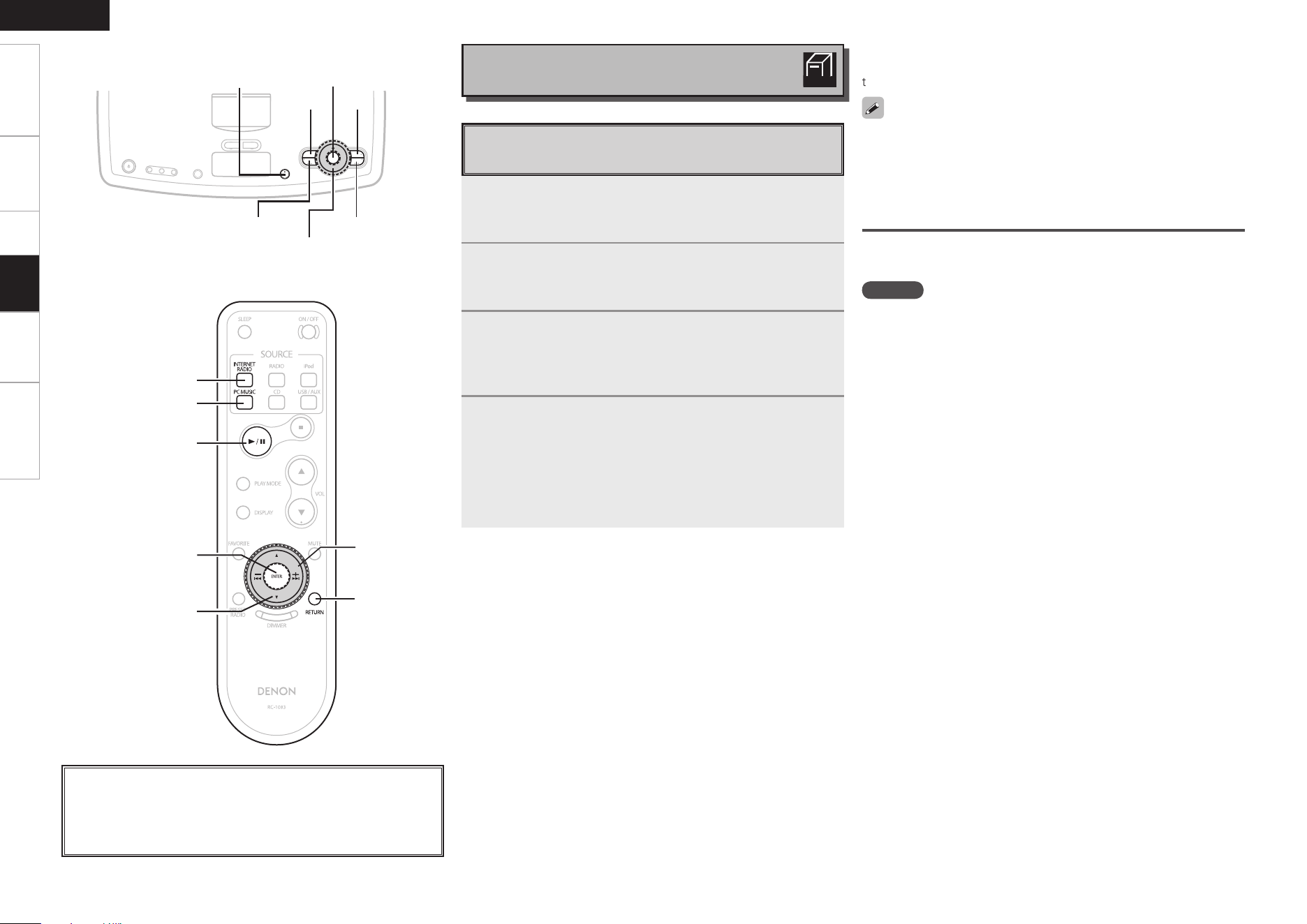
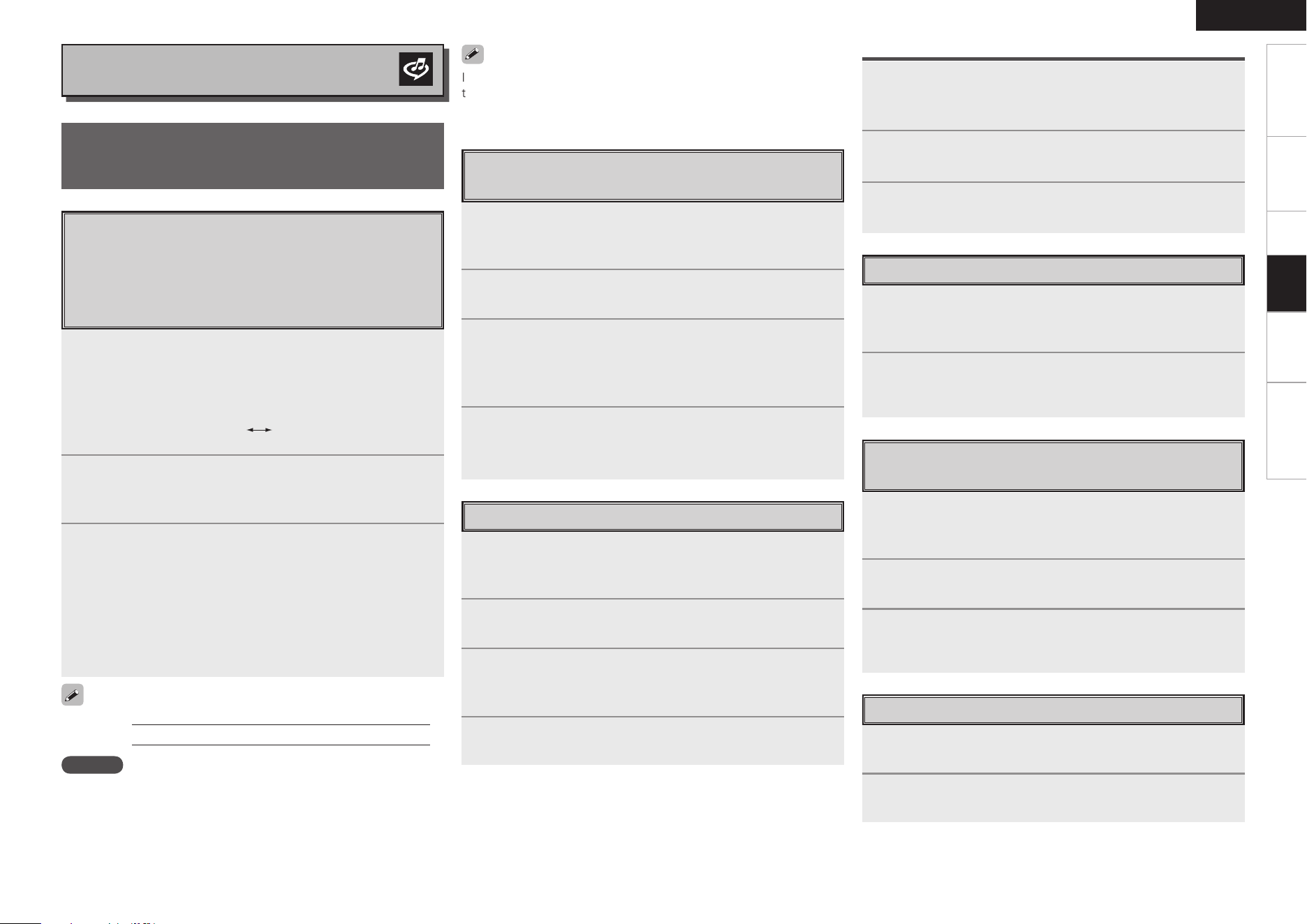
Playing Files Stored on a Computer
Use this procedure to play music files or playlists.
1
Either turn <Multi Jog> or press 8 9 after
pressing <SOURCE> to select “PC Music” then press
ENTER, or press [PC MUSIC].
2
Either turn <Multi Jog> or press [ui] to select the
host name of the computer on which the music le you
want to play is located, then press ENTER.
3
Either turn <Multi Jog> or press [ui] to select the
search item or folder, then press ENTER.
b When a folder is selected and 1/3 is pressed, playback of the files in
the folder begins.
4
Either turn <Multi Jog> or press [ui] to select the
le, then press ENTER.
b During playback, press 1/3 to pause. Press 1/3 again to resume
playback.
b Press RETURN during playback to return to the previous menu
screen.
b Press ENTER during play to change to Artist display or Album display.
Selecting Tracks
During playback, either press 8 (reverse track) or 9 (forward
track).
• Connections to the required system and specific settings must be
made in order to play music files (vpage 9).
• Before starting, you must launch the computer’s server software
and set the files as server contents. For details, see the operating
instructions of your server software.
Registering PC Music as Your Favorites
Music files can be stored in the favorites and played.
“Favorite” (vpage 26)
NOTE
• Favorites are erased by overwriting them.
• When the operation described below is performed, the music
server’s database is updated and it may no longer be possible to play
or registering music files.
•
When you quit the music server and then restart it.
•
When music files are deleted or added on the music server.
Listening to PC Music
PC
MUSIC
Playback
Getting Started Connections Setup Information Troubleshooting
ENGLISH
If the latest information is available, it is updated automatically. Do not
turn off the power during updating. When the update is complete, the
display disappears or a final screen message is displayed. When this
happens, plug out the power cord, and plug in again after a few seconds.
Listening to Rhapsody
About Rhapsody
Rhapsody is a paid music broadcast service of
RealNetworks.
Listening to Rhapsody
When you first listen to Rhapsody, take advantage of the
“30-day free trial”. When the free trial period has expired,
it is necessary to subscribe to a Rhapsody account at the
Rhapsody homepage and register this machine. See the
Rhapsody homepage for details.
1
Either turn <Multi Jog> or press 8 9 after
pressing <SOURCE> to select “Rhapsody” then press
ENTER, or press [INTERNET RADIO].
b The display changes as follows each time you press a remote control
button.
RhapsodyInternet Radio
2
Either turn <Multi Jog> or press [ui] to select
“Start 30-day free trial” or “I have a Rhapsody
account”, then press ENTER.
3
q When selecting “Start 30-day free trial”
Select “Accept” and press ENTER.
b To cancel, either press RETURN or select “Reject”, then press
ENTER.
w When selecting “I have a Rhapsody account”
Enter Username and Password.
b “How to Enter Characters ” for how to enter and change
(vpage 14).
NOTE
• The password should be no longer than 99 characters.
• The password may not contain underscores ( _ ).
Enter a Character Search For the Track
You Want to Listen to
1
Either turn <Multi Jog> or press 8 9 after
pressing <SOURCE> to select “Rhapsody” then press
ENTER, or press [INTERNET RADIO].
2
Either turn <Multi Jog> or press [ui] to select
“Search”, then press ENTER.
3
Either turn <Multi Jog> or press [ui] to select the
search item, then press ENTER.
The search display appears.
b You can search by artist name, album name or track name.
4
Enter the characters.
b “How to Enter Characters ” for how to enter (vpage 14).
Search From Rhapsody Latest Information
1
Either turn <Multi Jog> or press 8 9 after
pressing <SOURCE> to select “Rhapsody” then press
ENTER, or press [INTERNET RADIO].
2
Either turn <Multi Jog> or press [ui] to select
“Rhapsody Music Guide”, then press ENTER.
3
Either turn <Multi Jog> or press [ui] to select the
information for track selection, then press ENTER.
After selecting, the information is displayed.
4
Either turn <Multi Jog> or press [ui] to select the
track, then press ENTER.
Search From the Rhapsody Internet Radio Station
1
Either turn <Multi Jog> or press 8 9 after
pressing <SOURCE> to select “Rhapsody” then press
ENTER, or press [INTERNET RADIO].
2
Either turn <Multi Jog> or press [ui] to select
“Rhapsody Channels”, then press ENTER.
3
Either turn <Multi Jog> or press [ui] to select
radio station, then press ENTER.
Registering Tracks in My Library
1
Press ENTER while the track you wish to register is
playing.
“Exit” is displayed.
2
Either turn <Multi Jog> or press [ui] to select
“Add to my library”, then press ENTER.
The track is entered in the Library.
Listening to Tracks Registered in My
Library
1
Either turn <Multi Jog> or press 8 9 after
pressing <SOURCE> to select “Rhapsody” then press
ENTER, or press [INTERNET RADIO].
2
Either turn <Multi Jog> or press [ui] to select “My
Library”, then press ENTER.
3
Either turn <Multi Jog> or press [ui] to select the
information or track, then press ENTER.
After selecting, the information is displayed.
Displaying the Search Menu During Play
1
Press ENTER during playback.
“Exit” is displayed.
2
Either turn <Multi Jog> or press [ui] to select the
search item, then press ENTER.
Playback
User name:
Password:
0
Getting Started Connections Setup Information Troubleshooting
ENGLISH
iPod
®
Playback
You can listen to music on an iPod. It is also possible to
operate the iPod from the main unit or remote control unit.
b The iPod may only be used to copy or play contents that are not
copyrighted or contents for which copying or playback is legally
permitted for your private use as an individual. Be sure to comply
with applicable copyright legislation.
NOTE
• DENON will accept no responsibility whatsoever for any loss of iPod
data.
• Depending on the type of iPod and the software version, some
functions may not operate.
Listening to Music
1
Load the iPod on the set.
2
Either turn <Multi Jog> or press 8 9 after
pressing <SOURCE> to select “iPod” then press
ENTER, or press [iPod].
3
Press 1/3.
Playback starts.
b Also read the iPod’s operating instructions.
b Press ENTER during play to change to Artist display or Album display.
iPod is a trademark of Apple Inc., registered in the U.S.
and other countries.
Repeat and Random Playback
n REMOTE mode:
Repeat playback
Control with the iPod main unit.
Random playback
Control with the iPod main unit.
n BROWSE mode:
Repeat playback
q Press [PLAY MODE].
w Either turn <Multi Jog> or press [ui] to select “Repeat”, then press
ENTER.
e Either turn <Multi Jog> or press [ui] to select “Repeat 1” or
“Repeat All”, then press ENTER.
b
To cancel, select “Off” at step
e
.
Random playback
q Press [PLAY MODE].
w Either turn <Multi Jog> or press [ui] to select “Random”, then
press ENTER.
e Either turn <Multi Jog> or press [ui] to select “Song” or “Album”,
then press ENTER.
b
To cancel, select “Off” at step
e
.
Remote control and iPod Button Relations
Remote control
unit buttons
iPod buttons Operation on the S-52
1/3 13
Play the track/Pause the track.
b Play/Pause in remote mode
2
–
Stop the track
8, 9
8, 9
Play the track from the beginning/
Play the next track.
6, 7
Fast-reverse the track/Fast-for-
ward the track.
u, i
Click Wheel
Select an item.
ENTER Select
Enter the selection or plays the
track.
iPod –
Switch between the browse
mode and the remote mode.
PLAY MODE
–
Switch the repeat function.
Switch the random function.
(Browse mode only)
RETURN MENU
Display the menu or return to the
previous menu.
The mode switches between iPod remote mode and iPod browse
mode each time [iPod] is pressed.
Listening to iPod
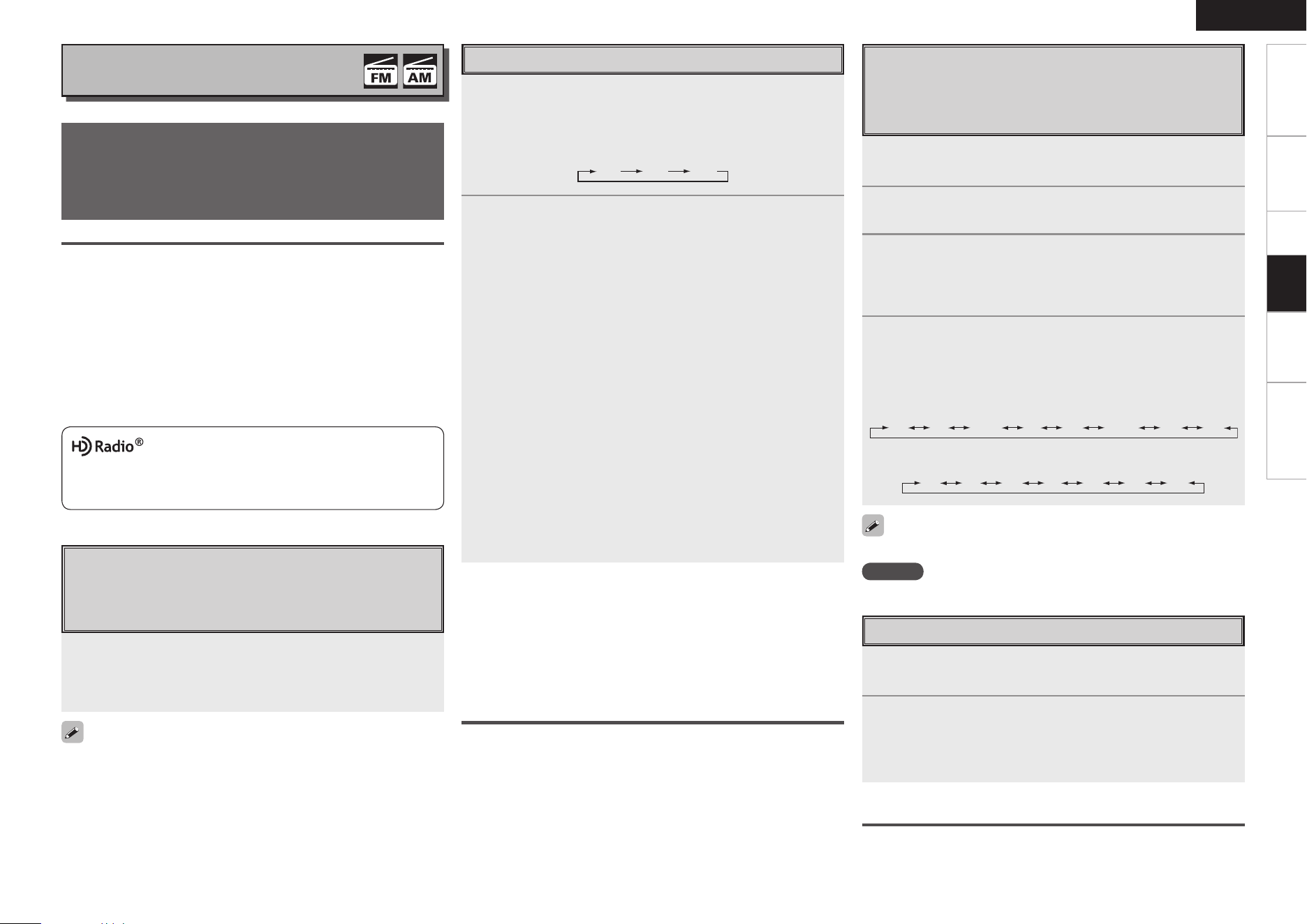
<Multi Jog>
RETURN
ENTER
8 9
<SOURCE>
1/3
[
ui
]
8 9
1/3
[PLAY MODE]
[RADIO]
[PRESET RADIO]
ENTER
[iPod]
RETURN
About the button names in these explanations
< > : Buttons on the main unit
[ ] : Buttons on the remote control unit
Button name only:
Buttons on the main unit and remote control unit
Playback
Getting Started Connections Setup Information Troubleshooting
ENGLISH
Presetting Radio Stations
(Preset Memory)
Your favorite broadcast stations can be preset so that you
can tune them in easily. Up to 56 stations can be preset.
1
Tune in the broadcast station you want to preset.
2
Press [PRESET RADIO].
3
Either turn <Multi Jog> or press [ui] to select
“Add to Preset”, then press ENTER.
Select a number that has not be registered automatically and
display it.
4
Either turn <Multi Jog> or press [ui] or 8
9 to choose the number to be registered, then
press ENTER.
b Either turn <Multi Jog> or press [ui] to enable selection of the
following preset numbers.
A1 A2 A3 A7··· ···A8 B1 G7 G8
Press 8 9 to enable selection of the following preset
numbers.
A1 B1 C1 D1 E1 F1 G1
To preset other stations, repeat steps 1 to 4.
NOTE
The preset stations are overwritten.
Automatically Presetting FM Stations (Auto preset)
q Either turn <Multi Jog> or press 8 9 after pressing <SOURCE>
to select “FM then press ENTER.
w Press [PLAY MODE].
e Either turn <Multi Jog> or press [ui] to select “Auto Preset”, then
press ENTER.
r Either turn <Multi Jog> or press [ui] to select “Start”, then press
ENTER.
(Scanning starts and broadcast stations are automatically preset.)
b
Press RETURN to stop the auto preset operation before it is
finished.
Listening to FM/AM
Using the HD Radio Receiver
HD Radio technology provides higher quality sound than conventional
broadcasts and allows reception of data services.
• FM sounds as sensational as CDs
• AM sounds as rich as analog FM stereo
• A variety of “data services”, including text-based information song
title, artist name, album name, genre, etc.
Furthermore, in addition to conventional broadcasts, with HD
Radio broadcasting it is possible to choose from up to 8 multicast
programs.
For detailed information on HD Radio technology, please go to
“www.ibiquity.com”.
HD Radio™ Technology Manufactured Under License From iBiquity
Digital Corp. U.S. and Foreign Patents. HD Radio™ and the HD and
HD Radio logos are proprietary trademarks of iBiquity Digital Corp.
Listening to HD Radio™ Stations
HD Radio stations offer higher sound quality than
conventional FM/AM broadcasts. It is also possible to
receive data services and select broadcasts from among up
to eight multicast programs.
Tuning in Broadcast Stations
1
Either turn <Multi Jog> or press 8 9 after
pressing <SOURCE> to select “FM or AM” then press
ENTER, or press [RADIO].
b The display changes as follows each time you press a remote control
button.
FM AM XM
2
GTo tune in automatically (Auto Tuning)H
q Press [PLAY MODE].
w Either turn <Multi Jog> or press [ui] to select “Mode”, then
press ENTER.
e Select “HD Auto” or “Auto”, then press ENTER.
• HD Auto:
Tuning stops once a digital broadcast is found.
•
Auto:
Tuning stops once a digital or analog broadcast is found.
r Radio stations are automatically searched for and received
by pressing 8 9. When a station is found the search
stops. When 8 9 is pressed during the search, the
searching stops.
b Analog broadcasts are tuned in if the reception sensitivity of
digital broadcasts is weak.
GTo tune in manually (Manual Tuning)H
q Press [PLAY MODE].
w Either turn <Multi Jog> or press [ui] to select “Mode, then
press ENTER.
e Either turn <Multi Jog> or press [ui] to select “Manual”,
then press ENTER.
r Press 8 9 to select the reception frequency.
n Viewing track information during reception
Press ENTER while receiving a digital broadcast to display the name
of the artist, album, etc., of the track currently being broadcast.
Either turn <Multi Jog> or press [ui] to select the information.
n Canceling track information
Press ENTER again to return to the previous display.
b Information is only displayed when it is available.
Listening to Preset Stations
1
Press [PRESET RADIO].
2
Either turn <Multi Jog> or press [ui] or 8
9 to choose the station to be registered, then press
ENTER.
b For details, see “Presetting Radio Stations (Preset Memory)” .
Listening to FM/AM Stations Registered Your
Favorites
FM/AM stations can be stored in the favorites and played.
“Favorite” (vpage 26)
Playback
Selecting Audio Programs
HD Radio includes up to 8 audio programs (HD1 to HD8
and Analog). The different audio programs also have data
programs.
Press [ui] to select the audio program.
If the station you are listening to has multiple audio programs, “HD1”
is indicated on the display. If it only has one audio program, “HD” is
indicated.
If an audio program from HD2 to HD8 has been interrupted or if a program
is called out using the preset buttons after it has been interrupted, HD1 is
automatically selected after about 20 seconds.
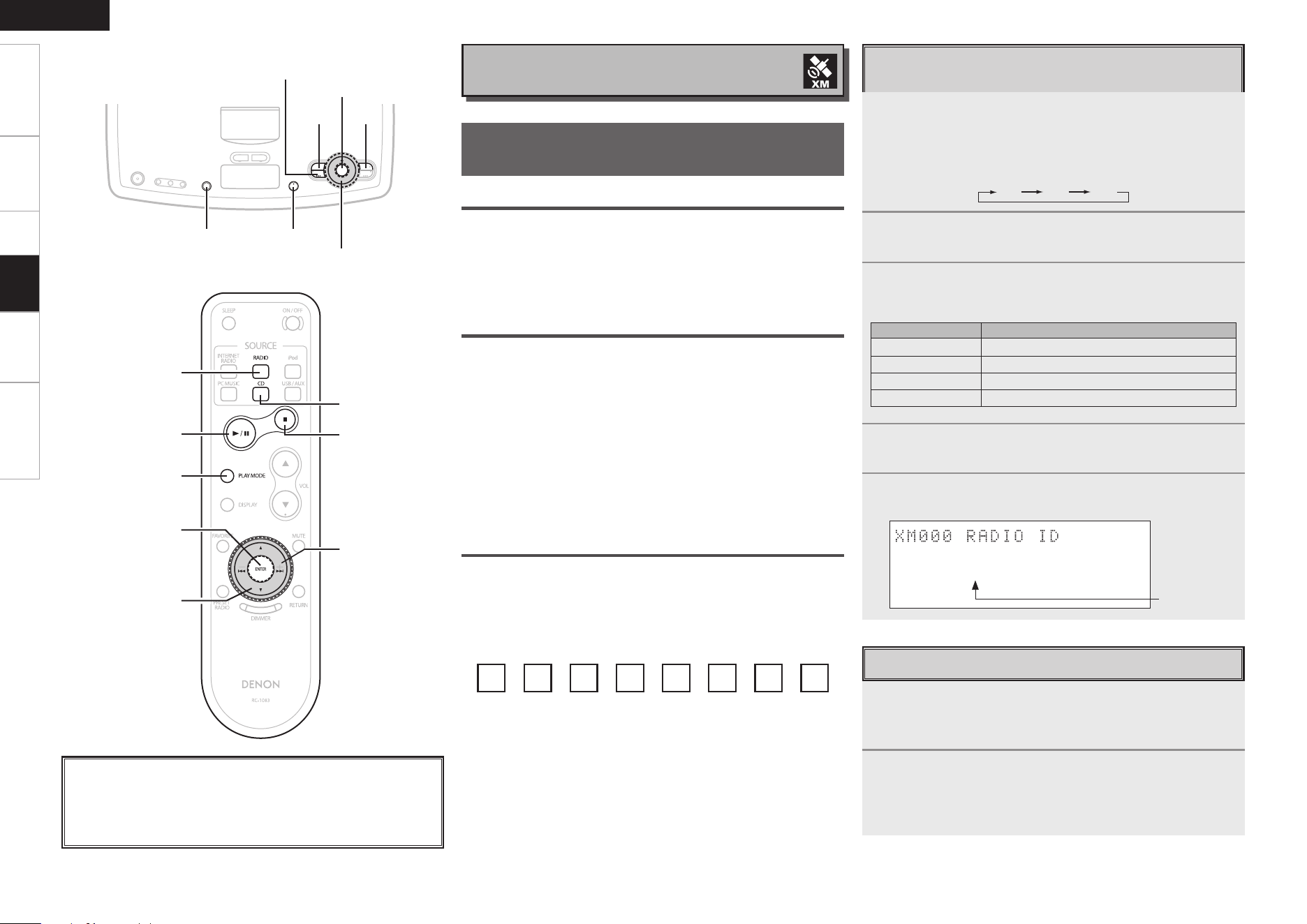
Getting Started Connections Setup Information Troubleshooting
ENGLISH
About the button names in these explanations
< > : Buttons on the main unit
[ ] : Buttons on the remote control unit
Button name only:
Buttons on the main unit and remote control unit
Checking the XM Signal Level and Radio
ID
1
Either turn <Multi Jog> or press 8 9 after
pressing <SOURCE> to select “XM” then press ENTER,
or press [RADIO].
b The display changes as follows each time you press a remote control
button.
FM AM XM
2
Press ENTER.
3
Press [ui] to select “Signal Level”.
The display will switch as shown below, depending on the
reception conditions.
Display Status
GOOD Signal strength is good
MARGINAL Signal strength is marginal
WEAK Signal strength is weak
NO No signal
4
Adjust the position of the antenna until “SIGNAL:
GOOD” is shown on the display.
5
Press 8 and select channel 0 (XM000).
The radio ID is shown on the display.
¡ ¡ ¡ ¡ ¡ ¡ ¡
Radio ID
Listening to XM Satellite Radio
Programs
Channel Selection
1
Either turn <Multi Jog> or press 8 9 after
pressing <SOURCE> to select “XM” then press ENTER,
or press [RADIO].
2
Press 8 9 to reach the desired channel.
b The channel changes continuously when you press and hold 8
or 9.
ABOUT XM RADIO
XM Radio offers an extraordinary variety of commercial-free music, plus the best
in premier sports, news, talk radio, stand-up comedy, children’s and entertainment
programming. XM is broadcast in superior digital audio from coast to coast. From rock
to reggae, from classical to hip hop, XM has something for every music fan. For U.S.
customers, information about XM Radio is available online at www.xmradio.com. For
Canadian customers, information about XM Canada is online at www.xmradio.ca.
XM READY
®
LEGAL
XM monthly service subscription sold separately. XM Mini-Tuner and Home Dock
required (each sold separately) to receive XM service. Installation costs and other fees
and taxes, including a one-time activation fee may apply. All fees and programming
subject to change. Channels with frequent explicit language are indicated with an
XL. Channel blocking is available for XM radio receivers by calling 1-800-XMRADIO
(US residents) and 1-877-GETXMSR (Canadian residents). For a full listing of the
XM commercial- free channels and advertising-supported channels, visit lineup.
xmradio.com (US residents) or xmradio.ca (Canadian residents). Subscriptions subject
to Customer Agreement available at xmradio.com (US residents) and xmradio.ca
(Canadian residents). Only available in the 48 contiguous United States and Canada.
©2007 XM Satellite Radio Inc. All rights reserved. All other trademarks are the
property of their respective owners.
XM READY
®
SUBSCRIPTIONS
Once you have installed the XM Mini-Tuner Dock, inserted the XM Mini-Tuner,
connected the XM Dock to your XM Ready
®
home audio system, and installed the
antenna, you are ready to subscribe and begin receiving XM programming. There are
three places to find your eight character XM Radio ID: On the XM Mini-Tuner, on the
XM Mini-Tuner package, and on XM Channel 0. Record the Radio ID in the following
eight squares for reference.
Note: The XM Radio ID does not use the letters “I”, “O”, “S” or “F”. Activate your
XM Satellite Radio service in the U.S. online at http://activate.xmradio.com or call
1-800-XM-RADIO (1-800-967-2346). Activate your XM Satellite Radio service in
Canada online at https://activate.xmradio.ca or call 1-877-GET-XMSR (1-877-438-
9677). You will need a major credit card. XM will send a signal from the satellites to
activate the full channel lineup. Activation normally takes 10 to 15 minutes, but during
peak busy periods you may need to keep your XM Ready home audio system on for up
to an hour. When you can access the full lineup on your XM Ready home audio system
you are done.
Listening to XM
<Multi Jog>
ENTER
<SOURCE>
1/3<5>
8 9
[
ui
]
[PLAY MODE]
[RADIO]
ENTER
8 9
1/3
[CD]
[
2
]
Playback
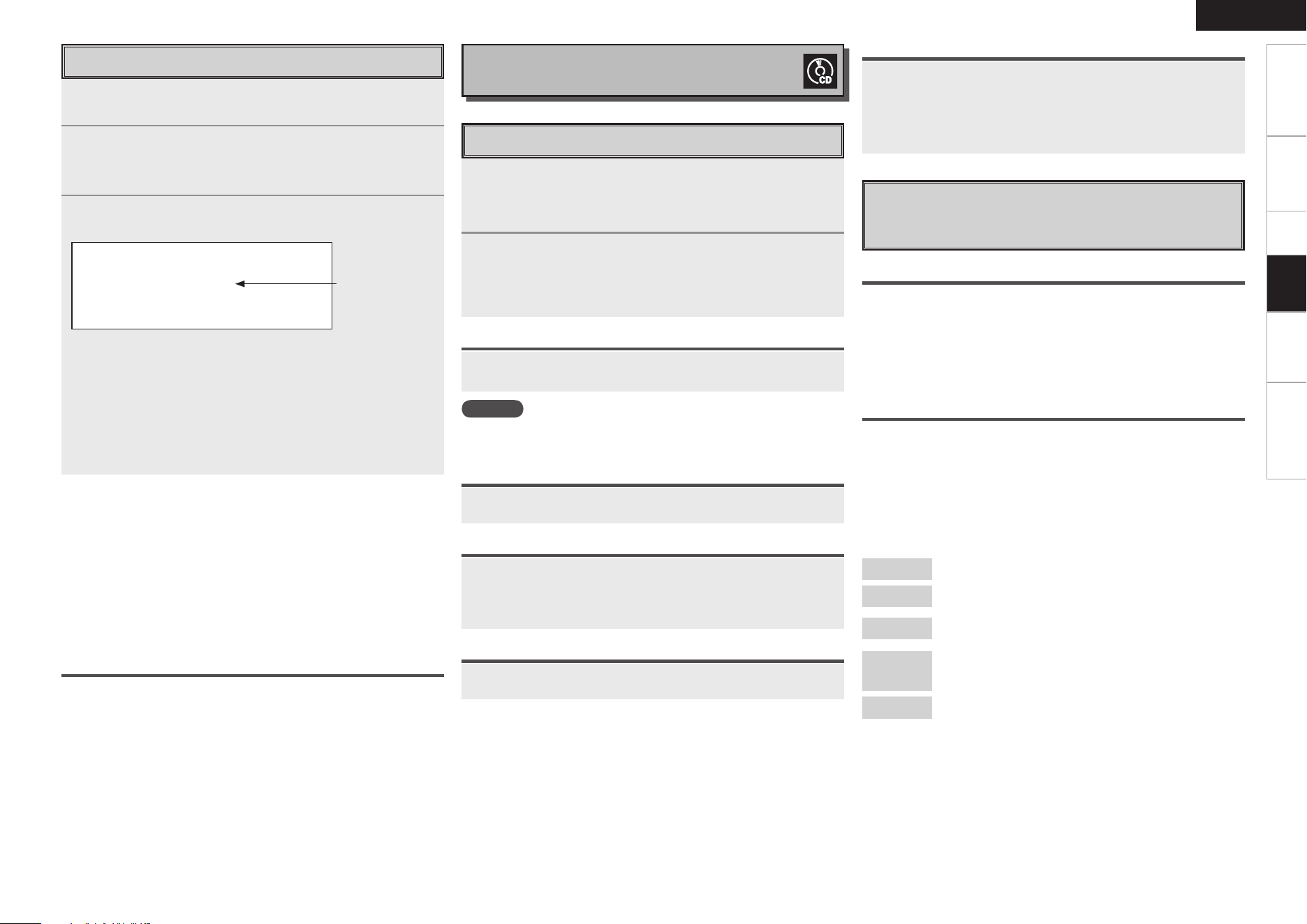
Getting Started Connections Setup Information Troubleshooting
ENGLISH
1
Press [PLAY MODE].
2
Either turn <Multi Jog> or press [ui] to select
“Category search” or “Direct search”, then press
ENTER.
3
GCategory searchH
q The current category name is displayed.
C a t : R o c k
X M 0 2 0 : D e e p T r k s
w Use [ui] to select the category, then use 8 9 to
select the desired station.
GDirect searchH
XM A B C (A: 0 ~ 2, B: 0 ~ 9, C: 0 ~ 9)
q Either turn <Multi Jog> or press [ui] to choose the station
to be registered.
w Use 8 9 to choose the cursor position.
e Once you are finished inputting, press ENTER.
Searching Categories/Searching Direct
Channel Category
Listening to XM Radio Stations Registered in Your
Favorites and Presets
• XM Radio stations can be stored in the favorites and played.
• XM Radio stations can be stored in the preset memory and played in
the same way as FM/AM Stations.
• “Presetting Radio Stations” (vpage 21)
• “Listening to Preset Stations” (vpage 21)
• “Favorite” (vpage 26)
n Viewing track information during reception
Press ENTER while receiving a digital broadcast to display the title
name, categoly, etc., of the track currently being broadcast.
Either turn <Multi Jog> or press [ui] to select the information.
n Canceling track information
Press ENTER again to return to the previous display.
b Information is only displayed when it is available.
Playing a CD
1
Either turn <Multi Jog> or press 8 9 after
pressing <SOURCE> to select “CD” then press
ENTER, or press [CD].
2
Press 1/3.
The playback begins.
b Press ENTER during playback to change between displays of
elapsed time and remaining time.
Ejecting Discs
In the stop mode, press <5>.
NOTE
Do not place any foreign objects in the CD slot. Doing so could damage
it.
Stopping Playback
Press [2].
Stopping Playback Temporarily
Press 1/3.
The play time flashes.
b To resume playback, press 1/3.
Fast-Forwarding and Fast-Reversing (Searching)
Press and hold in the 8 or 9 during playback.
Repeat 1
:
A single track is played repeatedly.
Repeat
All
:
All tracks are played repeatedly.
Random
:
Tracks are selected automatically and played in
random order.
Random
Repeat
:
Once all the tracks have been played once in random
order, they are played through again, each time in a
different random order. (Random + Repeat All)
Off
:
Normal playback resumes.
Moving to the Beginning of Tracks (Skipping)
Press 8 or 9 during playback.
• The disc is skipped the number of tracks equal to the number of
times the button is pressed.
• When pressed once in the return direction, playback returns to the
beginning of the currently playing track.
Various Playback Function
Various types of playback are possible by selecting repeat
or random playback using [PLAY MODE].
[Selectable items]
Playing the Repeat Playback
q Press [PLAY MODE].
w Either turn <Multi Jog> or press [ui] to select “Repeat”, then press
ENTER.
e Either turn <Multi Jog> or press [ui] to select “Repeat 1” or
“Repeat All”, then press ENTER.
b
To cancel, select “Off” at step
e
.
Playing the Random Playback
q In the stop mode, press [PLAY MODE].
w Either turn <Multi Jog> or press [ui] to select “Random”, then
press ENTER.
e Either turn <Multi Jog> or press [ui] to select “On”, then press
ENTER.
b
To cancel, select “Off” at step
e
.
Listening to CD
Playback
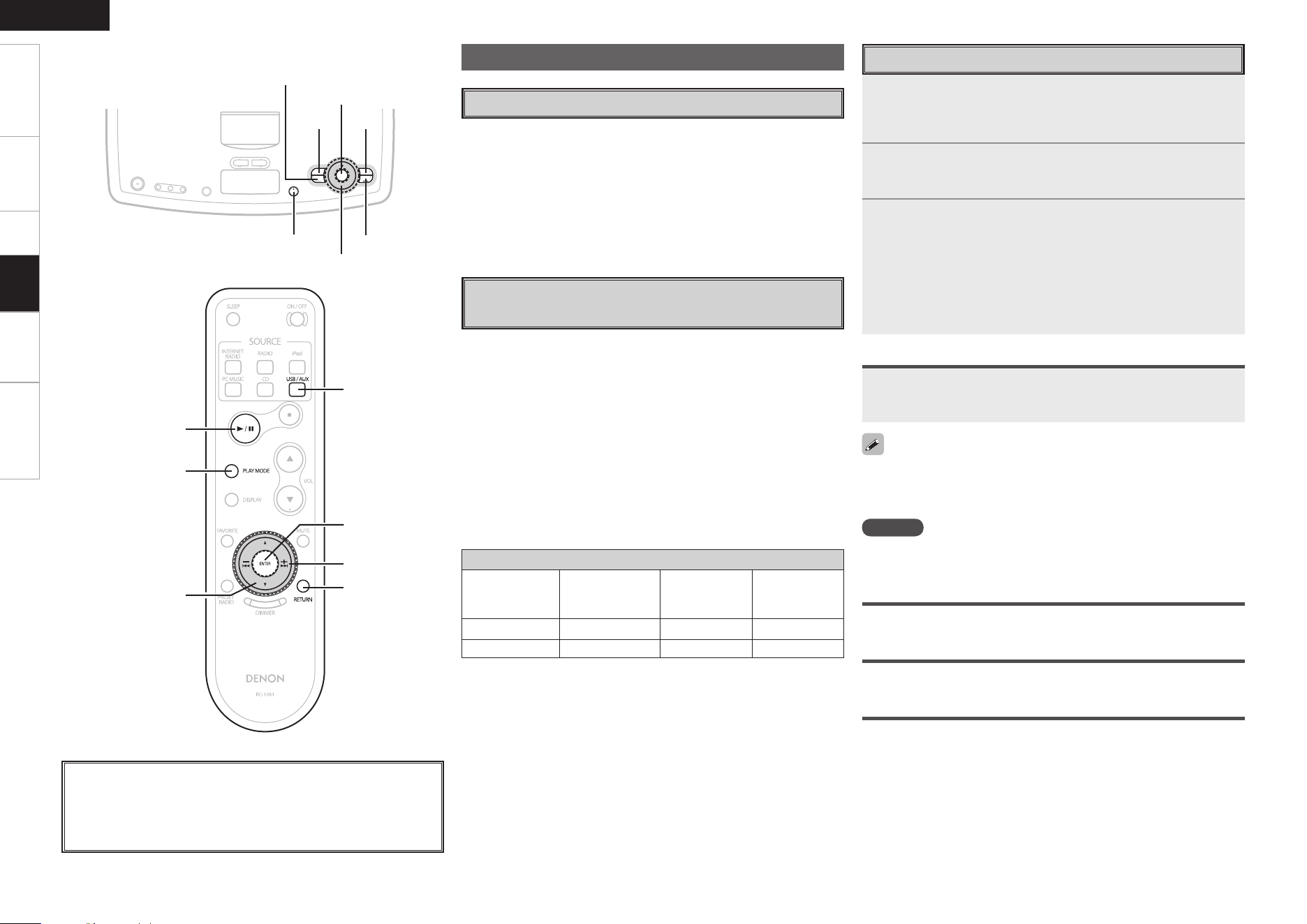
Getting Started Connections Setup Information Troubleshooting
ENGLISH
About the button names in these explanations
< > : Buttons on the main unit
[ ] : Buttons on the remote control unit
Button name only:
Buttons on the main unit and remote control unit
Playback
There are many music distribution sites on the Internet allowing you
to download music files in MP3 or WMA (Windows Media
®
Audio)
format. The music (files) downloaded from such sites can be stored on
CD-R or CD-RW discs and played on the S-52.
“Windows Media” and “Windows” are registered trademarks or
trademarks in the United States and other countries of Microsoft
Corporation of the United States.
Playing Music Files
Before Playing MP3 or WMA Files
Creating MP3 and WMA Files Compatible
with the S-52 (CD-R/CD-RW)
• Writing software format: “ISO9660 level 1”.
If the file is stored in a different format, it may not play properly.
See the writing software’s instructions.
• The maximum number of files and folders
Total number of folders and files: 1000
The maximum folders: 255
• Incompatible: Packet write, playlists.
• Be sure to give the extension “.MP3” or “.WMA” to MP3 or WMA
files. The files cannot be played if they have any other extensions.
(Macintosh computer: Within 8 capital letters or numbers)
b Your recordings may be used for your personal enjoyment only, and
may not be used for other purposes without the consent of the
copyright holder as per copyright laws.
Playable MP3/WMA file
File format
Sampling
frequency
(kHz)
Bit rate
(kbps)
Extension
MP3 32/44.1/48 32 ~ 320 .MP3
WMA 32/44.1/48 64 ~ 192 .WMA
• The S-52 is compatible with “MPEG-1 Audio Layer-3” standards. It
is not compatible with “MPEG-2 Audio Layer-3”, “MPEG-2.5 Audio
Layer-3”, “MP1” or “MP2” standards.
• The S-52 is compatible with ID3-Tag (Ver. 2 and 3) standards or META
tags.
Copyright-protected files cannot be played. Note that depending on
the software used for burning and other conditions, some files may
not play or display correctly.
Playing MP3 or WMA Files
1
Load a CD-R or CD-RW disc containing music les in
the MP3 or WMA format into the CD slot (vpage
3).
2
Select the folder you want to play using <Multi Jog>
or [ui], then press ENTER.
3
Select the le you want to play using <Multi Jog> or
[ui], then press ENTER or 1/3.
Playback starts.
b Track, artist and album names are only displayed if they are stored
on the disc.
b Press ENTER during playback to change between displays of Artist
display and Album display.
Changing the Folder or File During Playback
Use RETURN to display the list, then use <Multi Jog>,
[ui] or 8 9 to select the folder or le.
NOTE
The time may not be displayed properly if the search or pause operation
is performed while playing files recorded with a variable bit rate.
To Select Disc or Folder
q Press [PLAY MODE].
w Either turn <Multi Jog> or press [ui] to select “Mode”, then press
ENTER.
e Either turn <Multi Jog> or press [ui] to select “Folder” or “Disc”,
then press ENTER.
Playing the Repeat Playback
“Various Playback Function” (vpage 23)
Playing the Random Playback
“Various Playback Function” (vpage 23)
<Multi Jog>
ENTER
1/3
<SOURCE>
8 9
RETURN
[
ui
]
[PLAY MODE]
1/3
ENTER
RETURN
[USB/AUX]
8, 9
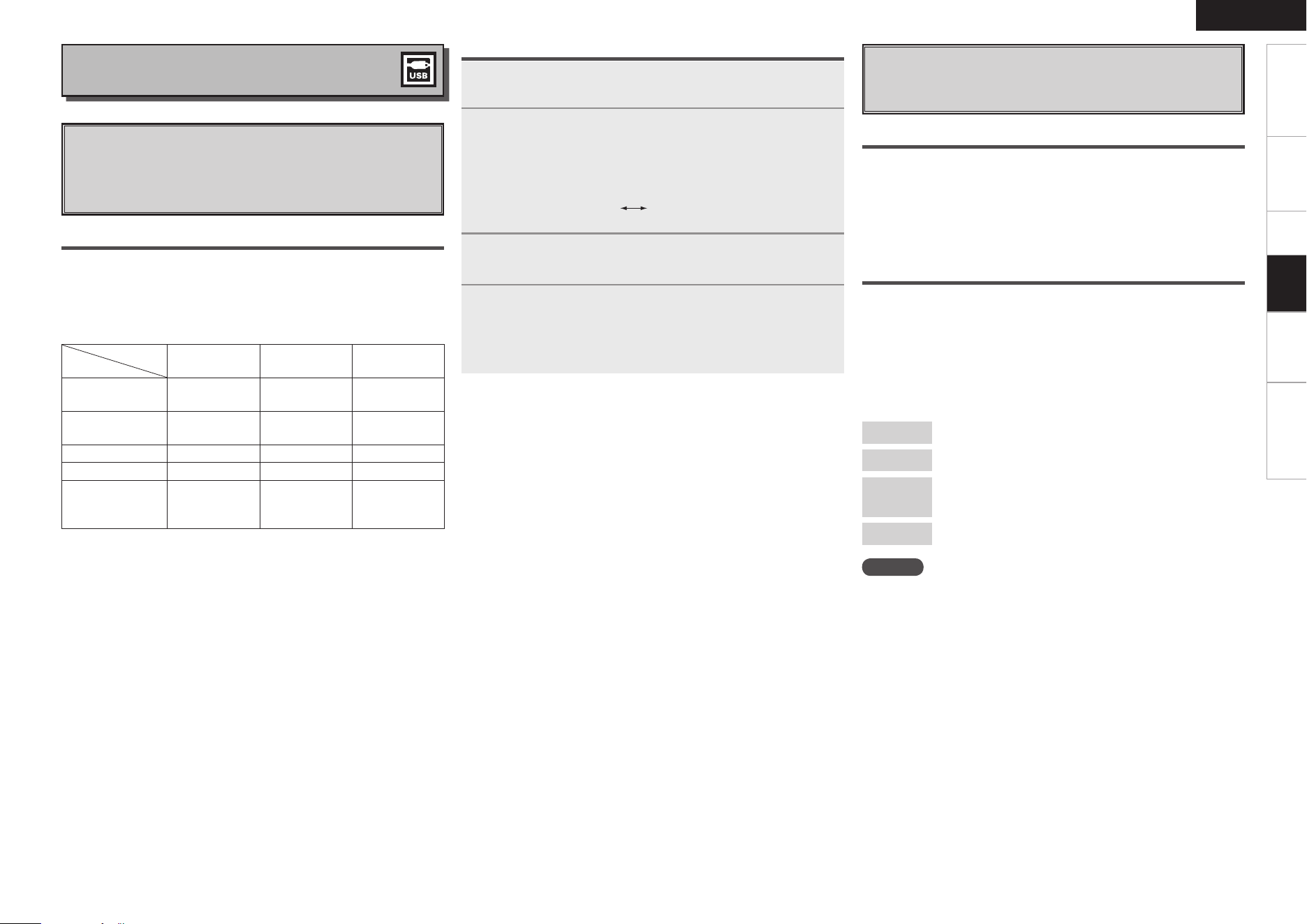
Getting Started Connections Setup Information Troubleshooting
ENGLISH
Playback
Playing Files Stored on USB Memory
Devices
Only USB memory devices conforming to mass storage
class can be played on the S-52.
Before Playing a USB Memory Device
• The S-52 is compatible with USB memory devices in “FAT16” or
“FAT32” format.
• If the USB memory device is divided into multiple partitions, only the
top drive can be selected.
[Playable formats]
Sampling
frequency
Bit rate Extension
WMA (Windows
Media Audio)
32/44.1/48 kHz 48~192 kbps .wma
MP3 (MPEG-1
Audio Layer-3)
32/44.1/48 kHz 32~320 kbps .mp3
WAV 32/44.1/48 kHz – .wav
MPEG-4 AAC 32/44.1/48 kHz 16~320 kbps .aac/.m4a/.mp4
FLAC (Free
Lossless Audio
Codec)
32/44.1/48 kHz – .flac
WAV format Quantization bit rate: 16 bits.
• The S-52 is compatible with “MPEG-1 Audio Layer-3” standards.
It is not compatible with “MPEG-2 Audio Layer-3”, “MPEG-2.5 Audio
Layer-3”, “MP1” or “MP2” standards.
• The S-52 is compatible with ID3-Tag (Ver. 2 and 3) standards or META
tags.
• Only files* that are not protected by copyright can be played on the
S-52.
z: Contents downloaded from pay music sites on the Internet are
copyright protected. Tracks ripped on a computer from a CD,
etc., and encoded in WMA format may be copyright protected,
depending on the computer’s settings.
1
Make the necessary preparations.
Connect the USB memory device to the set USB port.
2
Either turn <Multi Jog> or press 8 9 after
pressing <SOURCE> to select “USB” then press
ENTER, or press [USB/AUX].
b The display changes as follows each time you press a remote control
button.
USB AUX
3
Either turn <Multi Jog> or press [ui] to select the
search item or folder, then press ENTER.
4
Either turn <Multi Jog> or press [ui] to select the
le, then press ENTER.
b Press ENTER during playback to change between displays of Artist
display and Album display.
Basic Operation
Listening to USB
Various Playback Function
Various types of playback are possible by selecting repeat
or random playback using [PLAY MODE].
Playing the Repeat Playback
q Press [PLAY MODE].
w Either turn <Multi Jog> or press [ui] to select “Repeat”, then press
ENTER.
e Either turn <Multi Jog> or press [ui] to select “Repeat 1” or
“Repeat All”, then press ENTER.
b
To cancel, select “Off” at step
e
.
Playing the Random Playback
q Press [PLAY MODE].
w Either turn <Multi Jog> or press [ui] to select “Random”, then
press ENTER.
e Either turn <Multi Jog> or press [ui] to select “On”, then press
ENTER.
b
To cancel, select “Off” at step
e
.
Repeat 1
:
A single track is played repeatedly.
Repeat
All
:
All tracks are played repeatedly.
Random
Repeat
:
Once all the tracks have been played once in random
order, they are played through again, each time in a
different random order. (Random + Repeat All)
Off
:
Normal playback resumes.
[Selectable items]
NOTE
• DENON will take no responsibility whatsoever for any loss or damage
to data on USB memory devices when using the USB memory
device connected to the S-52.
• USB memory devices will not work via a USB hub.
• DENON does not guarantee that all USB memory devices will operate
or receive power. When using a USB connection type portable hard
disk of the type for which power can be supplied by connecting an
AC adapter, we recommend using the AC adapter.
• It is not possible to connect and use a computer via the S-52’s USB
port using a USB cable.
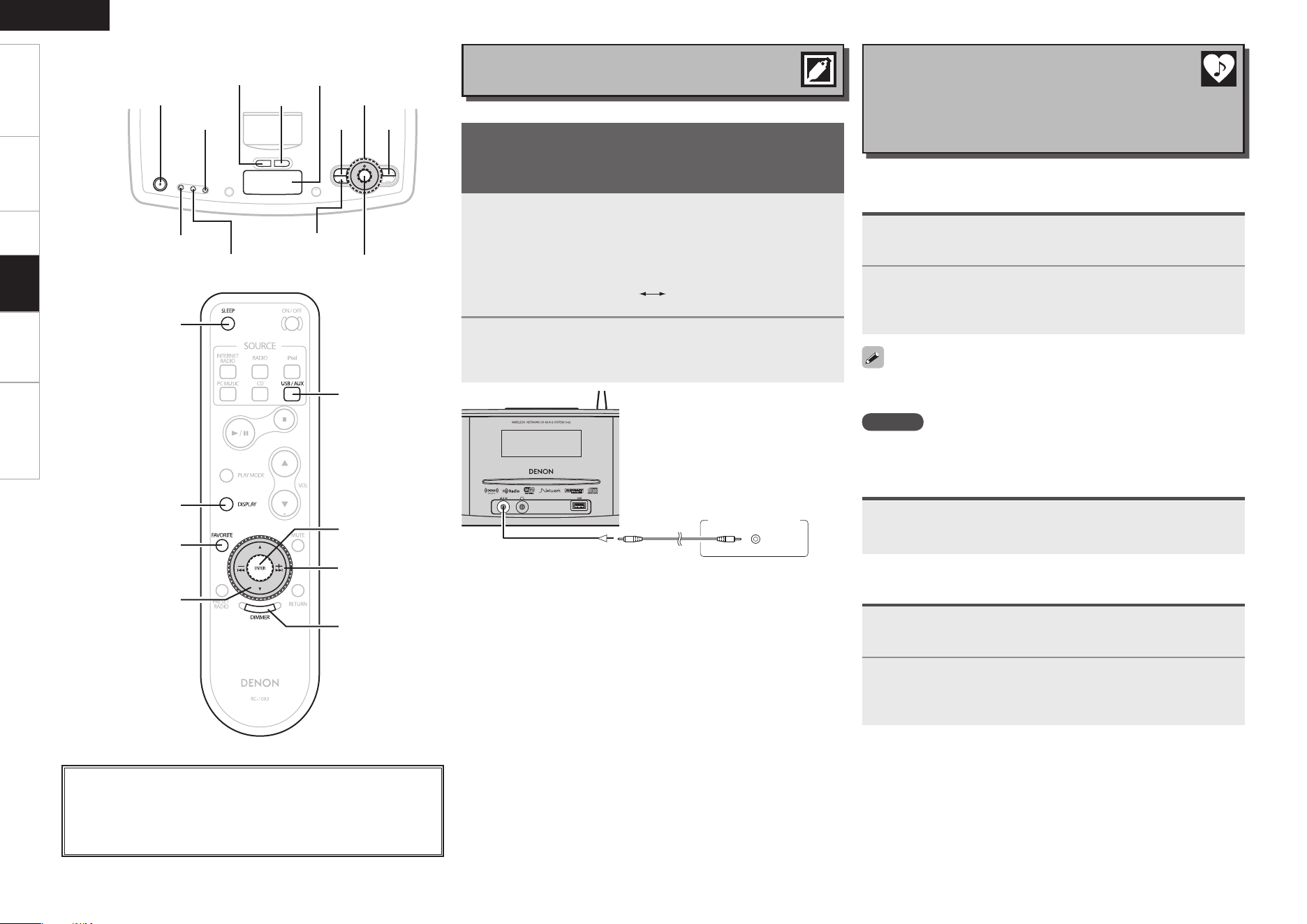
Getting Started Connections Setup Information Troubleshooting
ENGLISH
About the button names in these explanations
< > : Buttons on the main unit
[ ] : Buttons on the remote control unit
Button name only:
Buttons on the main unit and remote control unit
Playback
Playing a Portable Audio
Your portable audio player can be connected to the S-52’s
AUX IN jack to play tracks on the portable audio player.
1
Either turn <Multi Jog> or press 8 9 after
pressing <SOURCE> to select “AUX” then press
ENTER, or press [USB/AUX].
b The display changes as follows each time you press a remote control
button.
USB AUX
2
Play the Portable Audio player.
The Portable Audio are output.
b Also read the portable audio player’s operating instructions.
Connect the S-52 and Portable Audio player using a separately sold
mini-stereo audio cable.
Listening to Radio Stations and PC Music Registered
in Your Favorites
1
Press [FAVORITE] while the radio station or PC music
you want to register is playing.
2
Either turn <Multi Jog> or press [ui] to select
“Add to Favorite”, then press ENTER.
“Complete!!” is displayed once registration is finished.
Registering Radio Stations and PC Music as Your
Favorites
NOTE
If more than 50 stations are already registered, the oldest data is
deleted.
1
Press [FAVORITE].
2
Either turn <Multi Jog> or press [ui] to choose
the Radio Station or PC Music to be registered, then
press ENTER.
Press and hold in [FAVORITE] for at least 1 second to store in
“Favorite”.
Listening to AUX
Favorite
Your favorite Internet radio stations, PC Music and broadcast
stations can be registered in your favorites so that you can
tune them in easily. Up to 50 data can be registered.
<ALARM SETTING>
<FUNCTION ON / OFF>
<ALARM1>
<ALARM2> <Multi Jog>
<MUTE / SNOOZE>
ENTER
8 9
<SOURCE>
SLEEP
DIMMER
[
ui
]
[FAVORITE]
[DISPLAY]
ENTER
[USB/AUX]
8, 9
SLEEP
DIMMER
"6%*0-*/&
065
Portable
Check register (number of registered stations)
Press [FAVORITE].
Displays registered stations.
Getting Started Connections Setup Information Troubleshooting
ENGLISH
Playback
• When the input source is “Internet Radio”, “PC Music”, “iPod”, or
“CD”, if music does not play when the alarm on time is reached, a
Beep will sound.
• Alarms 1 and 2 operate separately.
• If the set is not operated for 60 minutes after alarm playback starts,
playback stops and the function off (The Beep sound stops after 5
minutes).
• When you want alarm playback of an iPod recording, set iPod while
pausing the track you want to play.
n Pausing alarm playback (snooze function)
Press <MUTE / SNOOZE> during alarm playback.
Alarm playback resumes 5 minutes after it was stopped.
n Stopping alarm playback
Either press <ALARM1> or <ALARM2> on the main unit to turn the
alarm off, or press the main unit’s <FUNCTION ON/OFF>.
If there is a power failure
n When connected to a network
When the power comes back on, the set automatically connects
to an SNTP (Simple Network Time Protocol) server and the current
time is adjusted automatically. Once the zone, daylight saving time
and alarm time have been set, they are stored in the memory, so
there is no need to set them again.
n When unconnected to a network
When the power comes back on, the clock resumes from the time
the power turned off. If the time is way off, turn the power on and
reset the current time. If the alarm time has been set, it is stored in
the memory, so there is no need to set it again.
Alarm Setting
Set the alarm time, source and volume.
1
Press <ALARM SETTING> to set the alarm.
2
GAlarm number selectionH
Turn <Multi Jog> to select “ALARM1” or
“ALARM2”, then press ENTER.
3
GAlarm time settingH
Select time with <Multi Jog>, then press ENTER to
set.
b Turn <Multi Jog> clockwise to increment the set value, and counter-
clockwise to decrement it.
4
GAlarm source settingH
Select alarm source with <Multi Jog>, then press
ENTER to set.
5
GAlarm volume level settingH
Select alarm volume level with <Multi Jog>, and
press ENTER to set.
6
Press <ALARM1> or <ALARM2>, and set the alarm
on.
Advanced Operation
1
Set the current time (vpage 11).
2
During playback, use SLEEP to select the time.
120 90 60 50 40 30 20 10
b After about 5 seconds, the previous display reappears and the
timer starts.
3
The power is set to the function off mode after the set
amount of time.
Off
Setting the Sleep Timer
Use this function to automatically switch the power to
the function off mode after a specific amount of time
(minutes).
Canceling the sleep timer
Press SLEEP, select “Off” from the sleep timer time display.
Checking the time remaining until the sleep timer
starts
Press SLEEP.
Checking the current time
Press [DISPLAY] or hold down DIMMER for 2 seconds or more.
The time is displayed.
Getting Started Connections Setup Information Troubleshooting
ENGLISH
<MUTE/SNOOZE>
<1/3> <9>
<5>
About the button names in these explanations
< > : Buttons on the main unit
[ ] : Buttons on the remote control unit
Button name only:
Buttons on the main unit and remote control unit
Playback
Personal Memory Plus Function
This function sets the settings last selected for the
individual input sources.
When you switch to an input source, the settings are
automatically set to the ones that were set the last time
that input source was used.
Convenient Functions
Last Function Memory
This stores the settings as they were directly before the
standby mode was set.
When the power is turned back on, the settings are
restored to as they were directly before the standby mode
was set.
Backup Memory
The various settings are backed up for about 1 week,
even if the power is turned off or the power cord is
disconnected.
Auto Power On
When the power is in the standby mode, the power turns
on simply by pressing <5> or <1/3>.
Resetting the Microprocessor
Perform this procedure if the display is abnormal or if
operations cannot be performed.
When the microprocessor is reset, all the settings are
reset to their default values.
1
Remove the power plug.
2
While pressing <9> and <MUTE / SNOOZE>
simultaneously, plug the power cord into a power outlet.
3
When “INITIALIZE” is displayed, release your
ngers from the two buttons.
When “INITIALIZE” is not displayed in step 3, repeat operations from
step 1.
Getting Started Connections Setup Troubleshooting
ENGLISH
Playback
Audyssey Dynamic EQ.
Audyssey Dynamic EQ. is a technology that automatically corrects the
tonal balance of an audio system when the volume is changed. It
is based on psychoacoustic research that better matches to human
perception than other loudness compensation that was used before.
The tonal balance is adjusted continuously with variation in both
program material and volume setting.
Audyssey BassXT
Audyssey BassXT is a solution to extend bass performance to lower
frequencies without increasing cabinet size, driver size or weight.
BassXT actively monitors the incoming low frequency signal and
drives subwoofers to their maximum capability at all volumes, thereby
producing deeper bass at all volume levels. This allows the subwoofer
to play low bass content when it can and protects it only for the few
times when it can’t. It is not like simple bass boost or tone control
as the system is fully customized for each speaker design by DSP
processing and works in real time.
Manufactured under license from Audyssey Laboratories, Inc.
U.S. and foreign patents pending.
Audyssey BassXT™ and Audyssey Dynamic EQ™ are trademarks
of Audyssey Laboratories, Inc.
Windows Media Player Ver.11
vTuner
This is a free online contents server for Internet radio. Note that usage
fees are included in upgrade costs.
For inquiries about this service, visit the vTuner site below.
vTuner website: http://www.radiodenon.com
This product is protected by certain intellectual property rights of
Nothing Else Matters Software and BridgeCo. Use or distribution of
such technology outside of this product is prohibited without a license
from Nothing Else Matters Software and BridgeCo or an authorized
subsidiary.
About Networks
This is a media player distributed free of charge by Microsoft
Corporation.
It can be used to play playlists created with Windows Media Player
Ver. 11 as well as files in such formats as WMA, DRM WMA, MP3
and WAV.
DLNA
• DLNA and DLNA CERTIFIED are trademarks and/or service marks of
Digital Living Network Alliance.
• Some contents may not be compatible with other DLNA CERTIFIED™
products.
Other Information
Windows Media DRM
A copyright-protected technology developed by Microsoft.
• Windows Vista and the Windows logo are trademarks of the
Microsoft group of companies.
• The PlaysForSure logo, Windows Media and the Windows logo are
trademarks or registered trademarks of Microsoft Corporation in the
United States and/or other countries.
• Content providers are using the digital rights management technology
for Windows Media contained in this device (WM-DRM) to protect
the integrity of their content (Secure Content) so that their intellectual
property, including copyright, in such content is not misappropriated.
This device uses WM-DRM software to play Secure Content (WM-
DRM Software). If the security of the WM-DRM Software in this
device has been compromised, owners of Secure Content (Secure
Content Owners) may request that Microsoft revoke the WM-DRM
Software’s right to acquire new licenses to copy, display and/or play
Secure Content. Revocation does not alter the WM-DRM Software’s
ability to play unprotected content. A list of revoked WM-DRM
Software is sent to your device whenever you download a license
for Secure Content from the Internet or from a PC. Microsoft may,
in conjunction with such license, also download revocation list onto
your device on behalf of Secure Content Owners.
About Wireless LAN
Wi-Fi
®
Wi-Fi Certification assures tested and proven interoperability by the
Wi-Fi Alliance, a group certifying interoperability among wireless LAN
devices.
IEEE 802.11b
This is one wireless LAN standard set by the 802 working group
that establishes LAN technology standards at the IEEE (Institute of
Electrical and Electronics Engineers) of the United States. It uses the
2.4 GHz band usable freely without a radio frequency license (ISM
band), enabling communications at a maximum speed of 11 Mbps.
The value indicated above is the maximum theoretical value for the
wireless LAN standard, and does not indicate the actual data transfer
rate.
Information
0
Getting Started Connections Setup Playback Troubleshooting
ENGLISH
Information
IEEE 802.11g
This is another wireless LAN standard set by the 802 working group
that establishes LAN technology standards at the IEEE (Institute of
Electrical and Electronics Engineers) of the United States, and is
compatible with IEEE 802.11b. It also uses the 2.4 GHz band, but
enables communications at a maximum speed of 54 Mbps.
Infrastructure Communications
“Infrastructure Communications” refers to networks using wireless
LAN access points.
This function can be used to connect to the Internet or a wired LAN
via a wireless LAN access point. Wireless LAN access points include
wireless broadband routers.
Ad-hoc Communications
Signal transfer through wireless interconnection of computers is referred
to as “ad hoc communications”. With such ad hoc communications
there is no connection to the Internet. Ad hoc communications are
suited for establishing simple temporary networks.
The value indicated above is the maximum theoretical value for the
wireless LAN standard, and does not indicate the actual data transfer
rate.
Network Names (SSID: Security Set Identifier)
When forming wireless LAN networks, groups are formed to prevent
interference, data theft, etc. This grouping is done by “SSID” or
“Security Set Identifiers”. For further security, a WEP key is set and
signal transfer is not possible unless the SSID and WEP key match.
WEP Key (Network Key)
This is key information used for encrypting data when conducting data
transfer. On the S-52, the same WEP key is used for data encryption
and decryption, so the same WEP key must be set on both devices in
order for communications to be established between them.
WPA (Wi-Fi Protected Access)
This is a security standard established by the Wi-Fi Alliance. In addition
to the conventional SSID (network name) and WEP key (network key),
it also uses a user identification function and encrypting protocol for
stronger security.
WPA2 (Wi-Fi Protected Access 2)
This is a new version of the WPA established by the Wi-Fi Alliance,
compatible with more secure AES encryption.
WPA-PSK/WPA2-PSK (Pre-shared Key)
This is a simple authentication system for mutual authentication when
a preset character string matches on the wireless LAN access point
and client.
Passphrase
This refers to the code key used for WPA-PSK/WPA2-PSK authentication,
a WPA authentication method.
TKIP (Temporal Key Integrity Protocol)
This is a network key used for WPA. The encryption algorithm is RC4,
the same as for WEP, but the security level is increased by changing
the network key used for encryption for each packet.
AES (Advanced Encryption Standard)
This is a next generation standard encryption method replacing the
current DES and 3DES, and because of its high security it is expected to
be applied widely to wireless LANs in the future. It uses the “Rijndael”
algorithm developed by two Belgian cryptographers to divide the data
into blocks of fixed lengths and encrypt each block. It supports data
lengths of 128, 192 and 256 bits and key lengths of 128, 192 and 256
bits as well, offering extremely high encryption security.
Getting Started Connections Setup Playback Information
ENGLISH
If a problem should arise, first check the following:
1. Are the connections correct?
2. Is the set being operated as described in the owner’s manual?
3. Are the other components operating properly?
If this unit does not operate properly, check the items listed in the table below. Should the problem persist,
there may be a malfunction.
In this case, disconnect the power immediately and contact your store of purchase.
Troubleshooting
Symptom Cause Countermeasure Page
Display not lit
and sound not
produced when
power switch set
to on.
• Power cord not plugged in
securely.
• Plug the power cord into the wall
power outlet.
10
Display lit but
sound not
produced.
• Device you want to play and set
input source do not match.
• Volume control set to minimum.
• MUTING is on.
• Select an appropriate input
source.
• Turn volume up to suitable level.
• Switch off MUTING.
15
15
15
Display is dim. • Dimmer function is on. • Turn the dimmer function off by
pressing the DIMMER button.
15
GGeneralH
GRemote Control UnitH
Symptom Cause Countermeasure Page
Set does not work
properly when
remote control
unit operated.
• Batteries are worn.
• You are operating outside of the
specified range.
• Obstacle between main unit and
remote control unit.
• The batteries are not inserted in
the proper direction, as indicated
by the polarity marks in the
battery compartment.
• The set’s remote control sensor
is exposed to strong light (direct
sunlight, inverter type fluorescent
bulb light, etc.).
• Replace with new batteries.
• Operate within the specified
range.
• Remove the obstacle.
• Insert the batteries in the
proper direction, following the
polarity marks in the battery
compartment.
• Move the set to a place in which
the remote control sensor will
not be exposed to strong light.
4
4
4
4
4
Symptom Cause Countermeasure Page
“No Disc” is
shown on the
display even
though a CD is
loaded.
• The disc is not properly loaded. • Reload the disc. 3
Disc is not played
when 1/3 button
is pressed.
• The disc is dirty or scratched. • Wipe the dirt off the disc or
replace the disc.
3
A specific part of
a disc
is not played.
• The disc is dirty or scratched. • Wipe the dirt off the disc or
replace the disc.
3
A CD-R or CD-RW
disc cannot be
played.
• The disc has not been finalized.
• The recording conditions are bad
or the quality of the disc itself it
poor.
• Finalize the disc then play it.
• Use a properly recorded disc.
3
–
MP3 and WMA
files cannot be
played.
• The file formats, extensions or
settings made when disc was
created are not compatible with
the S-52.
• Create discs with file formats,
extensions or settings compatible
with the S-52.
24
GCDH
Symptom Cause Countermeasure Page
iPod cannot be
played.
• Input source is not right.
• iPod is not properly mounted in
dock for ipod.
• Select an appropriate input
source.
• Remount the iPod.
20
7
GiPodH
Troubleshooting
Getting Started Connections Setup Playback Information
ENGLISH
Troubleshooting
Symptom Cause Countermeasure Page
When a USB
memory device
is connected,
“USB” is not
displayed on the
menu.
• The set cannot recognize a USB
memory device.
• A USB memory device not
conforming to mass storage
class is connected.
• A USB memory device that
the set cannot recognize is
connected.
• USB memory device is connected
via USB hub.
• Check the connection.
• Connect a USB memory device
conforming to mass storage
class.
• This is not a malfunction. DENON
does not guarantee that all USB
memory devices will operate or
receive power.
• Connect the USB memory device
directly to the USB port.
8
–
–
–
Files on a USB
memory device
cannot be played.
• USB memory device is in format
other than FAT16 or FAT32.
• USB memory device is divided
into multiple partitions.
• Files are stored in a non-
compatible format.
• You are attempting to play a file
that is copyright protected.
• Set the format to FAT16 or
FAT32. For details, refer to the
USB memory device’s operating
instructions.
• When divided into multiple
partitions, only files stored in the
top partition can be played.
• Record the files in a compatible
format.
• Files that are copyright protected
cannot be played on this set.
–
–
25
25
The file names
are not displayed
properly (“...”, etc.).
• Characters that cannot be
displayed are used.
• This is not a malfunction. On
this set, characters that cannot
be displayed are replaced with a
“ . (period)”.
–
Files stored on a
computer cannot
be played.
• Files are stored in a non-
compatible format.
• You are attempting to play a file
that is copyright protected.
• Set and computer are connected
by USB cable.
• Record in a compatible format.
• Files that are copyright protected
cannot be played on this set.
• The set’s USB port cannot
be used for connection to a
computer.
25
25
–
GNET/USBH
Symptom Cause Countermeasure Page
Internet radio
cannot be played.
• Ethernet cable is not properly
connected or network is
disconnected.
• Program is being broadcast in
non-compatible format.
• The computer’s or router’s
firewall is activated.
• Radio station is not currently
broadcasting.
• IP address is wrong.
• Check the connection status.
• Only Internet radio programs in
MP3 and WMA can be played on
this set.
• Check the computer’s or router’s
firewall settings.
• Choose a radio station that is
currently broadcasting.
• Check the set’s IP address.
9
–
–
17
12, 13
Server is not
found, or it is
not possible to
connect to the
server.
• The computer’s or router’s
firewall is activated.
• Computer’s power is not turned
on.
• Server is not running.
• Set’s IP address is wrong.
• Check the computer’s or router’s
firewall settings.
• Turn on the power.
• Launch the server.
• Check the set’s IP address.
–
–
–
12, 13
Cannot connect to
preset or favorite
radio stations.
• Radio station is not currently
broadcasting.
• Radio station is not currently in
service.
• Wait a while before trying again.
• It is not possible to connect to
radio stations that are no longer
in service.
–
–
For some
radio stations,
“Server Full”
or “Connection
Down” is
displayed and
station cannot be
connected to.
• Station is congested or not
currently broadcasting.
• Wait a while before trying again. –
Sound is broken
during playback.
• Network’s signal transfer speed
is slow or communications lines
or radio station is congested.
• This is not a malfunction. When
playing broadcast data with a
high bit rate, the sound may
be broken, depending on the
communications conditions.
–
Sound quality is
poor or played
sound is noisy.
• File being played has a low bit
rate.
• This is not a malfunction. –
Getting Started Connections Setup Playback Information
ENGLISH
Troubleshooting
Symptom Cause Countermeasure Page
Continuous noise
is heard when
receiving FM
programs
• Antenna cable is not properly
connected.
• Connect the antenna cable
properly.
• Connect an outdoor antenna.
7
7
Hissing or
continuous noise
is heard when
receiving AM
programs
• This may be noise from a TV or
interference from a radio station.
• Turn off the TV.
• Change the position and direction
of the AM loop antenna.
–
–
GTunerH
GWireless LANH
Symptom Cause Countermeasure Page
Cannot connect
to network.
• The settings of the SSID
and network key (WEP) are
incorrect.
• The reception is poor and the
signals cannot be received.
• There are multiple networks and
the usable channels overlap.
• Match the network settings with
the S-52’s settings.
• Shorten the distance from the
wireless LAN’s access point,
remove any obstacles and
otherwise improve visibility, then
try reconnecting. Also install
away from microwave ovens
and the access points of other
networks.
• Set the access point’s channel
settings away from the channels
used for other networks.
Alternatively, connect using a
network cable.
9
–
–
Played sound is
interrupted or
sound cannot be
played.
• There are multiple networks and
the usable channels overlap.
• Set the access point’s channel
settings away from the channels
used for other networks.
Alternatively, connect using a
network cable.
–
Symptom Cause Countermeasure Page
“CHECK XM
TUNER” is
displayed in the
XM mode.
• The XM Mini-Tuner is not
installed or not fully seated in the
XM Mini-Tuner Dock or the XM
Mini-Tuner dock is not connected
to the S-52.
• Confirm the XM Mini-Tuner is
fully seated in the dock and check
the XM Mini-Tuner dock cable is
connected to the S-52
8
“CHECK
ANTENNA” is
displayed in the
XM mode.
• The XM antenna is not connected
to the XM Mini-Tuner Dock or the
XM antenna cable is damaged.
• Check that the XM antenna
is securely connected to the
XM Mini-Tuner Dock and check
the antenna cable for damage.
Replace the XM antenna if the
cable is damaged.
22
“LOADING” is
displayed in the
XM mode.
• The XM Mini-Tuner is acquiring
audio or program information
from the XM satellite signal. This
message can also occur in weak
XM signal conditions. (Note that
the S-52 may not respond to
some buttons for XM while this
message is displayed.)
• This message should disappear
in a few seconds in good signal
conditions. If you see this
message often, reposition the
XM antenna for better signal
reception.
22
“NO SIGNAL” is
displayed in the
XM mode.
• The XM Mini-Tuner is not
receiving the XM satellite signal.
Something may be blocking
the XM antenna’s view of the
satellites or the antenna is not
properly aimed.
• Check for antenna obstructions
and reposition the XM antenna
to get better signal reception.
See instructions supplied with
the XM Mini-Tuner and Dock for
antenna installation information.
22
“OFF AIR” is
displayed in the
XM mode.
• You selected an XM channel is
not currently broadcasting.
• Check back later; in the mean
time, select another channel.
–
“UP DATING” is
displayed in the
XM mode.
• You selected an XM channel that
is blocked or cannot be receive
with your XM subscription
package.
• Consult the latest channel guide
at www.xmradio.com for the
current list of channels.
For information on receiving this
channel, visit www.xmradio.com
or contact XM Satellite Radio at
1-800-967-2346.
–
“XM - - - ” is
displayed in the
XM mode.
• The selected channel is not
available. The channel may have
been reassigned to a different
channel number.
This message may occur initially
with a new radio or a radio that
has not received XM’s signal for
an extended period.
• Consult the latest channel guide
at www.xmradio.com for the
current list of channels. For cases
of a new radio or a radio that has
not received XM’s signal for an
extended period, allow the radio
to receive the XM satellite signal
for at least 5 minutes and then
try to select the channel again.
–
GXM Satellite RadioH
Getting Started Connections Setup Playback Information Troubleshooting
ENGLISH
Specifications
n
Audio section
• Power amplifer
Rated output:
10 W + 10 W (4 Ω/ohms, 1 kHz, T.H.D. 10 %)
n
Tuner section
Reception frequency range: FM: 87.5 MHz ~ 107.9 MHz AM: 530 kHz ~ 1710 kHz
Receiving sensitivity: FM: 1.5 μV/75 Ω/ohms AM: 20 μV
FM stereo separation:
35 dB (1 kHz)
n
Clock/Timer section
Clock method: Power line frequency synchronized method (± 30 seconds)
n
General
Power supply: AC 120 V, 60 Hz
Power consumption:
37 W
0.4 W (standby)
Maximum external dimensions:
380 (W) x 126 (H) x 226 (D) mm (14-11/64” x 4-61/64” x 8-57/64”)
(including system cable)
Weight:
6.7 kg (14 lbs 12 oz)
n
Remote control unit (RC-1083)
Remote control method: IR pulse method
Power supply:
R03/AAA Type (two batteries)
Maximum external dimensions:
48.5 (W) x 185 (H) x 19 (D) mm (1-29/32” x 7-9/32” x 47/64”)
Weight: 105 g (Approx 3 oz) (including batteries)
n
Wireless LAN
Network type (wireless LAN standards):
Conforming to IEEE 802.11b
Conforming to IEEE 802.11g
(Conforming to Wi-Fi
®
)
z
Transfer rate: DS-SS: 11 / 5.5 / 2 / 1 Mbps (Automatic switching)
OFDM: 54 / 48 / 36 / 24 / 18 / 12 / 9 / 6 Mbps (Automatic switching)
Security:
SSID (Network name)
WEP key (network key) (64/128 bits)
WPA-PSK (TKIP/AES)
WPA2-PSK (TKIP/AES)
Used frequency range:
2,412 MHz ~ 2,462 MHz
No. of channels:
Conforming to IEEE 802.11b : 11ch (DS-SS) (Of which 1 channel used)
Conforming to IEEE 802.11g : 11ch (OFDM) (Of which 1 channel used)
z Wi-Fi
®
conformity indicates tested and proven interoperability by the “Wi-Fi Alliance”, a group certifying interoperability
among wireless LAN devices.
b
For purposes of improvement, specifications and design are subject to change without notice.
b
This product incorporates copyright protection technology that is protected by method claims of certain U.S. patents
and other intellectual property rights owned by Macrovision Corporation and other rights owners. Use of this copyright
protection technology must be authorized by Macrovision Corporation, and is intended for home and other limited
viewing uses only unless otherwise authorized by Macrovision Corporation. Reverse engineering or disassembly is
prohibited.

www.denon.com
Denon Brand Company, D&M Holdings Inc.
Printed in China 00D 511 4687 107A