Panasonic +
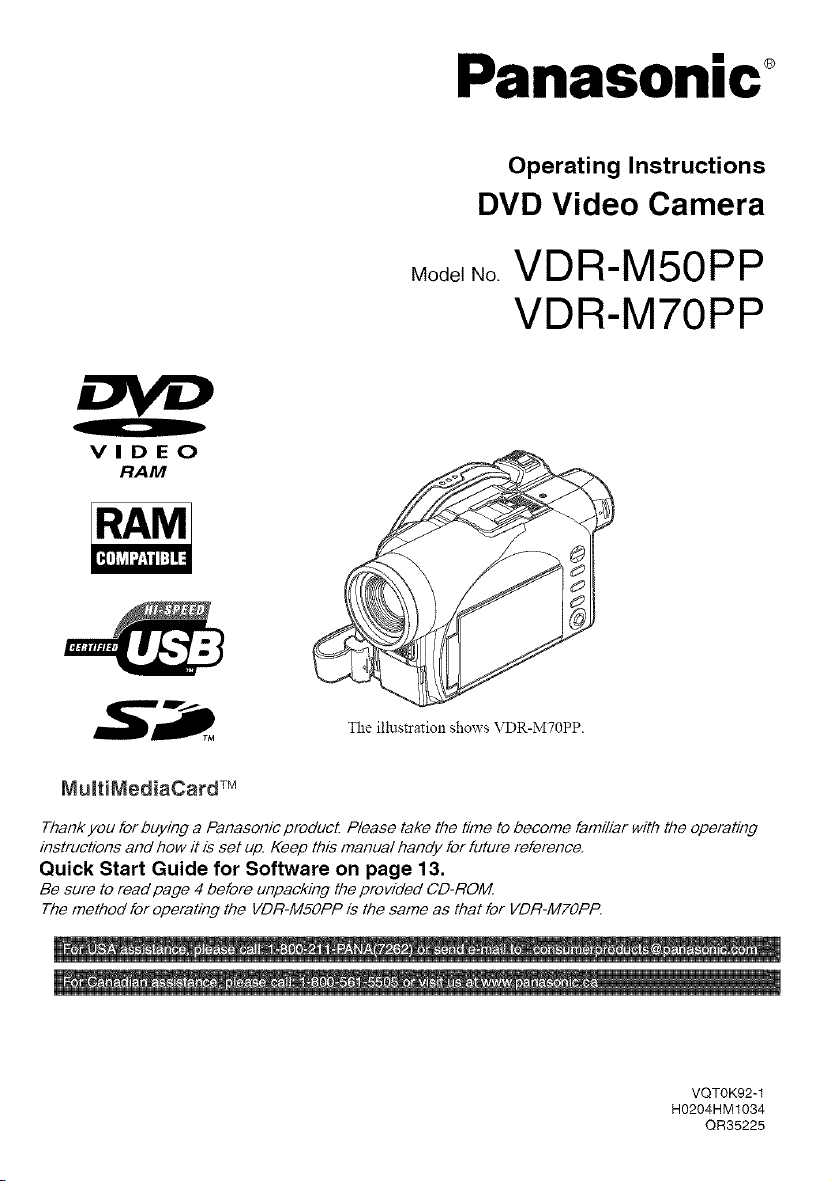
Operating Instructions
DVD Video Camera
Model No. VDR-M50PP
VDR-M70PP
VIDEO
RAM
RAM
The illustration shows VDR-M70PP.
MultilViediaCard TM
Thank you for buying a Panasonic product. Please take the time to become familiar with the operating
instructions and how it is set up. Keep this manual handy for future reference.
Quick Start Guide for Software on page 13,
Be sure to read page 4 before unpacking the provided OD-ROM.
The method for operating the VDR-MSOPP is the same as that for VDR-fvI7OPP.
VQTOK92-1
H0204HM1034
QR35225
Important Information
For Your Safety
The power switch turns the DVD Video Camera on and off, leaving the date/time feature unaffected If the camera/recorder
is to be/eft unattended for a long period of time, turn i? off
WARNING : TO PREVENT FIRE OR SHOCK HAZARD, DO NOT
EXPOSE TH S UN T TO RA N OR MO STURE.
WARNING : TO PREVENT FIRE OR SHOCK HAZARD, USE THE
RECOMMENDED ACCESSOR ES ONLY.
WARNING: TO PREVENT FIRE OR SHOCK HAZARD, BE
SURE TO USE THE SPECIFIED AC
ADAPTOR (PV-DAC13).
The DVD Video Camera and AC adaptor have the
following caution marks.
I DO NOT OPEN
CAUTION: TO REDUCE THE RISK OF
ELECTRIC SHOCK, DO NOT OPEN,
NO USER-SERVICEABLE PARTS INSIDE,
REFER SERVICING TO QUALIFIED
SERVICE PERSONNEL,
Identifications of caution marks
This symbol warns the user that uninsulated
//_ voltage within the unit may have sufficient
magnitude to cause electric shock.
Therd\_re, it is dangerous to make an?' kind
of contact with an3' inside part of this unit.
This symbol alerts the user that important
_/_ literature concerning the operation and
maintenance of this unit has been included.
Therdbre it should be read carefldlv to
avoid any problems.
Precautions
WARNING: Many television programs and fihns are
cop?Tighted. In certain circmnstances, copy-right law
may apply to private in-home videotaping of
cop?Tighted materials.
The liquid cD'stal display (LCD) panel is made by
highly precise techlmlog> More than 99.99% of its
picture elements (pixels) are effective, but some (less
than 0.01%) may appear as colored bright dots. This
does notindicate afault as the LCDpanel stretchesthe
limits of current teclmology.
I CLASS 1LASER PRODUCT I
CAUTION
This product contains a laser diode of higher
class than 1. To ensure continued safety, do not
remove any covers or attempt to gain access to
the inside of the product. Refer all servicing to
qualified personnel.

FCC Note: This equipment has been tested and found to comply with the limits for a Class B digital
device, pursuant to Part 15 of the FCC Rules. These mimits are designed to provide reasonable
protection against harmful intederence in a residential installation. This equipment generates, L_ses,
and can radiate radio frequency energy and, if not installed and used in accordance with the
instructions, may cause harmful interference to radio communications. However. there is no guarantee
that interference will not occur in a particular installation. If this equipment does caL_se harmful
interference to radio or television reception, which can be determined by turning the equipment off and
on, the user is encouraged to try to correct the intederence by one or more of the foflowing measures:
Reorient or relocate the receiving antenna.
Increase the separation between the equipment and receiver.
Connect the equipment into an outlet on a circuit different from that to which the receiver is connected.
Consult the dealer or an experienced radio/TV technician for help.
FCC Caution: To assure continued compliance, follow the attached instafiation instructions and use
only shielded interlace cables with ferrite core when connecting to computer or peripheral devices.
Any changes or modifications not expressly approved by the party responsible for compliance could
void the L_ser's authority to operate this eqL_ipment.
Declaration of Conformity
Trade Name: Panasonic
I_odel No,: VDR-M50PP / VDR-M70PP
Responsible party: Matsushita Electric Corporation of America
One Panasonic Way, Secaucus, NJ 07094
Support Contact: Panasonic Consumer Electronics Company
1-800-211-PANA (7262)
This device complies with Part 15 of the FCC Rules. Operation is subject to the following two
conditions: (1)This device may not cause harmfui interference, and (2) this device must accept
any interference received, inclL_d[ng interference that may cm_se _mdesired operation.
This class B digital apparatus complies with CANADIAN ICES-003.
This ProdL_ct has a fiL_orescent lamp that contains a small amount of mercury. It also contains
lead in some components. Disposal of these materials may be regulated in your community
dL_eto environmental considerations. For disposal or recycling information please contact your
local aLtthorities, or the Electronics ]ndL_striesAiliance: <http://www.eiae.org.>
i U.S.A./CANADA CONSUMERS: ATTENTmON:
_ A lithium ion/polymer battery that is recyclable powers the product
_.J_ you have purchased. Please call 1-800-8-BATTERY for information
on how to recycle this battery. J
® ®
® @9
Microsoft ®. Windows ®. Windows 98 Windows 98 Second Edition. Windows Me. Windows _000
® ®
Professional Windows XP Home Edition and Windows XP Professional are registered trademarks of Microsoft
Corporation. .,
]ntel . Pentium Processor and Ce]eron Processor are registered trademarks of Intel Corporation.
IBM ® and are re=Jstered trademarks of International Business Machlues Corporation.
Manu_:actured tmder license from Do]By Laboratories.
"Dolby' and the double-D symbol are trademarks of Do]By f_aboratorJes.
Other company names and product names listed are trademarks or brand names belonging to each individual
compan?:
SD logo is a trademark.
Apparatus Claims of U.S. Patent Nos. 4,631,603, 4,577,216, and 4,819,098, licensed for limited viewing.
This product incorporates copyright protection technology that is protected by method claims of certain
U.S. patents and other intellectual property rights owned by Macrovision Corporation and other rights
owners. Use of this copyright protection technology must be authorized by Macrovision Corporation, and
is intended for home and other limited viewing uses only unless otherwise authorized by Macrovision
Corporation. Reverse engineering or disassembly is prohibited.
Be sure to read the following before opening
the CD-ROM package
This Agreemem will take effect at tbe nlonlent you open the package of die storage device (CD-ROM) provided widl tbis product,
if you agree to the terms hereto.
If you do not accept the terms of this Agreement.immediately return the unopenedpackage of storage mediunl and enclosed materials
(printed lnatter, external package, and all otbers) to your dealer, or remm only the package of storage medium to your dealer
This License Agreement cel_ifies tbat you were granted license in the past
License Agreement
Article 1 Grant of License
Matsnsbita ElectricIndustrial Co. Ltd, grants you tilefollowing rights forthe following p_oducts (to bereferredtoas"This Software"
hereafter) that you have obtained with this Agreement:
(a) Yon may use This Software only on a single piece of equipment. However. if this equipment cannot be used
because of mechanical problem, you may temporarily use This Software on another piece of equipment.
(b) Althuugh This Software contains several components that can be run on conaputer as independent ftmctions, all
components are licensed as a single product: You may not, by any means, use these components on different
computers at the same time.
Article 2 Copyrights
The copyrights of This Softwale. attached mamtal ere ale owned by the following COl]Jorations. and are ptotected by copyright laws
in Japan and USA. as well as by other intellectual property and international properties:
USB Driver Hitachi, Ltd.
DVD-RAM Driver Matsushita Electric Industrial Co., Ltd.
DVD-MovieAIbumSE Matsushita Electric Industrial Co., Ltd.
MyDVD Sonic Solutions
Article 3 Other Rights and Limitations
(a) _u may not copy This Software or any of tbe printed materials atu_ched,except for dulJlicat_ons to provide back-ulJ or storage
(b) Igse of This Software by third palsies is prot_ibited, whetller by transferring _enting leasing, lending, lnoving, o_ any otller
measures
(c) You may not decompile or disassemble this Software
(d) Dulflication and, or distribution of any files on this storage lnediuln for commercial use is prohibited
Article 4 Quality Assurance
Under 11ocircumstances will Matsushita Electlic Indusnial Co. Ltd. Hitachi, Ltd, or Sonic Solutions accept any responsibility fo*
any damages you may incur from using or being unable to use This Software (including, but not limited to, loss of business profit,
interruption of business, loss of business inforlnation, or other monetary damages)
Article 5 Termination of Agreement
If you fail to comply witb the teHns of this Agreement Matsushita Electric Indusnial Co. Ltd Hitachi, Ltd. and Sonic Solutions
resels'e the right to terminate the Agreement In such a case, you will be obliged to discard all copies of This Software and its
conlponent s
Article 6 Prioritized License Agreement
When some software plograms are installed, tile license ag_cements will be displayed (to be lefe_ed to as online license agreement)
If the online license agreement conflicts with tiffs Agreement, the online license agreement shall have a priori b,
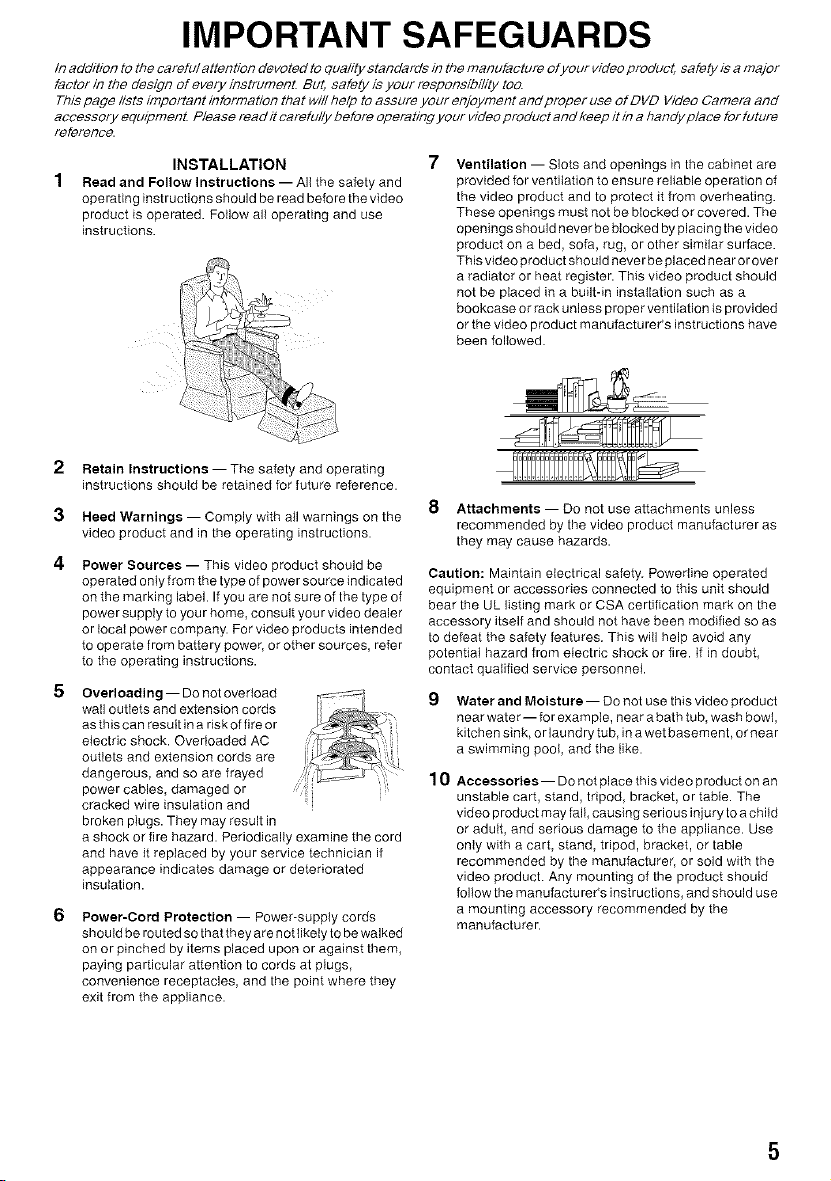
IMPORTANT SAFEGUARDS
In addition to the careful attention devoted to quality standards in the manufacture of your video product, safety is a major
factor in the design of every instrumenL But, safety is your responsibility too.
This page lists important information that will help to assure your enjoyment and proper use of DVD Video Camera and
accessory eqmpmenL Please read it carefully before operating your video product and keep it in a handy place for future
reference.
INSTALLATION
Read and Follow Instructions -- All the safety and
operating instructions should be read before the video
product is operated. Follow all operating and use
instructions.
7
Ventilation -- Slots and openings in the cabinet are
provided for ventilation to ensure reliable operation of
the video product and to protect it from overheating.
These openings must not be blocked or covered. The
openings should never be blocked by placing the video
product on a bed, sofa, rug, or other similar surface.
This video product should never be placed near or over
a radiator or heat register. This video product should
not be placed in a built-in installation such as a
bookcase or rack unless proper ventilation is provided
or the video product manufacturer's instructions have
been followed.
2
3
4
Retain Instructions -- The safety and operating
instructions should be retained for future reference.
Heed Warnings -- Comply with all warnings on the
video product and in the operating instructions.
Power Sources -- This video product should be
operated only from the type of power source indicated
on the marking label. If you are not sure of the type of
power supply to your home, consult your video dealer
or Iocat power company. For video products intended
to operate from battery power, or other sources, refer
to the operating instructions.
Overloading -- Do not overload
wail outlets and extension cords
as this can result in a risk of fire or
electric shock. Overloaded AC
outlets and extension cords are
dangerous, and so are frayed
power cables, damaged or
cracked wire insulation and
broken plugs. They may result in
a shock or fire hazard. Periodically examine the cord
and have it replaced by your service technician if
appearance indicates damage or deteriorated
insulation.
Power-Cord Protection -- Power-supply cords
should be routed so that they are not likely to be walked
on or pinched by items placed upon or against them,
paying particular attention to cords at plugs,
convenience receptacles, and the point where they
exit from the appliance.
8 Attachments -- Do not use attachments unless
recommended by the video product manufacturer as
they may cause hazards.
Caution: Maintain electrical safety. Powedine operated
equipment or accessories connected to this unit should
bear the UL listing mark or CSA certification mark on the
accessory itself and should not have been modified so as
to defeat the safety features. This will help avoid any
potential hazard from electric shock or fire. tf in doubt,
contact qualified service personnel.
Water and Moisture-- Do not use this video product
near water-- for example, near a bath tub, wash bow{,
kitchen sink, or laundry tub, in a wet basement, or near
a swimming pool, and the like.
10
Accessories-- Do not place this video prod uct on an
unstable cart, stand, tripod, bracket, or table. The
video product may fall, causing serious injury to a child
or adult, and serious damage to the appliance. Use
only with a cart, stand, tripod, bracket, or table
recommended by the manufacturer, or sold with the
video product. Any mounting of the product should
follow the manufacturer's instructions, and should use
a mounting accessory recommended by the
manufacturer.
11 An appliance and cart combination .,_
should be moved with care. Quick
stops, excessive force, and uneven
surfaces may cause the appliance
and cart combination to overturn.
12 Power Lines -- An outside antenna system should
not be located in the vicinity of overhead power lines or
other electric light or power circuits, or where it can falt
into such power lines or circuits• When installing an
outside antenna system, extreme care should be
taken to keep from touching or approaching such
power lines or circuits as contact with them might be
fatal. Installing an outdoor antenna can be hazardous
and should be left to a professional antenna installer
USE
13 Cleaning -- Unplug this video product from the wall
outlet before cleaning. DO not use liquid cleaners or
aerosol cleaners• Use a damp cloth for cleaning•
14 ObjectandLiquidEntry--Neverpushobjectsofany
kind into this video product through openings as they
may touch dangerous voltage points or short-out parts
that could result in a fire or electric shock• Never spiII
liquid of any kind on the video product•
15 Lightning -- For added protection for this video
product during a lightning storm, or when it is left
unattended and unused for tong periods of time,
unplug it from the watt outlet and disconnect the
antenna or cable-system• This wilt prevent damage to
the video product due to lightning and power-line
surges
16
17
18
19
20
SERVICE
Servicing -- Do not attempt to service this video
product yourself as opening or removing covers may
expose you to dangerous voltage or other hazards•
Refer all servicing to qualified service personnel•
Conditions Requiring Service-- Unplug this video
product from the wail outlet and refer servicing to
qualified service personnel under the following
conditions•
a. When the power-supply cord or plug is damaged•
b. If liquid has been spilled, or objects have fallen into
the video product•
c. If the video product has been exposed to rain or
water•
d. If the video product does not operate normally by
following the operating instructions• Adjust only
those controls that are covered by the operating
instructions. Improper adjustment of other controls
may result indamage and will often require
extensive work by a qualified technician to restore
the video product to its normal operation•
e. If the video product has been dropped or the
cabinet has been damaged•
f When the video product exhibits a distinct change
in performance -- this indicates a need for service•
Replacement Parts-- When replacement parts are
required, have the service technician verify that the
replacements he uses have the same safety
characteristics as the original parts• Use of
replacements specified by the video product
manufacturer can prevent fire, electric shock or other
hazards•
Safety Check -- Upon completion of any service or
repairs to this video product, ask the service
technician to perform safety checks recommended by
the manufacturer to determine that the video product
is in safe operating condition•
Heat -- The product should be situated away from
heat sou rces such as radiators, heat registers, stoves,
or other products (including amplifiers) that produce
heat.
Cautions When Using
Handle the liquid crystal display (LCD) with care:
• The LCD is a very delicate display device: Do not press its surfi_ce with force, hit it or prick it with a sharp object.
• If you push the LCD surlhce, unevenness in display may occur. If unevemless does not disappear, turn the DVD
Video Camera ofll wait ±br a few moments, and then rum it on again.
• Do not place the DVD Video Camera with the open LCD screen down.
• (?lose the LCD monitor when not using the DVD Video Camera.
Liquid crystal display and viewfinder:
• The L('D screen and viewfinder are the products of highly precise technolog_ Among the total number ofpixels
(approx. 120,000 pixels for LCD monitor and approx. 110,000 pixels ibr viewfinder), 0.01% or less pixels may
be missing (black dots) or may remain lit as colored dots (red, blue, green). This shows the limitations of the cttrrent
teclmolog}: and does not indicate a ±;aultthat will interfere with recording.
• The LCD screen and viewfinder will be slightly dinnner than usual when the DVD Video Camera is at low
temperature, as in cold areas, or inzmediately after power is turned on. Normal brightness will be restored when
the temperature inside the DVD Video Camera rises.
Hold the DVD Video Camera correctly:
• Do not hold the DVD Video Camera by the viewfinder or LCD monitor when lifting it: the viewfinder or LCD
monitor could detach and the DVD Video Camera may ±'all.
Do not subject the DVD Video Camera to impact:
• This DVD Video Camera is a precision machine. Take _eat care that you do not strike it against a hard o[!iect or
let it I;all.
• Do not use the DVD Video (amera on a tripod in a place where it is sut!iect to severe vibrations or impact.
No sand or dust!
• Fine sand or dnst entering the DVD Video Camera or AC adaptor could cause malfunctions or defects.
No water or oil!
• Water or oil entering the DVD Video Camera or AC adaptor could canse electric shock.
malfunctions or defects.
Heat on surface of product:
• The surl'ace of the DVD Video Camera will be slightly wann, but this does not indicate a l'ault.
Screen on connected TV:
• Never leave the disc navigation screem still image or camera image displayed on your TV to which the DVD Video
Camera is connected: Doing so could result in displayed image retention or phosphor degradation of TV screen.
Be careful of ambient temperature:
• UsingtheDVDVideoCamerainaplacewherethetemperatnreisover 140°F(40_C)orunder32°F(0°C)willresult
in abnonnal recording/playback.
• Take care that the temperature of this DVD Video Camera, when connected to a PC does not rise excessively
(reference for usage: approx. 30 minntes at about 86°F (30°C).
• Do not leave the DVD Video Camera on a beach or in a closed vehicle where the temperature is very high ibr a
long time: This could cause malfunctions.
Do not point directly at the sun:
• If direct sunlight strikes the lens or viewfinder, the DVD Video Camera conld malfunction or a fire could occnr.
• Do not leave the DVD Video Camera with the LCD screen exposed to direct sunlight: This could cause
malfnnctions.
Do not use the DVD Video Camera near TV or radio:
• This could cause noise to appear on the TV screen or in radio broadcasts.
Do not use the DVD Video Camera near atrong radio wavea or magnetism:
• Ifthe DVD Video Camera is usednearstrong radio waves or magnetism, such asnear aradio wave tower or electric
appliances, noise could enter video and audio that are being recorded. During playback of normally recorded video
and andio, noise may also be present in picture and sound.
At worst the DVD Video Camera could malfunction.
Do not expoae the DVD Video Camera to soot or steam:
• Thick soot or steam could damage the DVD Video Camera case or cause malflmctions.
Do not use the DVD Video Camera near corrosive gas:
• Ifthe DVD Video Camera isusedm aplace where there is denseexhaust gasgeneratedby gasoline or diesel engines
or corrosive gas such as hydrogen sulfide, the extemal or intemal terminals could corrode disabling normal
operation, or the batte D connecting terminals could corrode, so that power will not turn on.
Do not use the DVD Video Camera near ultrasonic humidifier:
• Calcimn and other chemicals dissolved in water could scatter in the air and white particles could adhere to the
optical head of the DVD Video Camera, which could cause it to operate abnormally.
Do not expoae the DVD Video Camera to insecticide:
• Insecticide entering the DVD Video Camera could dirty the lens in the laser pickup block, and in such a case the
DVD Video Camera might not operate normally. Turn the DVD Video Camera offand cover it with vinyl sheet.
etc. before using insecticide.
Do not use an optional 8 cm CD lena cleaner:
• Cleaning the lens is not necessa_" when using this DVD Video Camera in the usual wa3_
• Using 8 cm CD lens cleaner could cause this DVD Video Camera to malfunction.
Do not touch the lens in laaer pickup block.
• If you touch the lens in the laser pickup block directly it may cause malfmlctions. Laser picknp block is not a
compensable part. Therefore, pay much attention when operating this camera.
Be careful of moisture condensation:
• When you move the DVD Video Camera between places where the difference in temperatures is great - such as
entering a lodge from a ski slope or going out of a cooled room or vehicle - condensation (vapor in air wanned or
cooled to water droplets) could occur on the lens and/or inside the DVD Video Camera. If condensation occttrs,
do not open the cover of disc or card insertion block if possible. If condensation occurs on the lens, wipe it offwith
a soft, dry cloth. Even if the external surface of DVD Video Camera has dried, condensation may remain inside:
Turn the DVD Video Camera offand leave it in a dry place ±br at least 1-2 hours beibre using it again.
Do not use the DVD Video Camera for a long, uninterrupted period of time:
• This DVD Video Camera cannot be usedfor a long tinle continuously asa sm-veillance canlera monitor. If you use
the DVD Video Camera for a long continuous period of time. the temperatnre of the DVD Video Camera could
exceed its proper limit and the recording/playback operation could be slowed down: In this case. turn it off and wait
for a while before using it again.
• Take care that the temperature of this DVD Video Camera. ````,henconnected to a PC, does not rise excessively
[reference for usage: approx. 30 minntes at about 86°F (30°C).]
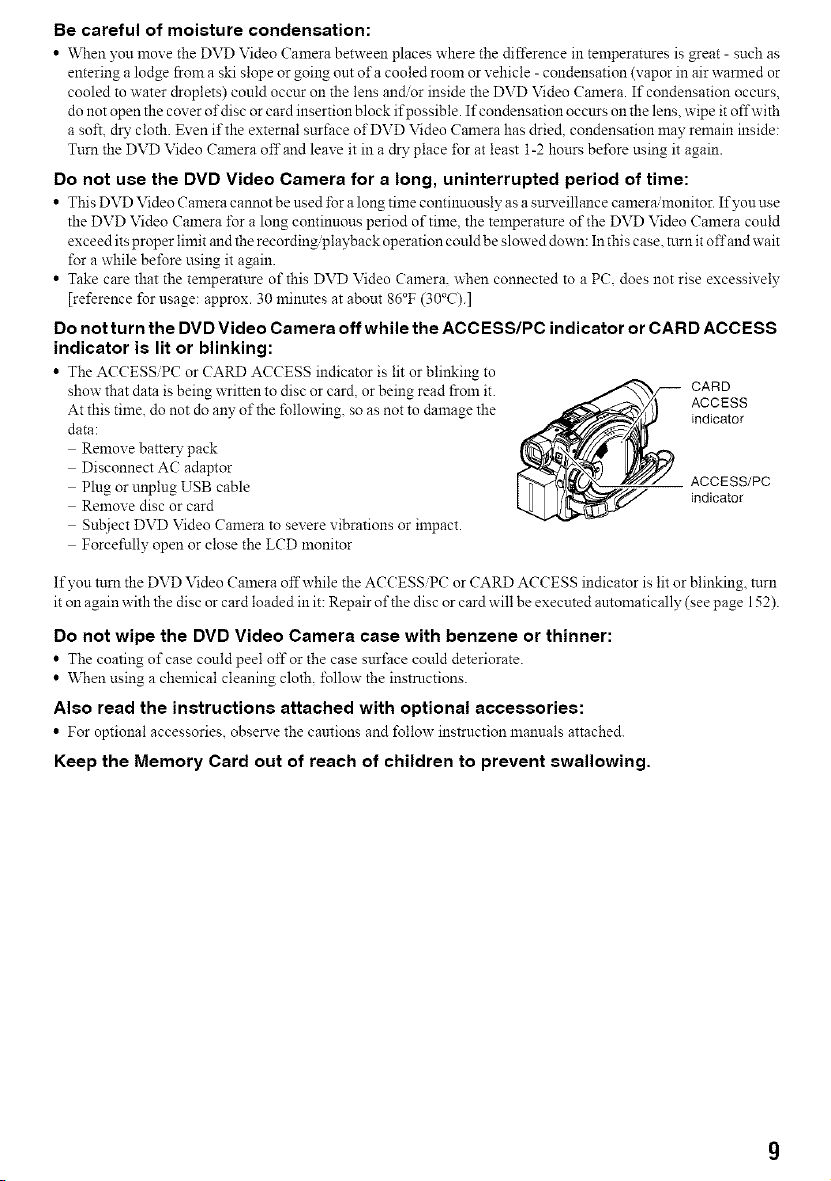
Do not turn the DVD Video Camera off while the ACCESS/PC indicator or CARD ACCESS
indicator is lit or blinking:
• The ACCESS PC or CARD ACCESS indicator is lit or blinking to
show that data is being written to disc or card, or being read from it. CARD
At this time, do not do any of the following, so as not to damage the ACCESS
data: indicator
Remove batte D" pack
Disconnect AC adaptor
Plug or unplug USB cable ACCESS/PC
Remove disc or card indicator
Sub.iect DVD Video Camera to severe vibrations or impact.
Forcefully open or close the LCD monitor
If you turn the DVD Video Camera offwhile the ACCESS/PC or CARD ACCESS indicator is lit or blinking, turn
it on again with the disc or card loaded in it: Repair of the disc or card will be executed antomatically (see page 152).
Do not wipe the DVD Video Camera case with benzene or thinner:
• The coating of case could peel off or the case surface could deteriorate.
• When using a chemical cleaning cloth. Ibllow the instructions.
Also read the instructions attached with optional accessories:
• For optional accessories observe the cantions and folio',',"instrnction mannals attached.
Keep the Memory Card out of reach of children to prevent swallowing.
Cautions When Storing
Do not leave the DVD Video Camera in a place where the temperature is very high for a
long period of time:
• The temperature inside a closed vehicle or trunk canbecome very highiu a hot season.Ifyou leave the DVD Video
Camera in such a place it could mal±imction or the case could be damaged. Do not expose the DVD Video Camera
to direct sunlight or place it near a heater.
Do not store the DVD Video Camera in a place where the humidity is high or in a dusty
place:
• Dust entering the DVD Video Canlera could causemalfi.mctions. I fhulnidity is high. the lens could become nmld3\
and the DVD Video Camera could become inoperative. It is recommended that you put the DVD Video Camera
in a box together with a desiccant when storing it in a closet, etc.
Do not store the DVD Video Camera in a place subject to strong magnetism or intense
vibrations:
• This could cause malfi.mctions.
Detach the battery pack from the DVD Video Camera and store it in a cool place:
• Leaving the battery pack attached or storing it at high temperature could shorten its life.
Suggestions and Restrictions
Make a trial recording:
• Always make a trial recording before doing actual recording to make sure that recording is nom_al.
Data that have not been stored normally because of a defect in the DVD Video Camera calmot be restored.
It isreconmaendedthatyou use a DVD-RAMdisc fromwhich recorded contents canbe deleted _\_rtrial recording.
Do not use the DVD Video Camera for professional applications:
• This DVD Video Camera is designed and produced _\_rhome-use recording and playback.
The recorded contents cannot be compensated for:
• Panasonic cannot compensate _\_rany damages caused when recording is notmade normally or recorded contents
cannot be played back because of a defect in the DVD Video Camera, disc or card. Also, Panasonic cammt be
responsible for your recorded video and audio.
• Ifyou or athird partymake amistake when handlingthis DVDVideoCamera disc, card, etc.,the recorded contents
may be lost. We cammt be responsible ±Brcompensation ±Brdamage due to loss of recorded contents.
Copyright:
• Data recorded on the disc or card in this DVD Video Camera using other digital analog media or devices are
protected by thecopyright act andcannot beused without permission of the owner of copyright except forpersonal
enjoyment. Be awarethat recording is restricted for some demonstrations peri\_m_ancesand exhibitions, evenfor
personal eujoyment.
10
Read This First
Toguide you, we've included the following six chapters.
• The section on "Setups" explains how to set up the
DVD Video Camera, battery pack. and set the date/
time.
• The section on "Basic Techniques" explains the basic
operation of this DVD Video Camera-recording of
movies, still images, external input, and playback of
recorded images.
• The section on "Advanced Techniques" explains
settings on this DVD Video Camera l\_r more
advanced usage.
• The section on "Disc Navigation" explains editing
with Disc Navigation: Refer to this section when
finalizing DVD-R disc and initializing DVD-RAM
disc.
• The section on "Installing Software" explains the
contents of provided CD-ROM and how to install the
included software.
• "Subsidiary Information" includes an introduction to
products sold separatel); proper cleaning, and
troubleshooting.
We want this manual to be as helpful as possible.
so it includes two easy ways to find the information
you need.
• A qnick index for the information you use most often
(this page).
• A detailed table of contents directing you to specific
ini\_rmation quickly (see pages 15 -17).
Get to know your DVD Video Camera by using this
manual, and get to know Panasonic. We appreciate
your business.
Quick Index
Available Discs ................................................. 28
Recording Movie .............................................. 51
Playing Back .................................................... 59
Connecting to a TV .......................................... 69
Functions Available with Disc Navigation ........ 99
Installing Software ......................................... 130
With tiffsDVD Video Camera you can view the pictme being recorded or the playback pictme on die LCD monitor or
in the viewfinder Opening or closing the LCD monitor switches the picture to appeai on the LCD monitor oi in the
viewfinder The following text describes opeiation assuming that the viewfindei is used as a monito! device
About This Manual
QDisplays in this manual
Understand that the displays in the manual may not appear exactly as those you will actually see in the viewfinder
or on the LCD screen.
QNotation of cancel button
Press the stop/cancel button to stop )_mr operation midwa)_ or ret_trn the menu screen to the preceding one. The
expression "press the • button" will be used in this text.
Q_ , _ and _ marks beside headings
Some fi.mctions of this DVD Video Camera are unavailable with disc or card. Refer to the marks at right above each
function to identil_" whether the disc or card is compatible with the function. Refer to these marks and identi_" the
ftmctions and operation to match the disc or card you use.
QIIlustrations in this manual
Although the external appearances of VDR-M50PP and VDR-M70PP are different the method of operating both
models is identical.
The illustrations of VDR-M70PP are used in this text.
11
Introduction
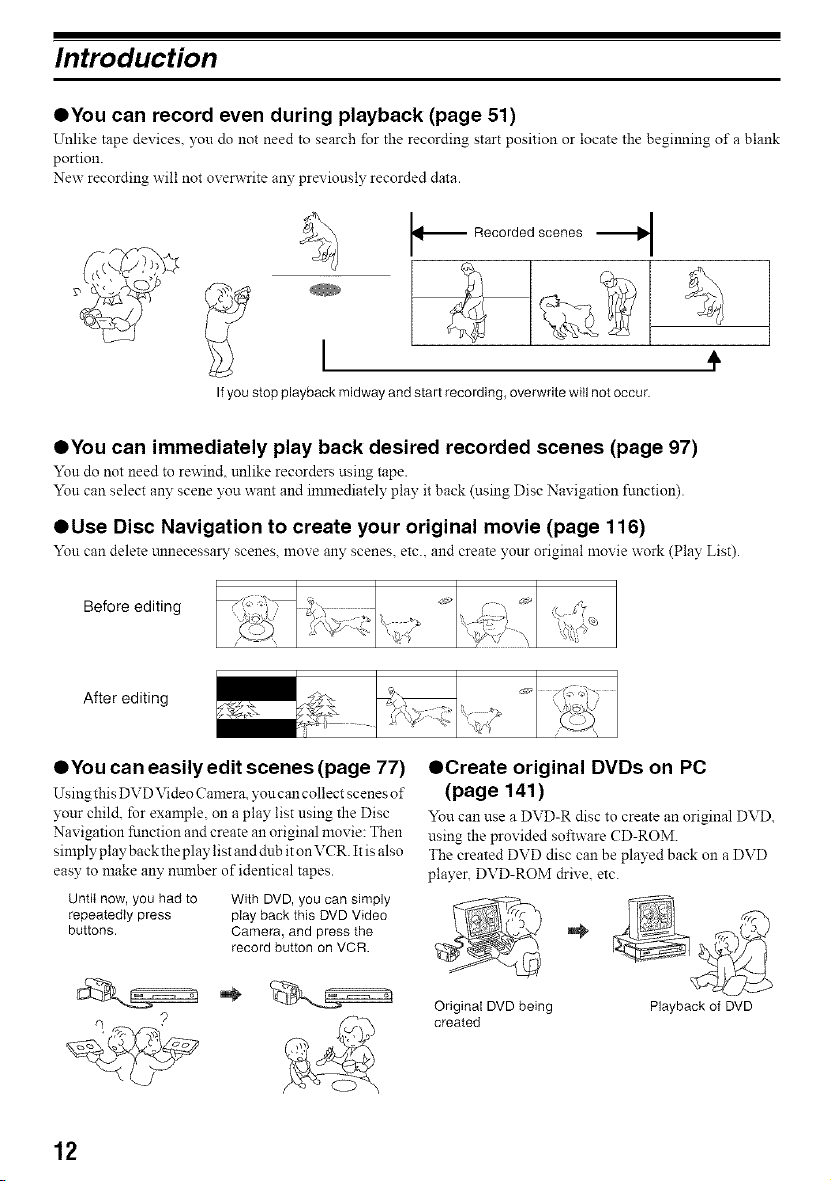
QYou can record even during playback (page 51)
Unlike tape devices, you do not need to search for the recording start position or locate the begilmmg of a blank
portion.
New recording will not oven_Tite an?" previously recorded data.
,_ Recorded scenes ,_
I
If youstop playback midwayand start recording, overwrite will not occur.
÷
QYou can immediately play back desired recorded scenes (page 97)
Yon do not need to rewind, unlike recorders using tape.
Yon can select any scene you want and inmaediately play it back (using Disc Navigation function).
QUse Disc Navigation to create your original movie (page 116)
Yon can delete l.mnecessary scenes moxe all}' scenes etc. and create your original movie work (Play List).
Before editing
After editing
QYou can easily edit scenes (page 77)
Using this DVD Video Camera you can collect scenes of
your child, for example, on a play list using the Disc
Navigation function and create an original movie: Then
simply play back the play list and dub it on VCR. It is also
easy to make any mm-_berof identical tapes.
Until now, you had to With DVD, you can simply
repeatedly press play back this DVD Video
buttons. Camera, and press the
record button on VCR.
OCreate original DVDs on PC
(page 141)
You can use a DVD-R disc to create an original DVD
using the provided software CD-ROM.
The created DVD disc can be played back on a DVD
player, DVD-ROM drive, etc.
Original DVD being Playback of DVD
created
12
Quick Start Guide for Software
Features
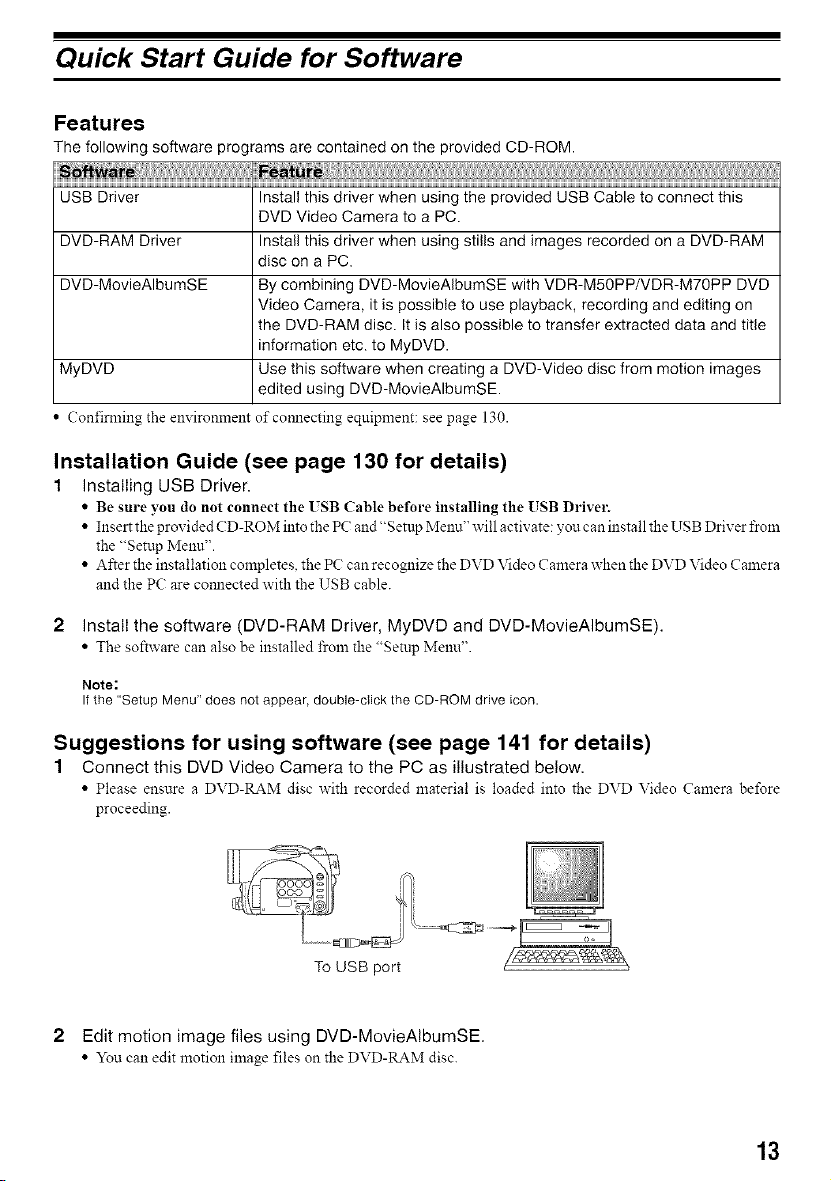
The following software programs are contained on the provided CD-ROM.
USB Driver Install this driver when using the provided USB Cable to connect this
DVD Video Camera to a PC.
DVD-RAM Driver Install this driver when using stills and images recorded on a DVD-RAM
disc on a PC.
DVD-MovieAIbumSE By combining DVD-MovieAIbumSE with VDR-M50PP/VDR-M70PP DVD
Video Camera, it is possible to use playback, recording and editing on
the DVD-RAM disc. It is also possible to transfer extracted data and title
information etc. to MyDVD.
MyDVD Use this software when creating a DVD-Video disc from motion images
edited using DVD-MovieAIbumSE.
Confirming the enx ironment of comlecting equipment: see page 130.
Installation Guide (see page 130 for details)
1 Installing USB Driver.
• Be sm'e you do not connect the ISB (:able before installing tile USB Drivel'.
• Insert the provided CD-ROM into the PC and"Setup Menn" will activate: you can install the USB Driver fron_
the "Setnp Menu'.
• After the installation completes, the PC can recognize the DVD Video Camera when the DVD Video Camera
and the PC are comlected with the USB cable.
2 Install the software (DVD-RAM Driver, MyDVD and DVD-MovieAIbumSE).
• The software can also be installed from the "Setup Menu".
Note:
If the "Setup Menu" does not appear, double-click the CD-ROM drive icon.
Suggestions for using software (see page 141 for details)
1 Connect this DVD Video Camera to the PC as illustrated below.
• Please ensure a DVD-RAM disc with recorded material is loaded into the DVD Video Camera before
proceeding.
To USB port
2 Edit motion image files using DVD-MovieAIbumSE.
• You call edit motion image files on the DVD-RAM disc.
13
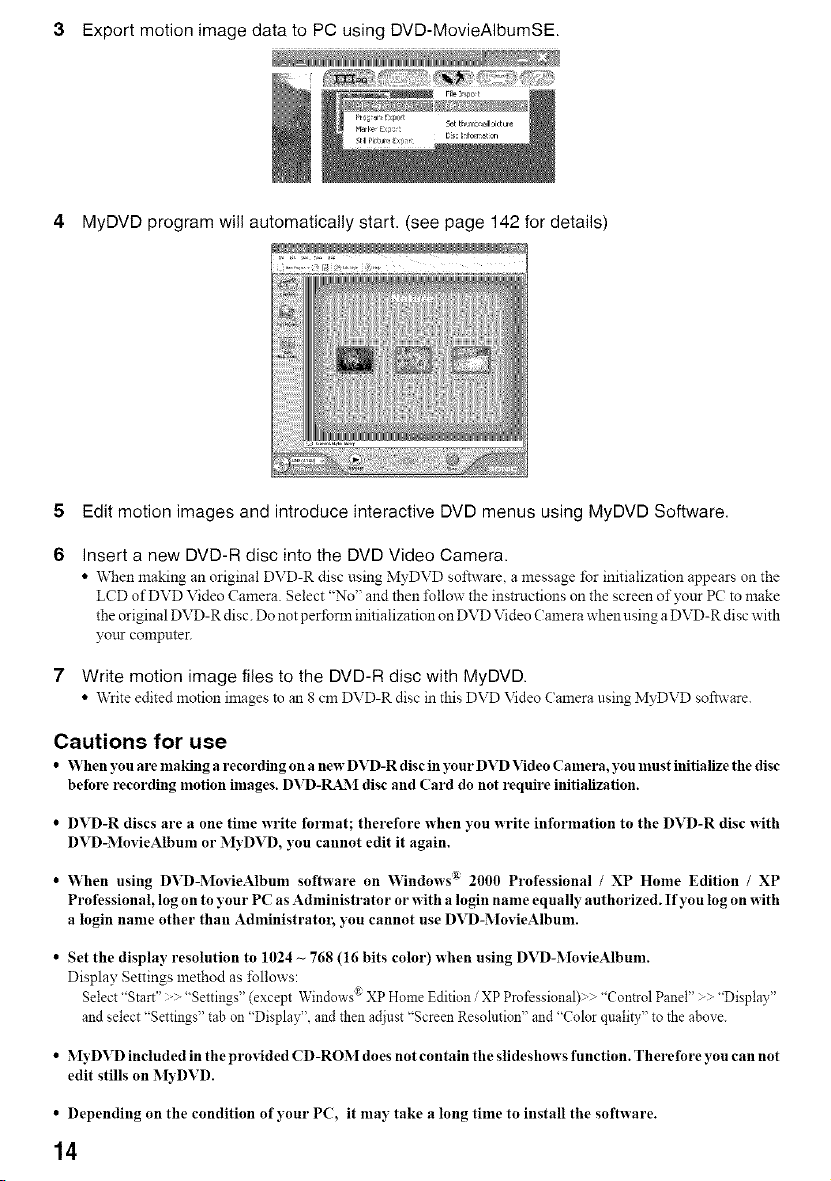
Export motion image data to PC using DVD-MovieAIbumSE.
4 MyDVD program will automatically start. (see page 142 for details)
5 Edit motion images and introduce interactive DVD menus using MyDVD Software.
Insert a new DVD-R disc into the DVD Video Camera.
• When making an original DVD-R disc using MyDVD software a message for initialization appears on the
LCD of DVD Video Camera Select "No" and then l\dlow the instrnctions on the screen of your PC to make
the original DVD-R disc. Do not perform initialization on DVD Video Camera when using a DVD-R disc with
your compnter.
7 Write motion image files to the DVD-R disc with MyDVD.
• Writeedited motion images to ml8 cm DVD-R disc in this DVD Video Cmnerausing MyDVD software.
Cautions for use
• VVheny_rema_dngarec_rding_nanewDVD-Rdisciny_rDVDVide_C_mera,y_nm_stinitializethedisc
before recording motion inmges. DVD-RAM disc and Card do not require initialization.
• DVD-R discs are a one time write format; therefore when you write information to the DVD-R disc with
DVD-MovieAlbum or MyDVD, you cannot edit it again.
• VVhen using DVD-MovieAlbum software on Windows _ 2000 Professional / XP Home Edition / XP
Professional, log on to 3'our PC as Administrator or with a login name equall 3 authorized. If you log on with
a login name other than Administratoi; you cannot use DVD-MovieAlbum.
• Set the display resolution to 1024 _ 768 (16 bits color) when using DVD-MovieAlbunL
Display Settings method as follows:
Select "Start" :" 'Settings" (except Windows®XP Home Edition / XP Professional) ,._"Control Panel" "Display"
and select "Settings" tab on 'Display", and then adjust "Screen Resolution" and "Color quality" to the above.
• MyDVD inctuded in tile prodded CD-ROM does not contain tile slideshows fmlction. Therefore you can not
edit stills on M3DVD.
• Depending on the condition of your PC, it may take a long time to install the software.
14
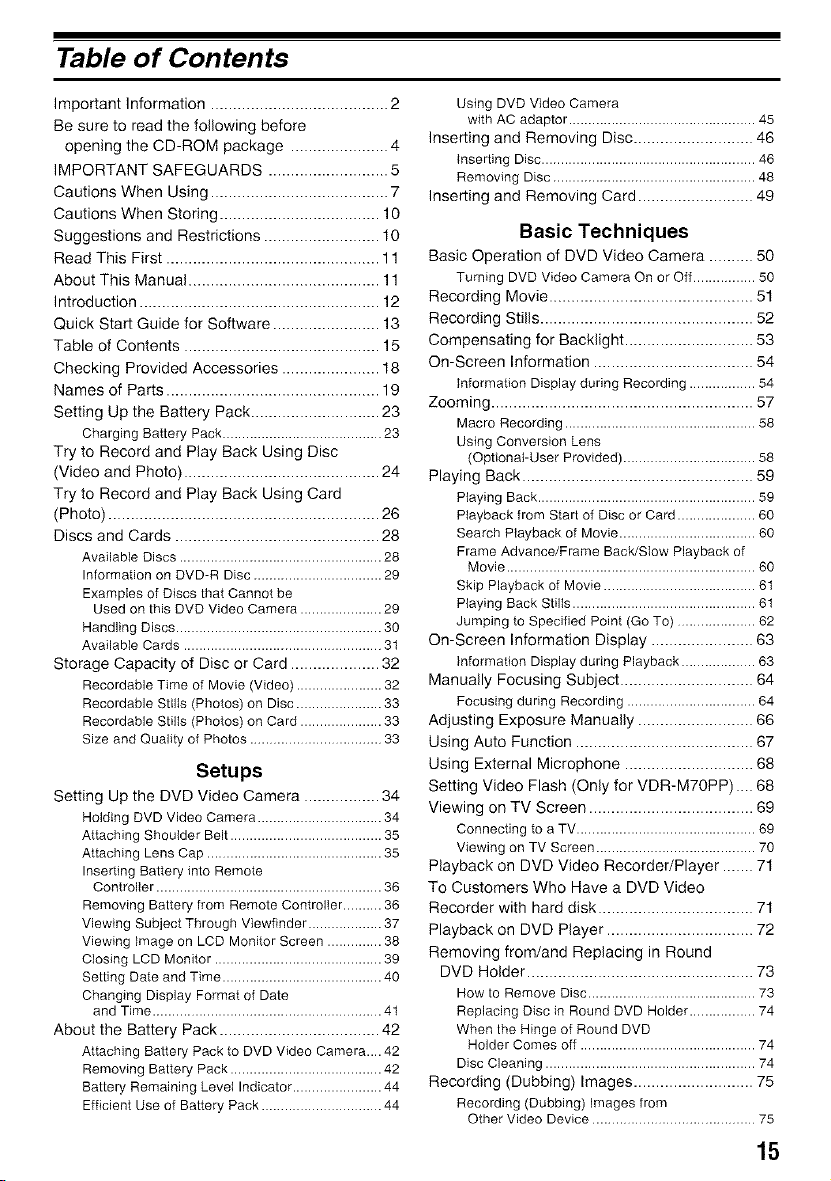
Table of Contents
Important Information ........................................ 2
Be sure to read the following before
opening the CD-ROM package ...................... 4
IMPORTANT SAFEGUARDS ........................... 5
Cautions When Using ........................................ 7
Cautions When Storing .................................... 10
Suggestions and Restrictions .......................... 10
Read This First ................................................ 11
About This Manual ........................................... 11
Introd uction ...................................................... 12
Quick Start Guide for Software ........................ 13
Table of Contents ............................................ 15
Checking Provided Accessories ...................... 18
Names of Parts ................................................ 19
Setting Up the Battery Pack ............................. 23
Charging Battery Pack ......................................... 23
Try to Record and Play Back Using Disc
(Video and Photo) ............................................ 24
Try to Record and Play Back Using Card
(Photo) ............................................................. 26
Discs and Cards .............................................. 28
Available Discs .................................................... 28
Information on DVD-R Disc ................................. 29
Examples of Discs that Cannot be
Used on this DVD Video Camera ..................... 29
Handling Discs ..................................................... 30
Available Cards ...................................................31
Storage Capacity of Disc or Card .................... 32
Recordable Time of Movie (Video) ...................... 32
Recordable Stills (Photos) on Disc ...................... 33
Recordable Stills (Photos) on Card ..................... 33
Size and Quality of Photos .................................. 33
Setups
Setting Up tile DVD Video Camera ................. 34
Holding DVD Video Camera ................................34
Attaching Shoulder Belt....................................... 35
Attaching LensCap .............................................35
Inserting Battery into Remote
Controller .......................................................... 36
Removing Battery from Remote Controller.......... 36
Viewing Subject Through Viewfinder ................... 37
Viewing image on LCD Monitor Screen .............. 38
Closing LCD Monitor ........................................... 39
Setting Date and Time .........................................40
Changing Display Format of Date
and Time........................................................... 41
About the Battery Pack .................................... 42
Attaching Battery Pack to DVD Video Camera.... 42
Removing Battery Pack ....................................... 42
Battery Remaining Level Indicator.......................44
Efficient Use of Battery Pack ...............................44
Using DVD Video Camera
with AC adaptor ................................................ 45
Inserting and Removing Disc ........................... 46
Inserting Disc ....................................................... 46
Removing Disc .................................................... 48
Inserting and Removing Card .......................... 49
Basic Techniques
Basic Operation of DVD Video Camera .......... 50
Turning DVD Video Camera On or Off................ 50
Recording Movie .............................................. 51
Recording Stills ................................................ 52
Compensating for Backlight ............................. 53
On-Screen Information .................................... 54
information Display during Recording ................. 54
Zooming ........................................................... 57
Macro Recording ................................................. 58
Using Conversion Lens
(Optional-User Provided).................................. 58
Playing Back .................................................... 59
Playing Back........................................................ 59
Playback from Start of Disc or Card.................... 60
Search Playback of Movie................................... 60
Frame Advance/Frame Back/Stow Playback of
Movie ................................................................ 60
Skip Playback of Movie ....................................... 61
Playing Back Stills ............................................... 61
Jumping to Specified Point (Go To) .................... 62
On-Screen Information Display ....................... 63
information Display during Playback................... 63
Manually Focusing Subject .............................. 64
Focusing during Recording ................................. 64
Adjusting Exposure Manually .......................... 66
Using Auto Function ........................................ 67
Using External Microphone ............................. 68
Setting Video Flash (Only for VDR-M70PP) .... 68
Viewing on TV Screen ..................................... 69
Connecting to a TV .............................................. 69
Viewing on TV Screen ......................................... 70
Playback on DVD Video Recorder/Player ....... 71
To Customers Who Have a DVD Video
Recorder with hard disk ................................... 71
Playback on DVD Player ................................. 72
Removing from/and Replacing in Round
DVD Holder ................................................... 73
How to Remove Disc ........................................... 73
Replacing Disc in Round DVD Holder ................. 74
When the Hingeof Round DVD
Holder Comes off ............................................. 74
Disc Cleaning ...................................................... 74
Recording (Dubbing) Images ........................... 75
Recording (Dubbing) Images from
Other Video Device .......................................... 75
15
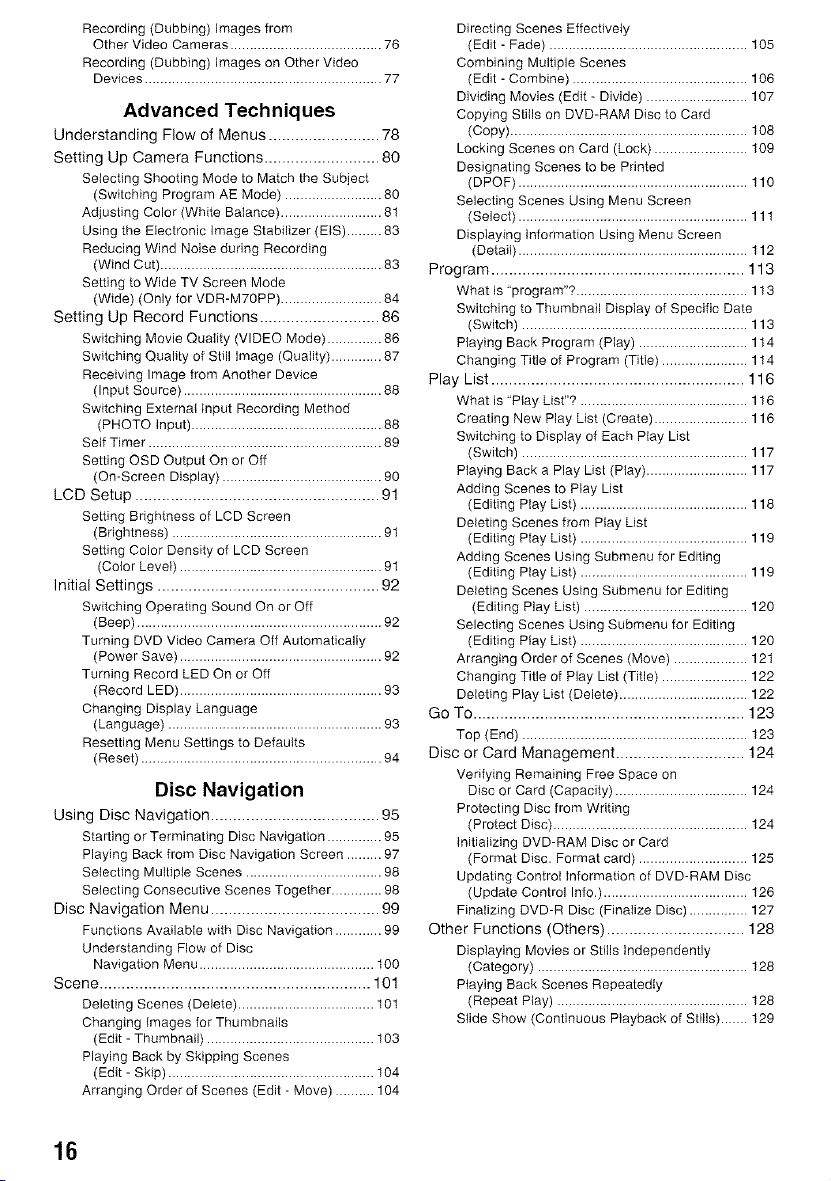
Recording (Dubbing) Images from
Other Video Cameras ....................................... 76
Recording (Dubbing) images on Other Video
Devices ............................................................. 77
Advanced Techniques
Understanding Flow of Menus ......................... 78
Setting Up Camera Functions .......................... 80
Selecting Shooting Mode to Match the Subject
(Switching Program AE Mode) ......................... 80
Adjusting Color (White Balance) .......................... 81
Using the Electronic Image Stabilizer (EIS) ......... 83
Reducing Wind Noise during Recording
(Wind Cut) ......................................................... 83
Setting to Wide TV Screen Mode
(Wide) (Only for VDR-M70PP) .......................... 84
Setting Up Record Functions ........................... 86
Switching Movie Quaiity (VIDEO Mode) .............. 86
Switching Quality of Still Image (Quality) ............. 87
Receiving Image from Another Device
(Input Source) ................................................... 88
Switching External input Recording Method
(PHOTO Input) ................................................. 88
Self Timer ............................................................ 89
Setting OSD Output On or Off
(On-Screen Display) ......................................... 90
LCD Setup ....................................................... 91
Setting Brightness of LCD Screen
(Brightness) ...................................................... 91
Setting Color Density of LCD Screen
(Color Level) .................................................... 91
Initial Settings .................................................. 92
Switching Operating Sound On or Off
(Beep) ............................................................... 92
Turning DVD Video Camera Off Automatically
(Power Save) .................................................... 92
Turning Record LED On or Off
(Record LED) .................................................... 93
Changing Display Language
(Language) ....................................................... 93
Resetting Menu Settings to Defaults
(Reset) .............................................................. 94
Disc Navigation
Using Disc Navigation ...................................... 95
Starting or Terminating Disc Navigation .............. 95
Playing Back from Disc Navigation Screen ......... 97
Selecting Multiple Scenes ................................... 98
Selecting Consecutive Scenes Together ............. 98
Disc Navigation Menu ...................................... 99
Functions Available with Disc Navigation ............ 99
Understanding Flow of Disc
Navigation Menu ............................................. t00
Scene ............................................................. 101
Deleting Scenes (Delete) ................................... 101
Changing Images for Thumbnails
(Edit - Thumbnail) ........................................... 103
Playing Back by Skipping Scenes
(Edit - Skip) ..................................................... 104
Arranging Order of Scenes (Edit - Move) .......... 104
Directing Scenes Effectively
(Edit - Fade) ................................................... 105
Combining Multiple Scenes
(Edit - Combine) ............................................. 106
Dividing Movies (Edit - Divide) .......................... 107
Copying Stitls on DVD-RAM Disc to Card
(Copy) ............................................................. 108
Locking Scenes on Card (Lock) ........................ 109
Designating Scenes to be Printed
(DPOF) ........................................................... 110
Selecting Scenes Using Menu Screen
(Select) ........................................................... 111
Displaying Information Using Menu Screen
(Detail) ........................................................... 112
Program ......................................................... 113
What is "program"? ............................................ 113
Switching to Thumbnail Dispiay of Specific Date
(Switch) .......................................................... 113
Playing Back Program (Play) ............................ 114
Changing Title of Program (Title) ...................... 114
Play List ......................................................... 116
What is "Play List"? ........................................... 116
Creating New Play List (Create) ........................ 116
Switching to Display of Each Play List
(Switch) .......................................................... 117
Playing Back a Play List (Play) .......................... 117
Adding Scenes to Play List
(Editing Play List) ........................................... 118
Deleting Scenes from Play List
(Editing Play List) ........................................... 119
Adding Scenes Using Submenu for Editing
(Editing Play List) ........................................... 119
Deleting Scenes Using Submenu for Editing
(Editing Play List) .......................................... 120
Selecting Scenes Using Submenu for Editing
(Editing Play List) ........................................... 120
Arranging Order of Scenes (Move) ................... 121
Changing Title of Play List (Title) ...................... 122
Deleting Play List (Delete) ................................. 122
Go To ............................................................. 123
Top (End) .......................................................... 123
Disc or Card Management ............................. 124
Verifying Remaining Free Space on
Disc or Card (Capacity) .................................. 124
Protecting Disc from Writing
(Protect Disc) .................................................. 124
Initializing DVD-RAM Disc or Card
(Format Disc. Format card) ............................ 125
Updating Control information of DVD-RAM Disc
(Update Control Info.) ..................................... 126
Finalizing DVD-R Disc (Finalize Disc) ............... 127
Other Functions (Others) ............................... 128
Displaying Movies or Stitls independently
(Category) ...................................................... 128
Playing Back Scenes Repeatedly
(Repeat Play) ................................................. 128
Slide Show (Continuous Playback of Stills) ....... 129
16
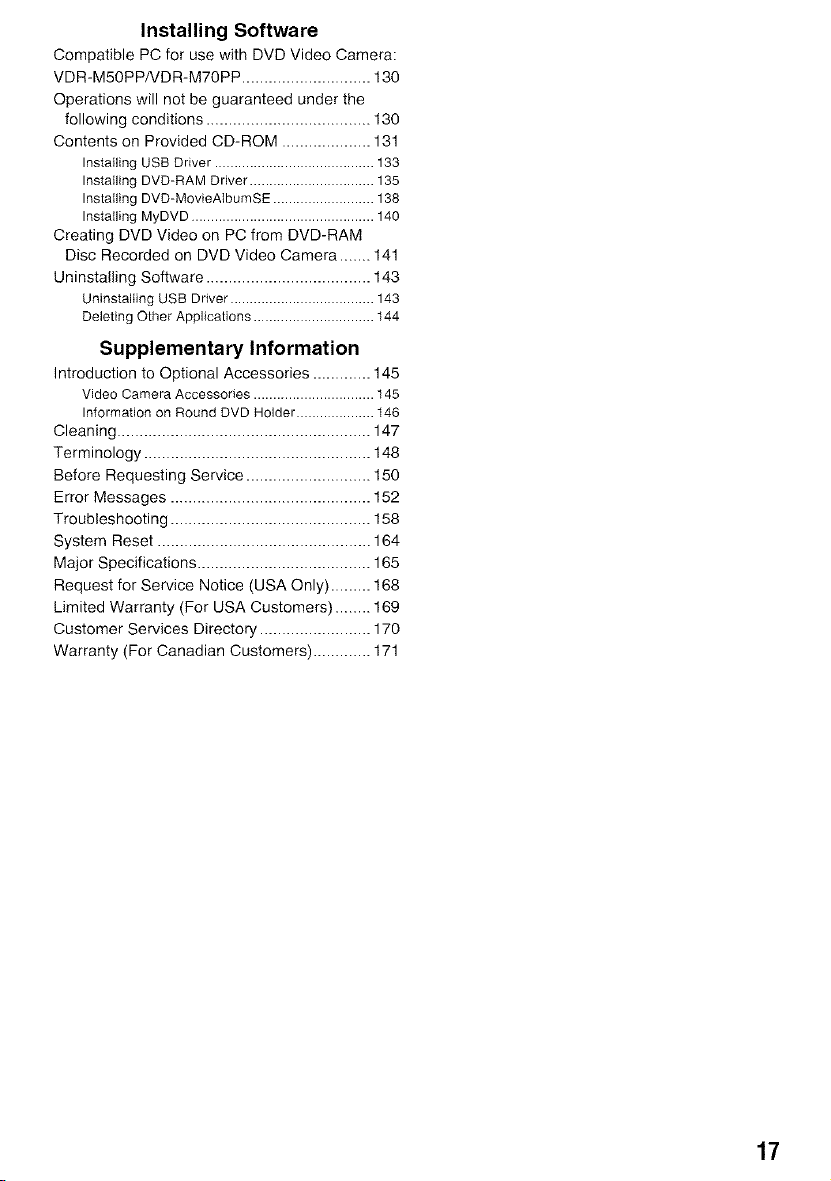
Installing Software
Compatible PC for use with DVD Video Camera:
VDR-M50PPNDR-M70PP ............................. 130
Operations will not be guaranteed under the
following conditions ..................................... 130
Contents on Provided CD-ROM .................... 131
Installing USB Driver ......................................... 133
Installing DVD-RAM Driver ................................ 135
Installing DVD-MovieAtburnSE.......................... 138
Installing MyDVD ............................................... 140
Creating DVD Video on PC from DVD-RAM
Disc Recorded on DVD Video Camera ....... 141
Uninstalling Software ..................................... 143
Uninstalting USB Driver ..................................... 143
Deleting Other Applications ...............................144
Supplementary Information
Introduction to Optional Accessories ............. 145
Video Camera Accessories ............................... 145
Information on Round DVD Holder .................... t46
Cleaning ......................................................... 147
Terminology ................................................... 148
Before Requesting Service ............................ 150
Error Messages ............................................. 152
Troubleshooting ............................................. 158
System Reset ................................................ 164
Major Specifications ....................................... 165
Request for Service Notice (USA Only) ......... 168
Limited Warranty (For USA Customers) ........ 169
Customer Services Directory ......................... 170
Warranty (For Canadian Customers) ............. 171
17
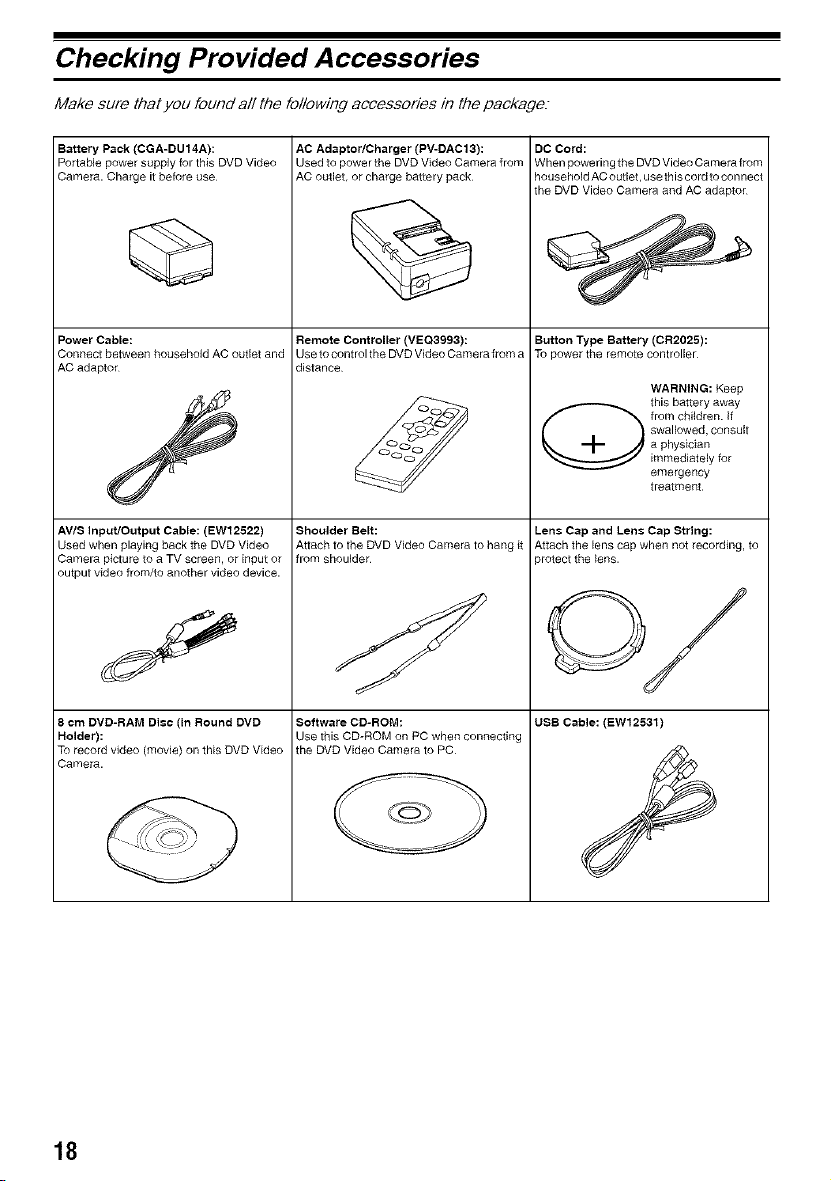
Checking Provided A ccessories
Make sure that you found all the following accessories in the package.-
Battery Pack (CGA-DU14A):
Portable power supply for this DVD Video
Camera. Chalge it before use
Power Cable:
Connect between household AC outlet and
AC adaptor
AVIS Inpu'dOutput Cable: (EW12522)
Used when playing back the DVD Video
Camera picture to a TV screen, or input or
output video from/to another video device.
8 ¢m DVD-RAM Disc (in Round DVD
Holder):
To record video (movie) on this DVD Video
Camera.
AC Adaptor/Charger (PV-DAC13):
Used to power the DVD Video Camera from
AC outlet, or charge battery pack
Remote Controller (VEQ3993):
Use to control the DVD Video Camera from a
distance
Shoulder Belt:
Attach to the DVD Video Camera to hang it
from shoulder
Software CD-ROM:
Use this CD-ROM on PC when connecting
the DVD Video Camera to PC
@
DO Cord:
When powering the DVD Video Camera from
household AC outlet, use this cord to con nect
the DVD Video Camera and AC adaptor
Button Type Battery (CR2025):
To power the remote controller
WARNING: Keep
this battery away
from children, tf
swallowed, consult
a physician
immediately for
emergency
treatment
Lens Cap and Lens Cap String:
Attach the lens cap when not recording, to
protect the lens.
UBB Cable: (BW12531)
18
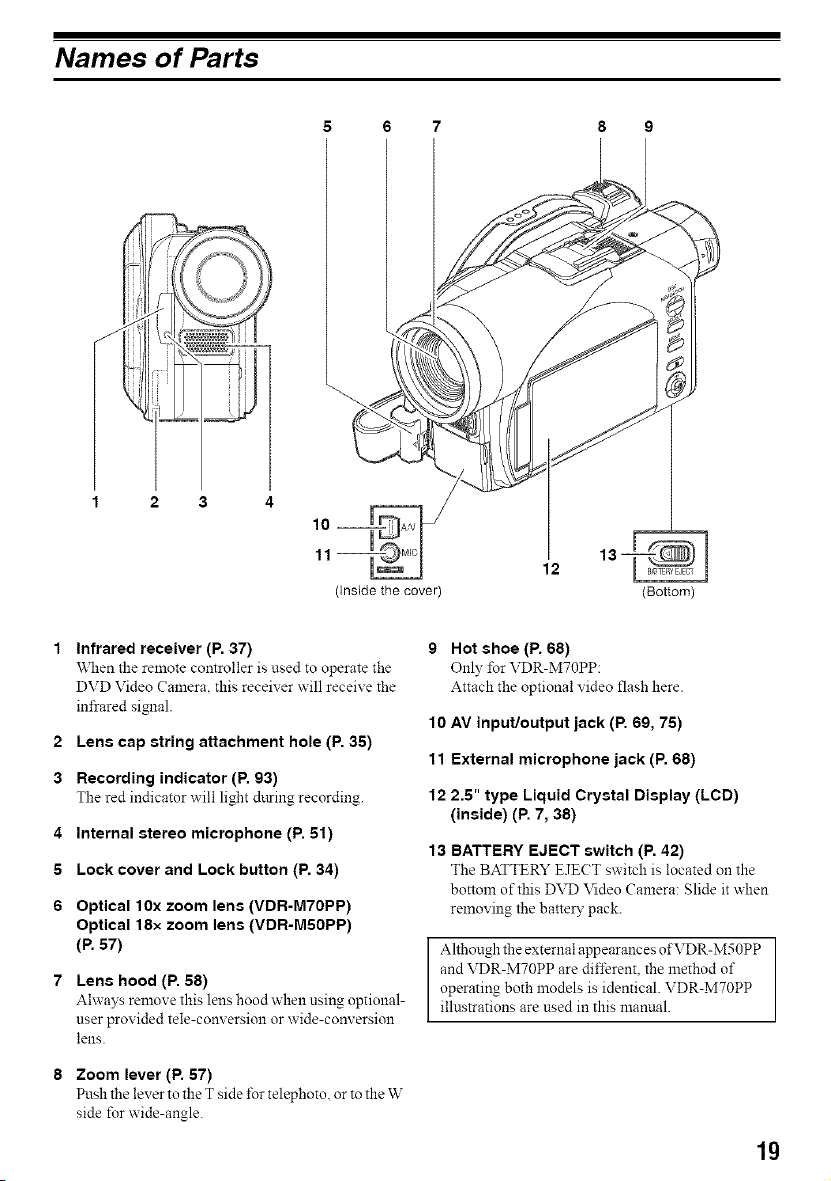
Names of Parts
5 6 7 8 9
10 _ M,c
(Inside the cover)
12
(Bottom)
Infrared receiver (P. 37)
\_11en the remote controller is used to operate the
DVD Video Camera, this receiver will receive the
infrared signal.
2 Lens cap string attachment hole (P. 35)
3 Recording indicator (P. 93)
The red indicator will light during recording.
4 Internal stereo microphone (P. 51)
5 Lock cover and Lock button (P. 34)
6 Optical 10x zoom lens (VDR-MTOPP)
Optical 18x zoom lens (VDR-MSOPP)
(P. 57)
7 Lens hood (P. 58)
Always remove this lens hood when using optional-
user provided tele-conversion or wide-conversion
lens.
8 Zoom lever (P. 57)
Push the lever to the T side for telephoto, or to the W
side for wide-angle.
9 Hot shoe (P. 68)
Only for VDR-MTOPP:
Attach the optional video flash here.
10 AV input/output jack (P. 69, 75)
11 External microphone jack (P, 68)
12 2.5" type Liquid Crystal Display (LCD)
(inside) (P. 7, 38)
13 BATTERY EJECT switch (P. 42)
The BATTERY EJECT switch is located on the
bottom of this DVD Video Camera: Slide it when
removing the batte_" pack.
Although the external appearances of VDR-M50PP
and VDR-M?0PP are differenL the method of
operating both models is identical. VDR-M70PP
illustrations are used in this manual.
lg
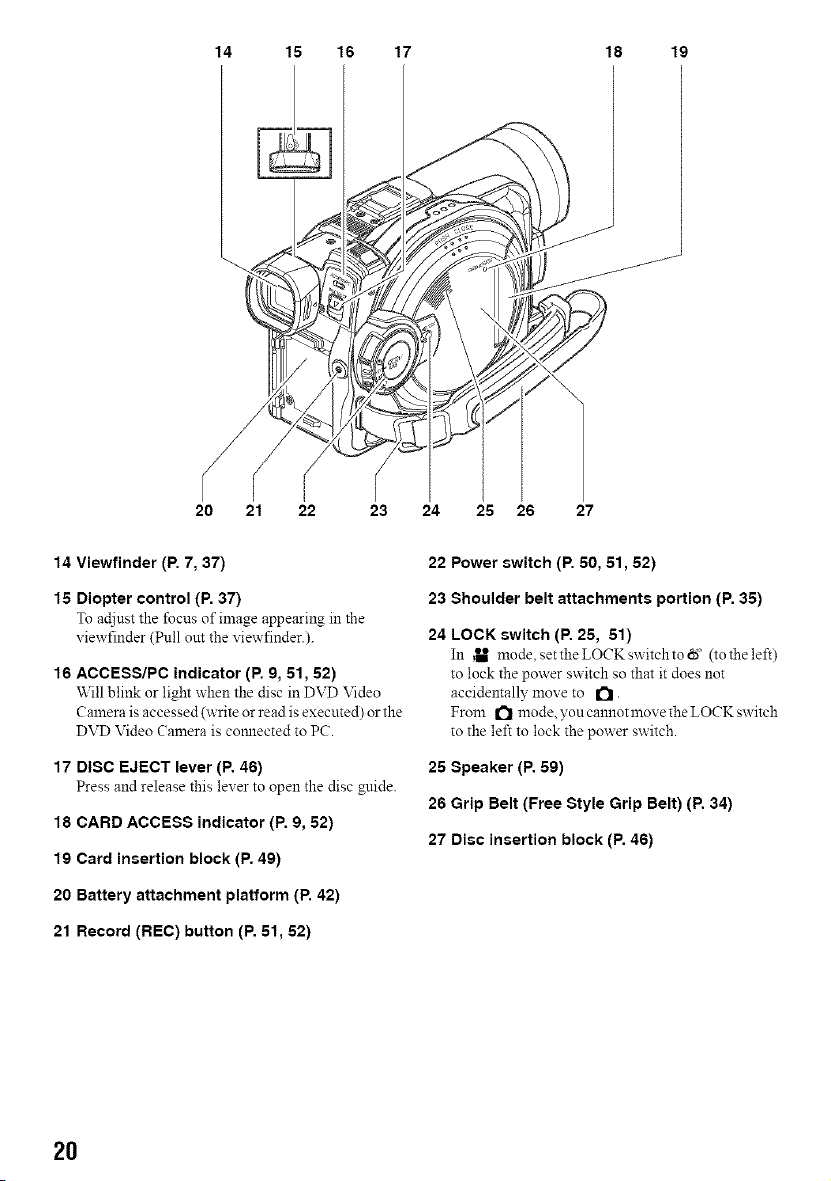
14 15 16 17 18 19
20 21 22 23 24 25 26 27
14 Viewfinder (P. 7, 37)
15 Diopter control (P. 37)
To adjust the focus of image appearing in the
viewfinder (Pull out the viewfinder.).
16 ACCESS/PC indicator (P. 9, 51,52)
Will blink or light when the disc in DVD Video
Camera is accessed (write or read is executed) or the
DVD Video Camera is comlected to PC.
17 DISC EJECT lever (P. 46)
Press and release this lever to open the disc guide.
18 CARD ACCESS indicator (P. 9, 52)
19 Card insertion block (P. 49)
20 Battery attachment platform (P. 42)
21 Record (REC) button (P. 51, 52)
22 Power switch (P. 50, 51,52)
23 Shoulder belt attachments portion (P. 35)
24 LOCK switch (P. 25, 51)
In _ mode, set the LOCK switch to N (to the left)
to lock the power switch so that it does not
accidentally move to _.
From I_ mode, you cannot move the LOCK switch
to the left to lock the power switch.
25 Speaker (P. 59)
26 Grip Belt (Free Style Grip Belt) (P. 34)
27 Disc insertion block (P. 46)
2O
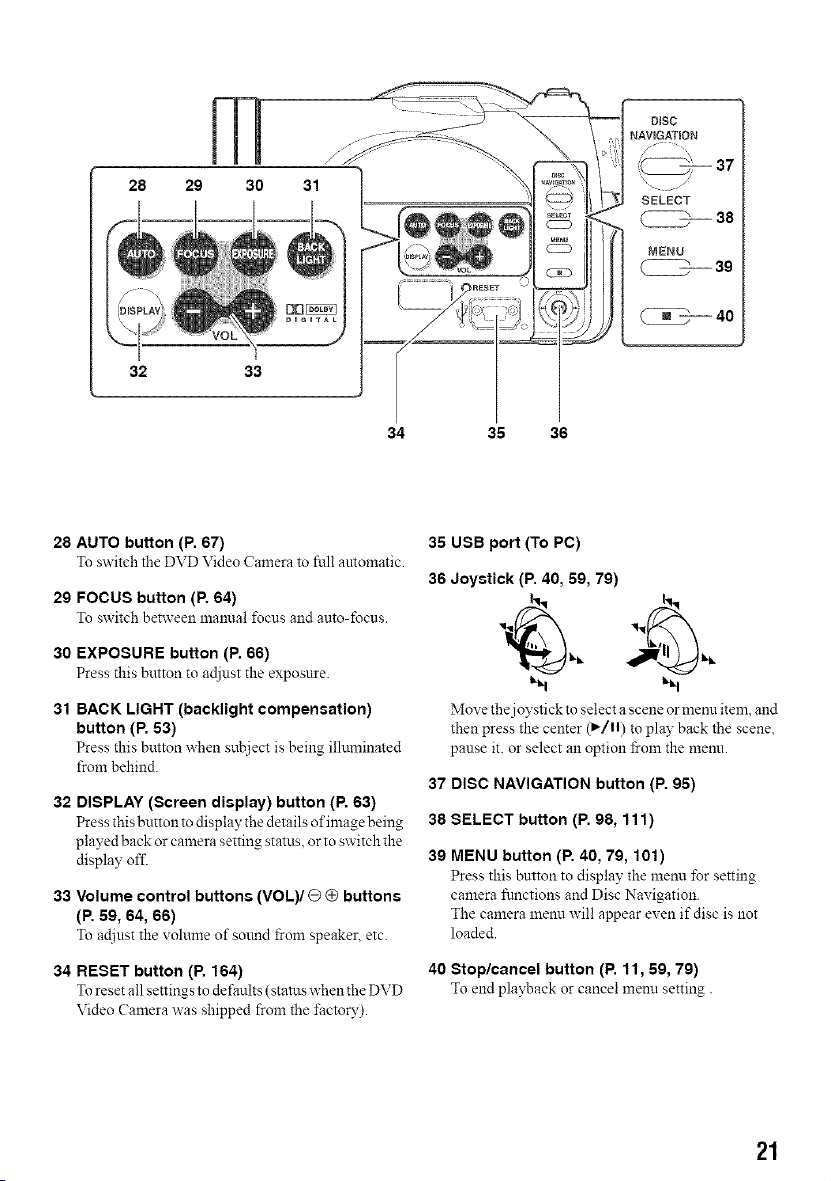
28 29
32
34 36 36
28 AUTO button (P. 67)
To switch the DVD Video Camera to frill amomatic.
29 FOCUS button (P. 64)
To switch between manual l\_cus and auto-focus.
30 EXPOSURE button (P. 66)
Press this button to adiust the exposure.
31 BACK LIGHT (backlight compensation)
button (P. 53)
Press this button when sub.iect is being illuminated
from behind.
32 DISPLAY (Screen display) button (P. 63)
Press this button to display the details of image being
played back or camera setting status, or to switch the
display off.
33 Volume control buttons (VOL)/O @ buttons
(P. 69, 64, 66)
To ac[iust the volume of smmd i_om speaker, etc.
34 RESET button (P. 164)
To reset all settings to defanlts (stares when the DVD
Video Camera was shipped from the factory).
36 USB port (To PC)
36 Joystick (P. 40, 59, 79)
Move thej oystick to select ascene or meml item, and
then press the center (1_/11) to play back the scene,
pause it, or select an option i_-om the meml.
37 DISC NAVIGATION button (P. 95)
38 SELECT button (P. 98, 111)
39 MENU button (P. 40, 79, 101)
Press this button to display the menn lbr setting
camera functions and Disc Navigation.
The camera menn will appear even if disc is not
loaded.
40 Stop/cancel button (P. 11,69, 79)
To end playback or cancel menu setting.
21
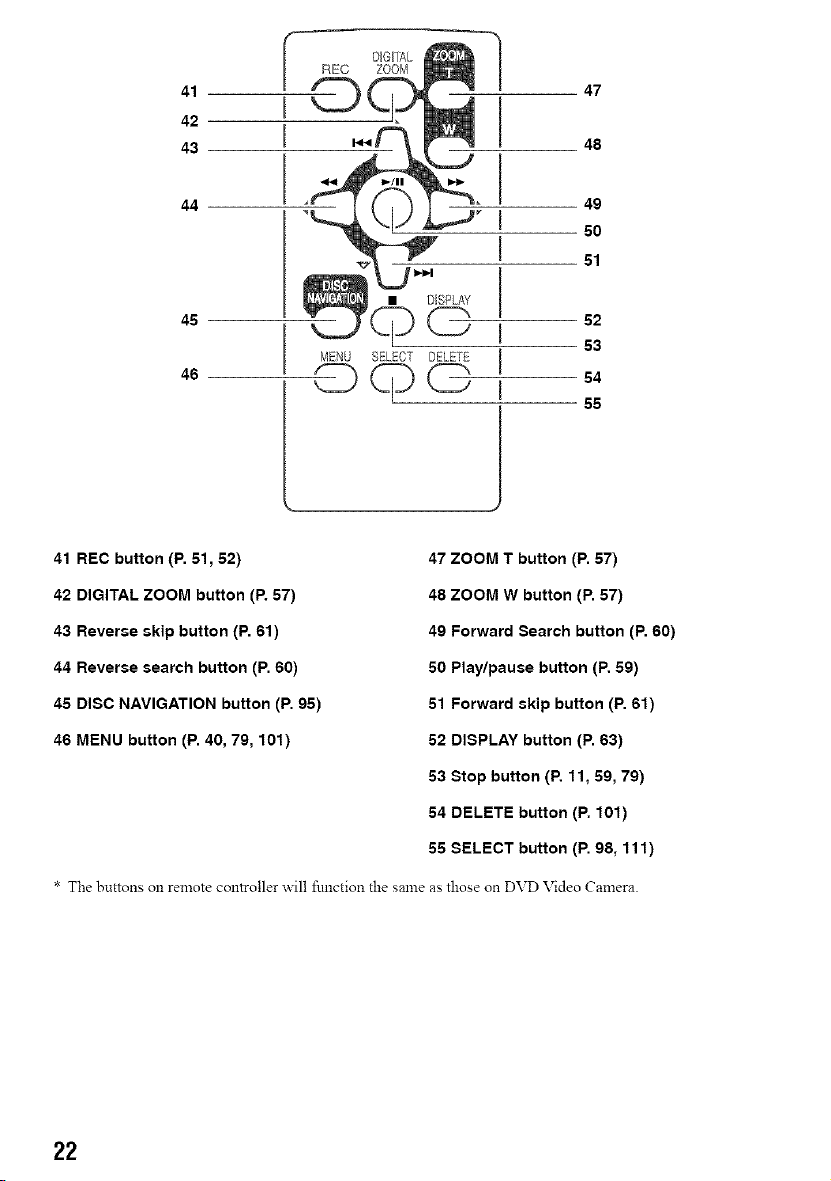
41
42
43
44
45
46
47
48
49
50
51
52
53
54
55
_J
41 REC button (P. 51,52)
42 DIGITAL ZOOM button (R 57)
43 Reverse skip button (P. 61)
44 Reverse search button (P. 60)
45 DISC NAVIGATION button (P. 95)
46 MENU button (P. 40, 79, 101)
47 ZOOM T button (P. 57)
48 ZOOM W button (P. 57)
49 Forward Search button (P. 60)
50 Play/pause button (P. 59)
51 Forward skip button (P. 61)
52 DISPLAY button (P. 63)
53 Stop button (P. 11, 59, 79)
54 DELETE button (P. 101)
55 SELECT button (P. 98, 111)
* The buttons oll remote controller will function the same as those on DVD Video Camera.
22
Setting Up the Battery Pack
The CGA-DU14A battery packprovided with this DVD Video Camera has not been chargedatpurchase
time. Charge it before using the DVD Video Camera.
Note:
• Be sure to use the specified battery pack CGA-DU 14A (provided) for the DVD Video Camera: using other batteries could
cause the DVD Video Camera to malfunction, or result in fire.
• Be sure to use the specified AC adaptor to charge the battery pack: using other chargers could cause electric shock
or fire.
• Charge the battery pack at temperatures of 50 - 86°F (10-30°C).
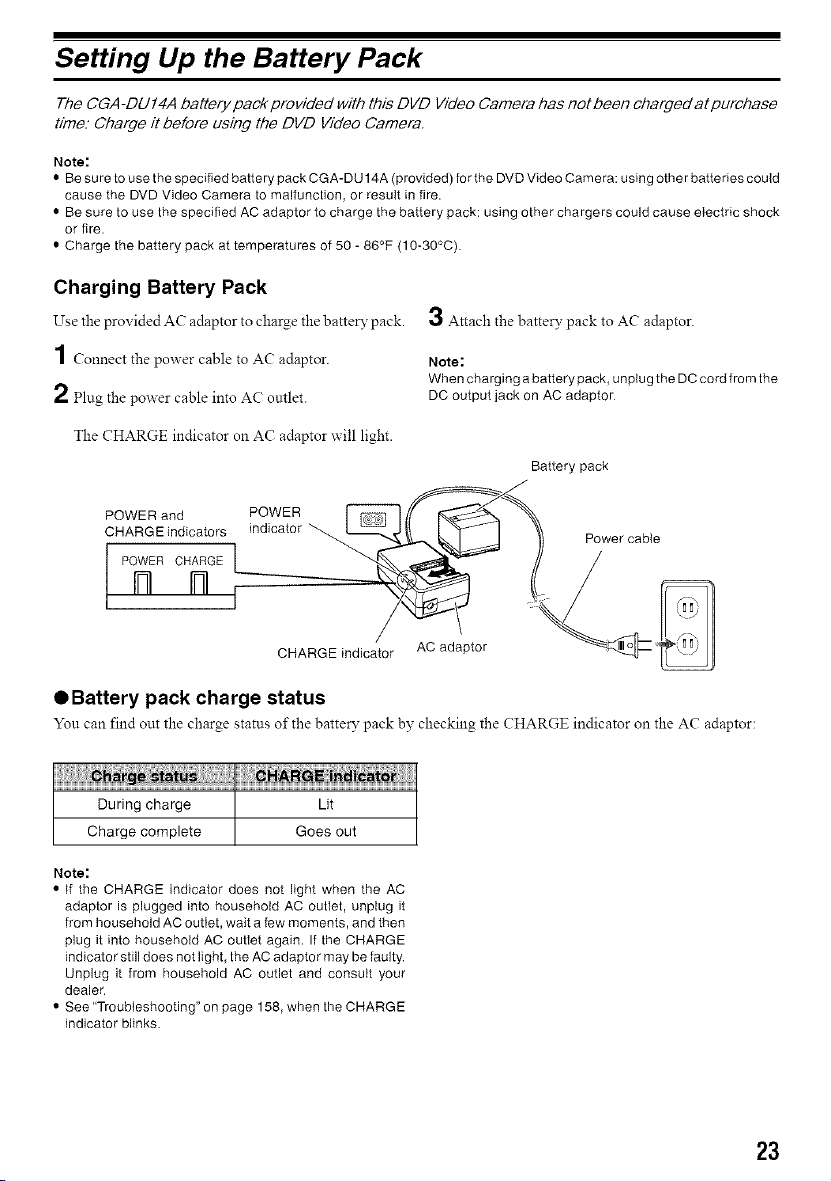
Charging Battery Pack
Use the provided AC adaptor to charge the batter}' pack.
1 Connect the power cable to AC adaptor.
2 Plug the power cable into AC outlet.
3 Attach the batter}, pack to AC adaptor.
Note:
When charging a battery pack, unplug the DC cord from the
DC output jack on AC adaptor
The CHARGE indicator on AC adaptor will light.
Battery pack
POWER and POWER
CHARGE indicators indicator
POWER CHARGE
Power cable
CHARGE indicator AC adaptor
• Battery pack charge status
You can find out the charge status of the battery pack by checking the CHARGE indicator on the AC adaptor:
During charge Lit
Charge complete Goes out
Note:
• If the CHARGE indicator does not light when the AC
adaptor is plugged into household AC outlet, unplug it
from household AC outlet, wait a few moments, and then
plug it into household AC outlet again. If the CHARGE
indicator still does not light, the AC adaptor may be faulty.
Unplug it from household AC outlet and consult your
dealeL
• See "Troubleshooting" on page 158, when the CHARGE
indicator blinks.
23
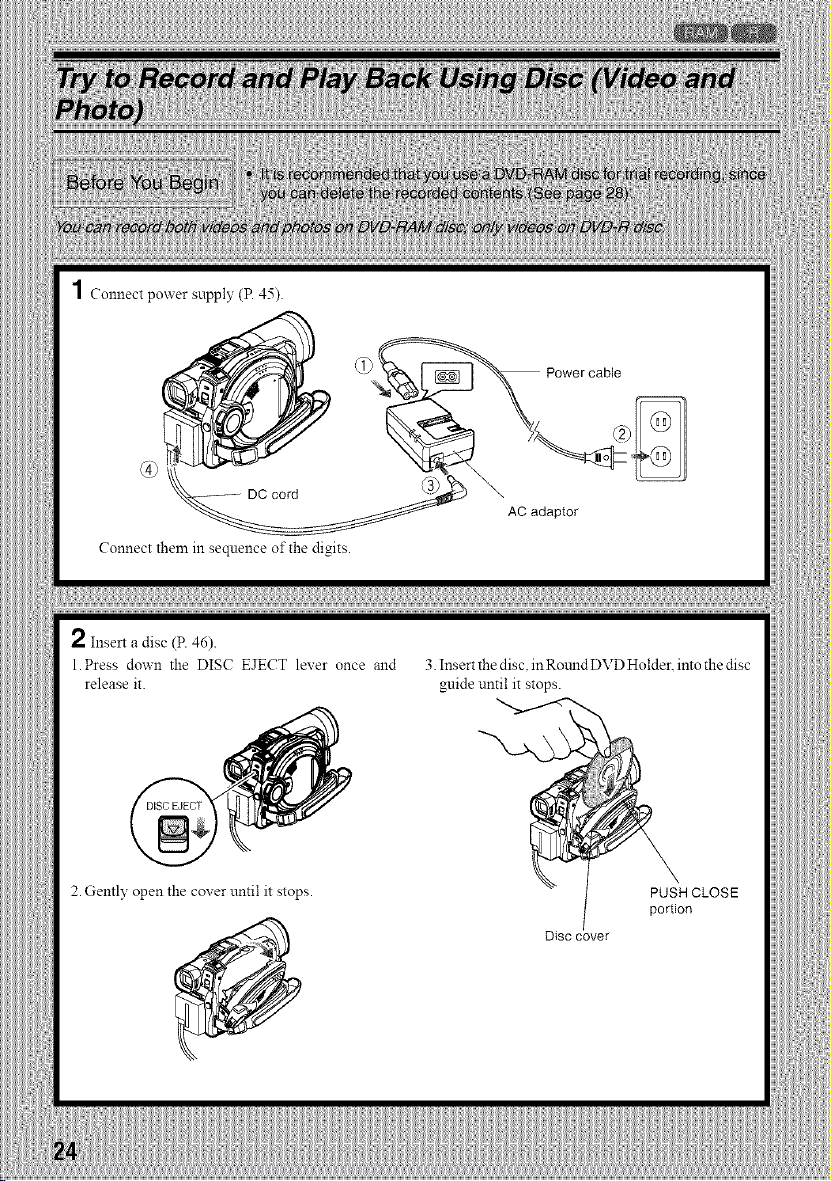
1 Connect power supply (P. 45).
Connect them in sequence of the digits.
AC adaptor
2 Insert a disc (P. 46).
l. Press down the DISC EJECT lever once and
release it.
3. Insert the disc. in Rotmd DVD Holden into the disc
guide until it stops.
"N
2. Gently open the coxer until it stops.
Disc cover
PUSH CLOSE
portion
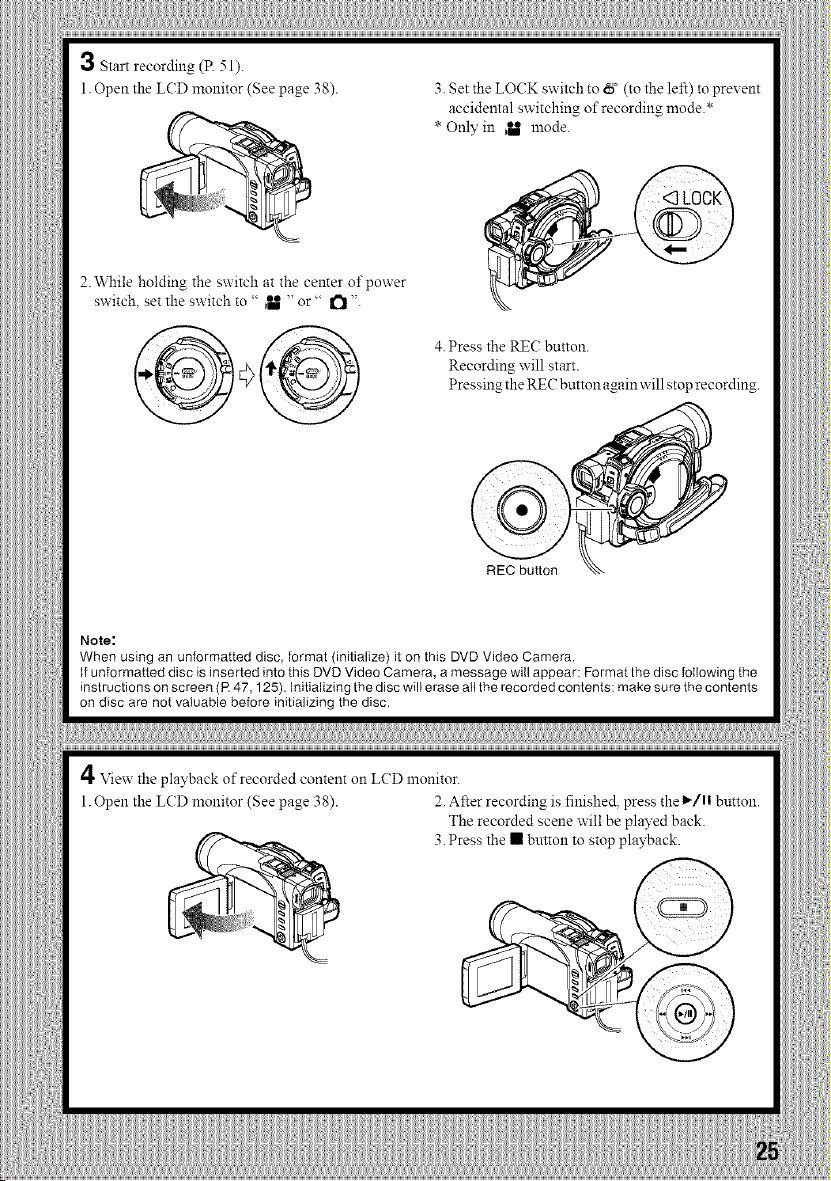
3 Start recording (R 51).
1. Open the LCD monitor (See page 38).
2.\_lfile holding the sxxitch at the center of power
switch, set the switch to " ,U " or" _ ".
3. Set the LOCK switch to N¢ (to the left) to prevent
accidental switching of recording mode.*
* Only in ,U mode.
4.Press the REC button.
Recording will start.
Pressing the REC button again will stop recording.
Note:
When using an unformatted disc, format (initialize) it on this DVD Video Camera.
If unformatted disc is inserted into tNs DVD Video Camera, a message will appear: Format the disc following the
instructions on screen (R 47,125). Initializing the disc will erase all the recorded contents: make sure the contents
on disc are not valuable before initializing the disc.
4 View the playback of recorded content on LCD monitor.
1.Open the LCD monitor (See page 38). 2. After recording is finished, press the I_/1| button.
The recorded scene will be played back.
3. Press the • button to stop playback.
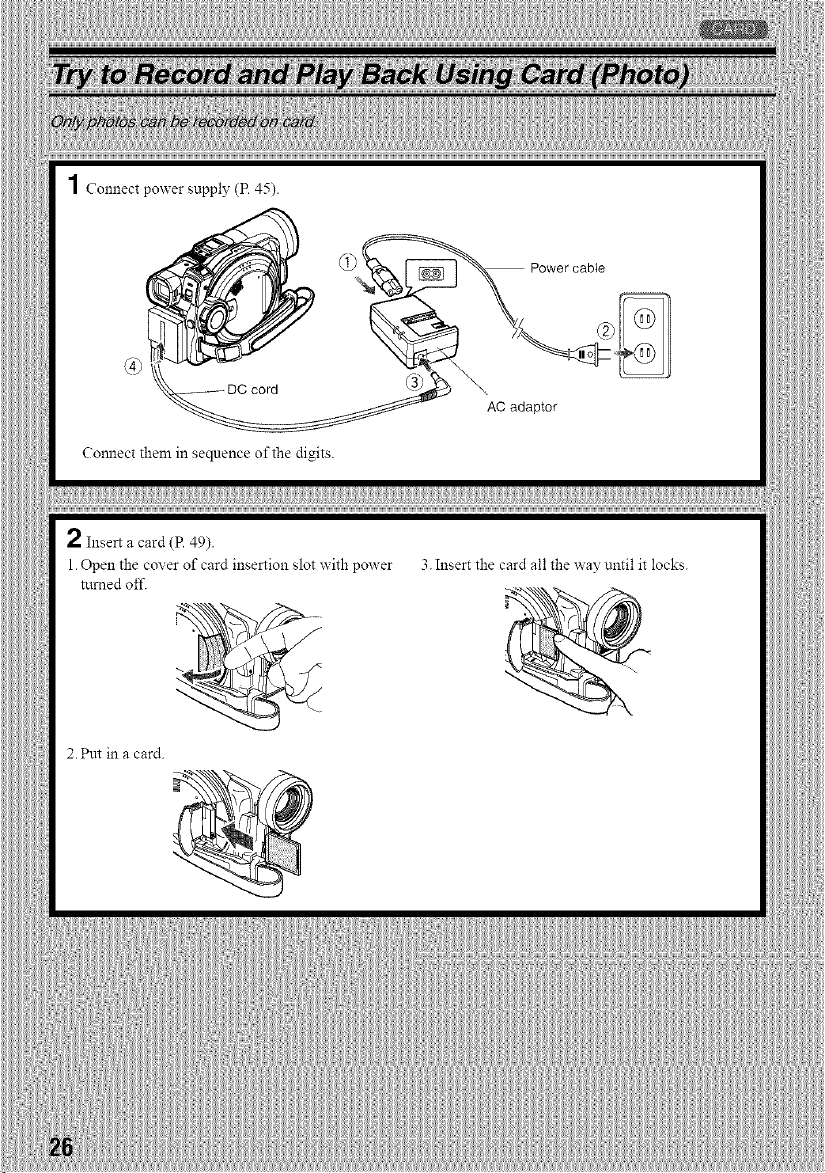
1 Connectpowersupply(P.45).
Comlecttheminsequenceofthedigits.
Power cable
\
AC adaptor
2 Insert a card (P. 49).
1.Open the cover of card insertion slot with power
turned off.
2. Put in a card.
3. Insert the card all the way until it locks.
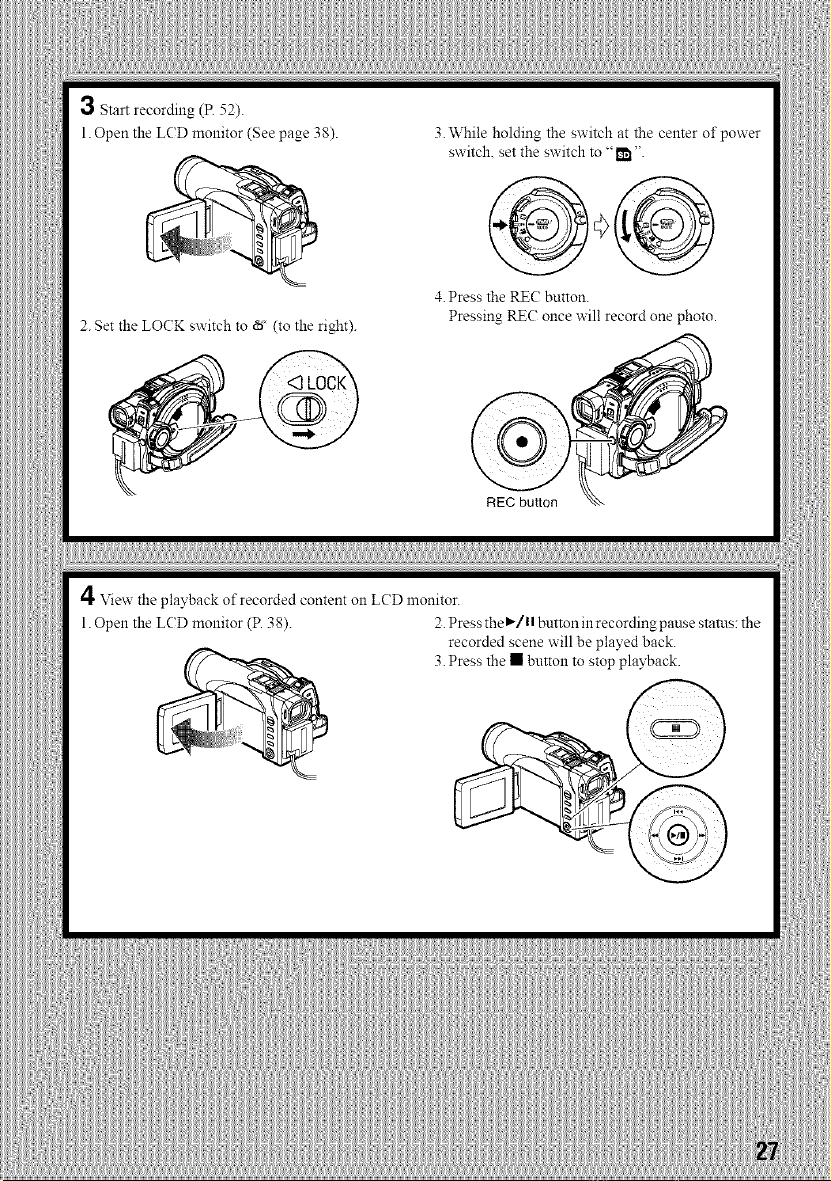
3 Startrecording(R52).
1.OpentheLCDmonitor(Seepage38).
2.SettheLO(K switch to _' (to the right).
3. While holding the switch at the center of power
switch, set the switch to "1_ ".
4. Press the REC button.
Pressing REC once will record one photo.
REC button
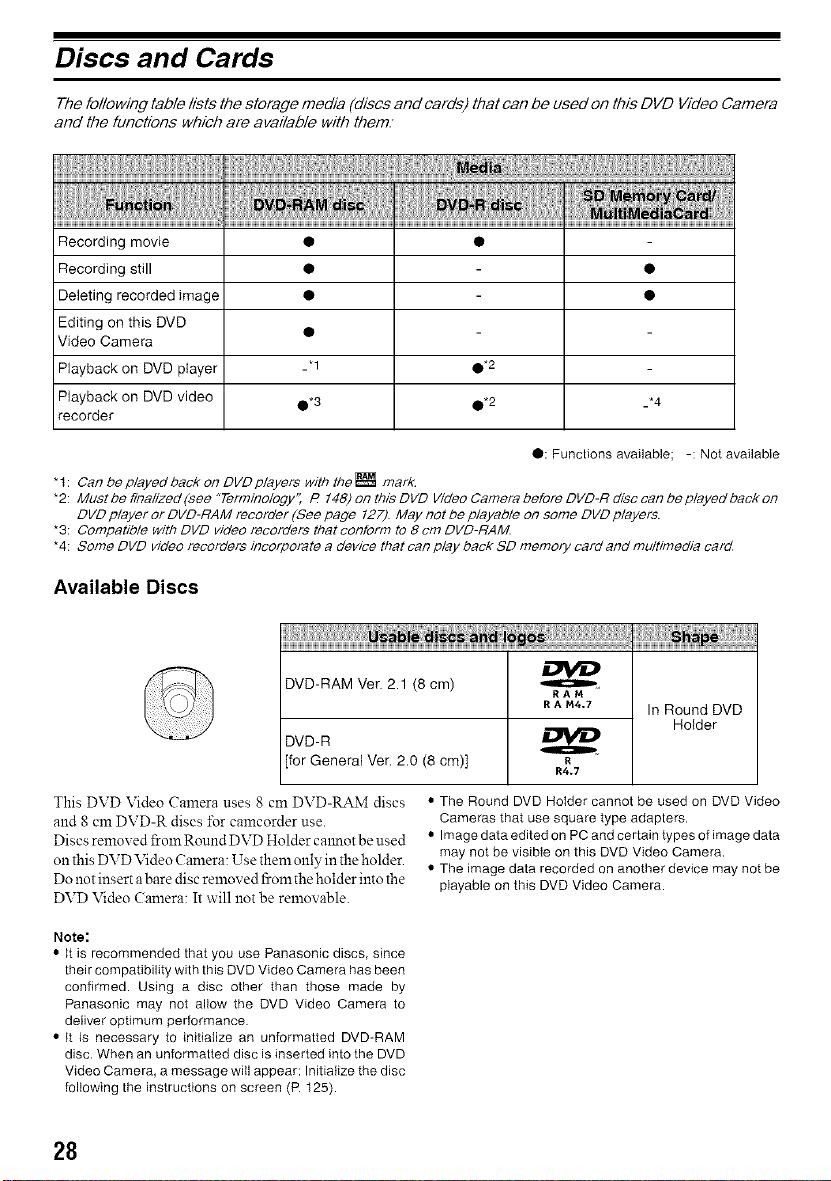
4 View the playback of recorded content on LCD monitor.
1. Open the LCD monitor (P. 38). 2.Press the'/ button in recording pause status: the
recorded scene will be played back.
3. Press the • button to stop playback.
Discs and Cards
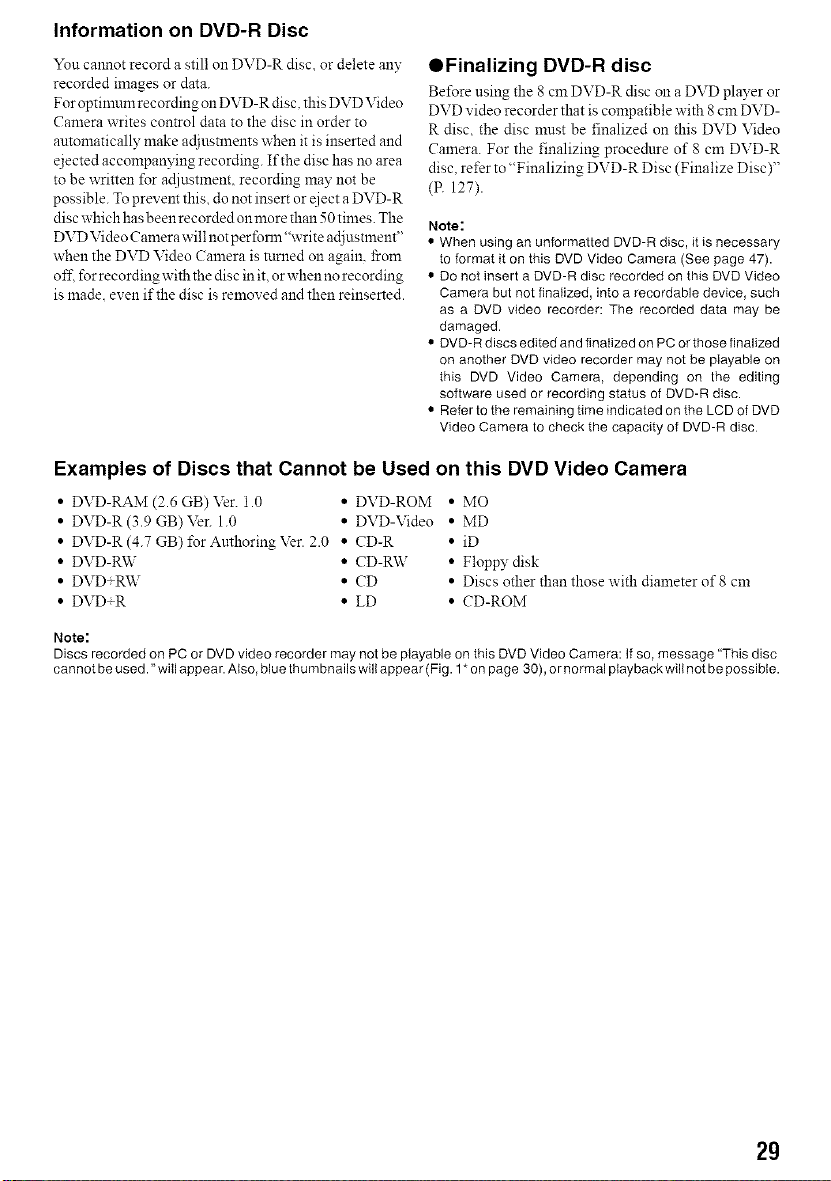
The following table lists the storage media (discs and cards) that can be used on this DVO Video Camera
and the functions which are available with them.
Recording movie • •
Recording still • •
Deleting recorded image • •
Editing on this DVD
Video Camera
Playback on DVD player _'1 •*2
Playback on DVD video 0, 3 0, 2 _*4
recorder
0: Functions available; -: Not available
* t : Can be played back on DVD players with the _ mark.
*2: Must be finalized (see "Terminology'_ R 148) on this DVD Video Camera before DVD-R disc can be played back on
DVD player or DVD-RAM recorder (See page 127). May not be playable on some DVD players.
*3: Compatible with DVD video recorders that conform to 8 cm DVD-RAM
"4: Some DVD video recorders incorporate a device that can play back SD memory card and multimedia card
Available Discs
iiiiil!liiii !!!iiii iii!ii!ii!ii!ii!ii!ili ii; iii ii¸
DVD-RAM Ver. 2.1 (8 cm)
RAM
RA _44.7 In Round DVD
Holder
DVD-R
[for General Ver. 2.0 (8 cm)] R
R4.7
This DVD Video Camera uses 8 cm DVD-RAM discs
and 8 cm DVD-R discs ±\_rcamcorder use.
Discs removed 15:oreRound DVD Holder calmot be used
on this DVD Video Camera: Use them only in the holder.
Do not insert a bare disc removed from the holder into the
DVD Video Camera: It will not he removable.
• The Round DVD Holder cannot be used on DVD Video
Cameras that use square type adapters.
• Image data edited on PC and certain types of image data
may not be visible on this DVD Video Camera.
• The image data recorded on another device may not be
playable on this DVD Video Camera.
Note:
• It is recommended that you use Panasonic discs, since
their compatibility with this DVD Video Camera has been
confirmed. Using a disc other than those made by
Panasonic may not allow the DVD Video Camera to
deliver optimum performance.
• It is necessary to initialize an unformatted DVD-RAM
disc. When an unformatted disc is inserted into the DVD
Video Camera, a message will appear: Initialize the disc
following the instructions on screen (R 125).
28
Information on DVD-R Disc
Yon calmot record a still on DVD-R disc, or delete any
recorded images or data.
For optinmm recording on DVD-R disc. this DVD Video
Camera writes control data to the disc in order to
automatically make adjusnnents w'hen it is inserted and
ejected accompanying recording. If the disc has no area
to be written for adiustment, recording may not be
possible. To prevent this, do not insert or _iect a DVD-R
disc which has been recorded on more than 50 times. The
DVD Video Camera w'ill not per forln "write adjustment"
w'hen the DVD Video ( alnera is turned on again, bom
of£ for recording with the disc in it. or when no recording
is made. even if the disc is removed and then reinserted.
OFinalizing DVD-R disc
Before using the 8 cm DVD-R disc oll a DVD player or
DVD video recorder that is compatible with 8 cm DVD-
R disc, the disc must be finalized on this DVD Video
Camera. For the finalizing procedure of 8 cm DVD-R
disc, refer to "Finalizing DVD-R Disc (Finalize Disc)"
(P. 127).
Note:
• When using an unformatted DVD-R disc, it is necessary
to format it on this DVD Video Camera (See page 47).
• Do not insert a DVD-R disc recorded on this DVD Video
Camera but not finalized, into a recordable device, such
as a DVD video recorder: The recorded data may be
damaged.
• DVD-R discs edited and finalized on PC or those finalized
on another DVD video recorder may not be pIayable on
this DVD Video Camera, depending on the editing
software used or recording status of DVD-R disc.
• Refer to the remaining time indicated on the LCD of DVD
Video Camera to check the capacity of DVD-R disc
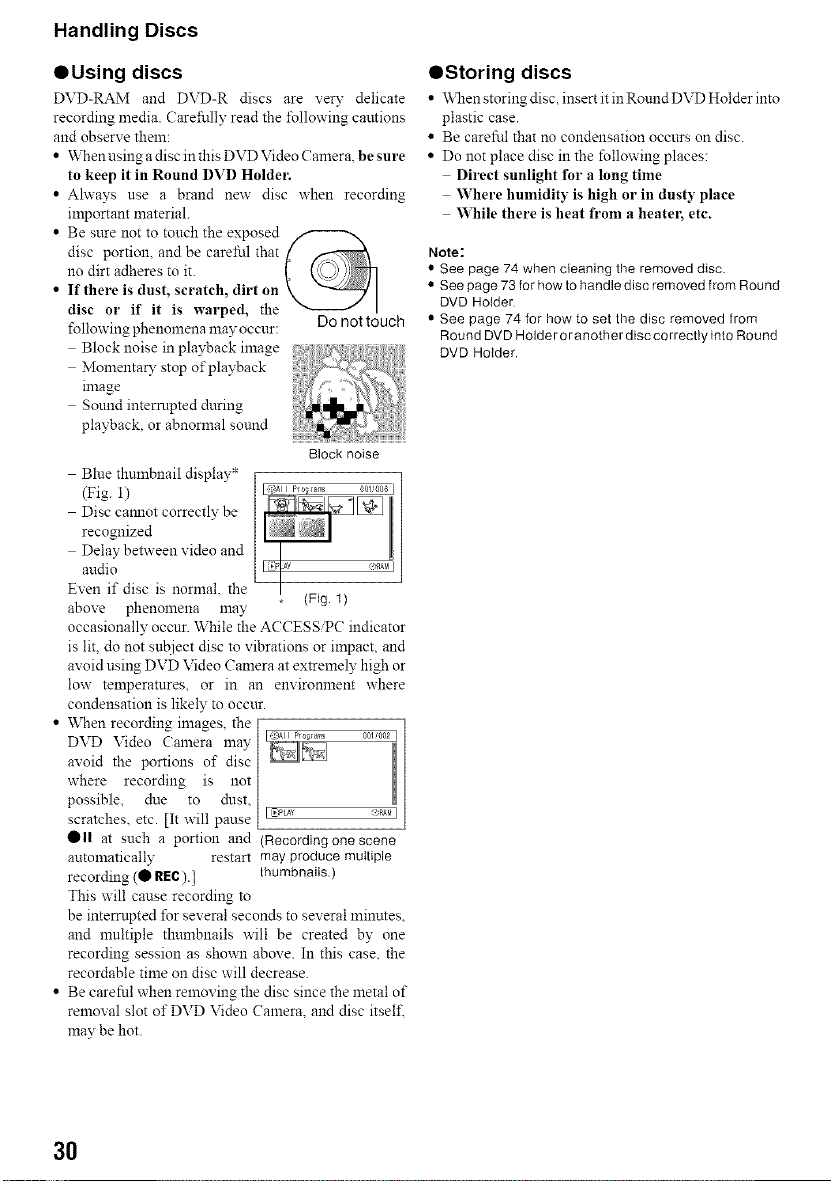
Examples of Discs that Cannot be Used on this DVD Video Camera
• DVD-RAM (2.6 GB) Ver. 1.0 • DVD-ROM • MO
• DVD-R (3.9 GB) Ver. 1.0 * DVD-Video • MD
• DVD-R (4.7 GB) ±br Anthoring Ver. 2.0 • CD-R • iD
• DVD-RW • CD-RW • Floppy disk
• DVD+RW • CD • Discs other than those with diameter of 8 cm
• DVD+R • LD • CD-ROM
Note:
Discs recorded on PC or DVD video recorder may not be ptayable on this DVD Video Camera: If so, message "This disc
cannot be used. "wiII appear. Also, blue thumbnails will appear (Fig. 1 * on page 30), or normal playback will not be possible.
2g
Handling Discs
OUsing discs
DVD-RAM and DVD-R discs are very delicate
recording media. Carefully read the following cautions
and observe them:
• Whenusing a disc in this DVD Video Camera. be sure
to keep it in Round DVD Holder.
• Always use a brand new disc when recording
important material.
i Be sttre not to touch the exposed
disc portion, and be careful that [
21odirt adheres to it. [ _._/_,_._
If there is dust, scratch, dirt on k _ I
disc or if it is warped, the _ I
following phenomena may occur: Do not touch
Block noise in playback image
Momentary stop of playback
image
Sound interrupted during
playback, or abnormal sound
Block noise
1
(Fig. 1)
Blue thulnbnail display*
(Fig. 1)
Disc caanot correctly be
recognized
Delay between video and
audio
Even if disc is normal the
above phenomena may
occasionally occur. While the ACCESS/PC indicator
is lit, do not subject disc to vibrations or impact, and
avoid using DVD Video Camera at extremely high or
low temperatures, or in an environment where
condensation is likely to occur.
• When recording images, the [ L_'_ a'_'_ ........I
DVD Video Camera l:aay[
avoid the portions of disc [
where recording is not [
possible, due to dust,
scratches, etc. [It will pause IZ,PtAY <_>RA_II
011 at such a portion and (Recording one scene
automatically restart mayproduce multiple
recording (O Ill=C).] thumbnails.)
This will cause recording to
be interrupted for several seconds to several lninntes,
and multiple thumbnails will be created by one
recording session as shown above. In this case. the
recordable time on disc will decrease.
• Be careful when removing the disc since the metal of
removal slot of DVD Video ( an_era, and disc itsel£
may be hot.
OStoring discs
• \_]len storing disc insert it in Round DVD Holder into
plastic case.
• Be careful that no condensation occurs on disc.
• Do not place disc in the following places:
Direct sunlight for a tong time
Where humidity is high or in dusty place
While there is heat from a heatel; etc.
Note:
• See page 74 when cleaning the removed disc.
• See page 73 for how to handle disc removed from Round
DVD Holder
• See page 74 for how to set the disc removed from
Round DVD Holder oranother disccorrectly into Round
DVD Holder.
3O
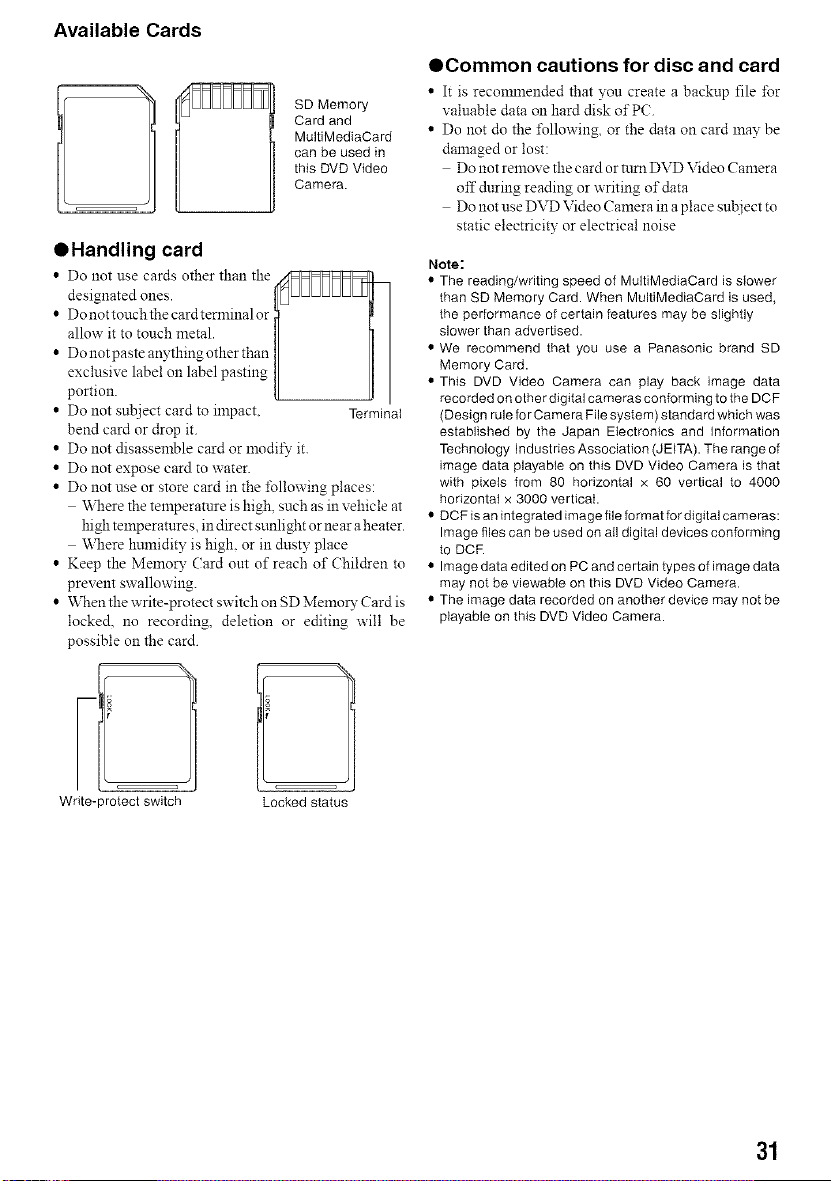
Available Cards
SD Memory
Card and
MultiMediaCard
can be used in
this DVD Video
Camera.
OHandling card
i Do uot use cards other thau the
designated ones. IEIuuuUUUL I
Donottouchthecardterminalor _ I I
allow it to touch metal. I I
D°u°tpasteanything°therthanI I I
excl:,,sivelabeloulabelpastiug{ Jl
pomon.
• Do not subject card to impact. Terminal
bend card or drop it.
• Do not disassemble card or lnodi*_ it.
• Do not expose card to water.
• Do not use or store card in the following places:
\_11ere the temperature is high, such as in vehicle at
high temperatures, in direct sunlight or near a heater.
Where humidity is high. or in dusty place
• Keep the Memory (ard out of reach of Children to
prevent swallowing.
• When the write-protect switch onSD Memuu Cardis
locked, no recording, deletion or editing will be
possible on the card.
Write- _rotect switch Locked status
OCommon cautions for disc and card
• It is reconnnended that you create a backup file for
valuable data on hard disk of PC.
• Do not do the *\_llowing,or the data on card lnay be
damaged or lost:
Do not remove the card or Run DVD Video Camera
off during reading or writing of data
Do not use DVD Video Camera in a place subject to
static electricity or electrical noise
Note:
• The reading/writing speed of MultiMediaCard is slower
than SD Memory Card. When MultiMediaCard is used,
the performance of certain features may be slightly
slower than advertised.
• We recommend that you use a Panasonic brand SD
Memory Card.
• This DVD Video Camera can play back image data
recorded on other digital cameras conforming to the DCF
(Design rule fo r Camera File system) standard which was
established by the Japan Electronics and Information
Technology Industries Association (JEITA). The range of
image data playable on this DVD Video Camera is that
with pixeis from 80 horizontal x 60 vertical to 4000
horizontal x 3000 vertical.
• DCF is an integrated image file format for digital cameras:
Image files can be used on ail digital devices conforming
to DCR
• Image data edited on PC and certain types of image data
may not be viewabte on this DVD Video Camera.
• The image data recorded on another device may not be
playable on this DVD Video Camera.
31
Storage Capacity of Disc or Card
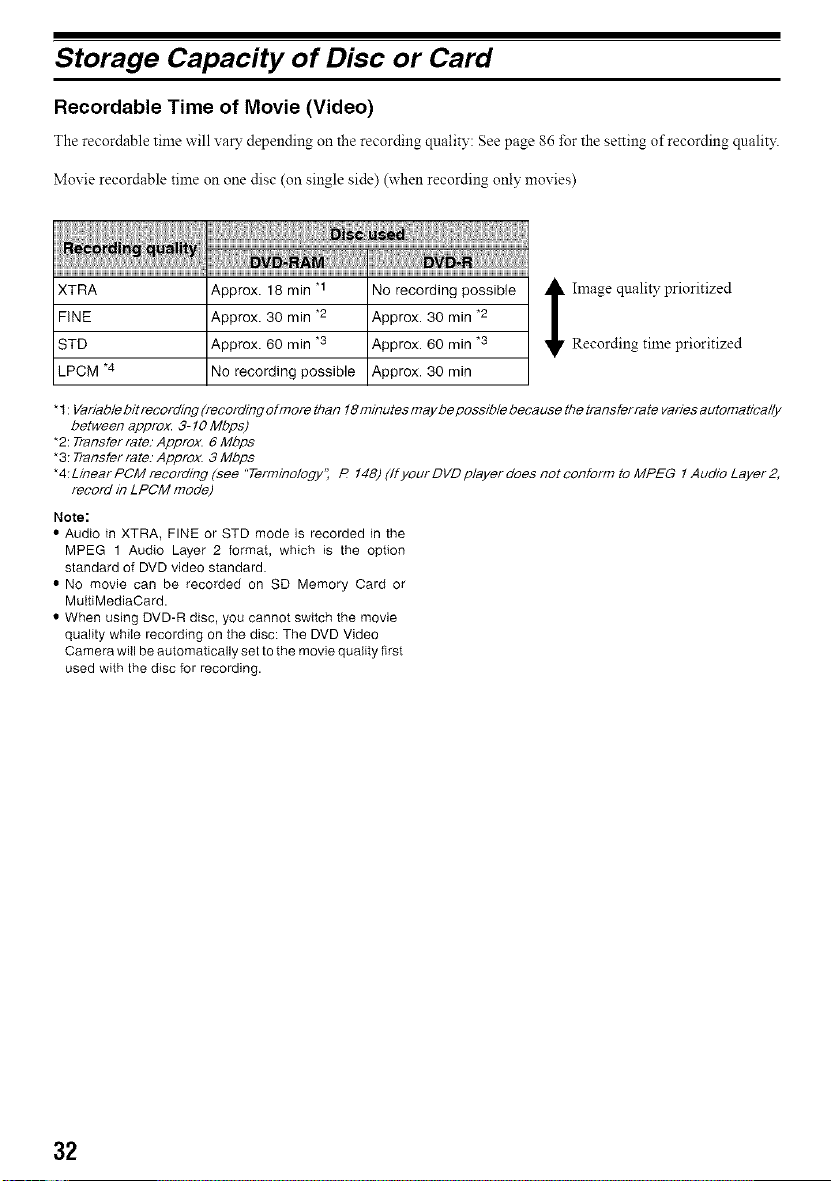
Recordable Time of Movie (Video)
The recordable time will vary depending on the recording quality: See page 86 for the setting of recording quality.
Moxie recordable time on one disc (on single side) (when recording only movies)
i///_///iw!_Iilii//_!/!!!ii///si_I/i_iii_ii!_i,ii_ii//i_i//_ii///_//ii_iiiiiii!i!iiiiiiiiiiiii_iiiii:ii!iii!!i_!!i!!i!_ii!!_fiiiii_i!iiiiii!i!_i_iiii_i_ii!!_!!_iii_!ii_i_iiiii_ii!i_!iii!!i_!_iiiii_!iii_ii_ii
iii!! !
XTRA Approx. 18 min "1 No recording possible
FINE Approx. 30 min *2 Approx. 30 min *2
STD Approx. 60 min *3 Approx. 60 min *3
LPCM *4 No recording possible Approx. 30 min
i Image quality prioritized
Recording time prioritized
* 1 : Variable bit recording (recording ofmore than 18 minutes may be possible because the transfer rate varies automat/ca//y
between approx. 3-10 Mbps)
*2: Transfer rate: Approx. 6 Mbps
*3: Transfer rate. Approx. 3 Mbps
*4:Linear PCM recording (see "Terminology", R 148) (fly our DVD player does not conform to MPEG 1 Audio Layer 2,
record in LPOfvl mode)
Note:
• Audio in XTRA, FINE or STD mode is recorded in the
MPEG 1 Audio Layer 2 format, which is the option
standard of DVD video standard.
• NO movie can be recorded on SD Memory Card or
MuitiMediaCard.
• When using DVD-R disc, you cannot switch the movie
quality while recording on the disc: The DVD Video
Camera will be automatically set to the movie quality first
used with the disc for recording.
32
Recordable Stills (Photos) on Disc
ONumber of recordable stills on one
side of disc: Up to 999
If the disc still has free space after recording 999 stills on
it. movies can also be recorded on it.
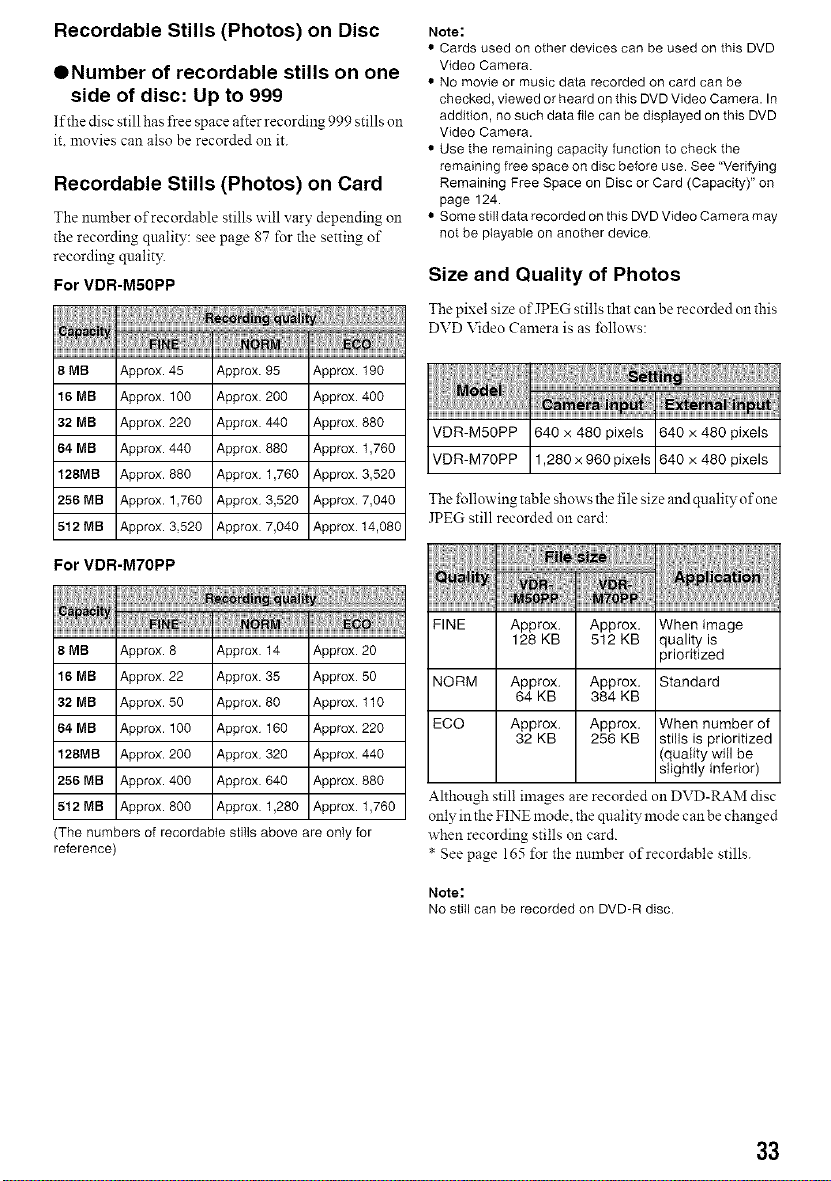
Recordable Stills (Photos) on Card
The nnmber ofrecordable stills will vary depending oll
the recording quality: see page 87 for the setting of
recording qualit?_
For VDR-M50PP
8 MB Approx. 45 Approx. 95 Approx. 190
16 MB Approx. 100 Approx 200 Approx. 400
32 MB Approx. 220 Approx 440 Approx. 880
64 MB Approx. 440 Approx 880 Approx. 1,760
128MB Approx. 880 Approx 1,760 Approx. 3,520
256 MB Approx. 1,760 Approx 3,520 Approx. 7,040
6t2 MB Approx. 3,520 Approx 7,040 Approx. 14,080
For VDR-M70PP
8 MB Approx. 8 Approx 14 Approx. 20
16 MB Approx. 22 Approx. 35 Approx. 50
32 MB Approx. 50 Approx. 80 Approx. 110
64 MB Approx. 100 Approx 160 Approx. 220
128MB Approx. 200 Approx 320 Approx. 440
266 MB Approx. 400 Approx 640 Approx. 880
612 MB Approx. 800 Approx 1,280 Approx. 1,760
(The numbers of recordabte stills above are only for
reference)
Note:
• Cards used on other devices can be used on this DVD
Video Camera.
• No movie or music data recorded on card can be
checked, viewed or heard on this DVD Video Camera. In
addition, no such data file can be displayed on this DVD
Video Camera.
• Use the remaining capacity function to check the
remaining free space on disc before use. See "Verifying
Remaining Free Space on Disc or Card (Capacity)" on
page 124.
• Some still data recorded on this DVD Video Camera may
not be playable on another device
Size and Quality of Photos
The pixel size of JPEG stills that can be recorded on this
DVD Video Camera is as follows:
VDR-M50PP 640 x 480 pixels 640 x 480 pixels
VDR-M70PP 1,280 x 960pixels 640 x 480 pixels
The following table shows the file size and quality of one
JPEG still recorded on card:
FINE Approx. Approx. When image
128 KB 512 KB quality is
_rioritized
NORM Approx. Approx. Standard
64 KB 384 KB
ECO Approx. Approx. When number of
32 KB 256 KB stills is prioritized
(quality will be
slightly inferior)
Although still images are recorded on DVD-RAM disc
only in the FINE mode. the quality mode can be changed
when recording stills on card.
* See page 165 for the number ofrecordable stills.
Note:
No still can be recorded on DVD-R disc.
33
This section explains preparations for recording -setting up the DVD Video Camera and battery pack.
Setting Up the DVD Video Camera
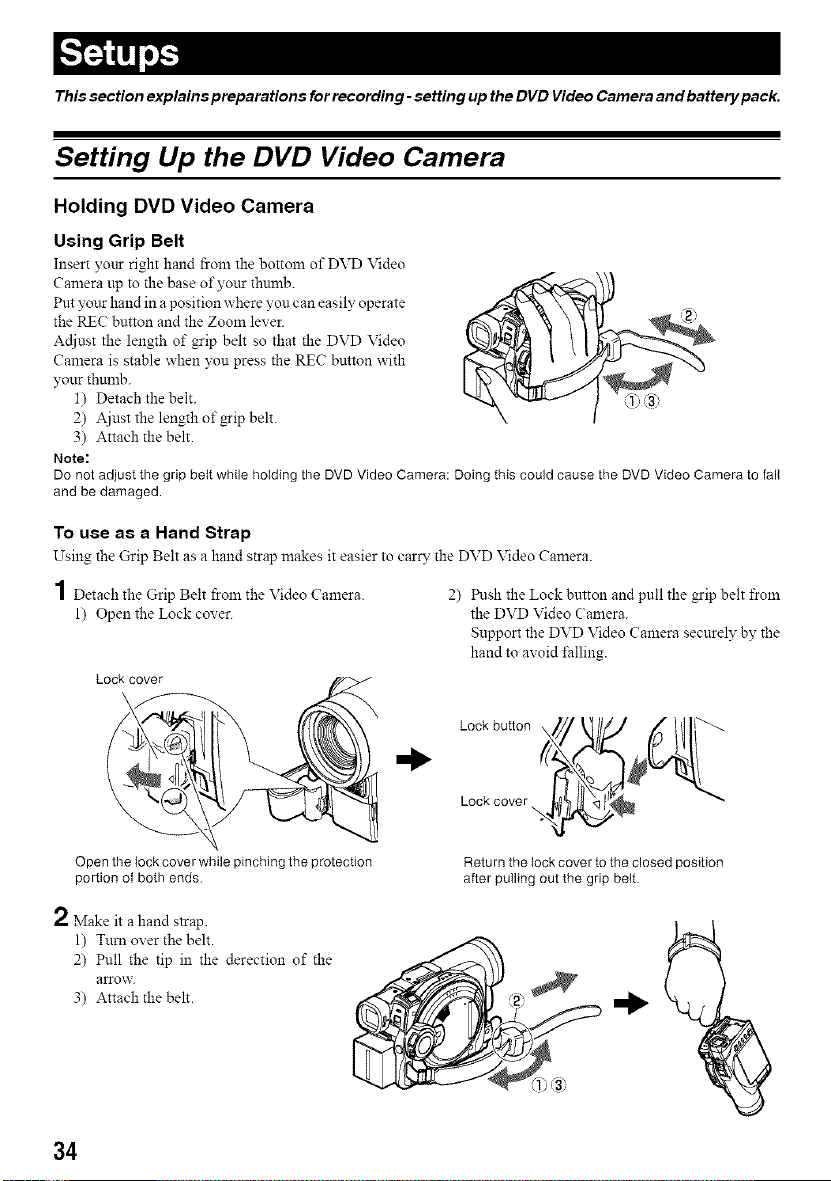
Holding DVD Video Camera
Using Grip Belt
Insert yottr right hand from the bottom of DVD Video
Camera up to the base ofyottr thmnb.
Put yottr hand in a position where you can easily operate
the REC button and the Zoom lever.
Acliust the length of grip belt so that the DVD Video
Camera is stable when you press the REC button with
your thumb.
1) Detach the belt. @ @
2) Ajust the length of_ip belt.
3) Attach the belt.
Note:
DOnot adjust the grip belt while holding the DVD Video Camera: Doing this could cause the DVD Video Camera to fall
and be damaged.
To use as a Hand Strap
Using the Grip Belt as a hand strap makes it easier to carry the DVD Video Camera.
1 Detach the Grip Belt from the Video Camera. 2) Push the Lock button and pull the grip belt from
1) Open the Lock cover, the DVD Video Camera.
Support the DVD Video Camera securely by the
hand to avoid l'alling.
Lock cover
Open the lock cover while pinching the protection
portion of both ends
2 Make it a hand strap.
1) Turn over the belt.
2) Pull the tip in the derection of the
arrow.
3) Attach the belt.
L°ckbutt°n/// t'' 1'>
Lockcover <
Return the lock cover to the closed position
after pulling out the grip belt.
34
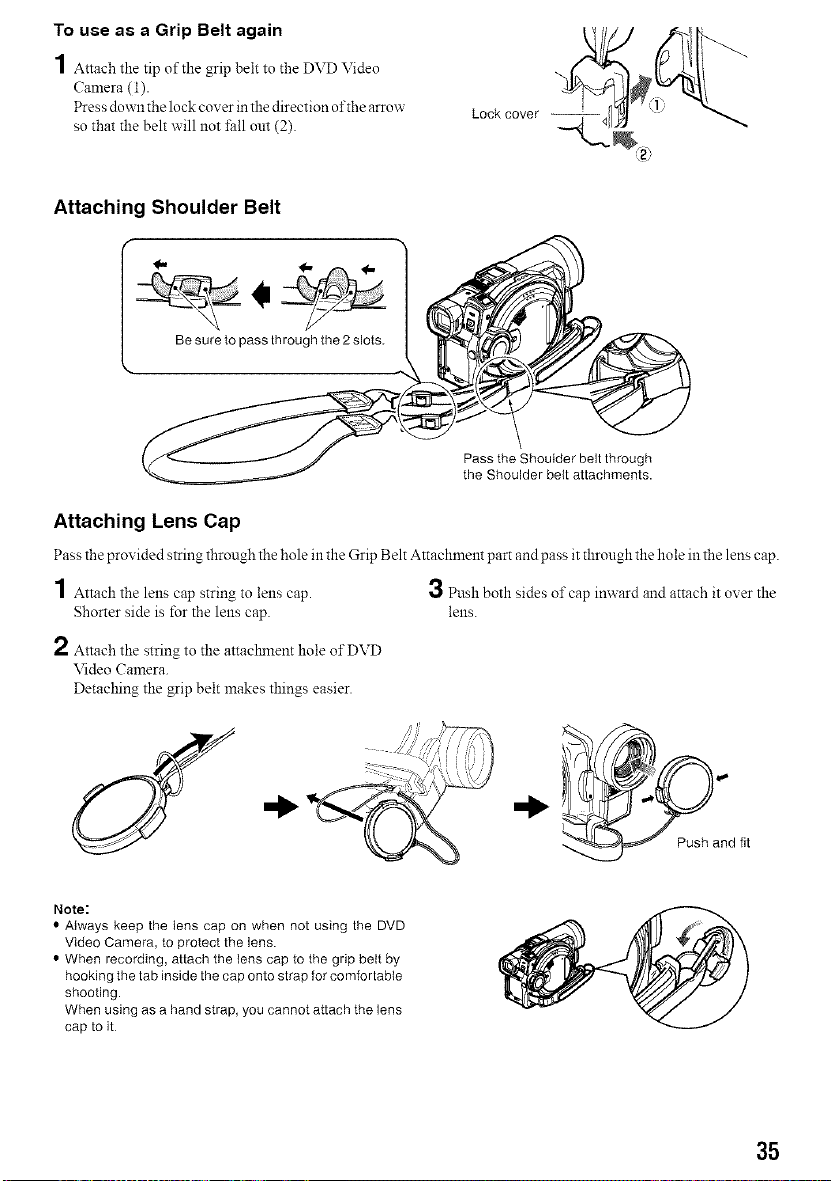
To use as a Grip Belt again
1 Attach the tip of the grip belt to the DVD Video
Camera (1).
Press down the lock cover inthe direction of the arrow
so that the belt will not _;allom (2).
Attaching Shoulder Belt
Be sure to pass through the 2 slots.
Pass the Shoulder belt through
the Shoulder belt attachments.
Attaching Lens Cap
Pass the provided string through the hole in the Grip Belt Attachment part and pass it through the hole in the lens cap.
1 Attach the lens cap string to lens cap.
Shorter side is for the lens cap.
2 Attach the string to the attaclmlent hole of DVD
Video Camera.
Detaching the grip belt makes things easier.
3 Push both sides of cap inward and attach it over the
lens.
_and fit
Note:
• Always keep the lens cap on when not using the DVD
Video Camera, to protect the lens.
• When recording, attach the lens cap to the grip belt by
hooking the tab inside the cap onto strap for comfortable
shooting.
When using as a hand strap, you cannot attach the lens
cap to it
35
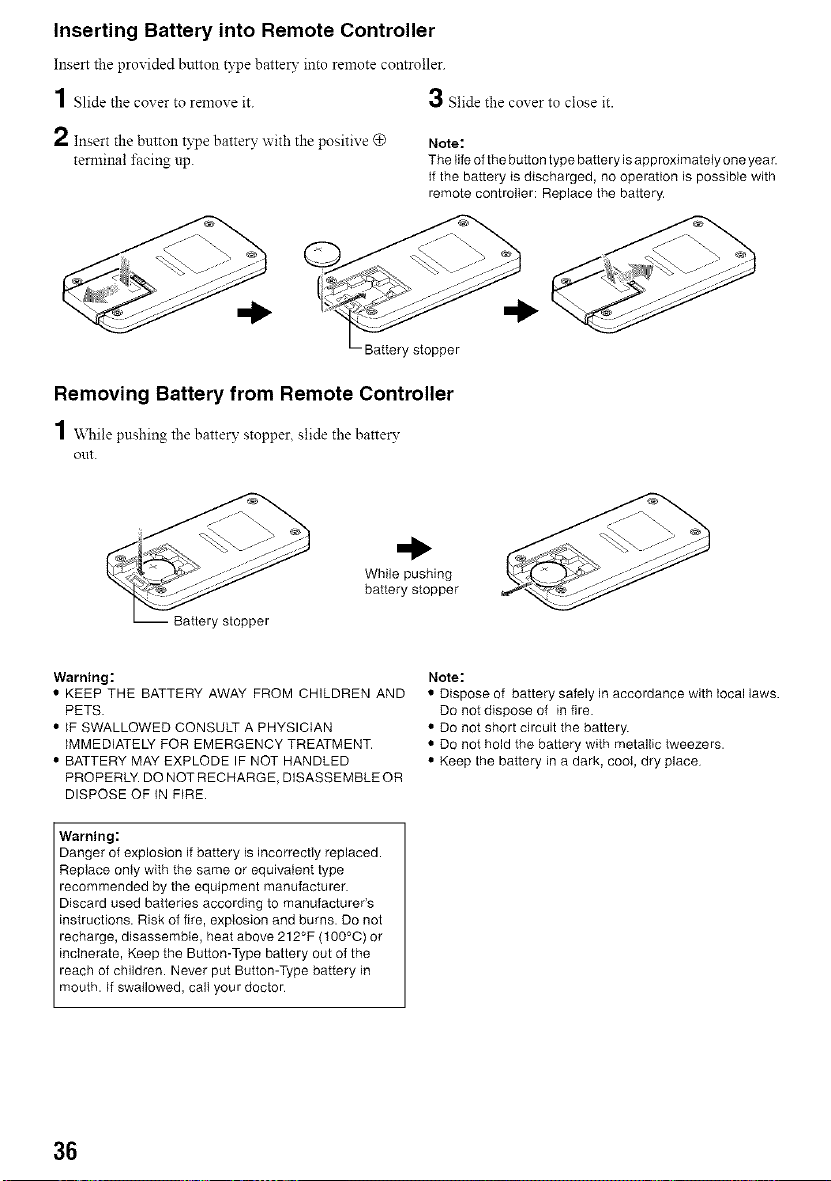
Inserting Battery into Remote Controller
Insert the provided button type battery into remote controller.
3 Slide the cover to close it.1 Slide the cover to remove it.
2 Insert the button type battery with the positive @
terminal i;acing up.
Note:
The life of the button type battery isapproximately one yeaL
If the battery is discharged, no operation is possible with
remote controller: Replace the battery.
Battery stopper
Removing Battery from Remote Controller
1 "V\Nile pushing the battery stopper, slide the batter 3'
out.
While pushing
battery stopper
Battery stopper
Warning:
• KEEP THE BATTERY AWAY FROM CHILDREN AND
PETS.
• IF SWALLOWED CONSULT A PHYSICIAN
IMMEDIATELY FOR EMERGENCY TREATMENT.
• BATTERY MAY EXPLODE IF NOT HANDLED
PROPERLY. DO NOT RECHARGE, DISASSEMBLE OR
DISPOSE OF IN FIRE.
Warning:
Danger of explosion if battery is incorrectly replaced.
Replace only with the same or equivalent type
recommended by the equipment manufacturer.
Discard used batteries according to manufacturer's
instructions. Risk of fire, explosion and burns. Do not
recharge, disassemble, heat above 212°F (100°C) or
incinerate, Keep the Button-Type battery out of the
reach of children. Never put Button-Type battery in
mouth. If swallowed, call your doctor
Note:
• Dispose of battery safely in accordance with local laws.
Do not dispose of in fire.
• Do not short circuit the battery.
• DO not hold the battery with metallic tweezers.
• Keep the battery in a dark, cool, dry place
36
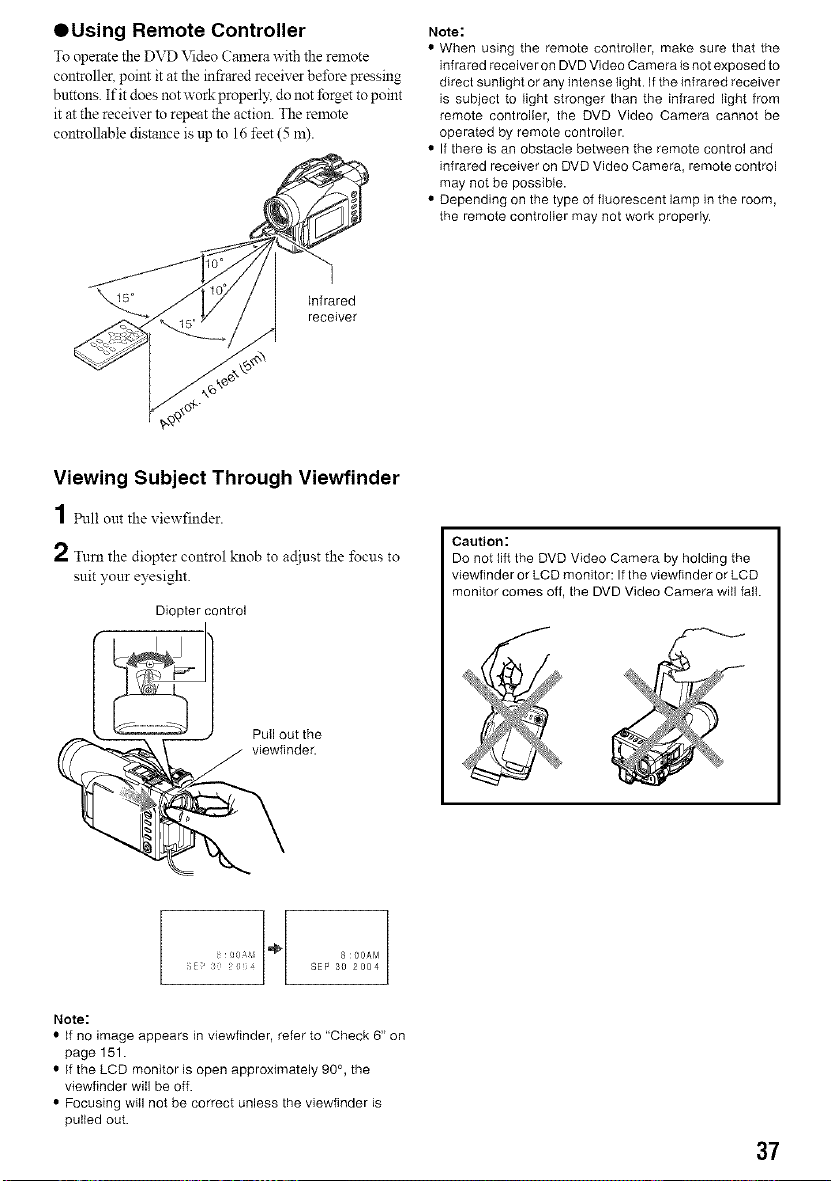
QUsing Remote Controller
To operate the DVD Video Cmnera with the remote
controller, point it at the infrared receiver before pressing
buttons. If it does not work properly, do not lbrget to point
it at the receiver to repeat the action. The remote
controllable distance is up to 16 feet (5 m).
Infrared
receiver
Note:
• When using the remote controller, make sure that the
infrared receiver on DVD Video Camera is not exposed to
direct sunlight or any intense light. If the infrared receiver
is subject to light stronger than the infrared light from
remote controller, the DVD Video Camera cannot be
operated by remote controller.
• If there is an obstacle between the remote control and
infrared receiver on DVD Video Camera, remote control
may not be possible.
• Depending on the type of fluorescent lamp in the room,
the remote controller may not work properly.
Viewing Subject Through Viewfinder
1 Pull out the viewfinder.
2 Turn the diopter control knob to adiust the focus to
suit your e)_sight.
Diopter control
Pull out the
viewfinder.
Caution:
Do not lift the DVD Video Camera by holding the
viewfinder or LCD monitor: If the viewfinder or LCD
monitor comes off, the DVD Video Camera will fall.
Note:
• If no image appears in viewfinder, refer to "Check 6" on
page 151.
• If the LCD monitor is open approximately 90 °, the
viewfinder will be off.
• Focusing will not be correct unless the viewfinder is
pulled out.
37
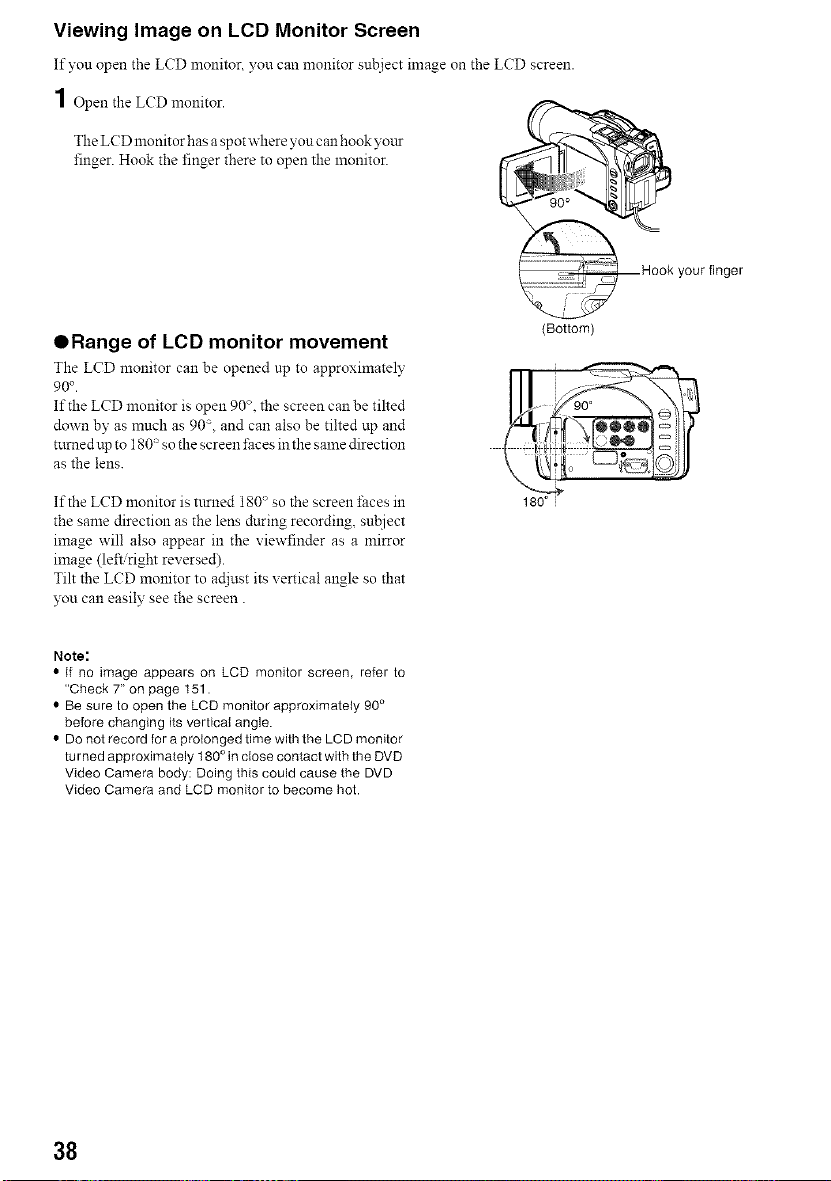
Viewing Image on LCD Monitor Screen
If you open the LCD monitor yon can monitor subject image on the LCD screen.
1 Open the LCD monitor.
The LCD monitor has a spot ,,,,'hereyon can hook yo_.tr
finger. Hook the finger there to open the monitor.
your finger
ORange of LCD monitor movement
The LCD monitor can be opened up to approximately
90 °
If the LCD monitor is open 90". the screen can be tilted
down by as much as 90, and can also be tilted up and
turned up to 180 _so the screen l;aces in the same direction
as the lens.
If the LCD monitor is turned 180 _so the screen t;aces in
the same direction as the lens during recording, subject
image will also appear in the viewfinder as a mirror
image (left/right reversed).
Tilt the LCD monitor to adjust its vertical angle so that
you can easily see the screen.
(Bottom)
Note:
• If no image appears on LCD monitor screen, refer to
"Check 7" on page 151.
• Be sure to open the LCD monitor approximately 90°
before changing its verticat angle.
• DO not record for a prolonged time with the LCD monitor
turned approximately 180 ° in close contact with the DVD
Video Camera body: Doing this could cause the DVD
Video Camera and LCD monitor to become hot.
38
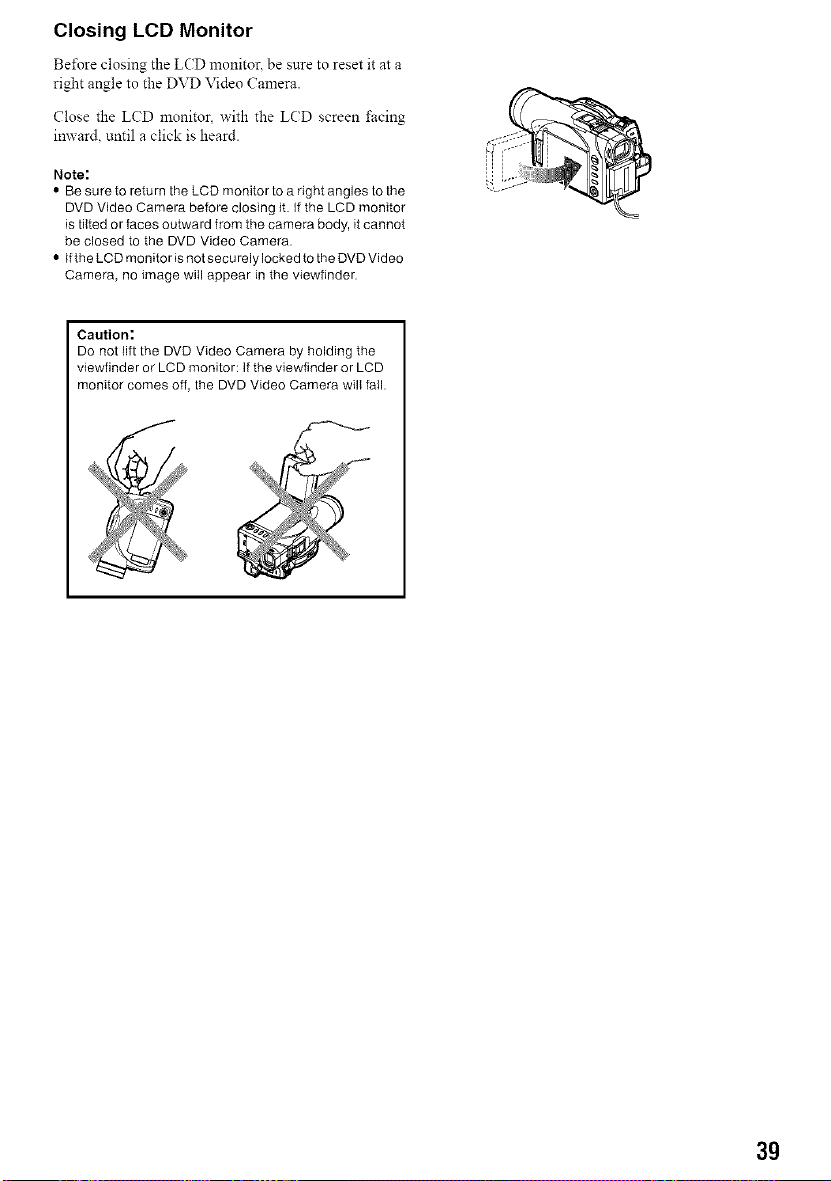
Closing LCD Monitor
Beibre closing the L(D monitor, be sure to reset it at a
right angle to the DVD Video Camera.
Close the LCD monitor, with the LCD screen facing
inward, until a click is heard.
Note:
• Be sure to return the LCD monitor to a right angles to the
DVD Video Camera before closing it. if the LCD monitor
is tilted or faces outward from the camera body, it cannot
be closed to the DVD Video Camera.
• If the LCD monitor is not securely locked to the DVD Video
Camera, no image will appear in the viewfinder.
Caution:
Do not lift the DVD Video Camera by holding the
viewfinder or LCD monitor: If the viewfinder or LCD
monitor comes off, the DVD Video Camera will fail.
3g
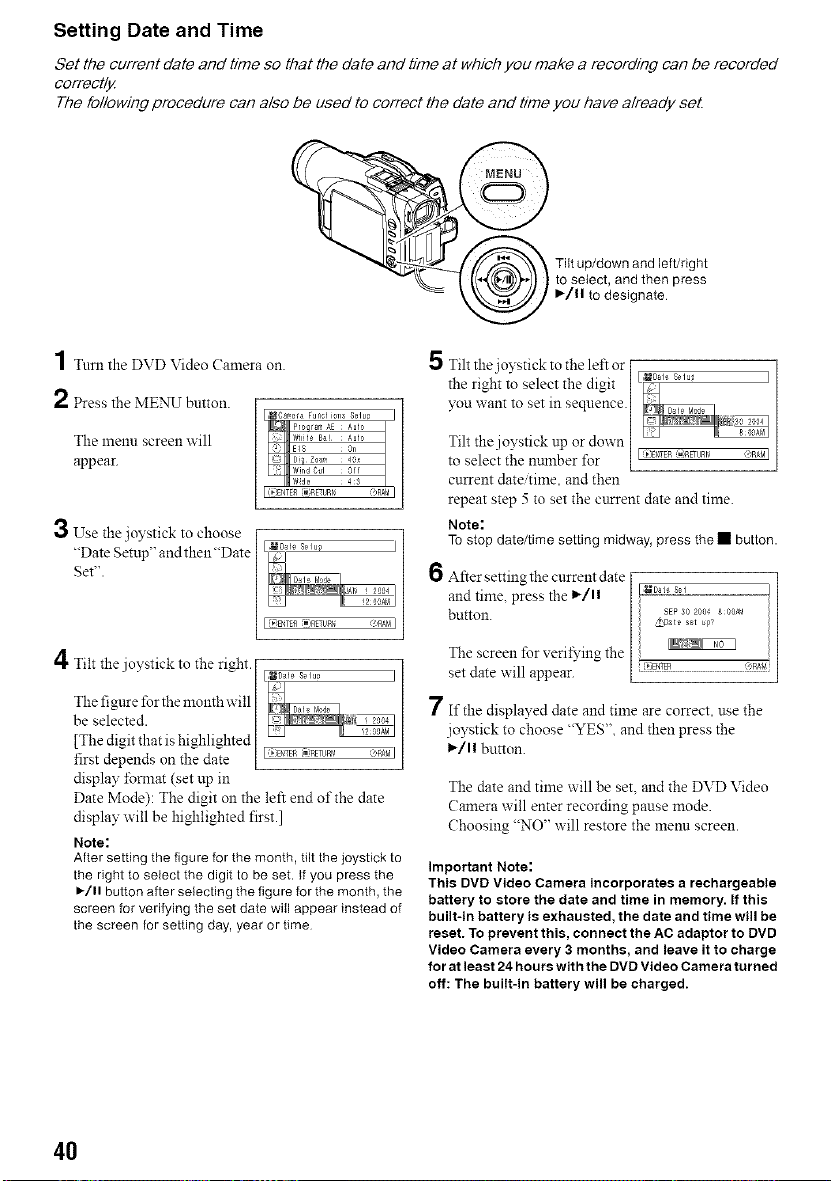
Setting Date and Time
Set the current date and time so that the date and time at which you make a recording can be recorded
correctly
The following procedure can also be used to correct the date and time you have already seL
Tilt up/down and left/right
to select, and then press
I_/11 to designate
4
/ Turn the DVD Video Camera on.
2 press the MENU button.
The menu screen will
appear.
__ Use "
the joystick to choose
"Date Setup" and then "Date
Set".
/I
Tilt the joystick to the right. [
/
The figure for the monthwill [
be selected.
[The digit that is highlighted
first depends on the date kI _:B'_TER_,RETURNtgl_'MI
display fomlat (set up m
Date Mode): The digit on the left end of the date
display will be highlighted first.]
Note:
After setting the figure for the month, tilt the joystick to
the right to select the digit to be set. If you press the
I_/11button afterselecting the figure for the month, the
screen for verifying the set date will appear instead of
the screen for setting day, year or time
Tilt the joystick to the left or [
the right to select the digit [
you want to set in sequence.
Tilt the j oystick up or down
to select the nulnber for _)_T_R(_RE_URr_ "-_R#_I
current date/time, and then
repeat step 5 to set the cttrrent date and time.
Note:
Tostop date/time setting midway, press the • button.
6
After setting the current date [
and time, press the 1_/11 [
button. SEP 30 2004 g 00)4_
The screen for veri*}'ing the [
set date will appear. [ _(_,RA*,
7 If the displayed date and time are correct, use the
joystick to choose "YES", and then press the
1_/1! button.
The date and time will be set, and the DVD Video
Camera will enter recording pause mode.
Choosing "NO" will restore the menu screen.
Important Note:
This DVD Video Camera incorporates a rechargeable
battery to store the date and time in memory. If this
built-in battery is exhausted, the date and time will be
reset. To prevent this, connect the AC adaptor to DVD
Video Camera every 3 months, and leave it to charge
for at least 24 hours with the DVD Video Camera turned
off: The built-in battery will be charged.
4O
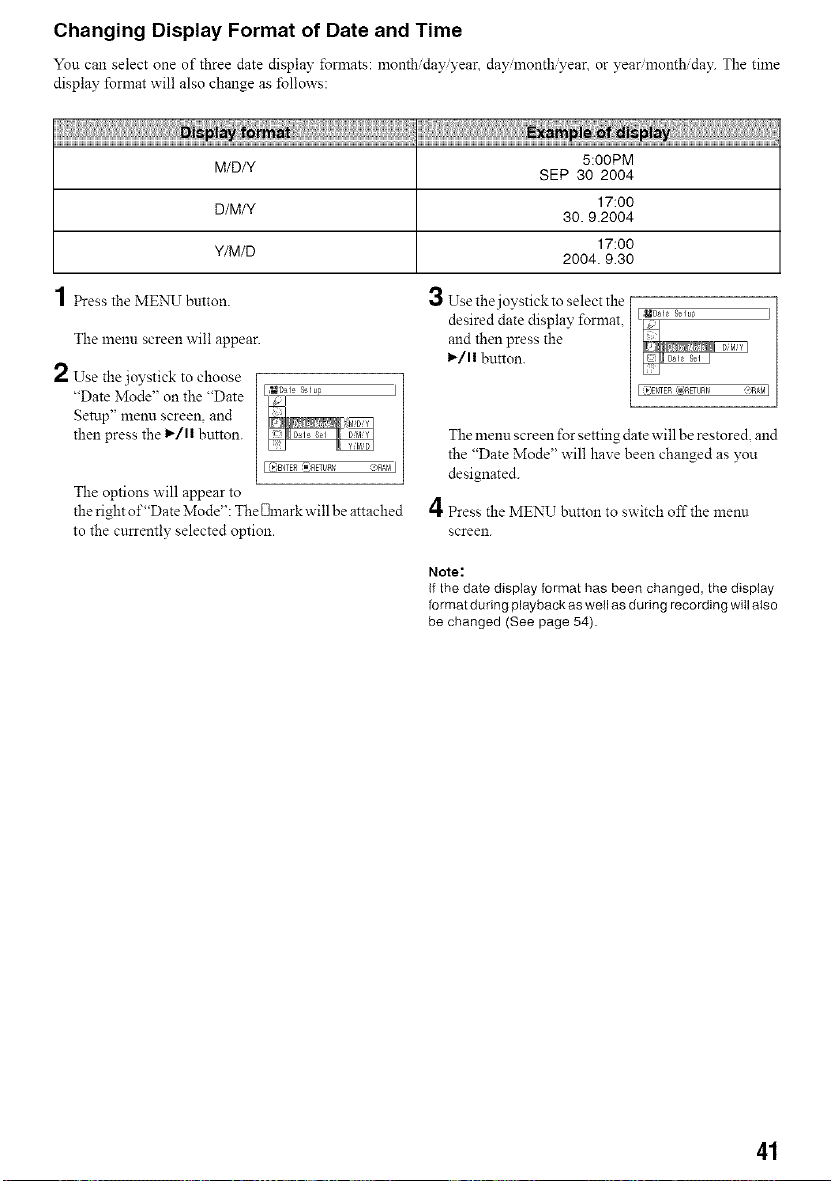
Changing Display Format of Date and Time
You can select one of three date display fonnats: month day vear or year month day. The time
display format will also change as ±bllows:
....
5:O0PM
M/D/Y SEP 30 2004
D/M/Y 17:00
30.9.2004
17:00
Y/M/D 2004.9.30
1 _ess the MENU button.
The menu screen will appear.
2 Use the joystick to choose
"Date Mode" on the "Date
gettlp" menu screen, and
then press the 1_/11 button.
The options will appear to
the right of"Date Mode": The [31harkwill be attached
to the currently selected option.
3 Use the joystick to select the
desired date display, format,
and then press the
I_/11 button.
The menu screen for setting date will be restored, and
the "Date Mode" will have been changed as you
designated.
4 Press the MENU button to switch offthe menu
screen.
Note:
If the date display format has been changed, the display
format during playback as well as during recording wilI also
be changed (See page 54).
41
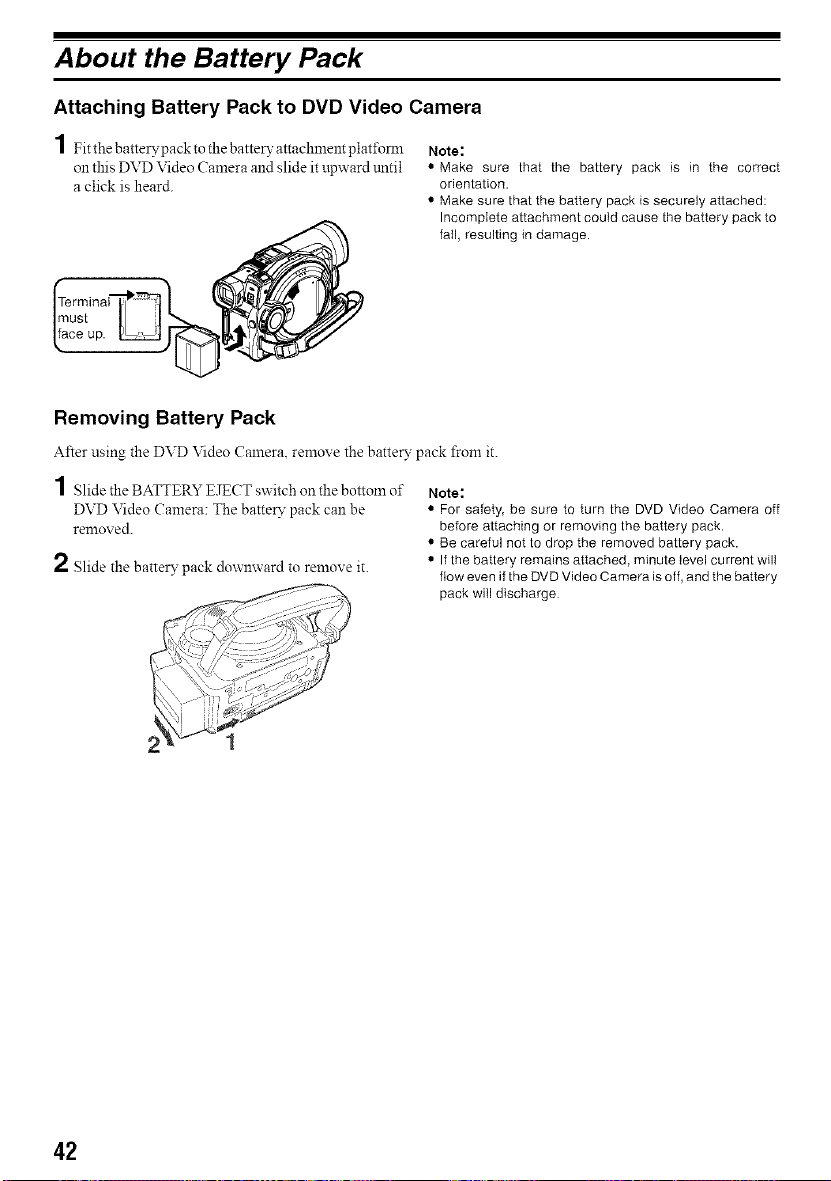
About the Battery Pack
Attaching Battery Pack to DVD Video Camera
1 Fit the batterypack to the batter?' attachment plat±\_rn_ Note:
on this DVD Video Camera and slide it upward tmtil • Make sure that the battery pack is in the correct
a click is heard, orientation.
• Make sure that the battery pack is securely attached:
Incomplete attachment could cause the battery pack to
fall, resulting in damage.
Removing Battery Pack
After using the DVD Video Camera, remove the battery pack from it.
1 Slide the BATTERY EJECT switch on the bottom of
DVD Video Camera: The batter?' pack can be
remox ca.
2 Slide the batter?' pack downward to remove it.
Note:
• For safety, be sure to turn the DVD Video Camera off
before attaching or removing the battery pack.
• Be careful not to drop the removed battery pack.
• If the battery remains attached, minute level current will
flow even if the DVD Video Camera is off, and the battery
pack will discharge
42
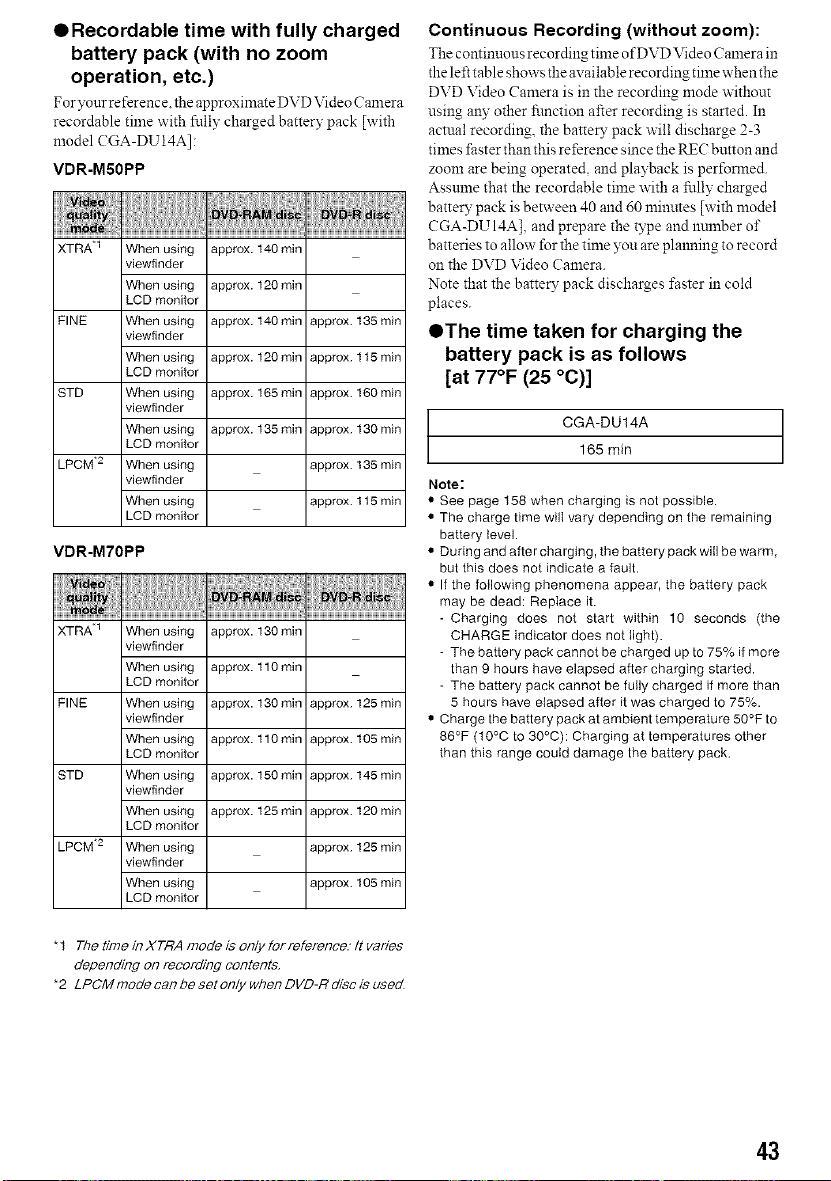
QRecordable time with fully charged
battery pack (with no zoom
operation, etc.)
For your reference, the approximate DVD Video Can_era
recordable time with fully charged battery pack [with
model CGA-DU 14A]:
VDR-MSOPP
XTRA 1 When using approx. 140 min
viewfinder
When using approx. 120 min
LCD monitor
FINE When using approx. 140 rain approx. 135 min
viewfinder
When using approx. 120 rain approx. 1 t5min
LCD monitor
STD When using approx. 165 rain approx. 160 min
viewfinder
When using approx. 135 rain approx. 130 min
LCD monitor
LPCM .2 When using approx. 135 min
viewfinder
When using approx. 1 t5 min
LCD monitor
VDR-M70PP
XTRA 1 When using approx. 130 min
viewfinder
When using approx. 110 min
LCD monitor
FINE When using approx. 130 rain approx. 125 min
viewfinder
When using approx. 110 rain approx. 105 min
LCD monitor
STD When using approx. 150 rain approx. 145 min
viewfinder
When using approx. 125 rain approx. 120 min
LCD monitor
LPCM .2 When using approx. 125 min
viewfinder
When using approx, t05 min
LCD monitor
Continuous Recording (without zoom):
The continuous recording time ofDVD Video Camera in
the left table show's the available recording time when the
DVD Video Camera is in the recording mode without
using any other function after recording is started. In
actual recording, the batte D" pack w'ill discharge 2-3
times faster than this reference since the REC button and
zoom are being operated, and playback is perfomled.
Assmne that the recordable time w'ith a fully charged
battery pack is between 40 and 60 minutes [with model
CGA-DUI4A], and prepare the type and lmmber of
batteries to allow fur the time you are plalming to record
on the DVD Video Camera.
Note that the battery pack discharges faster in cold
places.
OThe time taken for charging the
battery pack is as follows
[at 77°F (25 °C)]
CGA-DU14A
165 min
Note:
• See page 158 when charging is not possible.
• The charge time wilI vary depending on the remaining
battery level.
• During and after charging, the battery pack will be warm,
but this does not indicate a fault.
• If the following phenomena appear, the battery pack
may be dead: Replace it.
-Charging does not start within 10 seconds (the
CHARGE indicator does not light).
- The battery pack cannot be charged up to 75% if more
than 9 hours have elapsed after charging started.
- The battery pack cannot be fully charged if more than
5 hours have elapsed after it was charged to 75%.
• Charge the battery pack at ambient temperature 50°F to
86°F (10°C to 30°C): Charging at temperatures other
than this range could damage the battery pack
* 1 The time in XTRA mode is only for reference.- It varies
depending on recording contents.
*2 LPCM mode can be set only when DVD-R disc is used
43
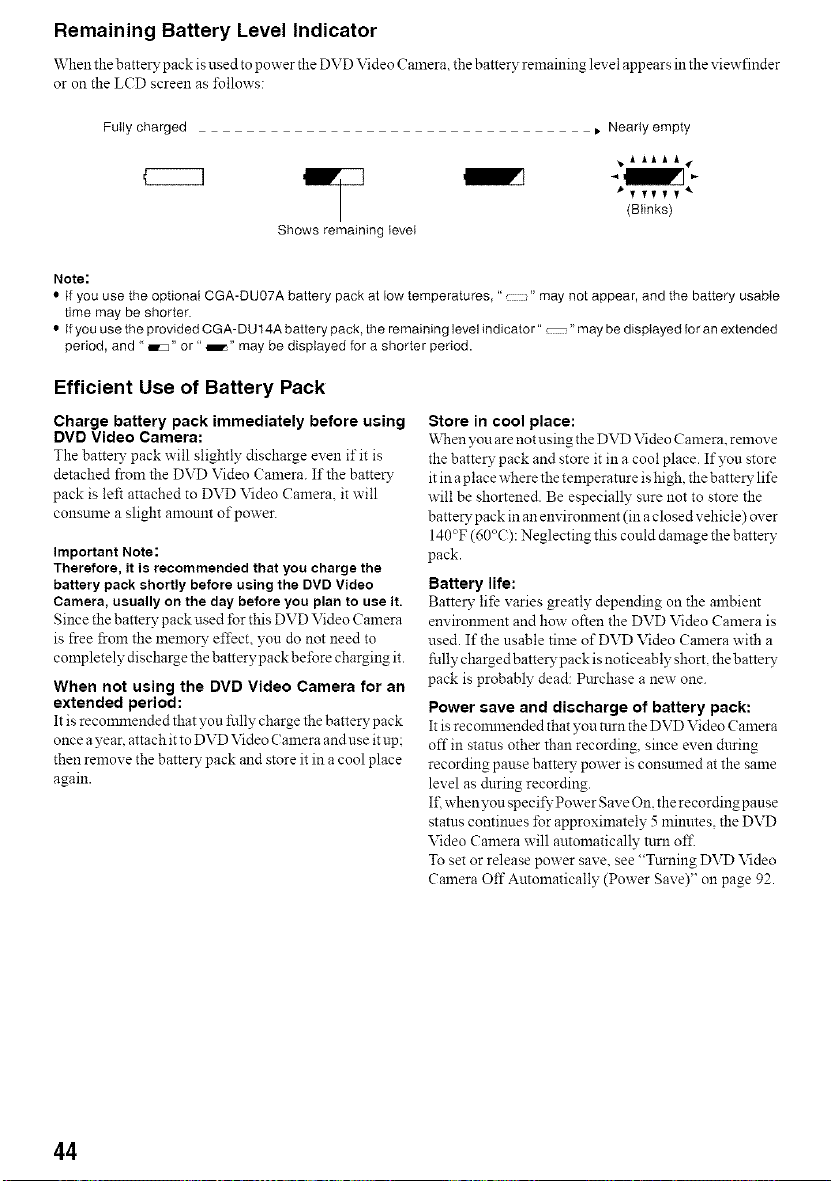
Remaining Battery Level Indicator
When the b artery pack is used to power the DVD Video ('amera the battery remaining level appears in the viewfinder
or on the LCD screen as ±bllows:
Fully charged • Nearly empty
Shows remaining level
_yTyyy _
(Blinks)
Note:
• tf you use the optional CGA-DU07A battery pack at low temperatures, "• " may not appear, and the battery usable
time may be shorter.
• If you use the provided CGA-DU 14A battery pack, the remaining level indicator" "may be displayed for an extended
period, and "m" or" _" may be displayed for a shorter period.
Efficient Use of Battery Pack
Charge battery pack immediately before using
DVD Video Camera:
The batte_" pack will slightly" discharge even if it is
detached from the DVD Video Camera. If the battery
pack is left attached to DVD Video Camera. it will
consume a slight amount ofpow'er.
Important Note:
Therefore, it is recommended that you charge the
battery pack shortly before using the DVD Video
Camera, usually on the day beforeyou plan to use it.
Since the batter?,"pack used for this DVD Video Camera
is free _om the n_emolT effect, yon do not need to
completely discharge the battery pack before charging it.
When not using the DVD Video Camera for an
extended period:
It is recommended that you fully charge the battery pack
once a year, attach it to DVD Video Camera and use it up;
then remove the battery pack and store it in a cool place
again.
Store in cool place:
When you are not using the DVD Video Camera. remove
the batte_" pack and store it in a cool place. If you store
it in ap lac e w'here the temperatttre is high, the batte_" life
w'ill be shortened. Be especially sure not to store the
battery pack in an environment (in a closed vehicle) over
140°F (60°(:): Neglecting this could damage the battery
pack.
Battery life:
Batterv life varies greatly" depending on the ambient
environlnent and how" often the DVD Video Camera is
used. If the usable time of DVD Video Camera with a
fully charged battery pack is noticeably short, the battery
pack is probably dead: Purchase a new one.
Power save and discharge of battery pack:
It is reconnnended that you turn the DVD Video Camera
off in status other than recording, since even dnring
recording pause batteQ_ power is consumed at the same
level as during recording.
I£ when you specify Power gave On. the recording pause
status continues for approximately 5 minutes, the DVD
Video Camera will automatically turn of£
To set or release power save. see "Tttrning DVD Video
Camera Off Automatically (Power gave)" on page 92.
44
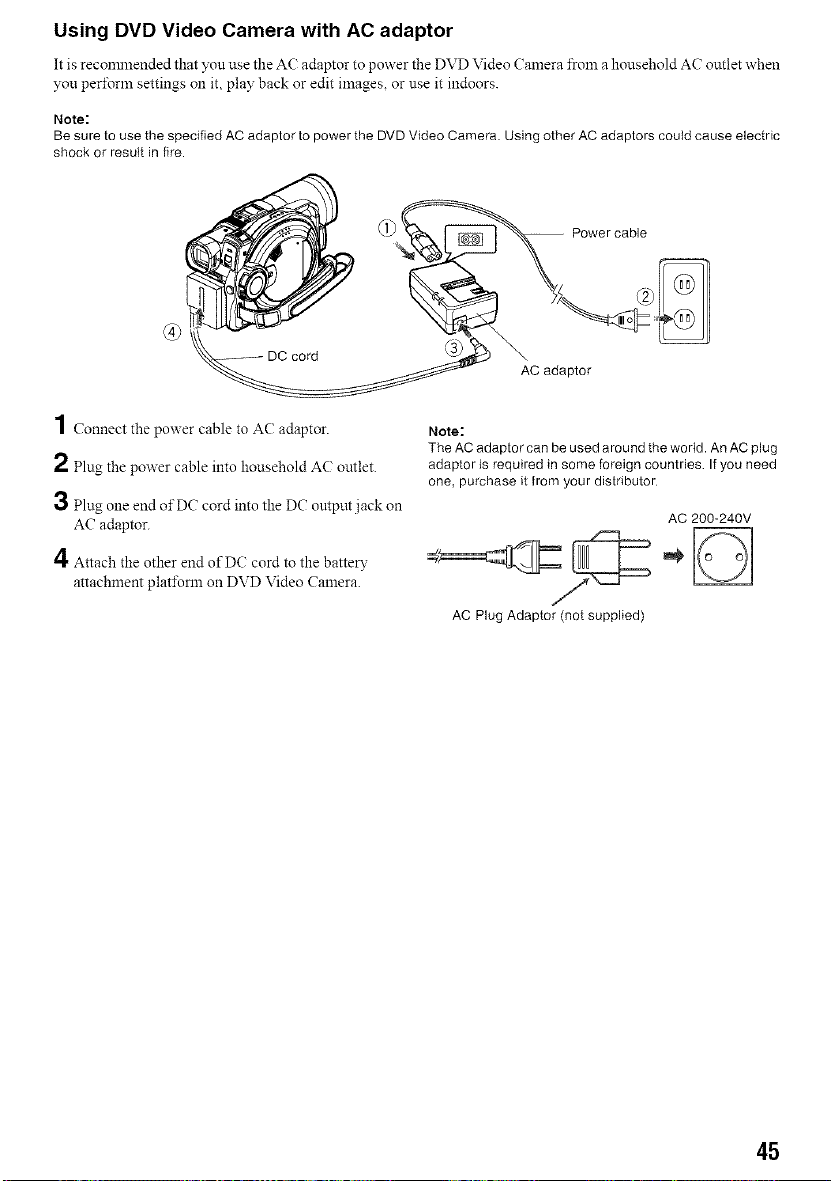
Using DVD Video Camera with AC adaptor
It is reconnnended that you use the AC adaptor to power the DVD Video ( amera froln a household AlL"outlet when
you peri\wm settings on it, play back or edit images, or use it indoors.
Note:
Be sure to use the specified AC adaptor to power the DVD Video Camera. Using other AC adaptors could cause electric
shock or result in fire.
-- Power cable
AC adaptor
1Connect the power cable to AC adaptor.
2 Plug the power cable into household AC outlet.
3 Plug one end of DC cord into the DC output jack on
AC adaptor.
4 Attach the other end of DC cord to the battery
attachment plat±\mn on DVD Video Camera.
Note:
The AC adaptor can be used around the world. An AC plug
adaptor is required in some foreign countries If you need
one, purchase it from your distributor
AC 200-240V
AC Plug Adaptor (not supplied)
45
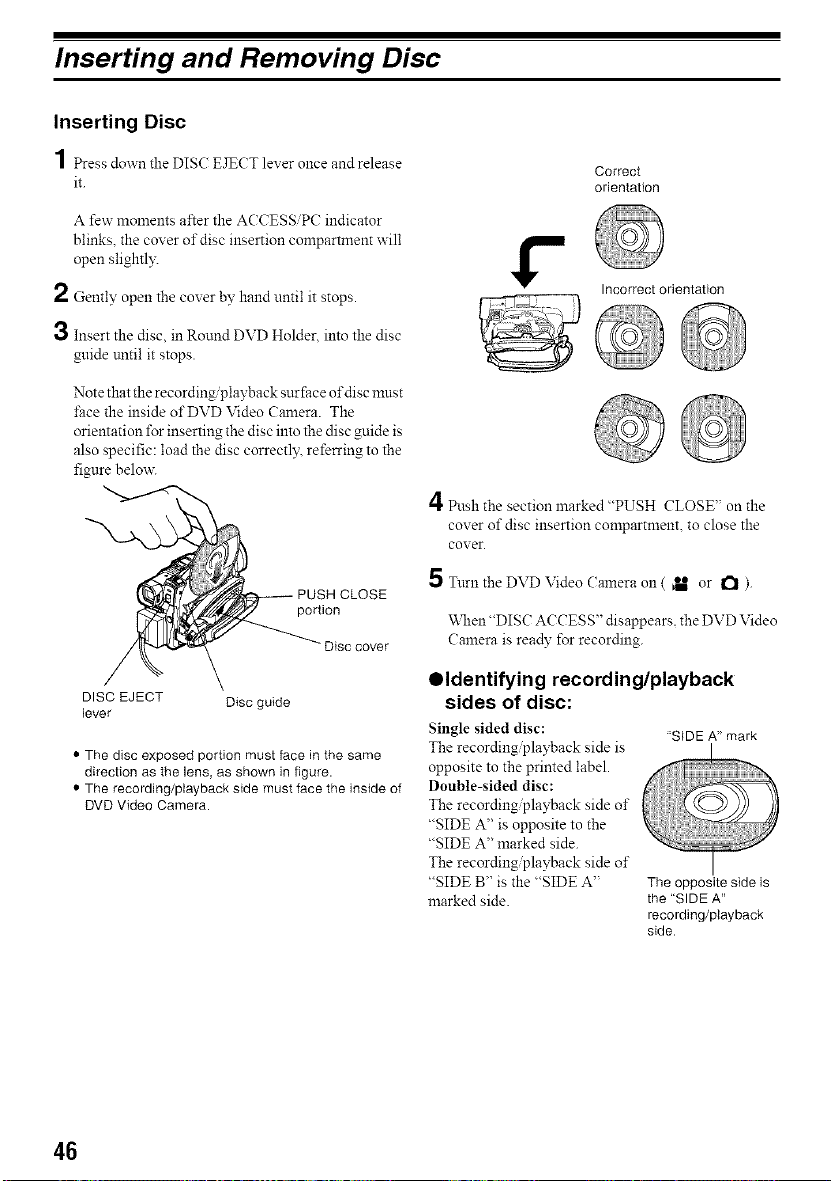
Inserting and Removing Disc
Inserting Disc
1 _essdownthe_S_E_C_leveronceandrelease
it.
A few moments after the ACCESS PC indicator
blinks, the cover of disc insertion comparmlent will
open slightly.
2 Gently open the coxer by hand until it stops.
3 Insert the disc, in Round DVD Holder, into the disc
guide tmtil it stops.
Note that the recording/playback surface of disc mnst
l;ace the inside of DVD Video Camera. The
orientation for inserting the disc into the disc guide is
also specific: load the disc correctl._ referring to the
figure belox_
portion
cover
DISC EJECT Disc guide
lever
• The disc exposed portion must face in the same
direction as the lens, as shown in figure.
• The recording/playback side must face the inside of
DVD Video Camera.
Correct
orientation
Incorrect orientation
@@
4Push the section marked "PUSH CLOSE" on the
cover of disc insertion compartment, to close the
cox er.
5 Turn the DVD Video Camera on ( _ or a ).
When "DIS(? ACCESS" disappears, the DVD Video
Camera is ready for recording.
Oldentifying recording/playback
sides of disc:
Single sided disc:
The recording@ayback side is
opposite to the printed label.
Double-sided disc:
The recording@ayback side of
"SIDE A" is opposite to the
"SIDE A" marked side.
The recording@ayback side of
"SIDE B" is the "SIDE A"
marked side.
"SIDE A"mark
The opposite side is
the "SIDE A"
recording/playback
side
46
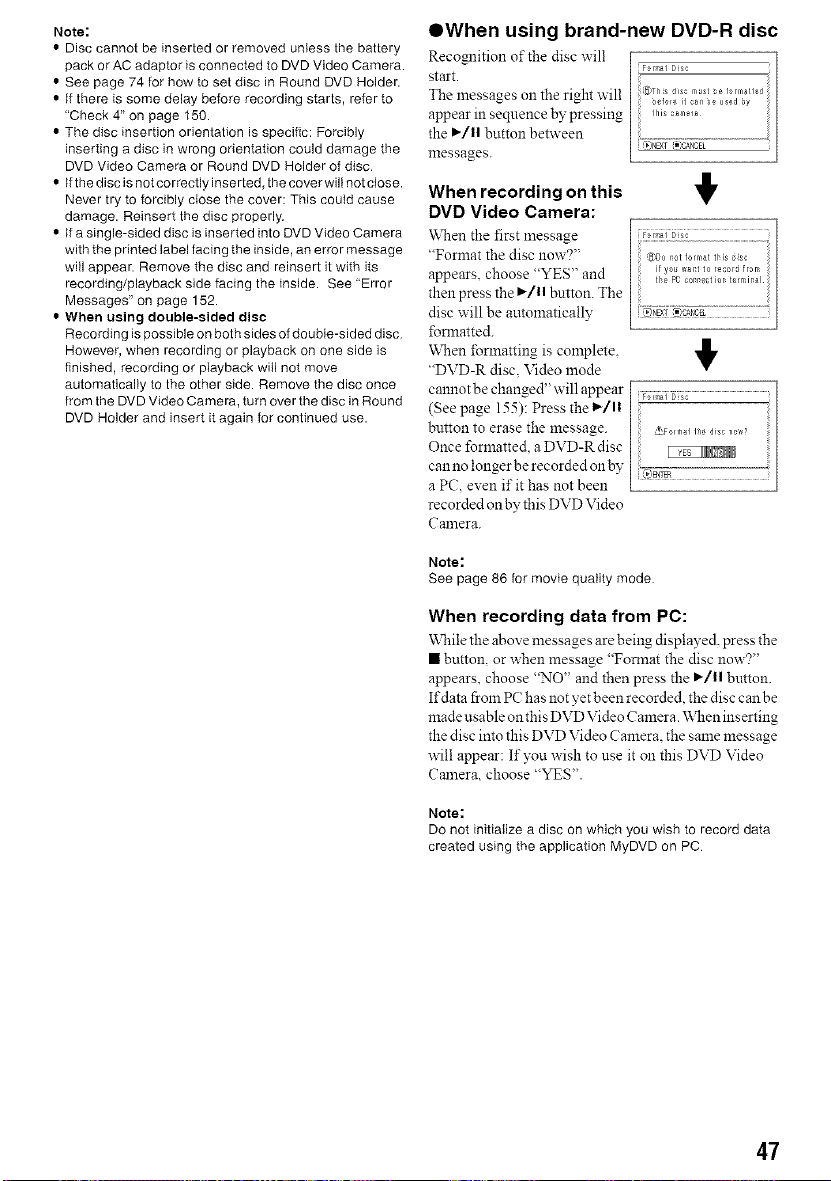
Note:
• Disc cannot be inserted or removed untess the battery
pack or AC adaptor is connected to DVD Video Camera.
• See page 74 for how to set disc in Round DVD Holder.
• If there is some delay before recording starts, refer to
"Check 4" on page 150.
• The disc insertion orientation is specific: Forcibly
inserting a disc in wrong orientation could damage the
DVD Video Camera or Round DVD Holder of disc.
• If the disc is not correctly inserted,the cover will not close.
Never try to forcibly close the cover: This could cause
damage. Reinsert the disc properly.
• If a single-sided disc is inserted into DVD Video Camera
with the printed label facing the inside, an error message
will appear. Remove the disc and reinsert it with its
recording/playback side facing the inside. See "Error
Messages" on page 152.
• When using double-sided disc
Recording is possible on both sides of doubbsided disc
However, when recording or playback on one side is
finished, recording or playback will not move
automatically to the other side. Remove the disc once
from the DVD Video Camera, turn over the disc in Round
DVD Holder and insert it again for continued use.
OWhen using brand-new DVD-R disc
Recognition of the disc will
Fo rm_l Dsc
start.
The messages on the right will
appear in sequence by pressing
the I_/11 button between
messages.
!,
,_)Do not format this isc
if yo_ _ar't to recor_ from
the PC connect lob terminal
_I NEXT '_:=CANOEL
When recording on this
DVD Video Camera:
When the first message
"Format the disc now?"
appears, choose "YES" and
then press the I_/11 button. The
disc will be automatically
fomlatted.
V_en forlnatting is complete. _IV
"DVD-R disc. Video mode
cannotbe changed" will appear [ p>_i _
(See page 155): Press the 1_/1| /
buttonto erase the message. /
L_'Forlnal I_ disc TIO_V?
Once formatted, a DVD-R disc
can no longer be recorded on by [Na¢rm...................................................
a PC. e',en f t has not been
recorded on by this DVD Video
Camera.
Note:
See page 86 for movie quality mode
When recording data from PC:
While the above messages are being displayed, press the
• button, or when message "Fomaat the disc now?"
appears, choose "NO" and then press the I_/l| button.
If data from PC has not yet been recorded, the disc can be
made usable on this DVD Video Camera. _X,ten ins erting
the disc into this DVD Video Canlera. the same message
will appear: If you wish to use it on this DVD Video
Camera, choose "YES".
Note:
DO not initialize a disc on which you wish to record data
created using the application MyDVD on PC
47
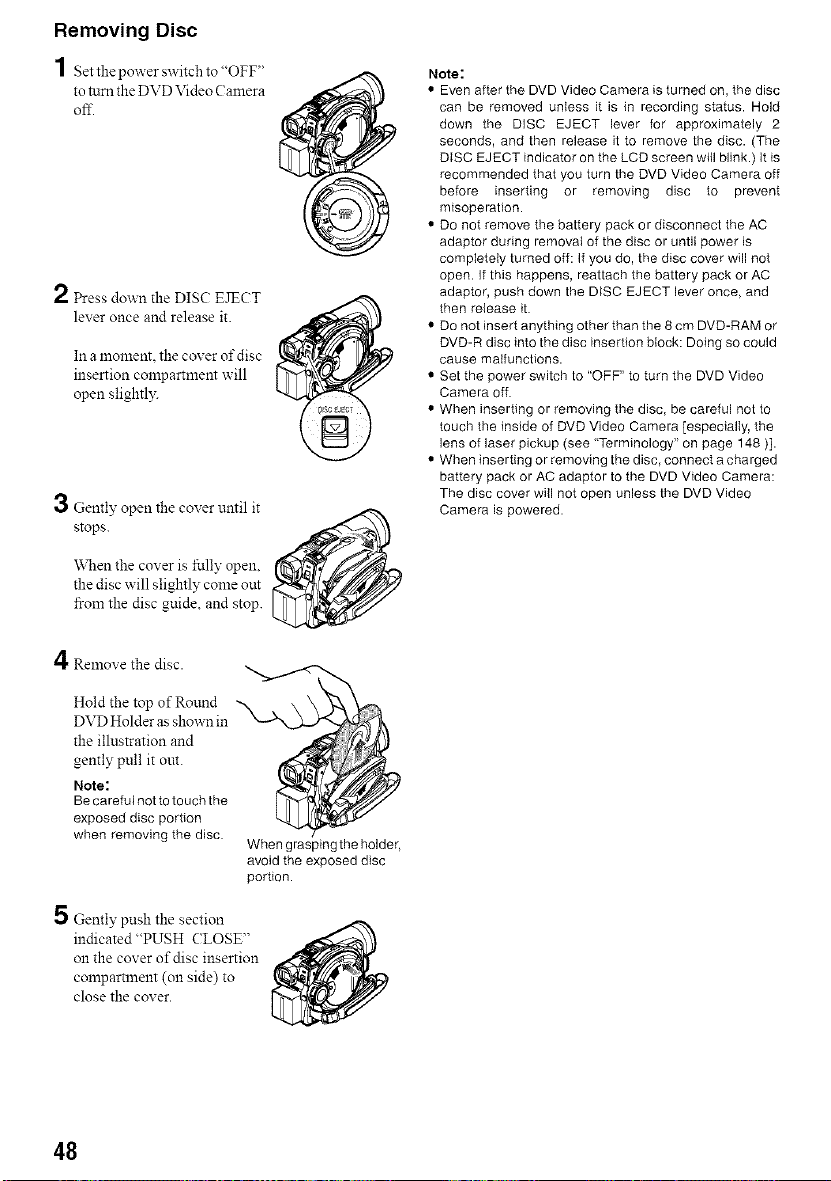
Removing Disc
1 Set the power switch to "OFF'
to turn the DVD Video Camera
off.
/ Press down the DIS(? EJECT
lever once and release it.
In a moment, the coxer of disc
insertion compartment will
open slightly.
3 Gently, open the cover until it
stops.
_,_,Nenthe cover is fully open,
the disc will slightly come out
_om the disc guide, and stop.
Note:
• Even after the DVD Video Camera is turned on, the disc
can be removed unless it is in recording status. Hold
down the DISC EJECT lever for approximately 2
seconds, and then release it to remove the disc. (The
DiSC EJECT indicator on the LCD screen will blink.) It is
recommended that you turn the DVD Video Camera off
before inserting or removing disc to prevent
misoperation.
• Do not remove the battery pack or disconnect the AC
adaptor during removal of the disc or until power is
completely turned off: If you do, the disc cover will not
open. If this happens, reattach the battery pack or AC
adaptor, push down the DISC EJECT lever once, and
then release it.
• Do not insert anything other than the 8 cm DVD-RAM or
DVD-R disc into the disc insertion block: Doing so could
cause malfunctions.
• Set the power switch to "OFF" to turn the DVD Video
Camera off.
• When inserting or removing the disc, be careful not to
touch the inside of DVD Video Camera [especially, the
lens of laser pickup (see "Terminology" on page 148 )].
• When inserting or removing the disc, connect a charged
battery pack or AC adaptor to the DVD Video Camera:
The disc cover will not open unless the DVD Video
Camera is powered.
4Remove the disc. _,
Hold the top of Round
DVD Holder as shown in
the illustration and
gently pull it ore.
Note:
Be careful not to touch the
exposed disc portion
when removing the disc
When grasping the holder,
avoid the exposed disc
portion.
5 Gently push the section
indicated "PUSH (?LOSE"
on the cover of disc insertion
compamnent (on side) to
close the cover.
48
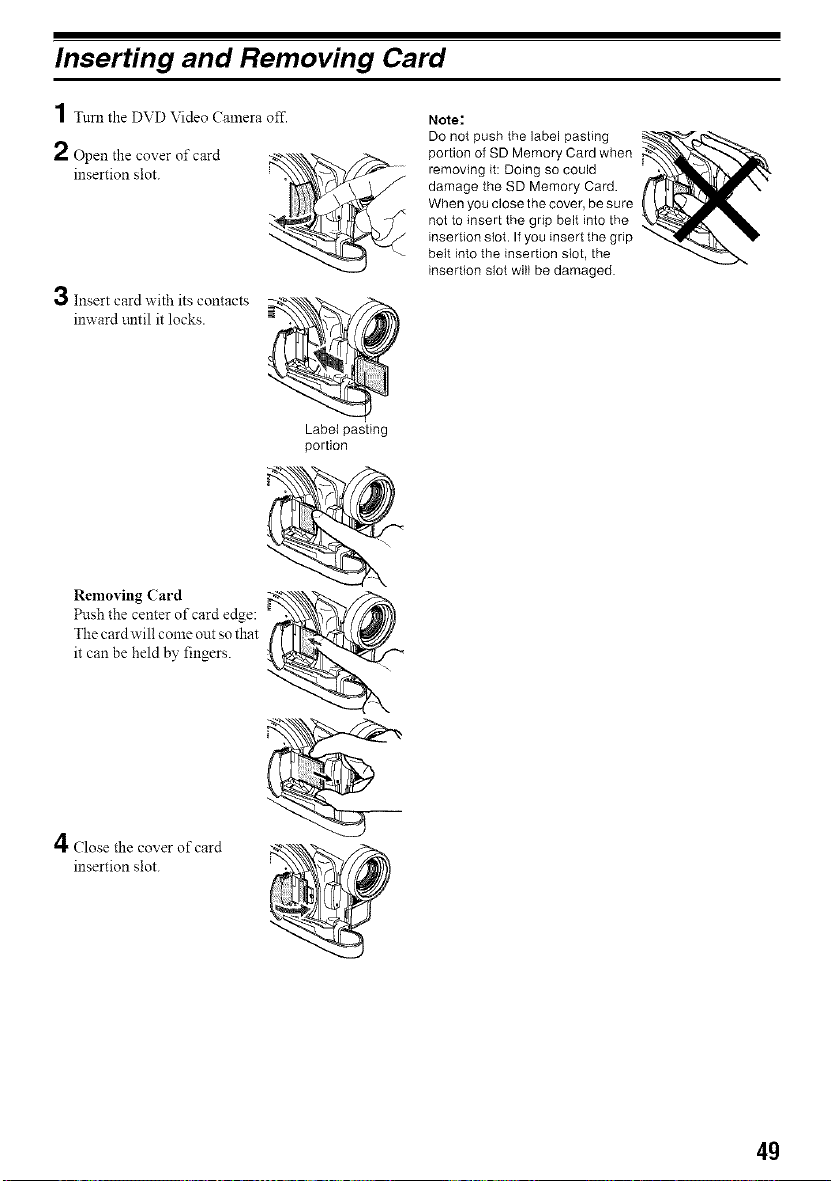
Inserting and Removing Card
1 Tnm the DVD Video Camera off.
2 Open the cover of card
insertion slot.
1._ Insert card with its contacts
inward tmtil it locks.
Label pasting
portion
Note;
Do not push the label pasting
portion of SD Memory Card when
removing it: Doing so could
damage the SD Memory Card.
When you close the cover, be sure
not to insert the grip belt into the
insertion Not. If you insert the grip
belt into the insertion Not, the
insertion slot will be damaged.
Removing Card
Push the center of card edge:
The cardwill come out so that
it can be held by fingers.
/I
€'1"Close the cover of card
insertion slot.
4g
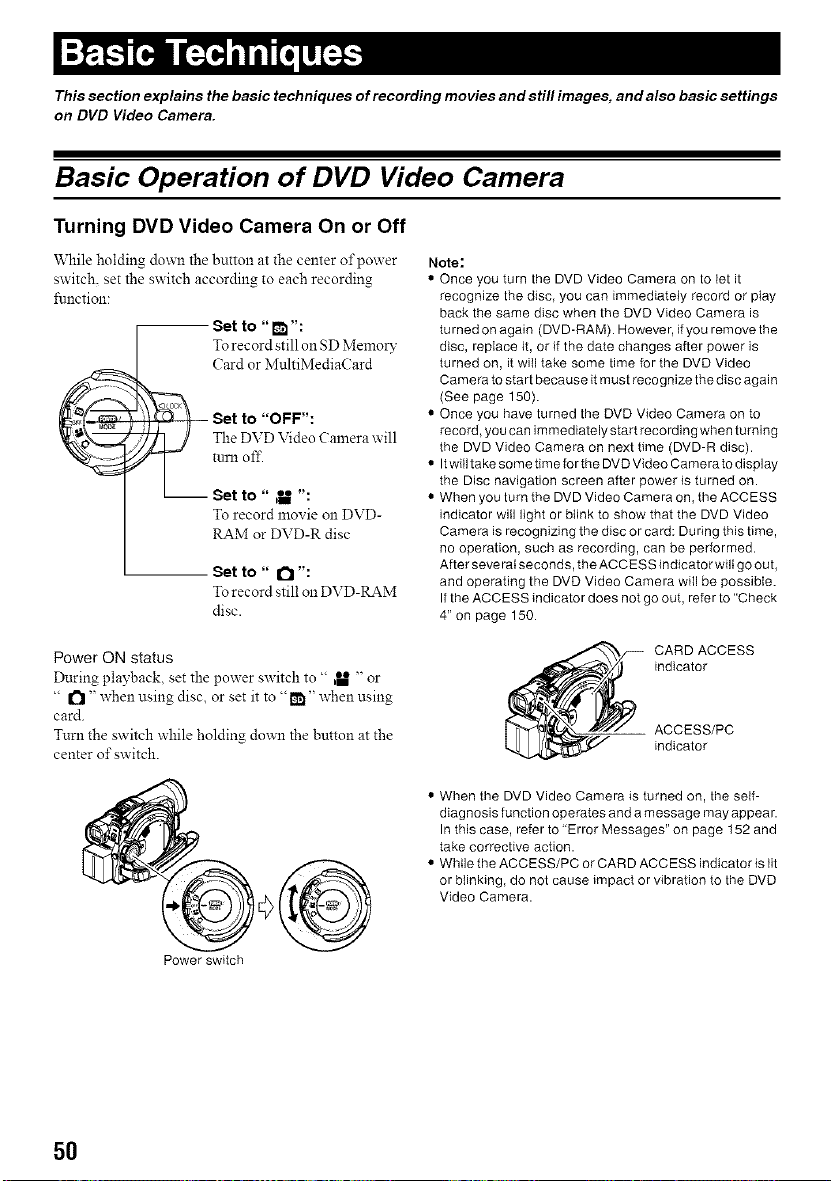
This section explains the basic techniques of recording movies and still images, and also basic settings
on DVD Video Camera.
Basic Operation of DVD Video Camera
Turning DVD Video Camera On or Off
While holding down the button at the center of power
switch, set the switch according to each recording
function:
Set to "t'_ ":
Torecord stillon SD MemolT
Card or MnltiMediaCard
Set to "OFF":
The DVDVideo Calnera will
turn off.
Set to " _ ":
To record movie OllDVD-
RAM or DVD-R disc
Set to" I_1":
To record still on DVD-RAM
disc.
Note:
• Once you turn the DVD Video Camera on to let it
recognize the disc, you can immediately record or play
back the same disc when the DVD Video Camera is
turned on again (DVD-FtAM). Howeve r, if you remove the
disc, replace it, or if the date changes after power is
turned on, it will take some time for the DVD Video
Camera to start because it must recognize the disc again
(See page 150).
• Once you have turned the DVD Video Camera on to
record, you can immediately start recording when turning
the DVD Video Camera on next time (DVD-Ft disc).
• It willtake some time for the DVD Video Camerato display
the Disc navigation screen after power is turned on.
• When you turn the DVD Video Camera on, the ACCESS
indicator will light or blink to show that the DVD Video
Camera is recognizing the disc or card: During this time,
no operation, such as recording, can be performed.
After severatseconds, the ACCESS indicator wilt go out,
and operating the DVD Video Camera will be possible.
Ifthe ACCESS indicator does not go out, refer to "Check
4" on page 150.
Power ON status
During playback, set the power switch to " ,U " or
" I"1" when using disc, or set it to "_1" when using
card.
Turn the switch while holding down the button at the
center of switch.
CARD ACCESS
indicator
__ ACCESS/PC
indicator
• When the DVD Video Camera is turned on, the self-
diagnosis function operates and a message may appear.
In this case, refer to "Error Messages" on page 152 and
take corrective action.
• While the ACCESS/PC or CAR D ACCESS indicator is lit
or blinking, do not cause impact or vibration to the DVD
Video Camera.
Power switch
5O
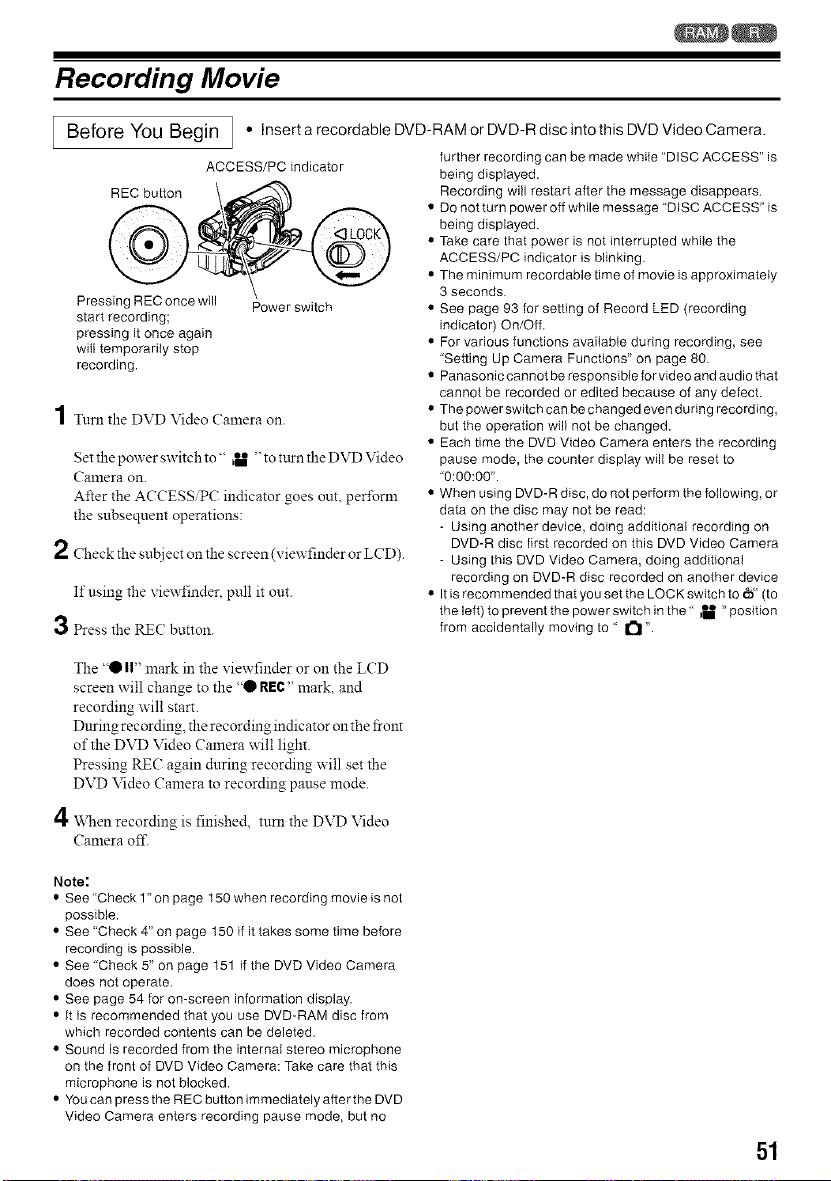
Recording Movie
Before You Begin ] • Insert a recordable DVD-RAM or DVD-R disc intothis DVD Video Camera.
ACCESS/PC indicator
Pressing REC once will Power switch
start recording;
pressing it once again
will temporarily stop
recording.
1Tun1 the DVD Video Camera on.
Set the pox_er switch to" b_ "to turn the DVD Video
Camera on.
After the ACCESS/PC indicator goes out, peribrm
the subsequent operations:
2 Check the sut!iect on the screen (x iewfinder or LCD).
If using the viewfinder, pull it out.
3 Press the RE(: button.
further recording can be made while "DISC ACCESS" is
being displayed.
Recording will restart after the message disappears.
• DO not turn power off while message "DISC ACCESS" is
being displayed.
• Take care that power is not interrupted while the
ACCESS/PC indicator is blinking.
• The minimum recordable time of movie is approximately
3 seconds.
• See page 93 for setting of Record LED (recording
indicator) On/Off.
• For various functions available during recording, see
"Setting Up Camera Functions" on page 80.
• Panasonic cannot be responsible for video and audio that
cannot be recorded or edited because of any defect.
• The power switch can be changed even during recording,
but the operation will not be changed.
• Each time the DVD Video Camera enters the recording
pause mode, the counter display wilI be reset to
"0:00:00".
• When using DVD-R disc, do not perform the following, or
data on the disc may not be read:
- Using another device, doing additional recording on
DVD-R disc first recorded on this DVD Video Camera
- Using this DVD Video Camera, doing additional
recording on DVD-R disc recorded on another device
• It is recom mended that you set the LOCK switch to _ (to
the left) to prevent the power switch in the" _U "position
from accidentally moving to " _ ".
The "0 I1"mark in the viewfinder or on the LCD
screen will change to the '0 REC" mark, and
recording will start.
During recording, the recording indicator on the front
of the DVD Video Camera will light.
Pressing REC again dnring recording will set the
DVD Video Camera to recording pause mode.
4 _\Nen recording is finished, turn the DVD Video
Camera off.
Note:
• See "Check 1" on page 150 when recording movie is not
possible.
• See "Check 4" on page 150 if it takes some time before
recording is possible.
• See "Check 5" on page 151 if the DVD Video Camera
does not operate.
• See page 54 for on-screen information display.
• It is recommended that you use DVD-RAM disc from
which recorded contents can be deleted.
• Sound is recorded from the internal stereo microphone
on the front of DVD Video Camera: Take care that this
microphone is not blocked.
• You can press the REC button immediately after the DVD
Video Camera enters recording pause mode, but no
51
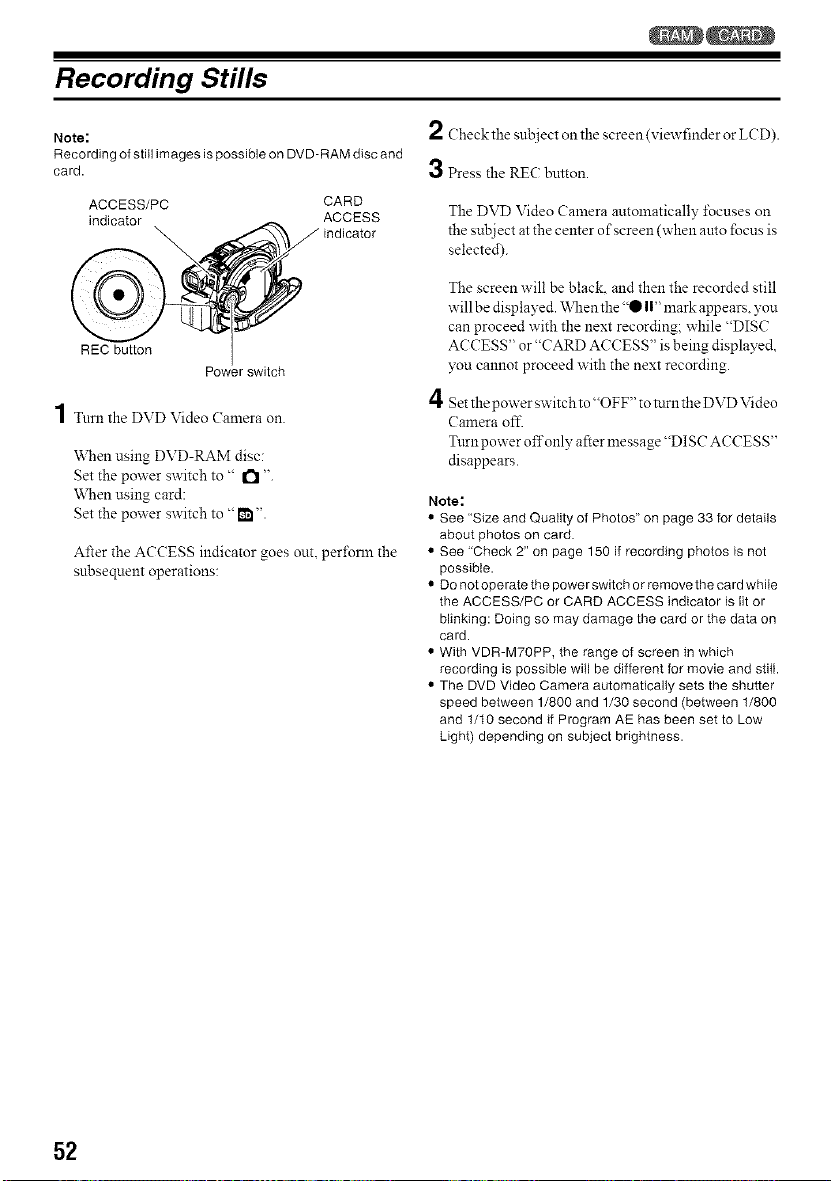
Recording Stills
Note: 2
Recording of stitl images is possible on DVD- RAM disc and
card. 3
ACCESS/PC CARD
indicator ACCESS
/ indicator
Check the snbject on the screen (viewfinder or LCD).
Press the RE(; button.
The DVD Video Can:era automatically l\_cuses on
the subject at the center of screen (when anto focus is
selected).
REC button
Power switch
1Turn the DVD Video ( an:era on.
When using DVD-RAM disc:
Set the power switch to" I'_ ".
When using card:
Set the power switch to "_1 ".
After the AC(ESS indicator goes out, pert\ran the
subsequent operations:
4
The screen will be black, and then the recorded still
will be displayed. \_l:en the "0 I1" mark appears, you
can proceed with the next recording; while "DISC
ACCESS" or "CARD ACCESS" is being displayed,
you cannot proceed with the next recording.
Setthepowerswitchto"OFF"toturntheDVDVideo
Camera off.
T:trnpoweroffonlyaftermessage "DISCACCESS"
disappears.
Note:
• See "Size and Quality of Photos" on page 33 for details
about photos on card.
• See "Check 2" on page 150 if recording photos is not
possible.
• Do not operate the power switch or remove the card while
the ACCESS/PC or CARD ACCESS indicator is [it or
blinking: Doing so may damage the card or the data on
card.
• With VDR-M70PP, the range of screen in which
recording is possible will be different for movie and still.
• The DVD Video Camera automatically sets the shutter
speed between 1/800 and 1/30 second (between 1/800
and 1/t0 second if Program AE has been set to Low
Light) depending on subject brightness.
52
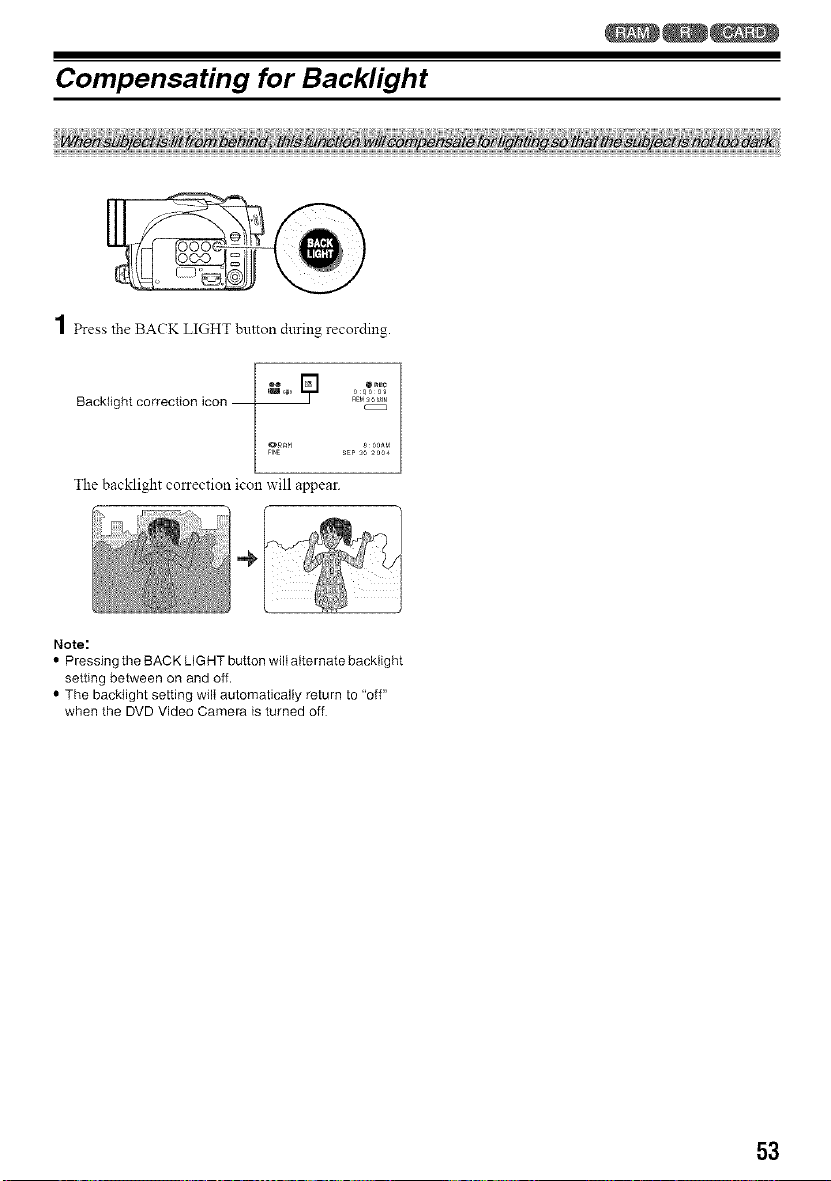
Compensating for Backlight
1 Press the BACK LIGHT button during recording.
Backlight correction icon RE_30_.
_RRH S 00_r_
SEP3O_004
The back]ight correction icon wi]] appear.
Note:
• Pressing the BACK LIGHT button will alternate backlight
setting between on and off.
• The backiight setting will automatically return to "off"
when the DVD Video Camera is turned off
53
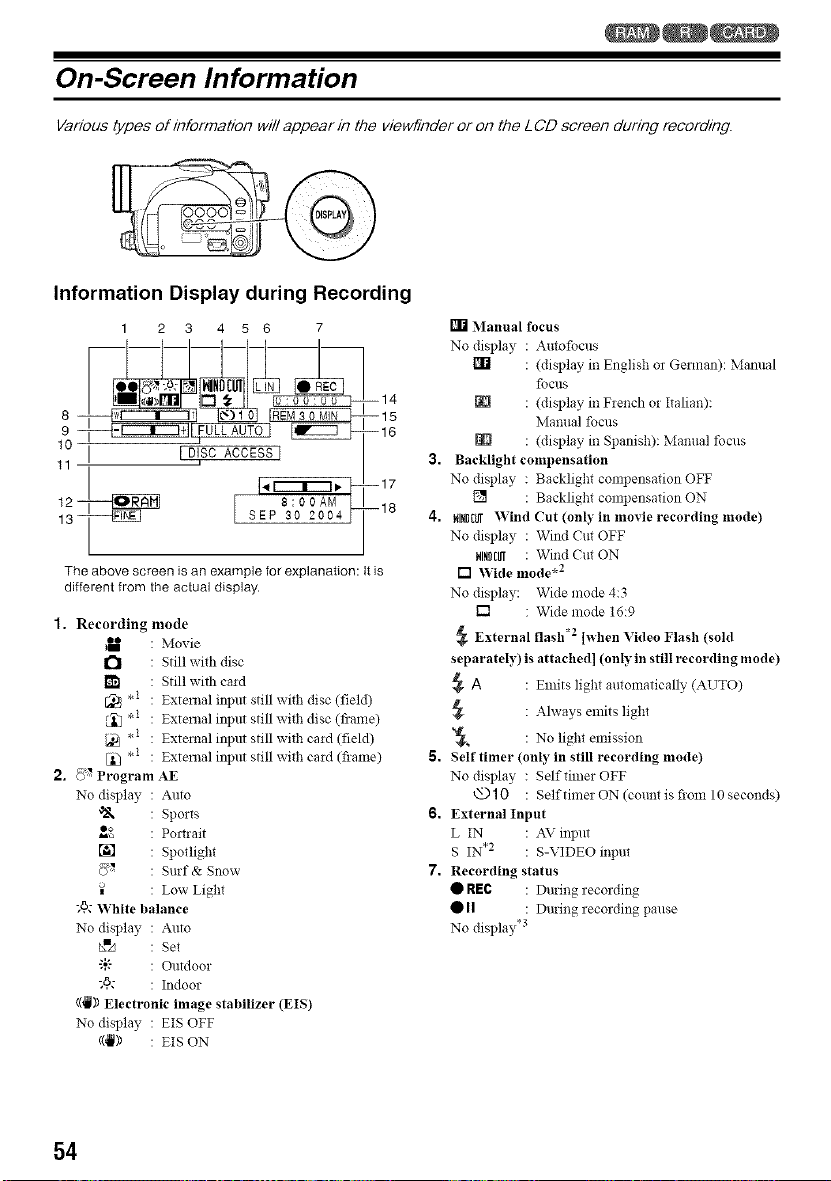
On-Screen Information
Various types of information will appear in the viewf/nder or on the L CD screen during recording.
Information Display during Recording
1 2 3 4 5 6 7
8 --
9--
10 I [ DISC ACCESS [
11
' "I
12 [ 8:00AM
13_ SEP 30 2004
L
The above screen is an example for explanation: It is
different from the actual display.
--14
--15
--16
3,
--17
--18 4.
1. Recording mode
: Movie
: Still with disc
_I : Still with cald
[_ ,1 : External input still with disc (field)
r_ ,1 : External input still wiih disc (flame)
,1 : External input still with card (field)
,1 : External input still with card (flame)
2. _3*?Program AE
No display : Auto
'_ : Sports
o_ : Poltrait
[] : Spotlight
{)" : Surf& Snow
: Low Light
;6; White balance
No display : Auto
K=A : Set
-,",;:- : Outdoor
-,4}c : Indoor
((,ll)) Electronic image stabilizer (EIS)
No display : EIS OFF
((_1)) : EIS ON
6.
7.
[] Manual focus
No display Autofocus
[] (display in English or German): Manual
focus
[] (display in French or Italian):
Manual focus
[] (display in Spanish): Manual tbcus
Backlight compensation
No display : Backlight compensation OFF
[] : Backlight compensation ON
_I!IDCgrVVind Cut (only in movie recording mode)
No display : Wind Cut OFF
HINDCIIf: Wind Cut ON
[] Wide mode .2
No display: Wide mode 4:3
[] : Wide mode 16:9
@ External flash .2 ]when Video Flash (sold
separately) is attached] (only in still recording mode)
@A : Emits light autonmtically (AUTO)
: Always emits light
_, : No light emission
Self timer (only in still recording mode)
No display : Sdffime! OFF
6_10 : SelftimerON(countisfroml0seconds)
External Input
L IN : AV input
S IN .2 : S-VIDEO inptlt
Recording status
• REC : During recording
• II : During recording pause
No display .3
54
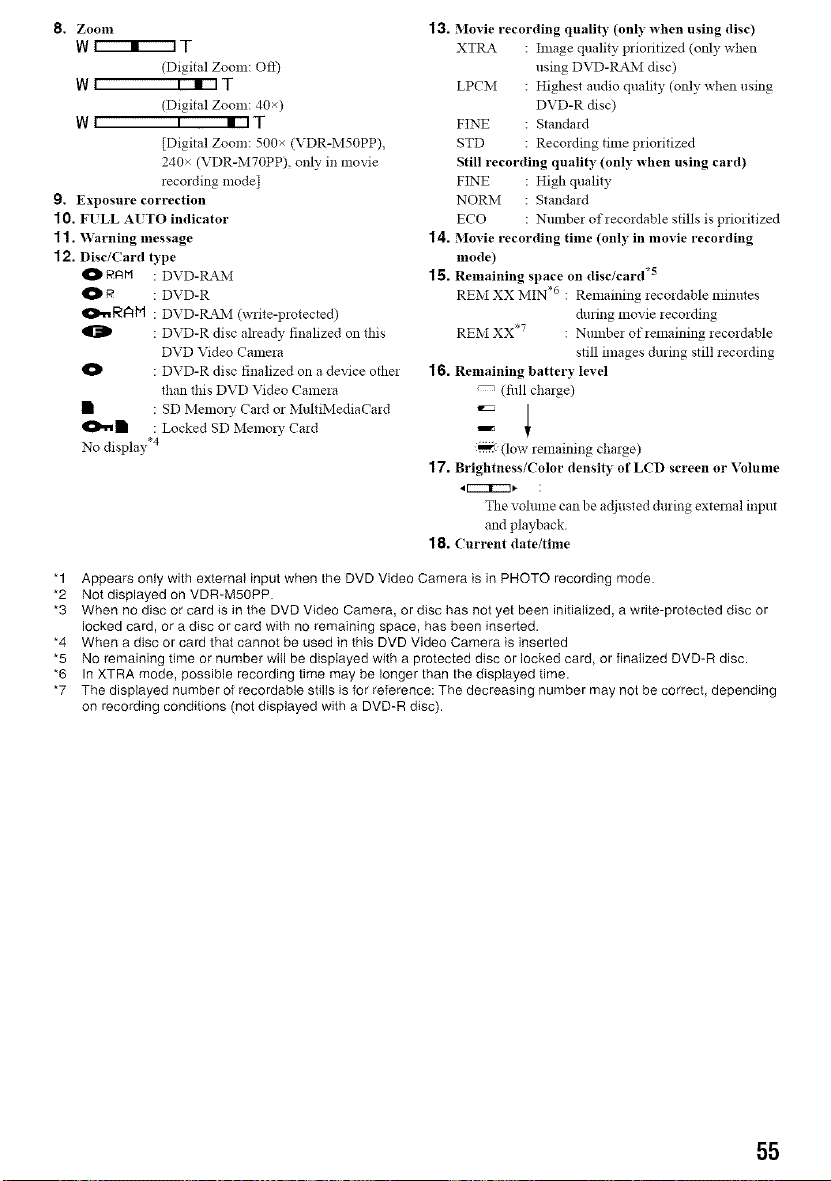
8, Zooln
w r--'r--1 T
(Digital Zoom: Off)
Wt .t_.La T
(Digital Zoom: 40x)
WI i u iT
[Digital Zoom: 500x (VDR-MSOPP),
240x (VDR-M7OPP), only in movie
recording mode]
9. Exposure correction
10. FILL AlTO indicator
11. V_'arning message
12. Disc/(ard type
O I_H : DVD-RAM
O I_ : DVD-R
_,_RAiN : DVD-R_I (write-protected)
: DVD-R disc alrea@ finalized on this
DVD Video Camera
DVD-R disc finalized on a device other
than this DVD Video Camera
• SD Memory Card or MulfiMediaCard
• Locked SD Memo! 7 Card
No display .4
13. Movie recording quality (only when using disc)
XTRA : hnage quality priofitized (only when
using DVD-RMM disc)
LPCM : Highest audio quality (only when using
DVD-R disc)
FINE : Standard
STD : Recording time prioritized
Still recording quality (only when using card)
FINE : High quality
NORM : Standard
ECO : Number ofrecordable stills is priorifized
14. Movie recording time (only in movie recording
mode)
15. Remaining space on disc/card *_
REM XX MIN .6 : Remaining lecoMable mim_tes
&rang movie recording
REM XX .7 : Number of remaining recordable
still images during still recording
16, Remaining battery level
(fidl charge)
:_ (low remaining charge)
17. Brightness/Color density of LCD screen or Volume
The vohune can be adjusted during external input
and playback.
18. (urrent date/time
"1 Appears only with external input when the DVD Video Camera is in PHOTO recording mode.
*2 Not displayed on VDR-M50PP.
*3 When no disc or card is in the DVD Video Camera, or disc has not yet been initialized, a write-protected disc or
locked card, or a disc or card with no remaining space, has been inserted.
*4 When a disc or card that cannot be used in this DVD Video Camera is inserted
*5 NO remaining time or number will be displayed with a protected disc or locked card, or finalized DVD-R disc.
*6 In XTRA mode, possible recording time may be longer than the displayed time.
*7 The displayed number of recordable stills is for reference: The decreasing number may not be correct, depending
on recording conditions (not displayed with a DVD-R disc).
55
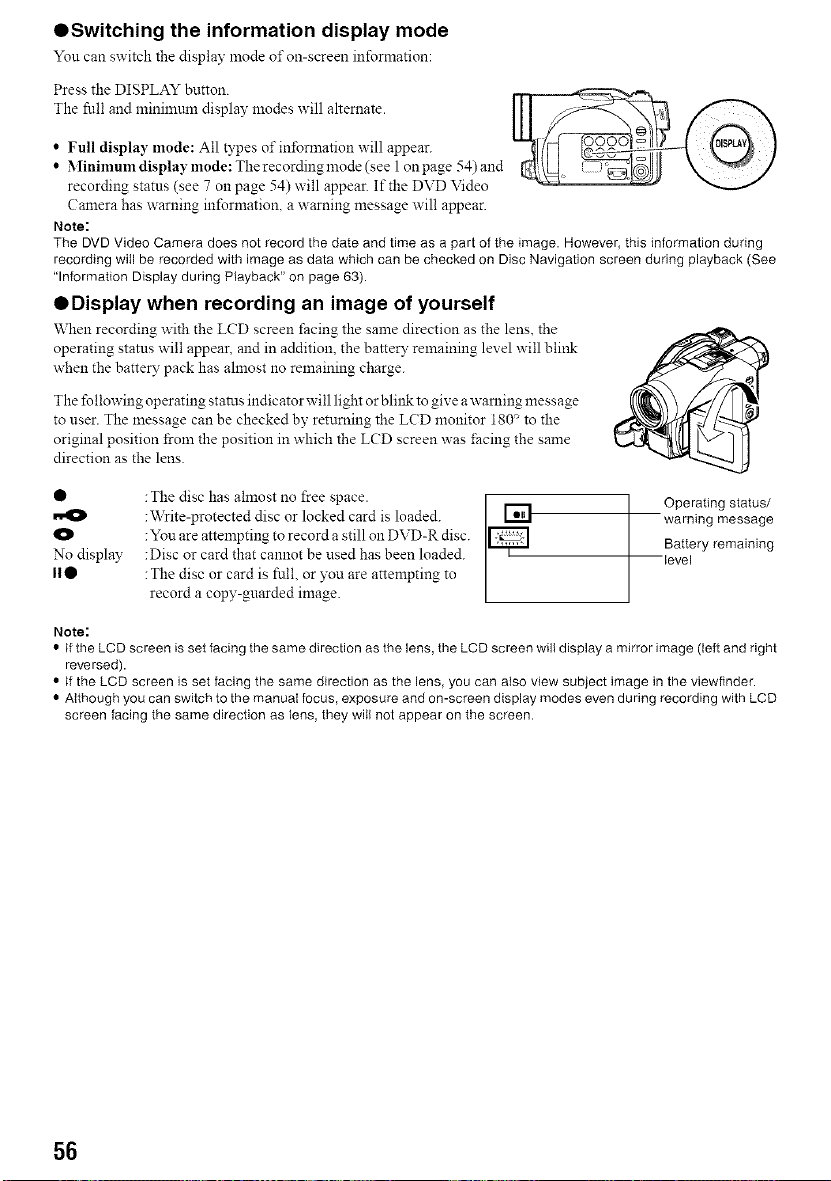
QSwitching the information display mode
You can switch the display mode of on-screen information:
Press the DISPLAY button.
The full and minimtml display modes will alternate.
• Full display mode: All types of infornaation will appear.
• Minimumdisplaymode:Therecordingmode (see 1onpage 54)and
recording status (see 7 on page 54) will appear. If the DVD Video
Camera has warning information, a warning message will appear.
Note:
The DVD Video Camera does not record the date and time as a part of the image. However, this information during
recordingwill be recorded with image as data which can be checked on Disc Navigation screen during playback (See
"Information Display during Playback" on page 63).
QOisplay when recording an image of yourself
When recording with the LCD screen facing the same direction as the lens. the
operating status will appear, and in addition, the battery remaining level will bliltk
when the batte R"pack has ahnost no remaining charge.
The following operating stares indicator will light or blink to give awarning message
to user. The message can be checked by returning the LCD monitor 180_ to the
original position from the position in which the LCD screen was ±'acingthe same
direction as the lens.
• :The disc has almost no free space. [ r-----, Operating status/
:Write-protected disc or locked card is loaded. I_ warning message
O :You are attempting to record a still on DVD-R disc. Battery remaining
No display :Disc or card that cannot be used has been loaded, level
II• : The disc or card is full, or you are attempting to
record a copy-guarded image.
Note:
• If the LCD screen is set facing the same direction as the lens, the LCD screen will display a mirror image (left and right
reversed).
• if the LCD screen is set facing the same direction as the lens, you can also view subject image in the viewfinder.
• Although you can switch to the manual focus, exposure and on-screen display modes even during recording with LCD
screen facing the same direction as lens, they will not appear on the screen.
56
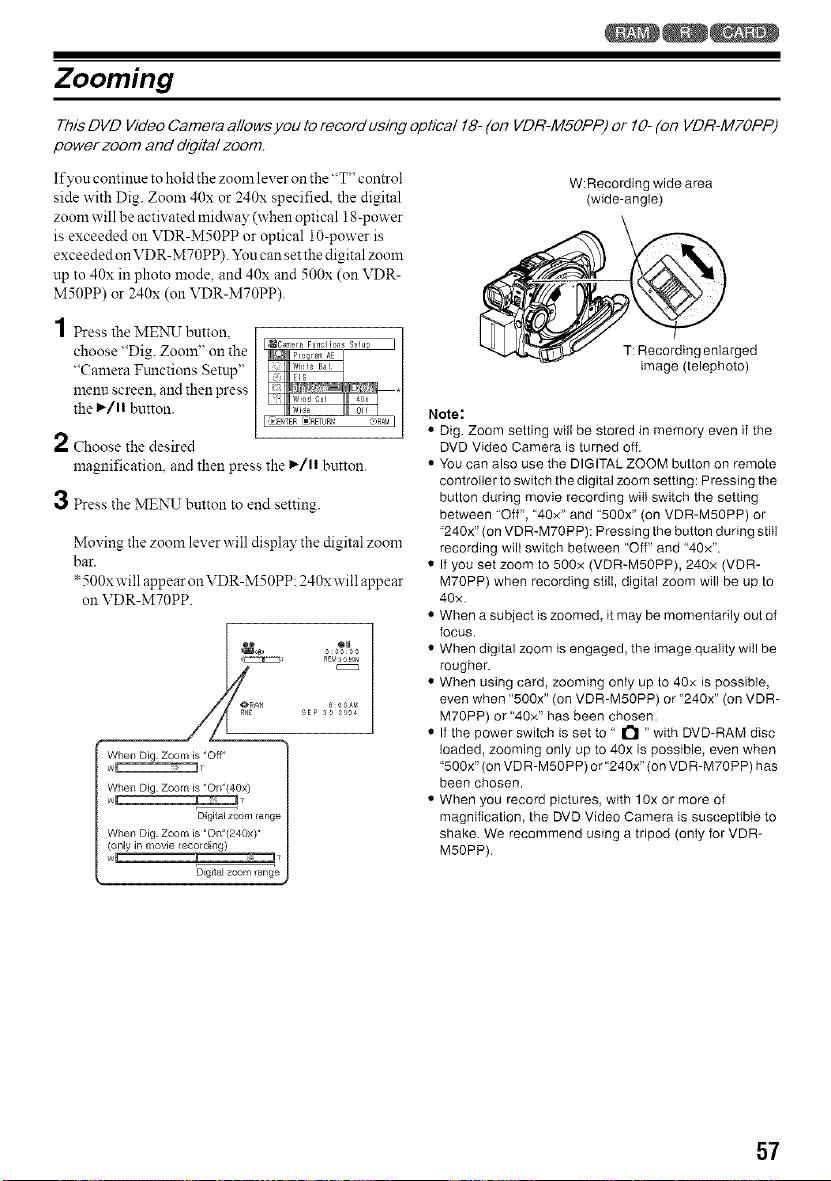
Zooming
This DVD Video Camera allows you to record using optical 18- (on VDR-MSOPP) or 10- (on VDR-M7OPP)
power zoom and digital zoom.
If you continue to hold the zoom lexer on the "'2"'"control
side with Dig. Zoom 40x or 240x specified, the digital
zoom will be actix ated midway (when optical 18-power
is exceeded on VDR-M50PP or optical lO-power is
exceeded onVDR-M70PP). You can set the digital zoom
up to 40x in photo mode, and 40x and 500x (on VDR-
M50PP) or 240x (on VDR-MTOPP).
1Press the MENU button,
choose "Dig. Zoom" on the
"Camera Ftalctions Setup"
menu screen, and then press
the _/1! button.
2 Choose the desired
magnification, and then press the 1_/1! button.
3 Press the MENU button to end setting.
Moving the zoom lever will display the digital zoom
bar.
*500x will appear onVDR-M50PP: 240xwill appear
on VDR-M?0PP.
_ RE_3 0 _IN
AM SEe 3O 2004
When Dig Zoom is "Off"
W_T
When Dig Zoom is "On"(4Ox)
w
Digit al zoom range
When Dig. Zoom is "On"(240x)*
(only in movie re,cording)
w T
Digital zoom range
Note:
W:Recording wide area
(wide-angle)
T: Recording enlarged
image (telephoto)
Dig. Zoom setting will be stored in memory even if the
DVD Video Camera is turned off.
• You can also use the DIGITAL ZOOM button on remote
controller to switch the digital zoom setting: Pressing the
button during movie recording will switch the setting
between "Off", "40x" and "500x" (on VDR-M50PP) or
"240x" (on VDR-M70PP): Pressing the button during still
recording wilt switch between "Off" and "40x".
• If you set zoom to 500x (VDR-M50PP), 240x (VDR-
M70PP) when recording still, digital zoom will be up to
40x.
• When a subject is zoomed, it may be momentarily out of
focus.
• When digital zoom is engaged, the image quality will be
rougher.
• When using card, zooming only up to 40x is possible,
even when "500x" (on VDR-M50PP) or "240x" (on VDR-
M70PP) or "40x" has been chosen.
• If the power switch is set to " _ "with DVD-RAM disc
loaded, zooming only up to 40x is possible, even when
"500x" (on VDR-M50PP) or"240x" (on VDR-M70PP) has
been chosen.
• When you record pictures, with 10x or more of
magnification, the DVD Video Camera is susceptible to
shake. We recommend using a tripod (only for VDR-
M50PP).
57
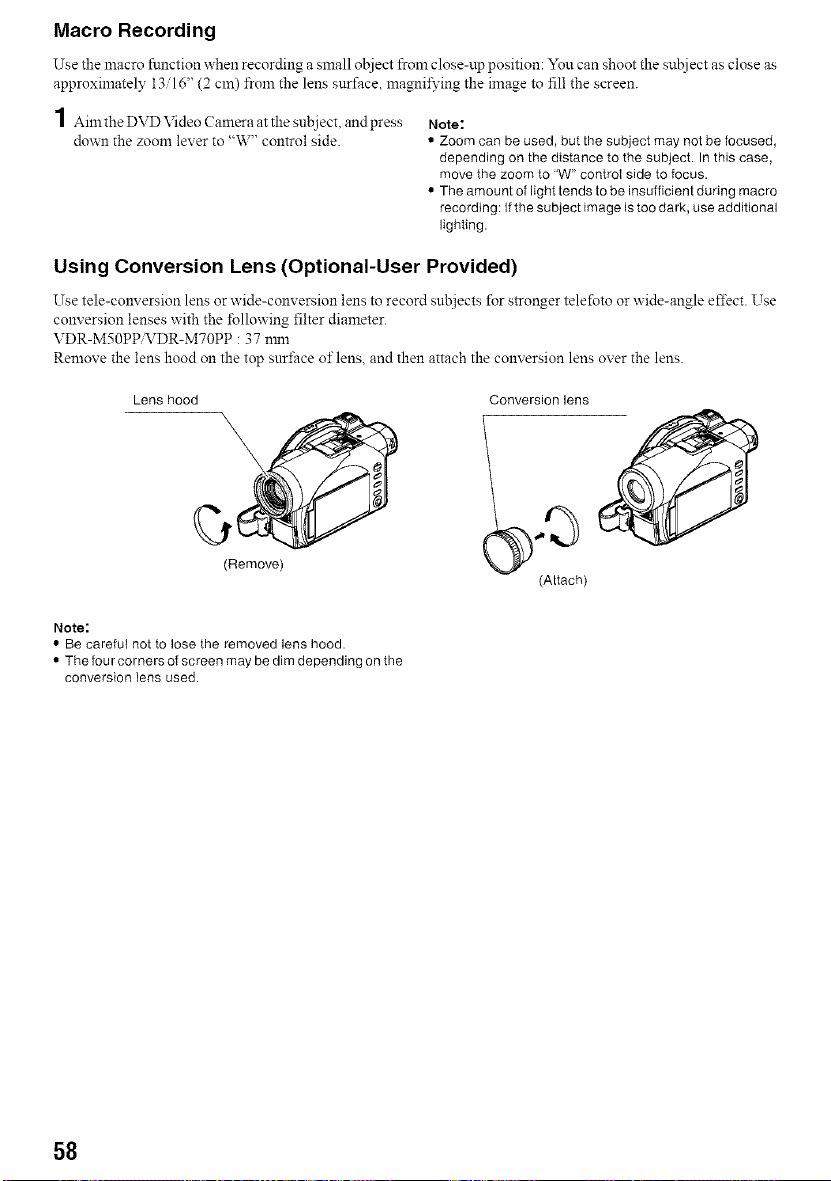
Macro Recording
Use the macro function when recording a small object from close-up position: You can shoot the sut!iect as close as
approximately 1316" (2 cm) froln the lens surface magnil\,ing the image to fill the screen.
1 Aizn the DVD Video Calnera at the subject, and press
down the zoom lexer to "W" control side.
Note:
• Zoom can be used, but the subject may not be focused,
depending on the distance to the subject. In this case,
move the zoom to "W" control side to focus.
• The amount of light tends to be insufficient during macro
recording: If the subject image is too dark, use additional
lighting.
Using Conversion Lens (Optional-User Provided)
Use tele-conversion lens or wide-conversion lens to record subjects for stronger telefoto or wide-angle effect. Use
conversion lenses with the following filter diameter.
VDR-M50PP VDR-MTOPP : 37 nml
Remove the lens hood on the top surthce of lens. and then attach the conversion lens over the lens.
Lens hood Conversion lens
(Attach)
Note:
• Be careful not to lose the removed lens hood.
• The four corners of screen may be dim depending on the
conversion lens used.
58
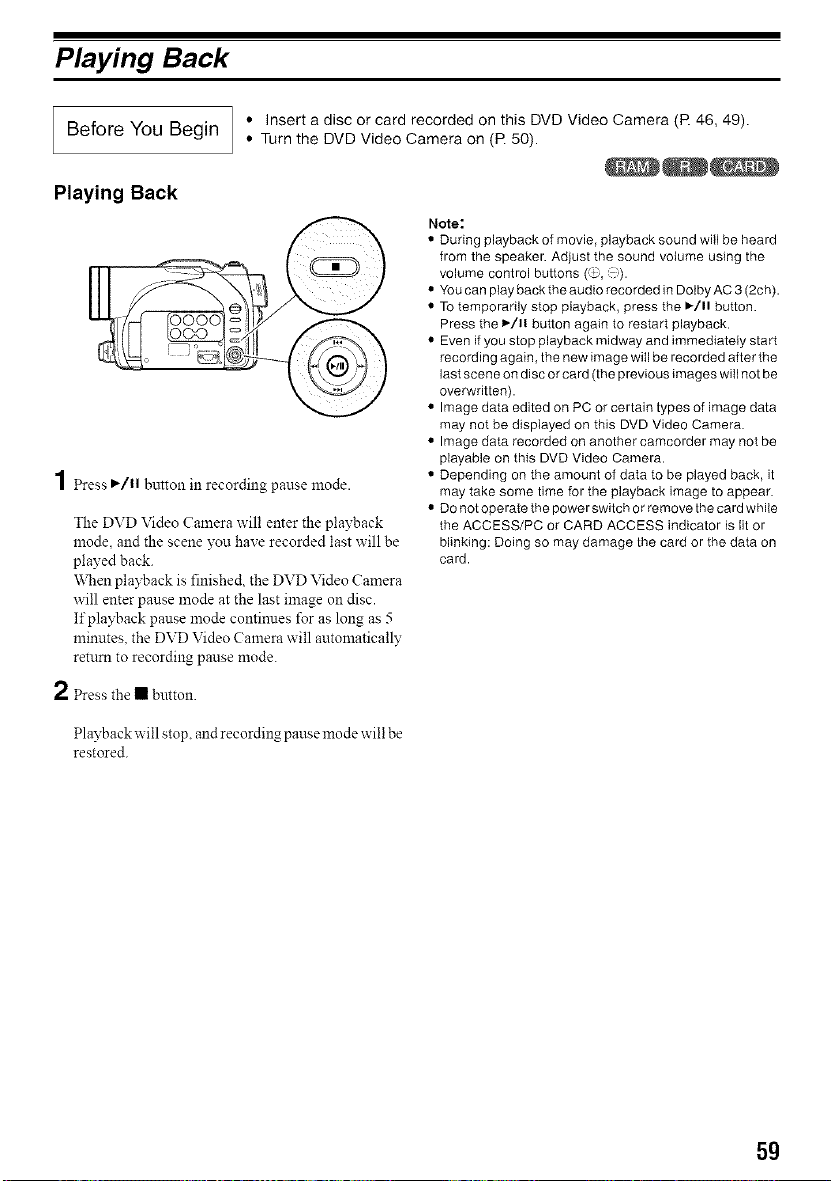
Playing Back
I Before You • Insert a disc or card recorded on this DVD Video Camera (R 46, 49).
Begin
• Turn the DVD Video Camera on (R 50).
Playing Back
1 _ess I_/11 button in recording pause mode.
The DVD Video Camera will enter the playback
mede, and the scene you have recorded last will be
played back.
When playback is finished, the DVD Video Camera
',,,'ill enter pause mode at the last image on disc.
If playback pause mode continues for as long as 5
minutes, the DVD Video Camera will automatically
return to recording pause mode.
Note:
• During playback of movie, playback sound will be heard
from the speaker. Adjust the sound volume using the
volume control buttons ('_,, _:).
• You can play back the audio recorded in Dolby AC 3 (2ch).
• TO temporarily stop playback, press the I_/11 button.
Press the 1_/11button again to restart playback.
• Even if you stop playback midway and immediately start
recording again, the new image will be recorded after the
last scene on disc or card (the previous images will not be
overwritten).
• Image data edited on PC or certain types of image data
may not be displayed on this DVD Video Camera.
• Image data recorded on another camcorder may not be
playable on this DVD Video Camera.
• Depending on the amount of data to be played back, it
may take some time for the playback image to appear.
• DO not operate the power switch or remove the card while
the ACCESS/PC or CARD ACCESS indicator is lit or
blinking: Doing so may damage the card or the data on
card.
2 _ess the • button.
Playback will stop, and recording pause mode ````'illbe
restored.
5g
Playback from Start of Disc or Card
Use the Go To ftmction (P. 62) or Disc Navigation
function (P. 95) to play back from the start of disc or card.
Search Playback of Movie
During playback tilt the joystick right or left and hold it:
Search playback will start.
Hold to right : Scenes will be visually scanned
15rward
Hold to left : Scenes will be visually scanned
backward
Release the joystick when you find the desired image:
Normal playback will start from that point.
Note:
• When you skip or search scenes from playback or
playback pause, the screen will be dark briefly.
• See "Check 3" on page 150 if search playback does not
operate normally.
Frame Advance/Frame Back/Slow Playback of Movie
During playback pause, tilt thej oystick: Frame advance.
frame back or slow playback will start.
Tilt right once : Picture will advance
one frame.
Tilt left once : Picture will go back
one frame.
Hold right : Forward slow playback
Hold left : Reverse slow playback
After frame advance, frame back or slow playback, the
DVD Video Camera will enter playback pause mode.
Note:
• In forward slow, a rapidly moving subject image may be
distorted.
• The intervals for playing back frames in frame advance/
frame back/slow playback are as follows:
Frame advance and forward stow: Approx. 003 seconds
Frame back and reverse slow: Approx. 0.5 seconds
• No sound will be heard during search playback or slow
playback.
6O
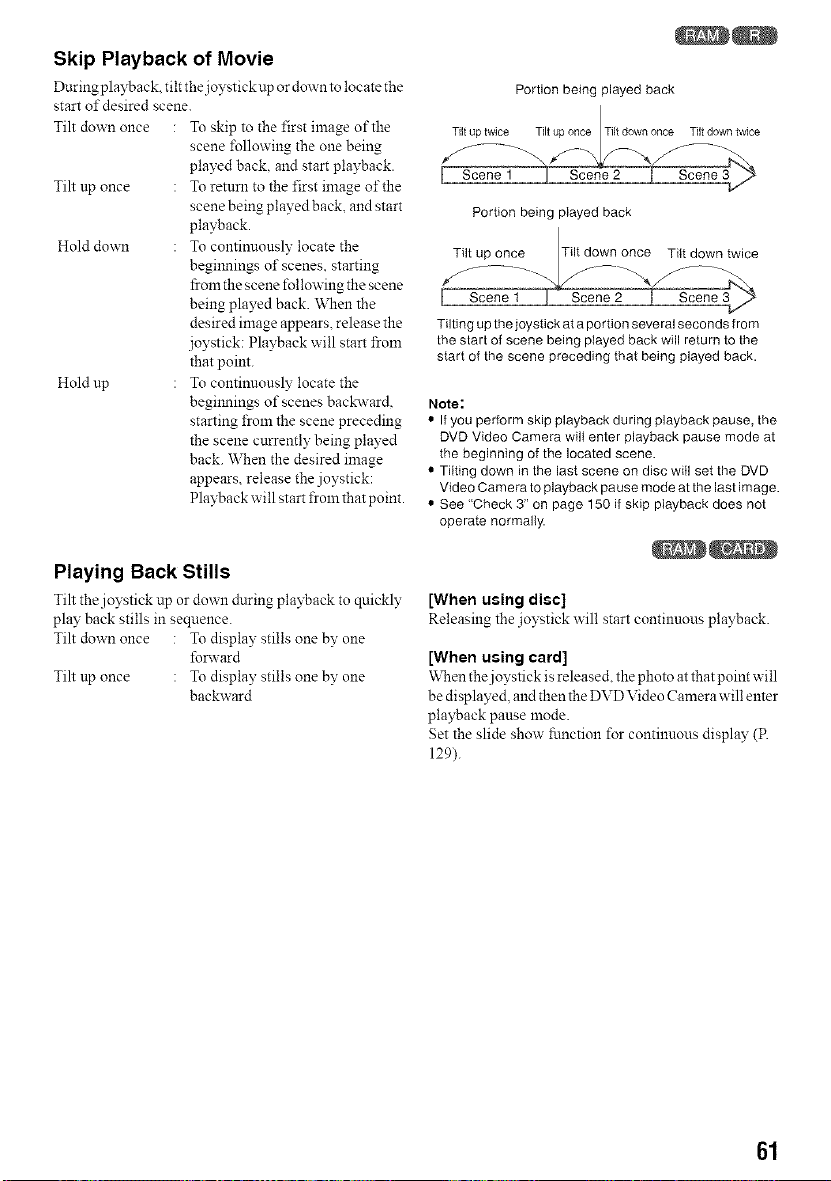
Skip Playback of Movie
During playback tilt the joystick up or down to locate the
start of desired scene.
Tilt down once To skip to the first image of the
scene ±bllowing the one being
played back, and start playback.
Tilt tip once To return to the first image of the
scene being played back, and start
playback.
Hold down To continuously locate the
begilmings of scenes, starting
from the scene following the scene
being played back. \_]len the
desired image appears, release the
joystick: PlaFt_ack will start from
that point.
Hold up To continuously locate the
begilmings of scenes backward.
starting from the scene preceding
the scene currently being played
back. When the desired image
appears, release the joystick:
Pla?t_ack will start from that point.
Playing Back Stills
Tilt the joystick up or down during playback to quickly
play back stills in sequence.
Tilt down once : To display stills one by one
fonvard
Tilt up once : To display stills one by one
backward
Portion being played back
I Scene1
Portion being played back
Tilt up once Til_onn_ Tilt down twice
¢"_- ...... -'_ - _.J'f_--- t-_
[ Scene 1 ! Scene 2
Tilting up the joystick at a portion several seconds from
the start of scene being playedback will return to the
start of the scene preceding that being played back.
Note:
• Ifyou perform skip playback during playbackpause, the
DVD Video Camera wilt enter playback pause mode at
the beginning of the located scene.
• Tilting down in the last scene on disc will set the DVD
Video Camera to playback pausemodeat the last image.
• See "Check 3" on page 150 if skip playback does not
operate normally.
[When using disc]
Releasing the joystick will start continuous playback.
[When using card]
When the joystick is released, the photo at that point will
be displayed, and then the DVD Video Camera will enter
playback pause mode.
get the slide show fimction for continuous display (R
129).
61
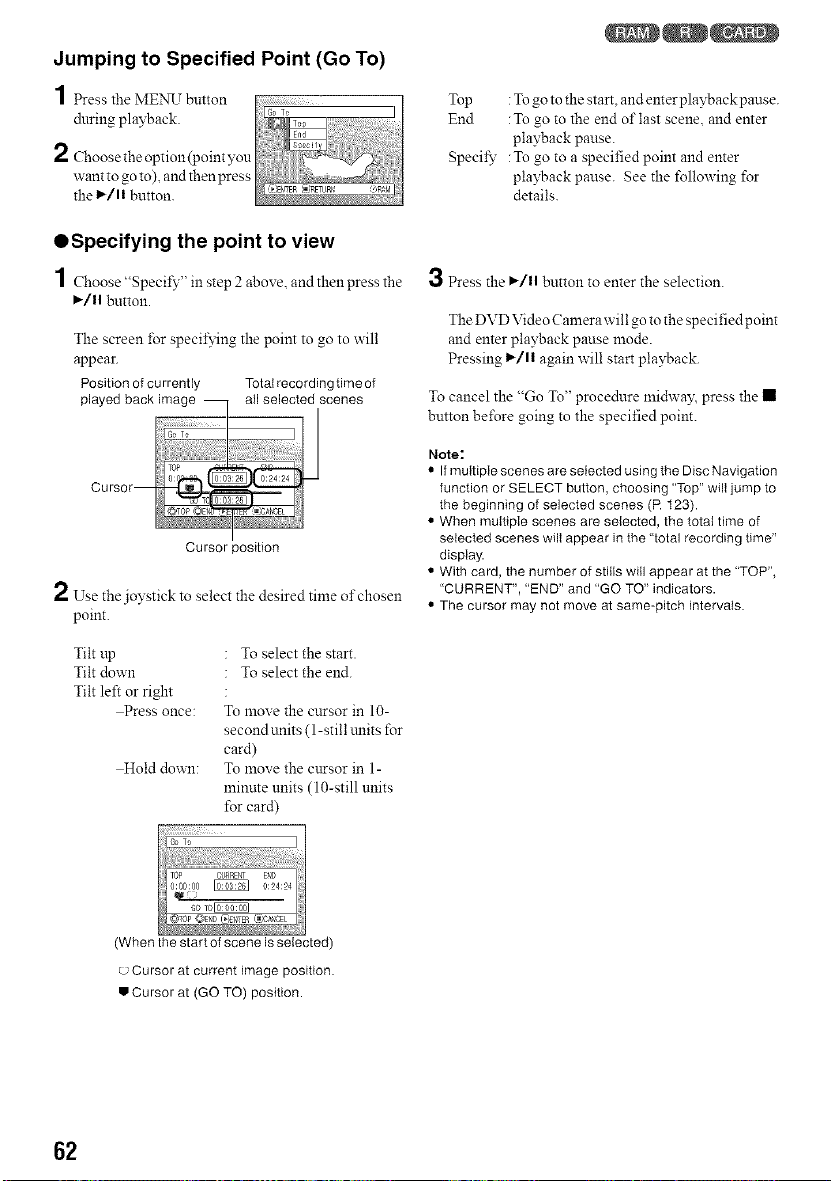
Jumping to Specified Point (Go To)
1 essthez_/[E_N__TbHtton
dnring playback.
2 Choose the option (point you
want to go to), and then press
the _/1! button.
QSpecifying the point to view
1 Choose "Specil_"' in step 2 above, andthenpress the
_/!l button.
The screen ±br specifying the point to go to will
appear.
Position of currently Totalrecordingtime of
played back image all selected scenes
Curs
Cursor position
2 Use -
the joystick to select the desired time of chosen
point.
Tilt up " To select the start.
Tilt down " To select the end.
Tilt left or right
@ress once: To move the cursor in 10-
second units (l-still traits for
card)
Hold down: To move the cursor in l-
minute units (10-still units
for card)
Top :To go to the start, and enter playback pause.
End :To go to the end of last scene, and enter
playback pause.
Specil_" :To go to a specified point and enter
playback pause. See the following for
details.
3 Press the I_/ll button to enter the selection.
The DVD Video Camera will go to the specified point
and enter playback pause mode.
Pressing I_/1! again will start playback.
To cancel the "Go To" procedure lnidway, press the •
button bd\_re going to the specified point.
Note:
• If multipIe scenes are selected using the Disc Navigation
function or SELECT button, choosing "Top" wilI jump to
the beginning of selected scenes (R t23).
• When multiple scenes are selected, the totat time of
selected scenes wilI appear in the "total recording time"
display.
• With card, the number of stills will appear at the "TOP",
"CURRENT", "END" and "GO TO" indicators.
• The cursor may not move at same-pitch intervals.
(When the start of scene is selected)
Cursor at current image position.
J Cursor at (GO TO) position.
62
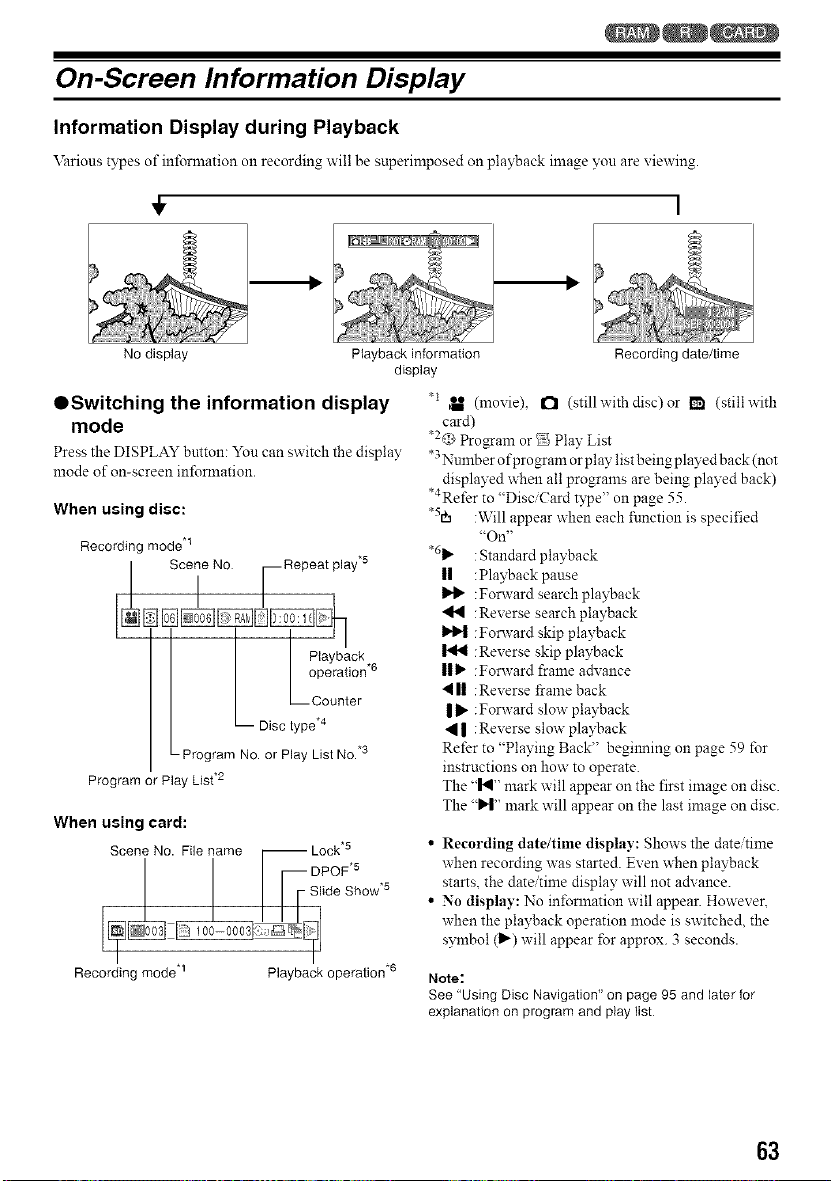
On-Screen Information Display
Information Display during Playback
\_arious types of reformation oll recording will be superimposed on playback image you are viewing.
÷ I
No display Playback information Recording date/time
display
QSwitching the information display
mode
Press the DISPLAY button: Yon can switch the display
mode of on-screen inforlnation.
When using disc:
Recording mode.I
Scene No I_ Repeat play.5
I /
I I
Playback
I I / °perati°n °
LD,ec typl_ec:unter
L_ Program No. or P ay L st No. .3
Program or Play List .2
When using card:
Scene No. File name [_ Lock .5
I I I r--DPOP*5
/ / I I FS'ide>ow'_
Recording mode .1 Playback operation .6
*t ,U (mmie), O (still with disc) or 1_ (still with
card)
"2_!,)Program or _ Play List
"3Number ofprogram or play list being played back (not
displayed when all programs are being played back)
*4Refer to "Disc/Card type" on page 55.
*sea :Will appear when each function is specified
"On"
%1_" :Standard playback
|| :Playback pause
:Fonvard search playback
414 :Reverse search playback
:Fonvard skip playback
:Reverse skip playback
II1_ :Forward frame advance
4|| :Reverse _ame back
| I1_:Fonvard slow playback
,41 :Reverse slow playback
Refer to "Playing Back" begilming on page 59 for
instrnctions on how to operate.
The "14" mark will appear on the first image on disc.
The "P"I" mark will appear on the last image on disc.
• Recording date/time display: Shows the date/time
when recording was started. Even when playback
starts the date/time display will not advance.
• No display: No information will appear. However.
when the playback operation mode is switched, the
symbol (1_) will appear for approx. 3 seconds.
Note:
See "Using Disc Navigation" on page 95 and later for
explanation on program and play list
63
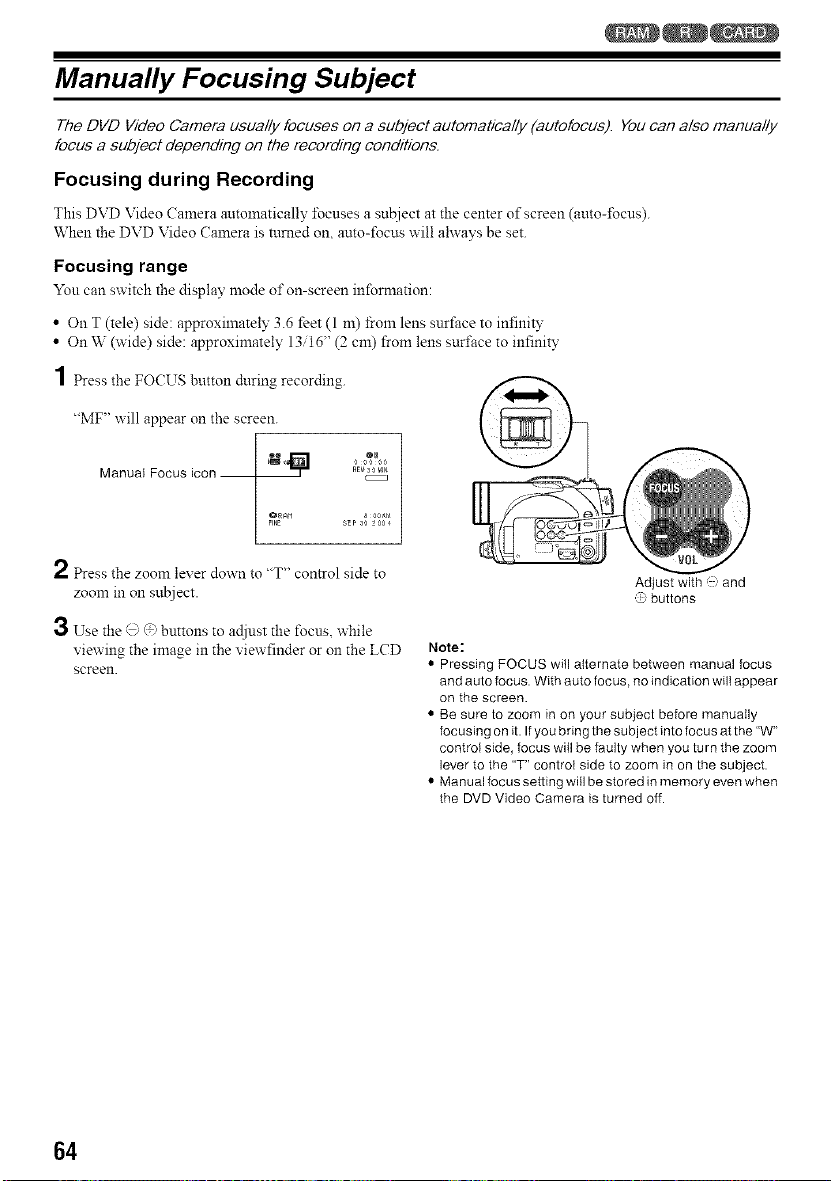
Manually Focusing Subject
The DVD Video Camera usually focuses on a subject automatically (autofocus). You can also manually
focus a subject depending on the recording conditions.
Focusing during Recording
This DVD Video (amera automatically ±bcuses a su[!iect at the center of screen (auto-focus).
When the DVD Video (amera is turned on, auto-focus will ahvays be set.
Focusing range
You can switch the display mode of on-screen information:
• O11T (tele) side: approximately 3.6 feet (1 m) from lens surface to infinity
• On W (wide) side: approximately 1316" (2 cm) from lens surface to infinity
1 Press the FOCUS button during recording.
"MF" will appear on the screen.
00
Manual Focus icon__ RE_OH.
sEP 3o _004
2 Press the zoom lever down to "T" control side to
zoom in on sut!ject.
3 Use the @ @ buttons to acliust the focus, while
viewing the image in the viewfinder or on the LCD
screen.
Adjust with ,' and
@ buttons
Note:
• Pressing FOCUS will alternate between manual focus
and auto focus. With auto focus, no indication wilI appear
on the screen.
• Be sure to zoom in on your subject before manually
focusing on it. If you bring the subject into focus at the"W"
control side, focus will be faulty when you turn the zoom
lever to the "T" control side to zoom in on the subject.
• Manual focus setting will be stored in memory even when
the DVD Video Camera is turned off.
64
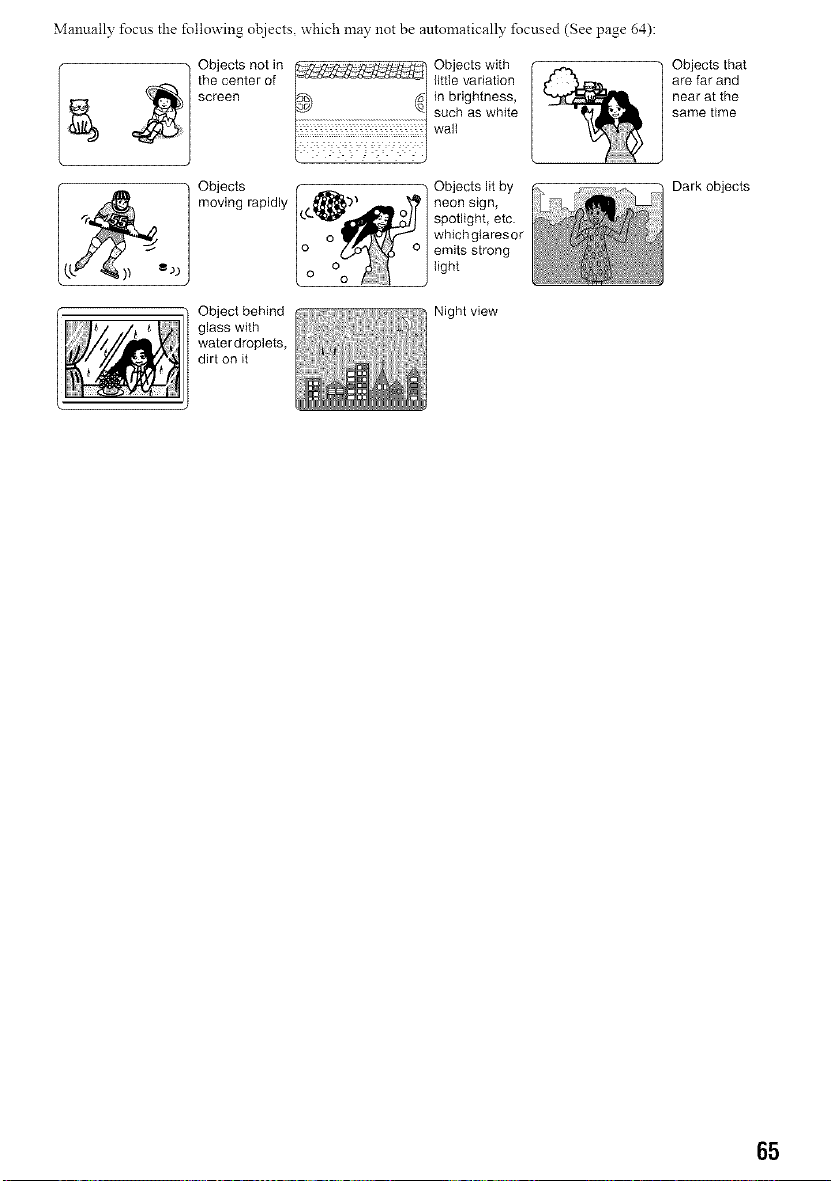
Manually %cus the %llowing objects, which may not be automatically focused (See page 64):
• _ Objects not in It::ThPS4C'L,_4q::A::;_gL:t_..... Objects with
the center of I_:_'_l line variation
screen z; in brightness,
such as whitewall
Objects
moving rapidly
Objects lit by
neon sign,
spotlight, etc.
which gtaresor
emits strong
light
Object behind
glass with
water droplets,
dirt on it
Night view
Objects that
are far and
near at the
same time
Dark objects
65
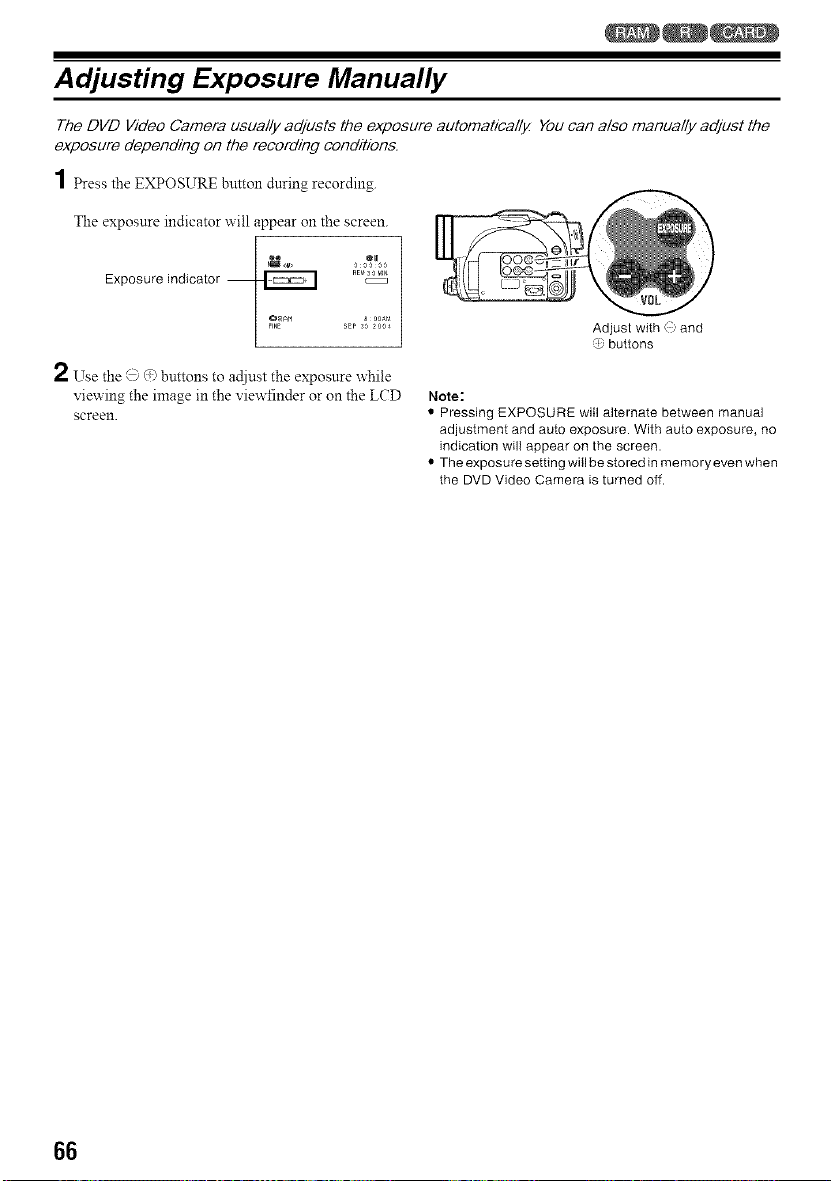
Adjusting Exposure Manually
The DVD Video Camera usually adjusts the exposure automatically You can also manually adjust the
exposure depending on the recording conditions.
1 Bessthe EXPOSURE btltton during recording.
The exposure indicator will appear on the screen.
RE_30 HN
Exposure indicator
2 Use the @ @ buttons to adiust the exposure while
viewing the image in the viewfinder or on the LCD
screen.
Adjust with _), and
r_ buttons
Note:
• Pressing EXPOSURE will alternate between manual
adjustment and auto exposure. With auto exposure, no
indication will appear on the screen.
• The exposure setting will be stored in memory even when
the DVD Video Camera is turned off.
66
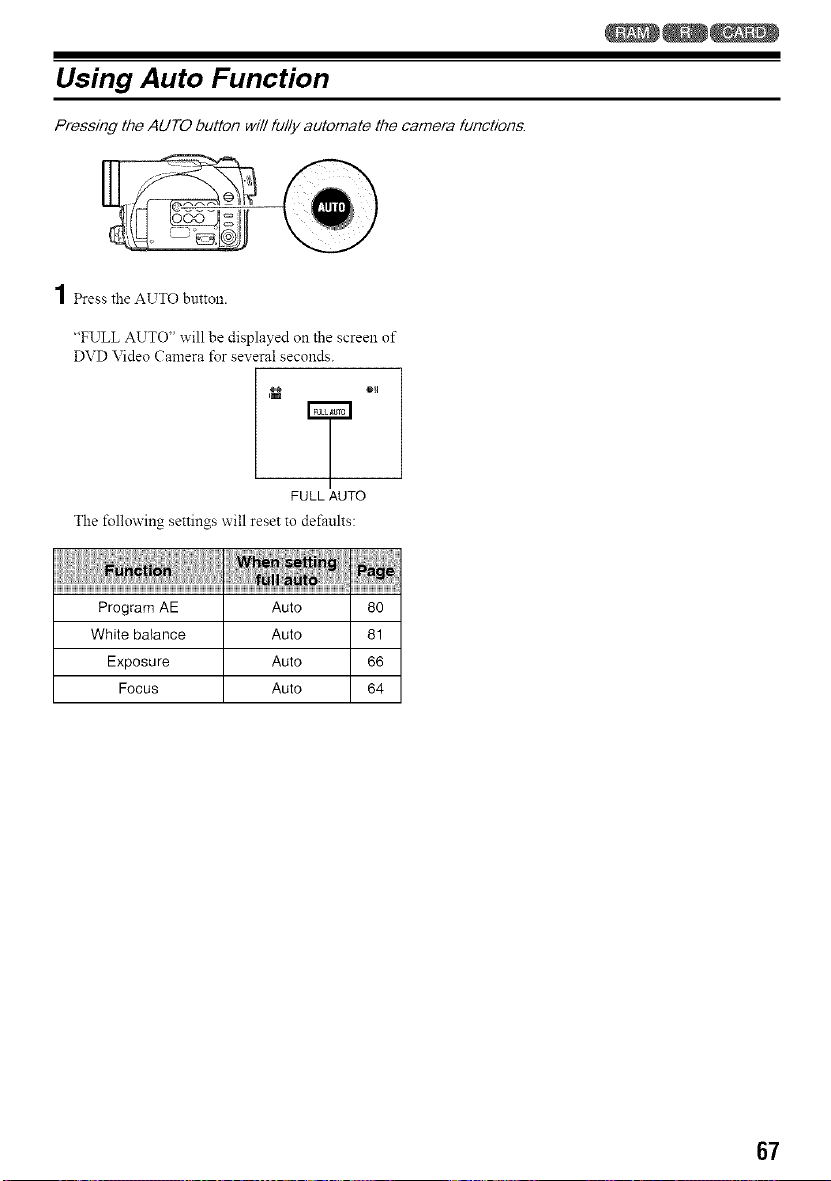
Using Auto Function
Pressing the AUTO button will fully automate the camera functions.
1_ess the AUTO button.
"'FULL AUTO" will be displayed on the screen of
DVD Video Camera for several seconds.
_ Oia
7
FULL AUTO
The following settings will reset to defaults:
Program AE Auto 80
White balance Auto 81
Exposure Auto 66
Focus Auto 64
67
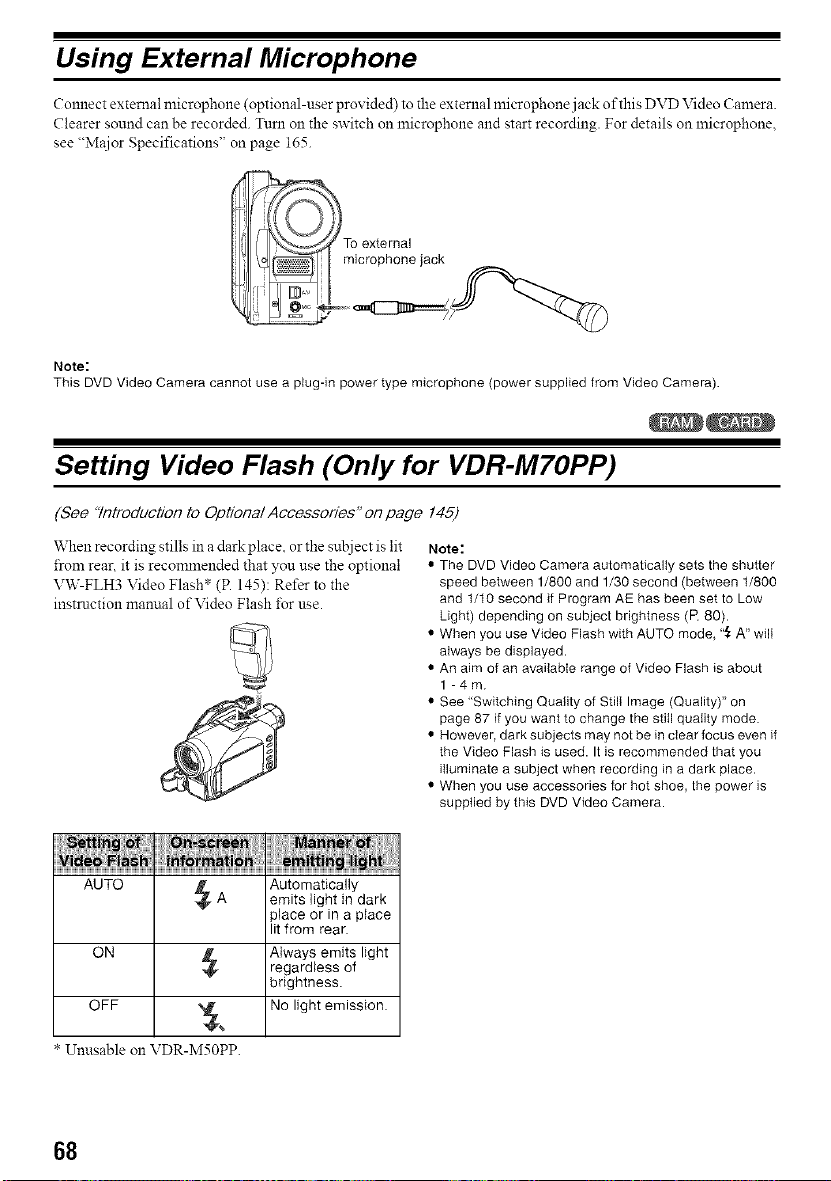
Using External Microphone
Connect external microphone (optional-user provided) to the external microphone jack of this DVD Video Camera.
Clearer sound can be recorded. Turn on the switch on microphone and start recording. For details on microphone,
see "M_ior Specifications" on page 165.
Note:
This DVD Video Camera cannot use a plug-in power type microphone (power supplied from Video Camera).
Setting Video Flash (Only for VDR-M7OPP)
(See 7ntroduct/on to Optiona/ Accessories" on page 145)
When recording stills in a dark place, or the su'qject is lit
from rear, it is reconvnended that you use the optional
VW-FLH3 Video Flash* (R 145): Refer to the
instruction manual of Video Flash lbr use.
Note:
• The DVD Video Camera automatically sets the shutter
speed between 1/800 and 1/30 second (between 1/800
and 1/t0 second if Program AE has been set to Low
Light) depending on subject brightness (1_ 80).
• When you use Video Flash with AUTO mode, "{_A" wilI
always be displayed.
• An aim of an available range of Video Flash is about
1 -4m.
• See "Switching Quality of StilI Image (Quality)" on
page 87 if you want to change the still quality mode.
• However, dark subjects may not be in clear focus even if
the Video Flash is used. It is recommended that you
illuminate a subject when recording in a dark place.
• When you use accessories for hot shoe, the power is
supplied by this DVD Video Camera.
AUTO @ Automatically
A emits light in dark
31ace or in a place
lit from rear.
ON l_ Always emits light
regardless of
brightness.
OFF _,_ No light emission.
Unusable oll VDR-M50PP.
68
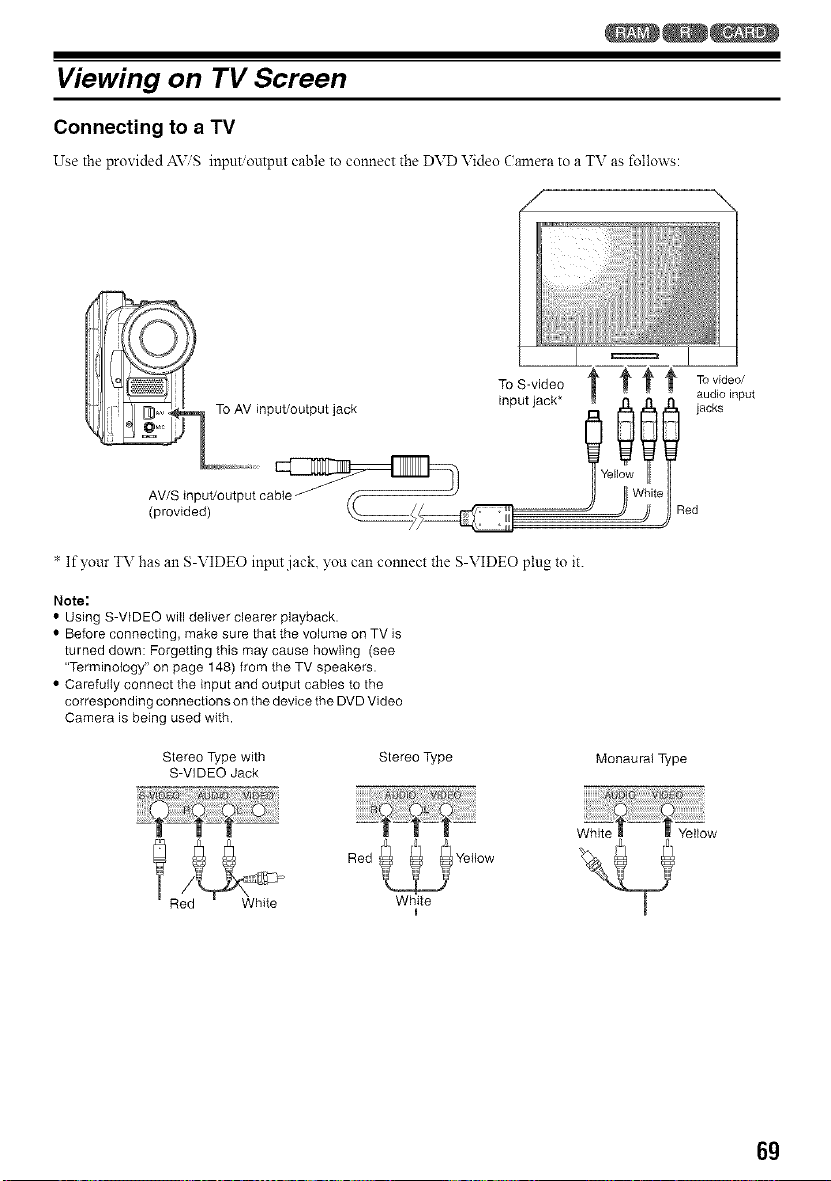
Viewing on TV Screen
Connecting to a TV
Use the provided AViS input output cable to connect the DVD Video Camera to a TV as follow's:
(provided)
* If your TV has an S-VIDEO input jack, you can comlect the S-VIDEO plug to it.
Note:
• Using S-VIDEO will deliver clearer playback.
• Before connecting, make sure that the volume on TV is
turned down: Forgetting this may cause howling (see
"Terminology" on page 148) from the TV speakers.
• Carefully connect the input and output cables to the
corresponding connections on the device the DVD Video
Camera is being used with.
Stereo Type with
S-VIDEO Jack
Stereo Type Monaural Type
White
Red
White
Yellow
6g
Viewing on TV Screen
1 Turn on the TV and set the input selector to the Input
connection the DVD Video Calnera is connected to.
This is often refered to as "line".
Refer to the TV instruction manual for how' to switch
the TV input.
2 Turn the DVD Video (amera on.
The image that the DVD Video Camera is viewing
will appear on the TV screen.
You can also monitor the image on the LCD screen or
viewfinder of the DVD Video Camera.
3 Perform playback, recording or editing.
You can per forln playback, editing or editing on Disc
Navigation while viewing on TV screen.
Note:
• Adjust the sound volume on TV.
• The infrared remote controller is useful when operating
the DVD Video Camera while viewing an image on TV
screen.
• Information that the DVD Video Camera is recording will
appear on the TV screen: You can also display only part
of information or switch off the display. Refer to "Setting
OSD Output On or Off (On-Screen Display)" on page 90,
and press the DISPLAY button to switch the display
status.
• When copy-guarded disc is played back, no image will
appear on TV screen.
• If you use TV with wide mode (aspect ratio 16:9) and set
the TV to wide mode, the entire Disc Navigation display
may not be displayed on the TV screen. If this happens,
turn off the wide mode setting on TV (see the TV
instruction manual for turning off the wide mode).
7O
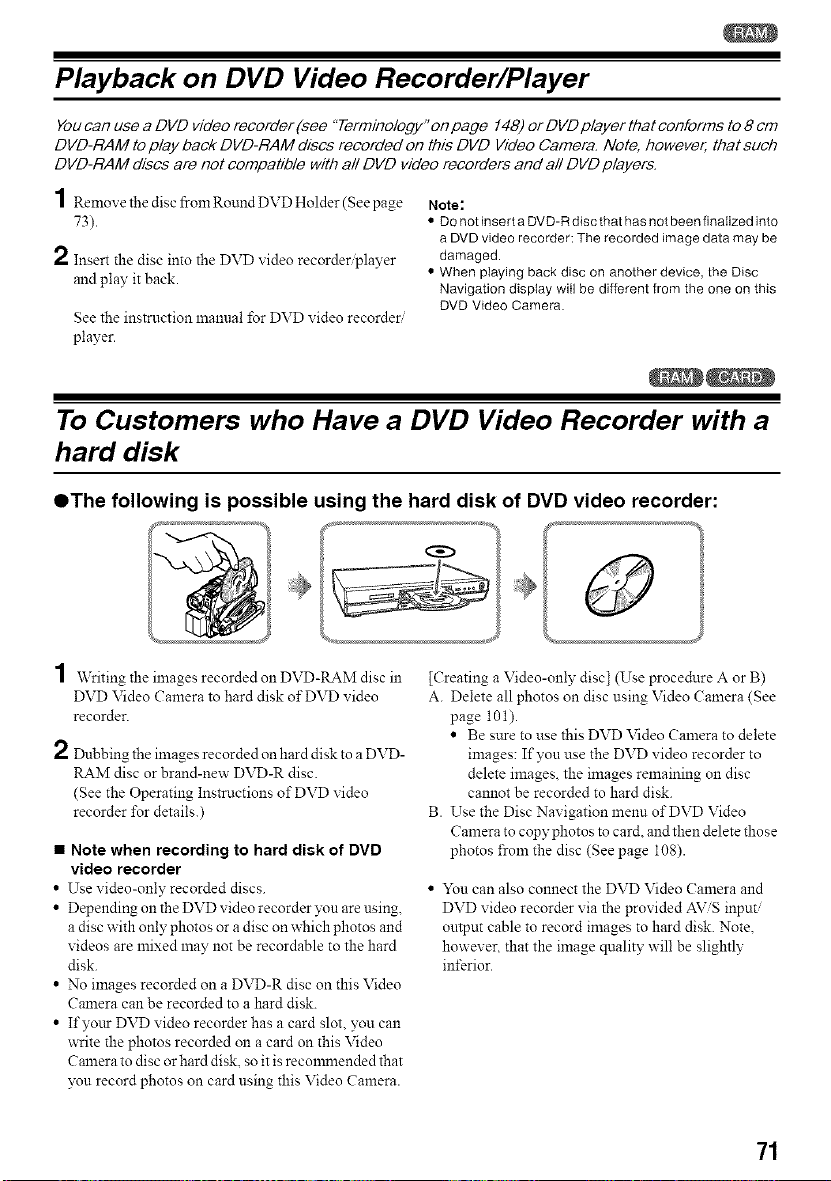
Playback on DVD Video Recorder/Player
You can use a DVD video recorder (see "Terminology" on page 148) or DVD player that conforms to 8 cm
DVD-RAM to play back DVD-RAM discs recorded on this DVD Video Camera. Note, however, that such
DVD-RAM discs are not compatible with all DVD video recorders and all DVD players.
1Remox,e the disc from RoundDVD Holder (Seepage
73).
2 Insert the disc into the DVD video recorder player
and play it back.
See the instruction manual for DVD video recorder.......
player.
Note:
• Do not insert a DVD-R disc that has not been finalized into
a DVD video recorder: The recorded image data may be
damaged.
• When playing back disc on another device, the Disc
Navigation display will be different from the one on this
DVD Video Camera.
To Customers who Have a DVD Video Recorder with a
hard disk
OThe following is possible using the hard disk of DVD video recorder:
1 Writing the images recorded on DVD-RAM disc in
DVD Video Camera to hard disk of DVD video
recorder.
2 Dubbing the images recorded on hard disk to a DVD-
RAM disc or brand-new DVD-R disc.
(See the Operating Instructions of DVD ",ideo
recorder tbr details.)
• Note when recording to hard disk of DVD
video recorder
• Use video-only recorded discs.
• Depending on the DVD video recorder yon are using,
a disc with only photos or a disc on which photos and
videos are mixed may not be recordable to the hard
disk.
• No images recorded on a DVD-R disc on this Video
Camera can be recorded to a hard disk.
• Ifyoar DVD video recorder has a card slot, you can
write the photos recorded on a card on this Video
Camera to disc or hard disk, so it is reconmlended that
_<_nrecord photos on card using this Video Camera.
[Creating a Video-only disc] (Use procedure A or B)
A. Delete all photos on disc using Video Camera (See
page 1Ol).
• Be s_.treto use this DVD Video Camera to delete
images: If you use the DVD video recorder to
delete images, the images remaining on disc
cannot be recorded to hard disk.
B. Use the Disc Navigation menu of DVD Video
Camera to copy photos to card. and then delete those
photos froln the disc (See page 108).
• Yon can also connect the DVD Video Camera and
DVD video recorder via the provided AViS input/
ontput cable to record images to hard disk. Note,
however, that the image quality will be slightly
interior.
71
Playback on DVD Player
1 Finalize a recorded DVD-R disc.
3 Insert the disc into the DVD player and play it back.
You need to finalize a disc to play it back on DVD
player: See page 127.
No farther data can be recorded on finalized disc.
Note:
Use this DVD Video Camera to finalize the DVD-R disc
recorded on the DVD Video Camera.
2 Remove the disc from Round DVD Holder.
See"Removingfrom and Replacing inRound DVD
Holder" on page 73.
See the instruction manual for DVD player.
Note:
• See"Terminotogy" on page 148forlinear PCM recording.
• DVD-R discs recorded on this DVD Video Camera can be
played back on Panasonic DVD players, but playback on
all DVD players is not guaranteed.
• Playback may not be possible on some DVD players, or
it may depend on the recording status of DVD-R discs: In
such cases, play back the DVD-R disc on this DVD Video
Camera.
72
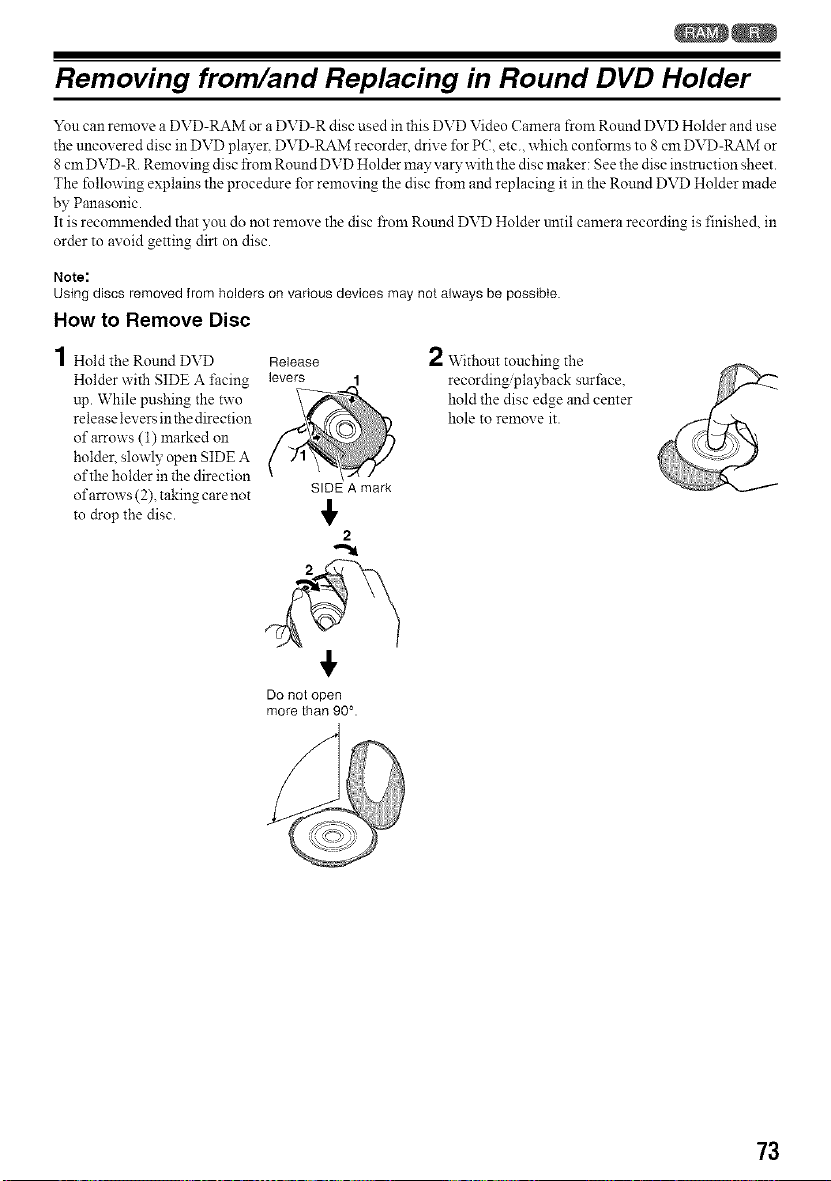
Removing from/and Replacing in Round DVD Holder
You can remove a DVD-RAM or a DVD-R disc used in this DVD Video Camera from Round DVD Holder and use
the uncovered disc in DVD player. DVD-RAM recorder, drive for P(, etc., which conforms to 8 cm DVD-RAM or
8cm DVD-R. Removing disc from Round DVD Holder may valy with the disc maker: See the disc insmlction sheet.
The following explains the procedure for removing the disc from and replacing it in the Round DVD Holder made
by Panasonic.
It is reconmlended that you do not remove the disc from Rotmd DVD Holder until camera recording is finishe& in
order to avoid getting dirt on disc.
Note:
Using discs removed from holders on various devices may not always be possible.
How to Remove Disc
4
/ Hold the Round DVD
Holder with SIDE A facing
up. While pushing the two
release levers in the direction
of arrows (1) marked on
holder, slowly open SIDE A
of the holder in the direction
of arrows (2), taking care not
to drop the disc.
Release
levers
2 \Vithout touching the
recording playback surface.
hold the disc edge and center
hole to relnove it.
SIDE A mark
2
Do not open
more than 90 °.
73
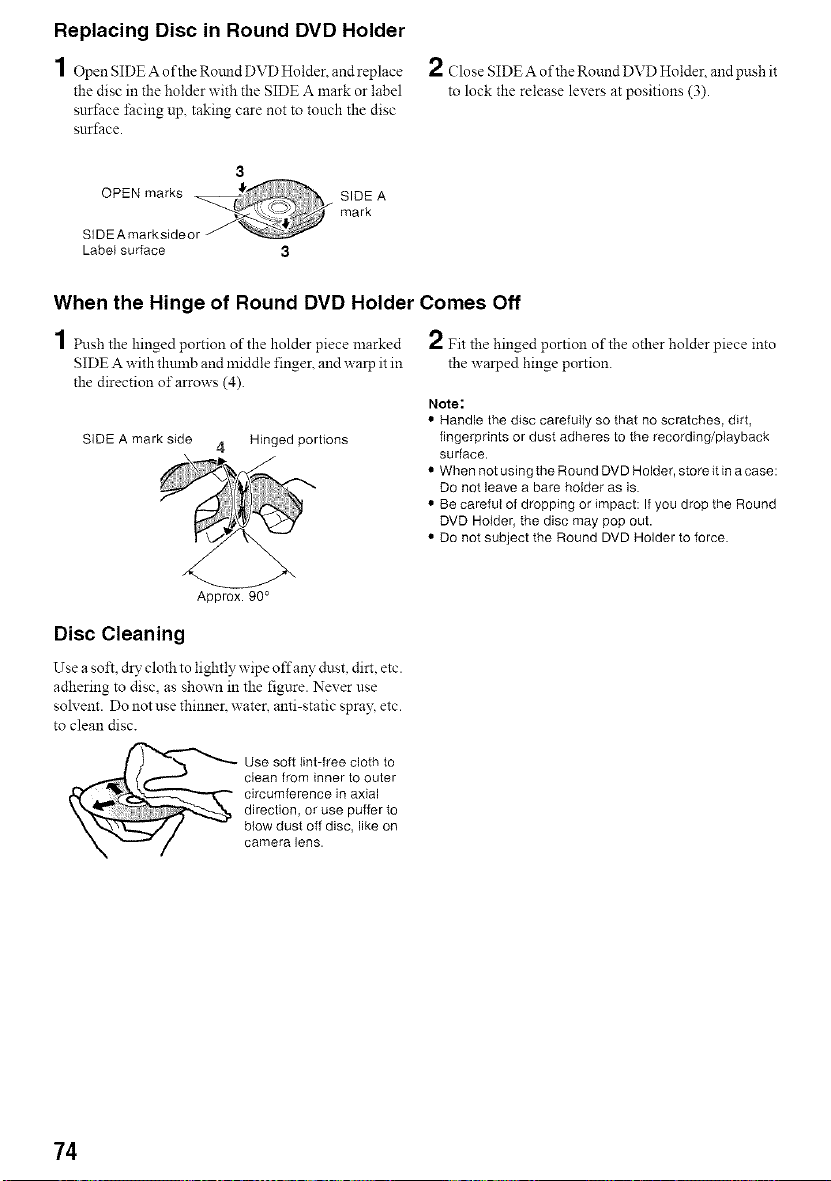
Replacing Disc in Round DVD Holder
1 Open SIDE Aofthe Rotmd DVD Holder. and replace
the disc in the holder with the SIDE A mark or label
surface ±;acing up. taking care not to touch the disc
surface.
2 Close SIDE A of the Round DVD Holder, and push it
to lock the release levers at positions (3).
Label surface
SIDE A
mark
1 hlsh the hinged portion of the holder piece marked
SIDE A with thulnb and middle finger, and warp it in
the direction of arrows (4).
When the Hinge of Round DVD Holder Comes Off
2 Fit the hinged portion of the other holder piece into
the warped hinge portion.
SIDE A mark side 4 Hinged portions
Note:
• Handle the disc carefully so that no scratches, dirt,
fingerprints or dust adheres to the recording/playback
surface.
• When not using the Round DVD Holder, store it in a case:
Do not leave a bare holder as is.
• Be careful of dropping or impact: If you drop the Round
DVD Holder, the disc may pop out.
• Do not subject the Round DVD Holder to force.
Approx. 90 °
Disc Cleaning
Use a soft dry cloth to lightly wipe off any dnst. dirt. etc.
adhering to disc, as shown in the figure. Never use
solvent. Do not use thinner, water, anti-static spra3_ etc.
to clean disc.
Use soft lint-free cloth to
clean from inner to outer
circumference in axial
direction, or use puffer to
btow dust off disc, like on
camera lens.
74
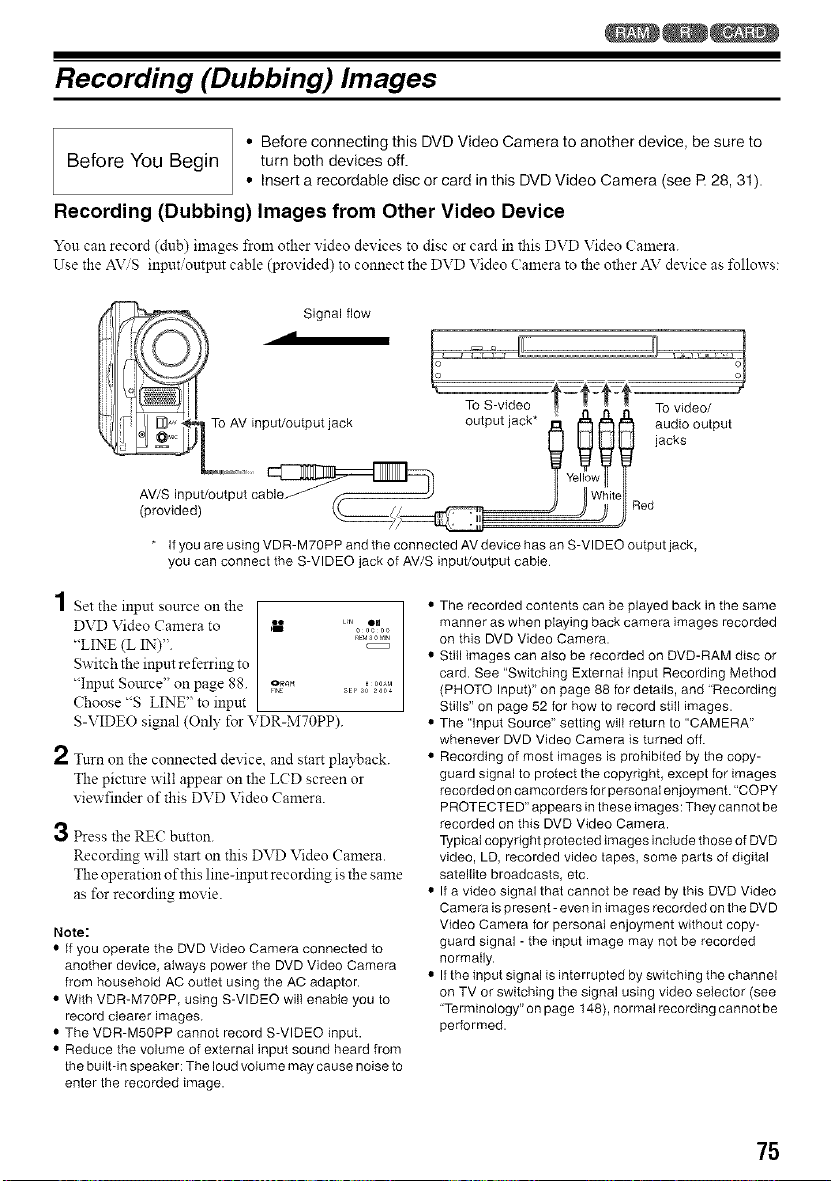
Recording (Dubbing) Images
• Before connecting this DVD Video Camera to another device, be sure to
Before You Begin turn both devices off.
• Insert a recordable disc or card in this DVD Video Camera (see R 28, 31).
Recording (Dubbing) Images from Other Video Device
Yon can record (dub) images from other video devices to disc or card in this DVD Video Calnera.
Use the AVS input output cable (provided) to connect the DVD Video Calnera to the other AV device as l\_llows:
* If you are using VDR-M70PP and the connected AV device has an S-VIDEO output jack,
you can connect the S-VIDEO jack of AV/S input/output cable
1 Set the input source on the
DVD Video Camera to _ L.0 _m00
"LINE (L IN)". ............
Switchthe inputreferring to
"Input Soarce" on page 88 oR_ ..... M
" H_E SEI' a0 2_0a
Choose '% LINE" to input
S-VIDEO signal (Only for VDR-M70PP).
2 Turn on the connected device, and start playback.
The picture will appear on the LCD screen or
viewfinder of this DVD Video Camera.
3 Press the RE(: button.
Recording will start on this DVD Video Camera.
The operation of this line-input recording is the same
as for recording movie.
Note:
• If you operate the DVD Video Camera connected to
another device, always power the DVD Video Camera
from household AC outtet using the AC adaptor.
• With VDR-M70PP, using S-VIDEO will enable you to
record clearer images.
• The VDR-M50PP cannot record S-VIDEO input.
• Reduce the volume of external input sound heard from
the built-in speaker: The loud volume may cause noise to
enter the recorded image.
• The recorded contents can be played back in the same
manner as when playing back camera images recorded
on this DVD Video Camera.
• Still images can also be recorded on DVD-RAM disc or
card. See "Switching Externat Input Recording Method
(PHOTO Input)" on page 88 for details, and "Recording
Stills" on page 52 for how to record still images.
• The "Input Source" setting will return to "CAMERA"
whenever DVD Video Camera is turned off.
• Recording of most images is prohibited by the copy-
guard signal to protect the copyright, except for images
recorded on camcorders for personal enjoyment. "COPY
PROTECTED"appears in these images: They cannot be
recorded on this DVD Video Camera.
Typical copyright protected images include those of DVD
video, LD, recorded video tapes, some parts of digital
satellite broadcasts, etc.
• If a video signal that cannot be read by this DVD Video
Camera is present- even in images recorded on the DVD
Video Camera for personal enjoyment without copy-
guard signal - the input image may not be recorded
normally.
• If the input signal is interrupted by switching the channel
on TV or switching the signal using video selector (see
"Terminology" on page 148), normal recording cannot be
performed.
75
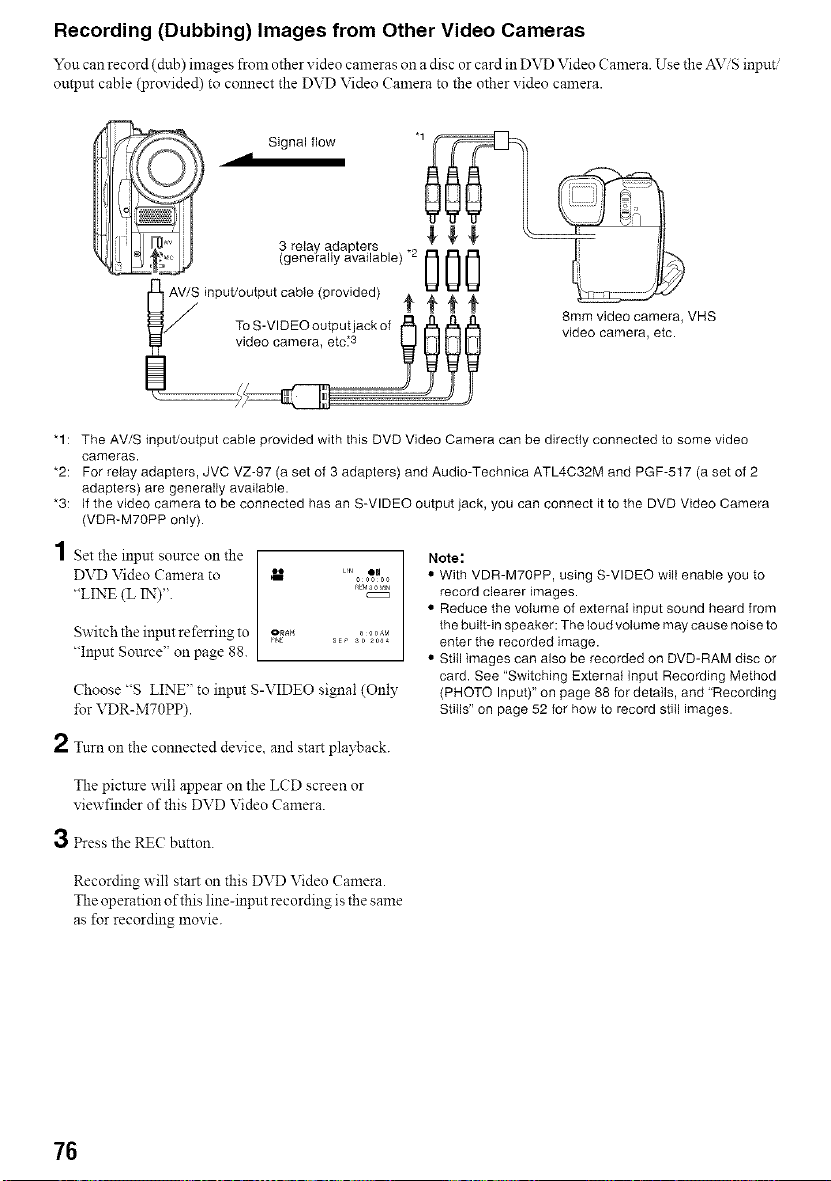
Recording (Dubbing) Images from Other Video Cameras
You can record (dub) images from other _ideo cameras oll a disc or card m DVD Video Camera. Use the input ......
output cable (provided) to connect the DVD Video Calnera to the other xideo camera.
_,_ Signal flow "1
3 relay adapters _" _" '_ \_/
(generally available) "2 0 0 0 I\[ 7_
IJUU _. _._2__.Y
lJ_jAV/S input/outputcable (provided)
ToS-V,DEOoatputiackof* * * * 8mmvideocamera,V.S
vide° camera' ate:3 9_ video camera, etc.
:ff
"1: The AV/S input/output cable provided with this DVD Video Camera can be directly connected to some video
cameras.
*2: For relay adapters, JVC VZ-97 (a set of 3 adapters) and Audio-Technica ATL4C32M and PGF-517 (a sat of 2
adapters) are generally avai{able.
*3: Ifthe video camera to be connected has an S-VIDEO output lack, you can connect it to the DVDVideo Camera
(VDR-M70PP only).
1 Set the input source on the
DVD Video Camera to
"LINE (L IN)".
Switch the input referring to
"Input Source" on page 88.
aEM30MI_
OR_8 8 o 0AM
FI_E SE_ S0 200_
Choose "S LINE" to input S-VIDEO signal (Only
for VDR-MTOPP).
Note:
• With VDR-M70PP, using S-VIDEO wilI enable you to
record clearer images.
• Reduce the volume of externat input sound heard from
the built-in speaker: The loud volume may cause noise to
enter the recorded image.
• Still images can also be recorded on DVD-RAM disc or
card. See "Switching Externat Input Recording Method
(PHOTO Input)" on page 88 for details, and "Recording
Stills" on page 52 for how to record still images.
2 Turn on the connected device, and start playback.
The picture will appear on the LCD screen or
viewfinder of this DVD Video Camera.
3 P_ess the RE(: button.
Recording will start on this DVD Video Camera.
The operation of this line-input recording is the same
as for recording lnovie.
76
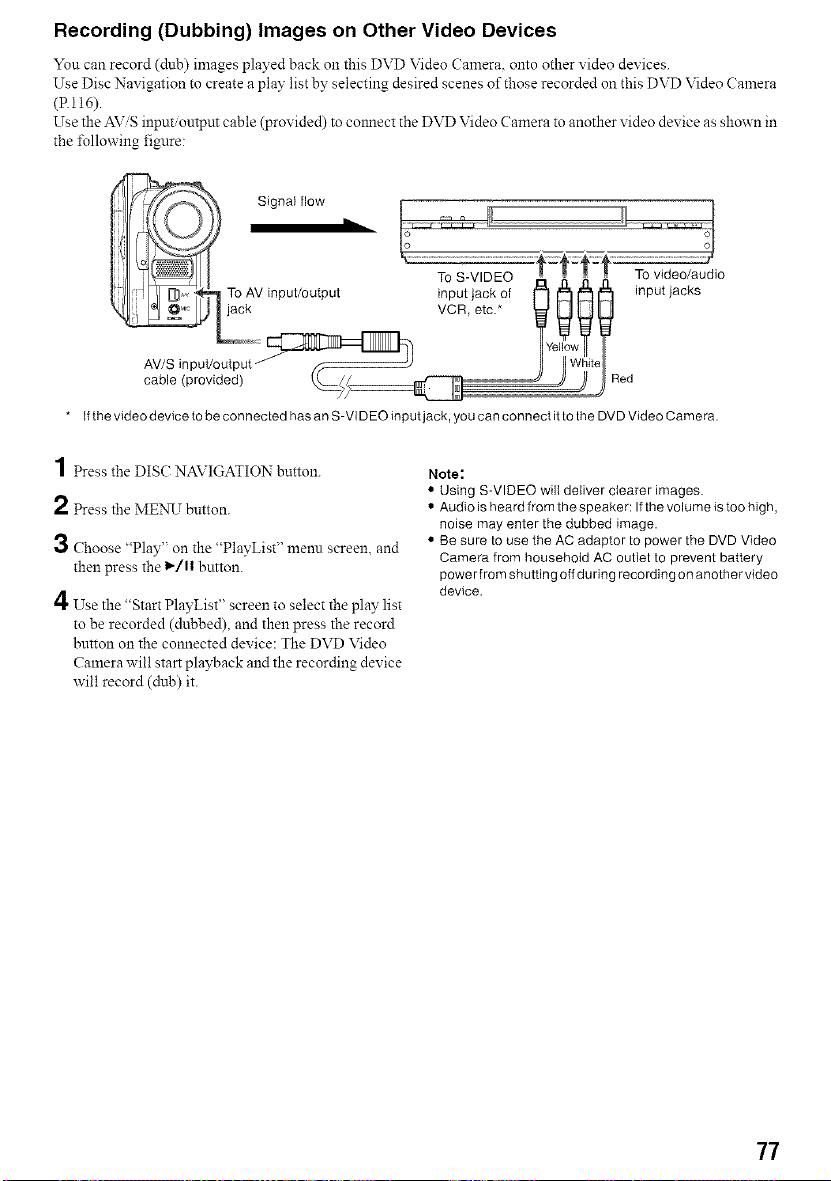
Recording (Dubbing) Images on Other Video Devices
Yon can record (dnb) images played back oll this DVD Video Camera. onto other video devices.
Use Disc Navigation to create a play list by selecting desired scenes of those recorded on this DVD Video Camera
(Rl16).
Use the AViS input/output cable (provided) to colmect the DVD Video Camera to another video device as shown in
the _\_llowing figure:
* If the video device to be connected has an S-VIDEO inputjack, you can connect it to the DVD Video Camera.
I press the DIS(: NAVIGATION button.
2 press the MEN_T button.
3 Choose "Play" on the "PlayList" menu screen, and
then press the 1_/11 button.
4 Use the "Start PlayList" screen to select the play list
to be recorded (dubbed), and then press the record
button on the connected device: The DVD Video
Camera will start playback and the recording device
will record (dub) it.
Note:
• Using S-VIDEO will deliver clearer images.
• Audio is heard from the speaker: If the volume is too high,
noise may enter the dubbed image.
• Be sure to use the AC adaptor to power the DVD Video
Camera from household AC outlet to prevent battery
power from shutting off during recording on another video
device.
77
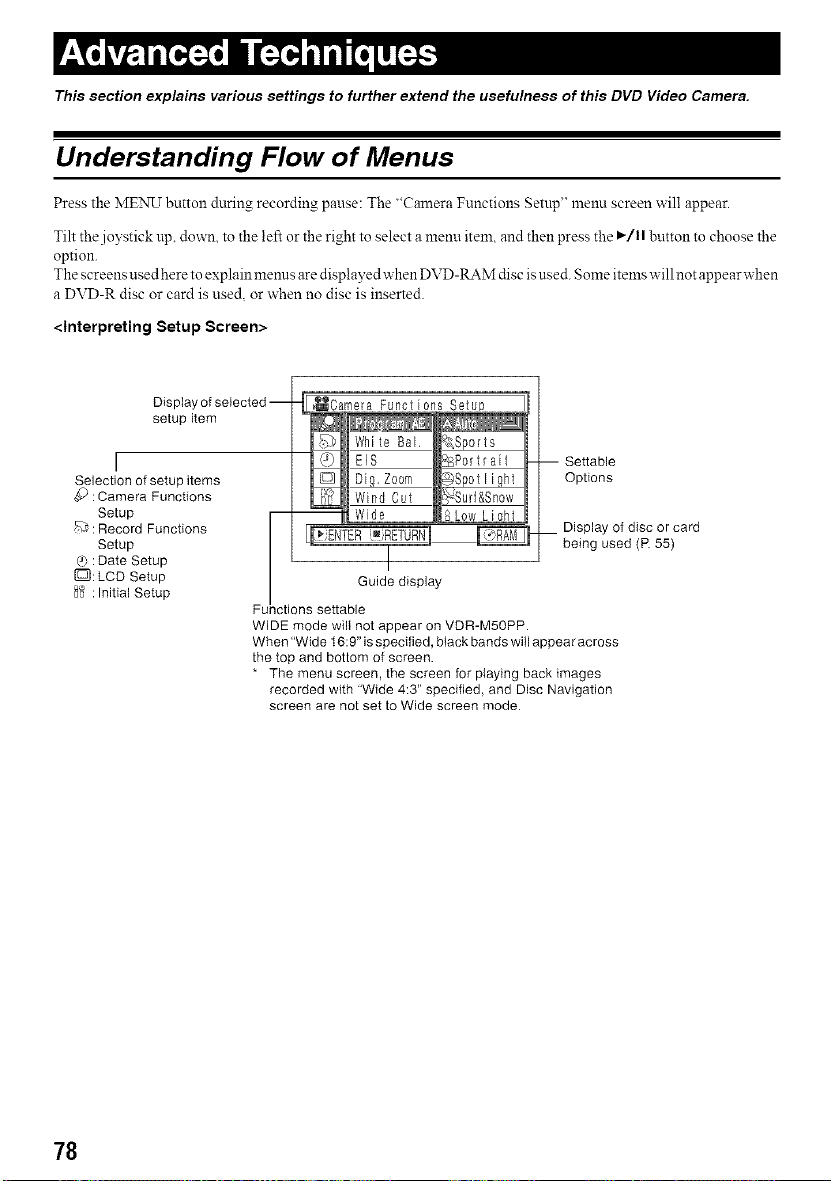
This section explains various settings to further extend the usefulness of this DVD Video Camera.
Understanding Flow of Menus
Press the MENU button during recording pause: The "Camera Functions Setup" nlenu screen will appear.
Tilt the joystick up, down, to the left or the right to select a menu item, and then press the ,/1| button to choose the
option.
The screens used here to explain menus are displayed when DVD-RAM disc is used. Some items willnot appear when
a DVD-R disc or card is used, or when no disc is inserted.
<Interpreting Setup Screen>
Display of selected --
setup item
r
Selection of setup items
:Camera Functions
Setup
D : Record Functions
Setup
@ :Date Setup
[E:[J:LCD Setup
H_ :Initial Setup
Functions Setup
White Bal. _Sp0rt e
@ ElS _%P0rtrait -- Settable
_ Zoom Options
B(_ Wind Cut
--_ Wide SLow LiGht
Guidla display
Func ions settable
WIDE mode will not appear on VDR-M50PP.
When "Wide t6:9" is specified, black bands will appear across
the top and bottom of screen.
* The menu screen, the screen for playing back images
recorded with "Wide 4:3" specified, and Disc Navigation
screen are not set to Wide screen mode
__ Display ofdisc orcard
being used (P. 55)
78
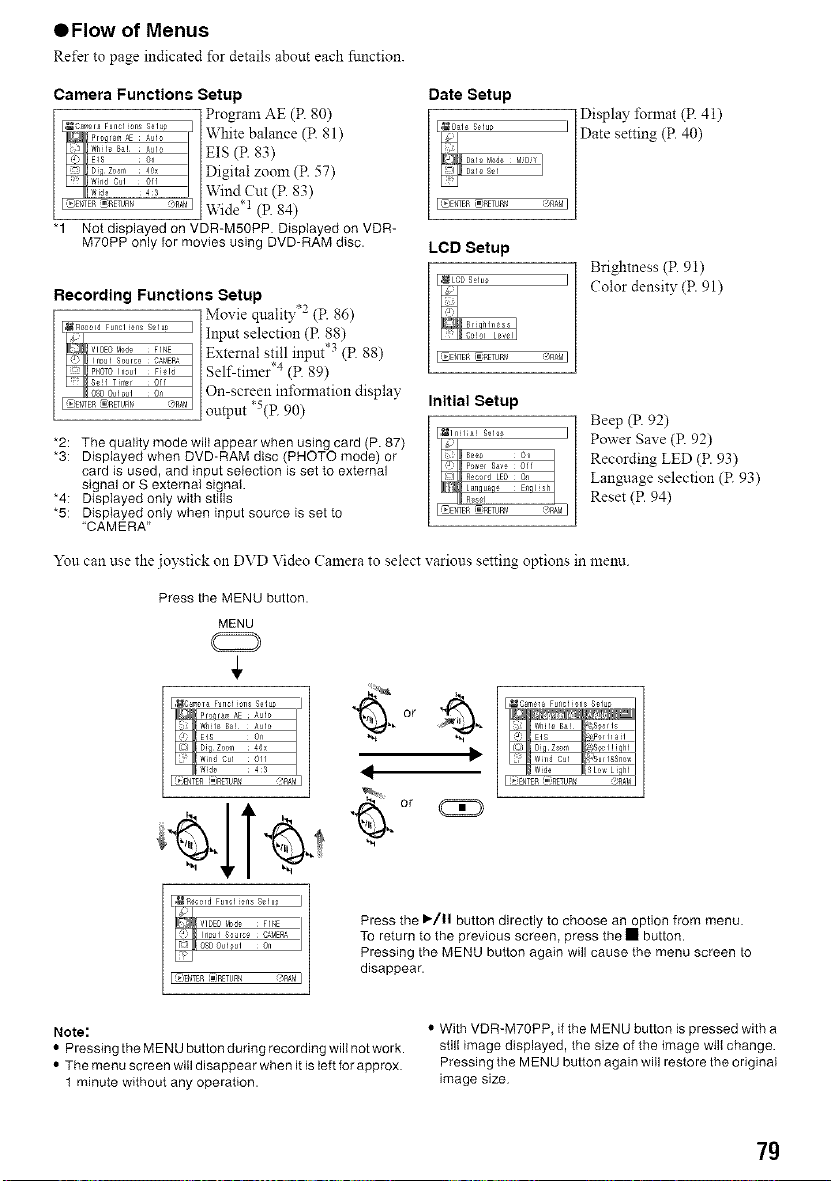
OFIow of Menus
Refer to page indicated for details about each function.
Camera Functions Setup
Program AE (P. 80)
,UC_,,*._F,o_.Fu,_I_°"__,.1os°1"_White balance (R 81)
wh_B_E_S _'_°On EIS (P. 83)
D_z..... ;ax Digital zoom (P. 57)
W_d Oui Off
_ 43 Wind Cut (P. 83)
I ®EtchER'__ETL_r_ ,RA!aWide* 1 (p. 84)
"1 Not displayed on VDR-M50PP. Displayed on VDR-
M70PP only for movies using DVD-RAMdisc.
Recording Functions Setup
Movie quality .2 (P. 86)
NR_0o,dF_,01_,, sol,_ / Input selection (P. 88)
• • "3
vl_0t_b_ nr_E Exten:tal still input = (P. 88)
In_ul Source Ckf_E£,%
PHOVO_n_u_F_ Self-timer .4 (P. 89)
S_!I Trfof 0If
o, On-screen infomlation display
I ,_EtI%ER_:,RETUe_ "/qAbl output *5(p. 90)
*2: The quality mode will appear when using card (P. 87)
*3: Displayed when DVD-RAM disc (PHOTO mode) or
card is used, and input selection is set to external
signal or S external signal.
*4: DispIayed only with stills
*5: Displayed only when input source is set to
"CAMERA"
Date Setup
I_IENffE_ _RETURr/ (@RAMI
LCD Setup
I_EtY_EP _RETURr/ (_RAMI
Initial Setup
] Display forlnat (P. 41)
I| Date setting (P. 40)
/
Brightness (R 91)
I Color density (P. 91)
Beep (R 92)
Power Save (P 92)
Recording LED (R 93)
Lan#iage selection (R 93)
Reset (R 94)
You can use the joystick on DVD Video Camera to select various setting options in meim.
Press the MENU button.
MENU
Pro ram AE kul° | or
WHle Be! kul° / _
EIS 0,
Difl Zo_r 46x
Wild Cul Off_4:3 _di
/
I,
Press the I_-/11 button directly to choose an option from menu.
To return to the previous screen, press the • button.
Pressing the MENU button again will cause the menu screen to
disappear.
Note:
• Pressing the MENU button during recording will not work.
• The menu screen will disappear when it is left for approx.
1 minute without any operation.
• With VDR-M70PP, if the MENU button is pressed with a
still image displayed, the size of the image will change.
Pressing the MENU button again will restore the original
image size
7g
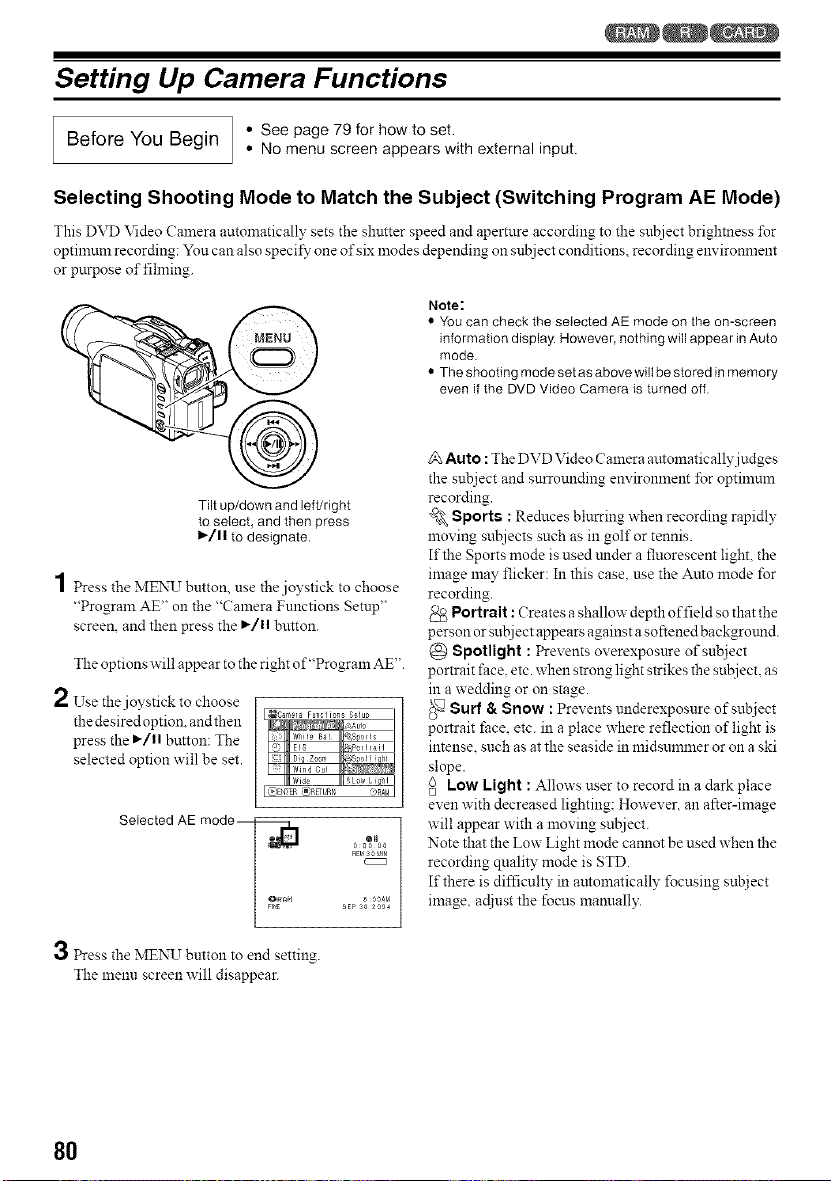
Setting Up Camera Functions
I Before You • Seepage79for howto set.
Begin
• No menu screen appears with external input.
Selecting Shooting Mode to Match the Subject (Switching Program AE Mode)
This DVD Video Camera automatically sets the shutter speed and aperture according to the suk_iectbrightness for
optinmm recording: Yon can also specil_ one of six modes depending on subject conditions, recording environment
or purpose of fihning.
Tilt up/down and left/right
to select, and then press
1_/11 to designate.
1 Press the MENUTbutton, use the joystick to choose
"Program AE" on the "Camera Functions Setup"
screen, and then press the I_/11 button.
The options will appear to the right of"Program AE".
2 Use the joystick to choose
_¢am_ra Funclions S_lu_
the desiredoption, andthen .... ,. , ,v,,,_,
press the I_/11 button: The
selected option will be set.
_ EI_TER_ RFuRr_ %RA_I
Selected AE mode--_o_._
3 Press the MENU button to end setting.
The menu screen will disappear.
RE_s 0 _IN
SEPS0_aa4
Note:
• You can check the selected AE mode on the on-screen
information display. However, nothing will appear in Auto
mode.
• The shooting mode set as above wilt be stored in memory
even if the DVD Video Camera is turned off.
Auto :The DVD Video Camera automatically judges
the snbject and surrounding environment ±br optimum
recording.
_% Sports : Reduces blurring when recording rapidly
moving st_ziects such as in golf or tennis.
If the Sports mode is used trader a fluorescent light, the
image may flicker: In this case, use the Anto mode for
recording.
Portrait : Creates a shallow depth of field so that the
person or su[ziect appears against a softened backgrotmd.
(_ Spotlight : Prevents overexposure of subject
portrait face. etc. when strong light strikes the subject, as
in a wedding or on stage.
Surf & Snow : Prevents underexposure of subject
portrait face. etc. in a place where reflection of light is
intense, such as at the seaside in midsummer or on a ski
slope.
Low Light : Allows user to record in a dark place
even with decreased lighting: However, an after-image
will appear with a moving subject.
Note that the Low Light mode cannot be used when the
recording quality mode is STD.
If there is difficulty in automatically focusing subject
image, adiust the focus manually.
8O
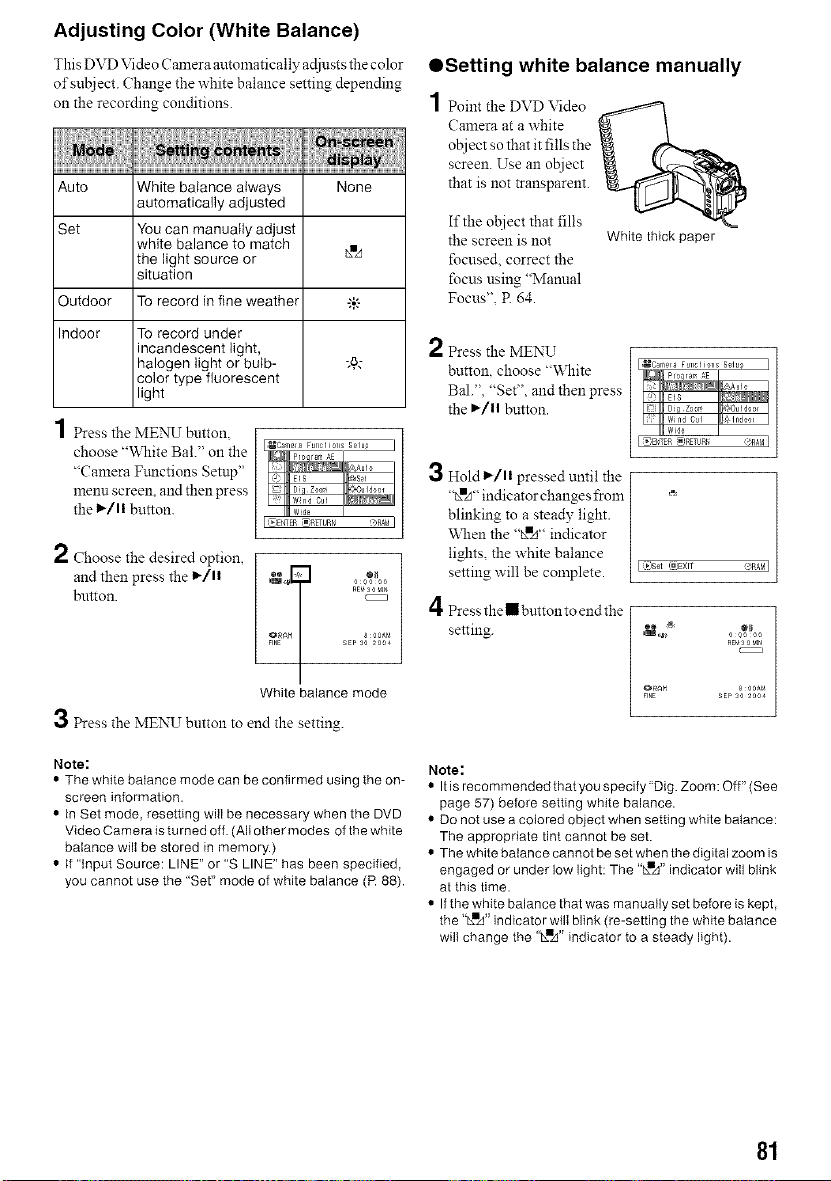
Adjusting Color (White Balance)
This DVD Video Camera automatic ally adiusts the color
of subject. Change the white balance setting depending
on the recording conditions.
Auto White balance always None
automatically adjusted
Set You can manually adjust
white balance to match _.=A
the light source or
situation
Outdoor To record in fine weather -:,k-
Indoor To record under
incandescent light,
halogen light or bulb- ;6,-
color type fluorescent
light
4
/ Press the MENU button.
choose "\_qfite Bal." on the
"Camera Fmlctions Setup"
menu screen, and then press
the _/11 button.
,UCamera FullcliollS S_Iu_
II!_wid0 I
_,Et_WEP_ETURr_ RA&I
2 Choose the desired option, / iT
and then press the 1_/11 bN,_ 0 0°l_t00
RE_S0 HN
button.
sEP so _oo4
White balance mode
3 Press the MENU button to end the setting.
Note:
• The white balance mode can be confirmed using the on-
screen information.
• in Set mode, resetting will be necessary when the DVD
Video Camera is turned off. (All other modes of the white
balance wilt be stored in memory.)
• If "input Source: LINE" or "S LINE" has been specified,
you cannot use the "Set" mode of white balance (R 88).
OSetting white balance manually
1 Point the D,'D \ideo
Camera at a white
o[!i ect so that it fills the
screen. Use an ol_iect
that is not transparent.
If the object that fills
the screen is not
focused, correct the
focus using "Manual
Focus", R 64.
White thick paper
2
3
4
Press the MENU
button, choose "\_lfite
Bal.", "Set", and then press
the I_/11 button.
Hold I_/11 pressed until the
"tx_zJ'' indicator changes froln
blinking to a steady light.
\,_]len the %!A" indicator
lights, the white balance
setting will be complete.
Press the • button to end the
setting.
_Camera Funclions Selu#
00000
@R_M a 00_,r_
FINE SEP SO2004
Note:
• It is recommended that you specify"Dig. Zoom: Off" (See
page 57) before setting white balance.
• Do not use a colored object when setting white balance:
The appropriate tint cannot be set.
• The white balance cannot be set when the digital zoom is
engaged or under low light: The "LuA" indicator will blink
at this time.
• If the white balance that was manually set before is kept,
the "L_A" indicator will blink (re-setting the white balance
will change the '_A" indicator to a steady light).
81
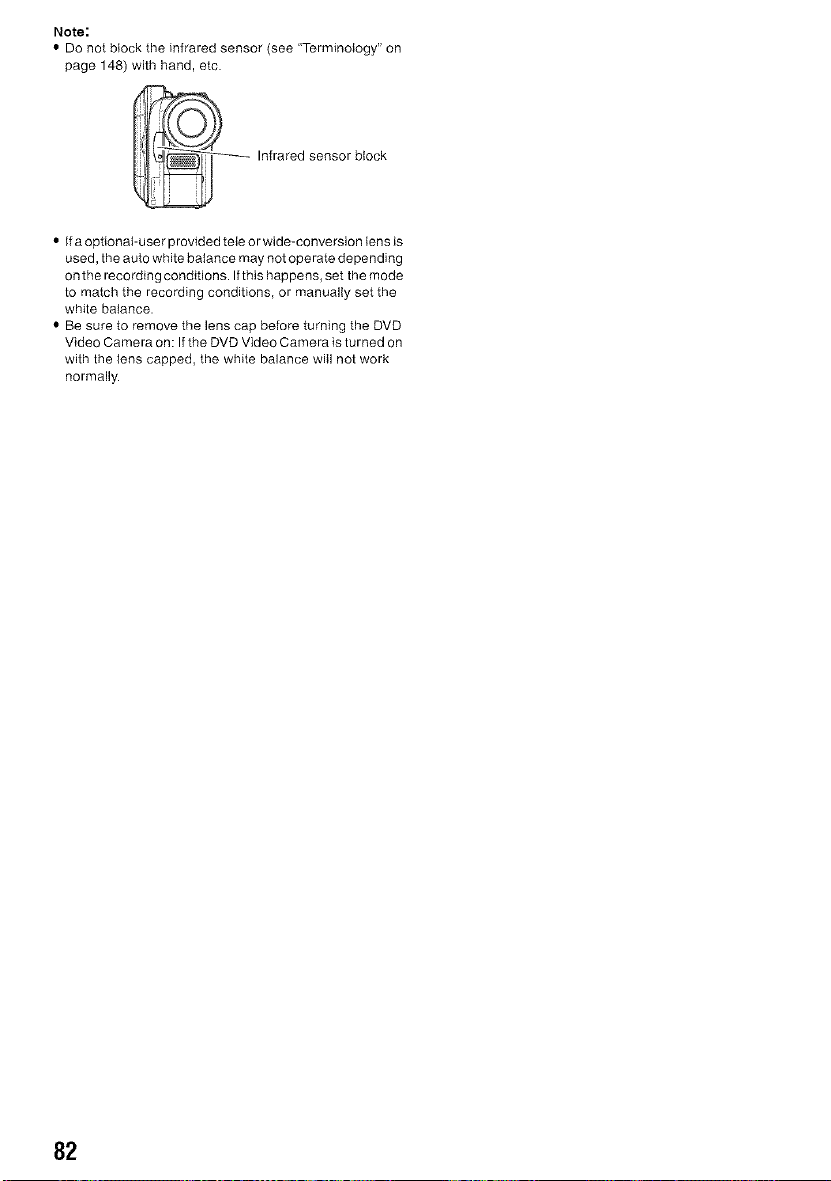
Note:
• Do not block the infrared sensor (see "Terminology" on
page 148) with hand, etc.
_ Infrared sensor block
• If a optional-user provided teie or wide-conversion tens is
used, the auto white balance may not operate depending
on the recording conditions. If this happens, set the mode
to match the recording conditions, or manually set the
white balance.
• Be sure 1o remove the lens cap before turning the DVD
Video Camera on: Ifthe DVD Video Camera is turned on
with the lens capped, the white balance will not work
normally.
82
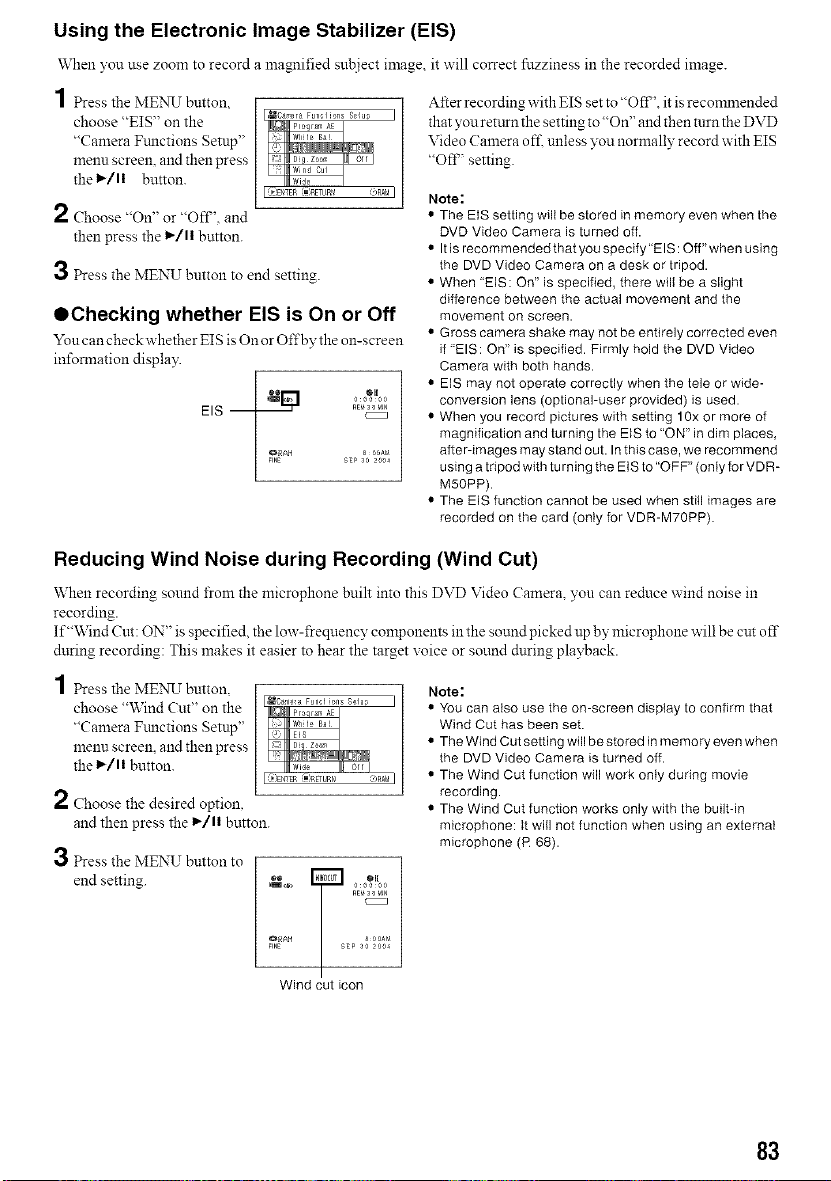
Using the Electronic Image Stabilizer (EIS)
When you use zoom to record a magnified subject iu_ge it will correct fuzziness m the recorded image.
1 Press the MENU button,
choose "EIS" on the
"Camera Fmactions Setup"
menu screen, and then press
the I,_/11 button.
2 Choose "On" or "Off'. and
then press the 1_/11 button.
3 Press the MENU button to end setting.
OChecking whether EIS is On or Off
You can check whether EIS is On or Off by the on-screen
information display.
EIS
nee z_ _,Ja_
Alter recording with EIS set to "Oft". it is reconmaended
that you retttrn the setting to"On" and then turn the DVD
Video Camera off. unless you normally record with EIS
"Off' setting.
Note:
• The EIS setting will be stored in memory even when the
DVD Video Camera is turned off,
• It is recommended that you specify"EIS: Off'when using
the DVD Video Camera on a, desk or tripod.
• When EIS: On" is specified, there will be a slight
difference between the actual movement and the
movement on screen.
• Gross camera shake may not be ent{re_y corrected even
if "EIS: On" is specified. Firmly hold the DVD Video
Camera with both hands.
• EIS may not operate correctly when the tele or wide-
conversion lens (optional-user provided) is used.
• When you record pictures with setting 10x or more of
magnification and turning the EIS to "ON" in dim places,
after-images may stand out. In this case, we recommend
using a tripod with tu rning the E/S to"OFF" (oniy for VDR-
M5OPP).
• The EIS function cannot be used when still images are
recorded on the card (only for VDR-M70PP).
Reducing Wind Noise during Recording (Wind Cut)
When recording sound from the microphone built into this DVD Video Camera you can reduce wind noise in
recording.
If "\Vind_Cut: ON" is specified, the low-frequency components in the sound picked up by microphone will be cut off
during recording: This makes it easier to hear the target voice or sound during playback.
1Press the MENU button,
choose "Wind Cut" on the
"Camera Ftmctions Setup"
menu screen, and then press
the I,_/11button.
2 Choose the desired option,
and then press the 1,_/11button.
3 Press the MENU button to
end setting.
rT:,
FINE EP 3O _004
Wind cut icon
Note:
• You can also use the on-screen display to confirm that
Wind Cut has been set.
• The Wind Cut setting will be stored in memory even when
the DVD Video Camera is turned off.
• The Wind Cut function will work only during movie
recording.
• The Wind Cut function works only with the built-in
microphone: It will not function when using an external
microphone (R 68).
83
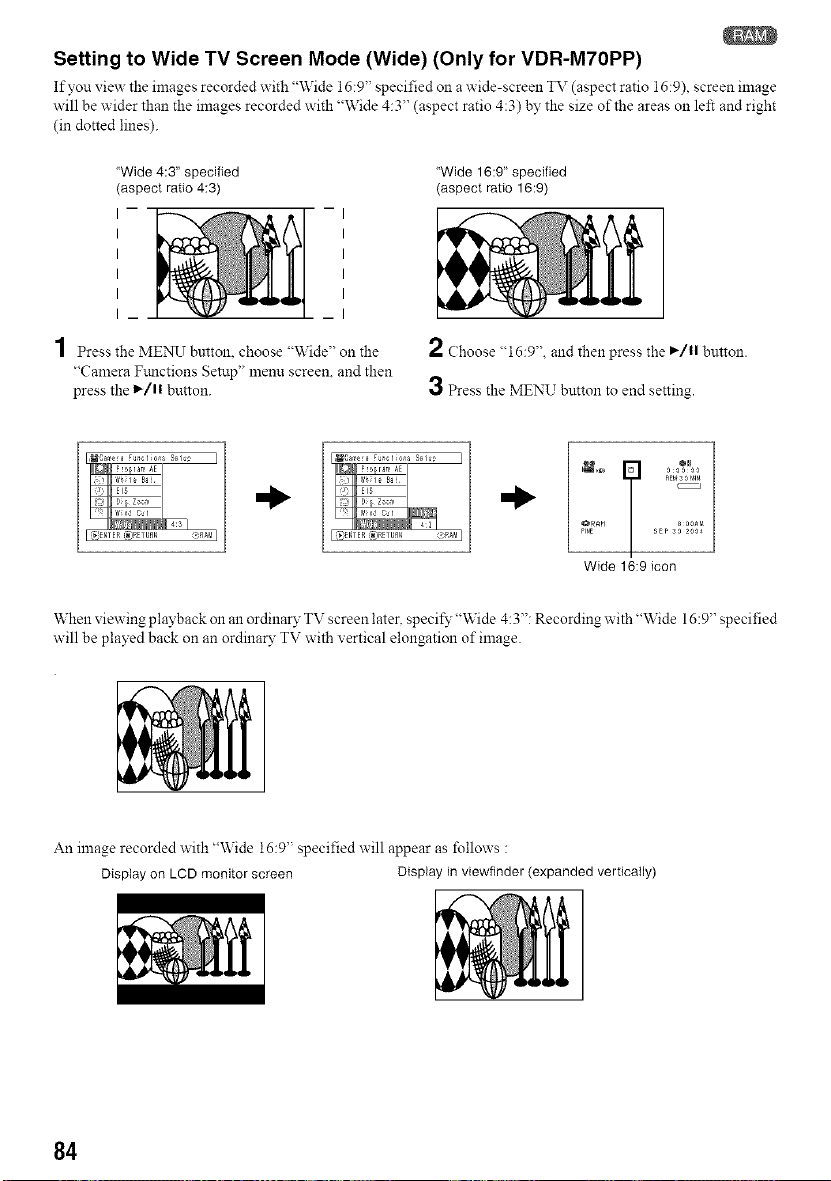
Setting to Wide TV Screen Mode (Wide) (Only for VDR-M7OPP)
If you view the images recorded with "Wide 16:9' specified Olla wide-screen TV (aspect ratio 16:9) screen image
will be wider than the images recorded with "Wide 4:3" (aspect ratio 4:3) by the size of the areas on left and right
(in dotted lines).
"Wide 4:3" specified
(aspect ratio 4:3)
I
I
I
I
I
I_
1 Press the MENIT button, choose "\Vide" on the
"Camera Ftmctions Setup" lnenn screen, and then
press the l_/ll button.
"Wide 16:9" specified
(aspect ratio 16:9)
2 Choose "16:9", and then press the I_/11button.
3 Press the MENU button to end setting.
RE_30 _IN
FINE SEP 3O _004
Wide 16:9 icon
When xiewing playback on an ordinary TV screen later, speci_'"Wide 4:3": Recording with "Wide 16:9" specified
will be played back on an ordinary TV with vertical elongation of image.
An image recorded with "Wide 16:9" specified will appear as follows :
Display on LCD monitor screen Display in viewfinder (expanded vertically)
84
Note:
• The Wide setting will be kept even after the DVD Video Camera is turned off.
• The VDR-M50PP does not have the Wide setting.
• Even if you use the provided application software (MyDVD) and dub wide movies on DVD-RAM disc to DVD-R disc, the
screen image will not be widest DVD-R disc does not support the Wide setting and it is displayed lengthwise when you
playback this disc.
Before recording movies to the DVD-R disc, set the Wide setting beforehand to "4:3".
• The Wide 16:9 setting can be used when recording movies on DVD-RAM disc: It is not compatible with still recording,
recording of external input or recording on DVD-R disc.
• images recorded with "Wide 16:9" (aspect ratio 16:9) specified cannot be restored to"Wide 4:3" setting (aspect ratio 4:3).
• The characters of dates and titles will be longer in the vertical direction on a wide-screen TV and on the LCD monitor
of DVD Video Camera.
• Even if you set the Wide setting at"16:9", screen image will appear at"4:3"when you press the MENU button and display
the menu screen.
• When you view the image recorded with "Wide 16:9" specified on the television or PC monitor with black bands at the
top and bottom of the picture, flicker may occur between the black bands and the picture.
• The Wide 16:9 setting is not compatible with ID-t/ID-2*.
• Connecting the DVD Video Camera to the Sl input jack of TV will automatically switch the TV to Wide setting: See TV
instruction manual for details.
* This system records the aspect ratio (16:9, 4:3) information in void space between video signals.
85
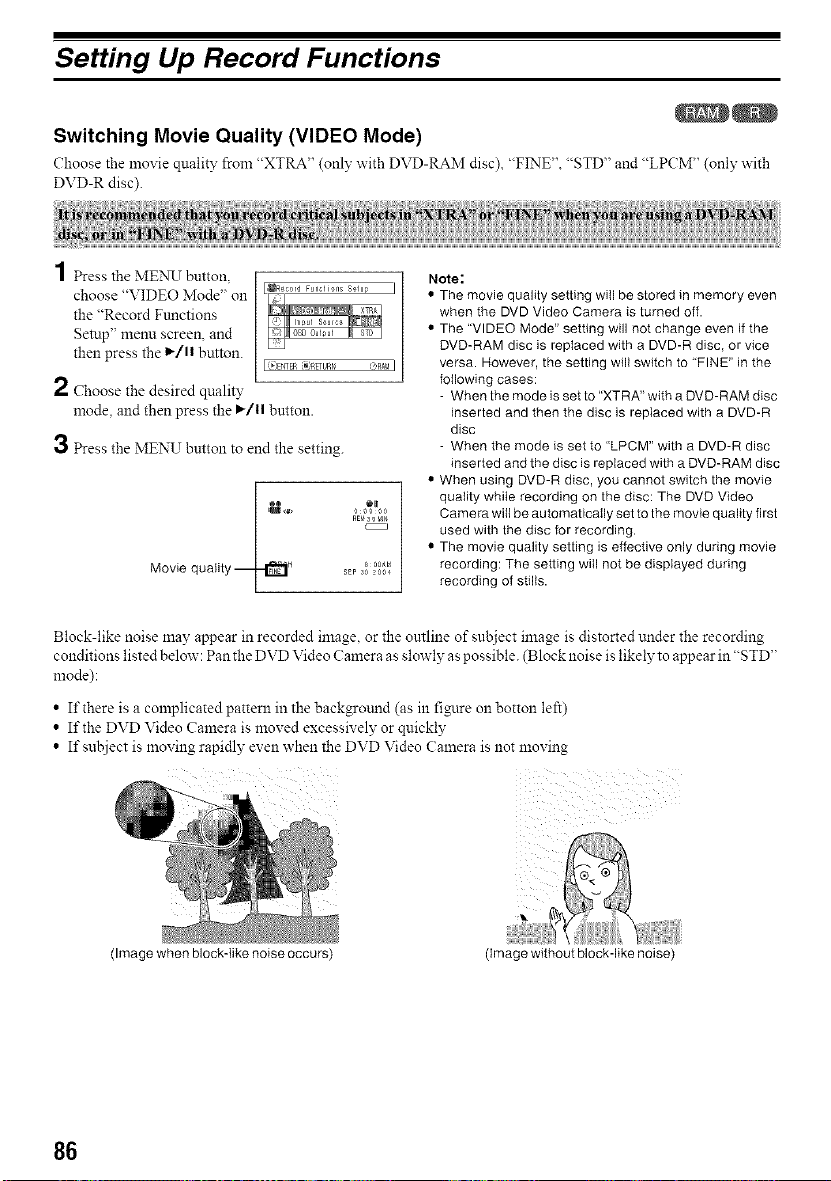
Setting Up Record Functions
Switching Movie Quality (VIDEO Mode)
Choose the movie quality from "XTRA" (only with DVD-RAM disc) "FINE". "STD" and "LPCM" (only with
DVD-R disc).
1 Press the MENU button,
choose "VIDEO Mode" on
the "Record Functions
Setup" menu screen, and
then press the l_/ll button.
2 Choose the desired quality
mode, and then press the I_/1| button.
3 Press the MENU button to end the setting.
lity e_ ®ll
RE_3o mN
Movie qua _ _EF 30 2_4
Note:
• The movie quality setting will be stored in memory even
when the DVD Video Camera is turned off.
• The "VIDEO Mode" setting will not change even if the
DVD-RAM disc is replaced with a DVD-R disc, or vice
versa. However, the setting will switch to "FINE" in the
following cases:
- When the mode is set to "XTRA" with a DVD-RAM disc
inserted and then the disc is replaced with a DVD-R
disc
- When the mode is set to "LPCM" with a DVD-R disc
inserted and the disc is replaced with a DVD-RAM disc
• When using DVD-R disc, you cannot switch the movie
quality while recording on the disc: The DVD Video
Camera will be automatically set to the movie quality first
used with the disc for recording.
• The movie quality setting is effective only during movie
recording: The setting will not be displayed during
recording of stills.
Block-like noise may appear in recorded image, or the outline of subject image is distorted under the recording
conditions listed below: Pan the DVD Video Camera as slowly as possible. (Block noise is likely to appear in "STD"
mode):
• If there is a complicated pattern in the background (as in fi_lre on botton left)
• If the DVD Video Camera is moved excessively or quickly
• If sut!iect is lnoving rapidly even when the DVD Video Calnera is not moving
(Image when block-like noise occurs) (image without block-like noise)
86
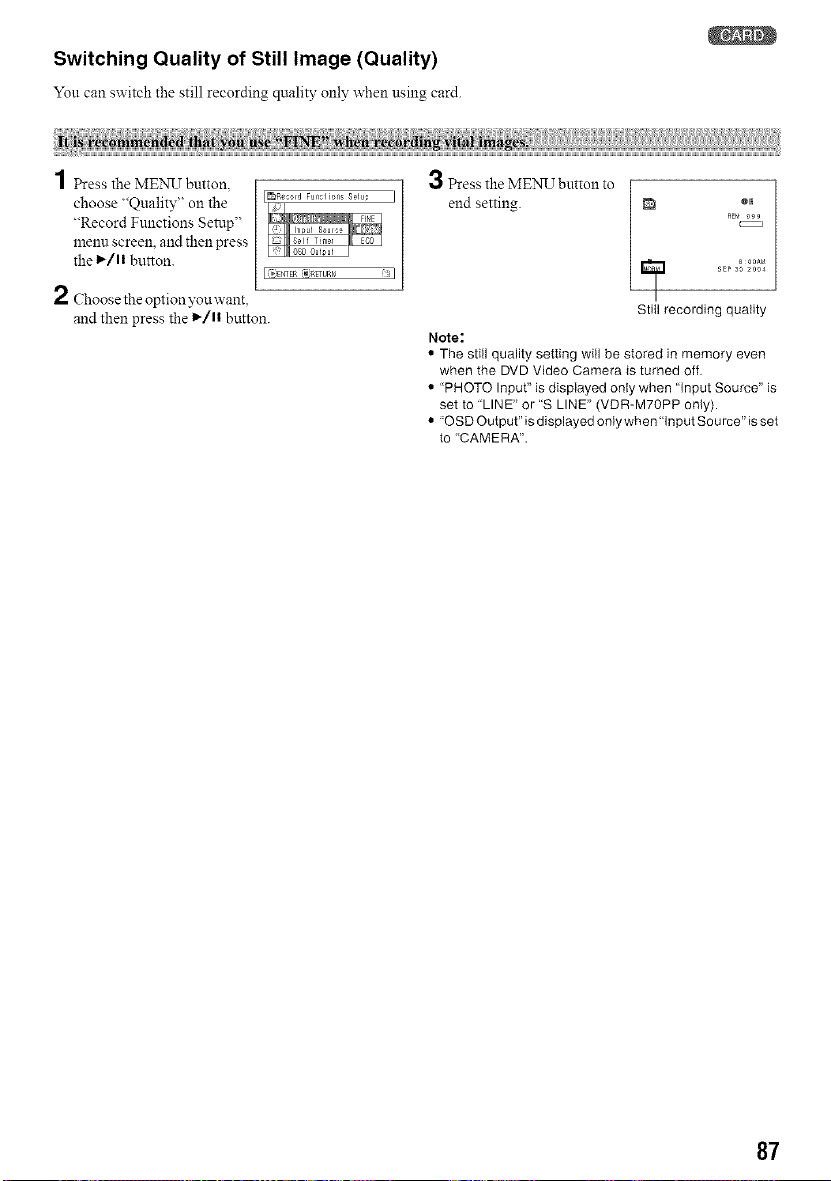
Switching Quality of Still Image (Quality)
Yon can switch the still recording quality only when using card.
1 Press the MENIT button.
choose "Quality" on the
"Record Functions Setup"
menu screen, and then press
the 1_/11button.
2 Choose the option you want.
and then press the 1,_/11button.
3 Press the ME_,N_Tbutton to
end setting.
Note:
BEta999
_] a ooA_a
SEPSO 2o04
Still recording quality
• The stitl quality setting will be stored in memory even
when the DVD Video Camera is turned off.
• "PHOTO Input" is displayed only when "Input Source" is
set to "LINE" or "S LINE" (VDR-M7OPP only).
• "OSD Output" is displayed only when'Input Sou rce" is set
to "CAMERA".
87
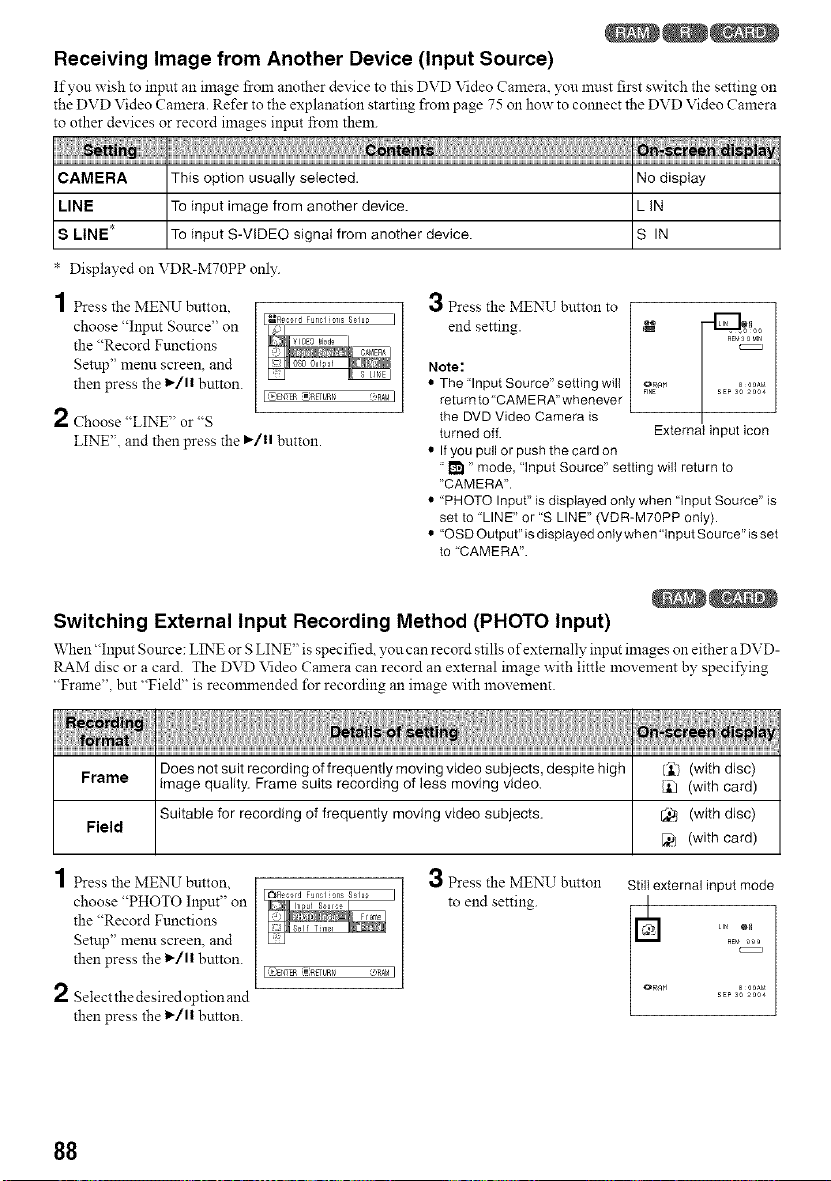
Receiving Image from Another Device (Input Source)
If yon wish to input an image from another device to this DVD Video Camera, you nmst first switch the setting oll
the DVD Video Camera. Refer to the explanation starting from page 75 on how to comlect the DVD Video Camera
to other devices or record images input from them.
CAMERA This option usually selected. No display
LINE To input image from another device. L IN
8 LINE* To input S-VIDEO signaI from another device. S IN
* Displayed on VDR-M70PP only.
1 Press the MENU button
choose "Input Source" on
the "Record Functions
Setup" menu screen, and
then press the 1_/11 button.
2 Choose "LINE" or "S
LINE". and then press the I_/11 button.
ol
•._ Press the MENU button to
end setting. _ o._"_0
Note:
• The'Input Source" setting will _R_M _00_
FINE 2004
returnto' CAMERA"whenever
the DVD Video Camera is
turned off. External input icon
• If you pull or push the card on
"I_ " mode, "input Source" setting will return to
"CAMERA".
• "PHOTO Input" is displayed only when "input Source" is
set to "LINE" or "S LINE" (VDR-M70PP only).
• "OSD Output" is displayed only when'Input Sou rce" is set
to "CAMERA".
Switching External Input Recording Method (PHOTO Input)
When "Input Source: LINE or S LINE' is specified you can record stills of externally input images Olleither a DVD-
RAM disc or a card. The DVD Video Camera can record an external image with little movement by specifying
"Frame", but "Field" is reconzmended for recording an image with movement.
Frame Does not suit recording of frequently moving video subjects, despite high I'l_: (with disc)
image quality. Frame suits recording of less moving video. _ (with card)
Suitable for recording of frequently moving video subjects. _ (with disc)
Field
(with card)
1 Press the MENU button,
choose "PHOTO Input" on
the "Record Ftmctions
Setup" menu screen, and
then press the 1_/11 button.
2 Select the desired option and
then press the 1_/11 button.
3 Press the MENU button
to end setting.
L=:_}Et_TBR2gRETuRr_
Still external inputmode
_/ LIN @11
RE_ 999
SEP s0 2a04
88
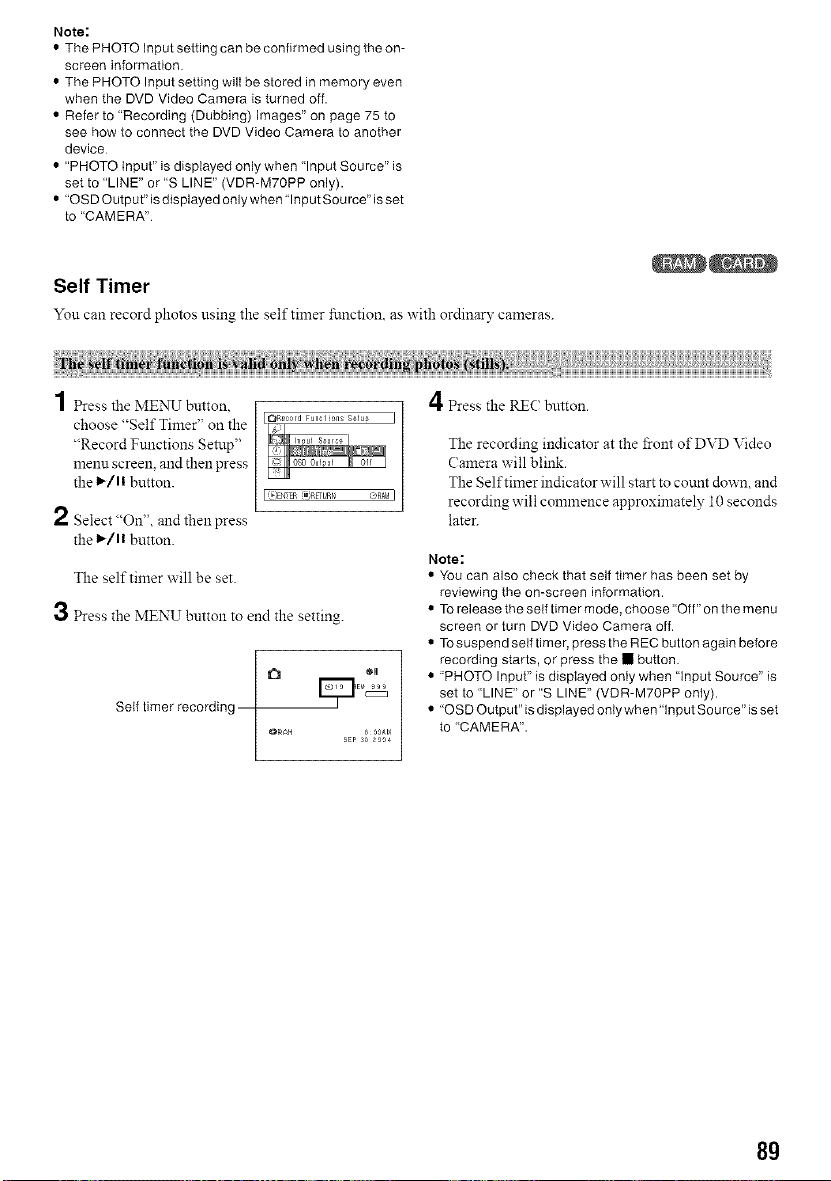
Note:
• The PHOTO Input setting can be confirmed using the on-
screen ir_formation.
• The PHOTO Input setting wil{ be stored in memory even
when the DVD Video Camera is turned off.
• Refer to "Recording (Dubbing) Images" on page 75 to
see how to connect the DVD Video Camera to another
device
• "PHOTO Input" is displayed only when Input Source" is
set to "LINE" or "S LINE" (VDR-M7OPP only).
• "OSD Outpot"is displayed only when input Source"is set
to "CAMERA"
Self Timer
You can record photos using the self timer fi.mction, as with ordinary cameras.
1 resstheMENU button
choose "Self Timer" on the
"Record Functions Setup"
menu screen, and then press
the 1_/1! button.
2 Select "On", and then press
the l_/ll button.
The self timer will be set.
3 Press the MENU button to end the setting.
Self timer recording
SEP 3O _004
4Press the RIZCbutton.
The recording indicator at the i_-ont of DVD Video
Camera will blink.
The Self timer indicator will start to cotmt down, and
recording will commence approximately 10 seconds
later.
Note:
• You can also check that self timer has been set by
reviewing the on-screen in{ormation.
• To release the self timer mode, choose "Off" on the menu
screen or turn DVD Video Camera off.
• TOsuspend self timer, press the REC button again before
recording starts, or press the • button.
• "PHOTO Input" is displayed only when "Input Source" is
set to "LINE" or "S LINE" (VDR-M70PP only).
• "OSD Output" is displayed only when"Input Sou rce" is set
to "CAMERA".
8g
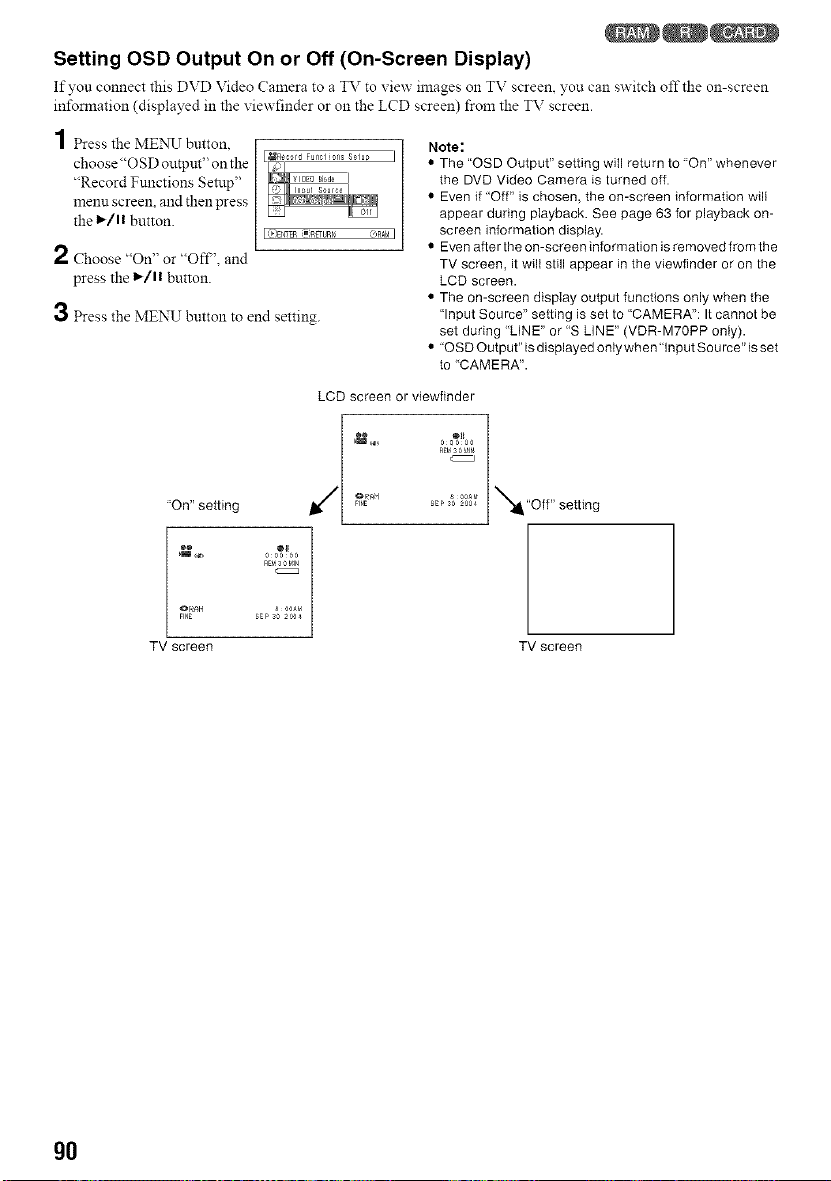
Setting OSD Output On or Off (On-Screen Display)
If you connect this DVD Video Camera to a TV to view- images oll TV screen, you can switch off the on-screen
information (displayed in the viewfinder or on the LCD screen) from the TV screen.
1 Press the MENIT button.
choose"OSD outpm" on the
"Record Functions Setup"
menu screen, and then press
the I,_/l! button.
2 Choose "On" or "Off" and
press the l_/l! button.
3 Press the MENU button to end setting.
I
I(_}EtgTER:gR_Umi <_>RA!aI
Note:
• The "OSD Output" setting will return to "On" whenever
the DVD Video Camera is turned off.
Even if "Off" is chosen, the on-screen information will
appear during playback. See page 63 for playback on-
screen information display.
Even after the on-screen information is removed from the
TV screen, it wilI still appear in the viewfinder or on the
LCD screen.
• The on-screen display output functions only when the
"Input Source" setting is set to "CAMERA": It cannot be
set during "LINE" or "S LINE" (VDR-M70PP only).
• "OSD Output" is displayed only when'Input Sou rce" is set
to "CAMERA".
"On" setting
LCD screen or viewfinder
RE_S0 _IN
FINE SEPSO_a04
N"Off" setting
e_ @If
llll _x 00000
REM30 bin
OI_H a 00Al_
FINE SEPSO_aa4
TV screen TV screen
gO
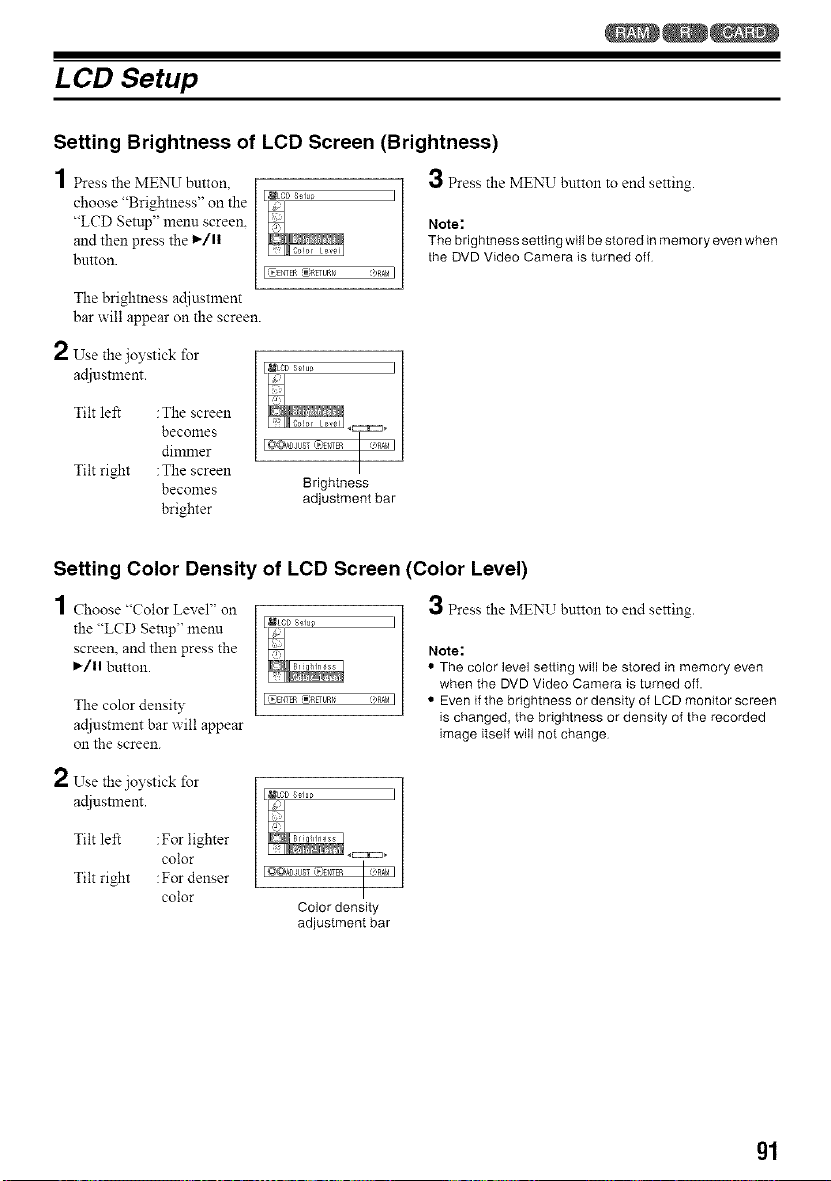
LCD Setup
Setting Brightness of LCD Screen (Brightness)
1 Press the MENU button,
choose "Brightness" on the
"LCD Setup" menu screen.
and then press the 1_/1|
button.
J
3 Press the MENU button to end setting.
Note:
The brightness setting will be stored in memory even when
the DVD Video Camera is turned off
The brightness adiustment
bar will appear on the screen.
2 Use"
the joystick for
ac{iustment.
Tilt left :The screen
becomes
dimmer
Tilt right :The screen
becomes
brighter
Brightness
adjustment bar
Setting Color Density of LCD Screen (Color Level)
1 Choose "Color Level" on
the "LCD Setup" menu
screen, and then press the
I_/ll button.
The color density
ac{iustment bar will appear
oll the screen.
2 Use"
the joystick for
ac{iustment.
3 Press the MENU button to end setting.
Note:
• The color level setting will be stored in memory even
when the DVD Video Camera is turned off.
• Even if the brightness or density of LCD monitor screen
is changed, the brightness or density of the recorded
image itself will not change
Tilt le_ :For lighter
color
Tilt right :For denser
color
Color density
adjustment bar
gl
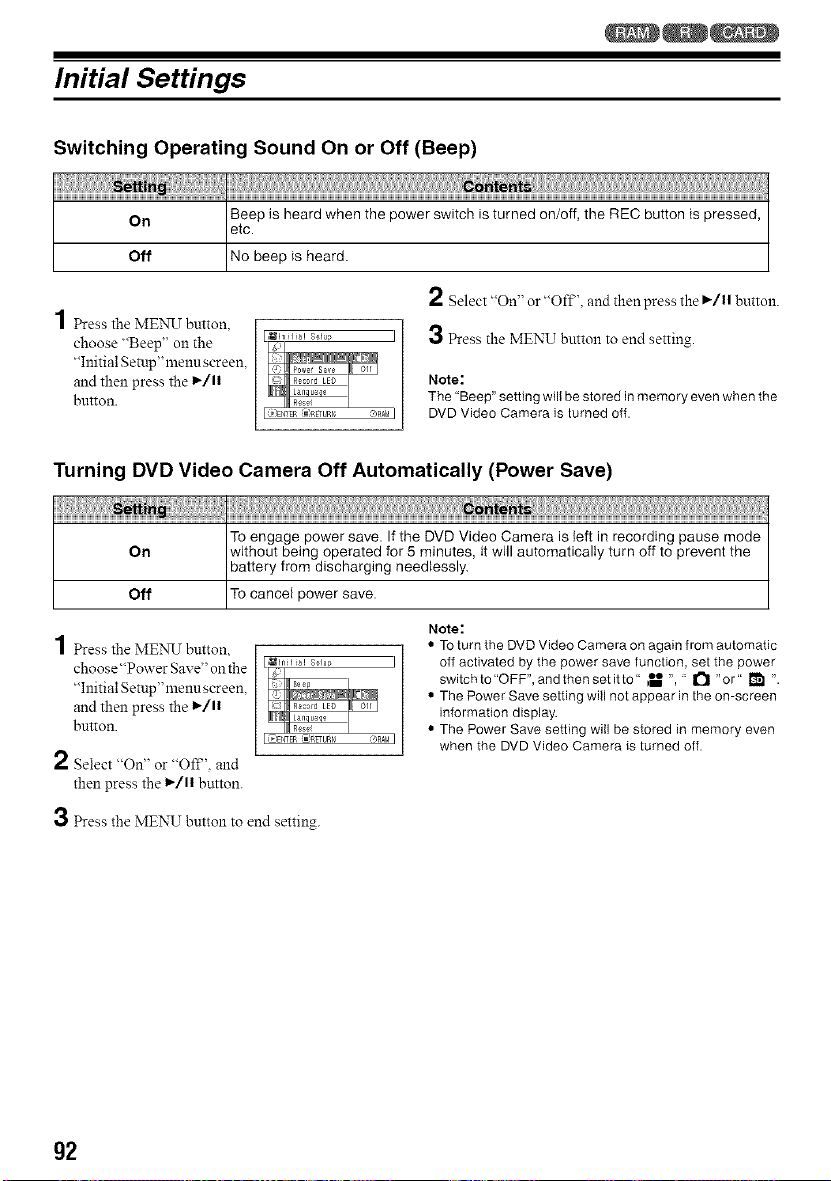
Initial Settings
Switching Operating Sound On or Off (Beep)
On Beep is heard when the power switch is turned on/off, the REC button Aspressed,
etc.
Off No beep is heard.
1 Press the MENU button,
choose "Beep" on the
"Initial Semp"menuscreen,
and then press the l_/l|
button.
(_JEI_TF__?RFURti (bRAMI
2 Select "On" or "Oft", and then press the i>/ll button.
3 Press the MENU button to end setting.
Note:
The "Beep" setting will be stored in memory even when the
DVD Video Camera is turned off.
Turning DVD Video Camera Off Automatically (Power Save)
On
Off
To engage power save. If the DVD Video Camera is left in recording pause mode
without being operated for 5 minutes, Atwill automatically turn off to prevent the
battery from discharging needlessly.
To cancel power save.
1PresstheMENU button,
choose"Power Save" onthe
"Initial Setup"menu screen,
and then press the 1_/1|
button.
2 Select <'On" or "OFF'. and
then press the l_/ll button.
Note:
• To turn the DVD Video Camera on again from automatic
off activated by the power save function, set the power
switchto"OFF",andthensetitto" _ ", " _ "or" _1 ".
• The Power Save setting will not appear in the on-screen
information display.
• The Power Save setting will be stored in memory even
when the DVD Video Camera is turned off.
3 Press the MENU button to end setting.
g2
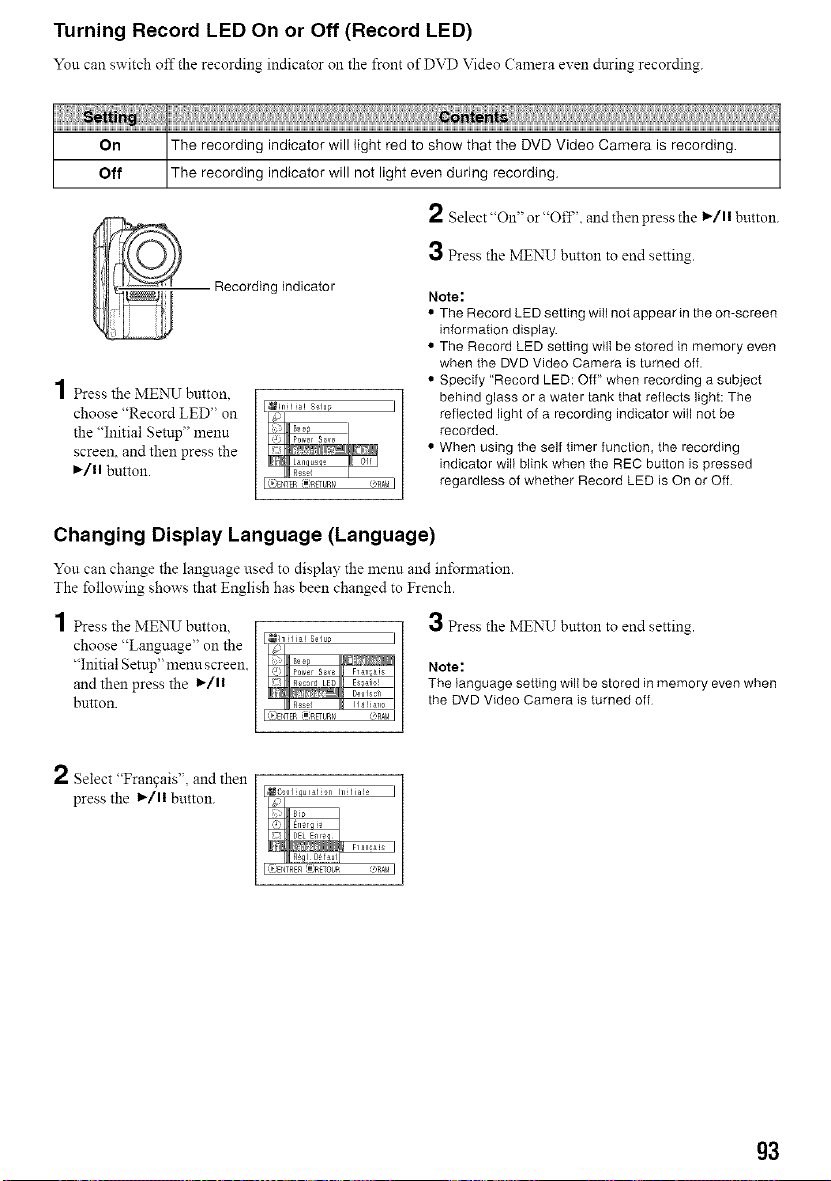
Turning Record LED On or Off (Record LED)
Yon can switch off the recording indicator Oll the front of DVD Video Camera even during recording.
On The recording indicator will light red to show that the DVD Video Camera is recording. ]
]
Off The recording indicator will not light even during recording.
2 Select "On" or "Off'. and then press the I,_/11button.
3 Press the MENU button to end setting.
Recording indicator
4
| Press the MENU button,
choose "Record LED" on
the "Initial Setup" menu
screen, and then press the
I_/1| button.
(b'ENTER_;_uRr_ OnA!aI
Note:
• The Record LED setting will not appear in the on-screen
information display.
• The Record LED setting wilI be stored in memory even
when the DVD Video Camera is turned off.
• Specify "Record LED: Off" when recording a subject
behind glass or a water tank that reflects light: The
reflected light of a recording indicator will not be
recorded.
• When using the self timer function, the recording
indicator will blink when the REC button is pressed
regardless of whether Record LED is On or Off
Changing Display Language (Language)
You can change the language used to display the menu and information.
The following shows that English has been changed to French.
1 PresstheMEN_J button.
choose "Language" on the
"Initial Setup" menu screen.
and then press the 1_/1|
button.
_hl His! S_lu_
R_s_J la _T_
=:_Et_EP_RETL_r_ e'RA&I
3 Press the MENUTbutton to end setting.
Note:
The language setting will be stored in memory even when
the DVD Video Camera is turned off
2 Select "Frangais", and then
press the l_/ll button.
,_C0qfiquralion Inilia!£
(_JENTRE£ _)RETOUR ORAM
g3
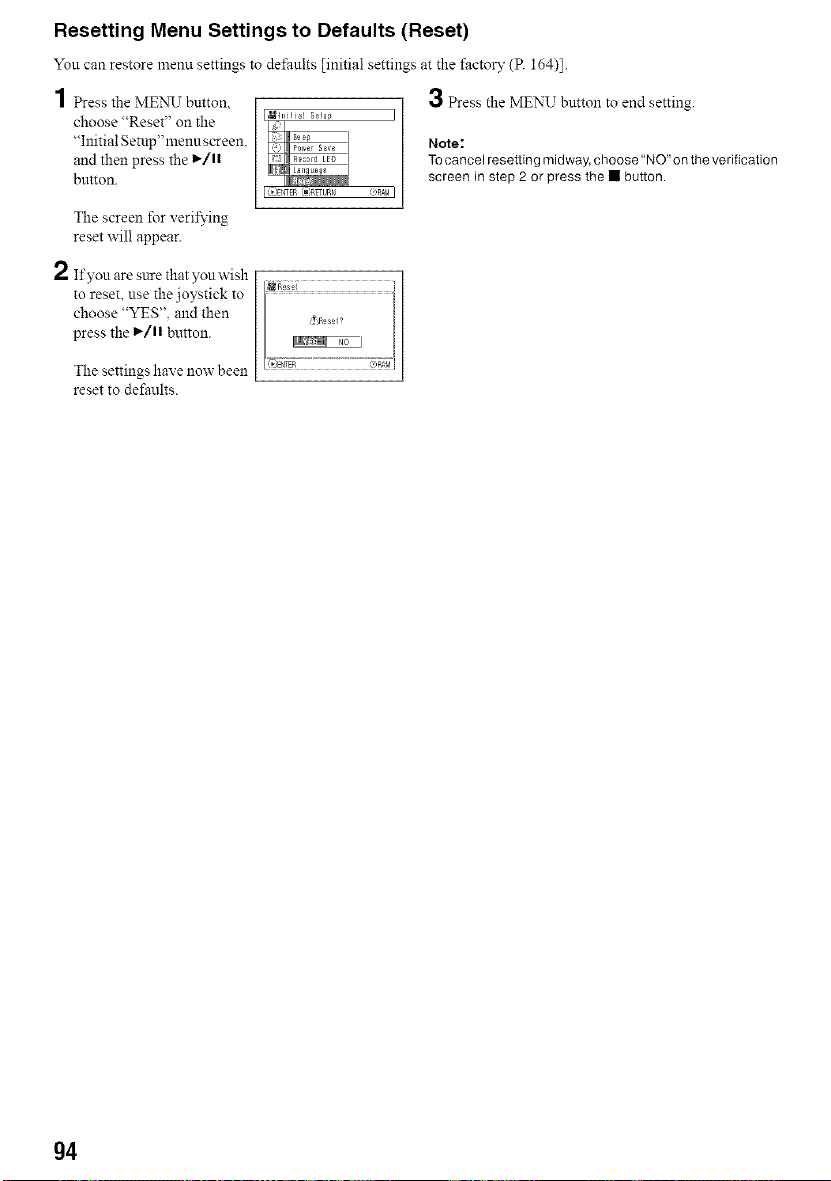
Resetting Menu Settings to Defaults (Reset)
You can restore menu settings to dei;aults [initial settings at the factory (P. 164)].
1 Press the MENU button, 3 Press the MENU button to end setting.
choose "Reset" on the
"Initial Setttp"menuscreen, Note:
and then press the 1_/11 Tocancelresetting midway,choose "NO"on theverification
button, screen in step 2 or press the • button.
The screen for verifying
reset will appear.
2 If you are sure that you wish
to reset, use the joystick to
choose "YES". and then
press the 1_/1! button.
The settings have now been
reset to defaults.
g4
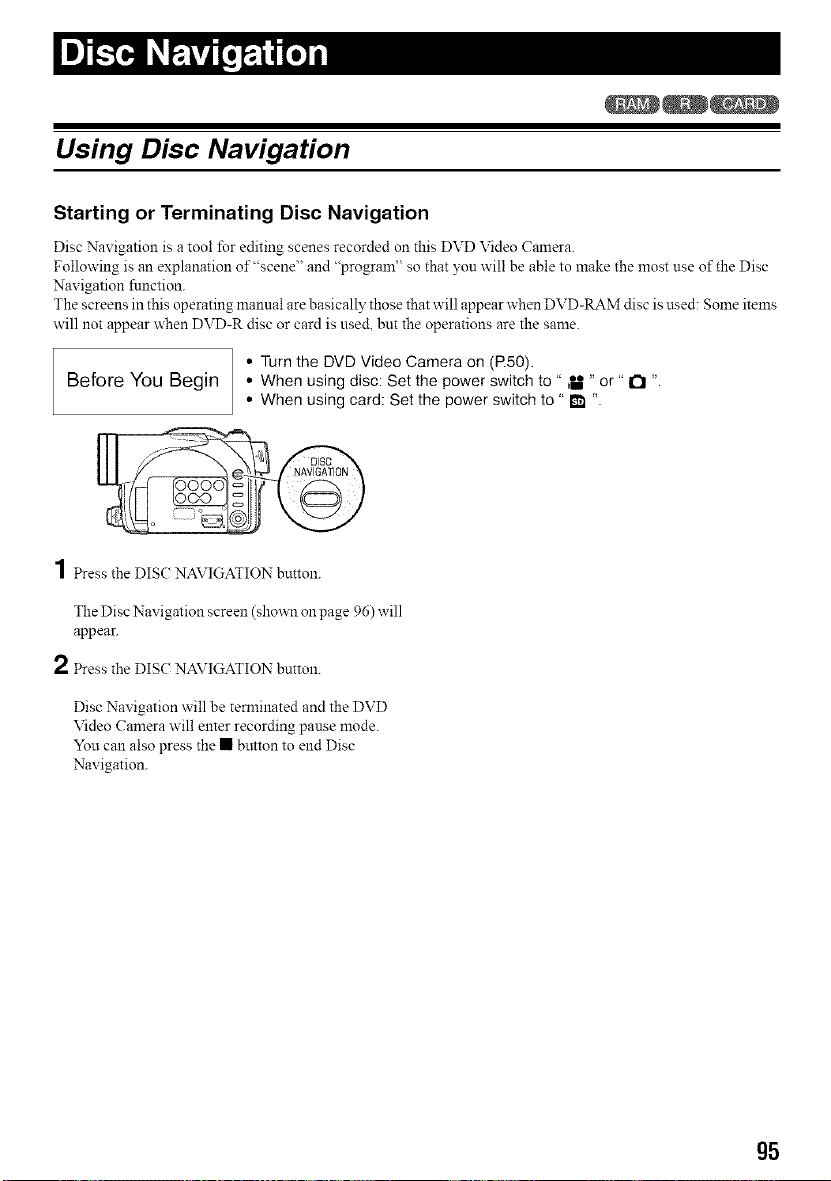
Using Disc Navigation
Starting or Terminating Disc Navigation
Disc Navigation is a tool for editing scenes recorded on this DVD Video Camera.
Following is an explanation of"scene" and "program" so that yon will be able to make the most use of the Disc
Navigation function.
The screens in this operating manual are basically those that will appear when DVD-RAM disc is used: Some items
will not appear when DVD-R disc or card is used, but the operations are the same.
• Turn the DVD Video Camera on (R50).
Before You Begin • When using disc: Set the power switch to " _ " or" a "
• When using card: Set the power switch to" m "
1 Press the DISC NAVIGATION button.
The Disc Navigation screen (shown on page 96) will
appear.
2 Press the DISC NAVIGATION button.
Disc Navigation will be temlinated and the DVD
Video Camera will enter recording pause mode.
You can also press the • button to end Disc
Navigation.
g5
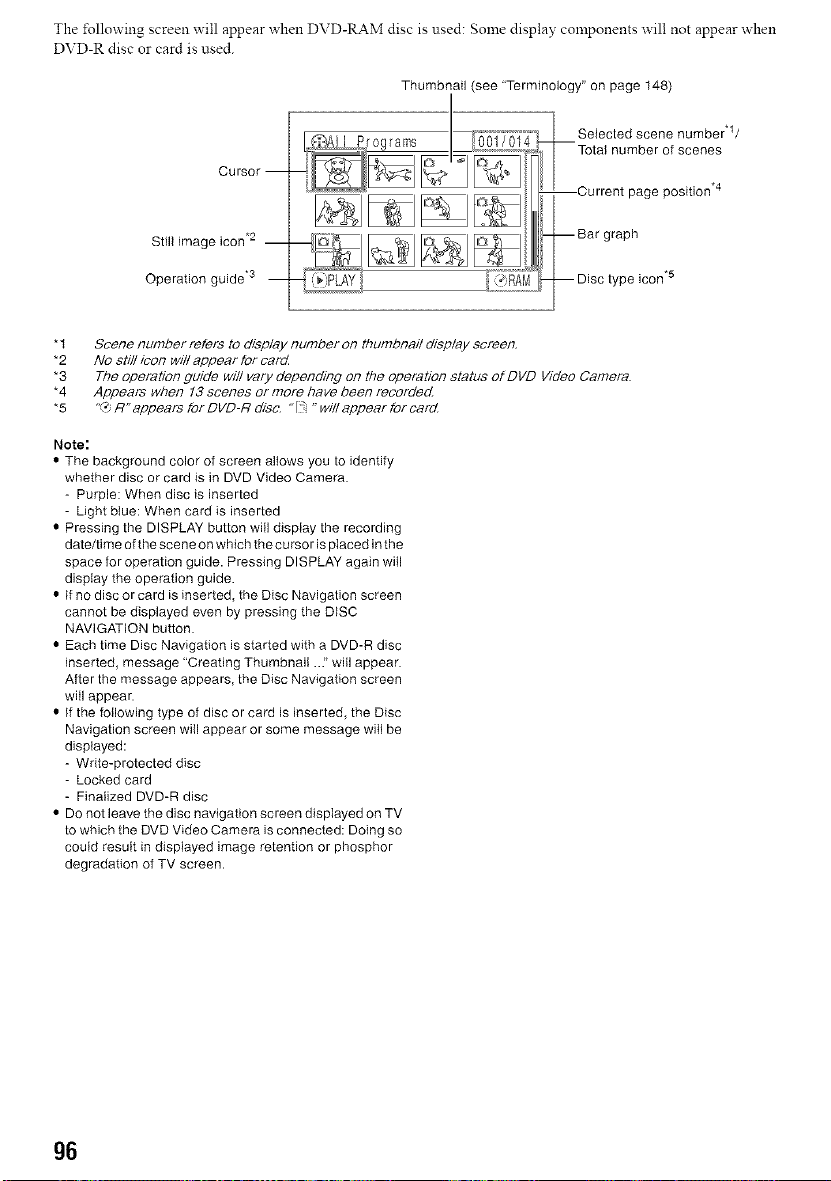
The ±\,llowing screen will appear when DVD-RAM disc is used: Some display components will not appear when
DVD-R disc or card is used.
Thumbnail (see "Terminology" on page 148)
Cursor --
Still image icon .2 --
Operation guide .3 --
Selected scene number*r/
--Total number of scenes
--Current page position .4
-- Bar graph
-- Disc type icon .5
* t Scene number refers to d/sp/ay number on thumbna//disp/ay screen.
*2 No st///icon Wi// appear for card
*3 The operation guide wi// vary depending on the operation status of DVD Video Camera.
*4 Appears when 13 scenes or more have been recorded
*5 "_'_ R" appears for DVD-R disc. "[:: " w/// appear for card
Note:
• The background color of screen allows you to identify
whether disc or card is in DVD Video Camera.
- Purple: When disc is inserted
- Light blue: When card is inserted
• Pressing the DISPLAY button will display the recording
date/time of the scene on which the cursor is placed in the
space for operation guide. Pressing DISPLAY again will
display the operation guide.
• If no disc or card is inserted, the Disc Navigation screen
cannot be displayed even by pressing the DISC
NAVIGATION button.
• Each time Disc Navigation is started with a DVD-R disc
inserted, message "Creating Thumbnail ..." will appear.
After the message appears, the Disc Navigation screen
will appear.
• If the following type of disc or card is inserted, the Disc
Navigation screen will appear or some message will be
displayed:
- Write-protected disc
- Locked card
- Finalized DVD-R disc
• Do not leave the disc navigation screen displayed on TV
to which the DVD Video Camera is connected: Doing so
could result in displayed image retention or phosphor
degradation of TV screen.
g6
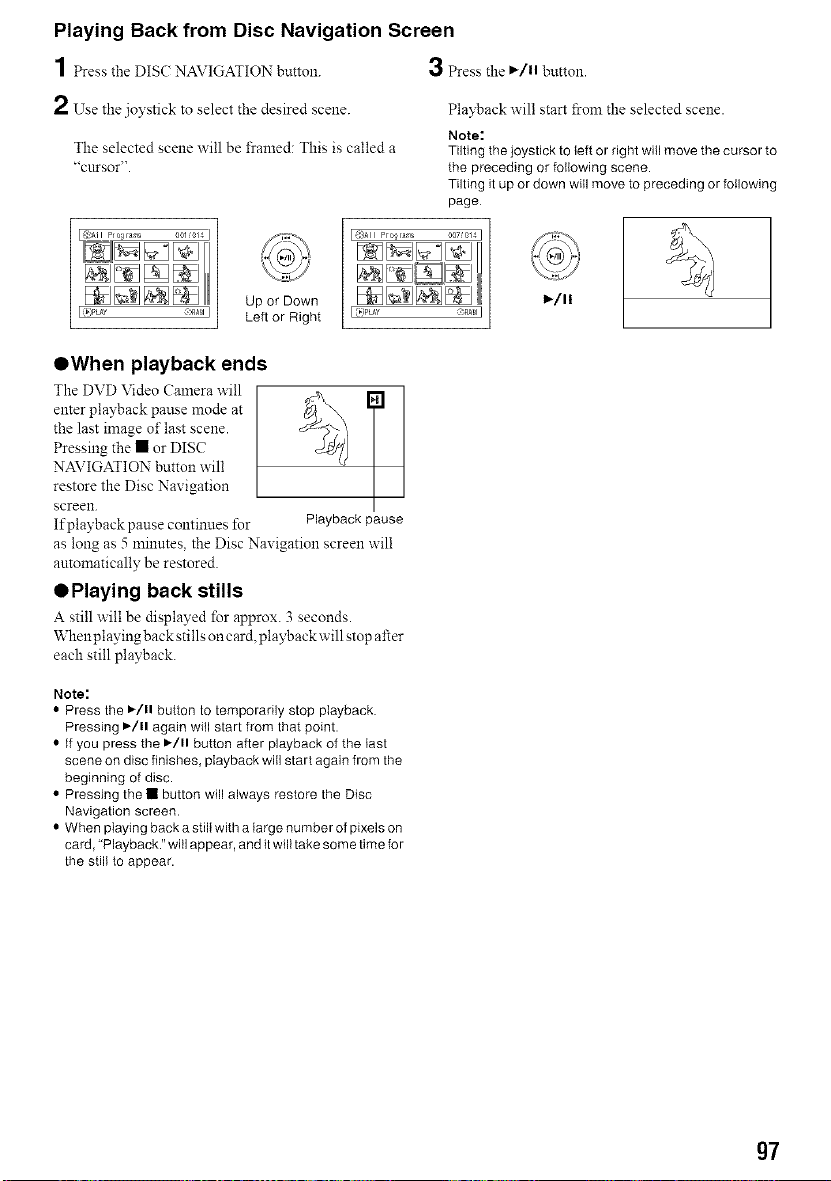
Playing Back from Disc Navigation Screen
4
/ Press the DIS( NAVIGATION button.
2 Use" "
the joystick to select the desired scene.
The selected scene will be framed: This is called a
"cursor".
I (_)PLAY
Up or Down
_:_A_I Left or Right
3 Press the ,/11 button.
Playback will start fi'om the selected scene.
Note:
Tilting the joystick to{eft or right will move the cursor to
the preceding or followingscene.
Tilting itup or down will move to preceding or following
page
I _::)AII Pro_rae,s 007/014 I
I _:PLAY ::nA_lI
OWhen playback ends
The DVD Video Camera will
enter playback pause mode at
the last image of last scene.
Pressing the • or DISC
NAVIGATION button will
restore the Disc Navigation
screen.
If playback pause continues for
T
Playbackpause
as long as 5 minutes, the Disc Navigation screen will
automatically be restored.
OPlaying back stills
A still will be displayed for approx. 3 seconds.
When playing back stills on card, playback will stop after
each still playback.
Note:
• Press the I_/11 button to temporarily stop playback.
Pressing )/11 again witl start from that point.
• If you press the )/11 button after playback of the last
scene on disc finishes, playback will start again from the
beginning of disc.
• Pressing the • button will always restore the Disc
Navigation screen.
• When playing back a still with a large number of pixels on
card, "Playback." will appear, and it will take some time for
the still to appear.
g7
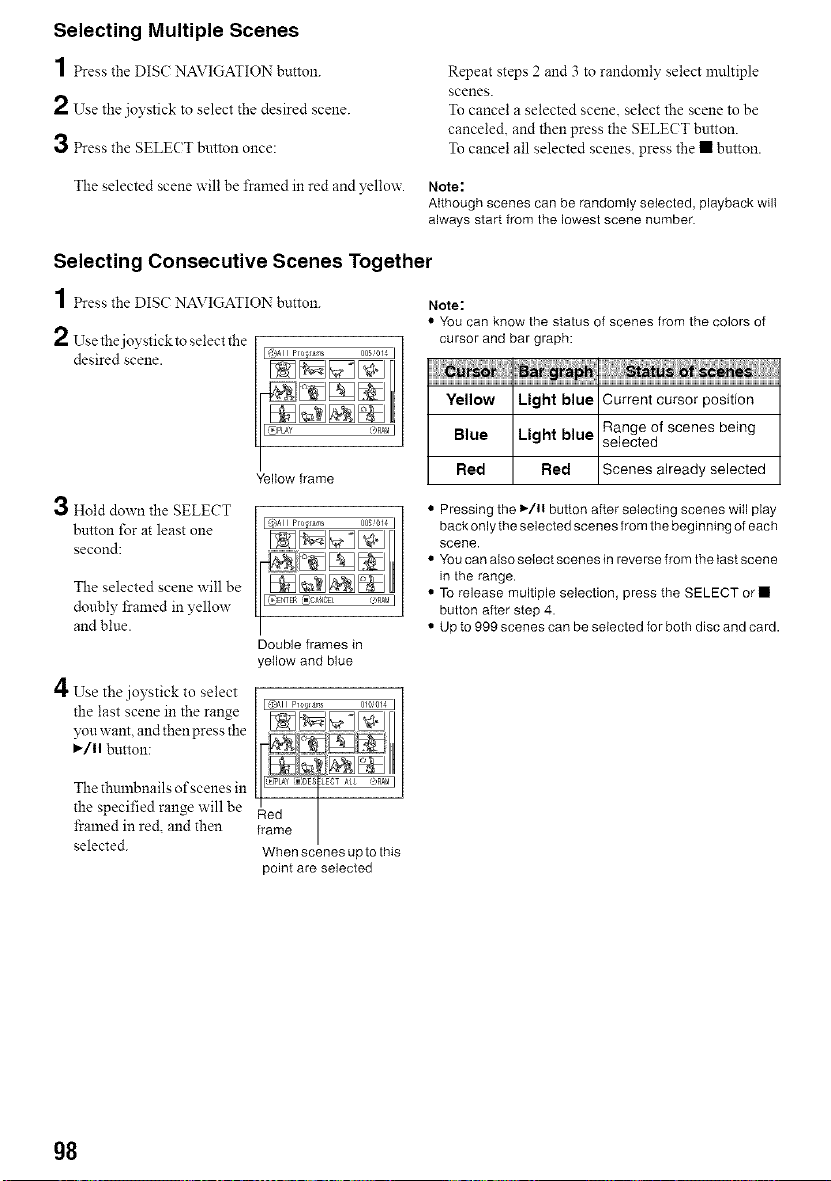
Selecting Multiple Scenes
1 esstheDISC AVlGATIO button.
2 Use the joystick to select the desired scene.
3 Press the SELECT button once:
Repeat steps 2 and 3 to randomly select multiple
scenes.
To cancel a selected scene, select the scene to be
canceled, and then press the SELECT button.
To cancel all selected scenes, press the • button.
The selected scene will be flamed in red and yellow. Note:
Although scenes can be randomly selected, playback will
always start from the lowest scene number.
Selecting Consecutive Scenes Together
1 Press the DIS(: NAVIGATION button. Note:
2 Use the joystick to select the
desired scene.
Fj
,all Hold down the SELECT
button for at least one
second:
The selected scene will be
doubly 15:alnedin yellow
and blue.
4 Use the joystick to select
the last scene in the range
you want. and then press the
I_/11 button:
Yellow frame
Double frames in
yellow and blue
• You can know the status of scenes from the colors of
Yellow Light blue Current cursor position
Range of scenes being
Blue Light blue selected
Red Red Scenes already selected
• Pressing the 1,-/11button after selecting scenes will play
back only the selected scenes from the beginning of each
scene.
• You can also select scenes in reverse from the last scene
in the range.
• To release multiple selection, press the SELECT or •
button after step 4.
• Up to 999 scenes can be selected for both disc and card.
The thulnbnails of scenes in
the specified range will be
fi'alned in red, and then
selected.
When scenes up to this
point are selected
g8
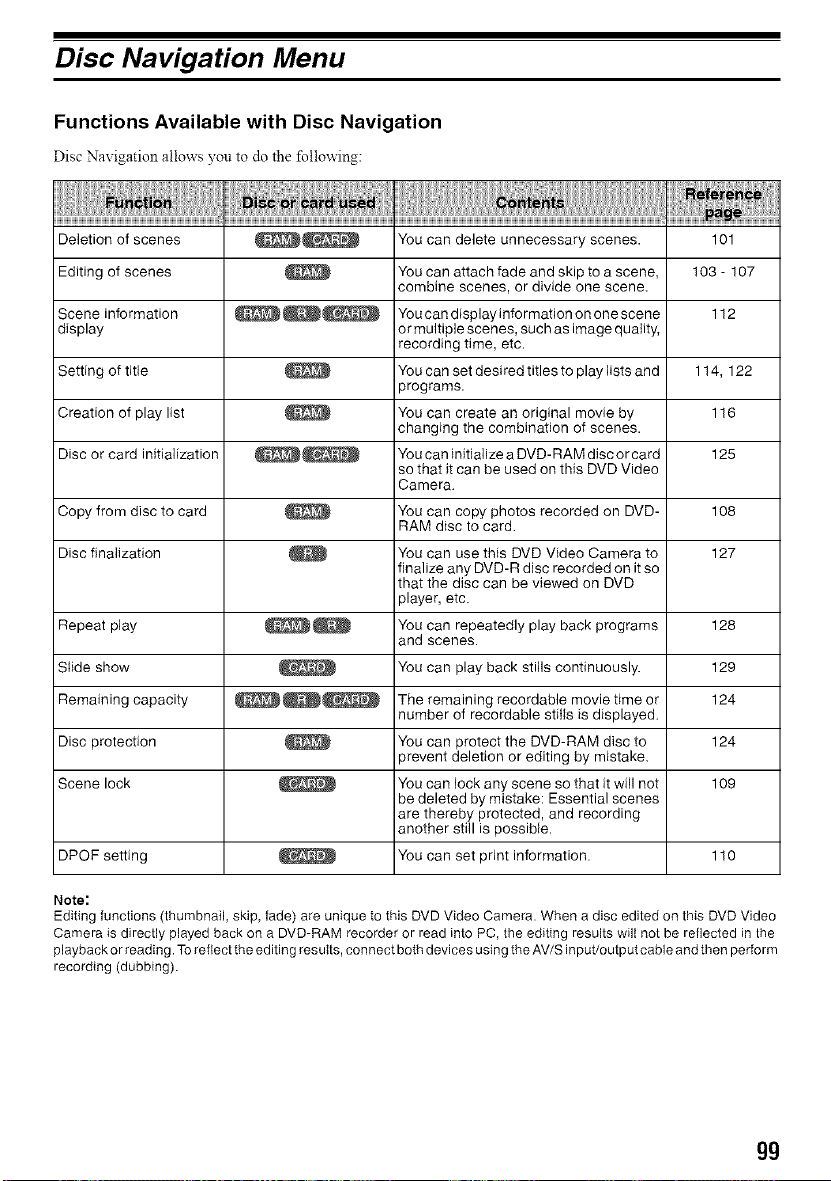
Disc Navigation Menu
Functions Available with Disc Navigation
Disc Navigation allows you to do the following:
Deletion of scenes __ You can delete unnecessary scenes. 101
Editing of scenes _ You can attach fade and skip to a scene, 103 - 107
combine scenes, or divide one scene.
Scene information __ Youcaedisplayinformationononescene 112
display or multiple scenes, such as image quality,
recording time, etc.
Setting of title _ You can set desired titles to play lists and 114, 122
programs.
Creation of play list _ You can create an original movie by 116
changing the combination of scenes.
Disc or card initialization __ You can initialize a DVD-RAM disc or card 125
so that it can be used on this DVD Video
Camera.
Copy from disc to card _ You can copy photos recorded on DVD- 108
RAM disc to card.
Disc finalization _ You can use this DVD Video Camera to 127
finalize any DVD-R disc recorded on it so
that the disc can be viewed on DVD
player, etc.
Repeat play _ You can repeatedly play back programs 128
and scenes.
Slide show _ You can play back stills continuously. 129
Remaining capacity __ The remaining recordable movie time or 124
number of recordable stills is displayed.
Disc protection _ You can protect the DVD-RAM disc to 124
prevent deletion or editing by mistake.
Scene lock _ You can lock any scene so that it will not 109
be deleted by mistake: Essential scenes
are thereby protected, and recording
mother still is possible.
DPOF setting _ You can set print information. 110
Note:
Editing functions (thumbnail, skip, fade) are unique to this DVD Video Camera. When a disc edited on this DVD Video
Camera is directly played back on a DVD-RAM recorder or read into PC, the editing results wilt not be reflected in the
playback or reading. To reflect the editing results, connect both devices using the AV/S input/output cable and then perform
recording (dubbing).
gg
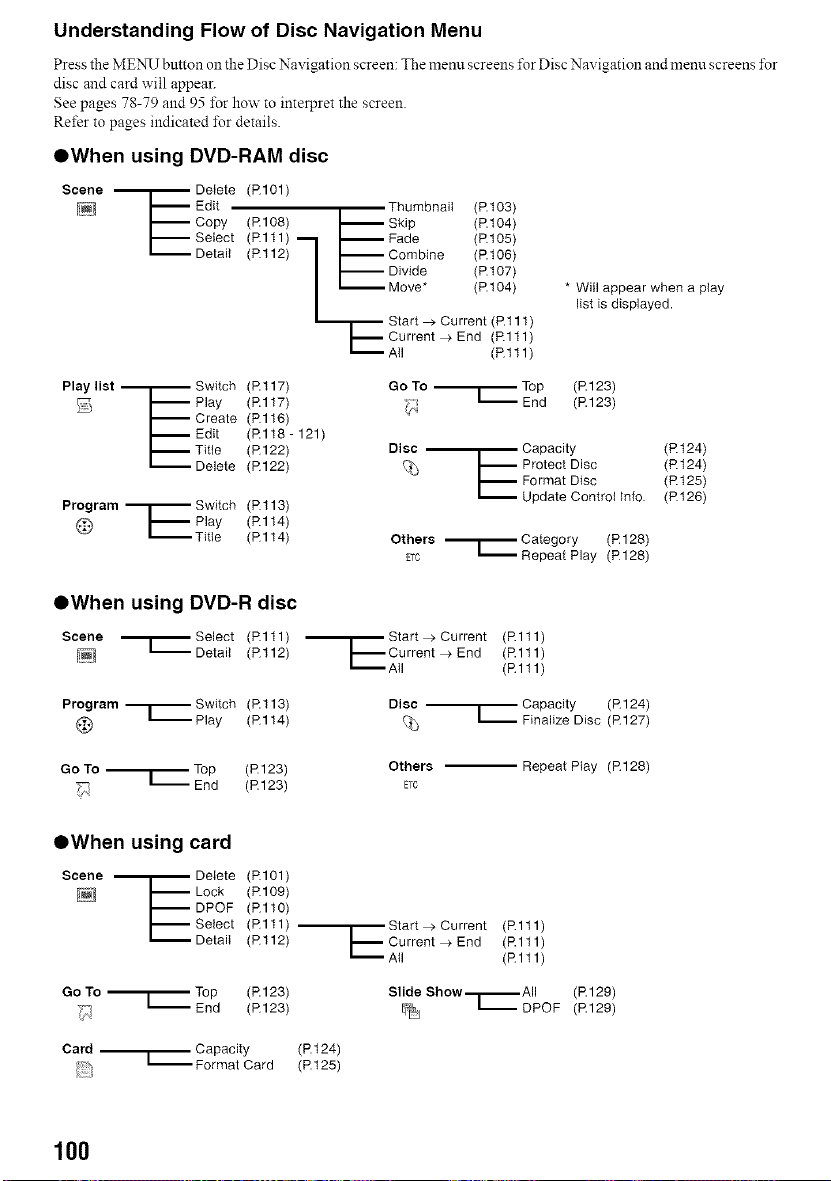
Understanding Flow of Disc Navigation Menu
Press the MENU button oll the Disc Navigation screen: The menu screens t\_r Disc Navigation and menu screens for
disc and card will appear.
See pages 78-79 and 95 for how to interpret the screen.
Rd'er to pages indicated for details.
OWhen using DVD-RAM disc
Scene --'r-- Delete (R101)
I'-- Edit Thumbnail (P.t03)
I'-- Copy (R108) -- Skip (P.t04)
I.-- Select (Rltl) '--I --Fade (P.105)
Detail (Rl12) | -- Combine (P.t06)
| -- Divide (P.t 07)
I -- Move* (P.104)
Start > Current (P.111)
I'-- Current > End (Rltl)
L"""'-- A+I (Rl11)
* Will appear when a play
list is displayed.
Playlist .--i.-- Switch (Rl17) GoTo .r Top (R123)
I'-- Play (Rl17) _,_ _ End (R123)
I'-- Create (Rl16)
I.-- Edit (Rl18- 121)
I'-- Title (R122) Disc --_ Capacity (Rt24)
Delete (R122) _ I'-- Protect Disc (Rt24)
------Format Disc (Rt25)
Update Control Info. (P126)
Program _ Switch (Rl13)
@ I'-- Play (Rl14)
Category (R128)
_ Title (Rl14) OthersETC _'r RepeatPlay
(R128)
QWhen using DVD-R disc
Scene ,--r--Select (Rltl)
= Detail (Rl12)
•--E Start > Current (Rl11)
Current>End (Rl11)
All (Rl11)
Program ,_ Switch (Rl13) Disc --
--Play (Rl14) %
1-- Capacity (R124)
Finalize Disc (R 127)
Go To _ Top (R 123) Others
End (R123) ETC
Repeat Play (R128)
OWhen using card
Scene --'r-- Delete (R101)
I'-- Lock (R109)
I'-- DPOF (Rl10)
I'-- Select (Rltl)-
_ Detai+ (Rl12)
Go To '_ Top (R123)
"_4 L End (R123)
Card --..[.-- Capacity (P.t 24)
_+'_ -- Format Card (P.125)
Start > Current (Rl11)
Current>End (Rl11)
All (Rl11)
Slide Show,--i,-- All (R129)
[?_ _DPOF (R129)
100
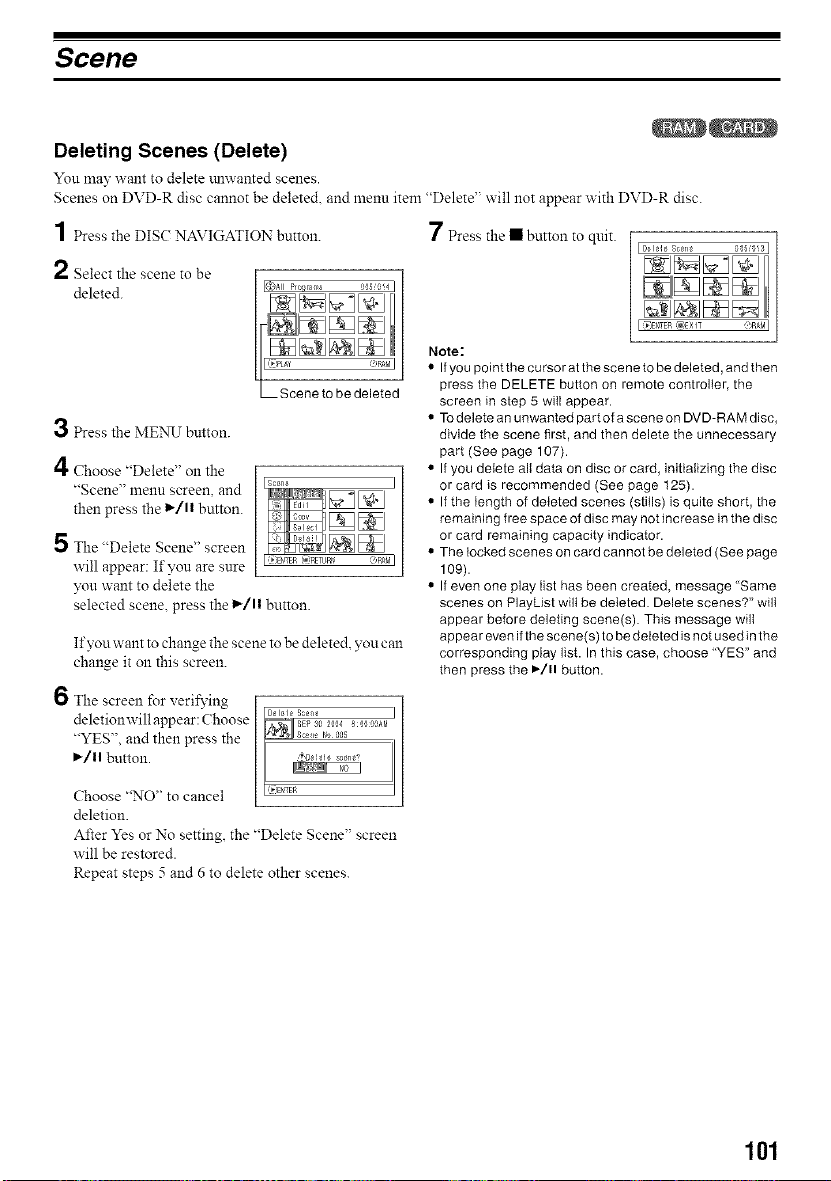
Scene
Deleting Scenes (Delete)
You may want to delete mlwanted scenes.
Scenes on DVD-R disc cannot be deleted, and menu item "Delete" will not appear with DVD-R disc.
1 Press the DIS( NAVIGATION button. 7 Press the • button to quit.
[D_lele Sc_ne
2 Select the scene to be
deleted.
3 Press the MENU button.
4 Choose "Delete" on the
"Scene" menu screen, and
then press the 1_/11 button.
]
5 The "Delete Scene" screen •
will appear: If you are sure
)_u want to delete the •
selected scene, press the 1_/11 button.
If you want to change the scene to be deleted, you can
change it on this screen.
6 The screen for verifying
deletionwill appear: Choose ]
"YES", and then press the
I_/1| button.
Choose "NO" to cancel
deletion.
After Yes or No setting, the "Delete Scene" screen
will be restored.
Repeat steps 5 and 6 to delete other scenes.
;05_!3]
I _FNTEp _,EXIT @RAM I
Note:
• If you point the cursor at the scene to be deleted, and then
press the DELETE button on remote controller, the
screen in step 5 will appear.
• To delete an unwanted part of a scene on DVD-RAM disc,
divide the scene first, and then delete the unnecessary
part (See page 107).
• If you delete all data on disc or card, initiaIizing the disc
or card is recommended (See page 125).
If the length of deleted scenes (stills) is quite short, the
remaining free space of disc may not increase in the disc
or card remaining capacity indicator.
The locked scenes on card cannot be deleted (See page
109).
If even one play list has been created, message Same
scenes on PlayList wilt be deleted. Delete scenes?" will
appear before deleting scene(s). This message will
appear even if the scene(s) to be deleted is not used in the
corresponding play list. In this case, choose "YES" and
then press the I_/11 button.
101
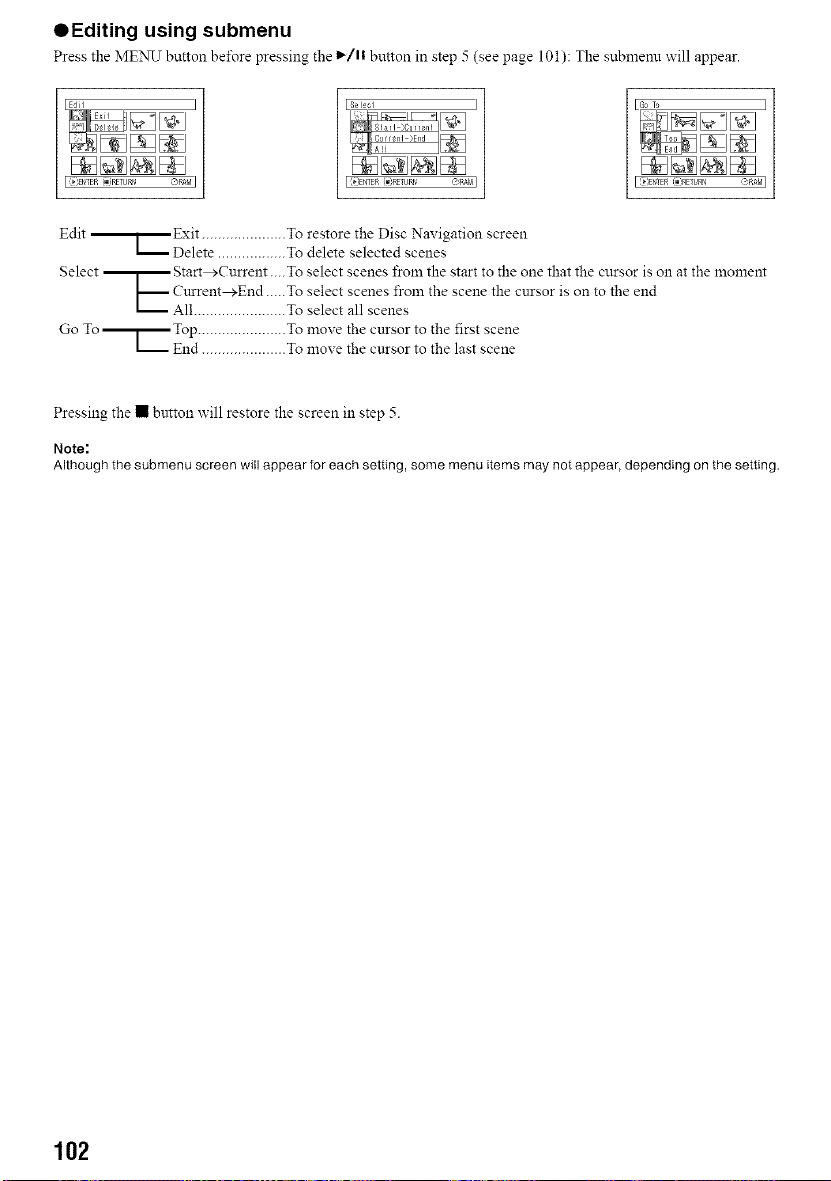
QEditing using submenu
PresstheMENUbuttonbet\_repressingthe1_/11buttoninstep5 (seepage 101):Thesubmenuwillappear.
I (_}ENTEP _iRETURr/ @RAM I
Edit -------------[_Exit ..................... To restore the Disc Navigation screen
L---Delete ................. To delete selected scenes
Select _ Start>Current....To select scenes from the start to the one that the cursor is on at the lnoment
[----Current>End.....To select scenes froln the scene the cursor is on to the end
/
L_._ All ....................... To select all scenes
Go To _ Top ...................... To move the cursor to the first scene
L.._
End ..................... To name the cursor to the last scene
Pressing the • button will restore the screen in step 5.
Note:
Although the submenu screen will appear for each setting, some menu items may not appear, depending oll the setting.
102
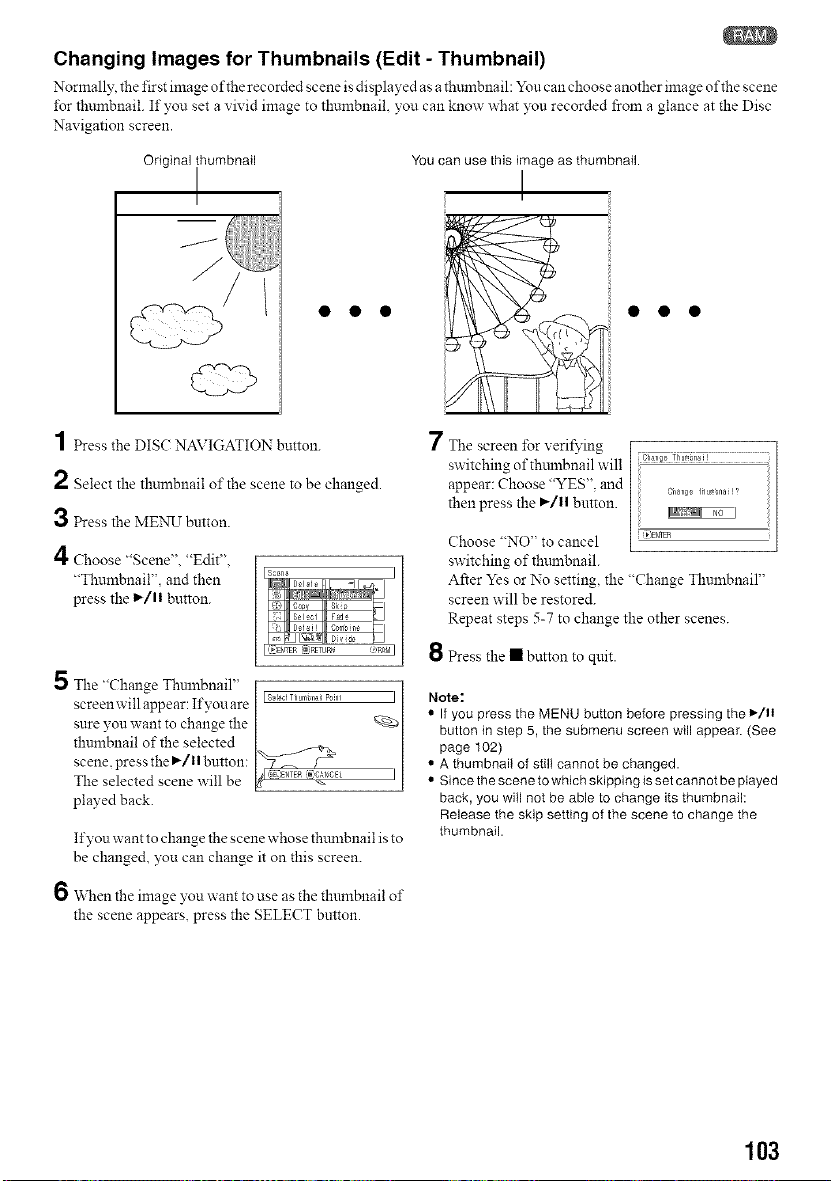
Changing Images for Thumbnails (Edit - Thumbnail)
Normally, the first image ofthe recorded scene is displayed as a th_mlbnail: Yon can choose another image ofthe scene
*br thambnail. If you set a vivid image to tlmmbnail, you can know what you recorded from a glance at the Disc
Navigation screen.
Original ihumbnail
J
1 Press the DIS( NAVIGATION button.
2 Select the thumbnail of the scene to be changed.
3 Press the MENU button.
4 Choose "Scene". "Edit",
"Thumbnail", and then
press the 1_/1! button.
5 The "Change Thnlnbnail"
screenwill appear: Ifyouare
sure yon want to change the
thumbnail of the selected
scene, press the I,-/1! button:
The selected scene will be
played back.
If you want to change the scene whose thtmlbnail is to
be changed You can change it on this screen.
6 "_\Nen the image you want to use as the thumbnail of
the scene appears, press the SELECT button.
YOU
7
can use this image as thumbnail.
I
!i
The screen for veri_'ing ........
switching of thmnbnail will c_,_,,_oTh_'_*,__
appear: Choose "YES". and
C_aTIg_ I_ur'_a !?
then press the I_/1! button.
Choose "NO" to cancel _)E{_rlIN
switching of thmnbnail.
After Yes or No setting, the "Change Thnmbnail"
screen will be restored.
Repeat steps 5-7 to change the other scenes.
8 Press the • button to quit.
Note:
• If you press the MENU button before pressing the _-/1!
button in step 5, the submenu screen will appear. (See
page 102)
• A thumbnail of still cannot be changed.
• Since the scene to which skipping is set cannot be played
back, you will not be able to change its thumbnail:
Release the skip setting of the scene to change the
thumbnail.
103
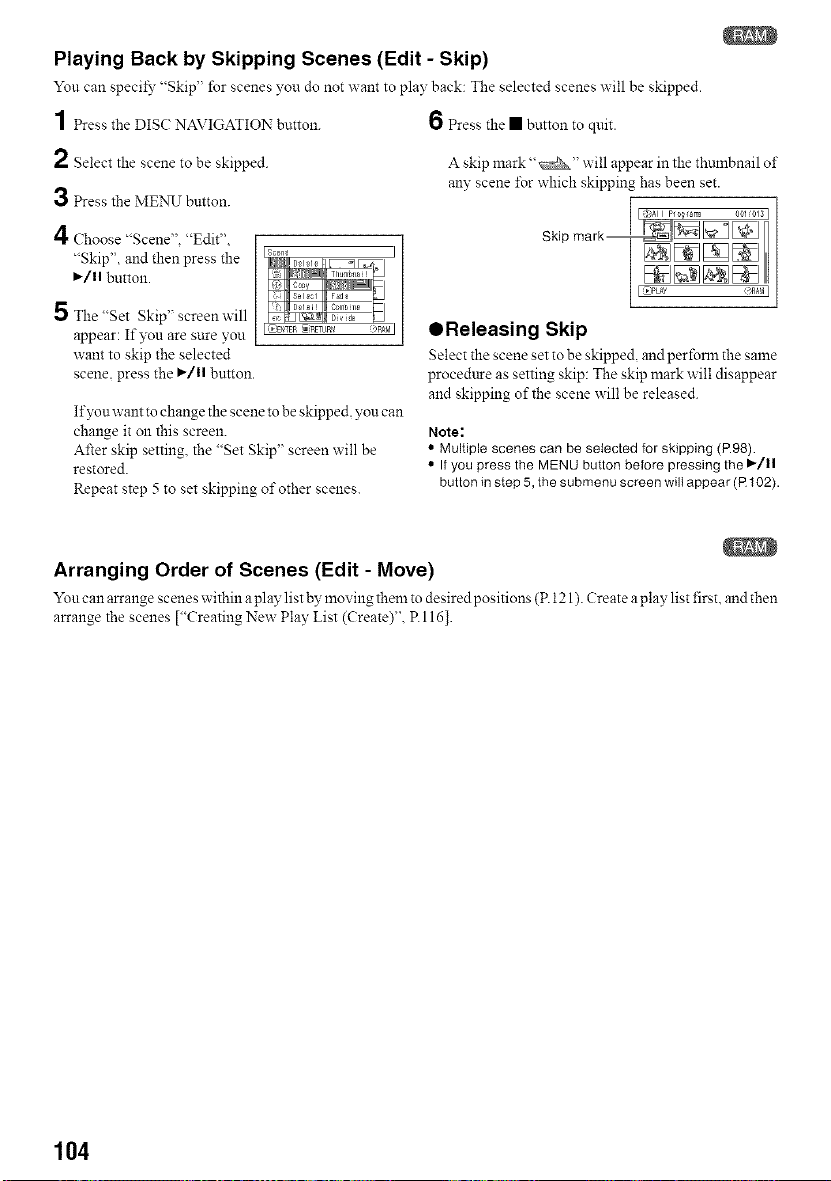
Playing Back by Skipping Scenes (Edit - Skip)
Yon can specil_" "Skip' for scenes you do not want to play back: The selected scenes will be skipped.
1 Press the DISC?NAVIGATION button. 6 Press the • button to quit.
2 Select the scene to be skipped. A skip mark "_" will appear in the thmnbnail of
any scene I\_r which skipping has been set.
3 Press the MENU button.
A
Choose "Scene". "Edit"
"Skip", and then press the
,/1| button.
5 The"Set Skip" screenwill
appear: If you are sure you
want to skip the selected
scene, press the ,/1| button.
If?s_n want to change the scene to be skipped, you can
change it on this screen.
After skip setting, the "Set Skip" screen will be
restored.
Repeat step 5 to set skipping of other scenes.
QReleasing Skip
Select the scene set to be skipped and perforln the same
procedure as setting skip: The skip mark will disappear
and skipping of the scene will be released.
Note:
• Multiple scenes can be selected for skipping (R98).
• If you press the MENU button before pressing the I_/11
button in step 5, the submenu screen will appear (R 102).
Arranging Order of Scenes (Edit - Move)
Yon can arrange scenes within a play list by moving them to desired positions (P. 121). Create aplay list first, and then
arrange the scenes ["Creating New Play List (Create)", R 116].
104
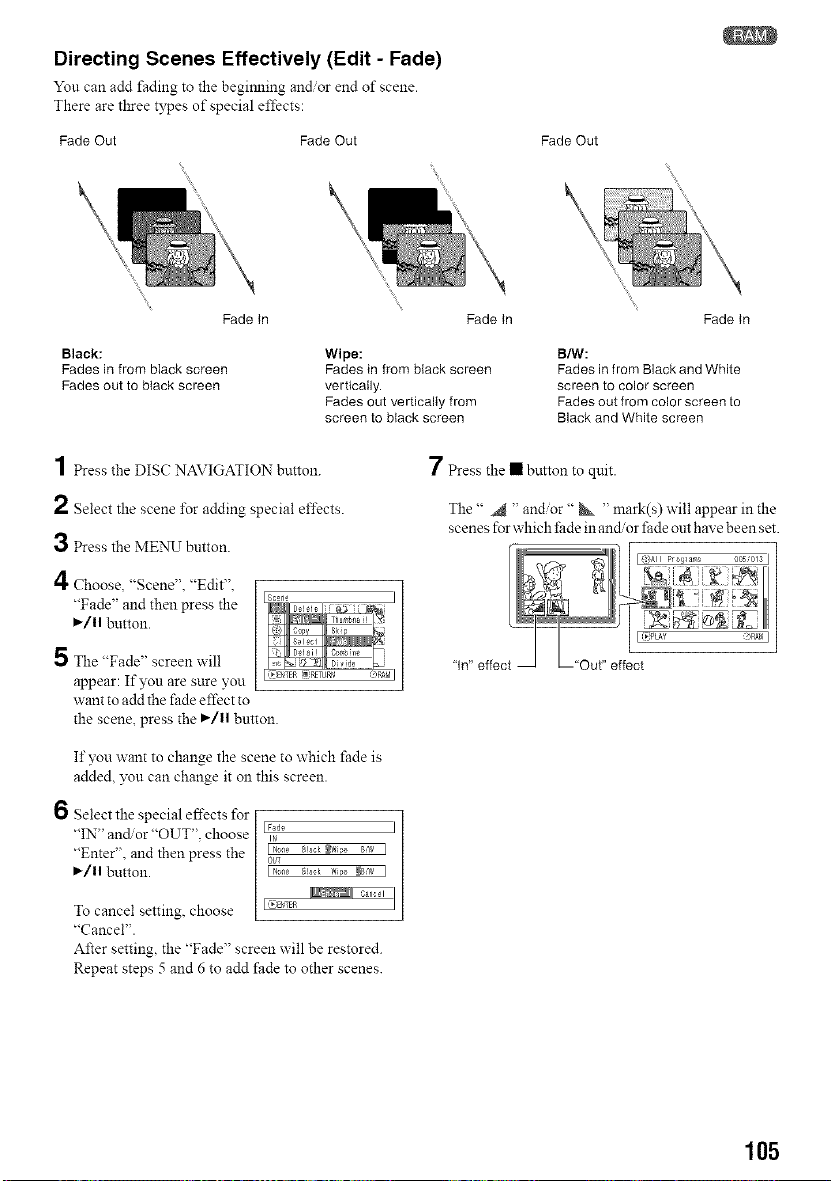
Directing Scenes Effectively (Edit - Fade)
Yon can add thdmg to the begimling andor end of scene.
There are three types of special effects:
Fade Out Fade Out Fade Out
Fade In
Black:
Fades in from black screen
Fades out to btack screen
Fade In
Wipe:
Fades in from black screen
vertically.
Fades out vertically from
screen to black screen
Fade In
B/W:
Fades in from Black and White
screen to color screen
Fades out from color screen to
Black and White screen
1 press the DIS(: NAVIGATION button.
2 Select the scene *br adding special effects.
3 press the MENU button.
/I
Choose, "Scene". "Edit".
"Fade" and then press the
I_/11button.
5 The "Fade" screen will
appear: If you are sure you
want to add the fade effect to
5 ¸, C_ ii_ ]
I (_BgTER _:RETURN (<'_,M I
the scene, press the ,/11 button.
If you want to change the scene to which fade is
added, _u can change it on this screen.
6 Select the special effects for
"IN" andor "OUT". choose
"Enter". and then press the
I_/11 button.
To cancel setting, choose
"Cancel".
After setting, the "Fade" screen will be restored.
Repeat steps 5 and 6 to add fade to other scenes.
IFade
IP
OUT
L_B'_FR
7 Press the • button to quit.
The" _ ' andor" _ ' mark(s) will appear in the
scenes for which lhde in andor thde out have been set.
E }All Progtars 00U013 ]
105
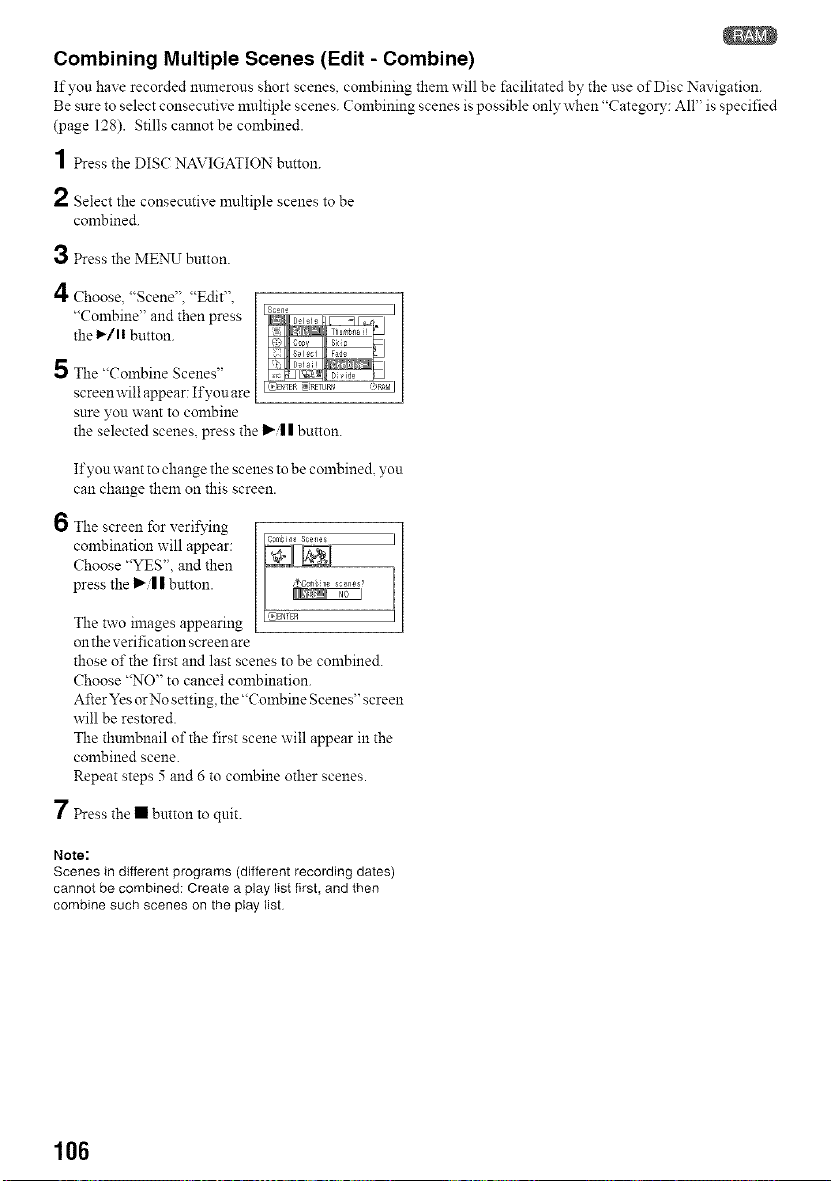
Combining Multiple Scenes (Edit - Combine)
If yon have recorded mnnerons short scenes, combining them will be facilitated by the use of Disc Navigation.
Be sure to select consecutive multiple scenes. ( ombining scenes is possible only when "Category: All" is specified
(page 128). Stills camlot be combined.
1 Press the DIS( NAVIGATION button.
2 Select the consecutix e nmltiple scenes to be
combined.
3 Press the ME_NKTbutton.
/I
Choose, "Scene". "Edit".
"Combine" and then press
the 1_/1! button.
5 The "Combine Scenes"
screen will appear: If you are
sure you want to combine
the selected scenes, press the I_-/I| button.
If yon want to change the scenes to be combined, yon
can change them on this screen.
6 The screen for verifying
combination will appear:
Choose "YES". and then
press the I_/| | button.
The two images appearing
on the verification screen are
those of the first and last scenes to be combined.
Choose "NO" to cancel combination.
After Yes or No setting, the "Combine Scenes" screen
will be restored.
The thnmbnail of the first scene will appear in the
combined scene.
Repeat steps 5 and 6 to combine other scenes.
7 Press the • button to quit.
Note:
Scenes in different programs (different recording dates)
cannot be combined: Create a play list first, and then
combine such scenes on the play list
106
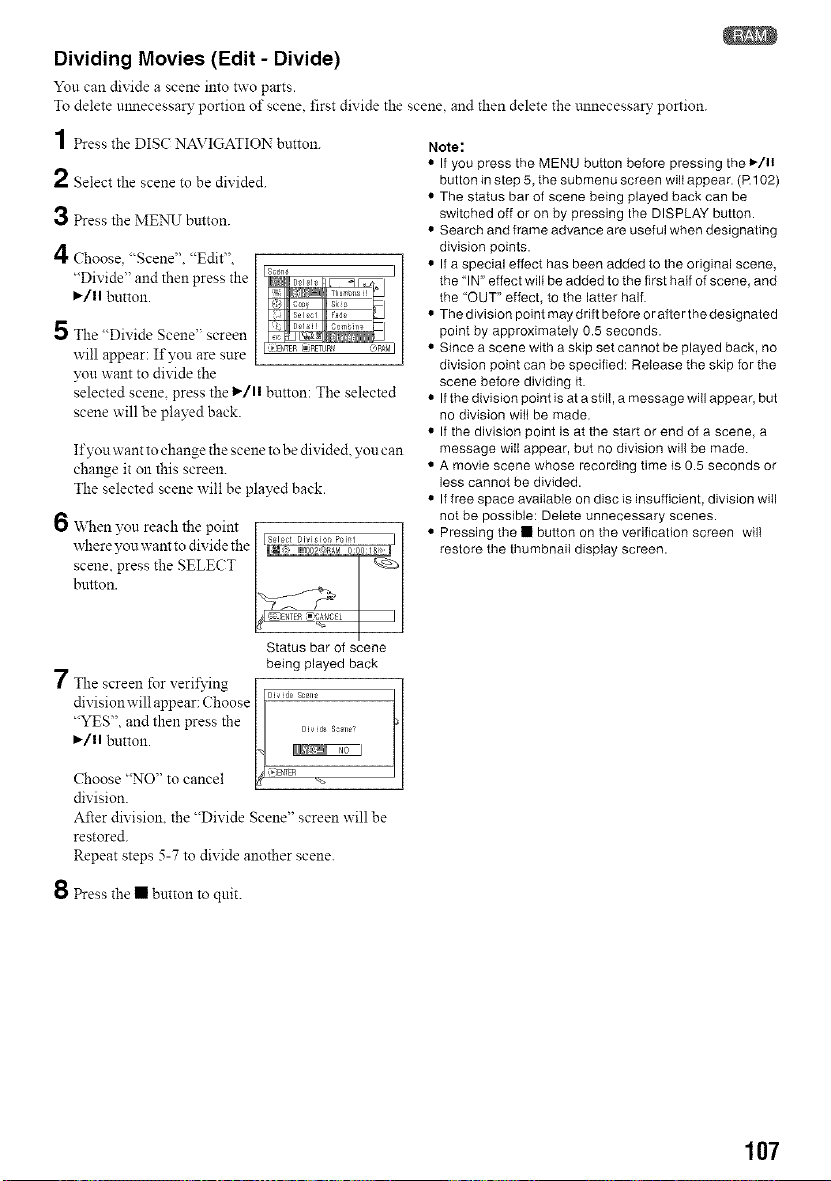
Dividing Movies (Edit - Divide)
You can dixide a scene into two parts.
To delete mmecessary portion of scene, first divide the scene, and then delete the mmecessary portion.
1 Press the DISC NAVIGATION button.
2 Select the scene to be divided.
3 Press the MENU button.
4 Choose. "Scene". "Edit",
"Divide" and then press the
I_/ll button.
5 The "Divide Scene" screen
will appear: If you are sure
you want to dixide the
Fade
selected scene, press the I_-/1!button: The selected
scene will be played back.
If you want to change the scene to be divided, you can
change it on this screen.
The selected scene w'ill be played back.
6 "V\Nenyou reach the point
where you want to divide the
scene, press the SELECT
button.
Note:
• If you press the MENU button before pressing the 1-111
button in step 5, the submenu screen wilt appear. (R 102)
• The status bar of scene being played back can be
switched off or on by pressing the DISPLAY button.
• Search and frame advance are useful when designating
division points.
• If a special effect has been added to the original scene,
the "IN" effect wilt be added to the first half of scene, and
the "OUT" effect, to the latter half.
• The division point may drift before or after the designated
point by approximately 0.5 seconds.
• Since a scene with a skip set cannot be played back, no
division point can be specified: Release the skip for the
scene before dividing it.
• If the division point is at a still, a message will appear, but
no division will be made.
• If the division point is at the start or end of a scene, a
message will appear, but no division will be made.
• A movie scene whose recording time is 0.5 seconds or
less cannot be divided.
• If free space available on disc is insufficient, division will
not be possible: Delete unnecessary scenes.
• Pressing the • button on the verification screen will
restore the thumbnail display screen.
Status bar of scene
being played back
7 The screen for veriA,ing r
dixisionwill appear:Choose [ f_
"YES", and then press the / D_dos_,,_
I_/ll button. 1__
Choose "NO" to cancel _ <_,a¢_ ,_
division.
After division, the "Divide Scene" screen will be
restored.
Repeat steps 5-7 to divide another scene.
8 Press the • button to quit.
107
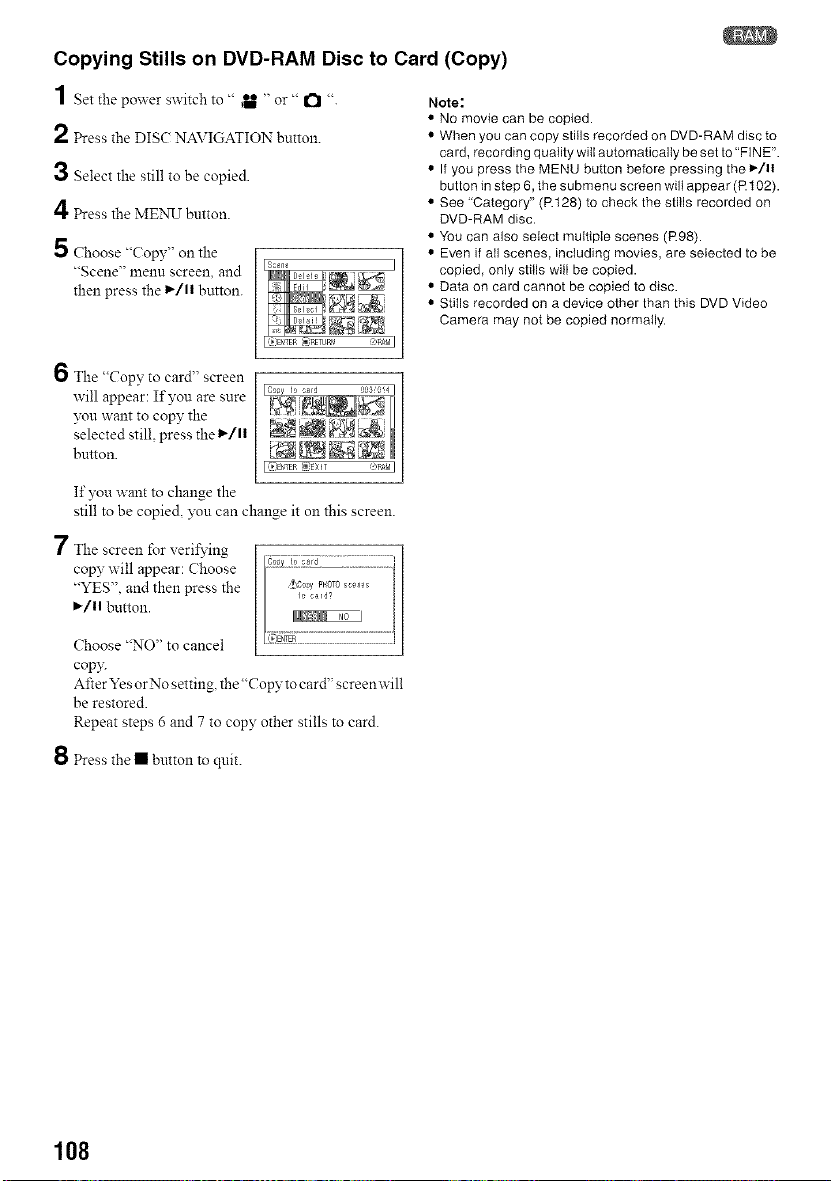
Copying Stills on DVD-RAM Disc to Card (Copy)
1 Set the power switch to " ,U " or" I"! ".
2 Press the DISC NAVIGATION button.
3 Select the still to be copied.
4 Press the MENU button.
5 Choose "Copy" on the
"Scene" menu screen, and
then press the l_/ll button.
Note:
• No movie can be copied.
• When you can copy stills recorded on DVD-RAM disc to
card, recording quality will automatically be set to "FINE'.
• If you press the MENU button before pressing the I_/11
button in step 6, the submenu screen will appear (R t02).
• See "Category" (R128) to check the stills recorded on
DVD-RAM disc.
You can also select multiple scenes (R98).
Even if all scenes, including movies, are selected to be
copied, only stitls will be copied.
Data on card cannot be copied to disc.
Stills recorded on a device other than this DVD Video
Camera may not be copied normally.
I
6 The "Copy to card" screen
will appear: If you are sure
?_u want to copy the
selected still, press the 1_/11
button.
If you want to change the
still to be copied, you can change it on this screen.
7 The screen for veril_qng
copy will appear: Choose
"YES", and then press the
I_/11 button.
Choose "NO" to cancel
cop3:
After YesorNo setting,the "Copy tocard"screenwill
be restored.
Repeat steps 6 and 7 to copy other stills to card.
8 Press the • button to quit.
108
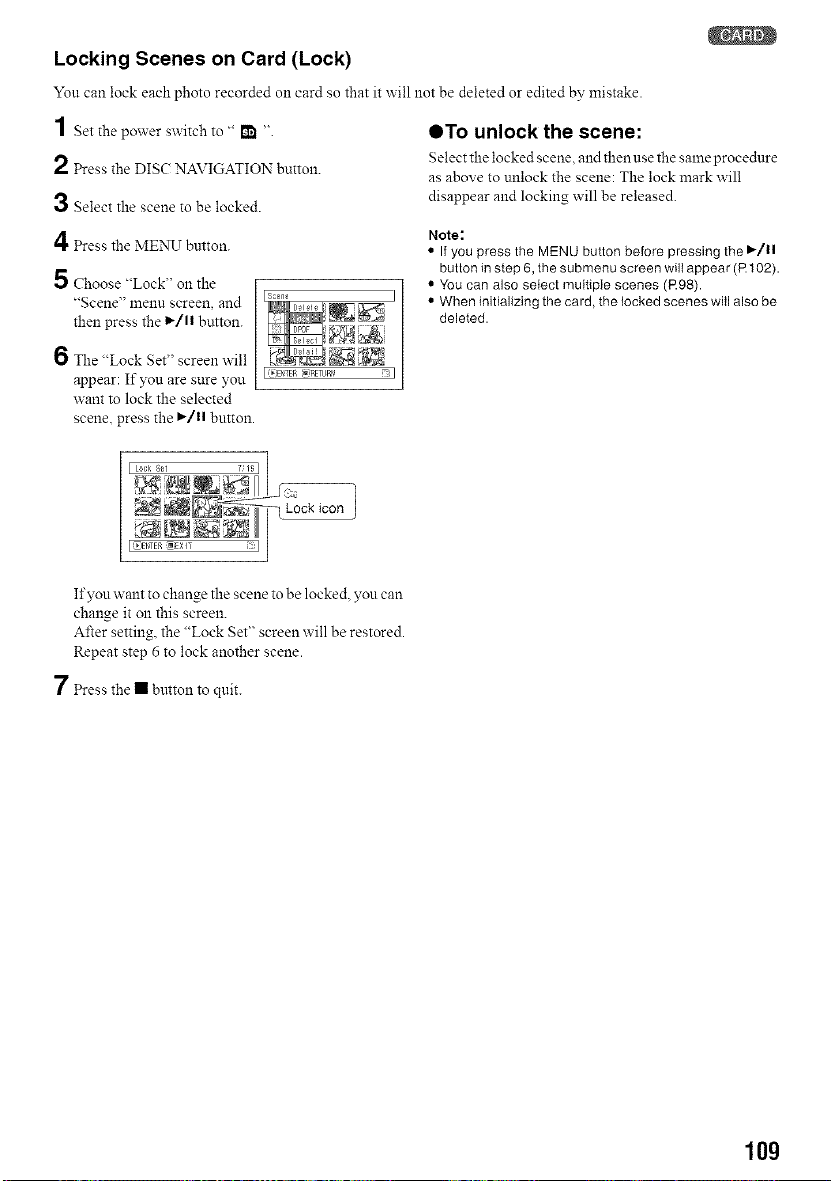
Locking Scenes on Card (Lock)
You can lock each photo recorded Oll card so that it will not be deleted or edited by mistake.
1 Set the power switch to " I_ " OTo unlock the scene:
Select the locked scene and then use the same procedure
2 Press the DISC NAVIGATION button, as above to unlock the scene: The lock mark will
3 Select the scene to be locked, disappear and locking will be released.
4 Press the MENU button.
5 Choose "Lock" on the
"Scene" n'lenn screen, and
then press the 1_/11 button.
6 The "Lock Set" screen w'ill
appear: If you are sure you
want to lock the selected
scene, press the I_/11 button.
I(_}D_TER[_)RETURN Jl
Note:
• If you press the MENU button before pressing the I*/11
button in step 6, the submenu screen will appear (R 102).
• You can also select multiple scenes (R98).
• When initializing the card, the locked scenes will also be
deleted.
If you want to change the scene to be locked, you can
change it on this screen.
After setting, the "Lock Set" screen will be restored.
Repeat step 6 to lock another scene.
7 Press the • button to quit.
10g
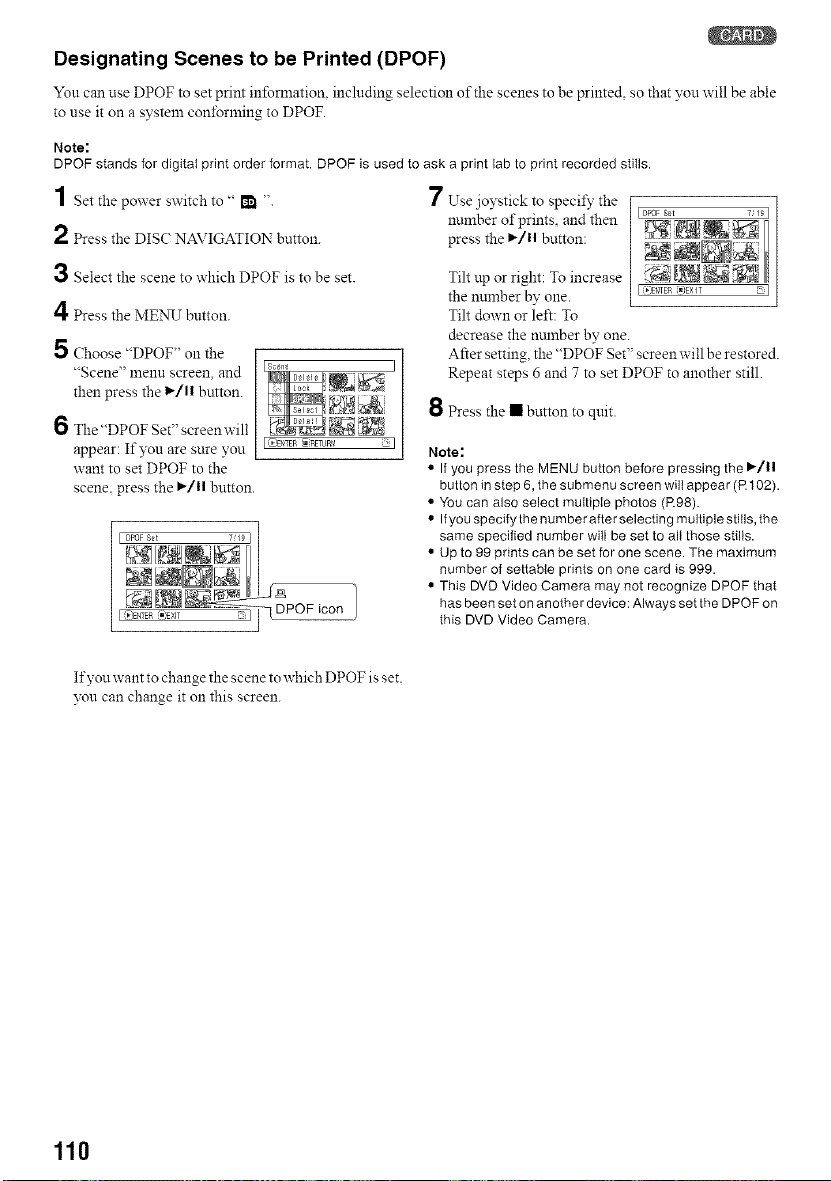
Designating Scenes to be Printed (DPOF)
Yon can use DPOF to set print information, including selection of the scenes to be printed so that you will be able
to use it on a system conforming to DPOF.
Note:
DPOF stands for digital print order format. DPOF is used to ask a print lab to print recorded stills.
1 Set the power switch to " I_ "
2 Press the DISC NAVIGATION button.
3 Select the scene to which DPOF is to be set.
4Press the MENU button.
5 Choose "DPOF" on the
"Scene" lnenn screen, and
then press the 1_/11 button.
6 The "DPOF Set" screenwill
appear: If you are sure you
want to set DPOF to the
scene, press the I_/11 button.
I _TEN _:_RETURr/ : I
Ho -
I (_'£DTFR '_)EXIT it I _ icon
7 Use joystick to speci_, the
number of prints, and then
press the I_/11 button:
I DPOF S_t 7_19 I
Tilt up or right: To increase
the number by one. I_)E"_ER_}EX_T D I
Tilt down or left: To
decrease the munber by one.
After setting, the "DPOF Set" screen will be restored.
Repeat steps 6 and 7 to set DPOF to another still.
8 Press the • button to quit.
Note:
• If you press the MENU button before pressing the ID-/II
button in step 6, the submenu screen will appear (R 102).
• You can also select multiple photos (R98).
• If you specifythe number after selecting multiple stills, the
same specified number will be set to all those stills.
• Up to 99 prints can be set for one scene. The maximum
number of settable prints on one card is 999.
• This DVD Video Camera may not recognize DPOF that
has been set on another device: Always set the DPOF on
this DVD Video Camera.
If you want to change the scene to which DPOF is set.
you can change it on this screen.
110
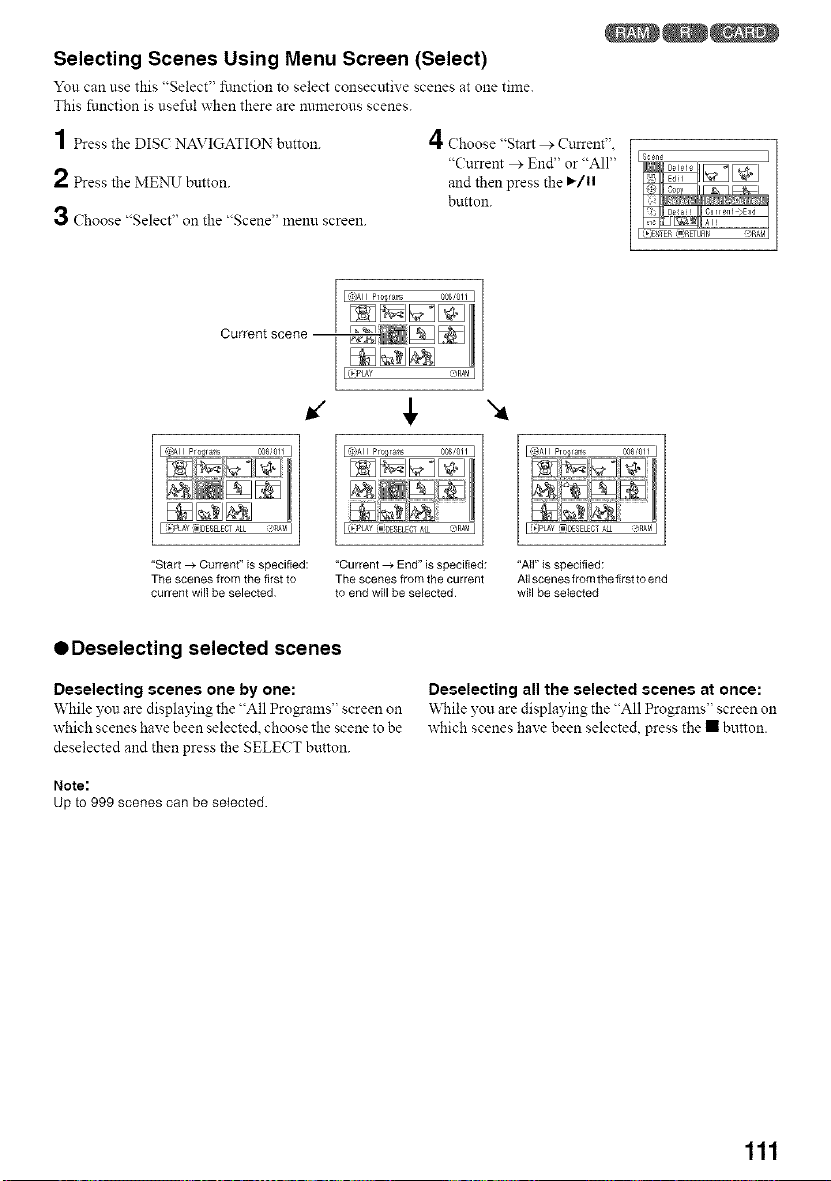
Selecting Scenes Using Menu Screen (Select)
Yon can use this "Select' ftmction to select consecutive scenes at one time.
This function is useful when there are numerous scenes.
1 Press the DIS( NAVIGATION button.
2 Press the MENU button.
3 Choose "Select" on the "Scene" menu screen.
4Choose "Start > Cturent",
"Current > End" or "All"
and then press the I_/11
button.
sc-_n_
Current scene --
"Start _ Current" is specified:
The scenes from the first to
current wilt be selected
,I,
I }All Pro_rae_ 008/011 I
I_PLAy _DESELEG_ALL @RAP,II
"Current _ End" is specified:
The scenes from the current
to end will be selected
"4
U_jPLAY IDESELEOTA/$ "_,nA_1]
"All" iS specified:
All scenes from the first to end
will be selected
ODeselecting selected scenes
Deselecting scenes one by one:
While you are displayingthe "All Progams" screen on
which scenes have been selected,choose the scene tobe
&selected and then press the SELECT button.
Note:
Up to 999 scenes can be selected.
Deselecting all the selected scenes at once:
"v\Nile you are displaying the "All Programs" screen on
which scenes have been selected, press the • button.
111
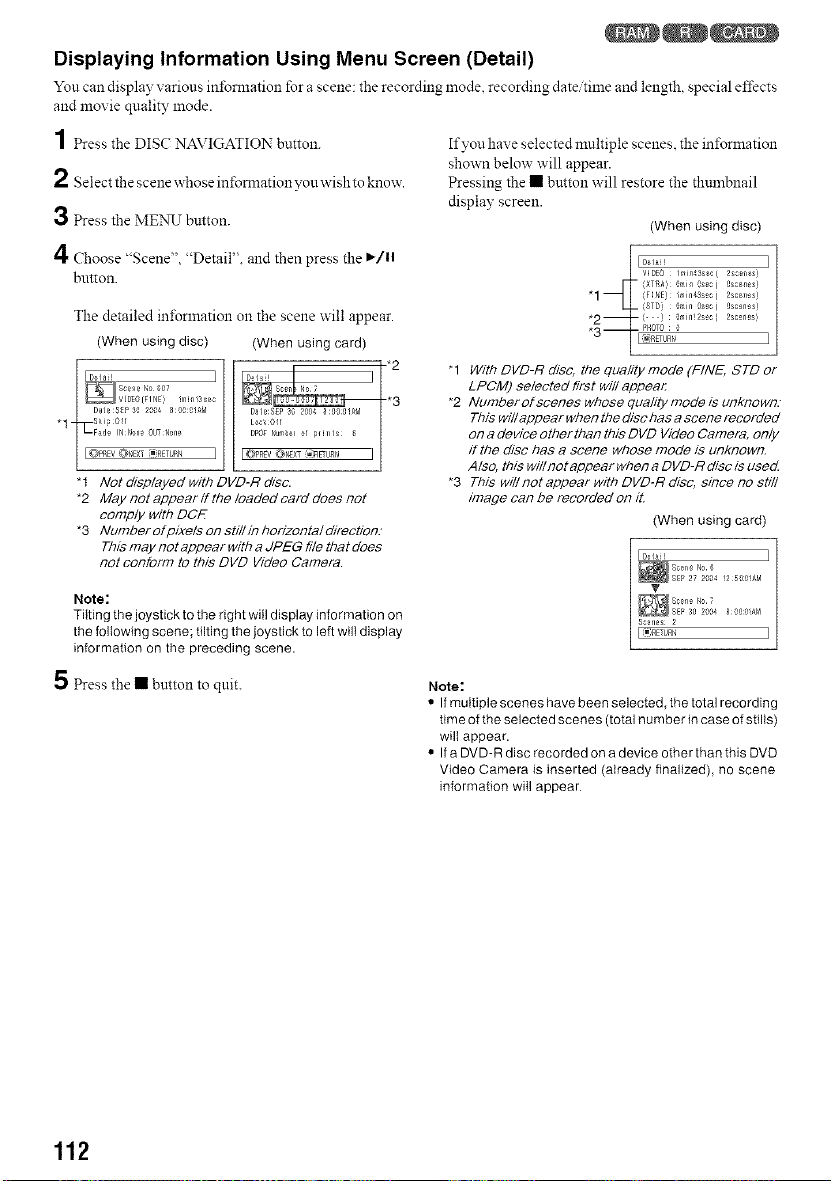
Displaying Information Using Menu Screen (Detail)
Yon can display various inibmlation for a scene: the recording mode recording date time and length special d'fects
and movie quality mode.
1 Press the DISC NAVIGATION button.
2 Select the scene whose infomlation yon wish to know.
3 Press the MENU button.
4 Choose "Scene", "Detail". and then press the I_/ll
button.
The detailed in±brlnation on the scene w'ill appear.
(When using disc) (When using card)
"1-
"t Not displayed with DVD-R disa
*2 May not appear ff the loaded card does not
comply with DOE
*3 fumberofpixelsonsti//inhorizonta/direction.-
This may not appear with a JPEG file that does
not conform to this DVD Video Camera.
Note:
Tilting the joystick to the right will display information on
the following scene; tilting the joystick to left will display
information on the preceding scene.
If you have selected multiple scenes, the in±brmation
shown below will appear.
Pressing the • button will restore the thtnnbnail
display screen.
(When using disc)
_1 Do_ I
VIDE0 /_'in43s_c[2sc_n_s)
"1 {FINE) /rin43sec( 2sC_ll_S)
14- {STD) _,Jn os_c[
"2_ ['') grin!2s_.c[
2scea_s!
*o_ PI/0T0 _;
o--
"1 With DVD-R disc, the quality mode (FINE, STD or
LPCM) selected first will appeal:
*2 Number of scenes whose quality mode is unknown.-
This will appear when the disc has a scene recorded
on a device otherthan this DVD Video Camera, only
if the disc has a scene whose mode is unknown.
Also, this will not appear when a DVD-R disc is used
*3 This will not appear with DVD-R disc, since no still
image can be recorded on it.
(When using card)
J
T
_SEP3g 2gO48 aO:a!AM
Ssg _1£ $ 2
_Tu_ J
5 Press the • button to quit.
Note:
• If multiple scenes have been selected, the total recording
time of the selected scenes (total number in case of stills)
wilI appear.
• If a DVD-R disc recorded on a device other than this DVD
Video Camera is inserted (already finalized), no scene
information will appear
112
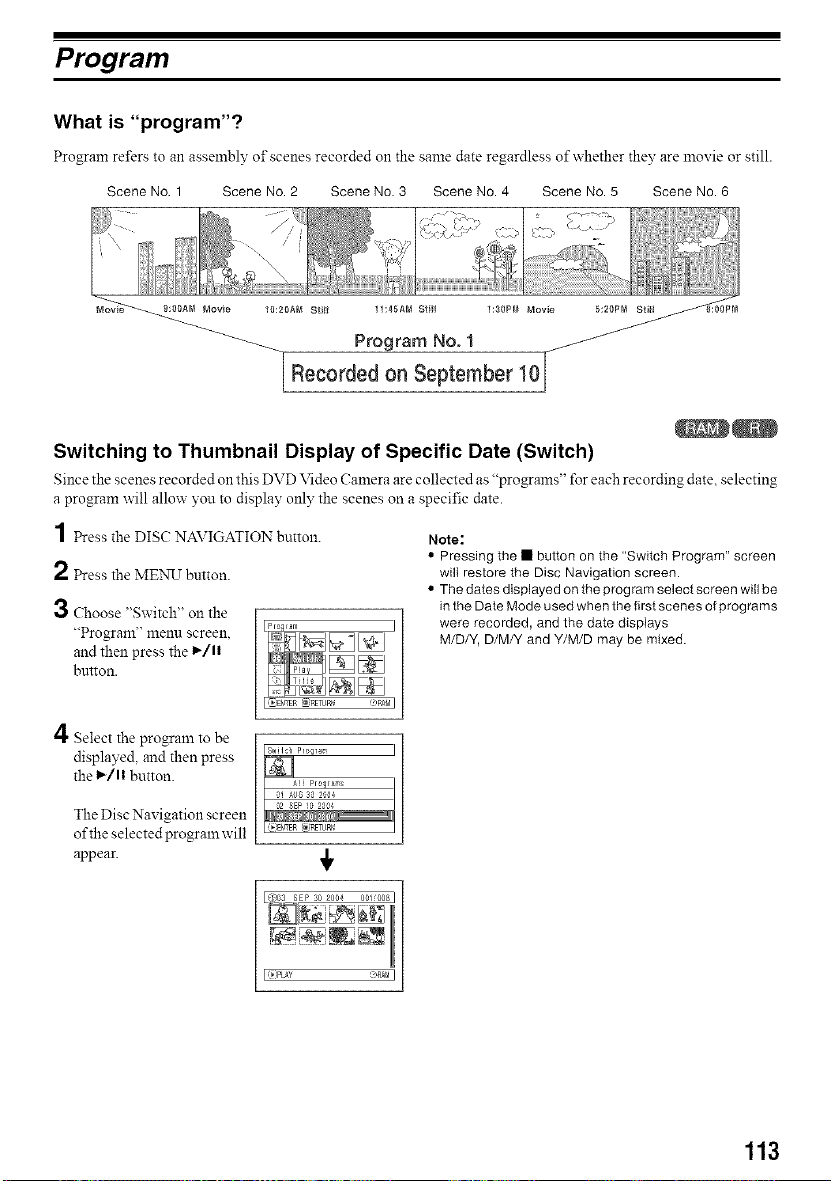
Program
What is "program"?
Program refers to an assembly of scenes recorded oll the same date regardless of whether they are movie or still.
Scene No. 1 Scene No. 2 Scene No. 3 Scene No. 4 Scene No. 5 Scene No. 6
11:45AM Stit$
Program No. 1
Recorded on September 10
Switching to Thumbnail Display of Specific Date (Switch)
Since the scenes recorded oll this DVD Video Camera are collected as "programs" for each recording date selecting
a program will allow you to display only the scenes on a specific date.
1 press the DIS(: NAVIGATION button.
2 presstheMENU button.
Choose "Switch" on the
"Program" menl_l screen,
and then press the I_/ll
button.
Note:
• Pressing the • button on the "Switch Program" screen
will restore the Disc Navigation screen.
• The dates displayed on the program select screen will be
in the Date Mode used when the first scenes of programs
were recorded, and the date displays
M/D/Y, D/M/Y and Y/M/D may be mixed.
4 Select the program to be
displayed, and then press
the 1_/11button.
The Disc Nax igation screen
of the selected program will
appear.
I
I (_]PLAY @RA}4 I
113
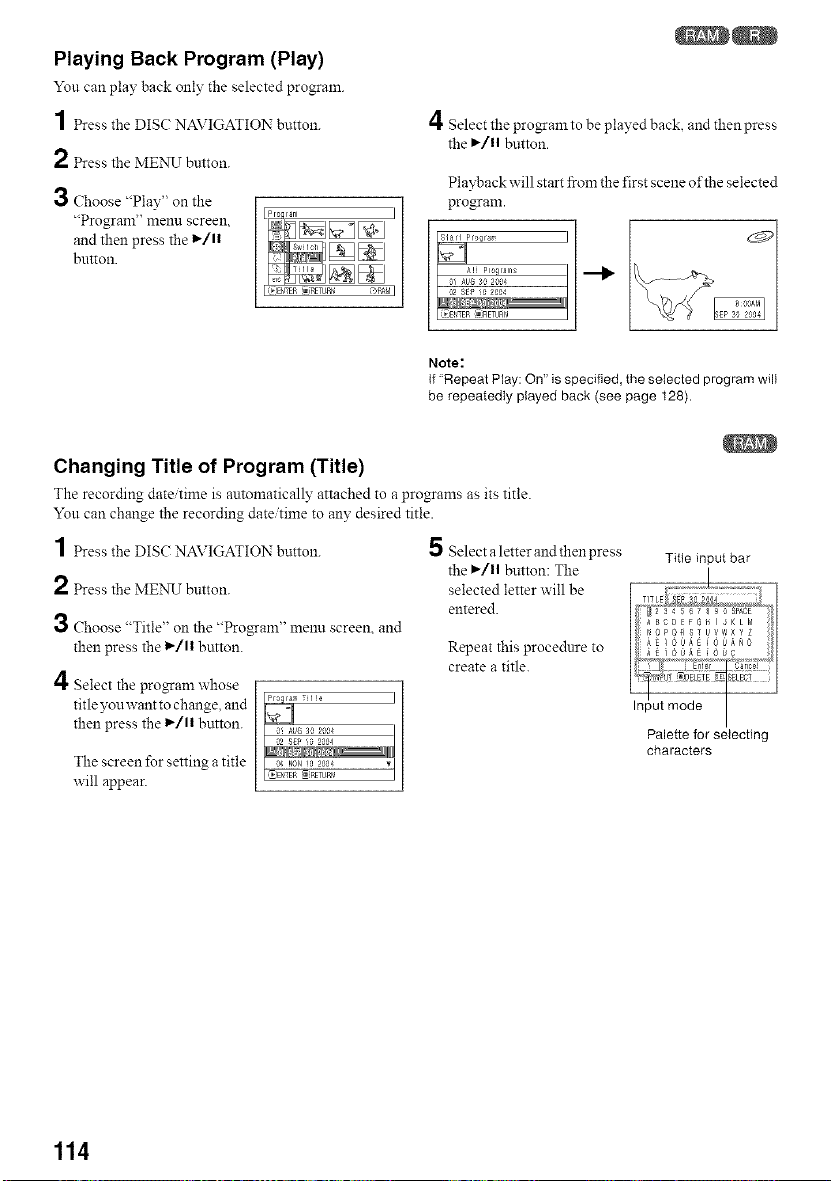
Playing Back Program (Play)
Yon can play back o1113"the selected program.
1 Press the DISC: NAVIGATION button.
2 Press the MENU button.
3 Choose "Play" on the
"Program" menu screen,
and then press the l_/ll
button.
4 Select the pro_am to be played back, and then press
the ,/11 button.
Playback will start from the first scene of the selected
program.
Note:
If "Repeat Play: On" is specified, the selected program will
be repeatedly played back (see page 128).
Changing Title of Program (Title)
The recording date time is automatically attached to a programs as its title.
You can change the recording date/time to any desired title.
1 Press the DISC NAVIGATION button.
2 Press the MEN_J button.
3 Choose "Title" on the "ProgTam" menl.l screen, and
then press the 1_/11 button.
4 Select the progam whose
title youwant to change, and I
then press the 1_/1| button.
The screen for setting a title
will appear.
5 Select a letter and then press
the I_/ll button: The
selected letter will be
entered.
Repeat this procedure to
create a title.
Title input bar
Palette for selecting
characters
114
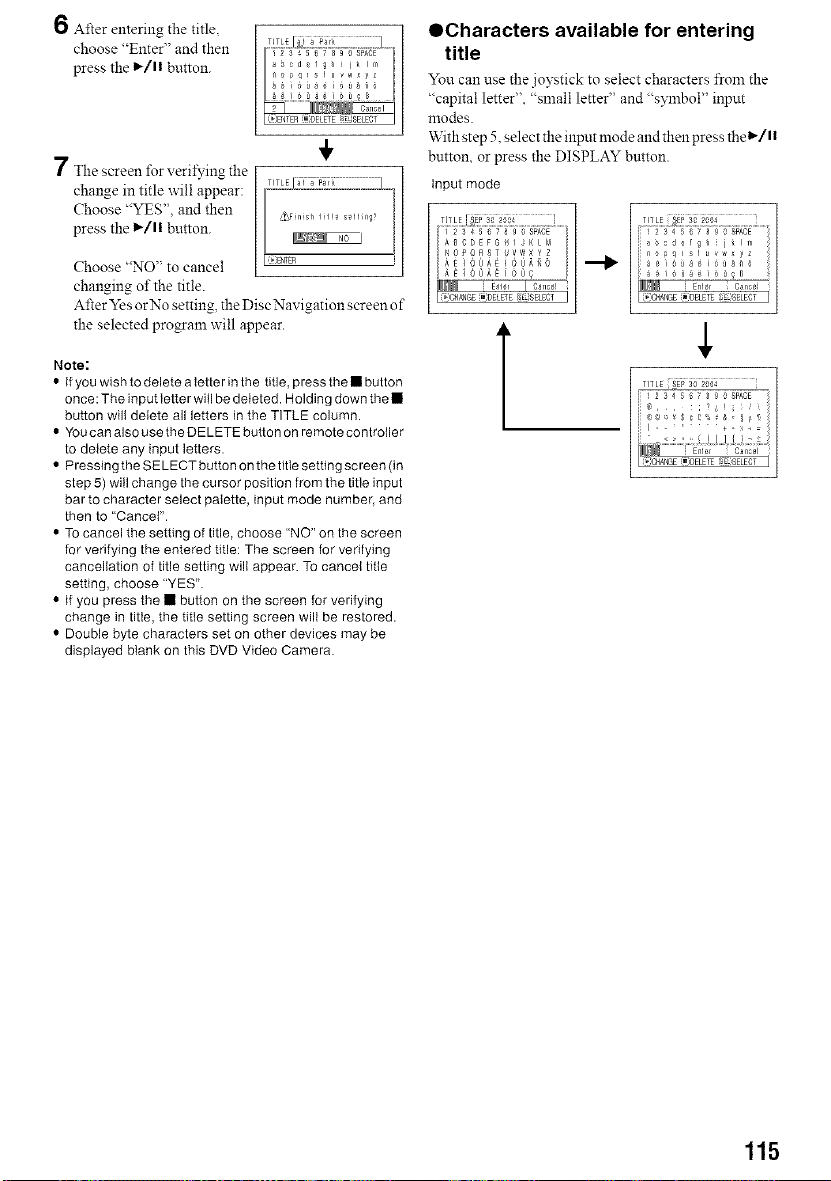
6 After entering the title,
choose "Enter" and then
press the 1_/1! button.
7 The screen for veril_,ing the
change in title will appear:
Choose "YES". and then
press the 1_/1! button.
4,
Choose "NO" to cancel
changing of the title.
After 5res or No setting, the Disc Navigation screen o f
the selected program will appear.
OCharacters available for entering
title
You can use the joystick to select characters from the
"capital letter". "small letter" and "symbol" input
modes.
With step 5. select the input mode and then press thel_/l!
button, or press the DISPLAY button.
Input mode
Note:
• If you wish to delete a Ietter in the title, press the • button
once: The input letter will be deleted. Holding down the •
button will delete all letters in the TITLE column.
• You can also use the DELETE button on remote controller
to delete any input letters.
• Pressing the SELECT button on thetitte setting screen (in
step 5) will change the cursor position from the title input
bar to character select palette, input mode number, and
then to "Cancel".
• TO cancel the setting of title, choose "NO" on the screen
for verifying the entered title: The screen for verifying
cancellation of title setting will appear. To cancel title
setting, choose "YES".
• If you press the • button on the screen for verifying
change in title, the title setting screen will be restored.
• Double byte characters set on other devices may be
displayed blank on this DVD Video Camera.
TITLE S_P 3_ 2_04
_I@IP_IGE iDELETE _iEjSELECT
115
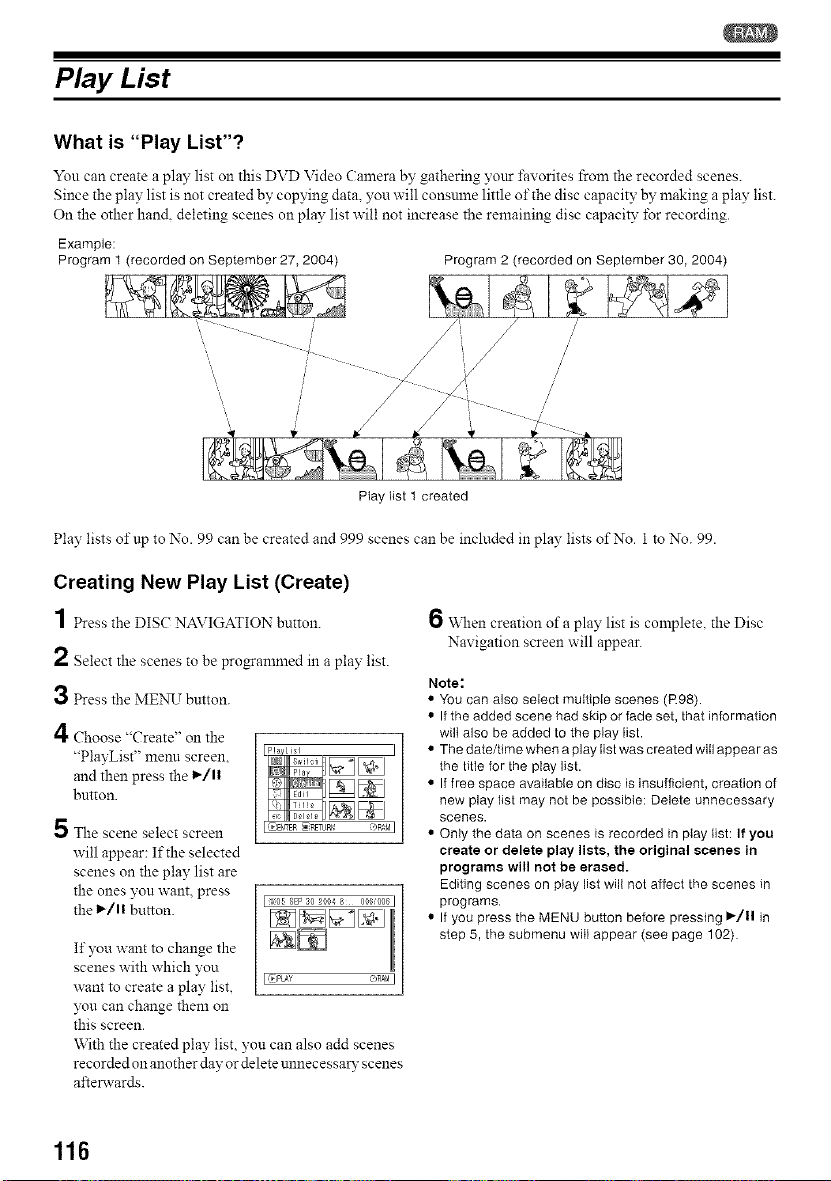
Play List
What is "Play List"?
You can create a play list Ollthis DVD Video Calnera by gathering yottr favorites from the recorded scenes.
Since the play list is not created by copying data, you will consume little of the disc capacity by making a play list.
On the other han& deleting scenes on play list will not increase the remaining disc capacity for recording.
Example:
Program 1 (recorded on September 27, 2004) Program 2 (recorded on September 30, 2004)
/
/
Play list 1 created
Play lists of up to No. gg can be created and 999 scenes can be included in play lists of No. 1 to No. 99.
Creating New Play List (Create)
1 Press the DIS( NAVIGATION button.
2 Select the scenes to be progammed in a play list.
3 Press the MENU button.
4Choose "Create" on the
"PlayList" menu screen,
and then press the 1_[1|
button.
5 The scene select screen
will appear: If the selected
scenes on the play list are
the ones yon want, press
the l_/ll button.
1505 SEP 30 2004 8 008t008 ]
If you want to change the
scenes with which you
want to create a play list, I-,Pt_Y (',RA_I
yon can change them on
this screen.
With the created play list, yon can also add scenes
recorded on another day or delete unnecessary scenes
aftenvards.
6 \_11en creation of a play list is complete, the Disc
Nax igation screen will appear.
Note:
• You can also select multiple scenes (R98).
• If the added scene bad skip or fade set, that information
will also be added to the play list.
• The date/time when a play list was created will appear as
the title for the play list.
• If free space available on disc is insufficient, creation of
new play list may not be possible: Delete unnecessary
scenes.
• Only the data on scenes is recorded in play list: If you
create or delete play lists, the original scenes in
programs will not be erased.
Editing scenes on play list will not affect the scenes in
programs.
• If you press the MENU button before pressing I_/11 in
step 5, the submenu will appear (see page 102)
116
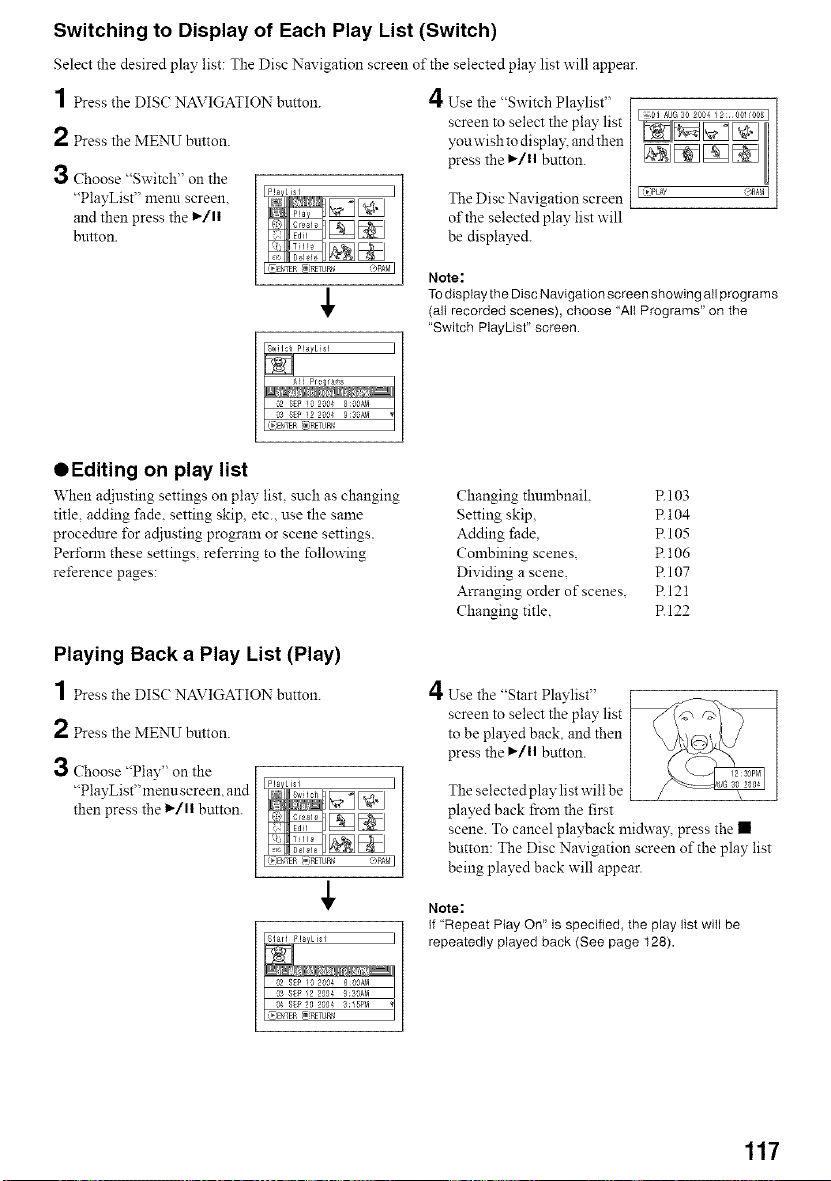
Switching to Display of Each Play List (Switch)
Select the desired play list: The Disc Navigation screen of the selected play list will appear.
] Press the DISC NAVIGATION button. 4 Use the "Switch Plavlist"
screen to select the play list
2 Press the MENU button, youwishtodispla): andthen
press the I_/11 button.
3 Choose "Switch" on the
"PlayList" menn screen, ] The Disc Navigation screen
and then press the 1_/1| of the selected play list will
button, be displayed.
I _)PLAY _AB_I
Note:
TOdisplay the Disc Navigation screen showing all programs
(all recorded scenes), choose "All Programs" on the
"Switch PlayUst" screen.
QEditing on play list
When adjusting settings on play list such as changing
title, adding fade. setting skip, etc., use the same
procedure lbr adjusting program or scene settings.
Peribnn these settings, referring to the following
reference pages:
Playing Back a Play List (Play)
1 PresstheD SCNAVIGATION button.
2 Pressthe MENU btltton.
3 Choose "Play" on the
"PlayList"menu screen, and
then press the l_/ll button.
Changing thulnbnail. R 103
Setting skip, R 104
Adding fade. R 105
Combining scenes, R 106
Dividing a scene, R 107
Arranging order of scenes, RI21
Changing title, R 122
4Use the "Start Playlist"
screen to select the play list
to be played back, and then
press the I_/ll button.
The selected play list will be
played back from the first
scene. To cancel playback midway, press the •
button: The Disc Navigation screen of the play list
being played back will appear.
Note:
If "Repeat Play On" is specified, the play list will be
repeatedly played back (See page 128).
117
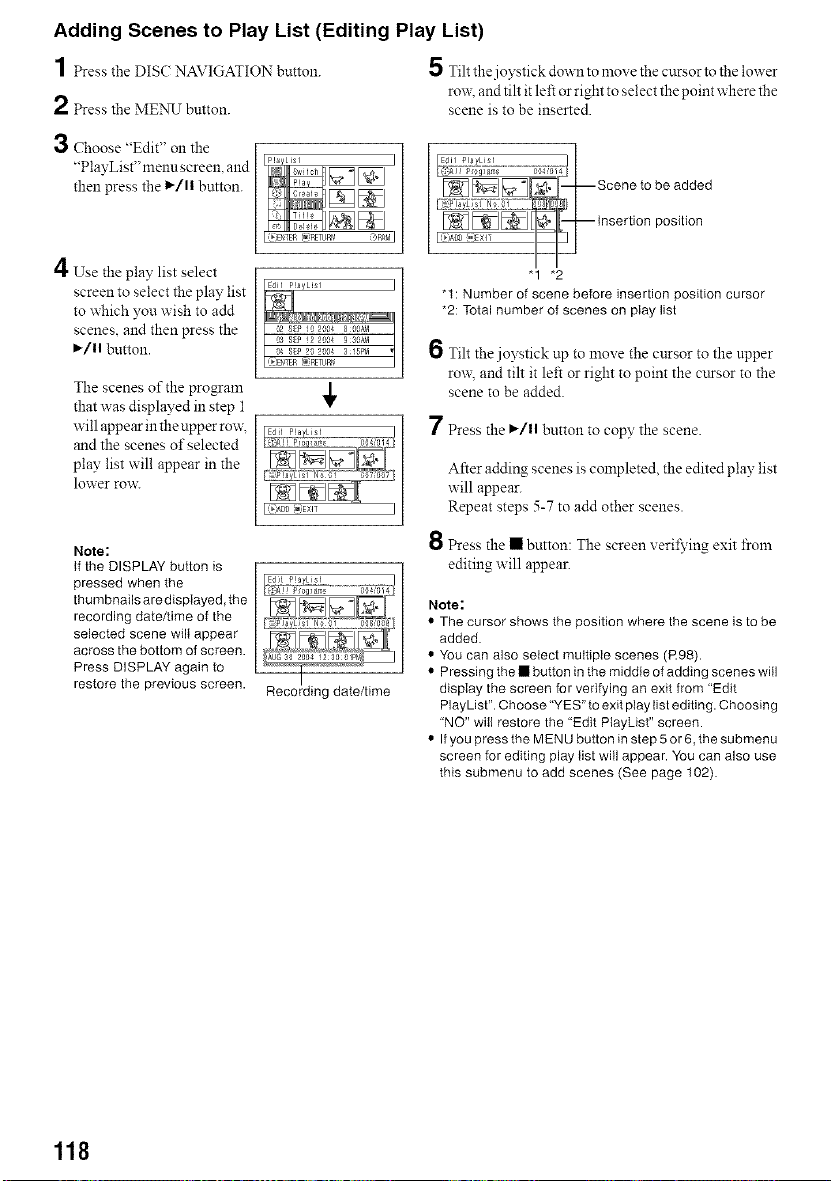
Adding Scenes to Play List (Editing Play List)
1 Press the DIS( NAVIGATION button. 5 Tiltthejoystickdowntolnovethecursor tothe lower
rox_, and tilt it left or right to select the point where the
2 Press the MENU button, scene is to be inserted.
3 Choose "Edit" on the
"PlayList" menu screen, and
than press the l_/ll button.
4Use"
the play list select
screen to select the play list
to which you wish to add
scenes, and then press the
I_/11button.
The scenes of the program
that was displayed in step 1
will appear in the upper row:
and the scenes of selected
play list will appear in the
lower row:
Note:
If the DISPLAY button is
pressed when the
thumbnails are displayed, the
recording date/time of the
selected scene wilt appear
across the bottom of screen.
Press DISPLAY again to
restore the previous screen.
4,
L,*);,DD_)EXIT
;:_:, ]j Pro lamg 804t015f
Scene to be added
_"_1 .[_ insertion position
"1 *2
"1: Number of scene before insertion position cursor
*2: Total number of scenes on play list
6 Tilt the joystick up to move the cursor to the upper
row, and tilt it left or right to point the cttrsor to the
scene to be added.
7 Press the I_/11button to cop}' the scene.
After adding scenes is completed, the edited play list
will appear.
Repeat steps 5-7 to add other scenes.
Press the • button: The screen xeril_'ing exit froln
editing will appear.
Note:
• The cursor shows the position where the scene is to be
added.
• You can also select multiple scenes (R98).
• Pressing the • button in the middle of adding scenes will
display the screen for verifying an exit from "Edit
PlayList". Choose"YES" to exit play list editing. Choosing
"NO" will restore the "Edit PiayList" screen.
• If you press the MENU button in step 5 or 6,the submenu
screen for editing play list will appear. You can also use
this submenu to add scenes (See page 102).
118
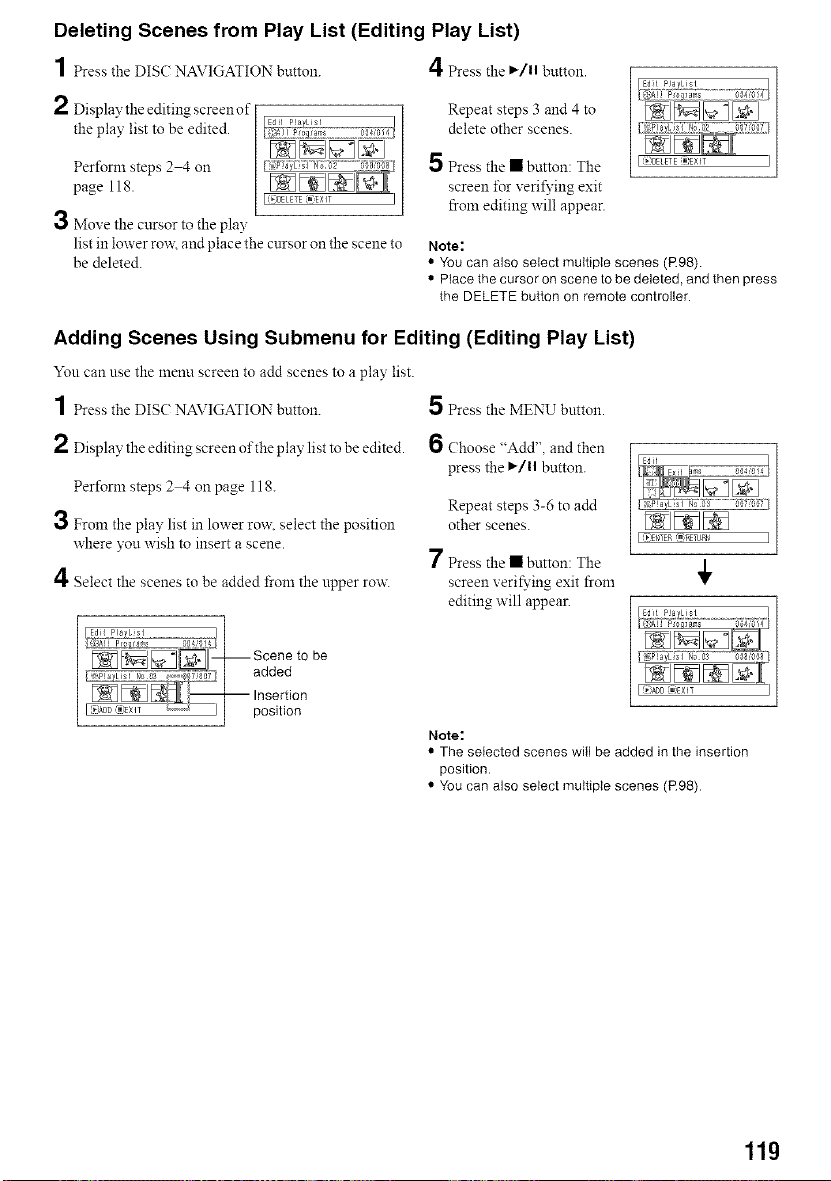
Deleting Scenes from Play List (Editing Play List)
1 Press the DIS( NAVIGATION bHtton. 4 Press the ,/11 button.
2 Displaythe editing screenof
the play list to be edited.
Perform steps 2 4 on
page 118.
3 Move the cursor to the play
list in lower rox_ and place the cursor on the scene to
be deleted.
Repeat steps 3 and 4 to
delete other scenes.
5 Press the • button: The
screen for veri_dng exit
from editing will appear.
Note:
• You can also select multiple scenes (R98).
• Place the cursor on scene to be deleted, and then press
the DELETE button on remote controller.
Adding Scenes Using Submenu for Editing (Editing Play List)
You can use the menu screen to add scenes to a play list.
1 Press the DIS(: NAVIGATION button. 5 Press the MENU button.
2 Display the editing screen of the play list to be edited.
Perform steps 2 4 onpage 118.
3 From the play list in lower row. select the position
where you wish to insert a scene.
4 Select the scenes to be added fi-om the upper row.
6 Choose "Add", and then
press the ,/11 button.
Repeat steps 3-6 to add
other scenes.
[ _)EtgTER 1_ RETUPN ]
7 Press the • button: The
/
screen veri_dng exit from •
editing will appear.
Note:
• The selected scenes will be added in the insertion
position.
• You can also select multiple scenes (R98)
11g
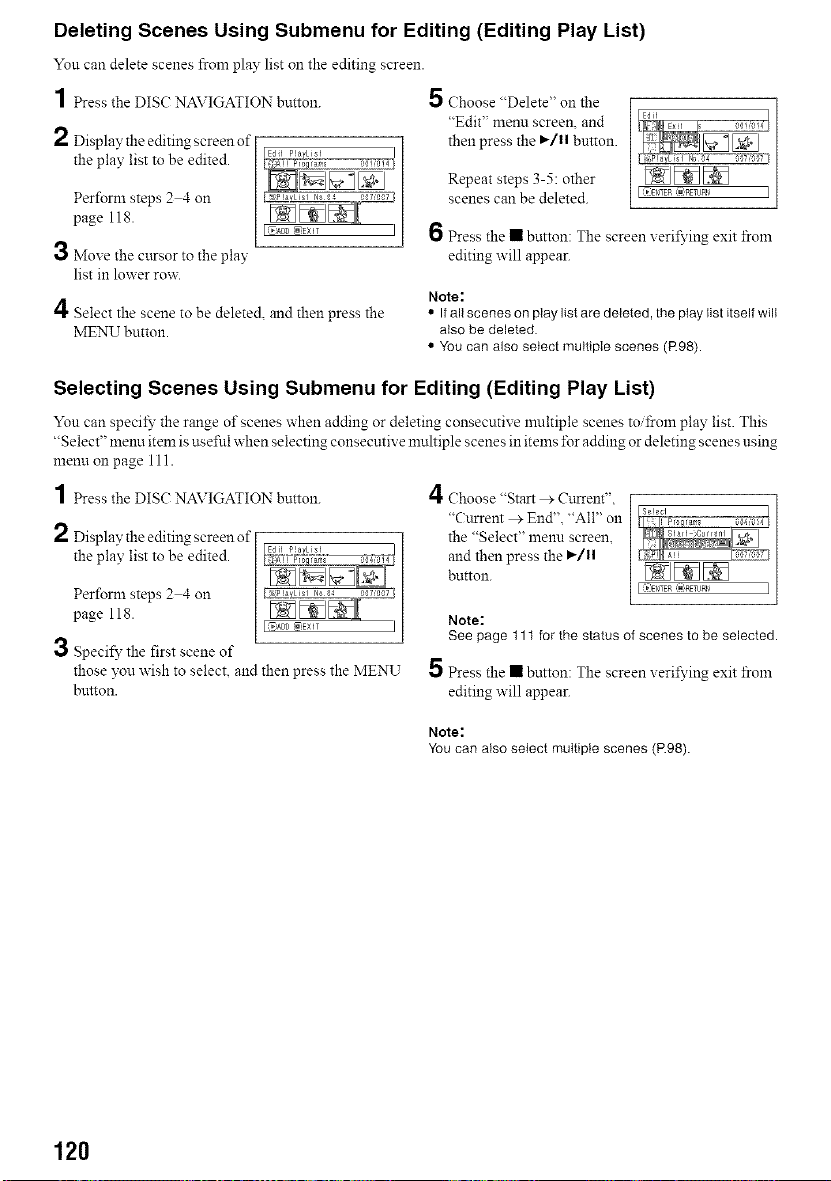
Deleting Scenes Using Submenu for Editing (Editing Play List)
Yon can delete scenes from play list on the editing screen.
1 Press the DISC?NAVIGATION button. 5 Choose "Delete" on the
"Edit" menu screen, and
2 Display the editing screen of then press the I_/1| button.
the play list to be edited.
Repeat steps 3-5: other
Perform steps 2 4 on scenes can be deleted.
page 118.
3 Move the cttrsor to the play
list in lower row.
4 Select the scene to be deleted, and then press the
MENU button.
[ _=ENTER _]_TUPN ]
6 Press the • button: The screen xeril_'ing exit froln
editing will appear.
Note:
• If all scenes on play list are deleted, the ptay list itself will
also be deleted.
• You can also select multiple scenes (R98).
Selecting Scenes Using Submenu for Editing (Editing Play List)
Yon can specil_" the range of scenes when adding or deleting consecutive nmltiple scenes to _oln play list. This
"Select" menu item is uselid when selecting consecutive nmltiple scenes in items lbr adding or deleting scenes using
menu on page 111.
1 Press the DISC?NAVIGATION button.
2 Display the editing screen of
the play list to be edited.
Perform steps 2 4 on
page 118.
3 Specify the first scene of
those you wish to select, and then press the MENU
button.
4Choose "Start > Cturent",
"Cttrrent > End'L "All" on
the "Select" menu screen,
and then press the I_/11
button.
[ v EtITER _ RETUPN ]
Note:
See page 111 for the status of scenes to be selected.
5 Press the • button: The screen xeril_'ing exit froln
editing will appear.
Note:
You can also select multiple scenes (P.98).
120
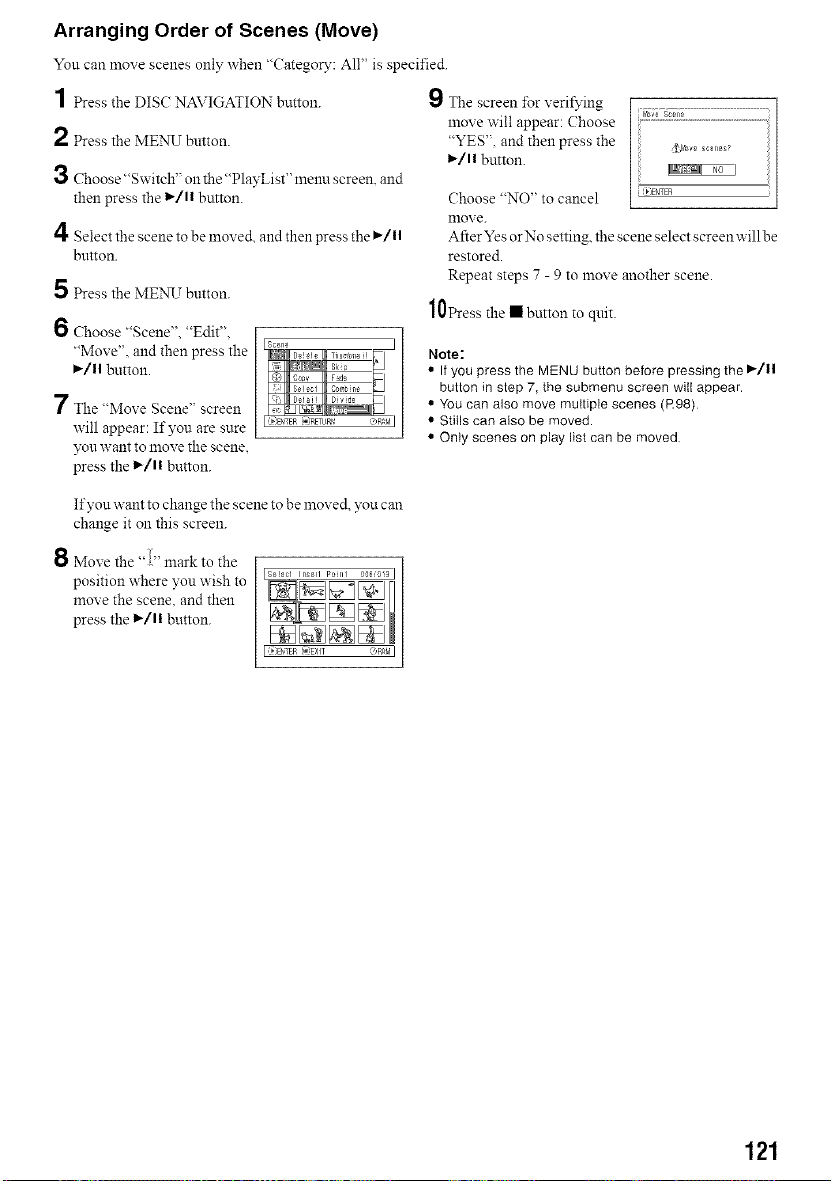
Arranging Order of Scenes (Move)
You can move scenes only when "Category: All" is specified.
1 Press the DISC NAVIGATION button.
2 Press the MENU button.
3 Choose "Switch" on the "PlayList" menu screen, and
then press the 1_/1| button.
4 Select the scene to be moved, and then press the I_/ll
button.
5 Press the MENU button.
6 Choose "Scene", "Edit",
"Move", and then press the
I_/ll button.
7 The "Move Scene" screen
will appear: If you are sure
you want to move the scene,
press the l_/ll button.
9 S_e screen for veri_'ing
1hove will appear: Choose
"YES", and then press the
l_/ll button.
Choose "NO" to cancel [ _)ENTER
nlove.
After Yes orNo setting, the scene select screen willbe
restored.
Repeat steps 7 - 9 to lnoxe another scene.
10Press the • button to quit.
Note:
• If you press the MENU button before pressing the _/ll
button in step 7, the submenu screen will appear.
• You can also move multiple scenes (R98)
• Stills can also be moved.
• Only scenes on play list can be moved
If you want to change the scene to be moved, you can
change it on this screen.
Move the %?' mark to the
position where you wish to
move the scene, and then
press the l_/ll button.
J _[_TFR _iEX]_ @R_<M J
121
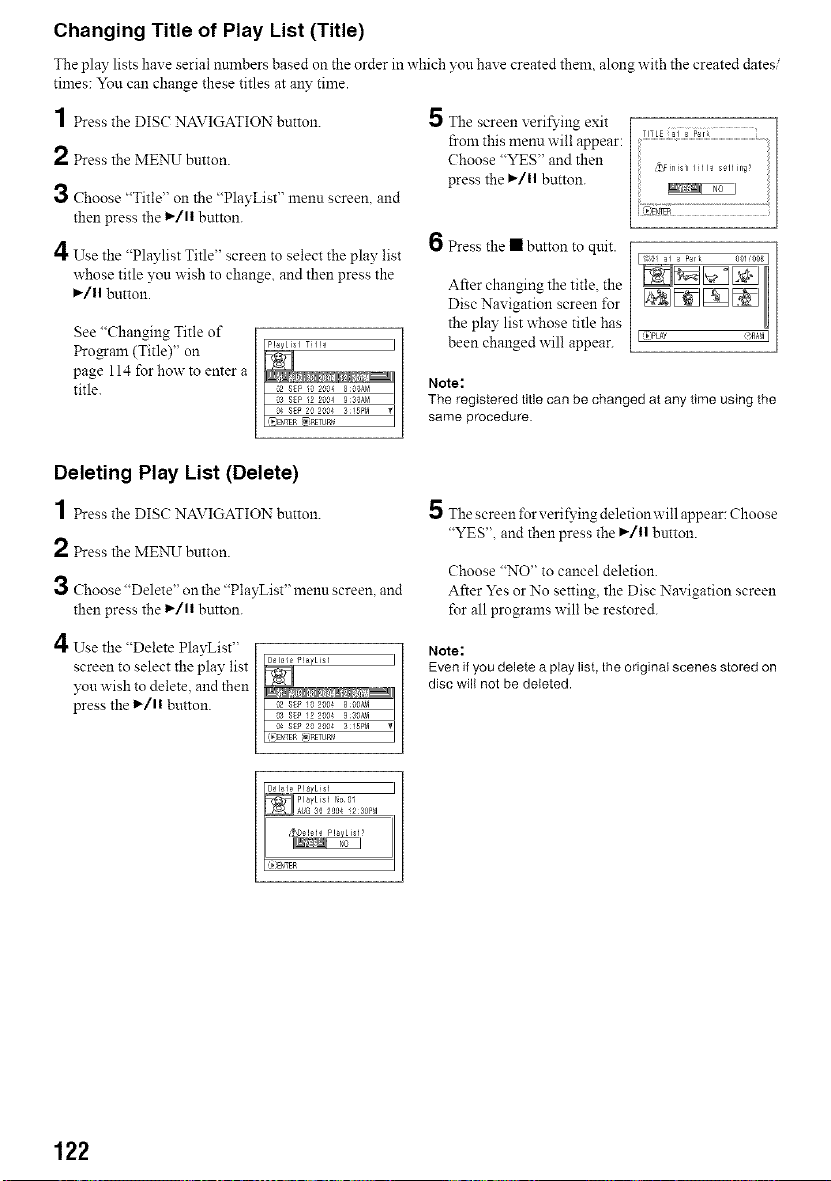
Changing Title of Play List (Title)
The play lists haxe serial numbers based on the order in which you have created them along with the created dates
times: You can change these titles at any time.
1 Press the DISC NAVIGATION button.
2 Press the MENU button.
3 Choose "Title" on the "PlayList" menu screen, and
then press the 1_/11 button.
4 Use the "Playlist Title" screen to select the play list
whose title you wish to change, and then press the
,/11 button.
See "Changing Title of
Progaln (Title)" on
page 114 for how to enter a
title.
5
The screen veri_'ing exit
from this menu will appear:
Choose "YES" and then
press the ,/1| button.
6 Press the • button to qtdt.
TITLE ;al a Park
j _ E{_rlB .......................................
After changing the title, the
Disc Navigation screen lbr
the play list whose title has
been changed will appear.
I _)pL_¥ _)RmI
Note:
The registered title can be changed at any time using the
same procedure
Deleting Play List (Delete)
1 PresstheDISC:NAVIGATION button.
2 Press the MENU button.
3 Choose "Delete" on the "PlayList" menu screen, and
then press the 1_/11 button.
4 Use the "Delete PlayList"
screen to select the play list
you wish to delete, and then
press the 1_/11 button.
5 The screen lbr veri_,ing deletion will appear: Choose
"YES". and then press the _/11 button.
Choose "NO" to cancel deletion.
After Yes or No setting, the Disc Navigation screen
for all programs will be restored.
Note:
Even if you delete a play list, the original scenes stored on
disc will not be deleted.
122
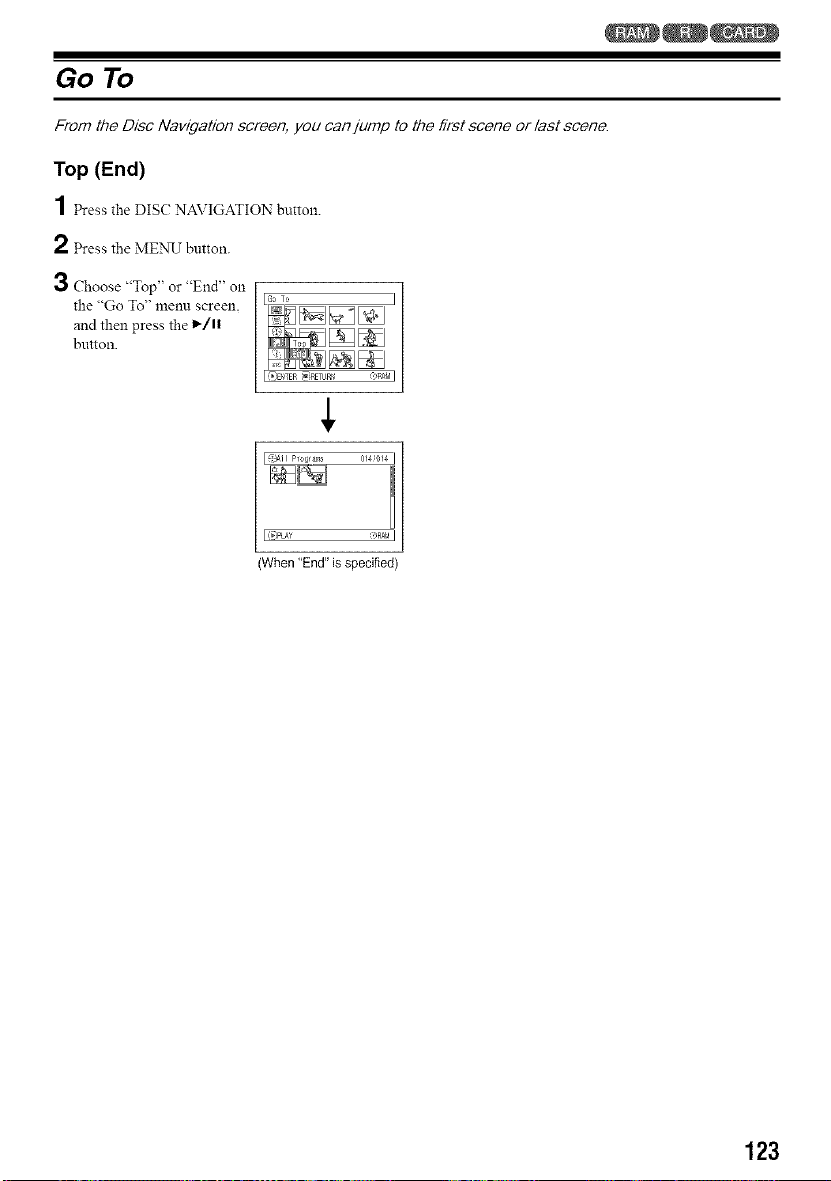
Go To
From the Disc Navigation screen, you can jump to the #?stscene or last scene.
Top (End)
1 Press_heD,SCNA_,',GAT,ONbu_,on
2 Press the MENLJ button.
3 Choose "Top" or "End" on
the "Go To" menu screen.
and then press the 1_/1|
button.
l I( }PLAY _ RAt,I I
(When'End" isspecified)
123
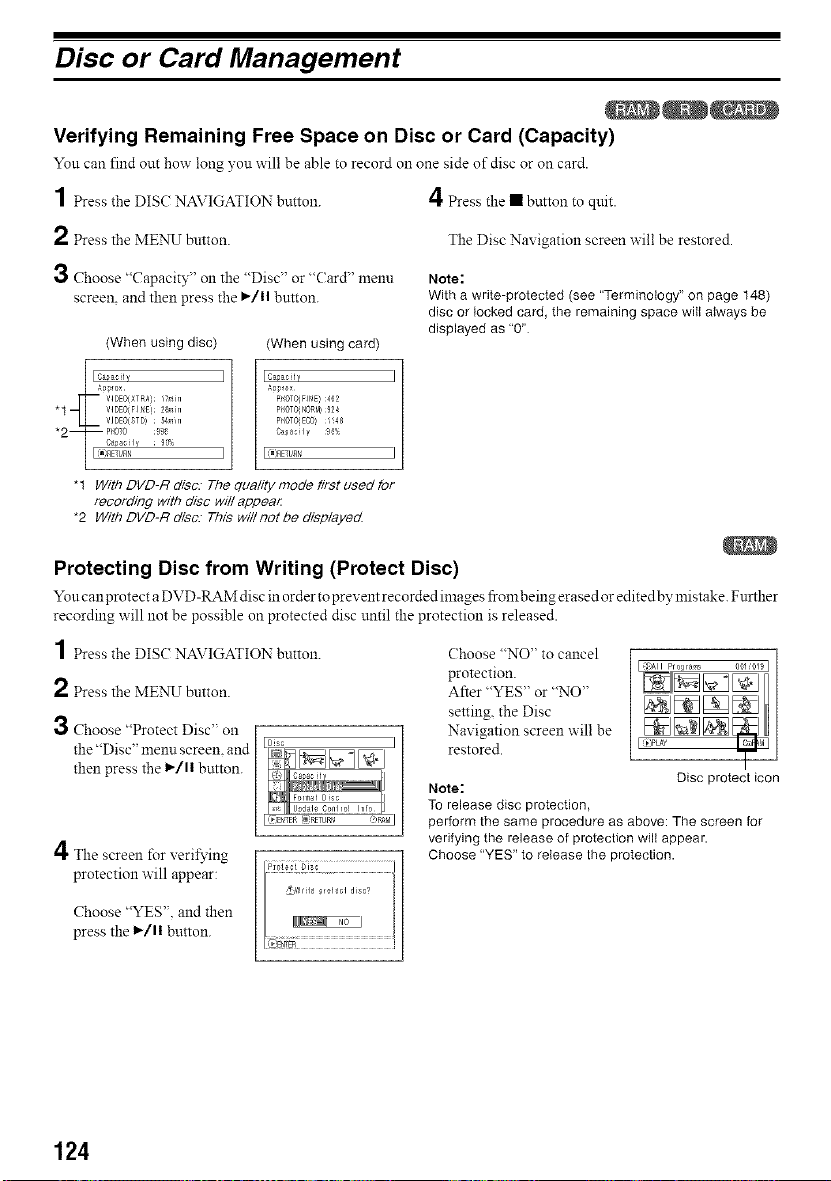
Disc or Card Management
Verifying Remaining Free Space on Disc or Card (Capacity)
Yon can find out how long you will be able to record oll one side of disc or on card.
1 Press the DISC NAVIGATION button.
4Press the • button to quit.
2 Press the MENU button.
The Disc Nax igation screen will be restored.
3 Choose "Capacity" on the "Disc" or "Card" menu
screen, and then press the I_]11button.
(When using disc) (When using card)
Note:
With a write-protected (see "Terminology" on page 148)
disc or locked card, the remaining space wilI always be
displayed as "0"
I Cs?acily I
Ag#_ox
PI4OTO/FIt_E) :4_2
PHOTO{NORM) £24
pI4OTOIECO_ ¸1!48
Ca_acily 9_%
I_IRETUR'_ I
"1 With DVD-R disc. The qua/ity mode first used for
recording with disc wi//appear
*2 With DVD-R disc. This wi//not be d/sp/ayed
Protecting Disc from Writing (Protect Disc)
Yon c an protect a DVD-RAM disc in order to prevent recorded images from being erased or edited by mistake. Further
recording will not be possible on protected disc until the protection is released.
1 Press the DISC NAVIGATION button. Choose "NO" to cancel
2 Press the MENU button.
3 Choose "Protect Disc" on
the "Disc" menu screen, and
then press the l_/ll button.
protection.
After "YES" or "NO"
setting, the Disc
Navigation screen will be
restored.
Note:
To release disc protection,
4The screen for verifying
protection will appear:
Choose "YES". and then
press the l_/ll button.
1
_fo#ram 001 t019 I ]
/
I )PLAY Ll_l I
Disc protect icon
perform the same procedure as above: The screen for
verifying the release of protection wilt appear.
Choose "YES" to release the protection.
124
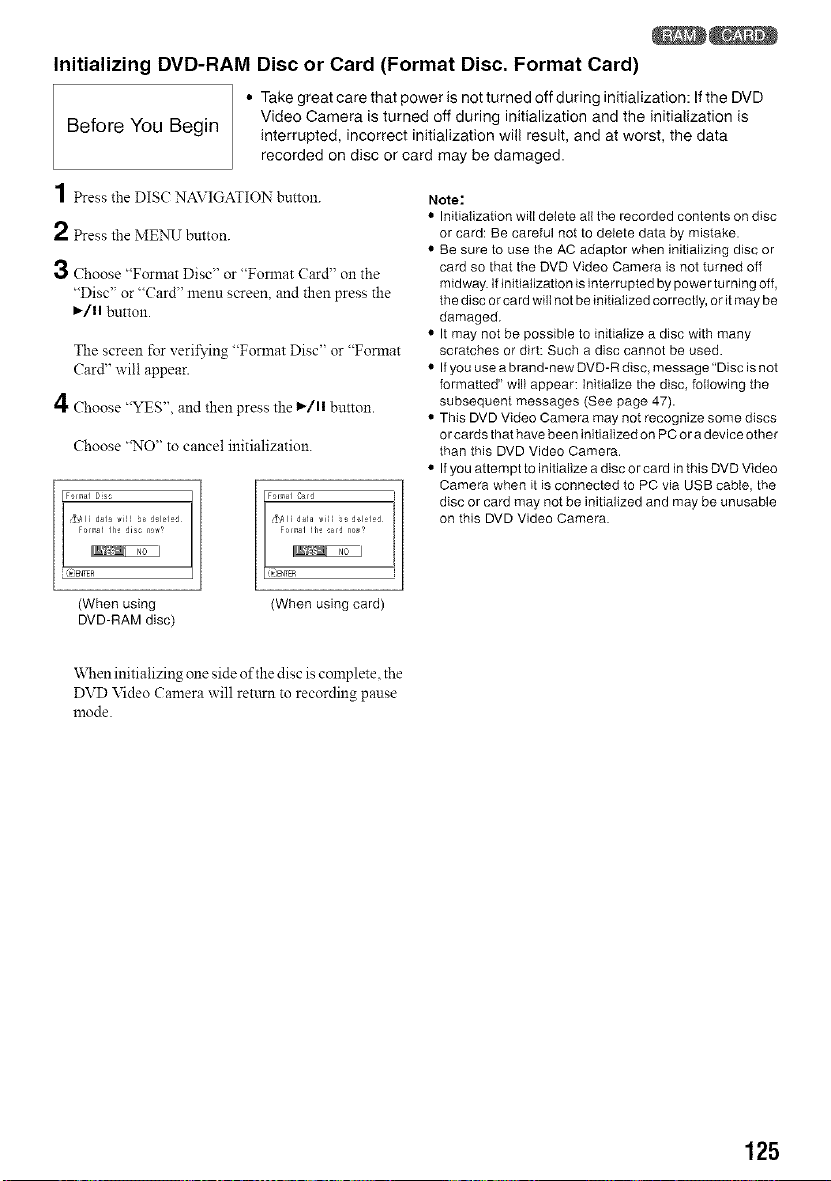
Initializing DVD-RAM Disc or Card (Format Disc, Format Card)
Before You Begin
• Take great care that power is not turned off during initialization: If the DVD
Video Camera is turned off during initialization and the initialization is
interrupted, incorrect initialization will result, and at worst, the data
recorded on disc or card may be damaged.
1 Press the DISC NAVIGATION button.
2 PresstheMENU bl_ltton.
3 Choose "Format Disc" or "Format Card" on the
"Disc" or "Card" menu screen, and then press the
I_/1| button.
The screen for veril_'ing "Format Disc" or "Format
Card" will appear.
4 Choose "YES", and then press the l_/l| button.
Choose "NO" to cancel initialization.
[Formal Disc
Formal Card
Note:
• Initialization will delete all the recorded contents on disc
or card: Be careful not to delete data by mistake.
• Be sure to use the AC adaptor when initializing disc or
card so that the DVD Video Camera is not turned off
midway. If initialization is interrupted by power turning off,
the disc or card will not be initialized correctly, or itmay be
damaged.
• It may not be possible to initialize a disc with many
scratches or dirt: Such a disc cannot be used.
• If you use a brand-new DVD-R disc, message "Disc is not
formatted" will appear: initialize the disc, following the
subsequent messages (See page 47).
• This DVD Video Camera may not recognize some discs
or cards that have been initialized on PC or a device other
than this DVD Video Camera.
• If you attempt to initialize a disc or card inthis DVD Video
Camera when it is connected to PC via USB cable, the
disc or card may not be initialized and may be unusable
on this DVD Video Camera.
(When using (When using card)
DVD-RAM disc)
'_\Nen initializing one side of the disc is complete, the
DVD Video Camera will return to recording pause
mode.
125
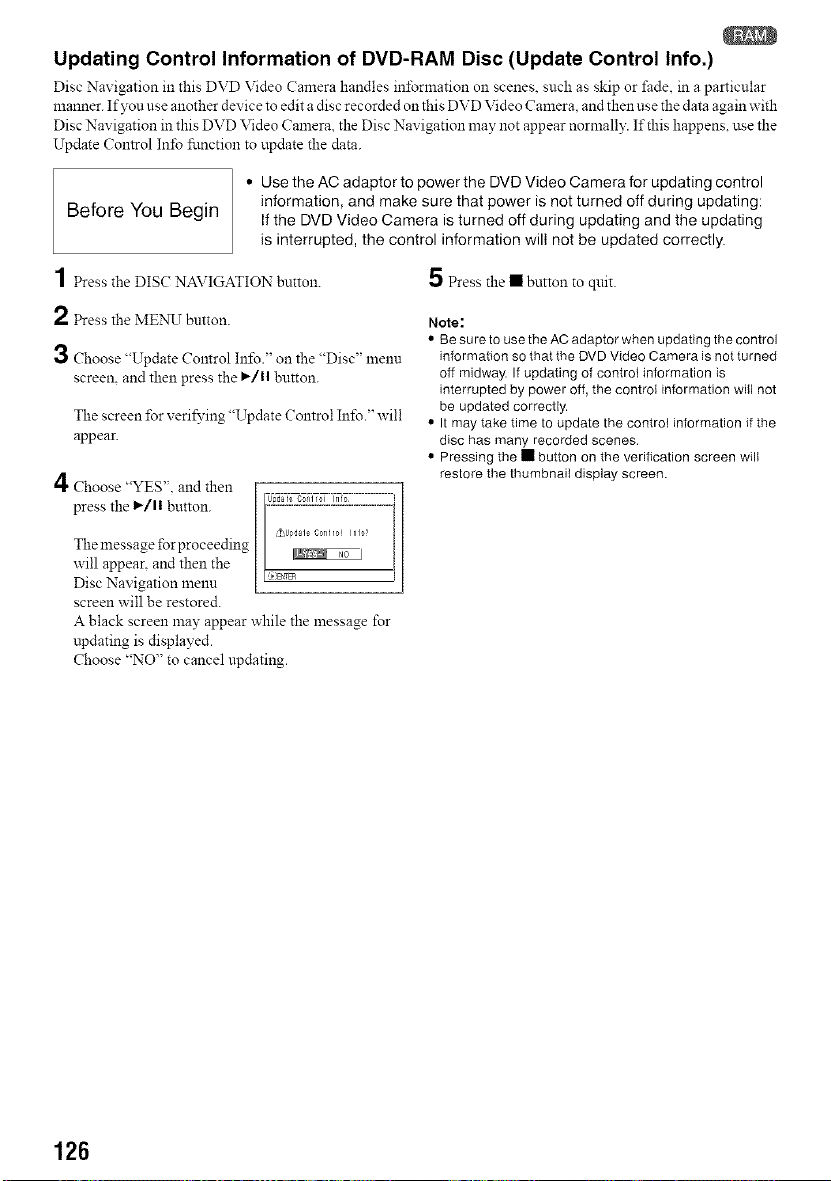
Updating Control Information of DVD-RAM Disc (Update Control Info.)
Disc Navigation m this DVD Video Camera handles in±brmation oll scenes, such as skip or fade. in a particular
manner. If you use another device to edit a disc recorded on this DVD Video Camera, and then use the data again with
Disc Navigation in this DVD Video Camera, the Disc Navigation may not appear normally. If this happens, use the
Update Control In±b fi.mction to update the data.
Before You Begin
• Use the AC adaptor to power the DVD Video Camera for updating control
information, and make sure that power is not turned off during updating:
If the DVD Video Camera is turned off during updating and the updating
is interrupted, the control information will not be updated correctly.
1 Press the DISC NAVIGATION button.
2 PresstheMENIT button.
3 Choose "Update Control Info." on the "Disc" menu
screen, and then press the ,/1| button.
The screen for veri_'ing "Update Control Info." will
appear.
4 Choose "YES". and then
press the 1_/1! button.
5 Press the • button to quit.
Note:
• Be sure to use the AC adaptor when updating the control
information so that the DVD Video Camera is not turned
off midway. If updating of controt information is
interrupted by power off, the controt information will not
be updated correctly.
• It may take time to update the control information if the
disc has many recorded scenes.
• Pressing the • button on the verification screen will
restore the thumbnail display screen.
The message for proceeding
will appear, and then the
Disc Navigation menu
screen will be restored.
A black screen may appear while the message for
updating is displayed.
Choose "NO" to cancel npdating.
126
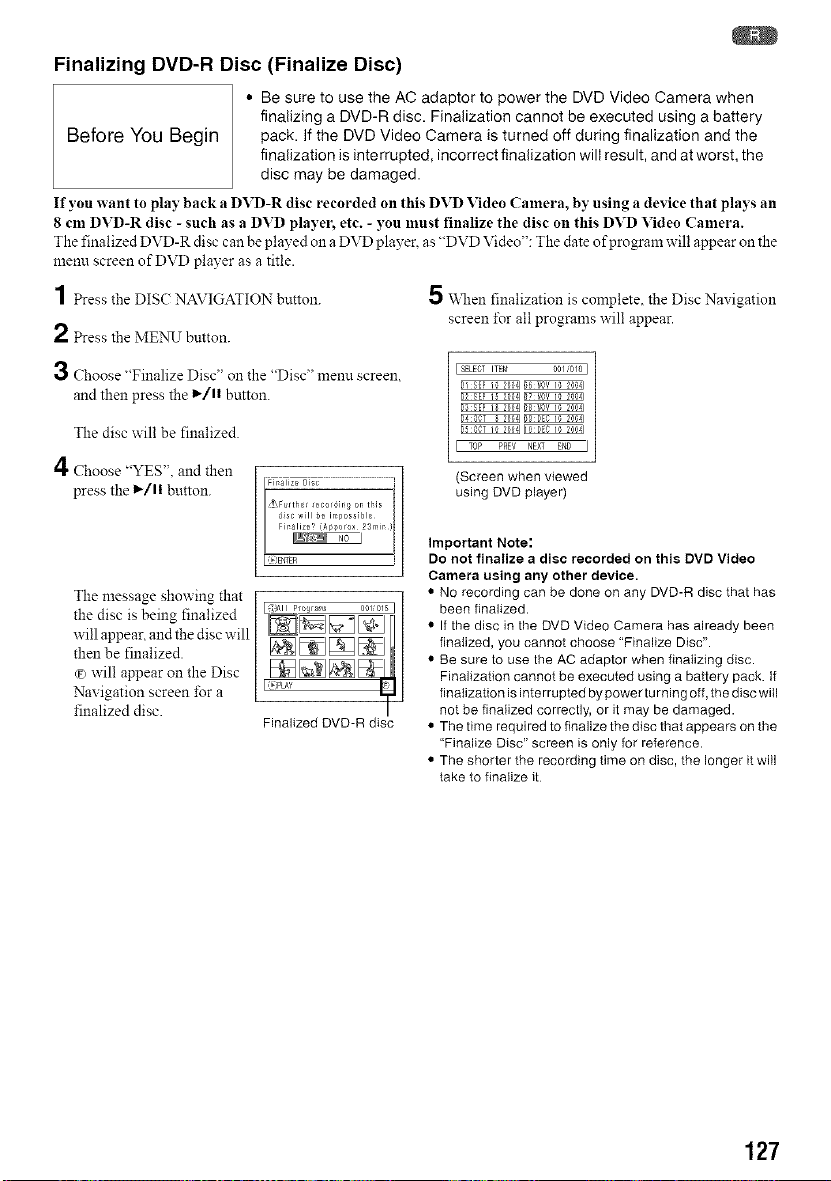
Finalizing DVD-R Disc (Finalize Disc)
• Be sure to use tile AC adaptor to power the DVD Video Camera when
finalizing a DVD-R disc. Finalization cannot be executed using a battery
Before You Begin pack. If the DVD Video Camera is turned off during finalization and the
finalization is interrupted, incorrect finalization will result, and at worst, the
disc may be damaged.
If yen want to play back a DVD-R disc recorded on this DVD Video Camera, by using a device that plays an
8 cm DVD-R disc - such as a DVD player, etc. - you must finalize the disc on this DVD Video Camera.
The finalized DVD-R disc can be played on a DVD player, as "DVD Video": The date of program will appear on the
menn screen of DVD player as a title.
1 Press the DIS( NAVIGATION button.
2 Press the ME_N_Tbutton.
3 Choose "Finalize Disc" on the "Disc" menu screen.
and then press the 1_/11 button.
The disc will be finalized.
4 Choose "YES". and then
press the 1_/11 button.
The message showing that
the disc is being finalized
will appear, and the disc will
then be finalized.
¢3 w'ill appear on the Disc
Navigation screen for a
finalized disc.
Finalized DVD-R disc
5 When finalization is complete, the Disc Naxigation
screen tbr all programs will appear.
(Screen when viewed
using DVD player)
Important Note:
Do not finalize a disc recorded on this DVD Video
Camera using any other device.
• No recording can be done on any DVD-R disc that has
been finalized.
• If the disc in the DVD Video Camera has already been
finatized, you cannot choose "Finalize Disc".
• Be sure to use the AC adaptor when finalizing disc.
Finalization cannot be executed using a battery pack. if
finalization is interrupted by power turning off, the disc will
not be finalized correctly, or it may be damaged.
• The time required to finalize the disc that appears on the
"Finalize Disc" screen is only for reference.
• The shorter the recording time on disc, the longer it will
take to finalize it
127
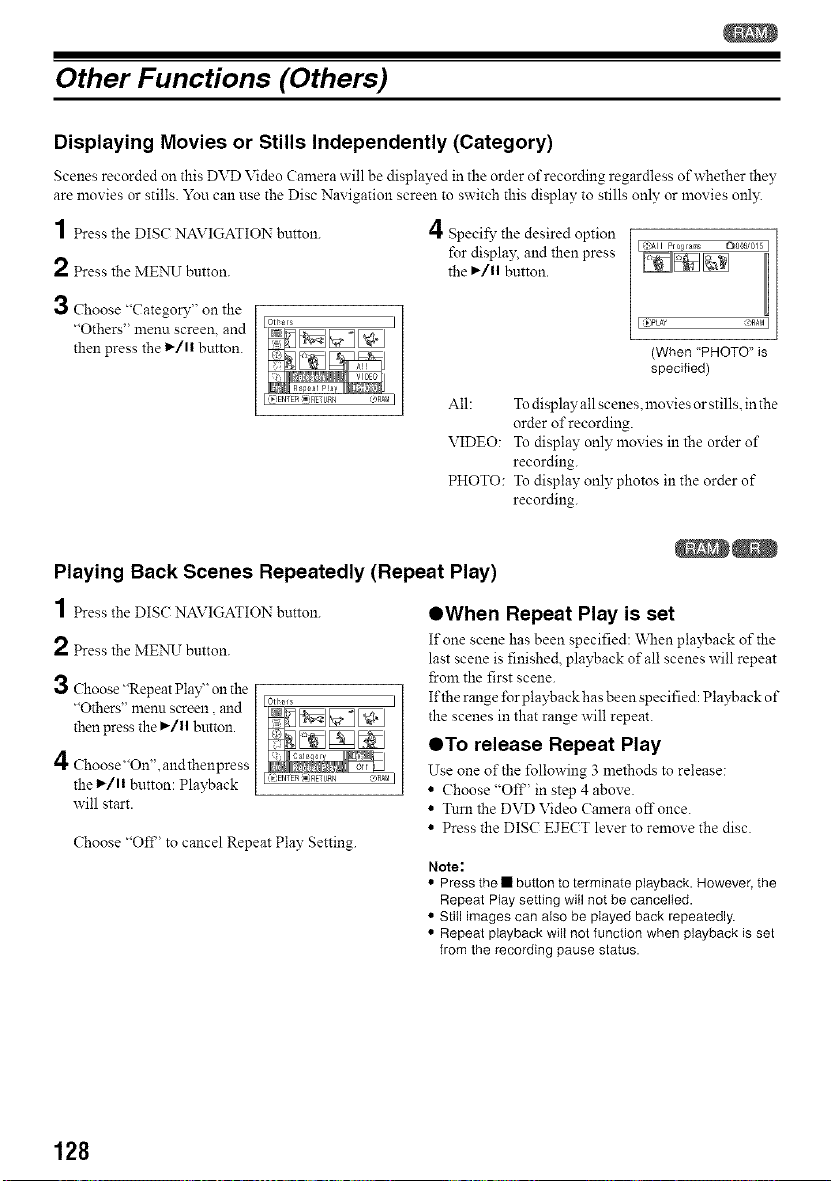
Other Functions (Others)
Displaying Movies or Stills Independently (Category)
Scenes recorded on this DVD Video Camera will be displayed in the order of recording regardless of whether they
are movies or stills. You can use the Disc Navigation screen to switch this display to stills only or movies onl):
1 Press the DISC NAVIGATION button. 4 Specil}' the desired option
for displa); and then press
2 Press the MENU button, the I_/1| button.
3 Choose "CategoD"' on the
"Others" menu screen, and
then press the l_/ll button.
(When "PHOTO" is
specified)
All: To display all scenes, movies or stills, in the
order of recording.
VIDEO: To display only movies in the order of
recording.
PHOTO: To display only photos in the order of
recording.
Playing Back Scenes Repeatedly (Repeat Play)
1 Press the DISC NAVIGATION button.
2 Press the MENU button.
3 Choose "Repeat Play" on the
"Others" menu screen, mid
then press the I_/11 button.
4 Choose"On'L and thenpress
the _/11 button: Playback
will start.
Choose "Off' to cancel Repeat Play Setting.
OWhen Repeat Play is set
If one scene has been specified: \_11en playback of the
last scene is finished, playback of all scenes will repeat
15:omthe first scene.
If the range lbr playback has been specified: Playback of
the scenes in that range will repeat.
QTo release Repeat Play
Use one of the following 3 methods to release:
• Choose "Off' in step 4 above.
• Turn the DVD Video Camera off once.
• Press the DISC EJECT lever to remove the disc.
Note:
• Press the • button to terminate playback. However, the
Repeat Play setting will not be cancelled.
• Still images can also be played back repeatedly.
• Repeat playback will not function when playback is set
from the recording pause status.
128
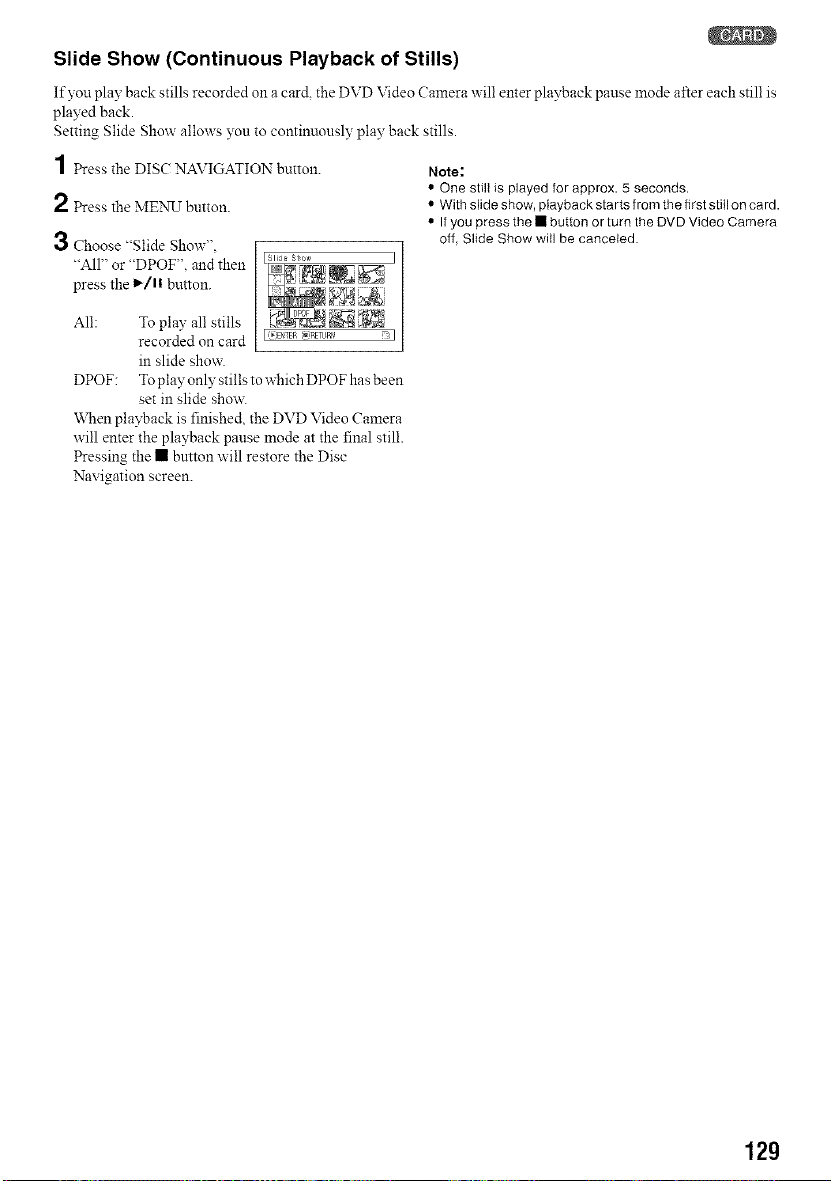
Slide Show (Continuous Playback of Stills)
If yon play back stills recorded oll a card the DVD Video Camera will enter playback pause mode after each still is
played back.
Setting Slide Show allows you to continuously play back stills.
1 Press the DISC NAVIGATION button.
2 Press the MENU button.
3 Choose "Slide Show".
"All" or "DPOF". and then I
press the l_/l! button.
All: To play all stills
recorded on card I _,D_TEa,=RETUR'_ _:I
in slide show.
DPOF: To play only stills to which DPOF has been
set in slide show.
When playback is finished, the DVD Video Camera
will enter the playback pause mode at the final still.
Pressing the • button will restore the Disc
Navigation screen.
Note:
• One still is played for approx. 5 seconds.
• With slide show, playback starts from the first still on card.
• If you press the • button or turn the DVD Video Camera
off, Slide Show will be canceled.
129
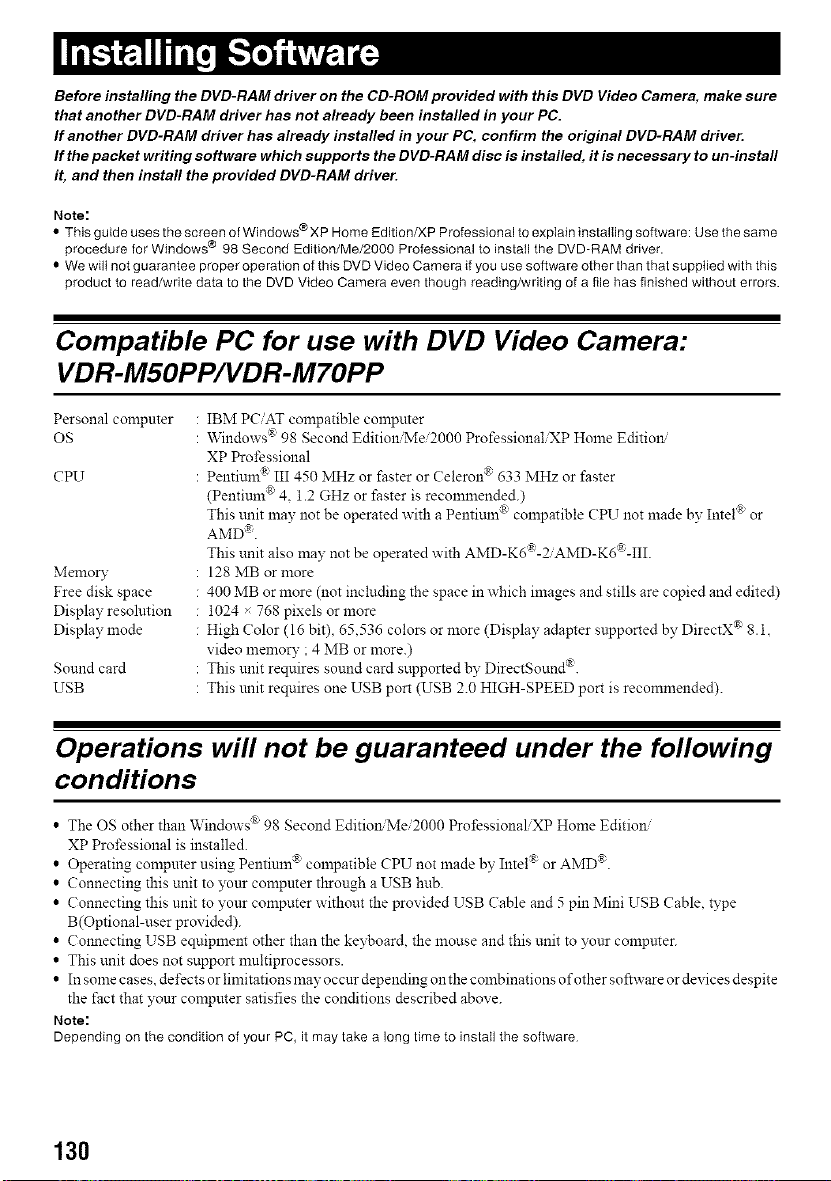
Before installing the DVD-RAM driver on the CD-ROM provided with this DVD Video Camera, make sure
that another DVD-RAM driver has not already been installed in your PC.
If another DVD-RAM driver has already installed in your PC, confirm the original DVD-RAM driver.
If the packet writing software which supports the DVD-RAM disc is installed, it is necessary to un-install
it, and then install the provided DVD-RAM driver.
Note:
• This guide uses the screen of Windows @XP Home Edition/XP Professional to explain installing software: Use the same
procedure for Windows @ 98 Second Edition/Me/2000 Professional to install the DVD-RAM driver.
• We wilt not guarantee proper operation of this DVD Video Camera if you use software other than that suppiied with this
product to read/write data to the DVD Video Camera even though reading/writing of a file has finished without errors.
Compatible PC for use with DVD Video Camera:
VDR-M5OPP/VDR-M7OPP
Personal compnter IBM PC/AT compatible computer
OS '*\indows ® 98 Second Edition/Me/2000 ProfessionaliXP Home Editiml
XP Professional
Pentium <III 450 MHz or faster or Celerun ® 633 MHz or faster
(PentitLm® 4. 1.2 GHz or faster is recommended.)
This trait may not be operated with a Pentimn ® compatible (:PEr not made by Intel ® or
AMD a.
This unit also may not be operated with AMD-K6®-2iAMD-K6'R-III.
128 MB or more
400 MB or more (not including the space in which images and stills are copied and edited)
1024 x 768 pixels or more
High Color (16 bit), 65,536 colors or more (Display adapter snpported by DirectX ® 8.1.
video memory ; 4 MB or more.)
: This unit requires sound card supported by DirectSound ®.
: This unit requires one USB port (USB 2.0 HIGH-SPEED port is recommended).
CPU
Memory
Free disk space
Display resolution
Display mode
Sound card
USB
Operations will not be guaranteed under the following
conditions
• The OS other than Windows ® 98 Second Editim_ Me/2000 ProfessionaliXP Home Edition/
XP Professional is installed.
• Operating compnter using Pentium _'_compatible CPU not made by Intel ® or AMD ®.
• Connecting this unit to yonr computer tl_rough a USB hub.
• Connecting this unit to your computer without the provided USB (able and 5 pin Mini USB Cable, type
B(Optional-user provided).
• Connecting USB equipment other than the keyboard, the mouse and this unit to yonr compnter.
• This unit does not support mnltiprocessors.
• In sonde cases, defects or limitations n_ay occnr depending on the combinations of other software or devices despite
the fact that yonr compnter satisfies the conditions described above.
Note:
Depending on the condition of your PC, it maytake a long time to installthe software
130
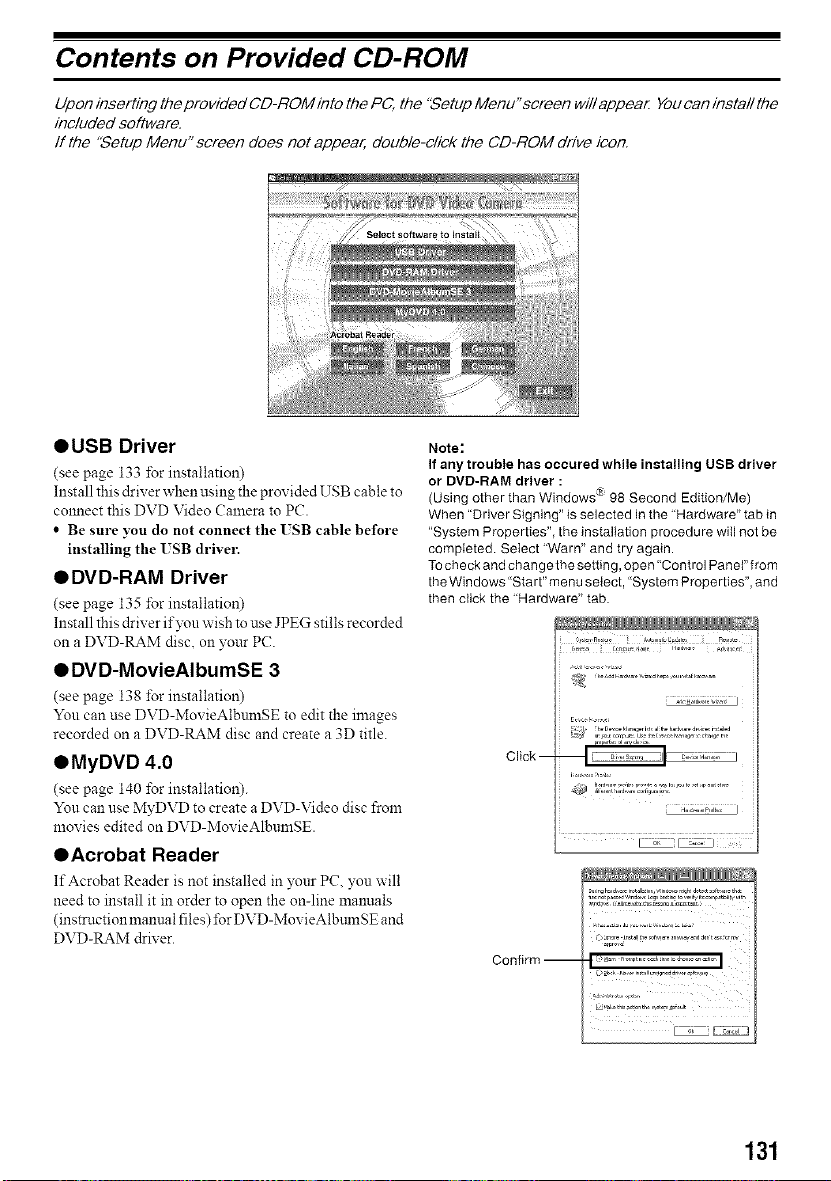
Contents on Provided CD-ROM
Upon inserting the provided CD-ROM into the PC, the "Setup Menu"screen will appear Youcan install the
included software.
If the "Setup Menu" screen does not appear, double-click the CD-ROM drive icon.
OUSB Driver
(see page 133 for installation)
Install this driver when using the provided USB cable to
cmmect this DVD Video Calnera to PC.
• Be sure you do not connect the ISB cable before
installing the USB drivel:
QDVD-RAM Driver
(see page 135 for installation)
Install this driver if you wish to use JPEG stills recorded
on a DVD-RAM disc. on ?'our PC.
Q DVD-MovieAIbumSE 3
(see page 138 for installation)
You can use DVD-Mox ieAlbumSE to edit the images
recorded on a DVD-RAM disc and create a 3D title.
QMyDVD 4.0
(see page 140 for installation).
Yon can use MyDVD to create a DVD-Video disc from
movies edited on DVD-MovieAlbnmSE.
QAcrobat Reader
If Acrobat Reader is not installed in your PC yon will
need to install it in order to open the on-line manuals
(instructionmannal files) ±brDVD-Mox ieAlbtmlSE and
DVD-RAM &iver.
Note:
If any trouble has occured while installing USB driver
or DVD-RAM driver :
(Using other than Windows _ 98 Second Edition/Me)
When "Driver Signing" is selected in the "Hardware" tab in
"System Properties", the installation procedure will not be
completed. Setect "Warn" and try again.
To check and changethe setting, open"Control Panel" from
the Windows "Start" menu select, "System Properties", and
then click the "Hardware" tab.
Click --
Confirm --
)km_,e m_allthe s0_v,_e _n_u_¢and d, _s c__
131
• DVD-MovieAIbumSE
Yon can read the instraction mannal using either of the
i\_llowingprocedures:
• After installing DVD-MovieAIbumSE. open
"Programs"or "All Programs' from the Windows
"Start' menn, choose "Panasonic' and "DVD-
MovieAlbmnSE", and then open "On-line Manual".
To read the abovemanual. 3s_uwill needAdobe Acrobat
Reader.
If Adobe Acrobat Reader has not been installed in yottr
PC. you can install it frona the "Setup Menu"
screen. Click any lan_lage froln the "Acrobat Reader"
on the "Setup Menu" screen.
• MyDVD
• After installing MyDVD, open "Progran_s" or "All
Programs" from the Window's"Start" menu, choose
"Sonic" and "MyDVD". and then open the electronic
instruction mannal in "Documentation" folder.
To read the above mannal, a "Web browser (Interact
Explorer, Netscape Comlmmicator, etc.) must be set up
in your PC.
If yon cannot open the electronic instruction mannal for
M_,,©VD, consult the mannfiacmrer ofyonr PC about the
setup method ibr the Web browser.
• DVD-RAM Driver
• After installing the DVD-RAM Driver open
"Programs' or "All Progranas"from the Window's
"Start" menn. choose "Panasonic DVD-RAM" and
"DVD-RAM DrNer". and then open "Using DVD-
RAM disc".
No electronic instruction manual is provided with the
USB Driver.
Note:
Although the above software programs can be used on
Windowsg98 Second Edition or later is needed to fully
utilize all functions of DVD-MovieAIbumSE.
132
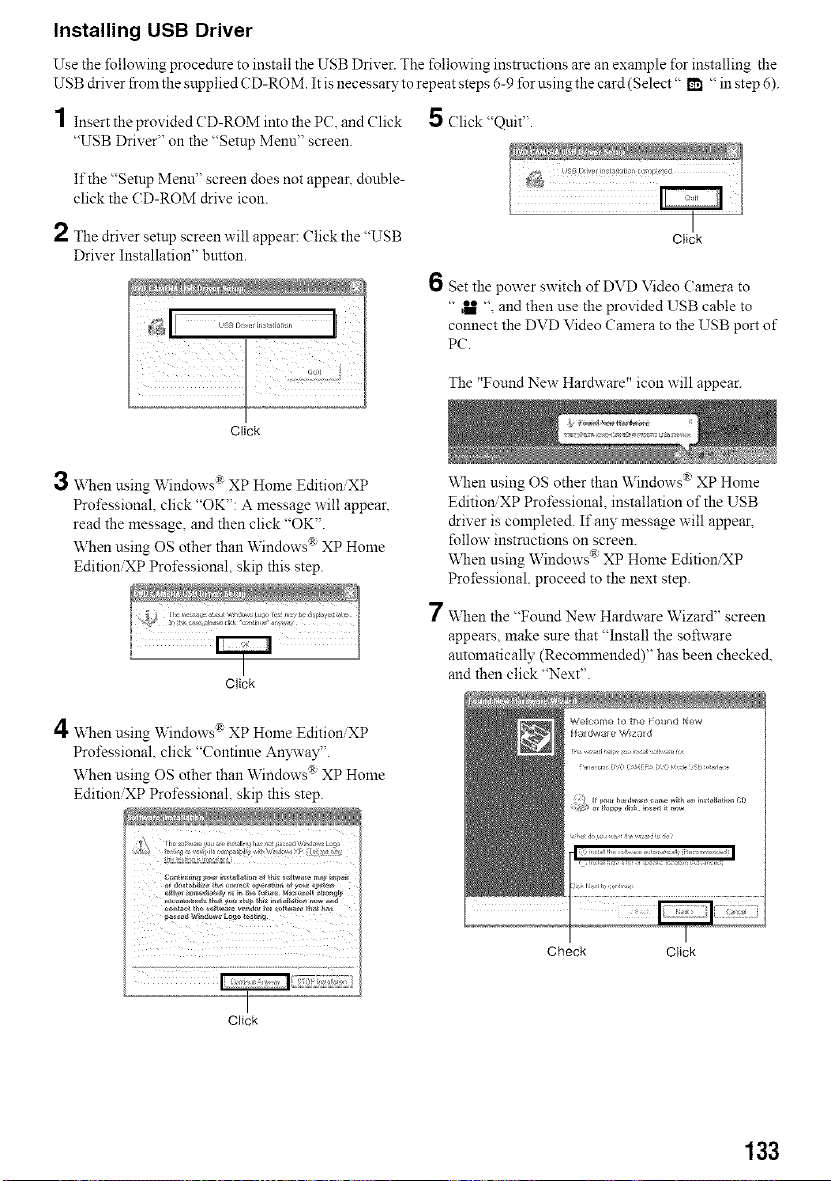
Installing USB Driver
Use the following procedure to install the USB Driver. The following instructions are an example for installing the
USB drix er from the supplied CD-ROM. It is necessary to repeat steps 6-9 for using the card (S elect" m "in step 6).
1 Insert the prox ided CD-ROM into the PC. and (?lick
"USB Driver" on the "Setup Menu" screen.
If the "Setup Menu" screen does not appean double-
click the CD-ROM drive icon.
2 The drix er setup screen will appear: Click the "USB
Driver Installation" button.
5 (?lick "Quit".
Click
6 Set the power switch of DVD Video Calnera to
" _ " and then use the provided USB cable to
connect the DVD Video Camera to the USB port of
PC.
The "Found New Hardware" icon will appear.
Click
3 When using Windows ® XP Home EditioniXP
Professional. click "OK": A message will appear,
read the message, and then click "OK".
When using OS other than Windows ® XP Home
EditioniXP Professional, skip this step.
Click
7
\_11en using OS other than Windows ® XP Home
Edition XP Professional. installation of the USB
driver is completed. If any message will appear,
follow instructions on screen.
When using Windows ® XP Home EditioniXP
Professional proceed to the next step.
\_11en the "Found New Hardware Wizard" screen
appears, make sure that "Install the software
automatically (Recommended)" has been checked.
and then click "Next".
4When using Windows _ XP Home EditioniXP
Professional, click "Continne An3avay".
When using OS other than Windows ® XP Home
EditioniXP Professional, skip this step.
Check Click
Click
133
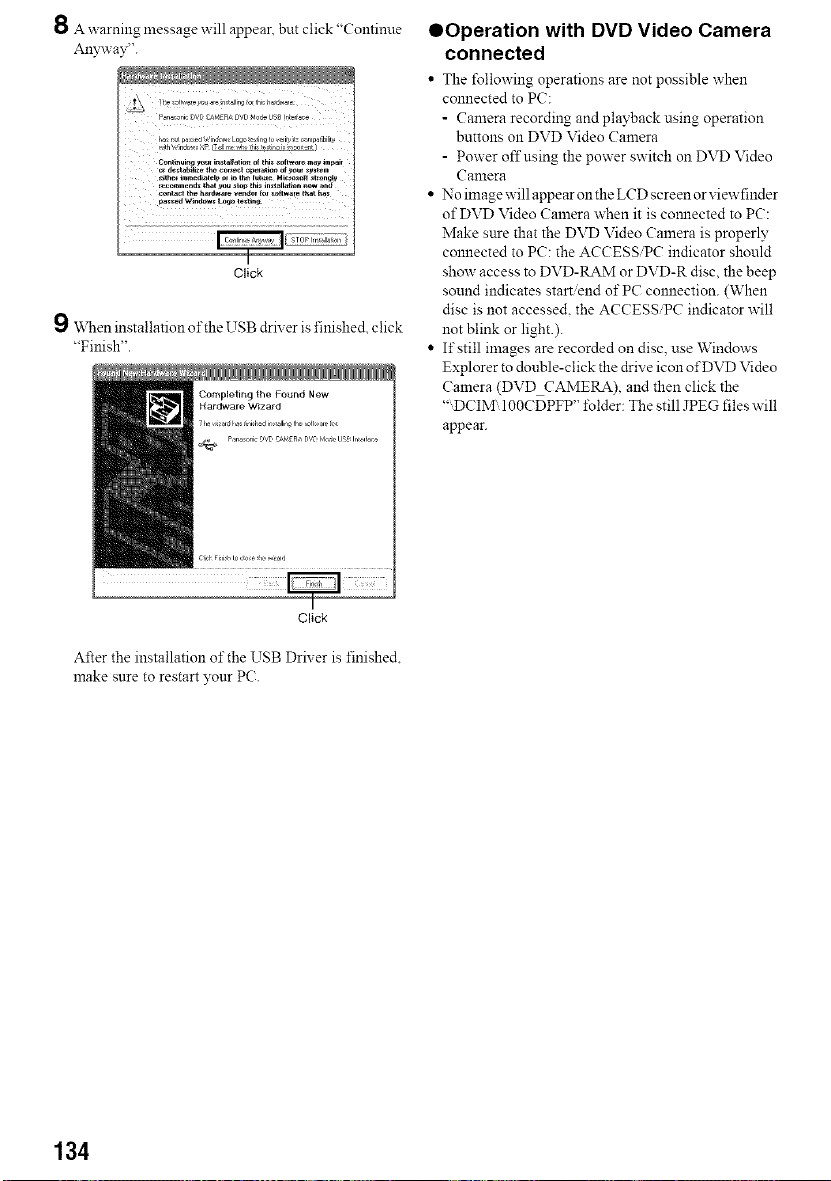
8 A warning message will appear, but click "Continue
Anywav".
I
Click
111V_Neninstallation of the USB diner is finished, click
"Finish".
QOperation with DVD Video Camera
connected
• The following operations are not possible when
connected to PC:
- Camera recording and playback using operation
buttons on DVD Video Camera
- Power offusing the power switch on DVD Video
Camera
• No image will appear on the LCD screen or viewfinder
of DVD Video Camera ,,','hen it is com_ected to PC:
Make sure that the DVD Video Camera is properly
connected to PC: the ACCESS/PC indicator should
show access to DVD-RAM or DVD-R disc, the beep
sound indicates start/end of PC connection. (When
disc is not accessed, the ACCESS/PC indicator ````'ill
not blink or light.).
• If still images are recorded on disc, use Windows
Explorer to donble-click the drive icon of DVD Video
Camera (DVD CAMERA), and then click the
"DCIM IOOCDPFP" lblder: The still JPEG files will
appear.
I
Click
After the installation of the USB Diner is finished.
make sure to restart }'our PC.
134
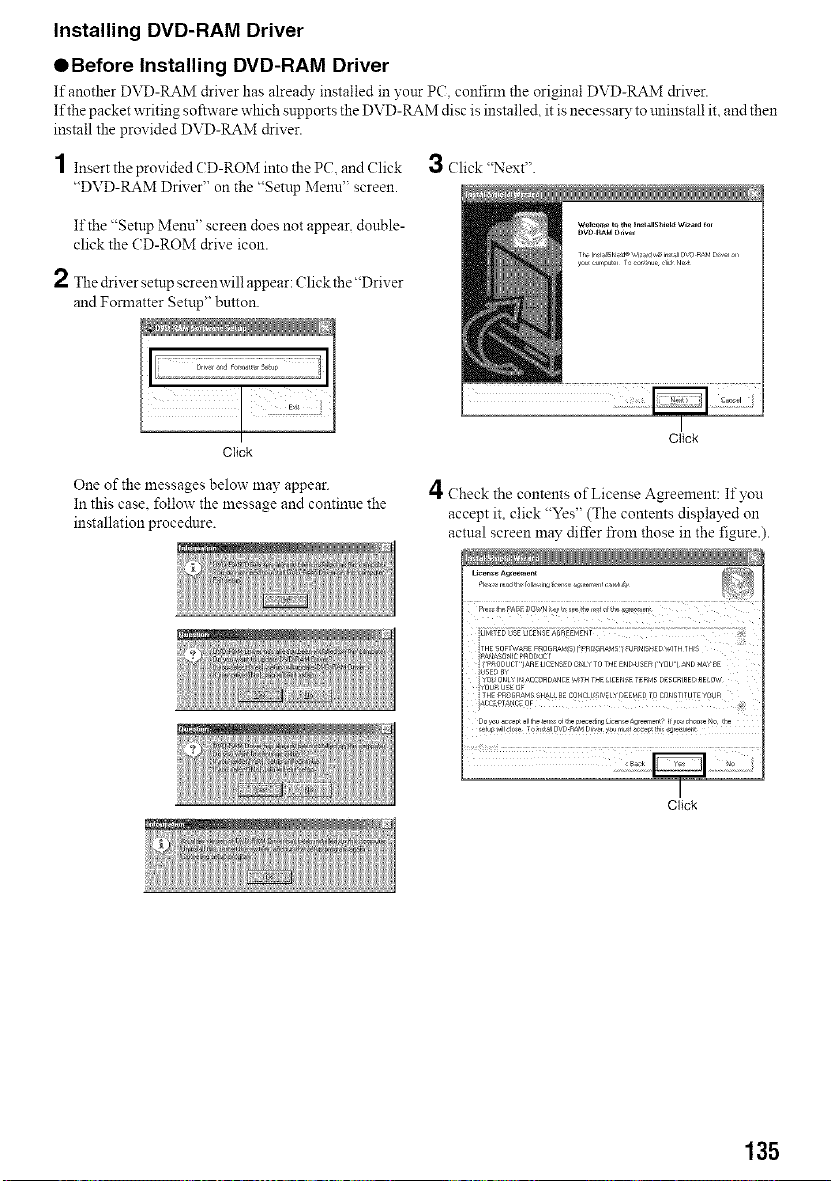
Installing DVD-RAM Driver
OBefore Installing DVD-RAM Driver
If another DVD-RAM driver has already installed in your PC coufirl:a the original DVD-RAM driver.
If the packet writing software which supports the DVD-RAM disc is installed, it is necessa13' to mlinstall it, and then
install the provided DVD-RAM driver.
1 Insert the provided CD-ROM into the PC. and (?lick 3 (?lick "Next".
"DVD-RAM Driver" on the "Setup Menu" screen.
If the "Setup Menu" screen does not appear, double-
click the CD-ROM drive icon.
2 The driver setup screenwill appear: (?lick the "Driver
and Fom_atter Setup" button.
I Click
Click
One of the messages belox_ 1nay appear.
In this case. follow the message and continue the
installation procedure.
4Check the contents of License Agreement: If you
accept it, click "Yes" (The contents displayed on
actual screen may differ froln those in the figure.).
I
Click
135
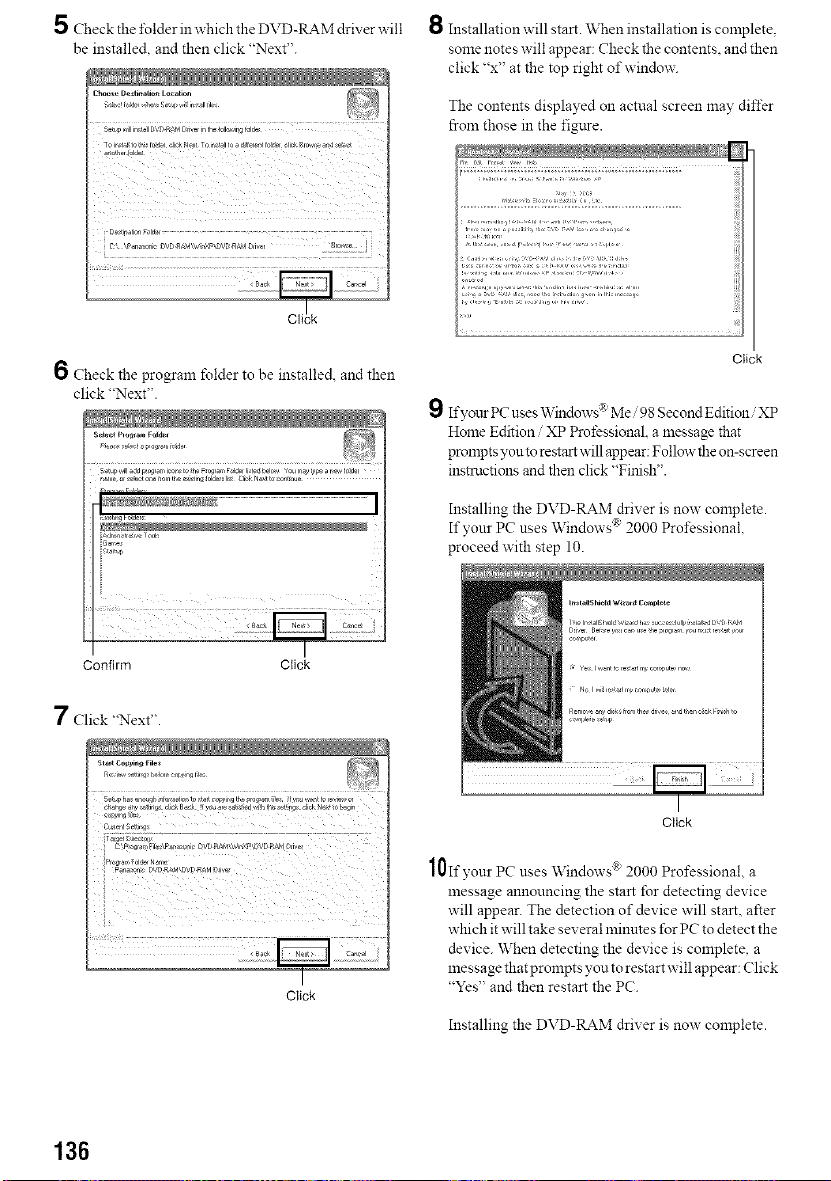
5 Check the l\_Ider in which the DVD-RAM driver,,,,,ill
be installed, and then click "Next".
i_ i _ _i i_ ii_ _ii ii i i _
i 2::::::::::: i
Cli]ck
Check the program folder to be installe& and then
click "Next".
P ,,s,, r_,t _ _,,, <_r,fJr
S_tup _ill _d p/ogr_F- ice_ t_ he p_ogr_ Fd_er te_ .helo_J YOU m_y ty_ _ r_ f_d_r
t_arne or N_et one Norr tl_ _tin_lDld I{ Clel Natto onlmue
'nnnm Fhirr
_1tlr_g_v_ers
Installation will start. When installation is colnplete.
some notes ',','ill appear: Check the contents, and then
click "x" at the top right of window.
The contents displayed on actual screen 1nay differ
from those in the figttre.
,,i i_i<,,
,,, ,, i,: ....... ,,1 1, 1,,,, -,, , ....
i
Click
Ifyo_zr PC uses Windows _ Me 98 Second Edition XP
Home Edition XP Professional. a message that
prompts you to restart v, ill appear: Follow the on-screen
insmlctions and then click "Finish".
Installing the DVD-RAM dri', er is now complete.
If your PC uses Windows 2000 Professional
proceed with step 10.
Confirm Click
7 Click "Next".
Fk* i,_v _tti, s0 I,/Ol :ul>S_l9fR
Cu_,entSett_ i
Click
Click
10If your PC uses Windows :_2000 Professional. a
message announcing the start for detecting device
will appear. The detection of device will start, after
which it will take several minutes for PC to detect the
device. When detecting the device is complete, a
me ssage that prompts you to restart will appear: (:lick
"Yes" and then restart the PC.
Installing the DVD-RAM dri', er is now complete.
136
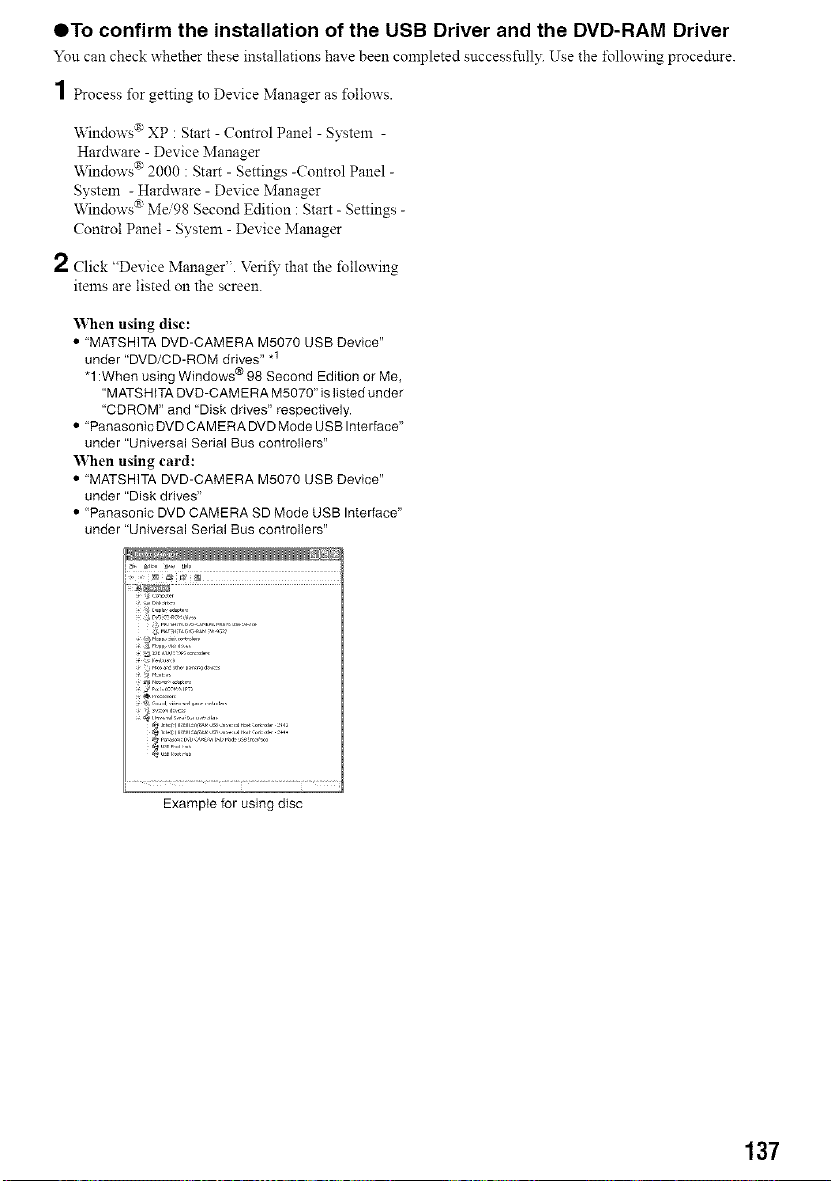
QTo confirm the installation of the USB Driver and the DVD-RAM Driver
You can check whether these installations have been completed successfnlly. Use the :t\,llowing procedure.
] Process for getting to Device Manager as follows.
"V\Sndows®XP : Start - Comrol Panel - System -
Hardware - Device Manager
Windows ® 2000 : Start - Settings -Control Panel -
System - Hardware - Device Manager
Windows ®Me/98 Second Edition : Start - Settings -
Control Panel - System - Device Manager
2 Click "Device Manager". Verity" that the following
items are listed on the screen.
'_\ hen using disc:
• MATSHITA DVD-CAMERA M5070 USB Device"
under "DVD/CD-ROM drives" .1
"1:Whenusing Windows®98 Second Edition or Me,
"MATSHITADVD-CAMERAM5070" islistedunder
"CDROM" and "Disk drives" respectively.
• "PanasonicDVDCAMERA DVDModeUSBInterface"
under "Universal Serial Bus controlIers"
'When using card:
• MATSHITA DVD-CAMERA M5070 USB Device"
under "Disk drives"
• "PanasonicDVD CAMERA SD Mode USB Interface"
under "Universal Serial Bus controllers"
: ,2::_tL'..........
Example for using disc
137
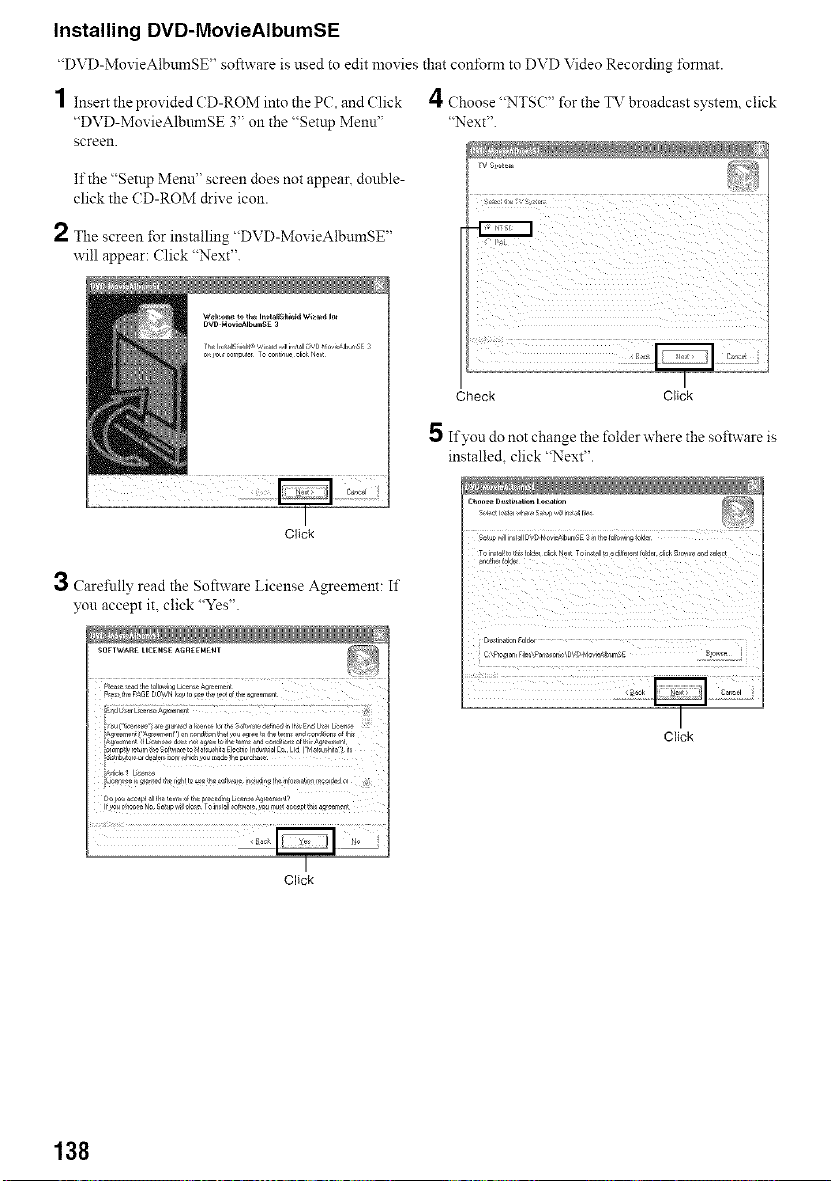
Installing DVD-MovieAIbumSE
"DVD-MovieAlbumSE" software is used to edit movies that confoml to DVD Video Recording fonnat.
1 Insert the prox ided CD-ROM into the PC, and ( lick
"D\TD-MovieAlbumSE 3" on the "Setup Menu"
screen.
If the "Setup Menu" screen does not appear, double-
click the CD-ROM drive icon.
2 The screen for installing "DVD-Mox ieAlbumSE"
will appear: (lick "Next".
4 Choose "NTSC" for the TV broadcast system, click
"Next".
Click
3 Carefldly read the Software License Agreement: If
you accept it. click "Yes".
SOFIWARg lICENSE A_R[_tlg fll
_,e_en_ _:_e_nt _ncondign t_,_t o,_o r_ to {het_m_ a_dc_ndi_bn_d th_
Check Click
5 If you do not change the folder where the software is
installed, click "Next".
I
Click
I
Click
138
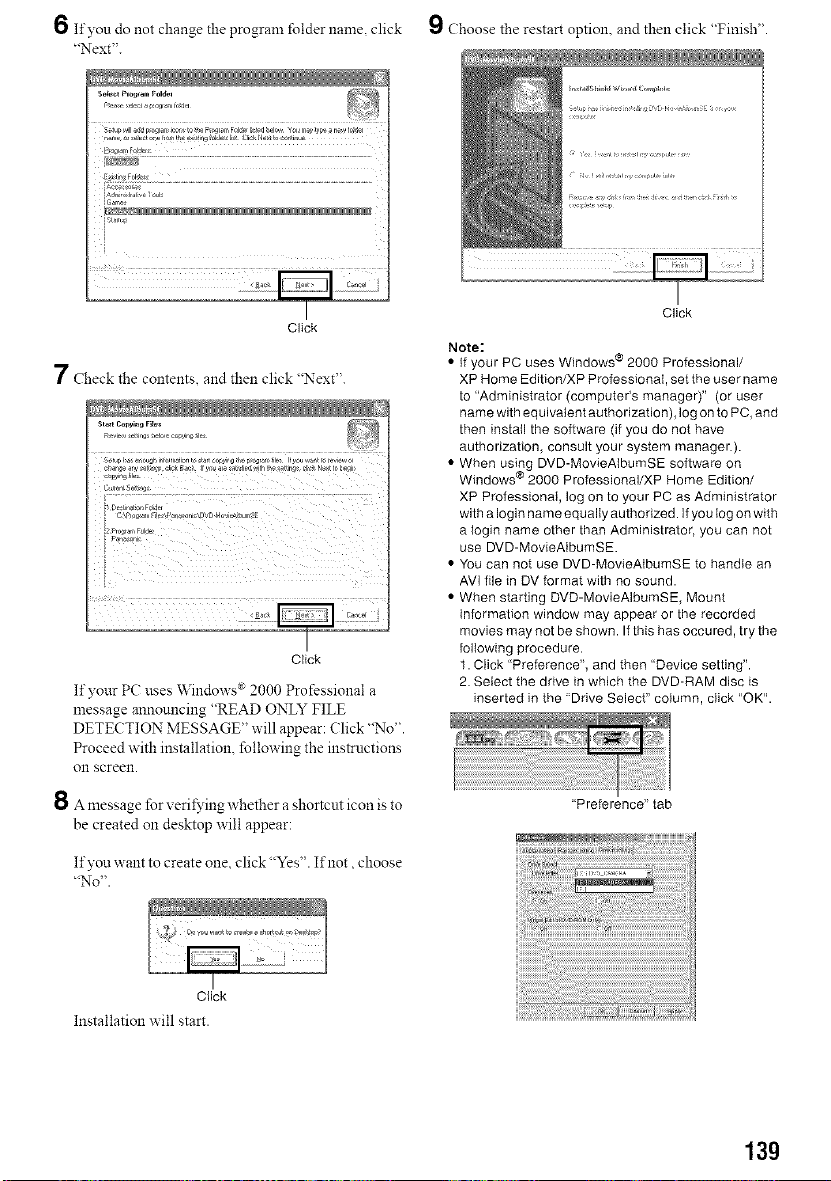
6 If you do not change the program folder name, click
"Next".
r,_me_oetcg_k_nt_ey_irl_old_lit _21i_:N e_ to _nti_Je
I
Click
7 Check the contents, and then click "Next".
Click
If your PC uses Windows ®2000 Professional a
message announcing "READ ONLY FILE
DETECTION MESSAGE" will appear: (?lick "No".
Proceed with installation, following the instructions
on screen.
8 A message for veriI_'ing whether a shortcut icon is to
be created on desktop will appear:
If you want to create one, click "Yes". If not, choose
"No".
9 Choose the restart optiom and then click "Finish".
Click
Note:
• If your PC uses Windows ® 2000 Professional/
XP Home Edition/XP Professional, set the user name
to "Administrator (computer's manager)" (or user
name with equivaient authorization), log on to PC, and
then install the software (if you do not have
authorization, consult your system manager.).
• When using DVD-MovieAtbumSE software on
Windows ® 2000 Professional/XP Home Edition/
XP Professional, log on to your PC as Administrator
with a Iogin name equally authorized. If you log on with
a login name other than Administrator, you can not
use DVD-MovieAlbumSE.
• You can not use DVD-MovieAtbumSE to handle an
AV[ file in DV format with no sound.
• When starting DVD-MovieAIbumSE, Mount
Information window may appear or the recorded
movies may not be shown. If this has occured, try the
following procedure.
1. Click "Preference", and then "Device setting".
2. Seiect the drive in which the DVD-RAM disc is
inserted in the "Drive Select" column, click "OK".
I
Click
Installation will start.
"Preference" tab
13g
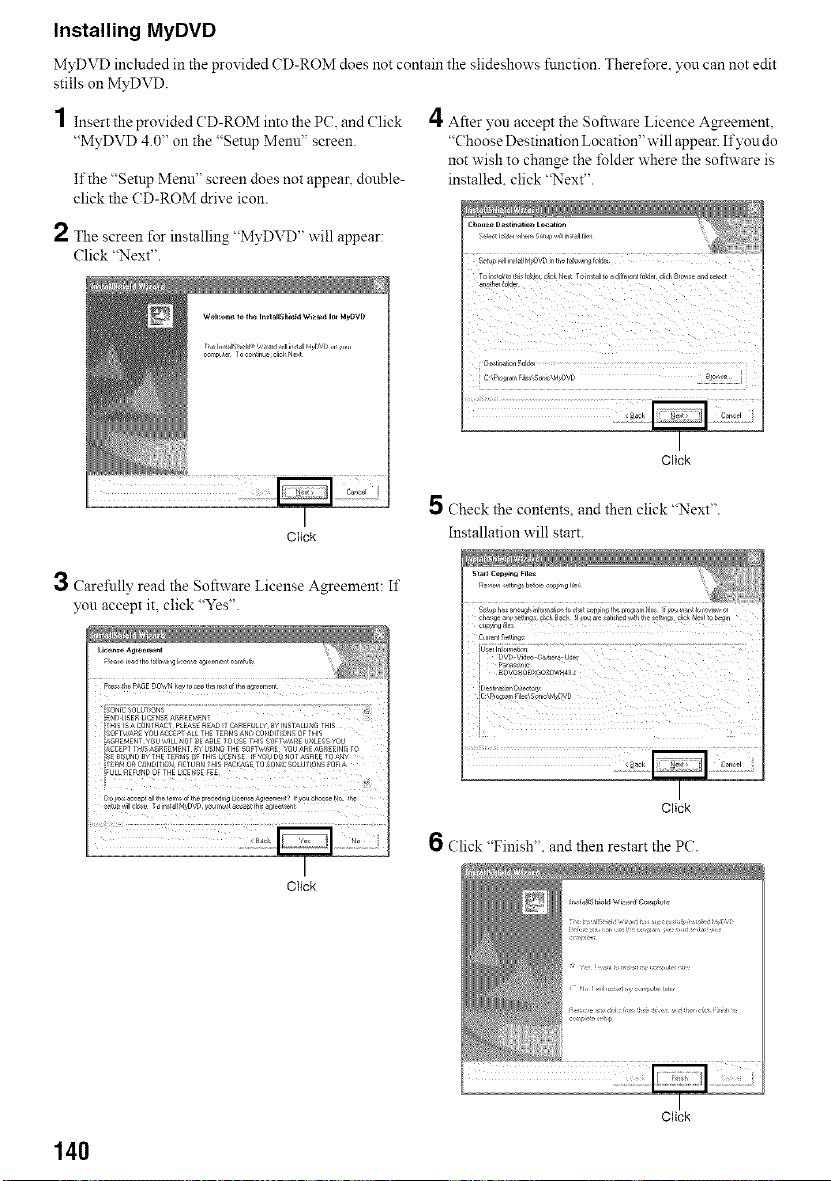
Installing MyDVD
MyDVD included in the provided CD-ROM does not contain the slideshows fnnction. Therefore _,'oncan not edit
stills on MyDVD.
1 Insert the prox ided CD-ROM into the PC. and Click
"MyDVD 4.0" on the "Setup Menu" screen.
If the "Setup Menu" screen does not appear, double-
click the CD-ROM drive icon.
4 After you accept the Software Licence Ageement,
"Choose Destination Location" will appear. If you do
not wish to change the folder where the software is
installe& click "Next".
2 The screen for installing "MyDVD" will appear:
Click "Next".
Click
3 Carefully read the Software License Agreement: If
you accept it. click "Yes".
I
Click
Check the contents, and then click "Next".
Installation will start.
Click
Click
Chck "Flnlsh" and then restart the PC
140
Click
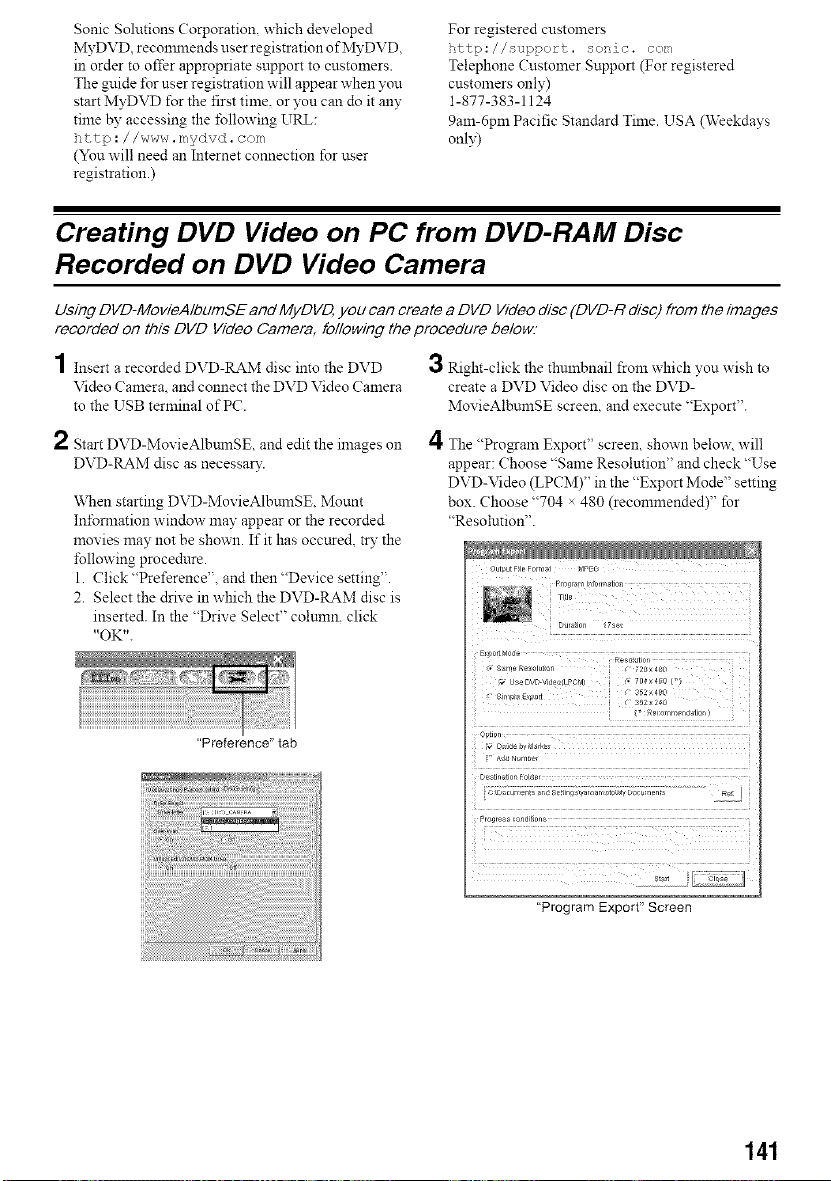
Sonic Solutions (orporation, which developed
MyDVD, recommends user registration of MyDVD,
in order to offer appropriate support to customers.
The guide *br user registration will appear when you
start MyDVD for the first tin'le, or yon can do it any
time by accessing the following URL:
h_tp : //www. mydvd, com
(You will need an Internet connection for user
registration.)
For registered custon'lers
http://support, sonic, com
Telephone Customer Support (For registered
customers only)
1-877-383-1124
9aln-6pm Pacific Standard Time. USA (Weekdays
only)
Creating DVD Video on PC from DVD-RAM Disc
Recorded on DVD Video Camera
Using DVD-MovieAIbumSE and MyDVD, you can create a DVD Video disc (DVD-R disc) from the images
recorded on this DVD Video Camera, following the procedure below.
4
/ Insert a recorded DVD-RAM disc into the DVD
Video Camera, and connect the DVD Video Camera
to the USB terminal of PC.
2 Start DVD-MovieAlbumSE, and edit the in'lages on
DVD-RAg/I disc as necessary.
"v\'hen starting DVD-MovieAlbumSE, Mount
Infomlation window may appear or the recorded
movies may not be shown. If it has occttred, try the
following procedure.
1. Click "Preference", and then "Device setting".
2. Select the drive in which the DVD-RAM disc is
inserted. In the "Drive Select" colunm, click
"OK".
"Preference" tab
3 Right-click the thulnbnail from which you wish to
create a DVD Video disc on the DVD-
MovieAlbumSE screen, and execute "Export".
4 The "Program Export" screen, shown below, will
appear: Choose "Same Resolntion" and check "Use
DVD-Video (LPCM)" in the "Export Mode" setting
box. Choose "704 × 480 (recommended)" for
"Resolution".
• 5_e r_p_out,_n
D_st ra_on _o[_Pr
"Program Export" Screen
141
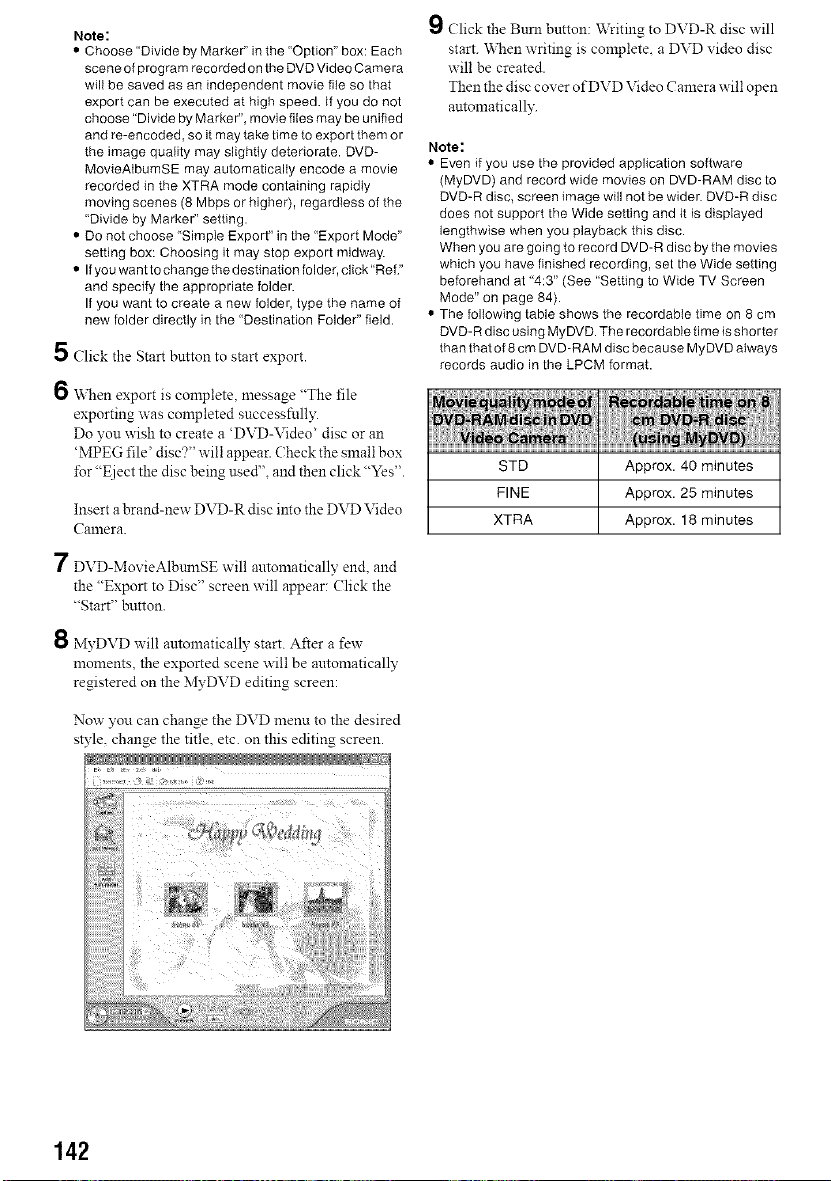
Note:
• Choose "Divide by Marker" in the "Option" box: Each
scene of program recorded on the DVD Video Camera
will be saved as an independent movie file so that
export can be executed at high speed. If you do not
choose "Divide by Marker", movie files may be unified
and re-encoded, so it may take time to export them or
the image quality may slightly deteriorate. DVD-
MovieAtbumSE may automatically encode a movie
recorded in the XTRA mode containing rapidly
moving scenes (8 Mbps or higher), regardless of the
"Divide by Marker" setting.
• Do not choose "Simple Export" in the "Export Mode"
setting box: Choosing it may stop export midway.
• If you want to change the destination folder, click"Ref"
and specify the appropriate folder.
If you want to create a new folder, type the name of
new folder directly in the "Destination Folder" field.
5 Click the Start button to start export.
6 _,Nen export is complete, message "The file
exporting was completed successfnlly.
Do you wish to create a 'DVD-Video' disc or an
'MPEG file' disc?" will appear. Check the small box
for "Eject the disc being used", and then click "Yes".
Insert a brand-new DVD-R disc into the DVD Video
Camera.
'7 DVD-Mox ieAlbumSE will automatically end. and
the "Export to Disc" screen will appear: (lick the
"Start" button.
8 MyDVD will automatically start. After a few
moments, the exported scene will be automatically
registered on the MyDVD editing screen:
Now you can change the DVD menu to the desired
style, change the title, etc. on this editing screen.
9 Click the Bum button: Writing to DVD-R disc will
start. When writing is complete, a DVD video disc
will be created.
Then the disc cover of DVD Video Camera will open
antomatically.
Note:
• Even if you use the provided application software
(MyDVD) and record wide movies on DVD-RAM disc to
DVD-R disc, screen image will not be wider. DVD-R disc
does not support the Wide setting and it is displayed
lengthwise when you playback this disc.
When you are going to record DVD-R disc by the movies
which you have finished recording, set the Wide setting
beforehand at "4:3" (See "Setting to Wide TV Screen
Mode" on page 84).
• The following table shows the recordable time on 8 cm
DVD-R disc using MyDVD. The recordable time is shorter
than that of 8 cm DVD-RAM disc because MyDVD always
records audio in the LPCM format.
STD Approx. 40 minutes
FINE Approx. 25 minutes
XTRA Approx. 18 minutes
142
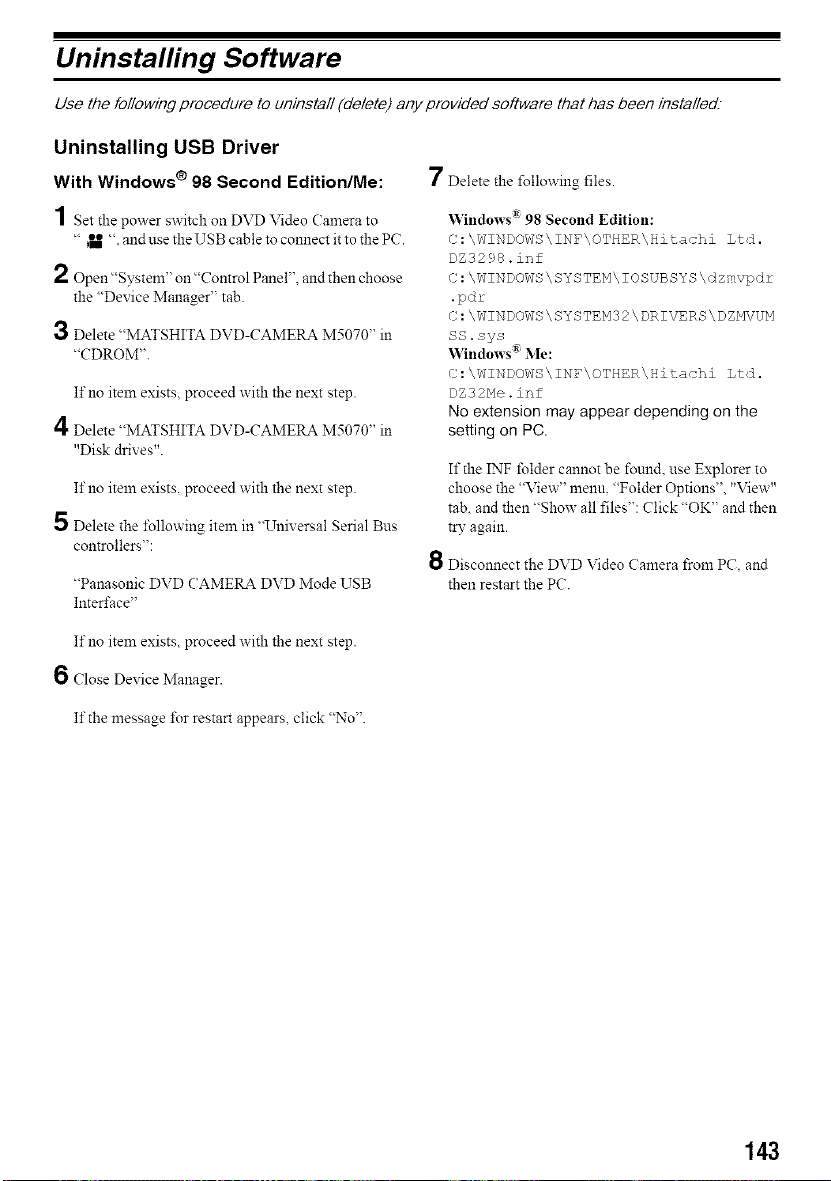
Uninstalfing Software
Use the following procedure to uninstall (delete) any provided software that has been installed-
Uninstalling USB Driver
With Windows® 98 Second Edition/Me:
1 Set the power switch on DVD Video Camera to
" JU 't and use the USB cable to connect it to the PC.
2 Open "System" on "Control Panel'L and then choose
the "Device Manager" tab.
3 Delete "MATSHITA DVD-CAMERA M5070" in
"CDROM".
If no item exists, proceed with the next step.
4 Delete "MATSHITA DVD-CAMERA M5070" in
"Disk drives".
If no item exists, proceed with the next step.
5 Delete the lbllowing item in "Universal Serial Bus
controllers":
"Panasonic DVD (AMERA DVD Mode USB
Interface"
7 Delete the following files.
Windows "_ 98 Second Edition:
C : \WINDOWS\INF\OTHER\Hi_achi Ltd.
DZ3298.inf
C : \WINDOWS \ SYSTEM\ IOSUBSYS \ dzmvpdr
• pdr
C: \WINDOWS \ SYSTEM32 \ DRIVERS \ DZHVUM
SS. sys
\'_]ndows ® Me:
C : \WINDOWS\INF\OTHER\Hi_achi Ltd.
DZ32He. inf
No extension may appear depending on the
setting on PC.
If the INF folder cannot be found, use Explorer to
choose the "View" menu. "Folder Options", "View"
tab. and then "Show all files": Click "OK" and then
try again.
Disconnect the DVD Video Camera from PC, and
then restart the PC.
If no item exists, proceed with the next step.
6 Close Dexice Manager.
If the message lbr restart appears, click "No".
143
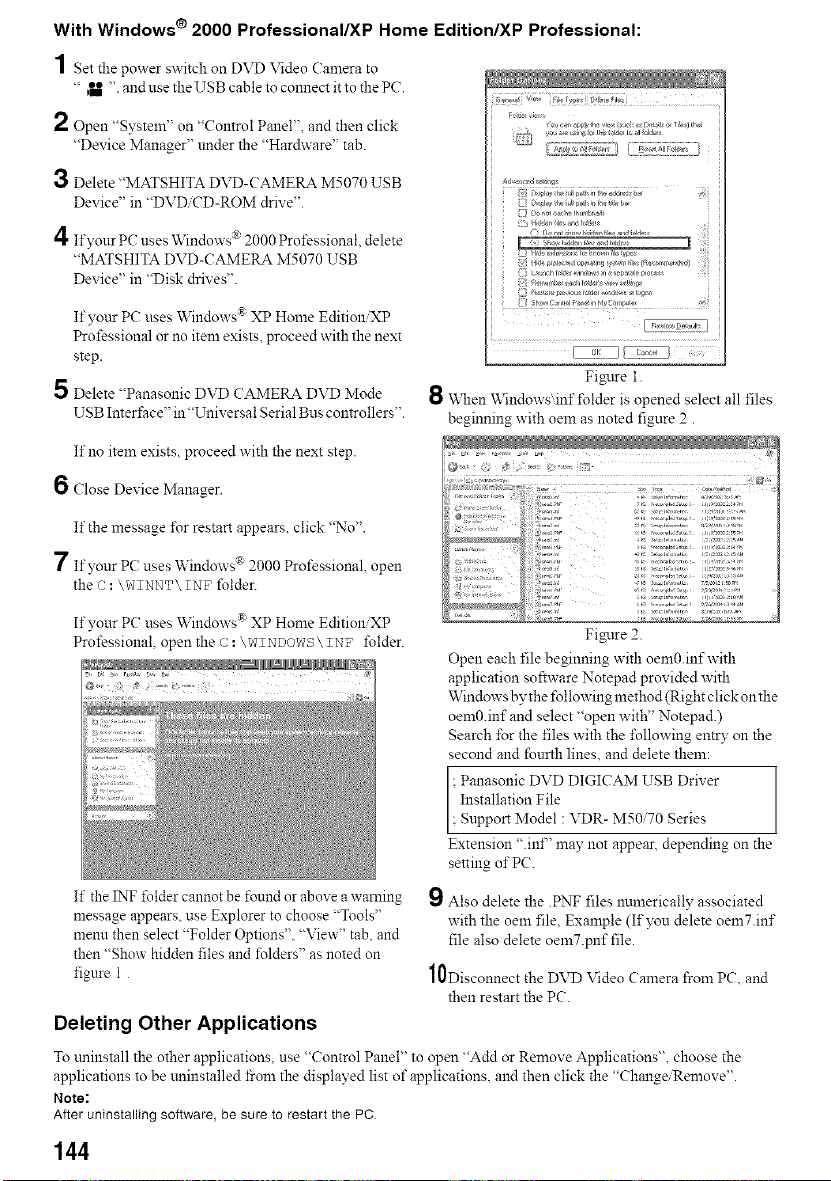
With Windows ® 2000 Professional/XP Home Edition/XP Professional:
1 Set the power switch on DVD Video Camera to
" Jill 'L and use the USB cable to connect it to the PC.
2 Open "System" on "Control Panel", and then click
"Device Manager" under the "Hardware" tab.
3 Delete "MATSHITA DVD-CAMERA M5070 USB
Device" in "DVD CD-ROM drive".
4If your PC?uses 'vVindm_s® 2000 Professional delete
"MATSHITA DVD-CAMERA M5070 USB
Device" in "Disk drix es'L
If ?,our PC uses Windows ® XP Home Edition XP
Professional or no item exists, proceed with the next
step.
5 Delete "Panasonic DVD CAMERA DVD Mode
USB Inter±ace" in"Universal Serial Bus controllers".
e_
[i_ il_ ilsh i ulSr_l
(L5 H[_n ii I'i fd_!
...............................i!!ii
i
i i i i I _ _ ,i
=
.................................................................................
Fi£lre 1.
When Windows inf*blder is opened select all files
beginning with oem as noted figure 2.
If no item exists, proceed with the next step.
6 Close Device Manager.
If the message for restart appears, click "No".
7 If your PC uses Windows- _000 Professional open
the C :\WINNT\ INF folder.
If your PC uses Windows ® XP Home Edition,XP
Professional, open the c : \WINDOWS\ INF folder.
If the INF fetder cannot be found or above a warning
message appears, use Explorer to choose "Teols"
menu then select 'Folder Options", "View" tab, and
then 'Show hidden files and folders" as noted on
figure 1
Fi_lre 2.
Open each file beginning xxith oem0.inf with
application software Notepad provided with
Windows by the following method (Right click on the
oena0.inf and select "open with" Notepad.)
Search for the files with the following entry on the
second and fourth lines, and delete them:
; Panasonic DVD DIGICAM USB Driver
Installation File
; Support Model : VDR- M5070 Series
Extension ".inF' naay not appear, depending on the
setting of PC.
Also delete the .PNF files numerically associated
with the oem file, Example (If you delete oem7.inf
file also delete oemT.pnf file.
0Disconnect the DVD Video Camera from PC. and
then restart the PC.
Deleting Other Applications
To tminstall the other applications use <'Control Panel" to open "Add or Remnve Applications" choose the
applications to be uninstalled from the displayed list of applications, and then click the "Change/Remove".
Note:
After uninstallng software, be sure to restart the PC
144
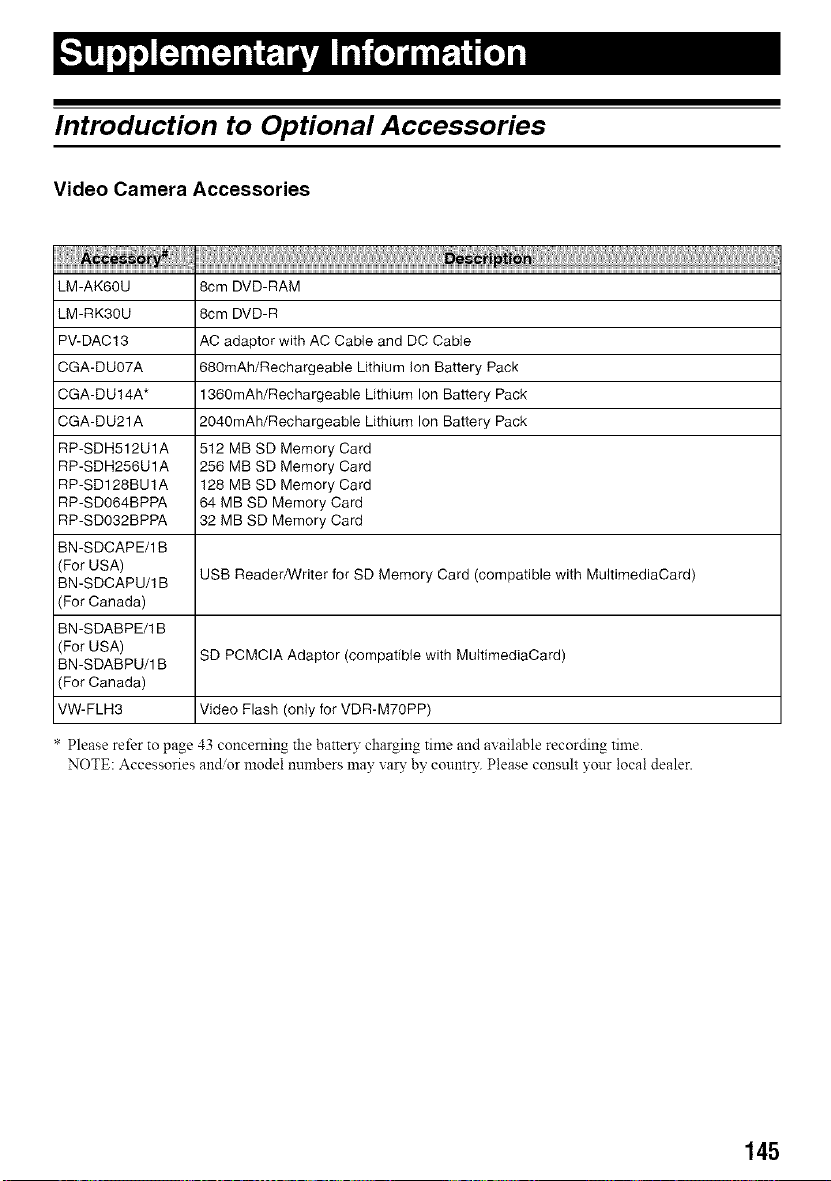
Introduction to Optional Accessories
Video Camera Accessories
LM-AK60U 8cm DVD-RAM
LM-RK30U 8cm DVD-R
PV-DAC13 AC adaptor with AC Cable and DC Cable
CGA-DU07A 680mAh/Rechargeable Lithium Ion Battery Pack
CGA-DU14A* 1360mAh/Rechargeable Lithium Ion Battery Pack
CGA-DU21A 2040mAh/Rechargeable Lithium Ion Battery Pack
RP-SDH512U1A 512 MB SD Memory Card
RP-SDH256U1A 256 MB SD Memory Card
RP-SD128BU1A 128 MB SD Memory Card
RP-SD064BPPA 64 MB SD Memory Card
RP-SD032BPPA 32 MB SD Memory Card
BN-SDCAPE/1B
(For USA)
BN-SDCAPU/1B USB Reader/Writer for SD Memory Card (compatible with MultimediaCard)
(For Canada)
BN-SDABPE/1 B
(For USA) SD PCMCIA Adaptor (compatible with MultimediaCard)
BN-SDABPU/1B
(For Canada)
VW-FLH3 Video Flash (only for VDR-M70PP)
* Please refer to page 43 concerning the battery charging time and available recording time.
NOTE: Accessories and/or model numbers may vary by, country. Please consult your local dealer.
145
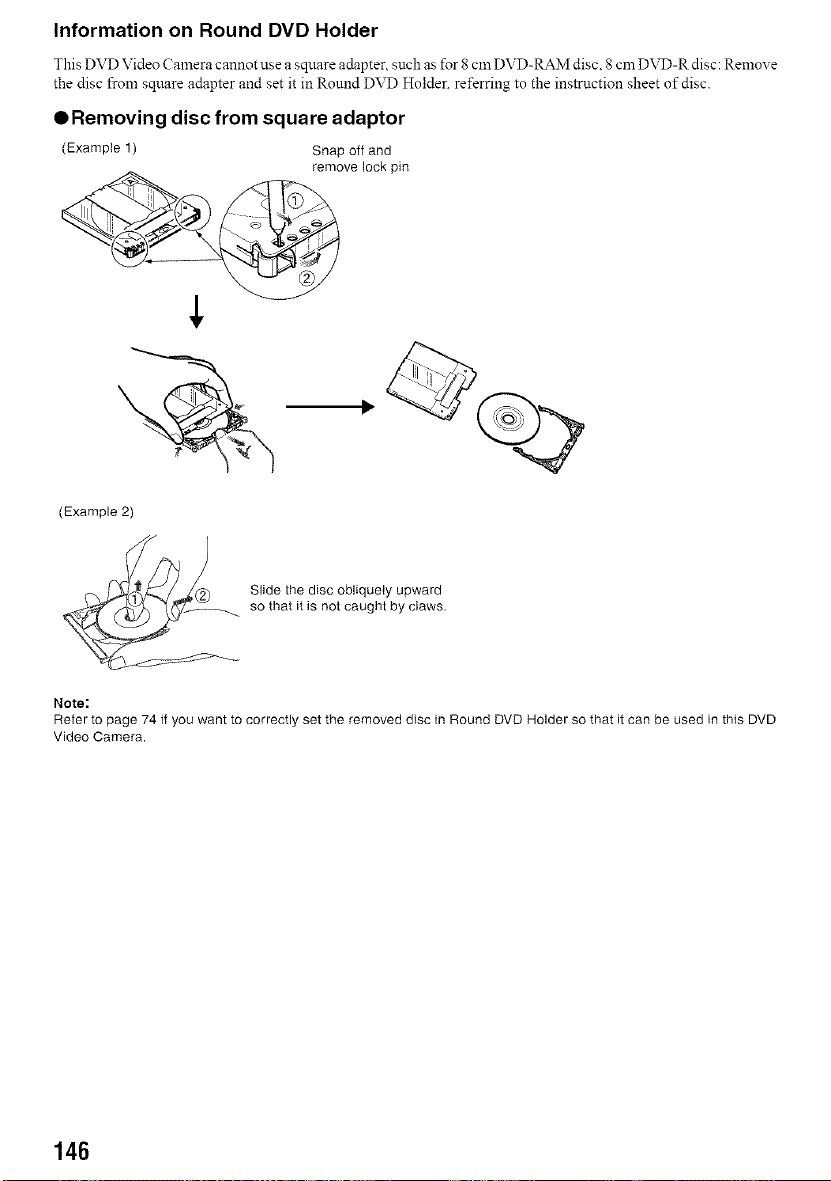
Information on Round DVD Holder
This DVD Video Calnera cannot use a square adapter such as for 8 Cln DVD-RAM disc. 8 cm DVD-R disc: Remove
the disc from square adapter and set it in Round DVD Holder. referring to the instruction sheet of disc.
• Removing disc from square adaptor
(Example 1) Snap off and
remove lock pin
(Example 2)
Slide the disc obliquely upward
so that it is not caught by claws.
Note:
Refer to page 74 if you want to correctly set the removed disc in Round DVD Holder so that it can be used in this DVD
Video Camera.
146
Cleaning
Be sure to set the power switch to "OFF" before cleaning this DVD Video Camera.
QCleaning LCD screen and camera
lens
Use a dr?_soft cloth to wipe dirt off. When cleaning the
LeD screen, be careffd not to use force, scratch it, or
subject it to impact: Doing such could cause a defect in
the screen, resulting in display tmevenness, or damage
the LCD monitor.
QIf dust adheres to the viewfinder
lens, remove it using a cotton cloth.
Do not rub the lens with lbrce: Doing so could scratch the
lens.
ODo not use benzene or thinner to
clean DVD Video Camera case
The coating of case could peel off or the case could
deteriorate. Wipe off dirt on the case with a moist cloth
which has been completely wrung out. \,_]len using a
chemical cleaning cloth, lbllow instructions for use.
147
Terminology
DVD-RAM disc:
Rev_Titable DVD disc.
DVD-R disc:
One-time recordable DVD disc.
DVD Video format:
This application format establishes the file nan_e directory structure, data format, etc. to record videos (movies). A
generally available DVD video conforms to this format.
DVD Video recorder:
This device can record video and andio on any recordable DVD disc. such as DVD-RAM that conforms to the DVD
Video Recording format. Some DVD Video recorders canrecord on a DVD-R disc conforming to DVD Video format.
A DVD Video recorder that is compatible with 8 cm DVD-RAM can play back DVD-RAM discs recorded on the
DVD Video Camera.
DVD Video Recording format:
Fore, at recorded video data on writable type DVD disc: This format is adopted by DVD Video Cameras and DVD-
RAM recorders that are compatible with DVD-RAM.
DVD Player:
This device canplay back video and audio signals recorded on DVD Videoand DVD-R discs using the DVDVideo
fbnnat. Most DVD players can play back a DVD-R disc recorded onthe DVD Video Can_era(some DVD players
caanot play back the disc).
SD Memory Card:
SanDisk Matsushita and Toshiba jointly developed this memory card standard in 1999. The card is 32 mln long x
24 mm wide x 2.11rim thick, and has 9 pins. Since the SD Memory Card was developed based on MultiMediaCard
(MMC), MMC can be inserted into SD Memo13"Card slot and us ed. However. an SD Memory Card camlot be inserted
in the slot exclusively for MMC.
USB 2.0:
There are two kinds of USB ports for a PC. As for USB2.0 (full speed) transfer speed is slox_: and as for USB2.0
(high speed), transfer speed is higher-speed. If the DVD Video Camera is comlected to the PC via a USB2.0 (high
speed port), movies can be ellioyed without difficulty.
infrared sensor:
This sensor is used to ac[iust the white balance.
Thumbnail:
This refers to a reduced screen displayed on Disc Navigation in order to identify the recorded image contents.
Scene:
Video (movie): "One scene" refers to images recorded from one press ofREC bntton mltil recording is stopped by
pressing the REC button again.
Photo (still): "One scene" refers to a single photo recorded by pressing the REC breton.
Slot-in type PC:
PC that has a DVD drive into which a DVD is directly inserted or _iected from without using a tray.
148
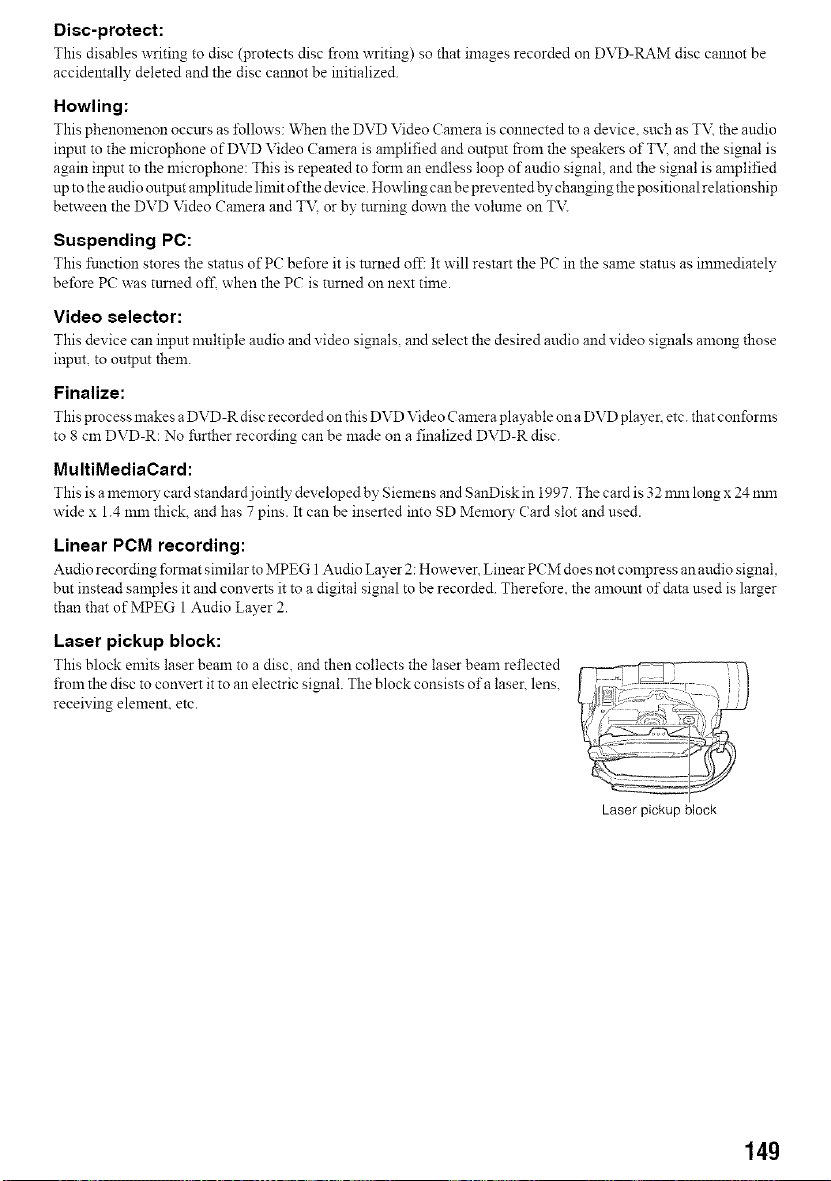
Disc-protect:
This disables x_xiting to disc (protects disc from writing) so that images recorded on DVD-RAM disc cannot be
accidentally deleted and the disc caanot be initialized.
Howling:
This phenomenon occurs as lbllows: When the DVD Video Camera is connected to a device, such as TV. the andio
input to the microphone of DVD Video (an_era is amplified and output from the speakers ofT\ and the signal is
again input to the microphone: This is repeated to form an endless loop of andio signal, and the signal is anlplified
up to the audio output amplitude limit of the device. Howling can be prevented by changing the positionalrelationship
between the DVD Video Camera and T\2 or by turning down the volume on TV.
Suspending PC:
This ±1ruction stores the statns of PC before it is turned off: It will restart the PC in the same statns as immediately
before PC was tnrned off. when the PC is tnrned on next time.
Video selector:
This device can inpm multiple audio and video signals, and select the desired audio and video signals among those
inpnt, to ontput them.
Finalize:
This process makes a DVD-R disc recorded on this DVD Video Camera playable on a DVD player, etc. that conforms
to 8 cm DVD-R: No fi.lrther recording can be made on a finalized DVD-R disc.
MultiMediaCard:
This is a memoD" card standard jointly developed by Siemens and SanDisk in 1997. The card is 32 nml long x 24 nml
wide x 1.4 mm thick, and has 7 pins. It can be inserted into SD MemoD" Card slot and used.
Linear PCM recording:
Audio recording format similar to MPEG 1Audio Layer 2: However Linear PCM does not compress an audio signal
but instead san_ples it and converts it to a digital signal to be recorded. Therefore. the an_mmt of data used is larger
than that of MPEG 1 Audio Layer 2.
Laser pickup block:
This block emits laser beam to a disc and then collects the laser beam reflected
from the disc to convert it to an electric signal. The block consists of a laser, lens.
receiving element, etc.
Laser pickup block
149
Before Requesting Service
Movie can be recorded only on DVD-RAM or DVD-R
disc.
Check the following:
• Is DVD-RAM or DVD-R disc inserted?
• Is power switch set to" _U "?
• Is the DVD-RAM disc in DVD Video Camera write-
protected? Release the write-protect.
• Does disc have remaining recording space?
If movie still cannot be recorded after the above
checks, the disc may be damaged: Use another disc.
Still can be recorded only on DVD-RAM disc, SD
Memory Card or MultiMediaCard.
Check the following:
Is DVD-RAM disc, SD Memory Card or
MultiMediaCard inserted?
Is power switch setto match the recording medium?
When using DVD-RAM disc:
Set to " I_1 ".
When using SD Memory Card or
MultiMediaCard:
Set to " _1 ".
Is loaded DVD-RAM disc write-protected?
When using SD Memory Card: Is it locked?
Does disc or card have remaining recording space?
:still cannot be recorded after the above checks, the
disc or card may be damaged: Use another disc or
card.
If the temperature inside the DVD Video Camera is
high, normal operation may not be possible. Turn the
DVD Video Camera off, wait for a few moments, and
then turn it on again for operation.
In the following cases, it will take more time than usual
until operation is possible:
When disc or card is removed and then reinserted
When date changes (e.g., during the first recording
of the day)
When the temperature is greatly different from the
time of previous recording
When disc with scratches, dirt or fingerprints is
inserted
When disc is subject to severe vibrations
When the battery or DC cord was disconnected
instead of following the correct procedure using
power switch to turn the DVD Video Camera off
150
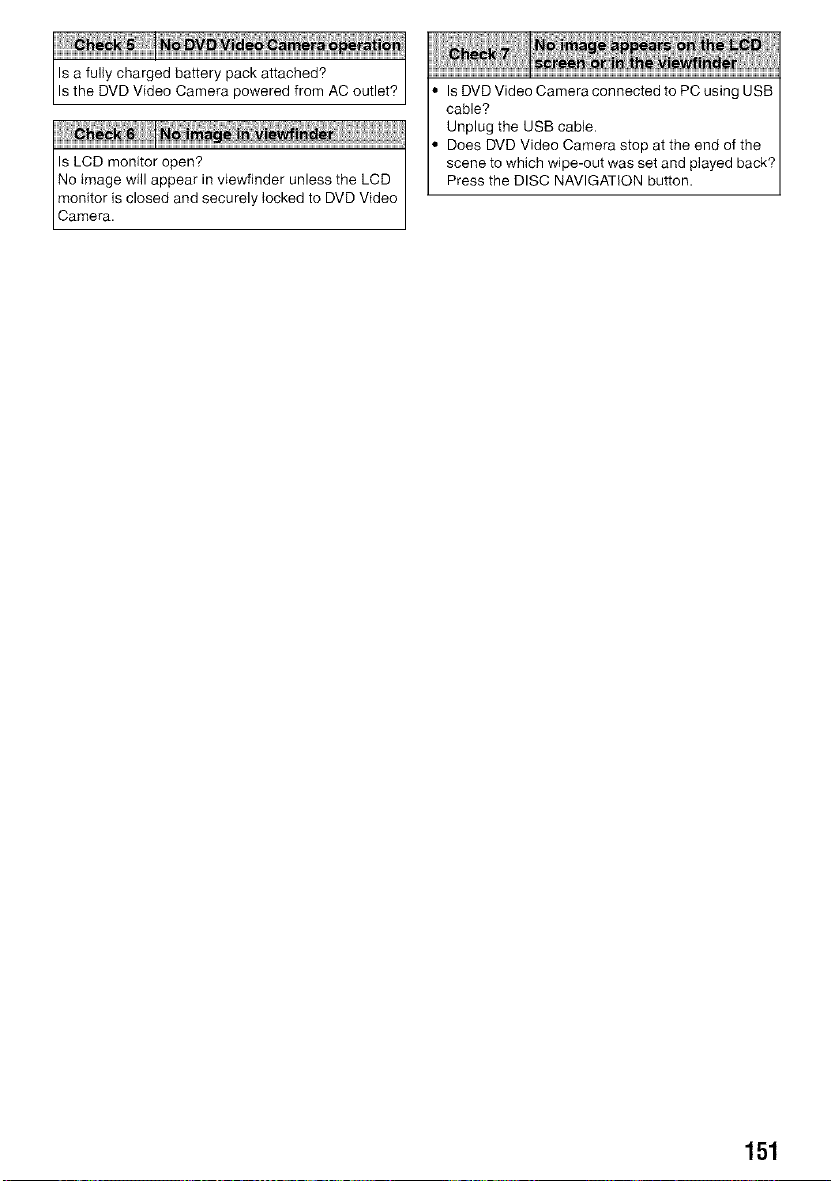
Is a fully charged battery pack attached?
Is the DVD Video Camera powered from AC outlet? Is DVD Video Camera connected to PC using USB
cable?
Unplug the USB cable.
Does DVD Video Camera stop at the end of the
scene to which wipe-out was set and played back?
Press the DISC NAVIGATION button.
151
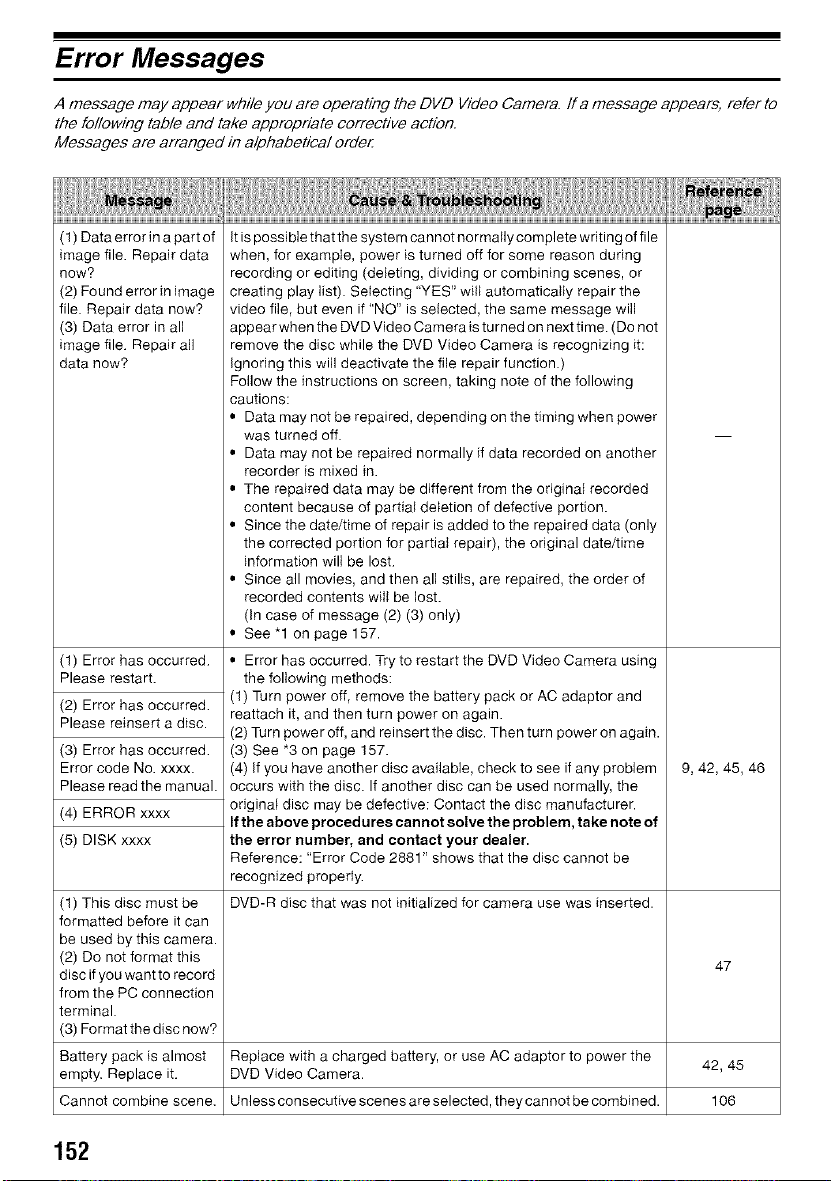
Error Messages
A message may appear while you are operating the DVD Video Camera. If a message appears, refer to
the following table and take appropriate corrective action.
Messages are arranged in alphabetical order
(1) Data error in a part of
image file. Repair data
now?
(2) Found error in image
file. Repair data now?
(3) Data error in all
image file. Repair aft
data now?
(1) Error has occurred.
Please restart.
(2) Error has occurred.
Please reinsert a disc.
(3) Error has occurred.
Error code No. xxxx.
Please read the manual.
(4) ERROR xxxx
(5) DISK xxxx
(1) This disc must be
formatted before it can
be used by this camera.
(2) Do not format this
disc if you want to record
from the PC connection
terminal.
(3) Format the disc now?
Battery pack is almost
empty. Replace it.
Cannot combine scene.
It is possi ble that the system cannot normally complete writing of file
when, for example, power is turned off for some reason during
recording or editing (deleting, dividing or combining scenes, or
creating play list). Selecting "YES" will automatically repair the
video file, but even if "NO" is selected, the same message wilJ
appear when the DVD Video Camera is tu reed on next time. (Do not
remove the disc while the DVD Video Camera is recognizing it:
Ignodng this will deactivate the file repair function.)
Follow the instructions on screen, taking note of the following
cautions:
• Data may not be repaired, depending on the timing when power
was turned off.
• Data may not be repaired normally if data recorded on another
recorder is mixed in.
• The repaired data may be different from the original recorded
content because of partial deletion of defective portion.
• Since the date/time of repair is added to the repaired data (only
the corrected portion for partial repair), the original date/time
information wilt be lost.
• Since all movies, and then all stills, are repaired, the order of
recorded contents will be lost.
(In case of message (2) (3) only)
• See "1 on page 157.
• Error has occurred. Try to restart the DVD Video Camera using
the following methods:
(1) Turn power off, remove the battery pack or AC adaptor and
reattach it, and then turn power on again.
(2) Turn power off, and reinsert the disc. Then turn power on again.
(3) See *3 on page 157.
(4) If you have another disc available, check to see if any problem
occurs with the disc. If another disc can be used normally, the
original disc may be defective: Contact the disc manufacturer.
If the above procedu res cannot solve the problem, take note of
the error number, and contact your dealer.
Reference: "Error Code 2881" shows that the disc cannot be
recognized properly.
DVD-R disc that was not initialized for camera use was inserted.
9, 42, 45, 46
47
Replace with a charged battery, or use AC adaptor to power the
DVD Video Camera. 42, 45
Unless consecutive scenes are selected, they cannot be combined. 106
152
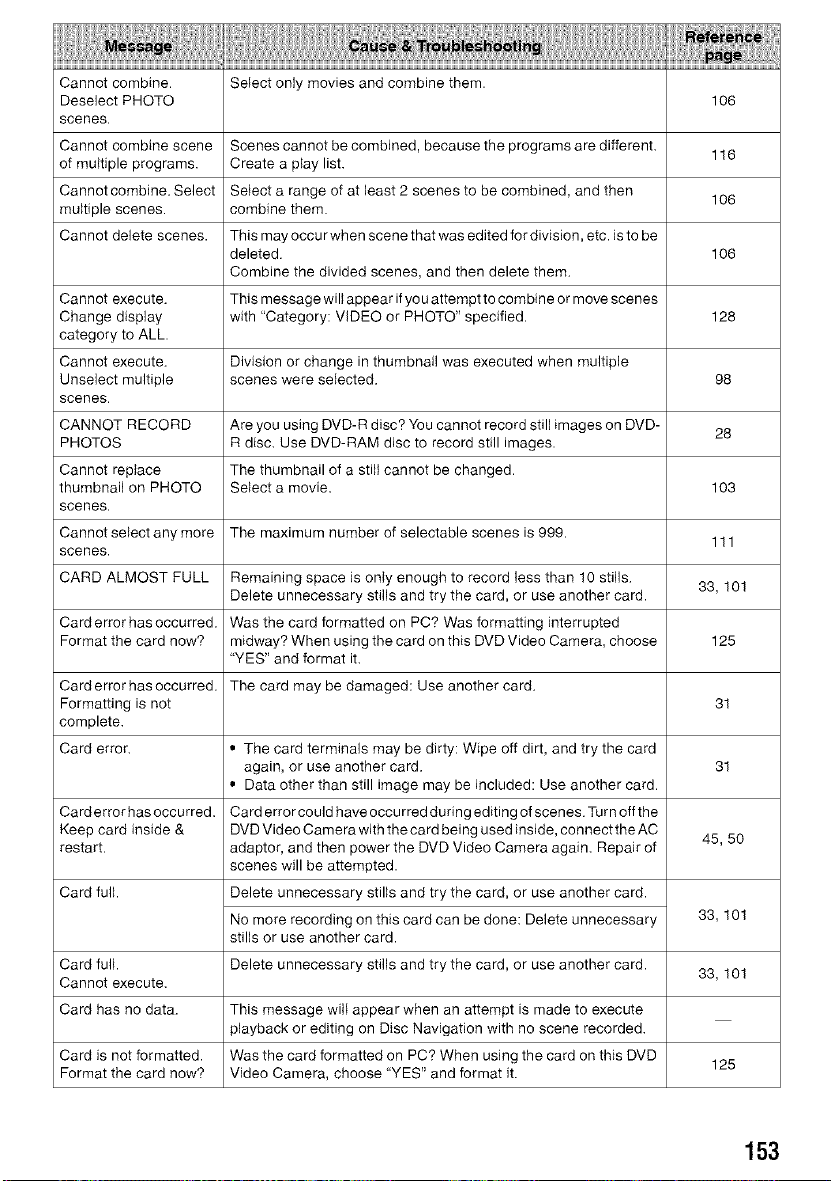
Cannot combine. Select only movies and combine them.
Deselect PHOTO 106
scenes.
Cannot combine scene Scenes cannot be combined, because the programs are different. 116
of multiple programs. Create a play list.
Cannot combine. Select Select a range of at least 2 scenes to be combined, and then 106
multiple scenes, combine them.
Cannot delete scenes. This may occur when scene that was edited for division, etc. is to be
deleted. 106
Combine the divided scenes, and then delete them.
Cannot execute. This message will appear if you attempt to combine or move scenes
Change display with "Category: VIDEO or PHOTO" specified. 128
category to ALL.
Cannot execute. Division or change in thumbnail was executed when multiple
Unselect multiple scenes were selected. 98
scenes.
CANNOT RECORD Are you using DVD-R disc? You cannot record still images on DVD- 28
PHOTOS R disc. Use DVD-RAM disc to record still images.
Cannot replace The thumbnail of a still cannot be changed.
thumbnail on PHOTO Select a movie. 103
scenes.
Cannot select any more The maximum number of selectable scenes is 999.
111
scenes.
CARD ALMOST FULL Remaining space is only enough to record less than 10 stills.
Delete unnecessary stills and try the card, or use another card. 33, 101
Carderrorhasoccurred. Was the card formatted on PC? Was formatting interrupted
Format the card now? midway? When using the card on this DVD Video Camera, choose 125
"YES" and format it.
Carderror hasoccurred. The card may be damaged: Use another card.
Formatting is not 31
complete.
Card error.
31
Card error has occurred.
Keep card inside &
restart. 45, 50
Card full.
• The card terminals may be dirty: Wipe off dirt, and try the card
again, or use another card.
• Data other than still image may be included: Use another card.
Card error could have occurred dudng editing of scenes. Turn off the
DVD Video Camera with the card being used inside, connect the AC
adaptor, and then power the DVD Video Camera again. Repair of
scenes will be attempted.
Delete unnecessary stills and try the card, or use another card.
No more recording on this card can be done: Delete unnecessary
stills or use another card.
Card full. Delete unnecessary stills and try the card, or use another card.
Cannot execute.
Card has no data. This message wilt appear when an attempt is made to execute
playback or editing on Disc Navigation with no scene recorded.
Card is not formatted. Was the card formatted on PC? When using the card on this DVD
Format the card now? Video Camera, choose "YES" and format it.
33, 101
33, 101
125
153
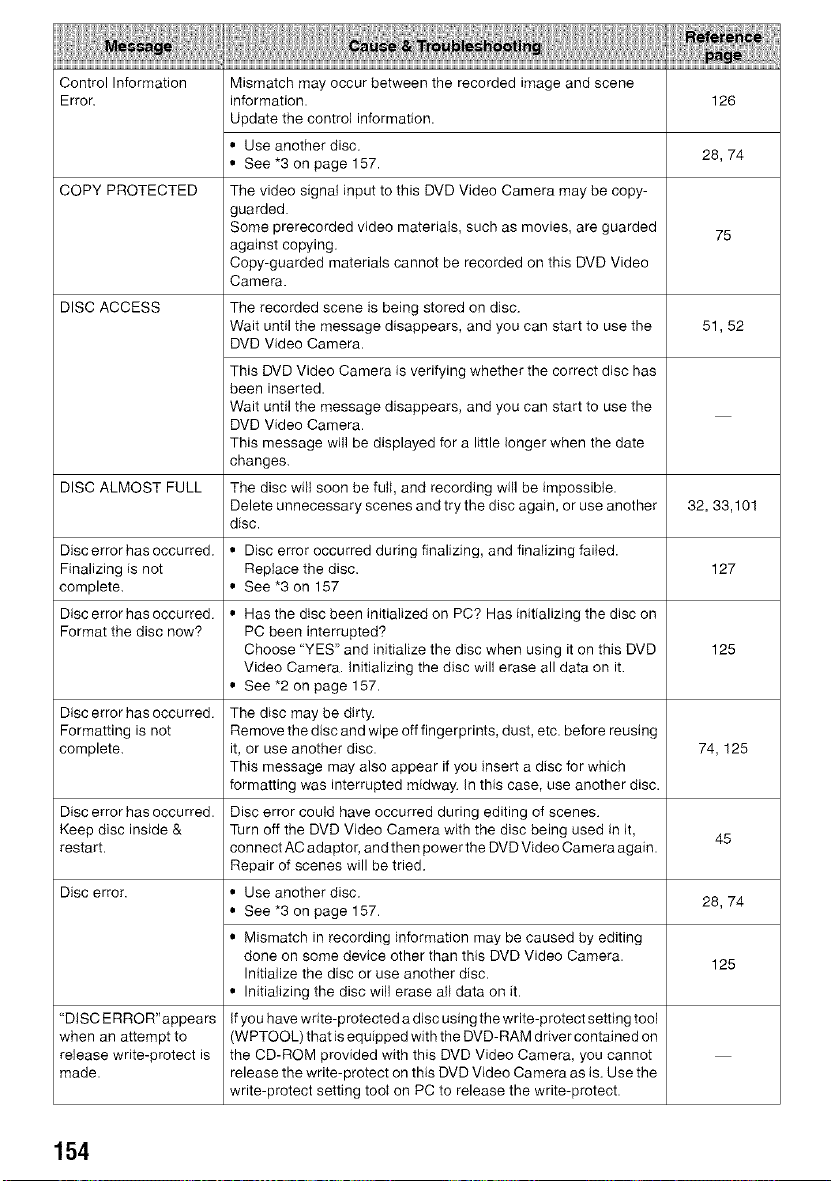
Control Information Mismatch may occur between the recorded image and scene
Error. information. 126
Update the control information.
• Use another disc.
• See *3 on page 157. 28, 74
COPY PROTECTED The video signal input to this DVD Video Camera may be copy-
guarded.
Some prerecorded video materials, such as movies, are guarded 75
against copying.
Copy-guarded materials cannot be recorded on this DVD Video
Camera.
DISC ACCESS The recorded scene is being stored on disc.
Wait until the message disappears, and you can start to use the 51,52
DVD Video Camera.
This DVD Video Camera is verifying whether the correct disc has
been inserted.
Wait until the message disappears, and you can start to use the
DVD Video Camera.
This message will be displayed for a little longer when the date
changes.
DISC ALMOST FULL The disc wilt soon be full, and recording will be impossible.
Delete unnecessary scenes and try the disc again, or use another 32, 33,101
disc.
Disc error has occurred. • Disc error occurred during finalizing, and finalizing failed.
Finalizing is not Replace the disc. 127
complete. • See *3 on 157
Disc error has occurred. • Has the disc been initialized on PC? Has initializing the disc on
Format the disc now? PC been interrupted?
Choose "YES" and initialize the disc when using it on this DVD 125
Video Camera. Initializing the disc will erase all data on it.
• See *2 on page 157.
Disc error has occurred. The disc may be dirty.
Formatting is not Remove the disc and wipe off fingerprints, dust, etc. before reusing
complete, it, or use another disc. 74, 125
This message may also appear if you insert a disc for which
formatting was interrupted midway. In this case, use another disc.
Disc error has occurred. Disc error could have occurred during editing of scenes.
Keep disc inside & Turn off the DVD Video Camera with the disc being used in it, 45
restart, connect AC adaptor, and then power the DVD Video Camera again.
Repair of scenes will be tried.
Disc error. • Use another disc.
• See *3 on page 157. 28, 74
• Mismatch in recording information may be caused by editing
done on some device other than this DVD Video Camera.
125
Initialize the disc or use another disc.
• Initializing the disc will erase at} data on it.
"DISC ERROR"appears If you have write-protected a disc using the write-protect setting tool
when an attempt to (WPTOOL)thatiseduipped withthe DVD-RAM drivercontained on
release write-protect is the CD-ROM provided with this DVD Video Camera, you cannot
made. release the write-protect on this DVD Video Camera as is. Use the
write-protect setting toot on PC to release the write-protect.
154
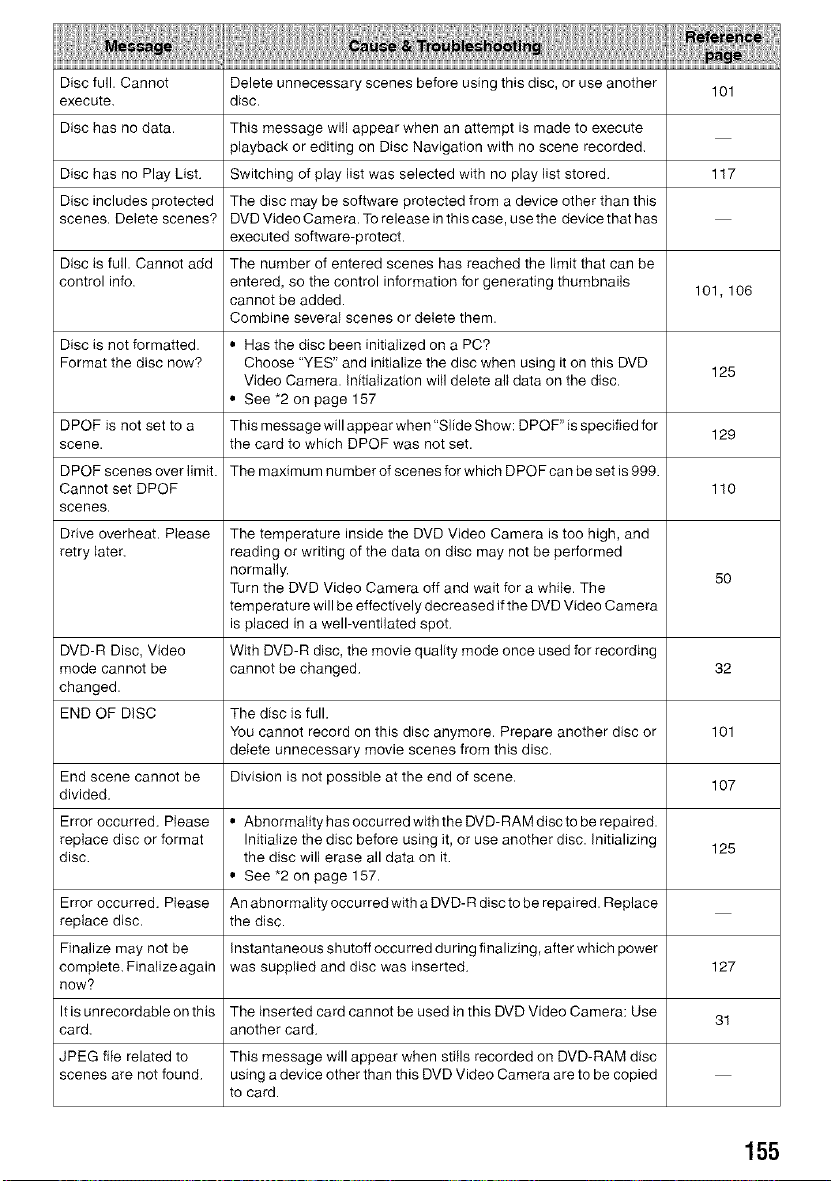
Disc full. Cannot Delete unnecessary scenes before using this disc, or use another 101
execute, disc.
Disc has no data. This message will appear when an attempt is made to execute
playback or editing on Disc Navigation with no scene recorded.
Disc has no Play List. Switching of play list was selected with no play list stored. 117
Disc includes protected The disc may be software protected from a device other than this
scenes. Delete scenes? DVD Video Camera. To release in this case, use the device that has
executed software-protect.
Disc is full. Cannot add The number of entered scenes has reached the limit that can be
control info. entered, so the control information for generating thumbnails
cannot be added. 101,106
Combine several scenes or delete them.
Disc is not formatted. • Has the disc been initialized on a PC?
Format the disc now? Choose "YES" and initialize the disc when using it on this DVD
125
Video Camera. Initialization will delete all data on the disc.
• See *2 on page 157
DPQF is not set to a This message will appear when"Slide Show: DPOF"is specified for 129
scene, the card to which DPOF was not set.
DPOF scenes over limit. The maximum number of scenes for which DPOFcan be set is 999.
Cannot set DPQF 110
scenes.
Drive overheat. Please The temperature inside the DVD Video Camera is too high, and
retry later, reading or writing of the data on disc may not be performed
normally. 50
Turn the DVD Video Camera off and wait for a while. The
temperature will be effectively decreased if the DVD Video Camera
is placed in a well-ventilated spot.
DVD-R Disc, Video With DVD-R disc, the movie quality mode once used for recording
mode cannot be cannot be changed. 32
changed.
END OF DISC The disc is full.
You cannot record on this disc anymore. Prepare another disc or 101
delete unnecessary movie scenes from this disc.
End scene cannot be Division is not possible at the end of scene. 107
divided.
Error occurred. Please • Abnormality has occurred with the DVD-RAM discto be repaired.
replace disc or format Initialize the disc before using it, or use another disc. Initializing 125
disc. the disc will erase all data on it.
• See *2 on page 157.
Error occurred. Please An abnormality occurred with a DVD-R disc to be repaired. Replace
replace disc. the disc.
Finalize may not be Instantaneous shutoff occurred during finalizing, after which power
complete.Finalizeagain was supplied and disc was inserted. 127
now?
It is unrecordable on this The inserted card cannot be used in this DVD Video Camera: Use
31
card. another card.
JPEG file related to This message will appear when stills recorded on DVD-RAM disc
scenes are not found, using a device other than this DVD Video Camera are to be copied
to card.
155
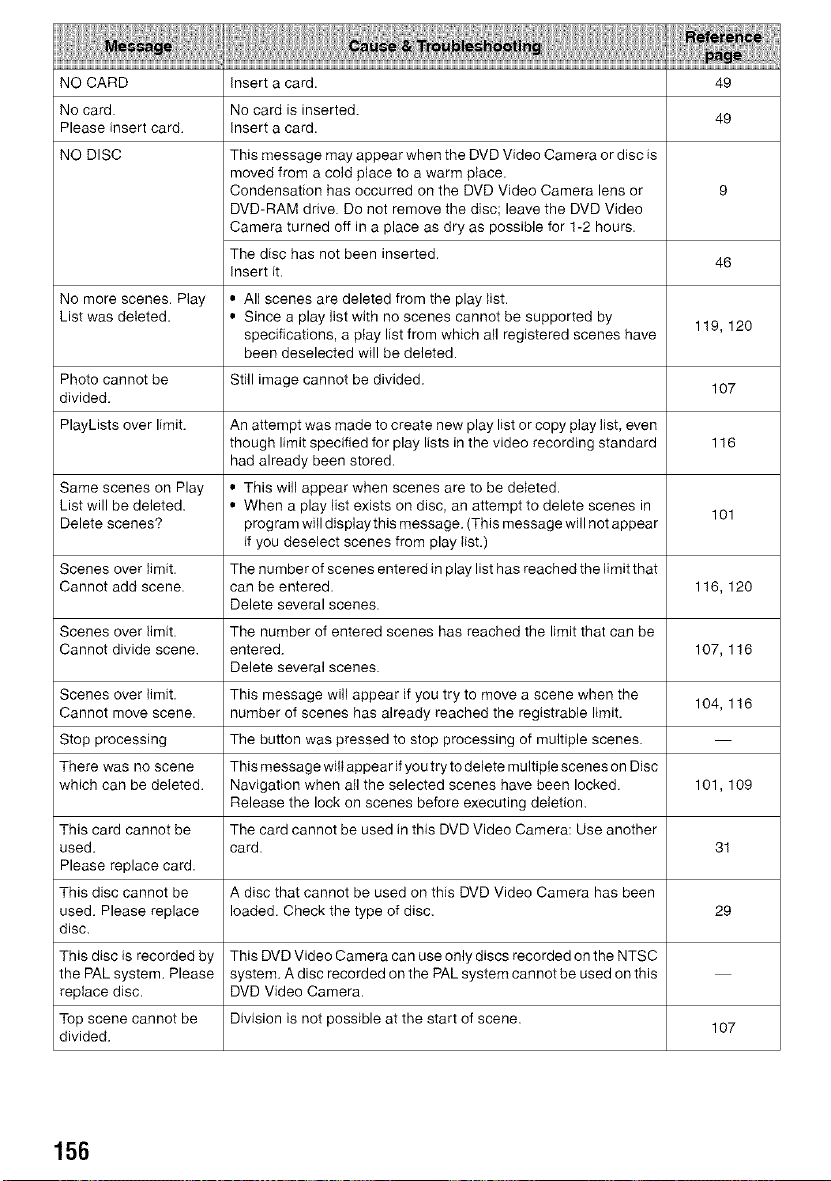
NO CARD insert a card. 49
No card. No card is inserted. 49
Please insert card. insert a card.
NO DISC This message may appear when the DVD Video Camera or disc is
moved from a cold place to a warm place.
Condensation has occurred on the DVD Video Camera lens or 9
DVD-RAM drive. Do not remove the disc; leave the DVD Video
Camera turned off in a place as dry as possible for 1-2 hours.
The disc has not been inserted. 46
insert it.
No more scenes. Play • All scenes are deleted from the play list.
List was deleted. • Since a play list with no scenes cannot be supported by
specifications, a ptay list from which all registered scenes have 119, 120
been deselected will be deleted.
Photo cannot be Still image cannot be divided.
divided. 107
PlayLists over limit. An attempt was made to create new play list or copy play list, even
though limit specified for play lists in the video recording standard 116
had already been stored.
Same scenes on Play • This will appear when scenes are to be deteted.
List will be deleted. • When a play list exists on disc, an attempt to delete scenes in 101
Delete scenes? program will displaythis message. (This message will not appear
if you deselect scenes from play list.)
Scenes over limit. The number of scenes entered in play list has reached the limit that
Cannot add scene, can be entered. 116, 120
Delete several scenes.
Scenes over limit. The number of entered scenes has reached the limit that can be
Cannot divide scene, entered. 107, 116
Delete several scenes.
Scenes over limit. This message wilJ appear if you try to move a scene when the
Cannot move scene, number of scenes has already reached the registrable limit. 104, 116
Stop processing The button was pressed to stop processing of multiple scenes.
There was no scene Thismessagewiilappearifyoutrytodelete multipiesceneson Disc
which can be deieted. Navigation when all the selected scenes have been locked. 101, 109
Release the lock on scenes before executing deletion.
This card cannot be The card cannot be used in this DVD Video Camera: Use another
used. card. 31
Please replace card.
This disc cannot be A disc that cannot be used on this DVD Video Camera has been
used. Please replace loaded. Check the type of disc. 29
disc.
This disc is recorded by This DVD Video Camera can use only discs recorded on the NTSC
the PAL system. Please system. A disc recorded on the PAL system cannot be used on this
replace disc. DVD Video Camera.
Top scene cannot be Division is not possible at the start of scene.
divided. 107
156
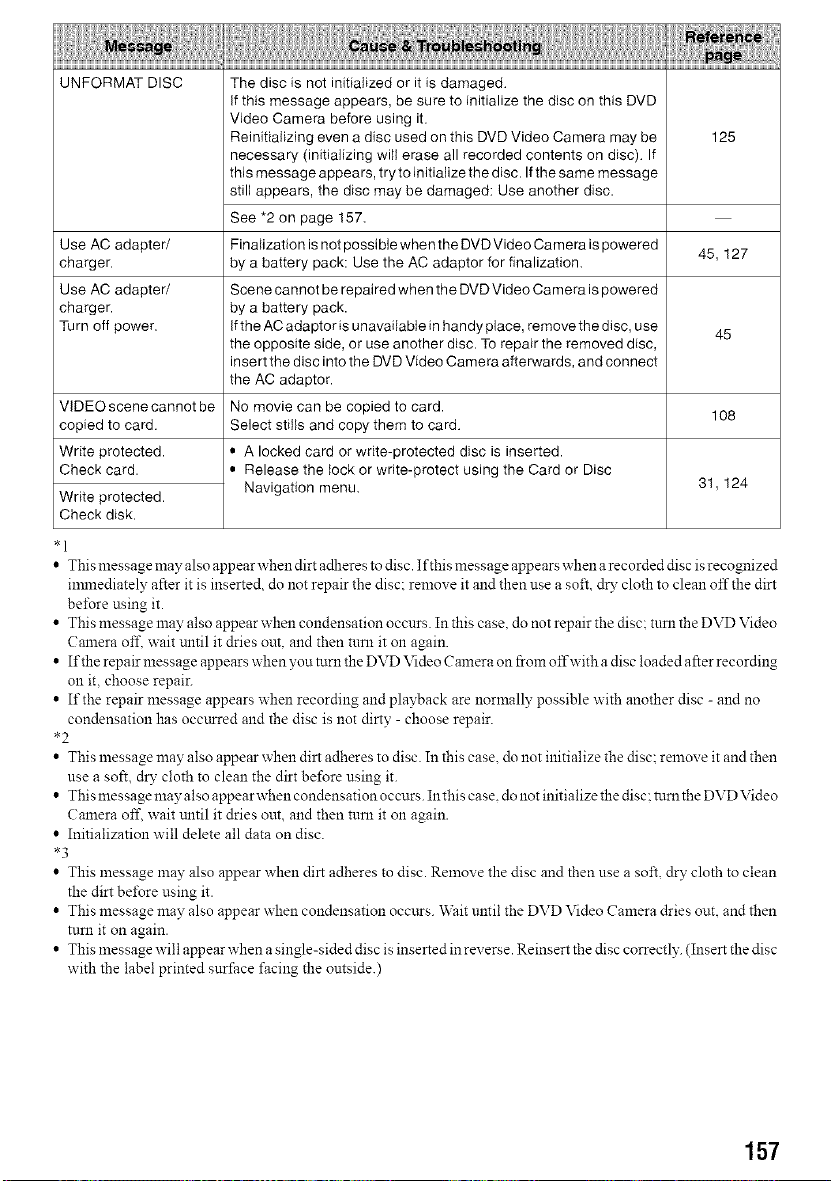
UNFORMAT DISC
125
Use AC adapter/
charger. 45, 127
Use AC adapter/
charger.
Turn off power. 45
108
The disc is not initialized or it is damaged.
If this message appears, be sure to initialize the disc on this DVD
Video Camera before using it.
Reinitializing even a disc used on this DVD Video Camera may be
necessary (initializing wilI erase all recorded contents on disc). If
this message appears, try to initialize the disc. If the same message
still appears, the disc may be damaged: Use another disc.
See *2 on page 157.
Finalization is not possible when the DVD Video Camera is powered
by a battery pack: Use the AC adaptor for finalization.
Scene cannot be repaired when the DVD Video Camera is powered
by a battery pack.
Ifthe AC adaptor is unavailable in handy place, remove the disc, use
the opposite side, or use another disc. To repair the removed disc,
insert the disc into the DVD Video Camera afterwards, and connect
the AC adaptor.
No movie can be copied to card.
Select stills and copy them to card.
• A locked card or write-protected disc is inserted.
• Release the lock or write-protect using the Card or Disc
Navigation menu.
VIDEO scene cannot be
copied to card.
Write protected.
Check card.
Write protected.
Check disk.
31,124
*l
• This messagemay also appearwhen dirt adheresto disc. I fthis messageappearswhen arecorded disc is recognized
inmlediately after it is inserted, do not repair the disc: remove it and then use a soft, dry cloth to clean off the dirt
bel\_re using it.
• This message may also appear when condensation occurs. In this case, do not repair the disc: tnnl the DVD Video
Camera off. wait until it dries out. and then tnm it on again.
• Ifthe repair message appears when you turn the DVD Video Camera on from offwith a disc loaded after recording
on it. choose repair.
• If the repair message appears when recording and playback are normally possible with another disc - and no
condensation has occurred and the disc is not dirty - choose repair.
*2
• This message may also appear when dirt adheres to disc. In this case. do not initialize the disc: remove it and then
use a soft, @ cloth to clean the dirt before using it.
• This message nlay also appear when condensation occurs. In this case. do not initialize the disc: turn the DVD Video
Camera off. wait until it dries out, and then tnm it on again.
• Initialization will delete all data on disc.
*3
• This message may also appear when dirt adheres to disc. Remove the disc and then use a soft, dry cloth to clean
the dirt be:[\_reusing it.
• This message may also appear when condensation occurs. Wait until the DVD Video Camera dries ouL and then
turn it on again.
• This message will appear when a single-sided disc is inserted inreverse. Reinsert the disc correctly. (Insert the disc
with the label printed snrface facing the outside.)
157
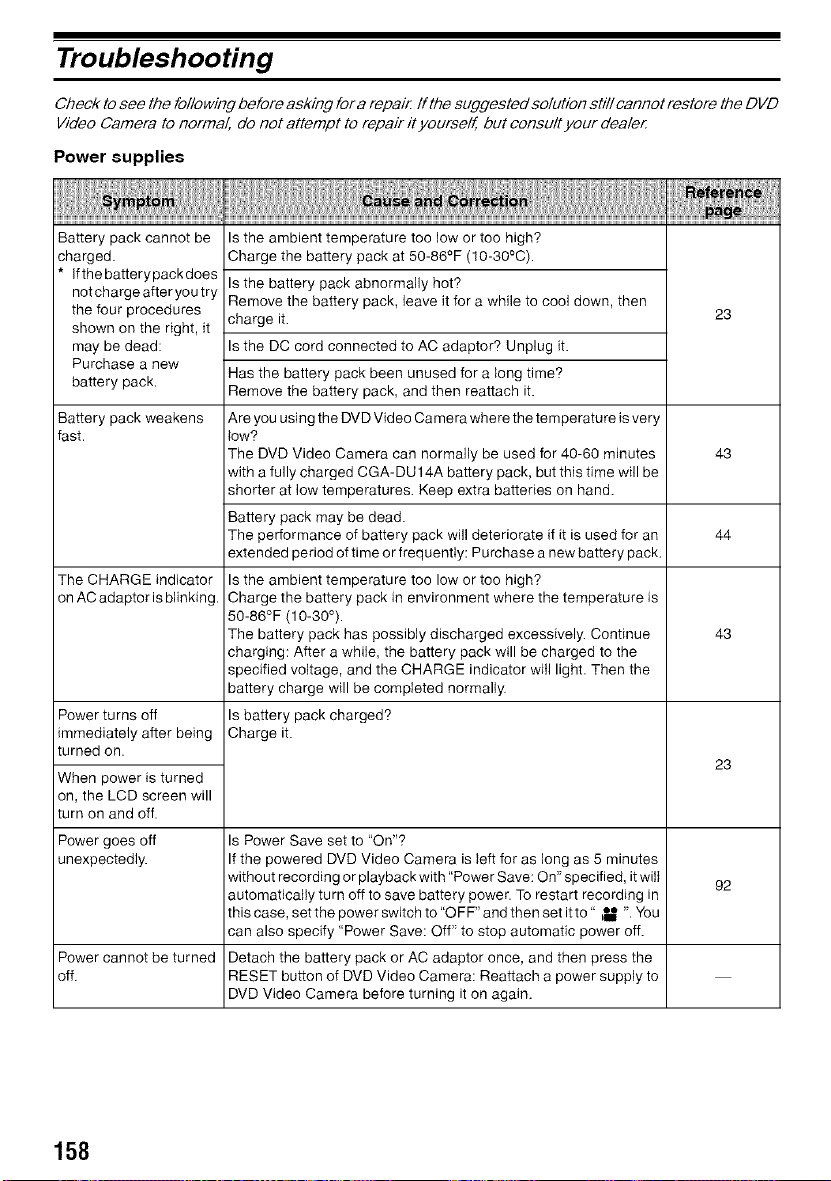
Troubleshooting
Check to see the following be fore asking for a repair If the suggested solution stiff cannot restore the DVD
Video Camera to normal, do not attempt to repair it yourself, but consult your deale_
Power supplies
Battery pack cannot be
charged.
* Ifthe batterypackdoes
notchargeafteryou try
the four procedures
shown on the right, it
may be dead:
Purchase a new
battery pack.
Is the ambient temperature too low or too high?
Charge the battery pack at 50-86°F (10-30°C).
Is the battery pack abnormally hot?
Remove the battery pack, leave it for a while to cool down, then
charge it.
Is the DC cord connected to AC adaptor? Unplug it.
Has the battery pack been unused for a long time?
Remove the battery pack, and then reattach it.
23
Battery pack weakens Are you using the DVD Video Camera where the temperature is very
fast. low?
The DVD Video Camera can normally be used for 40-60 minutes 43
with a fully charged CGA-DU 14A battery pack, but this time will be
shorter at low temperatures. Keep extra batteries on hand.
Battery pack may be dead.
The performance of battery pack will deteriorate if it is used for an 44
extended period of time or frequently: Purchase a new battery pack.
The CHARGE indicator
on AC adaptor is blinking.
Is the ambient temperature too low or too high?
Charge the battery pack in environment where the temperature is
50-86°F (10-30°).
The battery pack has possibly discharged excessively. Continue
charging: After a while, the battery pack will be charged to the
specified voltage, and the CHARGE indicator will light. Then the
battery charge will be completed normally.
Is battery pack charged?
Charge it.
Power turns off
immediately after being
turned on.
When power is turned
on, the LCD screen will
turn on and off.
Power goes off
unexpectedly.
Is Power Save set to "On"?
If the powered DVD Video Camera is left for as long as 5 minutes
without recording or playback with "Power Save: On" specified, it will
automatically turn off to save battery power. To restart recording in
this case, set the power switch to "O FF" and then set it to" _U ". You
can also specify "Power Save: Off" to stop automatic power off.
Detach the battery pack or AC adaptor once, and then press the
RESET button of DVD Video Camera: Reattach a power supply to
DVD Video Camera before turning it on again.
43
23
92
Power cannot be turned
off.
158
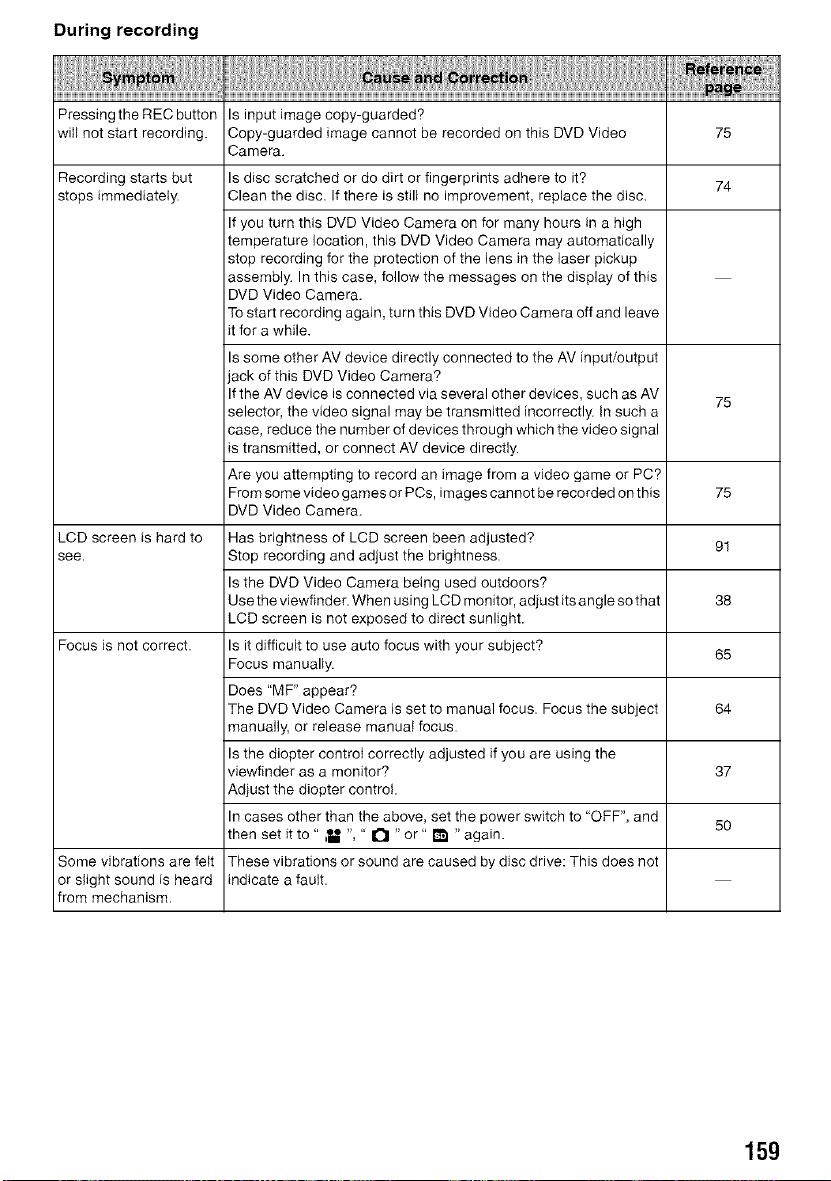
During recording
Pressing the REC button
wilI not start recording. 75
Recording starts but 74
stops immediately.
75
75
LCD screen is hard to 91
see.
38
Focus is not correct. 65
64
37
5O
Some vibrations are felt
or slight sound is heard
from mechanism.
Is input image copy-guarded?
Copy-guarded image cannot be recorded on this DVD Video
Camera.
Is disc scratched or do dirt or fingerprints adhere to it?
Clean the disc. If there is still no improvement, replace the disc.
If you turn this DVD Video Camera on for many hours in a high
temperature location, this DVD Video Camera may automatically
stop recording for the protection of the lens in the laser pickup
assembly. In this case, follow the messages on the display of this
DVD Video Camera.
To start recording again, turn this DVD Video Camera off and leave
it for a while.
Is some other AV device directly connected to the AV input/output
jack of this DVD Video Camera?
If the AV device is connected via several other devices, such as AV
selector, the video signal may be transmitted incorrectly. In such a
case, reduce the number of devices through which the video signal
is transmitted, or connect AV device directly.
Are you attempting to record an image from a video game or PC?
From some video games or POs, images cannot be recorded on this
DVD Video Camera.
Has brightness of LCD screen been adjusted?
Stop recording and adjust the brightness.
Is the DVD Video Camera being used outdoors?
Use the viewfinder. When using LCD monitor, adjust its angle so that
LCD screen is not exposed to direct sunlight.
Is it difficult to use auto focus with your subject?
Focus manually.
Does "MF" appear?
The DVD Video Camera is set to manual focus. Focus the subject
manually, or release manual focus.
Is the diopter control correctly adjusted if you are using the
viewfinder as a monitor?
Adjust the diopter control.
In cases other than the above, set the power switch to "OFF", and
then set it to " _U ", " 1"1 " or" _1 "again.
These vibrations or sound are caused by disc drive: This does not
indicate a fault.
15g
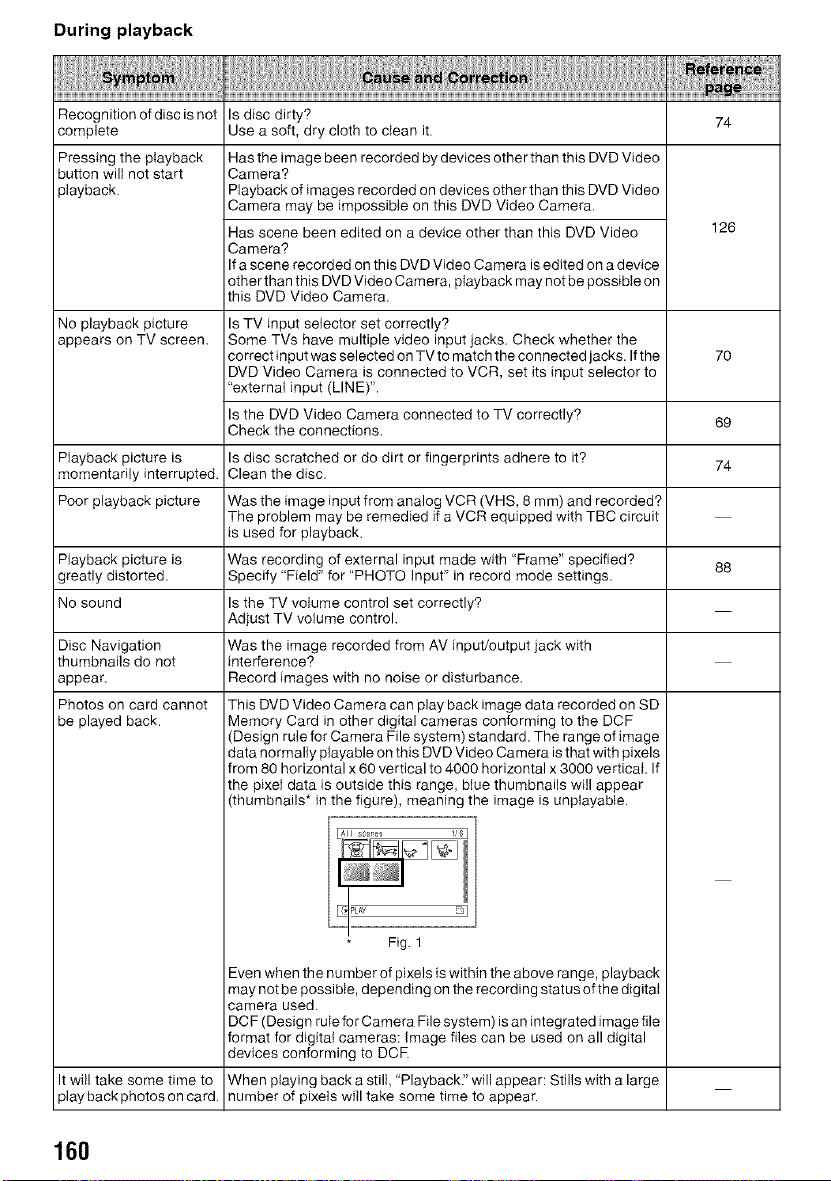
During playback
Recognition of disc is not Is disc dirty? 74
complete Use a soft, dry cloth to clean it.
Pressing the playback
button will not start
playback.
Has the image been recorded by devices other than this DVD Video
Camera?
Playback of images recorded on devices other than this DVD Video
Camera may be impossible on this DVD Video Camera.
Has scene been edited on a device other than this DVD Video
Camera?
If a scene recorded on this DVD Video Camera is edited on a device
other than this DVD Video Camera, playback may not be possible on
this DVD Video Camera.
126
No playback picture Is TV input selector set correctly?
appears on TV screen. Some TVs have multiple video input jacks. Check whether the
correct input was selected on TV to match the connected jacks. If the 70
DVD Video Camera is connected to VCR, set its input selector to
"external input (LINE)".
Is the DVD Video Camera connected to TV correctly? 69
Check the connections.
Playback picture is Is disc scratched or do dirt or fingerprints adhere to it?
momentarily interrupted. Clean the disc. 74
Poor playback picture Was the image input from analog VCR (VHS, 8 mm) and recorded?
The problem may be remedied if a VCR equipped with TBC circuit
is used for playback.
Playback picture is Was recording of external input made with "Frame" specified? 88
greatly distorted. Specify "Field" for "PHOTO Input" in record mode settings.
No sound Is the TV volume control set correctly?
Adjust TV volume control.
Was the image recorded from AV input/output jack with
interference?
Record images with no noise or disturbance.
This DVD Video Camera can play back image data recorded on SD
Memory Card in other digital cameras conforming to the DCF
(Design rute for Camera File system) standard. The range of image
data normally playable on this DVD Video Camera is that with pixels
from 80 horizontal x 60 vertical to 4000 horizontal x 3000 vertical. If
the pixeI data is outside this range, btue thumbnails will appear
(thumbnails* in the figure), meaning the image is unplayable.
Fig. 1
Disc Navigation
thumbnails do not
appear.
Photos on card cannot
be played back.
Even when the number of pixels is within the above range, playback
may not be possible, depending on the recording status of the digital
camera used.
DC F (Design rule for Camera File system) is an integrated image file
format for digital cameras: image files can be used on all digital
devices conforming to DCR
When playing back a still, "Playback." will appear: Stills with a large
number of pixels will take some time to appear.
It will take some time to
play back photos on card.
160
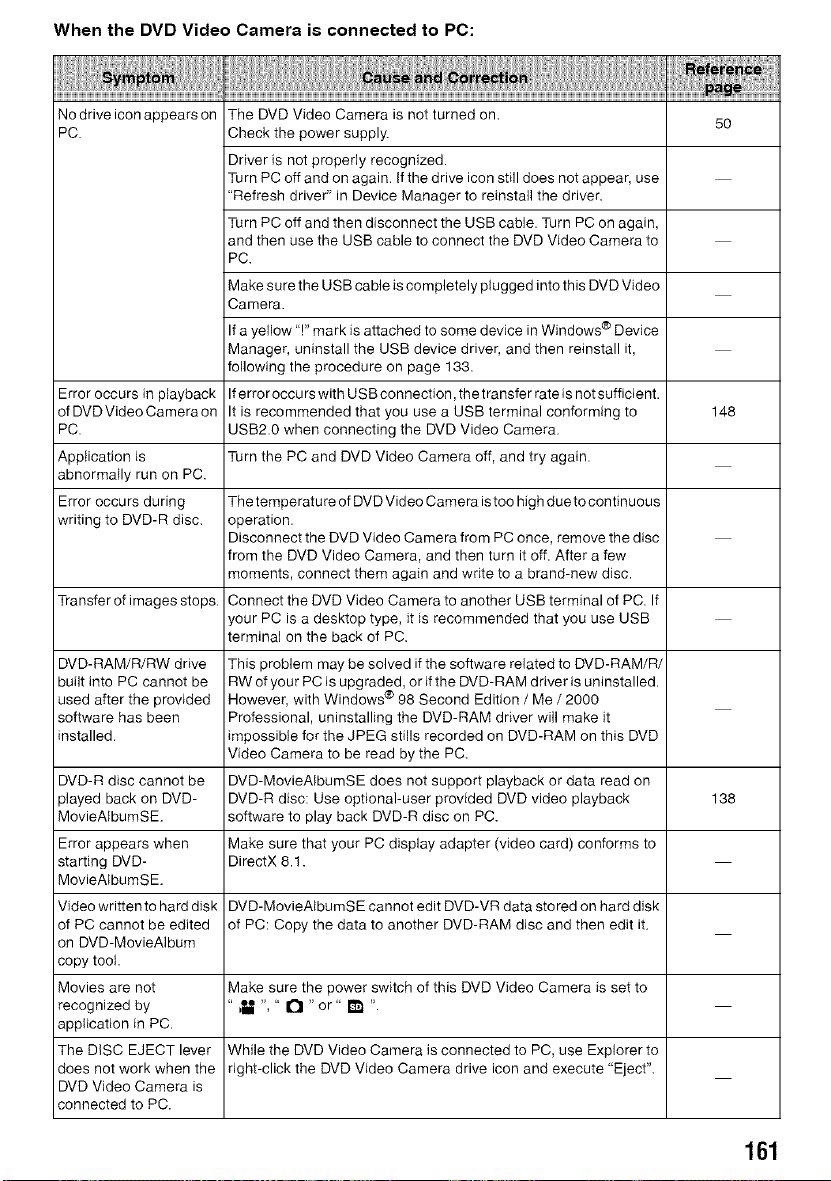
When the DVD Video Camera is connected to PC:
No drive icon appears on The DVD Video Camera is not turned on.
PC. Check the power supply. 50
Driver is not properly recognized.
Turn PC off and on again. If the drive icon still does not appear, use
"Refresh driver" in Device Manager to reinstall the driver.
Turn PC off and then disconnect the USB cable. Turn PC on again,
and then use the USB cable to connect the DVD Video Camera to
PC.
Make sure the USB cable is completely plugged into this DVD Video
Camera.
If a yellow 'T' mark is attached to some device in Windows ® Device
Manager, uninstall the USB device driver, and then reinstall it,
following the procedure on page 133.
Error occurs in playback Iferror occurs with USB connection, the transfer rate is not sufficient.
of DVDVideoCameraon It is recommended that you use a USB terminal conforming to 148
PC. USB2.0 when connecting the DVD Video Camera.
Application is Turn the PC and DVD Video Camera off, and try again.
abnormally run on PC.
Error occurs during The temperature of DVD Video Camera istoo high dueto continuous
writing to DVD-R disc. operation.
Disconnect the DVD Video Camera from PC once, remove the disc
from the DVD Video Camera, and then turn it off. After a few
moments, connect them again and write to a brand-new disc.
Transfer of images stops. Connect the DVD Video Camera to another USB terminal of PC. If
your PC is a desktop type, it is recommended that you use USB
terminal on the back of PC.
DVD-RAM/R/RW drive This problem may be solved if the software related to DVD-RAM/R/
built into PC cannot be RW of your PC is upgraded, or if the DVD-RAM driver is uninstalled.
used after the provided However, with Windows ® 98 Second Edition / Me / 2000
software has been Professional, uninstalling the DVD-RAM driver will make it
installed. _mpossible for the JPEG stills recorded on DVD-RAM on this DVD
Video Camera to be read by the PC.
DVD-R disc cannot be DVD-MovieAIbumSE does not support playback or data read on
played back on DVD- DVD-R disc: Use optional-user provided DVD video playback 138
MovieAtbumSE. software to play back DVD-R disc on PC.
Error appears when Make sure that your PC display adapter (video card) conforms to
starting DVD- DirectX 8.1.
MovieAtbumSE.
Video written to hard disk DVD-MovieAIbumSE cannot edit DVD-VR data stored on hard disk
of PC cannot be edited of PC: Copy the data to another DVD-RAM disc and then edit it.
on DVD-MovieAIbum
copy toot.
Movies are not Make sure the power switch of this DVD Video Camera is set to
recognized by " bU ", " _ " or" fff_ ".
application in PC.
The DISC EJECT lever While the DVD Video Camera is connected to PC, use Explorer to
does not work when the right-click the DVD Video Camera drive icon and execute "Eject".
DVD Video Camera is
connected to PC.
161
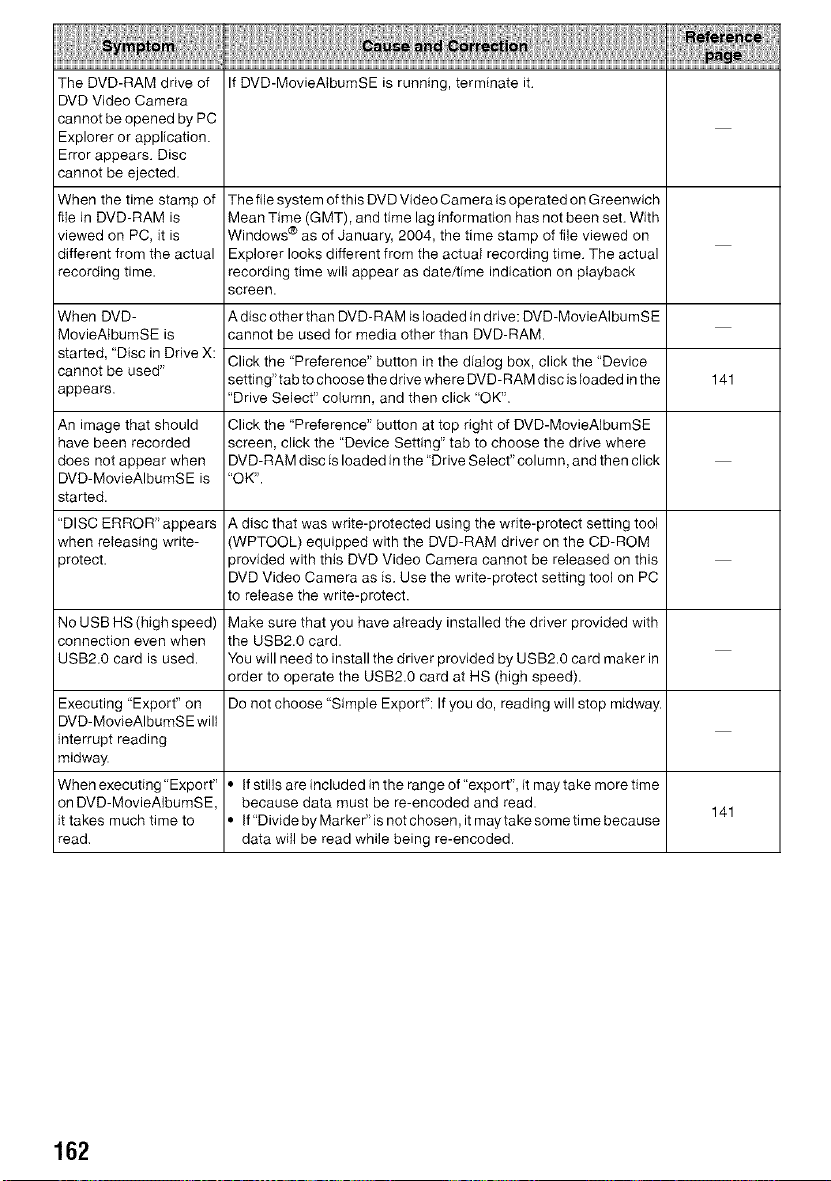
The DVD-RAM drive of If DVD-MovieAtbumSE is running, terminate it.
DVD Video Camera
cannot be opened by PC
Explorer or application.
Error appears. Disc
cannot be ejected.
When the time stamp of The file system of this DVD Video Camera is operated on Greenwich
file in DVD-RAM is Mean Time (GMT), and time lag information has not been set. With
viewed on PC, it is Windows ® as of January, 2004, the time stamp of file viewed on
different from the actual Explorer looks different from the actual recording time. The actual
recording time. recording time wilt appear as date/time indication on playback
screen.
When DVD- A disc other than DVD-RAM is loaded in drive: DVD-MovieAIbumSE
MovieAtbumSE is cannot be used for media other than DVD-RAM.
started, "Disc in Drive X: Click the "Preference" button in the dialog box, click the "Device
cannot be used"
setting"tab to choose the drive where DVD-RAM disc is loaded in the 141
appears. "Drive Select" column, and then click "OK".
An image that should Click the "Preference" button at top right of DVD-MovieAIbumSE
have been recorded screen, click the "Device Setting" tab to choose the drive where
does not appear when DVD-RAM disc is loaded in the "Drive Select"column, and then click
DVD-MovieAIbumSE is "OK".
started.
"DISCERROR"appears A disc that was write-protected using the write-protect setting tool
when releasing write- (WPTOOL) equipped with the DVD-RAM driver on the CD-ROM
protect, provided with this DVD Video Camera cannot be released on this
DVD Video Camera as is. Use the write-protect setting tool on PC
to release the write-protect.
No USB HS (high speed) Make sure that you have already installed the driver provided with
connection even when the USB2.0 card.
USB2.0 card is used. You will need to install the driver provided by USB2.0 card maker in
order to operate the USB2.0 card at HS (high speed).
Executing "Export" on Do not choose "Simple Export": If you do, reading will stop midway.
DVD-MovieAIbumSE will
interrupt reading
midway.
Whenexecuting"Export" • IfstilJsareincludedintherangeof"export",itmaytakemoretime
on DVD-MovieAIbumSE, because data must be re-encoded and read.
141
it takes much time to • If"Divide by Marke¢'is not chosen, it maytake some time because
read. data will be read while being re-encoded.
162
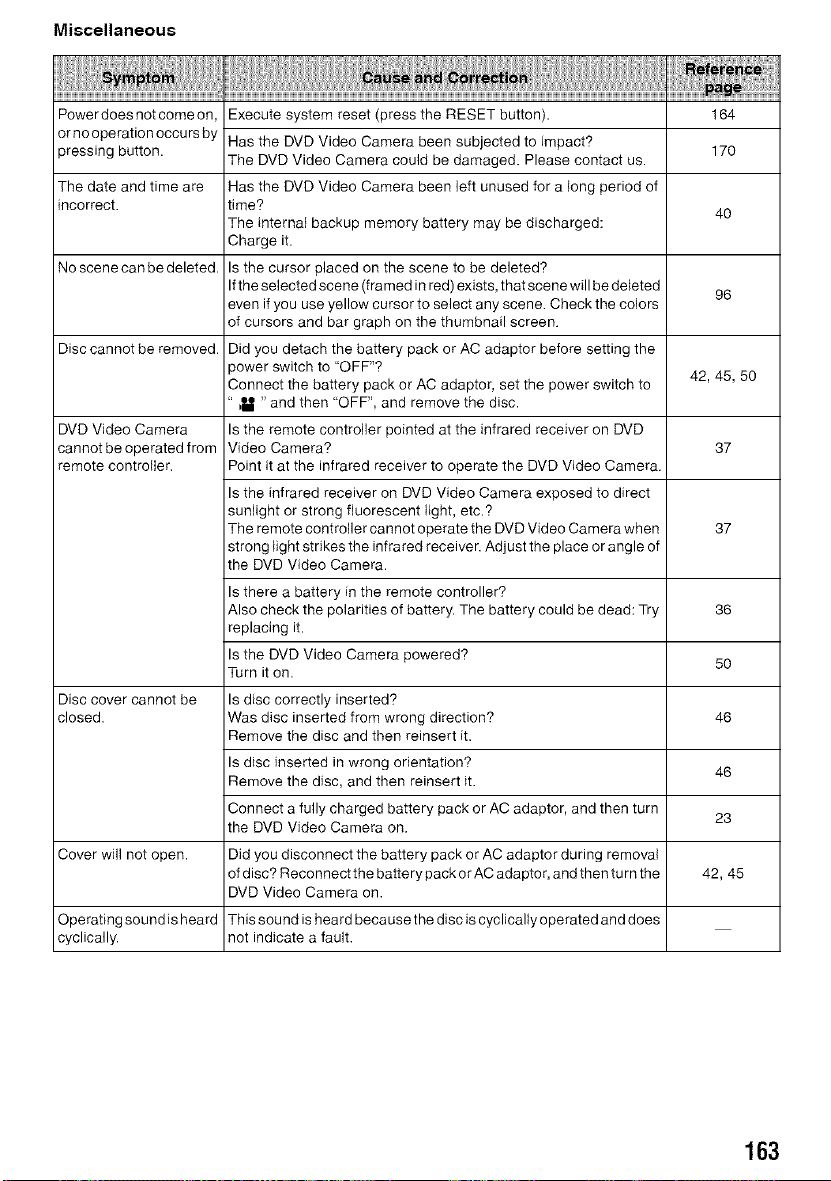
Miscellaneous
Powerdoesnotcomeon, Execute system reset (press the RESET button). 164
ornooperationoccursby Has the DVD Video Camera been subjected to impact? 170
pressing button. The DVD Video Camera could be damaged. Please contact us.
The date and time are Has the DVD Video Camera been left unused for a long period of
incorrect, time? 40
The internal backup memory battery may be discharged:
Charge it.
No scene can be deleted. Is the cursor placed on the scene to be deleted?
Ifthe selected scene (framed in red) exists, that scene will be deleted 96
even if you use yellow cursor to select any scene. Check the colors
of cursors and bar graph on the thumbnail screen.
Disc cannot be removed. Did you detach the battery pack or AC adaptor before setting the
power switch to "OFF"?
Connect the battery pack or AC adaptor, set the power switch to 42, 45, 50
" bU " and then "OFF", and remove the disc.
DVD Video Camera Is the remote controller pointed at the infrared receiver on DVD
cannot be operated from Video Camera? 37
remote controller. Point it at the infrared receiver to operate the DVD Video Camera.
Is the infrared receiver on DVD Video Camera exposed to direct
sunlight or strong fluorescent light, etc.?
The remote controller cannot operate the DVD Video Camera when 37
strong light strikes the infrared receiver. Adjust the place or angle of
the DVD Video Camera.
Is there a battery in the remote controller?
Also check the polarities of battery. The battery could be dead: Try 36
replacing it.
Is the DVD Video Camera powered? 50
Turn it on.
Disc cover cannot be Is disc correctly inserted?
closed. Was disc inserted from wrong direction? 46
Remove the disc and then reinsert it.
Is disc inserted in wrong orientation? 46
Remove the disc, and then reinsert it.
Connect a fully charged battery pack or AC adaptor, and then turn
the DVD Video Camera on. 23
Cover will not open. Did you disconnect the battery pack or AC adaptor during removal
of disc? Reconnect the battery pack or AC adaptor, and then turn the 42, 45
DVD Video Camera on.
Operating sound is heard This sound is heard because the disc is cyclically operated and does
cyclically, not indicate a fault.
163
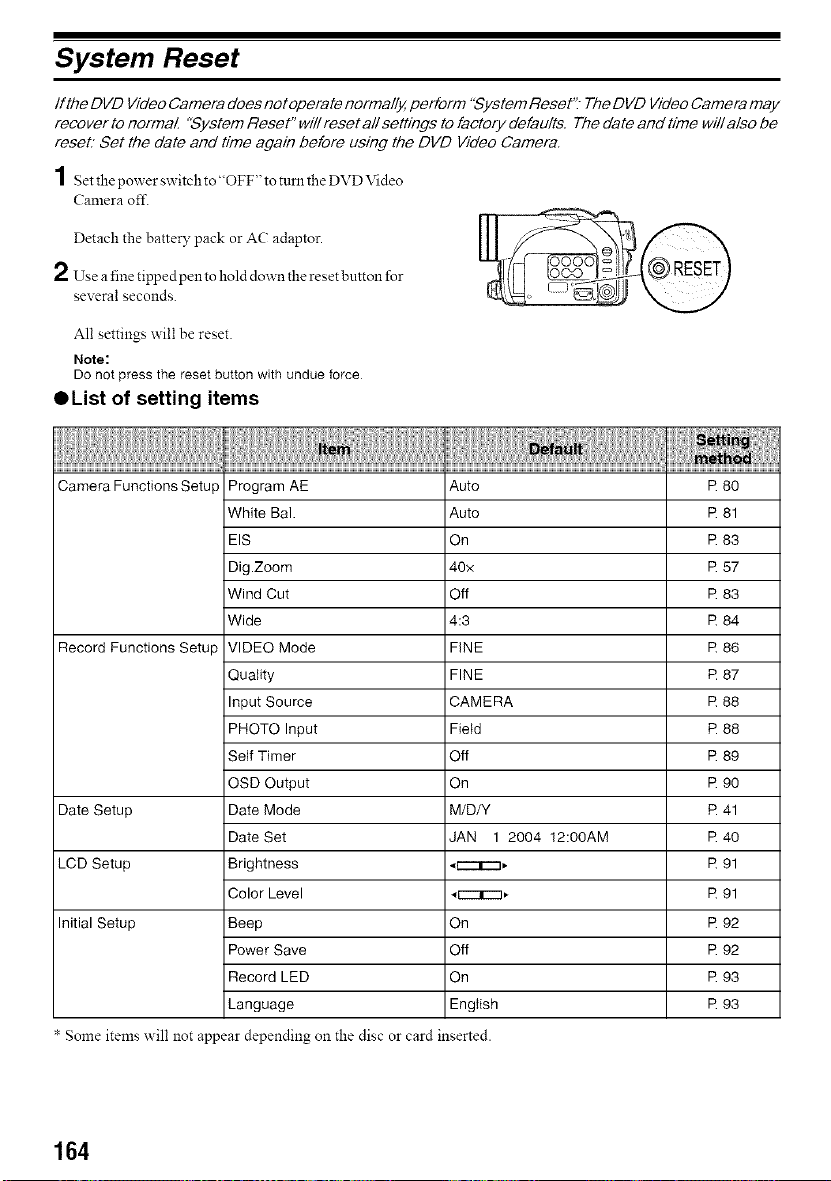
System Reset
If the DVD Video Camera does not operate normally, perform "System ReseK_ The DVD Video Camera may
recover to normal "System Reset" will reset all settings to factory defaults. The date and time will also be
reseL Set the date and time again before using the DVD Video Camera.
1 Set the power switch to"OFF" to tunl the DVD Video
Camera off.
Detach the batter?' pack or AC adaptor.
2 Use a fine tipped pen to hold down the reset button for
several seconds.
All settings will be reset.
Note:
Do not press the reset button with undue force
OList of setting items
Camera Functions Setup Program AE Auto R 80
White Bal. Auto R 81
EIS On R 83
Dig.Zoom 40x R 57
Wind Cut Off R 83
Wide 4:3 R 84
Record Functions Setup VIDEO Mode FiNE R 86
Quality FINE R 87
Input Source CAMERA R 88
PHOTO Input Field R 88
Self Timer Off R 89
OSD Output On R 90
Date Setup Date Mode M/D/Y R 41
Date Set JAN 1 2004 12:00AM R 40
LCD Setup Brightness _ri'-rm, R 91
Color Level _r---rm, R 91
Initial Setup Beep On R 92
Power Save Off R 92
Record LED On R 93
Language English R 93
Some items will not appear depending on the disc or card inserted.
164
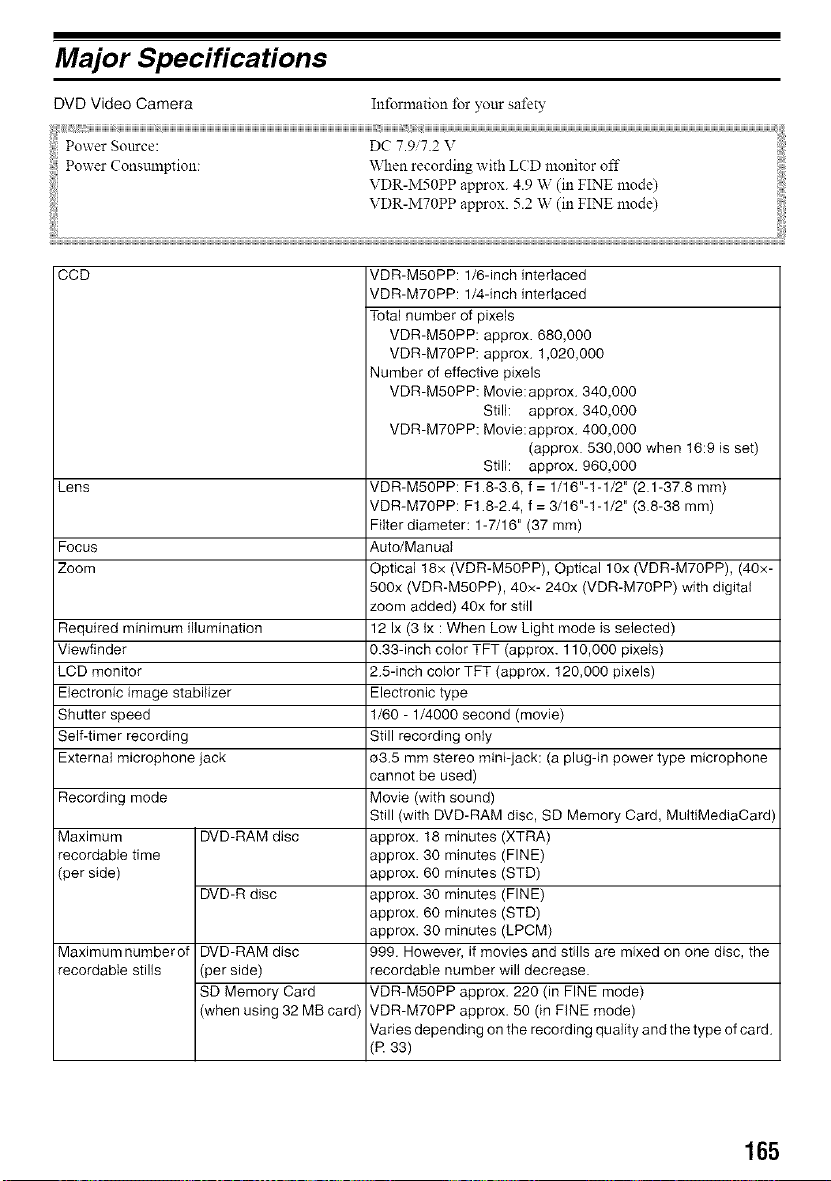
Major Specifications
DVD Video Camera
Information for your safety
VDR-MTOPP approx. 5.2 W (in FINE mode)
CCD
Lens
Focus
Zoom
Required minimum illumination
Viewfinder
LCD monitor
Electronic image stabilizer
Shutter speed
Self-timer recording
External microphone jack
Recording mode
Maximum DVD-RAM disc
recordable time
(per side)
DVD-R disc
Maximum numberof DVD-RAM disc
recordable stills (per side)
SD Memory Card
(when using 32 MB card)
VDR-M50PP: 1/6-inch interlaced
VDR-M70PP: 1/4-inch interlaced
Total number of pixels
VDR-M50PP: approx. 680,000
VDR-M70PP: approx. 1,020,000
Number of effective pixels
VDR-M50PP: Movie: approx. 340,000
Still: approx. 340,000
VDR-M70PP: Movie: approx. 400,000
(approx. 530,000 when 16:9 is set)
Still: approx. 960,000
VDR-M50PP: F1.8-3.6, f = 1/16"-1-1/2" (2.1-37.8 mm)
VDR-M70PP: F1.8-2.4, f = 3/16"-1-1/2" (3.8-38 mm)
Filter diameter: 1-7/16" (37 mm)
Auto/Manual
Optical 18x (VDR-M50PP), Optical 10x (VDR-M70PP), (4Ox-
500x (VDR-M50PP), 4Ox- 240x (VDR-M70PP) with digital
zoom added) 40x for still
12 Ix (3 Ix : When Low Light mode is selected)
0.33-inch color TFT (approx. 110,000 pixets)
2.5-inch color TFT (approx. 120,000 pixels)
Electronic type
1/60 - 1/4000 second (movie)
Still recording only
a3.5 mm stereo mini-jack: (a plug-in power type microphone
cannot be used)
Movie (with sound)
Still (with DVD-RAM disc, SD Memory Card, MultiMediaCard
approx. 18 minutes (XTRA)
approx. 30 minutes (FINE)
approx. 60 minutes (STD)
approx. 30 minutes (FINE)
approx. 60 minutes (STD)
approx. 30 minutes (LPCM)
999. However, if movies and stills are mixed on one disc, the
recordable number will decrease.
VDR-M50PP approx. 220 (in FINE mode)
VDR-M70PP approx. 50 (in FINE mode)
Varies depending on the recording quality and the type of card.
(R 33)
165
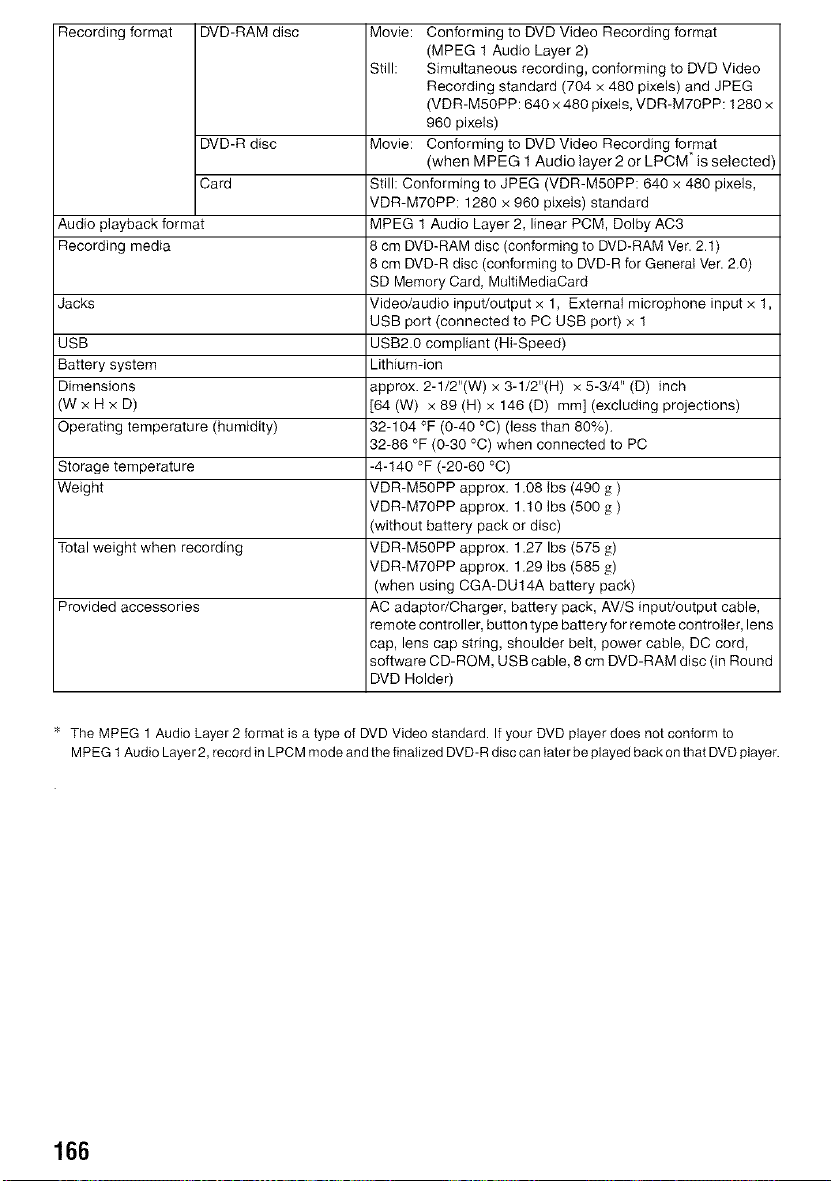
Recording format DVD-RAM disc Movie: Conforming to DVD Video Recording format
(MPEG 1 Audio Layer 2)
Still: Simultaneous recording, conforming to DVD Video
Recording standard (704 x 480 pixels) and JPEG
(VDR-M50PP: 640 x 480 pixels, VDR-M70PP: 1280 x
960 pixels)
DVD-R disc Movie: Conforming to DVD Video Recording format
(when MPEG 1 Audio layer 2 or LPCM is selected
Card Still: Conforming to JPEG (VDR-M50PP: 640 x 480 pixels,
VDR-M70PP: 1280 x 960 pixets) standard
Audio playback format MPEG 1 Audio Layer 2, linear PCM, Dolby AC3
Recording media 8 cm DVD-RAM disc (conforming to DVD-RAM Ver. 2.1)
8 cm DVD-R disc (conforming to DVD-R for General Ver. 2.0)
SD Memory Card, MultiMediaCard
Jacks Video/audio input/output x 1, External microphone input x 1,
USB port (connected to PC USB port) x 1
USB USB2.0 compliant (Hi-Speed)
Battery system Lithium-ion
Dimensions approx. 2-1/2"(W) x 3-1/2"(H) x 5-3/4" (D) inch
(W x H x D) [64 (W) x 89 (H) x 148 (D) mm] (excluding projections)
Operating temperature (humidity) 32-104 °F (0-40 °C) (less than 80%).
32-86 °F (0-30 °C) when connected to PC
Storage temperature -4-140 °F (-20-60 °C)
Weight VDR-M50PP approx. 1.08 ibs (490 g )
VDR-M70PP approx. 1.10 Ibs (500 g )
without battery pack or disc)
Total weight when recording VDR-M50PP approx. 1.27 Ibs (575 g)
VDR-M70PP approx. 1.29 Ibs (585 g)
(when using CGA-DU14A battery pack)
Provided accessories AC adaptor/Charger, battery pack, AV/S input/output cable,
remote controller, button type battery for remote controller, lens
cap, lens cap string, shoulder belt, power cable, DC cord,
software CD-R©M, USB cable, 8 cm DVD-RAM disc (in Round
DVD Holder)
* The MPEG 1 Audio Layer 2 format is a type of DVD Video standard. If your DVD player does not conform to
M PEG 1 Audio Layer 2, record in LPCM mode and the finalized DVD-R disc can later be played back on that DVD player.
166
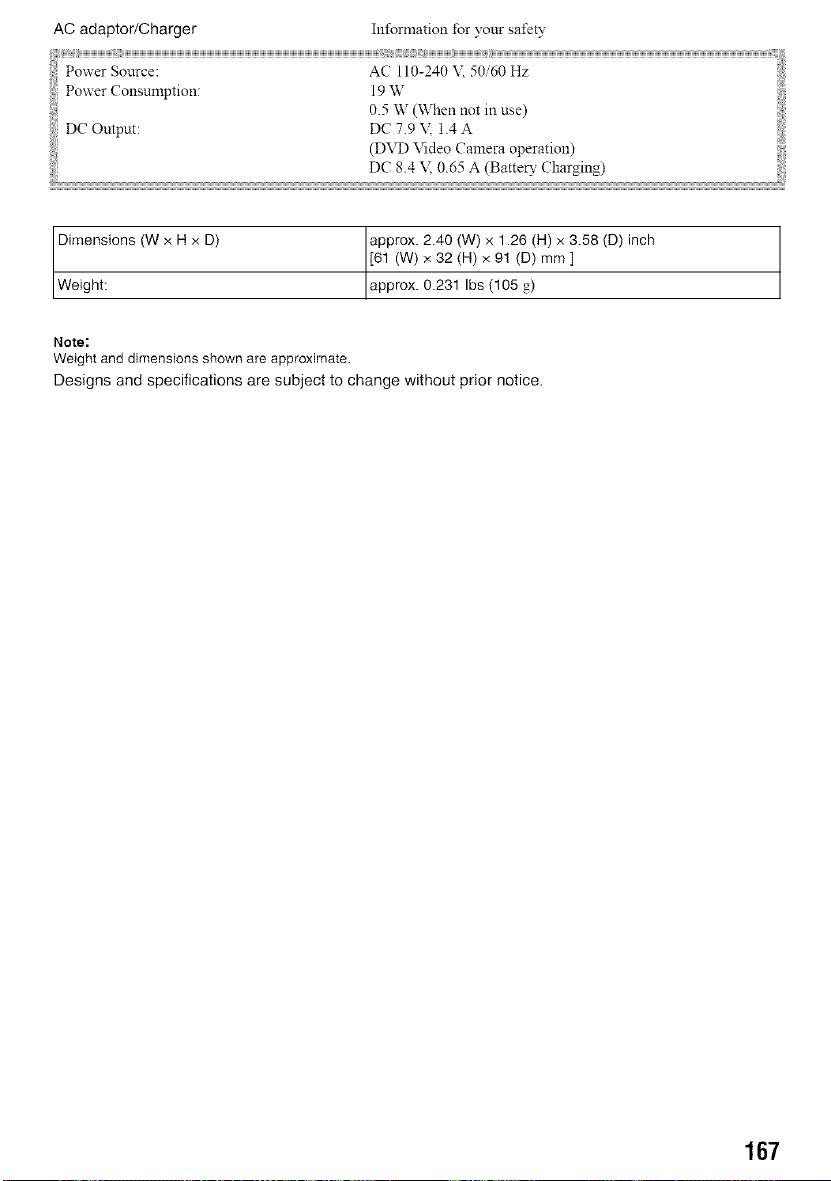
AC adaptor/Charger Information for your safety
DC Output:
(DVD Video Camera operation)
Dimensions (W x H x D) approx. 2.40 (W) x 1.26 (H) x 3.58 (D) inch
[61 (W) x 32 (H) x 91 (D) mm ]
Weight: approx. 0.231 Ibs (105 g)
Note:
Weight and dimensions shown are approximate.
Designs and specifications are subject to change without prior notice.
167
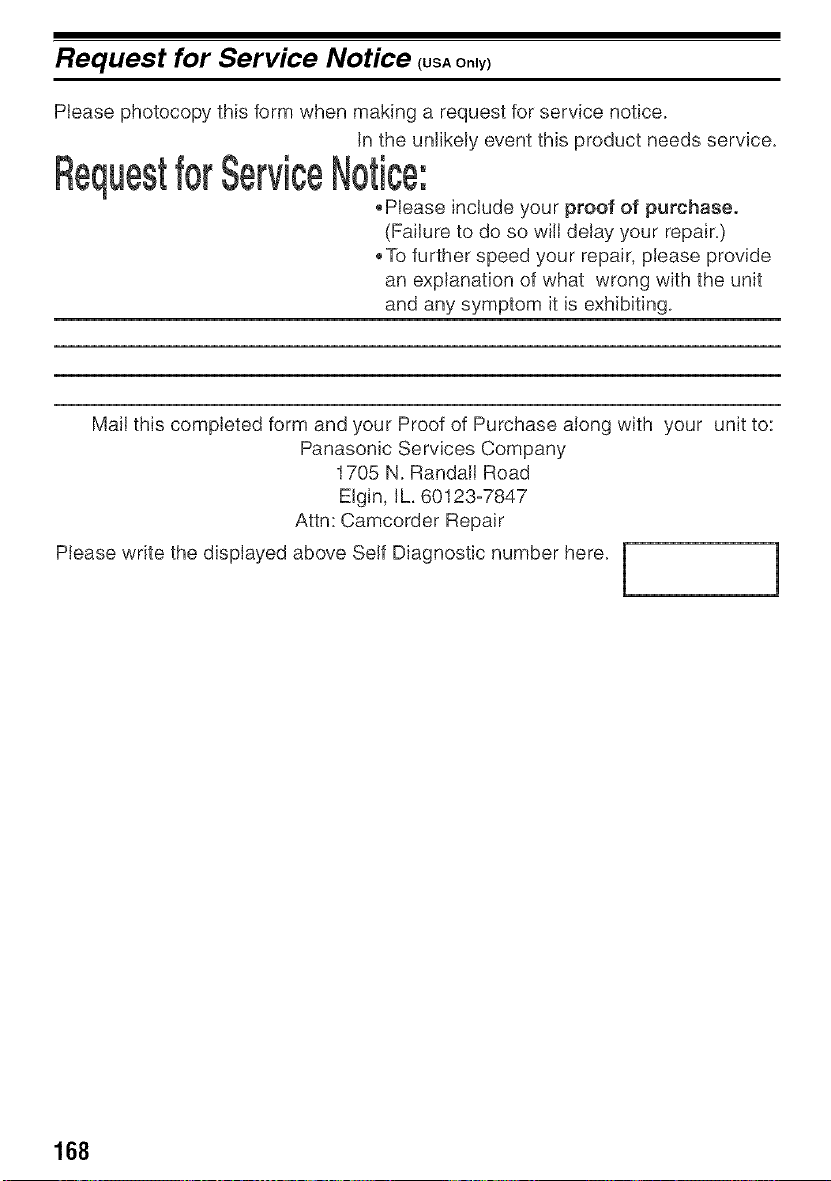
Request for Service Notice (USAoo_y)
Please photocopy this form when making a request for service notice.
In the unlikely event this product needs service.
Request ,'
,Please include your proof of purchase.
(Failure to do so will delay your repair.)
• To further speed your repair, please provide
an explanation of what wrong with the unit
and any symptom it is exhibiting.
Mail this completed form and your Proof of Purchase along with your unit to:
Panasonic Services Company
1705 N. Randall Road
Elgin, Ih 60123-7847
Attn: Camcorder Repair
Please write the displayed above Self Diagnostic number here.
168
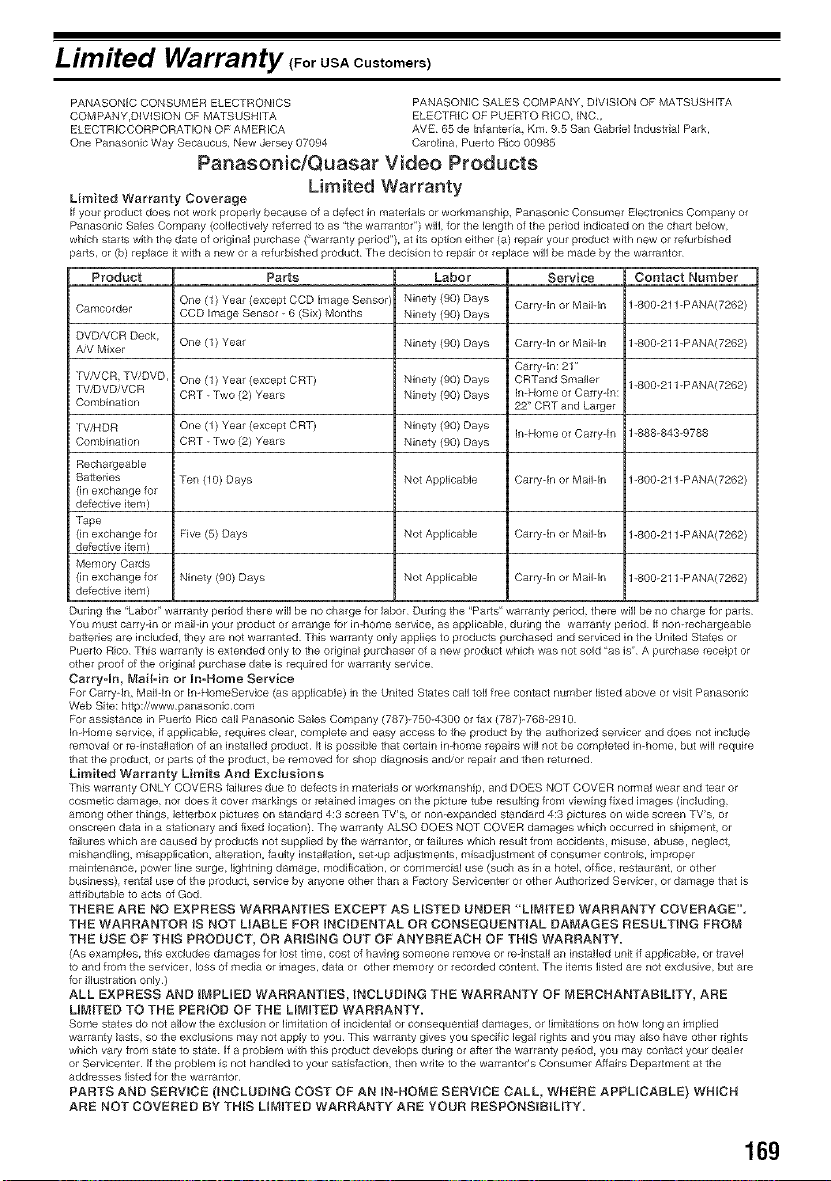
Limited Warranty (For USA Customers)
PANASONIC CONSUMER ELECTRONICS PANASONIC SALES COMPANY, DiViSION OF MATSUSHITA
COMPANY,DIVISION OF MATSUSHITA ELECTRIC OF PUERTO RICO, INC,
ELECTRICCORPORATION OF AMERICA AVE 65 de Infanteria, Km 95 San Gabriel Industdal Park,
One Panasonic Way Secaucus, New Jersey 87094 Carolina, Puerto Rico 00985
Panasonic/Quasar Video Products
Limited Warranty
Limited Warranty Coverage
if your product does not work propedy because of a defect in materials or workmanship, Panasonic Consumer Electronics Company or
Panasonic Sales Company (collectively referred to as "the warrantor ") will for the length of the period indicated on the chart below,
which starts with the date of odginal purchase ("warranty period"), at its option either (a) repair your product with new Orrefurbished
parts, or (b) replace it with a new or a refurbished product The decision to repair Or replace will be made by the warrantor
Product Parts Labor Service Contact Number
One (1) Year (except CCD image Sensor) Ninety (90) Days Carlyqn or MaiMn 1_800-211 -PANA(7262)
Camcorder CCD Image Sensor - 6 (Six) Months Ninety (90) Days
DVDNCR Deck,
A/V Mixer One (1) Year Ninety (90) Days Carryqn or MaiMn 1-800-211 -PANA(7262)
Carryqn: 21"
TViVCR, TV/DVD One (1) Year (except CRT) Ninety (90) Days CRTand Smaller 1-800-211 -PANA(7262)
TV/DVDiVCR
Combination CRT - Two (2) Years Ninety (90) Days In-Home or Carry In:
22" CRT and Larger
TV/HDR One (1) Year (except CRT) Ninety (90) Days In-Home or Carryqn 1-888-843-9788
Combination CRT - Two (2) Years Ninety (90) Days
Rechargeable
Bafteries "Fen (10) Days Not Applicable Carfyqn or MaiMn 1_800-211 -PANA(7262)
(in exchange for
defective item)
Tape
(in exchange for Five (5) Days Not Applicable Car/yqn or MaiMn 1_800-211 -PANA(7262)
defective item)
Memory Cards
(in exchange for Ninety (90) Days Not Applicable Carfyqn or MaiMn 1-800-211 _PANA(7262)
defective item)
Dudng the "Labor " warranty period there will be no charge for labor During the "Parts" warranty period, there will be no charge for parts
You must carry in or mail in your product or arrange for in home service, as applicable, during the warranty period if non-rechargeable
batteries are included, they are not warranted This warranty only applies to products purchased and serviced in the United States or
Puerto Rico This warranty is extended only to the original purchaser of a new product which was not sold "as is" A purchase receipt or
other proof of the original purchase date is required for warranty service
Carry=In, Ivlaibin or In-Home Service
For Carry In, MaiHn or In HomeService (as applicable) in the United States call toll free contact number listed above or visit Panasonic
Web Site: hep:iiwww panasonic corn
For assistance in Puerto Rico call Panasonic Sales Company (787) 7504300 Orfax (787)-7682910
In Home service, if applicable, requires clear, complete and easy access to the product by the authorized servicer and does not include
removal or rednstallation of an installed product It is possible that certain in home repairs will not be completed in-home, but will require
that the product, or parts of the product, be removed for shop diagnosis and/or repair and thei= returned
Limited Warranty L}mits And E×e_usions
This warranty ONLY COVERS failures due to defects in materials or workmanship, and DOES NOT COVER nolmal wear and tear or
cosmetic damage, nor does it cover markings or etained images on the picture tube resulting from viewing fixed images (including,
among other things, lettelbox pictures on standard 4:3 screen TV's, Or non expanded standard 4:8 pictures On wide screen TV's, el
onscreen data in a stationary and fixed location) The warranty ALSO DOES NOT COVER damages which occurred in shipment, or
failures which are caused by products not supplied by the warrantor, or failures which result from accidents, misuse, abuse, r'_eglect,
mishandling, misapplication, alteration, faulty installation, setup adjustments, misadjuslment of consumer controls, improper
maintenance, power line surge, lightning damage, modification, or commercial use (such as in a hotel, office, restauranb or other
business), rental use of the product, service by anyone other than a Factory Servicenter or other Authorized Servicer, or damage that is
aftributable to acts of God
THERE ARE NO EXPRESS WARRANTIES EXCEPT AS LISTED UNDER "LIB,_ITED WARRANTY COVERAGE".
THE WARRANTOR iS NOT LIABLE FOR INCIDENTAL OR CONSEQUENTIAL DAMAGES RESULTING FROM
THE USE OF THIS PRODUCT, ON ARISING OUT OF ANYBREACH OF THIS WARRANTY.
(As examples, this excludes damages for lost time, cost of having someone remove or re-install an installed unit if applicable, or travel
to and from the servicer, loss of media or images, data Or other memory or recorded content The items listed are not exclusive, but are
for illustration only)
ALL EXPRESS AND IMPLIED WARRANTIES, INCLUDING THE WARRANTY OF r_ERCNANTABILITY, ARE
LIMITED TO THE PERIOD OF THE LIr_ITED WARRANTY.
Some states do not allow the exclusion or limitation of incidental or consequenaal damages, or limitations on how long an implied
warranty lasts, so the exclusions may not apply to you This warranty gives you specific legal rights and you may also have othel rights
which vary from state to state If a problem with this product develops during or after the warranty period, you may contact your dealer
or Servicei_ter if the problem is not handled to your satisfaction, thei_ write to the warrantor's Consumer Affairs Department at the
addresses listed for the warrantor
PARTS AND SERVICE (INCLUDING COST OF AN IN=NO[_,tE SERVICE CALL, WHERE APPLICABLE) WHICH
ARE NOT COVERED BY THiS MMITED WARRANTY ARE YOUR RESPONSIBiMTY=
16g
Customer Services Directory
Obtain Product Information and Operating Assistance; locate your nearest Dealer or
Servicenter; purchase Parts and Accessories; or make Customer Service and
Literature requests by visiting our Web Site at:
http://www.panasonic.com/support
or, contact us via the web at:
http://www.panasonic.com/contactinfo
You may also contact us directly at:
1-800-211-PANA (7262),
Monday-Friday 9 am-9 pm; Saturday-Sunday 10 am-7 pm, EST.
I For hearinq or speech impaired TTY users, TTY : 1-877-833-8855
Purchase Parts, Accessories and Instruction Books online for all Panasonic
Products by visiting our Web Site at:
http://www.pasc.panasonic.com
or, send your request by E-mail to:
npcparts_Danasonic.com
You may also contact us directly at:
1-800-332-5368 (Phone) 1-800-237-9080 (Fax Only) (Monday- Friday 9 am to 8 pm, EST.)
Panasonic Services Company
20421 84th Avenue South,
Kent, WA 98032
(We Accept Visa, MasterCard, Discover Card, American Express, and Personal Checks)
I For hearinq or speech impaired TTY users, TTY : 1-866-605-1277
Matsushita Electric of Puerto Rico, Inc. Panasonic Sales Company
Factory Servicenter:
Ave. 65 de Infanteria, Kin. 9.5, San Gabriel Industrial Park,
Carolina, Puerto Rico 00985
Phone (787)750-4300, Fax (787)768-2910
170
Warranty (For Canadian Customers)
Pana$onic Canada [nc,
8770 Ambler Drive, Mississauga, Ontado L4W 2T3
PANASONIC PRODUCT - LIMITED WARRANTY
Panasonic Canada Inc. warrants this product to be free from defects in material and workmanship and agrees to remedy any
such detect for a period as stated below from the date of original pu/_lTase.
Camcorder Product - One (1) year, parts and labour
LIMITATIONS AND EXCLUSIONS
This warranty does not apply to products purchased outside Canada or to any product which has been improperly insta]Md,
subjected to usage for which the product was not designed, misused or abused, damaged duMig shipping, or which has been
altered or repaired in any way that affects the re]MbJ]ity or detracts from the pedormance, nor does it cover any product which is
used commercially. Dry cell batteries are also excluded from coverage under this warranty.
This warranty is extended to the odginal end user purchaser only. A purchase receipt or other proof of date of original purchase
is required before warranty service is pedormed.
THIS EXPRESS, LIMITED WARRANTY IS IN LIEU OF ALL OTHER WARRANTIES, EXPRESS OR iMPLIED, EXCLUDING
ANY IMPLIED WARRANTIES OF MERCHANTABILITY OR FITNESS FOR A PARTICULAR PURPOSE.
iN NO EVENT WILL PANASONJD CANADA iNC. BE LIABLE FOR ANY SPECIAL, INDIRECT OR CONSEQUENTIAL
DAMAGES.
In certain instaflces, some jurisdictions do riot alMw the exclusion or limitation of incidental or consequential damages, or the
exclusion of implied warrailties, so the above limitations aild exdusiolls may not be app]icabM.
WARRANTY SERVICE
For product operation and information assistance, please contact you_" Dealer or our Customer Care Centre at:
Telephone #: (905) 624-5505 Fax #: (905) 238-2360 Web: www.pallasonic.ca
For product repairs, please contact one of the following:
• Your Dealer who will inform you of an authorized Servicentre ilearest you.
• Our Customer Care Centre at (905) 624-5505 or www.pallasonic.ca
A Panasonic Factory Servicentre listed below:
Richmond British Columbia _= Alberta Mississauga, Ontario Lachille Quebec
Panasonic Canada Inc. Panasonic Canada Inc. Panasonic Canada Inc. Panasonic Canada Inc.
12111 RNerside Way 6835-8 th St. N.E. 5770 Ambler Dr. 3075, rue Louis A. Amos
Richmond, BC V6W1K8 Calgary, AB T2E7H7 Mississauga, ON L4W2T3 Lachine, QC H8T1C4
Tel: (604) 278-4211 Tel: (403) 295-3955 Tel: (905) 824-8447 Tel: (514) 833-8684
Fax: (604) 278-5627 Fax: (403) 274-5493 Fax: (905) 238-2418 Fax: (514) 633-8020
IF YOU SHIP THE PRODUCT TO A SERVICENTRE
Carefully pack and send prepaid, adequately insured and preferably in the origMal carton,
Include details of the defect claimed, and proof of date of original purchase
171

MEMO
172

173

Panasonic Consumer EJectronics Company,
Division of Matsushita Electric Corporation of America
Executive Office:
One Panasonic Way, Secaucus, NJ 07094
(201) 348-7000
Panasonic Company East: 6749 Baymeadow Drive, Glen Burnie, MD 21060
Panasonic Company Centrak !707 North Randall Road, Elgin, IL 60123
Panasonic Company West: 6550 KatelIa Avenue, Cypress, CA 90630
Division of Matsushita Electric Corporation of America
Panasonie Sales Company ("PSC')
Division of Matsushita EJectric of Puerto Rico, lne,
San Gabriel IndustriaI Park, Ave, 65 de Infanteria, Km_9_5, Carolina, PR 00985
Panasonic Canada Inc.
5770 Ambler Drive, Mississauga, ON, L4W 2T3