802269 - Residential CS & CSHA User Manual - 09.2016 v3.01 Page 1 of 28
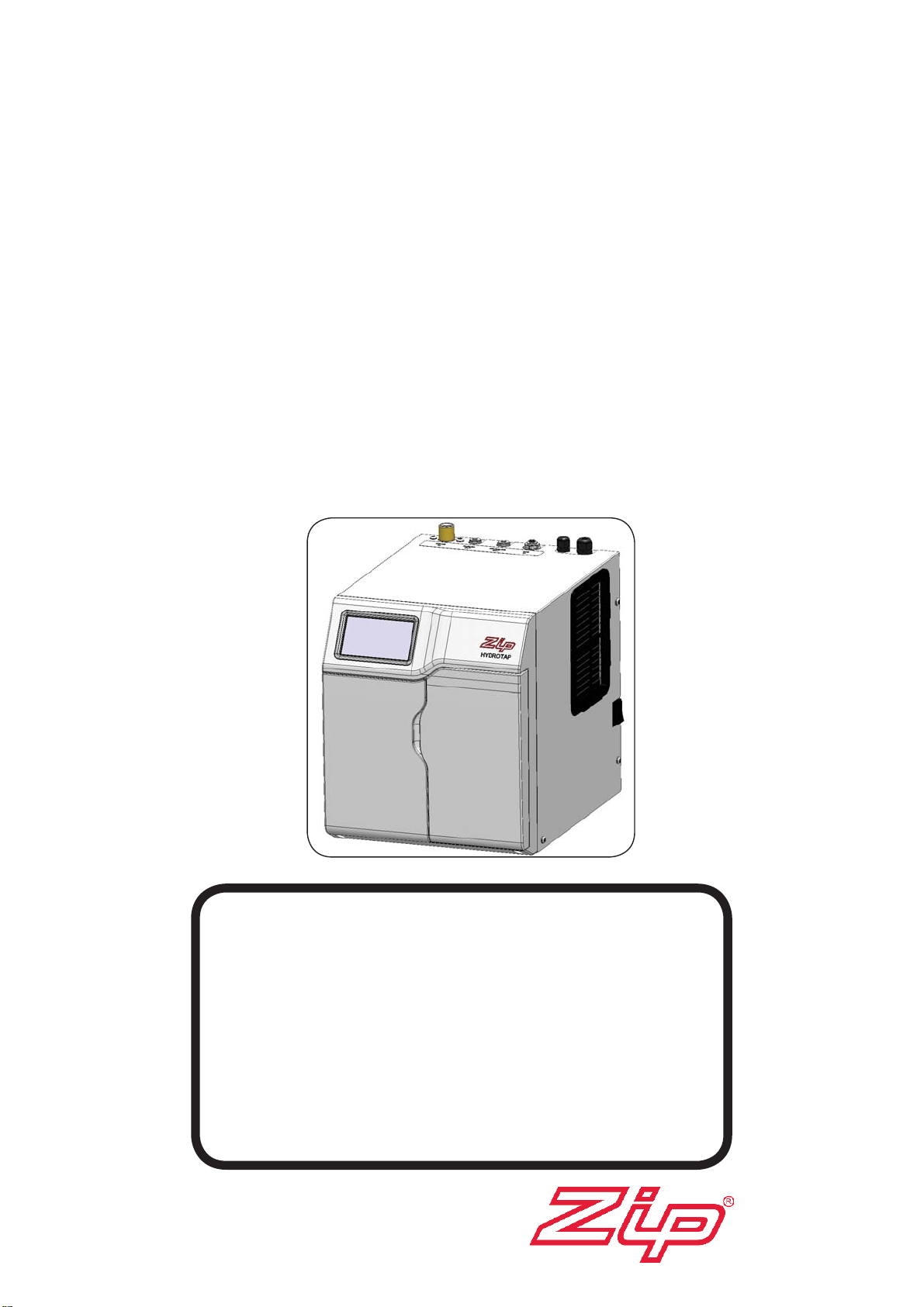
ZIP HydroTap G4
User Manual
®
Affix Model Number Label
Here
802269
CS Residential
•
Tap Functions..................(Pages 2-4)
•
Tap Operation..................(Pages 5-10)
•
LCD Screen & Menu .......(Pages 11-22)
•
Maintenance.................... (Pages 23-26)
•
Contact details.................(Page 28)
Date of Installation............./........../...........
For safe keeping store this book
in the inside door pocket
Page 2 of 28 802269 - Residential CS & CSHA User Manual - 09.2016 - v3.01
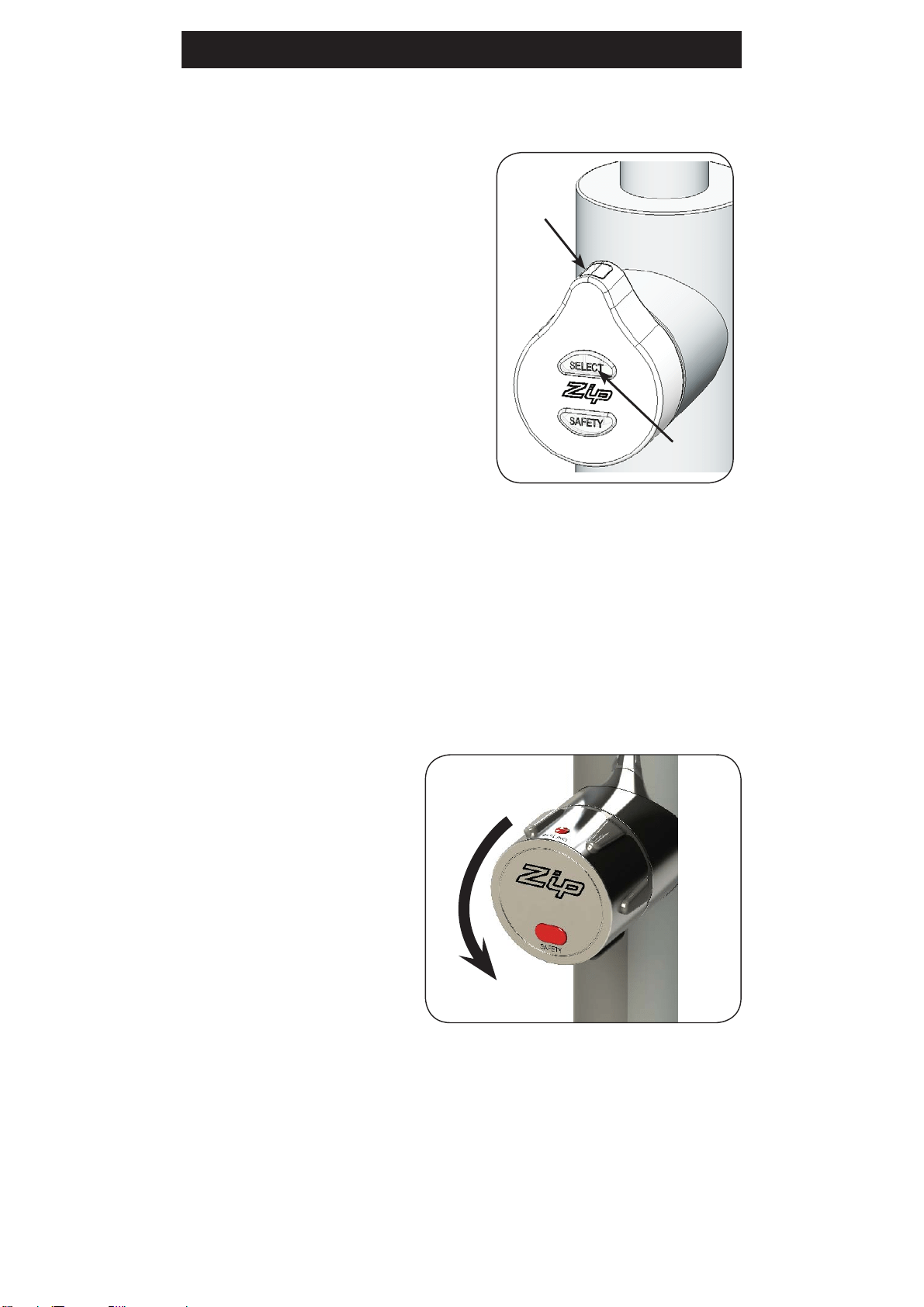
Elite Tap:
The Elite tap uses touch
sensitive controls, to dispense
Chilled and Chilled Sparkling
water.
When operating the tap,
ensure the touch surface is dry
as moisture may interfere with
the sensor touch control.
3. Tap functions
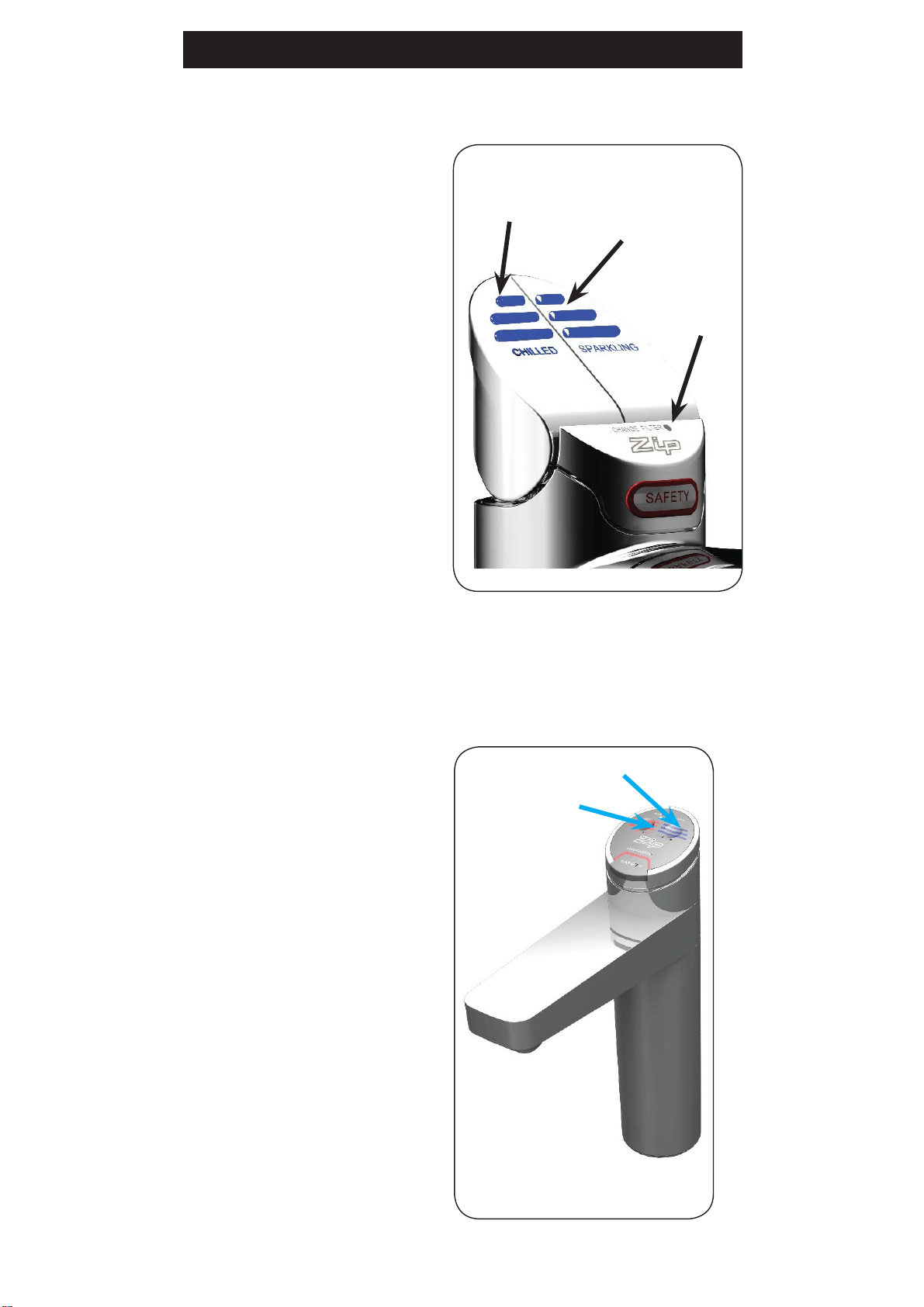
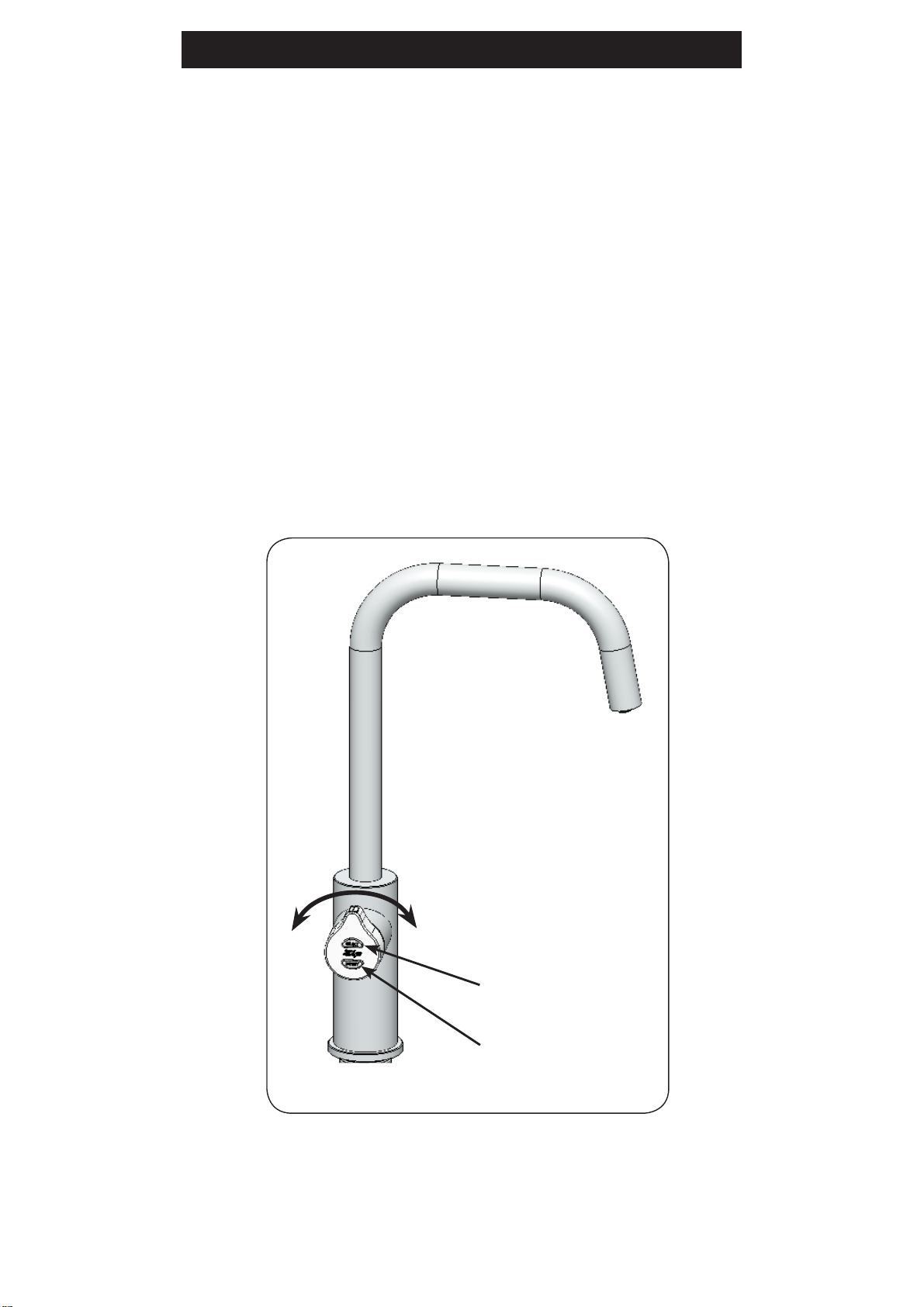
HydroTap Classic:
The HydroTap Classic uses lever
controls, to dispense Chilled and
Chilled Sparkling water.
There are Blue indicator lights, built
into the levers, to show the status of
the chilled water.
There is a filter warning light to
indicate when a filter change is due
NOTE: The safety button on all
Chilled Sparkling models is inactive,
as this function is only necessary
for Boiling water models
Chilled
Lever
Sparkling
Lever
Filter light
Chilled Button
Sparkling button
802269 - Residential CS & CSHA User Manual - 09.2016 v3.01 Page 3 of 28
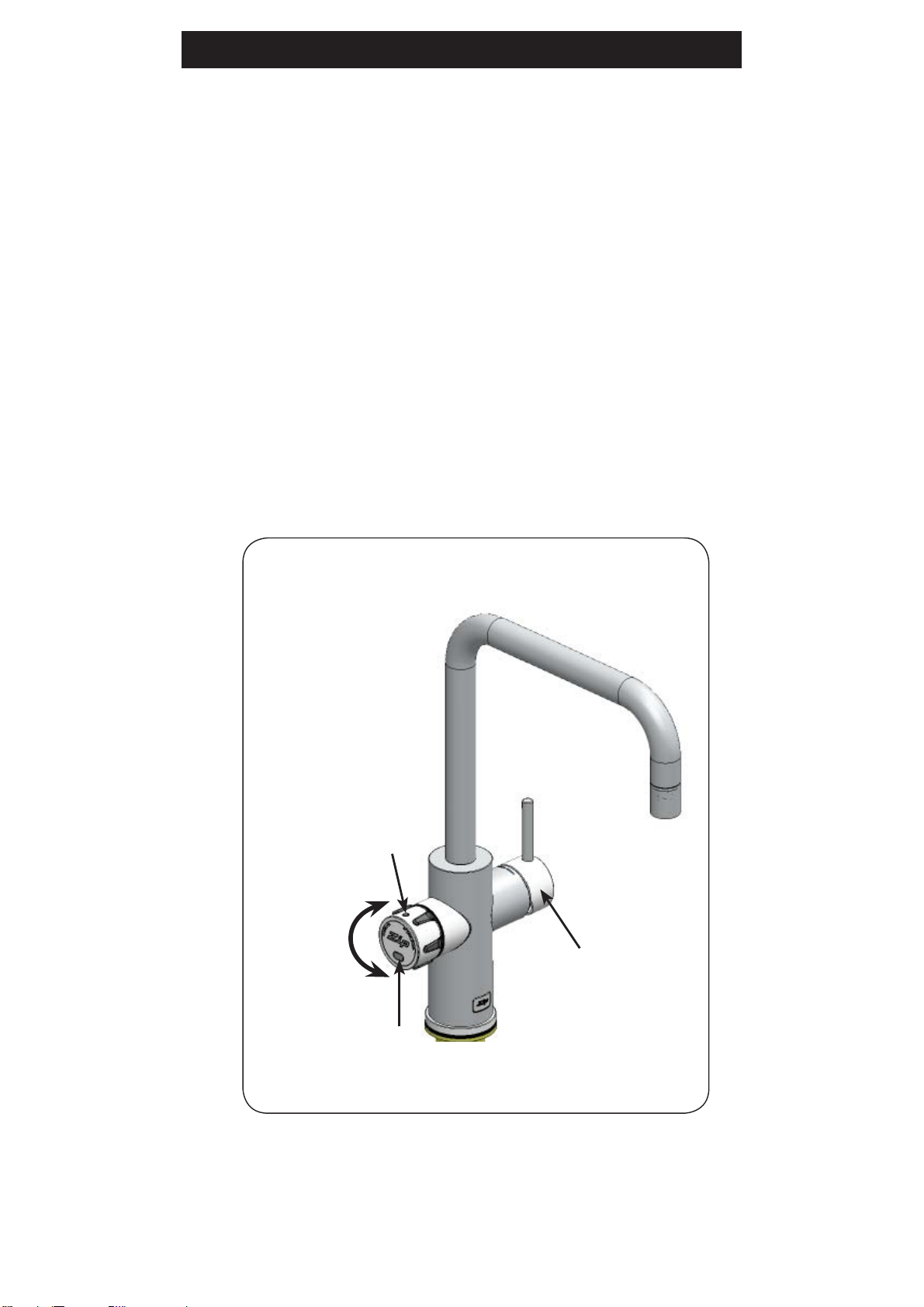
On powerup, wait 30 secs. for the unit to calibrate. Tapping the select button
will allow the selection of either the Chilled (BLUE) or Sparkling (White) water
mode.
The Arc/Cube control may be rotated in a forward or reverse direction to
dispense Sparkling or Chilled water.
The rotary control is spring loaded in the anticlockwise direction and when
released, will return to the OFF position. When rotated clockwise the tap
operates in a “Pot fill” mode. Water will flow from between 5 and 15 seconds
(This is user adjustable). To reset, return the handle to the “Off” position and
repeat the step. The lever has to be manually returned to the “Off” position.
When unattended, the control light will automatically default to the Chilled
(BLUE) mode after 30 seconds.
The spout may be fixed in one of 6 positions and does not swivel.
3. Tap functions
Rotary control
Select Button
Safety Lock
HydroTap Arc/Cube:
Page 4 of 28 802269 - Residential CS & CSHA User Manual - 09.2016 - v3.01
3. Tap functions
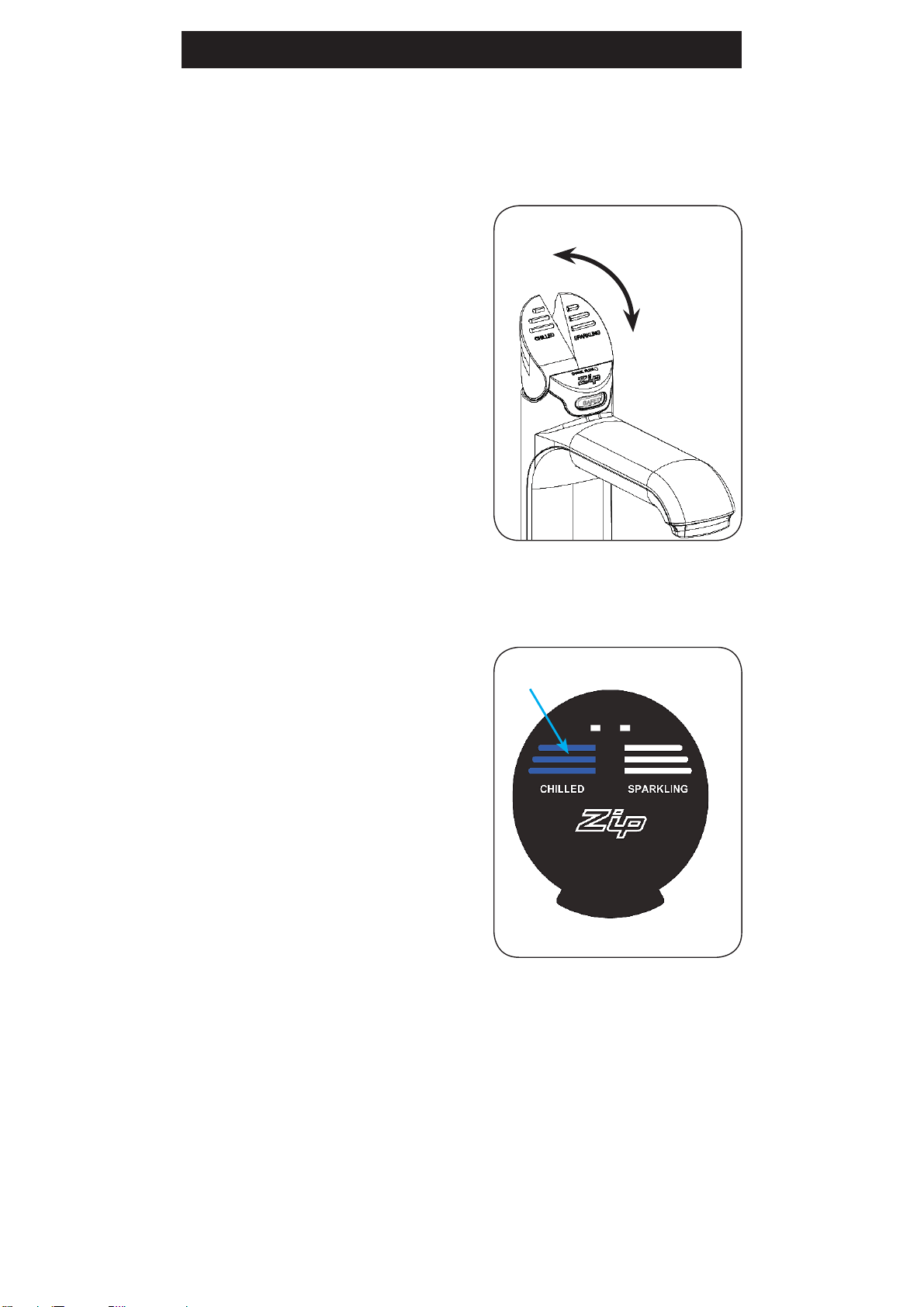
Celsius Arc/Cube:
On powerup, wait 30 secs. for the unit to calibrate. The Celsius rotary control
may be rotated clockwise to dispense Sparkling water or anti-clockwise for
Chilled water.
The rotary control is spring loaded and when released, will return to the OFF
position.
The mixer control operates in a conventional way to dispense Hot and
ambient water direct from the customers mains and hot water service. The
mixed water is not filtered, unless an external filter has been fitted.
The warning light will flash when the chilled and sparkling water filter is due
for replacement.
For convenience the spout may be swivelled 170° left or right.
Rotary
control
Safety Light
Warning
Light
Mixer
control
802269 - Residential CS & CSHA User Manual - 09.2016 - v3.01 Page 5 of 28
3. Tap operation - Chilled
Elite Tap:
Touching the chilled button
allows the dispensing of
chilled water.
To dispense chilled water:
(Classic Tap)
To dispense Chilled water:
Depressing the “Chilled” lever allows the
dispensing of Chilled water.
Pulling forward the lever allows the tap
to operate in a “no-touch” mode. Water
will flow from between 5 and 15 seconds
(This is user adjustable). To reset, return
the handle to the “Off” position and repeat
the step. The lever must be manually
returned to the “Off” position.
NOTE:
Chilled water will not be dispensed, if the
safety button is accidentally covered.
Press or Pull the Chilled lever
Elite Tap
Chilled button
Page 6 of 28 802269 - Residential CS & CSHA User Manual - 09.2016 - v3.01
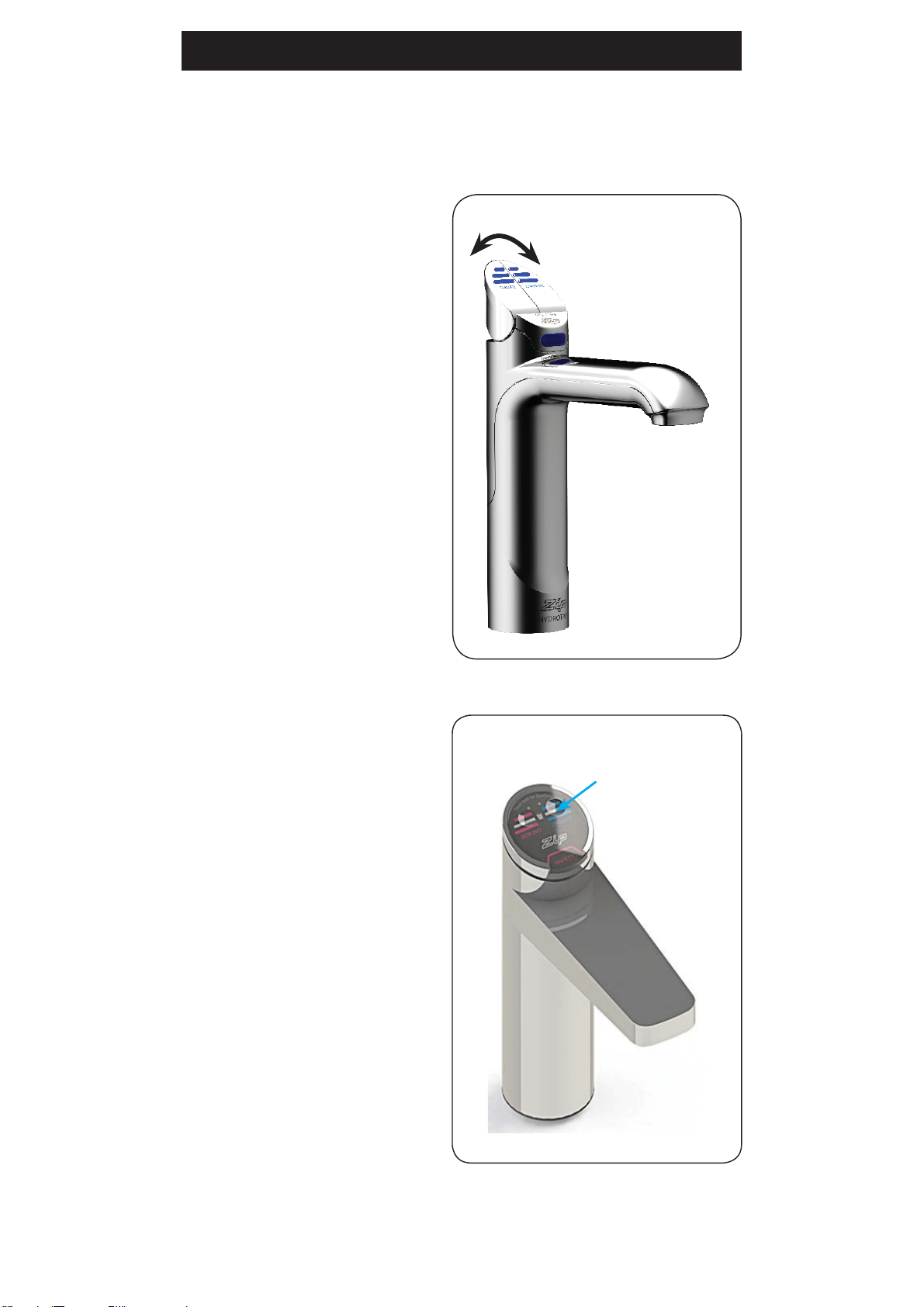
Celsius Tap:
Rotate for
Chilled water
Turn the rotary control
anti-clockwise to dispense
chilled water as shown
3. Tap operation - Chilled
Arc/Cube Tap
Indicator
light
HydroTap Arc/Cube:
If not showing BLUE, tap the select
button until the indicator light turns
BLUE.
Rotating the control, when the
indicator light is BLUE, allows the
dispensing of chilled water.
Select
button
802269 - Residential CS & CSHA User Manual - 09.2016 v3.01 Page 7 of 28
Tap operation - Sparkling
To dispense Sparkling
water:
Depressing the ‘Sparkling’ lever
allows the dispensing of Sparkling
water. Pulling forward the lever
allows the tap to operate in a in a
“no-touch” mode. Water will flow
from between 5 and 15 seconds
(This is user adjustable). To reset,
return the handles to the “Off”
position and repeat the step. The
lever must be manually returned to
the “Off” position.
To dispense Sparkling water:
(Classic tap)
Press or Pull the Sparkling lever
Elite Tap:
Touching the Sparkling
button allows the dispensing
of sparkling water.
Elite Tap
Sparkling button
Page 8 of 28 802269 - Residential CS & CSHA User Manual - 09.2016 - v3.01
HydroTap
Arc/Cube:
If showing BLUE, tap the select
button until the indicator light
turns WHITE.
Rotating the control , when the
indicator light is WHITE, will
allow the dispensing of sparkling
water. When unattended, the
control light will automatically
default to the Chilled (BLUE)
mode after 30 seconds.
Arc/Cube Tap
Indicator
light
Select
button
Tap operation - Sparkling
Turning the rotary control allows the dispensing of either Chilled Sparkling or
Chilled water. For your convenience, the rotary control is spring loaded, so
when released, will return automatically to the OFF position
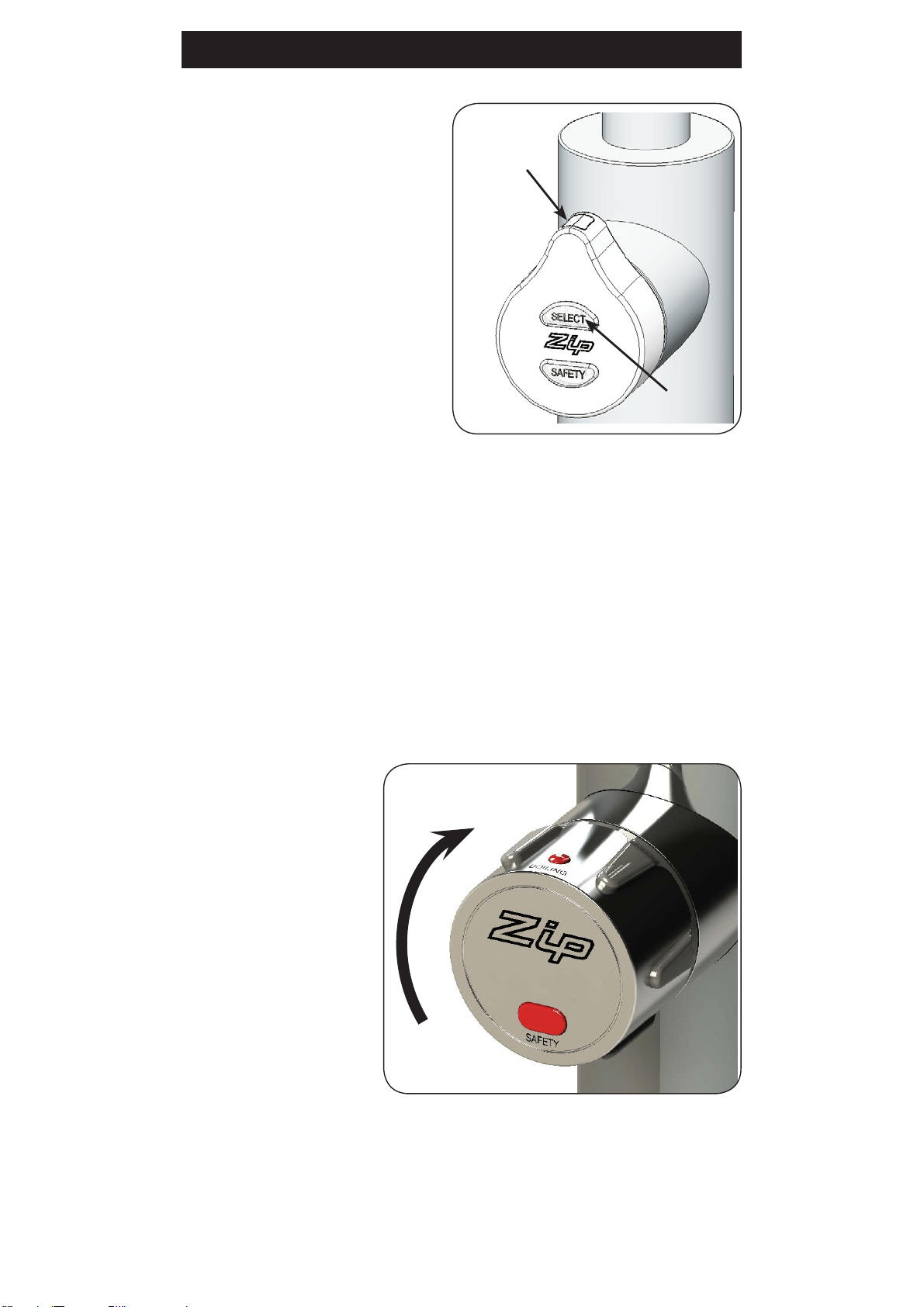
Rotate for Sparkling water
Celsius Arc/Cube:
Turn the rotary control
clockwise to dispense
sparkling water as shown
802269 - Residential CS & CSHA User Manual - 09.2016 - v3.01 Page 9 of 28
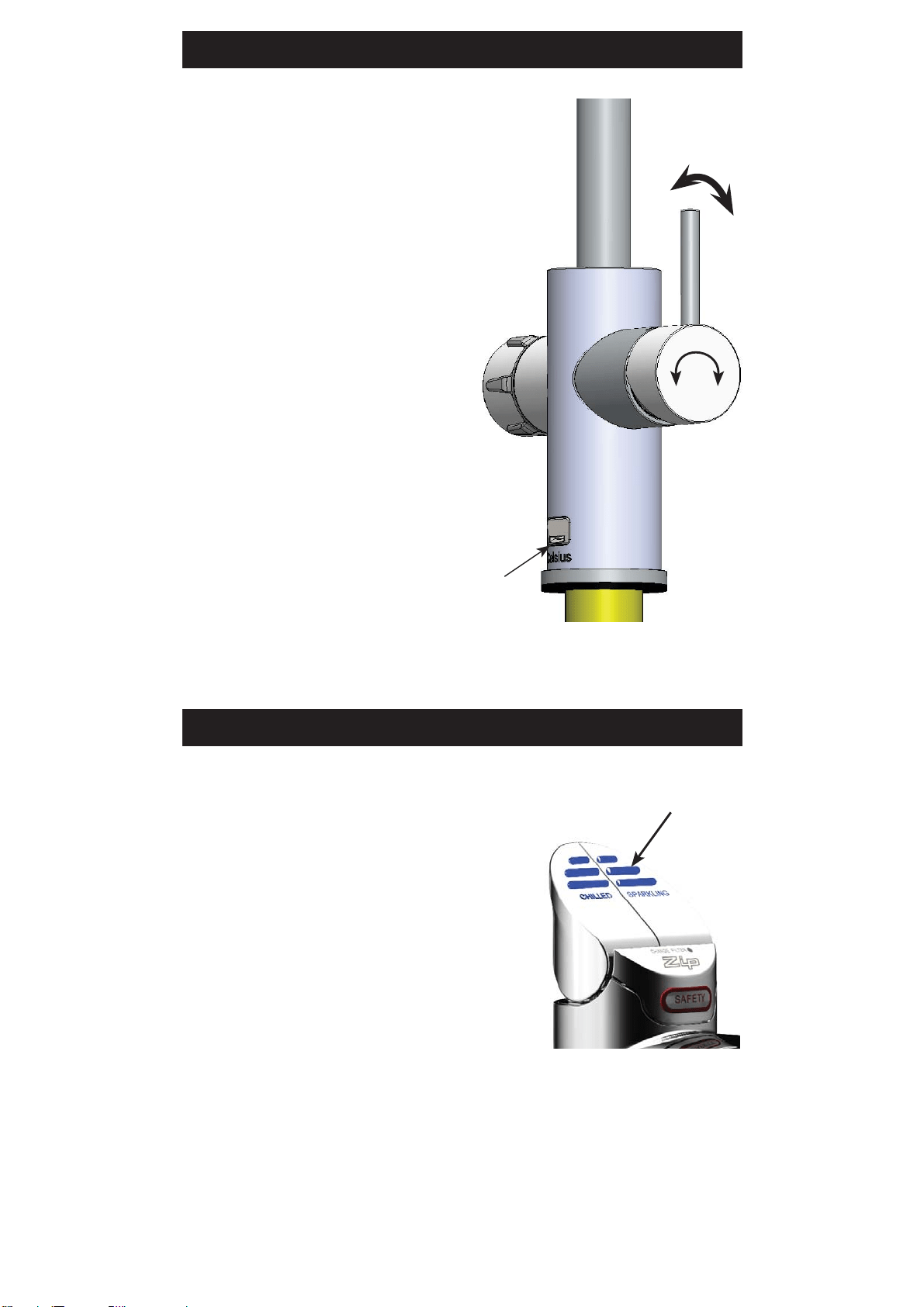
Tap operation - Mixer
The Mixer tap lever is operated as
a conventional ‘Flick Mixer’. The hot
side is marked with a red stripe and
the cold side with a blue stripe, for
dispensing cold to warm water.
Lifting the handle up will decrease the
flow rate and lowering the handle will
increase the flow rate. Lift the handle
all the way up to turn the tap off.
When the handle is moved towards
the blue mark, the temperature is
decreased and when moved towards
the red mark, the temperature is
increased. The final temperature will
be dependant on the temperature of
the incoming cold water.
The spout may be swivelled, left or
right, through 170° for convenience.
Vent
Boiling models
Tap lights
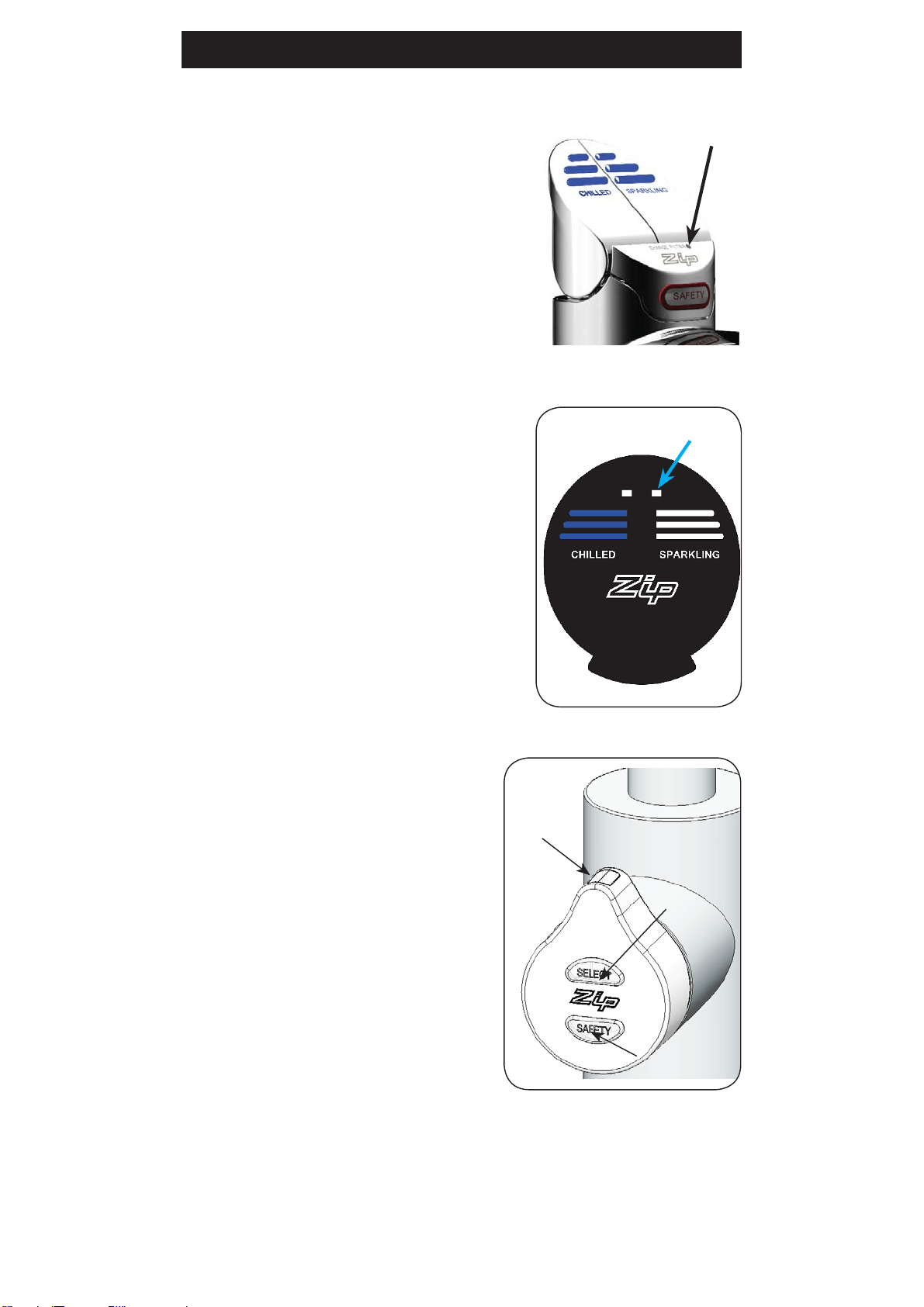
Blue Chilled Water Light:
(Classic & AIO taps)
On all the time:
This indicates that the temperature of the
chilled water is within the set temperature
range.
Flashing slowly:
This indicates that the chilled water is not within
the set temperature range. When the chilled
water is at the set temperature, the light will
stop flashing. This could take several minutes.
During heavy usage, the temperature can rise
out of this range.
Blue Lights
Page 10 of 28 802269 - Residential CS & CSHA User Manual - 09.2016 - v3.01
Filter light:
(Classic, Elite & AIO taps)
Filter Change Light Off:
This indicates the filter is operating within its
normal specified lifespan.
Filter Change light flashing slowly:
The light will flash slowly when the filter is due
for replacement and the LCD will show “Filter
Change”. Refer to “Replacing the filter” in
section ‘C’ of this document.
Filter light
Filter light
Turn filter light OFF:
(All models)
Refer to “Filter Reset” in section ‘C’
of this document.
Tap lights
Filter light:
HydroTap Arc/Cube:
Flashing filter lights:
All three tap lights (Safety; Select and
Indicator light) will flash every
10 seconds, indicating a Filter change
is required.
Safety Light
Indicator
light
Select light
Warning: (All)
Flashing warning light:
When the indicator light flashes fast and continuous, a system fault has
occurred. Check for details on the faults screen. If unable to rectify, call a
qualified service agent.
802269 - Residential CS & CSHA User Manual - 09.2016 - v3.01 Page 11 of 28
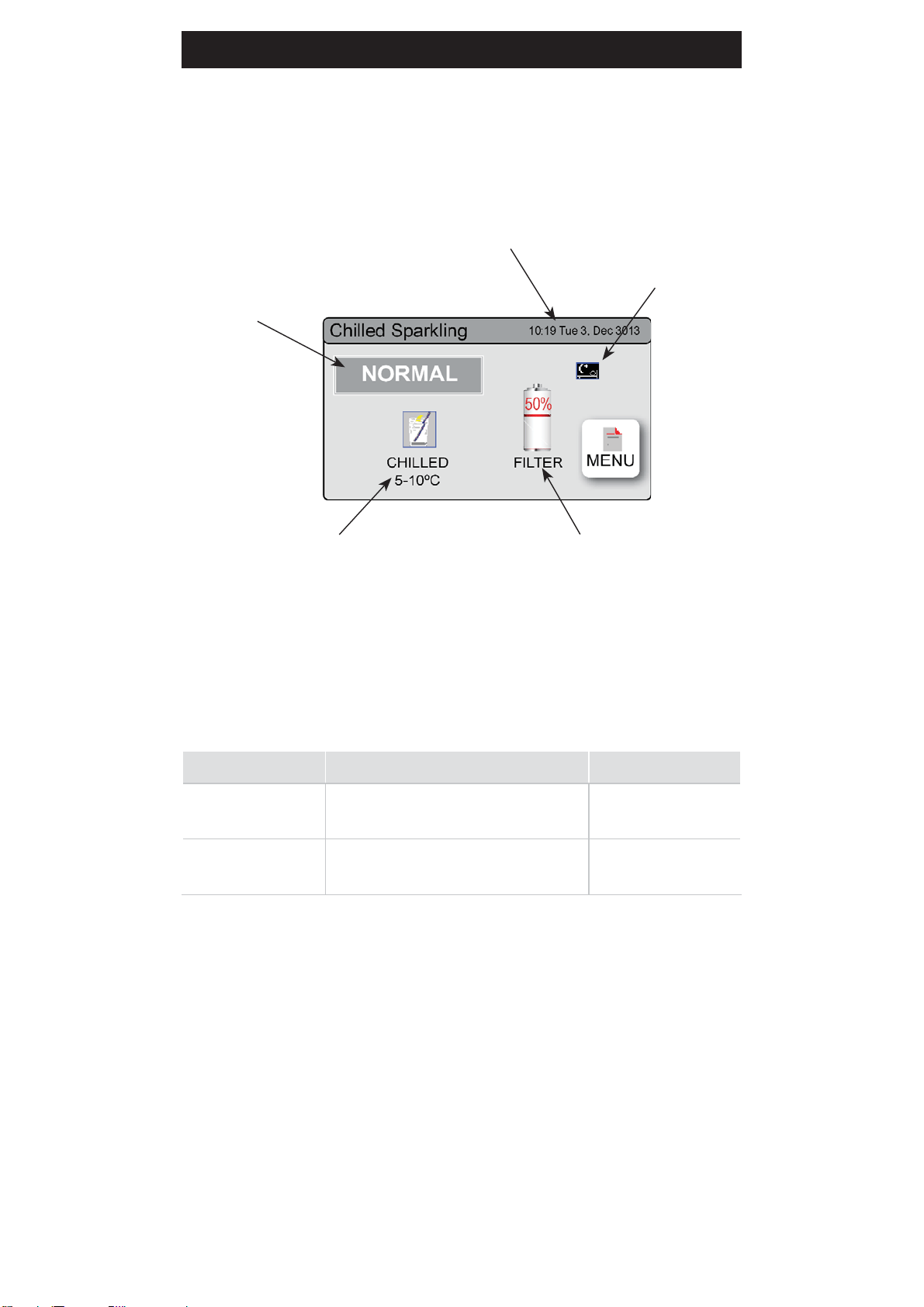
Note: When selecting Menu options, the screen will revert to the main
menu, if the screen remains inactive for a period, in excess of 10 seconds.
Zip HydroTap G4 introduces a ‘TOUCH’ screen for easy setup and operation
adjustment.
Other possible messages in status window:
Status** Information Notes
System Fault Product has one or more system
faults
Refer to section B
Change Filter External/Internal filter needs to be
replaced
Refer to section C
3LCD Screen
**Status window
Set chilled water temperature Filter usage
Date and Time
Sleep mode
icon
Page 12 of 28 802269 - Residential CS & CSHA User Manual - 09.2016 - v3.01
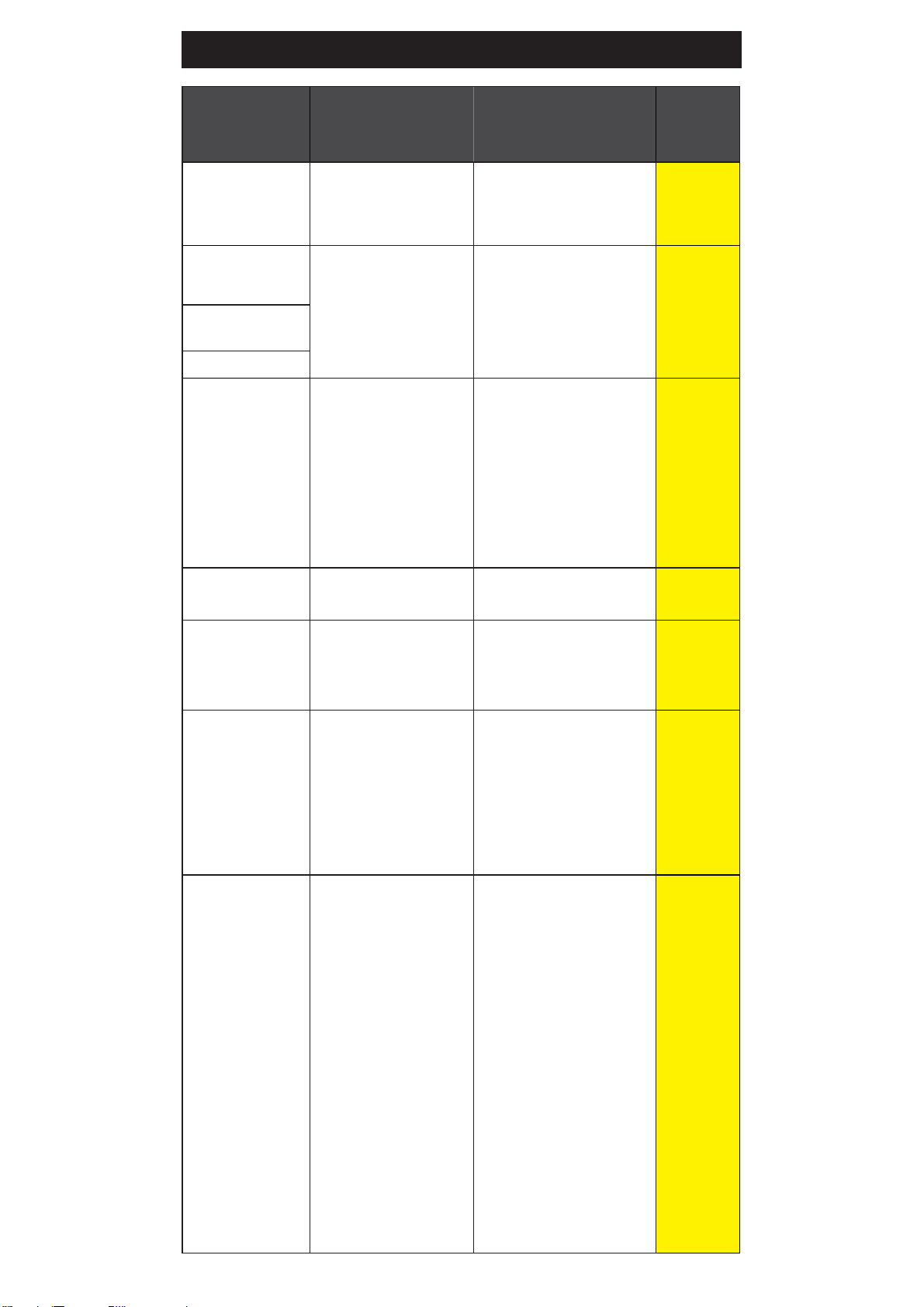
3LCD Screen Menu
Main Menu Sub Menu Sub Menu Options Section
Language
•
English
A
•
Product Info
•
System
Faults
•
Event Log
•
Product serial
no.
•
Lists
•
Energy usage
B
Information
Installation
•
Filter Flush
•
Filter Reset
•
Purge CO
2
•
Lux sensor
•
Reset options
•
Calibration
options
•
Advanced
options
C
Service Password protected
D
Security
•
Enable
Password
•
Set Password
•
Change
Password
E
Communication
•
Remote
Monitor
•
Wifi Options
F
Settings
•
Date/Time
•
Temperature
•
Filter
•
Dispense
Times
•
12hr/24hr
Mode
•
Cold Setpoint
•
Filter Life
(Litres)
•
Filter Life
(Months)
•
Cold
Dispensing
G
802269 - Residential CS & CSHA User Manual - 09.2016 - v3.01 Page 13 of 28
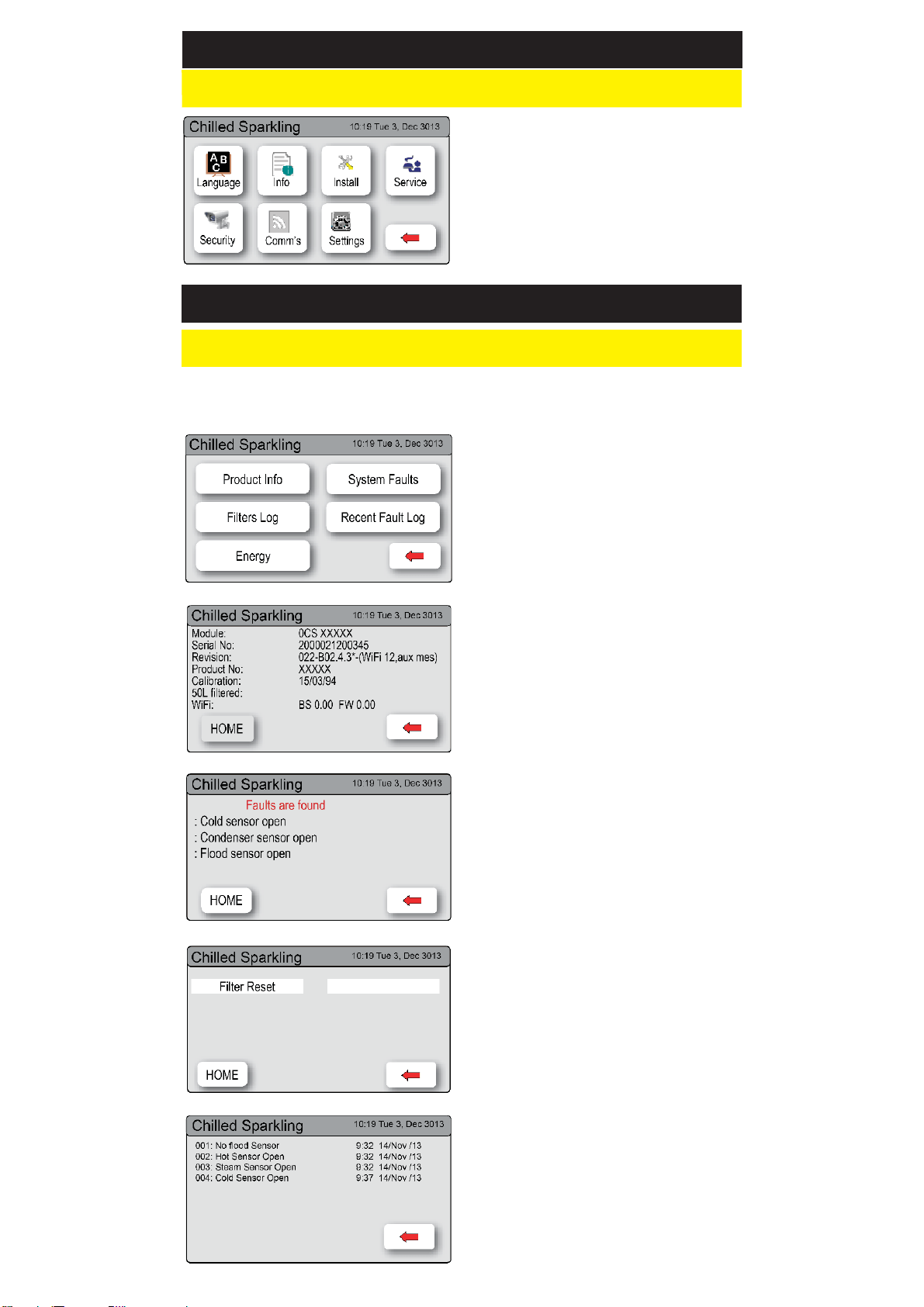
A Set Language
B System Information
In this section, you can find product information, system faults and filter log
messages.
LCD Screen operation - Section A
LCD Screen operation - Section B
1.
Press [Product Info] to view the
current product information.
2.
Press [<=] button for the previous
menu or press [Home] button to
return to the home screen.
1.
Press [System Faults] to check the
fault information;
2.
Press [<=] button for the previous
menu or press
[Home] button to return to the
home screen.
1.
Press [Filters Log] to view the
system’s filter log.
2.
Press [<=] button for the previous
menu or press
[Home] button to return to the
home screen.
1.
Press the [MENU] button for the
main menu.
2.
Press the [Info] button to view the
current product serial number and
other key information
1.
Press [MENU] for main menu.
2.
Press [Language] button.
3.
Select an option to change the
language
4.
Press [<=] button for the previous
menu
1.
Press [Recent Faults Log] to view
the last 4 recorded faults.
2.
Press [<=] button for the previous
menu or press
Page 14 of 28 802269 - Residential CS & CSHA User Manual - 09.2016 - v3.01
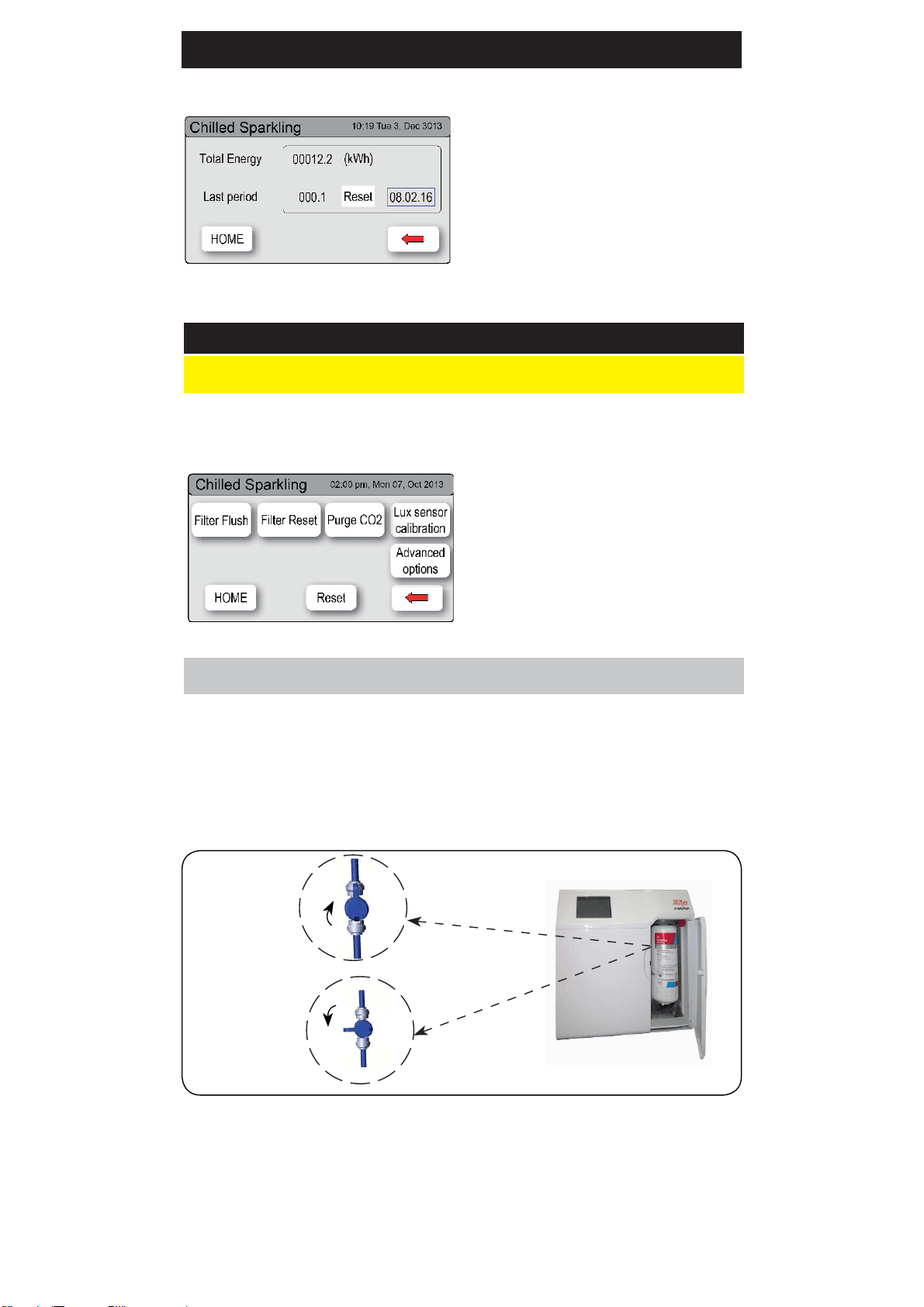
LCD Screen operation - Section B
1.
Press [Energy] to view Energy
information.
2.
The Total energy consumption will
be displayed, or
3.
Select a date to view the energy
used for that period
4.
Press [<=] for the previous menu
or press [Home] to return to the
home screen.
C
Install
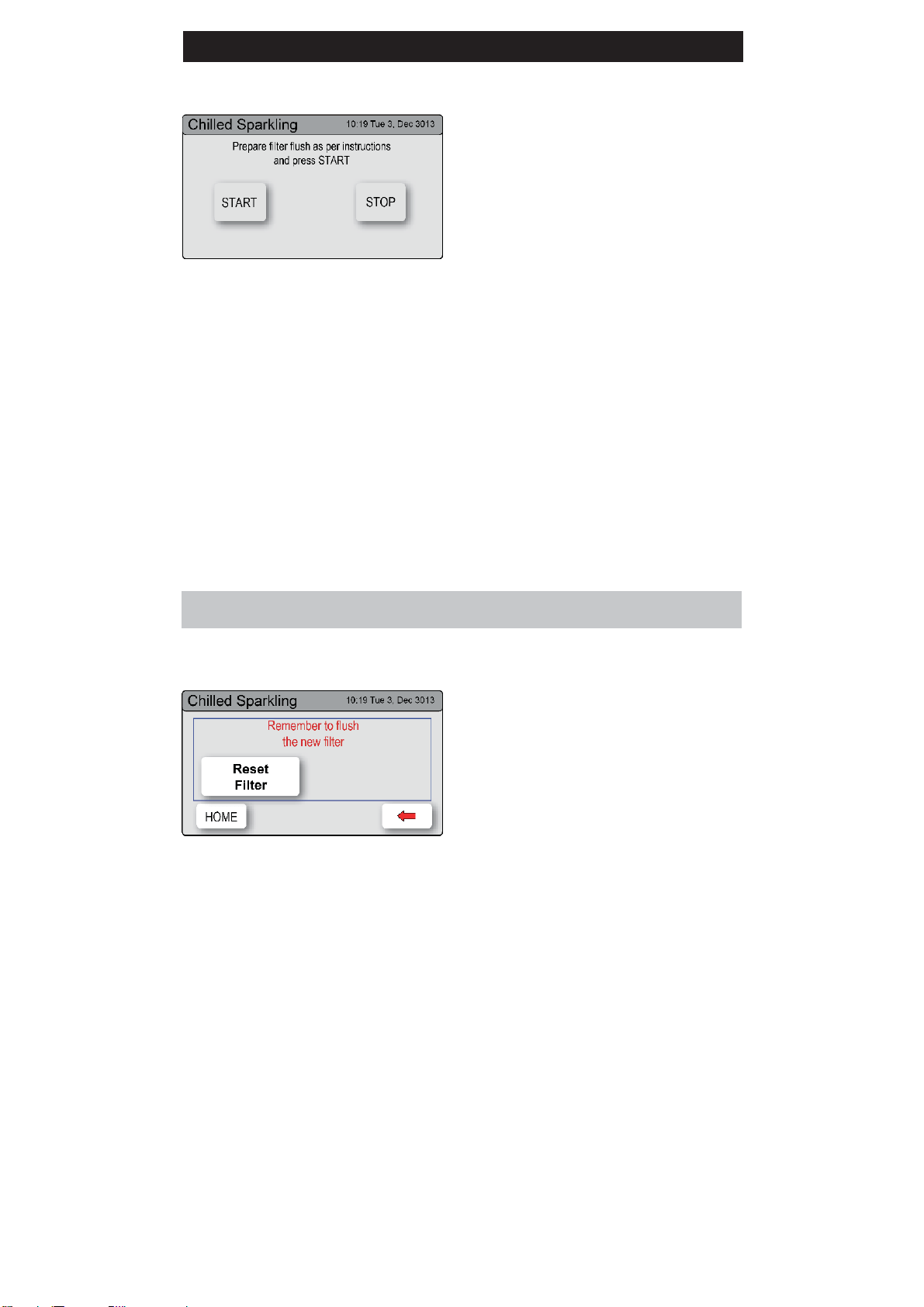
Have a bucket or similar container (not supplied) at the ready to hold
a quantity of water that will be ejected while the Filter Flush Mode is in
operation. Open the filter access door on the front of the HydroTap and the
filter cartridge will be exposed. Located to the rear RHS of the cartridge is
a flush line, approx 600mm long and the flush line stop cock. Place the free
end of the flush line into the bucket or container (not supplied).
Once your Zip HydroTap G4 unit has been installed, select the Install menu to
configure the system settings for your product.
1 - Filter Flush
Sub menu:
1 - Filter Flush
2 - Filter Reset
3 - Purge CO
2
4 - Lux sensor calibration
5 - Advanced options
6 - Reset
LCD Screen operation - Section C
OPEN
Position
CLOSED
Position
ON
OFF
The Zip HydroTap allows the user to adjust the filter life and to edit the filter
usage. (See filter details on Page 20 ).
802269 - Residential CS & CSHA User Manual - 09.2016 - v3.01 Page 15 of 28
1.
Press the [MENU] button for main
menu.
2.
Press the [Install] button. Turn the
stop cock ON.
3.
Press the [Filter Flush] button.
4.
Press [Start] [Stop] buttons to start
and Stop the filter flush. Once the
filter flush is finished, Turn the stop
cock OFF first (to ensure the cock is
properly closed) then press [Stop]
to end filter flush mode.
5.
Press [<=] button for the previous
menu or press [Home] button to
return to the home screen.
6.
After initial installation, Turning
OFF the Filter Flush Mode puts the
HydroTap into calibration mode.
With subsequent filter changes, the
system reverts to the main menu.
Note:
Run at least 10 Ltrs of
water through to flush the filter
of any excess black carbon
particles (this is normal), before
pressing the Stop button.Once
the filter flush has finished,
press the Stop button to display
the main menu
1.
Press the [MENU] button for main
menu.
2.
Press the [Install] button.
3.
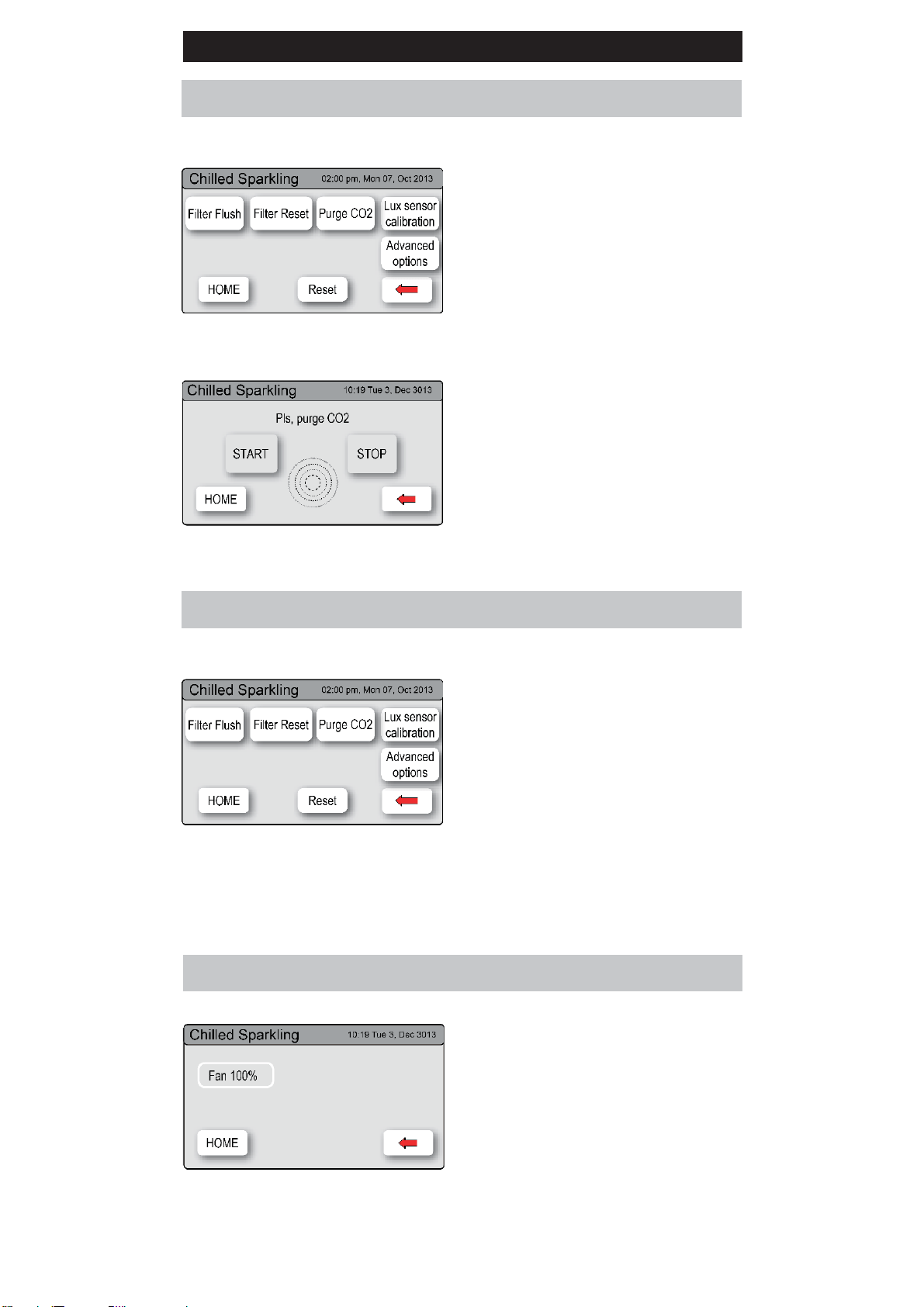
Press the [Filter Reset] button.
4.
In the next screen, press [YES]
button if you want to flush the filter.
Follow the filter flush steps to start
filter flush or press [NO] to cancel
the filter reset program. To set the
filter life or edit filter usage, refer to
section G- Filter.
After replacing the filter, the counters should be reset
2 - Filter Reset
LCD Screen operation - Section C
Page 16 of 28 802269 - Residential CS & CSHA User Manual - 09.2016 - v3.01
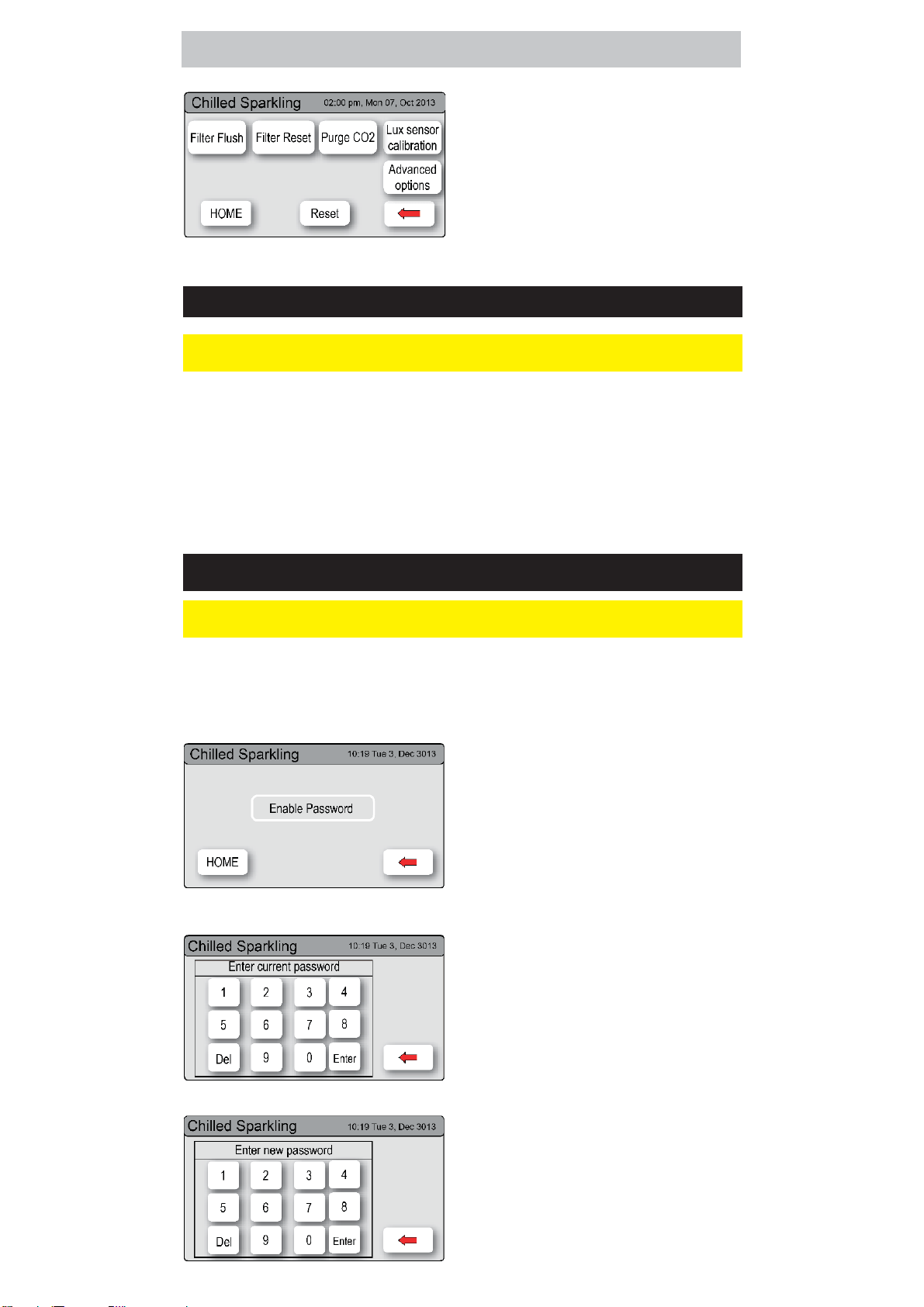
3 - Purge CO
2
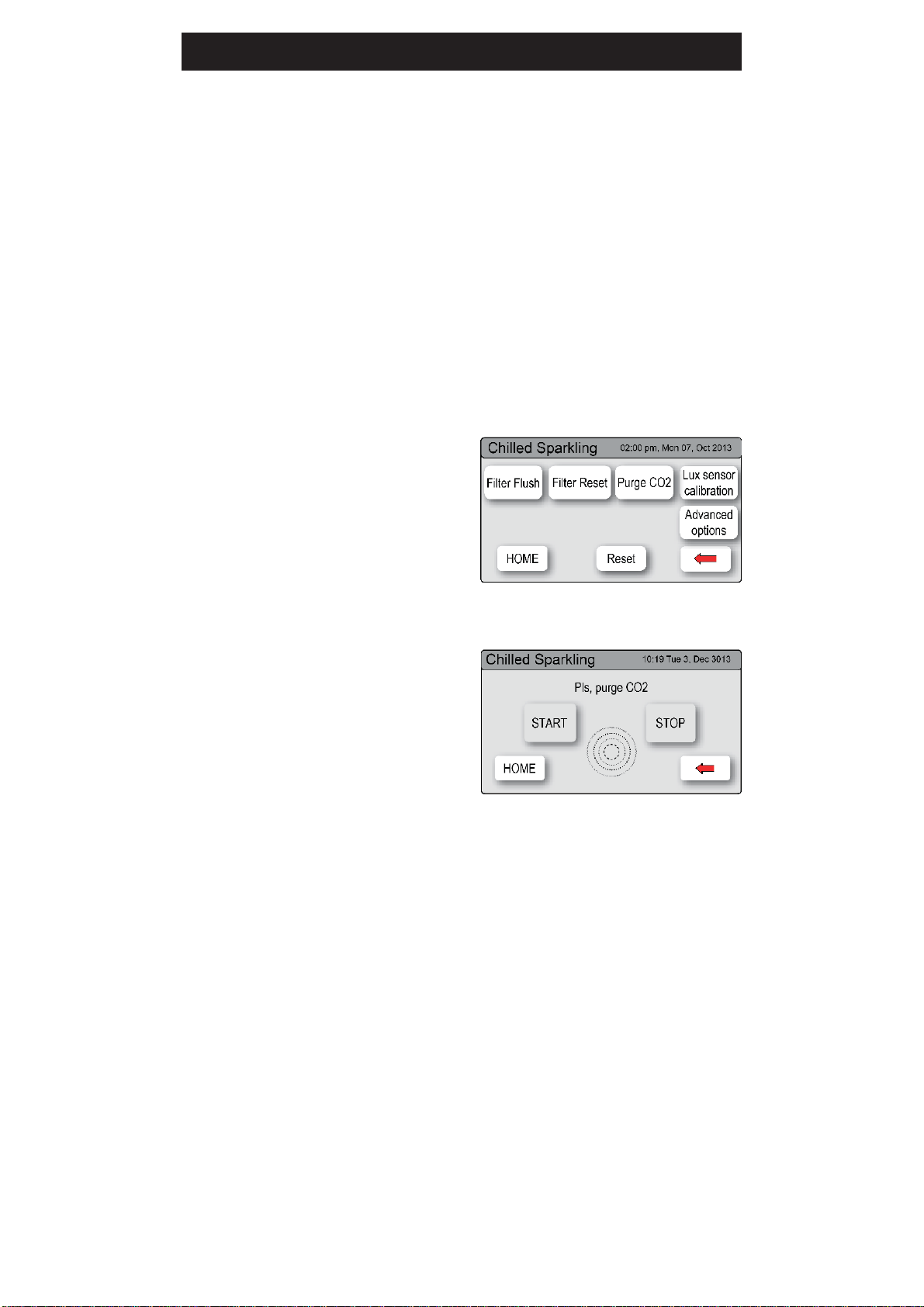
When fitting a new gas bottle, it is important to purge the gas lines.
1.
Press the [MENU] button for main
menu.
2.
Press the [Install] button.
3.
Press the [Purge CO
2
] button.
4.
In the next screen, press the
[START] button to commence the
purging process.
5.
Wait for the water to stop flowing
through the unit.
6.
Wait a further 10 seconds after the
water has stopped flowing. During
this time you will hear the CO
2
gas
escaping through the tap.
7.
Press [STOP] to end the purge.
8.
Press [<=] button for the previous
menu or press the [Home] button to
return to the home screen.
LCD Screen operation - Section C
1. Press [MENU] button for main menu.
2. Press [Install] button.
3. Press [Lux Sensor Calibration]
button.
4. The lights on the Tap head will flash
to confirm calibration.
5. Check for correct tap operation
by selecting ‘Lux Sensor-> OFF’.
When the room is darkened (below
the calibrated light level), the tap
lights will turn OFF after aprox 30
seconds.
4 - Lux Sensor Calibration
5 - Advanced options
1. Press [MENU] for main menu.
2. Press [Install] .
3. Press [Advanced Options].
4. You may adjust the fan speed to
50% or 75% or 100%
802269 - Residential CS & CSHA User Manual - 09.2016 - v3.01 Page 17 of 28
This section is reserved for service technicians only
Note: In Australia call a licensed electrician, plumber,or Zip office on
1800-638-633, for assistance, service, spare parts, or enquiries.
D
Service
LCD Screen operation - Section D
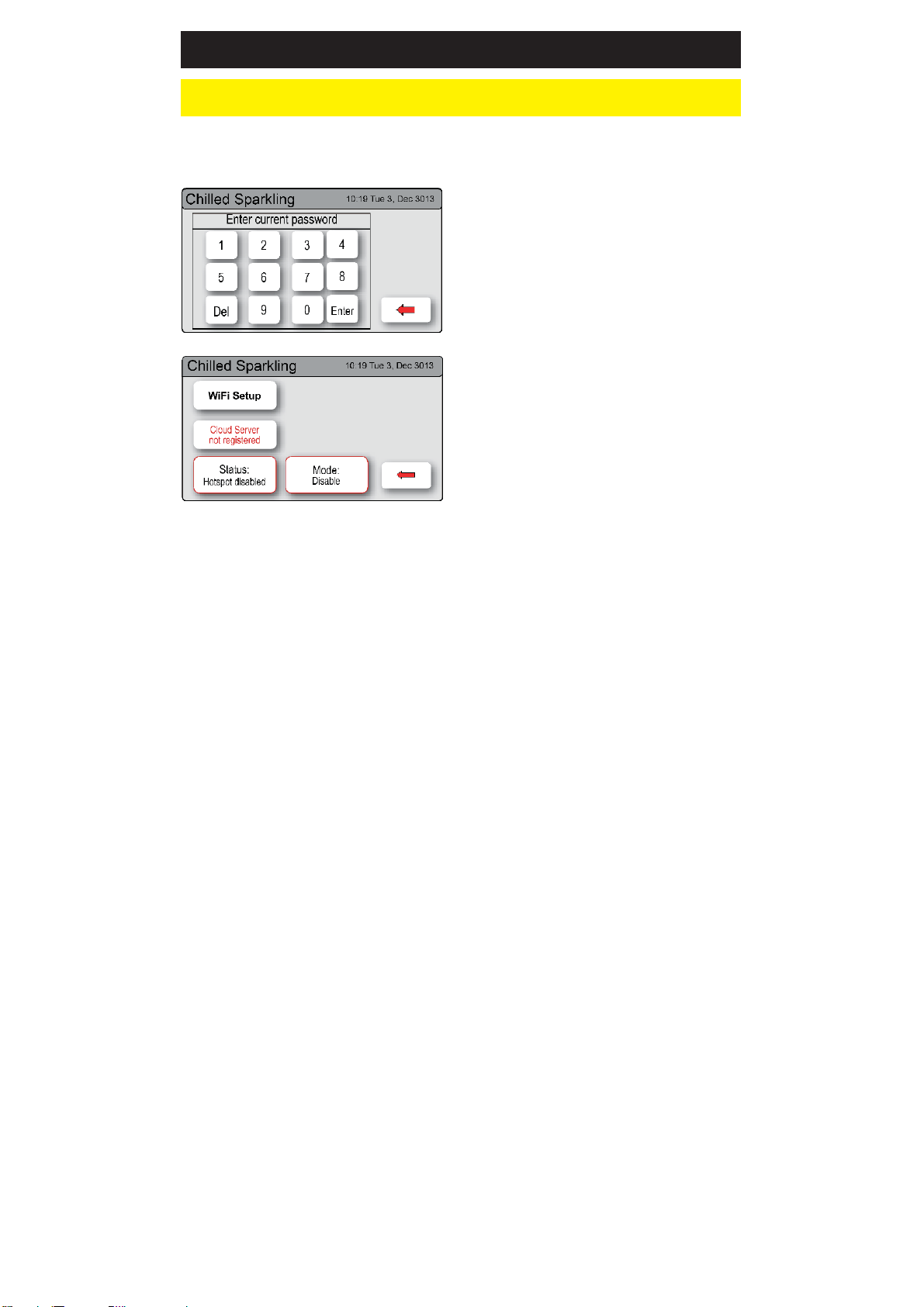
E Security
The Zip HydroTap G4 allows the appliance coordinator to set up a password
to protect against users changing the preferred system settings.
To set a password
1.
Press the [MENU] button for main
menu.
2.
Press the [Security] button.
3.
Press [Enable Password}
4.
Enter a 4 digit password
3. LCD Screen operation - Section E
To change a password
1.
Press the [MENU] button for main
menu.
2.
Press the [Security] button.
3.
Press [Change Password}
4.
Enter your old 4 digit password
5.
Then enter your new 4 digit
password. You will need to
enter your password to access
the settings screen. If you have
forgotten the password, please
disconnect the power and restart
your HydroTap unit.
6 - Reset
1. Press [MENU] for main menu.
2. Press [Install] .
3. Press [Reset]. to reset the factory
default settings
Page 18 of 28 802269 - Residential CS & CSHA User Manual - 09.2016 - v3.01
F
Communication - WiFi (Select models)
LCD Screen operation - Section F
This section allows the user to use WiFi to monitor the product remotely.
1.
From the Home screen Press
[Menu]. Then [Comm’s]
2.
Enter your 4 digit password to
access the WiFi set up.
3.
Follow the set up instructions
supplied with the WiFi unit
To disable the WiFi setup
1.
Press [WiFi setup]
2.
In the next screen Press [Disable]
3.
Press [<=] button for the previous
menu
802269 - Residential CS & CSHA User Manual - 09.2016 - v3.01 Page 19 of 28
G Settings
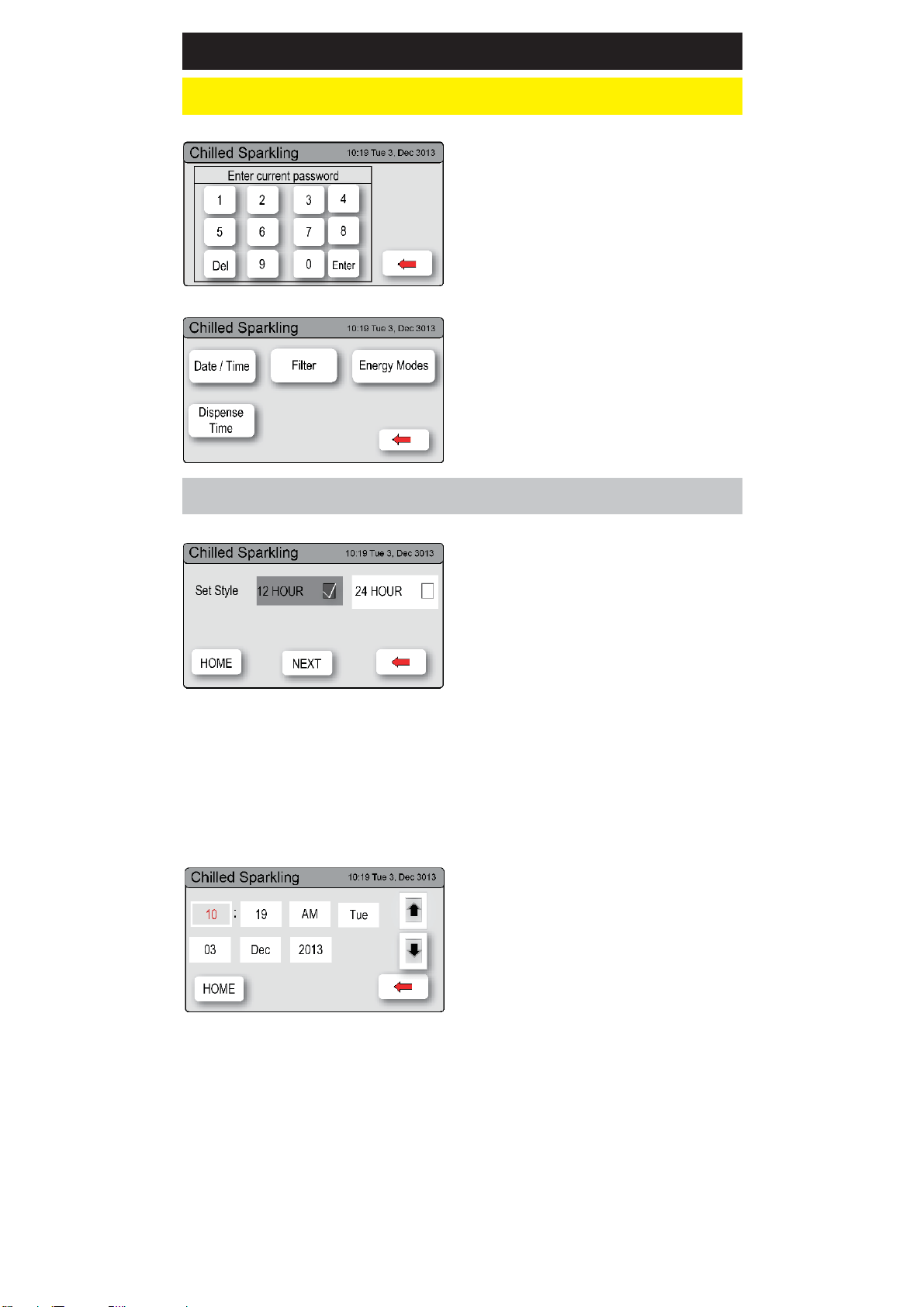
3. LCD Screen operation - Section G g Instructions
1. Press the [MENU] button for main
menu.
2. Press the [Settings] button.
3. Press [Enable Password].
4. Then enter your 4-digit password.
You will need to enter your
password to access the settings
screens. If you have forgotten the
password, please disconnect the
power and restart your HydroTap
unit.
1. Press the [MENU] button for main
menu.
2. Press the [Setting] button.
3. Press the [Date/Time] button.
4. Choose 12 hour mode or 24 hour
mode by pressing the square
button. The selected mode will be
displayed in dark grey colour with a
tick box on the right.
5. Press [NEXT] button to set the date
and time using the up and down
scroll keys.
HydroTap G4 Set Date/Time
Screen
Set Date / Time
1.
Select individually the hour, minutes
and day and adjust using the up
and down arrows.
2.
Select individually the date, month
and year and adjust using the up
and down arrows.
3.
Press [HOME] to return to the
Home screen.
Page 20 of 28 802269 - Residential CS & CSHA User Manual - 09.2016 - v3.01
3. LCD Screen operation - Section G tions
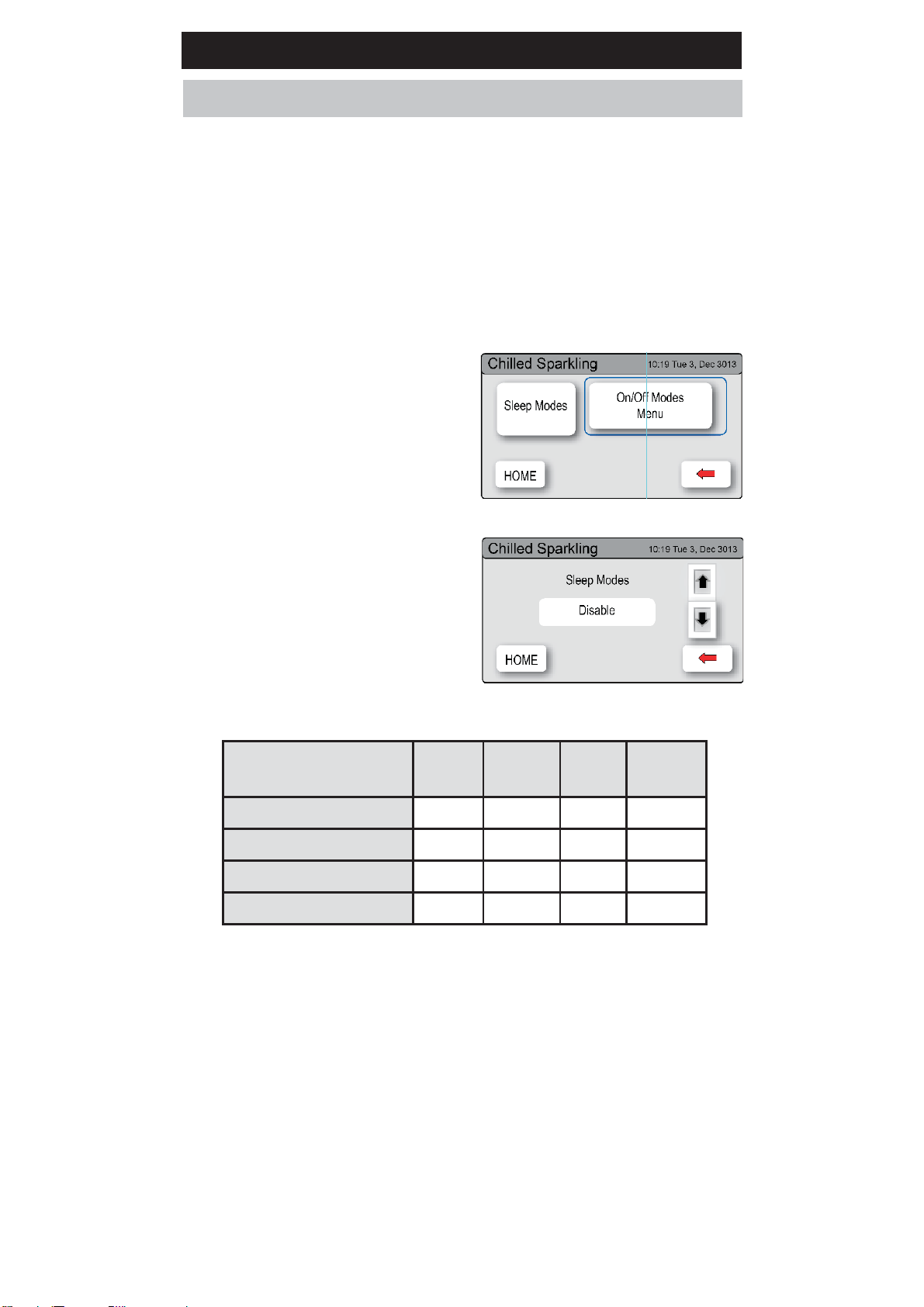
To edit the filter life:
1.
Press [MENU] button for main
menu.
2.
Press [Setting] button.
3.
Press [Filter] button.
4.
Press [Filter Life] button, for Internal
filter.
5.
To change filter life, first select filter
life (Litres) or filter life (Months),
then adjust using the up or down
arrows.
Note:
Filter Life increases in 500 litres
increments to a maximum of 10000
litres. Factory set at 6000 litres.
Filter
Zip HydroTap G4 allows the user to adjust filter life and edit filter usage.
To edit the filter usage:
This function is to reset the Filter
Change display after a filter has
reached the end of its life (refer to
“Replace Filter Instructions” section of
this document).
1.
Press the [MENU] button for main
menu.
2.
Press the [Setting] button.
3.
Press the [Filter] button.
4.
Press the [Edit Filter] button for
Internal filter.
5.
To edit, select Edit Usage(Litres) or
Edit Usage (Months), then adjust
using the up or down arrows.
6.
Press [HOME] to return to the
Home screen.
Note: The filter life may be set as a
function of Litres used, or in months
from the filter change. When the first of
these functions is reached (i.e. Litres or
months expired), the filter warning light
will be illuminated on the tap.
Either of these functions may be
disabled (See below).
802269 - Residential CS & CSHA User Manual - 09.2016 - v3.01 Page 21 of 28
LCD Screen operation - Section G
Sleep Mode
Light
Level
Time
Delay
State Chiller
2 Hours-> OFF N/A 2 Hr OFF OFF
Lux Sensor-> OFF Dark N/A OFF OFF
Lux or 2 Hr-> OFF Dark 2 Hr OFF OFF
Disable N/A N/A ON ON
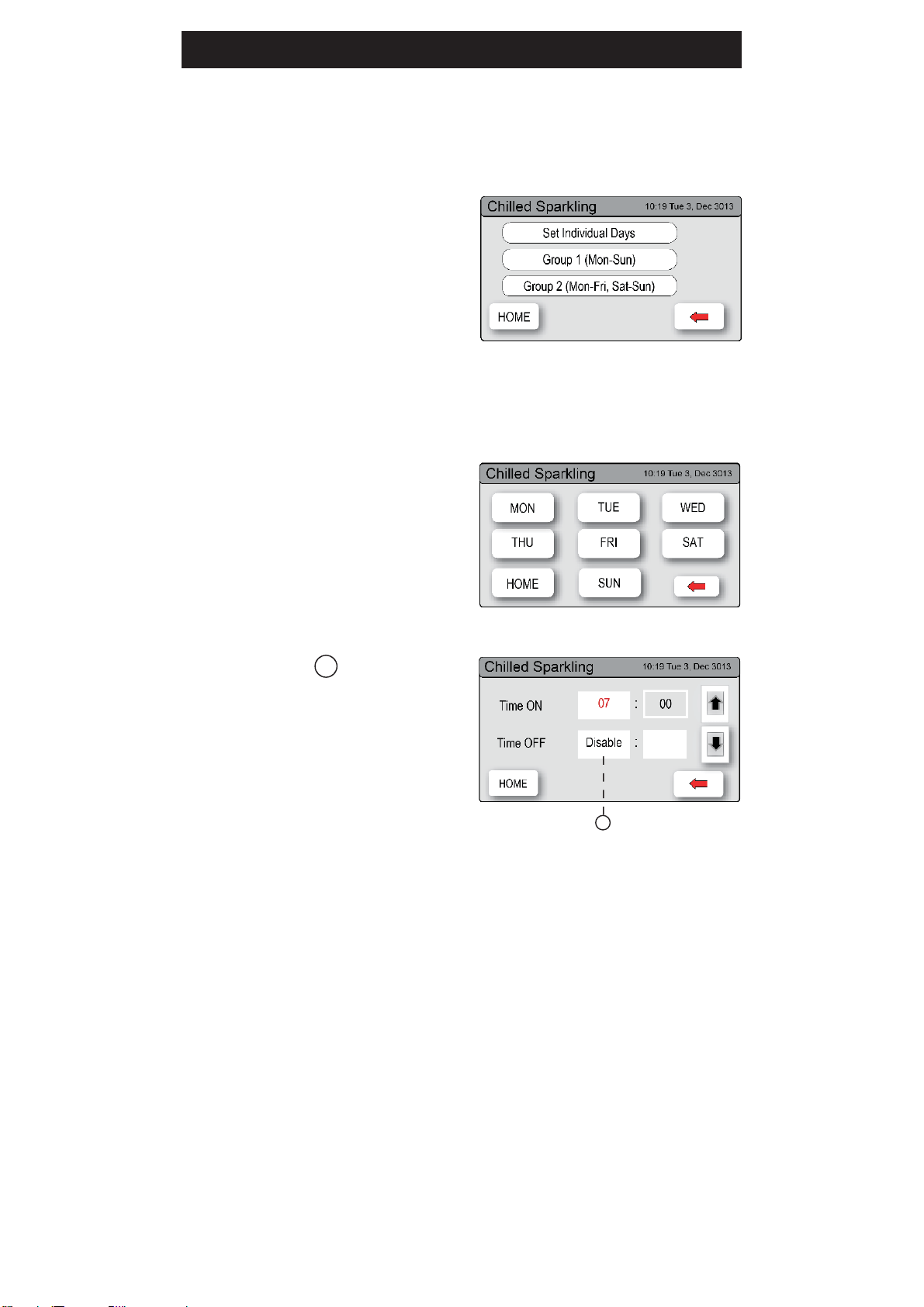
This mode allows the HydroTap to enter into an Energy Saving mode. There
are two options available: ‘Sleep’ mode and ‘ON/OFF’ mode.
To activate the sleep mode:
1.
Press [MENU] button for main
menu.
2.
Press [Setting] button.
3.
Press [Energy Modes] button.
4.
Press [Sleep Modes] button then
in the next screen, use the up and
down arrows to select one of the 4
options as shown in the table below.
Energy Modes
In SLEEP MODE the unit will go to “Sleep” after a 2hr period of inactivity.
The Chilled water will be ON or OFF.
When the period of inactivity passes, the home screen status window will
show “Sleep Mode”.
Lux (Light) Sensor Calibration:
It is recommended to recalibrate the Lux (Light) Sensor after selecting any
of the Lux sensor options from the sleep mode menu. Before commencing,
ensure there are ‘Normal to Dim’ (Not Dark) operating light conditions.
Note:
Refer to section C4 for calibration procedure
Note:
Any attempt, during OFF mode, to dispense water, will bring the unit
out of sleep mode. The unit will return to sleep mode after 2 hours of non
use. Please allow sufficient time for the water to reach the set temperature
after disabling the sleep mode.
Page 22 of 28 802269 - Residential CS & CSHA User Manual - 09.2016 - v3.01
LCD Screen operation - Section G
To activate ON/OFF mode:
1.
Press the [MENU] button for main
menu.
2.
Press the [Setting] button.
3.
If required, Enter your 4 digit
password
4.
Press the [Energy Modes] button.
5.
Select ‘Individual set’ if you wish to
allocate a specific time for each day.
6.
Select ‘group set 1’ if you wish to allocate the same time to all 7 days
7.
Select ‘Group set 2’ if you wish to allocate the same time to the 5
working days (Mon-Fri) and additional times for (Sat-Sun).
In ON / OFF Mode the user may turn the unit ON or OFF at specific times
for individual days or alternatively by weekly and/or weekend settings.
This screen allows you to select the
individual days for programming.
Only one ON /OFF period is allowed for
each day
Individual set screen
Group set screen
A
A
1.
Press Group 1 or Group 2 option
2.
Press button to enable / disable
group set. When the enable box is
ticked, this allows each individual
day to have an “On/Off“ time.
3.
Press [ON/OFF Modes] button, to
set up ON/OFF time.
4.
When in Group 2 Press [NEXT] to
select Sat-Sun options
Note:
Any attempt, during OFF mode, to dispense water, will bring the unit
out of energy mode. The system will revert to the energy mode setting after
30 minutes of non use.
802269 - Residential CS & CSHA User Manual - 09.2016 - v3.01 Page 23 of 28
To change the Filter: (See also Section C)
•
Open the door of the under sink unit.
•
Relieve system pressure via the filter flush stop cock, a quick open and
close will do. Use the bucket to catch the discharge.
•
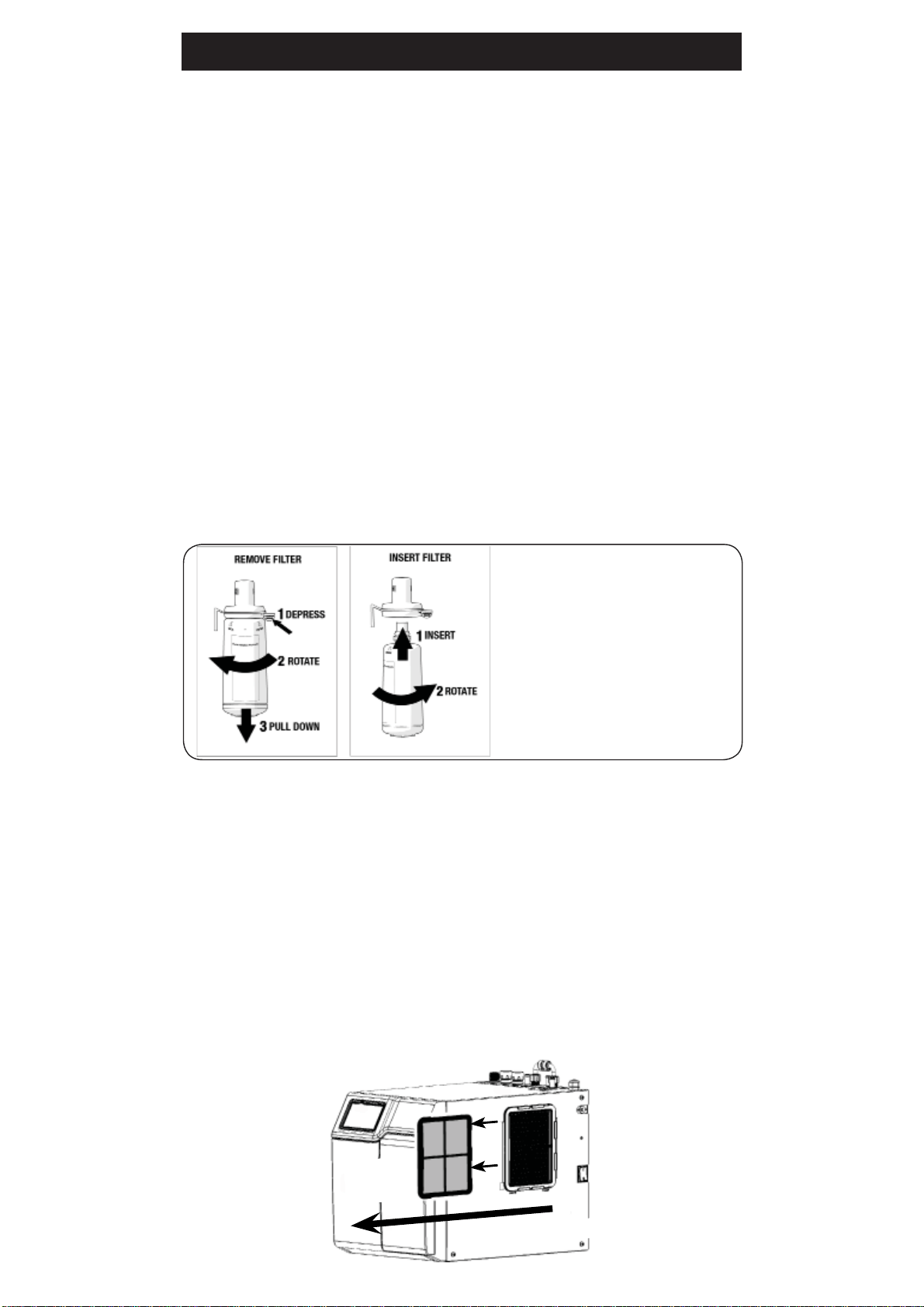
Grasp filter cartridge, depress the red lever at the top right of the filter and
rotate the cartridge a quarter turn to the left, then gently pull down.
Water Filter
The Zip HydroTap notifies when a filter replacement is due. If you notice one
of the following, you will need to change the filter:
•
The Change Filter light will flash white once a second and remains so until
reset.
•
The filter percentage will show 0% on the Home screen.
Note:
Depending on local water quality conditions and usage, the filter
may require changing anywhere from 500 Ltrs to 10,000 Ltrs. You may also
need to replace the filter if you notice unpleasant odours or tastes.
Some water may drip from the filter head (socket) during replacement. Keep
a towel handy to dry up any drips.
Filter Maintenance
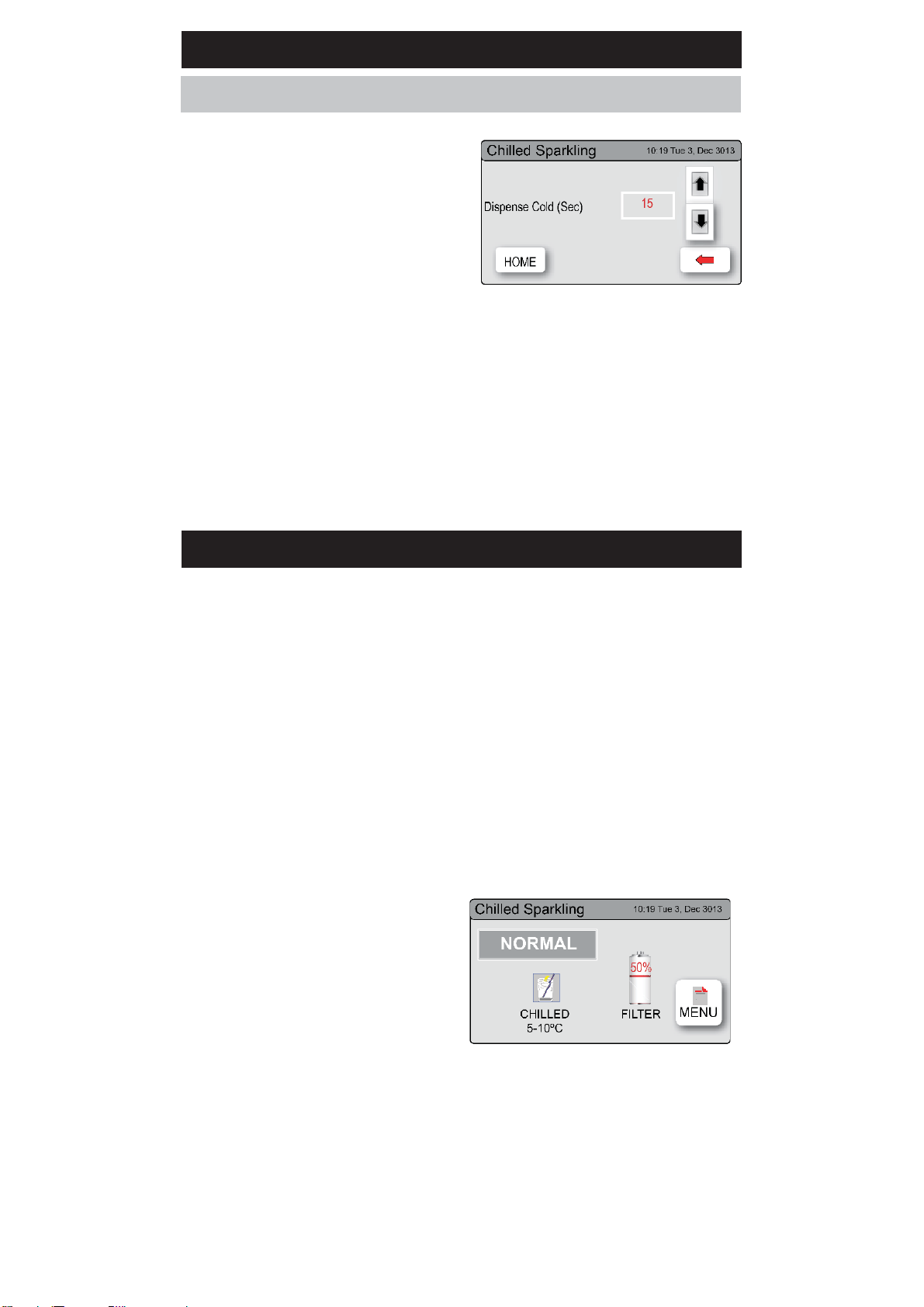
Dispense Times
The ability to change the maximum
dispensing time has been introduced.
The default settings for the maximum
dispensing times is 15 seconds. Here,
the operator may change the Chilled
and Sparkling dispensing times,
to between 5 and 15 seconds, in
increments of 1 second.
To edit the dispensing times:
1.
Press the [MENU] button for main menu.
2.
Press the [Setting] button.
3.
Press the [Dispense Time] button.
4.
Select the option to change and scroll using the up and down arrow
Keys
LCD Screen operation - Section G
Page 24 of 28 802269 - Residential CS & CSHA User Manual - 09.2016 - v3.01
Filter Maintenance
Air Inlet Filter
The Zip HydroTap air filter is conveniently located on the outside of the
condenser. The filter screen is a sliding fit in the plastic housing on the side
of the under sink unit. The screen may be removed for cleaning, by sliding it
forward. This needs to be inspected at least quarterly, cleaned and replaced
if damaged.
Note
:
For best performance the unit should only be operated with a clean
air filter screen, correctly fitted in place. Maintain, at least, a 50mm air gap
in front of the screen at all times. Take care not to allow cloths or other soft
materials to accidentally block the air inlet.
Warning: If the Zip HydroTap
is switched off for a long period
of time (e.g. More than a
weekend), run water through the
chilled water outlet for at least 5
minutes before consumption.
• Caution:
a small amount of water will drip as the cartridge is removed.
•
Do not tilt the cartridge as water may spill from it if tilted.
•
Unpack replacement cartridge and remove sanitary cap, write today’s date
where shown on the label.
•
Avoid touching the filter O-rings and filter opening as this may cause
bacterial contamination of the cartridge.
•
Moisten the O-rings with water, align the front cartridge label to the left (as
shown in the “insert filter” diagram for filter cartridge replacement), and
push the new cartridge into the filter head.
•
Turn the cartridge a quarter turn to the right until the cartridge comes
to complete stop and is locked into position, with the front label facing
forward.
•
Initiate the filter flush programme by scrolling through the menu screen
(See section C).
•
When completed, wipe up any spills and dispose of spent filter cartridge
and packaging thoughtfully.
•
Close the door to secure the appliance.
•
Adjust the filter settings in Section G - filter - Litres and Days used.
Air
Filter
Slide to remove
802269 - Residential CS & CSHA User Manual - 09.2016 - v3.01 Page 25 of 28
Gas bottle change
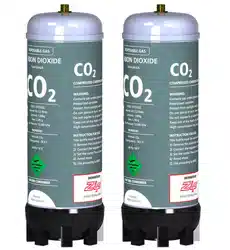
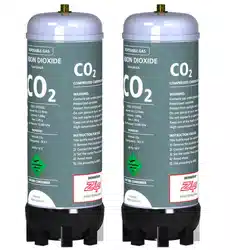
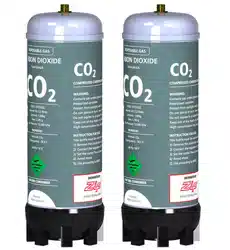
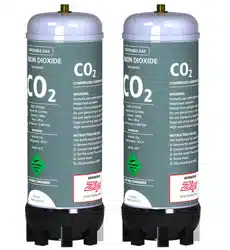
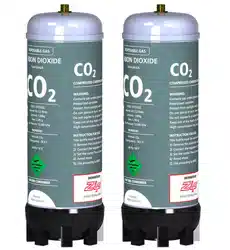
Note: The 1.0 kg gas bottle supplied with this appliance is a disposable
item and cannot be refilled. Please contact your local city council for collection
centre details or return the bottle to your service agent for recycling.
1.
Turn the CO
2
bottle regulator OFF (Anti-clockwise). The knob will screw up
and away from the bottle.
2.
Remove the bottle from the cupboard and disconnect the regulator. If the
braided hose is removed from the regulator, be careful not to loose the
small plastic sealing olive, located inside the end of the hose.
3.
Fit the regulator and hose assembly to the new gas bottle. Be aware that
some CO
2
may be discharged from the bottle joint. Any CO
2
released will
be cold.
4.
Fit the bottle in an upright position (use the hook-and-loopsecuring strap).
5.
Turn the regulator ON (Clockwise) and adjust to 2.7-3.0 bar. (Green zone
on dial).
6.
Check all joints for gas leaks using a sponge and soapy water.
7.
Press the [MENU] button for main menu.
8.
Press the [Install] button.
9.
Press the [Purge CO
2
] button.
10.
In the next screen, press the
[START] button to commence the
purging process.
11.
Wait for the water to stop flowing
through the unit. Then wait a few
seconds more, until you hear only
CO
2
gas escaping through the tap.
12.
Press [STOP] to end the purge
13.
Press [<=] button for the previous
menu or press the [Home] button to
return to the home screen.
14.
The display screen should revert to
Normal operation.
15.
Dispense some sparkling water from the tap and perform a taste test.

Page 26 of 28 802269 - Residential CS & CSHA User Manual - 09.2016 - v3.01
Cleaning
General cleaning
Do not use strong, corrosive, spray or abrasive cleaners. Clean with a soft
damp cloth and mild soap.
Under sink units must never be located near, or cleaned with water jets.
Avoid using airborne pesticides near the undersink unit.
802269 - Residential CS & CSHA User Manual - 09.2016 - v3.01 Page 27 of 28
Home Menu Icons
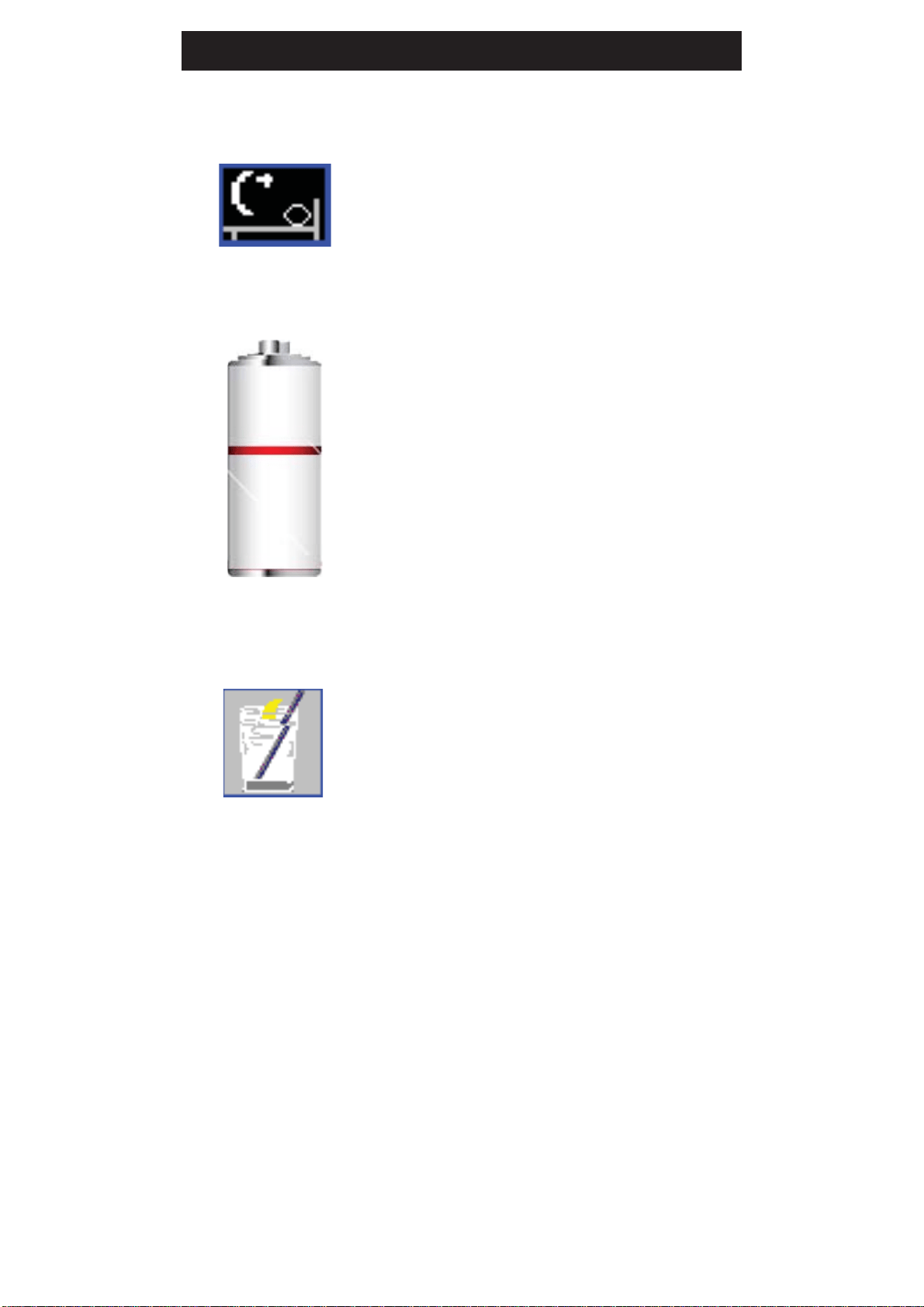
Sleep mode is active.
There are 3 sleep mode options which display this
icon on the home screen. See page 17 for details.
Filter use.
This icon displays the filter usage remaining from
100% (New filter) to 0% (end of life). When it
reaches 0% the filter warning light on the tap head
will flash slowly.
The filter life can be adjusted by litres and by days
used. See page 16
50%
CHILLED
3-5°C
Chilled Temperature
The set temperature of the water in the Chiller tank
will be displayed. This is will range from 3-5°C
Page 28 of 28 802269 - Residential CS & CSHA User Manual - 09.2016 - v3.01
The terms “Zip” and “HydroTap” are
registered trade marks of Zip Heaters (Aust)
Pty Ltd.
Zip products described in this publication
are manufactured under one or more of the
following patents: AU675601, AU637412,
AU635979, GB0422305, GB2065848,
US4354049, US5103859, US5099825 and
SA2006/08043. Other patents are in force
and patent applications are pending.
Head Office
Zip Heaters (Aust) Pty. Ltd.
ABN: 46 000 578 727
67 Allingham Street
Condell Park NSW 2200
Postal: Locked Bag 80
Bankstown 1885 Australia
Website: www.zipwater.com
Facsimile: (02) 9796 3858
Telephone: (02) 9796 3100
Free Call: 1 800 638 633
As Zip policy is one of continuous product improvement, changes to
specifications may be made without prior notice. Images in this booklet have
been modified and may not be true representations of the finished goods.
WMKA00099
AS 3498
Contact Details