E-MANUAL
Thank you for purchasing this Samsung product.
To receive more complete service, please register
your product at
www.samsung.com/register
Model Serial No. _ _
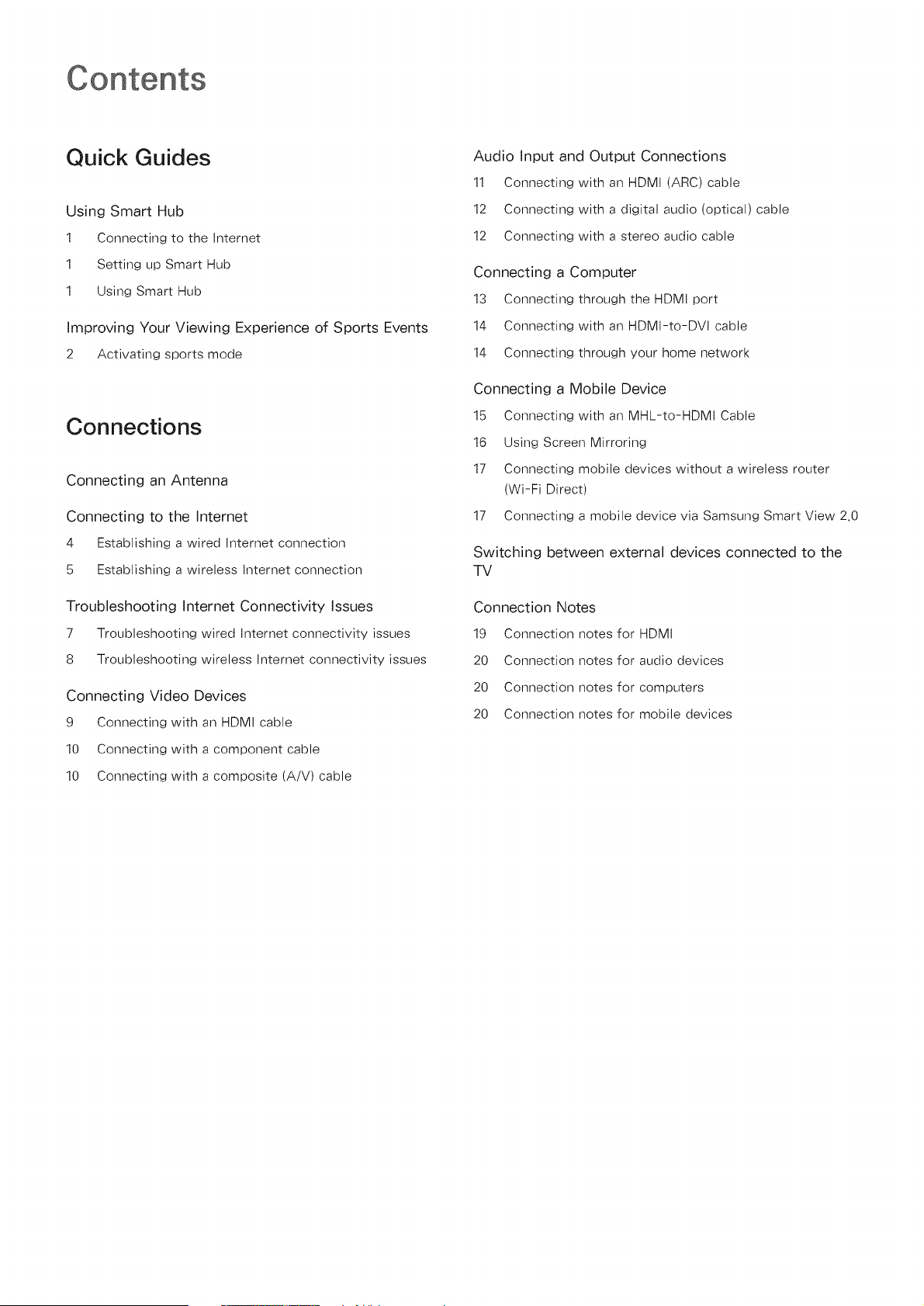
Quick Guides
Using Smart Hub
1 Connecting to the Internet
1 Setting up Smart Hub
1 Using Smart Hub
Improving Your Viewing Experience of Sports Events
2 Activating sports mode
Connections
Connecting an Antenna
Connecting to the Internet
4 Establishing a wired Internet connection
5 Establishing a wireless Internet connection
Troubleshooting Internet Connectivity Issues
7 Troubleshooting wired Internet connectivity issues
8 Troubleshooting wireless Internet connectivity issues
Connecting Video Devices
9 Connecting with an HDMI cable
10 Connecting with a component cable
10 Connecting with a composite (A/V) cable
Audio Input and Output Connections
11 Connecting with an HDMI (ARC) cable
12 Connecting with a digital audio (optical) cable
12 Connecting with a stereo audio cable
Connecting a Computer
13 Connecting through the HDMI port
14 Connecting with an HDMI-to-DVI cable
14 Connecting through your home network
Connecting a Mobile Device
15 Connecting with an MHL-to-HDMI Cable
16 Using Screen Mirroring
17 Connecting mobile devices without a wireless router
(Wi-Fi Direct)
17 Connecting a mobile device via Samsung Smart View 2.0
Switching between external devices connected to the
TV
Connection Notes
19 Connection notes for HDMI
20 Connection notes for audio devices
20 Connection notes for computers
20 Connection notes for mobile devices
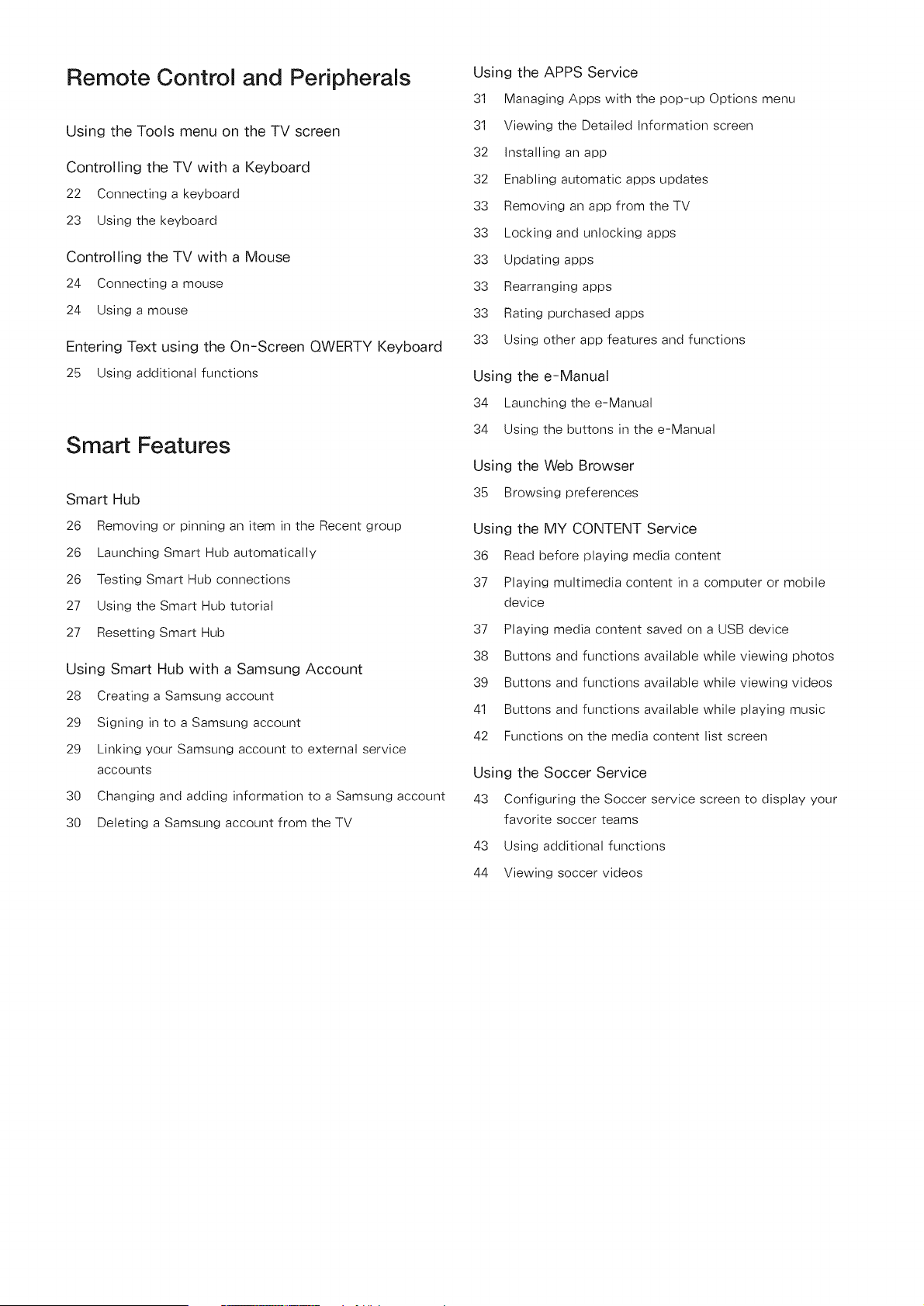
Remote Control and Peripherals
Using the Tools menu on the TV screen
Controlling the TV with a Keyboard
22 Connecting a keyboard
23 Using the keyboard
Controlling the TV with a Mouse
24 Connecting a mouse
24 Using a mouse
Entering Text using the On-Screen QWERTY Keyboard
25 Using additional functions
Smart Features
Smart Hub
26 Removing or pinning an item in the Recent group
26 Launching Smart Hub automatically
26 Testing Smart Hub connections
27 Using the Smart Hub tutorial
27 Resetting Smart Hub
Using Smart Hub with a Samsung Account
28 Creating a Samsung account
29 Signing in to a Samsung account
29 Linking your Samsung account to external service
accounts
30 Changing and adding information to a Samsung account
30 Deleting a Samsung account from the TV
Using the APPS Service
31 Managing Apps with the pop-up Options menu
31 Viewing the Detailed Information screen
32 installing an app
32 Enabling automatic apps updates
33 Removing an app from the TV
33 Locking and unlocking apps
33 Updating apps
33 Rearranging apps
33 Rating purchased apps
33 Using other app features and functions
Using the e-Manual
34 Launching the e-Manual
34 Using the buttons in the e-Manual
Using the Web Browser
35 Browsing preferences
Using the MY CONTENT Service
36 Read before playing media content
37 Playing multimedia content in a computer or mobile
device
37 Playing media content saved on a USB device
38 Buttons and functions available while viewing photos
39 Buttons and functions available while viewing videos
41 Buttons and functions available while playing music
42 Functions on the media content list screen
Using the Soccer Service
43 Configuring the Soccer service screen to display your
favorite soccer teams
43 Using additional functions
44 Viewing soccer videos
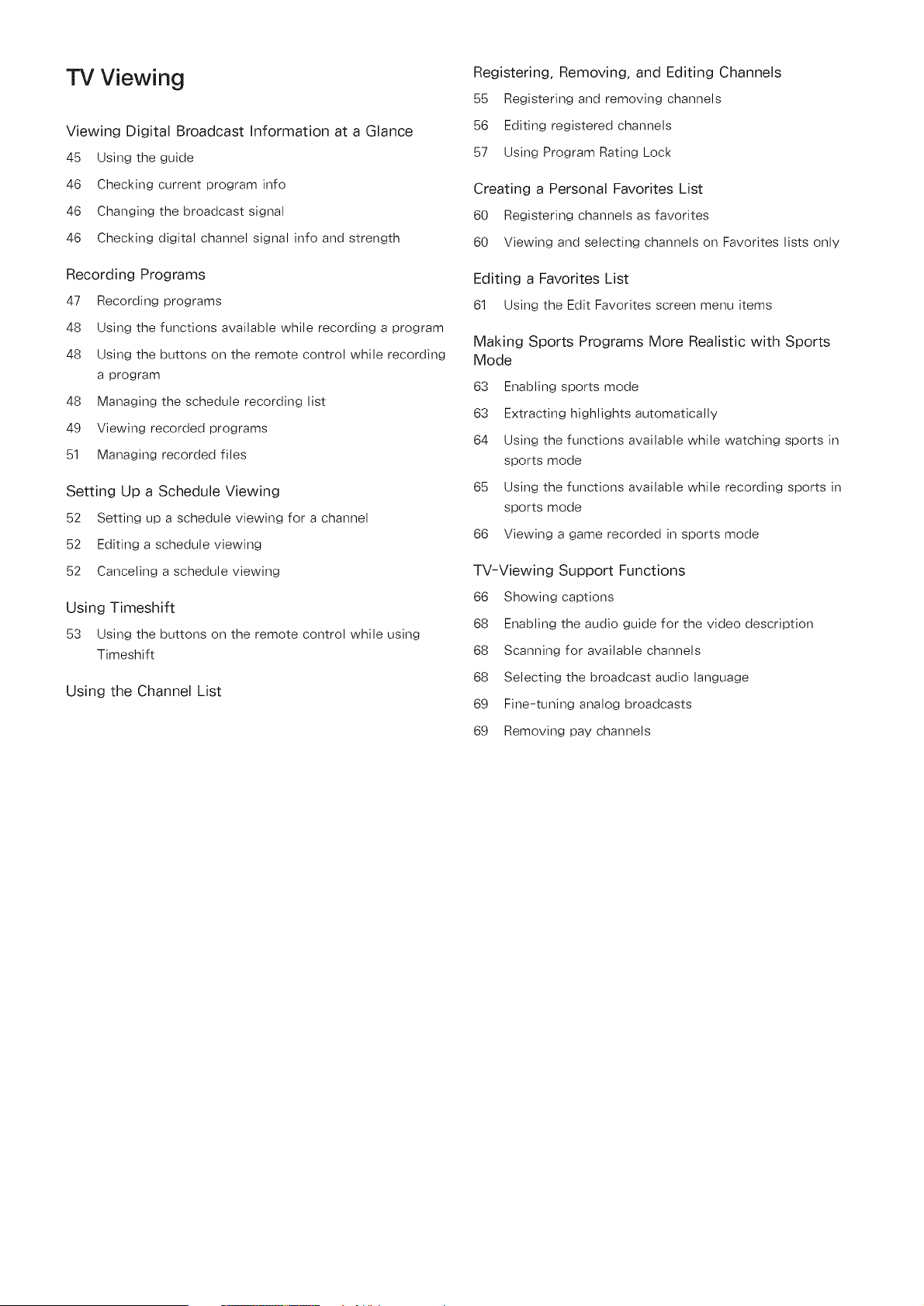
"iV Viewing
Registering, Removing, and Editing Channels
55 Registering and removing channels
Viewing Digital Broadcast Information at a Glance
45 Using the guide
56 Editing registered channels
57 Using Program Rating Lock
46 Checking current program info
46 Changing the broadcast signal
46 Checking digital channel signal info and strength
Creating a Personal Favorites List
60 Registering channels as favorites
60 Viewing and selecting channels on Favorites lists only
Recording Programs
47 Recording programs
48 Using the functions available while recording a program
48 Using the buttons on the remote control while recording
a program
48 Managing the schedule recording list
49 Viewing recorded programs
51 Managing recorded files
Editing a Favorites List
61 Using the Edit Favorites screen menu items
Making Sports Programs More Realistic with Sports
Mode
63 Enabling sports mode
63 Extracting highlights automatically
64 Using the functions available while watching sports in
sports mode
Setting Up a Schedule Viewing
52 Setting up a schedule viewing for a channel
52 Editing a schedule viewing
52 Canceling a schedule viewing
Using Timeshift
53 Using the buttons on the remote control while using
Timeshift
Using the Channel List
65 Using the functions available while recording sports in
sports mode
66 Viewing a game recorded in sports mode
TV-Viewing Support Functions
66 Showing captions
68 Enabling the audio guide for the video description
68 Scanning for available channels
68 Selecting the broadcast audio language
69 Fine-tuning analog broadcasts
69 Removing pay channels
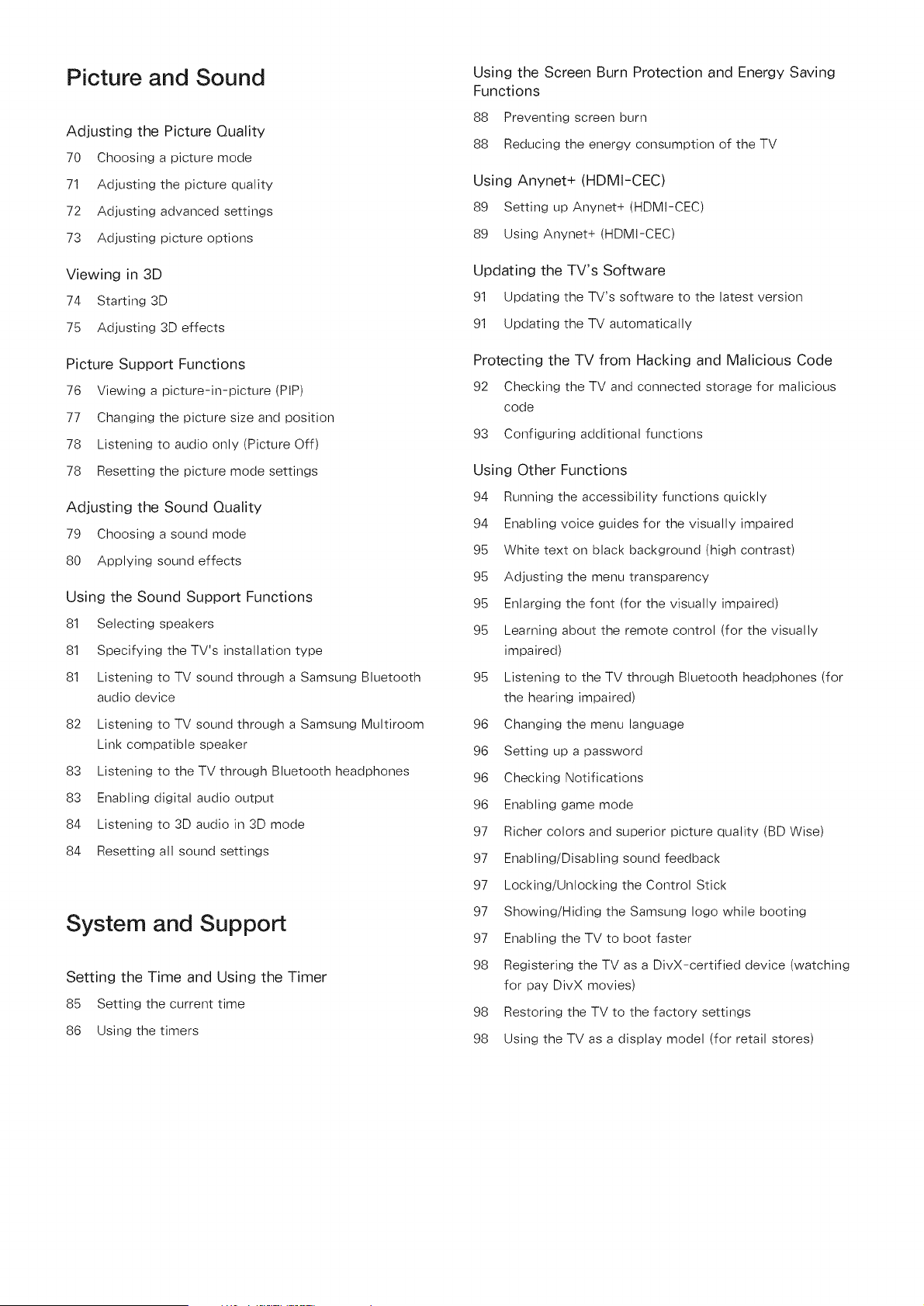
Picture and Sound
Adjusting the Picture Quality
70 Choosing a picture mode
71 Adjusting the picture quality
72 Adjusting advanced settings
73 Adjusting picture options
Viewing in 3D
74 Starting 3D
75 Adjusting 3D effects
Picture Support Functions
76 Viewing apicture-in-picture (PIP)
77 Changing the picture size and position
78 Listening to audio only (Picture Off)
78 Resetting the picture mode settings
Adjusting the Sound Quality
79 Choosing a sound mode
80 Applying sound effects
Using the Sound Support Functions
81 Selecting speakers
81 Specifying the TV's installation type
81 Listening to TV sound through a Samsung Bluetooth
audio device
82 Listening to TV sound through a Samsung Multiroom
Link compatible speaker
83 Listening to the TV through Bluetooth headphones
83 Enabling digital audio output
84 Listening to 3D audio in 3D mode
84 Resetting all sound settings
System and Support
Setting the Time and Using the Timer
85 Setting the current time
86 Using the timers
Using the Screen Burn Protection and Energy Saving
Functions
88 Preventing screen burn
88 Reducing the energy consumption of the TV
Using Anynet+ (HDMI-CEC)
89 Setting up Anynet+ (HDMI-CEC)
89 Using Anynet+ (HDMI-CEC)
Updating the TV's Software
91 Updating the TV's software to the latest version
91 Updating the TV automatically
Protecting the TV from Hacking and Malicious Code
92 Checking the TV and connected storage for malicious
code
93 Configuring additional functions
Using Other Functions
94 Running the accessibility functions quickly
94 Enabling voice guides for the visually impaired
95 White text on black background (high contrast)
95 Adjusting the menu transparency
95 Enlarging the font (for the visually impaired)
95 Learning about the remote control (for the visually
impaired)
95 Listening to the TV through Bluetooth headphones (for
the hearing impaired)
96 Changing the menu language
96 Setting up a password
96 Checking Notifications
96 Enabling game mode
97 Richer colors and superior picture quality (BD Wise)
97 Enabling/Disabling sound feedback
97 Locking/Unlocking the Control Stick
97 Showing/Hiding the Samsung logo while booting
97 Enabling the TV to boot faster
98 Registering the TV as a DivX-certified device (watching
for pay DivX movies)
98 Restoring the TV to the factory settings
98 Using the TV as a display model (for retail stores)
Troubleshooting
Getting Support
99 Getting support through Remote Management
100 Finding the contact information for service
100 Requesting service
There Is a Problem with the Picture
101 Testing the picture
I Can't Hear the Sound Clearly
103 Testing the sound
I Can't See 3D Images Clearly
104 Testing 3D picture quality
There Is a Problem with the Broadcast
My Computer Won't Connect
The TV Won't Connect to the Internet
The Schedule Recording/Timeshift Function Isn't
Working
Anynet+ (HDMI-CEC) Isn't Working
I Have Trouble Launching/Using Apps
My File Won't Play
I Want to Reset the TV
Other Issues
Precautions and Notes
Before Using the Recording and Timeshift Functions
110 Before using the recording and schedule recording
functions
111 Before using the timeshift function
Read Before Using 3D Mode
112 3D precautions
Supported Resolutions for 3D Modes
Read Before Using Apps
Read Before Using the Web Browser
Read Before Playing Photo, Video, or Music Files
118 Limitations on use of photo, video, and music files
119 Supported external subtitles
119 Supported internal subtitles
120 Supported image formats and resolutions
120 Supported music formats and codecs
121 Supported video codecs
Read After Installing the TV
123 Picture sizes and input signals
123 Installing an anti-theft lock
124 Read before setting up a wireless Internet connection
Read Before Connecting a Computer (Supported
Resolutions)
125 IBM
125 MAC
126 VESA DMT
Supported Resolutions for Video Signals
127 CEA-861
127 CEA-861 (DVl)
Read Before Using Bluetooth Devices
128 Restrictions on using Bluetooth
License
Glossary
Using Smart Hub
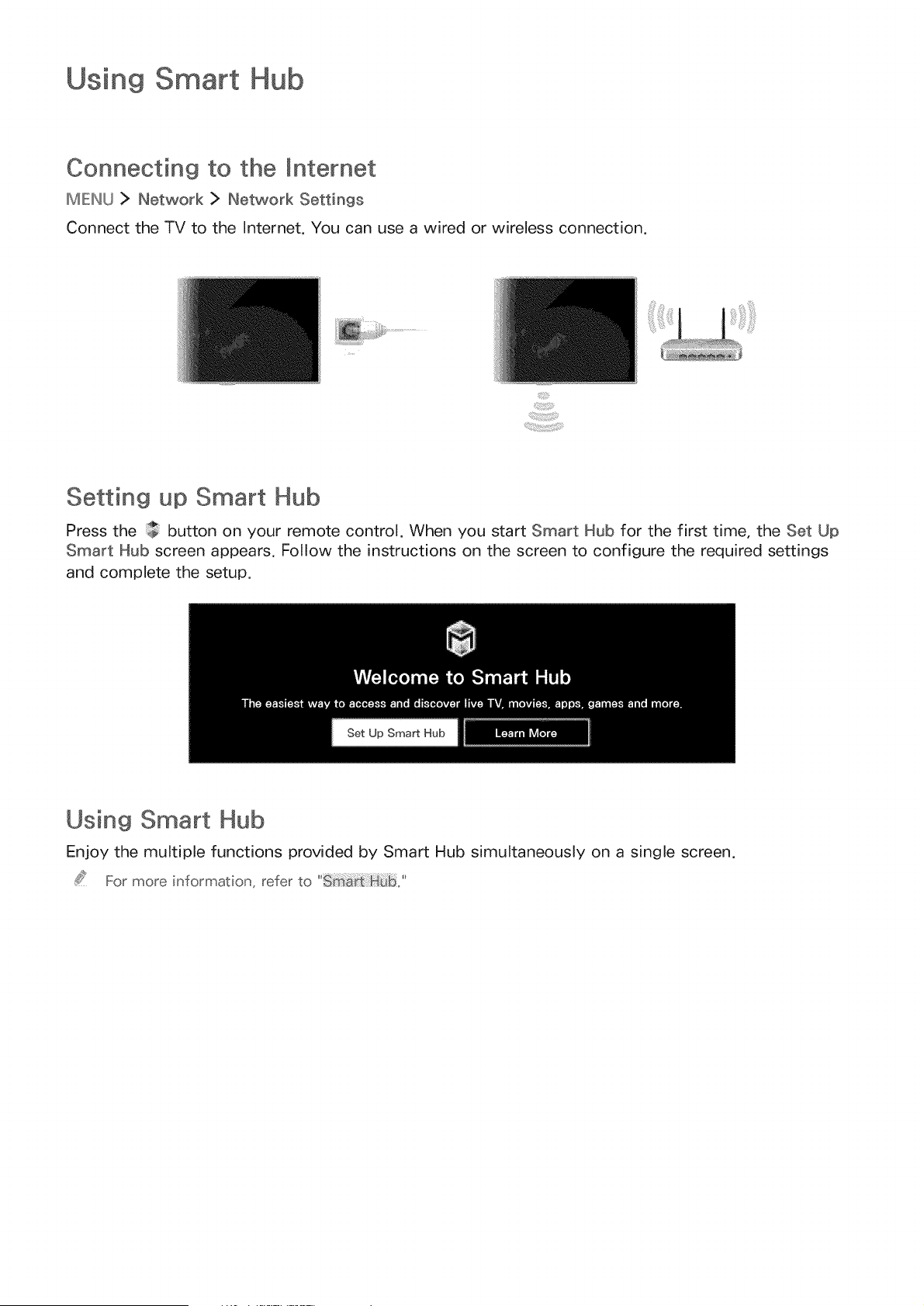
Connecting to the [nternet
IMIENLJ> Network > Network Settings
Connect the TV to the Internet. You can use a wired or wireless connection.
Setting up Smart Hub
Press the button on your remote control. When you start Smart Hub for the first time, the Set Up
Smart Hub screen appears. Follow the instructions on the screen to configure the required settings
and complete the setup.
Using Smart Hub
Enjoy the multiple functions provided by Smart Hub simultaneously on a single screen.
For more information, refer to
Improving Your Viewing Experience of Sports Events
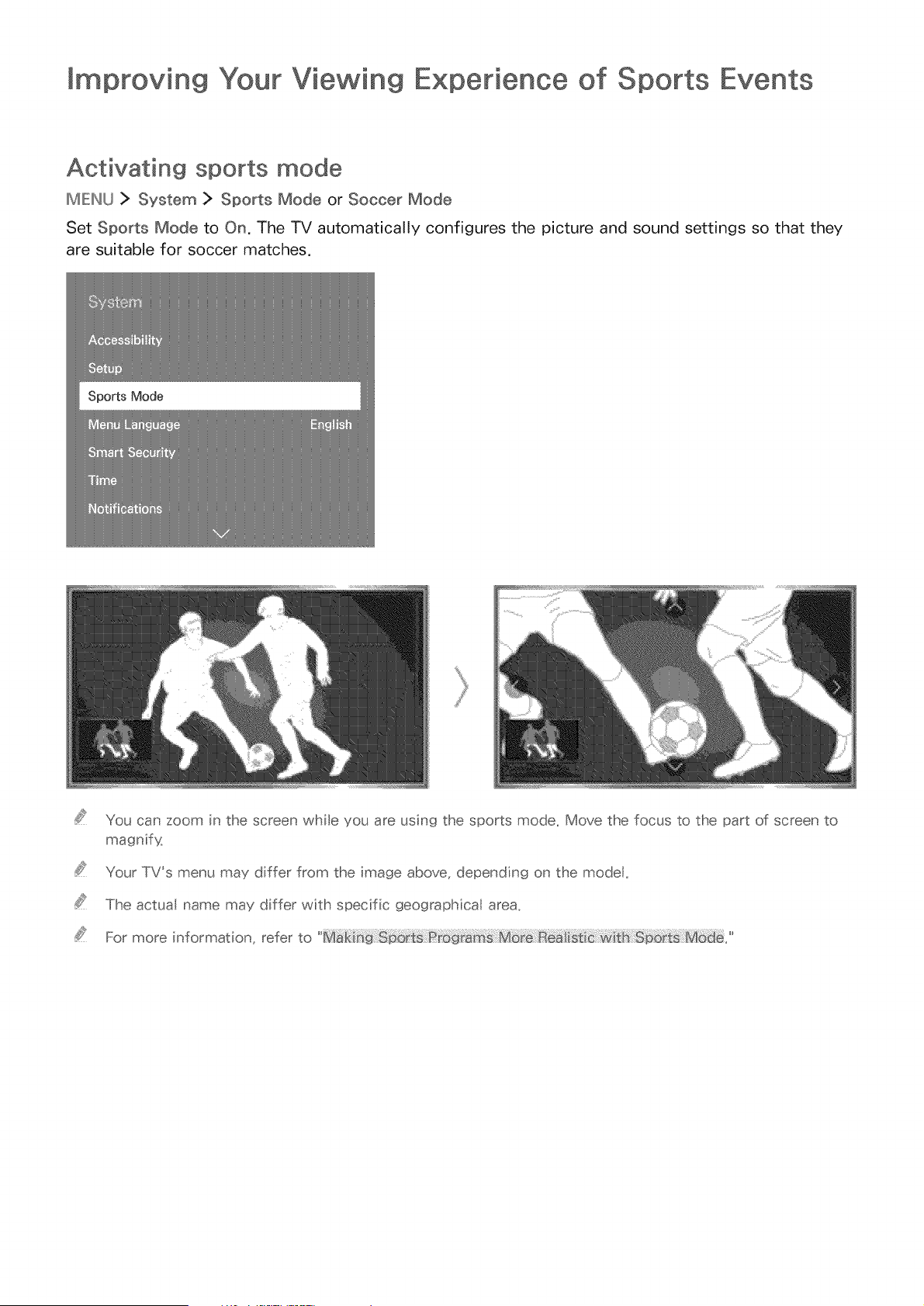
Activating sports mode
MIEINU > System > Sports Mode or Soccer Mode
Set Sports Mode to On. The TV automatically configures the picture and sound settings so that they
are suitable for soccer matches.
You can zoom in the screen while you are using the sports mode_ Move the focus to the part of screen to
magnify_
Your TVs menu may differ from the image above, depending on the model.
The actua name may differ with specific geographical area,
For' more information, refer to
Connecting an Antenna
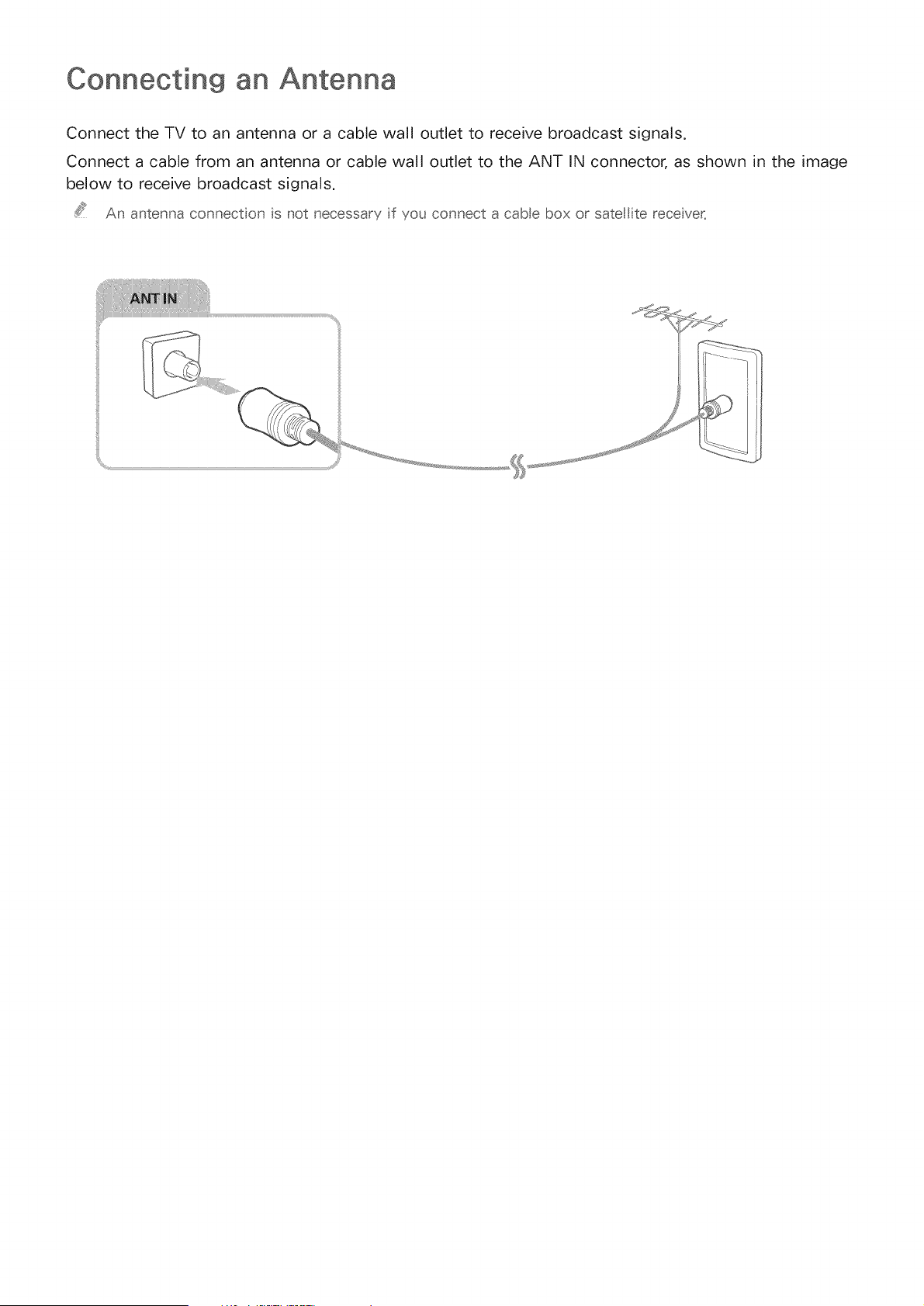
Connect the TV to an antenna or a cable wall outlet to receive broadcast signals.
Connect a cable from an antenna or cable wall outlet to the ANT IN connector, as shown in the image
below to receive broadcast signals.
An antenna connect on is not necessary f you connect a cabe box or satel te recever_
iii!
Connecting to the
Establishing a "wired [nternet connection
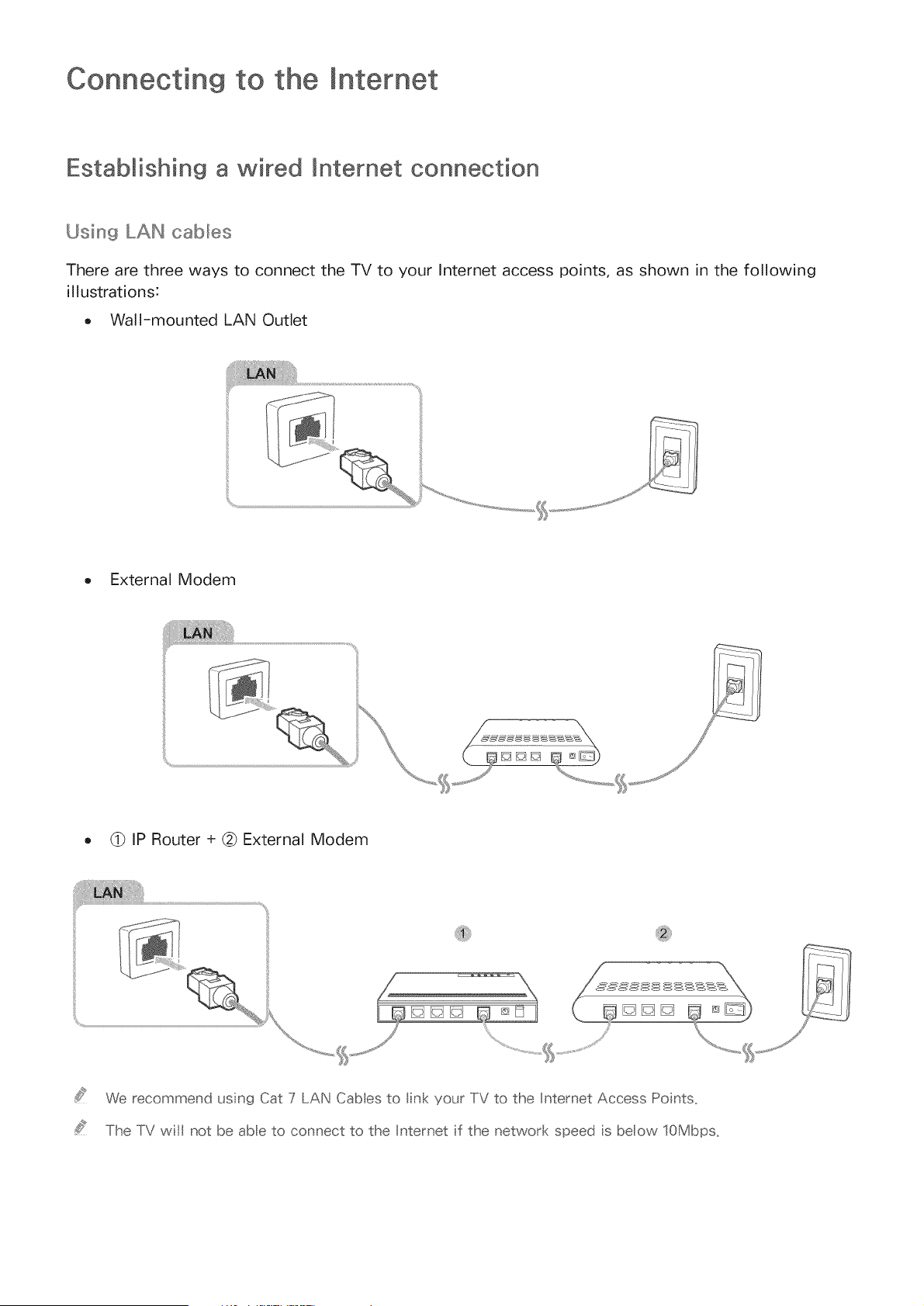
Using LAN cabbs
There are three ways to connect the TV to your Internet access points, as shown in the following
illustrations:
o Wall-mounted LAN Outlet
External Modem
@ IP Router + @ External Modem
We recommend usn9 Cat 7 LAN Cabes to In< your TV to the [nternet Access Points_
The TV wi not be abe to connect to the [nternet f the network speed s beow 10Mbps_
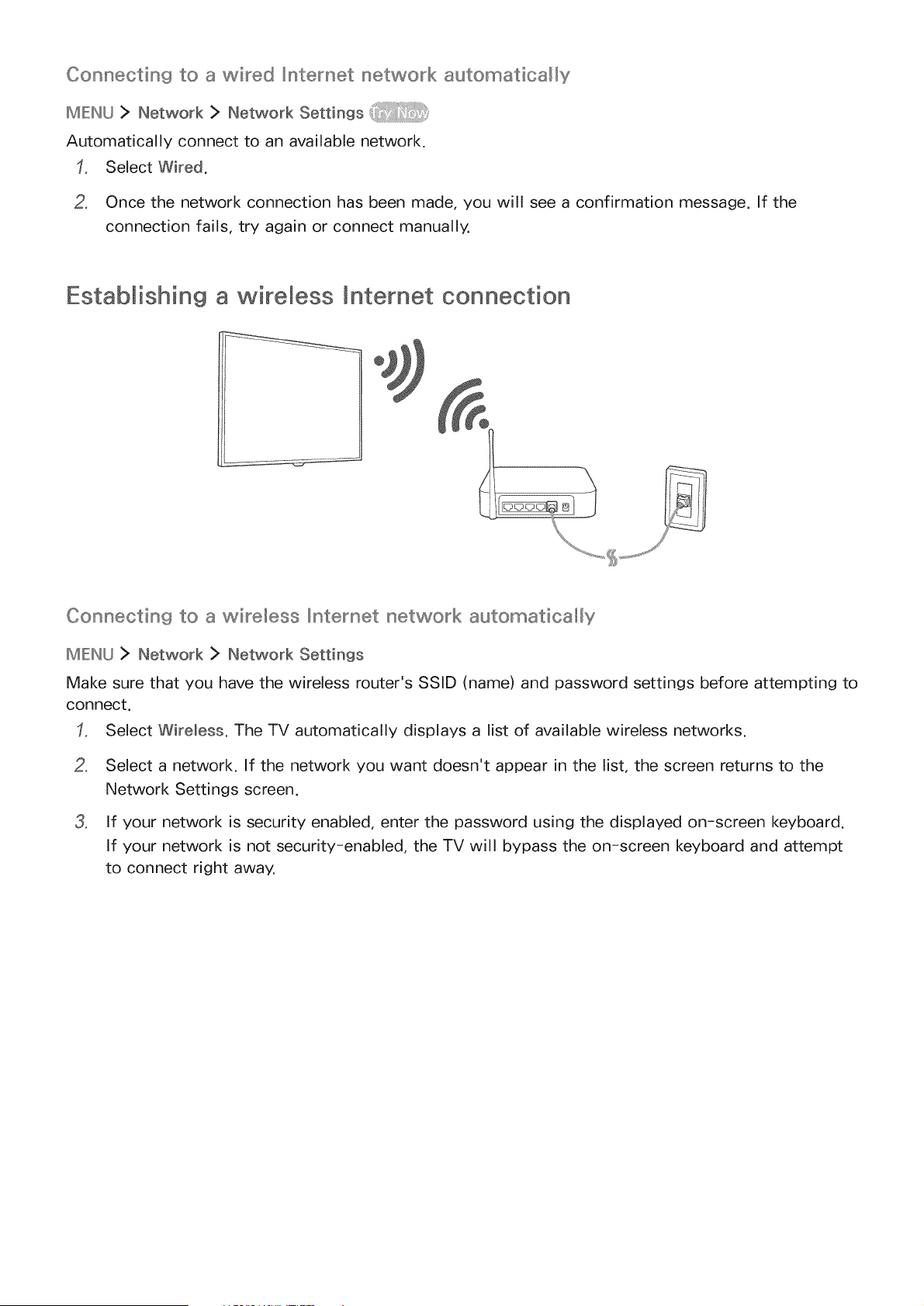
Connectin9 to a wired _ntenrset network automatically
MENU > Network > Network Settings
Automatically connect to an available network.
Select Wired.
2, Once the network connection has been made, you will see a confirmation message. If the
connection fails, try again or connect manually,
Establishing a wireless mnternet connection
Connecting to a wireless _ntenset network automatica!_y
IMIENU> Network > Network Settings
Make sure that you have the wireless router's SSID (name) and password settings before attempting to
connect.
Select Wireless. The TV automatically displays a list of available wireless networks.
o
o
Select a network. If the network you want doesn't appear in the list, the screen returns to the
Network Settings screen.
If your network is security enabled, enter the password using the displayed on-screen keyboard.
If your network is not security-enabled, the TV will bypass the on-screen keyboard and attempt
to connect right away.
Connecting to a wireless _ntenrset network with WPS
MIENU > Network > Network Settings
If your router has a WPS (Wi-Fi protected setup) push button, you can use it to connect the TV to the
router automatically.
Select Wireless. The TV automatically displays a list of available wireless networks.
2. Select Stop and then select WPS (PBC).
3. Press the WPS or PBC button on your wireless router within the next two minutes.
4. The TV connects to the network automatically,
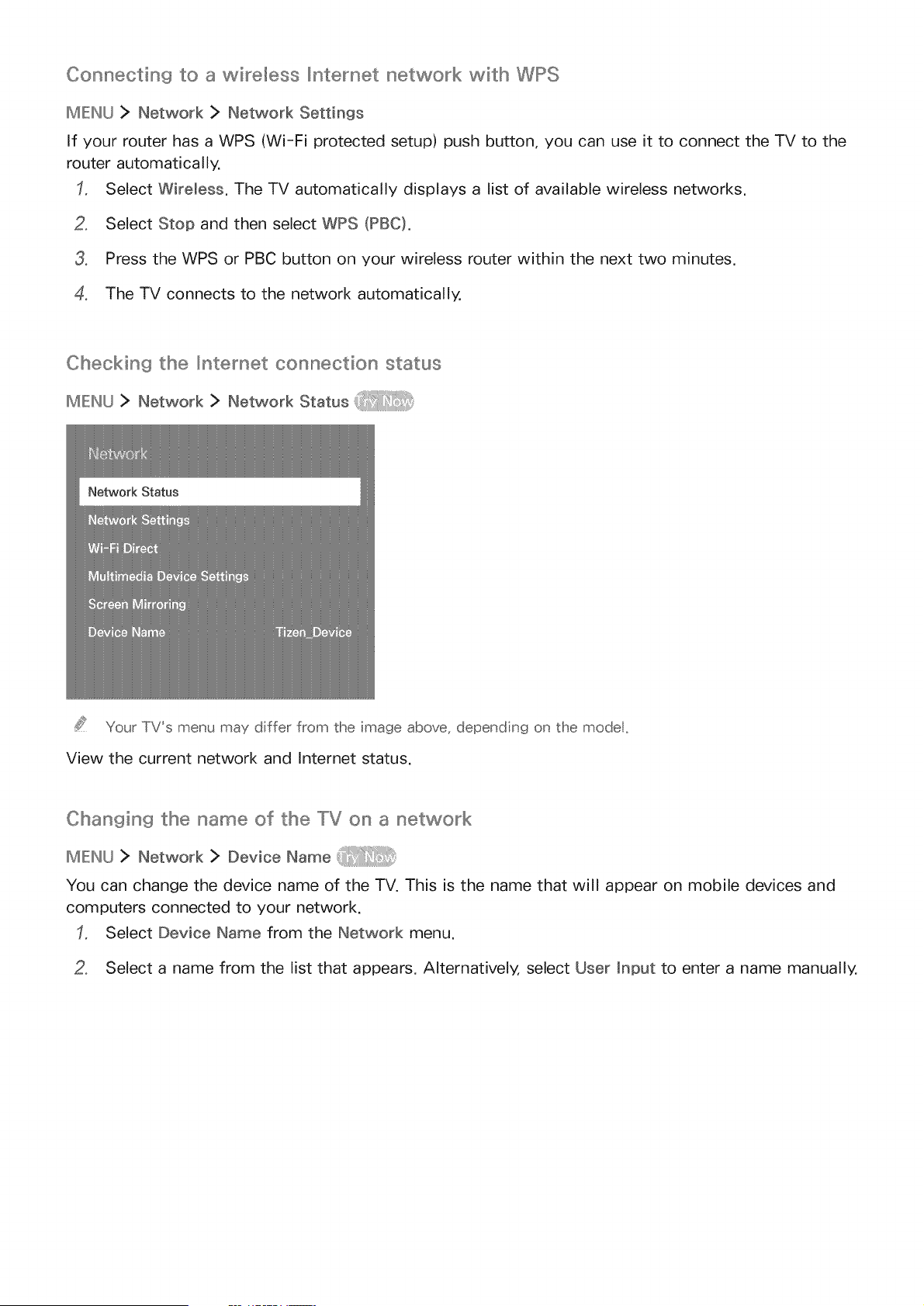
Checking the _ntemet connection status
IMIENU> Network > Network Status
Your TV's menu may differ from the image above, depending on the model.
View the current network and Internet status.
Changing the name of the "_V on a network
MENU> Network> Dev oeNa e
You can change the device name of the TV. This is the name that will appear on mobile devices and
computers connected to your network.
Select Device Name from the Network menu.
2. Select a name from the list that appears. Alternatively, select User input to enter a name manually,
Troubleshooting Internet Connectivity Issues
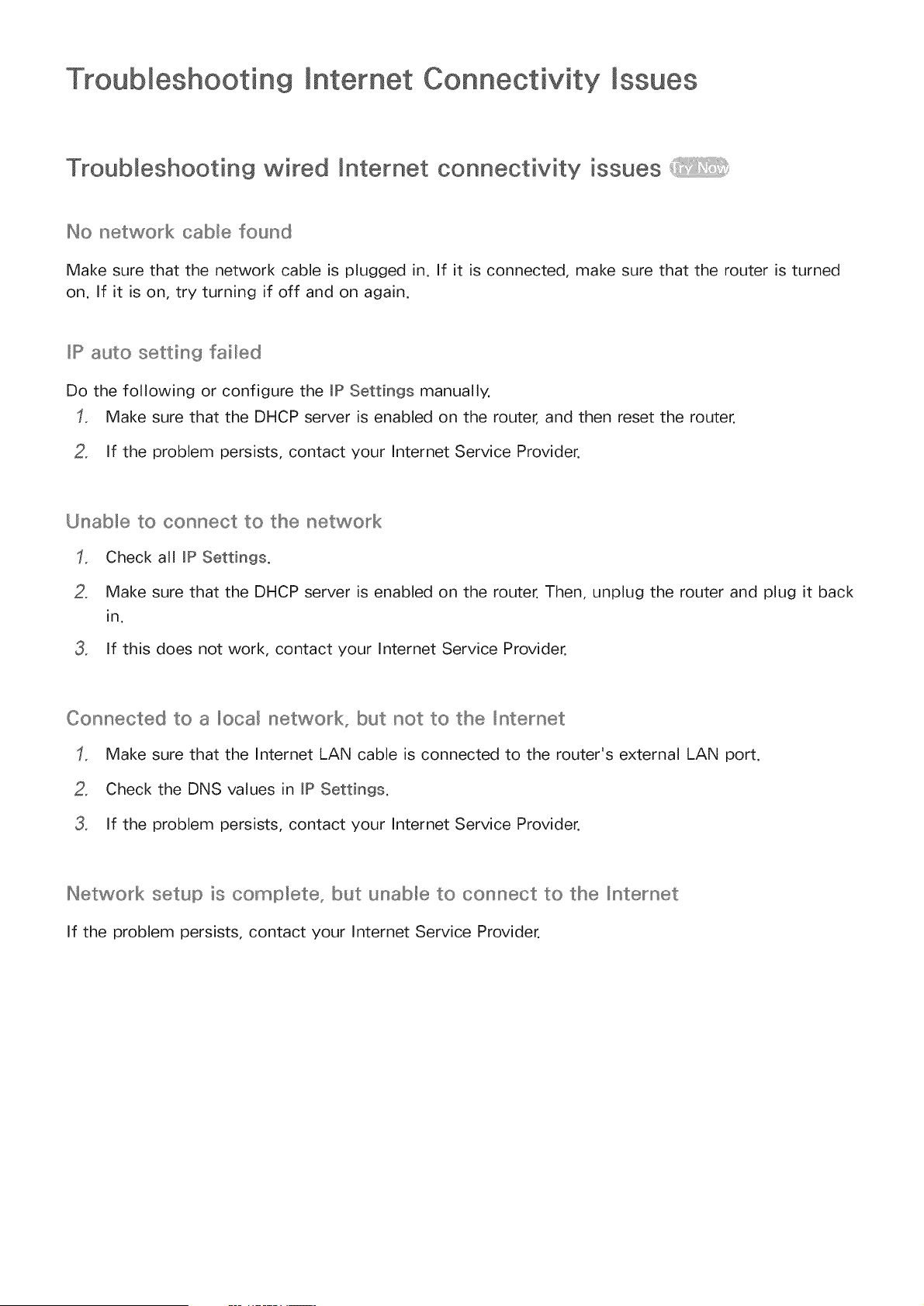
Tr ou b Ies hoot ing w ired [nt er net co nnectivity iss ues
No network caUe found
Make sure that the network cable is plugged in. If it is connected, make sure that the router is turned
on. If it is on, try turning if off and on again.
[P auto setting fai_ed
Do the following or configure the lP Settings manually.
Make sure that the DHCP server is enabled on the router, and then reset the router.
2. If the problem persists, contact your Internet Service Provider.
UnaUe to connect to the network
Check all JPSettings.
2, Make sure that the DHCP server is enabled on the router. Then, unplug the router and plug it back
in.
3, If this does not work, contact your Internet Service Provider.
Connected to a Ioca_ network_ but not to the _nternet
Make sure that the Internet LAN cable is connected to the router's external LAN port.
2, Check the DNS values in JP Settings.
3, If the problem persists, contact your Internet Service Provider.
Network setup is comp_ete_ but unable to connect to the Internet
If the problem persists, contact your Internet Service Provider.
Troubleshooting wireless mnternet connectivity issues
Wireless network connection fai_ed
if a selected wireless router is not found, go to Network Settings and select the correct router.
UnaUe to connect to a wireless router
Check if the router is turned on. If it is, turn it off and on again.
2, Enter the correct password if required.
_Pauto setting fai_ed
Do the following or configure the _P Settings manually.
Make sure that the DHCP server is enabled on the router. Then, unplug the router and plug it back
in.
2, Enter the correct password if required.
3, If the problem persists, contact your Internet Service Provider.
UnaUe to connect to the network
Check all JPSettings.
2, Enter the correct password if required.
3, If the problem persists, contact your Internet Service Provider.
Connected to a Ioca_ network_ but not to the _nternet
Make sure that the Internet LAN cable is connected to the router's external LAN port.
2, Check the DNS values in JP Settings.
3, If the problem persists, contact your Internet Service Provider.
Network setup is comp_ete_ but unable to connect to the Internet
If the problem persists, contact your Internet Service Provider.
Connecting Video Devices
Your TV has a variety of connections for video input from external devices. Below is a list of featured
connections shown in descending order of picture quality.
o HDMI
Component
Composite (A/V)
Connect a video device to the TV with an HDMI connection for the best picture quality. If the device
does not have an HDMI connection, try a component connection.
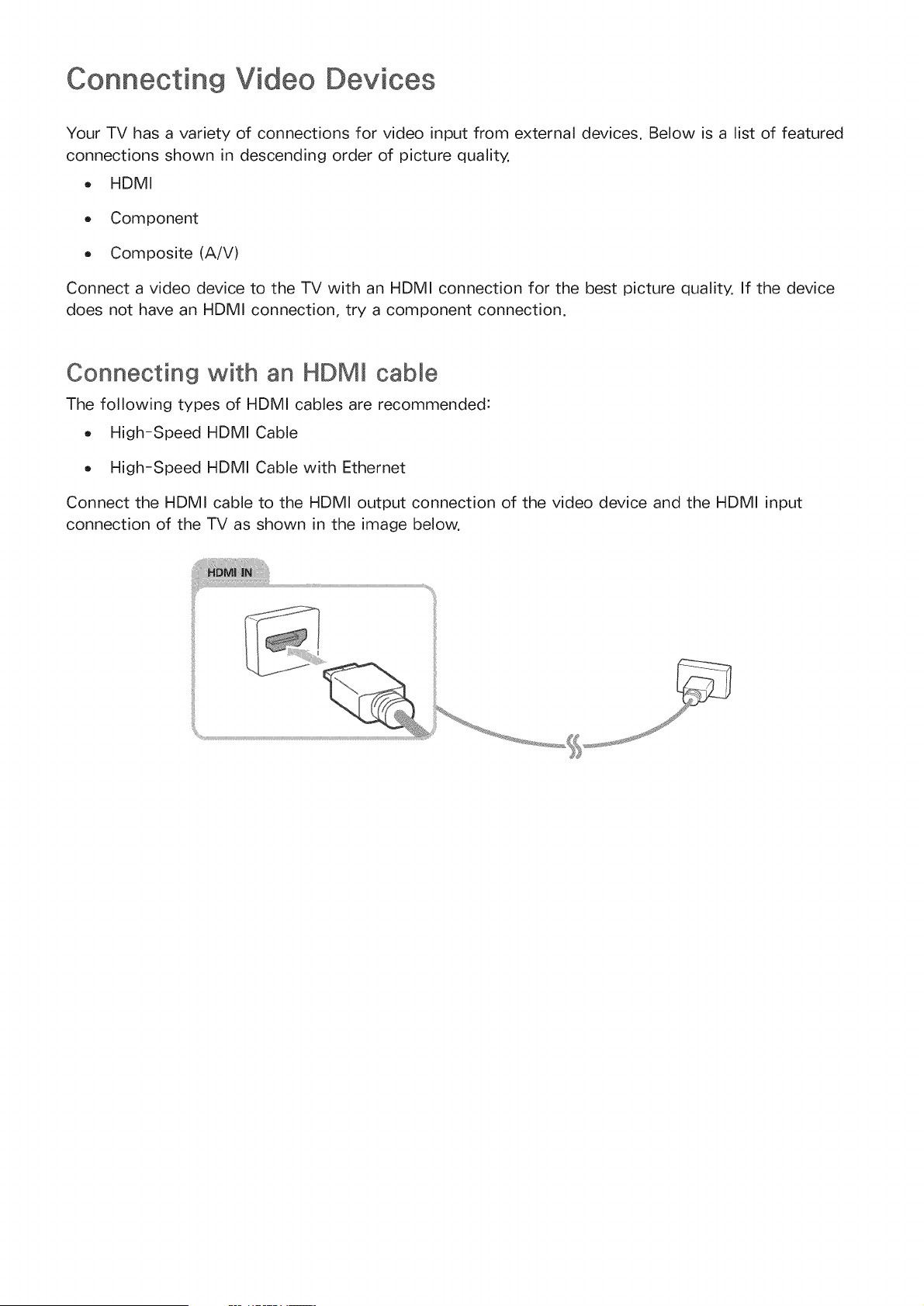
Connecting "with an HDMI cable
The following types of HDMI cables are recommended:
High-Speed HDMI Cable
High-Speed HDMI Cable with Ethernet
Connect the HDMI cable to the HDMI output connection of the video device and the HDMI input
connection of the TV as shown in the image below.
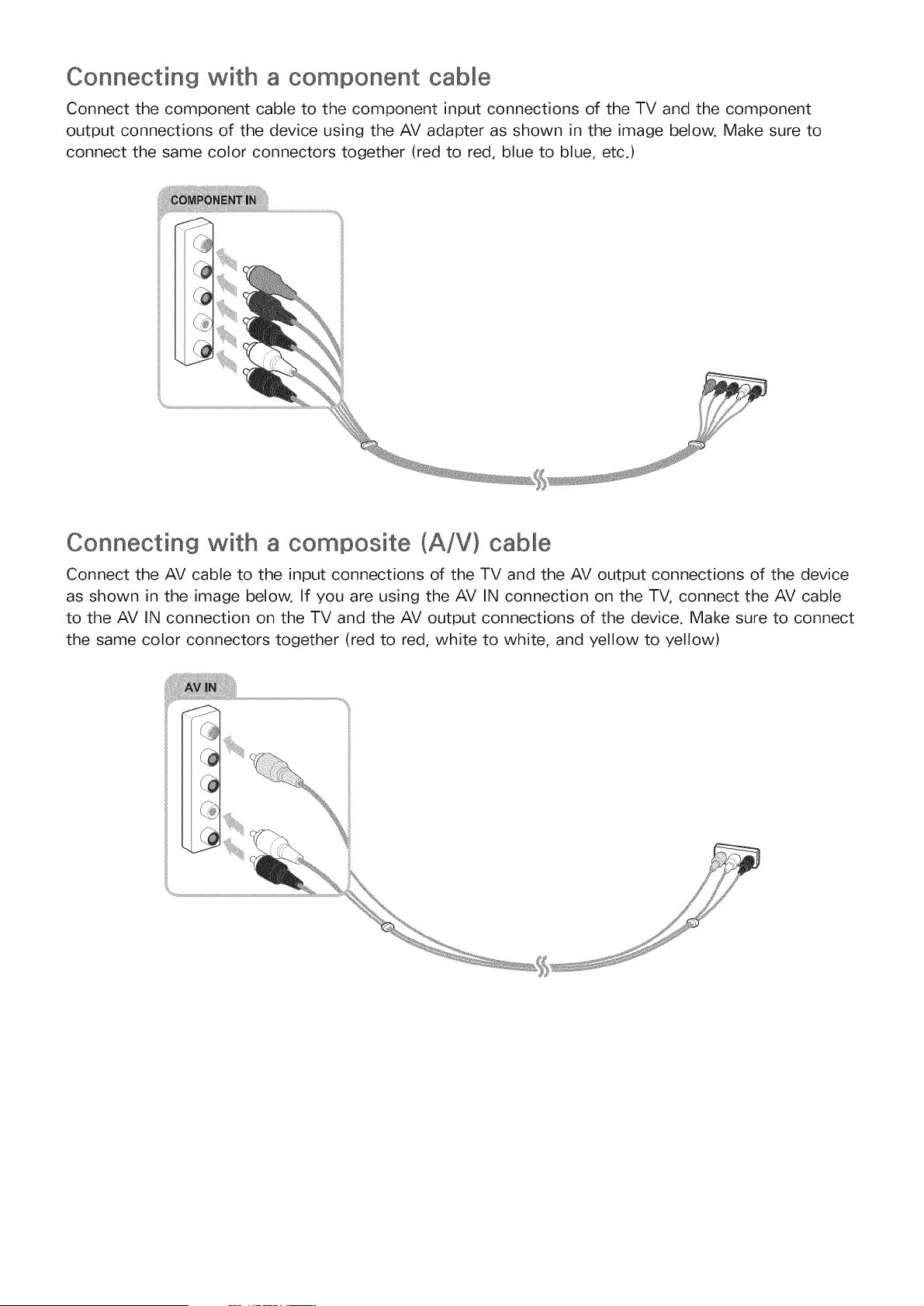
Connecting with a component cable
Connect the component cable to the component input connections of the TV and the component
output connections of the device using the AV adapter as shown in the image below. Make sure to
connect the same color connectors together (red to red, blue to blue, etc.)
Connecting with a composite (A/V) cable
Connect the AV cable to the input connections of the TV and the AV output connections of the device
as shown in the image below. If you are using the AV IN connection on the TV, connect the AV cable
to the AV IN connection on the TV and the AV output connections of the device. Make sure to connect
the same color connectors together (red to red, white to white, and yellow to yellow)
Input and Output Connections
Your TV has a variety of connections for audio input from external devices. The connections are listed
below.
o HDMI/ARC (Audio Return Channel)
Digital Audio (Optical)
Audio (Analog)
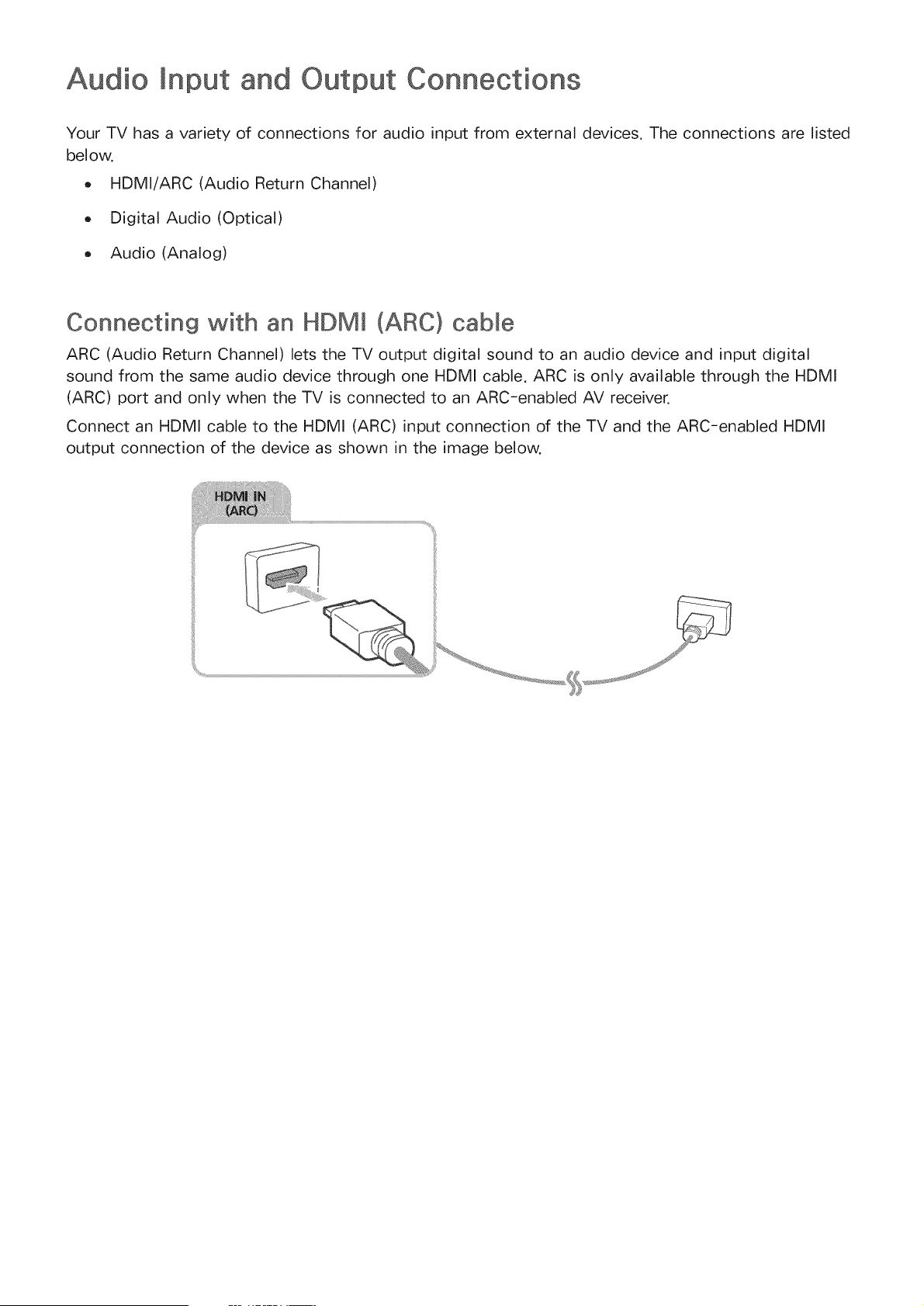
Connecting with an HDMm (ARC) cabme
ARC (Audio Return Channel) lets the TV output digital sound to an audio device and input digital
sound from the same audio device through one HDMI cable. ARC is only available through the HDMI
(ARC) port and only when the TV is connected to an ARC-enabled AV receiver.
Connect an HDMI cable to the HDMI (ARC) input connection of the TV and the ARC-enabled HDMI
output connection of the device as shown in the image below.
Connecting "with a digital audio (optical) cable
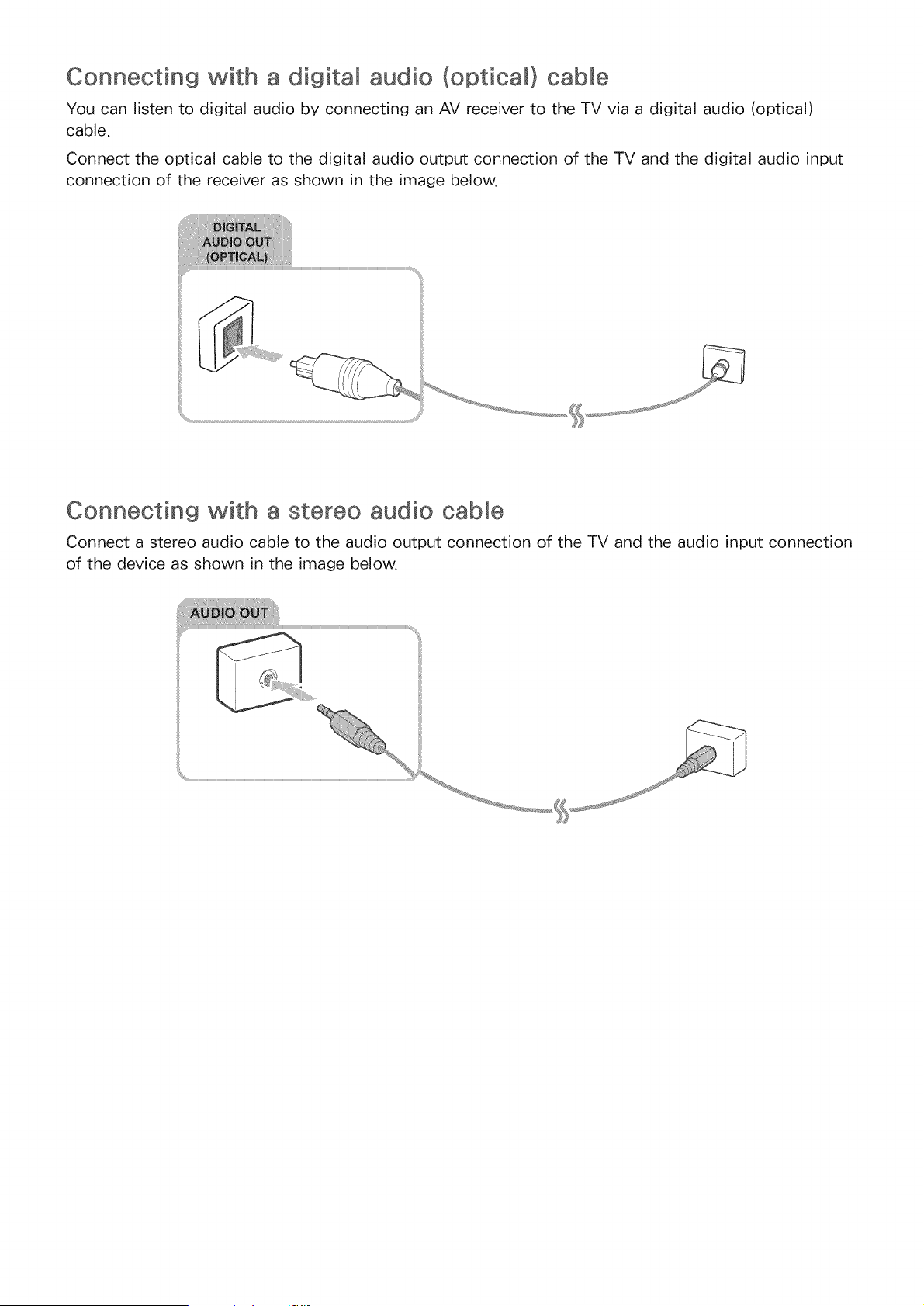
You can listen to digital audio by connecting an AV receiver to the TV via a digital audio (optical)
cable.
Connect the optical cable to the digital audio output connection of the TV and the digital audio input
connection of the receiver as shown in the image below.
Connecting with a stereo audio cable
Connect a stereo audio cable to the audio output connection of the TV and the audio input connection
of the device as shown in the image below.
Connecting a Computer
The kinds of connections you can make are listed below.
To use the TV as a computer monitor
o Connect through the HDMI port with an HDMI cable.
Connect though the HDMI (DVI) port with an HDMI-to-DVI cable.
To view or play the content saved in a computer on the TV
Connect through your home network.
Connecting through the HDMI port
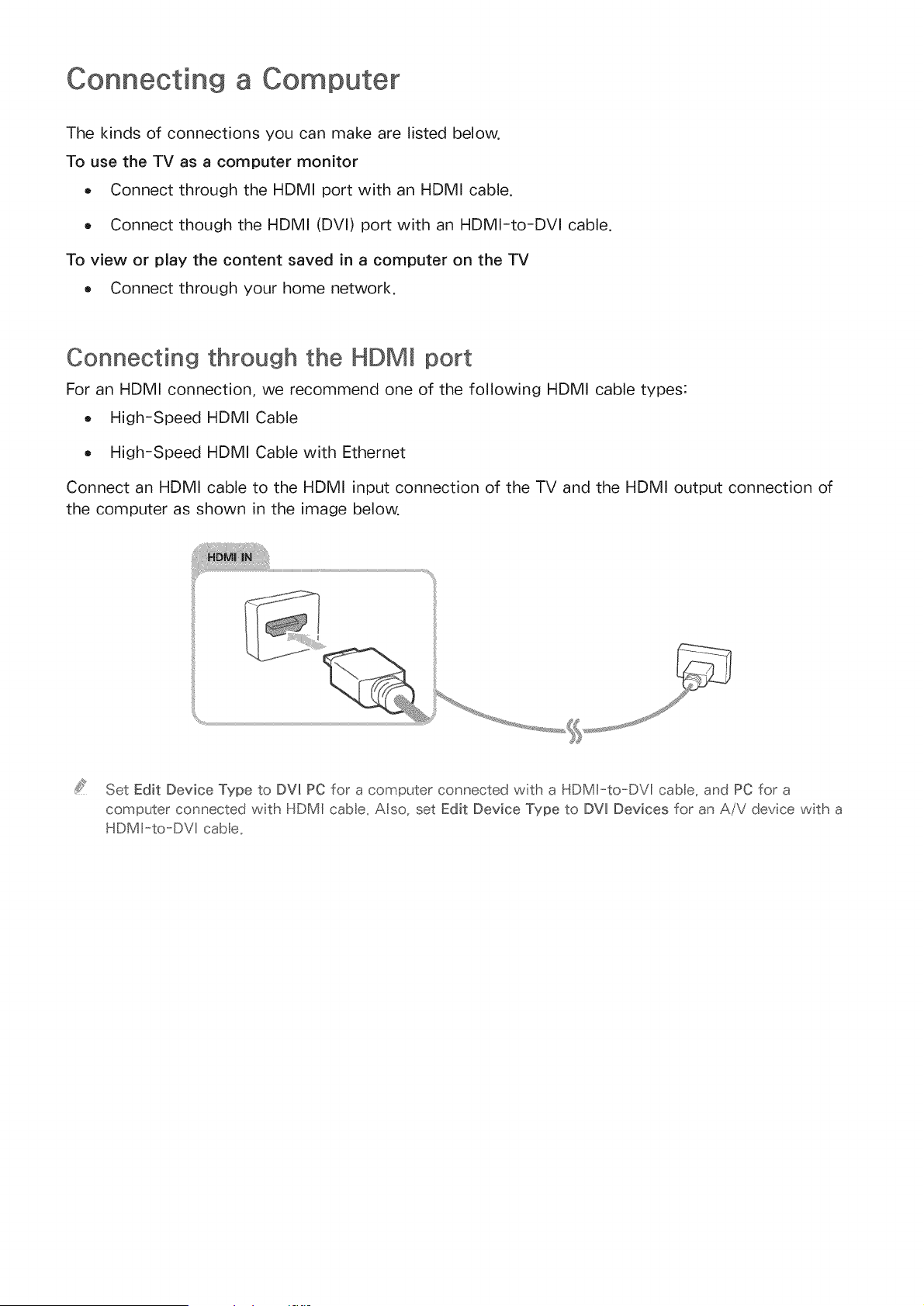
For an HDMI connection, we recommend one of the following HDMI cable types:
High-Speed HDMI Cable
High-Speed HDMI Cable with Ethernet
Connect an HDMI cable to the HDMI input connection of the TV and the HDMI output connection of
the computer as shown in the image below.
Set Edit Device Type to DW PC for a computer connected with a HDMI--to-DVP cable, and PC for a
computer connected with HDMI cabe, Also, set Edit Device Type to DVl Devices for an A/V device with a
HDMI-to-DVl cabe,
Connecting with an HDM -to-DVm cable
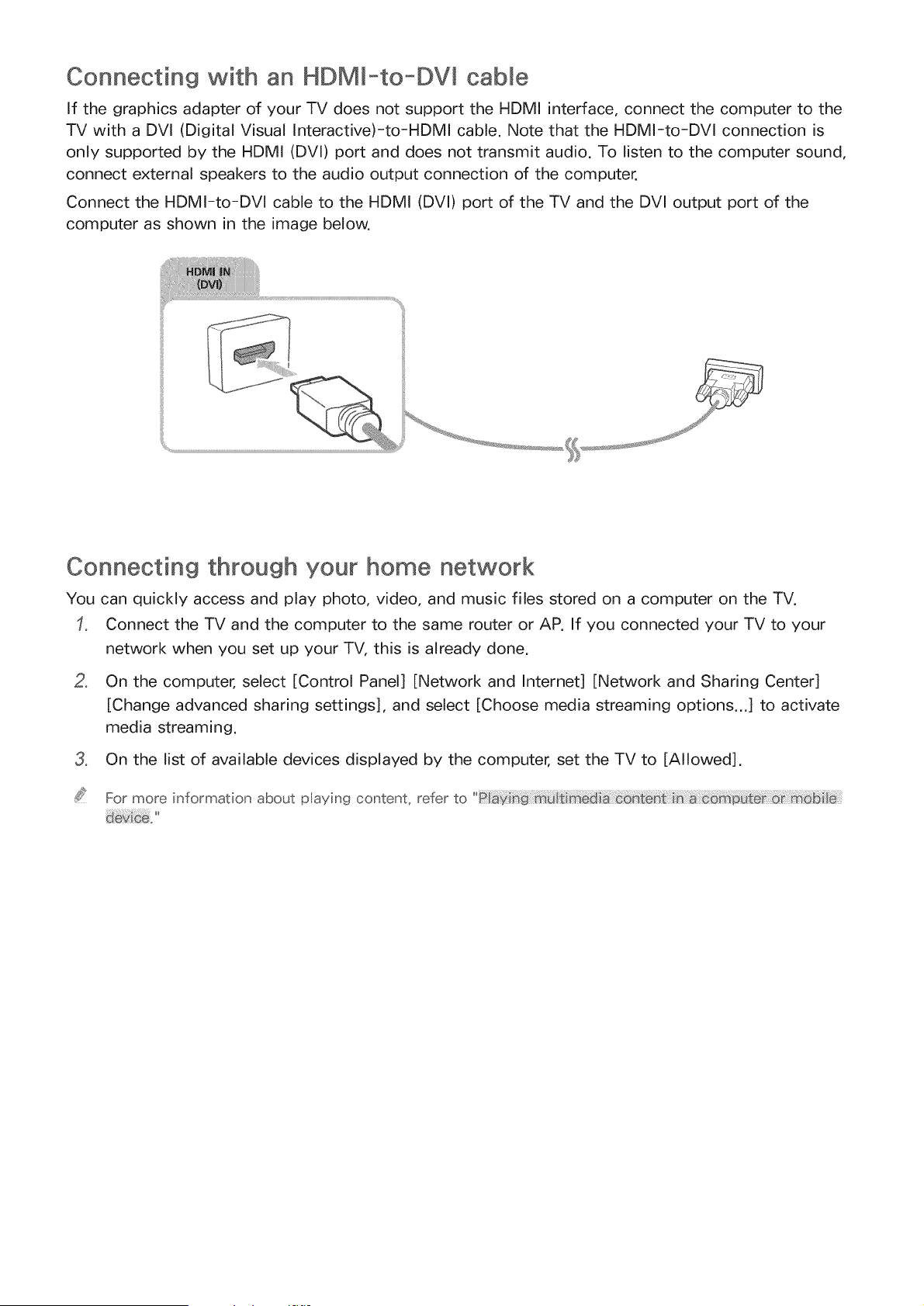
If the graphics adapter of your TV does not support the HDMI interface, connect the computer to the
TV with a DVI (Digital Visual Interactive)-to-HDMI cable. Note that the HDMI-to-DVI connection is
only supported by the HDMI (DVI) port and does not transmit audio. To listen to the computer sound,
connect external speakers to the audio output connection of the computer.
Connect the HDMI-to-DVI cable to the HDMI (DVI) port of the TV and the DVI output port of the
computer as shown in the image below.
Connecting through your home network
You can quickly access and play photo, video, and music files stored on a computer on the TV.
Connect the TV and the computer to the same router or AP. If you connected your TV to your
network when you set up your TV, this is already done.
o
On the computer, select [Control Panel] [Network and Internet] [Network and Sharing Center]
[Change advanced sharing settings], and select [Choose media streaming options...] to activate
media streaming.
3, On the list of available devices displayed by the computer, set the TV to [Allowed].
For more information about playing content, referto _i yh uiim _i_ _tin_ m_t _ mo_ii_
Connecting a Mobile Device
You can connect a mobile device such as a smartphone or tablet directly to the TV, or connect it
to your network and display the mobile device's screen or play its content on the TV. The kinds of
connections you can make are listed below.
o Connect by using an MHL-to-HDMI cable and view the mobile device's screen on the TV.
Connect by mirroring the mobile device's screen on the TV (Screen Mirroring).
Connect mobile devices without a wireless router (Wi-Fi Direct).
Connect a mobile device via Samsung Smart View 2.0.
Connecting with an MHL-to-HDMJ Cable
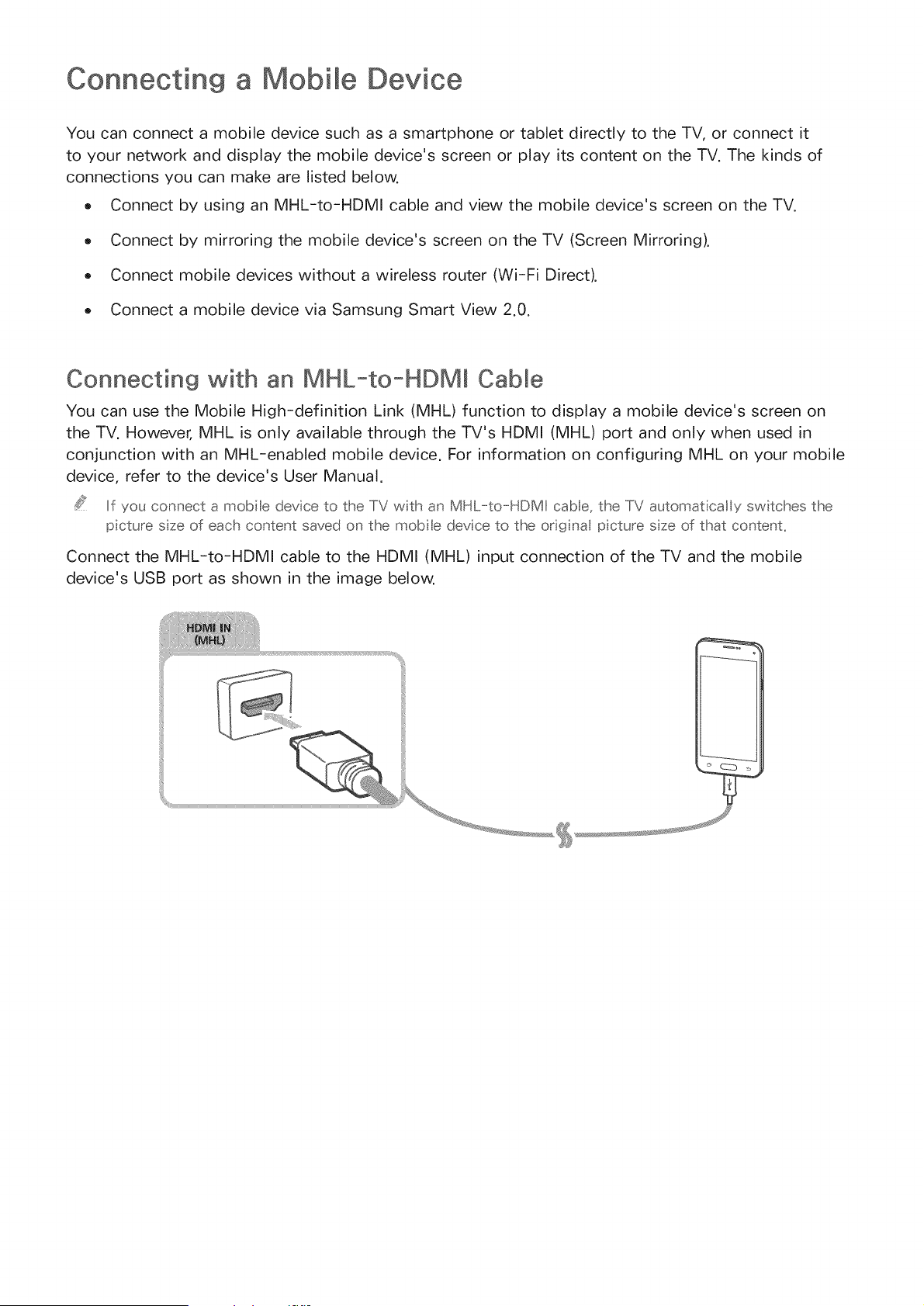
You can use the Mobile Iligh-definition Link (MILL) function to display a mobile device's screen on
the TV. However, MIlL is only available through the TV's IIDMI (MILL) port and only when used in
conjunction with an MilL-enabled mobile device. For information on configuring MIlL on your mobile
device, refer to the device's User Manual.
if you connect a mobte devce to the TV with an MHL-to-HDMI cable, the TV automat cal y switches the
p cture sze of each content saved on the mobte device to the orig na p cture sze of that content,
Connect the MHL-to-HDMI cable to the HDMI (MHL) input connection of the TV and the mobile
device's USB port as shown in the image below.
Using Screen Mirroring
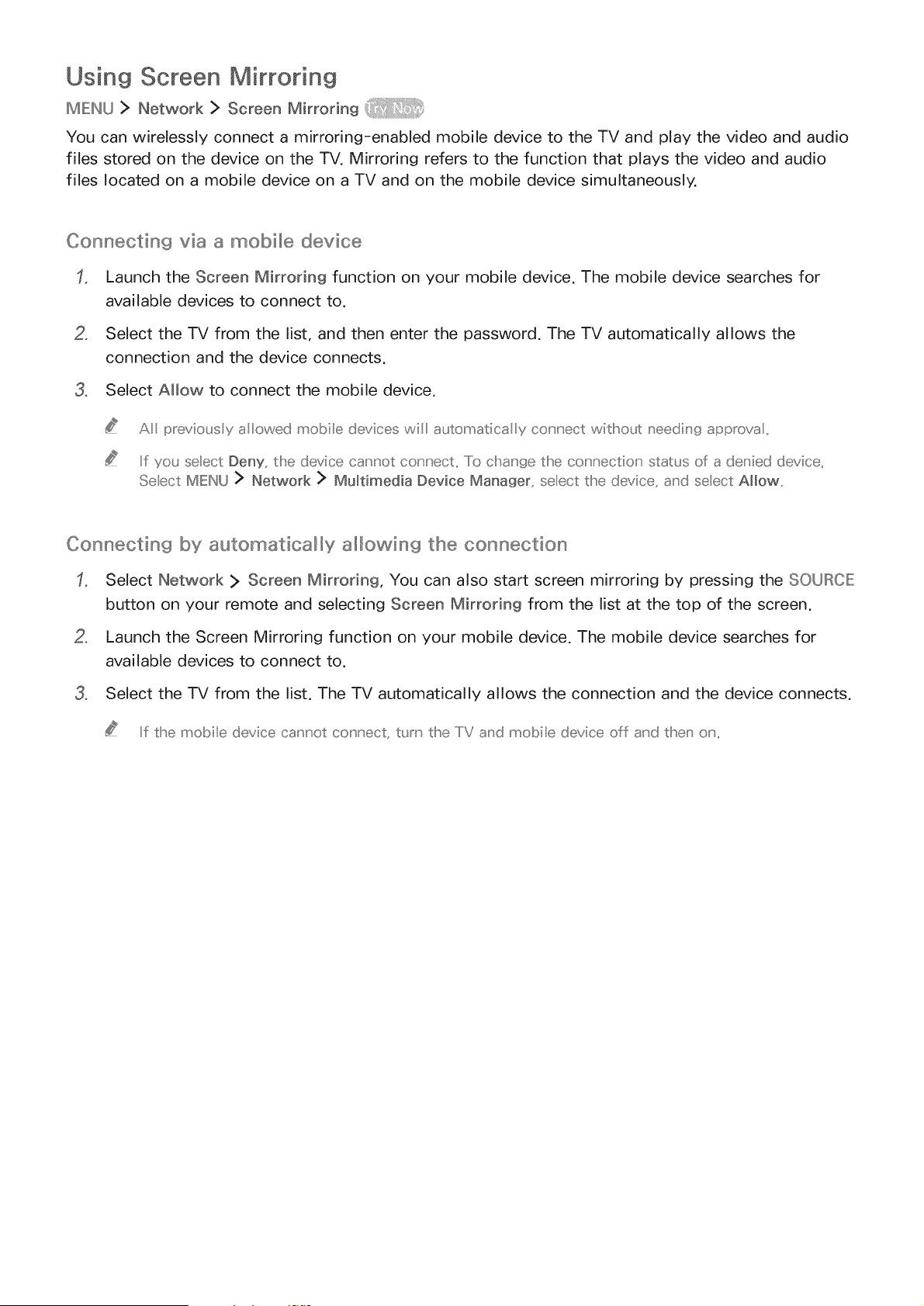
MIEINU> Network > Screen Mirroring
You can wirelessly connect a mirroring-enabled mobile device to the TV and play the video and audio
files stored on the device on the TV. Mirroring refers to the function that plays the video and audio
files located on a mobile device on a TV and on the mobile device simultaneously.
Connecting via a mobillie device
Launch the Screen Mirroring function on your mobile device. The mobile device searches for
available devices to connect to.
2, Select the TV from the list, and then enter the password. The TV automatically allows the
connection and the device connects.
3, Select Allow to connect the mobile device.
A previous y a lowed mobile devices wil automatica y co_' ,' ect witllsout needing approva,
If you selec_ Deny, the (_evice cannot connecL To change the conrsection' status of a denie(S (Sevice,
Seect MENU > Network > Multimedia Device Manager, seect the device, a_'d seect Allow,
Connecting by automatically albwing the connection
Select Hetwork > Screen Mirroring, You can also start screen mirroring by pressing the SORJRClE
button on your remote and selecting Screen Mirroring from the list at the top of the screen.
2, Launch the Screen Mirroring function on your mobile device. The mobile device searches for
available devices to connect to.
3, Select the TV from the list. The TV automatically allows the connection and the device connects.
If the mobile device cal' i' ot col' I' ect, turn the TV al'd mobile device off al'd thel' el',
Connecting mobime devices without a wireless router (Wi-Fi Direct)
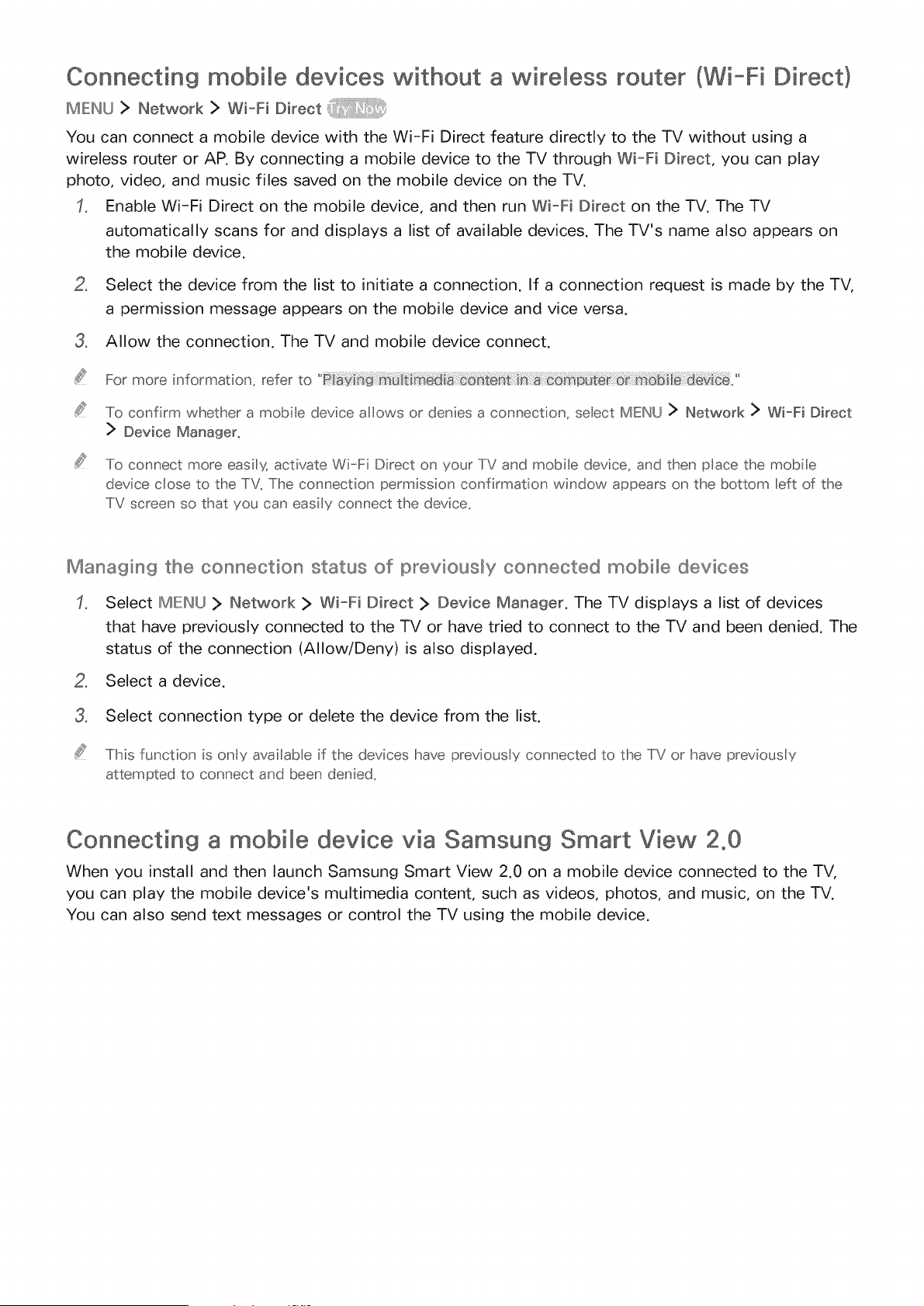
MENU > Network > Wi-Fi Direct
You can connect a mobile device with the Wi-Fi Direct feature directly to the TV without using a
wireless router or AP. By connecting a mobile device to the TV through Wi-Fi Direct, you can play
photo, video, and music files saved on the mobile device on the TV.
Enable Wi-Fi Direct on the mobile device, and then run Wi_Fi Direct on the TV. The TV
automatically scans for and displays a list of available devices. The TV's name also appears on
the mobile device.
o
Select the device from the list to initiate a connection. If a connection request is made by the TV,
a permission message appears on the mobile device and vice versa.
3, Allow the connection. The TV and mobile device connect.
For more information, refer to '
To confirm whether a mobile device alows or denies a connection, seect MENU > Network ]> Wi-Fi Direct
> Device Manager.
To connect more easiy activate Wi-Fi Direct on your TV and mobile device, and then pace the mobile
device close to the TV. The connection permission confirmation window appears on the bottom left of the
TV screen so that you can easily connect the device.
Mana9in9 the connection status of Iprevi©us_y connected mobile devices
Select MIENU :> Network > Wi-Fi Direct > Device Manager. The TV displays a list of devices
that have previously connected to the TV or have tried to connect to the TV and been denied. The
status of the connection (Allow/Deny) is also displayed.
2, Select a device.
3, Select connection type or delete the device from the list.
This function is only avai abb if the devices have previous y connected to the TV or have previous y
attempted to connect and been denied.
Connecting a mobime device via Samsung Smart View 2.0
When you install and then launch Samsung Smart View 2.0 on a mobile device connected to the TV,
you can play the mobile device's multimedia content, such as videos, photos, and music, on the TV.
You can also send text messages or control the TV using the mobile device.
Switching between externam devices connected to the
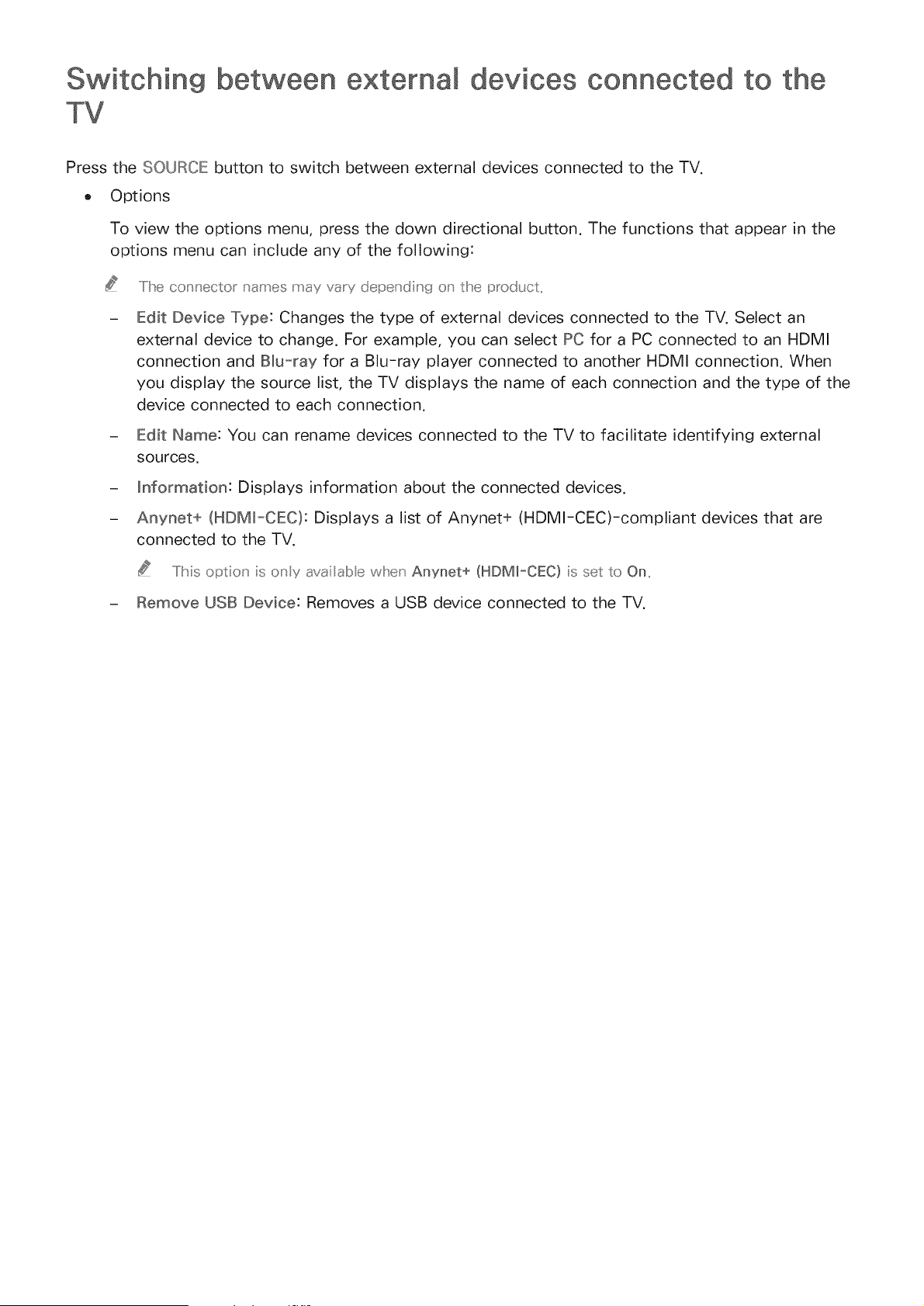
Press the SOUROIE button to switch between external devices connected to the TV.
o Options
To view the options menu, press the down directional button. The functions that appear in the
options menu can include any of the following:
.....Iihe connector names may va_y depending o_ the prodL ct,,
Edit Device Type: Changes the type of external devices connected to the TV. Select an
external device to change. For example, you can select PC for a PC connected to an HDMI
connection and BNu-ray for a Blu-ray player connected to another HDMI connection. When
you display the source list, the TV displays the name of each connection and the type of the
device connected to each connection.
Edit Name: You can rename devices connected to the TV to facilitate identifying external
sources.
information: Displays information about the connected devices.
Anynet+ (HDMI-CEC): Displays a list of Anynet+ (HDMl-CEC)-compliant devices that are
connected to the TV.
.....IIMs option s orsy ava abe when Anynet+ (HDM[_CEC) s set to On,,
- Remove USB Device: Removes a USB device connected to the TV.
Connection Notes
The number of connectors and their names and locations may vary depending on the modet,
Refer to the external device's operating manuat when connecting it to the TV. The number of external device
connectors and their names and locations may vary depending on the manufacturer_
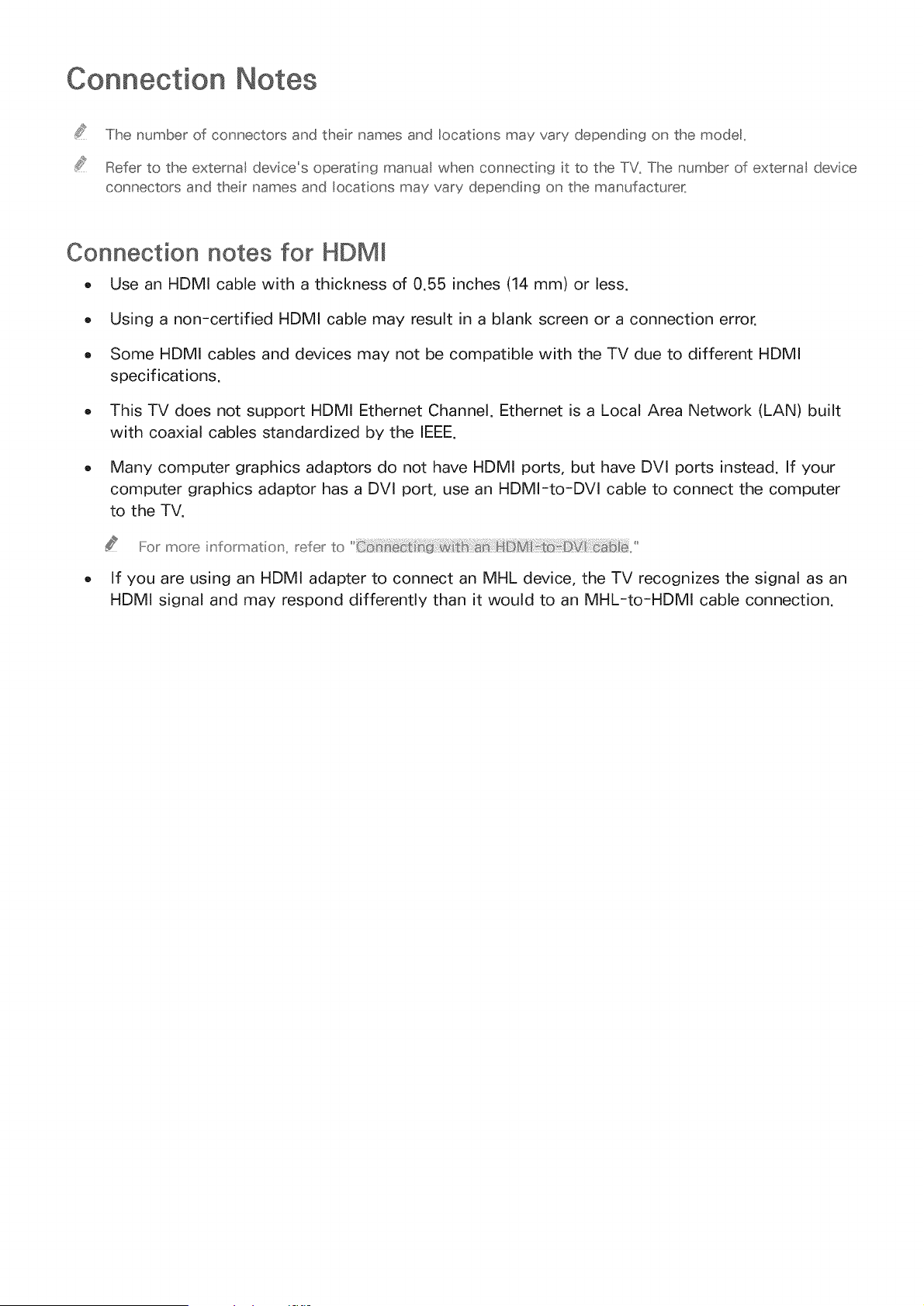
Connection notes for HDMI
o Use an HDMI cable with a thickness of 0.55 inches (14 mm) or less.
o Using a non-certified HDMI cable may result in a blank screen or a connection error.
Some HDMI cables and devices may not be compatible with the TV due to different HDMI
specifications.
This TV does not support HDMI Ethernet Channel. Ethernet is a Local Area Network (LAN) built
with coaxial cables standardized by the IEEE.
o Many computer graphics adaptors do not have HDMI ports, but have DVl ports instead. If your
computer graphics adaptor has a DVl port, use an HDMI-to-DVl cable to connect the computer
to the TV.
I_or more information_ refer to ICQ__ _ _:_ _ : _ _ _ _
If you are using an HDMI adapter to connect an MHL device, the TV recognizes the signal as an
HDMI signal and may respond differently than it would to an MHL-to-HDMI cable connection.
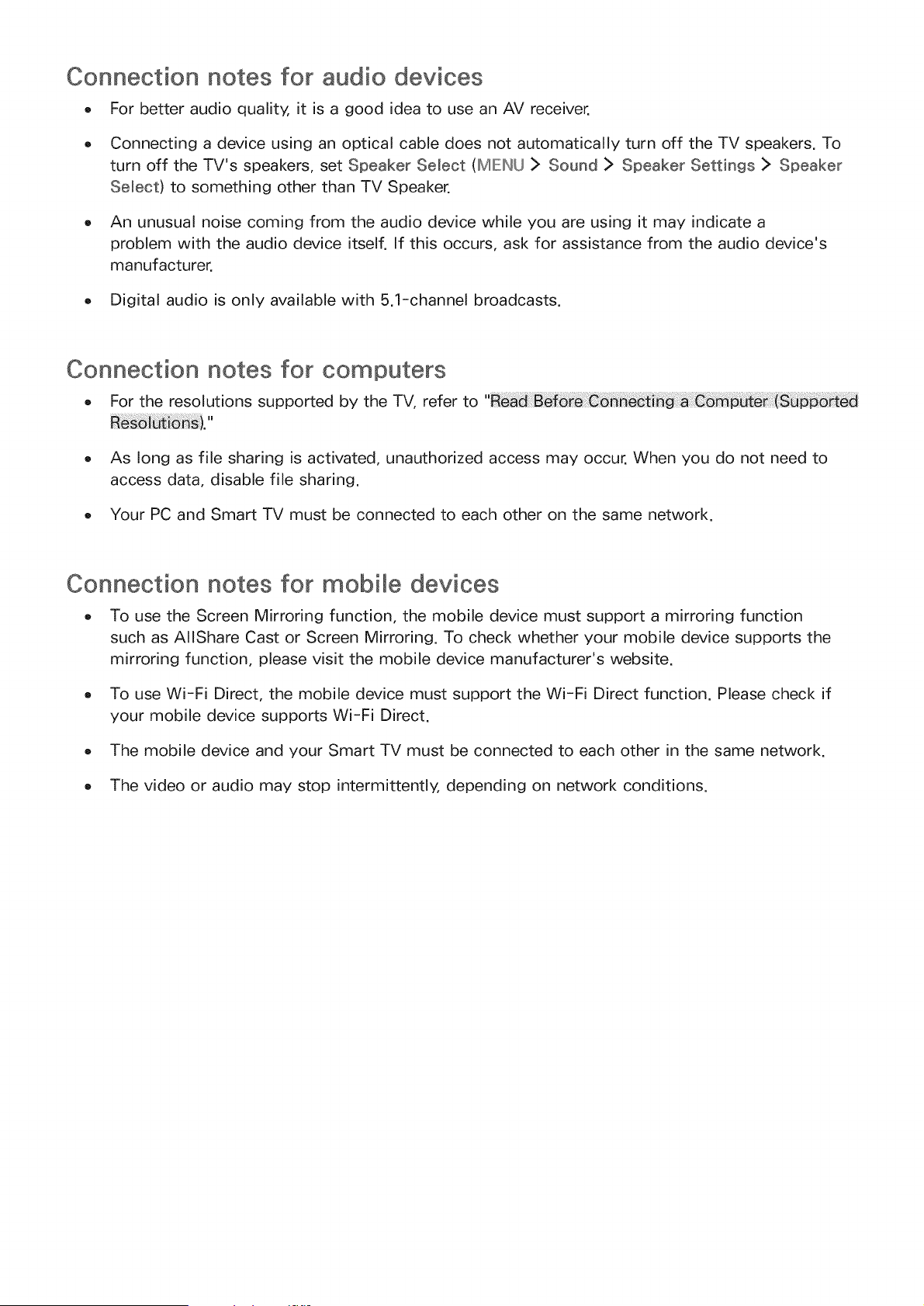
Connection notes for audio devices
For better audio quality, it is a good idea to use an AV receiver.
0
0
Connecting a device using an optical cable does not automatically turn off the TV speakers. To
turn off the TV's speakers, set Speaker Select (IMIEINU> Sound > Speaker Settings > Speaker
Select) to something other than TV Speaker.
o An unusual noise coming from the audio device while you are using it may indicate a
problem with the audio device itself. If this occurs, ask for assistance from the audio device's
manufacturer.
o Digital audio is only available with 5.1-channel broadcasts.
Connection notes for computers
o For the resolutions supported by the TV, refer to
As long as file sharing is activated, unauthorized access may occur. When you do not need to
access data, disable file sharing.
Your PC and Smart TV must be connected to each other on the same network.
Connection notes for mobile devices
o To use the Screen Mirroring function, the mobile device must support a mirroring function
such as AIIShare Cast or Screen Mirroring. To check whether your mobile device supports the
mirroring function, please visit the mobile device manufacturer's website.
o To use Wi-Fi Direct, the mobile device must support the Wi-Fi Direct function. Please check if
your mobile device supports Wi-Fi Direct.
o The mobile device and your Smart TV must be connected to each other in the same network.
o The video or audio may stop intermittently, depending on network conditions.
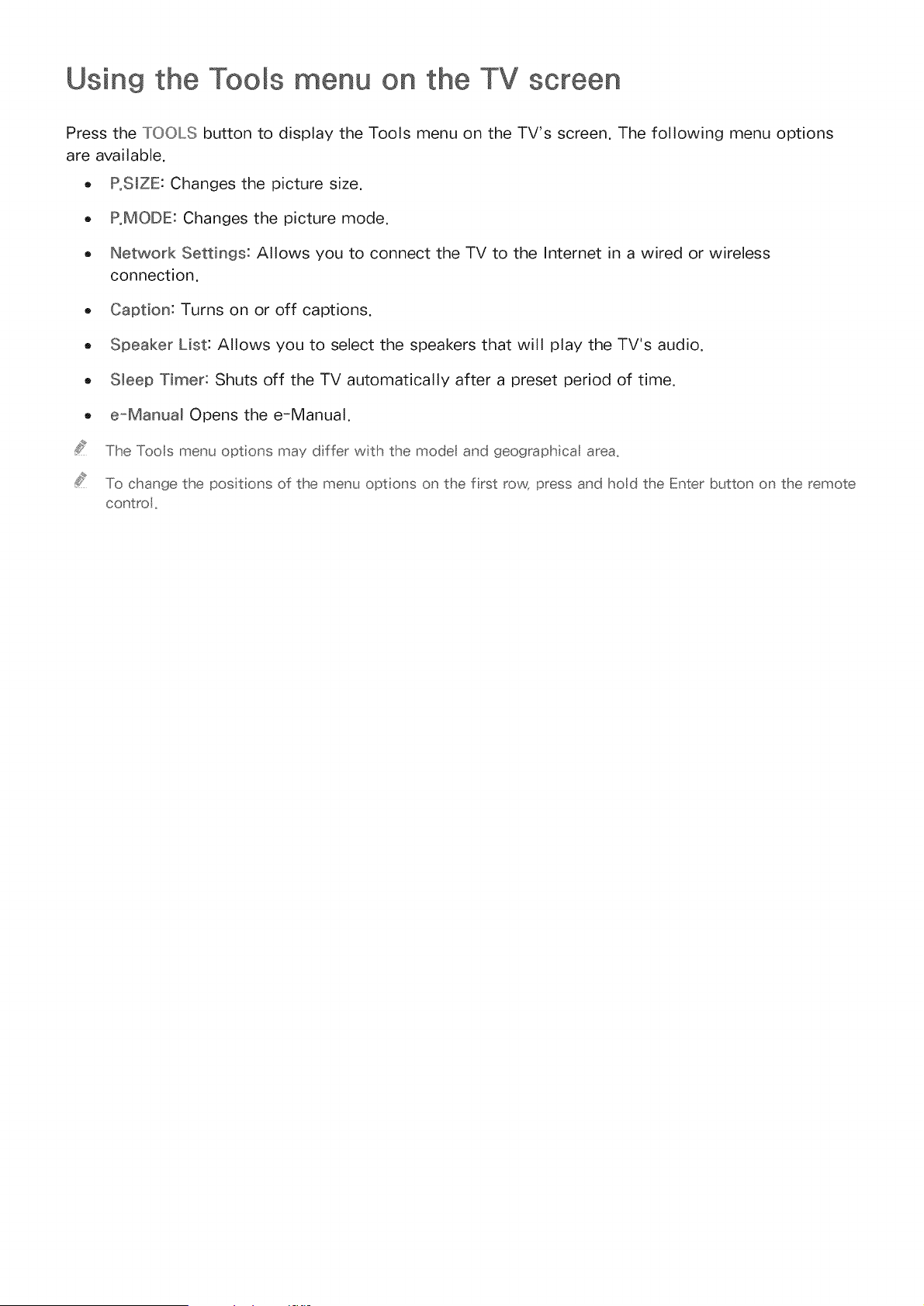
Using the Tooms on the TV screen
Press the TOOLS button to display the Tools menu on the TV's screen. The following menu options
are available.
o PoS_ZE: Changes the picture size.
PoMODE: Changes the picture mode.
Network Settings: Allows you to connect the TV to the Internet in a wired or wireless
connection.
Caption: Turns on or off captions.
Speaker List: Allows you to select the speakers that will play the TV's audio.
S_eep Timer: Shuts off the TV automatically after a preset period of time.
e-Manual Opens the e-Manual.
The Toos menu opt ons may dffer with the mode and geograph cal area,
To change the posit ons of the menu opt ons on the frst row, press and hod the Enter button on the remote
contro,
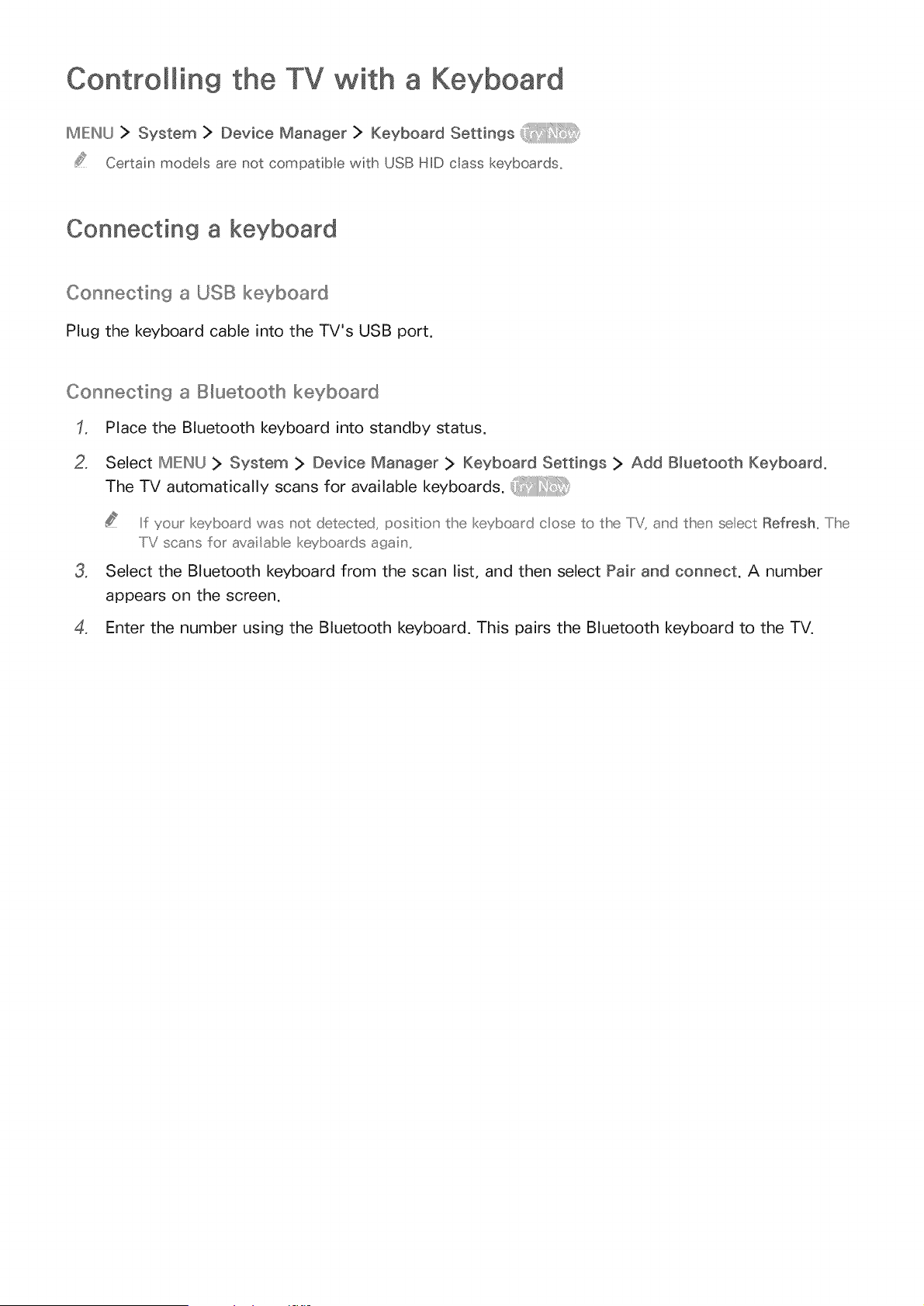
Contro Min9 the TV with a Keyboard
MENU } System } Device Manager } Keyboard Settings
Certain models are not compatib e with USB HiD class keyboards_
Connecting a keyboard
Connectin9 a USB keyboard
Plug the keyboard cable into the TV's USB port,
Connectin9 a B_uetooth keyboard
Place the Bluetooth keyboard into standby status.
2, Select MIEINU> System > Device Manager > Keyboard Settings > Add Bluetooth Keyboard.
The TV automatically scans for available keyboards.
If you_ keyboard was not detected, position' the keyboard cose to the TV, and then select Refresh,, The
..../V sca_'s for availab e keyboards agaiu' ,,
3, Select the Bluetooth keyboard from the scan list, and then select Pair and connect. A number
appears on the screen.
4, Enter the number using the Bluetooth keyboard. This pairs the Bluetooth keyboard to the TV.
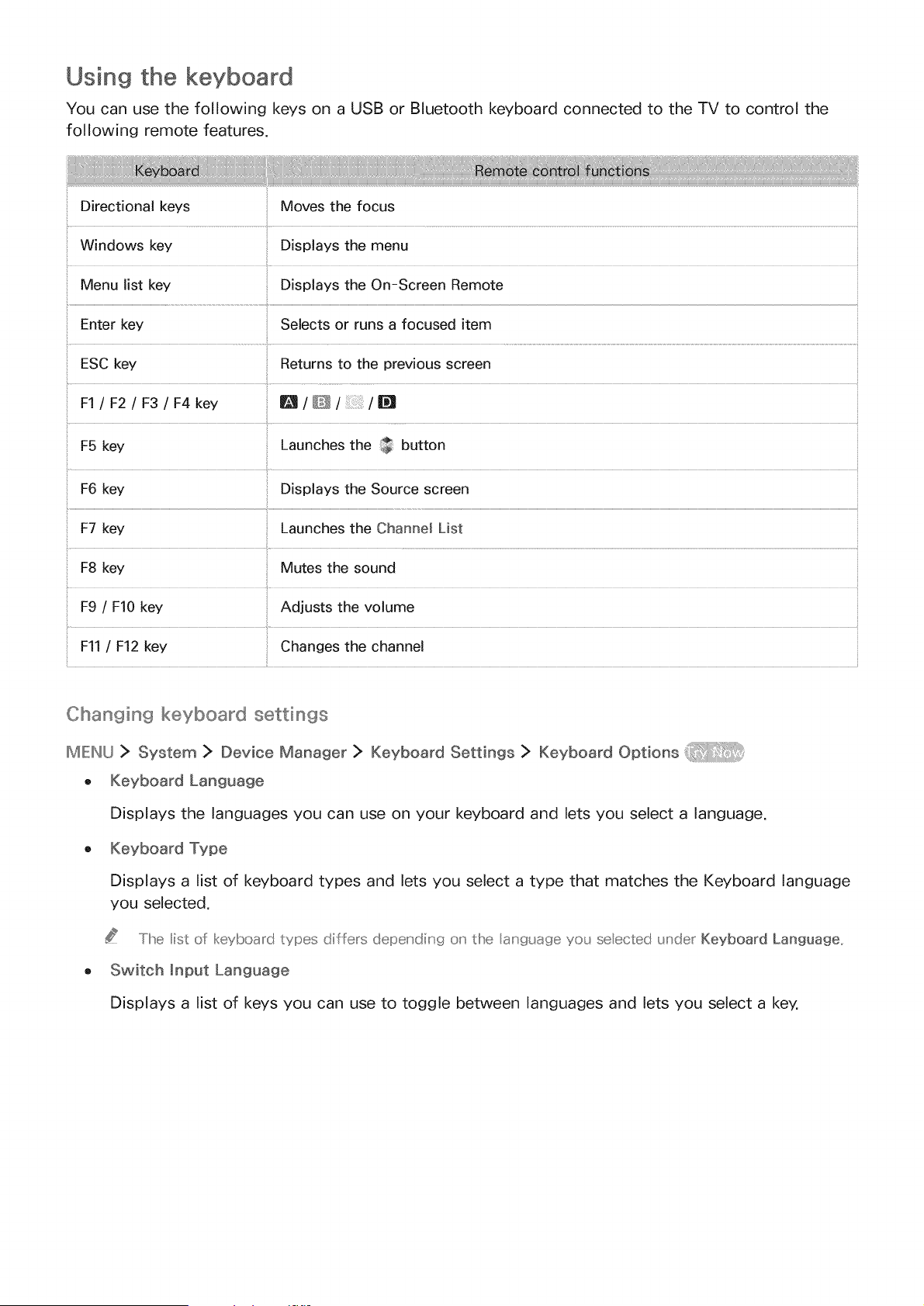
Using the keyboard
You can use the following keys on a USB or Bluetooth keyboard connected to the TV to control the
following remote features,
Changing keyboard settings
MIEINU> System > Device Manager > Keyboard Settings > Keyboard Options _
, Keyboard Language
Displays the languages you can use on your keyboard and lets you select a language.
, Keyboard Type
Displays a list of keyboard types and lets you select a type that matches the Keyboard language
you selected.
The ist of keyboa_d types differs depeu'diu'g o_'the anguage yo_Jseected _JnderKeyboard Language..
,, Switch input Language
Displays a list of keys you can use to toggle between languages and lets you select a key.
ControJMing the TV with a
MIE:W_U> System > Device Manager > Mouse Settings
Certain models are not compatib e with USB HiD cass mice_
Connecting a mouse
Connecting a USB mouse
Plug the mouse cable into the TV's USB port.
Connecting a B_uetooth mouse
Place the Bluetooth mouse in standby status.
2. IMIEINU> System > Device Manager > Mouse Settings > Add Bluetooth Mouse
3o Select the Bluetooth mouse from the scanned list, and then select Pair and connect. This pairs
the Bluetooth mouse to the TV.
Using a mouse
You can use a pointer to control the TV in the same way you use a pointer on a computer.
e Selecting and running an item
Left-click the mouse.
o Scrolling the TV menu or screen
Scroll the mouse wheel up or down.
o Exiting the TV menu or feature
Place the pointer in any blank point on the screen, and then left-click the mouse.
Changing mouse buttons and pointer speed
MIENLJ :> System > Device Manager > Mouse Settings > Mouse Options
o Primary Button
Select which button (left or right) to use when selecting and running items.
o Pointer Speed
Adjust the movement speed of the pointer.
Entering Text using the QWERTY Keyboard
Using additionam functions
Select _ on the QWERTY keyboard screen. The following options are available:
o Recommended text
Enables or disables the recommended text feature. The keyboard displays recommended words
so that you can enter the text more easily.
o Reset recommended text data
Deletes both the recommended words and the memorized words to clear the list.
o Predict Next Character (when using direction buttons)
Enables or disables the Text Prediction feature.
O
Select a language from the list.
Smart Hub
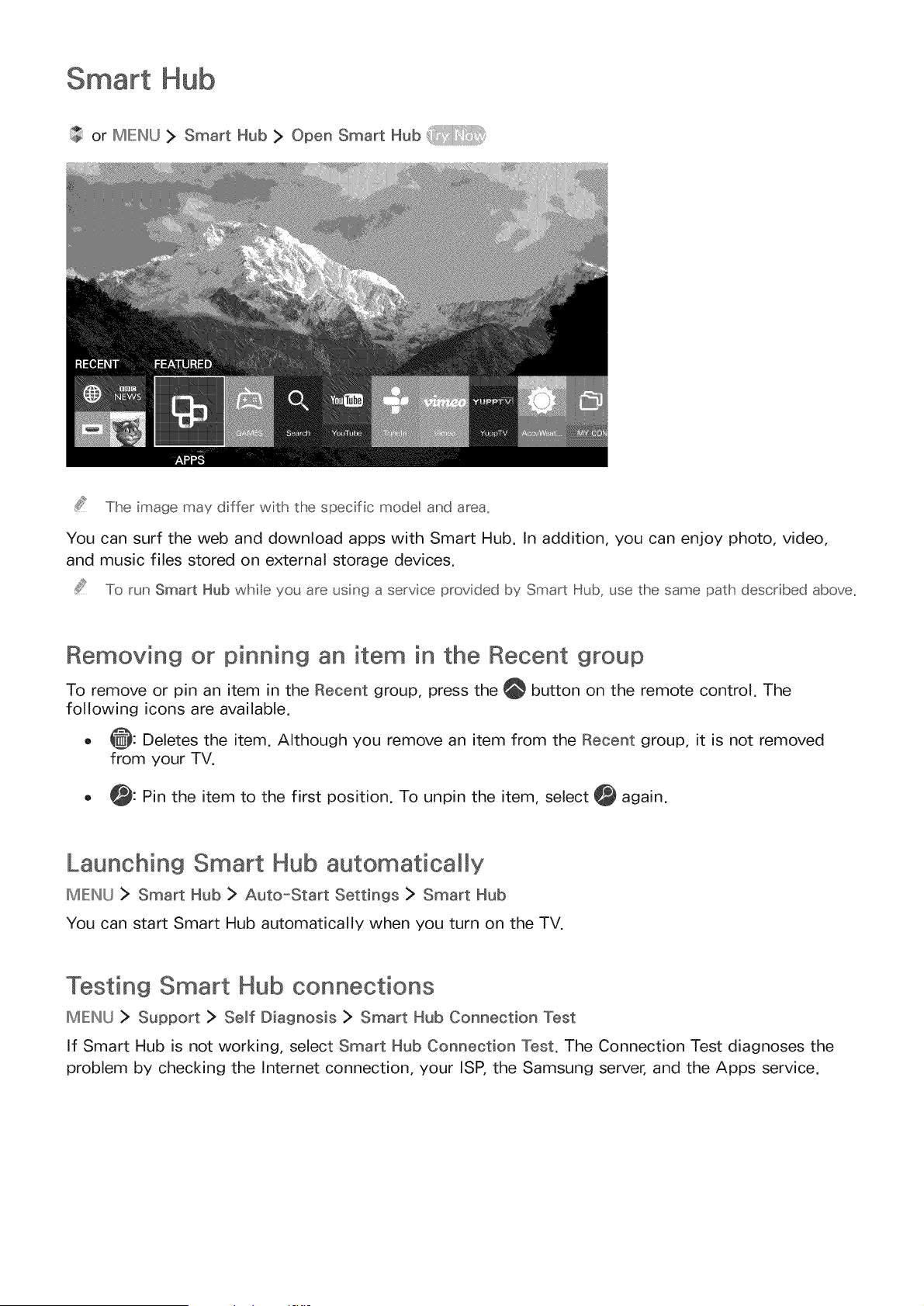
or IMIEINU> Smart Hub > Open Smart Hub
The image may differ with the specific mode[ and area.
You can surf the web and download apps with Smart Hub. In addition, you can enjoy photo, video,
and music files stored on external storage devices.
To run Smart Hub while you are using a service provided by Smart Hub, use the same path described above_
Removing or pinning an item in the Recent group
To remove or pin an item in the Recent group, press the _ button on the remote control. The
following icons are available.
o O: Deletes the item. Although you remove an item from the Recent group, it is not removed
from your TV.
o _: Pin the item to the first position. To unpin the item, select _ again.
Launching Smart Hub automadca[ly
IMIEINU> Smart Hub > Auto=Start Settings > Smart Hub
You can start Smart Hub automatically when you turn on the TV.
Testing Smart Hub connections
IMIEINU> Support > Self Diagnosis > Smart Hub Connection Test
If Smart Hub is not working, select Smart Hub Connection Test. The Connection Test diagnoses the
problem by checking the Internet connection, your ISP, the Samsung server, and the Apps service.
Using the Smart Hub tutodal
IMIEINU > Support > Smart Hub Tutorial
You can learn the basics of using Smart Hub and the Smart Hub service in detail.
Resetting Smart Hub
II_lk-:ll_kJ> Smart Hub > Reset Smart Hub
You can remove the Samsung accounts saved in the TV and everything linked to them, including apps.
Some of the Smart Hub services are for paid services. To use a for paid service, you must have an account
with the service provider or a Samsung account. For more information, refer to
To use Smart Hub, the TV must be connected to the Intemet.
Some Smart Hub features may not be avai abe depending on the service provider, language, or region.
Smart Hub service outages can be caused by disruptions in your Internet service.
To use Smart Hub, you must agree to the end user agreement and privacy policy. Otherwise, you will not be
able to access the features and services associated with them. You can view the entire text of the Terms &
Policy document by navigating to Smart Hub ]> Terms & Policy_ If you want to stop using Smart Hub, you
cancance theagreement
To view the Smart Hub Tutorial, seect the @ button on the Recent screen.
Using Smart Hub with a Samsun9 Account
Creating a Samsung account
IMIEINU> Smart Hub > Samsung Account
Some of the Smart Hub services are for paid services. To use a for paid service, you must have an
account with the service provider or a Samsung account.
You can create a Samsung account using your email address as your ID.
To create a Samsung account, you must agree to the Samsung account end user agreement and privacy
policy: To view the entire content of the agreement, seect MENU > Smart Hub > Samsung Account >
Terms and Conditions, Privacy Policy_
You can aso create a Samsung account at http://content.samsung_com_ Once you have an account, you can
use the same ID on both the TV and the Samsung website_
Creating a Samsung account
IMIEINU> Smart Hub > Samsung Account > Create Account > Create Samsung Account
You can create a Samsung account by following the on-screen instructions. Once a Samsung account
is created, you are automatically signed in to your Samsung account.
if you want to review the Terms and Conditions, select View Details.
If you want your account to be protected, seect Profile image selection and password entry (High security}
in the field below the password field,
If you want the TV to log you in to your account automaticaI y when you turn the TV on, cick Sign me in
automaticaHy_
Creating a Samsung account using a Facebook account
IMIEINU> Smart Hub > Samsung Account > Create Samsung Account with Facebook
Enter your Facebook ID and password, and then follow the on-screen instructions to complete account
setup. Once a Samsung account is created, you are automatically signed in to your Samsung account.
Your Samsung account and Facebook account are automatical y linked when you create a Samsung account
with your Facebook account,
Signing in to a Samsung account
IMIEINU> Smart Hub > Samsung Account > Sign Jn
You can automatically sign in to your Samsung account and use the Smart Hub feature.
Registering an existing Samsung account to the "IV
If you already have a Samsung account, you can register that account to the TV. Select + > Sign Jnon
the Samsung account screen, and then follow the on-screen instructions.
Signing in to a registered Samsung account saved on the "IV
If you register a Samsung account, it is saved on the TV. To sign in to a registered Samsung account,
just select it on the TV.
To change the sign in method, refer to
Linking your Samsung account to external service accounts
You can automatically Jog in to external service accounts when you Jog into your Samsung account by
linking your Samsung account to the external service accounts.
To use Link Service Accounts, you must first log into your Samsung account,
Linking or disconnecting a service account
IMIEINLJ> Smart Hub > Samsung Account > Link Service Accounts
o Linking a service account
Select an account from the list and log in to the account by following the on-screen instructions.
The service account is linked to the Samsung account.
o Disconnecting a Jinked account
Select an account from the list and unJink the account by following the on-screen instructions.
Changing and adding information to a Samsung account
IMIEINU> Smart Hub > Samsun9 Account > Edit Profile
You can manage your Samsung account. Enter your password with the keyboard displayed on the TV's
screen, and then select Done. You can perform the following functions on the screen.
To change the account information, you must be logged in to your Samsung account_
o Change Your Profile Image
o Register Your Face to your Samsung Account
Registered faces are used with the Login Options.
..../o use this flJnctio_', the optio_' a /V camera m_sstbe co_','ected to the dedicated USB port at the back
of the TV:,
- Select a Samsung Account sign-in method
o Turn auto Iogin on or off
o Enter Basic User Information
o Subscribe to the Samsung e-Newsletter
Deleting a Samsun9 account from the TV
IMIEINU> Smart Hub > Samsun9 Account > Remove Accounts from TV
You can remove a Samsung account and password information from your TV. The account information
for any external accounts linked to the account is also removed from the TV.
To remove the account information, you must be logged in to your Samsung account_
Using the APPS Service
> Featured > APPS
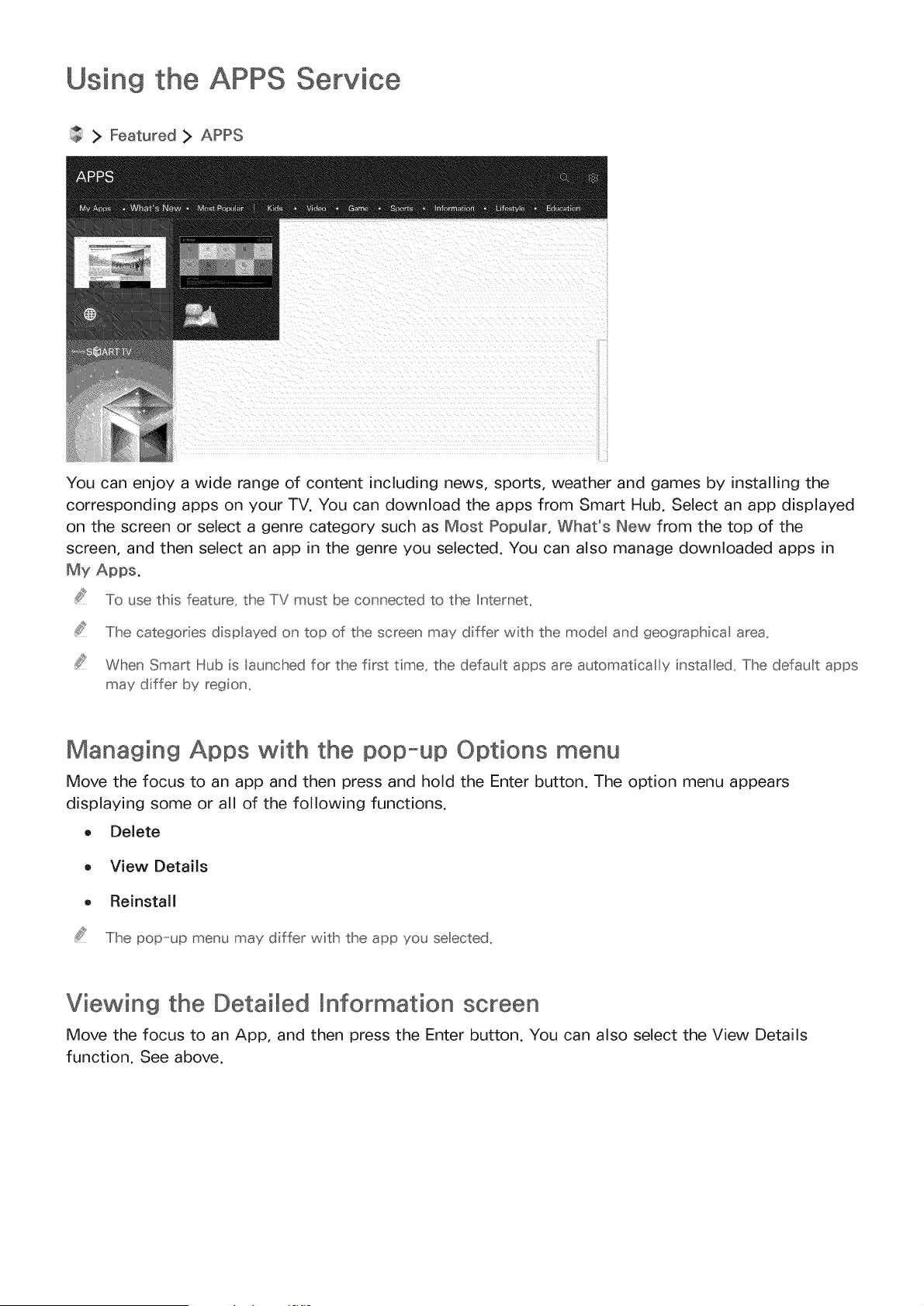
You can enjoy a wide range of content including news, sports, weather and games by installing the
corresponding apps on your TV. You can download the apps from Smart Hub. Select an app displayed
on the screen or select a genre category such as Most Popular, What's New from the top of the
screen, and then select an app in the genre you selected. You can also manage downloaded apps in
My Apps.
To use this feature, the TV must be connected to the Internet,
The categories displayed on top of the screen may differ with the model and geographical area,
When Smart Hub is launched for the first time, the default apps are automatical y insta ed, The default apps
may differ by region_
Managing Apps with the pop-up Options menu
Move the focus to an app and then press and hold the Enter button. The option menu appears
displaying some or all of the following functions.
o Delete
o View Details
o Reinstall
The pop-up menu may differ with the app you se ected,
Viewing the DetaiMed mnformation screen
Move the focus to an App, and then press the Enter button. You can also select the View Details
function. See above.
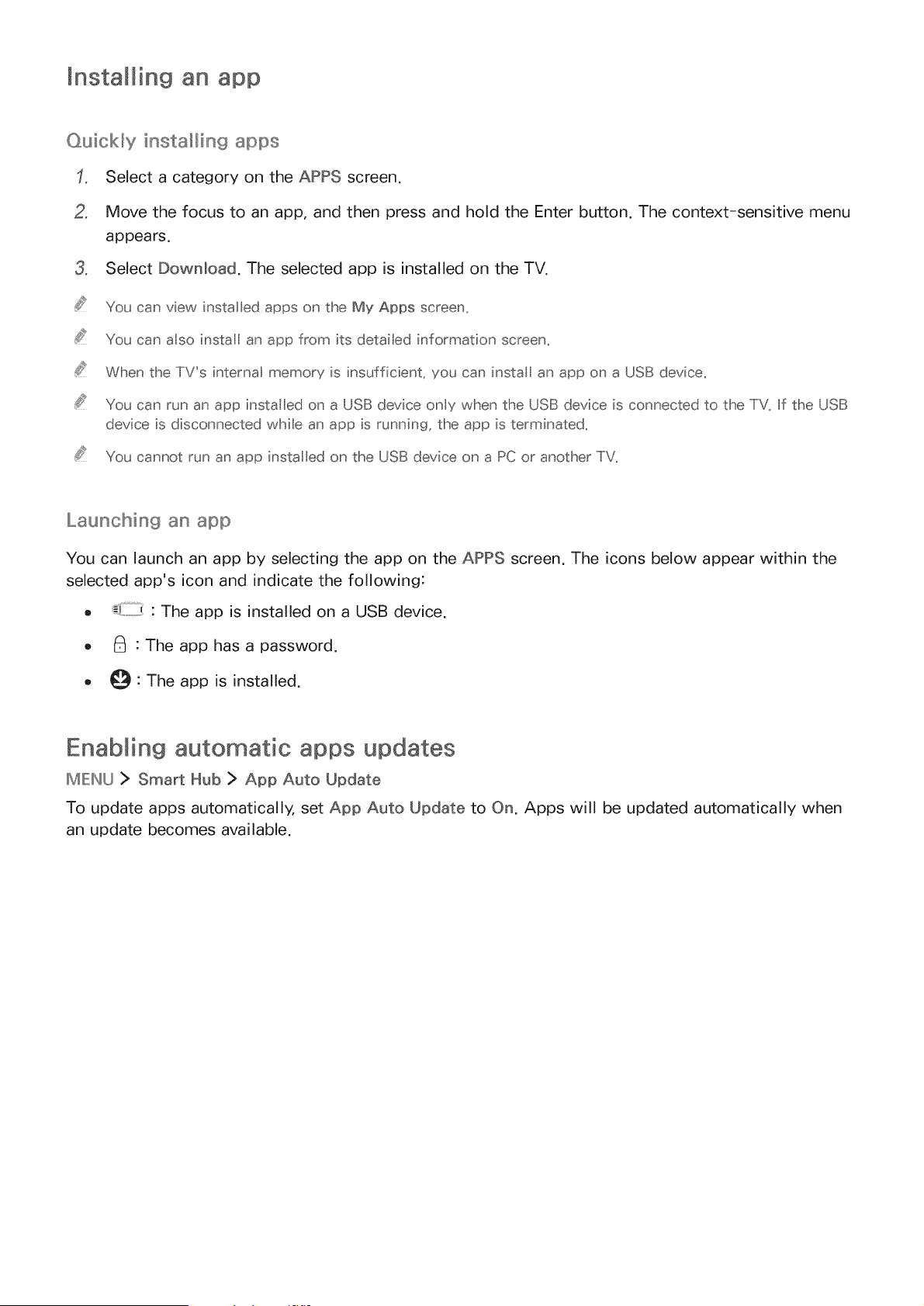
mnstalling an app
QuicMy insta_in9 apps
Select a category on the APPS screen.
2, Move the focus to an app, and then press and hold the Enter button. The context-sensitive menu
appears.
3, Select Download. The selected app is installed on the TV.
You can view installed apps on the My Apps screen_
You can aso instal an app from its detai ed information screen_
When the TV_s internal memory is insufficient_ you can instal an app on a USB device,
You can run an app insta led on a USB device only when the USB device is connected to the TV_If the USB
device is disconnected whib an app is running_ the app is terminated_
You cannot run an app insta ed on the USB device on a PC or another TV,
Launchin9 an app
You can launch an app by selecting the app on the APPS screen. The icons below appear within the
selected app's icon and indicate the following:
o : The app is installed on a USB device.
o _ : The app has a password.
o _ : The app is installed.
Enabling automatic apps updates
IMIEINU> Smart Hub > App Auto Update
To update apps automatically, set App Auto Update to On. Apps will be updated automatically when
an update becomes available.
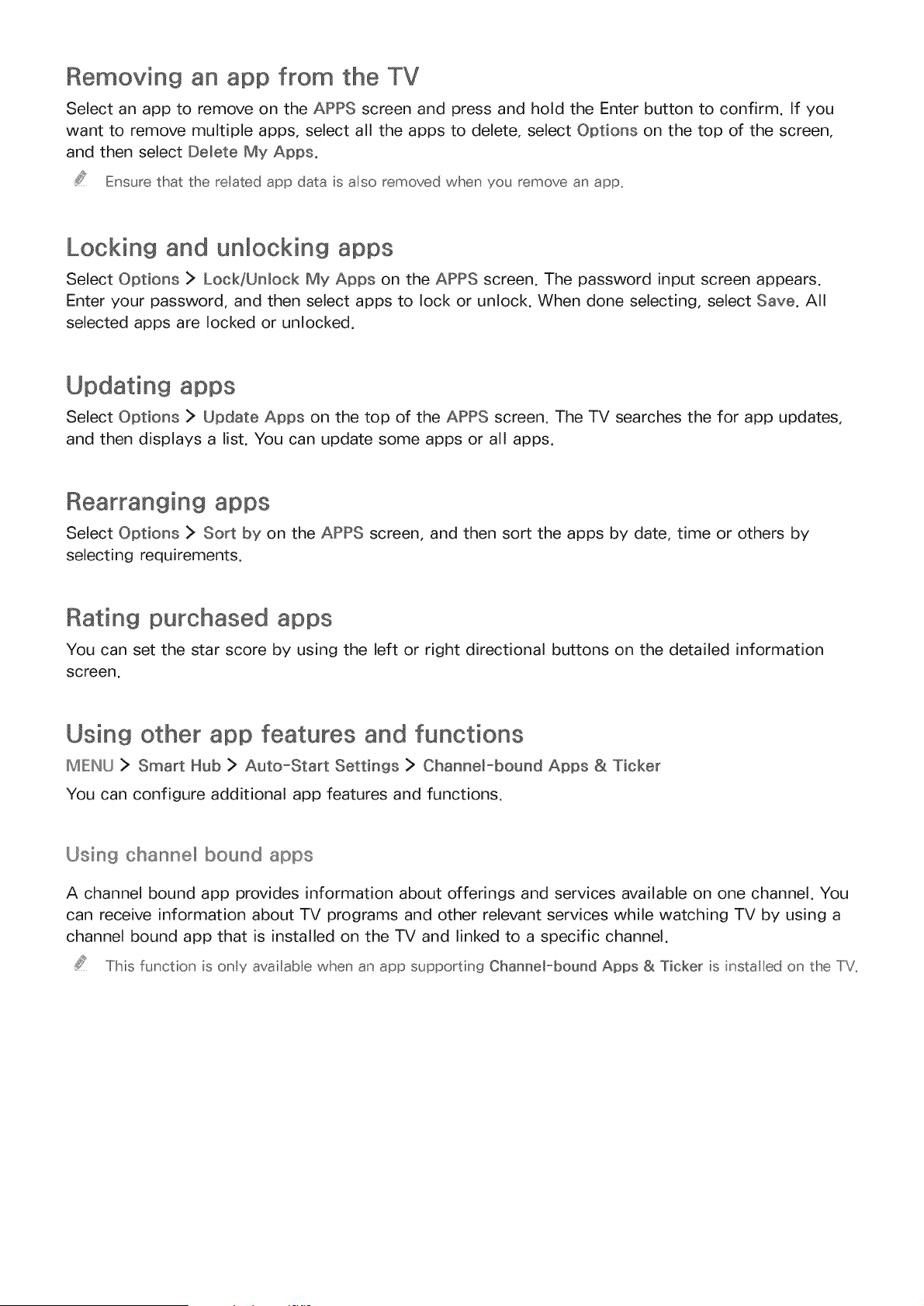
Removing an app from the TV
Select an app to remove on the APPS screen and press and hold the Enter button to confirm. If you
want to remove multiple apps, select all the apps to delete, select Options on the top of the screen,
and then select Delete My Apps.
Ensure that the related app data is also removed when you remove an app_
Locking and unlocking apps
Select Options > Lock/Unlock My Apps on the APPS screen. The password input screen appears.
Enter your password, and then select apps to lock or unlock. When done selecting, select Save. All
selected apps are locked or unlocked.
Updating apps
Select Options > Update Apps on the top of the APPS screen. The TV searches the for app updates,
and then displays a list. You can update some apps or all apps.
Rearranging apps
Select Options > Sort by on the APPS screen, and then sort the apps by date, time or others by
selecting requirements.
Rating purchased apps
You can set the star score by using the left or right directional buttons on the detailed information
screen.
Using other app features and functions
IMIEINU> Smart Hub > Auto-Start Settings > ChanneFbound Apps & Ticker
You can configure additional app features and functions.
Usin9 oham'sn÷l bound apps
A channel bound app provides information about offerings and services available on one channel. You
can receive information about TV programs and other relevant services while watching TV by using a
channel bound app that is installed on the TV and linked to a specific channel.
This function is only availab e when an app supporting Channel-bound Apps & Ticker is installed on the TV,
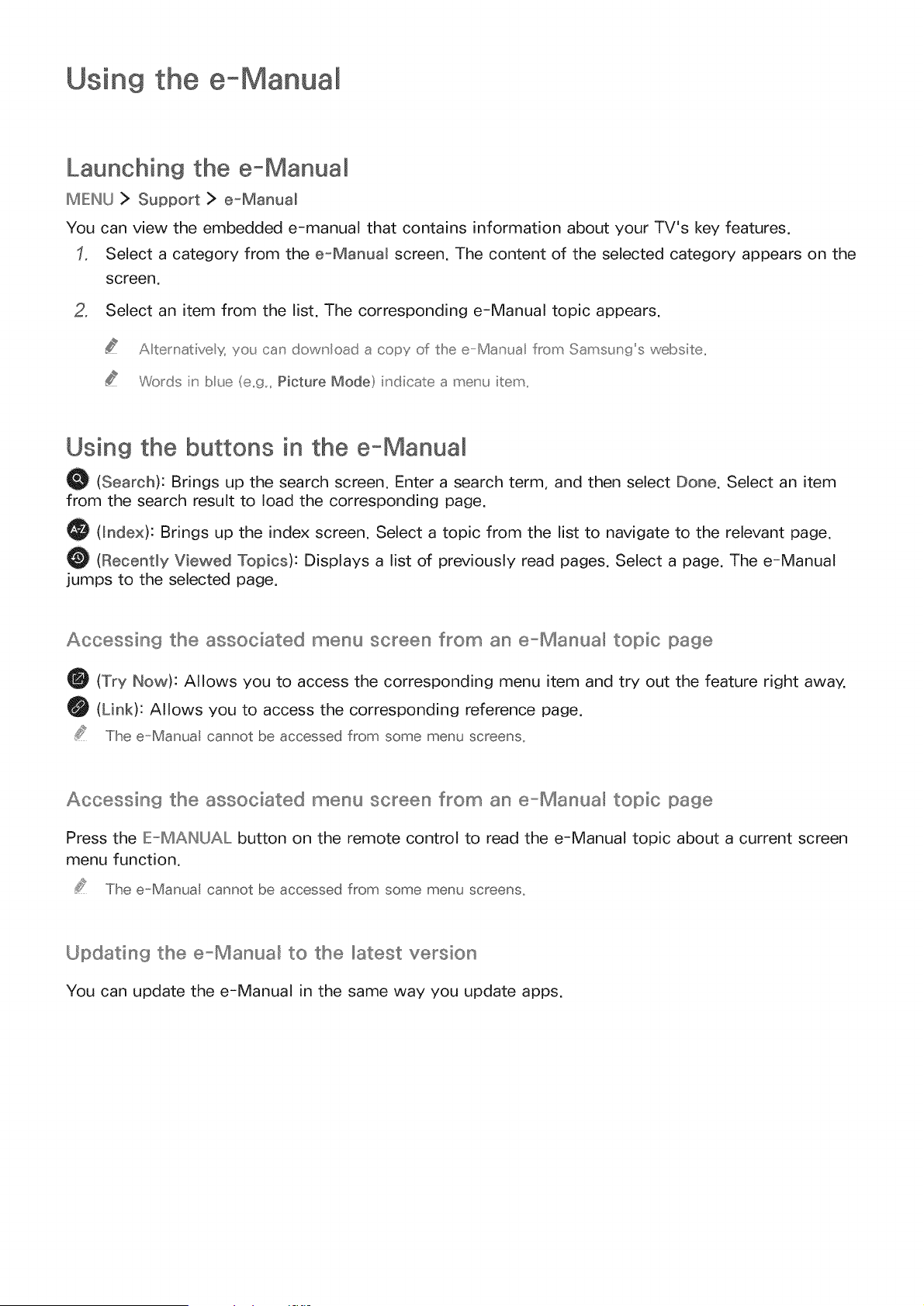
Using the e-Manua
Launching the e-Manual
MIEINLJ> Support > e=Manual
You can view the embedded e-manual that contains information about your TV's key features.
Select a category from the e=Manual screen. The content of the selected category appears on the
screen.
2, Select an item from the list. The corresponding e-Manual topic appears.
A temativex you ca_' download a copy of the e Man_a from Samsung's website,,
Words iu' bue (e,,9,,,Picture Mode} iu'dicate a meu'u item,,
Using the buttons in the e, Manual
O (Search): Brings up the search screen. Enter a search term, and then select Done. Select an item
from the search result to load the corresponding page.
O (_ndex): Brings up the index screen. Select a topic from the list to navigate to the relevant page.
O (Recently Viewed Topics): Displays a list of previously read pages. Select a page. The e-Manual
jumps to the selected page.
Accessin9 the associated menu screen f_om an e_Manua_ topic page
(Try How): Allows you to access the corresponding menu item and try out the feature right away.
(Link): Allows you to access the corresponding reference page.
The e-Manua cannot be accessed f_'om some menu sc_'eens.
Accessin9 the associated menu screen f_om an e_Manua_ topic page
Press the IE_MAIN(JAL button on the remote control to read the e-Manual topic about a current screen
menu function.
The e-Manua cannot be accessed f_'om some menu sc_'eens.
Updatin9 the e_Manua_ to the latest version
You can update the e-Manual in the same way you update apps.
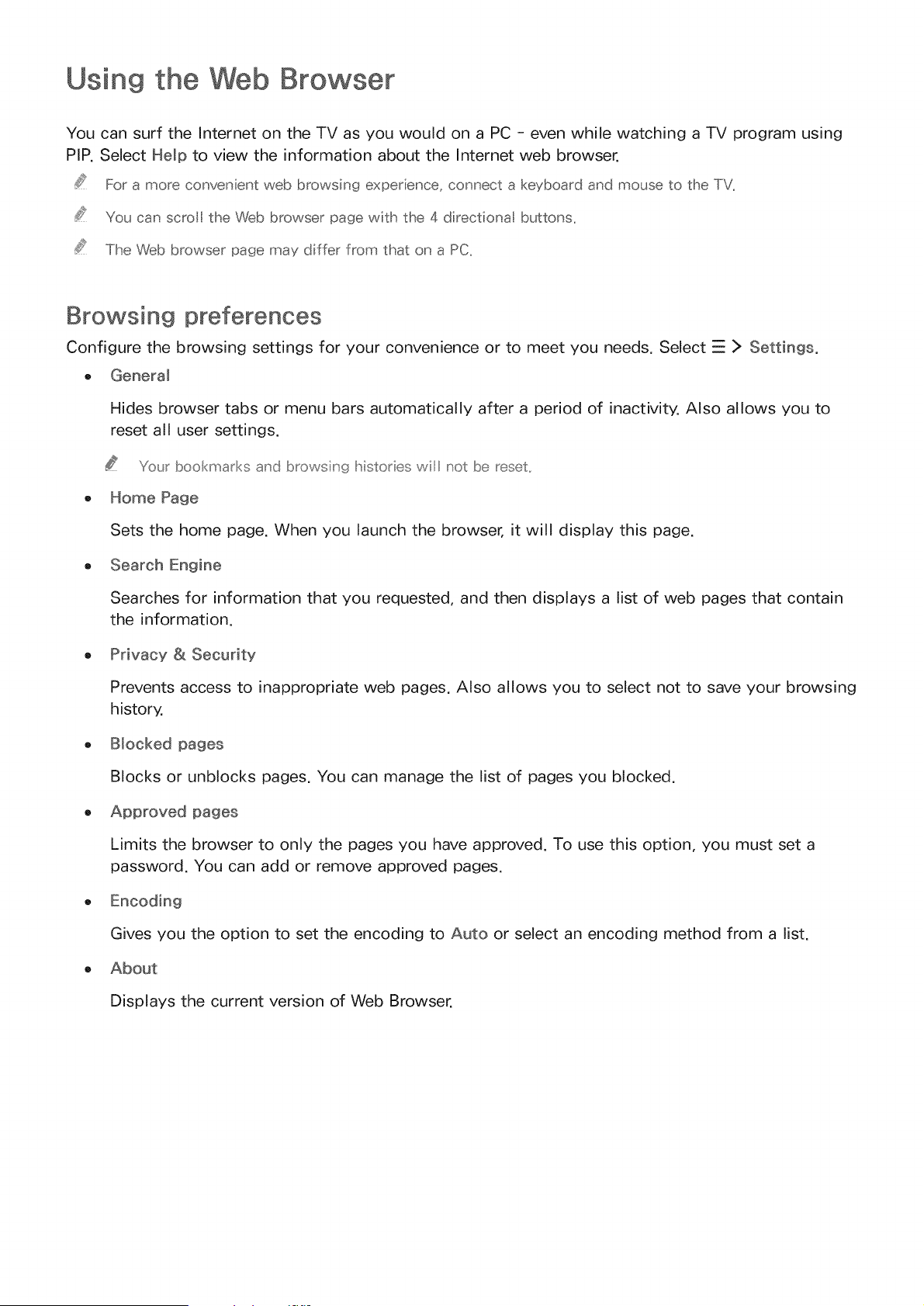
Using the Web Browser
You can surf the Internet on the TV as you would on a PC - even while watching a TV program using
PIP. Select Help to view the information about the Internet web browser.
For a more convenient web browsing experience, connect a keyboard and mouse to the TV.
You can scrol the Web browser page with the 4 directiona buttons,
The Web browser page may differ from that on a PC,
Browsing preferences
Configure the browsing settings for your convenience or to meet you needs. Select _ > Settings.
o General
Hides browser tabs or menu bars automatically after a period of inactivity. Also allows you to
reset all user settings.
Y_',urbookmarks a_'d browsiu'_ histories wil not be reset.
o Home Page
Sets the home page. When you launch the browser, it will display this page.
o Search Engine
Searches for information that you requested, and then displays a list of web pages that contain
the information.
o Privacy & Security
Prevents access to inappropriate web pages. Also allows you to select not to save your browsing
history.
o Blocked pages
Blocks or unblocks pages. You can manage the list of pages you blocked.
o Approved pages
Limits the browser to only the pages you have approved. To use this option, you must set a
password. You can add or remove approved pages.
Gives you the option to set the encoding to Auto or select an encoding method from a list.
About
Displays the current version of Web Browser.
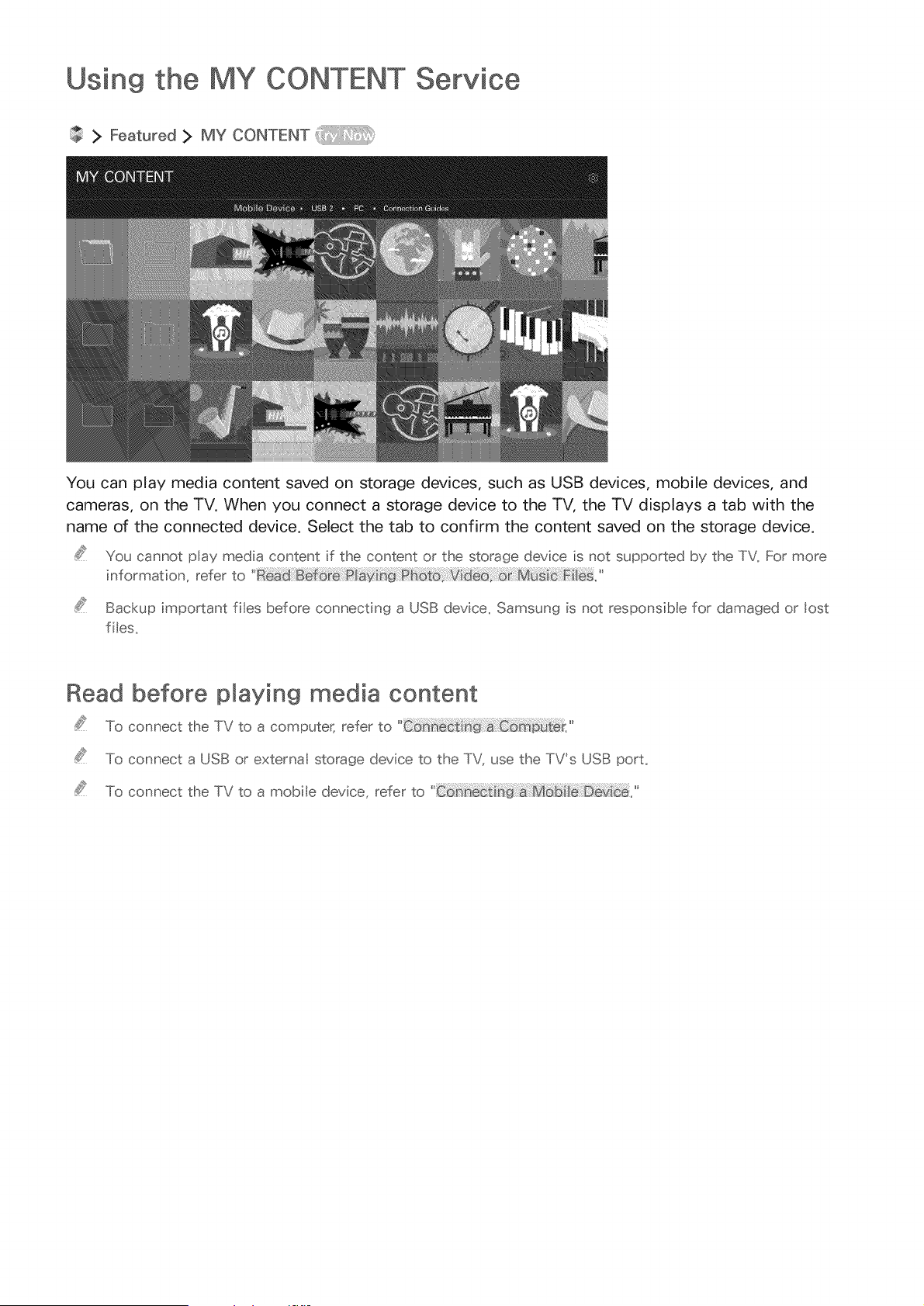
Using the MY CONTENT Service
:> Featured > MY CONTENT
You can play media content saved on storage devices, such as USB devices, mobile devices, and
cameras, on the TV. When you connect a storage device to the TV, the TV displays a tab with the
name of the connected device. Select the tab to confirm the content saved on the storage device.
You cannot play media content if the content or the storage device is not supported by the TV. For more
information, refer to
Backup important ties before connecting a USB device, Samsung is not responsible for damaged or lost
lies,
Read before playing media content
To connect the TV to a computer, refer to
To connect a USB or external storage device to the TV, use the TV's USB port.
To connect the TV to a mobie device, refer to
Playing multimedia content in a computer or mobile device
Before connecting to a computer or mobie device, configure the network settings_
Playin9 multimedia content save_ on a computer or mobile _evice
> Featured > MY CONTENT
To play multimedia content located on a computer or mobile device on the TV, you must allow the
connection with the computer or mobile device on the TV.
Connect a computer or mobile device. The TV displays the device's name and lists the media files
in the device.
2. Select a media file to play from the list. The selected media plays.
3. Select the @ button to stop playing or press the I[o_ETURNbutton.
A ternativelg move to the media content you want to pla'_ and then press the _ button to play the content,
To connect a computer through your home network, refer to
The TV may not play content located on a computer or mobile device depending on the encoding type and
fie format of the content,
To connect a mobie device through Smart View 2_0, refer to
Content may not play smoothly depending on the network status_ If this occurs, transfer the content to a
USB storage device, and then play the content from the device,
Playing media content saved on a USB device
Select a USB device name on the MY CONTENT screen. The TV displays a thumbnail list of the
media content saved on the USB device.
o
&
Select the media content to play from the list. The media content plays.
Select the @ button to stop playing or press the RETURN button.
Alternative s¢ if you seect a USB device on the Source screen, the TV iumps to the MY CONTENT screen
automatical y_
Safely Removing a USB Device
Press the SOURCE button. The Source screen appears.
o Move the focus to the USB device you want to remove, and then press the down directional
button.
3o Select Remove USB Device in the list.
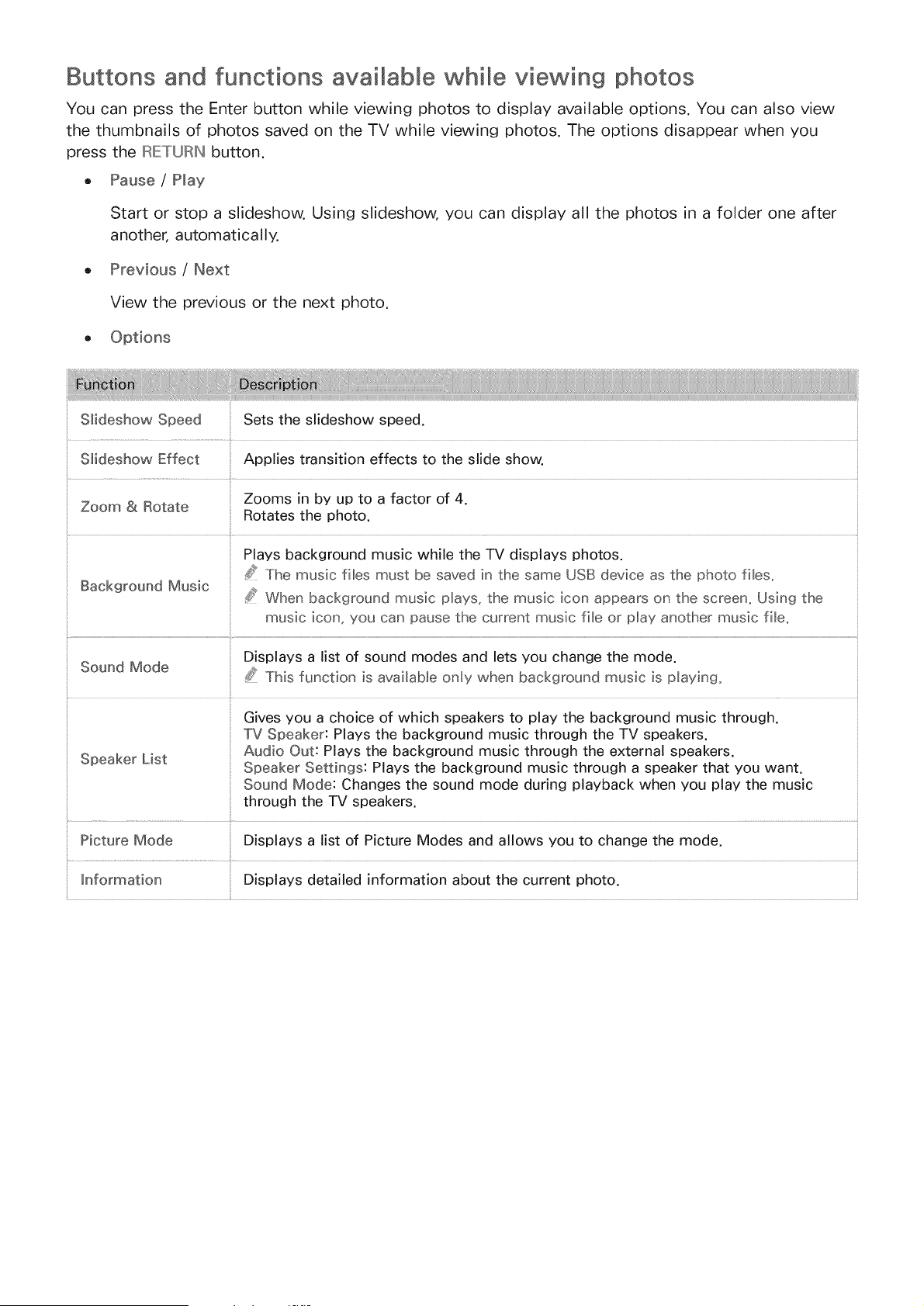
Buttons and functions available while viewing photos
You can press the Enter button while viewing photos to display available options. You can also view
the thumbnails of photos saved on the TV while viewing photos. The options disappear when you
oress the IRIETURIN button.
o Pause / Hay
Start or stop a slideshow. Using slideshow, you can display all the photos in a folder one after
another, automatically.
Previous / Next
View the previous or the next photo.
S_ideshow Speed Sets the slideshow speed.
S_ideshow Effect Applies transition effects to the slide show.
Zooms in by up to a factor of 4.
Zoom & Rotate
Rotates the photo.
Plays background music while the TV displays photos.
/_ The music fibs must be saved in the same USB device as the photo files.
Background Music _'s When background music plays, the music icon appears on the screen. Using the
music icon, you can pause the current music fib or play another music fib.
Displays a list of sound modes and lets you change the mode.
Sound Mode S? This function is avai_aMe only when background music is p_aying,
Gives you a choice of which speakers to play the background music through.
TV Speaker: Plays the background music through the TV speakers.
Audio Out: Plays the background music through the external speakers.
Speaker List Speaker Settings: Plays the background music through a speaker that you want.
Sound Mode: Changes the sound mode during playback when you play the music
through the TV speakers.
Picture Mode Displays a list of Picture Modes and allows you to change the mode.
_nformation Displays detailed information about the current photo.
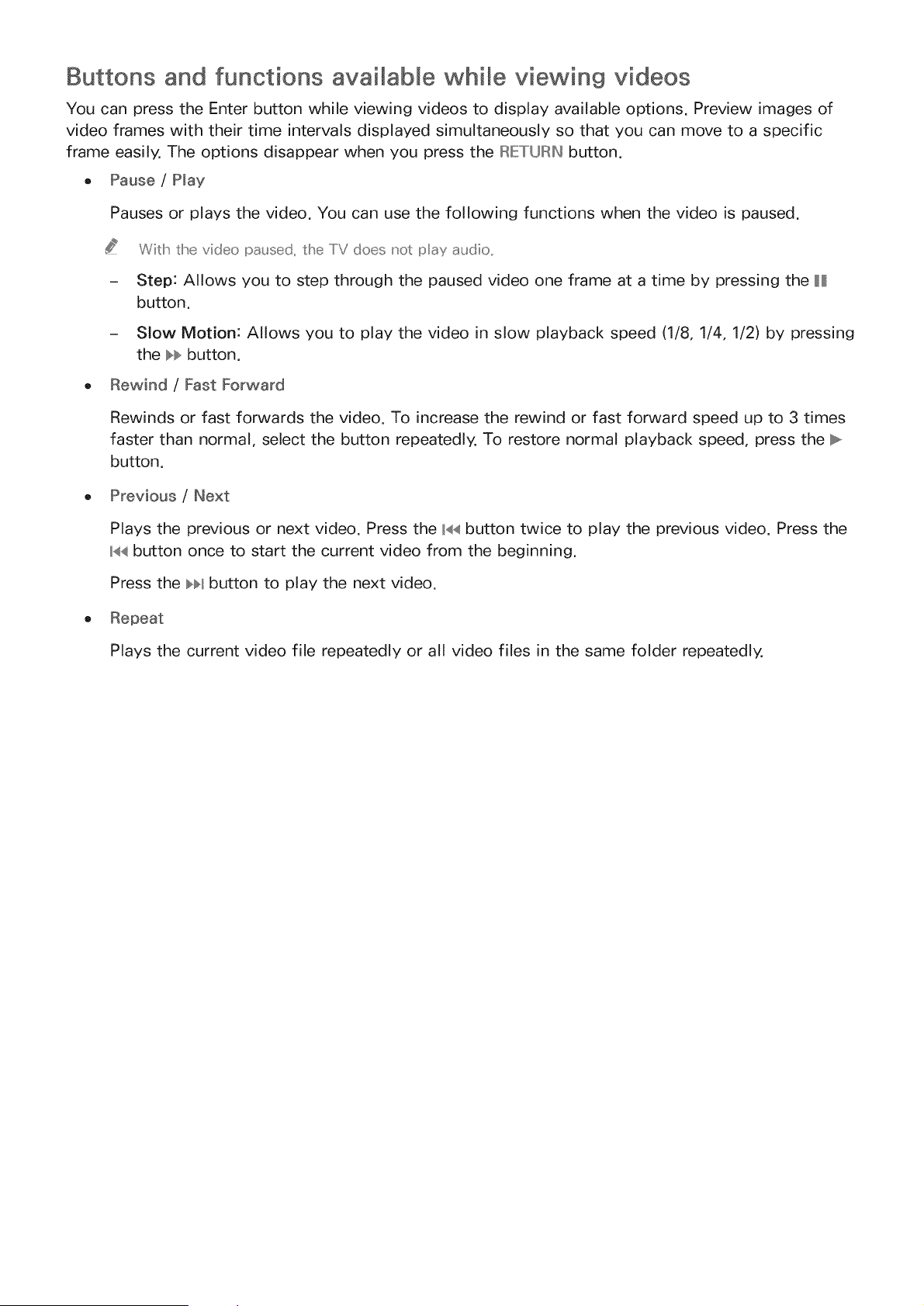
Buttons and functions avaiMable whi e viewing videos
You can press the Enter button while viewing videos to display available options. Preview images of
video frames with their time intervals displayed simultaneously so that you can move to a specific
frame easily. The options disappear when you press the RETURN button.
o Pause / Play
Pauses or plays the video. You can use the following functions when the video is paused.
Witlh the video paused, the TV does not pay audio,,
- Step: Allows you to step through the paused video one frame at a time by pressing the H
button.
- Slow Motion: Allows you to play the video in slow playback speed (1/8, 1/4, 1/2) by pressing
the bb button.
Rewind / Fast Forward
Rewinds or fast forwards the video. To increase the rewind or fast forward speed up to 3 times
faster than normal, select the button repeatedly. To restore normal playback speed, press the _
button.
Previous / Next
Plays the previous or next video. Press the _44button twice to play the previous video. Press the
_44button once to start the current video from the beginning.
Press the _ button to play the next video.
o Repeat
Plays the current video file repeatedly or all video files in the same folder repeatedly.
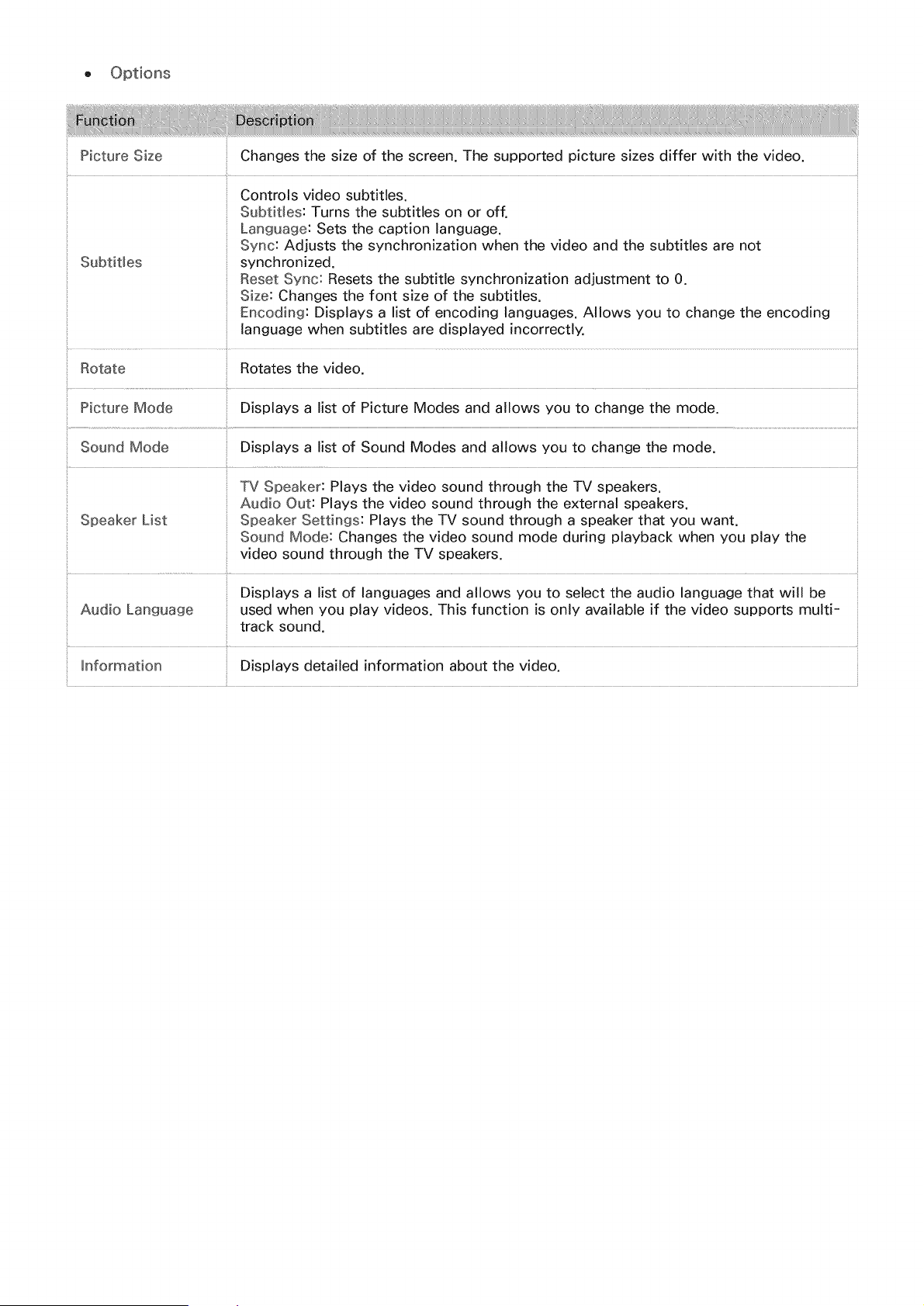
f
:: Picture Size Changes the size of the screen. The supported picture sizes differ with the video.
:: Controls video subtitles
:: Subtitles: Turns the subtitles on or off.
Language: Sets the caption language.
Sync: Adjusts the synchronization when the video and the subtitles are not
Subtitles synchronized.
Reset Sync: Resets the subtitle synchronization adjustment to 0.
Size: Changes the font size of the subtitles.
Encoding: Displays a list of encoding languages. Allows you to change the encoding
language when subtitles are displayed incorrectly.
Rotate Rotates the video.
Picture Mode Displays a list of Picture Modes and allows you to change the mode.
Sound Mode Displays a list of Sound Modes and allows you to change the mode.
i............................................................
TV Speaker: Plays the video sound through the TV speakers
Audio Out: Plays the video sound through the external speakers
Speaker List Speaker Settings: Plays the TV sound through a speaker that you want.
Sound Mode: Changes the video sound mode during playback when you play the
video sound through the TV speakers.
Displays a list of languages and allows you to select the audio language that will be
Audio Language used when you play videos. This function is only available if the video supports multi-
track sound.
Information Displays detailed information about the video.
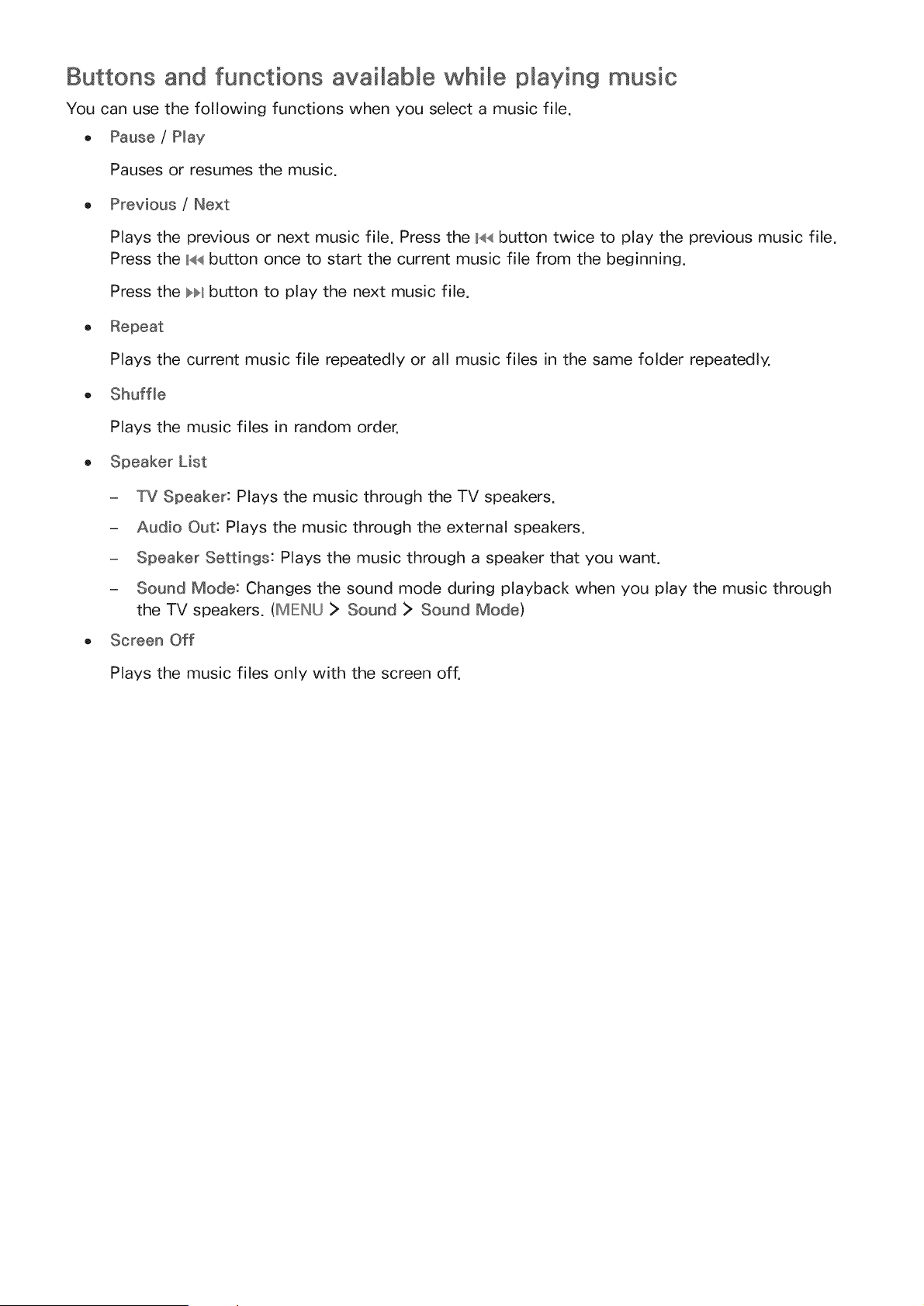
Buttons and functions avaimable whi e playing music
You can use the following functions when you select a music file.
o Pause / Play
Pauses or resumes the music.
, Previous / Next:
Plays the previous or next music file. Press the 14_button twice to play the previous music file.
Press the _4_button once to start the current music file from the beginning.
Press the _ button to play the next music file.
, Repeat
Plays the current music file repeatedly or all music files in the same folder repeatedly.
o Shuffle
Plays the music files in random order.
o Speaker List
- TV Speaker: Plays the music through the TV speakers.
- Audio Out: Plays the music through the external speakers.
- Speaker Settings: Plays the music through a speaker that you want.
- Sound Mode: Changes the sound mode during playback when you play the music through
the TV speakers. (MENU > Sound > Sound Mode)
o Screen Off
Plays the music files only with the screen off.
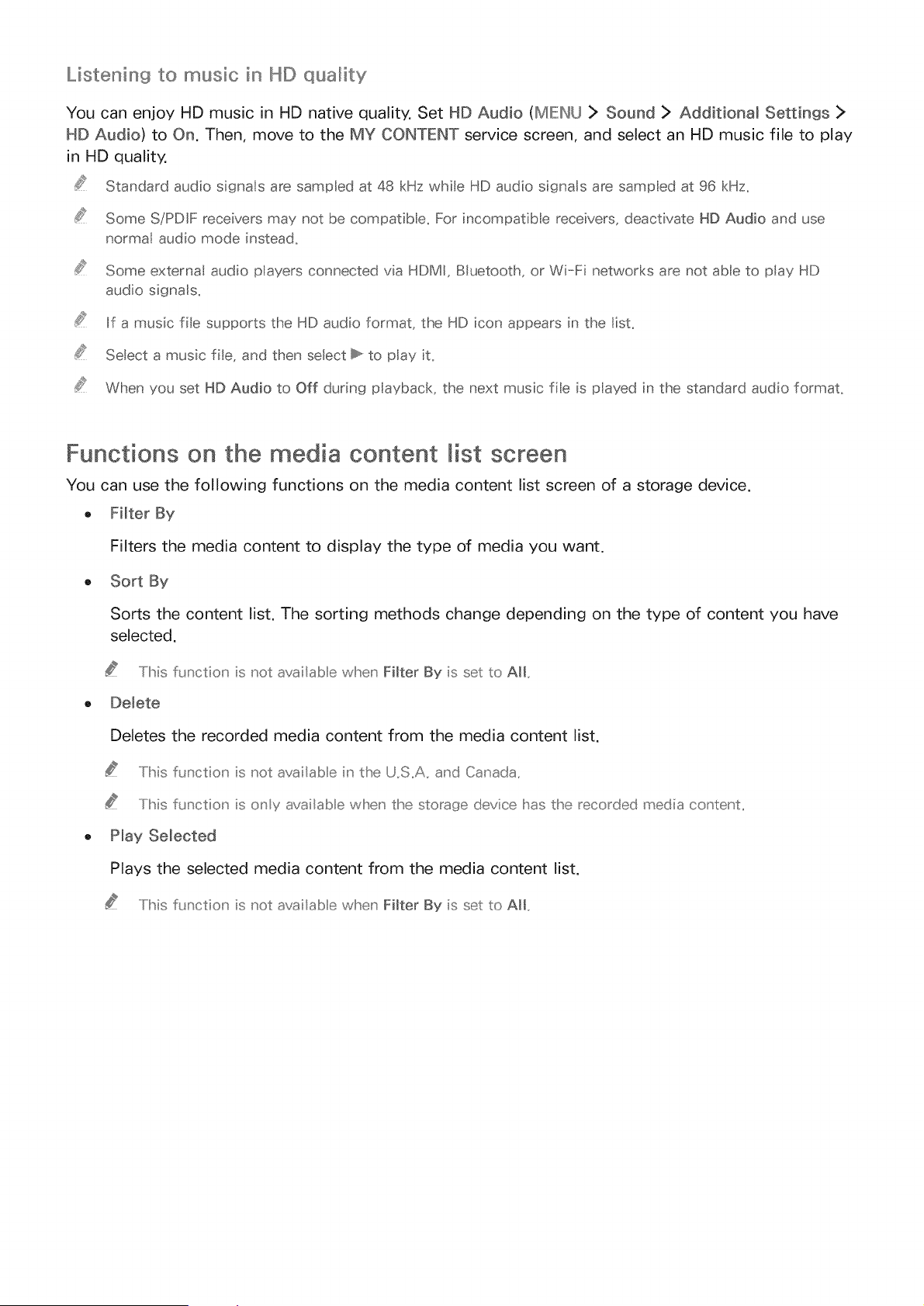
Listening to music in ND quality
You can enjoy HD music in HD native quality. Set HD Audio (IMIEINU > Sound > Additional Settings >
HD Audio) to On. Then, move to the MY CONTENT service screen, and select an HD music file to play
in HD quality.
Standard audio signa s are sampled at 48 kHz whie HD audio signals are sampled at 96 kHz.
Some S/PDIF receivers may not be compatib e, For incompatib e receivers, deactivate HD Audio and use
normal audio mode instead,
Some external audio players connected via HDMI, BIuetooth, or Wi-Fi networks are not able to play HD
audio signa s,
If a music fie supports the HD audio format, the HD icon appears in the list,
Select a music file, and then select b to play it,
When you set HD Audio to Off during playback, the next music fie is played in the standard audio format,
Functions on the media content list screen
You can use the following functions on the media content list screen of a storage device.
o Filter By
Filters the media content to display the type of media you want.
o Sort By
Sorts the content list. The sorting methods change depending on the type of content you have
selected.
This f_Jnctio_' is not availab e wheu' Filter By is set to All,,
o Delete
Deletes the recorded media content from the media content list.
..../his function' is not availabe iu' the U,,S,,A,,a_'d Canada,,
This function is o_'y availab e wl!seu' the storage device has the recorded media co_' tent,,
o Play Selected
Plays the selected media content from the media content list.
..../his flJnctio_' is not availab e wheu' Filter By is set to All,,
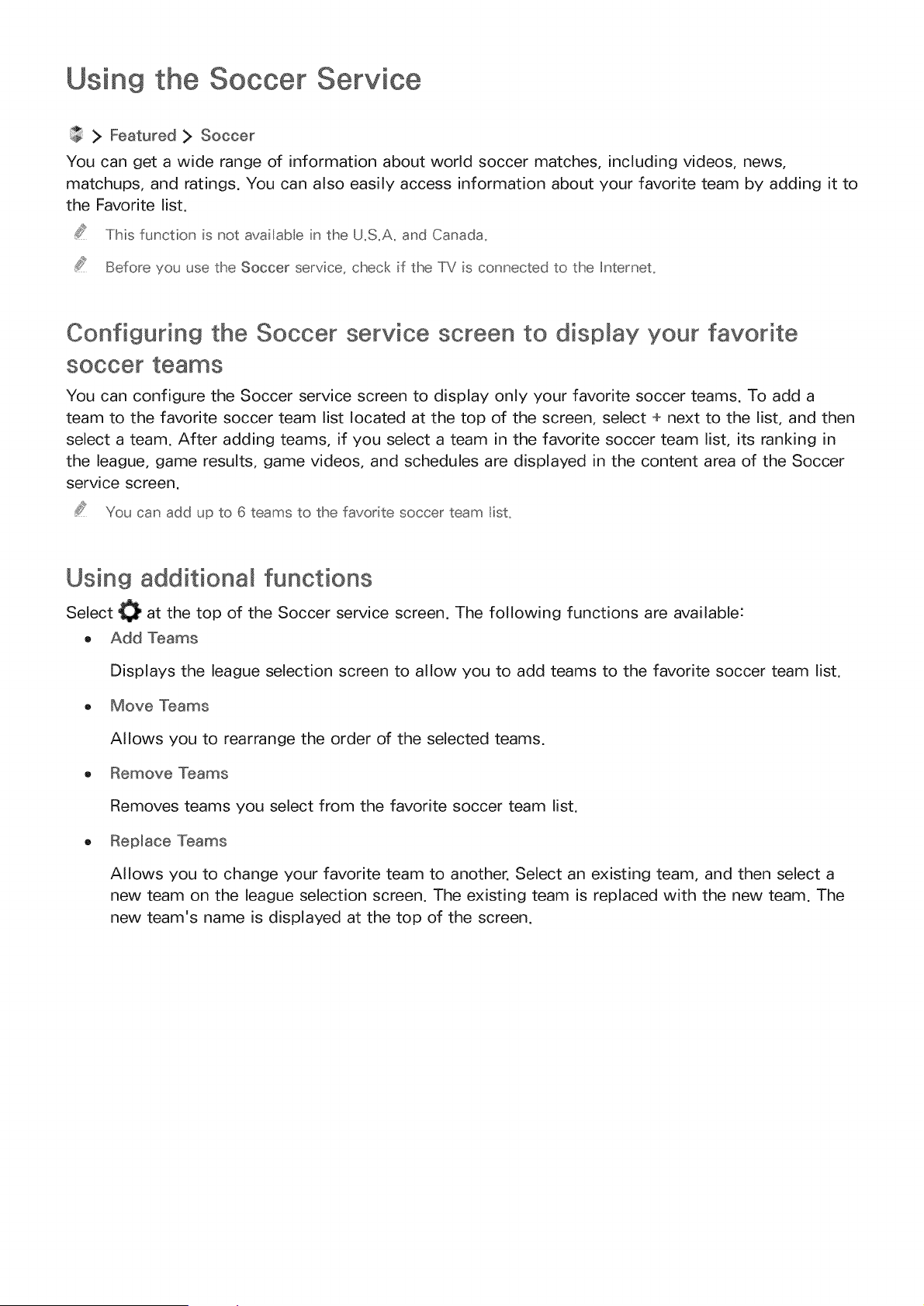
Using the Soccer Service
> Featured > Soccer
You can get a wide range of information about world soccer matches, including videos, news,
matchups, and ratings. You can also easily access information about your favorite team by adding it to
the Favorite list.
This function is not avai able in the U,S,A, and Canada,
Before you use the Soccer service, chec< if the TV is connected to the Internet,
Configuring the Soccer service screen to display your favorite
soccer teams
You can configure the Soccer service screen to display only your favorite soccer teams. To add a
team to the favorite soccer team list located at the top of the screen, select + next to the list, and then
select a team. After adding teams, if you select a team in the favorite soccer team list, its ranking in
the league, game results, game videos, and schedules are displayed in the content area of the Soccer
service screen.
You can add up to 6 teams to the favorite soccer" team list,
Using addidonam functions
Select _ at the top of the Soccer service screen. The following functions are available:
o Add Teams
Displays the league selection screen to allow you to add teams to the favorite soccer team list.
o Move Teams
Allows you to rearrange the order of the selected teams,
o Remove Teams
Removes teams you select from the favorite soccer team list.
o Replace Teams
Allows you to change your favorite team to another. Select an existing team, and then select a
new team on the league selection screen. The existing team is replaced with the new team. The
new team's name is displayed at the top of the screen.
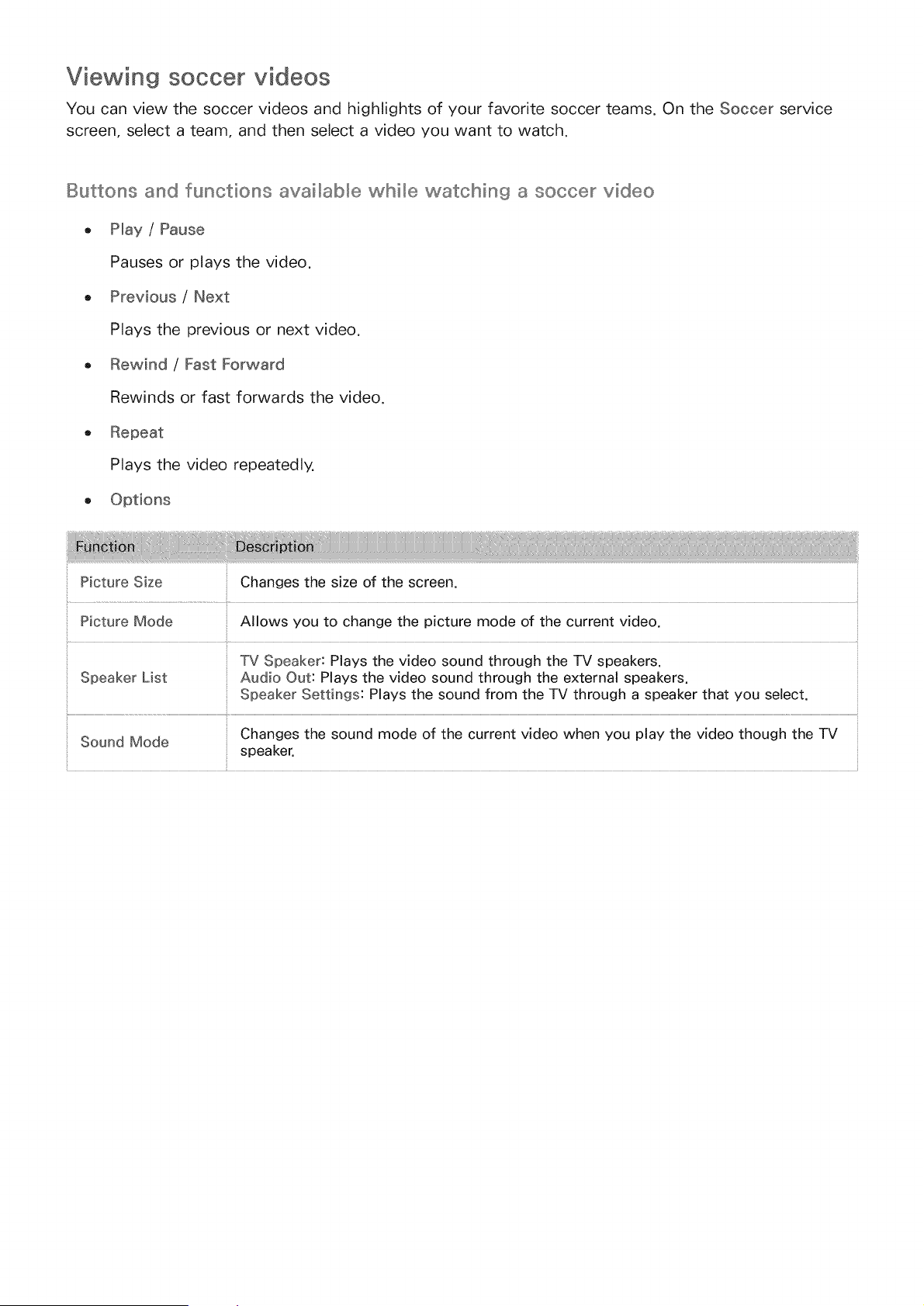
Viewing soccer videos
You can view the soccer videos and highlights of your favorite soccer teams. On the Soccer service
screen, select a team, and then select a video you want to watch.
Buttons and functions available while watchin9 a soccer video
e Play / Pause
Pauses or plays the video.
o Previous / Next
Plays the previous or next video.
Rewind / Fast Forward
Rewinds or fast forwards the video.
o
Plays the video repeatedly.
Picture Size
Picture Mode
Changes the size of the screen.
Allows you to change the picture mode of the current video.
TV Speaker: Plays the video sound through the TV speakers
:: Speaker List Audio Out: Plays the video sound through the external speakers.
Speaker Settings: Plays the sound from the TV through a speaker that you select.
Sound Mode Changes the sound mode of the current video when you play the video though the TV
speaker.
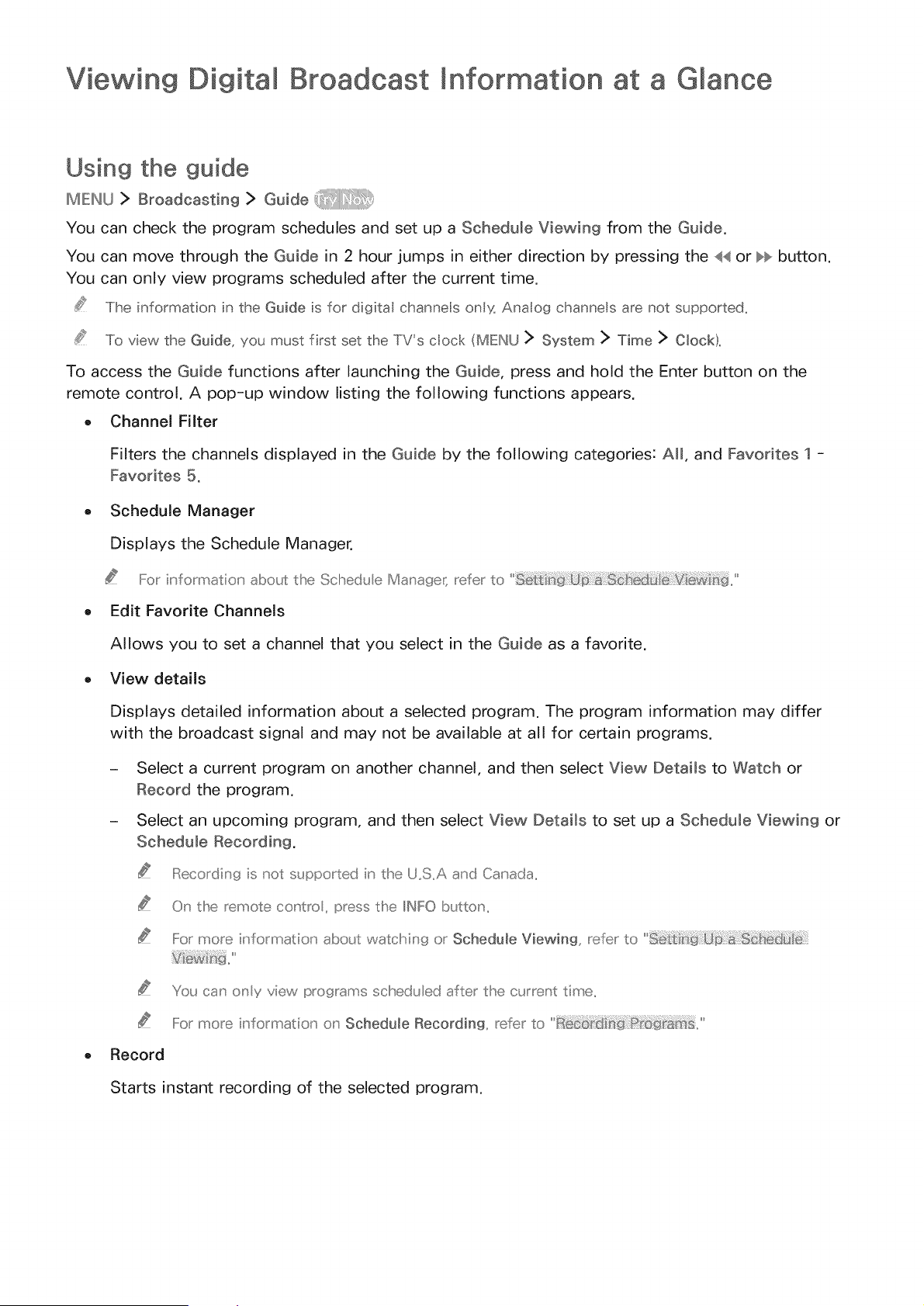
Viewing Digital Information at a Glance
Using the guide
I,%EINU> Broadcaat og> Go,de
You can check the program schedules and set up a Schedule Viewing from the Guide.
You can move through the Guide in 2 hour jumps in either direction by pressing the 44 or bb button.
You can only view programs scheduled after the current time.
The information in the G@de is for digita channe s onb: Analog channels are not supported.
To view the G@de,you must first set the TV's cock (MENU > System > Time > Clock).
To access the Guide functions after launching the Guide, press and hold the Enter button on the
remote control. A pop-up window listing the following functions appears.
, Channel Filter
Filters the channels displayed in the Guide by the following categories: All, and Favorites 1 -
Favorites 5.
, Schedule Manager
Displays the Schedule Manager.
For ir formatior abo_£ the Schedu e Mar age( refer to
, Edit Favorite Channels
Allows you to set a channel that you select in the Guide as a favorite.
, View details
Displays detailed information about a selected program. The program information may differ
with the broadcast signal and may not be available at all for certain programs.
- Select a current program on another channel, and then select View Details to Watch or
Record the program.
- Select an upcoming program, and then select View Details to set up a Schedule Viewing or
Schedule Recording.
Recording is not supported in the U,,S,A and Carada,
Or tlhe remote cot tro, press the IINFObutton,
Formore informatior abo_£ watcMr 9 or Schedule Viewing, refer to
You car ory view programs scheduled after the currer t time,,
Formore h formador or Schedule Recording, refer to _ecoEd'
Record
Starts instant recording of the selected program.
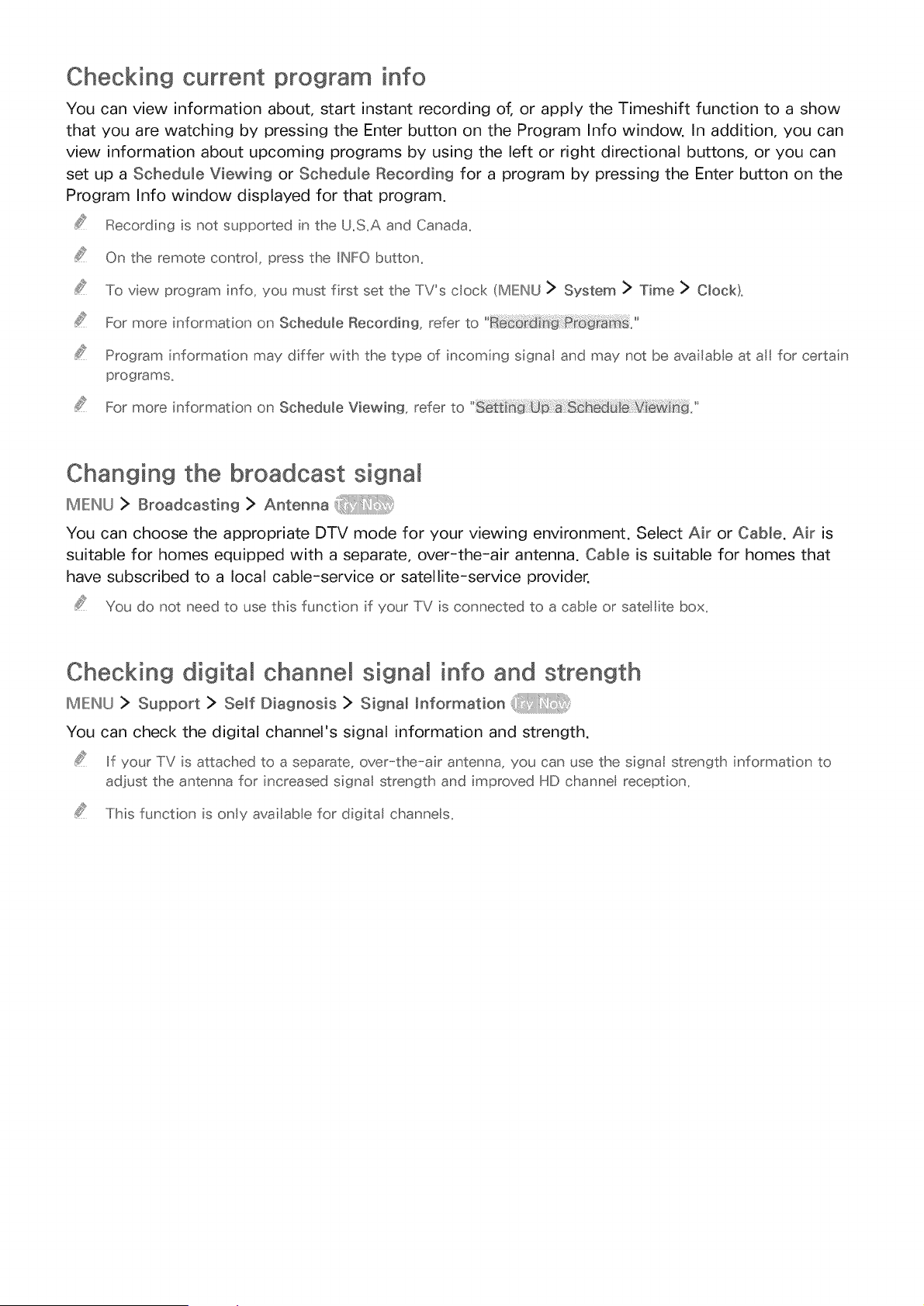
Checking current program info
You can view information about, start instant recording of, or apply the Timeshift function to a show
that you are watching by pressing the Enter button on the Program Info window. In addition, you can
view information about upcoming programs by using the left or right directional buttons, or you can
set up a Schedule Viewing or Schedule Recording for a program by pressing the Enter button on the
Program Info window displayed for that program.
Recording is not supported in the U.S.A and Canada,
On the remote contro, press the IINFO button_
To view program info, you must first set the TV's cock (MENU > System > Time > Clock),
For more information on Schedule Recording, refer to
Program information may differ with the type of incoming signal and may not be available at al for certain
programs_
For more information on Schedule Viewing, refer to
Changing the broadcast signa
II_IEII_U > Broadcasting > Antenna
You can choose the appropriate DTV mode for your viewing environment. Select Air or Cable. Air is
suitable for homes equipped with a separate, over-the-air antenna. Cable is suitable for homes that
have subscribed to a local cable-service or satellite-service provider.
You do not need to use this function if your TV is connected to a cable or satellite box,
Checking digital channel signal info and strength
IMIEINU > Support > Self Diagnosis > Signal _nformation
You can check the digital channel's signal information and strength.
If your TV is attached to a separate, over-the-air antenna, you can use the signat strength information to
adiust the antenna for increased signa strength and improved HD channe reception,
This function is only availab e for digital channe s,
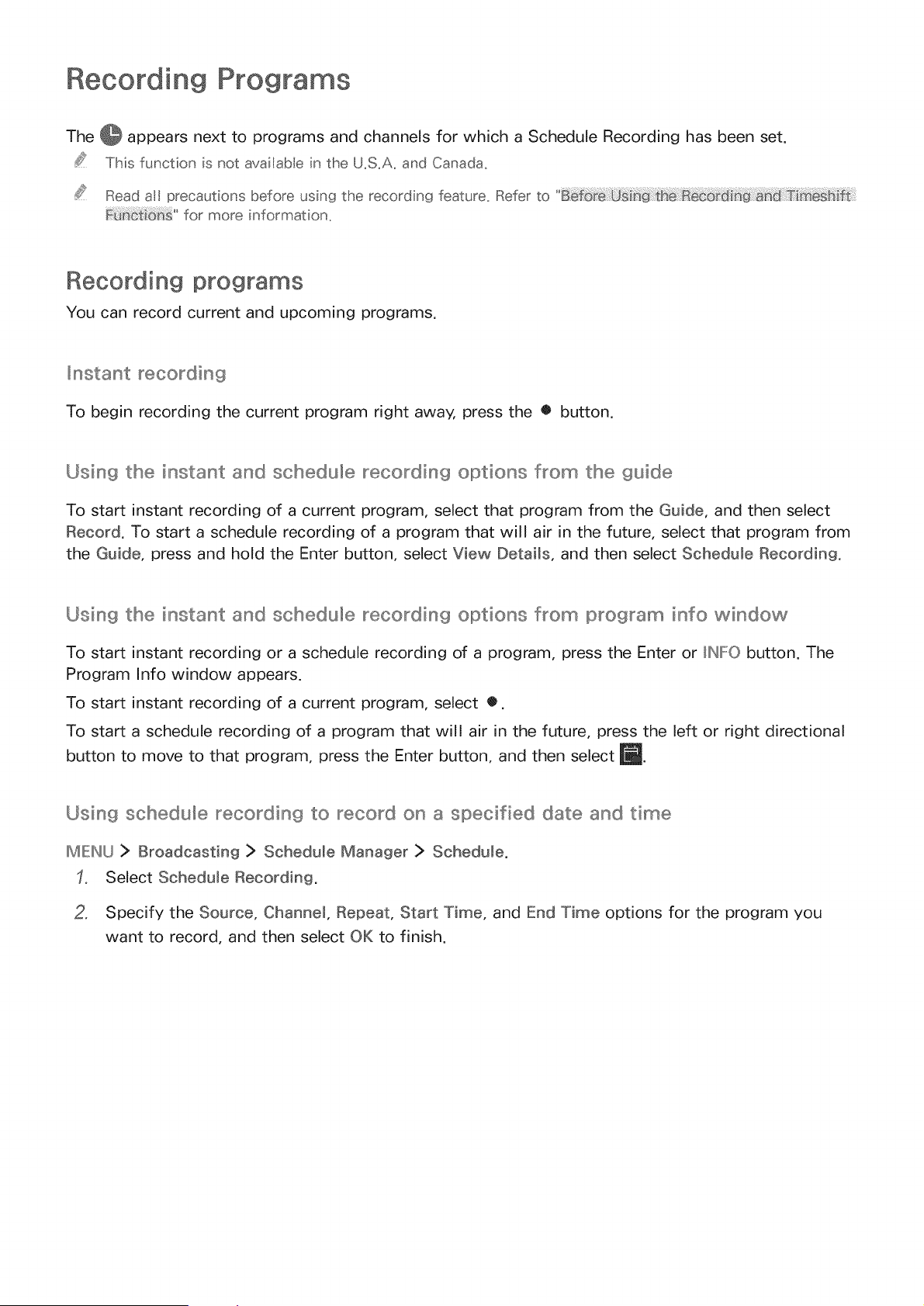
Recording Programs
The @ appears next to programs and channels for which a Schedule Recording has been set.
This function is not avaitab e in the U_S_A_and Canada_
Read all precautions before using the recording feature_ Refer to
for more information_
Recording programs
You can record current and upcoming programs.
_nstant recording
To begin recording the current program right away, press the • button.
Using the instant and schedule recording options from the guide
To start instant recording of a current program, select that program from the Guide, and then select
Record. To start a schedule recording of a program that will air in the future, select that program from
the Guide, press and hold the Enter button, select View Details, and then select Schedule Recording.
Using the instant and schedule recording options from program info window
To start instant recording or a schedule recording of a program, press the Enter or HW:O button. The
Program Info window appears.
To start instant recording of a current program, select O.
To start a schedule recording of a program that will air in the future, press the left or right directional
button to move to that program, press the Enter button, and then select _.
Using schedule recordiln£_ to record on a slpecified date and time
MENU > Broadcasting > Schedule Manager > Schedule.
Select Schedule Recording.
2, Specify the Source, Channel, Repeat, Start Time, and End Time options for the program you
want to record, and then select OK to finish.
Using the functions available whi_e recording a program
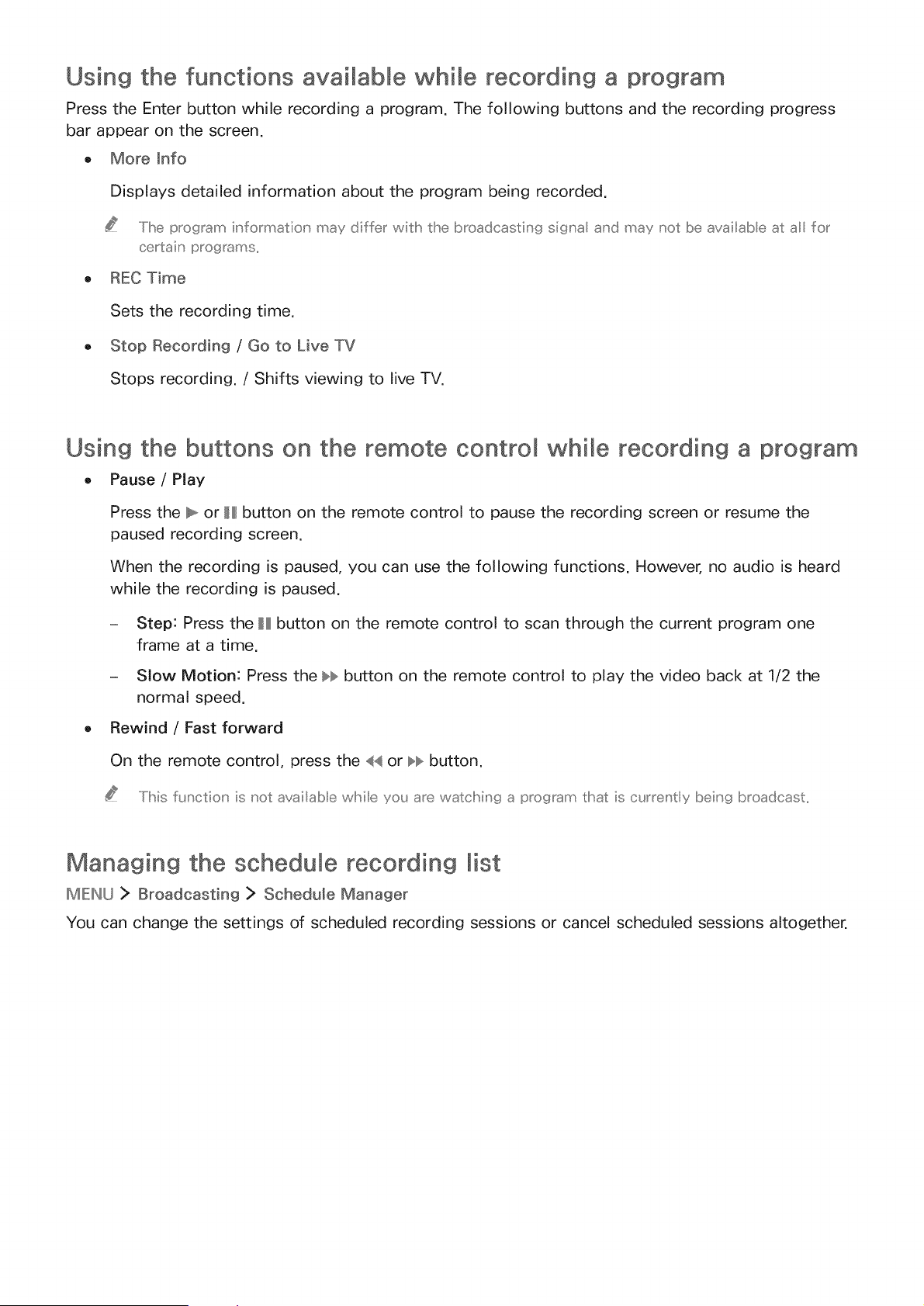
Press the Enter button while recording a program. The following buttons and the recording progress
bar appear on the screen.
o More _nfo
Displays detailed information about the program being recorded.
..../Ihe program informatior may differ wish the broadcasting sigra ard may not be availabe at a for
certain programs,,
o REC Time
Sets the recording time.
o Stop Recording / Go to Live TV
Stops recording. / Shifts viewing to live TV.
Using the buttons on the remote control whi_e recording a program
- Pause / Play
Press the _ or H button on the remote control to pause the recording screen or resume the
paused recording screen.
When the recording is paused, you can use the following functions. However, no audio is heard
while the recording is paused.
- Step: Press the H button on the remote control to scan through the current program one
frame at a time.
- Slow Motion: Press the _ button on the remote control to play the video back at 1/2 the
normal speed.
Rewind / Fast forward
On the remote control, press the 44 or _ button.
..../his functior is not availab e wMle you are watclhin9 a program that is currer tly beir9 broadcast,,
Managing the schedule recording list
MIEINU> Broadcasting > Schedule Manager
You can change the settings of scheduled recording sessions or cancel scheduled sessions altogether.
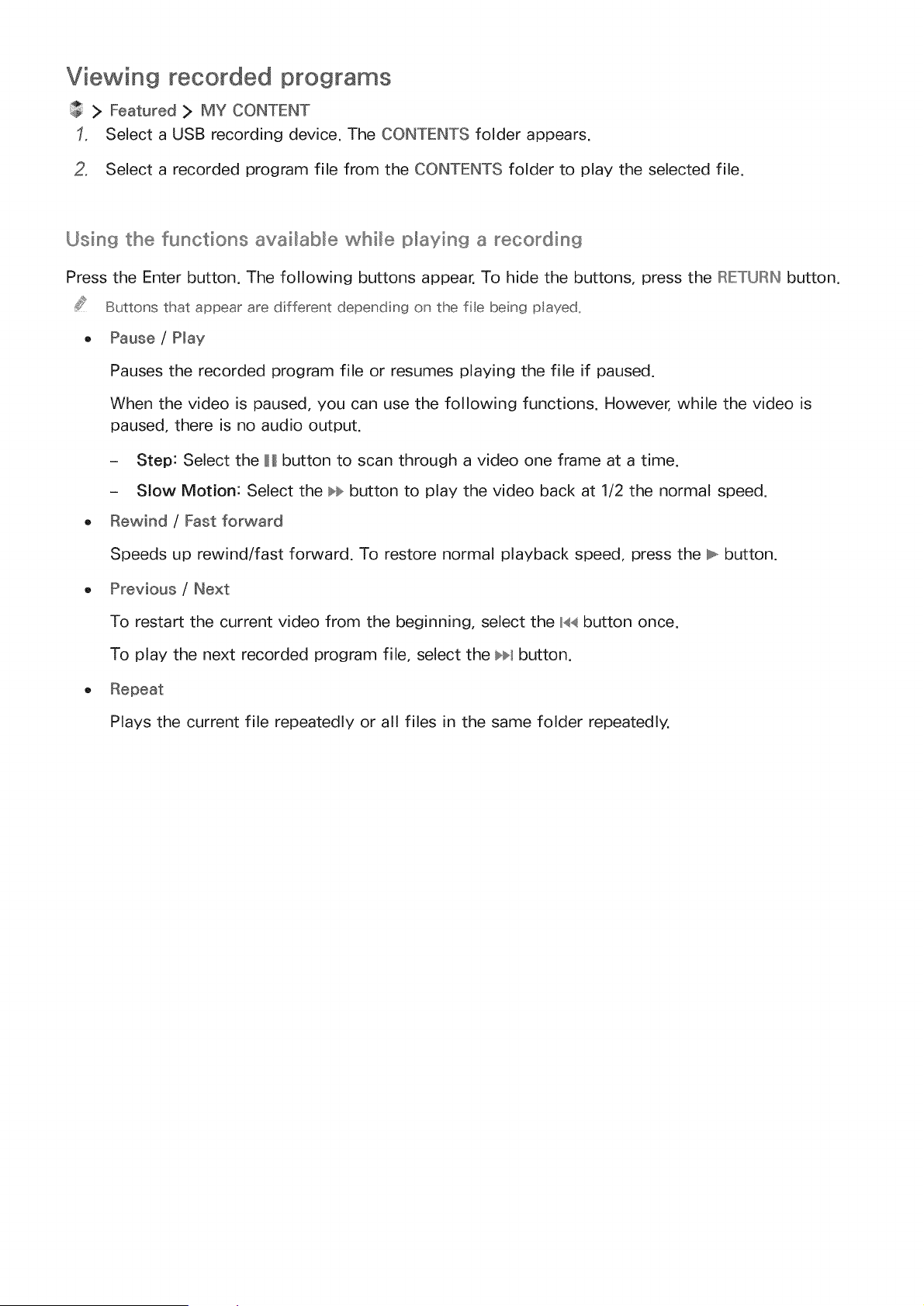
Viewing recorded programs
> Featured > MY CONTENT
Select a USB recording device. The CONTENTS folder appears.
2, Select a recorded program file from the CONTENTS folder to play the selected file.
Using the functions avai_aUe whi_e playing a _ecordin9
Press the Enter button. The following buttons appear. To hide the buttons, press the RET(JRN button.
Buttons that appear are different depending on the fie being played_
o Pause / Play
Pauses the recorded program file or resumes playing the file if paused.
When the video is paused, you can use the following functions. However, while the video is
paused, there is no audio output.
- Step: Select the H button to scan through a video one frame at a time.
- Slow Motion: Select the bb button to play the video back at 1/2 the normal speed.
o Rewind / Fast forward
Speeds up rewind/fast forward. To restore normal playback speed, press the b. button.
o Previous / Next
To restart the current video from the beginning, select the _44button once.
To play the next recorded program file, select the b_ button.
o Repeat
Plays the current file repeatedly or all files in the same folder repeatedly.
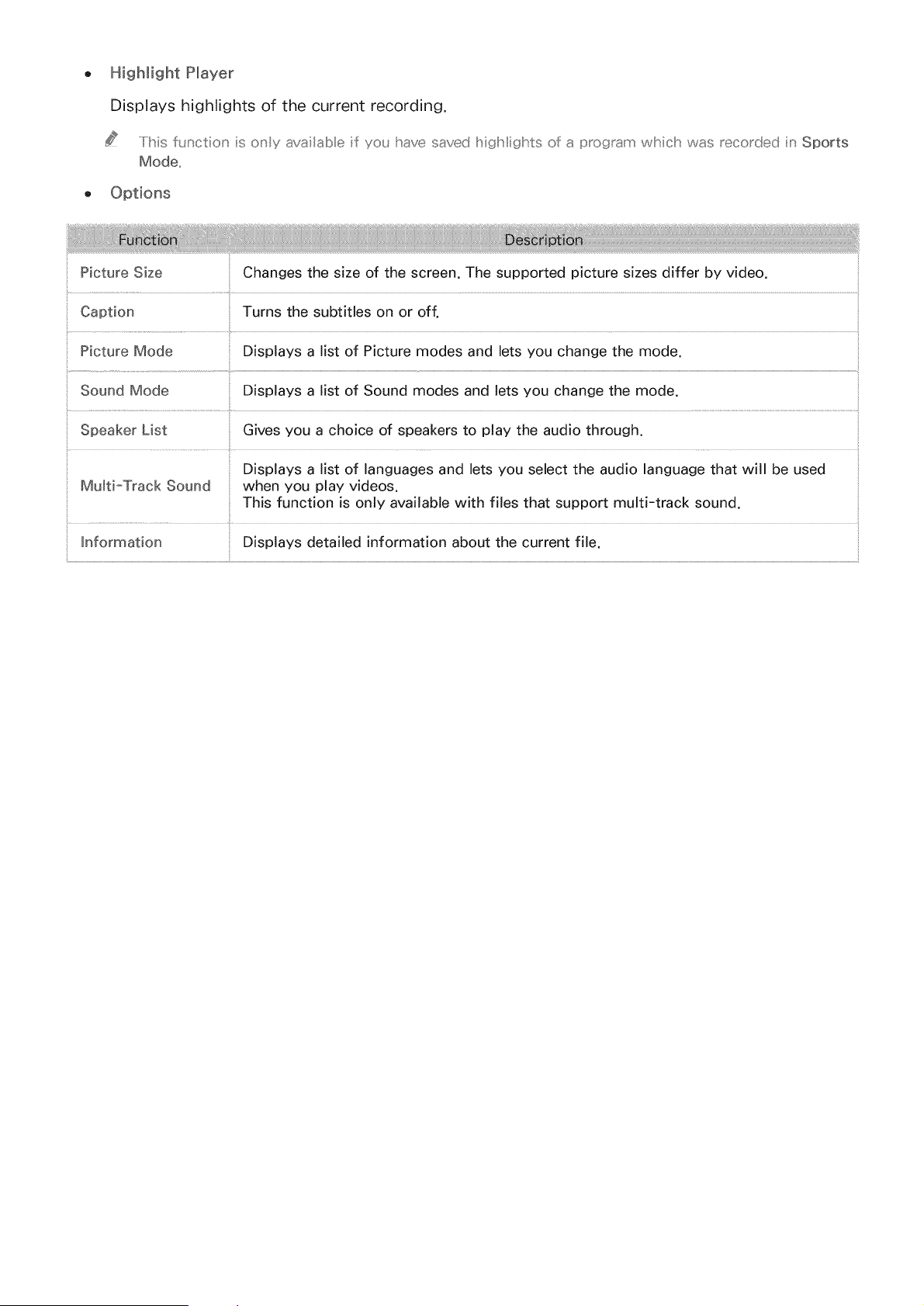
Highlight Player
Displayshighlightsof thecurrentrecording.
.....Iihisfunctionisonlyavailableif youhavesavedI"_iglifiiglntsof :_programwhichwas_eco_dedinSports
Mode,,
Picture Size Changes the size of the screen. The supported picture sizes differ by video.
Turns the subtitles on or off.
.............................................................. I.......
Picture Mode Displays a list of Picture modes and lets you change the mode.
Sound Mode Displays a list of Sound modes and lets you change the mode.
Speaker List Gives you a choice of speakers to play the audio through.
Displays a list of languages and lets you select the audio language that will be used
Multi-Track Sound when you play videos.
This function is only available with files that support multi-track sound.
Information Displays detailed information about the current file.
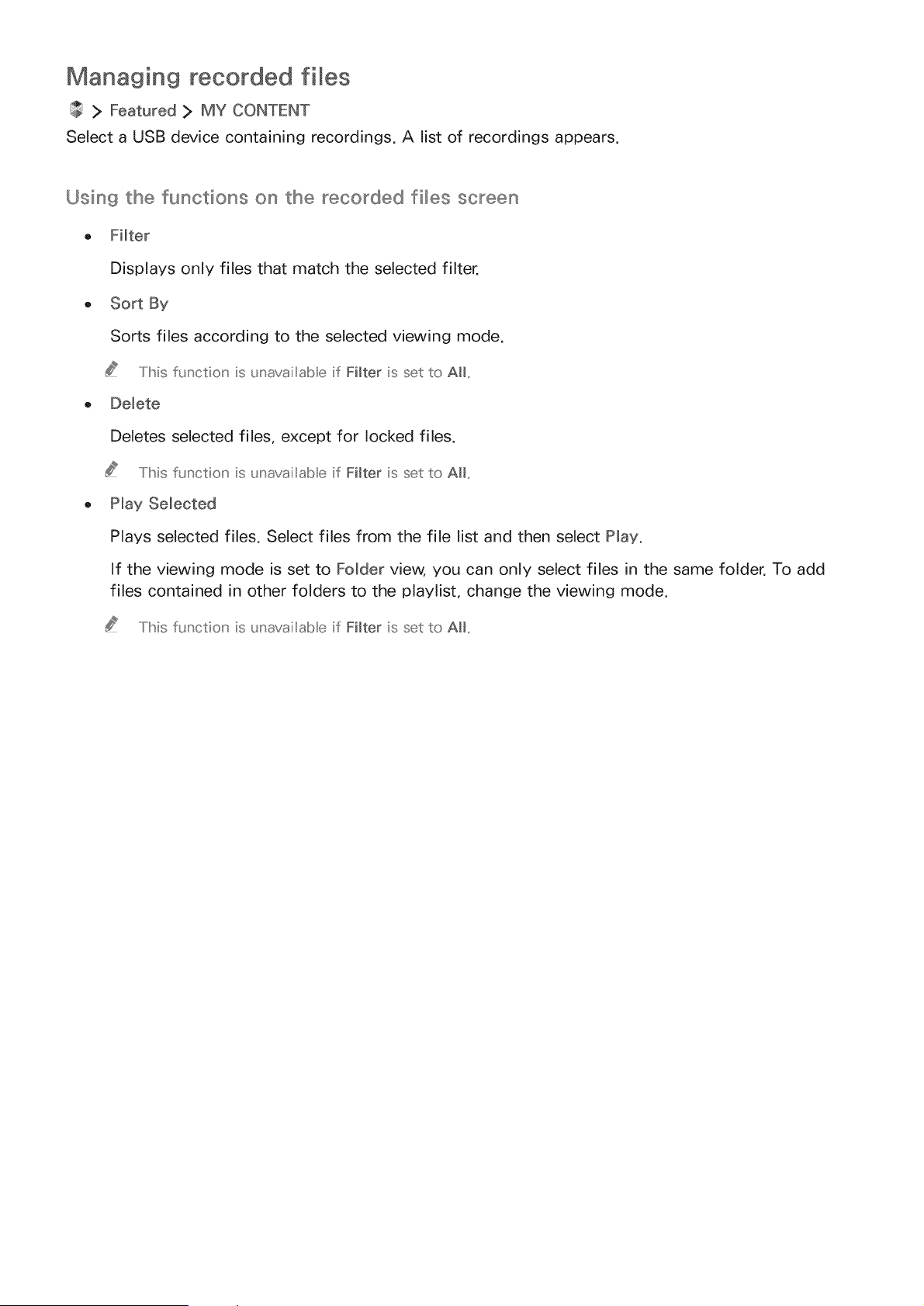
Managing recorded files
> Featured > MY CONTENT
Select a USB device containing recordings. A list of recordings appears.
Using the functions on the recorded files screen
o Filter
Displays only files that match the selected filter.
o Sort By
Sorts files according to the selected viewing mode.
This f_.Jnctio_'is _Jnavailabe if Filter is set to All,,
o Delete
Deletes selected files, except for locked files.
This function is _Jnavailabe if FHter is set to AH,,
o Play Selected
Plays selected files. Select files from the file list and then select Play.
If the viewing mode is set to Folder view; you can only select files in the same folder. To add
files contained in other folders to the playlist, change the viewing mode.
..../Ibis flJnctio_' is _Jnavailabe if Filter is set to All,,
Setting Up a Schedule Viewing
The '*__:_
appears next to programs that have been configured for a schedule viewing.
To set up a schedule viewing, you must first set the TVs cloc< (MENU > System > Time > Clock).
Setting up a schedule viewing for a channel
Setting up a schedule viewing for a digita_ channel
You can set up a schedule viewing for a digital channel on the Guide or Information screen.
o The Guide screen
On the Guide screen, press the left or right directional button to move to a program you would
like to view, and then press the Enter button. You can select Schedule Viewing on the pop-up
menu that appears. The program is scheduled for viewing.
The Program Info window
Press the Enter or IINFO button while you are watching the TV. The Program Info window
appears. Press the left or right directional button to move to a program you would like to view,
and then press the Enter button. Select _ that appears on the Program Info window. The
program is scheduled for viewing.
Setting up a schedule viewing an analog channe_
ME:INU> Broadcaat_og> ScheduleManager
You can set up a schedule viewing for an analog channel. Select Schedule > Schedule Viewing.
Specify the Source, Channel, Repeat, and Start Time options for the program you want to watch, and
then select OK to finish.
Editing a schedule viewing
MIEINU> Broadcasting > Schedule Manager
On the Scheduled screen, select a schedule viewing. A pop-up menu appears. Select Edit. Change the
time, days, or channel. Select OK when done.
Canceling a schedule viewing
MENU > Broadcasting > Schedule Manager
On the Scheduled screen, select a schedule viewing. A pop-up menu appears. Select Delete. Select
OK in the pop-up menu. The schedule viewing is removed.
You can set up a maximum total of 30 Schedule Viewing and Schedule Recording entries.
Timeshift
You can pause and rewind live TV as you would a DVD by using Timeshift.
Activating this function disables the Broadcasting function.
This function is not avai ab e in the U.S.A. and Canada.
Read all precautions before using the Timeshift function. For more information, refer to
To activate the Timeshift function while watching TV, press the Enter button, and then select _ on
the Program Info window. The TV displays a progress bar and the following buttons at the top of the
screen:
o information
Displays detailed information about the current program.
..../he program information' may differ wish the type of iu'comiu' 9 si{_u'a a_'d may not be availab e at a
for certaiu' programs,,
Tibiabutton' is o_'y availab e wlhe,' you are watchiu' 9 a ive program,,
, Record
Starts instant recording of the current program.
o Go to Live TV / Stop Timeshift
Shifts to live TV or exits Timeshift.
Using the buttons on the remote control while using Timeshift
o Pause / Play
Press the _ or H button on the remote control to pause or resume watching the current program
while using the Timeshift function. The following functions are available while the current
program is paused. However, while the current program is paused, there is no audio output.
- Step: Press the H button on the remote control to scan through the current program one
frame at a time.
- Slow Playback: Press the bb button to play the video back at 1/2 the normal speed.
Rewind / Fast forward
Press the << or bb button.
..../he fast forward is not availab e wMle you are watclhin9 a program that is curreu' tly beiu' 9 broadcast,,
Using the Channel
IMIEINU> Broodoost o9> Choooe Ust
By using the Channel List, you can change the channel or check programs on other digital channels
while watching TV. To display the Channel List, press the CIHLIST button on the remote control.
The Channel List screen contains the following icons:
- • An analog channel
- _ • A favorite channel
_ I_1 • A locked channel
Press the left directional button. The following functions are available:
O
Displays a list of channels that you viewed recently.
o Add a New List
Allows you to create a new channel list by adding channels from a favorites list,
This option' is availab e o_'y if you have registered o_'e or more chanu'es to at east o_'e favorites ist,,
Added Ch.
Displays the selected channel list.
O
with separate, over-the-air antennas. CaMe is suitable for homes that subscribe to a local
Antenna
cable-service or satellite-service provider, You do not need to use this function if your TV
isconnected to a cable or satellite box.
Edit Channe_ Allows you to rearrange the order of channels in the channel list or remove channels from
Lists the channel list.
Allows you to remove channels from the channel index, restore removed channels, and
Edit ChanneJ
rename analog channels.
Sets favorite channels.
Edit Favorites £? For more information, refer to
Registering, Removing, and Editing Channels
IMIEI"_U> Broadcasting > Edit Channel
The Edit Channel screen icons indicate the following:
o A " An analog channel
o _ " A favorite channel
• A locked channel
Registering and removing channels
Bemovin9 registe_e_ channels
You can remove a registered channel or all channels from the channel index. To remove a channel,
select it, and then select Delete. To remove all channels, select Options > Select All :> Delete.
AdjOin9 back remove_ channels
You can add back removed channels from the All list only. Removed channels are displayed in gray
in the All list. To display the All list. select Options > Category > All. Then, to add back a removed
channel, select it, and then select Add. To add back all removed channels, select Options > Select All
> Add.
Editing registered channels
You can access the following options by selecting Options at the bottom left of the screen. The
available options may differ with the broadcast signal.
o Select All / Deselect All
Selects or deselects all channels displayed on the Edit Channel screen.
O
O
Antenna
Allows you to select Air or Cable as the DTV mode.
Displays the channels of a selected category in the list. The channels stored in the TV are
grouped into the following categories: All and Added Ch..
o Edit Favorites
Sets favorite channels.
II::::::ormo_e hrfformat,_o_'_refe__to (}_eaEm{_a _eL,'_o_a__avo_e@_st._'_: _ @ _ s_ ,
o Rename Channel
Renames analog channels. The new name can be up to 5 characters long.
o information
Displays detailed information about the current program.

Using Program Rating Lock
ME:,NU> Bro°dc° t ng> Progr°mRatingLock
You can block programs based on their ratings by using Program Rating Lock. This function is useful
for controlling what children watch on TV. Program Rating Lock does not block programs originating
from external sources, such as Blu-ray players, DVD players, or USB files.
Every time you access Program Rating Lock, you must enter the security PIN. You must also enter this
PiN to watch a blocked program. The default PIN is 0000. To change the PIN, go to System > Change
PIN.
The Program Rating Lock may not supported depen@ng on the input signal you are using.
Blocking programs based on thei_ _TV Rating
You can block TV programs based on their rating. To block content, select a rating category to lock.
All programs at that level and higher are blocked and require the PIN to watch. To unblock a category,
select the lock icon. To unblock all the categories in a row, select the lock under ALL.
Categories on the left:
o TV-Y: Young children
o TV-Y7: Children 7 and over
o TV-G: General audience
o TV-PG: Parental guidance
o TV-14: Viewers 14 and over
o TV-MA: Mature audience
Categories on the top:
o ALL: Lock all TV ratings.
o FV: Fantasy violence
, V: Violence
S: Sexual situations
o L: Adult Language
o D: Sexually Suggestive Dialog
Bleckiln_j movies base on their Movie Ratiln_j (MRAA}
You can block movies based on their MPAA rating, This rating system applies to all material with
supplied ratings in the U,S,A,
From the MPAA:
"The Motion Picture Association of America (MPAA) has implemented a rating system that provides
parents or guardians with advanced information on which films are appropriate for children,"
Select a lock beside one of the rating categories to block that category and all higher categories, To
unblock a category, select the lock icon,
o G: General audience (no restrictions),
PG: Parental guidance suggested,
PG-13: Parents strongly cautioned,
R: Restricted, Children under 17 should be accompanied by an adult,
N0-17: No children under age 17,
X: Adults only,
NR: Not rated,
Blockiln_j programs based on thei_ " Canadian English Rati_s_j
You can block programs based on their Canadian English Rating, This rating system applies to all rated
material viewed on English-Canadian TV channels,
Select a lock beside one of the rating categories to block that category and all higher categories, To
unblock a category, select the lock icon,
0: Programming intended for children under age 8
08+: Programming generally considered acceptable for children 8 years and over to watch on
their own
G: General programming, suitable for all audiences,
PG: Parental Guidance
14+: Programming containing themes or content which may not be suitable for viewers under the
age of 14
18+: Adult programming
Blockiln_j programs based on thei_ " Canadian French Rati_s9
You can block programs based on their Canadian French Rating. This rating system applies to all rated
material viewed on French-Canadian TV channels.
Select a lock beside one of the rating categories to block that category and all higher categories. To
unblock a category, select the lock icon.
G: General
8 ans+: Programming acceptable for children 8 years and over to watch on their own
13 ans+: Programming that may not be suitable for children under the age of 13
16 ans+: Programming not suitable for children under the age of 16
18 ans+: Programming restricted to adults
Blockiln_j Programs Based on their II[XX}ownloadab_e US Ratios9
You can block programs based on their Downloadable UoSo Rating. This rating system only applies to
material originating from US DTV channels.
Parental restriction information is automatically downloaded while you watch DTV channels. This
download may take several seconds. If the information is unavailable from the broadcasting station,
the Downloadable UoSo Rating menu is deactivated.
Parental restriction levels differ with the broadcasting station. The default menu name and the
Downmoadable UoSo Rating name changes depending on the downloaded information.
Even when the on-screen display is set to another language, the Downmoadable UoSo Rating menu
appears only in English.
Select a lock beside one of the rating categories to block that category and all higher categories. To
unblock a category, select the lock icon.
Watchiln_j Uocked / _'estdcted programs
To watch a blocked program, enter the PIN when requested.
When initially showing a restricted program or movie, the screen is blank because the Program Rating
Lock blocks it. Enter the PIN to unblock the program when a message appears requesting the code.
Creating a Personal Favorites List
Favorite channels are highlighted in the Edit Channel and Channel List screens with the _ symbol.
You can create up to 5 favorite channel lists,
Registering channels as favorites
IMIEIN/J> Broadcasting > Edit Favorites
You can register multiple channels as favorites at the same time.
Select the channels that you want to add to your favorites list(s) from the list on the screen.
2. Select Change Favo on the screen to select a favorites list.
3. Select Add on the screen. The TV adds the channels you selected to the favorites list you chose.
Viewing and selecting channels on Favorites lists only
IMIEINkJ> Broadcasting > Channel List
You can display a favorites list and select a channel using the channel up/down buttons.
Press the left directional button. A favorites list appears. Select Change Favo to select a different
favorite list if necessary.
2. Highlight a channel from the selected favorites list using the channel up/down buttons, and then
select it. The channel changes.
A tavodtes ist can be seected onY if it contains at east one tavodte channe ,,
Editing a Favorites List
IMIEINU> Broadcasting > Edit Favorites
Using the Edit Favorites screen menu items
You can access the following options by selecting Options on the Edit Favorites screen.
o Select All / Deseleet All
Selects or deselects all channels saved on the TV.
o Copy to Favorites
Copies channels from one favorite channels list to another.
FOr [_'/or(_} il_ for_'natiol' _ r(_}f(_}r _,o a
This option is availab e o_'y if yo_Jhave registered o_'e or more chanu'e sto at east o_'e favorites ist,,
o Rename Favorites
Rename an existing favorite channels list.
Formore information', refer to
This optio_' is availab e o_'y if you have registered o_'e or more chanu'es to at east o_'e favorites ist,,
o Antenna
Allows you to select Air or Cable.
o Edit Channel
Allows you to manage the channels saved on the TV.
Formore h'fom_afio_' , refer to _ _ @ _ '

Removing channels from a favorites list
Select Edit Favorites. Select Change Fav° to move to the favorites list that has the channels you want
to remove. Select the channels, and then select Delete.
Rearranging a favorites list
Select Edit Favorites. Select Change Fav. to move to the favorites list that has the channels you want
to rearrange. Select the channels, and then select Change Order. The Change Order highlight appears.
Press the up/down arrow buttons to indicate the new location for the channels. Press the Enter button
to set the channels into their new location.
Renaming a favorites Iliist
Select Options > Rename Favorites. Select the favorites list you want to rename. Enter a new name
using the on-screen keyboard that appears, and then select Done. Select OK.
Copying channels from on÷ favorites list to another
Select Edit Favorites. Select Change Favo to move to the source favorites list, and then select the
channels to copy. Select Options > Copy to Favorites. Select the destination favorites list, and then
select OK. Select OK again.
Copy to Favorites is only availab e if there are channe s in at least one favorites list,

Making Sports Programs More Realistic with
MENU > System > Sports Mode or Soccer Mode
You can use Sports Mode to get optimal picture and sound settings for soccer events, making them
appear and sound as if you are there. In addition, if a recording device is connected to the TV when
you are using Sports Mode, you can view highlights extracted from the recorded sporting event
automatically or manually.
The actua name may differ with specific geographica area,
Enabling sports mode
MENU :> System > Sports Mode or Soccer Mode > Sports Mode or Soccer Mode
You can set Sports Mode to On to optimize the picture and sound modes of the TV automatically for
soccer events.
Enabling Sports Mode changes Picture Mode to Stadium and Sound Mode to Stadium, and disables some
Picture and Sound menus_
Extracting highlights automaticamly
MENU > System > Soccer Mode > Auto Highlights
You can set Auto Highlights to On to configure the TV to extract highlights of a sporting event
automatically.
However, Auto Highlights is not available:
- When you are switching the input signal using the SOURCE button.
- When Audio Description is on
- When you are viewing the content in MY CONTENT
- When the Screen Mirroring function is running
This function is not availab e in the U.S,A, and Canada,
The performance of Auto Highlights depends on the characteristics of the transmitted signa,
It is advisabte to use Auto Highlights only while watching a soccer game, If you use this function for other
sporting events, it may dispIay irrelevant picture frames_

Using the functions available while watching sports in sports mode
You can use the following functions when you press the Enter button in sports mode.
This function is not avaitab e in the U.S.A. and Canada.
o Zoom
Pauses the current screen and zooms in any part of the screen by using 4 directional buttons.
0_' the remote co_' tro. press the [] button' ..
This f_nctio_' is not availab e wlhe,' PIP or MY CONTENT is active..
Instantly records the game that you are currently watching on the TV.
This function' is o_'y _vailab e if the TV s_.Jpportsthe recordi,' 9 flJnctio_'.
More Info
Displays detailed information about the current program.
..../his flJnctio_' is o_'y _vailab e while yo_.J_re w_tclhiu'9 _ ire program,,
Using the functions avaimable whi e recording sports in sports
You can use the following functions when you press the Enter button in sports mode.
,, Manual Highlight
Saves a video from 10 seconds before you press the button to 10 seconds after.
0_' the remote co_'tro, press the D b_£l:o_'.
You can set the TV to automatica y save IlsighlU'_ts witlho_£ user iu'terveu'tio_'. Seect MENU > System
> Sports Mode, and theu' set Auto Highlights to On.
,, Recording Time
Sets the recording time.
,, Stop Recording / Go to Live TV
- Stops a recording when you are watching a live program.
- Switches to a live program when you are watching a recorded program.
. Rewind / Fast Forward
Press the IMIEINU/123 button on the Samsung Smart Control, and then select I_ or !_ button to
speed up rewind or fast forward.
On the standard remote co_'tro, press the _ or bb butto_',,
o Pause / Play
Pauses or resumes the video.
, Highlights Player
Displays the HigMights Player screen and plays the highlights saved in the recorded file
automatically or manually. Highlights Player is not available when:
- You are switching the input signal with the SOURClE button.
- When Video Description is on
, Watch Live TV at the same time
Allows you to watch a current program in a PIP window while watching a recorded program. To
exit PIP mode, press the button again. Watch Live TV at the same time is not available when:
- You are switching the input signal using the SOURCE button.
- When Video Desoription is on
..../Ms flJnctio_' is o_'y availab e wMle yo_Jare watcMu'9 a recorded program,,
Viewing a game recorded in sports mode
You can view a recorded game on the MY CONTENT screen.
This function is not avaitab e on certain models in specific geographical areas,
For more information, refer to
TV-Viewin9 Support Functions
Showing captions
MENLJ > System > Accessibility > Caption
You can watch TV broadcasts with captions. Press the CC button to turn the Caption function on or
off.
This function is not avaitab e on certain models in specifics geographical areas,
Captions are not displayed by programs that do not support captions_
Enabling captions
Select System > Accessibility > Caption > Caption
The TV cannot control or modify DVD or B u.-ray subtitles. To control DVD or'BIu--ray subtitles, use the sub-
title feature of the DVD or B u--ray player and the player s remote centre _
Selecting the caption Ilianguage
MENU > System > Accessibility > Caption > Caption Mode
o Default / CCl ~ CC4 / Text1 ~ Text4
(Analog channels only) Operates in either analog TV channel mode or when a signal is supplied
from an external device to the TV. (Depending on the broadcast signal, the analog caption
function may or may not work with digital channels.)
Default / Service1 ~ Service6 / CO1 ~ 004 / Text1 ~ Text4
(Digital channels only) Works with digital channels. Service1 - Service6 may not be available in
digital caption mode depending on the broadcast.
Changing the font co_or_ caption size_ and font opacity
You can change the font color, background color, and size settings.
IMIEIN/J_ System > Accessibility > Caption > Digital Caption Options
, Size
Changes the font size. Size is not supported by analog channels.
, Font Style
Changes the font style for the subtitles.
, Font Color
Changes the font color,
, Background Color
Changes the caption's background color,
Window Color
Selects the color of the digital caption window.
, Font Opacity
Changes the caption's opacity.
, Background Opacity
Changes the background's opacity.
, Window Opacity
Adjusts the transparency level of the digital caption window.
,, Edge Type
Selects the outline type for the digital captions.
,, Edge Color
Selects the color outline for the digital captions.
, Return to Default
Restores all caption display options to the Default setting. The Default setting applies the TV
station's transmitted settings to the captions.
The foreground and background coot and opacity settings cannot be the same.
Enabling the audio guide for the video description
I%E:l_/J> System> Accessibility> VideoDescription
You can activate the audio guide for the visually impaired. This function is only available with
broadcasts that provide this service. Press the CC button to turn the Video Description function on or
off.
Scanning for available channels
IMIEINU> Broadcasting > Auto Program
Automatically scans and indexes all channels received through the TV's antenna input connector.
Do not use this function if your TV is connected to a cabe or satellite box,
If the TV has saved channels, Auto Program deletes the existing list, and then saves the newy scanned
channe s,
Selecting the broadcast audio language
I%E:l_u> Broadcast_og> AudioOptions
You can select the TV's audio language. This is the language you will hear while watching TV, if the
language is included in the broadcast signal. Audio Options functions differently for analog and digital
channels.
To view the current broadcasts audio signa information, press the IINFO button on the remote contro,
Selecting the Broadcast Audio Language for Digital Broadcasts
Se lecti n g a Lan guage
Select Audio Options > Preferred Language, and then select a language. Digital programs that
include the language you selected in their broadcast signal are automatically played using that
language. If the language you selected is not supported by the broadcast signal, the TV will use
the default audio language broadcast by the TV station.
Selectin9 the Broadcast Audio Language and Other Options for Analog Broadcasts
UateningtoMulti-TrackSound
Select Audio Options > Multi-Track Sound. Configure the audio for the current broadcast. Mu_ti-
Track Sound can be set to mono or stereo, depending on the broadcast signal or program. This
option is automatically set to mono if the broadcast signal or program does not support stereo.
Select Program to see if the program you are watching is being transmitted with a track
containing a simultaneous translation into a language you want. If it is, select the track to listen
to the translation.
Fine-tuning analog broadcasts
IMIEINU> Broadcasting > Channel Settings > Fine Tune
When analog pictures become shaky and full of noise, fine-tune the signal to clear up the picture.
This function is only availab e for analog broadcasts,
Removing pay channels
IMIEINU> Broadcasting > Channel Settings > Clear Scrambled Channel
Auto Program scans and indexes all channels, both free and pay respectively. You can remove all
scrambled pay channels from the channel list with Clear Scrambled Channel.
Adjusting the Quality
Choosin9 a picture mode
IMIEINU> Picture > Picture Mode
You can select the picture mode that provides the best viewing experience.
Makes the picture clearer when the ambient lighting is so bright that it makes the picture difficult
to see.
, Standard
Is the default mode suitable for most environments.
, Natural
Reduces eye strain.
- Movie
Darkens the screen, reduces glare, and relieves eye fatigue. Use this mode while viewing the TV
in a darkened room or watching a movie.
, Entertain
Sharpens images for a more dynamic viewing experience.
When the input source is set to PC, Standard and Entertain modes are only avai able_
When a PCis connected to the TV, but the Entertain mode is not availab e, set Edit Device Type to DVI PC
or'PC_
, Stadium
When you set Sports Mode (IMIEINU> System > Sports Mode or Soccer Mode > Sports Mode
or Soccer Mode) to On, both Picture Mode and Sound Mode are automatically set to Stadium.
The TV changes the picture and sound settings so that they are suitable for soccer events.
Adjusting the picture quality
IMIEINU> Picture
You can adjust the following picture quality settings manually for each combination of input source
and picture mode.
Adjusts the brightness of individual pixels. Decrease this brightness to reduce power
consumption.
, Contrast
Adjusts the screen contrast.
Adjusts the overall brightness.
o
Sharpens or dulls the edges of objects.
o comer
Adjusts the overall color saturation.
- Tint (G/R}
Adjusts the ratio of green to red. Increase the green value to saturate the greens and the red
value to saturate the reds.
The TV saves the adjusted vaues for the current input source and picture mode, These values remain in
effect each time you select the same input source and picture mode,
The Co,or and Tint (G/R) settings cannot be adjusted when the TV is connected to a computer via an HDMI-
to-DVl cable,
Alpp_yin9 the cup'rent IlPiotu_e settinf}s to other input sou_ces
MEINU> Picture> AppmyPictureMode
You can apply the picture quality settings to the current source and other input sources.
, All Sources
Applies the settings to all external devices connected to the TV.
,, Current Source
Applies the settings to the current source only.
Adjusting advanced settings
IMIEINU> Picture > Advanced Settings
You can fine-tune how images are displayed on the TV screen for the Standard and Movie picture
modes.
Advanced Settings is only available when Picture Mode is set to Standard or Movie.
When the TV is connected to a computer via an HDMFto-DVI cable, only White Balance and Gamma are
avaitable.
, Dynamic Contrast
Automatically adjusts the screen contrast for an optimal contrast setting.
, BmackTone
Adjusts the black color depth.
. noahTooo
Darkens or lightens skin tones.
. RGBOnlyMode
Adjusts the red, green, and blue levels individually.
. ComerSpace
Adjusts the range of colors that can be displayed on the screen.
- Auto: Automatically adjusts the color space to match the input signal.
- Native: Applies a range of colors that is wider than the input signal.
- Custom: Allows you to adjust the color space manually. Select Color, and then change its
Red, Green, and Blue saturations. Reset allows you to restore the default values for Color
Space.
Yo_ can corffi_#e the Color functior cry whet Color Space is set to Custom,
, White Balance
Adjusts the colortemperature of the pictureto make white objects look white and the overall
pictureappear natural,
- 2 Point:Allows you to adjustred,green, and blue luminositywith the offsetmenu and
brightnesswith the gain menu, Reset allows you to restorethe defaultvalues,
- 10 Point:Dividesred,green, and blue into10 sectionseach, and allows you to modifythe
white balance byadjustingthe brightnessof eachsection,Level allows you to selectthe
sectionto adjust,
You can use the 10 Point function cry whet Picture Mode is set: to Movie, TMs functior may not, be
supported by some externa devices,
Adjusts the primary color intensity.
Adjusting picture options
IsEl u> Picture> Pictureoptioos
You can adjust the picture options to optimize your viewing experience. Select a picture mode, and
then adjust the picture options.
. comerTone
Adjusts the color tone. The color tone you select is stored in the TV's memory. When you change
the current picture mode, the stored color tone is applied to the new picture mode automatically.
Cool and Standard are ony availab e wlher Picture Mode is set to Dynamic,,
Co,or Tone is only available wlher the TV is corrected to a computer via an HDMI to DVI cabe..
Digital Clean View
Reduces static and ghosting caused by a weak signal. When you select Auto Visualization, the
TV displays the signal strength on the bottom of the screen. Green indicates the best possible
signal.
This function is available for arao9 charres or _.
- MPEG Noise Filter
Reduces MPEG noise and improves video quality.
o .DM BmookLeve
Compensates for effects caused by a low black level, such as low contrasts and dull colors.
.....Ilhis function is or yavailabewlher theirputsigra, corrected to theTVviaar HDMIcorrecto(isset
to RGB444,
F,mMode
Optimizes the picture quality for movies.
.....Ilhis function is only available wlher the h'put sigr al is SV, AV, Compor er t (480i, 1080i), or HDMI
(S080_),,
Auto Motion Plus {i !:/:i:
Removes blurring and judder from scenes with rapid movement. If you select Custom, you can
configure Blur Reduction and Judder Reduction manually and set LED Clear Motion to On for a
sharper LED image. To return to the default settings, select Reset.
Wlher LEDClear Motion is set to On, the screer appears darker than wlher it is Off,
This function is ,'sotavailabe or certair modes ir specific 9eograpl!qica areas..
LED Clear Motion
Controls LED backlight duty to move picture more clearly.
.....Ilhis functior is not availabe or certair modes ir specific geographica areas,,
in 3D
This function is only available on the 6400 series models for geographical areas other than the U.S.A and
Canada.
MIEINU> Picture > 3D
You can view 3D media content and broadcasts. To view 3D content, you need to wear current
Samsung 3D Active Glasses. IR-type Samsung 3D Active Glasses and third-party 3D glasses are not
supported.
The Samsung 3D Active G asses is only provided with the certain modes in specific geographical areas_
Before viewing 3D content, carefully read the health and safety information concerning 3D viewing. For
more information, refer to ®ns,
Whether 3D video is dispIayed in true HD is usua Iy determined by the qua ity and format of the video.
Starting 3D
MIEINU> Picture > 3D
Put on and then turn on the Samsung 3D glasses, and then select a 3D Mode. Note that the 3D modes
that are available at any given time depend on the format of the 3D content you are watching.
, _ (Off)
Deactivates 3D viewing.
- _ (Normal)
Converts normal images to 3D images.
,, _ (L/R)
Splits a single image into left and right overlapping images to create the 3D effect.
, _ (T/B)
Splits a single image into top and bottom overlapping images to create the 3D effect.
The supported reso utions vary for each mode, Formore information, refer to
The ideal viewing distance is three times the height of the screen or more. 3D images may not appear
if you do not adhere to the recommended viewing angle or distance.
The 3D function may not work properly if there is another 3D product or an electronic device running
nearby. If there is a problem, keep other electronic devices as far away as possible from the 3D Active
Glasses.
The left and right 3D images may initially overlap when the TV is turned on. It takes a moment for the
display to optimize and the overlapping to stop.
When you use the 3D mode, note the following limitations:
o The 3D mode is automatically disabled when you launch Smart Hub.
PIP cannot be used.
, Certain picture options are disabled.
Adjusting 3D effects
MIEINU > Picture > 3D
Configures the viewpoint, depth, and other 3D settings for a custom viewing experience.
AI 3D effects with the exception of 3D Auto View can only be used whie watching 3D content.
o 3D Perspective
Adjusts overall 3D perspective for images on the screen.
o 3D Depth
Adjusts overall 3D depth for images on the screen.
This function cannot H>eused if 3D Mode is set to _ (L/R} or _ (T/B},,
. uRChooge
Switches the left image to the right image and vice versa.
. 3D ,2D
Converts 3D images to 2D images.
Tlhis function is not availab e if 3D Mode is set to _ (INorma) or _ (Off}.
o 3D Auto View
Activates 3D Mode automatically whenever it detects 3D content or a 3D broadcast.
This function is not availabe or certair modes ir specific geog_aplhica areas.
, 3D Optimize
Allows you to optimize 3D pictures with an adjustment bar.
You might not be abe to view the TV ir 3D mode wl!]ile some app icatior s are runt ir g./o view the TV
ir 3D mode, exit those app icatior s.
Picture Support Functions
Viewing a picture-in-picture (PIP}
IMIEINU> Picture > PIP
While viewing video from an external device such as a Blu-ray player on the main screen, you can
watch TV broadcast in a picture-in-picture (PIP) window.
o PIP
Activates/deactivates PIP.
o Antenna
Selects Air or Cable as the digital channel mode.
o Channel
Selects the PIP channel.
Size
Sets the PIP window size.
o Position
Sets the PIP window position.
o Select Sound
Selects the audio source. To adjust the connected audio device's volume, you must use the
Sound Share function or connect the audio source to the TV's HDMI (ARC) port.
PIPcannot be used while Smart Hub is active,
Playing a game or using the karaoke function on the main screen can result in lower PIP picture qua it'¢_
The PIPfunction is only available under the following conditions: 1) The main screen's source is a
Component or HDM[ connection, 2) The input reso ution is less than FHD (Full HD),
The PIPwindow supports digita channe s onk¢
Changing the picture size and position
Changing the IllSioture size
ME,NU> P_cturo> P_cto_os_zo>P_cturos_zo
You can change the size of the picture displayed on the TV screen.
- 16:9
Sets the picture size to the 16:9 wide screen format.
o Zoom
Magnifies 16:9 pictures vertically. A magnified picture can be moved up and down.
o Custom
Magnifies or shrinks 16:9 pictures vertically and/or horizontally. A magnified or shrunk picture
can be moved left, right, up, and down.
, 4:3
Sets the picture size to the basic 4:3 mode.
z_ Do not watch your TV in 4:3 mode for extended periods of time. This action can cause the
black bars, which appear at the top, bottom, [eft, and right sides of the screen in 4:3 mode, to
suffer "screen bum-in" and appear as temporary or permanent after images on the screen. This
damage to the screen is not covered by your Warranty.
Supported picture sizes differ with the input signal. For more information about supported picture sizes,
refer to
Fitting the IlPiotu_÷ to the screen
IMIEINLJ> Picture > Picture Size > Fit to screen
You can configure the TV so that the full picture fits the screen without any cutoff in the size you have
chosen.
This function _snot avaitab e when you set the Picture Size to the 4:3 mode,
Adjusting the picture position
IMIEINLJ> Picture > Picture Size > Zoom/Position
You can adjust the picture position.
This function is only available when Picture Size is set to Zoom or Custom, However: you cannot change the
picture position when the TV istuned to a digita channe and Picture Size is set to Custom,
Listening to audio only (Picture Off)
IMIEINLI> Picture > Picture Off
You can turn off the screen and play only audio through the speakers. To turn the screen back on,
press any button other than the Power and Volume buttons.
Resetting the picture mode settings
II%k-:INLJ> Picture > Reset Picture
You can reset the current picture mode to its factory defaults. This action does not affect the settings
of other picture modes.

Adjusting the Sound Quality
Choosing a sound mode
ME:_NU> Sound> SoundMode
You can select a sound mode to optimize your listening experience.
, Standard
Is the default mode suitable for most environments.
, Music
Emphasizes music instead of voices.
, Movie
Provides the best sound for movies.
- Clear Voice
Emphasizes voices.
Increases the overall intensity of high-frequency sound to help hearing-impaired listeners.
Stadium
When you set Sports Mode (IMIEINL_> System > Sports Mode or Soccer Mode) to On, Sound
Mode is set to Stadium automatically so that the picture and sound settings are fixed at settings
most suitable for soccer events.
Applying sound effects
IMIEINU> Sound > Sound Effect
You can apply sound effects to alter how the TV emits sound.
. wrtuomSur,ound
Produces sound that makes you feel like you are sitting in a movie theater or concert hall.
, Dialog Clarity
Increases voice intensity to make dialog clearer.
. HeodphoneSurround
Experience home theater-like surround sound through your headphones.
.
Allows you to adjust the sound settings of the left and right speakers for a better sound balance.
To restore the defaults, select Reset.
. Eqoo,zer
Allows you to adjust the loudness of specific frequency ranges to control the richness of the
sound. To restore the defaults, select Reset.
This function is not avaitabe when you 8re istening to audio through externa speakers.
This function is only availab e when Sound Mode is set to Standard.
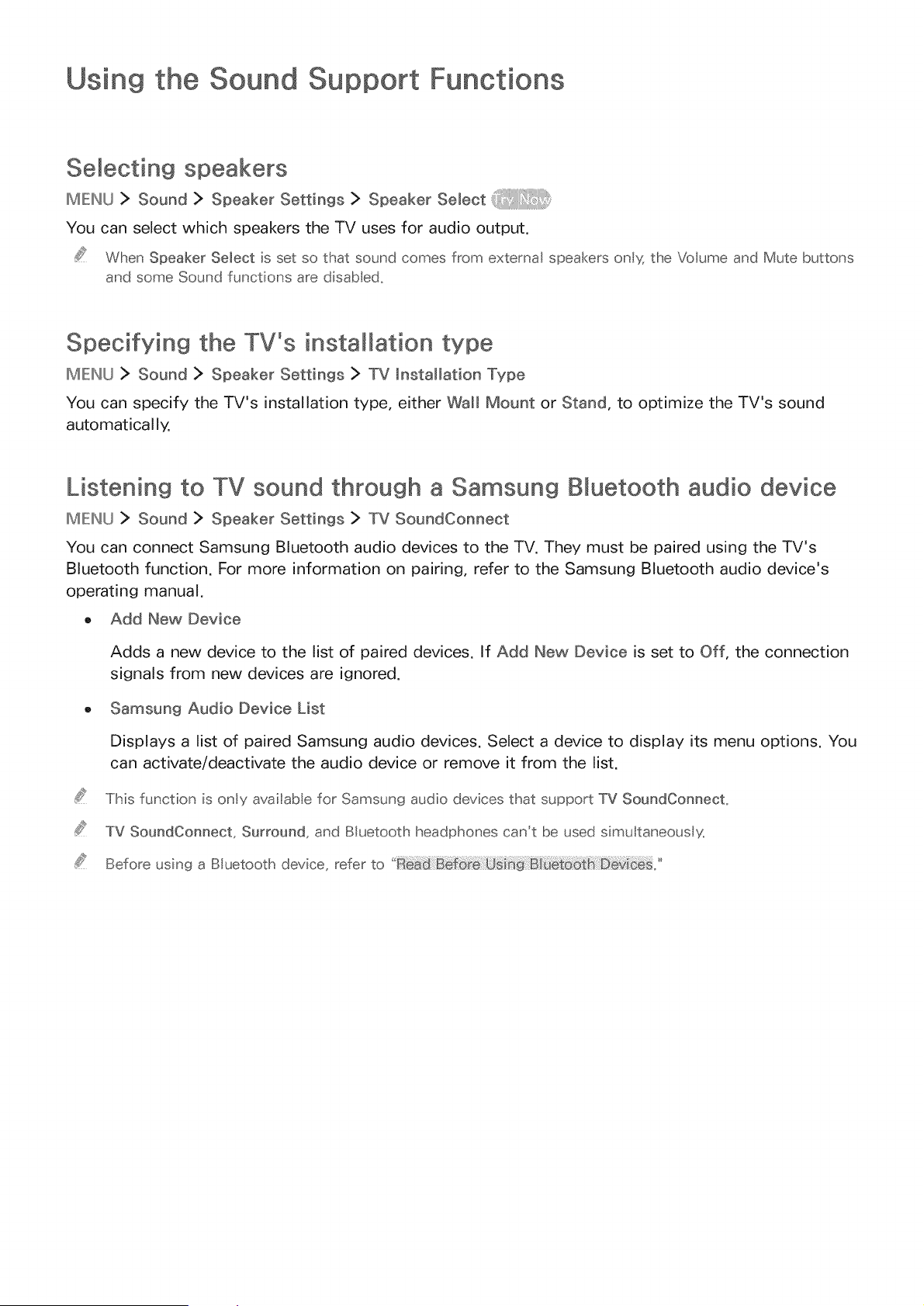
Using the Sound Support Functions
Selecting speakers
MIEII_U > Sound > Speaker Settings > Speaker Select
You can select which speakers the TV uses for audio output.
When Speaker Select is set so that sound comes from external speakers onIx the Voume and Mute buttons
and some Sound functions are disab ed.
Specifying the TV's installation type
MIEINU> Sound > Speaker Settings > TV installation Type
You can specify the TV's installation type, either Wall Mount or Stand, to optimize the TV's sound
automatically.
Listening to TV sound through a Samsung Bluetooth audio device
MIEINU> Sound > Speaker Settings > TV SoundConneot
You can connect Samsung Bluetooth audio devices to the TV. They must be paired using the TV's
Bluetooth function. For more information on pairing, refer to the Samsung Bluetooth audio device's
operating manual.
o Add New Device
Adds a new device to the list of paired devices. If Add New Device is set to Off, the connection
signals from new devices are ignored.
Samsung Audio Device List
Displays a list of paired Samsung audio devices. Select a device to display its menu options. You
can activate/deactivate the audio device or remove it from the list.
This function is only available for Samsung audio devices that support TV SoundConnecL
TV SoundConnect, Surround, and BIuetooth headphones can't be used simuftaneous "¢_
Before using a BIuetooth device, refer to
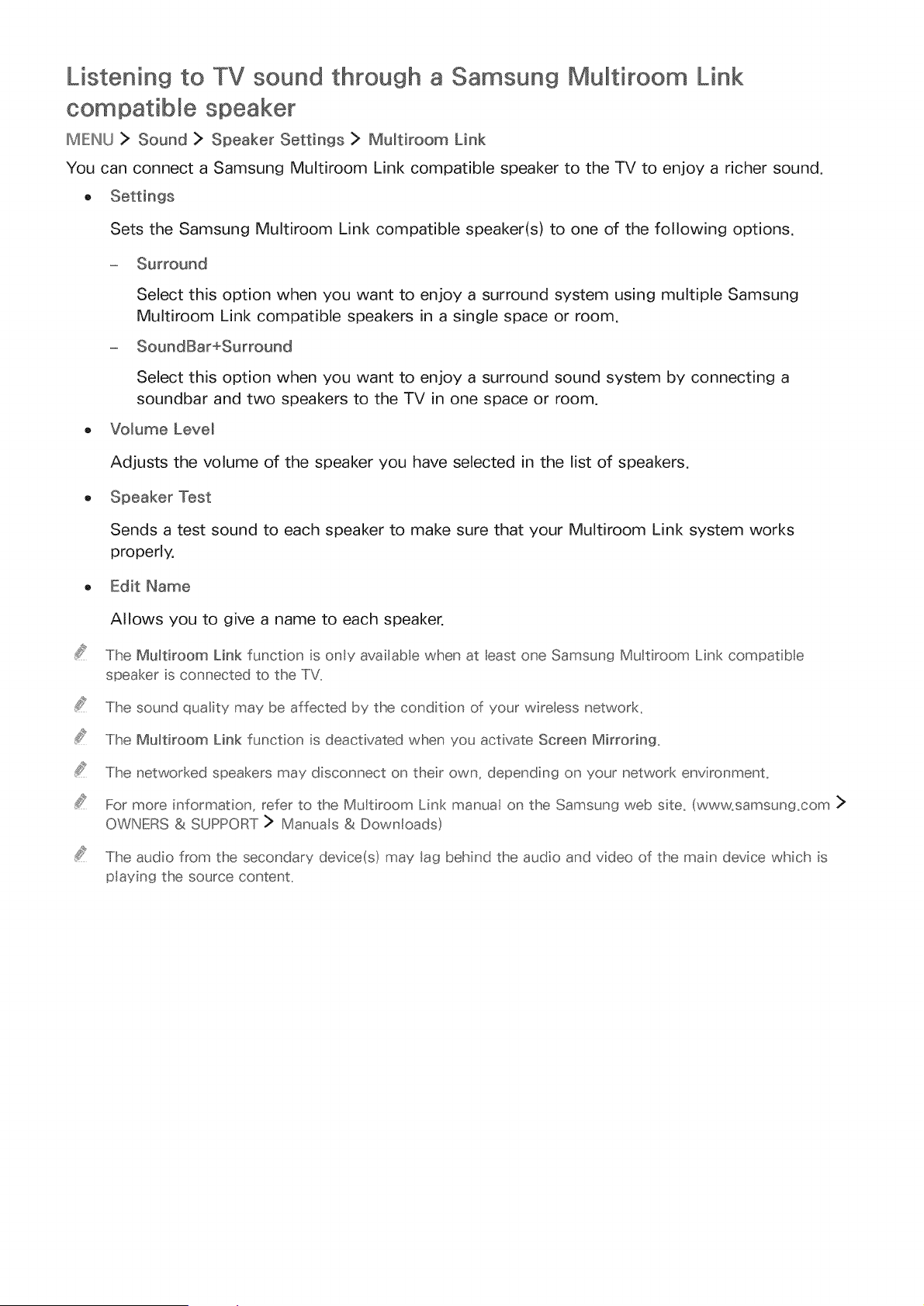
Listening to TV sound through a Samsung Multiroom Link
compatible speaker
IMIENU> Sound > Speaker Settings > Mumtiroom Link
You can connect a Samsung Multiroom Link compatible speaker to the TV to enjoy a richer sound.
, Settings
Sets the Samsung Multiroom Link compatible speaker(s) to one of the following options.
- Surround
Select this option when you want to enjoy a surround system using multiple Samsung
Multiroom Link compatible speakers in a single space or room.
- SoundBar+Surround
Select this option when you want to enjoy a surround sound system by connecting a
soundbar and two speakers to the TV in one space or room.
, "Volume Level
Adjusts the volume of the speaker you have selected in the list of speakers.
, Speaker Test
Sends a test sound to each speaker to make sure that your Multiroom Link system works
properly.
, Edit Name
Allows you to give a name to each speaker.
The M@tiroom Link function is ony avai abe when at east one Samsun9 Multiroom Link compatib e
speaker is connected to the TV_
The sound quality may be affected by the condition of your wireless network_
The Mu_tiroom Link function is deactivated when you activate Screen Mirroring_
The networked speakers may disconnect on their own, depending on your network environment_
For more information refer to the MuItiroom Link manua on the Samsun9 web site_ (www_samsung_com >
OWNERS & SUPPORT> Manua s & Downloads)
The audio from the secondary device(s) may la9 behind the audio and video of the main device which is
playin9 the source content_

Listening to the TV through Bluetooth headphones
IMIEINU> Sound > Speaker Settings > Bluetooth Headphones
You can connect Bluetooth headphones to the TV. They must be paired using the TV's Bluetooth
function. For more information on pairing, refer to the Bluetooth headphone's operating manual.
, Bluetooth Headphone List
Displays a list of Bluetooth headphones that can be paired with the TV. Select a Bluetooth
headphone to display its menu options. From this menu, you can activate/deactivate (i.e., pair/
unpair) the Bluetooth headphone or remove it from the list.
. Mu_ti-Output Audio
Allows you to listen to audio through the TV's speakers and the connected headphones
simultaneously.
if the TV fails to find a headphone, place the headphone coser to the TV, and then seect Refresh,
When you turn on a paired B uetooth headphone, the TV detects it automaticaII:_; and then dispIays a pop-
up window, Use this pop--up window to activate!deactivate the BIuetooth headphone,
Before using a BIuetooth device, refer to
Enabling digita audio output
IMIEINU> Sound > Additional Settings
Since this Smart TV is Sony/Philips Digital Interface Format (S/PDIF)-enabled, you can set the TV to
provide digital audio output to various digital audio devices, such as speakers, A/V receivers, and home
theaters, by adjusting the following settings.
, HDMI Audio Format
Sets the format of the audio input signal so that it is suitable for the external device connected
to one of the TV's HDMI ports.
, AudioFormat
Selects the digital audio output (S/PDIF) format. The available formats depend on the input
source.
- Audio Delay _:!:;_
Helps correct timing mismatches between the audio and video tracks when you are watching TV
and listening to audio through a digital audio device. You can adjust the delay by up to 250 ms.
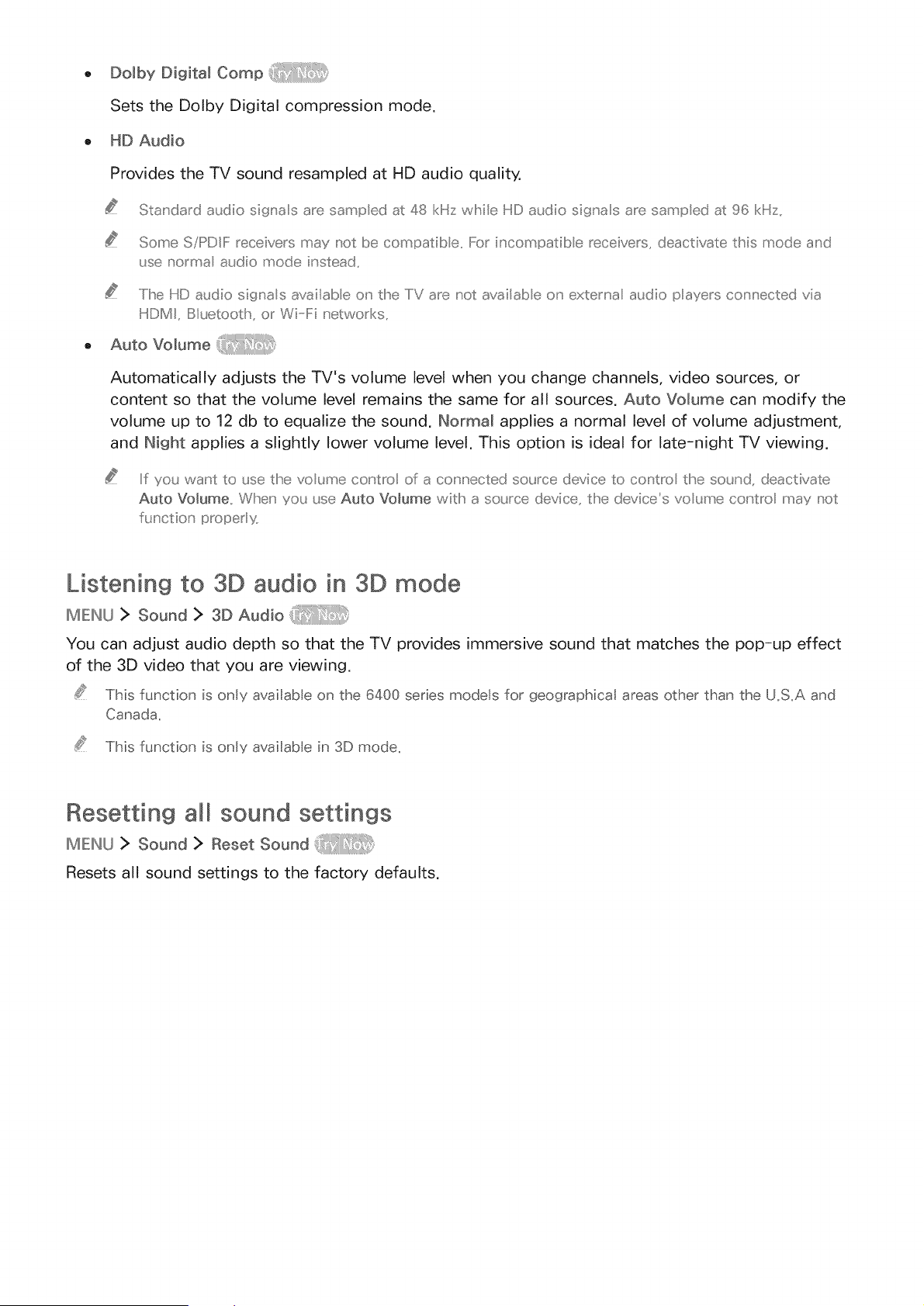
Dolby Digital Comp
Sets the Dolby Digital compression mode.
HD Audio
Provides the TV sound resampled at HD audio quality.
kllz
Standard audio sigr a s are sampled at 48 ' while HD audio sigra s are sampled at 96 kli Iz,,
Some SiPDH:: receivers may not be compatib e,, For ir compatib e receivers, deactivate this mode and
use norton audio mode instead,,
.....Ilhe liD audio signa s availabe or the TV are not availab e or extema audio payers corrected via
HII)MI, %uetooth, or WilFi networks,,
Auto Volume
Automatically adjusts the TV's volume level when you change channels, video sources, or
content so that the volume level remains the same for all sources. Auto Volume can modify the
volume up to 12 db to equalize the sound. Normal applies a normal level of volume adjustment,
and Night applies a slightly lower volume level. This option is ideal for late-night TV viewing.
It you want to use the voume contro of a connected source device to contro the sour d, deactivate
Auto Volume,, Wlher you use Auto Volume with a source device, the devices voume cot tro may not
functior proper _,
Listening to 3D audio in 3D mode
ME: NU> So°nd> SDAodb
You can adjust audio depth so that the TV provides immersive sound that matches the pop-up effect
of the 3D video that you are viewing.
This function is only availab e on the 6400 series models for geographical areas other than the U.S.A and
Canada.
This function is only availab e in 3D mode.
Resetting all sound settings
II%EINU > Sound > Reset Sound
Resets all sound settings to the factory defaults.

Setting the Time and Using the Timer
Setting the current time
ME:I U> System> T me>aook
You can set the clock manually or automatically. Once the clock is set, you can view the current time
on the TV anytime. Press the IINFO button on the remote control.
The coc< must be reset every time the power is disconnected,
Setting the cbck using digita_ b_'oadcast info
MIEINU> System > Time > Clock > Clock Mode
You can have the TV automatically download time information from a digital channel and set the
current time. To activate this function, set Clock Mode to Auto. If the TV is connected to a cable box
through HDMI or Component connectors, you must set the current time manually.
This function works only when the TV% antenna iac< is connected to either an antenna or a cable output
and is receiving digital broadcasts,
The accuracy of the time information received may differ with the channe and signa,
_f the c_ock is wrong in auto mode
MIEINU> System > Time > Clock > Time Offset
You can offset the clock in 1-hour increments by as much as -/+ 12 hours if the TV fails to display the
correct automatically set time.
Time Offset adiusts the time through a network connection. This function is only available if C_ock Mode is
set to Auto and the TV is connected to the Internet though a local area network.
Time Offset adjusts the time if the TV fails to receive time information through norma digital broadcast
signals_
Setting the cbck manually
MIEINU> System > Time > Clock > Clock Set
You can set the clock manually. Set Clock Mode to Manual, and then input present date and time.
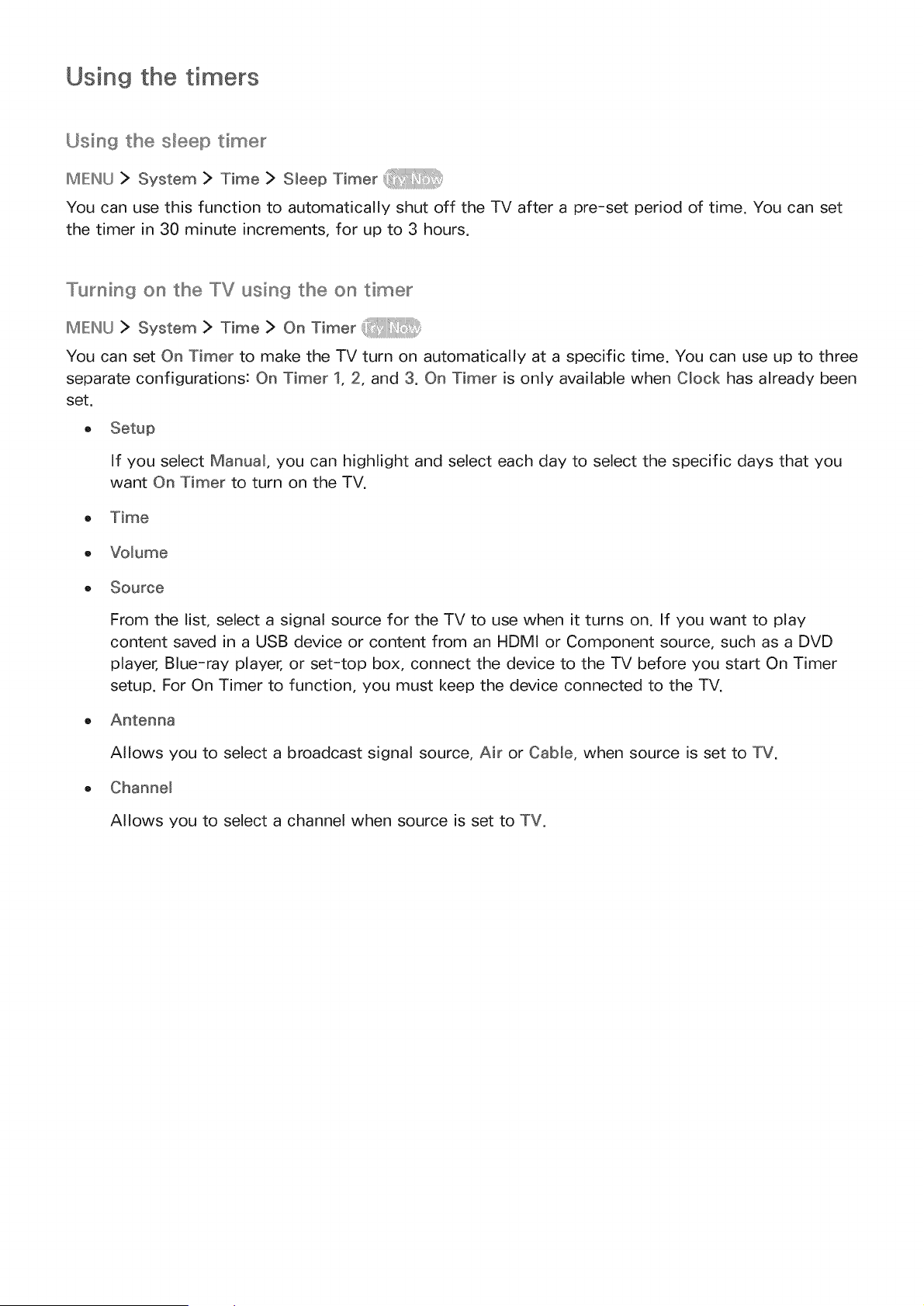
Using the timers
Using the s_eep timer
IMIEINU> System > Time > Sleep Timer'
You can use this function to automatically shut off the TV after a pre-set period of time. You can set
the timer in 30 minute increments, for up to 3 hours.
Turning on the TV using the on timer
IMIEINU> System > Time > On Timer
You can set On Timer to make the TV turn on automatically at a specific time. You can use up to three
separate configurations: On Timer 1, 2, and 3. On Timer is only available when Clock has already been
set.
If you select Manual, you can highlight and select each day to select the specific days that you
want On Timer to turn on the TV.
o Time
o Volume
e Souroe
From the list, select a signal source for the TV to use when it turns on. If you want to play
content saved in a USB device or content from an HDMI or Component source, such as a DVD
player, Blue-ray player, or set-top box, connect the device to the TV before you start On Timer
setup. For On Timer to function, you must keep the device connected to the TV.
o Antenna
Allows you to select a broadcast signal source, Air or Cable, when source is set to TV.
o Channel
Allows you to select a channel when source is set to TV.
Music / Photo
Allows you to specify a USB device folder containing music files in the music field and/or a
folder containing photos in the photo field when source is set to USB. If you select both a folder
that contains music files and a folder that contains photo files, the TV plays the music files and
displays the photos at the same time.
If the foder that you clhoose has sul) foderx_, you can seect a sul) foder _i,' the same faslhio,'.
..../Ibis function does not work proper y if the se ected USB device does not co,'tai,' media flies or a fo der"
has not been specified,,
No sideshow starts if tlher'e is onY one imaf_e fib on the USB device,,
IFoders wid_ on9 names cannot be seected,,
Make sure to use differ'e,' t foder" names for mutiple USB devices,,
Use a USB memory stick of mu ti card reader: On Timer may not work wid_ certain batter'y power'ed
USB devices, MI!:::_3payers, or IPMI!:::_sbecause the TV may take too on9 to recognize the device,,
Tuminfj off the TV using the off timer
IMIEINU> System > Time > Off Timer
You can set Off Timer to turn off the TV automatically at a specified time. You can set up three
separate configurations: Off Timer 1, 2 and 3. Off Timer is only available when Clock has already been
set.
Sets days of the week that the TV is turned off automatically. If you select Manual, you can
select each specific day.
Time
Sets the time for the TV to turn off automatically.

Using the Screen Burn Protection and Energy Saving
Functions
Preventing screen burn
IMIEINU> System > Auto Protection Time
You can use the Screen Burn Protection function to protect the screen. Still images can leave burned-
in after-images if left on the screen for a long period of time. Select a time setting from the list. If a
still image is shown on the screen for longer than the time that you selected, the TV automatically
activates the Screen Burn Protection function.
Reducing the energy consumption of the
MEI_U> System> EeoSolution
You can adjust the brightness level of the TV and prevent overheating to reduce overall power
consumption.
, EnergyS°v_°9
Allows you to select a brightness setting from the list to reduce the TV's power consumption.
, EeoSensor
Automatically adjusts the brightness level of the TV, according to the ambient light level, to
reduce power consumption. If the Eco Sensor has adjusted the screen's brightness level, you
can select the Mine BacMight or Mine Cell Light (in applicable models) to manually adjust the
minimum screen brightness.
, NoS_gn°mPowerOff
Allows you to select a length of time from the list. If no signal has been received for the length
of time you selected, the TV automatically cuts off the power to reduce power consumption.
, AutoPowerOff_:_
Automatically turns off the TV to prevent overheating when the TV remains on for the specified
period of time without any user input.
, Motion Lighting
Adjusts the brightness in response to on-screen movements to reduce power consumption.
..../Ibis feature is cry availab e wlher the Picture Mode is set to Standard,,
..../Ibis functior is deactivated wlher you adjust a picture q_Jai_ysetting, such as Contrast and Brightness,,
Using Anynet+ (HDMi-CEC)
You can use the TV's remote control to control external devices that are connected to the TV by
an HDMI cable and that support Anynet+ (HDMI-CEC). Note that you can only set up and operate
Anynet+ (HDMI-CEC) with the remote control.
Setting up Anynet+ (HDMI-CEC}
IMIEINU> System > Anynet+ (HDMI-CEC} _
- Anynet+ (HDMI-CEC} _:!/:_
You can enable or disable Anynet+ (HDMI-CEC). Set to Off or On to disable or enable all Anynet+
related functions.
, Auto Turn Off _
When set to Yes, turns off Anynet+ compatible external devices when the TV is turned off.
This funcdon is not supported H)ysome Anynet+ compatib e devices,,
. Devicesearch
Automatically searches for and identifies Anynet+ (HDMI-CEC) compatible external devices that
are connected to the TV.
Using Anynet+ (HDMI-CEC}
Viewing Anynet+ (HDM_CEC)_compliant devices
After connecting external devices to the TV, select IMIEINU> System > Anynet+ (HDMI-CEC) >
Device Search. The TV displays a list of Anynet+ (HDMI-CEC)-compliant devices that you can set up
as Anynet+ (HDMI-CEC)-enabled devices (i.e., devices that can be controlled with the TV's remote
control). To set up an Anynet+ (HDMI-CEC)-compliant device as an Anynet+ (HDMI-CEC)-enabled
device, you must select it on the Source screen. Follow the instructions in the next section.
Setting up as an Anynet+ (_,,,,,,,_DMI-CEC}-enab_ed device
Press the SOURCE: button, The Source screen appears, Select a connected device, and then press
the down directional button,
2, Select Anynet+ (HDMm-CEC} from the menu, The selected device is set up as an Anynet+ (HDMI-
CEC)-enabled device, The following menu options are available,
.....Ilhe menu options disp ayed o_ the men_ may differ Hay externa device,,
Anynet+ (HDMm-CEC}
Sets up the selected device as an Anynet+ (HDMl-CEC)-enabled device, and then displays a
list of all external devices connected to the TV. If you select an external device in the list, it is
used as the input source so that you can watch TV through that device. If you select View TV,
Anynet+ (HDMI-CEC) is exited so that you can watch TV without intervening of any external
device.
Read before connect[n9 an Anynet+ (HDMI-CEC}
Anynet+ cannot be used to control external devices that do not support HDMI-CEC,
Anynet+ (HDMI-CEC}-enabled devices must be connected to the TV with an HDMI cabe, Note that some
HDMI cabes may not support Anynet+ (HDMI-CEC}.
The TV remote control may not work under certa n c rcumstances, If this occurs, set up the device as the
Anynet+ (HDMI-CEC)-enabled devce again,
Anynet+ (HDMI-CEC} works ony with external devices that support HDMI-CEC and only when those
devices are ether n standby mode or turned on,
Anynet+ (HDMI-CEC} can contro up to 12 comp iant external devices (up to 3 of the same type} except for
home theaters, Anynet+ (HDMI-CEC} can contro only one home theater system,
To listen to 5.1-channel audio from an external dev ce, connect the device to the TV via an HDMI cabe and
connect the home theater system d rectty to the TV's dgta audo output connector_
Updatin9 the TV's Software
IMIEINU> Support: > Software Update
You can view your TV's software version and update it if necessary.
Updating the TV's software to the latest version
II_IF:II_U> Support > Software Update > Update now
You can update your TV's software by downloading the update from the Internet directly to your TV or
copying the update from a USB device that contains it to your TV.
This function requires an Internet connection.
Save the update package in the USB device's top-level folder, Otherwise, the TV will not be able to locate
the update pac<age.
z£ DO NOT turn off the TV's power until the update is complete. The TV will turn off and on
automatically after completing the software update. All video and audio settings return to the
default settings after a software update.
Updating the TV automatically
II_IF:II_U> Support > Software Update ]> Auto Update
If the TV is connected to the Internet, you can have the TV's software update itself automatically while
you are watching the TV. When the background update is completed, it is applied the next time the TV
is turned on.
This function may take a longer time if a different networking function is running concurrently.
This function requires an Internet connection.
If you agree to the Smart Hub terms and conditions, Auto Update is set to On automatical y. If you do not
want the TV's software to update itsef automatical 4 set Auto Update to Off.
Protecting the TV from Hacking and Malicious Code
IMIEINU> System > Smart Security
You can use Smart Security to protect the TV from hacking and malicious code when it is connected
to the Internet.
Checking the TV and connected storage for malicious code
IMIEINU> System > Smart Security > Scan
You can scan the TV and connected media to detect the presence of malicious code. If there is no
malicious code detected, a notification window appears on the screen.
If malicious code is detected,,,
If malicious code is found, the results of the scan will appear on the screen. This result window
displays all malicious code found. You can either quarantine (isolate) the code or block it from
executing.
Select all the malicious code to either quarantine or block.
2. Select Isolate or Block. These options relocate the selected malicious code to the Isolated List or
Blocked List.
..../he Isolated List disp ays a quarantined ma icious codes,,
..../Ihe Blocked List disp ays a b ocked ma icio_.Jscodes,, Yo_.Jca_' aso quara_' tine or aow codes from
this ist,,
Configuring additional functions
MIENLJ > System > Smart Security ]> Settings
o Antivirus
Monitors the TV in real-time to prevent viruses from infecting the TV.
o Network Security
Protects the TV from hacking to minimize a leaks of private information.
o Camera
Permits the cameras connected to the TV to be used.
Permits the microphones connected to the TV to be used.
Auto Scan
Makes the TV automatically scan itself and any connected storage media when it is turned on.
Auto isolate
Adds malicious codes found during the scanning process to the Isolated List automatically.

Using Other Functions
Running the accessibility functions quickly
You can use the Accessibility Shortcuts menu to quickly run the accessibility functions for the
impaired. Press the CC button on the remote control. The Accessibility Shortcuts menu lists the "Voice
Guide, Video Description, Caption, Menu Transparency, High Contrast, Enlarge, Learn Remote Control
and Mumti-Output Audio menu options.
With Accessibility shortcuts menu, some functions are not avai able in specific countries,
Even if Voice Guide is set to Off or the Mute mode is activated, you can run the Voice Guide function from
the Accessibility Shortcuts menu,
Enabling voice guides for the visually impaired
IMEINU> System > Accessibility > "Voice Guide
You can activate voice guides that describe the menu options aloud to aid the visually impaired. To
activate this function, set Voice Guide to On. With Voice Guide on, the TV provides voice guides for
channel change, volume change, information on current and upcoming programs, schedule viewing,
other TV functions, and various content on Web Browser, in Search, or in MY CONTENT.
The Voice Guide is provided in the anguage that is specified on the Menu Language screen. However, some
languages are not supported by Voice Guide even though they are listed in the Menu Language screen,
English is always supported_
Changing the vo_ume_ speed_ and pitch of the voice guide
You can configure the volume, speed, pitch, and level of the Voice Guide.
, Volume
Changes the Voice Guide's volume level.
, Speed
Changes the Voice Guide's tempo.
- Pitch
Tunes the pitch of the Voice Guide.
White text on Mack background (high contrast)
MIEINU> System > Accessibility > High Contrast
You can change major service screens to white text on a black background or change the transparent
TV menus to opaque so that text can be more easily read. To activate this function, set High Contrast
to On.
Adjusting the menu transparency
MIEIHU > System > Accessibility> Menu Transparency
You can adjust the menu's transparency.
SettingHigh Contrast(MENU > System > Accessibility> High Contrast)to On automaticallyswitchesthe
menudisplaymode to opaque_You cannotmanua y change theMenuTransparencysettings_
Enlarging the font (for the visually impaired)
MIEIH(J> System > Accessibility> Enlarge
You can enlarge the size of the font on the screen.To activate,set Enlarge to On.
Learning about the remote control (for the visually impaired}
MENU > System > Accessibility :> Learn Remote Control
This function helps individuals with a visual impairment to learn the positions of the buttons on the
remote control. When this function is activated, you can press a button on the remote control and the
TV will tell you its name. To return to the previous screen, press the RETURN button twice. To exit,
press the IEXF button twice.
This function is only availab e in the U,S,A, and Canada,
Listening to the TV through Bluetooth headphones (for the hearing
IMIEIHU> Sound > Speaker Settings > Bluetooth Headphones > Mu_ti.-Output Audio
You can turn on both the TV speaker and Bluetooth headphones at the same time. When this function
is active, you can set the volume of the Bluetooth headphones to be louder than that of the TV
speaker.
When you connect the BIuetooth headphones to the TV, Multi-Output Audio menu is activated. For more
information about connecting BIuetooth headphones to the TV, refer to

Changing the menu language
MIEINU > System > Menu Language
You can use this function to change the menu language. Choose a language from the list.
Setting up a password
M[INU > System > Change PIN _
You can set a Personal Identification Number (PIN) to lock channels, reset the TV, and change TV
settings.
The PIN input window appears. Enter a PIN. Enter it again to confirm it. The default PIN is 0000.
If you forget your PIN, you can reset it with your remote contro. With the T_' turned on, press the following
E)
buttons on the remote contro in the order shown to reset the PIN to 0000: _ _""'F(Vo ume Up) _RETURN
-- (Voume Down) _RETURN __ _RETURN.
Checking Notifications
MIEINU > System > Notifications
You can view the list of event messages generated by the TV. Notifications appear on the screen when
events such as an update release for an app or Samsung Account Iogin/Iogout occurs.
To delete all notifications, seect Delete AH.
To check the SMART TV's service notifications in a web browse£ seect Service Notice.
Enabling game mode
MIEIIUU > System > General > Game Mode _il,'ii'iil,,i_l'
You can enable the game mode to optimize the TV's settings for playing video games with a gaming
console, such as a PlayStation TM or Xbox TM.
The game mode is not available for normal TV viewing.
The screen may shake somewhat.
When Game Mode is enabled, Picture Mode and Sound Mode are switched to Game automatically,
To use a different external device, first disconnect the game conso e and disab e Game Mode.
Richer comors and superior picture quality (BD Wise)
IMIEINU> System > General :> BD Wise
You can enhance colors and picture quality if you connect a Samsung DVD player, Blu-ray player, or
home theater system that supports BD Wise. When BD Wise is enabled, it automatically optimizes the
TV's resolution.
This function is only availab e when the externa device is connected via an HDMI cabe.
Enabling/Disabling sound feedback
IMIEINU> System > General > Sound Feedback
You can use Sound Feedback to get audio cues as you navigate through menus and select menu
options. You can set it to Low, Medium, High, or Off.
Locking/Unlocking the Control Stick
IMIEINU> System > Genera[ > Pane[ Lock
You can lock and unlock the front panel buttons (menu, channel, and volume) of the TV and the
control stick on the back of the TV.
Showing/Hiding the Samsung logo while booting
IMIE:INU> System > General > Boot Logo
You can enable or disable the Samsung logo display that appears when the TV starts up.
This function is not avai abe when Samsun9 Instant On is set to On.
Enabling the TV to boot faster
IMIEII_LJ> System > General > Samsun9 Instant On
You can set Samsun9 Instant On to On so that the TV boots up faster.
When Samsun9 Instant On is set to On, the use history of the apps that you used on the TV may be stored
in the TV.
The Samsung Instant On function works when you turn on the TV while its power came is still connected
after you set Samsung Instant On to On. If you disconnect, reconnect the power cabe, and then turn on the
TV, this function does not work.
Even if the Samsung Instant On function is on, the power consumption while the TV is turned off meets the
standby power consumption specification presented on the product label.
Registering the TV as a DivX-certified device (watching for pay
DivX movies)
MIEINLJ> System > DivX@ Video On Demand
You can watch DivX DRM protected movies on the TV only if it is registered as a DivX-certified device.
Digital Rights Management (DRM) functions as a technica security mechanism to protect the content
providers copyright,
You can watch recorded movies or free DivX movies without registration_
Visit the DivX website (http://www.divx.com) and tog in to your user account before registering the TV as a
DivX-certified device_ If you do not have an account, create one_
Restoring the TV to the factory settings
MIEINU> Support: > Self Diagnosis > Reset
You can restore all TV settings (excluding the Internet and network settings) to the factory defaults,
Select Reset, The security PIN entry window appears,
2, Enter the security PIN, and then select Yes. All settings are then reset. The TV turns off and on
again automatically and displays the Setup screen.
For more k formation' o_' Setup, refer to the user ma_'ua that came wish the TV,
Using the TV as a display model (for retail stores)
IMIEIMJ> Support > Use Mode
You can turn the TV into a display model for retail environments by setting Use Mode to Store Demo.
For aI other uses, select Home Use.
With Store Demo, some functions are disabled, and the TV automatical y resets itsef after a preset amount
of time_
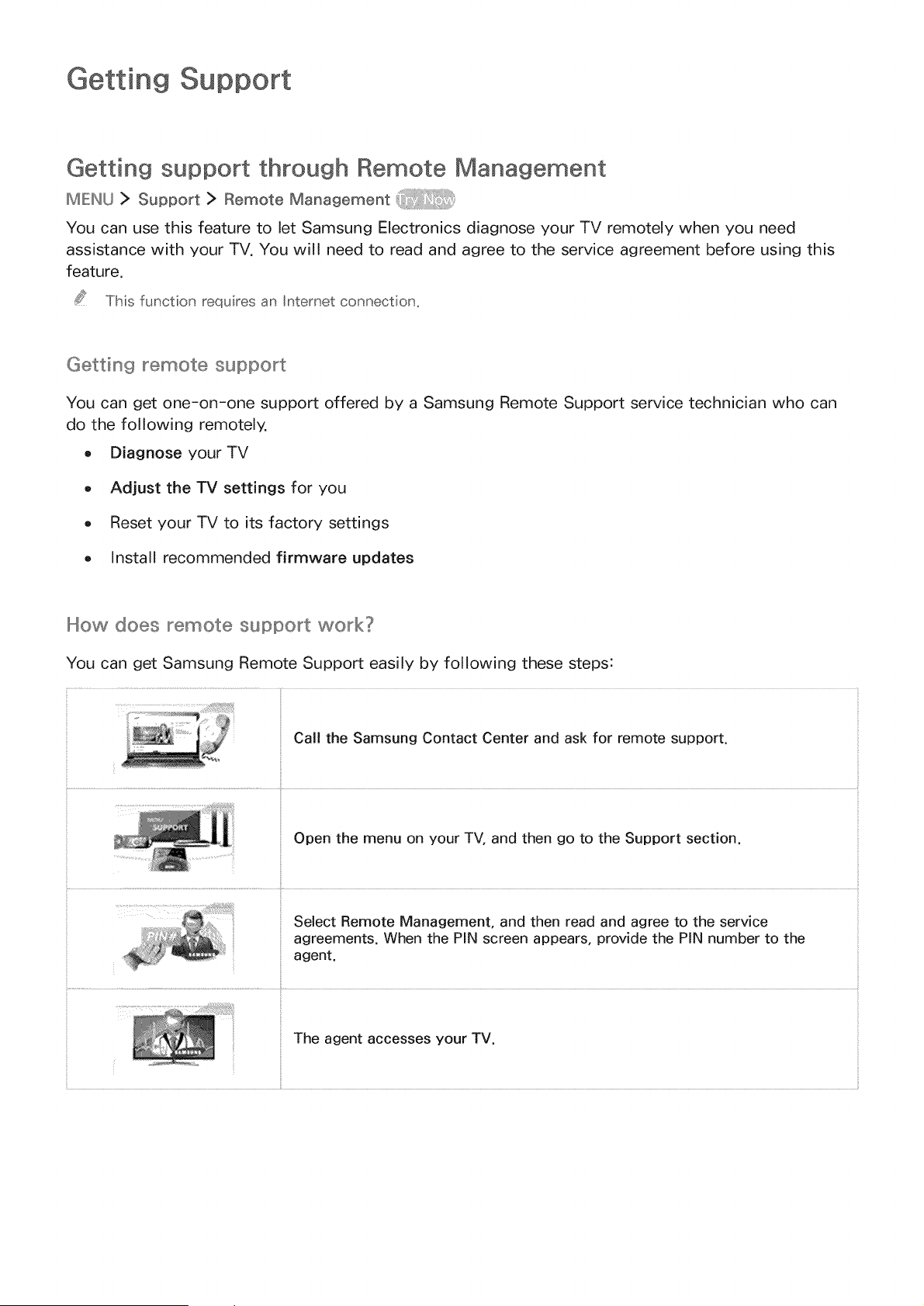
Getting Support
Getting support through Remote Management
MENU > Support: > Remote Management
You can use this feature to let Samsung Electronics diagnose your TV remotely when you need
assistance with your TV. You will need to read and agree to the service agreement before using this
feature.
This function requires an Internet connection_
Getting _emote support
You can get one-on-one support offered by a Samsung Remote Support service technician who can
do the following remotely.
o Diagnose your TV
o Adjust the TV settings for you
o Reset your TV to its factory settings
o Install recommended firmware updates
How does _emote support work?
You can get Samsung Remote Support easily by following these steps:
Call the Samsung Contact Center and ask for remote support.
,.................................................................................................................................ii¸
Open the menu on your TV, and then go to the Support section.
Select Remote Management, and then read and agree to the service
agreements. When the PIN screen appears, provide the PIN number to the
agent.
The agent accesses your TV.

Finding the contact information for service
IMIEINU> Support > Contact Samsung
You can view the address of the Samsung website, the call center phone number, your TV's model
number, your TV's software version, the Smart Hub info, and other information you may need to get
service support from a Samsung call agent or the Samsung website.
To view the Open Source License, press the 8 button.
Requesting service
IMIEINLJ> Support > Request Support
You can request a service when you encounter a problem with the TV. Select Request Support, and
then agree to the terms and conditions for the service request. Select Request Support again, select
the item matching the problem that you encountered, and then select Send.
This function is not availabe in specific geographica areas.
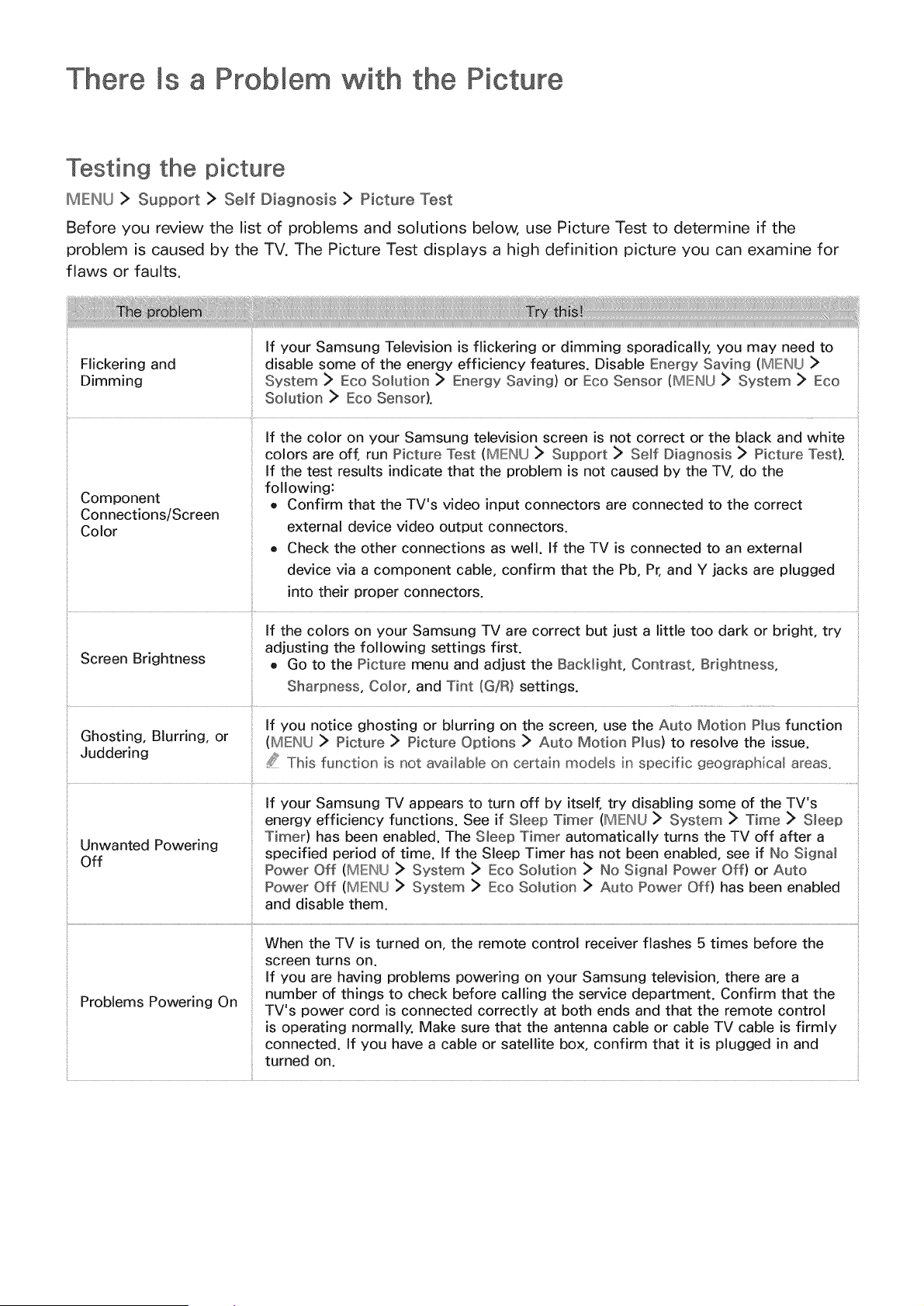
There Is a Problem with the
Testing the picture
IMEINLJ > Support > Self Diagnosis > Picture Test
Before you review the list of problems and solutions below, use Picture Test to determine if the
problem is caused by the TV. The Picture Test displays a high definition picture you can examine for
flaws or faults.
If your Samsung Television is flickering or dimming sporadically, you may need to
Flickering and disable some of the energy efficiency features. Disable Energy Saving (MENU
Dimming System > Eco Solution > Energy Saving) or Eco Sensor (MENU > System > Eco
Solution > Eco Sensor).
If the color on your Samsung television screen is not correct or the black and white
colors are off, run Picture Test (MENLU > Support :> Serf Diagnosis > Picture Test).
If the test results indicate that the problem is not caused by the TV, do the
following:
Component o Confirm that the TV's video input connectors are connected to the correct
Connections/Screen
Color external device video output connectors.
e Check the other connections as well. If the TV is connected to an external
device via a component cable, confirm that the Pb, Pr, and Y jacks are plugged
into their proper connectors.
If the colors on your Samsung TV are correct but just a little too dark or bright, try
adjusting the following settings first.
Screen Brightness e Go to the Picture menu and adjust the Backiight, Contrast, Brightness,
Sharpness, Co,or, and Tint (G!R) settings.
If you notice ghosting or blurring on the screen, use the Auto Motion PMusfunction
Ghosting, Blurring, or (MENU :> Picture > Picture Options > Auto Motion P_us) to resolve the issue.
Juddering s__ This function is not available on certain mode_s in specific geographical areas°
If your Samsung TV appears to turn off by itself, try disabling some of the TV's
energy efficiency functions. See if Sleep Timer (MENU :> System :> Time :> S_eep
Unwanted Powering Timer) has been enabled. The S_eep Timer automatically turns the TV off after a
Off specified period of time. ff the Sleep Timer has not been enabled, see if No Signa_
Power Off (MENU > System > Eco Solution > No Signa_ Power Off) or Auto
Power Off (MENU > System > Eco Solution > Auto Power Off) has been enabled
and disable them.
When the TV is turned on, the remote control receiver flashes 5 times before the
screen turns on.
If you are having problems powering on your Samsung television, there are a
Problems Powering On number of things to check before calling the service department. Confirm that the
TV's power cord is connected correctly at both ends and that the remote control
is operating normally, Make sure that the antenna cable or cable TV cable is firmly
connected. If you have a cable or satellite box, confirm that it is plugged in and
turned on.
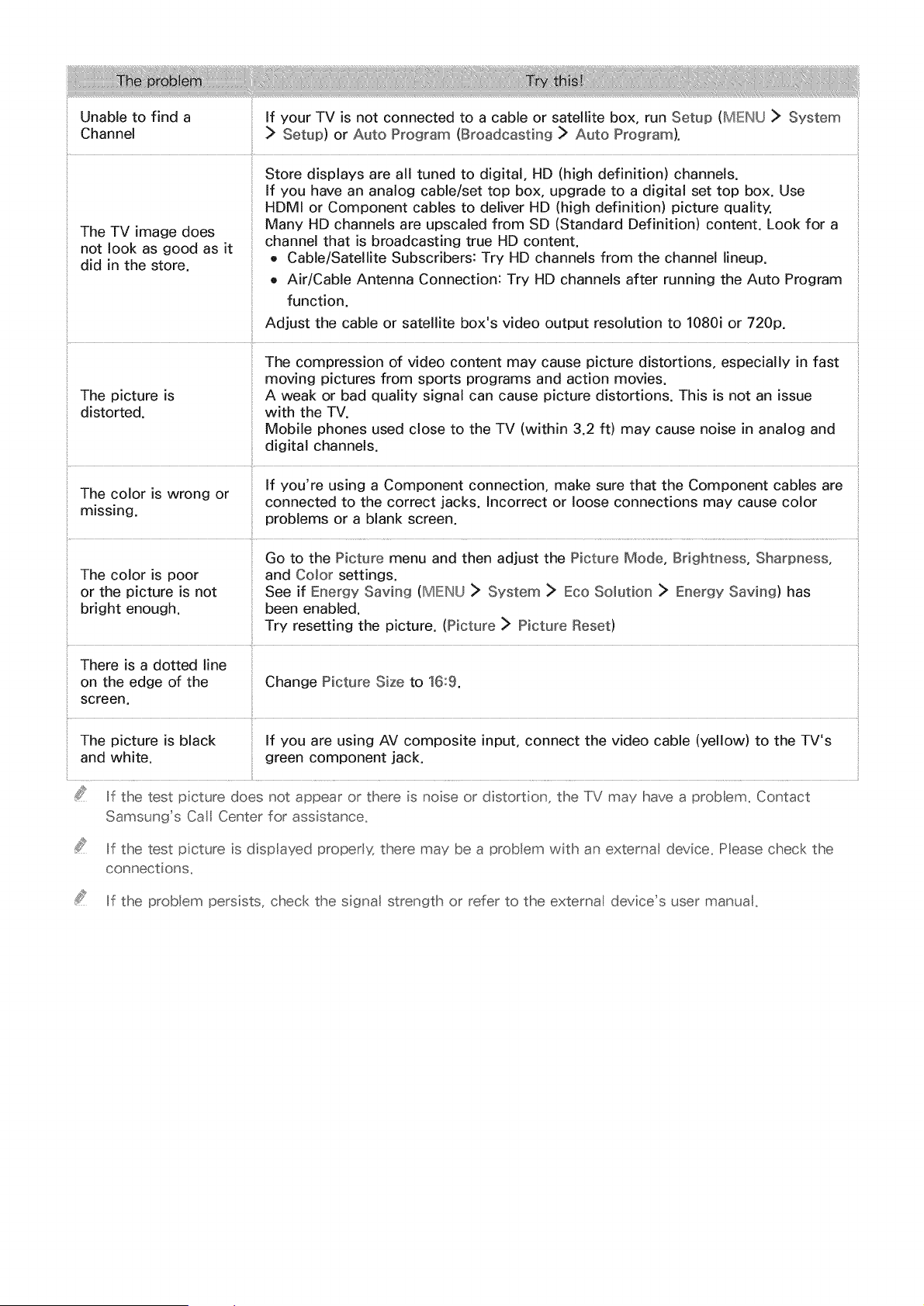
Unable to find a
Channel
The TV image does
not look as good as it
did in the store.
If your TV is not connected to a cable or satellite box, run Setup (MENU _> System
Setup) or Auto Program (Broadcasting > Auto Program).
Store displays are all tuned to digital, HD (high definition) channels.
If you have an analog cable/set top box, upgrade to a digital set top box. Use
HDMI or Component cables to deliver HD (high definition) picture quality.
Many HD channels are upscaled from SD (Standard Definition) content. Look for a
channel that is broadcasting true HD content.
o Cable/Satellite Subscribers: Try HD channels from the channel lineup.
o Air/Cable Antenna Connection: Try HD channels after running the Auto Program
function.
Adjust the cable or satellite box's video output resolution to 1080i or 720p.
:: The compression of video content may cause picture distortions, especially in fast
moving pictures from sports programs and action movies.
The picture is A weak or bad quality signal can cause picture distortions. This is not an issue
distorted, with the TV.
Mobile phones used close to the TV (within 3.2 ft) may cause noise in analog and
digital channels.
If you're using a Component connection, make sure that the Component cables are
The color is wrong or
connected to the correct jacks. Incorrect or loose connections may cause color
missing, problems or a blank screen.
............................................................................................................................................................................................................... i
Go to the Picture menu and then adjust the Picture Mode, Brightness, Sharpness,
The color is poor and Co,or settings.
or the picture is not See if Energy Saving (MENU ]> System _> Eco Solution > Energy Saving) has
bright enough, been enabled.
Try resetting the picture. (Picture _ Picture Reset)
There is a dotted line
on the edge of the Change Picture Size to 16:9.
screen.
The picture is black If you are using AV composite input, connect the video cable (yellow) to the TV's
and white, green component jack.
If the test picture does not appear or there is noise or distortion, the TV may have a prob era, Contact
Samsung's Call Center for assistance,
If the test picture is dispIayed proper'_ there may be a problem with an externa device, Please check the
connections,
If the problem persists, check the signal strength or refer to the external device's user manua,
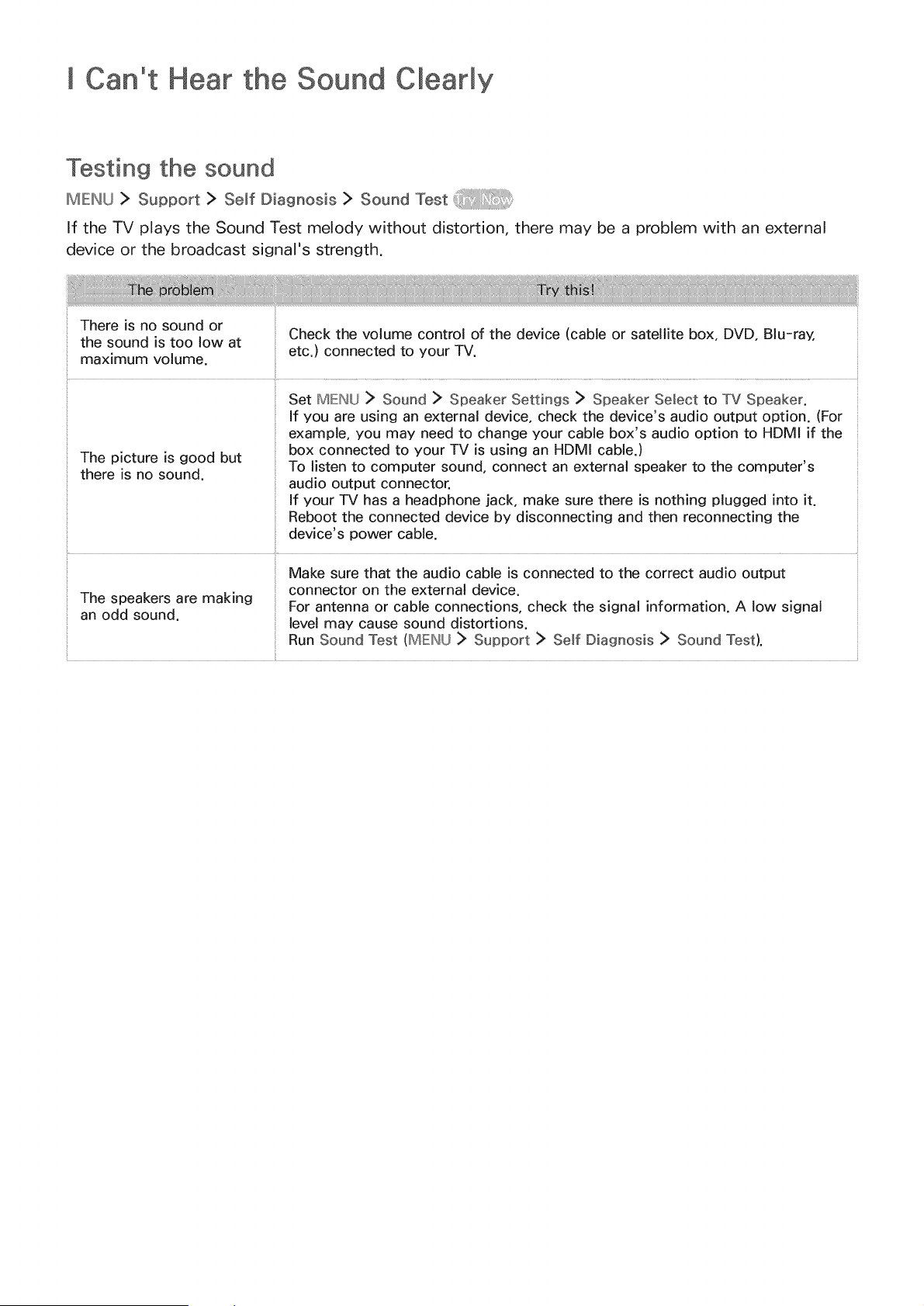
[ Can't Hear the Sound Clearly
Testing the sound
II_IE:II_LJ> Support > Self Diagnosis > Sound Test
If the TV plays the Sound Test melody without distortion, there may be a problem with an external
device or the broadcast signal's strength.
There is no sound or
the sound is too low at
maximum volume.
Check the volume control of the device (cable or satellite box, DVD, Blu-ray,
etc.) connected to your TV.
Set MENU > Sound > Speaker Settings > Speaker Select to TV Speaker.
If you are using an external device, check the device's audio output option. (For
example, you may need to change your cable box's audio option to HDMI if the
box connected to your TV is using an HDMI cable.)
The picture is good but
To listen to computer sound, connect an external speaker to the computer's
there is no sound.
audio output connector.
If your TV has a headphone jack, make sure there is nothing plugged into it.
Reboot the connected device by disconnecting and then reconnecting the
device's power cable.
The speakers are making
an odd sound.
Make sure that the audio cable is connected to the correct audio output
connector on the external device.
For antenna or cable connections, check the signal information. A low signal
level may cause sound distortions.
Run Sound Test (MENU _ Support _ Serf Diagnosis _ Sound Test).
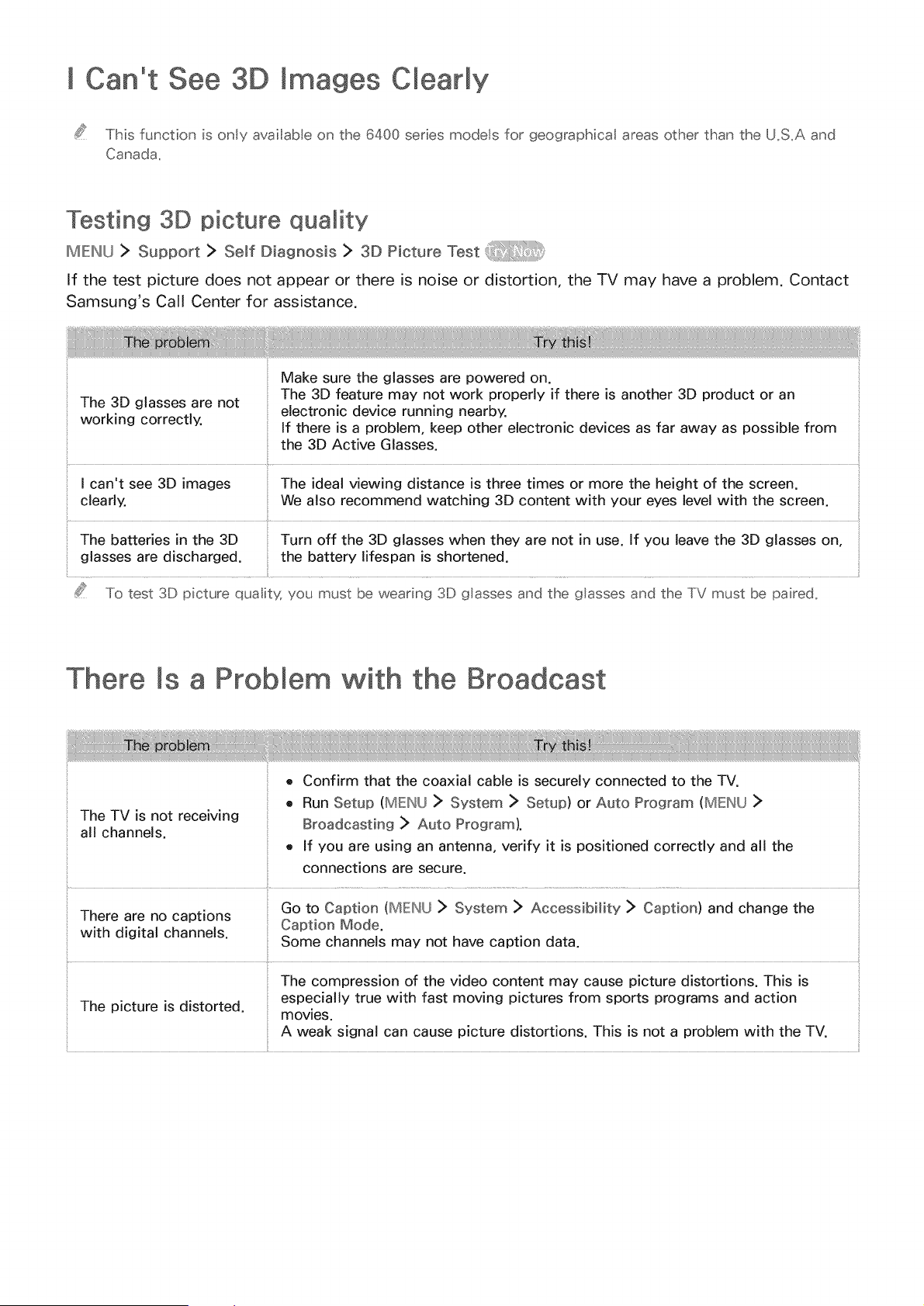
[ Can't See 3D Images Clearly
This function is only avai[ab e on the 6400 series models for geographical areas other than the U,S,A and
Canada,
Testing 3D picture quality
IMIEINU > Support > Self Diagnosis > 3D Picture Test
If the test picture does not appear or there is noise or distortion, the TV may have a problem. Contact
Samsung's Call Center for assistance.
The 3D glasses are not
working correctly.
Make sure the glasses are powered on.
The 3D feature may not work properly if there is another 3D product or an
electronic device running nearby.
If there is a problem, keep other electronic devices as far away as possible from
the 3D Active Glasses.
.... {......
[ can't see 3D images The ideal viewing distance is three times or more the height of the screen.
clearly. We also recommend watching 3D content with your eyes level with the screen.
The batteries in the 3D
glasses are discharged.
Turn off the 3D glasses when they are not in use. If you leave the 3D glasses on,
the battery lifespan is shortened.
FJf_' To test 3D picture qua itg you must be wearing 3D glasses and the glasses and the TV must be paired,
There Is a Problem with the
o Confirm that the coaxial cable is securely connected to the TV.
o Run Setup (MENU > System > Setup) or Auto Program (MENU >
The TV is not receiving Broadcasting > Auto Program).
all channels.
e If you are using an antenna, verify it is positioned correctly and all the
connections are secure.
There are no captions Go to Caption (MENU > System > Accessibility :> Caption) and change the
with digital channels. Caption Mode.
Some channels may not have caption data.
The compression of the video content may cause picture distortions. This is
especially true with fast moving pictures from sports programs and action
The picture is distorted, movies.
A weak signal can cause picture distortions. This is not a problem with the TV.
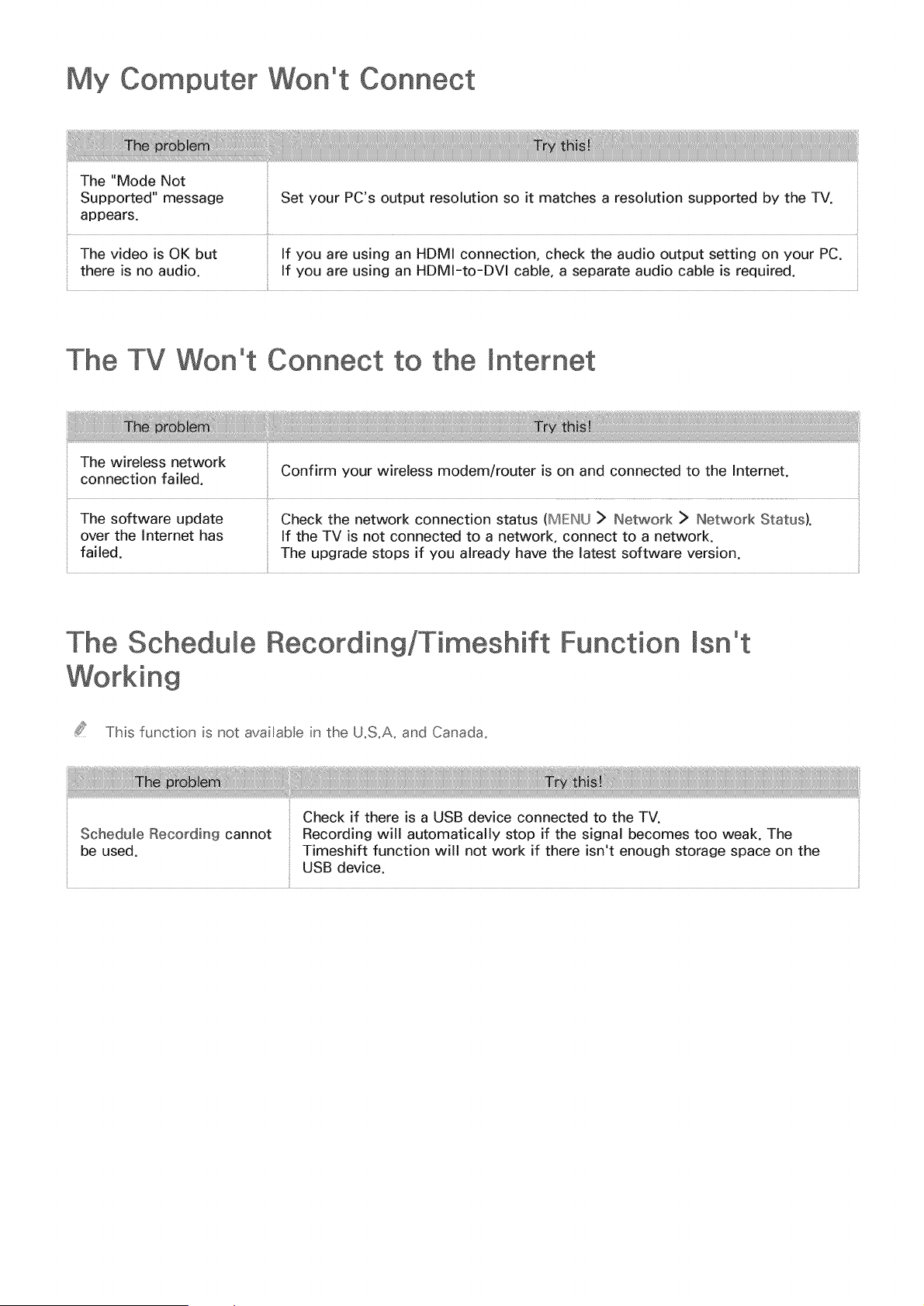
My Computer Won't Connect
The "Mode Not
Supported" message Set your PC's output resolution so it matches a resolution supported by the TV.
appears.
The video is OK but If you are using an HDMI connection, check the audio output setting on your PC.
there is no audio. If you are using an HDMI-to-DVI cable, a separate audio cable is required.
The TV Won't Connect to the
The wireless network
connection failed. Confirm your wireless modem/router is on and connected to the Internet.
The software update Check the network connection status (MENU > Network > Network Status). _
over the Internet has If the TV is not connected to a network, connect to a network.
failed. The upgrade stops if you already have the latest software version.
The Schedule Recording/Timeshift Function [sn°t
Working
This function is not available in the U,S,A. and Canada,
USB device.
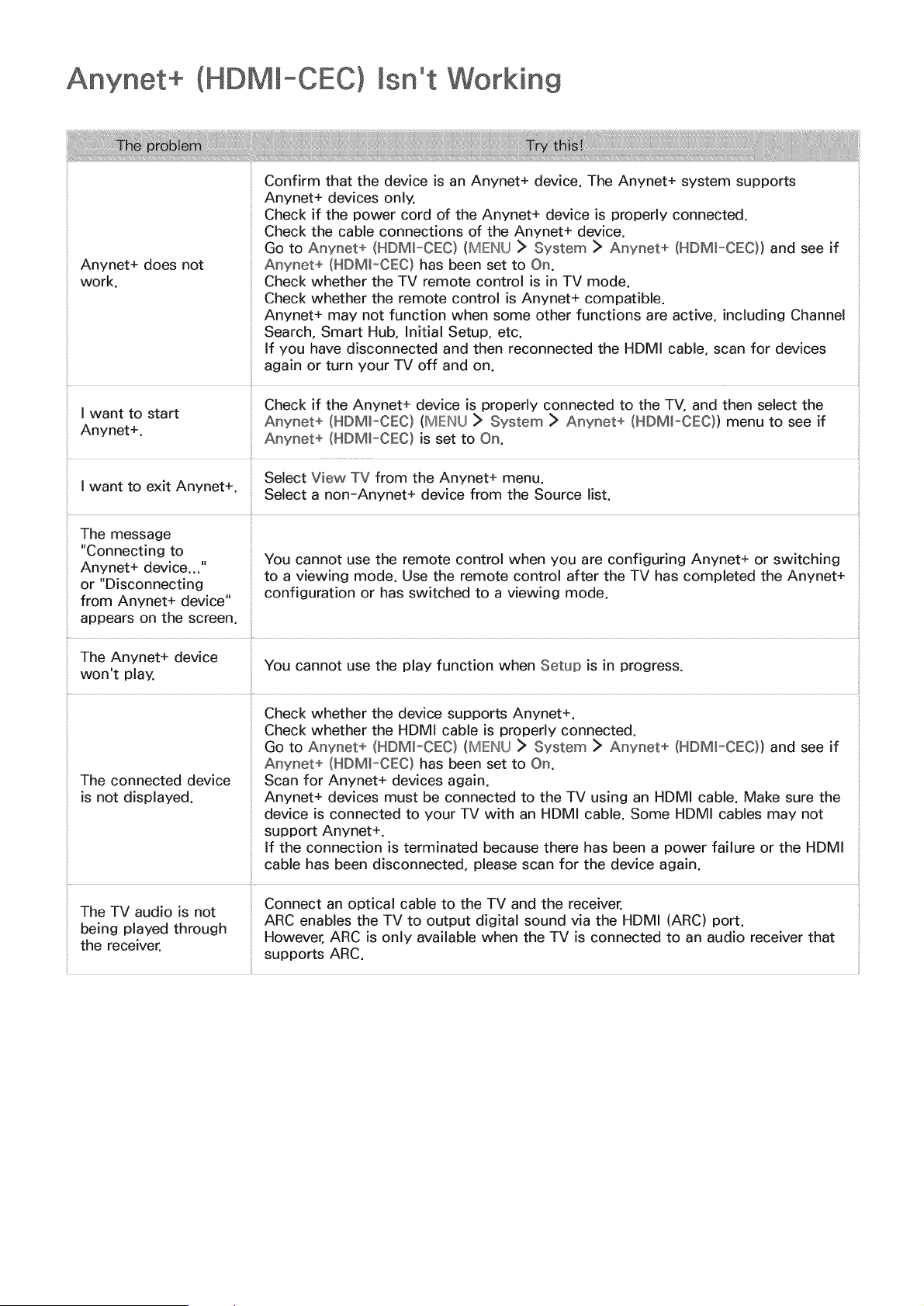
(HDMI-CEC) lsn°t Working
Confirm that the device is an Anynet+ device. The Anynet+ system supports
Anynet+ devices only.
Check if the power cord of the Anynet+ device is properly connected.
Check the cable connections of the Anynet+ device.
Go to Anynet+ (HDMI-CEC) (MENU > System > Anynet+ (HDMI-CEC}) and see if
Anynet+ does not Anynet+ (HDMI-CEC) has been set to On,
work. Check whether the TV remote control is in TV mode.
Check whether the remote control is Anynet+ compatible.
Anynet+ may not function when some other functions are active, including Channel
Search, Smart Hub, Initial Setup, etc.
If you have disconnected and then reconnected the HDMI cable, scan for devices
again or turn your TV off and on.
..... Check if the Anynet+ device is properly connected to the TV, and then select the
i want,_o start Anynet+ (HDMI-CEC) (MENU > System > Anynet+ (HDM_-CEC)) menu to see if
: Anynet . Anynet+ (HDMI-CEC) is set to On.
I want to exit Anynet+ Select View TV from the Anynet+ menu.
" Select a non-Anynet+ device from the Source list.
The message
"Connecting to
Anynet+ device..."
or "Disconnecting
from Anynet+ device" :,
appears on the screen.
You cannot use the remote control when you are configuring Anynet+ or switching
to a viewing mode. Use the remote control after the TV has completed the Anynet+
configuration or has switched to a viewing mode.
The Anynet+ device
You cannot use the play function when Setup is in progress.
won't play.
:: Check whether the device supports Anynet+.
Check whether the HDMI cable is properly connected.
:: Go to Anynet+ (HDMI_CEC) (MENU > System > Anynet+ (HDMI_CEC)) and see if
_ Anynet+ (NDMI-CEC) has been set to On.
_ The connected device Scan for Anynet+ devices again.
is not displayed. Anynet+ devices must be connected to the TV using an HDMI cable. Make sure the
device is connected to your TV with an HDMI cable. Some HDMI cables may not
support Anynet+.
If the connection is terminated because there has been a power failure or the HDMI
cable has been disconnected, please scan for the device again.
Connect an optical cable to the TV and the receiver.
The TV audio is not
being played through ARC enables the TV to output digital sound via the HDMI (ARC) port.
the receiver. However, ARC is only available when the TV is connected to an audio receiver that
supports ARC.
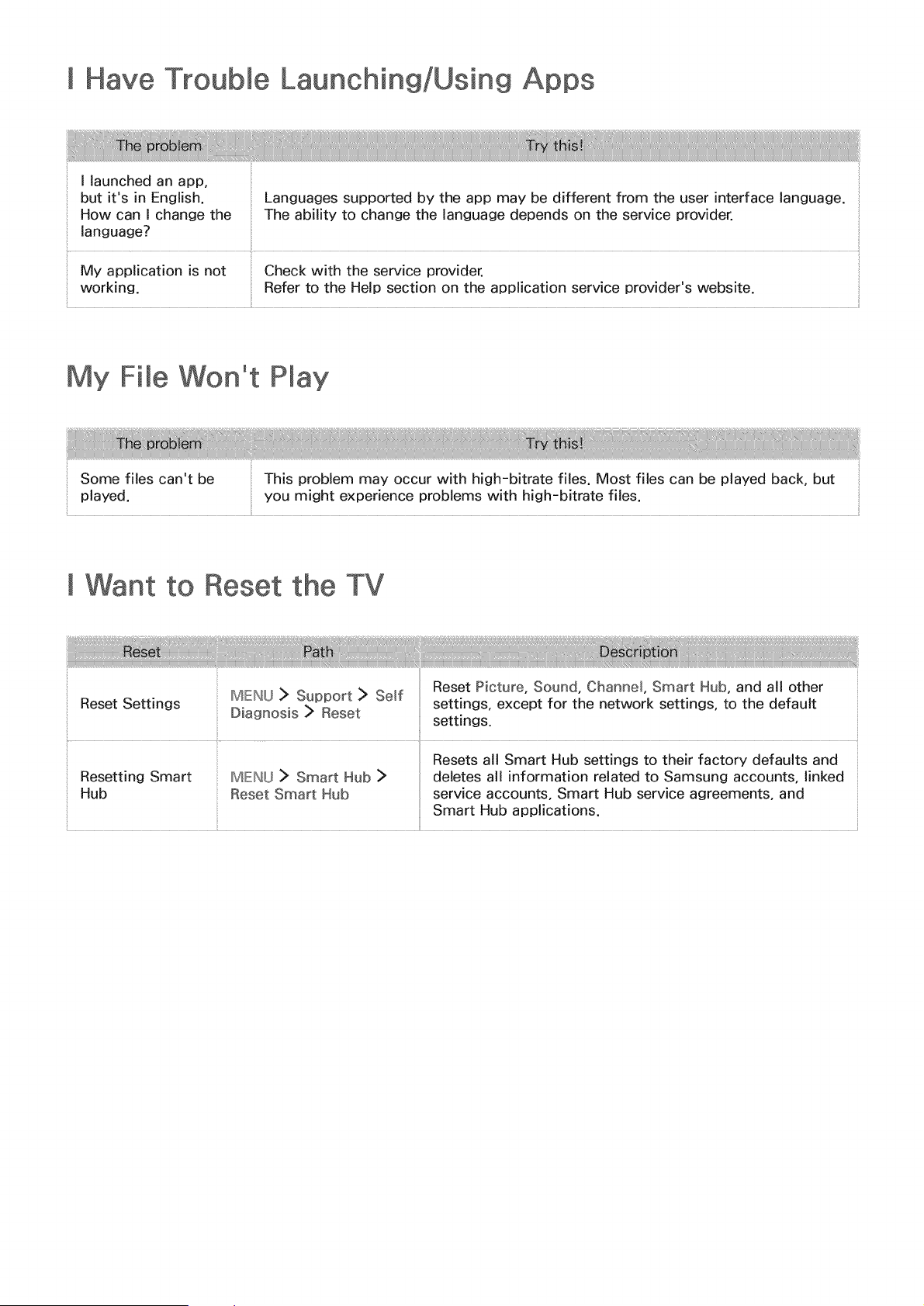
[ Have Trouble Launching/Using Apps
I launched an app,
but it's in English. Languages supported by the app may be different from the user interface language.
How can I change the The ability to change the language depends on the service provider.
language?
My application is not Check with the service provider.
working. Refer to the Help section on the application service provider's website.
My File Won't
Some files can't be
played.
This problem may occur with high-bitrate files. Most files can be played back, but
you might experience problems with high-bitrate files.
[ Want to Reset the TV
Reset Picture, Sound, Channel Smart Hub, and all other
Reset Settings MENU > Support > Self settings, except for the network settings, to the default
Diagnosis > Reset settings.
Resets all Smart Hub settings to their factory defaults and
Resetting Smart MENU > Smart Hub > deletes all information related to Samsung accounts, linked
Hub Reset Smart Hub service accounts, Smart Hub service agreements, and
Smart Hub applications.
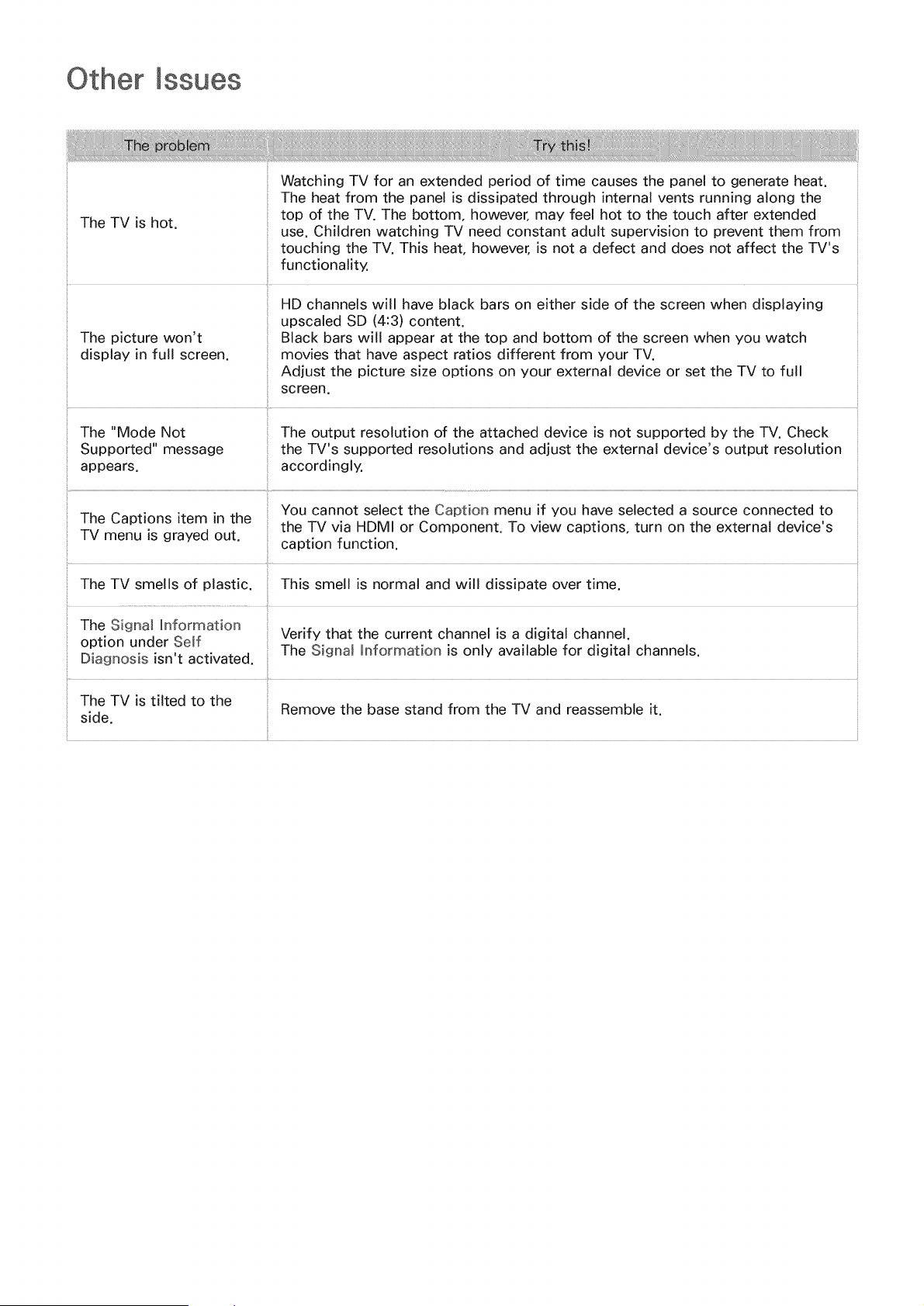
Other Issues
Watching TV for an extended period of time causes the panel to generate heat.
The heat from the panel is dissipated through internal vents running along the
The TV is hot. top of the TV. The bottom, however, may feel hot to the touch after extended
use. Children watching TV need constant adult supervision to prevent them from
touching the TV. This heat, however, is not a defect and does not affect the TV's
functionality.
HD channels will have black bars on either side of the screen when displaying
upscaled SD (4:3) content.
The picture won't Black bars will appear at the top and bottom of the screen when you watch
display in full screen, movies that have aspect ratios different from your TV.
Adjust the picture size options on your external device or set the TV to full
screen.
The "Mode Not The output resolution of the attached device is not supported by the TV. Check
Supported" message the TV's supported resolutions and adjust the external device's output resolution
appears, accordingly.
You cannot select the Caption menu if you have selected a source connected to
The Captions item in the
the TV via HDMI or Component. To view captions, turn on the external device's
TV menu is grayed out. caption function.
The TV smells of plastic. This smell is normal and will dissipate over time.
The Signal hformation
option under Self Verify that the current channel is a digital channel.
Diagnosis isn't activated. The Signal _nformation is only available for digital channels.
The TV is tilted to the
Remove the base stand from the TV and reassemble it.
side.
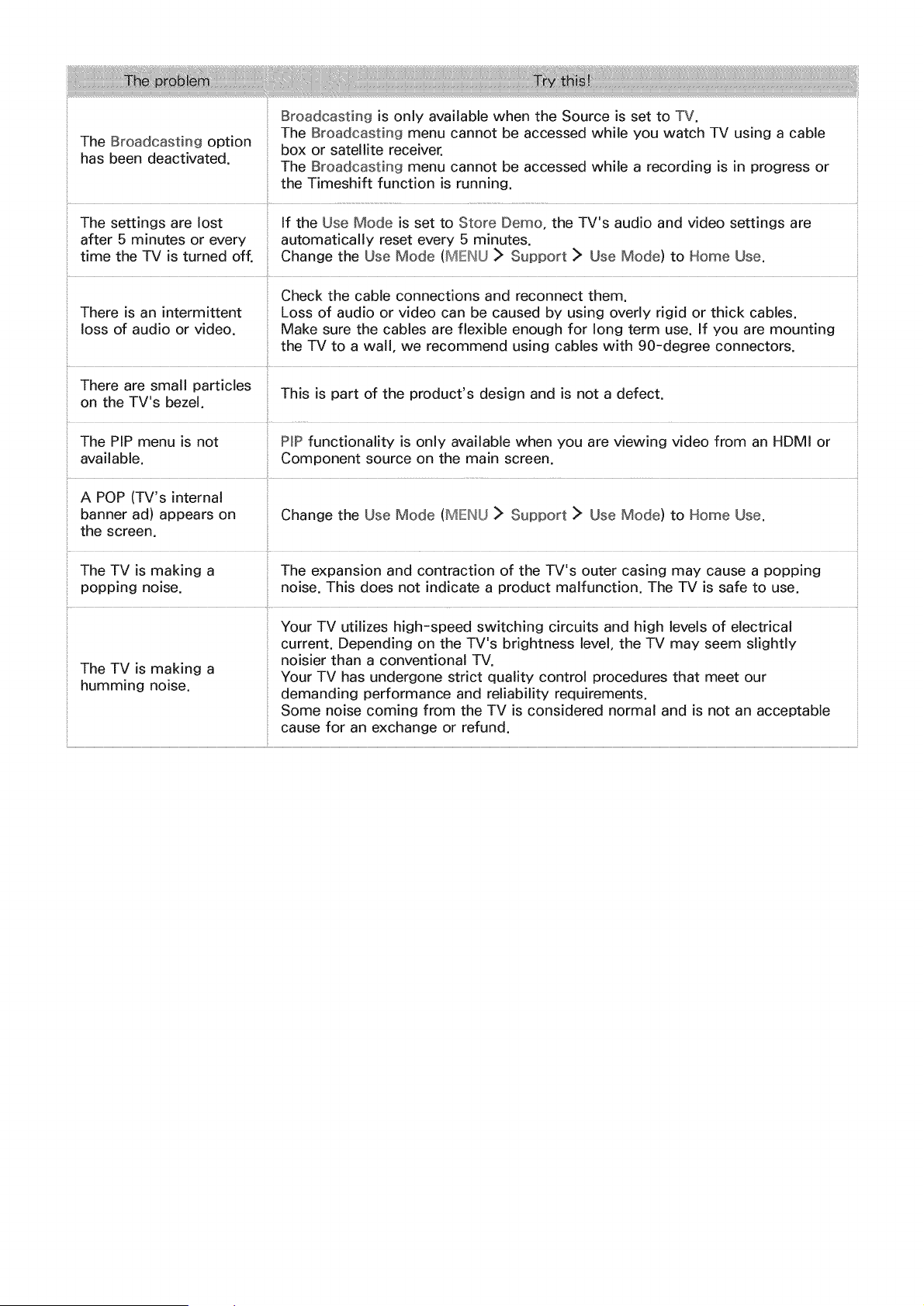
BroadcastingisonlyavailablewhentheSourceissetto TV.
TheBroadcastingmenucannotbeaccessedwhileyouwatchTVusinga cable
TheBroadcastingoption boxor satellitereceiver.
hasbeendeactivated. TheBroadcastingmenucannotbeaccessedwhilearecordingis in progressor
theTimeshiftfunctionis running.
Thesettingsarelost If theUseModeissetto StoreDemo,theTV'saudioandvideosettingsare
after5minutesorevery automaticallyresetevery5 minutes.
timetheTVisturnedoff. ChangetheUseMode(MENU> Support> UseMode)to HomeUse.
Checkthecableconnectionsandreconnectthem.
Thereisanintermittent Lossofaudioor videocanbecausedby usingoverlyrigidorthickcables.
i
loss of audio or video. Make sure the cables are flexible enough for long term use. If you are mounting
the TV to a wall, we recommend using cables with 90-degree connectors.
There are small particles This is part of the product's design and is not a defect.
on the TV's bezel.
The PIP menu is not PiP functionality is only available when you are viewing video from an HDMI or
available. Component source on the main screen.
A POP (TV's internal
banner ad) appears on Change the Use Mode (MENU > Support > Use Mode) to Home Use.
the screen.
The TV is making a The expansion and contraction of the TV's outer casing may cause a popping
popping noise, noise. This does not indicate a product malfunction. The TV is safe to use.
Your TV utilizes high-speed switching circuits and high levels of electrical
current. Depending on the TV's brightness level, the TV may seem slightly
noisier than a conventional TV.
The TV is making a Your TV has undergone strict quality control procedures that meet our
humming noise, demanding performance and reliability requirements.
Some noise coming from the TV is considered normal and is not an acceptable
cause for an exchange or refund.
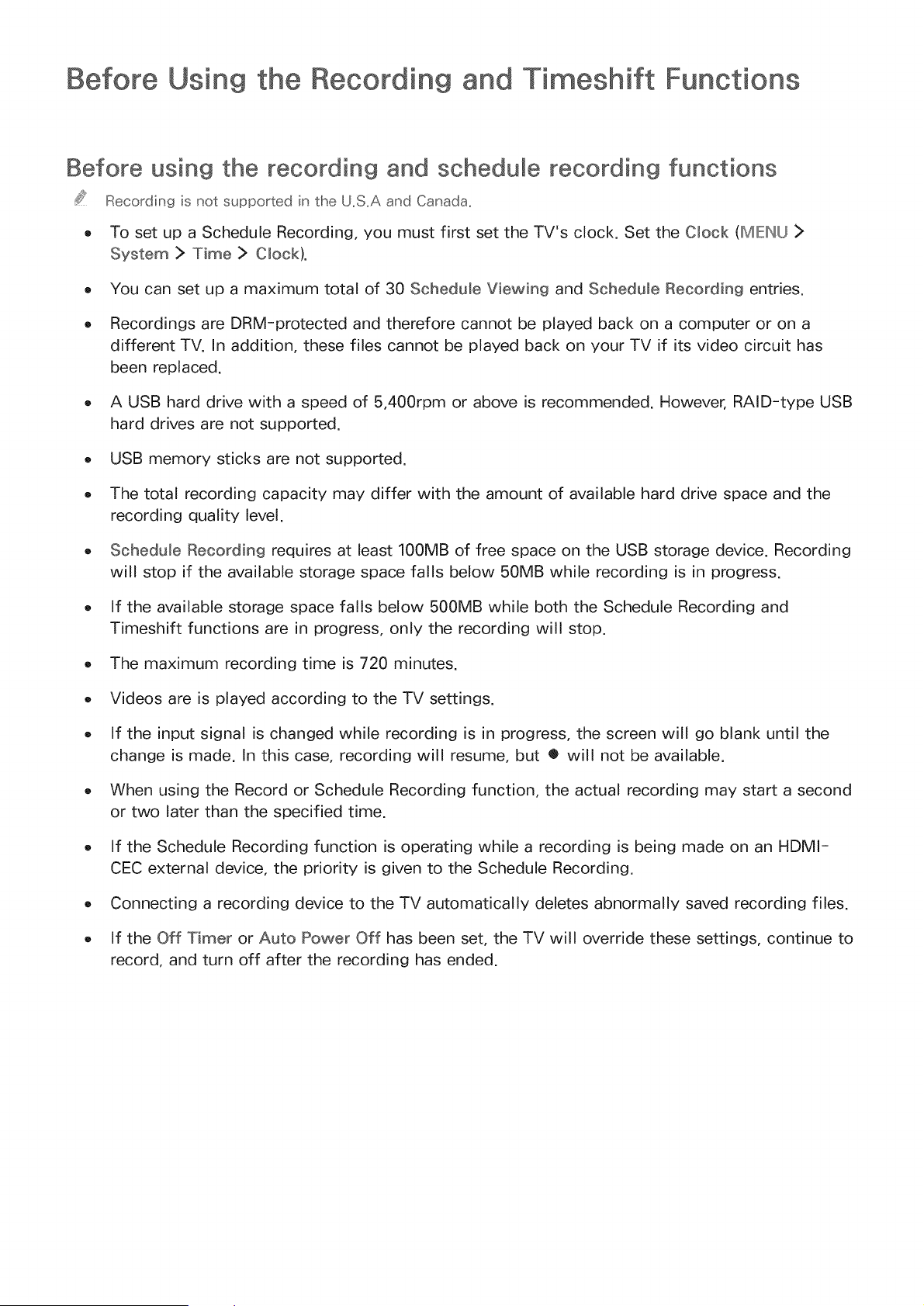
Before Using the Recording and Timeshift Functions
Before using the recording and schedume recording functions
Recor_ding is not suppor_ted in the U_S_Aand Canada_
o To set up a Schedule Recording, you must first set the TV's clock. Set the Clock (IMIEINLJ>
System > Time > Clock).
o You can set up a maximum total of 30 Schedule Viewin9 and Schedule Recordin9 entries.
o Recordings are DRM-protected and therefore cannot be played back on a computer or on a
different TV. In addition, these files cannot be played back on your TV if its video circuit has
been replaced.
o A USB hard drive with a speed of 5,400rpm or above is recommended. However, RAID-type USB
hard drives are not supported.
o USB memory sticks are not supported.
o The total recording capacity may differ with the amount of available hard drive space and the
recording quality level.
o Schedule Recording requires at least 100MB of free space on the USB storage device. Recording
will stop if the available storage space falls below 50MB while recording is in progress.
o If the available storage space falls below 500MB while both the Schedule Recording and
Timeshift functions are in progress, only the recording will stop.
o The maximum recording time is 720 minutes.
o Videos are is played according to the TV settings.
o If the input signal is changed while recording is in progress, the screen will go blank until the
change is made. In this case, recording will resume, but • will not be available.
o When using the Record or Schedule Recording function, the actual recording may start a second
or two later than the specified time.
o If the Schedule Recording function is operating while a recording is being made on an HDMI-
CEC external device, the priority is given to the Schedule Recording.
o Connecting a recording device to the TV automatically deletes abnormally saved recording files.
o If the Off Timer or Auto Power Off has been set, the TV will override these settings, continue to
record, and turn off after the recording has ended.
Before using the timeshift function
Timesh ft s not supported n the U_S_Aand Canada_
o A USB hard drive with a speed of 5,400 rpm or above is recommended. However, RAID-type USB
hard drives are not supported.
USB memory sticks or flash drives are not supported.
The total recording capacity may differ with the amount of available hard drive space and the
recording quality level.
If the available storage space falls below 500MB while both the Schedule Recording and
Timeshift functions are in progress, only the recording will stop.
The maximum amount of time available for the Timeshift function is 90 minutes.
The Timeshift function is not available for locked channels.
Time-shifted videos are is played according to the TV settings.
The Timeshift function may be terminated automatically once it reaches its maximum capacity.
The Timeshift function requires at least 1.5GB of free space available on the USB storage device.
Read Before Using 3D Mode
This funct on s only ava lable on the 6400 series modes for geograph cal areas other than the U,S,A and
Canada_
3D precautions
/iX Warning
o When viewing a 3D video under a fluorescent lamp (50 Hz - 60 Hz) or 3-wavelength lamp, you
may notice a small amount of screen flickering.
Iif this symptom occ_ rs, dim or t_r_ off tlhe ight
Switching the input mode while watching a 3D mowe may disable the 3D function on the TV.
Ill this symptom occurs, the 3D glasses may a_tomatica y t_rn of_,
If you lie on your side while watching TV with 3D active glasses, the picture may appear dark or
may not be visible. The actual 3D effect may be experienced differently depending on the viewer.
The 3D effect may not be visible if the visual ability of your left eye differs greatly from the
visual ability of your right eye.
If a part of the 3D glasses or lenses is defective or damaged, it cannot be repaired and the
glasses should be replaced. If the glasses stop working within the warranty period, the glasses
can be repaired or replaced for free. If the glasses have been damaged due to the fault of the
customer or the warranty period has expired, a new pair of glasses will have to be purchased.
If the eye sight in one of your eyes differs greatly from the eye sight in the other eye, you may
perceive 3D effects to a lesser degree than other persons or may not perceive 3D effects at all.
Ensure you are within the working distance of the glasses when you view a 3D video.
.....Iihe mages may _ot Hoevewabe n 3D f yo_ move o_ts de of tlhe working distance for 3 seconds,,
Iif the 3D glasses are moved o_ts de of ther working distance, the s[gna from the IiV wl discor_nect
and the glasses 3D f_nctio_ wl t_rn off after severa seco_ds. When this happens, the red lED wl
t_rn o_ for 3 seco_ds,,
The 3D glasses may not work properly due to interference from other 3D products or electronic
devices that operate on the 2.4 GHz frequency such as a microwave oven or Internet AP. If
the 3D function malfunctions due to interference, please move all other electronic or wireless
communication devices as far away from the glasses and the TV as possible.

Thevividnessoftheimagemay appeardegradedif you view 3D video in a placethat isexposed
to direct sunlightorillumination.
The3D glassesmay malfunctionif there isan electricfieldormetallicobject such as a steel
plate nearby.Keeptheglassesasfar awayas possiblefromelectricfields and metallicobjects.
With SSG-3570modelglasses,the glassesmay power off if you remainstationarywhile viewing
3D video for an extendedperiod of time.
With SSG-3570modelglasses,if the 3D glassesdo not function immediatelyafter you put them
on whenthe TV isin 3D mode,take them off andthen put them back on.
/iX Caution
IMPORTANT HEALTH AND SAFETY INFORMATION FOR 3D VIEWING. READ THE FOLLOWING
CAUTIONS BEFORE YOU OR YOUR CHILD USE THE 3D FUNCTION.
o Adults should frequently check on children who are using the 3D function. If there are any
complaints of tired eyes, headaches, dizziness, or nausea, stop the child from viewing the 3D TV
and ensure that they rest.
Do not use the 3D glasses for other purposes such as general wear, sunglasses, protective
goggles, etc.
Some viewers may experience discomfort such as dizziness, nausea, and headaches while
viewing 3D TV. If you experience any of these symptoms, stop viewing the 3D TV, remove the
3D glasses, and rest for awhile.
Watching 3D pictures for an extended period of time may cause eye strain. If you experience any
eye strain, stop viewing the 3D TV, remove the 3D glasses, and rest for awhile.
Do not use the 3D function or 3D glasses while walking or moving around. Using the 3D function
or 3D Active Glasses while moving around may result in injury from running into objects,
tripping, and/or falling.
Do not sleep with the 3D glasses on. You can damage or break the temples.
The temples on your 3D glasses are not foldable. Forcing the temples to fold will damage the 3D
glasses.
With SSG-3570 model glasses, do not shake your 3D glasses repeatedly. Shaking the glasses
will power them on and can cause the battery to discharge faster than it would normally.
With SSG-5100GB and SSG-5150GB models glasses, there is a danger of explosion if you
replace the battery with the wrong type of battery.
With SSG-5100GB and SSG-5150GB models glasses, make sure to replace the battery with the
same type of battery.

/f_ Safety precautions
The following safety instructions are provided to ensure your personal safety and prevent property
damage. Please read the following to ensure the proper use of the product.
o Do not place the product in a location exposed to direct sunlight, heat, fire, or water. Exposure
may result in a product malfunction or fire.
Do not apply force to the lenses of the 3D glasses. Do not drop or bend the glasses. Applying
force, dropping, or bending may result in a 3D glasses malfunction.
Keep the components of the 3D glasses out of reach of children. Especially, ensure children do
not swallow any of the components. If your child swallows a component, consult your doctor
immediately.
When cleaning the glasses, do not spray water or cleaner directly onto its surface. Spraying
water or cleaner directly onto the glasses may result in fire or electric shock, damage to the
glasses's surface, or cause the indicator labels on the glasses's surface to come loose.
Do not apply chemicals containing alcohol, solvent, or surfactant such as wax, benzene, thinner,
pesticide, air freshener, lubricant, or cleaner to the glasses. These chemicals may cause the
glasses's exterior to discolor or crack, or the labels or instructions to be removed. Use only a
soft cloth such as superfine fibers or cotton flannels to clean the glasses as the surface and the
lenses easily crack. Because the glasses can be easily scratched by foreign substances, make
sure to dust off the cloth before using.
Do not disassemble, or attempt to repair or modify your 3D active glasses by yourself.
Be careful not to let the temple ends of the 3D active glasses harm your eye.
Do not sleep with the 3D glasses on. You can break the arms.
Use your hands to put on or remove the 3D glasses.
For SSG-5100 and SSG-5150 model glasses, use only the specified standard batteries. When
replacing the battery, insert the battery so that its polarity (+, -) is correct. Failing to do so may
damage the battery or result in fire, personal injury or environmental damage caused by liquid
leaking from the battery.
For SSG-5100 and SSG-5150 model glasses, keep used batteries out of the reach of children
so that they do not accidently swallow it. If your child swallows a battery, consult your doctor
immediately.
Swallowing the cylindrical (button type) battery can cause serious damage to your internal
organs. If this happens, contact a doctor immediately.
Resolutions for 3D
These specifications appIy to the 16:9 dispIay ratio onI'¢_
, 3D Mode: _ (L/R), _ (T/B)
1920 x 1080p 24 / 25 / 30 / 50 / 60
1280 x 720p 59.94 / 60
1920 x 1080i 59.94 / 60
1920 x 1080p 23.98 / 24 / 29.97 / 30 / 59.94 / 60
Digital channe_
1280 x 720p 59.94 / 60
1920 x 1080i 59.94 / 60
Computer via HDM_ cable
The optimal resolution for computers connected to the TV via an HDMI cable is 1920 x 1080. If you
select another resolution, the TV may not display 3D images correctly and may not be able to display
the computer video in full screen.
Read Before Using Apps
o
o
o
o
o
o
Due to the product characteristics featured on Samsung Smart Hub, as well as limitations in
available content, certain features, applications, and services may not be available on all devices
or in all territories. Some Smart Hub features may also require additional peripheral devices
or membership fees. Visit http://www.samsung.com for more information on specific device
information and content availability. Services and content availability are subject to change
without prior notice.
Samsung Electronics takes no legal responsibility whatsoever for any interruption of app services
caused by the service provider for any reason.
Application services may be provided in English only and available content may differ with the
geographical area.
For more information about applications, visit the applicable service provider's website.
An unstable Internet connection may cause delays or interruptions. In addition, applications
may terminate automatically depending on the network environment. If this occurs, check your
Internet connection and try again.
Application services and updates may become unavailable.
Application content is subject to change by the service provider without prior notice.
Specific services may differ with the version of the application installed on the TV.
An application's functionality may change in future versions of the application. If this occurs, run
the application's tutorial or visit the service provider's website.
Depending on the service provider's policies, certain applications may not support multitasking.
Read Before Using the
Browser
o Select Web Browser. The browsing screen may differ from the one on your computer.
The web browser is not compatible with Java applications.
You can download the supported types of files, such as videos, mp3 files, and images, but
you cannot download files that are not supported by the TV. If you attempt to download an
unsupported file, you will receive an error message instead.
The web browser may not be able to access certain websites.
The TV does not support playback of flash videos.
o E-commercefor onlinepurchasesis not supported.
o With websitesthat havescrollablewindows, scrollinga window can result in corrupted
characters.
o ActiveX is not supported.
o Certainoptionsare notaccessiblein Link Browsingmode.(Switch to PointerBrowsingto
activatethose options.)
o Only a limited numberoffonts are supported.Certainsymbolsand charactersmay not be
displayedproperly.
o The responseto remotecommandsandtheresultingon-screendisplay may be delayedwhile a
webpageisloading.
o Loadinga webpagemaybe delayedorsuspendedcompletelywith certainoperatingsystems.
o The copy and pasteoperationsare not supported.
o Whencomposingan emailora simplemessage,certainfunctions suchas the font sizeand color
selectionmay not be available.
o Thereisa limit tothenumberof bookmarksand the sizeof thelog file that can be saved.
o The numberof windows thatcan be openedconcurrentlydiffers with the searchconditionsand
the TV model.
o Theweb browsingspeedwill differwith thenetworkenvironment.
o Embeddedvideoscan play at the sametime the PIP(picture-in-picture)function is operating.
o Theweb browsersupports.mp3 audio files only.
o If the Clock (IMIDNU > System > Time > Clock) has not been set, the browsing history will not
be saved.
o The browsing history is saved from latest to oldest, with the oldest entries being overwritten
first.
o Depending on the types of video/audio codecs supported, it might not be possible to play
certain video and audio files while playing Flash content.
o Video sources from PC-optimized streaming service providers may not play properly on our
proprietary web browser.
o Using the on-screen QWERTY keyboard automatically disables PIP (except when you are entering
a URL).
Read Before Pmayin9 Photo, Video, or Music Fi es
o
o
o
o
o
o
itations on use of photo, video, and music files
The TV supports MSC (Mass Storage Class) USB devices only. MSC is a class designation for
mass storage devices. Types of MSC devices include external hard drives, flash card readers,
and digital cameras. (USB hubs are not supported.) These kinds of devices must be connected
directly to the TV's USB port. The TV may not be able to recognize a USB device or read the
files on the device if it is connected to the TV via a USB extension cable. Do not disconnect USB
devices while they are transferring files.
When connecting an external hard drive, use the USB (HDD) port. We recommend that you use
an external hard drive with its own power adapter.
Certain digital cameras and audio devices may not be compatible with the TV.
If there are multiple USB devices connected to the TV, the TV might not be able to recognize
some or all the devices. USB devices that use high-power input should be connect to the USB [5V,
1A] port.
The TV supports the FAT, exFAT, and NTFS file systems.
After sorting files in the Folder view mode, the TV can display up to 1000 files per folder. If the
USB device contains more than 8,000 files and folders, however, some files and folders might
not be accessible.
The PTP (pier to pier) connection mode is available only for digital cameras. If you connect a
smartphone or tablet to the TV using PTP mode, the TV will not recognize it.
Be sure to connect USB or external hard drives that support USB 3.0, to the USB 3.0 port.
Certain files, depending on how they are encoded, may not play on the TV.
o Certain files are not supported on all models.
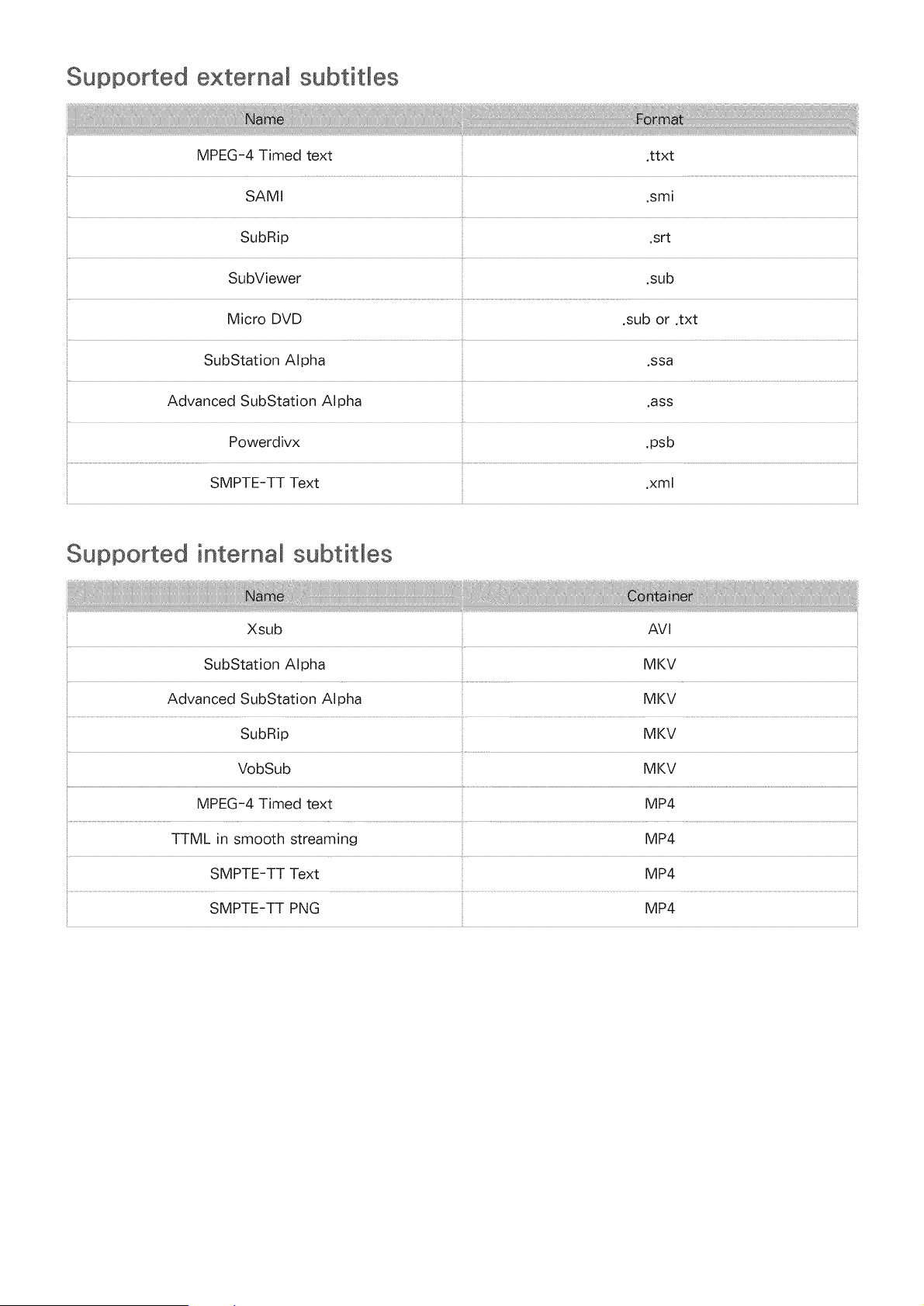
Supported externa_ subtitles
........................................................... ii¸
SAMI ,smi
SubRip .srt
SubViewer .sub
SubStation Alpha .ssa
Advanced SubStation Alpha .ass
Powerdivx .psb
SMPTE-TT Text ,xml
Supported internal subtitles
Xsub
SubStation AIpha
AVl
MKV
Advanced SubStation Alpha MKV
SubRip MKV
VobSub MKV
MPEG-4 Timed text MP4
TTML in smooth streaming MP4
SMPTE-TT Text MP4
SMPTE-TT PNG MP4
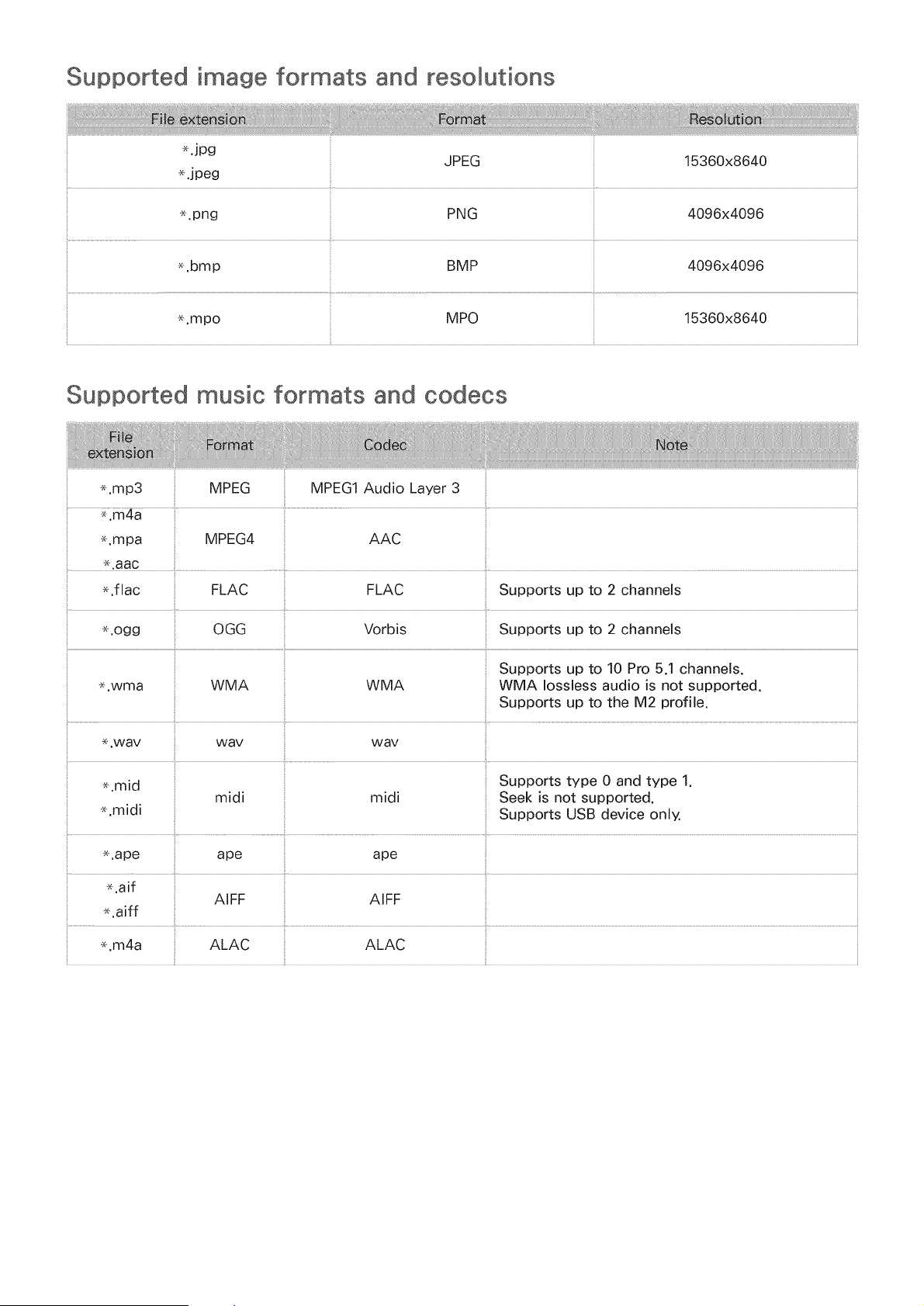
Supported image formats and resolutions
.jpg
JPEG 15360x8640
.jpeg
e.png PNG 4096x4096
_.bmp BMP 4096x4096
_.mpo 15360x8640
Supported music formats and codecs
_.mp3 MPEG MPEG1 Audio Layer 3
_,aac ..................................................................................................................
_.flac FLAC FLAC Supports up to 2 channels
_.ogg OGG Vorbis Supports up to 2 channels
Supports up to 10 Pro 5.1 channels.
_.wma WMA WMA WMA Iossless audio is not supported.
Supports up to the M2 profile.
_+.way way way
_.mid Supports type 0 and type 1.
midi midi Seek is not supported.
_.midi Supports USB device only,
_.ape ape ape
AIFF
_.aiff
_.m4a ALAC ALAC
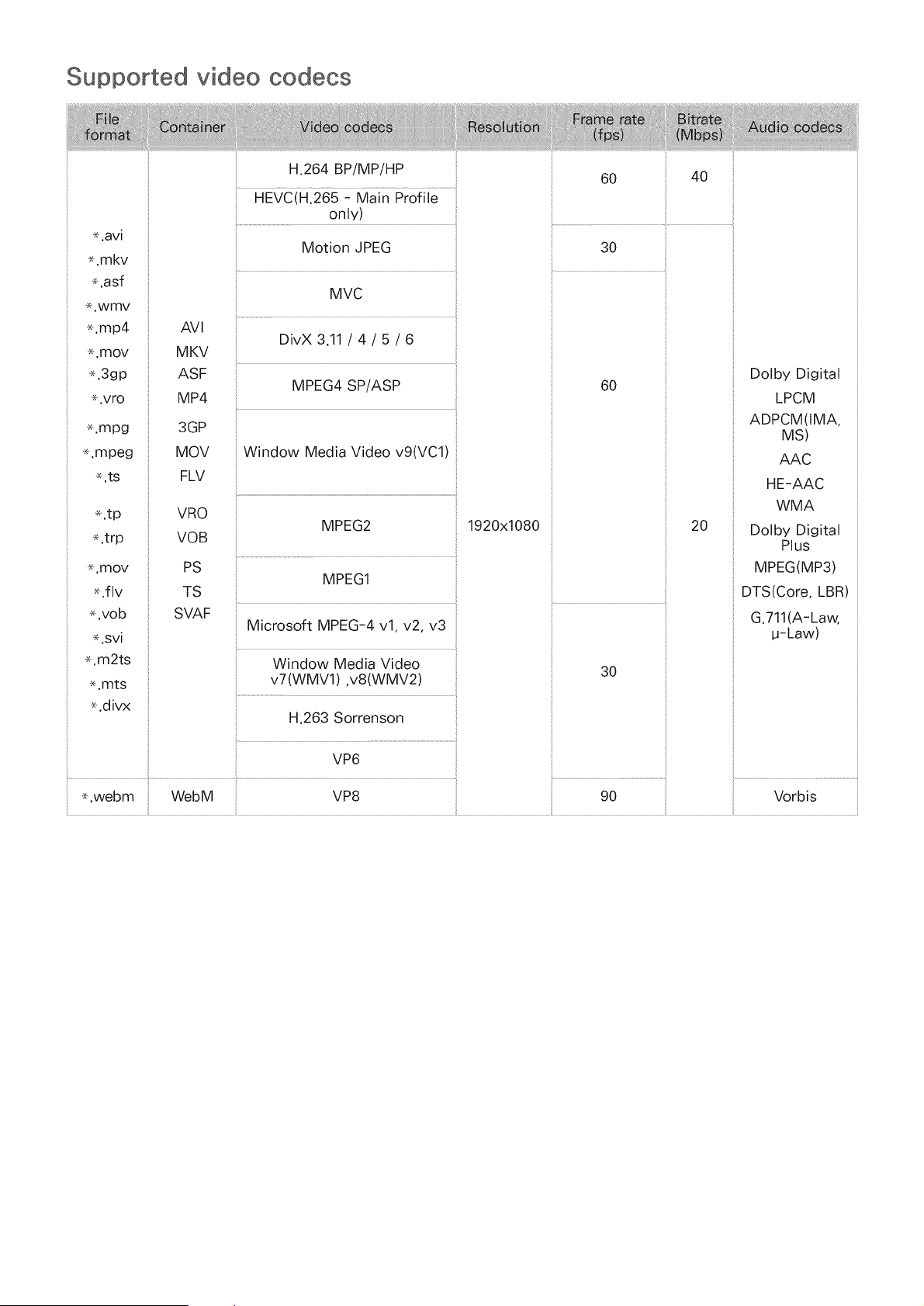
Supported video codecs
*.avi
.mkv
,asf
.wmv
*.mp4
,mov
*.3gp
,vro
.mpg
*.mpeg
.ts
.tp
*.trp
.mov
.flv
*.vob
*.svi
*.m2ts
.mts
*.divx
AVI
MKV
ASF
MP4
3GP
MOV
FLV
VRO
VOB
PS
TS
SVAF
H.264 BP/MP/HP
HEVCiH:265 - Main Profiie.............
only)
Motion JPEG
MVC
DivX 3.11 / 4 / 5 / 6
MPEG4 SP/ASP
Window Media Video v9(VC1)
MPEG2
MPEG1
Microsoft MPEG-4 vl, v2, v3
Window Media Video
v7 (WMV1) ,v8 (WMV2)
H.263 Sorrenson
VP6
*,webm WebM VP8
1920x1080
60 40
30
60
20
30
90
Dolby Digital
LPCM
ADPCM(IMA,
MS)
AAC
HE-AAC
WMA
Dolby Digital
Plus
MPEG(MP3)
DTS(Core, LBR)
G.711(A-Law,
u-Law)
Vorbis
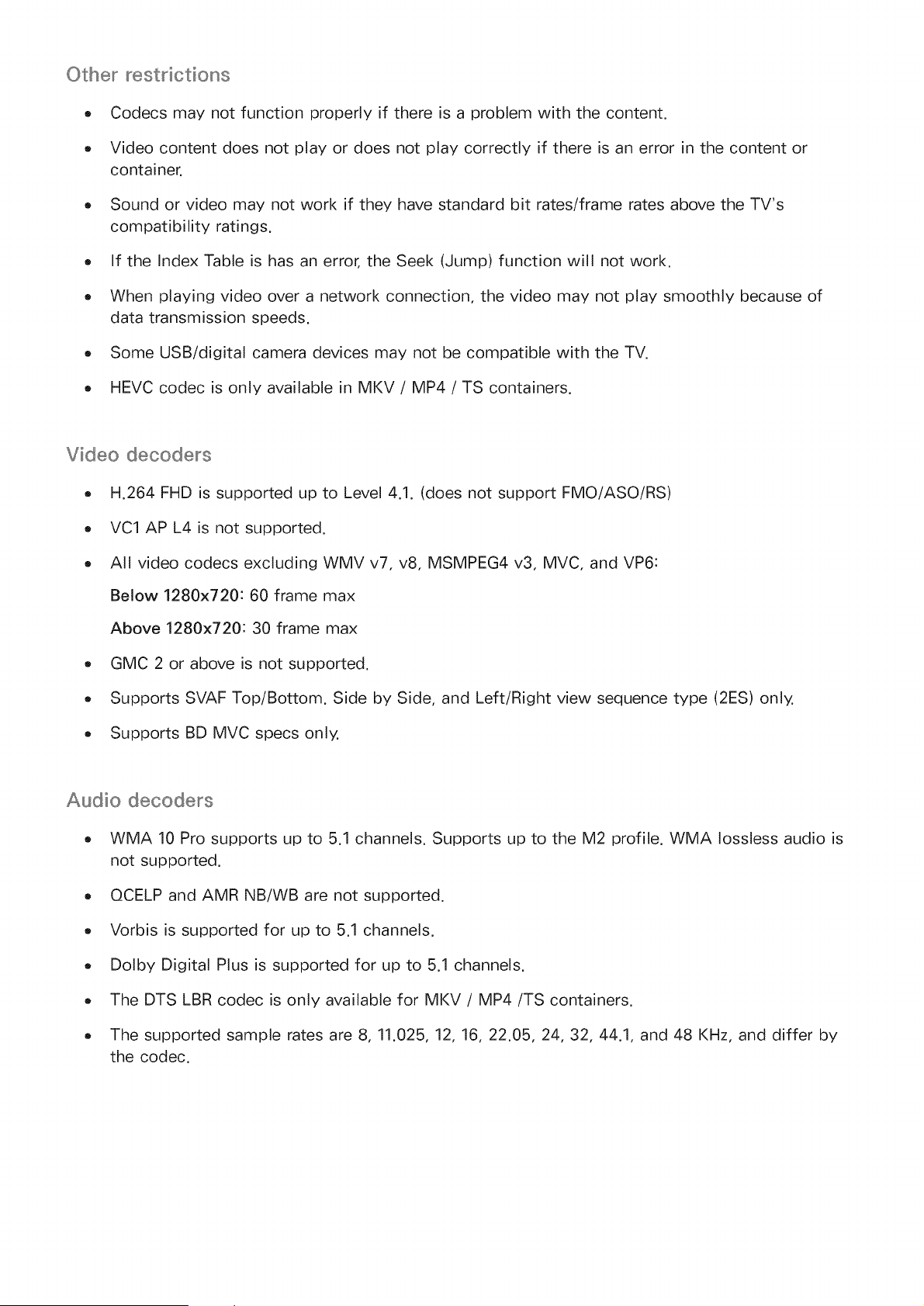
Other restrictions
o Codecs may not function properly if there is a problem with the content.
Video content does not play or does not play correctly if there is an error in the content or
container.
Sound or video may not work if they have standard bit rates/frame rates above the TV's
compatibility ratings.
If the Index Table is has an error, the Seek (Jump) function will not work.
When playing video over a network connection, the video may not play smoothly because of
data transmission speeds.
Some USB/digital camera devices may not be compatible with the TV.
HEVC codec is only available in MKV / MP4 / TS containers.
Video decoders
. H.264 FHD is supported up to Level 4.1. (does not support FMO/ASO/RS)
. VC1 AP L4 is not supported.
. All video codecs excluding WMV v7, v8, MSMPEG4 v3, MVC, and VP6:
Below 1280x720:60 frame max
Above 1280x720:30 frame max
- GMC 2 or above is not supported.
. Supports SVAF Top/Bottom. Side by Side, and Left/Right view sequence type (2ES) only.
. Supports BD MVC specs only.
Audio decoders
WMA 10 Pro supports up to 5.1 channels. Supports up to the M2 profile. WMA Iossless audio is
not supported.
QCELP and AMR NB/WB are not supported.
Vorbis is supported for up to 5.1 channels.
Dolby Digital Plus is supported for up to 5.1 channels.
The DTS LBR codec is only available for MKV / MP4/TS containers.
The supported sample rates are 8, 11.025, 12, 16, 22.05, 24, 32, 44.1, and 48 KHz, and differ by
the codec.
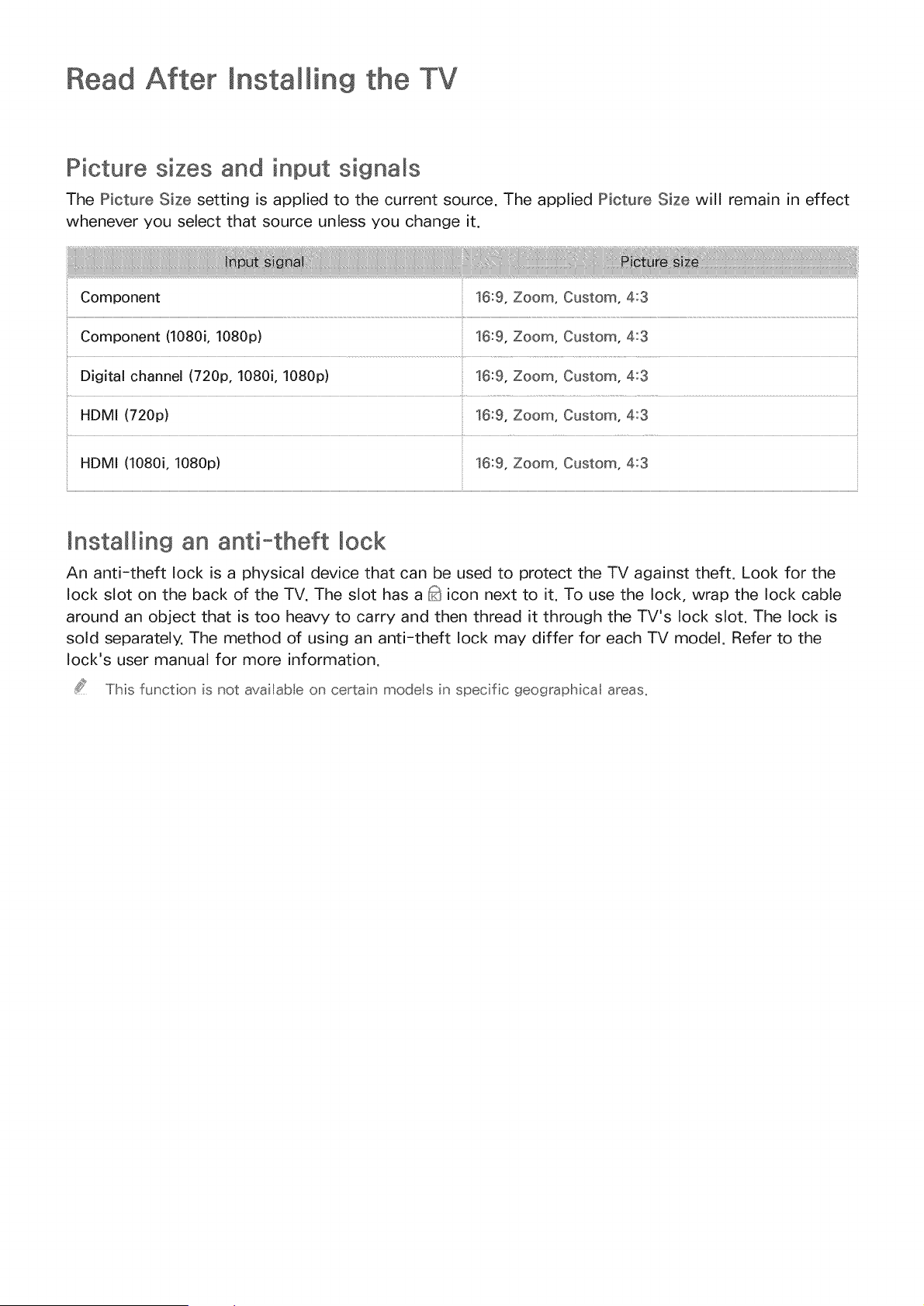
Read After Installing the TV
Picture sizes and input signals
The Picture Size setting is applied to the current source. The applied Picture Size will remain in effect
whenever you select that source unless you change it.
Component 16:9, Zoom, Custom, 4:3
_!Component (1080i, 1080p) 16:9, Zoom, Custom, 4:3
Digital channel (720p, 1080i, 1080p) 16:9, Zoom, Custom, 4:3
HDMI (720p) 16:9, Zoom, Custom, 4:3
HDMI (1080i, 1080p) 16:9, Zoom, Custom, 4:3
mnstalling an anti-theft lock
An anti-theft lock is a physical device that can be used to protect the TV against theft. Look for the
lock slot on the back of the TV. The slot has a _t icon next to it. To use the lock, wrap the lock cable
around an object that is too heavy to carry and then thread it through the TV's lock slot. The lock is
sold separately. The method of using an anti-theft lock may differ for each TV model. Refer to the
lock's user manual for more information.
This function is not avaiJabb on certain modeis in specific geographicai areas,
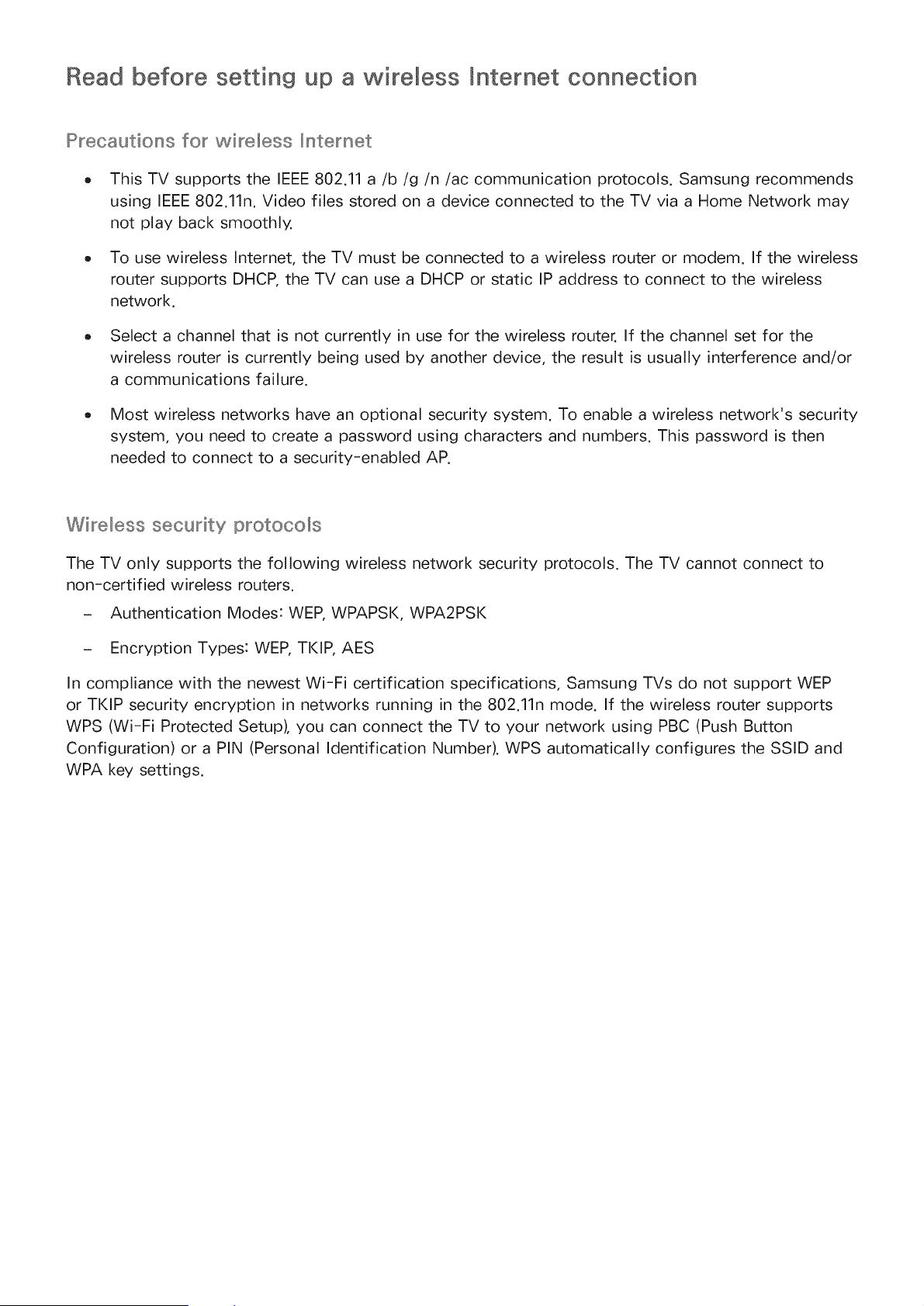
Read before setting up a "wireless mnternet connection
Precautions for wireless _nternet
o This TV supports the IEEE 802.11 a/b/g/n/ac communication protocols. Samsung recommends
using IEEE 802.11n. Video files stored on a device connected to the TV via a Home Network may
not play back smoothly,
To use wireless Internet, the TV must be connected to a wireless router or modem. If the wireless
router supports DHCP, the TV can use a DHCP or static IP address to connect to the wireless
network.
Select a channel that is not currently in use for the wireless router. If the channel set for the
wireless router is currently being used by another device, the result is usually interference and/or
a communications failure.
Most wireless networks have an optional security system. To enable a wireless network's security
system, you need to create a password using characters and numbers. This password is then
needed to connect to a security-enabled AP.
Wireless security protocols
The TV only supports the following wireless network security protocols. The TV cannot connect to
non-certified wireless routers.
- Authentication Modes: WEP, WPAPSK, WPA2PSK
- Encryption Types: WEP, TKIP, AES
In compliance with the newest Wi-Fi certification specifications, Samsung TVs do not support WEP
or TKIP security encryption in networks running in the 802.11n mode. If the wireless router supports
WPS (Wi-Fi Protected Setup), you can connect the TV to your network using PBC (Push Button
Configuration) or a PIN (Personal Identification Number). WPS automatically configures the SSID and
WPA key settings.
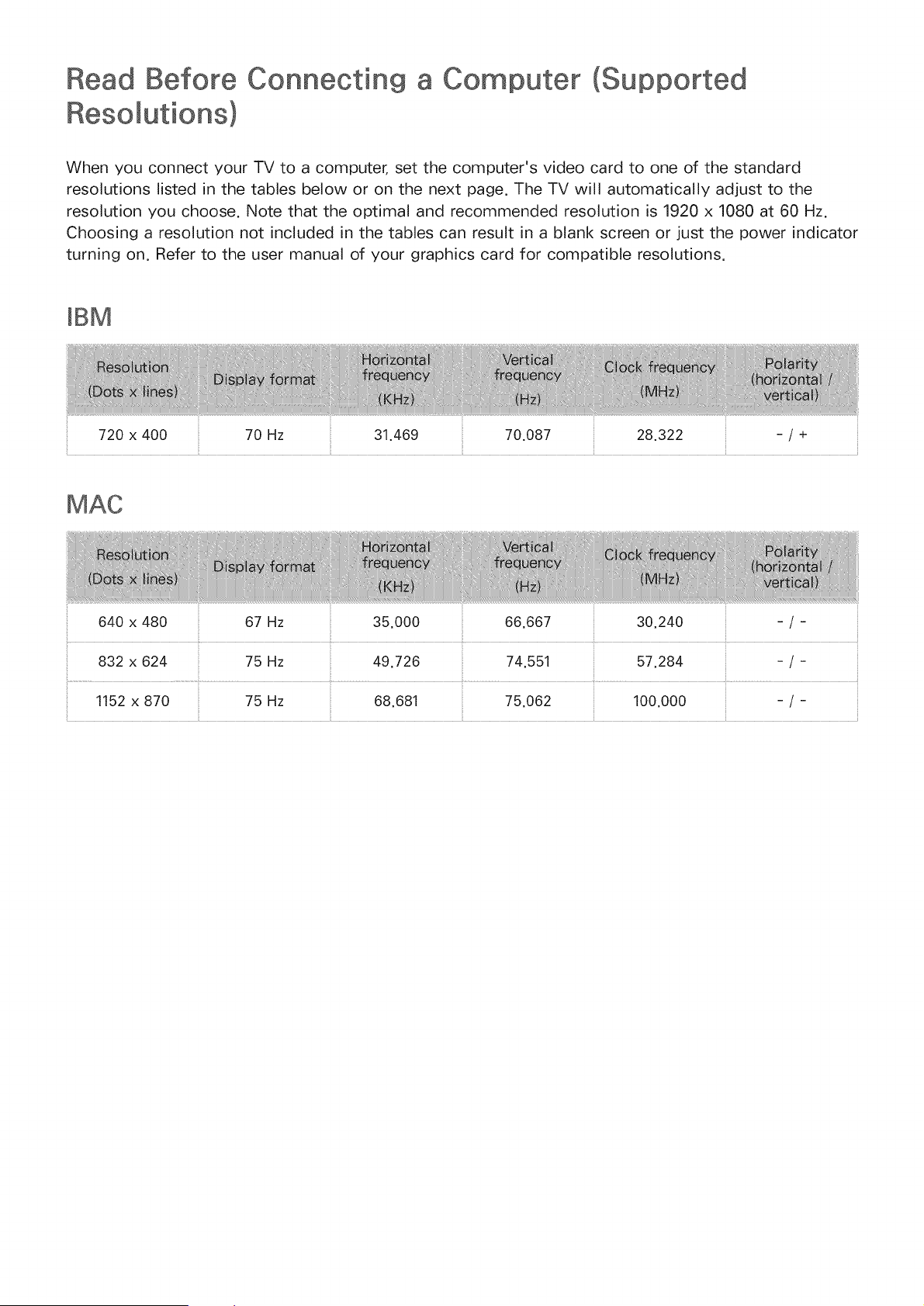
Before Connecting
Resomutions)
a Computer (Supported
When you connect your TV to a computer, set the computer's video card to one of the standard
resolutions listed in the tables below or on the next page. The TV will automatically adjust to the
resolution you choose. Note that the optimal and recommended resolution is 1920 x 1080 at 60 Hz.
Choosing a resolution not included in the tables can result in a blank screen or just the power indicator
turning on. Refer to the user manual of your graphics card for compatible resolutions.
mBM
720 x 400 70 Hz 31.469 70.087 28.322
-/+
640 x 480 67 Hz 35.000 66.667 30.240 -/-
1152 x 870 75 Hz
-/-
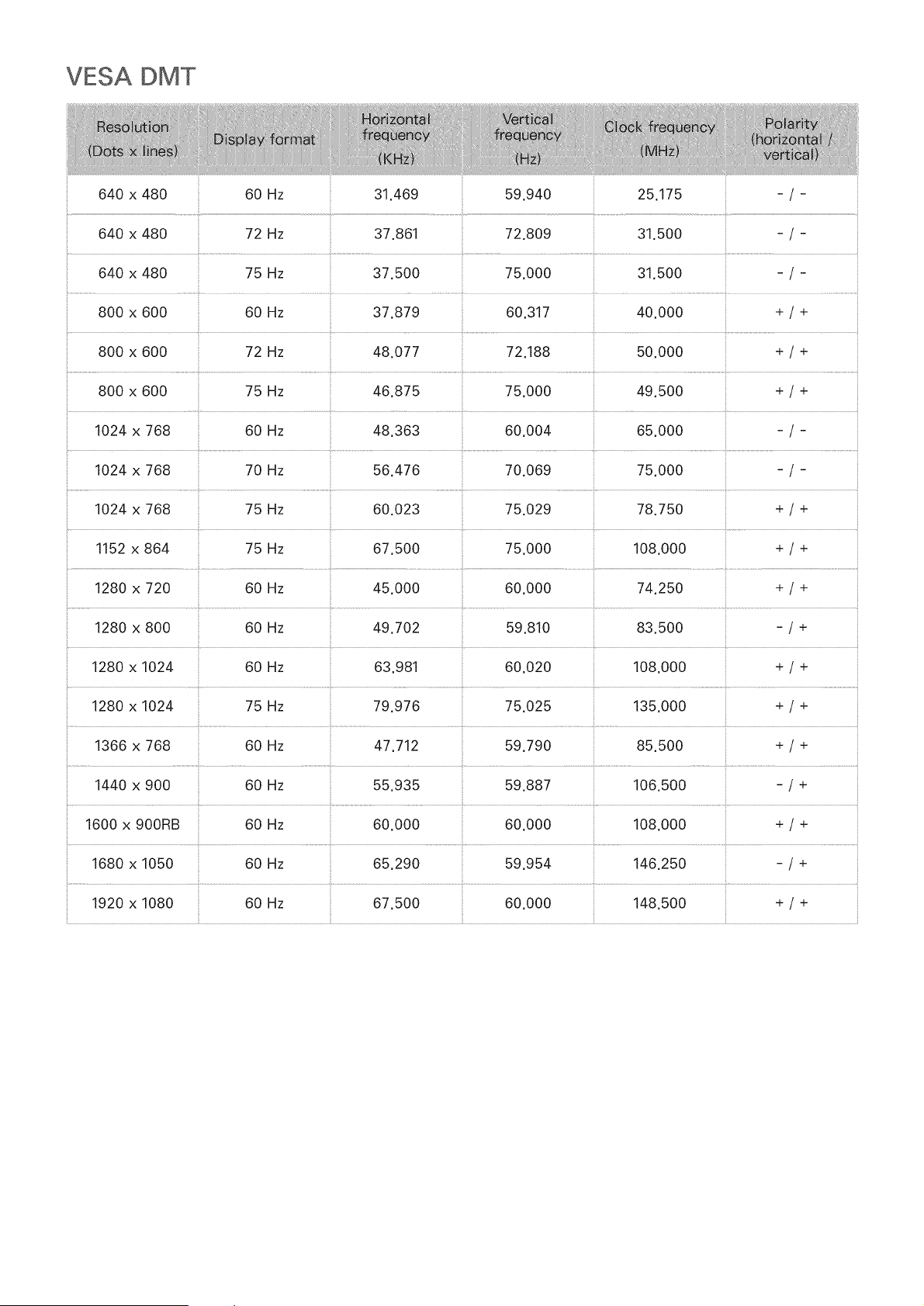
VESA DMT
640 x 480 60 Hz 31.469 59.940 25.175 - / -
640 x 480 72 Hz 37.861 72.809 31.500 - / -
640 x 480 75 Hz 37.500 75.000 31.500
800 x 600 72 Hz 48.077 72.188 50.000 + / +
800 x 600 75 Hz 46.875 75.000 49.500 + / +
1024 x 768 60 Hz 48.363 60.004 65.000 - / -
1024 x 768 70 Hz 56.476 70.069 75.000 - / -
1024 x 768 75 Hz 60.023 75.029 78.750 + / +
1152 x 864 75 Hz 67.500 75.000 108.000 + / +
1280 x 720 60 Hz 45.000 60.000 74.250 + / +
1280 x 800 60 Hz 49.702
1280 x 1024 60 Hz 63.981
1280 x 1024 75 Hz 79.976
1366 x 768 60 Hz 47.712
59.810
60.020
75.025
59.790
83.500
108.000
135.000
-/+
+/+
+/+
85.500 + / +
............................................................................................................................. _.............................................. _.....................................................
1440 x 900 60 Hz 55.935 59.887 106.500 -/+
....... t ...................................................................................................
1600 x 900RB 60 Hz 60.000 60.000 108.000 + / ÷
1680 x 1050 60 Hz 65.290 59.954 146.250 - / +
1920 x 1080 60 Hz 67.500 60.000 148.500 + / +
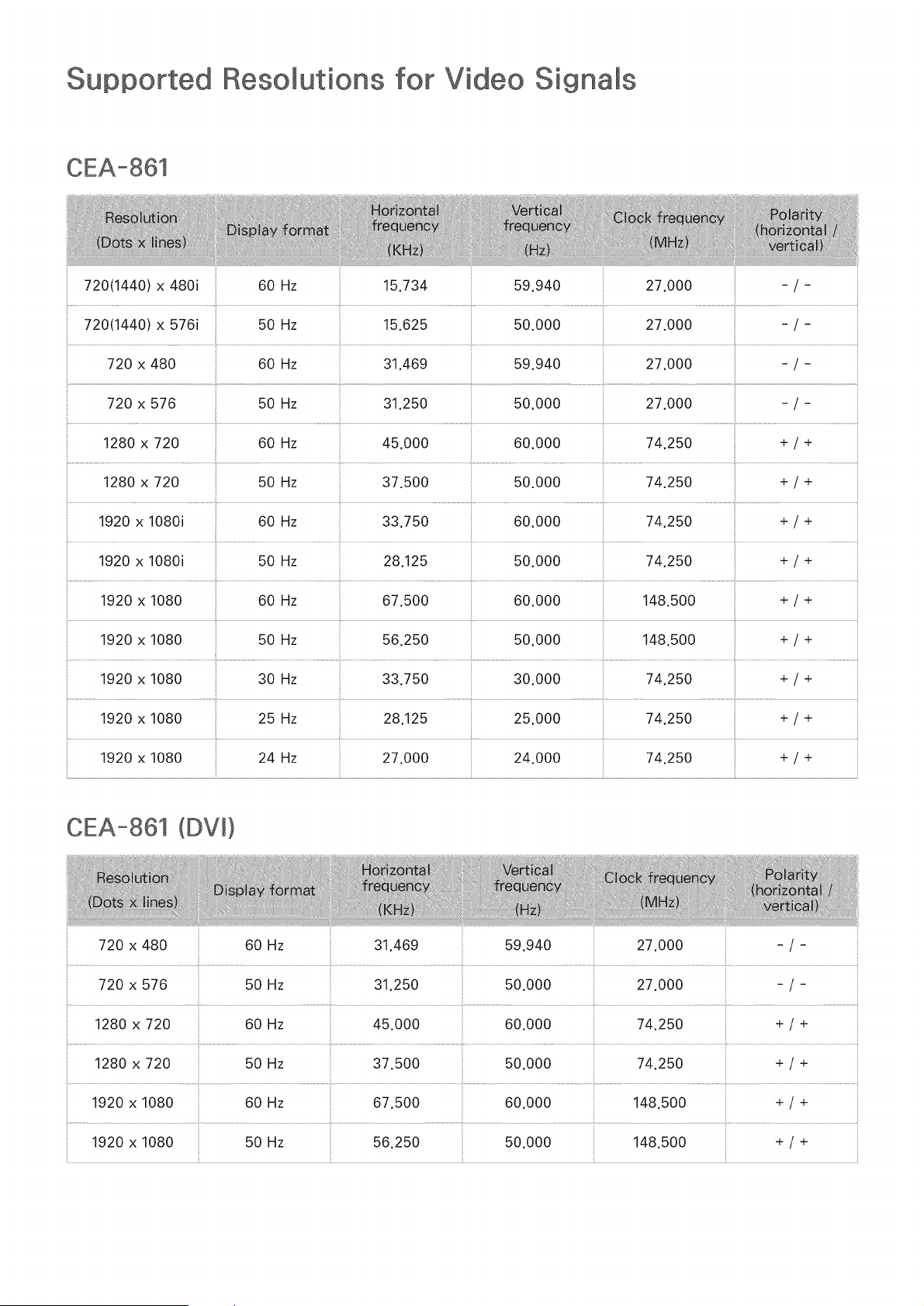
Resomutions for Video Signams
720(1440) x 480i
720(1440) x 576i
720 x 480
60 Hz 15.734
50 Hz 15.625
60 Hz 31.469
720 x 576
1280 x 720
1280 x 720
1920 x 1080i
1920 x 1080i
50 Hz
60 Hz
50 Hz
60 Hz
50 Hz
45.000
37.500
33.750
28.125
59.940
60.000
60.000
50.000
74.250 +/+
74.250 + / +
56.250 + / +
+/+
1920 x 1080 25 Hz 28.125 25.000 74.250 + / +
1920 x 1080 24 Hz 27.000 24.000 74.250 + / +
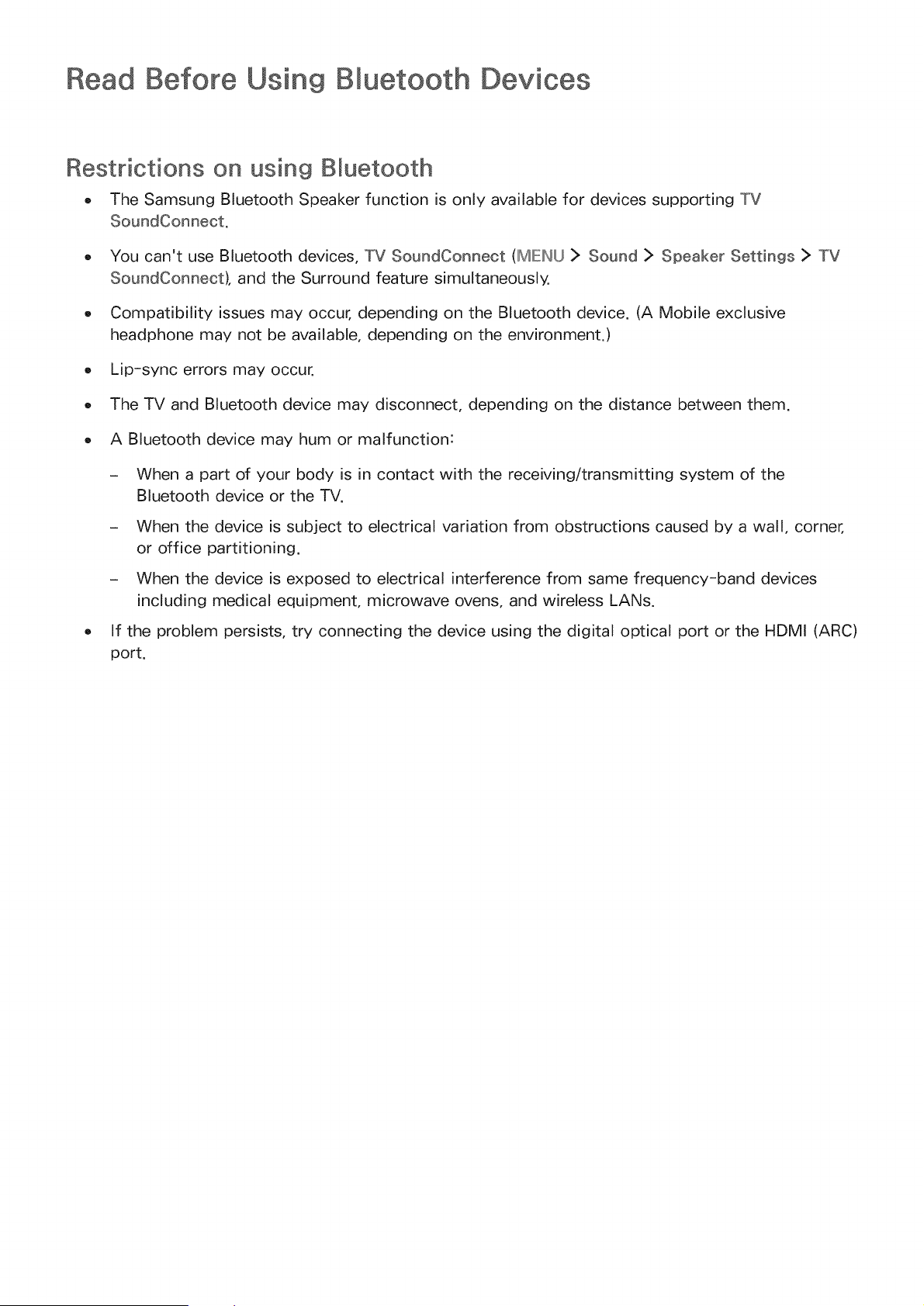
Read Before Using Bluetooth Devices
Restrictions on using Bluetooth
o The Samsung Bluetooth Speaker function is only available for devices supporting TV
O
O
O
You can't use Bluetooth devices, TV SoundConneet (IMIEHU> Sound > Speaker Settings > TV
SoundConnect), and the Surround feature simultaneously.
Compatibility issues may occur, depending on the Bluetooth device. (A Mobile exclusive
headphone may not be available, depending on the environment.)
Lip-sync errors may occur.
The TV and Bluetooth device may disconnect, depending on the distance between them.
A Bluetooth device may hum or malfunction:
When a part of your body is in contact with the receiving/transmitting system of the
Bluetooth device or the TV.
When the device is subject to electrical variation from obstructions caused by a wall, corner,
or office partitioning.
When the device is exposed to electrical interference from same frequency-band devices
including medical equipment, microwave ovens, and wireless LANs.
If the problem persists, try connecting the device using the digital optical port or the HDMI (ARC)
port.

License
HD
This DivX Certified@ device has passed rigorous testing to ensure it plays DivX® video.
To play purchased DivX movies, first register your device at vod.divx.com. Find your registration code in the DivX
VOD section of your device setup menu.
DivX Certified® to play DivX® video up to HD 1080p, including premium content.
DivX®, DivX Certified® and associated Iogos are trademarks of DivX, LLC and are used under license.
Covered by one or more of the following U.S. patents: 7,295,673; 7,460,668; 7,515,710; 7,519,274.
This device supports DivX Plus Streaming® for enjoying HD movies and TV shows with advanced features
(multi-language subtitles, multiple audio tracks, chapters, smooth FF/RW, etc.) streamed to your device.
PremiumS0und 15.1
For DTS patents, see http://patents.dts.com. Manufactured under license from DTS, Inc. DTS, the Symbol, DTS in
combination with the Symbol, DTS Premium Soundl5.1, DTS Digital Surround, DTS Express, and DTS Neo2:5 are
registered trademarks or trademarks of DTS, Inc. in the United States and/or other countries.
@ DTS, Inc. All Rights Reserved.
For DTS patents, see http://patents.dts.com. Manufactured under license from DTS Licensing Limited. DTS,
the Symbol, & DTS and the Symbol together are registered trademarks, and HEADPHONE:X and the DTS
HEADPHONE:X logo are trademarks of DTS, Inc. @ DTS, Inc. All Rights Reserved.
DOLBY
DiGiTAL PLUS
Manufactured under license from Dolby Laboratories.
Dolby and the doubte-D symbol are trademarks of Dolby Laboratories.
||||
The terms HDMI and HDMI High-Definition Multimedia Interface, and the HDMI Logo are trademarks or registered
trademarks of HDMI Licensing LLC in the United States and other countries.
Open Source License Notice
Open Source used in this product can be found on the following webpage.
(http://opensource.samsung.com) Open Source License Notice is written only English.
i _°__
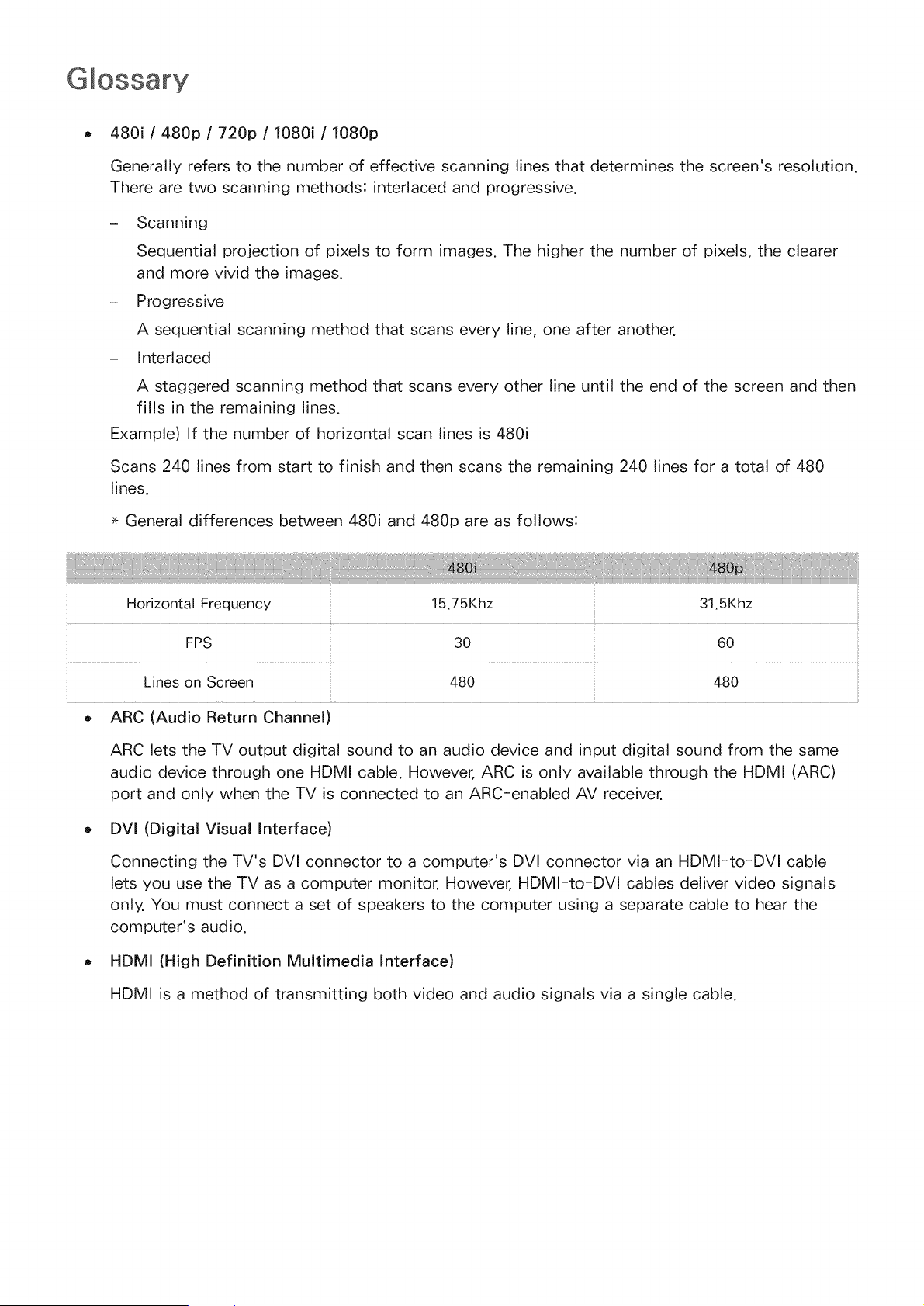
480i / 480p / 720p / 1080i / 1080p
Generally refers to the number of effective scanning lines that determines the screen's resolution.
There are two scanning methods: interlaced and progressive.
- Scanning
Sequential projection of pixels to form images. The higher the number of pixels, the clearer
and more vivid the images.
- Progressive
A sequential scanning method that scans every line, one after another.
- Interlaced
A staggered scanning method that scans every other line until the end of the screen and then
fills in the remaining lines.
Example) If the number of horizontal scan lines is 480i
Scans 240 lines from start to finish and then scans the remaining 240 lines for a total of 480
lines.
<- General differences between 480i and 480p are as follows:
Horizontal Frequency 15.75Khz 31.5Khz
FPs 30 Go
............. i.... _
ARC (Audio Return Channel)
ARC lets the TV output digital sound to an audio device and input digital sound from the same
audio device through one HDMI cable. However, ARC is only available through the HDMI (ARC)
port and only when the TV is connected to an ARC-enabled AV receiver.
DVI (Digital Visual Interface)
Connecting the TV's DVI connector to a computer's DVI connector via an HDMI-to-DVI cable
lets you use the TV as a computer monitor. However, HDMI-to-DVl cables deliver video signals
only. You must connect a set of speakers to the computer using a separate cable to hear the
computer's audio.
HDMI (High Definition Multimedia Interface)
HDMI is a method of transmitting both video and audio signals via a single cable.
Dynamicversus Static IPAddresses
If thenetworkrequiresa dynamicIP address,usean ADSLmodemorrouterthat supports
the DynamicHost ConfigurationProtocol(DHCP).Modemsandtoutersthatsupport DHCP
automaticallyprovidetheIPaddress,subnetmask,gatewayand DNSvaluesthe TV needsto
accesstheInternet,so they do not haveto be enteredmanually.Most homenetworksuse a
dynamicIPaddress.
If thenetworkrequiresa static IP address,entertheIPaddress,subnetmask,gateway,and DNS
valuesmanuallywhen setting up thenetworkconnection.To get theIPaddress,subnetmask,
gatewayand DNSvalues,contact your InternetServiceProvider(ISP).
If thenetworkrequiresa static IP address,usean ADSL modemthatsupportsDHCP.ADSL
modemsthat supportDHCPalso allowstaticIPaddresses.
Bluetooth
Bluetoothis a short-distancewirelesscommunicationprotocolallowing informationexchange
betweenconnectedBluetoothcompatiblemobile phones,laptops,earphonesand headphones.It
ismostly usedfor low-power wirelessconnectionswithina distanceof 32.8 ft.
Ethernet
Ethernetis a LAN (LocalArea Network)thatusescoaxialcablesstandardizedbytheIEEE.
ComponentConnection
Componentconnectionsare mostlyusedfor gameconsolesandtransmit the video signal by
splittingit into a luminancesignal (Y) andtwocolor signals (Pband Pr).Theconnectorismarked
as [ComponentIN]_(Pr,Pb,Y) on thebackof the TV.On somedevices,it is sometimesmarked
as Cr,Cb,Y. Cb and Crare the digital conversionsofthePband Prsignals.
Theconnectorsare normally color-coded red (R),blue(B),and green(G)and offer the best
picturequality possiblefor an analogconnection.