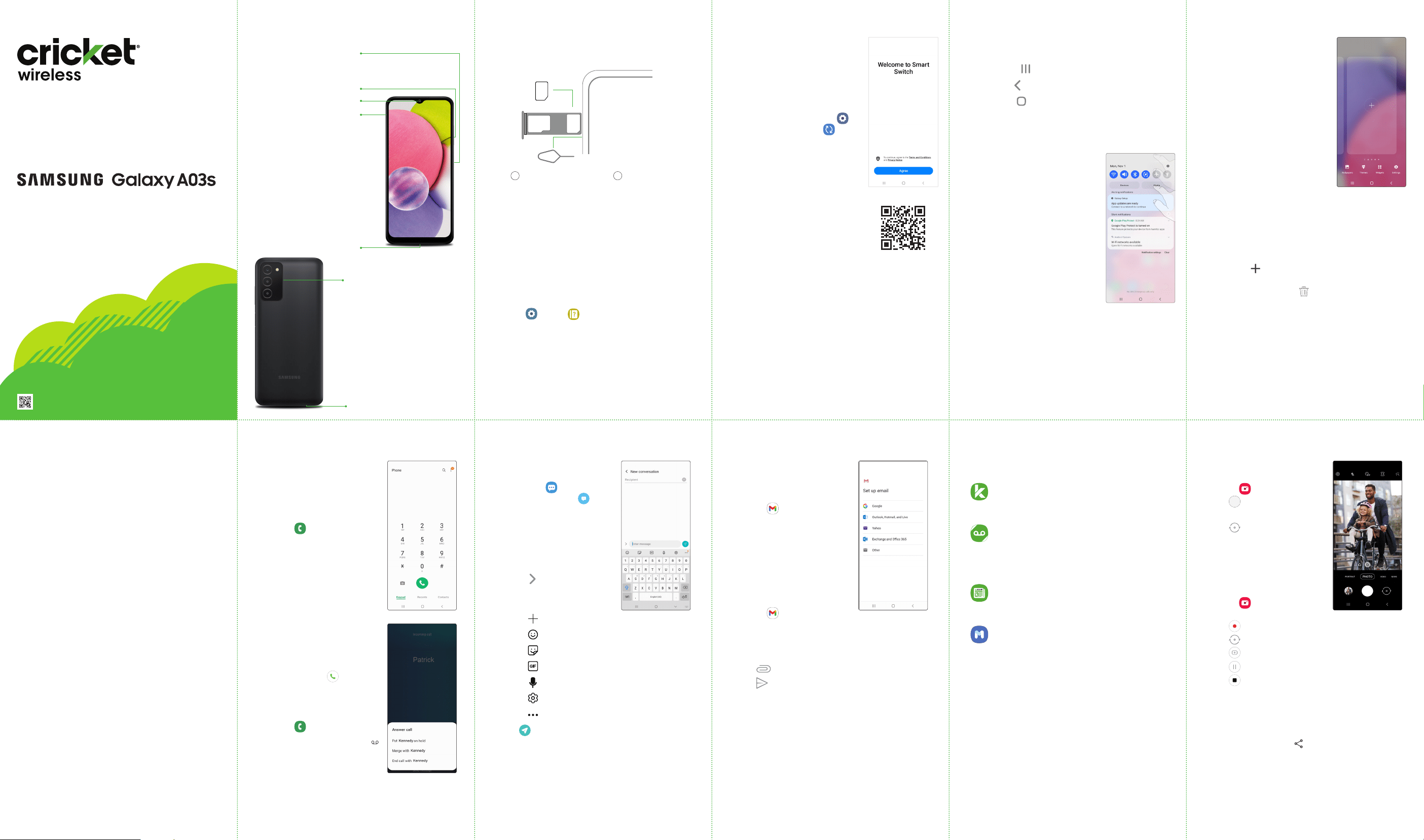
Take a picture
From the home screen, tap
Camera .
• Tap to take a photo.
• Pinch to zoom in or out.
• Tap or swipe up to take
seles.
• Swipe right or left to select a
shooting mode.
Smart Switch
A sure and secure way to move
your data to your Galaxy.
Whether you're coming from
an iOS or Android platform,
you can easily transfer your
data with Smart Switch.
From your new Galaxy device
swipe up and, tap Settings >
Accounts and backup >
Bring data from old device
and follow the prompts.
Scan the QR code using your
old device for more information
on how to switch.
Touch screen
Navigating your phone
• From the home screen, swipe up to access Apps.
• Tap Recent to view recently viewed apps.
• Tap Back to return to the previous screen.
• Tap Home at any time to return to the main
Home screen.
‐ Press and hold to launch Google Assistant.
Notication panel
Swipe down from the top of the
display to get quick access to
alerts including new messages,
emails, and software updates.
Calls and voicemail
HD Voice capable
Enjoy crystal clear conversations
with HD Voice!
Make a call
1. From the home screen, tap
Phone .
2. Select an option to place
a call:
• Keypad: Manually enter
telephone number.
• Recents: Return or retry a
previous call.
• Contacts: Call from your
address book.
Call waiting
To answer a new call while you
have a call in progress:
• Touch and slide in any
direction and tap an option.
Check voicemail
1. From the home screen, tap
Phone .
2. Press and hold Voicemail
1
.
Email
Email setup
1. From the home screen,
swipe up for Apps, and
then tap the Google folder >
Gmail .
2. Tap GOT IT > Add an email
address and follow the
prompts to setup.
Create and send
an email message
1. From the home screen,
swipe up for Apps, and
then tap the Google folder >
Gmail .
2. In the top right, tap your prole
picture to switch between accounts.
3. Tap Compose and enter your message.
4. Tap to add attachments.
5. Tap to send message.
Messages
Send a message
1. From the home screen, tap
Messages >
New conversation .
2. Enter a phone
number or contact
name in the
Recipient eld.
3. Tap Enter message
and enter your text.
• Tap to attach an
image from the Gallery,
capture an image or
record a video.
• Tap for more attachment options
• Tap to add an emoticon
• Tap to add a sticker
• Tap to add a GIF
• Tap for speech to text
• Tap for keyboard settings
• Tap for additional features
4. Tap to send the message.
Phone setup
Inserting a SIM
Useful apps
These services make using Cricket even better and
easier!
myCricket: Access billing, make a quick
payment, view usage and access support
from the palm of your hand.
Visual Voicemail: Quickly view, access
and play back your voicemail messages,
easily save important numbers to your
Favorites lists and respond to messages by
calling back or texting.
theSCOOP: Get news, local weather, sports
scores, entertainment and more right to
your phone.
Samsung Members: Get expert support,
community connections, insider tips &
exclusive perks.
Visit samsung.com/us/support/owners/
app/samsung-members for more
information.
Cameras and ash
More information
On the web
Detailed support information, including device
specications and full user manual, are available at
cricketwireless.com/support/devices.
On the phone
• Call Customer Care at 1-855-246-2461
or
• Dial 611 from your phone
Accessories
Cricket offers a full line of accessories.
Visit cricketwireless.com/shop/accessories or your
local Cricket retailer.
Getting to know your
Galaxy A03s
SIM/microSD
™
card tray
Camera
Volume key
Quick Start Guide
Note: To set up your corporate email, contact your
IT administrator.
Please don’t text and drive.
Note: Press the Side key twice to quickly launch the
camera app.
Headset port
Charging/data port
Camera & video
Record a video
From the home screen, tap
Camera , then swipe left
for VIDEO.
• Tap to start recording.
• Tap or swipe up to record seles.
• Tap to capture a picture while recording.
• Tap to pause recording.
• Tap to end recording.
Share a Picture or Video
1. After taking a picture, tap the Image viewer at
the bottom of the screen.
2. Select the photo or video you want to share,
and then tap Share .
3. Select the desired option to share your photo or
video and follow the prompts.
Personalize
Touch and hold a blank
space on a home screen to
personalize:
• Wallpapers: Change the look
of the home and lock screens
with a variety of wallpapers.
• Themes: Change the look for
system screens and icons.
• Widgets: Quickly drag a
widget to an empty space
on a home screen for quick
access to applications.
‐ To move a widget, hold and
drag it to a new location.
‐ To delete a widget, touch
and holdit, and then tap
Remove.
• Settings: Customize the look
of the home screen.
‐ To add a home screen, scroll to the right
(a screen is displayed with a plus sign)
and tap .
‐ To delete a home screen, touch and hold the
screen, and then tap .
‐ From the app panel, to add an app to the Home
screen, press and hold the app and then tap
Add to Home.
To experience Cricket HD Voice, both callers must have a compatible HD Voice
capable smartphone and make the call over Cricket’s LTE Network or a compatible
network. Cricket's LTE coverage is not equivalent to its overall network coverage. HD
Voice calls made on a compatible device and on the LTE network may not experience
an HD Voice connection at times of network congestion. Other carriers' networks may
interoperate with Cricket's LTE network to support an HD Voice call.
Power On/Off
Fingerprint scanner
Lock/Unlock
Side key
GH68-54139A Printed in Korea
User manual
To view the User Manual on the device, tap
Settings > Help .
Use the SIM tool
to open the
SIM tray.
SIM tool
1 2
SIM card
Insert the
SIM card in
the tray.
Charge your device
Before turning on your device, charge it fully.
Use only Samsung-approved chargers and cables. Damage caused
by use of accessories not approved by Samsung is not covered by
warranty.
microSD™ card sold separately.
Use the SIM card provided by the carrier.
© 2022 Samsung Electronics America, Inc. Samsung & Samsung
Galaxy are registered trademarks of Samsung Electronics Co., Ltd. Other
company and product names mentioned herein may be trademarks of
their respective owners. Screen images simulated. Appearance of device
may vary. Images shown are for reference only. If you use a screen
protector, make sure it allows for use of touch-screen features.
© 2022 Cricket Wireless LLC. All rights reserved. Cricket and the Cricket
logo are trademarks under license to Cricket Wireless LLC.
Visit kaywa.me/switchtogalaxy for detail information on switching.
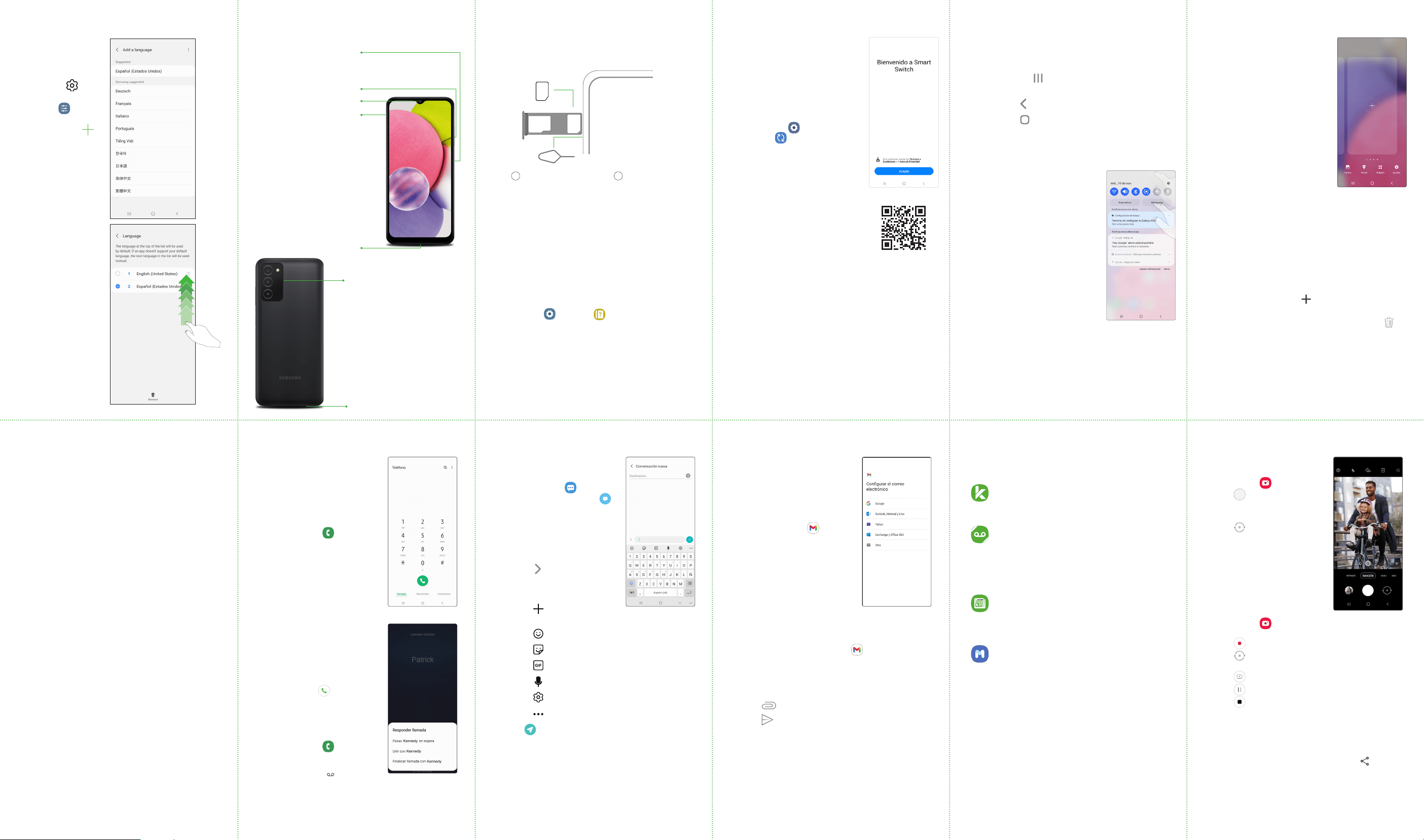
Para tomar una foto
Desde la pantalla principal,
toca Cámara .
• Toca para tomar una foto.
• Pellizca la pantalla para
acercar o alejar la imagen.
• Toca o desliza hacia
arriba para tomar seles.
• Desliza hacia la derecha o
izquierda para seleccionar
un modo de captura.
Smart Switch
Una manera segura y conable
de mover tus datos a tu Galaxy.
Ya sea que vengas de una
plataforma iOS o Android,
puedes transferir fácilmente tus
datos con Smart Switch.
Desde tu nuevo dispositivo
Galaxy desliza hacia arriba
y toca Ajustes > Cuentas
y respaldo > Datos de
dispositivo anterior y sigue las
indicaciones.
Escanea el código QR con tu
dispositivo anterior para ver más
información sobre cómo hacer
el cambio.
Pantalla táctil
Para explorar tu teléfono
• Desde la pantalla principal, desliza hacia arriba
para acceder a Aplicaciones.
• Toca Reciente para ver las aplicaciones vistas
recientemente.
• Toca Atrás para regresar a la pantalla anterior.
• Toca Inicio en cualquier momento para
regresar a la pantalla principal.
‐ Presiona por unos segundos para abrir el Asistente
de Google.
Panel de noticaciones
Desliza hacia abajo desde
la parte superior de la pantalla
para obtener acceso rápido
a alertas como nuevos
mensajes, correos electrónicos y
actualizaciones de software.
Llamadas y buzón de voz
Compatible con HD Voice
¡Disfruta las conversaciones con
un sonido supernítido con HD
Voice!
Para hacer una llamada
1. Desde la pantalla principal,
toca Teléfono .
2. Selecciona una opción para
hacer una llamada:
• Teclado: ingresa el número
de teléfono manualmente.
• Recientes: devuelve o
vuelve a intentar una
llamada anterior.
• Contactos: llama desde tu
lista de contactos.
Llamada en espera
Para contestar una nueva
llamada mientras tienes otra
llamada en curso:
• Toca y desliza en cualquier
dirección, y después toca una
opción.
Para revisar el correo de voz
1. Desde la pantalla principal,
toca Teléfono .
2. Toca por unos segundos
Correo de voz
1
.
Correo electrónico
Conguración del correo
electrónico
1. Desde la pantalla principal,
desliza hacia arriba para
acceder a Aplicaciones,
y después toca la carpeta
Google > Gmail .
2. Toca ENTENDIDO > Agregar
dirección de correo
electrónico y sigue las
indicaciones para realizar la
conguración.
Para crear y enviar un
mensaje de correo
electrónico
1. Desde la pantalla principal, desliza hacia arriba
para acceder a Aplicaciones y después toca
la carpeta Google > Gmail .
2. En la esquina superior derecha, toca tu foto de
perl para cambiar entre cuentas.
3. Toca Redactar y escribe tu mensaje.
4. Toca para añadir adjuntos.
5. Toca para enviar el mensaje.
Mensajes
Para enviar un mensaje
1. Desde la pantalla principal,
toca Mensajes >
Escribir nuevo mensaje .
2. Ingresa un número de teléfono
o el nombre de un contacto
en el campo Destinatario.
3. Toca Introducir mensaje y
escribe tu texto.
• Toca para adjuntar
una imagen de la
Galería, tomar una
foto o grabar un video.
• Toca para obtener más
opciones de adjuntar.
• Toca para añadir un emoticón.
• Toca para añadir una pegatina.
• Toca para añadir un GIF.
• Toca para convertir voz a texto.
• Toca para ver ajustes del teclado.
• Toca para ver funciones adicionales.
4. Toca para enviar el mensaje.
Conguración del teléfono
Para insertar una tarjeta SIM
Aplicaciones útiles
¡Estos servicios hacen que usar Cricket sea aún
mejor y más fácil!
myCricket: accede a la facturación, haz
pagos rápidos, consulta tu uso y recibe
ayuda desde la palma de tu mano.
Visual Voicemail: consulta tus mensajes
del correo de voz, accede a ellos y
reprodúcelos rápidamente; guarda
fácilmente los números importantes en tus
listas de favoritos y responde los mensajes
mediante llamadas o mensajes de texto.
theSCOOP: recibe noticias, el pronóstico
del tiempo local, resultados deportivos,
entretenimiento y más directamente en tu
teléfono.
Samsung Members: obtén asistencia de
expertos, conexiones con la comunidad,
consejos profesionales y benecios
exclusivos.
Visita Samsung.com/us/support/owners/
app/samsung-members (en inglés) para
obtener más información.
Cámaras y ash
Más información
Por Internet
Puedes obtener información detallada de ayuda,
como las especicaciones del teléfono y el
manual completo del usuario, en
espanol.cricketwireless.com/support/devices.
Por teléfono
• Llama al servicio al cliente al 1-855-246-2461
o
• Marca 611 desde tu teléfono
Accesorios
Cricket ofrece una línea completa de accesorios.
Visita espanol.cricketwireless.com/shop/
accessories o la tienda de Cricket más cercana.
Conoce tu Galaxy A03s
Bandeja de tarjeta
SIM/microSD
™
Cámara
Tecla de volumen
Nota: Para congurar tu correo electrónico
empresarial, comunícate con tu departamento de
informática.
No envíes mensajes de texto mientras conduces.
Nota: Presiona dos veces la tecla lateral para abrir
rápidamente la aplicación de la cámara.
Puerto para auriculares
Puerto de carga/datos
Cámara y video
Para grabar un video
Desde la pantalla principal,
toca Cámara y después desliza hacia la
izquierda para llegar a VIDEO.
• Toca para empezar a grabar.
• Toca o desliza hacia arriba para grabar
seles.
• Toca para tomar una foto mientras grabas.
• Toca para pausar la grabación.
• Toca para terminar la grabación.
Para compartir una foto o un video
1. Después de tomar una foto, toca el visor de
imágenes en la parte inferior de la pantalla.
2. Selecciona la foto o el video que quieres
compartir y después toca Compartir .
3. Selecciona la opción que desees para compartir
tu foto o video y sigue las indicaciones.
Personalización
Toca por unos segundos
un espacio en blanco en
una pantalla principal para
personalizar:
• Fondos de pantalla: cambia
el aspecto de la pantalla
principal y de bloqueo con
diversos fondos de pantalla.
• Temas: cambia el aspecto de
los iconos y las pantallas del
sistema.
• Widgets: arrastra rápidamente
un widget a un espacio vacío
en una pantalla principal
para tener acceso rápido a
aplicaciones.
‐ Para mover un widget, tócalo por unos segundos
y arrástralo hasta una nueva ubicación.
‐ Para eliminar un widget, tócalo por unos
segundos, y después toca Eliminar.
• Ajustes: personaliza el aspecto de la pantalla
principal.
‐ Para añadir una pantalla principal, desplázate
hacia la derecha (verás una pantalla con un
signo de más) y toca .
‐ Para eliminar una pantalla principal, toca por
unos segundos la pantalla, y después toca .
‐ Desde el panel de aplicaciones, para añadir
una aplicación a la pantalla principal, presiona
por unos segundos la aplicación, y después toca
Añadir a inicio.
Para utilizar Cricket HD Voice, tanto la persona que llama como la que recibe la
llamada deben tener un smartphone compatible con esta función y la llamada debe
realizarse mediante la red LTE de Cricket u otra red compatible. La cobertura LTE de
Cricket no es equivalente a su cobertura de la red total. Es posible que las llamadas
que se realicen con el servicio HD Voice en un teléfono compatible y a través de la
red LTE no tengan calidad HD si la red está congestionada. También es posible que
las redes de otros proveedores de servicio interactúen con la red LTE de Cricket para
permitir las llamadas mediante HD Voice.
Encender/apagar
Bloquear/desbloquear
Escáner de huellas digitales
Tecla lateral
Manual del usuario
Para ver el manual del usuario en el dispositivo,
toca Ajustes > Ayuda .
Usa la herramienta de SIM
para abrir la bandeja de
la tarjeta SIM.
Herramienta de SIM
1 2
Tarjeta SIM
Coloca la tarjeta SIM
en la bandeja.
Carga el dispositivo
Antes de encender el dispositivo, cárgalo
completamente.
Utiliza solamente cargadores y cables aprobados por Samsung. La
garantía no cubre daños causados por el uso de accesorios no
aprobados por Samsung.
La tarjeta microSD™ se vende por separado.
Usa la tarjeta SIM que proporciona la compañía telefónica.
© 2022 Samsung Electronics America, Inc. Samsung y Samsung Galaxy
son marcas registradas de Samsung Electronics Co., Ltd. Otros nombres
de compañías y productos mencionados en el presente pueden ser
marcas comerciales de sus respectivos dueños. Las imágenes de
pantalla son simuladas. La apariencia del dispositivo puede variar.
Las imágenes que se muestran son solo para referencia. Si usas un
protector de pantalla, asegúrate de que permita el uso de funciones
en la pantalla táctil.
© 2022 Cricket Wireless LLC. Todos los derechos reservados. Cricket y el
logotipo de Cricket son marcas comerciales con licencia de Cricket
Wireless LLC.
Visita kaywa.me/switchtogalaxy (en inglés) para ver información
detallada sobre el cambio.
Cambio de idioma
1. Desde la pantalla
principal, desliza hacia
arriba en Aplicaciones
y después pulsa
en
Ajustes >
Administración
general >
Idioma >
Añadir idioma .
2. Toca sin soltar y
arrastra hacia el
principio las echas
junto al idioma
seleccionado.