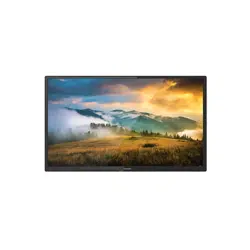
LED HD TV
Instruction Manual
Model: FEHS19S0A / FEHS24T8A
FEHS28E8A / FEHS32D9A
FEFS43N8A

1
Welcome
Thank you and congratulations for purchasing this Furrion® LED HD TV. Before placing your
new appliance into operation, please read these operating instructions carefully. This in-
struction manual contains important information for safe use, installation and maintenance
of the appliance.
Please keep this instruction manual in a safe place for future reference. This will ensure
safe use and reduce the risk of injury to persons. Pass it onto possible new owners of the
appliance.
The manufacturer does not accept responsibility for any damages that may arise due to
non-observation of these instructions.
If you have any further questions regarding our products, please contact us at
2
Contents
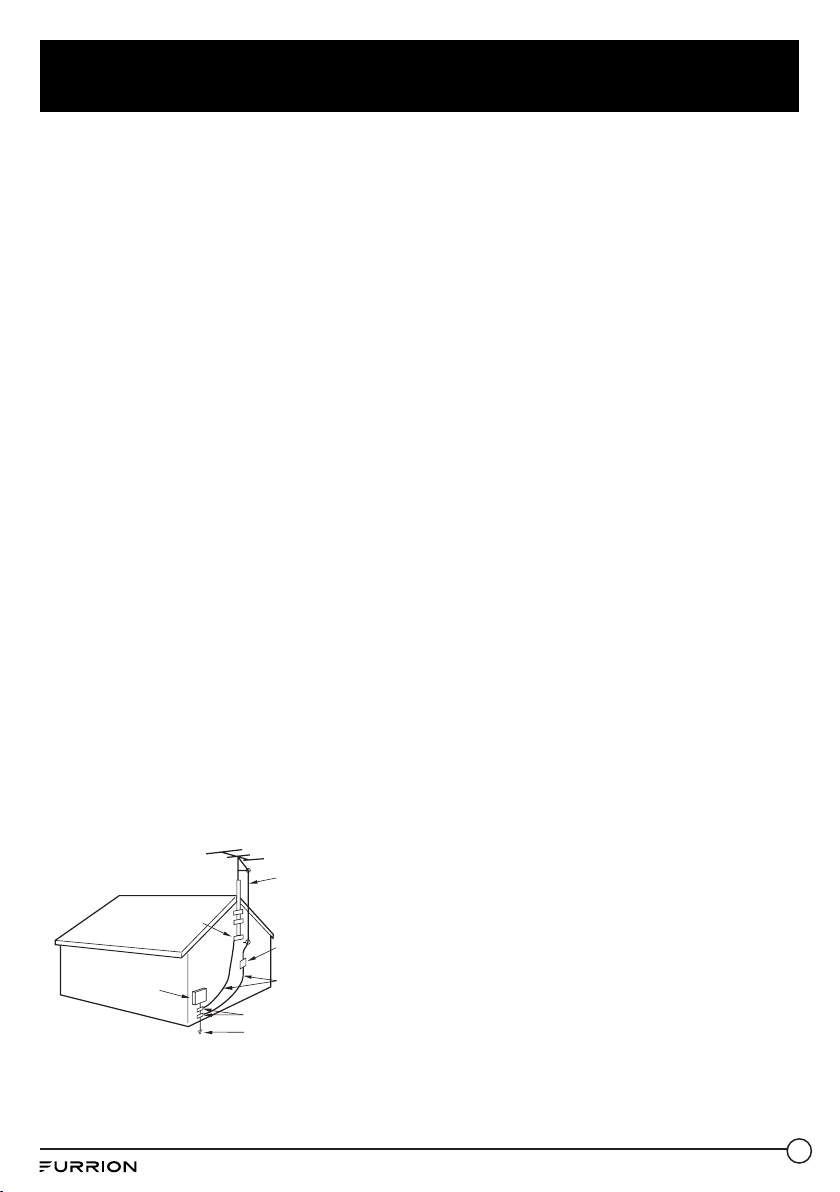
Welcome .....................................................................................................1
Contents .....................................................................................................2
Safety Warnings ......................................................................................... 3
Important Safety Instructions ............................................................................................................. 3
Safety Precautions ................................................................................................................................... 6
Function Overview ....................................................................................8
Control Panel ............................................................................................................................................. 8
Rear Panel ................................................................................................................................................... 9
Unimote ...................................................................................................................................................... 10
Remote Control ........................................................................................................................................ 12
About Your LED HD TV ...............................................................................14
Features ....................................................................................................................................................... 14
Power Source ............................................................................................................................................ 14
Before Operation .......................................................................................15
What’s in the Box ..................................................................................................................................... 15
Preparation of your Remote Control ................................................................................................ 15
Getting Started ..........................................................................................16
Change Settings ........................................................................................17
Change the Setup Settings .................................................................................................................. 17
Change the Picture Settings ................................................................................................................ 20
Change the Sound Settings ................................................................................................................. 21
Change the Time Setting ...................................................................................................................... 23
Change the Lock Settings ..................................................................................................................... 24
Change the Channel Settings ............................................................................................................. 27
Change the PC Settings ......................................................................................................................... 28
USB Mode ................................................................................................................................................... 29
Troubleshooting ........................................................................................30
Specications .............................................................................................31
3
Safety Warnings
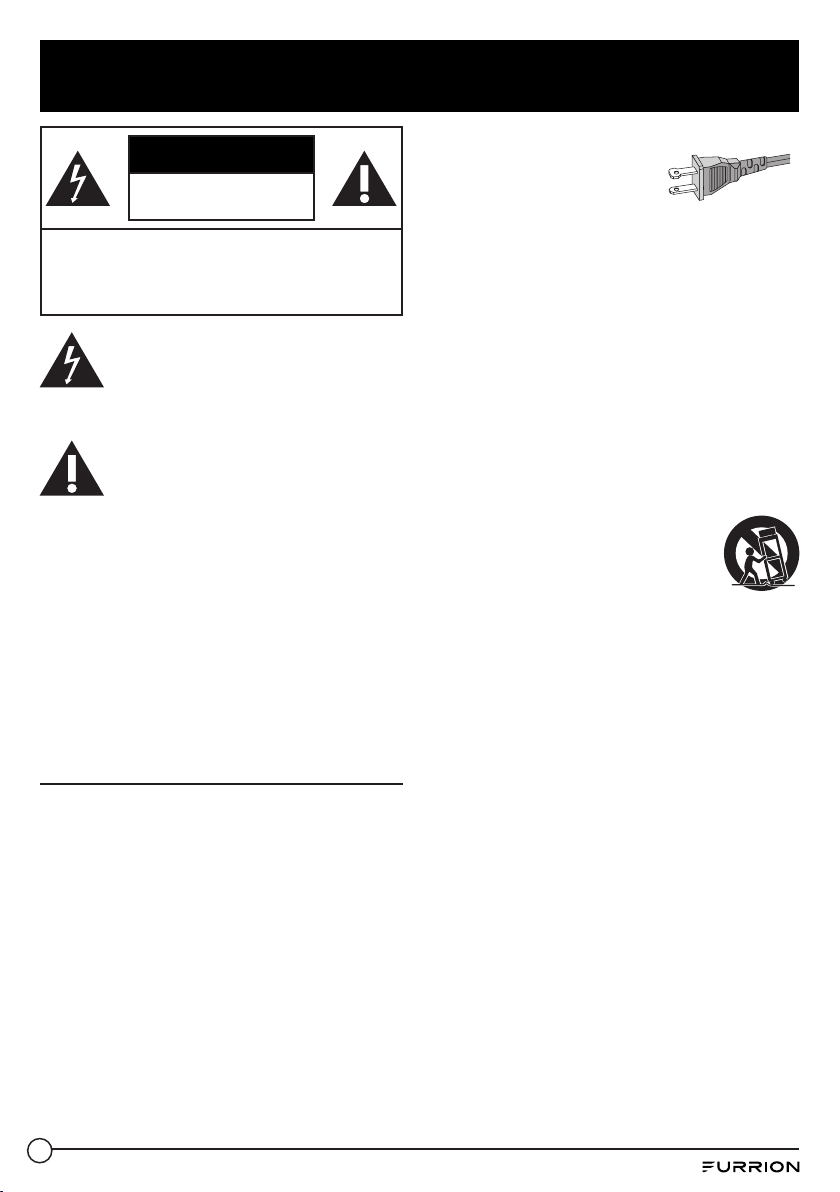
CAUTION
RISK OF ELECTRIC SHOCK
DO NOT OPEN
CAUTION: TO REDUCE THE RISK OF ELECTRIC
SHOCK, DO NOT REMOVE COVER (OR BACK). NO
USER-SERVICEABLE PARTS INSIDE. REFER SERVICING
TO QUALIFIED SERVICE PERSONNEL.
This ‘bolt of lightning’ indicates
uninsulated material within your unit
that may cause an electrical shock.
For the safety of everyone in your household,
please do not remove product covering.
The ‘exclamation mark’ calls attention
to features for which you should read
the enclosed literature closely to
prevent operating and maintenance problems.
WARNING: To reduce the risk of re or electric
shock, this apparatus should not be exposed to
rain or moisture and objects lled with liquids,
such as vases, should not be placed on this
apparatus.
CAUTION: To prevent electric shock, fully insert
the plug. (For regions with polarized plugs: To
prevent electric shock, match wide blade to
wide slot.)
Important Safety Instructions
1. Read these instructions.
2. Keep these instructions.
3. Heed all warnings.
4. Follow all instructions.
5. Do not use this apparatus near water.
6. Clean only with a dry cloth.
7. Do not block any of the ventilation
openings. Install in accordance with the
manufacturers instructions.
8. Do not install near any heat sources such
as radiators, heat registers, stoves, or
other apparatus (including ampliers) that
produce heat.
9. Do not defeat the safety purpose of the
polarized or grounding-
type plug. A polarized
plug has two blades with
one wider than the other.
A grounding type plug has two blades and a
third grounding prong. The wide blade or
the third prong are provided for your safety.
When the provided plug does not t into
your outlet, consult an electrician for
replacement of the obsolete outlet.
10. Protect the power cord from being walked
on or pinched, particularly at plugs,
convenience receptacles, and the point
where they exit from the apparatus.
11. Only use attachments/accessories specied
by the manufacturer.
12. Use only with a cart, stand, tripod, bracket,
or table specied by the
manufacturer or sold with the
apparatus. When a cart is used,
use caution when moving the
cart/apparatus combination to avoid injury
from tip-over.
13. Unplug this apparatus during lightning
storms or when unused for long periods of
time.
14. Refer all servicing to qualied service
personnel. Servicing is required when the
apparatus has been damaged in any way,
such as if the power-supply cord or plug is
damaged, liquid has been spilled or objects
have fallen into the apparatus, or when
the apparatus has been exposed to rain or
moisture, does not operate normally, or has
been dropped.
15. Apparatus should not be exposed to
dripping or splashing, and objects lled with
liquids, such as vases, should not be placed
on the apparatus.
AC Polarized
Plug
4
Safety Warnings
16. An outside antenna system should not be
located in the vicinity of overhead power
lines or other electric light or power circuits,
or where it can fall into such power lines or
circuits. When installing an outside antenna
system, extreme care should be taken to
keep from touching such power lines or
circuits as contact with them might be fatal.
17. Do not overload wall outlets, extension
cords, or integral convenience receptacles
as this can result in a risk of re or electric
shock.
18. Never push objects of any kind into this
product through openings as they may
touch dangerous voltage points or short-out
parts that could result in a re or electric
shock. Never spill liquid of any kind on the
product.
19. If an outside antenna or cable system is
connected to the unit, be sure the antenna
or cable system is grounded to provide
some protection against voltage surges
and built-up static charges, Section 810 of
the National Electrical Code, ANSI/NFPA 70,
provides information with respect to proper
grounding of the mast and supporting
structure, grounding of the lead-in wire to
an antenna discharge unit, size of grounding
conductors, location of antenna discharge
unit, connection to grounding electrodes,
and requirements for the grounding
electrode.
ANTENNA
DISCHARGE UNIT
(NEC SECTION 810-20)
ANTENNA
LEAD IN WIRE
GROUNDING CONDUCTORS
(NEC SECTION 810-21)
GROUND CLAMPS
POWER SERVICE GROUNDING
ELECTRODE SYSTEM
(NEC ART 250, PART H)
GROUND
CLAMP
ELECTRIC SERVICE
EQUIPMENT
NEC-NATIONAL
ELECTRICAL CODE
S2898A
EXAMPLE OF ANTENNA GROUNDING AS PER THE
NATIONAL ELECTRICAL CODE
20. When replacement parts are required, be
sure the service technician uses replacement
parts specied by the manufacturer or those
that have the same characteristics as the
original part. Unauthorized substitutions
may result in re, electric shock or other
hazards.
21. Upon completion of any service or repairs
to this unit, ask the service technician to
perform safety checks to determine that the
unit is in proper operating condition.
22. When you connect the product to other
equipment, turn o the power and unplug
all of the equipment from the wall outlet.
Failure to do so may cause an electric
shock and serious personal injury. Read the
owner’s manual of the other equipment
carefully and follow the instructions when
making any connections.
23. Sudden high volume sound may cause
hearing or speaker damage. When you
use headphones, (if the unit is equipped
with a headphone jack) keep the volume
at a moderate level. If you use headphones
continuously with high volume sound, it
may cause hearing damage.
24. Do not allow the product to output distorted
sound for an extended period of time. It may
cause speaker overheating and re.
25. This reminder is provided to call the cable
TV system installer’s attention to Article 820-
40 of the NEC that provides guidelines for
proper grounding and, in particular, species
that the cable ground shall be connected
to the grounding system of the building, as
close to the point of cable entry as practical.
26. The socket-outlet must be installed near the
unit and easily accessible.
27. The mains plug is used as the disconnect
and shall remain readily operable.

5
Safety Warnings
CONDENSATION
Moisture will form in the operating section
of the unit if the unit is brought from cool
surroundings into a warm room or if the
temperature of the room rises suddenly.
When this happens, unit’s performance will be
impaired. To prevent this, let the unit stand in
its new surroundings for about an hour before
switching it on, or make sure that the room
temperature rises gradually.
Condensation may also form during the summer
if the unit is exposed to the breeze from an air
conditioner. In such cases, change the location
of the unit.
HOW TO HANDLE THE LCD PANEL
● Do not press hard or jolt the LCD panel. It
may cause the LCD panel glass to break and
injury may occur.
● If the LCD panel is broken, make absolutely
sure that you do not touch the liquid in the
panel. This may cause skin inammation.
If the liquid gets in your mouth, immediately
gargle and consult with your doctor. Also, if
the liquid gets in your eyes or touches your
skin, consult with your doctor after rinsing
for at least 15 minutes or longer in clean
water.
Possible Adverse Eects on LCD Panel: If a
xed (non-moving) pattern remains on the LCD
Panel for long periods of time, the image can
become permanently engrained in the LCD
Panel and cause subtle but permanent ghost
images. This type of damage is NOT COVERED BY
YOUR WARRANTY. Never leave your LCD Panel
on for long periods of time while it is displaying
the following formats or images:
● Fixed Images, such as stock tickers, video
game patterns, TV station logos, and
websites.
● Special Formats that do not use the entire
screen. For example, viewing letterbox
style (16:9) media on a normal (4:3) display
(black bars at top and bottom of screen); or
viewing normal style (4:3) media on a wide
screen (16:9) display (black bars on left and
right sides of screen).
The following symptoms are not signs of
malfunction but technical limitation. Therefore
we disclaim any responsibility for these
symptoms.
● LCD Panels are manufactured using
an extremely high level of precision
technology, however sometimes parts of the
screen may be missing picture elements or
have luminous spots. This is not a sign of a
malfunction.
● Do not install the LCD Panel near electronic
equipment that produces electromagnetic
waves. Some equipment placed too near
this unit may cause interference.
● Eect on infrared devices – There may be
interference while using infrared devices
such as infrared cordless headphones.
Power source: This LED television is designed
to operate on 120 volts 60 Hz, AC current. Insert
the power cord into a 120 volt 60 Hz outlet.
To prevent electric shock, do not use the LED
television’s (polarized) plug with an extension
cord, receptacle, or other outlet unless the
blades and ground terminal can be fully inserted
to prevent blade exposure.
Never connect the LED television to 50 Hz, direct
current, or anything other than the specied
voltage.
Warning: To reduce the risk of re or electric
shock, do not expose this apparatus to rain or
moisture.
Caution: Never remove the back cover of the
LED television as this can expose you to very
high voltages and other hazards. If the television
does not operate properly, unplug the LED
television and call your authorized dealer or
service center.
Adjust only those controls that are covered
in the instructions, as improper changes or
modications not expressly approved by Furrion
could void the user’s warranty.
6
Safety Warnings
Declaration of Conformity
WARNING: This equipment has been tested
and found to comply with the limits for a
Class B digital device, pursuant to Part 15 of
the FCC Rules. These limits are designed to
provide reasonable protection against harmful
interference in a residential installation.
This equipment generates, uses and can
radiate radio frequency energy and, if not
installed and used in accordance with the
instructions, may cause harmful interference
to radio communications. However, there is
no guarantee that interference will not occur
in a particular installation. If this equipment
does cause harmful interference to radio or
television reception, which can be determined
by turning the equipment o and on, the user is
encouraged to try to correct the interference by
one or more of the following measures:
– Reorient or relocate the receiving antenna.
– Increase the separation between the
equipment and receiver.
– Connect the equipment to an outlet on
a circuit dierent from that to which the
receiver is connected.
– Consult the dealer or an experienced radio/
TV technician for help.
CAUTION: Changes or modications not
expressly approved by the party responsible for
compliance with the FCC Rules could void the
user’s authority to operate this equipment.
Safety Precautions
WARNING: Never place a television set in an
unstable location. A television set may fall,
causing serious personal injury or death. Many
injuries, particularly to children, can be avoided
by taking simple precautions such as:
– Using cabinets or stands recommended by
the manufacturer of the television set.
– Only using furniture that can safely support
the television set.
– Ensuring the television set is not
overhanging the edge of the supporting
furniture.
– Not placing the television set on tall
furniture (for example, cupboards or
bookcases) without anchoring both the
furniture and the television set to a suitable
support.
– Not placing the television set on cloth
or other materials that may be located
between the television set and supporting
furniture.
– Educating children about the dangers of
climbing on furniture to reach the television
set or its controls.
If your existing television set is being retained
and relocated, the same considerations as above
should be applied.
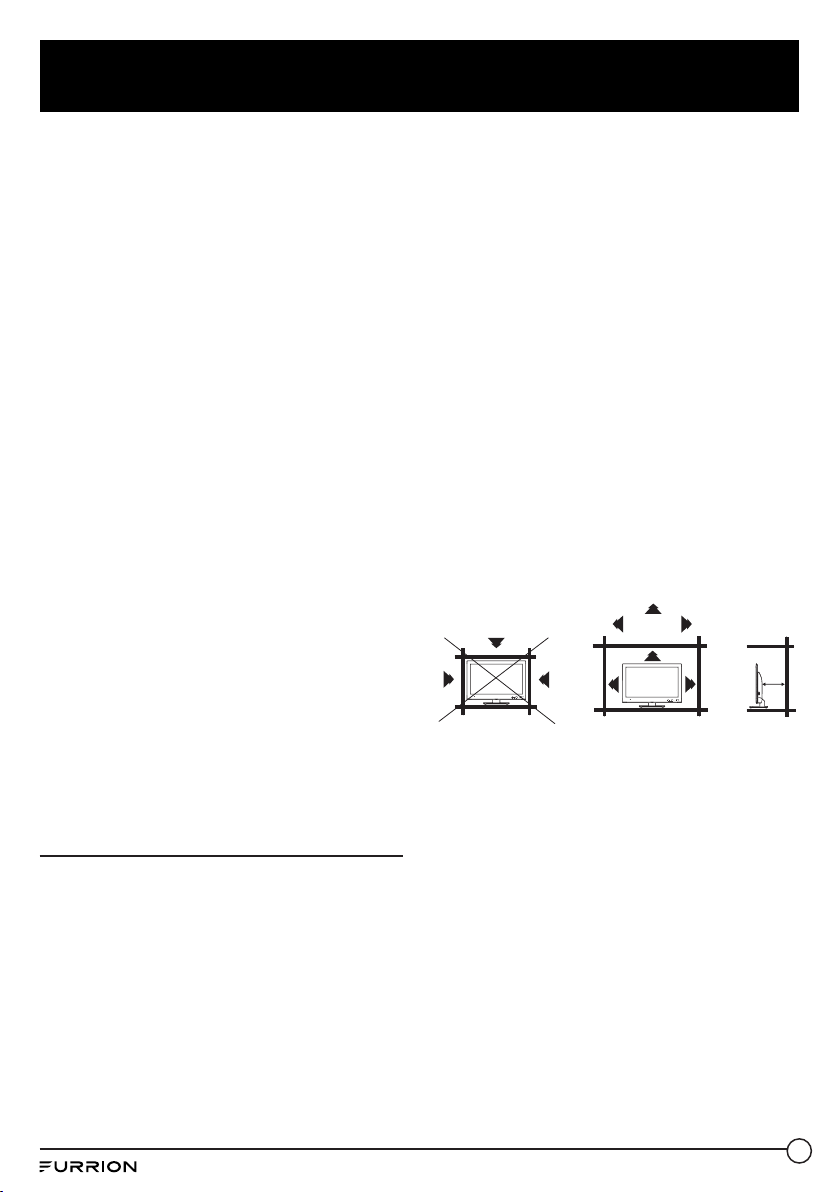
The unit emits heat when in operation. Do not
place any covers or blankets on the unit, this
may cause overheating. Do not block ventilation
holes, or set up near radiators. Do not place in
direct sunlight. When placing on a shelf leave 4
inches (10 cm) free space around the entire unit.
4 inches
4 inches
YES !!
NO !!
Wire
Clamp
Screw
Wire
4 inches
Wire
7
Safety Warnings
Notes when mounting the LED TV
on the wall
If the unit is to be mounted on the wall, contact
the retailer where you purchased the LED TV for
advice, and have the equipment professionally
installed. Incomplete or improper installation
may cause injury to you, and/or damage to the
LED TV.
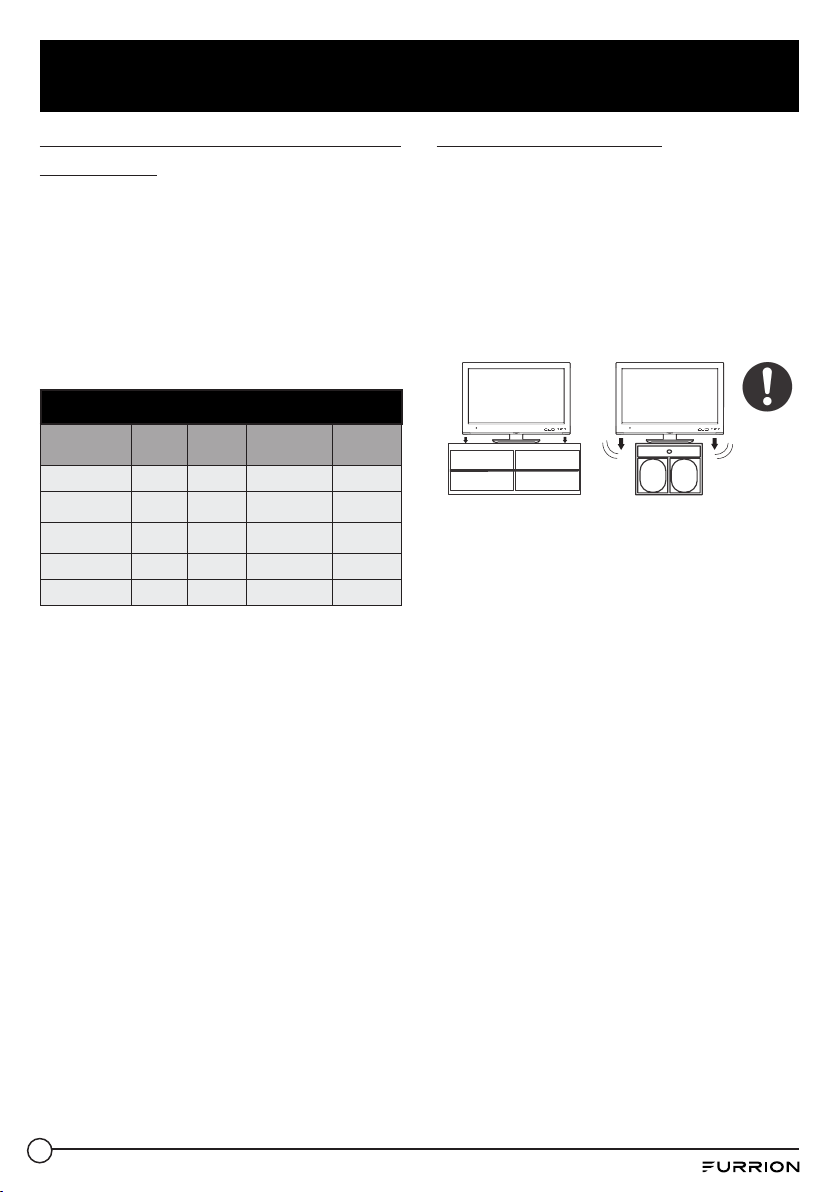
Please refer to the table below to ensure the
correct size VESA mount is used with the TV
VESA MOUNTING PATTERN
TV Model
Width
mm
Height
mm
Screw Size Quantity
FEHS19S0A 100 100 PM4*10mm
FEHS24T8A 75 75 TM4*7mm 4
FEHS28E8A 200 100 PM4*10mm 4
FEHS32D9A 200 100 PM6*10mm 4
FEFS43N8A 200 200 BM6*10mm 4
Notice for TV Cabinet
If the unit is to be mounted on a cabinet smaller
than the length of the unit, it could result in an
unstable location and the unit may tumble over,
making a risk of personal, possibly fatal injury.
Also, this would damage the product seriously.
Accordingly, Furrion accepts no responsibility
or liability for any injuries or property damage
resulting from the improper installation.
4 inches
4 inches
YES !!
NO !!
Wire
Clamp
Screw
Wire
4 inches
Wire
WARNING:
● Do not use this TV with wall mounts that
allow the TV to tilt vertically. Vertical tilting
wall mounts may cause structural damage
to the TV.
● Use ONLY xed or horizontal swiveling wall
mounts with this TV.
8
Function Overview
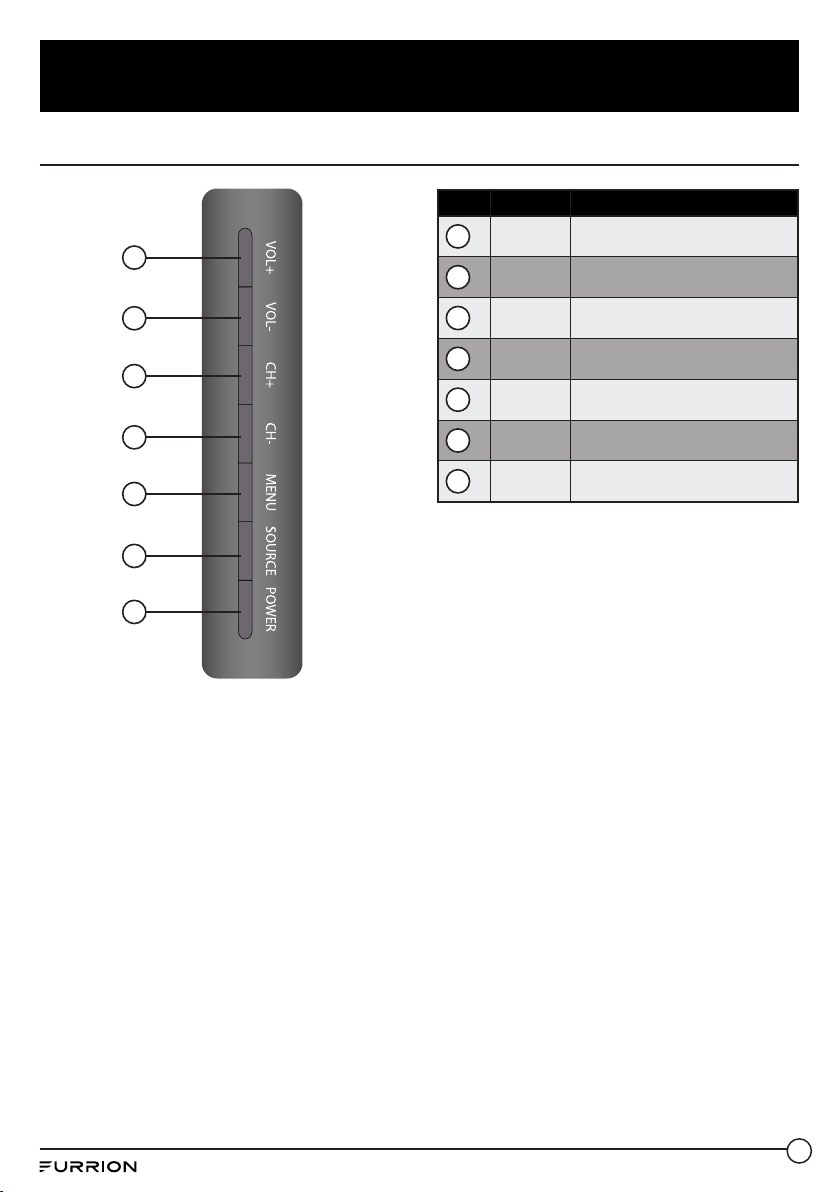
Control Panel
1
VOL+ Press to increase the volume
2
VOL- Press to decrease the volume
3
CH+ Press to skip to the next channel
4
CH- Press to skip to the previous channel
5
MENU Press to enter the main menu
6
SOURCE Press to select the input source
7
POWER Press to switch the TV on/o
1
2
3
4
5
6
7
* Please note that the button layout of the
controls may vary from model to model.
9
Function Overview
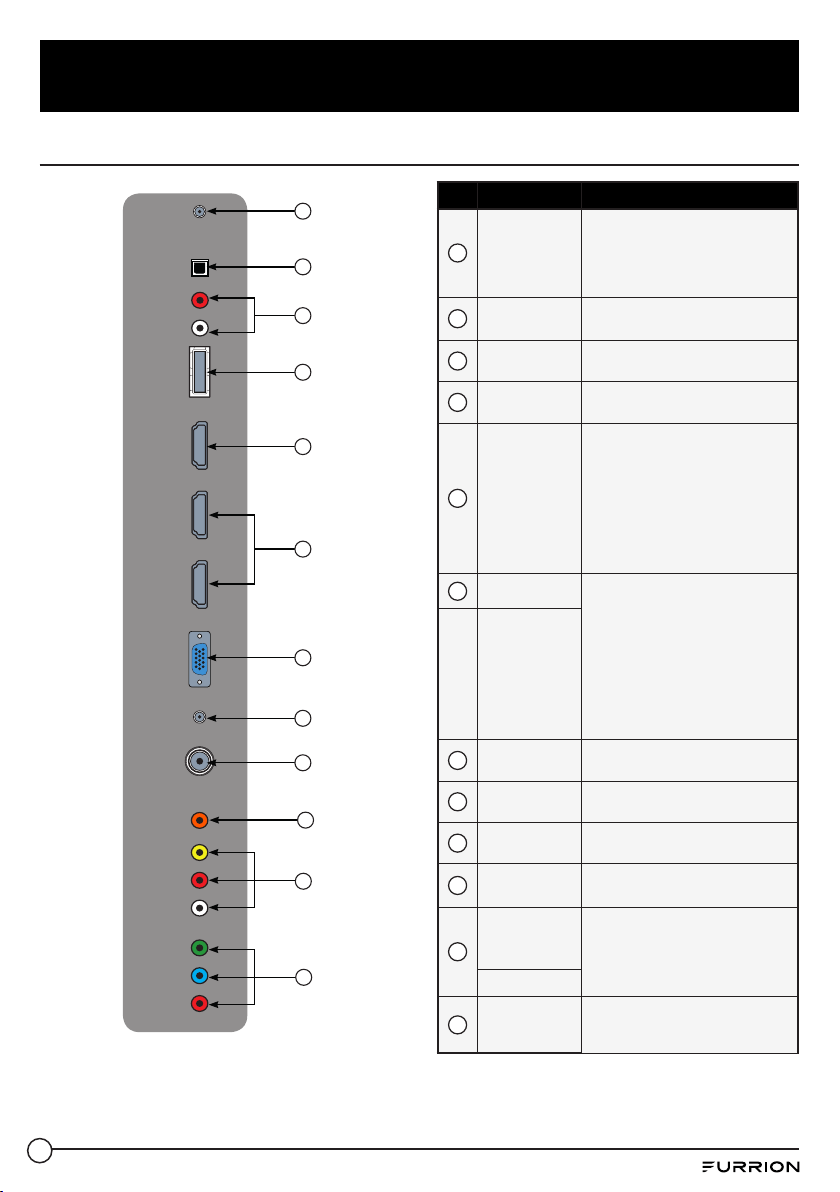
* The conguration of the connection ports may
vary from model to model.
1
EARPHONE
OUT
Connects to 3-conductor (TRS)
phone connector of earphone,
compatibility of earphone with
4-conductor (TRRS) phone
connector is not guaranteed
2
OPTICAL
AUDIO OUT
Connects to the OPTICAL AUDIO IN
port of an audio device.
3
AUDIO OUT
Connects to the AUDIO IN ports of
an audio device
4
USB
USB Port, view pictures and listen to
MP3s via a compatible USB stick
5
HDMI 1 IN
ARC
Connects to the HDMI OUT port of
a DVD Player, Games Console, Cable
Box or other HDMI device.
ARC Audio Return Channel
When connected with a HDMI 1.4
cable to an ARC compatible audio
system, the TV links with the device
to give extra audio functionality
Please see page13
6
HDMI 2 IN
Connects to the HDMI OUT port of a
DVD Player, Games Console, Cable
Box or other HDMI device.
CEC Consumer Electronics Control
When connected to the CEC
compatible Furrion Entertainment
Systems or other CEC Compatible
devices, the TV links with the system
to give extra functionality. Please
see page 23
HDMI 3 IN
7
VGA IN
Connects to the VGA OUT port of a
PC to use the TV as a monitor
8
PC AUDIO IN
Connects to the AUDIO OUT port
of a PC
9
RF IN
Connects to the ANTENNA, CABLE,
or CABLE BOX
10
COAXIAL
AUDIO OUT
Connects to the COAXIAL AUDIO IN
port of an audio device
11
VIDEO IN
Connects to the COMPOSITE
VIDEO/ AUDIO OUT ports of a
DVD Player, Cable Box or other
compatible device
AUDIO IN
12
COMPONENT
VIDEO IN
Connect to the COMPONENT VIDEO
OUT ports of a DVD Player, Cable Box
or other compatible device
EARPHONE
OUT
USB
HDMI 1 IN
ARC
HDMI 3 IN
VGA IN
PC AUDIO
IN
RF IN
VIDEO
Coaxial
Audio
Out
IN
AUDIO
IN
COMPONENT
VIDEO IN
HDMI 2 IN
R
L
Y
P
B
PR
AUDIO
OUT
R
L
OPTICAL
AUDIO
OUT
1
2
3
4
6
5
7
8
9
11
12
10
Rear Panel
10
Function Overview
Unimote
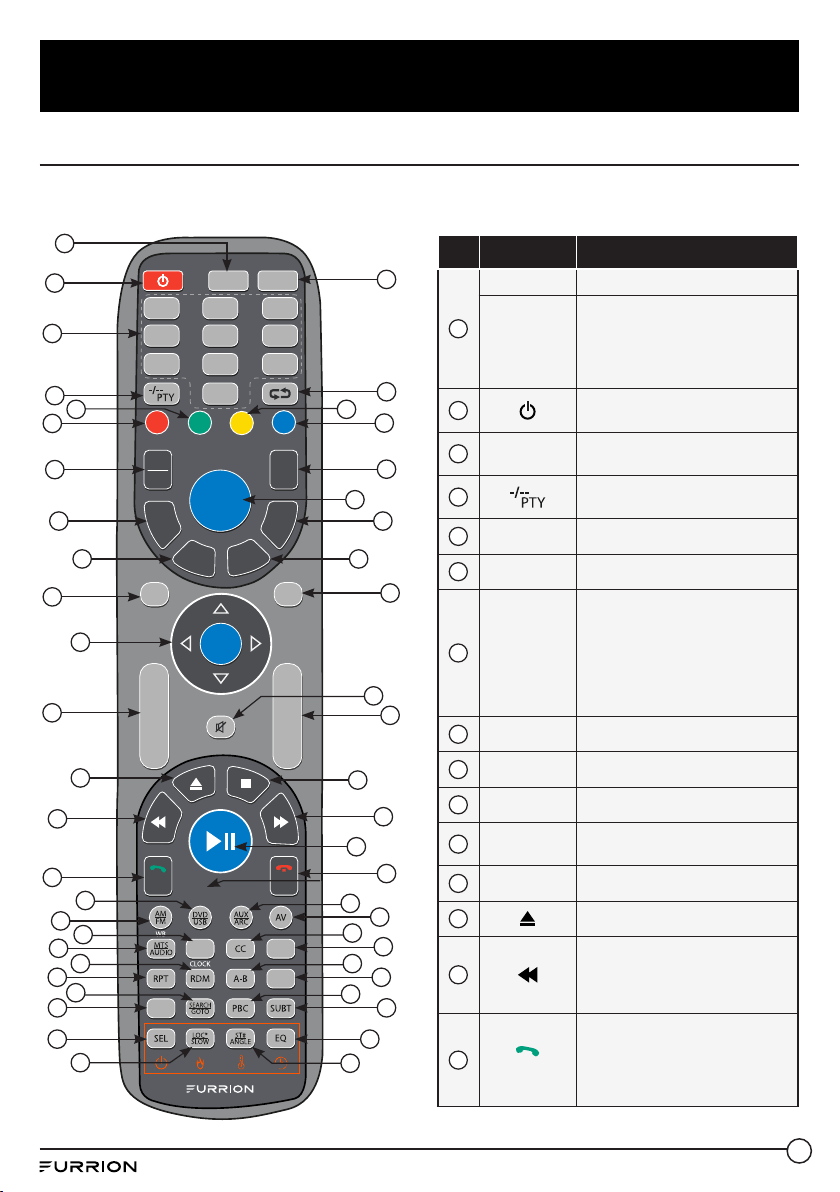
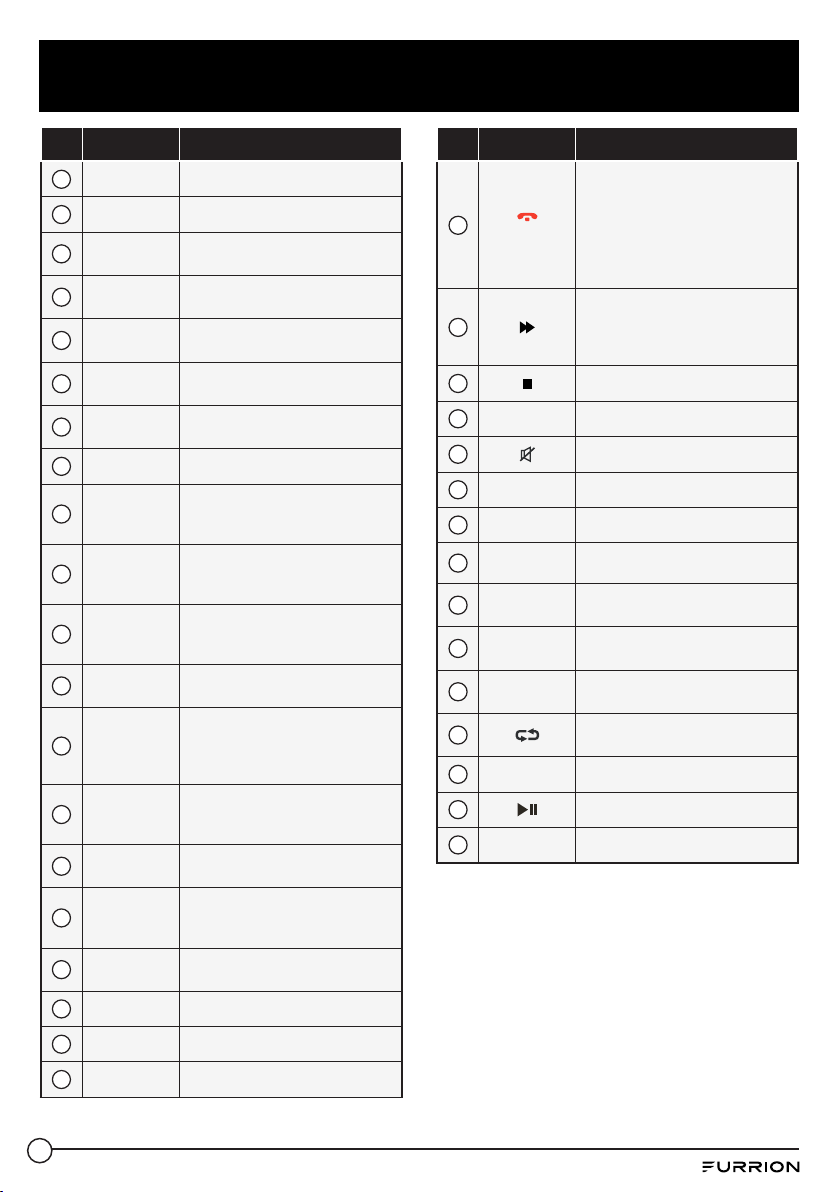
NOTE: Your TV may be delivered with Unimote or Remote Control, please refer to the content in your
package.
No. Button Function
1
TV Switches to TV mode
TV/
FIREPLACE
Selects Furrion Fireplace remote
control functions.
* Please refer to your Furrion
Fireplace manual for more
information.
2
Press to turn the TV/Entertainment
System on/o
3
NUMBER
BUTTONS
Enters numbers or select channels
4
Toggles between single & double
digit input
5
S.MODE Cycles through sound modes
6
P.MODE Cycles through picture modes
7
INFO/OSD
Under TV mode, press to display
information on the selected TV
channel
Under Stereo mode, press to
display DVD playback status
8
F.LIST Displays the favorites list
9
EPG Displays the program guide
10
SOURCE Cycles through input sources
11
NAVIGATION
BUTTONS
Conrms selections
12
VOL+/- Increases/decreases volume
13
Ejects DVD/ CD
14
During playback, press to select
the previous track/chapter. Press
and hold to rewind. Automatic or
Manual tuning in radio mode
15
STEP
Press to forward frame by frame
during DVD/ VCD playback.
Dial or accept a call (when the
system is connected to a cell
phone)
1 2 3
6
9
/AF
TV
STEREO
P.MODE
EXIT
SOURCE
F.LIST
EPG
FAV
C.LIST
INFO
OSD
AUTO
S.MODE ASPECT DISPLAY
0/TA
8
OK
MENU
VOL
+
−
CH
+
−
54
7
FIREPLACE
SETUP
PROG
SLEEP
ZOOM
STEP
APS
1
2
3
4
5
6
7
8
9
11
10
12
13
14
15
16
17
18
19
20
21
22
23
24
25
27
26
28
29
30
31
32
33
34
35
36
37
49
38
39
40
41
42
43
44
50
45
47
48
46
11
Function Overview
No. Button Function
16
DVD/USB Selects DVD/USB
17
AM/FM Selects AM/FM/WB Radio
18
SLEEP/
CLOCK
Sets the sleep timer
19
MTS/AUDIO Cycles through MTS sound modes
20
RDM
Toggles random playback mode
on & o
21
RPT
Press to select repeat playback
modes.
22
SEARCH/
GOTO
Jumps to a specic time on a DVD/
VCD/MP3/WMA or CD
23
ZOOM Press to enlarge screen images
24
SEL
Toggles between Volume, Bass,
Treble & Balance; Hours & Minutes
for adjusting
25
LOC*/SLOW
Toggles radio reception strength.
Presses to start slow motion
playback.
26
ST#/ANGLE
Toggles Stereo & Mono sound/
switches viewing angles on
compatible media.
27
EQ
Toggles the sound mode Cinema,
Rock, Classic & Flat
28
SUBT
Press to display subtitles on
compatible media.
Repeatedly press to cycle through
subtitle options.
29
PBC/TITLE
Displays DVD/VCD Title lists/
Toggles PBC (Play Back Control)
on & o
30
PROG
Uses to start the programmed
playback function
31
A-B
Press to start the A-B repeat
function (playback loop of a
segment of track)
32
SETUP
Enters the Setup menu for the
entertainment system
33
CC Toggles Closed Captions On & O
34
AV Selects AV Mode
35
AUX/ARC Selects AUX/ ARC Mode
No. Button Function
36
APS
Press to scan radio stations: A brief
press searches through each stored
station. Press & hold to scan and
store the 6 strongest stations.
End or reject a call (when the
system is connected to a cell
phone)
37
During playback, press to select
the next track/ chapter. Press and
hold to fast forward. Automatic or
Manual tuning in radio mode
38
Stops playback
39
CH+/- Channel Up/Down
40
Toggles audio On or O
41
EXIT Exits the current menu
42
FAV Adds items to the favorites list
43
C.LIST Displays the channel list
44
AUTO
Automatically adjusts the picture
in PC mode
45
DISPLAY
Toggles on screen on the selected
source On & O
46
ASPECT
Cycles through available display
aspect ratios
47
Toggles between the current and
previous channel
48
STEREO Switches to Stereo mode
49
Starts, Pauses or restarts playback
50
MENU Enters the main menu
12
Function Overview
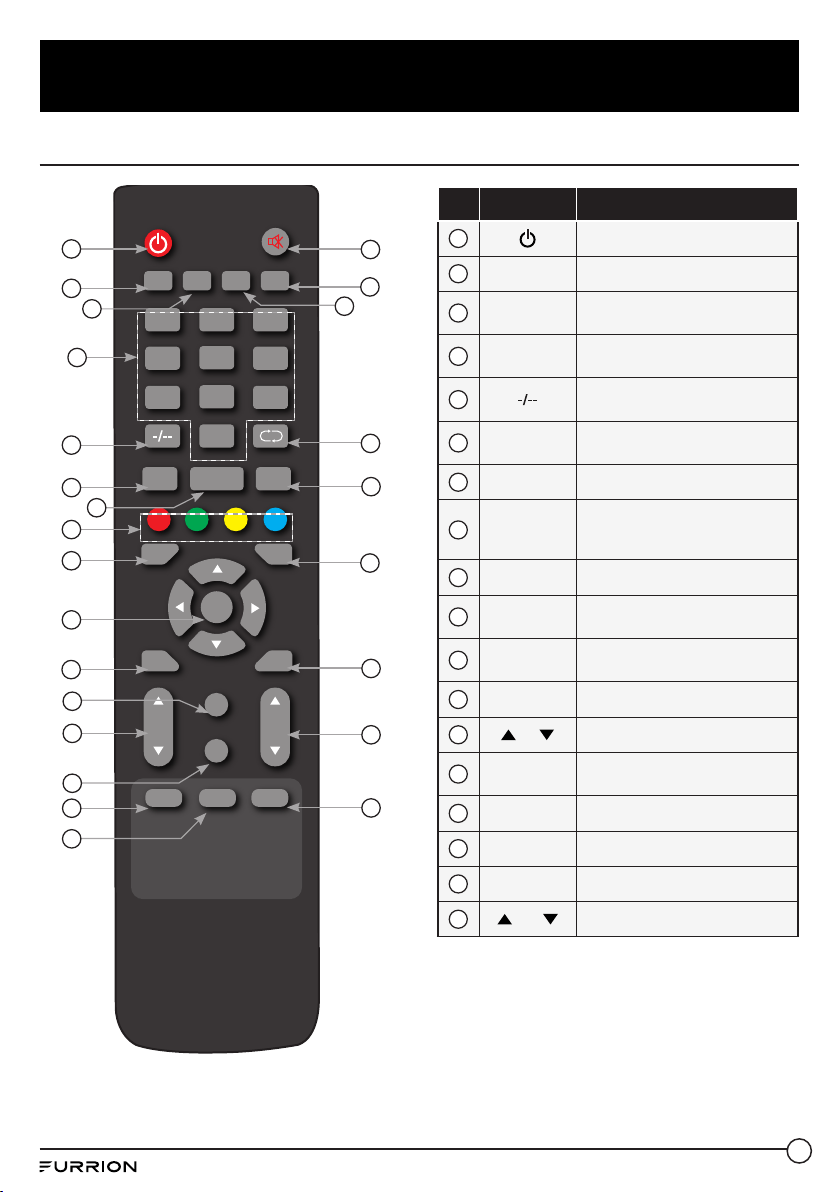
No. Button Function
1
Press to turn the TV on/o
2
MTS/AUDIO Cycles through MTS sound modes
3
ASPECT
Cycles through available display
aspect ratios
4
NUMBER
BUTTONS
Enters numbers or select channels
5
Toggles between single & double
digit input
6
DISPLAY
Toggles on screen on the selected
source On & O
7
EPG Displays the program guide
8
RED, GREEN,
YELLOW,
CYAN
No function
9
SLEEP Sets the sleep timer
10
ENTER
Enters the selected option or
perform the selected operation
11
MENU Enters the main menu
12
CC Toggles Closed Captions On & O
13
CH
Channel Up/Down
14
INFO
Press to display information on the
selected TV channel
15
FAV Adds items to the favorites list
16
FLIST Displays the favorites list
17
CLIST Displays the channel list
18
VOL
Increases/decreases volume
Remote Control
MTS/AUDIO
ASPECT
SLEEP
SOURCE
ENTER
MENU
CC
INFO
FAV
DISPLAY EPG
CH VOL
AUTO
F.LIST C.LIST
EXIT
PMODE
1 2 3
654
987
0
SMODE
1
2
5
6
9
10
8
7
4
3
11
12
13
14
15
16
17
18
19
20
21
22
23
24
25
13
Function Overview
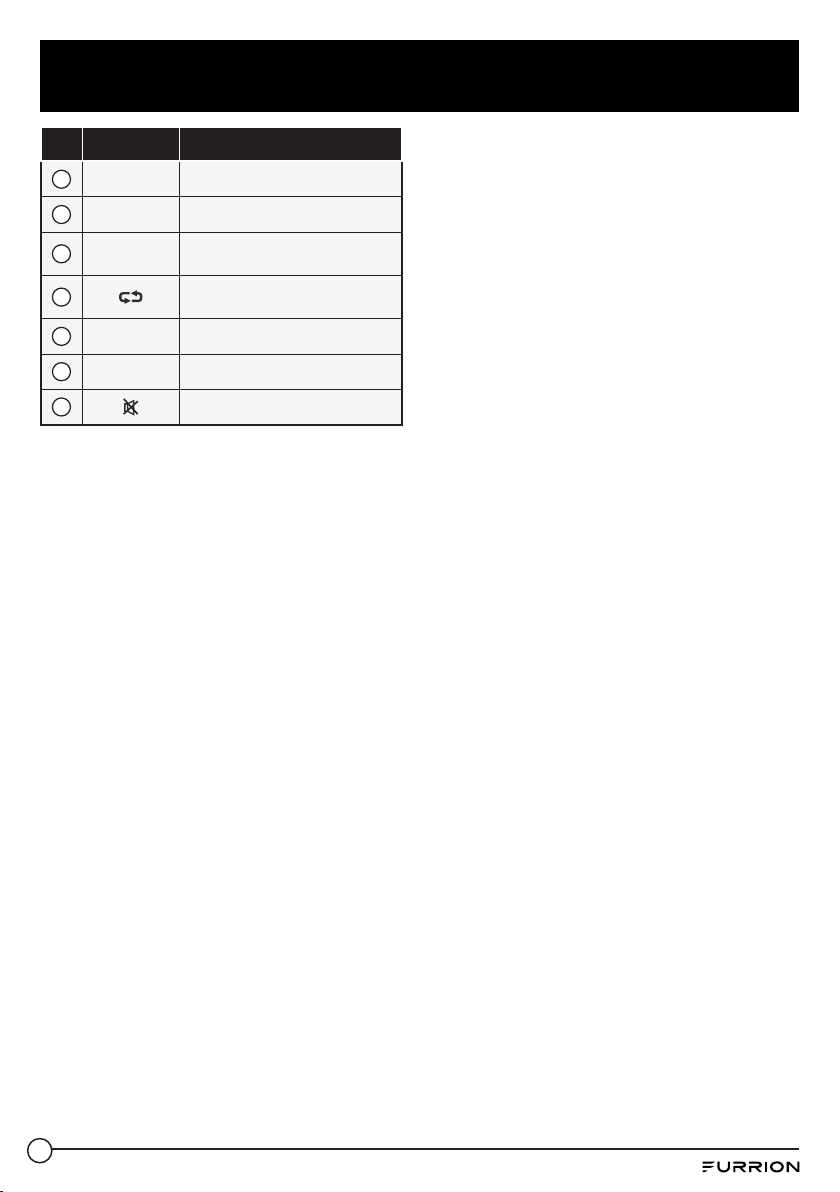
No. Button Function
19
EXIT Exits the current menu
20
SOURCE Cycles through input sources
21
AUTO
Automatically adjusts the picture
in PC mode
22
Toggles between the current and
previous channel
23
PMODE Cycles through picture modes
24
SMODE Cycles through sound modes
25
Toggles audio On or O
14
About Your LED HD TV
Features
Integrated Digital Tuner - You can view digital broadcasts without using a Digital TV Set-Top Box.
Closed Caption Decoder With Full Text Mode - Displays text captions or full screen text on the
screen for hearing impaired viewers.
Picture Adjustments Using The Remote Control - The On-Screen display allows precise remote
control adjustment of BRIGHTNESS, CONTRAST, COLOR, TINT and SHARPNESS.
Programmable TV Sleep Timer - Operable from the remote control, the TV can be programmed for
up to 240 minutes to turn o automatically.
On-Screen 3 Language Display - You can select one of 3 languages, English, Spanish or French for
on-screen programming.
HDMI/Component Video Jacks - A VCR, DVD player, satellite receiver or other audio/video
component can be connected to this unit.
Power Source
NOTE:
● Please make sure to insert the cord securely at both the LED TV and the wall outlet.
● The AC Cord has a polarized type AC line plug. If the supplied AC cord does not match your AC
outlet, contact a qualied electrician.
WARNING:
● DO NOT CONNECT THIS UNIT TO THE POWER USING ANY DEVICE OTHER THAN THE SUPPLIED AC
CORD. THIS COULD CAUSE FIRE, ELECTRICAL SHOCK, OR DAMAGE.
● DO NOT USE WITH A VOLTAGE OTHER THAN THE POWER VOLTAGE SPECIFIED. THIS COULD CAUSE
FIRE, ELECTRICAL SHOCK, OR DAMAGE.
CAUTION:
● WHEN THIS UNIT IS NOT USED FOR A LONG TIME, (E.G., AWAY ON A TRIP) IN THE INTEREST OF
SAFETY, BE SURE TO UNPLUG IT FROM THE AC OUTLET.
● DO NOT PLUG/UNPLUG THE AC CORD WHEN YOUR HANDS ARE WET. THIS MAY CAUSE
ELECTRICAL SHOCK.
● IF YOU NEED TO REPLACE THE SUPPLIED AC ADAPTER OR AC CORD, THE SPECIFIED ONE IS
RECOMMENDED. CONTACT THE DEALER THAT YOU PURCHASED THE UNIT FROM.
15
Before Operation
What’s in the Box
Thanks for purchasing this Furrion LED HD
TV. This manual will help you set up and
begin using your TV. Please read this manual
thoroughly and keep this manual in a safe place
for future reference.
First, check the contents of your box with the
parts checklist below:
● LED HD TV
● Unimote/Remote Control (may vary from
model to model)
● AAA battery × 2
● Instruction Manual
● Warranty Card
● Wall-mount screws
● TV Stand (for FEFS43N8A only)
● 4 x Screws for TV stand (for FEFS43N8A only)
Now you can get started!
Preparation of your Remote
Control
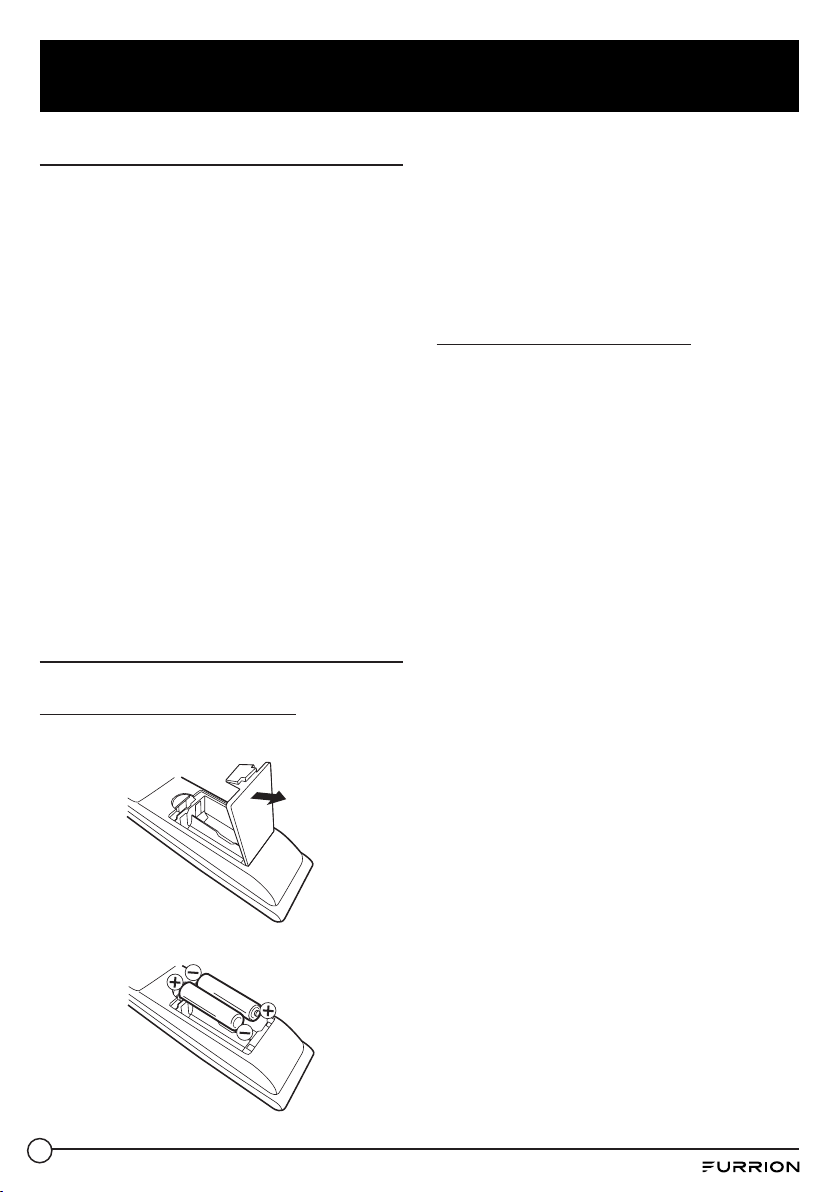
BATTERY INSTALLATION
1. Open battery compartment cover.
2. Install two AAA batteries.
3. Close the cover of the battery compartment.
NOTE: Use two “AAA” size batteries. The batteries
may last approximately one year depending on
how much the remote control is used. For best
performance, it is recommended that batteries
should be replaced on a yearly basis, or when
the remote operation becomes erratic. Do not
mix old and new batteries or dierent types.
BATTERY PRECAUTIONS
These precautions should be followed when
using batteries in this device:
● Use only the size and type of batteries
specied.
● Be sure to follow the correct polarity when
installing the batteries as indicated in the
battery compartment. Reversed batteries
may cause damage to the device.
● Do not mix dierent types of batteries
together (e.g. Alkaline and Carbon-zinc) or
old batteries with fresh ones.
● If the device is not to be used for a long
period of time, remove the batteries to
prevent damage or injury from possible
battery leakage.
● Do not try to recharge batteries not
intended to be recharged; they can overheat
and rupture. (Follow battery manufacturer’s
directions.)
● Please use caution when inserting batteries
to avoid battery damage. If the spring
terminal in the remote control remains in
contact with a side of a damaged battery
it can cause a short circuit. Never use
damaged batteries as they can become very
hot and are dangerous.
16
Getting Started
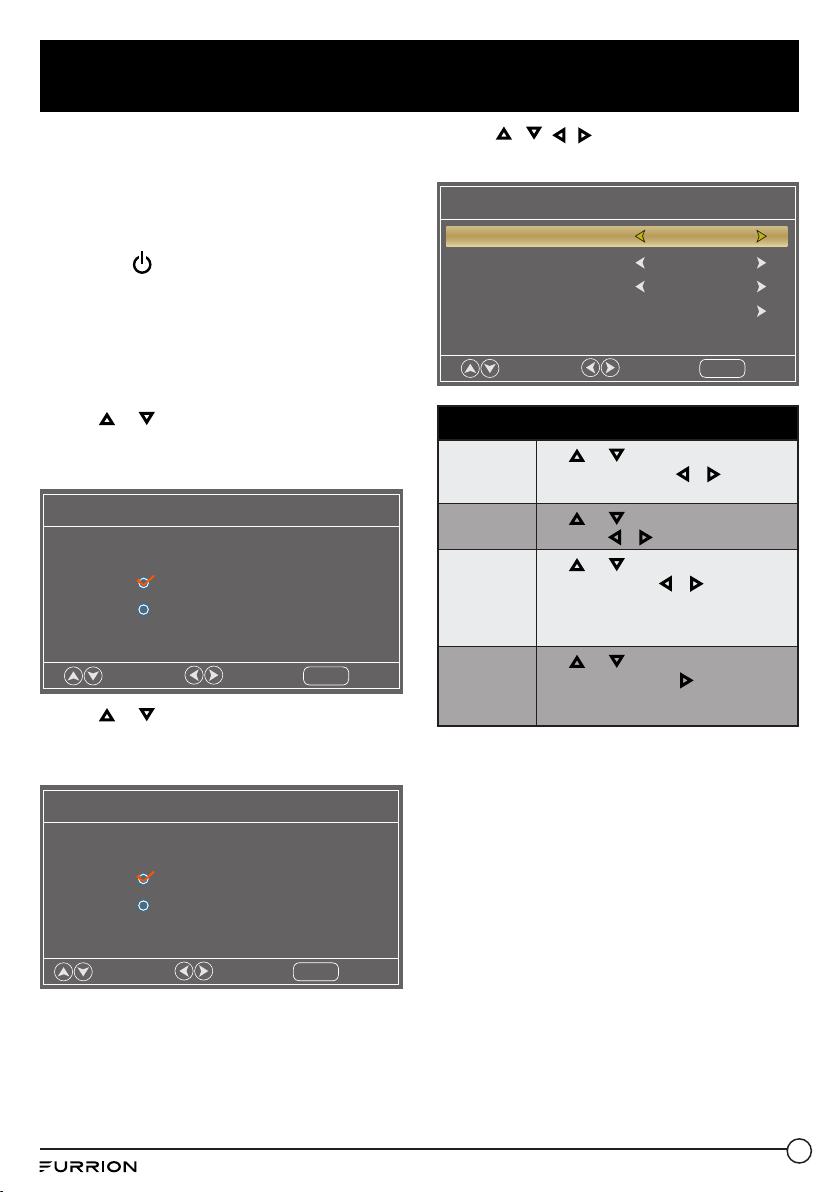
The Setup Wizard window appears the rst
time you turn on the TV. It will assist you to
congure the TV and scan for available channels.
IMPORTANT: Make sure the antenna or cable TV
system connection is made.
1. Press POWER button on the TV control
panel or button on the remote control to
switch on the TV. The power indicator will
change to Green. The Setup Wizard window
appears on the screen.
NOTE: It may take a few seconds before
the Setup Wizard window appears on the
screen.
2. Use or keys to check Home Mode
(Energy Saving) or Retail Mode. Press OK
to enter the next menu.
Setup Wizard
Choose your Picture Mode
Home Mode (Energy Saving)
Move
Select
Exit
MENU
Retail Mode
3. Use or keys to check Yes or No. Press
OK to enter the next menu or press MENU
to return to the previous menu.
Setup Wizard
Are you sure you want Home mode?
In this mode ENERGY STAR saving are realized.
Yes
Move
Select
Return
MENU
No
4. Use / / / keys to navigate and select
your desired settings.
Setup Wizard
Air/Cable Air
Cable System Auto
Auto Scan
Menu Language English
Move
Select
Exit
MENU
Setup Wizard
Menu
Language
Use or keys to highlight Menu
Language, then press or to select
English, French or Spanish.
Air/Cable
Use or keys to highlight Air/Cable,
then press or to select Air or Cable.
Cable System
Use or keys to highlight Cable
System, then press or to select
Auto, STD, IRC or HRC.
NOTE: Only adjustable after set “Air/
Cable” as “Cable” mode.
Auto Scan
Use or keys to highlight Auto
Scan, then press OK or to start
memorizing all the channels available in
your area.
NOTE: You may press EXIT at any time to exit
the menu.
17
Change Settings
Change the Setup Settings
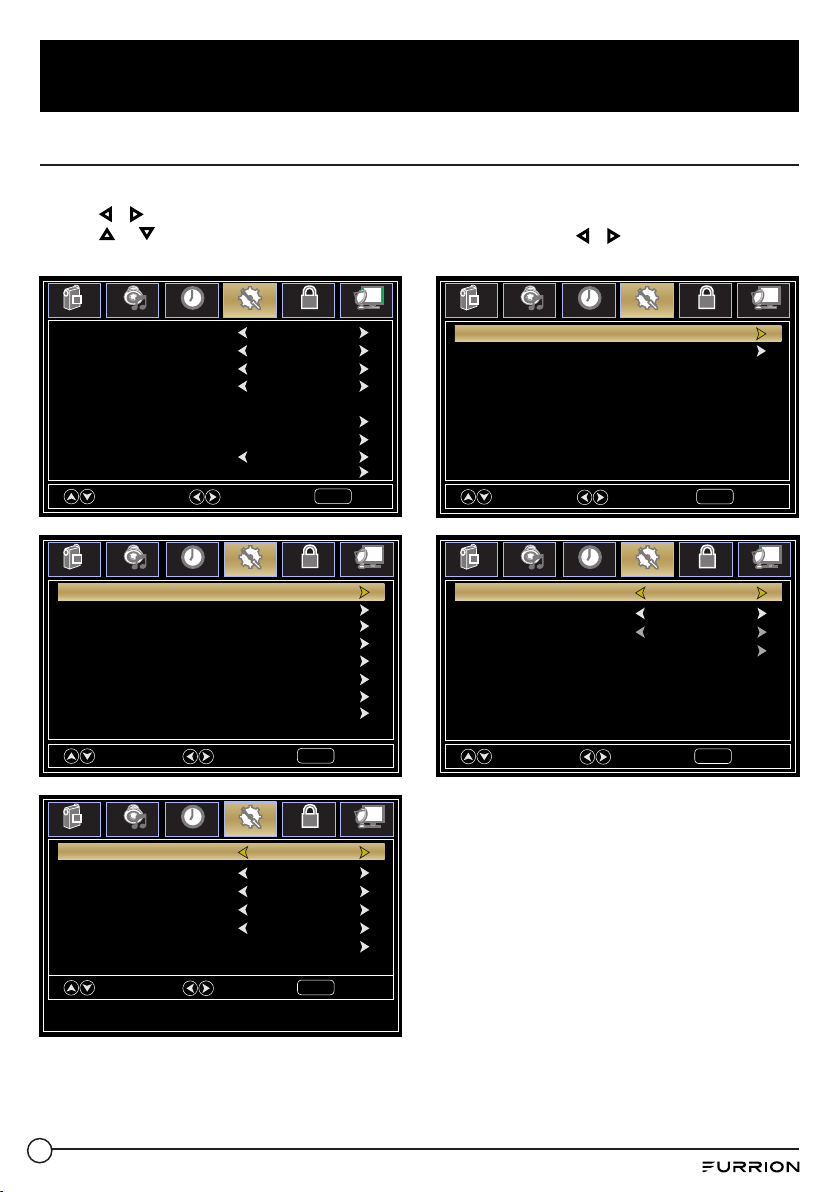
1. Press MENU button, the setup window will appear on the screen.
2. Use or keys to highlight Setup mode.
3. Use or to highlight the item you would like to reset, then press or to select the settings.
4. Press MENU to return to the previous menu or press EXIT at any time to exit the setting.
Menu Language English
Advanced
Zoom Mode Wide
Closed Caption
Noise Reduction Middle
DLC On
Setup Wizard
Transparency 25%
Source Label
Select
Move
Exit
MENU
Picture
Sound
Time
Setup
Lock
Channel
Restore Default
Move
Next
Return
MENU
Picture
Sound
Time
Setup
Lock
Channel
HDMI CEC
HDMI3 Default
HDMI1 Default
HDMI2 Default
PC Default
Media Default
AV Default
Component Default
Move
Select
Return
MENU
Picture
Sound
Time
Setup
Lock
Channel
TV
Default
Move
Select
Return
MENU
Picture
Sound
Time
Setup
Lock
Channel
CC Mode O
Basic Selection CC 1
Advanced Service 1
Option
Move
Select
Return
MENU
Picture
Sound
Time
Setup
Lock
Channel
HDMI CEC On
Auto Standby On
Auto TV on On
HDMI ARC O
Device control On
Device List
18
Change Settings
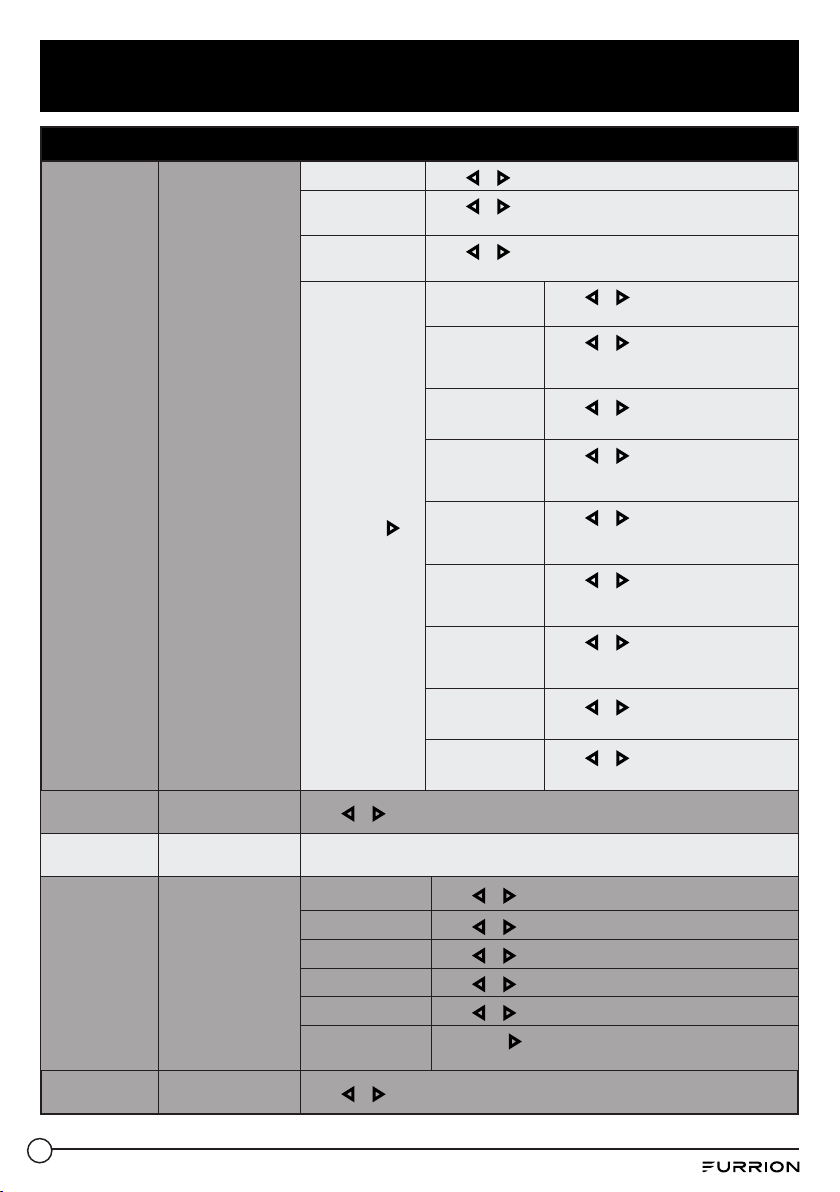
Setup Menu
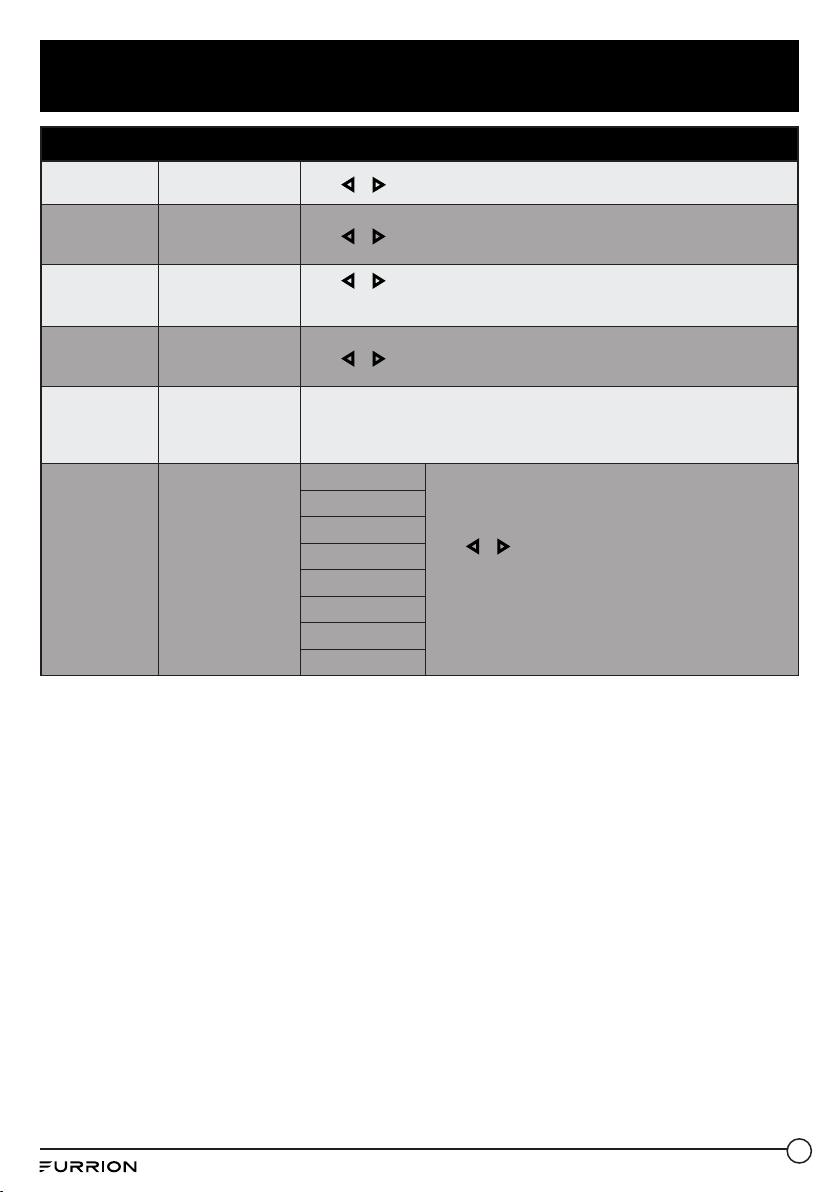
Menu Language
Selects the menu
language
Press or to select English, French or Spanish.
Transparency
Controls the
transparency level of
the menu
Press or to select 0%, 25%, 50%, 75% or 100%.
Zoom Mode
Set the picture
proportion
Press or to select Wide, Normal, Auto, Cinema, Panorama, Just Scan,
Zoom or Zoom2.
* The Zoom Mode selection may vary from model to model.
Noise Reduction
Reduce the
roughness of the
picture.
Press or to select Middle, Strong, O or Weak.
Advanced
Controls the PC
settings.
*Only available after
a PC connected
See page 28
Source Label
Allows labeling of
input sources
TV
Press or to select Custom, Default, Antenna, Cable,
Satellite, DTV, DVD, Blu-ray, HD-DVD, XBOX, Wii, PS3,
Game, Computer, VCR or DV
* The Source Label selection may vary from model to model.
AV
Component
HDMI1
HDMI2
HDMI3
PC
Media
19
Change Settings
Setup Menu
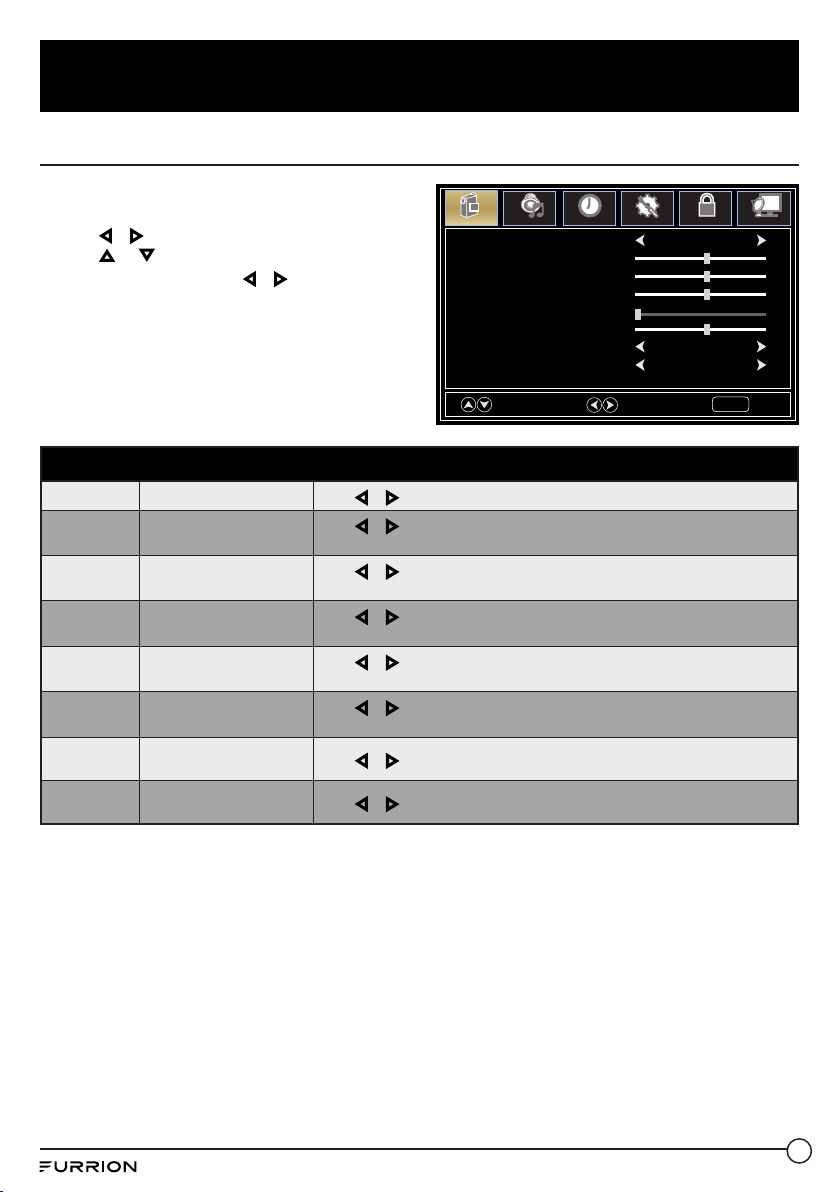
Closed Caption
Congure Closed
Caption functions
CC Mode
Press or to select O, On or CC On Mute
Basic Selection
Press or to select CC1, CC2, CC3, CC4, Text 1, Text 2,
Text 3 or Tex t 4
Advanced
Press or to select Service1, Service 2, Service 3,
Service 4, Service 5 or Service 6
Option
* Press OK or
to enter the sub
menu
Mode
Press or to select Default or
Custom
Font Style
Press or to select Default, Font 0,
Font 1, Font 2, Font 3, Font 4, Font 5,
Font 6 or Font 7
Font Size
Press or to select Default, Normal,
Large or Small
Font Edge Style
Press or to select Default, None,
Raised, Depressed, Uniform, Left
Shadow or Right Shadow
Font Edge Color
Press or to select Default, Black,
White, Red, Green, Blue, Yellow,
Magenta or Cyan
FG Color
Press or to select Default, White,
Red, Green, Blue, Yellow, Magenta or
Cyan
BG Color
Press or to select Default, Cyan,
Magenta, Yellow, Blue, Green, Red or
Black
FG Opacity
Press or to select Default, Solid,
Flashing, Translucent or Transparency
BG Opacity
Press or to select Default, Solid,
Flashing, Translucent or Transparency
DLC
Controls the picture
contrast
Press or to select O or On
Setup Wizard
Starts the Setup
Wizard
See Page 16
HDMI CEC
Congure CEC
functions
HDMI CEC
Press or to select O or On
Auto Standby
Press or to select O or On
Auto TV on
Press or to select O or On
HDMI ARC
Press or to select O or On
Device Control
Press or to select O or On
Device List
Press OK or to enter and start searching for available
HDMI devices
Restore Default
Reset to factory
default settings
Press or to select Yes or No
20
Change Settings
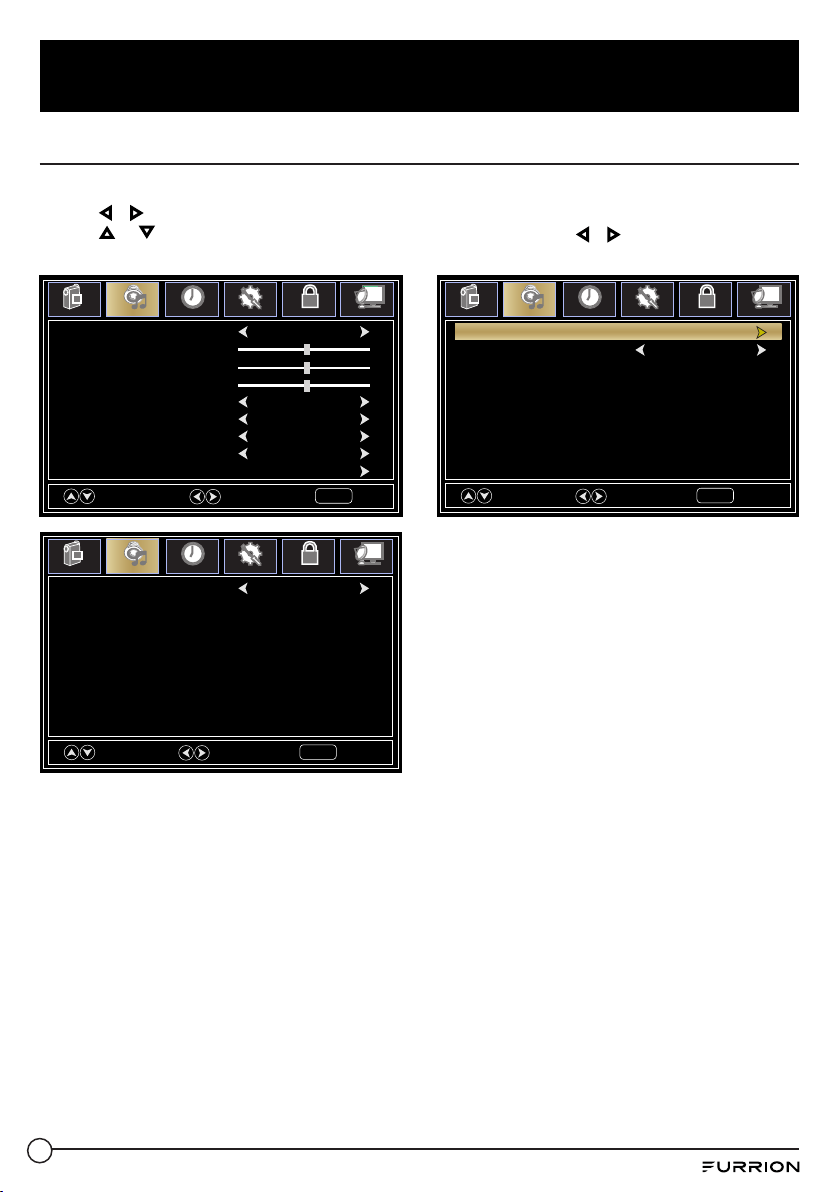
Change the Picture Settings
1. Press MENU button, the setup window will
appear on the screen.
2. Use or keys to highlight Picture mode.
3. Use or to highlight the item you would
like to reset, then press or to select the
settings.
4. Press MENU to return to the previous menu or
press EXIT at any time to exit the setting.
Picture Mode EnergySaving
Tint
Brightness
Color
Blue Screen On
Color Temperature Cool
Contrast
Sharpness
Select
Move
Exit
MENU
Picture
Sound
Time
Setup
Lock
Channel
50
50
50
0
50
Picture Menu
Picture Mode Selects the display mode
Press or to select EnergySaving, User, Dynamic, Standard or Mild
Contrast
Controls the contrast level
of the picture
Press or to change the contrast to desired level
* Only adjustable after set “Picture Mode” as “User“ mode
Brightness
Controls the brightness
level of the picture
Press or to change the brightness to desired level
* Only adjustable after set “Picture Mode” as “User“ mode
Color
Controls the color level of
the picture
Press or to change the color to desired level
* Only adjustable after set “Picture Mode” as “User“ mode
Tint Controls picture tint
Press or to change the tint to desired level
* Only available under NTSC mode
Sharpness
Controls the sharpness of
the picture
Press or to change the sharpness to desired level
* Only adjustable after set “Picture Mode” as “User“ mode
Color
Temperature
Selects the color mode
Press or to select Cool, Medium or Warm
Blue Screen
Change the screen to blue
if no signal input
Press or to set as On or O
21
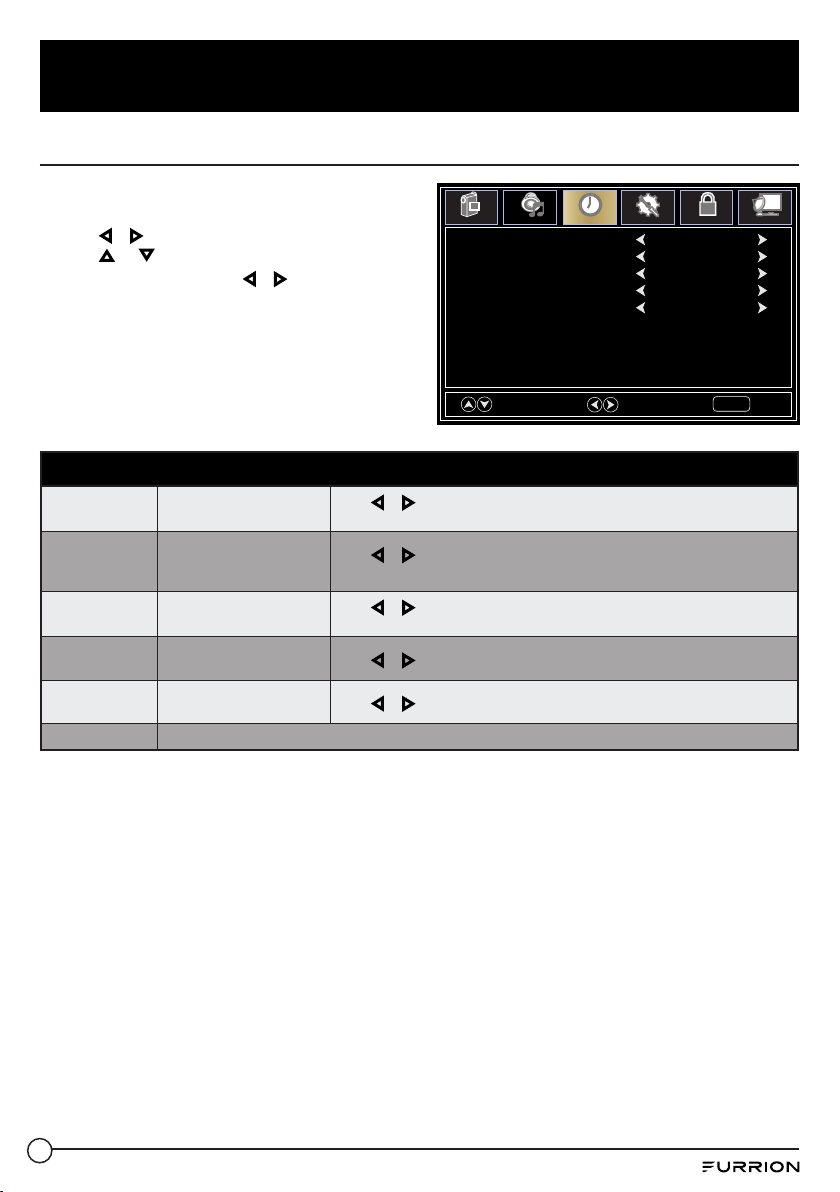
Change Settings
Change the Sound Settings
1. Press MENU button, the setup window will appear on the screen.
2. Use or keys to highlight Sound mode.
3. Use or to highlight the item you would like to reset, then press or to select the settings.
4. Press MENU to return to the previous menu or press EXIT at any time to exit the setting.
Voice Guide O
Volume Middle
Speed Middle
Pitch Middle
Move
Select
Return
MENU
Picture
Sound
Time
Setup
Lock
Channel
Sound Mode Standard
Treble
Balance
Audio Languages English
SPDIF Type RAW
Auto Volume O
Surround Sound O
Bass
Select
Move
Exit
MENU
Picture
Sound
Time
Setup
Lock
Channel
50
50
0
Accessibility
Video Description O
Move
Next
Return
MENU
Picture
Sound
Time
Setup
Lock
Channel
Voice Guide
22
Change Settings
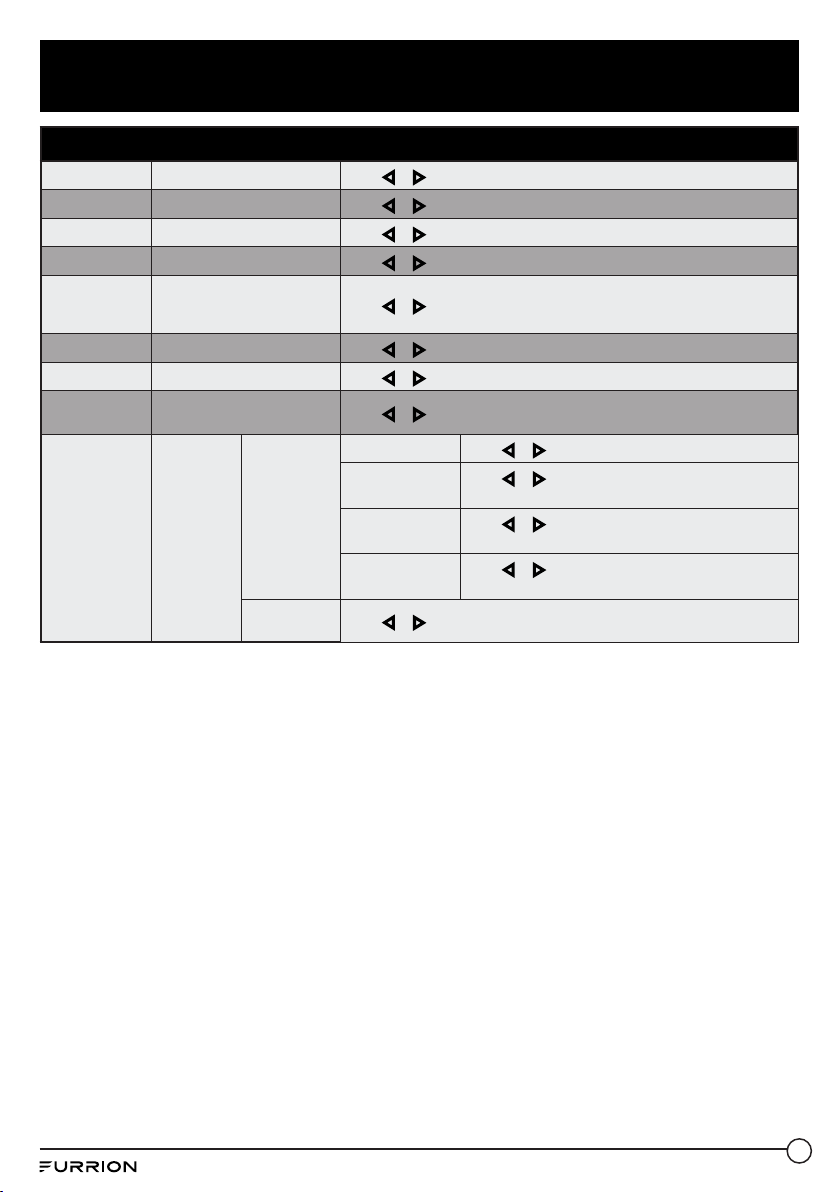
Audio Menu
Sound Mode Select the sound mode
Press or to select Standard, Music, Movie or User mode
Bass Control the bass level
Press or to change to desired level
Treble Control the treble level
Press or to change to desired level
Balance Control the balance level
Press or to change to desired level
Surround
Sound
Control the surround
function
Press or to set as On or O
Auto Volume Control the sound output
Press or to set as On or O
SPDIF Type Select the SPDIF sound mode
Press or to select RAW, PCM or O
Audio
Languages
Select the menu language
Press or to select English, French or Spanish
Accessibility
Control the
Voice Guide
functions
Voice Guide
Voice Guide
Press or to set as On or O
Volume
Press or to select Weak, Middle or Strong
* Only available after Voice Guide was set as On mode
Speed
Press or to select Weak, Middle or Strong
* Only available after Voice Guide was set as On mode
Pitch
Press or to select Weak, Middle or Strong
* Only available after Voice Guide was set as On mode
Video
Description
Press or to set as On or O
23
Change Settings
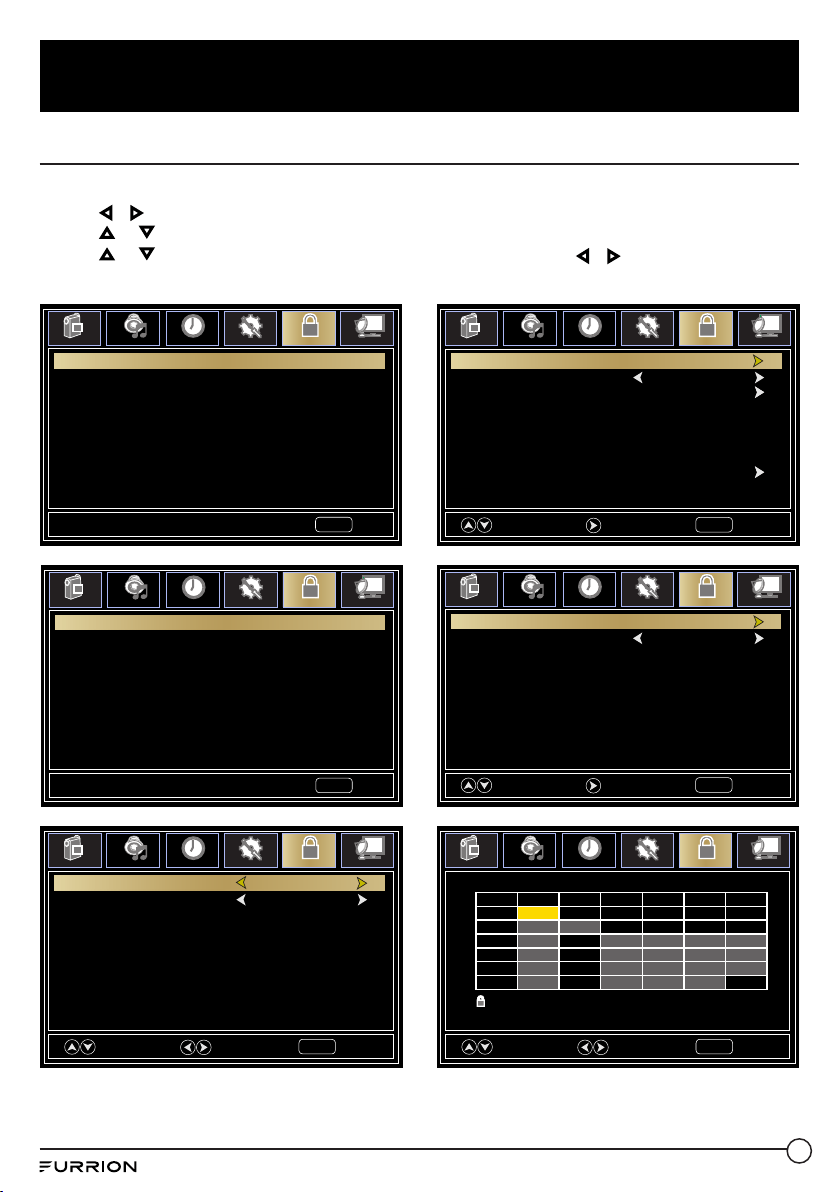
Change the Time Setting
1. Press MENU button, the setup window will
appear on the screen.
2. Use or keys to highlight Time mode.
3. Use or to highlight the item you would
like to reset, then press or to select the
settings.
4. Press MENU to return to the previous menu
or press EXIT at any time to exit the setting.
Time Menu
Sleep Timer
Set a period of time of
auto switch o the TV
Press or to select O, 5min, 10min, 15min, 30min, 45min, 60min,
90min, 120min, 180min or 240min
Time Zone Set the time zone
Press or to select Pacic, Alaska,Hawaii, Atlantic, Eastern, Central or
Mountain
Daylight Saving
Time
Toggle daylight saving
Press or to set as On or O
* Only available under TV channel
Time Format
Select the time display
format
Press or to set as 12-hour or 24-hour
Auto Clock
Sets automatic time
adjustment
Press or to set as On or O
Clock Display the date and time displaying format
Sleep Timer O
Time Zone Pacic
Daylight Saving Time O
Time Format 12-hour
Auto Clock On
Clock 2005/12/07 07:06 PM
Select
Move
Exit
MENU
Picture
Sound
Time
Setup
Lock
Channel
24
Change Settings
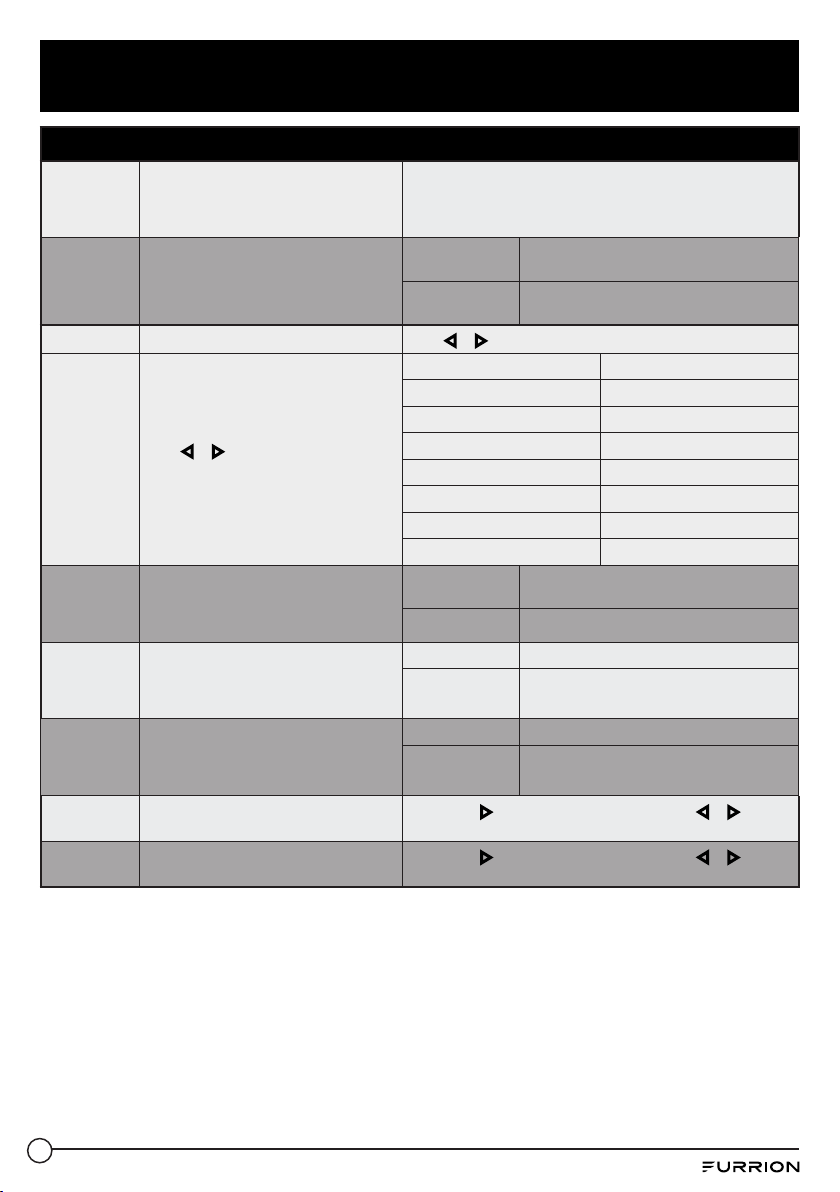
Change the Lock Settings
1. Press MENU button, the setup window will appear on the screen.
2. Use or keys to highlight Lock mode.
3. Use or keys to highlight “Enter Password” and input “0000” to enter the setup window.
4. Use or to highlight the item you would like to reset, then press or to select the settings.
5. Press MENU to return to the previous menu or press EXIT at any time to exit the setting.
0-9
Exit
MENU
Picture
Sound
Time
Setup
Lock
Channel
Enter Password _ _ _ _
Move
Select
Return
MENU
Picture
Sound
Time
Setup
Lock
Channel
Canada French E
Canada English
E
Picture
Sound
Time
Setup
Lock
Channel
MPAA N/A
TV
Move
Next
Return
MENU
Move
Next
Return
MENU
Picture
Sound
Time
Setup
Lock
Channel
Set Password
Clear LockClear Lock
System Lock O
Input BlockInput Block
USUS
CanadaCanada
RRT SettingRRT Setting
Reset RRT
Move
Select
Return
MENU
Picture
Sound
Time
Setup
Lock
Channel
ALL FV V S L D
tV-y
tV-y7
tV-g
tV-pg
tV-14
tV-mA
TV RATING
: Lock Press OK to Lock or Unlock
Exit
MENU
Picture
Sound
Time
Setup
Lock
Channel
Enter New Password _ _ _ _
Conrm Password _ _ _ _
0-9
25
Change Settings
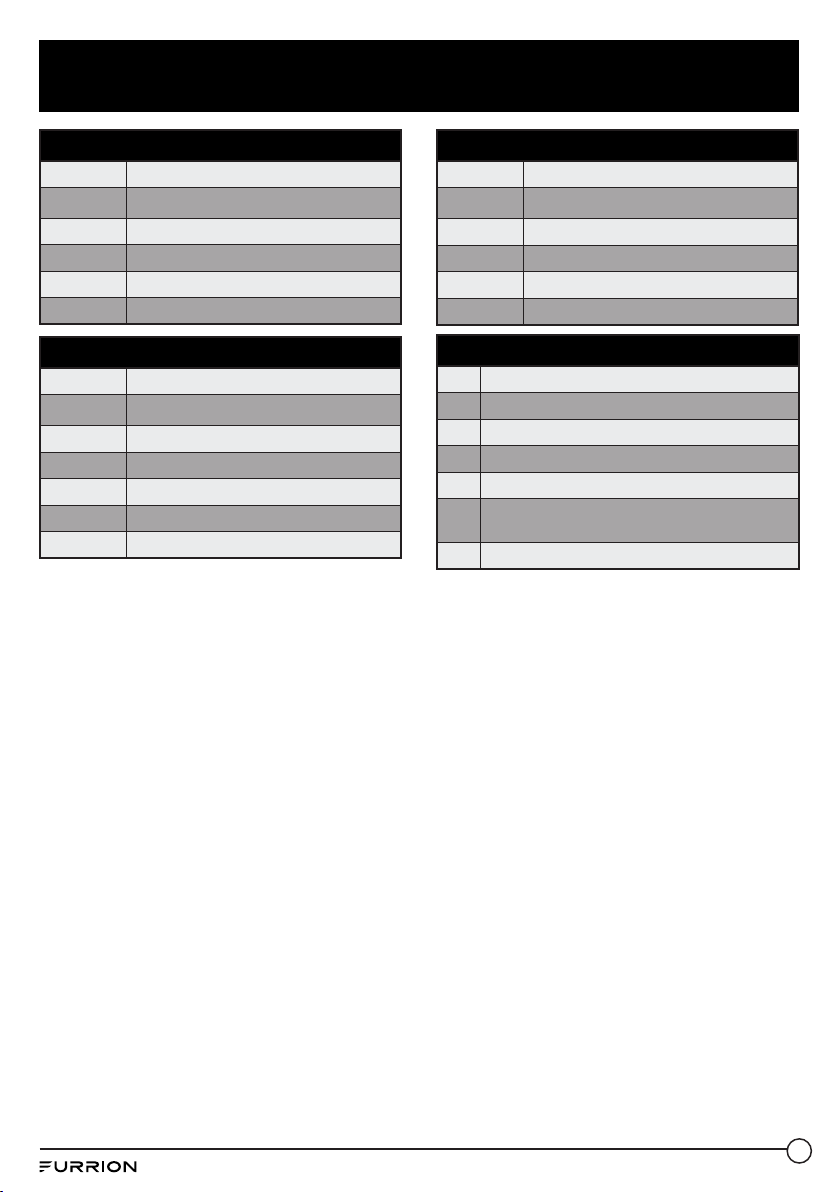
Lock Menu
Enter
Password
Password accesses to the lock setup menu
Use the Number Buttons (0~9) to enter the password, the Lock
setup window will appear
* Default password is 0000
* If you forgot the password, use 8888 to enter any locked menu
Set Password Change the user password
Set Password
Use Number buttons (0-9) to enter your
password
Conrm
Password
Repeat the password to conrm
System Lock Password locks the system
Press or to set as On or O
Input Block
Password locks inputs
Press or to set to Block or Unblock
* The Input Block selection may vary from
model to model.
TV Block - Unblock
AV Block - Unblock
Component Block - Unblock
HDMI 1 Block - Unblock
HDMI 2 Block - Unblock
HDMI 3 Block - Unblock
PC Block - Unblock
Media Block - Unblock
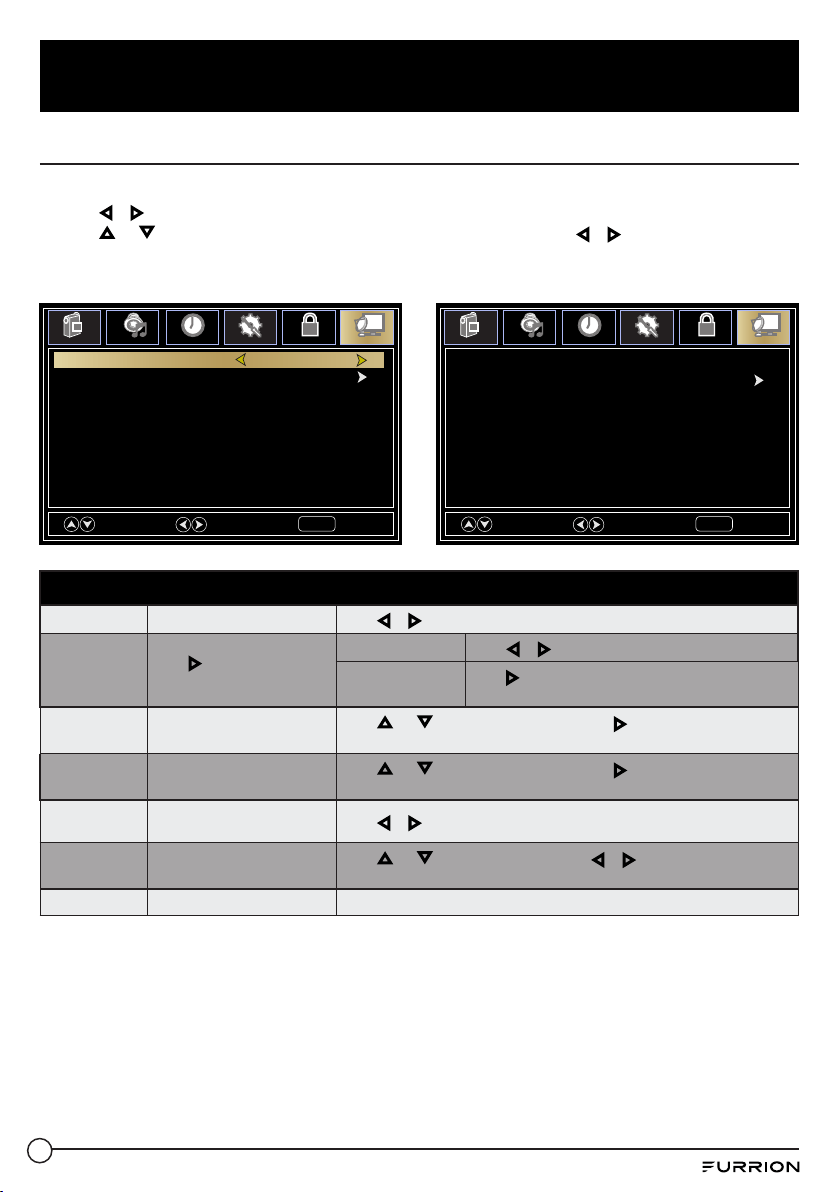
US
Set parental locks based on US rating
system
* Only available after System Lock was set
as On mode
TV
Set the rating using age level and genre.
Refer to Age & Genre table for denition
MPAA See US Rating System table
Canada
Set parental locks based on Canadian
rating system
* Only available after System Lock was set
as On mode
Canada English See Canadian Rating System table
Canada French See Canadian Rating System table
RRT Setting
Set parental locks based on Canadian
rating system
* Only available when the DTV code RRT
trac detected by the system
Canada English See Canadian Rating System table
Canada French See Canadian Rating System table
Reset RRT Restore to default RRT settings
Press OK or to enter the sub menu, then press or to
select Yes or No
Clear Lock Restore to default V-chip settings
Press OK or to enter the sub menu, then press or to
select Yes or No
26
Change Settings
Age
TV-Y All Children
TV-Y7 7 Years old or above
TV-G General Advice
TV-PG Parental Guidance
TV-14 14 Years old or above
TV-MA 17 Years old or above
US Rating System
N/A All Children
G All Ages
PG Parental Guidance
PG-13 Parental Guidance below 13
R Parental Guidance below 17
NC-17 17 Years old or above
X Adults Only
Canadian Rating System
E All Children
C All Ages
C8+ Children below 8
G General Audience
PG Parental Guidance
14+
Programming contains themes or content which
may not be suitable for viewers under the age of 14
18+ Adult
Genre
ALL All
D Dialogue
L Language
S Sex
V Violence
FV Fantasy Violence
27
Change Settings
Change the Channel Settings
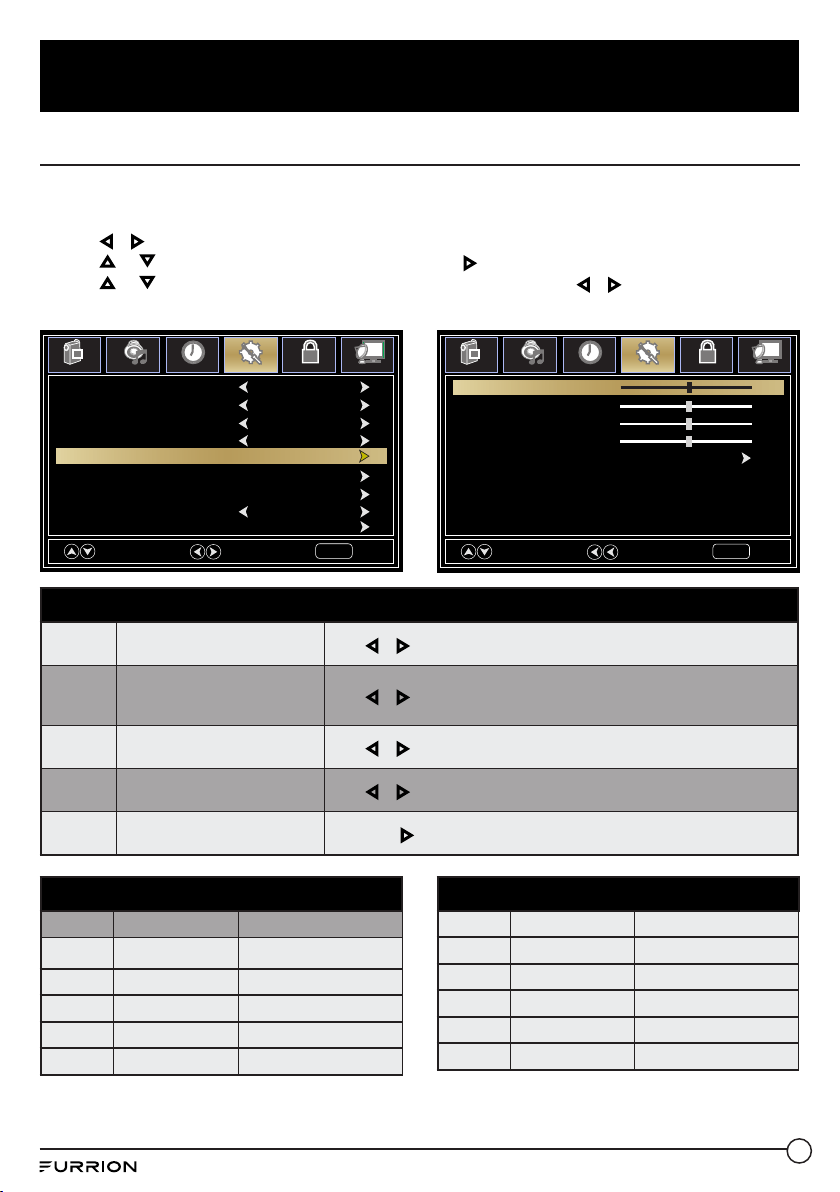
1. Press MENU button, the setup window will appear on the screen.
2. Use or keys to highlight Channel mode.
3. Use or to highlight the item you would like to reset, then press or to select the settings.
4. Press OK to conrm your selections or settings and enter the sub menus.
5. Press MENU to return to the previous menu or press EXIT at any time to exit the setting.
Channel Menu
Air/Cable Set the reception type
Press or to select Air or Cable
Auto Scan
Press or OK to enter sub
menu
Cable System
Press or to select Auto, STD, IRC or HRC
Start to Scan
Press or OK to start scan for available channels in
your area
Favorite
Add Channels to the favorite
list
Press or to select a channel, then press or OK to select or deselect
as a favorite
Show/Hide List available channels
Press or to select a channel, then press or OK to show or hide the
channel
Channel No.
Selects the channel number
for labeling
Press or to select a channel
Channel Label
Allow custom labeling of
channels
Press or to select a character, press or to navigate the
characters. (Maximum of 7 characters)
DTV Signal Blocked
Move
Select
Return
MENU
Picture
Audio
Time
Setup
Lock
Channel
Auto Scan
Favorite
Show/Hide
Channel Label
DTV Signal
Air/Cable
Air
Channel No.
Picture
Audio
Time
Setup
Lock
Channel
Start to Scan
Move
Select
Return
MENU
Cable System Auto
28
Change Settings
Change the PC Settings
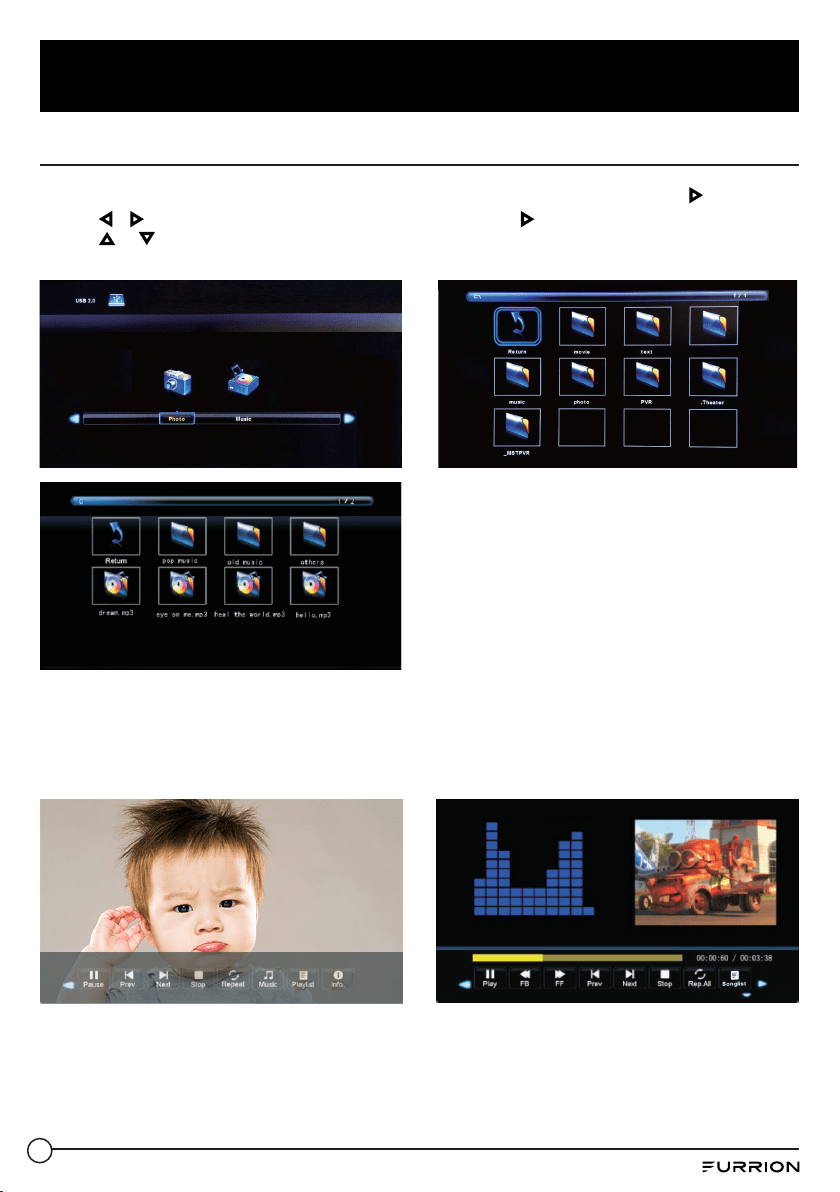
The PC menu is only accessible when a PC is connected to the TV via the VGA connection.
1. Press MENU button, the setup window will appear on the screen.
2. Use or keys to highlight Setup mode.
3. Use or to highlight Advanced, then press OK or to enter the sub menu.
4. Use or to highlight the item you would like to reset, then press or to select the settings.
5. Press MENU to return to the previous menu or press EXIT at any time to exit the setting.
Time Menu
H-Pos
Congures the horizontal
position of the TV image
Press or to move the screen horizontally
V-Pos
Congures the vertical position
of the TV image
Press or to move the screen vertically
Clock
Adjusts the pixel Clock (vertical )
for a clearer image
Press or to adjust
Phase
Adjusts the phase Clock
(horizontal) for a clearer image
Press or to adjust
Auto
Automatically adjusts the PC
settings
Press OK or to adjust all PC settings automatically
PC MONITOR DISPLAY MODES
Mode Resolution Refresh Rate
VGA 640 x 480 60/75 Hz
VGA 720 x 400 70 Hz
VGA 1366 x 768 60Hz
SVGA 800 x 600 60/75 Hz
XGA 1024 x 768 60/70/75 Hz
Select
Move
Exit
MENU
Picture
Audio
Time
Setup
Lock
Channel
V-Pos
50
Clock
50
Phase
25
H-Pos
50
Auto
Menu Language English
Zoom Mode Wide
Closed Caption
Noise Reduction Middle
DLC On
Setup Wizard
Transparency O
Source Label
Select
Move
Exit
MENU
Picture
Audio
Time
Setup
Lock
Channel
Advanced
PC MONITOR DISPLAY MODES
WXGA 1280 x 720 60 Hz
WXGA 1360 x 768 60 Hz
SXGA 1280 x 1024 60 Hz
WXGA+ 1440 x 900 60 Hz
WSXGA+ 1680 x 1050 60 Hz
FHD 1920 x 1080 60 Hz
29
Change Settings
USB Mode
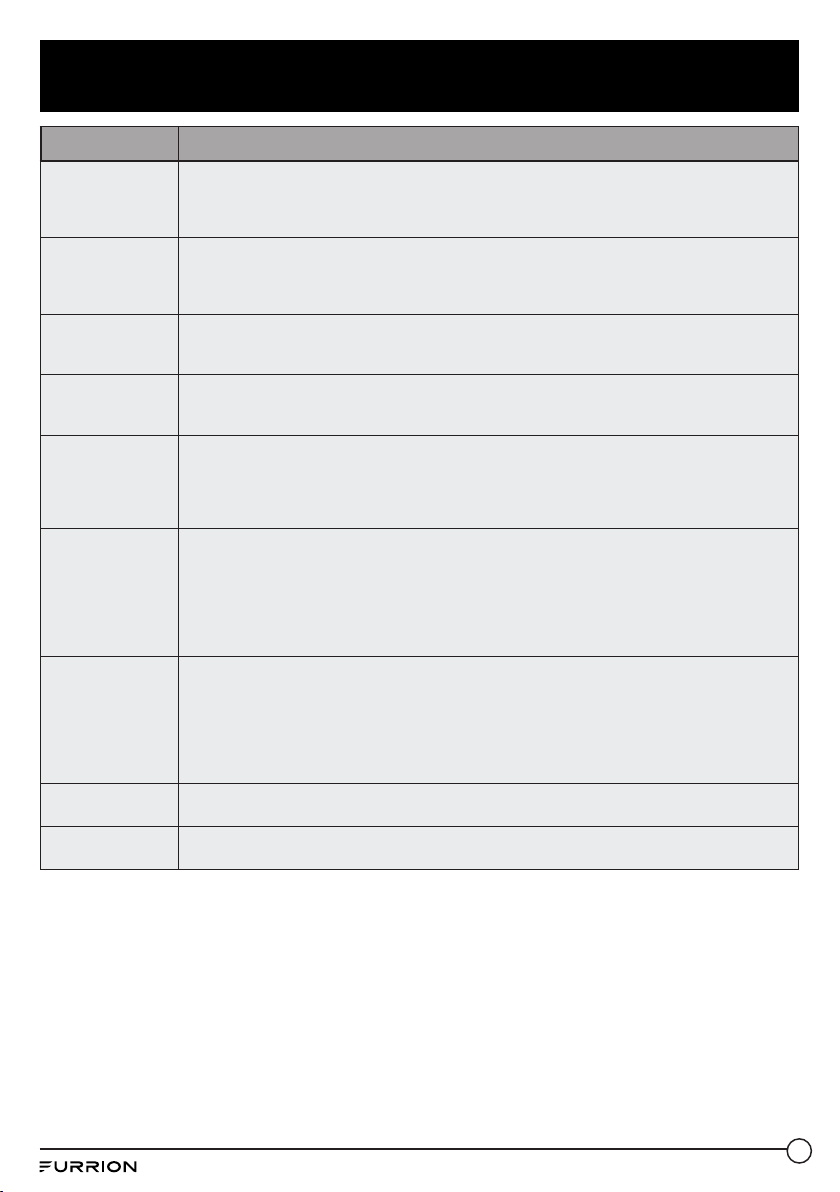
1. After connecting a ash drive, press SOURCE button and select MEDIA. Press OK or to enter.
2. Use or keys to select to view Photo or Music. Press OK or to enter.
3. Use or to navigate the les or folders on the USB drive.
4. Press MENU to return to the previous menu or press EXIT at any time to exit the setting.
When viewing photos, this photo
viewer tool will allow control of the
slide show, play music and information
on the file.
Playback of music is via this music
player, which gives playback controls
and information on the file.
The photo viewer displays .jpg photo
format files
The music player plays MP3 audio for-
mat files.
30
Troubleshooting
Problem Solution/Issue
TV does not
operate
● Make sure the power cord is plugged in.
● Try another AC outlet.
● Power is o, check fuse or circuit breaker.
● Unplug unit for an hour, then plug it back in.
Normal picture, but
no sound
● Check the volume settings.
● Sound muted? Press MUTE button.
● Try another channel.
● Check audio cable connections.
The remote control
does not work
● Make sure the remote control is in range with no obstructions.
● Check the batteries.
● Correct operating mode set: TV, VCR etc.
Poor sound or no
sound
● Station or Cable TV experiencing problems, tune to another station.
● Check sound adjustments (Volume or Mute).
● Check for sources of possible interference.
Poor picture or no
picture
● Station or Cable TV experiencing problems, tune to another station.
● Make sure channels are set into memory.
● Check antenna or Cable TV connections, adjust antenna.
● Check for sources of possible interference.
● Check picture control adjustments.
Poor TV reception
● Ensure the antenna amplier is turned on for Antenna TV.
● Adjust the antenna position to a stronger signal receiving angle.
● Check the Antenna connection is tight to the TV.
● Check there is power supplied to the Antenna distribution box.
● Conrm your incoming cable is connected to the correct cable / antenna wall connection inside the
RV.
● Ensure the internal RV coax jump cable is connected to the correct port.
Poor Cable /
Satellite TV
Reception
● Ensure antenna amp is turned o for able signal.
● Check incoming Cable is connected correctly to RV.
● Ensure cable splitter box has power.
● Conrm the incoming cable is connected to the correct cable / Satellite wall connection inside your
RV.
● Ensure the internal RV coax jump cable is connected to the correct port.
● Check Dish has not obstruction.
TV shuts o
● Sleep Timer is set.
● Power interrupted.
TV AV input plays
black and white
● Check RCA connections on the back of the TV and from the source to ensure they are connected to
the correct connections. Ensure the yellow connection is in the correct port.
31
Specifications
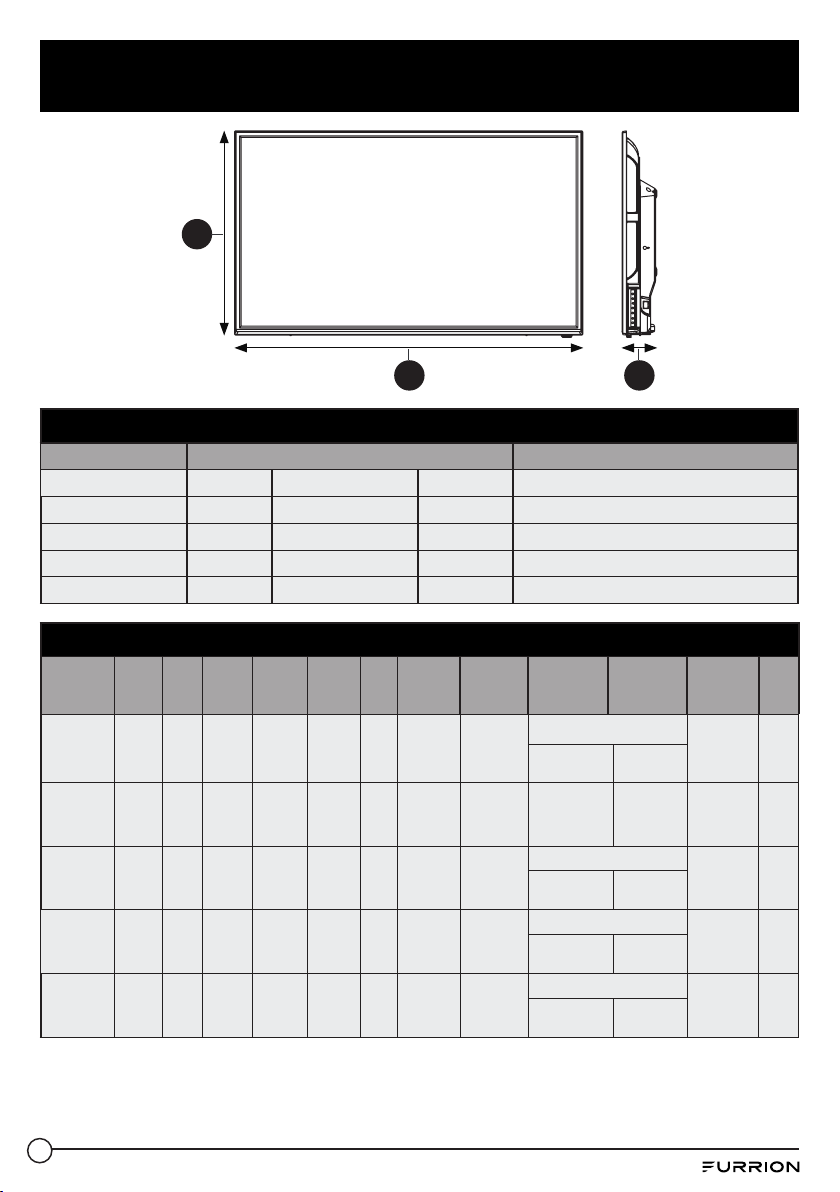
MODEL, DIMENSION & RESOLUTION
TV Model Dimension (L x H x W) (mm) Max Resolution
FEHS19S0A 455 295 46 1366 x 768 @ 60Hz HD
FEHS24T8A 562 349 53 1366 x 768 @ 60Hz HD
FEHS28E8A 639 382 90 1366 x 768 @ 60Hz HD
FEHS32D9A 743 444 90 1366 x 768 @ 60Hz HD
FEFS43N8A 971 573 92 1920 x 1080@60Hz FHD
W
H
L
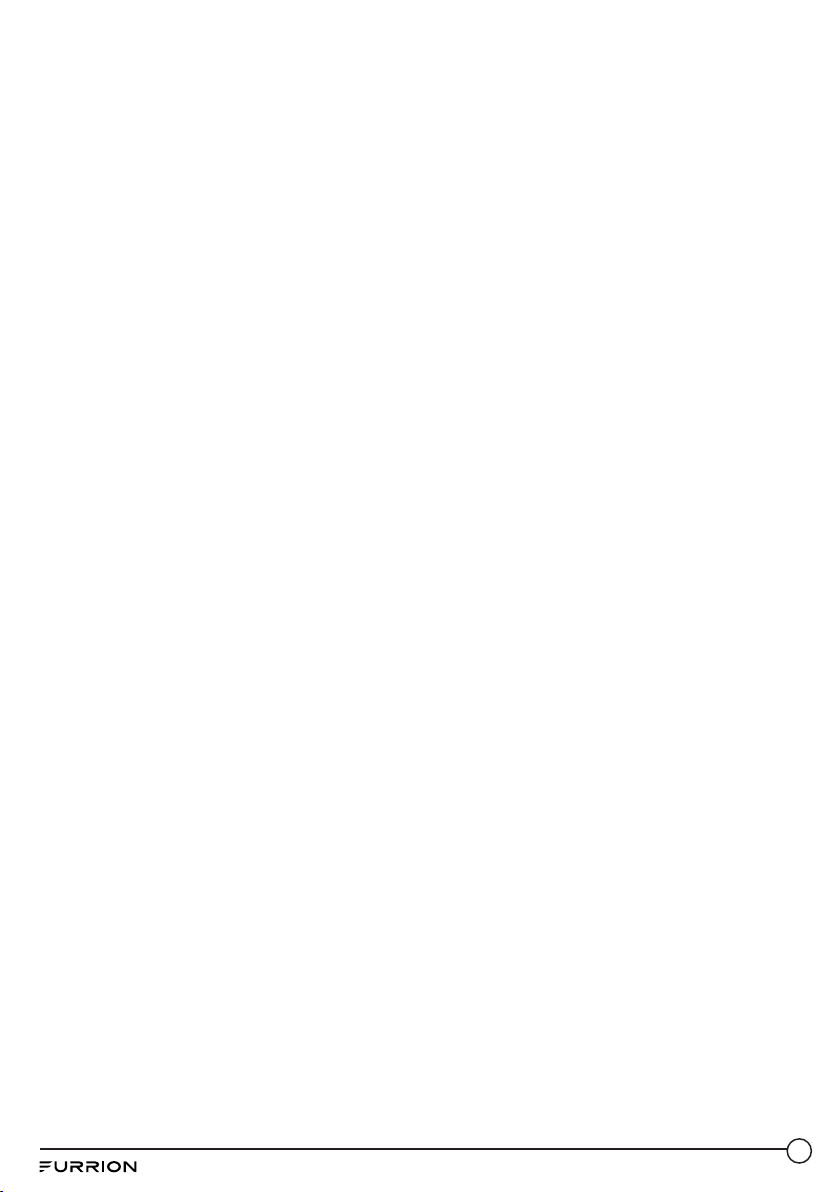
INPUT & OUTPUT CONNECTIONS
TV Model
HDMI
in
VGA
(PC)
in
Audio
(PC)
in
Coaxial
Audio
Out
Optical
Audio
Out
USB
Audio
Out
Audio in
Component
Video in
Component
YP
B
P
R
Video
in
Earphones RF in
FEHS19S0A 1
x Right
(Red)
x Left
(White)
x Right
(Red)
x Left
(White)
x Yellow/Green*
x Blue
x Red
FEHS24T8A 1 1 1
x Right
(Red)
x Left
(White)
x Right
(Red)
x Left
(White)
x Yellow NA 1 1
FEHS28E8A 3 1
x Right
(Red)
x Left
(White)
x Right
(Red)
x Left
(White)
x Yellow/Green*
x Blue
x Red
FEHS32D9A 3 1
x Right
(Red)
x Left
(White)
x Right
(Red)
x Left
(White)
x Yellow/Green*
x Blue
x Red
FEFS43N8A 3 1
x Right
(Red)
x Left
(White)
x Right
(Red)
x Left
(White)
x Yellow/Green*
x Blue
x Red
32

33
34

IM-FAV00023 V4.0
Furrion Innovation Center & Institute of Technology
● 52567 Independence Ct., Elkhart, IN 46514, USA ● Toll free:1-888-354-5792
● Email: [email protected]
©2007-2018 Furrion Ltd. Furrion
®
and the Furrion logo are trademarks licensed for use by
Furrion Ltd. and registered in the U.S. and other countries.
FURRION.COM