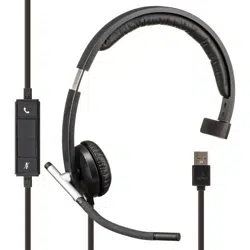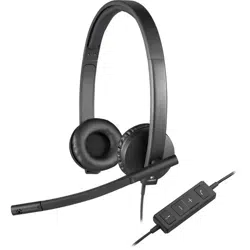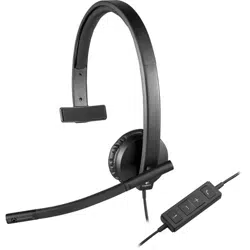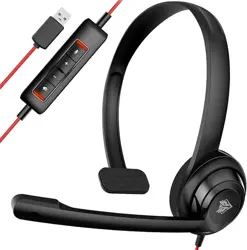
Setup Guide
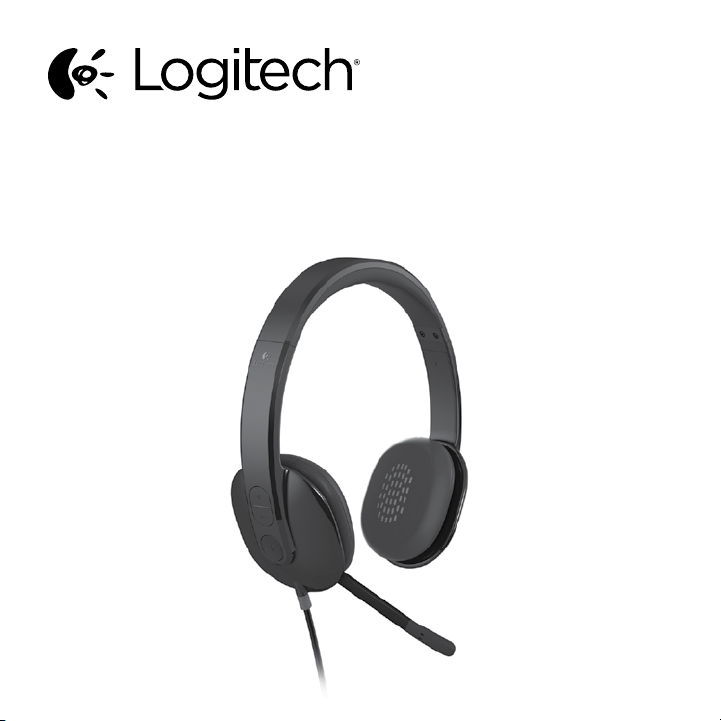
Logitech® USB Headset H540

Logitech USB Headset H540 Logitech USB Headset H540
English 54 English
Troubleshooting
Headset not working
• Adjust headset volume.
• Make sure the microphone is not on
mute. The microphone mute LED turns
red when mute has been activated.
• Check the USB cable connection to
your computer. Try a dierent USB port
on your computer. Connect directly
to your computer. Do not use a USB hub.
• In your application and operating
system, check the volume and
microphone settings. Restart your
application.
• Close all applications and make sure
the headset is the default input/output
device for your operating system:
Windows® Vista and Windows® 7
1. Go to Start > Control Panel > Sound >
Playback tab.
2. Choose “Logitech USB Headset
H540.”
3. Click “Set Default,” and then click
“OK.”
4. Select the Recording Tab.
5. Choose “Logitech USB Headset
H540.”
6. Click “Set Default,” and then
click “OK.”
Set up your product
1. Turn on your computer.
2. Connect the headset to a computer
USB port.
Visit Product Central
There’s more information and support
online for your product. Take a moment
to visit Product Central to learn more about
your new headset.
Browse online articles for setup help,
usage tips, or information about additional
features.
Connect with other users in our Community
Forums to get advice, ask questions,
and share solutions.
At Product Central, you’ll find a wide
selection of content:
• Tutorials
• Troubleshooting
• Support community
• Software downloads
• Online documentation
• Warranty information
• Spare parts (when available)
Go to www.logitech.com/support/H540
USB
Logitech USB Headset H540 Logitech USB Headset H540
Deutsch 76 English
Windows®8
1. From Start Menu, select Desktop tile
2. From Charms menu, select
Settings>Control Panel>Hardware
and Sound
3. Go to Sound>Playback tab
4. Choose “Logitech USB Headset
H540.”
5. Click “Set Default,” and then click
“OK.”
6. Select the Recording Tab.
7. Choose “Logitech USB Headset
H540.”
8. Click “Set Default,” and then click
“OK.”
Mac® OS X
1. Open System Preferences and select
“Sound.”
2. Select the Input tab, and then choose
“Logitech USB Headset H540.”
3. Select the Output tab, and then
choose the “Logitech USB Headset
H540.” Close the window.
No emergency calls with Skype
Skype is not a replacement for your
ordinary telephone and can’t be used
for emergency calling.
What do you think?
Please take a minute to tell us.
Thank you for purchasing our product.
www.logitech.com/ithink
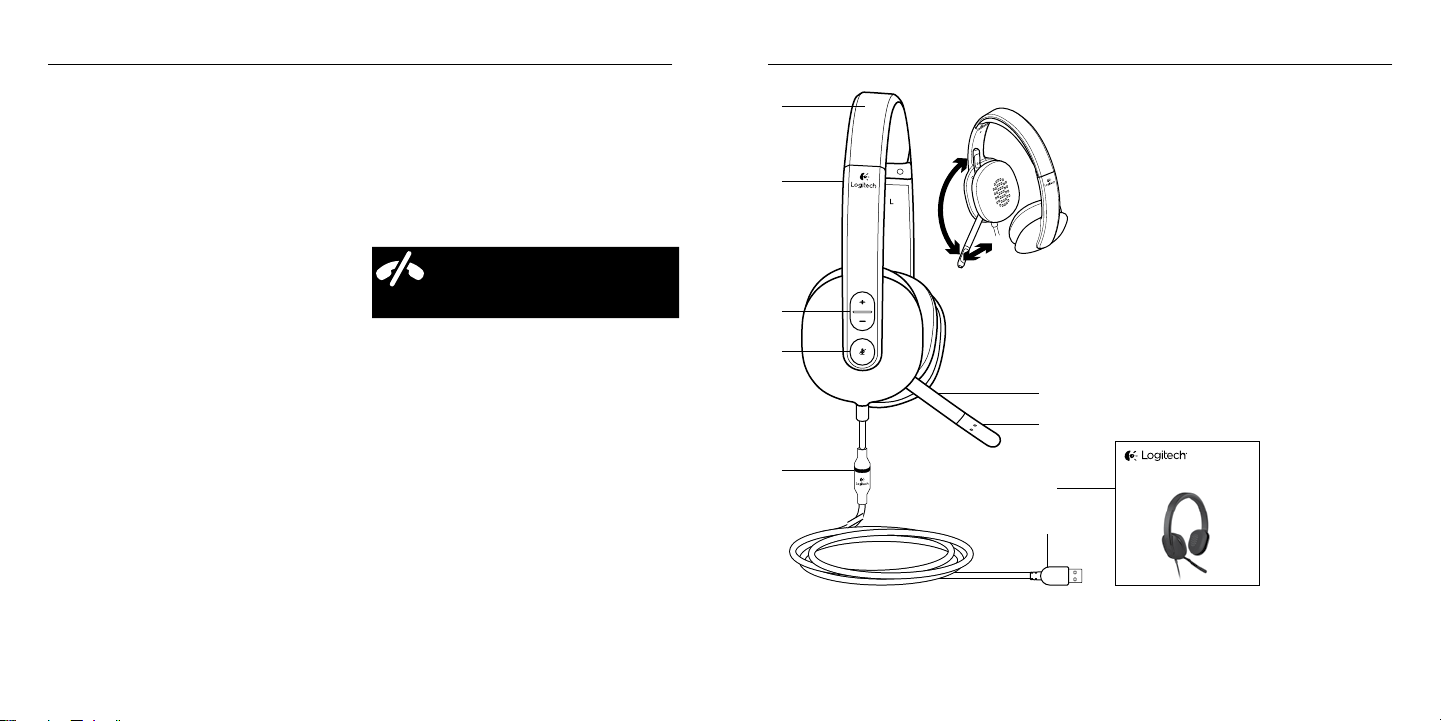
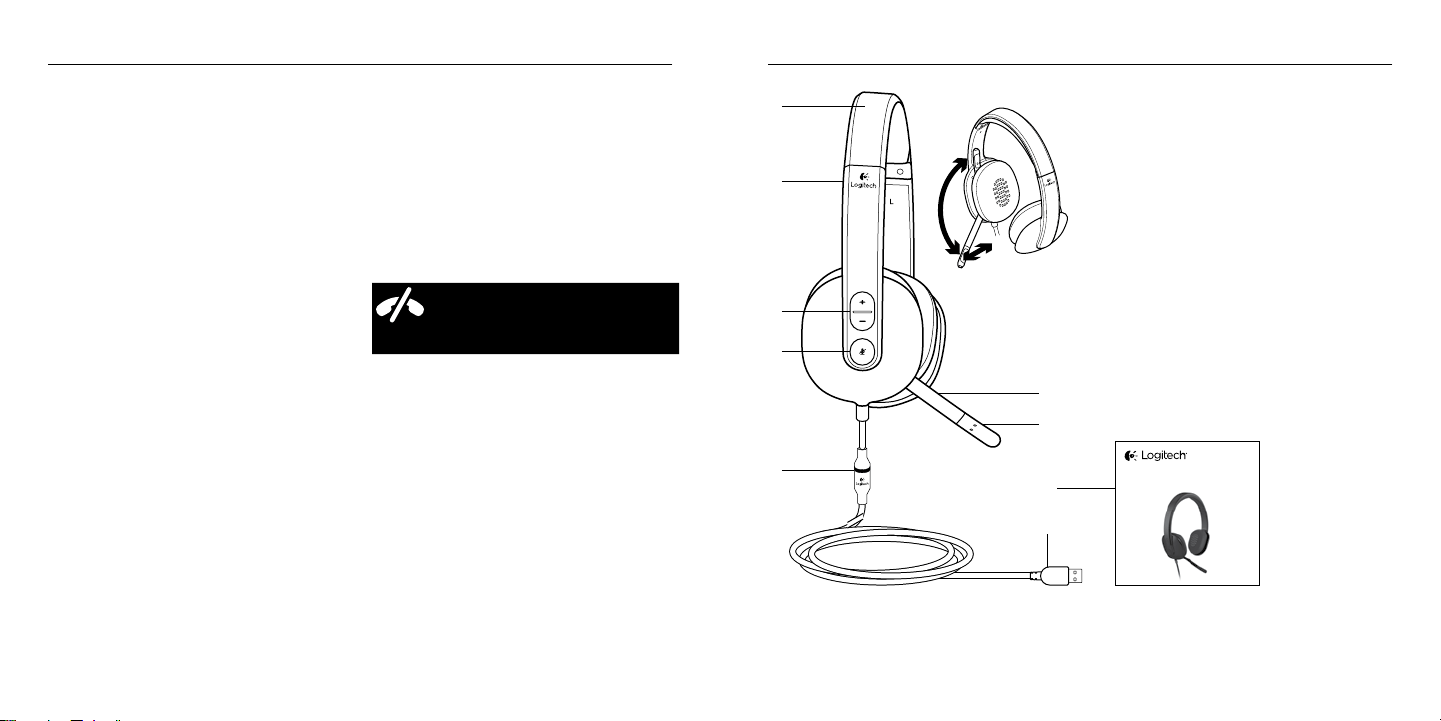
Produkt auf einen Blick
1. USB Headset H540
2. Verstellbarer Kopfbügel
3. Lautstärkeregler (+/–)
4. Mikrofon-Stummschalter
5. Mikrofon-Stummschalter-LED
1
6. Mikrofonbügel
7. Mikrofon
8. Bedienungsanleitung
9. USB-Stecker
1 Leuchtet rot, wenn das Mikrofon stummgeschaltet ist.
Setup Guide
Guide d’installation
Logitech® USB Headset H540
3
2
1
4
6
7
5
8
9

Logitech USB Headset H540 Logitech USB Headset H540
Deutsch 98 Deutsch
Fehlerbehebung
Das Headset funktioniert nicht
• Passen Sie die Lautstärke
des Headsets an.
• Vergewissern Sie sich, dass das Mikrofon
nicht stummgeschaltet ist. Die Mikrofon-
Stummschalter-LED leuchtet rot,
wenn die Stummschaltung aktiviert ist.
• Überprüfen Sie die Verbindung des USB-
Kabels zum Computer. Verwenden Sie
einen anderen USB-Anschluss
des Computers. Stellen Sie eine
direkte Verbindung zum Computer her.
Verwenden Sie keinen USB-Hub.
• Überprüfen Sie die Lautstärke- und
Mikrofoneinstellungen sowohl in der
Anwendung als auch im Betriebssystem.
Starten Sie die Anwendung neu.
• Schließen Sie alle Anwendungen und
achten Sie darauf, dass das Headset
als Standard-Ausgangsgerät bzw.
-Eingangsgerät Ihres Betriebssystems
eingerichtet ist:
Windows® Vista und Windows® 7
1. Klicken Sie auf „Start >
Systemsteuerung > Sounds“
und wählen Sie die Registerkarte
„Wiedergabe“.
2. Wählen Sie „Logitech USB
Headset H540“ aus.
3. Klicken Sie auf „Als Standard“
und anschließend auf „OK“.
4. Klicken Sie auf die Registerkarte
„Aufnahme“.
5. Wählen Sie „Logitech USB
Headset H540“ aus.
6. Klicken Sie auf „Als Standard“
und anschließend auf „OK“.
Einrichtung des Produkts
1. Schalten Sie den Computer ein.
2. Schließen Sie das Headset an einen USB-
Anschluss des Computers an.
Produktzentrale
Hier erhalten Sie weiterführende
Informationen und den Online-Kunden-
dienst für Ihr Produkt. Nehmen Sie sich
einen Augenblick Zeit und besuchen Sie
die Produktzentrale, um mehr über
Ihr neues Headset herauszufinden.
Durchsuchen Sie Online-Artikel zur
Unterstützung beim Einrichten, für Tipps
zur Nutzung und für Informationen
zu weiteren Funktionen.
Treten Sie in unseren Community-Foren
mit anderen Benutzern in Verbindung
und holen Sie sich Tipps, stellen Sie Fragen
und teilen Sie Ihre Problemlösungen
mit anderen.
In der Produktzentrale finden Sie ein
umfangreiches Informationsangebot:
• Tutorials
• Fehlerbehebung
• Support-Community
• Software-Downloads
• Online-Bedienungsanleitungen
• Garantieinformationen
• Ersatzteile (falls verfügbar)
Önen Sie die Seite www.logitech.com/
support/H540
USB
Logitech USB Headset H540 Logitech USB Headset H540
Français 1110 Deutsch
Windows® 8
1. Wählen Sie aus dem Startmenü
die Desktop-Kachel.
2. Wählen Sie im Charms-Menü
„Einstellungen > Systemsteuerung >
Hardware und Sound“
3. Wählen Sie „Sound > Wiedergabe“
4. Wählen Sie „Logitech USB Headset
H540“ aus.
5. Klicken Sie auf „Als Standard“
und anschließend auf „OK“.
6. Klicken Sie auf die Registerkarte
„Aufnahme“.
7. Wählen Sie „Logitech USB
Headset H540“ aus.
8. Klicken Sie auf „Als Standard“
und anschließend auf „OK“.
Mac® OS X
1. Önen Sie die Systemeinstellungen
und wählen Sie die Registerkarte „Ton“.
2. Klicken Sie auf „Eingabe“
und wählen Sie „Logitech USB
Headset H540“ aus.
3. Klicken Sie auf „Ausgabe“
und wählen Sie „Logitech USB
Headset H540“ aus. Schließen Sie
das Fenster.
Keine Notrufe über Skype
Skype ersetzt nicht Ihr reguläres
Telefonund kann nicht für Notrufe
verwendet werden.
Ihre Meinung ist gefragt.
Bitte nehmen Sie sich etwas Zeit, um einige Fragen zu beantworten.
Vielen Dank, dass Sie sich für unser Produkt entschieden haben.
www.logitech.com/ithink
Présentation du produit
1. Casque USB Headset H540
2. Bandeau réglable
3. Réglage du volume (+/–)
4. Mise en sourdine du microphone
5. Témoin de sourdine du microphone
1
6. Tige de micro
7. Microphone
8. Documentation
9. Connecteur USB
1 S'allume en rouge lorsque la sourdine du microphone
est activée.
Setup Guide
Guide d’installation
Logitech® USB Headset H540
3
2
1
4
6
7
5
8
9