USER'S
GUIDE
.F js._.G_3 --
F 85_ _ 5
K 62 _ 72
3s7_3
T
• C
O
LO
R
TV
Important Information
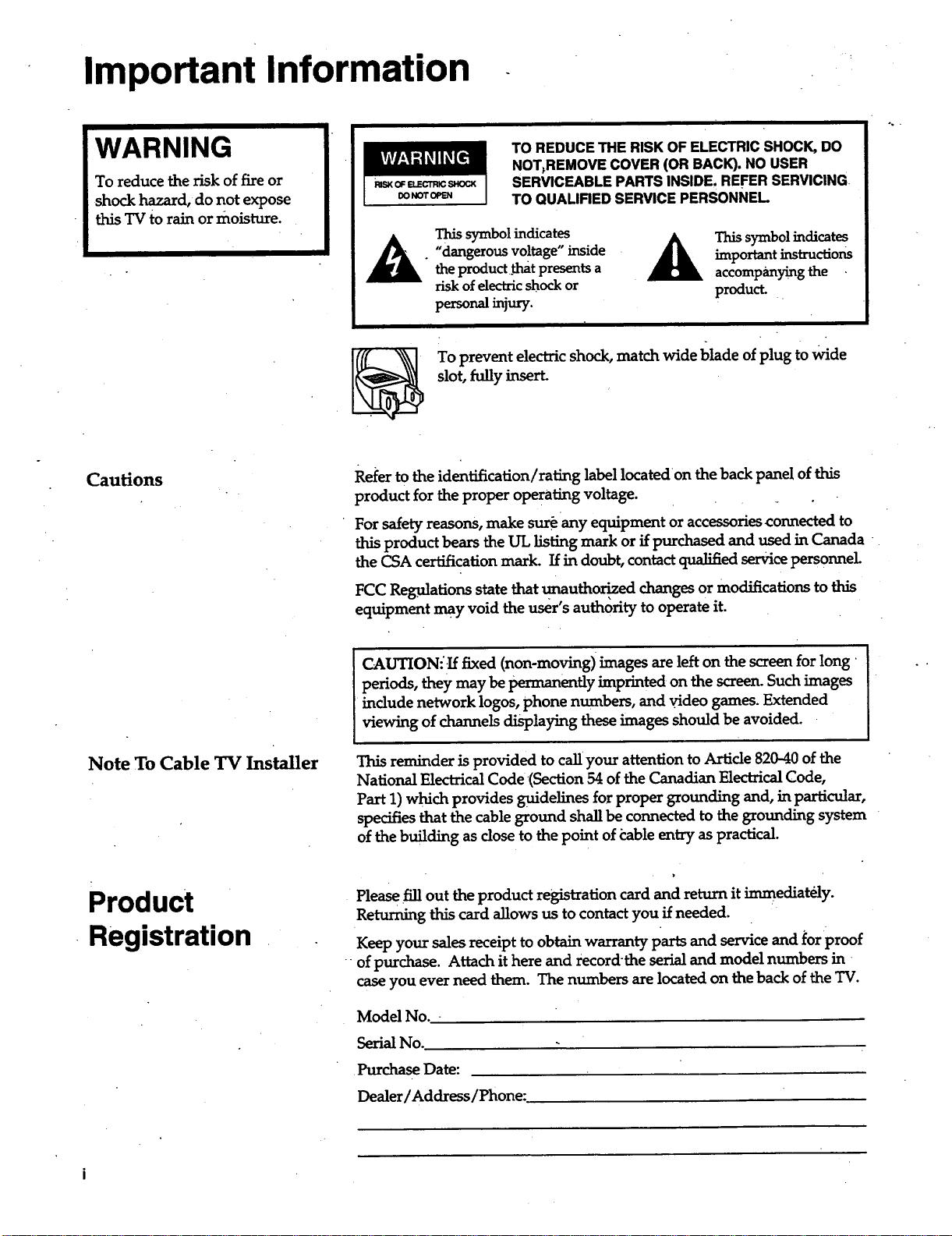
WARNING
To reduce the risk of fire or
shock hazard, do not expose
this TVto rain ormoisture.
_ NOT OPEN
TO REDUCE THE RISK OF ELECTRICSHOCK, DO
NOT_REMOVECOVER (OR BACK). NO USER
SERVICEABLE PARTSINSIDE. REFER SERVICING
TO QUALIRED SERVICE PERSONNEL
This symbol indicates A This symbol indicates
• "dangerous voltage" inside _ important instructions
the productthat presents a accompaJaying the
risk of electric shock or product.
personal injury.
To prevent electric shock, match wide blade of plug to wide
slot, tuny nser
Cautions
Refer to the identification/rating label located on the back panel of this
product for the proper operating voltage.
For safety masons, make sure any equipment or accessories connected to
this productbears the UL listing mark or if purchased and used in Canada
the CSA certification mark. If in doubt, contact qualified service personnel
FCC Regulations state that unauthori, z,ed changes or modifications to this
equipment may void the user's authority to operate it.
Note To Cable TV Installer
I CAUTION--If fixed (non-moving)images are left on the screen for long
periods, they may be permanently imprinted on the screen. Such images
include network logos, phone numbers, and video games. Extended
viewing of channels displaying these images should be avoided.
This reminder is provided to call your attention to Article 820-40 of the
National Electrical Code(Section 54 of the Canadian Electrical Code,
Part 1) which provides guidelines for proper grounding and, in particular,
specifies that the cable ground shall be connected to the grounding system
of the building as close to the point of table entry as practical.
Product
Registration
Please fill out the product registration card and return it immediat6.1y.
Returning this card allows us to contact you if needed.
Keepyoursales receipt to obtain warranty parts and service and _or proof
of purchase. Attach it here and record-the serial and model numbers in
case you ever need them. The numbers are located on the back of the TV.
Model No.
Serial No.
•Purchase Date:
Dealer/Address/Phone:
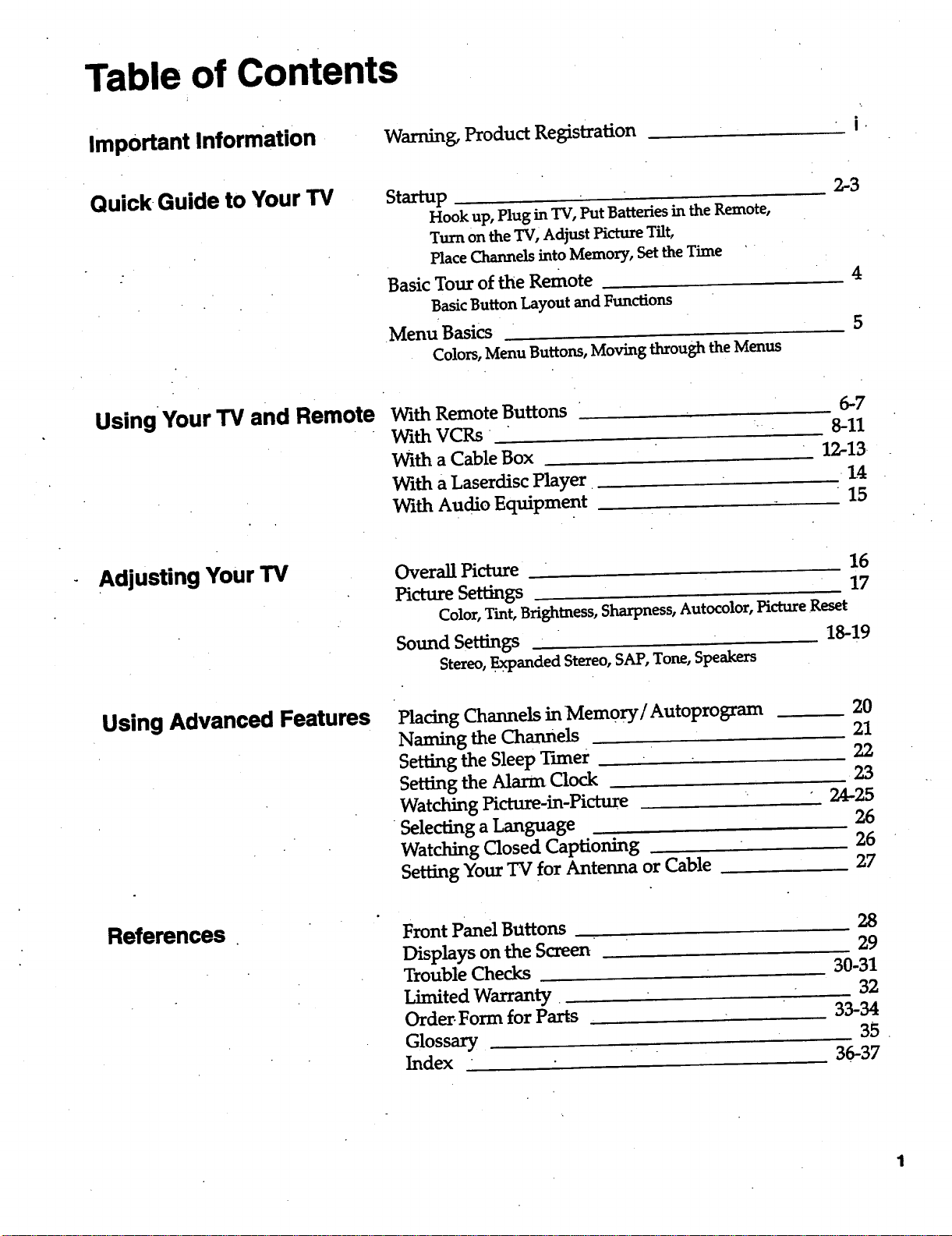
Table of Contents
Important Information
Warning, Product Registration
i.
Quick-Guide to Your TV
5taxtup
Hookup, Plug in TV, Put Batteries in the Remote,
Turn on the TV, Adjust Picture Tilt,
Place Channels into Memory, Set the Time '
Basic Tour of the Remote
Basic Button Layout and Functions
.Menu Basics
Colors, Menu Buttons, Moving through the Menus
2,-3
4
5
Using •Your TV and Remote
With Remote Buttons
With VCRs
With a Cable Box
With a Laserdisc Player
With Audio Equipment
6-7
8-11
12-13.
14:
• 15
Adjusting Your TV
Overall Picture 16
Picture Settings 17
Color, Tint, Brightness, Sharpness, Autocolor, Picture Reset
Sound Settings 18-19
Stereo, .Expanded Stereo, SAP, Tone, Speakers
Using Advanced Features Placing Channels in Mem0ry/Autoprogram
Naming the Channels
Setting the Sleep Tuner
Setting the Alarm Clock
Watching Picture-in-Picture
Selecting a Language
Watching Closed Captioning
Setting Your TV for Antenna or Cable
20
21
22
23
24-25
26
26
27
References
Front Panel Buttons
Displays on the Screen
Trouble Checks
Limited Warranty•
Order.Form for Parts
Glossary
Index
28
29
30-31
32
33-34
35
36-37
Quick Guide to Your TV
Startup
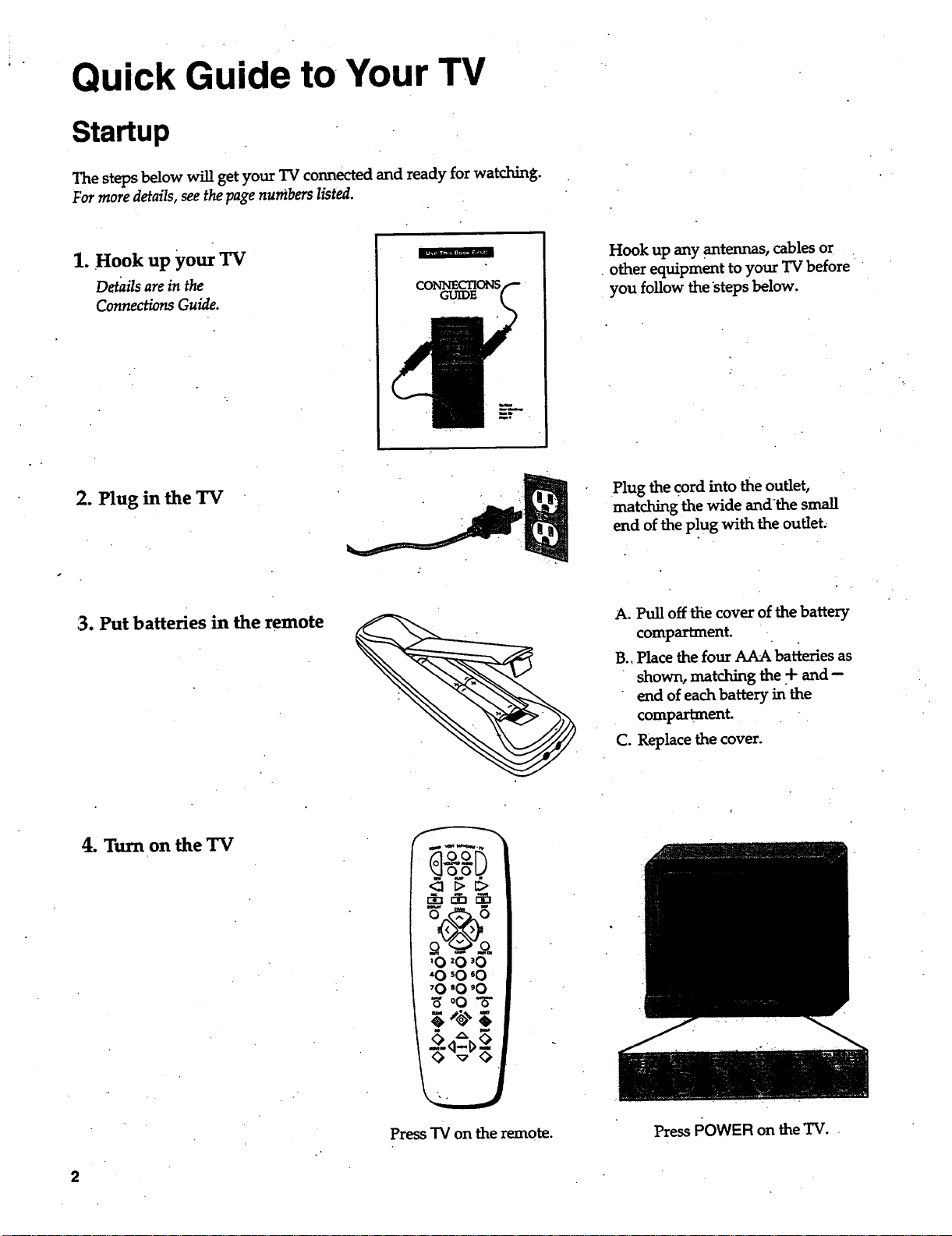
The steps below will get your TV connected and ready for watching.
For more details, see the page numbers listed.
1. Hook up your TV
Details are in the
Connections Guide.
2. Plug in the TV
GUIDE
Hook up any .antennas, cables or
• other equipment to your TV before
you follow the steps below.
Plug the cord into the outlet,
matching the wide and-the small
end of the plug with the outlet,
13.Put batteries in theremote
4. Turn on the TV
Press"IVon theremote.
A. Pull off the cover of the battery
compartment.
B., Place the four AAA batteries as
shown, matching the + and --
end of each battery in the
compartment.
C. Replace the cover.
PressPOWER on theTV.
2
.
Quick Guide to Your TV
Startup
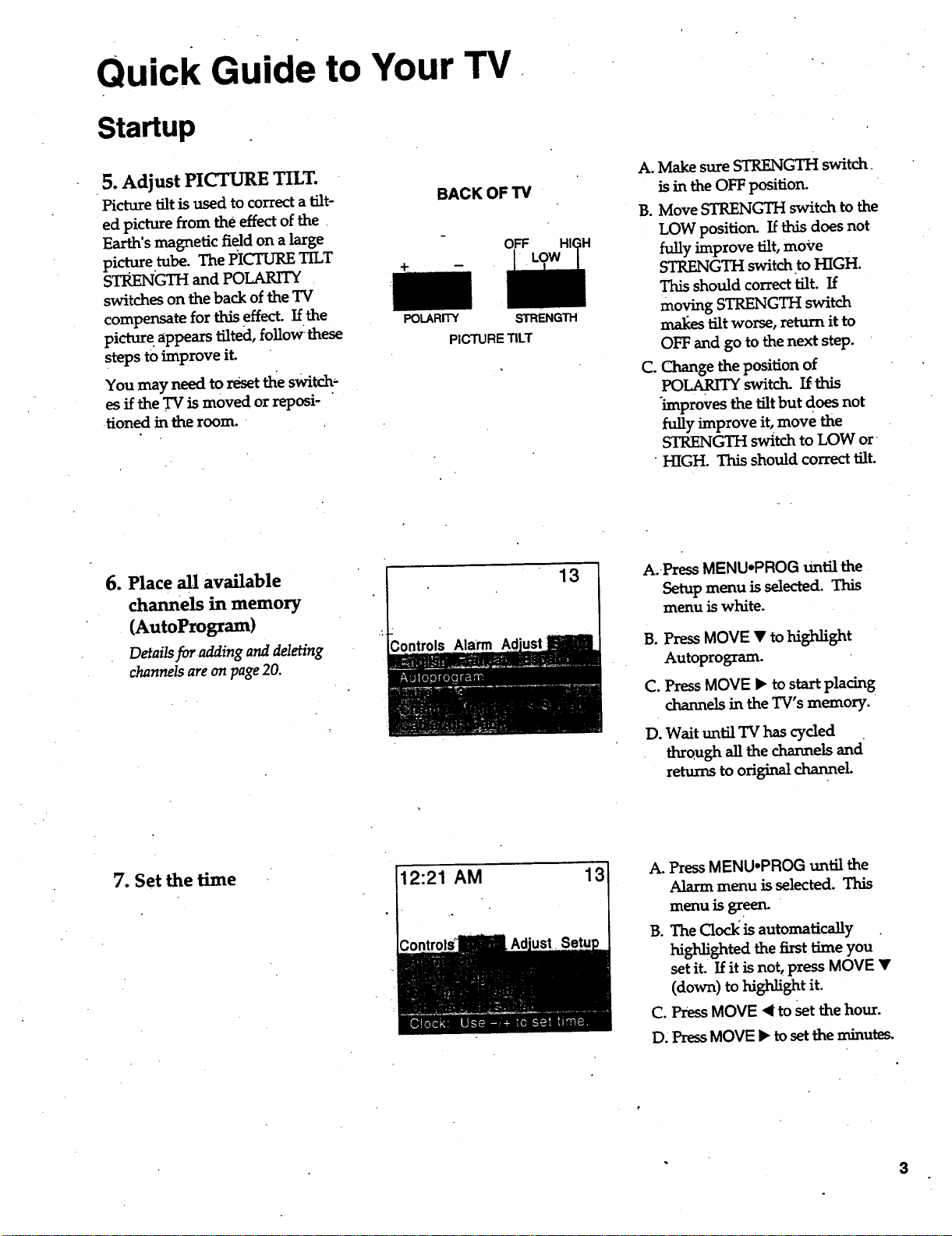
5. Adjust PICTURE TILT.
Picture tilt is used to correct a tilt-
ed picture from the effect of the
Earth's magnetic field on a large
pi.ct.ure.tube. The PICTURE TILT
STRENGTH and POLARITY
sw_tcheson thebackoftheTV
compensate for this effect. If the
picture appears tilted, follow these
steps to improve it.
You may need to reset the switch-
es if the TV is moved or reposi-
Honed in the room.
+
BACK OF TV
OFF
POLARITY
PICTURE TILT
STRENGTH
A. Make sure STRENGTH switch
is in the OFF positioru
B. Move STRENGTH switch to the
LOW position. If this does not
fully improve tilt, move
STRENGTH switch to HIGH.
This should correct tilt. If
moving STRENGTH switch
mal_es tilt worse, return it to
OFF and go to the next step.
C. Change the position of
POLARITY switch. If.this
improves the tilt but does not
fully improve it, move the
STRENGTH switch to LOW or
HIGH. This should correct tilt.
6. Place all available
channels in memory
(AutoProgram)
Details for adding and deleting
channels are on page 20.
13
A.-Press MENU.PROG Until the
Setup menu is selected. This
menu is white.
B°
C°
D.
Press MOVE • to highlight
Autoprogram.
PressMOVE • to start placing
channels in the TV's memory.
Wait until TV has cyded
through all the channels and
returnstoori_nsLtchannel.
7. Set the time
12:21 AM 13
A. PressMENU.PROG until the
Alarm menu is selected. This
menu is green.
B. The Clockis automatically .
highlighted the first time you
set it. If it is not, press MOVE •
(down)tohigh_ghtit.
C. Press MOVE ,< to set the hour.
D, Press MOVE • to set the minutes.
3
Quick Guide to Your TV
Basic Tour of the Remote
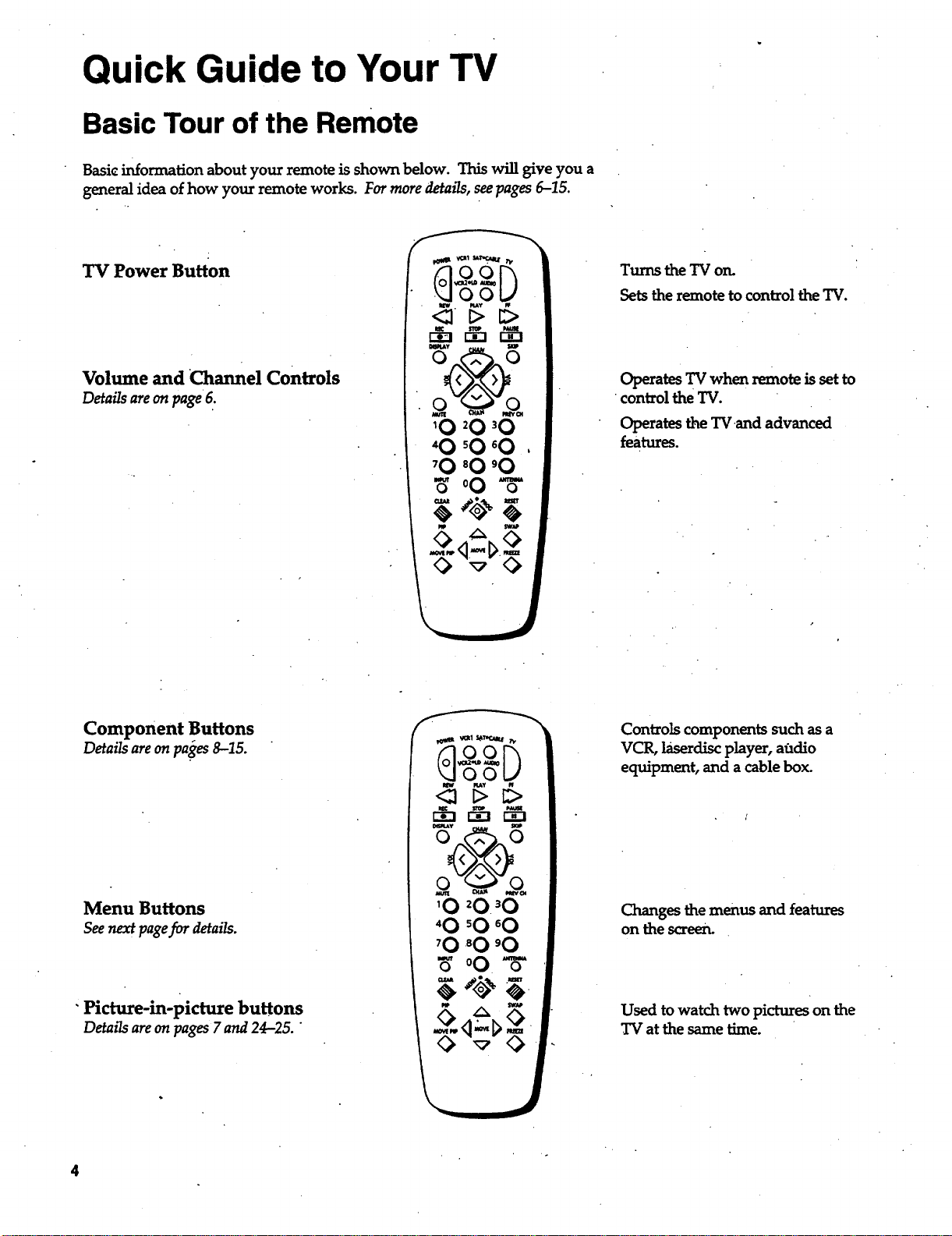
Basicinformationaboutyourremote isshown below. Thiswillgiveyou a
generalideaofhow yourremote works. Formoredetails,seepages6-15.
TV Power Button
Volumeand ChannelControls
Details are on page•6.
10 20 'O
Turns the TV on.
SetstheremotetocontroltheTV.
Operates TV when remote is set to
control the TV.
Operates the TVand advanced
features.
Component Buttons
Details areon pa'ges8-15.
Menu Buttons
Seenext pagefor details.
"Picture-in-picturebuttons
DetmTsareon pages 7 and 24-25. "
Controls components such as a
VCR, laserdisc player, audio
equipment, and a cable box.
Changes the menus and features
on the screen.
Used to watch two pictures on the
TV at the same time.
4
Quick Guide to Your TV
Menu Basics
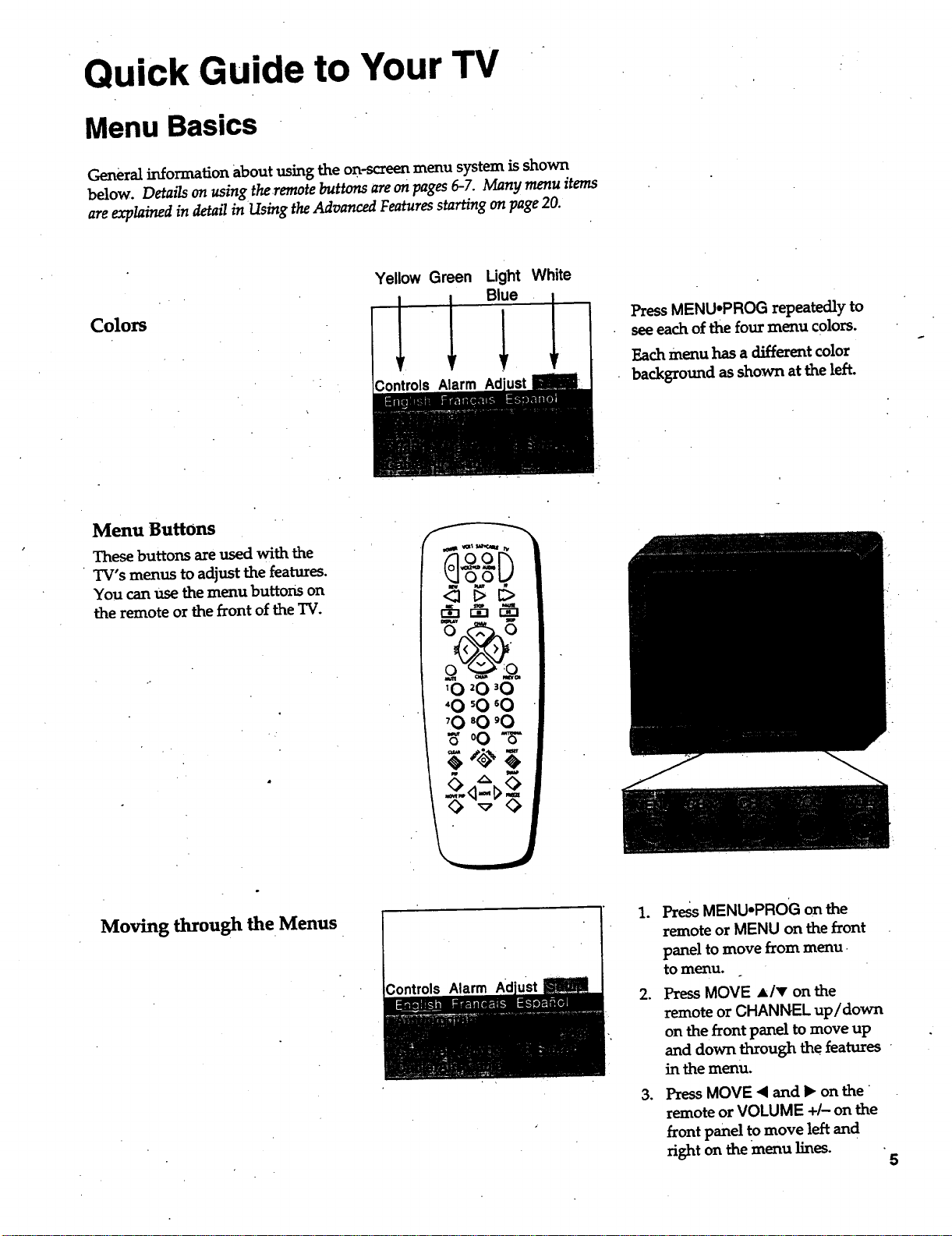
General information about using the on-screen menu system is shown
below. Details on using the remote buttons are on pages 6-7. Many menu items
are explained in detail in Using the Advanced Features starting on page 20.
Colors
Yellow Green Light White
1 1 Bie 1
Controls Alarm
Press MENU.PROG repeatedly to
seeeach of the four menu colors.
Each menu has a different color
background as shown at the left.
Menu Buttons
These buttons are used with the
TV's menus to adjust the features.
You can use the menu buttons on
the remote or the front of the TV.
'O 20 'O
"O 'O _O
'O 80 'O
_' °O "_
0 -,7-_
Moving through the Menus
.
,
.
Press MENU*PROG on the
remote or MENU on the front
panel to move from menu.
tomenu.
Press MOVE A/v on the
remote or CHANNEL up/down
on the front panel to move up
and down through the features
in the menu.
Press MOVE "<and • on the
remote or VOLUME +/- on the
front panel to move left and
right on the menu lines.
5
Using-Your TV and Remote
t
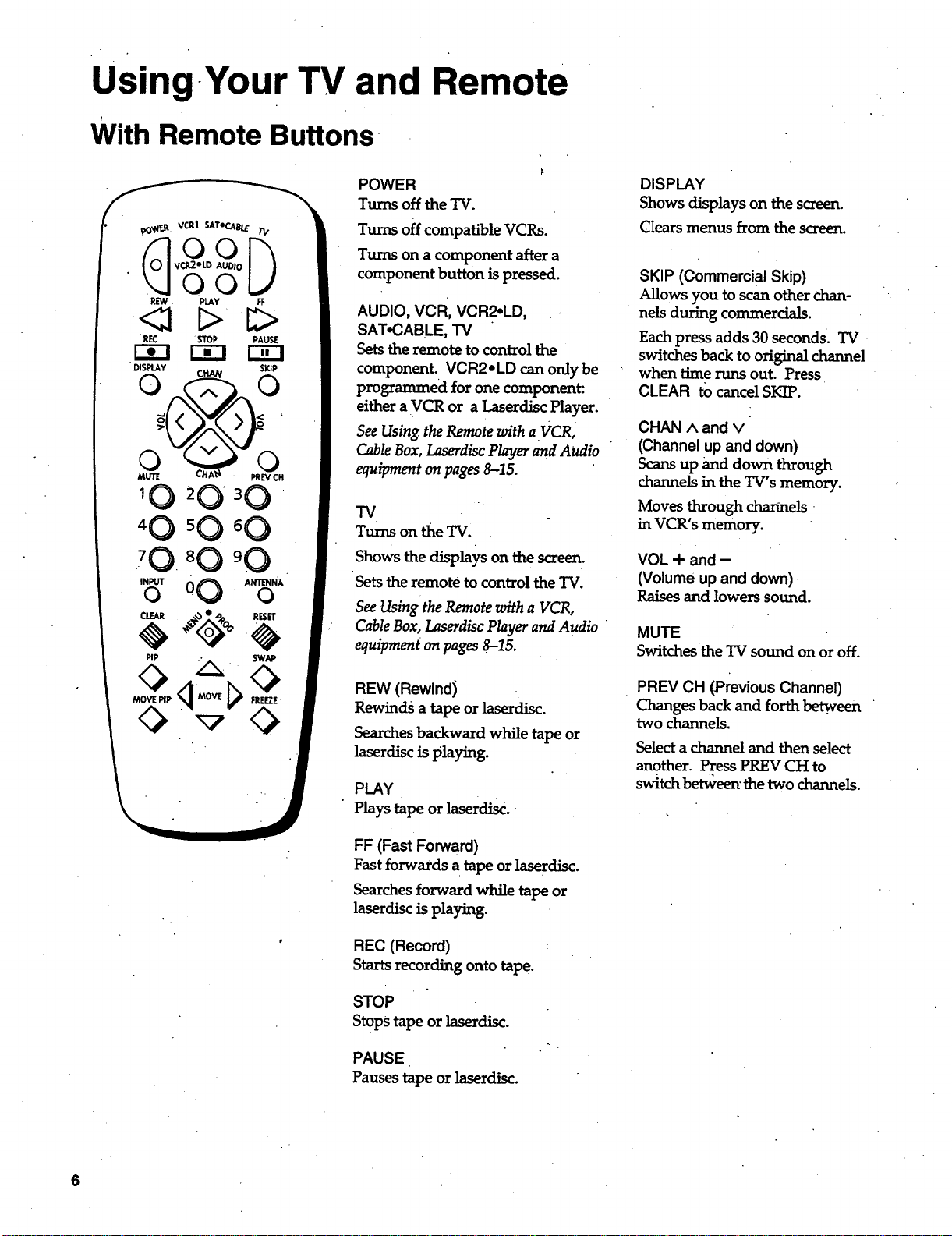
With Remote Buttons
1 0 2 0 ' 3 0 "
70 "0
INPUTo O0 . ANTENNAo
POWER
Turns off the TV.
Turns off compatible VCRs.
Turns on a component after a
component button is pressed.
AUDIO, VCR, VCR2.LD,
SAT.CABLE, TV
Setsthe remote to control the
component. VCR2eLD can only be
programmed for one component:.
either a VCR or a Laserdisc Player.
See Using the Remote with a VCR,
Cable Box, Laserdisc Player and Audio
equipment on pages 8--15.
TV
Turns on tile TV.
Shows the displays on the screen.
Sets the remote to control the "IV.
See Using the Remote with a VCR,
Cable Box, Laserdisc Player and Audio
equipment on pages 8-15.
REW (Rewind)
Rewinds a tapeor laserdisc.
Searches backward while tape or
laserdisc is playing.
PLAY
Plays tape or laserdisc.
FF (Fast Forward)
Fast forwards a tapeor laserdisc.
Searches forward while tapeor
laserdisc is playing.
REC (Record)
Starts recording onto tape.
STOP
StoPS tapeor laserdisc.
PAUSE•
Pauses tape or laserdisc.
DISPLAY
Shows displays on the screen.
Clears menus from the screen.
SKIP (Commercial Skip)
Allows you to scanother chan-
nels during commercials.
Each press adds 30 seconds. TV
switches back to original channel
when time runs out. Press
CLEAR to cancel SKIP.
CHAN ^ and v
(Channel up and down)
Scans up and down through
channels in the TV's memory.
Moves through cha_.-mels '
in VCR's memory.
VOL + and -
(Volume up and down)
Raises and lowers sound.
MUTE
Switches the "IVsound on or off.
PREV CH (Previous Channel)
Changes back and forth between
two channels.
Select a channel and then select
another. Press PREV CH to
switch be_een' the two channels.
6
k.
Using Your TV and Remote
With Remote Buttons"
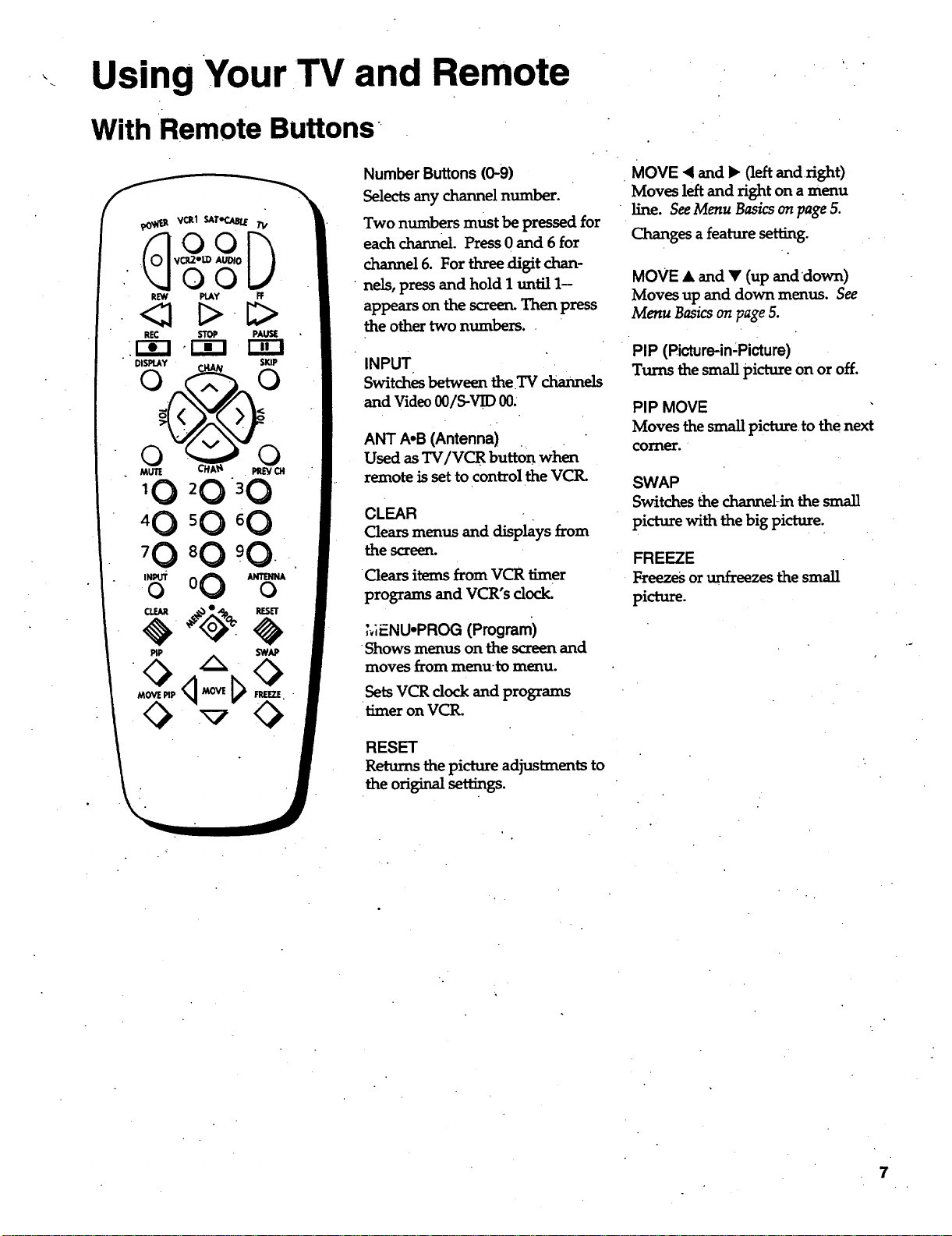
Number Buttons (0-9)
Selectsany channel number.
Two numbers must be pressed for
each channel Press 0 and 6 for
channel 6. For three digit chan-
• nels, press and hold I un_l 1-
appears on the screen. Then press
the other two numbers.
INPUT
Switches between the.TV cha,meLs
-and Video00/S-VH) 00:
ANT A,B (Antenna)
Used as TV/VCR button when
remote is set to control the VCIL
CLEAR
Clearsmenus and displays from
the screen.
Clears items from VCR timer
programs and VCR's dock.
MENU.PROG (Program)
Shows menus on thescreenand
moves from menu'to menu.
SetsVCR clockand programs
timer on VCR.
RESET
Returnsthepictureadjustmentsto
theoriginal settings.
MOVE < and • (left and right)
Moves left and right on a menu
line. See Menu Basics on page 5.
Changes a feature setting.
MOVE • and • (up anddown)
Moves up and down menus. See
Menu Basics on page 5.
PIP (Picture-in:Picture)
Turns the smallpictureon or off.
PIP MOVE
Moves thesmallpictureto thenext
comer.
SWAP
Switchesthechannel-in thesmall
picturewiththebigpicture.
FREEZE
Freezes or unfreezes the small
picture.
7
Using Your TV and Remote
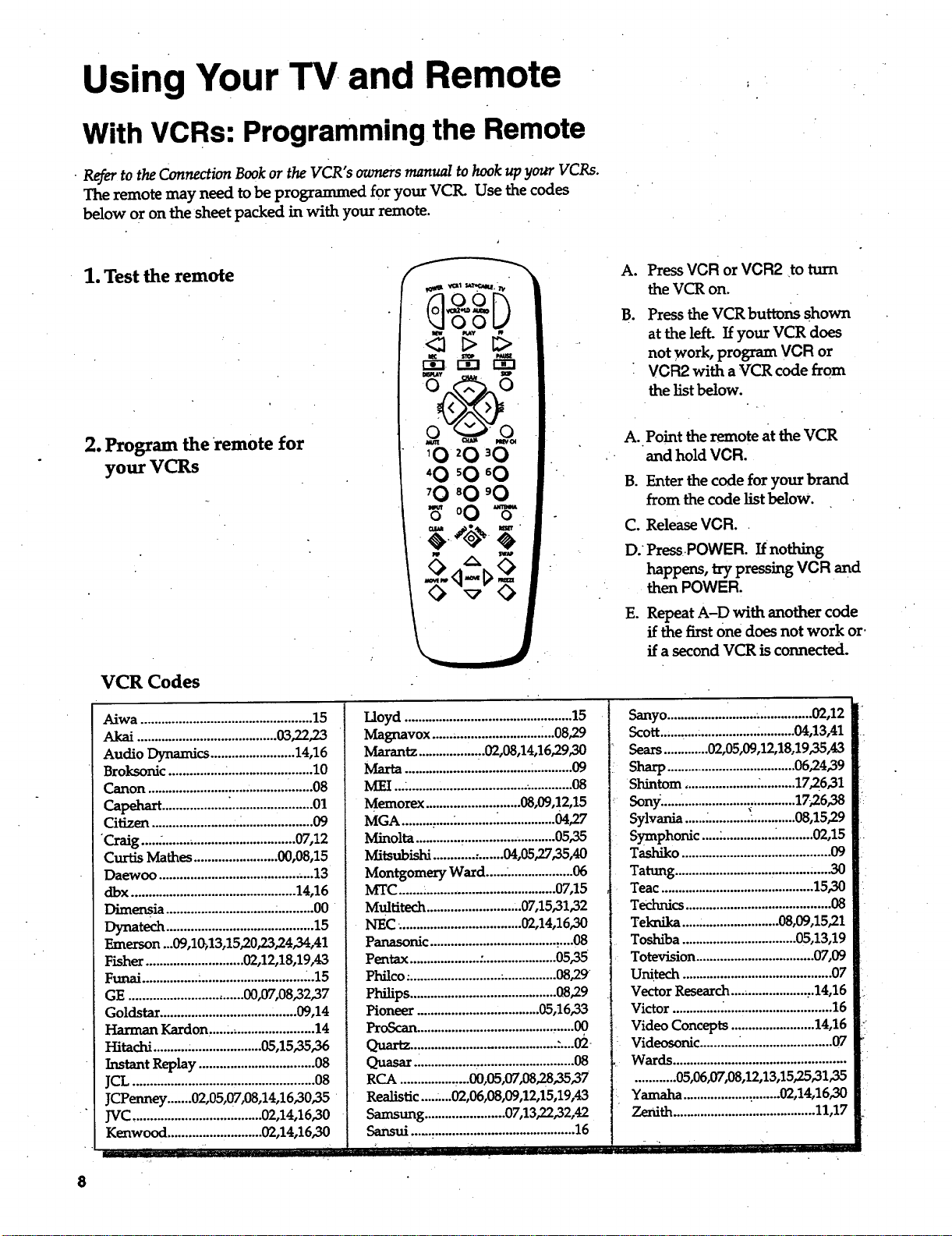
With VCRs: Programming the Remote
• Refer to the Connection Book or the VCR's owners manual to hook up your VGRs.
The remote may need to be programmed for your VCtL Use the codes
below or on the sheet packed in with your remote.
1. Test the remote
2. Program the remote for
your VCRs
A.
B.
Press VCR or VCR2 •to tttm
the VCR on.
Press the VCR buttons shown
at the left. If your VCR does
not work, program VCR or
VCR2 with a VCR code from
the list below.
A.. Point the remote at the VCR
and hold VCR.
B. Enter the code for your brand
from the code list below.
C. Release VCR..
D. Press POWER. If nothing
happens, try pressing VCR and
then POWER.
E. Repeat A-D with another code
if the first One does not work or.
if a second VCR is connected.
VCR Codes
Aiwa .................................................15
Akai ........................................03,22,23
Audio Dynamics ........................14,16
Broksonic ................;........................10
Canon ...............................................08
Capehart...................:.......................01
Citizen ........................._....................09
"Craig............................................07,12
Curtis Mathes........................00,08,15
Daewoo ............................................13
dbx ...............................................14,16
Dime_ia ..........................................00
Dynatech ..........................................15
Emerson ...09,1_,13,15,20,23,24,34,41
Fishe_............................02,12,18,19,43
Funai.................................................15
GE .................................00,07,08"32,37
Goldstar.......................................09,14
Harman Kardon,.............................14
Hitachi ..........:....................05,15,35,36
InstantReplay .................................08
JCL....................................................08
JCPenney .......02,05,07,08,14,16,30"35
JVC.....................................02,14,16,30
Kenwood ...........................02,14,16,30
iiiiir iiiiii ........................
7 ..
Lloyd ................................................15
Magnavox ...................................08,29
Marantz.................:.02,08,14,16,29,30
Marta................................................09
MEI ......................................_............08
Memorex ...........................08,09,12,15
MGA ..........................._................04,27
Minolta.............,..........................0535
Mitsubishi............:.......04,05,2735,40
Montgomery Ward.........................06
MTC............................................ 07,15
Multitech...........................07,15,31,32
NEC_..................................02,14,16,30
Panasonic ....................................:....08
Pentax ....................:.....................0535
Phflco. ..........................•...............08,29
Philips ..........................................08,29
Pioneer ...................................05,16,33
ProScan.............................................00
Quartz......................................... :._02
QuasarL................,...........................O8
RCA................,...00,05,07,08,2835,37
Realistic.........02,06,08,09,12,15,19A3
Samsung .......................07,13,22,32,42
Sansui ...............................................16
Senyo.................i........_...............02,12
Scott..., ................................04,13,41
Sears .............02,05,09,12,18,1935,43
Sharp......................................06,24,39
Shintom ................................17,26,31
Sony.......................................17,26,38
Sylvania ......;..........._.............08,15,29
Symphonic ....................._..........02,15
Tashiko ...........................................09
Tatung .............................................30
Teac............................................15,30
Tech_cs ..........................................08
Teknika............................08,09,15,21
Toshiba .................................05,13,19
Totevision ..................................07,09
Unitech ...........................................07
Vector Research......................:.14,16
Victor ..............................................16
Video Concepts ........................14,16
Videosonic ..........._..........................07
Wards..................................................
............05,06,07,08,12,13,15,25,3135
Yamaha ...................:........02,14,16,30
Zenith.........................................11,17
,• ., •,
8
Using Your TV and Remote
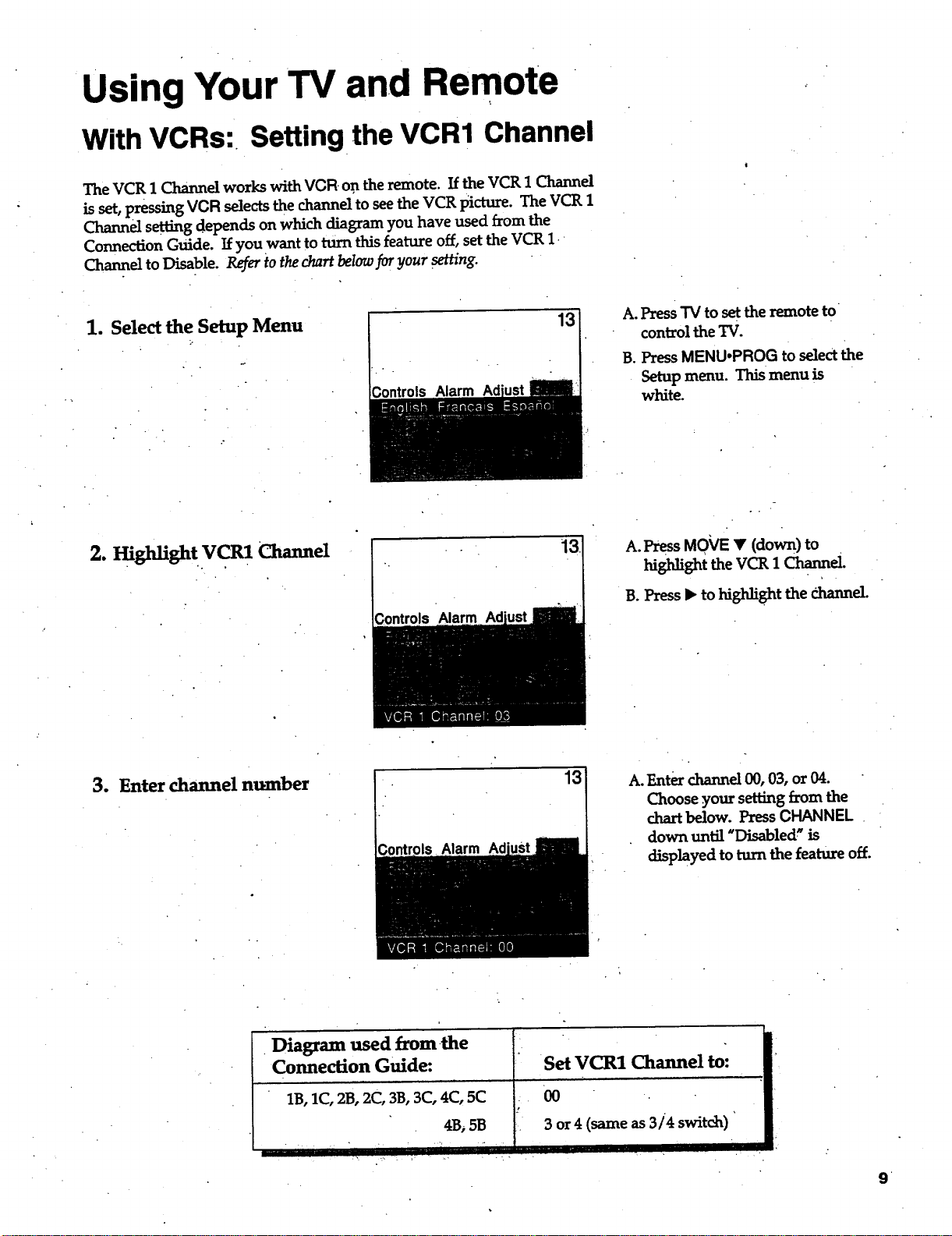
With VCRs: Setting the VCR1 Channel
The VCR 1 Channel works with VCR on the remote. If the VCR 1 Channel
is set, pressing VCR selects the channel to see the VCR picture. The VCR 1
Channel setting depends on which diagram you have used from the
Connection Guide. If you want to turn this feature off, set the VCR 1
Channel to Disable. Refer to the chart below for your setting.
1. Select the Setup Menu
Controls Alarm
13
A. Press TV to set the remote to
control the TV.
B. Press MENUopROG to selectthe
Setup menu. This menu is
white.
2. High_gh t V CR1 Channel
3ontrols Alarm
A. PressMO_/E • (down) to
high_ghttheVCg1Channel.
B.Press_ tohighlightthe r..hannel.
3. Enter channel nmnber
Alarm
13
A. Enter channel 00, 03, or 04.
Choose your setting from the
chart below. PressCHANNEL .
down until"Disabled"is
displayed to turn the feature off.
. Diagram used from-the
Connection Guide:
1B, 1C, 2B, 2C, 3B, 3C, 4C, 5C
4Bi 5B
..... ', ,i_ ..,. " i |
... •
Set VCR1 Channel to:
00
3 or 4 (same as 3/4 switch) '
H il
.
Using Your TV and Remote
With VCRs: Basic Operation
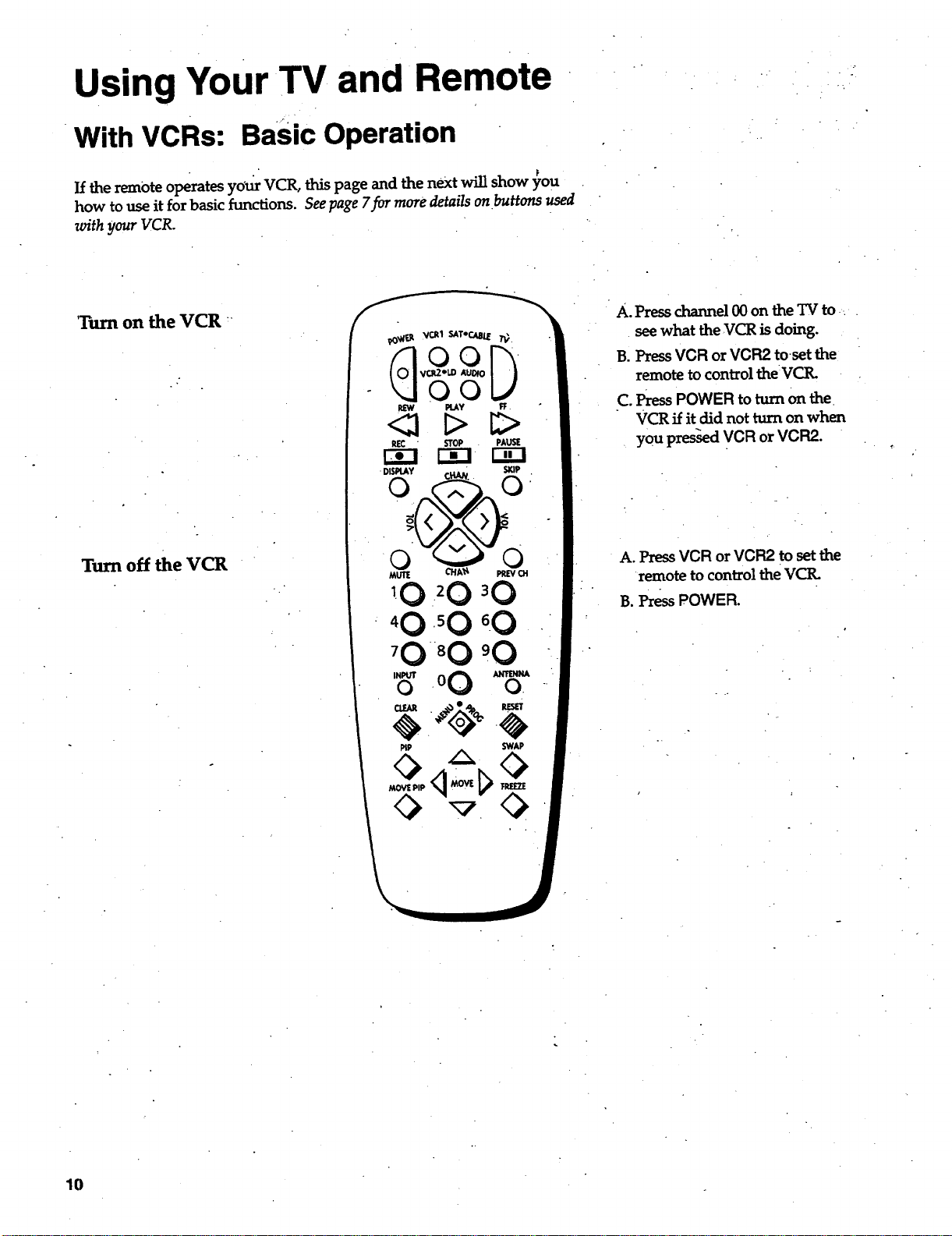
If the remote operates yourVCR,this page and the next will show you
how to use it for basic functions. See page 7for more details on buttons used
with your VCR.
'Turn on the VCR
Turn off the VCR
PiP SWAP
A.
B.
C.
Press channel 00 on the TV to
see what the VCR is doing.
Press VCR or VCR2 toset the
remote to control the VCR.
Press POWER to turn on the
VCR if it did not turn on when
you pres-sed VCR or VCR2.
A. Press VCR or VCR2 to set the
remote to control the VCtL
B. PressPOWER.
10

Using Your TV and Remote
With VCRs: Basic Operation
If the remote operates your VCR; this page and page 10 will show you
ihow to use it for basic functions. See page 7for more details on buttons used
with y_r VCIL
Record one TV program
and watch another
Watch a tape in your VCR
_,o_ v_1 $AT,_Aa{_rv
D
PLAY R:
REC ' STOP PAUSIE
r-_l • r-i-I r-_-I
_0 _0 _0
_0 _0 °0.
_0 _0.00
0 " 0
PIP SWAP
A°
C.
D.
E.
F.
G.
Press VCR or VCR2 to set the
remote .to control the VCR.
Tune the VCR to the channel
you want to record using
CHANNEL up and down or "
pressing two number buttons.
Press RECORD to start
recording.
Press TVNCR on the VCR.
Press"IV to setthe remote to
cont_oJthe TV.
Press CHANNEL up or down to
change channels on the TV.
To see the channel you are
recording, tune the TV back to
channel 00.
A. Turn on VCR.
B. InsertatapeinthevCR.
C. Press PLAY to start the tape
playing-.
D. Press STOP when you are
finished.
E. Press REW to rewind the tape.
' 11
Using Your TV and Remote
With a Cable Box: Programming and Basic•Operation
R_ to the Connection Boolcor contact your cable company to hookup ydur cable
box. If you have a cable box with its own remote, then you may also be able
to use the TV's remote with your cable box. Use the codes below or on the
sheet packed in with your remote,
12
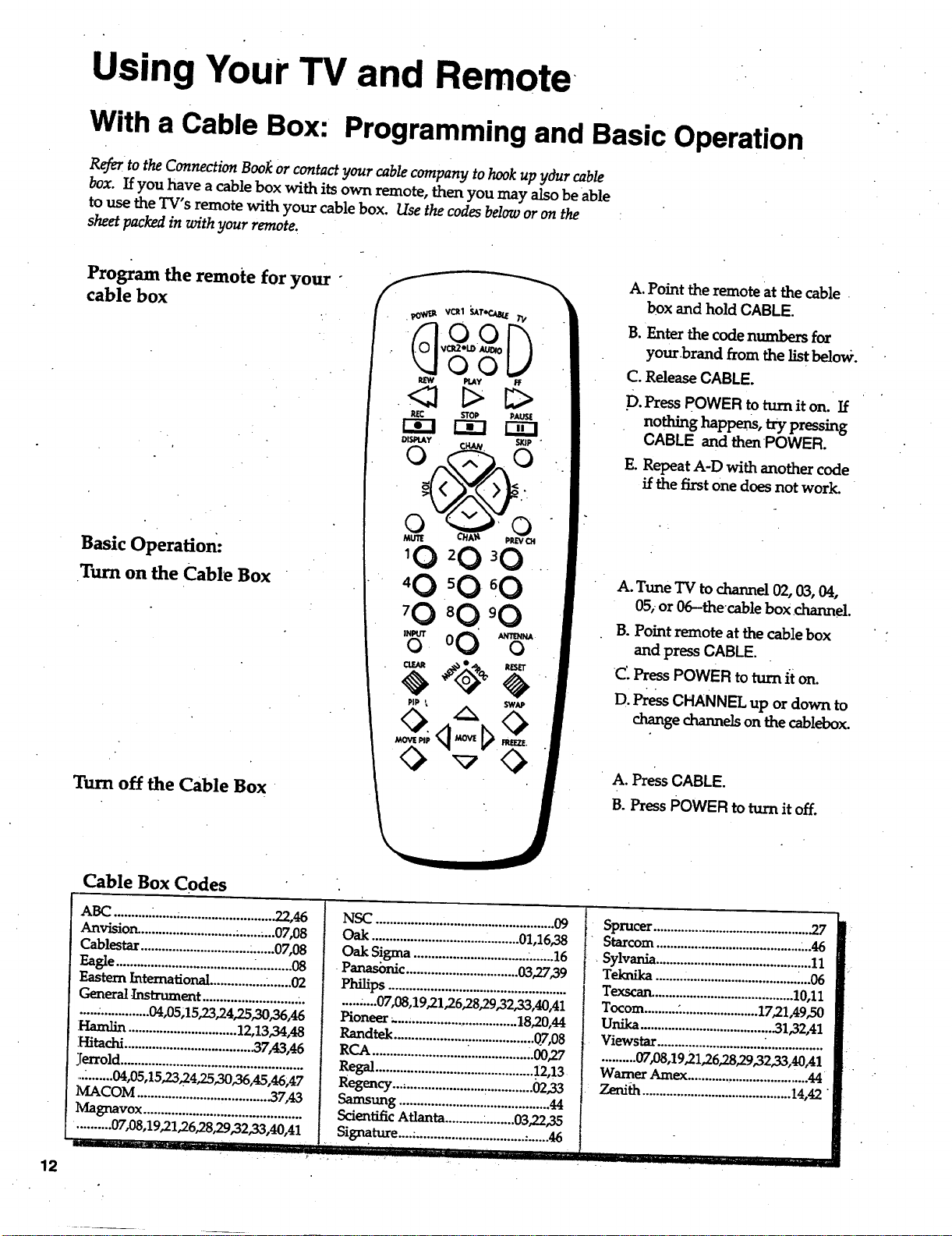
Program the remote for your "
cable box
Basic Operation:
Turn on the Cable Box
Turn off the Cable Box
Cable Box Codes
A. Point the remote at the cable
box and hold CABLE.
B. Enter the code numbers for
your brand from the list below.
C. Release CABLE.
D. Press POWER to turn it on. If
nothing happens, try pressing
CABLE and then POWER.
E. Repeat A-D with anothercode
if the first one does not work.
A. Tune TV to channel 02, 03,04,
05;or 06-thecable box channel.
B. Point remote atthe cable box
and press CABLE.
C Press POWER to turn it on.
D. Press CHANNELup or down to
change channels on the cablebox.
A. Press CABLE.
B. Press POWER to turn it off.
ABC ..........._..................................22,46
Anvision. ...........................:......;...07,08
Cablestar......................................07,08
EaSe.......................................:..........0S
Eastern International ................ ".......02
Genera! Instrument ........................... ;.
.................... 04,05;15,23,24,25,30,36,46
Hamlin...............................12,13,34,48
Hitachi ..................................... 37,43,46
_[errold ....................................................
,......... 04,05,15,2.324,25,30,36,45,46;47
M.ACOM..................................... .37,43
Magnavox .............................................
. ......... 07,08,19,21,26,28,29,32,33,40,41
__ i,,,, uu •
NSC ............ ,o..o.o'o°o.o°...o...,°o.° ............ °09
Oak ................................ .......... 01,16,38
Oak Sigma ................................ ........16
•P_c ................................ 03,2739
..........07,08,1921,26,28,29,32,33,40,41
Pioneer_....................................18,20,44
Randtek ........................................07,08
RCA..............................................00,27
Regal ............................................. 12,13
Regency .......................... _............. 02,33
Samsung ...........................................44
ScientificAtlanta ...........:........03,22,35
Signature....: ............................... :......46
_,_ _ L"_" :'J. _,.._L_,L-_ L • ,,,........
Sprucer .............................................3.7
Statcom ......................................... ;..46
•Sylvania ......................................... :...11
Teknika ............................................. 06
Texscan. ........................................ 10,11
Tocom ......... L...................... 17,21,49,50
Unika ...................................... .31,32,41
Viewstar ............................... .................
.......... 07,08,19,21,26,28,29,32,33,40,41
Warner Amex ................................... 44
Zenihh ........................................... 14,42'
,, ,, i
Using Your TV and Remote
With a Cable Box: Setting the Cable Channel
The Cable ChannelWorks withCABLE on theremote.IftheCable
Channel isset,pressingCABLE selectsthechanneltoseecablechannels.
The Cable Channel.settingdepends on which channelyour cablebox
must be on toseecablechannels.The channelsusuallyused are02,03,
04, 05 or 06. Consult your cable company for more information.
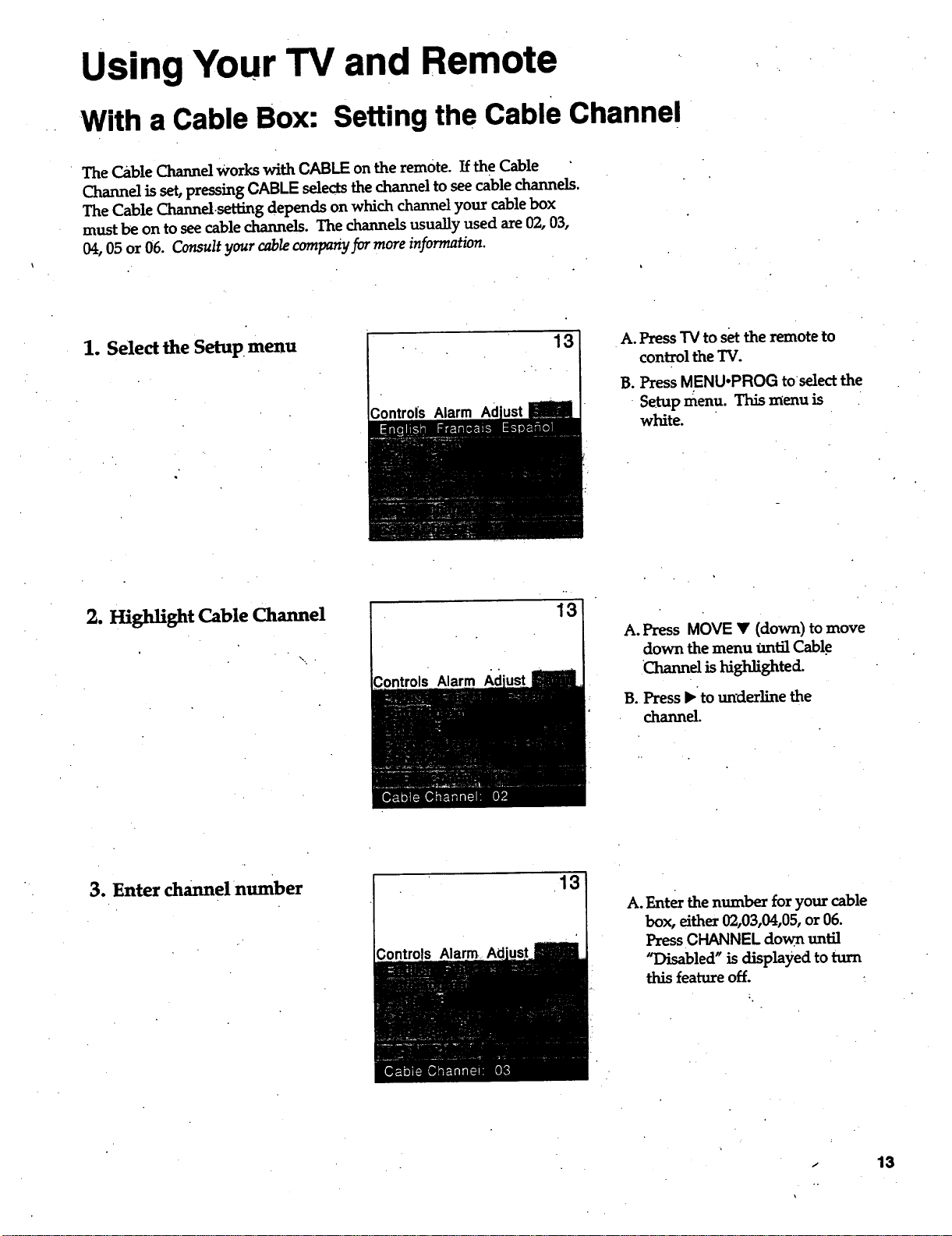
1. Selectthe Setup menu
Controls Alarm Ad
13
A.PressTV tosettheremoteto
controltheTV.
B. Press MENUopROG toselect the
• Setup menu. This menu is
white.
2. mght%ht Cable Channel
Alarm
13
A.Press MOVE I' (down) tomove
down themenu tmtilCable
'Channel is highlighted.
B. Press I_to un'derline the
channel.
3. Enter channel number
Controls
13
A. Enter the number for your cable
box, eithe_ 02,03,04,05, or 06.
Press CHANNEL down. until
"Disabled"isdisplayedtoturn
this feature off.
- 13
Using Your TV and Remote
• . ...
With a Laserdisc Player: Programming and Basic Operation
Refer to your Laserdisc Player owner's manual to hook up your Laserdisc _layer.
The remote may need to be programmed for your laserdisc player. Use the
codes below or on the sheet packed in with your remote.
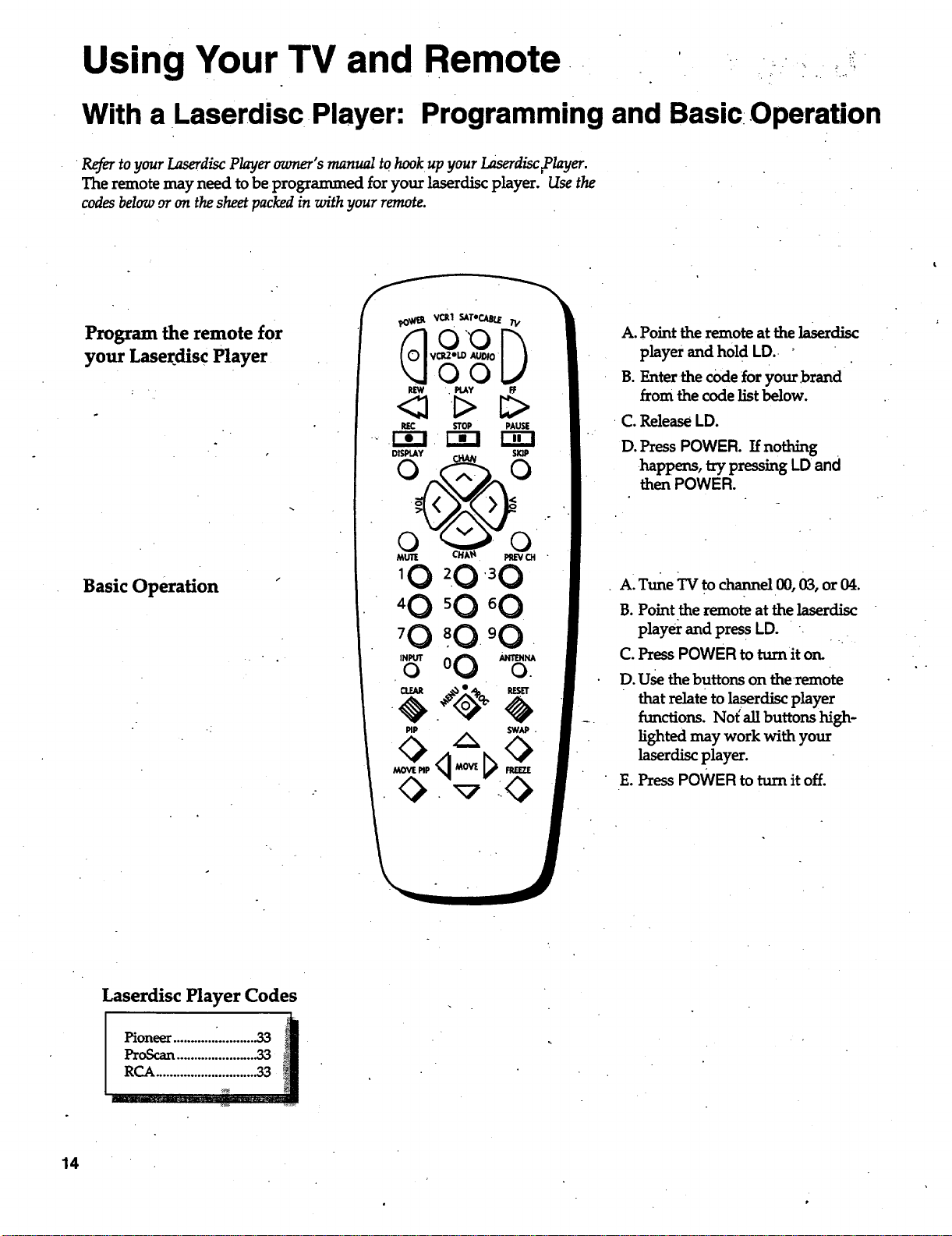
Program the remote for
your Laser disc Player
Basic Operation
A. Point the remote at the laserdisc
player and hold LD.
B. Enter the code for your brand
from the code list below.
C.ReleaseLD.
D. Press POWER. If nothing
happens, try pressing LD and
then POWER.
A"Tune TV to channel 00,03, or04.
B. Point the remote at thelaserdisc
play_ and press LD. .
C. PressPOWER to turn it orL " "
D. Use the buttons on therem0te
that relate to laserdisc player
functions. No_ all buttons high-
lighted may work with your
laserdisc player.
E. Press POWER to turn it off.
Laserdisc Player Codes
Pionee_ ............_..........
l:'roScan .......................33
RCA .............................33
14
Using Your TV and Remote
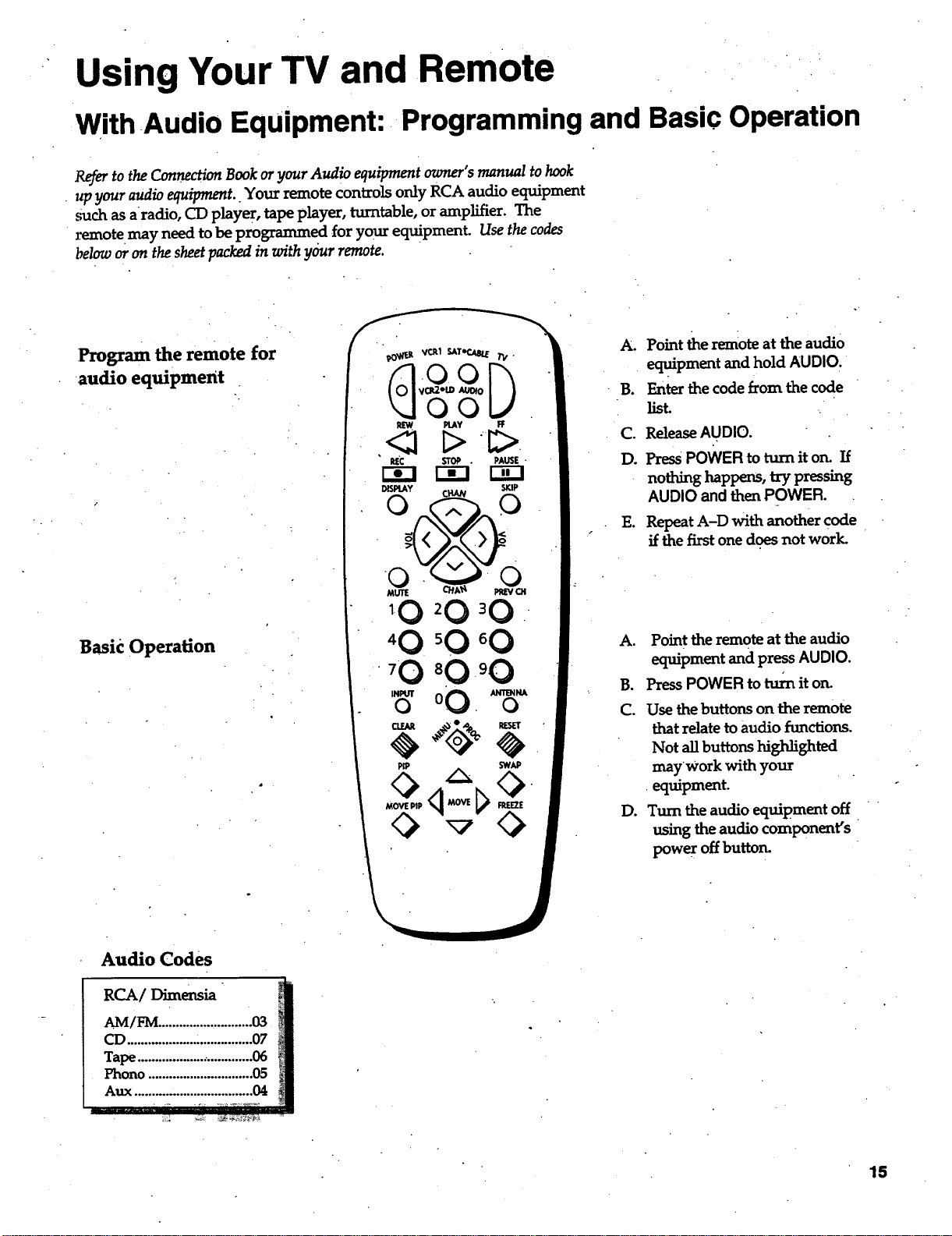
With .Audio Equipment: Programming and Basic Operation
Refer to the Connection Book or your Audio equipment owner's manual to hook
up your audio equipment.. Your remote controls only RCA audio equipment
such as aradio, CD playe r, tape player, turntable, or amplifier. The
l_note may need to be programmed for yourequipment. Use the codes
below or on the sheet packed in with your remote.
Program the remote for
audio equipment
Basic Operation
0 . 0
A. Point the remote at the audio
equipment and hold AUDIOr
B. Enter the code from the code •
list.
C. ReleaseAUDIO,
D. PressPOWER to turn it on. If
nothing happens, try pressing
AUDIO and then POWER.
E. Repeat A-D with another code
if the first one does not worl_
A.
go
C.
D.
Point the remote at the audio
equipment and press AUDIO.
Press POWER to turn it on.
Use the buttons on the remote
that relate to audio functions.
Not all buttons highlighted
mayWork with your
equipment.
Turn the audio equipment off
using the audio components "
power off button.
Audio Codes
RCA/D_ens_
15
Adjusting Your TV
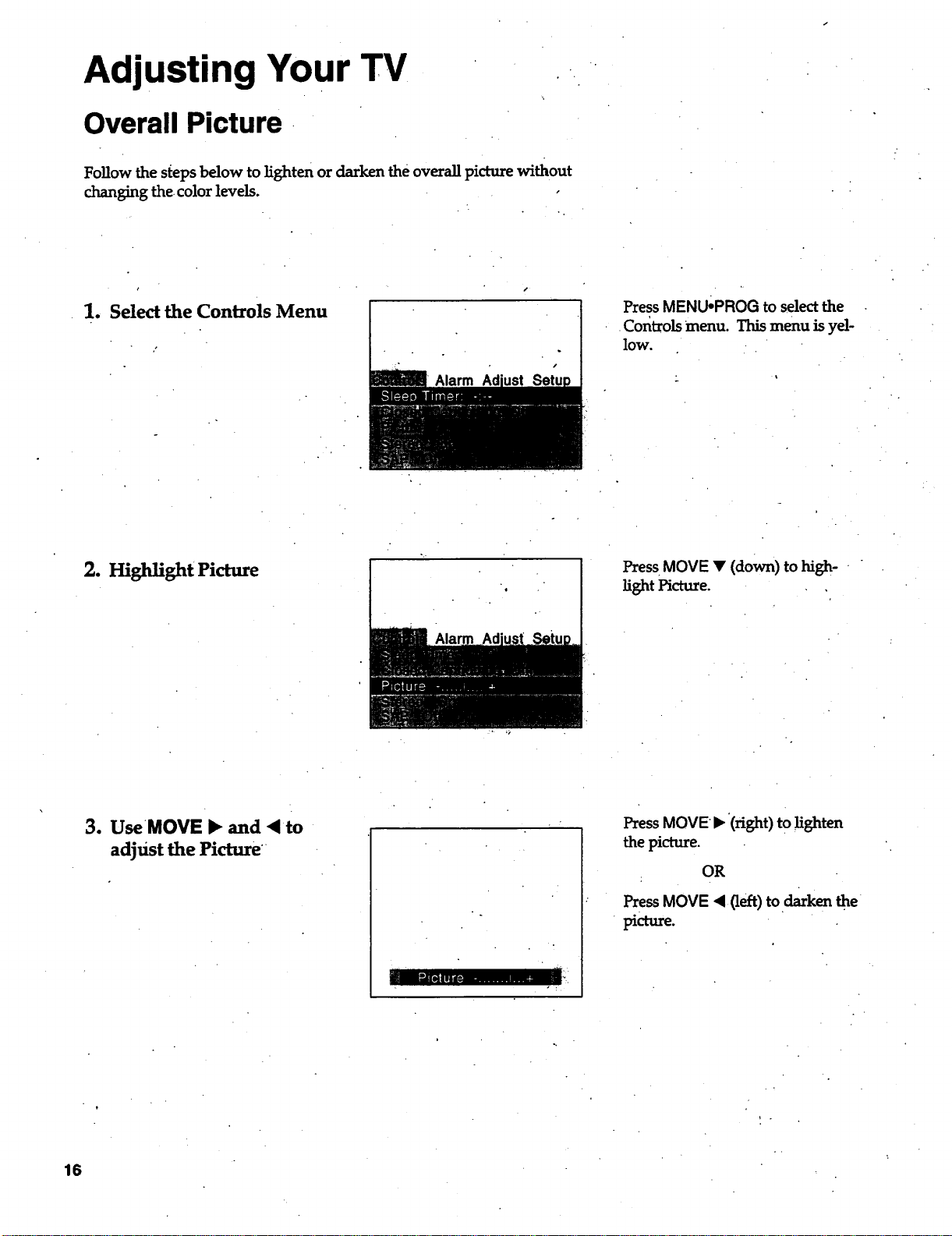
Overall Picture.
Follow the steps below to lighten or darken the overall picture without
changing the. color levels.
1. Select the Controls Menu
PressMENU.PROG to selectthe
•Controlsmenu. Thismenu isyel-
low.
2. Highlight Picture
G
Press MOVE • (down) to high-
light Picture.
3. UseMOVE • and ,<to
adjust the Picture
PressMOVEb, (right) to lighten
thepicture.
OR
Press MOVE <(]eft) todarken the
picture.
16
Adjusting Your TV
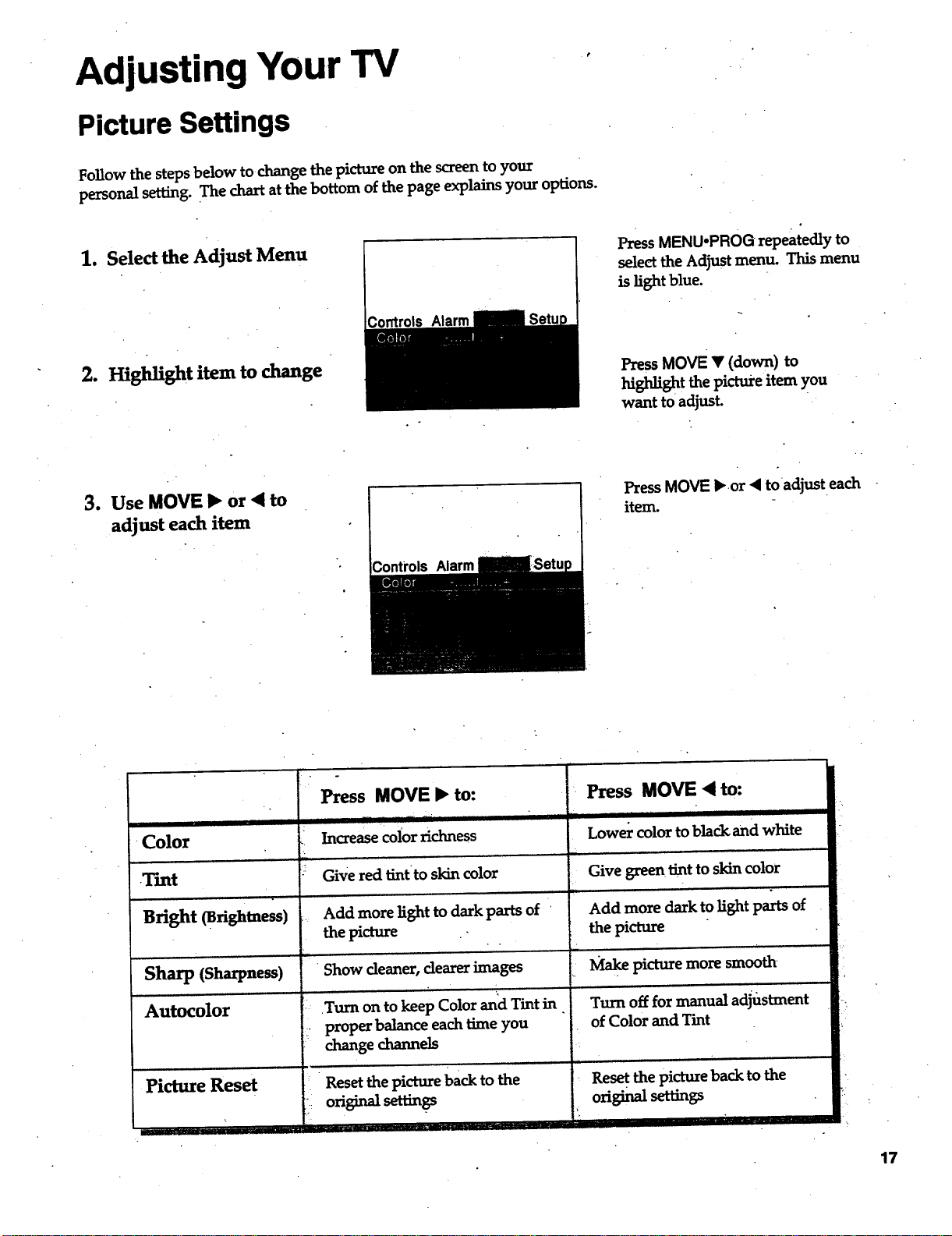
Picture Settings
Follow the steps below to change the picture on the screen to your
personal setting. The chart at the bottom of the page explains your options.
1. Select the Adjust Menu
2. Highlight item to change
Controls Alarm
Press MENU-PROG repeatedly to
select the Adjust menu. This menu
is light blue.
PressMOVEV (down)to
highlightthe picture item you
want to adjust.
3. Use MOVE • or < to
adjust each item
Alarm
Press MOVE b.or < toadjust each
item.
I I I
•Color
I ]IIIIIL 'l|
Tmt
, i ,i ,, • ,. . LI ,
Bright (Brightness)
Sharp (Sharpness)
Autocolor
Picture Reset
f .
i.
Press MOVE • to:
Increase coior richness
, ,L
Give red tintto skin color
,.,., ,,..,
Add more light to dark parts of
the picture
•Show cleaner, dearer images
,,,' _.,.,,
Turn on to keep Color and Tint in
proper balance each ame you
change channels
,,,, , ,, ,,,
Reset the picture back to the
: original settings
I i:
Press MOVE < to:
u=
Lower color to blackand white
Give green tint to skin color
Add more dark to light parts of
the picture
Make picture more smooth
Turn off for manual adjustment
of Color and Tint
,,, ,,,,,,,,,
Rese t the picture back to the
ori_nalsettings
II
17
Adjusting Your TV
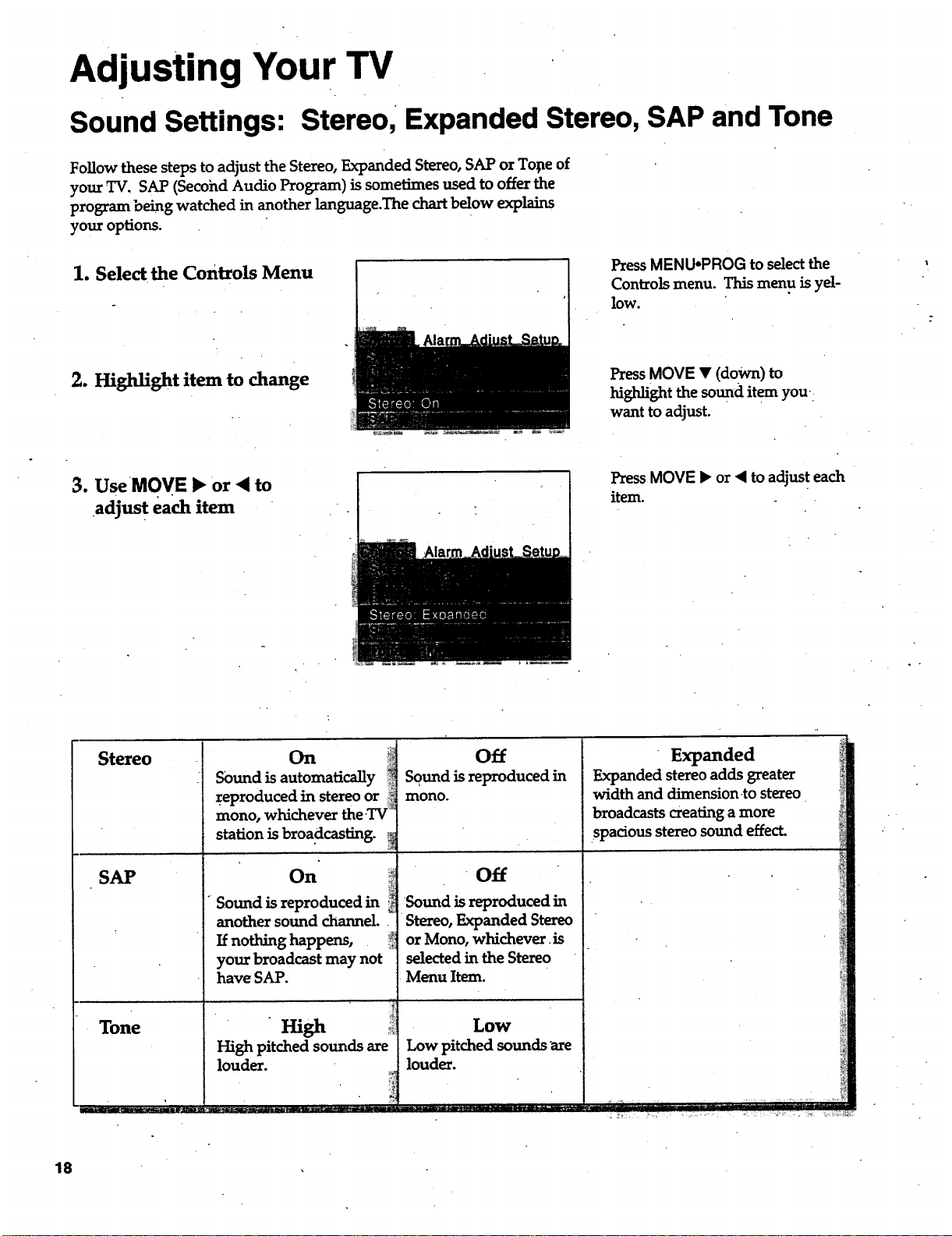
Sound Settings: Stereo, Expanded Stereo, SAP and Tone
Follow these steps to adjust the Stereo, Expanded Stereo, SAP or Tope of
your TV, SAP (Second Audio Program) is sometimes used to offer the
program being watched in another language.The chart below explains
youroptions.
1. Select the Controls Menu
2. Highlight item to change
PressMENU-PROG to selectthe
ControLsmenu. Thismenu isyel-
low.
PressMOVE • (down)to
highlightthesound itemyou,:
want toadjust.
3. UseMOVE • or ,4 to
adjus t each item
Press MOVE • or < to adjus t each
item.
Stereo
SAP
Tone
On
Sound is automatically
reproduced in stereo or
mono,whichever the-TV_
station is broadcasting.
On _:_
Sound is reproduced in _....
anothersound channel.
' Ifnothing happens, _
your broadcast may not
have SAP.
rash i_
High pitched sounds are
louder.
Off
Sgund is reproduced in
mono.
Off
Sound isreproducedin
Stereo,P.xpandedStereo
orMono, whichever.is
selectedintheStereo
Menu Item.
Low
Low pitchedsounds are
louder.
Expanded
Expanded stereo adds greater
width and dimension-to stereo
broadcasts creating a more
.spacious stereo sound effect.
18
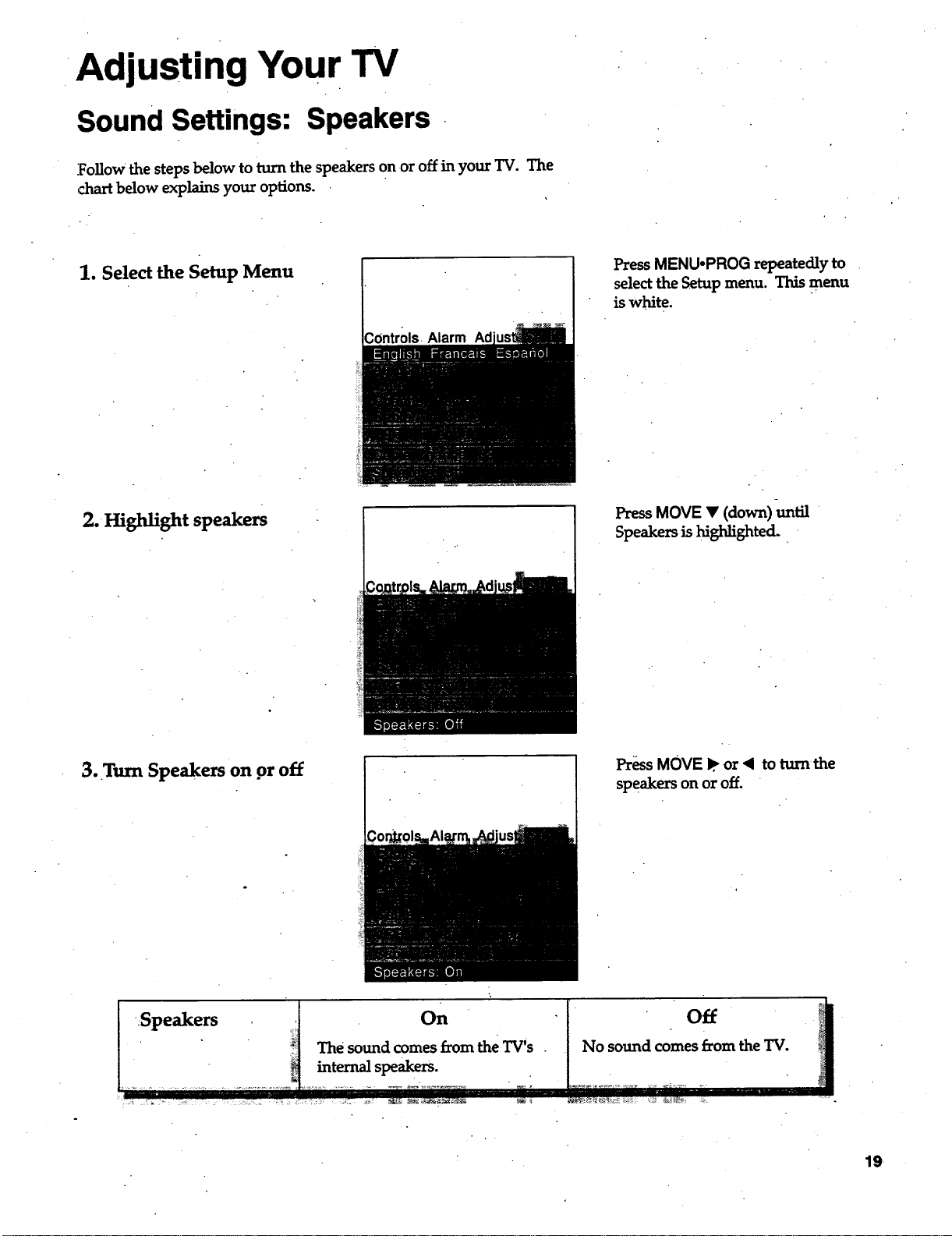
Adjusting Your TV
Sound Settings: Speakers
Yollow the steps below to turn the speakers on or off in your TV. The
c.h_ below explains your options.
1. Select the Setup Menu
Press MENUopROG repeatedly to
selectthe Setup menu. This menu
is white.
2. Highlight speakers
PressMOVE • (down)-unH1
Speakers is highlighted..
3. Turn Speakers on or off
Press MOVE p or < to turn the
speakers on or off.
I-.s,ea_er_1 oo I_ o_
I " " 1 The sound comes from the TV's . No sound comes _rom the TV.
I " _ internalspeakers.
19.
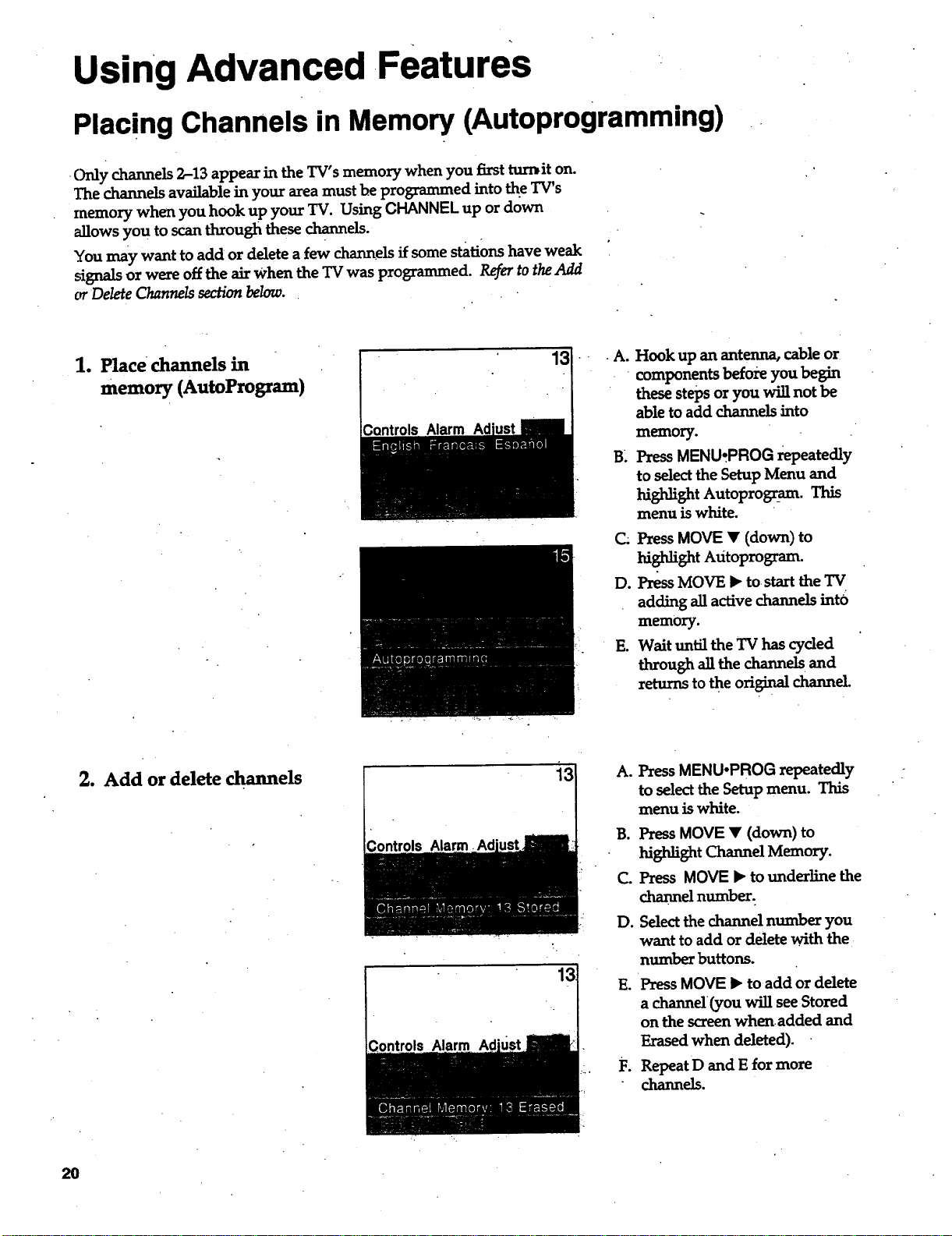
Using Advanced Features
Placing Channels in Memory (Autoprogramming)
•Only channels 2-13 appear in the TV's memory when you first turnit on.
The channels available in your area must he programmed into the TV's
memory when you hook up your TV. Using CHANNEL up or down
allows you toscan throughthese channels.
You may want to add or delete a few channels if some stations have weak
signals or were off the air When the TV was programmed. Refer to the Add
errDelete Channels section below.
1. Place channels in
memory (AutoProgram)
13
Controls Alarm Ad
°
.A.
B:
Hook up an antenna, cable or
components before you begin
these steps or you win not be
able to add channels into
memory.
PressMENU.PROG repeatedly
to select the Setup Menu and
highlight Autoprogmm. This
menu is white.
C. Press MOVE • (down) to
highlight Adtoprogram.
D. Press MOVE • tostart the TV
adding all active channels int6
memory.
E. Wait until the TV has cycled
through all the channels and
zeturns to the original channel.
2. Add or delete channels
Controls Alarm
Alarm Ad
13
13
A. PressMENUopROG repeatedly
to select the Setup menu. This
menu is white.
B. Press MOVE • (down) to
highlight Channel Memory.
C. Press MOVE • to underline the
channel number.
D. Select the channel number you
want to add or delete with the
number buttons.
E. Press MOVE • to add or delete
a channel (you will see Stored
on the screen whenadded and
Erased when deleted).
i:. Repeat D and E for more
channels.
2O
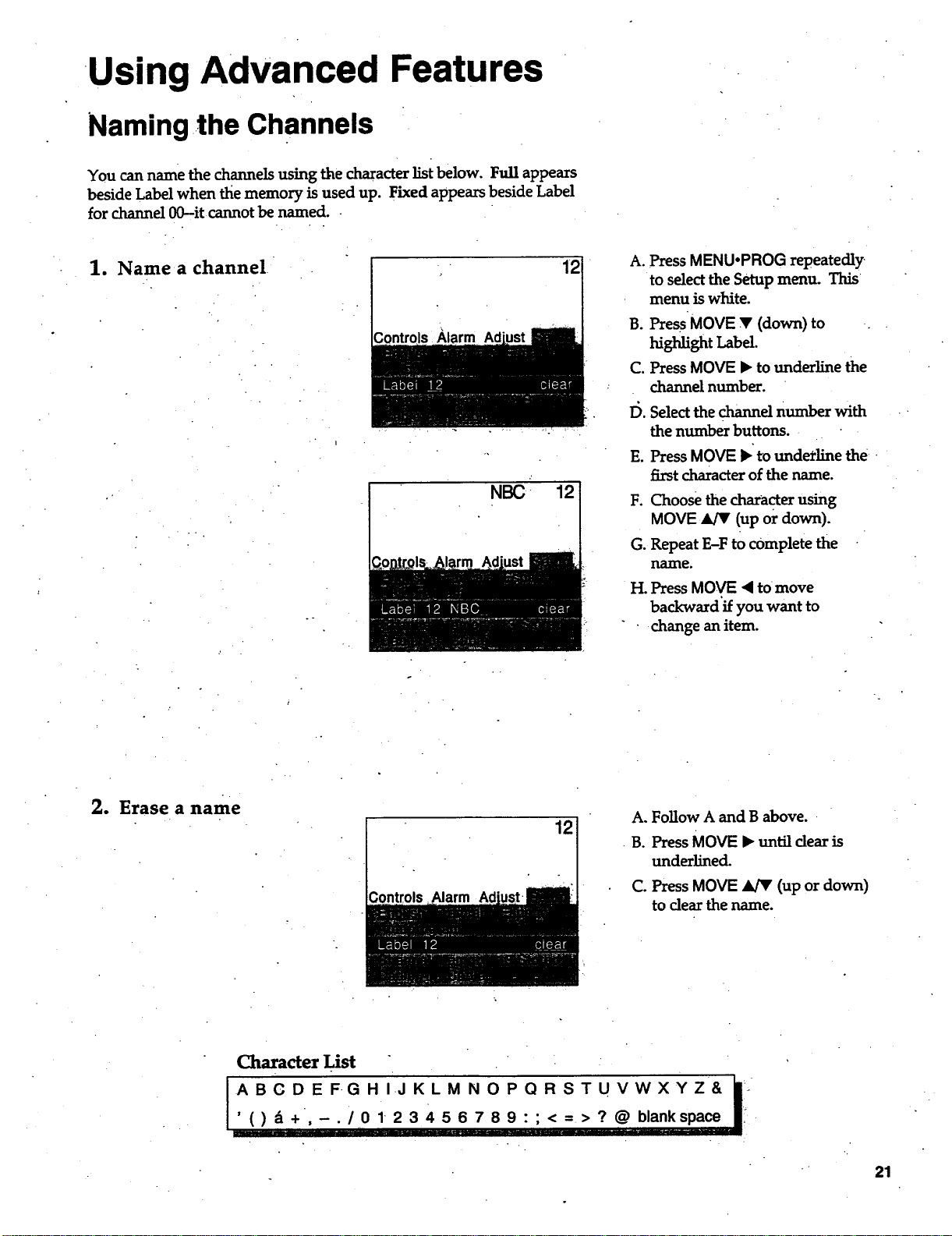
Using Advanced Features
Namingthe Channels
You can name the channels using the character list below. Full appears
beside Label when the memory is used up. Fixed appears beside Label
for channel 00--it cannot be named.
1. Name a channel 12
NBC ! 12
A. PressMENU-PROG repeatedly-
to selectthe Setup menu. This
menu is white.
B. PressMOVE T (down) to ..
hish sht bel.
C. Press MOVE I_ to underline the
channelnumber.
I_.Selectthechannelnumber with
thenumber buttons.
E. PressMOVE I_tounderlinethe
firstcharacterofthename.
F.
Choose the character using
MOVE 4/T (up or down).
G. Repeat E-F to complete the
nal_e.
H. PressMOVE • tomove
backward 'ifyou want to
change an item.
2. Erase a name
12
A.Follow A and B above.
•B. PressMOVE I_untildearis
underline&
C. PressMOVE _ (up ordown)
todear the name.
Character List
() _ + -./ 0 12 3 4 5 6 7 8 9 :; < = > ? @ blankspace
" 21
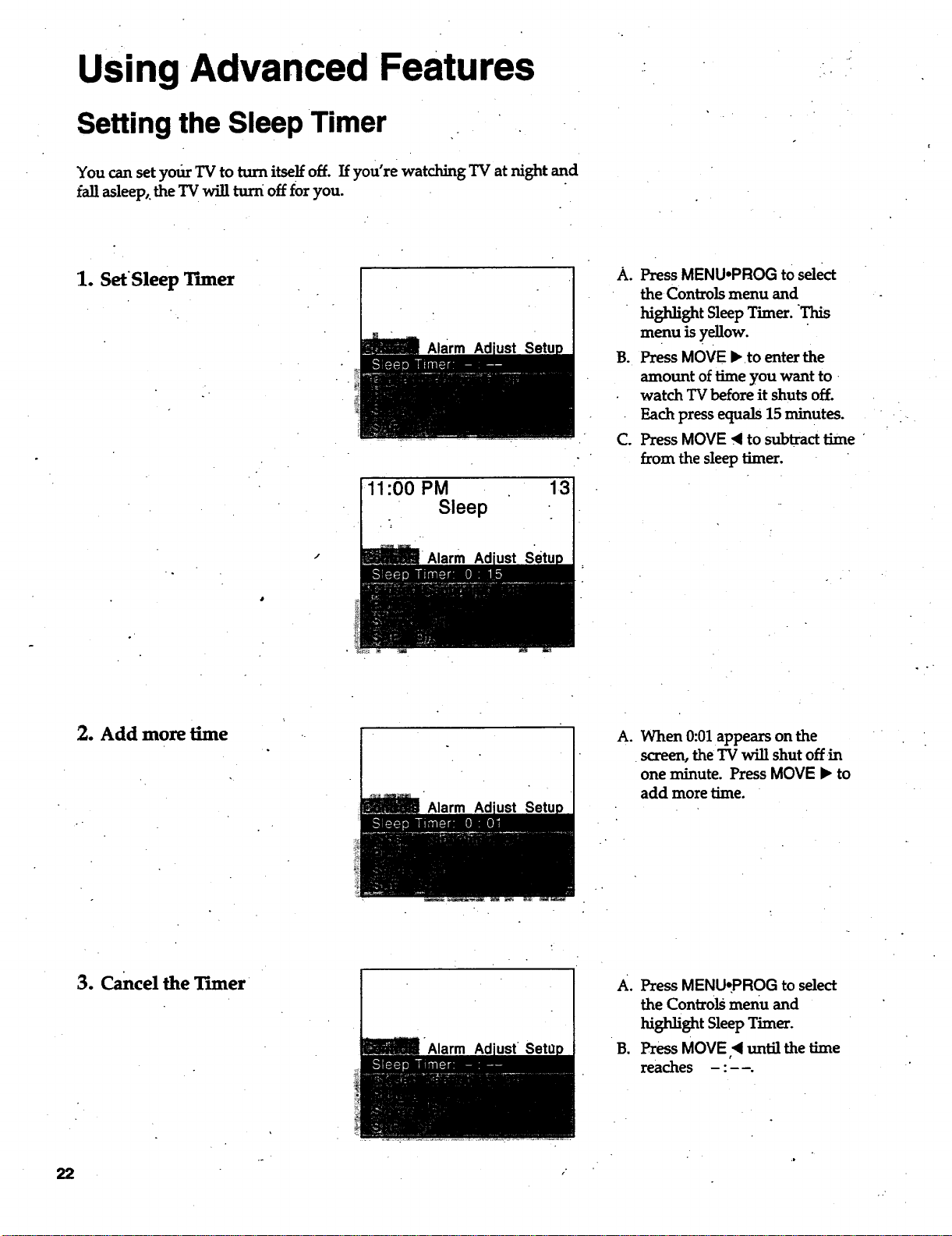
USing.Advanced Features
Setting the Sleep Timer
You can set yodr TV to turn itself off. If you're watching TV at night and
Pallasleep,, the TV will turn off for you.
1. SetSleep Tuner
Alarm
11:00 PM 13
Sleep
Alarm
A. Press MENUoPROG to select
the Controls menu and
highlight Sleep Timer. This
menu is yellow.
B. Press MOVE • to enter the
amount of time you want to
watch TV before it shuts off.
Each press equals 15 minutes.
C. Press MOVE _ to subtract time
from the sleep timer.
2. Add more time
A. When 0:01 appears on the
screen, the TV will shut offin
one minute. Press MOVE • to
add more time.
3. Cancel the Tuner
Alarm
A. Press MENU-.PROG to select
the Controls menu and
highlight Sleep Timer.
•B. Press MOVE ,< until the time
reaches :
22
Using Advanced Features
Setting the Alarm Clock
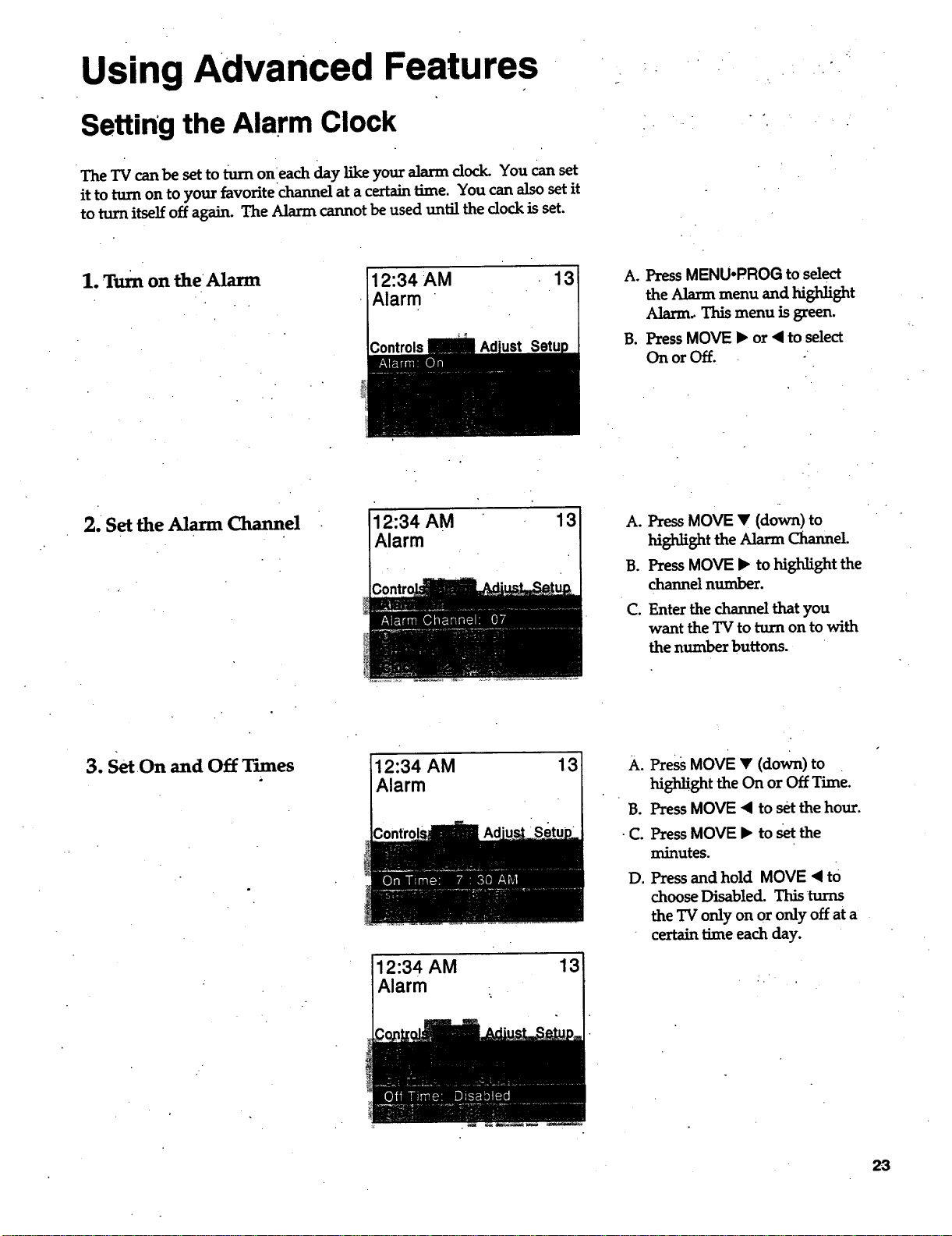
The TV can be set to turn on each day like your alarm dock. You can set
it to turn on to your favorite channel at a certain time. You can also set it
to turn itself off again. The Alarm cannot be used until the dock is set.
1. Turn on the Alarm
12:34 AM
Alarm
13
A. PressMENUoPROG to select
the Alarm menu and highlight
Alarm. This menu is green.
B. Press MOVE • or 4 to select
On orOff.
2. Set the Alarm Channel 12:34 AM
Alarm
13
A. Press MOVE • (down) to
highli_t the Alarm Channel
B. Press MOVE • to hig_dJ_htthe
channel number.
C. Enter the channel that you
want the TV to turn on to with
the number buttons.
3. SetOn and Off Tunes
12:34 AM 13
Alarm
i12:34 AM
Alarm
13
A. Press MOVE • (down) to
highlight the On or Off Time.
B. PressMOVE • to setthe hour.
•C. Press MOVE • to set the
minutes.
D. Press and hold MOVE • tO
choose Disabled. This tun_
the TV orgyonororayoffat a
certain ffme each day.
23
Using Advanced Features
Watching ,Picture-in-Picture
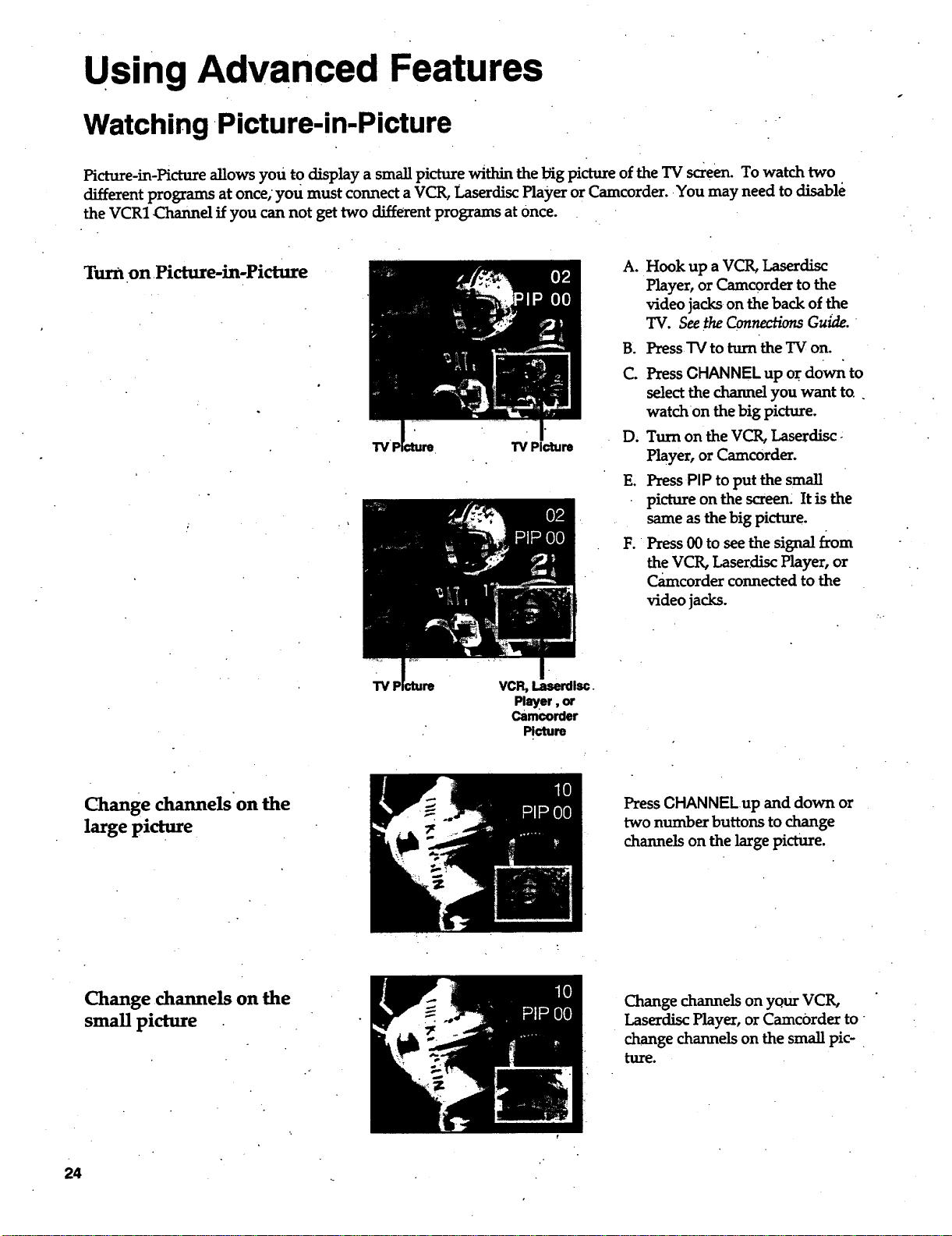
Picture-in-Picture allows you to display a small picture within the l_ig picture of the TV screen. To watch two
different programs at once, you must connect a VCR, Laserdisc Player or Camcorder. You may need to disable
the VCR1 Channel if you can not get two different programs at Once.
Turn on Picture-in-Picture
TV TV Picture
A. Hook up a VCR, Laserdisc
Player, or Camcorder to the
video jacks on the back of the
TV. See the Connections Guide.
B. Press TV to turn the TV on.
C. Press CHANNEL up or d0w_ to
select the channel you want to..
watch on the big picture.
D; Turn on the VCR, Laserdisc,
Player, or Camcorder.
E. Press PIP to put the small
picture on the screen. It is the
same as the big picture.
F. Press 00 to see the signal f_om
the VCR, Laserdisc Player, or
CArncorder connected to the
video jacks.
TV VCR, Laserdlsc.
Player, or
Camcorder
Picture
Change channels on the
large picture
Press CHANNELup and down or
two number buttons to change
channels on the large picture.
Change channels on the
small picture
Change channels on your VCR_
Laserdisc Player, or Camc0rder to
change channels on the small pic-
tuxe.
24
Using Advanced Features.
LWatching Picture-in-Picture
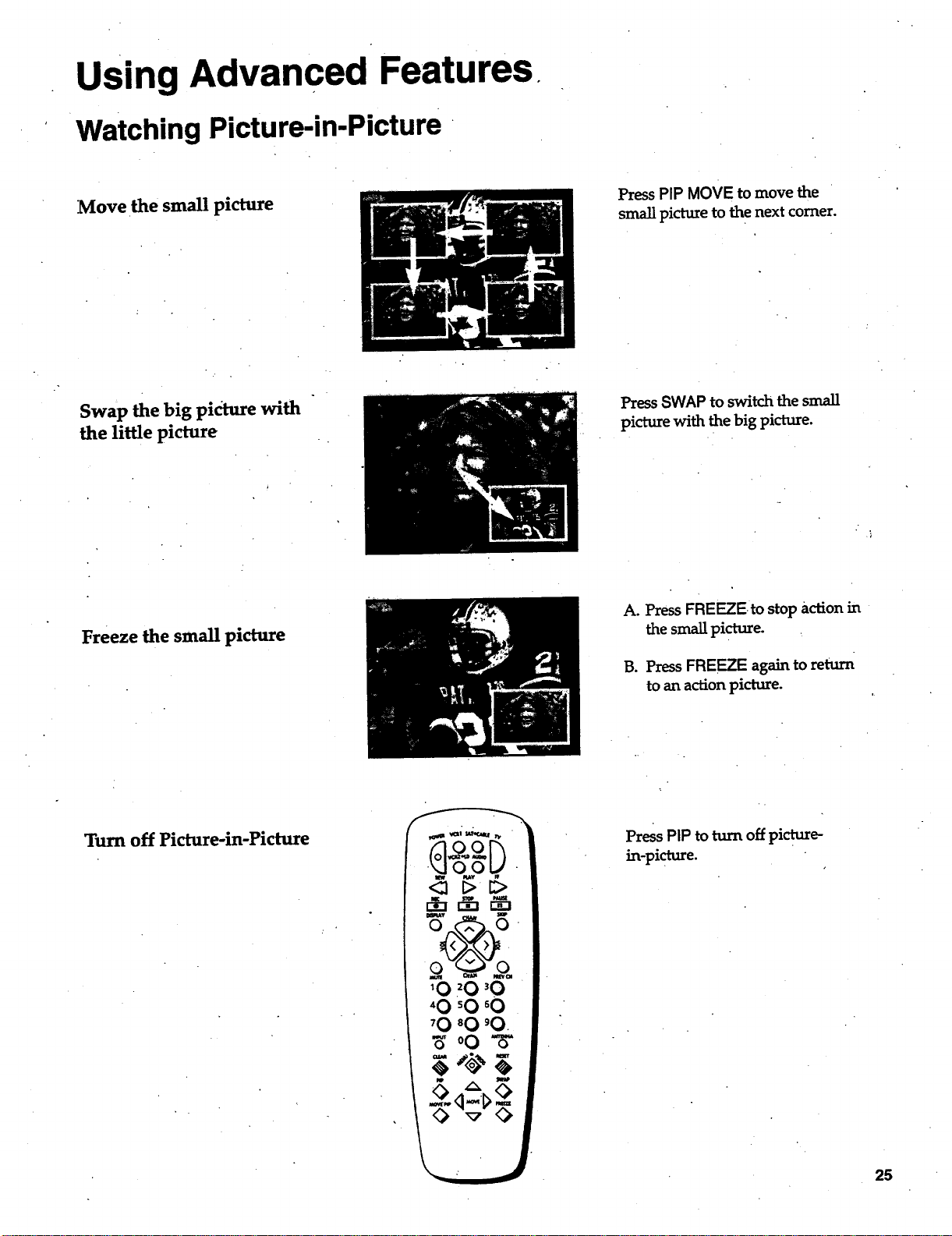
Move the small picture
Press PIP MOVE to move the
small picture to the next comer.
Swap the big pidure with
the little picture
Press SWAP to switch the small
picture with the big picture.
Freeze the small picture
A. Press FREEZEto stop action in
the small picture.
B. Press FREEZE again to return
to an action picture.
Turn off Picture-in-Picture
<:1 l> I::>
Press PIP to turn off picture-
in-picture.
Using Advanced Features
Selecting a Language
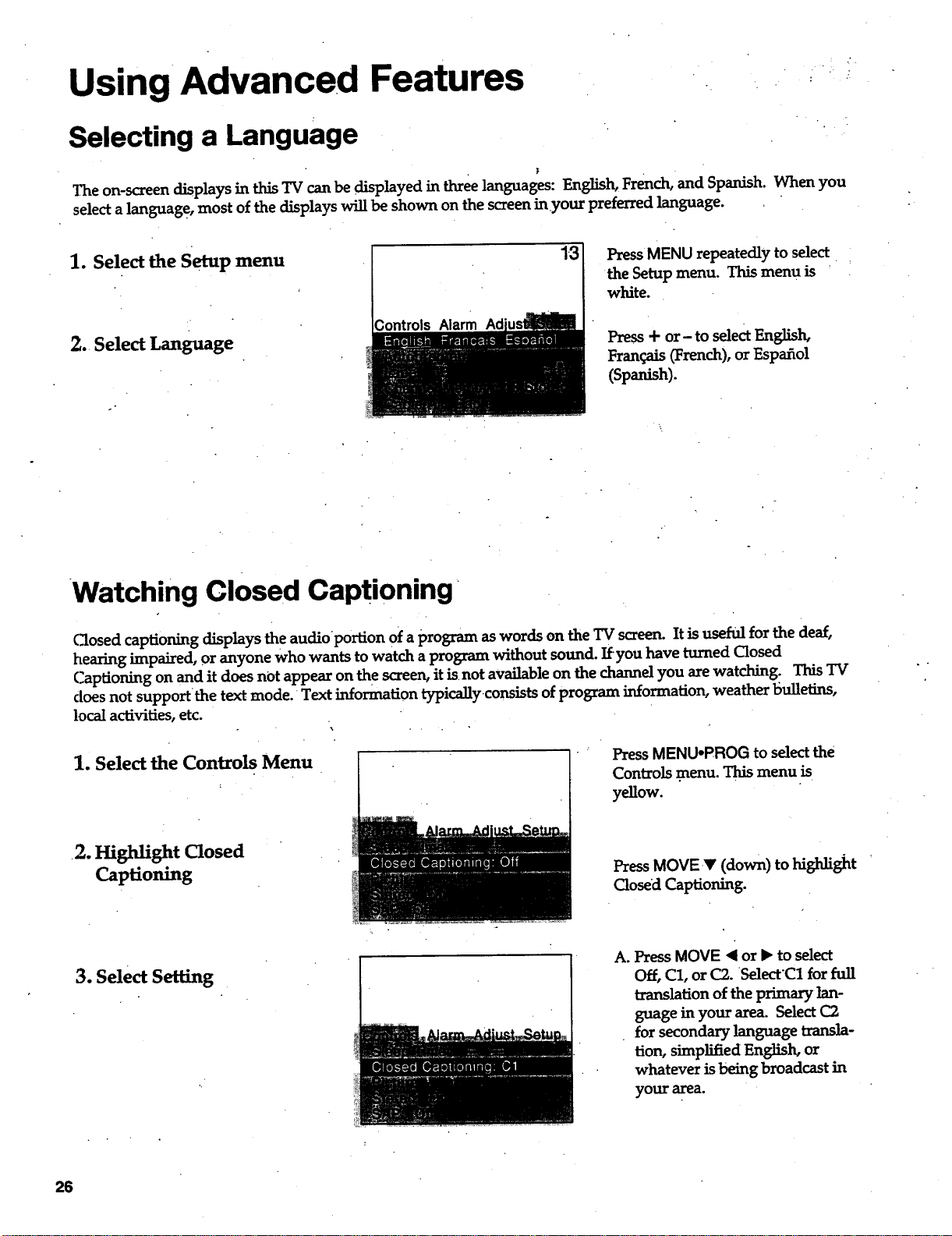
l"neon-screendisplaysinthisTV canbe displayedinthreelanguages:English,French,and Spanish.When you
selectalanguage,most ofthedisplayswillbe shown on thescreeninyour preferredlanguage.
1. Select the Setup menu
2. Select Language
13
Controls Alarm Ad
PressMENU repeatedlytoselect
the Setupmenu. Thismenu is
white.
Press+ or- toselectEnglish,
Franqais (French), or Espafiol
(Spanish).
Watching Closed Captioning
Closed captioning displays the audioportion 0f a program as words on the TV screen. It is useful for the deaf,
hearing impaired, or anyone who wants to watch a program without sound. Ifyou have turned Closed
Captioning on and it does not appear on the screen, it isnot available on the channel you are watching. This TV
does not support the text mode. Text information typicallyconsists of program information, weather bulletins,
local activities, etc.
1. Select the Controls Menu
•2. Highlight Closed
Captioning
PressMENU-PROG toselectthe
Controlsmenu. Thismenu is
yellow.
PressMOVE _r (down) to highlight
Closed Captioning.
3. Select Setting
A. Press MOVE < or !_ to select
Off, C1, or (22. SelecrC1 for full
translation of the primary lan-
guage in your area. Select (22
for secondary language transla-
tion, simplified English, or
whatever is being broadcast in
your area.
26
Using Advanced Features
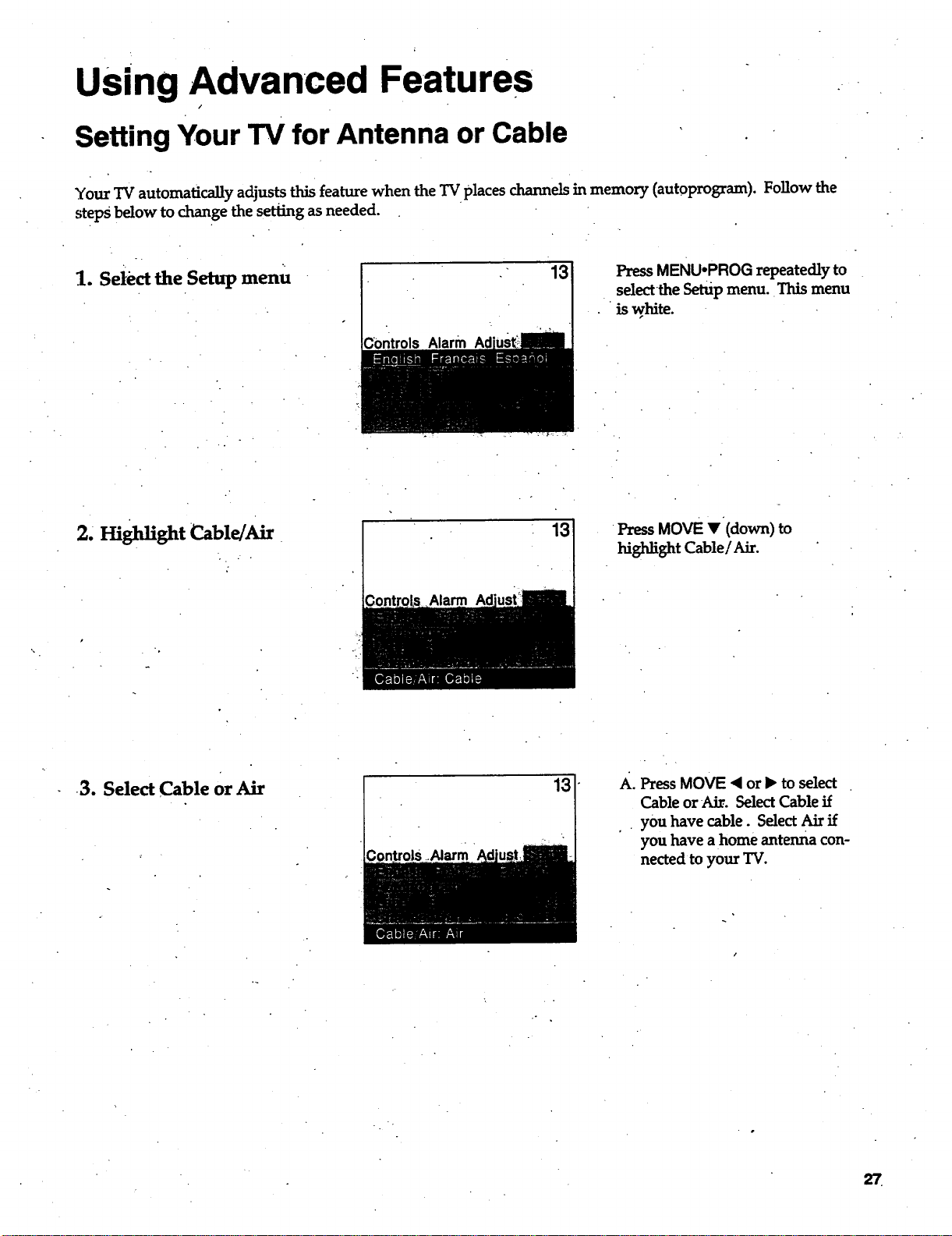
Setting Your TV for Antenna or Cable
Your TV automatically adjusts this feature when the TV places channels in memory (autoprogram). Follow the
steps below to change the setting as needed.
1. Select the Setup menu
:controls Alarm
13
Press MENUopROG repeatedly to
select the Setup menu. This menu
is white.
2,mghUghtC_ble/AU
Alarm
13 Press MOVE V (down) to
highlight Cable/Air.
•3. Select Cable or Air
A. Press MOVE ,4 or • to select
Cable or Air. Select Cable if
• you have cable. Select Air if
you have a home antenna con-
nected to your TV.
References
Front Panel Buttons
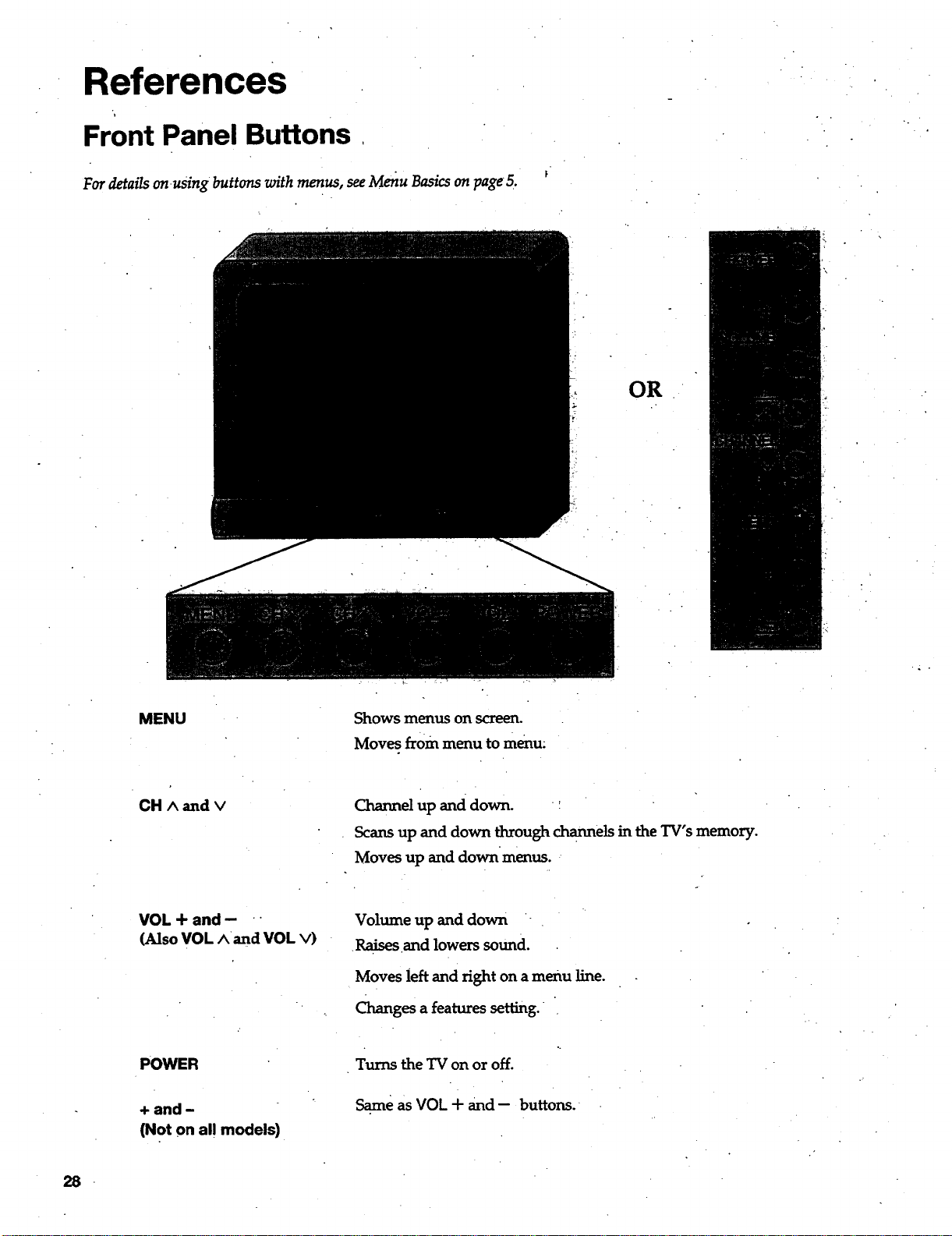
For details on usingbuttons with menus, see Menu Basics on pageS.
OR
MENU
Shows menus on screerL
Moves frOm menu to menu.
CH A and v
Channel up and down. :
Scans up and down through channels in the TV's memory.
Moves up and downmenus. '
VOL+and- "
(Also VOL Aand VOL v)
POWER
+ and -
(Not on al! models)
Volume up and down
•Raisesand lowerssound.
Moves leftand fighton a menu line.
Changes a features setting.
Turns the TV on or off.
Same as VOL + and -- buttons.
28
References
Displays on the Screen
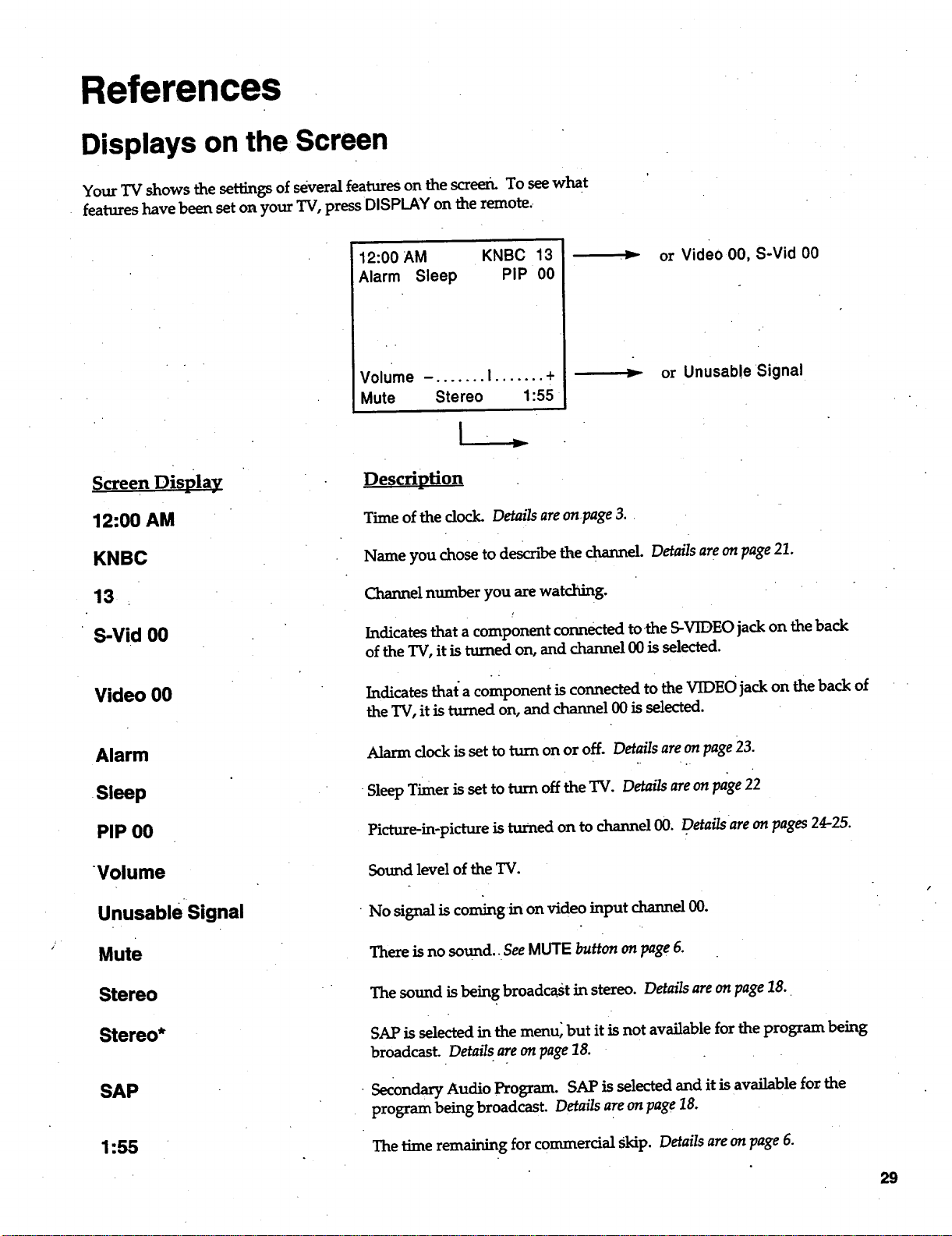
Your TV shows the settings of several features on the screen. To see what
features have been set on your TV, press DISPLAY on the remote..
Screen Display
12:00 AM
KNBC
13
S-Vid 00
Video 00
Alarm
•Sleep
PIP 00
Volume
Unusable Signal
Mute
Stereo
Stereo*
SAP
1:55
12:00 AM KNBC 13
Alarm Sleep PIP 00
Volume -. ...... I ....... +
Mute Stereo 1:55
._ or Video 00, S-Vid O0
or Unusable Signal
Description
Time of the dock. Details are onpage 3. •
Name you chose to describe the channel. Details are on page 21.
Channel number you are watching.
!
Indicates that a component connected tothe S-VIDEO jack on the back
of the TV, it is turned on, and channel 00 is selected.
Indicates that"a component is connected to the VIDEO jack on the back of
the TV, it is turned on, and channel 00 is selected.
Alarm dock is set to turn on or off. Details are on page 23.
•Sleep Timer is set to turn off the TV. Details are on page 22
Picture-in-picture is turned on to channel 00. Details are on pages 24-25.
Sound level of the TV.
•No signal is coming in on video input channel 00.
There is no sound.. See MUTE button on page 6.
The sound is being broadcast in stereo. Details are on page 18.
SAP is selected in the menu_ but it is not available for the program being
broadcast. Details are on page 18.
• Secondary Audio Program. SAP is selected and it is available for the
program being broadcast. Details are on page 18.
The time remaining for commercial Skip. Details are on page 6.
29
References
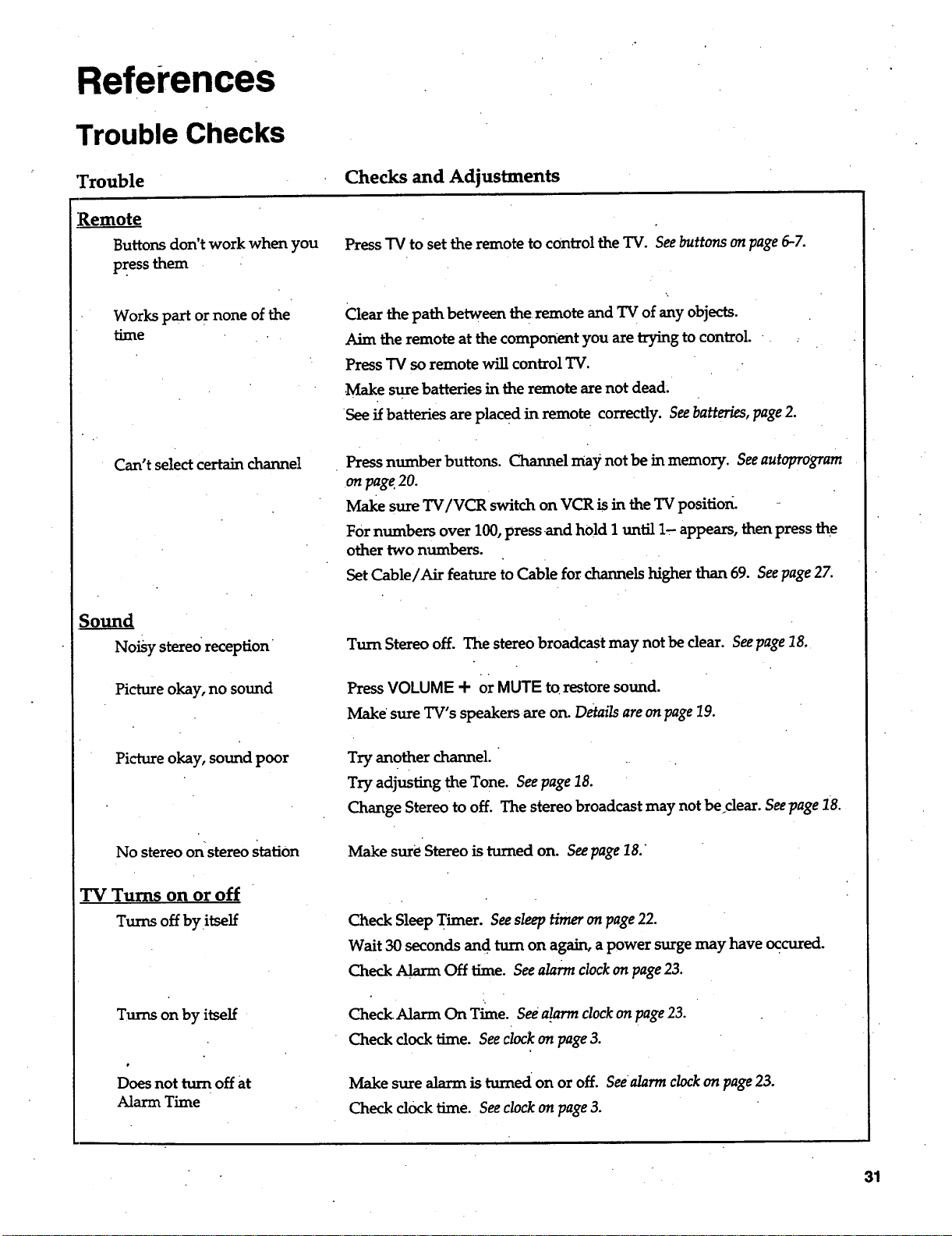
Trouble Checks
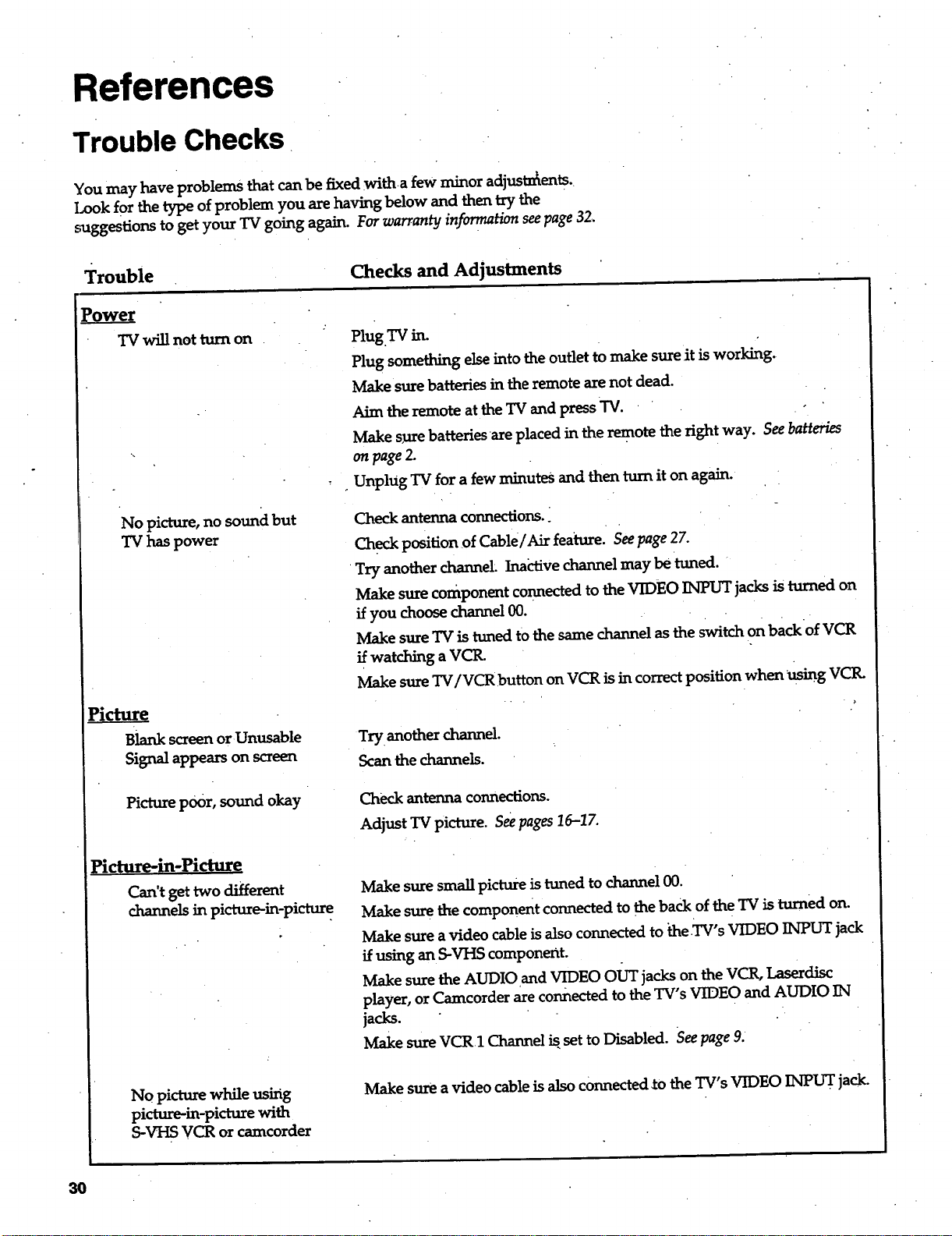
Youmayhave problems thatcan be fixedwitha few minor adiustn_ents.
Look for the type of problem you are having below and then try the
suggestions to get your TV going again. For warranty information see page 32,
Trouble
Checks and Adjustments
Power
TV willnot turnon
No picture,no souncibut
TV has power
Picture
Blank screen orUnusable
Signalappearson screen
Plug.TV
Plug something else into the outlet to make sure it is working.
Make sure batteries in the remote are not dead.
Aim the remote at the TV and press "IV.
Make sure batteries are placed in the remote the right way. See batteries
on page Z
Unplug TV for a few minutes and then turn it on again.
Check antenna connections.
Check position of Cable/Air feature. See page 27.
Try another channel. Irmctive channel may be tuned.
Make sure component connected to the VIDEO INPUT jacks is turned on
ifyouchoosechannel00.
Make sure "IVis tuned to the same channel as the switch on backof VCR
if.watchinga VCR.
Make sureTV/VCR buttonon VCR isincorrectpositionwhen usingVCIL
Try anotherchannel.
Scanthechannels.
Picturepoor,sound okay
picture-in-Picture
Can't get two different
channels in picture-in-picture
Check antenna connections.
Adjust TV picture. See pages 16-17.
Make sure smaU picture is tuned to channel 00.
Make sure the component connected to the back of the TV is turned on.
Make sure avideo cable is also connected to _e TV's VIDEO INPUT jack
if using an S-VHS component.
Make sure the AUDIO and VIDEO OUT jacks on the VCR, Laserdisc
player, or Camcorder are connected to the TV's VIDEO and AUDIO IN
jacks.
Make sure VCR1 Channel is, set to Disabled. See page 9.
No picture while using
picture-in-picture with
S-VHS VCR or camcorder
Make sure avideo cable is also connected _o the TV's VIDEO INPUT jack.
3O
References
Trouble Checks
Trouble
Checks and Adjustments
Remote
Buttons don't work when you
press them
Workspart ornoneof the
time
Press "IVto set the remote to cOntrol the TV. See buttons on page 6-7.
Clear the path between the remote and TV of any objects.
Aim the remote at the component you are trying to control.
Press "iV so remote will control TV.
•Make sure batteries in the remote are not dead.
See if batteries are placed in remote correctly. See batteries, page 2.
Can't select certain channel
Soun____dd
Noisy stereo reception
Picture okay, no sound
Press number buttons. Channel may not be in memory. See autoprogram
on page 20.
Make sure TV/VCR switch on VCR is in the TV positio_
For numbers over 100, pressand hold 1 until 1, appears, then press the
other two numbers.
Set Cable/Air fea_xe to Cable for channels higher than 69. See page 27,
Turn Stereo off. The stereo broadcast may not be dear. See page 18.
Press VOLUME + or MUTE to restore sound.
Make sure TV's speakers are on. Details are on page 19.
Picture okay, sound poor
No stereoonstereoStation
Try anotherchannel.
Try adjusting the Tone. See page 18.
Change Stereo to off. The stereo broadcast may not beclear. See page 18.
Make sure Stereo is turned on. See page 18.
TV Turns on or off
Turns off by itself
Turns on by itself
w
Does not turn off at
Alarm Time
Check Sleep Timer. See s!eep timer on page 22.
Wait 30 seconds and turn on again, a power surge may have occured.
Check Alarm Off time. See alarm clock on page 23.
Check Alarm On Time. See alarm clock on page 23.
Check clock time. See ciock on page 3.
Make sure alarm is turned on or off. See alarm clock on page 23.
Check dock time. See clock on page 3.
31
References
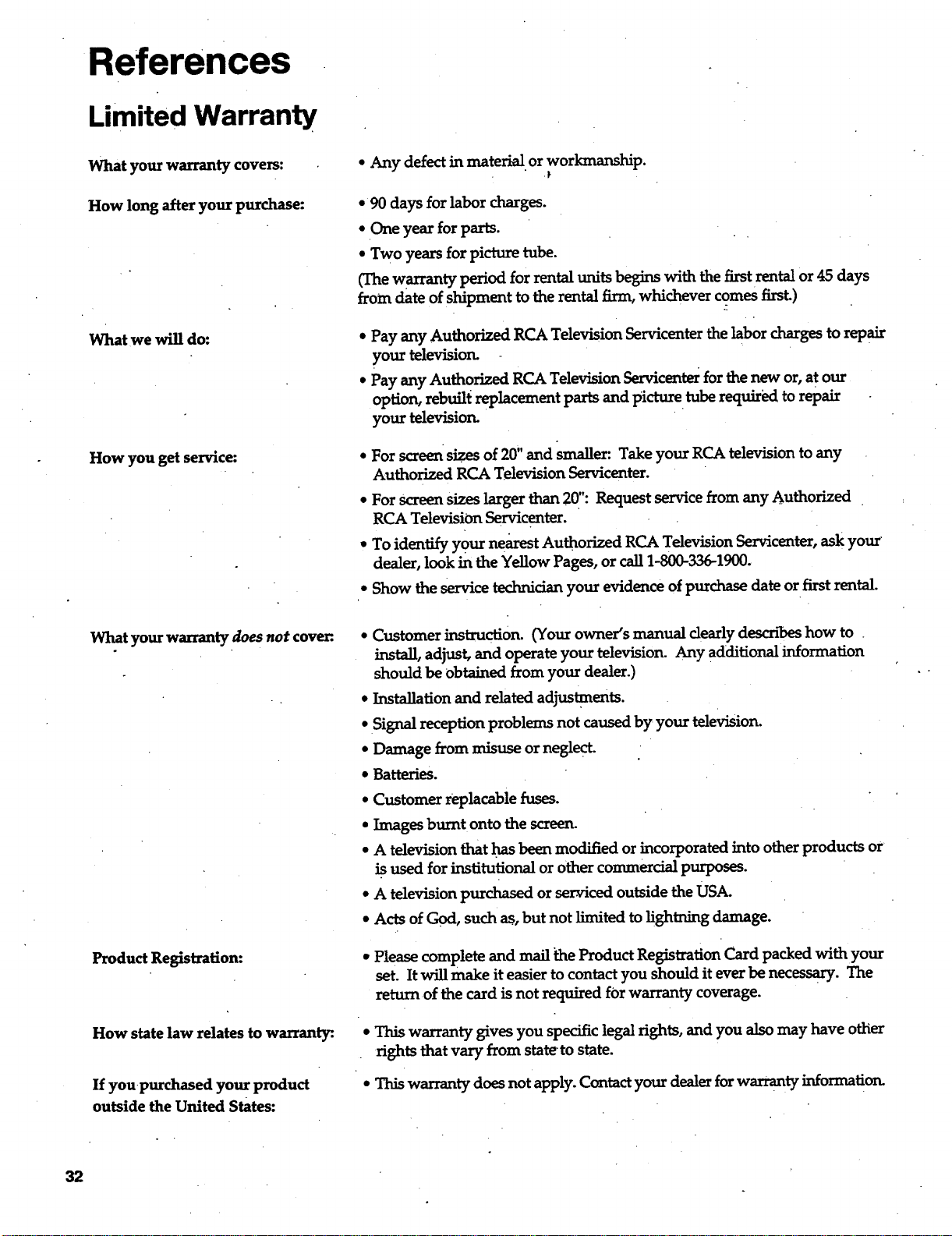
Limited Warranty
What your warranty covers:
How long after your purchase:
What we will do:
How you get service:
• Any defect in material or workmanship.
• 90 days for labor charges.
*One year for parts.
• Two years for picture tube.
(The warranty period for rental units begins with the first rental or 45 days
from date of shipment to the rental firm, whichever comes first.)
* Pay any AuthorizedRCA TelevisionServicenterthelaborchargestorepair
your television.
• Pay any AuthorizedRCA TelevisionServicente_forthenew or,atour
option,rebuiltreplacementpartsand picturetuberequir_ltorepair
your television.
• For screen sizes of 20" and smaller: Take your RCA television to any
Authorized RCA Television Servicenter.
• For screen sizes larger than 20": Request service from any Authorized
RCA TelevisiOn Servicenter.
• To identify your ne_st Authorized RCA Television Servicenter, ask your
dealer, look in the Yellow Pages, or call 1-800-336-1900.
• Show the service technician your evidence of purchase date or first rental.
What your warranty does not cover.
Product Registration:
How state law relates to warranty_.
If you-purchased your product
outside the United States:
• Customer instruction.(Yourowner'smanual dearlydescnl)eshow to
install,adjust,and operateyourtelevision.Any additionalinformation
should be obtained from your dealer.)
• Installation and related adjustments.
• Signalreceptionproblems notcausedby your television.
• Damage from misuse orneglect.
• Batteries.
• Customer replacablefuses.
• Images burntontothescreen.
• A televisionthathasbeenmodifiedorincorporatedintootherproductsor
isused forins_tutionalorothercommercialpurposes.
•A televisionpurchasedorser.vl'cedoutsidetheUSA.
• ActsofGod, suchas,but notlimitedtolightningdamage.
• Pleasecompleteand mailtheProductRegistrationCard packedwith your
set.Itwillmake iteasiertocontactyou shoulditeverbenecessary.The
returnofthecardisnotrequiredforwarrantycoverage.
• This warranty gives you specific legal rights, and you also may have other
rights that vary from state to state.
• This warranty does not apply. Contact your dealer for warranty information.
32
References
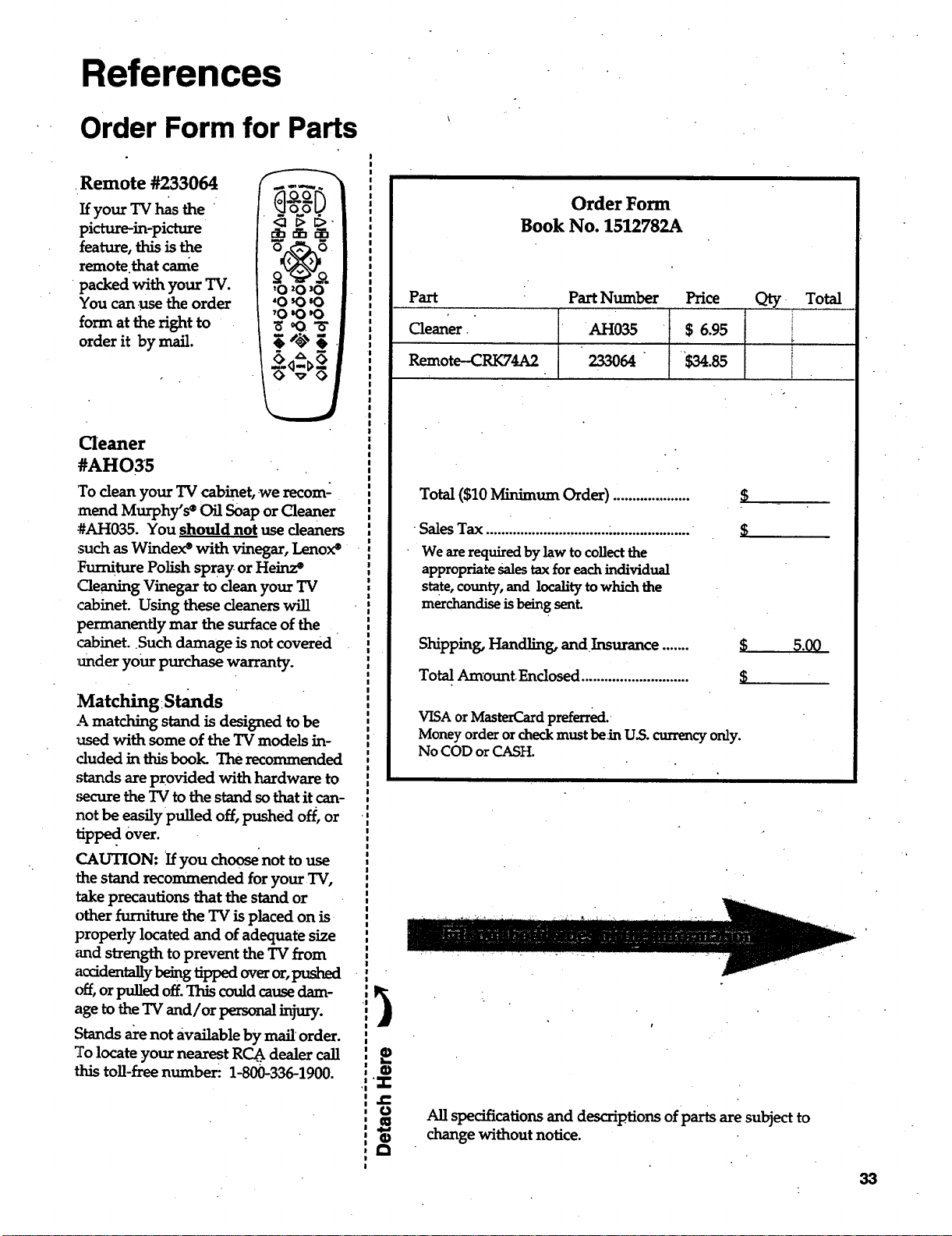
Order Form for Parts
.Remote #233064
If your TV has the
picture-in-picture
feature, this is the
remote that came
•packed with your TV.
You can use the order
form at the right to
order it by marl.
Cleaner
#AHO35
'Todean yourTV cabinet,-werecomA
:mendMurphy's®OilSoap orCleaner
#AH035. You should not use cleaners
such as Windex _ with vinegar, Lenox •
Furniture Polish spray or Heinz °
Cleaning Vinegartocleanyour TV
cabinet. Using thesecleaners will
permanently mar the surface of the
cabinet. Such damage is not covered
under your purchase warranty.
Matching Stands
A matching stand is designed to be
used with some of the TV models in-
duded inthisbook. The recommended
stands are provided with hardware to
,securetheTV to thestand so that it can-
not be easily pulled off, pushed off, or
tipped Over.
CAUTION: If you choose not to use
the stand recommended for your TV,
take precautions that the stand or
otherfurnituretheTV isplacedon is
properlylocatedand ofadequatesize
_md strengthtopreventtheTV from
accidentany being tipped over or, pushed
off, or pulled off. This could cause dam-
age to the TV and/or personal injury.
Stands a_e not available by marl order.
To locate your nearest RCA. dealer call
thistoll-freenumber: 1-800-336-1900.
=
Order Form
Book No. 1512782A
Part Q_
Cleaner
Part Number
!
• •AH035
233064
Price
$ 6.95
$34.s5
Remote-CRK74A2
Total
Total ($10 Minimum Order) .....................
•SalesTax......i.........i....................................•
We axerequiredbylaw to collectthe
appropriateSalestaxforeachindividual
state,county,and localitytowhichthe
merchandise is being sent.
$
$
Shipping,Handling,and Insurance ....... $
TotalAmount Enclosed............................ $
5.00
VISA orMasterCard preferred.
Money orderorcheckmust bein U.S.currencyonly.
No COD orCASH.
All specifications and descriptions ofparts are subject to
change without notice.
33
References
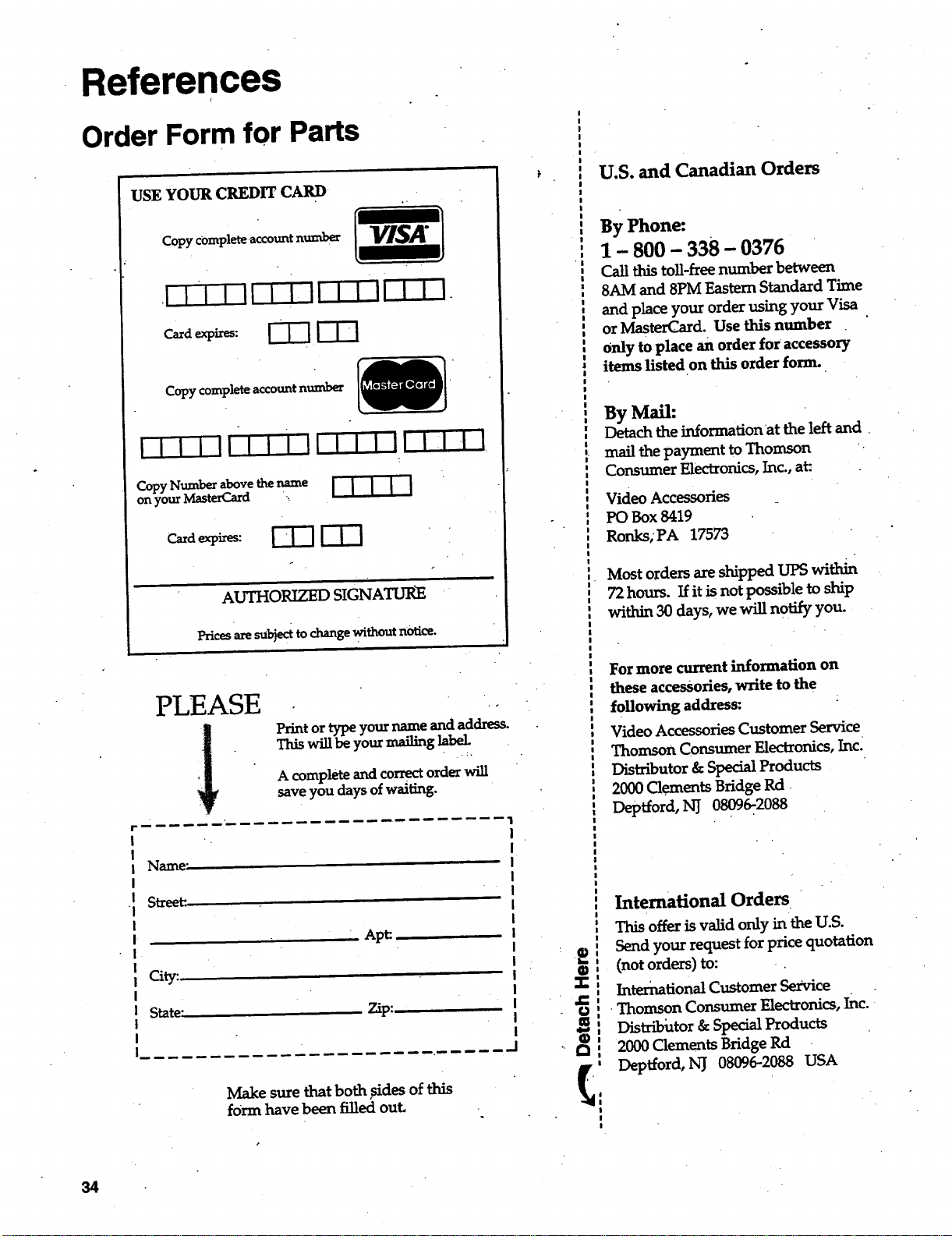
Order Form for Parts
USE YOUR CREDIT CARD
Copy complete-account number
.i--VT-_I I ! IIII II!! I.
Copy complete accountnumber
,ill l VTWN VVT'
Copy Number above thename V=T-T-_
onyourMasterCard
F'Y-IVT'I
AUTHORIZED SIGNATURE
Pricesaresut_ecrtochangewithoutnotice.
I
I
I
I
I
I
I
PLEASE
Print or type your name and address.
This will be your mailing label. .
A completeand correctorder will
save you daysof waiting.
Name-
Street:..
Apt:
City:
State:
Zip: .
Make sure that both sides of this
form have been filled out,
,!
I
£
8
U.S. and Canadian Orders
By Phone:
1 - 800 - 338 - 0376
Call this toll-free number between
8AM and 8PM Eastern Standard Time
and place your order using your Visa
orMasterCard.Use this number
0nlytoplacean orderforaccessory
items listed on this order form.
By Mail:
Detach the informationat the left and •
mailthepayment toThomson '.
Consumer Electronics,Inc.,at:.
Video Accessories
PO Box 8419
Ronks; PA 17573
Most orders are shipped UPS within
72 hours. If it is not possible to ship
within 30 days, we will notify you.
For more current information on
these accessories, write to the
following address:
Video Accessories Customer Service
Thomson Consumer Electronics, Inc.
Distributor & Special Products
2000 Clements Bridge Rd.
Deptford, N_ 08096-2088
International Orders "
This offer is valid only in theU.S.
Send your request for price quotation
(not orders) to:
International Customer Sexvice
Thomson Consumer Electronics, inc.
Distributor& SpecialProducts
2000ClementsBridgeRd
Deptford, NJ 08096-2088 USA
34
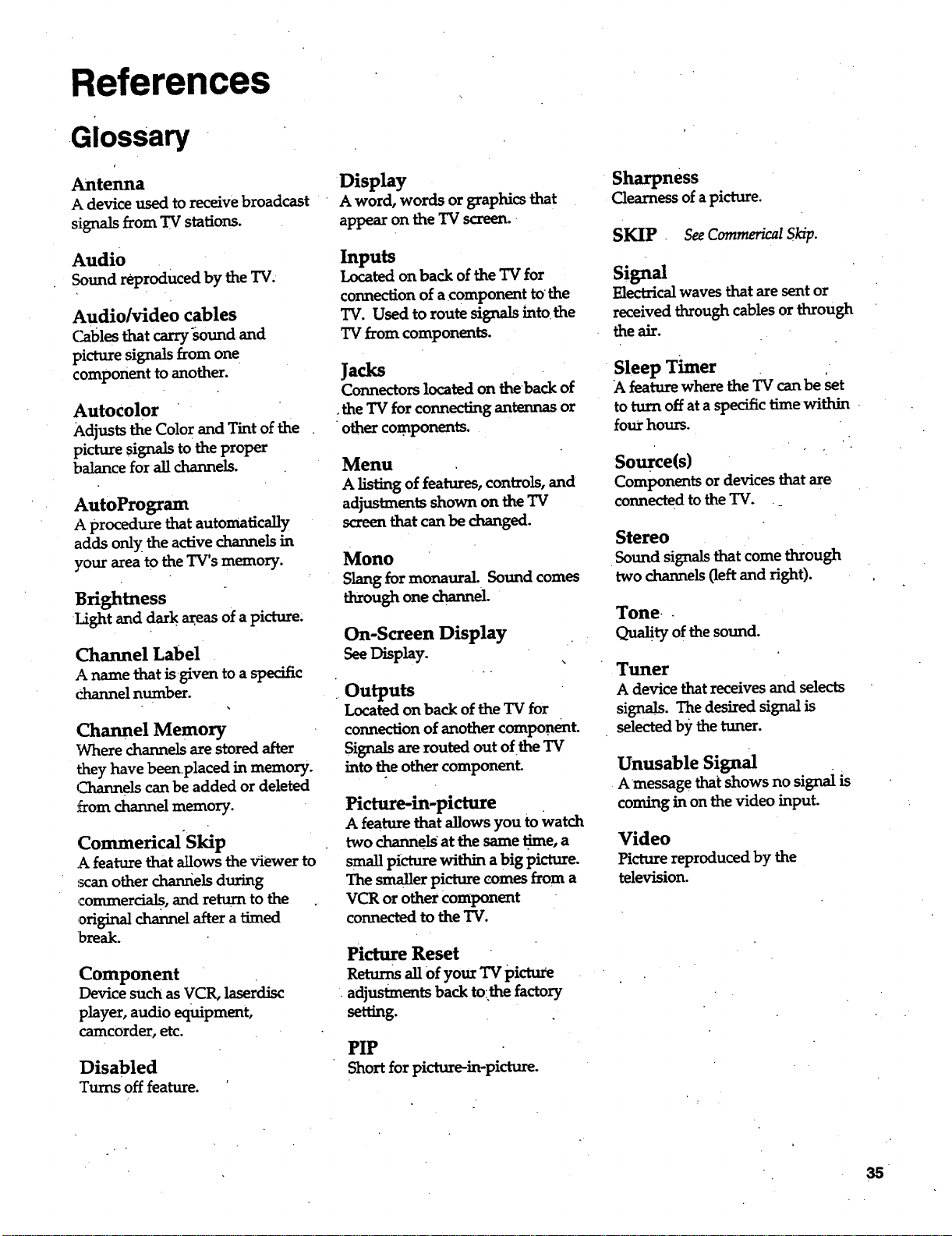
References
Glossary
Antenna
A deviceusedtoreceivebroadcast
signals from TV stations.
Audio
Sound r_roduced by the TV.
Audio/video cables
Cablesthatcarrysound and
picturesignalsfrom one
component toanother.
Autocolor
Adjusts the Color and Tint of the
picture signalstotheproper
balance for all channels.
AutoProgram
A procedure that automatically
adds only the active channels in
your area to the TV's memory.
Brightness
Lightand dark _eas of apicture.
Channel Label
A name that is given to a specific
channel number.
Channel Memory
Where channels are stored after
they have beenplaced in memory.
Channels can be added or deleted
from channel memory.
Commerical Skip
A featurethatallowstheViewerto
scan otherchanrielsduring
commercials,and returntothe .
original channel after a timed
break.
Component
Device such as VCR, laserdisc
player, audio equipment,
camcorder, etc.
Disabled
Turns off feature.
Display
A word, words orgraphicsthat
appearon theTV screen.
Inputs
Located on back oftheTV for
connection of a component to the
TV. Used to route signals into.the
TV from components.
Jacks
Connectors located on theback of
•the TV for connecting antennas or
other:components.
Menu
A listing of features, controls, and
adjustments shown on the TV
screen that can be changed.
Mono
Slang for monaural Sound comes
through one channel.
On-Screen Display
SeeDisplay.
Outputs
Located on back of the TV for
connection of another component.
Signals are routed out of the TV
into the other component.
Picture-in-picture
A feature that allows you to Watch
two channels at the same .time, a
small picture within a big picture.
The smaller picture comes from a
VCR or other Component
connected to the "IV.
Picture Reset
Returns all of yourTV picture
adjustments back to,thefactory
setting.
PIP
Shortfor picture-in-picture.
Sharpness
Clearness of apicture.
SKIP SeeCommericalSkip.
Signal
Electrical waves that are sent or
receivedthroughcablesorthrough
theair.
Sleep Timer
A feature where the TV can be set
toturnoffata specifictimewithin
four hours.
Source(s) "
Components or devices that are
connected to the TV. ._
Stereo
Sound signalsthatcome through
two channels(left and right).
Tone..
Quality of thesound.
Tuner
A devicethatreceivesand selects
signals.The desiredsignalis
selected by the tuner.
Unusable Signal
A message thatshows no signalis
coming inon thevideoinput.
Video
Picture reproduced by the
television.
35
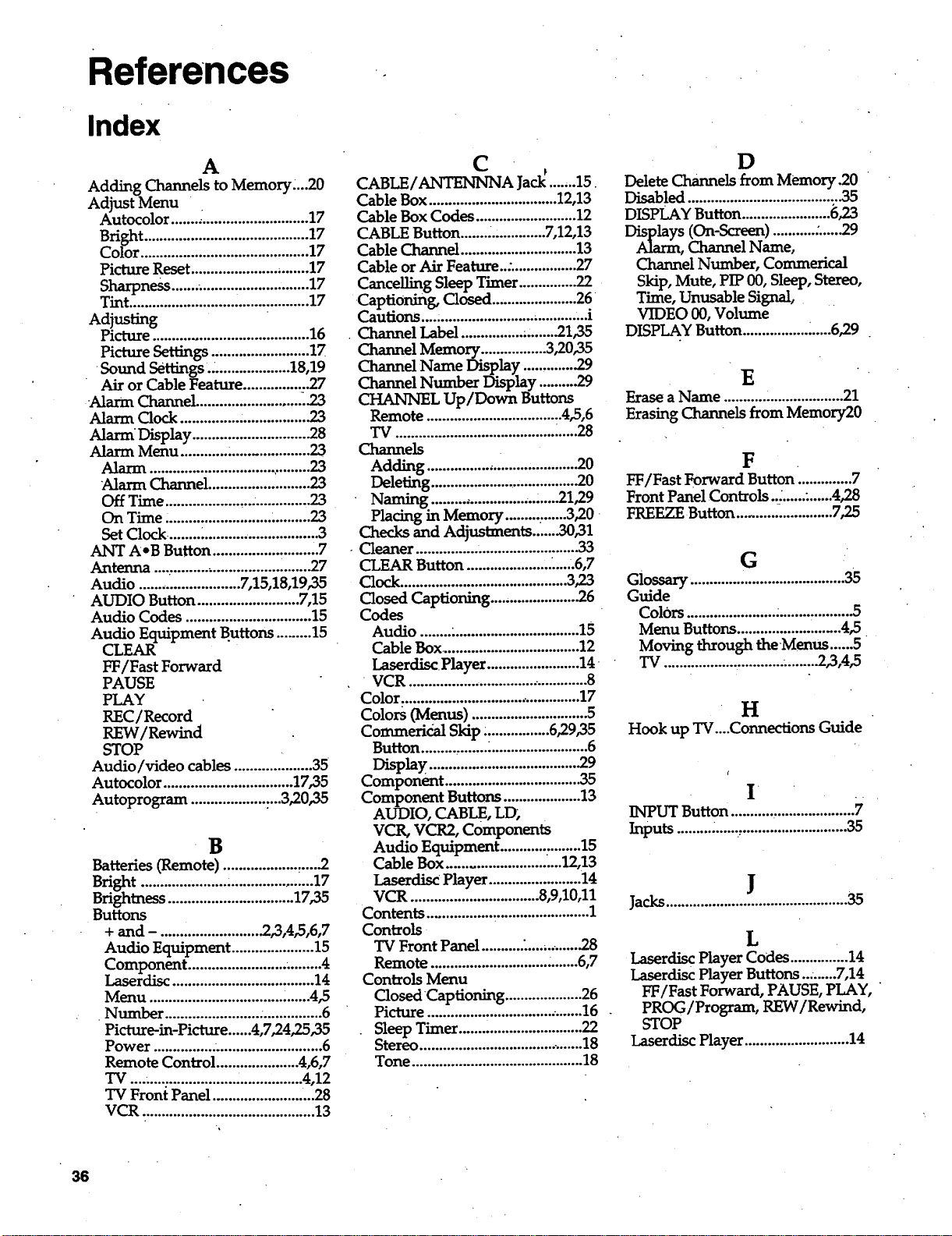
References
Index
A
Adding Channels to Memory,..20
Adjust Menu
Autocolor ................................... 17
Bright .......................................... 17
Color ........................................... 17
Picture Reset .............................. 17
Sharpness ........................... ,....... 17
Tint..............................................17
Adjusting
Picture........................................16
PictureSettings.........................17
Sound settings ..................... 18,19
Air or Cable Feature ................. 27
Alarm Channel .......................... ._.23
Alarm Clock ................................ 2.3
Alarm Display .............................. 28
Alarm Menu ............ .................... 23
Alarm Channel .......................... 23
Off Time ...................... ............... 23
On Time: .......................... •......... 23
Set Clock ........._............................. 3
ANT A*B Button ......................... ,7
Antenna ....,.................................. 27
Audio .......................... 7,15,18,19,35
AUDIO Button .......................... 7,15
Audio Codes ................................ 15
Audio Equipment Buttons ......... 15
CLEAR
FF/Fast Forward
PAUSE
PLAY
REC/Record
REW/Rewind
STOP
Audio/video cables .................... 35
Autocolor ................................. 17,35
Autoprogram ................... ....3,20,35
B
Batteries (Remote) ...................,....2
Bright............................................17
Brightness ................................ 17,35
Buttons
+ and-. ..... ................... .2,3,4,5,6,7
Audio Equipment ..................... 15
Component ......................... ......... 4
Laserdisc .................................... 14
Menu .................................. :......4,5
Number ......................... ............... 6
Picture-in-Picture ......4,7,242.5,35
Power ................ ........................... 6
Remote Control ..................... 4,6,7
TV .........:.................................. 4,12
TV Front Panel .......................... 28
VCR ............................................ 13
C
CABLE/ANTENNNA Jacl_.......15
Cable Box ................................. 12,13
Cable Box Codes .......................... 12
CABLE Button ...................... 7,12,13
Cable Channel .............................. 13
Cable or Air Feature..: ................. 27
Cancelling Sleep Timer ............... 22
Captioning, Cl(_:l ...................... 26
Cautions....: ...................................... i
Channel Label ................ .........21,35
Channel Memory ................. 3,20,35
Channel Name Display ............. 29
Channel Number Display ..........29
CHANNEL Up/Down Buttons
Remote ................................... 4,5,6
TV ......................................... _.....28
Channels
Adding ....................................... 20
Deleting ....................... ,.............. 20
Naming ......................... ........21,29
Placing in Memory ................ 3,20
Checks and Adjustments..'.....30,31
Cleaner .......................................... 33
CLEAR Button ...................... ......6,7
Clock ........................................... 3,23
Closed Captioning ....................... 26
Codes
Audio ........ ................................. 15
Cable Box .................................... 12
Laserdisc Player ........................ 14
VCR .............................................. 8
Color .............................................. 17
Colors (Menus)..............................5
Commerical Skip: ................ 6,29,35
Button ................. .......................... 6
Display ...................................... .29
Component ................................... 35
Component Buttons .................... 13
AUDIO, CABLE, LD,
VCR, VCR2, Components
Audio Equipment ............ .........15
Cable Box ............................. 12,13
Laserdisc Player ........................ 14
VCR ................................. 8,9,10,11
Contents ................ :........................ 1
Controls
TV Front Panel ........... "....,, ......
Remote .............................. •.......6,7
Controls Menu
Closed Captioning .................... 26
Picture ........................................ 16
Sleep Timer ................................ 22
Stereo .......................................... 18
Tone ............................................ 18
D
Delete Channels from Memory.20
Disabled ....................................... .35
DISPLAY Button ....................... &23
Displays (On-Screen) ........... :......29
Alarm, Channel Name,
Channel Number, Commerical
Skip, Mute, PIP 00, Sleep, Stereo,
Time, Unusable Signal,
VIDEO 00, Volume
DISPLAY Button ................. ......6,29
E
Erase a Name ............................... 21
Erasing Channels from Memory20
F
FF/Fast Forward Button. ............. 7
Front PanelControls... ......:......4,28
FREEZE Button ........................ 7,25
G
Glossary. ............ ........................... 35
Guide
Colors ....................... ....................5
Menu Buttons .......................... 4,5
Moving through theMenus ......5
TV ................... ............ .........2,3,4,5
H
Hook up TV....Connections Guide
.
INPUT Button ........... ,.................... 7
Inputs ......... :....._............................ 35
J
Jacks ............................................... 35
L
Laserdisc Player Codes ............... 14
Laserdisc Player Buttons .........7,14
FF/Fast Forward, PAUSE, PLAY,
PROG/Program, REW/Rewind,
STOP
Laserdisc Player ........................... 14
36
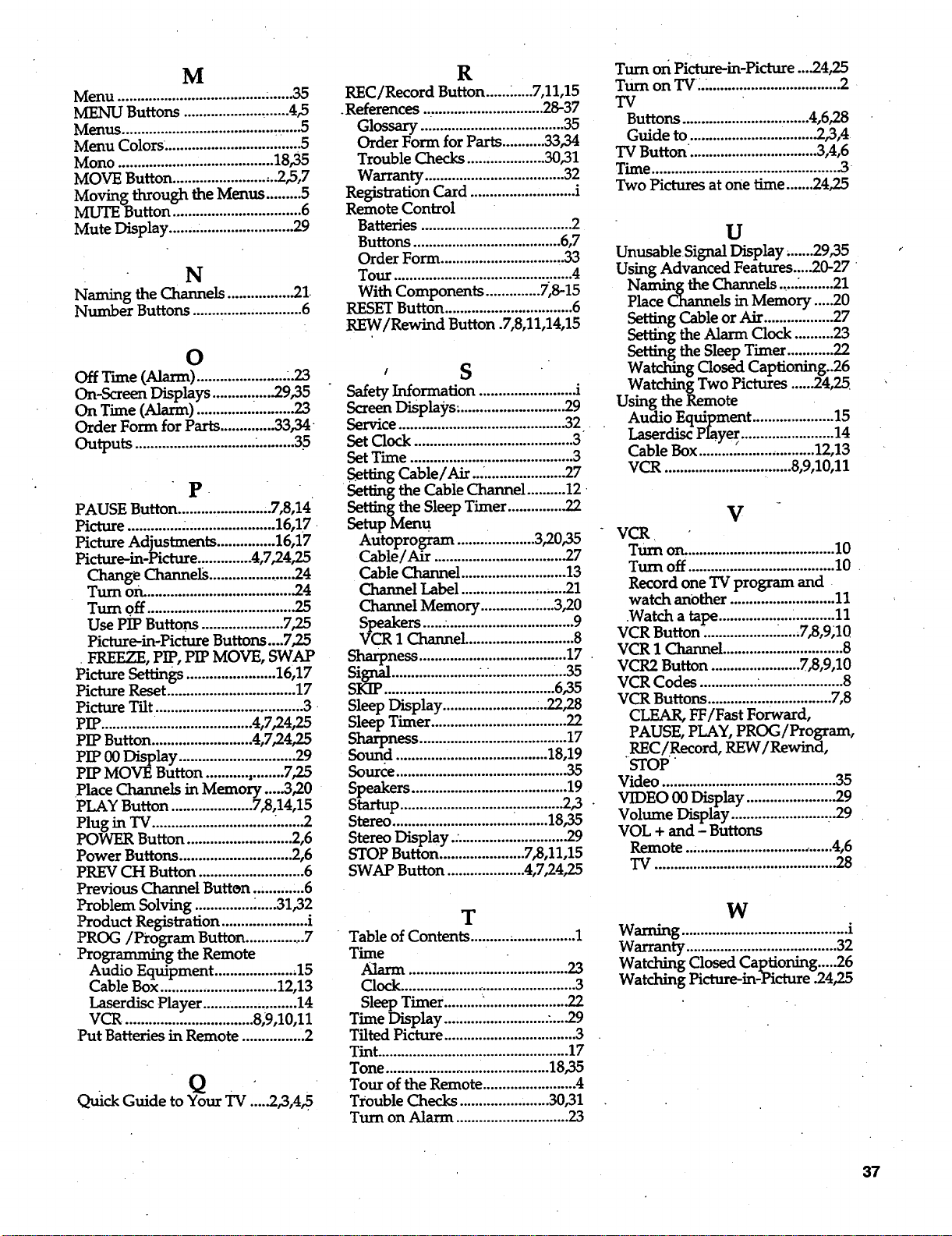
M
Menu ...................................... •......35
MENU Buttons ........................... 4,5
Menus ....................................... , .....5
Menu Colors. ................................. ,5
Mono ........................................ 18,35
MOVE Button ........................... 2,5,7
Moving through the Menus ......... 5
MLrrE Button ................................. 6
Mute Display ....... :........................ 29
N
Naming the Channels ................ .21
Number Buttons ............................ 6
O
Off Tune (Alarm) ....................... ..23
On-Screen Displays ............... .29,35
On Time (Alarm) .............. ........... 23
Order Form for Parts .............. 33,34
Outputs.........................................35
p .
PAUSE Button ...................... ..7,8,14
Picture .............. ........................ 16,17
Picture Adjustments ............... 16,17
Picture-in-Picture .............. 4,7,24,25
Change Channels ....................... 24
Turn on. ..................................... .24
Turn Off..................................... .25
Use PIP Buttons ..................... 7,25
Picture-in-Picture Buttons....7,25
FREEZE, PIP, PIP MOVE, SWAP
Picture Settings ....................... 16,17
Picture Reset ................................. 17
Picture Tilt .................................... ,.3 •
pIP ............. _......................... 4,7,24,25
PIP Button .......................... 4,7,24,25
PIP 00 Display .............................. 29
PIP MOVE Button ........... ,........ 7,25
Place Channels in Memory ..... 3,20
PLAY Button ..................... 7,8,14,15
Plug in TV ............................... ........2
POWER Button ........................... 2,6
Power Buttons ............................. 2,6
PREV CH Button ........................... 6
Previous Channel Button ..........:..6
Problem Solving ............... _.....31,32
Product Registration ...................... i
PROG/Program Button ................ 7
Programming the Remote
Audio Equipment ..................... 15
Cable Box .............................. 12,13
Laserdisc Player ........................ 14
VCR ................................. 8,9,10,11
Put Batteries in Remote ................ 2
Q
Quick Guide toYour "IV.....2,3,4,5
R
REC/Record Button ......2.....7,11,15
.References ............................... 28-37
Glossary ..................................... 35
Order Form for Parts ........... 33,34
Trouble Checks .................... 30,31
Warranty .................................... 32
Registration Card ................. ,......... i
Remote Control
Batteries ....................................... 2
Buttons ...................................... 6,7
Order Form .............................. ,.33
Tour .............................................. 4
With Components .............. 7,8-15
RESET Button ................................. 6
REW/Rewind Button .7,8,11,14,15
, S
Safety Information ........................ 2
Screen Displays. ........................... 29
Service ........................................... 32.
Set Clock ......................................... 3
Set Time .......................................... 3
Setting Cable/Air... ..................... 27
Setting the Cable Channel .......... 12
Setting the Sleep Timer ............... 22
SetupMenu
Autoprogram ....................3,20,35
Cable/Air..................................27
CableChannel...........................13
ChannelLabel...........................21
ChannelMemory ..............2...3,20
Speakers ....................................... 9
VCR 1 Channel ............................ 8
siS_ness ...................................... 17
gnal......................:......................35
SKIP ........................ :................... 6,35
Sleep Display ........................ ...22,28
Sleep Timer ........................ ........... 22
Sharpness ...................................... 17
Sound ....................................... 18,19
Source ............................................ 35
Speakers ........................................ 19
tartup ............................. _............ 2,3 -
Stereo ........................................ 18,35
Stereo Display.: ............................ 29
STOP Button ...................... 7,8,11,15
SWAP Button .................... 4,7,24,25
T
Table of Contents ........................... 1
Time
Alarn_.. ............... ..... ....... ....°o......23
Clock .............................................. 3
Sleep Timer .......... . ..................... 22
Time Display .......................... ,.....29
Tilted Picture ................................. .3
Tint................................................. 17
Tone ........................................... 18,35
Tour of the Remote ....................... .4
Trouble Checks ................ .......30,31
Turn on Alarm ............................. 23
Turn on Picture-in-Picture ....24,25
Turn on TV_L.................................. 2
TV
Buttons................................ .4,6,28
Guide to ................................ .2,3,4
TV Button. ................................ 3,4,6
Time ................................................. 3
Two Pictures at one time .......24,25
U
Unusable Signal Display, ......29,35
Using Advanced Features ..... 20-27
Naming the Channels ,.... ........ 21
Place Channels in Memory .....20
Setting Cable or Air .................. 27
Setting the Alarm Clock .......... 23
Setting the Sleep Timer ............ 22
Watching Closed Captioning..26
Watching Two Pictures ...... 24,25.
Using the Remote
Audio Equipment ..................... 15
Laserdisc Pmy_ ........................ 14
Cable Box .............................. 12,13
VCR ................................. 8,9,10,11
V
VCR
Turn on. ...................................... 10
Turn off ...................................... 10 •
Record one TV program and
watch another ........................... 11
.Watch a tape ............... ...._.......... 11
VCR Button ......................... 7,8,9,10
VCR 1 Channel ............................... 8
VCR2 Button ....................... 7,8,9,10
VCR Codes ............... ......... :............ 8
VCR Buttons................ •............... 7,8
CLEAR, FF/Fast Forward,
PAUSE, PLAY, PROG/Program,
REC/Record, REW/Rewind,
STOP
Video ............................................. 35
VIDEO 00 Display ....................... 29
Volume Display ........................... 29
VOL + and- Buttons
Remote ....................................... 4,6
TV .............................................. .28
W
Waming ........................................... i
Warranty ....................................... 32
Watching Closed Captioning .....26
Watching Picture-in-Picture .24,25
37
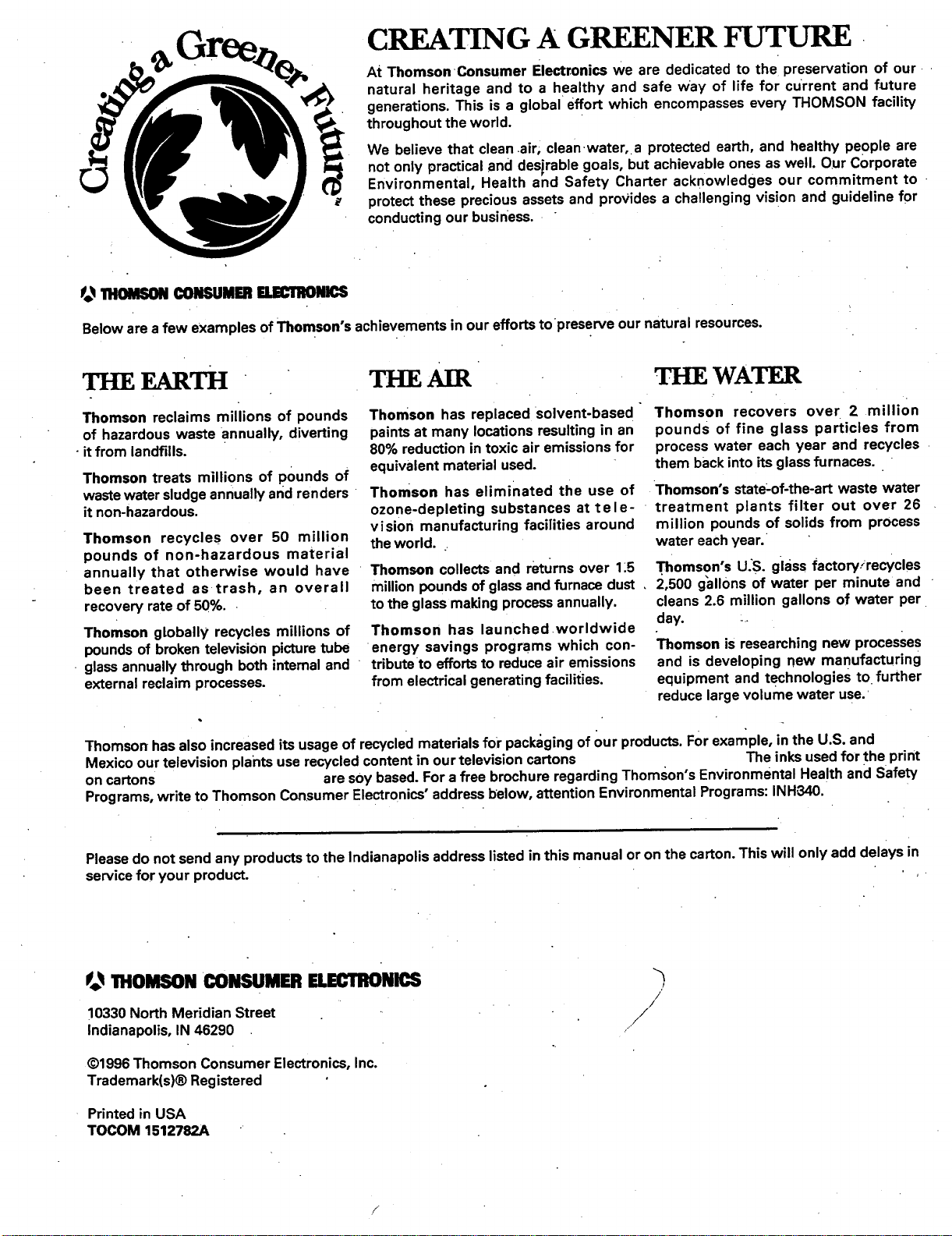
CREATING A GREENER FUTURE •
At ThomsonConsumer Electronics we are dedicated to the preservation of our
natural heritage and to a healthy and safe Way of life for current and future
generations. This is a global effort which encompasses every THOMSON facility
throughout the world.
We believe that clean air, clean water, a protected earth, and healthy people are
not only practical and desirable goals, but achievable ones as well. Our Corporate
Environmental, Health and Safety Charter acknowledges our commitment to
protectthese precious assets and provides a challenging vision and guideline for
conductingour business.
Beloware a few eXamplesof Thomson's achievements in our effortstopreserve our natural resources.
Thomson reclaims millions of pounds
of hazardous waste annually, diverting
•itfrom landfills.
Thomson treats millions of pounds of
wastewatersludgeannuallyand renders
it non-hazardous.
Thomson recycles over 50 million
pounds of non-hazardous material
annually that otherwise would have
been treated as trash, an overall
recovery rateof 50%.
Thomson globally recycles millions of
poundsof brokentelevisionpicturetube
glassannuallythrough both internaland
external reclaim processes.
THE A [R
Thomson has replaced solvent-based "
paints at many locations resulting in an
80% reduction in toxic air emissions for
equivalent material used.
Thomson has eliminated the use of
ozone-depleting substances at te I e-
vision manufacturing facilities around
the world.
Thomson collects and returns over 1_5
million pounds of glass and furnace dust
to the glass making process annually.
Thomson has launchedworldwide
energy savings programs which con-
tribute to efforts to reduce air emissions
from electrical generating facilities.
WATER
Thomson recovers over 2 million
pounds of fine glass particles from
process water each year and recycles
them back into its glass furnaces.
Thomson's state-of-the,art waste water
treatment plants filter out over 26
million pounds of solids from process
water each year.
Thomson's u,S. glass factory/recycles
2,500 gallons of water per minute and
cleans 2.6 million gallons of water per
day ....
Thomson is researching new processes
and is developing r!ew manufacturing
equipment and technologies to further
reduce large volume water use.
Thomson hasalso increased itsusage of recycledmaterialsfor packagingof our products.Forexample, in the U.S. and
Mexico our television plants use recycledcontentin our televisioncartons The inksused for the print
on cartons are soy based.Fora free brochure regardingThomson's Environmental Health and Safety
Programs,write to Thomson Consumer Electronics"addressbelow, attention Environmental Programs:INH_IO.
Pleasedo not send any productsto the Indianapolisaddresslisted inthis manual or on the carton.This will onlyadd delays in
servicefor your product.
_ THOMSON CONSUMER ELECTRONICS
10330 North Meridian Street
Indianapolis, IN 46290
@1996Thomson Consumer Electronics,Inc.
Trademark(s)® Registered
Printed in USA
TOCOM 1512782A
/
//
/