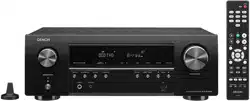
AV SURROUND RECEIVER
AVR-1609
Owner’s Manual
Manuel de l’Utilisateur
n
SAFETY PRECAUTIONS
CAUTION
RISK OF ELECTRIC SHOCK
DO NOT OPEN
CAUTION:
TO REDUCE THE RISK OF ELECTRIC SHOCK, DO NOT REMOVE
COVER (OR BACK). NO USER-SERVICEABLE PARTS INSIDE.
REFER SERVICING TO QUALIFIED SERVICE PERSONNEL.
The lightning flash with arrowhead symbol, within an equilateral
triangle, is intended to alert the user to the presence of
uninsulated “dangerous voltage” within the product’s enclosure
that may be of sufficient magnitude to constitute a risk of electric
shock to persons.
The exclamation point within an equilateral triangle is intended
to alert the user to the presence of important operating
and maintenance (servicing) instructions in the literature
accompanying the appliance.
WARNING:
TO REDUCE THE RISK OF FIRE OR ELECTRIC SHOCK, DO NOT
EXPOSE THIS APPLIANCE TO RAIN OR MOISTURE.
SAFETY INSTRUCTIONS
1. Read Instructions – All the safety and operating instructions should be read
before the product is operated.
2. Retain Instructions – The safety and operating instructions should be
retained for future reference.
3. Heed Warnings – All warnings on the product and in the operating
instructions should be adhered to.
4.
Follow Instructions – All operating and use instructions should be followed.
5. Cleaning – Unplug this product from the wall outlet before cleaning. Do not
use liquid cleaners or aerosol cleaners.
6. Attachments – Do not use attachments not recommended by the product
manufacturer as they may cause hazards.
7. Water and Moisture – Do not use this product near water – for example,
near a bath tub, wash bowl, kitchen sink, or laundry tub; in a wet basement;
or near a swimming pool; and the like.
8. Accessories – Do not place this product on an unstable cart, stand, tripod,
bracket, or table. The product may fall, causing serious injury to a child
or adult, and serious damage to the product. Use only with a cart, stand,
tripod, bracket, or table recommended by the manufacturer, or sold with
the product. Any mounting of the product should
follow the manufacturer’s instructions, and should
use a mounting accessory recommended by the
manufacturer.
9. A product and cart combination should be moved
with care. Quick stops, excessive force, and
uneven surfaces may cause the product and cart
combination to overturn.
10. Ventilation – Slots and openings in the cabinet are provided for ventilation
and to ensure reliable operation of the product and to protect it from
overheating, and these openings must not be blocked or covered. The
openings should never be blocked by placing the product on a bed, sofa,
rug, or other similar surface. This product should not be placed in a built-in
installation such as a bookcase or rack unless proper ventilation is provided
or the manufacturer’s instructions have been adhered to.
11. Power Sources – This product should be operated only from the type of
power source indicated on the marking label. If you are not sure of the type
of power supply to your home, consult your product dealer or local power
company. For products intended to operate from battery power, or other
sources, refer to the operating instructions.
12. Grounding or Polarization – This product may be equipped with a polarized
alternating-current line plug (a plug having one blade wider than the other).
This plug will fit into the power outlet only one way. This is a safety feature.
If you are unable to insert the plug fully into the outlet, try reversing the
plug. If the plug should still fail to fit, contact your electrician to replace your
obsolete outlet. Do not defeat the safety purpose of the polarized plug.
13. Power-Cord Protection – Power-supply cords should be routed so that they
are not likely to be walked on or pinched by items placed upon or against
them, paying particular attention to cords at plugs, convenience receptacles,
and the point where they exit from the product.
15. Outdoor Antenna Grounding – If an outside antenna or cable system is
connected to the product, be sure the antenna or cable system is grounded
so as to provide some protection against voltage surges and built-up static
charges. Article 810 of the National Electrical Code, ANSI/NFPA 70, provides
information with regard to proper grounding of the mast and supporting
structure, grounding of the lead-in wire to an antenna discharge unit, size
of grounding conductors, location of antenna-discharge unit, connection to
grounding electrodes, and requirements for the grounding electrode. See
Figure A.
16. Lightning – For added protection for this product during a lightning storm,
or when it is left unattended and unused for long periods of time, unplug it
from the wall outlet and disconnect the antenna or cable system. This will
prevent damage to the product due to lightning and power-line surges.
17. Power Lines – An outside antenna system should not be located in the
vicinity of overhead power lines or other electric light or power circuits, or
where it can fall into such power lines or circuits. When installing an outside
antenna system, extreme care should be taken to keep from touching such
power lines or circuits as contact with them might be fatal.
18. Overloading – Do not overload wall outlets, extension cords, or integral
convenience receptacles as this can result in a risk of fire or electric shock.
19. Object and Liquid Entry – Never push objects of any kind into this product
through openings as they may touch dangerous voltage points or short-out
parts that could result in a fire or electric shock. Never spill liquid of any kind
on the product.
20. Servicing – Do not attempt to service this product yourself as opening or
removing covers may expose you to dangerous voltage or other hazards.
Refer all servicing to qualified service personnel.
21. Damage Requiring Service – Unplug this product from the wall outlet
and refer servicing to qualified service personnel under the following
conditions:
a) When the power-supply cord or plug is damaged,
b) If liquid has been spilled, or objects have fallen into the product,
c) If the product has been exposed to rain or water,
d) If the product does not operate normally by following the operating
instructions. Adjust only those controls that are covered by the operating
instructions as an improper adjustment of other controls may result in
damage and will often require extensive work by a qualified technician to
restore the product to its normal operation,
e) If the product has been dropped or damaged in any way, and
f) When the product exhibits a distinct change in performance – this
indicates a need for service.
22. Replacement Parts – When replacement parts are required, be sure the
service technician has used replacement parts specified by the manufacturer
or have the same characteristics as the original part. Unauthorized
substitutions may result in fire, electric shock, or other hazards.
23. Safety Check – Upon completion of any service or repairs to this product,
ask the service technician to perform safety checks to determine that the
product is in proper operating condition.
24. Wall or Ceiling Mounting – The product should be mounted to a wall or
ceiling only as recommended by the manufacturer.
25. Heat – The product should be situated away from heat sources such as
radiators, heat registers, stoves, or other products (including amplifiers) that
produce heat.
FIGURE A
EXAMPLE OF ANTENNA GROUNDING
AS PER NATIONAL
ELECTRICAL CODE
"/5&//"
-&"%*/
8*3&
(306/%
$-".1
&-&$53*$
4&37*$&
&26*1.&/5
"/5&//"
%*4$)"3(&6/*5
/&$4&$5*0/
(306/%*/($0/%6$5034
/&$4&$5*0/
(306/%$-".14
108&34&37*$&(306/%*/(
&-&$530%&4:45&.
/&$"351"35)
/&$/"5*0/"-&-&$53*$"-$0%&
I
ENGLISH FRANCAIS
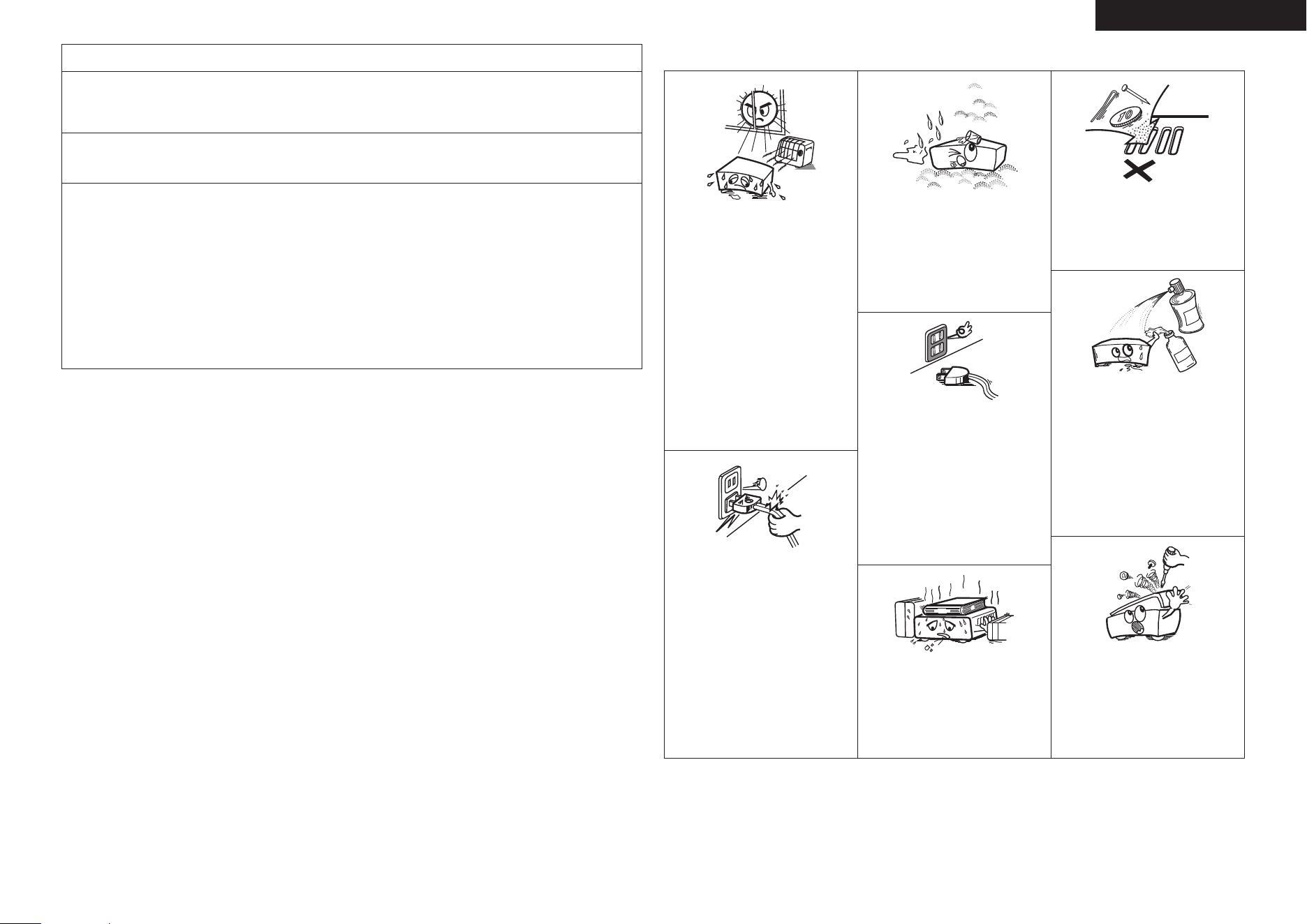
• Avoid high temperatures.
Allow for sufficient heat dispersion when
installed in a rack.
• Eviter des températures élevées.
Tenir compte d’une dispersion de chaleur
suffisante lors de l’installation sur une
étagère.
• Handle the power cord carefully.
Hold the plug when unplugging the cord.
• Manipuler le cordon d’alimentation avec
précaution.
Tenir la prise lors du débranchement du
cordon.
• Keep the unit free from moisture, water,
and dust.
• Protéger l’appareil contre l’humidité, l’eau
et la poussière.
• Unplug the power cord when not using the
unit for long periods of time.
• Débrancher le cordon d’alimentation
lorsque l’appareil n’est pas utilisé pendant
de longues périodes.
* (For apparatuses with ventilation holes)
• Do not obstruct the ventilation holes.
• Ne pas obstruer les trous d’aération.
• Do not let foreign objects into the unit.
• Ne pas laisser des objets étrangers dans
l’appareil.
• Do not let insecticides, benzene, and
thinner come in contact with the unit.
• Ne pas mettre en contact des insecticides,
du benzène et un diluant avec l’appareil.
• Never disassemble or modify the unit in
any way.
• Ne jamais démonter ou modifier l’appareil
d’une manière ou d’une autre.
n
NOTE ON USE / OBSERVATIONS RELATIVES A L’UTILISATION
II
FCC INFORMATION (For US customers)
1. PRODUCT
This product complies with Part 15 of the FCC Rules. Operation is subject to the following two conditions: (1) this
product may not cause harmful interference, and (2) this product must accept any interference received, including
interference that may cause undesired operation.
2. IMPORTANT NOTICE: DO NOT MODIFY THIS PRODUCT
This product, when installed as indicated in the instructions contained in this manual, meets FCC requirements.
Modification not expressly approved by DENON may void your authority, granted by the FCC, to use the product.
3. NOTE
This product has been tested and found to comply with the limits for a Class B digital device, pursuant to Part 15
of the FCC Rules. These limits are designed to provide reasonable protection against harmful interference in a
residential installation.
This product generates, uses and can radiate radio frequency energy and, if not installed and used in accordance
with the instructions, may cause harmful interference to radio communications. However, there is no guarantee
that interference will not occur in a particular installation. If this product does cause harmful interference to radio or
television reception, which can be determined by turning the product OFF and ON, the user is encouraged to try to
correct the interference by one or more of the following measures:
• Reorient or relocate the receiving antenna.
• Increase the separation between the equipment and receiver.
• Connect the product into an outlet on a circuit different from that to which the receiver is connected.
• Consult the local retailer authorized to distribute this type of product or an experienced radio/TV technician for
help.
This Class B digital apparatus complies with Canadian ICES-003.
Cet appareil numérique de la classe B est conforme à la norme NMB-003 du Canada.
ENGLISHFRANCAIS
ENGLISH
Accessories ·····················································································2
Cautions on Handling ·····································································3
Cautions on Installation ·································································3
About the Remote Control Unit ····················································3
Inserting the Batteries ···································································3
Operating Range of the Remote Control Unit ································3
Part Names and Functions ····························································4
Front Panel ·····················································································4
Display ···························································································4
Rear Panel ······················································································5
Remote Control Unit ······································································6
Preparations ····················································································7
Cables Used for Connections ························································7
Speaker Connections ·····································································8
Speaker Installation ········································································8
Speaker Connections ·····································································9
Connecting Equipment with HDMI connectors ·························10
Connecting the Monitor ·······························································11
Connecting the Playback Components ······································11
DVD Player ···················································································11
CD Player ·····················································································12
iPod
®
····························································································12
TV/CABLE Tuner ··········································································13
Connecting the Recording Components ····································13
Video Cassette Recorder ·····························································13
CD Recorder / MD Recorder / Tape Deck ····································14
Connections to Other Devices ·····················································14
Video Camera / Game Console ····················································14
Component with Multi-channel Output connectors ····················· 14
SIRIUS connector ·········································································15
Antenna terminals ·······································································15
External Controller ·······································································16
Connecting the Power Cord ························································16
Once Connections are Completed ··············································16
Menu Map ·····················································································17
Examples of Front Display ···························································17
q Standard Playback ···································································29
Surround Playback of 2-channel Sources ·····································29
Playing Multi-channel Sources (Dolby Digital, DTS, etc.) ·············29
w DSP Simulation Playback ························································30
e Direct Playback ·········································································30
r Stereo Playback ·······································································30
Getting Started
Connections
Operations
Preparations ··················································································18
Auto Setup ····················································································19
a Auto Setup ·············································································· 19
s Error Messages·······································································20
System setup operation ······························································21
Example of Display of Default Values ········································21
1. Speaker Setup ··········································································22
a ~ h Speaker Configuration ·····················································22
j Subwoofer Mode Setup··························································22
k ~ A5 Distance ··········································································23
A6 ~ S1 Crossover Frequency ······················································23
S2 Test Tone ················································································23
S3 Restore ·················································································· 24
2. Input Setup ···············································································24
a, s HDMI In Assign ·······························································24
d ~ h Digital In Assign ······························································25
j iPod Assign ·············································································25
k Audio Delay ·············································································25
l EXT. IN Subwoofer Level ························································25
A0 Auto Preset Memory ······························································25
A1 Parental Lock ···········································································26
A2 Edit Lock Code ········································································26
3. Option Setup ·············································································27
a Amp Assign·············································································27
s ~ f Volume Control ·······························································27
g ~ j ZONE2 Volume Control ···················································27
k Auto Surround Mode ······························································28
l Direct Mode Setup··································································28
A0 Remote ID Setup ····································································28
Auto Setup
System Setup
Surround Modes
Adjusting the parameters ····························································31
Surround Parameter ·····································································31
a Mode·······················································································32
s Cinema EQ ··············································································32
d D.Comp ···················································································32
f LFE ··························································································32
g Center Image ··········································································32
h Panorama ················································································32
j Dimension ···············································································32
k Center Width···········································································32
l Delay Time ··············································································32
A0 Effect Level ·············································································32
A1 Room Size ···············································································32
A2 SB CH OUT ·············································································33
A3 SUBWOOFER ATT. ··································································33
A4 Subwoofer ··············································································33
A5 Tone Control ···········································································33
A6 Bass ························································································33
A7 Treble ······················································································33
A8 MultEQ····················································································33
A9 Dynamic EQ ············································································34
S0 Dynamic Volume ·····································································34
S1 DV Setting (Dynamic Volume Setting) ····································34
S2 RESTORER ·············································································35
S3 Night Mode ·············································································35
S4 Default ····················································································35
Parameter
Information ········································································ 36
n Contents
Connections Setup Playback Remote Control Multi-Zone Information Troubleshooting
ENGLISH
Specifications
Check that the following parts are supplied with the product.
Thank you for purchasing this DENON product. To ensure proper
operation, please read this owner’s manual carefully before using the
product.
After reading them, be sure to keep them for future reference.
Other Operations ··········································································43
Recording on an External Device (REC OUT mode) ····················43
Convenient Functions ··································································43
Channel Level ··············································································43
Quick Select Function ··································································44
Personal Memory Plus Function ··················································44
Last Function Memory ·································································44
Backup Memory ···········································································44
Resetting the Microprocessor ·····················································44
Multi-zone Settings with the Amp Assign Function ·················49
Multi-zone Operations ·································································50
Turning the Power On and Off ·····················································50
Selecting the Input Source ···························································50
Adjusting the Volume ···································································50
Turning off the Sound Temporarily ··············································50
Getting Started
Accessories
Preparations ··················································································37
Turning the Power On ··································································37
Selecting the Input Source ···························································37
Setting the Input Mode ································································37
Operations During Playback ·························································38
Playing Video and Audio Equipment ··········································38
Basic Operation ············································································38
Listening to FM/AM Broadcasts ·················································38
Basic Operation ············································································38
Presetting Radio Stations (Preset Memory) ·································39
Listening to Preset Stations ·························································39
Listening to SIRIUS Satellite Radio Programs ···························40
Basic Operation ············································································40
Checking the SIRIUS Signal Strength and Radio ID ·····················40
Searching Categories ···································································40
Parental Lock ················································································40
iPod
®
Playback ·············································································41
Preparations ·················································································41
Listening to Audio ········································································42
Viewing Still Pictures or Videos on the iPod ································42
Playback Amp Assign / Multi-zone Connections and
Operations
Other Operations and Functions
Other Information ························································· 51
Troubleshooting ····························································· 58
Specifications ·································································· 61
List of preset codes ··························· End of this manual
Operating DENON Audio Components ······································45
Presetting ······················································································45
Operating Preset Components ····················································45
Punch Through Function ·····························································48
Remote Control Unit Operations
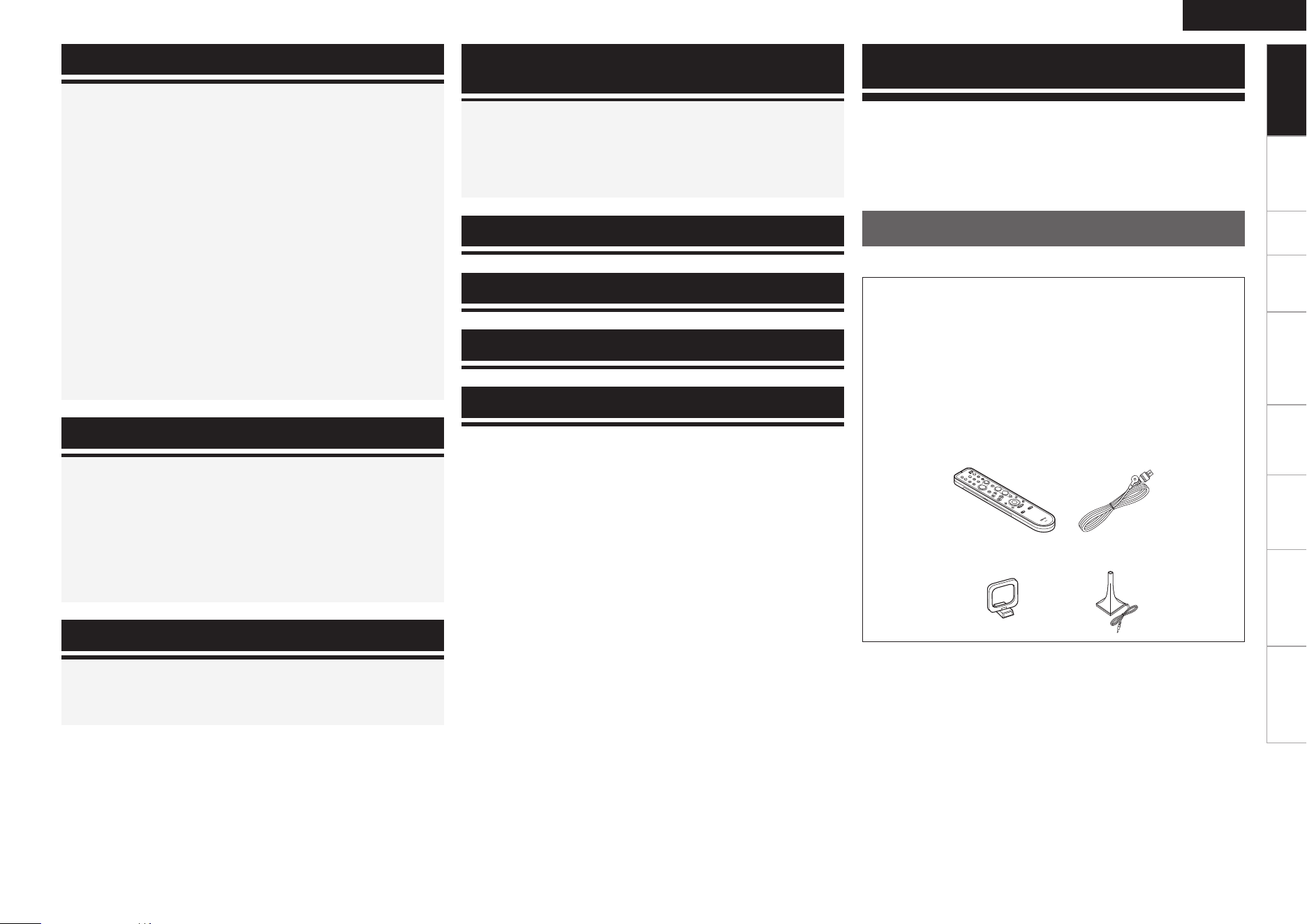
q Owner’s manual ...................................................................... 1
w Getting Started ........................................................................ 1
e Warranty (for North America model only) ................................ 1
r Service station list ................................................................... 1
t Remote control (RC-1098) ....................................................... 1
y R6/AA batteries ....................................................................... 2
u FM indoor antenna .................................................................. 1
i AM loop antenna ..................................................................... 1
o Setup microphone
(DM-A409, Cord length: Approx. 25 ft / 7.6 m) .......................1
t u
oi
Getting Started
Connections Setup Playback Remote Control Multi-Zone Information Troubleshooting
ENGLISH
Specifications
In addition to the AVR-1609, the included remote control unit (RC-
1098) can also be used to operate the equipment listed below.
q DENON system components
w Non-DENON system components
• By setting the preset memory (vpage 45 ~ 47)
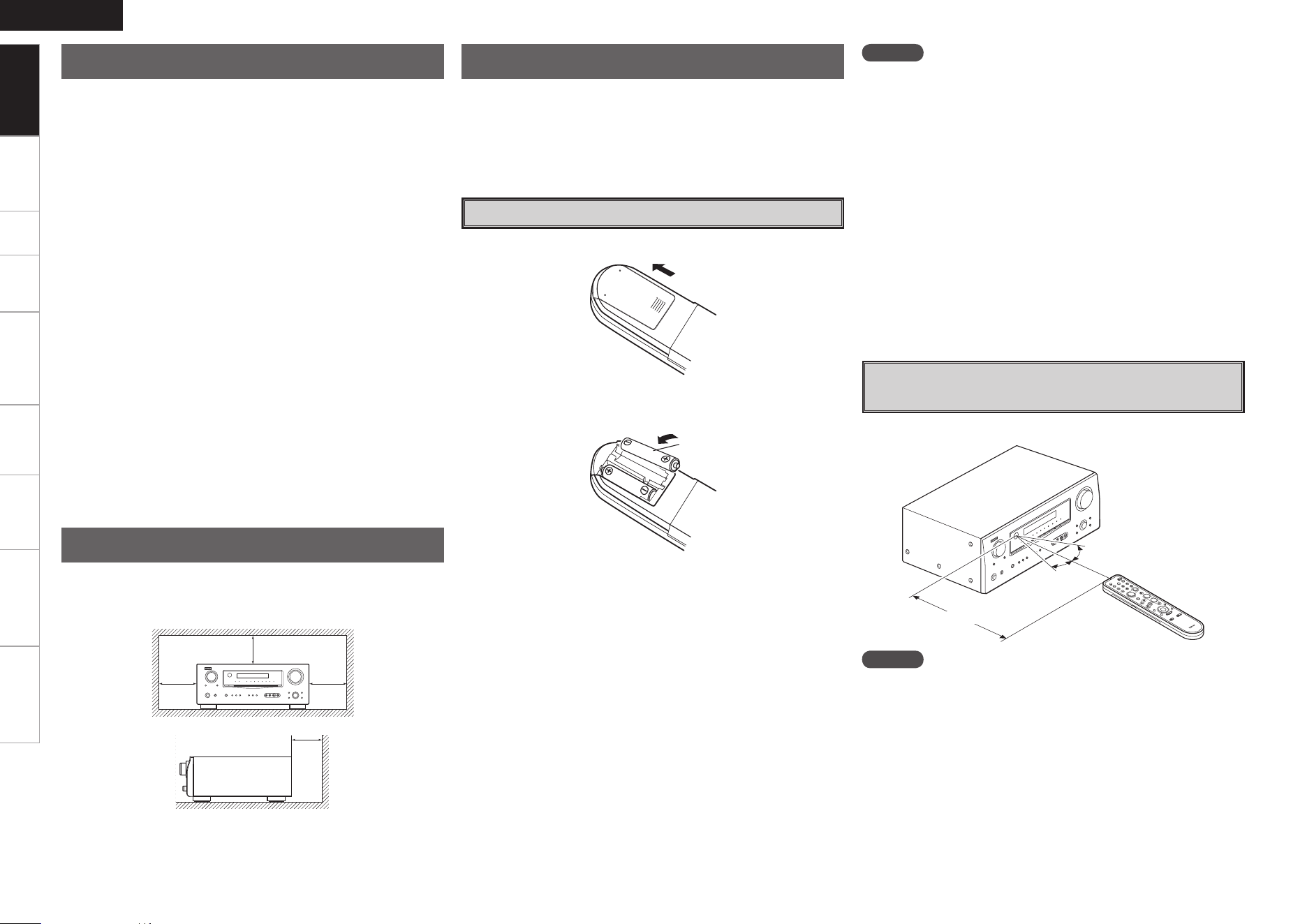
q Lift the clasp and remove the rear cover.
e Put the rear cover back on.
R6/AA
w Load the two batteries properly as indicated by the marks in the
battery compartment.
Inserting the Batteries
NOTE
• Replace the batteries with new ones if the set does not operate
even when the remote control unit is operated close to the unit.
• The supplied batteries are only for verifying operation.
• When inserting the batteries, be sure to do so in the proper direction,
following the “q” and “w” marks in the battery compartment.
• To prevent damage or leakage of battery fluid:
• Do not use a new battery together with an old one.
• Do not use two different types of batteries.
• Do not attempt to charge dry batteries.
• Do not short-circuit, disassemble, heat or dispose of batteries in
flames.
• If the battery fluid should leak, carefully wipe the fluid off the inside
of the battery compartment and insert new batteries.
• Remove the batteries from the remote control unit if it will not be in
use for long periods.
• When replacing the batteries, have the new batteries ready and
insert them as quickly as possible.
Operating Range of the Remote Control
Unit
Point the remote control unit at the remote sensor when operating it.
NOTE
The set may function improperly or the remote control unit may not
operate if the remote control sensor is exposed to direct sunlight,
strong artificial light from an inverter type fluorescent lamp or infrared
light.
About the Remote Control Unit
• Before turning the power switch on
Check once again that all connections are correct and that there are
no problems with the connection cables.
•
Power is supplied to some of the circuitry even when the unit is
set to the standby mode. When traveling or leaving home for long
periods of time, be sure to unplug the power cord from the power
outlet.
• About condensation
If there is a major difference in temperature between the inside of
the unit and the surroundings, condensation (dew) may form on
the operating parts inside the unit, causing the unit not to operate
properly.
If this happens, let the unit sit for an hour or two with the power
turned off and wait until there is little difference in temperature
before using the unit.
• Cautions on using mobile phones
Using a mobile phone near this unit may result in noise. If so, move
the mobile phone away from this unit when it is in use.
• Moving the unit
Turn off the power and unplug the power cord from the power
outlet.
Next, disconnect the connection cables to other system units before
moving the unit.
•
Note that the illustrations in these instructions may differ from the
actual unit for explanation purposes.
Note:
For proper heat dispersal, do not install this unit in a confined
space, such as a bookcase or similar enclosure.
b Note
b
Wall
b
b
Cautions on Handling
Cautions on Installation
30°
30°
Approx. 23 feet / 7 m
Getting Started
Connections Setup Playback Remote Control Multi-Zone Information Troubleshooting
ENGLISH
Specifications
For buttons not explained here, see the page indicated in parentheses ( ).
w
e
r
uy Q0t
Q5W6 W5W7 W4 W3 Q9W0W1W2 Q8Q7 Q6
q Q1 Q2 Q3
W8 W9 E0 E1 E2 E5 E6 E7E3 E4
i o Q4
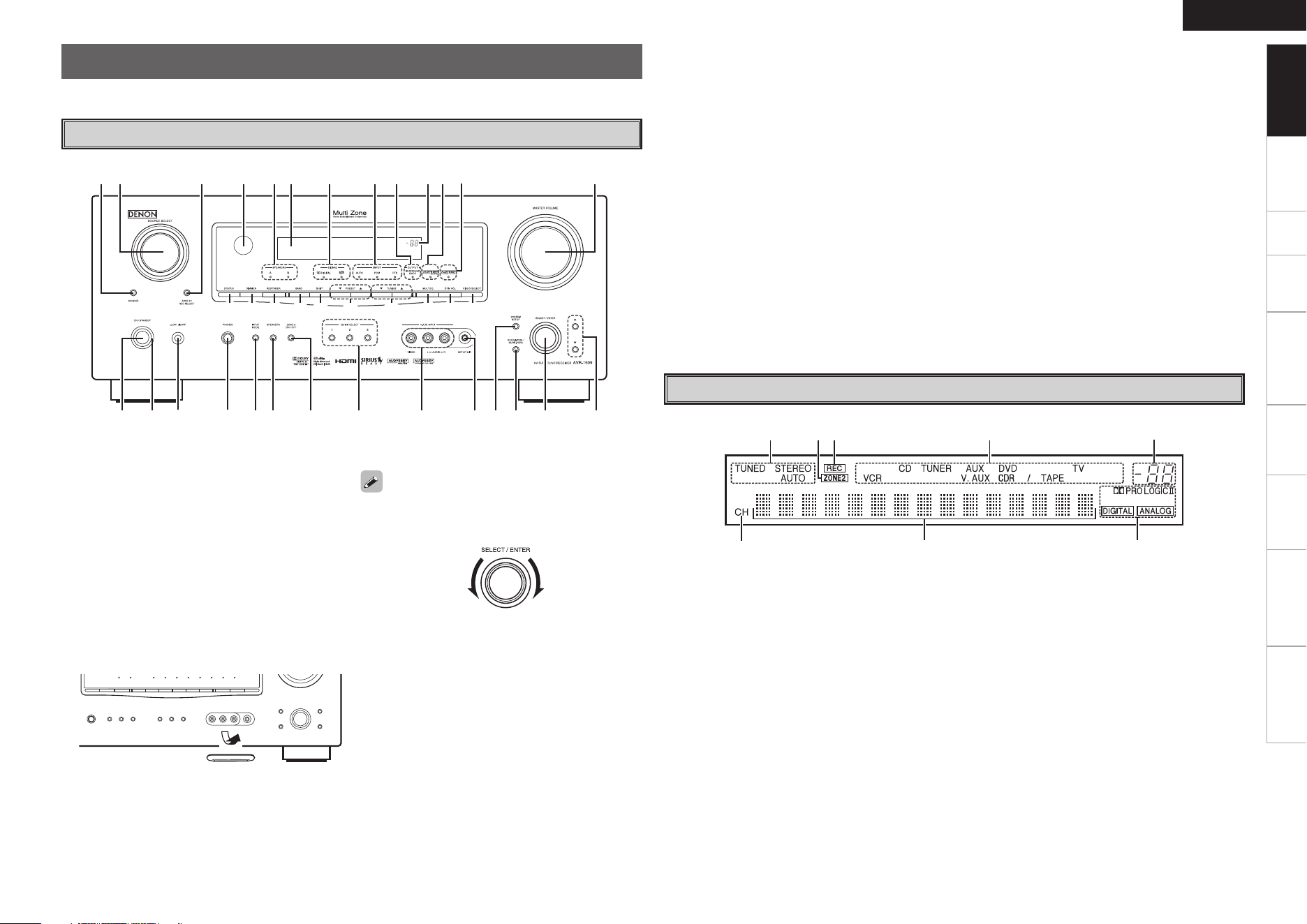
Front Panel
q
i yu t r
w e
q Signal channel indicator
Lights when the preset channel is displayed at
w.
w Information display
e Input signal indicators
r Master volume indicator
This displays the volume level.
The Setup item number is displayed in System
Setup.
t ZONE2/REC OUT source indicators
These indicators indicate the input source being
output to “ZONE2/REC OUT”.
y Recording output source indicator
This lights when the REC OUT mode is
selected. (This indicator is off when “SOURCE”
is selected.)
u ZONE2 indicator
This lights when the ZONE2 mode is selected.
(This indicator is off when “SOURCE” is
selected.)
i Tuner reception mode indicators
These light according to the reception conditions
when the input source is set to “TUNER”.
• AUTO
This lights when in the auto tuning mode.
• STEREO
In the FM mode, this lights when receiving
analog stereo broadcasts.
• TUNED
This lights when the broadcast is properly tuned
in.
Display
Part Names and Functions
q Power operation button
(ON/STANDBY) ·········································· (37)
w Power indicator ·········································· (37)
e Power switch (hON jOFF) ················(37, 44)
r Headphone jack (PHONES) ························ (38)
t INPUT MODE button ·································· (37)
y SPEAKERS button ································ (38, 44)
u ZONE2 ON/OFF button ······························ (50)
i QUICK SELECT buttons ····························· (44)
o V. AUX INPUT connectors
Remove the cap covering the connectors when
you want to use them.
Q0 SETUP MIC jack ·········································· (18)
Q1 SYSTEM SETUP button ····························· (21)
Q2
SURR. MODE / SURR. PARA button
···· (29, 31)
Q3 SELECT/ENTER knob
• The SELECT/ENTER knob on the main unit
operates in the same way as the cursor o and p
buttons on the remote control unit.
• The control functions in the same way as the
cursor o button when turned counterclockwise,
as the cursor p button when turned clockwise.
• The control functions in the same way as the
ENTER button when pressed the knob.
Q4 Cursor buttons (ui) ································· (21)
Q5 MASTER VOLUME control knob ··············· (38)
Q6 Dynamic Volume indicator ························(34)
Q7 MultEQ indicator ········································ (33)
Q8 Master volume indicator
Q9 SURROUND BACK indicator
E6 DYNAMIC VOLUME button ······················· (34)
b About Dynamic Volume
Audyssey Dynamic Volume™ solves the problem
of large variations in volume level between
television programs, commercials, and between
the soft and loud passages of movies.
Audyssey Dynamic EQ™ is integrated into
Dynamic Volume so that as the playback volume
is adjusted automatically, the perceived bass
response, tonal balance, surround impression,
and dialog clarity remain the same.
b About Dynamic EQ
Audyssey Dynamic EQ solves the problem of
deteriorating sound quality as volume is decreased
by taking into account human perception and
room acoustics. Audyssey Dynamic EQ works in
tandem with Audyssey MultEQ
®
to provide well-
balanced sound for every listener at any volume
level.
E7 VIDEO SELECT button ······························· (38)
W0 INPUT mode indicators ······························ (37)
W1 SIGNAL indicators
W2 Display
W3 SPEAKERS indicators ································· (38)
W4 Remote control sensor ································ (3)
W5 ZONE2/REC SELECT button ······················ (43)
W6 SOURCE SELECT knob ······························ (37)
W7 SOURCE button ·········································· (37)
W8 STATUS button ·········································· (36)
W9 DIMMER button ·········································· (38)
E0 RESTORER button ······································ (35)
E1 BAND button ·············································· (38)
E2 SHIFT button ··············································· (39)
E3 PRESET CHANNEL buttons (df) ·············· (39)
E4 TUNING buttons (df) ································ (38)
E5 MULTEQ button ········································· (33)
Getting Started
Connections Setup Playback Remote Control Multi-Zone Information Troubleshooting
ENGLISH
Specifications
iQ0Q2 oQ1Q3
Q4
uq
w
t
y
e r
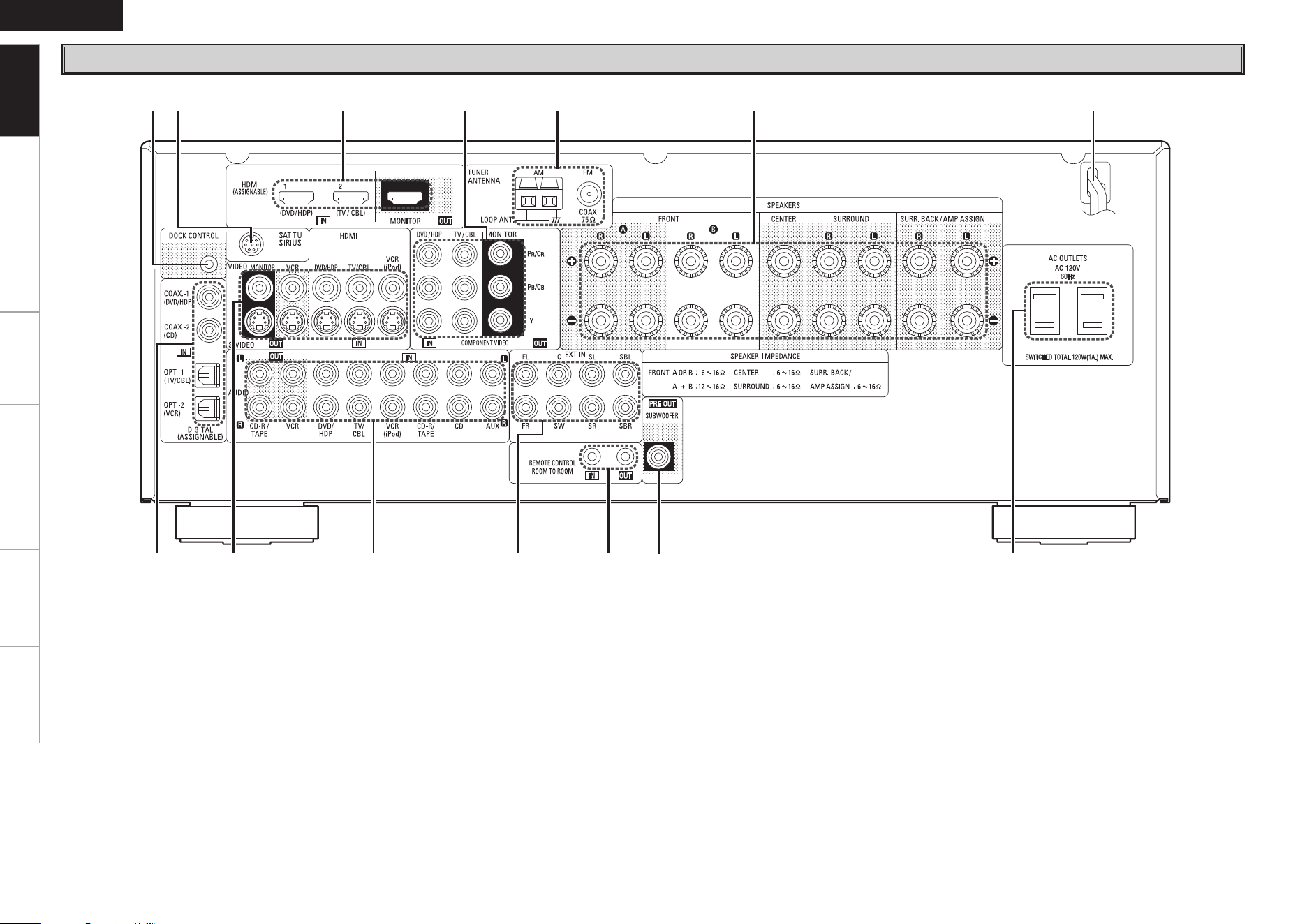
Rear Panel
q Digital audio connectors
(OPTICAL / COAXIAL) ·················· (10 ~ 13, 15)
w VIDEO / S-VIDEO connectors ············ (11 ~ 13)
e Analog audio connectors
(AUDIO) ··············································· (10 ~ 14)
r EXT. IN connectors ····································· (14)
t REMOTE CONTROL jacks ·························· (16)
y PRE OUT connector ······································ (9)
u AC OUTLETS ··············································· (16)
i Power cord ·················································· (16)
o Speaker terminals (SPEAKERS) ············ (9, 49)
Q0 FM/AM antenna terminals
(TUNER ANTENNA) ···································· (15)
Q1 COMPONENT VIDEO connectors ·········(11, 13)
Q2 HDMI connectors ·····························(10, 11, 13)
Q3 SIRIUS connector (SAT TU) ························ (15)
Q4 DOCK CONTROL jack ································· (12)
Getting Started
Connections Setup Playback Remote Control Multi-Zone Information Troubleshooting
ENGLISH
Specifications
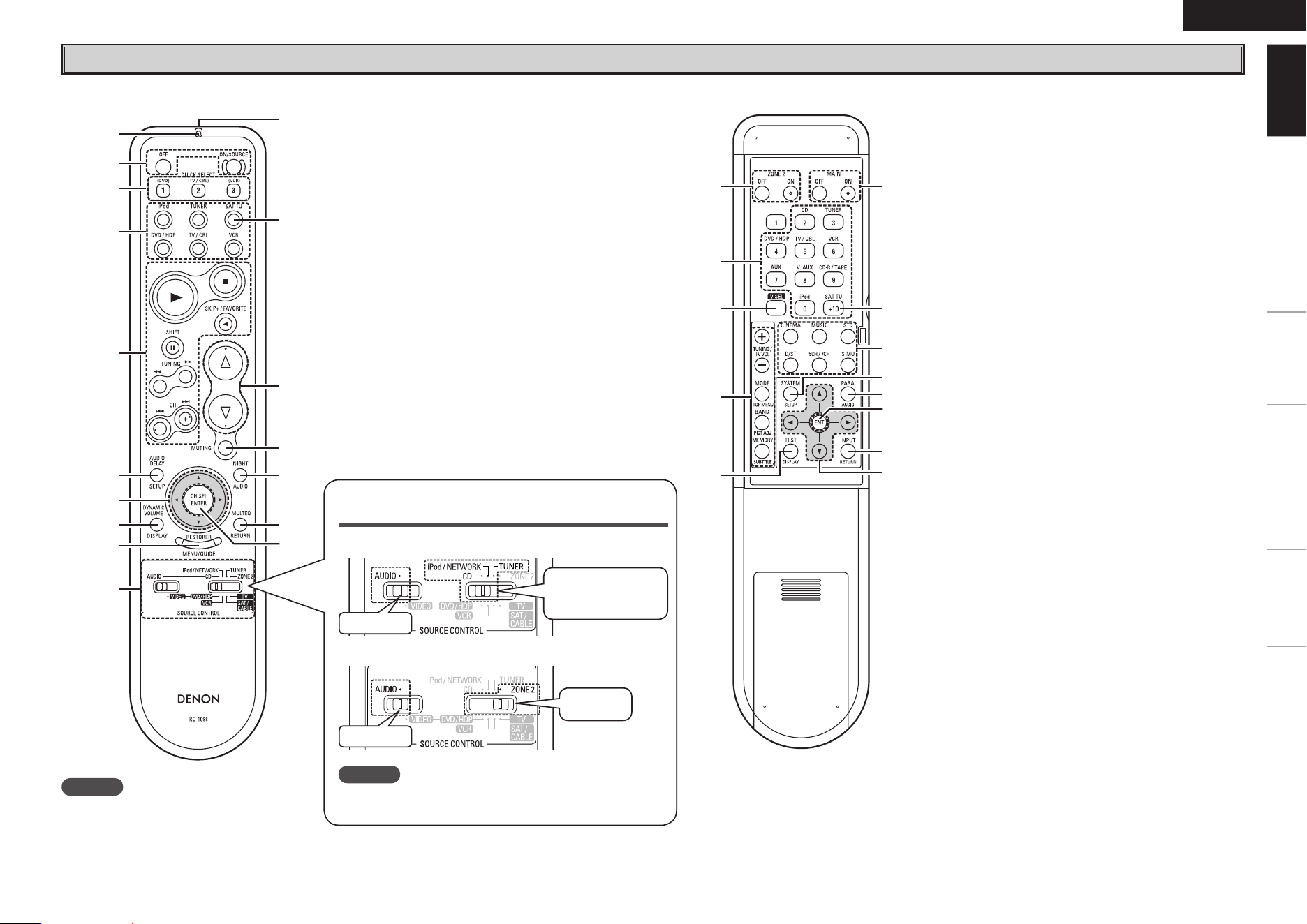
Remote Control Unit
q
y
u
i
o
w
e
r
t
Q0
Q2
b
Q3
Q4
Q5
Q6
Q1
q
r
e
w
t
y
b
u
o
Q2
Q1
i
Q0
NOTE
If buttons on the front or rear are pressed
strongly, the button on the opposite side will
be activated too.
[ Front ] [ Rear ]
q Indicator ······················································ (45)
w Power buttons ············································ (37)
e QUICK SELECT buttons ····························· (44)
r Source select buttons ···························(37, 50)
b : To select “SIRIUS” as the input source, use
the SAT TU button.
t System buttons ···································· (42, 46)
y AUDIO DELAY button ································ (25)
u Cursor buttons (uio p) ························· (21)
i DYNAMIC VOLUME button ······················· (34)
o RESTORER button ······································ (35)
Q0 SOURCE CONTROL switches ···················· (38)
Q1 Remote control signal transmitter
Q2 Master volume control buttons ·········· (38, 50)
Q3 MUTING button ···································· (38, 50)
Q4 NIGHT button ············································· (35)
Q5 MULTEQ button ·········································· (33)
Q6 Channel select (CH SEL) /
ENTER button ······································· (21, 43)
q ZONE2 power buttons ······························· (50)
w Source select buttons ···························(37, 50)
b : To select “SIRIUS” as the input source, use
the SAT TU button.
e Video select button (V.SEL) ······················ (38)
r Tuner system buttons ·························· (38, 39)
t Test tone button (TEST) ···························· (24)
y Main zone power buttons (MAIN) ············ (50)
u Surround mode buttons ················ (29, 30, 32)
i System setup button (SYSTEM) ··············· (21)
o Surround parameter button (PARA) ··· (29, 31)
Q0 Enter button (ENT) ····································· (21)
Q1 Input mode button (INPUT) ······················· (37)
Q2 Cursor buttons (uio p) ························· (21)
Getting Started
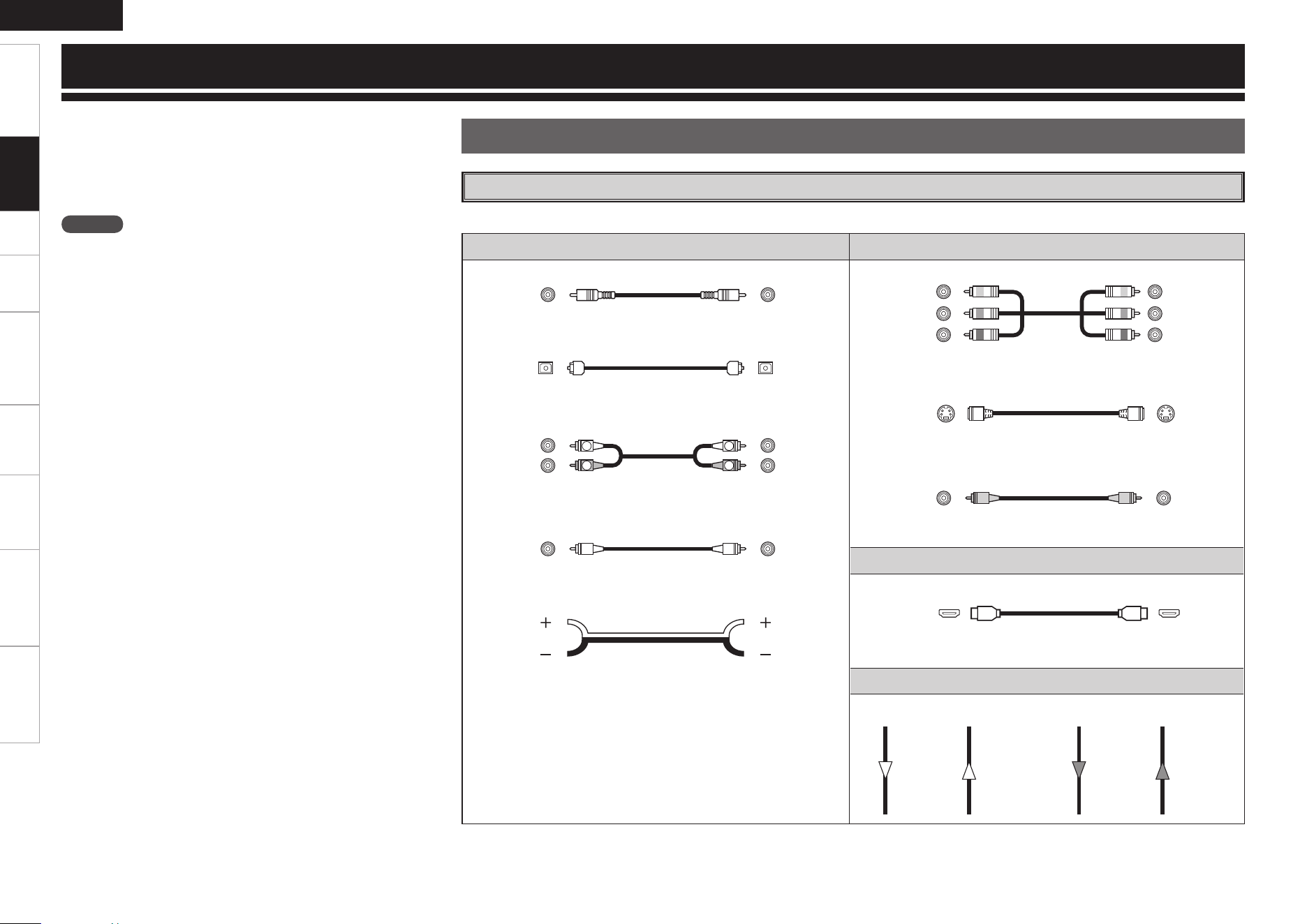
SOURCE CONTROL switch settings and
operable buttons
n When operating MAIN ZONE
n
When operating ZONE2
NOTE
With this setting, only ZONE2 buttons can be operated. See
page 50 for operable buttons.
“AUDIO”
“CD”,
“iPod/NETWORK”
or “TUNER”
“AUDIO”
“ZONE2”
Getting Started Setup Playback Remote Control Multi-Zone Information Troubleshooting
ENGLISH
Specifications
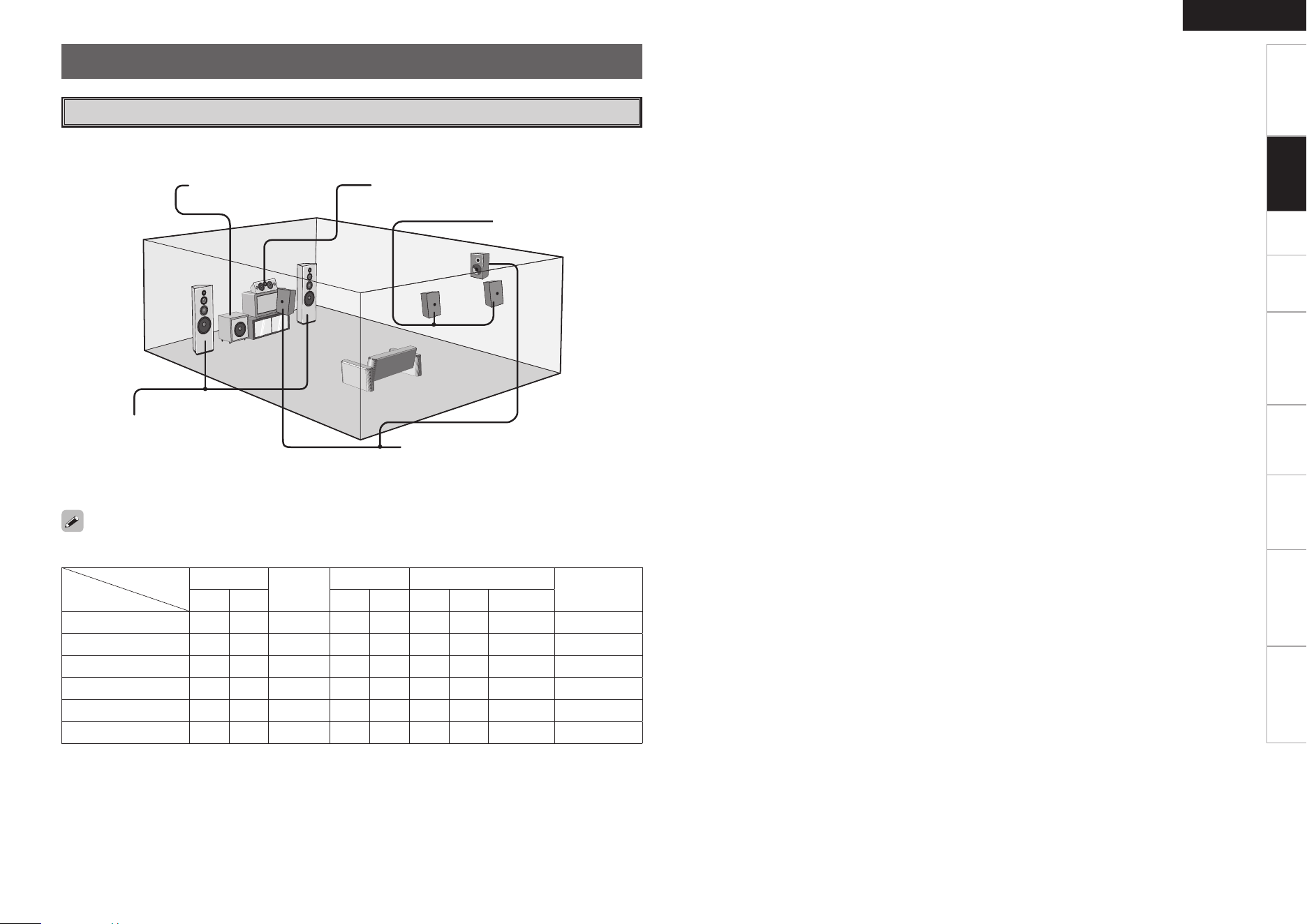
Audio cables Video cables
Coaxial digital connections
(Orange)
Coaxial digital (75 Ω/ohms pin-plug) cable
Optical digital connections
Optical cable
Analog connections (stereo)
(White)
(Red)
R
L
R
L
Stereo pin-plug cable
Analog connections (monaural, for subwoofer)
(Black)
Pin-plug cable
Speaker connections
Speaker cables
Component video connections
(Green)
(Blue)
(Red)
(Y)
(PB/CB)
(PR/CR)
Component video cable
S-Video connections
S-Video cable
Video connections
(Yellow)
75 Ω/ohms pin-plug video cable
Audio and video cables
HDMI connections
19-pin HDMI cable
Signal direction
Audio signal: Video signal:
Output
Input
Input
Output
Output
Input
Input
Output
Cables Used for Connections
Select the cables according to the equipment being connected.
Preparations
Connections
NOTE
• Do not plug in the power cord until all connections have been
completed.
• When making connections, also refer to the operating instructions of
the other components.
• Be sure to connect the left and right channels properly (left with left,
right with right).
• Do not bundle power cords together with connection cables. Doing
so can result in humming or noise.
Connections for all compatible audio and video signal formats
are described in this owner’s manual. Please select the types of
connections suited for the equipment you are connecting.
With some types of connections, certain settings must be made
on the AVR-1609. For details, refer to the instructions for the
respective connection items below.
Connections
Getting Started Setup Playback Remote Control Multi-Zone Information Troubleshooting
ENGLISH
Specifications
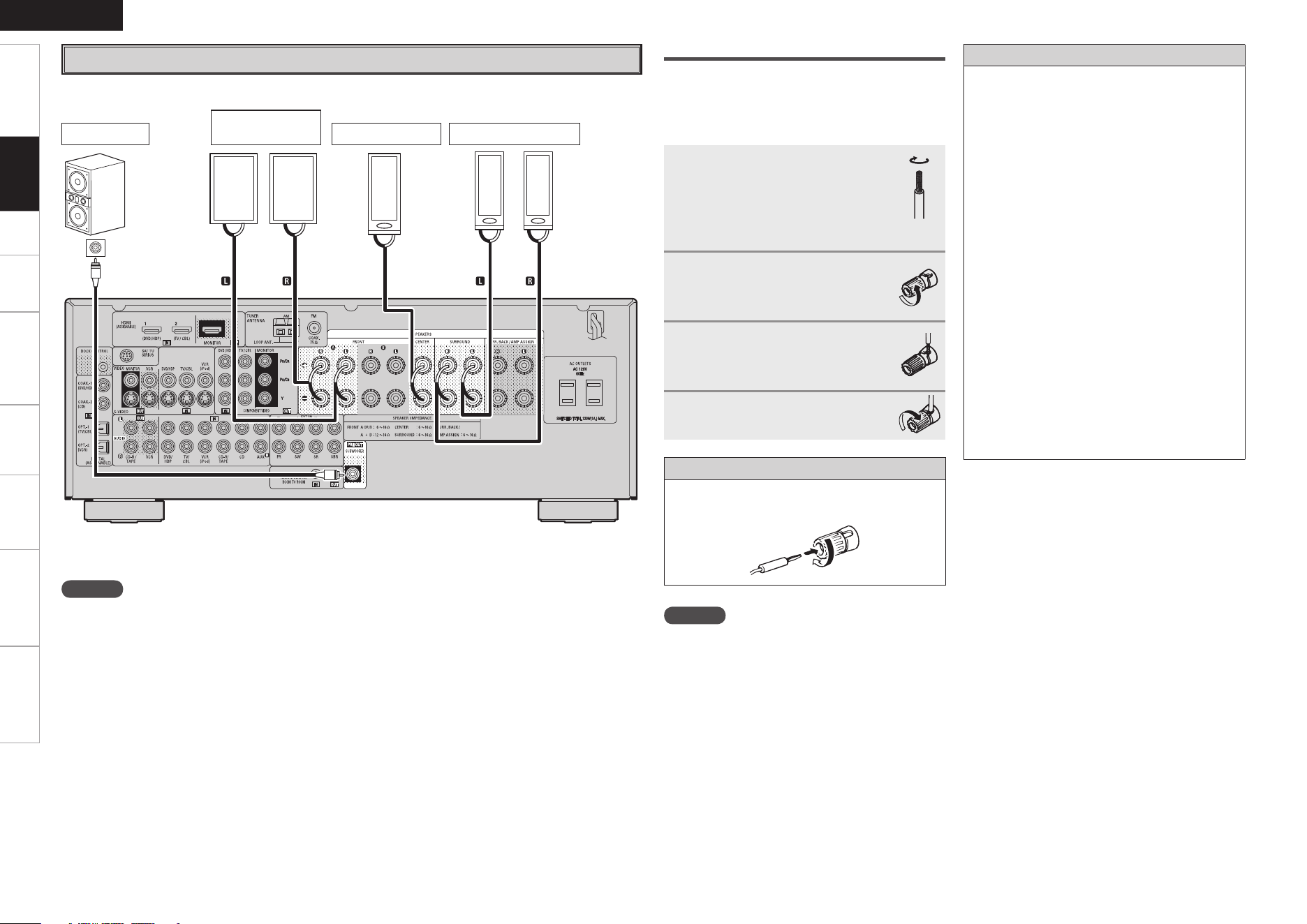
The illustration below shows a basic example of installation of the amplifier combined with 8 speakers and
a monitor.
Speaker Installation
Subwoofer Center speaker
Surround speakers
Front speakers
Place the front speakers to the
sides of the monitor or screen and
as flush with the screen surface as
possible.
The table below shows a typical speaker configuration for the AVR-1609.
Surround back speakers
FRONT A / B
CENTER
SURROUND SURROUND BACK
SUBWOOFER
L R L R L R 1 speaker
7.1-channels
S S S S S S S
–
S
6.1-channels
S S S S S
– –
S S
5.1-channels
S S S S S
– – –
S
3.1-channels
S S S
– – – – –
S
2.1-channels
S S
– – – – – –
S
2-channels
S S
– – – – – – –
Speaker Connections
Connections
Getting Started Setup Playback Remote Control Multi-Zone Information Troubleshooting
ENGLISH
Specifications
w q
w q
w q w q
*/
w q
(R)
(L) (R)
(L)
Speaker Connections
Example: 5.1-channels
Front speakers
A
Center speakerSubwoofer
Subwoofer
with built-in
amplifier
Surround speakers
NOTE
For surround back speakers :
• By default, the AVR-1609’s “Amp Assign” setting is set to “ZONE2”. To use as the surround back
speaker for the main zone, change the “Amp Assign” setting (vpage 27).
• When using just one surround back speaker, connect it to the left channel (SBL).
For ZONE2 speakers :
• For multi-zone connection and operation, see “Amp Assign / Multi-zone Connections and Operations”
(vpage 49).
b L : Left
R : Right
Connecting the Speaker Cables
Carefully check the left (L) and right (R) channels
and + (red) and – (black) polarities on the speakers
being connected to the AVR-1609, and be sure to
interconnect the channels and polarities correctly.
1
Peel off about 0.03 ft/10 mm
of sheathing from the tip of
the speaker cable, then either
twist the core wire tightly or
terminate it.
2
Turn the speaker terminal
counterclockwise to loosen
it.
3
Insert the speaker cable’s
core wire to the hilt into the
speaker terminal.
4
Turn the speaker terminal
clockwise to tighten it.
When using a banana plug
Tighten the speaker terminal firmly before
inserting the banana plug.
NOTE
• Use speakers with an impedance of 6 to 16
Ω/ohms. When using front A and B speakers
simultaneously, use speakers with an impedance
of 12 to 16 Ω/ohms.
• Connect the speaker cables in such a way that
they do not stick out of the speaker terminals.
The protection circuit may be activated if the core
wires touch the rear panel or if the + and – sides
touch each other (v“Protection circuit”).
• Never touch the speaker terminals while the
power supply is connected. Doing so could result
in electric shock.
Protection circuit
If the core wires touch the rear panel and the
screws etc., or the ± sides touch each other, the
protection circuit will be activated and the power
indicator will flash red at intervals of 0.5 secs.
If the protection circuit is activated, the speaker
output is isolated, and the power supply goes to
the standby state. If the power supply is turned
off, after the power supply cord is withdrawn,
please confirm that speaker cable and input cable
are connected.
Also, if replaying large sound levels by using
a speaker having an impedance less than that
specified (eg, 4 Ω/ohms), the temperature will
rise, and the protection circuit might be activated.
The power supply will go into the standby state,
and the power indicator will flash red at 2 second
intervals.
In this case, please switch off the power supply,
and wait until the AVR-1609 has cooled down,
and the surrounding ventilation is good.
Even if there are no problems with the surround-
ing ventilation and connections, in the event of
the protection circuit becoming activated, due to
thinking that the AVR-1609 has failed, please con-
tact DENON Service center after switching off.
Connections
0
Getting Started Setup Playback Remote Control Multi-Zone Information Troubleshooting
ENGLISH
Specifications
065
)%.*
*/
)%.*
"6%*0
"6%*0
3-
065
065
$0"9*"-
R
L
R
L
MonitorDVD player
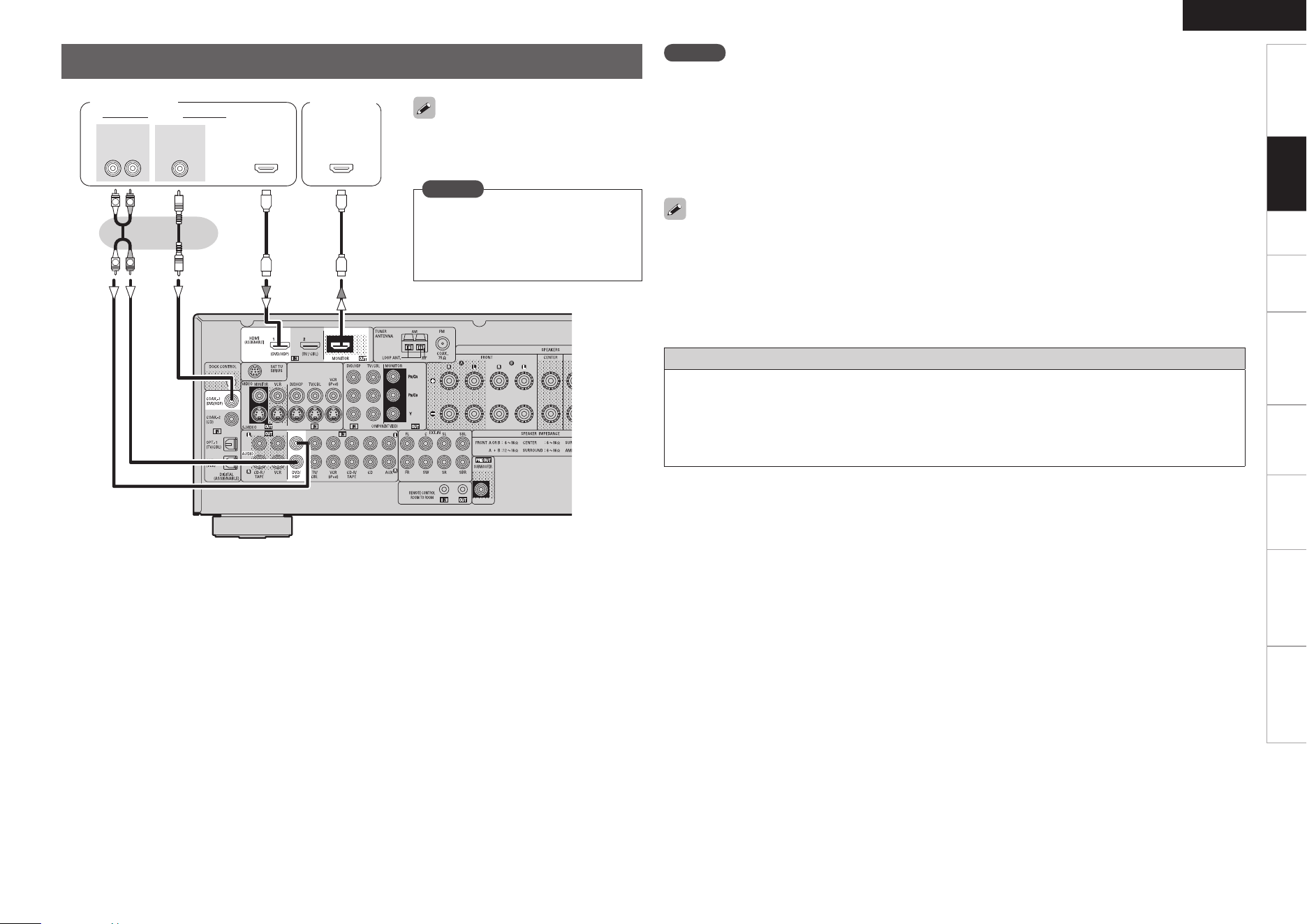
b The AVR-1609 is equipped for HDMI version 1.3a. This version is compatible with other versions,
allowing connection to all components equipped with an HDMI connector.
b The AVR-1609 is compatible with 30- and 36-bit Deep Color.
b The AVR-1609 can be connected to a device equipped with an HDMI output connector using an HDMI
cable.
b The AVR-1609 is compatible with HDMI Ver. 1.3a Deep Color and xvYCC.
• The audio and video signals input to the AVR-1609’s HDMI input connector are output unchanged from
the HDMI output connector. Because of this, the sound is output from the monitor connected using the
HDMI connectors, but in order to take full advantage of the AVR-1609’s playback sound, turn the TV’s
volume down.
• If the connected monitor or DVD player only has a DVI-D connector, use an HDMI/DVI converter cable.
When using a DVI cable, no audio signals are transmitted.
• Use a Deep Color compatible cable for connection to Deep Color compatible devices.
When connecting with an HDMI/DVI converter cable (adapter)
• HDMI video signals are theoretically compatible with the DVI format.
When connecting to a monitor, etc., equipped with a DVI-D connector, connection is possible using an
HDMI/DVI converter cable, but depending on the combination of components in some cases the video
signals will not be output.
• When connecting using an HDMI/DVI converter adapter, the video signals may not be output properly
due to poor connections with the connected cable, etc.
NOTE
• The AVR-1609 cannot be controlled from another device via the HDMI cable.
• Video signals are not output if the input video signals do not match the monitor’s resolution. In this case,
switch the DVD player’s resolution to a resolution with which the monitor is compatible.
• Use a cable on which the HDMI logo is indicated (a certified HDMI product) for connection to the HDMI
connector. Normal playback may not be possible when using a cable other than one on which the HDMI
logo is indicated (a non-HDMI-certified product).
• If the monitor or DVD player does not support Deep Color, deep color signal transfer is not possible.
• If the monitor or DVD player does not support xvYCC, xvYCC signal transfer is not possible.
When HDMI input signals are sent to the
monitor as HDMI output, both video and
audio are output to the monitor.
Connecting Equipment with HDMI connectors
NOTE
The audio signal input to the HDMI
input connector cannot be played on
the AVR-1609. Input the audio signal
to the digital audio input connector or
analog audio input connector.
Connections
Getting Started Setup Playback Remote Control Multi-Zone Information Troubleshooting
ENGLISH
Specifications
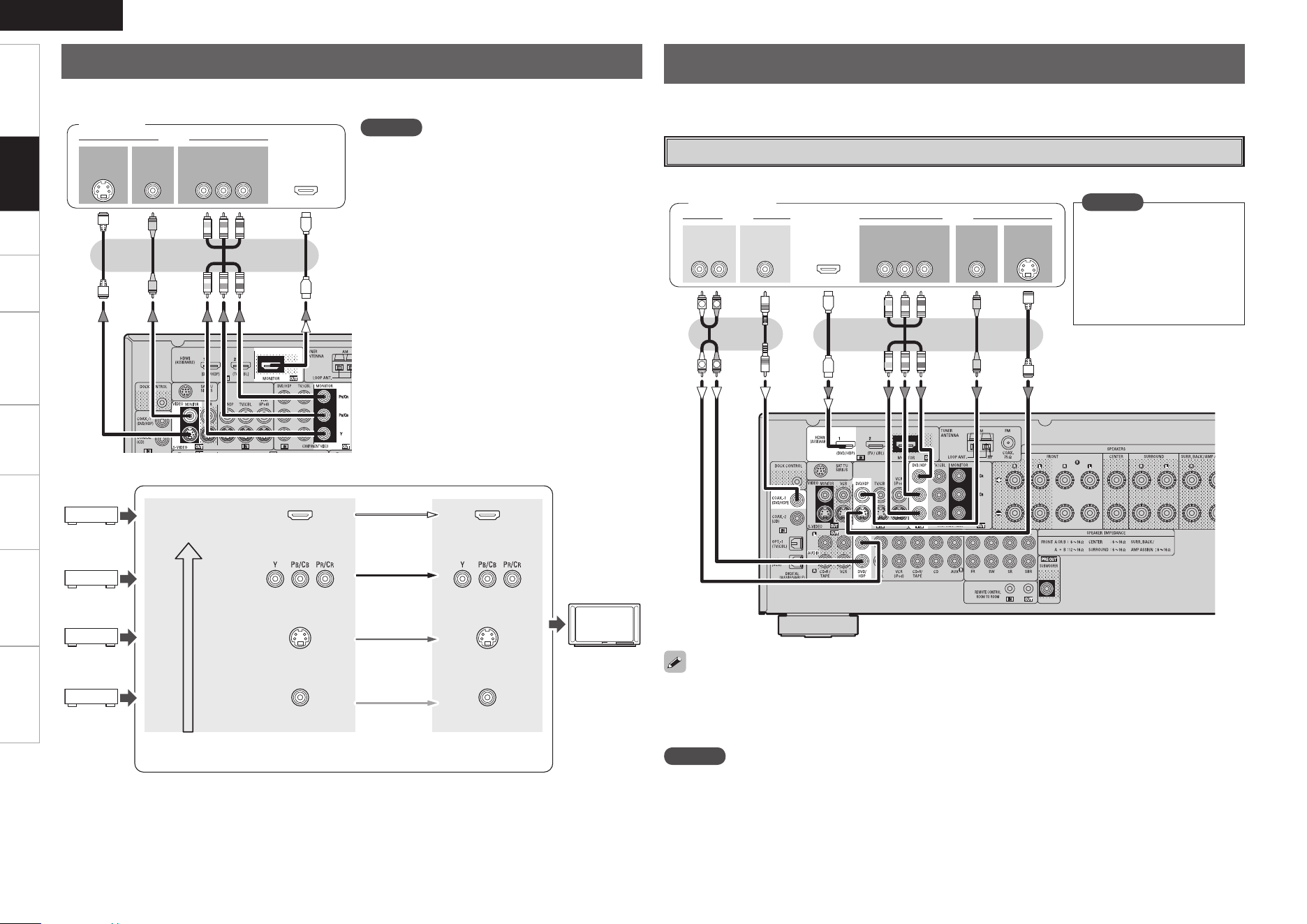
Select the terminal to use and connect the device.
47*%&0
*/
7*%&0
$0.10/&/57*%&0
: 1# 13
7*%&0
*/
)%.*
*/ */
Monitor
NOTE
• The AVR-1609 supports four video input formats:
HDMI, component video, S-video and video.
Because video signals are output from the AVR-
1609’s monitor output terminal in the same format
as the video input signals, the monitor output
terminal should be of the same type as the
terminal used for input.
• The component video connectors may be
indicated differently on your monitor. For details,
see the monitor’s operating instructions.
• To play the sound by AVR-1609, make analog or
digital audio output connections to AVR-1609’s
audio input connectors.
Connecting the Monitor
GFlow of video signals inside the AVR-1609H
Carefully check the left (L) and right (R) channels and the inputs and outputs, and be sure to interconnect
correctly.
DVD Player
Select the terminal to use and connect the device.
Connecting the Playback Components
47*%&0
065
"6%*0 7*%&0
$0.10/&/57*%&0
: 1# 13
7*%&0
065065
"6%*0
3-
065 065
)%.*
065
$0"9*"-
R
L
R
L
DVD player
NOTE
The audio signal input to
the HDMI input connector
cannot be played on the
AVR-1609. Input the audio
signal to the digital audio
input connector or analog
audio input connector.
• The same method can be used to connect an HDP (High-Definition Player) such as a Blu-ray Disc
player.
• When using an optical cable for the digital audio connection, make the settings at “System Setup”
– “Input Setup” – “Digital In Assign” (vpage 25).
NOTE
Because video signals are output from the AVR-1609’s monitor output terminal in the same format as the
video input signals, the monitor output terminal should be of the same type as the terminal used for
input.
High picture
quality playback
HDMI connector
Component video
connectors
S-Video connector
Video connector
Monitor
HDMI connector
Component video
connectors
S-Video connector
Video connector
Video input terminals Monitor output
terminals
Connections
Getting Started Setup Playback Remote Control Multi-Zone Information Troubleshooting
ENGLISH
Specifications
"6%*0
"6%*0
3-
065065
$0"9*"-
R
L
R
L
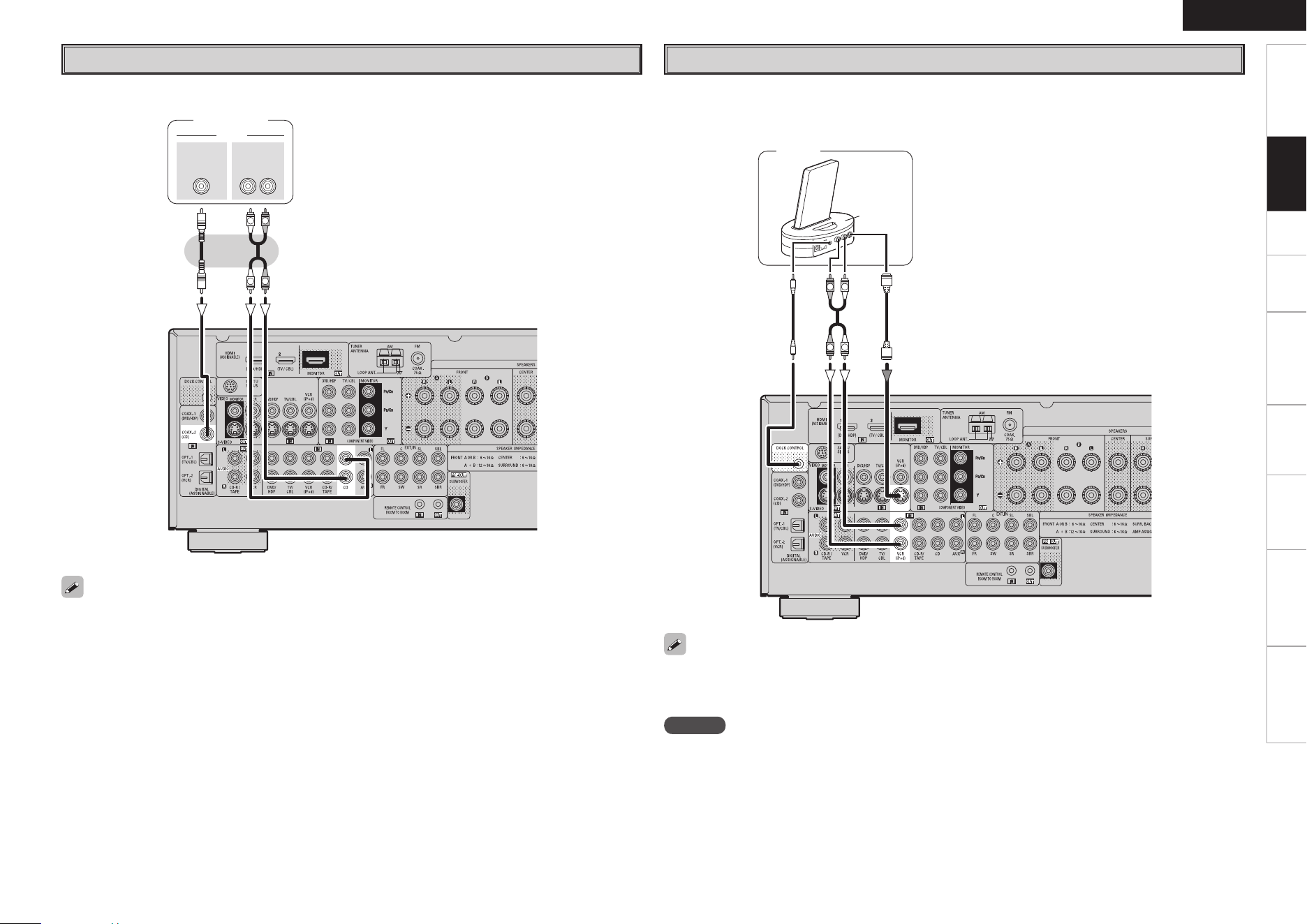
CD Player
Select the terminal to use and connect the device.
CD player
When using an optical cable for the digital audio connection, make the settings at “System Setup” – “Input
Setup” – “Digital In Assign” (vpage 25).
iPod
®
"4%/8
R
L
R
L
iPod
• With the default settings, the iPod can be used connected to the VCR (iPod) connector.
• To assign the iPod to a connector other than VCR (iPod), make the settings at “System Setup” – “Input
Setup” – “iPod Assign” (vpage 25).
Use a DENON control dock for iPod (ASD-1R, ASD-11R, ASD-3N or ASD-3W, sold separately) to connect
the iPod to the AVR-1609. For instructions on the control dock for iPod settings, refer to the control dock
for iPod’s operating instructions.
NOTE
To playback iPod Video or Photos on a TV monitor, connect the TV to the S-Video Out terminal of
AVR-1609.
Connections
Getting Started Setup Playback Remote Control Multi-Zone Information Troubleshooting
ENGLISH
Specifications
47*%&0
065
"6%*0 7*%&0
$0.10/&/57*%&0
: 1# 13
7*%&0
065065
"6%*0
3-
065 065
)%.*
015*$"-
065
R
L
R
L
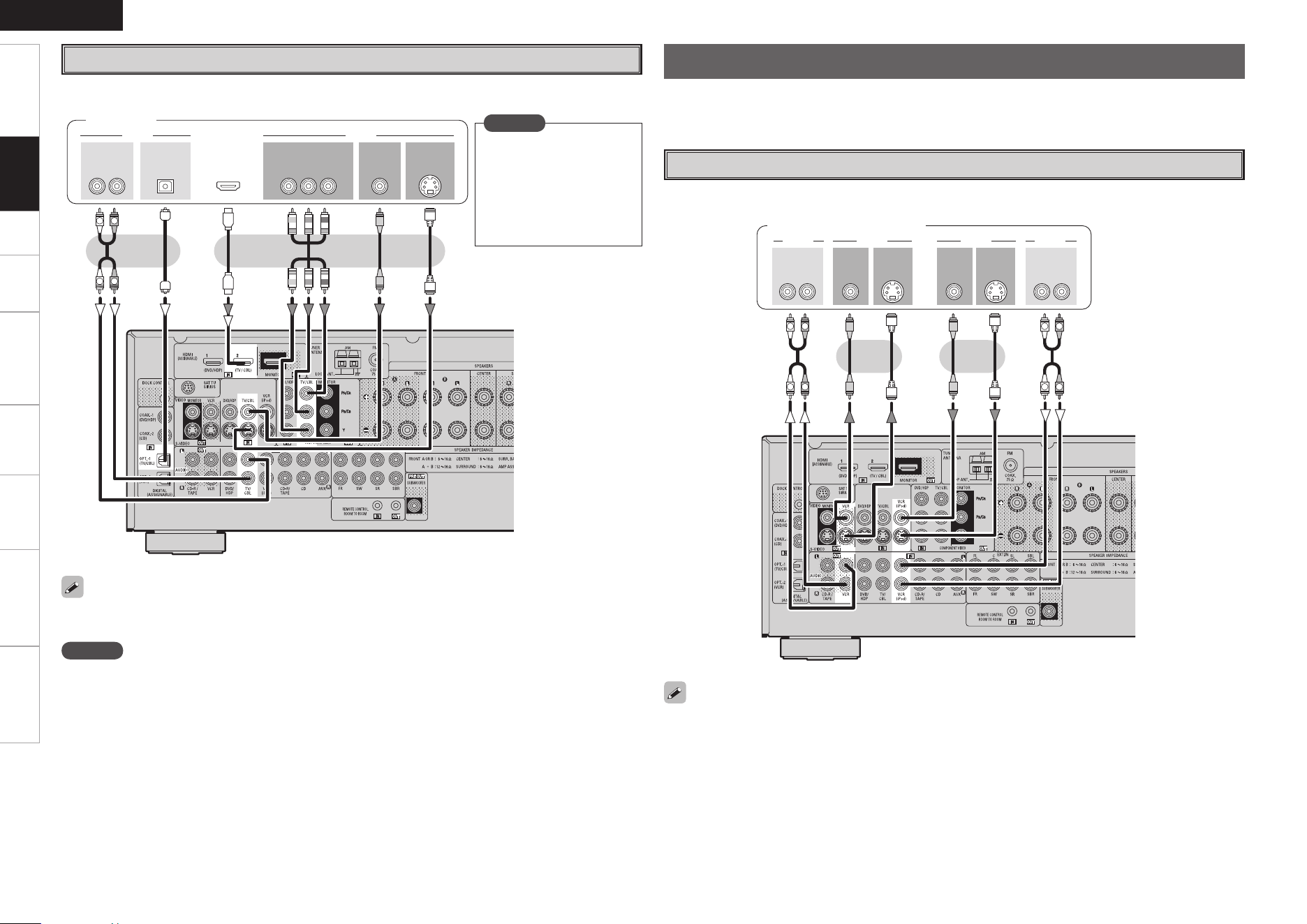
TV/CABLE Tuner
Select the terminal to use and connect the device.
TV tuner
When using a coaxial cable for the digital audio connection, make the settings at “System Setup” – “Input
Setup” – “Digital In Assign” (vpage 25).
Carefully check the left (L) and right (R) channels and the inputs and outputs, and be sure to interconnect
correctly.
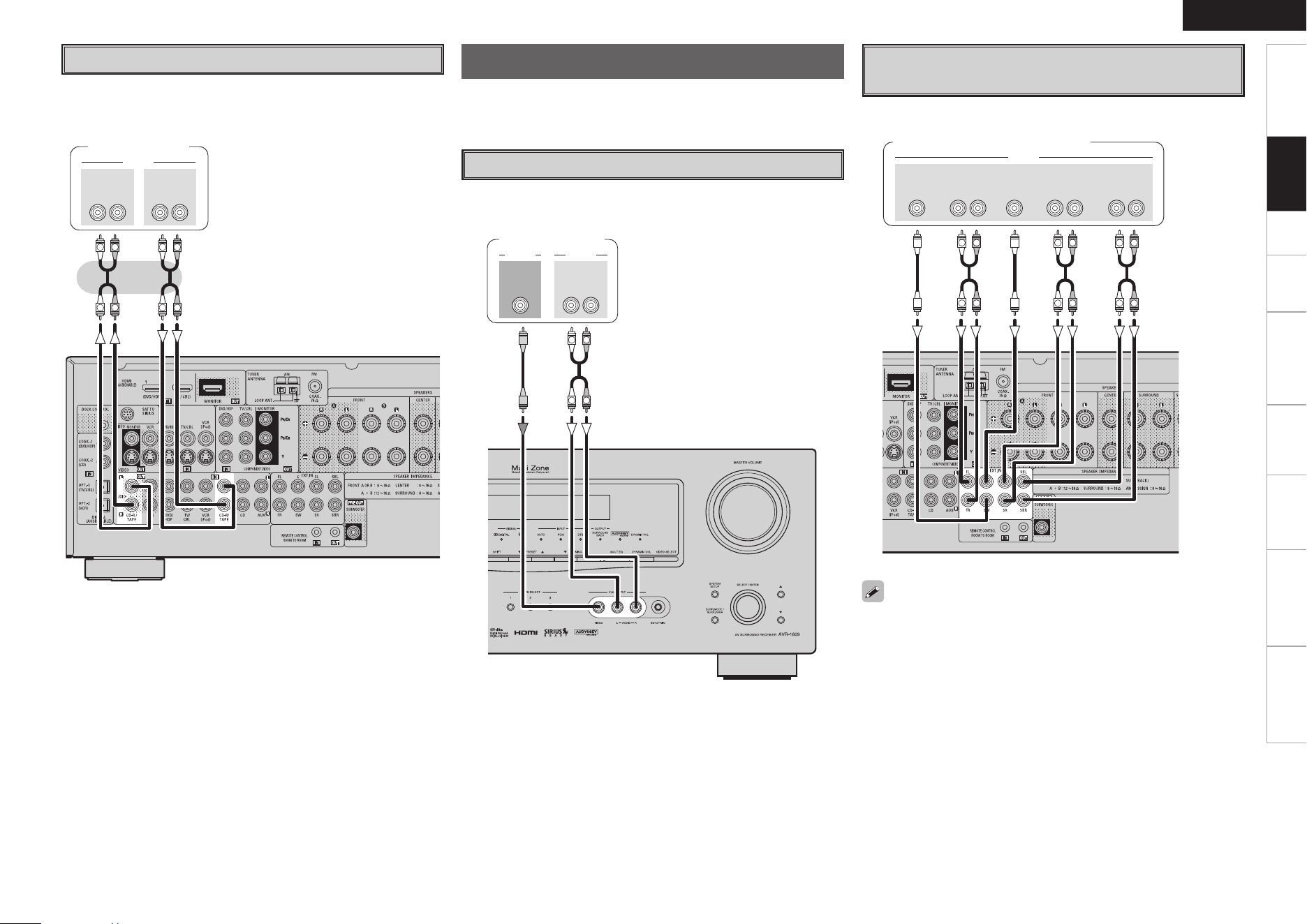
Video Cassette Recorder
Select the terminal to use and connect the device.
When recording via the AVR-1609, the playback device’s cable must be of the same type as the cable used
to connect the AVR-1609’s VCR OUT connector.
Example: TV IN → S-Video cable : VCR OUT → S-Video cable
TV IN → Video cable : VCR OUT → Video cable
Connecting the Recording Components
NOTE
The audio signal input to
the HDMI input connector
cannot be played on the
AVR-1609. Input the audio
signal to the digital audio
input connector or analog
audio input connector.
47*%&047*%&0
065
3-3-
065065*/
"6%*07*%&0"6%*0 7*%&0
*/
"6%*0"6%*0 7*%&0 7*%&0
*/
R
L
R
L
R
L
R
L
Video cassette recorder
NOTE
Because video signals are output from the AVR-1609’s monitor output terminal in the same format as the
video input signals, the monitor output terminal should be of the same type as the terminal used for
input.
Connections
Getting Started Setup Playback Remote Control Multi-Zone Information Troubleshooting
ENGLISH
Specifications
3- 3-
*/ 065
"6%*0"6%*0
"6%*0
R
L
R
L
R
L
R
L
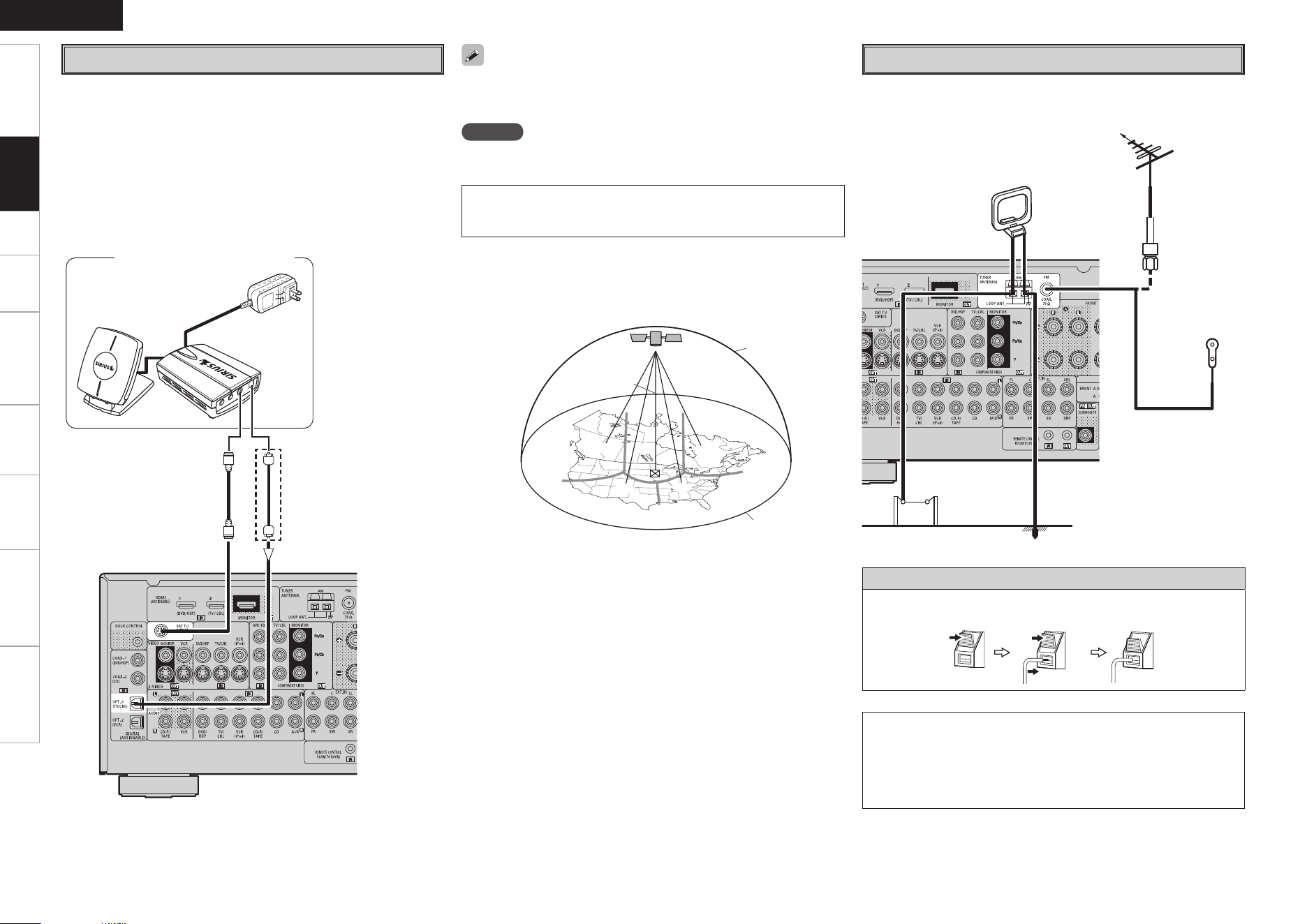
CD Recorder / MD Recorder / Tape Deck
Select the terminal to use and connect the device.
CD recorder /
MD recorder /
Tape deck
Video Camera / Game Console
065
"6%*07*%&0
7*%&0 "6%*0
3-
065
R
L
R
L
Video camera /
Game console
Carefully check the left (L) and right (R) channels and the inputs and
outputs, and be sure to interconnect correctly.
Select the terminal to use and connect the device.
Component with Multi-channel Output
connectors
46#
800'&3
$&/5&3 463306/%
#"$,
3-
463306/%
3-
'30/5
3-
"6%*0
R
L
R
L
R
L
R
L
R
L
R
L
DVD player / External decoder
• To play the analog input signals input to the EXT. IN connectors,
press the INPUT MODE button on the main unit or the INPUT button
on the remote control unit and select “EXT. IN” (vpage 37).
• The video signal can be connected in the same way as a DVD player
(vpage 11).
• To play copyright-protected discs, connect the AVR-1609’s EXT.
IN connector with the DVD player’s analog multi-channel output
connector.
Select the terminal to use and connect the device.
Connections to Other Devices
Connections
Getting Started Setup Playback Remote Control Multi-Zone Information Troubleshooting
ENGLISH
Specifications
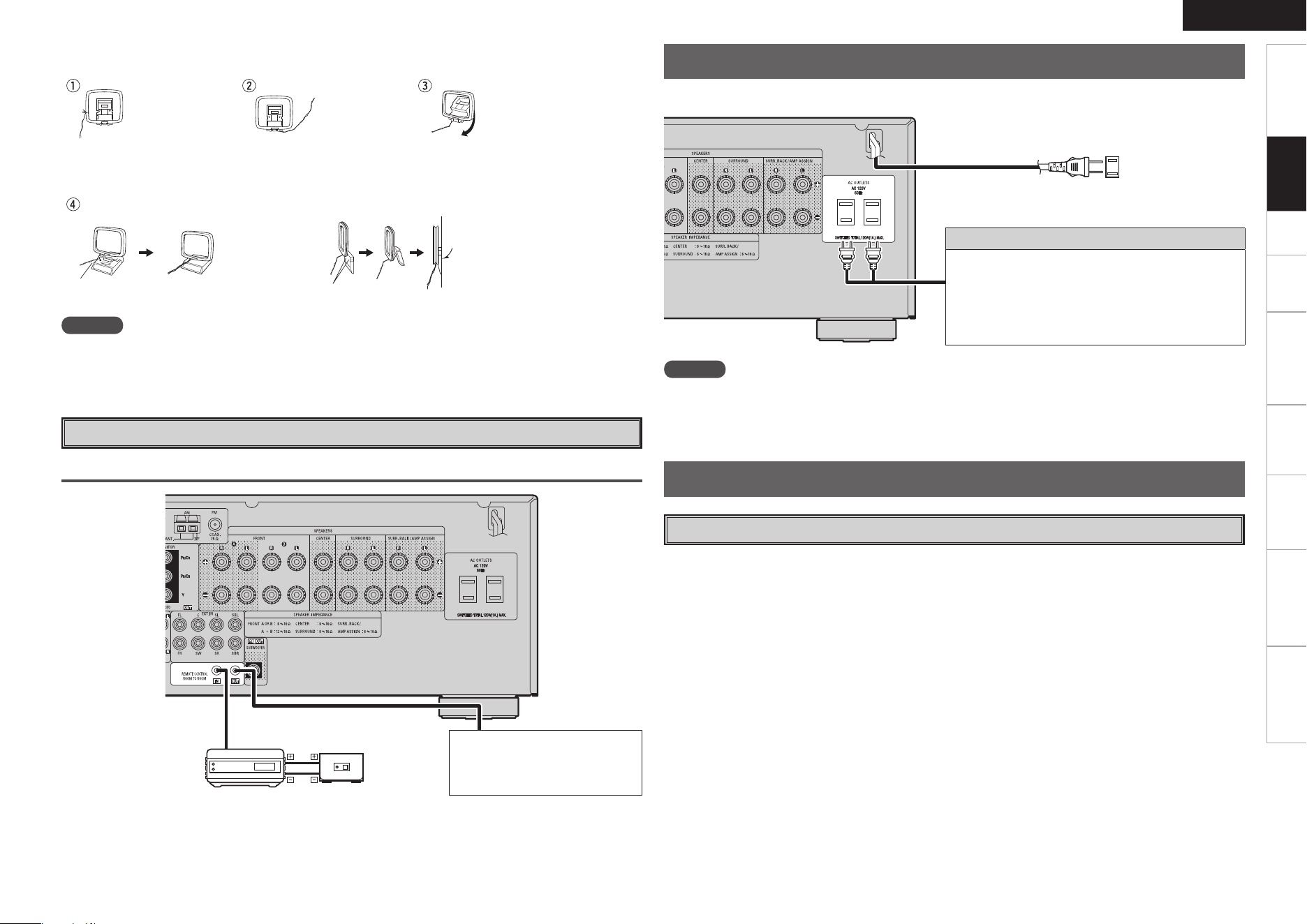
SIRIUS connector
• The AVR-1609 is a SIRIUS Satellite Radio Ready
®
receiver. You can
receive SIRIUS
®
Satellite Radio by connecting to the SiriusConnect
Home Tuner and subscribing to the SIRIUS service.
• Plug the SIRIUS connector on the rear panel.
• Position the Home Tuner antenna near a south-facing window to
receive the best signal.
For details, see “Listening to SIRIUS Satellite Radio Programs”
(vpage 40).
When making connections, also refer to the operating instructions of
the SiriusConnect Home Tuner.
SiriusConnect Home Tuner
b When connecting digital audio.
NOTE
Keep the power cord unplugged until the SiriusConnect Home Tuner
connection have been completed.
©2006 SIRIUS Satellite Radio Inc. “SIRIUS”, the SIRIUS dog logo,
and channel names and logos are trademarks of SIRIUS Satellite
Radio Inc.
n Positioning the Antenna
For a consistent satellite signal, the antenna must be positioned
correctly. Use the following map to determine which area you are in
and position the antenna accordingly.
q
w
e
r
t
SOUTH
NORTH
WEST
SKY
EAST
HORIZON
Area 1 : Point the antenna toward the sky in the east, northeast, or
southeast, either through a window or outside.
Area 2 : Point the antenna toward the sky in the north or northeast,
either through a window or outside.
Area 3 : Point the antenna toward the sky in the north or northwest,
either through a window or outside.
Area 4 : Point the antenna toward the sky in the west, northwest, or
southwest, either through a window or outside.
Area 5 : Put the antenna outside and point it straight up. The antenna
cannot be used indoors.
When connecting the Optical terminal, set the input
Optical terminal allocations for “System Setup” –
“Input Setup” – “Digital In Assign”, in “SIRIUS”.
Antenna terminals
An F-type FM antenna cable plug can be connected directly.
Direction of broadcasting station
AM loop antenna
(supplied)
FM antenna
75 Ω/ohms
Coaxial cable
FM indoor antenna
(supplied)
Ground
AM outdoor antenna
Connection of AM antennas
1. Push the
lever.
2. Insert the
conductor.
3. Return the
lever.
Connections
Note to CATV system installer:
This reminder is provided to call the CATV system installer’s
attention to Article 820-40 of the NEC which provides guidelines
for proper grounding and, in particular, specifies that the cable
ground shall be connected to the grounding system of the building,
as close to the point of cable entry as practical.
Getting Started Setup Playback Remote Control Multi-Zone Information Troubleshooting
ENGLISH
Specifications
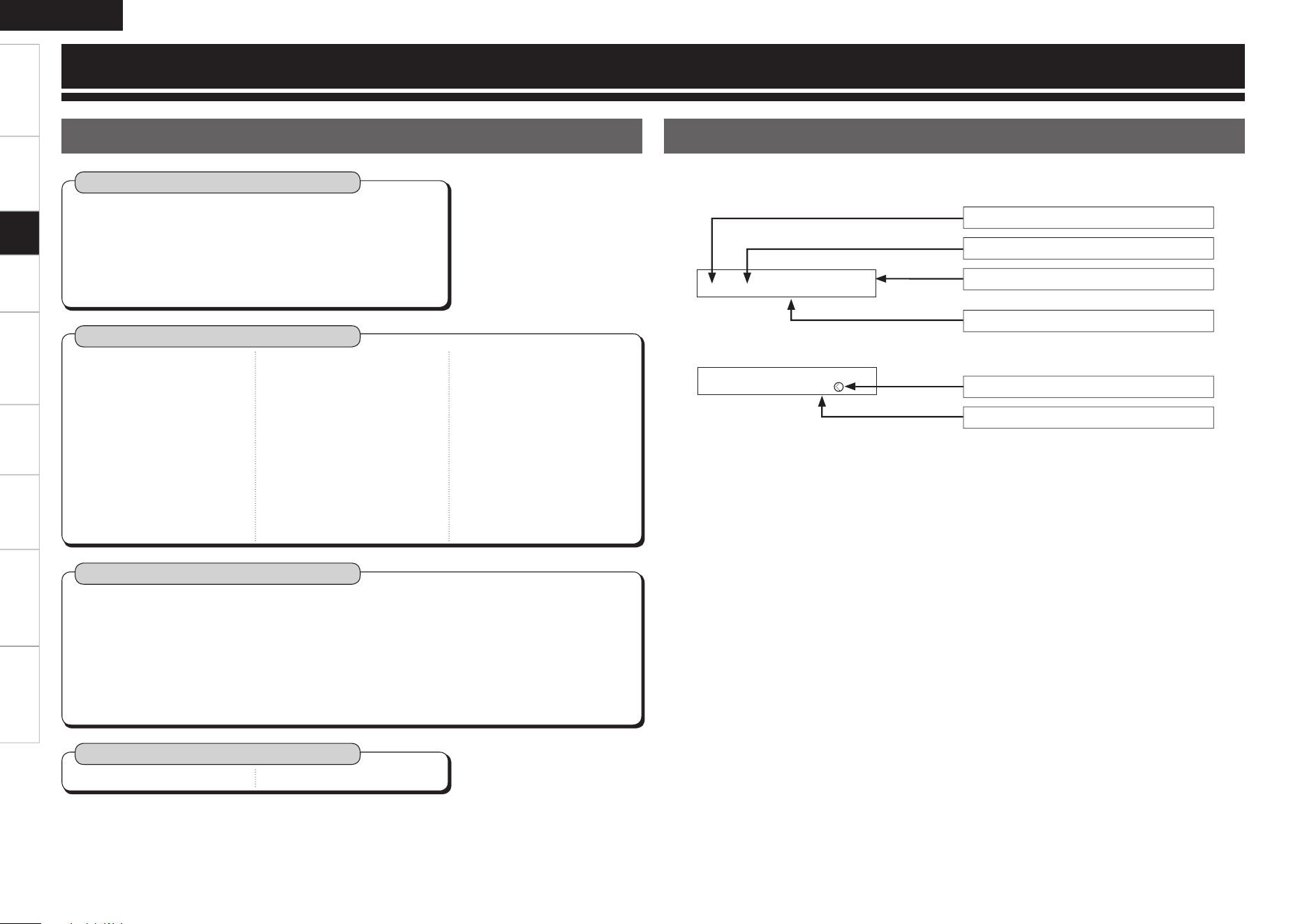
n AM loop antenna assembly
Remove the vinyl tie and take
out the connection line.
Connect to the AM
antenna terminals.
Bend in the reverse direction.
a. With the antenna on top of
any stable surface.
Mount
b. With the antenna attached
to a wall.
Installation hole Mount on wall, etc.
NOTE
• Do not connect two FM antennas simultaneously.
• Even if an external AM antenna is used, do not disconnect the AM loop antenna.
• Make sure the AM loop antenna lead terminals do not touch metal parts of the panel.
External Controller
"69
065
Input
Output
Infrared
retransmitter
Infrared
sensor
Extension jack for future use.
(Connect devices corresponding
with room to room function to
this jack.)
Connecting a Room-to-Room Remote Control Unit
NOTE
• Insert the AC plugs securely. Incomplete connections could cause noise.
• Only use the AC outlets to plug in audio equipment. Do not use them as power supplies for hairdryers or
anything other than audio equipment.
Wait until all connections have been completed before connecting the power cord.
To household
power outlet
(AC 120 V, 60 Hz)
Power cord
Connection to the AC outlets
• These outlets supply power to external audio
equipment.
• The power supplied from these outlets turns on and
off together with the set’s power switch.
• Audio equipment with a total power consumption
of 120 W (1 A) can be connected.
Turning the Power On
(vpage 37)
Connecting the Power Cord
Once Connections are Completed
Connections
Getting Started Connections Playback Remote Control Multi-Zone Information Troubleshooting
ENGLISH
Specifi cations
Q
2 2 T . T o n e Y e s <
Press the o button to select.
Currently selected line
Some typical examples are described below.
W
1 H D M I 1 : D V D
Item number
Current setting
Currently selected line
Menu number
Menu Map
Operations
Examples of Front Display
Auto Setup (vpage 18 ~ 20)
n Start Menu
• Step 1: Speaker Detection
• Step 2: Measurement
• Step 3: Calculation
• Step 4: Check
• Step 5: Store
System Setup (vpage 21 ~ 28)
n Speaker Setup (vpage 22 ~ 24)
• Speaker Confi guration
• Subwoofer Mode Setup
• Distance
• Crossover Frequency
• Test Tone
• Restore
n Input Setup (vpage 24 ~ 26)
• HDMI In Assign
• Digital In Assign
• iPod Assign
• Audio Delay
• EXT. IN Subwoofer Level
• Auto Preset Memory
• Parental Lock
• Edit Lock Code
n Option Setup (vpage 27, 28)
• Amp Assign
• Volume Control
· Volume Limit
· Power On Level
· Mute Level
• ZONE2 Volume Control
· ZONE2 Volume Limit
· ZONE2 Power On Level
· ZONE2 Mute Level
• Auto Surround Mode
• Direct Mode Setup
• Remote ID Setup
b When the setup microphone is connected.
Parameter (vpage 31 ~ 35)
n Surround Parameter
• Mode
• Cinema EQ
• D. Comp
• LFE
• Center Image
• Panorama
• Dimension
• Center Width
• Treble
• MultEQ
• Dynamic EQ
• Dynamic Volume
• DV Setting
• RESTORER
• Night Mode
• Default
• Delay Time
• Effect Level
• Room Size
• SB CH OUT
• SUBWOOFER ATT.
• Subwoofer
• Tone Control
• Bass
Information (vpage 36)
n Status n Audio Input Signal
Setup
Getting Started Connections Playback Remote Control Multi-Zone Information Troubleshooting
ENGLISH
Specifi cations
uio
MASTER VOLUME
ENTER
uiMASTER VOLUME
<SPEAKERS> <SETUP MIC>
ENTER, o
uio
ENTER
[Front]
[Rear]
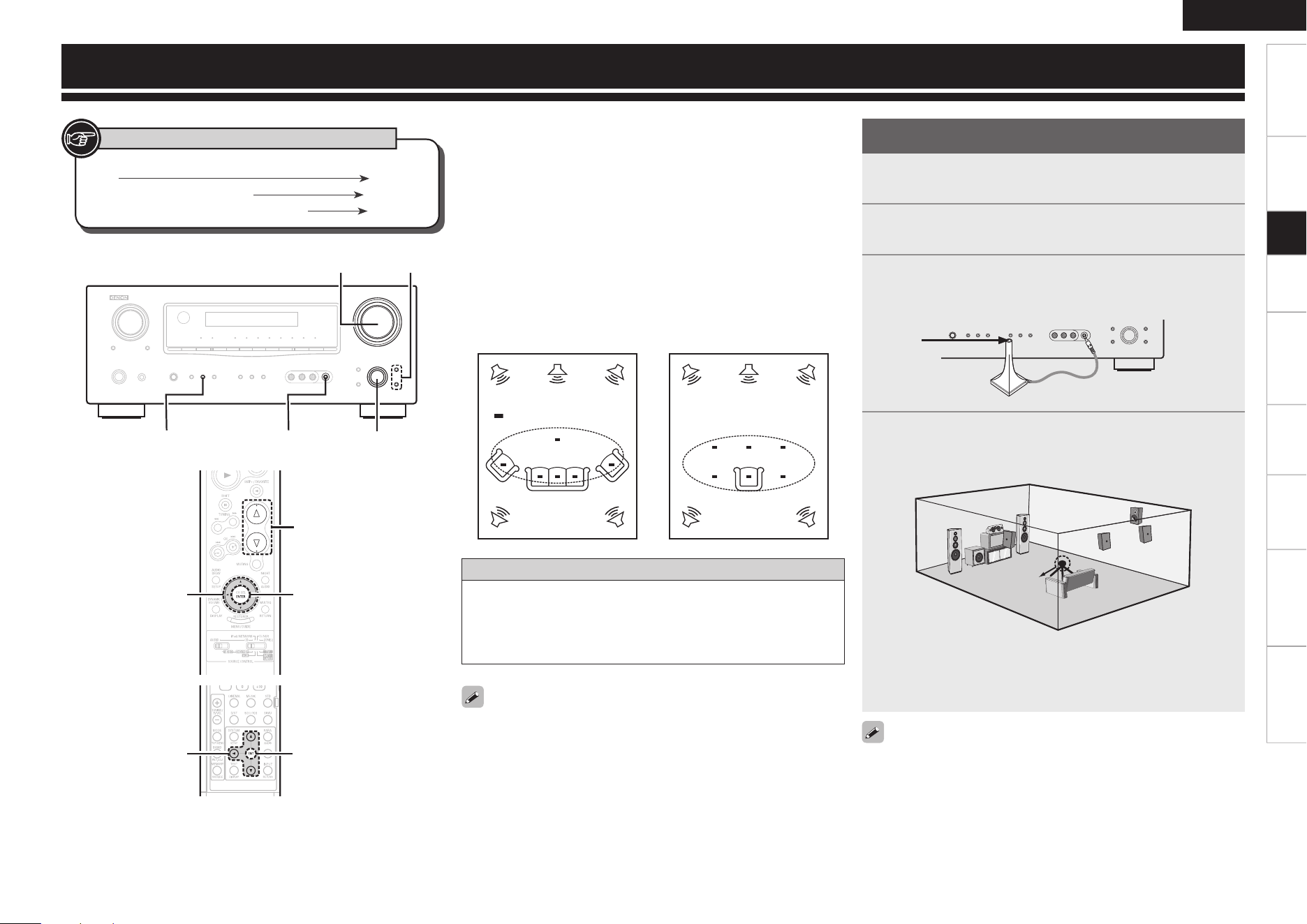
Preparations
• Audyssey MultEQ automatically measures the acoustical problems
in the listening environment to create the best audio experience for
your home theater.
• Audyssey MultEQ optimizes a large listening area where one or
more listeners are seated.
Measurements are performed by placing the calibrated microphone
(DM-A409) successively at multiple positions throughout the
listening area as shown in Example q. For best results, it is strongly
recommended to measure 6 positions so that the measurements
have the proper spatial weighting.
Even if the listening environment is small as shown in Example w,
measuring at multiple points throughout the listening environment
results in more effective correction.
To make manual adjustments to the settings, see pages 22 ~ 24.
About the main listening position (*M)
The main listening position refers to the most central position where
one would normally sit within the listening environment.
MultEQ uses the measurements from this position to calculate
speaker distance, level, polarity, and the optimum crossover value
for the subwoofer.
*
M
*
M
Example q Example w
( :Measuring positions)
1
Press <SPEAKERS> to select the front speakers Front
A, Front B or Front A+B.
2
Set “Amp Assign” to de ne how the ampli er for the
surround back speaker channels is used (vpage 27).
3
Connect the included calibrated setup microphone to
the SETUP MIC jack on the main unit.
“Auto Set<Start” is displayed.
4
Place the microphone at ear height on a tripod or stand
with the microphone pointing directly up towards the
ceiling.
b Do not hold the microphone in your hand during measurements.
Be sure that the path from microphone to the speakers is not
blocked by objects. Avoid placing the microphone close to a seat
back or wall as sound refl ections may give inaccurate results.
Sound
receptor
Setup
microphone
Button located on both the main unit and the remote control
unit
BUTTON
Button only on the main unit
<BUTTON>
Button only on the remote control unit
[BUTTON]
Symbols used to indicate buttons in this manual
When using a subwoofer, make the following settings before starting
the auto setup procedure:
• Defeat the volume and crossover controls if possible
• If this is not possible then set
•
Volume: “12 o’clock” position
•
Crossover frequency: “Maximum/Highest Frequency”
•
Low pass fi lter: “Off”
•
Standby mode: “Off”
Auto Setup
Setup
SETUP MIC jack
Getting Started Connections Playback Remote Control Multi-Zone Information Troubleshooting
ENGLISH
Specifi cations
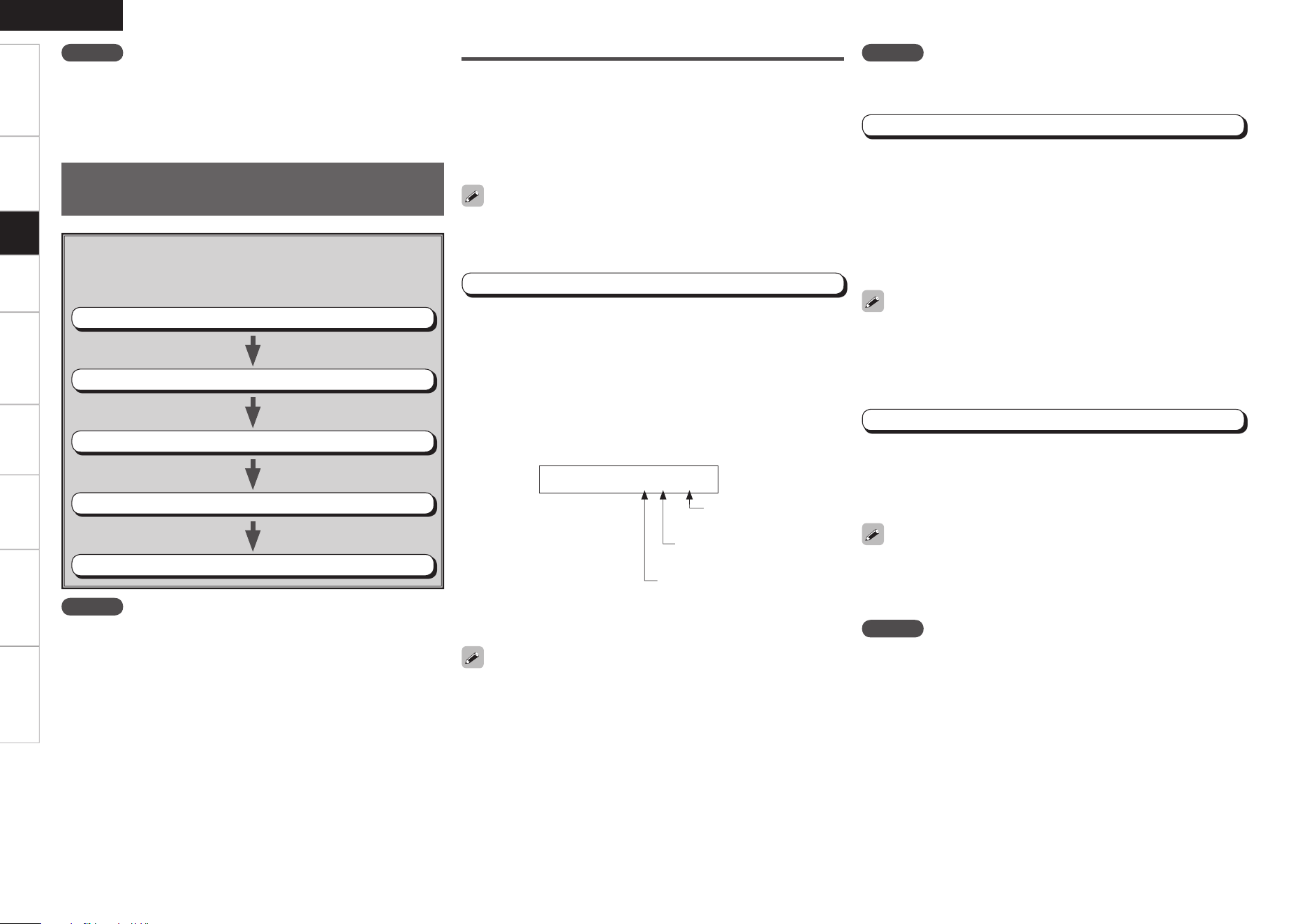
About the Auto Setup
The Audyssey MultEQ auto setup function detects the presence of
each speaker and automatically calculates the speaker size, channel
level, distance, and optimal crossover frequency setting. Audyssey
MultEQ corrects acoustical distortions within the listening area.
Before starting, connect and position all of your speakers.
Once started, MultEQ will play a series of test tones through each
speaker.
NOTE
Do not change the speaker connections or subwoofer volume after
“Step 1”.
If an error message appears during the measurements, check “Error
Messages”, take the advised action, then start the measurements
again (vpage 20).
The speaker connection and polarity are detected at the fi rst
measurement position (main listening position). The following
attributes are also determined at this time: “Speaker Size”, “Speaker
Distance”, “Channel Level”, “Crossover Frequency”.
q Press o while “Auto Set<Start” is displayed.
• While the measurements are being conducted “Measure:FL
<Ccl” (“FL” indicates the speaker being measured) is displayed.
• When the measurements are completed, the number of detected
speakers is displayed.
Example : For a 7.1 channel speaker confi guration
S p e a k e r : 3 / 4 / . 1
Step 1 : Speaker Detection
• If the result differs from the actual connection status or an error
message appears, use i to display “Retry<” and then press o to
repeat the measurement.
• If the result still differs from the actual connection status after
re-measurement or the error message still appears, it is possible
that the speakers are not connected properly. Turn the AVR-1609
off, check the speaker connections and repeat the measurement
process from the beginning.
Number of front speakers or
center speakers
a Auto Setup
The settings found at this stage are applied automatically.
GAuto setup fl owH
Step 1: Speaker Detection
Step 2: Measurement
Step 3: Calculation
Step 4: Check
Step 5: Store
Step 2 : Measurement
q Press i to select “2nd Start<”, then press o.
• The measurement of the 2nd position starts.
w Move the microphone to the 3rd position and press o.
• The measurement of the 3rd position starts.
e Perform w repeatedly.
• “Calculate<” is displayed when you have completed
measurements in 6 positions.
• If you want to stop after measuring just fi ve or fewer positions,
use i to display “Calculate<”.
After completing a measurement position, move the microphone to
the next position.
Measure at 6 positions: the main listening position and 5 other
surrounding positions. Although it is allowable to measure less than 6
positions, it is recommended to measure 6 for best results.
NOTE
• Do not disconnect the setup microphone until the auto setup
procedure is completed.
• When using headphones, unplug the headphones before starting
the auto setup procedure.
NOTE
• Loud test sounds may be played during Audyssey MultEQ automatic
speaker setup. This is part of normal operation. If there is background
noise in room, these test signals will increase in volume.
• Do not stand between the speakers and setup microphone or allow
obstacles in the path while the measurements are being made. This
will cause inaccurate readings.
• Make the room as quiet as possible. Background noise can disrupt
the room measurements. Close windows, silence cell phones,
televisions, radios, air conditioners, fl uorescent lights, home
appliances, light dimmers, or other devices as measurements may
be affected by these sounds.
Cell phones should be placed away from all audio electronics during
the measurement process as Radio Frequency Interference (RFI)
may cause measurement disruptions (even if the cell phone is not in
use).
• Operating MASTER VOLUME during the measurements will cancel
the measurements.
• To cancel the measurements, press o while “Measure:FL <Ccl”
is displayed (“Ccl” stands for “Cancel”).
Step 3 : Calculation
The values obtained from the measurements are automatically
analyzed and the attributes for each of the speakers in the listening
area are determined.
q Press o while “Calculate” is displayed.
• “Calculating” is displayed and analysis begins.
• Analysis takes several minutes to complete.
• The time required for this analysis depends on the number of
speakers connected. The greater the number of speakers connected,
the longer analysis will take.
NOTE
Do not change the speaker connections or subwoofer volume,
or speaker locations after making measurements. If changes are
necessary, make the changes and use the Audyssey MultEQ auto
setup once again for an updated EQ solution.
Subwoofer
Yes: “.1”, No: “0”
Number of surround speakers
or surround back speakers
Auto Setup
Optimize settings for speakers in use.
Setup
0
Getting Started Connections Playback Remote Control Multi-Zone Information Troubleshooting
ENGLISH
Specifi cations
Step 4 : Check
• To proceed to “Step 5” without checking the analysis result, use u i to select “Store<”
while “Parameter Check<” is displayed.
• Values that are different from the actual distance may be set for speakers with built-in fi lters
(subwoofers, etc). This is because fi lters add electrical delay to the signal that should be
compensated.
NOTE
Do not turn the power off while the settings are being stored.
Step 5 : Store
The auto setup measurement results are stored in the AVR-1609.
q Press o while “Store<” is displayed.
• “Storing” blinks on the display panel while the results are being stored.
• When storing is complete, “Completed” is displayed followed by “Disconnect Mic”.
w Disconnect the setup microphone from the AVR-1609.
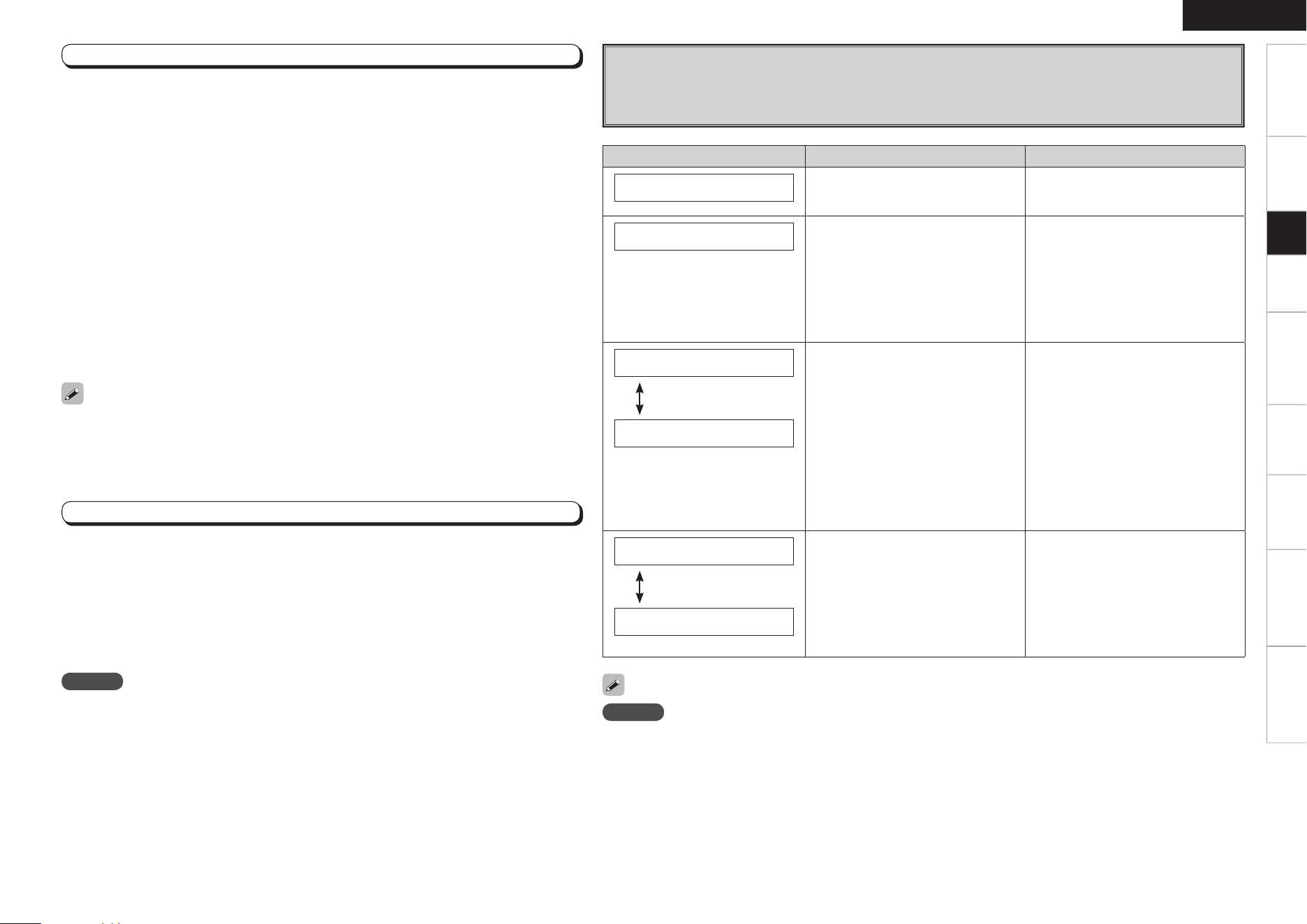
s Error Messages
If the auto setup procedure could not be completed due to speaker installation, the measuring environment,
etc. an error message is displayed. Check the relevant items and be sure to take the necessary measures. After
addressing any issues, perform the auto setup procedure over again.
NOTE
Be sure to turn the power off before checking speaker connections.
Select “Retry” to make the measurements again.
Error messages (examples) Cause Measures
M i c o r S p : N o n e
• The included setup microphone is not
connected.
• Not all speakers could be detected.
• Connect the included setup
microphone to SETUP MIC jack.
• Check the speaker connections.
A m b i e n t N o i s e
• Too much noise in the room for
accurate measurements to be made.
• Speaker or subwoofer sound is too
low for accurate measurements to be
made.
• Either turn off any device generating
noise or move it away.
• Try again when the surroundings are
quieter.
• Check the speaker installation and the
direction in which the speakers are
facing.
• Adjust the subwoofer’s volume.
C a u t i o n : S p N o n e
The messages alternate
F R
• Displayed speaker could not be
detected.
· The front L and front R speakers
were not properly detected.
· Only one channel of the surround
speakers was detected.
· Sound was output from the R
channel when only one surround
back speaker was connected.
· The surround back speaker was
detected, but the surrounds were
not detected.
• Check the connections of the
displayed speaker.
C a u t i o n : P h a s e
The messages alternate
S B L
• Displayed speaker connected with
the polarities reversed.
• Check the polarities of the displayed
speaker.
• For some speakers, this error
message may be displayed even if the
speaker is properly connected. If the
connection is correct, use the u or i
buttons to display “Skip<” and then
press o.
n To switch to another analysis result item
Press ENTER.
This returns you to analysis results items, so repeat operation q.
n To proceed to “Step 5 : Store”
During display of crossover frequency result or analysis results item, press ENTER.
• “Store<” is displayed.
n To cancel storing
Use u or i to display “Cancel<” while “Store<” is displayed and press o.
• All the measured auto setup data will be erased.
When analysis is complete, “Parameter Check<” is displayed.
Press o and check the analysis results for the following four items.
q Make your selection using ui and press o.
• Presence and size of speaker
“SpConfi g. Check<”
• Distance of speaker from listening position
“Distance Check<”
• Speaker channel level
“Ch Level Check<”
• Crossover Frequency
“Crossover Check<”
w Use u or i to change which speaker is displayed.
Setup
Getting Started Connections Playback Remote Control Multi-Zone Information Troubleshooting
ENGLISH
Specifi cations
Make detail settings for various parameters.
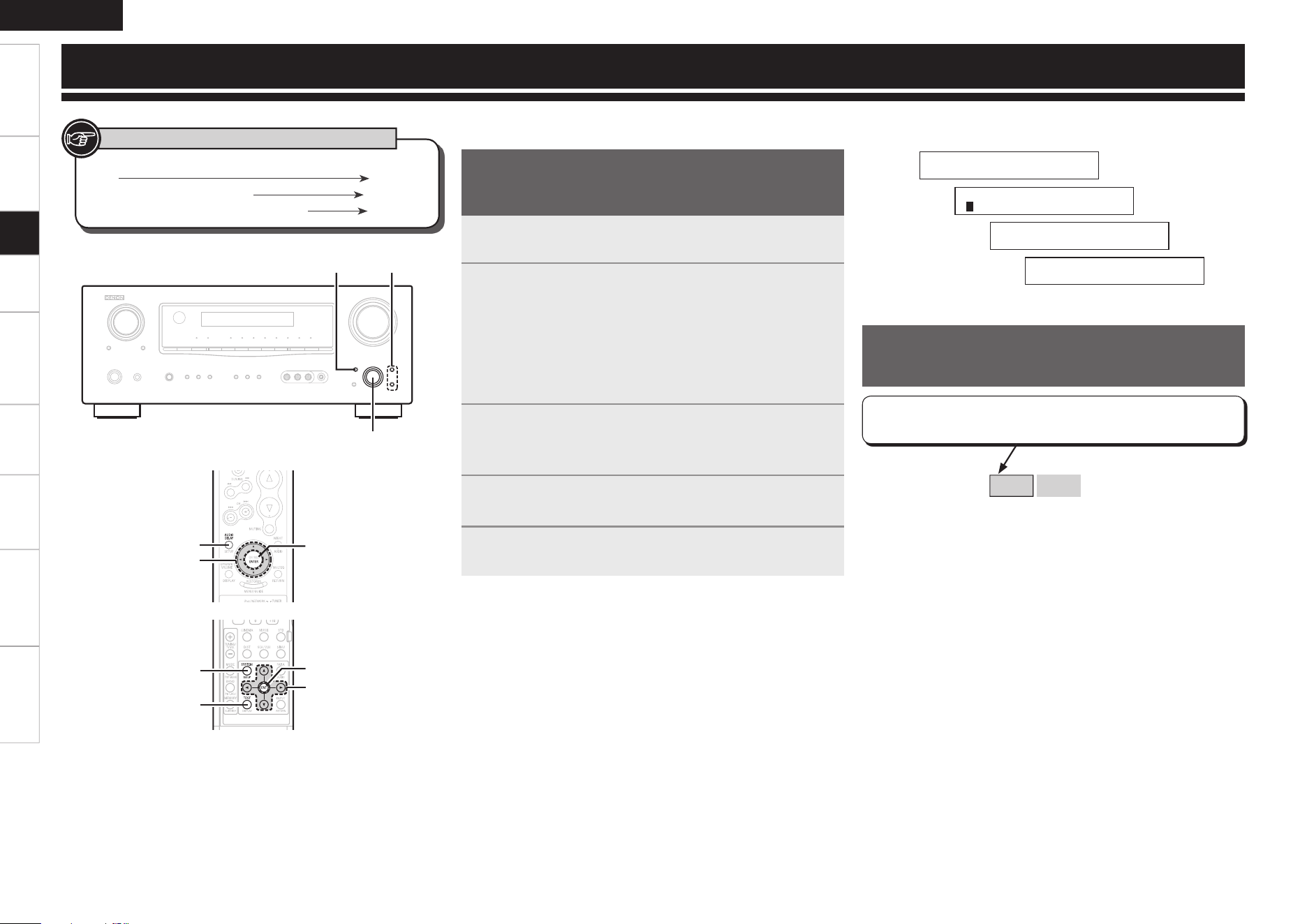
1
Press SYSTEM SETUP.
“System Setup” is displayed.
2
Press ENTER.
Three setup menu categories are displayed.
“1. Sp” : Speaker Setup
“2. In” : Input Setup
“3. Op” : Option Setup
• The cursor of the item number selected blinks.
• For details of the items to be set in each item, see “Menu Map”
(vpage 17).
3
Press o p to select the item you want to set, then
press ENTER.
The detailed setup menu for each item is displayed.
4
Press ui to select the item you want to change, then
press o p to change the setting.
5
Press ENTER or i to con rm the next settings.
2
1 . S p 2 . I n 3 . O p
4
Q
1 F r o n t : L a r g e
1
* S y s t e m S e t u p
Q
S p e a k e r S e t u p
3
[Selectable items]
Large
Small
In lists of selectable items or adjustable ranges, the item
surrounded by a border is the default value.
uiop
ENTER
[AUDIO DELAY]
ENTER, op
uiSYSTEM SETUP
uiop
ENTER
SYSTEM SETUP
[TEST]
[Front]
[Rear]
Button located on both the main unit and the remote control
unit
BUTTON
Button only on the main unit
<BUTTON>
Button only on the remote control unit
[BUTTON]
Symbols used to indicate buttons in this manual
n To move to a setup item of another category
Press SYSTEM SETUP.
• Returns to the setup menu.
• Perform steps 3 and 4.
n To exit setup
Press SYSTEM SETUP while the setup menu is displayed.
• The display returns to normal.
System setup operation
The same operation is possible on the main unit or remote control
unit.
System Setup
Example of Display of Default
Values
Setup
Getting Started Connections Playback Remote Control Multi-Zone Information Troubleshooting
ENGLISH
Specifications
[Display]
1 . S p 2 . I n 3 . O p
Q
S p e a k e r S e t u p
Q
1 F r o n t : L a r g e
Q
6 S u b w o o f e r : Y e s
s Center Speaker
Select center speaker use and size.
[Selectable items]
Large
Small
None
• Select “Large” or “Small” not according to the physical size of the
speaker but according to the low frequency reproduction capabilities
based on the frequency set at “Crossover Frequency” (vpage
23).
• When “Front Speaker” is set to “Small”, “Subwoofer” is
automatically set to “Yes”.
• If “Subwoofer” is set to “No”, “Front Speaker” is automatically set
to “Large”.
• If “Surround Speaker” is set to “None”, “Surround Back Speaker”
are automatically set to “None”.
• When “Front Speaker” is set to “Small”, “Center Speaker” can not
be set to “Large”.
• When using just one surround back speaker, connect it to the left
channel (SBL).
j Subwoofer Mode Setup
Select low range signal to be reproduced by subwoofer.
• This can be set when “System Setup” – “Speaker Setup” –
“Subwoofer” is set to “Yes”.
• Play music or a movie source and select the mode offering the
strongest bass.
• Select “+Main” if you want the bass signals to always be produced
from the subwoofer.
[Selectable items]
Norm
: Play low range and LFE signal of channels set to “Small”.
+Main
: Play low range and LFE signal of all channels.
Large
: Select this when using large speakers with ample low
frequency reproduction capabilities.
Small
: Select this when using small speakers without ample low
frequency reproduction capabilities.
None
: Select this when no speaker is connected.
Yes
: Select this when a subwoofer is connected.
No
: Select this when no subwoofer is connected.
2spkrs
1spkr
:
Select the number of surround back speakers.
Even when the Surround Back Speaker setting is other than
“None”, sound may not be emitted from the surround back
speaker, depending on the playback source. In this case, make a
“Surround Parameter” -“SB CH OUT” setting other than “OFF”.
(vpage 33)
NOTE
By default, the AVR-1609’s “Amp Assign” setting is set to “ZONE2”.
To use as the surround back speaker for the main zone, change the
“Amp Assign” setting (vpage 27).
h Subwoofer
Select subwoofer use.
[Selectable items]
Yes
No
d Surround Speaker
Select surround speakers use and size.
[Selectable items]
Large
Small
None
f, g Surround Back Speaker
Select surround back speaker use and size.
[Selectable items]
(
Large
Small
None
)
(
2spkrs
1spkr
)
a ~ h Speaker Configuration
Select speaker configuration and size.
(bass reproduction capability)
a Front Speaker
Select front speaker size.
[Selectable items]
Large
Small
1. Speaker Setup
Use this procedure to set the speakers manually or if you wish to
change the settings made with the auto setup procedure.
a ~ h Speaker Configuration
j Subwoofer Mode Setup
k ~ A5 Distance
A6 ~ S1 Crossover Frequency
S2 Test Tone
S3 Restore
[Display]
1 . S p 2 . I n 3 . O p
Q
S p e a k e r S e t u p
Q
7 S W M o d e : N o r m
For details on how to select, set and cancel settings for each menu, see “System setup operation” (vpage 21).
Setup
Getting Started Connections Playback Remote Control Multi-Zone Information Troubleshooting
ENGLISH
Specifications
For details on how to select, set and cancel settings for each menu, see “System setup operation” (vpage 21).
[Display]
1 . S p 2 . I n 3 . O p
Q
S p e a k e r S e t u p
Q
8 F L : 1 2 f t
Q
1 5 S W : 1 2 f t
k ~ A5 Distance
Set distance from listening position to speakers.
Before making the settings, measure the distance from the
listening position to the different speakers.
Distance measurement
Select the speaker you want to set, then set the distance.
Set the value closest to the measured distance.
[Variable range]
0ft ~ 60ft
: Settable in units of 1 foot.
Default setting :
• FL / FR / C / SW ·············12 ft
• SL / SR / SBL / SBR ········10 ft
NOTE
Set the distance between the listening position and the various
speakers to no more than 20 ft.
A6 ~ S1 Crossover Frequency
Select crossover frequency from which subwoofer handles low
range signal.
Only the portion of the bass sound of the various speakers output
from the subwoofer that has a frequency below the frequency set
here is output.
Set this according to the low frequency reproduction capabilities of
the speakers you are using.
[Selectable items]
40Hz
60Hz
80Hz
90Hz
100Hz
110Hz
120Hz
150Hz
200Hz
250Hz
:
Set the Crossover Frequency of all speakers as one.
Advanced
:
Set the Crossover Frequency separately for the different speakers.
q When “Cr.Over:Adv” is displayed, press ENTER or i.
w Press o p to set the crossover frequency of each speaker.
The preset speaker changes each time you press i.
[Selectable items]
40Hz
60Hz
80Hz
90Hz
100Hz
110Hz
120Hz
150Hz
200Hz
250Hz
b In the case of “LFE”, there are 8 modes: 80Hz, 90Hz, 100Hz, 110Hz,
120Hz, 150Hz, 200Hz, 250Hz.
• If in the “Advanced” settings, “Subwoofer Mode Setup” (vpage
22) in the “System Setup” is set to “Norm”, it is possible to make
this setting for speakers set to “Small” at “Speaker Configuration”.
If set to “+Main”, this setting can be made regardless of the speaker
size.
• For speakers set to “Small”, sound below the crossover frequency
is cut from the sound output. The cut bass sound is output from the
subwoofer or front speakers.
• Always set the crossover frequency to “80Hz”. When using small
speakers, however, we recommend setting the crossover frequency
to a higher frequency.
S2 Test Tone
Adjust channel levels to obtain equal volume from all speakers.
Test Tone
Select test tone playback method.
[Selectable items]
Auto
: Automatically switch speaker from which test tone is
output.
Manual
: Manually switch speaker from which test tone is output.
[Display]
1 . S p 2 . I n 3 . O p
Q
S p e a k e r S e t u p
Q
1 6 C r . O v e r : 8 0 H z
Q
1 6 C r . O v e r : A d v
Q
1 7 C r . F : 8 0 H z
F : Front, C : Center, S : Surround, SB : Surround Back, LFE : LFE are
displayed.
[Display]
1 . S p 2 . I n 3 . O p
Q
S p e a k e r S e t u p
Q
2 2 T . T o n e Y e s <
Q
T . T o n e A u t o >
Q
T e s t T o n e O n
Q
A u t o - F L
Setup
Getting Started Connections Playback Remote Control Multi-Zone Information Troubleshooting
ENGLISH
Specifications
For details on how to select, set and cancel settings for each menu, see “System setup operation” (vpage 21).
2. Input Setup
Use this procedure to select the input source and make the settings
related to playing input sources.
a , s HDMI In Assign
d ~ h Digital In Assign
j iPod Assign
k Audio Delay
l EXT. IN Subwoofer Level
A0 Auto Preset Memory
A1 Parental Lock
A2 Edit Lock Code
a , s HDMI In Assign
Select HDMI connector to assign to this source.
[Input terminals]
HDMI1
HDMI2
[Assignable input sources]
DVD/HDP
z1
TV/CBL
z2
VCR
V.AUX
OFF
z1 : “DVD” is displayed.
z2 : “TV” is displayed.
Input terminals
a
HDMI1
s
HDMI2
Default setting DVD/HDP TV/CBL
• When “System Setup” – “Speaker Setup” – “Surround Back
Speaker” setting (vpage 22) is set to “1spkr”, the surround back
speaker display is “SB”.
• Speakers set to “None” in the Speaker Configuration settings are
not displayed.
• When “Channel Level” is adjusted, the adjusted values are set for all
the surround modes.
Operating from the remote control unit
Adjusting with the remote control unit using the test tones is only
possible in the “Auto” mode and only effective in the STANDARD
mode. The adjusted levels for the different modes are automatically
stored in the memory.
GAdjusting using test tonesH
q Press [TEST].
Test tones are output from the various speakers.
w Use o p to adjust so that the volume is equal for all speakers.
e When the adjustments are completed, press [TEST].
S3 Restore
After the Auto Setup measurements, it is possible to return those
settings to the Auto Setup measurement results after changing
the speaker settings (speaker configuration, distance, channel
level and crossover frequency) with ”System Setup” – “Speaker
Setup”.
It is not possible to return to Amp Assign settings with Restore.
After running Auto Setup, if the Amp Assign setting has changed,
return to the setting when Auto Setup was run.
Press o to start.
Test Tone Start
Press o to select “Yes”, then press o p to select “Auto” or
“Manual”.
Then press i. Out put the test tone.
Auto : Press o p to adjust the volume.
Manual : Press u i to select the speaker, then press o p to adjust
the volume.
When the adjustments are completed, press ENTER to finish the test
tone.
[Variable range]
–12dB
~
0dB
~
+12dB
[Display]
1 . S p 2 . I n 3 . O p
Q
S p e a k e r S e t u p
2 3 R e s t o r e Y e s <
[Display]
1 . S p 2 . I n 3 . O p
W
I n p u t S e t u p
W
1 H D M I 1 : D V D
W
2 H D M I 2 : T V
• With HDMI, the video and audio signals are transferred
simultaneously. (The HDMI audio signal is output from the monitor.)
At this time, set the input mode to “Auto”.
• The audio signals input from the analog, digital and EXT. IN connectors
are not output to the monitor.
Setup
Getting Started Connections Playback Remote Control Multi-Zone Information Troubleshooting
ENGLISH
Specifications
For details on how to select, set and cancel settings for each menu, see “System setup operation” (vpage 21).
d ~ h Digital In Assign
Select digital input connector to assign to this source.
[Input terminals]
COAX1
COAX2
OPT1
OPT2
[Assignable input sources]
CD
AUX
CDR
DVD/HDP
z1
TV/CBL
z2
VCR
V.AUX
SIRIUS
OFF
z1 : “DVD” is displayed.
z2 : “TV” is displayed.
[Display]
1 . S p 2 . I n 3 . O p
W
I n p u t S e t u p
W
3 C O A X 1 : D V D
W
5 O P T 1 : T V
Input terminals
d
COAXIAL1
f
COAXIAL2
g
OPTICAL1
h
OPTICAL2
Default setting DVD/HDP CD TV/CBL VCR
[Assignable input sources]
CD
AUX
CDR
DVD/HDP
z1
TV/CBL
z2
VCR
V.AUX
OFF
z1 : “DVD” is displayed.
z2 : “TV” is displayed.
With the default settings, the control dock for iPod can be used
connected to the VCR (iPod) connector.
[Display]
1 . S p 2 . I n 3 . O p
W
I n p u t S e t u p
W
7 i P o d : V C R
j iPod Assign
Assign control dock for iPod to this source.
k Audio Delay
Compensate for mismatched timing between video and audio.
Delay audio.
This sets the delay time for audio signals.
[Variable range]
0 ms
~
200 ms
With a movie source, for example, adjust so that the movement of the
actors’ lips is synchronized with the sound.
Operating from the remote control unit
Press [AUDIO DELAY].
[Display]
1 . S p 2 . I n 3 . O p
W
I n p u t S e t u p
W
8 A . D e l a y : 0 m s
• This cannot be adjusted when playing in the EXT. IN, DIRECT or
STEREO mode (with “Front Speaker” set to “Large”, “Tone Control”
to “OFF” and “MultEQ” to “OFF”).
• Store each input source.
A0 Auto Preset Memory
Use the auto preset function to program radio stations.
If an FM station cannot be preset automatically, select the desired
station by tuning it in manually, then preset it manually.
Press o to start.
• “CH” blinks on the display and searching begins.
• “Completed” appears once searching is completed.
l EXT. IN Subwoofer Level
Set the subwoofer level for playback.
Select according to the player in use.
[Selectable items]
0dB
+5dB
+10dB
:
Select according to the player in use.
+15dB
:
This is the recommended level.
[Display]
1 . S p 2 . I n 3 . O p
W
I n p u t S e t u p
W
9 E X T . I n S W : + 1 5
[Display]
1 . S p 2 . I n 3 . O p
W
I n p u t S e t u p
W
1 0 P r e s e t < S t a r t
NOTE
“Auto Preset Memory” is displayed when the input source is “FM”
and “AM”.
Setup
Getting Started Connections Playback Remote Control Multi-Zone Information Troubleshooting
ENGLISH
Specifications
For details on how to select, set and cancel settings for each menu, see “System setup operation” (vpage 21).
q Press o.
w Using uiop, input the password (4 digits number) and press
ENTER.
e Set the lock by pressing o p.
A2 Edit Lock Code
Change the password (See “Parental Lock”).
q Press o.
w Input old password (4 digits) using uiop, and press ENTER.
e Input new password (4 digits) using uiop, and press ENTER.
Be sure to memorize the password you have entered.
r Input new password (4 digits) again using uiop, and press
ENTER. If the correct password is input, “Complete” is displayed,
and the new password is modified.
A1 Parental Lock
For any channel, set the radio reception limits.
• The default password is “0000”. If you wish to change this password,
set the new password with “Edit Lock Code”.
• If the password is incorrectly input, “Incorrect Code” is displayed,
and proceed again from step q.
• If the password input is 3 digits or less, “Enter 4-digit” is displayed,
and input again with a 4 digit password.
• While listening to the channel being played, you can also set parental
lock (vpage 40).
NOTE
“Parental Lock” is displayed when input source is “SIRIUS” , and
connected to SIRIUS Tuner.
[Display]
1 . S p 2 . I n 3 . O p
W
I n p u t S e t u p
W
1 1 P a r e n t a l L o c k <
q
W
C o d e : [ 0 0 0 0 ]
w
W
S R 0 0 1 : < U n l o c k >
e
W
S R 0 0 1 : < L o c k >
[Selectable items]
Unlock
: Do not lock selected channel(s).
Lock
: Lock selected channel(s).
b When a Parental Locked channel is tuned, “Code : [ ]” is
displayed, then input the password.
• If the old password is incorrectly input, “Incorrect Code” is displayed,
and proceed again from step q.
• If the password input is 3 digits or less, “Enter 4-digit” is displayed,
and input again with a 4 digit password.
• If the new password is not correctly input, “Disagreement” is
displayed and the password does not change.
NOTE
“Edit Lock Code” is displayed when the input source is “SIRIUS”.
[Display]
1 . S p 2 . I n 3 . O p
W
I n p u t S e t u p
W
1 2 E d i t L o c k C o d e <
q
W
C u r r e n t : [ 0 0 0 0 ]
w
W
N e w : [ 0 1 2 3 ]
e
W
R e p e a t : [ 0 1 2 3 ]
r
W
C o m p l e t e
Setup
Getting Started Connections Playback Remote Control Multi-Zone Information Troubleshooting
ENGLISH
Specifications
For details on how to select, set and cancel settings for each menu, see “System setup operation” (vpage 21).
s ~ f Volume Control
Set the main zone volume setting.
f Mute Level
This sets the amount of attenuation of the volume when the mute
mode is set in the main zone.
[Selectable items]
Full
: The sound is cut off entirely.
–40dB
: The sound is attenuated by 40 dB.
–20dB
: The sound is attenuated by 20 dB.
s Volume Limit
Make a setting for maximum volume.
[Selectable items]
OFF
: Do not set a maximum volume.
–20dB
: Set the maximum volume to –20 dB.
–10dB
: Set the maximum volume to –10 dB.
0dB
: Set the maximum volume to 0 dB.
d Power On Level
This sets the volume set when the main zone’s power is turned on.
[Selectable items]
Last
: Use the memorized setting from the last session.
– – –
: Always use the muting on condition when power
is turned on.
[Variable range]
–80dB ~ +18dB
: Set the volume level when the power is turned on
in units of 1 dB.
b
The variable level when upper limit has been set with “Volume
Limit” is “–80 dB ~ the set volume level”.
3. Option Setup
Make various other settings.
a Amp Assign
s ~ f Volume Control
g ~ j ZONE2 Volume Control
k Auto Surround Mode
l Direct Mode Setup
A0 Remote ID Setup
a Amp Assign
The places where the surround back amplifier are used can be set
freely according to the usage environment. This makes it possible
to output sound to rooms other than the room (the main zone)
where surround playback is performed (multi-zone playback).
[Selectable items]
7.1ch
: 7.1-channel playback
ZONE2
: 5.1-channel playback + ZONE2 stereo playback
For details, see “Amp Assign / Multi-zone Connections and Operations”
(vpage 49).
g ~ j ZONE2 Volume Control
Set the ZONE2 volume setting.
g ZONE2 Volume Limit
Make a setting for maximum volume.
[Selectable items]
OFF
: Do not set a maximum volume.
–20dB
: Set the maximum volume to –20 dB.
–10dB
: Set the maximum volume to –10 dB.
0dB
: Set the maximum volume to 0 dB.
[Display]
1 . S p 2 . I n 3 . O p
E
O p t i o n S e t u p
E
1 A m p : Z O N E 2
[Display]
1 . S p 2 . I n 3 . O p
E
O p t i o n S e t u p
E
2 L i m i t : O F F
E
3 P . O n : L a s t
E
4 M u t e : F u l l
[Display]
1 . S p 2 . I n 3 . O p
E
O p t i o n S e t u p
E
5 Z 2 L i m i t : O F F
E
6 Z 2 P . O n : L a s t
E
7 Z 2 M u t e : F u l l
Setup
Getting Started Connections Playback Remote Control Multi-Zone Information Troubleshooting
ENGLISH
Specifications
For details on how to select, set and cancel settings for each menu, see “System setup operation” (vpage 21).
j ZONE2 Mute Level
This sets the amount of attenuation of the volume when the mute
mode is set in the ZONE2.
[Selectable items]
Full
: The sound is cut off entirely.
–40dB
: The sound is attenuated by 40 dB.
–20dB
: The sound is attenuated by 20 dB.
h ZONE2 Power On Level
This sets the volume set when the ZONE2’s power is turned on.
[Selectable items]
Last
: Use the memorized setting from the last session.
– – –
: Always use the muting on condition when power
is turned on.
[Variable range]
–70dB ~ +18dB
: Set the volume level when the power is turned on
in units of 1 dB.
b The variable level when upper limit has been set with “Volume
Limit” is “–70 dB ~ the set volume level”.
“ZONE2 Volume Control” is displayed when “ZONE2” is selected
with “Amp Assign” (vpage 27).
k Auto Surround Mode
Make setting for memorizing surround mode setting for each input
signal type.
[Selectable items]
ON
: Memorize settings. Most recently stored surround mode is
automatically selected.
OFF
: Do not memorize settings. Surround mode does not change
according to input signal.
The auto surround mode function lets you store in the memory the
surround mode last used for playing the three types of input signals
listed below.
q Analog and PCM 2-channel signals (STEREO)
w 2-channel signals of Dolby Digital, DTS or other multi-channel
format (DOLBY PLgx Cinema)
e Multi-channel signals of Dolby Digital, DTS or other multichannel
format (DOLBY/DTS SURROUND)
b Default settings are indicated in ( ).
[Selectable items]
ON
: Use MultEQ.
OFF
: Do not use MultEQ.
l Direct Mode Setup
Select MultEQ use for DIRECT mode playback.
A0 Remote ID Setup
Set remote control ID.
[Selectable items]
1
2
3
4
NOTE
When using the AVR-1609 with only the included remote control unit
(RC-1098), there is no need to make settings.
When using a separately sold remote control unit (RC-7000CI, etc.),
this function can be used. Match the ID setting of the remote control
unit and the receiver.
[Display]
1 . S p 2 . I n 3 . O p
E
O p t i o n S e t u p
E
8 A u t o S u r r . : O N
[Display]
1 . S p 2 . I n 3 . O p
E
O p t i o n S e t u p
E
9 D i r e c t : O F F
[Display]
1 . S p 2 . I n 3 . O p
E
O p t i o n S e t u p
E
1 0 R e m o t e I D : 1
Setup
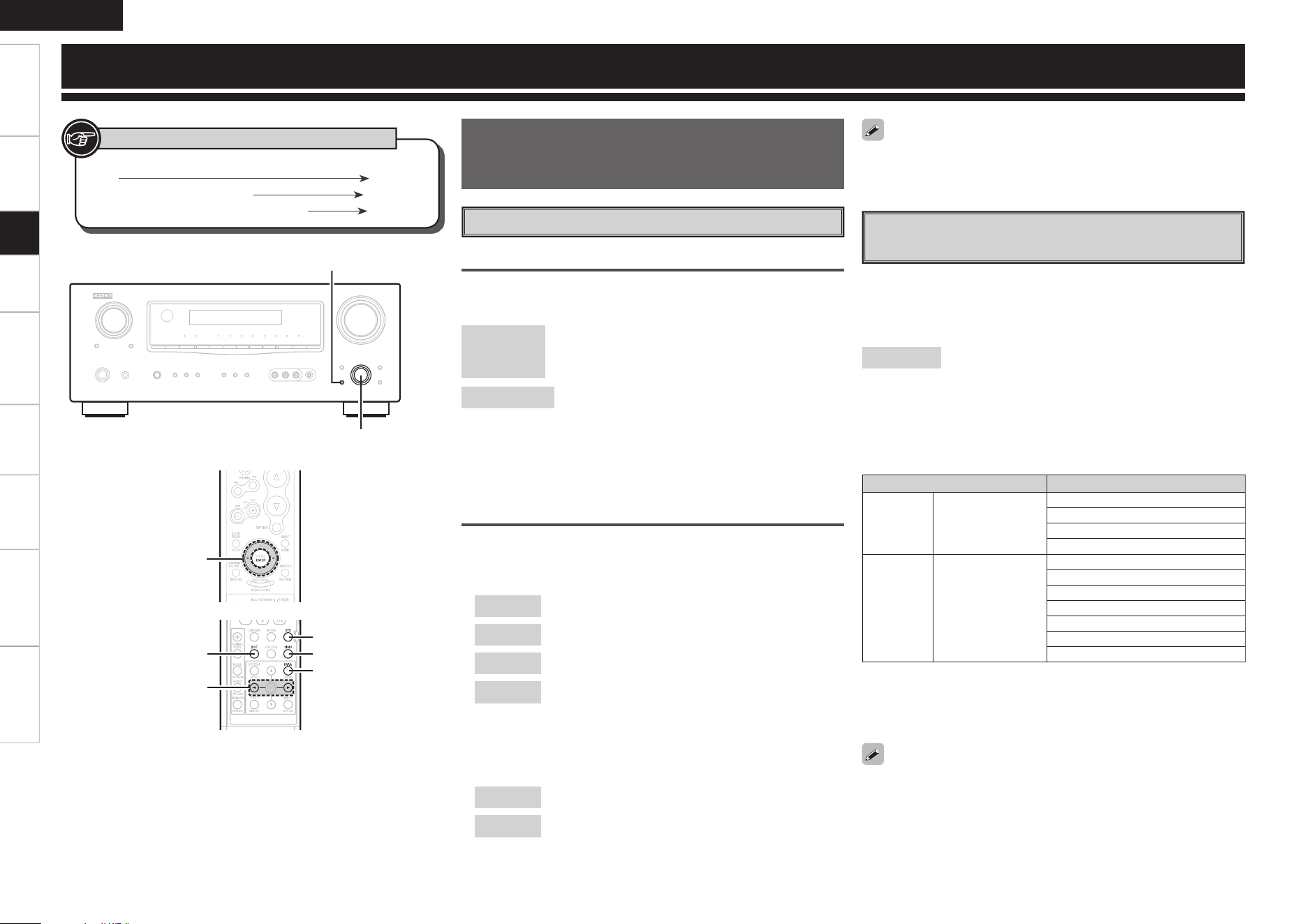
Getting Started Connections Playback Remote Control Multi-Zone Information Troubleshooting
ENGLISH
Specifi cations
Surround Modes
q Standard Playback
This is the mode for enjoying surround sound according to the
program source.
Surround Playback of 2-channel Sources
Selecting the surround mode
Select by turning <SELECT/ENTER> or pressing [STD].
[Selectable items]
DOLBY PLgx
or
DOLBY PLg
z
: The signals are decoded in DOLBY PLgx or DOLBY
PLg for playback.
DTS NEO:6
: The signals are decoded in DTS NEO:6 for
playback.
z
: DOLBY PLgx can be selected when surround back speakers are
being used.
DOLBY PLg can be selected when surround back speakers are not
being used.
Select the mode to suit the source
Press <SURR. PARA> or [PARA]. Display “Mode” and select your
desired mode using o p.
n DOLBY PLgx or DOLBY PLg
Cinema
: This mode is suited for movie sources.
Music
: This mode is suited for music sources.
Game
: This mode is suited for games.
PL
: This is the Pro Logic playback mode. This can be
selected when playing with a DOLBY PLg decoder.
When this mode is selected, “DOLBY PL” is
displayed.
n DTS NEO:6
Cinema
: This mode is suited for movie sources.
Music
: This mode is suited for music sources.
Select the “Cinema”, “Music”, “Game” and “PL” modes at “Surround
Parameter” – “Mode” (vpage 32).
Input signal Display
Dolby
Digital
Source
DOLBY DIGITAL
(other than 2ch) /
DOLBY DIGITAL
EX
DOLBY DIGITAL
DOLBY DIGITAL EX
DOLBY DIGITAL+PLgx CINEMA
DOLBY DIGITAL+PLgx MUSIC
DTS
Surround
Source
DTS (5.1ch) /
DTS-ES Discrete
6.1 /
DTS-ES Matrix
6.1 /
DTS 96/24
DTS SURROUND
DTS+PLgx CINEMA
DTS+PLgx MUSIC
DTS+NEO:6
DTS ES MTRX6.1 (z1)
DTS ES DSCRT6.1 (z2)
DTS 96/24 (z3)
z1 : This is displayed when the input signal is “DTS-ES Matrix 6.1”.
z2 : This is displayed when the input signal is “DTS-ES Discrete
6.1”.
z3 : This is displayed when the input signal is “DTS 96/24”.
• For details, see page 56.
• To select these surround modes using <SELECT/ENTER> or press
[STD].
Playing Multi-channel Sources
(Dolby Digital, DTS, etc.)
In the case of standard playback of multi channel sources, the AVR-
1609 recognizes the format of the multi-channel audio input signal and
automatically operates the appropriate decoder for surround sound.
[Selectable items]
STANDARD
:
Any of the surround modes in the “Display” column in the following
table.
The mode changes depending upon factors such as the
• Input signal
• Whether or not surround back speakers
are being used.
op
<SELECT/ENTER>, op
<SURR. PARA>
op
[D/ST]
[STD]
[SIMU]
[PARA]
[Front]
[Rear]
Button located on both the main unit and the remote control
unit
BUTTON
Button only on the main unit
<BUTTON>
Button only on the remote control unit
[BUTTON]
Symbols used to indicate buttons in this manual
Setup
0
Getting Started Connections Playback Remote Control Multi-Zone Information Troubleshooting
ENGLISH
Specifications
Input signal
Display
Analog signal /
PCM (2ch) /
Dolby Digital source /
DTS source /
Other 2-channel digital signals
DIRECT
For details, see page 57.
e Direct Playback
r Stereo Playback
Selecting the mode
Select by turning <SELECT/ENTER> or pressing [D/ST].
[Selectable items]
STEREO
:
This is the mode for playing in stereo. The tone can be adjusted.
Sound is output from the front left and right speakers and subwoofer.
Selecting the mode
Select by turning <SELECT/ENTER> or pressing [D/ST].
[Selectable items]
DIRECT
:
In this mode the signals bypass the tone adjustment circuitry for high
quality sound.
The sound is output to the same channels as the input signal.
Depending on the program source being played, it may not be possible
to achieve a satisfactory surround effect. In this case, try other modes
to achieve a sound field suited to your tastes.
w DSP Simulation Playback
The desired mode according to the program source and viewing
situation can be selected from among 7 DENON original surround
modes.
The surround parameters can be adjusted (vpage 54, 55) to
achieve an even more realistic, powerful sound field.
Selecting the surround mode
Select by turning <SELECT/ENTER> or pressing [SIMU].
[Selectable items]
5CH / 7CH STEREO
z1
: This mode is for enjoying stereo sound
from all speakers.
ROCK ARENA
: This mode is for enjoying the atmosphere
of a live concert in an arena.
JAZZ CLUB
: This mode is for enjoying the atmosphere
of a live concert in a jazz club.
MONO MOVIE
z2
: This mode is for playing monaural movie
sources with surround sound.
VIDEO GAME
: This mode is suited for achieving surround
sound with video games.
MATRIX
: This mode lets you add a sense of expansion
to stereo music sources.
VIRTUAL
: This mode is for enjoying surround
effects using only the front speakers or
headphones.
z1: “5CH STEREO” is displayed when “Surround Parameter” – “SB
CH Out” is set to “OFF”, and “Amp Assign” is set to “ZONE2”
(vpage 27, 33).
z2: When playing sources recorded in monaural in the MONO MOVIE
mode, the sound will be off balance with a single channel (left or
right), so input to both channels.
Setup
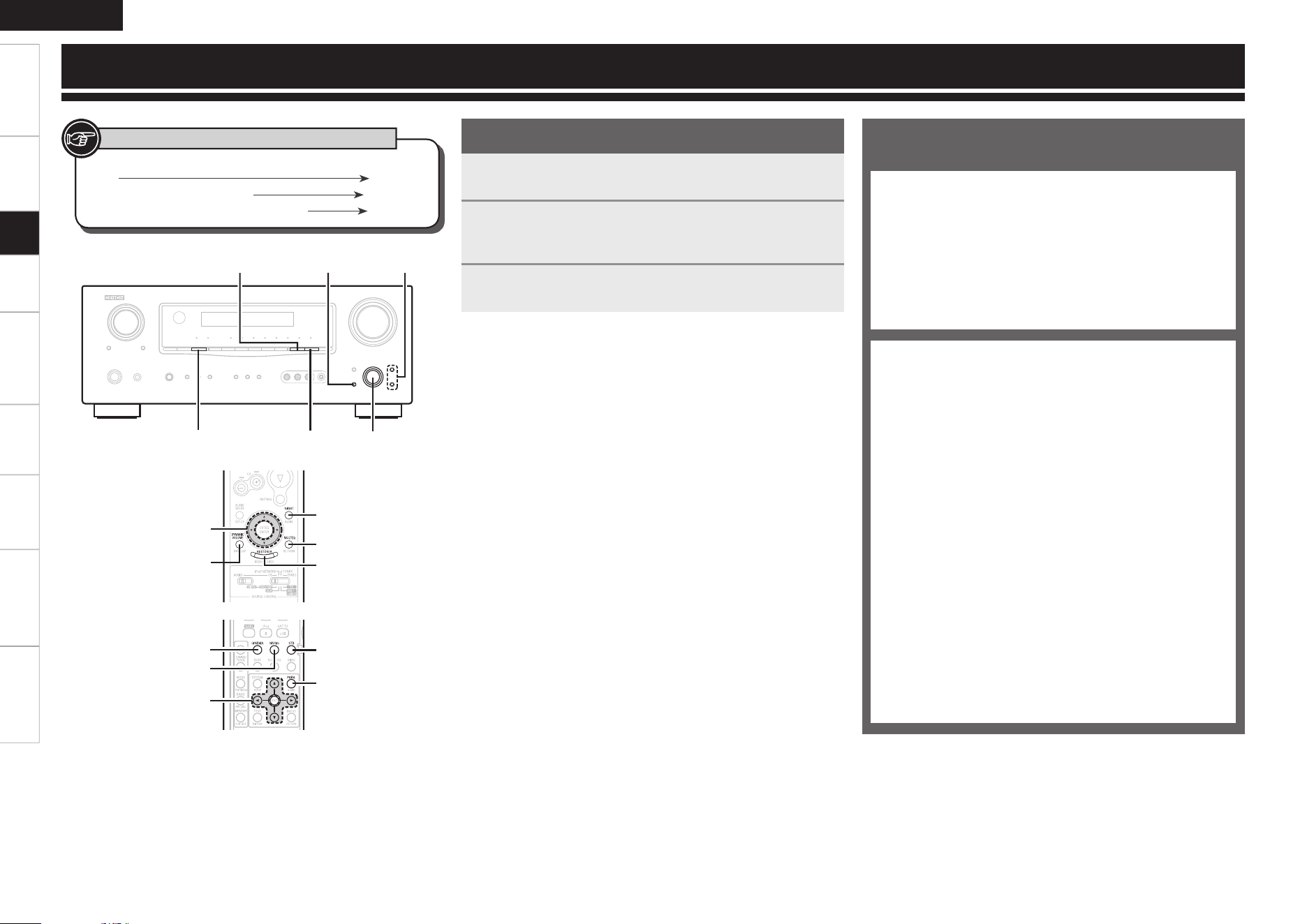
Getting Started Connections Playback Remote Control Multi-Zone Information Troubleshooting
ENGLISH
Specifi cations
1
Press <SURR. PARA> or [PARA].
Parameter is displayed.
2
Use ui to select which parameters to adjust.
Only those parameters which can be adjusted under the current
playback status are displayed.
3
Use o p to adjust the parameters.
Repeat steps 2 and 3 to set each parameter.
Adjusting the parameters
n To exit adjustment
• Press <SURR. PARA> or [PARA] during adjustment.
• If no adjustment is made for a period of about 5 seconds, the
adjustments made up that point are registered and the AVR-1609
returns to the original mode.
Surround Parameter
Adjust surround sound parameters.
The parameters (items) which can be adjusted differ
depending upon the following conditions.
• Whether an input signal is present (when playing) or not
(when stopped, etc.).
• The type of input signal
• The type of surround mode
For details of which parameters can be adjusted in each
surround mode, see “Surround Modes and Parameters”
(vpage 54, 55).
a Mode
s Cinema EQ
d D. Comp
f LFE
g Center Image
h Panorama
j Dimension
k Center Width
l Delay Time
A0 Effect Level
A1 Room Size
A2 SB CH OUT
A3 SUBWOOFER ATT.
A4 Subwoofer
A5 Tone Control
A6 Bass
A7 Treble
A8 MultEQ
A9 Dynamic EQ
S0 Dynamic Volume
S1 DV Setting
S2 RESTORER
S3 Night Mode
S4 Default
Parameter
uiop
MULTEQ
RESTORER
[NIGHT]
[DYNAMIC
VOLUME]
op
ui
<SURR. PARA>
<DYN VOL.>
MULTEQ
RESTORER
uiop
[STD]
[CINEMA]
[MUSIC]
[PARA]
[Front]
[Rear]
Button located on both the main unit and the remote control
unit
BUTTON
Button only on the main unit
<BUTTON>
Button only on the remote control unit
[BUTTON]
Symbols used to indicate buttons in this manual
Setup
Getting Started Connections Playback Remote Control Multi-Zone Information Troubleshooting
ENGLISH
Specifications
A0 Effect Level
Adjust the strength of the surround effect.
[Variable range]
1
~
10
~
15
Set to a lower level if the positioning and sense of phase of the
surround signals seems unnatural.
A1 Room Size
Determine size of acoustic environment.
[Selectable items]
Small
: Simulate acoustics of a small room.
Med-S
: Simulate acoustics of a medium-small room.
Med
: Simulate acoustics of a medium room.
Med-L
: Simulate acoustics of a medium-large room.
Large
: Simulate acoustics of a large room.
NOTE
“Room Size” does not indicate the size of the room in which sources
are played.
h Panorama
Assign front L/R signal also to surround channels, for wider sound.
If the surround effect seems weak, set “Panorama” to “ON”.
[Selectable items]
ON
OFF
j Dimension
Shift sound image center to front or rear, to adjust playback balance.
[Variable range]
0
~
3
~
6
l Delay Time
Adjust delay time to control sound stage size.
[Variable range]
0 ms
~
30 ms
~
110 ms
k Center Width
Assign center channel signal to front left and right channels for wider
sound.
[Variable range]
0
~
3
~
7
f LFE
Adjust the low-frequency effects level (LFE).
[Variable range]
–10dB
~
0dB
g Center Image
Assign center channel signal to front left and right channels for wider
sound.
[Variable range]
0.0
~
0.3
~
1.0
For proper playback of the different program sources, we recommend
setting to the values below.
• Dolby Digital sources: “0 dB”
• DTS movie sources: “0 dB”
• DTS music sources: “–10 dB”
d D. Comp
Compress dynamic range (difference between loud and soft sounds).
[Selectable items]
OFF
: Turn dynamic range compression off.
Low
: Low setting.
Mid
: Middle setting.
High
: High setting.
When playing DTS sources, this is only displayed for compatible
software.
For details on adjusting individual parameters, see “Adjusting the parameters” (vpage 31).
s Cinema EQ
Soften the treble range of movie soundtracks for better understanding.
[Selectable items]
ON
: “Cinema EQ” is used.
OFF
: “Cinema EQ” is not used.
The “Music” mode is also effective for movie sources including a lot
of stereo music.
a Mode
Select the mode to match the source (cinema source, music source,
etc.).
n In the PLgx or PLg mode
[Selectable items]
Cinema
: This is the mode for cinema source.
Music
: This is the mode for music source.
Game
: This is the mode for game source.
PL
: Dolby Pro Logic playback mode
(PLg mode only).
(This is the mode for 4-channel playback (front L, front R,
center, surround (MONO)).)
n In the DTS NEO:6 mode
[Selectable items]
Cinema
: This is the mode for cinema source.
Music
: This is the mode for music source.
Operating from the remote control unit
You can operate “Cinema” mode or “Music” mode with the remote
control unit.
Press [CINEMA] or [MUSIC].
Setup
Getting Started Connections Playback Remote Control Multi-Zone Information Troubleshooting
ENGLISH
Specifications
A5 Tone Control
Turn tone adjustments on and off.
[Selectable items]
ON
: Allow tone adjustment (treble, bass).
OFF
: Playback without tone adjustment.
The tone cannot be adjusted when in the DIRECT mode.
A6 Bass
Adjust low frequency range (bass).
[Variable range]
–6dB
~
0dB
~
+6dB
A7 Treble
Adjust high frequency range (treble).
[Variable range]
–6dB
~
0dB
~
+6 dB
“Bass” and “Treble” can be set when “Tone Control” is set to “ON”.
A3 SUBWOOFER ATT.
Attenuate subwoofer level when using EXT. IN mode.
[Selectable items]
ON
: The input from the subwoofer channel is attenuated.
OFF
: The input from the subwoofer channel is not attenuated.
Usually use in this mode.
Set this to “ON” if the subwoofer channel level seems too high when
playing audio signal.
A4 Subwoofer
Turn subwoofer output on and off.
[Selectable items]
ON
: The subwoofer is used.
OFF
: The subwoofer is not used.
For details on adjusting individual parameters, see “Adjusting the parameters” (vpage 31).
A2 SB CH OUT (for Multi-channel sources)
Select playback mode for surround back channels.
[Selectable items]
OFF
: No signal is played from the surround back
channels.
MTRX ON
: The surround channel signals undergo digital matrix
processing and are output from the surround back
channels.
PL
II
x C
z1
: Decoded in Dolby Pro Logic IIx Cinema mode,
surround back signal played.
PL
II
x M
z2
: Decoded in Dolby Pro Logic IIx Music mode,
surround back signal played.
ES MTRX
z3
: DTS signal played with digital matrix processing.
ES DSCRT
z4
: Signal included in DTS-ES Discrete 6.1-channel
sources played.
z1: This can be selected when “Surround Back Speaker” is set to
“2spkrs” at the “System Setup” – “Speaker Setup” setting
(vpage 22).
z2: This can be selected when “Surround Back Speaker” is set to
“2spkrs” or “1spkr” at the “System Setup” – “Speaker Setup”
setting.
z3: This can be selected when playing DTS sources.
z4: This can be selected when playing DTS sources including a
discrete 6.1-channel signal identification signal.
A2 SB CH OUT (for 2-channel sources)
Determine whether to use surround back speakers.
[Selectable items]
ON
: The surround back channel signal is played.
OFF
: The surround back channel signal is not played.
• If the settings of speakers for which “None” has been determined
at “Auto Setup” are changed, “Audyssey”, “Audyssey Byp. L/R” and
“Audyssey Flat” cannot be selected. Either perform Auto Setup
again, or return to the setting after running Auto Setup with “System
Setup” – “Speaker Setup” – “Restore”.
• When using headphones, “MultEQ” is set to “OFF”.
A8 MultEQ
Select the type of room correction desired from the following list:
[Selectable items]
Audyssey
: Optimize frequency response of all speakers.
Byp. L/R
: Optimize frequency response of speakers except front
L and R speakers.
Flat
: Optimize frequency response of all speakers to flat
response.
OFF
: Turn equalizer off.
NOTE
• “MultEQ” can only be set when Auto Setup has been performed.
• “MultEQ” cannot be set in the following situations.
• If “Auto Setup” fails to be completed.
• After running Auto Setup, when the number of used speakers has
increased from the number of measured speakers.
Operating from the main unit or remote control
unit
Press MULTEQ.
• When “Audyssey”, “Audyssey Byp. L/R” or “Audyssey Flat” is
selected, the Audyssey MultEQ indicator lights green.
• After running Auto Setup, if the Speaker Configuration, Distance,
Channel Level and Crossover Frequency have changed without
increasing the number of speakers measured, the Audyssey MultEQ
indicator lights red.
OFF
Audyssey
Audyssey Byp. L/R
Audyssey Flat
Settings can also be made when [STD] is pressed.
When using surround back speakers, adopt the following
settings.
q Adopt “7.1CH” for the AMP Assign setting.
• The default setting for the Amp Assign mode of AVR-1609 is
“ZONE2”.
w Adopt a setting other than “OFF” for the “SB CH OUT” setting
of “Surround Parameter”.
NOTE
When the “Dynamic EQ” setting is “ON”, setting is not possible.
Setup
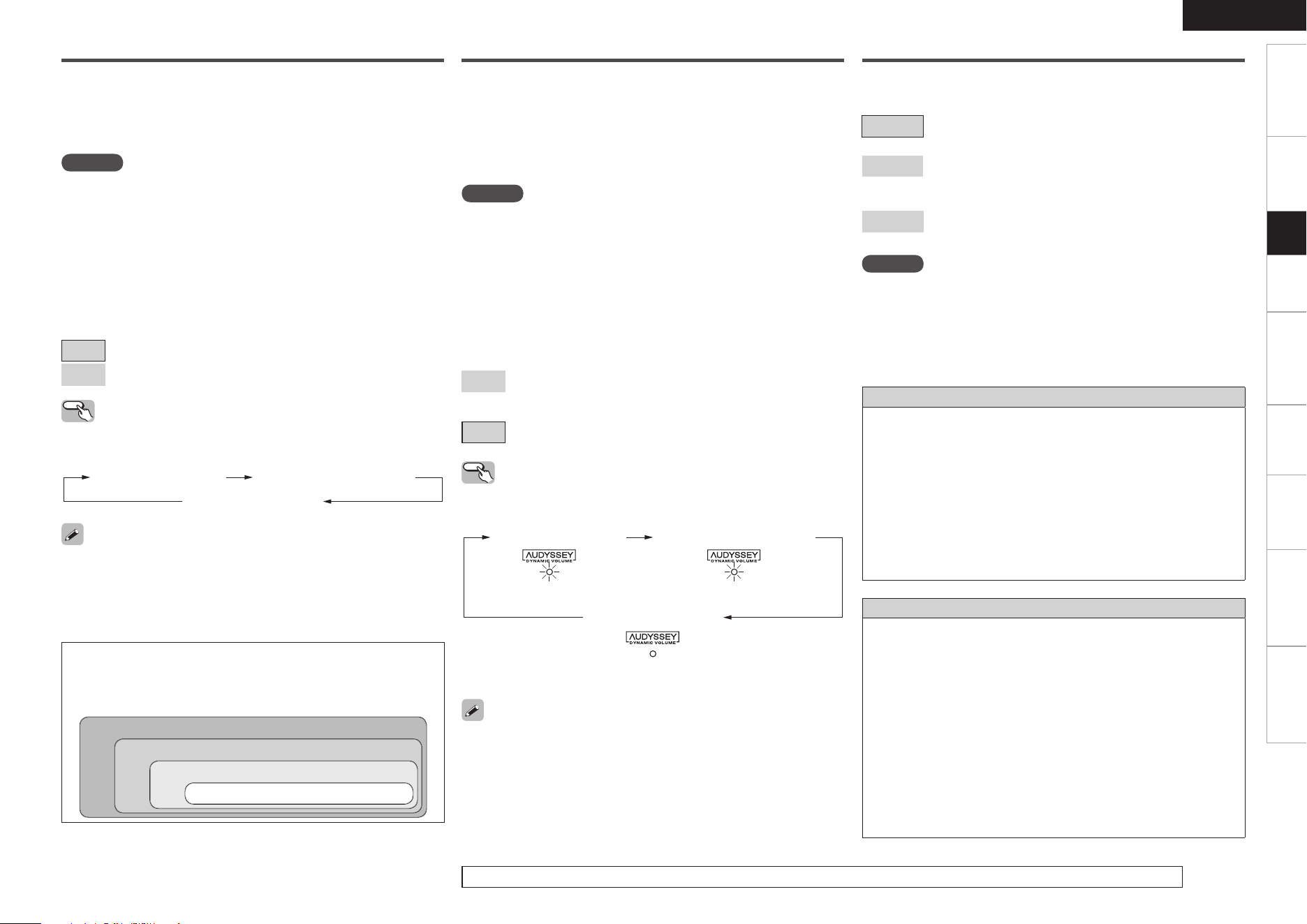
Getting Started Connections Playback Remote Control Multi-Zone Information Troubleshooting
ENGLISH
Specifications
For details on adjusting individual parameters, see “Adjusting the parameters” (vpage 31).
S1 DV Setting (Dynamic Volume Setting)
Set Dynamic Volume effect.
[Selectable items]
Midnight
: High setting affects volume the most, causing all sounds
to be of equal loudness.
Evening
: Middle setting prevents loud and soft sounds from
being much louder and softer respectively than average
sounds.
Day
: Low setting provides the least adjustments to the
loudest and softest of sounds.
S0 Dynamic Volume
Audyssey Dynamic Volume solves the problem of large variations in
volume level between television programs, commercials, and between
the soft and loud passages of movies.
Audyssey Dynamic EQ is integrated into Dynamic Volume so that as
the playback volume is adjusted automatically, the perceived bass
response, tonal balance, surround impression, and dialog clarity
remain the same.
A9 Dynamic EQ
Audyssey Dynamic EQ solves the problem of deteriorating sound
quality as volume is decreased by taking into account human perception
and room acoustics. Audyssey Dynamic EQ works in tandem with
Audyssey MultEQ to provide well-balanced sound for every listener
at any volume level.
NOTE
• “DV Setting” can only be set when auto setup has been performed.
• “DV Setting” cannot be set in the following situations.
• If “Auto Setup” fails to be completed.
• After running Auto Setup, when the number of used speakers has
increased from the number of measured speakers.
• If “Dynamic Volume” setting is “OFF”.
About Dynamic Volume
Audyssey Dynamic Volume™ solves the problem of large variations
in volume level between television programs, commercials, and
between the soft and loud passages of movies.
Dynamic Volume looks at the preferred volume setting by the user and
then monitors how the volume of program material is being perceived
by listeners in real time to decide whether an adjustment is needed.
Whenever necessary, Dynamic Volume makes the necessary rapid
or gradual adjustments to maintain the desired playback volume
level while optimizing the dynamic range. Audyssey Dynamic EQ is
integrated into Dynamic Volume so that as the playback volume is
adjusted automatically, the perceived bass response, tonal balance,
surround impression, and dialog clarity remain the same whether
watching movies, flipping between television channels, or changing
from stereo to surround sound content.
About Dynamic EQ
Audyssey Dynamic EQ™ solves the problem of deteriorating sound
quality as volume is decreased by taking into account human
perception and room acoustics. Dynamic EQ selects the correct
frequency response and surround levels moment-by-moment at
any user-selected volume setting. The result is bass response,
tonal balance, and surround impression that remain constant
despite changes in volume. Dynamic EQ combines information
from incoming source levels with actual output sound levels in the
room, a prerequisite for delivering a loudness correction solution.
Audyssey Dynamic EQ works in tandem with Audyssey MultEQ to
provide well-balanced sound for every listener at any volume level.
NOTE
• “Dynamic EQ” can only be set when auto setup has been
performed.
• “Dynamic EQ” cannot be set in the following situations.
• If “Auto Setup” fails to be completed.
• After running Auto Setup, when the number of used speakers has
increased from the number of measured speakers.
• When “MultEQ” is set to “OFF”, “Dynamic EQ” is automatically set
to “OFF”.
• “Night Mode” and “Tone Control” cannot be used jointly.
[Selectable items]
ON
: Use Dynamic EQ function.
OFF
: Do not use Dynamic EQ function.
Operating from the unit or remote control
unit
Press <DYN VOL> or [DYNAMIC VOLUME].
Dynamic EQ / Volume : ON Dynamic EQ : ON / Volume : OFF
Dynamic EQ / Volume : OFF
Before running Auto Setup and after running Auto Setup, if the number
of speakers has increased or you pressed <DYN VOL> or [DYNAMIC
VOLUME], “Run Audyssey” is displayed. In this case, either perform
Auto Setup again, or return to the setting after running Auto Setup with
“System Setup” – “Speaker Setup” – “Restore”.
NOTE
• “Dynamic Volume” can only be set when auto setup has been
performed.
• “Dynamic Volume” cannot be set in the following situations.
• If “Auto Setup” fails to be completed.
• After running Auto Setup, when the number of used speakers has
increased from the number of measured speakers.
• When “MultEQ” is set to “OFF”, “Dynamic Volume” is automatically
set to “OFF”.
• “Night Mode” and “Tone Control” cannot be used jointly.
[Selectable items]
ON
: Use Dynamic Volume.
The Dynamic Volume effect will be at the level of the “DV
Setting”.
OFF
: Do not use Dynamic Volume.
Before running Auto Setup and after running Auto Setup, if the number
of speakers has increased or you pressed <DYN VOL> or [DYNAMIC
VOLUME], “Run Audyssey” is displayed. In this case, either perform
Auto Setup again, or return to the setting after running Auto Setup with
“System Setup” – “Speaker Setup” – “Restore”.
Operating from the unit or remote control
unit
Press <DYN VOL> or [DYNAMIC VOLUME].
n Operating conditions for each function
• Dynamic EQ : When “MultEQ” is set to “ON”
• Dynamic Volume : When “Dynamic EQ” is set to “ON”
• DV setting : When “Dynamic Volume” is set to “ON”
A8 MultEQ
A9 Dynamic EQ
S0 Dynamic Volume
S1 DV Setting
Dynamic EQ / Volume : ON
“Green” “Red”
Dynamic EQ : ON / Volume : OFF
Dynamic EQ / Volume : OFF
“Off”
Setup
Getting Started Connections Playback Remote Control Multi-Zone Information Troubleshooting
ENGLISH
Specifications
Operating from the remote control unit
Press [NIGHT].
OFF Low Mid
High
S4 Default
Resets the settings to the default values.
[Selectable items]
Yes
: Reset.
No
: Do not reset.
S3 Night Mode
Optimized setting for late-night listening.
Set the dynamic range compression of the output audio.
[Selectable items]
OFF
: Turn night mode off.
Low
: Low setting.
Mid
: Middle setting.
High
: High setting.
NOTE
When the “Dynamic EQ” setting is “ON”, setting is not possible.
When the “Dynamic Volume” setting is “ON”, setting is not possible.
The default setting for “iPod” is “Mode3”. All others are set to “OFF”.
OFF Mode 1
(RESTORER 64)
Mode 2
(RESTORER 96)
Mode 3
(RESTORER HQ)
S2 RESTORER
This function restores compressed audio signals to how they were
before compression and corrects the sense of volume of the bass and
treble to obtain richer playback sound.
[Selectable items]
OFF
:
Do not use RESTORER.
Mode1
(RESTORER 64):
Optimized mode for compressed sources with very weak highs.
Mode2
(RESTORER 96):
Apply suitable bass and treble boost for all compressed sources.
Mode3
(RESTORER HQ):
Optimized mode for compressed sources with normal highs.
About the RESTORER function
• Such compressed audio formats as MP3, WMA (Windows Media
Audio) and MPEG-4 AAC reduce the amount of data by eliminating
signal components that are hard for the human ear to hear. The
RESTORER function generates the signals eliminated upon
compression, restoring the sound to conditions near those of the
original sound before compression. It also corrects the sense of
volume of the bass to obtain richer sound with compressed audio
signals.
• This is displayed on the “Surround Parameter” and can be set
when the input source is selected to “SIRIUS” or analog signals
(including FM/AM signals) or PCM signals (fs = 44.1/48 kHz) are
input.
Operating from the main unit or remote control
unit
Press RESTORER.
For details on adjusting individual parameters, see “Adjusting the parameters” (vpage 31).
Setup
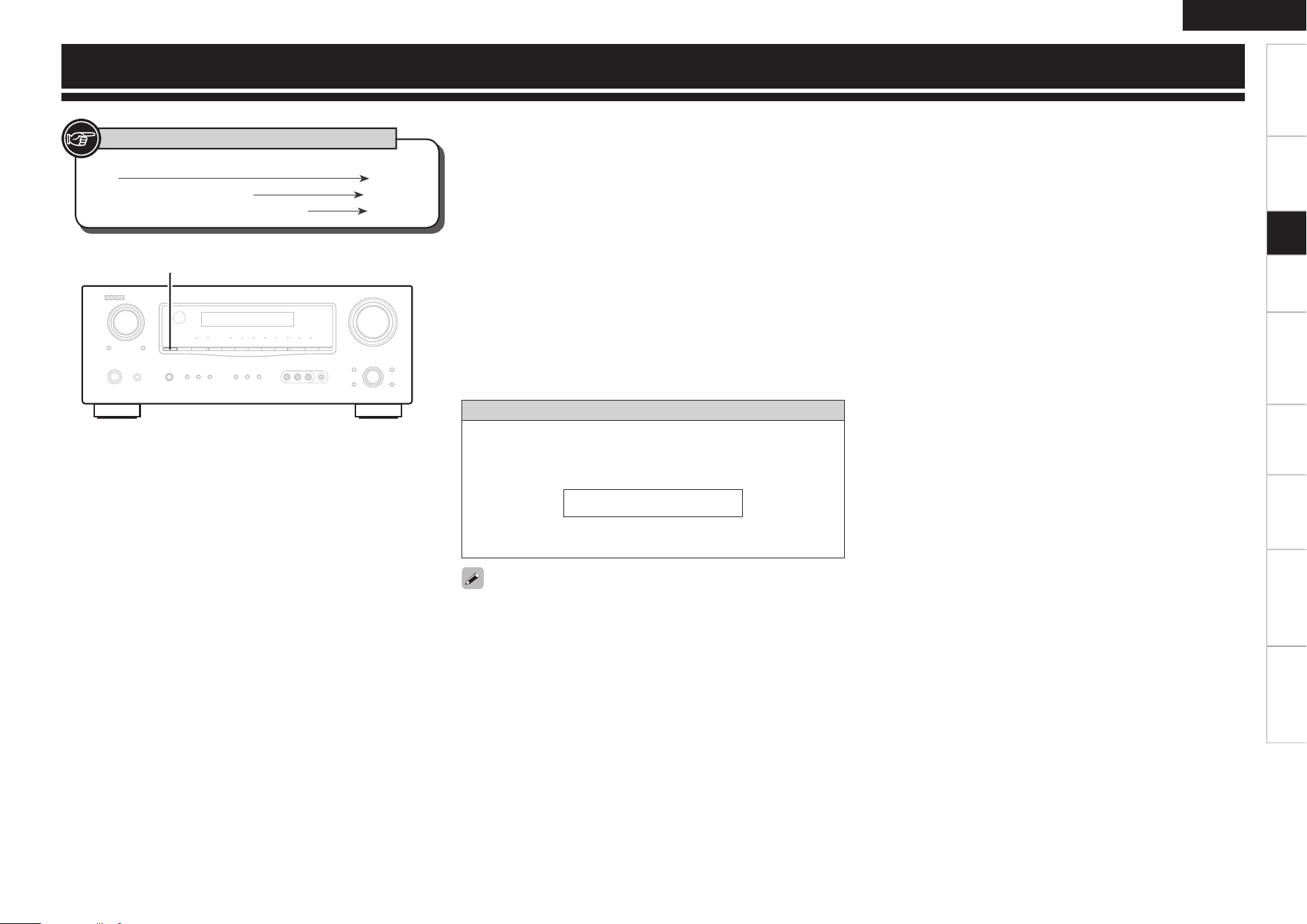
Getting Started Connections Playback Remote Control Multi-Zone Information Troubleshooting
ENGLISH
Specifi cations
Information
Dialogue normalization function
This is automatically activated when playing Dolby Digital sources.
This function automatically corrects the standard signal level for
individual program sources.
The correction value can be checked using <STATUS>.
O F F S E T - 4 d B
The fi gure is the correction value when the standard level is
corrected.
• The items displayed will differ depending upon the current settings,
the presence or absence of an input signal or the type of input signal,
etc.
• For details of the content of the items displayed, refer to the page
containing an explanation of the settings.
Information on the main unit’s various settings (Status) and on input
signals (Audio Input Signal) is shown on the display.
The information displayed changes each time you press <STATUS>.
The information is displayed for several seconds before the display
returns to its original condition.
[Items to be checked]
• Surround Mode
• Input signal
• Dialogue normalization
• Input function
• Input digital terminal
• Audio Delay
• Tone Control
• Channel level of each speaker
• CINEMA EQ
• Night Mode
etc.
<STATUS>
Button located on both the main unit and the remote control
unit
BUTTON
Button only on the main unit
<BUTTON>
Button only on the remote control unit
[BUTTON]
Symbols used to indicate buttons in this manual
Setup
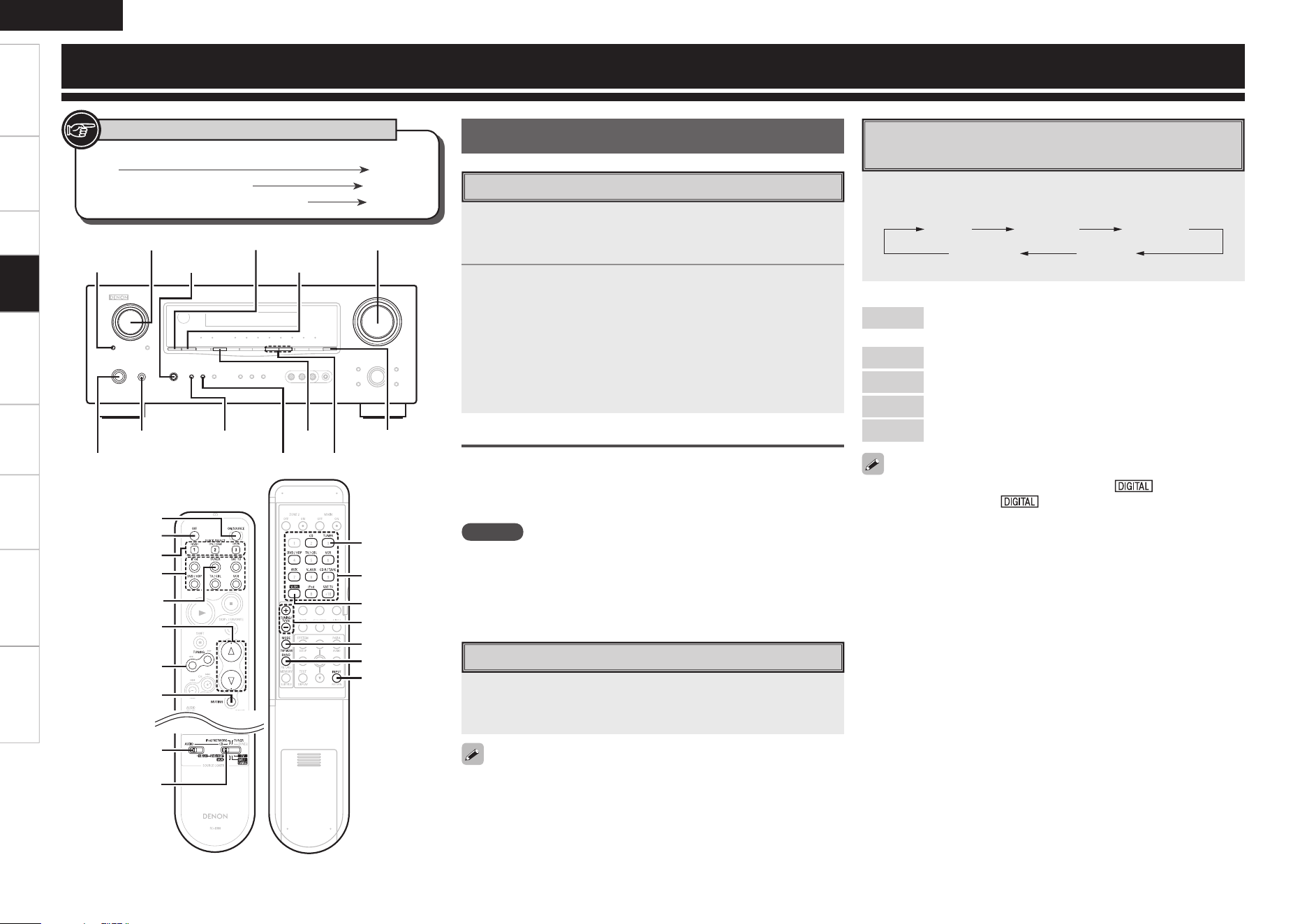
Getting Started Connections Setup Remote Control Multi-Zone Information Troubleshooting
ENGLISH
Specifi cations
Preparations
1
Press <POWER>.
The power indicator lights red and the power is set to the standby
mode.
2
Press <ON/STANDBY> or [ON/SOURCE].
The power indicator fl ashes green and the power turns on.
b Also press [SOURCE SELECT] when in standby mode, the power
turns on. In this case the input source is selected by remote
control unit.
b Also press [QUICK SELECT] when in standby mode, the power
turns on. In this case Quick Select is selected by remote control
unit (vpage 44).
Turning the Power Off
q Press <ON/STANDBY> or [OFF].
The power is set to the standby mode.
w Press <POWER>.
The power indicator turns off, and so does the power.
NOTE
Power continues to be supplied to some of the circuitry even when the
power is in the standby mode. When leaving home for long periods of
time or when traveling, either press <POWER> to turn off the power,
or unplug the power cord from the power outlet.
Turning the Power On
Selecting the Input Source
Select the source using SOURCE SELECT.
Turn <SOURCE SELECT> or press [SOURCE SELECT] to switch
between input sources.
If “Rec Select” is selected for the input source, press <SOURCE>
before turning <SOURCE SELECT>.
Setting the Input Mode
Set the input mode for this source.
• When a digital signal is properly input, the “ ” indicator lights
on the display. If the “ ” indicator does not light, check the
digital input connector assignment and the connections.
• The surround mode cannot be set if the input mode is set to “EXT.
IN”.
• Only set “PCM” and “DTS” when playing the respective signals.
[Selectable items]
Auto
: Detect type of digital input signal and decode and play
automatically.
PCM
: Decode and play only PCM input signals.
DTS
: Decode and play only DTS input signals.
Analog
: Play only signals from analog input.
EXT. IN
: Play only signals from EXT. IN input.
Press <INPUT MODE> or [INPUT].
Each time you press the button, the input mode display will change.
Auto PCM DTS
AnalogEXT. IN
<ON/STANDBY>
<POWER>
<SPEAKERS>
<INPUT MODE>
BAND
TUNING
<VIDEO SELECT>
<SOURCE>
SOURCE SELECT <STATUS>
<MASTER VOLUME>
<PHONES> <DIMMER>
[OFF]
SOURCE SELECT
[QUICK SELECT]
[SOURCE
CONTROL 1]
[SOURCE
CONTROL 2]
[ON/SOURCE]
[MASTER
VOLUME]
[MUTING]
[TUNER]
TUNING
SOURCE
SELECT
TUNING
[MODE]
[TUNER]
[V.SEL]
BAND
[INPUT]
[Front] [Rear]
Button located on both the main unit and the remote control
unit
BUTTON
Button only on the main unit
<BUTTON>
Button only on the remote control unit
[BUTTON]
Symbols used to indicate buttons in this manual
Playback
Playback
PHONES jack
Getting Started Connections Setup Remote Control Multi-Zone Information Troubleshooting
ENGLISH
Specifications
Plug the headphones into the PHONES jack on the main
unit.
The sound from the speakers and pre-out connectors is automatically
cut.
NOTE
Be careful not to set the volume too high when using headphones.
Listening with Headphones
Press <SPEAKERS>.
Front A Front B
Front A+B
Switching the front speakers
Video Select Function
Switch video input source while listening to audio signal.
Press <VIDEO SELECT> or [V.SEL] until the desired
picture appears.
b To cancel, press <VIDEO SELECT> to select “SOURCE”.
Playing Video and Audio
Equipment
1
Prepare the equipment.
q Load the DVD, CD or other software in the player.
(vSee the operating instructions of the respective devices.)
w To play a video device, switch the monitor input.
(vSee the monitor’s operating instructions.)
2
Use SOURCE SELECT to select the input source.
3
Start playback.
(vSee the operating instructions of the respective devices.)
Basic Operation
Press [MUTING].
To cancel, press [MUTING] again. Muting can also be canceled by
adjusting the master volume.
Turning Off the Sound Temporarily (Muting)
1
Either turn <SOURCE SELECT> or press [TUNER] to
select “TUNER”.
2
Set [SOURCE CONTROL 1] to “AUDIO” and [SOURCE
CONTROL 2] to “TUNER”.
(vpage 45 “Remote Control Unit Operations”)
3
Press BAND to select “FM” or “AM”.
4
Tune in the desired broadcast station.
q To tune in automatically (Auto Tuning)
Press [MODE] to light the “AUTO” indicator on the display, then
use TUNING to select the station you want to hear.
w To tune in manually (Manual Tuning)
Press [MODE] to turn off the display’s “AUTO” indicator, then use
TUNING to select the station you want to hear.
Listening to FM/AM Broadcasts
• If the desired station cannot be tuned in with auto tuning, tune it in
manually.
• When tuning in stations manually, press and hold TUNING to change
frequencies continuously.
Basic Operation
Press <STATUS>.
The current program source and various settings are indicated on
the display.
For details, refer to “Information” (vpage 36).
Checking the currently playing program source, etc.
Switching the brightness of the display
Press <DIMMER>.
Bright Dim
DarkOFF
Either turn <MASTER VOLUME> or press [MASTER
VOLUME].
[Variable range]
– – –
–80.0dB ~ +18.0dB
Operations During Playback
Adjusting the Master Volume
The remote control unit can be used to operate external devices.
See “Remote Control Unit Operations” (vpage 45).
NOTE
The adjustable range will differ depending upon factors such as the
type of input signal and the channel level setting.
When setting to “OFF”, the display brightness of the menu setting in
operation changes to “Dark”.
Playback
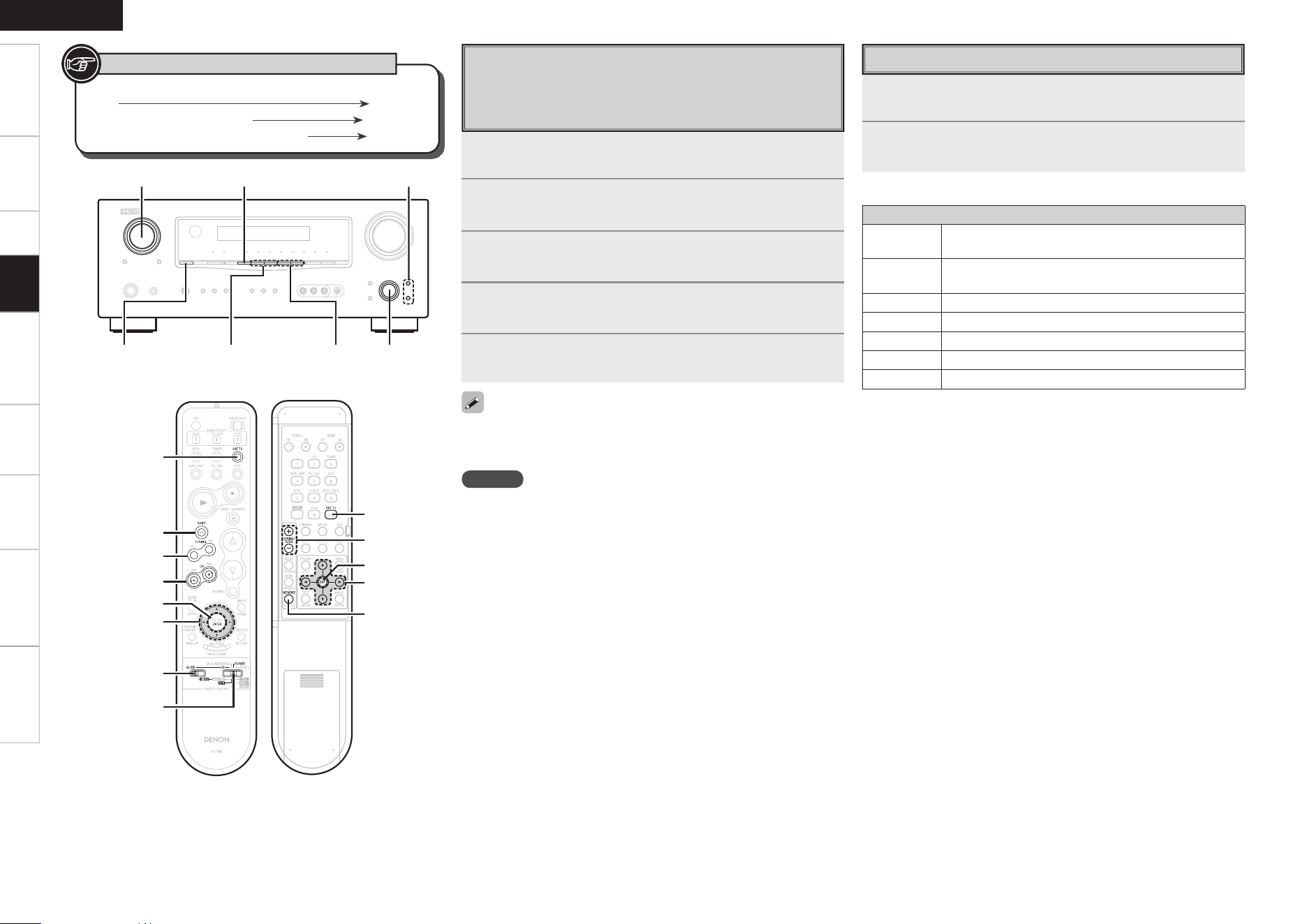
Getting Started Connections Setup Remote Control Multi-Zone Information Troubleshooting
ENGLISH
Specifi cations
Presetting Radio Stations
(Preset Memory)
Your favorite broadcast stations can be preset so that you can tune
them in easily. Up to 56 stations can be preset.
1
Tune in the broadcast station you want to preset.
2
Press [MEMORY].
3
Press SHIFT to select the block (A to G) in which the
station is to be preset.
4
Press <PRESET CHANNEL> or [CHANNEL + –] to
select the preset number (1 to 8).
5
Press [MEMORY] again to complete the setting.
• To preset other stations, repeat steps 1 to 5.
• Stations can be preset automatically at “System Setup” – “Input
Setup” – “Auto Preset Memory” (vpage 25).
NOTE
Preset stations are erased by overwriting them.
1
Press SHIFT to select the memory block (A to G).
2
Press <PRESET CHANNEL> or [CHANNEL + –] to
select the desired preset channel (1 to 8).
n Default settings
Auto tuner presets
A1 ~ A8
87.5 / 89.1 / 98.1 / 107.9 / 90.1 / 90.1 / 90.1 /
90.1 MHz
B1 ~ B8
520 / 600 / 1000 / 1400 / 1500 / 1710 kHz,
90.1 / 90.1 MHz
C1 ~ C8
90.1 MHz
D1 ~ D8
90.1 MHz
E1 ~ E8
90.1 MHz
F1 ~ F8
90.1 MHz
G1 ~ G8
90.1 MHz
Listening to Preset Stations
SHIFT<SOURCE SELECT>
TUNING
<PRESET CHANNEL>
<STATUS>
op
ui
uiop
TUNING
SHIFT
[SOURCE
CONTROL 1]
[SOURCE
CONTROL 2]
[SAT TU]
[CHANNEL + –]
[ENTER]
TUNING
[MEMORY]
[ENTER]
[SAT TU]
uiop
[Front] [Rear]
Button located on both the main unit and the remote control
unit
BUTTON
Button only on the main unit
<BUTTON>
Button only on the remote control unit
[BUTTON]
Symbols used to indicate buttons in this manual
Playback
0
Getting Started Connections Setup Remote Control Multi-Zone Information Troubleshooting
ENGLISH
Specifications
1
Either turn <SOURCE SELECT> or press [SAT TU] to
select “SIRIUS”.
2
Set [SOURCE CONTROL 1] to “AUDIO” and [SOURCE
CONTROL 2] to “TUNER”.
(vpage 45 “Remote Control Unit Operations”)
3
Use TUNING to search the channel.
When selecting channel, the Channel No. and Channel name are
displayed.
• The channel switches continuously when TUNING is pressed and
held.
• SIRIUS Radio channels can be preset using the same procedure as
for FM/AM stations (vpage 39 “Presetting Radio Stations (Preset
Memory)” and “Listening to Preset Stations”).
b You cannot perform “Auto Preset”.
• The song title, artist name, composer name, category and reception
level can be checked by pressing <STATUS>.
• When tuning a channel to which “Parental Lock” is applied, “Code:
[ ]” is displayed, so enter the password.
Basic Operation
Checking the SIRIUS Signal Strength
and Radio ID
1
Either turn <SOURCE SELECT> or press [SAT TU] to
select “SIRIUS”.
2
Press <STATUS> until “SIG.” appears on the display.
The display will switch as shown below, depending on the
reception conditions.
Display Status
EXCELLENT Signal strength is excellent
GOOD Signal strength is good
WEAK Signal strength is weak
NO SIGNAL No signal
3
Adjust the position of the antenna until “SIG.:
EXCELLENT” is shown on the display.
4
Press <STATUS> until the channel you want to check
(example: “SR001”) is displayed.
5
Press TUNING and select channel 0 (SR000).
Channel No. and SIRIUS ID are alternately shown on the
display.
S R 0 0 0 S I R I U S I D
b Write your own SIRIUS ID for storage use.
SIRIUS ID :
What is SIRIUS Satellite Radio?
Simply The Best Radio on RadioTM with all your favorite entertainment
including 100% commercial-free music, plus superior sports coverage,
uncensored talk and comedy, world-class entertainment, news,
weather and more for your car, home or office. For more information
visit sirius.com or siriuscanada.ca
Sirius is available in the US for subscribers with addresses in the
continental US and is available in Canada for subscribers with a
Canadian address. Required subscription plus compatible SIRIUS tuner
and antenna are required and sold separately. SIRIUS Programming is
subject to change. Visit sirius.com for the most complete and up-to-
date channel lineup and product information. “SIRIUS” and the SIRIUS
dog logo and related marks are trademarks of Sirius Satellite Radio Inc.
All rights reserved.
Listening to SIRIUS Satellite
Radio Programs
Searching Categories
1
Press [o p].
C A T E G O R Y S E A R C H
C A T : P o p s
2
Use [o p] to select the category, then use [ui] to
select the desired channel.
Channel category
• “UPDATING” is displayed while the encording code is being
updated.
• “SIRIUS UPDATING” is displayed when updating SIRIUS tuner
firmware.
• Refer to “Troubleshooting” (vpage 60) regarding other messages.
NOTE
You can check Satellite and Terrestrial antenna signal strength each
time you press <STATUS>. (On the display, “S” indicates Satellite, and
“T” indicates Terrestrial.)
Parental Lock
1
Tune to the channel you want to lock.
2
Press [ENTER] for at least 3 seconds.
“Code: [ ]” is displayed.
3
Enter the 4-digit lock code using uiop.
When you enter the correct code, the corresponding channel is
locked.
4
Press [ENTER].
• Channels under Parental Lock cannot be tuned in by performing
Tuning Up/Down or by category search.
• Channels stored in preset memory can be tuned in by the preset
channel select operation, even if Parental Lock is applied.
• When a channel to which Parental Lock is applied is being played,
Parental Lock for that channel is cancelled by performing Step 2.
• See “Edit Lock Cord” (vpage 26) for the method of changing
Parental Lock Cord.
• You can also set “Parental Lock” from the system setup (vpage
26).
* * * * * * * * * * * * * * *
SIRIUS ID
Playback
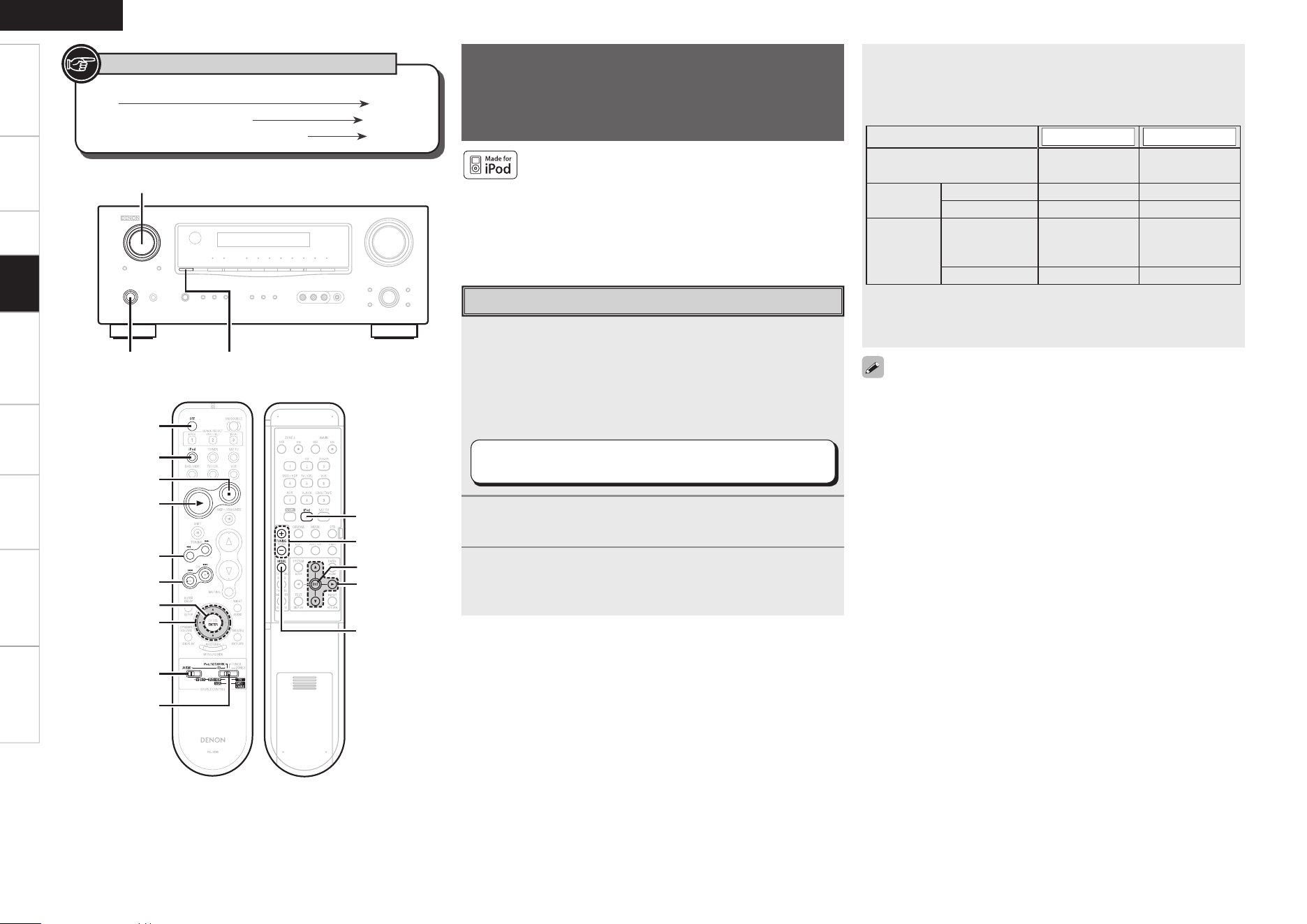
Getting Started Connections Setup Remote Control Multi-Zone Information Troubleshooting
ENGLISH
Specifi cations
iPod
®
Playback
The music on an iPod can be played by using the control dock for
iPod (ASD-1R, ASD-11R, ASD-3N or ASD-3W, sold separately).
The operation can also be performed using the buttons on the
remote control unit.
iPod is a trademark of Apple Inc., registered in the U.S.
and other countries.
b The iPod may only be used to copy or play contents that are not
copyrighted or contents for which copying or playback is legally
permitted for your private use as an individual. Be sure to comply
with applicable copyright legislation.
4
Press [MODE] and hold it down for a 2 seconds or
more to select the display mode.
To switch between modes, press and hold down the button.
When remote mode is active, “Remote” is displayed.
[Selectable mode]
Browse mode Remote mode
Display location Main unit display
iPod display
Playable
files
Audio file
S S
Video file
S
z
1
S
z
2
Active
buttons
Remote
control unit
(AVR-1609)
S S
iPod
A S
z
1
: When using an ASD-3N or ASD-3W control dock for iPod.
z
2
: Video may not be output, depending on the combination of
ASD-1R or ASD-11R and iPod.
• With the default settings, the iPod can be used connected to the VCR
(iPod) connector.
• Use the RESTORER mode to expand the low and high frequency
components of compressed audio fi les and achieve a richer sound.
The default setting is “Mode3” (vpage 35).
• Press <ON/STANDBY> or [OFF] and set the AVR-1609’s power to
the standby mode before disconnecting the iPod. Also switch the
input source to one to which “iPod Assign” is not assigned before
disconnecting the iPod.
• When using an ASD-3N or ASD-3W control dock for iPod, refer to the
respective manual to operate.
<SOURCE SELECT>
<STATUS>
<ON/STANDBY>
[iPod]
[OFF]
[SOURCE
CONTROL 1]
[SOURCE
CONTROL 2]
[ENTER]
[1]
[2]
[8], [9]
[6], [7]
[uip]
[uip]
[ENTER]
[MODE]
[iPod]
[TUNING + –]
[Front] [Rear]
Button located on both the main unit and the remote control
unit
BUTTON
Button only on the main unit
<BUTTON>
Button only on the remote control unit
[BUTTON]
Symbols used to indicate buttons in this manual
1
Make the necessary preparations.
q Set the iPod in the DENON control dock for iPod.
(vSee the control dock for iPod’s operating instructions.)
w Assign the control dock for iPod’s input.
The input for the control dock for iPod is assigned to VCR by
default.
“System Setup” – “Input Setup” – “iPod Assign”
(vpage 25)
2
Either turn <SOURCE SELECT> or press [iPod] to
select the input source assigned in step 1-w above.
3
Set [SOURCE CONTROL 1] to “AUDIO” and [SOURCE
CONTROL 2] to “iPod/NETWORK”.
(v page 45 “Remote Control Unit Operations”)
Preparations
Playback
Getting Started Connections Setup Remote Control Multi-Zone Information Troubleshooting
ENGLISH
Specifications
• To check the name of the title, the artist or the album when playing
in browse mode, press <STATUS>.
• The folder name and the file name can be displayed in browse
mode.Only alphanumeric characters and certain symbols can be
displayed. Any characters that cannot be displayed are replaced with
“ . (period)”.
Viewing Still Pictures or Videos on the
iPod
Photo and video data on the iPod can be viewed on the monitor.
Only for iPod equipped with slideshow or video functions.
1
Press and hold [MODE] to set the Remote mode.
2
Watching the iPod’s screen, use [ui] to select
“Photos” or “Videos”.
3
Press [ENTER] until the image you want to view is
displayed.
“TV Out” at the iPod’s “Slideshow Settings” or “Video Settings” must
be set to “On” in order to display the iPod’s photo data or videos on
the monitor. For details, see the iPod’s operating instructions.
Listening to Audio
1
Use [ui] to select the item, then press [ENTER] or
[p] to select the music le to be played.
2
Press [ENTER] or [p].
Playback starts.
n Stopping playback temporarily
During playback, press [ENTER] or [1].
Press again to resume playback.
n Fast-forwarding or fast-reversing
During playback, press and hold [6] (to fast-reverse) or [7] (to
fast-forward).
n To cue to the beginning of a track
During playback, press [8] or [9].
n To stop
During playback, either press and hold [ENTER] or press [2].
n Playing repeatedly
Press [TUNING –].
[Selectable items]
All
One
OFF
n Shuffling playback
Press [TUNING +].
[Selectable items]
Albums
Songs
OFF
NOTE
• Depending on the type of iPod and the software version, some
functions may not operate.
• DENON will accept no responsibility whatsoever for any loss of iPod
data.
1
Press and hold [MODE] to set the Browse mode.
2
Watching the display, use [ui] to select “iPod”, then
press [p] or [ENTER].
3
Use [ui] to select “Video”, then press [p] or
[ENTER].
4
Use [ui] to select the video le to be played, then
press [p] or [ENTER].
When viewing a still picture, perform the same operation as with ASD-
1R or ASD-11R.
When using an ASD-3N or ASD-3W
When using an ASD-1R or ASD-11R
Playback
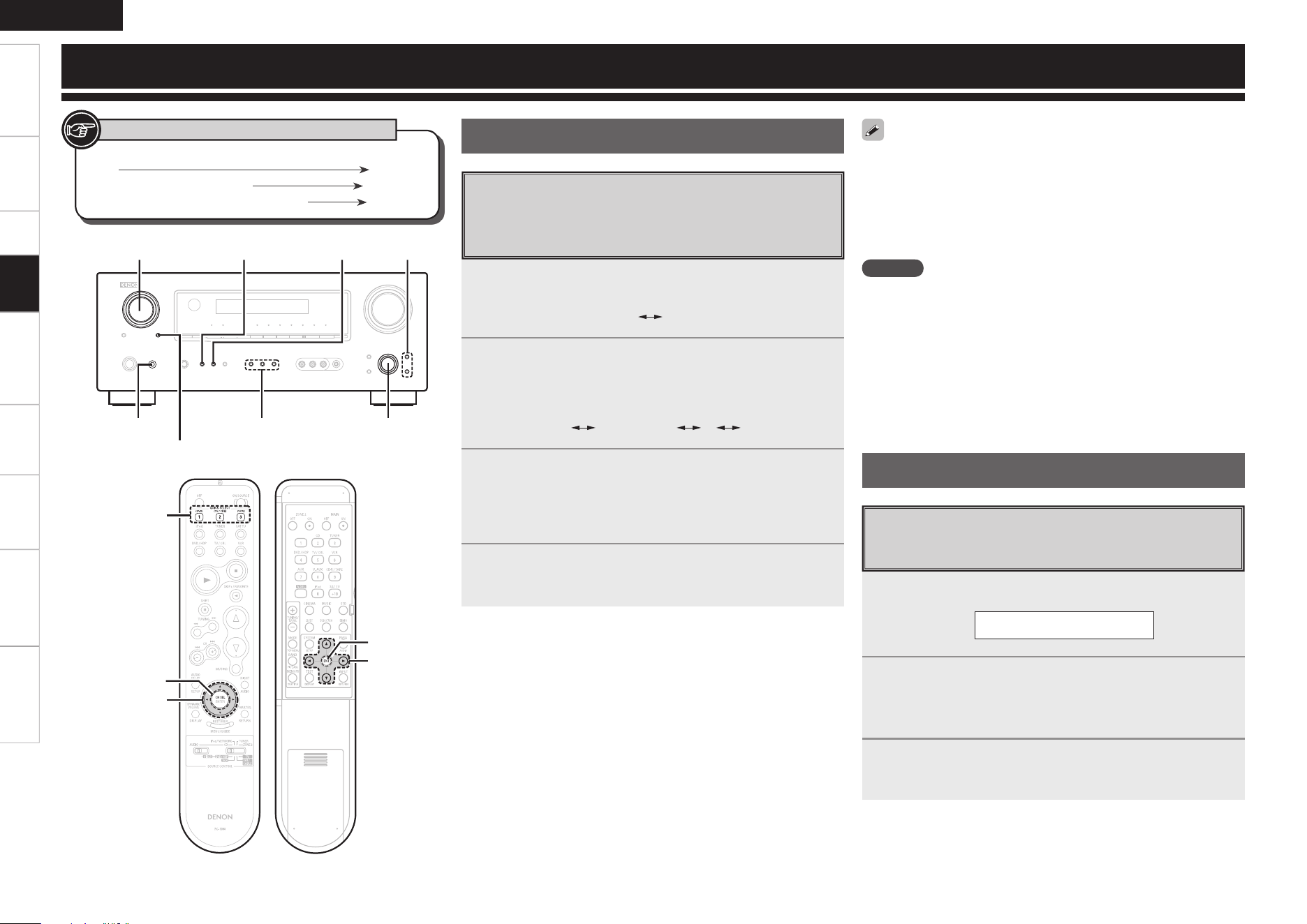
Getting Started Connections Setup Remote Control Multi-Zone Information Troubleshooting
ENGLISH
Specifi cations
Recording on an External Device
(REC OUT mode)
You can listen to one program source while recording a different
program source.
1
Press <ZONE2/REC SELECT> until “RECOUT”
appears on the display.
ZONE2 RECOUT
2
Turn <SOURCE SELECT> to choose the input source
to be recorded.
The “REC” indicator and the indicator for the selected source
light.
RECOUT SOURCE RECOUT TUNER RECOUT SIRIUS····
3
Play the program source.
For operating instructions, refer to the respective equipment’s
operating instructions.
To record FM or AM broadcasts, select the broadcast (vpage
38).
4
Start recording.
For operating instructions, refer to the respective equipment’s
operating instructions.
Other Operations
• To cancel, press <ZONE2/REC SELECT>, then turn <SOURCE SELECT>
until “RECOUT SOURCE” is displayed.
• Make a test recording before starting the actual recording.
• Sources selected with the REC OUT mode are output from ZONE2
as well.
• In the REC OUT mode, the remote control unit’s ZONE2 mode
buttons cannot be operated.
NOTE
• Recordings you make are for your personal enjoyment and should
not be used for other purposes without permission of the copyright
holder.
• Digital signals are not output from the REC OUT (CDR/TAPE and
VCR) connector.
• Audio and video signals input from the VCR IN connector are not
output from the VCR OUT connector. Audio signal input from the
CD-R/TAPE IN connector are not output from the CD-R/TAPE OUT
connector.
Convenient Functions
1
Press <SELECT/ENTER> or [CH SELECT/ENTER].
F L V o l . + 1 . 5 d B
2
Use ui, <SELECT/ENTER> or [CH SELECT/ENTER]
to select the speaker.
The speaker that can be set switches each time one of the
buttons is pressed.
3
Use o p to adjust the volume.
In the case of a sub woofer, reducing the volume when it is at
“–12 dB” will change the setting to OFF (none).
Channel Level
You can adjust the channel level either according to the playback
sources or to suit your taste, as described below.
<SOURCE SELECT>
<SPEAKERS>
<INPUT MODE>
<SELECT/ENTER>,
op
ui
<ZONE2 / REC SELECT>
QUICK SELECT<POWER>
uiop
[CH SELECT/
ENTER]
QUICK SELECT
uiop
[CH SELECT/
ENTER]
[Front] [Rear]
Button located on both the main unit and the remote control
unit
BUTTON
Button only on the main unit
<BUTTON>
Button only on the remote control unit
[BUTTON]
Symbols used to indicate buttons in this manual
Other Operations and Functions
Playback
Getting Started Connections Setup Remote Control Multi-Zone Information Troubleshooting
ENGLISH
Specifications
Quick Select Function
With this function, the currently playing input source, volume
level, surround mode, MultEQ, Dynamic Volume, DV setting and
front speaker can be stored in the memory.
1
Set the input source, input mode, surround mode,
MultEQ settings and volume to the conditions you
want to store.
2
Press and hold QUICK SELECT until “Memory”
appears on the display.
The current settings will be memorized.
To call out the settings, press QUICK SELECT at which the desired
settings were stored.
Input Source Volume
Quick Select 1 DVD/HDP –40 dB
Quick Select 2 TV/CBL –40 dB
Quick Select 3 VCR –40 dB
[Quick Select Defaults]
Personal Memory Plus Function
This function sets the settings (input mode, surround mode,
MultEQ, Dynamic EQ, Dynamic Volume, audio delay etc.) last
selected for the individual input sources.
When you switch to an input source, the settings are automatically
set to the ones that were set the last time that input source was
used.
The surround parameters, tone control, MultEQ settings and the
volumes of the different speakers are stored for the individual surround
modes.
Last Function Memory
This stores the settings as they were directly before the standby
mode was set.
When the power is turned back on, the settings are restored to as
they were directly before the standby mode was set.
Backup Memory
The various settings are backed up for about 1 week, even if the
power is turned off or the power cord is disconnected.
Resetting the Microprocessor
Perform this procedure if the display is abnormal or if operations
cannot be performed.
When the microprocessor is reset, all the settings are reset to
their default values.
1
Turn off the power using <POWER>.
2
Press <POWER> while simultaneously pressing
<INPUT MODE> and <SPEAKERS>.
3
Once the display starts ashing at intervals of about 1
second, release the two buttons.
If in step 3 the display does not flash at intervals of about 1 second,
start over from step 1.
Playback
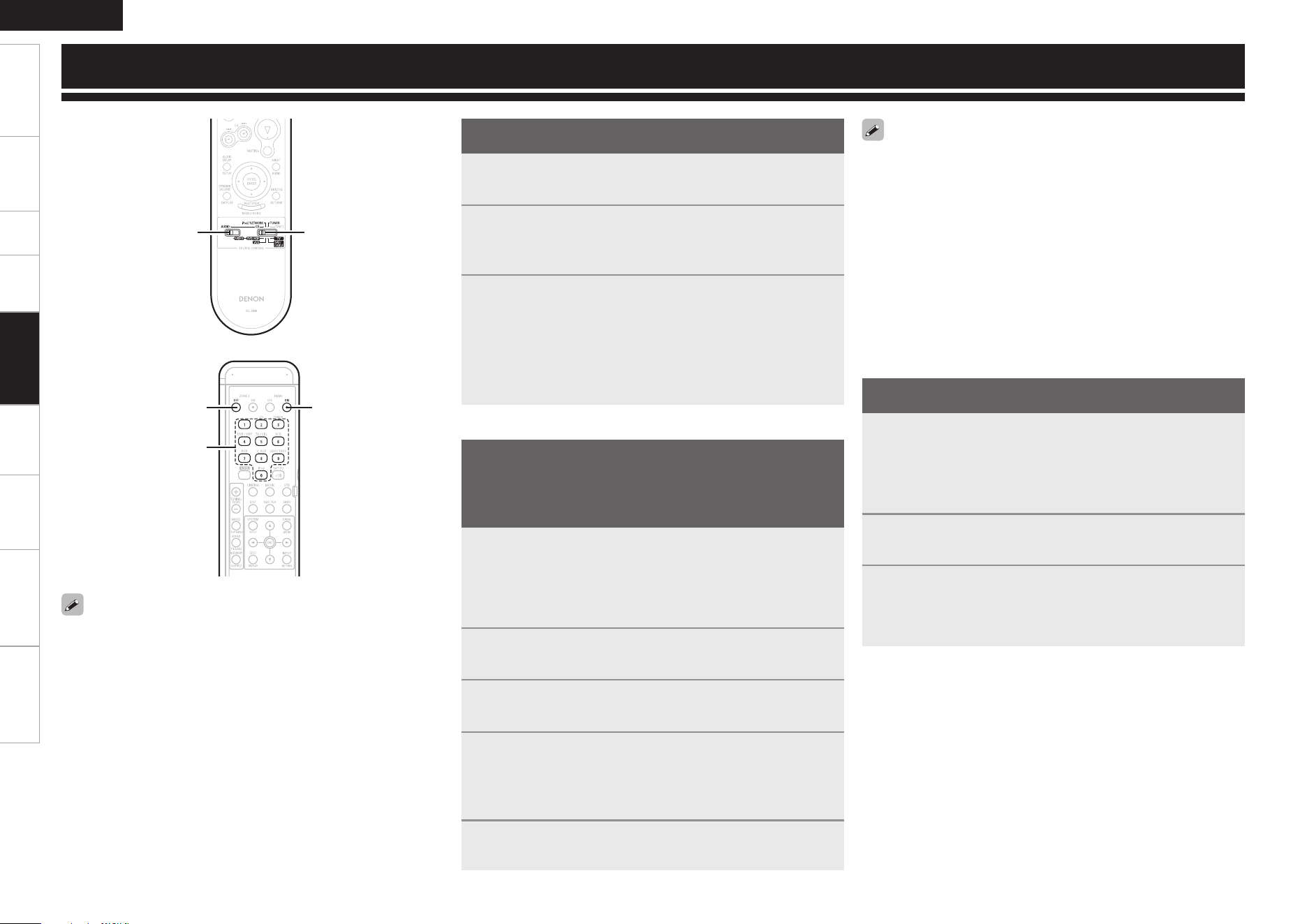
Getting Started Connections Setup Playback Multi-Zone Information Troubleshooting
ENGLISH
Specifications
Depending on the model and year of manufacture of your equipment,
some buttons may not operate.
[SOURCE
CONTROL 1]
[SOURCE
CONTROL 2]
1
Set [SOURCE CONTROL 1] to “AUDIO”.
2
Set [SOURCE CONTROL 2] to the position for the
component to be operated (CD, iPod/NETWORK or
TUNER).
3
Operate the audio component.
b For details, refer to the component’s operating instructions.
b While this remote control unit is compatible with a wide range
of infrared controlled components, it may be the case that some
component models cannot be operated with this remote control
unit.
1
Set [SOURCE CONTROL 1] to “AUDIO” or
“VIDEO”.
b Set to the AUDIO side for the CD position, and to the VIDEO side
for the DVD/HDP, VCR, SAT/CABLE or TV position.
2
Set [SOURCE CONTROL 2] to the component to be
registered.
3
Press [ZONE2 OFF] and [MAIN ON] at the same time.
The indicator starts flashing.
4
Press [NUMBER] and input the 3-digit number of the
brand of the component to be preset. The numbers
are shown in the Preset Code Table (vEnd of this
manual).
5
To store the codes of another component in the
memory, repeat steps 1 to 4.
• The signals for the pressed buttons are emitted while setting the
preset memory. To avoid accidental operation, cover the remote
control unit’s transmitting window while setting the preset memory.
• Depending on the model and year of manufacture, this function
cannot be used for some models, even if they are of makes listed in
the list of preset codes.
• Some manufacturers use more than one type of remote control code.
Refer to the included list of preset codes to change the number and
verify correct operation.
• The preset memory can be set for one component only among the
following: DVD/HDP and SAT/CABLE.
• VDP (Video Disc Player) can be preset when [SOURCE CONTROL 2]
is set to “DVD/HDP”.
1
Set [SOURCE CONTROL 1] to “AUDIO” or
“VIDEO”.
b Set to the AUDIO side for the CD position, and to the VIDEO side
for the DVD/HDP, VCR, SAT/CABLE or TV position.
2
Set [SOURCE CONTROL 2] to the component you want
to operate.
3
Operate the component.
b For details, refer to the component’s operating instructions.
b Some models cannot be operated with this remote control unit.
[ZONE2 OFF]
[NUMBER]
[MAIN ON]
[Front]
[Rear]
Remote Control Unit Operations
Operating DENON Audio Components
Operating Preset Components
Presetting
• DENON and other makes of components can be operated by
setting the preset memory.
• Operation is not possible for some models.
Remote Control
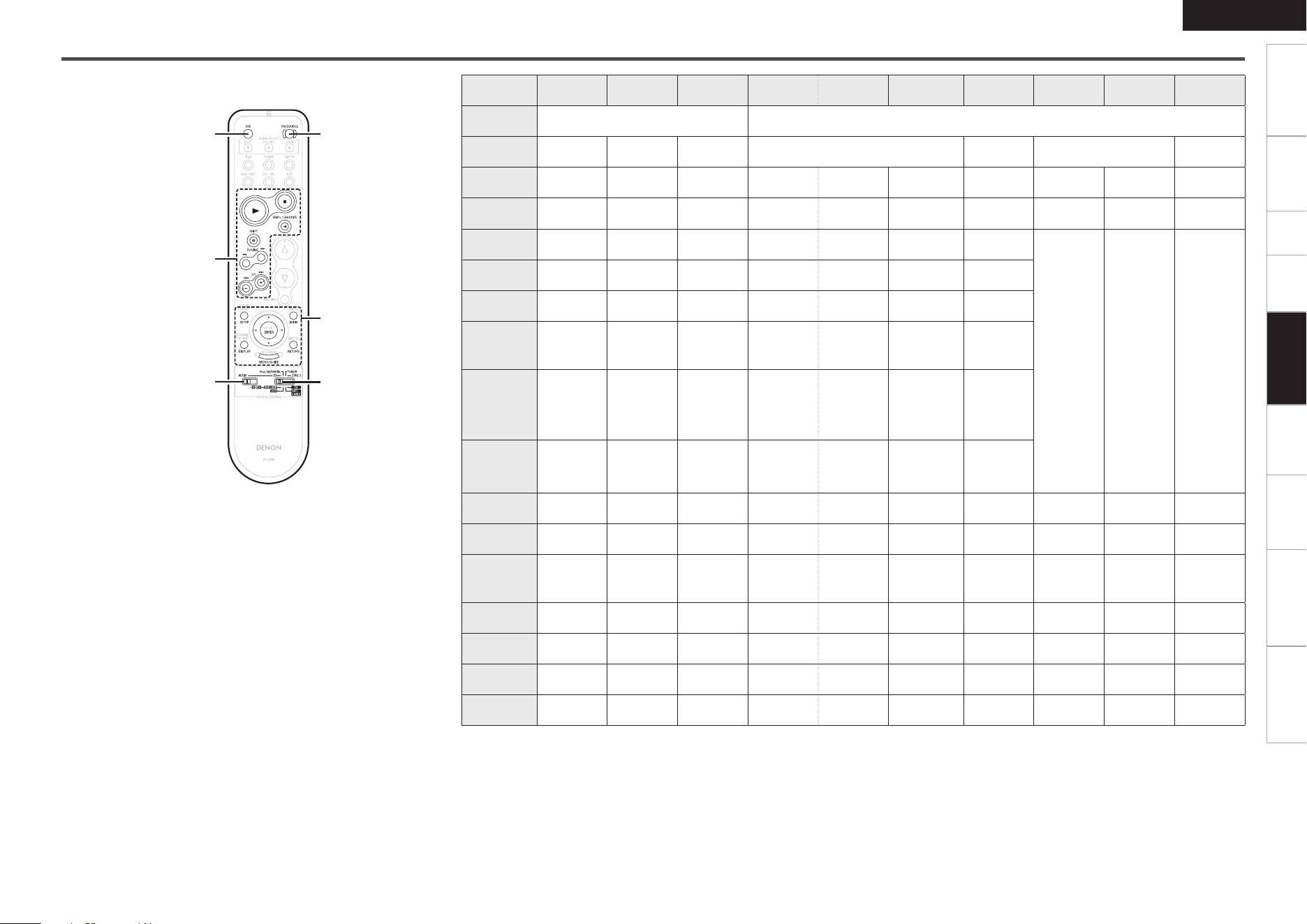
Getting Started Connections Setup Playback Multi-Zone Information Troubleshooting
ENGLISH
Specifications
Functions of Buttons by Component
Device
operated
CD Player iPod Tuner DVD Player
Blu-ray
Disc Player
Video Disc
Player (VDP)
Video Deck
Satellite
Receiver
Cable TV
TV
(Monitor)
SOURCE
CONTROL 1
AUDIO VIDEO
SOURCE
CONTROL 2
CD
iPod/
NETWORK
TUNER DVD / HDP VCR SAT / CABLE TV
OFF – – – Power off Power off – – – – –
ON/SOURCE – – – Power on Power on
Power on /
Standby
Power on /
Standby
Power on /
Standby
Power on /
Standby
Power on /
Standby
1
Play Play / Pause – Play Play Play Play
Punch
through
Punch
through
Punch
through
2
Stop Stop – Stop Stop Stop Stop
SHIFT, 3
Pause – Shift Pause Pause Paus e Pause
0,
SKIP + /
FAVORITE
Disc skip +
b Favorites
Direct
– Disc skip – – –
TUNING,
6 7
Manual
search
(fast-reverse
/ fast-
forward)
Manual
search
(fast-reverse
/ fast-
forward)
Tuning
down / up
Manual
search
(fast-reverse
/ fast-
forward)
Manual
search
(fast-reverse
/ fast-
forward)
Manual
search
(fast-reverse /
fast-forward)
Manual
search
(fast-reverse
/ fast-
forward)
8 9,
CH + –
Auto search
(cue)
Auto search
(cue)
Tuner
Channel – / +
Auto search
(cue)
Auto search
(cue)
Auto search
(cue)
Switch
channels
(–, +)
SETUP – – – Setup Setup – – – – –
uio p
– Cursor –
Cursor
operation
Cursor
operation
– –
Cursor
operation
Cursor
operation
Cursor
operation
AUDIO – – –
Switching
the audio
signal
Switching
the audio
signal
– – – – –
ENTER – Enter – Enter setting Enter setting – – Enter setting Enter setting Enter setting
DISPLAY – – –
Switching
the display
Switching
the display
– –
Switching
the display
Switching
the display
Switching
the display
RETURN – – – Return Return – – Return Return Return
MENU /
GUIDE
– – –
Calling out
the menus
Calling out
the menus
– –
Calling out
the menus
Calling out
the menus
Calling out
the menus
[OFF]
[SOURCE
CONTROL 1]
[1], [2],
[SHIFT, 3],
[0, SKIP + / FAVORITE],
[TUNING, 6 7],
[8 9, CH + –]
[ON/SOURCE]
[SOURCE
CONTROL 2]
[SETUP],
[uiop],
[AUDIO], [ENTER],
[DISPLAY],
[RETURN],
[MENU/GUIDE]
n Front
b The iPod/NETWORK’s FAVORITE button can be operated when using a control dock for iPod ASD-3N/3W.
Remote Control
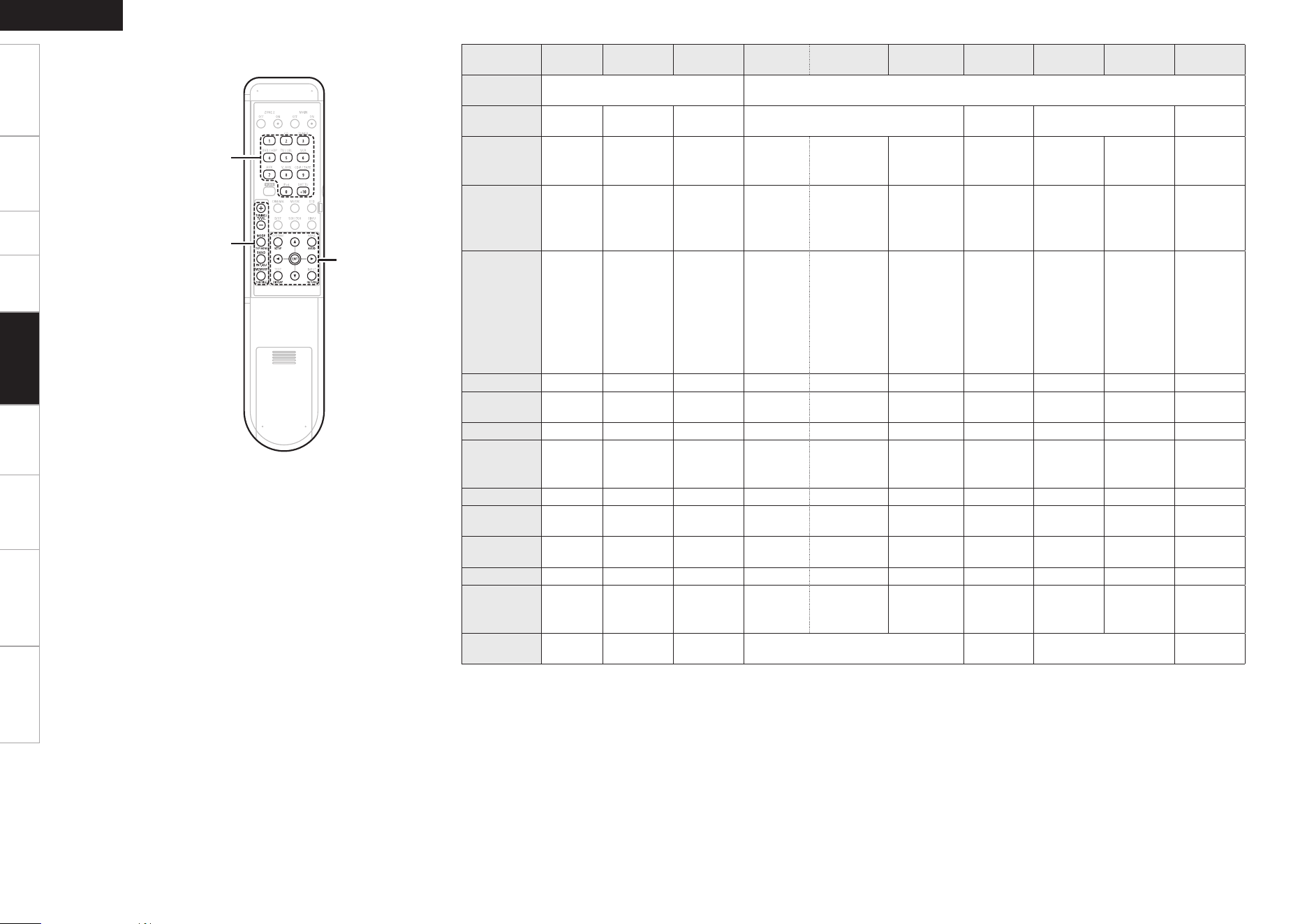
Getting Started Connections Setup Playback Multi-Zone Information Troubleshooting
ENGLISH
Specifications
Device
operated
CD Player iPod Tuner DVD Player
Blu-ray Disc
Player
Video Disc
Player (VDP)
Video Deck
Satellite
Receiver
Cable TV
TV
(Monitor)
SOURCE
CONTROL 1
AUDIO VIDEO
SOURCE
CONTROL 2
CD
iPod/
NETWORK
TUNER DVD / HDP VCR SAT / CABLE TV
NUMBER
(0 ~ 9, +10)
– – –
Number
input / Track
selection
Number input /
Track selection
Number
input / Track
selection
– Channels Channels Channels
TUNING
(+, –) /
TV VOL (+, –)
q CD
Random
w CD
Repeat
q iPod
Random
w iPod
Repeat
q Tuning up
w Tuning
down
q DVD
Random
w DVD
Repeat
q Blu-ray Disc
Random
w Blu-ray Disc
Repeat
q TV
Volume d
w TV
Volume f
q TV
Volume d
w TV
Volume f
q DBS
Volume d
w DBS
Volume f
q Cable
Volume d
w Cable
Volume f
q TV
Volume d
w TV
Volume f
MODE,
TOP MENU
–
Page search
mode (once)
and Browse/
Remote
mode
switching
(Press and
hold)
Switch
search
modes
Calling out
the menus
Calling out the
top menus
– –
Calling out
the menus
Calling out
the menus
Calling out
the menus
SETUP – – – Setup Setup – – – – –
uio p
– – –
Cursor
operation
Cursor
operation
– –
Cursor
operation
Cursor
operation
Cursor
operation
AUDIO – – – Audio Audio – – – – –
BAND,
PICTURE
ADJUST
–
b1 Top menu
FM / AM
switching
Picture
adjust
Picture adjust – – – – –
ENTER – – – Enter setting Enter setting – – Enter setting Enter setting Enter setting
MEMORY,
SUBTITLE
–
b1 Favorite
memory
Preset
memory
Subtitle Subtitle – – – – –
DISPLAY – – –
Switching
the display
Switching the
display
– –
Switching
the display
Switching
the display
Switching
the display
RETURN – – – Return Return – – Return Return Return
Default
setting
(Preset code)
DENON
(111)
– –
DENON
(111)
b2 DENON
(121)
–
HITACHI
(108)
–
ABC
(007)
HITACHI
(134)
Special
Remarks
q
– –
q, w q q, e q, e
GSpecial RemarksH
q Only one device can be set in the preset memory for each mode. When a new preset code is registered, the existing code is automatically
erased.
w For some brands, the DVD remote control buttons may have different function names. Check beforehand.
e One of the following buttons can be assigned to the TV and satellite receiver or cable TV: CD, iPod/NETWORK, TUNER, DVD/HDP, VCR
(vpage 48 “Punch Through Function”).
n Rear
[TUNING + – /
TV VOL + –],
[MODE, TOP MENU],
[BAND,
PICTURE ADJUST],
[MEMORY, SUBTITLE]
[SETUP],
[uiop],
[AUDIO],
[ENTER],
[DISPLAY],
[RETURN]
[NUMBER]
(0~9, +10)
b1: This button can be operated when using a control dock for iPod ASD-3N/3W.
b2: The initial setting of Preset code is 111 (DVD Player).
With the Blu-ray Disc Player setting, when you have set the remote controller code to “DENON2”, use the Blu-ray Disc Player preset code
“121”.
Remote Control
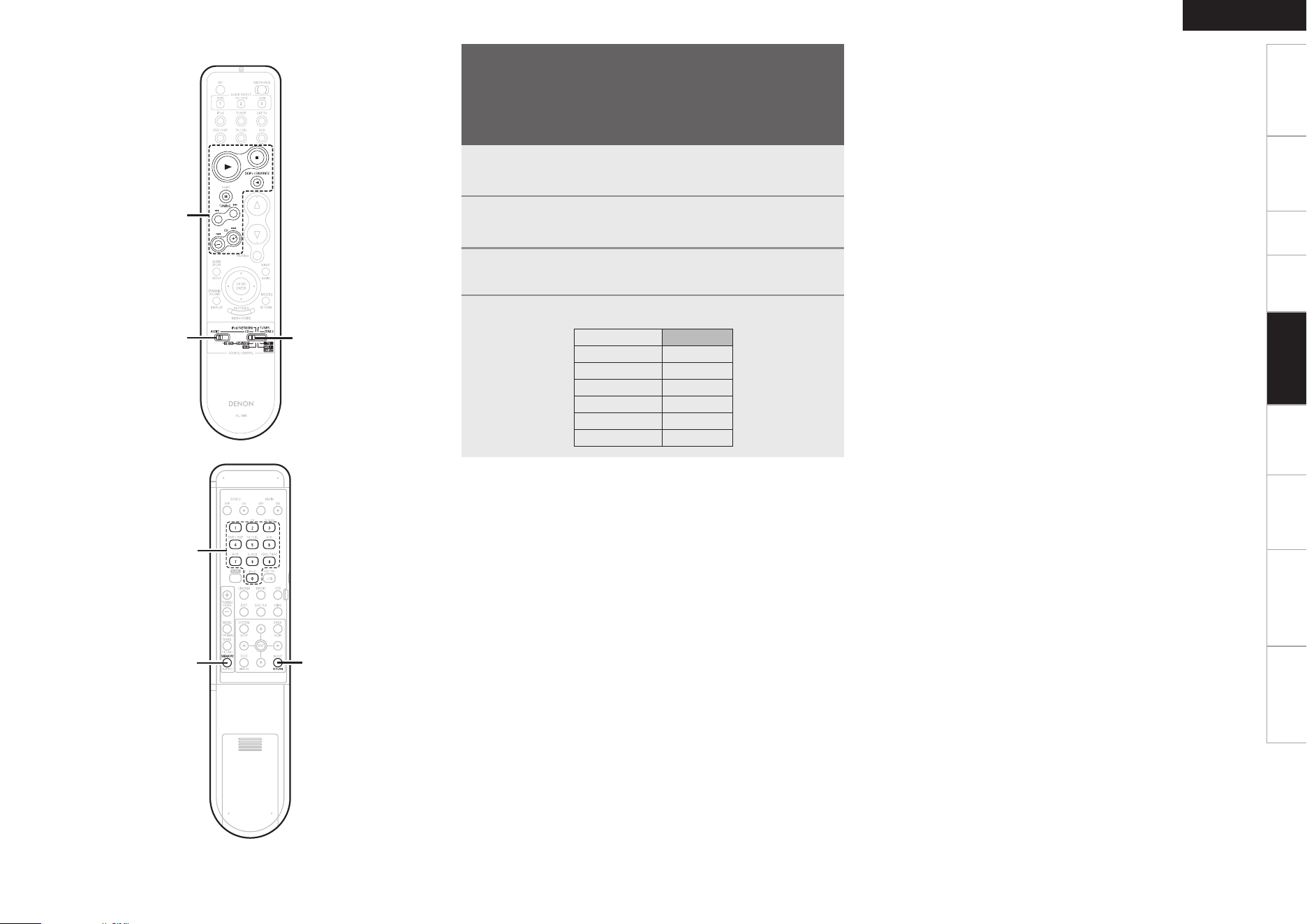
Getting Started Connections Setup Playback Multi-Zone Information Troubleshooting
ENGLISH
Specifications
[SOURCE
CONTROL 1]
[1], [2],
[3], [0],
[6 7],
[8 9]
[SOURCE
CONTROL 2]
1
Set [SOURCE CONTROL 1] to “VIDEO”.
2
Set [SOURCE CONTROL 2] to the component to be
registered (SAT/CABLE or TV).
3
Press [MEMORY] and [RETURN] at the same time.
The indicator starts flashing.
4
Input the number of the component you want to set.
No.
CD 1
iPod/NETWORK 2
TUNER 3
DVD/HDP 4
VCR 5
No setting 0
[NUMBER]
[RETURN]
[MEMORY]
[Front]
[Rear]
Punch Through Function
“Punch Through” is a function allowing you to operate 1, 2, 3, 0,
6, 7, 8 and 9 on CD, iPod/NETWORK, TUNER, DVD/
HDP or VCR components when in the SAT/CABLE or TV mode. By
default, nothing is set.
Remote Control
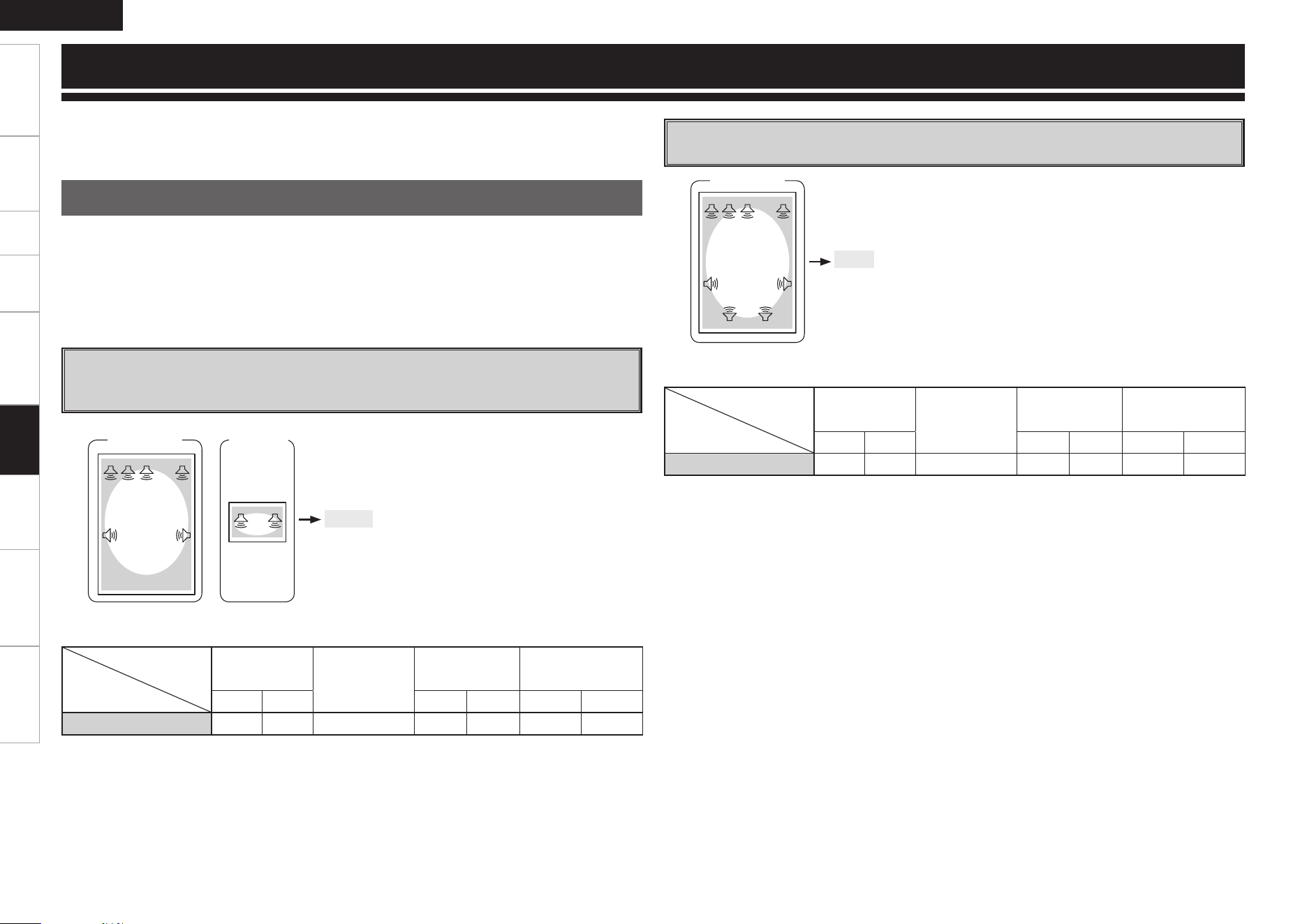
Getting Started Connections Setup Playback Remote Control Information Troubleshooting
ENGLISH
Specifications
The AVR-1609 is compatible with the following types of playback:
• Multi-zone playback (ZONE2)
The amp assign function lets you assign the amplifiers for the different channels built into the AVR-1609 to
the speaker outputs for the different zones.
Select the desired playback environment from among “Setting 1” and “Setting 2”, then set the
corresponding “Amp Assign” mode at “System Setup” – “Option Setup” – “Amp Assign” (vpage 27).
Connect the speakers as described at “Speaker connections and channels outputting to the various
speaker terminals”.
Z2L Z2R
FL
SW C FR
SL SR
Main zone ZONE2
Stereo
5.1ch
ZONE2
(Default)
Setting 1 :
F Multi-zone playback
5.1-channel playback + ZONE2 stereo playback
Amp Assign mode:
+
n
Speaker connections and channels outputting to the various speaker terminals
Speaker terminal
Amp
Assign mode
FRONT
CENTER
SURROUND
SURROUND BACK/
AMP ASSIGN
R L R L R L
ZONE2 FR FL C SR SL Z2R Z2L
Amp Assign / Multi-zone Connections and Operations
SBL SBR
FL
SW C FR
SL SR
Main zone
7.1ch
Setting 2 :
F 7.1-channel playback
7.1ch
Amp Assign mode:
n
Speaker connections and channels outputting to the various speaker terminals
Speaker terminal
Amp
Assign mode
FRONT
CENTER
SURROUND
SURROUND BACK/
AMP ASSIGN
R L R L R L
7.1ch FR FL C SR SL SBR SBL
Multi-zone Settings with the Amp Assign Function
Multi-Zone
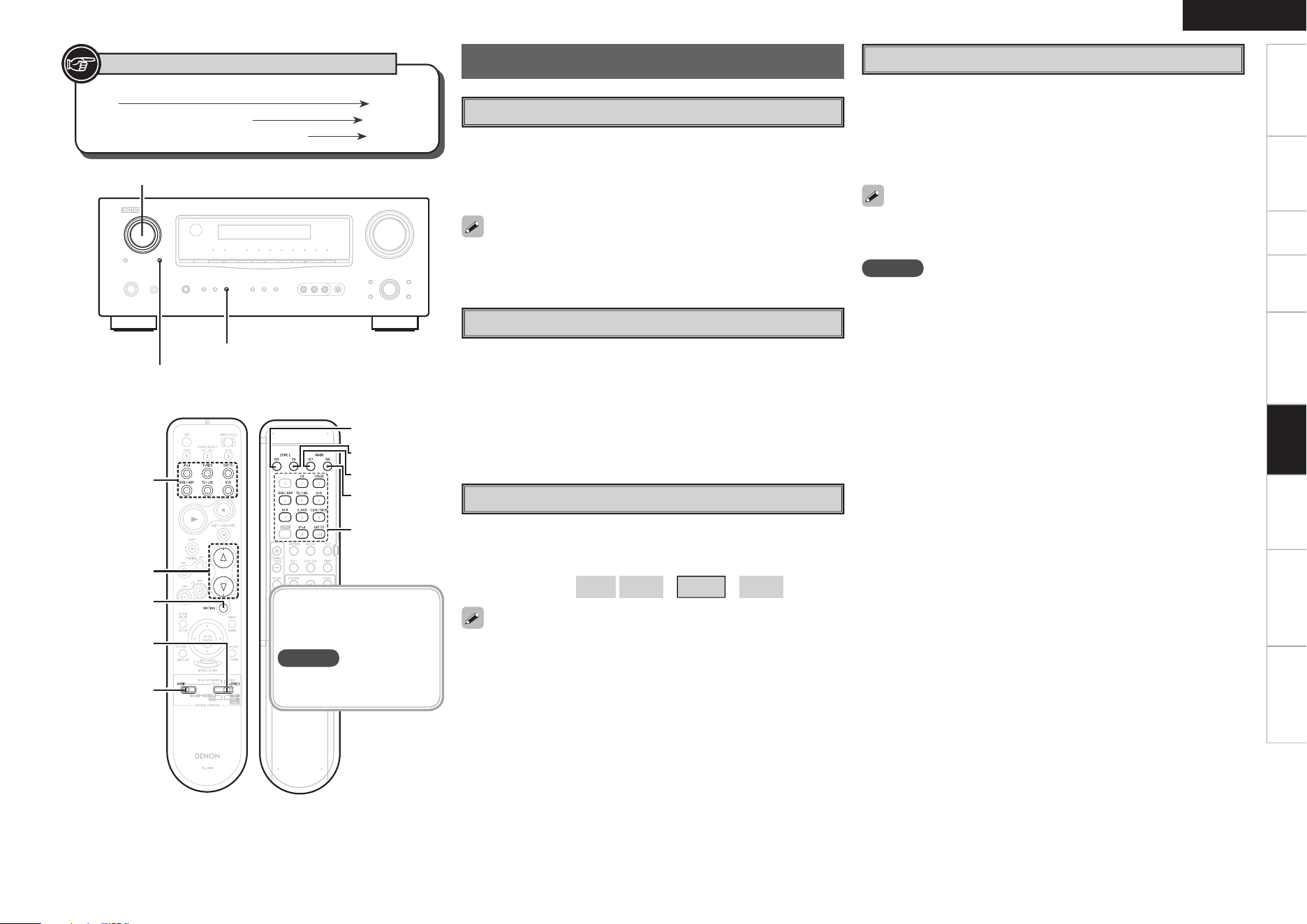
0
Getting Started Connections Setup Playback Remote Control Information Troubleshooting
ENGLISH
Specifi cations
Multi-zone Operations
Turning the Power On and Off
GOperation on the main unitH
Press <ZONE2 ON/OFF> for the zone to be operated.
GOperation on the remote control unitH
Press [ZONE2 ON] or [ZONE2 OFF].
Selecting the Input Source
GOperation on the main unitH
Press <ZONE2 / REC SELECT>, then turn <SOURCE SELECT>.
GOperation on the remote control unitH
Set [SOURCE CONTROL 1] to “AUDIO” and [SOURCE CONTROL 2] to
“ZONE2”.
Press [SOURCE SELECT].
Adjusting the Volume
Set [SOURCE CONTROL 1] to “AUDIO” and [SOURCE CONTROL 2] to
“ZONE2”.
Press [VOLUME].
– – –
–70dB
~
–40dB
~
+18dB[Variable range]
The ZONE2 volume can be adjusted only when “ZONE2” is selected
at “System Setup” – “Option Setup” – “Amp Assign” (vpage 27).
<ZONE2 ON/OFF>
<ZONE2 / REC SELECT>
<SOURCE SELECT>
[SOURCE
CONTROL 1]
[SOURCE
CONTROL 2]
[SOURCE
SELECT]
[VOLUME]
[MUTING]
Turning off the Sound Temporarily
Set [SOURCE CONTROL 1] to “AUDIO” and [SOURCE CONTROL 2] to
“ZONE2”.
Press [MUTING].
b To cancel, either adjust the volume or press [MUTING] again.
The setting is canceled when the zone’s power is turned off.
The source selected for ZONE2 is also output from the recording
output connectors.
NOTE
Digital audio signals input from the COAXIAL or OPTICAL connectors
cannot be played in multi-zone.
[ZONE2 ON]
[MAIN ON]
[SOURCE
SELECT]
[ZONE2 OFF]
[MAIN OFF]
[Front] [Rear]
Button located on both the main unit and the remote control
unit
BUTTON
Button only on the main unit
<BUTTON>
Button only on the remote control unit
[BUTTON]
Symbols used to indicate buttons in this manual
When using ZONE2, it is possible to turn the power for the MAIN
ZONE only on or off by pressing [MAIN ON] or [MAIN OFF].
Multi-Zone
With ZONE2, only the
buttons indicated in this
illustration can be operated.
NOTE
Buttons other than these
cannot be operated.
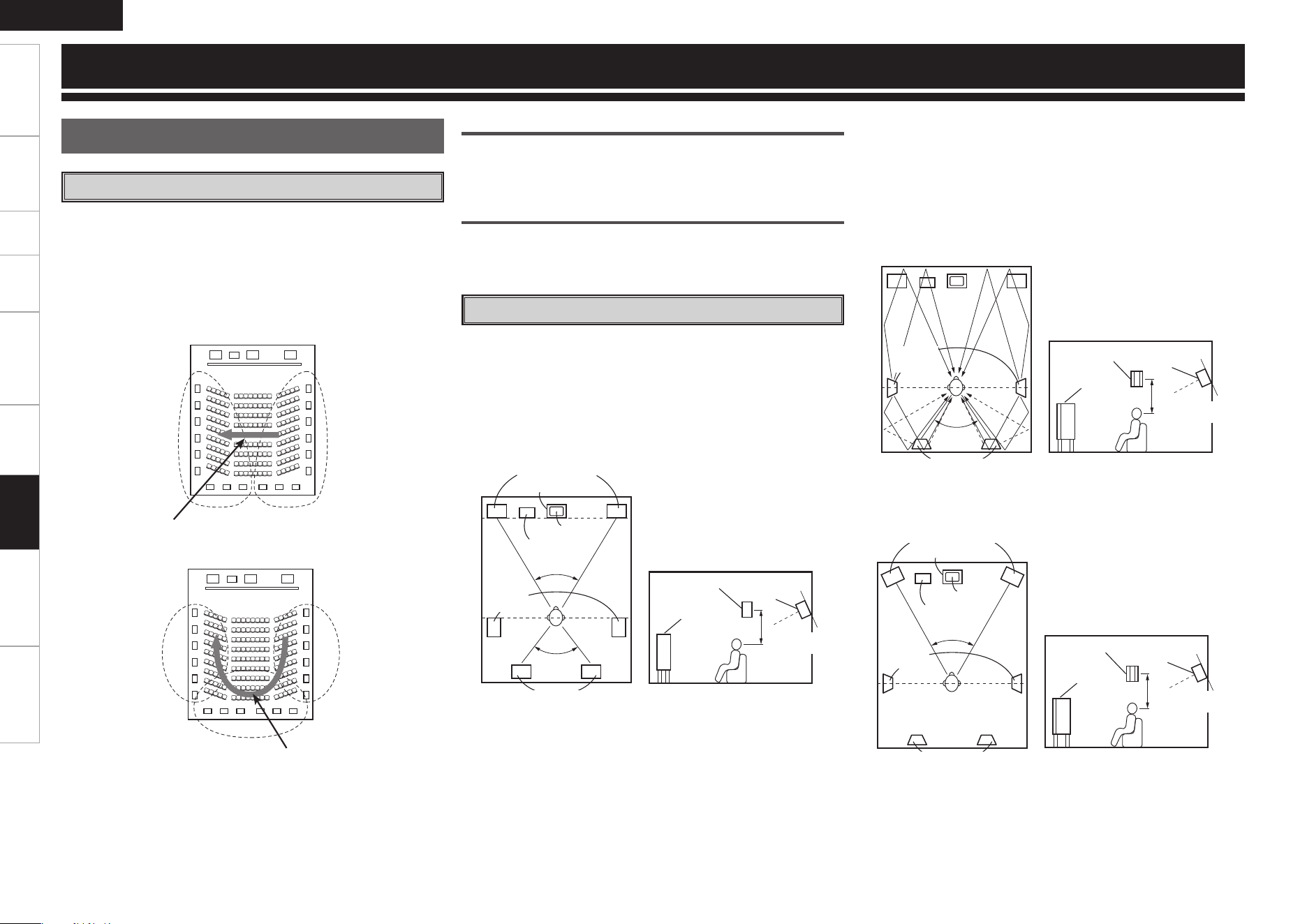
Getting Started Connections Setup Playback Remote Control Multi-Zone Troubleshooting
ENGLISH
Specifications
Surround back speakers
Sound positioning directly to the rear can be achieved easily by adding
a surround back speaker to a 5.1-channel system.
In addition, the acoustic image extending between the sides and the
rear is narrowed, thus greatly improving the expression of the surround
signals for sounds moving from the sides to the back and from the
front to the point directly behind the listening position.
'- $
48
'3
43DI4-DI
Change of positioning and acoustic image
with 5.1-channel systems
Movement of acoustic image from SR to SL
'- $
48
'3
4-DI 43DI
4#DI
Change of positioning and acoustic image
with 6.1-channel systems
Movement of acoustic image from
SR to SB to SL
In addition to sources recorded in 6.1-channels, the surround effect of
conventional 2- to 5.1-channel sources can also be enhanced.
Number of surround back speakers
We recommend using 2 speakers.
When using dipolar speakers in particular, be sure to use 2 speakers.
Placement of the surround left and right channels
when using surround back speakers
We recommend installing the speakers for the surround “L” and “R”
channels a bit forward.
Examples of speaker layouts
Below we introduce examples of speaker layouts. Refer to these to
arrange your speakers according to their type and how you want to
use them.
G1H Using surround back speaker(s)
q When mainly playing movies
Recommended when your surround speakers are single or 2-way
speakers.
Surround back speakers
Subwoofer
Surround
speakers
Monitor
Center speaker
Front speakers
60°
60°
Surround
speaker
Surround back
speaker
Front speaker
Point slightly
downwards
G
As seen from above
H G
As seen from the side
H
2 to 3 feet
About Speaker Installation
w Setting for primarily watching movies using diffusion type
speakers for the surround speakers
For the greatest sense of surround sound envelopment, diffuse
radiation speakers such as bipolar types, or dipolar types, provide
a wider dispersion than is possible to obtain from a direct radiating
speaker (monopolar). Place these speakers at either side of the
prime listening position, mounted above ear level.
Surround
speakers
60°
Surround back speakers
Surround
speaker
Surround back
speaker
Front speaker
2 to 3 feet
Point slightly
downwards
G
As seen from above
H G
As seen from the side
H
Path of the surround sound from the
speakers to the listening position
e When playing movies and music
Center speaker
Front speakers
Subwoofer
Monitor
45° ~ 60°
Surround back
speakers
Surround
speakers
Surround
speaker
Surround back
speaker
Front speaker
Point slightly
downwards
2 to 3 feet
G
As seen from above
H G
As seen from the side
H
Other Information
Information
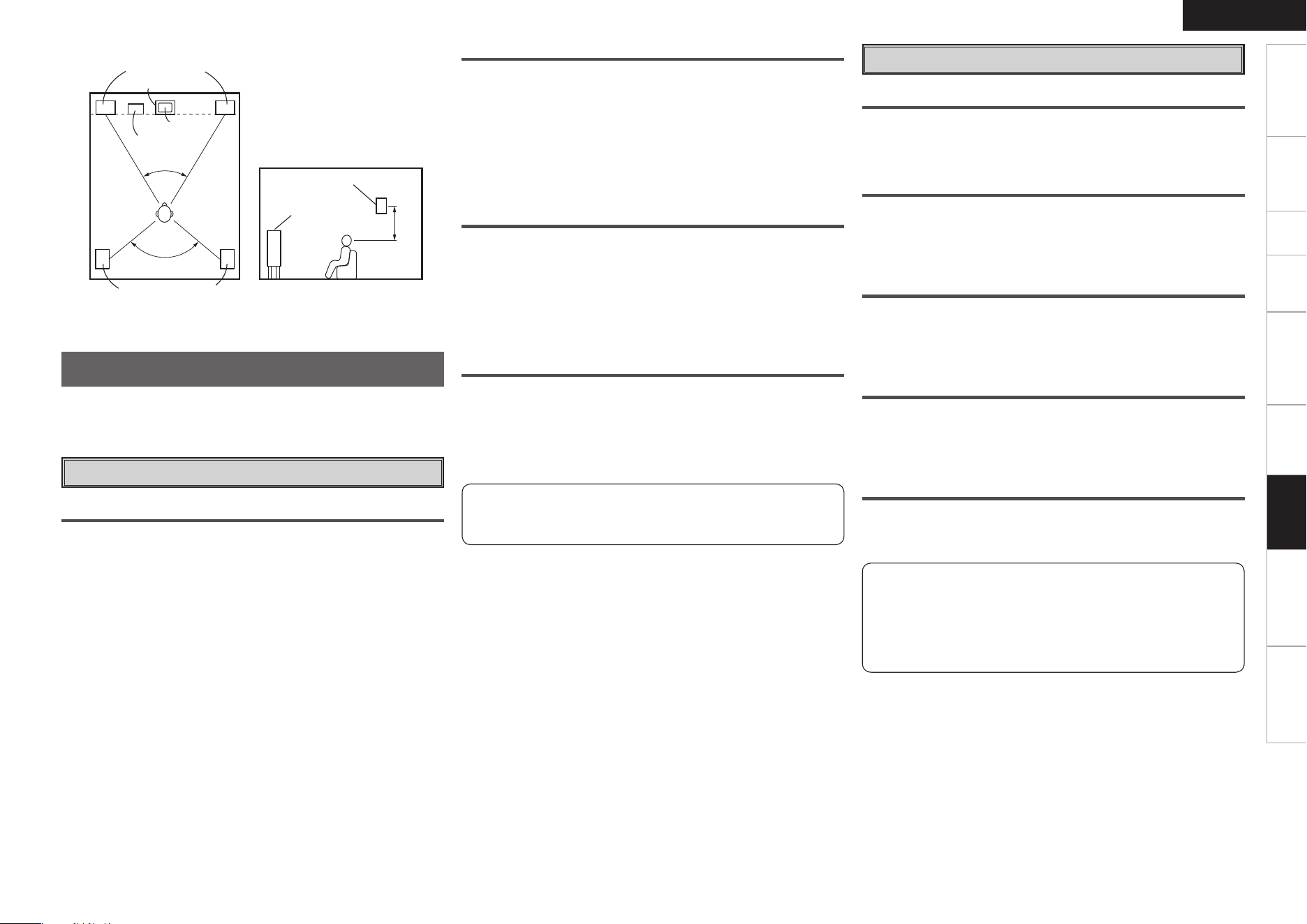
Getting Started Connections Setup Playback Remote Control Multi-Zone Troubleshooting
ENGLISH
Specifications
G2H When not using surround back speakers
Subwoofer
Surround speakers
Monitor
Center speaker
Front speakers
60°
120°
2 to 3 feet
Front speaker
Surround speaker
G
As seen from above
H G
As seen from the side
H
Dolby Digital
Dolby Digital is a multichannel digital signal format developed by Dolby
Laboratories.
A total of 5.1-channels are played: 3 front channels (“FL” , “FR” and
“C”), 2 surround channels (“SL” and “SR”) and the “LFE” channel for
low frequencies.
Because of this, there is no crosstalk between channels and a realistic
sound field with a “three-dimensional” feeling (sense of distance,
movement and positioning) is achieved.
A real, overpowering sense of presence is achieved when playing
movie sources in AV rooms as well.
Surround
Dolby Surround
The AVR-1609 is equipped with a digital signal processing circuit that
lets you play program sources in the surround mode to achieve the
same sense of presence as in a movie theater.
Dolby Pro Logic g
Dolby Pro Logic g is a matrix decoding technology developed by Dolby
Laboratories.
Regular music such as that on CDs is encoded into 5-channels to
achieve an excellent surround effect.
The surround channel signals are converted into stereo and full band
signals (with a frequency response of 20 Hz to 20 kHz or greater)
to create a “three-dimensional” sound image offering a rich sense of
presence for all stereo sources.
Dolby Pro Logic gx
Dolby Pro Logic gx is a further improved version of the Dolby Pro Logic
g matrix decoding technology.
Audio signals recorded in 2-channels are decoded to achieve a natural
sound with up to 7.1-channels.
There are 3 modes: “Music” suited for playing music, “Cinema”
suited for playing movies, and “Game” which is optimized for playing
games.
Manufactured under license from Dolby Laboratories.
“Dolby”, “Pro Logic” and the double-D symbol are trademarks of
Dolby Laboratories.
DTS Surround
DTS Digital Surround
DTS Digital Surround is the standard digital surround format of DTS,
Inc., compatible with a sampling frequency of 44.1 or 48 kHz and up
to 5.1-channels of digital discrete surround sound.
DTS-ES™ Discrete 6.1
DTS-ES™ Discrete 6.1 is a 6.1-channel discrete digital audio format
adding a surround back (SB) channel to the DTS digital surround sound.
Decoding of conventional 5.1-channel audio signals is also possible
according to the decoder.
DTS-ES™ Matrix 6.1
DTS-ES™ Matrix 6.1 is a 6.1-channel discrete digital audio format
inserting a surround back (SB) channel to the DTS digital surround
sound through matrix encoding. Decoding of conventional 5.1-channel
audio signals is also possible according to the decoder.
DTS NEO:6™ Surround
DTS NEO:6™ is a matrix decoding technology for achieving 6.1-
channel surround playback with 2-channel sources. It includes “DTS
NEO:6 CINEMA” suited for playing movies and “DTS NEO:6 Music”
suited for playing music.
DTS 96/24
DTS 96/24 is a digital audio format enabling high sound quality
playback in 5.1-channels with a sampling frequency of 96 kHz and 24
bit quantization on DVD-Video.
Manufactured under license under U.S. Patent #’s: 5,451,942;
5,956,674; 5,974,380; 5,978,762; 6,226,616; 6,487,535; 7,003,467,
7,212,872 & other U.S. and worldwide patents issued & pending.
DTS, DTS Digital Surround, ES, and Neo:6 are registered trademarks
and the DTS logos, Symbol and DTS 96/24 are trademarks of DTS, Inc.
© 1996-2007 DTS, Inc. All Rights Reserved.
Information
Dolby Digital EX
Dolby Digital EX is a 6.1-channel surround format proposed by Dolby
Laboratories that allows users to enjoy in their homes the “DOLBY
DIGITAL SURROUND EX” audio format jointly developed by Dolby
Laboratories and Lucas Films.
The 6.1 channels of sound, including surround back channels, provide
improved sound positioning and expression of space.
Getting Started Connections Setup Playback Remote Control Multi-Zone Troubleshooting
ENGLISH
Specifications
HDMI
(High-Definition Multimedia Interface)
HDMI is a digital interface standard for next generation TVs based
on DVI (Digital Visual Interface) standards and optimized for use in
consumer equipment.
Non-compressed digital video and multi-channel audio signals are
transmitted with a single connection.
HDMI is also compatible with HDCP (High-bandwidth Digital Contents
Protection), a technology for protecting copyrights that encrypts digital
video signals in the same was as with DVI.
“HDMI”, “HDMI logo” and “High-Definition Multimedia Interface”
are trademarks or registered trademarks of HDMI Licensing LLC.
Deep Color
Eliminates on-screen color banding, for smooth tonal transitions and
subtle gradations between colors.
Enables increased contrast ratio.
Can represent many times more shades of gray between black and
white.
At 30-bit pixel depth, a four times improvement would be the minimum,
and the typical improvement would be eight times or more.
xvYCC
Next-generation “xvYCC” color space supports 1.8 times as many
colors as existing HDTV signals.
Lets HDTVs display colors more accurately.
Enables displays with natural, vivid colors.
Audyssey
Manufactured under license from Audyssey Laboratories. U.S.
and foreign patents pending. Audyssey MultEQ
®
is a registered
trademark of Audyssey Laboratories. Audyssey Dynamic EQ™ is a
trademark of Audyssey Laboratories. Audyssey Dynamic Volume™
is a trademark of Audyssey Laboratories.
Audyssey MultEQ
®
Audyssey MultEQ is a room equalization solution that calibrates any
audio system so that it can achieve optimum performance for every
listener in a large listening area. Based on several room measurements,
MultEQ calculates an equalization solution that corrects for both
time and frequency response problems in the listening area and also
performs a fully automated surround system setup.
Audyssey Dynamic EQ™
Audyssey Dynamic EQ solves the problem of deteriorating sound
quality as volume is decreased by taking into account human perception
and room acoustics. Audyssey Dynamic EQ works in tandem with
Audyssey MultEQ to provide well-balanced sound for every listener
at any volume level.
Audyssey Dynamic Volume™
Audyssey Dynamic Volume solves the problem of large variations in
volume level between television programs, commercials, and between
the soft and loud passages of movies.
Audyssey Dynamic EQ is integrated into Dynamic Volume so that as
the playback volume is adjusted automatically, the perceived bass
response, tonal balance, surround impression, and dialog clarity
remain the same.
Information
Getting Started Connections Setup Playback Remote Control Multi-Zone Troubleshooting
ENGLISH
Specifications
Surround mode
Signals and adjustability in the different modes
Channel output Parameter (default values are shown in parentheses)
Front L/R Center Surround L/R
Surround Back
L/R
Subwoofer
D. Comp
z
1
LFE
z
1
SB CH OUT Cinema EQ. Mode Room Size Effect Level Delay Time Subwoofer
DIRECT
S A A A D S (OFF) S (0 dB) A A A A A A S
STEREO
S A A A D S (OFF) S (0 dB) A A A A A A A
EXT. IN
S D D D D A A A A A A A A A
DOLBY PRO LOGIC gx S D D D D S (OFF) A S (NOTE3)
S
(OFF, NOTE1)
S A A A A
DOLBY PRO LOGIC g S D D A D S (OFF) A A
S
(OFF, NOTE2)
S A A A A
DTS NEO:6
S D D D D S (OFF) A S (NOTE3)
S
(OFF, NOTE1)
S A A A A
DOLBY DIGITAL
S D D D D S (OFF) S (0 dB) S (NOTE3) S (OFF) A A A A A
DTS SURROUND
S D D D D A S (0 dB) S (NOTE3) S (OFF) A A A A A
5CH / 7CH STEREO
S D D D D S (OFF) S (0 dB) S (NOTE3) A A A A A A
ROCK ARENA
S D D D D S (OFF) S (0 dB) S (NOTE3) A A S (Medium) S (10) A A
JAZZ CLUB
S D D D D S (OFF) S (0 dB) S (NOTE3) A A S (Medium) S (10) A A
MONO MOVIE
S D D D D S (OFF) S (0 dB) S (NOTE3) A A S (Medium) S (10) A A
VIDEO GAME
S D D D D S (OFF) S (0 dB) S (NOTE3) A A S (Medium) S (10) A A
MATRIX
S D D D D S (OFF) S (0 dB) S (NOTE3) A A A A S (30 ms) A
VIRTURL
S A A A D S (OFF) S (0 dB) A (NOTE3) A A A A A A
S : Enable
A : Unable
NOTE1 : This parameter is available when “Surround Parameter” – “Mode” is set to “Cinema” (
vpage 32).
NOTE2 : This parameter is available when “Surround Parameter” – “Mode” is set to “Cinema” or “PL” (
vpage 32).
NOTE3 : “System Setup” – “Speaker Setup” – “Speaker Configuration” – “Surround Back Speaker” are only displayed when “Small” or
“Large”.
NOTE:
z
1 : When playing Dolby Digital and DTS signals.
S : Signal / Adjustable
A : No signal / Not adjustable
D : Turned on or off by speaker configuration setting
Surround Modes and Parameters
Information
Getting Started Connections Setup Playback Remote Control Multi-Zone Troubleshooting
ENGLISH
Specifications
Surround mode
Signals and adjustability in the different modes
Parameter (default values are shown in parentheses)
PRO LOGIC g/gx MUSIC mode only
NEO:6 MUSIC
mode only
EXT. IN only
Tone Control
(NOTE5)
Night Mode
(NOTE5)
MultEQ
Dynamic EQ
(NOTE6)
Dynamic Volume
(NOTE7)
DV Setting RESTORER
Panorama Dimension Center Width Center Image
SUBWOOFER
ATT.
DIRECT
A A A A A A S (OFF) S (OFF, NOTE4) S (ON, NOTE4) S (OFF, NOTE4)
S (Midnight, NOTE8)
A
STEREO
A A A A A S (0 dB) S (OFF) S (OFF, NOTE9) S (ON, NOTE9) S (OFF, NOTE9)
S (Midnight, NOTE8)
S (OFF, NOTE10)
EXT. IN
A A A A S A A A A A A A
DOLBY PRO LOGIC gx S (OFF) S (3) S (3) A A S (0 dB) S (OFF) S (OFF, NOTE9) S (ON, NOTE9) S (OFF, NOTE9)
S (Midnight, NOTE8)
S (OFF, NOTE10)
DOLBY PRO LOGIC g S (OFF) S (3) S (3) A A S (0 dB) S (OFF) S (OFF, NOTE9) S (ON, NOTE9) S (OFF, NOTE9)
S (Midnight, NOTE8)
S (OFF, NOTE10)
DTS NEO:6
A A A S (0.3) A S (0 dB) S (OFF) S (OFF, NOTE9) S (ON, NOTE9) S (OFF, NOTE9)
S (Midnight, NOTE8)
S (OFF, NOTE10)
DOLBY DIGITAL
A A A A A S (0 dB) S (OFF) S (OFF, NOTE9) S (ON, NOTE9) S (OFF, NOTE9)
S (Midnight, NOTE8)
A
DTS SURROUND
A A A A A S (0 dB) S (OFF) S (OFF, NOTE9) S (ON, NOTE9) S (OFF, NOTE9)
S (Midnight, NOTE8)
A
5CH / 7CH STEREO
A A A A A S (0 dB) S (OFF) S (OFF, NOTE9) S (ON, NOTE9) S (OFF, NOTE9)
S (Midnight, NOTE8)
S (OFF, NOTE10)
ROCK ARENA
A A A A A S (NOTE3) S (OFF) S (OFF, NOTE9) S (ON, NOTE9) S (OFF, NOTE9)
S (Midnight, NOTE8)
S (OFF, NOTE10)
JAZZ CLUB
A A A A A S (0 dB) S (OFF) S (OFF, NOTE9) S (ON, NOTE9) S (OFF, NOTE9)
S (Midnight, NOTE8)
S (OFF, NOTE10)
MONO MOVIE
A A A A A S (0 dB) S (OFF) S (OFF, NOTE9) S (ON, NOTE9) S (OFF, NOTE9)
S (Midnight, NOTE8)
S (OFF, NOTE10)
VIDEO GAME
A A A A A S (0 dB) S (OFF) S (OFF, NOTE9) S (ON, NOTE9) S (OFF, NOTE9)
S (Midnight, NOTE8)
S (OFF, NOTE10)
MATRIX
A A A A A S (0 dB) S (OFF) S (OFF, NOTE9) S (ON, NOTE9) S (OFF, NOTE9)
S (Midnight, NOTE8)
S (OFF, NOTE10)
VIRTURL
A A A A A S (0 dB) S (OFF) S (OFF, NOTE9) S (ON, NOTE9) S (OFF, NOTE9)
S (Midnight, NOTE8)
S (OFF, NOTE10)
S : Adjustable
A : Not adjustable
NOTE3 : BASS +6 dB, TREBLE +4 dB
NOTE4 : When “System Setup” – “Option Setup” – “Direct Mode Setup” are turned “ON”, also after implementing “Auto Setup”.
NOTE5 : This parameter is not availabe when “Surround Parameter” – “Dynamic EQ” is set to “ON” (vpage 34).
NOTE6 : This parameter is not availabe when “Surround Parameter” – “MultEQ” is set to “OFF” (vpage 33).
NOTE7 : This parameter is not availabe when “Surround Parameter” – “Dynamic EQ” is set to “OFF” (vpage 34).
NOTE8 : Displayed when “Dynamic Volume” setting is “ON”.
NOTE9 : Displays after implementing Auto Setup.
NOTE10 : Displayed when input signal is “Analog” or “PCM 44.1/48 kHz”.
Information
Getting Started Connections Setup Playback Remote Control Multi-Zone Troubleshooting
ENGLISH
Specifications
z
1: When using just one surround back speaker.
z
2: When using two surround back speakers.
Button
Note
Input signals
ANALOG LINEAR PCM
LINEAR PCM
(Multi ch)
DTS DOLBY DIGITAL
Surround mode
DTS ES
DSCRT
(With Flag)
DTS ES
MTRX
(With Flag)
DTS (5.1ch) DTS 96/24
DOLBY
DIGITAL EX
(With Flag)
DOLBY
DIGITAL EX
(With no
Flag)
DOLBY
DIGITAL
(5.1/5/4ch)
DOLBY
DIGITAL
(4/3ch)
DOLBY
DIGITAL (2ch)
STANDARD
DTS SURROUND
DTS ES DSCRT6.1
z
1
A A A F A A A A A A A A
DTS ES MTRX6.1
z
1
A A A A F A A A A A A A
DTS SURROUND
A A A D D F D A A A A A A
DTS 96/24
A A A A A A F D A A A A A
DTS + PLgx CINEMA
z
2
A A A A A S S A A A A A
DTS + PLgx MUSIC
z
1
A A A A A S S A A A A A
DTS + NEO:6
z
1
A A A A A S S A A A A A
DTS NEO:6 CINEMA
S S A A A A A A A A A S
DTS NEO:6 MUSIC
S S A A A A A A A A A S
DOLBY Surround
DOLBY DIGITAL EX
z
1
A A A A A A A F
z
1 S S S A
DOLBY DIGITAL
A A A A A A A D D F D F D F A
DOLBY DIGITAL + PLgx CINEMA
z
2
A A A A A A A F
z
2 S S S A
DOLBY DIGITAL + PLgx MUSIC
z
1
A A A A A A A A S S S A
DOLBY PRO LOGIC gx CINEMA S S A A A A A A A A A F
DOLBY PLgx MUSIC S S A A A A A A A A A S
DOLBY PLgx GAME S S A A A A A A A A A S
DOLBY PLg CINEMA S S A A A A A A A A A D
DOLBY PLg MUSIC S S A A A A A A A A A S
DOLBY PLg GAME S S A A A A A A A A A S
DOLBY PRO LOGIC
S S A A A A A A A A A S
D : Mode selectable in initial status (Amp Assign: ZONE2 b The default setting is “ZONE2”.)
F : Mode selectable in initial status (Amp Assign: 7.1ch)
S : Selectable mode
A : Non-selectable mode
NOTE:
z
1: This mode is not available when the surround back speaker setup is set to “None”.
z
2: This mode is not available when the surround back speaker setup is set to “1spkr” or “None”.
Differences in Surround Mode Names Depending on the Input Signals
Information
Getting Started Connections Setup Playback Remote Control Multi-Zone Troubleshooting
ENGLISH
Specifications
Button
Note
Input signals
ANALOG LINEAR PCM
LINER PCM
(Multi ch)
DTS DOLBY DIGITAL
Surround mode
DTS ES
DSCRT
(With Flag)
DTS ES MTRX
(With Flag)
DTS (5.1ch) DTS 96/24
DOLBY
DIGITAL EX
(With Flag)
DOLBY
DIGITAL EX
(With no Flag)
DOLBY
DIGITAL
(5.1/5/4ch)
DOLBY
DIGITAL
(4/3ch)
DOLBY
DIGITAL (2ch)
DIRECT
DIRECT
S S A S S S S S S S S S
DSP SIMULATION
5CH / 7CH STEREO
z
3
S S A S S S S S S S S S
ROCK ARENA
S S A S S S S S S S S S
JAZZ CLUB
S S A S S S S S S S S S
MONO MOVIE
S S A S S S S S S S S S
VIDEO GAME
S S A S S S S S S S S S
MATRIX
S S A S S S S S S S S S
VIRTUAL
S S A S S S S S S S S S
STEREO
STEREO
F F A S S S S S S S S S
F : Mode selectable in initial status
S : Selectable mode
A : Non-selectable mode
NOTE :
z
3: If the surround back speaker setup is set to “None”, then “5CH STEREO” is displayed.
Information
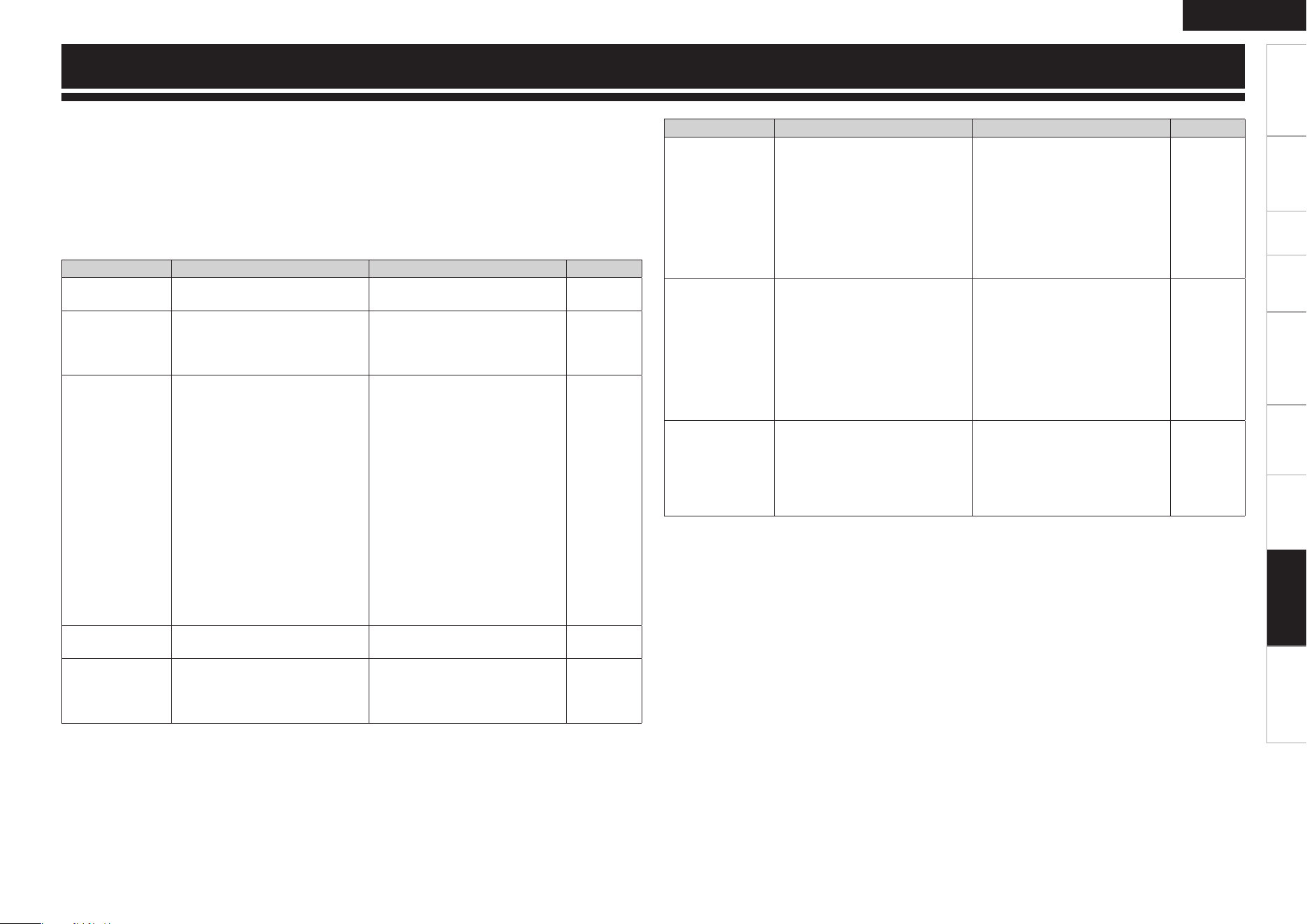
Getting Started Connections Setup Playback Remote Control Multi-Zone Information
ENGLISH
Specifications
If a problem should arise, first check the following:
1. Are the connections correct?
2. Is the set being operated as described in the owner’s manual?
3. Are the other components operating properly?
If this unit does not operate properly, check the items listed in the table below. Should the problem persist,
there may be a malfunction.
In this case, disconnect the power immediately and contact your store of purchase.
Symptom Cause Countermeasure Page
Set does not
operate properly.
• External noise or interference is
causing the set to malfunction.
• Reset the microprocessor. 44
Power does not
turn on, or turns
off directly after it
was turned on.
• Connection of the power cord is
faulty.
• Check the insertion of the power
cord plug.
16
No sound is
produced from
speakers.
• Connection with the input
devices or connection of the
speaker cables is faulty.
• Device you want to play and set
input source do not match.
• Master volume is turned too
low.
• Mute mode is set.
• Headphones are connected.
• No digital signals are being
input.
• The connectors to which the
digital inputs are assigned and
the settable input modes do not
match.
• Check the connections.
• Select an appropriate input
source.
• Adjust the master volume to an
appropriate level.
• Cancel the mute mode.
• Disconnect the headphones.
• Select an input source for which
the digital input setting has been
made.
• Set the input mode.
9 ~ 16
37
38
38
38
25
37
Display is off. • The Dimmer setting is set to
“OFF”.
• Set to something other than
“OFF”.
38
“DOLBY DIGITAL”
indicator does not
appear on display.
• DVD player’s digital audio output
setting is not proper.
• Check the DVD player’s audio
output setting. For details, read
the DVD player’s operating
instructions.
–
GGeneralH
Troubleshooting
Symptom Cause Countermeasure Page
Power switches
off suddenly while
you are using the
AVR-1609, the
power indicator
will flash in red
at intervals of
approximately 2
seconds.
• The protection circuit will be
activated depending upon the
temperature rise in the internal
parts of the unit.
• Please switch off power at once,
and re-apply the power after
the body temperature has fallen
sufficiently.
• Please re-install AVR-1609 in a
place having good ventilation.
9
–
Power switches
off suddenly while
you are using the
AVR-1609, the
power indicator
will flash red
at intervals of
approximately 0.5
seconds.
• Use speakers having impedance
less than that specified.
• If speaker cable core wires touch
each other or the core wires
become disconnected from their
terminals, the protection circuit
will be activated in the event of
core wires coming into contact
with the AVR-1609 rear panel.
• Please use speakers which have
the specified impedance.
• Unplug the power cord, then
after twisting the core wires
together tightly again, or effecting
termination treatments etc,
please reconnect once again.
9
9
Even applying
power, the power
display flashes
red at intervals of
approximately 0.5
seconds.
• The AVR-1609 amplifier circuit
has failed.
• Switch off the power and please
contact the DENON service
adviser.
–
Troubleshooting
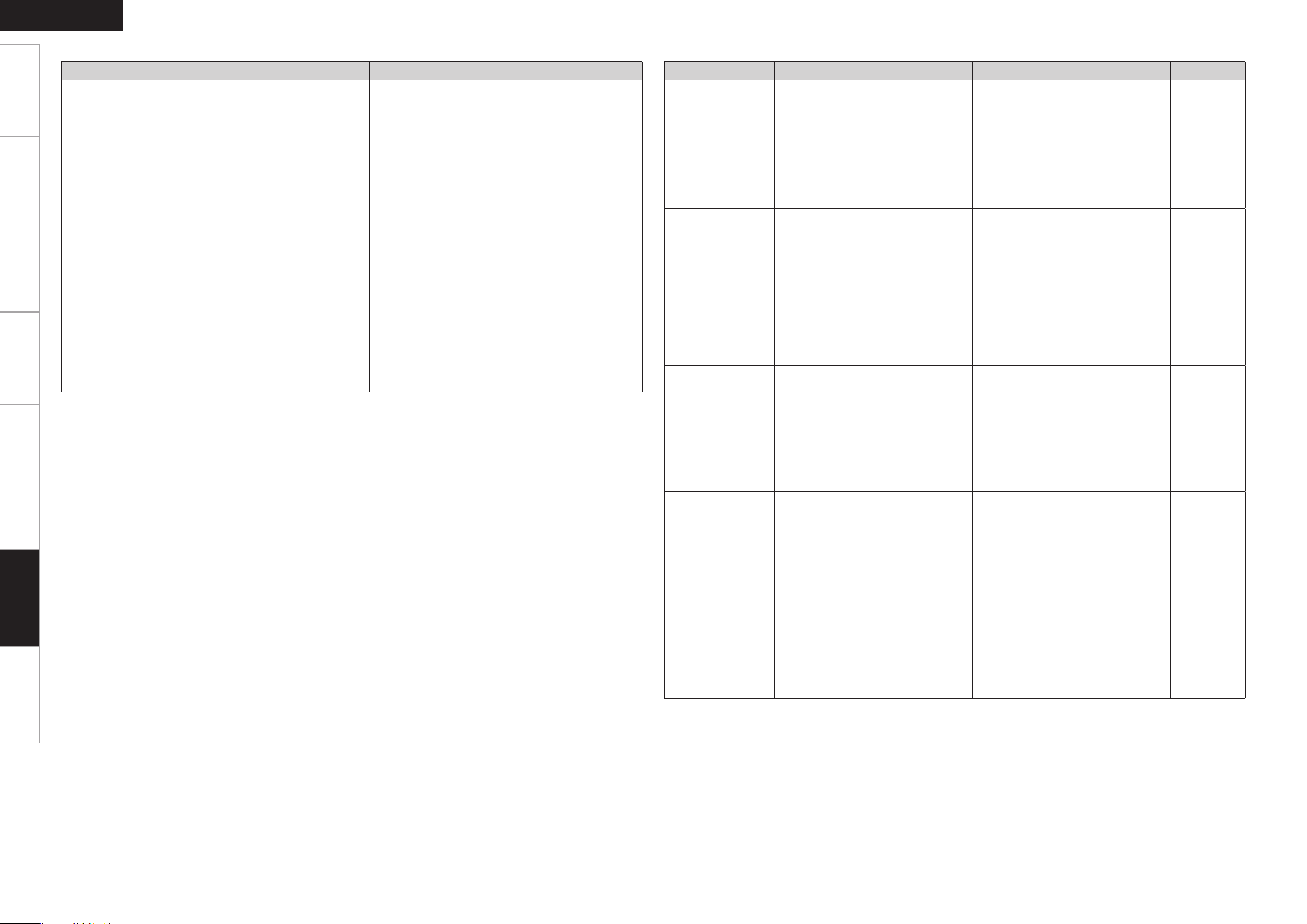
Getting Started Connections Setup Playback Remote Control Multi-Zone Information
ENGLISH
Specifications
Symptom Cause Countermeasure Page
No sound is
produced from
center speaker.
• You are playing a monaural
source (TV, AM radio broadcast,
etc.) in the “STANDARD” (Dolby/
DTS Surround) mode.
• The mode is set to something
other than “STANDARD” (Dolby/
DTS Surround).
29
No sound
is produced
from surround
speakers.
• The surround mode is set to
“STEREO” or “DIRECT”.
• Set to a surround playback
mode.
30
No sound is
produced from
surround back
speaker.
• Select item other than “7.1ch” by
“Amp Assign” setting.
• Surround back speaker setting is
set to “None”.
• The “Parameter” – “Surround
Parameter” – “SB CH OUT”
settings are “OFF”.
• Surround mode not set to a mode
for 6.1- or 7.1-channel playback.
• Select “7.1ch”.
• Set to something other than
“None”.
• Please set “Parameter” –
“Surround Parameter” – “SB
CH OUT” to settings other than
“OFF”.
• Select a surround playback
mode.
27
22
33
29, 30
No sound is
produced from
subwoofer.
• Subwoofer’s power not turned
on.
• The “Subwoofer” setting at
“Speaker Setup” is set to “No”.
• The subwoofer is not properly
connected.
• The subwoofer’s volume is
turned off.
• Turn on the subwoofer’s power.
• Set to “Yes”.
• Check the connections.
• Adjust the subwoofer’s volume
to an appropriate level.
–
22
9
43
No test tones are
produced when
remote control
unit’s TEST button
is pressed.
• Surround mode not set to
“ S TA N DA R D ” ( D o l b y / D T S
Surround).
• Set to the “STANDARD”(Dolby/
DTS Surround) mode.
29
DTS sound is not
output.
• DVD player’s audio output setting
is not set to bitstream.
• DVD player is not compatible
with DTS sound playback.
• The AVR-1609’s “Input Mode”
setting is set to other than
“DTS”.
• Set the DVD player. For details,
refer to the DVD player’s
operating instructions.
• Use a DTS-compatible player.
• Set to the “Auto” or “DTS”
mode.
–
–
37
GAudioH
Symptom Cause Countermeasure Page
Set does not work
properly when
remote control
unit operated.
• Batteries are worn.
• You are operating outside of the
specified range.
• Obstacle between main unit and
remote control unit.
• The batteries are not inserted in
the proper direction, as indicated
by the polarity marks in the
battery compartment.
• The set’s remote control sensor
is exposed to strong light (direct
sunlight, inverter type fluorescent
bulb light, etc.).
• The remote ID of the main unit
and remote control unit do not
match.
• The SOURCE CONTROL switches
are not set in the correct
positions.
• Replace with new batteries.
• Operate within the specified
range.
• Remove the obstacle.
• Insert the batteries in the
proper direction, following the
polarity marks in the battery
compartment.
• Move the set to a place in which
the remote control sensor will
not be exposed to strong light.
• Set “Remote ID” for the main
unit to “1”.
• Set the SOURCE CONTROL
switches to the correct positions
according the operation you are
applying.
3
3
3
3
3
28
38, 40, 41,
45 ~ 47, 50
GRemote Control UnitH
Troubleshooting
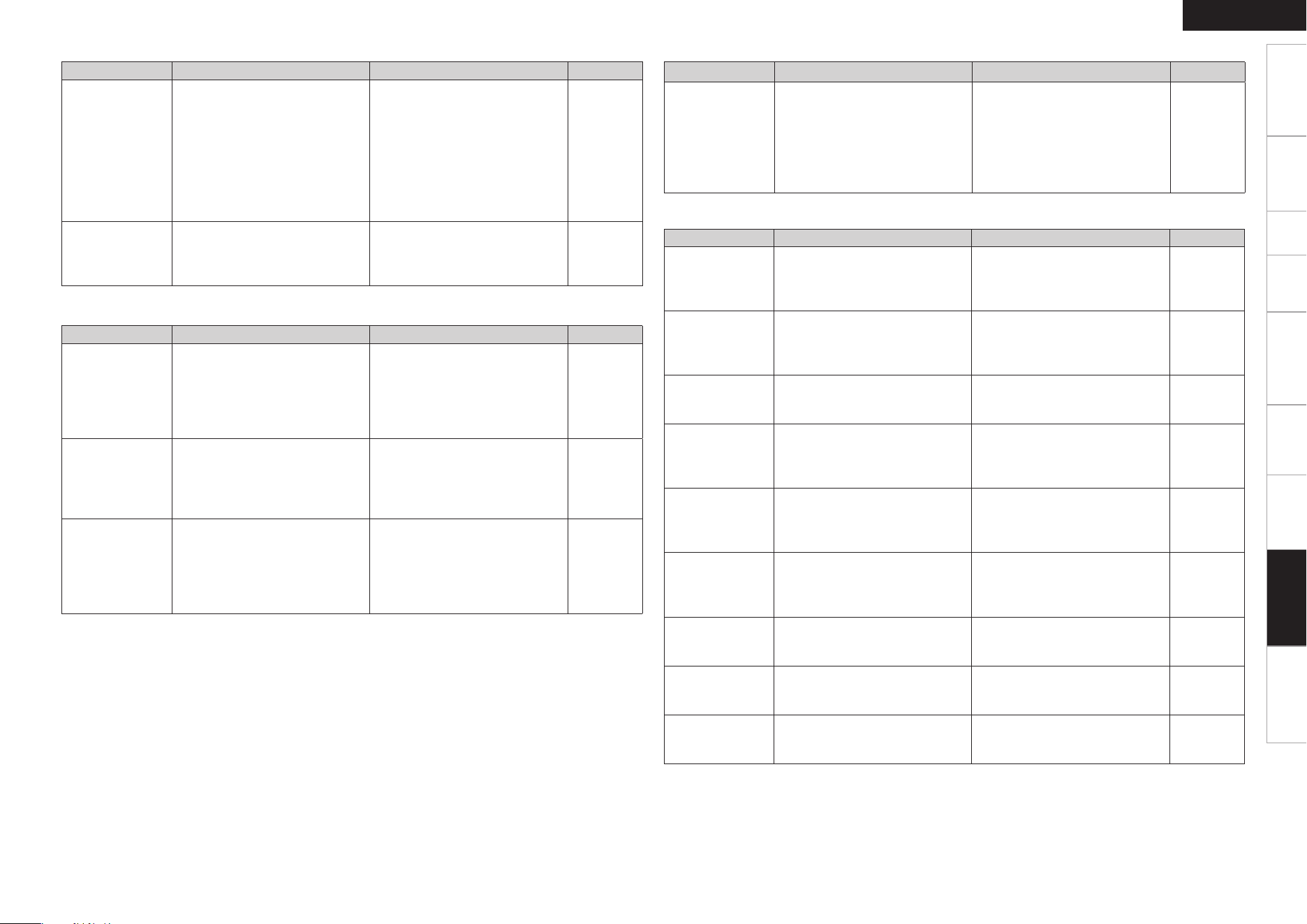
0
Getting Started Connections Setup Playback Remote Control Multi-Zone Information
ENGLISH
Specifications
Symptom Cause Countermeasure Page
iPod cannot be
played.
• The input source assigned to
control dock for iPod is not
selected.
• Cable is not properly connected.
• Control dock for iPod’s AC
adapter is not connected to
power outlet.
• Switch to the input source
assigned at control dock for
iPod.
• Reconnect.
• Plug the control dock for iPod’s
AC adapter into a power outlet.
25
12
–
GiPodH
Symptom Cause Countermeasure Page
“CHECK SR
TUNER” is
displayed in the
SIRIUS mode.
• The Sirius Tuner unit is not
connected.
• Check that the connections are
correct.
15
“ANTENNA
ERROR” is
displayed in the
SIRIUS mode.
• If the Sirius Tuner is not
connected, it will be broken.
• Check that the connections are
correct.
15
“NO SIGNAL” is
displayed in the
SIRIUS mode.
• The signal cannot be received. • Reposition your SiriusConnect
Home Tuner antenna.
40
“INVALID
CHANNEL” is
displayed in the
SIRIUS mode.
• Channel is not present. • Select another channel. 40
“NO CH
AVAILABLE” is
displayed in the
SIRIUS mode.
• Even searching categories,
if none of the channels are
present, the “Parental Lock” is
on (locked).
• Please search for other
categories.
40
“ACQUIRING” is
displayed in the
SIRIUS mode.
• The selected channel is not
currently broadcasting.
• Displays while SiriusConnect
Home Tuner is connected.
• Select another channel. 40
“Call SIRIUS”z
is displayed in the
SIRIUS mode.
• Channels are not subscribed to. • If you subscribe to the channel,
you can receive the channel.
–
“SUB UPDATED”
is displayed in the
SIRIUS mode.
• While updating contract
information.
– –
“Code? [ ]” is
displayed in the
SIRIUS mode.
• Selected channels are locked. • Please insert pass word (4 digits)
into “[ ]”.
26
GSIRIUS Satellite RadioH
z : After scroll displays “Call 888-539-
....
” twice, displays “Call SIRIUS”.
Symptom Cause Countermeasure Page
No picture
appears.
• The connections between the
AVR-1609 and monitor are faulty.
• The connection terminal of the
AVR-1609 and the connection
terminal of the monitor are not of
the same type.
• Check the connections.
• Because video signals are output
from the AVR-1609’s monitor
output terminal in the same
format as the video input signals,
the monitor output terminal
should be of the same type as
the terminal used for input.
10 ~ 14
–
–
DVDs cannot be
copied on a VCR.
–
• This is not a malfunction. Most
movie software includes copy
prevention signals and cannot be
copied.
–
GVideoH
Symptom Cause Countermeasure Page
HDMI audio
signals are not
output from
speakers.
–
• The audio signal input to the
HDMI input connector cannot be
played on the AVR-1609. Input
the audio signal to the digital
audio input connector or analog
audio input connector.
10
No picture
appears
with HDMI
connections.
• The connections to the HDMI
connectors are faulty.
• HDMI input setting is improper.
• The HDMI format of the player
and monitor do not match.
• Check the connections.
• Check the HDMI input setting.
• Match the HDMI format of the
player and monitor.
10
24
10
No sound is
output from
the monitor
connected
with HDMI
connections.
• HDMI input setting is improper. • Check the HDMI input setting. 24
GHDMIH
Troubleshooting
Getting Started Connections Setup Playback Remote Control Multi-Zone Information Troubleshooting
ENGLISH
n
Audio section
• Power amplifier
Rated output:
Front (A, B):
75 W + 75 W (8 Ω/ohms, 20 Hz ~ 20 kHz with 0.08 % T.H.D.)
110 W + 110 W (6 Ω/ohms, 1 kHz with 0.7 % T.H.D.)
Center:
75 W (8 Ω/ohms, 20 Hz ~ 20 kHz with 0.08 % T.H.D.)
110 W (6 Ω/ohms, 1 kHz with 0.7 % T.H.D.)
Surround:
75 W + 75 W (8 Ω/ohms, 20 Hz ~ 20 kHz with 0.08 % T.H.D.)
110 W + 110 W (6 Ω/ohms, 1 kHz with 0.7 % T.H.D.)
Surround Back:
75 W + 75 W (8 Ω/ohms, 20 Hz ~ 20 kHz with 0.08 % T.H.D.)
110 W + 110 W (6 Ω/ohms, 1 kHz with 0.7 % T.H.D.)
Output connectors: Front: A or B
6 ~ 16 Ω/ohms
A + B
12 ~ 16 Ω/ohms
Center, Surround, Surround Back: 6 ~ 16 Ω/ohms
• Analog
Input sensitivity / Input impedance:
200 mV / 47 kΩ/kohms
Frequency response:
10 Hz ~ 100 kHz — +1, –3 dB (DIRECT mode)
S/N:
98 dB (IHF-A weighted, DIRECT mode)
n
Video section
• Standard video connectors
Input / output level and impedance:
1 Vp-p, 75 Ω/ohms
Frequency response:
5 Hz ~ 10 MHz — +1, –3 dB
• S-Video connectors
Input / output level and impedance:
Y (brightness) signal — 1 Vp-p, 75 Ω/ohms
C (color) signal — 0.286 Vp-p, 75 Ω/ohms
Frequency response:
5 Hz ~ 10 MHz — +1, –3 dB
• Color component video connectors
Input / output level and impedance:
Y (brightness) signal — 1 Vp-p, 75 Ω/ohms
P
B / CB signal — 0.7 Vp-p, 75 Ω/ohms
P
R / CR signal — 0.7 Vp-p, 75 Ω/ohms
Frequency response:
5 Hz ~ 30 MHz — +0, –3 dB
n
Tuner section [FM] [AM]
(note: µV at 75 Ω/ohms, 0 dBf = 1 x 10
-15
W)
Receiving Range: 87.5 MHz ~ 107.9 MHz 520 kHz ~ 1710 kHz
Usable Sensitivity: 1.0 µV (11.2 dBf) 18 µV
50 dB Quieting Sensitivity: MONO 1.6 µV (15.3 dBf)
STEREO 23 µV (38.5 dBf)
S/N (IHF-A): MONO 77 dB
STEREO 72 dB
Total harmonic Distortion (at 1 kHz): MONO 0.15 %
STEREO 0.3 %
n
General
Power supply: AC 120 V, 60 Hz
Power consumption:
4.4 A
0.3 W (Standby)
Maximum external dimensions:
434 (W) x 171 (H) x 377 (D) mm (17-3/32” x 6-47/64” x 14-27/32”)
Weight: 11.1 kg (24 lbs 14.6 oz)
n
Remote control unit (RC-1098)
Batteries: R6/AA Type (two batteries)
Maximum external dimensions:
52 (W) x 243 (H) x 21 (D) mm (2-3/64” x 9-9/16” x 53/64”)
Weight: 184 g (Approx. 6.5 oz) (including batteries)
z For purposes of improvement, specifications and design are subject to change without notice.
Specifications
Specifications
PRESET CODE
Blu-Ray Disc Player / DVD Player
A
Aiwa 009
D
Denon 014, [111]
z
, 121
H
Hitachi 010
J
JVC 006, 011
K
Konka 012, 013
M
Magnavox 005
Mitsubishi 004
P
Panasonic 014
Philips 005, 015, 016, 017
Pioneer 003, 008
S
Sanyo 018
Sony 002, 019, 020
T
Toshiba 001, 021, 022
Z
Zenith 023
VDP
D
Denon 028, 029, 112
M
Magnavox 026
Mitsubishi 028
P
Panasonic 029, 030
Philips 026
Pioneer 028, 031
R
RCA 032
S
Sony 033, 034, 035, 036
VCR
A
Admiral 081
Aiko 095
Aiwa 009
Akai
026, 027, 070, 072, 082, 083,
084
Alba 055
Amstrad 009
ASA 042
Asha 087
Audio Dynamic 005, 085
Audiovox
088
Beaumark 087
Broksonic 086, 093
C
Calix 088
Candle
006, 087, 088, 089, 090
Canon 049, 057
Capehart 025, 055, 056, 071
Carver 015
CCE 095
Citizen
006, 007, 087, 088, 089, 090,
095
Craig 007, 087, 088, 091, 115
Curtis Mathes
006, 049, 073, 080, 087, 090,
092
Cybernex 087
D
Daewoo
025, 055, 059, 074, 089, 093,
095, 096
Daytron 025, 055
DBX 005, 085
Dumont 053
Dynatech 009
E
Electrohome 001, 088, 097
Electrophonic 088
Emerson
001, 009, 017, 027, 086, 088,
089, 092, 093, 097, 100, 101,
102, 103, 104, 117
F
Flsher
009, 028, 031, 053, 054, 091,
099, 115
G
GE
007, 011, 049, 050, 051, 052,
073, 080, 087
Go Video 047, 048
Goldstar 000, 006, 012, 062, 088
Gradiente 094
Grundig 042
H
Harley Davidson 094
Harman Kardon 040, 062
Hi-Q 091
Hitachi
009, 013, 023, 026, 058,
[108]
z
, 109, 110, 111
J
JC Penny
004, 005, 007, 023, 028, 049,
062, 085, 087, 088
Jensen 013, 026
JVC
004, 005, 006, 026, 029, 043,
044, 045, 046, 085
K
Kenwood
004, 005, 006, 026, 029, 033,
045, 085, 090
Kodak 088
L
Lloyd 009, 094
LXI 088
M
Magnavox 015, 016, 042, 049, 063, 106
Magnin 087
Marantz
004, 005, 006, 015, 042, 049,
085, 090
Marta 088
MEI 049
Memorex
009, 033, 049, 053, 060, 081,
087, 088, 091, 094, 115
Metz 123, 124, 125, 126, 127, 128
MGA 001, 017, 027, 041, 097
MGN Technology 087
Midland 011
Minolta 013, 023
Mitsubishi
001, 003, 008, 013, 014, 017,
027, 029, 039, 040, 041, 045,
097
Motorola 081
Montgomery Ward
001, 002, 007, 009, 049, 063,
081, 115, 117
MTC 009, 087, 094
Multitech 007, 009, 011, 087, 090, 094
N
NAD 038
NEC
004, 005, 006, 018, 026, 029,
045, 061, 062, 085
Nikko 088
Noblex 087
O
Optimus 081, 088
Optonica 021
P
Panasonic
024, 049, 064, 066, 067, 068,
069, 107
Perdio 009
Pentax 009, 013, 023, 058, 090
Philco 015, 016, 049
Philips 015, 021, 042, 049, 105
Pilot 088
Pioneer
005, 013, 029, 036, 037, 038,
045, 085
Portland 025, 055, 090
Proscan 063, 080
Pulsar 060
Q
Quartz 033
Quasar 034, 035, 049
R
Radio Shack
001, 002, 021, 081, 087, 088,
091, 094, 097, 098, 115
Radix 088
Randex 088
RCA
007, 013, 019, 023, 058, 063,
064, 065, 073, 080, 082, 087
Realistic
009, 021, 031, 033, 049, 053,
081, 087, 088, 091, 094, 097,
098
Ricoh 055
S
Salora 033, 041
Samsung
007, 011, 051, 059, 070, 083,
087, 089, 113
Sanky 081
Sansui
005, 026, 029, 045, 061, 085,
114
Sanyo
032, 033, 053, 087, 091, 115,
116
SBR 042
Scott 017, 020, 086, 089, 093, 117
Sears
013, 023, 028, 031, 033, 053,
054, 088, 091, 098, 099, 115
Sentra 055
Sharp 001, 002, 021, 097
Shogun 087
Sony
075, 076, 077, 078, 079, 121,
122
STS 023
Sylvania
009, 015, 016, 017, 041, 049,
094
Symphonic 009, 094
T
Tandy 009
Tashiko 009, 088
Tatung 004, 026, 030
Teac 004, 009, 026, 094
Technics 024, 049
TMK 087, 092
Toshiba
013, 017, 020, 041, 059, 089,
098, 099, 117
Totevision 007, 087, 088
U
Unirech 087
V
Vecrtor Research 005, 062, 085, 089, 090
Victor 005, 045, 046, 085
Video Concepts 005, 027, 085, 089, 090
Videosonic 007, 087
W
Wards
013, 021, 023, 087, 088, 089,
091, 094, 097, 118, 119, 120
X
XR-1000 094
Y
Yamaha 004, 005, 006, 026, 062, 085
Z
Zenith 060, 078, 079
Television
A
Admiral 045, 121
Adventura 122
Aiko 054
Akai
016, 027, 046
Alleron 062
A-Mark 007
Amtron 061
Anam 006, 007, 036
Anam National 061, 147
AOC
003, 007, 033, 038, 039, 047,
048, 049, 133
Archer 007
Audiovox 007, 061
B
Bauer 155
Belcor 047
Bell & Howell 045, 118
Bradford 061
Brockwood 003, 047
C
Candle
003, 030, 031, 032, 038, 047,
049, 050, 122
Capehart 003
Celebrity 046
Circuit City 003
Citizen
029, 030, 031, 032, 034, 038,
047, 049, 050, 054, 061, 095,
122, 123
Concerto 031, 047, 049
Colortyme 003, 047, 049, 135
Contec 013, 051, 052, 061
Cony 051, 052, 061
Craig 004, 061
Crown 029
Curtis Mathes
029, 034, 038, 044, 047, 049,
053, 095, 118
D
Daewoo
027, 029, 039, 048, 049, 054,
055, 106, 107, 137
Daytron 003, 049
Dimensia 044
Dixi 007, 015, 027
E
Electroband 046
Electrohome 029, 056, 057, 058, 147
Elta 027
Emerson
029, 051, 059, 060, 061, 062,
118, 123, 124, 139, 148
Envision 038
Etron 027
F
Fisher
014, 021, 063, 064, 065, 118
Formenti 155
Fortress 012
Fujitsu 004, 062
Funai 004, 062
Futuretech 004
G
GE
020, 036, 037, 040, 044, 058,
066, 088, 119, 120, 125, 147
Goldstar
000, 015, 029, 031, 039, 048,
051, 056, 057, 067, 068, 069,
116
Grundy 062
H
Hitachi
029, 031, 051, 052, 070, 111,
112, 113, 124, [134]*
Hitachi Pay TV 151
I
Infinity 017, 071
J
Janeil 122
JBL 017, 071
JC Penny
020, 034, 039, 040, 041, 044,
048, 050, 058, 066, 069, 076,
088, 090, 095, 125, 136, 159
JCB 046
JVC
019, 051, 052, 072, 073, 091,
117, 126
K
Kawasho 018, 046
Kenwood 038, 056, 057
Kloss 010, 032
Kloss Novabeam 005, 122, 127, 131
KTV 074, 123
L
Loewe 071
logik 144
Luxman 031
LXI
008, 014, 017, 024, 040, 044,
063, 071, 075, 076, 077,
118, 125
M
Magnavox
005, 010, 017, 030, 033, 038,
050, 056, 071, 078, 079, 085,
089, 108, 109, 110, 127, 131,
132, 145
Marantz 015, 017, 071, 080
Matsui 027
Memorex 014, 027, 045, 083, 118, 144
Metz 160, 161, 162, 163
List of preset codes / Liste de codes préréglés
PRESET CODE
MGA
001, 039, 048, 056, 057, 058,
065, 081, 083
Midland 125
Minutz 066
Mitsubishi
001, 016, 039, 048, 056, 057,
058, 065, 081, 082, 083, 105
Montgomery Ward 011, 020, 144, 145, 146
Motorola 121, 147
MTC 031, 034, 039, 048, 095
N
NAD 008, 075, 076, 128
National 002, 036, 061, 147
National Quenties 002
NEC
031, 038, 039, 048, 057, 084,
086, 135, 147
Nikko 054
NTC 054
O
Optimus 128
Optonica 011, 012, 093, 121
Orion 004, 139
P
Panasonic
002, 009, 017, 036, 037, 071,
141, 143, 147
Philco
005, 010, 030, 050, 051, 056,
079, 085, 127, 131, 132,
145, 147
Philips
005, 015, 017, 050, 051, 056,
078, 087, 088, 089, 131,
132, 147
Pioneer 124, 128, 142
Portland 054
Price Club 095
Proscan 040, 044, 125
Proton 035, 051, 092, 129
Pulsar 042
Q
Quasar 036, 037, 074, 141
R
Radio Shack 011, 044, 063, 093, 118
RCA
040, 044, 125, 130, 137,
151, 152
Realistic 014, 063, 093, 118
S
Saisho 027
Samsung
003, 015, 034, 053, 055, 057,
094, 095, 136, 153
Sansui 139
Sanyo
013, 014, 021, 022, 063, 064,
081, 096
SBR 015
Schneider 015
Scott 062
Sears
008, 014, 021, 022, 023, 024,
025, 040, 052, 057, 062, 063,
064, 065, 073, 075, 076, 097,
098, 125, 159
Sharp
011, 012, 013, 026, 093, 099,
100, 104, 121
Siemens 013
Signature 045, 144
Simpson 050
Sony 043, 046, 138, 146, 150
Soundesign 030, 050, 062
Spectricon 007, 033
Squareview 004
Supre-Macy 032, 122
Supreme 046
Sylvania
005, 010, 017, 030, 078, 079,
085, 089, 101, 127, 131, 132,
145, 155
Symphonic 004, 148
T
Tandy 012, 121
Tatung 036, 124
Technics 037
Teknika
001, 030, 032, 034, 052, 054,
078, 083, 095, 144, 156, 157
Tera 035, 129
THOMSON 165, 166
Toshiba
008, 014, 034, 063, 075, 076,
095, 097, 136, 158, 159
U
Universal 020, 066, 088
V
Victor 019, 073, 126
Video Concepts 016
Viking 032, 122
W
Wards
005, 045, 066, 078, 085, 088,
089, 093, 102, 103, 131,
132, 148
Z
Zenith 042, 114, 115, 140, 144, 149
Zonda 007
Cable
A
ABC 006, [007]*, 008, 009
Archer 010, 011
C
Century 011
Citizen 011
Colour Voice 012, 013
Comtronic 014
E
Eastern 015
G
Garrard 011
Gemini 030, 033, 034
General Instrument 030, 031, 032
H
Hytex 006
J
Jasco 011
Jerrold 009, 016, 017, 026, 032
M
Magnavox 018
Movie Time 019
N
NSC 019
O
Oak 000, 006, 020
P
Panasonic 001, 005
Philips 011, 012, 013, 018, 021
Pioneer 002, 003, 022
R
RCA 029
Regency 015
S
Samsung 014, 023
Scientific Atlanta 004, 024, 025
Signal 014
SL Marx 014
Starcom 009
Stargate 014
T
Teleview 014
Tocom 007, 016
TV86 019
U
Unika 011
United Artists 006
Universal 010, 011
V
Viewstar 018, 019
Z
Zenith 027, 028
Satellite Receiver
A
Alphastar 054
C
Chaparrali 035, 036
D
Dishnet 053
Drake 037, 038
E
Echostar Dish 062, 066
G
GE 048, 055, 056
General Instruments 039, 040, 041
Grundig 070, 071, 072, 073
H
Hitachi 058, 059
Hughes Networkr 063, 064, 065, 069
J
JVC 057
K
Kathrein 074, 075, 076, 083
M
Magnavoxl 060
N
Nokia 070, 080, 084, 085, 086
P
Philips 060
Primestar 051
Proscan 048, 055, 056
R
RCA 048, 055, 056, 068
Realistic 042
S
Sierra I 036
Sierra g
036
Sierra
III
036
Sony 049, 067
STS1 043
STS2 044
STS3 045
SRS4 046
T
Technisat 077, 078, 079, 081, 082
Toshiba 047, 050
Uniden 061
CD Player
A
Aiwa 001, 035, 043
B
Burmster 002
C
Carvery 003, 035
D
Denon [111]*, 044
E
Emerson 004, 005, 006, 007
F
Fisher 003, 008, 009, 010
J
JVC 018, 019
Kenwood 011, 012, 013, 014, 017
M
Magnavox 006, 015, 035
Marantz 016, 028, 035
MCS 016, 024
O
Onkyo 025, 027
Optimus 017, 020, 021, 022, 023
P
Philips 014, 032, 033, 035
Pioneer 006, 022, 030
S
Sears 006
Sony 023, 031
T
Teac 002, 009, 028
Technics 016, 029, 036
W
Wards 035, 037
Y
Yamaha 038, 039, 040, 041
Z
Zenith 042
DVD preset codes / Codes préréglés DVD
DENON Model No. / Modéle numéro
111 (default / défaut) 014
DVD-555
DVD-556
DVD-557
DVD-558
DVD-755
DVD-756
DVD-757
DVD-758
DVD-900
DVD-910
DVD-955
DVD-1000
DVD-1200
DVD-1500
DVD-1710
DVD-1720
DVD-1730
DVD-1910
DVD-1920
DVD-1930CI
DVD-1940CI
DVD-2200
DVD-2800
DVD-2800g
DVD-2900
DVD-2910
DVD-2930CI
DVD-3800
DVD-3910
DVD-3930CI
DVD-5900
DVD-5910CI
DVD-9000
DVD-2500BT
DVD-3800BD
DVM-715
DVM-735
DVM-745
DVM-1800
DVM-1805
DVM-1815
DVM-1835
DVM-1845
DVM-2815
DVM-2845
DVM-4800
DVD-800
DVD-1600
DVD-2000
DVD-2500
DVD-3000
DVD-3300
[ ]* :
Preset codes set upon shipment from the
factory.
*[ ] : Les codes préréglés diffèrent en fonctiom
des livraison de l’usine.
Denon Brand Company, D&M Holdings Inc.
Printed in China 5411 10038 205DA
www.denon.com