
_ ITSUBISHI
ELECTRIC
LCD FLAT PANEL
MODELS
Series
LT=40133,LT=46133,LT=52133
34 Series
LT=40134
144Series
LT-46144, LT-52144
OWNER'S GUIDE
HDTV
• For questions:
Visit our website at www.mitsubishi-tv.com.
Call Consumer Relations at 800-332-2119.
• For information on System Reset, please see the back cover.
• To order replacement (additional) remote controls or Owner's Guides, visit our website at
www.mitsuparts.com or call 800-553-7278.
• Guidelines for setting up and using your new widescreen TV start on page 13.
DAILY
x.v.Color
Nlll TM
HIGH DEFINITION MULTIMEDIA iNTERFACE
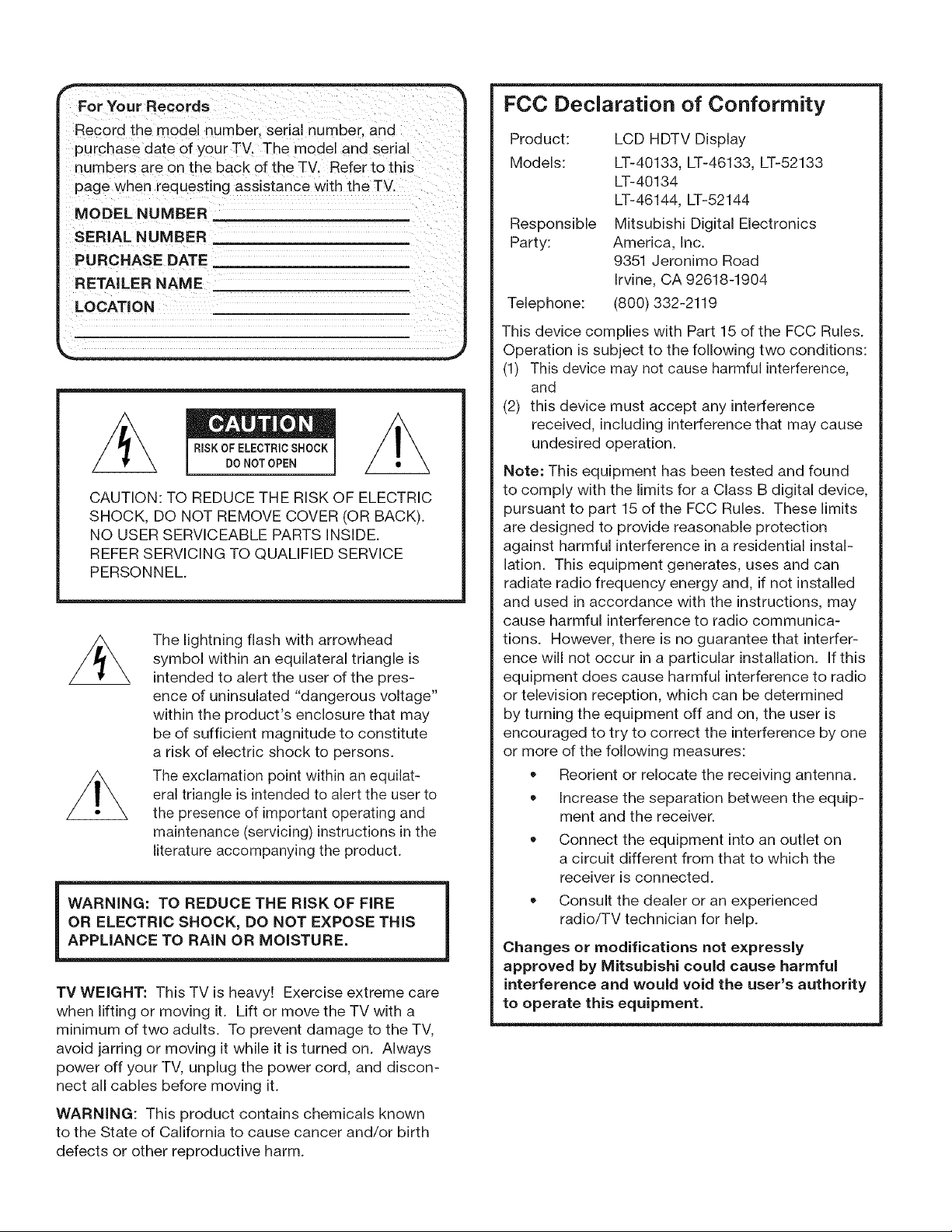
For Your Records
Record the model number, serial number, and
purchase date of your TV. The model and serial
numbers are on the back of the TV. Refer to this
page when ,equesting assistance with the TV.
MODEL NUMBER __
SERIAL NUMBER
PURCHASE DATE
RETAILER NAME
LOCATION
CAUTION: TO REDUCE THE RISK OF ELECTRIC
SHOCK, DO NOT REMOVE COVER (OR BACK).
NO USER SERVICEABLE PARTS INSIDE.
REFER SERVICING TO QUALIFIED SERVICE
PERSONNEL.
The lightning flash with arrowhead
symbol within an equilateral triangle is
intended to alert the user of the pres-
ence of uninsulated "dangerous voltage"
within the product's enclosure that may
be of sufficient magnitude to constitute
a risk of electric shock to persons.
The exclamation point within an equilat-
eral triangle is intended to alert the user to
the presence of important operating and
maintenance (servicing) instructions in the
literature accompanying the product.
WARNING: TO REDUCE THE RiSK OF FiRE
OR ELECTRIC SHOCK, DO NOT EXPOSE THiS
APPLIANCE TO RAiN OR MOISTURE.
TV WEIGHT: This TV is heavy! Exercise extreme care
when lifting or moving it. Lift or move the TV with a
minimum of two adults. To prevent damage to the TV,
avoid jarring or moving it while it is turned on. Always
power off your TV, unplug the power cord, and discon-
nect all cables before moving it.
WARNING: This product contains chemicals known
to the State of California to cause cancer and/or birth
defects or other reproductive harm.
FCC Declaration of Conformity
Product:
Models:
Responsible
Party:
Telephone:
LCD HDTV Display
LT-40133, LT-46133, LT-52133
LT-40134
LT-46144, LT-52144
Mitsubishi Digital Electronics
America, Inc.
9351 Jeronimo Road
Irvine, CA 92618-1904
(800) 332-2119
This device complies with Part 15 of the FCC Rules.
Operation is subject to the following two conditions:
(1) This device may not cause harmful interference,
and
(2) this device must accept any interference
received, including interference that may cause
undesired operation.
Note: This equipment has been tested and found
to comply with the limits for a Class B digital device,
pursuant to part 15 of the FCC Rules. These limits
are designed to provide reasonable protection
against harmful interference in a residential instal-
lation. This equipment generates, uses and can
radiate radio frequency energy and, if not installed
and used in accordance with the instructions, may
cause harmful interference to radio communica-
tions. However, there is no guarantee that interfer-
ence will not occur in a particular installation. If this
equipment does cause harmful interference to radio
or television reception, which can be determined
by turning the equipment off and on, the user is
encouraged to try to correct the interference by one
or more of the following measures:
• Reorient or relocate the receiving antenna.
Increase the separation between the equip-
ment and the receiver.
Connect the equipment into an outlet on
a circuit different from that to which the
receiver is connected.
Consult the dealer or an experienced
radio/TV technician for help.
Changes or modifications not expressly
approved by Mitsubishi could cause harmful
interference and would void the user's authority
to operate this equipment.
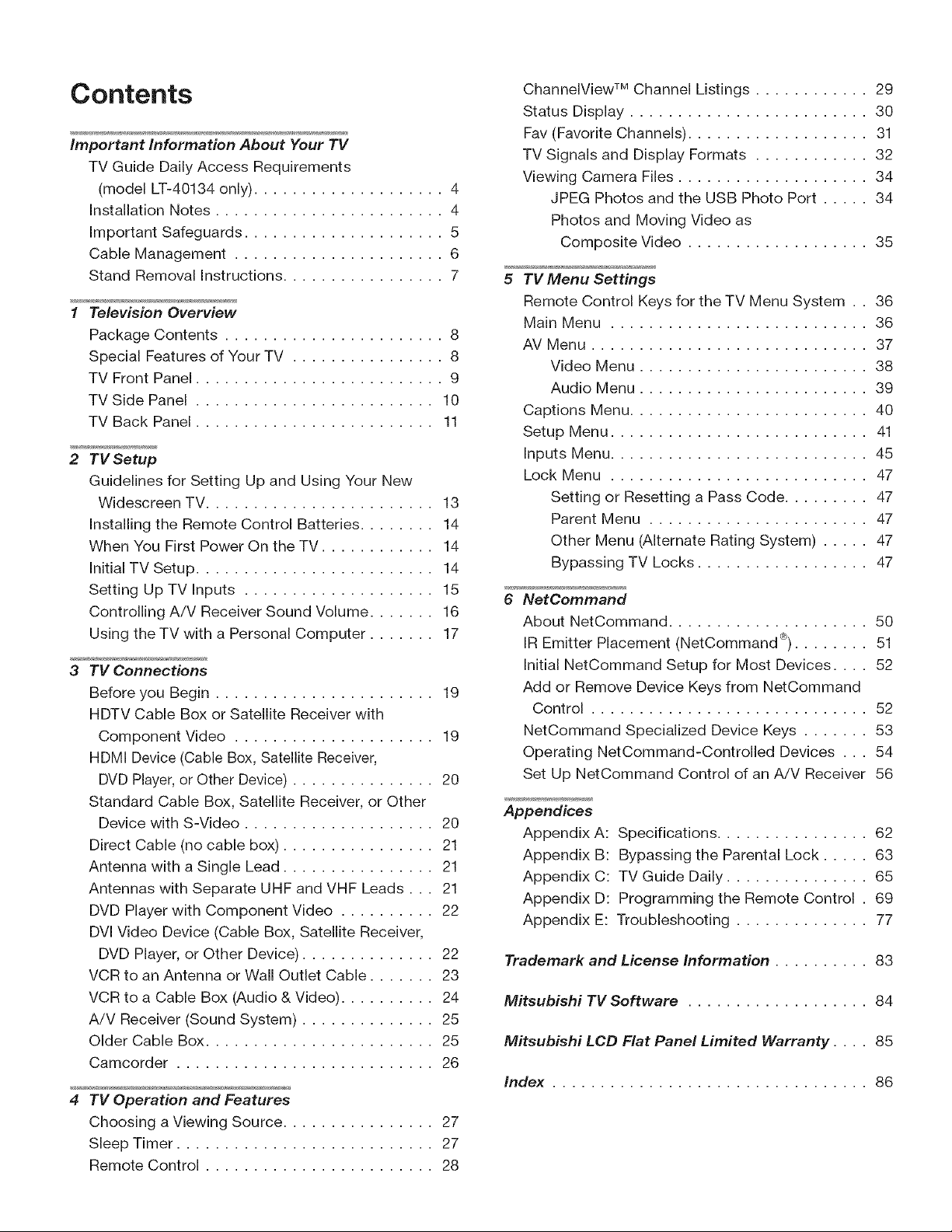
Contents
important information About Your TV
TV Guide Daily Access Requirements
(model LT-40134 only) .................... 4
Installation Notes ........................ 4
Important Safeguards ..................... 5
Cable Management ...................... 6
Stand Removal Instructions ................. 7
1 Television Overview
Package Contents ....................... 8
Special Features of Your TV ................ 8
TV Front Panel .......................... 9
TV Side Panel ......................... 10
TV Back Panel ......................... 11
2 TV Setup
Guidelines for Setting Up and Using Your New
Widescreen TV ........................ 13
Installing the Remote Control Batteries ........ 14
When You First Power On the TV ............ 14
Initial TV Setup ......................... 14
Setting Up TV Inputs .................... 15
Controlling A/V Receiver Sound Volume ....... 16
Using the TV with a Personal Computer ....... 17
3 TV Connections
Before you Begin ....................... 19
HDTV Cable Box or Satellite Receiver with
Component Video ..................... 19
HDMI Device (Cable Box, Satellite Receiver,
DVD Player, or Other Device) ............... 20
Standard Cable Box, Satellite Receiver, or Other
Device with S-Video .................... 20
Direct Cable (no cable box) ................ 21
Antenna with a Single Lead ................ 21
Antennas with Separate UHF and VHF Leads... 21
DVD Player with Component Video .......... 22
DVl Video Device (Cable Box, Satellite Receiver,
DVD Player, or Other Device) .............. 22
VCR to an Antenna or Wall Outlet Cable ....... 23
VCR to a Cable Box (Audio & Video) .......... 24
A!V Receiver (Sound System) .............. 25
Older Cable Box ........................ 25
Camcorder ........................... 26
4 TV Operation and Features
Choosing a Viewing Source ................ 27
Sleep Timer ........................... 27
Remote Control ........................ 28
ChanneIView TM Channel Listings ............ 29
Status Display ......................... 30
Fav (Favorite Channels) ................... 31
TV Signals and Display Formats ............ 32
Viewing Camera Files .................... 34
JPEG Photos and the USB Photo Port ..... 34
Photos and Moving Video as
Composite Video ................... 35
5 TV Menu Settings
Remote Control Keys for the TV Menu System . . 36
Main Menu ........................... 36
AV Menu ............................. 37
Video Menu ........................ 38
Audio Menu ........................ 39
Captions Menu ......................... 40
Setup Menu ........................... 41
Inputs Menu ........................... 45
Lock Menu ........................... 47
Setting or Resetting a Pass Code ......... 47
Parent Menu ....................... 47
Other Menu (Alternate Rating System) ..... 47
Bypassing TV Locks .................. 47
6 NetOommand
About NetCommand ..................... 50
IR Emitter Placement (NetCommand ®)........ 51
Initial NetCommand Setup for Most Devices .... 52
Add or Remove Device Keys from NetCommand
Control ............................. 52
NetCommand Specialized Device Keys ....... 53
Operating NetCommand-Controlled Devices . . . 54
Set Up NetCommand Control of an A/V Receiver 56
Appendices
Appendix A: Specifications ................ 62
Appendix B: Bypassing the Parental Lock ..... 63
Appendix C: TV Guide Daily ............... 65
Appendix D: Programming the Remote Control . 69
Appendix E: Troubleshooting .............. 77
Trademark and License Information .......... 83
Mitsubishi TV Software ................... 84
Mitsubishi LCD Flat Panel Limited Warranty .... 85
Index ................................. 86
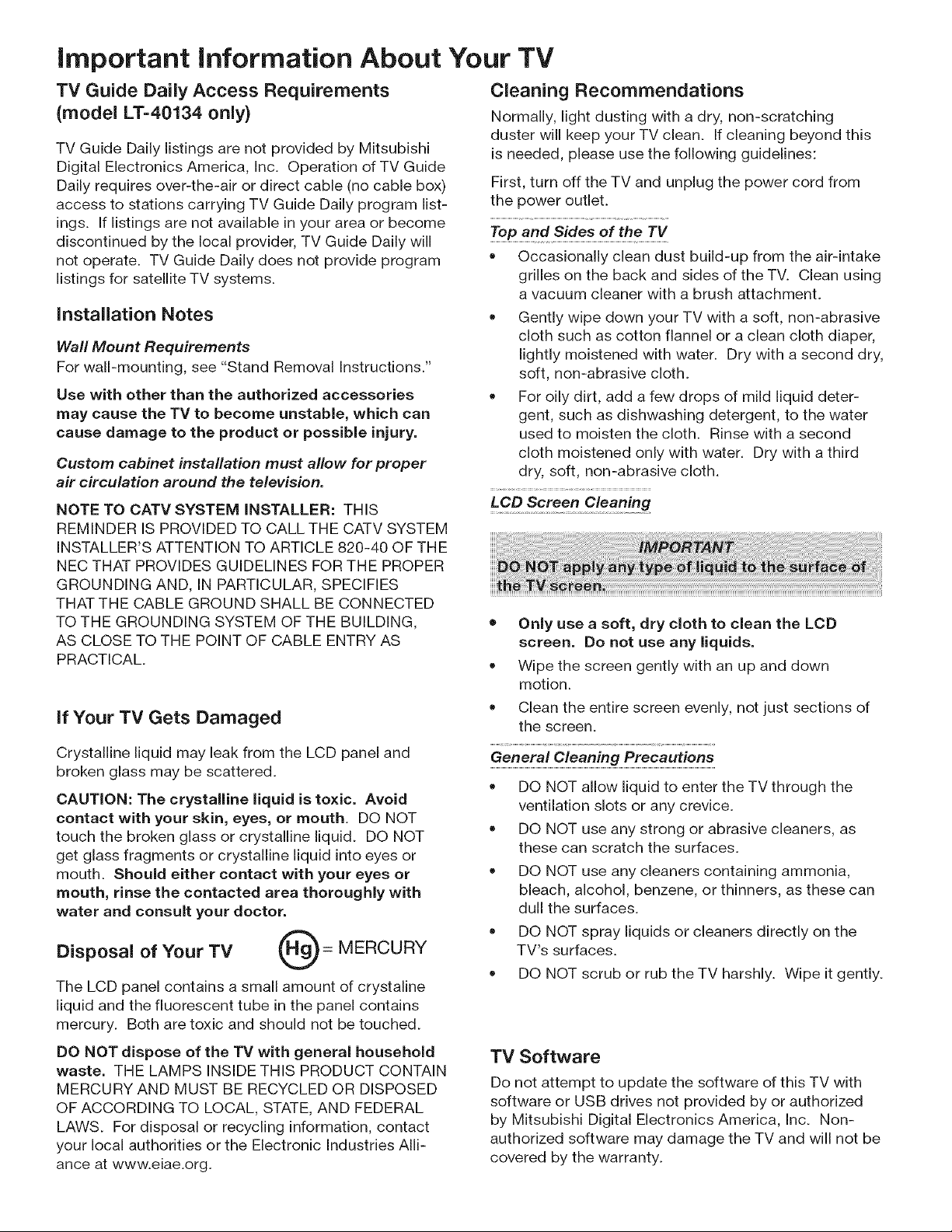
important information About Your TV
TV Guide Daily Access Requirements
(model LT=40134 only)
TV Guide Daily listings are not provided by Mitsubishi
Digital Electronics America, Inc. Operation of TV Guide
Daily requires over-the-air or direct cable (no cable box)
access to stations carrying TV Guide Daily program list-
ings. If listings are not available in your area or become
discontinued by the local provider, TV Guide Daily will
not operate. TV Guide Daily does not provide program
listings for satellite TV systems.
installation Notes
Wall Mount Requirements
For wall-mounting, see "Stand Removal Instructions."
Use with other than the authorized accessories
may cause the TV to become unstable, which can
cause damage to the product or possible injury.
Custom cabinet installation must allow for proper
air circulation around the television.
NOTE TO CATV SYSTEM iNSTALLER: THIS
REMINDER IS PROVIDED TO CALL THE CATV SYSTEM
INSTALLER'S ATTENTION TO ARTICLE 820-40 OF THE
NEC THAT PROVIDES GUIDELINES FOR THE PROPER
GROUNDING AND, IN PARTICULAR, SPECIFIES
THAT THE CABLE GROUND SHALL BE CONNECTED
TO THE GROUNDING SYSTEM OF THE BUILDING,
AS CLOSE TO THE POINT OF CABLE ENTRY AS
PRACTICAL.
Cleaning Recommendations
Normally, light dusting with a dry, non-scratching
duster will keep your TV clean. If cleaning beyond this
is needed, please use the following guidelines:
First, turn off the TV and unplug the power cord from
the power outlet.
ToP and Sides of the TV
• Occasionally clean dust build-up from the air-intake
grilles on the back and sides of the TV. Clean using
a vacuum cleaner with a brush attachment.
Gently wipe down your TV with a soft, non-abrasive
cloth such as cotton flannel or a clean cloth diaper,
lightly moistened with water. Dry with a second dry,
soft, non-abrasive cloth.
For oily dirt, add a few drops of mild liquid deter-
gent, such as dishwashing detergent, to the water
used to moisten the cloth. Rinse with a second
cloth moistened only with water. Dry with a third
dry, soft, non-abrasive cloth.
LCD Screen Cleaning
• Only use a soft, dry cloth to clean the LCD
screen. Do not use any liquids.
= Wipe the screen gently with an up and down
motion.
if Your TV Gets Damaged
Clean the entire screen evenly, not just sections of
the screen.
Crystalline liquid may leak from the LCD panel and
broken glass may be scattered.
CAUTION: The crystalline liquid is toxic. Avoid
contact with your skin, eyes, or mouth. DO NOT
touch the broken glass or crystalline liquid. DO NOT
get glass fragments or crystalline liquid into eyes or
mouth. Should either contact with your eyes or
mouth, rinse the contacted area thoroughly with
water and consult your doctor.
Disposal of Your TV 0 =
MERCURY
The LCD panel contains a small amount of crystaline
liquid and the fluorescent tube in the panel contains
mercury. Both are toxic and should not be touched.
General Cleaning Precautions
= DO NOT allow liquid to enter the TV through the
ventilation slots or any crevice.
• DO NOT use any strong or abrasive cleaners, as
these can scratch the surfaces.
DO NOT use any cleaners containing ammonia,
bleach, alcohol, benzene, or thinners, as these can
dull the surfaces.
DO NOT spray liquids or cleaners directly on the
TV's surfaces.
DO NOT scrub or rub the TV harshly. Wipe it gently.
DO NOT dispose of the TV with general household
waste. THE LAMPS INSIDE THIS PRODUCT CONTAIN
MERCURY AND MUST BE RECYCLED OR DISPOSED
OF ACCORDING TO LOCAL, STATE, AND FEDERAL
LAWS. For disposal or recycling information, contact
your local authorities or the Electronic Industries Alli-
ance at www.eiae.org.
TV Software
Do not attempt to update the software of this TV with
software or USB drives not provided by or authorized
by Mitsubishi Digital Electronics America, Inc. Non-
authorized software may damage the TV and will not be
covered by the warranty.
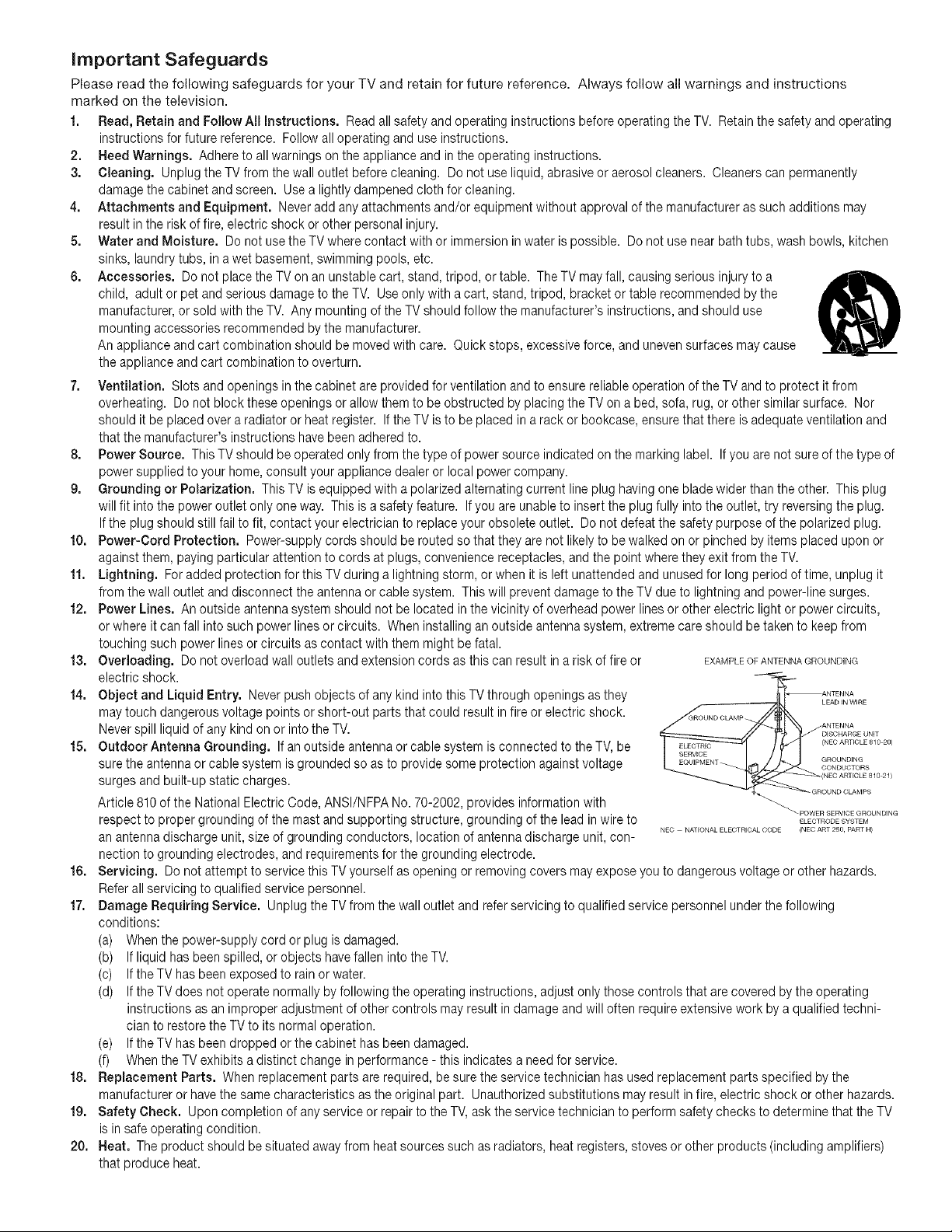
important Safeguards
Please read the following safeguards for your TV and retain for future reference. Always follow all warnings and instructions
marked on the television.
1. Read, Retain and Follow All Instructions. Read all safety and operating instructions before operating the TV. Retainthe safety and operating
instructions for future reference. Follow alloperating and use instructions.
2. Heed Warnings. Adhere to all warnings on the appliance and in the operating instructions.
3. Cleaning. Unplug the TV from the wall outlet before cleaning. Do not use liquid, abrasive or aerosol cleaners. Cleaners can permanently
damage the cabinet and screen. Use a lightly dampened cloth for cleaning.
4. Attachments and Equipment. Never add any attachments and/or equipment without approval of the manufacturer as such additions may
result in the risk of fire, electric shock or other personal injury.
5. Water and Moisture. Do not use the TV where contact with or immersion in water is possible. Do not use near bath tubs, wash bowls, kitchen
sinks, laundry tubs, in a wet basement, swimming pools, etc.
6. Accessories. Do not place the TV on an unstable cart, stand, tripod, or table. The TV may fall, causing serious injury to a
child, adult or pet and serious damage to the TV. Use only with a cart, stand, tripod, bracket or table recommended by the
manufacturer, or sold with the TV. Any mounting of the TV should follow the manufacturer's instructions, and should use
mounting accessories recommended by the manufacturer.
An appliance and cart combination should be moved with care. Quick stops, excessive force, and unevensurfaces may cause
the appliance and cart combination to overturn.
7. Ventilation. Slots and openings in the cabinet are provided for ventilation and to ensure reliable operation of the TV and to protect it from
overheating. Do not block these openings or allow them to be obstructed by placing the TV on a bed, sofa, rug, or other similar surface. Nor
should it be placed over a radiator or heat register. If the TV is to be placed in a rack or bookcase, ensure that there is adequate ventilation and
that the manufacturer's instructions havebeen adhered to.
8. Power Source. ThisTV should be operated only from the type of power source indicated on the marking label. Ifyou are not sure of the type of
power supplied to your home, consult your appliance dealer or local power company.
9. Grounding or Polarization. This TV is equipped with a polarized alternating current line plug having one blade wider than the other. This plug
will fit into the power outlet only one way. This is a safety feature. If you are unable to insert the plug fully into the outlet, try reversing the plug.
Ifthe plug should still fail to fit, contact your electrician to replace your obsolete outlet. Do not defeat the safety purpose of the polarized plug.
f0. Power-Cord Protection. Power-supply cords should be routed so that they are not likely to be walked on or pinched by items placed upon or
against them, paying particular attention to cords at plugs, convenience receptacles, and the point where they exit from the TV.
ff. Lightning. Foradded protection for this TV during a lightning storm, or when it is left unattended and unused for long period of time, unplug it
from the wall outlet and disconnect the antenna or cable system. This will prevent damage to the TV due to lightning and power-line surges.
12. Power Lines. An outside antenna system should not be located in the vicinity of overhead power lines or other electric light or power circuits,
or where it can fall into such power lines or circuits. When installing an outside antenna system, extreme care should be taken to keep from
touching such power lines or circuits as contact with them might be fatal.
13. Overloading. Do not overload wall outlets and extension cords as this can result in a risk of fire or EXAMPLEOFANTENNAGROUNDING
electric shock. _ii_ :_
14. Object and Liquid Entry. Neverpush objects of any kind into this TV through openings as they _LAENTENNN_IRE
may touch dangerous voltage points or short-out parts that could result in fire or electric shock.
Never spill liquid of any kind on or into the TV. _.TE._.....
15. Outdoor Antenna Grounding, If an outside antenna or cable system is connected to the TV, be <.EOART,OLE81020)
sure the antenna or cable system is grounded so as to provide some protection against voltage _o_"o_s
surges and built-up static charges. 1021)
Article 810of the National Electric Code, ANSI/NFPA No. 70-2002, provides information with _ POWERSERVICEGROUNDING
respect to proper grounding of the mast and supporting structure, grounding of the lead inwire to ELECTRODESYSTEM
NEC NATIONAL ELECTRICAL CODE (NEC ART 250, PART H)
an antenna discharge unit, size of grounding conductors, location of antenna discharge unit, con-
nection to grounding electrodes, and requirements for the grounding electrode.
16. Servicing. Do not attempt to service this TV yourself as opening or removing covers may expose you to dangerous voltage or other hazards.
Refer all servicing to qualified service personnel.
17. Damage Requiring Service. Unplug the TV from the wall outlet and refer servicing to qualified service personnel under the following
conditions:
(a) When the power-supply cord or plug is damaged.
(b) If liquid has been spilled, or objects havefallen into the TV.
(c) If the TV has been exposed to rain or water.
(d) If the TV does not operate normally by following the operating instructions, adjust only those controls that are covered by the operating
instructions as an improper adjustment of other controls may result in damage and will often require extensive work by a qualified techni-
cian to restore the TV to its normal operation.
(e) If the TV has been dropped or the cabinet has been damaged.
(f) When the TV exhibits a distinct change in performance - this indicates a need for service.
18. Replacement Parts. When replacement parts are required, be sure the service technician has used replacement parts specified by the
manufacturer or have the same characteristics as the original part. Unauthorized substitutions may result in fire, electric shock or other hazards.
19. Safety Check. Upon completion of any service or repair to the TV, ask the service technician to perform safety checks to determine that the TV
is in safe operating condition.
20. Heat. The product should be situated away from heat sources such as radiators, heat registers, stoves or other products (including amplifiers)
that produce heat.
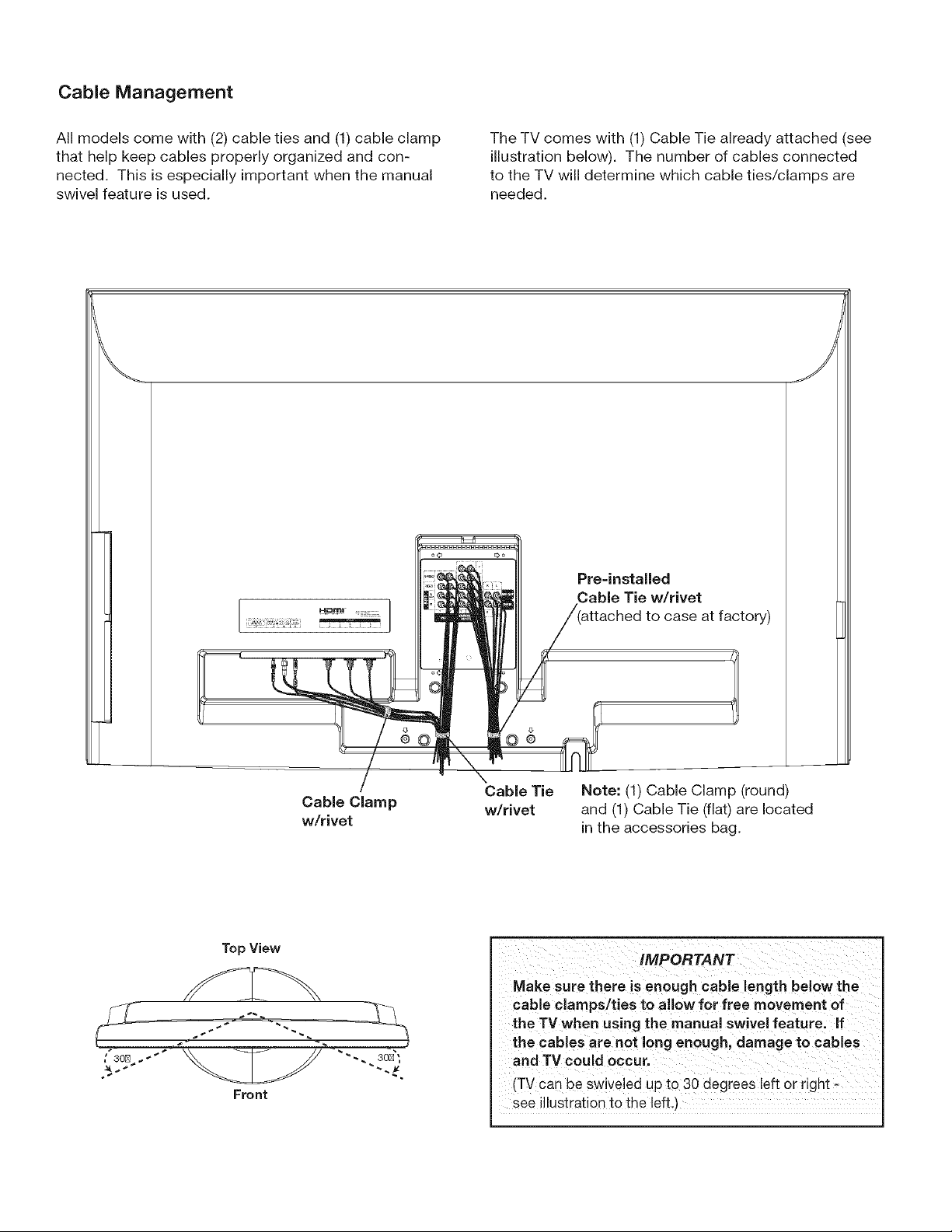
Cable Management
All models come with (2) cable ties and (1) cable clamp
that help keep cables properly organized and con-
nected. This is especially important when the manual
swivel feature is used.
The TV comes with (1) Cable Tie already attached (see
illustration below). The number of cables connected
to the TV will determine which cable ties/clamps are
needed.
Cable Clamp
w/rivet
N
Cable Tie
w/rivet
Pre-installed
Cable Tie w/rivet
to case at factory)
Note: (1) Cable Clamp (round)
and (1) Cable Tie (flat) are located
in the accessories bag.
Top View
Front
IMPORTANT
Make sure there is enough cable length below the
cable clamps/ties to allow for free movement of
the TV when using the manual swivel feature, if
the cables are not long enough, damage to cables
and TVcould occur.
_TVcan be swiveled up to 30 degrees left or right -
see illustrationto the left.)
Stand Removal instructions
CAUTION
At least TWO PEOPLE areneeded to safely rem0ye the Stan d, one petS0 n mus t hold the TV, While the I
other person removes the stand. Failure to follow these recommendations may result in personal injury, I
,,we.,sd,magetO j
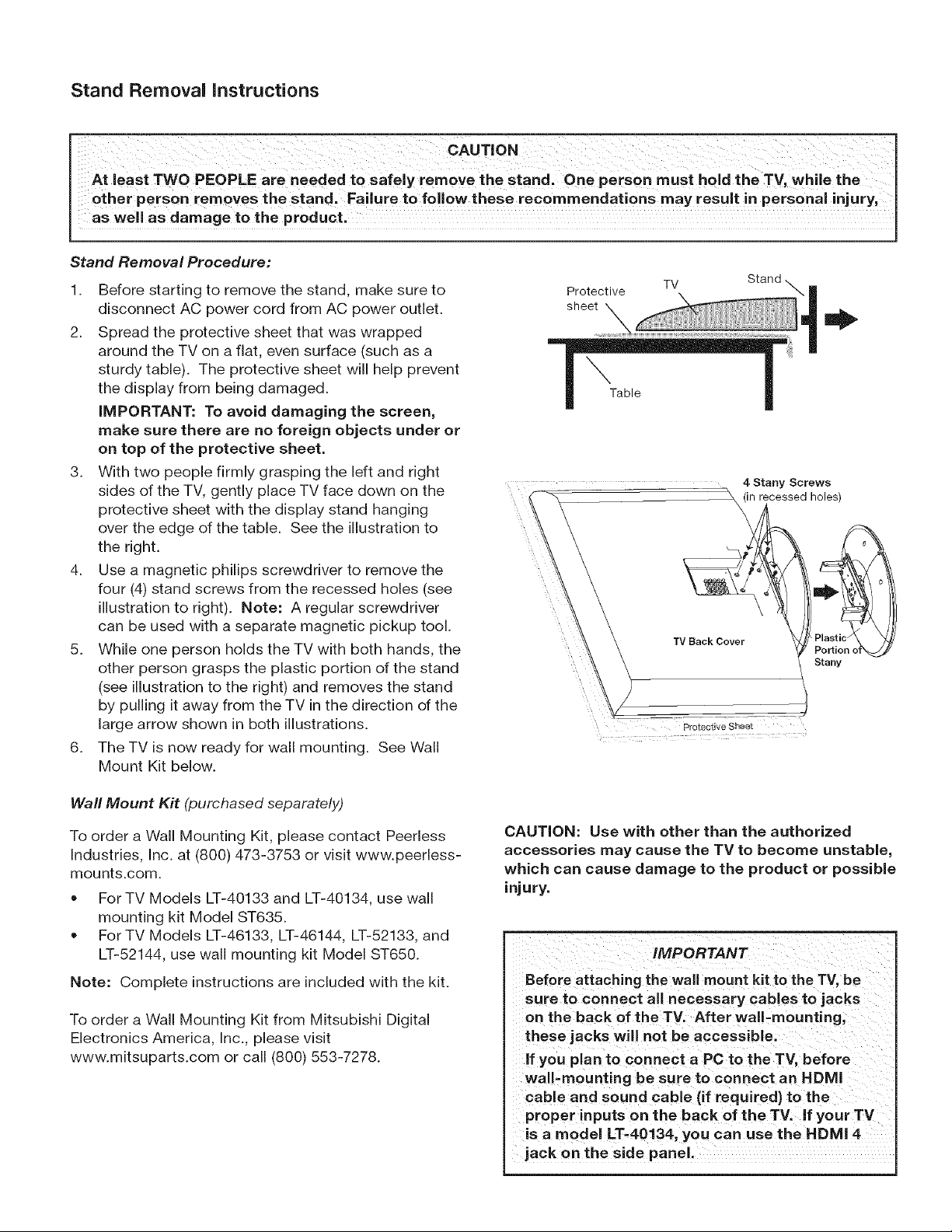
Stand Removal Procedure:
Stand
1. Protective TV
sheet
2.
3.
Before starting to remove the stand, make sure to
disconnect AC power cord from AC power outlet.
Spread the protective sheet that was wrapped
around the TV on a flat, even surface (such as a
sturdy table). The protective sheet will help prevent
the display from being damaged.
iMPORTANT: To avoid damaging the screen,
make sure there are no foreign objects under or
on top of the protective sheet.
Table
the right.
4. Use a magnetic philips screwdriver to remove the
four (4) stand screws from the recessed holes (see
illustration to right). Note: A regular screwdriver
can be used with a separate magnetic pickup tool.
5. While one person holds the TV with both hands, the
other person grasps the plastic portion of the stand
(see illustration to the right) and removes the stand
by pulling it away from the TV in the direction of the
large arrow shown in both illustrations.
6. The TV is now ready for wall mounting. See Wall
Mount Kit below.
With two people firmly grasping the left and right
4 Stany Screws
sides of the TV, gently place TV face down on the
protective sheet with the display stand hanging
\
over the edge of the table. See the illustration to
d holes)
Protective Sheet
Stany
Wall Mount Kit (purchased separately)
To order a Wall Mounting Kit, please contact Peerless
Industries, Inc. at (800) 473-3753 or visit www.peerless-
mounts.com.
• For TV Models LT-40133 and LT-40134, use wall
mounting kit Model ST635.
For TV Models LT-46133, LT-46144, LT-52133, and
LT-52144, use wall mounting kit Model ST650.
Note: Complete instructions are included with the kit.
To order a Wall Mounting Kit from Mitsubishi Digital
Electronics America, Inc., please visit
www.mitsuparts.com or call (800) 553-7278.
CAUTION: Use with other than the authorized
accessories may cause the TV to become unstable,
which can cause damage to the product or possible
injury.
Before attaching the wall mount kit to the TV, be
sure to connect all necessary cables to Jacks
0. thebackoftheTV.Afterwa,-mount!ng;
these jacks will notbe accessible,
If you plan to connect a PC to the TV, before
wall:mounting be sure to c0nnect an HDMI
cable and sound cable (if requited) to the
proper inputs on the back of the Tv, if your TV
is a model LT=40134, you can use the HDMI 4
jack on the side panel.
TelevisionOverview
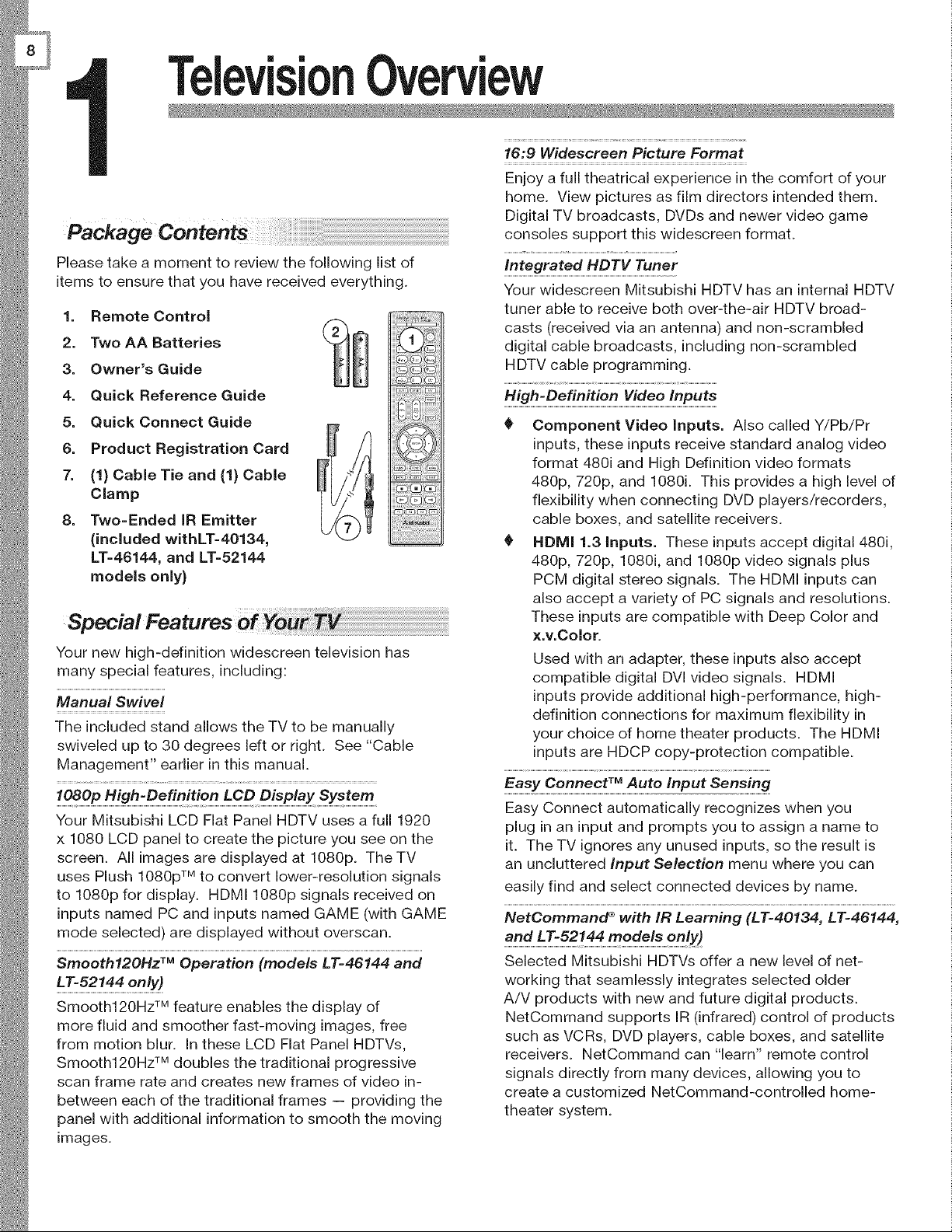
Packac
Please take a moment to review the following list of
items to ensure that you have received everything.
1. Remote Control
2. Two AA Batteries
3. Owner's Guide
4. Quick Reference Guide
5. Quick Connect Guide
6. Product Registration Card
7. (1) Cable Tie and (1) Cable
Clamp
8. Two-Ended IR Emitter
(included withLT-40134,
LT-46144, and LT-52144
models only}
Your new high-definition widescreen television has
many special features, including:
Manual Swivel
The included stand allows the TV to be manually
swiveled up to 30 degrees left or right. See "Cable
Management" earlier in this manual.
Your Mitsubishi LCD Flat Panel HDTV uses a full 1920
x 1080 LCD panel to create the picture you see on the
screen. All images are displayed at 1080p. The TV
uses Plush 1080p TM to convert lower-resolution signals
to 1080p for display. HDM11080p signals received on
inputs named PC and inputs named GAME (with GAME
mode selected) are displayed without overscan.
Smooth120Hz TM Operation (models LT-46144 and
LT-52144 only)
Smooth120Hz TM feature enables the display of
more fluid and smoother fast-moving images, free
from motion blur. In these LCD Flat Panel HDTVs,
Smooth120Hz TM doubles the traditional progressive
scan frame rate and creates new frames of video in-
between each of the traditional frames -- providing the
panel with additional information to smooth the moving
images.
16:9 Widescreen Picture Format
Enjoy a full theatrical experience in the comfort of your
home. View pictures as film directors intended them.
Digital TV broadcasts, DVDs and newer video game
consoles support this widescreen format.
!ntegrated HOTV Tune r
Your widescreen Mitsubishi HDTV has an internal HDTV
tuner able to receive both over-the-air HDTV broad-
casts (received via an antenna) and non-scrambled
digital cable broadcasts, including non-scrambled
HDTV cable programming.
High-Definition Video Inputs
Component Video inputs. Also called Y/Pb/Pr
inputs, these inputs receive standard analog video
format 480i and High Definition video formats
480p, 720p, and 1080i. This provides a high level of
flexibility when connecting DVD players/recorders,
cable boxes, and satellite receivers.
HDMI 1.3 inputs. These inputs accept digital 480i,
480p, 720p, 1080i, and 1080p video signals plus
PCM digital stereo signals. The HDMI inputs can
also accept a variety of PC signals and resolutions.
These inputs are compatible with Deep Color and
x.v.Color.
Used with an adapter, these inputs also accept
compatible digital DVI video signals. HDMI
inputs provide additional high-performance, high-
definition connections for maximum flexibility in
your choice of home theater products. The HDMI
inputs are HDCP copy-protection compatible.
Input Sensing
Easy Connect automatically recognizes when you
plug in an input and prompts you to assign a name to
it. The TV ignores any unused inputs, so the result is
an uncluttered Input Selection menu where you can
easily find and select connected devices by name.
NetCommand ®with IR Learning (LT-40134, LT-46144,
and LT-52144 models only)
Selected Mitsubishi HDTVs offer a new level of net-
working that seamlessly integrates selected older
A/V products with new and future digital products.
NetCommand supports IR (infrared) control of products
such as VCRs, DVD players, cable boxes, and satellite
receivers. NetCommand can "learn" remote control
signals directly from many devices, allowing you to
create a customized NetCommand-controlled home-
theater system.
1. Television Overview 9
NetCommand for HDMl Devices (all models)
Some newer HDMI devices may be compatible with
the TV's NetCommand for HDMI feature. Compatible
devices can receive control signals through the HDMI
connection. The TV's remote control may be able to
operate some functions of these devices without any
further setup. See "HDMI Inputs" and "HDMI Cable
Categories" on page 12 for more information on HDMI.
See Appendix D for TV Remote programming informa-
tion.
Note: On models LT-40134, LT-46144, and LT-52144,
you can add commands using NetCommand IR emit-
ters and "Learning."
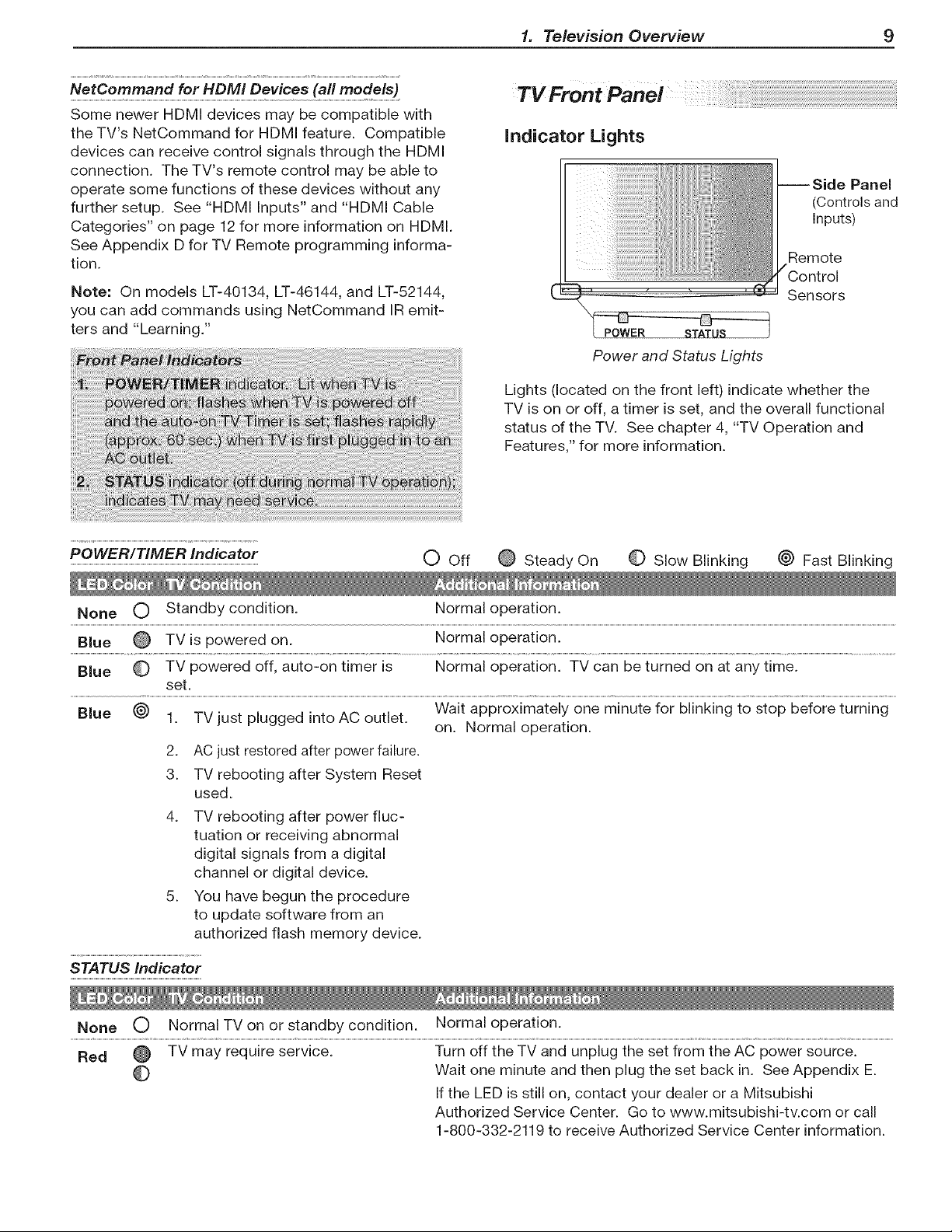
indicator Lights
Panel
(Controls and
Inputs)
Remote
Sensors
POWER ST_
Power and Status Lights
Lights (located on the front left) indicate whether the
TV is on or off, a timer is set, and the overall functional
status of the TV. See chapter 4, "TV Operation and
Features," for more information.
POWER/TIMER indicator
0 Off 0 Steady On 0 Slow Blinking _) Fast Blinking
None 0 Standby condition. Normal operation.
Blue TV is powered on. Normal operation.
Blue TV powered off, auto-on timer is Normal operation. TV can be turned on at any time.
set.
Blue (_ 1. TV just plugged into AC outlet. Wait approximately one minute for blinking to stop before turning
on. Normal operation.
2. AC just restored after power failure.
3. TV rebooting after System Reset
used.
4. TV rebooting after power fluc-
tuation or receiving abnormal
digital signals from a digital
channel or digital device.
5. You have begun the procedure
to update software from an
authorized flash memory device.
STATUS Indicator
None O Normal TV on or standby condition. Normal operation.
Red TV may require service. Turn off the TV and unplug the set from the AC power source.
Wait one minute and then plug the set back in. See Appendix E.
If the LED is still on, contact your dealer or a Mitsubishi
Authorized Service Center. Go to www.mitsubishi-tv.com or call
1-800-332-2119 to receive Authorized Service Center information.
10 1. Television Overview
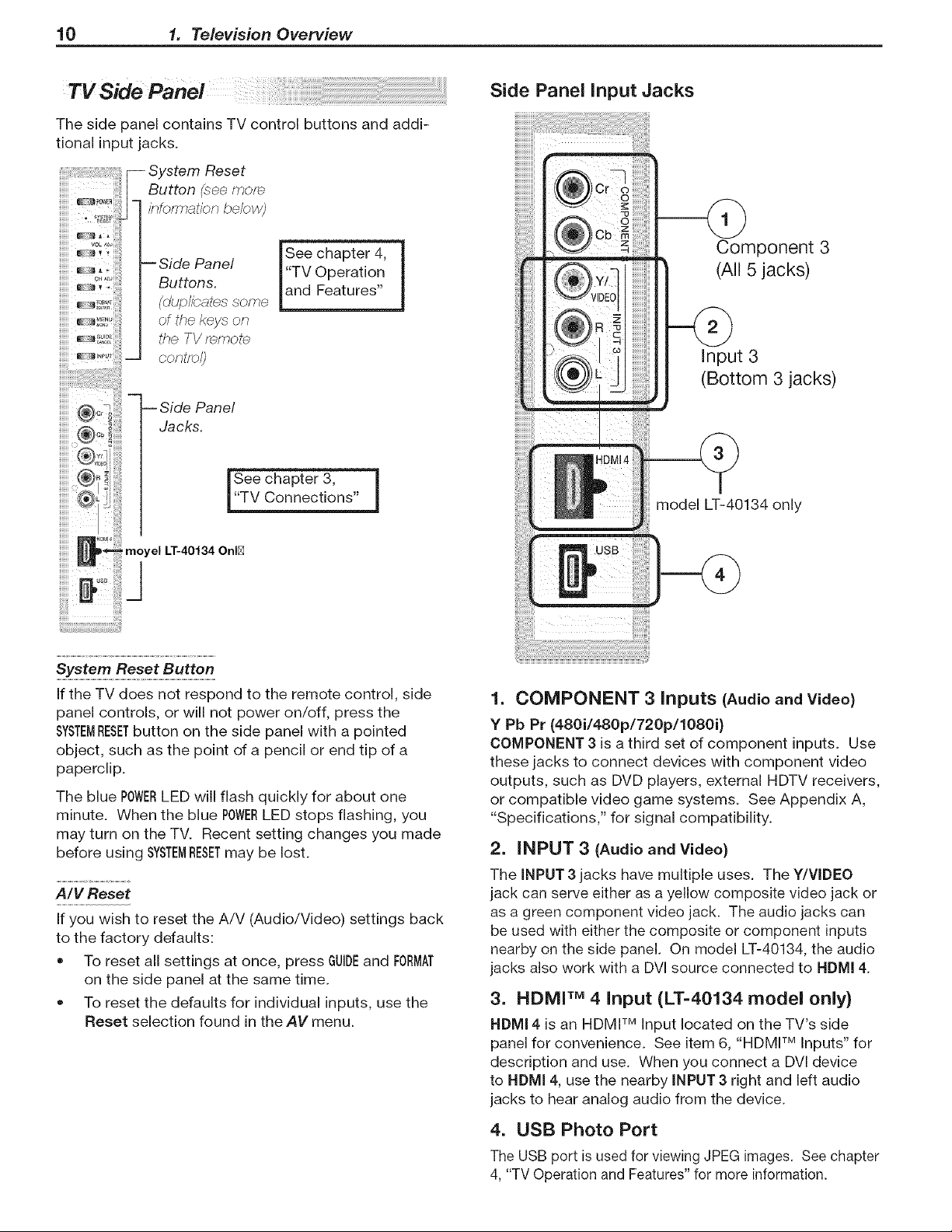
TV Side Panei
The side panel contains TV control buttons and addi-
tional input jacks.
iiiiiiiiiiiiiii__
i System Reset
Button (see more
information below)
-- Side Panel
Buttons.
of the key_ on
the TV remote
IZv !
pdFeatures"!
-- Side Panel
Jacks.
[ See chapter 3,
["TV Connections" J
system Reset Butto .
if the TV does not respond to the remote control, side
panel controls, or will not power on/off, press the
SYSTEMRESETbutton on the side panel with a pointed
object, such as the point of a pencil or end tip of a
paperclip.
The blue POWERLED will flash quickly for about one
minute. When the blue POWERLED stops flashing, you
may turn on the TV. Recent setting changes you made
before using SYSTEMRESETmay be lost.
A/V Reset
If you wish to reset the A/V (Audio/Video) settings back
to the factory defaults:
• To reset all settings at once, press GUIDEand FORMAT
on the side panel at the same time.
• To reset the defaults for individual inputs, use the
Reset selection found in the AV menu.
Side Panel Input Jacks
Component 3
(All 5 jacks)
Input 3
(Bottom 3 jacks)
model LT-40134 only
1. COMPONENT 3 inputs (Audio and Video)
Y Pb Pr (480i/480p/720p/1080i)
COMPONENT 3 is a third set of component inputs. Use
these jacks to connect devices with component video
outputs, such as DVD players, external HDTV receivers,
or compatible video game systems. See Appendix A,
"Specifications," for signal compatibility.
2. iNPUT 3 (Audio and Video)
The INPUT 3 jacks have multiple uses. The Y/VIDEO
jack can serve either as a yellow composite video jack or
as a green component video jack. The audio jacks can
be used with either the composite or component inputs
nearby on the side panel. On model LT-40134, the audio
jacks also work with a DVl source connected to NDMI 4.
3. HDMI TM 4 input {LT=40134 model only)
NDMI 4 is an HDMI TM Input located on the TV's side
panel for convenience. See item 6, "HDMI TM Inputs" for
description and use. When you connect a DVl device
to NDMI 4, use the nearby INPUT 3 right and left audio
jacks to hear analog audio from the device.
4. USB Photo Port
The USB port is used for viewing JPEG images. See chapter
4, "TV Operation and Features" for more information.
1. Television Overview 11
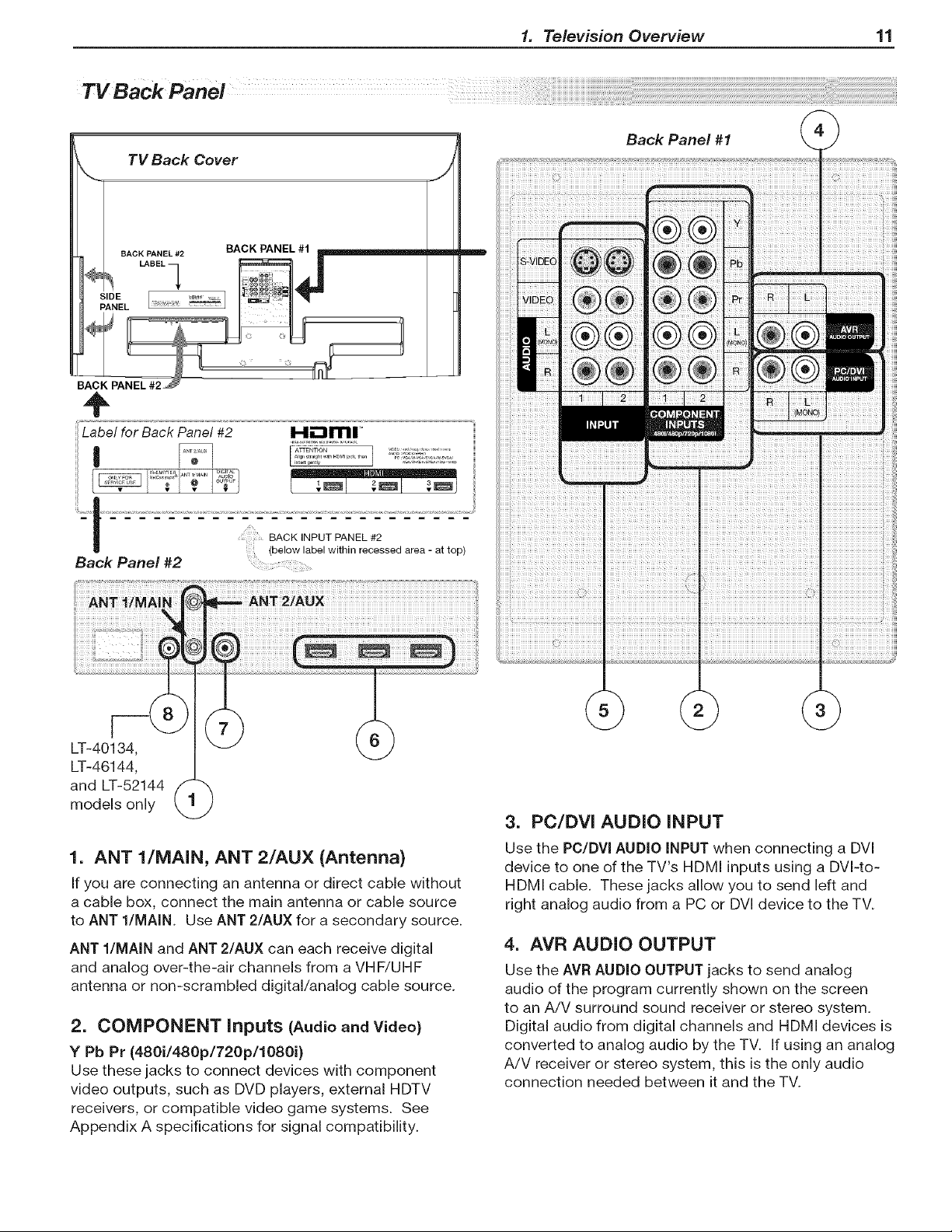
TV Back Panel
÷
Back Panel #2 .......................
LT-40134,
LT-46144,
and LT-52144
models only
1. ANT l/MAIN, ANT 2/AUX (Antenna)
If you are connecting an antenna or direct cable without
a cable box, connect the main antenna or cable source
to ANT l/MAIN Use ANT 2/AUX for a secondary source.
ANT l/MAIN and ANT 2/AUX can each receive digital
and analog over-the-air channels from a VHF/UHF
antenna or non-scrambled digital/analog cable source.
2. COMPONENT inputs (Audio and Video)
Y Pb Pr (480i/480p/720p/1080i)
Use these jacks to connect devices with component
video outputs, such as DVD players, external HDTV
receivers, or compatible video game systems. See
Appendix A specifications for signal compatibility.
I I I
3. PC/DVi AUDIO iNPUT
Use the PC/DVi AUDIO iNPUT when connecting a DVI
device to one of the TV's HDMI inputs using a DVI-to-
HDMI cable. These jacks allow you to send left and
right analog audio from a PC or DVI device to the TV.
4. AVR AUDIO OUTPUT
Use the AVR AUDIO OUTPUT jacks to send analog
audio of the program currently shown on the screen
to an A/V surround sound receiver or stereo system.
Digital audio from digital channels and HDMI devices is
converted to analog audio by the TV. If using an analog
A/V receiver or stereo system, this is the only audio
connection needed between it and the TV.
12 1. Television Overview
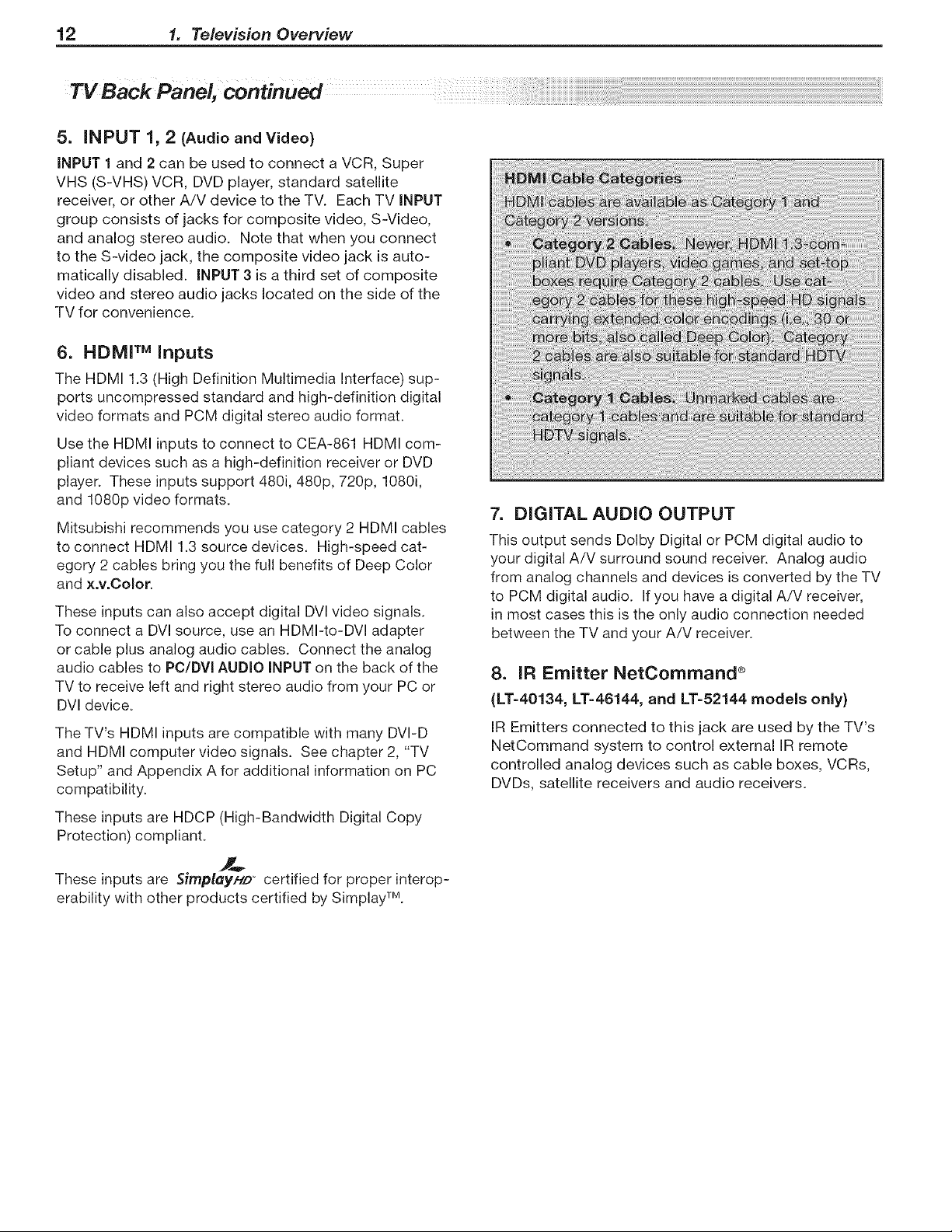
5. iNPUT 1, 2 (Audio and Video)
iNPUT 1 and 2 can be used to connect a VCR, Super
VHS (S-VHS) VCR, DVD player, standard satellite
receiver, or other A/V device to the TV. Each TV INPUT
group consists of jacks for composite video, S-Video,
and analog stereo audio. Note that when you connect
to the S-video jack, the composite video jack is auto-
matically disabled. INPUT 3 is a third set of composite
video and stereo audio jacks located on the side of the
TV for convenience.
6. HDMI TM inputs
The HDMI 1.3 (High Definition Multimedia Interface) sup-
ports uncompressed standard and high-definition digital
video formats and PCM digital stereo audio format.
Use the HDMI inputs to connect to CEA-861 HDMI com-
pliant devices such as a high-definition receiver or DVD
player. These inputs support 480i, 480p, 720p, 1080i,
and 1080p video formats.
Mitsubishi recommends you use category 2 HDMI cables
to connect HDMI 1.3 source devices. High-speed cat-
egory 2 cables bring you the full benefits of Deep Color
and x.v.Color.
These inputs can also accept digital DVl video signals.
To connect a DVl source, use an HDMI-to-DVl adapter
or cable plus analog audio cables. Connect the analog
audio cables to PC/DVI AUDIO iNPUT on the back of the
TV to receive left and right stereo audio from your PC or
DVI device.
The TV's HDMI inputs are compatible with many DVI-D
and HDMI computer video signals. See chapter 2, "TV
Setup" and Appendix A for additional information on PC
compatibility.
These inputs are HDCP (High-Bandwidth Digital Copy
Protection) compliant.
These inputs are SimplayHD" certified for proper interop-
erability with other products certified by Simplay TM.
7. DiGiTAL AUDIO OUTPUT
This output sends Dolby Digital or PCM digital audio to
your digital A/V surround sound receiver. Analog audio
from analog channels and devices is converted by the TV
to PCM digital audio. If you have a digital A/V receiver,
in most cases this is the only audio connection needed
between the TV and your A/V receiver.
8. IR Emitter NetCommand ®
(LT=40134, LT-46144, and LT=52144 models only)
IR Emitters connected to this jack are used by the TV's
NetCommand system to control external IR remote
controlled analog devices such as cable boxes, VCRs,
DVDs, satellite receivers and audio receivers.
TV
Getting Started
1. Review the important safety, installation, and oper-
ating information at the beginning of this book.
2. Choose a location for your TV.
• Allow at least four inches of space on all sides
of the TV to help prevent overheating. Over-
heating may cause premature failure of the TV.
Avoid locations where light may reflect off the
screen.
3. Install the batteries in the remote control. See the
following page. See chapter 4, "TV Operation and
Features" for more on use of the remote control.
4. Plug your TV into a power outlet. The POWERindica-
tor on the front lower-left corner of the TV will start
blinking rapidly. After the POWERindicator stops
blinking, press the POWERkey (TV side panel or
remote control) to power on the TV.
5. When the Welcome screen appears the first time
you power on the TV, select a language for TV
menus. You can later change the language through
the Setup menu.
6. Connect your audio/video (A/V) devices to the TV
and perform initial setup.
See chapter 3, "TV Connections" for connec-
tion diagrams.
See the following pages for initial TV setup and
use of the Auto Input Sensing feature.
See chapter 6, "NetCommand," to perform
NetCommand IR "learning" for control of your
home theater (available on LT-40134, LT-46144,
and LT-52144 models only).
7. Mitsubishi recommends you perform a channel
scan for channels received on ANT 1 and ANT 2.
See "Initial TV Setup" on the following pages.
8. You can now start watching TV or you can perform
additional setup and customization through the TV
menus.
TV Operation
1. Review chapter 4, "TV Operation and Features," for
TV features including:
• Input Selection (viewing source). Select a
connected program source to watch, such as a
VCR, DVD player, or antenna. Press iNPUTon the
remote control to select from icons for the TV
inputs. See "Choosing a Viewing Source."
• ChannelView. Press GUIDEto see channel
listings for programs on ANT 1 and ANT 2. To
override ChannelView and use TV Guide Daily,
see chapter 5, "TV Menu Setings - Inputs
Menu."
• Picture Formats. Press FORMATto cycle through
picture sizes and shapes to find the one best
suited to the current program. See "TV Signals
and Display Formats."
2. To understand use of the Input Selection menu
with NetCommand-controlled devices, see "Using
NetCommand" (LT-40134, LT-46144, and LT-52144
models only).
3. To view JPEG photo files on the TV, see "Viewing
JPEG Picture Files."
Additional TV Setup
Review chapter 5, "TV Menu Settings," to custom-
ize TV operation. Press the MENUkey to enter the
menu system. Settings available include:
• Fay. Use an on-screen menu to create custom
lists of your favorite channels. See Setup >
Edit.
• TV Guide Daily (model LT-40134 only). Set up
and enable the TV Guide Daily system. See the
inputs > Guide menu.
Order. Rearrange the device icons in the Input
Selection menu to put frequently used icons
near the front. See the inputs menu Order
options.
Name. Change the device names that appear
in the input Selection menu. See the inputs
menu Name options.
14 2. TV Setup
• ParentalLocks. Restrict TV viewing (by
program rating, by channel, or by time of day)
and disable side panel controls. See the Lock
> Parent menu, the Lock > Side Panel menu,
and Setup > Edit > Lock.
Video Settings. Change video adjustments to
get the best picture for your viewing conditions.
See "AV Menu."
= Audio Settings. Turn on or off internal speak-
ers, adjust volume level and tone, turn surround
effects on or off, select Stereo/SAP/Mono,
select language, and turn "Level Sound" feature
on or off.
Note:
2_
You may wish to change the Picture Mode from
the default Brilliant to either Bright or Natural,
which are suitable for most home viewing envi-
ronments.
To program the remote control to operate A/V
devices not under NetCommand control, see
Appendix D, "Programming the Remote Control."
TV Care
General Cleaning. See the cleaning recom-
mendations under "important information
About Your TV."
Assistance
For troubleshooting, service, and product
support, see Appendix E.
For warranty information, see the TV warranty
in the back of this book.
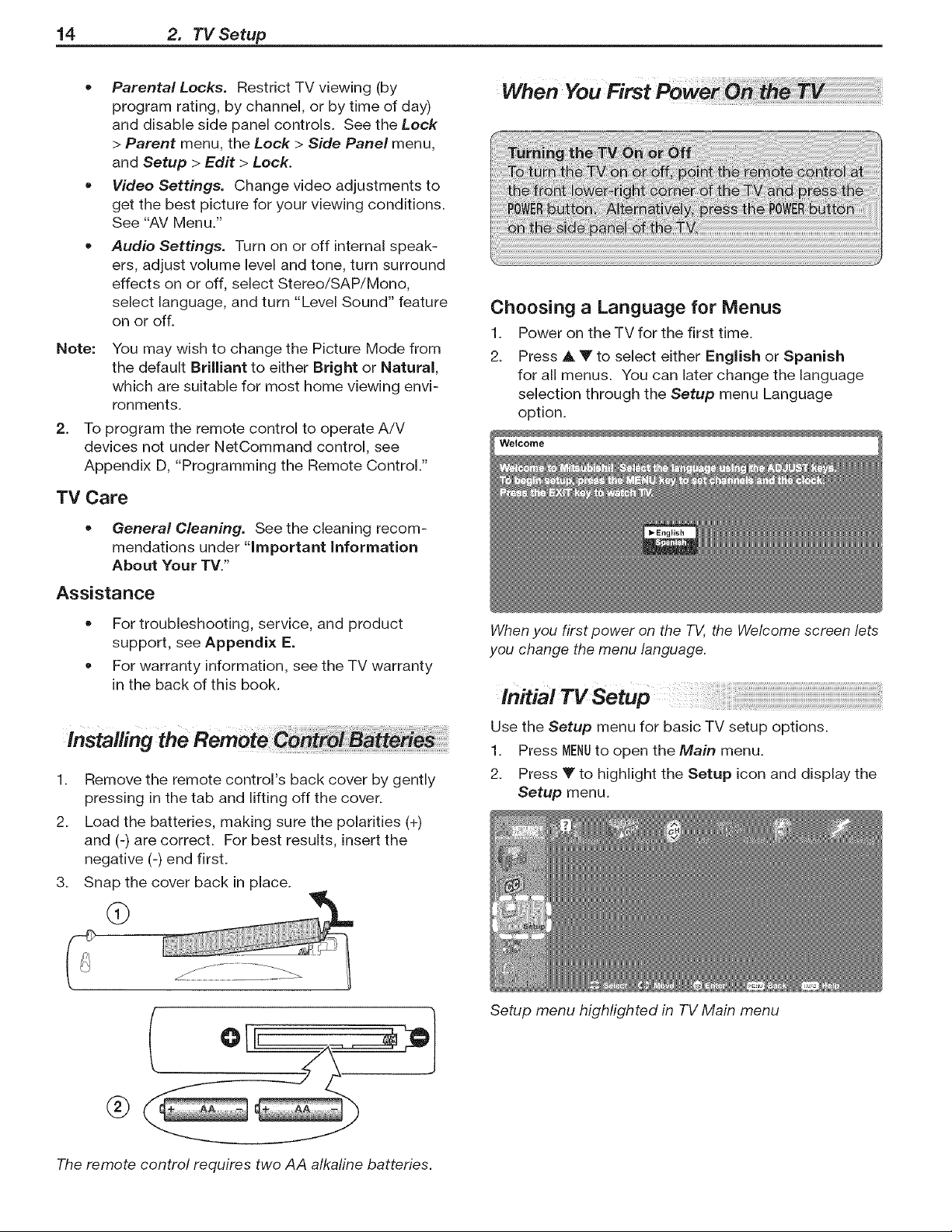
Installing
2.
3_
Remove the remote control's back cover by gently
pressing in the tab and lifting off the cover.
Load the batteries, making sure the polarities (+)
and (-) are correct. For best results, insert the
negative (-) end first.
Snap the cover back in place.
®
Choosing a Language for Menus
1. Power on the TV for the first time.
2. Press A V to select either English or Spanish
for all menus. You can later change the language
selection through the Setup menu Language
option.
When you first power on the TV, the Welcome screen lets
you change the menu language.
initial TV Setup
Use the Setup menu for basic TV setup options.
1. Press MENUto open the Main menu.
2. Press V to highlight the Setup icon and display the
Setup menu.
The remote control requires two AA alkaline batteries.
Setup menu highlighted in TV Main menu
2. TV Setup 15
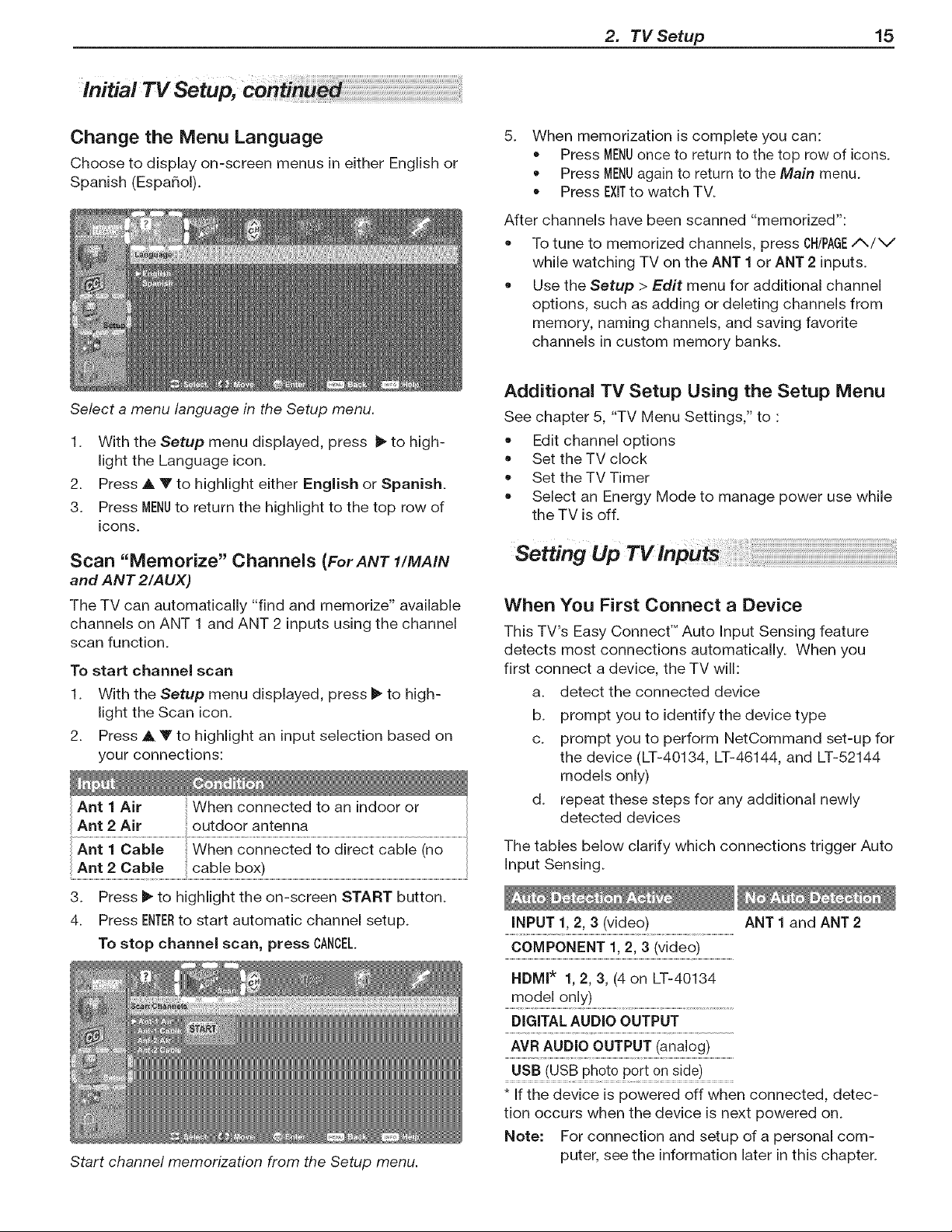
Change the Menu Language
Choose to display on-screen menus in either English or
Spanish (Espa_ol).
Se/ect a menu language in the Setup menu.
5.
When memorization is complete you can:
• Press MENUonce to return to the top row of icons.
Press MENUagain to return to the Main menu.
Press EXITto watch TV.
After channels have been scanned "memorized":
To tune to memorized channels, press CHtPAGE/_/V
while watching TV on the ANT 1 or ANT 2 inputs.
Use the Setup > Edit menu for additional channel
options, such as adding or deleting channels from
memory, naming channels, and saving favorite
channels in custom memory banks.
1. With the Setup menu displayed, press _ to high-
light the Language icon.
2. Press A V to highlight either English or Spanish.
3. Press MENUto return the highlight to the top row of
icons.
Scan "Memorize" Channels {For ANT 1/MAIN
and ANT 2/AUX)
The TV can automatically "find and memorize" available
channels on ANT 1 and ANT 2 inputs using the channel
scan function.
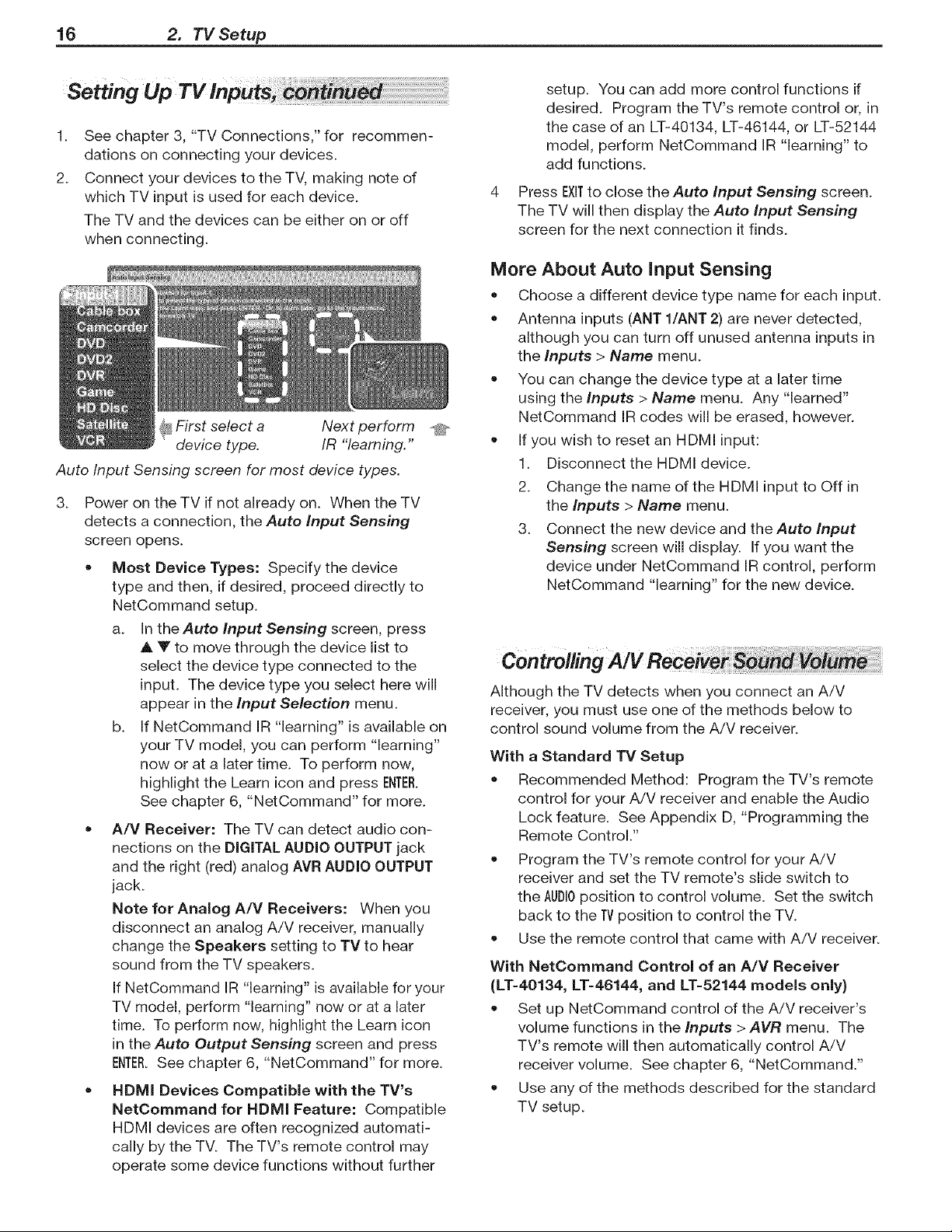
To start channel scan
1. With the Setup menu displayed, press _" to high-
light the Scan icon.
2. Press A Y to highlight an input selection based on
your connections:
Ant 2 Air outdoor antenna
Ant 1 Cable When connected to direct Cable (no
3. Press I1_to highlight the on-screen START button.
4. Press ENTERto start automatic channel setup.
To stop channel scan, press CANCEL.
Start channel memorization from the Setup menu.
Additional TV Setup Using the Setup Menu
See chapter 5, "TV Menu Settings," to
= Edit channel options
Set the TV clock
Set the TV Timer
Select an Energy Mode to manage 9ower use while
the TV is off.
Setting Up
When You First Connect a Device
This TV's Easy Connect TM Auto Input Sensing feature
detects most connections automatically. When you
first connect a device, the TV will:
a. detect the connected device
b. prompt you to identify the device type
c. prompt you to perform NetCommand set-up for
the device (LT-40134, LT-46144, and LT-52144
models only)
d. repeat these steps for any additional newly
detected devices
The tables below clarify which connections trigger Auto
Input Sensing.
iNPUT 1, 2, 3 (video) ANT 1 and ANT 2
COMPONENT 1, 2, 3 (video)
HDMI* 1, 2, 3, (4 on LT-40134
model only)
DiGiTALAUDIO OUTPUT
AVR AUDIO OUTPUT (analog)
USB (USB photo port on side)
* If the device is powered off when connected, detec-
tion occurs when the device is next powered on.
Note: For connection and setup of a personal com-
puter, see the information later in this chapter.
16 2. TV Setup
Settinc
1.
2.
See chapter 3, "TV Connections," for recommen-
dations on connecting your devices.
Connect your devices to the TV, making note of
which TV input is used for each device.
The TV and the devices can be either on or off
when connecting.
_ First select a
device type.
Next perform .f[_.
IR "learning."
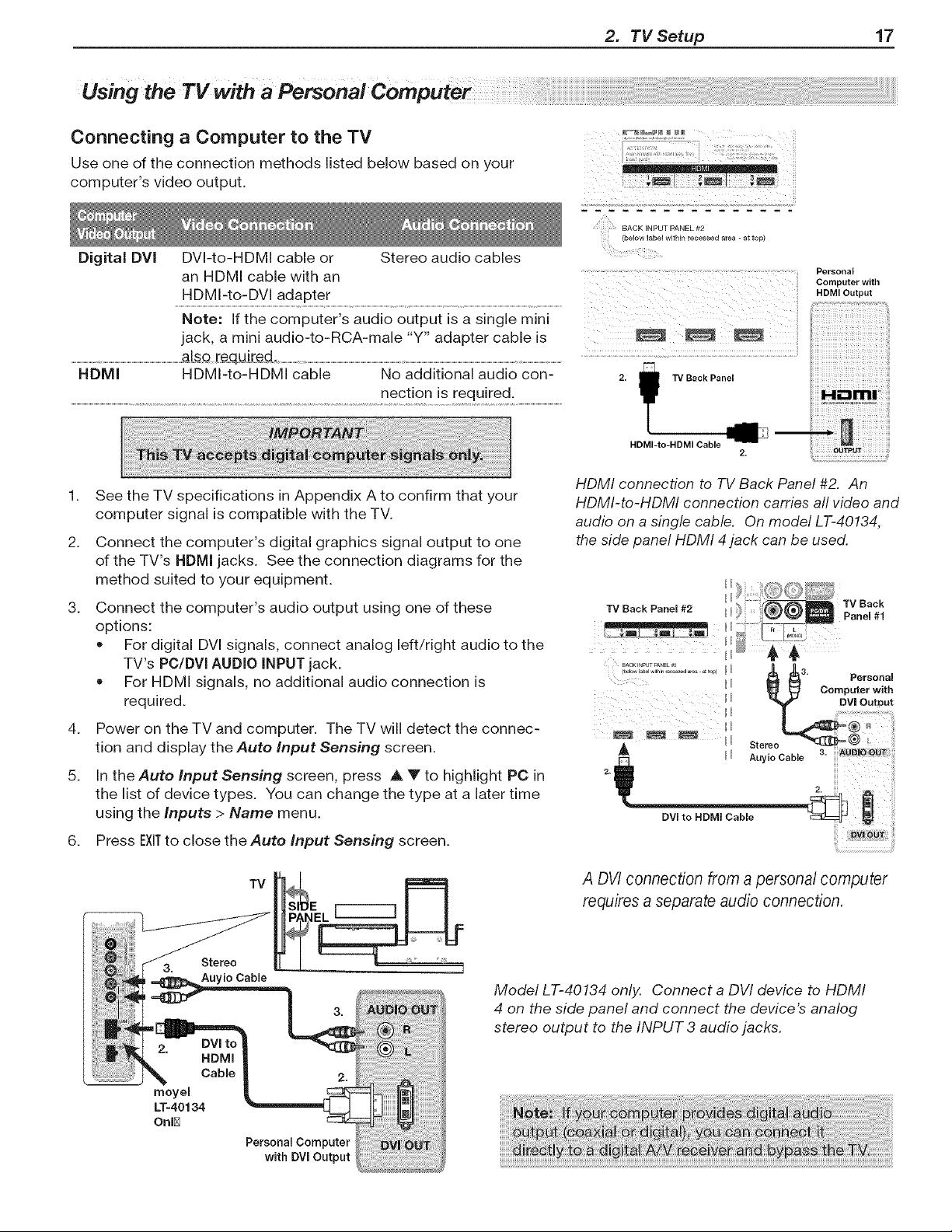
Auto Input Sensing screen for most device types.
3.
Power on the TV if not already on. When the TV
detects a connection, the Auto Input Sensing
screen opens.
• Most Device Types: Specify the device
type and then, if desired, proceed directly to
NetCommand setup.
a. In the Auto Input Sensing screen, press
A Y to move through the device list to
select the device type connected to the
input. The device type you select here will
appear in the Input Selection menu.
b. If NetCommand IR "learning" is available on
your TV model, you can perform "learning"
now or at a later time. To perform now,
highlight the Learn icon and press ENTER.
See chapter 6, "NetCommand" for more.
• A/V Receiver: The TV can detect audio con-
nections on the DIGITAL AUDIO OUTPUT jack
and the right (red) analog AVR AUDIO OUTPUT
jack.
Note for Analog A/V Receivers: When you
disconnect an analog A/V receiver, manually
change the Speakers setting to TV to hear
sound from the TV speakers.
If NetCommand IR "learning" is available for your
TV model, perform "learning" now or at a later
time. To perform now, highlight the Learn icon
in the Auto Output Sensing screen and press
ENTER.See chapter 6, "NetCommand" for more.
• HDMI Devices Compatible with the TV's
NetCommand for HDMI Feature: Compatible
HDMI devices are often recognized automati-
cally by the TV. The TV's remote control may
operate some device functions without further
setup. You can add more control functions if
desired. Program the TV's remote control or, in
the case of an LT-40134, LT-46144, or LT-52144
model, perform NetCommand IR "learning" to
add functions.
Press EXITto close the Auto input Sensing screen.
The TV will then display the Auto Input Sensing
screen for the next connection it finds.
More About Auto input Sensing
= Choose a different device type name for each input.
= Antenna inputs (ANT l/ANT 2) are never detected,
although you can turn off unused antenna inputs in
the Inputs > Name menu.
You can change the device type at a later time
using the Inputs > Name menu. Any "learned"
NetCommand IR codes will be erased, however.
If you wish to reset an HDMI input:
1. Disconnect the HDMI device.
2. Change the name of the HDMI input to Off in
the Inputs > Name menu.
3. Connect the new device and the Auto Input
Sensing screen will display. If you want the
device under NetCommand IR control, perform
NetCommand "learning" for the new device.
Although the TV detects when you connect an A/V
receiver, you must use one of the methods below to
control sound volume from the A/V receiver.
With a Standard TV Setup
Recommended Method: Program the TV's remote
control for your A/V receiver and enable the Audio
Lock feature. See Appendix D, "Programming the
Remote Control."
Program the TV's remote control for your A/V
receiver and set the TV remote's slide switch to
the AUDIOposition to control volume. Set the switch
back to the TVposition to control the TV.
Use the remote control that came with A/V receiver.
With NetCommand Control of an A/V Receiver
(LT-40134, LT=46144, and LT=52144 models only)
Set up NetCommand control of the A/V receiver's
volume functions in the Inputs > AVR menu. The
TV's remote will then automatically control A!V
receiver volume. See chapter 6, "NetCommand."
• Use any of the methods described for the standard
TV setup.
2. TV Setup 17
Using the TV with
Connecting a Computer to the TV
Use one of the connection methods listed below based on your
computer's video output.
Digital DVl DVI-to-HDMI cable or
an HDMI cable with an
HDMI-to-DVl adapter
Stereo audio cables
(below label within recessed area = at top)
........ ...... ...... Personal
Computer with
HDMI Output
jack, a mini audio-to-RCA-male "Y" adapter cable is
...............................................................................................................als_ [equi[ed ........................................................................................................................................................................................................................................................................................................................
HDMI HDMI-to-HDMI cable No additional audio con-
nection is required.
1.
2.
See the TV specifications in Appendix A to confirm that your
computer signal is compatible with the TV.
Connect the computer's digital graphics signal output to one
of the TV's HDMI jacks. See the connection diagrams for the
method suited to your equipment.
3. Connect the computer's audio output using one of these
options:
For digital DVl signals, connect analog left/right audio to the
TV's PC/DVI AUDIO INPUT jack.
For HDMI signals, no additional audio connection is
required.
4. Power on the TV and computer. The TV will detect the connec-
tion and display the Auto Input Sensing screen.
5. In the Auto input Sensing screen, press A Y to highlight PC in
the list of device types. You can change the type at a later time
using the Inputs > Name menu.
6. Press EXITto close the Auto Input Sensing screen.
2. TV Back Panel
HDMI-to-HDMI Cable
2.
iiiiHOml:iiiii
HDMI connection to TV Back Panel #2. An
HDMI-to-HDMI connection carries aft video and
audio on a single cable. On model LT-40134,
the side panel HDMI 4 jack can be used.
TV Back Panel #2 TV Back
Panel #1
Personal
_ Computer with
Stereo % @!:
I / Auyio Cable 3. AU_
2.
DVI to HDMI Cable
i !i ¸!i¸_
DVI to
HDMI
Cable
meyel
LT-40134
Onl[_
TV
Personal Computer
with DVl Output
A DVI connection from a personal computer
requires a separate audio connection.
Model LT-40134 only. Connect a DVI device to HDMI
4 on the side panel and connect the device's analog
stereo output to the INPUT 3 audio jacks.
18 2. TV Setup
Using,heTVwi,h
Computer Video Adjustments
1. Power on the computer if it is not already on.
2. Select PC from the Input Selection menu. To do
this, press iNPUTto open the Input Selection menu,
move the highlight to the PC icon, and press ENTER.
3. Working from the computer, change the resolution
of the computer image. View the computer image
on the TV and maximize the computer resolution
while maintaining a suitable aspect ratio for the
image.
4. Perform TV video adjustments. Press
VIDEOrepeatedly to access video-
adjustment options. The following
additional adjustments are available
for computer video:
Horiz Position (Horizontal Position).
Manually adjust the horizontal
position.
Vert Position (Vertical Position).
Manually adjust the vertical position.
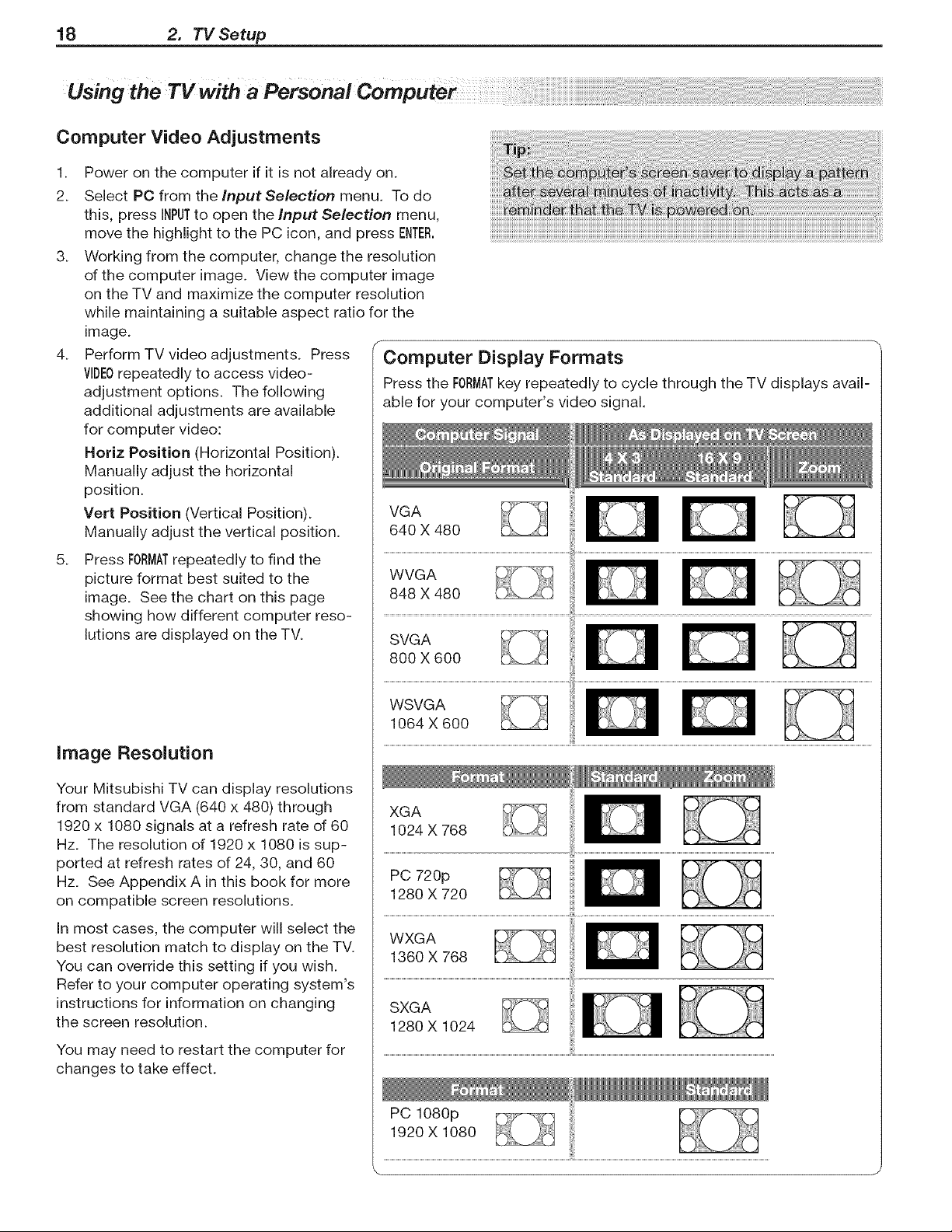
5. Press FORMATrepeatedly to find the
picture format best suited to the
image. See the chart on this page
showing how different computer reso-
lutions are displayed on the TV.
image Resolution
Your Mitsubishi TV can display resolutions
from standard VGA (640 x 480) through
1920 x 1080 signals at a refresh rate of 60
Hz. The resolution of 1920 x 1080 is sup-
ported at refresh rates of 24, 30, and 60
Hz. See Appendix A in this book for more
on compatible screen resolutions.
In most cases, the computer will select the
best resolution match to display on the TV.
You can override this setting if you wish.
Refer to your computer operating system's
instructions for information on changing
the screen resolution.
You may need to restart the computer for
changes to take effect.
F
Computer Display Formats
Press the FORMATkey repeatedly to cycle through the TV displays avail-
able for your computer's video signal.
VGA
640 X 480
WVGA
848 X 480
SVGA
800 X 600
0
PC 720p
1280 X 720
..............................................................................................................................................................................................................................................................................................................................................................................................................................................
WXGA
1360 X 768
SXGA
1280 X 1024
PC 1080p I
1920 X 1080
TVConnections
@,
Before you Begin
The TV's Auto Input Sensing feature automatically rec-
ognizes most connections and prompts you to identify
the type of device connected. See chapter 2, "TV
Setup," for more on Auto Input Sensing.
Review the connection types available on your input
devices and use inputs that will give the best video
quality. For example, choose HDMI over component
video, and choose component video over S-video or
composite video.
For best picture quality, route signals directly from the
source device to the TV; avoid routing video signals
through an A/V receiver, for example.
soundOuo!ity
For best audio quality, route audio signals from the
source device directly to your A/V receiver or sound
system whenever possible.
HDTV !
If your cable box or satellite receiver has an HDMI
output, use the connections for HDMI devices
described later in this chapter.
Required: RCA component video cables, left/right
analog stereo audio cables.
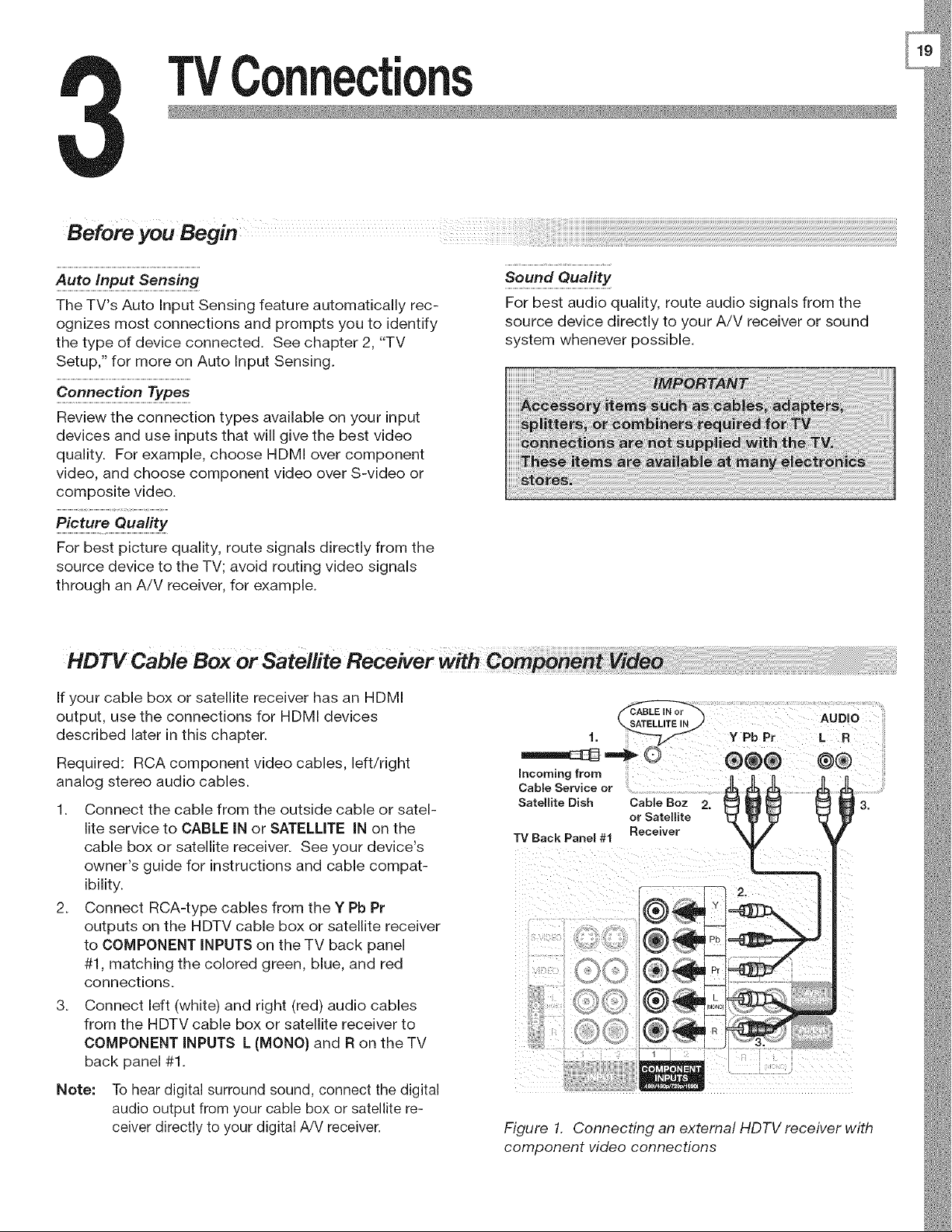
1. Connect the cable from the outside cable or satel-
lite service to CABLE IN or SATELLITE IN on the
cable box or satellite receiver. See your device's
owner's guide for instructions and cable compat-
ibility.
2. Connect RCA-type cables from the Y Pb Pr
outputs on the HDTV cable box or satellite receiver
to COMPONENT iNPUTS on the TV back panel
#1, matching the colored green, blue, and red
connections.
3. Connect left (white) and right (red) audio cables
from the HDTV cable box or satellite receiver to
COMPONENT iNPUTS L (MONO) and R on the TV
back panel #1.
Note: To hear digital surround sound, connect the digita
audio output from your cable box or satellite re-
ceiver directly to your digital A!V receiver.
Figure 1. Connecting an external HDTV receiver with
component video connections
20 3. TV Connections
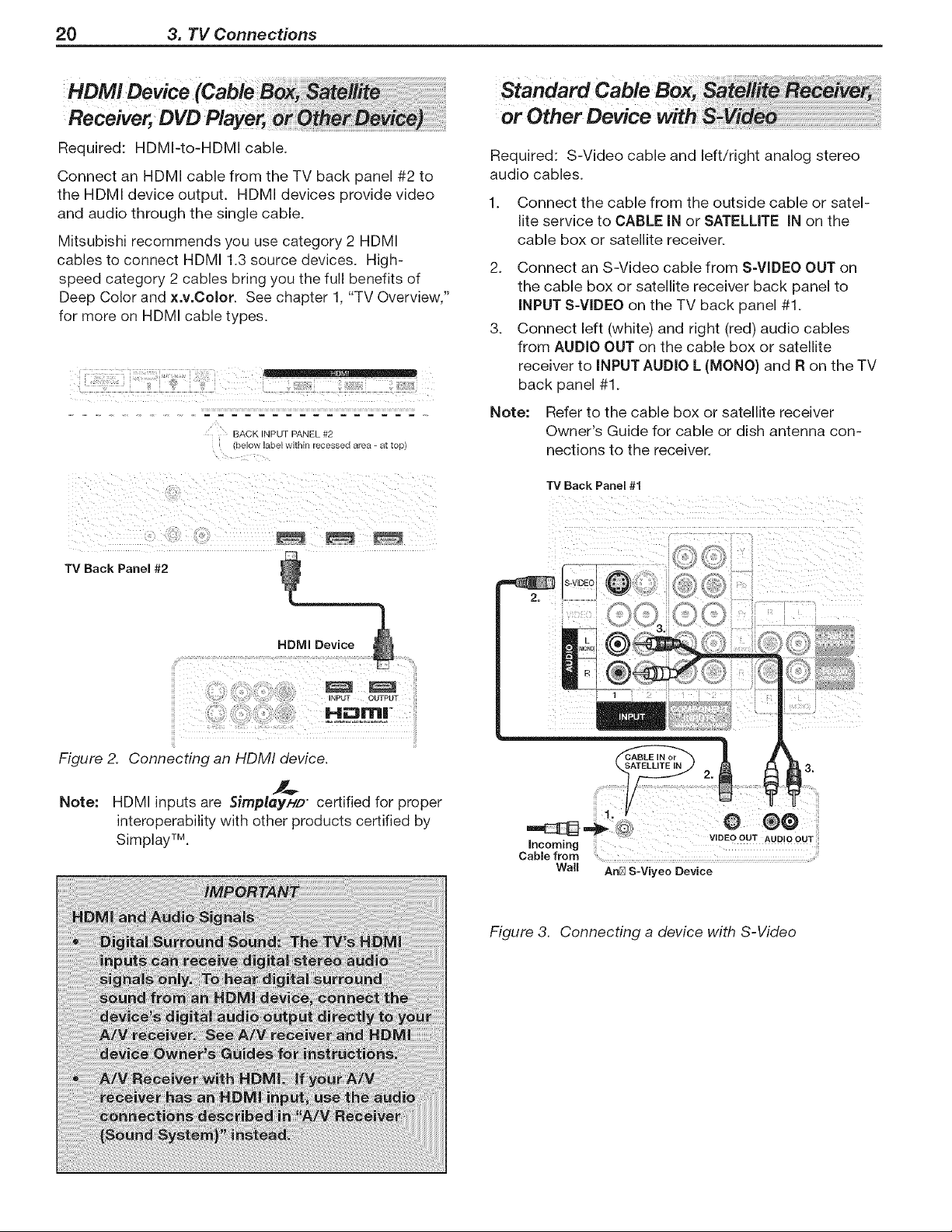
Required: HDMI-to-HDMI cable.
Connect an HDMI cable from the TV back panel #2 to
the HDMI device output. HDMI devices provide video
and audio through the single cable.
Mitsubishi recommends you use category 2 HDMI
cables to connect HDMI 1.3 source devices. High-
speed category 2 cables bring you the full benefits of
Deep Color and x.v.Color. See chapter 1, "TV Overview,"
for more on HDMI cable types.
BACK INPUT PANEL #2
_elow laDeEwltnEn recesseo area - at _oo
Required: S-Video cable and left/right analog stereo
audio cables.
1. Connect the cable from the outside cable or satel-
lite service to CABLE iN or SATELLITE iN on the
cable box or satellite receiver.
2. Connect an S-Video cable from S-VIDEO OUT on
the cable box or satellite receiver back panel to
iNPUT S-VIDEO on the TV back panel #1.
3. Connect left (white) and right (red) audio cables
from AUDIO OUT on the cable box or satellite
receiver to iNPUT AUDIO L (MONO) and R on the TV
back panel #1.
Note: Refer to the cable box or satellite receiver
Owner's Guide for cable or dish antenna con-
nections to the receiver.
TV Back Panel#1
TV Back Panel#2
HDMi Device
Figure 2. Connecting an HDM! device.
Note: HDMI inputs are 5implayWD certified for proper
interoperability with other products certified by
Simplay TM,
SATELLITE IN
m
incoming
Cable from
Wail
AriEl S-Viyeo Device
Figure 3. Connecting a device with S-Video
3. TV Connections 21
Direct Cable
It is very important to connect the incoming Cable-TV
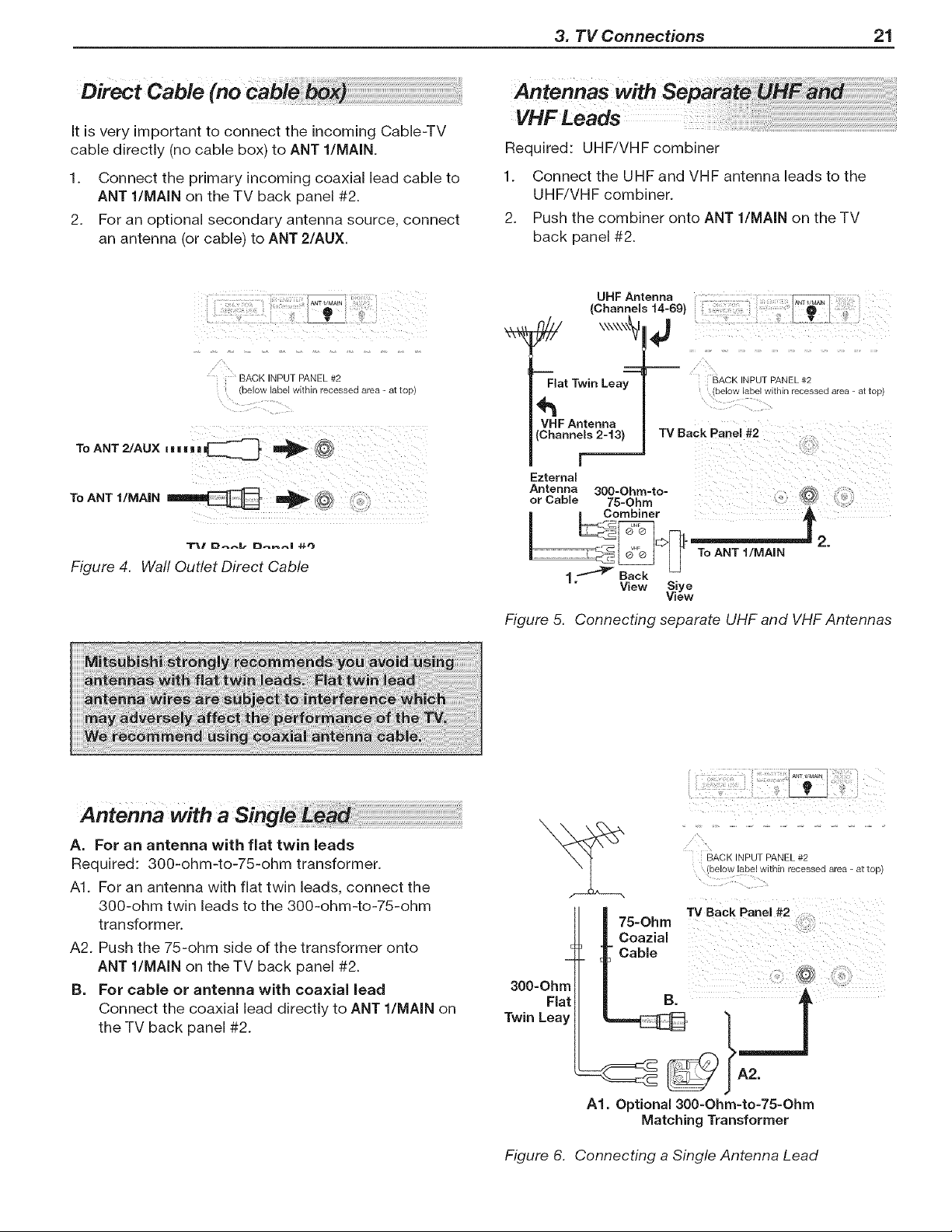
cable directly (no cable box) to ANT l/MAIN.
1. Connect the primary incoming coaxial lead cable to
ANT l/MAIN on the TV back panel #2.
2. For an optional secondary antenna source, connect
an antenna (or cable) to ANT 2/AUX.
Required: UHF/VHF combiner
1. Connect the UHF and VHF antenna leads to the
UHF/VHF combiner.
2. Push the combiner onto ANT l/MAIN on the TV
back panel #2.
i i i i
BACK INPUT PANEL #2
(below label within recessed area - at top)
To ANT t/MA|N _ _,
"T_,l D_,.. D_I 4.1.t}
Figure 4. Wall Outlet Direct Cable
UHF Antenna
(Channels 14-69}
Flat Twin Leay
VHF Antenna
(Channels 2-t3}
r_
Ezternal
Antenna 300-Ohm-to-
or Cable 75-Ohm
l _ombiner
1 ._ Back
View Siye
View
BACK INPUT PANEL #2
_elow lapel w_tnln recessea area - at _c 9
TV Back Panel #2
.
To ANT t/MAIN
Figure 5. Connecting separate UHF and VHF Antennas
A. For an antenna with flat twin leads
Required: 300-ohm-to-75-ohm transformer.
A1. For an antenna with flat twin leads, connect the
300-ohm twin leads to the 300-ohm-to-75-ohm
transformer.
A2. Push the 75-ohm side of the transformer onto
ANT l/MAIN on the TV back panel #2.
B. For cable or antenna with coaxial lead
Connect the coaxial lead directly to ANT l/MAIN on
the TV back panel #2.
BACK INPUT PANEL #2
(below label within recessed area - at top)
75-Ohm
Coazial
Cable
300-Ohm _
Flat B.
Twin Leay _ t
A1. Optional 300-Ohm-to-75-Ohm
Matching Transformer
Figure 6. Connecting a Single Antenna Lead

22 3. TV Connections
Component video cables and analog audio cables are
required.
1. Connect the component video cables from Y Pb Pr
VIDEO OUT on the back of the DVD player to the
COMPONENT INPUTS jacks on the TV back panel
#1, matching the green, blue, and red colored con-
nections.
2. Connect left (white) and right (red) stereo audio
cables from AUDIO OUT on the back of the DVD
player to COMPONENT INPUTS L (MONO) and R
on the TV back panel #1.
¥ Pb Pr L R
®.......® :
DVD PlaNer
TV Back Panel #'
Figure 7. Connecting a DVD player with component
video
Note: To hear digital surround sound from your DVD
player, connect the audio output from the DVD
player directly to your digital A/V receiver.
DV! Video Device i
Receiver,
Connect DVI devices (digital only)to the TV's HDMI
input jacks.
Analog stereo audio cables and a DVI-to-HDMI cable or
DVI/HDMI adapter and HDMI cable are required.
1. Connect the DVI-to-HDMI cable (recommended) or
HDMI cable with DVI/HDMI adapter from the DVI
device's back panel to the TV's HDMI jack (TV Back
Panel #2).
Note: If you are using a DVI/HDMI adapter, it is impor-
tant to connect the adapter to the DVl device for
best performance.
2. Connect a set of audio cables from AUDIO OUT
on the DVI device back panel to the PC/DVI AUDIO
INPUT on the TV back panel #1. Connect the red
cable to the R jack and the white cable to the L
(MONO) jack.
Note: The HDMI connection supports copy protection
(HDCP).
Some devices require connecting to an analog
input first, in order to view on-screen menus
and to select DVl as the ouput. Please review
your equipment instructions for DVl connectivity
and compatibility.
TV Back Panel #1
_TV Back Panel #2
I v I v I v_ !
BACK INPUT PANEL #2
(below label within recessed area = at top)
DVl Device
Figure 8. Connecting a digital DVI device
3. TV Connections 23
Required: Two-way RF splitter, 3 coaxial cables, right
and left analog audio cables, either S-video or video
cable.
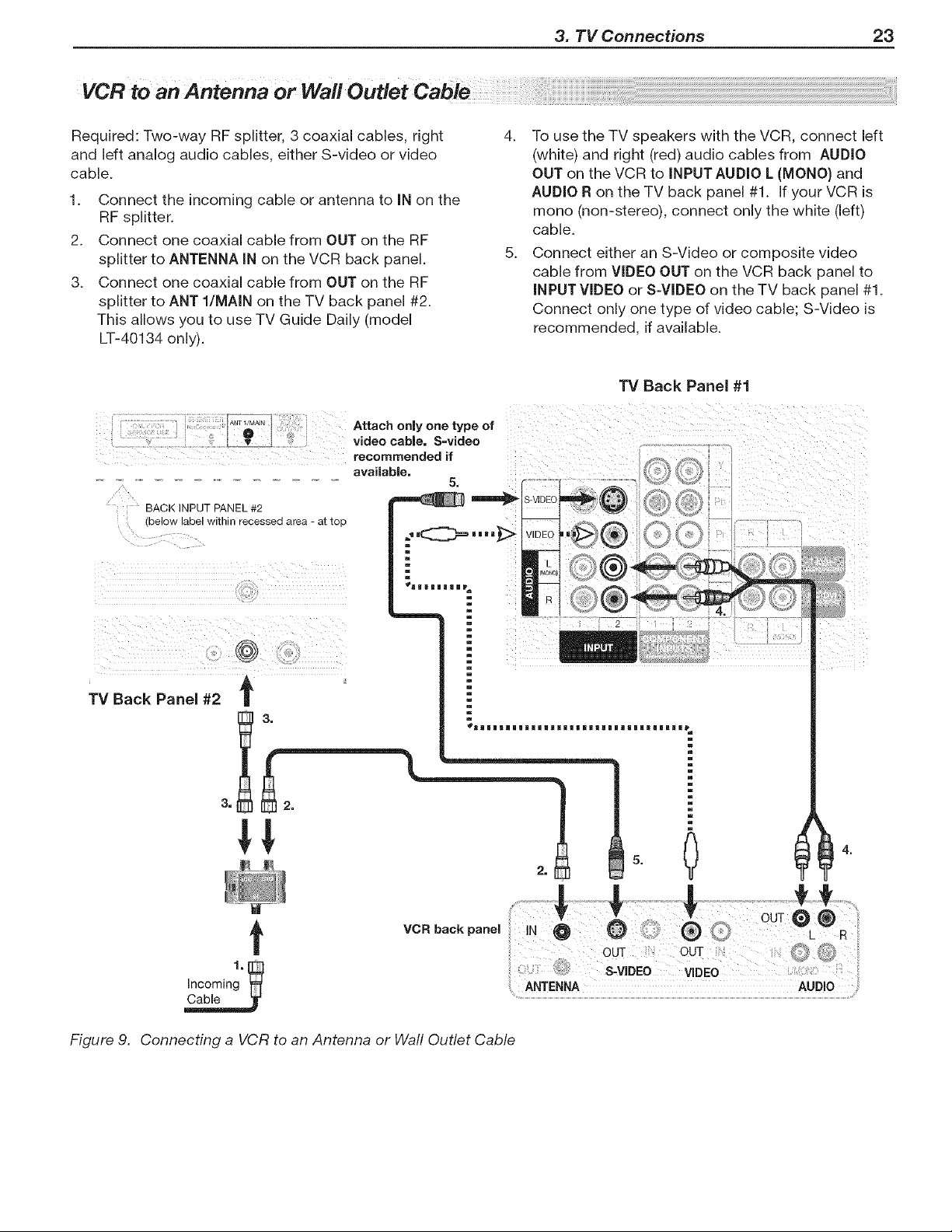
1. Connect the incoming cable or antenna to IN on the
RF splitter.
2. Connect one coaxial cable from OUT on the RF
splitter to ANTENNA IN on the VCR back panel.
3. Connect one coaxial cable from OUT on the RF
splitter to ANT l/MAIN on the TV back panel #2.
This allows you to use TV Guide Daily (model
LT-40134 only).
4. To use the TV speakers with the VCR, connect left
(white) and right (red) audio cables from AUDIO
OUT on the VCR to INPUT AUDIO L (MONO) and
AUDIO R on the TV back panel #1. If your VCR is
mono (non-stereo), connect only the white (left)
cable.
5. Connect either an S-Video or composite video
cable from VIDEO OUT on the VCR back panel to
INPUT VIDEO or S-VIDEO on the TV back panel #1.
Connect only one type of video cable; S-Video is
recommended, if available.
TV Back Panel #1
BACK INPUT PANEL #2
(below label within recessed area - at top
I_0_"1 : Attach only one typeof
I T I video cable. S=video
recommended if
available.
5.
)EO
i! ¸@ ilii
g_
TV Back Panel #2
t
Incoming"
VCR back panel
ANTENNA AUDIO
Figure 9. Connecting a VCR to an Antenna or Wall Outlet Cable
24 3. TV Connections
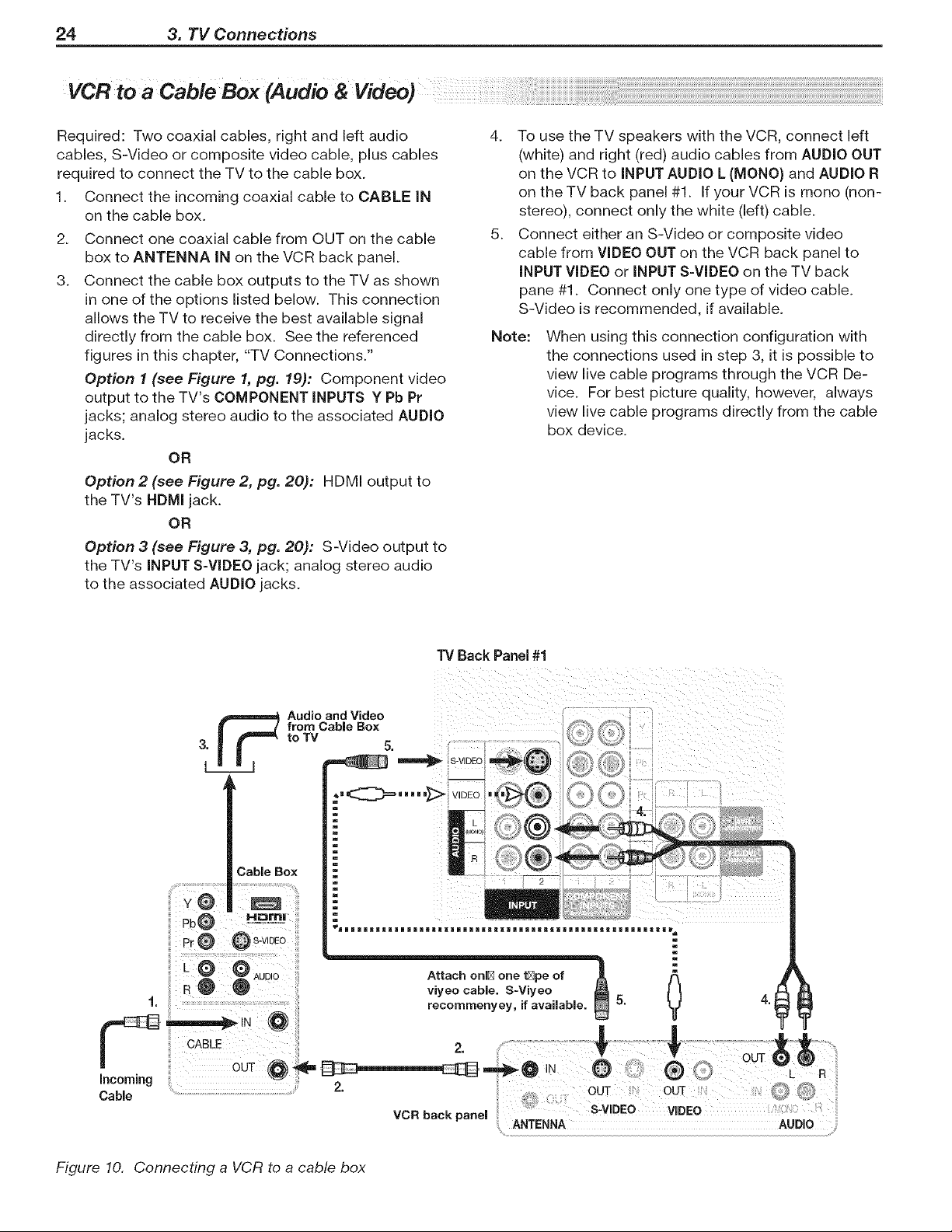
Required: Two coaxial cables, right and left audio
cables, S-Video or composite video cable, plus cables
required to connect the TV to the cable box.
1. Connect the incoming coaxial cable to CABLE IN
on the cable box.
2. Connect one coaxial cable from OUT on the cable
box to ANTENNA IN on the VCR back panel.
3. Connect the cable box outputs to the TV as shown
in one of the options listed below. This connection
allows the TV to receive the best available signal
directly from the cable box. See the referenced
figures in this chapter, "TV Connections."
Option I (see Figure 1, pg. 19): Component video
output to the TV's COMPONENT iNPUTS Y Pb Pr
jacks; analog stereo audio to the associated AUDIO
jacks.
OR
Option 2 (see Figure 2, pg. 20): HDMI output to
the TV's HDMI jack.
OR
Option 3 (see Figure 3, pg. 20): S-Video output to
the TV's INPUT S-VIDEO jack; analog stereo audio
to the associated AUDIO jacks.
4. To use the TV speakers with the VCR, connect left
(white) and right (red) audio cables from AUDIO OUT
on the VCR to INPUT AUDIO L (MONO) and AUDIO R
on the TV back panel #1. If your VCR is mono (non-
stereo), connect only the white (left) cable.
5. Connect either an S-Video or composite video
cable from VIDEO OUT on the VCR back panel to
iNPUT VIDEO or iNPUT S-VIDEO on the TV back
pane #1. Connect only one type of video cable.
S-Video is recommended, if available.
Note:
When using this connection configuration with
the connections used in step 3, it is possible to
view live cable programs through the VCR De-
vice. For best picture quality, however, always
view live cable programs directly from the cable
box device.
"IV Back Panel #1
_ Audio and Video
from Cable Box
to TV 5,
_ _V_OEO
r<:> .....>VOEO.@®
J
m
m
=
m
Cable Box
J
=
=
_m m a u lizs m m i a i im!lBll_ iii iimalf _ u ila immaw_ u ul i Jmala_ m a = =a_m_
@Pr _ S-VIDEO
viyeo cable. S-Viyeo
1. recommenyey, if available. 5. 4.
CABLE 2 ".......... Ir
OUT _ N * %
2.
, OUT OUT (q] @
Cable ;:¢ : S VIDEO ...........
VCR back panel - VIDEO
ANTENNA AUD 0
Figure 10. Connecting a VCR to a cable box
3. TV Connections 25
A/V Reoeiver
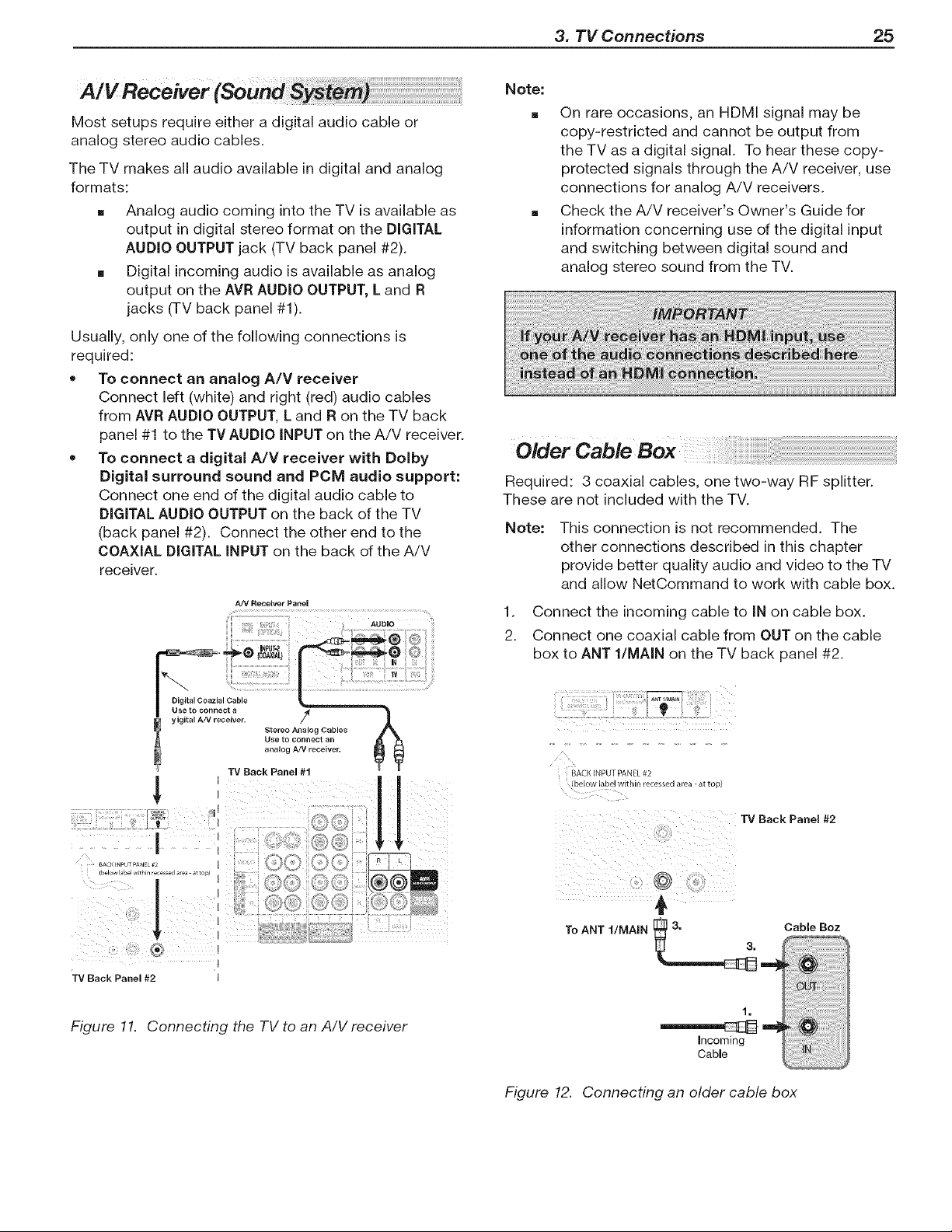
Most setups require either a digital audio cable or
analog stereo audio cables.
The TV makes all audio available in digital and analog
formats:
[] Analog audio coming into the TV is available as
output in digital stereo format on the DIGITAL
AUDIO OUTPUT jack (TV back panel #2).
[] Digital incoming audio is available as analog
output on the AVR AUDIO OUTPUT, L and R
jacks (TV back panel #1).
Usually, only one of the following connections is
required:
• To connect an analog A/V receiver
Connect left (white) and right (red) audio cables
from AVR AUDIO OUTPUT, L and R on the TV back
panel #1 to the TV AUDIO INPUT on the A/V receiver.
• To connect a digital A/V receiver with Dolby
Digital surround sound and PCM audio support:
Connect one end of the dic ital audio cable to
DIGITALAUDIO OUTPUT on the back of the TV
(back panel #2). Connect the other end to the
COAXIAL DIGITAL INPUT on the back of the A/V
receiver.
NV Receiver Panel
Note:
[] On rare occasions, an HDMI signal may be
copy-restricted and cannot be output from
the TV as a digital signal. To hear these copy-
protected signals through the A/V receiver, use
connections for analog A/V receivers.
Check the A/V receiver's Owner's Guide for
information concerning use of the digital input
and switching between digital sound and
analog stereo sound from the TV.
Required: 3 coaxial cables, one two-way RF splitter.
These are not included with the TV.
Note: This connection is not recommended. The
other connections described in this chapter
provide better quality audio and video to the TV
and allow NetCommand to work with cable box.
1. Connect the incoming cable to IN on cable box.
2. Connect one coaxial cable from OUT on the cable
box to ANT l/MAIN on the TV back panel #2.
I
TV Back Panel #2 1
Figure 11. Connecting the TV to an A/V receiver
BACKINPUT PANEL#2
belOW label wl(nln re(essee area - a( t(
TV Back Panel #2
@
To ANT t/MNN
:::: _ }{;J _iiiiii;i ;;;i;
1.
i!7:7!; i!i!i!i!i!i!i!7,!7 iTii'i¸
Incoming
Cable
Figure 12. Connecting an older cable box
26 3. TV Connections
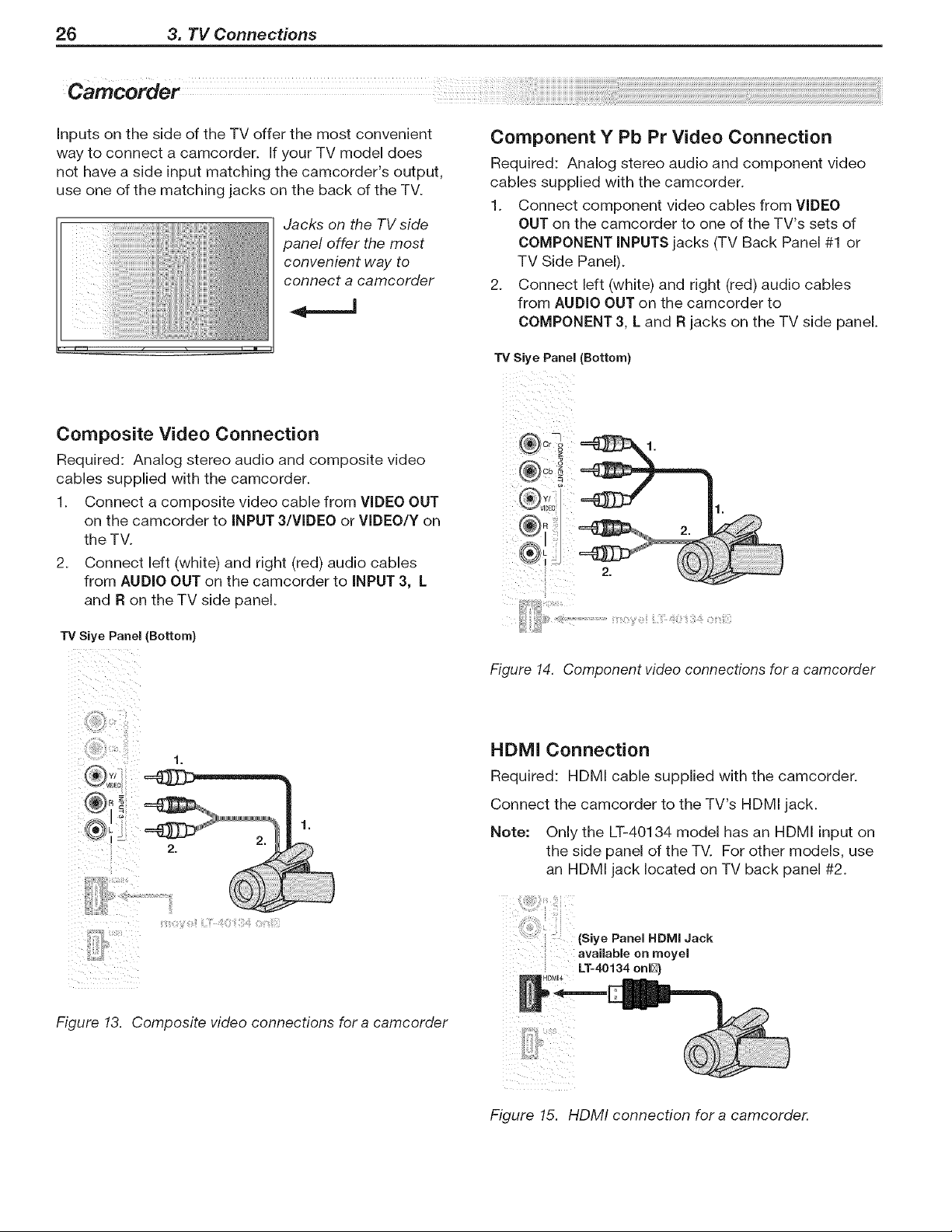
Inputs on the side of the TV offer the most convenient
way to connect a camcorder. If your TV model does
not have a side input matching the camcorder's output,
use one of the matching jacks on the back of the TV.
Jacks on the TV side
panel offer the most
convenient way to
connect a camcorder
Composite Video Connection
Required: Analog stereo audio and composite video
cables supplied with the camcorder.
1. Connect a composite video cable from VIDEO OUT
on the camcorder to iNPUT 3/VIDEO or VIDEO/Y on
the TV.
2. Connect left (white) and right (red) audio cables
from AUDIO OUT on the camcorder to iNPUT 3, L
and R on the TV side panel.
TV Siye Panel (Bottom)
Component Y Pb Pr Video Connection
Required: Analog stereo audio and component video
cables supplied with the camcorder.
1. Connect component video cables from VIDEO
OUT on the camcorder to one of the TV's sets of
COMPONENT INPUTS jacks (TV Back Panel #1 or
TV Side Panel).
2. Connect left (white) and right (red) audio cables
from AUDIO OUT on the camcorder to
COMPONENT 3, L and R jacks on the TV side panel.
TV Siye Panel (Bottom)
Figure 14. Component video connections for a camcorder
HDMI Connection
Required: HDMI cable supplied with the camcorder.
Connect the camcorder to the TV's HDMI jack.
Note: Only the LT-40134 model has an HDMI input on
the side panel of the TV. For other models, use
an HDMI jack located on TV back panel #2.
i iiiii
Figure 13. Composite video connections for a camcorder
(SiyePanel.UMI Jack
available on moyel
LT-40134 onl[_)
HDMI4
Figure 15. HDMI connection for a camcorder.
TV
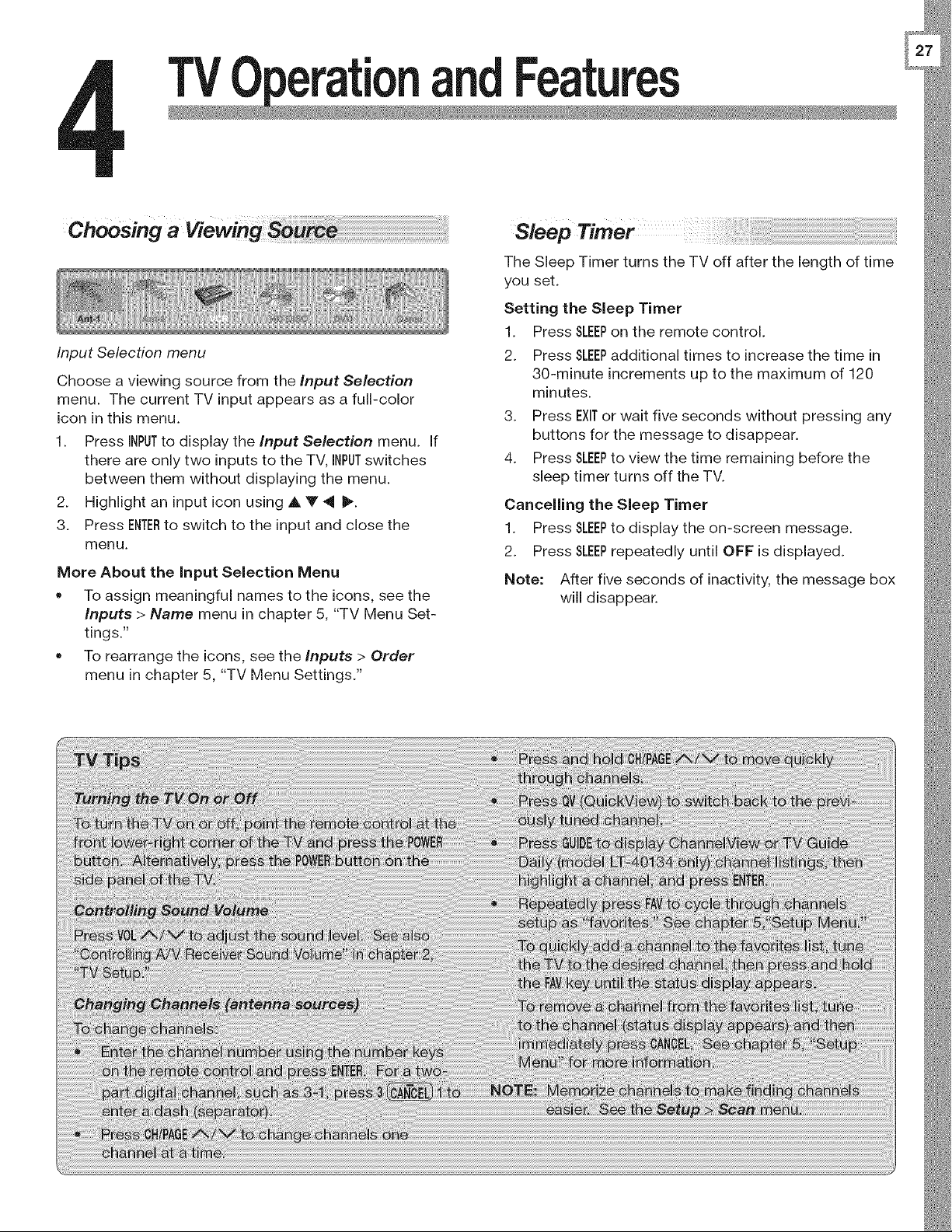
Input Selection menu
andFeatures
Choose a viewing source from the Input Selection
menu. The current TV input appears as a full-color
icon in this menu.
1. Press INPUTto display the Input Selection menu.
there are only two inputs to the TV, INPUTswitches
between them without displaying the menu.
2. Highlight an input icon using A V 4 P'.
3. Press ENTERto switch to the input and close the
menu.
More About the input Selection Menu
• To assign meaningful names to the icons, see the
inputs > Name menu in chapter 5, "TV Menu Set-
tings."
To rearrange the icons, see the inputs > Order
menu in chapter 5, "TV Menu Settings."
Sleep Timer
The Sleep Timer turns the TV off after the length of time
you set.
Setting the Sleep Timer
1. Press SLEEPon the remote control.
2. Press SLEEPadditional times to increase the time in
30-minute increments up to the maximum of 120
minutes.
3. Press EXITor wait five seconds without pressing any
buttons for the message to disappear.
4. Press SLEEPto view the time remaining before the
sleep timer turns off the TV.
Cancelling the Sleep Timer
1. Press SLEEPto display the on-screen message.
2. Press SLEEPrepeatedly until OFF is displayed.
Note: After five seconds of inactivity, the message box
will disappear.
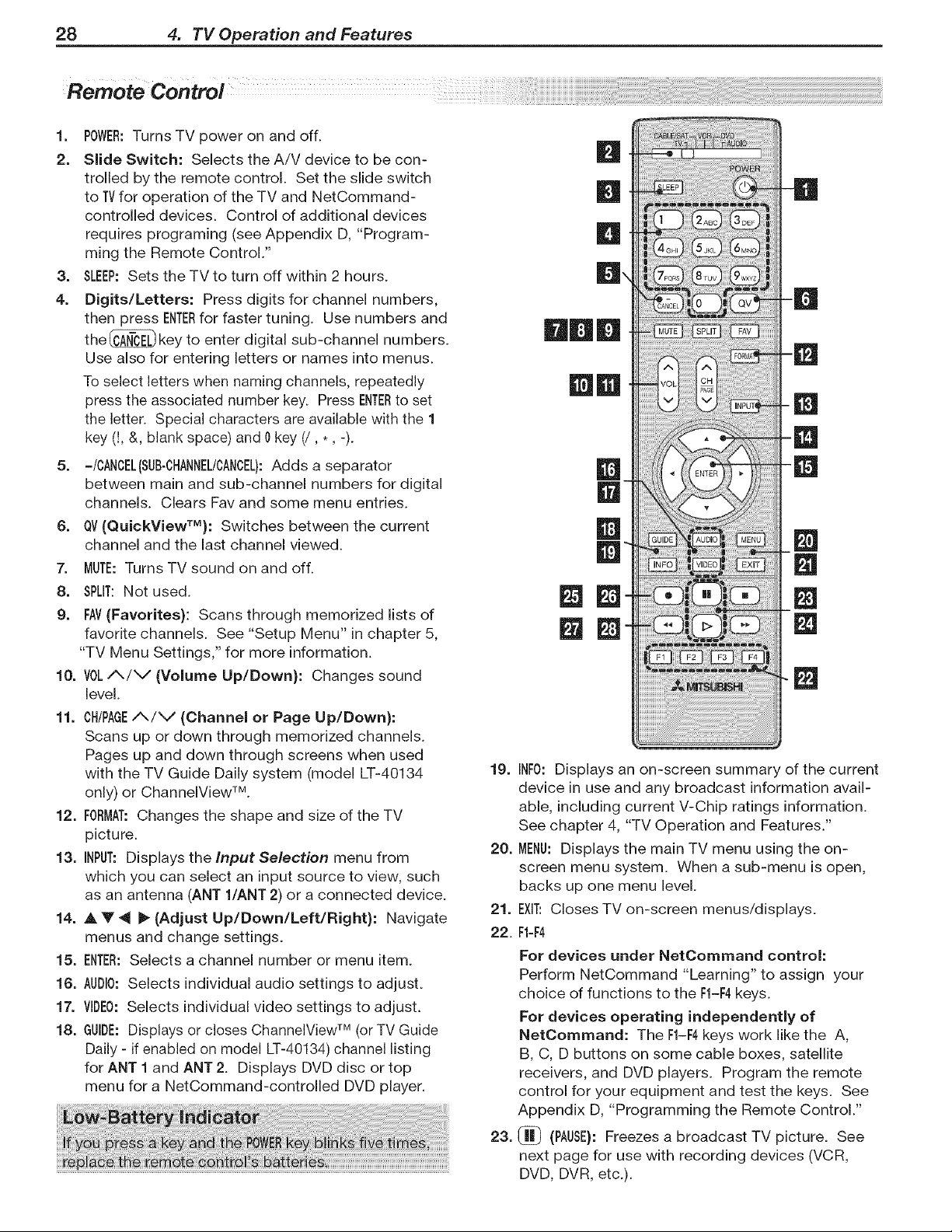
28 4. TV Operation and Features
Remote Control
lm
2.
m
4.
POWER:Turns TV power on and off.
Slide Switch: Selects the A/V device to be con-
trolled by the remote control. Set the slide switch
to TVfor operation of the TV and NetCommand-
controlled devices. Control of additional devices
requires programing (see Appendix D, "Program-
ming the Remote Control."
SLEEP:Sets the TV to turn off within 2 hours.
Digits/Letters: Press digits for channel numbers
then press ENTERfor faster tuning. Use numbers and
the_ key to enter digital sub-channel numbers.
Use also for entering letters or names into menus.
To select letters when naming channels, repeatedly
press the associated number key. Press ENTERto set
the letter. Special characters are available with the 1
key (!, &, blank space) and 0key (/, *, -).
5. -/CANCEL(SUB-CHANNEL/CANCEL):Adds a separator
between main and sub-channel numbers for digital
channels. Clears Fav and some menu entries.
6. OV(QuickViewTM): Switches between the current
channel and the last channel viewed.
7. MUTE:Turns TV sound on and off.
8. SPLIT:Not used.
9. FAV(Favorites): Scans through memorized lists of
favorite channels. See "Setup Menu" in chapter 5,
"TV Menu Settings," for more information.
10. VOLiN/V (Volume Up/Down): Changes sound
level.
11. CH/PAGE/_/V (Channel or Page Up/Down):
Scans up or down through memorized channels.
Pages up and down through screens when used
with the TV Guide Daily system (model LT-40134
only) or ChanneWiew TM.
12. FORMAT:Changes the shape and size of the TV
picture.
13. INPUT:Displays the Input Selection menu from
which you can select an input source to view, such
as an antenna (ANT l/ANT 2) or a connected device.
14. A V 4 _ (Adjust Up/Down/Left/Right): Navigate
menus and change settings.
15. ENTER:Selects a channel number or menu item.
16. AUDIO:Selects individual audio settings to adjust.
17. VIDEO:Selects individual video settings to adjust.
18. GUIDE:Displays or closes ChannelView TM (or TV Guide
Daily - if enabled on model LT-40134) channel listing
for ANT 1 and ANT 2. Displays DVD disc or top
menu for a NetCommand-controlled DVD player.
Iml
19. INFO:Displays an on-screen summary of the current
device in use and any broadcast information avail-
able, including current V-Chip ratings information.
See chapter 4, "TV Operation and Features."
20. MENU:Displays the main TV menu using the on-
screen menu system. When a sub-menu is open,
backs up one menu level.
21. EXIT:Closes TV on-screen menus/displays.
22. F1-F4
For devices under NetCommand control:
Perform NetCommand "Learning" to assign your
choice of functions to the F1-F4keys.
For devices operating independently of
NetCommand: The F1-F4keys work like the A,
B, C, D buttons on some cable boxes, satellite
receivers, and DVD players. Program the remote
control for your equipment and test the keys. See
Appendix D, "Programming the Remote Control."
23. (_ (PAUSE):Freezes a broadcast TV picture. See
next page for use with recording devices (VCR,
DVD, DVR, etc.).
4. TV Operation and Features 29
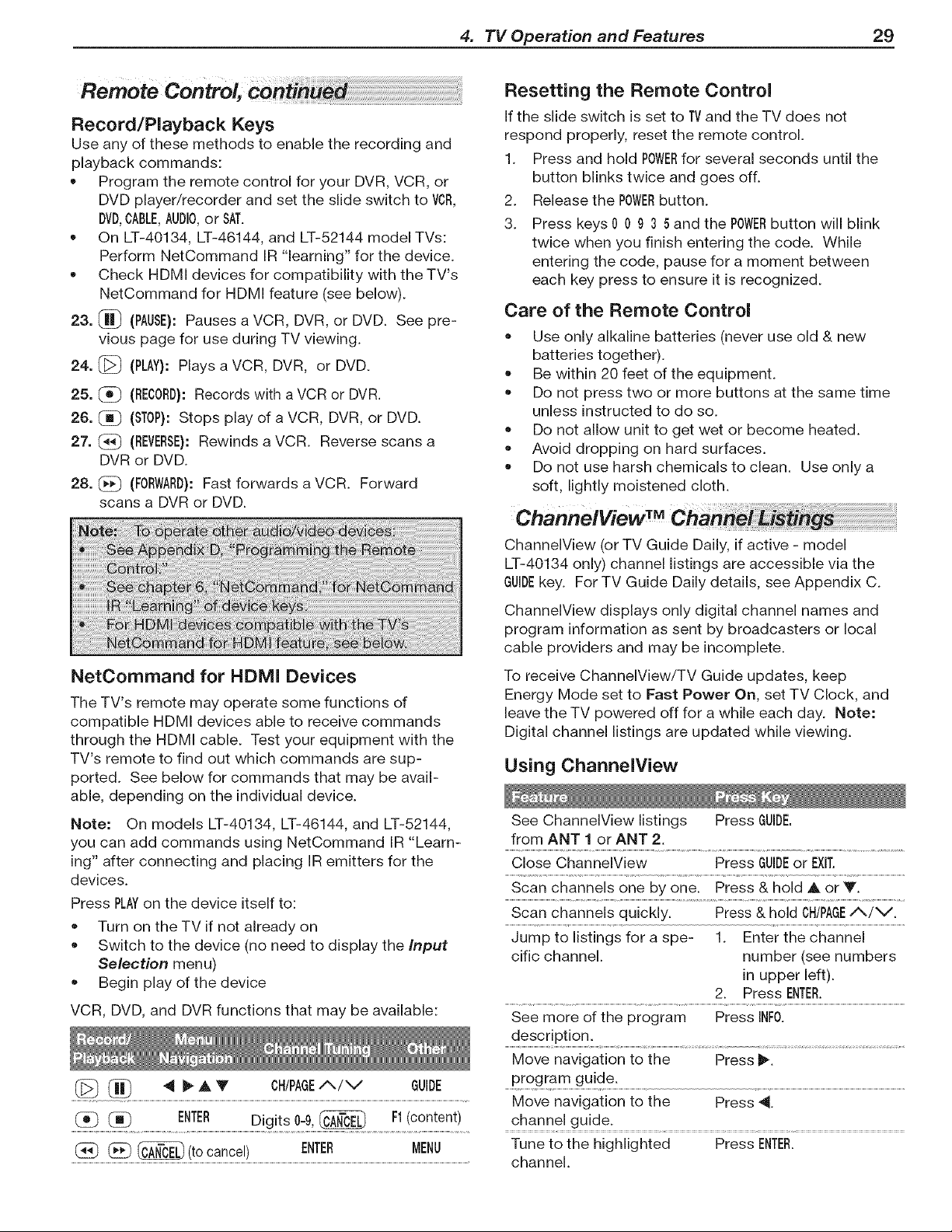
Record/Playback Keys
Use any of these methods to enable the recording and
playback commands:
• Program the remote control for your DVR, VCR, or
DVD player/recorder and set the slide switch to VCR,
DVD,CABLE,AUDIO,or SAT.
• On LT-40134, LT-46144, and LT-52144 model TVs:
Perform NetCommand IR "learning" for the device.
Check HDMI devices for compatibility with the TV's
NetCommand for HDMI feature (see below).
23. _ (PAUSE}:Pauses a VCR, DVR, or DVD. See pre-
vious page for use during TV viewing.
24. @ (PLAY}:Plays a VCR, DVR, or DVD.
25. (_ (RECORD}:Records with a VCR or DVR.
26. (_ (STOP):Stops play of a VCR, DVR, or DVD.
27. (_ (REVERSE}:Rewinds a VCR. Reverse scans a
DVR or DVD.
28. (_ (FORWARD}:Fast forwards a VCR. Forward
scans a DVR or DVD.
Resetting the Remote Control
If the slide switch is set to TVand the TV does not
respond properly, reset the remote control.
1. Press and hold POWERfor several seconds until the
button blinks twice and goes off.
2. Release the POWERbutton.
3. Press keys 0 0 9 3 5 and the POWERbutton will blink
twice when you finish entering the code. While
entering the code, pause for a moment between
each key press to ensure it is recognized.
Care of the Remote Control
= Use only alkaline batteries (never use old & new
batteries together).
Be within 20 feet of the equipment.
Do not press two or more buttons at the same time
unless instructed to do so.
• Do not allow unit to get wet or become heated.
= Avoid dropping on hard surfaces.
Do not use harsh chemicals to clean. Use only a
soft, lightly moistened cloth.
NetCommand for HDMI Devices
The TV's remote may operate some functions of
compatible HDMI devices able to receive commands
through the HDMI cable. Test your equipment with the
TV's remote to find out which commands are sup-
ported. See below for commands that may be avail-
able, depending on the individual device.
Note: On models LT-40134, LT-46144, and LT-52144,
you can add commands using NetCommand IR "Learn-
ing" after connecting and placing IR emitters for the
devices.
Press PLAYon the device itself to:
Turn on the TV if not already on
Switch to the device (no need to display the Input
Selection menu)
Begin play of the device
VCR, DVD, and DVR functions that may be available:
(]_ (_ 4 _ ,&V CHIPAGE/_/v GUIDE
(_ (_ ENTER Digits 0-9,_ F1(content)
_ _ (to cancel) ENTER MENU
ChannelView (or TV Guide Daily, if active - model
LT-40134 only) channel listings are accessible via the
GUIDEkey. For TV Guide Daily details, see Appendix C.
ChannelView displays only digital channel names and
program information as sent by broadcasters or local
cable providers and may be incomplete.
To receive ChannelView/TV Guide updates, keep
Energy Mode set to Fast Power On, set TV Clock, and
leave the TV powered off for a while each day. Note:
Digital channel listings are updated while viewing.
Using ChannelView
See ChannelView listings Press GUIDE.
from ANT 1 or ANT 2.
Close ChannelView Press GUIDEor EXIT.
Scan channels one by one. Press & hold A or Y.
Scan channels quickly. Press & hold CH/PAGE/_/V.
Jump to listings for a spe- 1. Enter the channel
ciflc channel, number (see numbers
in upper left).
2. Press ENTER.
See more of the program Press INFO.
description.
Move navigation to the Press _.
program guide.
Move navigation to the Press 4.
channel guide.
Tune to the highlighted Press ENTER.
channel.
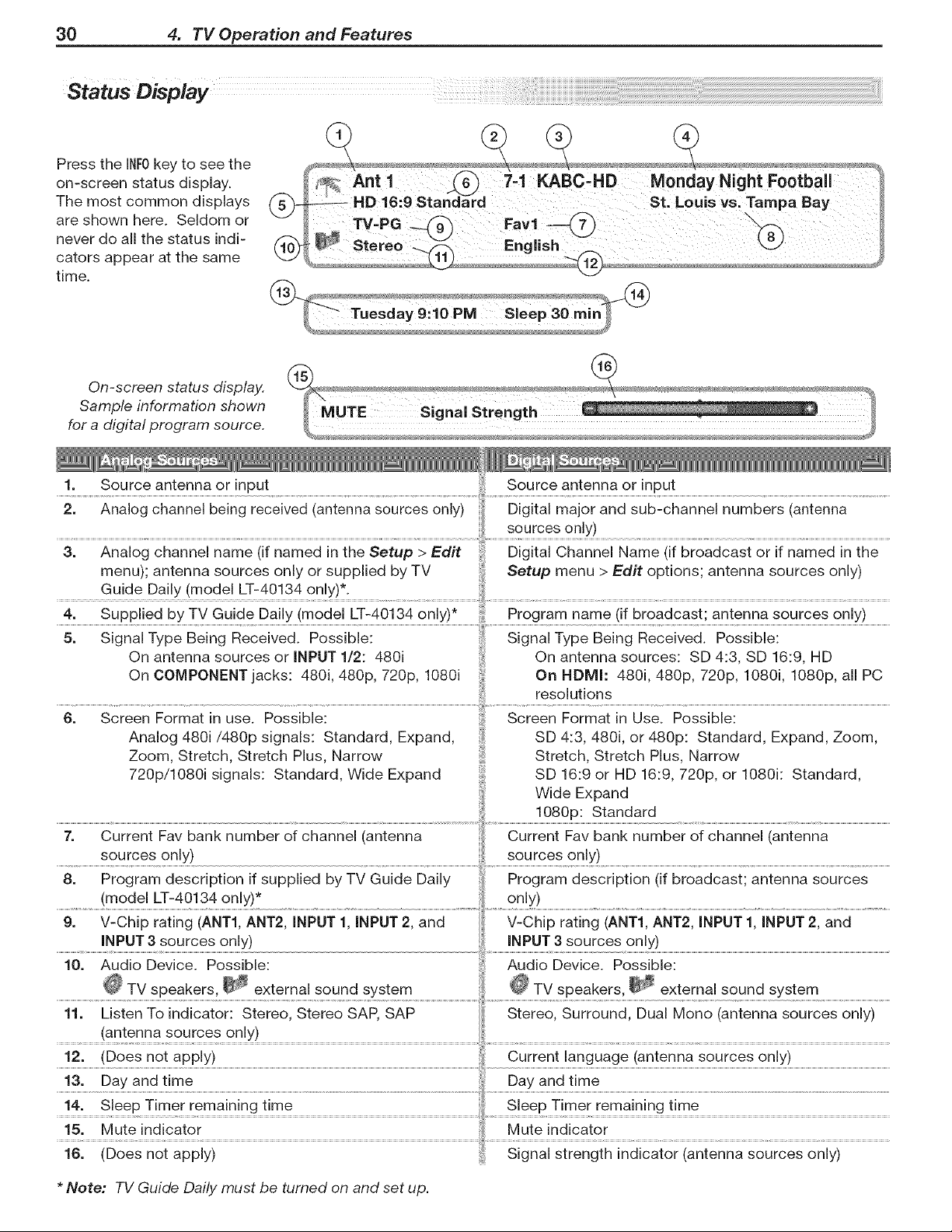
30 4. TV Operation and Features
Press the INF0key to see the
on-screen status display.
The most common displays
are shown here. Seldom or
never do all the status indi-
cators appear at the same
time.
Ant1 7,1 KABC,HD Monday Night Football
_ HD 16:9 Star St' L0uis vs: Tampa Bay
giish
On-screen status display.
Sample information shown
for a digital program source.
1. Source antenna or input
3. Analog channel name (if named in the Setup > Edit Digital Channel Name (if broadcast or if named in the
menu); antenna sources only or supplied by TV Setup menu > Edit options; antenna sources only)
Guide Daily (model LT-40134 only)*.
4. Supplied by TV Guide Daily (model LT-40134 only)* Program name (if broadcast; antenna sources only)
5. Signal Type Being Received. Possible: iii Signal Type Being Received. Possible:
On antenna sources or INPUT 1/2: 480i ii On antenna sources: SD 4:3, SD 16:9, HD
On COMPONENT jacks: 480i, 480p, 720p, 1080i On HDMh 480i, 480p, 720p, 1080i, 1080p, all PC
resolutions
6. Screen Format in use. Possible: Screen Format in Use. Possible:
Analog 480i/480p signals: Standard, Expand, SD 4:3, 480i, or 480p: Standard, Expand, Zoom,
Zoom, Stretch, Stretch Plus, Narrow Stretch, Stretch Plus, Narrow
720p/1080i signals: Standard, Wide Expand SD 16:9 or HD 16:9, 720p, or 1080k Standard,
Wide Expand
1080p: Standard
7. Current Fav bank number of channel (antenna Current Fav bank number of channel (antenna
sources only) sources only)
8. Program description if supplied by TV Guide Daily Program description (if broadcast; antenna sources
(model LT-40134 only)* only)
9. V-Chip rating (ANT1, ANT2, INPUT 1, INPUT 2, and V-Chip rating (ANT1, ANT2, INPUT 1, INPUT 2, and
INPUT 3 sources only) INPUT 3 sources only)
10. Audio Device. Possible: Audio Device. Possible:
_ TV speakers, _ external sound system _@ TV speakers, _ external sound system
11. Listen To indicator: Stereo, Stereo SAP, SAP Stereo, Surround, Dual Mono (antenna sources only)
(antenna sources only)
12. (Does not apply) Current language (antenna sources only)
13. Day and time Day and time
16. (Does not apply)
* Note: TV Guide Daily must be turned on and set up.
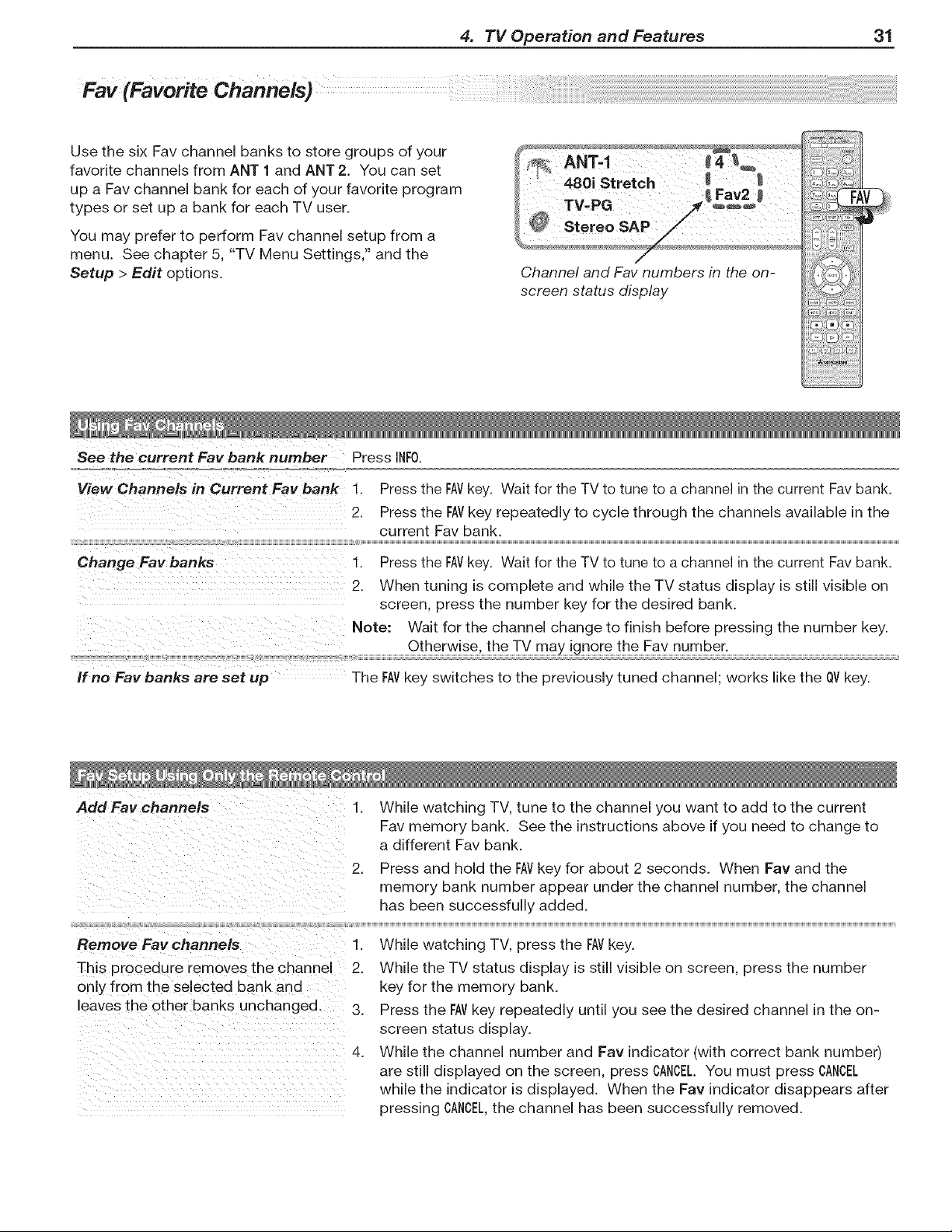
4. TV Operation and Features 31
Fay (Favorite Channels)
Use the six Fav channel banks to store groups of your
favorite channels from ANT 1 and ANT 2. You can set
up a Fav channel bank for each of your favorite program
types or set up a bank for each TV user.
You may prefer to perform Fav channel setup from a
menu. See chapter 5, "TV Menu Settings," and the
Setup > Edit options.
See the current Fay bank number Press INFO.
_,_,_,_,_,oo_oo_,_,,_:_o= _ ,_
View Channels in Current Fay bank I. Press the FAVkey. Wait for the TV to tune to a channel in the current Fay bank.
2. Press the FAVkey repeatedly to cycle through the channels available in the
current Fay bank.
Change Fay banks I. Press the FAVkey. Wait for the TV to tune to a channel in the current Fay bank.
2. When tuning is complete and while the TV status display is still visible on
screen, press the number key for the desired bank.
.ore.Waitforthechannelchangetofinishbeforepressingthenumberkey.
.......................................................Otherwis th T ma !gno th Fa number: ............................................................................................................................................................................................
; [ J; [(; [ #
If no Fay banks are set up The FAVkey switches to the previously tuned channel; works like the QVkey.
Add Fay channels
Remove Fay channels
This procedure removes the channel
only from the selected bank and
eaves the other banks unchanged.
1. While watching TV, tune to the channel you want to add to the current
Fav memory bank. See the instructions above if you need to change to
a different Fav bank.
2. Press and hold the FAVkey for about 2 seconds. When Fay and the
memory bank number appear under the channel number, the channel
has been successfully added.
1. While watching TV, press the FAVkey.
2. While the TV status display is still visible on screen, press the number
key for the memory bank.
3. Press the FAYkey repeatedly until you see the desired channel in the on-
screen status display.
4. While the channel number and Fav indicator (with correct bank number)
are still displayed on the screen, press CANCEL.You must press CANCEL
while the indicator is displayed. When the Fay indicator disappears after
pressing CANCEL,the channel has been successfully removed.
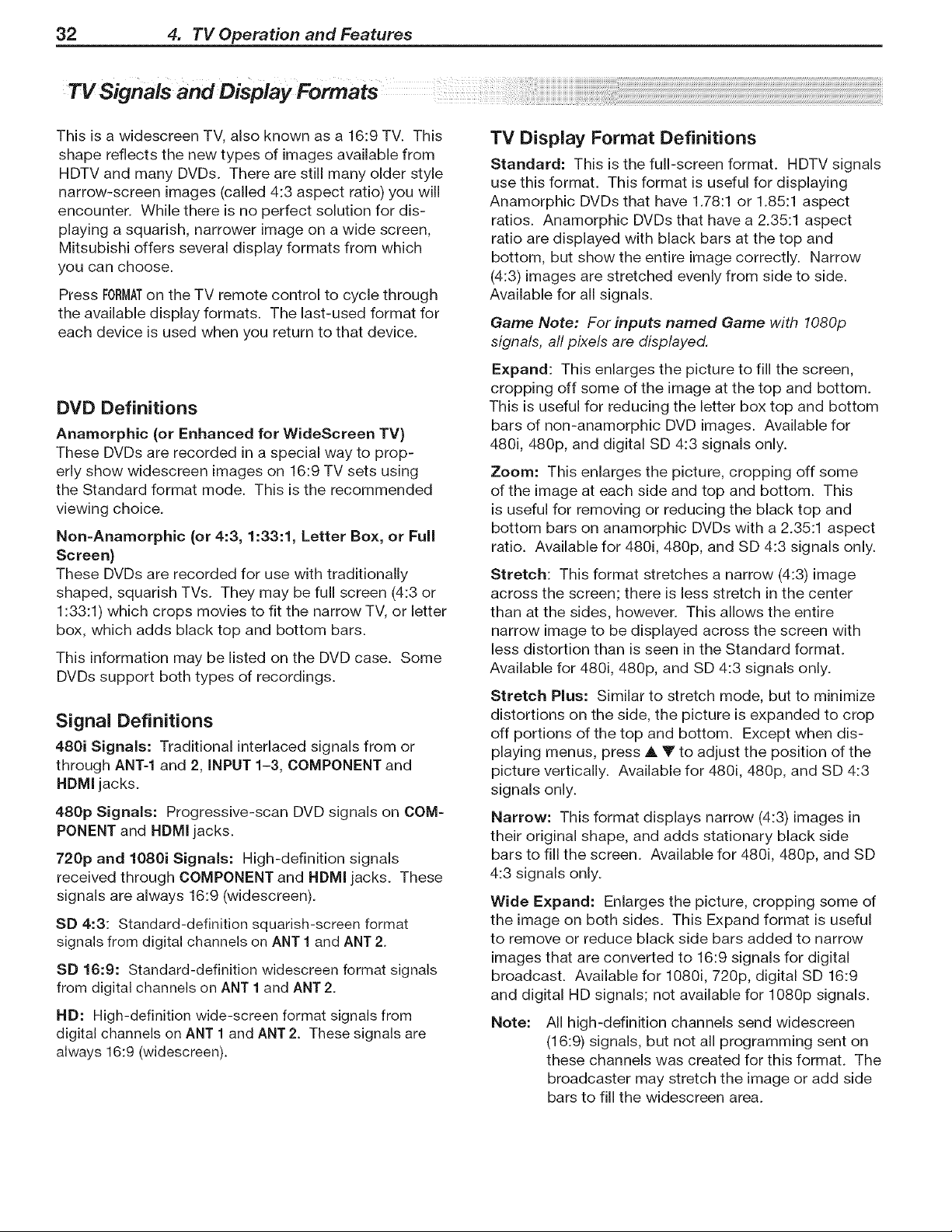
32 4. TV Operation and Features
This is a widescreen TV, also known as a 16:9 TV. This
shape reflects the new types of images available from
HDTV and many DVDs. There are still many older style
narrow-screen images (called 4:3 aspect ratio) you will
encounter. While there is no perfect solution for dis-
playing a squarish, narrower image on a wide screen,
Mitsubishi offers several display formats from which
you can choose.
Press FORMATon the TV remote control to cycle through
the available display formats. The last-used format for
each device is used when you return to that device.
DVD Definitions
Anamorphic (or Enhanced for WideScreen TV)
These DVDs are recorded in a special way to prop-
erly show widescreen images on 16:9 TV sets using
the Standard format mode. This is the recommended
viewing choice.
Non-Anamorphic (or 4:3, 1:33:1, Letter Box, or Full
Screen}
These DVDs are recorded for use with traditionally
shaped, squarish TVs. They may be full screen (4:3 or
1:33:1) which crops movies to fit the narrow TV, or letter
box, which adds black top and bottom bars.
This information may be listed on the DVD case. Some
DVDs support both types of recordings.
Signal Definitions
480i Signals: Traditional interlaced signals from or
through ANT-1 and 2, iNPUT 1-3, COMPONENT and
HDMI jacks.
480p Signals: Progressive-scan DVD signals on COM-
PONENT and HDMI jacks.
720p and 1080i Signals: High-definition signals
received through COMPONENT and HDMI jacks. These
signals are always 16:9 (widescreen).
SD 4:3: Standard-definition squarish-screen format
signals from digital channels on ANT 1 and ANT 2.
SD 16:9: Standard-definition widescreen format signals
from digital channels on ANT 1 and ANT 2.
HD: High-definition wide-screen format signals from
digital channels on ANT 1 and ANT 2. These signals are
always 16:9 (widescreen).
TV Display Format Definitions
Standard: This is the full-screen format. HDTV signals
use this format. This format is useful for displaying
Anamorphic DVDs that have 1.78:1 or 1.85:1 aspect
ratios. Anamorphic DVDs that have a 2.35:1 aspect
ratio are displayed with black bars at the top and
bottom, but show the entire image correctly. Narrow
(4:3) images are stretched evenly from side to side.
Available for all signals.
Game Note: For inputs named Game with 1080p
signals, aft pixels are displayed.
Expand: This enlarges the picture to fill the screen,
cropping off some of the image at the top and bottom.
This is useful for reducing the letter box top and bottom
bars of non-anamorphic DVD images. Available for
480i, 480p, and digital SD 4:3 signals only.
Zoom: This enlarges the picture, cropping off some
of the image at each side and top and bottom. This
is useful for removing or reducing the black top and
bottom bars on anamorphic DVDs with a 2.35:1 aspect
ratio. Available for 480i, 480p, and SD 4:3 signals only.
Stretch: This format stretches a narrow (4:3) image
across the screen; there is less stretch in the center
than at the sides, however. This allows the entire
narrow image to be displayed across the screen with
less distortion than is seen in the Standard format.
Available for 480i, 480p, and SD 4:3 signals only.
Stretch Plus: Similar to stretch mode, but to minimize
distortions on the side, the picture is expanded to crop
off portions of the top and bottom. Except when dis-
playing menus, press A Y to adjust the position of the
picture vertically. Available for 480i, 480p, and SD 4:3
signals only.
Narrow: This format displays narrow (4:3) images in
their original shape, and adds stationary black side
bars to fill the screen. Available for 480i, 480p, and SD
4:3 signals only.
Wide Expand: Enlarges the picture, cropping some of
the image on both sides. This Expand format is useful
to remove or reduce black side bars added to narrow
images that are converted to 16:9 signals for digital
broadcast. Available for 1080i, 720p, digital SD 16:9
and digital HD signals; not available for 1080p signals.
Note: All high-definition channels send widescreen
(16:9) signals, but not all programming sent on
these channels was created for this format. The
broadcaster may stretch the image or add side
bars to fill the widescreen area.
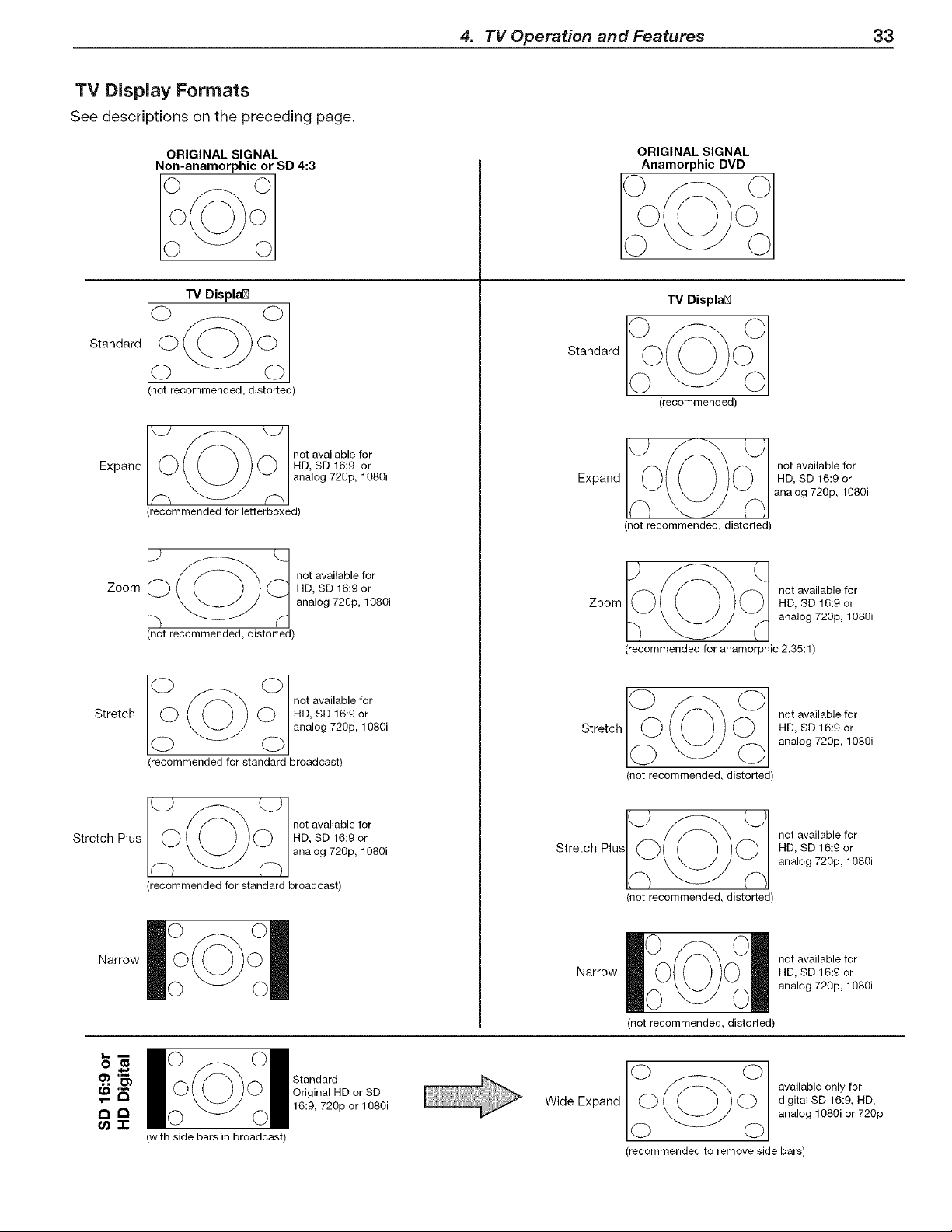
4. TV Operation and Features 33
TV Display Formats
See descriptions on the preceding page.
Standard
Expand
Zoom
Stretch
Stretch Plus
Narrow
m
_"r
ORIGINAL SIGNAL
Non-anamorphic or SD 4:3
TV Displa[_
(not recommended, distorted)
not available for
HD, SD 16:9 or
analog 720p, 1080i
(recommended for letterboxed)
__) (_ not available for
HD, SD 16:9 or
analog 720p, 1080i
(not recommended, distorted)
(_ _(_ not available for
HD, SD 16:9 or
analog 720p, 1080i
(recommended for standard broadcast)
not available for
HD, SD 16:9 or
analog 720p, 1080i
(recommended for standard broadcast)
ORIGINAL SIGNAL
Anamorphic DVD
TV Displa[_
Standard
Expand
(recommended)
(not recommended, distorted)
not available for
HD, SD 16:9 or
analog 720p, 1080i
Zoom __)
(recommended for anamorphic 2.35:1)
not available for
HD, SD 16:9 or
analog 720p, 1080i
Stretch Plus
(not recommended, distorted)
not available for
HD, SD 16:9 or
analog 720p, 1080i
Narrow
not available for
HD, SD 16:9 or
analog 720p, 1080i
(not recommended, distorted)
(with side bars in broadcast)
Standard
Original HD or SD
16:9, 720p or 1080i
Wide Expand
available only for
digital SD 16:9, HD,
analog 1080i or 720p
'recommended to remove side bars)
Stretch
(not recommended, distorted)
not available for
HD, SD 16:9 or
analog 720p, 1080i
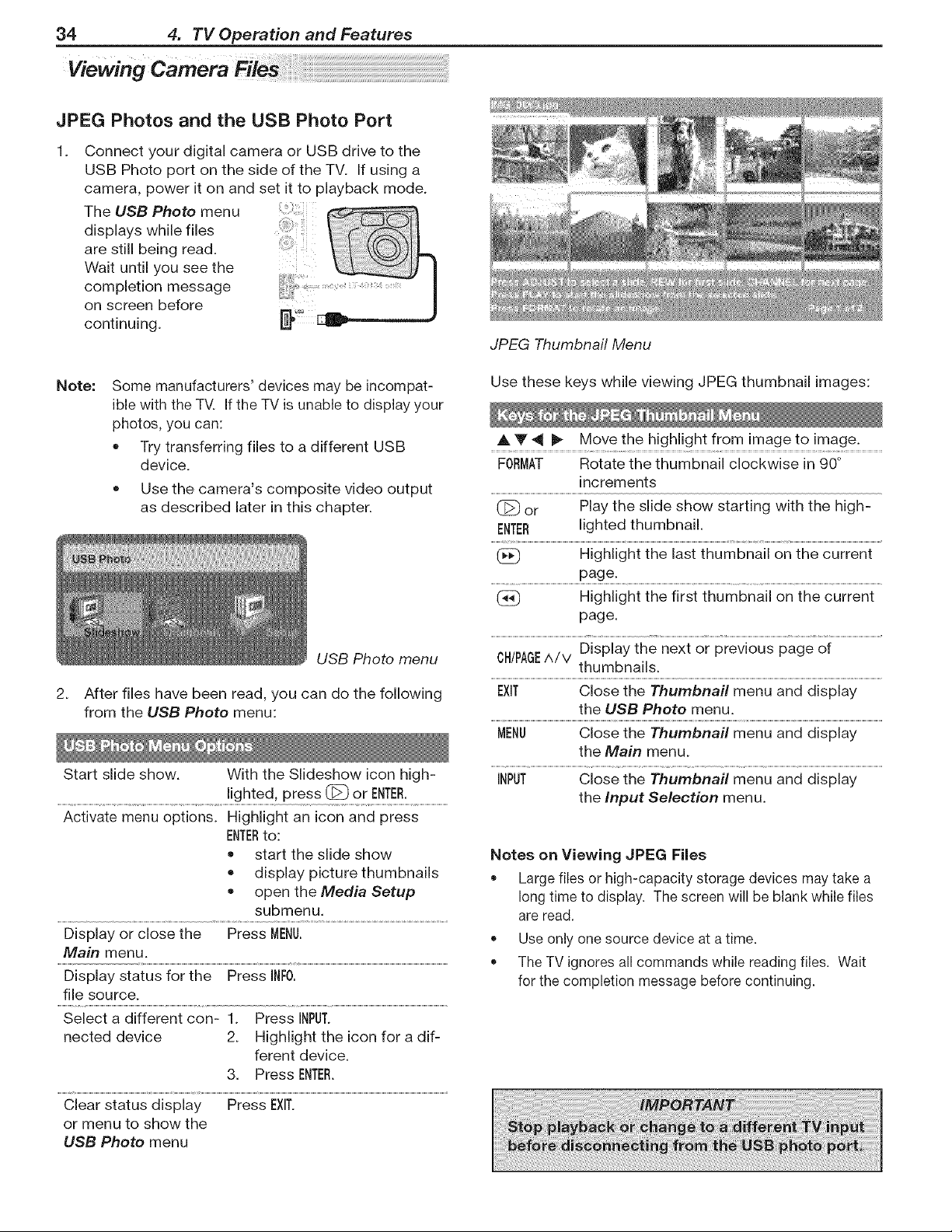
34 4. TV Operation and Features
JPEG Photos and the USB Photo Port
Connect your digital camera or USB drive to the
USB Photo port on the side of the TV. If using a
camera, power it on and set it to playback mode.
The USB Photo menu
displays while files
arest,,,beingread
Wait until you see the
completion message
on screen before
continuing.
Note:
Some manufacturers' devices may be incompat-
ible with the TV. If the TV is unable to display your
photos, you can:
Try transferring files to a different USB
device.
• Use the camera's composite video output
as described later in this chapter.
USB Photo menu
2. After files have been read, you can do the following
from the USB Photo menu:
Start slide show. With the Slideshow icon high-
lighted, press @ or ENTER.
Activate menu options. Highlight an icon and press
ENTERto:
* start the slide show
* display picture thumbnails
* open the Media Setup
submenu.
Display or close the Press MENU.
Main menu.
Display status for the Press INFO.
file source.
Select a different con- 1. Press INPUT.
nected device 2. Highlight the icon for a dif-
ferent device.
3. Press ENTER.
Clear status display Press EXIT.
or menu to show the
USB Photo menu
JPEG Thumbnail Menu
Use these keys while viewing JPEG thumbnail images:
A Y ,_ I_ Move the highlight from image to image.
FORMAT Rotate the thumbnail clockwise in 90 °
increments
(_ or Play the slide show starting with the high-
ENTER lighted thumbnail.
1_ Highlight the last thumbnail on the current
page.
@ Highlight the first thumbnail on the current
page.
Display the next or previous page of
ON/PAGE^/V thumbnails.
EXIT Close the Thumbnail menu and display
the USB Photo menu.
MENU Close the Thumbnail menu and display
the Main menu.
INPUT Close the Thumbnail menu and display
the Input Selection menu.
Notes on Viewing JPEG Files
* Large files or high-capacity storage devices may take a
long time to display. The screen will be blank while files
are read.
, Use only one source device at a time.
, The TV ignores all commands while reading files. Wait
for the completion message before continuing.

4. TV Operation and Features 35
Slide Show
Use these keys during the slide show:
Begin or resume slide show playback
(_ Pause or resume playback while in auto-
matic advance mode.
(_ or Advance to the next slide.
ENTER
(_) Go to the previous slide.
FORMAT Rotate the slide clockwise in 90° incre-
ments.
Stop slide show and display the USB Photo
menu.
INFO Display status for the viewing device and
current image.
INPUT Display the Input Selection menu.
MENU Display or remove the TV Main menu.
Note: Always press ,_ (STOP)to stop slide show play-
back before disconnecting from the USB Photo
port.
Media Setup Menu
Media Setup menu
In the Media Setup menu you can adjust the slide
show display, number of repetitions, or display interval.
• Select either Auto or Manual advance. During
manual operation, press (_ or ENTERto advance to
the next slide.
For automatic advance, select the number of times
(frequency) to play the complete slide show: Once,
Twice, or Continuous.
For automatic advance, select the time interval for
display of each slide. The interval you select here is
the minimum time between slides; actual time may
be longer for larger files.
Press EXITto close the Media Setup menu and
return to the USB Photo menu.
= Still images recorded on digital cameras using the
Exchangeable Image File Format, version 2.1 (EXlF
2.1) standard for digital still cameras and Design
Rules for Camera File Systems version 1.0 (DCF
1.0)
• Some images opened and re-saved on a computer
may not play back or may not display in the thumb-
nail list. This happens if the files were re-saved in
an incompatible format.
Full path file names can be no longer than 50 char-
acters and must end in a .jpg extension. Only the
first 20 characters will be displayed.
Images on storage devices with a capacity of over
256 MB can take a longer initial time to display.
Photos and Moving Video as Composite
Video
Connect the camera to the TV using a composite video
cable if:
You are unable to see images using the USB photo
port.
You wish to view moving video from the camera.
The TV's USB Photo menu will be unavailable and
you must control the slide show through the camera.
Display resolution is standard-definition (480i).
1. Refer to the owner's manual supplied with the
camera for instructions needed for this setup.
2. Set the camera's output signal type to NTSC and
put the camera into playback mode.
3. With the
camera still
Composite
turned on,
,;; : Viyeo Cable
connect t i
your digital
camera's
composite
video cable
(usually
yellow) to Auyio Cable
the iNPUT 3
Y/VIDEO jack Camera connection using a
on the side composite video cable
of the TV.
To hear audio, connect the camera's audio output
cable to the iNPUT 3 - L jack.
4. When the Auto input Sensing screen displays,
press EXITor assign the name input 3.
5. Press INPUTto display the Input Selection menu.
6. Highlight the input 3 icon and press ENTER.
7. If viewing photos, advance through the images
manually or set the camera to advance automatically.
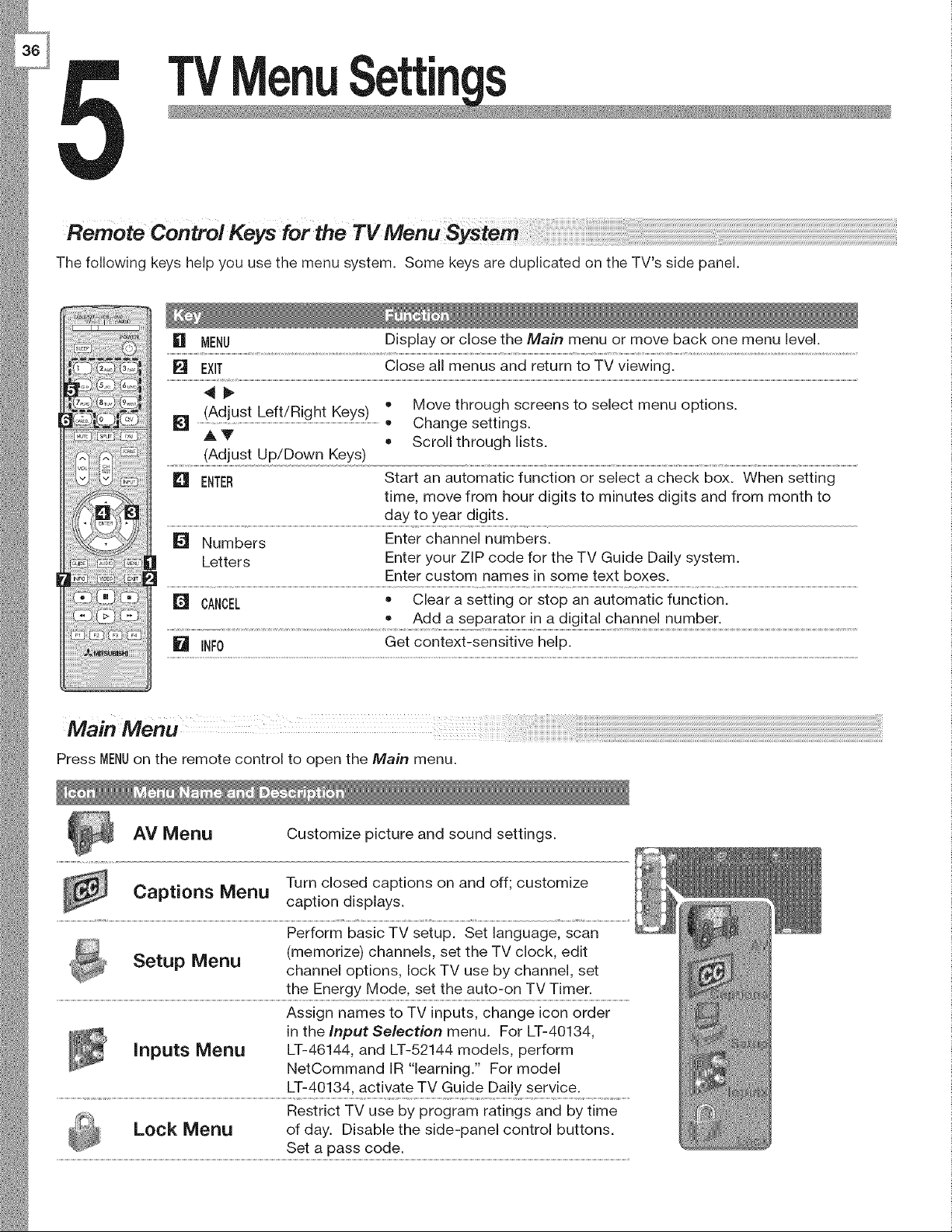
TV
The following keys help you use the menu system. Some keys are duplicated on the TV's side panel.
[] MENU Display or close the Main menu or move back one menu level.
[] EXIT Close all menus and return to TV viewing.
[] (Adjust Left/Right Keys) • Move through screens to select menu options.
.................................................................................................................................................................................................• Change settings.
A.V • Scroll through lists.
(Adjust Up/Down Keys)
[] ENTER Start an automatic function or select a check box. When setting
time, move from hour digits to minutes digits and from month to
day to year digits.
[] Numbers Enter channel numbers.
Letters Enter your ZIP code for the TV Guide Daily system.
Enter custom names in some text boxes.
r_ CANCEL • Clear a setting or stop an automatic function.
Add a separator in a digital channel number.
[] INF0 Get context-sensitive help.
Press MENUon the remote control to open the Main menu.
AV Menu
Customize picture and sound settings.
Turn dosed captions on and off; customize
Captions Menu
caption displays.
Perform basic TV setup. Set language, scan
(memorize) channels, set the TV clock, edit
Setup Menu channel options, lock TV use by channel, set
the Energy Mode, set the auto-on TV Timer.
Assign names to TV inputs, change icon order
in the Input Selection menu. For LT-40134,
Inputs Menu LT-46144, and LT-52144 models, perform
NetCommand IR "learning." For model
LT-40134, activate TV Guide Daily service.
Restrict TV use by program ratings and by time
Lock Menu of day. Disable the side-panel control buttons.
Set a pass code.
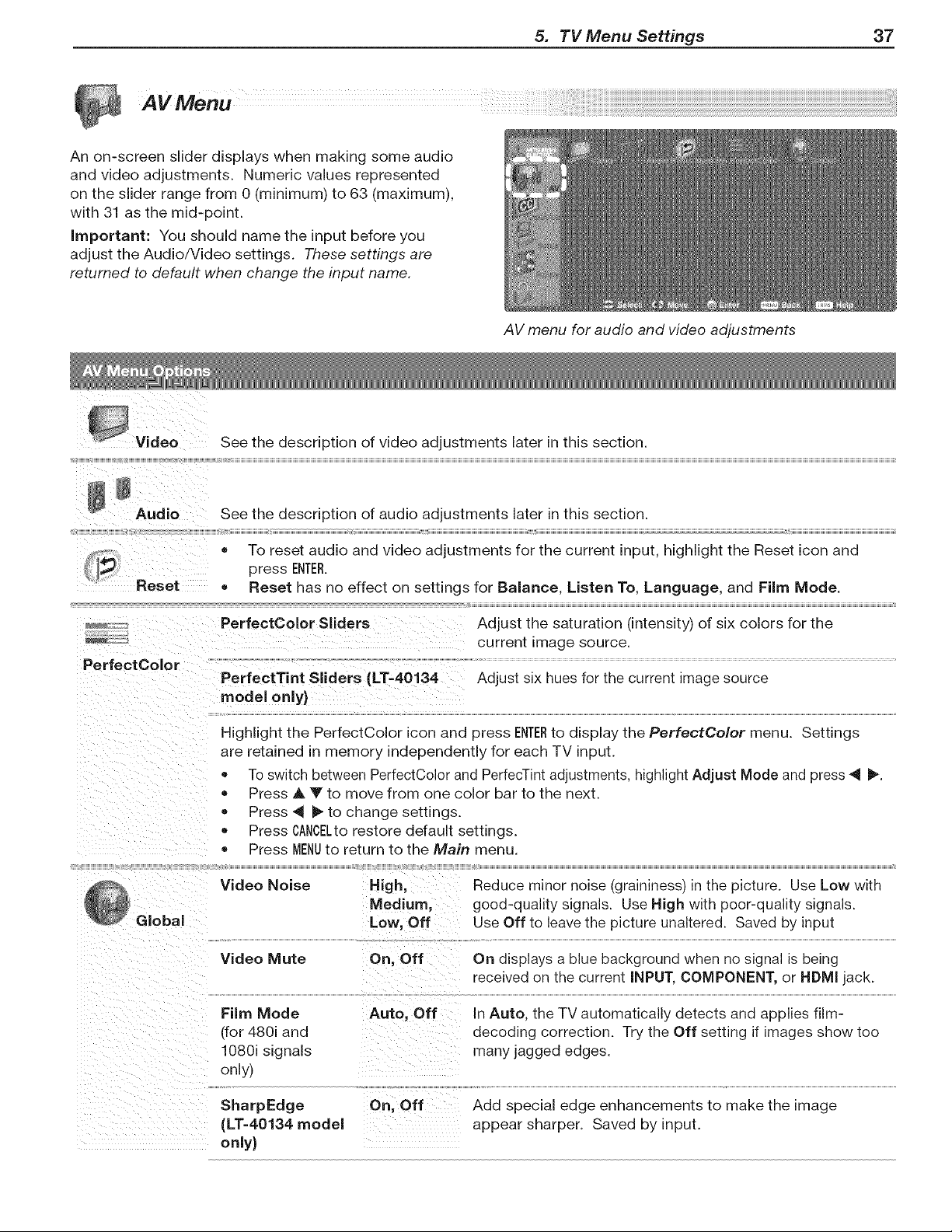
5. TV Menu Settings 37
AV menu for audio and video adjustments
An on-screen slider displays when making some audio
and video adjustments. Numeric values represented
on the slider range from 0 (minimum) to 63 (maximum),
with 31 as the mid-point.
important: You should name the input before you
adjust the Audio/Video settings. These settings are
returned to default when change the input name.
PerfectColor S}iders
PerfectColor
PerfectTint Sliders (LT-40134
model onlyJ
Adjust the saturation (intensity) of six colors for the
current image source.
Adjust six hues for the current image source
hal
Highlight the PerfectColor icon and press ENTERto display the PerfectColor menu. Settings
are retained in memory independently for each TV input.
To switch between PerfectColor and PerfecTint adjustments, highlight Adjust Mode and press _ I_.
• Press A T to move from one color bar to the next.
Press _ _ to change settings.
Press CANCELtorestore default settings.
Press MENUto return to the Main menu.
Video Noise
High, Reduce minor noise (graininess) in the picture. Use Low with
Medium, good-quality signals. Use High with poor-quality signals.
Low, Off Use Off to leave the picture unaltered. Saved by input
Video Mute On, Off On displays a blue background when no signal is being
received on the current iNPUT, COMPONENT, or HDM{ jack.
Film Mode
rfor 480i and
1080i signals
only)
SharpEdge
(LT-40134 mode{
only)
Auto, Off
On, Off
In Auto, the TV automatically detects and applies film-
decoding correction. Try the Off setting if images show too
many jagged edges.
Add special edge enhancements to make the image
appear sharper. Saved by input.
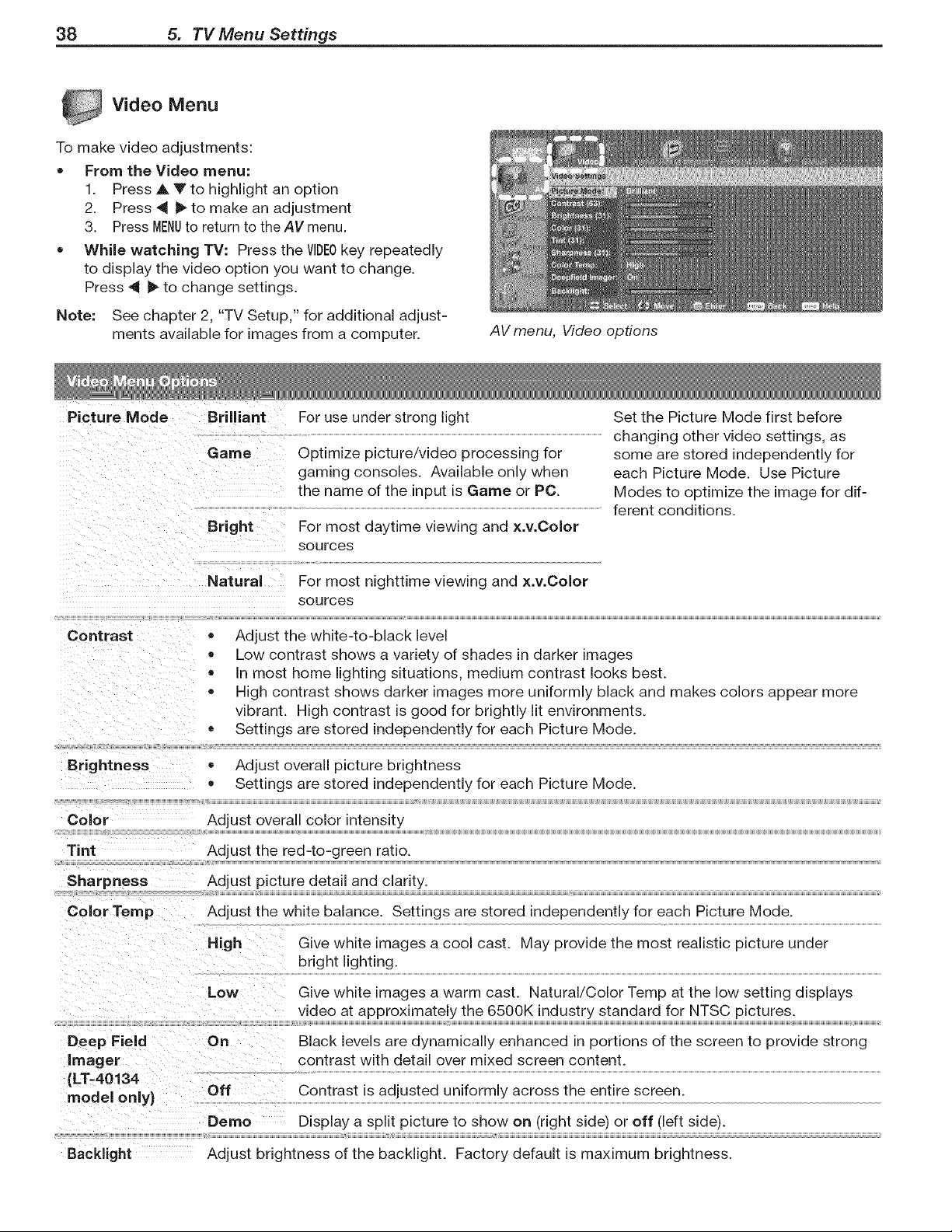
38 5. TV Menu Settings
Video Menu
To make video adjustments:
• From the Video menu:
1. Press A V to highlight an option
2. Press 4 _ to make an adjustment
3. Press MENUto return to the AV menu.
• While watching TV: Press the VIDEOkey repeatedly
to display the video option you want to change.
Press 4 _ to change settings.
Note: See chapter 2, "TV Setup," for additional adjust-
ments available for images from a computer.
Picture Mode Brilliant
Game
Bright
AV menu, Video options
For use under strong light Set the Picture Mode first before
changing other video settings, as
Optimize picture/video processing for
gaming consoles. Available only when
the name of the input is Game or PC.
For most daytime viewing and x.v.Color
sources
some are stored independently for
each Picture Mode. Use Picture
Modes to optimize the image for dif-
ferent conditions.
Contrast
Natural For most nighttime viewing and x.v.Color
sources
- Adjust the white-to-black level
• Low contrast shows a variety of shades in darker images
• In most home lighting situations, medium contrast looks best.
• High contrast shows darker images more uniformly black and makes colors appear more
vibrant. High contrast is good for brightly lit environments.
• Settings are stored independently for each Picture Mode.
Brightness
Color
Tint
Sharpness
Color Temp
Deep Field On
Imager
(LT-40134
model only}
Backlight
, Adjust overall picture brightness
• Settings are stored independently for each Picture Mode.
Adjust overall color intensity
Adjust the red-to-green ratio.
Adjust picture detail and clarity.
Adjust the white balance. Settings are stored independently for each Picture Mode.
High Give white images a cool cast. May provide the most realistic picture under
bright lighting.
Low Give white images a warm cast. Natural/Color Temp at the low setting displays
video at approximately the 6500K industry standard for NTSC pictures.
Black levels are dynamically enhanced in portions of the screen to provide strong
contrast with detail over mixed screen content.
Oft Contrast is adjusted uniformly across the entire screen.
Demo Display a split picture to show on (right side) or off (left side).
Adjust brightness of the backlight. Factory default is maximum brightness.
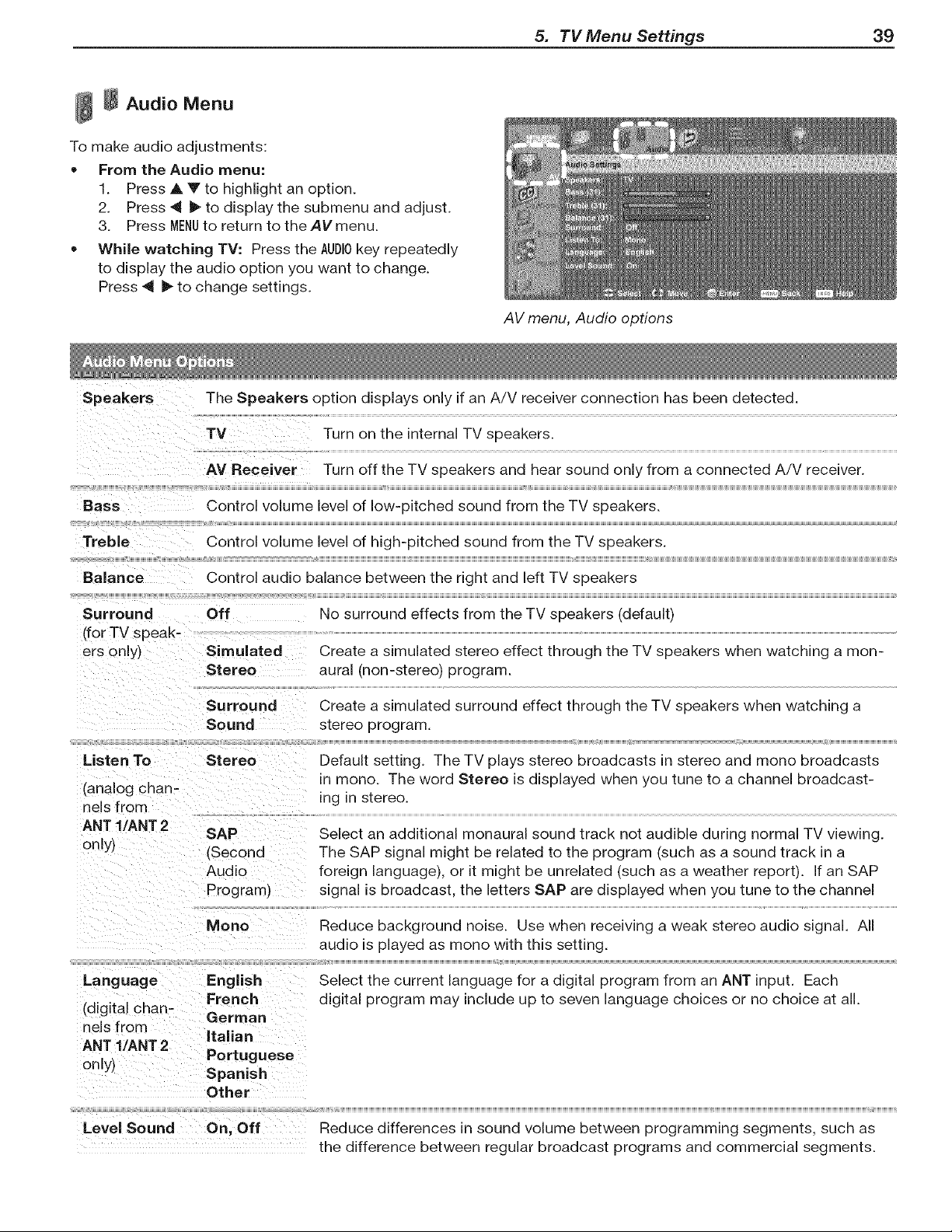
5. TV Menu Settings 39
AV menu, Audio options
_ _ Audio Menu
To make audio adjustments:
• From the Audio menu:
1. Press _. _' to highlight an option.
2. Press 4 _" to display the submenu and adjust.
3. Press MENUto return to the AV menu.
• While watching TV: Press the AUDIOkey repeatedly
to display the audio option you want to change.
Press _ II_ to change settings.
Speakers The Speakers option displays only if an A/V receiver connection has been detected.
Bass
Treble
Balance
Surround
(for TV speak-
ers only)
TV Turn on the internal TV speakers.
AV Receiver Turn off the TV speakers and hear sound only from a connected A/V receiver.
% % ;
Control volume level of low-pitched sound from the TV speakers.
Control volume level of high-pitched sound from the TV speakers.
Control audio balance between the right and left TV speakers
Off No surround effects from the TV speakers (default)
Simulated
Stereo
Create a simulated stereo effect through the TV speakers when watching a mon-
aural (non-stereo) program.
Surround
Sound
Listen To Stereo
(analog chan-
nels from
ANT l/ANT 2
only)
Create a simulated surround effect through the TV speakers when watching a
stereo program.
Default setting. The TV plays stereo broadcasts in stereo and mono broadcasts
in mono. The word Stereo is displayed when you tune to a channel broadcast-
ing in stereo.
SAP Select an additional monaural sound track not audible during normal TV viewing.
[Second The SAP signal might be related to the program (such as a sound track in a
Audio foreign language), or it might be unrelated (such as a weather report). If an SAP
Program) signal is broadcast, the letters SAP are displayed when you tune to the channel
Mono
Language English
French
(digital chan- German
nels from
italian
ANT l/ANT 2
Portuguese
only) Spanish
Other
Level Sound On, Off
Reduce background noise. Use when receiving a weak stereo audio signal. All
audio is played as mono with this setting.
Select the current language for a digital program from an ANT input. Each
digital program may include up to seven language choices or no choice at all.
Reduce differences in sound volume between programming segments, such as
the difference between regular broadcast programs and commercial segments.
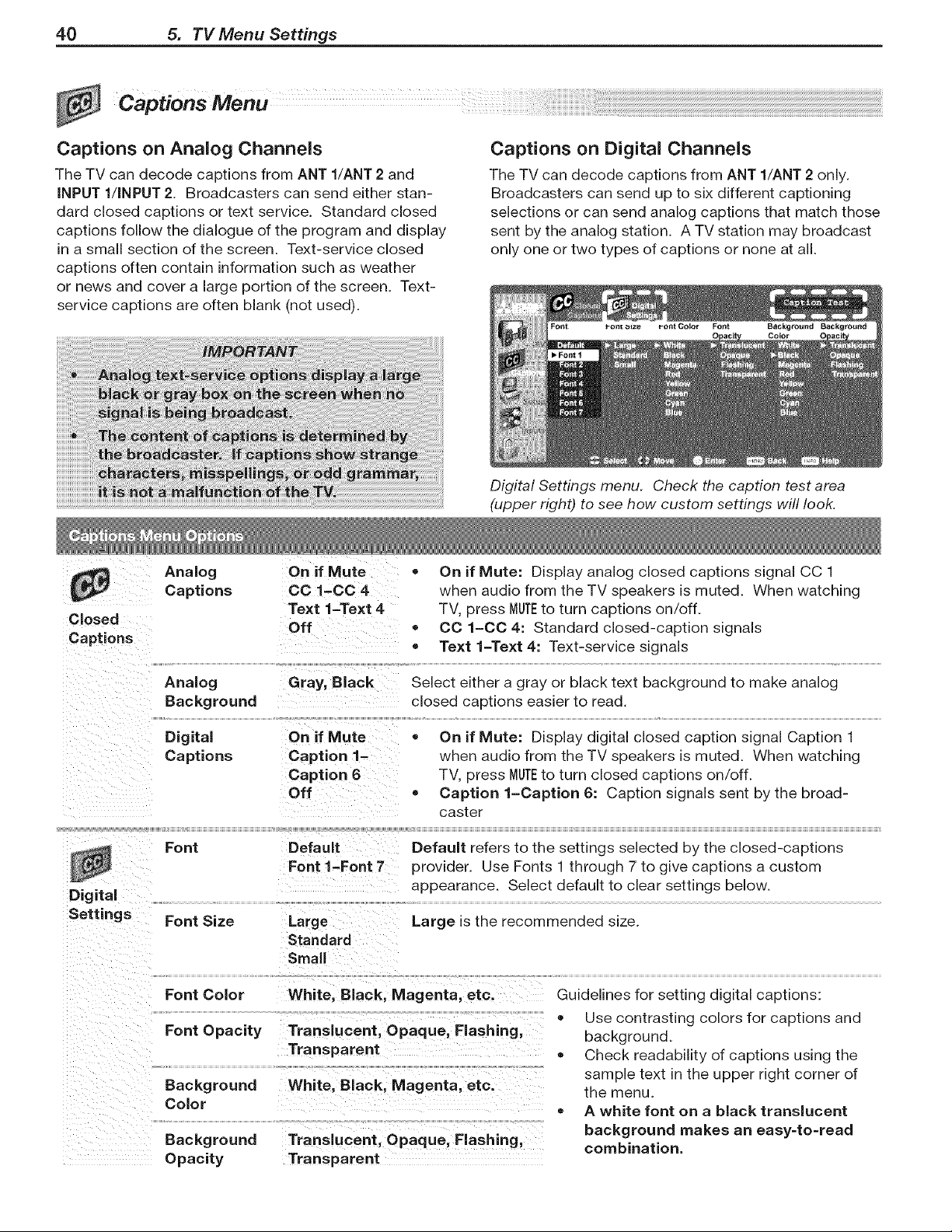
40 5. TV Menu Settings
CaptionsMenu
Captions on Analog Channels
The TV can decode captions from ANT l/ANT 2 and
iNPUT l/INPUT 2. Broadcasters can send either stan-
dard closed captions or text service. Standard closed
captions follow the dialogue of the program and display
in a small section of the screen. Text-service closed
captions often contain information such as weather
or news and cover a large portion of the screen. Text-
service captions are often blank (not used).
Captions on Digital Channels
The TV can decode captions from ANT l/ANT 2 only.
Broadcasters can send up to six different captioning
selections or can send analog captions that match those
sent by the analog station. A TV station may broadcast
only one or two types of captions or none at all.
Color
Digital Settings menu. Check the caption test area
(upper right) to see how custom settings will look.
Closed
Captions
Digital
Settings
Analog On if Mute
Captions CO 1-CO 4
Text 1-Text 4
Off
Analog Gray, Black
Background
Digital On if Mute
Captions Caption 1-
Caption 6
Off
Font Default
Font 1-Font 7
Font Size
Font Color
Font Opacity
Background
Color
Background
Opacity
• On if Mute: Display analog closed captions signal CC 1
when audio from the TV speakers is muted. When watching
TV. press MUTEto turn captions on/off.
CO 1-CO 4: Standard closed-caption signals
Text 1-Text 4: Text-service signals
Select either a gray or black text background to make analog
closed captions easier to read.
On if Mute: Display digital closed caption signal Caption 1
when audio from the TV speakers is muted. When watching
TV. press MUTEto turn closed captions on/off.
• Caption 1-Caption 6: Caption signals sent by the broad-
caster
Default refers to the settings selected by the closed-captions
provider. Use Fonts 1 through 7 to give captions a custom
appearance. Select default to clear settings below.
Large
Standard
Small
Large is the recommended size.
White, Black, Magenta, etc.
Translucent, Opaque, Flashing,
Transparent
White, Black, Magenta, etc.
Translucent, Opaque, Flashing,
Transparent
Guidelines for setting digital captions:
Use contrasting colors for captions and
background.
Check readability of captions using the
sample text in the upper right corner of
the menu.
A white font on a black translucent
background makes an easy=to=read
combination.
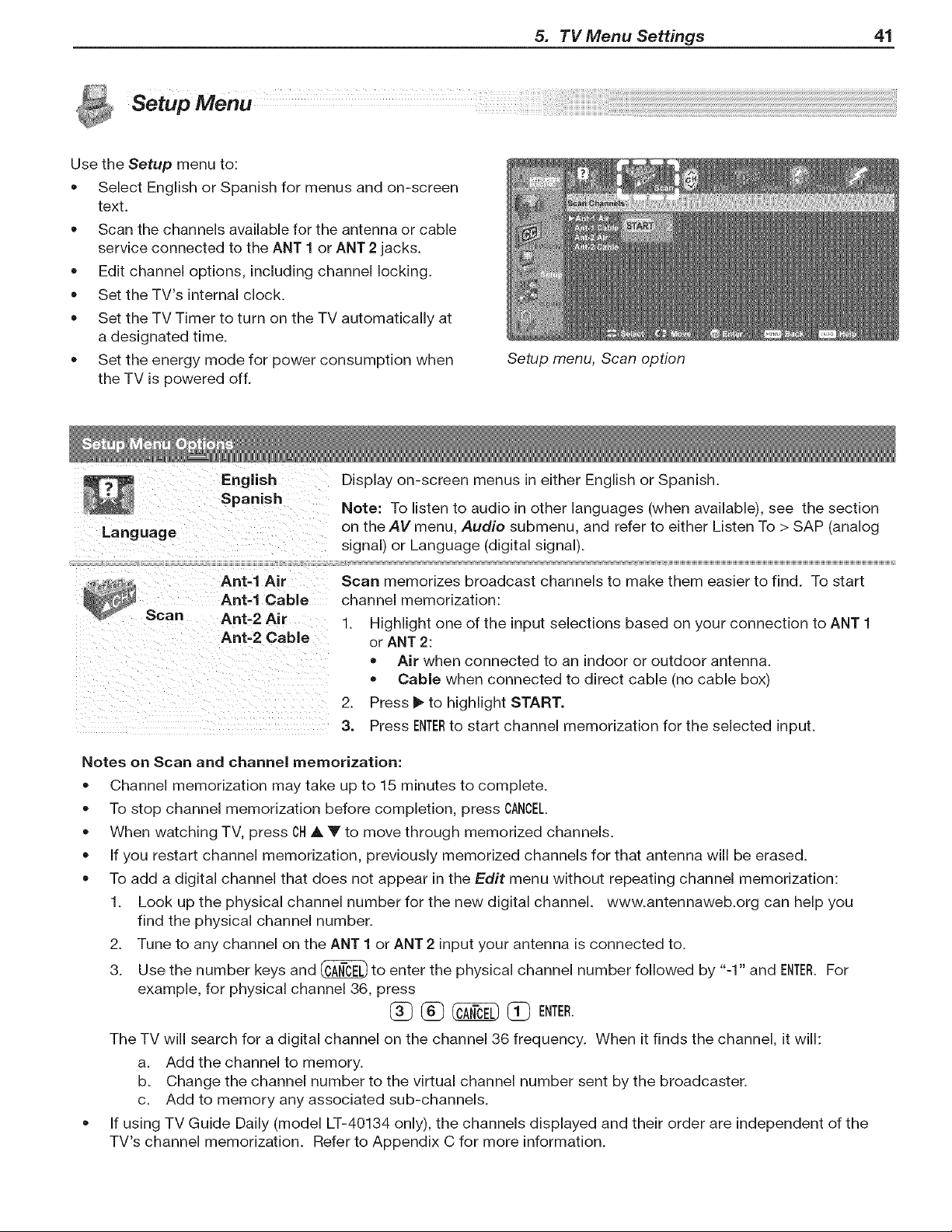
5. TV Menu Settings 41
setupMenu .......
Use the Setup menu to:
• Select English or Spanish for menus and on-screen
text.
Scan the channels available for the antenna or cable
service connected to the ANT 1 or ANT 2 jacks.
Edit channel options, including channel locking.
Set the TV's internal clock.
Set the TV Timer to turn on the TV automatically at
a designated time.
Set the energy mode for power consumption when
the TV is powered off.
English
Spanish
Language
Ant-1 Air
Ant-1 Cable
Scan Ant-2 Air
Ant-2 Cable
Setup menu, Scan option
Display on-screen menus in either English or Spanish.
Note: To listen to audio in other languages (when available), see the section
on theAV menu, Audio submenu, and refer to either Listen To > SAP (analog
signal) or Language (digital signal).
Scan memorizes broadcast channels to make them easier to find. To start
channel memorization:
1. Highlight one of the input selections based on your connection to ANT 1
or ANT 2:
Air when connected to an indoor or outdoor antenna.
Cable when connected to direct cable (no cable box)
2. Press _ to highlight START.
3. Press ENTERto start channel memorization for the selected input.
Notes on Scan and channel memorization:
Channel memorization may take up to 15 minutes to complete.
To stop channel memorization before completion, press CANCEL.
When watching TV, press ONA Y to move through memorized channels.
If you restart channel memorization, previously memorized channels for that antenna will be erased.
To add a digital channel that does not appear in the Edit menu without repeating channel memorization:
1. Look up the physical channel number for the new digital channel, www.antennaweb.org can help you
find the physical channel number.
2. Tune to any channel on the ANT 1 or ANT 2 input your antenna is connected to.
3. Use the number keys and _ to enter the physical channel number followed by "-1" and ENTER.For
example, for physical channel 36, press
[_ i_ _ 1_ ENTER.
The TV will search for a digital channel on the channel 36 frequency. When it finds the channel, it will:
a. Add the channel to memory.
b. Change the channel number to the virtual channel number sent by the broadcaster.
c. Add to memory any associated sub-channels.
If using TV Guide Daily (model LT-40134 only), the channels displayed and their order are independent of the
TV's channel memorization. Refer to Appendix C for more information.
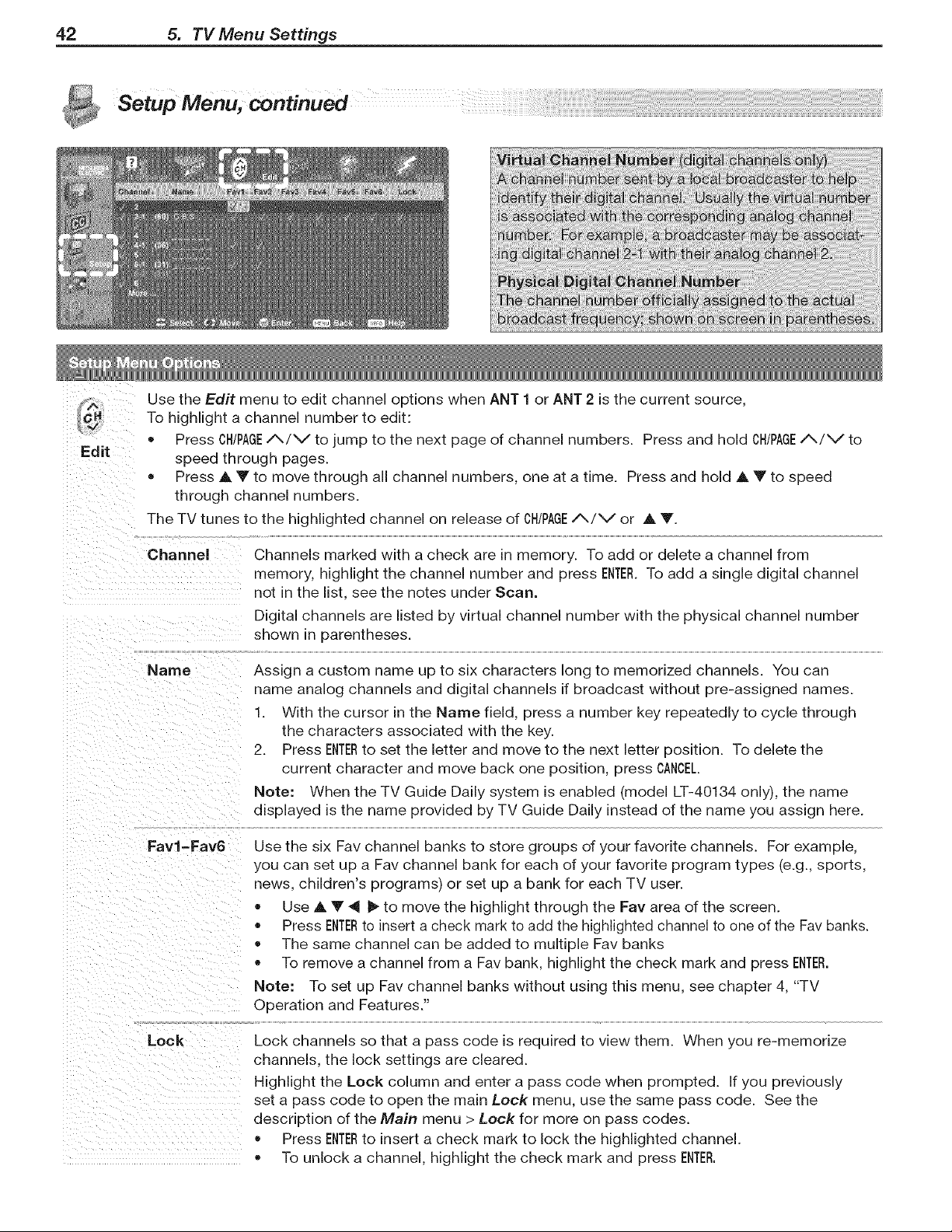
42 5. TV Menu Settings
Setup Menu, continued
Use the Ed# menu to edit channel options when ANT 1 or ANT 2 is the current source,
To highlight a channel number to edit:
Press OH/PAGE,,'_/v to jump to the next page of channel numbers. Press and hold OH/PAGE/X/V to
speed through pages.
Press A Y to move through all channel numbers, one at a time. Press and hold A Y to speed
through channel numbers.
The TV tunes to the highlighted channel on release of OH/PAGE/%/'-Jor A.T.
Channel
Channels marked with a check are in memory. To add or delete a channel from
memory, highlight the channel number and press ENTER.To add a single digital channel
not in the list, see the notes under Scan.
Digital channels are listed by virtual channel number with the physical channel number
shown in parentheses.
Name
Assign a custom name up to six characters long to memorized channels. You can
name analog channels and digital channels if broadcast without pre-assigned names.
1. With the cursor in the Name field, press a number key repeatedly to cycle through
the characters associated with the key.
2. Press ENTERto set the letter and move to the next letter position. To delete the
current character and move back one position, press CANCEL.
Note: When the TV Guide Daily system is enabled (model LT-40134 only), the name
displayed is the name provided by TV Guide Daily instead of the name you assign here.
Favl-Fav6
Use the six Fav channel banks to store groups of your favorite channels. For example,
you can set up a Fav channel bank for each of your favorite program types (e.g., sports,
news, children's programs) or set up a bank for each TV user.
Use A V _ _ to move the highlight through the Fay area of the screen.
Press ENTERto insert a check mark to add the highlighted channel to one of the Fav banks.
The same channel can be added to multiple Fav banks
To remove a channel from a Fav bank, highlight the check mark and press ENTER.
Note: To set up Fav channel banks without using this menu, see chapter 4, "TV
Operation and Features."
Lock
Lock channels so that a pass code is required to view them. When you re-memorize
channels, the lock settings are cleared.
Highlight the Lock column and enter a pass code when prompted. If you previously
set a pass code to open the main Lock menu, use the same pass code. See the
description of the Main menu > Lock for more on pass codes.
o Press ENTERto insert a check mark to lock the highlighted channel.
• To unlock a channel, highlight the check mark and press ENTER.

5. TV Menu Settings 43
Setup Menu, continued
Use either the manual or auto method to set the clock.
Set the clock if you wish to:
• Use the TV's Timer function.
Maintain accurate ChannelView listings.
Setup menu, Clock options
Settings Manual. To set the clock manually:
1. Select Manual.
Clock 2 Set thetime of day.
3. Set the date.
4. Select your time zone.
5. Select either Applies or ignore for Daylight Savings Time.
Note: If using Manual, each time the time change occurs, you must open this
menu and set the TV's clock ahead or back.
Auto. To set the clock automatically:
1. Select Auto.
2. Select your time zone.
3. Select either Applies or ignore for Daylight Savings Time.
4. After exiting the menus, tune the TV to a station carrying XDS data, typically
a PBS station.
Time 1.
Manual
option only) 2.
3.
Note:
• With the Auto setting, the TV's clock adjusts automatically to daylight savings time.
= The TV's clock will be reset if you tune to a channel sending incorrect time
data. To prevent unwanted clock resets, first use the Auto method to set
the clock from a channel sending the correct time, then change the method
to Manual.
With the hour highlighted, press A Y repeatedly to change the hour and the
AM/PM indicator. Press and hold to change the hour display quickly.
Press ENTERto set the hour.
With the minutes highlighted, press J, Y to change the minutes. Press and
hold to change the minutes display quickly.
Date
rManual
option only)
Time Zone
Daylight
Savings
Time
1 With the month highlighted, press A Y to select. Press ENTERto set.
2. With the day highlighted, press ,& Y to select. Press ENTERto set.
3. With the year highlighted, press A y to select the current year.
Required for both the Manual and Auto methods.Eastern, Central,
Mountain,
Pacific, etc.
Applies
Ignore
Required for both the Manual and Auto methods. Select
the option for your area.
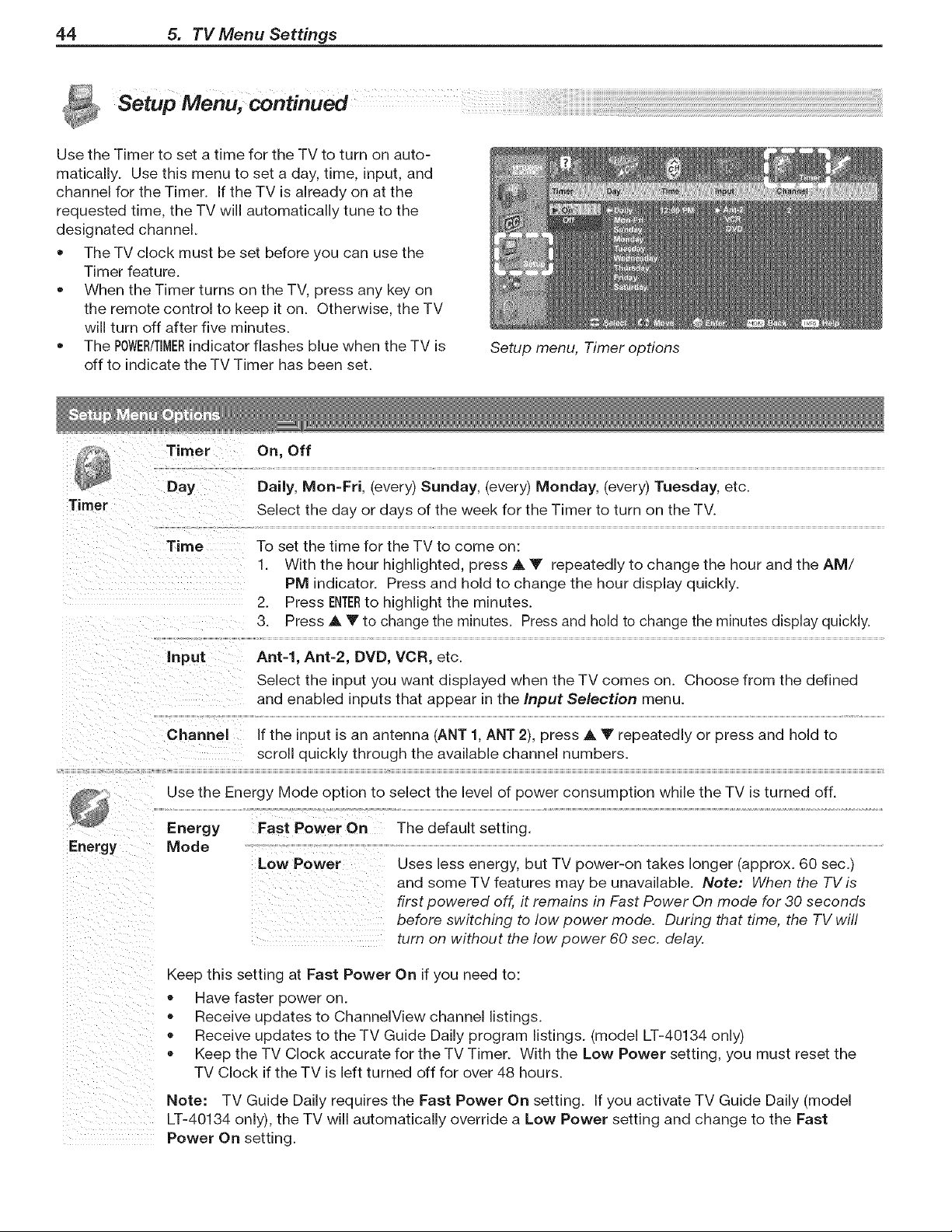
44 5. TV Menu Settings
Use the Timer to set a time for the TV to turn on auto-
matically. Use this menu to set a day, time, input, and
channel for the Timer. If the TV is already on at the
requested time, the TV will automatically tune to the
designated channel.
• The TV clock must be set before you can use the
Timer feature.
When the Timer turns on the TV, press any key on
the remote control to keep it on. Otherwise, the TV
will turn off after five minutes.
The P0WER/TIMERindicator flashes blue when the TV is
off to indicate the TV Timer has been set.
Timer
Energy
Timer On, Off
Day
Setup menu, Timer options
Daily, Mon=Fri. [every) Sunday, (every) Monday, (every) Tuesday, etc.
Select the day or days of the week for the Timer to turn on the TV.
Time To set the time for the TV to come on:
1. With the hour highlighted, press A V repeatedly to change the hour and the AM/
PM indicator. Press and hold to change the hour display quickly.
2. _ress ENTERto highlight the minutes.
3. Press ,_ V to change the minutes. Press and hold to change the minutes display quickly.
Input Ant=l, Ant-2, DVD, VCR, etc.
Select the input you want displayed when the TV comes on. Choose from the defined
and enabled inputs that appear in the input Selection menu.
Channel If the input is an antenna _ANT1. ANT 2), press A Y repeatedly or press and hold to
scroll quickly through the available channel numbers.
Use the Energy Mode option to select the level of power consumption while the TV is turned off.
Fast Power On The default setting.Energy
Mode
Low Power
Uses less energy, but TV power-on takes longer (approx. 60 sec.)
and some TV features may be unavailable. Note: When the TVis
first powered off, it remains in Fast Power On mode for 30 seconds
before switching to low power mode. During that time, the TV will
turn on without the low power 60 sec. delay.
Keep this setting at Fast Power On if you need to:
• Have faster power on.
Receive updates to ChannelView channel listings.
Receive updates to the TV Guide Daily program listings. (model LT-40134 only)
Keep the TV Clock accurate for the TV Timer. With the Low Power setting, you must reset the
TV Clock if the TV is left turned off for over 48 hours.
Note: TV Guide Daily requires the Fast Power On setting. If you activate TV Guide Daily (model
LT-40134 only), the TV will automatically override a Low Power setting and change to the Fast
Power On setting.
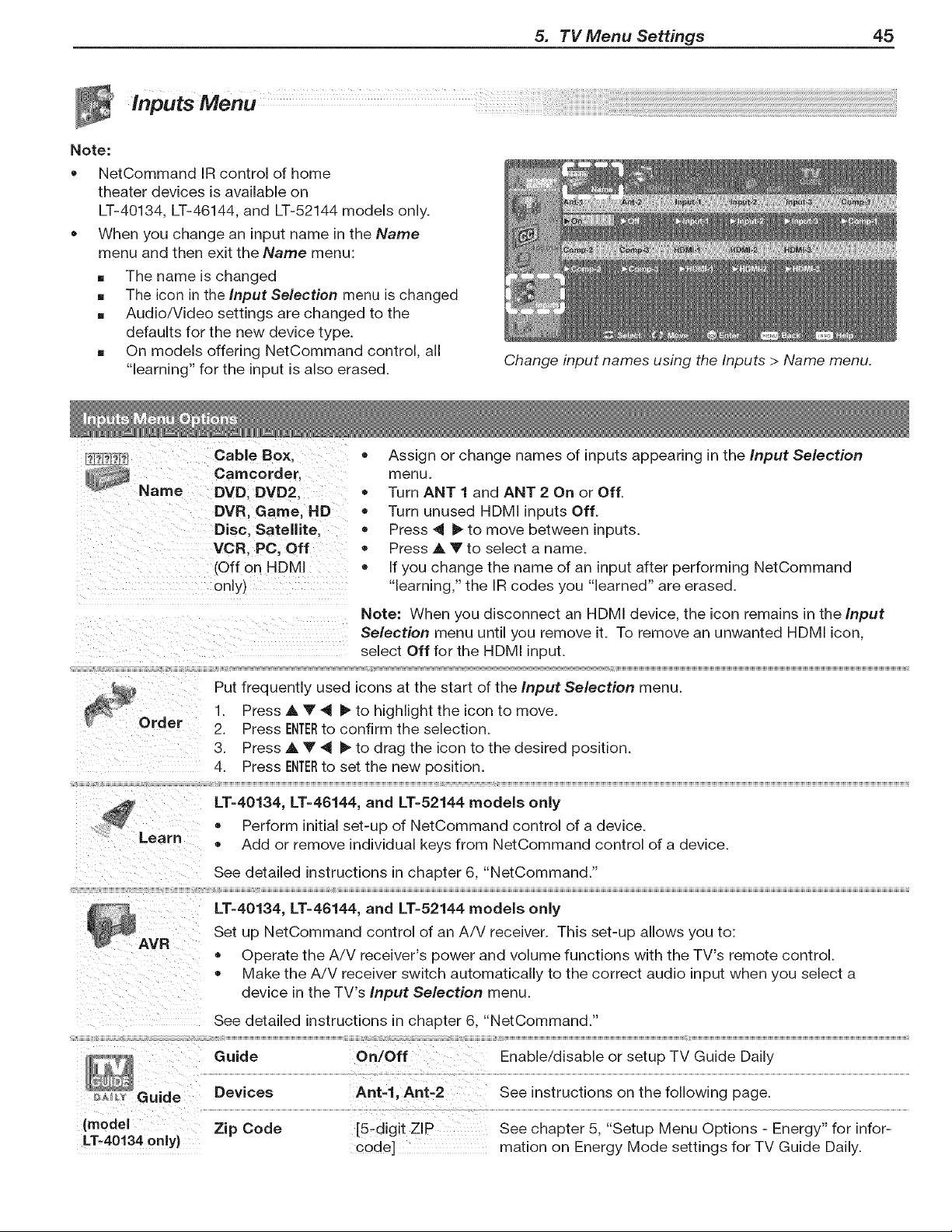
5. TV Menu Settings 45
Inputs Menu ....
Note:
• NetCommand IR control of home
theater devices is available on
LT-40134, LT-46144, and LT-52144 models only.
When you change an input name in the Name
menu and then exit the Name menu:
[] The name is changed
[] The icon in the Input Selection menu is changed
[] Audio/Video settings are changed to the
defaults for the new device type.
[] On models offering NetCommand control, all
"learning" for the input is also erased.
_u__
Name
Learn
AVR
.... Guide
(model
LT-40134 only)
Cable Box,
Camcorder.
DVD. DVD2,
DVR, Game, HD
Disc. Sateflite,
VCR, PC, Off
/Off on HDMI
only}
Change input names using the Inputs > Name menu.
= Assign or change names of inputs appearing in the Input Selection
menu
= Turn ANT 1 and ANT 2 On or Off.
= Turn unused HDMI inputs Off.
• _ress _ _. to move between inputs.
• _ress _, V to select a name.
• f you change the name of an input after performing NetCommand
"learning," the IR codes you "learned" are erased.
Note: When you disconnect an HDMI device, the icon remains in the Input
Selection menu until you remove it. To remove an unwanted HDMI icon,
select Off for the HDMI input.
Put frequently used icons at the start of the Input Selection menu.
1. _ress A V _ I_ to highlight the icon to move.
2. Dress ENTERto confirm the selection.
3. Press A Y _ I_ to drag the icon to the desired position.
4. Press ENTERto set the new position.
LT=40134, LT=46144, and LT=52144 models only
= _erform initial set-u p of NetCommand control of a device.
= Add or remove individual keys from NetCommand control of a device.
See detailed instructions in chapter 6. "NetCommand."
LT=40134, LT-46144, and LT=52144 models only
Set up NetCommand control of an A/V receiver. This set-up allows you to:
= Operate the A!V receiver's power and volume functions with the TV's remote control.
= Make the A!V receiver switch automatically to the correct audio input when you select a
device in the TV's Input Selection menu.
See detailed instructions in chapter 6. "NetCommand."
Guide OnlOff Enable/disable or setup TV Guide Daily
Devices Ant-l, Ant-2 See instructions on the following page.
Zip Code [5-digit ZIP
code]
See chapter 5, "Setup Menu Options - Energy" for infor-
mation on Energy Mode settings for TV Guide Daily.
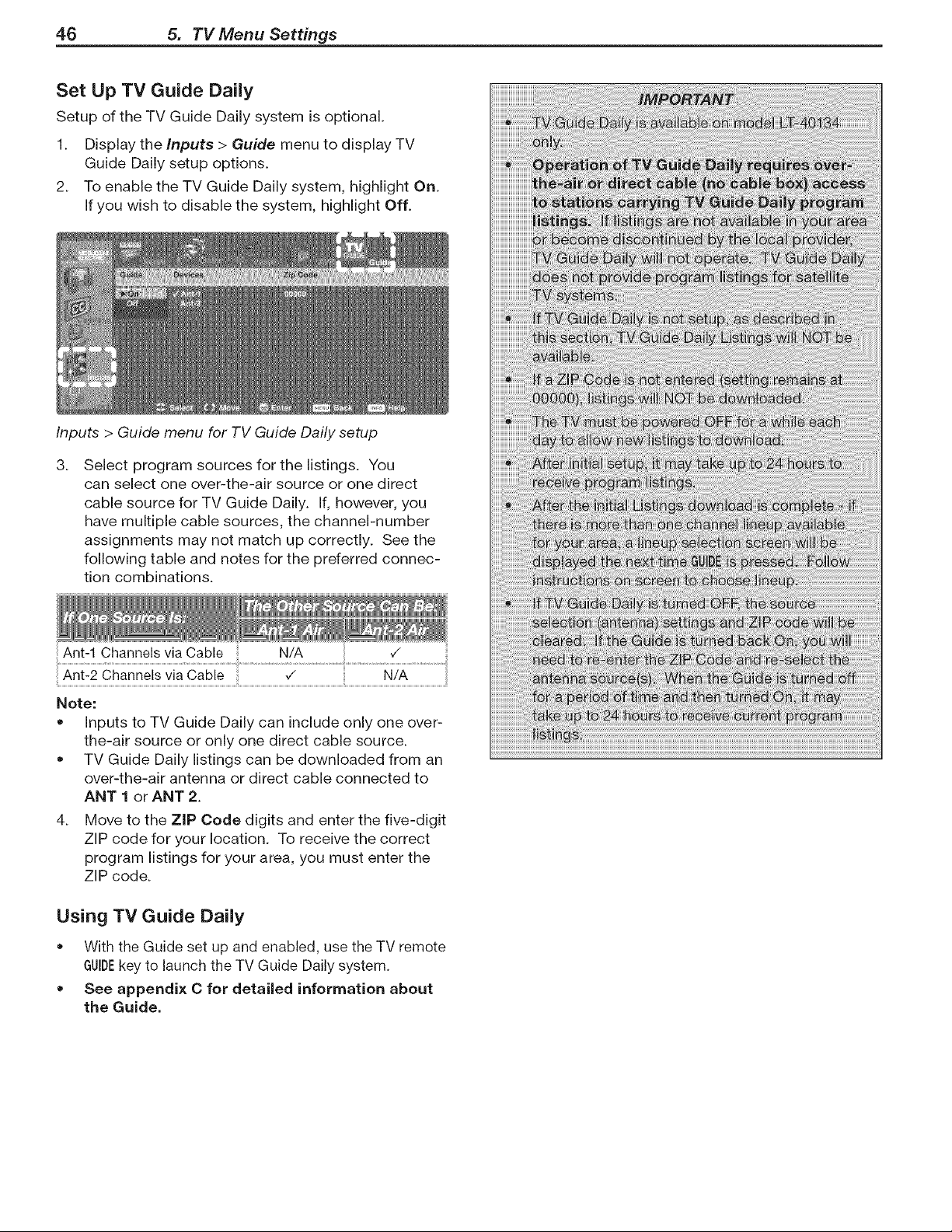
46 5. TV Menu Settings
Set Up TV Guide Daily
Setup of the TV Guide Daily system is optional.
1. Display the Inputs > Guide menu to display TV
Guide Daily setup options.
2. To enable the TV Guide Daily system, highlight On.
If you wish to disable the system, highlight Off.
Inputs > Guide menu for TV Guide Daily setup
3_
Select program sources for the listings. You
can select one over-the-air source or one direct
cable source for TV Guide Daily. If, however, you
have multiple cable sources, the channel-number
assignments may not match up correctly. See the
following table and notes for the preferred connec-
tion combinations.
,/
Ant-2 Channels via Cable _ N/A
Note:
= Inputs to TV Guide Daily can include only one over-
the-air source or only one direct cable source.
• TV Guide Daily listings can be downloaded from an
over-the-air antenna or direct cable connected to
ANT 1 or ANT 2.
4. Move to the ZIP Code digits and enter the five-digit
ZIP code for your location. To receive the correct
program listings for your area, you must enter the
ZIP code.
Using TV Guide Daily
With the Guide set up and enabled, use the TV remote
GUIDEkey to launch the TV Guide Daily system.
• See appendix C for detailed information about
the Guide.
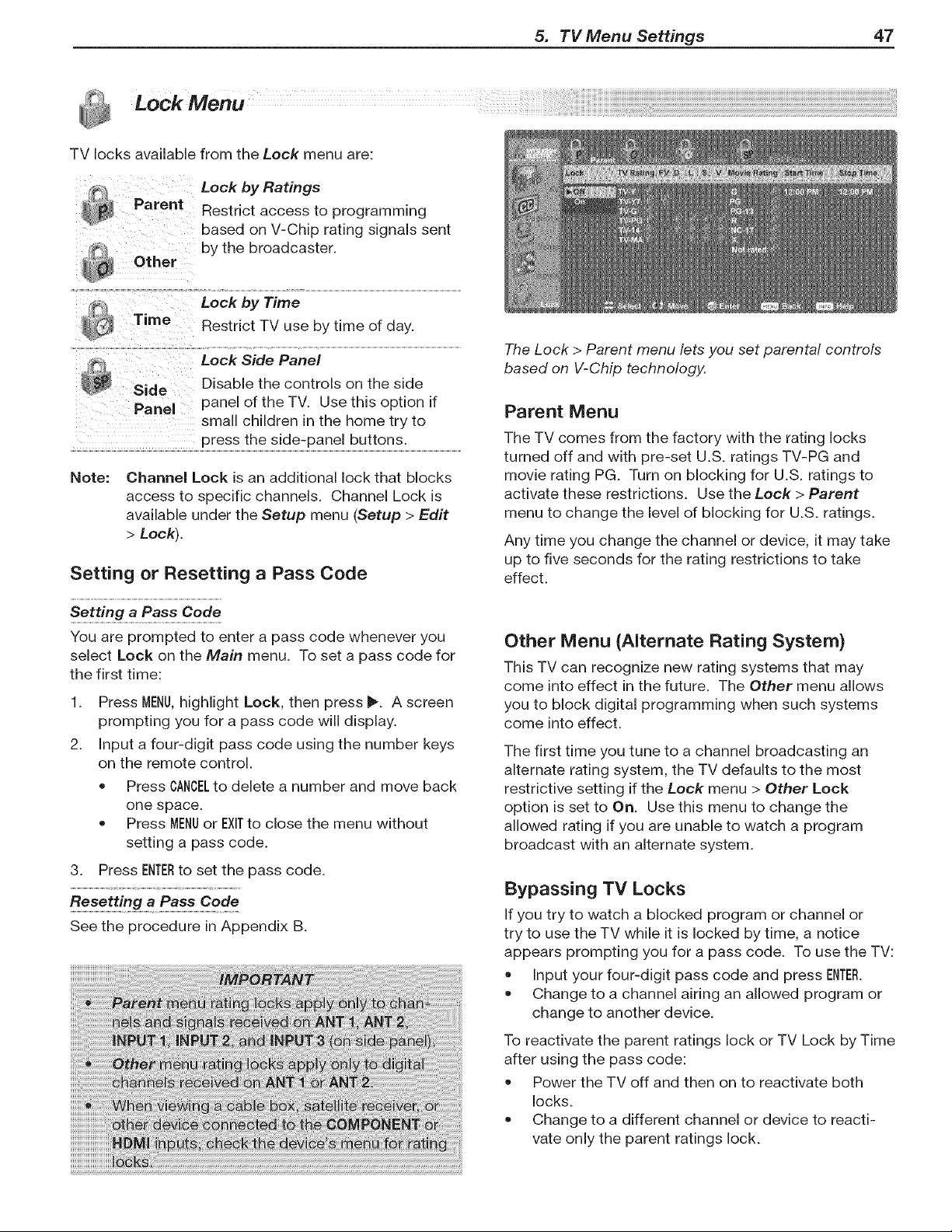
5. TV Menu Settings 47
Lock Menu
TV locks available from the Lock menu are:
Parent
Other
Lock by Ratings
Restrict access to programming
based on V-Chip rating signals sent
by the broadcaster.
Time
Lock by Time
Restrict TV use by time of day.
Lock Side Panel
Disable the controls on the side
Panel panel of the TV. Use this option if
small children in the home try to
press the side-panel buttons.
Note: Channel Lock is an additional lock that blocks
access to specific channels. Channel Lock is
available under the Setup menu (Setup > Edit
> Lock).
Setting or Resetting a Pass Code
You are prompted to enter a pass code whenever you
select Lock on the Main menu. To set a pass code for
the first time:
1. Press MENU,highlight Lock, then press _. A screen
prompting you for a pass code will display.
2. Input a four-digit pass code using the number keys
on the remote control.
• Press CANCELto delete a number and move back
one space.
Press MENUor EXITto close the menu without
setting a pass code.
3. Press ENTERto set the pass code.
See the procedure in Appendix B.
The Lock > Parent menu lets you set parental controls
based on V-Chip technology.
Parent Menu
The TV comes from the factory with the rating locks
turned off and with pre-set U.S. ratings TV-PG and
movie rating PG. Turn on blocking for U.S. ratings to
activate these restrictions. Use the Lock > Parent
menu to change the level of blocking for U.S. ratings.
Any time you change the channel or device, it may take
up to five seconds for the rating restrictions to take
effect.
Other Menu (Alternate Rating System)
This TV can recognize new rating systems that may
come into effect in the future. The Other menu allows
you to block digital programming when such systems
come into effect.
The first time you tune to a channel broadcasting an
alternate rating system, the TV defaults to the most
restrictive setting if the Lock menu > Other Lock
option is set to On. Use this menu to change the
allowed rating if you are unable to watch a program
broadcast with an alternate system.
Bypassing TV Locks
If you try to watch a blocked program or channel or
try to use the TV while it is locked by time, a notice
appears prompting you for a pass code. To use the TV:
Input your four-digit pass code and press ENTER.
Change to a channel airing an allowed program or
change to another device.
To reactivate the parent ratings lock or TV Lock by Time
after using the pass code:
Power the TV off and then on to reactivate both
locks.
Change to a different channel or device to reacti-
vate only the parent ratings lock.
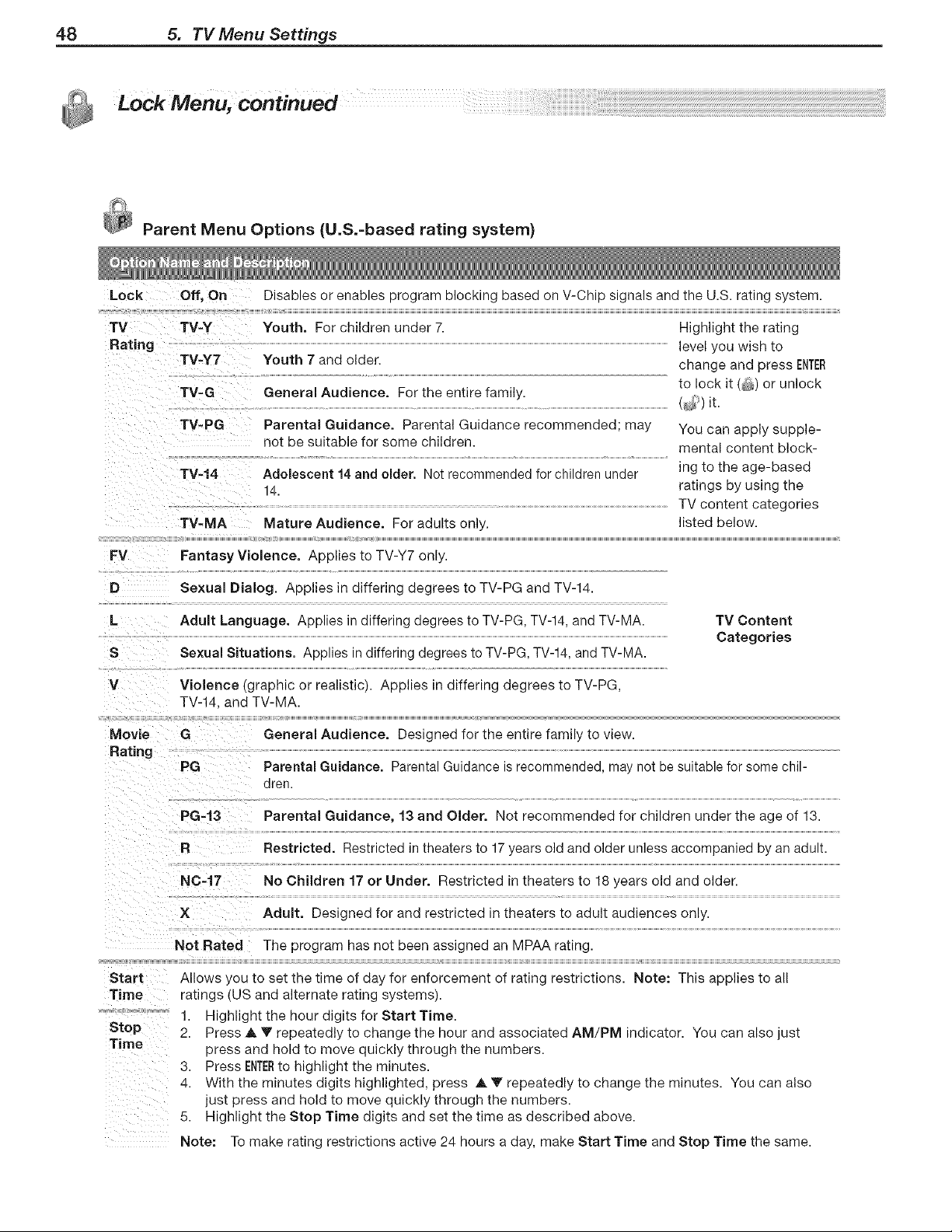
48 5. TV Menu Settings
_ Parent Menu Options (U.S.-based rating system)
Lock Off, On Disables or enables program blocking based on V-Chip signals and the U.S. rating system.
TV TV=Y Youth. For children under 7. Highlight the rating
Rating level you wish to
TV-Y7 Youth 7 and older, change and press ENTER
to lock it (_) or unlock
TV-G General Audience. For the entire family.
FV
TV-PG
TV-14
TV-MA
Parental Guidance. Parental Guidance recommended; may
not be suitable for some children.
Adolescent 14 and older. Not recommended for children under
14.
Mature Audience. For adults only.
You can apply supple-
mental content block-
ing to the age-based
ratings by using the
TV content categories
listed below.
Fantasy Violence. Applies to TV-Y7 only.
Sexual Dialog. Applies in differing degrees to TV-PG and TV-14.
L
S
Adult Language. ADDlies in differing degrees to TV-PG, TV-14, and TV-MA.
Sexual Situations. ADolies n differing degrees to TV-PG, TV-14, and TV-MA.
TV Content
Categories
Violence graphic or realistic). Applies in differing degrees to TV-PG,
TV-14 and TV-MA.
Movie G
Rating
PG
General Audience. Designed for the entire family to view.
Parental Guidance, Parental Guidance is recommended, may not be suitable for some chil-
oren.
PG-13
R
Parental Guidance, 13 and Older. Not recommended for children under the age of 13.
Restricted. Restricted in theaters to 17 years old and older unless accompanied by an adult.
N0-17 No Children 17 or Under. Restricted in theaters to 18 years old and older.
Adult. Designed for and restricted in theaters to adult audiences only.
Start
Time
Stop
Time
Not Rated The program has not been assigned an MPAA rating.
Allows you to set the time of day for enforcement of rating restrictions. Note: This applies to all
ratings tUS and alternate rating systems).
1. Highlight the hour digtts for Start Time.
2. Press A Y repeatedly to change the hour and associated AM/PM indicator. You can also just
press and hold to move quickly through the numbers.
3. Press ENTERto highlight the minutes.
4 With the minutes digits highlighted, press A V repeatedly to change the minutes. You can also
just press and hold to move quickly through the numbers.
5. Highlight the Stop Time digits and set the time as described above.
Note: To make rating restrictions active 24 hours a day, make Start Time and Stop Time the same.
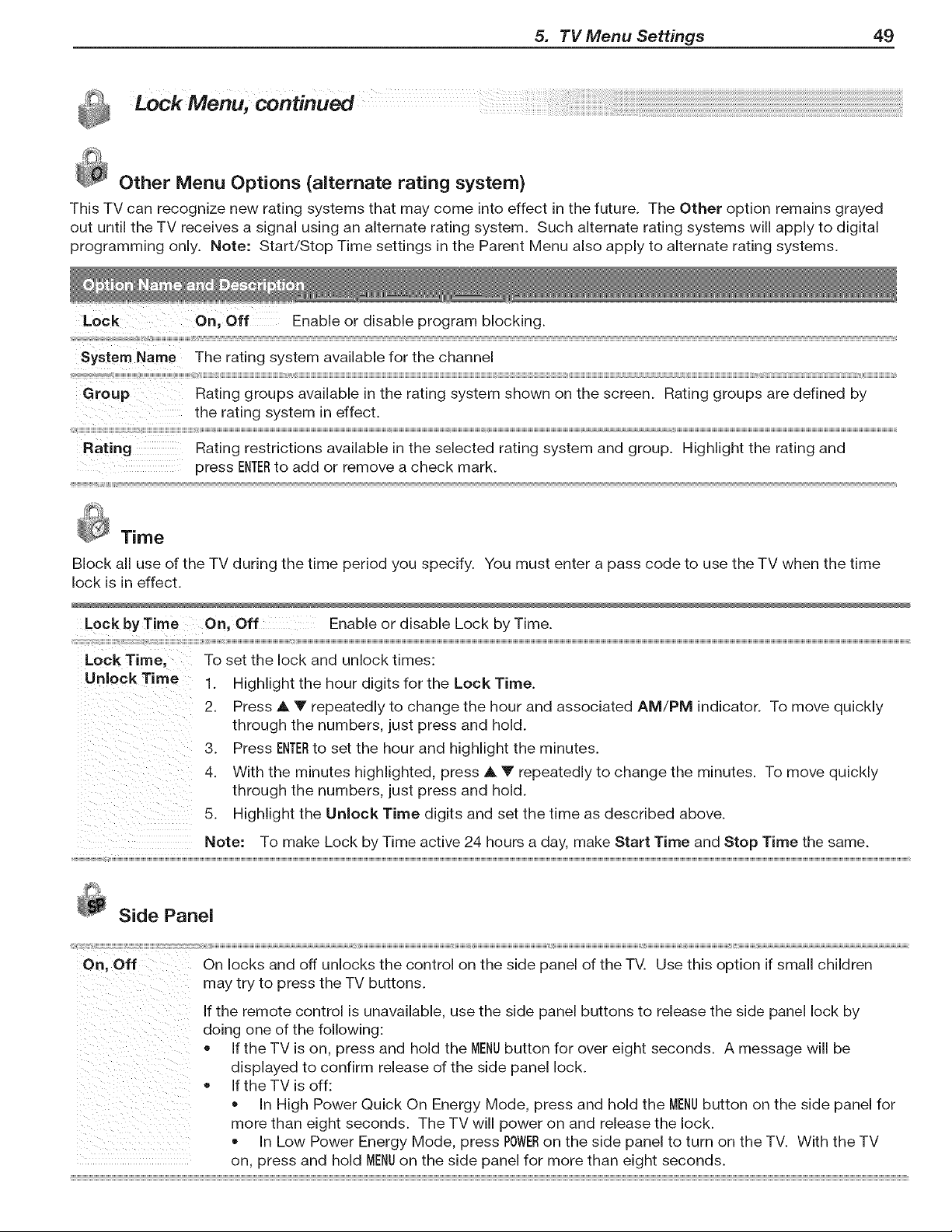
5. TV Menu Settings 49
_ Other Menu Options (alternate rating system)
This TV can recognize new rating systems that may come into effect in the future. The Other option remains grayed
out until the TV receives a signal using an alternate rating system. Such alternate rating systems will apply to digital
programming only. Note: Start/Stop Time settings in the Parent Menu also apply to alternate rating systems.
Lock On, Off Enable or disable program blocking.
System Name The rating system available for the channel
;;;;;;;;;;;;;;;;;;;;;; i[[ i r ,[i
Group Rating groups available in the rating system shown on the screen. Rating groups are defined by
the rating system in effect.
;;[ [,
Rating Rating restrictions available in the selected rating system and group. Highlight the rating and
press ENIERto add or remove a check mark.
_ Time
Block all use of the TV during the time period you specify. You must enter a pass code to use the TV when the time
lock is in effect.
Lock by Time On, Off Enable or disable Lock by Time.
Lock Time, To set the lock and unlock times:
Unlock Time 1. Highlight the hour digits for the Lock Time.
2. Press A V repeatedly to change the hour and associated AM/PM indicator. To move quickly
through the numbers, just press and hold.
3. Press ENTERto set the hour and highlight the minutes.
4. With the minutes highlighted, press A V repeatedly to change the minutes. To move quickly
through the numbers, just press and hold.
5. Highlight the Unlock Time digits and set the time as described above.
Note: To make Lock by Time active 24 hours a day, make Start Time and Stop Time the same.
Side Panel
On locks and off unlocks the control on the side panel of the TV. Use this option if small children
may try to press the TV buttons.
If the remote control is unavailable, use the side panel buttons to release the side panel lock by
doing one of the following:
If the TV is on, press and hold the MENUbutton for over eight seconds. A message will be
displayed to confirm release of the side panel lock.
If the TV is off:
• In High Power Quick On Energy Mode, press and hold the MENUbutton on the side panel for
more than eight seconds. The TV will power on and release the lock.
In Low Power Energy Mode, press POWERon the side panel to turn on the TV. With the TV
on, press and hold MENUon the side panel for more than eight seconds.
On, Off
etCommand
• This chapter applies to LT=40134, LT=46144, and
LT-52144 models only.
The IR "Learning" feature of NetCommand allows
the TV to learn the remote control signals for your
A/V devices
NetCommand setup is optional.
You can perform NetCommand setup when the TV
first recognizes a device during Auto Input Sensing
or at any convenient time afterward.
NetCommand operates by sending remote control
signals from the TV to your other devices via the IR
emitters, telling the devices to play, record, change
inputs, adjust volume, change channels and many
more functions. All this is accomplished with the
TV's remote control and the slide switch left in the
TVposition.
You can choose the level of NetCommand control
for your home theater.
[] Standard Setup. Perform a standard setup if
you want NetCommand to control only a few
devices, such as the TV, a playback device
(like a DVD player), and a cable box. With this
setup, you can use the TV's remote control to
operate these devices.
A/V Receiver Setup. Perform A/V receiver
setup if you want NetCommand to:
Control a surround sound A/V receiver.
Automatically change audio input selec-
tions on an A/V receiver when you change
inputs on the TV.
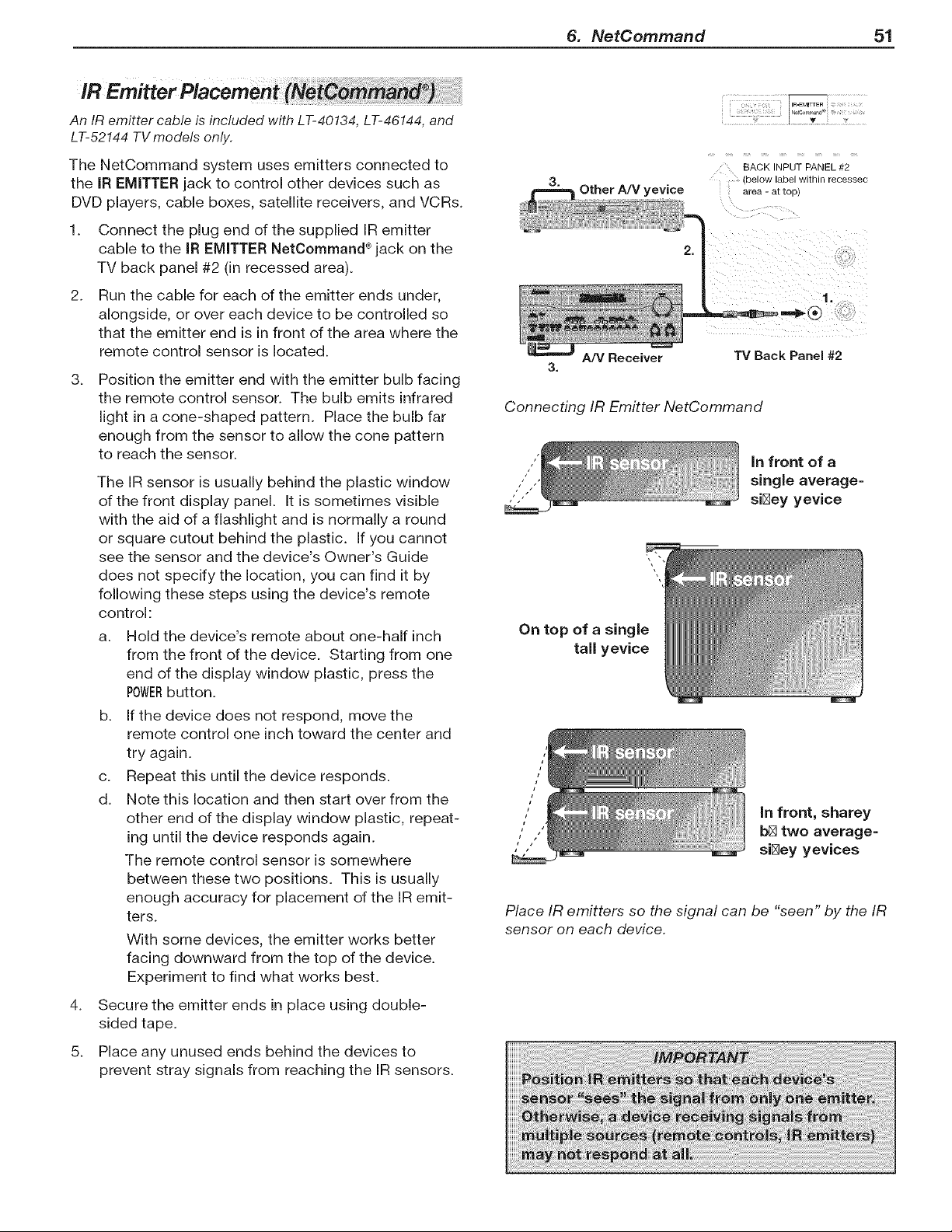
6. NetCommand 51
An IR emitter cable is included with LT-40134, LT-46144, and
LT-52144 TV models only.
The NetCommand system uses emitters connected to
the IR EMITTER jack to control other devices such as
DVD players, cable boxes, satellite receivers, and VCRs.
1. Connect the plug end of the supplied IR emitter
cable to the IR EMITTER NetCommand ®jack on the
TV back panel #2 (in recessed area).
2. Run the cable for each of the emitter ends under,
alongside, or over each device to be controlled so
that the emitter end is in front of the area where the
remote control sensor is located.
3_
Position the emitter end with the emitter bulb facing
the remote control sensor. The bulb emits infrared
light in a cone-shaped pattern. Place the bulb far
enough from the sensor to allow the cone pattern
to reach the sensor.
The IR sensor is usually behind the plastic window
of the front display panel. It is sometimes visible
with the aid of a flashlight and is normally a round
or square cutout behind the plastic. If you cannot
see the sensor and the device's Owner's Guide
does not specify the location, you can find it by
following these steps using the device's remote
control:
a. Hold the device's remote about one-half inch
from the front of the device. Starting from one
end of the display window plastic, press the
POWERbutton.
b. If the device does not respond, move the
remote control one inch toward the center and
try again.
c. Repeat this until the device responds.
d. Note this location and then start over from the
other end of the display window plastic, repeat-
ing until the device responds again.
The remote control sensor is somewhere
between these two positions. This is usually
enough accuracy for placement of the IR emit-
ters.
With some devices, the emitter works better
facing downward from the top of the device.
Experiment to find what works best.
4. Secure the emitter ends in place using double-
sided tape.
5. Place any unused ends behind the devices to
prevent stray signals from reaching the IR sensors.
Other A/V yevice
BACK INPUT PANEL #2
below laDel wllnln recessec
area - al IOD_
91"
A/V Receiver
3.
TV Back Panel #2
Connecting IR Emitter NetCommand
in front of a
single average=
,".'"" si_ey yevice
On top of a single
tall yevice
i
i
1I
,, in front, sharey
," ,' b_ two average=
, , si_ey yevices
Place IR emitters so the signal can be "seen" by the IR
sensor on each device.

52 6. NetCommand
Devices
To perform this procedure, you need:
• The remote controls for both the TV and the
device you want to control.
The IR emitter cable supplied with the TV.
Note: To set up an A/V receiver, see "Set Up
NetCommand Control of an A/V Receiver" later
in this chapter.
1. Connect and position the IR emitters for the
devices you wish to control. See "IR Emitter Place-
ment" in this chapter.
2. Set the TV's remote control slide switch to the TV
position.
3. Open the NetCommand Learn screen in one of two
ways:
If working from the Auto Input Sensing screen
for the device, highlight the Learn icon and
press ENTERto open the Learn screen for the
device.
If performing NetCommand setup at any time
after the device has been recognized through
Auto Input Sensing:
a. Press INPUTto open the Input Selection
menu.
b. Highlight the desired device icon and press
ENTERto switch to that device.
c. Press MENU,highlight inputs, and highlight
Learn to open the Learn screen for the
device.
4. The first function highlighted in the Learn screen
is always Power On. Aim the TV's remote control
at the TV and press ENTERto begin learning for that
function.
5. When the Power On text starts flashing, aim the
device's remote control at the TV and press and
hold the POWERkey until a check mark appears next
to Power On.
If the text stops flashing before the check mark
appears, repeat this step.
To remove the key from NetCommand control,
press the CANCELkey while the key name is
highlighted.
6. Press the A Y _ _* keys on the TV's remote control
to highlight other keys on the list. Repeat steps
4 and 5 for each additional function you wish to
control through NetCommand.
7. If the device's remote control has keys that are not
in the list, you can associate up to any four keys
with the F1through F4keys.
For example, for a DVD player, assign the F1and
F2keys to the DVD player's CHAPTERSKIPFORWARDand
From the Auto Input Sensing screen, highlight the Learn
icon and press ENTER to open the NetCommand Learn
screen.
Inputs > Learn screen
CHAPTERSKIPBACKkeys. Perform NetCommand setup
for the Fkeys the same as you did for the named
keys.
8. If the device has a separate POWEROFFkey, press A
V 4 _ on the TV's remote to highlight Power Off.
Repeat the earlier steps to "learn" the POWEROFFkey.
if the device has no POWEROFFkey, skip this step.
9. Press EXITto finish NetCommand "learning" for the
current device,
Add or
2.
3.
Press INPUTto open the Input Selection menu and
select the affected device.
Open the Inputs menu and highlight the Learn icon.
When the Learn screen displays:
To add keys: Continue as described earlier
under "Initial NetCommand Setup for Most
Device Types."
To delete keys: Highlight the name of the key
you wish to delete and press CANCELon the TV's
remote control to clear the check mark.
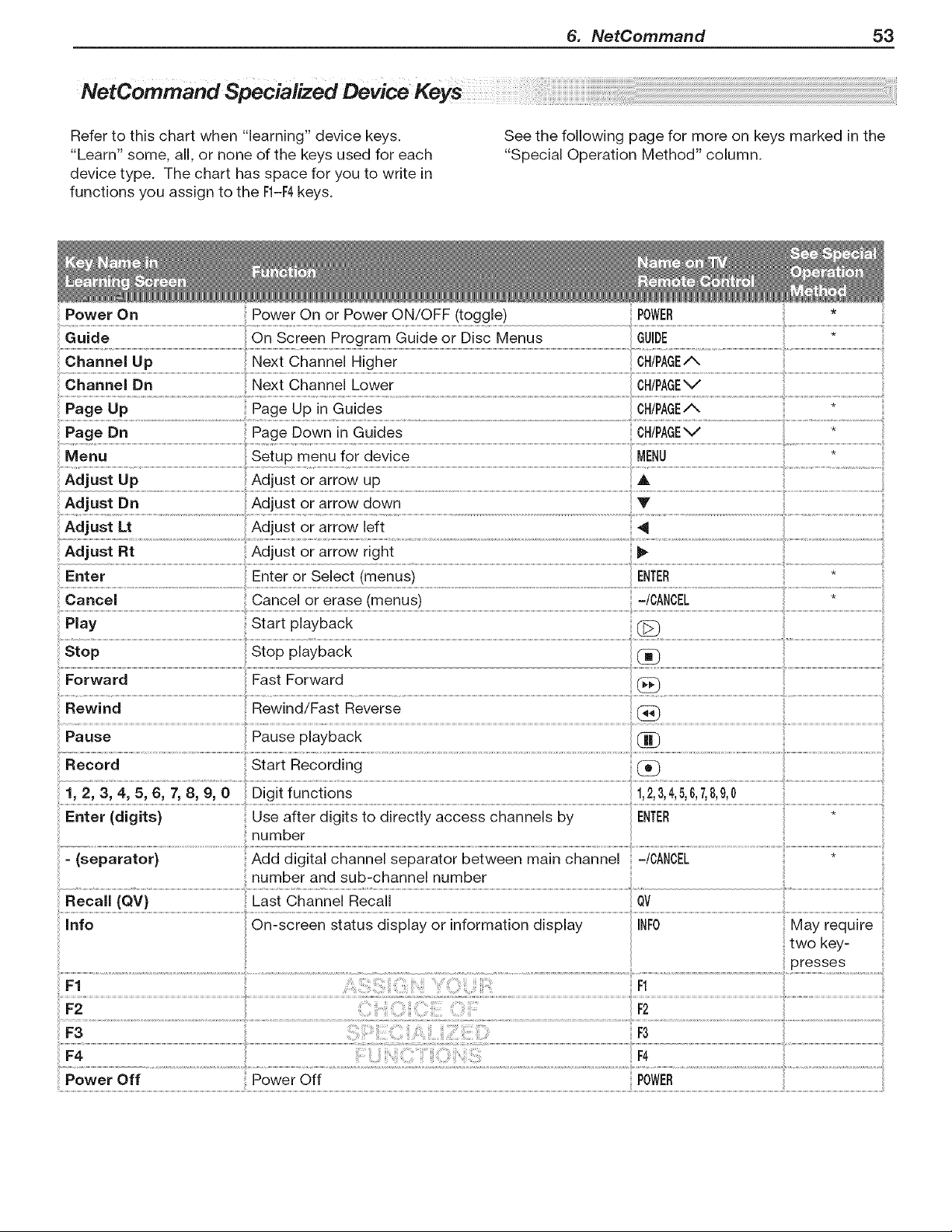
6. NetCommand 53
NetCommand Specialized Oevice Keys
Refer to this chart when "learning" device keys.
"Learn" some, all, or none of the keys used for each
device type. The chart has space for you to write in
functions you assign to the R-F4 keys.
See the following page for more on keys marked in the
"Special Operation Method" column.
Power On
Power On or Power ON/OFF (toggle)
POWER
Adjust Up
Adjust Dn Adjust or arrow down
Cancel Cancel or erase (menus) -/CANCEL
Play Start playback (_
Pause Pause playback
Record Start Recording
Enter (digits) Use after digits to directly access channels by
number
Recall (QV)
number and sub-channel number

54 6. NetCommand
To Control Most Device Types
As an example of NetCommand control, if you are
watching your cable box and you wish to tune to the
next channel higher, press OH/PAGE/_.NetCommand
then sends the "learned" channel-up control signal to
the cable box.
1. With an IR emitter properly positioned in front of the
device, use the Inputs > Learn screen to perform
NetCommand setup for the device.
2. When you wish to use the device, press INPUTto
display the Input Selection menu.
3. Press A T 4 _ to highlight the icon for the device.
4. Press ENTERto switch the TV to the device.
Note: if you have set up automatic input switching
for the A/V receiver, the A/V receiver will automatically
switch to the correct input for the device.
5. To operate the device using the TV's remote
control, set the slide switch to the TVposition.
6. Point the remote control at the TV (not the device)
and press the key for the desired function.
Special Operation Methods
To Control an A/V Receiver
switching Audio to and from the A/V Receiver
1. Press AUDIO.
2. Press A Y to show the Speakers option.
3. Press _" to select either AV Receiver or TV.
Controlling A/V Receiver Power
I. Press AUDIO.
2. Press A V to show the Speakers option.
3. Press _ to select AV Receiver.
4. Point the remote control at the TV (not the A!V
receiver) and press POWERto power the A/V receiver
on or off.
Contro/ling Other A/V Receiver Functions
With the A!V receiver powered on and selected, the
TV's remote operates the volume and mute functions.
Also, when you switch to a device in the Input Selec-
tion menu, the A/V receiver automatically switches to
the correct audio input for the device.
Power On
Power On
Power Off
Menu
Manual Power On/Off
Use for devices that have only one POWERkey.
Automatic Power On/Off
This feature is only for devices that have separate
POWERONand POWEROFFkeys on their original remote
controls. If your device does not have a separate
POWEROFFkey, do not use the Power Off learn-
ing position: use only the Manual Power ON!OFF
method described above.
In the NetCommand Learn screen:
a.. "Learn" the Power On command in the Power •
On learning position.
b. "Learn" the Power Off command in the
Power Off learning position.
Displaying Device Setup Menus 1.
1. Press INPUTto display the input Selection
menu.
2. Press A Y 4 _ to highlight the icon for the
device to be powered on or off.
3. With the Input Selection menu still displayed,
press POWERto send the power signal; you may
need to press POWERtwice.
Note: If you press POWERwithout the Input
Selection displayed, the TV will turn off.
4. Press ENTERtoswitch the TV to the device.
® To Power On the Device
1. Press INPUTto display the Input Selection
menu.
2. Press J. V 4 _ to highlight the icon for the
device to be powered on or off.
3. Press ENTERtoswitch the TV to the device
and NetCommand will send the Power On
command to the device.
To Power Off the Device
When you turn the TV off, the TV sends all
learned Power Off commands to all devices.
While watching a device, press INPUTto display
the input Selection menu with the device icon
highlighted.
Press MENUto send the menu signal to the
device. The Input Selection menu will auto-
matically clear from the screen.
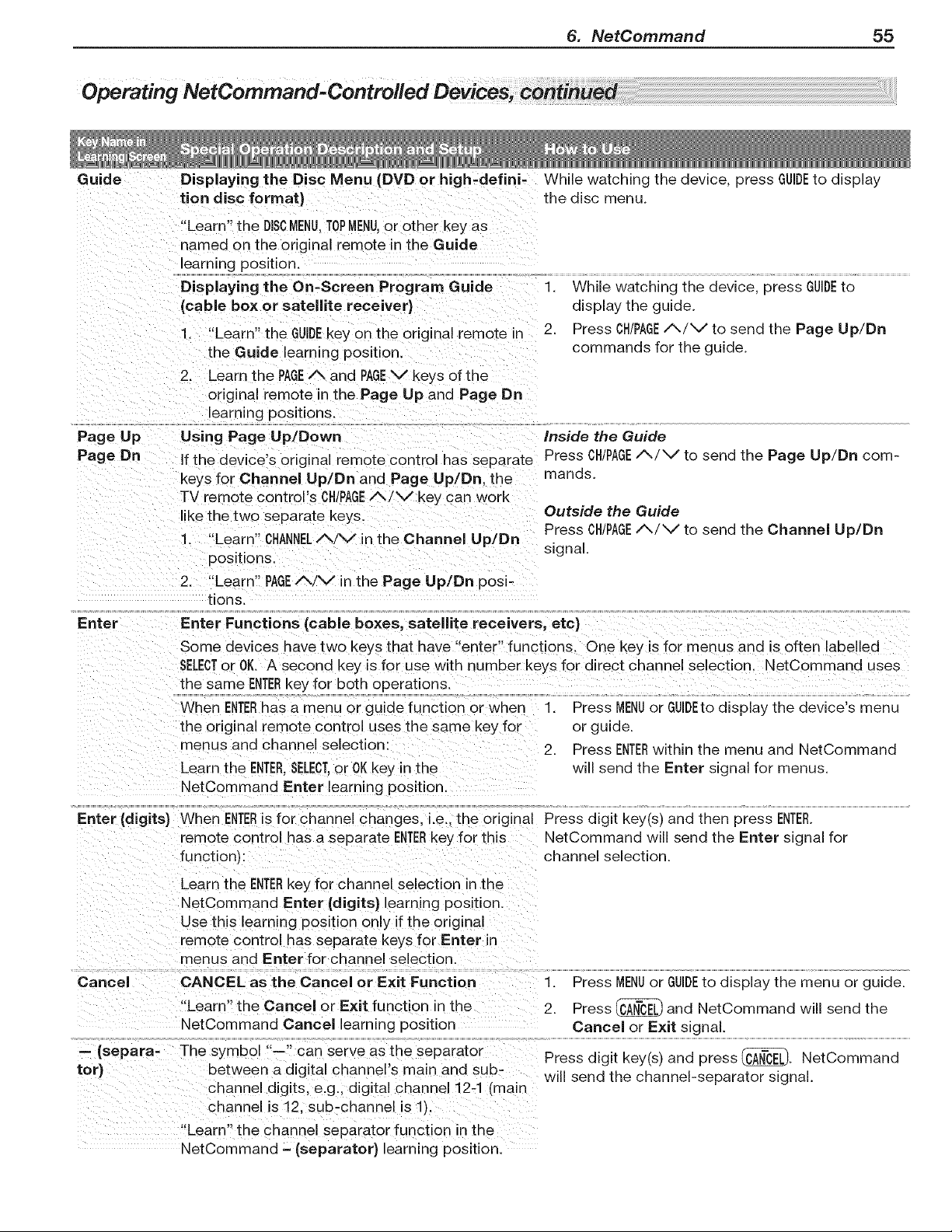
6. NetCommand 55
Guide
Displaying the Disc Menu (DVD or high-defini-
tion disc format)
"Learn" the DISCMENU,TOPMENU,or other key as
named on the original remote in the Guide
learning position.
Displaying the On-Screen Program Guide
(cable box or satellite receiver)
1 "Learn" the GUIDEkey on the original remote in
the Guide learning position
2. Learn the PAGE/Xand PAGEV keys of the
original _emote in the Page Up and Page Dn
learning positions.
Page Up Using Page Up/Down
Page Dn
Enter
While watching the device, press GUIDEto display
the disc menu.
1. While watching the device, press GUIDEto
display the guide.
2. Press CH/PAGE/_/V to send the Page Up/Dn
commands for the guide.
Inside the Guide
If the device's original remote control has separate Press CH/PAGEA/v to send the Page Up/Dn com-
keys for Channel U p/Dn and Page Up/Dn, the mands.
TV remote control's OH,PAGE/x!V _ey can work
like the two separate keys. Outside the Guide
Press CH/PAGE/_/v to send the Channel Up/Dn
1. Learn CHANNEL/V in the Channel Up/Dn signal.
positions.
2. "Learn" PAGEA/V in the Page Up/Dn posi-
tions.
Enter Functions (cable boxes, satellite receivers, etc)
Some devices have two keys that have "enter" functions. One key is for menus and is often labelled
SELECTor OK. A second key is for use with number keys for direct channel selection. NetCommand uses
the same ENTERkey for both operations.
When ENTERhas a menu or guide function or when
the original remote control uses the same key for
menus and channel selection:
Learn the ENTER.SELECT.or OKkey in the
NetCommand Enter learning position.
1. Press MENUor GUIDEtodisplay the device's menu
or guide.
2. Press ENTERwithin the menu and NetCommand
will send the Enter signal for menus.
Enter (digits) When ENTERis for channel changes, i.e., the original Press digit key(s) and then press ENTER.
remote control has a separate ENTERkey for this NetCommand will send the Enter signal for
function) channel selection.
Learn the ENTERkey for channel selection in the
NetCommand Enter (digits) learning position.
Use this learning position only if the origt qal
remote control has separate keys for Enter n
menus and Enter for channel selection
Cancel CANCEL as the Cancel or Exit Function 1. Press MENUor GUIDEto display the menu or guide.
"Learn" the Cancel or Exit function in the 2. Press _ and NetCommand will send the
NetCommand Cancel learning position Cancel or Exit signal.
-- (separa- The symbol "--" can serve as the separator Press digit key(s) and press _. NetCommand
too between a digital channel's main and sub-
will send the channel-separator signal.
channel digits, e.g., digital channel 12-1 (main
channel is 12, SUD=channel is 1).
'Learn" the channel separator function in the
NetCommand - (separator) learning position.
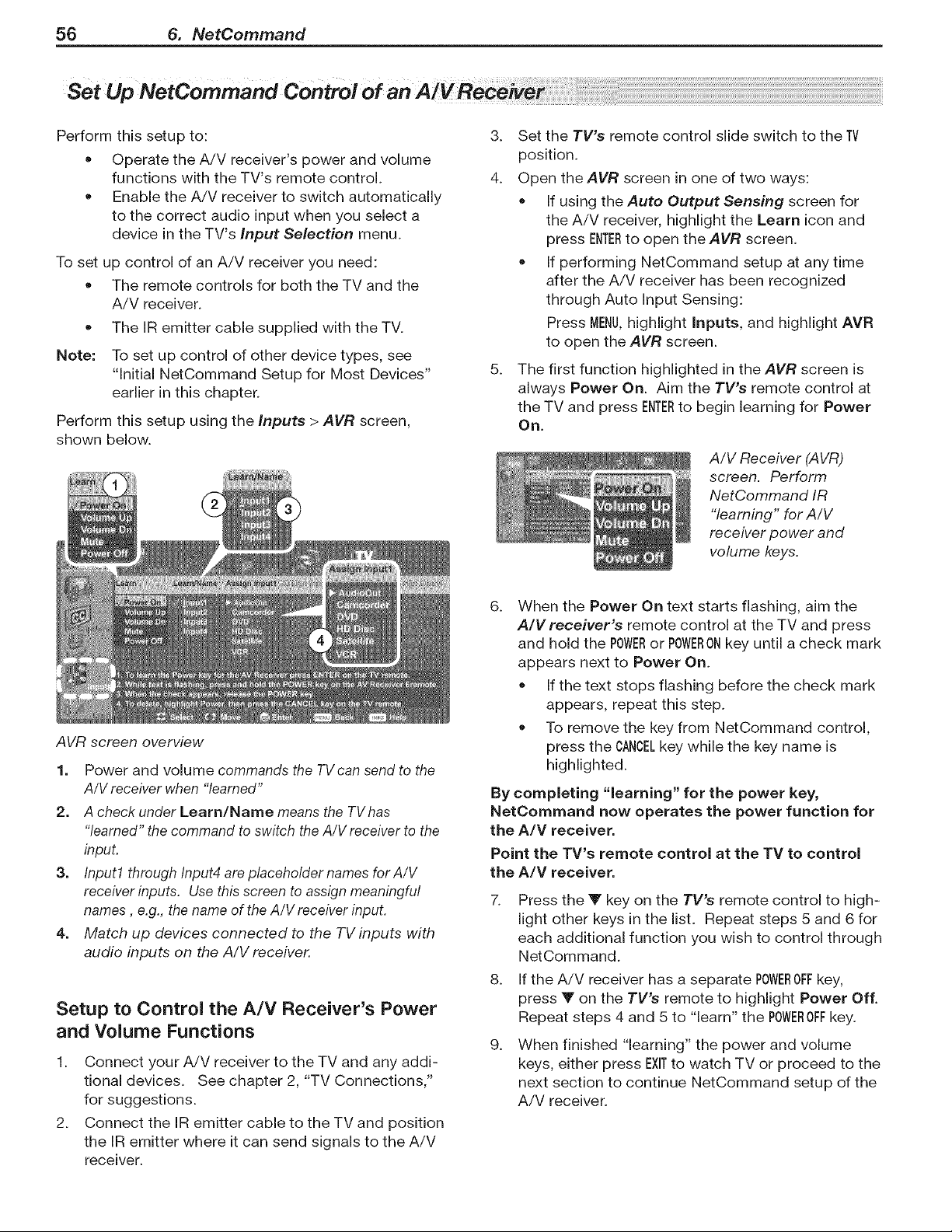
56 6. NetCommand
Perform this setup to:
• Operate the A/V receiver's power and volume
functions with the TV's remote control.
Enable the A/V receiver to switch automatically
to the correct audio input when you select a
device in the TV's Input Selection menu.
To set up control of an A/V receiver you need:
The remote controls for both the TV and the
A/V receiver.
The IR emitter cable supplied with the TV.
Note: To set up control of other device types, see
"Initial NetCommand Setup for Most Devices"
earlier in this chapter.
Perform this setup using the Inputs > AVR screen,
shown below.
3. Set the TV's remote control slide switch to the TV
position.
4. Open the AVR screen in one of two ways:
If using the Auto Output Sensing screen for
the A/V receiver, highlight the Learn icon and
press ENTERto open the AVR screen.
If performing NetCommand setup at any time
after the A/V receiver has been recognized
through Auto Input Sensing:
Press MENU,highlight inputs, and highlight AVR
to open the AVR screen.
5. The first function highlighted in the AVR screen is
always Power On. Aim the TV's remote control at
the TV and press ENTERto begin learning for Power
On.
A/V Receiver (AVR)
screen. Perform
NetCommand IR
"learning" for A/V
receiver power and
volume keys.
AVR screen overview
1. Power and volume commands the TV can send to the
A/V receiver when "learned"
2. A check under Learn/Name means the TV has
"learned" the command to switch the A/V receiver to the
input.
3. Input1 through Input4 are placeholder names for A/V
receiver inputs. Use this screen to assign meaningful
names, e.g., the name of the A/V receiver input.
4. Match up devices connected to the TV inputs with
audio inputs on the A/V receiver.
Setup to Control the A/V Receiver's Power
and Volume Functions
1. Connect your A/V receiver to the TV and any addi-
tional devices. See chapter 2, "TV Connections,"
for suggestions.
2. Connect the IR emitter cable to the TV and position
the IR emitter where it can send signals to the A!V
receiver.
6.
When the Power On text starts flashing, aim the
A/V receiver's remote control at the TV and press
and hold the POWERor POWERONkey until a check mark
appears next to Power On.
If the text stops flashing before the check mark
appears, repeat this step.
To remove the key from NetCommand control,
press the CANCELkey while the key name is
highlighted.
By completing "learning" for the power key,
NetCommand now operates the power function for
the A/V receiver.
Point the TV's remote control at the TV to control
the A/V receiver.
7. Press the 'V' key on the TV's remote control to high-
light other keys in the list. Repeat steps 5 and 6 for
each additional function you wish to control through
NetCommand.
8. If the A/V receiver has a separate POWEROFFkey,
press Y on the TV's remote to highlight Power Off.
Repeat steps 4 and 5 to "learn" the POWEROFFkey.
9. When finished "learning" the power and volume
keys, either press EXITto watch TV or proceed to the
next section to continue NetCommand setup of the
A/V receiver.
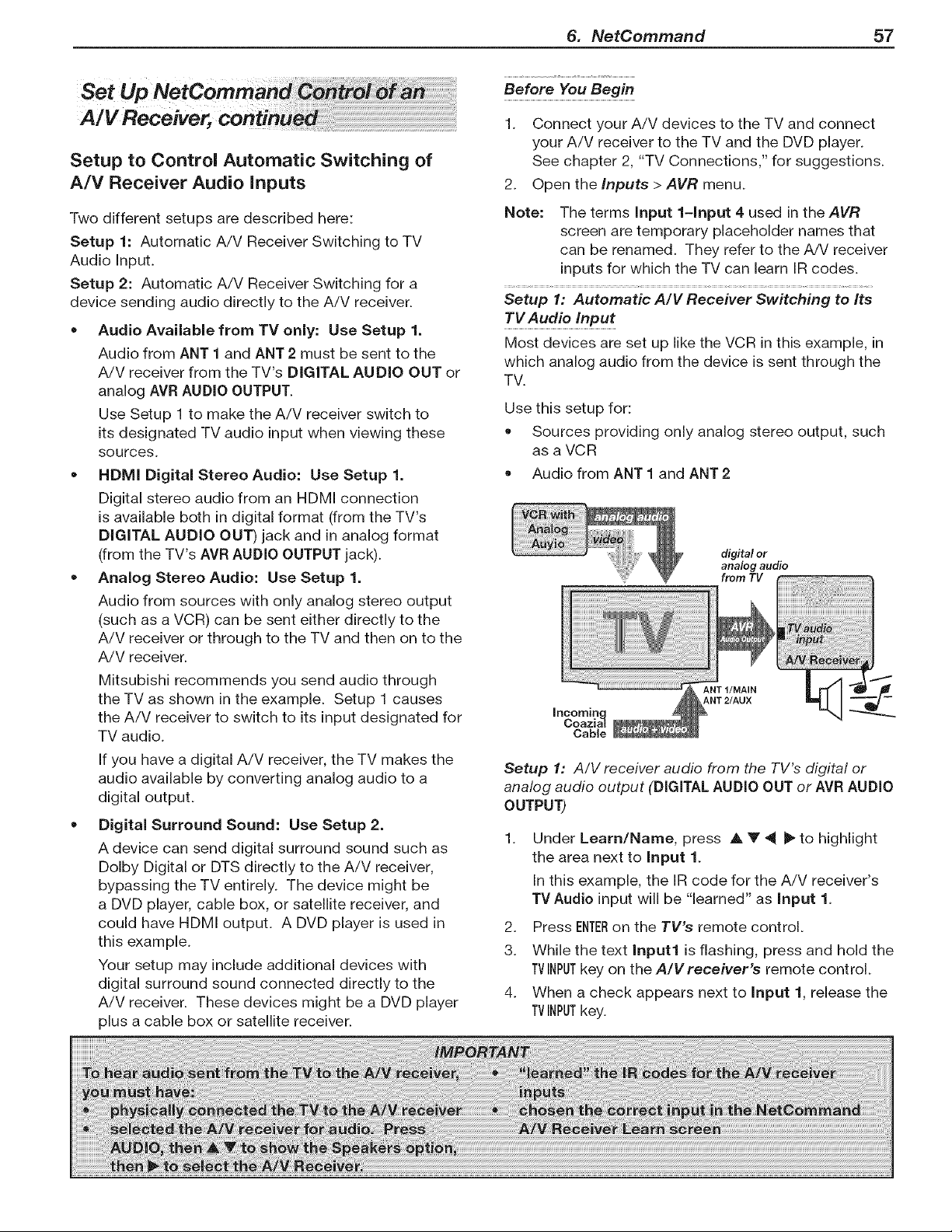
Setup to Control Automatic Switching of
A/V Receiver Audio inputs
Two different setups are described here:
Setup 1: Automatic A!V Receiver Switching to TV
Audio Input.
Setup 2: Automatic A/V Receiver Switching for a
device sending audio directly to the A/V receiver.
• Audio Available from TV only: Use Setup 1.
Audio from ANT 1 and ANT 2 must be sent to the
A/V receiver from the TV's DIGITAL AUDIO OUT or
analog AVR AUDIO OUTPUT.
Use Setup 1 to make the A/V receiver switch to
its designated TV audio input when viewing these
sources.
• NDMI Digital Stereo Audio: Use Setup 1.
Digital stereo audio from an HDMI connection
is available both in digital format (from the TV's
DIGITAL AUDIO OUT) jack and in analog format
(from the TV's AVR AUDIO OUTPUT jack).
Analog Stereo Audio: Use Setup 1.
Audio from sources with only analog stereo output
(such as a VCR) can be sent either directly to the
A/V receiver or through to the TV and then on to the
A/V receiver.
Mitsubishi recommends you send audio through
the TV as shown in the example. Setup 1 causes
the A/V receiver to switch to its input designated for
TV audio.
If you have a digital A/V receiver, the TV makes the
audio available by converting analog audio to a
digital output.
= Digital Surround Sound: Use Setup 2.
A device can send digital surround sound such as
Dolby Digital or DTS directly to the A/V receiver,
bypassing the TV entirely. The device might be
a DVD player, cable box, or satellite receiver, and
could have HDMI output. A DVD player is used in
this example.
Your setup may include additional devices with
digital surround sound connected directly to the
A/V receiver. These devices might be a DVD player
plus a cable box or satellite receiver.
6. NetCommand 57
Before You Begin
1. Connect your A/V devices to the TV and connect
your A/V receiver to the TV and the DVD player.
See chapter 2, "TV Connections," for suggestions.
2. Open the Inputs > AVR menu.
Note: The terms Input l-Input 4 used in the AVR
screen are temporary placeholder names that
can be renamed. They refer to the A/V receiver
inputs for which the TV can learn IR codes.
Setup 1: Automatic A/V Receiver Switching to Its
Most devices are set up like the VCR in this example, in
which analog audio from the device is sent through the
TV.
Use this setup for:
Sources providing only analog stereo output, such
as a VCR
Audio from ANT 1 and ANT 2
digital or
analog audio
from TV
ANT 2/AUX
Setup 1: A/V receiver audio from the TV's digital or
analog audio output (DIGITAL AUDIO OUT or AVR AUDIO
OUTPUT)
Under Learn/Name, press A Y _1 _" to highlight
the area next to Input 1.
In this example, the IR code for the A/V receiver's
TV Audio input will be "learned" as Input 1.
2. Press ENTERon the TV's remote control.
3. While the text Input1 is flashing, press and hold the
TVINPUTkey on the A/V receiver's remote control.
4. When a check appears next to Input 1, release the
TVINPUTkey.
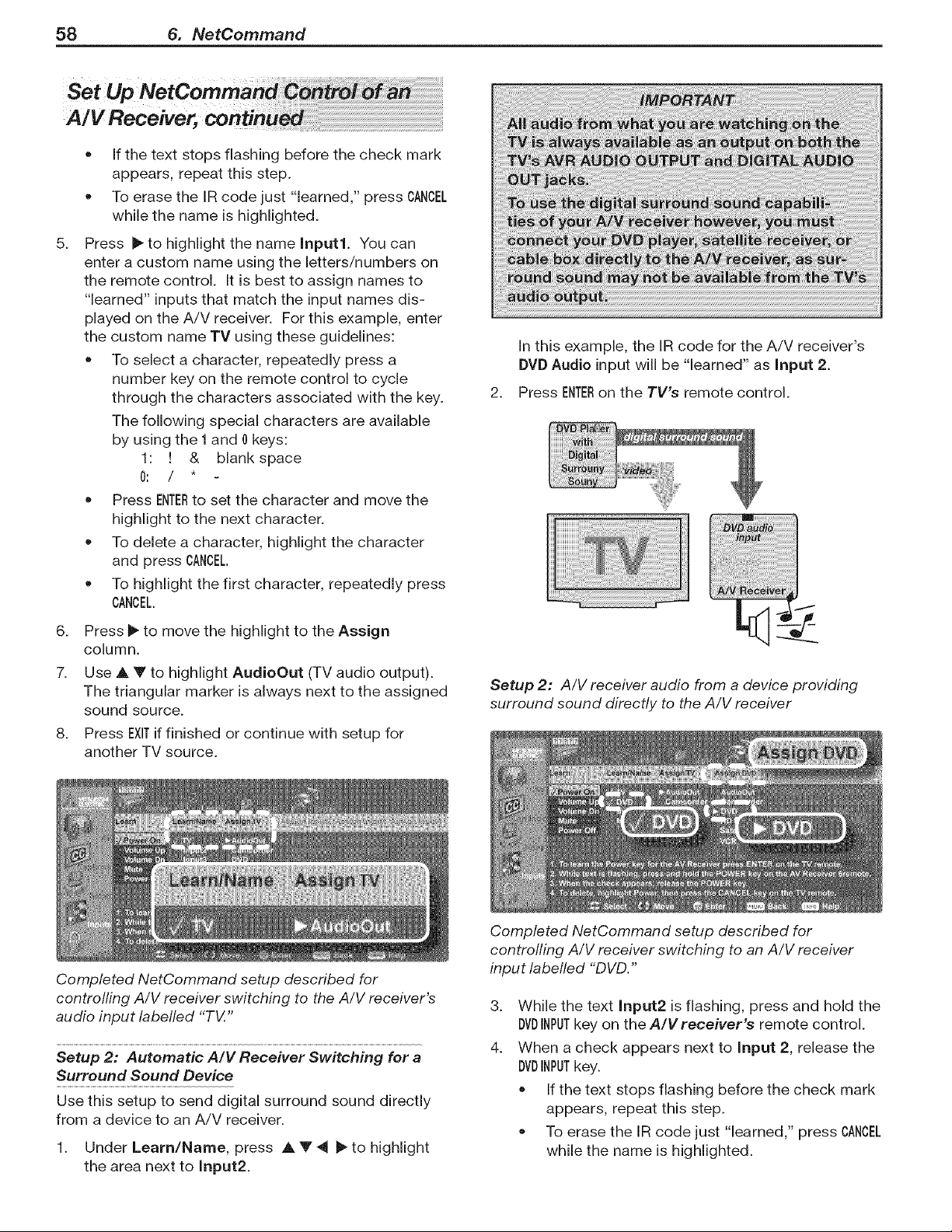
58 6. NetCommand
5.
• If the text stops flashing before the check mark
appears, repeat this step.
To erase the IR code just "learned," press CANCEL
while the name is highlighted.
Press il_to highlight the name Input1. You can
enter a custom name using the letters/numbers on
the remote control. It is best to assign names to
"learned" inputs that match the input names dis-
played on the A/V receiver. For this example, enter
the custom name TV using these guidelines:
To select a character, repeatedly press a
number key on the remote control to cycle
through the characters associated with the key.
The following special characters are available
by using the 1 and 0 keys:
1: ! & blank space
O: / *
Press ENTERto set the character and move the
highlight to the next character.
To delete a character, highlight the character
and press CANCEL.
To highlight the first character, repeatedly press
CANCEL.
6. Press _ to move the highlight to the Assign
column.
7. Use A Y to highlight AudioOut (TV audio output).
The triangular marker is always next to the assigned
sound source.
8. Press EXITif finished or continue with setup for
another TV source.
In this example, the IR code for the A/V receiver's
DVD Audio input will be "learned" as input 2.
2. Press ENTERon the TV's remote control.
/
Setup 2: A/V receiver audio from a device providing
surround sound directly to the A/V receiver
Completed NetCommand setup described for
controlling A/V receiver switching to the A/V receiver's
audio input labelled "TV."
Setup 2: Automatic A/V Receiver Switching for a
Surround Sound Device
Use this setup to send digital surround sound directly
from a device to an A/V receiver.
1. Under Learn/Name, press A. V 4 _ to highlight
the area next to Input2.
Completed NetCommand setup described for
controlling A/V receiver switching to an A/V receiver
input labelled "DVD."
3.
4.
While the text Input2 is flashing, press and hold the
DVDINPUTkey on the A/V receiver's remote control.
When a check appears next to input 2, release the
DVDINPUTkey.
If the text stops flashing before the check mark
appears, repeat this step.
To erase the IR code just "learned," press CANCEL
while the name is highlighted.
6. NetCommand 59
Set UF
A/V Receiver,
5_
Press _ to highlight the name input2. Assign a
custom name that matches the input name dis-
played on the A/V receiver. For this example, enter
the custom name DVD using the guidelines given
earlier.
6. Press _ to move the highlight to the second Assign
column.
7. Use A Y to highlight DVD in the list of devices
recognized by the TV. The triangular marker always
shows the assigned sound source.
8. Press EXITif finished or continue for additional TV
sources.

60 6. NetCommand
Appendix A: Specifications ....................... 62
Appendix B: Bypassing the Parental Lock .............. 63
Appendix C: TV Guide Daily ....................... 65
Appendix D: Programming the Remote Control ........... 69
Appendix E: Troubleshooting ...................... 77
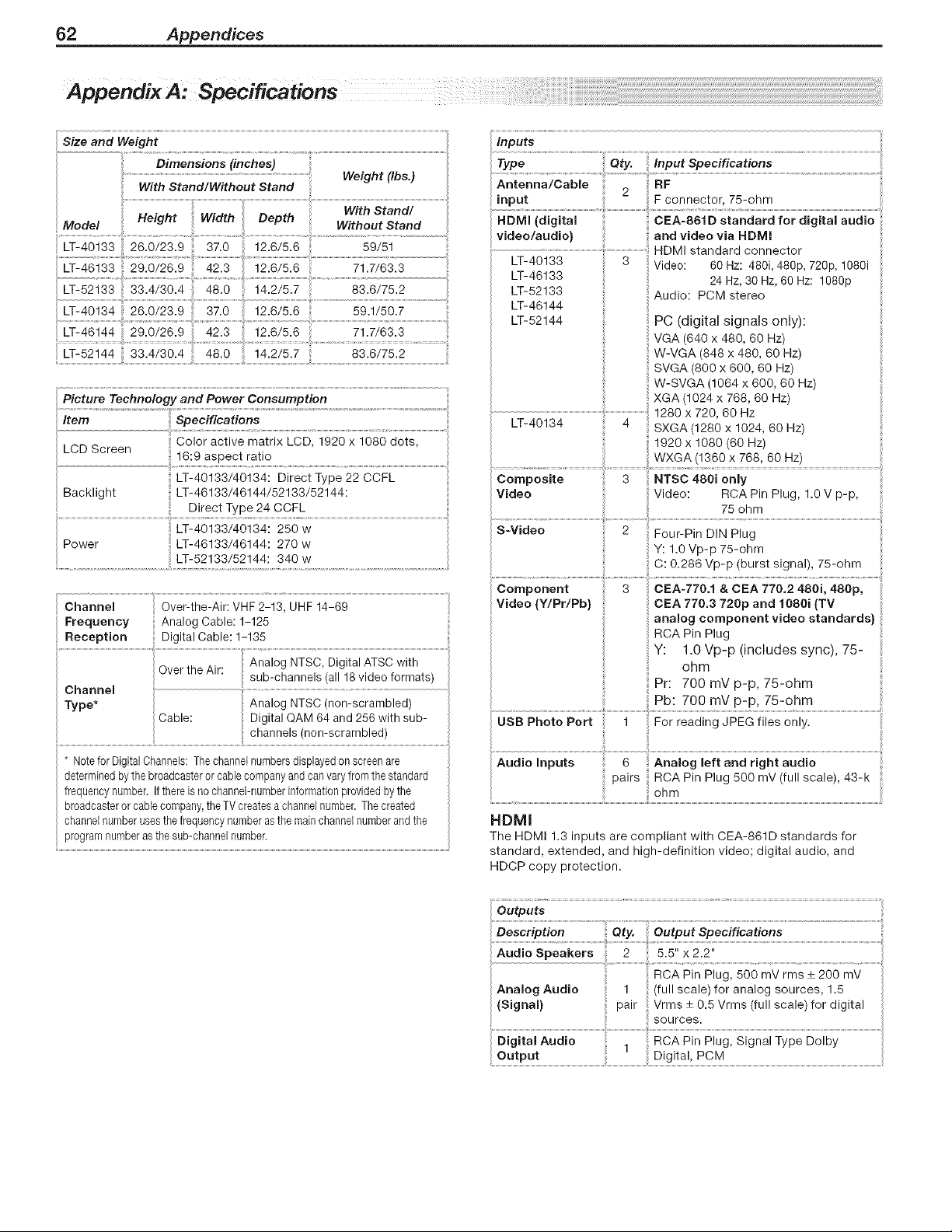
62 Appendices
AppendixA:Specmcations
Size and Weight
Dimensions (inches)
......................................................................................................................................................................................Weight (Ibs.)
With Stand/Without Stand
Model Height Width Depth Without Stand
LT-40133 26.0/23.9 37.0 12.6/5.6 59/51
12.6/5.6 ..............................................7i17/;; 3
Picture Technology and Power Consumption
Item Specifications
Color active matrix LCD, 1920 x 1080 dots,
LCD Screen
16:9 aspect ratio
LT-40133/40134: Direct Type 22 CCFL
Backl ight LT-46133/46144/52133/52144:
Direct Type 24 CCFL
Channel Over-the-Air: VHF 2-13, UHF 14-69
Frequency Analog Cable: 1-125
Reception Digital Cable: 1-135
Over the Air:
Channel
Type*
Analog NTSC, Digital ATSC with
sub-channels (all 18 video formats)
Analog NTSC (non-scrambled)
Digital QAM 64 and 256 with sub-
channels (non-scrambled)
* Notefor DigitalChannels:The channelnumbersdisplayedon screenare
determinedbythe broadcasteror cablecompanyandcanvaryfrom the standard
frequencynumber. If thereis no channel-numberinformationprovidedby the
broadcasterorcable company,the TV createsa channelnumber. The created
channelnumberusesthe frequencynumberasthe mainchannelnumberandthe
programnumberasthe sub-channelnumber.
inputs
........................................:
Antenna/Cable RF,nput 2 Fconneetor,75-ohm
videolaudio}
LT-40133 3
LT-46133
LT-52133
LT-46144
LT-52144
and video via HDMI
HDMI standard connector
Video: 60 Hz: 480i, 480p, 720p, 1080i
24 Hz, 30 Hz, 60 Hz: 1080p
Audio: PCM stereo
PC (digital signals only):
VGA (640 x 480, 60 Hz)
W-VGA (848 x 480, 60 Hz)
SVGA (800 x 600, 60 Hz)
W-SVGA (1064 x 600, 60 Hz)
XGA (1024 x 768, 60 HZ)
1280 X 720, 60 HZ
SXGA (1280 x 1024, 60 HZ)
1920 x 1080 (60 HZ)
WXGA (1360 x 768, 60 HZ)
Composite 3 NTSC 480i only
Video Video: RCA Pin Plug, 1.0 V p-p,
75 ohm
S-Video 2 Four-Pin DIN Plug
Y: 1.0 Vp-p 75-ohm
C: 0.286 Vp-p (burst signal), 75-ohm
Video (Y/Pr/Pb} CEA 770,3 720p and 1080i (TV
analog component video standards}
RCA Pin Plug
Y: 1.0 Vp-p (includes sync), 75-
ohm
Pr: 700 mV p-p, 75-ohm
Pb: 700 mV p-p, 75-ohm
il.........................................................................i:.............................ii........................................................................................................................................................................................................................................................
Audioinputs O Analogleftandrig.taudio
pairs RCA Pin Plug 500 mV (full scale, 43-k
HDMI
The HDMI 1.3 inputs are compliant with CEA-861D standards for
standard, extended, and high-definition video; digital audio, and
HDCP copy protection.
Analog Audio 1 (full scale)for analog sources, 1.5
(Signal} pair Vrms ± 0.5 Vrms (full scale) for digital
.... sources.
Digitai Audio i RCA Pin Piugl Signal Type Doiby
Output Digital, PCM
|
I Appendices
63
A
Lock
$,...
0
N,,..
"0
m
=m
LL
C
>
-r
g_
C
0
=m
0
:3
C: C
m
t_ L
cn (p
O,.(P
:::3
0
_JLL
I
Bypassing the Parental Lock
After you set the lock, you must use your pass code
to view a locked program, view the locked TV, view
a locked channel, cancel the lock, or enter the Lock
menus.
If you forget your pass code, you can view the locked
TV without entering your pass code. When you are
prompted for your pass code, press the number 9 and
QVkeys on the TV remote control at the same time. This
process temporarily unlocks the TV.
When entering the Lock menu, this process deletes
your old pass code and prompts you to enter a new
pass code.
* You can either enter a new pass code to open the
Lock menu and make changes or press EXITto close
the menu.
• If any of the locks are turned on and you exit the
menus when prompted for a new code, the old
code and all lock settings are retained.
• If all locks are turned off and you exit the menus
when prompted for a new code, then the previous
code is erased.
I
I
|

64 Appendices
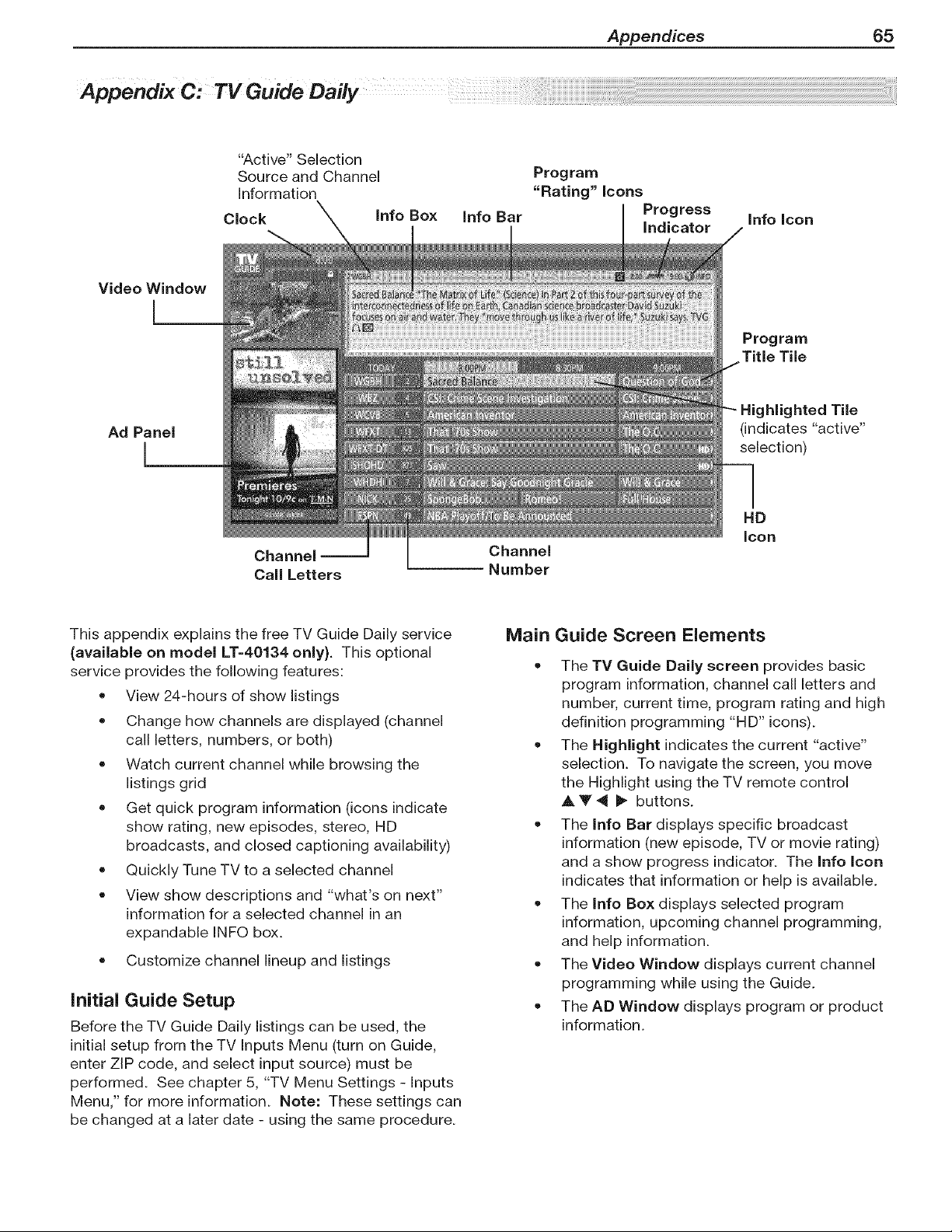
Appendices 65
AppendixC:TVGuideDaily
"Active" Selection
Source and Channel
Information
Clock Info Box
Info Bar
Program
"Rating" Icons
Progress
Indicator
Info icon
Video Window
l
Program
Title Tile
Ad Panel
l
- Highlighted Tile
(indicates "active"
selection)
Channel --
Call Letters
Channel
Number
HD
icon
This appendix explains the free TV Guide Daily service
(available on model LT-40134 only). This optional
service provides the following features:
• View 24-hours of show listings
• Change how channels are displayed (channel
call letters, numbers, or both)
• Watch current channel while browsing the
listings grid
• Get quick program information (icons indicate
show rating, new episodes, stereo, HD
broadcasts, and closed captioning availability)
• Quickly Tune TV to a selected channel
View show descriptions and "what's on next"
information for a selected channel in an
expandable INFO box.
Customize channel lineup and listings
initial Guide Setup
Before the TV Guide Daily listings can be used, the
initial setup from the TV Inputs Menu (turn on Guide,
enter ZiP code, and select input source) must be
performed. See chapter 5, "TV Menu Settings - Inputs
Menu," for more information. Note: These settings can
be changed at a later date - using the same procedure.
Guide Screen Elements
The TV Guide Daily screen provides basic
program information, channel call letters and
number, current time, program rating and high
definition programming "HD" icons).
• The Highlight indicates the current "active"
selection. To navigate the screen, you move
the Highlight using the TV remote control
A V 4 I_ buttons.
• The Info Bar displays specific broadcast
information (new episode, TV or movie rating)
and a show progress indicator. The Info Icon
indicates that information or help is available.
• The Info Box displays selected program
information, upcoming channel programming,
and help information.
• The Video Window displays current channel
programming while using the Guide.
• The AD Window displays program or product
information.

66 Appendices
Navigating the Guide
Guide navigation is easy - a "highlight" is moved
around the screen, using the TV Remote AY 4 ll_and
CHtPAGEbuttons. The highlight indicates the currently
"active" tile (location) in the Guide. Help and program
information is accessed with INFO.
See chapter 4, "TV Operation and Features," for TV
Remote button locations.
To open and close the Guide:
• Press GUIDEto open or close TV Guide Daily (EXIT
can also be used to close the Guide).
Note: Until the initial 24 hours of program listings
have downloaded, the Setup Progress screen
appears when you first open the Guide. Once the
initial listings download is complete, the screen will
go directly to the Guide.
To navigate through screens (move highlight):
Press A Y _ _ to move "highlight" one item at a
time.
• Press 0H/PAGE/_/V (Channel/Page Up/Down) to
move up or down one full screen at a time.
• Press INF0to open the Info Box (on screen help
and program information). When the Info Icon is
displayed on the Info Bar, repeatedly pressing INFO
cycles through the various Info Box sizes.
Program information - When a program title
is highlighted and the INFObutton is pressed,
currently available program and upcoming show
information is shown in the Info Box.
While in the Guide, pressing MENUwill display the
Guide Setup screen. Pressing MENUagain will
close the screen. See Modify Guide Setup on next
page.
To jump to a specific channel in the Listings.
A channel number can be entered with the
remote's number keys (plus -/CANCELand sub-
channel number for digital channels). Pressing
ENTER,moves the highlight to the channel just
entered.
Note: If channel entered does not exist, the
highlight will move to the closest channel listing.
To tune the TV to a program in the listings:
Highlight the desired program title in the listings,
then press ENTER.
Note: If the highlighted program airs sometime in
the future, the TV will be tuned to the channel on
which that show will air.
To check Guide setup progress:
The Setup Progress screen displays the current Guide
setup status. To open the Setup Progress screen:
While in the Guide Listings, press MENU.This
displays the Setup Screen.
In the Setup Screen, press Y to highlight "Display
setup progress" and press ENTER.The Setup
Progress screen appears.
Press GUIDEto exit the Guide or press ENTERto return
to the Setup Screen.
Accessing Ad information
To view promotional information linked to ads:
Repeatedly press ,_ to move highlight to the Ad
panel. A screen with additional Ad information
appears.
To close the Ad screen, press I1_to move highlight
back to the listings grid.
Note: Some ads promote currently airing pro-
grams. If the ad is linked to a currently airing
show, highlight the ad and press ENTERto watch the
show.
Customize Guide Listings
You can customize how the Listings screen displays
channel call letters/numbers. The options are:
Both - both channel call letters and number are
displayed.
Call Letters - only call letters are displayed.
Number - only channel numbers are displayed.
To change the Channel ID display:
Press _ to move highlight to the desired channel
tile (channel no./call letters).
Press ENTERto change the display (Both, Call
Letters, or Number). Each press of the ENTERkey
cycles through the choices.
To save the changes, press I_ to move highlight
back to the program listings grid.

Appendices 67
Modify Guide Setup
From the Guide Setup screen, you can change channel
lineup, change channel display settings, and view setup
progress (e.g., when the next listings update will occur).
To select channel lineup:
You can view or change (if more than one available) the
channel lineup, using the following procedure:
• While in the Guide Listings, press MENU.This
displays the Setup Screen.
Press A V to highlight "Change channel lineup"
and press ENTER.A selection screen appears.
Make lineup selection:
If only one selection is available, Next will be
highlighted, press ENTER.
If more than one selection is available, but you
want to use the one already selected (check-
marked), press ENTER.
If more than one selection is available and you
want to select a different lineup, press 4 to
move highlight back to selections. Press A T
to move highlight to desired lineup and press
ENTERto select your choice (add checkmark).
Press _ to highlight Next and press ENTER.
A confirmation screen appears.
In the confirmation screen, verify lineup selection:
If selection is correct, press ENTERto select
"Yes" (add checkmark), press _ to highlight
Next, and then press ENTER.
If selection is not correct, press V to highlight,
"No," press ENTERto select (add checkmark),
press _ to highlight Next, and then press ENTER
to return to the Make Lineup Selection screen.
Note: You may have to select several lineup options
before you receive the correct one for your area. To
edit a specific tune channel number in the Listings grid,
see "To Modify Channel Settings" below.
To modify channel settings:
You can edit how channels appear in the Guide Listing
(reorder their position, change their display setting, and
change their tune channel). Note: The default settings
for each channel are determined by the transmitted
data received by your TV.
Available Options:
Position - order of the channel in the Listings.
Channel - determines whether or not the channel
is displayed in the Listings (On, Auto-hide, and
Off). Auto-hide displays channels only when show
information is available.
• Tune Channel - shows the channel number that
displays in the Listings and which channel number
is used when tuning to that channel.
Procedure:
= While in the Guide Listings, press MENU.This
displays the Setup Screen.
= Highlight "Change channel display" and press
ENTER.The channel editor screen appears.
• Use 4 1_to
highlight desired
row setting to be
changed.
To change channel position (Channel No.
highlighted), press A '_' to move position or
enter a new channel position number. When
correct, press 41 _ to move highlight to another
position on grid to save changes.
To change channel display status (status tile
highlighted - next to channel number), repeat-
edly press ENTERto cycle through choices (on,
auto, off). When correct, press 4 _ to move
highlight to another position on grid to save
changes.
To change tune channel number* (Channel
Tune No. highlighted - far right), enter desired
number with remote control number keys
(-/CANCELkey for digital sub-channel separator).
When correct, press 4 _ to move highlight to
another position on grid to save changes.
*Note: If you receive both analog and digital versions
of the same channel, do not change the tune channel
number of the digital channel to match the analog
station - this may hinder the ability of the Guide to
receive data. Instead, locate the digital station in the
channel editor and, if necessary, change the channel
row position to a location you prefer.
You can also hide the analog channel (turn off) so it
does not appear in the listings (see "To change Channel
Display Status above").
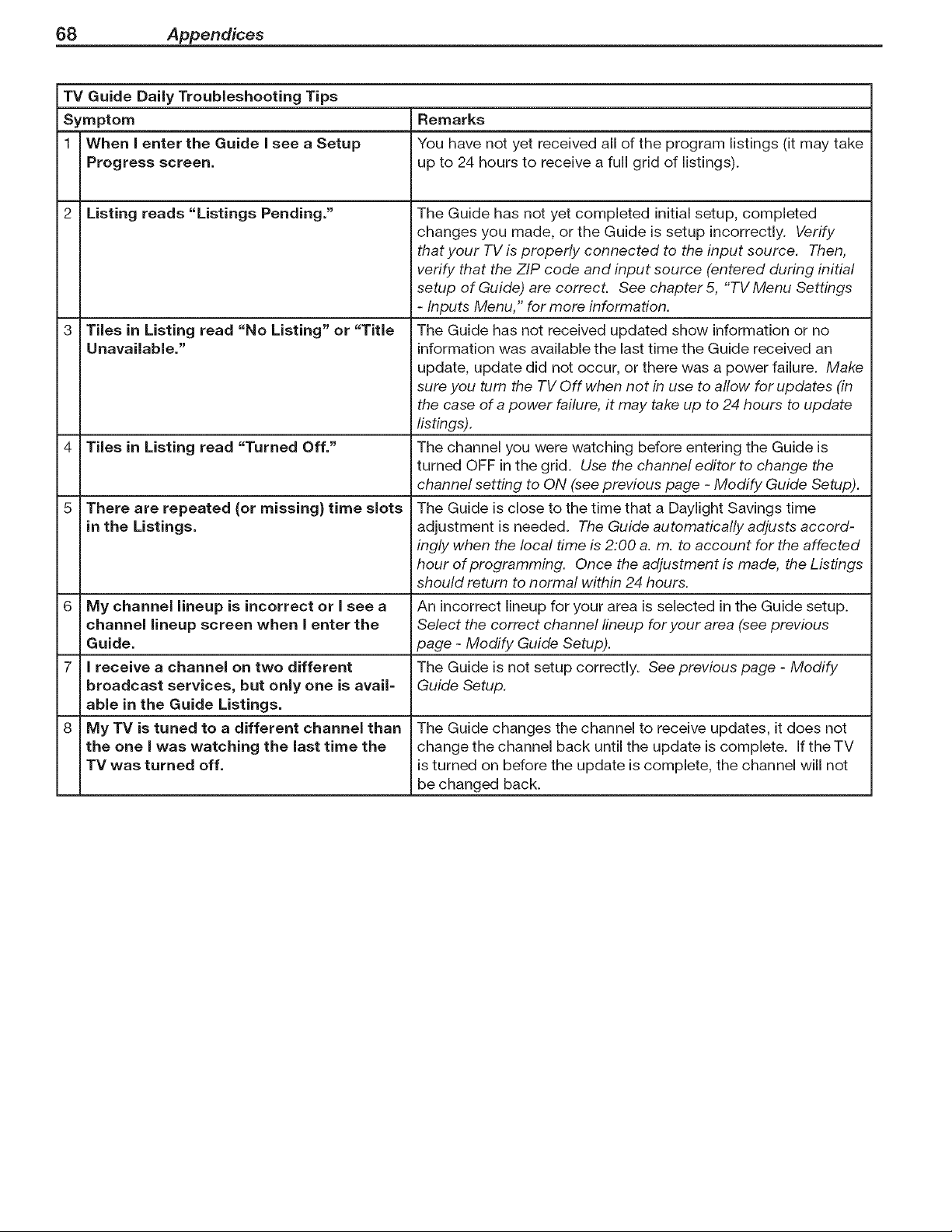
68 Appendices
TV Guide Daily Troubleshooting Tips
Symptom Remarks
1 When i enter the Guide i see a Setup You have not yet received all of the program listings (it may take
Progress screen, up to 24 hours to receive a full grid of listings).
2 Listing reads "Listings Pending."
Tiles in Listing read "No Listing" or "Title
Unavailable."
4 Tiles in Listing read "Turned Off."
There are repeated {or missing} time slots
in the Listings.
6 My channel lineup is incorrect or Jsee a
channel lineup screen when Jenter the
Guide.
7 Jreceive a channel on two different
broadcast services, but only one is avail=
able in the Guide Listings.
8 My TV is tuned to a different channel than
the one I was watching the last time the
TV was turned off.
The Guide has not yet completed initial setup, completed
changes you made, or the Guide is setup incorrectly. Verify
that your TV is properly connected to the input source. Then,
verify that the ZIP code and input source (entered during initial
setup of Guide) are correct. See chapter5, "TV Menu Settings
- Inputs Menu," for more information.
The Guide has not received updated show information or no
information was available the last time the Guide received an
update, update did not occur, or there was a power failure. Make
sure you turn the TV Off when not in use to allow for updates (in
the case of a power failure, it may take up to 24 hours to update
listings).
The channel you were watching before entering the Guide is
turned OFF in the grid. Use the channel editor to change the
channel setting to ON (see previous page - Modify Guide Setup).
The Guide is close to the time that a Daylight Savings time
adjustment is needed. The Guide automatically adjusts accord-
ingly when the local time is 2:00 a. m. to account for the affected
hour of programming. Once the adjustment is made, the Listings
should return to normal within 24 hours.
An incorrect lineup for your area is selected in the Guide setup.
Select the correct channel lineup for your area (see previous
page - Modify Guide Setup).
The Guide is not setup correctly. See previous page - Modify
Guide Setup.
The Guide changes the channel to receive updates, it does not
change the channel back until the update is complete. If the TV
is turned on before the update is complete, the channel will not
be changed back.
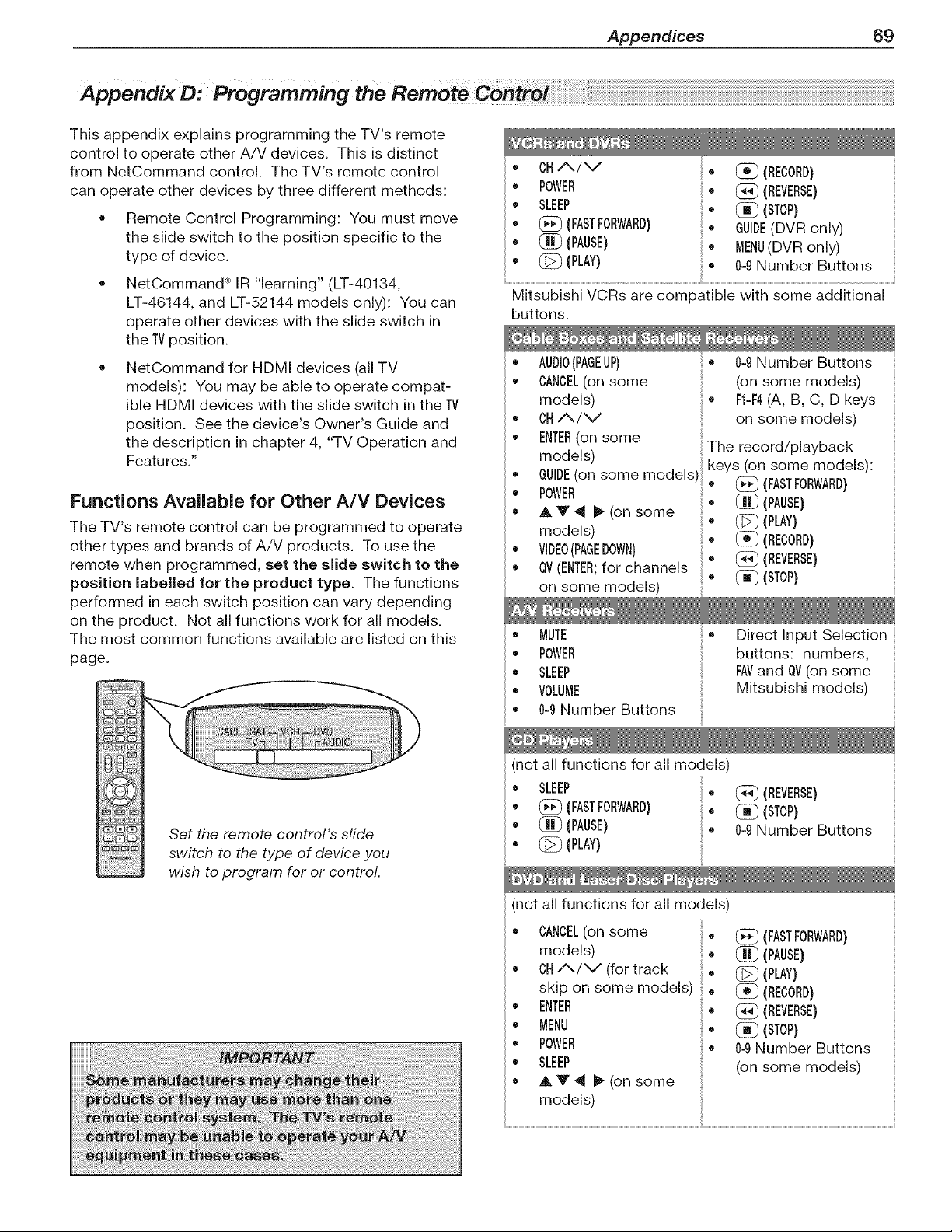
Appendices 69
Appendix D: Programming the RemoteControi
This appendix explains programming the TV's remote
control to operate other A/V devices. This is distinct
from NetCommand control. The TV's remote control
can operate other devices by three different methods:
• Remote Control Programming: You must move
the slide switch to the position specific to the
type of device.
NetCommand ® IR "learning" (LT-40134,
LT-46144, and LT-52144 models only): You can
operate other devices with the slide switch in
the TVposition.
NetCommand for HDMI devices (all TV
models): You may be able to operate compat-
ible HDMI devices with the slide switch in the TV
position. See the device's Owner's Guide and
the description in chapter 4, "TV Operation and
Features."
Functions Available for Other A/V Devices
The TV's remote control can be programmed to operate
other types and brands of A/V products. To use the
remote when programmed, set the slide switch to the
position labelled for the product type. The functions
performed in each switch position can vary depending
on the product. Not all functions work for all models.
The most common functions available are listed on this
page.
_F
Set the remote control's slide
_,_ switch to the type of device you
wish to program for or control.
CHA/V . _ (RECORD)
POWER , _ (REVERSE)
SLEEP . _ (STOP)
(FASTFORWARD) , GUIDE(DVR only)
(PAUSE) • MENU(DVR only)
1_ (PLAY) , 0-9Number Buttons
il............................................................................................................................................................................................................_il..................................................................................................................................................................!
Mitsubishi VCRs are compatible with some additional
buttons.
AUDIO(PAGEUP} • 0-9Number Buttons
CANCEL(on some (on some models)
models) • FI=F4(A, B, C, D keys
CHA./\J on some models)
ENTER(on some
models) The record/playback
GUIDE(on some models) keys (on some models):
• POWER • (_) (FASTFORWARD)
• AV4),/onsome "
(PAUSE)
• _ (PLAY)
models) • _ (RECORD)
VIDEO{PAGEDOWN}
• OV(ENTER;for channels " _(REVERSE)
on some models) " _ (STOP)
MUTE
POWER
SLEEP
VOLUME
04 Number Buttons
• Direct Input Selection
buttons: numbers,
FAVand OV(on some
Mitsubishi models)
(not all functions for all models)
• SLEEP
,, (;;_ (FASTFORWARD} "
• (_ (PAUSE)
,, _ (PLAY)
(not all functions for all models)
(REVERSE)
(STOP)
0-9Number Buttons
• CANCEL(on some
models)
" CH/N/V (for track
skip on some models)
,, ENTER
• MENU
,, POWER
., SLEEP
• ,&Y 41i_ (on some
models)
• (_) (FASTFORWARD)
• _ (PAUSE)
• @ (PLAY)
• _(RECORD)
• _(REVERSE)
• _ (STOP)
0-9Number Buttons
(on some models)
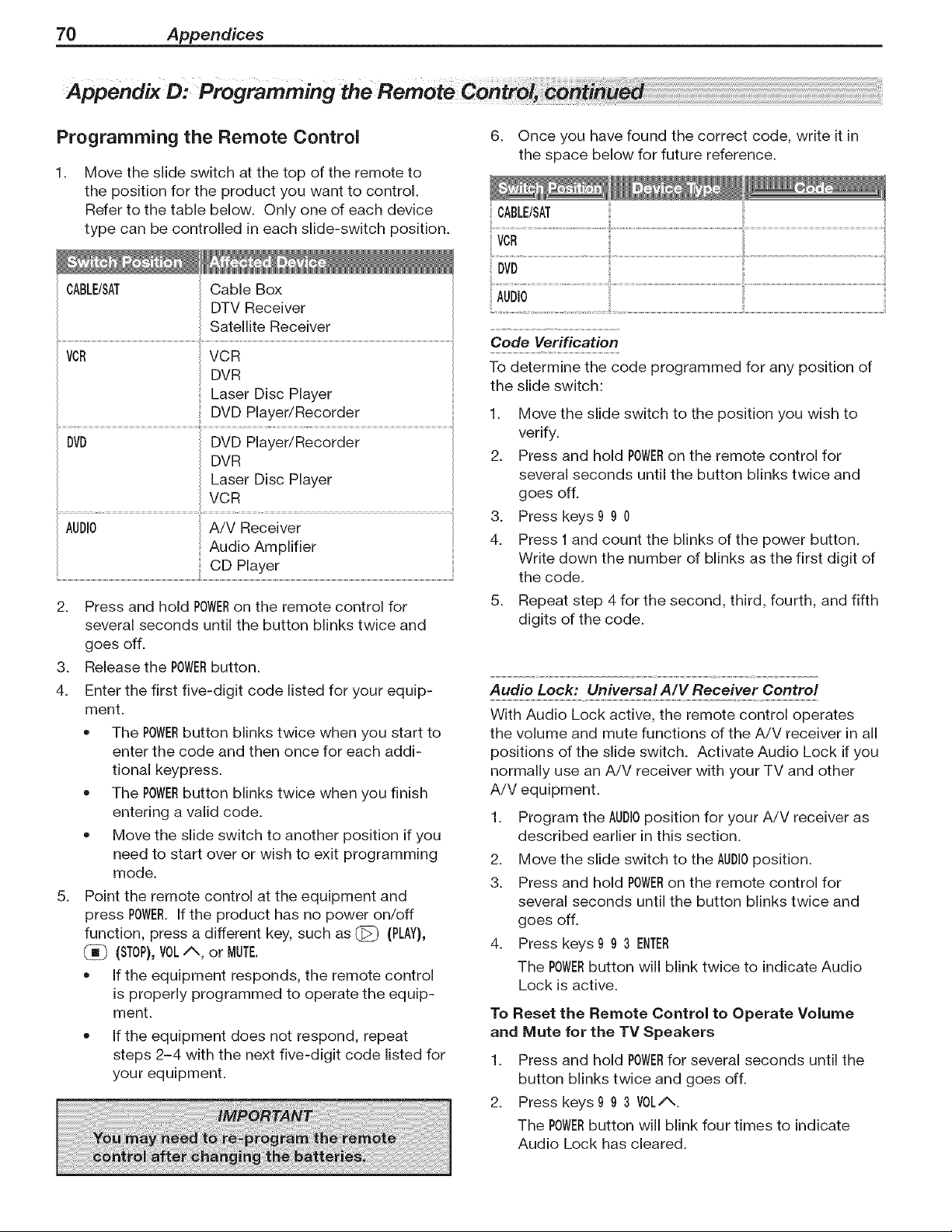
70 Appendices
Appendix D: Programming
Programming the Remote Control
1.
Move the slide switch at the top of the remote to
the position for the product you want to control.
Refer to the table below. Only one of each device
type can be controlled in each slide-switch position.
6. Once you have found the correct code, write it in
the space below for future reference.
CABLE/SAT Cable Box
DTV Receiver
Satellite Receiver
VOR VCR
DVR
Laser Disc Player
DVD Player/Recorder
BVD DVD Player/Recorder
DVR
Laser Disc Player
VCR
AUDIO A/V Receiver
Audio Amplifier
CD Player
2. Press and hold POWERon the remote control for
several seconds until the button blinks twice and
goes off.
3. Release the POWERbutton.
4. Enter the first five-digit code listed for your equip-
ment.
• The POWERbutton blinks twice when you start to
enter the code and then once for each addi-
tional keypress.
The POWERbutton blinks twice when you finish
entering a valid code.
Move the slide switch to another position if you
need to start over or wish to exit programming
mode.
5. Point the remote control at the equipment and
press POWER.If the product has no power on/off
function, press a different key, such as @ (PLAY),
(STOP),VOLA or MUTE.
• if the equipment responds, the remote control
is properly programmed to operate the equip-
ment.
If the equipment does not respond, repeat
steps 2-4 with the next five-digit code listed for
your equipment.
Code Verification
To determine the code programmed for any position of
the slide switch:
1. Move the slide switch to the position you wish to
verify.
2. Press and hold POWERon the remote control for
several seconds until the button blinks twice and
goes off.
3. Press keys9 9 0
4. Press 1 and count the blinks of the power button.
Write down the number of blinks as the first digit of
the code.
5. Repeat step 4 for the second, third, fourth, and fifth
digits of the code.
Audio Lock: Universal A/V Receiver Control
With Audio Lock active, the remote control operates
the volume and mute functions of the A/V receiver in all
positions of the slide switch. Activate Audio Lock if you
normally use an A!V receiver with your TV and other
A/V equipment.
1. Program the AUDIOposition for your A!V receiver as
described earlier in this section.
2. Move the slide switch to the AUDIOposition.
3. Press and hold POWERon the remote control for
several seconds until the button blinks twice and
goes off.
4. Press keys9 9 3 ENTER
The POWERbutton will blink twice to indicate Audio
Lock is active.
To Reset the Remote Control to Operate Volume
and Mute for the TV Speakers
1. Press and hold POWERfor several seconds until the
button blinks twice and goes off.
2. Press keys9 9 3 VOL/_.
The POWERbutton will blink four times to indicate
Audio Lock has cleared.
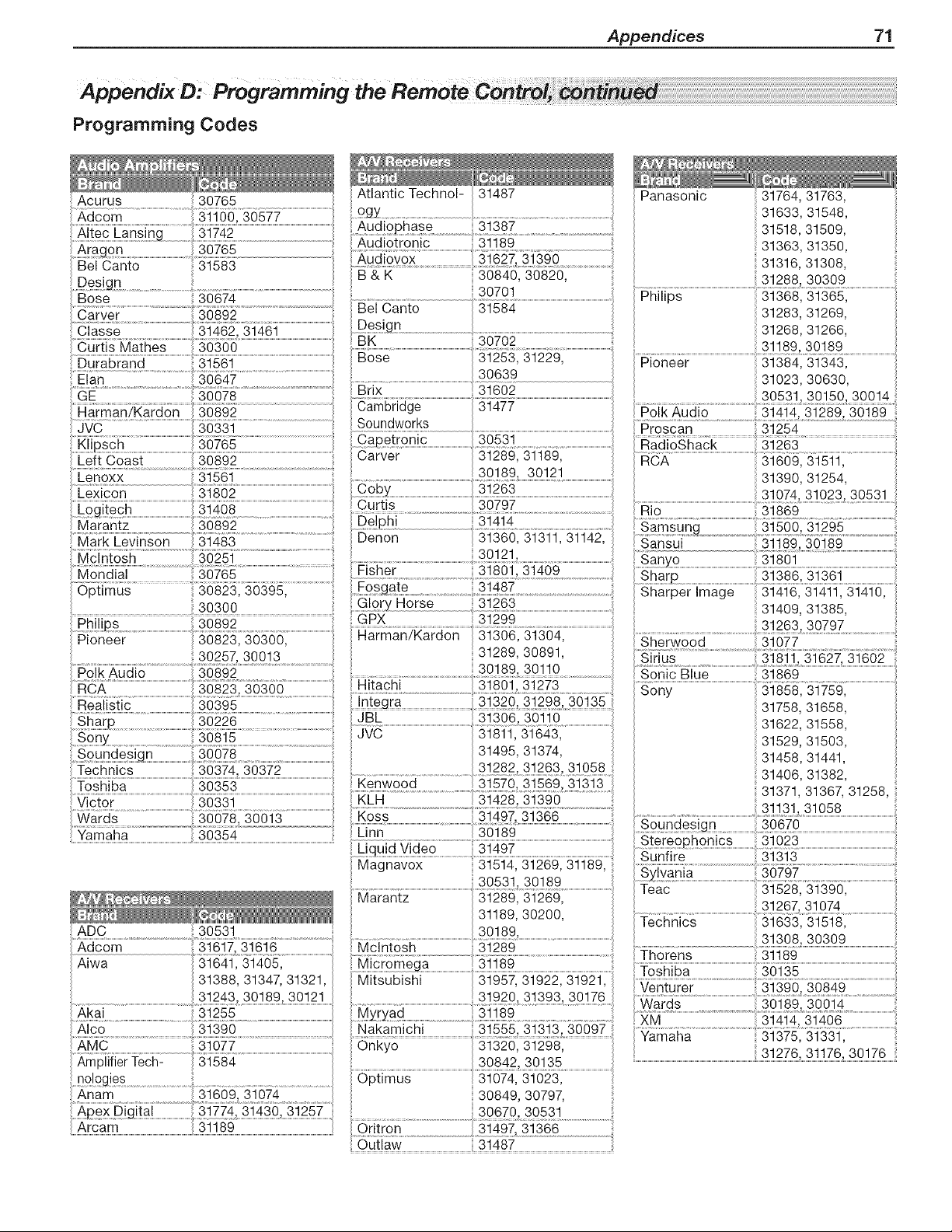
Appendices 71
Appendix D: Programming
Programming Codes
Acurus 30765 Panasonic 31764, 31763,
31633, 31548,
31518, 31509,
.....Aragon .................................................................................................................... 31363, 31350,
Bel Canto 31583 31316, 31308,
...... ......................................................................................................................................................................................B & K 30840, 30820, 31288 30309
30701 .............................................................................................................................................................................................................
Bose 30674 ...........................................................................................................................................................................Philips 31368, 31365,
..... ................................................................................30892 .....................................................................................Bel Canto 31584 31283, 31269,
diasse.........................................................................................................................._es!gn...........................................................................................................................................................................31268,31266,
...... BK 30702.................................................................................................................................................................................................................................................................................................................................................................................................31189 30189
Durabrand 31561 Bose 31253, 31229, Pioneer 313841 3i3431
......Eian .........................................................................30642 ............................................................................................30639 31023, 30630,
GE
30300 31409, 31385,
...........................................................................................................................................GPX 31299
AIco 31390 Nakamichi 31555, 31313, 30097
..... .......... .........................................................................................................30842, 30135
_ooges........ 6p{imus.....................................................................................................................
Anam 31609 31074 30849 30797
..................................... ..... 30670 30531
..............................................................................................................................................................................6i{ro_..................................................................................................................
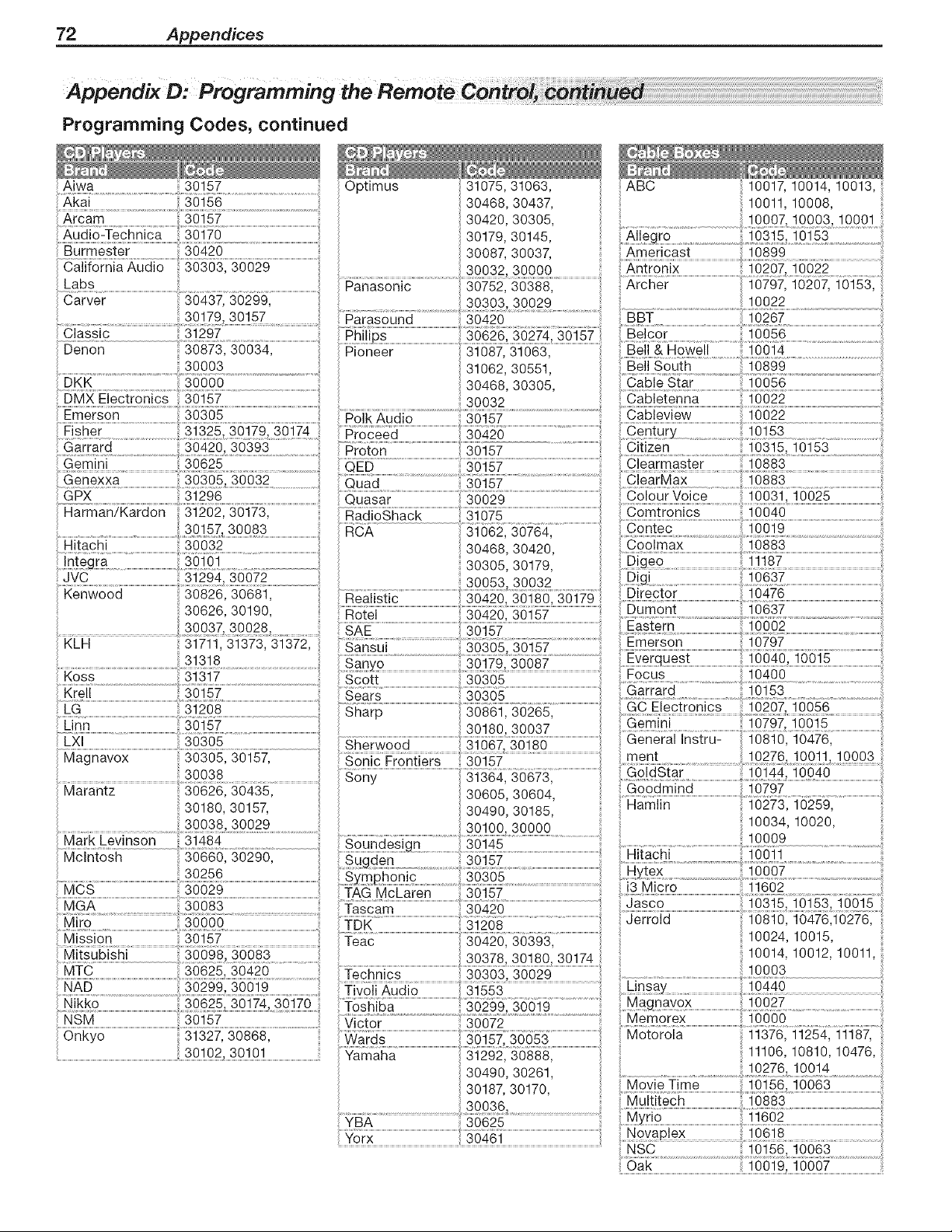
72 Appendices
AppendixD: Programming .... .......
Programming Codes, continued
Aiwa 30157
_ii_orni_ _u_io .......................................................
Labs
30626, 30190,
Magnavox 30305, 30157,
30038
Marantz .............................................................................30626, 30435[ ...............................................
30180, 30157,
........................................................................30038.30029 ................
Mark Levinson 31484
_cintos ....
30256
Mitsubishi ..........................................................300981 36683 .....................................................
MTC .....................................30625; 36426 ...........................................
.....302991 36619 ...................
Optimus
Rotel
Sonic Frontiers
TAG McLaren
Victor
31075, 31063, ABC 10017, 10014, 10013,
30468, 30437, 10011, 10008,
30420, 30305,
30179, 30145, .............................................................................
30087 30037 Americast 10899
30032 30000 ....................................................................10622.....................
30157
30490,30185,
30157
,_03_, _ 30174......!
30303,30029
30072
30490,30261,
30187,30170,
Hamlin
10273,10259,
10034,10020, i
11602
10024, 10015,
10014, 10012, 10011,
10003
11376, 11254, 11187,
11106, 10810, 10476,
10276, 10014
.... ............................................!0! 5610063
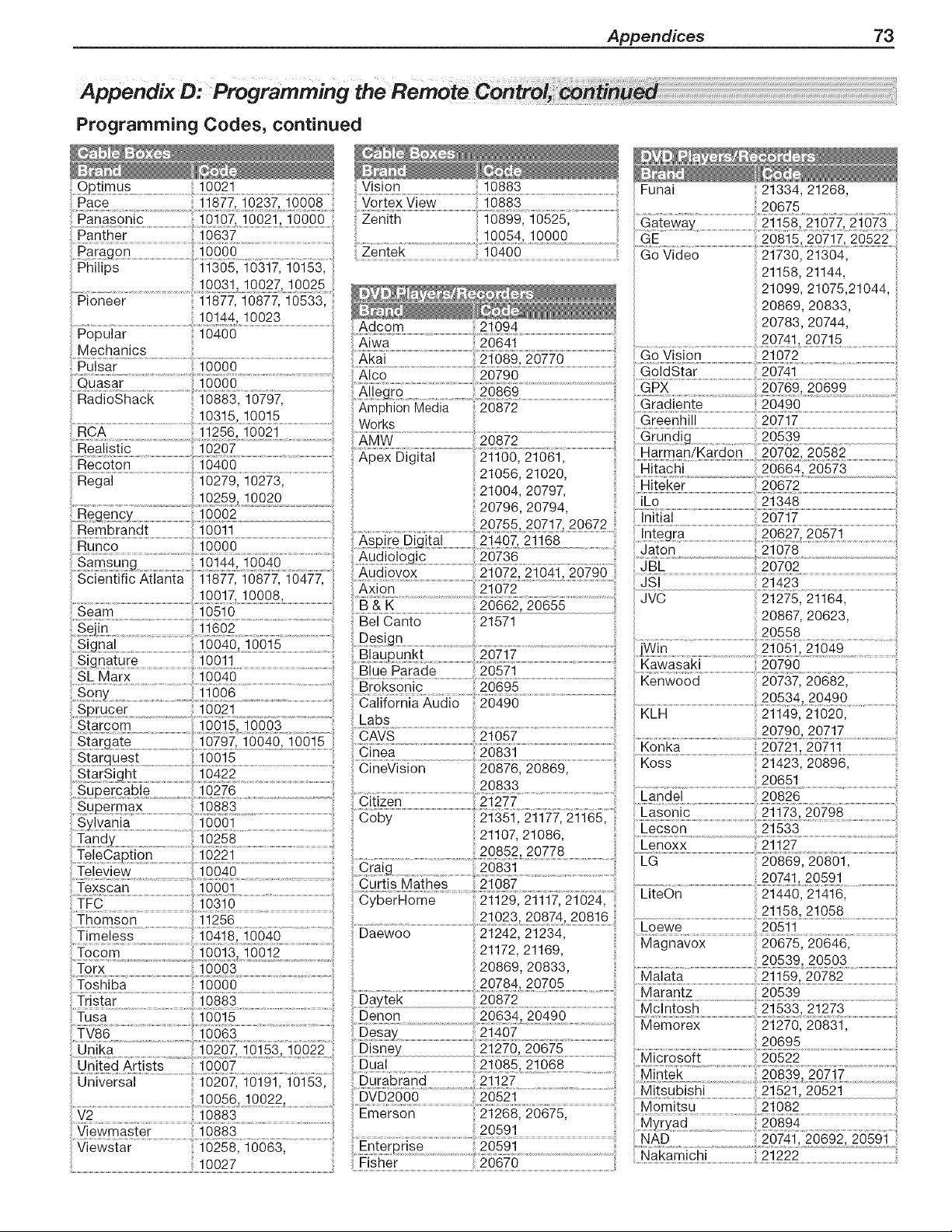
Appendices 73
Appendix D-Programming
Programming Codes, continued
O_t!mus ..........................................!0021 ...............................................................y!s!on Funai 21334, 21268,
Pace 11877 10237 10008 VortexView 10883
_gn _ ....... Zeniih ........................................................................................................................................ 20675
21158 21077, 21073
Panther 10637 10054 10000 _ ................ 20815 20717
......Far_o_ ....................................................................i6666 ....................................................................................................2_nie_........................................................._6_66...............................................................................................................................21730, 21304,
.......Phiiips .......................................................................................................................................................................................................................................................................
........................................................................................................._ _ _ 21158, 21144,
Pioneer 11877, 10877, 10533 _ _ 21099, 21075,21044,
10144 10023 _ I!! 20869, 20833,
Popuiar .............................................................................i0400 _.......................................................................................................Adcom 21094 20783, 20744,
20741, 20715
Mechanics
...... .................................................................i6666 ..................................................................................................Akai 21089, 20770 ...................................................................................................................................................................................................................................................................
...........................................................................................................................................................................................................................................................................................................................ff6256.......................................................................................................9o #gtar _074]
Haa obnacK ] U_ r u/u/ ........ ..................................................................................................................................................................................................................Gradiente ...... 2049 k ......
10315' 10015' _mpnlon ivieala 20872 ..................................................................................................................................................................u..........................................................................................................
...........................................................................................................................................,.............................................................................................. !
...................................................................................................................................................................................................................................................................
................................................................................................................................................................................................................................................2i0g? .........................................................: Harman/Kardon ::29702, 29582
Recoton ...................................................................................................................................................................21056' 21020' ...........................................................................5669X; 29973 .....................................................
Regal 110022_9911_207230, 21004' 20797' ..... .....................................................................................................................................................................................
.......................................................................................................................................................................................................20796' 20794' !Lo.....................................................................................................................................................................................................................
_egenc_ ................................................................]22 u_........ on7=_' on7_7 ',_n=7o Initial 20717
Rembran-'" ..... * =_"'_" =_"'" _-"'_'= ............................................................................................................................................................................................................................................................................
....._cien_i_ic_iian_a ..... ...............................................................3_i..................................................................................................................................................................................................................
10017, 10008, Ax_on 21072 ......
....................................................................................................................................................................................................................21275, 21164,
......Beam................................................................................................................................................................................................................. ........................................................................................_9_#_,_9_ JVC
............................................................................................................................................................................................................................................................' Bel Canto 21571 20867, 20623,
Torx 10003
Toshiba .............................................................................................................................................
.....Tristar ..........................................................................]0883 .......................................................................................
20869,20833,
...............................................................................................................................2oz84,,29795...................................................
.....Daytek
!usa ]oo!5 Uen0n
TV86 10063
Un!ka................................................................................]0207 !0!53 !0022
United Artists 10007 Dual
Durabrand..............................
DVD2O90
Emerson
20872
20539,20503
......?iewsiar..........................................................................................................................................................................................................................................................................................NAD 207412O69220591
FsBd ffBB_6 _a_amicBi
2127020675 .............
21085, 21068
....._ ............................................................................................................................................................20521
'..........................................................................................................................................Mom tsu 21082
21268, 20675,
20591
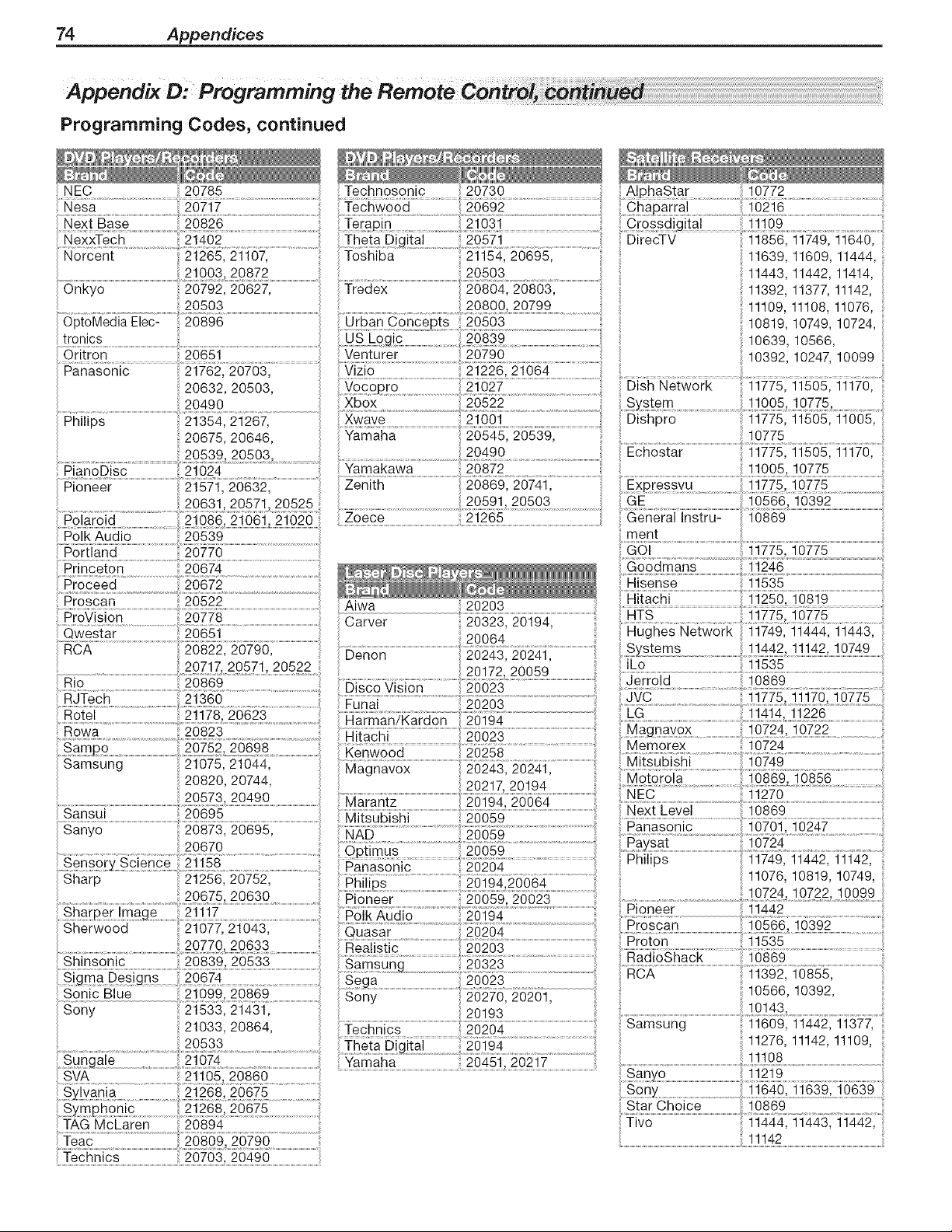
74 Appendices
Appendix D: Programming
Programming Codes, continued
NEC
20503
6_io_e_ia_i;c:..................
tronics
6ri_ron...................................................................................2_g_ ..............................................................................................
Proceed
Technosonic
20730 10772 i
11856,11749,11640,
11639,11609,11444,
11443,11442,11414,
11392,11377,11142,
11109,11108,11076,
10819,10749,10724,
10639,10566,
10392,10247,10099
DirecTV
11109
20672 Hisense 11535
Proscan .............................................20522 Aiwa Hitachi 11250, 10819
' ProVision ...........................................................20778 .... ...................................................................................................ili75, 16115
..... Carver 20323 20194 .............................................................................................................................................................................................................................................................
..................................................................20064' ' Hughes Network 11749, 11444, 11443,
RCA 20822 20790 .....................................................................................................................................Systems 11442 11142 10749
....... _PZ]7, _Q_Z_ _Q_ 20172'20059'
B o 208_9 ..... ......................................................................................................................................Jerro!d ................................................................................................................................................
RJTech 21360 .......................................................................................20203 ................................................................................................JVC 11775 11170 10775 }
..........................................................................20823........................................................................................n _ac5................................................................................68_ .................................................................................................................................................0724, ........................
Samsung 21075, 21044, ...............................................................................................................................................................................................................................................................
20820, 20744, 20217'20194' ..............................................................................................................
9ansu!..............................................................................._9_ .............................................................................................................................................._66_6...............................................................................................................................................................................................................................................
sanyo 208,73 20695 ................................................................................................................................................................................................................................................Hanason c 10701 10247
; , , NAD } 20059 ..................................................................................................................._..........................................................................................
299ZQ .............................................................._66g_.................................................................................Ea_sat..........................................................................................................................................................
g{dsory{cien{e 211g{ ........ a.....................................:..................................................................................................................................................................Phmps 11749 11442 11142 '
Sharp ..... 2:1256: 20752: ..... ......................................................................................... 11076, 10819, 10749,
20675,20630 ......................................................................................................................................; 10724 10722 10099
....................... ......... Hloneer ZUUb_ ZUUZ_ .....................................................................................................................................................................................................................................
_h_[p_r_a#_ _i_iZ Fo_58o ......................................................._515_........................................................................................................ ..........................................................................................
Sherwood 21077 21043 Quasar .........................................................................................................................................................................................................................................................................
20770 20633 .........................................................................................................................................................................Proton 11535
...................... ............................. bieallstlc ZUZUL_ ¢...............................:................................................................................................................................................................................................................
.............................................................................................................................................................................................................................i RCA 11392, 10855,
_i_ _6_ S°ny ........................................................................................... 10566, 10392,
Sony 21533, 21431, 20193' ' ..........................................................................................................................................................................................................................................
21033, 20864, ...........................................................................................................................................................Samsung 11609, 11442, 11377,
.....................................................................................................................................................................................................................................................20i94 .............................................................., 11276, 11142, 11109,
_un_ae _gZ_ ...............................................................................................................................................................................................................................................................................................
SVA 21105 20890 ...........................................................................................................................................................................................................................................................................................Santo !1219
a..................................................................................................... Son_ 11640 11639 10639
TAG McLaren 20894 Tivo 11444, 11443, 11442,
Teac ............................................................................................................................. ! 1142
{ac_ics......................................................................................................................
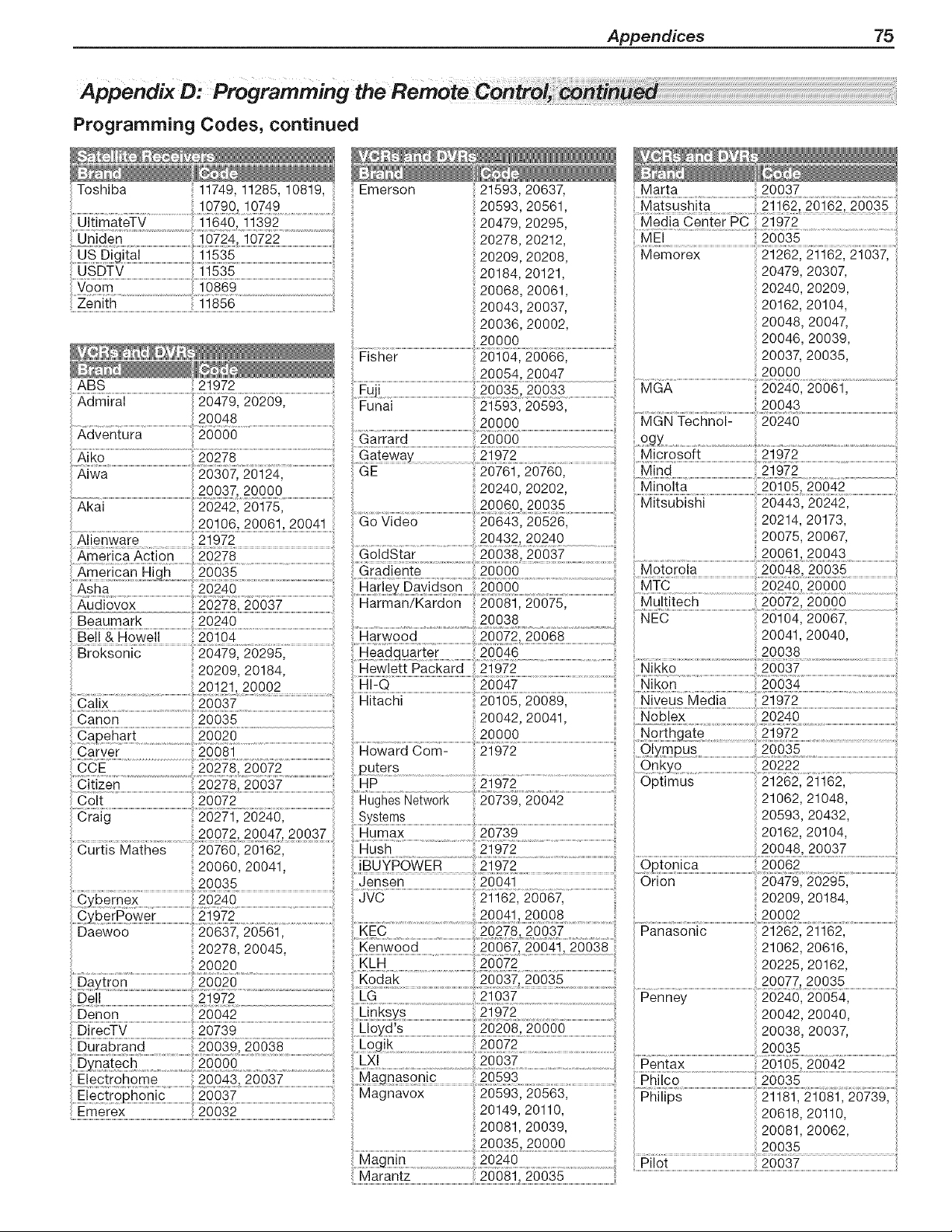
Appendices 75
Appendix D: Programming
Programming Codes, continued
Toshiba i!i!11749, 11285, 10819, i/ iiiiiEmerson 21593, 20637,
20593,20561,
20479,20295,
20278,20212,
20209,20208,
20184,20121,
20068,20061,
i20043,20037,
20036,20002,
Fisher 20104,20066,
Aiwa 20307,20124, GE
.......................................................................................................200372000 Q 20240,20202,
Akai 20242,20175 ....................................................................................................................................................................................
..................................................................................................................2,0100, 2000!, 2QQ4!...... Go Video i 20643, 20526,
A enware 21972 20432 20240 !
20037
Matsushita
21972
MEI 20035
Memorex 21262, 21162, 21037,
20479, 20307,
20240, 20209,
20162, 20104,
20048, 20047,
20046, 20039,
20037, 20035,
_i_suBis_i.....................................................20443, 20242,
20214, 20173,
20075, 20067,
America Action 20278
Audiovox 20278, 20037
20060, 20041,
q_bernex
20278,20045,
20020
......Uire_V......................................................................2¸¸07¸3¸9.............................................................................ii
2003920038
E!_qir£h_e .................................. ....................................................
5!ectro#honic ......20037 .........................................................................................................
Emerex 20032
Go dStar 20038 20037 20061 20043 ....
....._a__n_................................................_ ....................................................................................................._oio_oia........................................................................................................................
.....narie_D_vi_son _ .............................................................................................................................................................................................................................
!BUYP OWER
JVC 21162, 20067,
O£tonica
Orion
Kenwood 20067 20041, 20038
...._E_ ....... _ .....
20062
20209, 20184,
21062, 20616,
20225, 20162,
20077, 20035
..................................................................................202401 20054,
20042, 20040,
................................................................................................................................ 20038, 20037,
20035
Magnavox 20593, 20563, Phiiips .......................................................................................
20149, 20110, 20618, 20110,
20081, 20039, 20081, 20062,
20035 20000 20035
N_ _ ..........................2o24o................. .................................................................................................
Marantz 20081, 20035
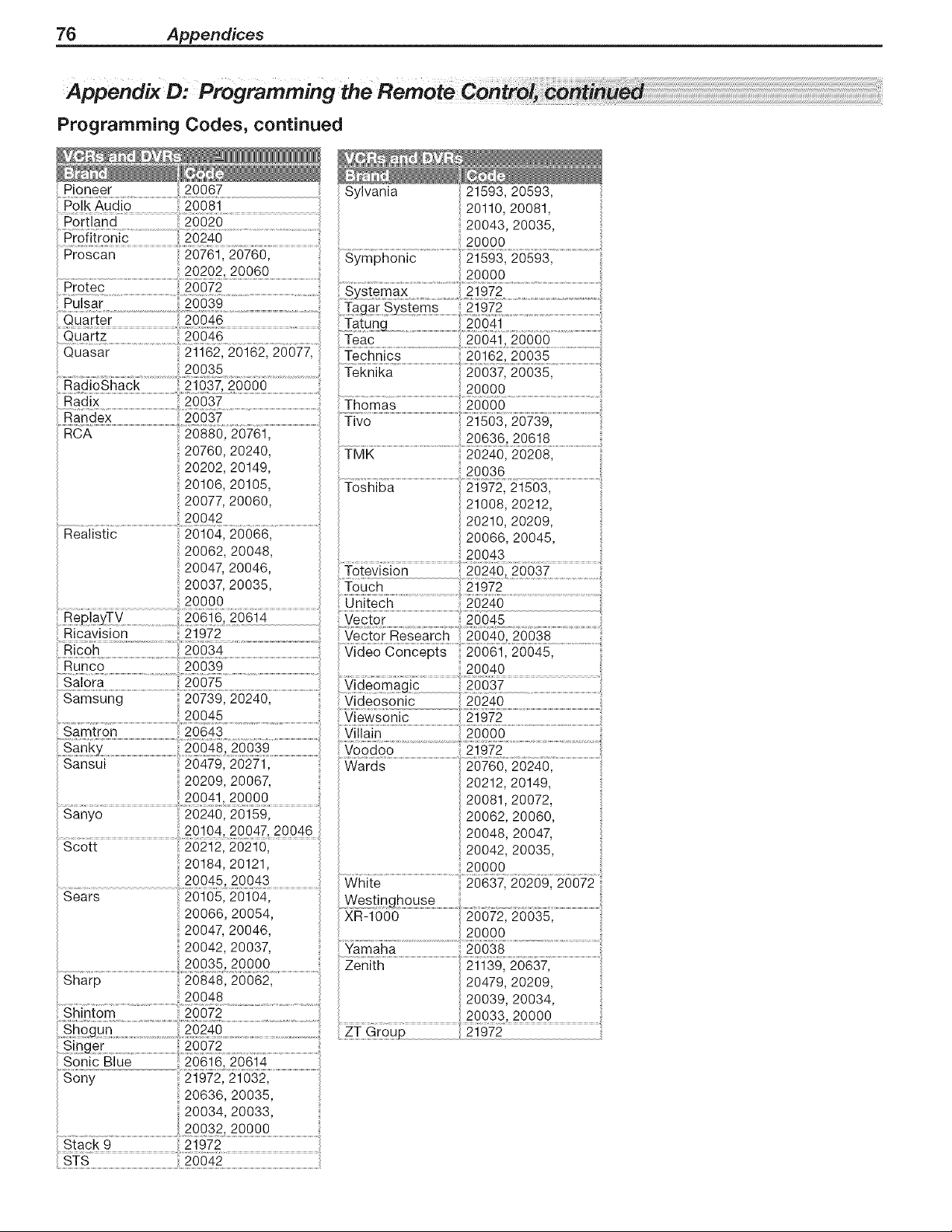
76 Appendices
Appendix D: Programming
Programming Codes, continued
Polk Audio
20067
20240
20761,20760,
20072
20035
Ran_ex ...........................................................................200_ ................................................................................................
i RCA 20880,20761,
20760,20240,
20202,20149,
20106,20105,
20077,20060,
20042
il B#£ _yTy .....
i Ricavisi0n 21972
20045
ii 120104, 20047, 20046
_ig_5_........................................................................................!i_8_ ...................................................
ii i20184 20121
ii! ....................................................
Sears 20105, 20104,
20066,20054,
20047,20046,
Sylvania 21593, 20593,
20110, 20081,
20043, 20035,
.......................................................................................................20ooo..................................................................................................
Symphonic 21593, 20593,
Teac 20041, 20000
20000
....._6666...................................................................................................
Tivo 21503, 20739,
TMK 20240, 20208,
.....................................................................................................................2o036.................................................................................
Toshiba 21972, 21503,
21008, 20212,
20210, 20209,
20066, 20045,
20043
Totevision 20240, 20037
20062, 20060,
20048, 20047,
20042, 20035,
20000
White 20637, 20209, 20072
XR-IO00 20072, 20035,
20000
20042 20037 iiii !Yamaha ................................................20038 ..............................................................i
20035,20000 ii i Zenih .................................................................................................................................................
Sharp ..........................................................................................................................................ii i 20479 20209
20046 iii 20039 20034 ii
i_ ii _ ii 20033 20000 i
ii ......................................................i
ii i20636 20035 ii
ii ii20034,20033, ii
!i! 20032 20000 i
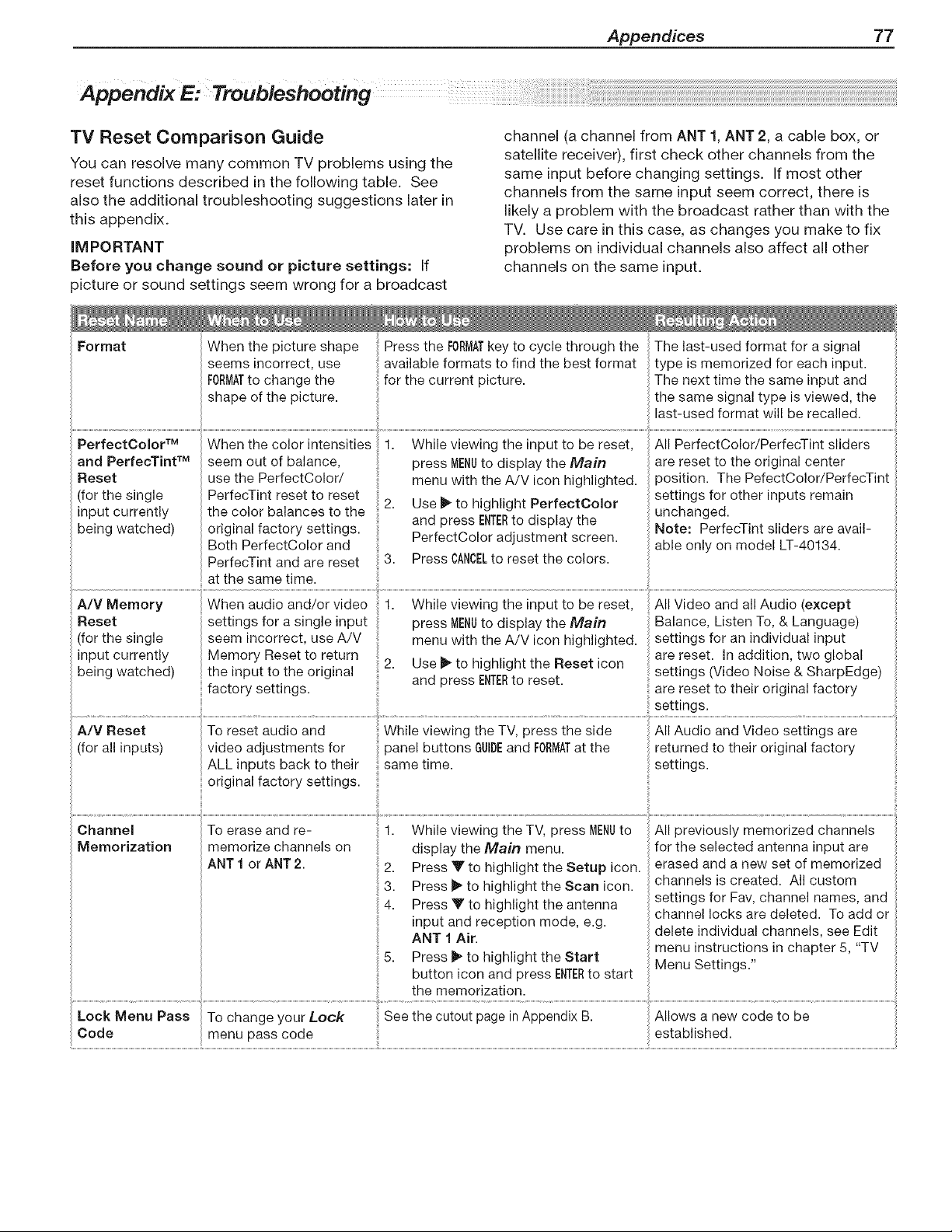
Appendices 77
TV Reset Comparison Guide
You can resolve many common TV problems using the
reset functions described in the following table. See
also the additional troubleshooting suggestions later in
this appendix.
iMPORTANT
Before you change sound or picture settings: If
picture or sound settings seem wrong for a broadcast
channel (a channel from ANT 1, ANT 2, a cable box, or
satellite receiver), first check other channels from the
same input before changing settings. If most other
channels from the same input seem correct, there is
likely a problem with the broadcast rather than with the
TV. Use care in this case, as changes you make to fix
problems on individual channels also affect all other
channels on the same input.
Format
PerfectColor TM
and PerfecTint TM
Reset
(for the single
input currently
being watched)
When the picture shape Press the FORMATkey to cycle through the The last-used format for a signal
seems incorrect, use available formats to find the best format type is memorized for each input.
FORMATto change the for the current picture. The next time the same input and
shape of the picture, the same signal type is viewed, the
last-used format will be recalled.
When the color intensities 1. While viewing the input to be reset, All PerfectColor/PerfecTint sliders
seem out of balance, press MENUto display the Main are reset to the original center
position. The PefectColor/PerfecTint
use the PerfectColor/ menu with the A/V icon highlighted.
PerfecTint reset to reset settings for other inputs remain
the color balances to the 2. Use _" to highlight PerfectColor unchanged.
original factory settings, and press ENTERto display the Note: PerfecTint sliders are avail-
Both PerfectColor and PerfectColor adjustment screen, able only on model LT-40134.
PerfecTint and are reset 3. Press CANCELto reset the colors.
at the same time.
A/V Memory When audio and/or video 1. While viewing the input to be reset, All Video and all Audio (except
Reset settings for a single input press MENUto display the Main Balance, Listen To, & Language)
(for the single seem incorrect use A/V menu with the A/V icon highlighted, settings for an individual input
input currently Memory Reset to return are reset. In addition, two global
being watched) the input to the original 2. Use b" to highlight the Reset icon settings (Video Noise & SharpEdge)
factory settings, and press ENTERto reset, are reset to their original factory
settings.
A/V Reset To reset audio and While viewing the TV, press the side All Audio and Video settings are
(for all inputs) video adjustments for panel buttons GUIDEand FORMATat the returned to their original factory
ALL inputs back to their same time. settings.
original factory settings.
iiii
Channel To erase and re- 1. While viewing the TV, press MENUto All previously memorized channels
Memorization memorize channels on display the Main menu. for the selected antenna input are
ANT 1 or ANT 2. 2. Press Y to highlight the Setup icon. erased and a new set of memorized
3. Press _" to highlight the Scan icon. channels is created. All custom
4. Press V to highlight the antenna settings for Fav, channel names, and
channel locks are deleted. To add or
input and reception mode, e.g. delete individual channels, see Edit
ANT t Air.
................ menu instructions in chapter 5, "TV
b. _'ress _ to ntgnllgm _ne _ar_ Menu Settin s"
g
button icon and press ENTERto start
..........................................................................................................................the memorization.
Lock Menu Pass To change your Lock See the cutout page in Appendix B. Allows a new code to be
Code menu pass code established.
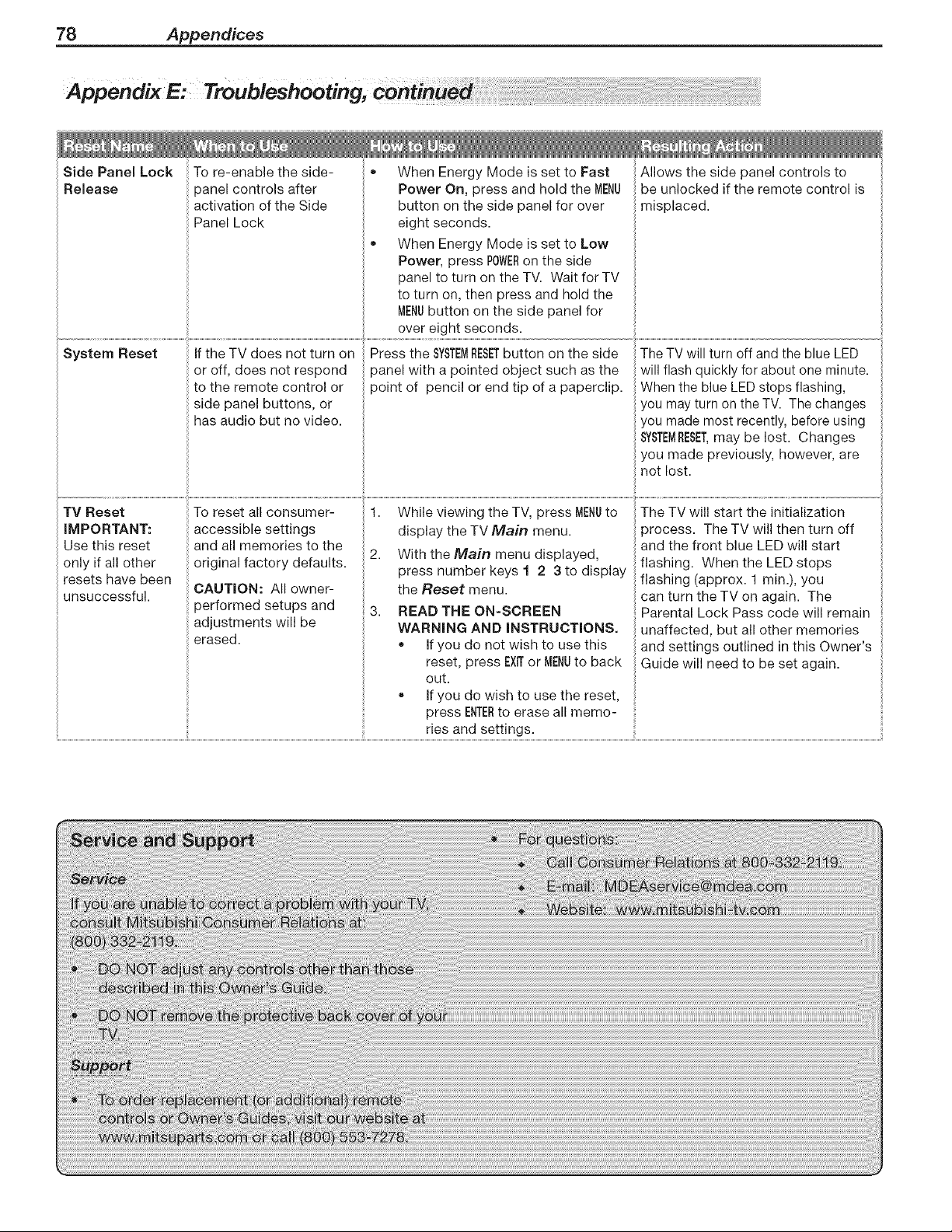
78 Appendices
Appendix E: Troubleshooting,
Side Panel Lock
Release
System Reset
To re-enable the side- o When Energy Mode is set to Fast
panel controls after Power On, press and hold the MENU
activation of the Side button on the side panel for over
Panel Lock eight seconds.
• When Energy Mode is set to Low
Power, press POWERon the side
panel to turn on the TV. Wait for TV
to turn on, then press and hold the
MENUbutton on the side panel for
over eight seconds.
If the TV does not turn on Press the SYSTEMRESETbutton on the side
or off, does not respond
to the remote control or
side panel buttons, or
has audio but no video.
Allows the side panel controls to
be unlocked if the remote control is
misplaced.
i......................................................................................................................................
The TV will turn off and the blue LED
)anel with a pointed object such as the will flash quickly for about one minute.
point of pencil or end tip of a paperclip. When the blue LED stops flashing,
you may turn on the TV. The changes
you made most recently, before using
SYSTEMRESET,may be lost. Changes
you made previously, however, are
not lost.
TV Reset To reset all consumer- 1. While viewing the TV, press MENUto The TV will start the initialization
IMPORTANT: accessible settings display the TV Main menu.
Use this reset and all memories to the
2. With the Main menu displayed,
only if all other original factory defaults, press number keys 1 2 3 to display
resets have been
unsuccessful. CAUTION: All owner- the Reset menu.
performed setups and 3. READ THE ON-SCREEN Parental Lock Pass code will remain
adjustments will be WARNING AND INSTRUCTIONS. unaffected, but all other memories
erased. • If you do not wish to use this and settings outlined in this Owner's
reset, press EXITor MENUto back Guide will need to be set again.
out.
If you do wish to use the reset,
press ENTERto erase all memo-
ries and settings.
process. The TV will then turn off
and the front blue LED will start
flashing. When the LED stops
flashing (approx. 1 min.), you
can turn the TV on again. The
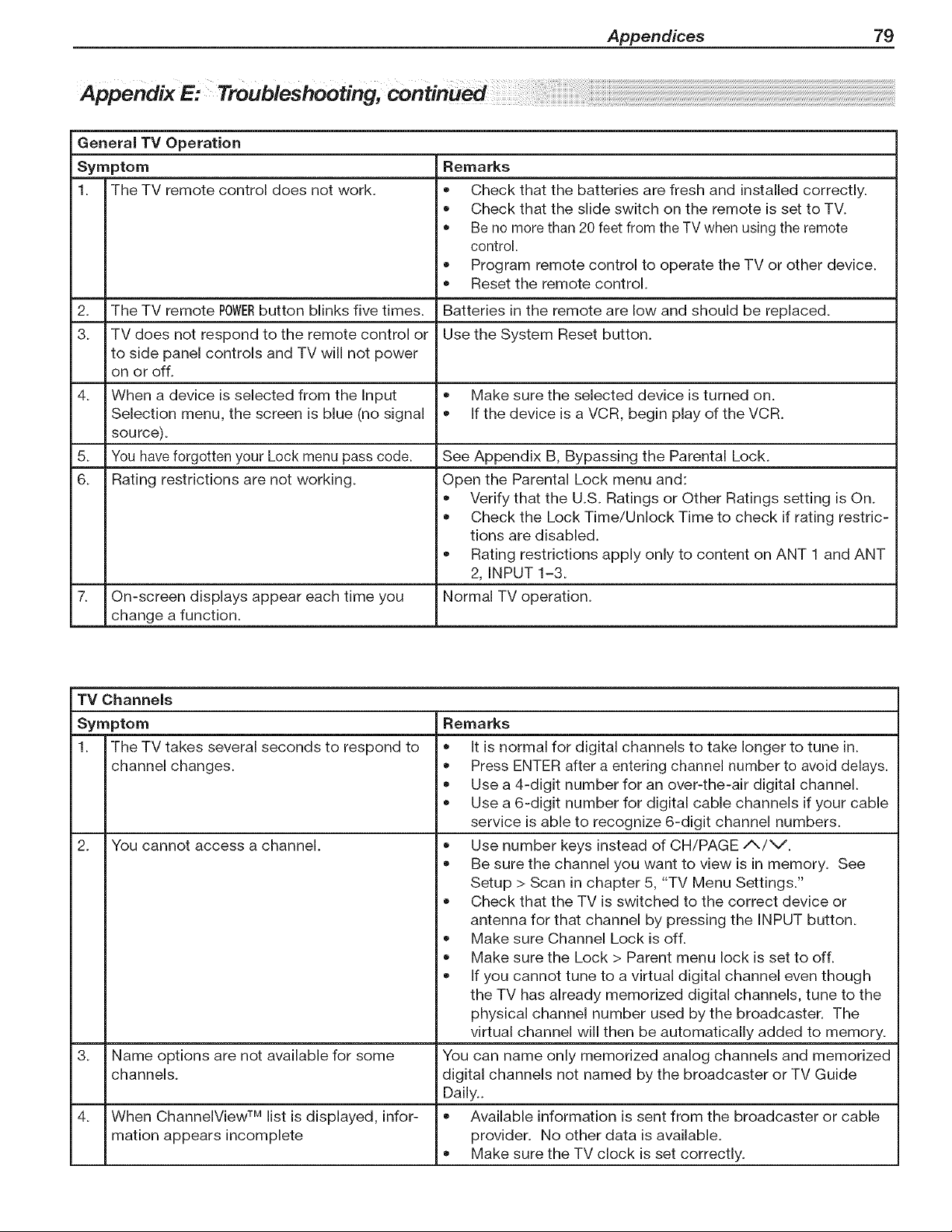
Appendices 79
General TV Operation
Symptom
1. The TV remote control does not work.
Remarks
= Check that the batteries are fresh and installed correctly.
• Check that the slide switch on the remote is set to TV.
Be no more than 20 feet from the TV when using the remote
control.
= Program remote control to operate the TV or other device.
= Reset the remote control.
2. The TV remote POWERbutton blinks five times. Batteries in the remote are low and should be replaced.
3. TV does not respond to the remote control or Use the System Reset button.
to side panel controls and TV will not power
on or off.
4. When a device is selected from the Input • Make sure the selected device is turned on.
Selection menu, the screen is blue (no signal = If the device is a VCR, begin play of the VCR.
source).
5. You have forgotten your Lock menu pass code.
6. Rating restrictions are not working.
7. On-screen displays appear each time you
change a function.
TV Channels
Symptom
1. The TV takes several seconds to respond to
channel changes.
2. You cannot access a channel.
See Appendix B, Bypassing the Parental Lock.
Open the Parental Lock menu and:
Verify that the U.S. Ratings or Other Ratings setting is On.
Check the Lock Time/Unlock Time to check if rating restric-
tions are disabled.
Rating restrictions apply only to content on ANT 1 and ANT
2, INPUT 1-3.
Normal TV operation.
3. Name options are not available for some
channels.
4. When ChannelView TM list is displayed, infor-
mation appears incomplete
Remarks
It is normal for digital channels to take longer to tune in.
Press ENTER after a entering channel number to avoid delays.
Use a 4-digit number for an over-the-air digital channel.
Use a 6-digit number for digital cable channels if your cable
service is able to recognize 6-digit channel numbers.
Use number keys instead of CH/PAGE A/V.
Be sure the channel you want to view is in memory. See
Setup > Scan in chapter 5, "TV Menu Settings."
Check that the TV is switched to the correct device or
antenna for that channel by pressing the INPUT button.
Make sure Channel Lock is off.
Make sure the Lock > Parent menu lock is set to off.
If you cannot tune to a virtual digital channel even though
the TV has already memorized digital channels, tune to the
physical channel number used by the broadcaster. The
virtual channel will then be automatically added to memory.
You can name only memorized analog channels and memorized
digital channels not named by the broadcaster or TV Guide
Daily..
Available information is sent from the broadcaster or cable
provider. No other data is available.
Make sure the TV clock is set correctly.
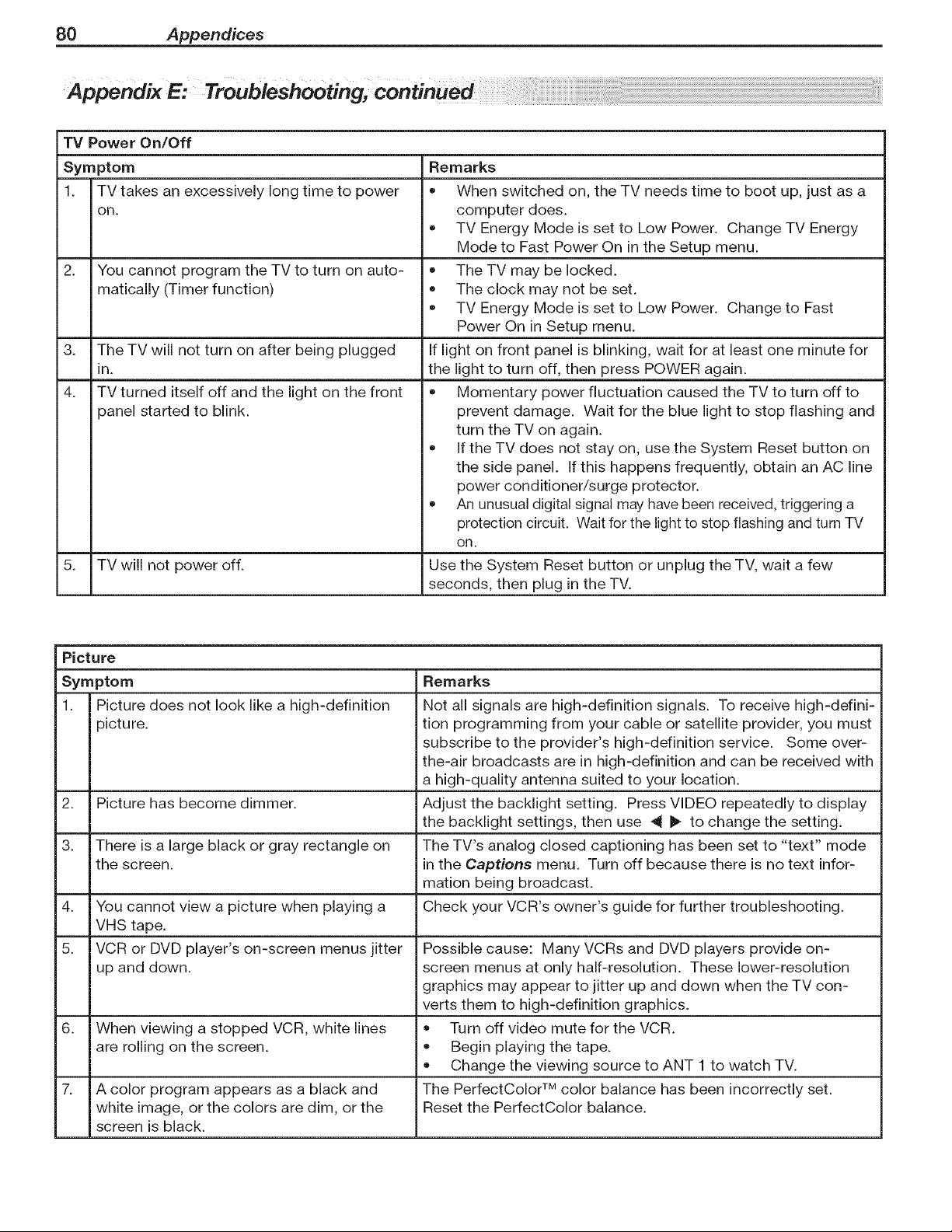
80 Appendices
Appendix E: Troublesh ting,
TV Power On/Off
Symptom
1. TV takes an excessively long time to power
On.
2. You cannot program the TV to turn on auto-
matically (Timer function)
3. The TV will not turn on after being plugged
in.
4. TV turned itself off and the light on the front
panel started to blink.
Remarks
• When switched on, the TV needs time to boot up, just as a
computer does.
TV Energy Mode is set to Low Power. Change TV Energy
Mode to Fast Power On in the Setup menu.
The TV may be locked.
The clock may not be set.
TV Energy Mode is set to Low Power. Change to Fast
Power On in Setup menu.
If light on front panel is blinking, wait for at least one minute for
the light to turn off, then press POWER again.
Momentary power fluctuation caused the TV to turn off to
prevent damage. Wait for the blue light to stop flashing and
turn the TV on again.
If the TV does not stay on, use the System Reset button on
the side panel. If this happens frequently, obtain an AC line
power conditioner/surge protector.
An unusual digital signal may have been received, triggering a
protection circuit. Wait for the light to stop flashing and turn TV
On.
Use the System Reset button or unplug the TV, wait a few
seconds, then plug in the TV.
5. TV will not power off.
Picture
Symptom Remarks
1. Picture does not look like a high-definition Not all signals are high-definition signals. To receive high-defini-
picture, tion programming from your cable or satellite provider, you must
subscribe to the provider's high-definition service. Some over-
the-air broadcasts are in high-definition and can be received with
a high-quality antenna suited to your location.
2. Picture has become dimmer. Adjust the backlight setting. Press VIDEO repeatedly to display
the backlight settings, then use 4 I_ to change the setting.
3. There is a large black or gray rectangle on The TV's analog closed captioning has been set to "text" mode
the screen, inthe Captions menu. Turn off because there is no text infor-
mation being broadcast.
4. You cannot view a picture when playing a Check your VCR's owner's guide for further troubleshooting.
VHS tape.
5. VCR or DVD player's on-screen menus jitter Possible cause: Many VCRs and DVD players provide on-
up and down. screen menus at only half-resolution. These lower-resolution
graphics may appear to jitter up and down when the TV con-
verts them to high-definition graphics.
6. When viewing a stopped VCR, white lines • Turn off video mute for the VCR.
are rolling on the screen. • Begin playing the tape.
Change the viewing source to ANT 1 to watch TV.
7. A color program appears as a black and The PerfectColor TM color balance has been incorrectly set.
white image, or the colors are dim, or the Reset the PerfectColor balance.
screen is black.
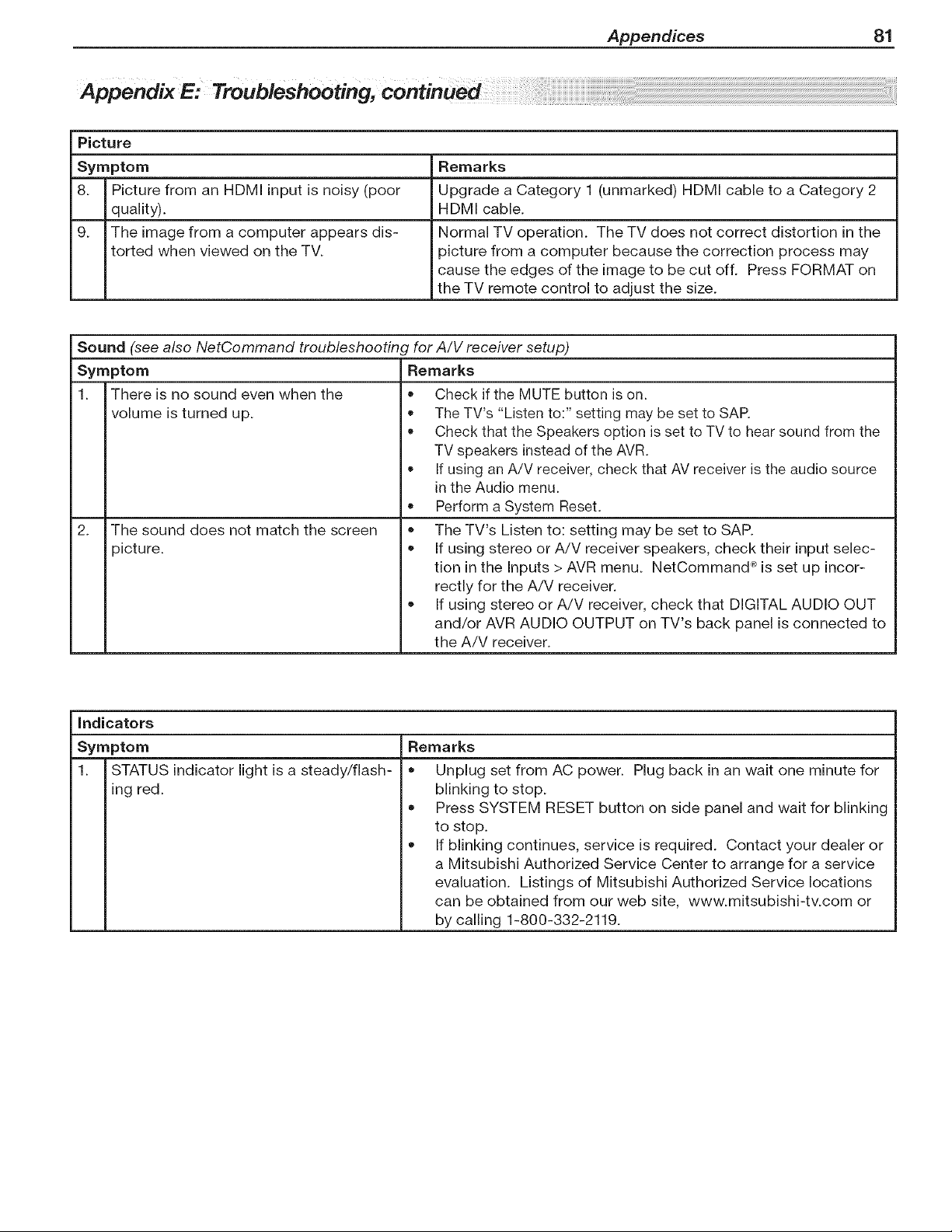
Appendices 81
Picture
Symptom Remarks
8. Picture from an HDMI input is noisy (poor Upgrade a Category 1 (unmarked) HDMI cable to a Category 2
quality). HDMI cable.
9. The image from a computer appears dis- Normal TV operation. The TV does not correct distortion in the
torted when viewed on the TV. picture from a computer because the correction process may
cause the edges of the image to be cut off. Press FORMAT on
the TV remote control to adjust the size.
Sound (see also NetCommand troubleshooting for A/V receiver setup)
Remarks
Symptom
1. There is no sound even when the
volume is turned up.
2. The sound does not match the screen
picture.
• Check if the MUTE button is on.
The TV's "Listen to:" setting may be set to SAR
Check that the Speakers option is set to TV to hear sound from the
TV speakers instead of the AVR.
If using an A/V receiver, check that AV receiver is the audio source
in the Audio menu.
• Perform a System Reset.
The TV's Listen to: setting may be set to SAP.
• If using stereo or A/V receiver speakers, check their input selec-
tion in the Inputs > AVR menu. NetCommand _ is set up incor-
rectly for the A/V receiver.
If using stereo or A!V receiver, check that DIGITAL AUDIO OUT
and/or AVR AUDIO OUTPUT on TV's back panel is connected to
the A/V receiver.
indicators
Symptom
1. STATUS indicator light is a steady/flash-
ing red.
Remarks
Unplug set from AC power.
o
o
Plug back in an wait one minute for
blinking to stop.
Press SYSTEM RESET button on side panel and wait for blinking
to stop.
If blinking continues, service is required. Contact your dealer or
a Mitsubishi Authorized Service Center to arrange for a service
evaluation. Listings of Mitsubishi Authorized Service locations
can be obtained from our web site, www.mitsubishi-tv.com or
by calling 1-800-332-2119.
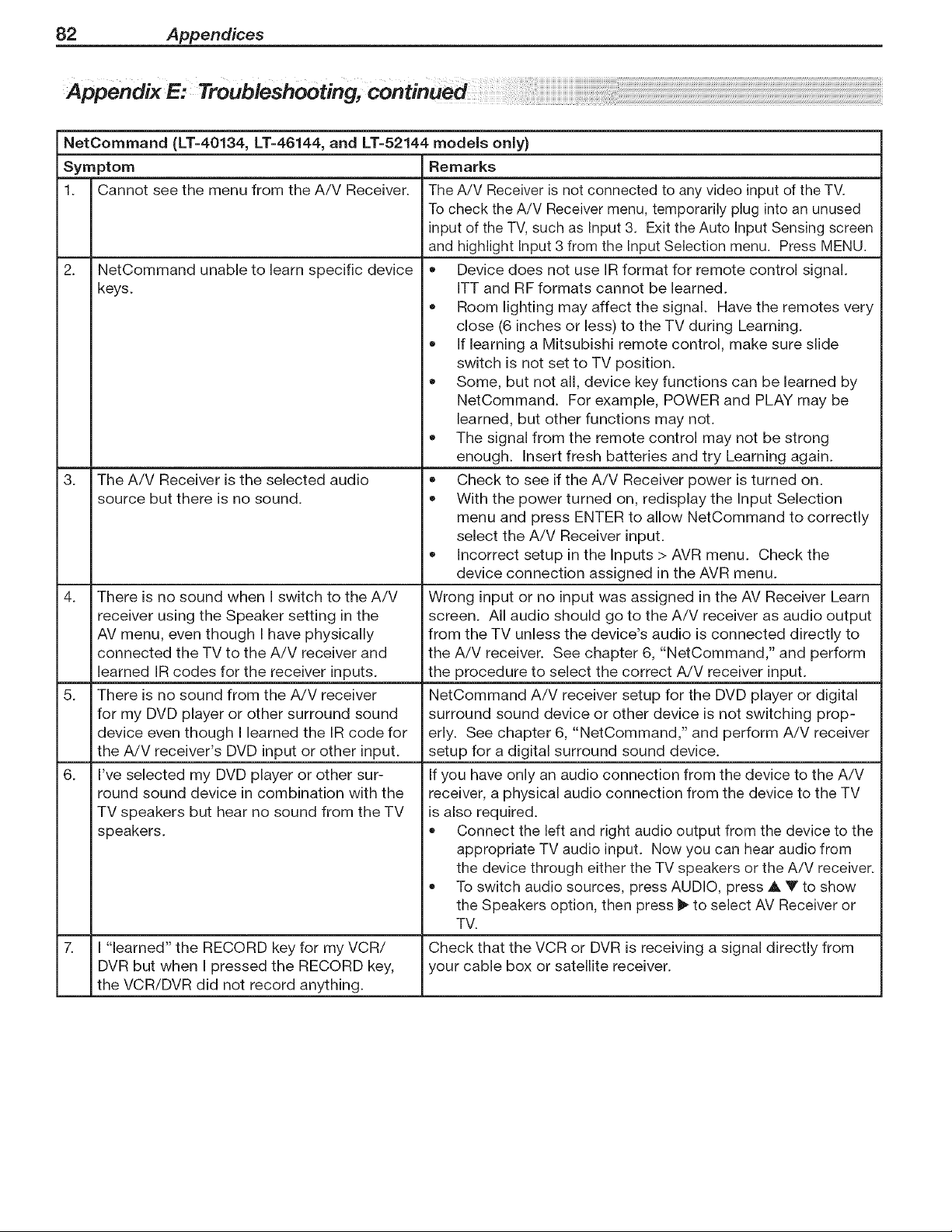
82 Appendices
NetCommand (LT=40134, LT=46144, and LT=52144 models only)
Symptom
1. Cannot see the menu from the A/V Receiver.
2.
3_
NetCommand unable to learn specific device
keys.
The A/V Receiver is the selected audio
source but there is no sound.
4. There is no sound when I switch to the A/V
receiver using the Speaker setting in the
AV menu, even though I have physically
connected the TV to the A/V receiver and
learned IR codes for the receiver inputs.
5. There is no sound from the A/V receiver
for my DVD player or other surround sound
device even though I learned the IR code for
the A!V receiver's DVD input or other input.
6. I've selected my DVD player or other sur-
round sound device in combination with the
TV speakers but hear no sound from the TV
speakers.
7. I "learned" the RECORD key for my VCR/
DVR but when I pressed the RECORD key,
the VCR/DVR did not record anything.
Remarks
The A/V Receiver is not connected to any video input of the TV.
To check the A/V Receiver menu, temporarily plug into an unused
input of the TV, such as Input 3. Exit the Auto Input Sensing screen
and highlight Input 3 from the Input Selection menu. Press MENU.
• Device does not use IR format for remote control signal.
ITT and RF formats cannot be learned.
Room lighting may affect the signal. Have the remotes very
close (6 inches or less) to the TV during Learning.
If learning a Mitsubishi remote control, make sure slide
switch is not set to TV position.
Some, but not all, device key functions can be learned by
NetCommand. For example, POWER and PLAY may be
learned, but other functions may not.
The signal from the remote control may not be strong
enough. Insert fresh batteries and try Learning again.
Check to see if the A/V Receiver power is turned on.
With the power turned on, redisplay the Input Selection
menu and press ENTER to allow NetCommand to correctly
select the A/V Receiver input.
Incorrect setup in the Inputs > AVR menu. Check the
device connection assigned in the AVR menu.
Wrong input or no input was assigned in the AV Receiver Learn
screen. All audio should go to the A/V receiver as audio output
from the TV unless the device's audio is connected directly to
the A/V receiver. See chapter 6, "NetCommand," and perform
the procedure to select the correct A/V receiver input.
NetCommand A/V receiver setup for the DVD player or digital
surround sound device or other device is not switching prop-
erly. See chapter 6, "NetCommand," and perform A/V receiver
setup for a digital surround sound device.
If you have only an audio connection from the device to the A/V
receiver, a physical audio connection from the device to the TV
is also required.
Connect the left and right audio output from the device to the
appropriate TV audio input. Now you can hear audio from
the device through either the TV speakers or the A/V receiver.
To switch audio sources, press AUDIO, press A Y to show
the Speakers option, then press _ to select AV Receiver or
TV.
Check that the VCR or DVR is receiving a signal directly from
your cable box or satellite receiver.
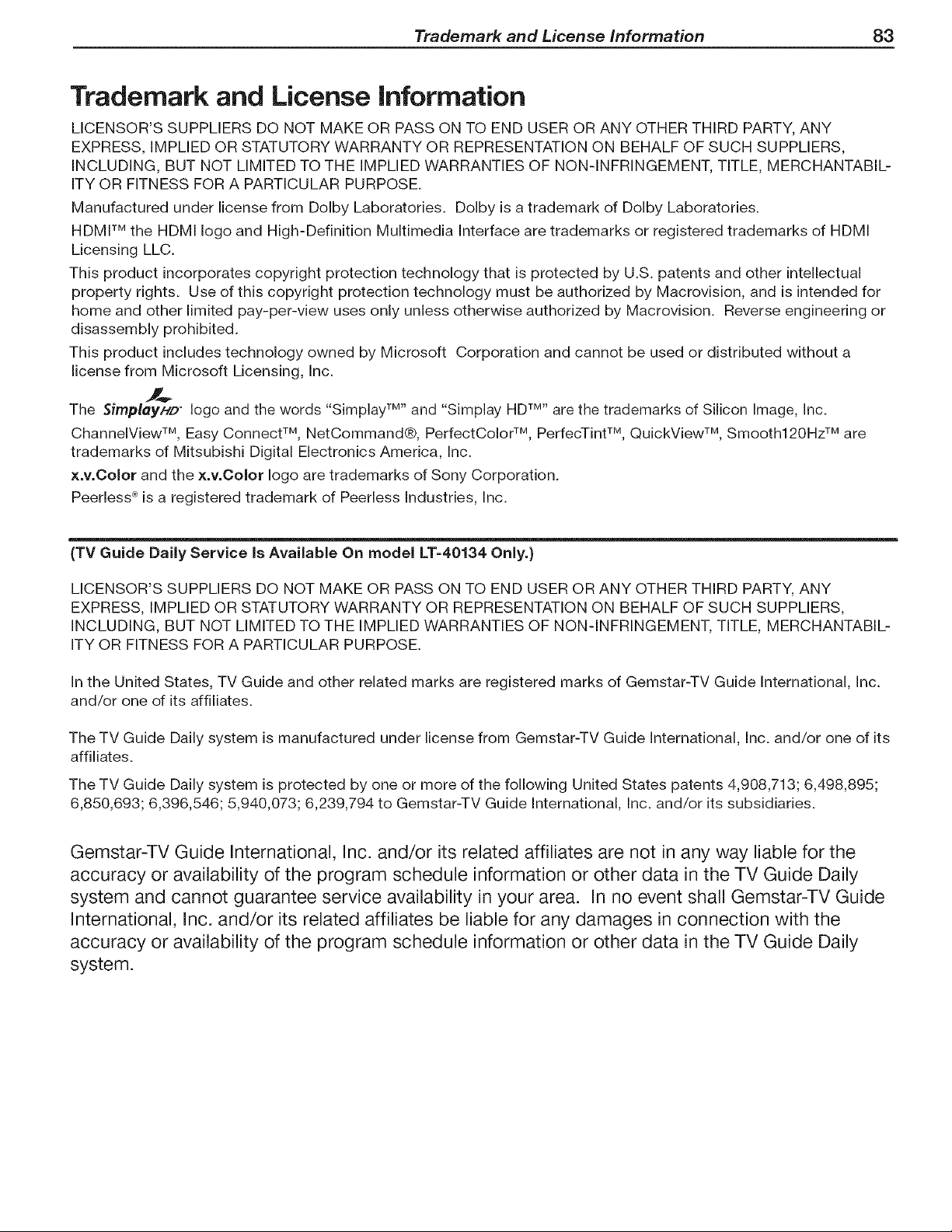
Trademark and License information 83
Trademark and License information
LICENSOR'S SUPPLIERS DO NOT MAKE OR PASS ON TO END USER OR ANY OTHER THIRD PARTY, ANY
EXPRESS, IMPLIED OR STATUTORY WARRANTY OR REPRESENTATION ON BEHALF OF SUCH SUPPLIERS,
INCLUDING, BUT NOT LIMITED TO THE IMPLIED WARRANTIES OF NON-INFRINGEMENT, TITLE, MERCHANTABIL-
ITY OR FITNESS FOR A PARTICULAR PURPOSE.
Manufactured under license from Dolby Laboratories. Dolby is a trademark of Dolby Laboratories.
HDMI TM the HDMI logo and High-Definition Multimedia Interface are trademarks or registered trademarks of HDMI
Licensing LLC.
This product incorporates copyright protection technology that is protected by U.S. patents and other intellectual
property rights. Use of this copyright protection technology must be authorized by Macrovision, and is intended for
home and other limited pay-per-view uses only unless otherwise authorized by Macrovision. Reverse engineering or
disassembly prohibited.
This product includes technology owned by Microsoft Corporation and cannot be used or distributed without a
license from Microsoft Licensing, Inc.
The Simplay/./D _ logo and the words "Simplay TM''and "Simplay HDTM''are the trademarks of Silicon Image, Inc.
ChanneIView TM, Easy Connect TM, NetCommand®, PerfectColor TM, PerfecTint TM, QuickView TM, Smooth120Hz TM are
trademarks of Mitsubishi Digital Electronics America, Inc.
×.v.Color and the x.v.Oolor logo are trademarks of Sony Corporation.
Peerless _ is a registered trademark of Peerless Industries, Inc.
(TV Guide Daily Service Is Available On model LT=40134 Only.)
LICENSOR'S SUPPLIERS DO NOT MAKE OR PASS ON TO END USER OR ANY OTHER THIRD PARTY, ANY
EXPRESS, IMPLIED OR STATUTORY WARRANTY OR REPRESENTATION ON BEHALF OF SUCH SUPPLIERS,
INCLUDING, BUT NOT LIMITED TO THE IMPLIED WARRANTIES OF NON-INFRINGEMENT, TITLE, MERCHANTABIL-
ITY OR FITNESS FOR A PARTICULAR PURPOSE.
In the United States, TV Guide and other related marks are registered marks of Gemstar-TV Guide International, Inc.
and/or one of its affiliates.
The TV Guide Daily system is manufactured under license from Gemstar-TV Guide International, Inc. and/or one of its
affiliates.
The TV Guide Daily system is protected by one or more of the following United States patents 4,908,713; 6,498,895;
6,850,693; 6,396,546; 5,940,073; 6,239,794 to Gemstar-TV Guide International, Inc. and/or its subsidiaries.
Gemstar-TV Guide International, Inc. and/or its related affiliates are not in any way liable for the
accuracy or availability of the program schedule information or other data in the TV Guide Daily
system and cannot guarantee service availability in your area. In no event shall Gemstar-TV Guide
International, Inc. and/or its related affiliates be liable for any damages in connection with the
accuracy or availability of the program schedule information or other data in the TV Guide Daily
system.
84 Trademark and License information
Mitsubishi TV Software
END-USER LICENSE AGREEMENT FOR EMBEDDED SOFTWARE
iMPORTANT - READ CAREFULLY: This License Agreement is a legal agreement between you (either an individual or an entity) and
Mitsubishi Digital Electronics America, Inc. (MDEA) for all software pre installed and/or provided along with this television ("Software").
By utilizing this television and Software, you agree to be bound by the terms of this License Agreement.
The Software is protected by United States copyright laws and international treaty provisions, as well as other intellectual property laws
and treaties. The Software is licensed, not sold.
1. LICENSE GRANT. MDEA grants you a non-exclusive, non-transferable, limited right and license to use one copy of the Software
only with the Mitsubishi television model that included this owner's guide and owned by you.
2. RIGHTS AND LIMITATIONS.
Software Not for Resale. You may not resell or otherwise transfer for value the Software, except in conjunction with a sale of the TV
that Software has been pre installed.
Prohibition on Reverse Engineering, Decompilation and Disassembly. The Software contains trade secrets or other proprietary material
in its human perceivable form and to protect them, you may not reverse engineer, decompile, or disassemble, or otherwise reduce the
Software to any human perceivable form, except to the extent that the foregoing restriction is expressly prohibited by applicable law.
Separation of Components. The Software is licensed as a single product. Its component parts may not be separated for use on more
than one TV.
No Rental. You may not rent, lease, lend, or sublicense the Software.
Trademarks. This License Agreement does not grant you any rights to any trademarks of MDEA.
3. VIOLATIONS. You understand that any use, copying or transfer of the Software, except as permitted pursuant to this License,
may subject you to serious criminal and civil penalties including damages and an award to MDEA of attorneys' fees in connection with
any violation of this License. You further understand that you may be held legally responsible for any copyright infringement or other
violation of intellectual property rights that is caused, encouraged, or induced by your failure to abide by the terms of the License. This
license is effective until terminated, and will terminate immediately without notice from MDEA or judicial resolution if you fail to comply
with any provision of this License.
4. COPYRIGHT. All title and intellectual property rights in and to the Software (including but not limited to any images,
photographs, animations, video, audio, music, text, and "applets" incorporated into the Software), and any accompanying printed
materials are owned by or licensed to MDEA. All title and intellectual property rights in and to the content which may be accessed
through use of the Software is the property of the respective content owner and may be protected by applicable copyright or other
intellectual property laws and treaties. This License Agreement grants you no rights to use such content, except that you own the
media on which the Software is recorded, but MDEA and its licensors retain ownership of the Software itself. All rights not expressly
granted are reserved by MDEA.
5. EXPORT RESTRICTIONS. MDEA is licensing the Software for use within the United States. You agree that you will not export
or re-export the Software. You specifically agree not to export or re-export the Software: (i) to any country to which the U.S. has
embargoed or restricted the export of goods or services, which currently include, but are not necessarily limited to Cuba, Iran, Iraq,
Libya, North Korea, Sudan, and Syria, or to any national of any such country, wherever located, who intends to transmit or transport the
Software back to such country; (ii) to any person or entity who you know or have reason to know will utilize the Software in the design,
development, or production of nuclear, chemical, or biological weapons; or (iii) to any person or entity who has been prohibited from
participating in U.S. export transactions by any federal agency of the U.S. government. You warrant and represent that neither the BXA
nor any other U.S. federal agency has suspended, revoked, or denied your export privileges.
6. DISCLAIMER OF WARRANTY. EXCEPT AS OTHERWISE PROVIDED IN THIS LICENSE OR IN THE LIMITED WARRANTY
APPLICABLE TO THE TV, MDEA MAKES NO OTHER WARRANTIES OF ANY KIND WHATSOEVER REGARDING THE SOFTWARE
AND HEREBY EXPRESSLY DISCLAIMS ALL WARRANTIES OF ANY KIND WHATSOEVER, EXPRESS OR IMPLIED, WITH
RESPECT TO THE SOFTWARE. ALL IMPLIED WARRANTIES, INCLUDING, WITHOUT LIMITATION, THE IMPLIED WARRANTIES
OF MERCHANTABILITY AND FITNESS FOR A PARTICULAR PURPOSE ARE HEREBY EXPRESSLY DISCLAIMED BY MDEA. IN
NO EVENT SHALL MDEA BE LIABLE TO YOU OR ANY THIRD PARTIES, IN CONTRACT, IN TORT OR OTHERWISE, FOR ANY
DIRECT, INDIRECT, SPECIAL, INCIDENTAL OR CONSEQUENTIAL DAMAGES OF ANY KIND OR NATURE. BECAUSE SOME
JURISDICTIONS DO NOT ALLOW THE EXCLUSION OR LIMITATION OF IMPLIED WARRANTIES, THE ABOVE LIMITATION MAY
NOT APPLY TO YOU.
7. LIMITATION OF LIABILITY. MDEA SHALL NOT, UNDER ANY CIRCUMSTANCES BE LIABLE TO YOU OR ANY THIRD
PARTIES FOR ANY DAMAGES OF ANY NATURE, WHETHER INDIRECT, SPECIAL, INCIDENTAL, CONSEQUENTIAL
OR OTHERWISE, INCLUDING, BUT NOT LIMITED TO, ANY CLAIMS FOR LOST PROFITS, LOSS OF GOOD WILL OR
EXPENDITURES MADE OR COMMITTED FOR IN RELIANCE ON THE CONTINUATION OF THIS LICENSE. YOU AGREE THAT
NEITHER MDEA'S BREACH OF THIS LICENSE NOR ITS FAILURE TO REPAIR A DEFECT, ERROR OR BUG SHALL CONSTITUTE
A FAILURE OF THE ESSENTIAL PURPOSE OF THIS LICENSE. BECAUSE SOME JURISDICTIONS DO NOT ALLOW THE
EXCLUSION OR LIMITATION OF LIABILITY FOR CONSEQUENTIAL OR INCIDENTAL DAMAGES, THE ABOVE LIMITATIONS MAY
NOT APPLY TO YOU. MDEA's liability to you for direct damages for any cause whatsoever and regardless of the form of the
action, will be limited to the money paid by you for the TV (based on fair market value of the TV) that caused the damages.
8. GENERAL. This License Agreement will be governed by the laws of the State of California.
85
Mitsubishi LCD Fiat Panel Limited Warranty
MITSUBISHI DIGITAL ELECTRONICS AMERICA, INC. ("MDEA") warrants to the original purchaser of this LCD Flat Panel HDTV that if purchased
from an authorized MITSUBISHI Audio/Video Dealer, should it prove defective by reason of improper workmanship and/or material:
a. Parts. All parts (except any software incorporated into this HDTV) are warranted for a period of one year from the date of the original
purchase at retail. We will repair or replace, at our option, any defective part without charge for the part. Parts used for replacement may be
replaced with those of like kind and quality and may be new or remanufactured. Parts used for replacement are warranted for the remainder of
the original warranty period.
b. Embedded Software. MDEA warrants that all software incorporated into this RDTV (the "Embedded Software") will perform in accordance
with the functional description of Embedded Software in all material respects, but MDEA does not warrant that the Embedded Software is error-
free. MDEA also does not warrant that the Embedded Software will be compatible under IEEE 1394 AV/C and HAVi software standards with
products produced by any other manufacturer. The warranty contained in this section shall continue for a period of one year, from the date of the
original purchase from the dealer. If, after prompt notice within the warranty period, MDEA determines that the Embedded Software has failed
to perform in accordance with such functional description in all material respects and if such failure is not due to accident, misuse, modification
or misapplication of the Embedded Software, then MDEA shall modify or replace the nonconforming Embedded Software at no charge to you,
which at MDEA's sole discretion may be fulfilled by means of modification or replacement software contained on a replacement memory card
for Customer installation. The foregoing shall be MDEA's sole obligation to you under this limited warranty. All rights under this limited warranty
on the Embedded Software also subject to your compliance with the terms of the Software License Agreement applicable to this HDTV, and this
limited warranty on the Embedded Software shall be null and void if the Embedded Software is modified or changed in any manner except as
specifically authorized by MDEA.
c. Labor. For certain items that are designed to be replaced by the consumer, including (but not limited to) some Embedded Software, the
consumer is solely responsible for any replacement labor. For all other parts, we will provide the labor for a warranty repair by an authorized
MITSUBISHI service center without charge for one year from the original date of purchase at retail.
d. Notice. To obtain warranty service, you must notify an authorized MITSUBISHI service center of any defect within the applicable warranty
time period.
BEFORE REQUESTING SERVICE, please review the TV owner's guide to insure proper installation and correct customer
control adjustment, if the problem persists, please arrange for warranty service.
1. TO OBTAIN WARRANTY SERVICE:
a. Contact your nearest authorized MITSUBISHI service center whose name and address can be obtained from your MITSUBISHI
dealer, by writing to the address provided below, calling MDEA at 800-332-2119, or using the support feature of our website at www.Mitsubishi-
tv.com.
b. Warranty service will be provided in your home or, if required, at an authorized service shop, provided that your television is located
within the geographic territory customarily covered by an authorized MITSUBISHI service center. If not, you must either deliver your television to
an authorized service location at your own expense, or pay for any travel and/or transportation costs the service center may charge to and from
you home. Actual service labor will be provided without charge.
c. Proof of purchase date from an authorized MITSUBISHI dealer is required when requesting warranty service. Present your sales
receipt or other document which establishes proof and date of purchase. THE RETURN OF THE OWNER REGISTRATION CARD IS NOT A
CONDITION OF WARRANTY COVERAGE. However, please return the Owner Registration Card so that we can contact you should a question of
safety arise which could affect you.
2, THIS LIMITED WARRANTY DOES NOT COVER:
a. Up to .01% pixel outages (small dot picture elements that are dark or incorrectly illuminated).
b. Cosmetic damage or any other damage where such damage is caused by unauthorized modification, alteration, repairs to or service
of the product by anyone other than an authorized MITSUBISHI service center; physical abuse to or misuse of the product (or any product
damaged by excessive physical or electrical stress); any products that have had a serial number or any part thereof altered, defaced or removed;
product use in any manner contrary to the Owner's Guide; freight damage; or any damage caused by acts of God or other factors beyond the
reasonable control of MDEA, such as power surge damage caused by electrical system or damages caused by use of third party mounting
brackets or stands. This limited warranty also excludes service calls where no defect in the product covered under this warranty is found, service
calls related to unsatisfactory audio or visual reception or signal unless caused by a defect in the product that is covered under this limited
warranty, all costs, expenses or any other damages arising from product installation, removal from or re-installation into custom installations
or on wall mountings, or set-ups, any adjustments of user controls (including contrast, brightness, color, tint, fine tuning, sharpness), other
adjustment necessary to prepare the unit for display or use, connection with any external audio receiver, antenna, cable or satellite systems, or
service of products purchased or serviced outside the U.S.A. Please consult the operating instructions contained in the Owner's Guide furnished
with the product for information regarding user controls.
3. ANY EXPRESS WARRANTY NOT PROVIDED HEREIN, AND ANY REMEDY WHICH, BUT FOR THIS PROVISION, MIGHT ARISE BY
IMPLICATION OR OPERATION OF LAW, IS HEREBY EXCLUDED AND DISCLAIMED. THE IMPLIED WARRANTIES OF MERCHANTABILITY AND
OF FITNESS FOR ANY PARTICULAR PURPOSE ARE EXPRESSLY LIMITED TO A TERM OF ONE YEAR.
4. UNDER NO CIRCUMSTANCES SHALL MDEA BE LIABLE TO PURCHASER OR ANY OTHER PERSON FOR ANY INCIDENTAL, SPECIAL OR
CONSEQUENTIAL DAMAGES, WHETHER ARISING OUT OF BREACH OF WARRANTY, BREACH OF CONTRACT, OR OTHERWISE.
5. Some states do not allow limitations on how long an implied warranty lasts, or the exclusion or limitation of incidental, special, or
consequential damages, so the above limitations or exclusions may not apply to you.
6. This limited warranty gives you specific legal rights, and you may also have other rights which vary from state to state.
In no event shall Mitsubishi have any liability, including without limitation, for general, consequential, incidental, or special damages for loss,
destruction, damage or corruption of recorded data, media or software resulting from use of this television, or cost of recovery of lost data,
media or software therefore.
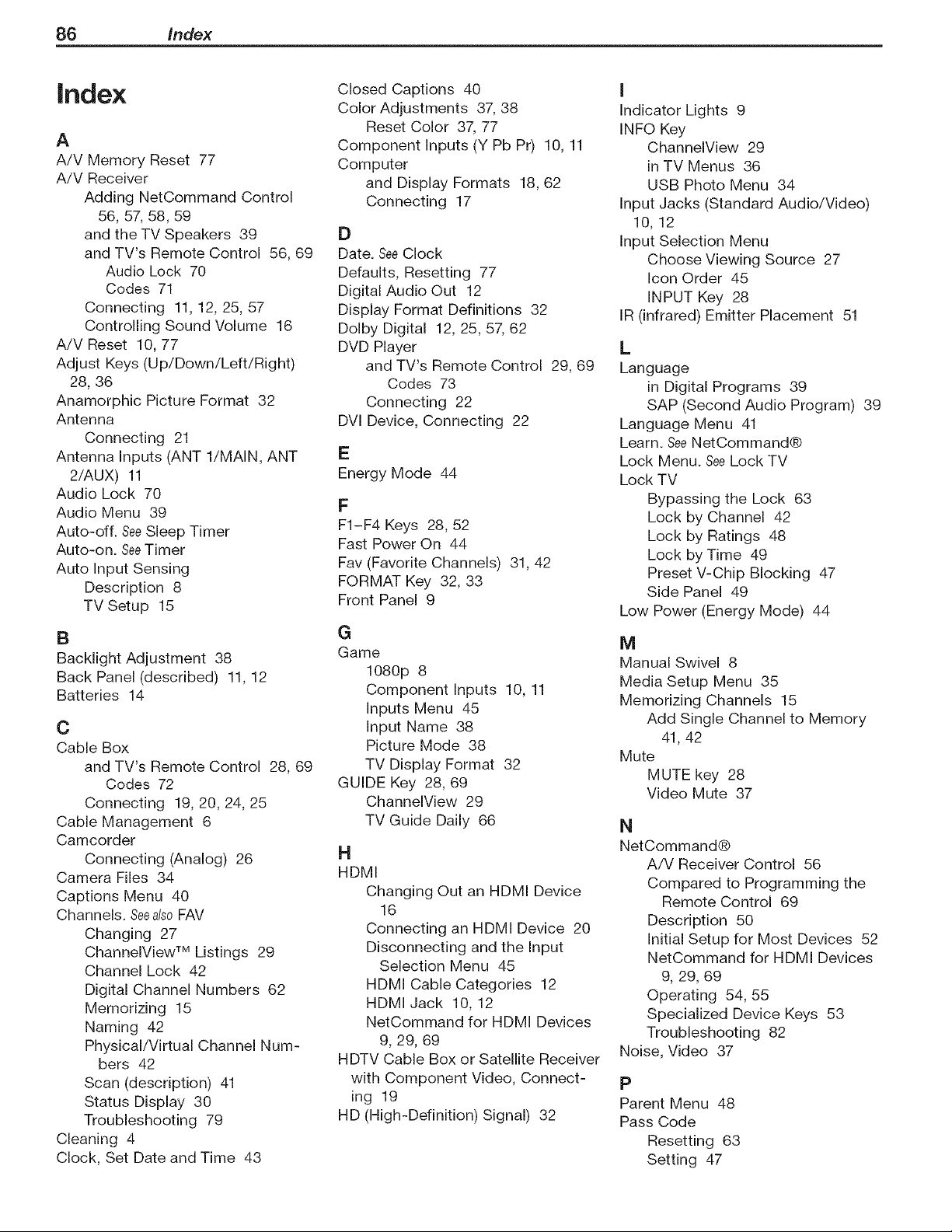
86 Index
index
A
A/V Memory Reset 77
A/V Receiver
Adding NetCommand Control
56, 57, 58, 59
and the TV Speakers 39
and TV's Remote Control 56, 69
Audio Lock 70
Codes 71
Connecting 11, 12, 25, 57
Controlling Sound Volume 16
A/V Reset 10, 77
Adjust Keys (Up/Down/Left/Right)
28, 36
Anamorphic Picture Format 32
Antenna
Connecting 21
Antenna Inputs (ANT l/MAIN, ANT
2/AUX) 11
Audio Lock 70
Audio Menu 39
Auto-off. SeeSleep Timer
Auto-on. SeeTimer
Auto Input Sensing
Description 8
TV Setup 15
B
Backlight Adjustment 38
Back Panel (described) 11, 12
Batteries 14
C
Cable Box
and TV's Remote Control 28, 69
Codes 72
Connecting 19, 20, 24, 25
Cable Management 6
Camcorder
Connecting (Analog) 26
Camera Files 34
Captions Menu 40
Channels. SeealsoFAV
Changing 27
ChannelView TM Listings 29
Channel Lock 42
Digital Channel Numbers 62
Memorizing 15
Naming 42
Physical/Virtual Channel Num-
bers 42
Scan (description) 41
Status Display 30
Troubleshooting 79
Cleaning 4
Clock, Set Date and Time 43
Closed Captions 40
Color Adjustments 37, 38
Reset Color 37, 77
Component Inputs (Y Pb Pr) 10, 11
Computer
and Display Formats 18, 62
Connecting 17
D
Date. SeeClock
Defaults, Resetting 77
Digital Audio Out 12
Display Format Definitions 32
Dolby Digital 12, 25, 57, 62
DVD Player
and TV's Remote Control 29, 69
Codes 73
Connecting 22
DVl Device, Connecting 22
E
Energy Mode 44
F
F1-F4 Keys 28, 52
Fast Power On 44
Fav (Favorite Channels) 31, 42
FORMAT Key 32, 33
Front Panel 9
G
Game
1080p 8
Component Inputs 10, 11
Inputs Menu 45
Input Name 38
Picture Mode 38
TV Display Format 32
GUIDE Key 28, 69
ChannelView 29
TV Guide Daily 66
H
HDMI
Changing Out an HDMI Device
16
Connecting an HDMI Device 20
Disconnecting and the Input
Selection Menu 45
HDMI Cable Categories 12
HDMI Jack 10, 12
NetCommand for HDMI Devices
9, 29, 69
HDTV Cable Box or Satellite Receiver
with Component Video, Connect-
ing 19
HD (High-Definition) Signal) 32
I
Indicator Lights 9
INFO Key
ChannelView 29
in TV Menus 36
USB Photo Menu 34
Input Jacks (Standard Audio/Video)
10, 12
Input Selection Menu
Choose Viewing Source 27
Icon Order 45
INPUT Key 28
IR (infrared) Emitter Placement 51
L
Language
in Digital Programs 39
SAP (Second Audio Program) 39
Language Menu 41
Learn. SeeNetCommand®
Lock Menu. SeeLock TV
Lock TV
Bypassing the Lock 63
Lock by Channel 42
Lock by Ratings 48
Lock by Time 49
Preset V-Chip Blocking 47
Side Panel 49
Low Power (Energy Mode) 44
M
Manual Swivel 8
Media Setup Menu 35
Memorizing Channels 15
Add Single Channel to Memory
41, 42
Mute
MUTE key 28
Video Mute 37
N
NetCommand®
A/V Receiver Control 56
Compared to Programming the
Remote Control 69
Description 50
Initial Setup for Most Devices 52
NetCommand for HDMI Devices
9, 29, 69
Operating 54, 55
Specialized Device Keys 53
Troubleshooting 82
Noise, Video 37
P
Parent Menu 48
Pass Code
Resetting 63
Setting 47
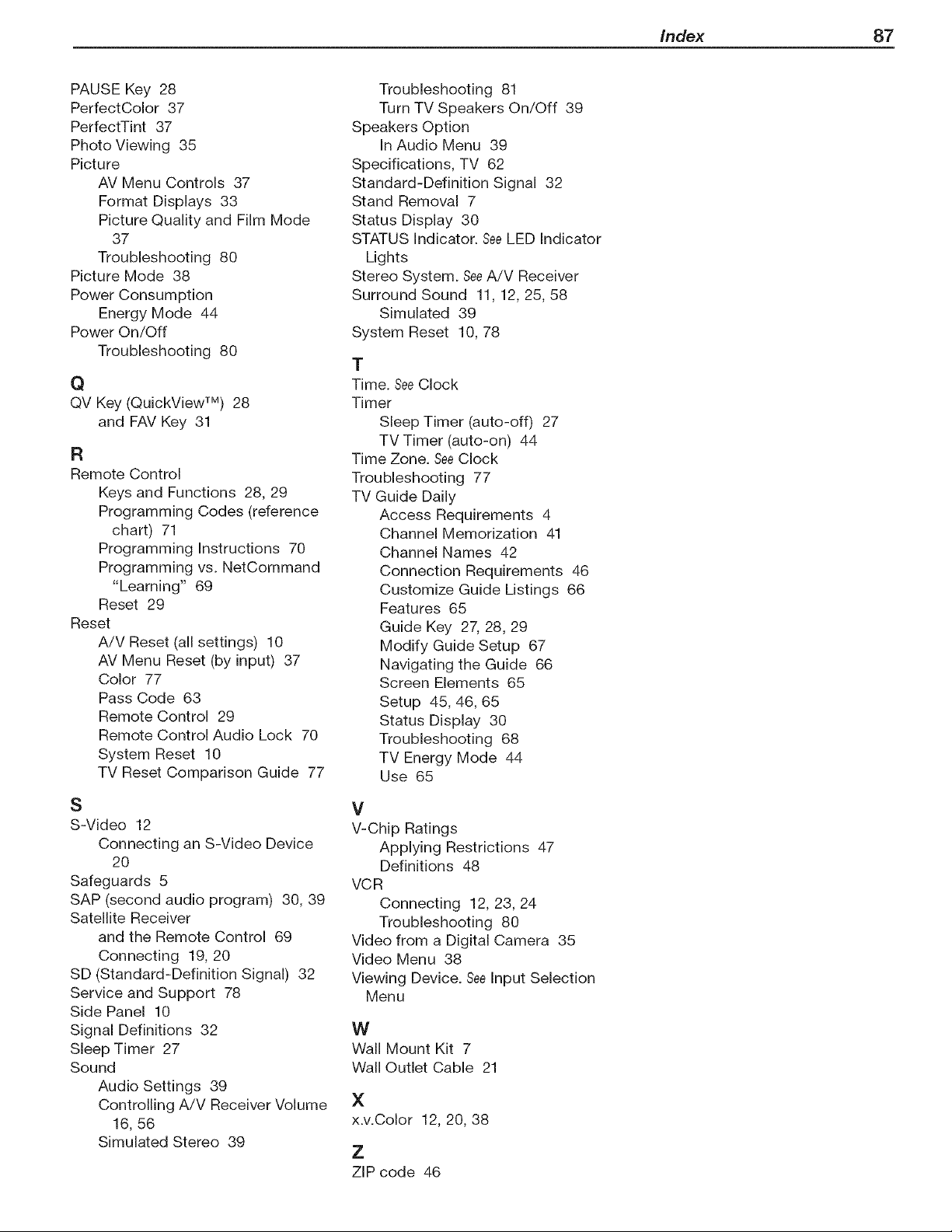
Index 87
PAUSE Key 28
PerfectColor 37
PerfectTint 37
Photo Viewing 35
Picture
AV Menu Controls 37
Format Displays 33
Picture Quality and Film Mode
37
Troubleshooting 80
Picture Mode 38
Power Consumption
Energy Mode 44
Power On/Off
Troubleshooting 80
Q
QV Key (QuickView TM) 28
and FAV Key 31
R
Remote Control
Keys and Functions 28, 29
Programming Codes (reference
chart) 71
Programming Instructions 70
Programming vs. NetCommand
"Learning" 69
Reset 29
Reset
A/V Reset (all settings) 10
AV Menu Reset (by input) 37
Color 77
Pass Code 63
Remote Control 29
Remote Control Audio Lock 70
System Reset 10
TV Reset Comparison Guide 77
S
S-Video 12
Connecting an S-Video Device
20
Safeguards 5
SAP (second audio program) 30, 39
Satellite Receiver
and the Remote Control 69
Connecting 19, 20
SD (Standard-Definition Signal) 32
Service and Support 78
Side Panel 10
Signal Definitions 32
Sleep Timer 27
Sound
Audio Settings 39
Controlling A!V Receiver Volume
16, 56
Simulated Stereo 39
Troubleshooting 81
Turn TV Speakers On/Off 39
Speakers Option
In Audio Menu 39
Specifications, TV 62
Standard-Definition Signal 32
Stand Removal 7
Status Display 30
STATUS Indicator. SeeLED Indicator
Lights
Stereo System. SeeA!V Receiver
Surround Sound 11, 12, 25, 58
Simulated 39
System Reset 10, 78
T
Time. SeeClock
Timer
Sleep Timer (auto-off) 27
TV Timer (auto-on) 44
Time Zone. SeeClock
Troubleshooting 77
TV Guide Daily
Access Requirements 4
Channel Memorization 41
Channel Names 42
Connection Requirements 46
Customize Guide Listings 66
Features 65
Guide Key 27, 28, 29
Modify Guide Setup 67
Navigating the Guide 66
Screen Elements 65
Setup 45, 46, 65
Status Display 30
Troubleshooting 68
TV Energy Mode 44
Use 65
V
V-Chip Ratings
Applying Restrictions 47
Definitions 48
VCR
Connecting 12, 23, 24
Troubleshooting 80
Video from a Digital Camera 35
Video Menu 38
Viewing Device. SeeInput Selection
Menu
W
Wall Mount Kit 7
Wall Outlet Cable 21
X
x.v.Oolor 12, 20, 38
Z
ZIP code 46
MITSUBISHI
ELECTRIC
Website:
www.mitsu bishi=tv.com
E=mail:
For questions, carl Consumer Relations at
800=332=2119
To order replacement or additional
remote controls or Owner's Guides
Visit our website www.mitsuparts.com
or carl
800=553=7278
SYSTEM RESET
If the TV does not respond to the remote control,
side panel controls, or will not power on/off, press
the SYSTEMRESETbutton on the side panel.
The blue LED will flash quickly for about one minute.
When the blue LED stops flashing, you may turn on
the TV. Settings changes you made most recently,
before using SYSTEMRESET,may be lost.
© 2007 Mitsubishi Digital Electronics America, Inc. Written and Printed in U.S.A.
853B542A40 VLP38, VLP38M, VLP38+