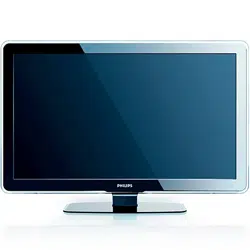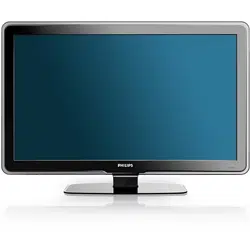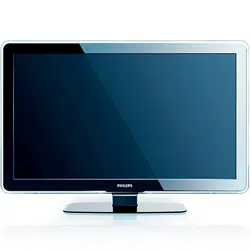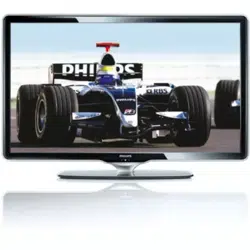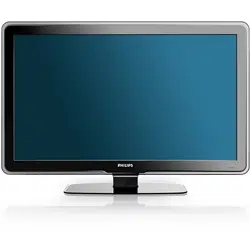

52PFL5704D
47PFL5704D
42PFL5704D
52PFL3704D
47PFL3704D
Register your product and get support at
www.philips.com/welcome
EN: For further assistance, call the customer support service in your country.
• To obtain assistance in the U.S.A., Puerto Rico, or the U.S. Virgin Islands, contact Philips
Customer Care Center at 1-866-771-4018
• To obtain assistance in Canada, contact Philips Customer Care Center at:
• 1-800-661-6162 (French speaking)
• 1-866-771-4018 (English speaking)
• To obtain assistance in Mexico, contact Philips Customer Care Center at 01 800 504 6200
Enter below the model and serial numbers located on the back and right side of the TV cabinet.
FR: Pour obtenir de l’aide supplémentaire, communiquez avec le centre de service à la clientèle de
votre pays.
• Pour obtenir de l’aide aux États-Unis, à Puerto Rico ou aux Îles Vierges américaines,
communiquez avec le centre de service à la clientèle Philips au : 1-866-771-4018
• Pour obtenir de l’aide au Canada, communiquez avec le centre de service à la clientèle Philips
au :
• 1-800-661-6162 (pour un service en français)
• 1-866-771 4018 (pour un service en anglais)
• Pour obtenir l’aide au Mexique, entrez en contact avec le centre de soin de client de Philips à
01 800 504 6200
Entrer ci dessous le modèle et le numéro de série situés dérrière à droite sur le dos du téléviseur.
ES: Para obtener más información, llame al servicio de soporte al cliente de su país.
• Para obtener asistencia en los Estados Unidos, Puerto Rico o en las Islas Vírgenes de los
Estados Unidos, comuníquese con Centro de atención al cliente de Philips al 1-866-771-4018
• Para obtener asistencia en Canadá, comuníquese con Philips Customer Care Center al:
• 1-800-661-6162 (en francés)
• 1-866-771-4018 (en inglés)
• Solo para Mexico CENTRO DE ATENCIÓN A CLIENTES LADA. 01 800 504 6200 Solo
Para México.
Escriba a continuación el modelo y número de serie que estan localizados en lado derecho y parte
posterior de el gabinete de el televisor.
Model / Modèle / Modelo :
Serial / Série / Serie:
EN User manual
FR Manuel d’utilisation
ES Manual del usuario


1
Label your connections 27
Connect your devices 28
10 Troubleshooting 31
11 Notes for the use of USB devices 32
12 Product information 33
13 Warranty 34
14 Index
35
Contents
1 Notice 4
2 Important
5
Product information 5
Screen care 5
Environmental care 5
3 Your TV 6
Side controls and indicators 6
Understand the remote control 6
4 Get started 8
Position the TV 8
Insert the remote control batteries 8
Connect the antenna or cable 8
Connect the power cord 9
Manage cables 9
Switch on and set up the TV 10
5 Use your TV 11
Switch your TV on/off or to standby 11
Switch channels 11
Adjust volume 11
Watch channels from a set-top box 12
Watch connected devices 12
Watch a DVD 12
6 Use more of your TV 13
Use the quick access menu 13
Change picture and sound settings 13
Use Auto Mode 15
Create and use lists of favorite channels 15
Set the clock 15
Use child control and rating locks 16
View closed captions (subtitles) 19
View photos and play music on a USB device 20
Use your TV in HD mode 21
Use your TV as a PC monitor 22
Use Philips EasyLink 22
Use the demo mode 22
7 Install channels 23
Select your menu language 23
Set your location to home 23
Automatically install channels 23
Optimize the signal quality from your antenna 23
Uninstall and reinstall channels 24
Return your settings to default values 24
Show emergency alerts (EAS) 24
8 Update your TV software 25
Check your current software version 25
Prepare for the software upgrade 25
Upgrade software 25
9 Connect devices 26
Connection overview 26
Select your connection quality 27
English
EN
2
Registering your model with PHILIPS makes you eligible for all of the valuable benefits listed below, so don't miss out.
Complete and return your Product Registration Card at once, or register online at www.philips.com/welcome
to ensure:
Return your Product Registration Card or register online at
www.philips.com/welcome today to get the very most from your purchase.
Visit our World Wide Web Site at http://www.philips.com/welcome
Congratulations on your purchase,
and welcome to the “family!”
Dear PHILIPS product owner:
Thank you for your confidence in PHILIPS.You’ve selected one of
the best-built, best-backed products available today.We’ll do every-
thing in our power to keep you happy with your purchase for many
years to come.
As a member of the PHILIPS “family,” you’re entitled to protection
by one of the most comprehensive warranties and outstanding
service networks in the industry.What’s more, your purchase guar-
antees you’ll receive all the information and special offers for which
you qualify, plus easy access to accessories from our convenient
home shopping network.
Most importantly, you can count on our uncompromising commit-
ment to your total satisfaction.
All of this is our way of saying welcome - and thanks for investing
in a PHILIPS product.
P.S. To get the most from your PHILIPS purchase, be
sure to complete and return your Product Registration
Card at once, or register online at:
www.philips.com/welcome
For Customer Use
Model No.__________________________
Serial No. ________________________
Know these
safety
symbols
This “bolt of lightning” indicates unin-
sulated material within your unit may
cause an electrical shock. For the safety of
everyone in your household, please do not
remove product covering.
The “exclamation point” calls atten-
tion to features for which you should
read the enclosed literature closely to pre-
vent operating and maintenance problems.
WARNING: To reduce the risk of fire or
electric shock, this apparatus should not be
exposed to rain or moisture and objects
filled with liquids, such as vases, should not
be placed on this apparatus.
CAUTION: To prevent electric shock,
match wide blade of plug to wide slot, fully
insert.
ATTENTION: Pour éviter les choc élec-
triques, introduire la lame la plus large de la
fiche dans la borne correspondante de la
prise et pousser jusqu’au fond.
CAUTION
RISK OF ELECTRIC SHOCK
DO NOT OPEN
CAUTION: TO REDUCE THE RISK OF ELECTRIC SHOCK, DO NOT
REMOVE COVER (OR BACK). NO USER-SERVICEABLE PARTS
INSIDE. REFER SERVICING TO QUALIFIED SERVICE PERSONNEL.
*Proof of
Purchase
Returning the enclosed card guarantees
that your date of purchase will be on file,
so no additional paperwork will be
required from you to obtain warranty
service.
*Product Safety
Notification
By registering your product, you'll receive
notification - directly from the manufac-
turer - in the rare case of a product
recall or safety defect.
*Additional Benefits
Registering your product guarantees that
you'll receive all of the privileges to
which you're entitled, including special
money-saving offers.
Enter below the model and serial numbers located
on the back and right side of the TV cabinet. Retain
this information for future reference.
EN
3
IMPORTANT SAFETY INSTRUCTIONS
Read before operating equipment
1. Read these instructions.
2. Keep these instructions.
3. Heed all warnings.
4. Follow all instructions.
5. Do not use this apparatus near water.
6. Clean only with a dry cloth.
7. Do not block any of the ventilation openings. Install in accordance with
the manufacturers instructions.
8. Do not install near any heat sources such as radiators, heat registers,
stoves, or other apparatus (including amplifiers) that produce heat.
9. Do not defeat the safety purpose of the polarized or grounding-type plug.
A polarized plug has two blades with one wider than the other. A
grounding type plug has two blades and third grounding prong. The wide
blade or third prong are provided for your safety. When the provided
plug does not fit into your outlet, consult an electrician for replacement
of the obsolete outlet.
10. Protect the power cord from being walked on or pinched particularly at
plugs, convenience receptacles, and the point where they exit from the
apparatus.
11. Only use attachments/accessories specified by the manufacturer.
12. Use only with a cart, stand, tripod, bracket, or table specified by
the manufacturer, or sold with the apparatus. When a cart is
used, use caution when moving the cart/apparatus combination
to avoid injury from tip-over.
13. Unplug this apparatus during lightning storms or when unused for long
periods of time.
14. Refer all servicing to qualified service personnel. Servicing is required
when the apparatus has been damaged in any way, such as power-supply
cord or plug is damaged, liquid has been spilled or objects have fallen
into apparatus, the apparatus has been exposed to rain or moisture,
does not operate normally, or has been dropped.
15. This product may contain lead or mercury. Disposal of these materials
may be regulated due to environmental considerations. For disposal or
recycling information, please contact your local authorities or the
Electronic Industries Alliance:www.eiae.org.
16. Damage Requiring Service - The appliance should be serviced by
qualified service personnel when:
A. The power supply cord or the plug has been damaged; or
B. Objects have fallen, or liquid has been spilled into the appliance; or
C. The appliance has been exposed to rain; or
D. The appliance does not appear to operate normally or exhibits a
marked change in performance; or
E. The appliance has been dropped, or the enclosure damaged.
17. Tilt/Stability - All televisions must comply with recommended
international global safety standards for tilt and stability properties of its
cabinets design.
• Do not compromise these design standards by applying excessive pull
force to the front, or top, of the cabinet which could ultimately
overturn the product.
• Also,do not endanger yourself, or children, by placing electronic
equipment/toys on the top of the cabinet. Such items could
unsuspectingly fall from the top of the set and cause product damage
and/or personal injury.
18. Wall or Ceiling Mounting - The appliance should be mounted to a
wall or ceiling only as recommended by the manufacturer.
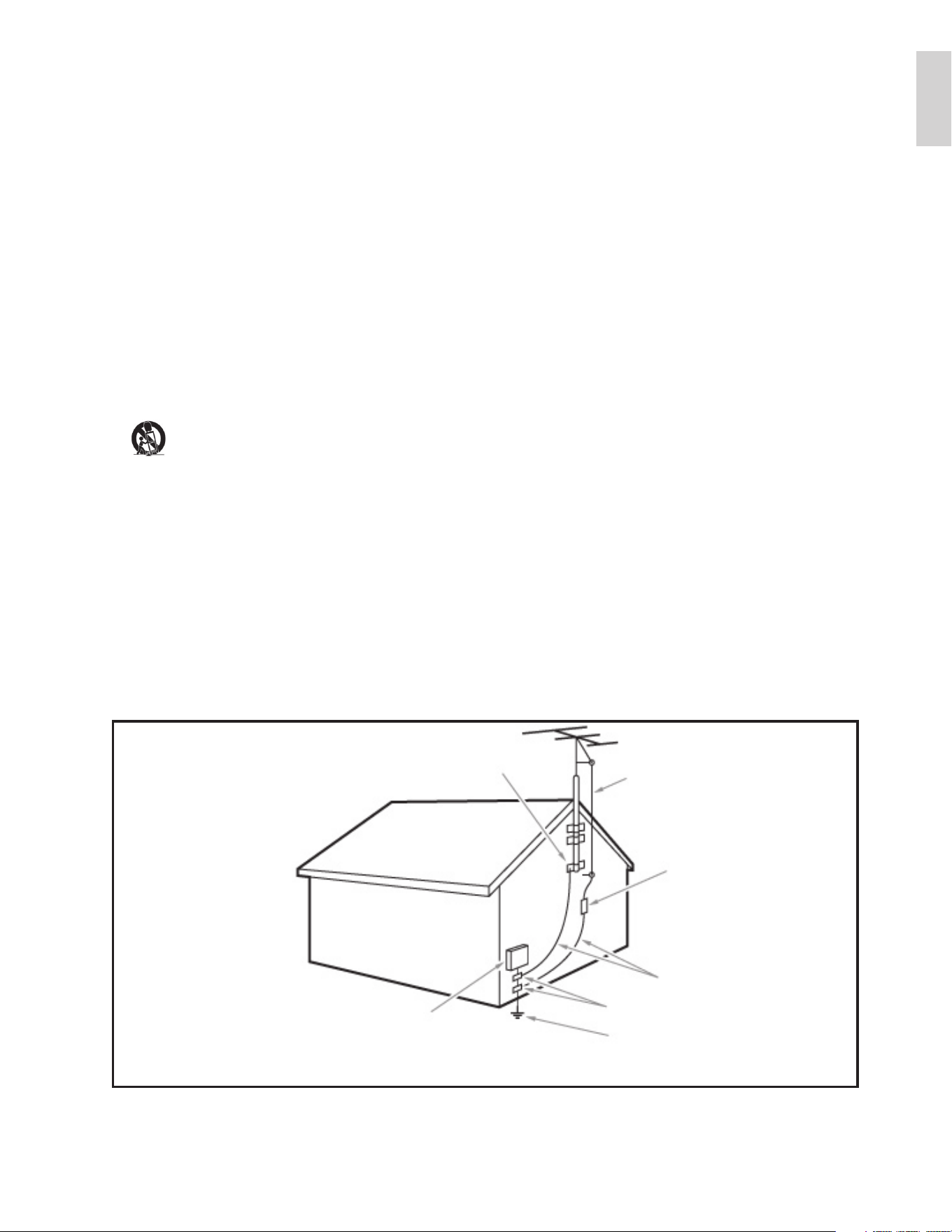
19. Power Lines - An outdoor antenna should be located away from
power lines.
20. Outdoor Antenna Grounding - If an outside antenna is connected to
the receiver, be sure the antenna system is grounded so as to provide
some protection against voltage surges and built up static charges.
Section 810 of the National Electric Code, ANSI/NFPA No. 70-1984,
provides information with respect to proper grounding of the mats and
supporting structure grounding of the lead-in wire to an antenna-
discharge unit, size of grounding connectors, location of antenna-
discharge unit, connection to grounding electrodes and requirements for
the grounding electrode. See Figure below.
21. Objects and Liquid Entry - Care should be taken so that objects do
not fall and liquids are not spilled into the enclosure through openings.
a) Warning: To reduce the risk of fire or electric shock, this apparatus
should not be exposed to rain or moisture and objects filled with
liquids, such as vases should not be placed on this apparatus.
22. Battery Usage CAUTION - To prevent battery leakage that may
result in bodily injury, property damage, or damage to the unit:
• Install all batteries correctly, with + and - alignment as marked on the
unit.
• Do not mix batteries (old and new or carbon and alkaline, etc.)
• Remove batteries when the unit is not used for a long time.
EXAMPLE OF ANTENNA GROUNDING AS PER
NATIONAL ELECTRICAL CODE (NEC)
GROUND CLAMP
ANTENNA LEAD IN WIRE
ANTENNA DISCHARGE UNIT
(
NEC SECTION
810-20)
GROUNDING CONDUCTORS
(
NEC SECTION
810-21)
GROUND CLAMPS
POWER SERVICE GROUNDING
ELECTRODE SYSTEM
(
NEC ART
250,
PART H
)
ELECTRIC SERVICE EQUIPMENT
Note to the CATV system installer: this reminder is provided to call the CATV system installer’s attention to Article 820-40 of
the NEC that provides guidelines for proper grounding and, in particular, specifies that the cable ground shall be connected to the
g
roundin
g
s
y
stem of the buildin
g
, as close to the
p
oint of cable entr
y
as
p
ractical.
English
EN
4
Declaration of Conformity
Trade Name: PHILIPS
Responsible Party: P&F USA Inc.
Model: 52PFL5704D, 47PFL5704D, 42PFL5704D,
52PFL3704D, 47PFL3704D
Address: PO Box 672768 Marietta, GA 30006 U.S.A.
Telephone Number: 866-771-4018
Modifi cations
The FCC requires the user to be notifi ed that any changes or modifi cations
made to this device that are not expressly approved by Philips Consumer
Electronics may void the user’s authority to operate the equipment.
Cables
Connections to this device must be made with shielded cables with
metallic RFI/EMI connector hoods to maintain compliance with FCC
Rules and Regulations.
Canadian notice
This Class B digital apparatus meets all requirements of the Canadian
Interference-Causing Equipment Regulations.
Copyright
All other registered and unregistered trademarks are the property of
their respective owners.
Manufactured under license from Dolby Laboratories. “Dolby” and the
double-D symbol are trademarks of Dolby Laboratories.
VESA, FDMI and the VESA Mounting Compliant logo are trademarks of
the Video Electronics Standards Association.
® Kensington and Micro Saver are registered US trademarks of ACCO
World corporation with issued registrations and pending applications in
other countries throughout the world.
Portions of this software are copyright © The FreeType Project (www.
freetype.org).
1 Notice
2009 © Koninklijke Philips Electronics N.V. All rights reserved.
Specifi cations are subject to change without notice. Trademarks are
the property of Koninklijke Philips Electronics N.V. or their respective
owners. Philips reserves the right to change products at any time
without being obliged to adjust earlier supplies accordingly.
The material in this manual is believed adequate for the intended use of
the system. If the product, or its individual modules or procedures, are
used for purposes other than those specifi ed herein, confi rmation of
their validity and suitability must be obtained. Philips warrants that the
material itself does not infringe any United States patents. No further
warranty is expressed or implied.
Philips cannot be held responsible neither for any errors in the content
of this document nor for any problems as a result of the content in this
document. Errors reported to Philips will be adapted and published on
the Philips support website as soon as possible.
Pixel characteristics
This LCD product has a high number of color pixels. Although it has
effective pixels of 99.999% or more, black dots or bright points of light
(red, green or blue) may appear constantly on the screen. This is a
structural property of the display (within common industry standards)
and is not a malfunction.
Warranty
No components are user serviceable. Do not open or remove covers
to the inside of the product. Repairs may only be done by Philips
Service Centers and offi cial repair shops. Failure to do so shall void any
warranty, stated or implied.
Any operation expressly prohibited in this manual, any adjustments, or
assembly procedures not recommended or authorized in this manual
shall void the warranty.
Federal Communications Commission Notice
This equipment has been tested and found to comply with the limits
for a Class B digital device, pursuant to part 15 of the FCC Rules. These
limits are designed to provide reasonable protection against harmful
interference in a residential installation. This equipment generates, uses,
and can radiate radio frequency energy and, if not installed and used
in accordance with the instructions, may cause harmful interference
to radio communications. However, there is no guarantee that
interference will not occur in a particular installation. If this equipment
does cause harmful interference to radio or television reception, which
can be determined by turning the equipment off and on, the user is
encouraged to try to correct the interference by one or more of the
following measures:
• Reorient or relocate the receiving antenna.
• Increase the separation between the equipment and the receiver.
• Connect the equipment into an outlet on a circuit different from
that to which the receiver is connected.
• Consult the dealer or an experienced radio or television technician
for help.
EN
5
Environmental care
The packaging of this product is intended to be recycled. Contact your
local authorities for information about how to recycle the packaging.
End of life directives
Like all LCD products, this set contains a lamp with mercury; please
dispose of according to all local, state and federal laws.
Philips pays a lot of attention to produce environment-friendly products
in green focal areas. Your new TV contains materials which can be
recycled and reused. At the end of its life, specialized companies can
dismantle the discarded TV to concentrate the reusable materials and to
minimize the amount of materials to be disposed of. Please ensure you
dispose of your old TV according to local regulations.
Disposal of used batteries
The batteries supplied do not contain the heavy metals mercury and
cadmium. Nevertheless, in many areas batteries may not be disposed
of with your household waste. Please ensure you dispose of batteries
according to local regulations.
Regulatory notices
Warning
To reduce the risk of fi re or electric shock, this B apparatus should not be exposed to
rain or moisture. Objects fi lled with liquids, such as vases, should not be placed on this
apparatus.
Caution
To prevent electric shock, match the wide blade of the plug to the wide slot, fully inserted.
2 Important
Registering your model with Philips makes you eligible for all of the
valuable benefi ts listed below, so don’t miss out.
Complete and return your Product Registration Card at once, or
register online at www.philips.com/welcome to ensure:
• Proof of Purchase
Returning the enclosed card guarantees that your date of purchase
is on fi le, so no additional paperwork is required from you to
obtain warranty service.
• Product Safety Notifi cation
By registering your product you receive notifi cation - directly from
the manufacturer - in the rare case of a product recall or safety
defect.
• Additional Benefi ts of Product Ownership
Registering your product guarantees that you receive all of the privileges
to which you’re entitled, including special money-saving offers.
For further assistance
For further assistance, call the customer support service in your country.
• To obtain assistance in the U.S.A., Puerto Rico, or the U.S. Virgin
Islands, contact Philips Customer Care Center at 1-866-771-4018
• To obtain assistance in Canada, contact Philips Customer Care
Center at:
• 1-800-661-6162 (French speaking)
• 1-866-771-4018 (English speaking)
Product information
This TV consumes minimal energy in standby mode to minimize
environmental impact. The active power consumption is given on the
type plate at the back of the TV. The model and serial numbers of your
TV can be found on the back and right side of the TV as well as on the
packaging.
Screen care
• Avoid stationary images as much as possible. Stationary images
are images that remain on-screen for extended periods of time.
Examples include: on-screen menus, black bars and time displays.
If you must use stationary images, reduce screen contrast and
brightness to avoid screen damage.
• Unplug the TV before cleaning.
• Clean the TV screen and frame with a soft, damp cloth. Never use
substances such as alcohol, chemicals or household cleaners on the
TV screen.
• Risk of damage to the TV screen! Never touch, push, rub or strike
the screen with any object.
• To avoid deformations and color fading, wipe off water drops as
soon as possible.
English
EN
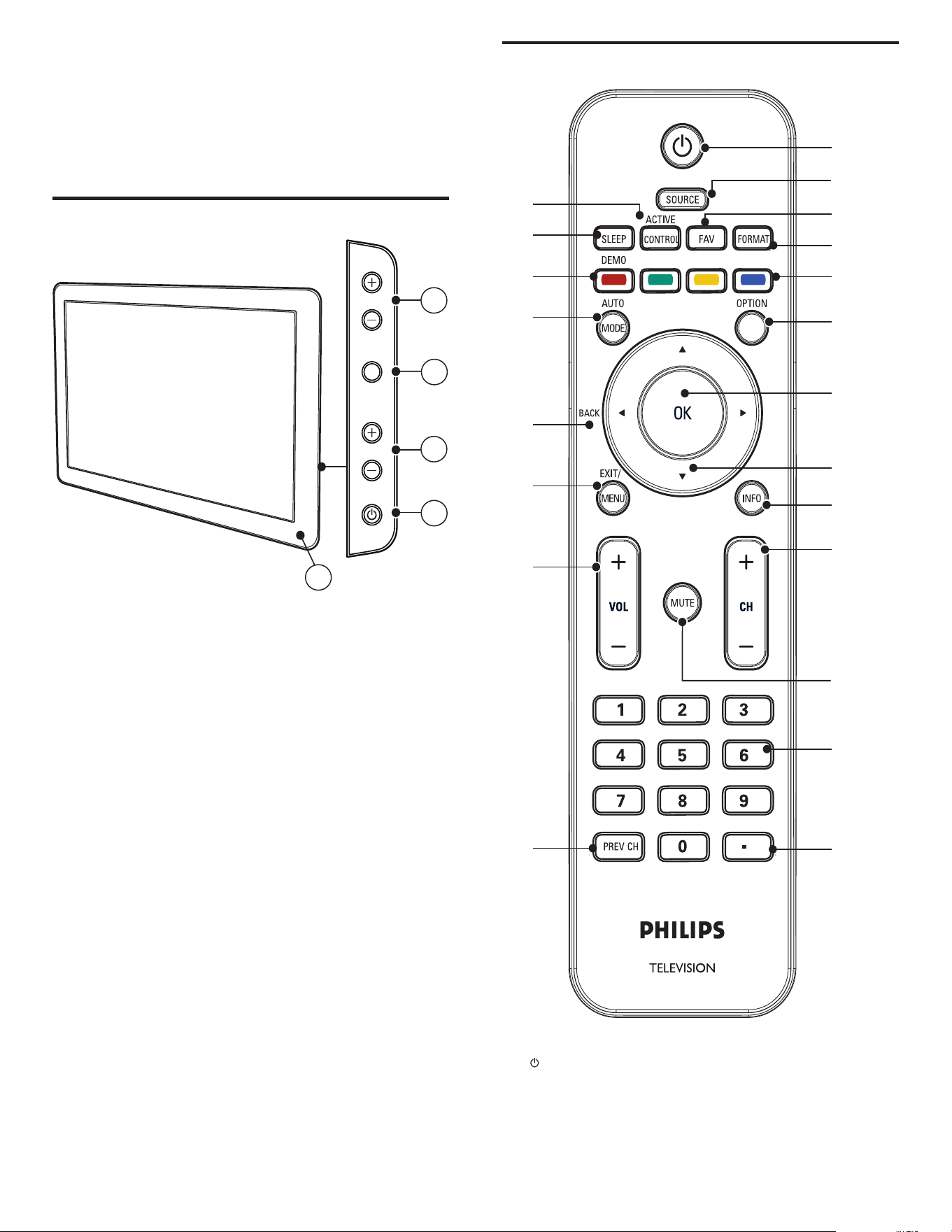
6
Remote control
d
b
c
i
f
l
m
k
h
g
j
e
a
o
p
r
n
s
q
t
u
a ( Standby-On )
Switches the TV on or off. The TV is not powered off completely
unless it is physically unplugged.
b SOURCE
Selects connected devices.
3 Your TV
Congratulations on your purchase, and welcome to Philips! To fully
benefi t from the support that Philips offers, register your product at
www.philips.com/welcome.
Side controls and indicators
a Standby indicator / remote control sensor
b POWER : Switches the TV on or off. The TV is not powered off
completely unless it is physically unplugged.
c CHANNEL +/ - : Switches to the next or previous channel.
d MENU : Toggles the main menu on or off.
e VOLUME +/- : Increases or decreases volume.
2
3
5
4
POWER
CHANNEL
MENU
VOLUME
1
EN

7
c FAV
Displays a list of all channels marked as favorite. (Includes
subchannels.)
d FORMAT
Selects a picture format (see ‘Change picture format’ on page 14 ) .
e Color buttons
Selects tasks or options.
f OPTION
Activates the quick access menu (see ‘Use the quick access menu’
on page 13 ) .
g OK
Activates a selection or accesses the menu.
h
( Navigation buttons )
Navigates through the menus.
i INFO
Displays information about the TV channel or accessory device.
The quality and accuracy of the information depends on the
broadcaster. You might see a difference in broadcast time if the
broadcast is from a different time zone.
j CH +/-
Switches to the next or previous channel.
k MUTE
Mutes or unmutes audio.
l Number buttons
Select a channel, page or setting.
m . (Dot)
Press the dot (.) for digital channels.
n PREV CH
Returns to the previously viewed channel.
o VOL +/-
Increases or decreases volume.
p MENU/EXIT
Turns the menu on or off.
q BACK
Returns to a previous screen.
r AUTO MODE
Cycles through the preset picture and sound settings (see ‘Use
Auto Mode’ on page 15 ) .
s DEMO
Toggles the demo menu on or off .
t SLEEP
Sets a delay after which the TV switches to standby .
u ACTIVE CONTROL
The TV continuously measures and corrects incoming signals to
provide the best picture quality.
English
EN
8
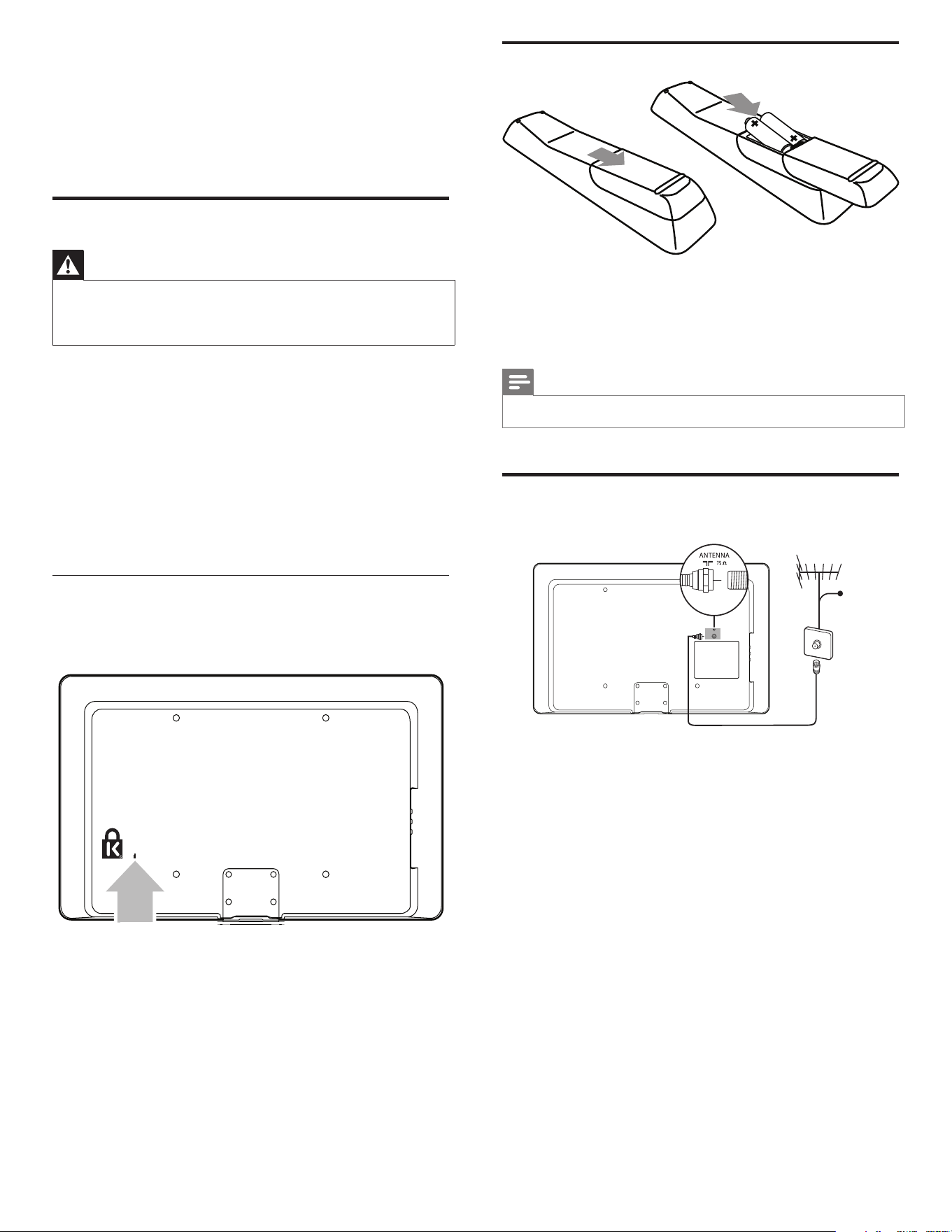
Insert the remote control batteries
1 Slide the battery cover off the back of the remote control.
2 Insert the 2 supplied batteries (AAA). Be sure the + and - ends of
the batteries line up with the markings inside the case.
3 Slide the cover back into position.
Note
•
Remove the batteries if not using the remote control for an extended period of time.
Connect the antenna or cable
Connect to an antenna
Any DTV programs that are broadcast in your area can be received for
free through an antenna connection.
Contact your local content provider or your local electronics retailer if
you are unsure about what HDTV programs are available in your area.
Broadcasters are transitioning from analog to digital TV. This means that
a given broadcaster can have channels available either in analog or in
digital, or both analog and digital at the same time.
The TV produces stereo sound only if a stereo signal is broadcast.
Connect to a cable
When your TV is connected to the cable socket, you might receive free
digital and high defi nition programs (depending on your cable provider).
The channel number for digital and high defi nition channels includes a
dot “.” For example, 11.1, 46.30, 108.201. Contact your cable provider
for more information.
Connect to a Direct Broadcast Satellite (DBS)
There are two main DBS systems: DirecTV and DishNetwork. These
systems require a separate, proprietary set-top box to decode signals
TV ANTENNA
Cable
4 Get started
This section supplements information in the Quick Start. For
information about how to mount and install your TV, refer to the Quick
Start.
Position the TV
Warning
•
Do not insert the power plug into the wall socket before all the connections are made.
• Large screen TVs are heavy. Two people are required to carry and handle a large screen
TV.
• Before you move the TV, disconnect the cables to prevent breakage.
In addition to reading and understanding the safety instructions ,
consider the following before positioning your TV:
• Ensure that you always have easy access to the power cord or plug
to disconnect the TV from the power.
• If the TV is mounted on a swivel base, ensure that no strain is
placed on the power cord when the TV is swiveled. Strain on the
power cord can loosen connections.
• The ideal viewing distance for watching TV is three times its screen
size.
• Position the TV where light does not fall on the screen.
• Connect your devices before you position the TV.
Use a Kensington lock
There is a Kensington security slot on the back of the TV. Prevent theft
by looping a Kensington lock between the slot and a permanent object,
such as a heavy table.
EN
9
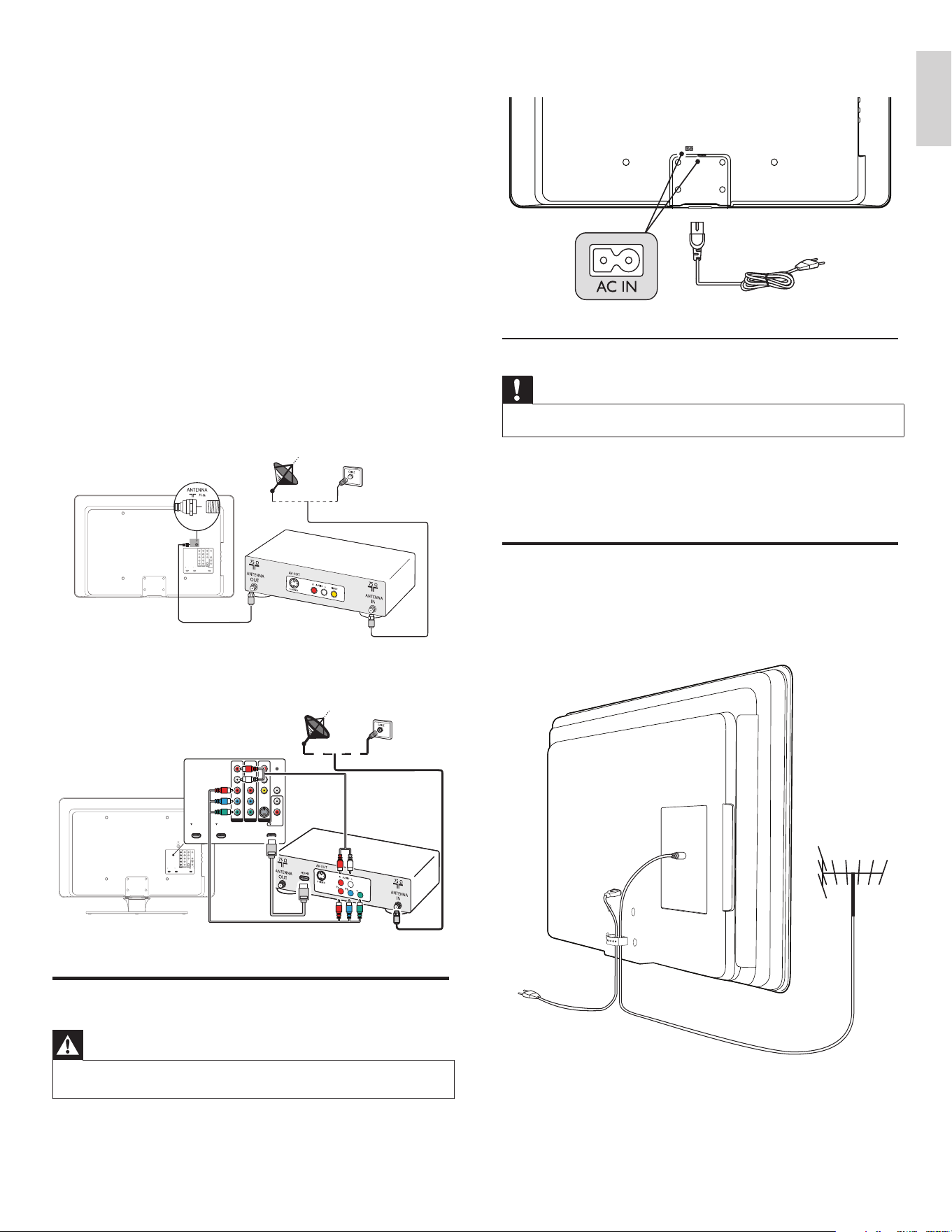
3 Connect the power cord plug to the power outlet. Ensure that the
cord is tightly secured at both ends.
Disconnect the TV from the power outlet
Caution
•
Pull the power cord by the plug; do not pull on the power cord.
1 Unplug the power cord from the power outlet.
2 Unplug the power cord from the power connector at the back of
the TV.
Manage cables
Route your power cord, antenna cable and all other cables through the
cable holder at the back of the TV. The holder helps keep your cables
tidy and easily manageable.
and send them to the TV. The set-top box contains a digital TV tuner for
receiving off-air digital broadcasts.
Contact your local DBS provider for more information about the
connections and the TV channels.
Connect to a set-top box
A cable box or satellite set-top box can be connected to the TV
through the following connections:
• ANT
• A/V (Composite Video and Audio)
• S-Video
• YPbPr (Component Video Input)
• HDMI
For information about how to connect a set-top box, see the Quick
Start provided.
Connect a set-top box through RF IN/OUT
If the TV is connected to a cable box or satellite set-top box via a
coaxial connection, set the TV to channel 3 or 4, or to the channel
specifi ed by the service provider.
Connect a set-top box through component video input or HDMI
Connect the power cord
Warning
•
Verify that your power voltage corresponds with the voltage printed at the back of the
TV. Do not insert the power cord if the voltage is different.
1 Locate the power connector at the back of the TV.
The location of the power connector varies according to TV model.
2 Insert the power cord fully into the power connector.
SE
R
V
.U
SPDIF
O
UT
V
I
D
E
O
S-VIDEO
D
V
I
AU
D
IO
IN
HDM
I
3
HDM
I
1
HDM
I
2
A
V
3
A
V
1
A
V
2
Y
Pb
P
r
L
R
L
R
L
R
Y
P
b
Pr
L
R
TV ANTENNA
Y
R
SERV. U
SPDIF
OUT
DVIAUDIO
IN
AV2
Pb
Pr
L
L
R
VIDEO
S-VIDEO
AV3
L
R
TV ANTENNA
AV1
Y
Pb
Pr
L
R
HDMI1 HDMI2 HDMI 3
Y
R
SE
R
V
. U
V
V
S
P
D
I
F
O
UT
D
V
I
AU
D
IO
D
D
IN
A
V
2
P
b
Pr
L
L
R
VIDEO
S
-
VIDEO
A
V
3
L
R
TV
ANTEN
N
A
H
D
M
I
3
SERV. U
SPDIF
OUT
VIDEO
S-VIDEO
DVI A UDIO
IN
HDMI 3HDMI 1 HDMI 2
AV 3AV 1 AV 2
Y
Pb
Pr
L
R
L
R
L
R
Y
Pb
Pr
L
R
English
EN
10
Switch on and set up the TV
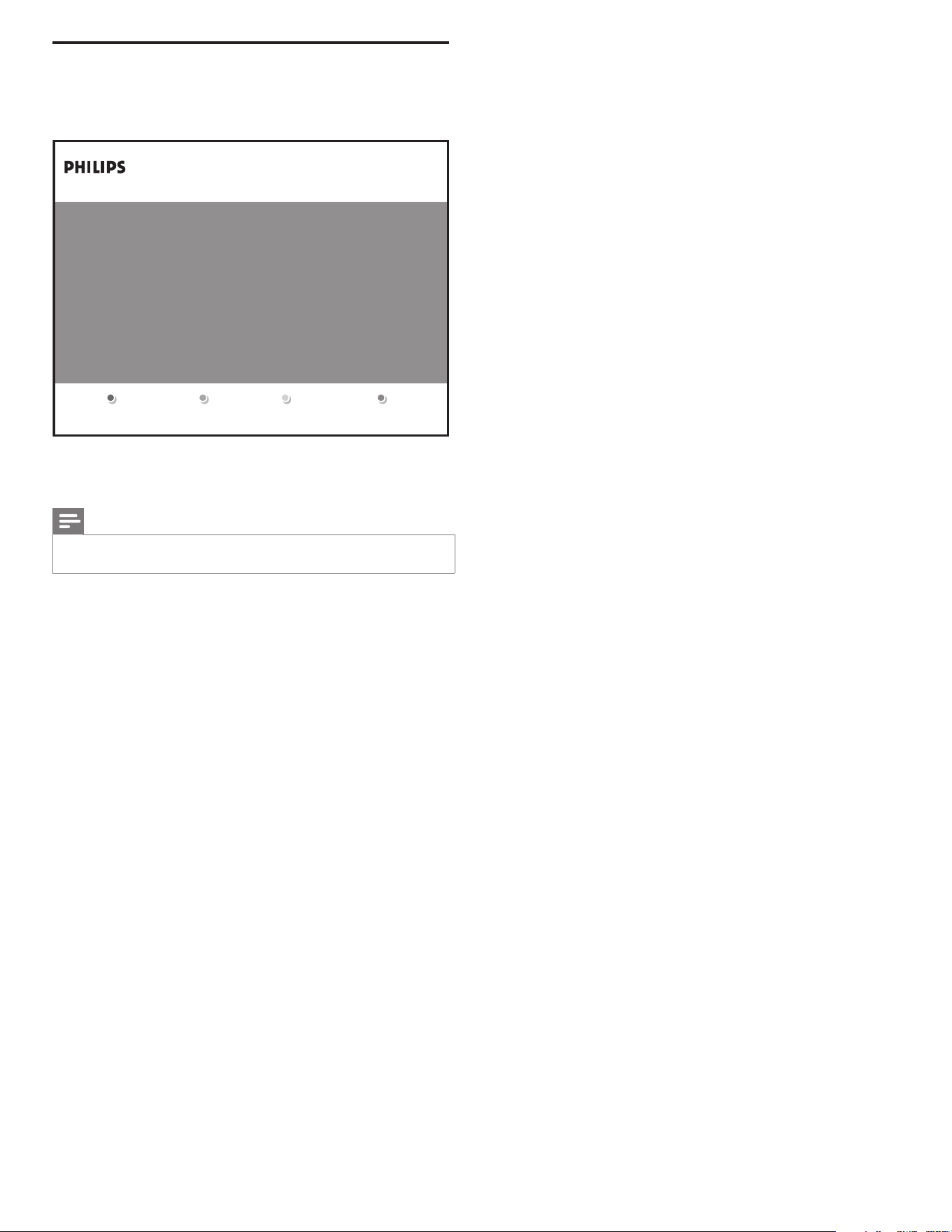
The TV turns on automatically after the power cord is inserted into the
power connector. The following screen appears:
Follow the on-screen instructions to select your language and complete
your TV setup.
Note
•
If you connect your TV to a cable box or satellite set-top box, you do not need to install
channels. Press the red button on the remote control to exit this stage of the setup.
Finish the setup by selecting your location:
• If you choose [Retail store] your settings are erased each time you
turn off the TV. Use this mode for retail store displays only.
• If you choose [Home] you are guided through a choice of picture
display options. Press the left or right cursor buttons to select your
preferred screen.
Press the GREEN button on your remote control to proceed.
Thank you for your purchase of this PHILIPS TV.
Please proceed with the following steps to set up your TV. For
the BESTpossible picture performance, contact your local
Cable / Satellite signal provider for High Definition signal
options available in your area.
Next
EN
11
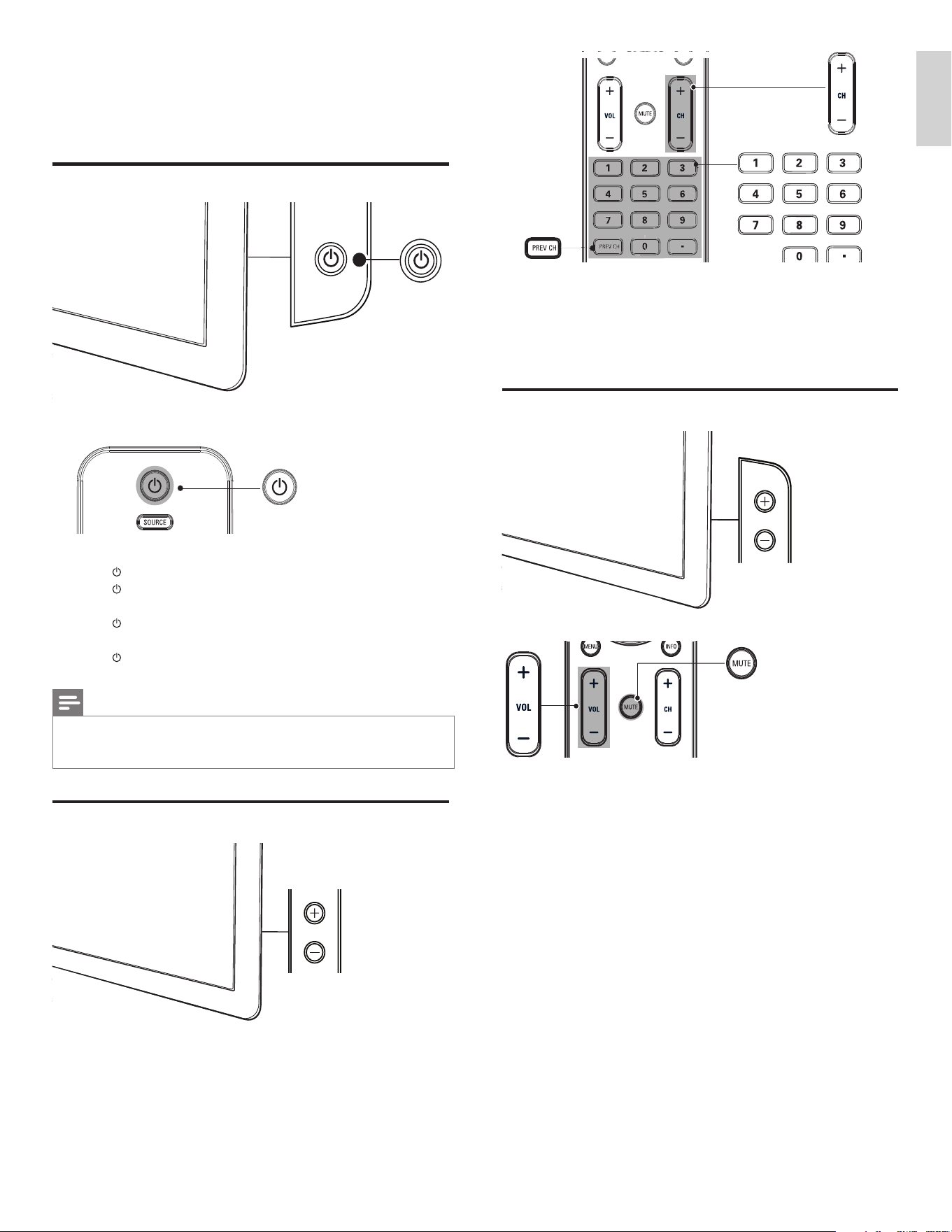
• Press CHANNEL +/ - on the side of the TV. For digital channels,
press a number (1 to 999) followed by a dot “.” and then the
corresponding sub channel number (1 to 999). Ex. 108.30.
• Press CH +/- or enter a number on the remote control.
• Press PREV CH to return to the previously viewed channel.
Adjust volume
To increase or decrease volume
• Press VOL +/- on the remote control or press VOLUME +/- on
the side of the TV.
To mute or unmute sound
• Press MUTE on the remote control to mute the sound.
• Press MUTE again to restore the sound.
To adjust headphone volume
• Press VOL +/- on the remote control or press VOLUME +/- on
the side of the TV. When headphones are plugged into the TV, the
loud speakers are automatically muted.
POWER
VOLUME
5 Use your TV
This section helps you perform basic TV operations.
Switch your TV on/off or to standby
To switch on
• Press
POWER at the side of the TV.
• Press
on the remote control.
To switch to standby
• Press
on the remote control.
To switch off
• Press
POWER at the side of the TV.
Note
•
Energy consumption contributes to air and water pollution. When the power cord
is plugged in, your TV consumes energy. Your TV has a very low standby power
consumption.
Switch channels
POWER
POWER
CHANNEL
English
EN
12
Watch channels from a set-top box
To watch channels from a set-top box
1 Switch on the set-top box.
» The picture from your set-top box might appear automatically
on your screen.
2 Use the remote control of your set-top box to select channels.
If the picture does not appear
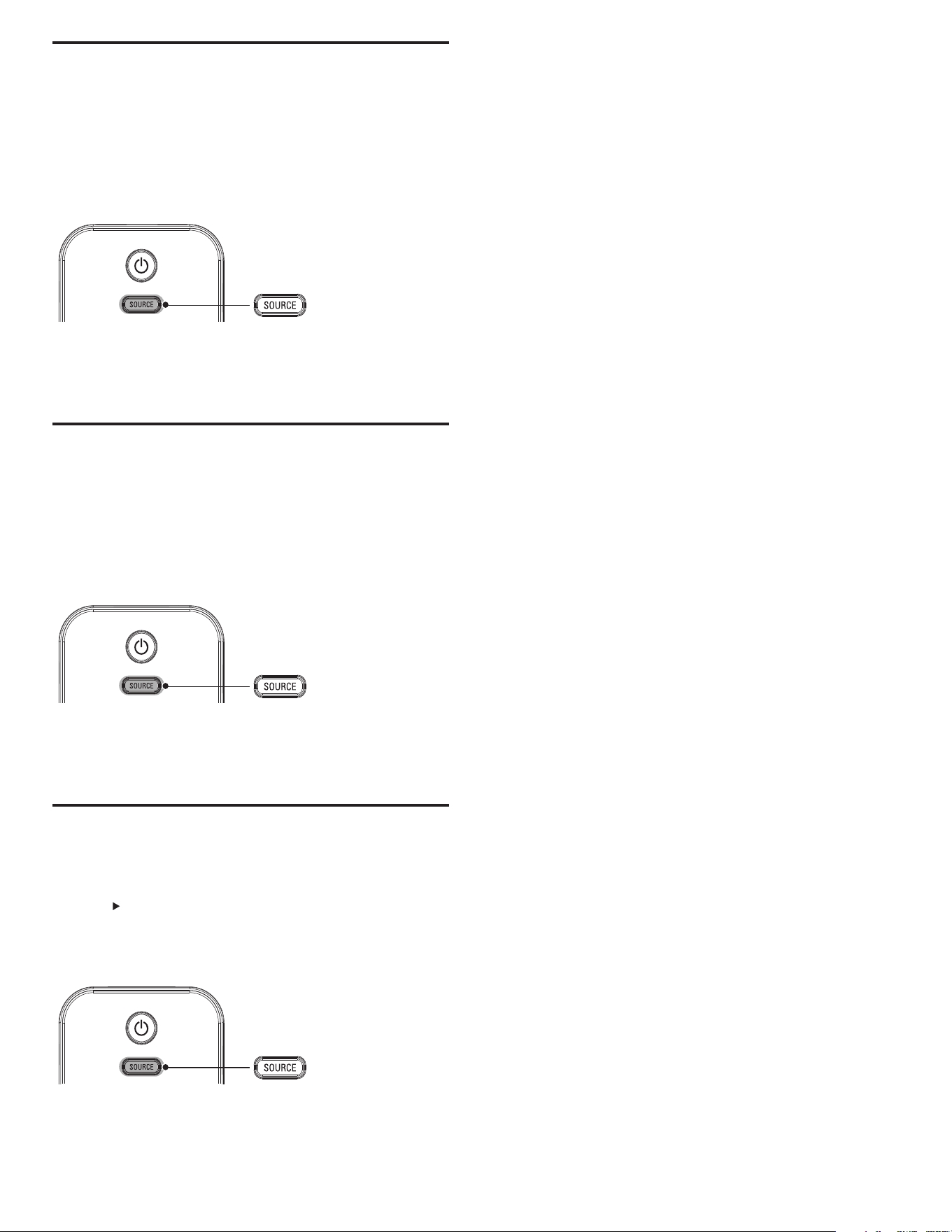
1 Press SOURCE repeatedly to select the set-top box and wait a
few seconds for the picture to appear.
2 Use the remote control of your set-top box to select channels.
Watch connected devices
To watch connected devices
1 Switch on the connected device.
» The picture from your connected device might appear
automatically on the TV.
2 Use the remote control of the device to select channels.
If the picture does not appear
1 Press SOURCE repeatedly to select the connected device and wait
a few seconds for the picture to appear.
2 Use the remote control of the device to select channels.
Watch a DVD
To watch a DVD
1 Insert a DVD disc into your player.
2 Press on the remote control of the DVD player to select
channels.
» The DVD might automatically play on the TV.
If the picture does not appear
1 Press SOURCE repeatedly to select the DVD player and wait a
few seconds for the picture to appear.
2 Use the remote control of the DVD player to play the disk.
EN
13
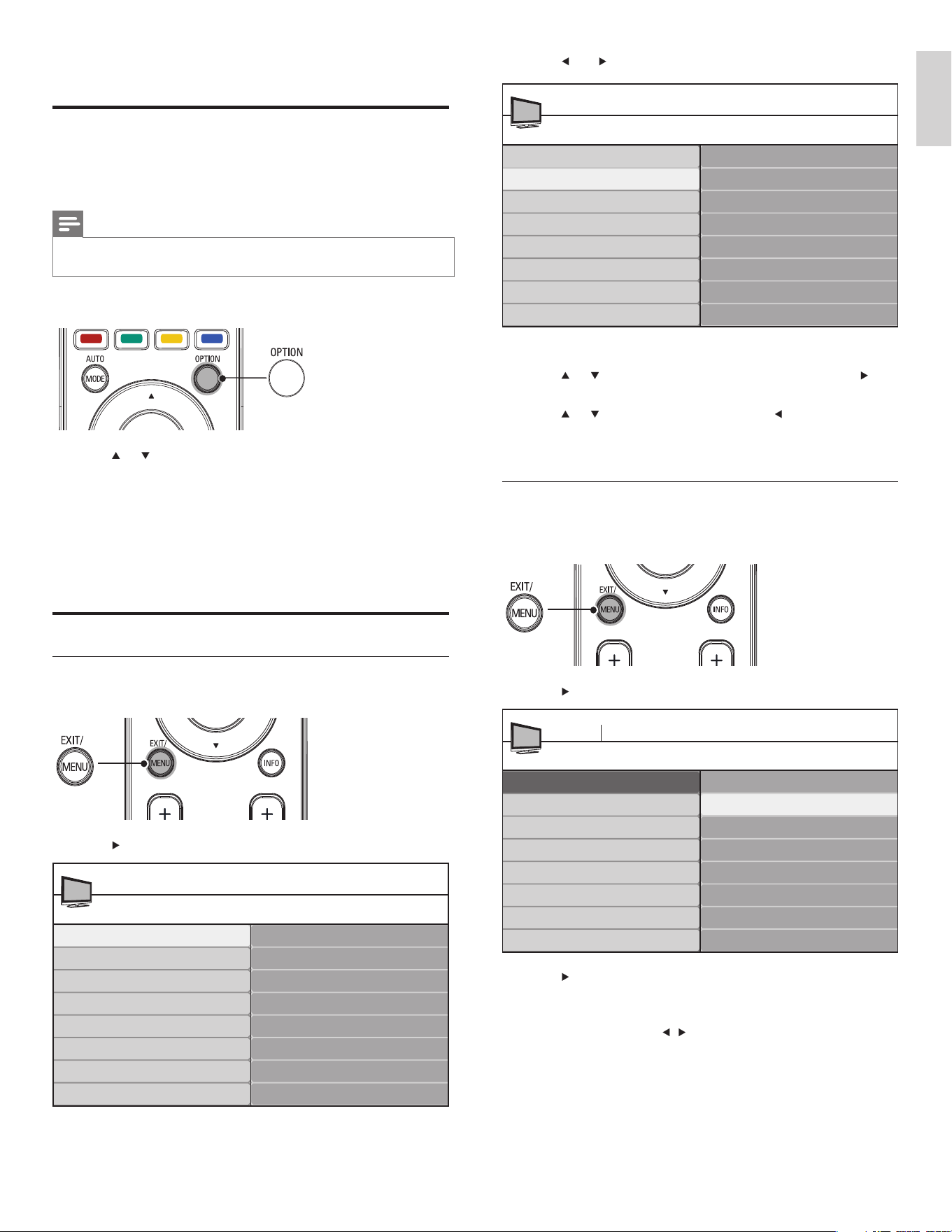
3 Press and to select the [Picture] menu.
4 Press or to select one of the picture settings, and press to
enter the setting.
5 Press or to adjust the setting, and press or OK to confi rm
the change.
6 Press MENU to exit.
Change picture settings by using the settings assistant
The settings wizard helps you to confi gure your picture settings.
1 Press MENU on the remote control.
2 Press to enter the [Settings assistant] menu.
3 Press to highlight [Start now] , and press OK to start the
[Settings assistant] .
» You are guided through a choice of picture display options.
4 Press the color buttons, , , and OK to make your selections
and store your setup.
Picture
Contrast
Brightness
Color
Tint
Sharpness
Color temperature
Dynamic contrast
Digital Natural Motion*
TV Settings
TV menu
Settings assistant
Picture
Sound
*Available in selected models
Settings assistant
Start now
TV menu Installation
TV settings
Settings assistant
Picture
Sound
6 Use more of your TV
Use the quick access menu
The quick access menu gives direct access to some often-needed menu
items.
Note
•
When digital channels are installed and broadcast, the relevant digital options are
displayed in the quick access menu.
1 Press OPTION on the remote control.
2 Press or and then OK to access one of the following menus:
• Audio language, for digital channels only, where multiple audio
languages are broadcast.
• Closed captions (see ‘View closed captions (subtitles)’ on page
19 ) .
• Picture format (see ‘Change picture format’ on page 14 ) .
• Equalizer (see ‘Summary of sound settings’ on page 15 ) .
• Clock (see ‘Set the clock’ on page 15 ) .
Change picture and sound settings
Change picture settings
1 Press MENU on the remote control.
2 Press to enter the [TV settings] menu.
TV settings
Settings assistant
Picture
Sound
TV menu
TV settings
Features
Installation
English
EN
14
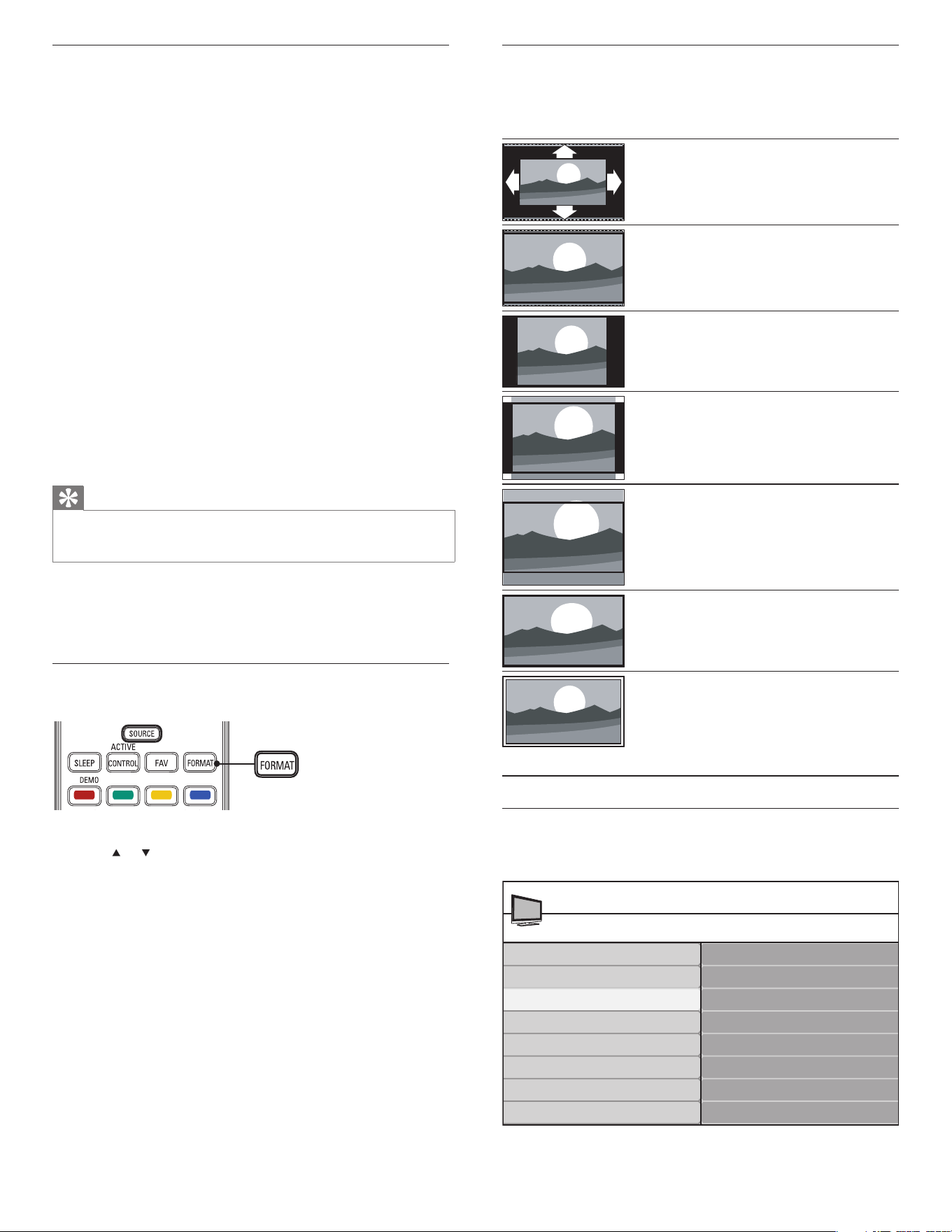
Summary of picture formats
The following picture formats can be selected.
Depending on the format of the picture source, some picture formats
are not available.
[Automatic] : (Not for PC mode.)
Enlarges the picture automatically to best
fi t the screen. The subtitles remain visible.
[Super zoom] : (Not for HD and PC
mode.) Removes the black bars on the
side of 4:3 broadcasts. There is minimal
distortion.
[4:3] : Shows the classic 4:3 format.
[Movie expand 14:9] : (Not for HD and
PC mode.) Scales 4:3 format to 14:9.
[Movie expand 16:9] : (Not for HD and
PC mode.) Scales 4:3 format to 16:9.
[Wide screen] : Stretches the classic 4:3
format to 16:9.
[Unscaled] : For HD and PC mode only,
and in selected models only. Allows
maximum sharpness. Some distortion
may be present due to the broadcaster’s
systems. Set your PC resolution to wide
screen mode for best results.
Change sound settings
1 Press MENU on the remote control and select [TV settings] >
[Sound] .
Sound
Equalizer
Balance
Digital audio language
Alternate audio
Mono/Stereo
Incredible surround
AVL
TV Settings
TV menu
Settings assistant
Picture
Sound
Summary of picture settings
The following picture settings can be confi gured. Depending on the
format of the picture source, some picture settings are not available.
• [Contrast] : Adjusts the intensity of bright areas, keeping dark areas
unchanged.
• [Brightness] : Adjusts the intensity and details of dark areas.
• [Color] : Adjusts color saturation.
• [Tint] : Adjusts the color balance in an image.
• [Sharpness] : Adjusts the level of sharpness in image details.
• [Color temperature] : To set the color temperature to [Normal] ,
[Warm] or [Cool] .
• [Dynamic contrast] : Automatically enhances contrast in an image.
• [Digital Natural Motion] : In selected models only. Reduces fi eld
and line fl icker to display movement smoothly. You can switch
HDNM on or off.
• [Noise Reduction] : Automatically fi lters out and reduces image
noise. Improves picture quality for weak video signals. You can
switch DNR on or off.
• [MPEG artifact reduction] : Smooths out transitions on digital
pictures. You can switch this feature on or off.
• [Color enhancement] : Makes colors more vivid and improves the
resolution of details in bright colors. You can switch this feature on or off.
• [Active Control] : Corrects incoming signals for the best picture
possible, according to lighting conditions in the room. You can
switch [Active Control] to one of these settings: [Off] , [On with
light sensor] or [On without light sensor] .
Tip
•
Save power with Eco TV. Switch [Active Control] to [On with light sensor]. The
TV will adjust the brightness according to the ambient room lighting, reducing power
consumption.
• [Picture format] : Changes the picture format.
• [Horizontal Shift] / [Vertical Shift] : Adjusts the horizontal and
vertical position of the picture. The availability of this settings
depends on certain signals or sources.
Change picture format
1 Press FORMAT on the remote control.
2 Press or to select a picture format and press OK to confi rm
your choice.
EN
15
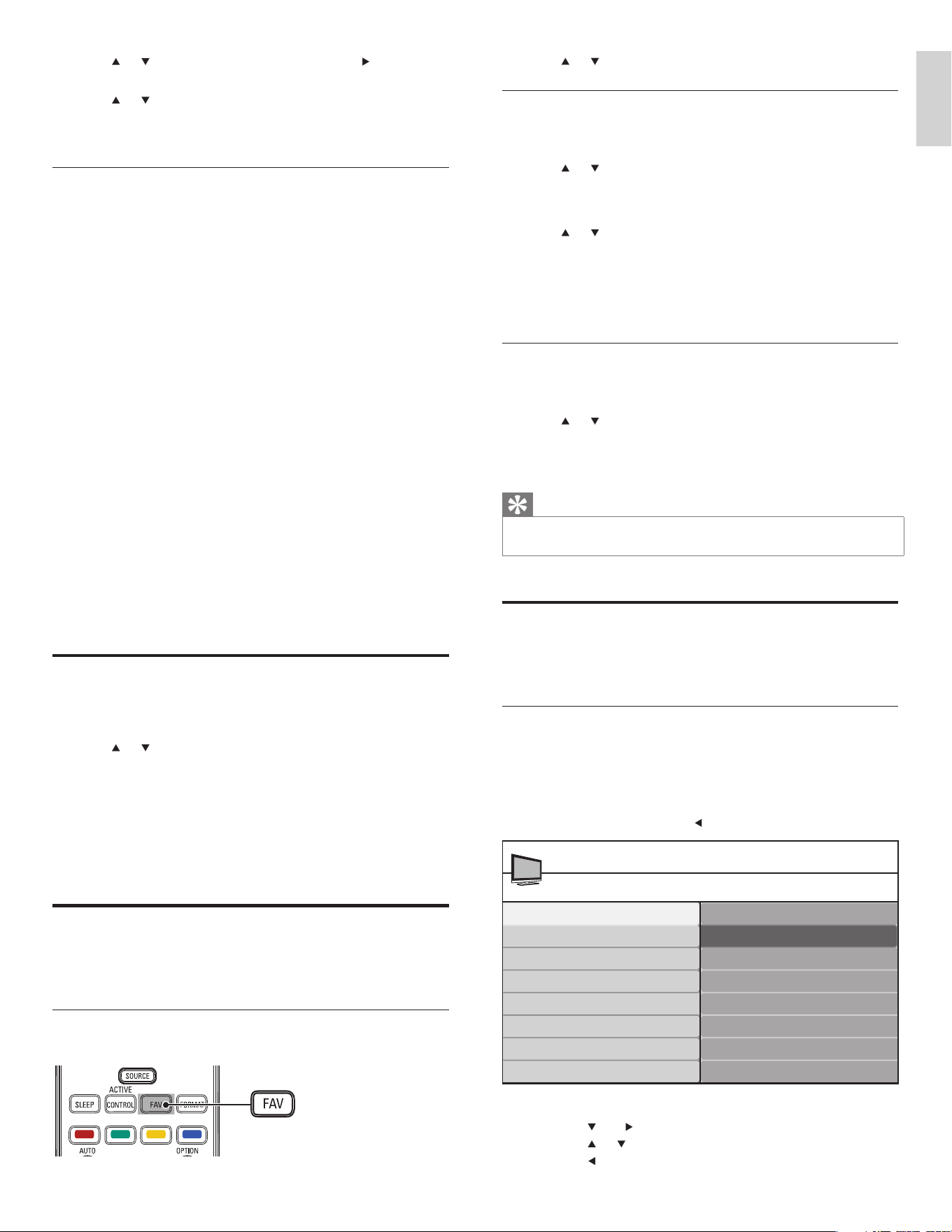
2 Press or to highlight a list, and press OK to select the list.
Create or edit a list of favorite channels
1 Press the FAV key on the remote control to display your lists of
favorite channels.
2 Press or to highlight a list, and press OK to select the list.
3 Press the green key to enter Edit mode.
» A list of channels is shown.
4 Press or to highlight a channel.
5 Press OK to select or deselect the highlighted channel.
» The channel is added to or removed from the list of favorite
channels.
6 Press the green button to exit.
Switch to one of the channels on a list
1 Press OK on the remote control to display the last list that you
selected.
2 Press or to highlight a channel.
3 Press OK to select the channel.
» The TV switches to that channel.
Tip
•
Press CH+/- to select channels in a list or press the numeric keys to select channels
that are not in a list.
Set the clock
You can set the time on your TV and program your TV to switch off at
a specifi c time.
Set the time automatically
Some digital channels transmit the time. For these channels, you can set
the time automatically and choose which channel to read the time from.
1 Press MENU on the remote control and select [Installation] >
[Clock] > [Auto clock mode] .
2 Select [Automatic] and press to confi rm your choice.
3 (Optional) Select the channel from which the TV reads the time.
• Press
and to enter the menu for [Auto clock channel] .
• Press
or to highlight a channel.
• Press
to confi rm your choice.
Auto clock mode
Manual
Automatic
Clock
TV menu I Installation
Auto clock mode
Auto clock channel
Time zone
Daylight saving
2 Press or to highlight a sound setting and press to select the
setting.
3 Press or to adjust the setting, and press OK to confi rm the
change.
4 Press MENU to exit.
Summary of sound settings
The following sound settings can be confi gured. Depending on the
sound source, some sound settings are not available.
• [Equalizer] : Adjusts individual sound frequencies.
• [Balance] : Adjusts the balance of the right and left speakers to best
suit your listening position.
• [Digital audio language] : Available for digital channels only, when
multiple languages are broadcast. Lists available audio languages.
• [Alternate audio] : Available for analog channels only when a main
and second audio program (SAP) is broadcast. Select the main or
second audio program.
• [Mono] / [Stereo] : Select mono or stereo.
• [Incredible Surround] : Selects available modes for surround sound.
• [AVL] ( [Auto volume leveling] ): Reduces sudden changes in
volume, for example, during commecials or when switching
channels. Select on or off.
• [TV Speakers] : Select on or off, or output sound to an EasyLink-
compliant device. [Master EasyLink] must be activated in the
[Preferences] menu to make the [TV Speakers] menu available.
When [Speakers EasyLink] is selected, the TV speakers are
disabled and TV sound outputs to the speakers of the compatbile
EasyLink-compliant device. Adjust the volume using the remote
control of the EasyLink-compliant device.
• [Delta volume] : Levels out volume differences between channels
or connected devices. Switch to the connected device before you
change the delta volume.
Use Auto Mode
1
Press AUTO MODE to set your TV to a predefi ned picture and
sound setting.
2 Press or to select one of the following settings:
• [Personal] : The customized settings you defi ned by using the
[Picture] menu.
• [Sports] : Vivid picture settings and clear sound for high action.
• [Standard] : For normal TV viewing.
• [Movie] : Brilliant picture settings for a cinematic experience.
• [Game] : Optimized for PCs, games consoles and playstations.
• [Power Saver] : Eco TV settings for lower power consumption.
Create and use lists of favorite channels
You can create lists of your preferred TV channels and radio stations so
that you can fi nd those channels easily.
Select a list of favorite channels
1 Press the FAV key on the remote control.
» Your lists of favorite channels are displayed.
English
EN
16
3 Enter your PIN again to confi rm.
» A message appears to confi rm that your PIN has been changed.
4 Press MENU to exit.
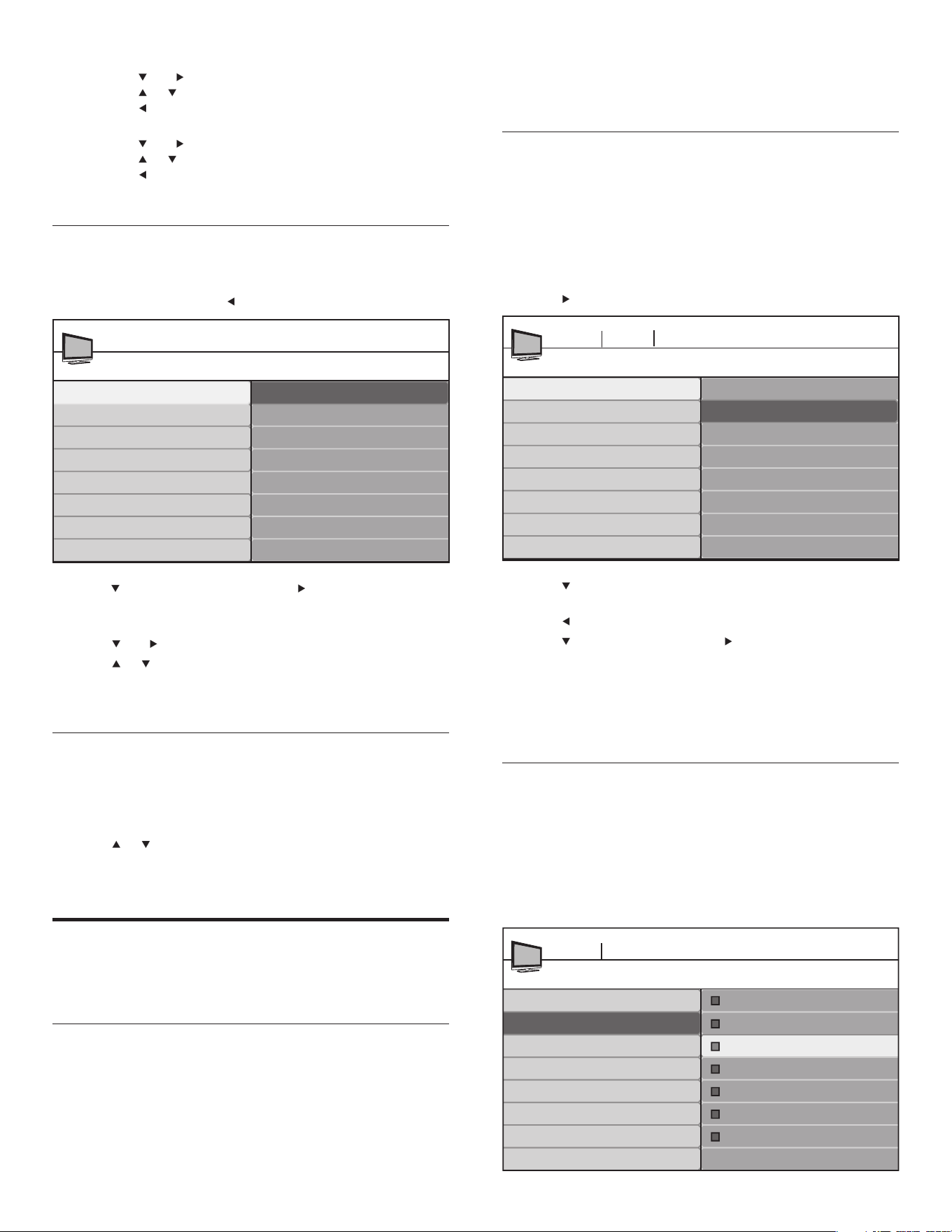
Lock the TV
This section describes how to lock all channels on the TV. At the
specifi ed time, screen is blanked out and the audio is muted.
1 Ensure that the clock is set with the current time (see ‘Set the
clock’ on page 15 ) .
2 Press MENU on the remote control and select [Features] >
[Child lock] > [Lock after] .
3 Enter your PIN (see ‘Set or change your PIN’ on page 16 ) .
4 Press to select [Timer] .
5 Press to select [On] and activate the [Lock after] feature. Select
[Off] to deactivate the feature.
6 Press to confi rm your choice.
7 Press to select [Time] and press to set the time.
Use the format HH:MM, and select [AM] / [PM] for morning or
afternoon.
8 Press OK to confi rm the time.
9 Press MENU to exit.
10 Turn the TV off and on again.
Lock a channel
This section describes how to lock specifi ed channels. The channels can
be selected but the screen is blanked out and the audio is muted.
1 Ensure that the clock is set with the current time (see ‘Set the
clock’ on page 15 ) .
2 Press MENU on the remote control and select [Features] >
[Child lock] > [Channel lock] .
3 Enter your PIN (see ‘Set or change your PIN’ on page 16 ) .
Lock after
Timer
Time
TV menu Features
Off
On
Child lock
Timer
Channel lock
Channel 1 Sport
Child Lock
TV menu Features
Lock after
Channel lock
TV ratings lock
Movie ratings lock
Canada English ratings lock
Canada French ratings lock
Region ratings lock
Channel 2 News
Channel 3 Movies
Channel 4
Channel 5
Channel 6
Channel 7
4 (Optional) Select the time zone.
• Press
and to enter the menu for [Time zone] .
• Press
or to highlight the time zone.
• Press to confi rm your choice.
5 (Optional) Set daylight saving.
• Press and to enter the menu for [Daylight saving] .
• Press
or to highlight [Automatic] or [Off] .
• Press
to confi rm your choice.
6 Press MENU to exit.
Set the time manually
1 Press MENU on the remote control and select [Installation] >
[Clock] > [Auto clock mode] .
2 Select [Manual] , and press to confi rm your choice.
3 Press to select [Time] and then press to set the time.
Use the format HH:MM. Select [AM] / [PM] for morning or afternoon.
4 Press OK to confi rm your choice.
5 Press and to enter the menu for [Day] .
6 Press or to select the day.
7 Press OK to confi rm your choice.
8 Press MENU to exit.
Set the sleeptimer
Sleeptimer switches the TV to standby after a pre-defi ned period of time.
You can always switch off your TV earlier or reset the sleeptimer during
the countdown.
1 Press MENU on the remote control and select [Features] > [Sleeptimer] .
2 Press or to select a value from 0 to 180 minutes. For example,
if you select 90 the TV switches to standby in 90 minutes.
3 Press MENU to exit.
Use child control and rating locks
You can prevent your children from watching certain programs or
certain channels by locking the TV controls and by using ratings.
Set or change your PIN
1 Press MENU on the remote control and select [Features] >
[Change PIN] .
2 Enter a 4-digit PIN on the number buttons of the remote control.
• If you have a PIN, enter your current PIN.
• If you do not have a PIN or if you have forgotten your PIN,
enter 0711 .
• You are asked to enter your new 4-digit PIN again.
Auto clock mode
Manual
Automatic
Clock
TV menu I Installation
Auto clock mode
Time
Day
EN
17
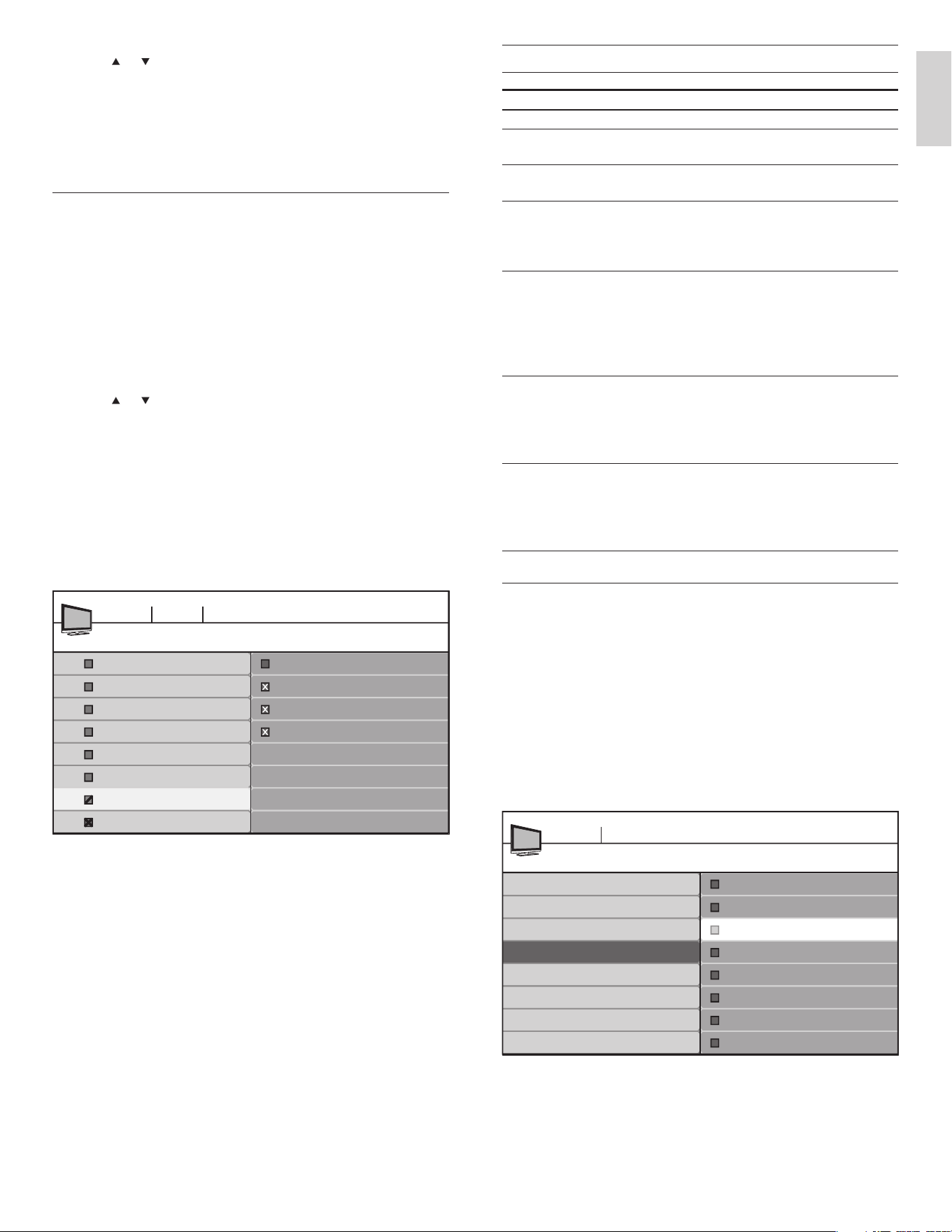
Summary of TV ratings
Age rating Content rating
All None
None None
TV-Y : Appropriate for children of all ages with
themes and elements suitable for children aged 2-6.
None
TV-Y7 : Programs designed for children age 7
and older.
[(FV) Fantasy
Violence]
TV-G : Programs suitable for all ages. These
programs contain little or no violence, no
strong language and little or no sexual dialog or
situations.
None
TV-PG : Programs contain elements that some
parents may fi nd unsuitable for younger
children and which may need parental guidance.
The program may contain moderate violence,
sexual dialog and/or situations and some strong
language.
[(D) Dialog]
[(L) Language]
[(S) Sex]
[(V) Violence]
TV-14 : Programs contain elements that may
not be suitable for children under 14 years of
age. These programs include one or more of
the following: intense violence, intense sexual
situations, suggestive dialog and strong language.
[(D) Dialog]
[(L) Language]
[(S) Sex]
[(V) Violence]
TV-MA : Programs are designed to be viewed by
adults and may be unsuitable for children under
the age of 17. These programs may contain
graphical violence, explicit sexual activity and/or
crude or indecent language.
[(L) Language]
[(S) Sex]
[(V) Violence]
Use the movie ratings lock
You can control viewing of movies based on their Motion Picture
Association of America (MPAA) rating.
1 Press MENU on the remote control and select [Features] >
[Child lock] .
2 Select one of the menus for movie ratings lock.
• In the USA, select [Movie ratings lock] .
• In Canada, select [Canada English ratings lock] or [Canada
French ratings lock] .
3 Enter your PIN (see ‘Set or change your PIN’ on page 16 ) .
» The following screen shows the ratings in [Movie ratings lock] .
Movie ratings lock
All
Child Lock
TV menu Features
Lock after
Channel lock
TV ratings lock
Movie ratings lock
Canada English ratings lock
Canada French ratings lock
Region ratings lock
NR
G
PG
PG-13
R
NC-17
X
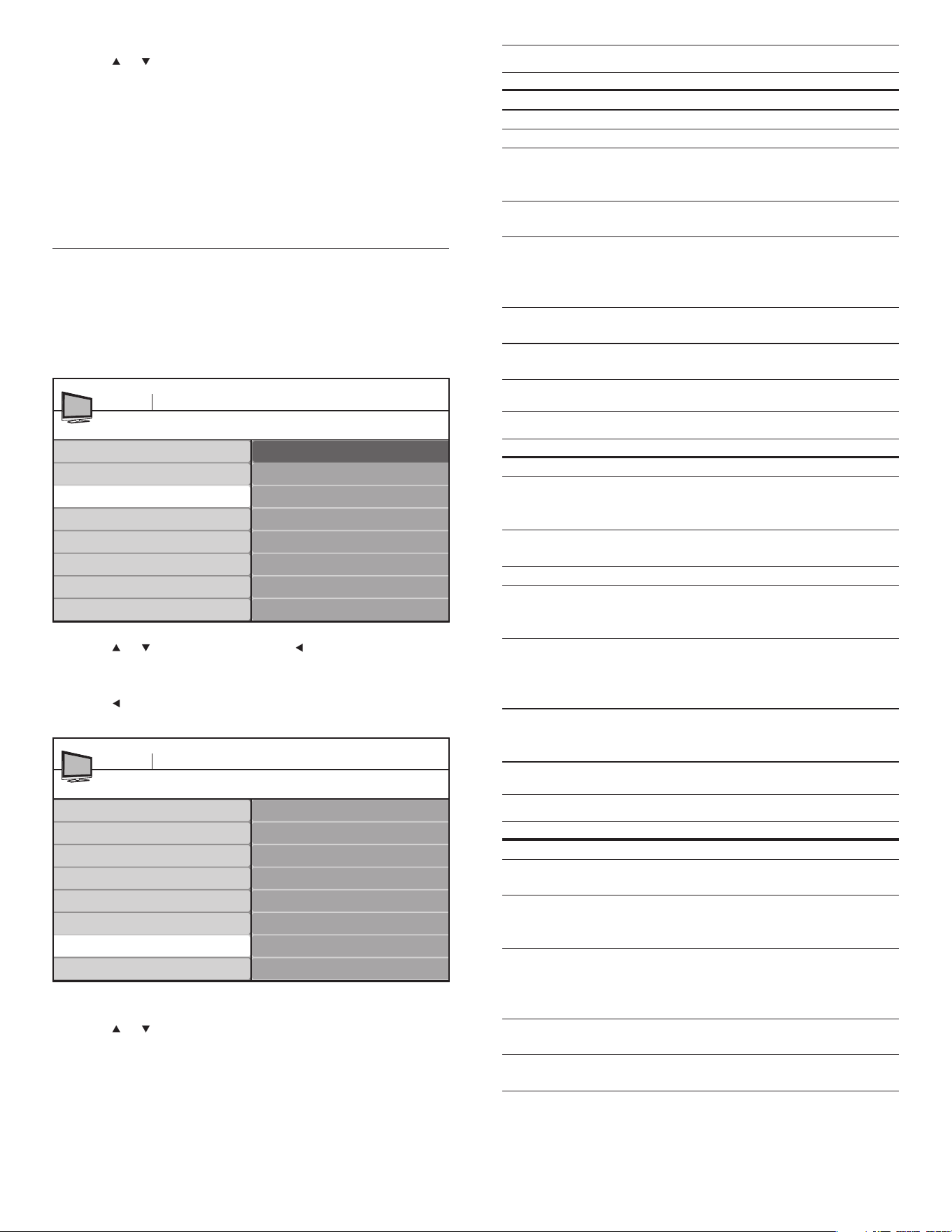
4 Press or and then press OK to lock one or more channels or
external sources.
5 Each channel has a box-graphic in front of it to indicate whether it
is locked:
• A box with X indicates that the channel is locked
• An empty box indicates that the channel is not locked
6 Press MENU to exit.
Use the TV ratings lock
Your TV is equipped with a V-chip that allows you to control access to
individual programs based on their age rating and content rating. The
program content advisory data are sent by the broadcaster or by the
program provider.
If you receive channels through a set-top box or cable box connected
by HDMI, you cannot use the TV ratings lock. Your set-top box or cable
box must be connected through RF or AV connectors.
1 Press MENU on the remote control and select [Features] >
[Child lock] > [TV ratings lock] .
2 Enter your PIN (see ‘Set or change your PIN’ on page 16 ) .
3 Press or and then press OK to lock or unlock one or more
ratings.
Each rating has a box-graphic in front of it to indicate whether
programs carrying that rating are locked:
• A box with X indicates that all items in the content ratings list
are locked.
• An empty box indicates that no items in the content ratings
list are locked.
• A box with / indicates that some content ratings are
deselected. For example, for rating TV-14, you can deselect
one or more of the following content ratings: [(D) Dialog] ,
[(L) Language] , [(S) Sex] , or [(V) Violence] .
When you select [All] , all items in the ratings list are locked.
When you select [None] , programs with no rating and
programs with a rating of None are locked.
When you lock a rating, all ratings in the younger age
categories are automatically locked.
4 Press MENU to exit.
TV ratings lock
TV menu Features
All
None
TV-Y
TV-Y7
TV-G
TV-PG
TV14
TV-MA
Child Lock
TV-14
(D)Dialog
(L)Language
(S)Sex
(V)Violence
English
EN
18
Summary of US movie ratings
Rating Description
All All items in the ratings list are locked.
NR Not rated.
G Movies with a mild content, suitable for all ages.
PG Movies for which parental guidance is recommended.
They may contain a few racy or violent scenes or
maybe some bad language.
PG -13 Movies for which parental guidance may be
recommended if under age 13.
R Restricted. The movies usually contain offensive sex
or bad language and may be unsuitable for children
under the age of 17. Parental guidance or permission
needed.
NC-17 Even with parental permission, forbidden under age
17. More offensive sex, violence or bad language.
X Movies which generally focus on sex, violence and/or
bad language. Also known as pornography.
Summary of Canadian movie ratings
Rating Description
All All items in the ratings list are locked.
C Programming suitable for children under the age of
8 years. No profanity or sexual content of any level
allowed. Minimal comedic violence.
C8+ Suitable for children ages 8 and over. Low intensity
violence and fantasy horror allowed.
G Movies with a mild content, suitable for all ages.
PG Movies for which parental guidance is recommended.
They may contain a few racy or violent scenes or
maybe some bad language.
14+ Programming intended for children ages 14 and
over. May contain intense scenes of violence, strong
profanity, and depictions of sexual activity within the
context of a story.
18+ Programming intended for viewers ages 18 and over.
May contain strong violence, language, and sexual
activity.
Summary of Canadian French movie ratings
Rating Description
All All items in the ratings list are locked.
G Appropriate for all ages with little or no violence and
little to no sexual content.
8 ans+ Appropriate for children 8 and up which may
contain little violence, some foul language and/or
little to no sexual content.
13 ans+ Appropriate for children 13 and up, with moderate
violence, language, and some sexual situations.
Persons under 13 should be accompanied by an
adult.
16 ans+ Appropriate for children 16 and up, with strong
violence, strong language, and strong sexual content.
18 ans+ Only to be viewed by adults and contains extreme
violence and graphic sexual content/pornography.
4 Press or and then press OK to lock or unlock one or more
ratings.
Each rating has a box-graphic in front of it to indicate whether
programs carrying that rating are locked:
• A box with X indicates that all items in the rating are locked.
• An empty box indicates that no items in the rating are not
locked.
When you lock a movie rating, all items for ages below that
movie rating are automatically locked.
5 Press MENU to exit.
Use the region ratings lock
You can control access to digital programs based on downloaded region
ratings. Before you download a ratings table, ensure that regional ratings
are broadcast.
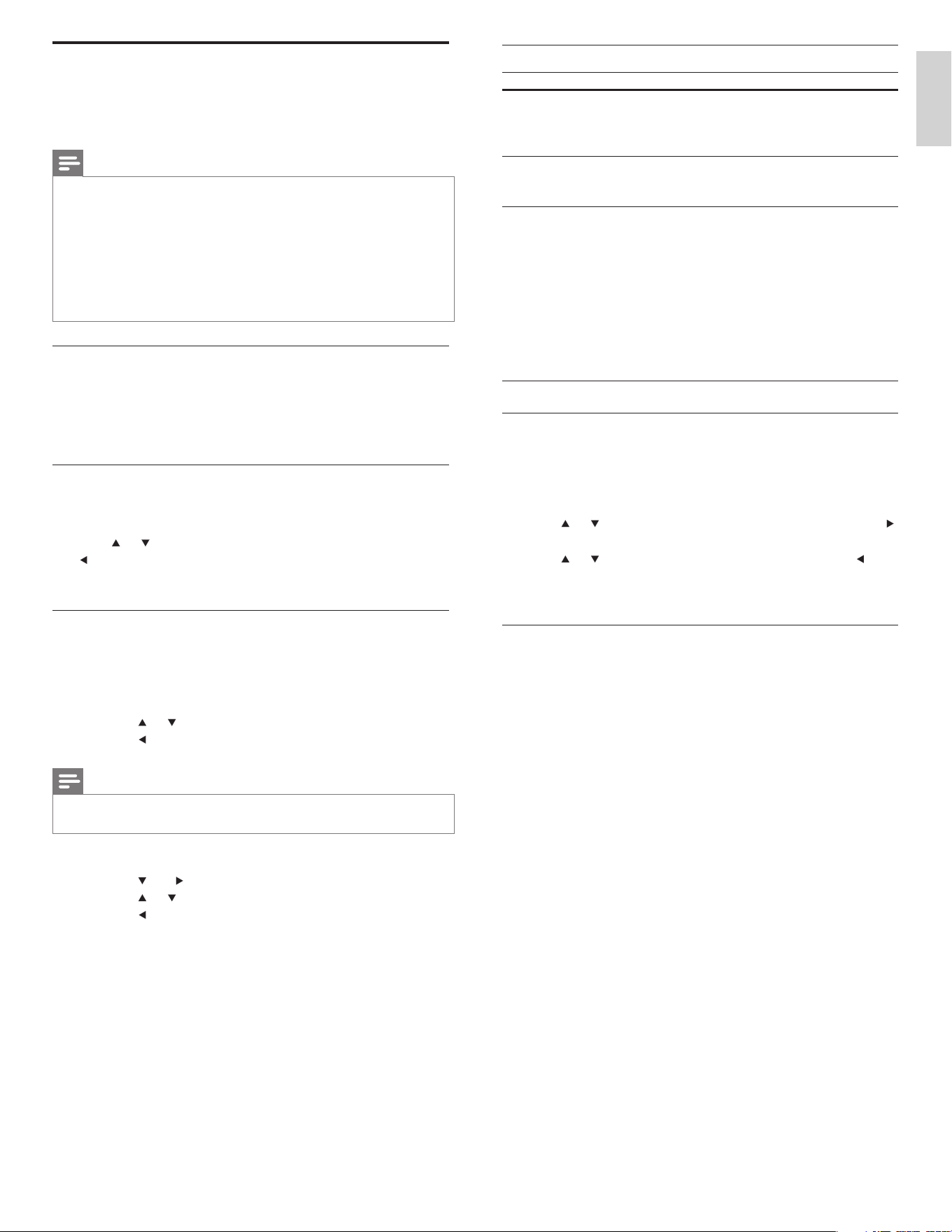
1 Press MENU on the remote control and select [Installation] >
[Preferences] > [Downloaded rating table] .
2 Press or to select [On] , and press to confi rm your choice. If
you select Off , you choose not to download the region rating table
and you cannot use the region rating lock.
3 Press to return to the TV menu and select [Features] > [Child
lock] > [Region ratings lock] .
4 Enter your PIN (see ‘Set or change your PIN’ on page 16 ) .
5 Press or and then press OK to lock or unlock one or more
ratings.
Each rating has a box-graphic in front of it to indicate whether it is
locked:
• A box with X indicates that the rating locked.
• An empty box indicates that the rating is not locked.
6 Press MENU to exit.
Downloaded rating table
On
Location
Show emergency alerts
Downloaded rating table
Preferences
TV menu Installation
Off
Region ratings lock
Please enter your PIN
Child Lock
TV menu Features
Lock after
Channel lock
TV ratings lock
Movie ratings lock
Canada English ratings lock
Canada French ratings lock
Region ratings lock
EN
19
Summary of caption services
Service Description
CC-1, CC-2,
CC-3, and CC-4
Dialog and descriptions for the action on the
captioned TV program show on screen. Usually CC1
is the most used. CC 2 can be used for alternate
languages if they are transmitted.
T-1, T-2, T-3 and
T- 4
Often used for channel guide, schedules, bulletin
board information for Closed Captions programs,
news, weather information, or stock market reports.
CS-1, CS-2,
CS-3, CS-4, CS-5
and CS-6
Service 1 is designated as the Primary Caption
Service. This service contains verbatim, or near-
verbatim captions for the primary language being
spoken in the accompanying program audio.
Service 2 is designated as the Secondary Language
Service. This service contains captions in a secondary
language which are translations of the captions in
the Primary Caption Service. The other service
subchannels are not pre-assigned. It is up to the
discretion of the individual caption provider to utilize
the remaining service channels.
Select how digital captions are displayed
You can choose the size, font, color, background and other
characteristics of the caption text.
1 Press MENU on the remote control and select [Features] >
[Caption settings] > [Digital caption options] .
2 Press or to highlight an option for digital captions, and press
to select the option.
3 Press or to highlight a setting for the option, and press to
confi rm your choice.
4 Press MENU to exit.
Diffi culties viewing closed captions on DTV programming
If you have diffi culties viewing closed captions on DTV programming, including
HDTV, received from your subscription television provider, you should:
• consult any consumer information and manuals/guides on closed
captions for DTV programming provided by your subscription
television provider;
• ensure that the captioning function on your set-top box, if
applicable, is turned on; and,
• ensure that the captioning function on your DTV is turned on.
If you are still unable to view closed captions on DTV programming, you
should contact your subscription television provider for assistance.
View closed captions (subtitles)
The caption service displays transmitted CC-, T-, and CS- text. The
caption text can be displayed permanently or only when the TV is
muted.
Note
•
This television provides a display of television closed captioning that conforms with the
EIA-608 standard and in accordance with Sections 15.119 of the FCCrules.
• If you connect your set-top box via HDMI or component video input, you cannot select
closed caption through the TV. You can select closed caption through the set-top box
only.
• The captions do not always use correct spelling and grammar.
• Not all TV programs and product commercials include closed caption information. Refer
to your area TV program listings for the TV channels and times of closed caption shows.
The captioned programs are usually noted in the TVlistings with service marks such as
‘CC’.
Closed captioning
Closed captioning is an assistive technology that allows persons with
hearing disabilities to access television programming. Closed captioning
displays the audio portion of programming as text superimposed over
the video.
Display captions
1 Press MENU on the remote control and select [Features] >
[Caption settings] > [Closed captions] .
2 Press or to select [On] , [Off] or [On during mute] , and press
to confi rm your choice.
3 Press MENU to exit.
Select caption services
1 Turn captions on (see ‘Display captions’ on page 19 ) .
2 Select a caption service for analog channels:
• Press MENU on the remote control and select [Features] >
[Caption Settings] > [Caption service] .
• Press
or to select one of the listed caption services, and
press
to confi rm your choice.
Note
•
Not all caption services are used by a TV channel during the transmission of a closed
caption program.
3 Select a caption service for digital channels:
• Press
and to enter the menu for [Digital caption service] .
• Press
or to select one of the listed caption services, and
press
to confi rm your choice.
4 Press MENU to exit.
English
EN
20
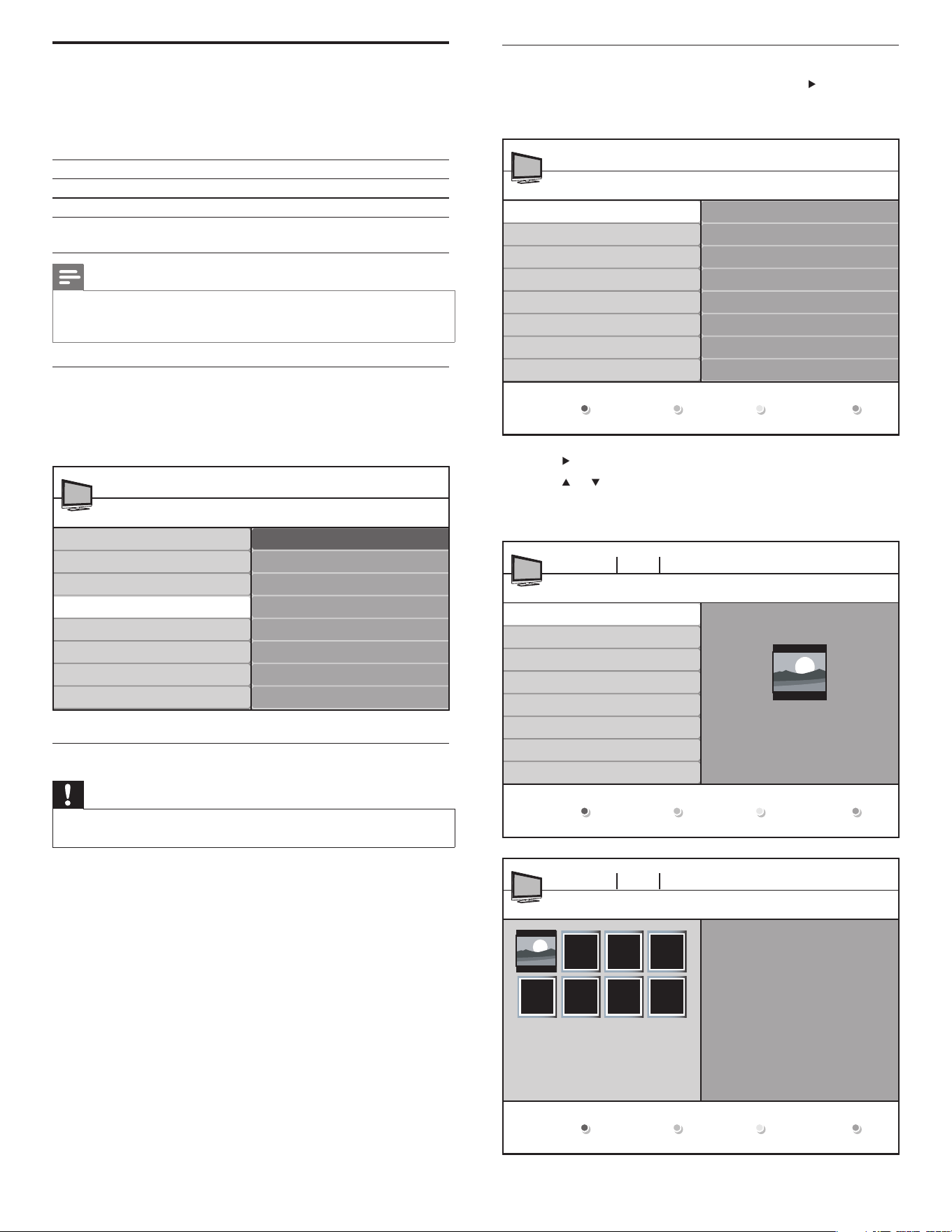
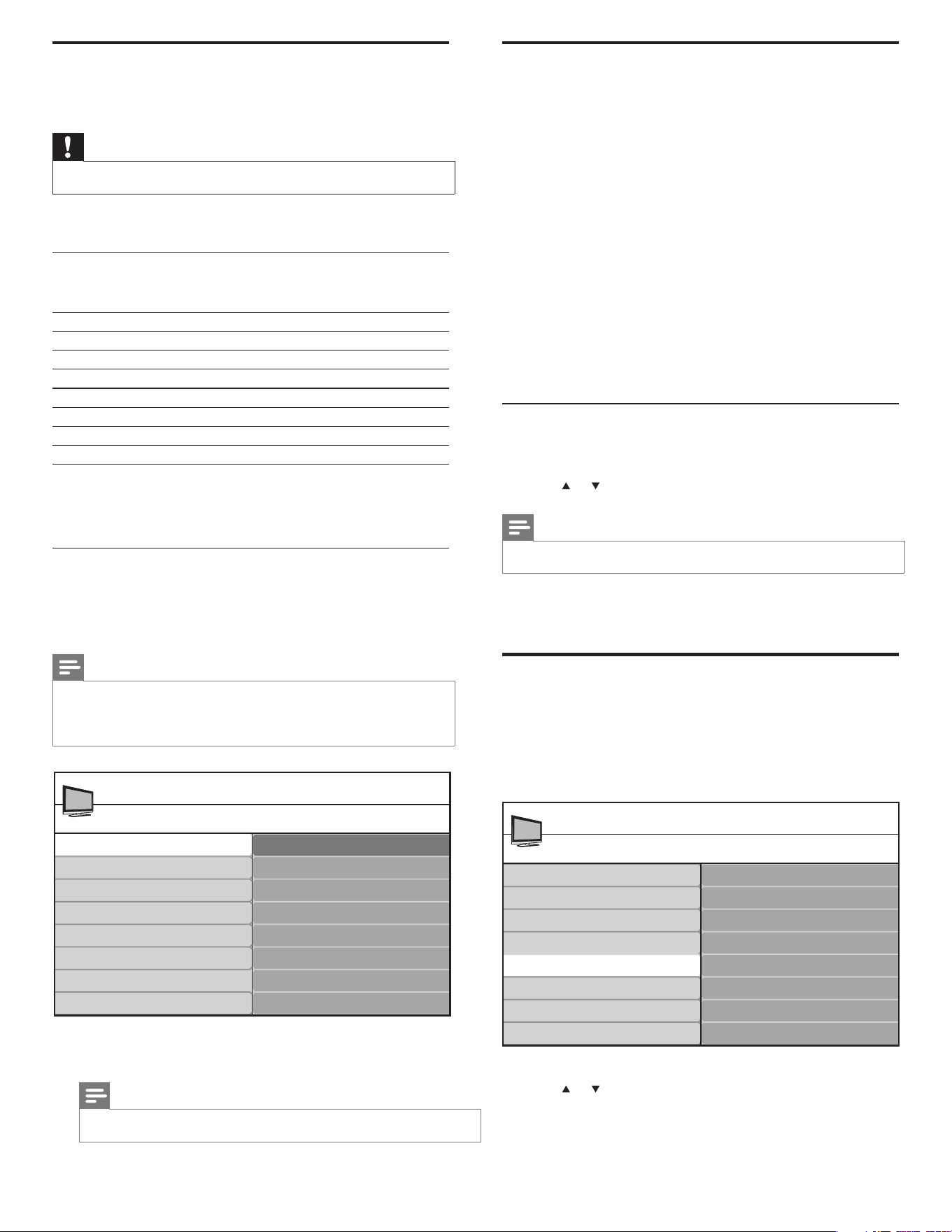
View your pictures on a USB device
1 After connecting your USB device to the TV, press to enter the
[Multimedia] menu.
» [Picture] is highlighted.
2 Press to enter the [Picture] folder.
3 Press or to select a picture or an album on the USB device.
» The pictures appear in a list or as thumbnails.
4 Press the green key to toggle between [List] and [Thumbnails] .
Picture
Thumbnails
Image1.JPG
Image2.JPG
Folder 1
Folder 2
Picture
Music
USB
IMAGE1.JPG
IMAGE1.JPG
IMAGE2.JPG
IMAGE2.JPG
Folder 1
Devicelabel1 Picture Folder 1
IMAGE1.JPG
640:480
Date Time
Thumbnails
IMAGE1.JPGFolder 1
Devicelabel1 Picture Folder 1
IMAGE1.JPG
List
View photos and play music on a USB device
Your TV is fi tted with a USB connection that enables you to view
photos or listen to music stored on a USB device.
Supported formats Not-supported formats
JPEG Progressive JPEG fi les
MP3 File name exceeding 128 characters
FAT/DOS-formatted memory
devices
File names containing a dot character
Note
•
Philips can not be held responsible if your USB device is not supported, nor will Philips
accept any liability for damage or loss of stored data.
• The USB device is not supplied with the TV.
Connect a USB storage device
1 Turn on the TV.
2 Connect the USB device to the USB port on the side of your TV .
» The main menu appears automatically.
Disconnect a USB storage device
Caution
•
To avoid damaging the USB device always exit the on-screen menu and wait fi ve
seconds before you remove the USB device.
1 Press MENU to exit the on-screen menu.
2 Wait fi ve seconds then remove the USB device.
USBTV menu
TV settings
Features
Installation
USB
Picture
Music
EN
21
Use your TV in HD mode
Not all models can be confi gured in high defi nition (HD) mode. For
information about your set, see the specifi cation.
When you connect an HD device to your TV, confi gure the display
format of your TV. You might also have to confi gure the display format
of your HD device. For information about confi guring your device, see
the documentation of the device.
Supported video formats
The following video formats are supported in HD mode.
Resolution Refresh rate
640 x 480p 60Hz
720 (1440) x 480i 60Hz
720 (1440) x 576i 50Hz
720 x 480p 60Hz
720 x 576p 50Hz
1280 x 720p 50Hz, 60Hz
1920 x 1080 50Hz, 60Hz
1920 x 1080p* 24Hz, 25Hz, 30Hz, 50Hz, 60Hz
*In selected models only
Note
•
Your TV is HDMI compliant. If you do not get a good picture, change the video format
on your connected devices.
Confi gure your TV in HD mode
1 Connect the HD device to your TV (see ‘Connect your devices’ on
page 28 ) .
2 Press MENU on the remote control and select [Features] >
[Mode Selection] .
3 Select [HDTV] and press to confi rm your choice.
4 If necessary, adjust the TV picture settings (see ‘Change picture and
sound settings’ on page 13 ) .
5 Press MENU to exit.
Note
•
[Mode Selection] appears for the following input signals:
• 720x480p@60 Hz
• 1280x720p@60 Hz
• 1920x1080p@24/25/30/50/60 Hz
Mode Selection
PC
HDTV
Features
TV menu
Caption settings
Sleeptimer
Child Lock
Change PIN
Demo
Mode Selection
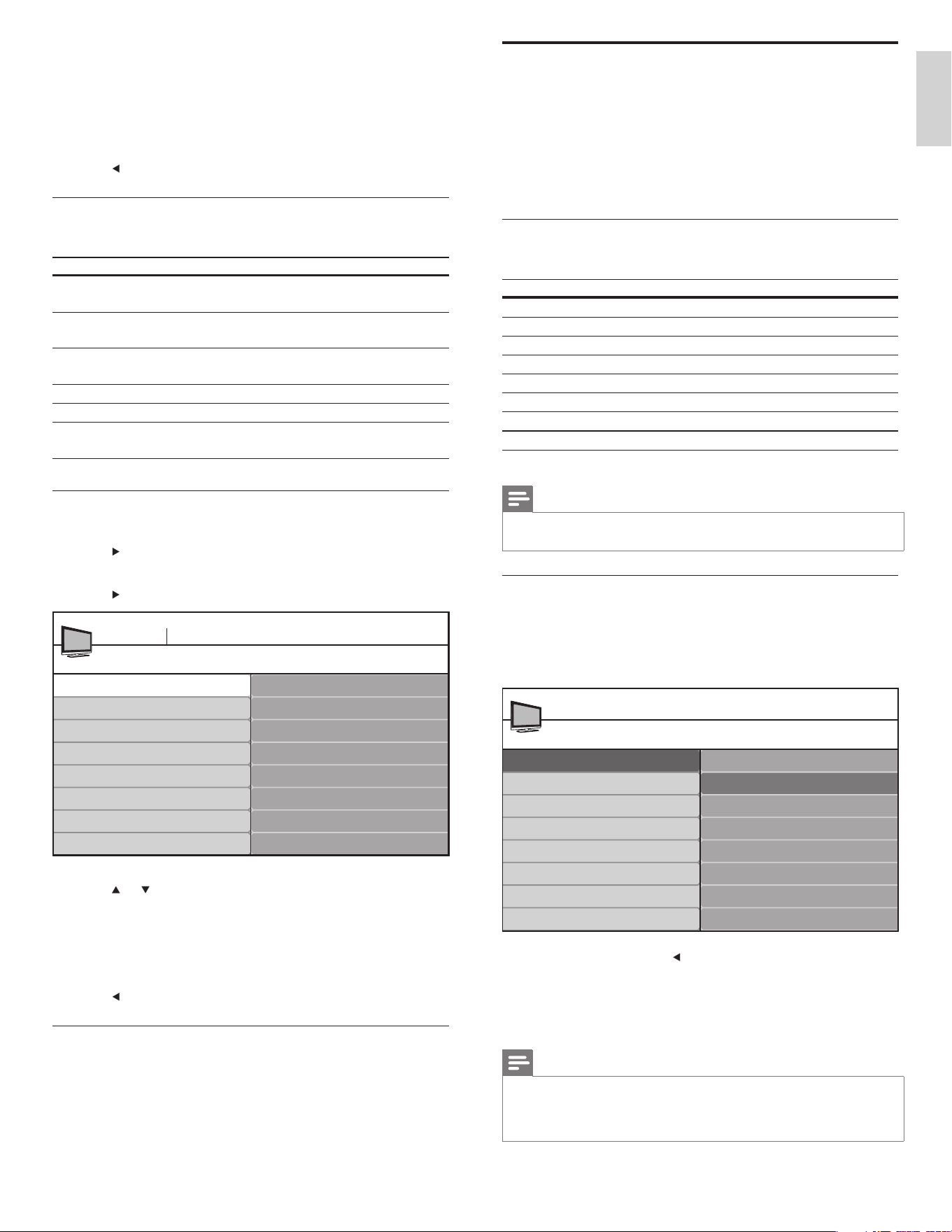
5 Press OK to view the picture or to start a slideshow of the
pictures in the album.
• Press the color keys on the remote control to perform the
function shown at the bottom of the screen.
• If the function bar at the bottom disappears, press any color
key to make it reappear.
6 Press and select another picture or another album.
Confi gure how the slideshow is played
You can confi gure the following features of your slideshow.
Feature Description
[Details] / [More details] Displays the picture name, date, size and
next picture in the slide show.
[Transitions] Displays a list of available transition styles of
the pictures.
[Slide time] Sets the amount of time that a picture is
shown.
[Rotate] Rotates a picture.
[Zoom] Displays a list of available magnifi cations.
[Start show] / [Stop
show]
Starts or stops a slide show.
Listen to music on a USB device
1 Connect your USB device to the TV
2 Press to enter the [USB] menu.
3 Select [Music] .
4 Press to enter the music folder.
5 Press or to select a song.
• Press the color keys on the remote control to repeat, shuffl e,
or change settings.
• Press OK to pause, press OK again to restart.
• If the color keys disappear from the screen, press OK to make
them reappear.
6 Press to select another song.
Accompany a slideshow with music
You can accompany a slideshow with background music. The audio continues
to be played even if the slideshow is stopped. The audio stops when another
song is played, or when the end of the music album is reached.
1 Select a music album .
2 Start a slideshow (see ‘View your pictures on a USB device’ on
page 20 ) .
Track1.MP3
Title: Track 1
Artist:
Album: Sentiment...
Duration: 00:02:53
Year :
Track1.MP3
Track2.MP3
Track3.MP3
Music
Devicelabel1 Music
English
EN
22
Use Philips EasyLink
Your TV supports Philips EasyLink, which enables one-touch play and
one-touch standby between EasyLink-compliant devices. Compliant
devices must be connected via an HDMI connector.
One-touch play
When you connect your TV to devices that support one-touch play,
you can control your TV and the devices with one remote control.
For example, when you press Play on your DVD remote control, your
TV automatically switches to the correct channel to show the DVD
content.
One-touch standby
When you connect your TV to devices that support standby, you can
use your TV remote control to put your TV and all connected HDMI
devices in standby mode. You can perform one-touch standby using the
remote control from any of the connected HDMI devices.
Activate Master EasyLink
1 Press MENU on the remote control.
2 Select [Installation] > [Preferences] > [Master EasyLink] .
3 Press or to select [On] .
Note
•
Select [Off] to disable this function.
[Master EasyLink] must be activated in the [Preferences] menu to
make the [TV Speakers] menu available in the [Sound] menu.
Use the demo mode
You can use demonstrations to better understand the features of your
TV. Some demos are not available on certain models. When a demo is
available, it is displayed in the menu list.
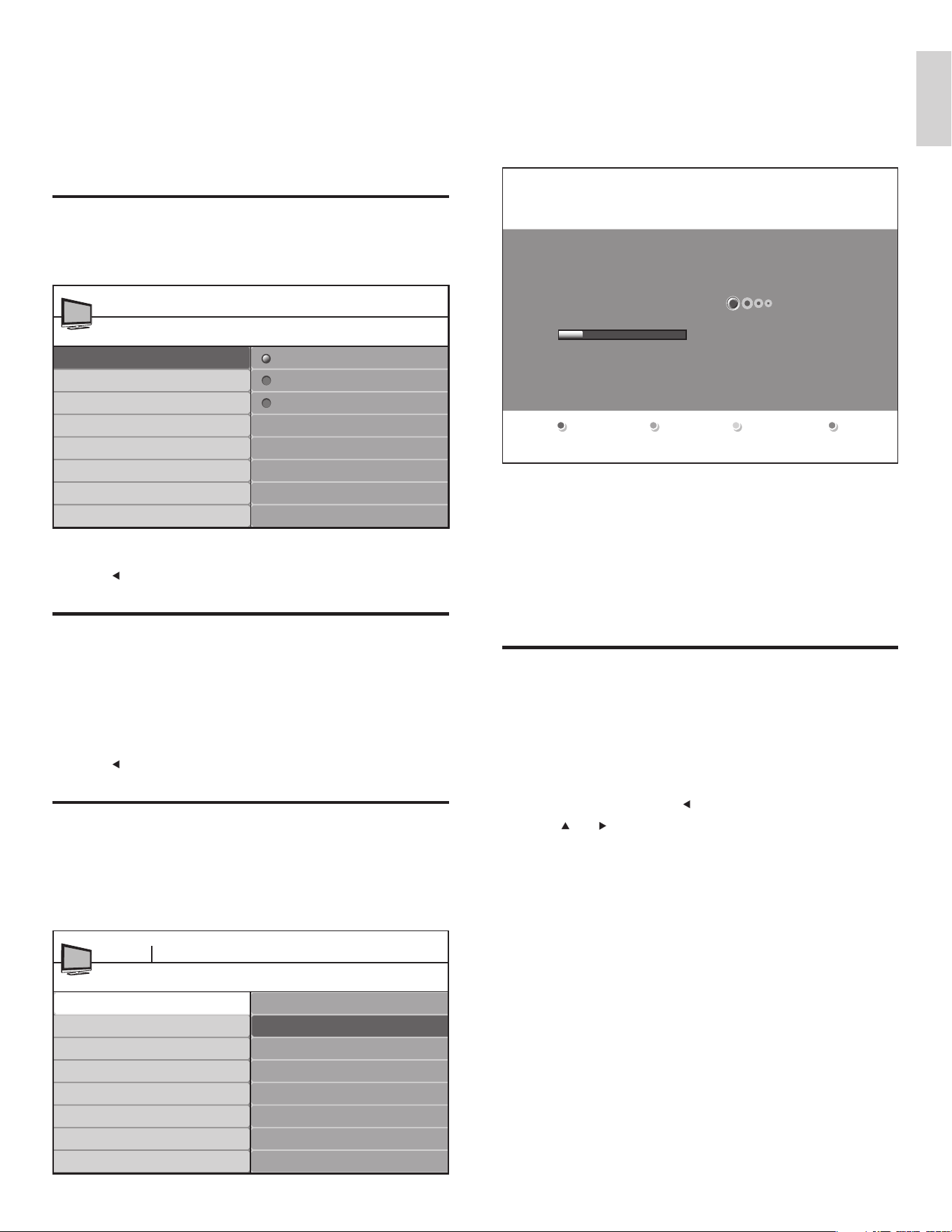
1 Press MENU on the remote control and select [Features] >
[Demo] .
*In selected models only
2 Press or to highlight a demo, and press OK to start the demo.
3 Follow the on-screen instructions to enjoy the demo.
4 Press MENU to exit.
Demo
120Hz*
Pixel Plus
HDNM*
Power Usage
Features
TV menu
Caption settings
Sleeptimer
Child lock
Change PIN
Demo
Ambilight*
Use your TV as a PC monitor
Use an HDMI-DVI cable or an HDMI-DVI adaptor to connect a PC to
your TV. For sound, add an audio cable with a stereo mini jack.
Caution
•
Before you connect your PC, set the PC monitor refresh rate to 60Hz.
Supported screen resolutions
The following screen resolutions are supported in PC mode:
Resolution Refresh rate
640 x 480 60Hz
800 x 600 60Hz
1024 x 768 60Hz
1280 x 768 60Hz
1280 x 1024 60Hz
1360 x 768 60Hz
1920 x 1080* 60Hz
*In selected models only
If necessary, adjust the picture position to the center of the screen with
the cursor buttons.
Confi gure your TV in PC mode
1 Connect the PC to your TV (see ‘Connect a PC’ on page 29 ) .
2 Press MENU on the remote control and select [Features] >
[Mode Selection] .
Note
•
[Mode Selection] appears for the following input signals only:
• 720x480p@60 Hz
• 1280x720p@60 Hz
• 1920x1080p@24/25/30/50/60 Hz
3 Select [PC] and press OK to confi rm your choice.
4 If necessary, adjust the picture settings .
Note
•
Set the picture format to [Unscaled] for wide-screen PC resolutions.
5 Press MENU to exit.
Mode Selection
PC
HDTV
Features
TV menu
Caption settings
Sleeptimer
Child Lock
Change PIN
Demo
Mode Selection
EN
23
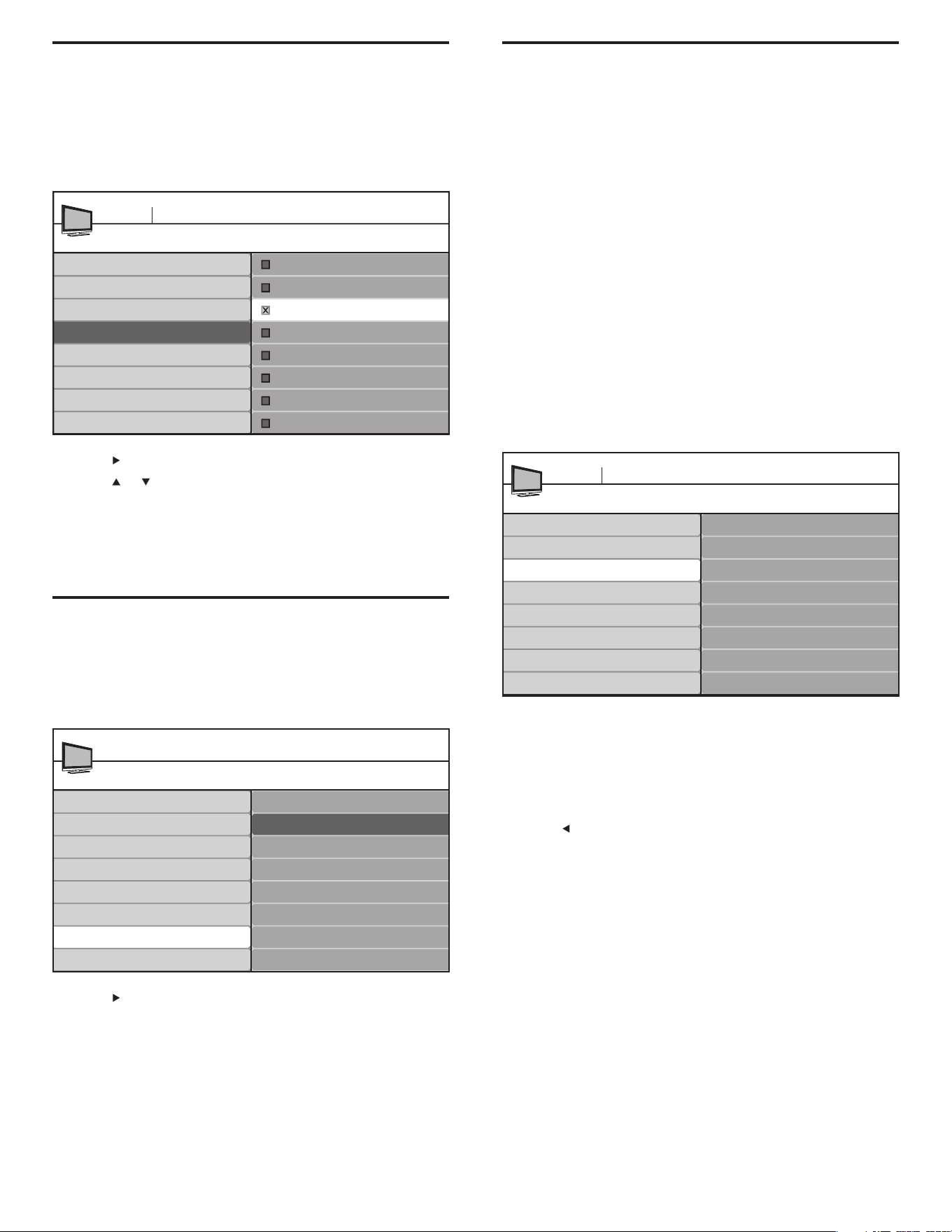
2 Press OK to start the installation.
• If you run [Autoprogram] on locked channels, you must to
enter your PIN code.
• If you have forgotten your PIN, reset it (see ‘Set or change
your PIN’ on page 16 ) .
3 Select [Cable] or [Antenna] and press OK .
• When [Antenna] is selected, the TV detects antenna signals. It
searches for NTSC and ATSC channels available in your area.
• When [Cable] is selected, the TV detects signals supplied
by cable. It searches for NTSC, ATSC, and QAM modulated
channels available in your area.
• When complete, this message appears [Channel search
completed.] .
4 Follow the on-screen instructions to complete the installation.
Optimize the signal quality from your
antenna
You can optimize your signal quality by tuning in ATSC channels with
weak signals, and adjusting the antenna.
1 Press MENU on the remote control and select [Installation] >
[Channels] > [Installation mode] mode .
2 Select [Antenna] and press to confi rm your choice.
3 Press and to enter [Weak channel installation] .
4 Highlight a channel from the list of TV channels and press the green
color button on the remote control.
» The signal strength for the channel is displayed.
5 Adjust your antenna to maximize the signal strength.
6 Press MENU to exit.
System searching. Please wait...
Analog channels found: 0
Digital channels found: 0
TV installation
7 Install channels
The fi rst time you setup your TV, you are prompted to select a menu
language and to install TV and digital radio channels (if available). This
chapter provides instructions on how to reinstall and fi ne-tune channels.
Select your menu language
1
Press MENU on the remote control and select [Installation] >
[Language] .
2 Select a language and press OK to confi rm your choice.
3 Press to return to the [Installation] menu.
Set your location to home
You can set the location of your TV to home or retail store. Choose home
so that you can change the predefi ned settings for picture and sound.
1 Press MENU on the remote control and select [Installation] >
[Preferences] > [Location] .
2 Select [Home] and press OK to confi rm your choice.
3 Press to return to the [Installation] menu.
Automatically install channels
Before you install channels, ensure that you are registered with your
cable TV provider and that your equipment is correctly connected.
1 Press MENU on the remote control and select [Installation] >
[Channels] > [Autoprogram] > [Start now] .
Language
English
Francais
Espanol
Installation
TV menu
Language
Channels
Preferences
Source labels
Reset AV settings
Current software info
Clock
Autoprogram
Start Now
Autoprogram
Weak channel installation
Installation mode
Uninstall channels
Channels
TV menu Installation
English
EN
24
Show emergency alerts (EAS)
The SCTE18 standard defi nes an emergency alert signaling method for
use by cable TV systems. EAS can be broadcast to digital devices such as
digital set-top boxes, digital TVs, and digital VCRs.
The EAS scheme allows a cable operator to disseminate information
related to state and local emergencies and warnings.
EAS contain the following information:
• Emergency alert text
• Start time and date
• End time and date
• Priority
EAS with priority maximum or high are always displayed on your TV.
However, you can confi gure your TV not to show EAS messages with
medium or low priority.
EAS is not possible with a multimedia browser or with analog video
sources.
You can always remove the message from the screen. The message
display overlaps menus and other messages on the screen.
1 Press MENU on the remote control and select [Installation] >
[Preferences] > [Show emergency alerts] .
2 Highlight an option:
• [Always] : Displays all emergency alert messages
• [Skip low priority] : Shows all messages except low priority
messages
• [Skip medium/low priority] : Shows maximum and high
priority messages only
3 Press to confi rm your choice.
4 Press MENU to exit.
Show emergency alerts
Always
Skip low priority
Skip medium/low priority
Location
Show emergency alerts
Downloaded rating table
Preferences
TV menu Installation
Master EasyLink
Uninstall and reinstall channels
When you uninstall a channel, you remove it from the list of stored
channels. Uninstalled channels are not reinstalled during an installation
update.
1 Press MENU on the remote control and select [Installation] >
[Channels] > [Uninstall channels] .
2 Press to enter the list of stored channels.
3 Press or to select the channel you want to uninstall, and press
the green key on the remote control.
4 The channel is removed from the channel list. Press the green key
again to reinstall the channel.
5 Press MENU to exit.
Return your settings to default values
When you return picture and sound settings to their default values the
channel installation settings are not affected.
1 Press MENU on the remote control and select [Installation] >
[Reset AV settings] .
2 Press to highlight [Start now] , and press OK to reset the picture
and sound settings.
3 Press MENU to exit.
Uninstall channels
52
TV menu Installation
53
54
55
56
57
58
59
Autoprogram
Weak channel installation
Installation mode
Uninstall channels
Channels
Reset AV settings
Start now
Installation
TV menu
Language
Channels
Preferences
Source labels
Reset AV settings
Current software info
Clock
EN
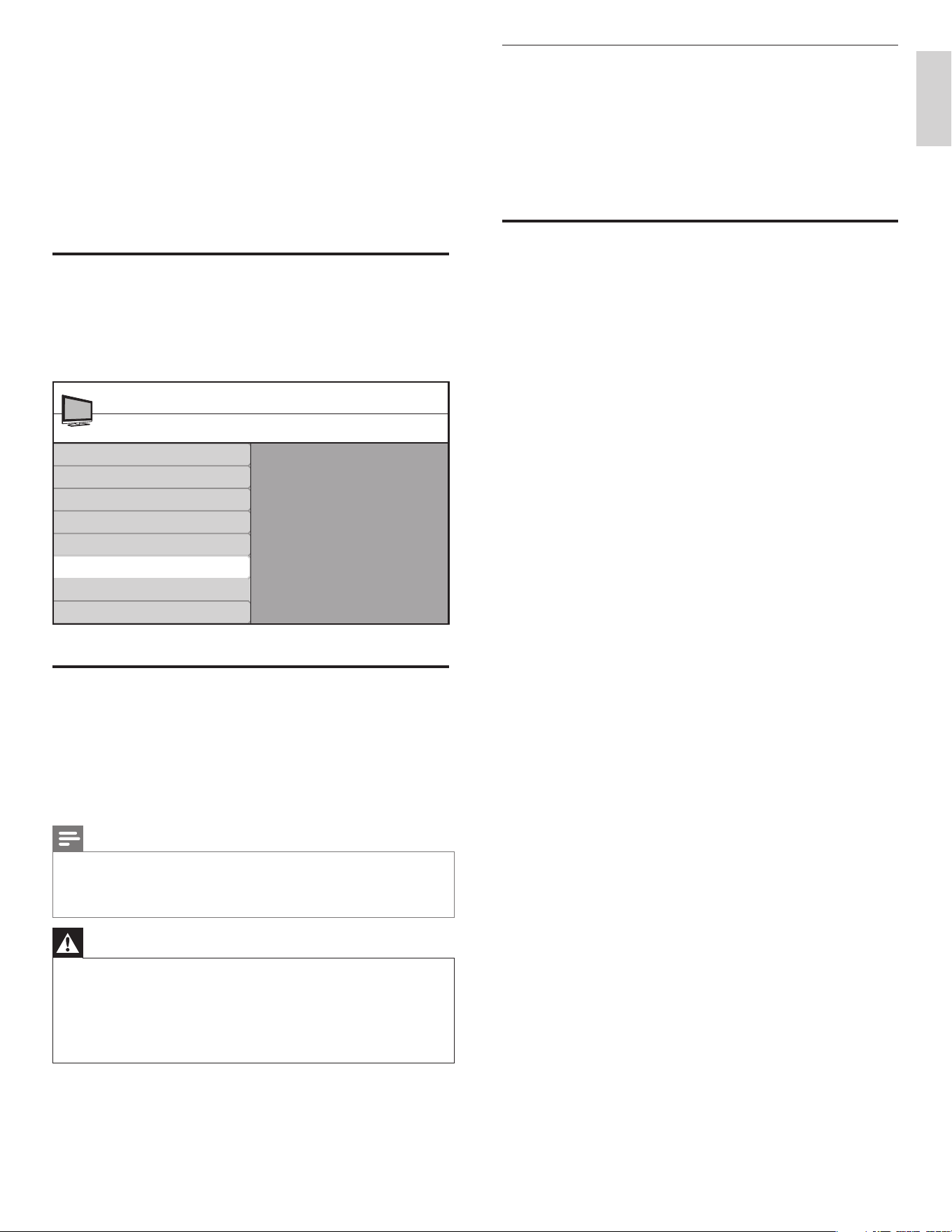
25
Download the software
1 On your PC, open a web browser and go to www.philips.com/
welcome.
2 Find information and software related to your TV and download
the latest software upgrade fi le to your PC.
3 Decompress the ZIP-fi le.
4 Copy the autorun.upg fi le to the root directory of the USB device.
Upgrade software
1
Prepare the software upgrade (see ‘Prepare for the software
upgrade’ on page 25 ) .
2 Connect your USB device to the USB port on the side of your TV .
» The TV scans the USB device for the updated software and
automatically enters upgrade mode.
3 Read the on-screen instructions and confi rm that you want to
continue with the installation.
4 When the software upgrade is complete, remove the USB device
(see ‘Disconnect a USB storage device’ on page 20 ) .
5 Turn the TV off and on again.
» The TV starts up with the new software.
8 Update your TV software
Philips continuously tries to improve its products and we strongly
recommend that you update the TV software when updates are
available.
New software can be obtained from your dealer or downloaded from
the www.philips.com/welcome website. Use the type number of your
TV (e.g. 42PFL5603D/27) to fi nd information.
Check your current software version
1
Press MENU on the remote control and select [Installation] >
[Current software info] .
» The version and a description of the current software is
displayed.
Prepare for the software upgrade
You require the following equipment:
• A PC with web browsing capability.
• An archive utility that supports the ZIP-format (e.g. WinZip for
Windows or StuffIt for Mac OS).
• A USB memory stick.
Note
•
Only FAT/DOS-formatted portable memory is supported.
• New software can be obtained from your dealer or can be downloaded from the www.
philips.com/welcome website.
• Use only software upgrades that can be found on the Philips web site.
Warning
•
Do not remove the USB device during the software upgrade.
• If there is a power drop during the upgrade, do not remove the USB device from the
TV. The TV continues the upgrade as soon as the power comes back.
• If you try to upgrade to a software version lower than the current version, a
confi rmation message is displayed. Downgrade to older software only in case of real
necessity.
• If an error occurs during the upgrade, retry the procedure or contact your dealer.
Release version:
xxxxx
Installation
TV menu
Language
Channels
Preferences
Source labels
Reset AV settings
Current software info
Clock
English
EN
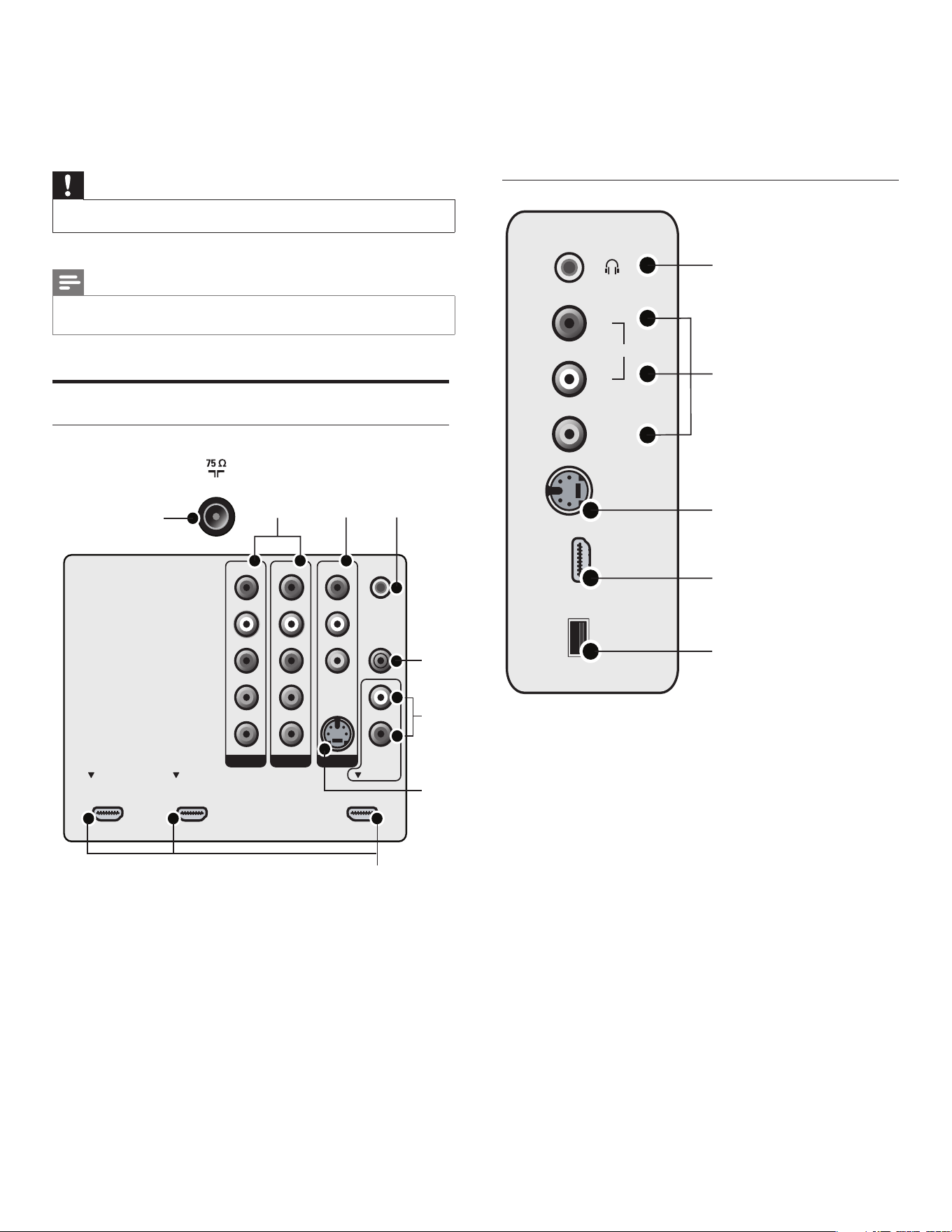
26
g AV3 S-VIDEO (back): S-Video (back) input connector to be used
with Audio L/R connectors for camcorder, game console, etc.
When you use the S-Video (back) for video signals, do not use
Composite video (back) for video signals.
h HDMI 1/2/3: Digital audio and video input from high defi nition
digital devices such as Blu-ray players.
Side connectors
a Stereo audio output to headphones or earphones.
b Composite video: Video input for analog devices such as DVD,
camcorder, game console, etc. To be used with audio input.
c S-Video (side) to be used with Audio L/R connectors for
camcorder, game console, etc. When you use the S-Video (side)
for video signals, do not use the Composite video (side) input for
video signals.
d HDMI (side): Digital audio and video input from high defi nition
digital devices such as Blu-ray players.
e Data input from USB storage devices.
HDMI 4
S-VIDEO
VIDEO
L
AUDIO
R
USB
1
2
3
4
5
9 Connect devices
This section describes how to connect various devices with different
connectors and supplements examples provided in the Quick Start.
Caution
•
Disconnect the power cord before connecting devices.
Note
•
Different types of connectors may be used to connect a device to your TV, depending
on availability and your needs.
Connection overview
Back connectors
a Signal input from an antenna, cable or satellite.
b AV1 and AV2 : Video input from analog devices such as DVD,
receiver, game console, etc. This connector is used with audio
input.
c AV3 Composite video (back): Video input for analog devices such
as DVD, camcorder, game console, etc. To be used with audio
input.
d For use by service personnel only.
e Digital audio output to home theaters and other digital audio
systems.
f Audio input for HDMI3.
SERV. U
SPDIF
OUT
VIDEO
S-VIDEO
DVI AUDIO
IN
HDMI 3HDMI 1 HDMI 2
AV 3AV 1 AV 2
Y
Pb
Pr
L
R
L
R
L
R
Y
Pb
Pr
L
R
TV ANTENNA
5
6
7
234
1
8
EN
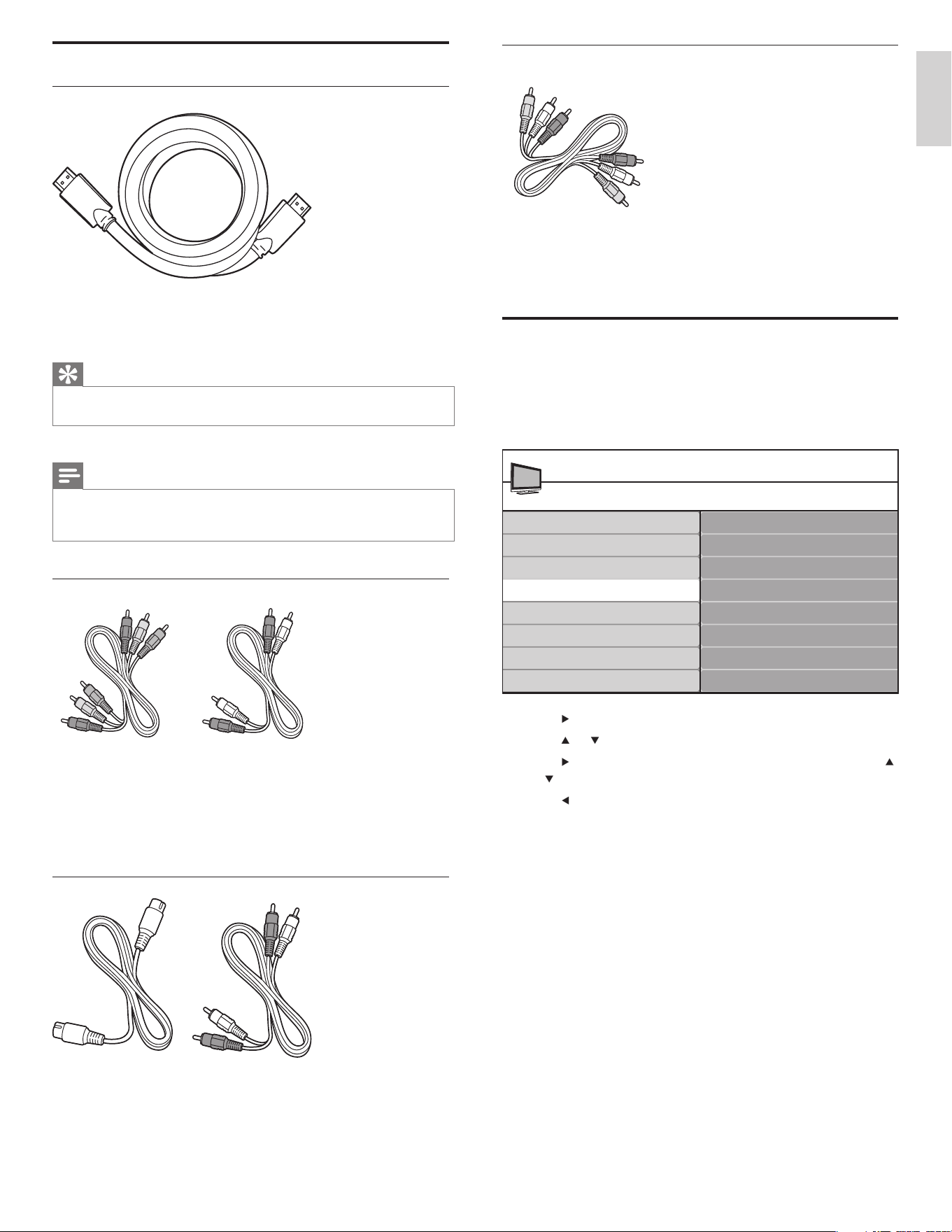
27
Composite - Basic quality
Composite video/audio cable (yellow/red/white)
For analog connections. Composite cables usually combine a yellow
video cable with a red/white audio L/R cable. Match the cable colors
when you connect to the TV.
Label your connections
When you connect devices, you can label the connections to help you
to identify where devices are connected.
1 Press MENU on the remote control and select [Installation] >
[Source labels] .
2 Press to enter the list of available connections.
3 Press or to highlight a connection in the list.
4 Press to enter the list of devices for the connection, and press
or
to highlight a device.
5 Press to confi rm your choice.
6 Press MENU to exit.
Source labels
AV1
AV2
AV3
HDMI1
HDMI3
HDMI2
Side HDMI
Installation
TV menu
Language
Channels
Preferences
Source labels
Reset AV settings
Software upgrade
Side AV
Clock
Select your connection quality
HDMI - Highest quality
Supports high-defi nition signals and gives highest picture and sound
quality. Video and audio signals are combined in one cable. You must use
HDMI for full high-defi nition video and to enable Philips EasyLink .
Tip
•
To connect to a PC without an HDMI connector, use a DVI-HDMI adaptor and a
separate audio cable.
Note
•
Philips HDMI supports Highbandwidth Digital Contents Protection (HDCP). HDCP is
a form of Digital Rights Management that protects high defi nition content in DVD or
Blu-ray Discs.
Component (Y Pb Pr) - High quality
Component video cable (red/green/blue) and audio L/R cable (red/
white)
Supports high-defi nition signals but gives lower picture quality than
HDMI. Component cables combine a red/green/blue video cable with
a red/white audio L/R cable. Match the cable colors when you connect
to the TV.
S-Video - Good quality
S-Video cable and audio L/R cable (red/white)
For analog connections. Use an S-Video cable together with an audio
L/R cable.
English
EN
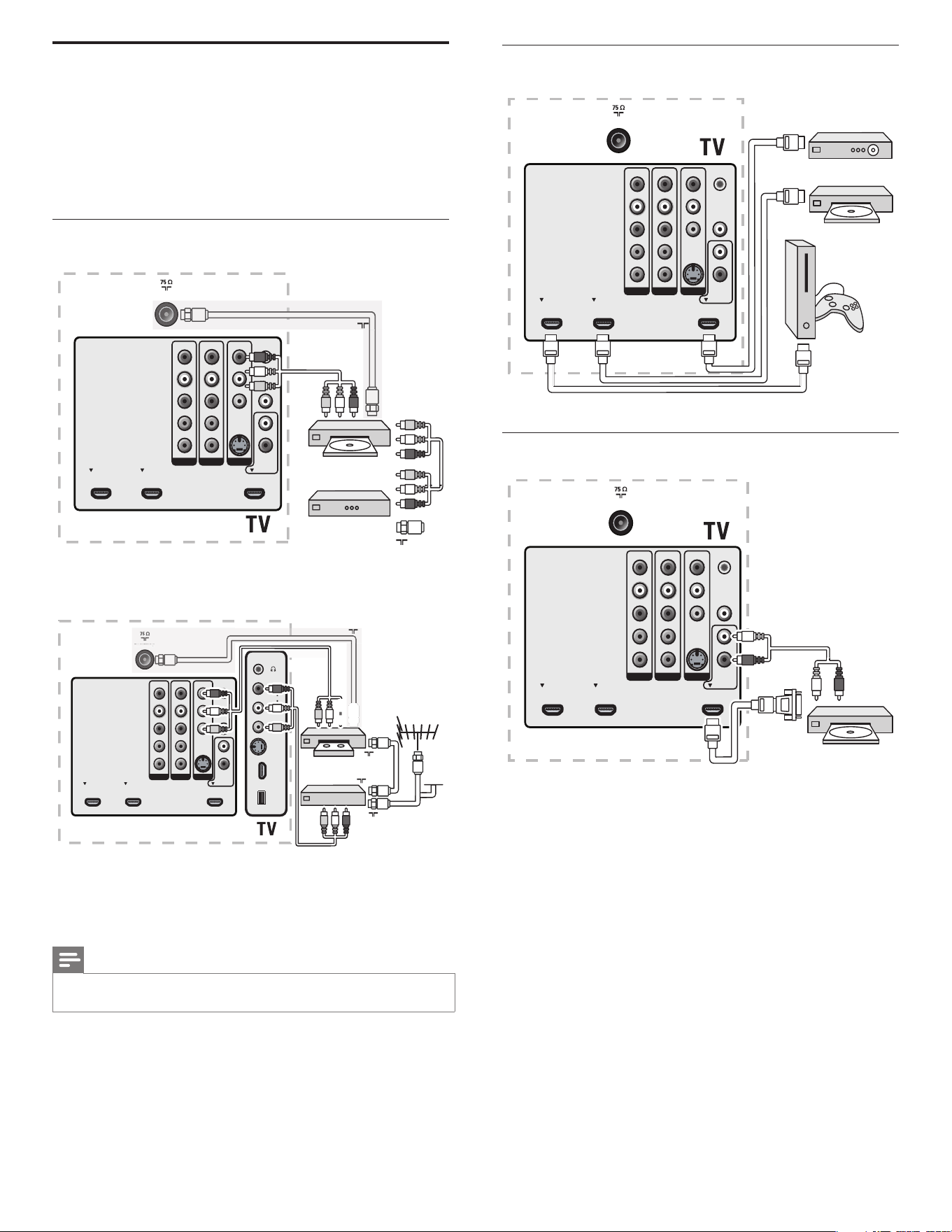
28
Connect a set-top box, DVD player/recorder and game
console via HDMI
Connect a DVD player/recorder via HDMI-DVI and
DIGITAL AUDIO OUT connectors
SERV. U
SPDIF
OUT
VIDEO
S-VIDEO
DVI AU DI O
IN
HDMI 3HDMI 1 HDMI 2
AV 3AV 1 AV 2
Y
Pb
Pr
L
R
L
R
L
R
Y
Pb
Pr
L
R
TV ANTENNA
TV ANTENNA
SERV. U
SPDIF
OUT
VIDEO
S-VIDEO
DVI A UDI O
IN
HDMI 3HDMI 1 HDMI 2
AV 3AV 1 AV 2
Y
Pb
Pr
L
R
L
R
L
R
Y
Pb
Pr
L
R
DVI
HDMI
AUDIO
IN
AUDIO
OUT
Connect your devices
This section describes how to connect a selection of devices with
different connectors. Different types of connectors can be used to
connect a device to your TV. The following sections describe examples
only, other confi gurations are possible.
When you connect composite or component cables, match the cable
colors to the connectors on the TV.
Connect a DVD player/recorder via composite
connectors
Do not place your recorder too close to the screen because some
recorders can be susceptible to signals.
If your recorder has an S-VHS video jack: For improved picture quality,
connect an S-Video cable with the S-Video input. Connect the audio
cables to the audio L and R input jacks of AV3/side AV.
Note
•
When you use an S-Video connector, do not connect any device to the AV3/side AV
video jack.
If you use mono equipment, the left loudspeaker reproduces sound
but the right speaker does not. Use a mono to stereo adapter (not
supplied) for sound reproduction via all internal loudspeakers.
SERV. U
SPDIF
OUT
VIDEO
S-VIDEO
DVI AUDIO
IN
HDMI 3HDMI 1 HDMI 2
AV 3AV 1 AV 2
Y
Pb
Pr
L
R
L
R
L
R
Y
Pb
Pr
L
R
TV ANTENNA
Set-top box
RF IN
RECORDER
L + R + VIDEO
IN
OUT
OUT
Or/Ou/O RF OUT
SERV. U
SPDIF
OUT
VIDEO
S-VIDEO
DVI AUDIO
IN
HDMI 3HDMI 1 HDMI 2
AV 3AV 1 AV 2
Y
Pb
Pr
L
R
L
R
L
R
Y
Pb
Pr
L
R
TV ANTENNA
HDMI 4
S-VIDEO
VIDEO
L
AUDIO
R
USB
RECORDER
RF OUT
OUT
RF IN
RF IN
CABLE
L + R + VIDEO
L + R + VIDEO
OUT
TV ANTENN
A
Or/Ou/O RF OUT
EN
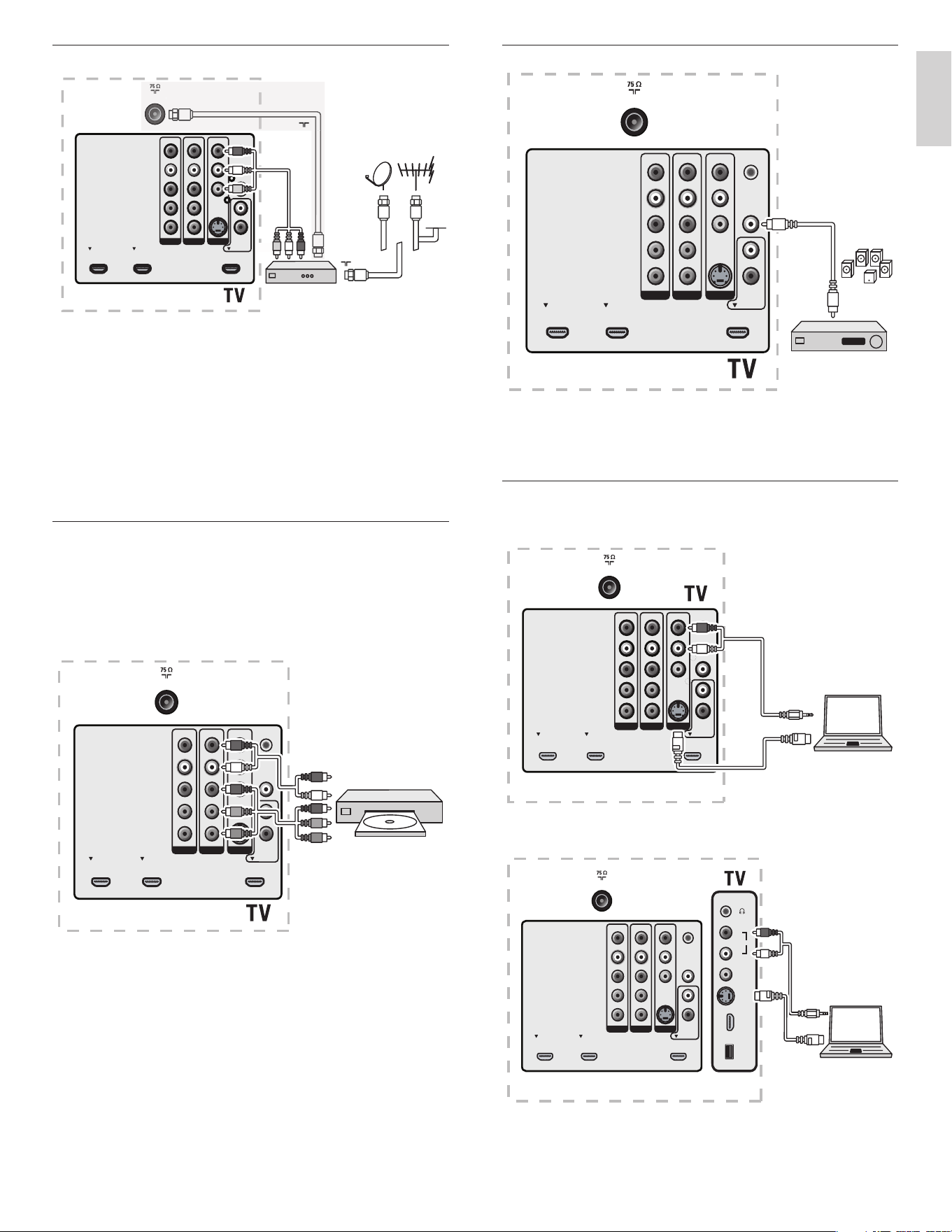
29
Connect a digital home theater amplifi er
For legal reasons, the digital audio signal can be muted for copy-
protected PCM audio qualities on accessory devices connected through
HDMI.
Connect a PC
Connect a PC with an S-Video connector at the back
Connect a PC with an S-Video connector at the side
SERV. U
SPDIF
OUT
VIDEO
S-VIDEO
DVI AUDIO
IN
HDMI 3HDMI 1 HDMI 2
AV 3AV 1 AV 2
Y
Pb
Pr
L
R
L
R
L
R
Y
Pb
Pr
L
R
TV ANTENNA
DIGITAL
AUDIO
IN
DIGITAL
AUDIO
OUT
SERV. U
SPDIF
OUT
VIDEO
S-VIDEO
DVI AUDIO
IN
HDMI 3HDMI 1 HDMI 2
AV 3AV 1 AV 2
Y
Pb
Pr
L
R
L
R
L
R
Y
Pb
Pr
L
R
TV ANTENNA
AUDIO
OUT
S VIDEO
SERV. U
SPDIF
OUT
VIDEO
S-VIDEO
DVI AUDIO
IN
HDMI 3HDMI 1 HDMI 2
AV 3AV 1 AV 2
Y
Pb
Pr
L
R
L
R
L
R
Y
Pb
Pr
L
R
TV ANTENNA
HDMI 4
S-VIDEO
VIDEO
L
AUDIO
R
USB
AUDIO
OUT
S VIDEO
Connect a set-top box via a composite connector
If your device has an S-VHS video jack, improve the picture quality as
follows:
• Connect an S-Video cable to the S-Video input of AV3/side AV
• Connect the audio cables to the audio L and R input jacks of
AV3/side AV.
When you use the S-Video connector, do not connect any device to
the video jack of AV3 or the side AV.
Only the left loudspeaker reproduces sound for mono equipment. Use
a mono to stereo adapter (not supplied) for sound reproduction via all
internal loudspeakers.
Connect a DVD player/recorder via component video
output connectors (YPbPr) and analog audio
Selected TV models can display 1080i, 1080p, 720p and 480p DTV
signals when connected to a DTV set-top box. Set the output of the
cable box to either 1080i, 1080p, 720p or 480p. A DTV signal must be
available in your area.
SERV. U
SPDIF
OUT
VIDEO
S-VIDEO
DVI AUDIO
IN
HDMI 3HDMI 1 HDMI 2
AV 3AV 1 AV 2
Y
Pb
Pr
L
R
L
R
L
R
Y
Pb
Pr
L
R
TV ANTENNA
CABLE
RF IN
Set-top box
L + R + VIDEO
OUT
T
V ANTEN
N
A
Or/Ou/O RF OUT
SERV. U
SPDIF
OUT
VIDEO
S-VIDEO
DVI AU DI O
IN
HDMI 3HDMI 1 HDMI 2
AV 3AV 1 AV 2
Y
Pb
Pr
L
R
L
R
L
R
Y
Pb
Pr
L
R
TV ANTENNA
DVD / Set top box
YPbPr
AV1 / AV2 :
AUDIO L + R
AV1 / AV2 :
English
EN
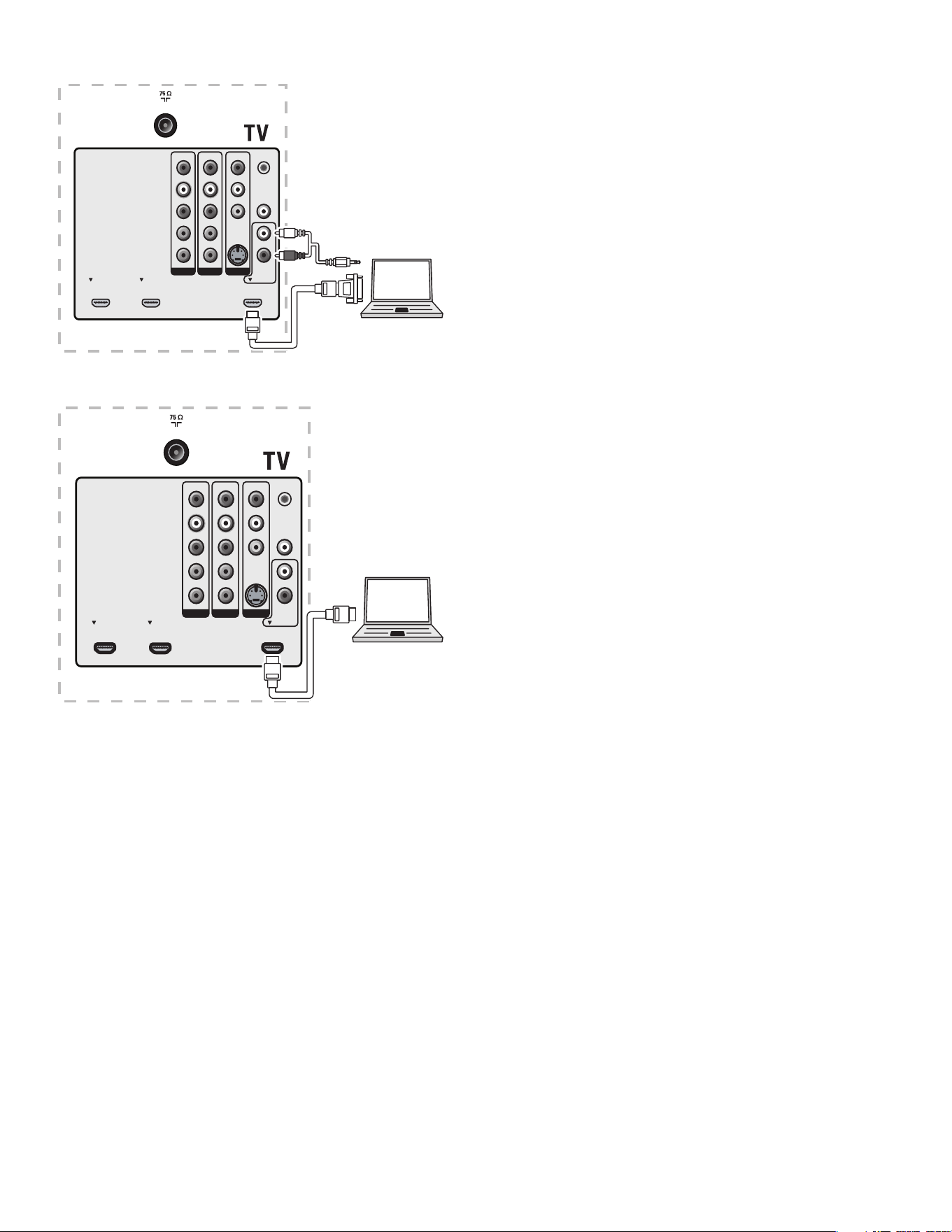
30
Connect a PC with a DVI connector
Connect a PC with an HDMI connector
SERV. U
SPDIF
OUT
VIDEO
S-VIDEO
DVI AU DI O
IN
HDMI 3HDMI 1 HDMI 2
AV 3AV 1 AV 2
Y
Pb
Pr
L
R
L
R
L
R
Y
Pb
Pr
L
R
TV ANTENNA
AUDIO
IN
AUDIO
OUT
DVI
HDMI
SERV. U
SPDIF
OUT
VIDEO
S-VIDEO
DVI A UDI O
IN
HDMI 3HDMI 1 HDMI 2
AV 3AV 1 AV 2
Y
Pb
Pr
L
R
L
R
L
R
Y
Pb
Pr
L
R
TV ANTENNA
HDMI
EN
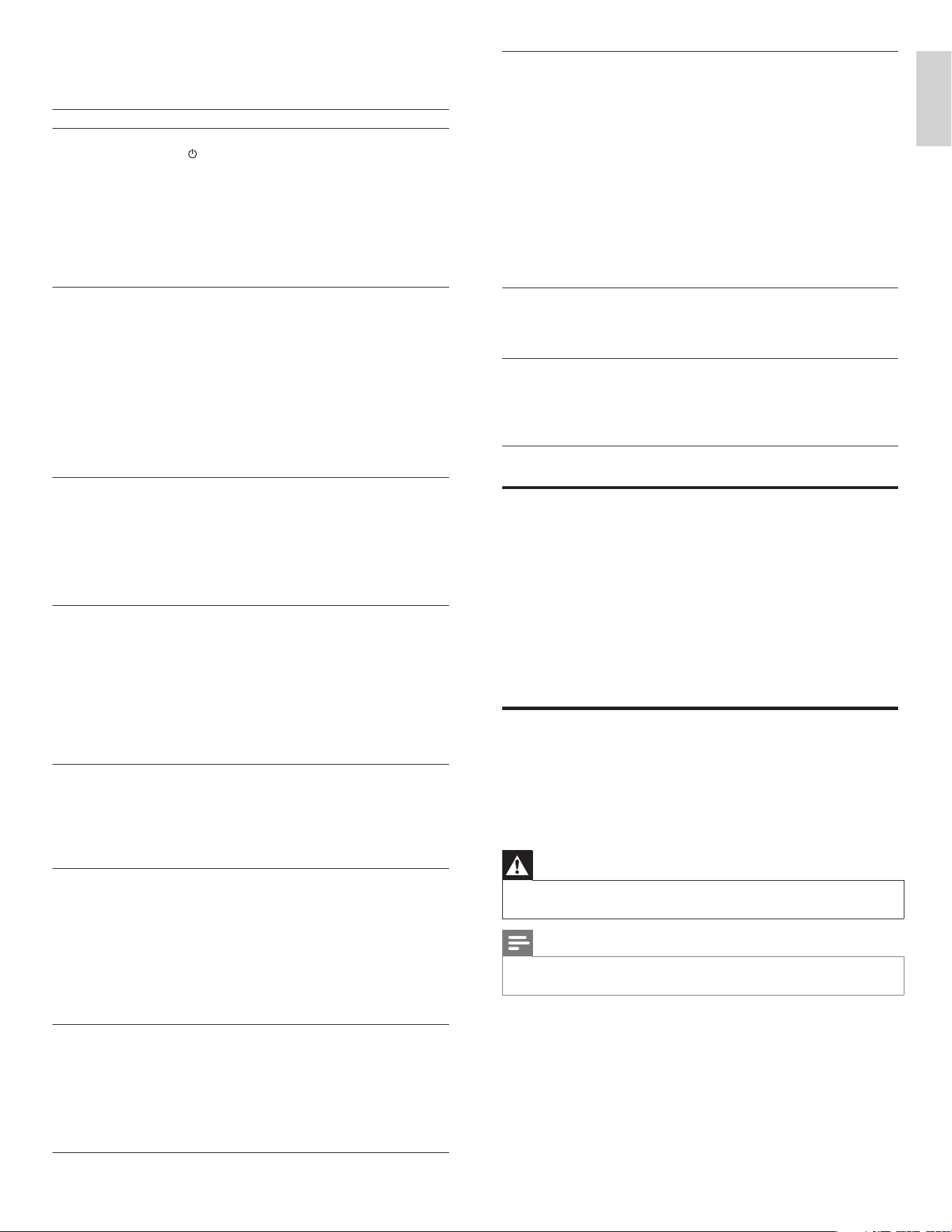
31
No sound
on the TV
loudspeaker.
Volume level is set to zero - increase the volume
Sound is muted - press MUTE on the remote
control.
Headphones are connected - ensure that
headphones are not plugged into the TV.
Audio cable is not connected - for AV connection,
ensure that the Audio L/R cable is connected as
described in Connect your devices (see ‘Connect
your devices’ on page 28 ) . If you use a component
cable, ensure that you have not crossed the red
audio cable with the red video cable.
Audio output setting for the accessory device is
incorrect. For HDMI connections, some accessory
devices have an HDMI audio output setting that
must be turned on for HDMI to HDMI connections.
Bad picture
quality with
a coaxial
connection.
Standard defi nition channels are not as clear as
high defi nition channels - connect the devices via
component or HDMI cables.
Cannot control
your TV and
connected
devices with one
remote control.
Confi rm that the connected devices are EasyLink
compliant and are connected to your TV via an
HDMI cable. Not all brands of devices such as DVD
players use the same system as Philips EasyLink.
Other brands might not work with Philips EasyLink.
Download an electronic copy
To obtain an electronic copy of this manual:
1 Point your browser to www.philips.com/support.
2 Choose your country of location.
3 Enter the model number or a keyword in the “Find your product”
fi eld. Alternatively, you can browse the catalogue.
4 Click the description or model.
5 Under Product support, click User manuals.
Contact us
If you cannot resolve your problem, refer to the FAQ for this TV at
www.philips.com/support.
If the problem remains unresolved, contact the Customer Support
Center in your country.
Warning
•
Do not attempt to repair the TV yourself. This may cause severe injury, irreparable
damage to your TV or void your warranty.
Note
•
Please have available your TV model and serial number before contacting us. These
numbers are available on the back and side of your TV, as well as on the packaging.
10 Troubleshooting
Problem Possible cause and solution
No power or
indicator light.
The TV is not connected to the power.
Press at the side of the TV or on the remote
control.
Ensure that the power cord is connected tightly to
the TV power connector and to the power socket
outlet.
Remove the power cord from the power socket
outlet, wait 60 seconds and reconnect the power
cord.
Connect the TV to a different power socket outlet.
Error message
on the screen
with HDMI
connection.
HDCP authentication fail.
Ensure that your HDMI cable is certifi ed.
Press SOURCE on the remote control to switch to
another source and then switch back to the HDMI
source.
Reset the accessory device and the TV.
Turn on the TV.
Select the HDMI channel.
Turn on the accessory device.
While the TV and the accessory device are powered
on, unplug either end of the HDMI cable and then
reinsert the cable.
No sound is
detected from
the PC.
An incorrect HDMI port is connected or an audio
cable is not connected.
Connect a DVI-HDM cable to the HDMI 3 port on
the TV.
Connect an audio cable to the DVI AUDIO IN port
on the TV.
Press SOURCE on the remote control, and select
the HDMI 3 source.
TV does not
respond to the
remote control.
Batteries are installed incorrectly, or low battery
power.
Ensure the indicator light on the TV blinks when you
press the remote control buttons.
Ensure that you are using the TV remote control.
Ensure that the batteries are inserted correctly and
do not need to be replaced.
Remove the power cord from the power socket
outlet, wait 60 seconds and reconnect the power
cord.
The picture
is distorted,
stretched out, or
has black bars
on the side or
top.
Broadcast video format.
Press FORMAT on the remote control to select the
best picture format.
For some accessory devices, the picture format must
be set in the accessory device.
The picture is
mostly red and
green, or the
picture misses
red when
connected to an
accessory device
via component
cables.
Insecure/incorrect connection.
Ensure all the connections are made according to
the color code.
Push the component cables all the way into the
YPbPr sockets on the TV.
No picture or
sound.
No picture or sound - ensure you have selected the
correct channel.
Incomplete channel installation
If the TV receives channels via an AV connection, set
the TV to the correct source input.
If the TV is connected directly to the wall via a
coaxial connection, perform the auto-installation
again.
English
EN

32
• Full support of SubClass Code = 05h; SFF-8070i spec.
• Full support of SubClass Code = 06h; SCSI transparent command
set.
• For large USB memory devices, when you are in the Content
Browser, it may take a long time before you can access your fi les.
• When using a USB portable hard disk, and due to the high power
consumption of the hard disk, it is advised to use the external
power supply of the portable hard disk to guarantee proper
working under all conditions
11 Notes for the use of USB
devices
Digital Content Issues
• Only FAT (DOS) formatted (initialized) portable memory is
supported. Errors in this formatting can result in unreadable
content. If such problems appear try to re-format the card. Be
aware that formatting the card will also delete all the content on it
(pictures, music, …).
• The following fi le types are supported: .jpg, .jpeg, .mp3, .alb, .m3u
and .pls.
• Only linear JPEG picture formats are supported. Progressive JPEG
and JPEG2000 encodings are not supported.
• The length of a fi lename or directory name is limited to the length
specifi ed by the FAT16/32 fi le systems.
• Max. levels of nested directories is 19.
• Never use the supported fi le type extensions (.jpg, .jpeg, .mp3, .alb,
.m3u and .pls) as extensions for directories as these directories will
be treated as corrupted fi les.
• The MP3 decoder does not support MPEG1 Layer 1 or Layer 2
playback.
• MP3 Pro fi les can be played with normal MP3 quality.
• The access and response time of the content on a device can differ
depending on the type or brand of the device.
• The access and response time of the content on a device will
increase the more unsupported or corrupted fi les are on the
device.
Digital Camera Issues
• If a USB connection between your digital camera and the TV isn’t
working, you can try the solutions below to resolve your problem.
• Make sure your digital camera is switched on and verify if the
confi guration of your digital camera is correct (see the manual of
your digital camera for more information).
• Some digital cameras allow you to switch off the USB interface.
Make sure that the USB interface is switched on before connecting
to the TV.
• If you have a digital camera with only internal memory (no
removable memory) you can try to copy the content manually to
a USB memory device (e.g. Philips KEY product) using a personal
computer.
• Some digital cameras allow you to switch between PTP (Picture
Transfer Protocol) or “PC Link” and USB Mass Storage or “PC
Drive”. Make sure that you select USB Mass Storage or “PC Drive”
on your digital camera.
• If your camera supports different interface settings be sure to try
them one by one or contact the reseller of your camera to fi nd
out the correct setting.
USB Memory Device Issues
• Devices connected to the USB port of your TV must be “Mass
Storage Class” compliant. If your device (digital camera. MP3 player,
portable hard disk, …) is not “Mass Storage Class” compliant it will
not be detected by the content browser of the TV.
• The following subsets of the Mass Storage Class specifi cation are
supported:
• The implementation of the TV is based on the “Universal Serial
Bus Mass Storage Class Specifi cation Overview” (v1.2, June 23,
2003) including all documents referenced by the document. The
document can be found on the USB standardization website
(www.usb.org).
• Full support of the USB Mass Storage Class Bulk-Only Transport
(bInterfaceProtocol = 50h).
EN
33
Power
Auto multi-voltage: 110V-240V~/50-60 Hz
120V~/60Hz (42PFL5704D)
12 Product information
Note
•
Product information is subject to change without prior notice.
Picture enhancement
Type: 5000 series: 1080p 120Hz
3000 series: 1080p 60Hz
Brightness: 500 cd/m2
Aspect Ratio: 16:9
Viewing Angles: 178 (V) by 178 (H)
Built-in digital tuner: ATSC/QAM
Dynamic Dimming BL: Ye s
Ambient Light Sensor: Ye s
Sound enhancement
Mono/Stereo: Mono, Stereo, Incredible surround
Power output (RMS Watts): 20 W
Equalizer: 5 band
Ease of use
Video modes: Automatic, 4:3, Movie Expand 14:9, Movie
Expand 16:9, Super Zoom, Wide Screen,
Unscaled
PC input: via HDMI
Photo Slide Show: Yes (jpeg fi les only)
MP3 Playback: Yes (mp3 fi les only)
Connections
Component video
input with Audio L/R:
2, supporting 480i/p, 576i/p, 720p, 1080i,
1080p @24Hz-60Hz
Composite video input
with audio L/R and
S-Video:
2
HDMI: 4
ver1.3a HDMI supporting video: 480i/p, 576i/
p, 720p, 1080i, 1080p @24Hz-60Hz
PC-input: up to WUXGA
Digital audio out: Yes, supporting AC-3 & PCM
Headphone: 1 (on the side of TV)
USB: 1 (on the side of TV)
English
EN

34
13 Warranty
EN
P&F USA, P.O. Box 672768, Marietta, GA 30006
LIMITED WARRANTY
ONE (1) YEAR
WARRANTY COVERAGE:
This warranty obligation is limited to the terms as set forth
below.
WHO IS COVERED:
This product warranty is issued to the original purchaser or the
person receiving the product as a gift against defects in materials
and workmanship as based on the date of original purchase
(“Warranty Period”) from an Authorized Dealer. The original
sales receipt showing the product name and the purchase date
from an authorized retailer is considered such proof.
WHAT IS COVERED:
This warranty covers new products if a defect in material or
workmanship occurs and a valid claim is received within the
Warranty Period. At its option, the company will either (1)
repair the product at no charge, using new or refurbished
replacement parts, or (2) exchange the product with a product
that is new or which has been manufactured from new, or ser-
viceable used parts and is at least functionally equivalent or most
comparable to the original product in current inventory, or (3)
refund the original purchase price of the product.
Replacement products or parts provided under this warranty are
covered against defects in materials and workmanship from the
date of the replacement or repair for ninety (90) days or for the
remaining portion of the original product’s warranty, whichever
provides longer coverage for you. When a product or part is
exchanged, any replacement item becomes your property and the
replaced item becomes company property. When a refund is
given, your product becomes company property.
Note: Any product sold and identied as refurbished or
renewed carries a ninety (90) day limited warranty.
Replacement product can only be sent if all warranty
requirements are met. Failure to follow all requirements
can result in delay.
WHAT IS NOT COVERED - EXCLUSIONS AND LIMI-
TATIONS:
This Limited Warranty applies only to new company manufac-
tured products that can be identied by the trademark, trade
name, or logo afxed to it. This Limited Warranty does not apply
to any hardware product or any software, even if packaged or
sold with the product, as manufacturers, suppliers, or publishers
may provide a separate warranty for their own products pack-
aged with the bundled product.
The company is not liable for any damage to or loss of any pro-
grams, data, or other information stored on any media contained
within the product, or other additional product or part not cov-
ered by this warranty. Recovery or reinstallation of programs,
data or other information is not covered under this Limited
Warranty.
This warranty does not apply (a) to damage caused by accident,
abuse, misuse, neglect, misapplication, or non-supplied product,
(b) to damage caused by service performed by anyone other than
company approved Authorized Service Location, (c) to a product
or a part that has been modied without written company per-
mission, or (d) if any serial number has been removed or defaced,
or (e) product, accessories or consumables sold “AS IS” without
warranty of any kind by including refurbished product sold “AS
IS” by some retailers.
This Limited Warranty does not cover:
• Shipping charges to return defective product.
• Labor charges for installation or setup of the product, adjust-
ment of customer controls on the product, and installation or
repair of antenna/signal source systems outside of the product.
• Product repair and/or part replacement because of improper
installation or maintenance, connections to improper voltage
supply, power line surge, lightning damage, retained images or
screen markings resulting from viewing xed stationary con-
tent for extended periods, product cosmetic appearance items
due to normal wear and tear, unauthorized repair or other
cause not within the control of the company.
• Damage or claims for products not being available for use, or
for lost data or lost software.
• Damage from mishandled shipments or transit accidents when
returning product.
• A product that requires modication or adaptation to enable
it to operate in any country other than the country for which
it was designed, manufactured, approved and/or authorized, or
repair of products damaged by these modications.
• A product used for commercial or institutional purposes
(including but not limited to rental purposes).
• Product lost in shipment and no signature verication receipt
can be provided.
• Failure to operate per Owner’s Manual.
TO OBTAIN ASSISTANCE…
Contact the Customer Care Center at:
1-866-771-4018
REPAIR OR REPLACEMENT AS PROVIDED UNDER THIS
WARRANTY IS THE EXCLUSIVE REMEDY FOR THE CON-
SUMER, WITH THE ISSUING COMPANY NOT LIABLE FOR
ANY INCIDENTAL OR CONSEQUENTIAL DAMAGES FOR
BREACH OF ANY EXPRESS OR IMPLIED WARRANTY ON
THIS PRODUCT. EXCEPT TO THE EXTENT PROHIBITED BY
APPLICABLE LAW, ANY IMPLIED WARRANTY OF MER-
CHANTABILITY OR FITNESS FOR A PARTICULAR PURPOSE
ON THIS PRODUCT IS LIMITED IN DURATION TO THE
DURATION OF THIS WARRANTY.
Some states do not allow the exclusions or limitation of inciden-
tal or consequential damages, or allow limitations on how long an
implied warranty lasts, so the above limitations or exclusions may
not apply to you.
This warranty gives you specic legal rights. You may have other rights which vary from state/province to state/province.
061708

35
P
Parental control
child lock 16
PC 22
Picture format 14
Picture settings 14
Power 9
R
Ratings 17 , 18
Remote control
insert batteries 8
overview 6
Retail store mode 10
S
Settings assistant 13
Side controls 6
Sleep timer 16
Slideshow 21
Software
update 25
version 25
Sound settings 14 , 15
Standby 5 , 11
Subtitles 19
S-Video 27
T
Technical specifcations 33
Timer 16
Troubleshooting 31
TV
as PC monitor 22
connections 8 , 26 , 28
controls 6
in High Defi nition 21
menu 13
position 8
remote control 6 , 8
screen care 5
software 25
switch channels 11
switch on 10 , 11
troubleshooting 31
TV ratings 17
U
USB 20, 32
V
Volume
adjust 11
automatic leveling 15
delta 15
mute 11
Y
YPbPr 27
14 Index
A
Active Control 14
Antenna 8
C
Cables
component 27
composite 27
HDMI 27
quality 27
S-Video 27
YPbPr 27
Channels
favorite list 15
Child lock
lock channels 16
PIN code 16
ratings lock 17
Clock 15
Closed captions 19
Component cable 27
Composite cable 27
Connections
antenna 8
quality 27
D
Demo 22
E
EasyLink 22
Eco TV 14, 15
Environmental care 5
F
Favorite list 15
H
HDMI cable 27
Home mode 10 , 23
L
Location 10
M
Menu
child lock 16
quick access menu 13
MPEG artifact reduction 14
Music
USB 21
with slideshow 21
N
Noise reduction 14
English
EN

36 EN
Printed in USA
© 2009 Koninklijke Philips Electronics N.V.
All rights reserved.
Document order number:
3139 125 40903
TELEVISOR A COLOR DE CRISTAL LIQUIDO (LCD)
LIQUIDO (LCD) IMAGEN VISIBLE ENERGIA
47PFL3704D 47”(119,38cm) 119,27cm 110-240V 50-60Hz 275W
52PFL3704D 52”(132,08cm) 132,17cm 110-240V 50-60Hz 340W
42PFL5704D 42”(106,68cm) 106,68cm 110-240V 50-60Hz 210W
47PFL5704D 47”(119,38cm) 119,27cm 110-240V 50-60Hz 280W
52PFL5704D 52”(132,08cm) 132,17cm 110-240V 50-60Hz 345W
IMPORTADOR: P&F MEXICANA. S.A. DE C.V.
Av. La Palma No.6, Col San Fernando la Herradura
C.P. 52787 Huixquilucan Edo. De Mexico Tel. 52 69 90 00
LEA CUIDADOSAMENTE ESTE INSTRUCTIVO
ANTES DE USAR SU APARATO.