
Contact 8AMSUNG WORLDWIDE
If you have any questions or comments relating to Samsung products, please contact the SAMSUNG customer care center.
Comuniquese con 8AMSUNG WORLDWIDE
Si desea formular alguna pregunta o comentario en relaci6n con los productos de Samsung, comuniquese con el centro de
atenci6n al cliente de SAMSUNG.
Samsung Electronics Canada Inc., Customer
Service 55 Standish Court Mississauga,
Ontario L5R 4B2 Canada
CANADA 1-800-SAMSU NG(726-7864) www.samsung.com
Samsung Electronique Canada inc.,
Service a la Clientele 55 Standish Court
Mississauga, Ontario L5R 4B2 Canada
Samsung Electronics America, inc.
U.S.A 1-800-SAMSUNG(726-7864) www.samsung.com 105 Challenger Road
RJdgefield Park, NJ 07660-0511
imagine the possibilities
Thank you for purchasing this Samsung product.
To receive more complete service, please register
your product at
www.samsung.com/register
Model Serial Xio.
BN68-02583A-02
Figures and illustrations in this User Manual are provided for reference only and may differ from actual product appearance.
Product design and specifications may be changed without notice.
'_ See the warranty card for more information on warranty terms.
Wide screen format LCD Displays (16:9, the aspect ratio of the screen width to height) are primarily designed to view wide screen format full-
motion video. The images displayed on them should primarily be in the wide screen 16:9 ratio format, or expanded to fill the screen if /our model
offers this feature and the images are constantly moving. Displaying stationary graphics and images on screen, such as the dark sidebars on
nonexpanded standard format television video and programming, should be limited to no more than 5% of the total television viewing per week.
Additionally, viewing other stationary images and text such as stock market reports, video game displays, station Iogos, web sites or computer
graphics and patterns, should be limited as described above for all televisions. Displaying stationary images that exceed the above guidelines
can cause uneven aging of LCD Displays that leave subtle, but permanent burned-in ghost images in the LCD picture. To avoid this, vary the
programming and images, and primarily display full screen moving images, not stationary patterns or dark bars. On LCD models that offer picture
sizing features, use these controls to view different formats as a full screen picture.
Be careful in the selection and duration of television formats used for viewing. Uneven LCD aging as a result of format selection and use, as well as
burned-in images, are not covered by your Samsung limited warranty.
,, SAMSUNG ELECTRONICS NORTH AMERICAN LIMITED WARRANTY STATEMENT
Subject to the requirements, conditions, exclusions and limitations of the original Limited Warranty supplied with Samsung Electronics
(SAMSUNG) products, and the requirements, conditions, exclusions and limitations contained herein, SAMSUNG will additionally provide
Warranty Repair Service in the United States on SAMSUNG products purchased in Canada, and in Canada on SAMSUNG products
purchased in the United States, for the warranty period originally specified, and to the Original Purchaser only.
The above described warranty repairs must be performed by a SAMSUNG Authorized Service Center. Along with this Statement, the Original
Limited Warranty Statement and a dated Bill of Sale as Proof of Purchase must be presented to the Service Center. Transportation to and
from the Service Center is the responsibility of the purchaser. Conditions covered are limited only to manufacturing defects in material or
workmanship, and only those encountered in normal use of the product.
Excludec but not limited to, are any originally specified provisions for, in-home or on-site services, minimum or maximum repair times,
exchanges or replacements, accessories, options, upgrades, or consumables.
For the location of a SAMSUNG Authorized Service Center, please call toll-free:
In the United States : 1-800-SAMSUNG (1-800-726-7864)
In Canada : 1-800-SAMSUNG
Avoid displaying still images (such as jpeg picture flies) or still image elements (such as TV channel Iogos, panorama or 4:3 image format, stock
or news bars at screen bottom etc.) on the screen. Constant displaying of still pictures can cause ghosting of LCD screen, which will affect image
quality. To reduce risk of this effect, please follow below recommendations:
,, Avoid displaying the same TV channel for long periods.
,, Always try to display any image on full screen, use TV set picture format menu for best possible match.
,, Reduce brightness and contrast values to minimum required to achieve desired picture quality, exceeded values may speed up the burnout
process.
,, Frequently use all TV features designed to reduce image retention and screen burnout, refer to proper user manual section for details.
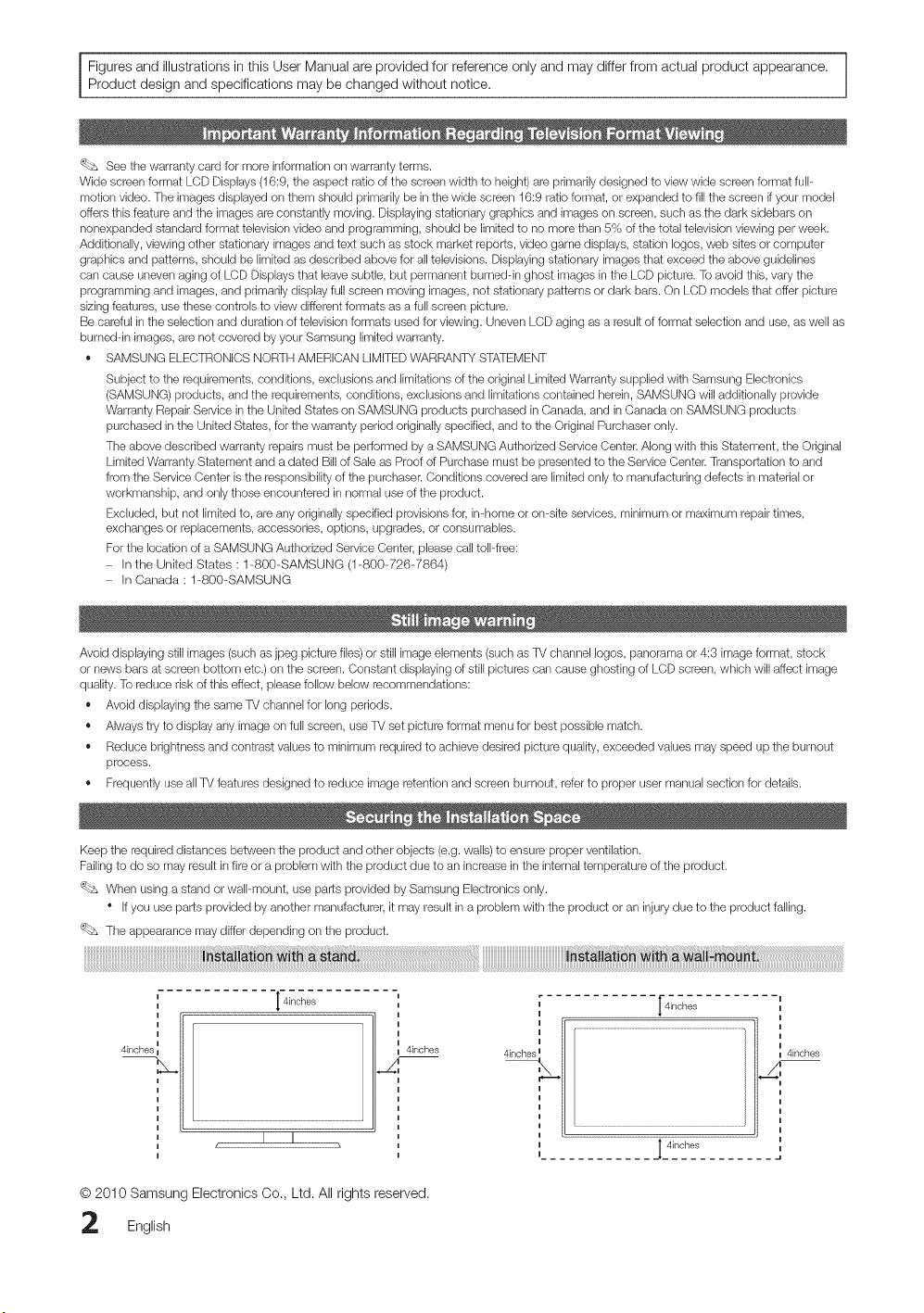
Keep the required distances between the product and other objects (e.g. walls) to ensure proper ventilation.
Failing to do so may result in fire or a problem with the product due to an increase in the internal temperature of the product.
'_ When using a stand or wall-mount, use parts provided by Samsung Electronics only.
" If you use parts provided by another manufacturer, it may result in a problem with the product or an injury due to the product falling.
The appearance may d_er depending on the product.
! _j!at! j_ J_st_!iat! _
I
I
I
,,
4irlches L
4inches
F
I
I
[ 4inches
4inches
I 4inches
_,.i
© 2010 Samsung Electronics Co., Ltd. All rights reserved.
English
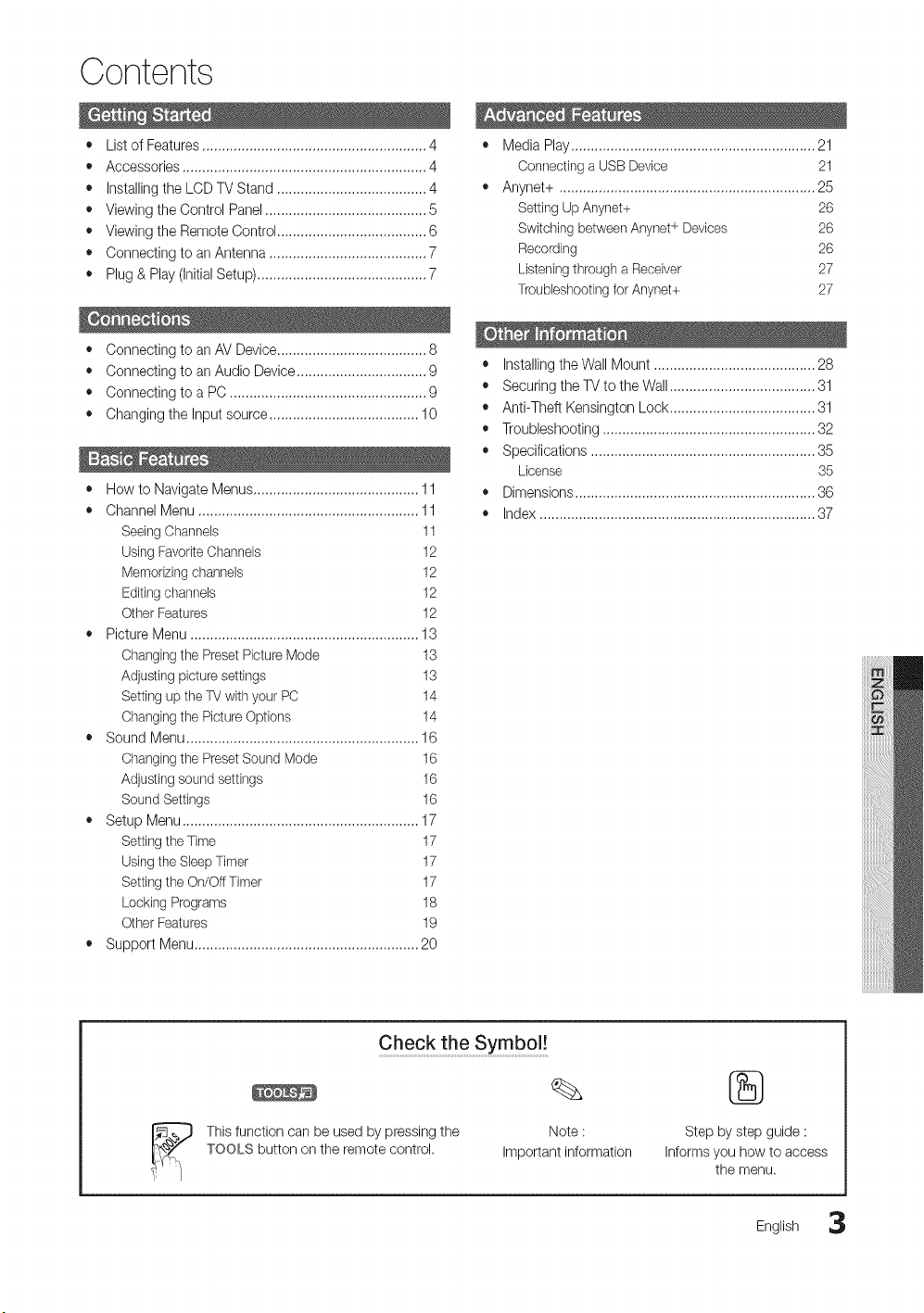
Contents
• List of Features ......................................................... 4
• Accessories .............................................................. 4
• Installing the LCD TV Stand ...................................... 4
• Viewing the Control Panel ......................................... 5
• Viewing the Remote Control ...................................... 6
• Connecting to an Antenna ........................................ 7
• Plug & Play (Initial Setup) ........................................... 7
• Connecting to an AV Device ...................................... 8
• Connecting to an Audio Device ................................. 9
• Connecting to a PC .................................................. 9
• Changing the Input source ...................................... 10
• How to Navigate Menus .......................................... 11
• Channel Menu ........................................................ 11
Seeing Channels 11
Using FavoriteChannels 12
Memorizingchannels 12
Editingchannels 12
Other Features 12
• Picture Menu .......................................................... 13
Changing the Preset Picture Mode 13
Adjusting picture settings 13
Setting up the TV with your PC 14
Changing the Picture Options 14
• Sound Menu ........................................................... 16
Changing the Preset Sound Mode 16
Adjusting sound settings 16
Sound Settings 16
• Setup Menu ............................................................ 17
Setting the Time 17
Using the Sleep Timer 17
Setting the On/Off Timer 17
Locking Programs 18
Other Features 19
• Support Menu ......................................................... 20
• Media Play.............................................................. 21
Connecting a USB Device 21
• Anynet+ ................................................................. 25
Setting Up Anynet+ 26
Switching between Anynet+ Devices 26
Recording 26
Listening through a Receiver 27
Troubleshootingfor Anynet+ 27
• Installing theWall Mount ......................................... 28
• Securing the TV to the Wall ..................................... 31
• Anti-Theft Kensington Lock ..................................... 31
• Troubleshooting ...................................................... 32
• Specifications ......................................................... 35
License 35
• Dimensions ............................................................. 36
• Index ...................................................................... 37
Check the Symbol!
This function can be used by pressing the Note :
TOOLS button on the remote control. Important information
®
Step by step guide :
Informs you how to access
the menu,
English 3
Getting Started
m Excellent Digital interface & Networking : With a built-in HD digital tuner, nonsubscription HD broadcasts can be viewed
without a cable box / STB (Set-Top-Box) satellite receiver.
m Media Play: Allows you to play music files, and pictures saved on a USB device. (R 21)
m Self Diagnosis: You can check picture and sound operation. (R 20)
Please make sure the following items are included with your LCD TV. if any items are missing, contact your dealer.
The items' colors and shapes may vary depending on the models.
4 X L16: 3EA)
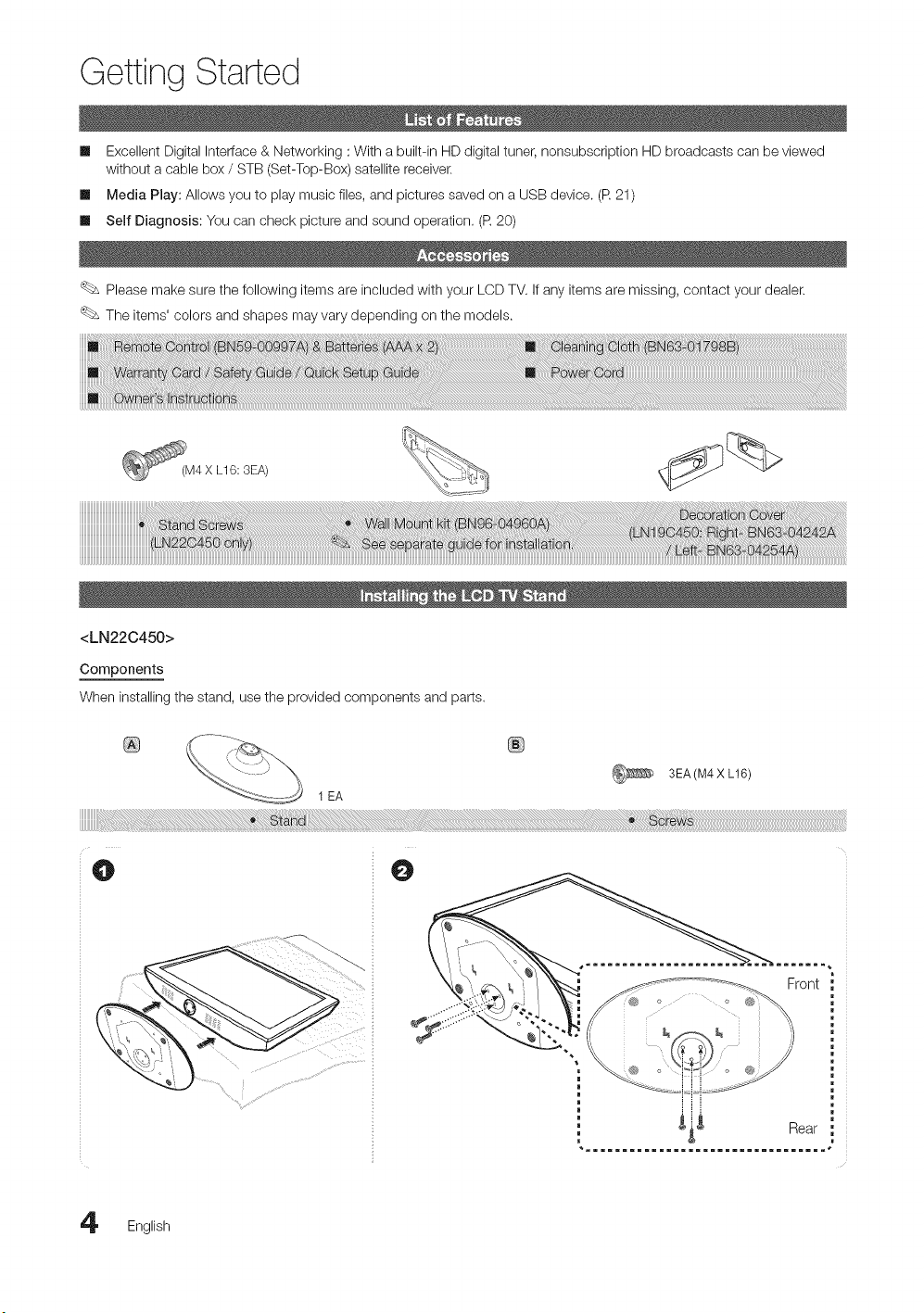
<LN22C450>
Components
When installing the stand, use the provided components and parts.
1 EA
3EA(M4 X LI6)
O
ront
_i _ Rear
English
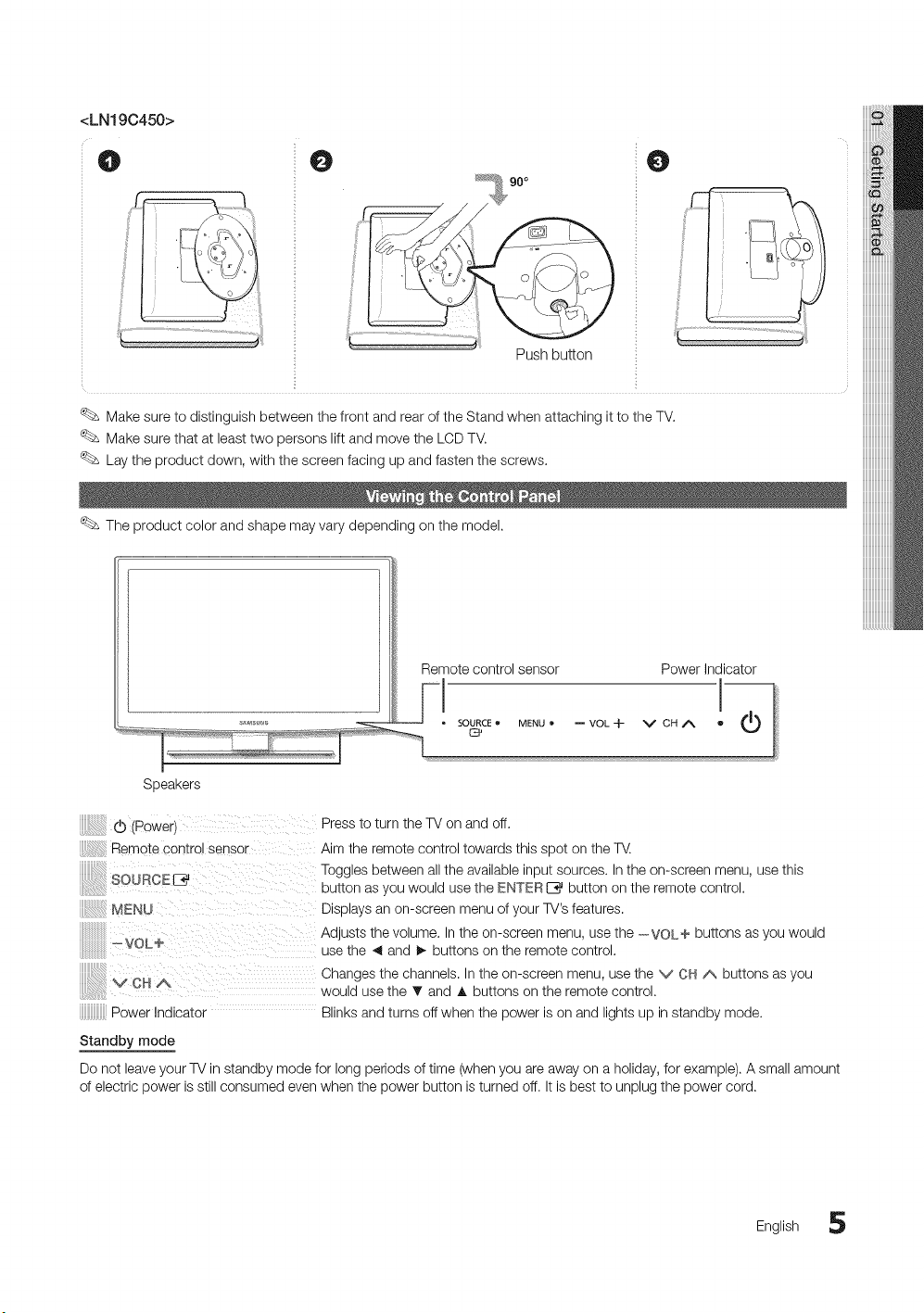
<LN19C450>
O O
Push bu_on
O
Make sure to distinguish between the front and rear of the Stand when attaching it to the TV.
Make sure that at least two persons lift and move the LCD TV,
Lay the product down, with the screen facing up and fasten the screws,
The product color and shape may vary depending on the model.
Remote control sensor Power Indicator
Speakers
(Power) Press to turn the TV on and off.
Remote Control sensor Aim the remote control towards this spot on the W,
SOUROE E_ Toggles between all the available input sources. In the on-screen menu, use this
button as you would use the ENTER _ button on the remote control.
MENU Displays an on-screen menu of your TV's features.
Adjusts the volume, In the on-screen menu, use the - VOLe buttons as you would
_VOL+
use the 4 and I_ buttons on the remote control.
V CH A Changes the channels. In the on-screen menu, use the v CH A buttons as you
would use the T and A buttons on the remote control.
Power Indicator Blinks and turns off when the power is on and lights up in standby mode.
Standby mode
Do not leave your TV in standby mode for long periods of time (when you are away on a holiday, for example). A small amount
of electric power is still consumed even when the power button is turned off. It is best to unplug the power cord,
English 5
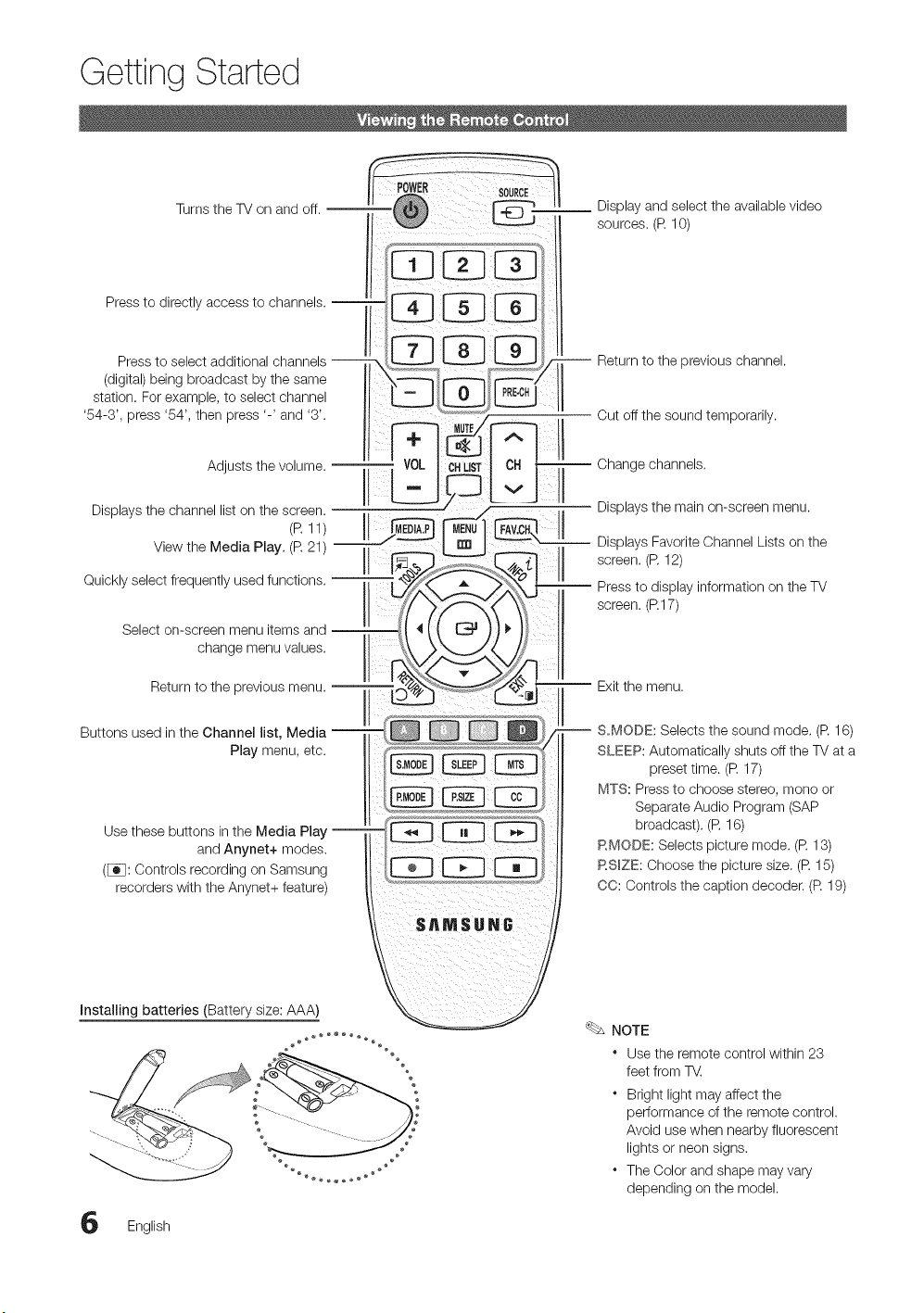
Getting Started
Turns the TV on and off. --
Press to directly access to channels. --
Press to select additional channels --
(digital) being broadcast by the same
station. For example, to select channel
'54-3', press '54', then press '-' and '3'.
Adjusts the volume. --
Displays the channel list on the screen.
(P. 11)__8
Quickly select frequently used functions.
Select on-screen menu items and
change menu values. ' '
Return to the previous menu. _ _l _-_.,_
Buttons used in the Channel list, Media __ _
Play menu, etc.
Use these buttons in the Media Play --
and Anynet+ modes.
(_[]: Controls recording on Samsung
recorders with the Anynet+ feature)
__ Display and select the available video
sources. (R 10)
Return to the previous channel.
Cut off the sound temporarily.
Change channels.
Displays the main on-screen menu.
Displays Favorite Channel Lists on the
screen. (R 12)
Press to display information on the TV
screen. (R17)
Exit the menu.
S.MODE: Selects the sound mode. (R 16)
SLEEP: Automatically shuts off the TV at a
preset time. (R 17)
MTS: Press to choose stereo, mono or
Separate Audio Program (SAP
broadcast). (R 16)
RMODE: Selects picture mode. (R 13)
RS_ZE: Choose the picture size. (R 15)
CO: Controls the caption decoder. (R 19)
Installing batteries (Battery size: AAA)
English
NOTE
* Use the remote control within 23
feet from T_.
* Bright light may affect the
performance of the remote control.
Avoid use when nearby fluorescent
lights or neon signs.
* The Color and shape may vary
depending on the model.
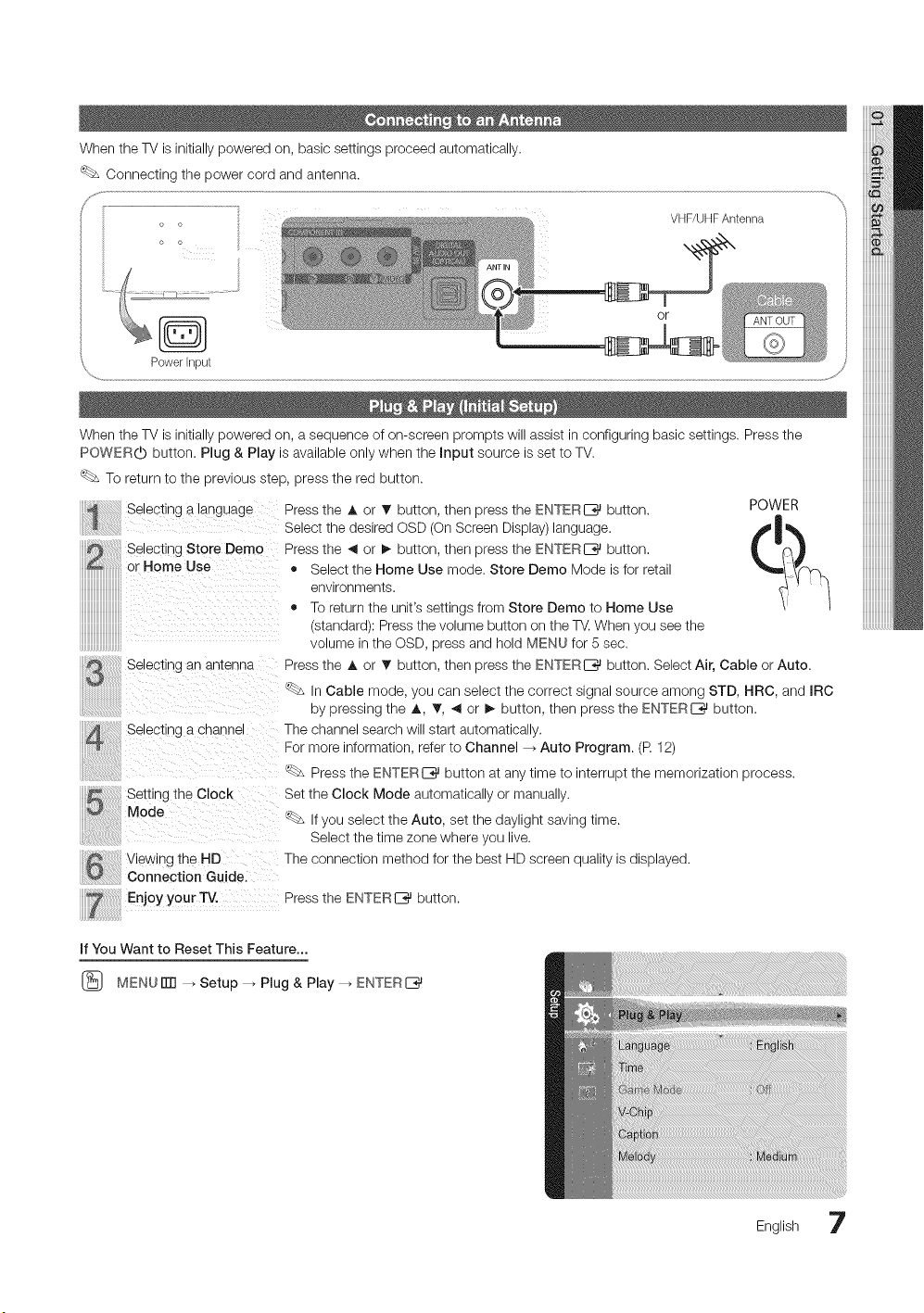
WhentheTVisinitiallypoweredon,basicsettingsproceedautomatically.
o o
VHF/UHF Antenna
%_,,,
or
PowerInput
\
When the TV is initially powered on, a sequence of on-screen prompts will assist in configuring basic settings. Press the
POWERO button. Plug & Play is available only when the Input source is set to TV.
To return to the previous step, press the red button.
ii_!i_iiiiii!i!i!i!i!ii!iiiiiiiiii!i!ili!i_!!Selecting a language
iiiiiii!ii:iJd!_iii!iiiiiiiiii!!ii!iiiiii!ili_ _ _ _ ii
iiiii_i!i!ii!ii!ii!ii!ii!ii!ii!iiiiiiiiiiSelectiDgStoreDemo
or Home Use
iiiiiiiiiiiiiiiiiiiiiiiiiiiiiiii
iiiiiiiiiiiiiiiiiiiiiiiiiiiiiiii
iiiiiiiiiiiiiiiiiiiiiiiiiiiiiii
iiiiiiiiiiiiiiiiiiiiiiiiiiiiiiiii! ....................
iiiiiiiiiiiiiiiiiiiiiiiiiiiiiii_
uuuuuuuuuuuuuuu_
an antenna
POWER
Press the A or 1!' button, then press the ENTERIZ_ button.
Select the desired OSD (On Screen Display) language.
Press the _ or !_ button, then press the ENTERIZ_ button.
• Select the Home Use mode. Store Demo Mode is for retail
environments.
4, To return the unit's settings from Store Demo to Home Use
(standard): Press the volume button on the TV. When you see the
volume in the OSD, press and hold MENU for 5 sec.
Press the A or T button, then press the ENTERI_ button. Select Air, Cable or Auto.
<_ In Cable mode, you can select the correct signal source among STD, HRC, and IRC
by pressing the A, T, _1 or _ button, then press the ENTERI_ button.
Selecting a channel The channel search will start automatically.
For more information, refer to Channel _ Auto Program. (P. 12)
<_ Press the ENTERIZ_ button at any time to interrupt the memorization process.
Setting the Clock Set the Clock Mode automatically or manually,
Mode _ If you select the Auto, set the daylight saving time.
Select the time zone where you live.
method for the best HD screen quality is displayed.
Enjoy Your'R/. Press the ENTERI_ button.
If You Want to Reset This Feature...
(_ MENU iTrl _ Setup --_ Plug & Play --_ ENTER
English 7
Connections
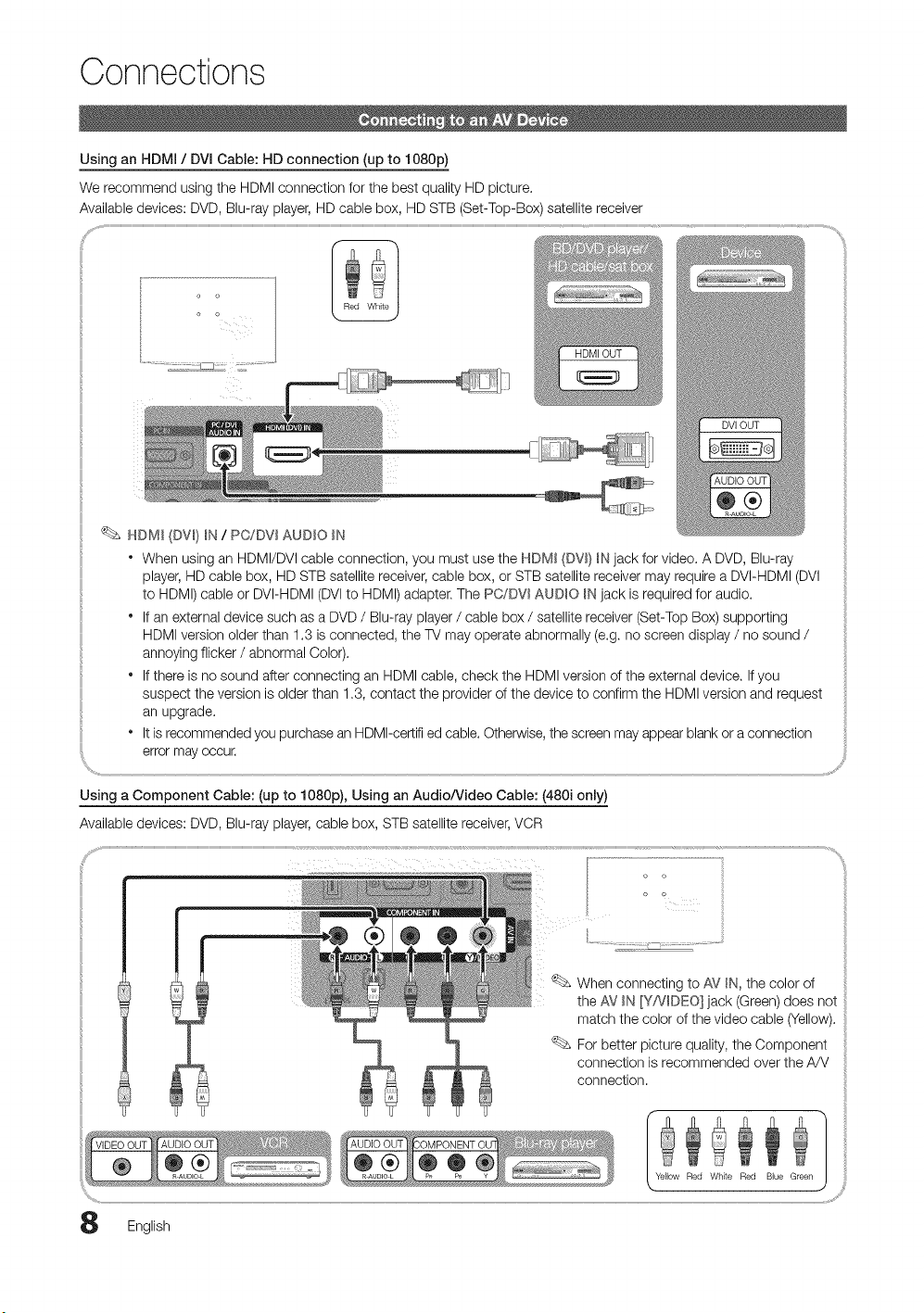
Using an HDMi / DVI Cable: HD connection (up to 1080p)
We recommend using the HDMI connection for the best quality HD picture.
Available devices: DVD, Blu-ray player, HD cable box, HD STB (Set-Top-Box) satellite receiver
HDM_ (DW} _N/ PC,/DV_AUDIO _N
° When using an HDMI/DVl cable connection, you must use the HDMI (DV_}_Njack for video. A DVD, Blu-ray
player, HD cable box, HD STB satellite receiver, cable box, or STB satellite receiver may require a DVI-HDMI (DVl
to HDMI) cable or DVI-HDMI (DVl to HDMI) adapter. The PC/DW AUDIO B,_jack is required for audio.
° If an external device such as a DVD / Blu-ray player / cable box / satellite receiver (Set-Top Box) supporting
HDMI version older than 1.3 is connected, the TV may operate abnormally (e.g. no screen display / no sound /
annoying flicker / abnormal Color).
° If there is no sound after connecting an HDMI cable, check the HDMI version of the external device. If you
suspect the version is older than 1.3, contact the provider of the device to confirm the HDMI version and request
an upgrade.
It is recommended you purchase an HDMI-certifi ed cable. Otherwise, the screen may appear blank or a connection
error may occur.
Using a Component Cable: (up to 1080p), Using an Audio/Video Cable: (480i only)
Available devices: DVD, Blu-ray player, cable box, STB satellite receiver, VCR
........ii
When connecting to AV _N,the color of
the AV _'._[Y/VDEO] jack (Green) does not
match the color of the video cable (Yellow).
For better picture quality, the Component
connection is recommended over the A/V
connection.
English
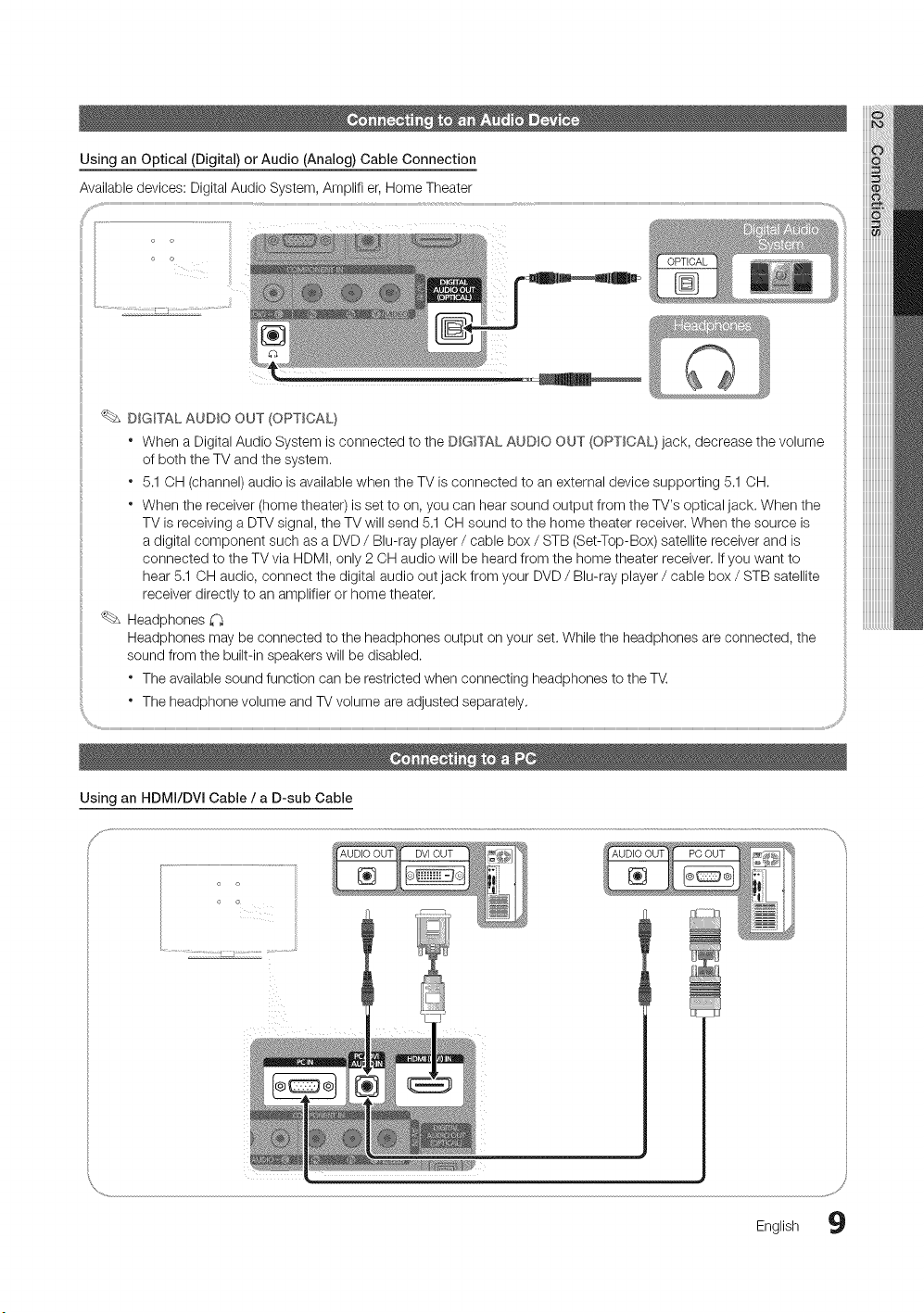
Using an Optical (Digital) or Audio (Analog) Cable Connection
DIGITAL AUDIO OUT (OPTICAL}
* When a Digital Audio System is connected to the DIGITAL AUDIO OUT (OPTICAL} jack, decrease the volume
of both the TV and the system.
* 5.1 OH (channel) audio is available when the TV is connected to an external device supporting 5.1 OH.
* When the receiver (home theater) is set to on, you can hear sound output from the TV's optical jack. When the
TV is receiving a DTV signal, the TV will send 5.1 OH sound to the home theater receiver. When the source is
a digital component such as a DVD / Blu-ray player / cable box / STB (Set-Top-Box) satellite receiver and is
connected to the TV via HDMI, only 2 CH audio will be heard from the home theater receiver, If you want to
hear 5,1 OH audio, connect the digital audio out jack from your DVD / Blu-ray player / cable box / STB satellite
receiver directly to an amplifier or home theater.
Headphones
Headphones may be connected to the headphones output on your set. While the headphones are connected, the
sound from the built-in speakers will be disabled.
* The available sound function can be restricted when connecting headphones to the TV
o The headphone volume and TV volume are adjusted separately,
Using an HDMI/DVI Cable / a D-sub Cable
/
English 9
Connections
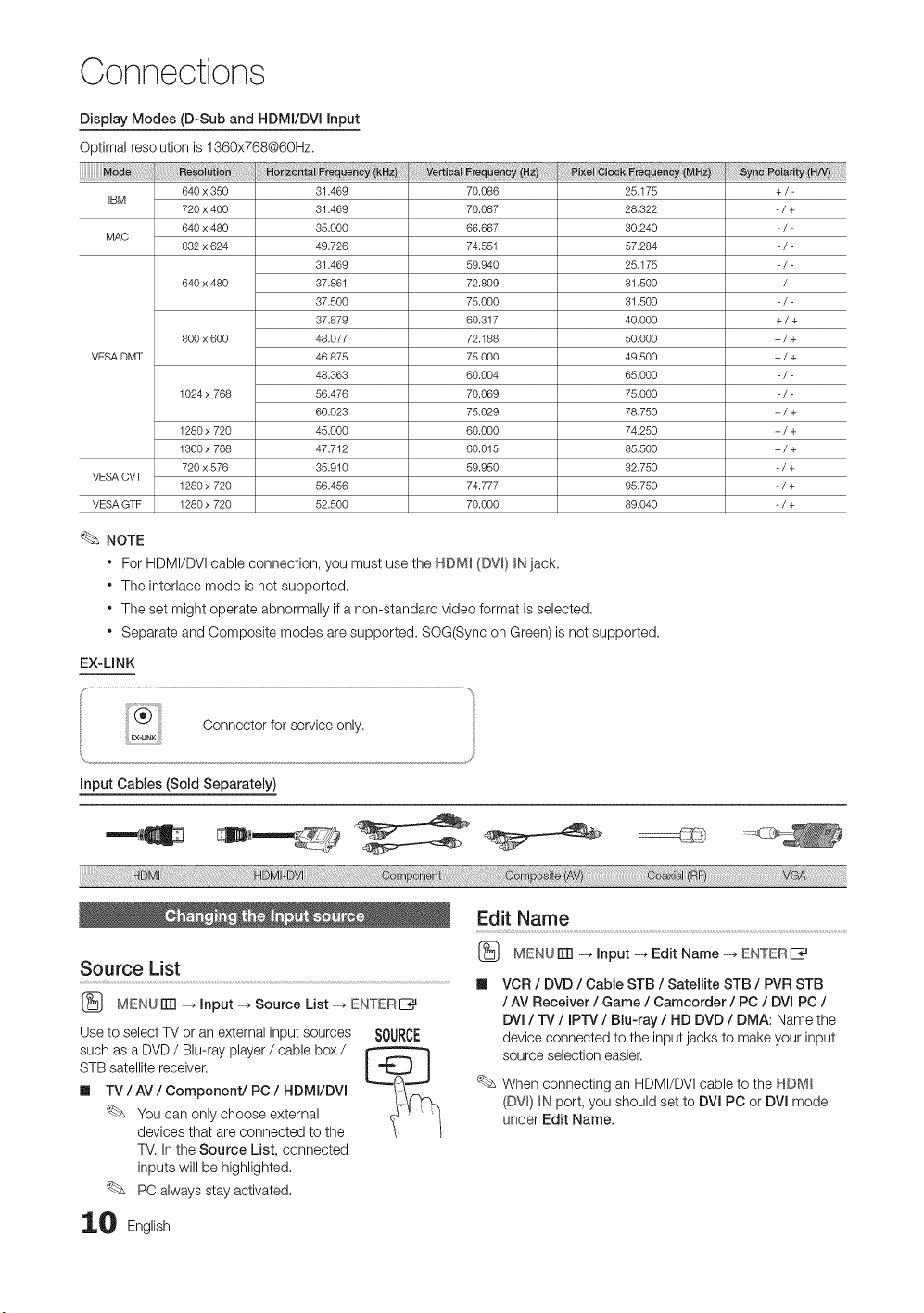
Display Modes (D-Sub and HDMI/DVl input
Optimal resolution is 1360x768@60Hz,
640 x 350 31.469 70.086 25.175 + / -
IBM
720 x 400 31.469 70.087 28.322 - / +
640 x 480 35.000 66.667 30.240 - / -
MAC
832 x 624 49.726 74.551 57.284 - / -
31.469 59.940 25.175 - / -
640 x 480 37.861 72.809 31.500 - / -
37.500 75.000 31.500 - / -
37.879 60.317 40.000 + / +
800 x 600 48.077 72.188 50.000 + / +
VESA DMT 46.875 75.000 49.500 + / +
48.363 60.004 65.000 - / -
1024 x 768 56.476 70.069 75.000 - / -
60.023 75.029 78.750 + / +
1280 x 720 45.000 60.000 74.250 + / +
1360 x 768 47.712 60.015 85.500 + / +
720 x 576 35.910 59.950 32.750 - / +
VESA CVT
1280 x 720 56.456 74.777 95.750 - / +
VESA GTF 1280 x 720 52.500 70.000 89.040 - / +
NOTE
• For HDMI/DVl cable connection, you must use the HDM_ (DW) _Njack,
• The interlace mode is not supported,
• The set might operate abnormally if a non-standard video format is selected.
• Separate and Composite modes are supported. SOG(Sync on Green) is not supported,
EX-LINK
Oonnector orse ,ceon,y.
input Cables (Sold Separately)
................!!i_iiiiiiiiiii!!ii_iiiiiiiiiiiiiiiiiiiiii!!ii_iii!!ii__ iiii_!_iiiiii!ii!!!!_!i_i_i_iiiiiiiiiiiiiii!i!i_iiiiiiiiiiiiiiii_iiiiii!ii_iililililililili_iliii!!ii_iliiiiiiiiiiiiii_ilili!!_iii_! _i_ i iiiiiiii!:i:ilii!iiiiiiiiiiiiiiiiii!iiiiilililiiiiiiiiiiiiiii!iii__iiiii_ililililililiiii!ii__iiiiiiiiii_!i_ _ iii_ililiiiiiiiiiii!_!_!_!_!_!_!iiiiii!_!!iiiiiiiiiiiiiiiiiiiii!!iii_iiii_i__ _! _i _!!!!_ i_!i¸i!i!i!i!i!i!i!i!i!i!i!i!i!i!i!i!i!i!i!i!i!i!i!i!i!i!i!i!i!i!i!i!i!i!i!i!i!i!i!i!i!i!i!i!_ii_!_i_ii_i__i _iiiiiiiiiiiiiiiiiiiiiiiiiiiiiiiiiiiiiiiiiiiiiiiiii!i_ii_i!
Edit Name
(_ MENUrm -, input -, Edit Name -_ ENTERC_
Source List
.....................................................................................................................................................m VCR / DVD / Cable STB / Satellite STB / PVR STB
[_ MENU iTrl -. input -_ Source List -_ ENTER IZ_ / AV Receiver / Game / Camcorder / PC / DVI PC /
Use to select TV or an external input sources
such as a DVD / Blu-ray player / cable box /
STB satellite receiver.
m TV / AV / Component/PC / HDMI/DVl
You can only choose external
devices that are connected to the
TV. In the Source List, connected
inputs will be highlighted,
PC always stay activated,
SOURCE
DVI / TV / IPTV / Blu-ray / HD DVD / DMA: Name the
device connected to the input jacks to make your input
source selection easier.
When connecting an HDMI/DVl cable to the HDMI
(DV_)_N port, you should set to DVl PC or DVl mode
under Edit Name,
0 English

Basic Features
Before using the TV, follow the steps below to learn how to
navigate the menu and select and adjust different functions.
): j
4? "
/
N
O MENU button: Displays the main on-screen menu.
ENTERC_ / Direction button: Move the cursor and
select an item. Confirm the setting.
RETURN button: Returns to the previous menu.
O EXIT button: Exits the on-screen menu.
How to Operate the OSD (On Screen Display)
The access step may differ depending on the selected menu.
Seeing Channels
Channel List
(_ MENUITTI _ Channel --_Channel List --_ ENTERE_
Add, delete or set Favorite channels and use
the program guide for digital broadcasts,
Select a channel in the All Channels, Added
Channels, Favorite or Programmed
screen by pressing the _, / T buttons, and
pressing the ENTERC_ button. Then you
can watch the selected channel.
CHLEST
the A or T
to access the
Select the desired submenu with
the A or T button.
ENTER _ Press ENTERI_ to confirm the
selection.
EXIT -4j Press EXIT.
Ill _-_ All Channels: Shows all currently available
channels.
Ill _ Added Channels: Shows all added channels.
Ill _ Favorite: Shows all favorite channels.
Ill (_ Programmed: Shows all currently reserved
programs.
Using the color buttons with the Channel List
" _ Green (Zoom): Enlarges or shrinks a channel
number,
" D Yellow (Select): Selects multiple channel lists.
Select desired channels and press the Yellow button
to set all the selected channels at the same time. The
_/ mark appears to the left of the selected channels.
" _-_ (Tools): Displays the Channel List option menu.
(The Options menus may differ depending on the
situation.)
Channel Status Display Icons
(9
A channel selected,
A channel set as a Favorite.
A reserved program,
A program currently being broadcast.
11 English English 11
Basic Features
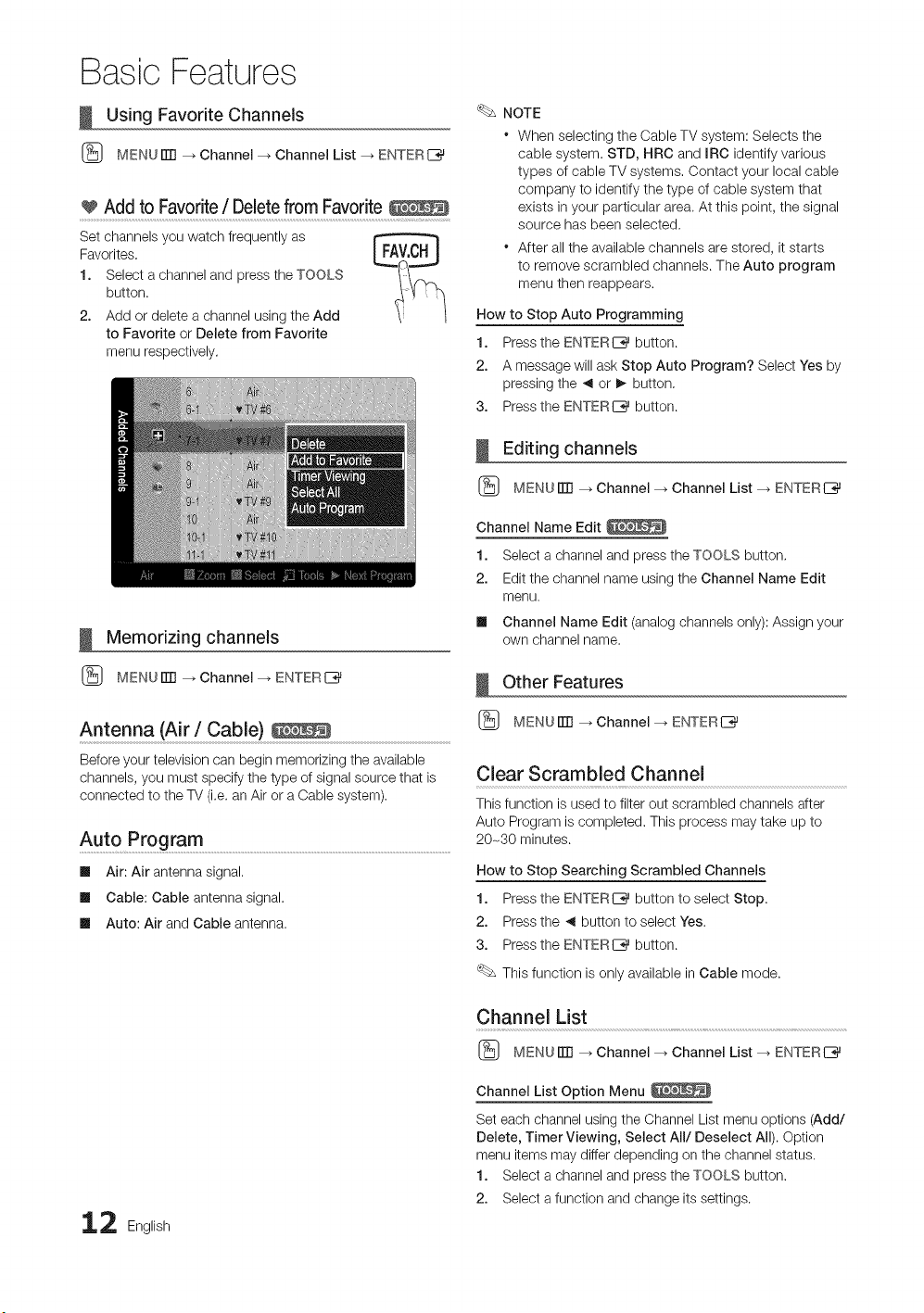
Using Favorite Channels
(_ MEN(JITTI _ Channel _ Channel List _ ENTERI_
Add to Favorite/ Delete from Favorite
Set channels you watch frequently as
Favorites,
1. Select a channel and press the TOOLS
button.
2. Add or delete a channel using the Add
to Favorite or Delete from Favorite
menu respectively,
NOTE
* When selecting the Cable TV system: Selects the
cable system. STD, HRC and IRC identify various
types of cable TV systems, Contact your local cable
company to identify the type of cable system that
exists in your particular area. At this point, the signal
source has been selected.
* After all the available channels are stored, it starts
to remove scrambled channels. The Auto program
menu then reappears.
How to Stop Auto Programming
1. Press the ENTERIZ_ button.
2. A message will ask Stop Auto Program? Select Yes by
pressing the _ or _, button,
3. Press the ENTERI_ button.
Editing channels
(_ MENUITTI _ Channel --_Channel List --_ ENTERI_
Memorizing channels
(_ MENUITTI _ Channel --_ ENTERI_
Antenna (Air / Cable)
Before your television can begin memorizing the available
channels, you must specify the type of signal source that is
connected to the TV (i.e. an Air or a Cable system).
Auto Program ..........................................................................................................................................................................................
Ill Air: Air antenna signal.
Ill Cable: Cable antenna signal.
Ill Auto: Air and Cable antenna.
Channel Name Edit
1. Select a channel and press the TOOLS button,
2. Edit the channel name using the Channel Name Edit
menu.
Ill Channel Name Edit (analog channels only): Assign your
own channel name.
Other Features
(_ MENUITTI _ Channel --_ ENTERI_
Clear Scrambled Channel
This function is used to filter out scrambled channels after
Auto Program is completed. This process may take up to
20-30 minutes.
How to Stop Searching Scrambled Channels
1. Press the ENTERIZ_ button to select Stop.
2. Press the ,_ button to select Yes.
3. Press the ENTERI_ button.
This function is only available in Cable mode.
Channel List
(_ MENUITTI _ Channel --_Channel List --_ ENTERI_
2 English
Channel List Option Menu
Set each channel using the Channel List menu options (Add/
Delete, Timer Viewing, Select All/Deselect All). Option
menu items may differ depending on the channel status.
1. Select a channel and press the TOOLS button.
2. Select a function and change its settings.
m
m
m
m
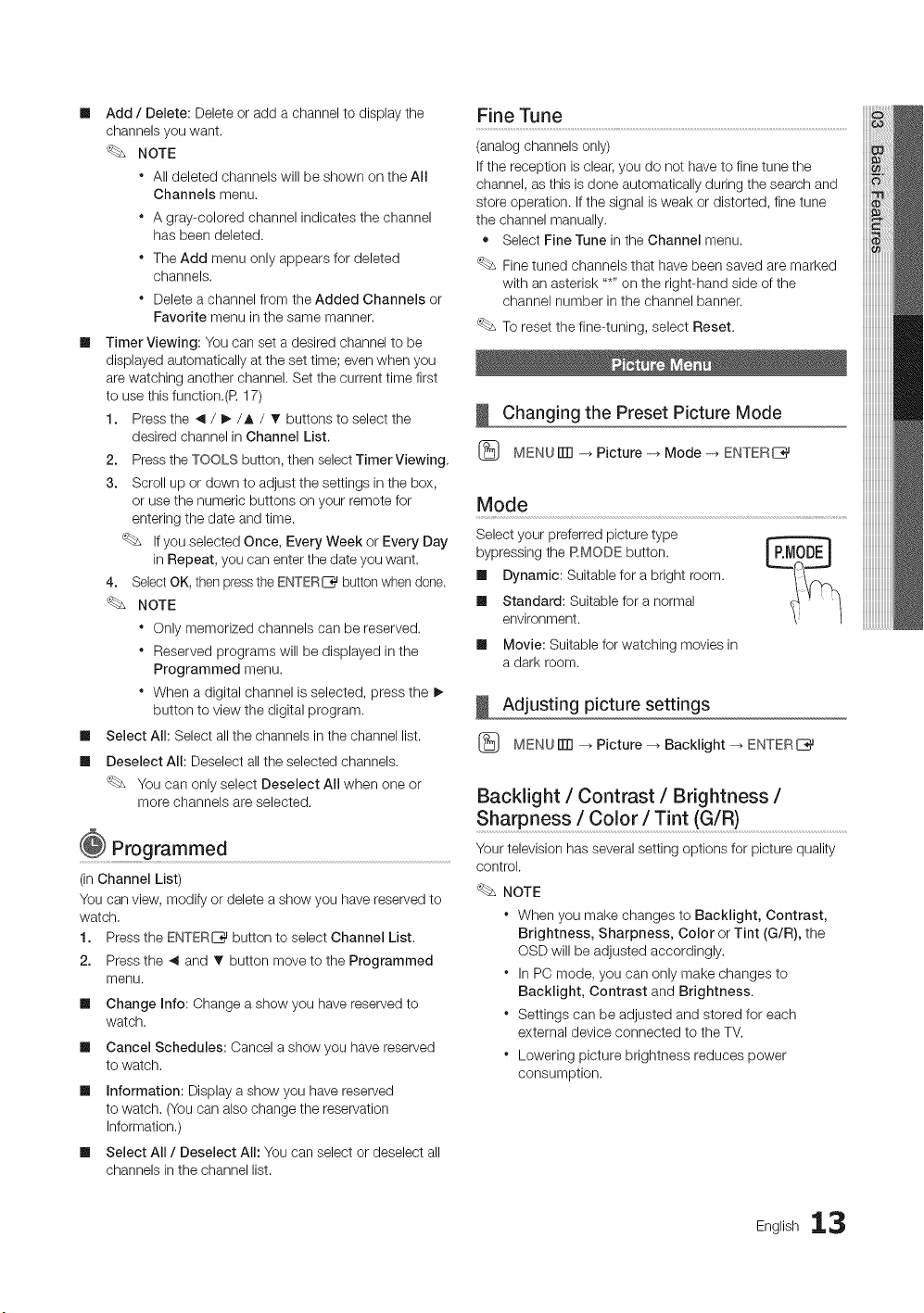
Add/ Delete: Delete or add a channel to display the
channels you want.
NOTE
* All deleted channels will be shown on the All
Channels menu.
* A gray-colored channel indicates the channel
has been deleted.
* The Add menu only appears for deleted
channels.
* Delete a channel from the Added Channels or
Favorite menu in the same manner.
Timer Viewing: You can set a desired channel to be
displayed automatically at the set time; even when you
are watching another channel. Set the current time first
to use this function.(R 17)
1. Press the _ / _/A / _' buttons to select the
desired channel in Channel List.
2. Press the TOOLS button, then select Timer Viewing,
3. Scroll up or down to adjust the settings in the box,
or use the numeric buttons on your remote for
entering the date and time.
If you selected Once, Every Week or Every Day
in Repeat, you can enter the date you want.
4. SelectOK, then press the ENTER_ buttonwhen done,
NOTE
* Only memorized channels can be reserved.
* Reserved programs will be displayed in the
Programmed menu.
* When a digital channel is selected, press the !_
button to view the digital program.
Select All: Select all the channels in the channel list.
Deselect All: Deselect all the selected channels.
You can only select Deselect All when one or
more channels are selected.
Programmed
(in Channel List)
You can view, modify or delete a show you have reserved to
watch,
Press the ENTER_ button to select Channel List,
Press the ,_ and T button move to the Programmed
menu.
1.
2.
II
II
II
m
Change Info: Change a show you have reserved to
watch.
Cancel Schedules: Cancel a show you have reserved
to watch,
Information: Display a show you have reserved
to watch, (You can also change the reservation
Information,)
Select All / Deselect All: You can select or deselect all
channels in the channel list.
Fine Tune
(analog channels only)
If the reception is clear, you do not have to fine tune the
channel, as this is done automatically during the search and
store operation. If the signal is weak or distorted, fine tune
the channel manually.
• Select Fine Tune in the Channel menu.
Fine tuned channels that have been saved are marked
with an asterisk .....on the right-hand side of the
channel number in the channel banner.
To reset the fine-tuning, select Reset.
Changing the Preset Picture Mode
(_ MENUiTR -_ Picture -_ Mode -_ ENTERE_
Mode
Select your preferred picture type
bypressing the P.MODE button.
Ill Dynamic: Suitable for a bright room.
Ill Standard: Suitable for a normal
environment.
Ill Movie: Suitable for watching movies in
a dark room.
Adjusting picture settings
(_ MENUITTI _ Picture --_ Backlight _ ENTERE_
Backlight / Contrast / Brightness /
Sharp n es s!Co Ior! T!n t (G! R)..................................................................................
Your television has several setting options for picture quality
control.
NOTE
* When you make changes to Backlight, Contrast,
Brightness, Sharpness, Color or Tint (G/R), the
OSD will be adjusted accordingly,
* In PC mode, you can only make changes to
Backlight, Contrast and Brightness.
* Settings can be adjusted and stored for each
external device connected to the TV,
* Lowering picture brightness reduces power
consumption.
English 13
Basic Features
Setting up the TV with your PC
Set the input source to PC.
Auto Adjustment
(_ MENU ITT1_Picture _ Auto Adjustment
ENTERE_
Adjust frequency values/positions and fine tune the settings
automatically.
Not available when connecting through HDMI/DVI
cable.
Screen
Ill Coarse / Fine: Removes or reduces picture noise. If the
noise is not removed by Fine-tuning alone, then adjust
the frequency as best as possible (Coarse) and Fine-
tune again. After the noise has been reduced, readjust
the picture so that it is aligned to the center of screen.
Ill Position: Adjust the PC's screen positioning if it does
not fit the TV screen. Press the A or T button to adjust
the Vertical-Position. Press the _ or !_ button to adjust
the Horizontal-Position.
Ill Image Reset: Resets the image to default settings.
Using Your TV as a Computer (PC) Display
Setting Up Your PC Software (Based on Windows XP)
Depending on the version of Windows and the video card,
the actual screens on your PC will probably look different, but
the same basic set-up information will apply in most cases.
(Ifnot, contact your computer manufacturer or Samsung
Dealer.)
1. Click on "Control Panel" on the Windows start menu.
2. Click on "Appearance and Themes" in the "Control
Panel" window and a display dialog-box will appear.
3. Click on "Display" and a display dialog box will appear.
4. Navigate to the "Settings" tab on the display dialog-box.
• The correct size setting (resolution) [Optimum: 1360x768
pixels]
• If a vertical-frequency option exists on your display
settings dialog box, the correct value is '60' or '60 Hz'.
Otherwise, just click 'OK' and exit the dialog box.
Changing the Picture Options
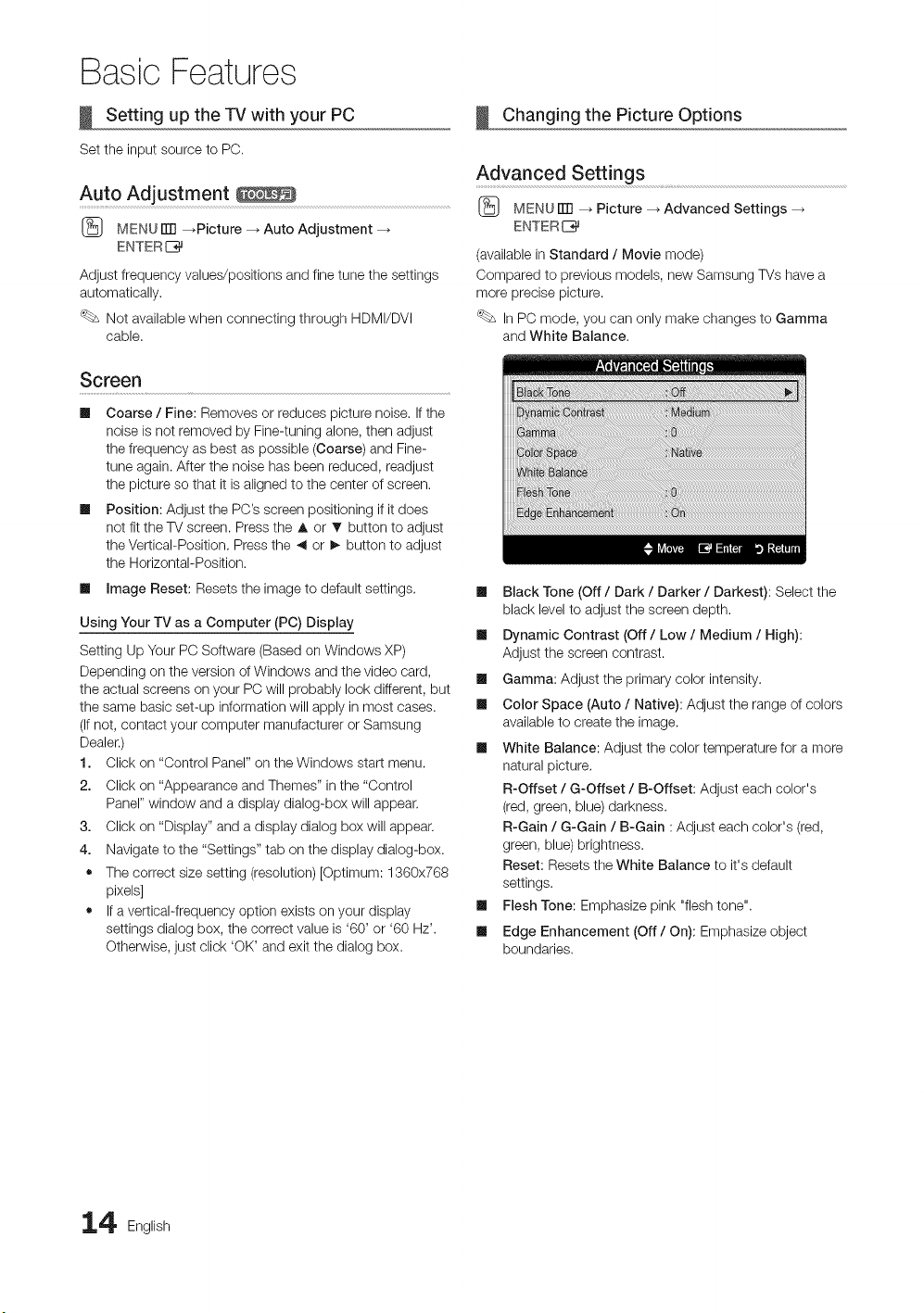
Advanced Settings
(_ MENU iTR _ Picture --_ Advanced Settings
ENTER I_
(available in Standard / Movie mode)
Compared to previous models, new Samsung TVs have a
more precise picture.
In PC mode, you can only make changes to Gamma
and White Balance.
Ill Black Tone (Off / Dark / Darker / Darkest): Select the
black level to adjust the screen depth.
Ill Dynamic Contrast (Off / Low / Medium / High):
Adjust the screen contrast.
Ill Gamma: Adjust the primary color intensity.
Ill Color Space (Auto / Native): Adjust the range of colors
available to create the image.
Ill White Balance: Adjust the color temperature for a more
natural picture.
R-Offset / G-Offset / B-Offset: Adjust each color's
(red, green, blue) darkness.
R-Gain / G-Gain / B-Gain : Adjust each color's (red,
green, blue) brightness.
Reset: Resets the White Balance to it's default
settings.
Ill Flesh Tone: Emphasize pink "flesh tone".
Ill Edge Enhancement (Off / On): Emphasize object
boundaries.
4 English
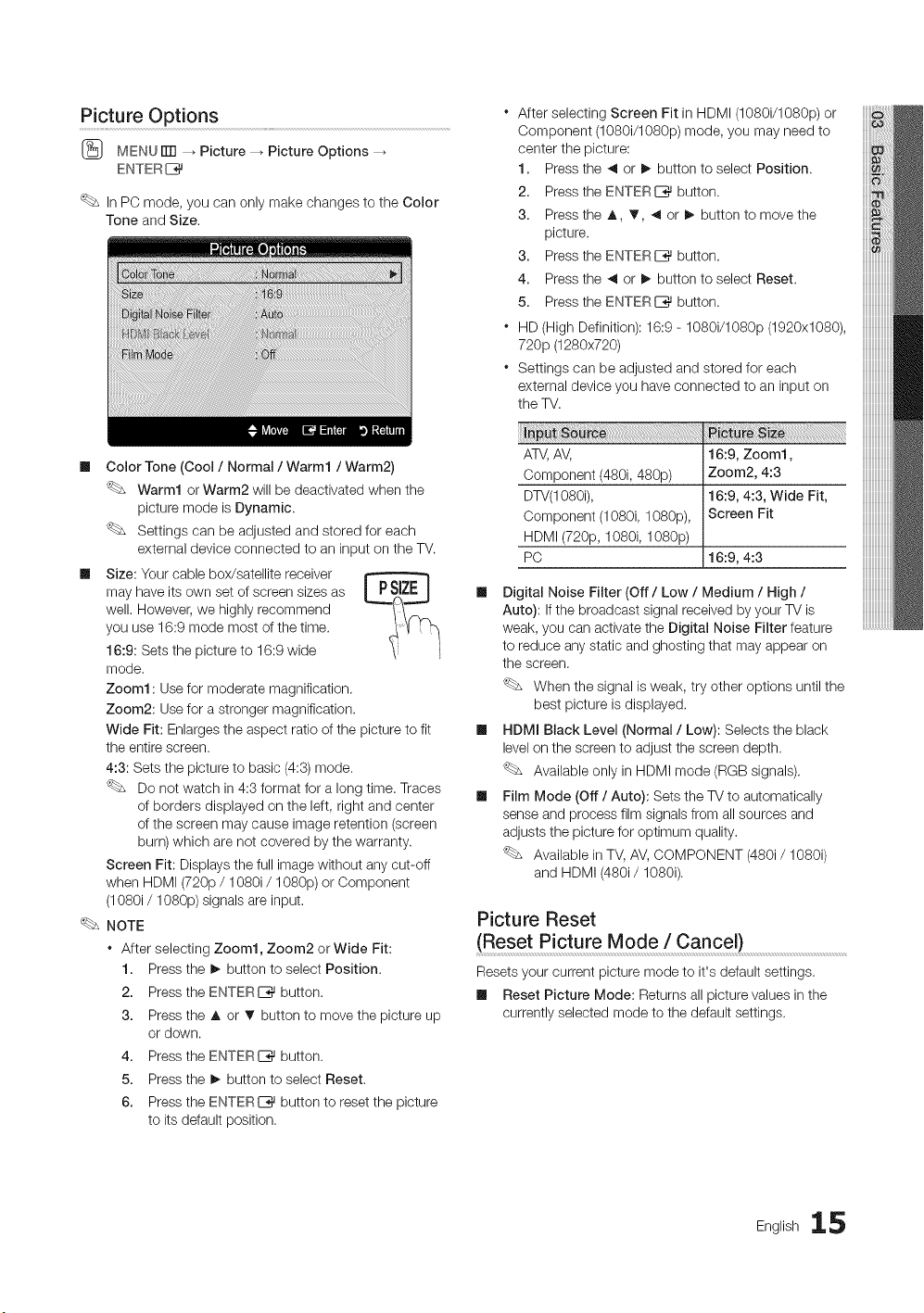
Picture Options
MENU rlTI _ Picture _ Picture Options
ENTER[_
In PC mode, you can only make changes to the Color
Tone and Size.
Ill Color Tone (Cool / Normal / Warm1 / Warm2)
Warm1 or Warm2 will be deactivated when the
picture mode is Dynamic.
Settings can be adjusted and stored for each
external device connected to an input on the TV.
Ill Size: Your cable box/satellite receiver
may have its own set of screen sizes as
well. However, we highly recommend
you use 16:9 mode most of the time.
16:9: Sets the picture to 16:9 wide
mode.
Zoom1 : Use for moderate magnification.
Zoom2: Use for a stronger magnification.
Wide Fit: Enlarges the aspect ratio of the picture to fit
the entire screen.
4:3: Sets the picture to basic (4:3) mode.
Do not watch in 4:3 format for a long time. Traces
of borders displayed on the left, right and center
of the screen may cause image retention (screen
burn) which are not covered by the warranty.
Screen Fit: Displays the full image without any cut-off
when HDMI (720p / 1080i / 1080p) or Component
(1080i / 1080p) signals are input.
NOTE
. After selecting Zoom1, Zoom2 orWide Fit:
1. Press the !_ button to select Position.
2. Press the ENTERC_ button.
3. Press the A or _' button to move the picture up
or down.
4. Press the ENTERC_ button.
5. Press the !_ button to select Reset.
6. Press the ENTERE_ button to reset the picture
to its default position.
After selecting Screen Fit in HDMI (1080i/1080p) or
Component (1080i/1080p) mode, you may need to
center the picture:
1. Press the _ or _ button to select Position.
2. Press the ENTERI_ button.
3. Press the A T, _or_, button to move the
picture.
3. Press the ENTERE_ button.
4. Press the _ or _ button to select Reset.
5. Press the ENTERI_ button.
" HD (High Definition): 16:9 - 1080i/1080p (1920x1080),
720p (1280x720)
" Settings can be adjusted and stored for each
external device you have connected to an input on
the TV.
ATV,AV,
Component (480i, 480p)
DTV(1080i),
Component (1080i, 1080p),
HDMI (720p, 1080i, 1080p)
PC
i i!i i
16:9, Zoom1,
Zoom2, 4:3
16:9, 4:3, Wide Fit,
Screen Fit
16:9, 4:3
Ill Digital Noise Filter (Off / Low / Medium / High /
Auto): If the broadcast signal received by your TV is
weak, you can activate the Digital Noise Filter feature
to reduce any static and ghosting that may appear on
the screen.
When the signal is weak, try other options until the
best picture is displayed.
Ill HDMI Black Level (Normal / Low): Selects the black
level on the screen to adjust the screen depth.
Available only in HDMI mode (RGB signals).
Ill Film Mode (Off / Auto): Sets the TV to automatically
sense and process film signals from all sources and
adjusts the picture for optimum quality.
Available in TV, AV, COMPONENT (480i/1080i)
and HDMI (480i/1080i).
Picture Reset
(Reset Picture Mode / Cancel)
Resets your current picture mode to it's default settings.
Ill Reset Picture Mode: Returns all picture values in the
currently selected mode to the default settings.
English 15
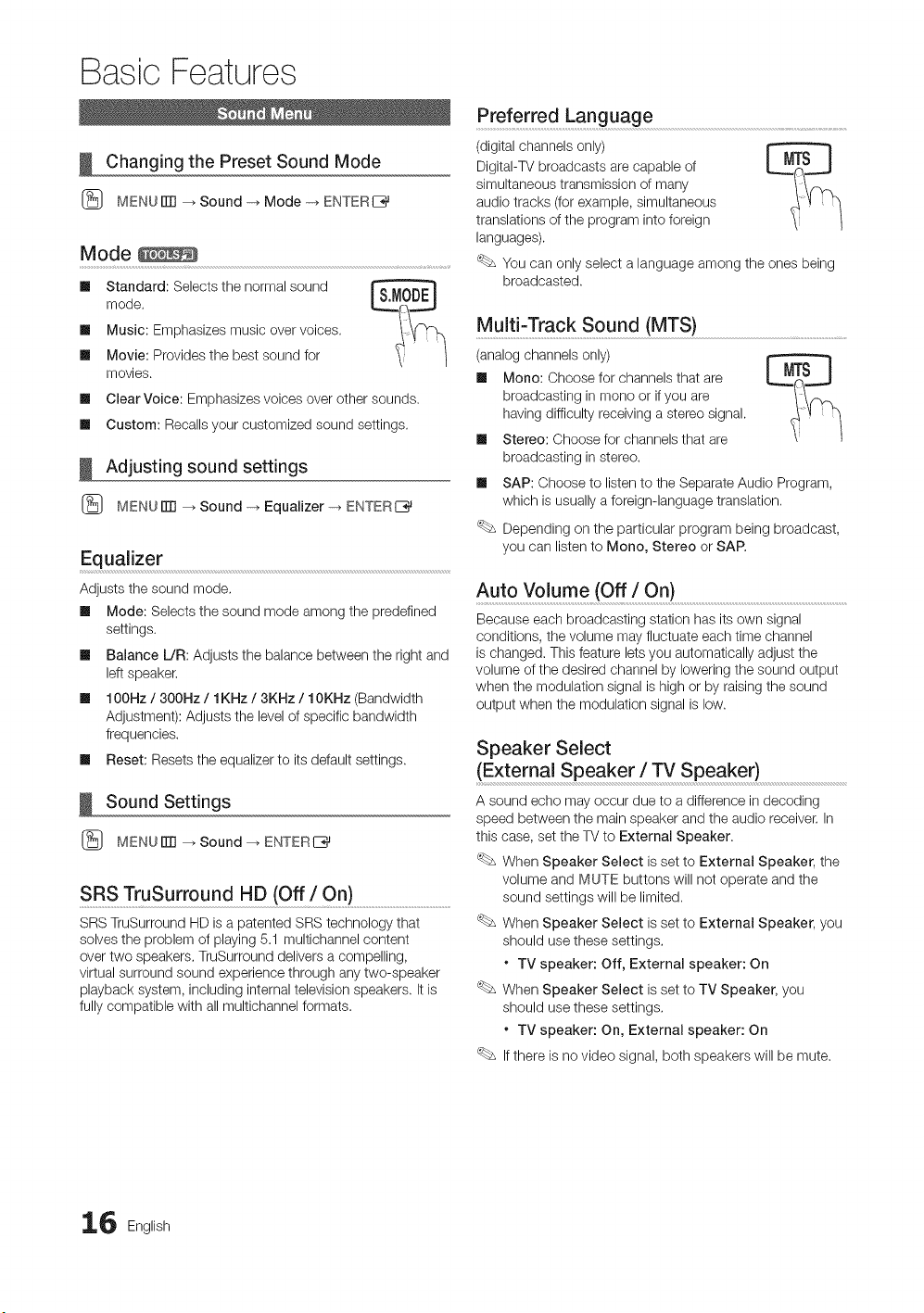
Basic Features
Changing the Preset Sound Mode
(_ MENUrlTI _ Sound -_ Mode -_ ENTERE_
Mode
Standard: Selects the normal sound
mode.
Ill Music: Emphasizes music over voices.
Ill Movie: Provides the best sound for
movies.
Ill Clear Voice: Emphasizes voices over other sounds.
Ill Custom: Recalls your customized sound settings.
Adjusting sound settings
(_ MENU iTrl _ Sound -_ Equalizer -_ ENTERE_
Equalizer
Adjusts the sound mode.
Ill Mode: Selects the sound mode among the predefined
settings.
ml Balance L/R: Adjusts the balance between the right and
left speaker.
Ill 100Hz / 300Hz / 1KHz / 3KHz / 10KHz (Bandwidth
Adjustment): Adjusts the level of specific bandwidth
frequencies.
Ill Reset: Resets the equalizer to its default settings.
Sound Settings
(_ MENUiTrl _ Sound --_ ENTERI_
SRS TruSurround HD (Off/On) ........................................................................
SRS TruSurround HD is a patented SRS technology that
solves the problem of playing 5.1 multichannel content
over two speakers. TruSurround delivers a compelling,
virtual surround sound experience through any two-speaker
playback system, including internal television speakers. It is
fully compatible with all multichannel formats.
Preferred Langu ag e
(digital channels only)
DigitaI-TV broadcasts are capable of
simultaneous transmission of many
audio tracks (for example, simultaneous
translations of the program into foreign
languages).
You can only select a language among the ones being
broadcasted.
MultFTrack Sound (MTS) .......................................
(analog channels only)
Ill Mono: Choose for channels that are
broadcasting in mono or if you are
having difficulty receiving a stereo signal.
Ill Stereo: Choose for channels that are
broadcasting in stereo.
Ill SAP: Choose to listen to the Separate Audio Program,
which is usually a foreign-language translation.
Depending on the particular program being broadcast,
you can listen to Mono, Stereo or SAP.
Auto Volume (Off ! On) ..................................................................................................................................
Because each broadcasting station has its own signal
conditions, the volume may fluctuate each time channel
is changed. This feature lets you automatically adjust the
volume of the desired channel by lowering the sound output
when the modulation signal is high or by raising the sound
output when the modulation signal is low.
Speaker Select
(External Speaker / TV Speaker)
A sound echo may occur due to a difference in decoding
speed between the main speaker and the audio receiver. In
this case, set the TV to External Speaker.
When Speaker Select is set to External Speaker, the
volume and MUTE buttons will not operate and the
sound settings will be limited.
When Speaker Select is set to External Speaker, you
should use these settings.
* TV speaker: Off, External speaker: On
When Speaker Select is set to TV Speaker, you
should use these settings.
* TV speaker: On, External speaker: On
If there is no video signal, both speakers will be mute.
6 English
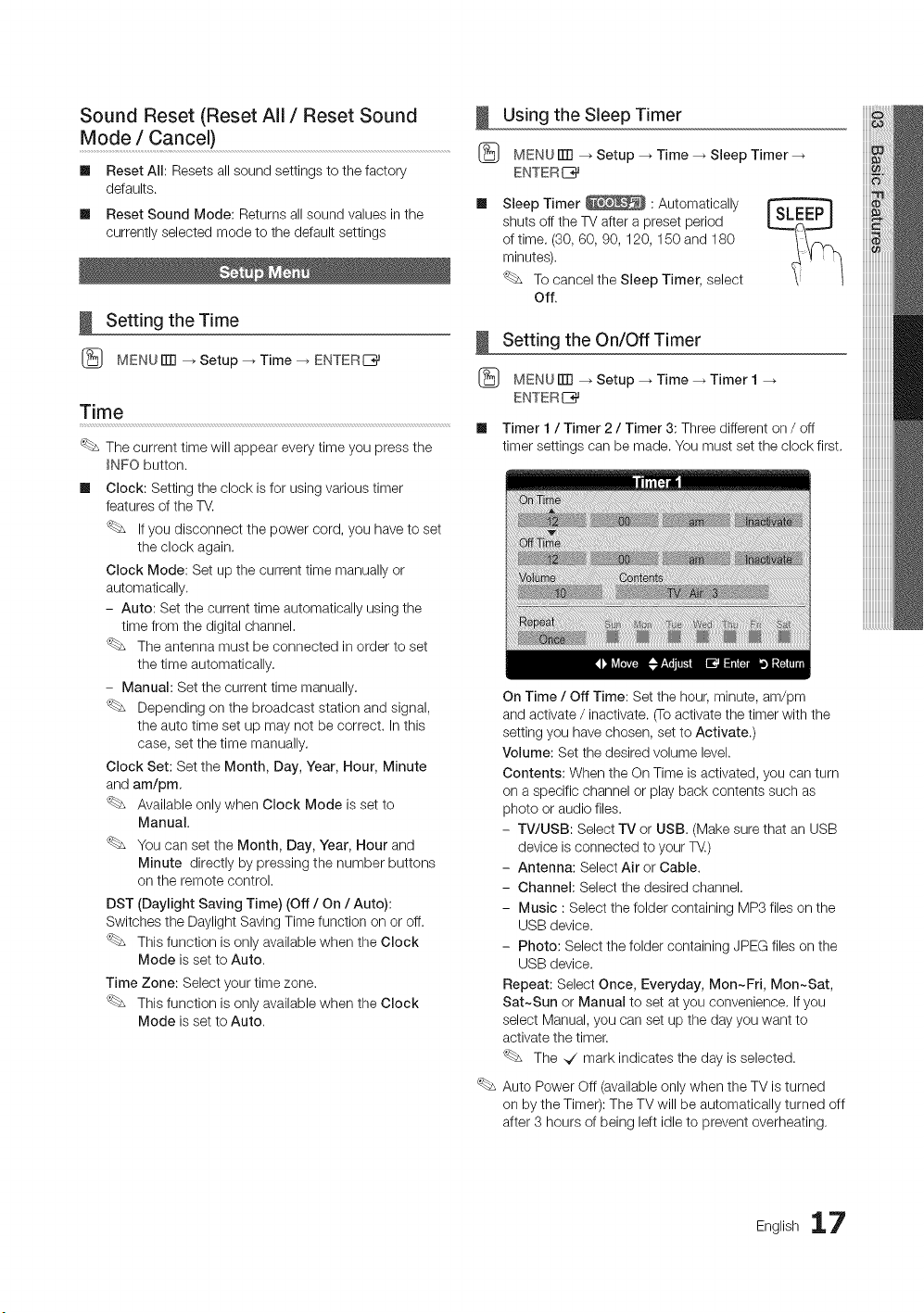
Sound Reset (Reset All/Reset Sound
Mode / Cance0
Ill Reset All: Resets all sound settings to the factory
defaults.
Ill Reset Sound Mode: Returns all sound values in the
currently selected mode to the default settings
Setting the Time
(_ MENUiTR _Setup--_Time--_ ENTER[_
Time
The current time will appear every time you press the
_NFO button.
Ill Clock: Setting the clock is for using various timer
features of the TV.
If you disconnect the power cord, you have to set
the clock again.
Clock Mode: Set up the current time manually or
automatically.
- Auto: Set the current time automatically using the
time from the digital channel,
The antenna must be connected in order to set
the time automatically.
- Manual: Set the current time manually.
Depending on the broadcast station and signal,
the auto time set up may not be correct. In this
case, set the time manually.
Clock Set: Set the Month, Day, Year, Hour, Minute
and am/pm,
Available only when Clock Mode is set to
Manual.
You can set the Month, Day, Year, Hour and
Minute directly by pressing the number buttons
on the remote control.
DST (Daylight Saving Time) (Off/On /Auto):
Switches the Daylight Saving Time function on or off.
This function is only available when the Clock
Mode is set to Auto.
Time Zone: Select your time zone.
This function is only available when the Clock
Mode is set to Auto.
Using the Sleep Timer
(_ MENU iTR _ Setup --_ Time _ Sleep Timer --_
ENTER I_
Sleep Timer _ : Automatically
shuts off the TV after a preset period
of time. (30, G0, 90, 120, 150 and 180
minutes),
To cancel the Sleep Timer, select
Off.
Setting the On/Off Timer
(_ MENU rlTI _ Setup _ Time _ Timer 1
ENTER I_
Ill Timer 1 / Timer 2 / Timer 3: Three different on / off
timer settings can be made. You must set the clock first.
On Time / Off Time: Set the hour, minute, am/pm
and activate / inactivate. (Toactivate the timer with the
setting you have chosen, set to Activate.)
Volume: Set the desired volume level.
Contents: When the On Time is activated, you can turn
on a specific channel or play back contents such as
photo or audio files.
- TV/USB: Select TV or USB. (Make sure that an USB
device is connected to your T_.)
- Antenna: Select Air or Cable.
- Channel: Select the desired channel.
- Music : Select the folder containing MP3 files on the
USB device.
- Photo: Select the folder containing JPEG files on the
USB device.
Repeat: Select Once, Everyday, Mon~Fri, Mon~Sat,
Sat~Sun or Manual to set at you convenience, If you
select Manual, you can set up the day you want to
activate the timer.
The _/mark indicates the day is selected.
Auto Power Off (available only when the TV is turned
on by the Timer): The TV will be automatically turned off
after 3 hours of being left idle to prevent overheating,
English 17
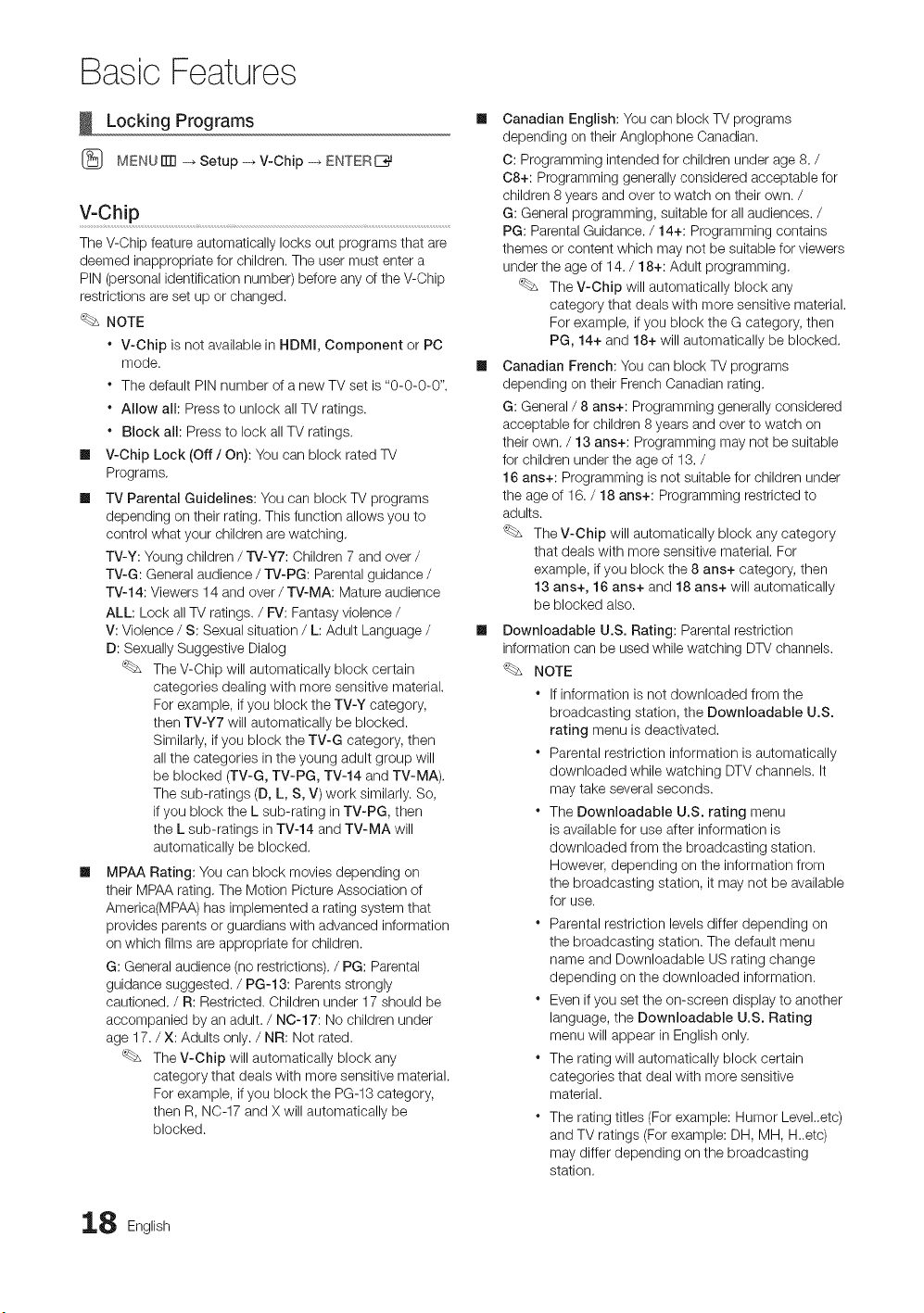
Basic Features
Locking Programs
(_ MENU ITT1-_ Setup -_ V-Chip -_ ENTER IZ_
V:Chip ..........................................................................................................................................
The V-Chip feature automatically locks out programs that are
deemed inappropriate for children. The user must enter a
PIN (personal identification number) before any of the V-Chip
restrictions are set up or changed.
NOTE
* V-Chip is not available in HDMI, Component or PC
mode.
* The default PIN number of a new TV set is "0-0-0-0".
* Allow all: Press to unlock all TV ratings.
* Block all: Press to lock all TV ratings.
Ill V-Chip Lock (Off / On): You can block rated TV
Programs.
Ill TV Parental Guidelines: You can block TV programs
depending on their rating. This function allows you to
control what your children are watching.
TV-Y: Young children / TV-Y7: Children 7 and over /
TV-G: General audience / rV-PG: Parental guidance /
TV-14: Viewers 14 and over/TV-MA: Mature audience
ALL: Lock all TV ratings. / FV: Fantasy violence /
V: Violence / S: Sexual situation / L: Adult Language /
D: Sexually Suggestive Dialog
The V-Chip will automatically block certain
categories dealing with more sensitive material.
For example, if you block the TV-Y category,
then TV-Y7 will automatically be blocked.
Similarly, if you block the TV-G category, then
all the categories in the young adult group will
be blocked (TV-G, TV-PG, TV-14 and TV-MA).
The sub-ratings (D, L, S, V) work similarly. So,
if you block the L sub-rating in TV-PG, then
the L sub-ratings in TV-14 and TV-MA will
automatically be blocked.
Ill MPAA Rating: You can block movies depending on
their MPAA rating. The Motion Picture Association of
America(MPAA) has implemented a rating system that
provides parents or guardians with advanced information
on which films are appropriate for children.
G: General audience (no restrictions). / PG: Parental
guidance suggested./PG-13: Parents strongly
cautioned. / R: Restricted. Children under 17 should be
accompanied by an adult. / NO-17: No children under
age 17. / X: Adults only. / NR: Not rated.
The V-Chip will automatically block any
category that deals with more sensitive material.
For example, if you block the PG-13 category,
then R, N0-17 and X will automatically be
blocked.
Ill Canadian English: You can block TV programs
depending on their Anglophone Canadian.
C: Programming intended for children under age 8. /
08+: Programming generally considered acceptable for
children 8 years and over to watch on their own. /
G: General programming, suitable for all audiences. /
PG: Parental Guidance./14+: Programming contains
themes or content which may not be suitable for viewers
under the age of 14. / 18+: Adult programming.
The V-Chip will automatically block any
category that deals with more sensitive material.
For example, if you block the G category, then
PG, 14+ and 18+ will automatically be blocked.
Ill Canadian French: You can block TV programs
depending on their French Canadian rating.
G: General / 8 ans+: Programming generally considered
acceptable for children 8 years and over to watch on
their own. / 13 arts+: Programming may not be suitable
for children under the age of 13. /
16 arts+: Programming is not suitable for children under
the age of 16. / 18 ans+: Programming restricted to
adults.
The V-Chip will automatically block any category
that deals with more sensitive material. For
example, if you block the 8 arts+ category, then
13 ans+, 16 arts+ and 18 ans+ will automatically
be blocked also.
Downloadable U.S. Rating: Parental restriction
information can be used while watching DTV channels.
NOTE
* If information is not downloaded from the
broadcasting station, the Downioadable U.S.
rating menu is deactivated.
* Parental restriction information is automatically
downloaded while watching DTV channels. It
may take several seconds.
* The Downloadable U.S. rating menu
is available for use after information is
downloaded from the broadcasting station.
However, depending on the information from
the broadcasting station, it may not be available
for use.
* Parental restriction levels differ depending on
the broadcasting station. The default menu
name and Downloadable US rating change
depending on the downloaded information.
* Even if you set the on-screen display to another
language, the Downloadable U.S. Rating
menu will appear in English only.
* The rating will automatically block certain
categories that deal with more sensitive
material.
* The rating titles (For example: Humor Level..etc)
and TV ratings (For example: DH, MH, H..etc)
may differ depending on the broadcasting
station.
8 English
m
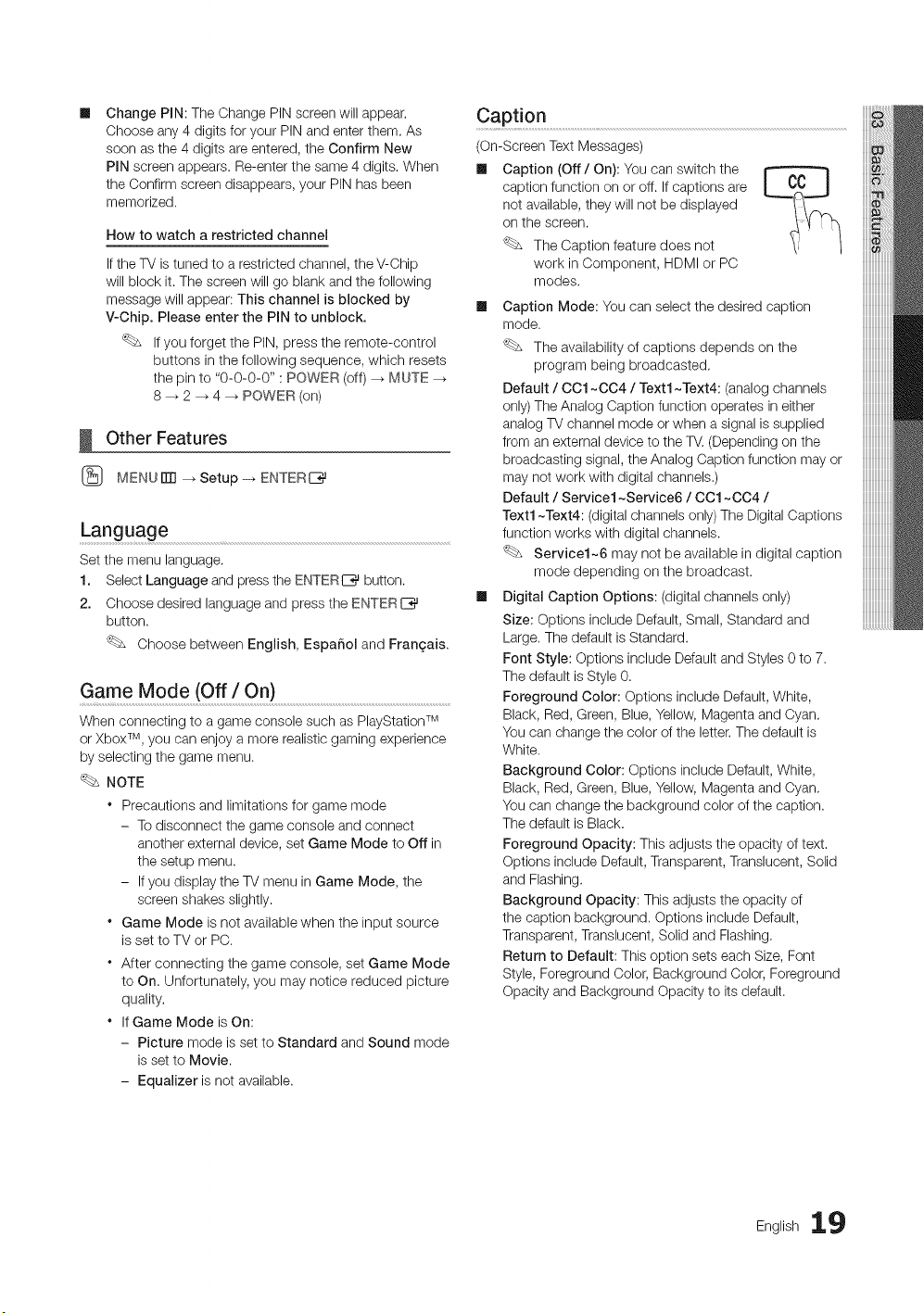
ChangePIN: The Change PIN screen will appear.
Choose any 4 digits for your PIN and enter them. As
soon as the 4 digits are entered, the Confirm New
PIN screen appears. Re-enter the same 4 digits. When
the Confirm screen disappears, your PIN has been
memorized.
How to watch a restricted channel
If the TV is tuned to a restricted channel, the V-Chip
will block it. The screen will go blank and the following
message will appear: This channel is blocked by
V-Chip. Please enter the PIN to unblock.
If you forget the PIN, press the remote-control
buttons in the following sequence, which resets
the pin to "0-0-0-0" : POWER (off) _ MUTE -_
8 _ 2 _ 4 _ POWER (on)
Other Features
(_ MENUITTI _Setup-_ ENTERE__}_
Language
Set the menu language.
1. Select Language and press the ENTERE_ button.
2. Choose desired language and press the ENTERI_
button.
Choose between English, EspaSol and Frangais.
Game Mode (Off/On) ....................................................................................................................................
When connecting to a game console such as PlayStationTM
or Xbox TM, you can enjoy a more realistic gaming experience
by selecting the game menu.
NOTE
* Precautions and limitations for game mode
- To disconnect the game console and connect
another external device, set Game Mode to Off in
the setup menu.
- If you display the TV menu in Game Mode, the
screen shakes slightly.
* Game Mode is not available when the input source
is set to TV or PC.
* After connecting the game console, set Game Mode
to On. Unfortunately, you may notice reduced picture
quality.
* If Game Mode is On:
- Picture mode is set to Standard and Sound mode
is set to Movie.
- Equalizer is not available.
Caption
(On-Screen Text Messages)
ml Caption (Off / On): You can switch the
caption function on or off. If captions are
not available, they will not be displayed
on the screen.
The Caption feature does not
work in Component, HDMI or PC
modes.
Caption Mode: You can select the desired caption
mode.
The availability of captions depends on the
program being broadcasted.
Default / OO1~004 / Text1 ~Text4: (analog channels
only) The Analog Caption function operates in either
analog TV channel mode or when a signal is supplied
from an external device to the TV. (Depending on the
broadcasting signal, the Analog Caption function may or
may not work with digital channels.)
Default / Service1 ~Service6 / OO1~004 /
Text1 ~Text4: (digital channels only) The Digital Captions
function works with digital channels.
Service1~6 may not be available in digital caption
mode depending on the broadcast.
Digital Caption Options: (digital channels only)
Size: Options include Default, Small, Standard and
Large. The default is Standard.
Font Style: Options include Default and Styles 0 to 7.
The default is Style 0.
Foreground Color: Options include Default, White,
Black, Red, Green, Blue, Yellow, Magenta and Cyan.
You can change the color of the letter. The default is
White.
Background Color: Options include Default, White,
Black, Red, Green, Blue, Yellow, Magenta and Cyan.
You can change the background color of the caption.
The default is Black.
Foreground Opacity: This adjusts the opacity of text.
Options include Default, Transparent, Translucent, Solid
and Flashing.
Background Opacity: This adjusts the opacity of
the caption background. Options include Default,
Transparent, Translucent, Solid and Flashing.
Return to Default: This option sets each Size, Font
Style, Foreground Color, Background Color, Foreground
Opacity and Background Opacity to its default.
English 19
Basic Features
NOTE
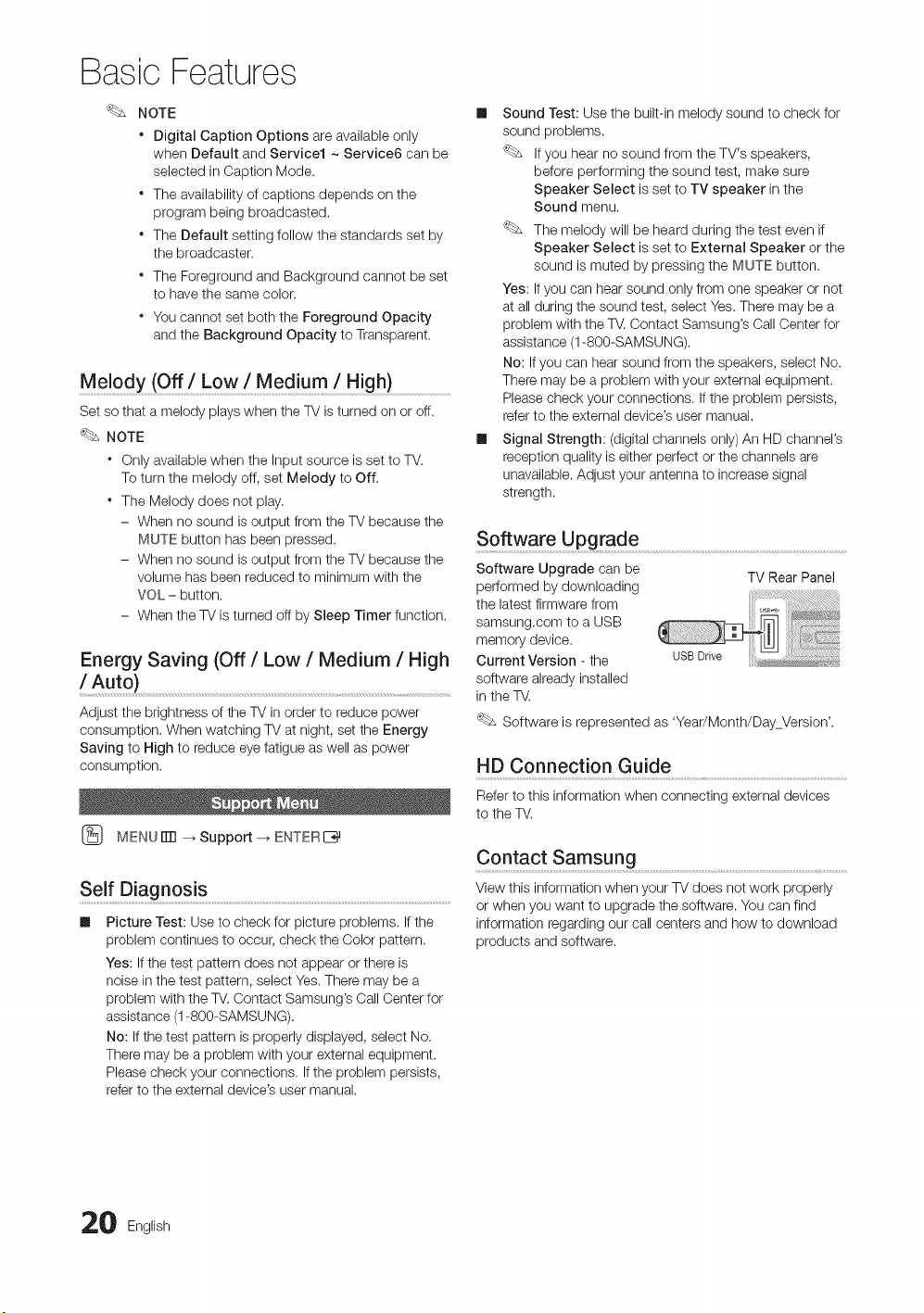
" Digital Caption Options are available only
when Default and Service1 ~ Service6 can be
selected in Caption Mode.
* The availability of captions depends on the
program being broadcasted.
* The Default setting follow the standards set by
the broadcaster.
* The Foreground and Background cannot be set
to have the same color.
* You cannot set both the Foreground Opacity
and the Background Opacity to Transparent.
Melody(Off!Low!Medium / High)
Set so that a melody plays when the TV is turned on or off.
NOTE
* Only available when the Input source is set to TV.
To turn the melody off, set Melody to Off.
* The Melody does not play.
- When no sound is output from the TV because the
MUTE button has been pressed.
- When no sound is output from the TV because the
volume has been reduced to minimum with the
VOL - button.
- When the TV is turned off by Sleep Timer function.
Energy Saving (Off / Low / Medium / High
/ Auto)
Adjust the brightness of the TV in order to reduce power
consumption. When watching TV at night, set the Energy
Saving to High to reduce eye fatigue as well as power
consumption.
(_ MENUITTI _Support-_ ENTERE_
Self Diagnosis
ml Picture Test: Use to check for picture problems, if the
problem continues to occur, check the Oolor pattern.
Yes: if the test pattern does not appear or there is
noise in the test pattern, select Yes. There may be a
problem with the TV. Oontact Samsung's Oall Center for
assistance (1-800-SAMSUNG).
No: if the test pattern is properly displayed, select No.
There may be a problem with your external equipment.
Please check your connections. If the problem persists,
refer to the external device's user manual.
ml Sound Test: Use the built-in melody sound to check for
sound problems.
If you hear no sound from the TV's speakers,
before performing the sound test, make sure
Speaker Select is set to TV speaker in the
Sound menu.
The melody will be heard during the test even if
Speaker Select is set to External Speaker or the
sound is muted by pressing the MUTE button.
Yes: If you can hear sound only from one speaker or not
at all during the sound test, select Yes. There may be a
problem with the TV. Contact Samsung's Call Center for
assistance (1-800-SAMSUNG).
No: If you can hear sound from the speakers, select No.
There may be a problem with your external equipment.
Please check your connections. If the problem persists,
refer to the external device's user manual.
ml Signal Strength: (digital channels only) An HD channel's
reception quality is either perfect or the channels are
unavailable. Adjust your antenna to increase signal
strength.
Software Upgrade .............................................................................................................................................................
Software Upgrade can be
TV Rear Panel
performed by downloading
the latest firmware from
samsung.com to a USB
memory device.
Current Version - the
software already installed
in the TV.
Software is represented as 'Year/Month/DayVersion'.
HD Connection Guide
Refer to this information when connecting external devices
to the TV.
Contact Samsung ...............................................................................................................................................................
View this information when your TV does not work properly
or when you want to upgrade the software. You can find
information regarding our call centers and how to download
products and software.
0 English
Advanced Features
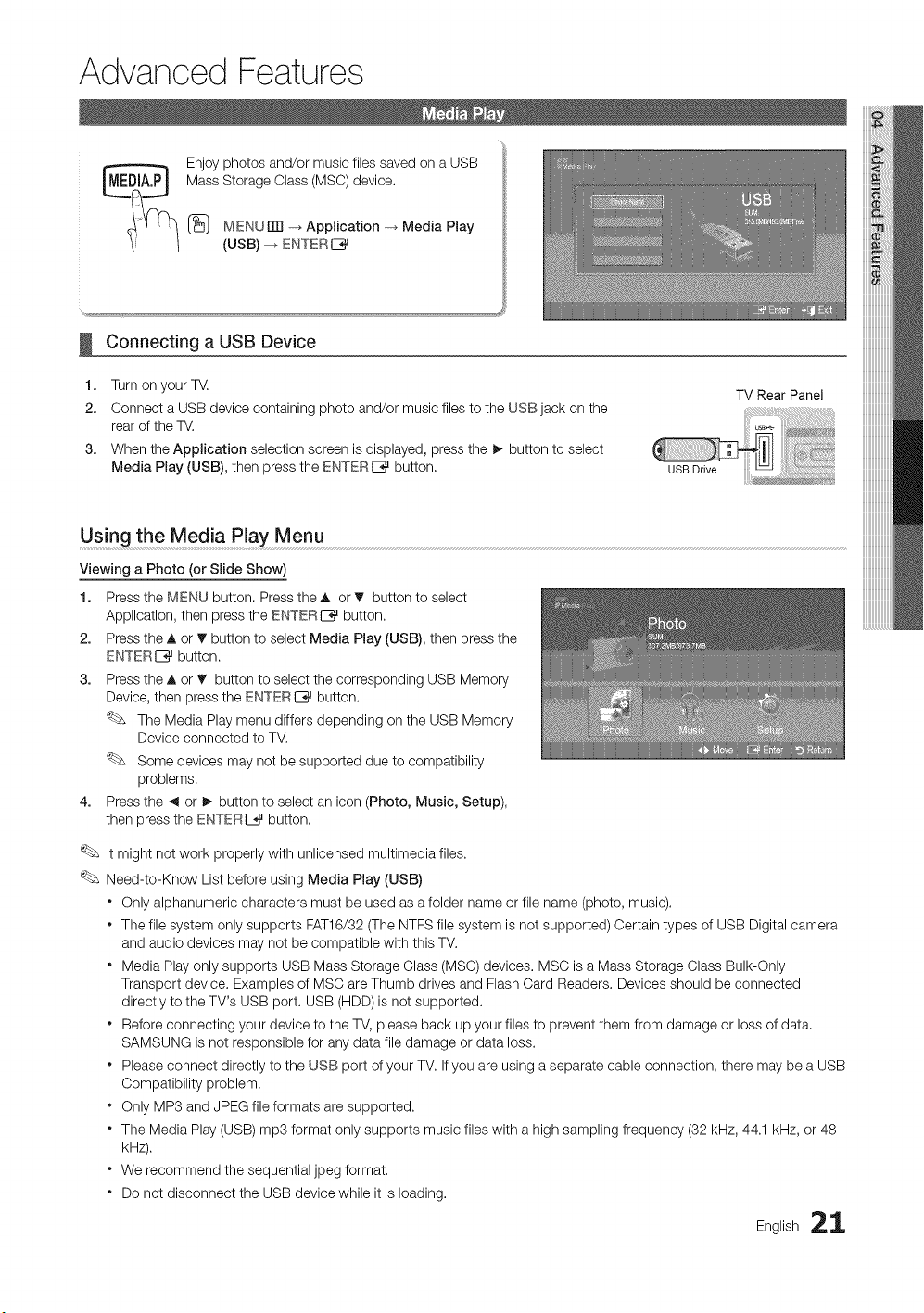
Enjoy photos and/or music files saved on a USB
Mass Storage Class (MSC) device.
[_] MENU[Ill -+Application -+ Media Play
(USB) -+ ENTER C_
Connecting a USB Device
1. Turn on your W.
2. Connect a USB device containing photo and/or music files to the USB jack on the
rear of the TV.
3. When the Application selection screen is displayed, press the I_ button to select
Media Play (USB), then press the ENTEREE_ button.
TV Rear Panel
Using the Media Play Menu
Viewing a Photo (or Slide Show)
1. Press the MENU button. Press the A or • button to select
Application, then press the ENTEREE_ button.
2. Press the ,_ or T button to select Media Play (USB), then press the
ENTER IZ_ button.
3. Press the A or T button to select the corresponding USB Memory
Device, then press the ENTER _ button.
The Media Play menu differs depending on the USB Memory
Device connected to TV.
Some devices may not be supported due to compatibility
problems.
4. Press the 41or I_ button to select an icon (Photo, Music, Setup),
then press the ENTERC_ button.
It might not work properly with unlicensed multimedia files.
Need-to-Know List before using Media Play (USB)
• Only alphanumeric characters must be used as a folder name or file name (photo, music).
• The file system only supports FAT16/32 (The NTFS file system is not supported) Certain types of USB Digital camera
and audio devices may not be compatible with this TV.
• Media Play only supports USB Mass Storage Class (MSC) devices. MSC is a Mass Storage Class Bulk-Only
Transport device. Examples of MSC are Thumb drives and Flash Card Readers. Devices should be connected
directly to the TV's USB port. USB (HDD) is not supported.
• Before connecting your device to the TV, please back up your files to prevent them from damage or loss of data.
SAMSUNG is not responsible for any data file damage or data loss.
• Please connect directly to the USB port of your TM If you are using a separate cable connection, there may be a USB
Compatibility problem.
• Only MP3 and JPEG file formats are supported.
• The Media Play (USB) mp3 format only supports music files with a high sampling frequency (32 kHz, 44.1 kHz, or 48
kHz).
• We recommend the sequential jpeg format.
• Do not disconnect the USB device while it is loading.
English 21
Advanced Features
" MSC supports MP3 and JPEG files, and the PTP device supports JPEG files only.
" MTP (Media Transfer Protocol) is not supported.
" The playing duration of an mp3 file may be displayed as "00:00:00" if its playing time information is not found at the
start of the file.
" The higher the resolution of the image, the longer it takes to display on the screen.
" The Photo or Music List displays up to 300 folders or files.
" Loading may take some time depending on the size of the file.
. MP3 files with DRM that have been downloaded from a non-free site cannot be played,
" Digital Rights Management (DRM) is a technology that supports the creation, distribution and management of of the
content in an integrated and comprehensive way, including the protection of the rights and interests of the content
providers, the prevention of the illegal copying of contents, as well as managing billings and settlements.
" If a USB extension cable is used, the USB device may not be recognized or the files on the device may not be read.
" If a USB device connected to the TV is not recognized, the list of files on the device is corrupted or a file in the list is
not played, connect the USB device to the PC, format the device and check the connection.
" If a file deleted from the PC is still found when Media Play is run, use the "Empty the Recycle Bin" function on the PC
to permanently delete the file.
Photo
Viewing a Photo (or Slide Show)
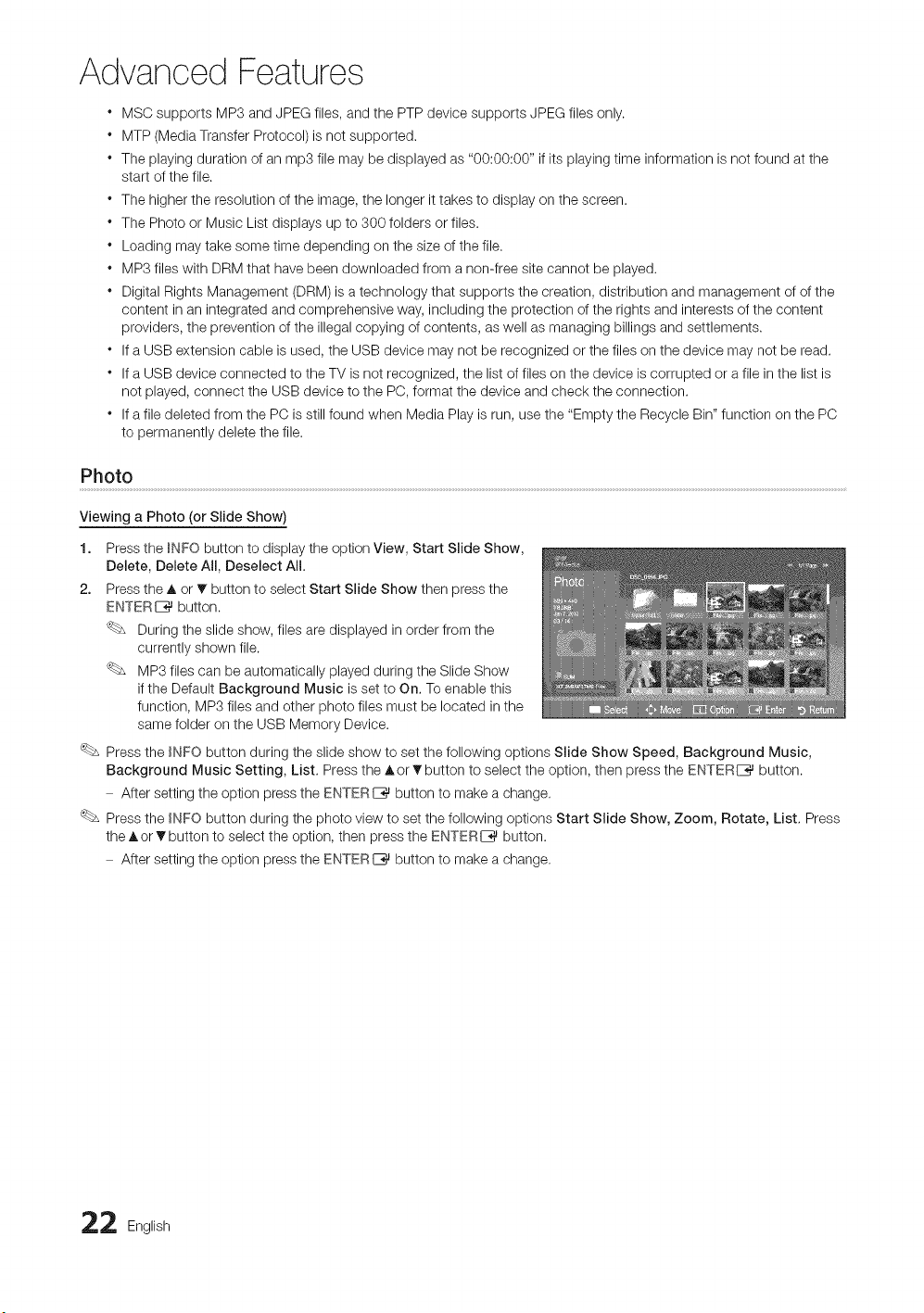
1. Press the _NFO button to display the option View, Start Slide Show,
Delete, Delete All, Deselect All.
2. Press the _, or _ button to select Start Slide Show then press the
ENTER E_ button.
During the slide show, files are displayed in order from the
currently shown file.
MP3 files can be automatically played during the Slide Show
if the Default Background Music is set to On. To enable this
function, MP3 files and other photo files must be located in the
same folder on the USB Memory Device.
Press the _NFO button during the slide show to set the following options Slide Show Speed, Background Music,
Background Music Setting, List. Press the A or v button to select the option, then press the ENTERI_ button.
After setting the option press the ENTERI_ button to make a change.
Press the _NFO button during the photo view to set the following options Start Slide Show, Zoom, Rotate, List, Press
the A or T button to select the option, then press the ENTERE_ button.
After setting the option press the ENTERI_ button to make a change.
2 English
Music
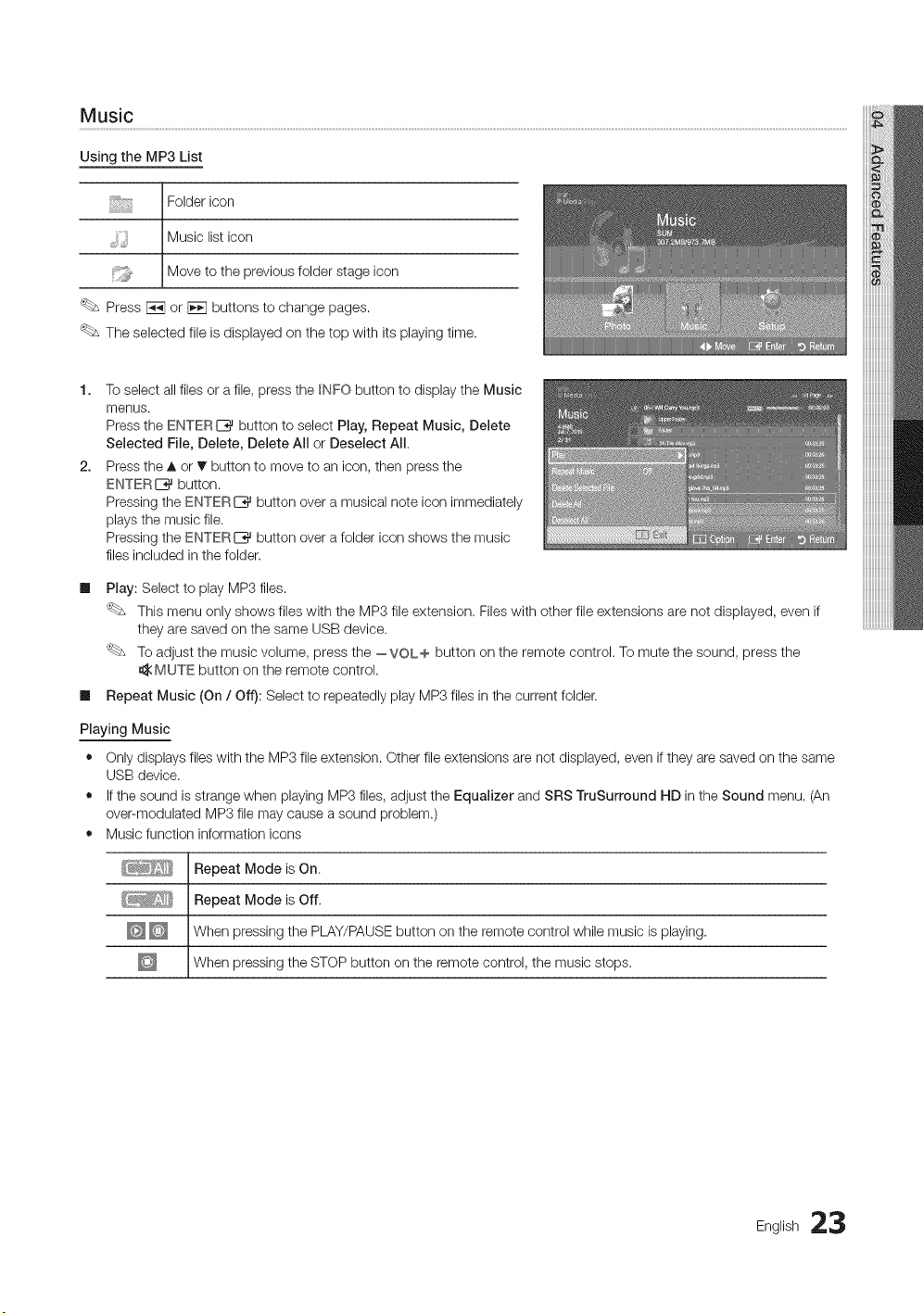
Using the MP3 List
Folder icon
Music list icon
Move to the previous folder stage icon
Press rWalor _ buttons to change pages.
The selected file is displayed on the top with its playing time.
1.
2.
Toselect all files or a file, press the _NFO button to display the Music
menus.
Press the ENTER_ button to select Play, Repeat Music, Delete
Selected File, Delete, Delete All or Deselect All.
Press the A or T button to move to an icon, then press the
ENTER E_ button.
Pressing the ENTERI_ button over a musical note icon immediately
plays the music file.
Pressing the ENTER_ button over a folder icon shows the music
files included in the folder.
Im
Play: Select to play MP3 files.
This menu only shows files with the MP3 file extension. Files with other file extensions are not displayed, even if
they are saved on the same USB device.
To adjust the music volume, press the --VOL+ button on the remote control. To mute the sound, press the
MUTE button on the remote control.
m Repeat Music (On / Off): Select to repeatedly play MP3 files in the current folder.
Playing Music
• Only displays files with the MP3 file extension. Other file extensions are not displayed, even if they are saved on the same
USB device.
• If the sound is strange when playing MP3 files, adjust the Equalizer and SRS TruSurround liD in the Sound menu. (An
over-modulated MP3 file may cause a sound problem.)
• Music function information icons
Repeat Mode is On.
Repeat Mode is Off.
When pressing the PLAY/PAUSE button on the remote control while music is playing.
When press ng the STOP button on the remote contro, the mus c stops.
English 23
Advanced Features
setup.........................................................................................................................................................................................................................................................................................................................................................................................................................................................................................................................................................
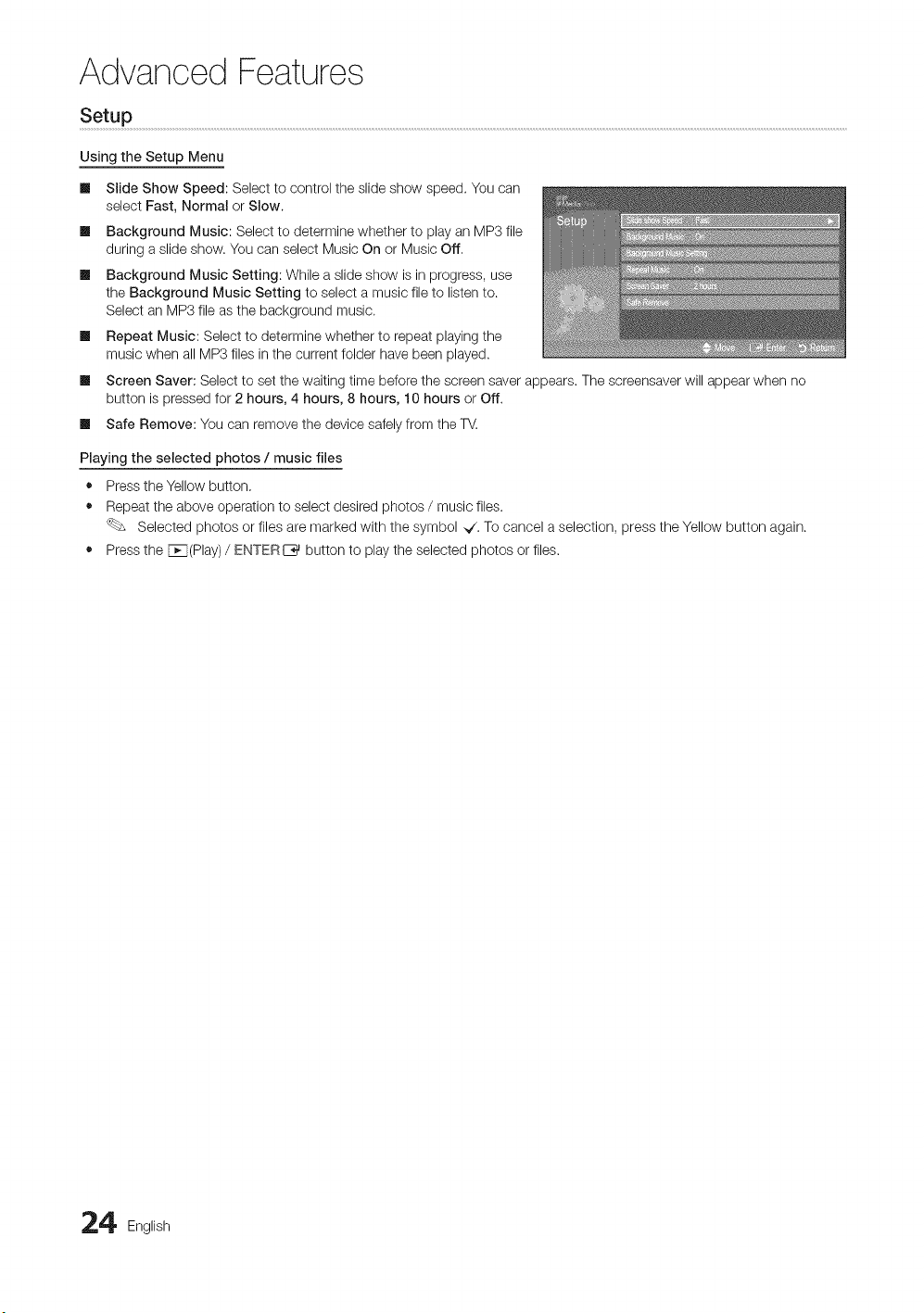
Using the Setup Menu
m
m
m
m
m
m
Slide Show Speed: Select to control the slide show speed. You can
select Fast, Normal or Slow.
Background Music: Select to determine whether to play an MP3 file
during a slide show. You can select Music On or Music Off.
Background Music Setting: While a slide show is in progress, use
the Background Music Setting to select a music file to listen to.
Select an MP3 file as the background music.
Repeat Music: Select to determine whether to repeat playing the
music when all MP3 files in the current folder have been played.
Screen Saver: Select to set the waiting time before the screen saver appears. The screensaver will appear when no
button is pressed for 2 hours, 4 hours, 8 hours, 10 hours or Off.
Safe Remove: You can remove the device safely from the TV.
Playing the selected photos / music files
• Press the Yellow button.
• Repeat the above operation to select desired photos / music files.
Selected photos or files are marked with the symbol _/. To cancel a selection, press the Yellow button again.
• Press the Fcq(Play) / ENTERI_ button to play the selected photos or files.
4 English
What is Anynet+?
Anynet+ is a function that enables you to control all connected Samsung devices that support Anynet+ with your Samsung
TV's remote. The Anynet+ system can be used only with Samsung devices that have the Anynet+ feature. To be sure your
Samsung device has this feature, check if there is an Anynet+ logo on it.
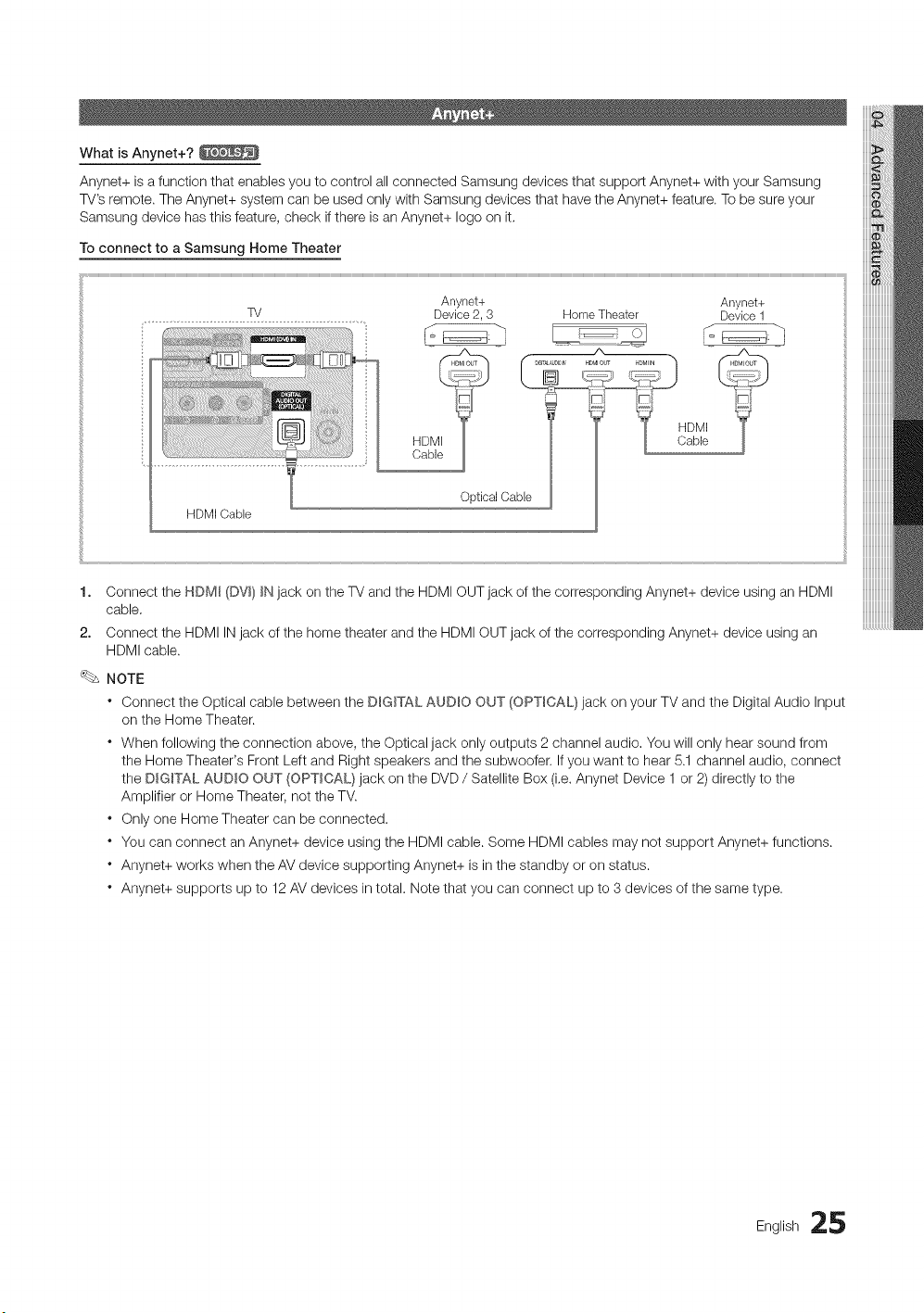
To connect to a Samsung Home Theater
Anynet+ Anynet+
TV Device2, 3 Device1
HDMI Cable
Home Theater
A
1. Connect the HDM_ (DW} _Njack on the TV and the HDMI OUT jack of the corresponding Anynet+ device using an HDMI
cable,
2. Connect the HDMI IN jack of the home theater and the HDMI OUT jack of the corresponding Anynet+ device using an
HDMI cable.
NOTE
* Connect the Optical cable between the DIGITAL AUDIO OUT (OPTICAL} jack on your TV and the Digital Audio Input
on the Home Theater.
* When following the connection above, the Optical jack only outputs 2 channel audio. You will only hear sound from
the Home Theater's Front Left and Right speakers and the subwoofer, if you want to hear 5.1 channel audio, connect
the DmG_TALAUDIO OUT (OPTICAL} jack on the DVD / Satellite Box (i,e. Anynet Device 1 or 2) directly to the
Amplifier or Home Theater, not the TV.
* Only one Home Theater can be connected.
* You can connect an Anynet÷ device using the HDMI cable. Some HDMI cables may not support Anynet+ functions.
* Anynet+ works when the AV device supporting Anynet÷ is in the standby or on status.
* Anynet+ supports up to 12 AV devices in total. Note that you can connect up to 3 devices of the same type.
English 25
Advanced Features
_!!}!!!!_!iii!i_ii_ii!!i!_iii!!ii!iii!i_ii!!ii!!ii_i_iii_!!_!_i_{_!!_!_i_i_i_i_i_i_i_i_i_i_i_i_i_i_i_i_i_i_i_i_i_i_i_i_!_!_!_!_I!!_
View rv
Device List
(device_name) MENU
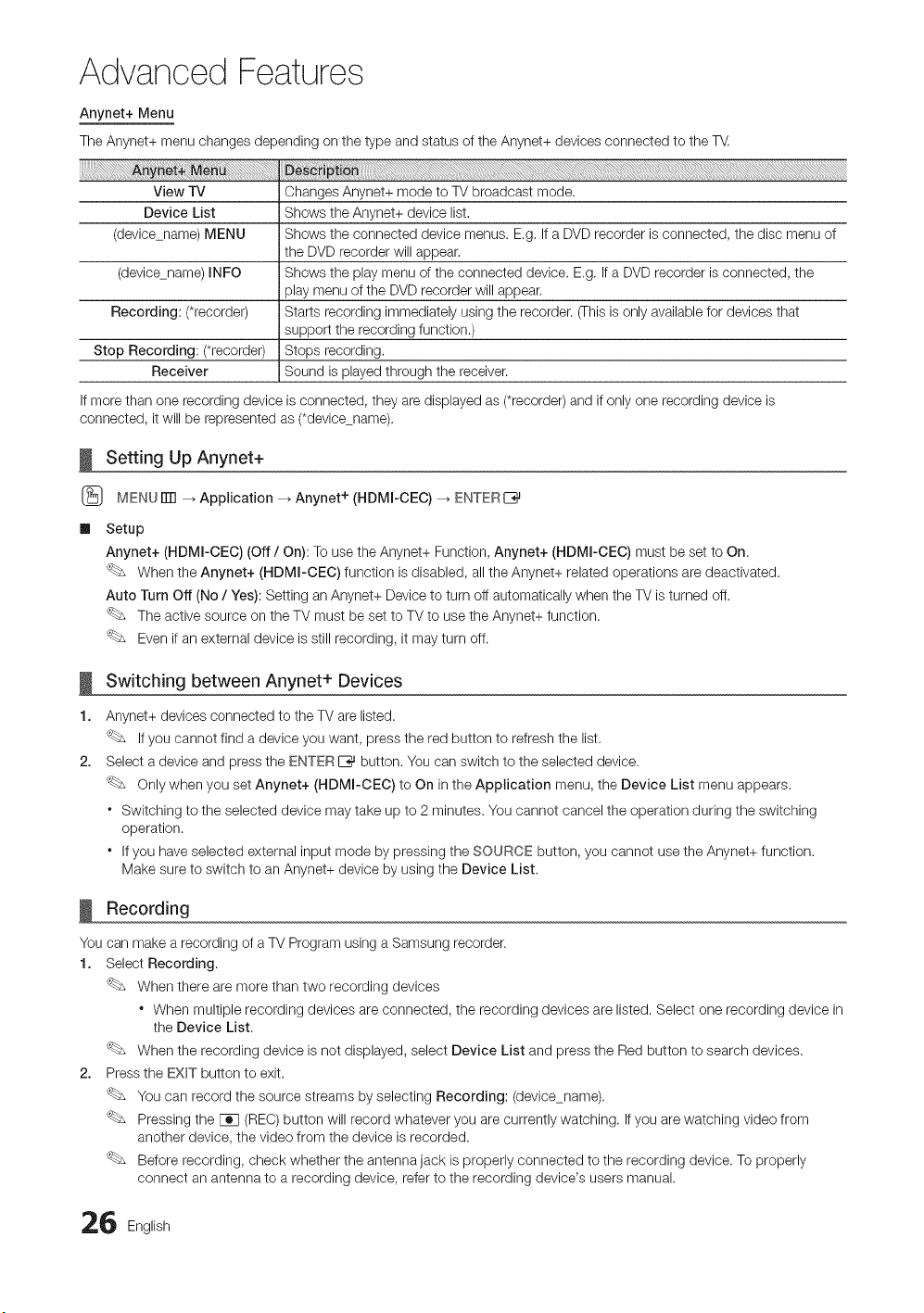
Anynet+ Menu
The Anynet+ menu changes depending on the type and status of the Anynet+ devices connected to the T_,
Changes Anynet+ mode to TV broadcast mode,
Shows the Anynet+ device list,
Shows the connected device menus. E.g, If a DVD recorder is connected, the disc menu of
the DVD recorder will appear,
(device_name) INFO Shows the play menu of the connected device. E.g, If a DVD recorder is connected, the
play menu of the DVD recorder will appear.
Recording: (*recorder) Starts recording immediately using the recorder. (This is only available for devices that
support the recording function.)
Stop Recording: (*recorder) Stops recording.
Receiver Sound is played through the receiver.
If more than one recording device is connected, they are displayed as (*recorder) and if only one recording device is
connected, it will be represented as (*device_name).
Setting Up Anynet+
(_ MENU iTrl _ Application _ Anynet + (HDMI-CEC) -_ ENTERI_
m
Setup
Anynet+ (HDMI-CEC) (Off / On): To use the Anynet+ Function, Anynet+ (HDMI-CEC) must be set to On.
When the Anynet+ (HDMI-CEC) function is disabled, all the Anynet+ related operations are deactivated.
Auto Turn Off (No / Yes): Setting an Anynet+ Device to turn off automatically when the TV is turned off.
The active source on the TV must be set to TV to use the Anynet+ function.
Even if an external device is still recording, it may turn off.
I
1.
2,
Switching between Anynet+ Devices
Anynet+ devices connected to the TV are listed.
If you cannot find a device you want, press the red button to refresh the list.
Select a device and press the ENTER E_ button, You can switch to the selected device.
Only when you set Anynet+ (HDMI-CEC) to On in the Application menu, the Device List menu appears.
* Switching to the selected device may take up to 2 minutes. You cannot cancel the operation during the switching
operation.
* If you have selected external input mode by pressing the SOURCE button, you cannot use the Anynet+ function.
Make sure to switch to an Anynet+ device by using the Device List,
Recording
You can make a recording of a TV Program using a Samsung recorder.
1. Select Recording.
When there are more than two recording devices
* When multiple recording devices are connected, the recording devices are listed. Select one recording device in
the Device List,
When the recording device is not displayed, select Device List and press the Red button to search devices.
2. Press the EXIT button to exit,
You can record the source streams by selecting Recording: (devicename),
Pressing the [_q (REC) button will record whatever you are currently watching, If you are watching video from
another device, the video from the device is recorded.
Before recording, check whether the antenna jack is properly connected to the recording device. To properly
connect an antenna to a recording device, refer to the recording device's users manual.
6 English
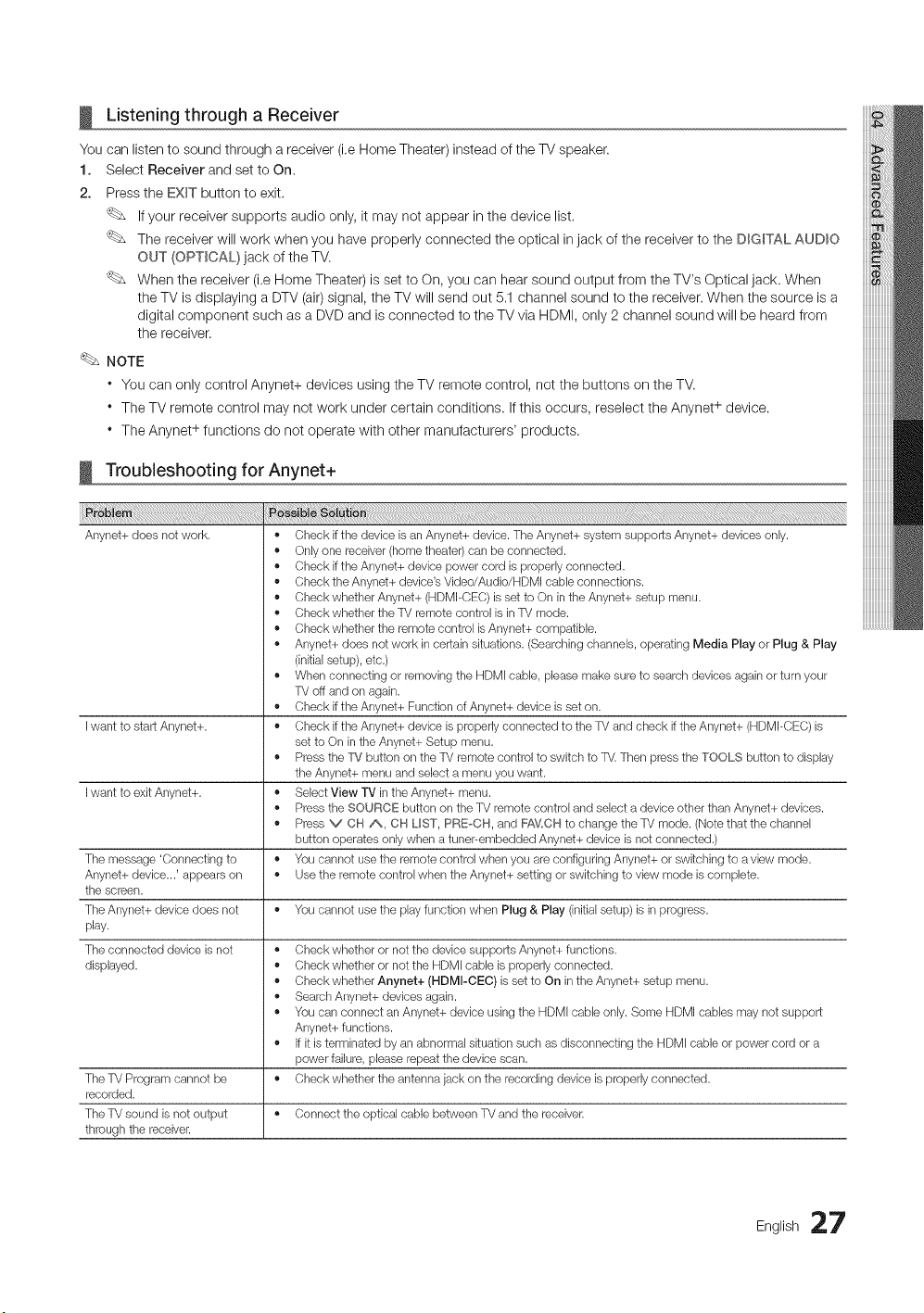
Listening through a Receiver
You can listen to sound through a receiver (i,e Home Theater) instead of the TV speaker.
1. Select Receiver and set to On.
2. Press the EXIT button to exit.
If your receiver supports audio only, it may not appear in the device list.
The receiver will work when you have properly connected the optical in jack of the receiver to the DIGITAL AUDIO
OUT (OPTICAL} jack of the TV.
When the receiver (i.e Home Theater) is set to On, you can hear sound output from the TV's Optical jack. When
the TV is displaying a DTV (air)signal, the TV will send out 5.1 channel sound to the receiver. When the source is a
digital component such as a DVD and is connected to the TV via HDMI, only 2 channel sound will be heard from
the receiver.
NOTE
* You can only control Anynet+ devices using the TV remote control, not the buttons on the TV.
* The TV remote control may not work under certain conditions. If this occurs, reselect the Anynet + device.
* The Anynet + functions do not operate with other manufacturers' products.
Troubleshooting for Anynet+
iiiii#_i_!ii_!_!i!i!_i_i_ii!_i!_i!_i!_i!_i!_i!_i!_i!_i!_i!_i!_i!_i!_i!_i!_i!_i!_i!_i!_i!_i!_i!_i!_i!_i!_i!_i!i!i¸i!i!ili_i_i_i_i_i_i_i_!_!iii_i_i_i_i_i_i_lilililililililililililililililililil_i_i_i_i!i!i!i_i_ii_ii_ii_ii_ii_ii_ii_ii_ii_ii_i_!i_i!:i
Anynet+ does not work.
Iwant to start Anynet+.
Iwant to exit Anynet+.
The message 'Connecting to
Anynet+ device...' appears on
the screen.
• Check if the device is an Anynet+ device. The Anynet+ system supports Anynet+ devices only.
• Only one receiver (home theater) can be connected.
• Check if the Anynet+ device power cord is properly connected.
• Check the Anynet+ device's Video/Audio/HDMI cable connections.
• Check whether Anynet+ (HDMI-CEC) is set to On in the Anynet+ setup menu.
• Check whether the TV remote control is in TV mode.
• Check whether the remote control is Anynet+ compatible.
• Anynet+ does not work in certain situations. (Searching channels, operating Media Play or Plug & Play
(initial setup), etc.)
• When connecting or removing the HDMI cable, please make sure to search devices again or turn your
TV off and on again.
,, Check if the Anynet+ Function of Anynet+ device is set on.
,, Check if the Anynet+ device is properly connected to the TV and check if the Anynet+ (HDMI-CEC) is
set to On in the Anynet+ Setup menu.
,, Press the TV button on the TV remote control to switch to TV. Then press the TOOLS button to display
the Anynet+ menu and select a menu you want.
,, Select View TV in the Anynet+ menu.
,, Press the SOURCE button on the TV remote control and select a device other than Anynet+ devices.
,, Press V OH A, OH LIST, PREoCH, and FAV,CH to change the TV mode. (Note that the channel
button operates only when a tuner-embedded Anynet+ device is not connected.)
,, You cannot use the remote control when you are configuring Anynet+ or switching to a view mode.
,, Use the remote control when the Anynet+ setting or switching to view mode is complete.
The Anynet+ device does not ,, You cannot use the play function when Plug & Play (initial setup) is in progress.
play.
The connected device is not
displayed.
The TV Program cannot be ,,
recorded.
The TV sound is not output ,, Connect the optical cable between TV and the receiver.
through the receiver.
,, Check whether or not the device supports Anynet+ functions.
,, Check whether or not the HDMI cable is properly connected.
,, Check whether Anynet+ (HDMI-CEC) is set to On in the Anynet+ setup menu.
,, SearchAnynet+ devices again.
,, You can connect an Anynet+ device using the HDMI cable only. Some HDMI cables may not support
Anynet+ functions.
,, If it is terminated by an abnormal situation such as disconnecting the HDMI cable or power cord or a
power failure, please repeat the device scan.
Check whether the antenna jack on the recording device is properly connected.
English 27
Other Information
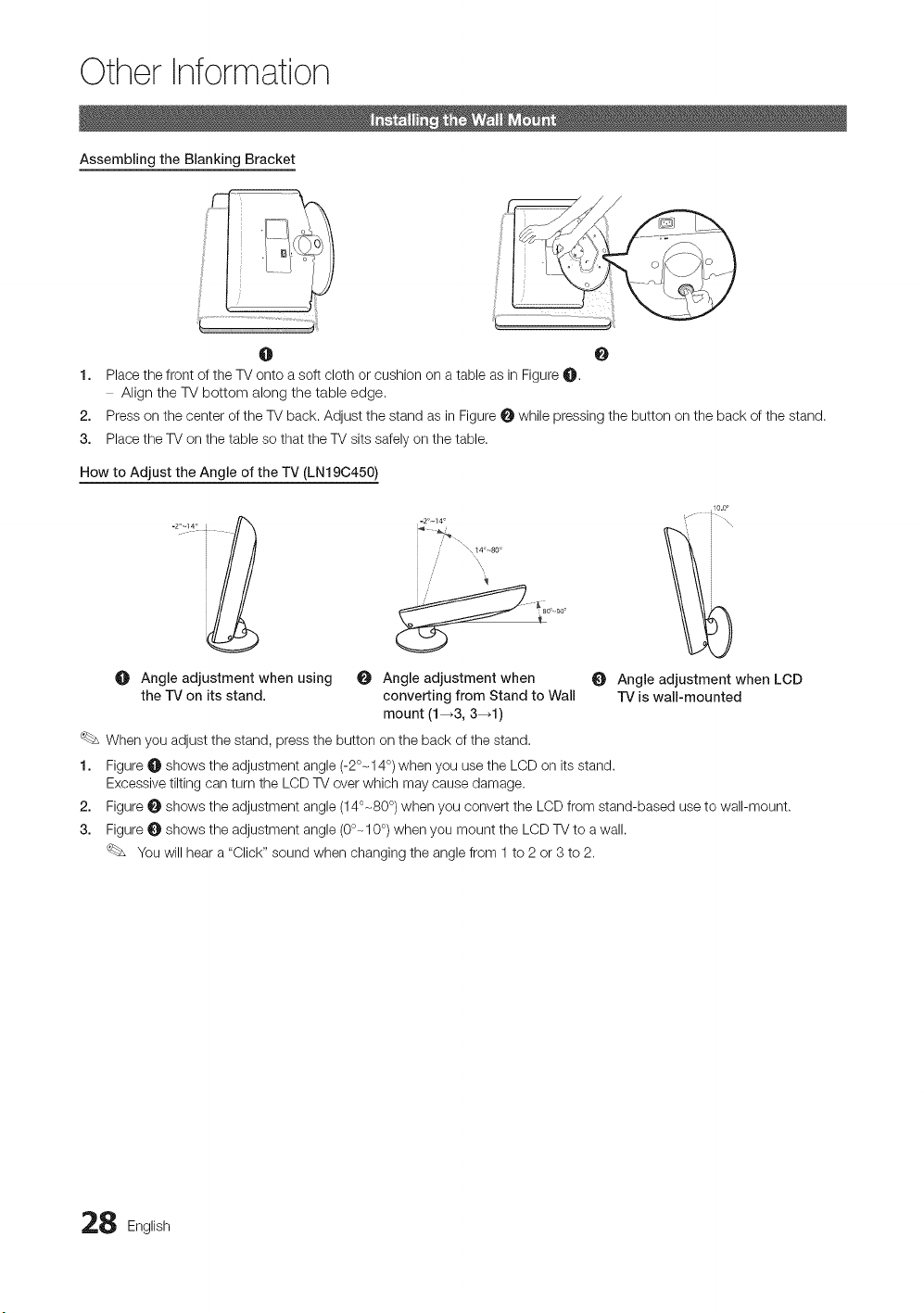
Assembling the Blanking Bracket
..........................................................................................................................._'!i
0 0
1. Place the front of the TV onto a soft cloth or cushion on a table as in Figure O.
Align the TV bottom along the table edge.
2. Press on the center of the TV back. Adjust the stand as in Figure O while pressing the button on the back of the stand.
3. Place the TV on the table so that the TV sits safely on the table.
How to Adjust the Angle of the TV (LN190450)
.2_~14 o
/ _\ 14oso o
I
Angle adjustment when using _ Angle adjustment when
the IV' on its stand, converting from Stand to Wall
mount (1-_3, 341)
When you adjust the stand, press the button on the back of the stand.
,10.0,
,z t
"/ i "\
O Angle adjustment when LCD
1!/is wall-mounted
1. Figure _ shows the adjustment angle (-2°- 14°) when you use the LCD on its stand.
Excessive tilting can turn the LCD TV over which may cause damage.
2. Figure O shows the adjustment angle (140-80 °) when you convert the LCD from stand-based use to wall-mount.
3. Figure _ shows the adjustment angle (0°- 10°) when you mount the LCD TV to a wall.
You will hear a "Click" sound when changing the angle from 1 to 2 or 3 to 2.
8 English
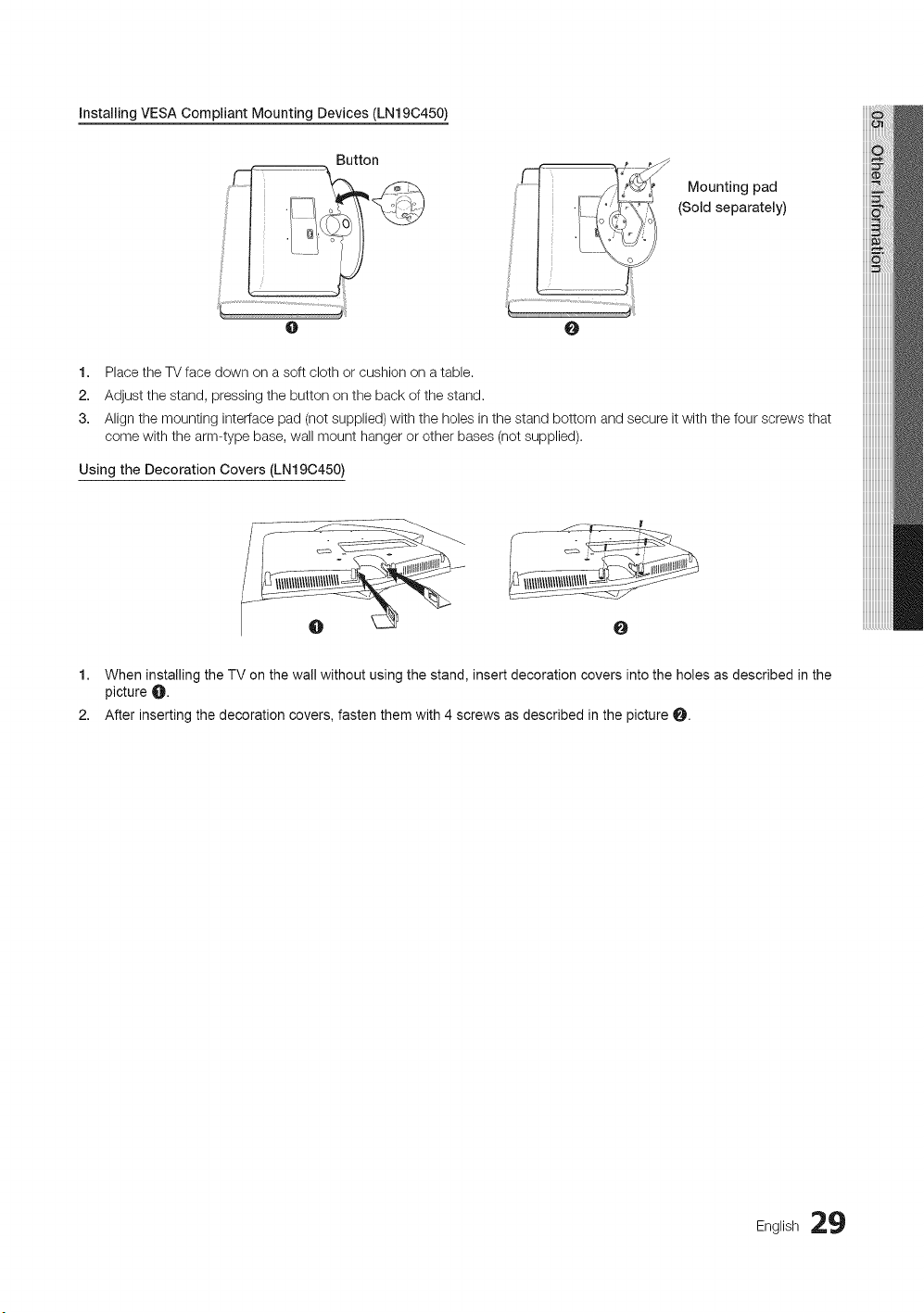
Installing VESA Compliant Mounting Devices (LN19C450)
Button
O
O
Mounting pad
(Sold separately)
1. Place the TV face down on a soft cloth or cushion on a table.
2. Adjust the stand, pressing the button on the back of the stand.
3. Align the mounting interface pad (not supplied) with the holes in the stand bottom and secure it with the four screws that
come with the arm-type base, wail mount hanger or other bases (not supplied).
Using the Decoration Covers (LN19C450)
O
1. When installing the TV on the wall without using the stand, insert decoration covers into the holes as described in the
picture _.
2. After inserting the decoration covers, fasten them with 4 screws as described in the picture 0.
English 29
Other Information
Installing the Wall Mount Kit
The wall mount kit (sold separately) allows you to mount the TV on the wall.
For detailed information on installing the wall mount, see the instructions provided with the wall mount items. Contact a
technician for assistance when installing the wall mount bracket. Samsung Electronics is not responsible for any damage to the
product or injury to yourself or others if you elect to install the TV on your own.
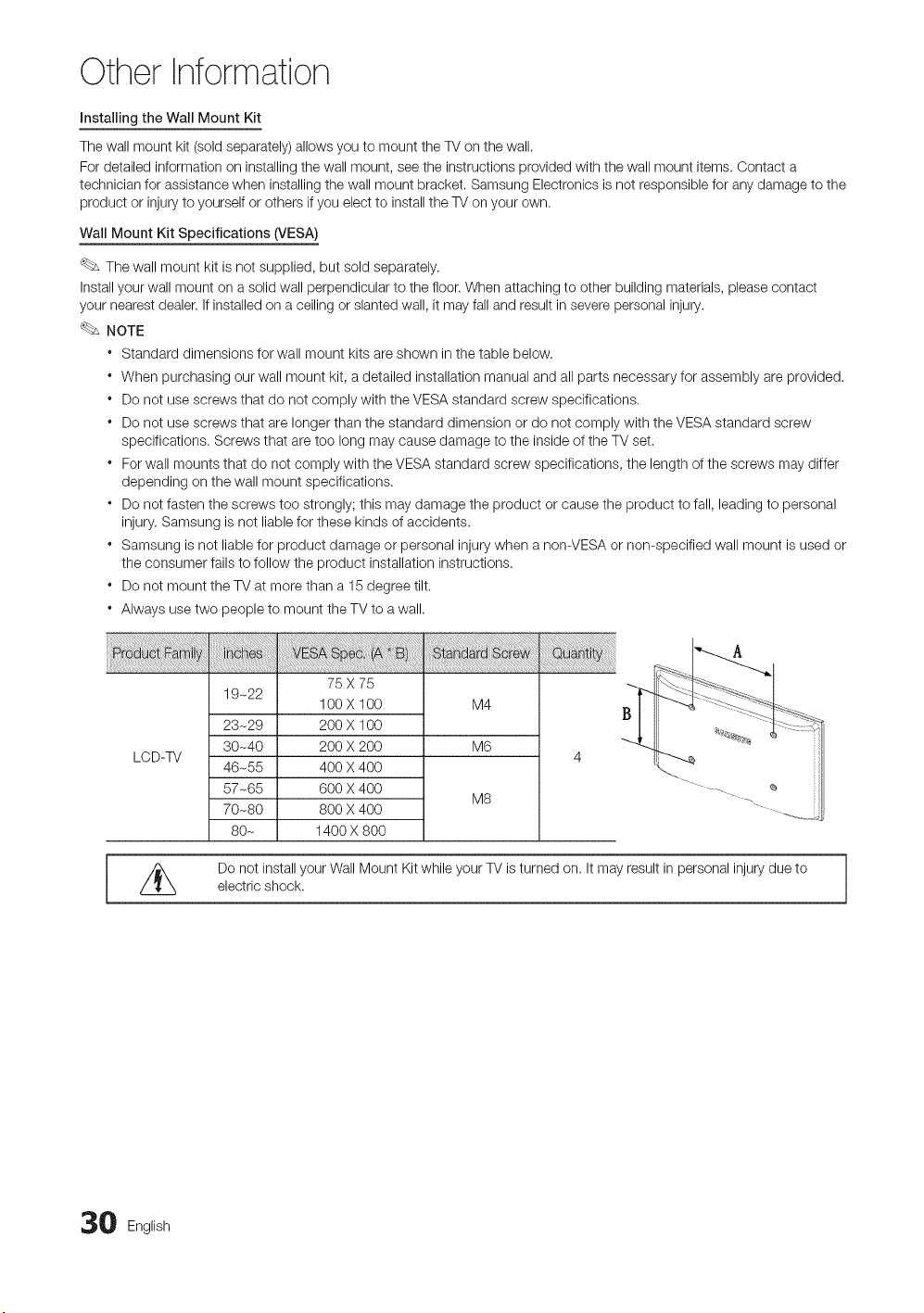
Wall Mount Kit Specifications 6/ESA)
The wall mount kit is not supplied, but sold separately.
Install your wall mount on a solid wall perpendicular to the floor. When attaching to other building materials, please contact
your nearest dealer. If installed on a ceiling or slanted wall, it may fall and result in severe personal injury.
NOTE
* Standard dimensions for wall mount kits are shown in the table below.
* When purchasing our wall mount kit, a detailed installation manual and all parts necessary for assembly are provided.
* Do not use screws that do not comply with the VESA standard screw specifications,
* Do not use screws that are longer than the standard dimension or do not comply with the VESA standard screw
specifications. Screws that are too long may cause damage to the inside of the TV set.
* For wall mounts that do not comply with the VESA standard screw specifications, the length of the screws may differ
depending on the wall mount specifications.
* Do not fasten the screws too strongly; this may damage the product or cause the product to fall, leading to personal
injury. Samsung is not liable for these kinds of accidents.
* Samsung is not liable for product damage or personal injury when a non-VESA or non-specified wall mount is used or
the consumer fails to follow the product installation instructions.
* Do not mount the TV at more than a 15 degree tilt.
* Always use two people to mount the TV to a wall.
LCD-TV
75 X 75
19-22
100 X 100 M4
23-29 200 X 100
30-40 200 X 200 M6
46-55 400 X 400
57-65 600 X 400
M8
70-80 800 X 400
80- 1400 X 800
_ Do not install your Wall Mount Kit while your TV is turned on. It may result in personal injury due to
electric shock.
0 English
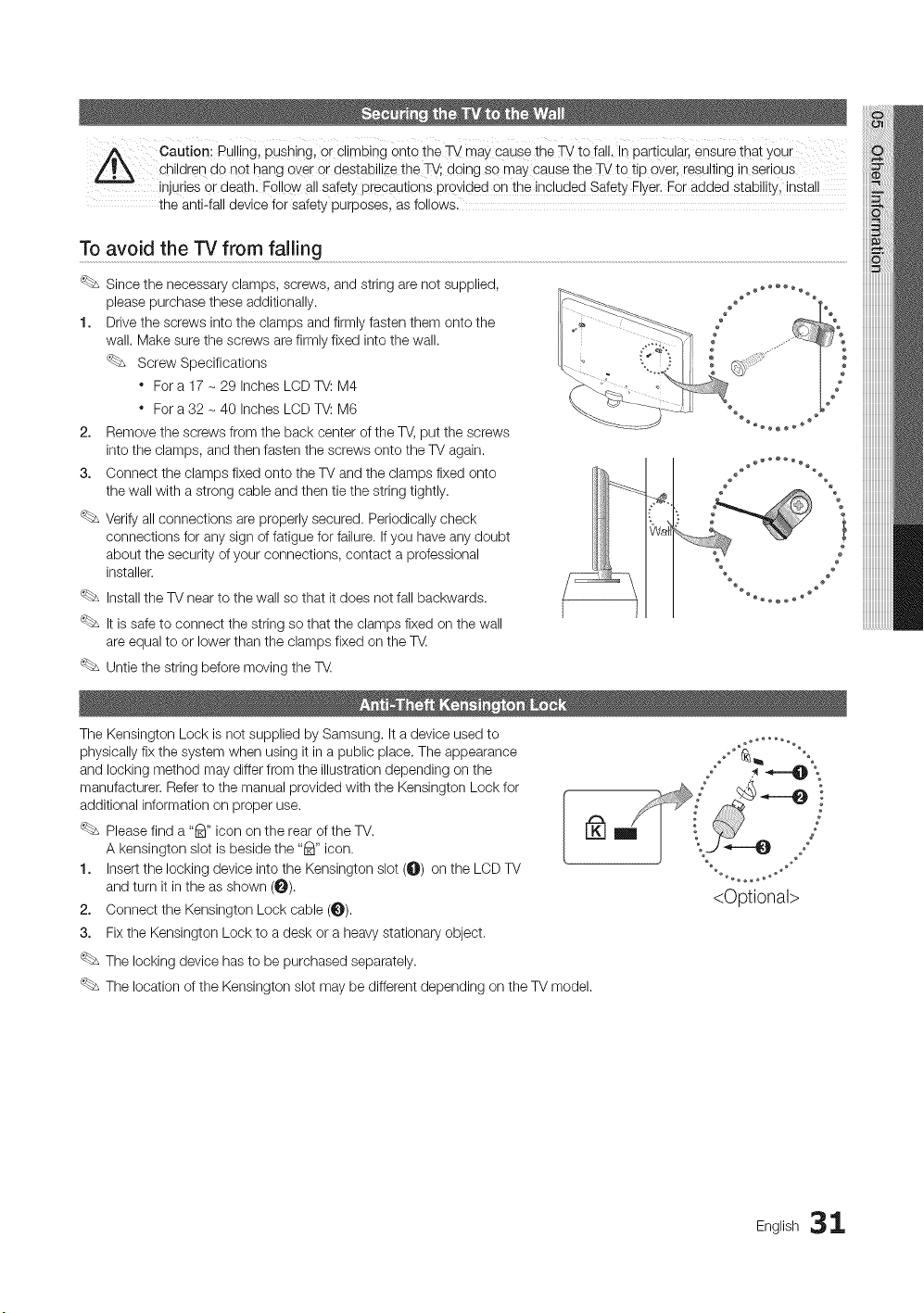
cautienlRUllinglPushing,Orclimbingontothe_ may CauSethe W to ial L in particular, ensure that YOUi
children do not hang over 0r d÷stabilize the TV; doing so may cause the _ to tip over, resulting in serious
injuries Or death. Follow all safety precautions provided on the included Safety E!yer.F0r added Staloi!ity,instaII
the anti-fall device for safety purposes, as followsl
To avoid the TV from falling ..........................................................................................................................................................................................................................................................................................................................................................................................................
Since the necessary clamps, screws, and string are not supplied,
please purchase these additionally.
1. Drive the screws into the clamps and firmly fasten them onto the
wall. Make sure the screws are firmly fixed into the wall.
Screw Specifications
" For a 17 - 29 Inches LCD TV: M4
" For a 32 - 40 Inches LCD TV: M6
2. Remove the screws from the back center of the TV, put the screws
into the clamps, and then fasten the screws onto the TV again.
3. Connect the clamps fixed onto the TV and the clamps fixed onto
the wall with a strong cable and then tie the string tightly.
Verify all connections are properly secured. Periodically check
connections for any sign of fatigue for failure. If you have any doubt
about the security of your connections, contact a professional
installer.
Install the TV near to the wall so that it does not fall backwards.
It is safe to connect the string so that the clamps fixed on the wall
are equal to or lower than the clamps fixed on the T_.
Untie the string before moving the T_.
b_
e
®
The Kensington Lock is not supplied by Samsung. It a device used to
physically fix the system when using it in a public place. The appearance
and locking method may differ from the illustration depending on the
manufacturer. Refer to the manual provided with the Kensington Lock for
additional information on proper use.
Please find a "_" icon on the rear of the TV.
A kensington slot is beside the "_" icon.
1. Insert the locking device into the Kensington slot (_) on the LCD TV
and turn it in the as shown (_).
2. Connect the Kensington Lock cable (_).
3. Fix the Kensington Lock to a desk or a heavy stationary object.
The locking device has to be purchased separately.
The location of the Kensington slot may be different depending on the TV model.
ca
<Optional>
English 31
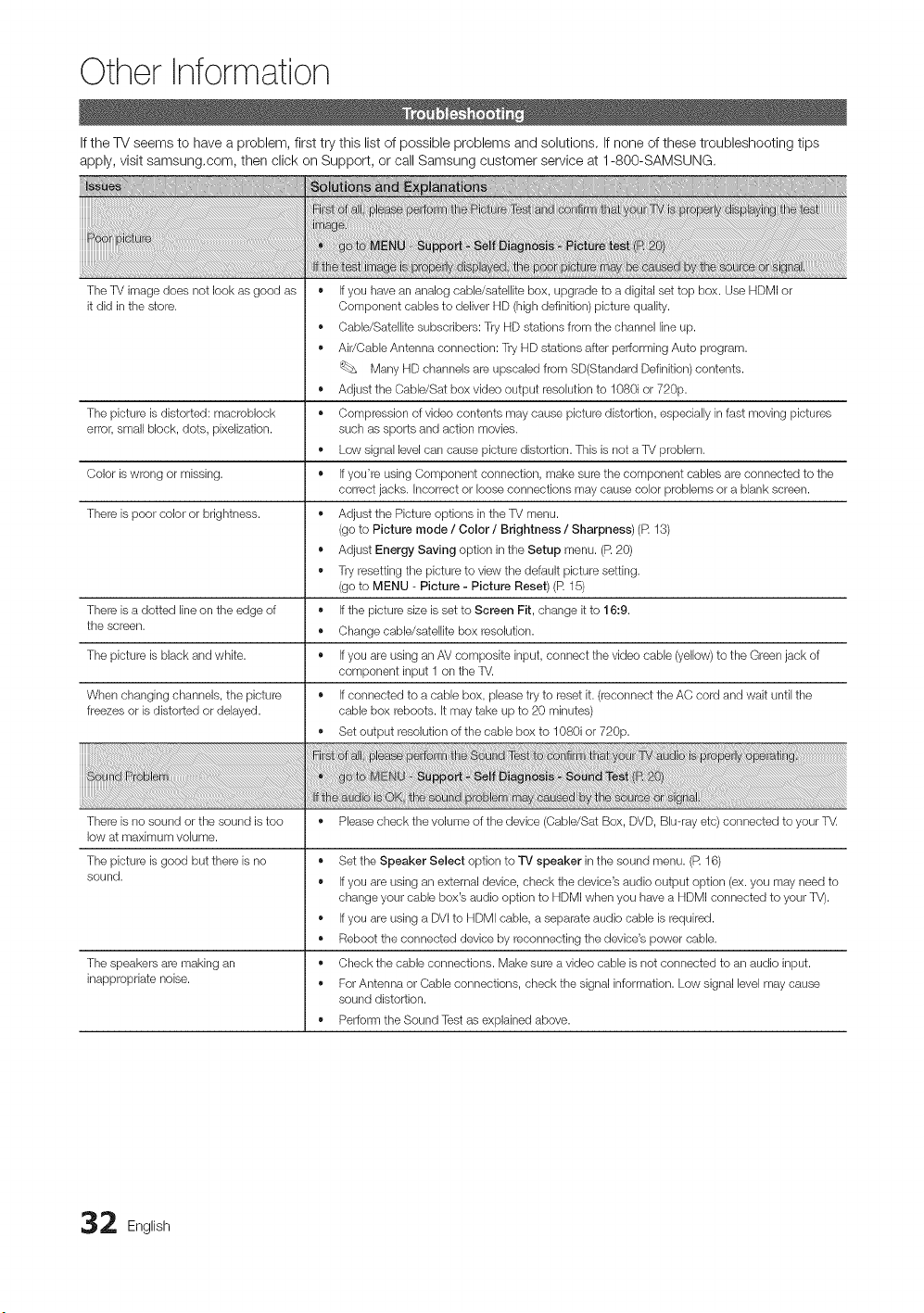
Other Information
If the TV seems to have a problem, first try this list of possible problems and solutions, If none of these troubleshooting tips
apply, visit samsung,com, then click on Support, or call Samsung customer service at 1-800-SAMSUNG.
The TV image does not look as good as
it did in the store.
The picture is distorted: macroblock
error, small block, dots, pixeiization.
Color is wrong or missing.
There is poor color or brightness.
There is a dotted line on the edge of
the screen.
The picture is black and white.
When changing channels, the picture
freezes or is distorted or delayed.
• If you have an analog cable/satellite box, upgrade to a digital set top box. Use HDMI or
Component cables to deliver HD (high definition) picture quality.
• Cable/Satellite subscribers: Try HD stations from the channel line up.
• Air/Cabb Antenna connection: Try HD stations after performing Auto program.
'_bs Many HD ctlanneb are upscabd from SD(Standard Definition) contents.
,, Adjust the Cabb/Sat box video output resolution to 1080i or 720p.
,, Compression of video contents may cause picture distortion, especially in fast moving pictures
such as sports and action movies.
,, Los! signal level can cause picture distortion. This is not a TV problem.
,, If you're using Component connection, make sure the component cables are connected to the
correct jacks. Incorrect or loose connections may cause color problems or a blank screen.
,, Adjust the Picture options in the TV menu.
(go to Picture mode / Color / Brightness / Sharpness) (R 13)
,, Adjust Energy Saving option in the Setup menu. (R 20)
,, Try resetting the picture to vies! the default picture setting.
(go to MENU - Picture - Picture Reset) (R 15)
,, If the picture size is set to Screen Fit, change it to 16:9.
,, Change cable/satellite box resolution.
Ifyou are using an AV composite input, connect the video cabb (yellow) to the Green jack of
component input 1 on the TV.
,, If connected to a cable box, please try to reset it. (reconnect the AC cord and wait until the
cable box reboots. It may take up to 20 minutes)
,, Set output resolution of the cable box to 1080i or 720p.
There is no sound or the sound is too • Please check the volume of the device (Cabb/Sat Box, DVD, Blu-ray etc) connected to your T_
low at maximum volume.
The picture is good but there is no
sound.
The speakers are making an
inappropriate noise.
,, Set the Speaker Select option to TV speaker in the sound menu. (R 16)
,, If you are using an external device, check the device's audio output option (ex. you may need to
change your cable box's audio option to HDMI when you have a HDMI connected to your TV).
,, If you are using a DVI to HDMI cable, a separate audio cable is required.
,, Reboot the connected device by reconnecting the device's power cable.
,, Check the cable connections. Make sure a video cable is not connected to an audio input.
,, For Antenna or Cable connections, check the signal information. Los! signal level may cause
sound distortion.
,, Perform the Sound Test as explained above.
2 English
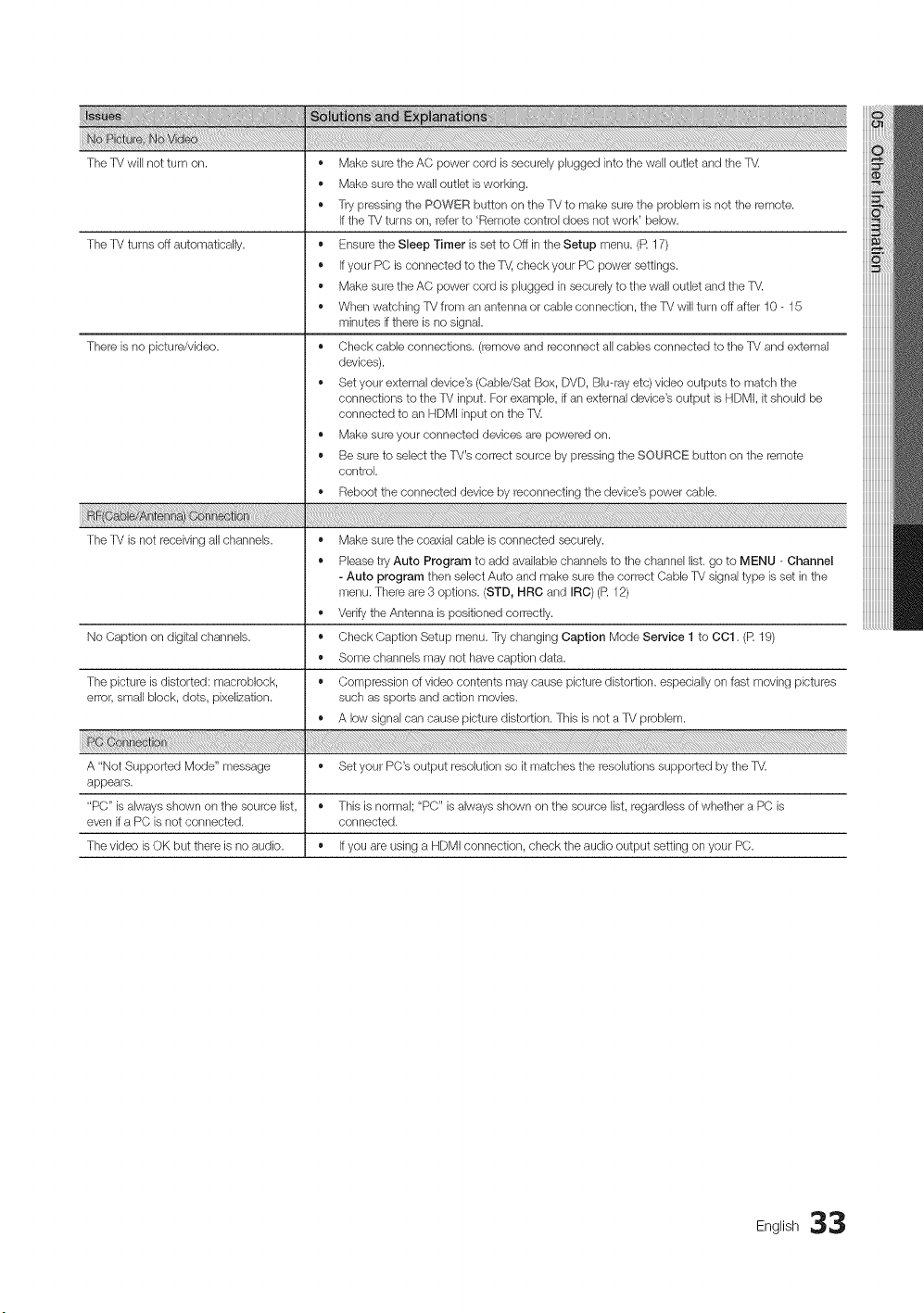
The TV will not turn on. •
e
e
The TV turns off automatically.
There is no picture/video.
Make sure the AC power cord is securely plugged into the wall outlet and the TV.
Make sure the wall outlet is working.
Try pressing the POWER button on the TV to make sure the problem is not the remote.
Ifthe TV turns on, refer to 'Remote control does not work' below.
• Ensure the Sleep Timer is set to Off in the Setup menu. (R 17)
• If your PC is connected to the T_, check your PC power settings.
• Make sure the AC power cord is plugged in securely to the wall outlet and the TV.
• When watching TV from an antenna or cable connection, the TV will turn off after 10 - 15
minutes if there is no signal.
• Check cable connections. (remove and reconnect all cables connected to the TV and external
devices).
• Set your external device's (CabldSat Box, DVD, Blu-ray etc) video outputs to match the
connections to the TV input. For example, if an external device's output is HDMI, it should be
connected to an HDMI input on the TV.
• Make sure your connected devices are powered on.
• Be sure to select the TV's correct source by pressing the SOURCE button on the remote
control.
• Reboot the connected device by reconnecting the device's power cable.
The TV is not receiving all channels. • Make sure the coaxial cable is connected securely.
• Please try Auto Program to add available channels to the channel list. go to MENU _ Channel
- Auto program then select Auto and make sure the correct Cable TV signal type is set in the
menu. There are 3 options. (STD, HRC and IRC) (R 12)
• Verify the Antenna is positioned correctly.
No Caption on digital channels. • Check Caption Setup menu. Try changing Caption Mode Service 1 to OO1. (R 19)
• Some channels may not have caption data.
The picture is distorted: macroblock, ,, Compression of video contents may cause picture distortion, especially on fast moving pictures
error, small block, dots, pixelization, such as sports and action movies.
,, A low signal can cause picture distortion. This is not a TV problem.
A "Not Supported Mode" message ,, Set your PC's output resolution so it matches the resolutions supported by the TV.
appears.
"PC" is always shown on the source list, ,, This is normal; "PC" is always shown on the source list, regardless of whether a PC is
even if a PC is not connected, connected.
The video is OK but there is no audio. ,, If you are using a HDMI connection, check the audio output setting on your PC.
iiiiiiiiiiiiiiiiiiii
iiiiiiiiiiiiiiiiiiii
Eng,ish33
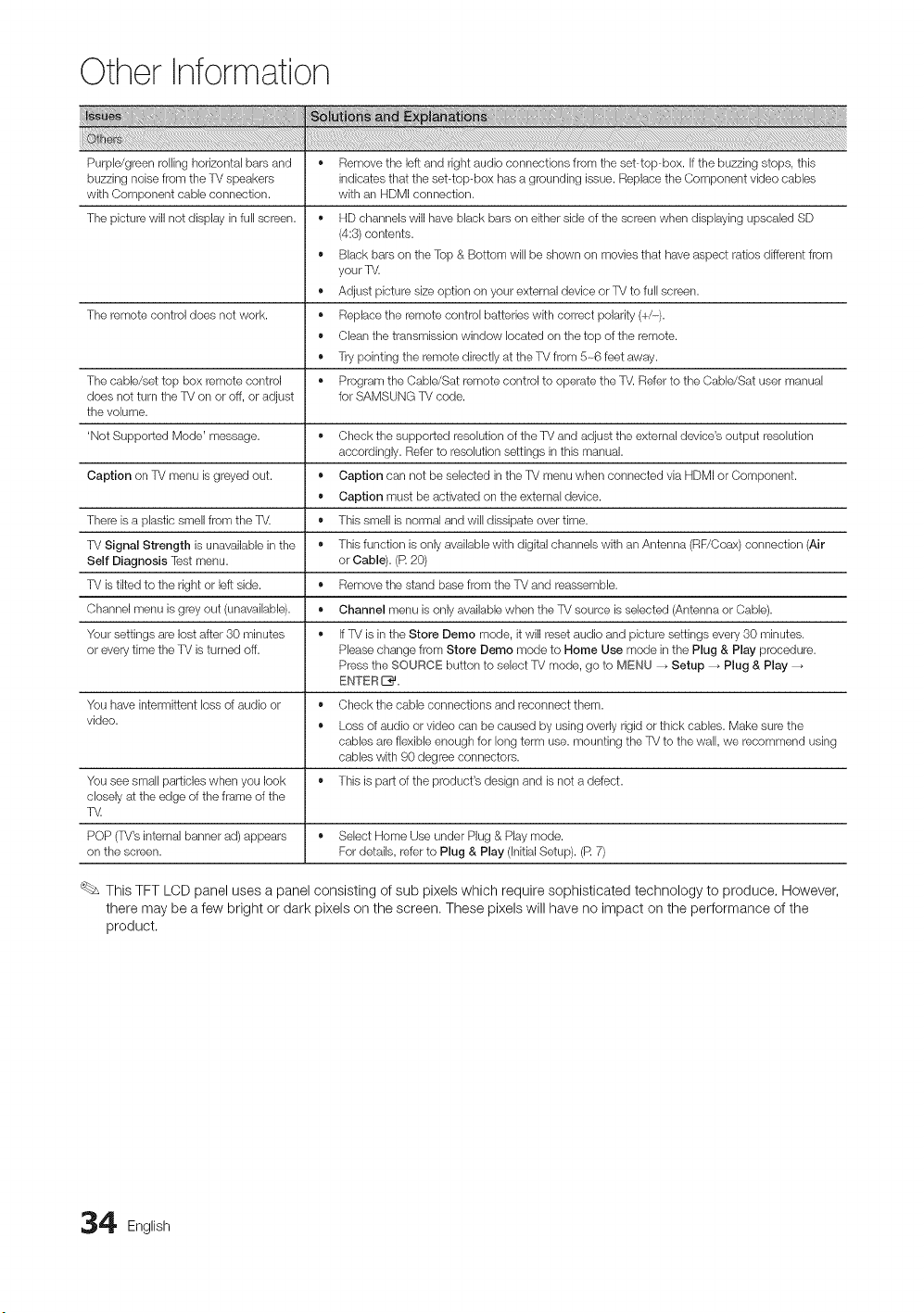
Other Information
Purpb/green rolling horizontal bars and • Remove the left and right audio connections from the sebtop-box. If the buzzing stops, this
buzzing nobe from the TV speakers indbates that the sebtop-box has a grounding issue. Replace the Component video cables
with Component cable connection, with an HDMI connection.
The pbture will not display in full screen. • HD channels will have black bars on either side of the screen when displaying upscabd SD
(4:3) contents.
• Black bars on the Top & Bottom will be shown on movies that have aspect ratios different from
your TV.
• Adjust pbture size option on your external device or TV to full screen.
The remote control does not work. • Replace the remote control batteries with correct polarity (+/-).
• Clean the transmbsion window located on the top of the remote.
• Try pointing the remote directly at the TV from 5-6 feet away.
The cable/set top box remote control • Program the Cabb/Sat remote control to operate the TV. Refer to the Cabb/Sat user manual
does not turn the TV on or off, or adjust for SAMSUNG TV code.
the volume.
'Not Supported Mode' message. ,, Check the supported resolution of the TV and adjust the external device's output resolution
accordingly. Refer to resolution settings in this manual.
Caption on TV menu is greyed out. ,, Caption can not be selected in the TV menu when connected via HDMI or Component.
,, Caption must be activated on the external device.
There is a plastic smell from the TV. ,, This smell is normal and will dissipate over time.
TV Signal Strength is unavailable in the • This function is only available with digital channels with an Antenna (RF/Coax) connection (Air
Self Diagnosis Test menu. or Cable). (R 20)
TV is tilted to the right or left side. ,, Remove the stand base from the TV and reassemble.
Channel menu is grey out (unavailable). ,, Channel menu is only available when the TV source is selected (Antenna or Cable).
Your settings are lost after 30 minutes ,, If TV is in the Store Demo mode, it will reset audio and picture settings every 30 minutes.
or every time the TV is turned off. Please change from Store Demo mode to Home Use mode in the Plug & Play procedure.
Press the SOURCE button to select TV mode, go to MENU _ Setup _ Plug & Play
ENTER _.
You have intermittent loss of audio or ,, Check the cable connections and reconnect them.
video. ,, Loss of audio or video can be caused by using overly rigid or thbk cables. Make sure the
cables are flexible enough for long term use. mounting the TV to the wall, we recommend using
cables with 90 degree connectors.
You see small particles when you look ,, This is part of the product's design and is not a defect.
closely at the edge of the frame of the
T_
POP (TV's internal banner ad) appears ,, Select Home Use under Plug & Play mode.
on the screen. For details, refer to Plug & Play (Initial Setup). (R 7)
This TFT LCD panel uses a panel consisting of sub pixels which require sophisticated technology to produce, However,
there may be a few bright or dark pixels on the screen. These pixels will have no impact on the performance of the
product.
4 English
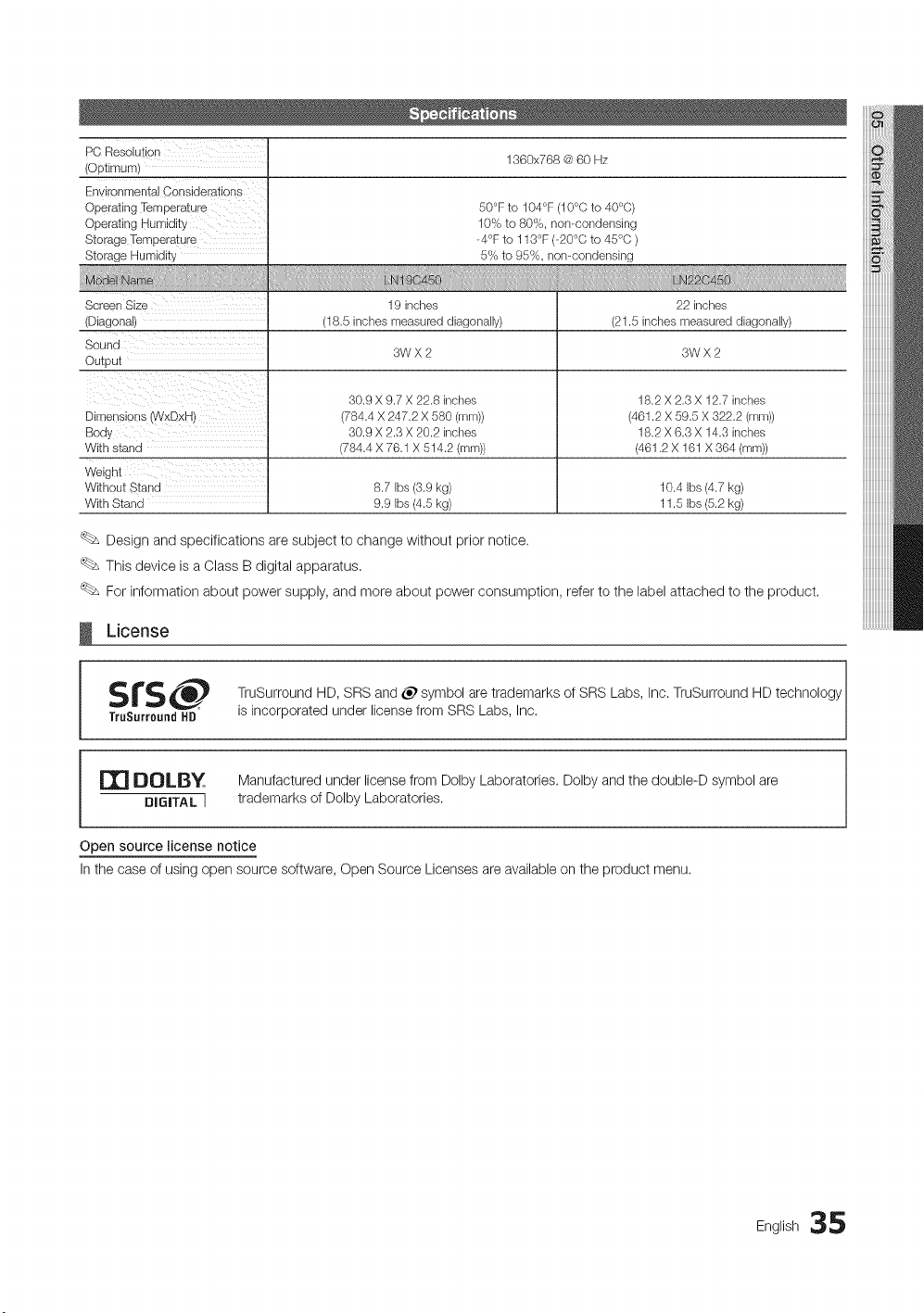
PC Resolution
(Optimum)
Environmental Considerations
Operating Temperature
Operating Humidity
Storage Temperatur e
Storage Humidity
1360x768 @ 60 Hz
50°F to 104°F (10°C to 40°C)
10% to 80%, nomcondensing
-4°F to 113°F (-20°C to 45°C )
5% to 95%, nomcondensing
Screen Size
(Diagonal)
Sounu
OU_OUI
Dimensions W (DxH
Body
With stand
19 inctles
(18.5 inches measured diagonally)
3WX2
30.9 X 9.7 X 22.8 inches
(784.4 X 247.2 X 580 (ram))
30.9 X 2.3 X 20.2 inches
(784.4 X 76.1 X 514.2 (mm))
22 inches
(21.5 inctles measured diagonally)
3WX2
18.2 X 2.3 X 12.7 inches
(461.2 X 59.5 X 322.2 (mm))
18.2 X 6.3 X 14.3 inches
(461.2 X 161 X 364 (mm))
We jnt
Witl_sut 3tand 8.7 Ibs (3.9 kg) 10.4 Ibs (4.7 kg)
With Stanc 9.9 Ibs (4.5 kg) 11.5 Ibs (5.2 kg)
Design and specifications are subject to change without prior notice.
This device is a Class B digital apparatus.
For information about power supply, and more about power consumption, refer to the label attached to the product.
License
SrS_ TruSurround HD, SRS and _ symbol are trademarks of SRS Labs, Inc. TruSurround HD technology
TruSurround HD is incorporated under license from SRS Labs, Inc.
Manufactured under license from Dolby Laboratories. Dolby and the double-D symbol are
trademarks of Dolby Laboratories.
Open source license notice
In the case of using open source software, Open Source Licenses are available on the product menu.
English 35
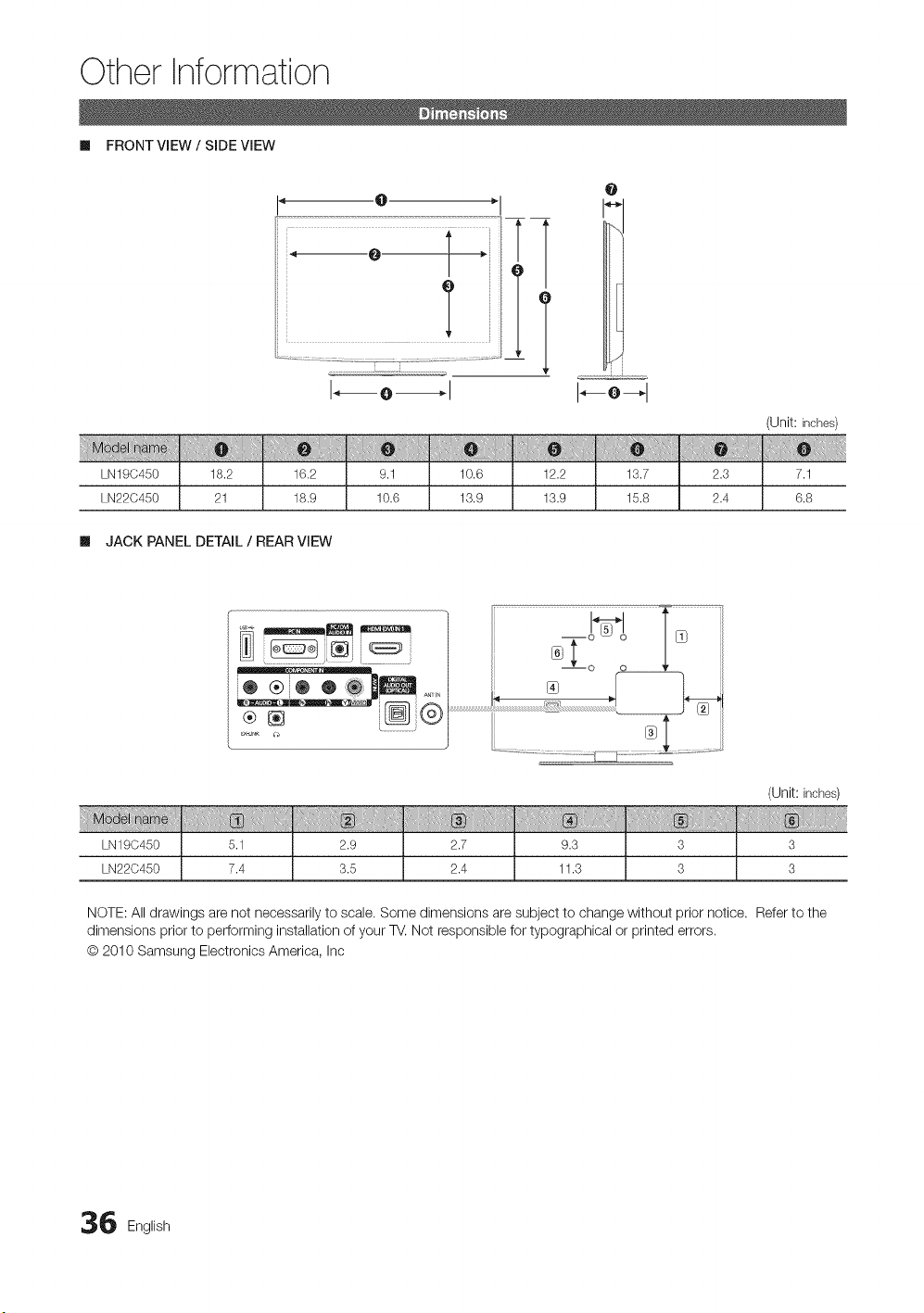
Other Information
m FRONT VIEW / SIDE VIEW
LN19(3450 18.2
LN22C450 21
14 @ "1
1
Q
0
w
1--o 1
16.2 9.1 10.6 12.2 13.7 2.3
18.9 10.6 13.9 13.9 15.8 2.4
(Unit: inches)
7.1
6.8
ml JACK PANEL DETAIL / REAR VIEW
LN19(3450 5.1 2.9 2.7 9.3 3
LN22C450 7.4 3.5 2.4 11.3 3
(Unit: inches)
3
NOTE: All drawings are not necessarily to scale. Some dimensions are subject to change without prior notice. Refer to the
dimensions prior to performing installation of your TV. Not responsible for typographical or printed errors.
@ 2010 Samsung Electronics America, Inc
6 English
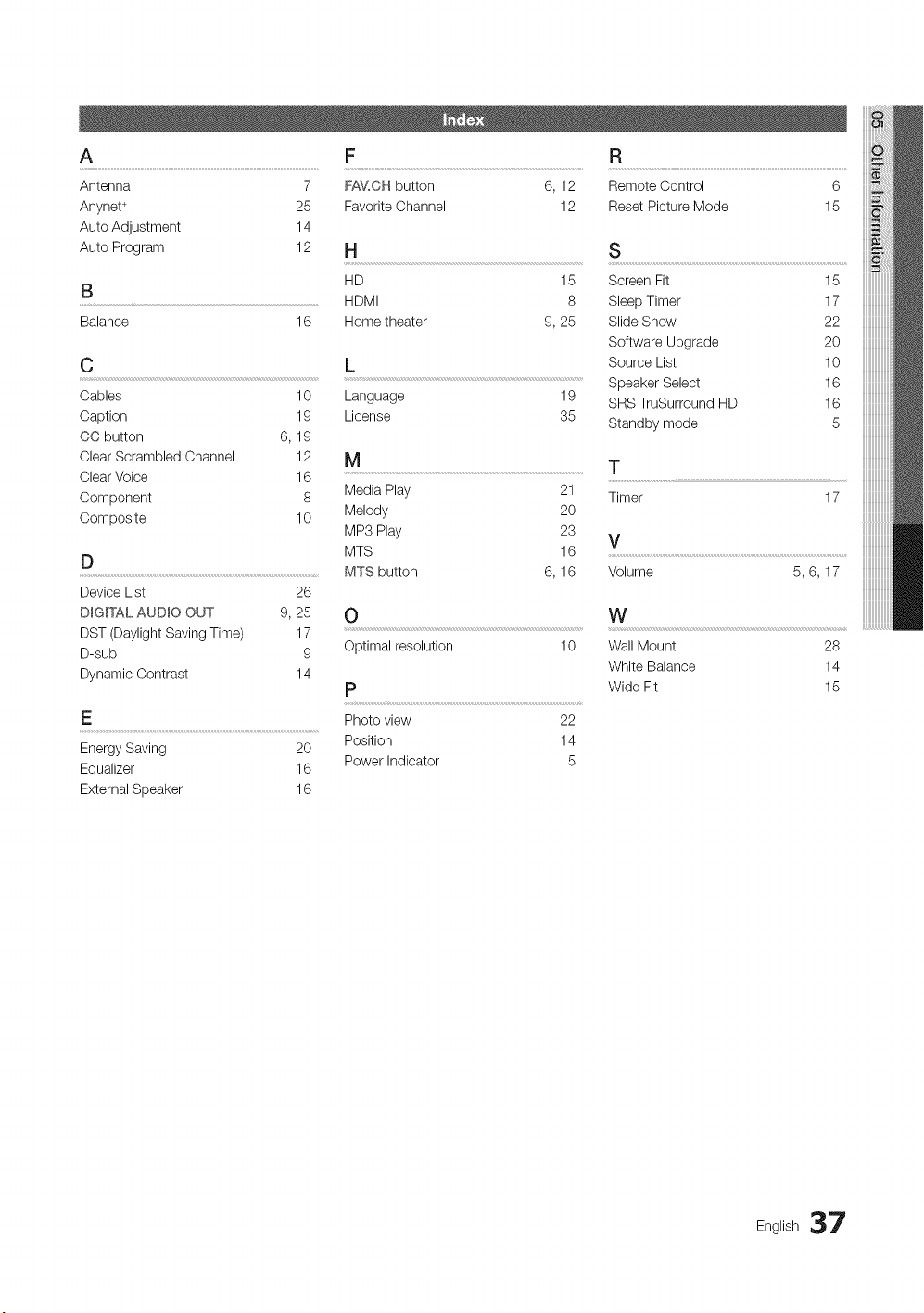
A F R
Antenna 7 FA_L,CH button 6, 12 Remote Control 6
Anynet ÷ 25 Favorite Channel 12 Reset Picture Mode 15
Auto Adjustment 14
Auto Program 12 H S
HD 15 Screen Fit 15
B HDMI 8 Sleep Timer 17
Balance 16 Home theater 9, 25 Slide Show 22
Software Upgrade 20
C L Source List 10
Cables 10
Caption 19
CC button 6, 19
Clear Scrambled Channel 12
Clear Voice 16
Component 8
Composite 10
Speaker Select
Language 19
SRS TruSurround HD
License 35 Standby mode
16
16
5
D
MTS button
Device List 26
DIGITAL AUDIO OUT 9, 25
DST (Daylight Saving Time) 17
D-sub 9
Dynamic Contrast 14
M .....................................................................................................................................................................T
Media Play 21
Timer 17
Melody 20
MP3 Play 23
V
MTS 16 ...............................................................................................................................................................................
6, 16 Volume 5, 6, 17
O W
Optimal resolution 10 Wall Mount 28
White Balance 14
p Wide Fit 15
E Photo view 22
Position 14
Energy Saving 20
Power Indicator 5
Equalizer 16
External Speaker 16
iiiiiiiiiiiiiiiiiiii
iiiiiiiiiiiiiiiiiiii
iiiiiiiiiiiiiiiiiiii
iiiiiiiiiiiiiiiiiiii
iiiiiiiiiiiiiiiiiiii
iiiiiiiiiiiiiiiiiiii
iiiiiiiiiiiiiiiiiiii
iiiiiiiiiiiiiiiiiiii
iiiiiiiiiiiiiiiiiiii
English 37