

Watching TV
Cable / Satellite / Fiber with a box
Antenna / Cable service without a box
Blu-ray, DVD, Game Console, etc.
For best picture
For best audio
Computer on TV
Initial setting 11
Initial setting 12
Select channels 13
Favorite channels (Set) 14
Favorite channels (Display) 15
Closed caption 16
SAP 17
Other 18
Connecting and viewing (1) 19
Connecting and viewing (2) 20
HDMI connection notice 21
HDMI connection caution 22
Input signal 23
Picture mode 24
Auto brightness (ECO) 25
Aspect 26
Aspect info. 27
Basic adjustments 28
Advanced audio 29
2

Internet services "VIERA Connect"
Connect to network
Network settings
How to use
Home network "DLNA"
Get started
Display PC screen 30
PC adjustments (1) 31
PC adjustments (2) 32
Input signal 33
Network connections (1) 34
Network connections (2) 35
Network connections (3) 36
Network connections (4) 37
Setting menu 38
Connection test 39
Network connection 40
Wireless network settings 41
IP address/DNS settings 42
Proxy settings 43
Network link (1) 44
Network link (2) 45
Software update 46
New software notice 47
Network status 48
Operate 49
Information 50
3

Connect to network
Network settings
Photos
Videos
Network connections (1) 51
Network connections (2) 52
Network connections (3) 53
Network connections (4) 54
Setting menu 55
Connection test 56
Network connection 57
Wireless network settings 58
IP address/DNS settings 59
Proxy settings 60
Network link (1) 61
Network link (2) 62
Software update 63
New software notice 64
Network status 65
Viewing Photos 66
Photo view 67
Options menu 68
Using slideshow 69
Slideshow settings 70
Viewing Videos 71
Video view 72
Options menu 73
4

Music
Data information
Media player
Get started
Photos
Videos
Playing Music 74
Music view 75
Options menu 76
Compatible Data format (1) 77
Compatible Data format (2) 78
Compatible Data format (3) 79
Notice 80
Information 81
Media warning messages 82
SD card handling cautions 83
Viewing Photos 84
Photo view 85
Sort the photos 86
Options menu 87
Thumbnails size 88
Using slideshow 89
Slideshow settings 90
Soundtrack settings 91
Viewing Videos 92
Video view 93
Options menu 94
5

Music
Data information
Convenience features
Using VIERA TOOLS
Timer
Lock (parental control)
Closed caption
Playing Music 95
Music view 96
Options menu 97
Compatible Data format (1) 98
Compatible Data format (2) 99
Compatible Data format (3) 100
Notice 101
Using VIERA TOOLS 102
Setting menu 103
Sleep (Off timer) 104
Timer (On/Off timer) 105
Setting menu 106
Lock (1) 107
Lock (2) 108
Password setting 109
Parental control ratings (1) 110
Parental control ratings (2) 111
Parental control ratings (3) 112
Setting menu 113
Closed caption (1) 114
6

VIERA Link ™ "HDAVI Control ™"
Control by smartphone, etc.
Using USB Keyboard / Gamepad
All settings
Picture
Closed caption (2) 115
Closed caption notice 116
Basic feature 117
Connecting note (1) 118
Connecting note (2) 119
VIERA Link connections (1) 120
VIERA Link connections (2) 121
VIERA Link connections (3) 122
VIERA Link settings 123
VIERA Link settings feature (1) 124
VIERA Link settings feature (2) 125
VIERA Link settings feature (3) 126
VIERA Link 127
VIERA Link menu (1) 128
VIERA Link menu (2) 129
Smartphone remote 130
Keyboard 131
Gamepad 132
Setting menu 133
Basic settings (1) 134
Basic settings (2) 135
Aspect adjustments 136
7

Audio
Network
Timer
Lock (parental control)
PC adjustments (1) 137
PC adjustments (2) 138
HDMI settings 139
Advanced picture (1) 140
Advanced picture (2) 141
Setting menu 142
Basic settings 143
Advanced audio 144
DTV language and SAP settings 145
DIGITAL AUDIO OUT terminal 146
Network settings (1) 147
Network settings (2) 148
Network settings (3) 149
Network settings (4) 150
Network settings (5) 151
Setting menu 152
Sleep (Off timer) 153
Timer (On/Off timer) 154
Setting menu 155
Lock (1) 156
Lock (2) 157
Password setting 158
Parental control ratings (1) 159
8

Setup
Support / FAQ
FAQ
Parental control ratings (2) 160
Parental control ratings (3) 161
Setting menu 162
ANT/Cable setup (1) 163
ANT/Cable setup (2) 164
Closed caption (1) 165
Closed caption (2) 166
Closed caption notice 167
VIERA Link settings (1) 168
VIERA Link settings (2) 169
ECO/energy saving (1) 170
ECO/energy saving (2) 171
Advanced setup 172
Other settings (1) 173
Other settings (2) 174
Picture - Viewing 175
Picture - Snowy / none 176
Picture - Distortion 177
Picture - Continue 178
Sound - none 179
Sound - Unusual 180
Networking 181
Software update 182
9
Watching TV
Cable / Satellite / Fiber with a box
Initial setting
1.
Connecting
Select the wiring method connecting your box to the TV, AV IN or
Antenna/Cable in.
Tip: HDMI will provide the best HD picture
2. Change INPUT
INPUT
Press the INPUT button to select the proper connection. Wait 2 seconds.
3. Power on your Cable , Satellite or Fiber box
Use the box's remote control to change channels.
* If the box is connected to the TV using a COAX cable (Antenna/Cable in), then
set the TV channel to CH3 or CH4. Note that the picture will not be in HD.
* CC/SAP is not available when watching TV with a Cable or Satellite box
connected via HDMI.
* If your box is a high definition, then check that it is outputting 720p or 1080i
signal.
Tip: press the TV's INFO button to verify.
* Check your box "aspect" or "format" settings. It should be set to 16:9,
Widescreen or FULL.
* If the audio volume is too low, check the box's audio settings.
* Contact your Cable or Satellite provider for instructions on any box settings.
11
Watching TV
Antenna / Cable service without a box
Initial setting
1.
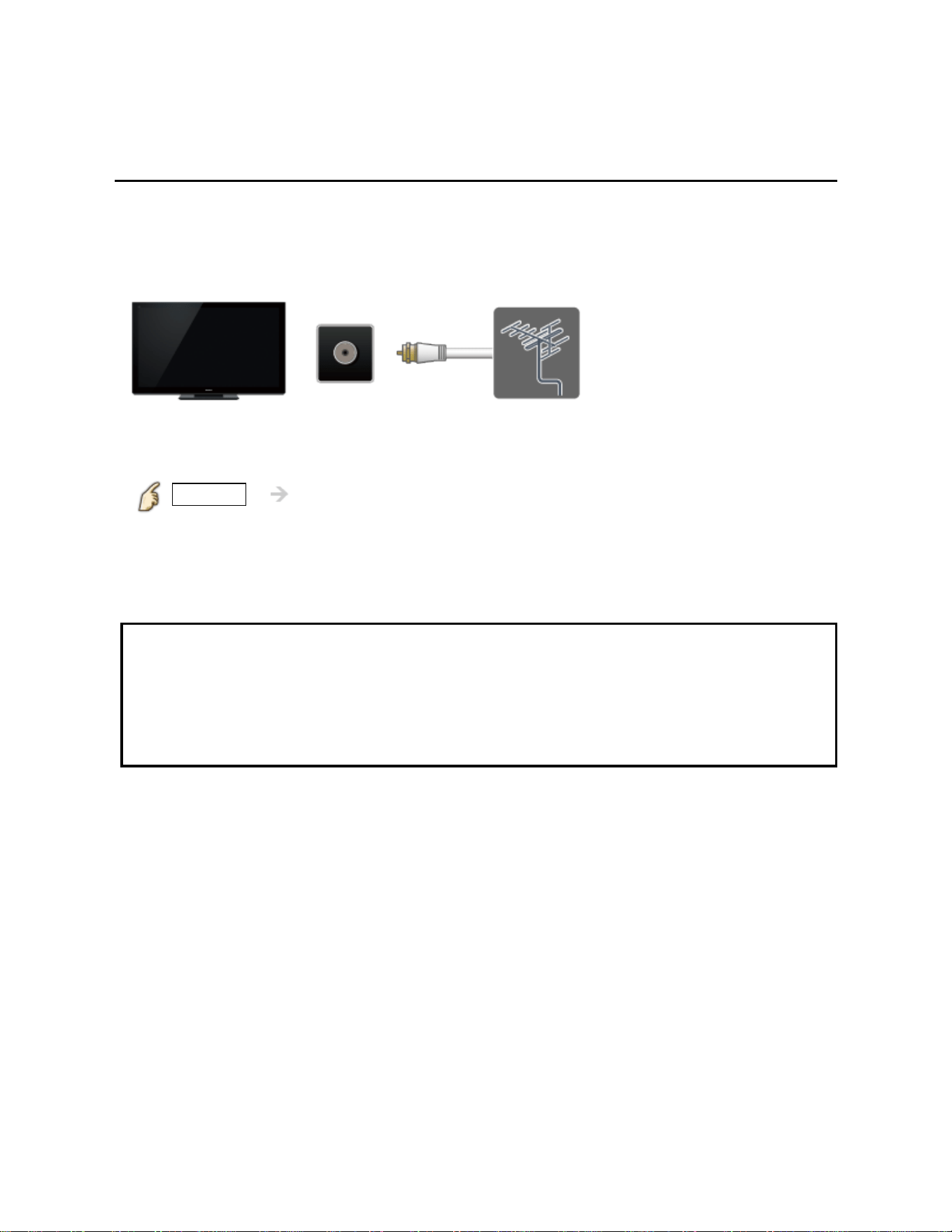
Connect coax
Connect a COAX wire from either an antenna or Basic Cable service to the TV's
"ANTENNA/CABLE IN" screw terminal.
TV
ANTENNA/
CABLE IN
Antenna
2. Scan the channel
MENU Setup > ANT/Cable setup > ANT in, Auto program
1. Select Programming source Cable or Antenna in Ant in.
2. Select Auto program and select scan mode
(All channels / Analog only / Digital only).
3. Start scanning.
* If at the end of the scanning no channels are found, then check:
Antenna's position - or Availability of Cable service.
Cable, Satellite or Fiber services with a box are typically connected to the TV's
A/V inputs, preferably HDMI, for best HD picture. In such a case, the channel
scanning is not needed (set ANT IN to Not used).
12
Watching TV
Antenna / Cable service without a box
Select channels
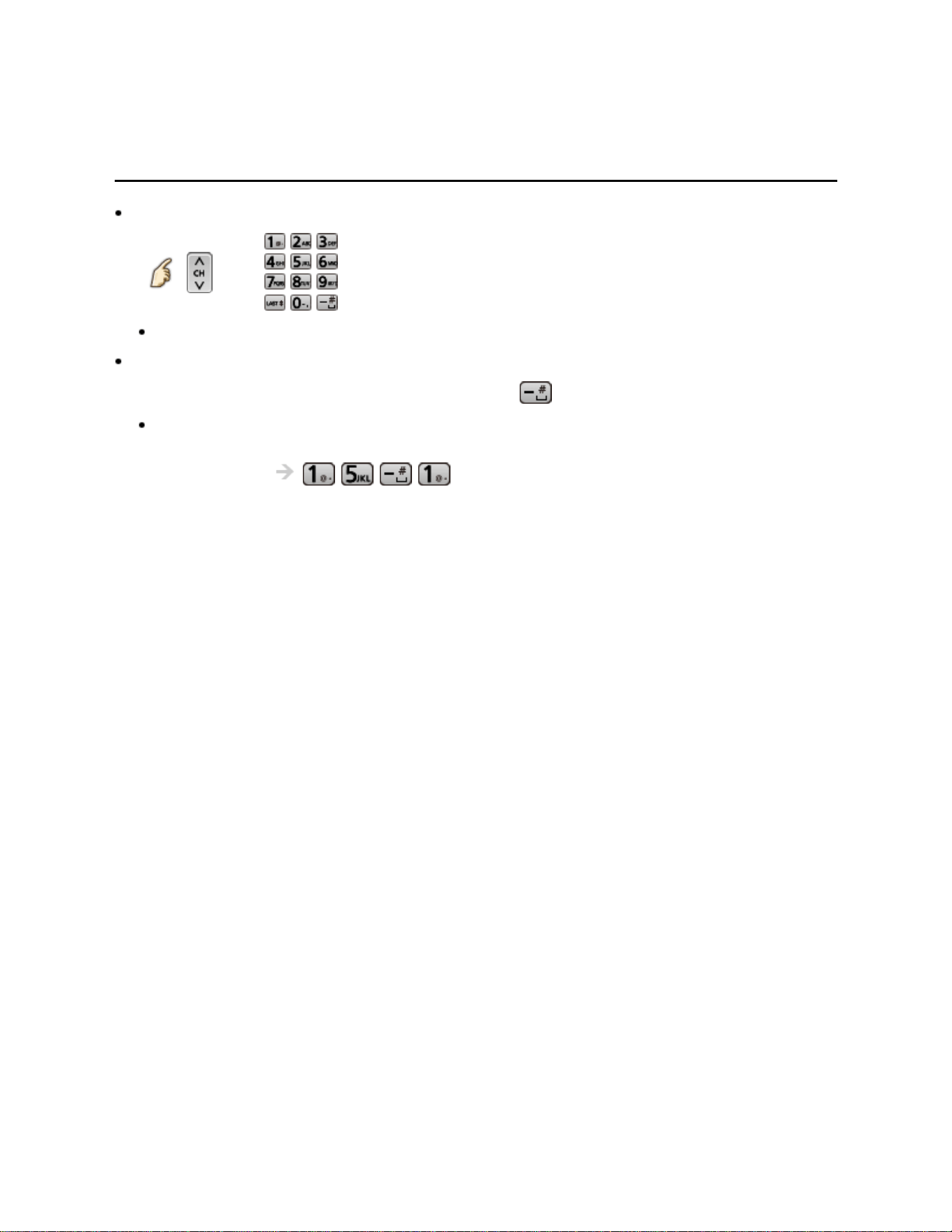
Select desired channel
or
CH buttons are also available on the TV.
Select desired digital channel
To directly enter a digital channel number use
When turning to a digital channel, press the button to enter the minor number in a
compound channel number.
(e.g. CH15-1 )
13
Watching TV
Antenna / Cable service without a box
Favorite channels (Set)
Channel numbers registered in Favorite are displayed on the favorite tune screen.
Select the desired broadcast station with the cursor or use the number buttons.
Favorite channels cannot be set when using Cable or Satellite box
Set the Favorite channel
OPTION Options menu > Set favorite
Select the list number using / and or directly to save the
displayed channel.
Delete a Favorite channel
OPTION Options menu > Set favorite
Select the list number using
/ and (press and hold) to delete.
* To change the page in Set favorite
FAVORITE or / repeatedly
14
Watching TV
Antenna / Cable service without a box
Favorite channels (Display)
Channel numbers registered in Favorite are displayed on the favorite tune screen.
Select the desired broadcast station with the cursor or use the number buttons.
Favorite channels cannot be set when using Cable or Satellite box.
To display a Favorite channel
FAVORITE Favorite channels
Select the list number using / and or directly to displayed
on favorite screen.
* To change the page in Favorite channels
FAVORITE or / repeatedly
15

Watching TV
Antenna / Cable service without a box
Closed caption
Viewing with Closed caption
CC
Switches the Closed caption mode.
( Closed caption Off / Closed caption On / Closed caption On mute )
* CC is not available when watching TV with a Cable or Satellite box connected
via HDMI.
* Contact your Cable or Satellite operator for instructions on enabling CC with
their box.
* The TV's CC button does not operate the Satellite or Cable box's CC function.
* For viewing the CC of digital broadcasting, set the aspect to FULL (If viewing
with H-FILL, JUST, ZOOM or 4:3; characters might be cut off).
* If the CC is set to On on both the receiver and TV when the signal is 480i
(except for the HDMI connection), the CC may overlap on the TV.
* If a digital program is being output in analog format, the CC data will also be
output in analog format.
* If the recorder or output monitor is connected to the TV, the CC needs to be set
up on the recorder or output monitor.
16
Watching TV
Antenna / Cable service without a box
SAP
Listen with SAP (Secondary Audio Programming)
SAP is not available when watching TV with a Cable or Satellite box connected
via HDMI.
Contact your Cable or Satellite operator for instructions on enabling SAP with
their box.
The TV's SAP button does not operate the Satellite or Cable box's SAP
function.
Select the Audio mode for watching TV.
SAP
Digital mode: Select available audio service when receiving a digital channel.
Audio track is automatically selected as DTV language and SAP settings in
Audio menu.
Menu > Audio > DTV language and SAP settings
* If you change the audio settings with the
SAP button, the DTV language and
SAP settings will not change.
Audio track 1 of 7 Track number / Number of tracks
English (Main
Audio)
Current audio track information (language, audio
type)
English audio Audio service information
(example)
Analog mode: Select the desired Audio mode. ( Stereo / SAP / Mono )
17
Watching TV
Antenna / Cable service without a box
Other
1.
Information banner
Displays TV status information. Also, when watching programs via the
Antenna/Cable input, INFO will include the channel banner.
INFO
Channel / Station identifier / Program title / Closed caption / SAP /
Rating level / Signal resolution / Picture mode / Aspect ratio /
Sleep timer remaining time / Clock
2. Options menu
This menu consists of shortcuts to convenient functions.
OPTION
Channel surf mode: Specify favorites or type of channels to view when
pressing the channel up/down button.
Set favorite: Set favorite channel
Edit CH caption: Edit the channel identifier
Signal meter: Check the antenna's signal strength
* Options menu is only available when the TV is using the Antenna/Cable input,
not when using Cable or Satellite box.
18

Watching TV
Blu-ray, DVD, Game Console, etc.
Connecting and viewing (1)
1.
Connect device
Verify that the device is connected to the TV properly and connect to desired
terminal. Note which terminal the device is connected to (HDMI 1, HDMI 2,...
Component or Video)
Component and Composite (Video) in terminals are shared.
Please be careful not to confuse the connection when you use Component or
Video.
19
Watching TV
Blu-ray, DVD, Game Console, etc.
Connecting and viewing (2)
2.
Select Input
1. Display Input select menu (With the connected equipment turned ON)
INPUT
2. Select the input used in step 1
Select correct input source, using / and press
You can also press the corresponding NUMBER button or press INPUT
repeatedly to cycle through the available inputs. If you are unsure which input to
select, wait 2 seconds between each selection.
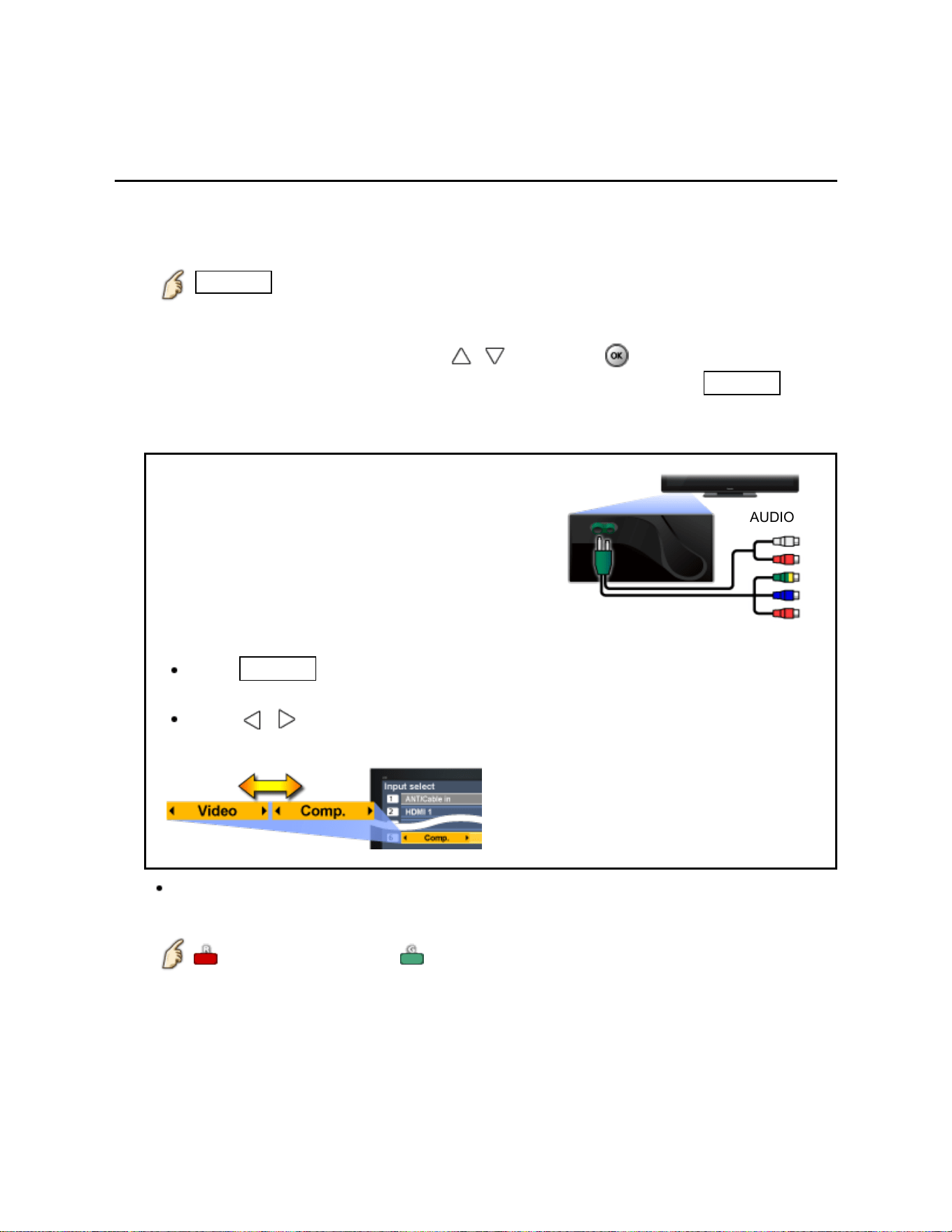
AUDIO
VIDEO
Component and Composite (Video) IN
terminals are shared and must be connected
using the supplied adapter.
NOTE: One red connector is for video and the
other audio.
You need to select Video or Component.
(Default: Video)
Press INPUT and select Video <->
Comp.
Press / to choose Video or
Component.
For your convenience, you can edit the inputs with labels that are easy to
remember.
Edit Labels Set ANT/Cable in
3. Operate using your device's remote control.
20
Watching TV
Blu-ray, DVD, Game Console, etc.
HDMI connection notice
HDMI (high-definition multimedia interface) allows you to enjoy high-definition digital
images and high-quality sound by connecting the TV unit and HD devices.
HDMI-compatible equipment (*1) with an HDMI or DVI output terminal, such as a
Cable or Satellite box or a DVD player, can be connected to the HDMI connector using
an HDMI compliant (fully wired) cable.
HDMI is the world's first complete digital consumer AV interface complying with a
non-compression standard.
If the external equipment has only a DVI output, connect to the HDMI terminal via a
DVI to HDMI adapter cable (*2).
When the DVI to HDMI adapter cable is used, connect the audio cable to the audio
input terminal.
Audio settings can be made on the HDMI in menu screen. Applicable audio signal
sampling frequencies (L.PCM): 48 kHz, 44.1 kHz, 32 kHz
(*1): The HDMI logo is displayed on an HDMI-compliant device.
(*2): Inquire at your local digital equipment retailer shop.
21

Watching TV
Blu-ray, DVD, Game Console, etc.
HDMI connection caution
Caution
The HDMI terminals on this TV were not specifically designed for use with a PC.
If the connected device has an aspect adjustment function, set the aspect ratio to
"16:9".
The HDMI connectors are "type A".
The HDMI connectors are compatible with HDCP (High-Bandwidth Digital Content
Protection) copyright protection.
Devices with no digital output terminal may be connected to the input terminal of
either "COMPONENT IN", or "VIDEO IN" to receive analog signals.
The HDMI input terminal can be used only with the following video signals: 480i,
480p, 720p, 1080i and 1080p. Ensure that the device being connected to the TV
can produce one of these video signals.
22
Watching TV
Blu-ray, DVD, Game Console, etc.
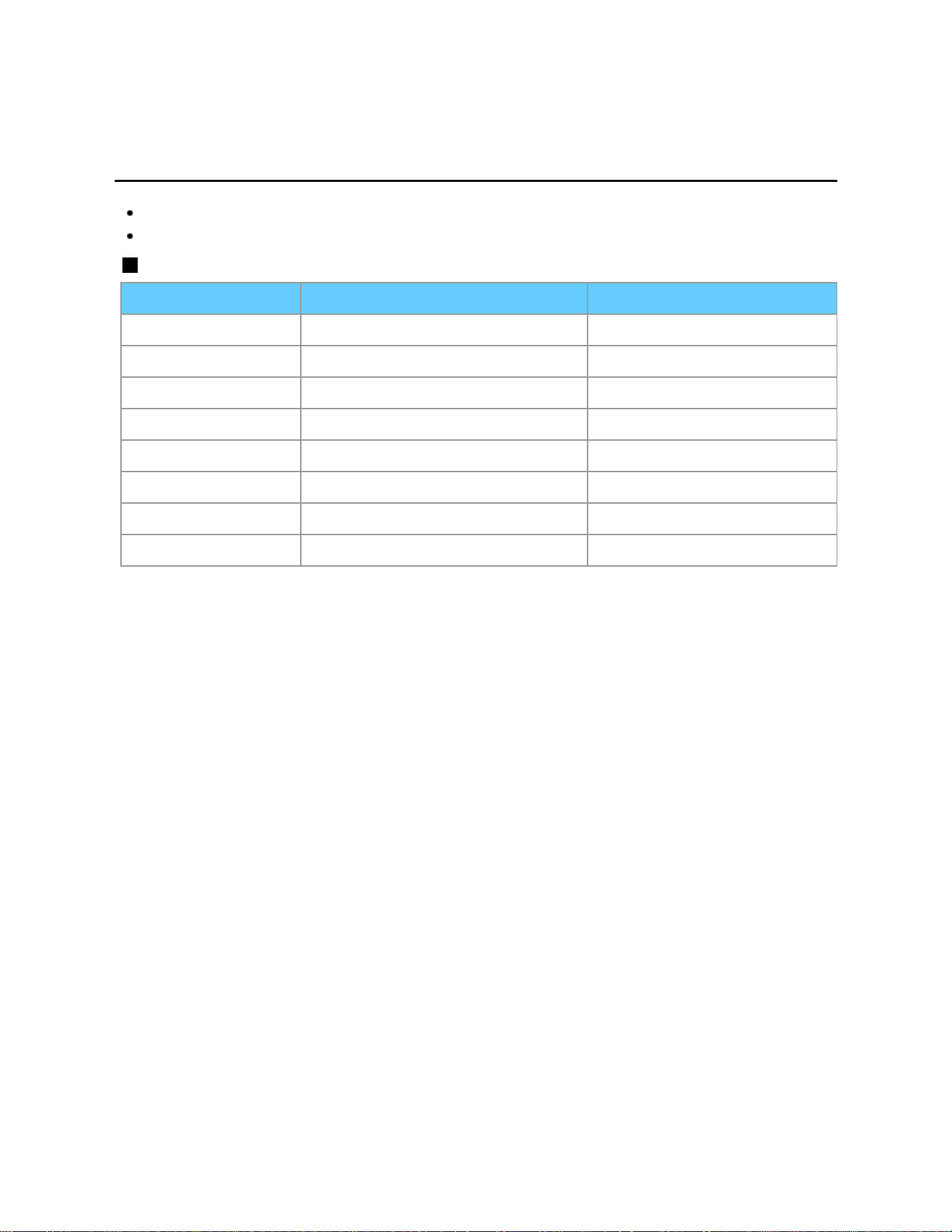
Input signal
Signals other than below may not be displayed properly.
The signals are reformatted for optimal viewing on your display.
Component and HDMI (* HDMI only)
Input signal Horizontal frequency (kHz) Vertical frequency (Hz)
525 (480) / 60i 15.73 59.94
525 (480) /60p 31.47 59.94
750 (720) /60p 45.00 59.94
1,125 (1,080) /60i 33.75 59.94
1,125 (1,080)/60p 67.43 59.94
1,125 (1,080)/60p 67.50 60.00
1,125 (1,080)/24p * 26.97 23.98
1,125 (1,080)/24p * 27.00 24.00
23
Watching TV
For best picture
Picture mode
1.
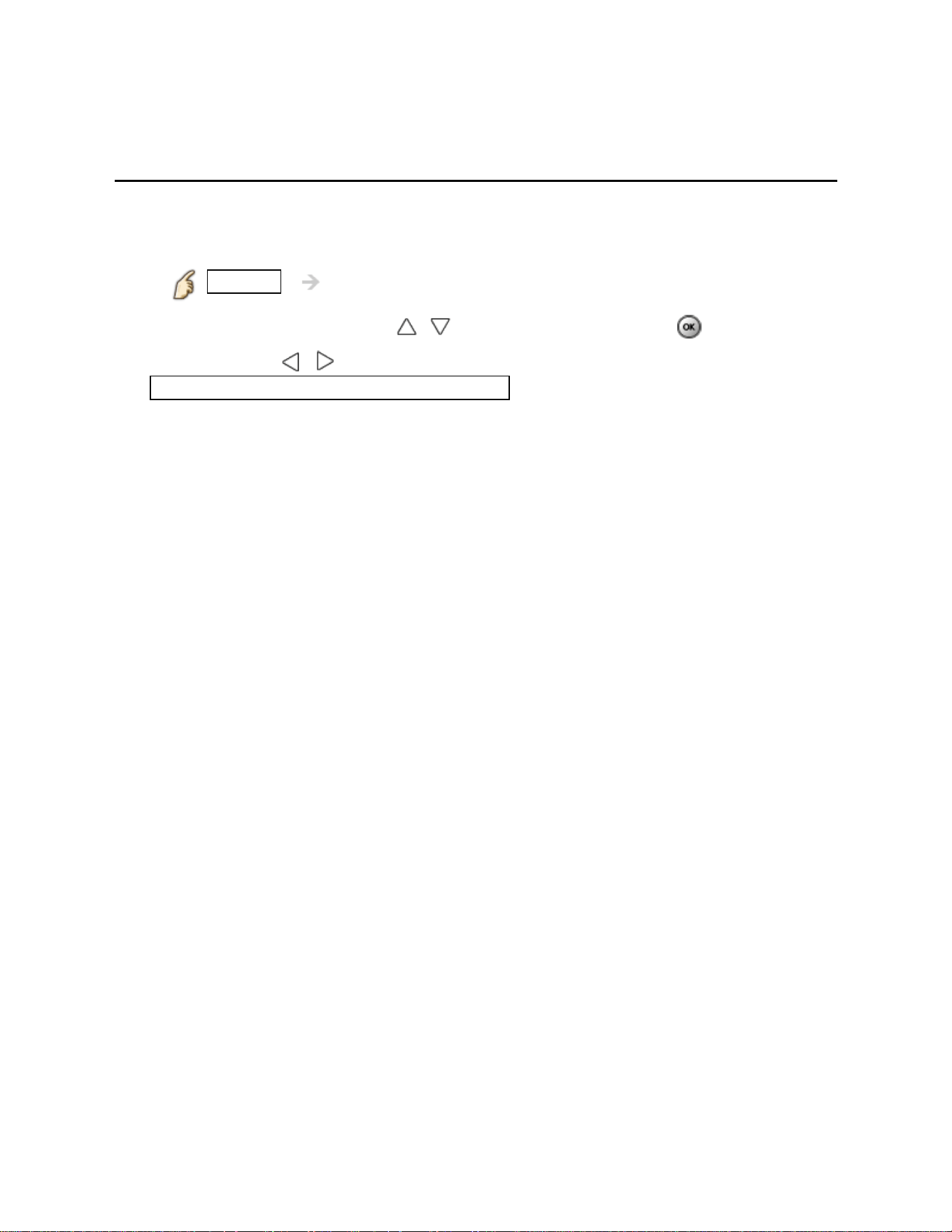
Change picture mode to suite your settings and taste
1. Select Picture mode
MENU Menu > Picture > Picture mode
Select desired menu using
/ from menu bar and press
2. Adjust using /
Tip: HDMI will provide the best HD picture
2. Picture mode type
Vivid: Provides enhanced picture contrast and sharpness for viewing
in a well-lit room.
Standard: Recommended for normal viewing conditions with subdued
room lighting.
Cinema: For watching movies in a darkened room. It provides a soft,
film-like picture.
Game: For playing video games.
Custom: Customizes each item according to your taste.
Photo is displayed in JPEG menu.
24

Watching TV
For best picture
Auto brightness (ECO)
Contrast Automatic Tracking System (C.A.T.S.) adjusts the screen brightness and
contrast according to the room's ambient light conditions. This ECO feature
automatically dims the brightness of the screen when the room lighting is lowered.
C.A.T.S. features a built-in delay when the lighting conditions change. The adjustment
happens gradually.
If you prefer a consistent brightness, disable C.A.T.S. by:
Menu > Picture > scroll down to C.A.T.S. and turn it off.
Or
Menu > Picture > Picture mode then select viewing mode such as Custom.
* Standard picture mode automatically sets C.A.T.S. to On.
25
Watching TV
For best picture
Aspect
1.
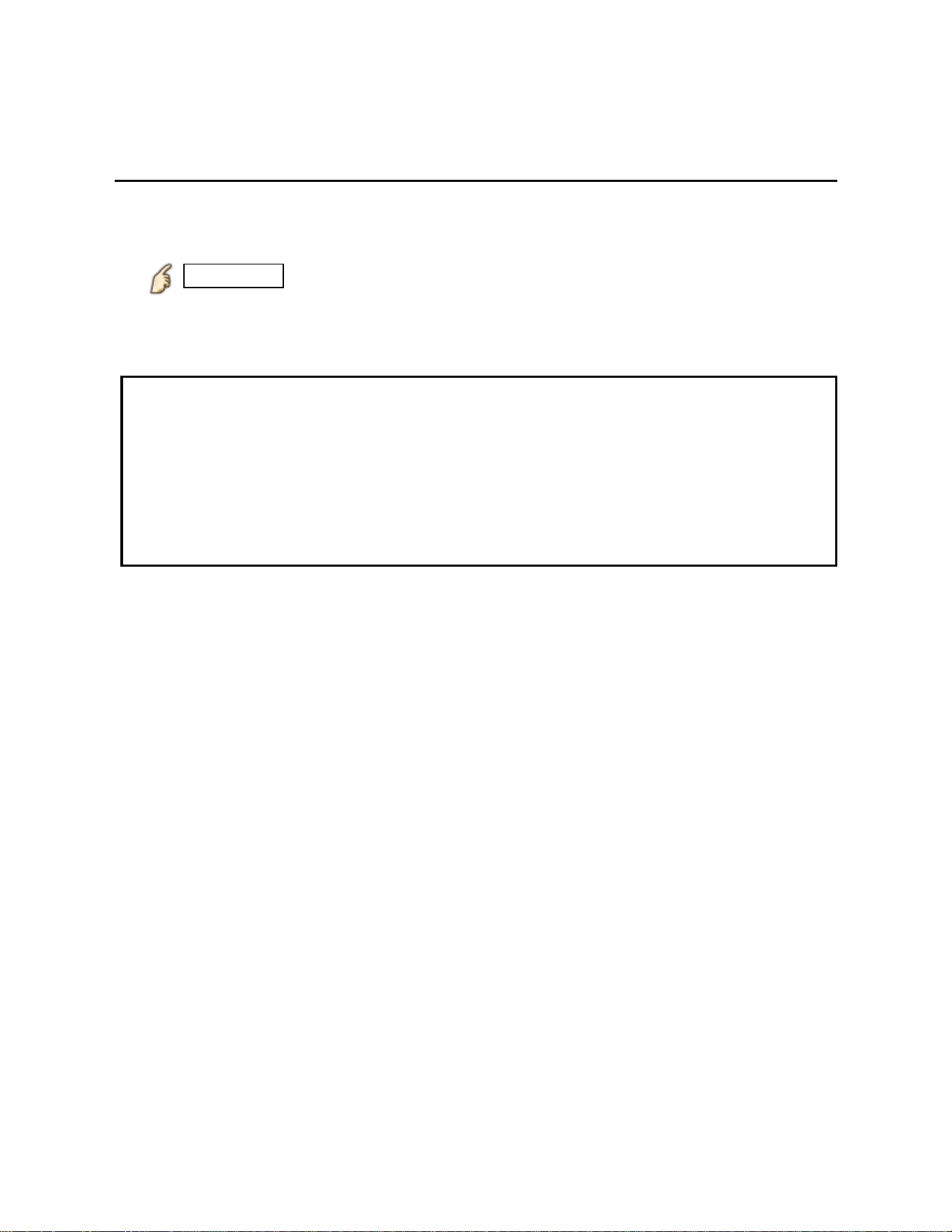
Use FORMAT button to change the aspect ratio
Use when the picture has bars (sides or top/bottom) and to zoom.
FORMAT ( to cycle through the aspect modes )
480i, 480p: FULL/JUST/4:3/ ZOOM
1080p, 1080i, 720p: FULL/H-FILL/JUST/4:3/ZOOM
* Use when the picture does not fill the whole screen or portions of the picture
are trimmed.
* Some content, such as film-based movies, are available in extra-wide format.
Top and bottom bars are unavoidable.
* Connected devices, such as Cable/Satellite box, DVD/Blu-ray players and
game consoles have their own aspect (format) settings. Adjust the device's
aspect settings.
26
Watching TV
For best picture
Aspect info.
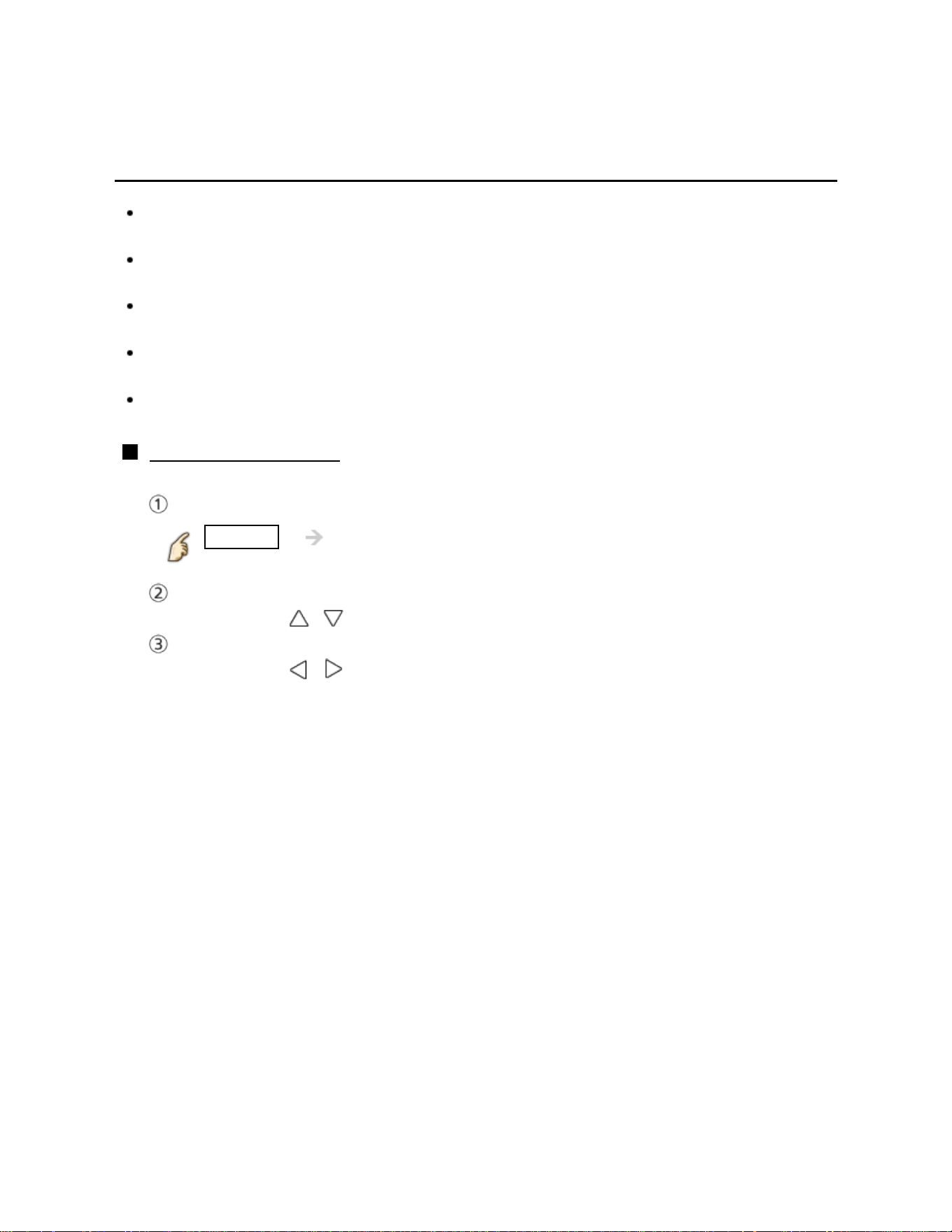
FULL: Enlarges the 4:3 image horizontally to the screen's side edges.
(Recommended for anamorphic picture)
JUST: Stretches to justify the 4:3 image to the four corners of the screen.
(Recommended for normal TV broadcast)
H-FILL: Enlarges the 4:3 image horizontally to the screen's side edges. The side
edges of the image are cut off.
4:3: Standard (Note that "Image retention" of the side bar may occur from
displaying it for a long time.)
ZOOM: Enlarges the 4:3 image to the entire screen.
(Recommended for Letter Box)
Zoom adjustments
Vertical image position and size can be adjusted in "ZOOM"
Select Zoom adjustments in the Picture menu.
MENU Picture > Aspect adjustments > Zoom
adjustments
V-position: Vertical position adjustment
Adjust using / to desired position.
V-size: Vertical size adjustment
Adjust using / to desired size.
* Press OK to reset
27
Watching TV
For best audio
Basic adjustments
1.
Change the basic audio settings
1. Select desired audio menu
MENU Menu > Audio
Select desired menu using / from menu bar and press
2. Adjust
Adjust using
/
Settings Description
Reset to defaults
Resets Bass, Treble, and Balance adjustments to factory
default settings.
Bass
Increases or decreases the bass response.
Treble
Increases or decreases the treble response.
Balance
Emphasizes the left / right speaker volume.
28
Watching TV
For best audio
Advanced audio
MENU Menu > Audio > Advanced audio
Settings Options Description
A.I. sound Off/On
Equalizes overall volume levels across all
channels and external inputs.
Surround Off/On
Enhances audio L/R response when listening
to stereo. Ideal for music and action movies.
Bass boost Off/On Enhances bass sound and provides powerful
sound.
Volume leveler Minimizes volume disparity after switching to
external inputs.
TV speakers Off/On Enables the TV's built-in speakers.
Switches to "Off" when using external
speakers.
"A.I. sound", "Surround", "Volume leveler", and
"Distance to wall" do not work if "Off" is selected.
HDMI in Digital/
Comp./Video
The default setting is "Digital" for the HDMI
connection. (Digital input signal)
Select audio input terminal when a DVI cable is
connected along with an analog audio input
signal.
29
Watching TV
Computer on TV
Display PC screen
1.
Connect PC
Connect the PC's video output to the PC terminal of this TV with PC cable.
To listen to the PC sound, connect an audio cable between the computer and the
TV.
2. Select Input and display
1. Display Input select menu (With the connected equipment turned On)
INPUT
2. Select the PC input
Select PC input using
/ and press
3. Display PC screen
30
Watching TV
Computer on TV
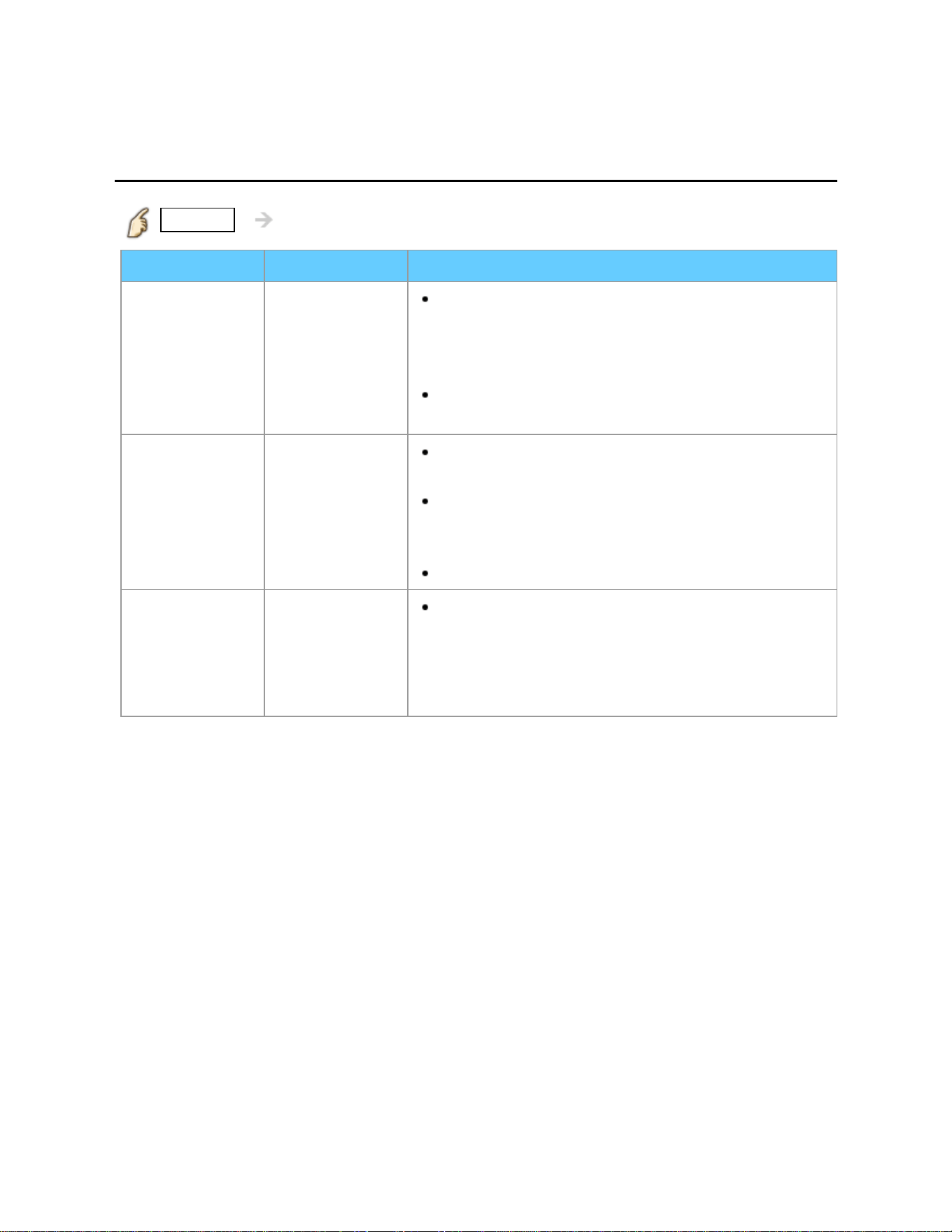
PC adjustments (1)
MENU Menu > Picture > PC adjustments
Settings Options Description
Reset to
defaults
Resets all PC adjustments to factory default
settings.
Sync H & V
The H and V sync signals are input from the
HD/VD connector.
On green
Uses a synchronized signal on the Video G
signal, which is input from the G connector.
Dot clock
Alleviates the problem if a picture appears to
be vertically-striped, flickers partially or is blurred.
H-position
Adjusts the horizontal position using left/right
cursor button.
V-position
Adjusts the vertical position using left/right
cursor button.
31
Watching TV
Computer on TV
PC adjustments (2)
MENU Menu > Picture > PC adjustments
Settings Options Description
Clock phase
Alleviates the problem if the whole picture
appears to flicker or is blurred. First adjust the Dot
Clock to get the best possible picture, then adjust
the Clock phase so that a clear picture appears.
It may not be possible to display a clear picture
due to poor input signals.
Input
resolution
Switches to wide display and selects the
appropriate screen resolution.
VGA (640 x 480 pixels), WVGA (852 x 480
pixels), XGA (1,024 x 768 pixels), WXGA (1,280 x
768 pixels)
Options change depending on signals.
H-frequency
V-frequency
Displays the H (Horizontal)/V (Vertical)
frequencies.
Display range
Horizontal: 15 - 110 kHz
Vertical: 48 - 120 Hz
32
Watching TV
Computer on TV
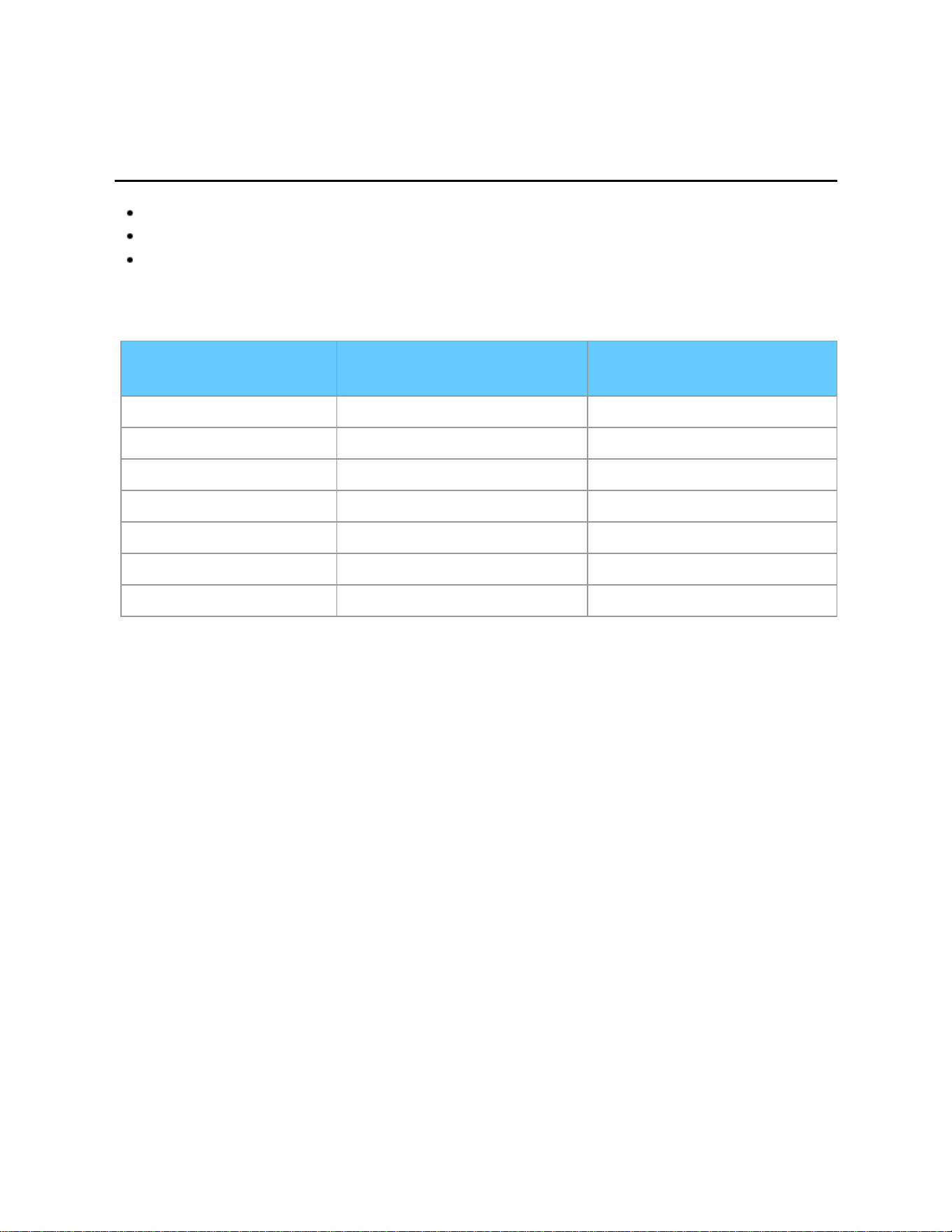
Input signal
Signals other than below may not be displayed properly.
The signals are reformatted for optimal viewing on your display.
Computer signals which can be input are those with a horizontal scanning
frequency of 15 to 110 kHz and vertical scanning frequency of 48 to 120 Hz.
(However, the image will not be displayed properly if the signals exceed 1,200 lines.)
Input signal Horizontal frequency
(kHz)
Vertical frequency
(Hz)
640 x 480 @60 31.47 59.94
852 x 480 @60 31.44 59.89
800 x 600 @60 37.88 60.32
1,024 x 768 @60 48.36 60.00
1,280 x 768 @60 47.78 59.87
1,280 x 1,024 @60 63.98 60.02
1,366 x 768 @60 48.39 60.04
33

Internet services "VIERA Connect"
Connect to network
Network connections (1)
1.
Contact your Broadband service provider
If you don't have Internet service from your local provider, please order a high-
speed Internet service at no less than the connection speed below. If you already
have this service, make sure that the connection speed exceeds the following:
Required speed (effective): at least 1.5 Mbps for SD and 6 Mbps for HD picture
quality, respectively.
Dial-up Internet service cannot be used for VIERA Connect.
2. Select wired or wireless connection
If the Cable/DSL modem is close to the TV and you have only one TV set, you may
choose a wired connection.
If the Cable/DSL modem is far from the TV and/or you have more TVs in the
house, you may want to use a wireless network.
34
Internet services "VIERA Connect"
Connect to network
Network connections (2)
3.
Connecting to the Internet
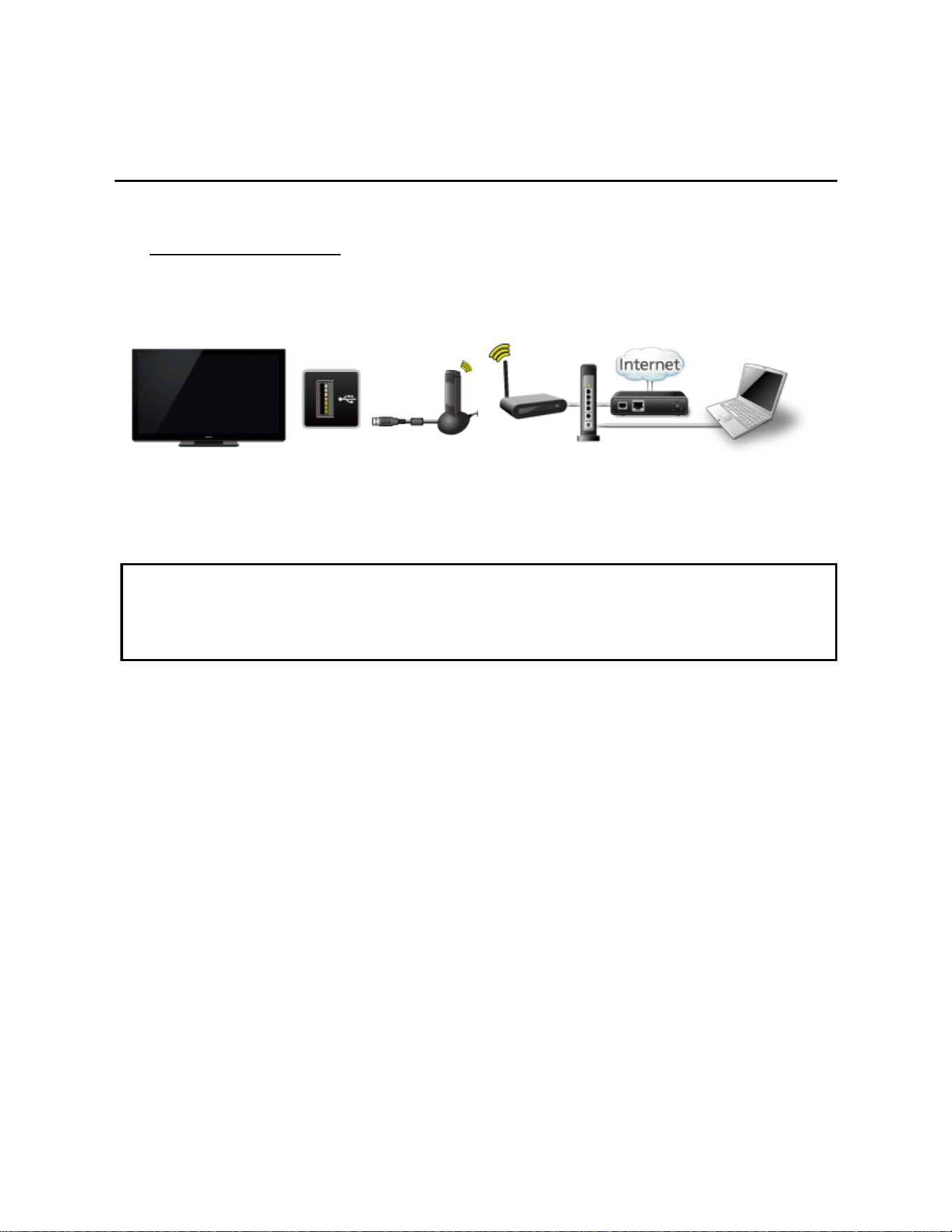
A. Wireless connection
If you are using the network for connecting various pieces of equipment and want
to connect the TV, you could also use a Wireless LAN and Access point to connect
the TV to the Internet.
TV
(Wireless LAN Adapter)
USB
Wireless LAN
Adapter
Access
point
- Hub, Router
- Modem
- DLNA Certified media server
(for example, PC, etc.)
* To use only DLNA features, you can operate the features without Broadband
network environment.
You can just connect the TV directly to the equipment with a LAN cross cable.
35
Internet services "VIERA Connect"
Connect to network
Network connections (3)
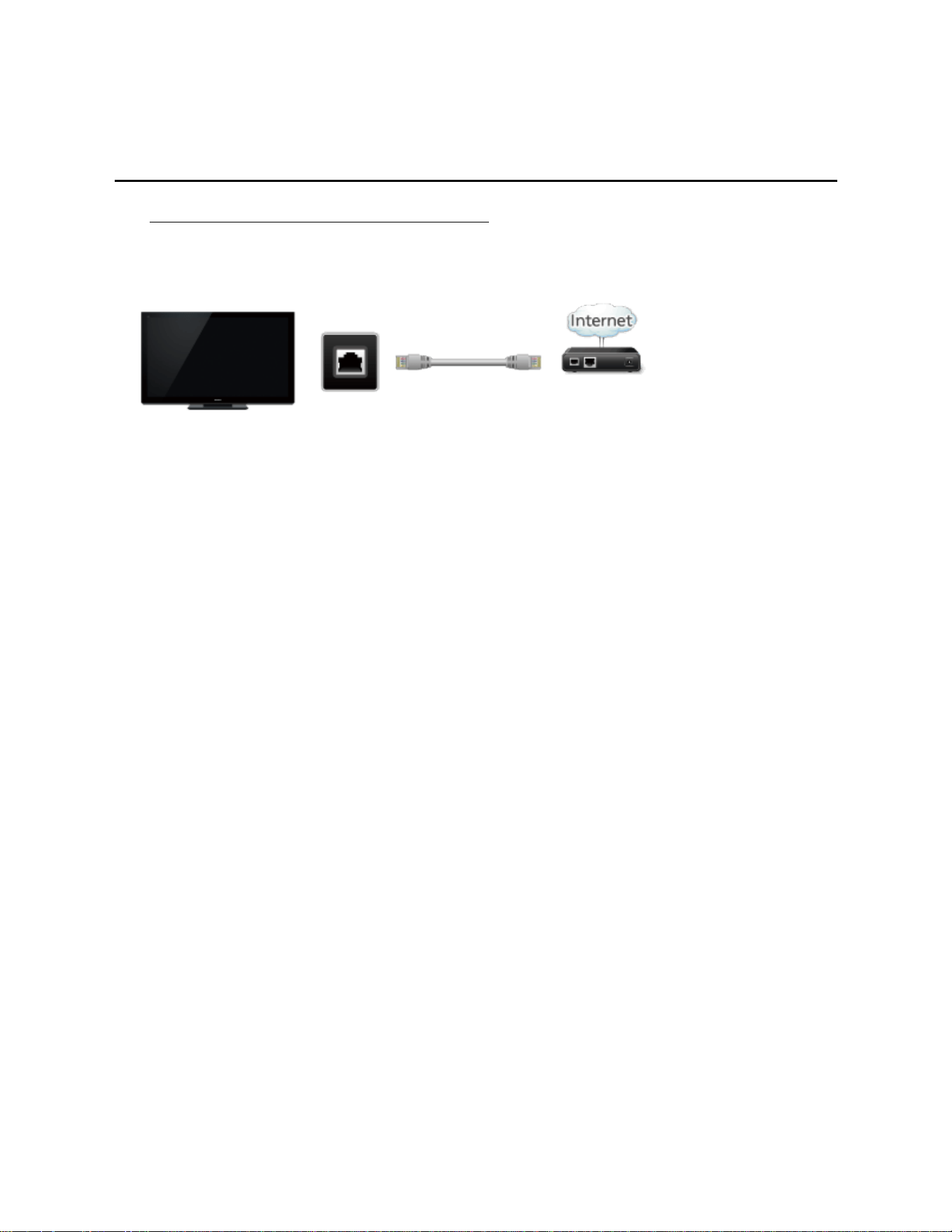
B. Wired connection (Directly connected)
If you are not using the network for connecting anything else but the TV, you can
just connect the TV directly to the Cable/DSL Ethernet modem with LAN cable.
TV
ETHERNET LAN cable
Modem
36
Internet services "VIERA Connect"
Connect to network
Network connections (4)
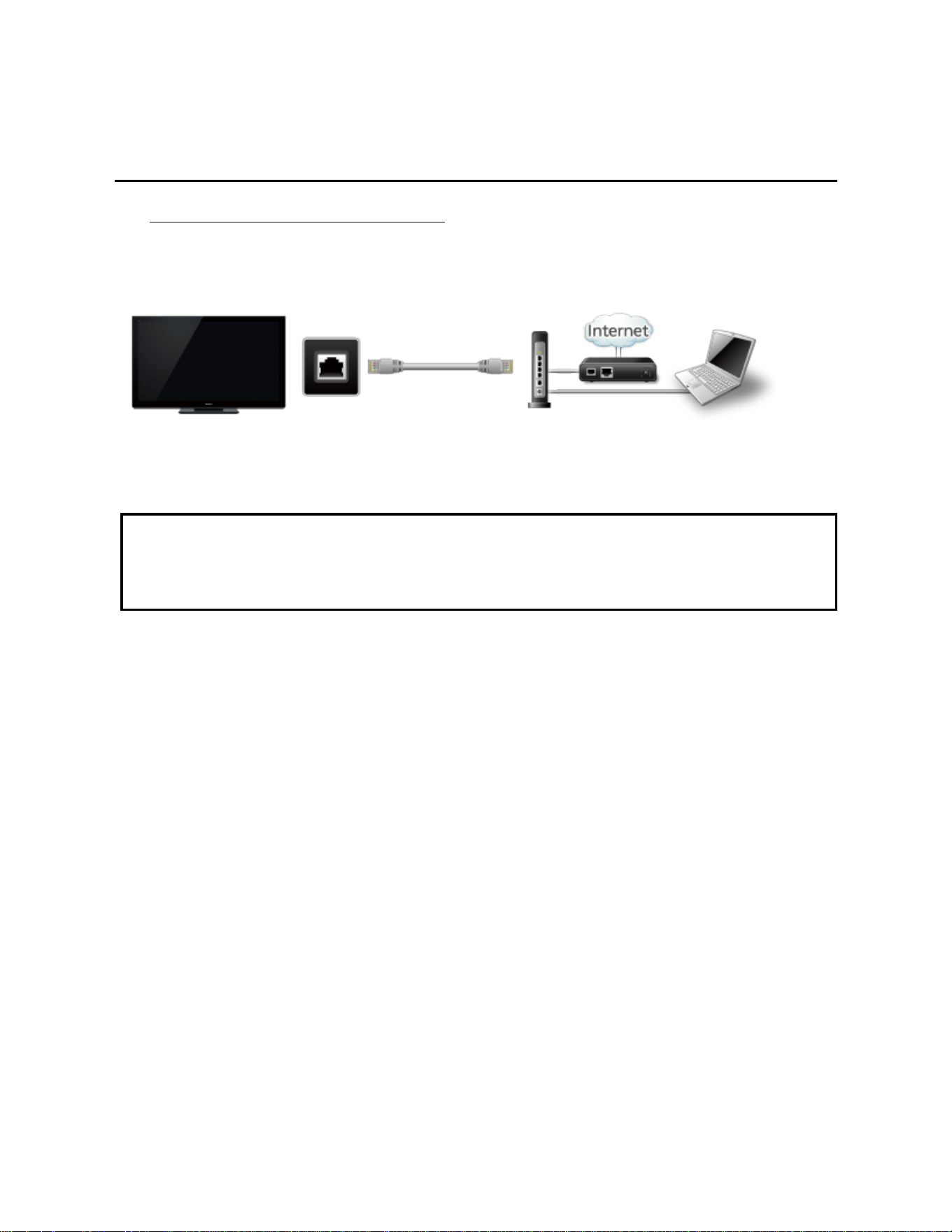
C. Wired connection (Using Router)
If you are using the network for connecting various pieces of equipment and want
to connect the TV, you should use a router to connect the TV to the Internet with
LAN straight cable.
TV
ETHERNET
LAN cable
- Hub, Router
- Modem
- DLNA Certified media server
(for example, PC, etc.)
* To use only DLNA features, you can operate the features without Broadband
network environment.
You can just connect the TV directly to the equipment with a LAN cross cable.
37
Internet services "VIERA Connect"
Network settings
Setting menu
This menu is used for connecting to a Broadband environment.
1. Display the Menu and select Network
MENU Menu > Network
Select Network using
/ from menu bar and press
2. Select the options and set
(Connection test/Network connection/Wireless network settings/
IP address/DNS settings/Network link/Software update/
New software notice/Network status)
38

Internet services "VIERA Connect"
Network settings
Connection test
Connection test
Check that the all Network settings, and then start Connection test
Select Connection test using / and press
(It takes a while to cancel the test.)
Displayed Connection test screen
Check mark appears at front of each check item's box when check has
been finished successfully.
Complete Connection test
Success
Completion screen is displayed.
Error Follow the directions on screen to complete the setting.
If you perform the Proxy settings, check the Proxy address and the Proxy port
number.
39
Internet services "VIERA Connect"
Network settings
Network connection
Network connection
Select Network connection using /
Select Network type (Ethernet cable/Wireless (WiFi)) with /
40
Internet services "VIERA Connect"
Network settings
Wireless network settings
Wireless network settings
Select Wireless network settings with / and press
Display Wireless networks and select access point.
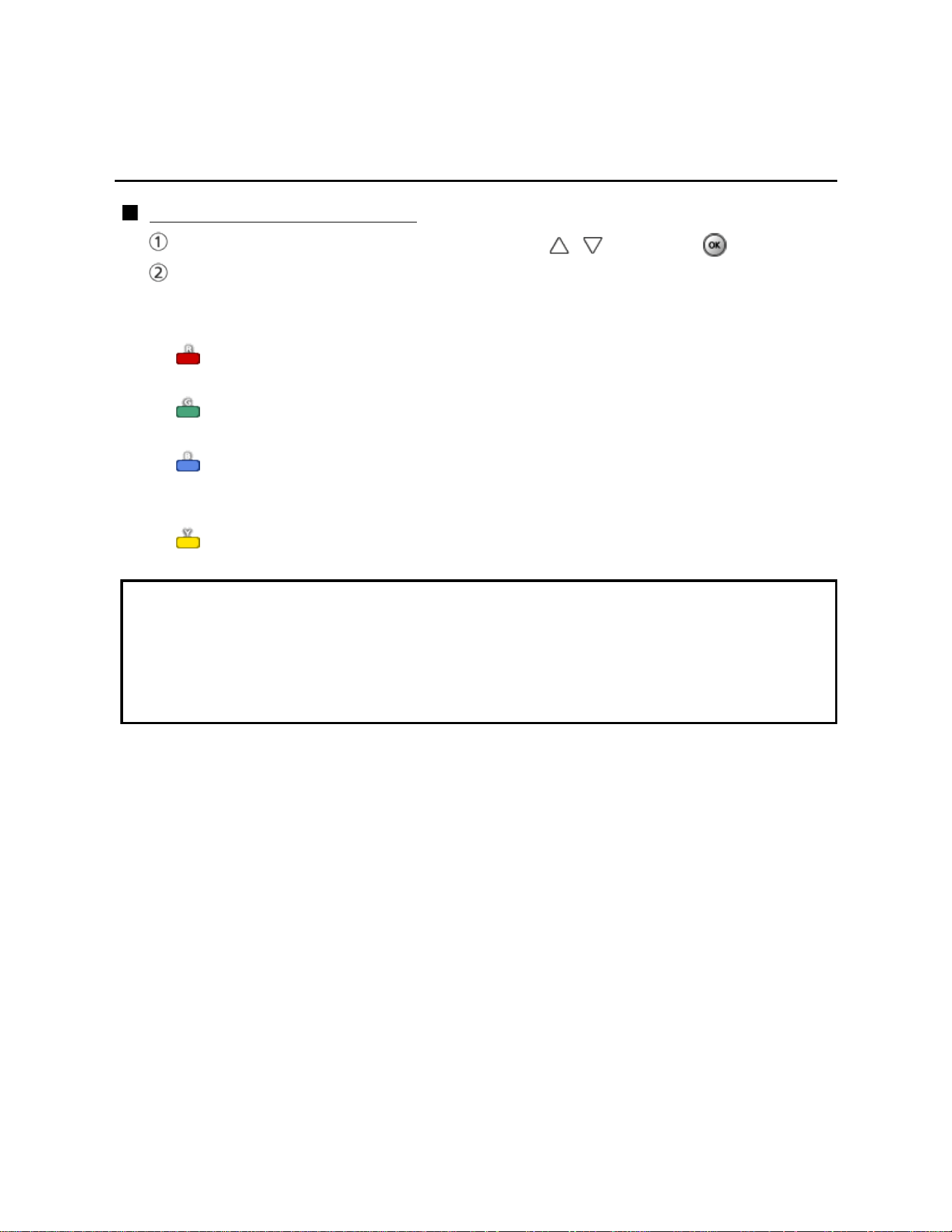
Or select connection method (below) with color key and follow the
directions on screen to complete the setting.
WPS (push button):
You can connect to the access point by pressing a connection button.
WPS (PIN):
Set the PIN code that is displayed on the TV on the access point.
Manual settings:
Manually set SSID, security type, and encryption type to match the settings
of the access point to which to connect.
Search again:
Search again an available wireless network within the range.
* Wi-Fi Protected Setup is an easy setting of the Wi-Fi Alliance's certification.
* For more details on setting of an access point, please refer to operating manual
for the access point.
* When connecting by 11n (5 GHz), select "AES" as the encryption type for the
wireless LAN.
41
Internet services "VIERA Connect"
Network settings
IP address/DNS settings
IP address/DNS settings
Select IP address/DNS settings using / and press
Displayed IP address/DNS settings
Select IP setting mode / DNS setting mode using / and select
Automatic with /
Each IP address is acquired automatically
If you are using a Broadband router, IP automatic acquisition in DHCP can be
used under normal circumstances. If you are not sure, check with the person
who installed the equipment, or check the instructions for each device.
Manual setting
On above, Select IP setting mode / DNS setting mode
using / and select Manual with /
Select the item
Check the specifications of the Broadband router and enter each IP address.
Or Enter each IP address as specified by the provider.
42
Internet services "VIERA Connect"
Network settings
Proxy settings
Proxy settings
Set only if specified by the provider. It is not required for normal household use.
Select IP address/DNS settings using / and press
Select Proxy setting using / and press
Select the item and press
Enter address or port number and press
Proxy address
This is the address of the relay server that is connected to the target server instead
of the browser and sends data to the browser. Setting is only required if specified
by the provider.
Proxy port
This number is specified by the provider together with the Proxy address.
43
Internet services "VIERA Connect"
Network settings
Network link (1)
Network link
Select Network link using / and press
Displayed Network link
Select the item and set
Edit the name of this TV
Sets your favorite name for this TV. This name will be displayed on the screen of
the other Network compatible equipment.
Select VIERA network name using / and press
Enter name and press
Enabling DLNA remote control
Select DLNA remote control using
/ and switches Disable or
Enable with /
Volume setting in DMR operation
Select DLNA remote volume control using
/ and switches Disable
or Enable with /
Available only when Enable is selected in DLNA remote control above.
44

Internet services "VIERA Connect"
Network settings
Network link (2)
Enabling Network remote control
(network device such as a smartphone.)
Select Network remote control using
/ and switches Disable or
Enable with /
45
Internet services "VIERA Connect"
Network settings
Software update
Software update
Select Software update using / and press
Press OK to start the Software update screen
Software update
Follow directions on the screen
Make sure to set Clock before the update starts.
46
Internet services "VIERA Connect"
Network settings
New software notice
New software notice
Displays new software update information when TV is turned on.
Select New software notice using /
Switches Off or On with /
47

Internet services "VIERA Connect"
Network settings
Network status
Network status
Displayed Current settings and status screen.
Select Network status using / and press
Display Network status screen
* Displayed items differ depending on the type of network connection.
48
Internet services "VIERA Connect"
How to use
Operate
1.
Access to VIERA Connect
INTERNET VIERA Connect
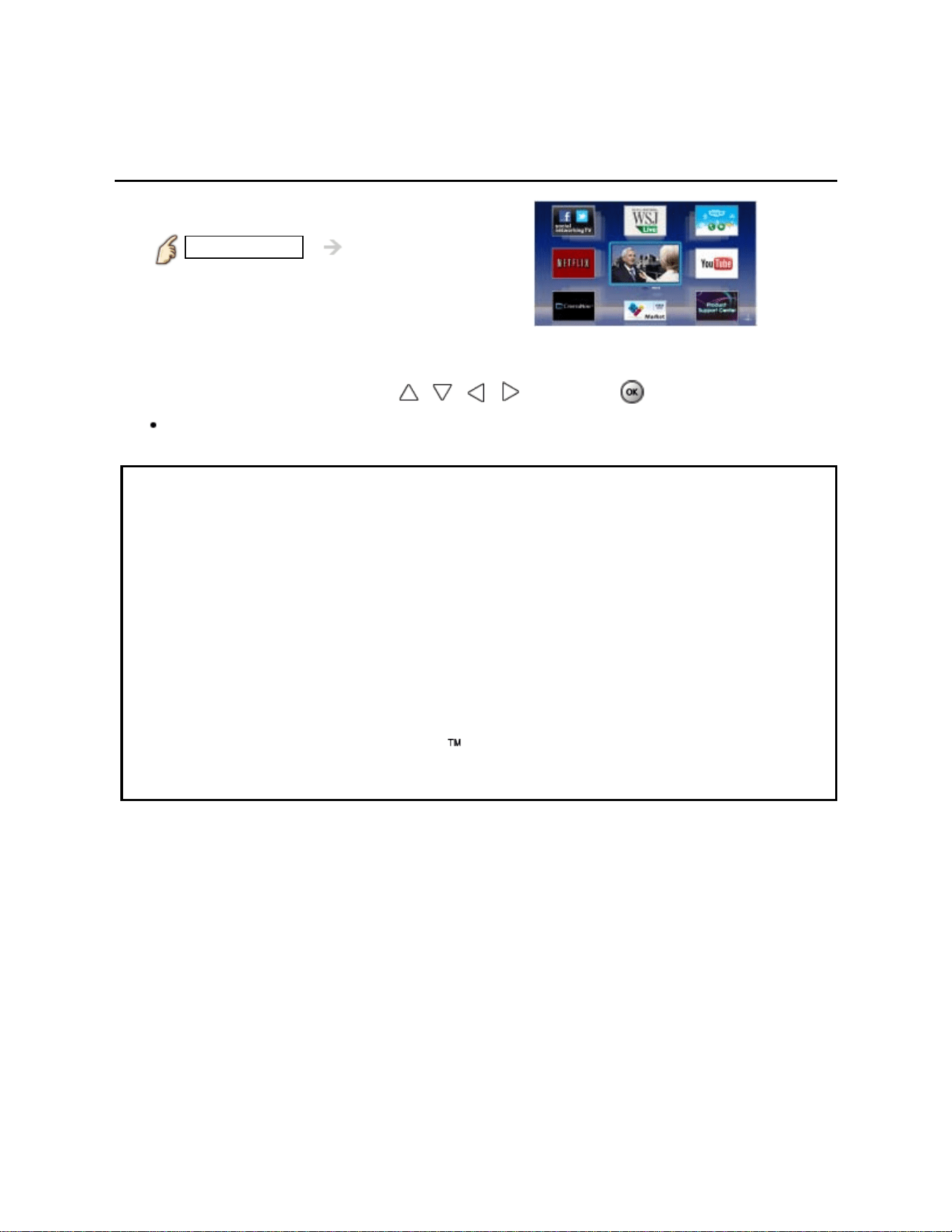
2. Select and Enjoy Internet Service
(example)
Select the desired item using / / / and press
USB keyboard is available. Set Keyboard type in Setup menu.
(Game pad is also available.)
* You need a Broadband environment to use this service.
* Please confirm Network connections and Network settings before use
this function.
* Depending on the usage conditions, it may take a while to download all the
data.
* Internet services available in VIERA Connect are subject to change without
notice.
* Not all VIERA Connect contents are available depending on the country and
area.
* 3D images are not displayed on center of the home screen depending on the
signal.
* Video communication (e.g. Skype ) requires an exclusive Communication
Camera TY-CC20W.
49
Home network "DLNA"
Get started
Information
You can share the contents (Photo, Video, Music etc.) stored in DLNA Certified media
server with your home network system.
Please confirm Network connection and Network menu settings before
use this function.
This TV is a DLNA Certified product.
DLNA (Digital Living Network Alliance) is a standard that makes DLNA Certified
digital electronics easier and more convenient to use on a home network. To learn
more, visit www.dlna.org. It allows you to share photos, videos and music stored in
the DLNA Certified media server (for example, PC with Windows 7 installed, etc.)
connected to your home network, and enjoy the contents on the TV screen.
Media server
Store photos, videos or music into the DLNA Certified media server, and then you
can enjoy them on the TV.
To use a PC as a media server
Prepare the PC with Windows 7 or ensure the server software is installed on the
PC. "Windows 7" is the server software that has been tested for compatibility with
this TV (as of January, 2011). Any other server software have not been tested with
this TV, therefore compatibility and performance cannot be assured.
Windows 7
The setup for homegroup settings of Windows 7 is required. For details, refer to the
help functions of Windows 7.
50

Home network "DLNA"
Connect to network
Network connections (1)
1.
Contact your Broadband service provider
If you don't have Internet service from your local provider, please order a high-
speed Internet service at no less than the connection speed below. If you already
have this service, make sure that the connection speed exceeds the following:
Required speed (effective): at least 1.5 Mbps for SD and 6 Mbps for HD picture
quality, respectively.
Dial-up Internet service cannot be used for VIERA Connect.
2. Select wired or wireless connection
If the Cable/DSL modem is close to the TV and you have only one TV set, you may
choose a wired connection.
If the Cable/DSL modem is far from the TV and/or you have more TVs in the
house, you may want to use a wireless network.
51
Home network "DLNA"
Connect to network
Network connections (2)
3.
Connecting to the Internet
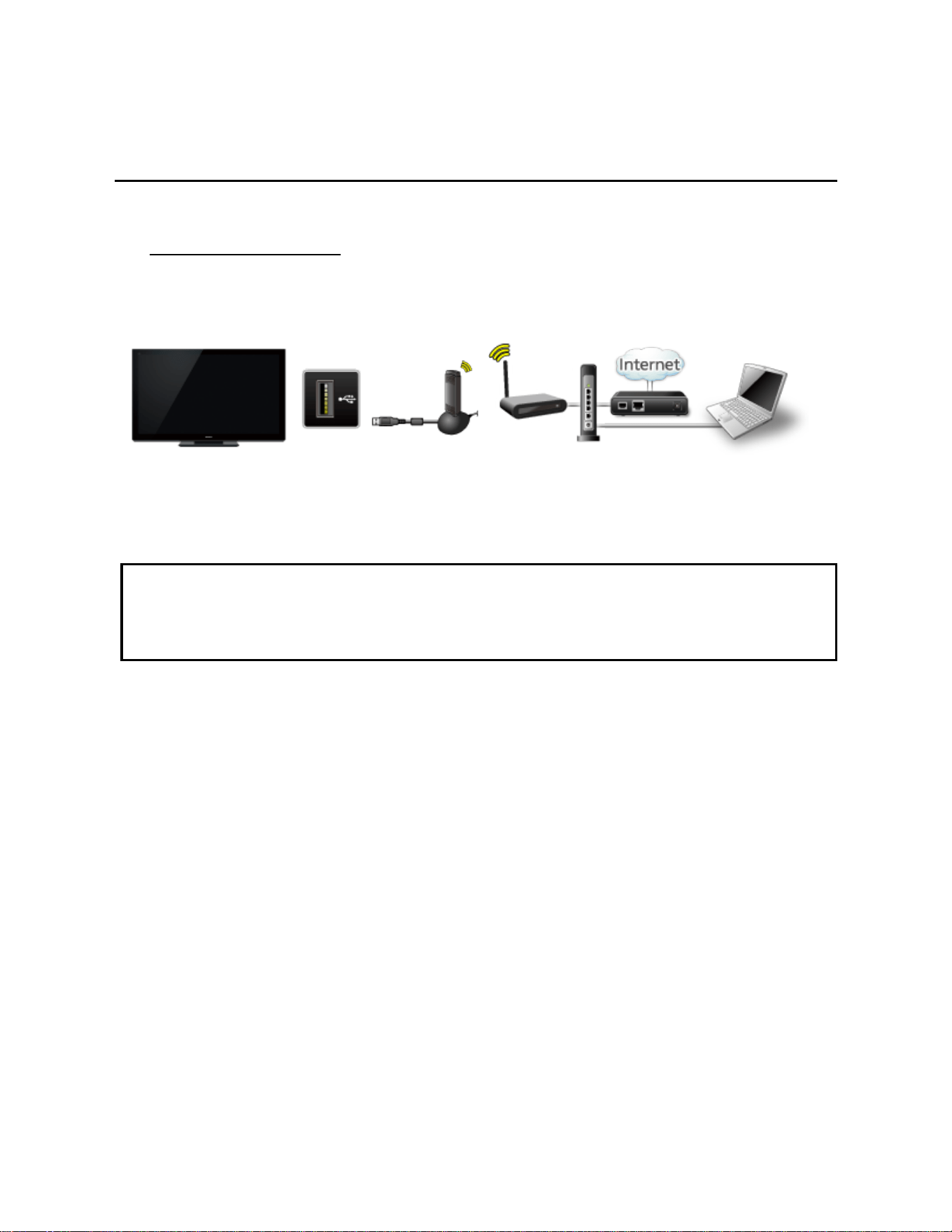
A. Wireless connection
If you are using the network for connecting various pieces of equipment and want
to connect the TV, you could also use a Wireless LAN and Access point to connect
the TV to the Internet.
TV
(Wireless LAN Adapter)
USB
Wireless LAN
Adapter
Access
point
- Hub, Router
- Modem
- DLNA Certified media server
(for example, PC, etc.)
* To use only DLNA features, you can operate the features without Broadband
network environment.
You can just connect the TV directly to the equipment with a LAN cross cable.
52
Home network "DLNA"
Connect to network
Network connections (3)
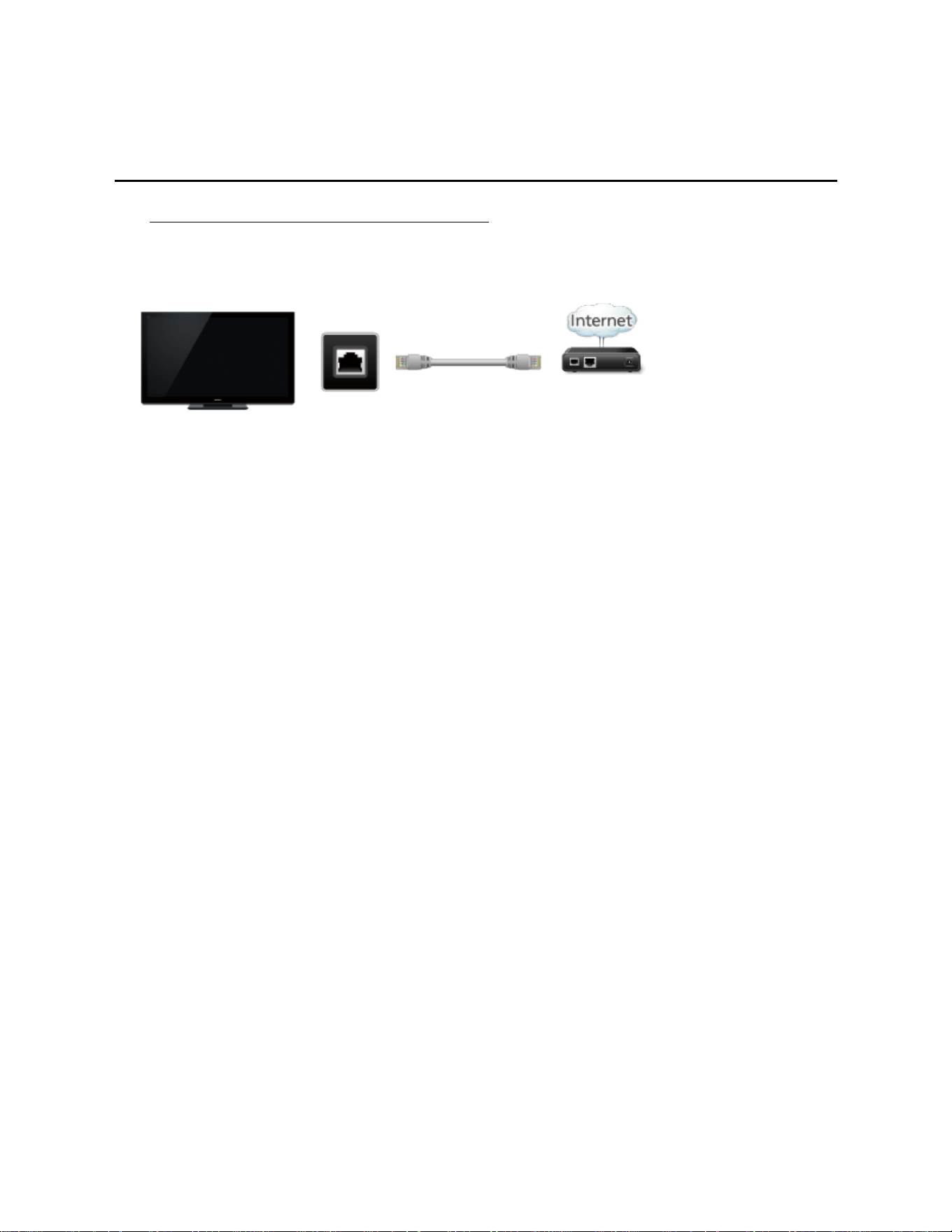
B. Wired connection (Directly connected)
If you are not using the network for connecting anything else but the TV, you can
just connect the TV directly to the Cable/DSL Ethernet modem with LAN cable.
TV
ETHERNET LAN cable
Modem
53
Home network "DLNA"
Connect to network
Network connections (4)
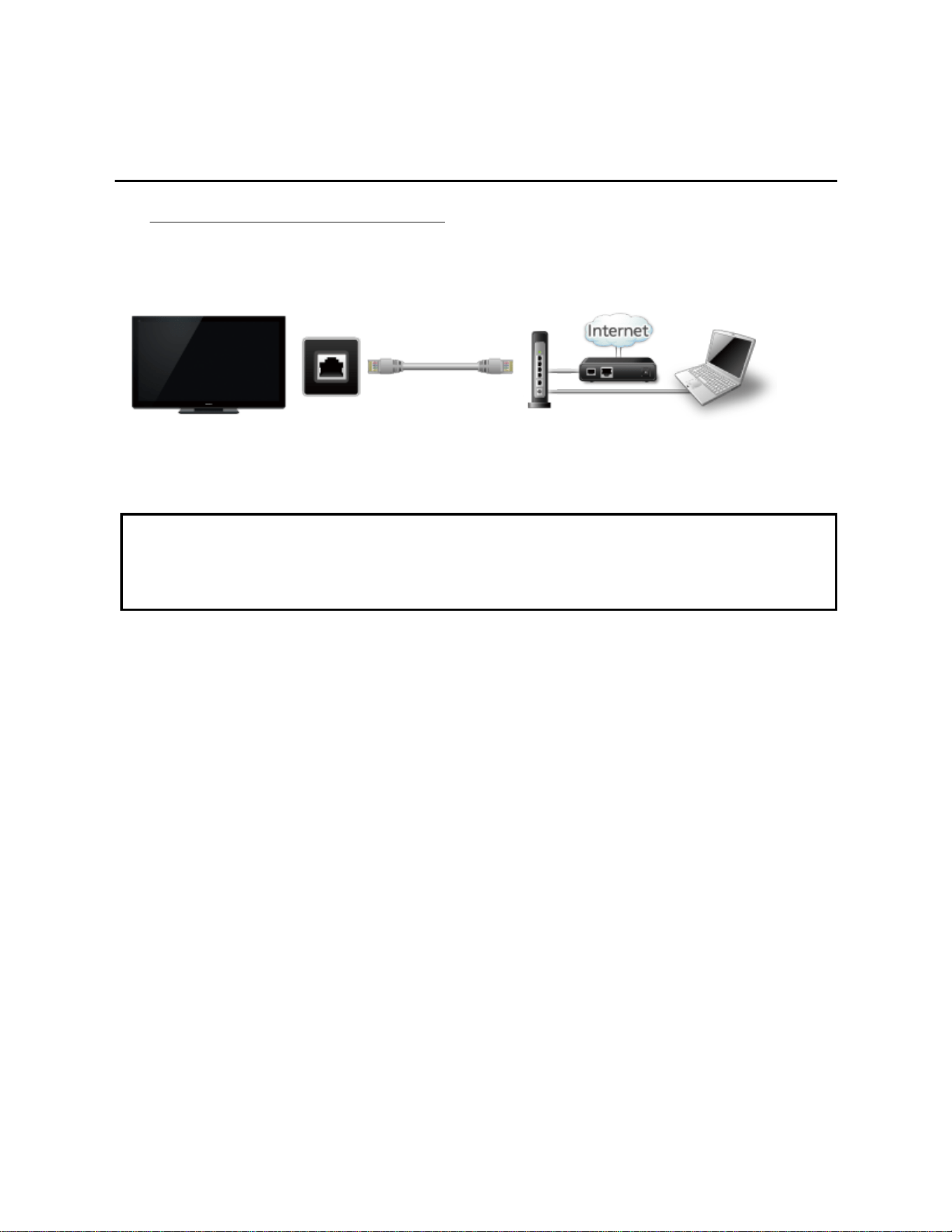
C. Wired connection (Using Router)
If you are using the network for connecting various pieces of equipment and want
to connect the TV, you should use a router to connect the TV to the Internet with
LAN straight cable.
TV
ETHERNET
LAN cable
- Hub, Router
- Modem
- DLNA Certified media server
(for example, PC, etc.)
* To use only DLNA features, you can operate the features without Broadband
network environment.
You can just connect the TV directly to the equipment with a LAN cross cable.
54
Home network "DLNA"
Network settings
Setting menu
This menu is used for connecting to a Broadband environment.
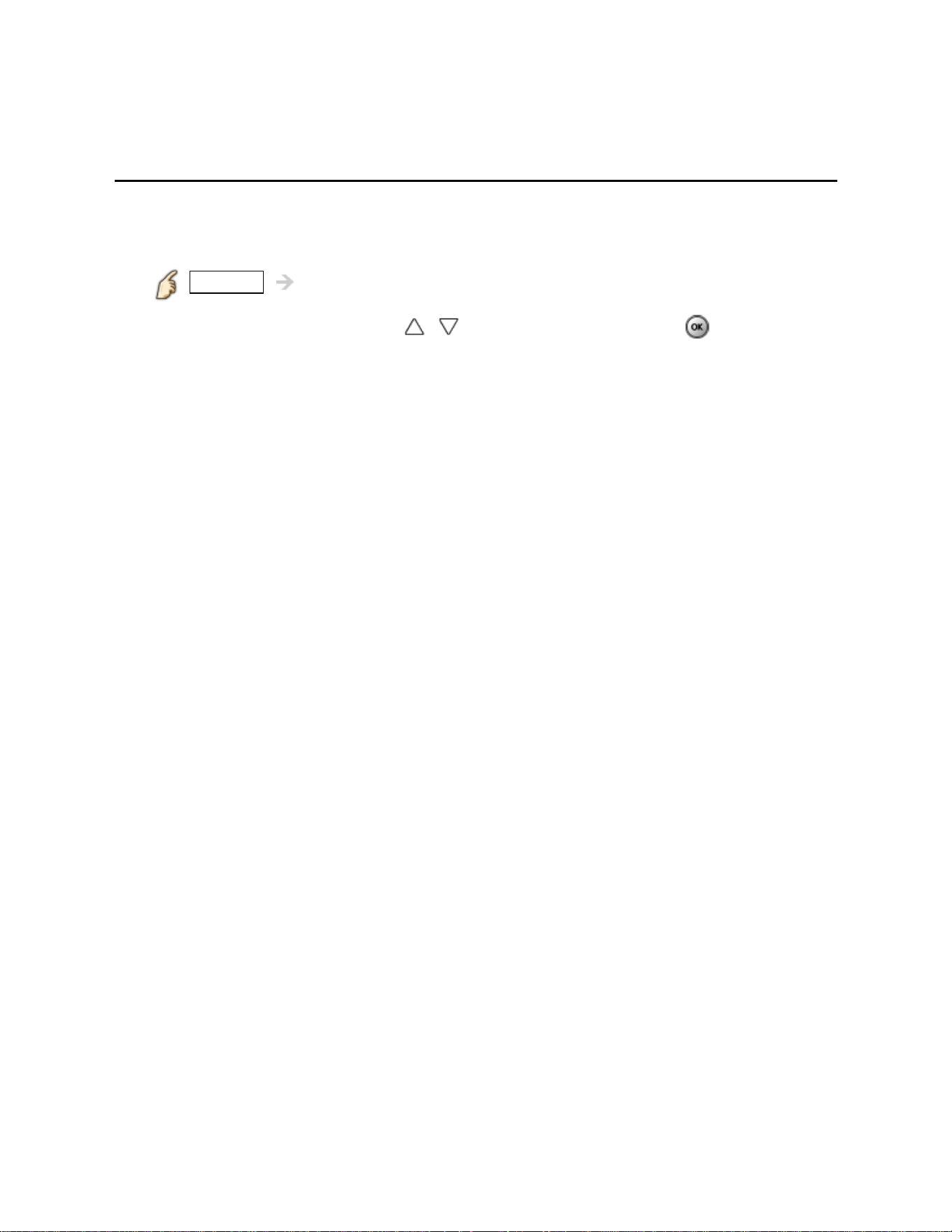
1. Display the Menu and select Network
MENU Menu > Network
Select Network using
/ from menu bar and press
2. Select the options and set
(Connection test/Network connection/Wireless network settings/
IP address/DNS settings/Network link/Software update/
New software notice/Network status)
55

Home network "DLNA"
Network settings
Connection test
Connection test
Check that the all Network settings, and then start Connection test
Select Connection test using / and press
(It takes a while to cancel the test.)
Displayed Connection test screen
Check mark appears at front of each check item's box when check has
been finished successfully.
Complete Connection test
Success
Completion screen is displayed.
Error Follow the directions on screen to complete the setting.
If you perform the Proxy settings, check the Proxy address and the Proxy port
number.
56
Home network "DLNA"
Network settings
Network connection
Network connection
Select Network connection using /
Select Network type (Ethernet cable/Wireless (WiFi)) with /
57
Home network "DLNA"
Network settings
Wireless network settings
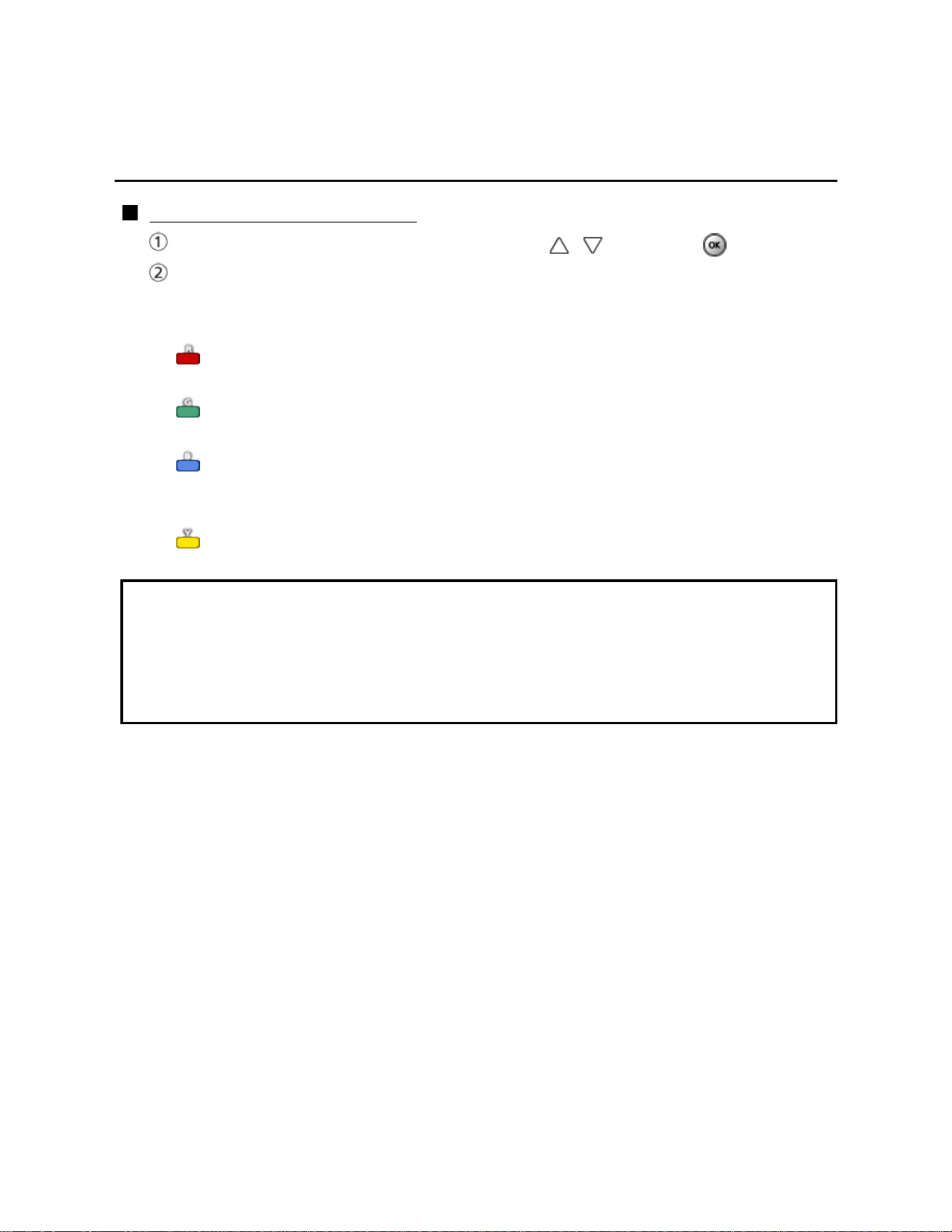
Wireless network settings
Select Wireless network settings with / and press
Display Wireless networks and select access point.
Or select connection method (below) with color key and follow the
directions on screen to complete the setting.
WPS (push button):
You can connect to the access point by pressing a connection button.
WPS (PIN):
Set the PIN code that is displayed on the TV on the access point.
Manual settings:
Manually set SSID, security type, and encryption type to match the settings
of the access point to which to connect.
Search again:
Search again an available wireless network within the range.
* Wi-Fi Protected Setup is an easy setting of the Wi-Fi Alliance's certification.
* For more details on setting of an access point, please refer to operating manual
for the access point.
* When connecting by 11n (5 GHz), select "AES" as the encryption type for the
wireless LAN.
58
Home network "DLNA"
Network settings
IP address/DNS settings
IP address/DNS settings
Select IP address/DNS settings using / and press
Displayed IP address/DNS settings
Select IP setting mode / DNS setting mode using / and select
Automatic with /
Each IP address is acquired automatically
If you are using a Broadband router, IP automatic acquisition in DHCP can be
used under normal circumstances. If you are not sure, check with the person
who installed the equipment, or check the instructions for each device.
Manual setting
On above, Select IP setting mode / DNS setting mode
using / and select Manual with /
Select the item
Check the specifications of the Broadband router and enter each IP address.
Or Enter each IP address as specified by the provider.
59
Home network "DLNA"
Network settings
Proxy settings
Proxy settings
Set only if specified by the provider. It is not required for normal household use.
Select IP address/DNS settings using / and press
Select Proxy setting using / and press
Select the item and press
Enter address or port number and press
Proxy address
This is the address of the relay server that is connected to the target server instead
of the browser and sends data to the browser. Setting is only required if specified
by the provider.
Proxy port
This number is specified by the provider together with the Proxy address.
60
Home network "DLNA"
Network settings
Network link (1)
Network link
Select Network link using / and press
Displayed Network link
Select the item and set
Edit the name of this TV
Sets your favorite name for this TV. This name will be displayed on the screen of
the other Network compatible equipment.
Select VIERA network name using / and press
Enter name and press
Enabling DLNA remote control
Select DLNA remote control using
/ and switches Disable or
Enable with /
Volume setting in DMR operation
Select DLNA remote volume control using
/ and switches Disable
or Enable with /
Available only when Enable is selected in DLNA remote control above.
61

Home network "DLNA"
Network settings
Network link (2)
Enabling Network remote control
(network device such as a smartphone.)
Select Network remote control using
/ and switches Disable or
Enable with /
62
Home network "DLNA"
Network settings
Software update
Software update
Select Software update using / and press
Press OK to start the Software update screen
Software update
Follow directions on the screen
Make sure to set Clock before the update starts.
63
Home network "DLNA"
Network settings
New software notice
New software notice
Displays new software update information when TV is turned on.
Select New software notice using /
Switches Off or On with /
64

Home network "DLNA"
Network settings
Network status
Network status
Displayed Current settings and status screen.
Select Network status using / and press
Display Network status screen
* Displayed items differ depending on the type of network connection.
65
Home network "DLNA"
Photos
Viewing Photos
1.
Display VIERA TOOLS
VIERA TOOLS VIERA TOOLS
2. Display DLNA server
Select DLNA using / and press
3. Select server (Available DLNA servers are displayed).
Select desired server using / from DLNA server list and press
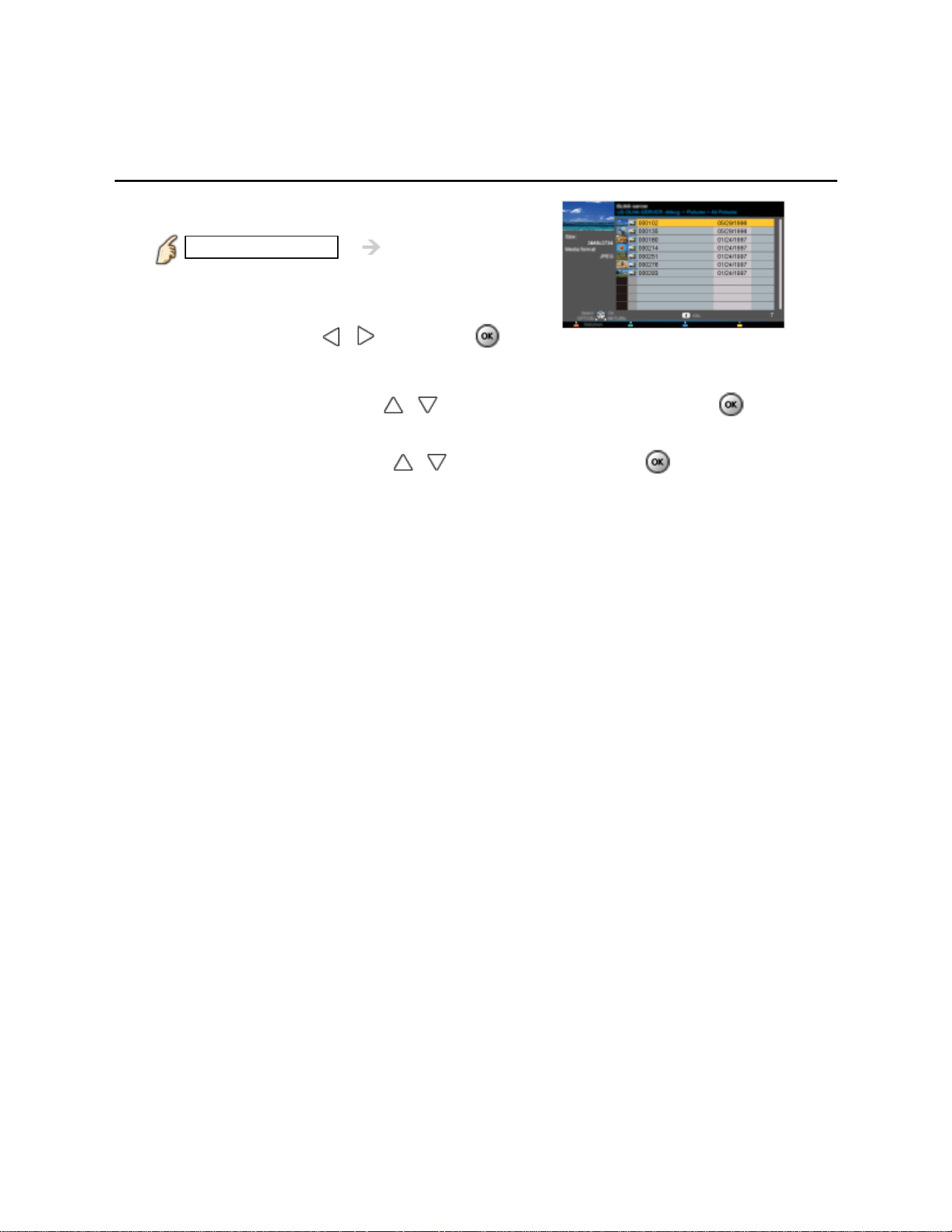
4. Select photo (Thumbnail and Contents type are displayed ).
Select desired content using / from file list and press
5. View
Follow the Navigation and guide to operate.
* Displayed navigation and guide will be different depending on data type.
66
Home network "DLNA"
Photos
Photo view
Thumbnail view
Display Slideshow settings
INFO Information panel (File name, Date, and Size etc.)
* Information differs depending on selected data.
Playback screen
INFO Display/hide Guide and Banner
Photo status: Shows current photo status
or
Navigation Guide: Shows available functions.
* In DMR mode, Slideshow is not available.
* In DMR mode, OK/Next/Prev. are not available.
67
Home network "DLNA"
Photos
Options menu
In Photo view, some optional menus are available pressing OPTION button.
1. Display Options menu
OPTION Options menu
2. Select the item
Select the desired menu using / and press
(Slideshow settings)
* Available menus are displayed on Options menu depending on data
condition and situation.
68
Home network "DLNA"
Photos
Using slideshow
1.
Display Slideshow settings
Slideshow settings
2. Adjust items
Select the item by
/ and adjust the settings using /
Picture quality may deteriorate depending on the slideshow settings.
Picture setting may not work depending on the slideshow settings.
3. Start Slideshow
After adjusting each setting, select Start slideshow with / and press
RETURN Stop in mid-cycle
69
Home network "DLNA"
Photos
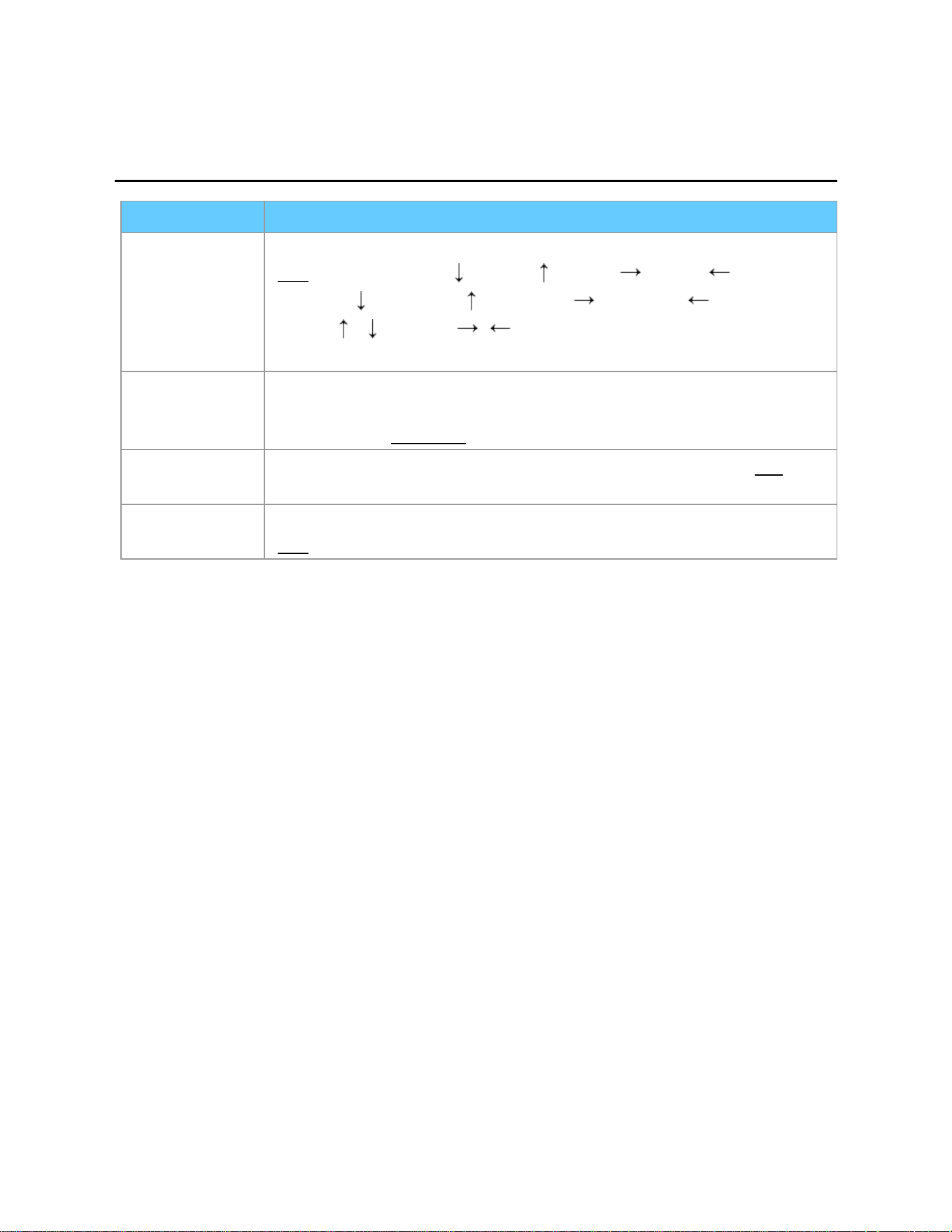
Slideshow settings
Item Description
Transition
effect
Select the Transition effect shown between photos.
(
Off/Fade in/Wipe /Wipe /Wipe /Wipe /
Slide in /Slide in /Slide in /Slide in /Zoom in/
Comb /Comb /Dissolve/Checker wipe/
Motion/Random)
Display
interval
Display interval sets the time each image is displayed in the
Slideshow mode.
(Short/Fast/
Normal/Slow/Very slow)
Repeat
playback
Turn the Slideshow Repeat (cycle) function on or off. (Off/
On)
Soundtrack
settings
Select the music.
(
Off/Music 1/Music 2/Music 3/Music 4/Music 5)
70
Home network "DLNA"
Videos
Viewing Videos
1.
Display VIERA TOOLS
VIERA TOOLS VIERA TOOLS
2. Display DLNA server
Select DLNA using / and press
3. Select server (Available DLNA servers are displayed).
Select desired server using / from DLNA server list and press
4. Select video (Thumbnail and Contents type are displayed ).
Select desired content using / from file list and press
5. Play
Follow the Navigation and guide to operate.
* Displayed navigation and guide will be different depending on data type.
71
Home network "DLNA"
Videos
Video view
Thumbnail view
INFO Information panel (File name, Date, and Size etc.)
* Information differs depending on selected data.
Playback screen
INFO Display/hide Guide and Banner
Movie banner: Shows current Video status
(Drive type (SD/USB/DLNA), Date and time or File name and
Elapsed time.)
Navigation Guide: Shows available functions.
* In DMR mode, Next skip/Prev. skip are not available.
Forward/Reverse: Five level of speed 1 to 5 (x2, x5, x30, x70, x100) are
available.
In DMR mode, Resume playback is not available
Subtitles are not supported in MKV format.
72
Home network "DLNA"
Videos
Options menu
In Video view, some optional menus are available pressing OPTION button.
1. Display Options menu
OPTION Options menu
2. Select the item
Select the desired menu using / and press
(Video options)
Repeat playback
Set play repeat function (Off/On)
* Available menus are displayed on Options menu depending on data
condition and situation.
73
Home network "DLNA"
Music
Playing Music
1.
Display VIERA TOOLS
VIERA TOOLS VIERA TOOLS
2. Display DLNA server
Select DLNA using / and press
3. Select server (Available DLNA servers are displayed).
Select desired server using / from DLNA server list and press
4. Select music (Thumbnail and Contents type are displayed ).
Select desired content using / from file list and press
5. Play
Follow the Navigation and guide to operate.
* Displayed navigation and guide will be different depending on data type.
74
Home network "DLNA"
Music
Music view
Thumbnail view
INFO Information panel (File name, Date, and Size etc.)
* Information differs depending on selected data.
Playback screen
INFO Display/hide Guide and Banner
Music Guide: Shows current Music status
(Artist name/Album name/Song name, Elapsed time)
Navigation Guide: Shows available functions.
Forward/Reverse: Five levels of speed 1 to 5 (x2, x5, x30, x70, x100) are
available.
* In DMR mode, Next skip/Prev. skip/User BGM settings are not available.
75
Home network "DLNA"
Music
Options menu
In Music view, some optional menus are available pressing OPTION button.
1. Display Options menu
OPTION Options menu
2. Select the item
Select the desired menu using / and press
(Music options)
Repeat playback
Set play repeat function (Off/Repeat folder/One song)
* Available menus are displayed on Options menu depending on data
condition and situation.
76
Home network "DLNA"
Data information
Compatible Data format (1)
Compatible Data format for Media player
(SD card/USB flash memory)/DLNA
Media Compatible format
Photo
JPEG files (DCF and EXIF standards)
Sub-sampling - 4:4:4, 4:2:2 and 4:2:0
Image resolution - 8 x 8 to 30,719 x 17,279 pixels
77
Home network "DLNA"
Data information
Compatible Data format (2)
Media Compatible format
Videos SD-Video files (SD-Video Standard Ver.1.31)
Modified data with a PC may not be displayed correctly.
AVCHD files
AVCHD Standard Ver.2.0 (AVCHD Progressive)
Modified data with a PC may not be displayed correctly.
MotionJPEG files (taken with LUMIX)*
MP4 files
Video codec H.264/MPEG1/MPEG2
Audio codec MPEG Audio/MP3/AAC/HE-AAC/AC3/E-AC3
MKV files
Video codec H.264/MPEG1/MPEG2
Audio codec MPEG Audio/MP3/AAC/HE-AAC/AC3/E-AC3
FLV files
Video codec H.264
Audio codec MP3/AAC
3GPP files
Video codec H.264/MPEG1/MPEG2
Audio codec AAC/HE-AAC
PS files
Video codec H.264*/MPEG1/MPEG2
Audio codec MPEG Audio/MP3*/AAC*/HE-AAC*/AC3/
E-AC3*/LPCM
TS files
Video codec H.264/MPEG1/MPEG2
Audio codec MPEG Audio/MP3*/AAC/HE-AAC/AC3/E-AC3
* for Media player only
78
Home network "DLNA"
Data information
Compatible Data format (3)
Media Compatible format
Music MP3 files (MP3)
AAC files (AAC)
FLAC files (FLAC)
79

Home network "DLNA"
Data information
Notice
Format the card with the recording equipment.
The picture may not appear correctly on this TV depending on the recording
equipment used.
Some files may not be played back even if they fulfill these conditions.
Depending on how you make SD Card, USB Flash Memory or the media server,
files and folders may not be displayed in the order you numbered.
Depending on how you create the files and the structure of folders, the files and
folders may not be displayed.
When there are many files and folders, operation may take time to complete or
some files may not be displayed or playable.
The function cannot display still images that are not DCF formatted (i.e. TIFF,
BMP).
Data modified with a PC may not be displayed.
Images imported from a PC must be compatible with EXIF 2.0, 2.1 and 2.2.
Partly degraded files might be displayed at a reduced resolution.
All ".JPG" extension data in the SD card and USB flash memory will be read in
Photo Viewer Mode.
The folder and file names may be different depending on the digital camera used.
Do not use two-byte characters or other special codes.
The card may become unusable with this TV if file or folder names are changed.
For the suitable SD Memory Cards, please confirm the latest information on the
following website.
http://panasonic.jp/support/global/cs (This site is in English only)
80
Media player
Get started
Information
You can view still and motion images and play music saved on a USB flash memory
and an SD card.
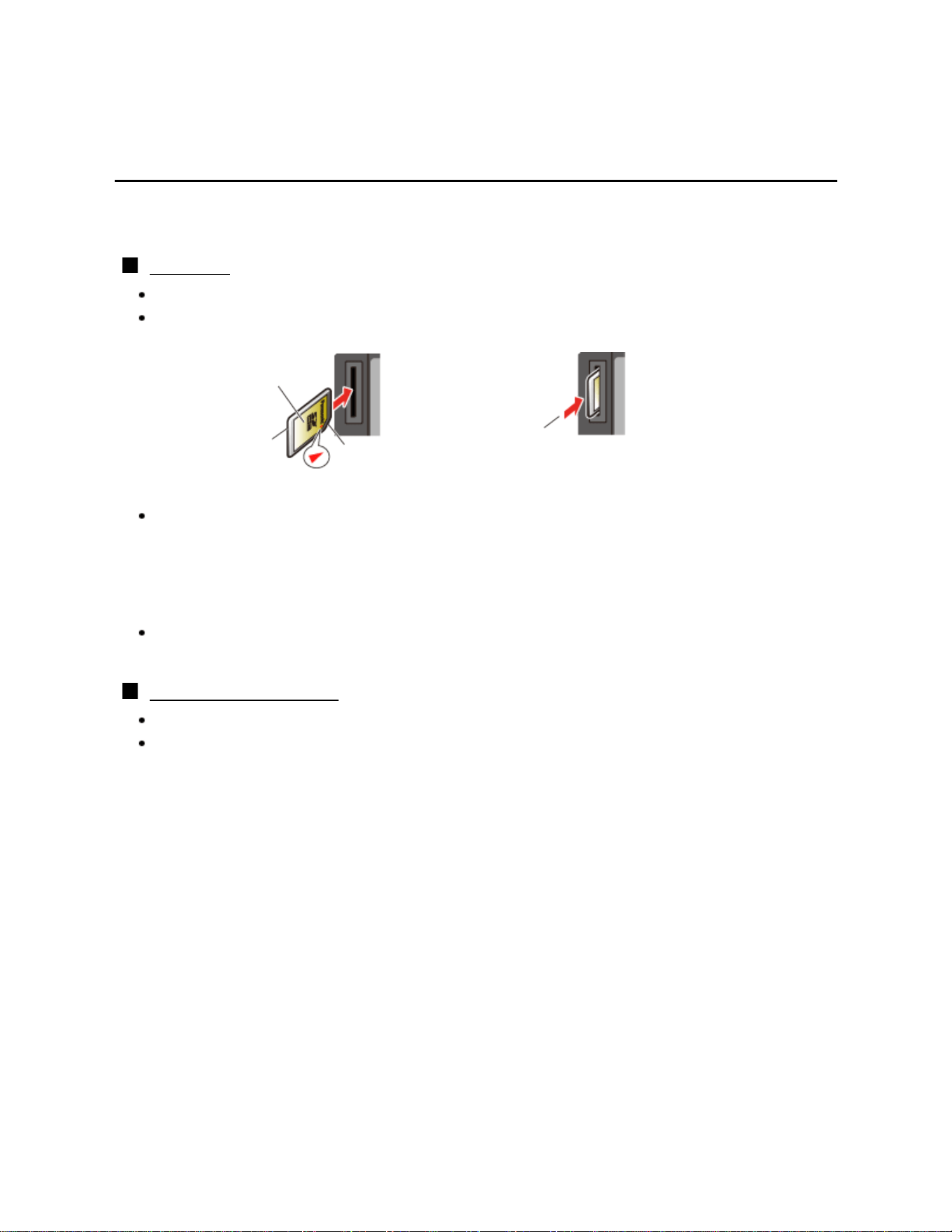
SD card
When you use an SD card, gently insert with label surface facing front.
When you remove the SD card, press in lightly then release.
Label surface
Push until a
click is heard
Cutout
Press in lightly
on SD Card,
then release.
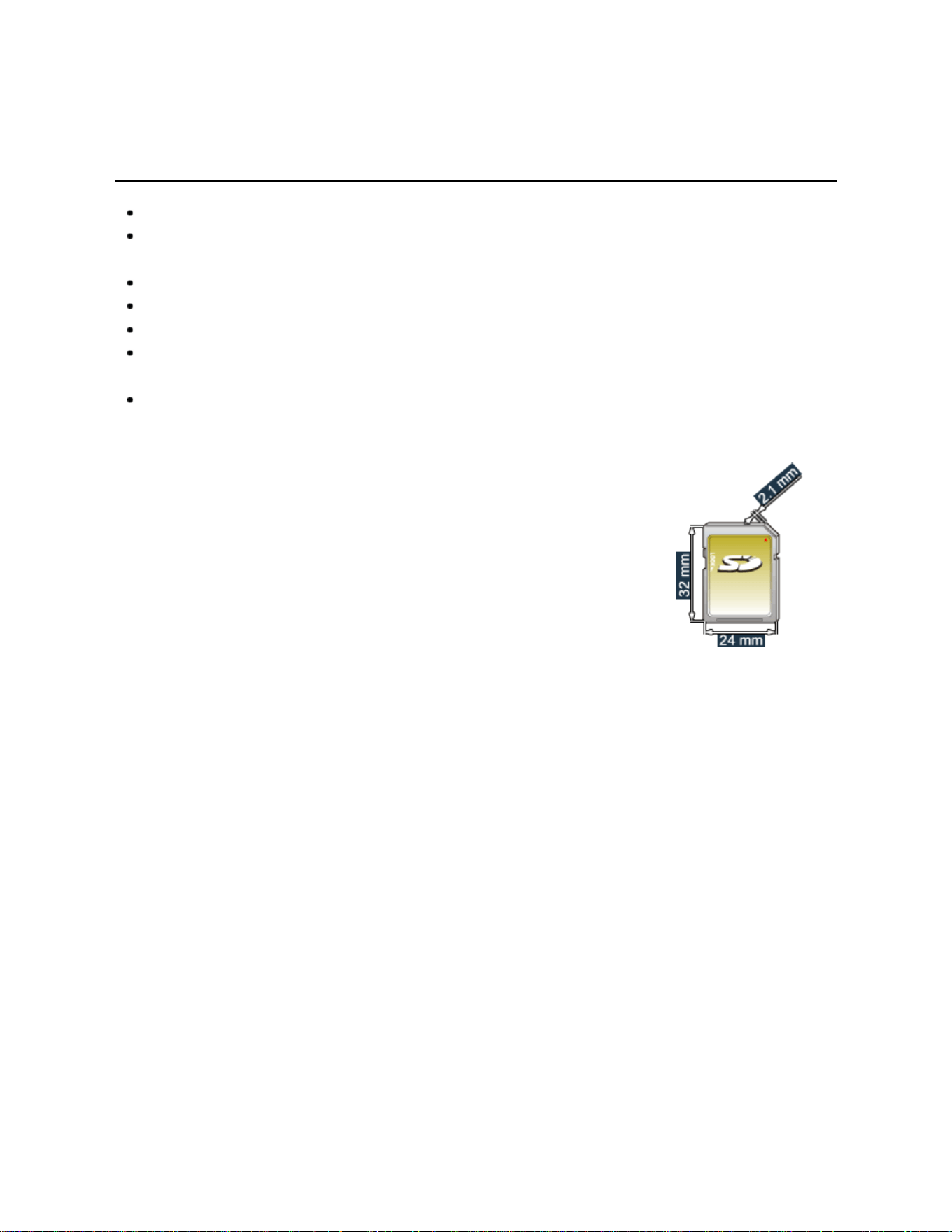
Compliant card type (maximum capacity):
SDXC Card (64 GB), SDHC Card (32 GB), microSDHC Card (32 GB), SD Card
(2 GB), miniSD Card (2 GB), microSD Card (2 GB)
(requiring microSDHC Card/miniSD Card/microSD Card/ adapter)
If a microSDHC Card, miniSD Card or microSD Card is used, insert / remove it
together with the adapter.
USB flash memory
When you use a USB device, insert straight in and pull straight out.
Media player only supports USB Mass storage class devices.
81
Media player
Get started
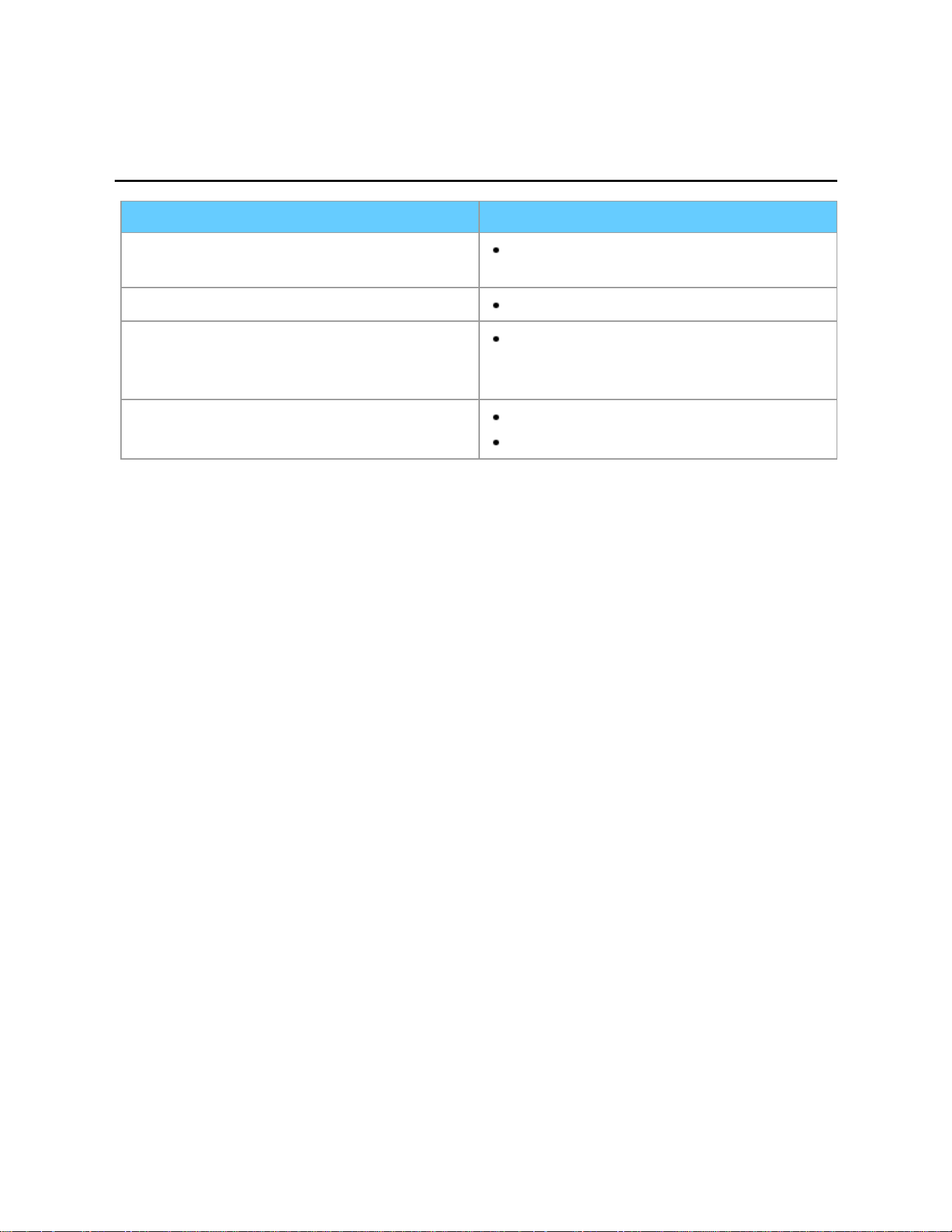
Media warning messages
Message Meaning
No media. Please insert an SD memory
card or USB storage device.
The device is not inserted.
No media. Device removed.
The device is removed.
No photos/No movies/
No music files to play/
No playable media
The device has no data or this type of
data is not supported.
Cannot read file
The file is broken or unreadable.
The TV does not support the format.
82
Media player
Get started
SD card handling cautions
Use an SD Card meeting SD standards. If not, it may cause the TV to malfunction.
Do not remove the card while the unit is accessing data (this can damage card or
unit).
Do not touch the terminals on the back of the card.
Do not subject the card to high pressure or impact.
Insert the card in the correct direction (otherwise, card or unit may be damaged).
Electrical interference, static electricity or erroneous operation may damage the
data or card.
Back up the recorded data at regular intervals in case of deteriorated or damaged
data or erratic operation of the unit. (Panasonic is not liable for any deterioration or
damage of recorded data.)
83
Media player
Photos
Viewing Photos
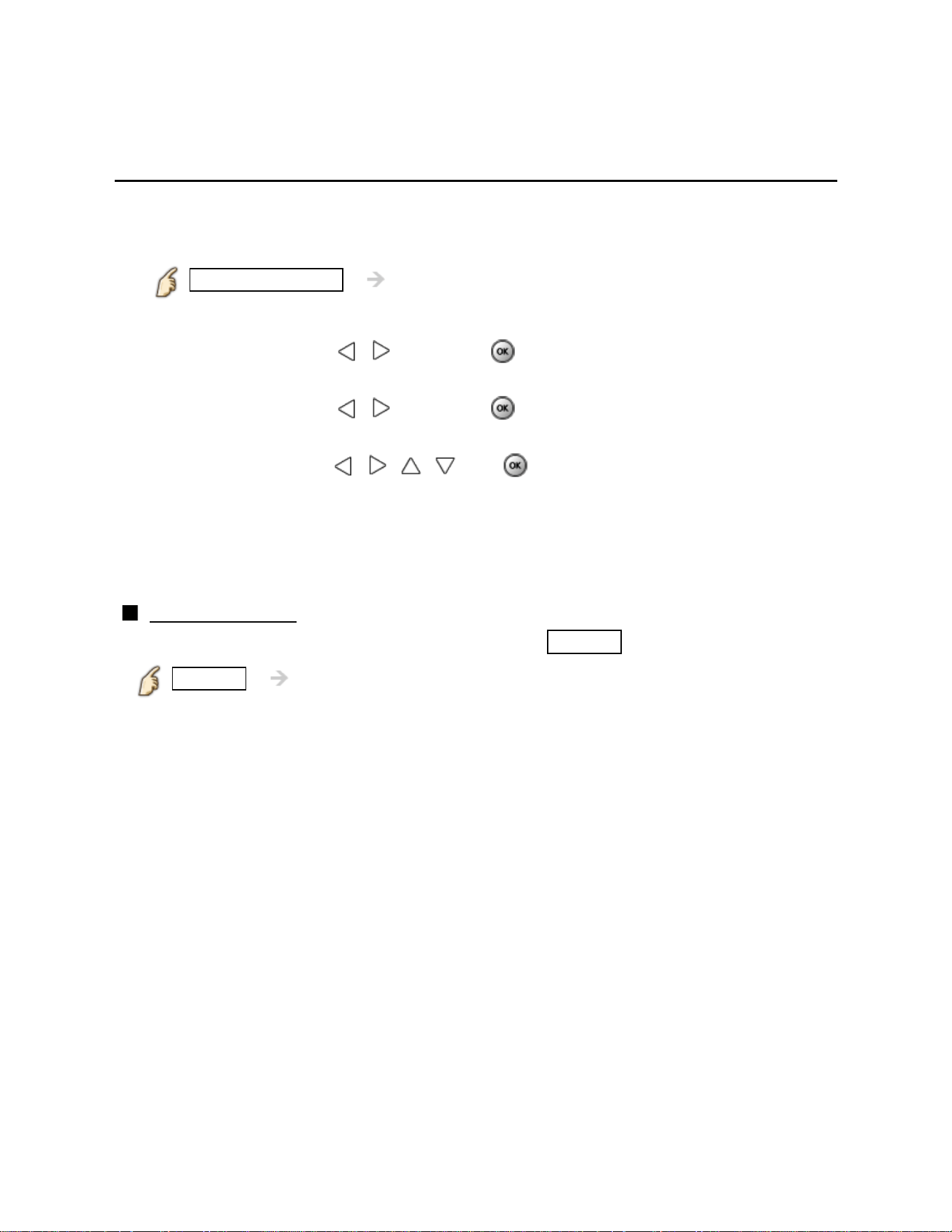
1.
Insert Media (SD card or USB flash memory)
2. Display Media player
VIERA TOOLS VIERA TOOLS > Media player
3. Select the SD/USB in Drive select (Displays connected drive)
Select the drive using / and press
4. Select the Photos in Media select
Select the drive using / and press
5. Select the photo in thumbnail view
Select the data using / / / and
* How data is displayed differs depending on data storage conditions.
6. View
Follow the Navigation and guide to operate.
* Displayed navigation and guide may differ depending on data type.
Other settings
Some basic menus are available after pressing the
MENU button.
MENU Menu > Picture/Audio/VIERA Link
84
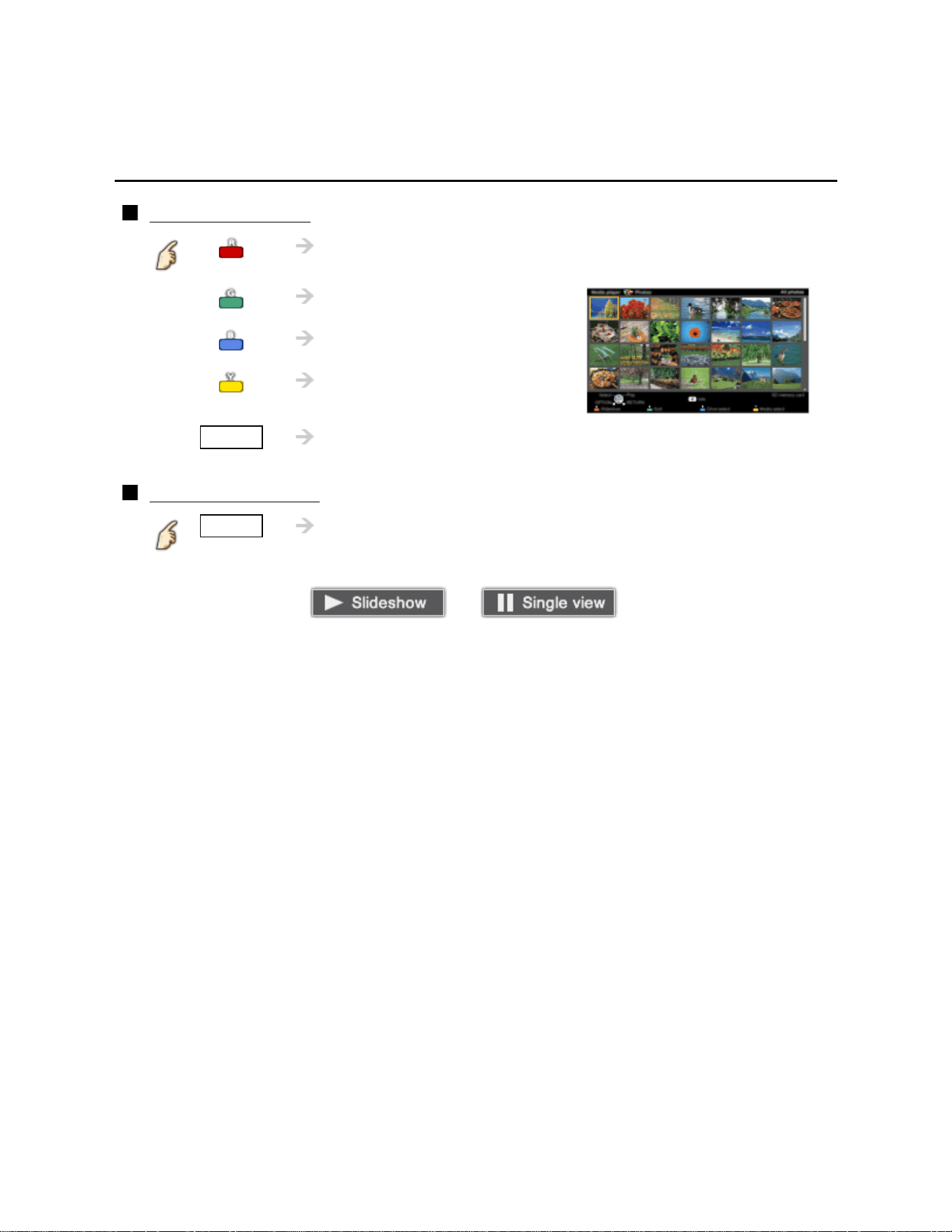
Media player
Photos
Photo view
Thumbnail view
Display Slideshow settings
Display Sort
Display Drive select
Display Media select
INFO Information panel (File name, Date, and Size etc.)
* Information differs depending on selected data.
Playback screen
INFO Display/hide Guide and Banner
Photo status: Shows current photo status
or
Navigation Guide: Shows available functions.
85

Media player
Photos
Sort the photos
1.
Display Sort select menu
Sort select menu (Folders / Sort by date / Sort by month)
2. Select the sort type
Select the type using
/ and press
3. Displayed each screen
Folders: ascending order of numeric/alphabetical
Sort by month: ascending order of the month
Sort by date: ascending order of the day
86
Media player
Photos
Options menu
In Photo view, some optional menus are available after pressing the OPTION
button.
1. Display Options menu
OPTION Options menu
2. Select the item
Select the desired menu using
/ and press
(Slideshow settings/Thumbnails size)
* Available menus are displayed on Options menu depending on data
condition and situation.
87

Media player
Photos
Thumbnails size
Thumbnails size
To change the number of photos on a thumbnail screen at a time.
(7 x 4
10 x 6)
88
Media player
Photos
Using slideshow
1.
Display Slideshow settings
Slideshow settings
2. Adjust items
Select the item by / and adjust the settings using /
Picture quality may become lower depending on the slideshow settings.
Picture setting may not work depending on the slideshow settings.
3. Start Slideshow
After adjusting each of the settings, select Start slideshow with / and
press
RETURN Stop in mid-cycle
89
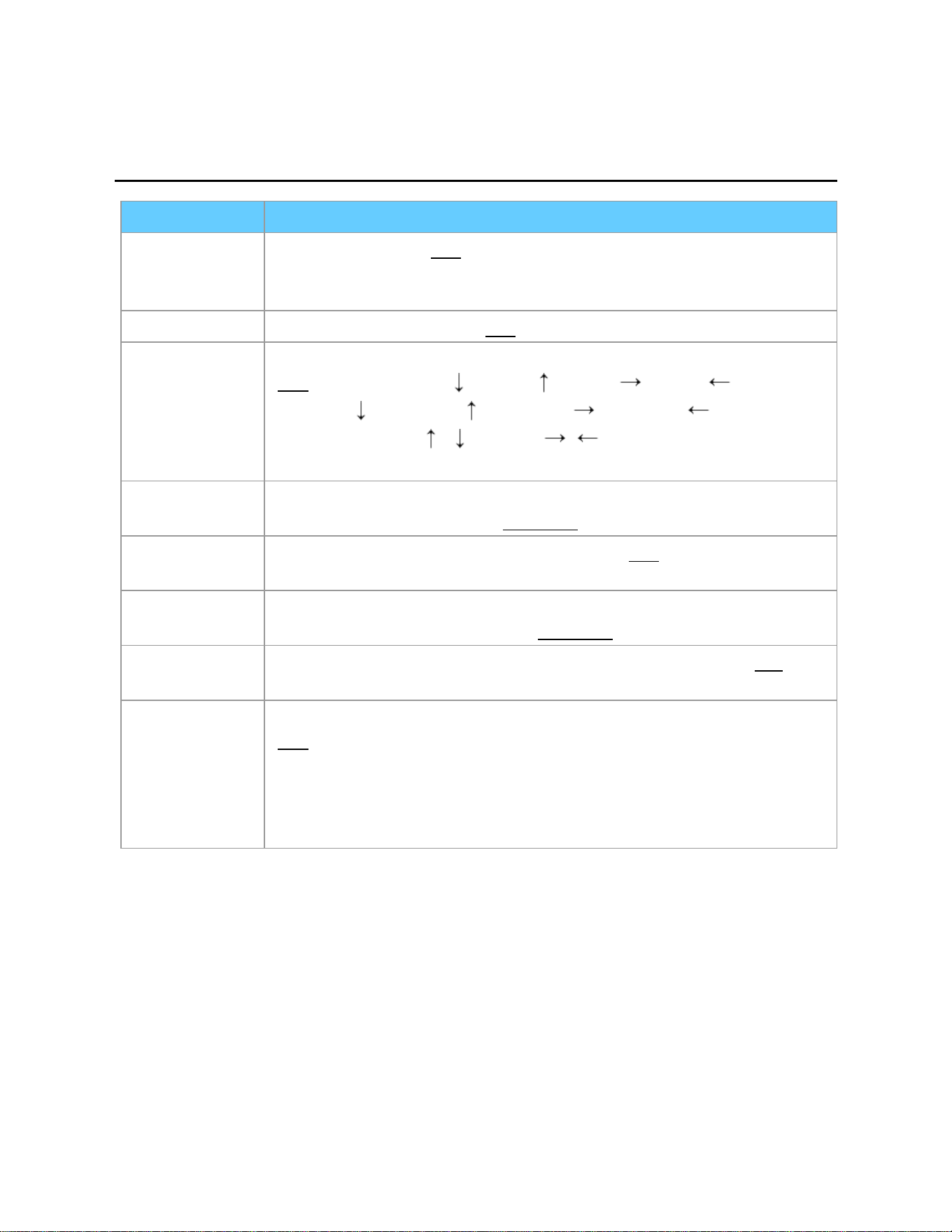
Media player
Photos
Slideshow settings
Item Description
Frame Select the Frame. (
Off/Array/Collage/Drift (with
calendar)/Drift/Gallery (with calendar) / Gallery /
Cinema)
Photo effect Select the display effect. (
Off/Sepia/Gray scale)
Transition
effect
Select the Transition effect shown between photos.
(
Off/Fade in/Wipe /Wipe /Wipe /Wipe /
Slide in /Slide in /Slide in /Slide in /
Zoom in/Comb /Comb /Dissolve/
Checker wipe/Motion/Random)
Photo size Removes the black borders that are added according to the size of
the photo being displayed. (
Normal/Zoom)
Burst
playback
Continuously plays photos that were shot. (
Off/On)
Display
interval
Display interval sets the time each image is displayed in the
Slideshow mode. (Short/Fast/
Normal/Slow/Very slow)
Repeat
playback
Turn the Slideshow Repeat (cycle) function on or off. (Off/
On)
Soundtrack
settings
Select the music.
(
Off/Music 1/Music 2/Music 3/Music 4/Music 5/
User selected/Auto)
User selected: Plays the soundtrack registered in the
Soundtrack settings menu.
Auto: Plays the songs on the SD card or USB flash memory.
90
Media player
Photos
Soundtrack settings
You can register the favorite songs as soundtracks
Select Soundtrack settings in Slideshow settings using /
Select User selected using /
Displays Soundtrack popup menu, then select the desired song with
/ and press to register
This song: Register current music
All songs in folder: Register the music in a folder
Picture setting may not work depending on the slideshow settings.
91
Media player
Videos
Viewing Videos
1.
Insert Media (SD card or USB flash memory)
2. Display Media player
VIERA TOOLS VIERA TOOLS > Media player
3. Select the SD/USB in Drive select (Displays connected drive)
Select the drive using / and press
4. Select the Videos in Media select
Select the drive using / and press
5. Select the video in thumbnail view
Select the data using / / / and
* How data is displayed differs depending on data storage conditions.
6. Play
Follow the Navigation and guide to operate.
* Displayed navigation and guide will be different depending on data type.
Other settings
Some basic menus are available after pressing the
MENU button.
MENU Menu > Picture/Audio/VIERA Link
92
Media player
Videos
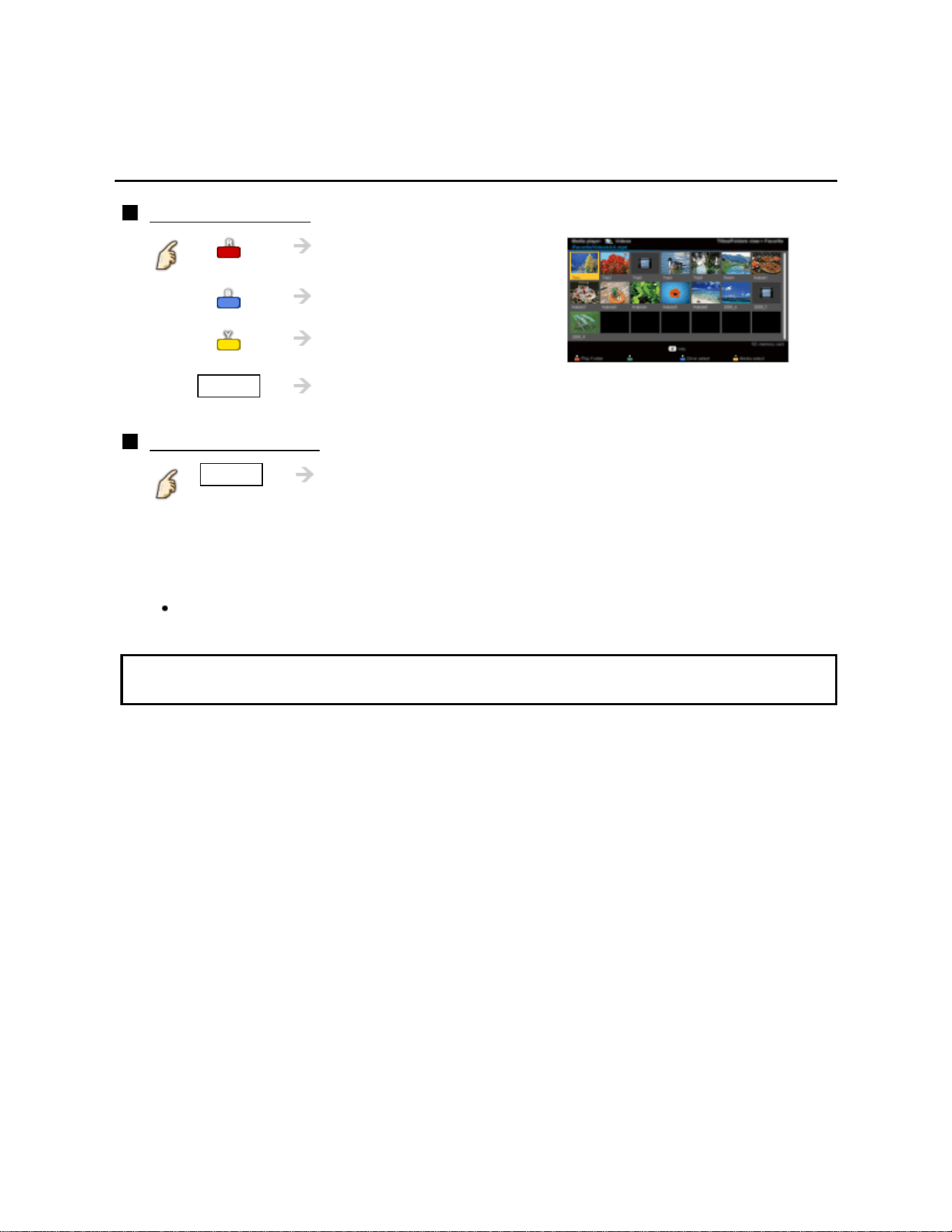
Video view
Thumbnail view
Play the video
Display Drive select
Display Media select
INFO Information panel (File name, Date, and Size etc.)
*Information differs depending on selected data.
Playback screen
INFO Display/hide Guide and Banner
Movie banner: Shows current Video status
(Drive type (SD/USB/DLNA), Date and time or File name and
Elapsed time.)
Navigation Guide: Shows available functions.
Forward/Reverse: Five levels of speed 1 to 5 (x2, x5, x30, x70, x100) are
available.
* Subtitles are not supported in MKV format.
93
Media player
Videos
Options menu
In Video view, some optional menus are available by pressing the OPTION button.
1. Display Options menu
OPTION Options menu
2. Select the item
Select the desired menu using / and press
(Video options)
Repeat playback
Set play repeat function (On/Off)
* Available menus are displayed on Options menu depending on data
condition and situation.
94
Media player
Music
Playing Music
1.
Insert Media (SD card or USB flash memory)
2. Display Media player
VIERA TOOLS VIERA TOOLS > Media player
3. Select the SD/USB in Drive select (Displays connected drive)
Select the drive using / and press
4. Select the Music in Media select
Select the drive using / and press
5. Select the music in thumbnail view
Select the data using / / / and
* How data is displayed differs depending on data storage conditions.
6. Play
Follow the Navigation and guide to operate.
* Displayed navigation and guide will be different depending on data type.
Other settings
Some basic menus are available by pressing the
MENU button.
MENU Menu > Picture/Audio/3D settings/VIERA Link
95
Media player
Music
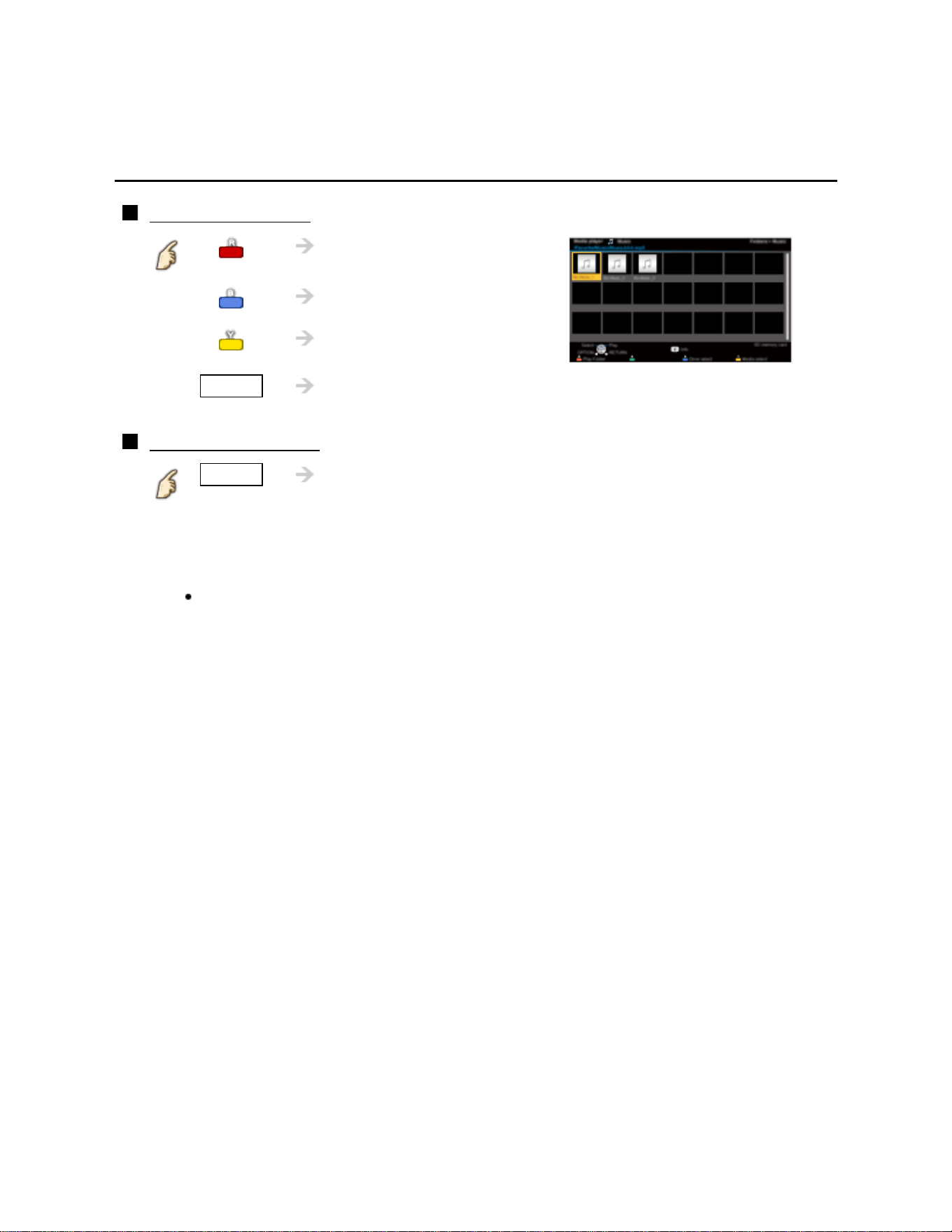
Music view
Thumbnail view
Play folder
Display Drive select
Display Media select
INFO Information panel (File name, Date, and Size etc.)
* Information differs depending on selected data.
Playback screen
INFO Display/hide Guide and Banner
Music Guide: Shows current Music status
(Artist name/Album name/Song name, Elapsed time)
Navigation Guide: Shows available functions.
Forward/Reverse: Five levels of speed 1 to 5 (x2, x5, x30, x70, x100) are
available.
96
Media player
Music
Options menu
Music options
In Music view, some optional menus are available by pressing the
OPTION button.
1. Display Options menu
OPTION Options menu
2. Select the item
Select the desired menu using
/ and press
(Music options)
Repeat playback
Set play repeat function (Off/Repeat folder/One song)
* Available menus are displayed on Options menu depending on data
condition and situation.
97
Media player
Data information
Compatible Data format (1)
Compatible Data format for Media player
(SD card/USB flash memory)/DLNA
Media Compatible format
Photo
JPEG files (DCF and EXIF standards)
Sub-sampling - 4:4:4, 4:2:2 and 4:2:0
Image resolution - 8 x 8 to 30,719 x 17,279 pixels
98
Media player
Data information
Compatible Data format (2)
Media Compatible format
Videos SD-Video files (SD-Video Standard Ver.1.31)
Modified data with a PC may not be displayed correctly.
AVCHD files
AVCHD Standard Ver.2.0 (AVCHD Progressive)
Modified data with a PC may not be displayed correctly.
MotionJPEG files (taken with LUMIX)*
MP4 files
Video codec H.264/MPEG1/MPEG2
Audio codec MPEG Audio/MP3/AAC/HE-AAC/AC3/E-AC3
MKV files
Video codec H.264/MPEG1/MPEG2
Audio codec MPEG Audio/MP3/AAC/HE-AAC/AC3/E-AC3
FLV files
Video codec H.264
Audio codec MP3/AAC
3GPP files
Video codec H.264/MPEG1/MPEG2
Audio codec AAC/HE-AAC
PS files
Video codec H.264*/MPEG1/MPEG2
Audio codec MPEG Audio/MP3*/AAC*/HE-AAC*/AC3/
E-AC3*/LPCM
TS files
Video codec H.264/MPEG1/MPEG2
Audio codec MPEG Audio/MP3*/AAC/HE-AAC/AC3/E-AC3
* for Media player only
99
Media player
Data information
Compatible Data format (3)
Media Compatible format
Music MP3 files (MP3)
AAC files (AAC)
FLAC files (FLAC)
100

Media player
Data information
Notice
Format the card with the recording equipment.
The picture may not appear correctly on this TV depending on the recording
equipment used.
Some files may not be played back even if they fulfill these conditions.
Depending on how you make SD Card, USB Flash Memory or the media server,
files and folders may not be displayed in the order you numbered.
Depending on how you create the files and the structure of folders, the files and
folders may not be displayed.
When there are many files and folders, operation may take time to complete or
some files may not be displayed or playable.
The function cannot display still images that are not DCF formatted (i.e. TIFF,
BMP).
Data modified with a PC may not be displayed.
Images imported from a PC must be compatible with EXIF 2.0, 2.1 and 2.2.
Partly degraded files might be displayed at a reduced resolution.
All ".JPG" extension data in the SD card and USB flash memory will be read in
Photo Viewer Mode.
The folder and file names may be different depending on the digital camera used.
Do not use two-byte characters or other special codes.
The card may become unusable with this TV if file or folder names are changed.
For the suitable SD Memory Cards, please confirm the latest information on the
following website.
http://panasonic.jp/support/global/cs (This site is in English only)
101
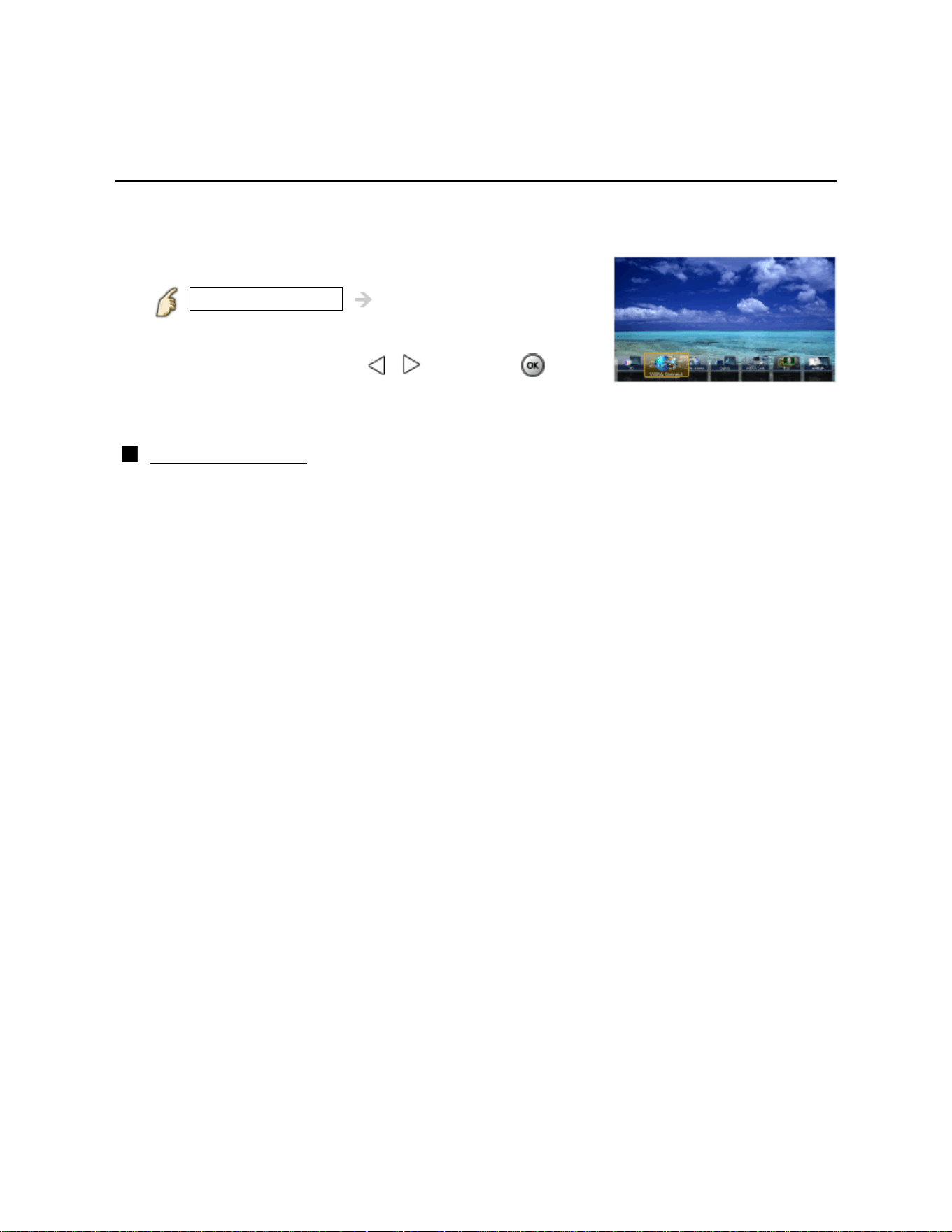
Convenience features
Using VIERA TOOLS
Using VIERA TOOLS
VIERA TOOLS is the easy way to access the TV's special features.
They are displayed as shortcut icons on the TV screen.
1. Display VIERA TOOLS menu
VIERA TOOLS VIERA TOOLS
2. Select the item
Select desired item using / and press
3. Access desired feature and set
Follow the directions on screen to use each feature.
(example)
Available items
VIERA Connect/Media player/DLNA/VIERA Link/Game Mode/
Eco/eHELP
102
Convenience features
Timer
Setting menu
The TV can automatically turn On/Off at a designated date and time.
If the Timer settings are grayed out, first set the clock and make sure Auto power
on is set to No.
1. Display the menu
MENU Menu
2. Select Timer from menu bar
Select desired menu using / from menu bar and press
3. Select the item and adjust
Select desired item using
/ and adjust with /
103
Convenience features
Timer
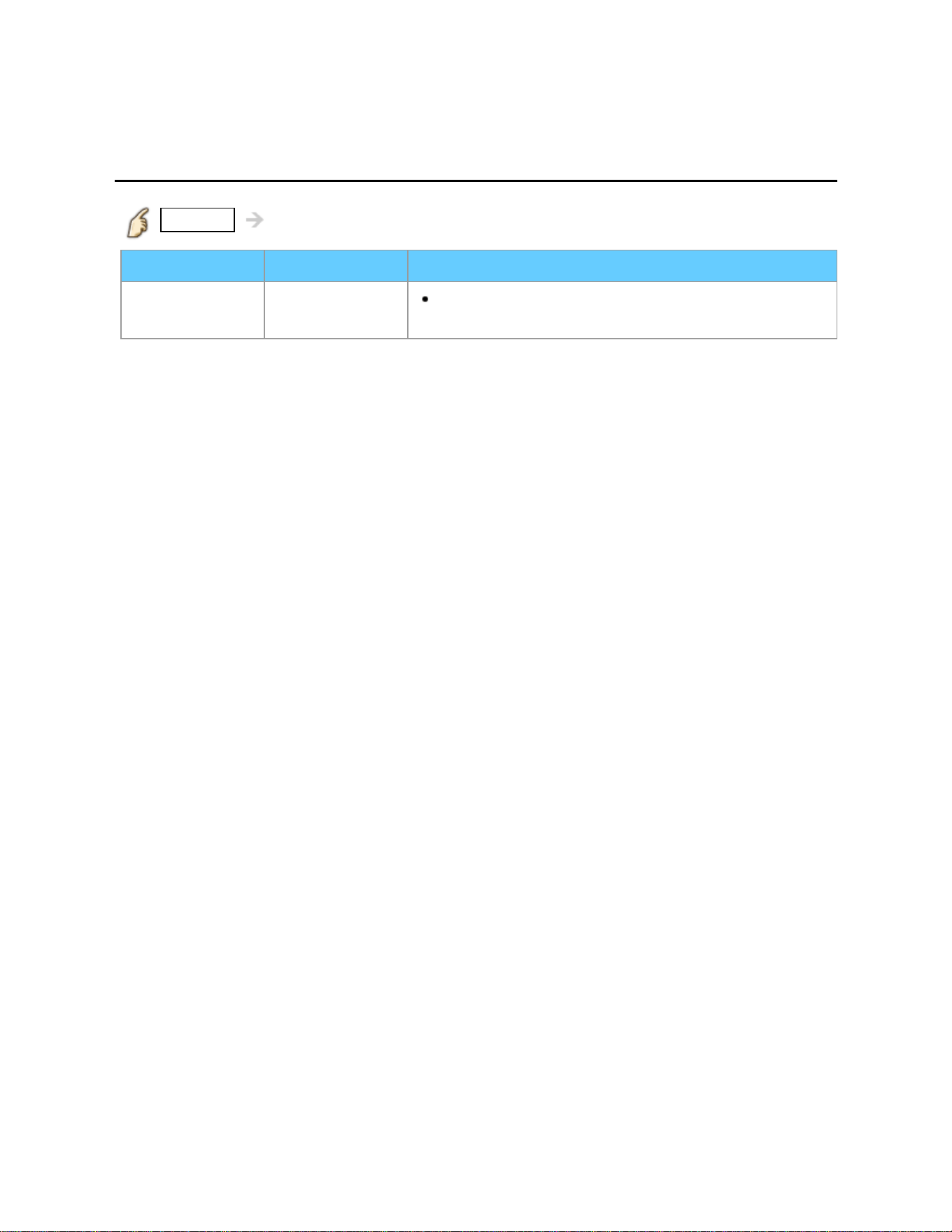
Sleep (Off timer)
MENU Menu > Timer
Settings Options Description
Sleep
(minutes)
Off/15/30/
60/90
Selects how long the TV stays on before it
automatically turns off.
104
Convenience features
Timer
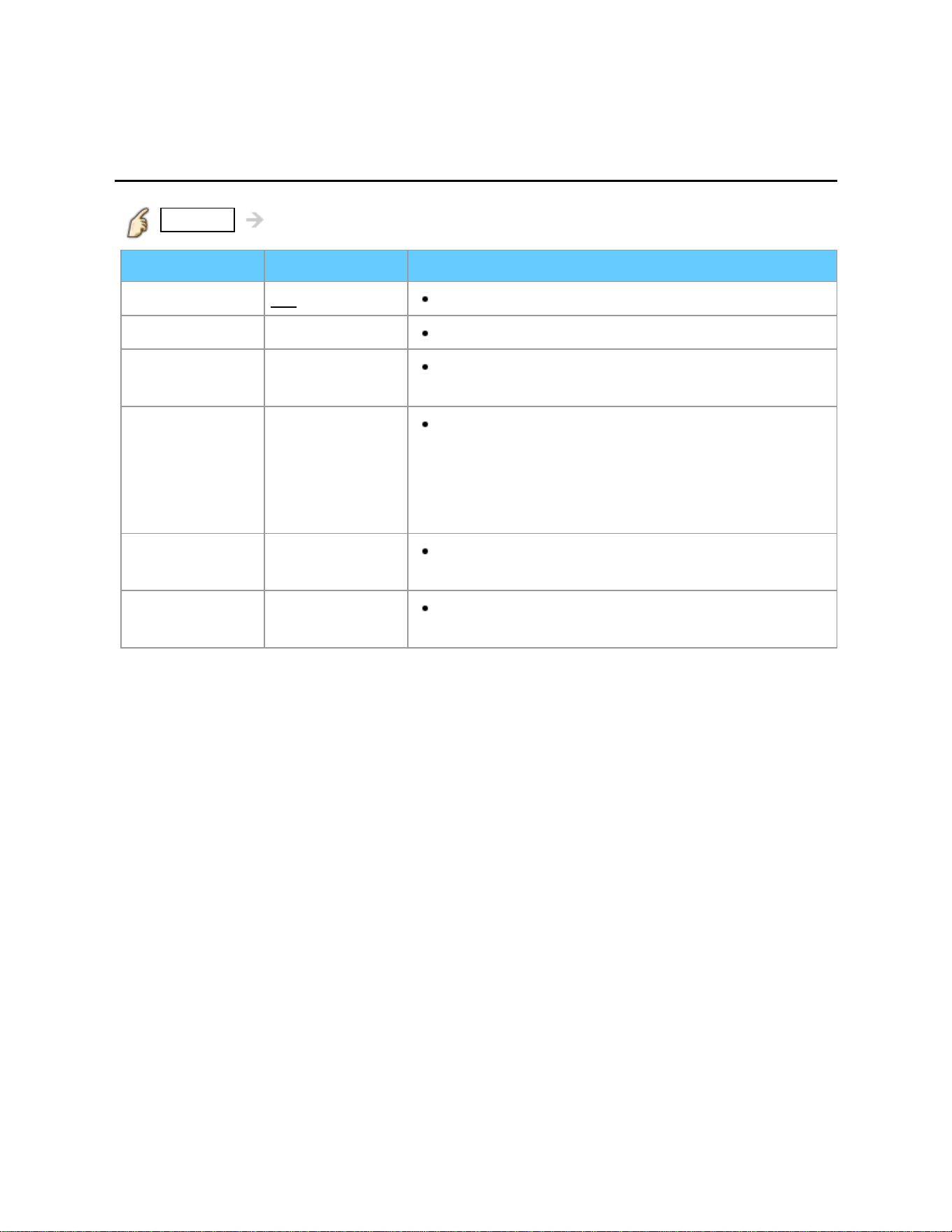
Timer (On/Off timer)
MENU Menu > Timer
Settings Options Description
Timer set
Off/On Enables or disables the Timer.
Inputs
Sets the input to select when the TV turns on.
Channel
Sets the channel to select when the TV turns
on.
Day
Sets the day when the TV turns on.
[SUN/MON/TUE/WED/THU/FRI/SAT (displays the
nearest future date) MON-FRI/SAT-SUN/
DAILY/Every SUN/Every MON/Every TUE/
Every WED/Every THU/Every FRI/ Every SAT]
On time
Sets the time when the TV turns on. The TV
will turn off after 90 minutes or as specified.
Off time
Sets the time when the TV turns off within 24
hours.
105
Convenience features
Lock (parental control)
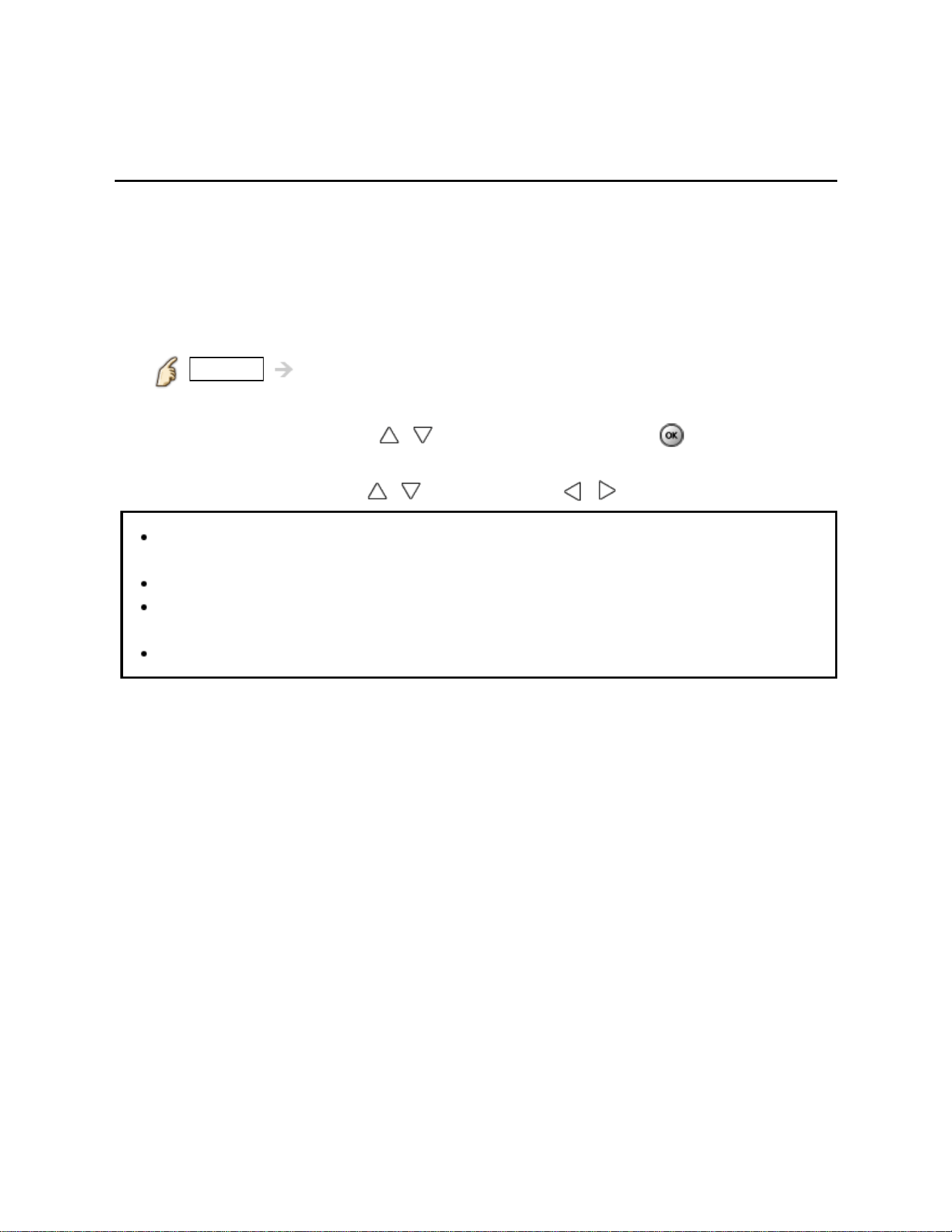
Setting menu
Locks specified channels or shows to prevent children from watching objectionable
content.
You will be asked to enter your password each time you display the Lock menu.
Set Custom in Mode to specify Channel, Game, Program and VIERA
Connect settings.
1. Display the menu
MENU Menu
2. Select Lock from menu bar
Select desired menu using / from menu bar and press
3. Select the item and adjust
Select desired item using
/ and adjust with /
This television is designed to support the "Downloadable U.S. Region Rating
System" when available. (Currently available only in U.S.A.)
The Off rating is independent of other ratings.
When placing a lock on a specific-age-based-rating level, the Off rating and
any other more restrictive ratings will also be blocked.
The channels will be blocked regardless of the program rating.
106
Convenience features
Lock (parental control)
Lock (1)
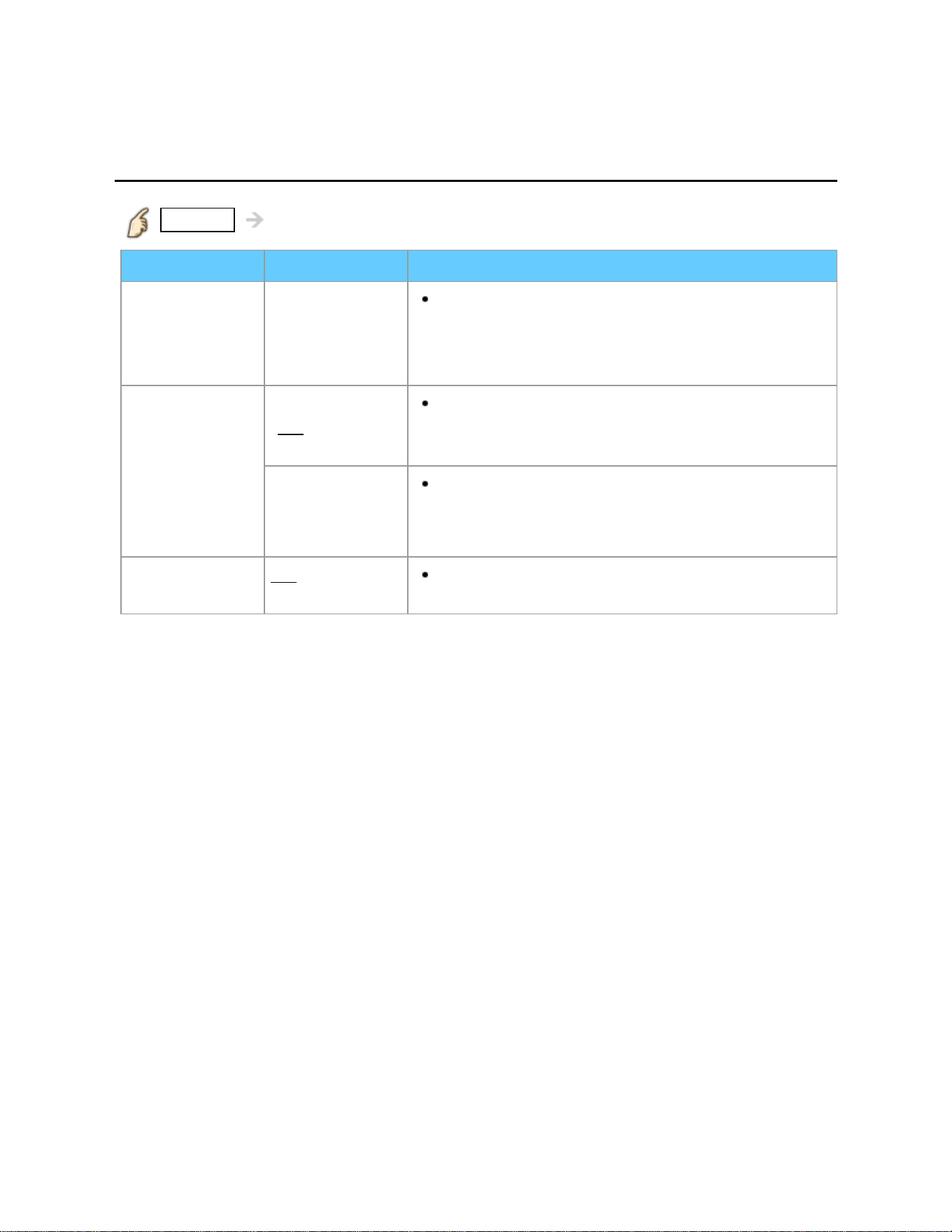
MENU Menu > Lock
Settings Options Description
Mode Off/All/Custom
Locks (All) or Unlocks (Off) all channels,
programs or inputs. For Custom, Locks specified
inputs of Channel, Game, Program and
VIERA Connect.
Channel
(These
channels will
be blocked
regardless of
the program
ratings.)
Mode
(
Off/All/
Custom)
Locks (All) or Unlocks (Off) all channels. For
Custom, Locks specified channels.
Set Channel 1 - Channel 7.
Channel 1-7
Designates channel number to be blocked at
any time, regardless of its broadcast content.
Game Off/On Restricts access to channel 3, channel 4 and
all the TV's inputs.
107
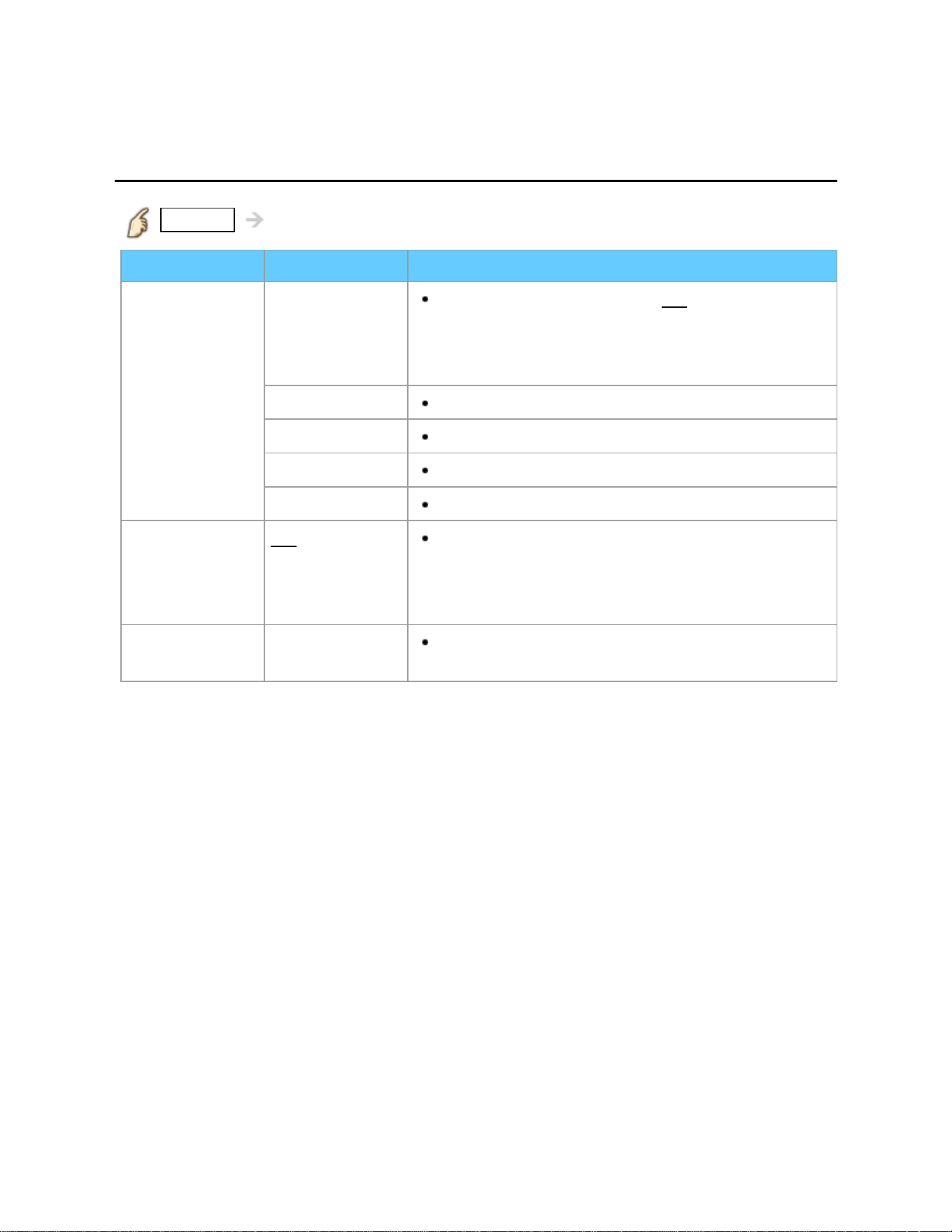
Convenience features
Lock (parental control)
Lock (2)
MENU Menu > Lock
Settings Options Description
Program
(Prohibits
viewing of TV
content based
on the rating
provided by the
broadcasters.)
Mode
Sets program lock status. (Off/On) "V-chip"
technology enables restricted shows to lock
according to TV ratings. On: Set each rating level
(MPAA, US.TV, C.E.L.R., C.F.L.R.)
MPAA
Selects U.S. movie ratings to lock.
U.S.TV
U.S. TV program ratings.
C.E.L.R.
Canadian English ratings.
C.F.L.R.
Canadian French ratings.
VIERA
Connect
Off/On Locks VIERA Connect. When you access
VIERA Connect, the "VIERA Connect Lock"
screen is displayed. Type the correct password to
enter the Home screen.
Change
password
Create a new password. Input the new 4-digit
password twice.
108
Convenience features
Lock (parental control)
Password setting
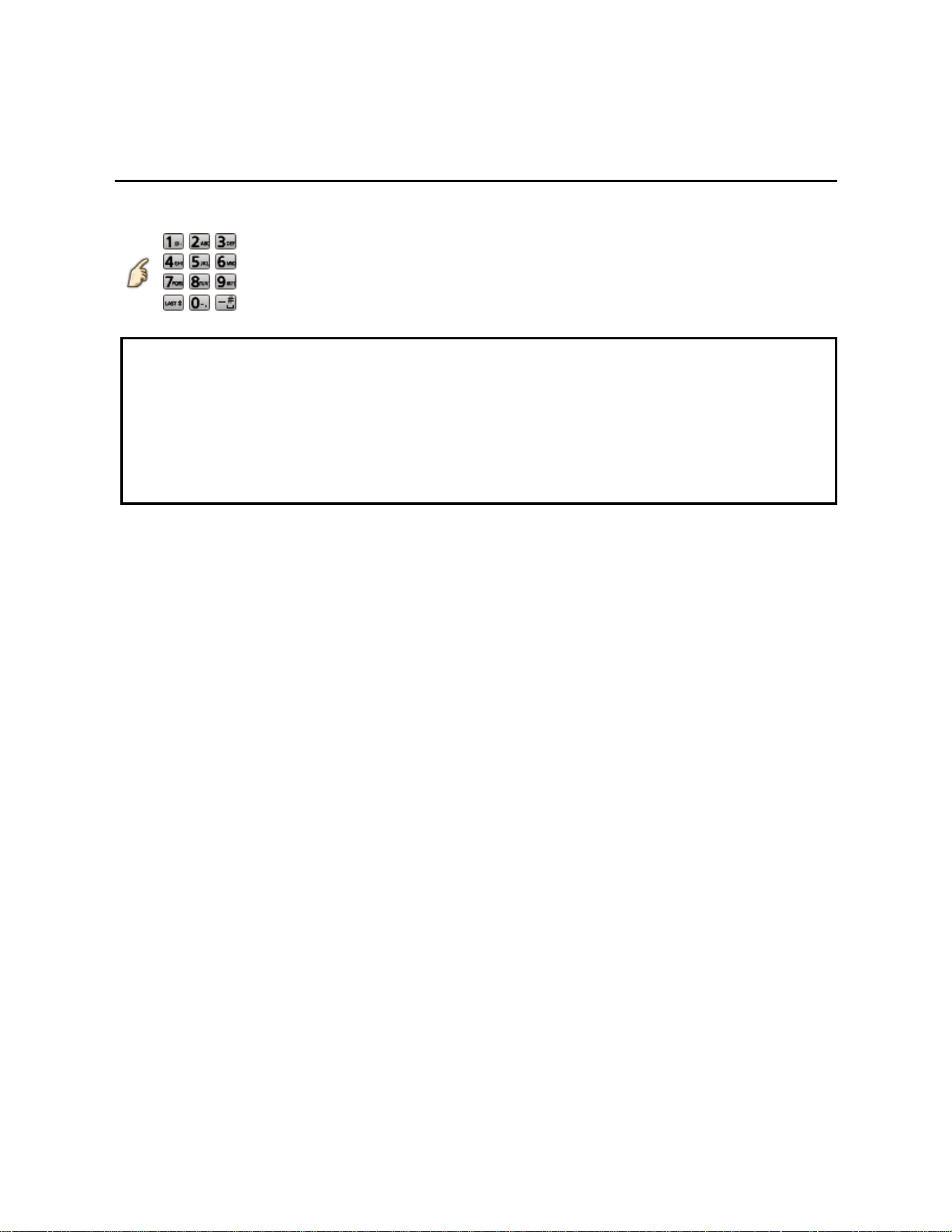
You need to enter the password when you access locked channels or inputs.
(Input your 4-digit password)
* If it is your first time entering the password, enter the password twice in order to
register it.
* Make a note of your password. Do not forget it. (If you have forgotten your
password, consult your local dealer.)
* When you select a locked channel, a message will be displayed that allows you
to view the channel after you input your password.
109
Convenience features
Lock (parental control)
Parental control ratings (1)
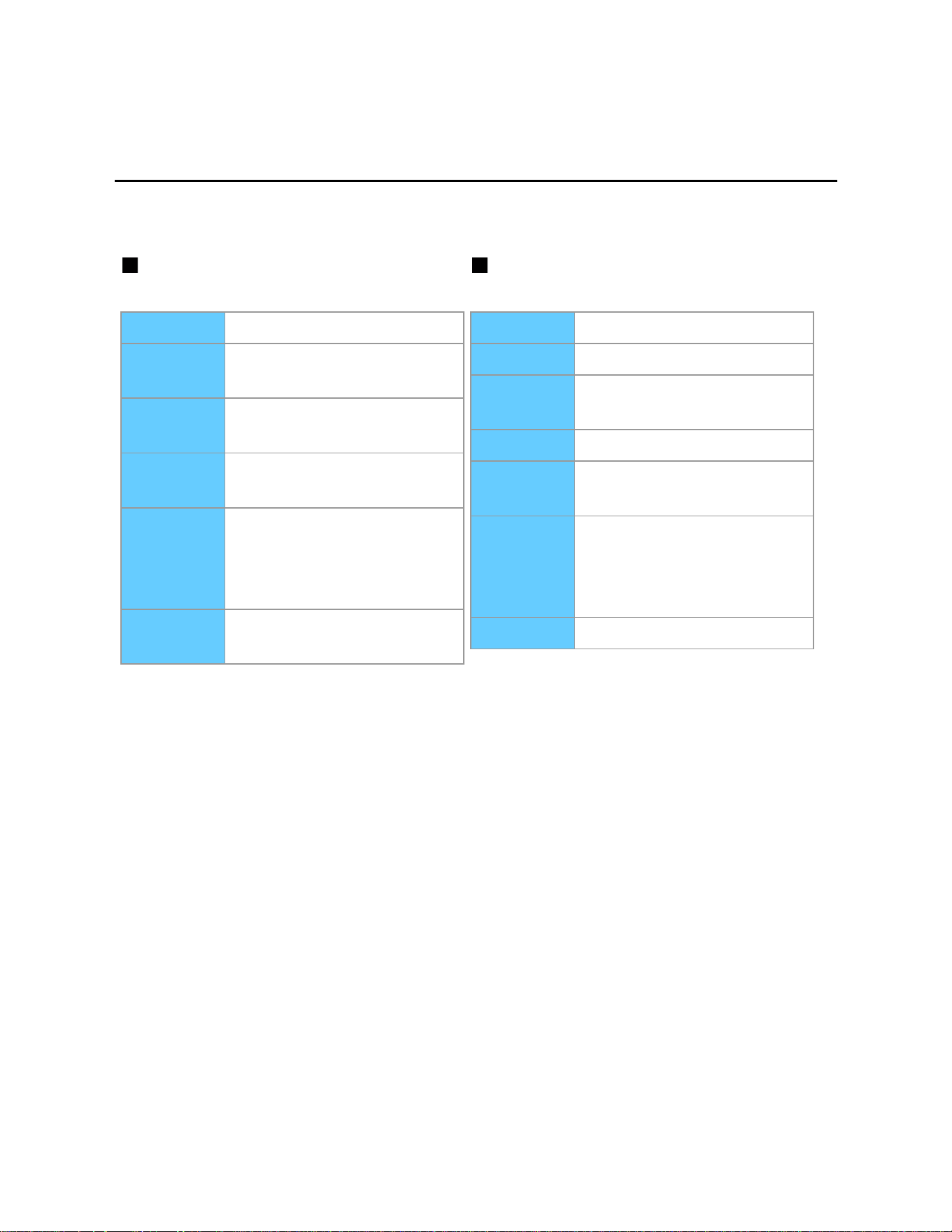
"V-chip" technology enables you to lock channels or shows according to standard
ratings set by the entertainment industry.
U.S. MOVIE RATINGS (MPAA) U.S. TV PROGRAMS RATINGS
(U. S. TV) - Age-Based Ratings
NR Not Rated.
G All children and General
Audience.
PG Parental Guidance
suggested.
PG-13 Parental Guidance for
children under 13.
R Restricted Viewing,
parental guidance is
suggested for children
under 17.
NC-17/X No one 17 or under
allowed.
TV-NR Not Rated.
TV-Y All children.
TV-Y7 Directed to children age 7
and older.
TV-G General Audience.
TV-PG Parental Guidance
suggested.
TV-14 Parents strongly
cautioned, parental
guidance is suggested for
children under 14.
TV-MA Mature Audience only.
110
Convenience features
Lock (parental control)
Parental control ratings (2)
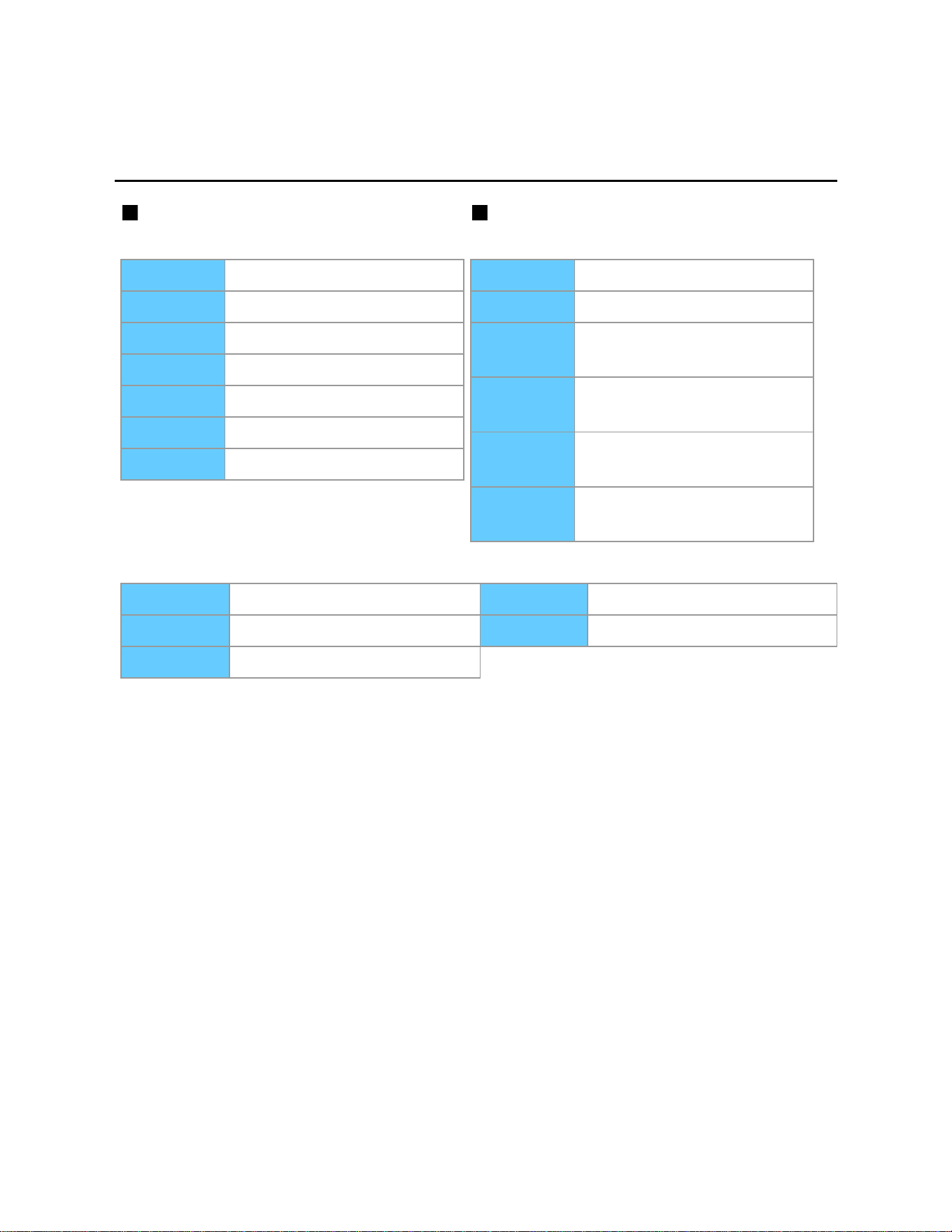
CANADIAN ENGLISH RATINGS
(C. E. L. R.)
CANADIAN FRENCH RATINGS
(C. F. L. R.)
E Exempt programming.
C All children.
C8+ Children 8 years and older.
G General programming.
PG Parental Guidance.
14+ Viewers 14 and older.
18+ Adult programming.
E Exempt programming.
G General programming.
8 ans+ Not recommended for
young children.
13 ans+ Not recommended for ages
under 13.
16 ans+ Not recommended for ages
under 16.
18 ans+ Programming restricted to
adults.
Contents-Based Ratings
FV Fantasy Violence. S Sexual situations.
D Suggestive Dialogue. V Violence.
L Strong Language.
111

Convenience features
Lock (parental control)
Parental control ratings (3)
Caution
The V-Chip system used in this set is capable of blocking "NR" programs (non rated,
not applicable and none) as per FCC Rules Section15.120(e)(2). If the option of
blocking "NR" programs is chosen "unexpected and possibly confusing results may
occur, and you may not receive emergency bulletins or any of the following types of
programming:"
Emergency Bulletins (Such as EAS messages, weather warnings and others)
Locally originated programming News Political Public Service
Announcements Religious Sports Weather
112
Convenience features
Closed caption
Setting menu
The television includes a built-in decoder that is capable of providing a text display of
the audio. The program being viewed must be transmitting the Closed caption (CC)
information.
The settings are "Analog" or "Digital" depending on the broadcaster.
1. Display the menu
MENU Menu
2. Select Setup from menu bar
Select desired menu using / from menu bar and press
3. Select Closed caption
Select desired menu using / and press
4. Select the item and adjust
Select desired item using
/ and adjust with /
* Some functions will be disabled depending on the type of input signal.
Reset to defaults will be grayed out if no changes are made.
113
Convenience features
Closed caption
Closed caption (1)
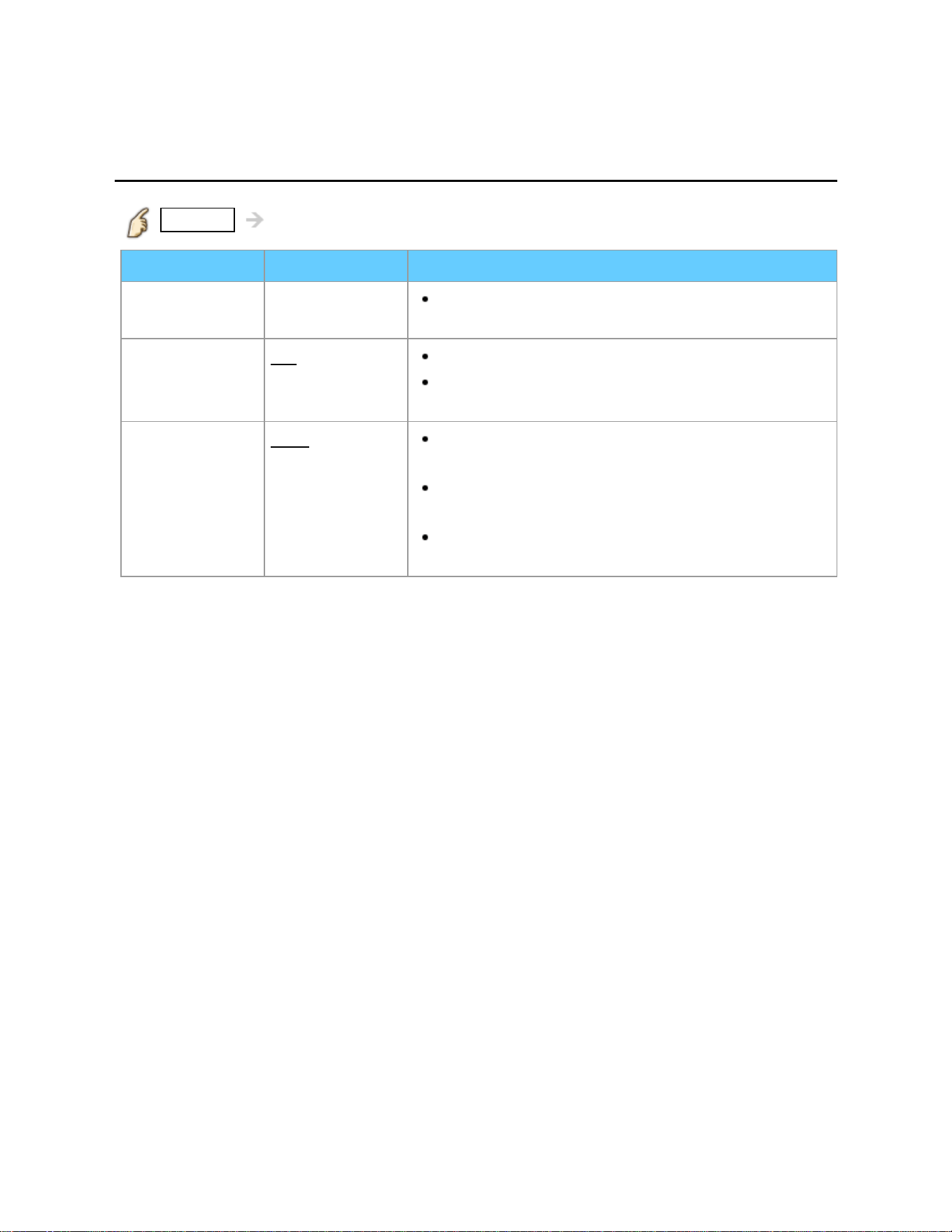
MENU Menu > Setup > Closed caption
Settings Options Description
Reset to
defaults
Resets all Closed caption settings to factory
default settings.
Mode
Off/On/
CC on mute
On: To display Closed captions.
CC on mute: To display Closed captions when
the audio is muted. (When not using, select Off).
Analog
CC1-4/T1-4 Choose the Closed caption service of Analog
broadcasting.
CC1-4: Information related to pictures
(Appears at the bottom of the screen)
T1-4: Textual information (Appears over the
entire screen)
114
Convenience features
Closed caption
Closed caption (2)
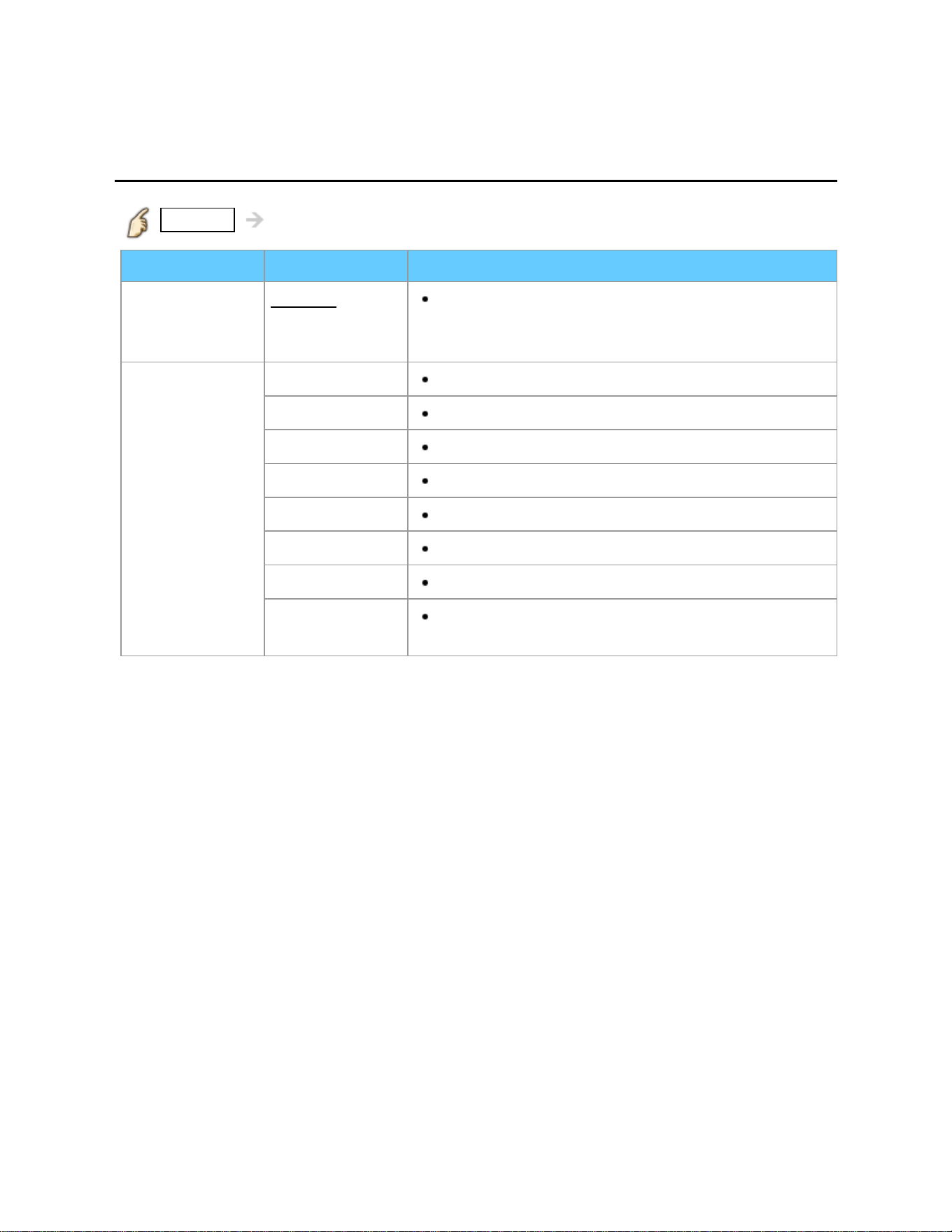
MENU Menu > Setup > Closed caption
Settings Options Description
Digital
Primary/
Second./
Service 3/4/5/6
The Digital Closed caption menu lets you
configure the way you choose to view the digital
captioning.
Digital setting
(Set display
settings in
digital
programs.)
Size
Select the text size
Font
Select the text font
Style
Select the text style (Raised, Depressed, etc.)
Foreground
Select the color of text
Fore. opacity
Select the opacity of text
Background
Select the color of text box
Back. opacity
Select the opacity of text box
Outline
Select the outline color of text (Identify the
setting options on the screen).
115

Convenience features
Closed caption
Closed caption notice
For viewing the CC of digital broadcasting, set the aspect to FULL (If viewing with
H-FILL, JUST, ZOOM or 4:3, characters might be cut off).
The CC can be displayed on the TV only when the receiver (such as a Cable box
or satellite receiver) has the CC set to ON within the device itself. Check with your
Cable or Satellite provider for instructions. The TV's CC button does not operate
the Satellite or Cable box's CC function.
If the CC is set to ON on both the receiver and TV when the signal is 480i (except
for the HDMI connection), the CC may overlap on the TV.
If a digital program is being output in analog format, the CC data will also be output
in analog format.
If the recorder or output monitor is connected to the TV, the CC needs to be set up
on the recorder or output monitor.
116
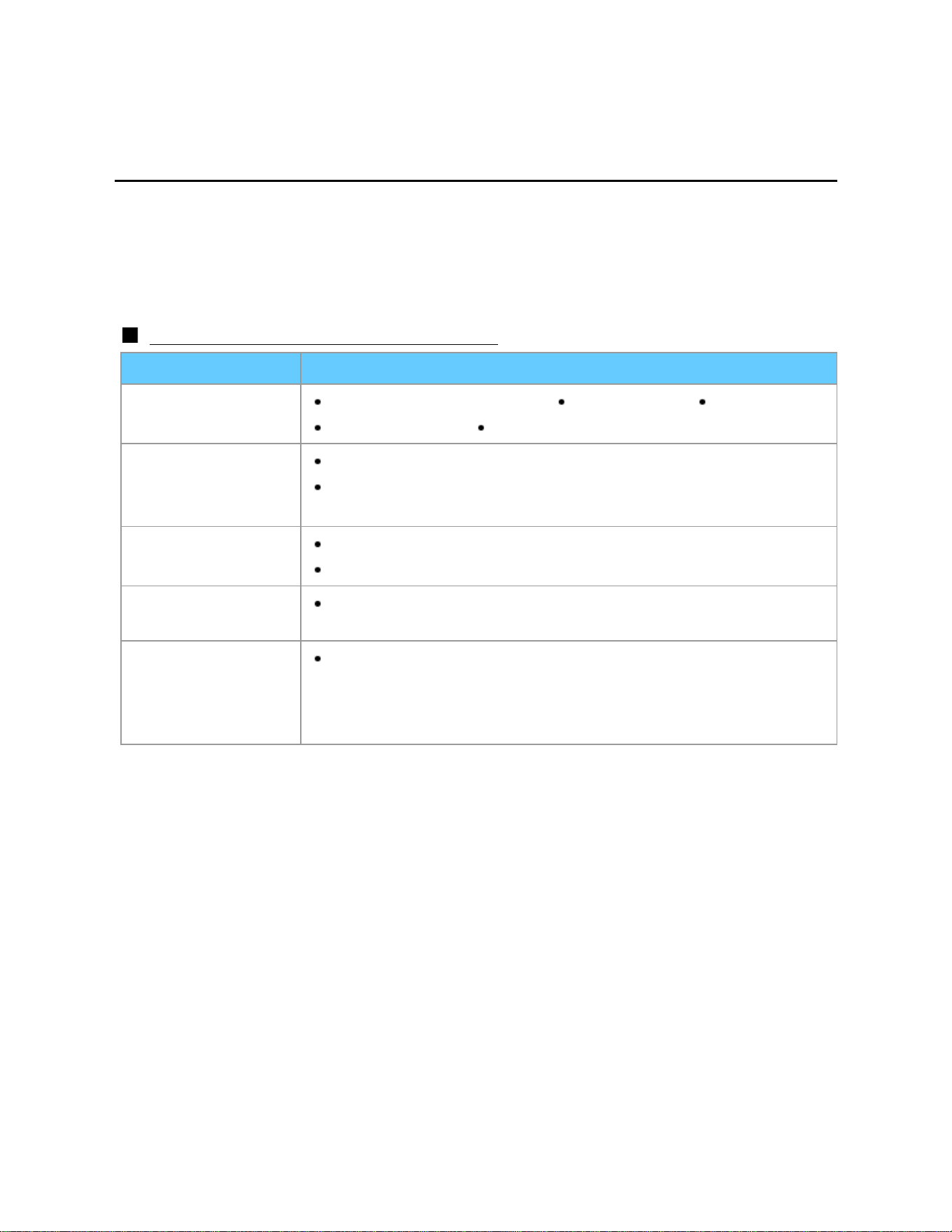
Convenience features
VIERA Link ™ "HDAVI Control ™"
Basic feature
Simultaneously control all Panasonic "HDAVI Control" equipped components using
one button on the TV remote. Enjoy additional HDMI Inter-Operability with compatible
Panasonic products. This TV supports "HDAVI Control 5" function. Connections to
equipment (Blu-ray Disc player, DVD recorder DIGA, HD Camcorder, Home Theater
System, Amplifier, etc.) with HDMI cables enables VIERA Link controls.
Available HDAVI Control functions
Version Operations
HDAVI Control or
later
Automatic Input Switching Power on link Power off link
Default speakers Speaker control
HDAVI Control 2 or
later
VIERA Link control only with the TV's remote control
Unselected device energy save (for available equipment
only)
HDAVI Control 3 or
later
Provides setting information (Language, time, etc.)
Automatic lip-sync function
HDAVI Control 4 or
later
Energy saving mode (with Quick Start mode)
HDAVI Control 5
Audio Return Channel
Audio Return Channel (ARC) is a function that enables digital
sound signals to be sent via an HDMI cable back from the TV
to a connected audio device.
117

Convenience features
VIERA Link ™ "HDAVI Control ™"
Connecting note (1)
When adding new equipment...
When adding new equipment, reconnecting equipment or changing
the setup after the connection, turn the equipment on and then
switch the TV on. Set the input mode to correct HDMI terminal, and
make sure that the image is displayed correctly.
VIERA Link "HDAVI Control", is based on the control functions provided by HDMI and
industry standard known as HDMI CEC (Consumer Electronics Control), with unique
function that we have developed and added. As such, its operation with other
manufacturers' equipment that supports HDMI CEC cannot be guaranteed. Please
refer to the individual manuals for other manufacturers' equipment supporting the
VIERA Link function.
HDMI cable
This function needs an HDMI compliant (fully wired) cable. Non-HDMI-compliant
cables cannot be utilized. It is recommended that you use Panasonic's HDMI cable.
Recommended part number:
RP-CDHS15 (4.9 ft/1.5 m), RP-CDHS30 (9.8 ft/3.0 m), RP-CDHS50 (16.4 ft/5.0 m)
For more details on the external equipment's connections, please refer to the
operating manual for the equipment.
118
Convenience features
VIERA Link ™ "HDAVI Control ™"
Connecting note (2)
HDMI connections to some Panasonic equipment allow you to interface automatically.
This function may not work normally depending on the equipment condition.
The equipment can be operated by other remote controls with this function on,
even if the TV is in Standby mode.
Image or sound may not be available for the first few seconds when playback
starts.
Image or sound may not be available for the first few seconds when input mode is
switched.
Volume function will be displayed when adjusting the volume of the equipment.
If you connect equipment that has "HDAVI Control 2" or later function to the TV
with an HDMI cable, the sound from the DIGITAL AUDIO OUT terminal can be
output as multi-channel surround.
"HDAVI Control 5" is the newest standard (current as of November, 2011) for the
HDAVI Control compatible equipment.
This standard is compatible with the conventional HDAVI equipment.
If connection (or setting) of equipment compatible with HDAVI control is changed,
switch the power of this unit Off and On again while the power of all equipment is
On (so that the unit can correctly recognize the connected equipment) and check
that the connected equipment playback operates.
119
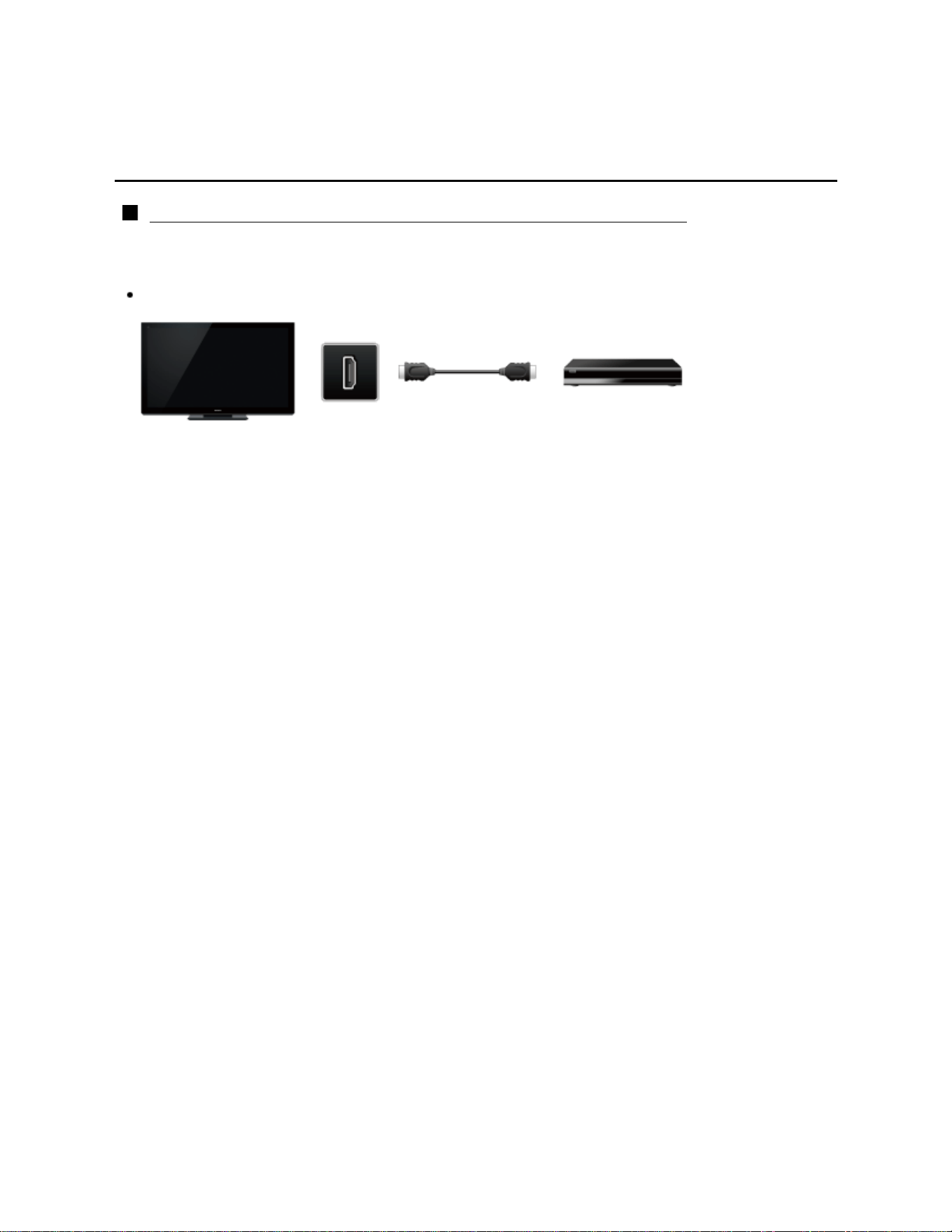
Convenience features
VIERA Link ™ "HDAVI Control ™"
VIERA Link connections (1)
Connecting Blu-ray Disc player/DVD Recorder (DIGA)
Connect the HDMI terminal of this TV to the DVD recorder (DIGA) with VIERA Link
function using a fully wired HDMI cable.
You can use any HDMI terminal on this TV.
TV
HDMI
HDMI cable
DVD recorder (DIGA)
with VIERA Link function
120
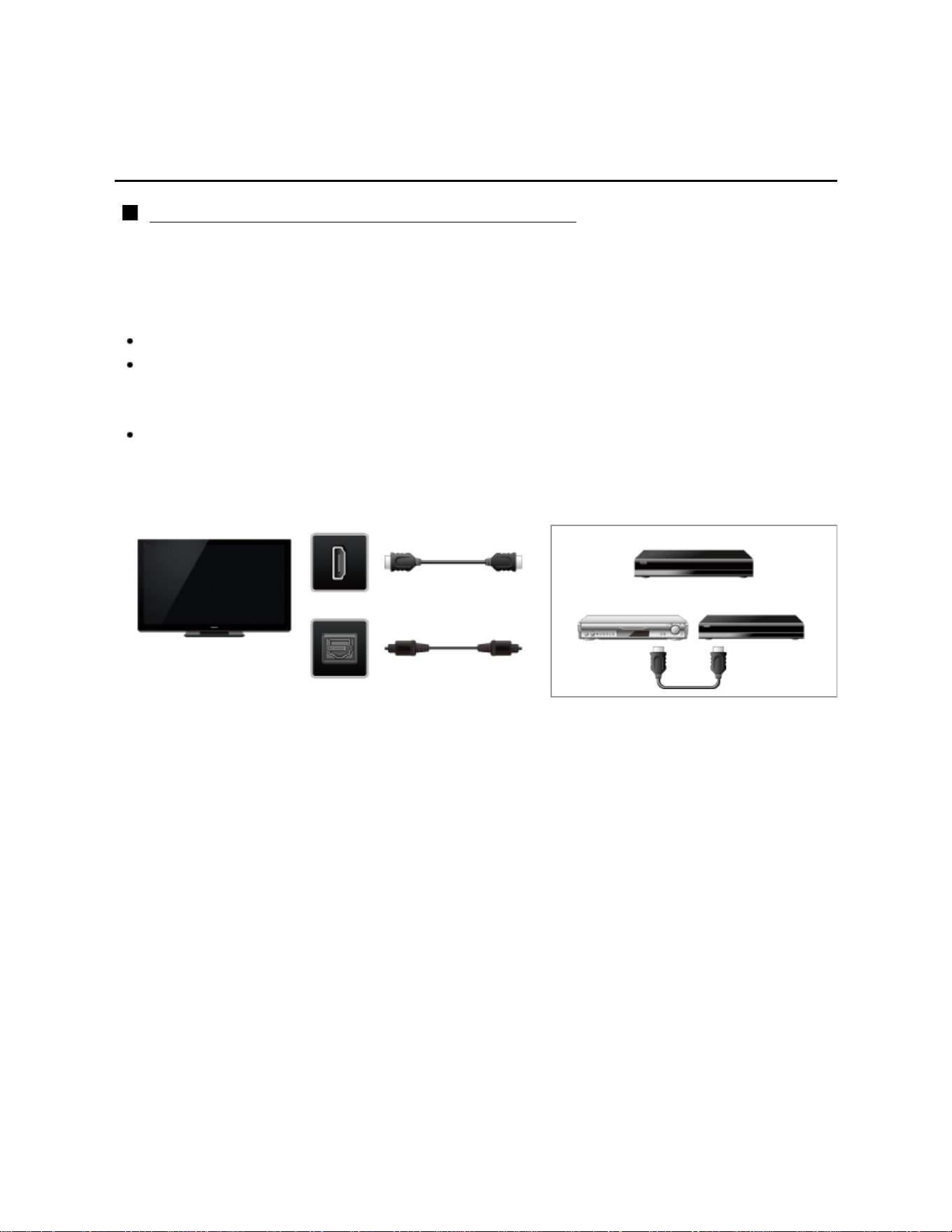
Convenience features
VIERA Link ™ "HDAVI Control ™"
VIERA Link connections (2)
Connecting Home theater system/AV amp
HDMI and Audio connection.
Connect the HDMI terminal and DIGITAL AUDIO OUT to Home Theater System/AV
amp with VIERA Link function using each fully wired HDMI cable and Optical audio
cable.
HDMI 2 is recommended.
No optical cable is necessary when connecting a Home Theater supporting
"HDAVI control 5" with an HDMI cable.
Audio will be supported via ARC (Audio Return Channel)
One AV amp and one Blu-ray Disc player/DVD recorder (DIGA) can be operated
with this unit by connecting with an HDMI cable.
TV
HDMI
HDMI cable
Home theater system
with VIERA Link function
DIGITAL
AUDIO OUT
Optical cable
AV amp with
VIERA Link
function
DVD recorder (DIGA)
with VIERA Link function
121
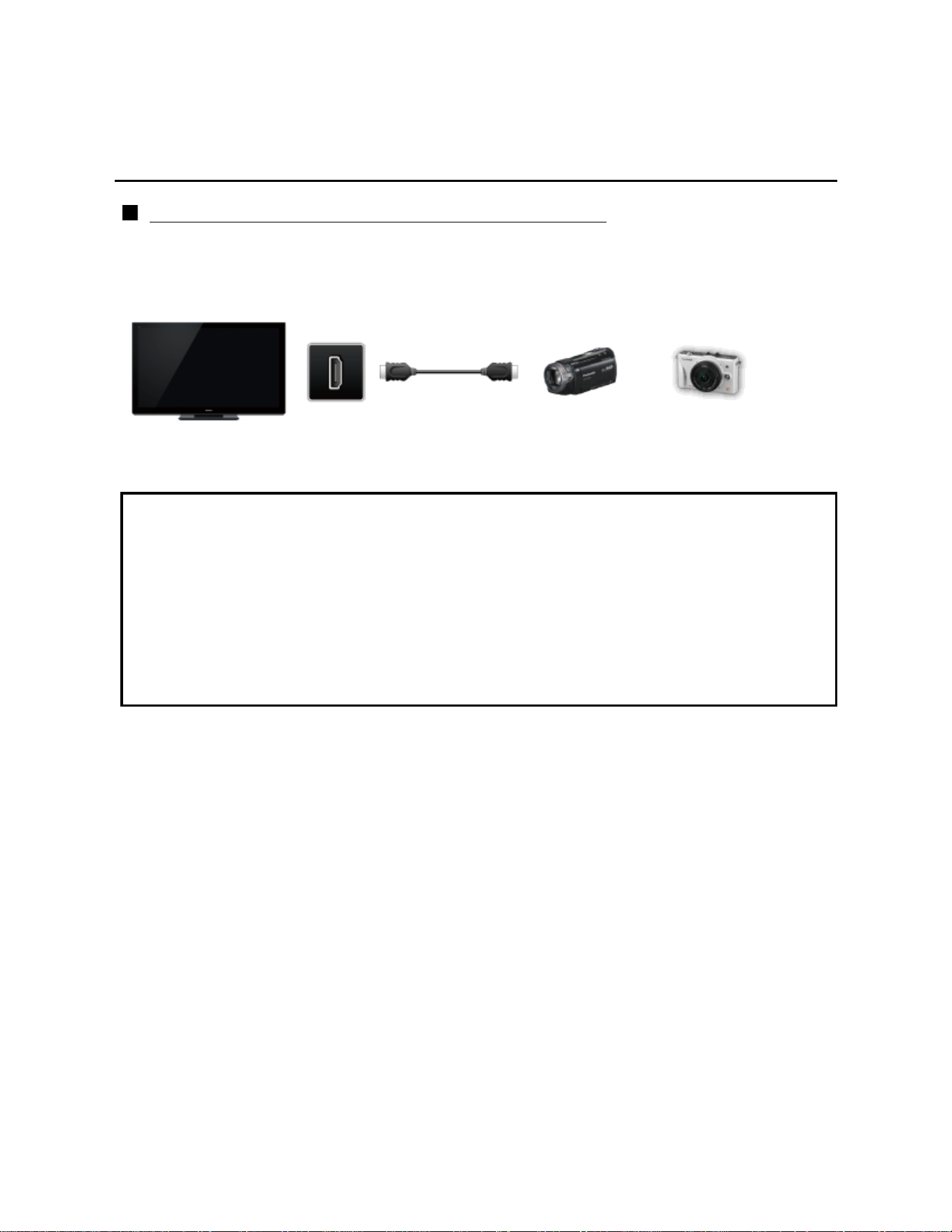
Convenience features
VIERA Link ™ "HDAVI Control ™"
VIERA Link connections (3)
Connecting an HD Camcorder/Digital camera
Press INPUT and select an available HDMI terminal, then connect the HD
camcorder/Digital camera with VIERA Link function to this input with
fully wired HDMI/mini HDMI cable.
TV
HDMI
HDMI /
mini HDMI cable
HD Camcorder
with VIERA Link
function
LUMIX
with VIERA Link
function
* Individual HDMI equipment may require additional menu settings specific to
each model. Please refer to their respective manuals.
* When audio from other equipment connected to this unit via HDMI is output
using "DIGITAL AUDIO OUT" of this unit, the system switches to 2CH audio.
(When connecting to an AV amp via HDMI, you can enjoy higher sound
quality.)
* Some devices use Mini-HDMI terminal. HDMI (type A) to Mini-HDMI (type C)
cable or adapter should be used.
122
Convenience features
VIERA Link ™ "HDAVI Control ™"
VIERA Link settings
To use all VIERA Link functions: After everything is connected, set VIERA Link to
On in VIERA Link settings menu.
Some features are disabled depending on the "HDAVI Control" version of the
equipment.
1. Display the menu
MENU Menu
2. Select VIERA Link settings
Setup > VIERA Link settings
Select Setup using
/ from menu bar and press then
select VIERA Link settings with / and press again.
3. Select VIERA Link and set to On
Change the VIERA Link to On with
/
4. Select and set other VIERA Link settings
(Power on link/Power off link/Energy saving mode/
Unselected device energy save /Default speakers)
123

Convenience features
VIERA Link ™ "HDAVI Control ™"
VIERA Link settings feature (1)
Automatic Input Switching
When using a Blu-ray Disc player, DVD player/recorder or Home theater system, the
TV will automatically change to the appropriate input, when playback begins on one of
those devices.
For a Home Theater System the speakers automatically switch to the theater
system.
Power on link
Yes: The TV is turned on automatically and switches to the appropriate HDMI input
whenever VIERA Link compatible equipment is initially turned on and the Play mode is
selected.
Power off link
When Yes is selected and the TV is turned off, all connected VIERA Link compatible
equipment is also automatically turned off.
A Panasonic DVD Recorder will not turn off if it is still in Rec mode.
The TV remains on even if the VIERA Link compatible equipment is turned off.
124

Convenience features
VIERA Link ™ "HDAVI Control ™"
VIERA Link settings feature (2)
Energy saving mode
Quick Start: When TV is turned off, all connected VIERA Link compatible
equipment is moved to ECO Standby mode* automatically under these conditions.
Power off link: (Yes), The connected equipment has "HDAVI Control 4 or later
(with Quick Start mode)"
* Minimum power consumption of Standby condition for the equipment.
Unselected device energy save
Yes: The connected VIERA Link compatible equipment will be turned off automatically
when not in use under these conditions.
The connected equipment has "HDAVI Control 2 or later" (for available equipment
only)
[ Example of timing for operation ]
When the input is switched from HDMI.
Default speakers
TV is the default setting. To set the Home theater system as Default speakers, change
the Default speakers setting from TV to Theater. Sound will be output from the
Home Theater whenever the TV is powered on.
125
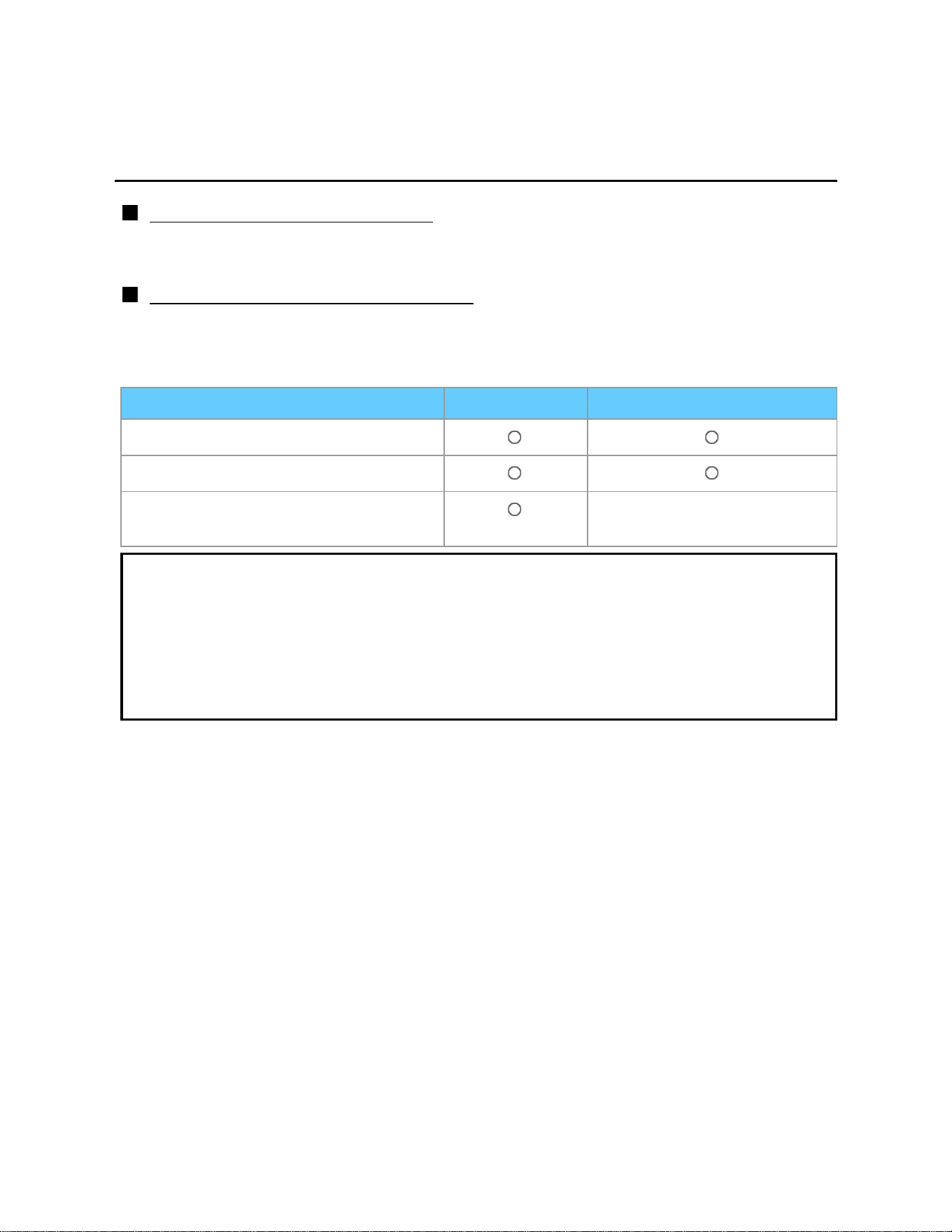
Convenience features
VIERA Link ™ "HDAVI Control ™"
VIERA Link settings feature (3)
Automatic lip-sync function
Minimizes time delay between the picture and audio when you connect to a Panasonic
theater system or Amplifier.
TV provided setting information
The following information about the TV settings can be transmitted to each piece of
equipment (Recorder/Home theater/Player) that has "HDAVI Control 3 or later"
function connected to a TV with an HDMI cable.
Transmittable data Recorder Home theater/Player
On Screen Display Language setting
Panel Aspect Ratio (16:9 fixed)
Closed caption information
(Mode/CC type/Digital setting)
---
* There is a possibility that all the GUI language information might be set from
equipment that has an HDMI CEC function connected to the TV with an HDMI
cable. Depending on the operating conditions or the specification for each piece
of equipment the setting may or may not be applied.
* For more details on the external equipment's operation, please refer to the
operating manual for the equipment.
126
Convenience features
VIERA Link ™ "HDAVI Control ™"
VIERA Link
Some features are disabled depending on the "HDAVI Control" version of the
equipment.
1. Display the VIERA Link menu
VIERA TOOLS VIERA Link
2. Select the item and set (VIERA Link control/Speaker output/Back
to TV)
Select the desired menu using
/ and set with /
* Items in the VIERA Link menu may be grayed out if no compatible equipment is
connected (must be HDAVI Control 2 or later) or if the equipment has not
initiated a connection with the TV. In that case, switch the equipment's power
Off and On while the TV is On.
127
Convenience features
VIERA Link ™ "HDAVI Control ™"
VIERA Link menu (1)
You can select the Home theater or TV speakers for audio output. Control the theater
speakers with the TV remote control. This function is available only when a Panasonic
Amplifier or Player theater is connected.
Select Speaker output using /
Select Home theater or TV with /
Home theater: Adjustment for the equipment
VOL(+/-) and MUTE buttons are available
The sound of the TV is muted.
When the equipment is turned off, the TV speakers take over.
Selecting Home theater turns the equipment on automatically if it is in
Standby mode.
TV: The TV speakers are on.
Back to TV
Returns the input selection of the device selected with the VIERA Link Control to the
TV input.
Select Back to TV using
/ and press
128
Convenience features
VIERA Link ™ "HDAVI Control ™"
VIERA Link menu (2)
VIERA Link control only with the TV's remote control
Select VIERA Link control using /
Select the desired equipment with / (You can select available items only.)
(Recorder/Home theater/Player/Camcorder/LUMIX/Others)
If there is more than one equipment item, a number after the name indicates
the number of items. (e.g.Recorder1/Recorder 2/Recorder 3...)
The number of equipment items that can be connected is three for recorders,
and a total of three for Home Theater/Player/Camcorder/LUMIX/Others.
Operate the equipment with the TV remote control, pointing it at the TV
* There is a limit to the number of HDMI connectors.
* To operate the equipment, read the manual for the equipment.
* For available TV remote control buttons, whether or not an operation is
available differs depending on the connected equipment.
129
Convenience features
Control by smartphone, etc.
Smartphone remote
You can use your Smartphone as your TV's remote controller.
Download the VIERA remote app. from Apple/Android store.
1. Select Network
MENU Menu > Network
2. Select Network remote control in Network link
Select desired menu using
/
3. Set the item
Switches to Enable using
/
* This function is subject to change without notice.
130
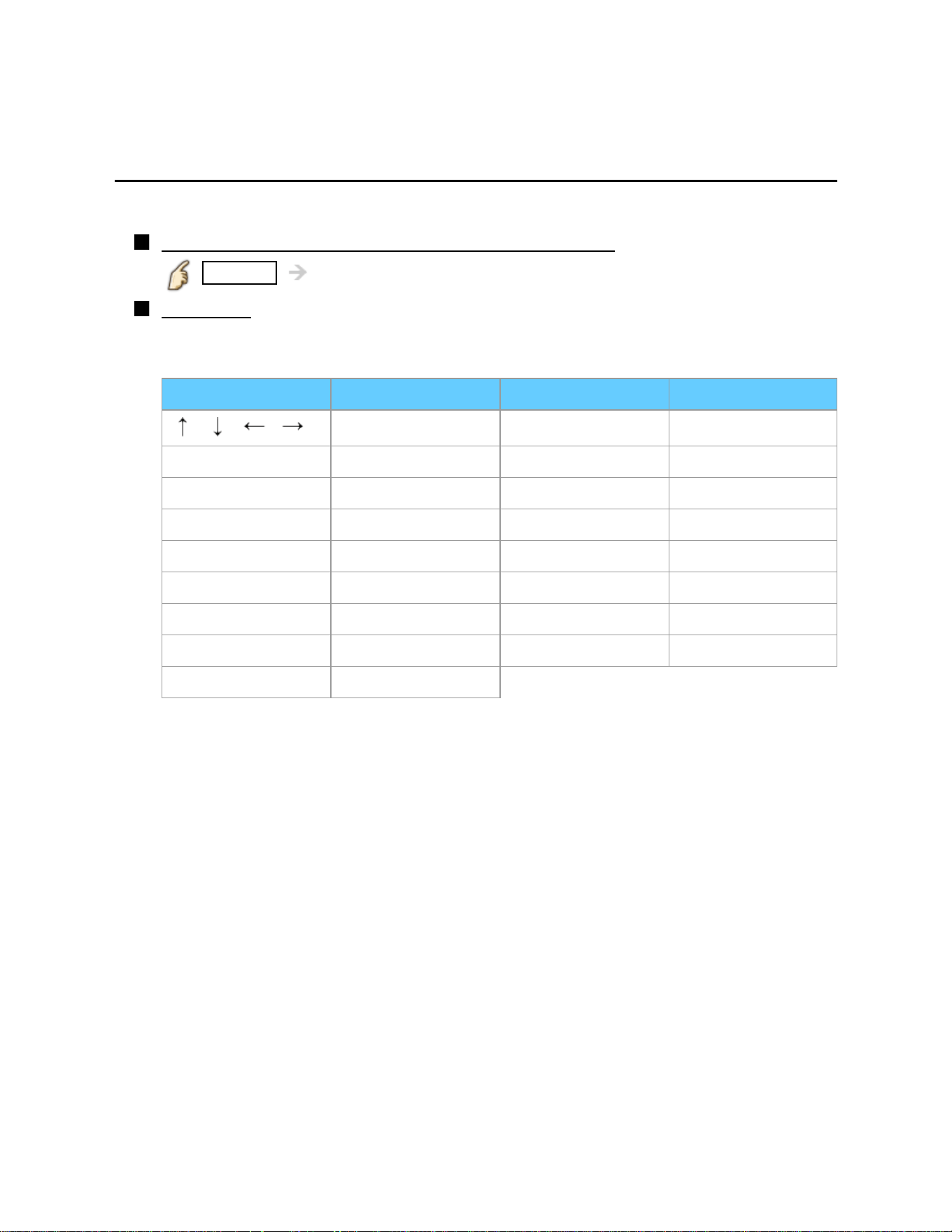
Convenience features
Using USB Keyboard / Gamepad
Keyboard
The USB Keyboard requiring its driver is not supported.
To select the language type of the keyboard
MENU Menu > Setup > Keyboard type
Key map
Some of the keys of USB keyboards may correspond to the operation of the
remote control.
Keyboard Remote Contol Keyboard Remote Contol
/ / / Cursor buttons F5 Channel down
Enter OK F6 Channel up
Back Space Back/Return F7 Volume down
ESC EXIT F8 Volume up
0 - 9 Numeric buttons F9 Red
F1 MENU F10 Green
F2 VIERA TOOLS F11 Blue
F3 OPTION F12 Yellow
F4 Input
131
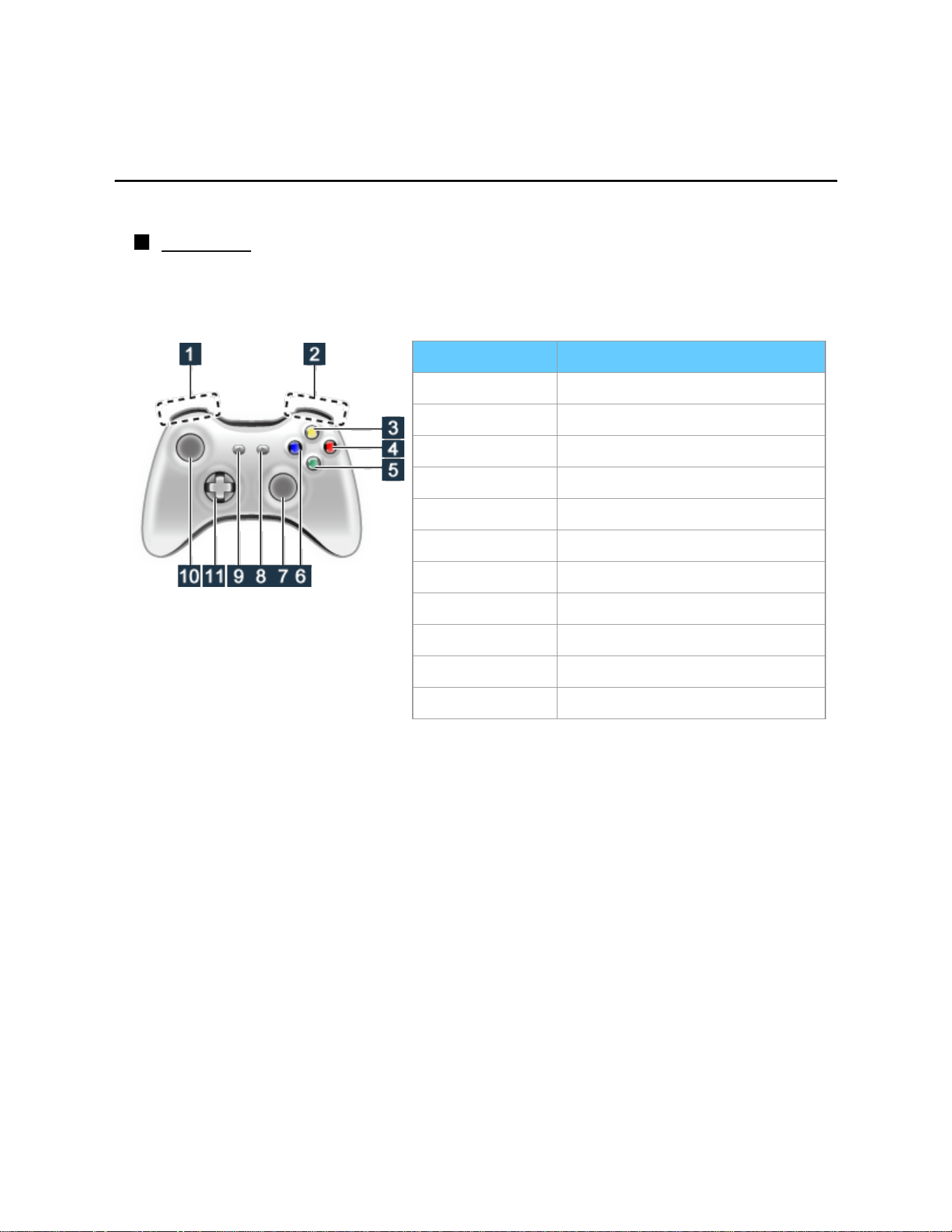
Convenience features
Using USB Keyboard / Gamepad
Gamepad
The Gamepad requiring its driver is not supported.
Key map
Some of the buttons of gamepad may correspond to the operation of the remote
control.
Example:
Gamepad Remote Control
1 Volume up/down
2 Channel up/down
3 MENU
4 OK
5 Back/Return
6 INTERNET
7 VIERA TOOLS
8 EXIT
9 INPUT
10 OPTION
11 Cusor buttons
132
All settings
Picture
Setting menu
Adjust the image or picture quality.
Some menus are grayed out depending on the input signal or condition.
(e.g. Zoom adjustments will be grayed out if the aspect is not set to ZOOM.)
1. Display the menu
MENU Menu
2. Select Picture from menu bar
Select desired menu using / from menu bar and press
3. Select the item and adjust
Select desired item using
/ and adjust with /
* Shows the functions that can be adjusted.
* Some functions will be disabled depending on the type of input signal.
Reset to defaults will be grayed out if no changes are made.
133
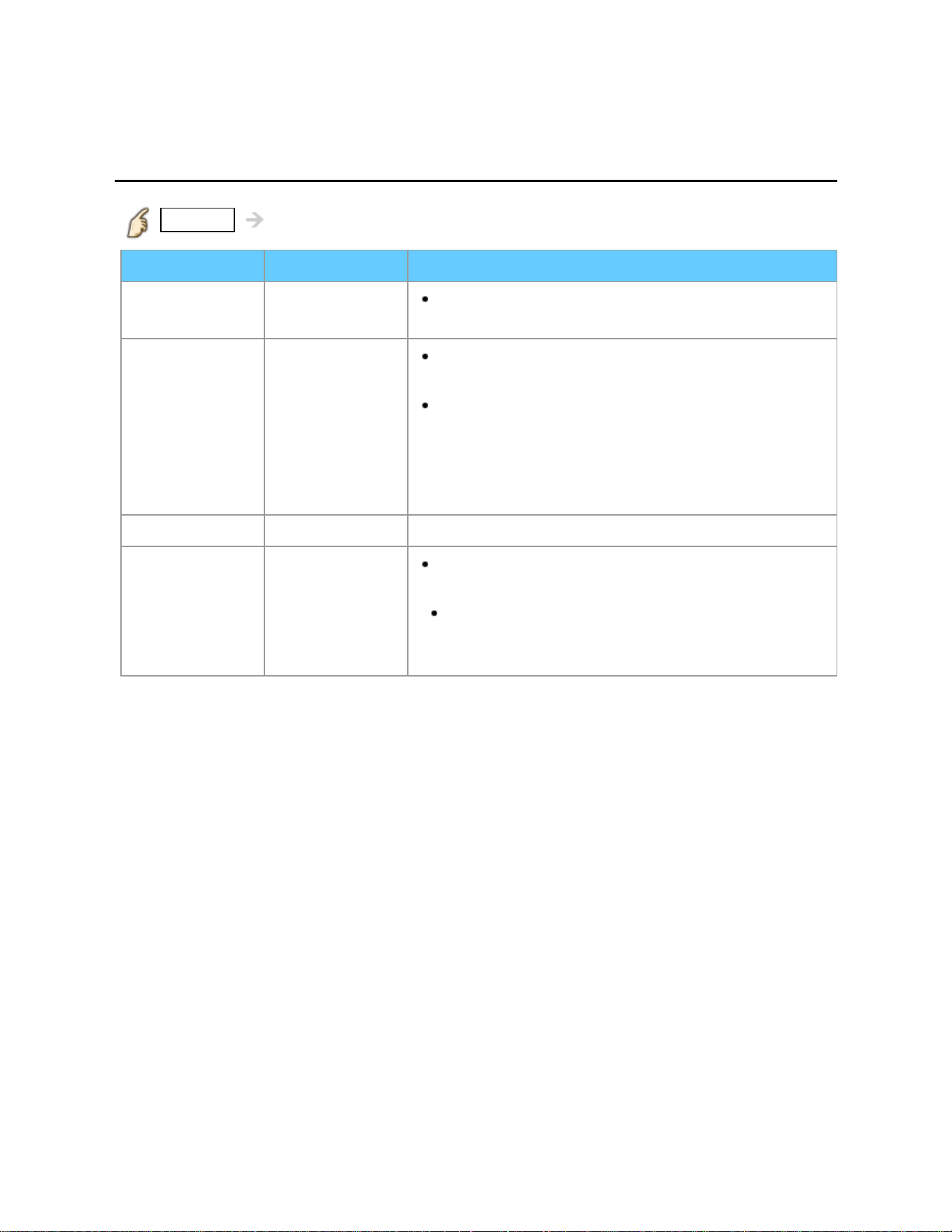
All settings
Picture
Basic settings (1)
MENU Menu > Picture
Settings Options Description
Reset to
defaults
Resets all picture adjustments to factory
default settings except for advanced settings.
Picture mode Vivid/
Standard/
Cinema/
Game/
Custom
Adjusts the picture quality according to ambient
lighting conditions or situation.
When changing picture mode from/to Game
the screen will momentarily go black. This is
normal. The blacking out of the screen is normal
and is due to a change of parameters in order to
improve the response to video games.
Back light Adjusts the luminance of the back light.
Contrast,
Brightness,
Color, Tint,
Sharpness
Adjusts the color, brightness, etc. for each
picture mode to suit your taste.
Display range
Contrast/Brightness/Color/Sharpness : 0 - 100
Tint :-50 - +50
134
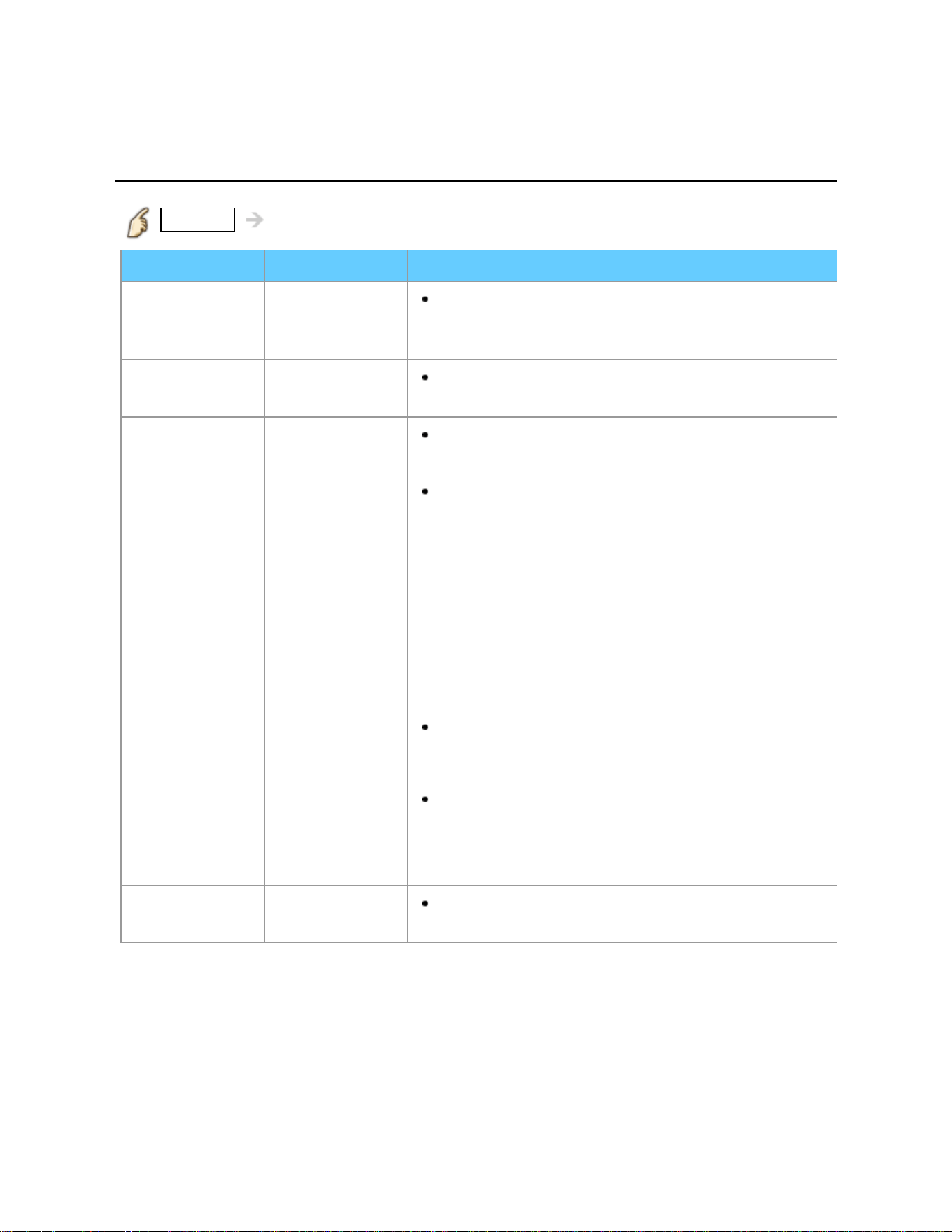
All settings
Picture
Basic settings (2)
MENU Menu > Picture
Settings Options Description
Color temp. Cool /
Normal/
Warm
Selects color temperature preference, from
"cool" (bluish) to "warm" (reddish) or normal.
Color mgmt. Off/On On: Enhances green and blue color
reproduction, especially outdoor scenes.
A. I picture Off/On Controls dark areas without affecting the black
level or brightness in the overall picture.
C.A.T.S. Off/On Contrast Automatic Tracking System (C.A.T.S.)
adjusts the screen brightness and contrast
according to the room's ambient light conditions.
This ECO feature automatically dims the
brightness of the screen when the room lighting is
lowered. C.A.T.S. features a built-in delay when
the lighting conditions change. The adjustment
happens gradually.
If you prefer a consistent brightness, disable
C.A.T.S. by:
Menu > Picture > scroll down to C.A.T.S.
and turn it off.
Or
Menu > Picture > Picture mode then
select viewing mode such as Custom.
Note: Standard picture mode automatically sets
C.A.T.S. to On.
Video NR Off/On/Auto Reduces noise, commonly called snow. Leave
it off when receiving a strong signal.
135
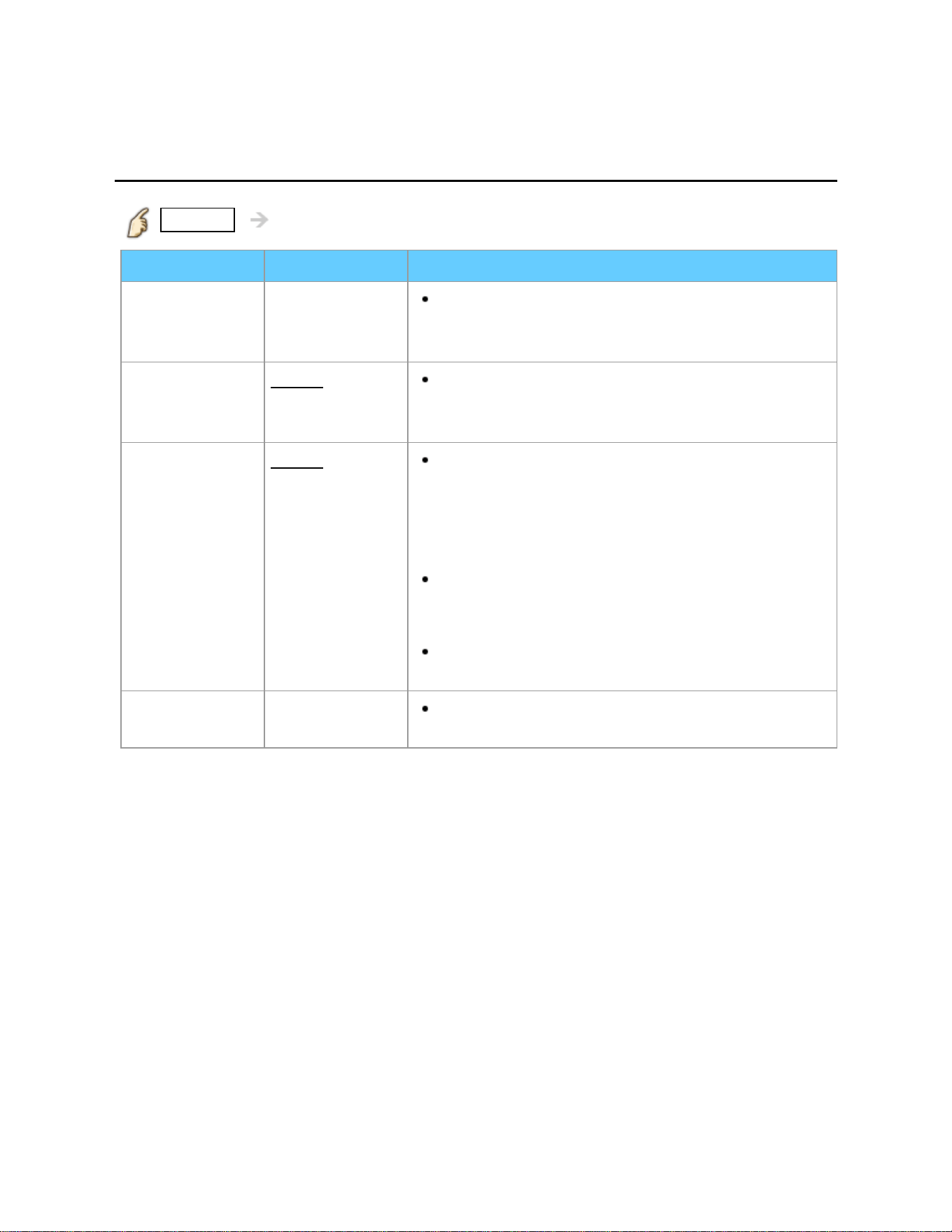
All settings
Picture
Aspect adjustments
MENU Menu > Picture > Aspect adjustments
Settings Options Description
Screen format FULL/H-FILL/
JUST/4:3/
ZOOM
Changes the format (aspect ratio). Lets you
choose the aspect depending on the format of
received signal.
HD size
Size 1/Size 2 Selects between 95 % (Size 1) or 100 %
(Size 2) for the scanning area with High Definition
signal.
H size
Size 1/Size 2 Adjusts the horizontal display range to reduce
noise of both side edges of an image.
Size 2: Adjusts the image size according to the
aspect mode to reduce noise.
Aspect mode: 4:3
The width will be decreased on both sides to
reduce noise.
Aspect Ratio: FULL/JUST(H-FILL/ZOOM)
The width will be increased on both sides to
reduce noise.
Zoom
adjustments
Adjusts vertical alignment and size when
aspect setting is "ZOOM".
136
All settings
Picture
PC adjustments (1)
MENU Menu > Picture > PC adjustments
Settings Options Description
Reset to
defaults
Resets all PC adjustments to factory default
settings.
Sync H & V
The H and V sync signals are input from the
HD/VD connector.
On green
Uses a synchronized signal on the Video G
signal, which is input from the G connector.
Dot clock
Alleviates the problem if a picture appears to
be vertically-striped, flickers partially or is blurred.
H-position
Adjusts the horizontal position using left/right
cursor button.
V-position
Adjusts the vertical position using left/right
cursor button.
137
All settings
Picture
PC adjustments (2)
MENU Menu > Picture > PC adjustments
Settings Options Description
Clock phase
Alleviates the problem if the whole picture
appears to flicker or is blurred. First adjust the Dot
Clock to get the best possible picture, then adjust
the Clock phase so that a clear picture appears.
It may not be possible to display a clear picture
due to poor input signals.
Input
resolution
Switches to wide display and selects the
appropriate screen resolution.
VGA (640 x 480 pixels), WVGA (852 x 480
pixels), XGA (1,024 x 768 pixels), WXGA (1,280 x
768 pixels)
Options change depending on signals.
H-frequency
V-frequency
Displays the H (Horizontal)/V (Vertical)
frequencies.
Display range
Horizontal: 15 - 110 kHz
Vertical: 48 - 120 Hz
138
All settings
Picture
HDMI settings
MENU Menu > Picture > HDMI settings
Settings Options Description
HDMI/DVI
RGB range
(HDMI)
Auto/
Standard
(16-235)/
Nonstandard
Prevents the blown out highlights and blocked
up shadows when a wide-range signal is received.
Selects between standard RGB range (16-235
bits) or non-compliance (0-255 bits).
Auto: Switches the RGB range (Standard
(16-235)/Nonstandard) depending on the HDMI
signal information.
Content type
(HDMI)
Off/Auto/
Photos/
Graphics
Sets content type to each HDMI input.
Auto: Switches content type automatically
depending on the HDMI signal information.
Photo: Best setting for JPEG viewing.
Graphics: Best setting for On-Screen display
of connected equipment.
139
All settings
Picture
Advanced picture (1)
MENU Menu > Picture > Advanced picture
Settings Options Description
3D Y/C filter Off/On
Minimizes rough edges (dot crawl) in the
picture from a composite source.
Color matrix SD/HD
Selects image resolution of component-
connected devices.
SD: Standard Definition HD: High Definition
Only used with 480p video signal.
Block NR Off/On/Auto
Reduces noise of specific digital signals of
DVD, Cable box, etc.
Mosquito NR Off/On
Reduces HDTV flicker noise in the contoured
sections of a compressed image.
Motion picture
setting
Off/Weak/
Medium/
Strong
Improves motion picture quality by reducing
motion blur.
140
All settings
Picture
Advanced picture (2)
MENU Menu > Picture > Advanced picture
Settings Options Description
Black level Light/Dark
Select Dark when details are washed out in
dark areas of picture from external source. Valid
only for external input signals.
3:2 pulldown Off/On/Auto
Reduces motion jitter in film-based content by
transforming 24 fps to 30 fps (non-HDMI).
141
All settings
Audio
Setting menu
Adjust audio quality.
1. Display the menu
MENU Menu
2. Select Audio from menu bar
Select desired menu using / from menu bar and press
3. Select the item and adjust
Select desired item using
/ and adjust with /
* Shows the functions that can be adjusted.
* Some functions will be disabled depending on the type of input signal.
Reset to defaults will be grayed out if no changes are made.
142
All settings
Audio
Basic settings
MENU Menu > Audio
Settings Options Description
Reset to
defaults
Resets Bass, Treble, and Balance adjustments
to factory default settings.
Bass
Increases or decreases the bass response.
Treble
Increases or decreases the treble response.
Balance
Emphasizes the left / right speaker volume.
143
All settings
Audio
Advanced audio
MENU Menu > Audio > Advanced audio
Settings Options Description
A.I. sound Off/On
Equalizes overall volume levels across all
channels and external inputs.
Surround Off/On
Enhances audio L/R response when listening
to stereo. Ideal for music and action movies.
Bass boost Off/On Enhances bass sound and provides powerful
sound.
Volume leveler Minimizes volume disparity after switching to
external inputs.
TV speakers Off/On Enables the TV's built-in speakers.
Switches to "Off" when using external
speakers.
"A.I. sound", "Surround", "Volume leveler", and
"Distance to wall" do not work if "Off" is selected.
HDMI in Digital/
Comp./Video
The default setting is "Digital" for the HDMI
connection. (Digital input signal)
Select audio input terminal when a DVI cable is
connected along with an analog audio input
signal.
144
All settings
Audio
DTV language and SAP settings
MENU Menu > Audio > DTV language and SAP settings
Settings Options Description
Preferred
language
English/
Spanish/
French
Selected preferred language is used for automatic
selection of audio service.
Preferred audio
type
Main Audio/
Hearing
Impaired/
Visually
Impaired
Selected preferred audio type is used for
automatic selection of audio service.
145

All settings
Audio
DIGITAL AUDIO OUT terminal
You can enjoy your Home Theater by connecting a Dolby Digital (5.1 channel) decoder
and "Multi Channel" amplifier to the DIGITAL AUDIO OUT terminals.
Depending on your DVD player and DVD-Audio software the copyright protection
function may operate and disable optical output.
When an ATSC channel is selected, the output from the DIGITAL AUDIO OUT jack
will be Dolby Digital. When an NTSC channel is selected, the output will be PCM.
When playing a movie on SD Card Movie player, when the sound has been
recorded in Dolby Digital, the output from the DIGITAL AUDIO OUT terminal will be
Dolby Digital. When the sound is recorded in other formats, the output will be PCM.
146
All settings
Network
Network settings (1)
MENU Menu > Network
Settings Options Description
Connection test
Checks for proper network connection, settings
and communication to the Internet & server.
Network
connection
Ethernet
cable/Wireless
(WiFi)
Select Network type.
147
All settings
Network
Network settings (2)
MENU Menu > Network
Settings Options Description
Wireless
network
settings
This setting is performed only when "Wireless
(WiFi)" is selected in Network connection.
Select the Access point from the list or select
Connection method with color key.
Follow the directions on screen to complete
the setting.
148
All settings
Network
Network settings (3)
MENU Menu > Network
Settings Options Description
IP address/
DNS settings
IP setting
mode/
IP address/
Subnet mask/
Default
gateway/
DNS setting
mode/
DNS/
Proxy setting
Select IP setting mode/DNS setting
mode and set to Automatic, then each IP
address is acquired Automatically.
[Manual setting]
Select IP setting mode/DNS setting
mode and set to Manual, then select item and
press OK.
Check the specifications of the broadband
router and enter each IP address. Or Enter each
IP address as was specified by the provider.
Proxy setting
Set only if specified by the provider. It is not
required for normal household use
Proxy address/Proxy port: Setting is only required
if specified by the provider.
149
All settings
Network
Network settings (4)
MENU Menu > Network
Settings Options Description
Network link
(Stream and
control content
from networked
portable
devices.)
VIERA
network name
Sets your favorite name for this TV. This name
will be displayed on the screen of the other
Network compatible equipment.
DLNA remote
control
Enables Digital Media Renderer for playback of
DLNA content.
DLNA remote
volume control
Sets volume setting in DMR operation
Available only when Enable is selected in
DLNA remote control
Network
remote control
Switches remote control of network device
such as a smartphone to Disable or Enable.
150
All settings
Network
Network settings (5)
MENU Menu > Network
Settings Options Description
Software
update
Press OK to start the Software update screen.
And follow directions on the screen.
* Set Clock first.
New software
notice
Off/
On On: When TV is turned On, update message is
displayed if available. Follow the directions on the
screen to download.
Network status Displays Current settings and status screen.
(Network type/Wireless settings/MAC address/IP
Address etc.)
* Displayed items differ depending on the type of
network connection.
151
All settings
Timer
Setting menu
The TV can automatically turn On/Off at a designated date and time.
If the Timer settings are grayed out, first set the clock and make sure Auto power
on is set to No.
1. Display the menu
MENU Menu
2. Select Timer from menu bar
Select desired menu using / from menu bar and press
3. Select the item and adjust
Select desired item using
/ and adjust with /
152
All settings
Timer
Sleep (Off timer)
MENU Menu > Timer
Settings Options Description
Sleep
(minutes)
Off/15/30/
60/90
Selects how long the TV stays on before it
automatically turns off.
153
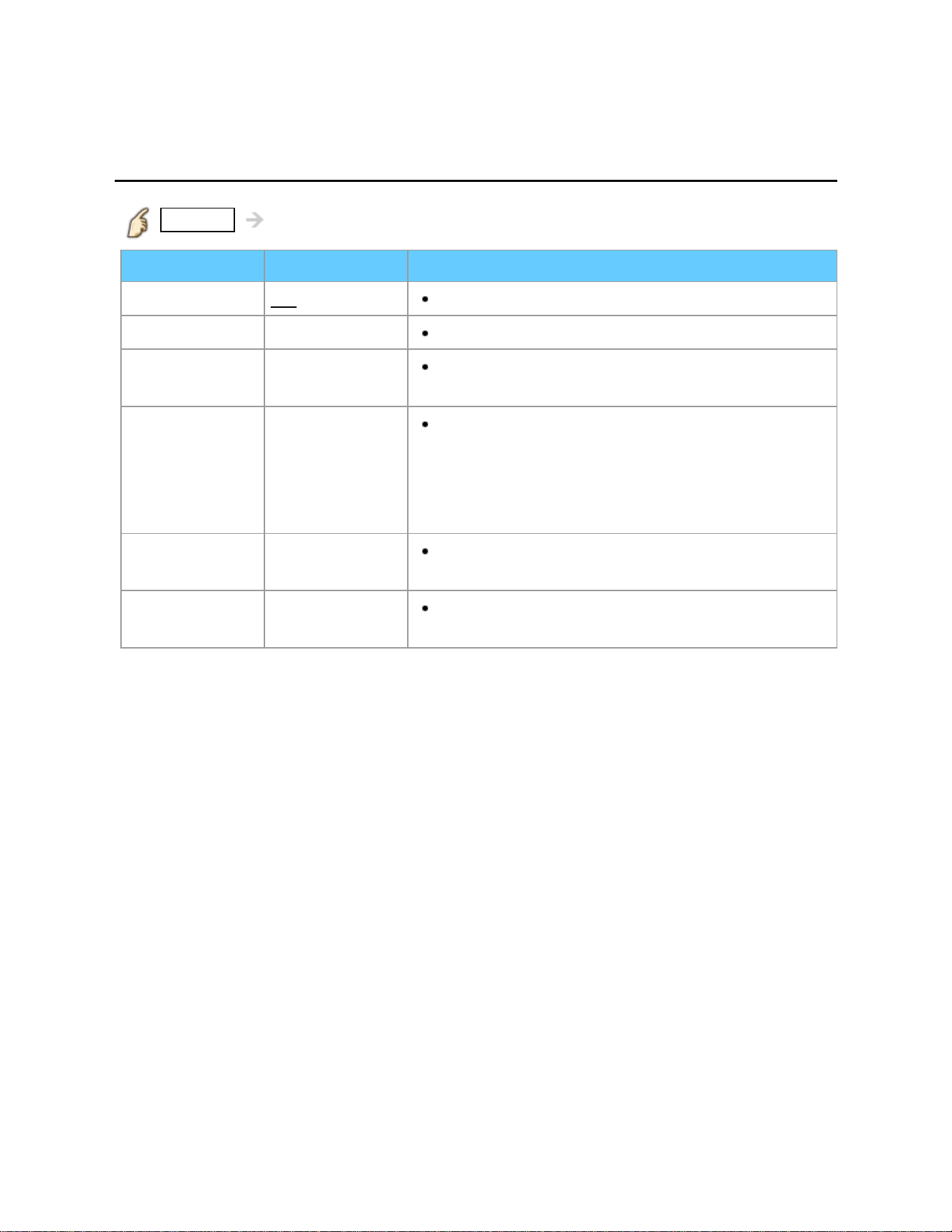
All settings
Timer
Timer (On/Off timer)
MENU Menu > Timer
Settings Options Description
Timer set
Off/On Enables or disables the Timer.
Inputs
Sets the input to select when the TV turns on.
Channel
Sets the channel to select when the TV turns
on.
Day
Sets the day when the TV turns on.
[SUN/MON/TUE/WED/THU/FRI/SAT (displays the
nearest future date) MON-FRI/SAT-SUN/
DAILY/Every SUN/Every MON/Every TUE/
Every WED/Every THU/Every FRI/ Every SAT]
On time
Sets the time when the TV turns on. The TV
will turn off after 90 minutes or as specified.
Off time
Sets the time when the TV turns off within 24
hours.
154
All settings
Lock (parental control)
Setting menu
Locks specified channels or shows to prevent children from watching objectionable
content.
You will be asked to enter your password each time you display the Lock menu.
Set Custom in Mode to specify Channel, Game, Program and VIERA
Connect settings.
1. Display the menu
MENU Menu
2. Select Lock from menu bar
Select desired menu using / from menu bar and press
3. Select the item and adjust
Select desired item using
/ and adjust with /
This television is designed to support the "Downloadable U.S. Region Rating
System" when available. (Currently available only in U.S.A.)
The Off rating is independent of other ratings.
When placing a lock on a specific-age-based-rating level, the Off rating and
any other more restrictive ratings will also be blocked.
The channels will be blocked regardless of the program rating.
155
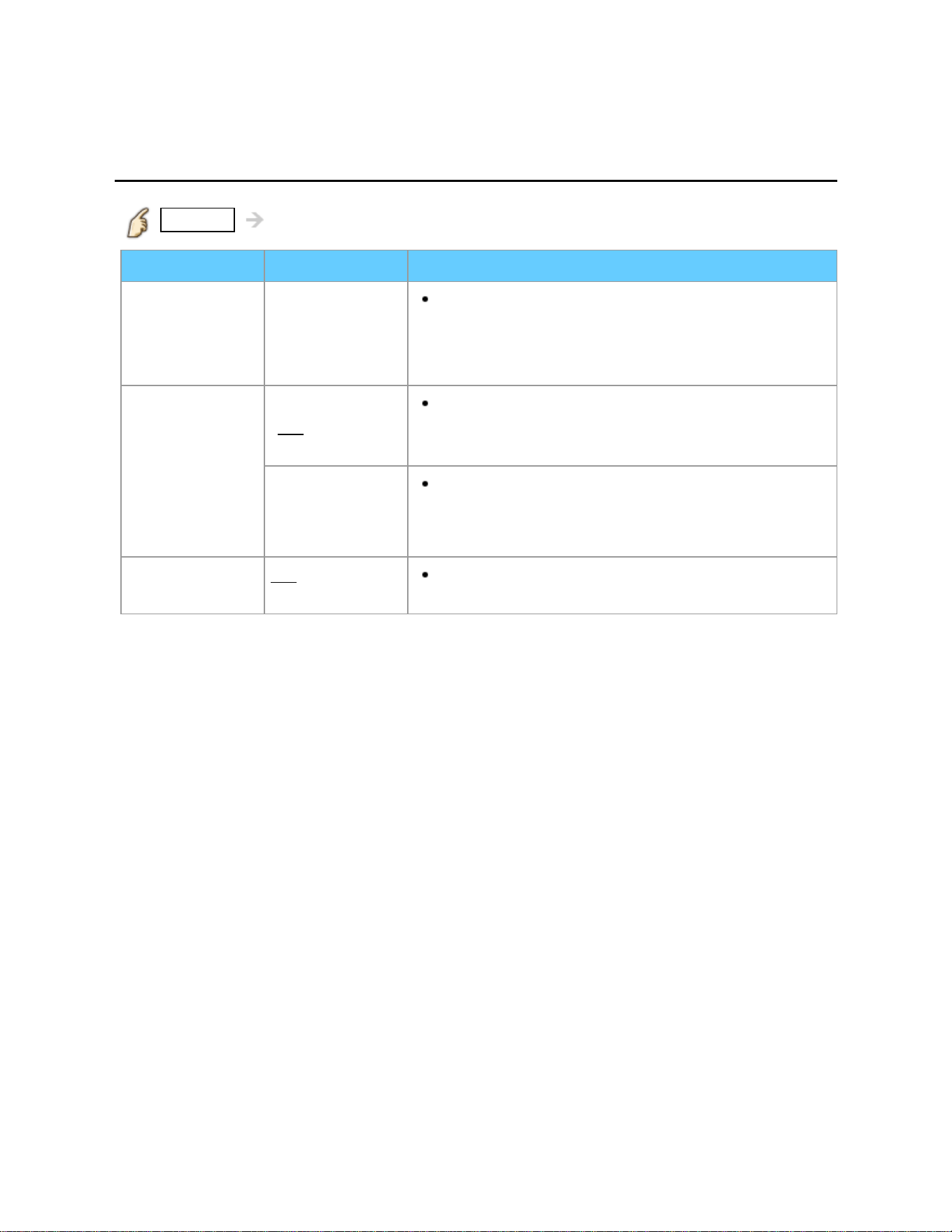
All settings
Lock (parental control)
Lock (1)
MENU Menu > Lock
Settings Options Description
Mode Off/All/Custom
Locks (All) or Unlocks (Off) all channels,
programs or inputs. For Custom, Locks specified
inputs of Channel, Game, Program and
VIERA Connect.
Channel
(These
channels will
be blocked
regardless of
the program
ratings.)
Mode
(
Off/All/
Custom)
Locks (All) or Unlocks (Off) all channels. For
Custom, Locks specified channels.
Set Channel 1 - Channel 7.
Channel 1-7
Designates channel number to be blocked at
any time, regardless of its broadcast content.
Game Off/On Restricts access to channel 3, channel 4 and
all the TV's inputs.
156
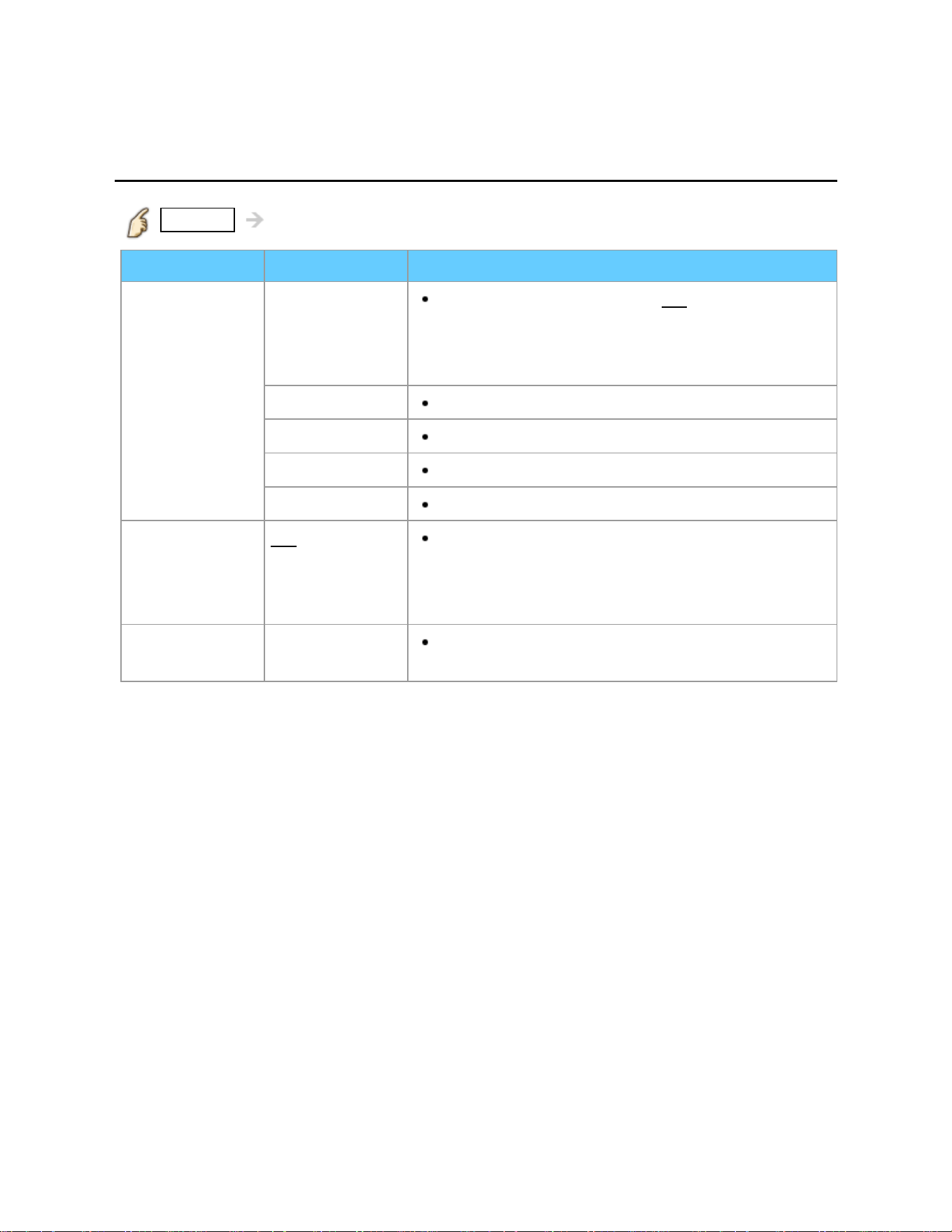
All settings
Lock (parental control)
Lock (2)
MENU Menu > Lock
Settings Options Description
Program
(Prohibits
viewing of TV
content based
on the rating
provided by the
broadcasters.)
Mode
Sets program lock status. (Off/On) "V-chip"
technology enables restricted shows to lock
according to TV ratings. On: Set each rating level
(MPAA, US.TV, C.E.L.R., C.F.L.R.)
MPAA
Selects U.S. movie ratings to lock.
U.S.TV
U.S. TV program ratings.
C.E.L.R.
Canadian English ratings.
C.F.L.R.
Canadian French ratings.
VIERA
Connect
Off/On Locks VIERA Connect. When you access
VIERA Connect, the "VIERA Connect Lock"
screen is displayed. Type the correct password to
enter the Home screen.
Change
password
Create a new password. Input the new 4-digit
password twice.
157
All settings
Lock (parental control)
Password setting
You need to enter the password when you access locked channels or inputs.
(Input your 4-digit password)
* If it is your first time entering the password, enter the password twice in order to
register it.
* Make a note of your password. Do not forget it. (If you have forgotten your
password, consult your local dealer.)
* When you select a locked channel, a message will be displayed that allows you
to view the channel after you input your password.
158
All settings
Lock (parental control)
Parental control ratings (1)
"V-chip" technology enables you to lock channels or shows according to standard
ratings set by the entertainment industry.
U.S. MOVIE RATINGS (MPAA) U.S. TV PROGRAMS RATINGS
(U. S. TV) - Age-Based Ratings
NR Not Rated.
G All children and General
Audience.
PG Parental Guidance
suggested.
PG-13 Parental Guidance for
children under 13.
R Restricted Viewing,
parental guidance is
suggested for children
under 17.
NC-17/X No one 17 or under
allowed.
TV-NR Not Rated.
TV-Y All children.
TV-Y7 Directed to children age 7
and older.
TV-G General Audience.
TV-PG Parental Guidance
suggested.
TV-14 Parents strongly
cautioned, parental
guidance is suggested for
children under 14.
TV-MA Mature Audience only.
159
All settings
Lock (parental control)
Parental control ratings (2)
CANADIAN ENGLISH RATINGS
(C. E. L. R.)
CANADIAN FRENCH RATINGS
(C. F. L. R.)
E Exempt programming.
C All children.
C8+ Children 8 years and older.
G General programming.
PG Parental Guidance.
14+ Viewers 14 and older.
18+ Adult programming.
E Exempt programming.
G General programming.
8 ans+ Not recommended for
young children.
13 ans+ Not recommended for ages
under 13.
16 ans+ Not recommended for ages
under 16.
18 ans+ Programming restricted to
adults.
Contents-Based Ratings
FV Fantasy Violence. S Sexual situations.
D Suggestive Dialogue. V Violence.
L Strong Language.
160

All settings
Lock (parental control)
Parental control ratings (3)
Caution
The V-Chip system used in this set is capable of blocking "NR" programs (non rated,
not applicable and none) as per FCC Rules Section15.120(e)(2). If the option of
blocking "NR" programs is chosen "unexpected and possibly confusing results may
occur, and you may not receive emergency bulletins or any of the following types of
programming:"
Emergency Bulletins (Such as EAS messages, weather warnings and others)
Locally originated programming News Political Public Service
Announcements Religious Sports Weather
161
All settings
Setup
Setting menu
Other functions settings
1. Display the menu
MENU Menu
2. Select Setup from menu bar
Select desired menu using / from menu bar and press
3. Select the item and adjust
Select desired item using
/ and adjust with /
* Shows the functions that can be adjusted.
* Some functions will be disabled depending on the type of input signal.
Reset to defaults will be grayed out if no changes are made.
162
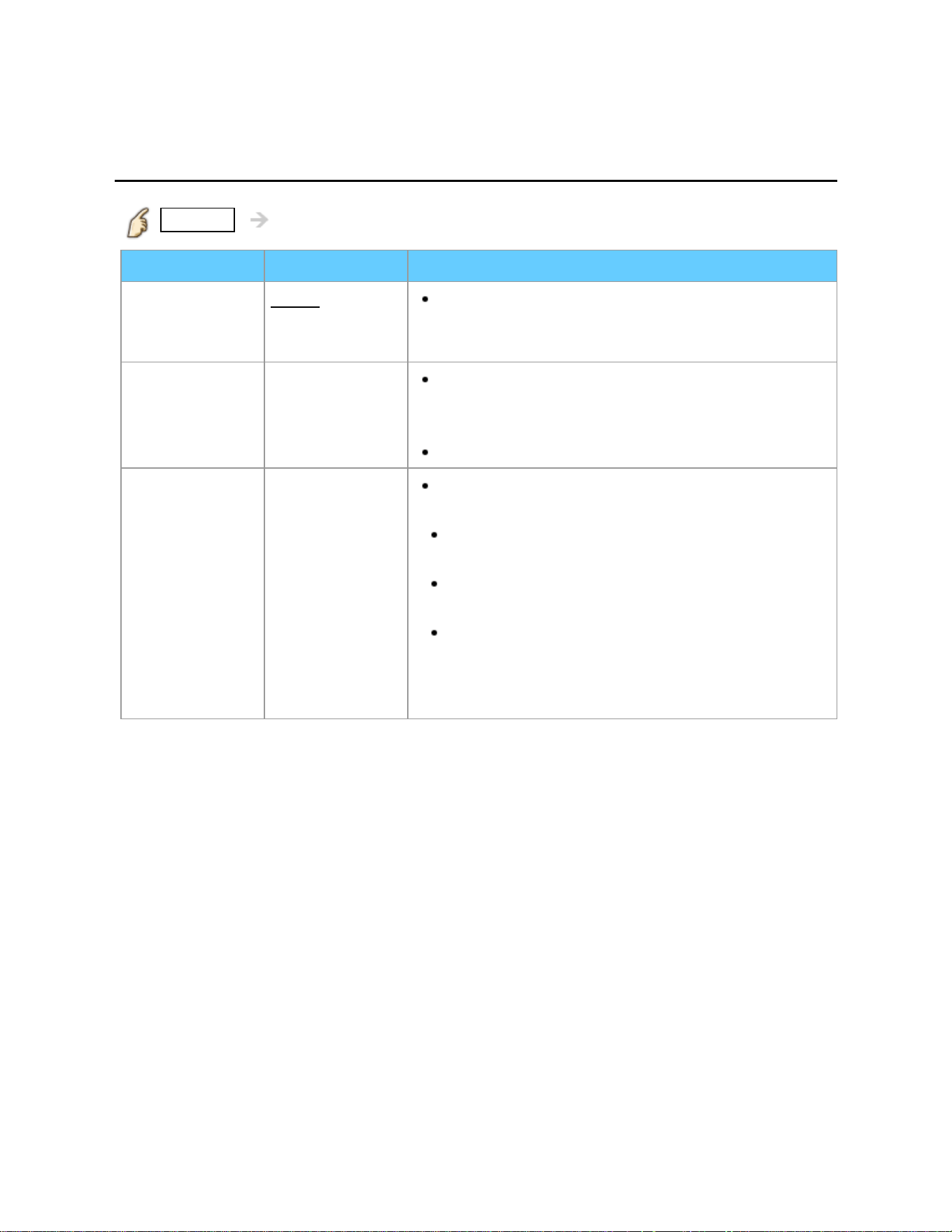
All settings
Setup
ANT/Cable setup (1)
MENU Menu > Setup > ANT/Cable setup
Settings Options Description
ANT in
Cable/
Antenna/
Not used
Select desired signal type to scan or edit.
Not used: Following channel settings are not
available
Auto program All channels/
Analog only/
Digital only
Select scan type and press OK to start
scanning automatically.
After the scanning is completed. Select Apply .
All previously saved channels are erased.
Manual
program
Change the channel setting or channel display.
Edit: Edit these items.
Caption: Changes the station identifier.
(maximum 7 characters available)
Favorite: Registers channels to the Favorite
List from Set favorite.
Add: Adds (Yes) or skips (No) channels
Apply: After the editing is completed, press OK to
save the settings.
Cancel: Cancel the changes.
163
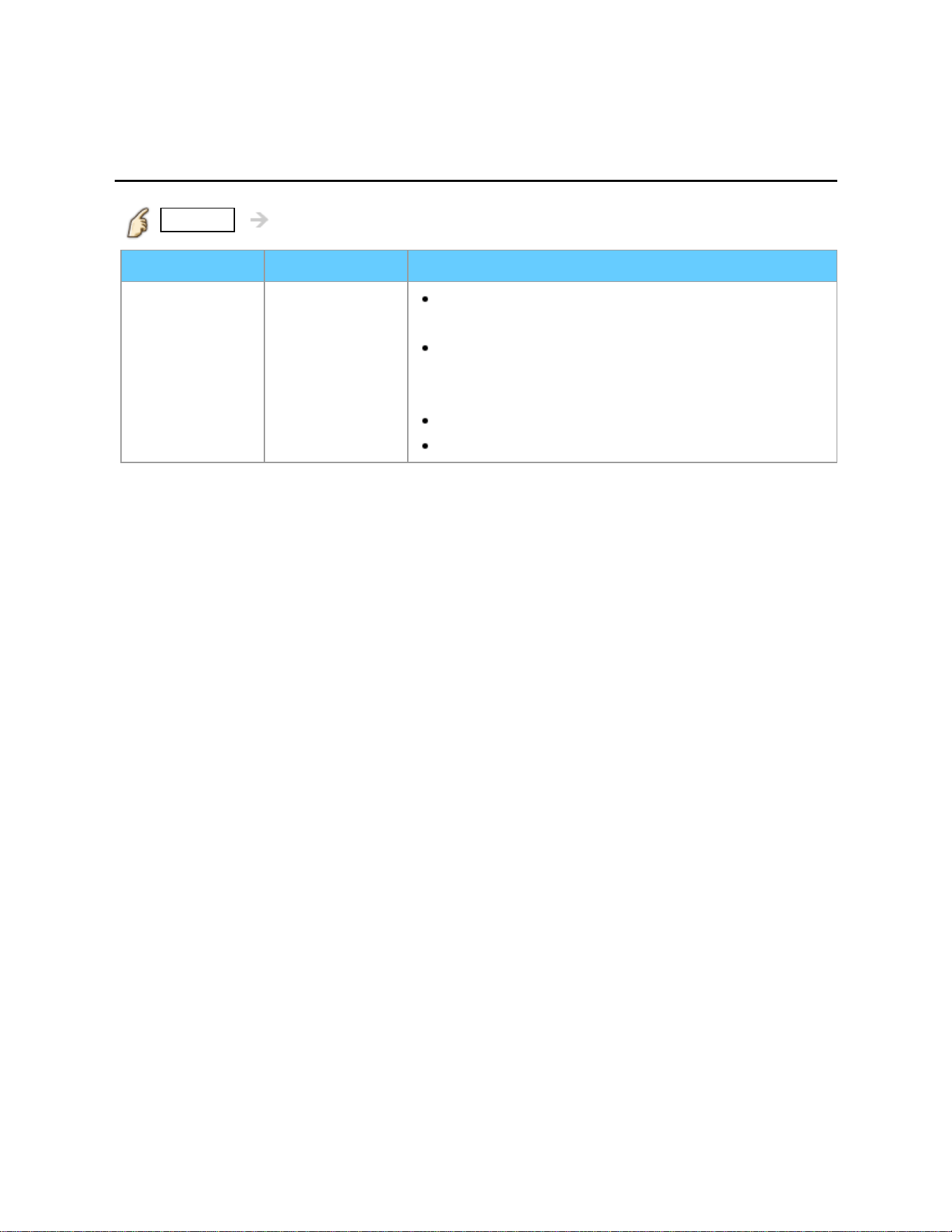
All settings
Setup
ANT/Cable setup (2)
MENU Menu > Setup > ANT/Cable setup
Settings Options Description
Signal meter
Check the signal strength if interference is
found or freezing occurs on a digital image.
If the signal is weak, check the antenna.
If you cannot figure out the problem, consult your
local dealer.
Not available if "Cable" is selected in "ANT in"
Available only for digital antenna channels.
164
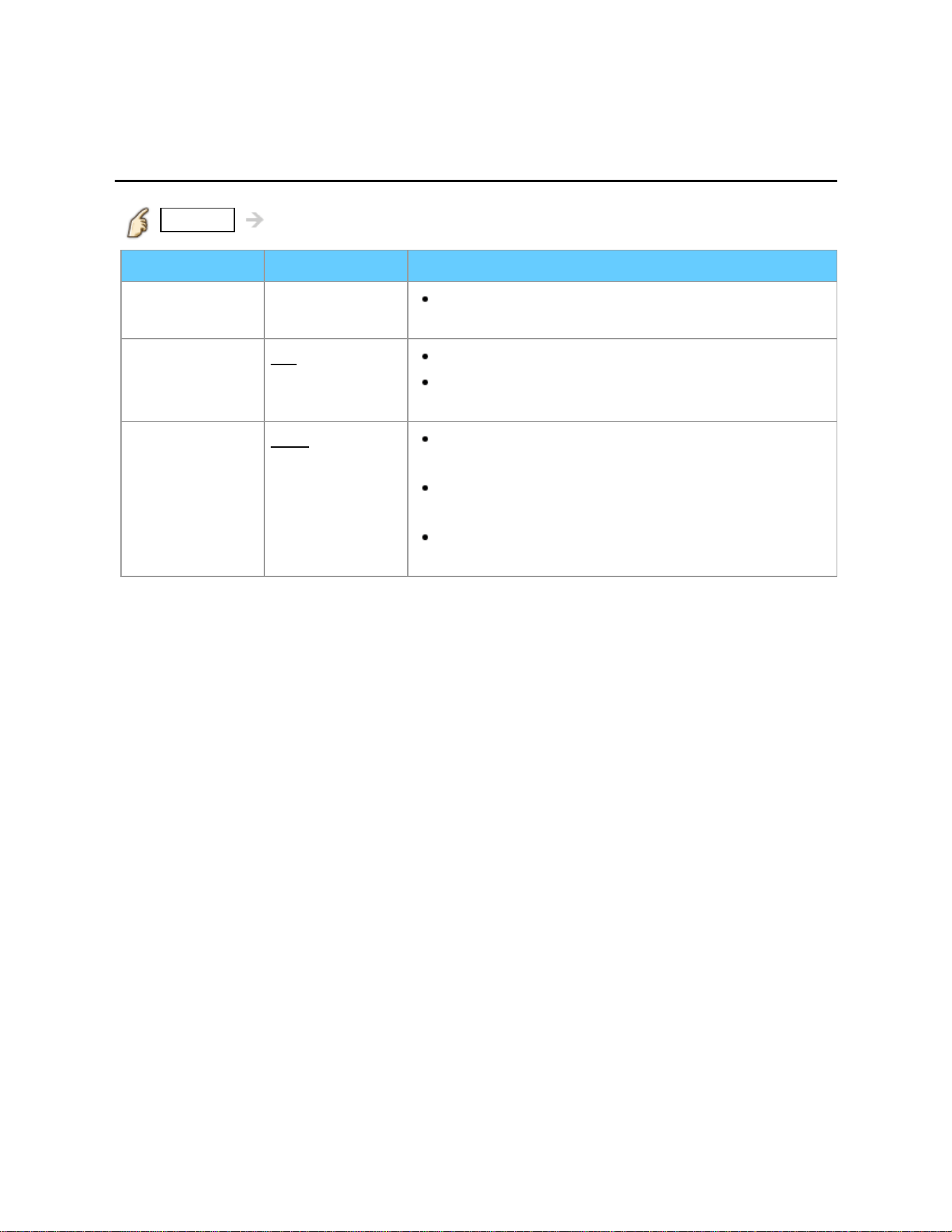
All settings
Setup
Closed caption (1)
MENU Menu > Setup > Closed caption
Settings Options Description
Reset to
defaults
Resets all Closed caption settings to factory
default settings.
Mode
Off/On/
CC on mute
On: To display Closed captions.
CC on mute: To display Closed captions when
the audio is muted. (When not using, select Off).
Analog
CC1-4/T1-4 Choose the Closed caption service of Analog
broadcasting.
CC1-4: Information related to pictures
(Appears at the bottom of the screen)
T1-4: Textual information (Appears over the
entire screen)
165
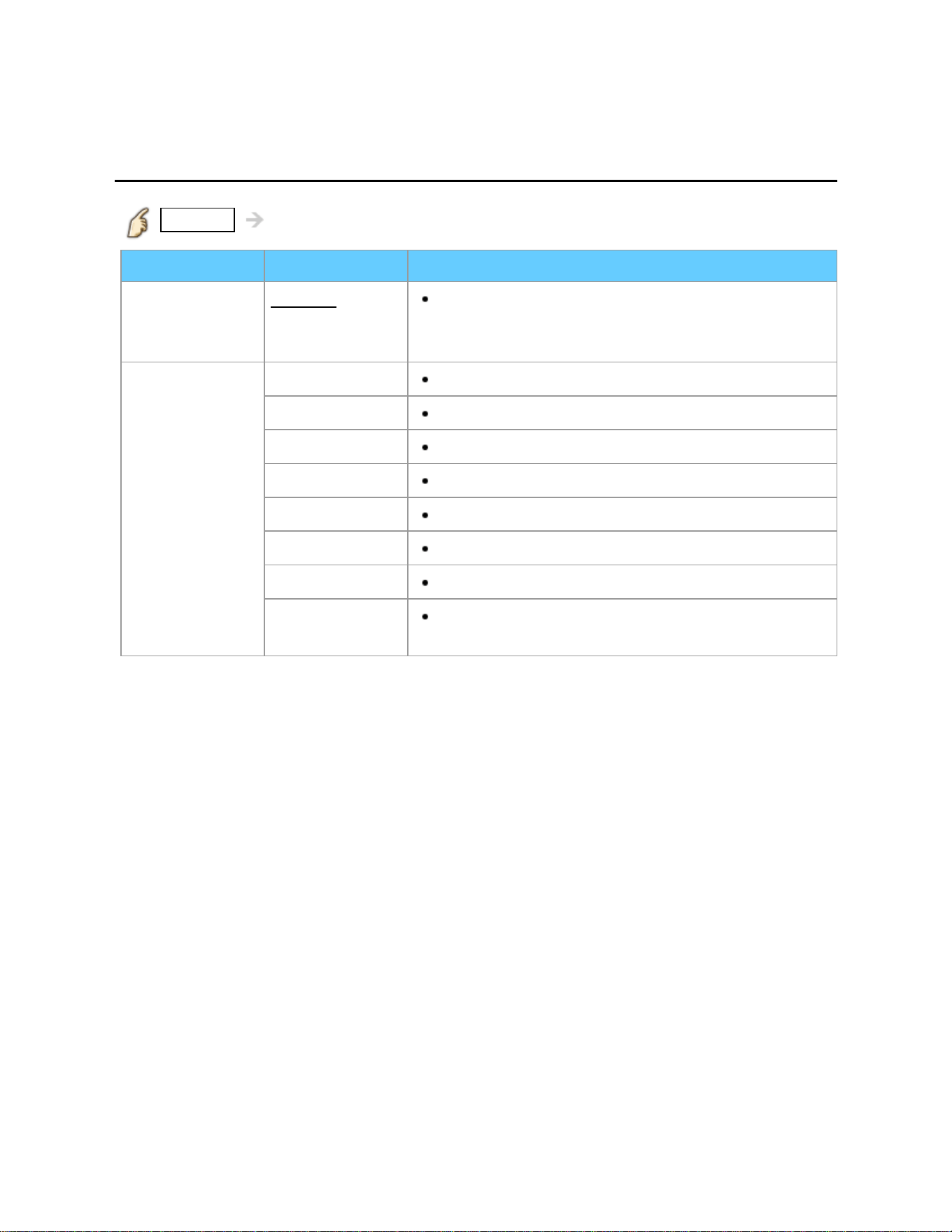
All settings
Setup
Closed caption (2)
MENU Menu > Setup > Closed caption
Settings Options Description
Digital
Primary/
Second./
Service 3/4/5/6
The Digital Closed caption menu lets you
configure the way you choose to view the digital
captioning.
Digital setting
(Set display
settings in
digital
programs.)
Size
Select the text size
Font
Select the text font
Style
Select the text style (Raised, Depressed, etc.)
Foreground
Select the color of text
Fore. opacity
Select the opacity of text
Background
Select the color of text box
Back. opacity
Select the opacity of text box
Outline
Select the outline color of text (Identify the
setting options on the screen).
166

All settings
Setup
Closed caption notice
For viewing the CC of digital broadcasting, set the aspect to FULL (If viewing with
H-FILL, JUST, ZOOM or 4:3, characters might be cut off).
The CC can be displayed on the TV only when the receiver (such as a Cable box
or satellite receiver) has the CC set to ON within the device itself. Check with your
Cable or Satellite provider for instructions. The TV's CC button does not operate
the Satellite or Cable box's CC function.
If the CC is set to ON on both the receiver and TV when the signal is 480i (except
for the HDMI connection), the CC may overlap on the TV.
If a digital program is being output in analog format, the CC data will also be output
in analog format.
If the recorder or output monitor is connected to the TV, the CC needs to be set up
on the recorder or output monitor.
167
All settings
Setup
VIERA Link settings (1)
MENU Menu > Setup > VIERA Link settings
Settings Options Description
VIERA Link Off/
On To use all VIERA Link functions, set to On
after everything is connected.
Power on link
No/Yes Yes: The TV is turned on automatically and
switches to the appropriate HDMI input whenever
VIERA Link compatible equipment is initially
turned on and the Play mode is selected.
Power off link No/
Yes When "Yes" is selected and the TV is turned
off, all connected VIERA Link compatible
equipment is also automatically turned off.
The TV remains on even if the VIERA Link
compatible equipment is turned off.
168
All settings
Setup
VIERA Link settings (2)
MENU Menu > Setup > VIERA Link settings
Settings Options Description
Energy saving
mode
Quick start/
Save
Quick Start: When TV is turned off, all
connected VIERA Link compatible equipment is
moved to ECO Standby mode* automatically
under these conditions.
Power off link:(Yes). The connected
equipment has "HDAVI Control 4 or later (with
Quick Start mode)"
* Minimum power consumption of Standby
condition for the equipment.
Unselected
device energy
save
No (stay on)/
Yes
(with prompt)/
Yes
(no prompt)
Yes: The connected VIERA Link compatible
equipment will be turned off automatically when
not in use under these conditions.
The connected equipment has "HDAVI
Control 2 or later" (for available equipment only)
Default
speakers
TV/Theater TV is the default setting. To set the Home
theater system as Default speakers, change the
Default speakers setting from TV to Theater.
Sound will be output from the Home Theater
whenever the TV is powered on.
169
All settings
Setup
ECO/energy saving (1)
MENU Menu > Setup > ECO/energy saving
Settings Options Description
Power save
Standard/
Saving
Reduces screen brightness to lower power
consumption. Eye-friendly for viewing in a dark
room.
No signal for
10 minutes
Stay on/
Power TV off
To conserve energy, the TV automatically turns
off when NO SIGNAL and NO OPERATION
continue for more than 10 minutes.
Not in use when "Auto power on" is set to
"Yes", or "On/Off Timer" is set.
"No signal for 10 minutes was activated" will
be displayed for about 10 seconds when the TV is
turned on for the first time after the power was
turned off by "No signal for 10 minutes" feature.
The on-screen display will flash 3, 2 and 1 to
indicate the last three (3) remaining minutes prior
to the shut-off.
170
All settings
Setup
ECO/energy saving (2)
MENU Menu > Setup > ECO/energy saving
Settings Options Description
No activity for
3 hours
Stay on/
Power TV off
To conserve energy, the TV automatically turns
off when no operation of remote and side panel
key continues for more than 3 hours.
Not in use when "Auto power on" is set to
"Yes", or "On/Off Timer" is set, or while "PC
inputs" is selected.
"No activity for 3 hours was activated" will be
displayed for about 10 seconds when the TV is
turned on for the first time after the power was
turned off by "No activity for 3 hours" feature.
The on-screen display will flash 3, 2 and 1 to
indicate the last three (3) remaining minutes prior
to the shut-off.
171
All settings
Setup
Advanced setup
MENU Menu > Setup > Advanced setup
Settings Options Description
Auto power on
No/Yes Turns TV On automatically when the cable box
or connected device is turned On.
TV AC cord must be plugged into this device.
TV turns on every time the power is restored.
Image viewer
auto play
Slideshow/
Photos/
Videos/Music/
Set later/Off
Sets the media contents or playback type to
playback SD cards automatically.
Set later: Image viewer settings menu will
be displayed repeatedly.
VIERA
Connect
Banner
Off/
On Sets the banner display status.
172
All settings
Setup
Other settings (1)
MENU Menu > Setup
Settings Options Description
Channel surf
mode
All/Favorite/
Digital only/
Analog only
Sets the mode to select the channel with the
Channel up/down button.
Favorite: Only channels registered as
FAVORITE.
Language English/
Español/
Français
Selects the screen menu language.
Clock
Adjusts the TV's date and time. (Needed for
timer function).
Input labels
Selects the terminal and label of the external
equipment. Devices connected to external input
terminals can be labeled for easier identification
during the input selection.
Label: [BLANK] Blu-ray/CABLE/SATELLITE/
DVD /DVD REC/DVR/GAME/HOME THTR/
RECEIVER/COMPUTER/MEDIA CTR/
MEDIA EXT/VCR/CAMERA/MONITOR/
AUX/OTHER/Not used
173
All settings
Setup
Other settings (2)
MENU Menu > Setup
Settings Options Description
Keyboard type Selects the country/region of the keyboard
connected to this TV.
(U.S./Canadian French/Canadian
Multilingual Standard/Spanish (Latin
America)/Spanish (Spain))
First time setup
Launches First time setup wizard. Repeats the
initial step-by-step TV setup.
About
Displays TV's firmware version and software
license.
Reset to
defaults
Clears all TV settings and memory to factory
defaults.
174
Support / FAQ
FAQ
Picture - Viewing
If there is a problem with your TV, please refer to the table below to determine the
symptoms, then carry out the suggested check. If this does not solve the problem, visit
the Panasonic website for further assistance.
Questions Answers
How do I view the picture
from devices such as :
Cable/Satellite box, game
console, Blu-ray or DVD
player?
Press the INPUT button on the remote to select
the correct input source.
Check that the device is turned on and functioning
correctly.
Why doesn't the picture look
like it is in High Definition?
Press the INFO button on the remote to confirm
the type of signal being received. HD signal should be
720p, 1080i or 1080p.
Select a High Definition channel from your HD
source (Cable, Satellite or fiber optic service). HD
channels sometimes broadcast non-HD content.
Ensure that your HD source (HD box, Blu-ray
player, etc.) is connected to the TV with an HDMI or
Component cable and set to output an HD video
signal.
175
Support / FAQ
FAQ
Picture - Snowy / none
Questions Answers
Why is there no picture or
just a blue, black or snowy
screen being displayed?
Check if the power cord is plugged in and the TV is
turned on (front red LED light should be on; not
blinking)
Press the INPUT button on the remote to select
the correct input source.
Ensure all connections are correct and secure.
Especially check for Component and VIDEO
connection since these terminals are shared.
When using an external video source, such as a
Cable/Satellite box or DVD player, check that the
device is on and functioning correctly.
Press MENU on the TV's remote control. If the
menu is displayed, then the TV is working; recheck
above steps.
Why is the picture snowy
when ANT/Cable in is
selected?
When using a cable service (without a box), check
that all connections are secure.
When using a cable or satellite box, change the
connection (wiring) to Composite, Component or
HDMI.
If you're using an antenna, then check that
connections are secure. Change the position or
direction of the antenna and check the Signal
meter.
176
Support / FAQ
FAQ
Picture - Distortion
Questions Answers
The picture is distorted after
selecting the "Video/Comp."
input. What should I do?
Ensure that the device is connected correctly with
the supplied Component/AV adapter to the TV’s
Video/Component green mini-connector.
NOTE: One red connector is for video and the other is
for audio.
Press INPUT and select Video <-> Comp.
Press / to choose Video or Component.
Why do black bars appear
on the top and bottom
and/or sides of the screen?
Change the format (aspect ratio) of the picture by
pressing the FORMAT button on the remote control.
Check the aspect settings on your external video
source, such as Cable/Satellite box, DVD/Blu-ray Disc
player, etc.
Note: Some content, such as film-based movies, are
available in extra-wide format. Top and bottom bars
are unavoidable.
Why is the picture chaotic
and/or torn and/or with a
buzz in the speakers?
Check if electrical products such as kitchen
appliances, fluorescent lights or light dimmers are
nearby. They may interfere with the TV's picture.
Try viewing a picture from another device, such as
a DVD player or a game console, to narrow down the
source of the problem.
177
Support / FAQ
FAQ
Picture - Continue
Questions Answers
Why is there a black box on
the screen?
Change settings of Closed caption (CC).
Why do some small spots
on the screen remain bright
or dark?
The panel is made up of a few million pixels and is
produced with advanced technology through an
intricate process. Sometimes a few pixels may be
bright or dark. These pixels do not indicate a defective
panel and will have no impact on the performance of
the TV.
Why is the picture
brightness changing?
Turn the C.A.T.S. feature off.
Press MENU Setup > Picture > C.A.T.S.
178
Support / FAQ
FAQ
Sound - none
Questions Answers
Why is there no sound
coming from the TV?
Make sure the volume is up and MUTE is off.
Confirm the TV speakers are set to On by
pressing MENU and selection Audio> Advanced
audio.
Check that the correct SAP (Secondary Audio
Program) is selected by pressing the SAP button on
the remote control.
If the TV is connected to a Panasonic Home
Theater via HDMI cable, then check VIERA Link
controls.
If the TV is connected to a Home Theater via
optical cable, then: Check the connection, the audio
system is on, the correct input is selected.
Check HDMI in analog/digital audio settings.
179
Support / FAQ
FAQ
Sound - Unusual
Questions Answers
Why is the sound unusual,
distorted, low volume or in
another language?
Check that the correct SAP (Secondary Audio
Program) is selected by pressing the SAP button on
the remote control.
Check that all connections of external equipment
connected to the TV are secure.
When using Cable or Satellite box, check the
device's audio settings. (Example: try changing the
box's Audio Range to "narrow")
Why is there a clicking,
ticking or buzzing sound
coming from the TV unit?
When TV power is turned on or shut off there are
electrical components that make a click sound. This is
normal operation.
Changes in the temperature and humidity of the
room may cause thermal expansion and contraction
that can produce sounds. This is not a sign of faulty
operation or a malfunction.
180
Support / FAQ
FAQ
Networking
Questions Answers
How do I get VIERA
Connect to work on my TV?
1. You need a broadband (high speed) Internet service
with a speed of no less than 1.5 Mbps.
2. Connect the TV to the Internet through your router
by an Ethernet cable or a Panasonic Wireless LAN
adapter.
3. Run the Connection test, under the Network
menu. If Connection test fails, then check with your
Internet service provider or router/modem
manufacturer if there are firewall, content filter or
proxy settings that may block the TV from accessing
the Internet.
Can I download new apps
(content/services) onto my
VIERA Connect TV?
Yes. Select the VIERA Connect Market item in
the middle bottom of the VIERA Connect home
screen. VIERA Connect Market allows you to find
and install the applications to VIERA Connect
home screen.
Can I use any USB WiFi
adapter to connect the TV to
my wireless network?
The TV's internal software was designed to work
with Panasonic's wireless adapter. Check
www.panasonic.com/NetConnect for updated
information.
181
Support / FAQ
FAQ
Software update
Questions Answers
How do I check for the latest
software (firmware) version
for my TV?
In the main menu, select Network. Select
Software update. The current version and latest
version software will be shown. If software update is
grayed out, the TV is not connected to the Internet. If a
newer version is available, update your TV. Follow the
on screen instructions, do not power off the TV until
the update is complete. Be patient; firmware update
may take a while.
How do I get the software
update information and
download periodically?
In the main menu, select Network. Highlight
New software notice. Make sure that setting is
On.
When the TV is turned On, update message is
displayed if available.
Follow the directions on the screen to download.
182
Support / FAQ
FAQ
Other
Questions Answers
What is the easiest and best
way to connect a High-
Definition Cable or Satellite
box to the TV?
Use an HDMI cable. It carries both digital video and
audio signal in HD. HDMI cable is the only cable
needed to connect an HD device to the TV.
Why does the
CC button
not display Closed caption?
When viewing TV via an HDMI connected device,
such as a Cable or Satellite box, CC must be enabled
on the device.
Closed caption is available only at supported TV
programming.
Why does the screen and
back cover of the TV get
warm?
The main unit radiates heat and some of the parts
may become hot. This is normal operation and does
not affect the performance of the set.
Ensure good ventilation.
Do not block the ventilation holes of the TV and do
not place the TV on top of other equipment.
183
Support / FAQ
FAQ
Menu - Gray-out
Questions Answers
Why is the ANT/Cable
option at the top of the
Input select menu
grayed-out and unable to be
selected?
During First time setup, you indicated in
ANT/Cable setup that you are using Cable or
Satellite box and the box is connected to one of the
TV's AV inputs. In this case, the Antenna/Cable input
is deactivated to prevent unintentional switching into
unused tuner. To re-activate, press MENU , select
Setup and repeat First time setup.
Some menu items are
grayed-out and unable to be
selected. Why?
Depending on certain modes or the selected input,
some options are not available. For example, Zoom
adjustments are only available when the Screen
format is changed to ZOOM mode.
184
Support / FAQ
FAQ
Reset to default
Questions Answers
How do I reset my TV to all
factory defaults and
settings?
In the main menu, select Setup. Highlight Reset
to defaults and press
. Enter your password (if
created earlier) or create a temporary new password.
Select Yes to reset the TV.
185

Support / FAQ
Care and Cleaning
Display panel
First, unplug the Power cord plug from the wall outlet.
Display panel
The front of the display panel has been specially treated. Wipe the panel surface
gently using only a cleaning cloth or a soft, lint-free cloth.
If the surface is particularly dirty, after cleaning up the dust, soak a soft, lint-free
cloth in diluted mild liquid dish soap (1 part mild liquid dish soap diluted by 100
times the amount of water) and then wring the cloth to remove excess liquid. Use
this cloth to wipe the surface of the display panel, then wipe it evenly with a dry
cloth of the same type until the surface is dry.
Do not scratch or hit the surface of the panel with fingernails or other hard objects.
Furthermore, avoid contact with volatile substances such as insect sprays,
solvents, and thinner, otherwise, the quality of the surface may be adversely
affected.
186

Support / FAQ
Care and Cleaning
Cabinet
First, unplug the Power cord plug from the wall outlet.
Cabinet
If the cabinet becomes dirty, wipe it with a soft, dry cloth.
If the cabinet is particularly dirty, soak the cloth in a weak mild liquid dish soap and
then wring the cloth dry. Use this cloth to wipe the cabinet and then wipe it dry with
a dry cloth.
Do not allow any mild liquid dish soap to come into direct contact with the surface
of the TV. If water droplets get inside the unit, operating problems may result.
Avoid contact with volatile substances such as insect sprays, solvents, and thinner,
otherwise, the quality of the cabinet surface may be adversely affected or the
coating may peel off.
Do not let articles made from rubber or PVC be in contact with the TV for long
periods of time.
187

Support / FAQ
Care and Cleaning
Pedestal / Power cord
First, unplug the Power cord plug from the wall outlet.
Pedestal
Cleaning
Wipe the surfaces with a soft, dry cloth. If the unit is particularly dirty, clean it using
a cloth soaked with water to which a small amount of mild liquid dish soap has
been added and then wipe with a dry cloth. Do not use products such as solvents,
thinner, or household wax for cleaning, as they can damage the surface coating. (If
using a chemically-treated cloth, follow the instructions supplied with the cloth.)
Do not attach sticky tape or labels, as they can make the surface of the pedestal
dirty. Do not allow long-term contact with rubber, vinyl products, or the like. (Doing
so will cause deterioration.)
Power cord
Wipe the plug with a dry cloth at regular intervals. (Moisture and dust can lead to
fire or electrical shock.)
188