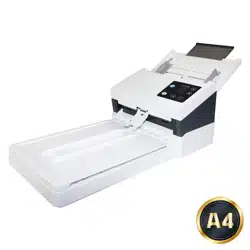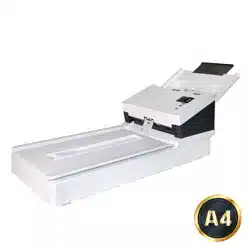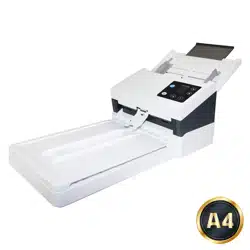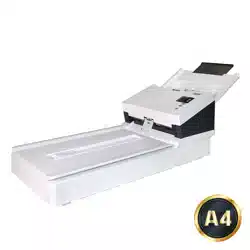
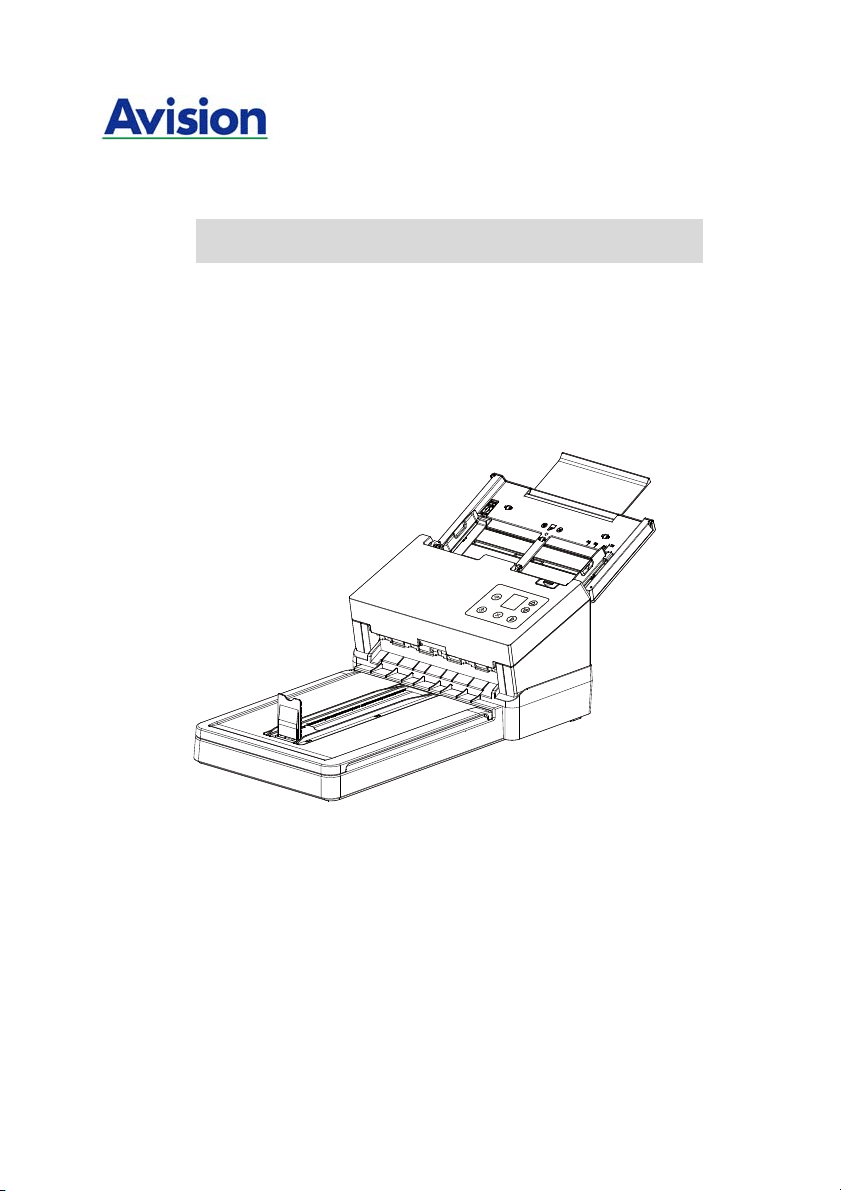
Docum ent Scanner
User’s M anual
Regulatory m odel: DL-1802B/ DF- 1903B
Avision I nc.

Use r’s Man ua l
ii
Tra dem a r k s
Microsoft is a U.S. registered tradem ark of Microsoft Corporation.
Windows 7, Windows 8, and Windows 10 are either regist ered
tradem arks or t radem arks of Microsoft Corporat ion in t he Unit ed
St at es and/ or ot her count ries.
Energy St ar
®
is a regist ered tradem ark of the U.S. governm ent .
I BM, I BM PC are registered tradem arks of I nternational Business
Machines Corp.
Ot her brands and product nam es herein are t radem arks or
registered tradem arks of their respect ive holders.
Copyright
All rights reserved. No part of this publicat ion m ay be
reproduced, t ransm itt ed, t ranscribed, stored in a retrieval
system , or translat ed into any language or com puter language,
in any form or by any m eans, elect ronic, m echanical, m agnetic,
optical, chem ical, m anual, or ot herwise, without t he prior writ t en
perm ission of Avision I nc.
Material scanned by t his product may be protect ed by
governm ent al laws and ot her regulat ions, such as copyright
laws, t he cust om er is solely responsible for com plying w it h all
such laws and regulations.
W a rrant y
The inform at ion contained in t his document is subj ect t o
change without not ice.
Avision m akes no warranty of any kind with regard t o this
m at erial, including, but not lim ited t o, t he im plied warranties
of fit ness for a part icular purpose.
Avision shall not be liable for errors contained herein or for
incident al or consequential dam ages in connect ion w it h t he
furnishing, perform ance, or use of t his m at erial.

Use r’s Man ua l
iii
Federal Com m unicat ions Com m ission ( FCC) com plia n ce
inform a t ion st at em ent
Par t 1 5
This equipm ent has been test ed and found to com ply wit h the
lim it s for a Class B digit al device, pursuant to Part 15 of the FCC
Rules. These lim it s are designed to provide reasonable
prot ect ion against harm ful interference in a resident ial
inst allat ion. This equipm ent generat es, uses and can radiat e
radio frequency energy and, if not inst alled and used in
accordance wit h the instruct ions, m ay cause harm ful
interference to radio com m unications.
How ever, there is no guarantee t hat interference will not occur
in a particular inst allat ion. I f this equipm ent does cause harm ful
interference t o radio or t elevision recept ion, which can be
det erm ined by t urning the equipm ent off and on, the user is
encouraged to t ry to correct the interference by one of t he
following m easures:
Reorient or relocat e the receiving antenna.
I ncrease the separat ion bet ween the equipm ent and
receiver.
Connect t he equipm ent int o an outlet on a circuit
different from t hat to which the receiver is connect ed.
Consult the dealer or an experienced radio/ TV t echnician
for help.
This device com plies wit h Part 15 of t he FCC Rules. Operation is
subj ect t o the following t wo condit ions: ( 1) This device m ay not
cause harm ful interference, and (2) t his device m ust accept any
int erference received, including interference t hat m ay cause
undesired operation.

Use r’s Man ua l
iv
Europea n Union Regulat ory N otice
Product s bearing the CE m arking com ply with t he following EU
Direct ives:
Low Volt age Directive 2014/ 35/ EC
EMC Direct ive 2014/ 30/ EC
Rest rict ion of the use of cert ain hazardous substances (RoHS)
Direct ive 2011/ 65/ EU
RED (Radio Equipm ent Direct ive) ( 2014/ 53/ EC)
CE com pliance of this product is valid if powered w it h t he correct
CE- m arked AC adapter provide by Avision.
This product sat isfies the Class B lim it s of EN55022, EN55024,
safet y requirem ents of EN 60950 and ROHS requirem ent s of
EN50581.
* This m achine is certified as Class 1 LED product .
* Not e t he operat ing t em perat ure for the bat t ery is from -20° t o
60° C. And t he operat ing tem perature for t he product is from 10°
to 35° C.
I f the operat ing t em perat ure for t he batt ery is out side t he range
of - 20° ~ 60° C, it m ay cause cracking, rupt uring, burst ing,
em ission of flam e or expulsion of m olt en m et al t o the outside of
the equipm ent enclosure.

Use r’s Man ua l
v
Disposal of W a st e Equipm e nt by Users in Privat e Union
This sym bol on the product or on it s packaging indicates that the
product can not be disposed of with your ot her household waste.
I nst ead it should be sent t o appropriat e facilit ies for recovery
and recycling in an effort t o prot ect hum an healt h and the
environm ent. Fore m ore inform at ion about where you can drop
off your waste equipm ent for recycling, please contact your local
cit y office, your household w ast e disposal service or t he shop
where you purchased the product .
As an ENERGY STAR
®
Partner, Avision I nc. has
det erm ined that this product m eet s the ENERGY
STAR guidelines for energy efficiency.
Syst em Re quirem e nt s
CPU: I ntel
®
Core™ 2 Duo or higher
Mem ory: 32 bit : 2 GB
64 bit : 4 GB
Opt ical Drive: DVD- ROM Drive
USB Port: USB port 3.0 (com pat ible with USB 2.0/ 3.0)
Com pat ible
Operat ing
Syst em :
Windows 7, Windows 8 ( 32 bits/ 64 bit s) ,
Windows 10 (32 bit s/ 64 bit s)
Use r’s Man ua l
vi
Product Sa fety Gu ide
Please clearly read all these inst ruct ions, and follow all inst ruct ions
and warnings before inst alling and using the device.
The following indicat ions are used in this docum ent to obviate any
chance of accident or dam age t o you and/ or the device.
W ARN I NG
I ndicat es pot entially hazardous sit uations, which
if inst ruct ions are not followed, could result in
death or serious inj ury.
CAUTI ON
I ndicat es a pot entially hazardous sit uat ion
which, if instruct ions are not follow ed, m ay
result in m inor or m oderat e injury or dam age to
property.
W ARN I NG
Use only the AC power adapt er t hat cam e wit h your device.
Using any ot her AC power adapt er could cause fire, electrical
shock, or inj ury.
Use only the AC power cord and USB cable t hat cam e with your
device and avoid abrasions, cuts, fraying, crim ping, and kinking.
Using any ot her AC power cord and USB cable could cause fire,
elect rical shock, or inj ury.
Do not place obj ect s on top of t he AC power cord, and do not
allow t he AC power adapter or the AC power cord to be stepped
on or run over.
Place t he device and it s AC power adapt er near an elect rical
outlet where the AC pow er adapter can easily be unplugged.
I f you use an extension cord wit h the device, m ake sure t hat
the t ot al am pere rat ing of the devices plugged into t he
extension cord does not exceed t he cord's am pere rat ing.
Place t he device close enough to t he com puter so that the
interface cable can easily reach bet ween t he device and t he
com puter.

Use r’s Man ua l
vii
Do not place or st ore t he device or it s AC power adapt er:
Out doors
Near excessive dirt or dust , water, or heat sources
I n locations subject to shocks, vibrat ions, high
tem perat ure or hum idity, direct sunlight, st rong light
sources, or rapid changes in tem perat ure or hum idity
Do not use the device wit h wet hands.
Never disassem ble, m odify, or at t em pt to repair the AC power
adapt er, device, or device opt ion by yourself, except as
specifically explained in t he device's docum entat ion. This could
cause fire, elect rical shock, or inj ury.
Do not insert obj ect s int o any opening, as t hey m ay t ouch
dangerous volt age point s or short-out com ponent s. Beware of
elect rical shock hazards.
Unplug the device and the AC power adapt er, and refer
servicing t o qualified service personnel under the following
condit ions:
The AC power adapter or plug is dam aged.
Liquid has ent ered t he device or t he AC power adapt er.
Obj ect has ent ered t he device or t he AC power adapt er.
The device or t he AC power adapter has been dropped,
or t he case has been dam aged.
The device or the AC power adapter does not operat e
norm ally ( i.e. appearance of sm oke, st range sm ell, odd
noise, et c.), or exhibits a dist inct change in perform ance
Unplug the device and the AC power adapt er before cleaning.

Use r’s Man ua l
viii
CAUTI ON :
Do not at t em pt to operat e the bat t ery in t em perat ure
outside the range of - 20° ~ 60° C. I f so, this m ay cause
cracking, rupt uring, bursting, em ission of flam e or expulsion
of m olt en m et al t o t he outside of the equipm ent enclosure.
Not e the operat ing t em perat ure for t he bat tery is from -20°
to 60° C and the operat ing tem perat ure for t he product is
from 10° to 35° C.
Do not locate t he device on rackety or aslope tables. Do not
locat e t he device on unstable surface. The device m ay fall
down and t his m ay r esult in inj ury.
Do not place heavy obj ects on the unit . I t m ay cause
unbalance and t he device m ay fall down. This m ay result in
injury.
St ore t he AC Power cord/ USB cable bundled out of the reach of
children to avoid t he risk of injury.
Keep plast ic bags bundled out of t he reach of children or throw
them aw ay t o avoid t he danger of suffocat ion.
I f you are not going to use the device for a long period, unplug
the AC power adapter from t he elect rical out let.
FCC Ca ution:
Any changes or m odificat ions not expressly approved by t he
party responsible for com pliance could void the user’s aut horit y
to operat e t his equipm ent.
This device is intended only for OEM integrat ors under t he
following condit ions:
1) The antenna m ust be inst alled such that 20 cm is m aintained
bet ween the ant enna and users.
2) The t ransm it t er m odule m ay not be co- locat ed wit h any
ot her t ransm itt er or antenna.

Use r’s Man ua l
ix
I MPORTAN T NOTI CE:
FCC Radiat ion Exposure Statem ent :
This equipm ent com plies w it h FCC radiation exposure lim it s set
forth for an uncontrolled environm ent. This equipm ent should be
inst alled and operat ed w it h m inim um dist ance 20cm bet ween
the radiat or & your body. To maintain com pliance wit h FCC RF
exposure com pliance requirem ents, please avoid direct cont act
to t he t ransm it t ing ant enna during t ransm it ting.
I C N otice :
Operat ion is subj ect t o the following two condit ions:
1) This device m ay not cause interference and
2) This device m ust accept any interference, including
interference that m ay cause undesired operation of the device.
I MPORTAN T NOTE:
I C Radiat ion Exposure Statem ent:
This equipm ent com plies w it h I C radiat ion exposure lim it s set
forth for an uncontrolled environm ent. End users m ust follow t he
specific operat ing inst ruct ions for satisfying RF exposure
com pliance. This equipm ent should be inst alled and operat ed
wit h m inim um dist ance 20cm bet ween the radiator & your body.
This t ransm it ter m ust not be co- locat ed or operat ing in
conjunct ion with any ot her antenna or t ransm it t er.
Règle m entd’ I ndust r y Ca n a da
Les condit ions de fonct ionnem ent sont sujet t es à deux
conditions:
( 1) Ce périphérique ne doit pas causer d’int erférence et.
( 2) Ce périphérique doit accepter t out e int erférence, y com pris
les interférences pouvant perturber le bon fonct ionnem ent de ce
périphérique.
W ired ( Et hernet ) a nd W ireless ( W i- Fi) N et w or k s:
The availability of these feat ures varies according to your
product m odel.

Use r’s Man ua l
1- 1
1 . I nt roduct ion
Congrat ulat ions on your purchase of the high speed
docum ent im age scanner. Wit h this scanner, you can you
scan your m ult i- page docum ent s from the auto document
feeder at a rated speed or scan irregular single- page
docum ent from the flat bed.
Before you inst all and operate the new scanner, please take a
few m inut es t o read through this m anual. I t provides proper
inst ruct ions for you to unpack, inst all, operate and m aintain
the scanner.
1 .1 Pack age I t em s
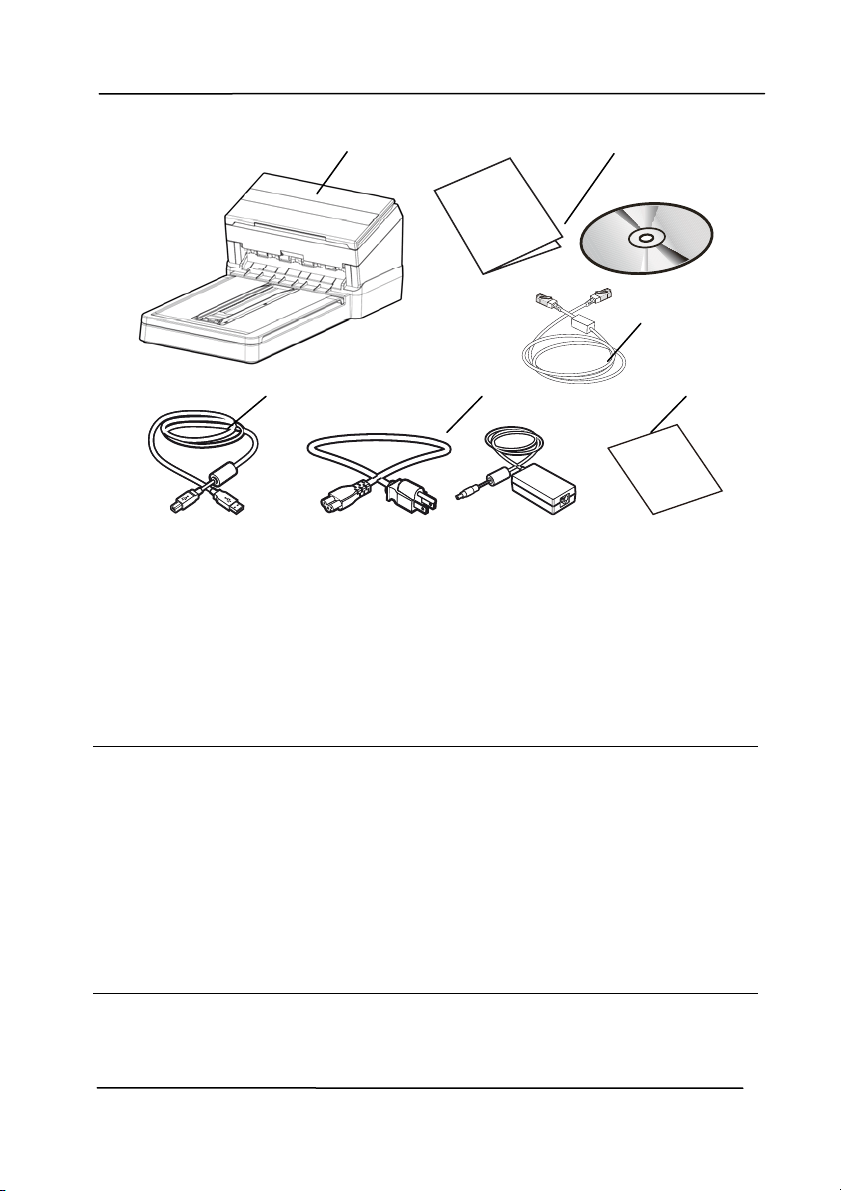
T
he following figure indicates the package cont ents. Please
check all t he it em s against your checklist . I f you do not
receive all the it em s, please cont act your authorized local
dealer im m ediately.
Use r’s Man ua l
1- 2
1 . Sca nner Main Unit
2 . Quick Guide/ CD
3 . * Et hernet Ca ble
4 . USB Ca ble
5 . Pow e r Adapt er & Pow er Cor d
6 . Calibra t ion Sh e e t ( for DL- 1 8 0 2 B only)
N ote:
1. Only use the AC adapt er DA- 48M24 by APD included in t he
m achine. Using ot her AC adapters m ay dam age the m achine
and void the warranty.
2. Please unpack the packing carefully, and check t he content s
against the checklist . I f any it em s are m issing or dam aged,
please contact your dealer im m ediat ely.
3. To access m ore service support s, visit www.avision.com t o
regi
st er your Avision’s product .
4. * The availabilit y varies due t o scanner m odel.
2
4
1
5 6
*3
Use r’s Man ua l
1- 3
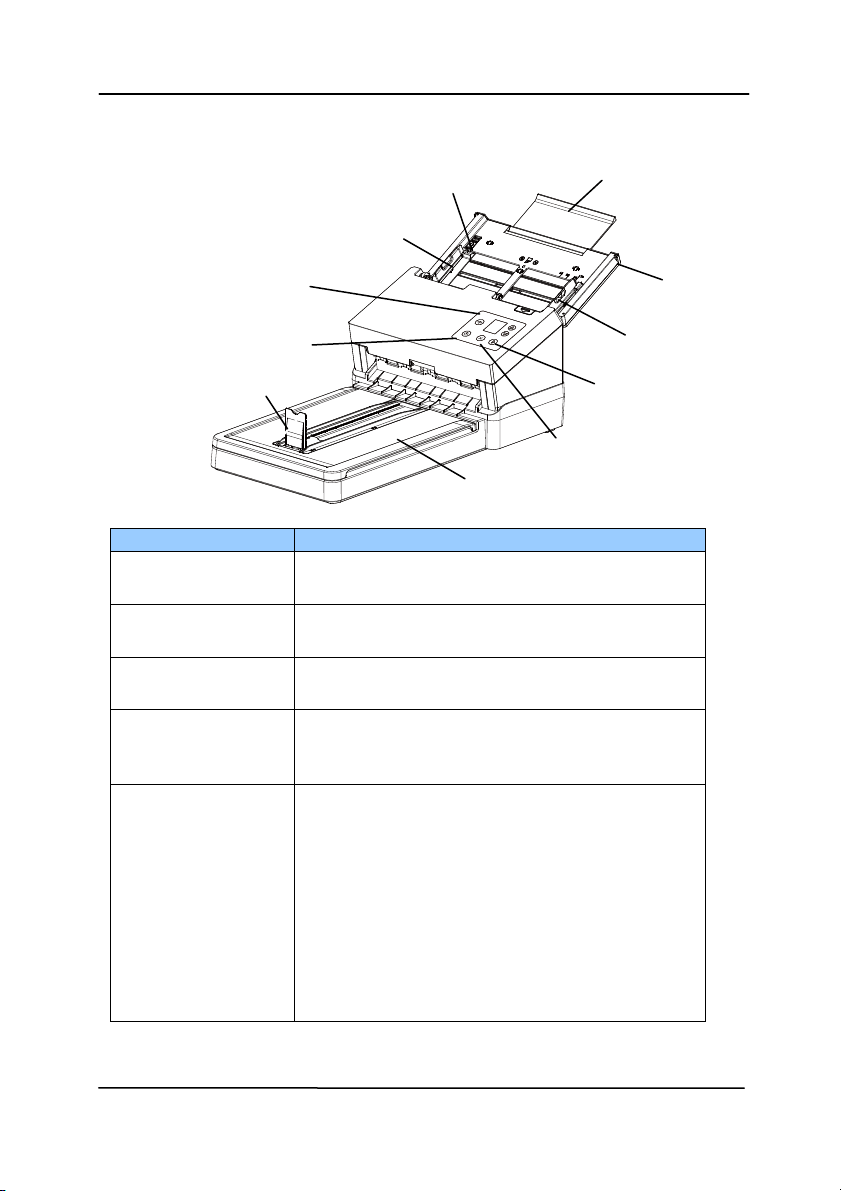
1 .2 Front View
Pa r t N am e Descr ipt ion
Ex t ension Can be pulled out and adjust ed to the
size of the docum ent being scanned.
Paper W idth
Sw itch
Slide it up or down to fit your paper
size.
ADF Paper
Tra y
Load the docum ent ont o this part
when scanning docum ent.
Pa per Guides Adj ust s to the widt h of the docum ent s
to prevent skewing of the scanned
pages.
Operat ion
Pa nel
LCD screen:
Shows a num ber indicat ing a scan- to
dest inat ion via the Up/ Down but tons.
The Power Button:
Press t o t urn on the power.
The Scan But ton:
Press t o st art a scan.
The Cancel But ton:
Press t o cancel a scanning j ob during
operation.
Extension
Paper Guide
Paper Stopper
Power But t on
Paper Guide
Document Cover
ADF
Paper Tray
LCD Screen wit h
Up/ Down But t ons
Scan But t on
Cancel But t on
Paper Widt h Swit ch
Use r’s Man ua l
1- 4
Docum e n t
Cover
Open it to place the docum ent on the
glass platen.
Paper St opper
Adjust to the lengt h of the docum ent s
to prevent t hem from falling apart .
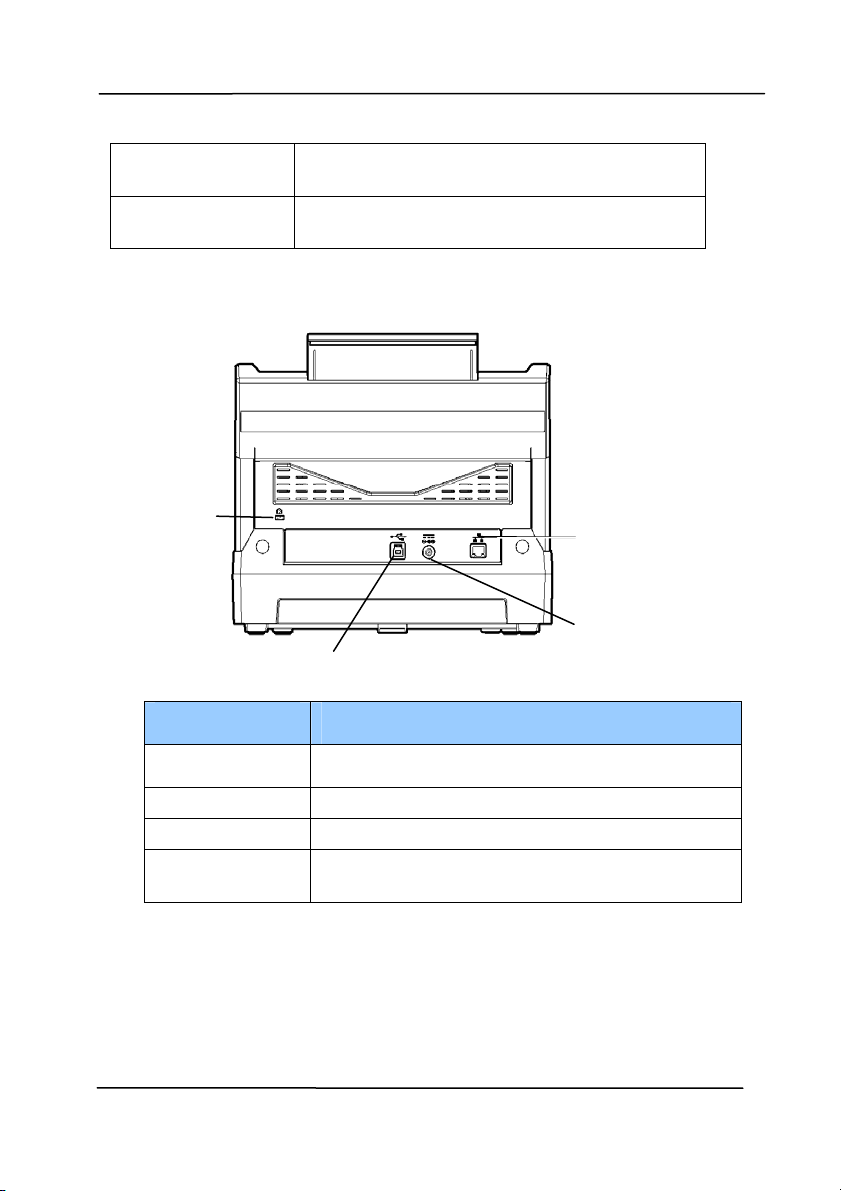
1 .3 Rear Vie w
I tem Descr ipt ion
LAN Port Used t o connect t o net work.
Pow e r Jack Connect t he AC adapter t o the scanner.
USB Port Connect t o your com puter.
Ke n sington
Se cu r ity Slot
At tach t o a lock to secure the scanner.
LAN Port
Power Jack
USB Port
Securit y
Slot
Use r’s Man ua l
1- 5
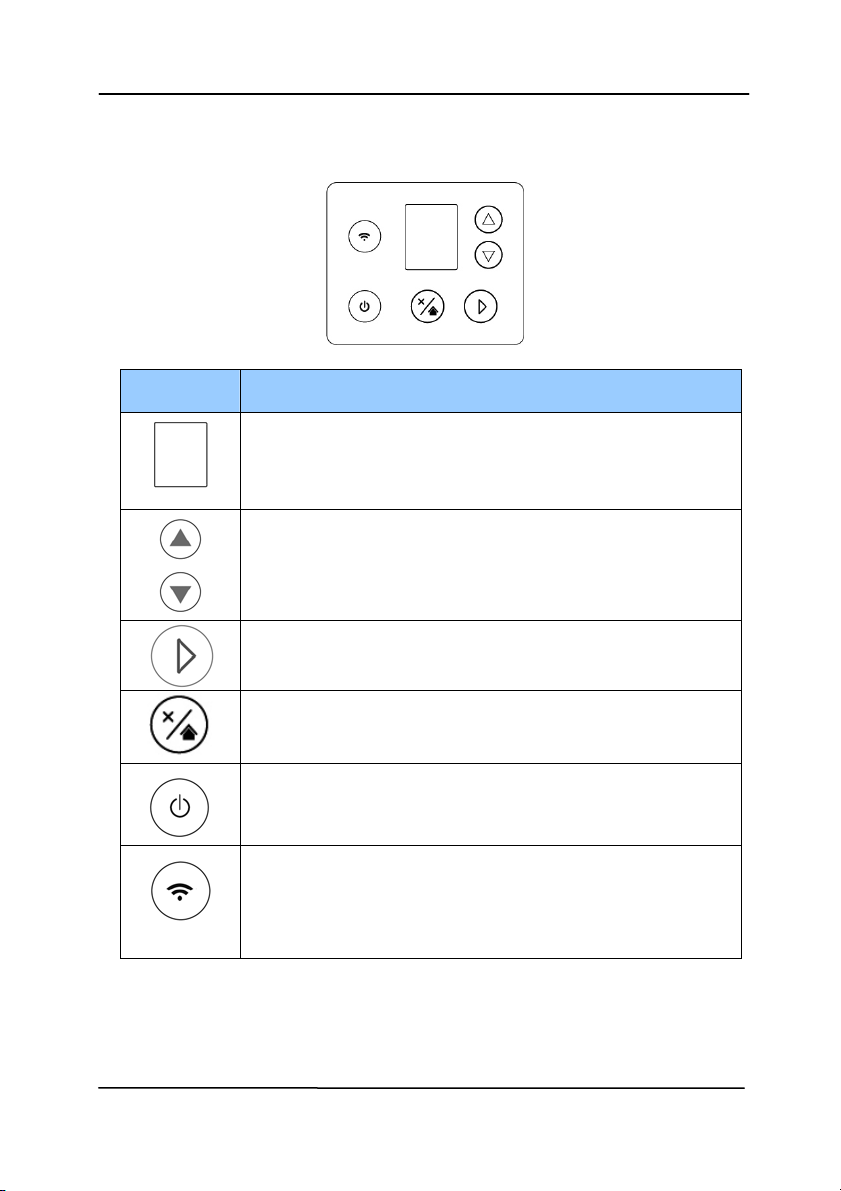
1 .4 Cont rol Panel
I tem Descr ipt ion
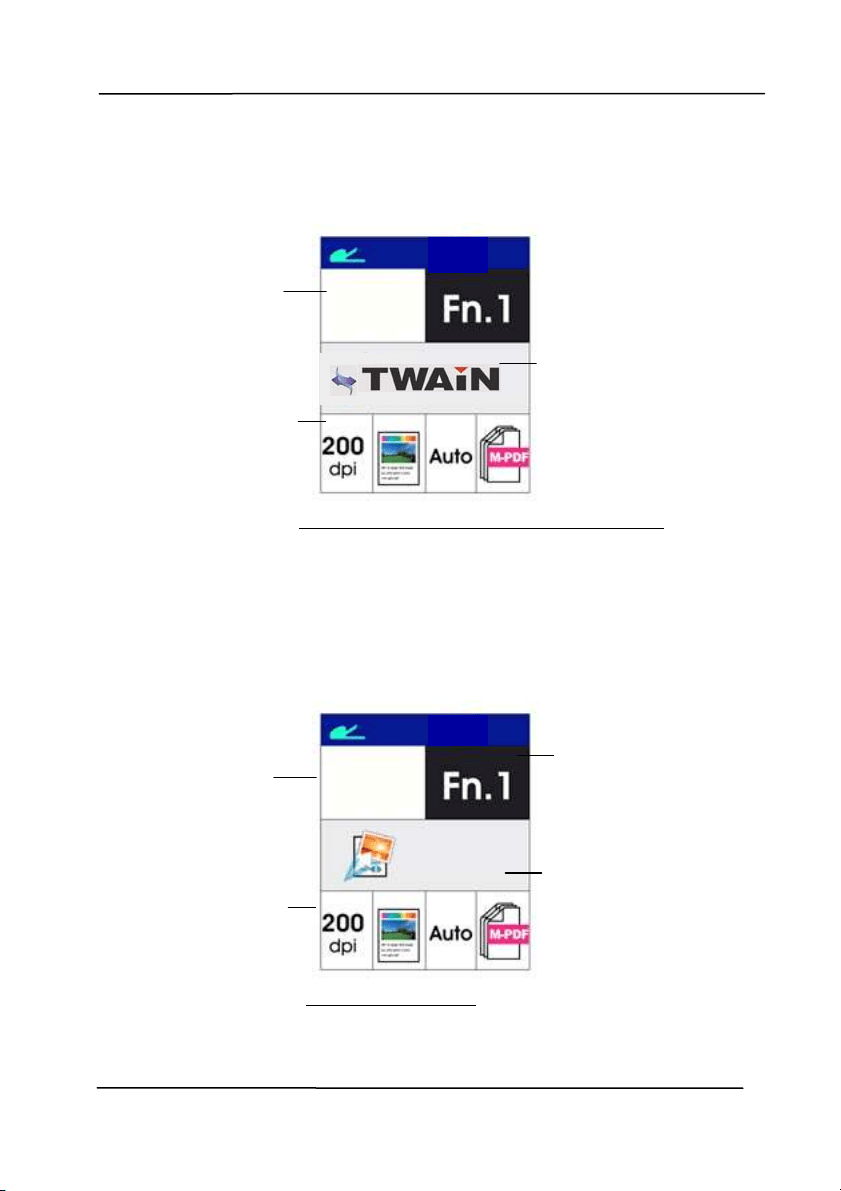
1. Display the scanning and error st atus.
2. Display TWAI N/ t he funct ion button via t he
soft ware application - Butt on Manager V2.
Used t o scroll up and down t o select your function
but t on via t he software application - But t on
Manager V2.
Press t o st art a scan via t he software application -
Button Manager V2.
Press t o cancel a scanning j ob during operat ion.
Press t o ret urn t o t he hom e scr een.
Press to turn on t he power.
Long press to turn off t he power.
Press 2 seconds t o t ur n on or off t he Wi- Fi
connect ion.
Turn solidly on in blue t o indicate Wi- Fi
connect ion is ready.
Wired (Et hernet ) and Wireless (Wi- Fi) Networks:
The availability of these feat ures varies according to your
product m odel.
Use r’s Man ua l
1- 6
1 .5
LCD D isplay
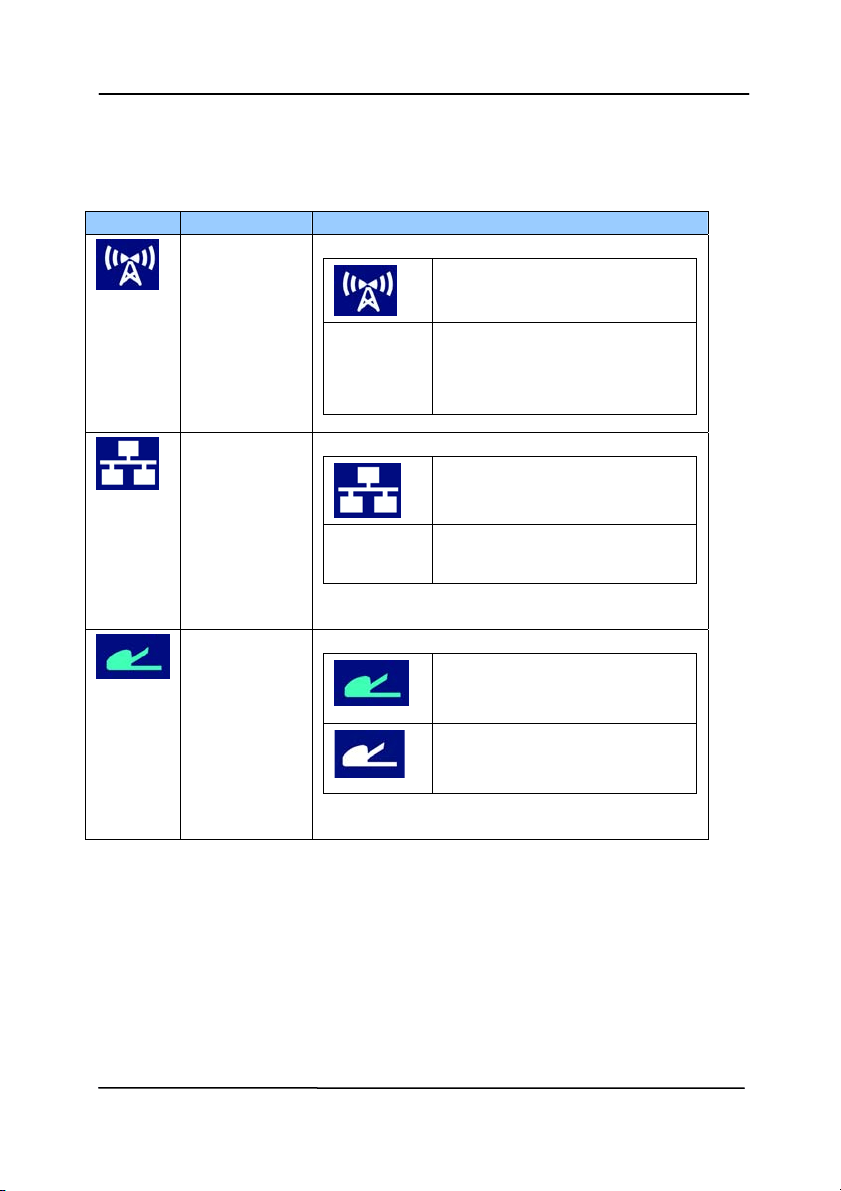
After inst alling t he scanner driver and connect ing t he scanner t o
your com puter, t he following LCD display will be prom pted:
Refer to chapt er 4 – Using Avision Propert ies Dialog Box on how
to st art a scan wit h TWAI N user int erface.
After inst alling scanner driver, Butt on Manager soft ware
applicat ion, and connect ing the scanner to your com puter, the
following LCD display will be prom pt ed:
Refer to chapt er 6 – Using t he Button
on how t o press the
button t o com plet e a scan.
I ndicat es current
scan set t ings
I ndicat es using
TWAI N to st art
a scan
I ndicat es t he
Scan Count
0
I ndicat es
Button Nam e
of But t on
Manager
0
iSca n
I ndicat es
Funct ion # of
Button
Mana
g
er
I ndicat es current
scan set t ings
I ndicat es t he
Scan Count
Use r’s Man ua l
1- 7
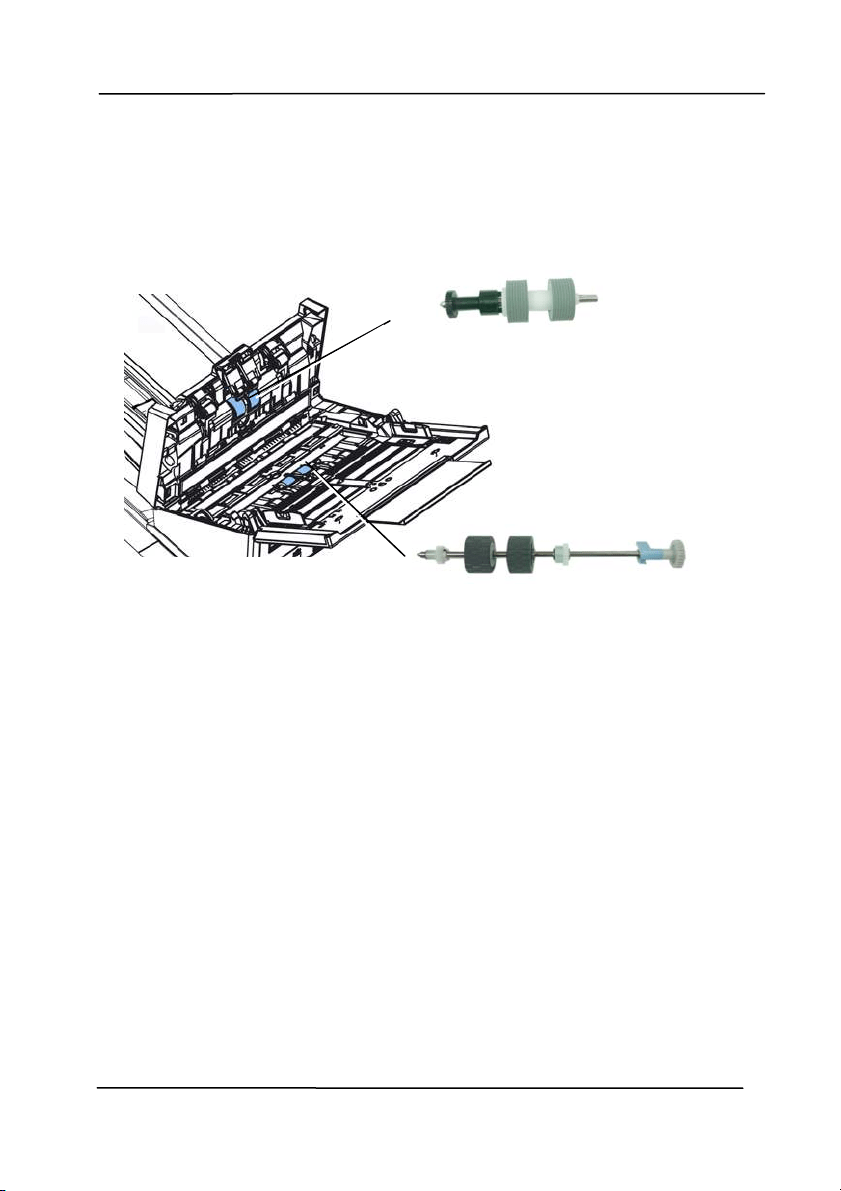
St atus Bar
I con N a m e LED Light Color/ St a tus I ndica t ion
Wi- Fi Mode
Successful
Connect ion
No
Display
- No USB Wi-Fi
Dongle
- Wi-Fi is
turned off
Et hernet
Mode
Successful
Connect ion
No
Display
No connect ion of the
wired net work cable.
Auto
Docum ent
Feeder
Mode
A green icon indicat es
there is paper in the
Auto Docum ent Feeder.
A white icon indicat es no
paper in Aut o Docum ent
Feeder.
Use r’s Man ua l
1- 8
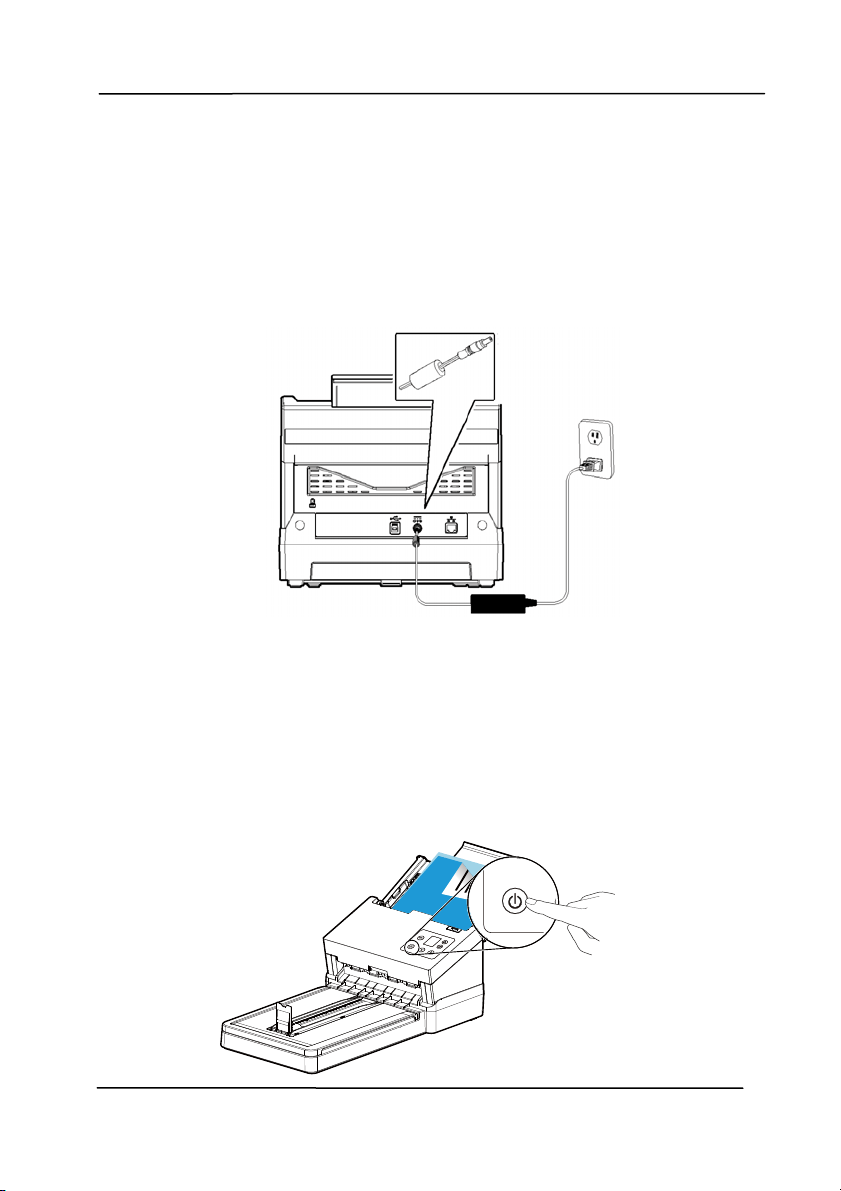
1 .6 Rem ova ble Parts
ADF Roller
Reverse Roller

Use r’s Man ua l
2- 1
2 . Scanner I nstalla t ion
2 .1 Preca u t ions
Keep the scanner out of direct sunl
ight. Direct exposure
to t he sun or excessive heat m ay cause dam age to the
unit .
Do not install t he scanner in a hum id or dust y place.
Be sure to use the proper AC power source.
Place the scanner securely on an even, flat surface.
Tilt ed or uneven surfaces m ay cause m echanical or
paper- feeding problem s.
Ret ain the scanner box and packing m at erials for
shipping purposes.
Use r’s Man ua l
2- 2
2 .2 Connect ing t o Pow er
Befor e conn e cting, m a k e sure t he pow e r sw itch is off.
Pl
ug the sm all end of the power adapt or into the power jack of
your scanner. I nsert t he ot her end to an appropriat e power
outlet .
2 .3 Turning on t he Pow e r
Press t he Pow e r Swi
tch but ton on the front panel, t he Power
LED will flash. When it is finished and ready t o scan, the LED
indicat or w ill st op flashing and becom e steadily on. To t urn
off t he scanner, press the Power Swit ch button for about 3
seconds, the Power LED will be off.
Use r’s Man ua l
2- 3
2 .4 I nst alling t he Scanner D r ive r
N ote:
To ensure your com puter can identify t he USB scanner,
please inst all scanner driver first before connect ing t he
scanner t o your com puter.
The scanner driver contains TWAI N, I SI S and WI A driver.
After t he inst allat ion of scanner driver is com plet ed, this
scanner allows you to scan via a TWAI N, I SI S, or a WI A
interface. St art your TWAI N- com pliant im age edit ing
software application to select a TWAI N or WI A user
interface or your I SI S soft ware t o select an I SI S user
interface. You m ay also launch Microsoft’s Scanner and
Cam era Wizard t o scan via a WI A user interface.
1. Place t he supplied CD- ROM onto your CD- ROM drive.
2. The software inst allat ion graphic appears. I f not , run
“se t up.ex e ”.

Use r’s Man ua l
2- 4
Cont ents on t he inst allation gra phic:
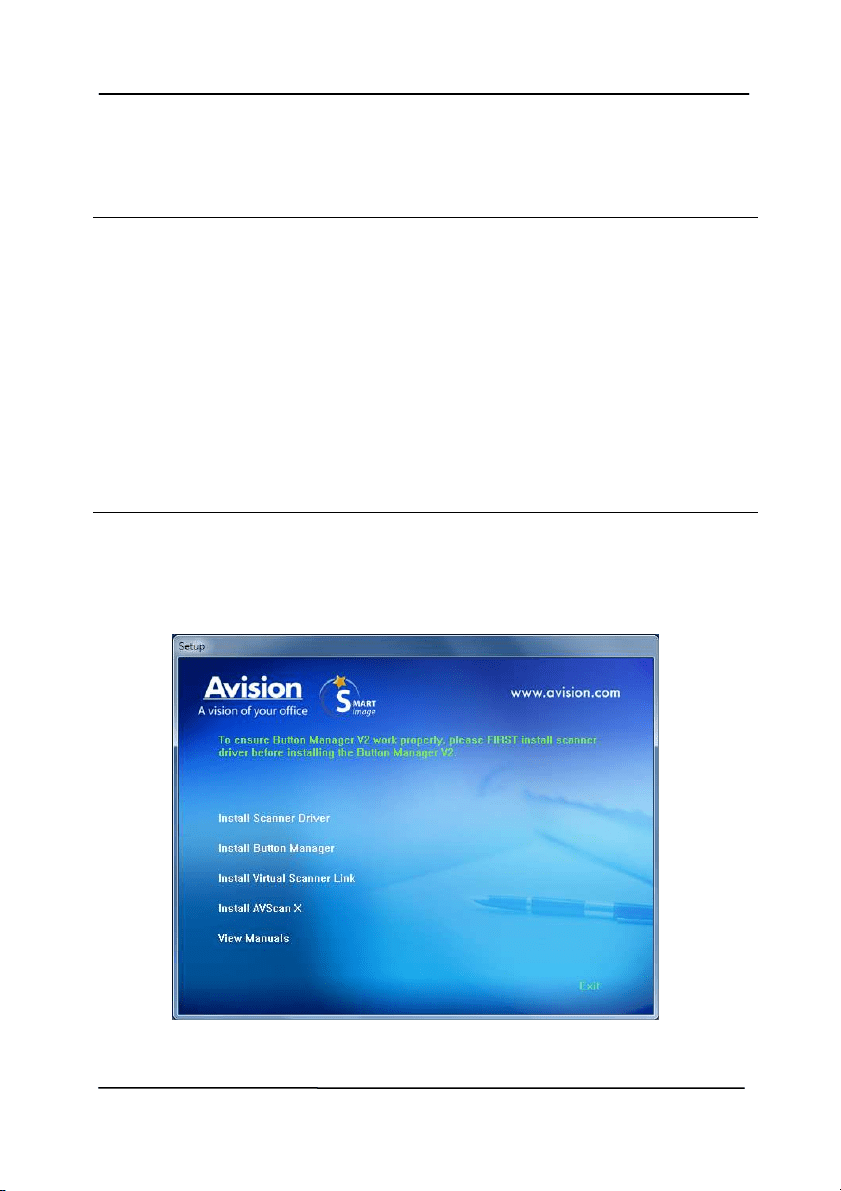
I nst all Scanner Dr iver: To com m unicat e wit h your
scanner, you need to install t he scanner driver.
I nst all Butt on M anager V2 : To use the butt ons on
the scanner, you need to inst all Button Manager V2.
To ensure Button Manager V2 works properly, please
FI RST inst all scanner driver before inst alling Button
Manager V2.
I nst a ll Vir t ual Sca nner Link : To connect your
com puter to the scanner in the network, you need to
inst all the Network Setup Tool. * Virt ual Scanner Link:
The availability varies according to scanner m odel.
I nst a ll AVScan X: To scan and organize your multi-
page docum ent ( s) , you can install the soft ware
applicat ion t o m anage them easily and effect ively.
View M anual: Click “View M anual” t o view or
print t he det ailed user m anual for the scanner and
Button Manager V2 respect ively.
3. Click I nst all Sca nner D r iver to inst all the scanner driver
and t hen click I n sta ll Butt on M anager V2 t o inst all t he
Button Manager V2 unto your com put er.
Use r’s Man ua l
2- 5
2 .5 Connect ing t o Com pute r
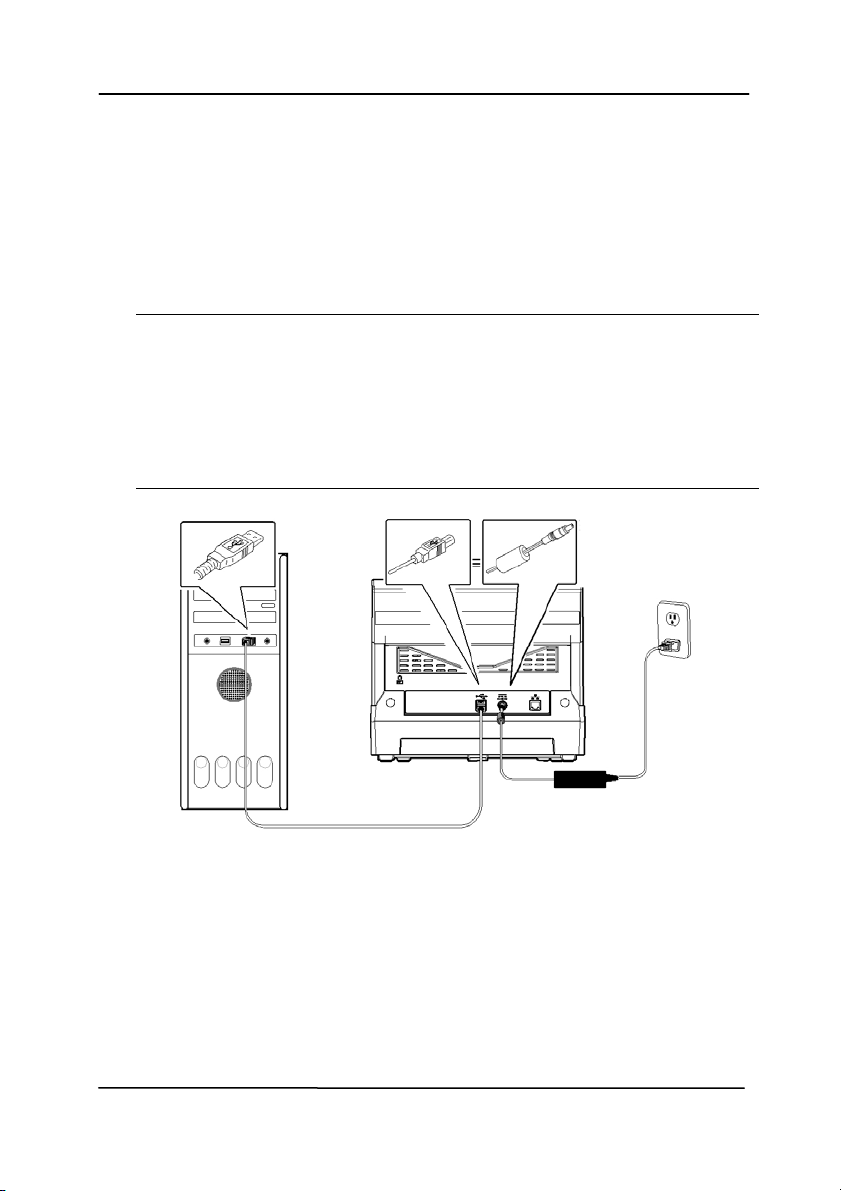
1. Connect t he squa re e n d of the USB cable to the USB port of
your scanner. Connect the re ct angle end to t he USB port at
the rear side of your com puter.
N ote: The scanner is designed w it h a USB 3.1 interface t o
ensure the opt im al speed. I f your com puter com es wit h a
USB 3.1 port, m ake sure t o connect t he scanner t o your
com put er t o the USB 3.1 port which is dist inguished in blue
color at t he back of your com puter. The USB 3.1 port
enhances your scanning speed and is also com patible wit h
USB 2.0 and USB 1.1.
2. The com puter should det ect a new USB device and prom pt a
“New H a rdw a re Found” m essage.
3. By following t he on-screen inst ruct ions, click t he N ext
button t o cont inue. When the cert ificat ion screen appears,
click Continue Anyw a y t o com plet e the inst allat ion.
4. When the Finish dialog is prom pt ed, click t he Fin ish button.
Use r’s Man ua l
2- 6
2 .6 Connect ing t o a Net w ork Cable
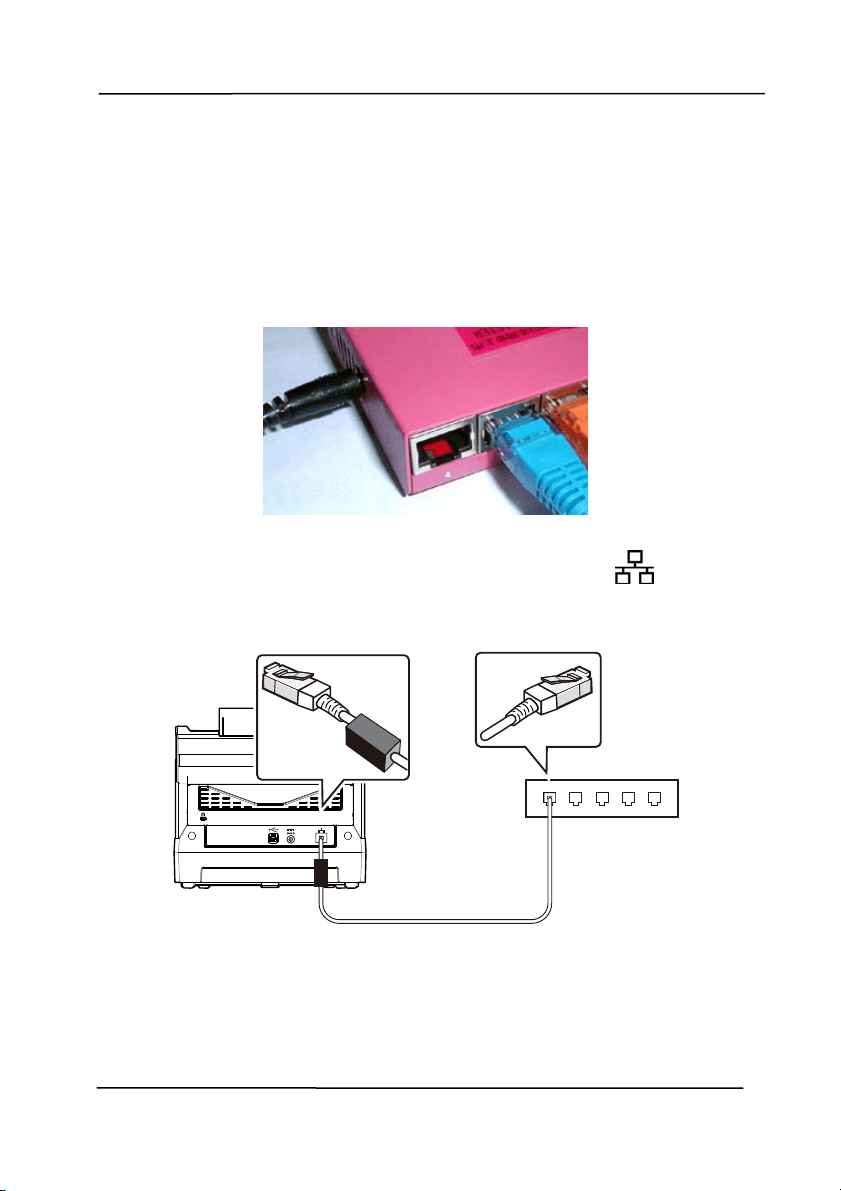
3. Connect one end of your net work cable to an available port
of t he swi
tching hub of your LAN.
4. Connect the ot her end t o the LAN port m arked
at the
back of the product as shown.
Use r’s Man ua l
2- 7
2 .7 Connect ing t o t he N etw ork Scanner
Before connect ing t o the network scanner, m ake sure t hat
Virtual Scanner Link ( Net work Setup Tool) has been inst alled
onto your com puter. The Network Set up Tool is included in t he
supplied soft ware CD.
1. St art [ Vir t ual Scanner Link ] by choosing St a rt> All
Progra m s> Avision Vir t ual Scanner> Virt ual Scanner
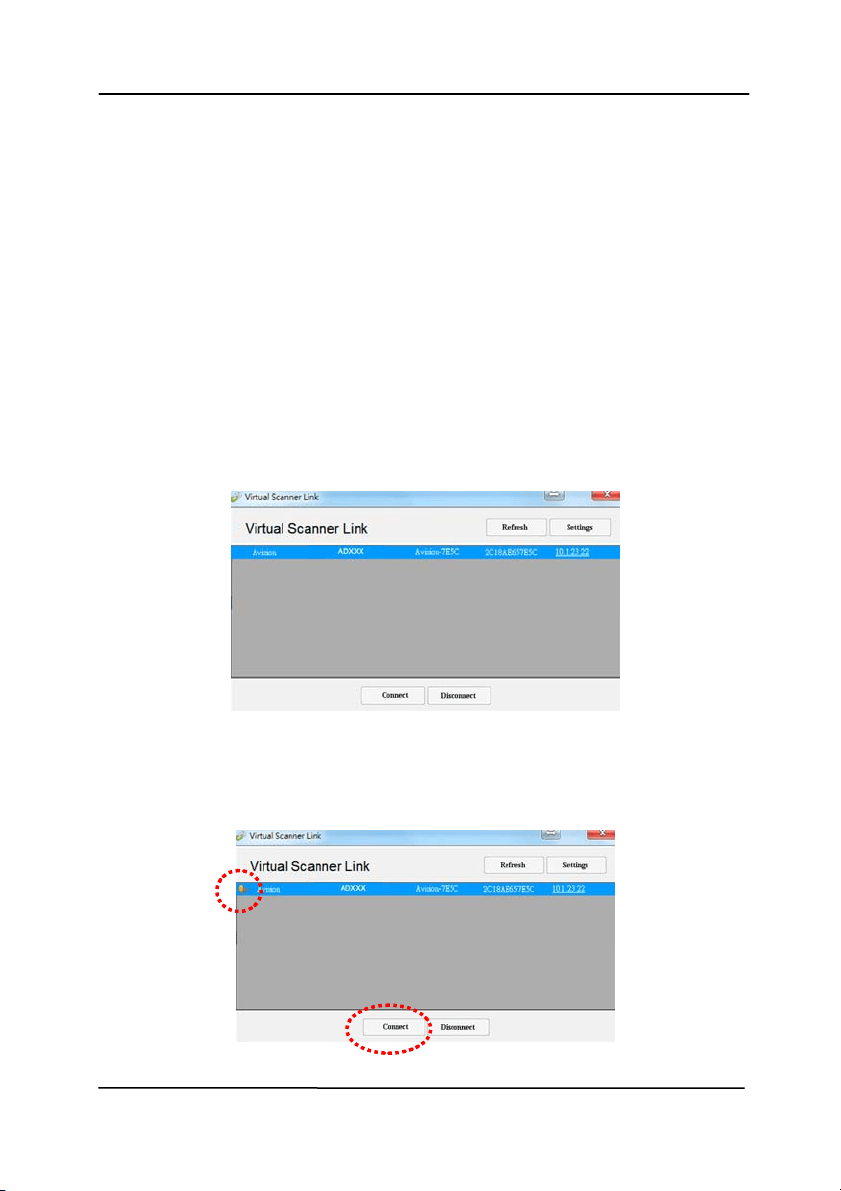
Link. The m ain window will be displayed and t he scanners
in your net work will be searched aut om at ically. I n a few
seconds, t he result including t he scanner m odel and
scanner’s I P address w ill be displayed as shown.
2. Choose the scanner you wish t o connect and then press
[ Connect ] . I f connect ion is successful, a connect ion
m ark will be displayed as shown.
Use r’s Man ua l
2- 8
3. After t he scanner has been connected successfully,
launch your TWAI N- com pliant im age- edit ing soft ware
applicat ion to st art a scan ( See Figure A) .
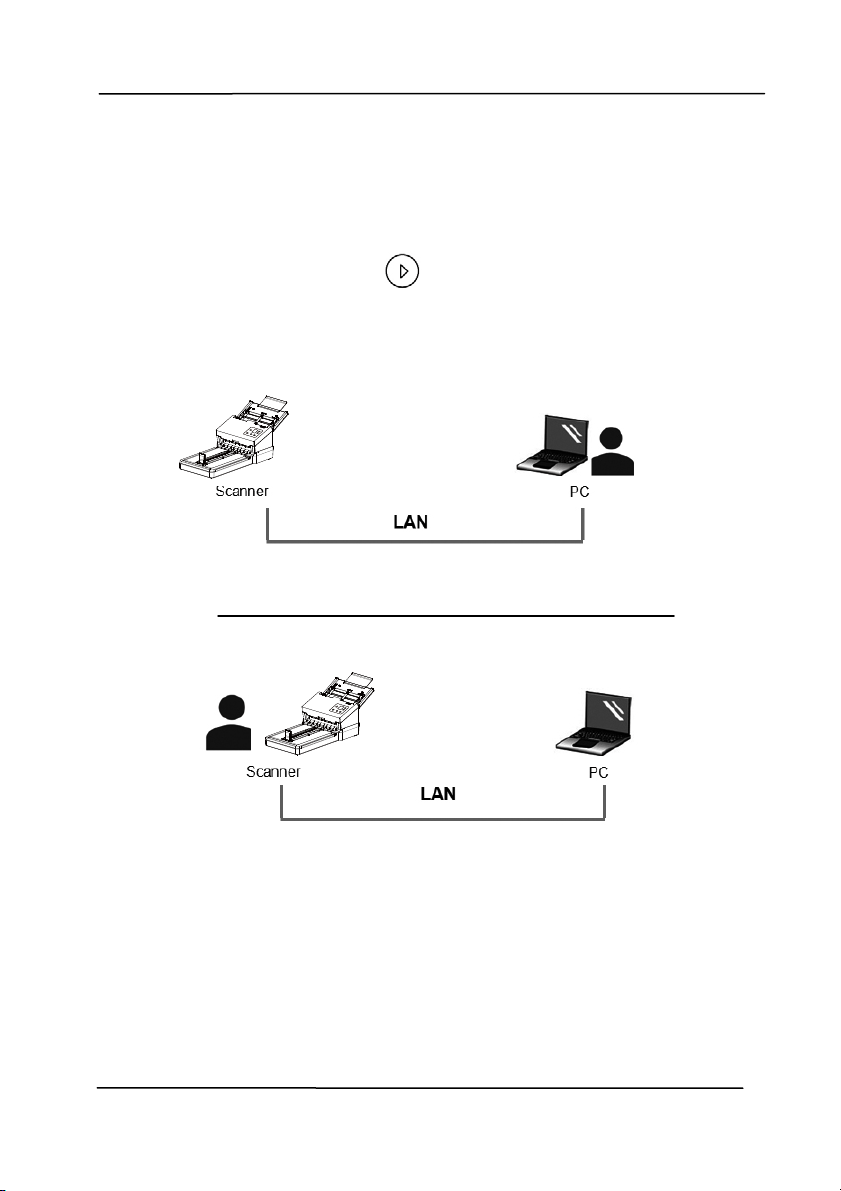
Or sim ply press the
[ Scan] but ton on the scanner to
st art a scan ( Figure B) .
Figure A
Figure B
Use r’s Man ua l
2- 9
N ote:
The VSL program allows m ult iple users to connect to t he
network scanner at anyt im e. Yet , the scanner operat ion
can be used by one user at a t im e. I f the net work scanner
is being used by ot her user, you will be prom pt ed w ith a
m essage to connect the scanner lat er. When the scanner
is available, you will also be prom pt ed with a m essage t o
connect t he scanner and st art scanning your docum ent .
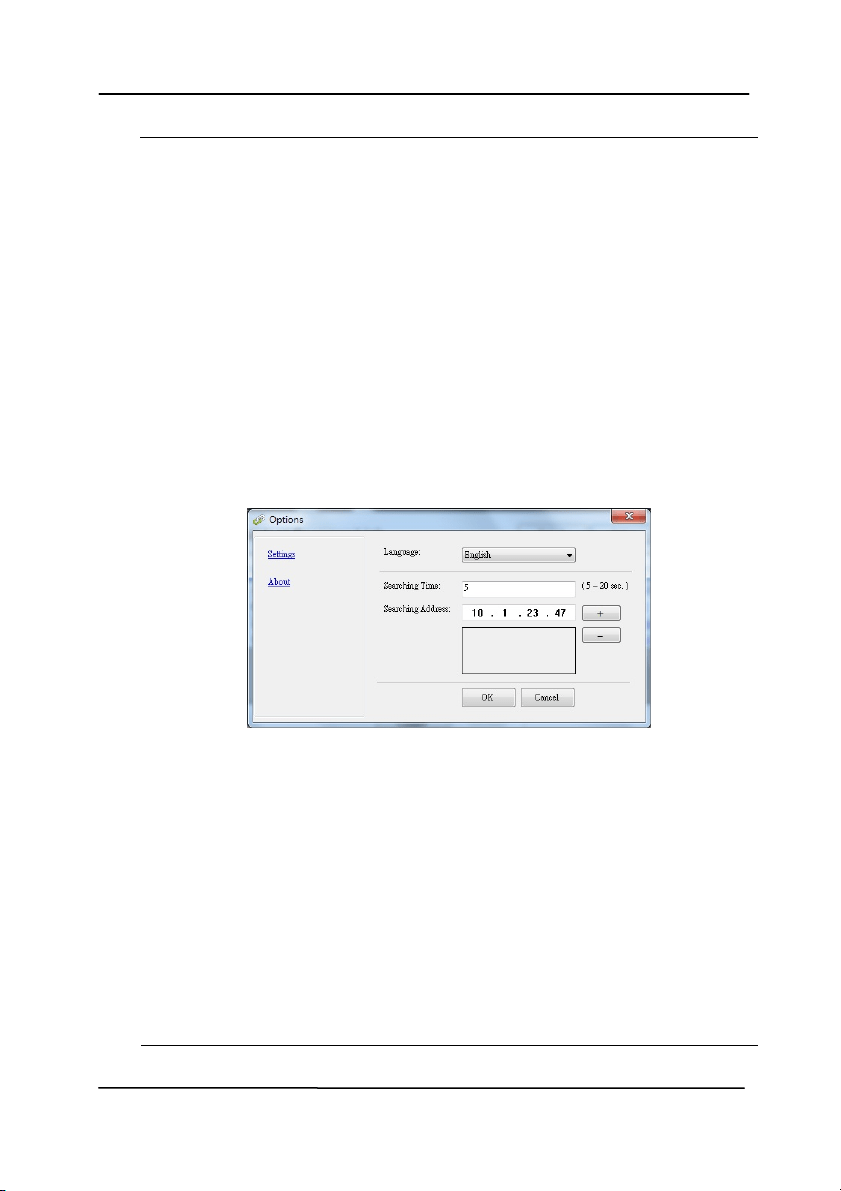
I f t he net work scanner has not been found, it is probably
the scanner and your com put er are not in the sam e LAN.
I n this case, you can assign a specific I P address of the
scanner t o let [ Virt ual Scanner Link] aut om at ically search
the scanner. Click the [ Option] button, t ype your I P
address on the [ Sear ching Address] field ( 1 ) , t hen click
the [ + ] button ( 2 ) and finally click [ OK] ( 3 ) to com plete.
Searching Tim e: When the program is launched, it
autom at ically searches t he scanner in t he net w ork in 5
seconds ( default ) . The searching t im e can be changed from
a range of 5 t o 20 seconds.
I f t he [ Virt ual Sca n ner Lin k ] program has been closed
and then launched again, [ Virtual Sca nner Lin k ] will
autom at ically search and connect t he net work scanner it
has previously connect ed to.
The connect ion is always enabled, whet her t he scanner
enters int o t he sleeping m ode or t urns off and on again.
VSL will autom at ically det ect t he previously connect ed
scanner and connect again.
(1)
(3)
(2)
Use r’s Man ua l
2- 10
2 .8 How t o Sw it ch t o Another Com puter on t he N e tw ork
Sca nner
Please follow t hese st eps t o connect the net work scanner to
ot her com puter in the network:
1. Turn on t he scanner.
2. Make sure t hat a LAN ( Ethernet ) cable has been connect ed
to t he scanner and t hat the Virtual Scanner Link ( VSL) has
been inst alled to your com puter. (Refer t o the preceding
sect ion 2.3~ 2.7)
3. St art [ Vir t ual Scanner Link ] by choosing St a rt> All
Progra m s> Avision Vir t ual Scanner> Virt ual Scanner
Link. The m ain window will be displayed and t he scanners
in your net work will be searched autom at ically.
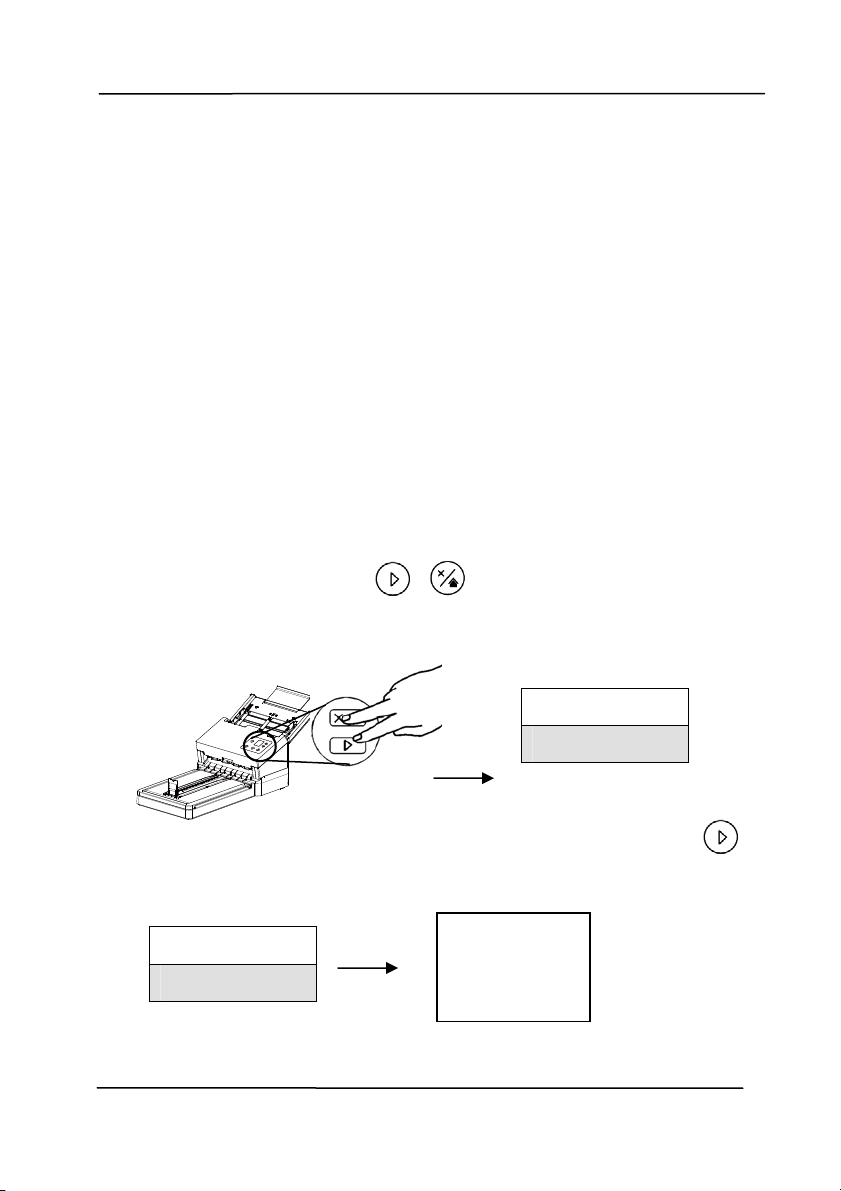
4. On the scanner, press
+ ( Scan+ Cancel/ Hom e
buttons) at the sam e tim e. The following opt ions will be
displayed in t he screen.
5. Use the Arrow key t o select [ V SL List ] and then press
( OK) , all t he com puters ( host nam e) in t he LAN will be
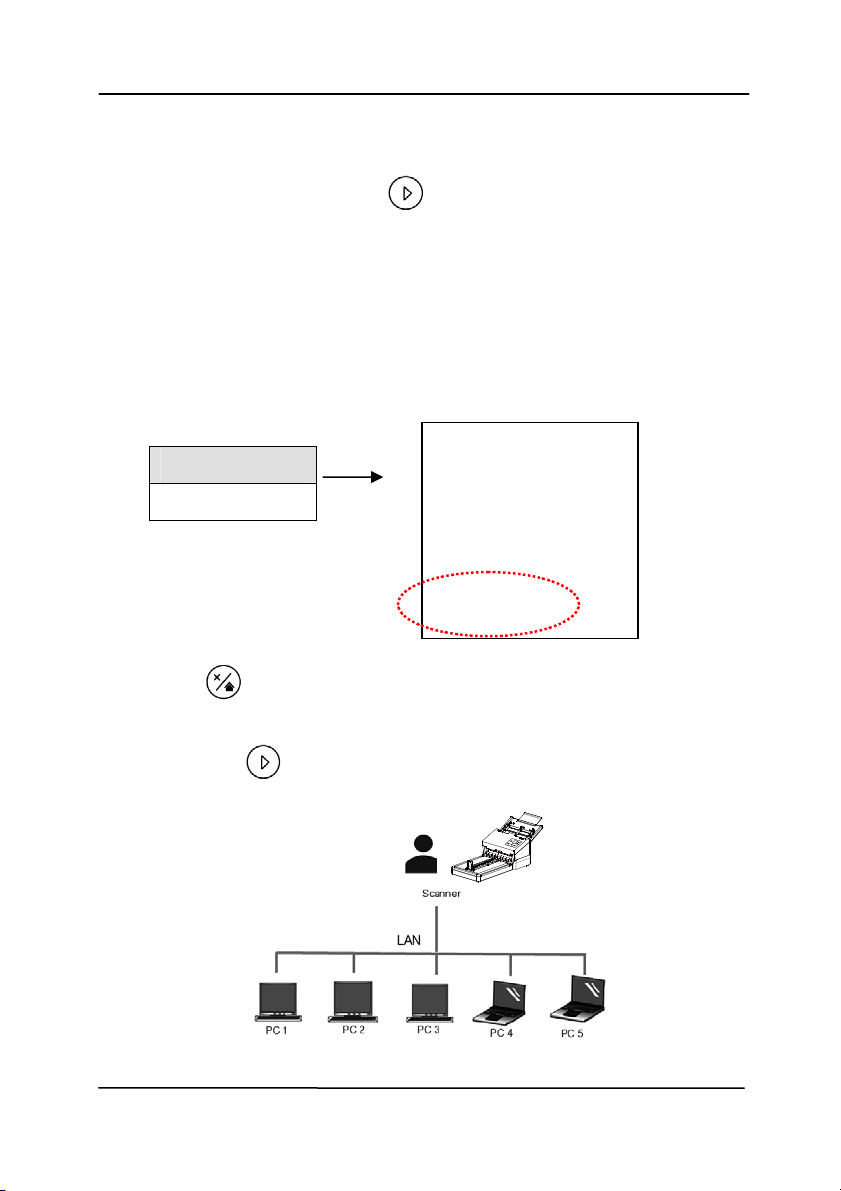
displayed in t he screen.
1. PC 1
2. PC 2
3. PC 3
I nform ation
VSL List
I nform ation
VSL List
Use r’s Man ua l
2- 11
6. Use the Arrow key t o select the com puter you want t o
connect and then press ( OK) .
7. The scanner starts connect ing t o t he com puter.
8. Repeat st ep 4 and select [ I nform a t ion] . The product
inform at ion including firm ware version, I P address, Mac
address, PC Link will be displayed in the screen. I f
connect ion is successful, t he correct com puter nam e will be
shown in [ PC Link] .
9. Press t o go back t o the following hom e screen. The
button profile of the com puter w ill also be changed.
10. Press the
[ Scan] but ton on the scanner to st art a scan.
FW Version:
0.82
I P Address:
10.1.23.78
Mac Address:
0002300045567
PC Link:
PC 2
I nform ation
VSL List
Use r’s Man ua l
3- 1
3 . Com plet ing Your First
Scan
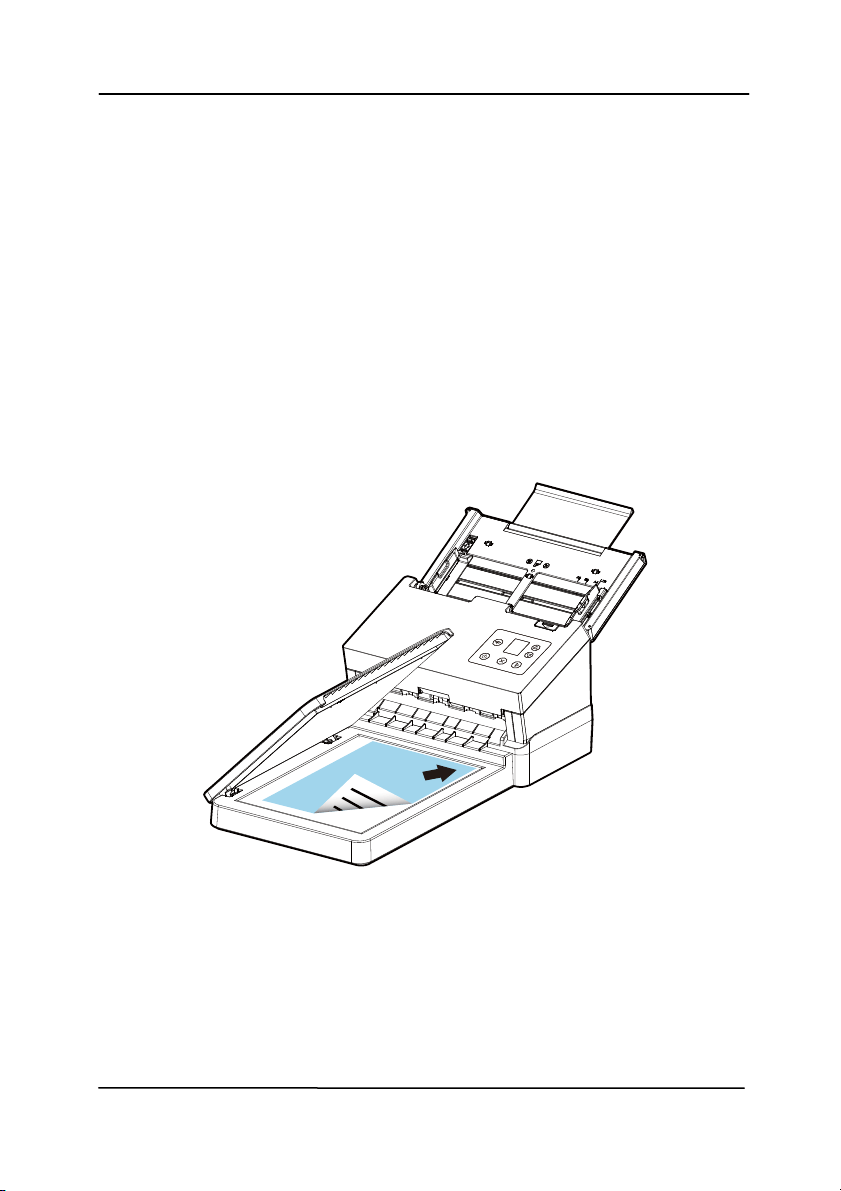
3 .1 Pla cing Your Docum e nt on t he Fla t bed
Open docum ent cover. Place your docum ent FACE DOW N on
the docum ent glass and align t he docum ent t o the reference
m ark as indicated. Close docum ent cover.

Use r’s Man ua l
3- 2
3 .2 Loa ding Your Docum ent in t he ADF Pa per Tray
3 .2 .1 Notice on Usin g t h e ADF
Before using t he ADF, please make sure that your paper m eet s
t
he following specificat ions:
Docum ent (s) can range in size from 50 x 50 m m ( 2 x 2 in.)
to 242 x 356 m m ( 9.5 x 14 in.) .
Docum ent ( s) can range in weight from 27 ~ 413 g/ m
2
( 7
~ 110 lb.)
I D cards up t o 1.25 m m thick
Docum ent(s) should be square or rect angular and in good
condition (not fragile or worn) .
Docum ent(s) should be free of curl, wrinkle, t ears, w et ink,
or punch holes.
Docum ent(s) should be free of st aples, paper clips, paper
st icky notes.
Use r’s Man ua l
3- 3
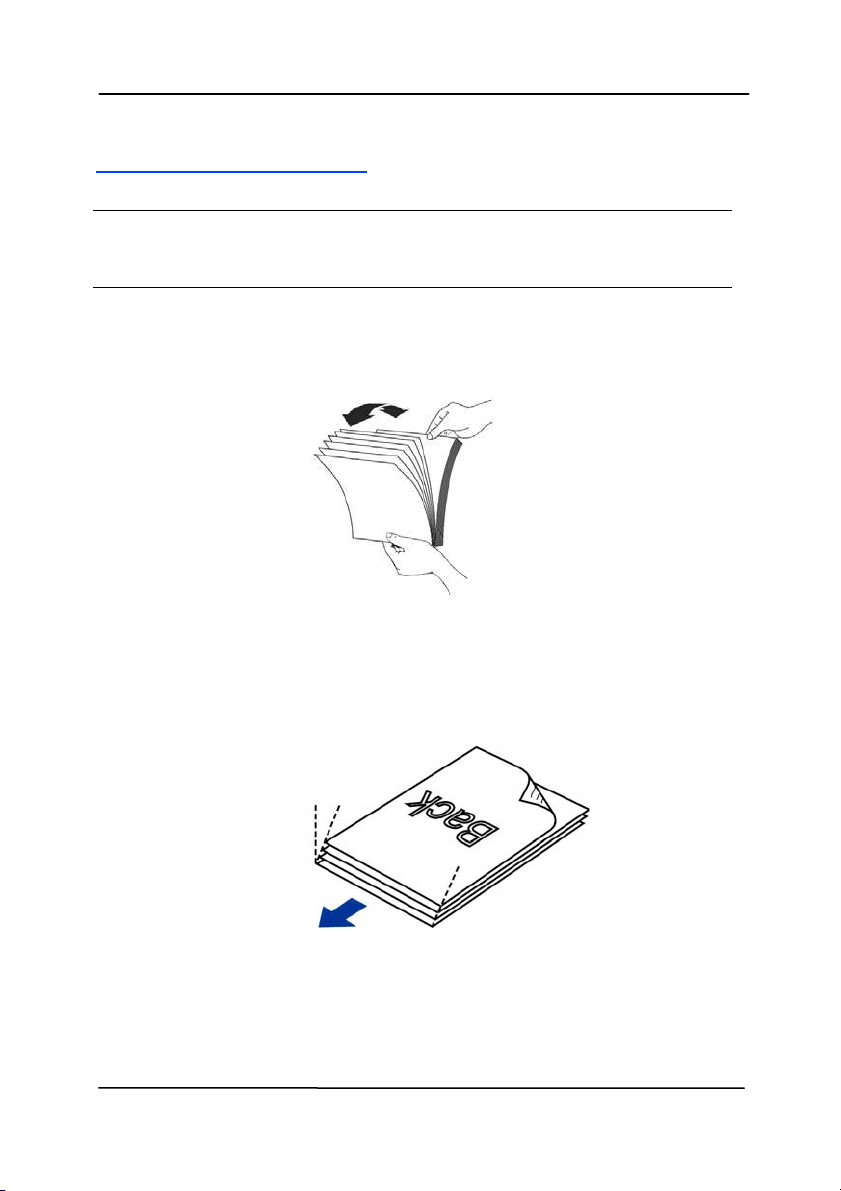
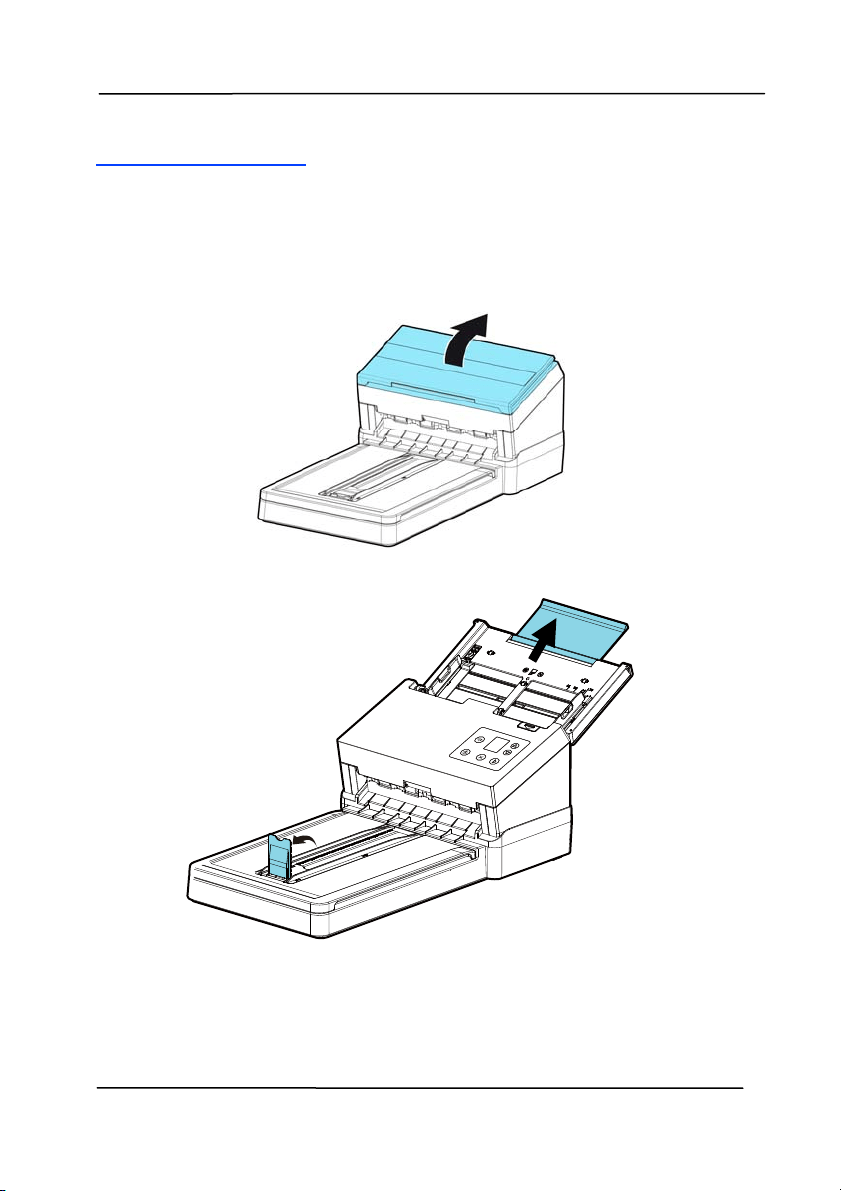
Fa nning Your Docum e nt
N ote: To avoid occasional m ult i- feeds or paper j am s, please
fan your docum ents and align t he t op edges before feeding
them into the scanner.
1. Hold bot h ends of t he docum ents and fan t hem a few
tim es.
2. Rot at e t he docum ent s by 90 degrees and fan them in t he
sam e m anner.
3. Align the edges of t he docum ent s in a st ep- like pat tern
( see picture below).
St ep- like
Scanning
Direction
Use r’s Man ua l
3- 4
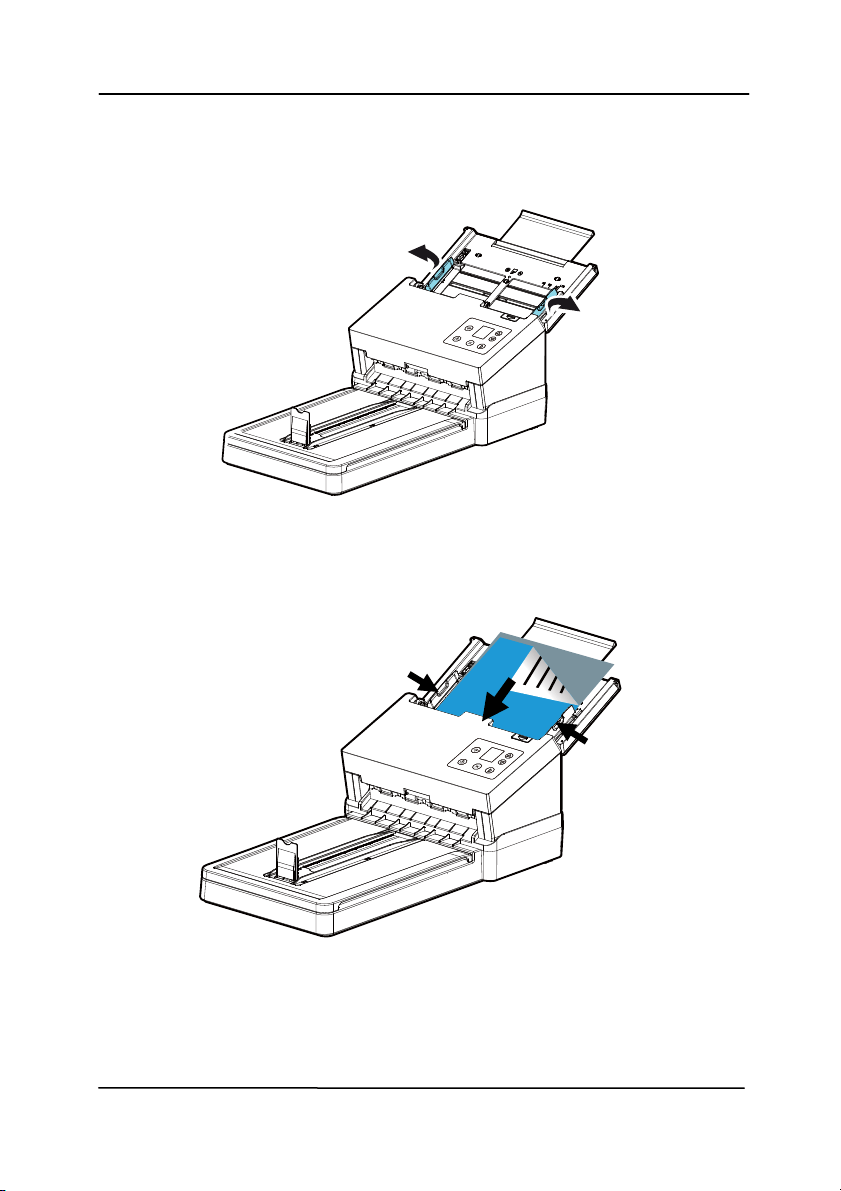
Docum e n t Fe eding
1. Unfold the document feeder and it s ext ension.
2. Raise t he paper stopper.
Use r’s Man ua l
3- 5
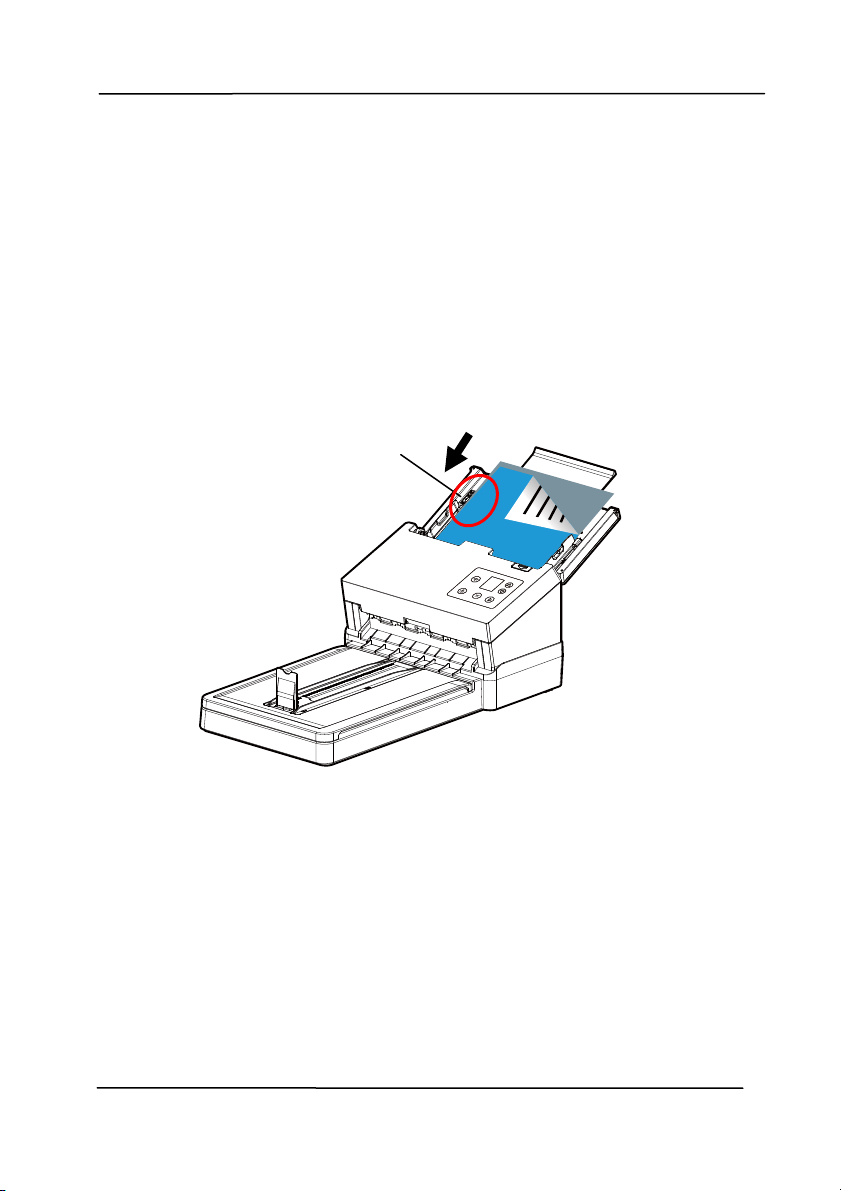
3. Raise t he paper guide t o hold your m ult i- page docum ent .
4. Load the st ack of document
face down wit h the t op of t he
pages pointing into the feeder.
5. Verify t hat the paper guides are aligned wit h the edges of
the st ack.
Use r’s Man ua l
3- 6
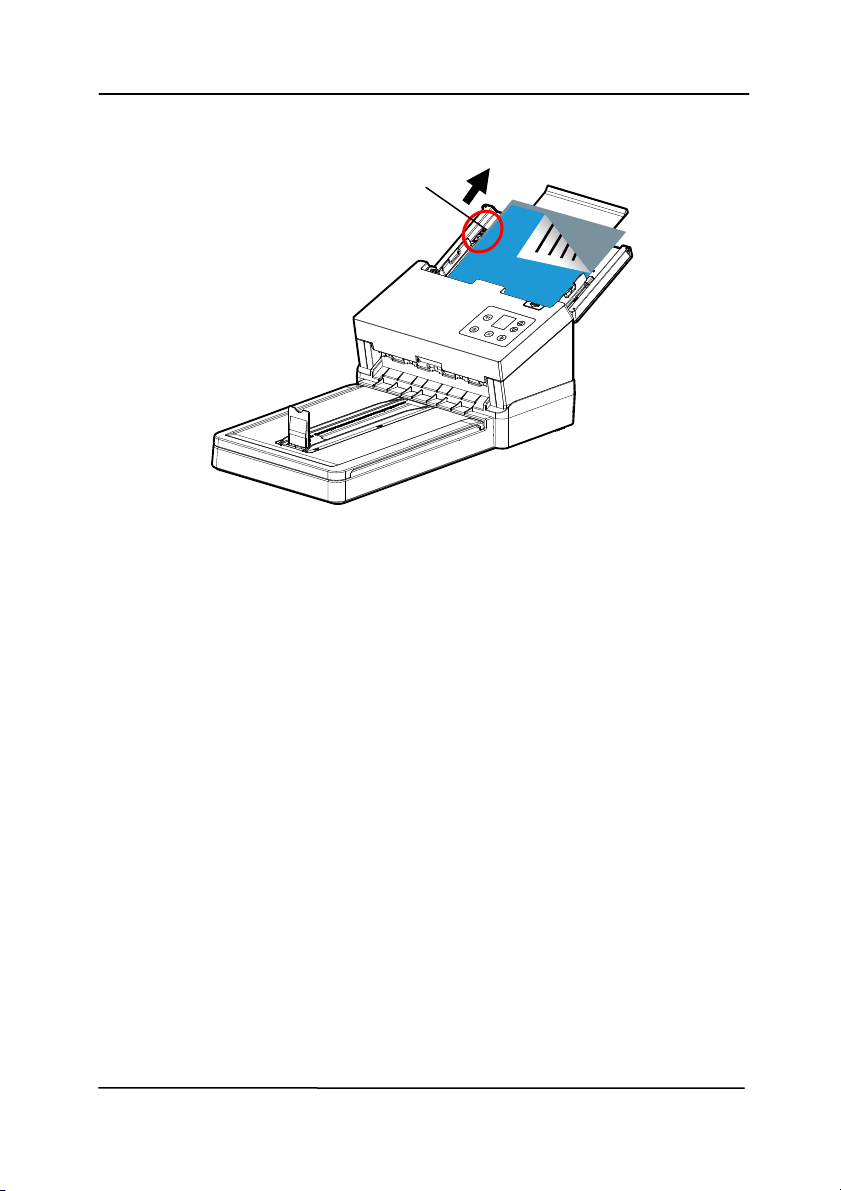
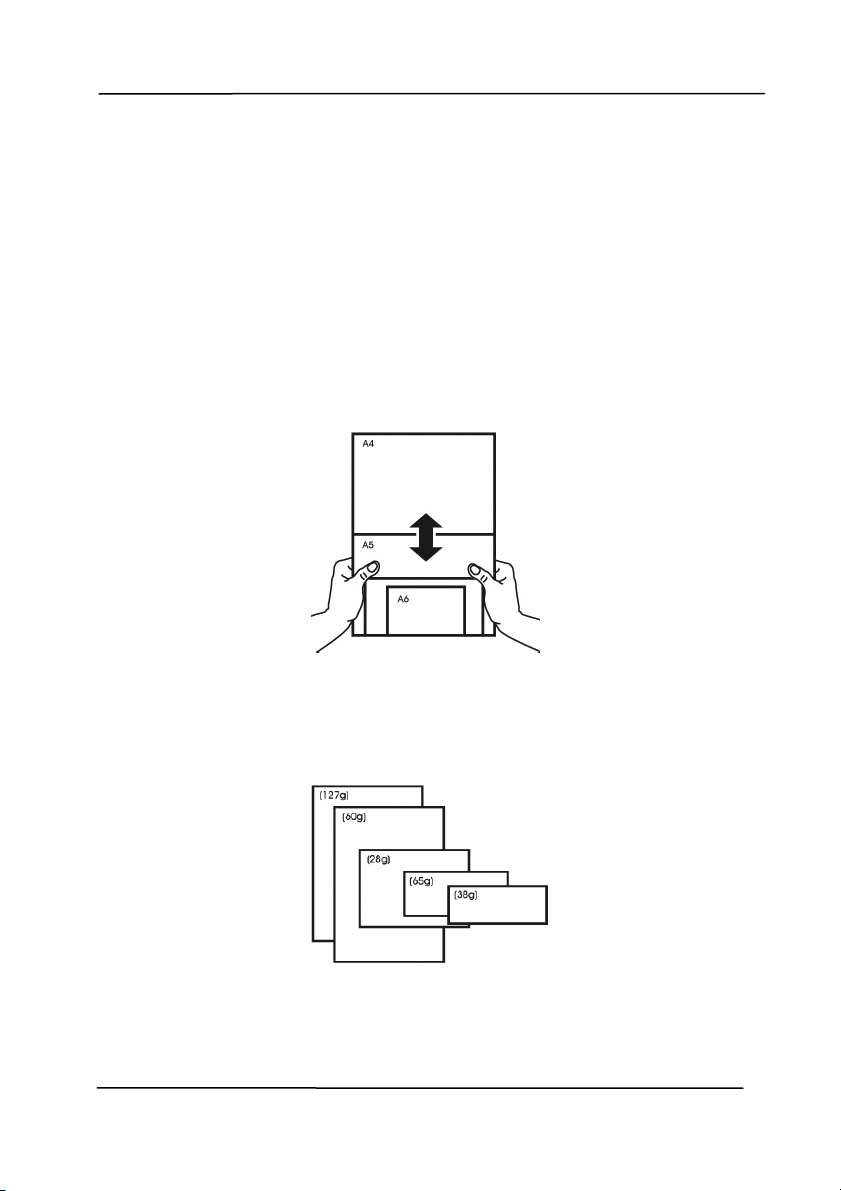
Not e: The [ Paper W idth] swit ch:
I f your docum ent width is 216 m m (8.5 in.) :
Slide t he [ Pa per W idth] switch DOW N to fix your paper
guide t o conveniently load the lett er- size docum ent.
I f your docum ent width is larger t han 216 m m (8.5 in.):
I f your docum ent widt h is larger than 216 m m ( 8.5 in.)
such as invoices wit h punch holes, slide t he [ Pa per
W idt h] switch UP and m ove the paper guide t o the right
end to load your documents.
Slide D OW N t he [ Pa per
W idt h] switch t o set
your paper width to 216
m m ( 8.5 in.)
Use r’s Man ua l
3- 7
Slide UP t he [ Pa per W idth]
swit ch to set your paper
widt h larger t han 216 mm
(
8.5
in.
)
Use r’s Man ua l
3- 8
3 .2 .2 Scanning a St ack of Docum e nt w it h Various sizes
and W
eights
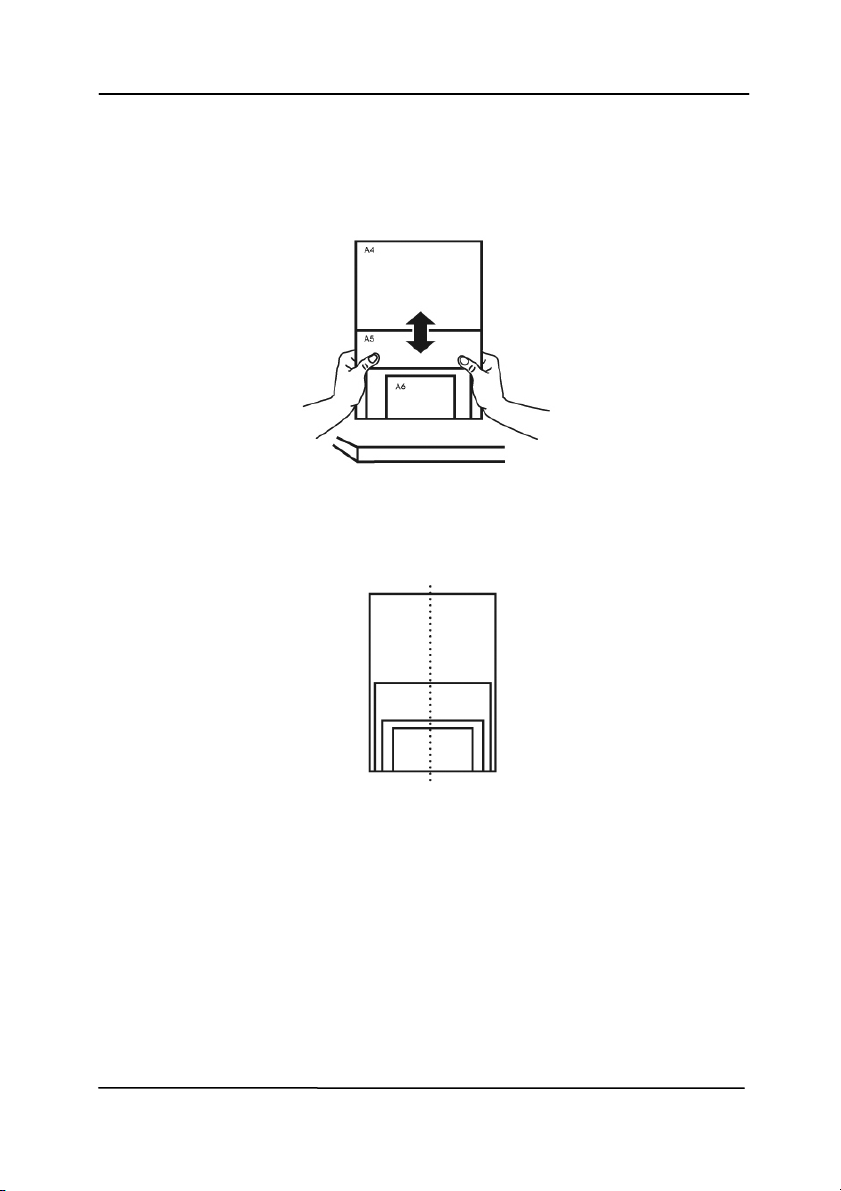
When scanning a bat ch of documents wit h different sizes and
weights, be sure t o follow t hese guidelines to avoid a skewed
im age or a paper jam :
1. Align t he docum ent s TOP EDGE first in the sequence of
paper size from large t o sm all.
2. I f two pages are of the sam e size yet with different weight,
arrange t hese pages in the sequence of paper w eight from
heavyweight t o lightweight.
Use r’s Man ua l
3- 9
3. Align the edges of t he docum ents by tapping the bott om of
the st ack against the t able t op.
4. Center t hese pages in the document feeder and m ake sure
that the edges of page of the largest size slightly touch t he
Paper Guide.
Use r’s Man ua l
3- 10
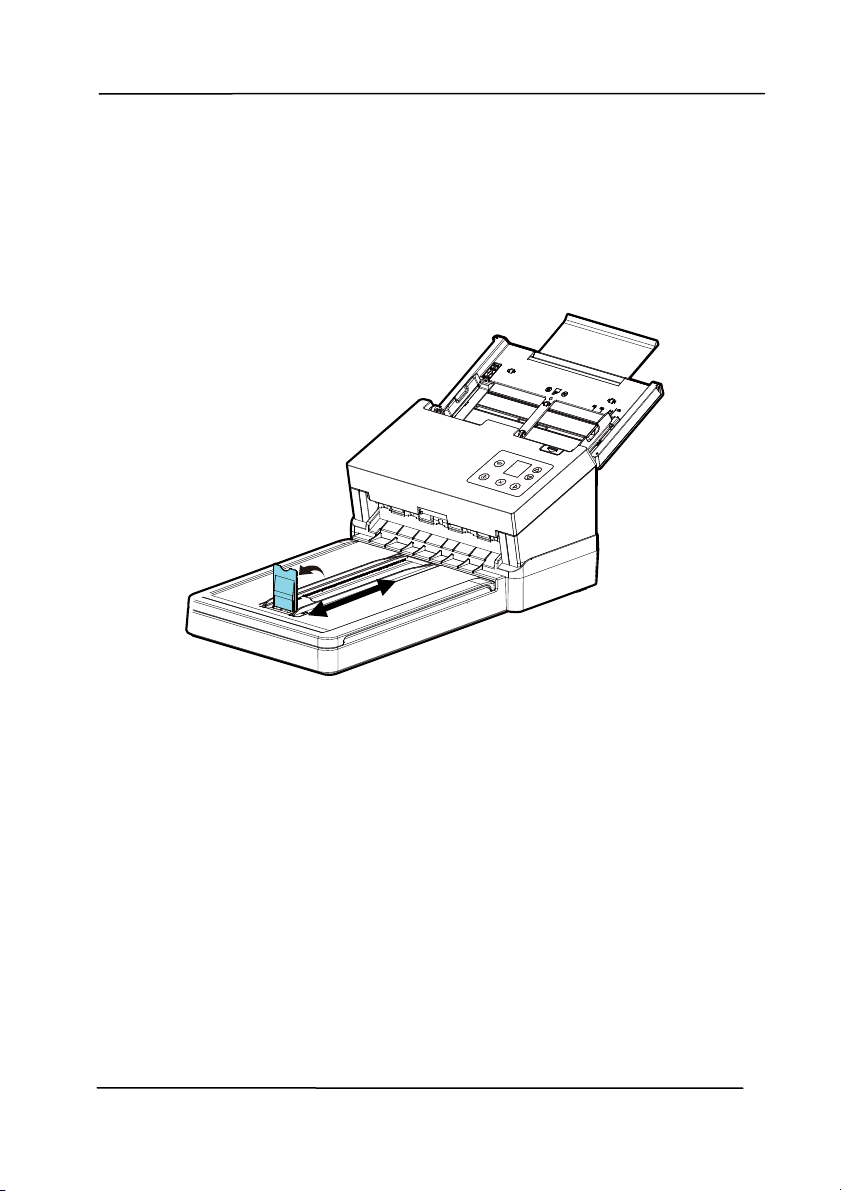
3 .3 Usin g t h e Pa per St opper
Rai
se t he Paper St opper and slide it to the right or t o the left
according t o the paper size you are loading from t he aut o
docum ent feeder. The paper st opper is used to arrange your
docum ent so t he paper can be neat ly collect ed after scan.
Use r’s Man ua l
3- 11
3 .4 Ver ifying Your Sca nner I nst allation
T
o verify if your scanner inst allat ion is correct , Avision provides
you a useful test program called Avision Capt ure Tool. Wit h this
tool, you can perform sim ple scans and view the capt ured
im ages. I n addit ion, it helps you com plete your scan at a rated
speed.
The following procedure describes how t o verify your scanner
inst allation. I f the inst allat ion is not correct , please review the
preceding sect ion t o check if t he cable connection and scanner
driver have been successfully installed.
Before you begin, be sure t he scanner is on.
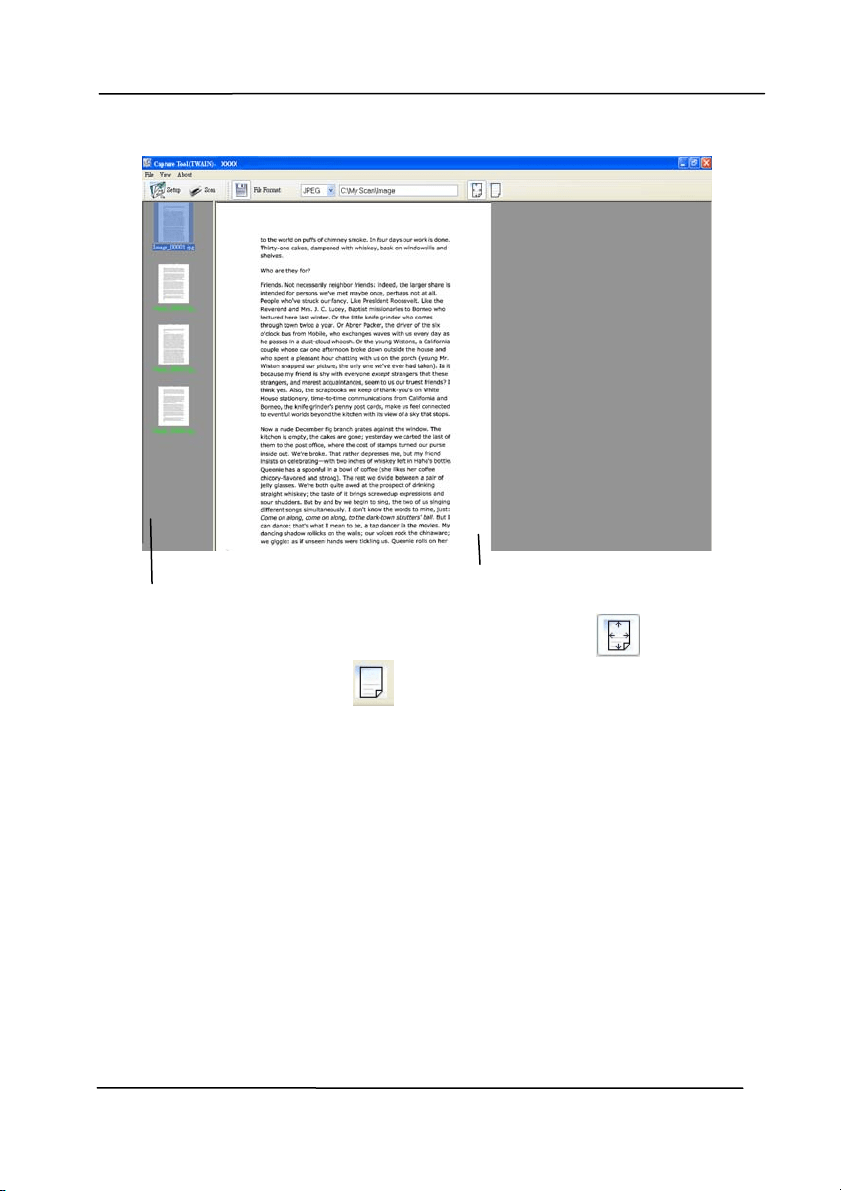
1. Select Start> Program s> Avision xxx Scanner> Avision
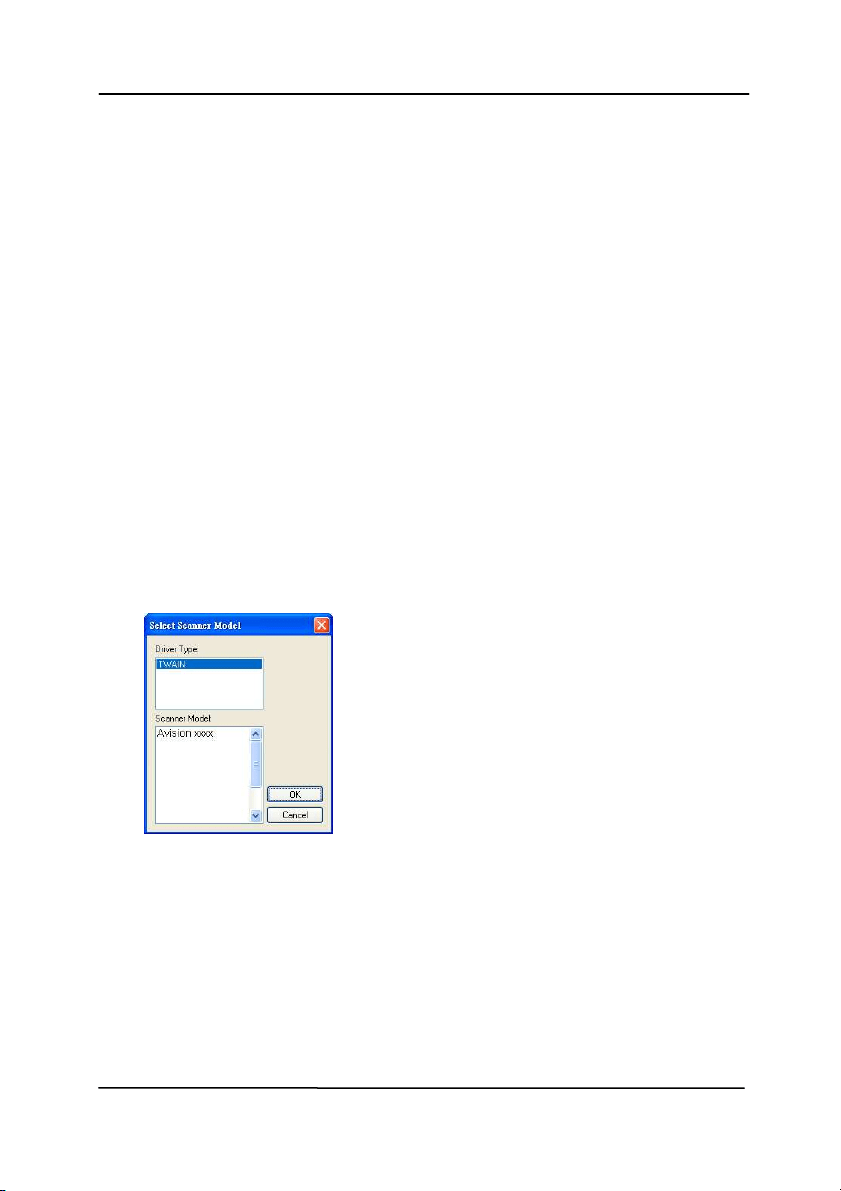
Capt ure Tool. The Select Scanner Model dialog box will be
displayed.
2. Select your driver t ype and scanner m odel and click OK.
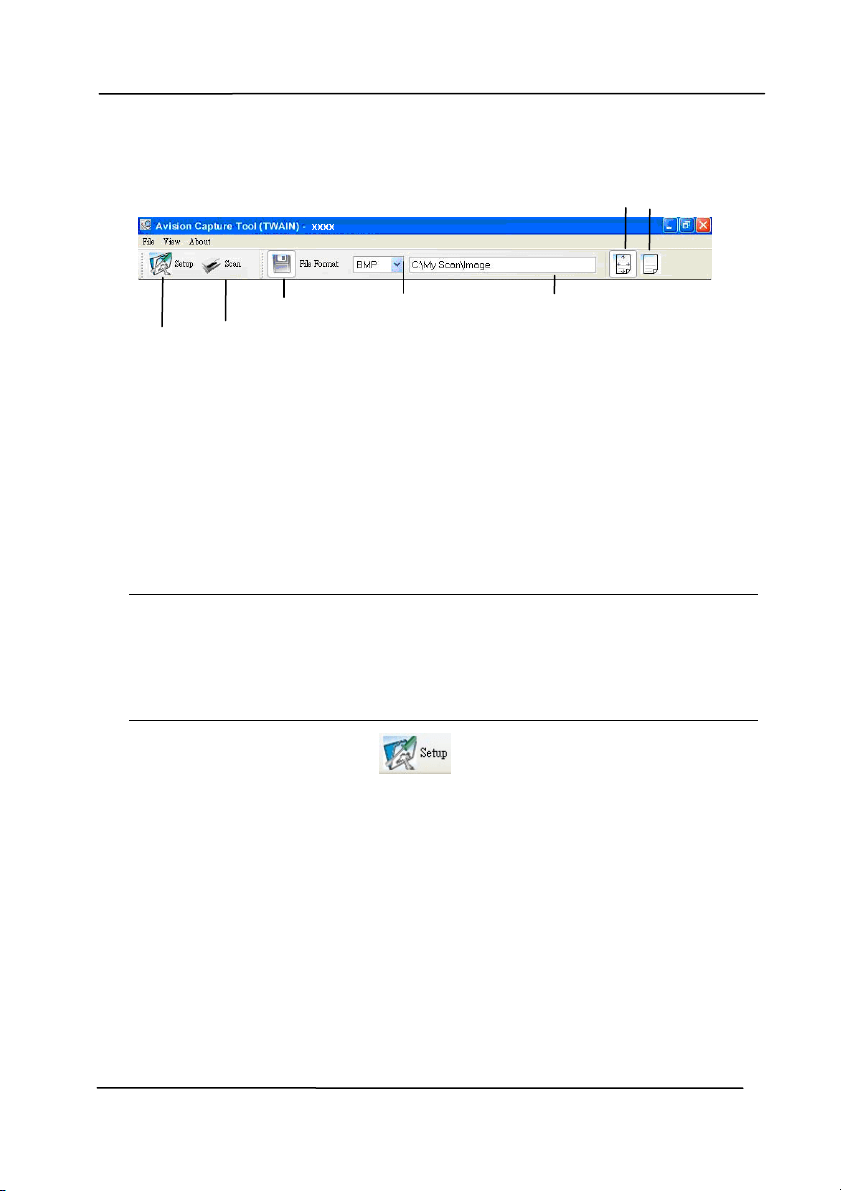
The follow ing Avision Capt ure Tool dialog box will be
displayed.
Use r’s Man ua l
3- 12
3. Choose your desired file form at from the File Form at drop
down list box. ( Default is JPEG, ot her choice includes TI FF,
MTI FF, PDF, MPDF, GI F, and BMP.) The supported file
form at s vary depending on your scanner m odel.
4. Type your desired folder nam e and file nam e in the File Path
box. (Default is C: \ Docum ents and Set tings\ User Nam e\ My
Document s\ My Scan\ I m age.)
N ote: I f you do not wish t o save the scanned im age,
deselect t he Save butt on since default is Save Enable. I n t his
case, t he t hum bnail view will be disabled. And therefore,
after viewing all the scanned im ages, only t he last one will
rem ain on the screen.
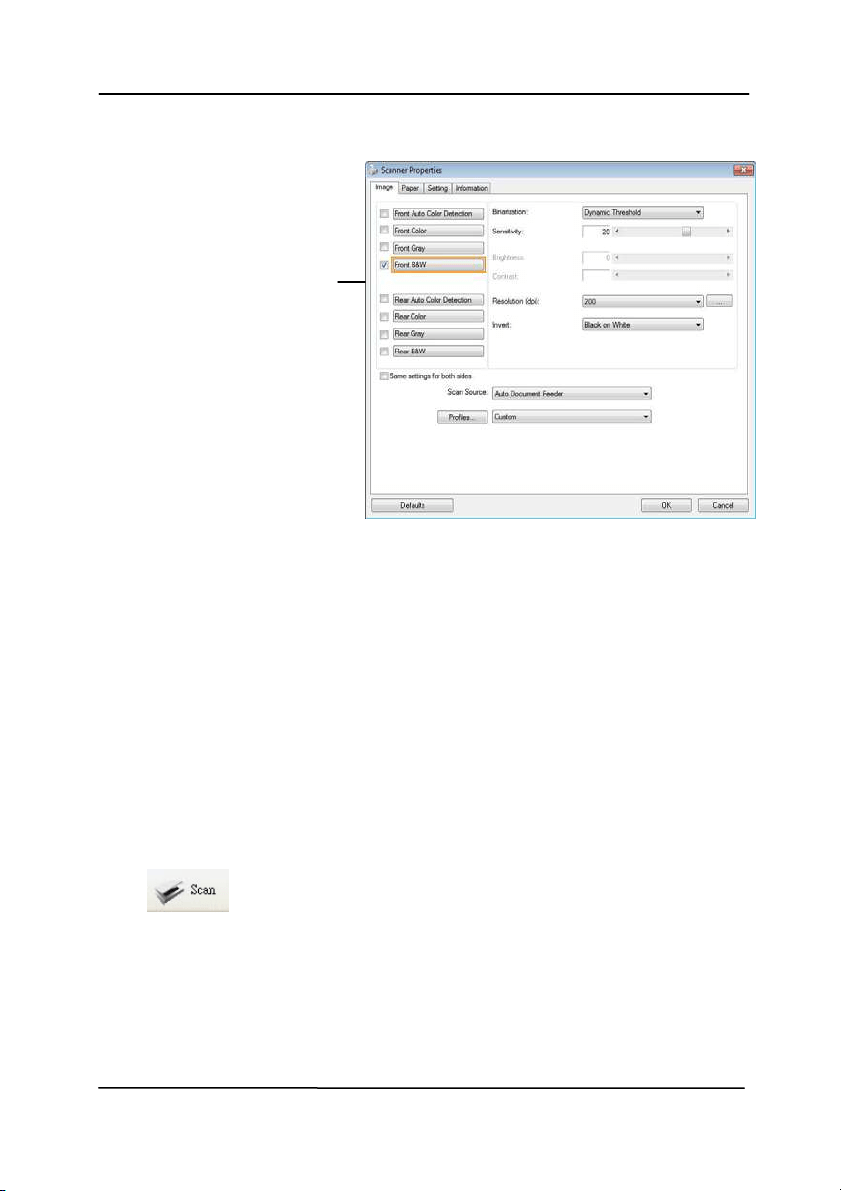
5. Click t he Set up but t on ( ) or choose Set up from t he
File m enu t o prom pt t he Scanner Propert ies dialog box.
Set up
Act ual
Size
Fit
Page
Scan
File Format
Save File Path
Use r’s Man ua l
3- 13
6. From the I m age Select ion Box, choose your desired im age
type for your scanned im age. (Default is Front B&W) I f you
have a duplex scanner, choose Front and Rear to scan both
sides of your docum ent .
7. Click OK t o quit the Scanner Propert ies dialog box. ( To
learn m ore details about t he Scanner Properties dialog box,
please see the subsequent chapt er, Using the Scanner
Propert ies Dialog Box.)
8. Place your docum ent face down on the docum ent glass or
face up in the auto document feeder.
9. I n t he Scan Validation dialog box, click t he Scan but t on
(
) or choose Scan from t he File menu.
10. The docum ent will be scanned and displayed in the Scan
Validation screen. After t he scanned im ages have been
displayed, your scanner installat ion verificat ion is com plet ed.
I m age
Selection
Box
Use r’s Man ua l
3- 14
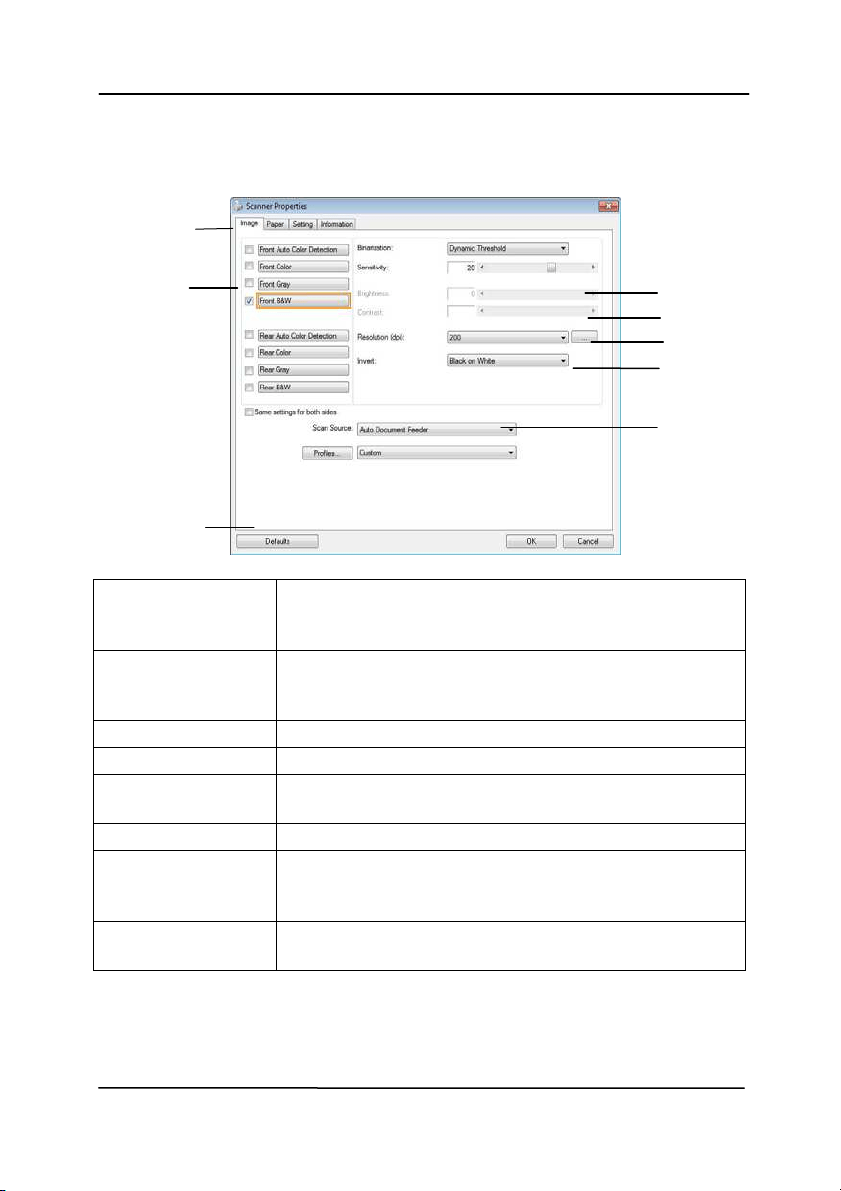
11. You can view t he scanned im age in Fit Page (
) or Act ual
Size (100% ) butt on (
) from the Viewing toolbars at the
right side.
12. Click the Close box or Quit from t he File m enu t o exit t he
Scan Validat ion Tool.
Display View
Thumbnail View
Use r’s Man ua l
3- 15
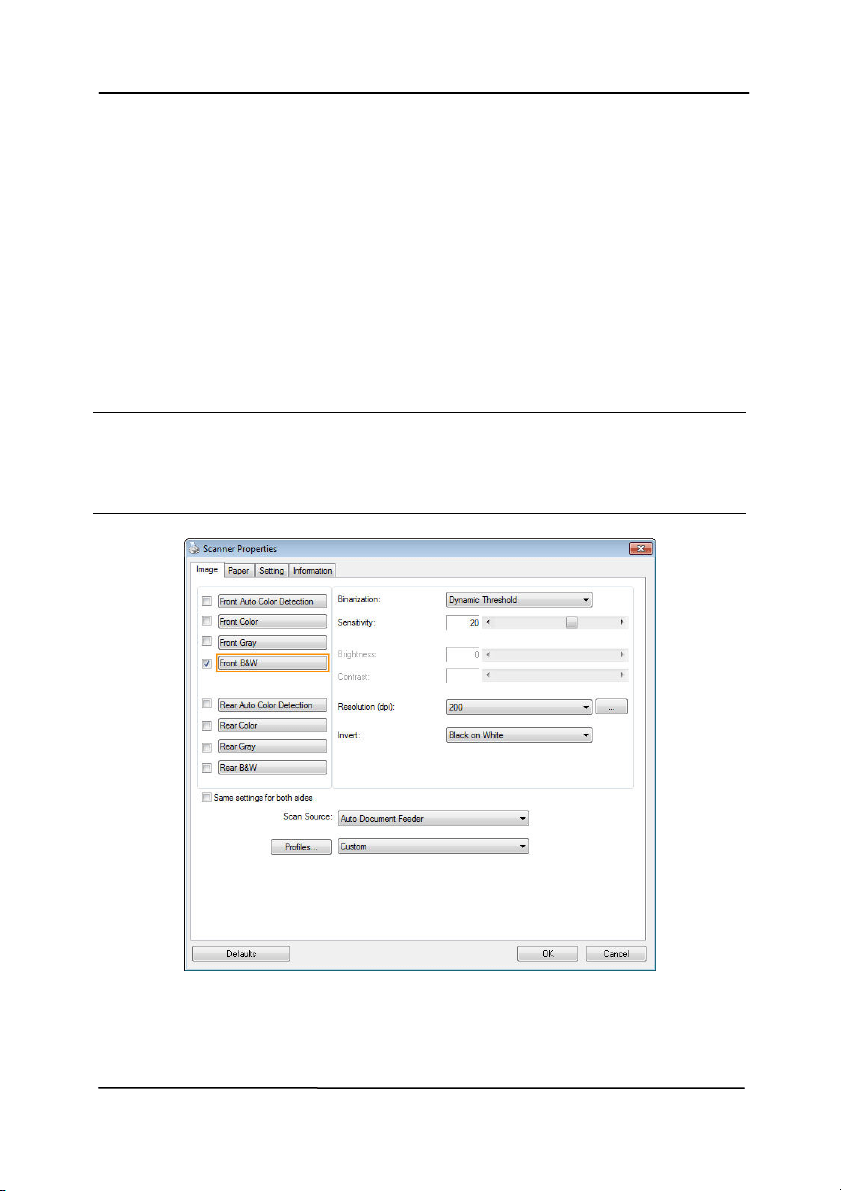
3 .5 A Glance of the Sca nner Propert ies D ialog Box
1 . Ta b Opt ions Choice: I m age, Com pression, Color Dropout ,
Paper, Mult i- Feed Det ect ion, Preview, Options,
Settings, I nform at ion.
2 . I m a ge
Select ion Box
Choose your im age t ype and the side of
docum ent you wish to scan. Opt ions vary
based on t ype of scanner.
3 . Bright ness Adj ust t he bright ness level from –100 to + 100.
4 . Cont rast Adj ust t he cont rast level from –100 t o + 100.
5 . Re solut ion
Determ ine the qualit y of the scanned im age.
The indust ry st andard is 200 dpi.
6 . I nver t Reverse the color of your scanned im age.
7 . Scan Sou rce
Choice: Aut o Docum ent Feeder, Flat bed,
Flatbed (Book), Autom at ic ( varies due t o
different scanner m odel)
8 . D efaults Reset all values on the tabs t o t he factory
default set t ings.
3
4
5
6
7
1
2
8
Use r’s Man ua l
4- 1
4 . Using t he Sca nner
Propert ies Dialog Box
The Scanner Propert ies dialog box allows you to configure the
scanner’s sett ings. I t consists of several t abbed windows each
of which will be described in this chapter.
N ote: I n this chapt er, all opt ions are available based on a
duplex ( double- side) scanner. I f you have purchased a sim plex
( single- side) scanner, all opt ions are available for single sided
only.
The Scanner Pr ope rtie s dialog box
Use r’s Man ua l
4- 2
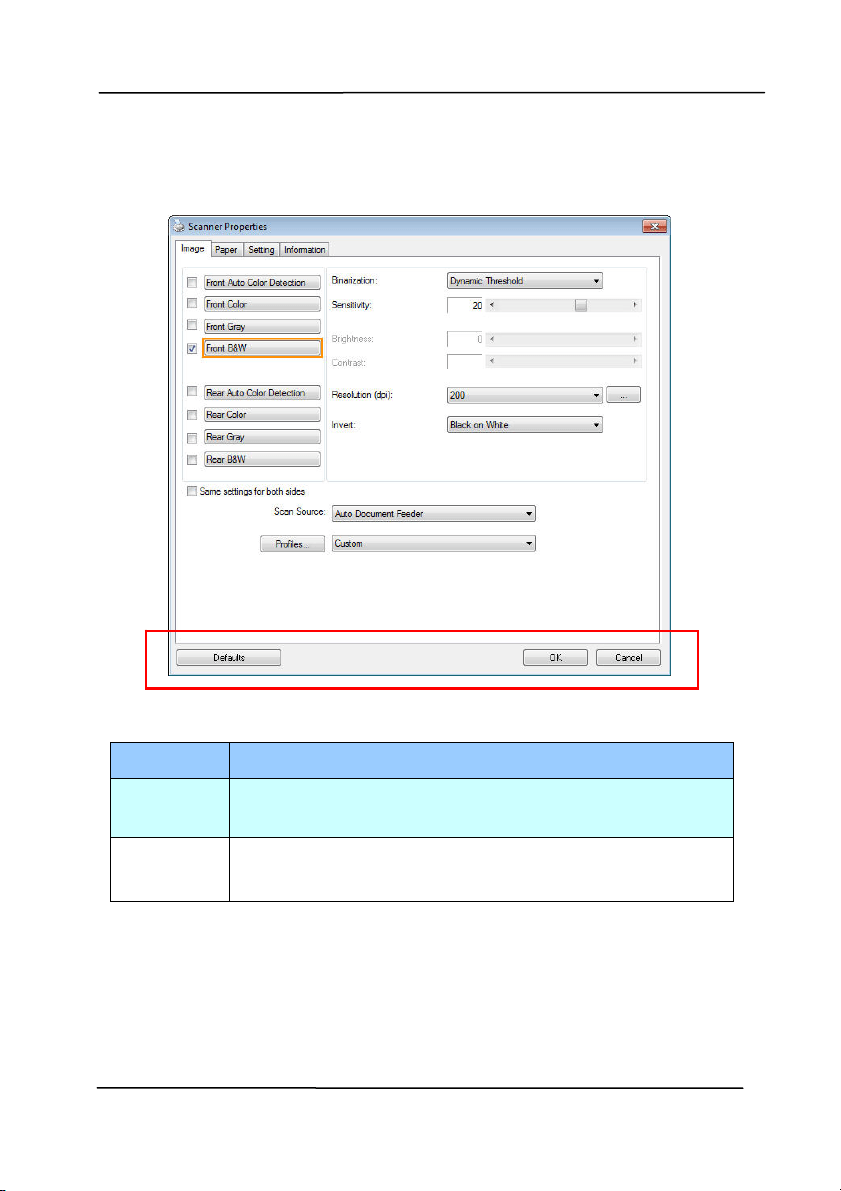
4 .1 But t ons on the Sca nner Propert ies D ialog Box
The butt ons on the Scanner Pr opert ie s dialog box
But t ons
Descr ipt ion
Default s Click the D e fault s butt on, t he factory default
set t ings will be shown on each t ab.
Cancel Click t he Cance l button to leave the Scanner
Propert ies dialog box.

Use r’s Man ua l
4- 3
The following table shows t he default set tings:
Ta b nam e Defa ult set t ings
I m a ge I m age:Front B&W
Binarization:Dynam ic Threshold
Resolution:200 dpi
I nvert :Blank on Whit e
Scan Source:Auto Docum ent Feeder
Threshold:None
Brightness:None
Cont rast :None
Com pression None
Color Dropout
None
Pa per Cropping:Aut om at ic
Deskew :Yes
Orientat ion:Portrait
OverScan:0.00
Note: The availability of this option
varies due t o scanner model.
Unit :I nch
Mult i- Feed
Det e ction
None
Preview None
Options Rot at ion Degrees:None
Blank Page Rem oval:None
Edge Fill:Whit e,0 m m
I m age Control Opt ion:None
Se t t ing Enable Energy Saver:Enable, 15
m inutes after last scan act ion
Show Scanning Progress:Yes
Show Warning Message:Yes
Save Set tings aft er Closing:Yes
I m print e r Digit al I m print er

Use r’s Man ua l
4- 4
4 .2
Show ing or H iding Ta bs
The [ Scanner Prope r t ies] dialog box is displayed in default
wit h t hree basic tabs - I m age, Paper, and I nform at ion. To
show m ore tabs, click t he [ Sca n ner Properties] icon t o access
m ore scan set t ings.
To show m ore t abs,
1 . Click the [ Sca nner Propert ies] icon (
) on t he upper
left corner, and choose [ Ta b] to show available tab nam es.
The available tabs include Com pression, Color Drop out ,
Preview, Rot at ion, Separat ion, Mult i- Feed, Opt ions,
Sett ings, and I m print er. ( Note: t he opt ions vary based on
scanner m odel.)
2 . Choose t he t ab you want t o display. The selected t ab will
be shown wit h a check m ark and then displayed in the
[ Scanner Pr ope rtie s] dialog box.
3 . To access the sett ings, click t he select ed tab on t he t op of
the [ Scanner Proper t ies] dialog box. The page of t he
select ed tab will be displayed.
To hide a t ab window,
1 . Click t he [ Scanner Proper t ies] icon (
) on t he upper
left corner, and choose [ Tabs] t o show available tab
nam es.
2 . Choose the tab you want t o hide. Then, t he selected tab
will be hided in t he [ Scanner Proper t ies] dialog box.
Not e: The [ I m a ge] , [ Paper] , and [ I nform at ion] t ab can
not be hided since they preprogram m ed t o be displayed by
default .

Use r’s Man ua l
4- 5
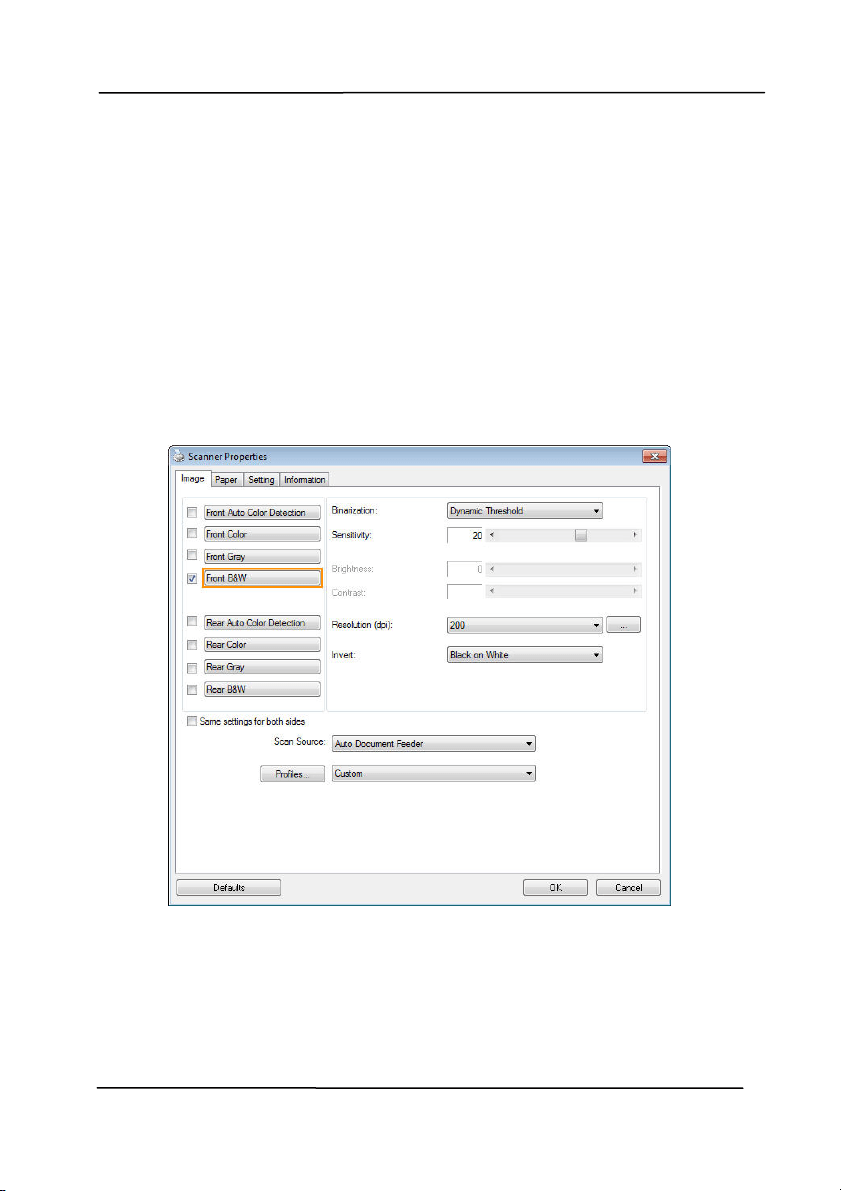
Use r’s Man ua l
4- 6
4 .3
The I m a ge Tab
The I m age tab allows you to choose the front side and ( or) the
rear side of your docum ent, the type of im age, and to set
several basic scan set tings. Not e t hat except for t he resolution,
you can set individual scan sett ings for the front side and the
rear side. For exam ple, all set tings in t he I m age t ab,
Com pression t ab, Color Dropout t ab can be set individually for
the front and the rear side. However, the set tings in the Paper
tab, the Opt ion tab, and t he Set t ing t ab have t o be set the
sam e for t he front and rear side.
The I m a ge t ab dia log box
Use r’s Man ua l
4- 7
4 .3 .1 The I m a ge Se lect ion Box
The I m age Select ion box includes the
im age type and docum ent side opt ion. I f
you wish to scan bot h t he front side and
the rear side of your color docum ent, you
can check bot h Front Color and Rear Color
at t he sam e tim e. Note t he opt ions vary
based on type of scanner.
Ex a m ple 1
:Scanning a t w o- sided color docum ent , both
sides in color
Side/ I m age
Se le ct ion
Front
Rear
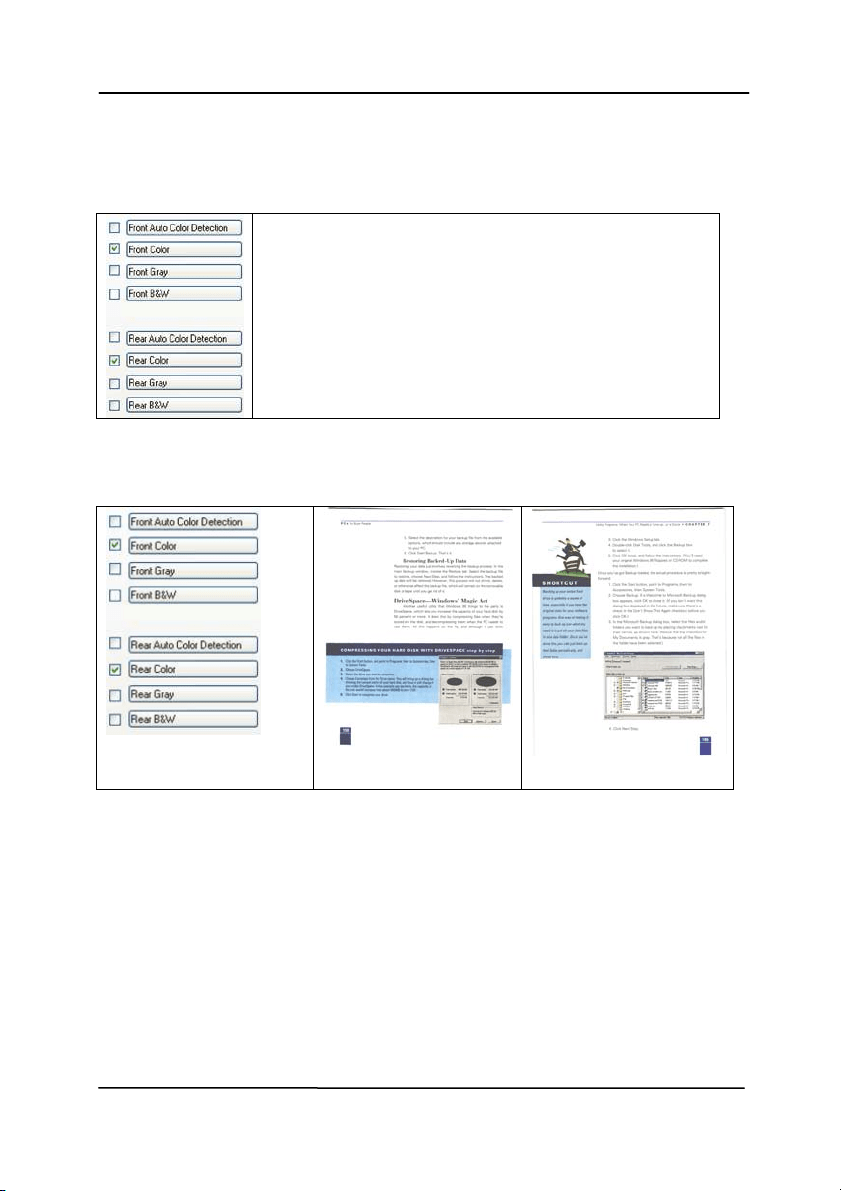
Use r’s Man ua l
4- 8
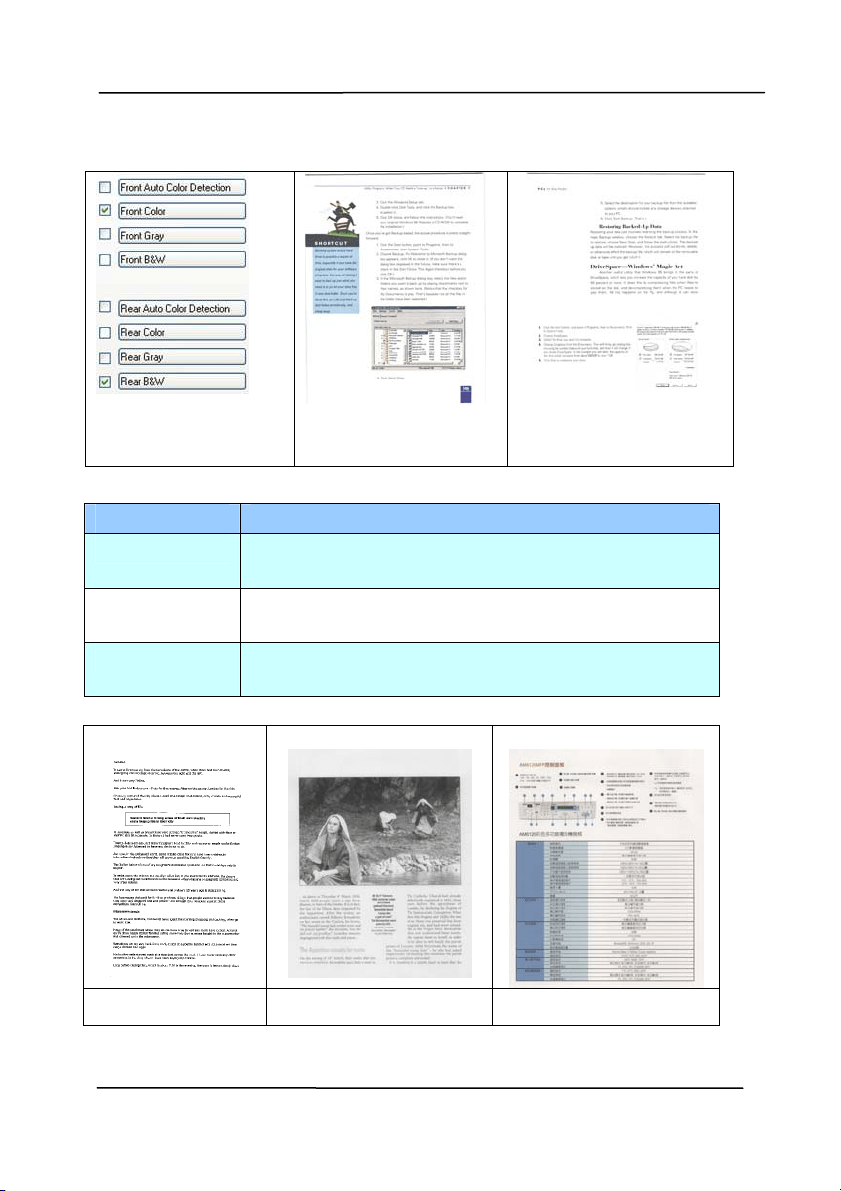
Ex a m ple 2
:Scanning a t w o- sided color docum ent , one
in B& W , the other in color
Side/ I m age
Se le ct ion
Front
Rear
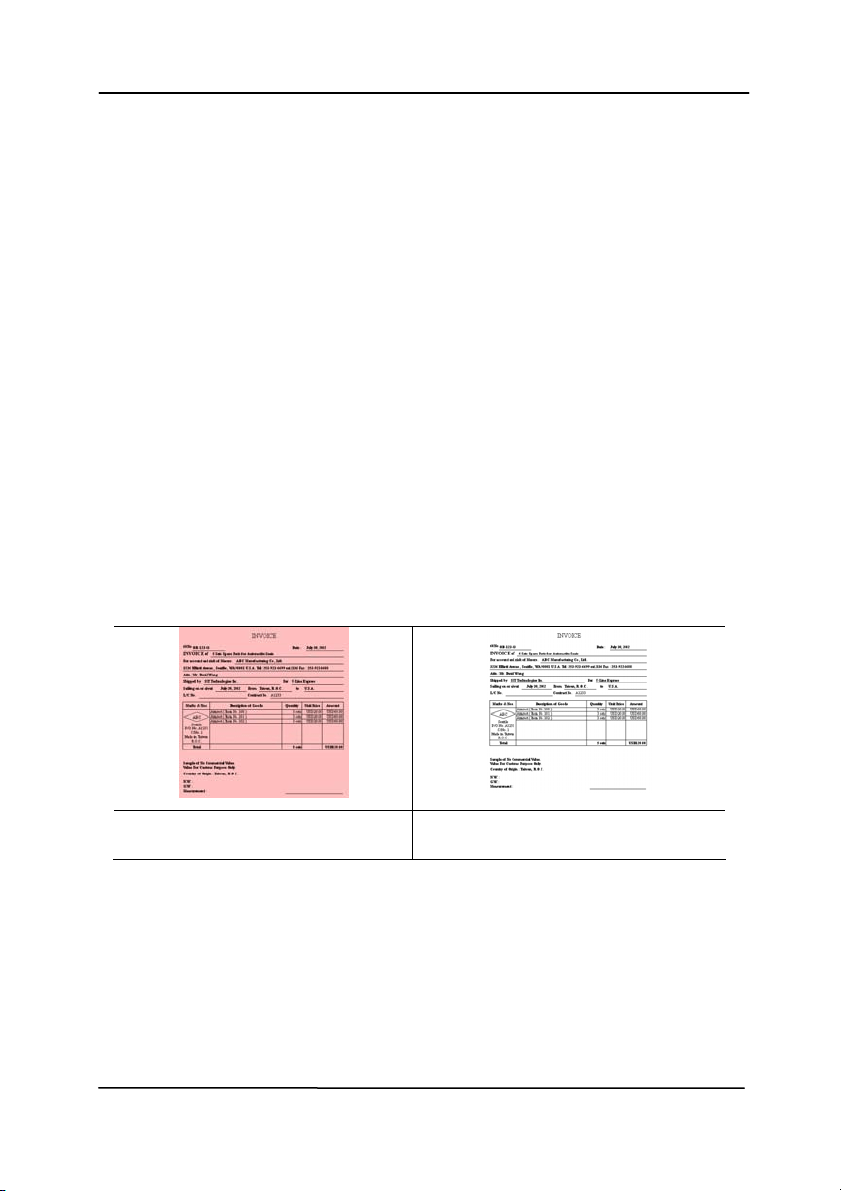
I m a ge Type Descr ipt ion
Color Choose Color if you wish t o scan a color
im age for your original in color.
Gra y Choose Gray im age if your original cont ains
act ual shades of gray.
B& W Choose B&W if your original cont ains only
text, pencil or ink sket ch.
B& W Gr a y Color
Use r’s Man ua l
4- 9
Front/ Rear Aut o Color Detect ion:
Click t o aut om at ically detect and scan the front or t he rear
page of your color docum ent in color im age m ode. I f your
docum ent is in colors, t he scanner will autom at ically scan t he
docum ent into a color im age. I f your docum ent is non-color,
you can choose the output t o be eit her B&W or Gray from t he
Non- Color Select ion opt ion. This opt ion is useful when you
have a mixture of color and non-color docum ent.
Not e: I f you choose Front Rear Auto Color Detect ion, you can
not specify the im age m ode of your rear page and vice versas.
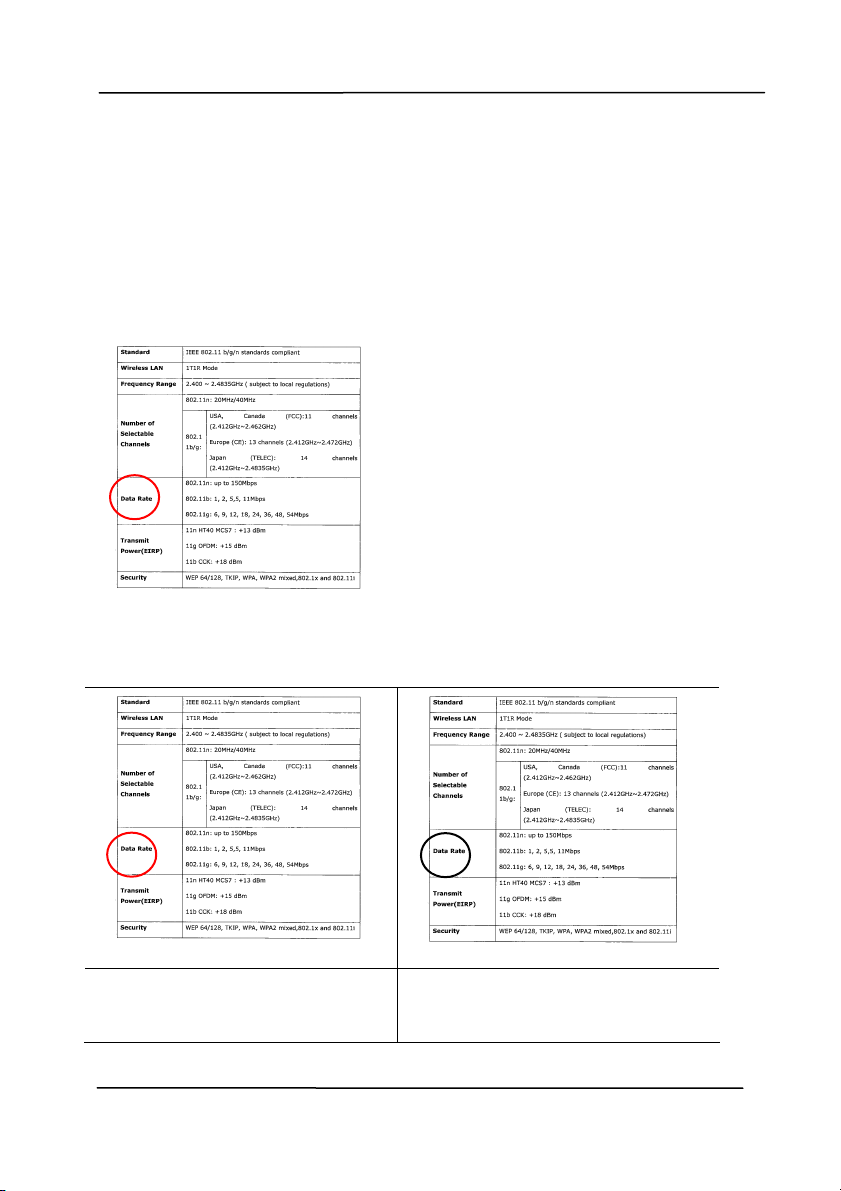
Modes of Aut o Color Detect ion:
I f [ Fr ont/ Rear Aut o Color Det e ct ion] is selected, it s modes
will be displayed. Choice includes N or m al, I gnore Paper
Color. For paper wit h background color such as invoices,
choosing [ I gnore Pa per Color] will autom at ically rem ove t he
background color and enhance the det ection accuracy.
N orm a l I gnore single back ground
color
Use r’s Man ua l
4- 10
Se nsitivity of Aut o Color Detect ion
I f your docum ents cont ain prim arily B&W text and sm all
am ount of light or pale colors and you do not wish t hem t o be
recognized as color im age to save the file size, you can
increase t he sensitivit y value by moving the bar to t he right t o
let these im ages to be detect ed as B&W. The value ranges from
1 to 100. The default is 37.
Or iginal
Se nsitivity: 1
( The im a ge is recognized
as a color one)
Se nsitivity: 1 0 0
( The im a ge is recognized
as a bla ck a n d w hit e one )

Use r’s Man ua l
4- 11
Sa m e se t t ings on bot h sides:
Click t o apply sam e scan set tings for bot h sides of your
docum ents. Aft er checking t his opt ion, any sett ings you have
changed will aut om at ically applied to bot h t he front side and
the rear side. For exam ple, if you choose your ideal resolution
to be 300 dpi, t his will be applied bot h to the front side and
rear side of your document .

Use r’s Man ua l
4- 12
4 .3 .2 Ot her I m age Options
Bina r iza tion Thi
s is the process of converting a
grayscale or color im age to a bi- tonal
im age. There are several different
m et hods of perform ing t his conversion.
Options: Dyna m ic Thr e shold,
Dynam ic Thresh old ( AD ) , Fix e d
Processing, H alftone 1 ~ 5 , Error
Diffu sion .
Dynam ic Th r e shold: Select ing
Dynam ic Thresh old allows the scanner
to dynam ically evaluat e each docum ent
to det erm ine t he opt im al t hreshold value
to produce t he highest quality im age.
This is used t o scan m ixed docum ent
containing faint t ext, shaded background,
or color background wit h a single set t ing.
I f Dynam ic Threshold is select ed,
Threshold, Brightness, and Contrast are
not available.
Dynam ic Th r e shold ( AD ) : Select ing
Dynam ic Thresh old ( AD ) to perform
the enhanced m ode of the Dynam ic
Threshold feature. However, using this
m ode m ay slow down your scanning
speed.
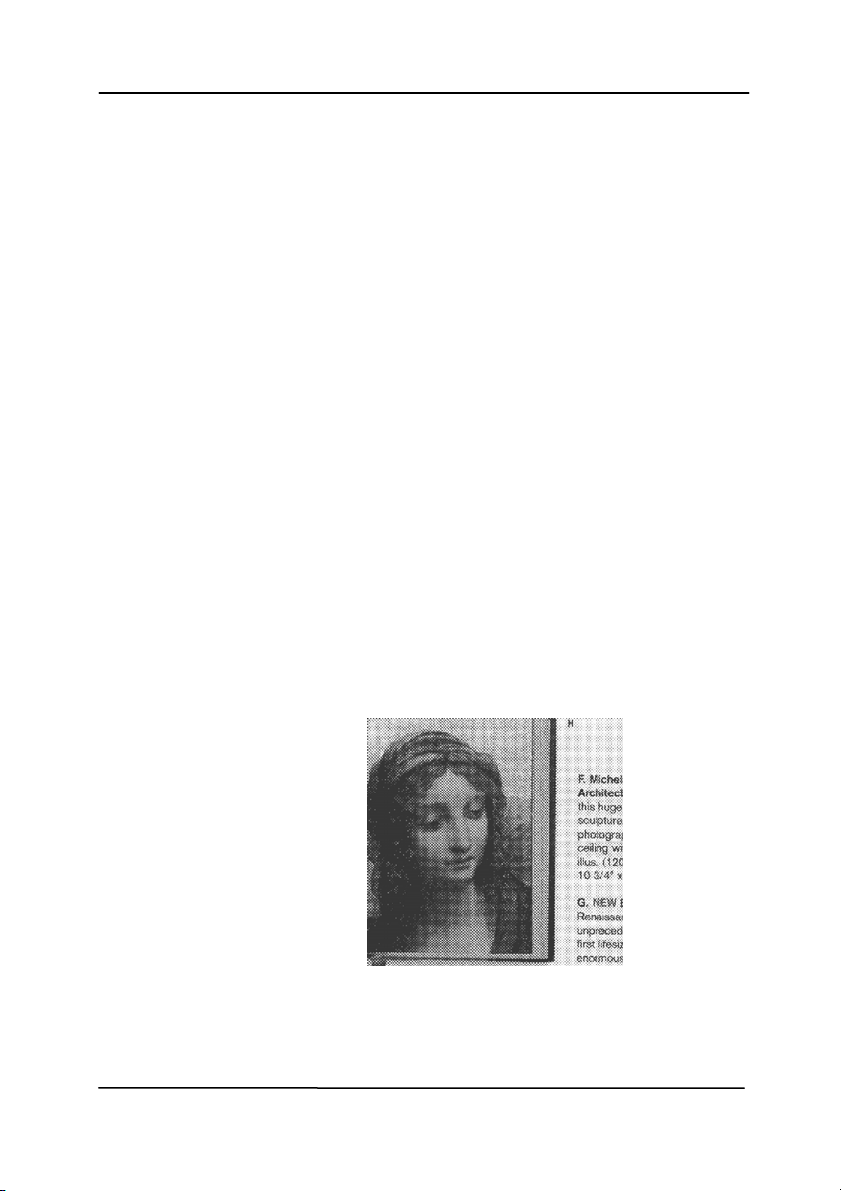
Se nsitivity of D ynam ic Thre shold
Occasionally your scanned im age m ay
contain sm all dot s or speckles. To rem ove
these spot s, increase t he sensit ivit y value
by m oving t he bar t o t he right. The value
ranges from 1 to 30. The default is 20.
Use r’s Man ua l
4- 13
Fix ed Pr oce ssing: Used for black- and-
white and ot her high contrast docum ent s. A
single level is set t o det erm ine t he black-
and-whit e t ransit ion. The threshold is
program m able over t he ent ire densit y
range. Fixed Processing set s Contrast t o
0. I f Fix ed Processing is select ed,
Contrast is not available.
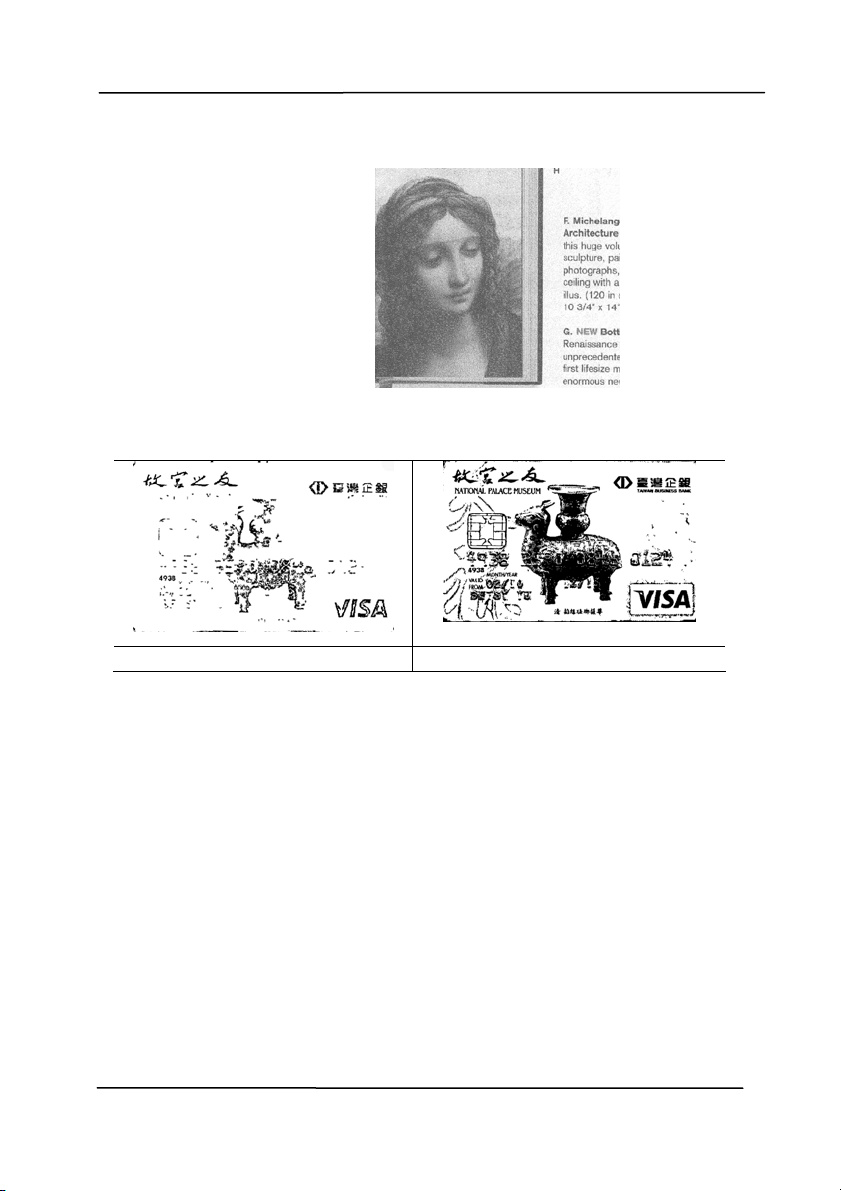
Halft one: I n addit ion to t he black and
whit e display, Halft one can present a
som ehow gray shade of im age by using
different size of dot s. Halftone im age looks
like the pict ure we have seen in t he
newspaper. Options inclu de Ha lft one 1 ,
Halft one 2 , Halft one 3 , Halft one 4 ,
Halft one 5 .
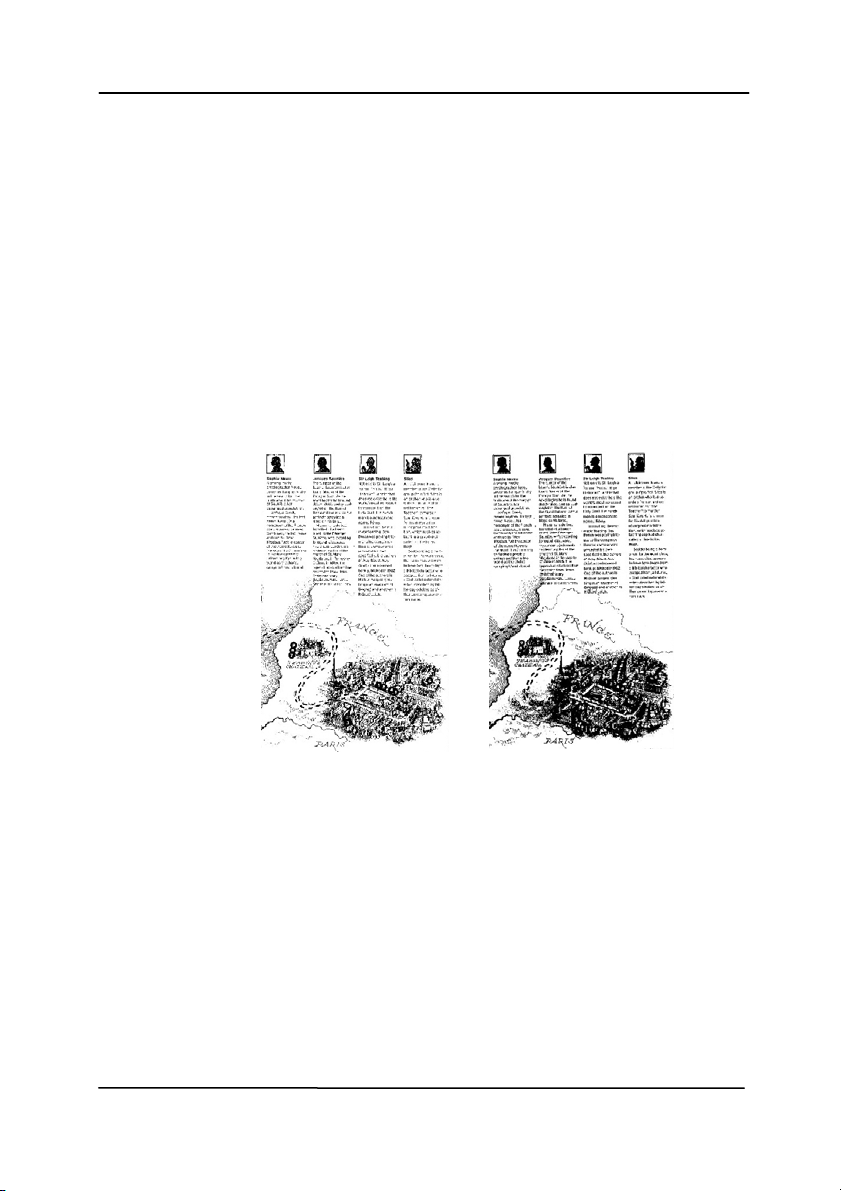
Er r or Diffu sion : Error Diffusion is a t ype
of Halftone. Error Diffusion gives good
im age t exture and m akes text in im ages
m ore readable than Halft one.
Halft one I m a ge
Use r’s Man ua l
4- 14
Er r or Diffu sion I m a ge
Dynam ic Thresh old
Dynam ic Thresh old ( AD )
Use r’s Man ua l
4- 15
Thresh old Used to convert a grayscale im age t o a
bi- t onal im age. The value ranges from 0 t o
255. A low t hreshold value produces a
lighter im age, and can be used t o subdue
backgrounds and subtle, unneeded
inform at ion. A high threshold value produces
a darker im age, and can be used to help pick
up faint im ages.
Adjust the t hreshold set t ing by dragging the
Threshold sliding bar t o the left or right t o
achieve the desired threshold set ting.
2 0 0 dpi,
Thresh old:5 0 ,
Brightness: 0
2 0 0 dpi,
Thresh old:1 0 0 ,
Brightness: 0

Use r’s Man ua l
4- 16
Gra y
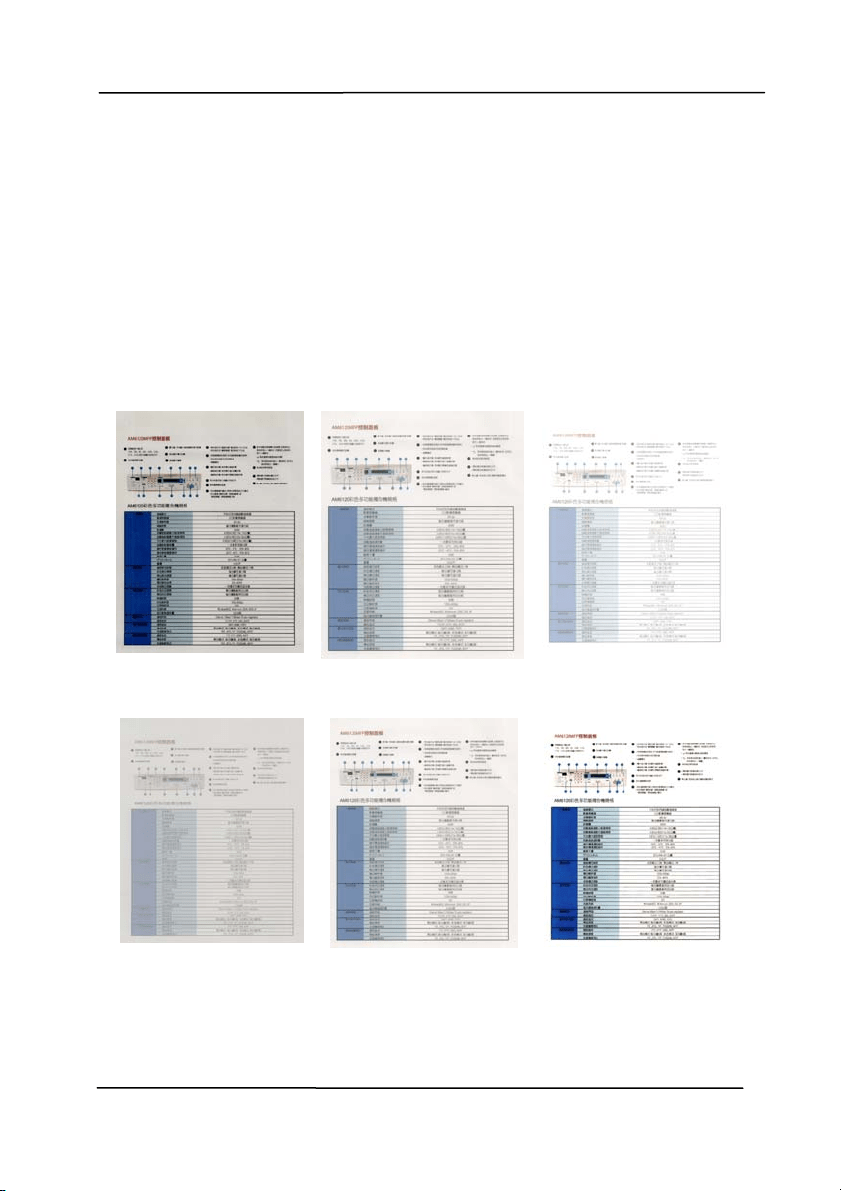
Docum e n t Type: Choice : Nor m al, Photo, D ocum e n t
Three options of docum ent t ype are provided when you choose
Gray as the im age type for your scanned document. Choice:
N orm a l, Photo, D ocum e n t .
Docum e n t : Choose Docum ent if your original cont ains
pure t ext or a m ixt ure of text and graphic since it is an
optim al sett ing for regular business document. When
using Docum ent, only Threshold can be adjust ed.
Phot o: Choose Phot o if your original contains phot o to
reproduce your phot o in vivid grayscale im age. When
using Phot o, no Threshold and Cont rast can be adjust ed.
N orm a l: When using N orm a l, Threshold, Brightness, and
Cont rast can be adjust ed.
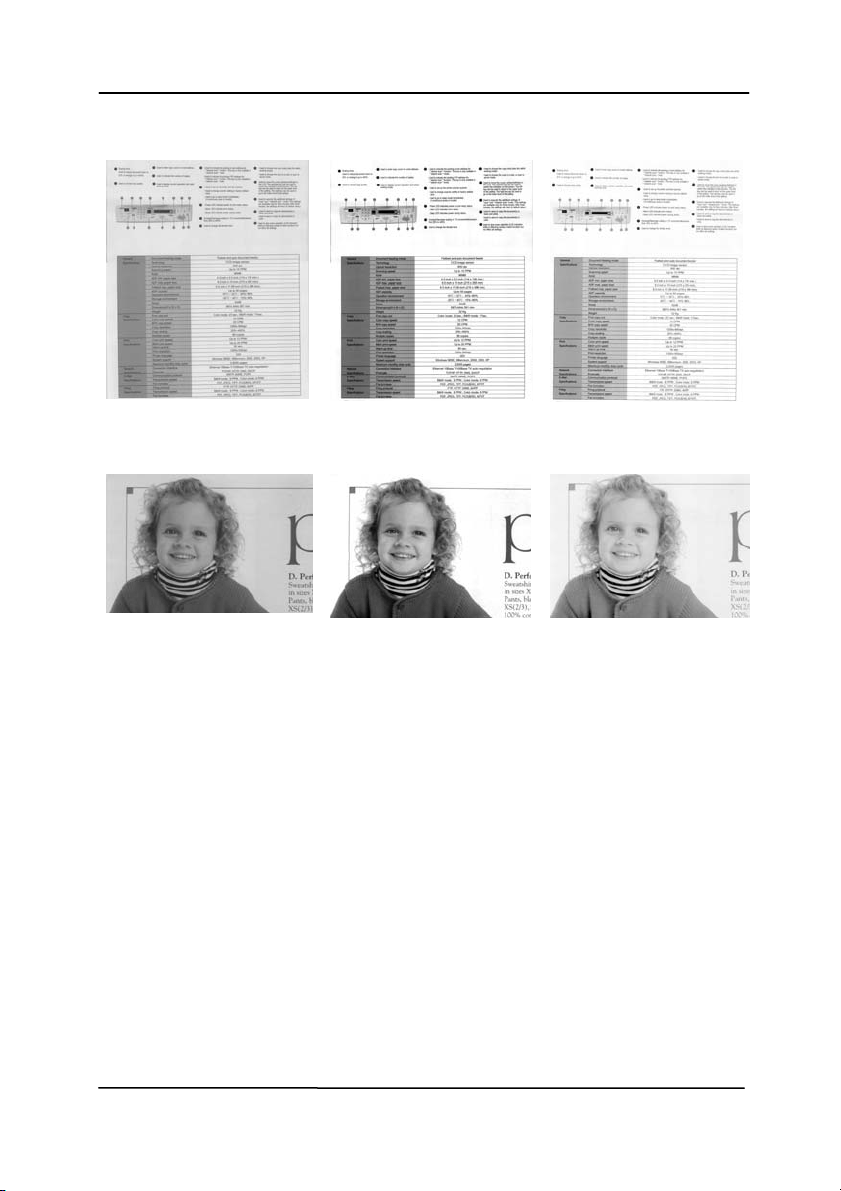
Thresh old: The value ranges from 0 t o 255. The default is
230. A low t hreshold value produces a lighter im age, and can
be used t o subdue backgrounds and subtle, unneeded
inform at ion. A high threshold value produces a darker im age,
and can be used t o help pick up faint im ages. Adj ust the
threshold set ting by dragging the Thr eshold sliding bar t o the
left or right t o achieve the desired threshold set ting.
Use r’s Man ua l
4- 17
N orm a l
Phot o
Docum e n t
( Thr eshold: 2 3 0 )
N orm a l
Phot o
Docum e n t
( Thr eshold: 2 3 0 )
Use r’s Man ua l
4- 18
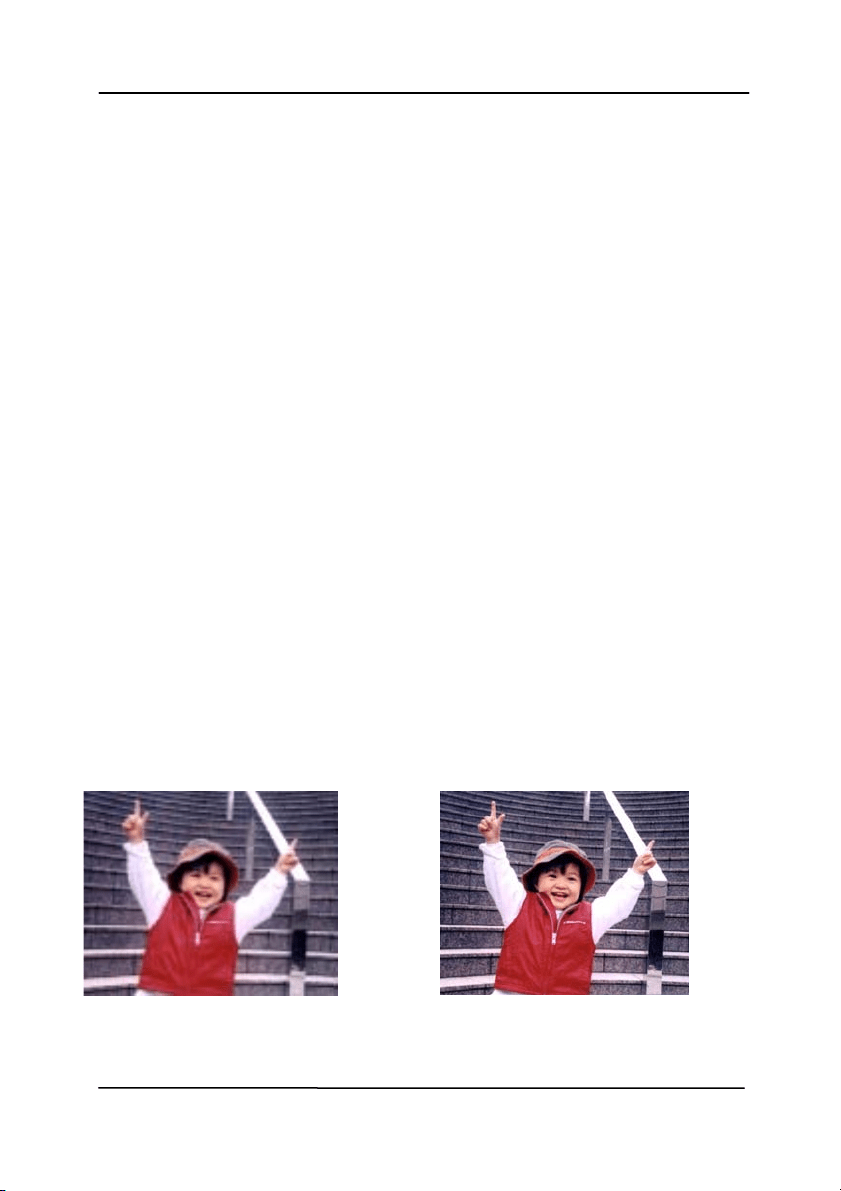
Brightness Adjust s the lightness or darkness of an
im age. The higher the value, the brighter
the im age. Drag the slider to t he right or
left t o increase or decrease the brightness.
The range is from –100 to + 100.
Cont rast Adjust s the range bet ween the darkest and
the lightest shades in the im age. The
higher t he contrast , the bigger t he different
grayscale. Drag t he slider to the right or
left t o increase or decrease the contrast .
The range is from –100 to + 100.
Brightness: - 5 0 Brightness: 0
( N or m al)
Brightness: + 5 0
Cont rast : - 5 0 Cont rast : 0
( N or m al)
Cont rast : + 5 0
Use r’s Man ua l
4- 19
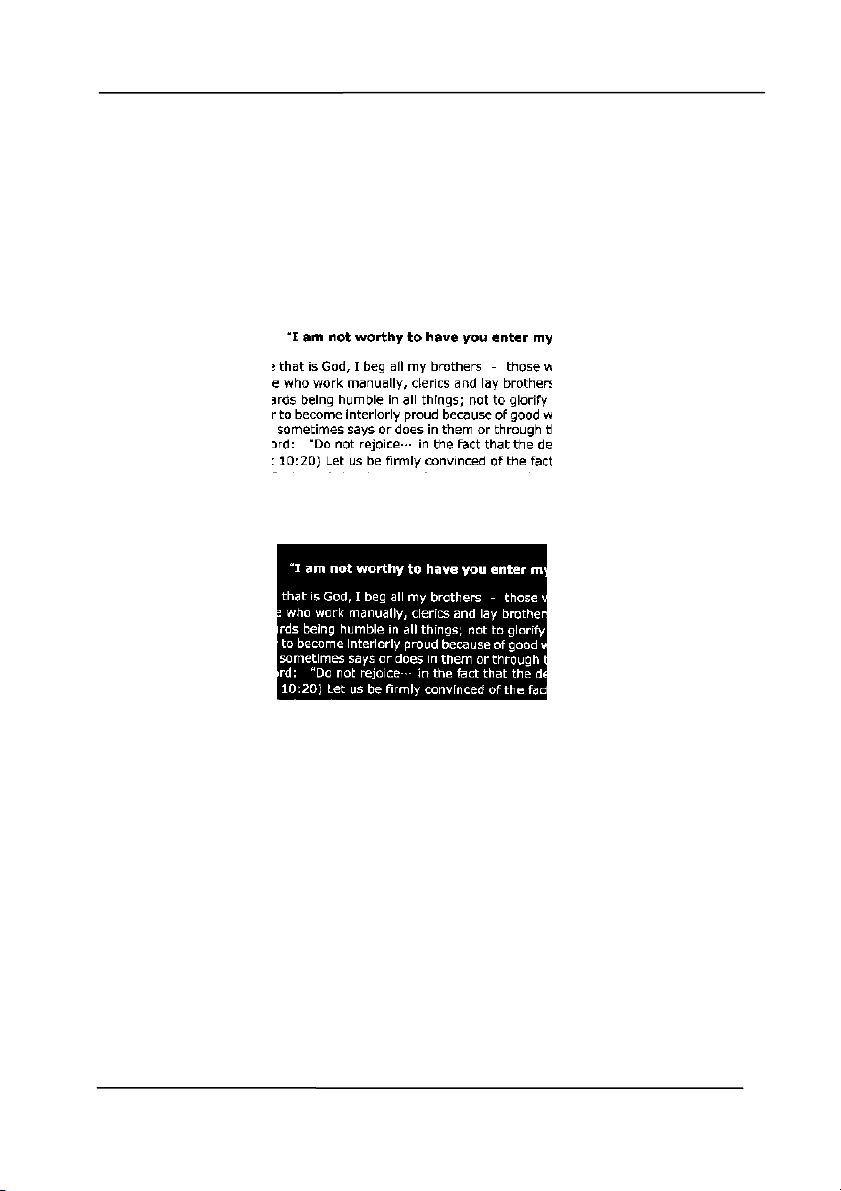
Resolut ion A good cont rol of the resolution result s a
good det ail of an im age t hat scans. The
resolution is m easured by dots per inch
( dpi) . Norm ally, the great er t he dpi num ber,
the higher the resolut ion and t he im age file
size. Be aware that great er resolution t akes
m ore t im e t o scan, and m ore disk space for
the scanning im age. For your inform at ion,
an A4 size color im age scanned at 300 dpi at
True Color mode consum es approxim at ely 25
MB of disk space. A higher resolut ion
( usually m eans over 600 dpi) is only
recom m ended when you need to scan a
sm all area at True Color mode.
Choose a resolut ion value from t he drop
down list . The default value is 200 dpi.
Available resolutions are 75, 100, 150, 200,
300, 400 and 600. Or you m ay choose your
desired value by clicking the box in the right
side of the drop down list and press the
arrow key t o select your desired value and
then click t he Add but t on t o include it in t he
drop down list . Not e: The resolution is up t o
300 dpi if an im printer or a MI CR reader is
inst alled or connected t o t he scanner.
Resolut ion: 7 5 dpi
Resolut ion: 1 5 0 dpi
Use r’s Man ua l
4- 20
I nve r t Reverses the brightness and the colors in the
im age. The default set ting is Black on a Whit e
background. Reverse m ode is Whit e on a Black
background. For color im ages, each pixel will be
changed int o it s com plem ent ary color at the
com m and of I nvert .
Bla ck on W hit e
W h it e on Black

Use r’s Man ua l
4- 21
Sca n
Source
Choice:
Aut o D ocum e n t Fe e der: Used to scan
m ult iple pages.
Flatbed: Used to scan a single page. For
exam ple, pages from newspaper clipping,
paper wit h wrinkles or curls.
Flatbed ( book ) : Used to scan several
inside pages from book.
Aut om a tic: Allow the scanner autom at ically
set it s scan source. I f Aut om a t ic is select ed
and t here is docum ent in both the auto
docum ent feeder (ADF) and the flatbed, then
t he scan source will be aut om at ically set t o
ADF. I f Autom a t ic is select ed and there is
docum ent only in flat bed, then t he scan
source will be set t o flatbed.
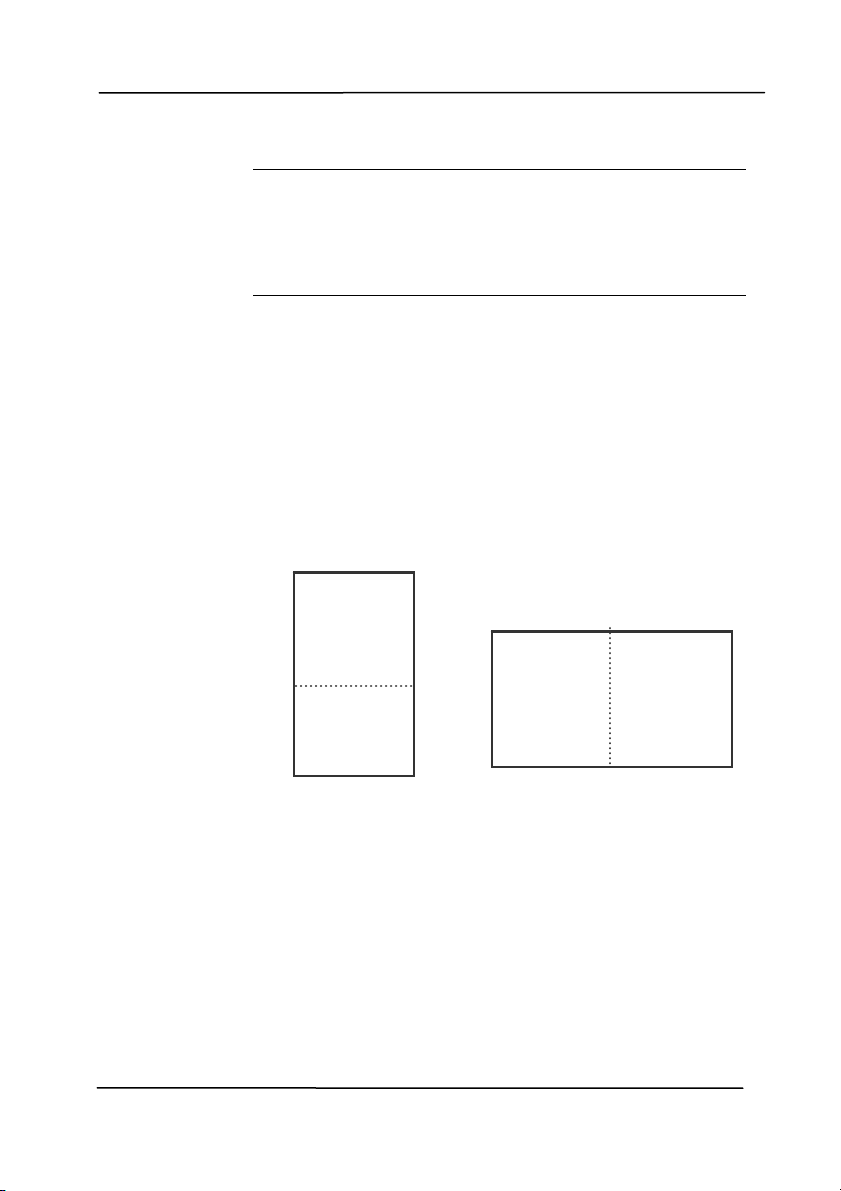
M e r ge Tw o Sides in t o One I m a ge:
I f you have a sheet - fed duplex scanner wit h
front input t ray, you can scan an A3 size
docum ent wit h an innovative m et hod. Thus,
fold your A3 size docum ent into A4, and then
load t he paper in the front t ray. Choose
Merge Tw o Sides from the Scan Source
option and then the scanner is able t o scan
both sides of your docum ent and m erge two
A4 im ages into one A3 im age.
When you select Merge Two Sides into One
I m age, t he Cropping or Mult i- feed funct ion
will be disabled.
N ote: This feature m ust be used wit h a
carrier sheet . Regarding how t o load a
docum ent wit h a Carrier Sheet , refer to
Sect ion 4.6.2, Other Paper Select ion.
N ote t he opt ions vary based on t ype of
sca nner.
Use r’s Man ua l
4- 22
N ote: I f you have purchased a duplex sheet -
fed scanner, choose [ Merge Two Sides] on t he
[ Scan Source] , then t he scanner is able to scan
both sides of your docum ent and m erge them
int o a single im age.
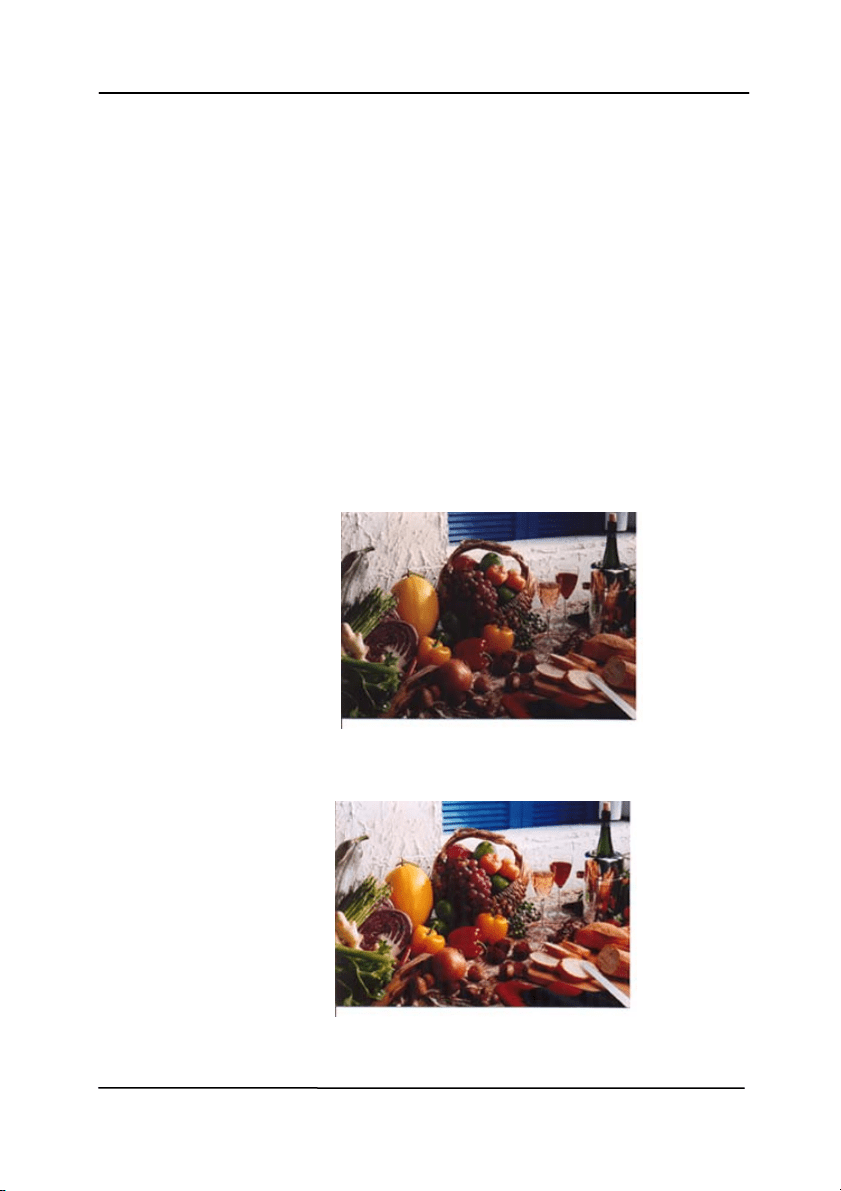
I f “Merge Two Sides into One I m age” is
select ed, it s choice will be available including
“ Merge Horizontally” , “ Merge Vertically” , “ Merge
Vertically (Back Side Flip) ” . I f t he reverse side
of your docum ent is upside down, choose
“ Merge Vert ically ( Back Side Flip) ” and the back
side will be autom at ically rot at ed 180 degrees
and m erged.
N ote t he opt ions vary based on t ype of
sca nner.
Front
Side
Rear
Side
Merge Vertically
Front
Side
Rear
Side
Merge Horizontally
Use r’s Man ua l
4- 23
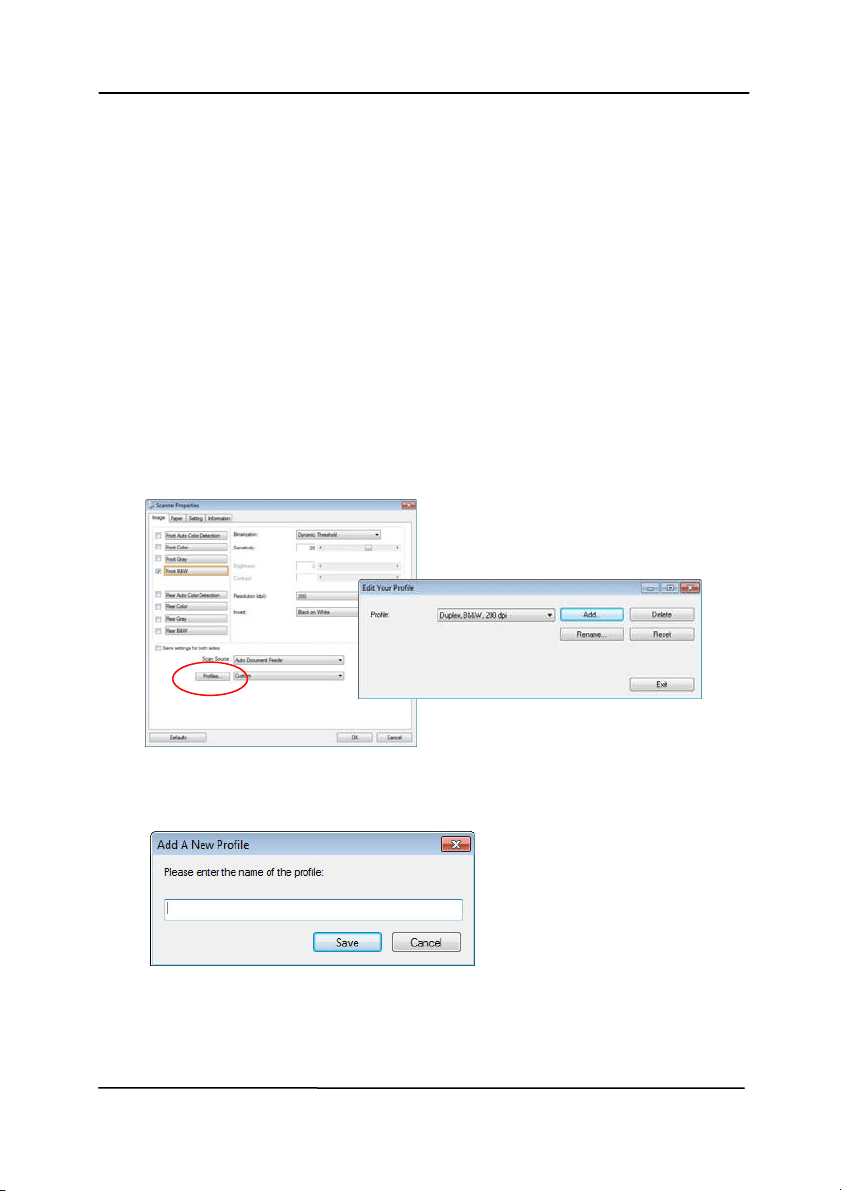
Color
Mat ching
The purpose of Color Mat ching is gett ing the
accurate color. This option uses t he default
param et ers (I CC profile) t o adj ust the colors
of t he im age.
Choice: N on e , Docum ent, Phot o
None: Choose “None” t o disable this
option.
Docu m e nt: Choose “ Docum ent ” if your
original cont ains pure t ext or a m ixt ure of
text and graphic since it is an opt im al
sett ing for regular business docum ent .
Phot o: Choose “Phot o” if your original
contains phot o to reproduce your photo
in vivid color im age.
N orm a l
After Color M at ching

Use r’s Man ua l
4- 24
4 .3 .3 Sca n ning color im a ges
T
he following opt ions are available for scanning color im ages.
Brightness
Contrast
Resolution
I nvert
4 .3 .4 Sca n ning graysca le im ages
The following opt ions are available for scanning gray im ages.
Brightness
Contrast
Resolution
I nvert
4 .3 .5 Sca n ning B& W im ages
T
he following opt ions are available for scanning B&W im ages.
Binarization ( Dynam ic Threshold)
Resolution
I nvert
Or
Binarization (Fix Processing)
Threshold
Brightness
Resolut ion
I nvert
Use r’s Man ua l
4- 25
4 .3 .6 Edit in g Pr ofiles
The Scanner Propert ies dialog box allows you to change and
save your frequentl
y used scan set t ings into a profile. You can
edit t hese profiles by renam ing or delet ing t hem .
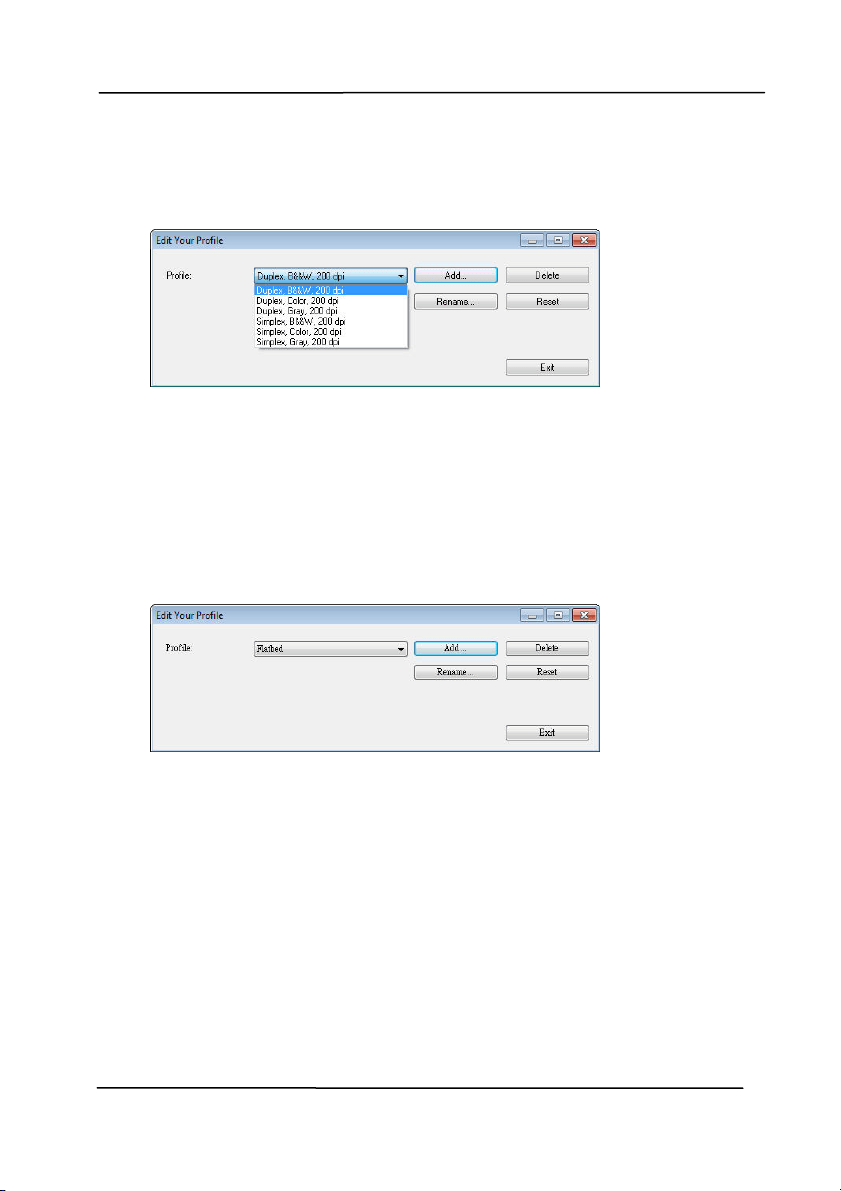
To a dd a ne w profile,
1. Cust om ize your sett ings. (For exam ple, change your
resolution, im age t ype, cropping m ethod, scan size, or
ot her scan sett ings.)
2. Click t he I m age tab and then choose “ Profiles” to prom pt
the “Edit Your Profile” dialog box.
3. Click “ Add” t o enter t he nam e of the profile and then
choose “Save” .
4. The new profile will be saved and shown in t he “ Profiles”
dropdown list box.
Use r’s Man ua l
4- 26
To load a profile,
1. From t he I m age tab dialog box, choose your favorable
profile from t he “ Profiles” dropdown list box.
2. Your favorable profile will be im m ediately loaded and
displayed on Scanner Properties dialog box.
To delet e a profile ,
1. From t he I m age tab dialog box, click “Profiles” t o prom pt
t he Edit Your Profile dialog box.
2. Choose the profile you want t o delet e from t he dropdown
list box.
3. Click “ Delet e” . A Confirm m essage “Are you sure you want
to delet e t his profile?” is prom pt ed.
4. Choose “Yes” t o delet e or “ Cancel” to quit .
Use r’s Man ua l
4- 27
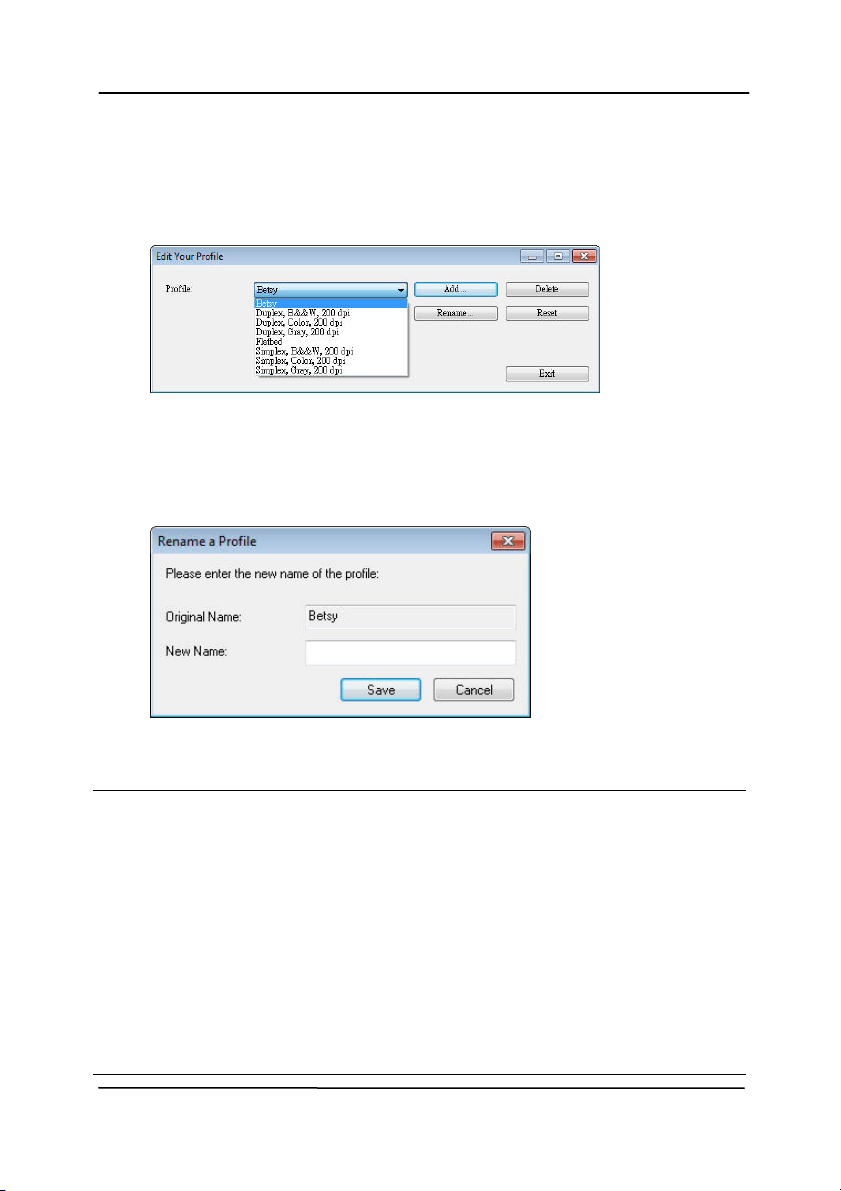
To r e n a m e a profile ,
1. From t he I m age tab dialog box, click “Profiles” t o prom pt
t he Edit Your Profile dialog box.
2. Choose the profile you want t o renam e from the dropdown
list box and then click t he Renam e button.
3. Enter new nam e for the profile.
4. Choose “Save” t o save the new profile or “ Cancel” to quit .
N ote:
The preset default profiles include Flat bed, Sim plex-B&W,
200 dpi, Sim plex-Gray, 200 dpi, Sim plex-Color, 200 dpi,
Duplex-B&W, 200 dpi, Duplex- Gray, 200 dpi, Duplex- Color,
200 dpi. I f you have a sim plex or a sheet fed scanner, the
duplex or t he flat bed option will not be available.
I f any set ting for a current profile has been changed, a [ * ]
sign will be m arked before the nam e of current profile, for
exam ple, [ * Duple x , Color , 2 0 0 dpi] . I f desire, click t he
[ OK] or [ Sca n] butt on and a dialog box will be prom pted to
let you save t he new profile.

Use r’s Man ua l
4- 28
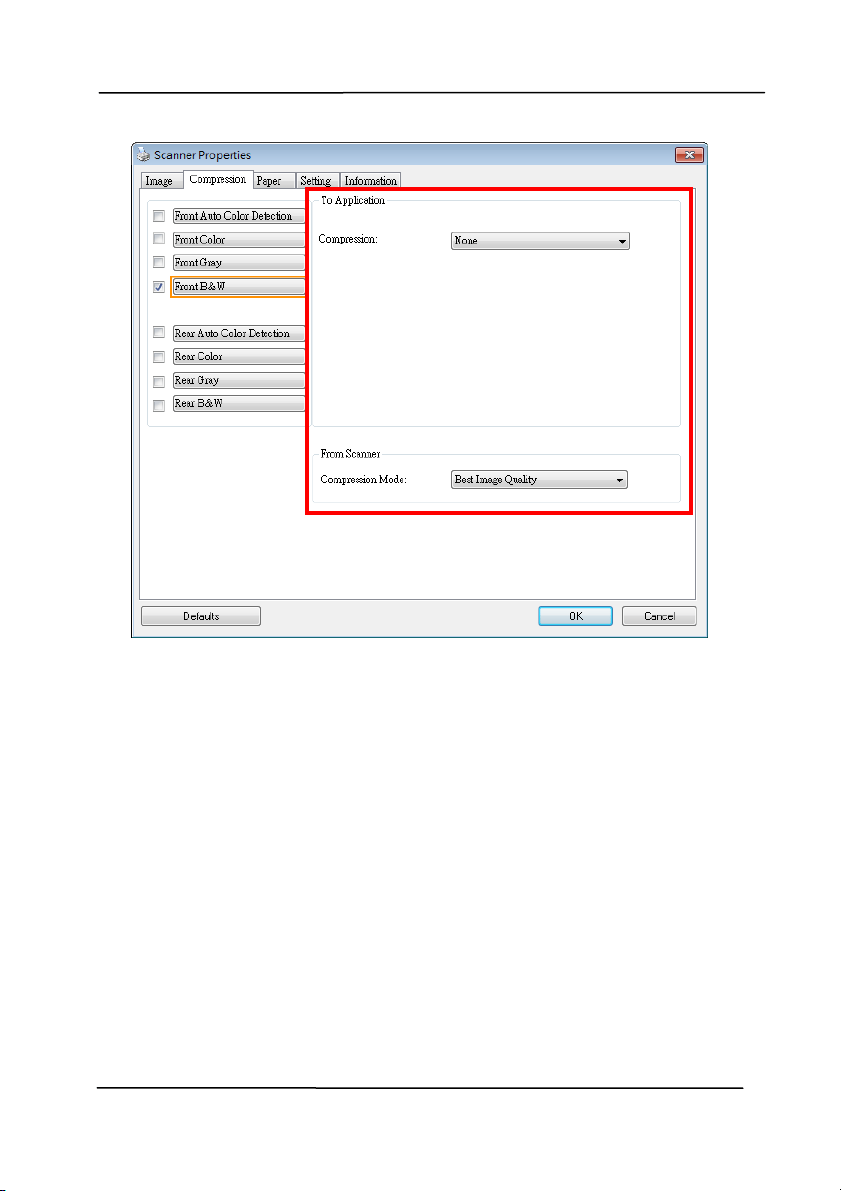
4 .4 The Com pression Tab
The Com pression tab allows you t o com press your scanned
im age and choose t he level of com pression. Bi- tonal im ages
are norm ally com pressed using CCI TT standard called Group 4
( G4). Color and grayscale im ages are often com pressed using
JPEG technol
ogy. Move the JPEG Qualit y slider t o t he right or
left t o increase or decrease the level of com pression. Note the
greater the com pression level, t he lower im age qualit y. Default
is 50% .
Not e that the com pression depends on your im age edit ing
applicat ion. I f your im age edit ing applicat ion does not support
the type of com pression form at, t hen eit her a warning
m essage will appear or t he im age qualit y of t he com pressed file
will not be accept able.
JPEG (Joint Photographic Edit or Group) . This group developed
and lent t heir nam e t o a file com pression st andard for color and
grayscale im ages that is widely used by scanners, and soft ware
applicat ions. On Microsoft Windows- based syst em s, a file wit h
the extension .jpg has norm ally been com pressed using this
st andard.
For scanning color or gray im ages, t he following com pressions
are available:
None
JPEG
For scanning B&W im ages, t he following com pressions are
available:
None
G4
Use r’s Man ua l
4- 29
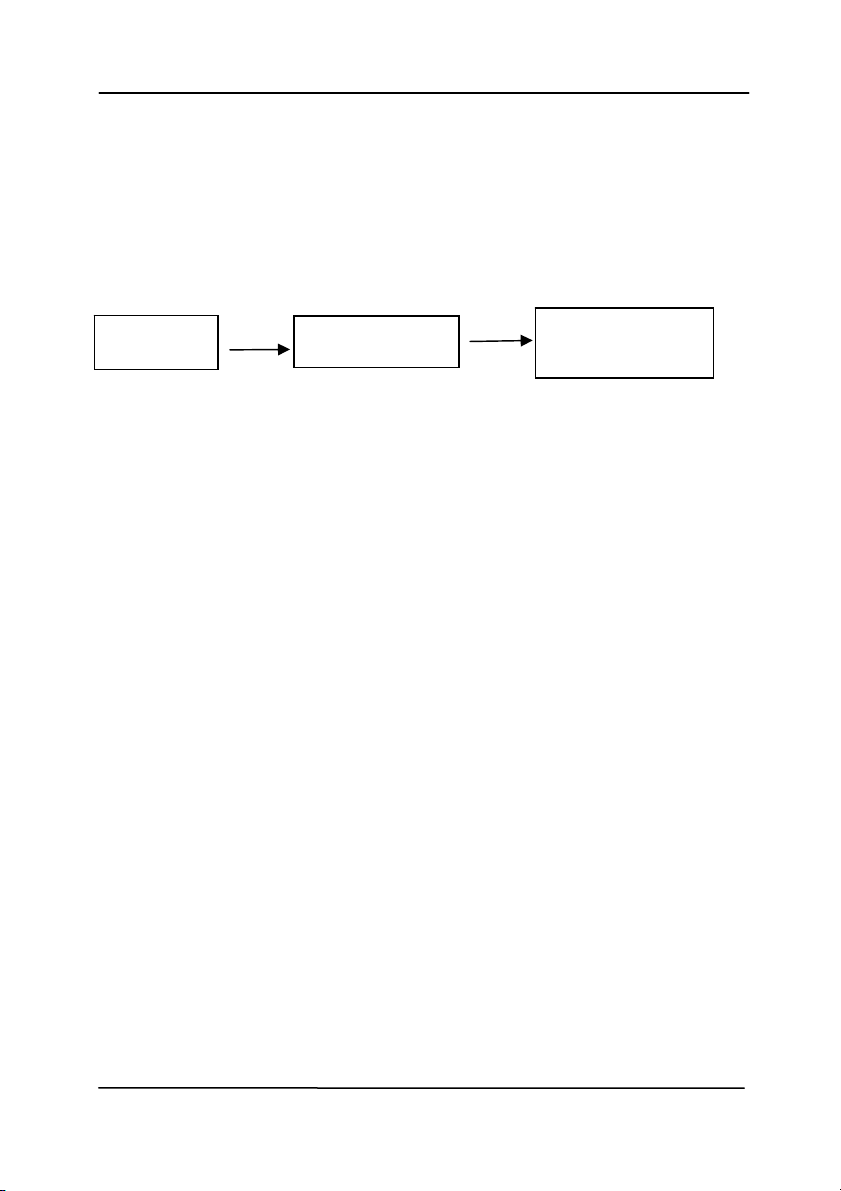
Com pression :
To com plet e your scan at a rated speed, t he scanned im age is
com pressed by default during transm ission. However, if you
wish to obtain t he highest im age qualit y, you can choose to
uncom press t he im age dat a before it is output ted.
To Applicat ion:
Choose if you wish to com press t he im age dat a and t ransfer it
from t he TWAI N driver t o the applicat ion. Not e Bi- t onal im ages
are norm ally com pressed using CCI TT standard called Group 4
( G4). Color and grayscale im ages are often com pressed using
JPEG technology. Move the [ I m a ge Qua lit y] slider t o the
right or left t o increase or decrease your im age quality. Not e
the great er t he im age qualit y, the lower t he com pression level.
Default is 50% .
Not e that the com pression depends on your im age edit ing
applicat ion. I f your im age edit ing applicat ion does not support
the type of com pression format, t hen the im age of the
com pressed file will look abnorm al.
From Sca nner: ( N ote: Th e ava ila bilit y of t h is feat ur e
varies due t o sca nner m odel.)
Choose if you wish to com press t he scanned im age and transfer
it from the scanner to the TWAI N driver.
Choice: Uncom pressed, * Best I m age Qualit y ( Low Com pression
Level) , Bet t er I m age Quality ( Norm al Com pression Level) ,
Norm al I m age Quality ( High Com pression Level) . ( * : Fact ory
Default)
Scanned
I m age
Scanned
I m age
Scanner
Scanner Driver
I m age Edit ing
Application
Use r’s Man ua l
4- 30
The Com pression t ab dia log box

Use r’s Man ua l
4- 31
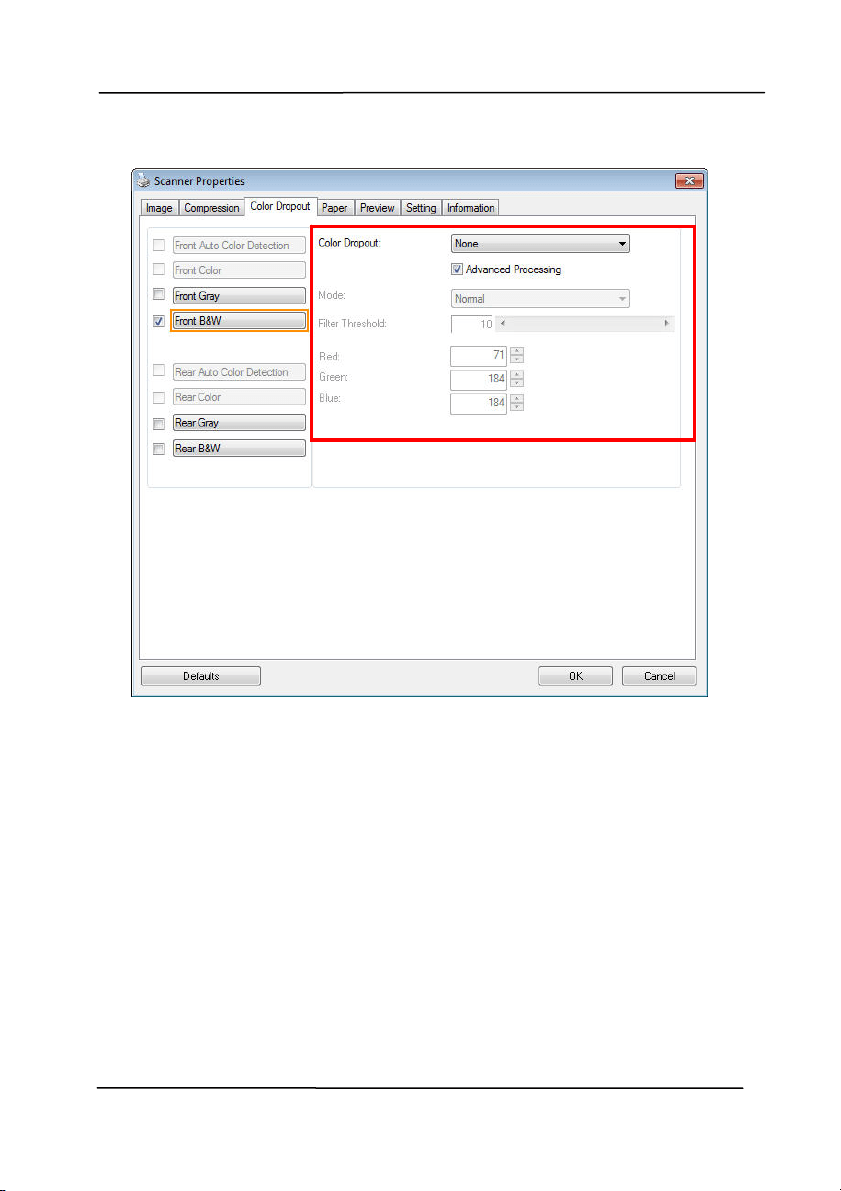
4 .5 The Color Dropout Ta b
4 .5 .1 Color Dropou t Select ion
The [ Color Dropout ] tab allows you t o select eit her green,
red, blue, or a color of your choice to rem ove t he det ai
ls of the
select ed color from a scanned im age. This feature is used to
sharpen your text when using OCR ( Opt ical Character
Recognit ion) software. Note this feat ure applies only t o the
gray or black and white im age.
Choice: N on e , Auto, Re m ove Red, Rem ove Gr een,
Rem ove Blu e , Cust om
- N one : Does not rem ove any color.
- Aut o: Autom atically outputs the im age wit h the det ails of
the prim ary color rem oved.
- Re m ove Re d/ Rem ove Gr e e n / Re m ove Blue: Out put s
the im age wit h t he det ails of the specified color rem oved.
- Cu stom : Specify the color you wish t o rem ove by entering
it s RGB (Red, Green, and Blue) value respect ively.
Advanced Opt ions:
- Quality M ode: Range: 0~ 20. Default : 10
When [ Qualit y Mode] is select ed, you can det erm ine the
color t o be dropped out using the [ Filt er Threshold] slider. A
lower value will drop m ore of the select ed color out , while a
higher value will leave m ore of the select ed color in.
- N orm a l M ode : Use an opt im ized sett ing to det erm ine t he
color.
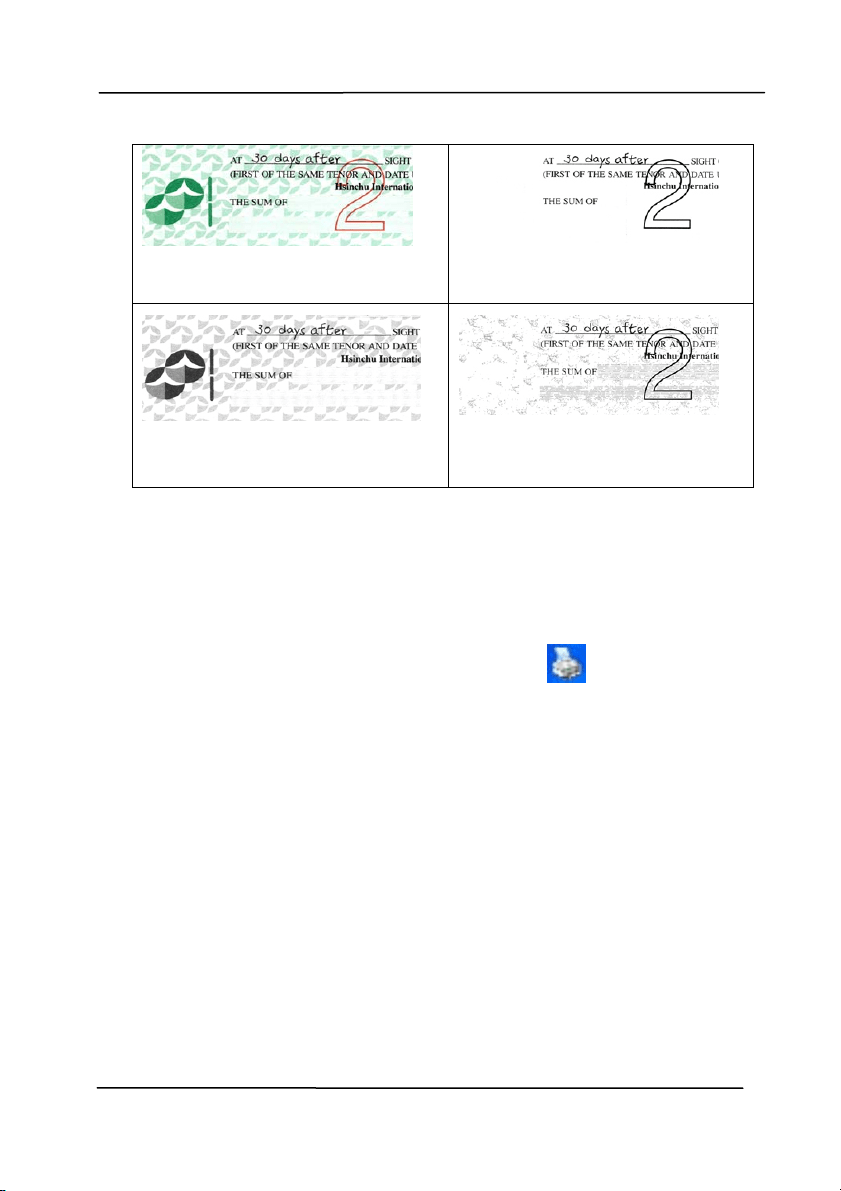
Use r’s Man ua l
4- 32
Original
Auto/ Rem ove Green
( norm al m ode)
Rem ove Red (norm al m ode)
Rem ove Green (qualit y
m ode: Threshold: 18)
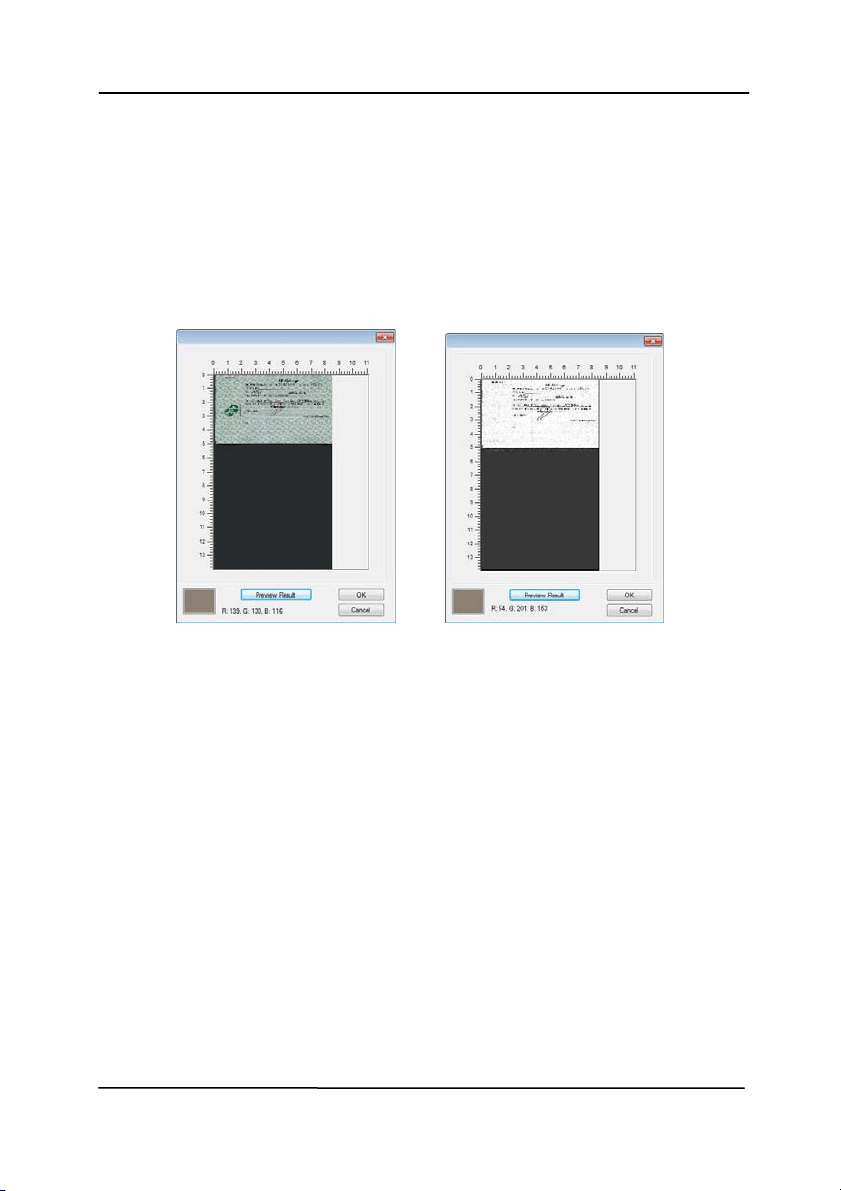
Preview the color dropout result :
To preview t he color dropout result , please follow t hese st eps:
1. Click the [ Sca nner Propert ies] icon (
) on t he upper
left corner, and choose [ Tab] t o show available tab
nam es.
2. Choose [ Pre view ] to show t he Preview tab.
3. Click the [ Pre view ] tab to show t he Preview page.
4. Load your docum ent to t he scanner and click t he
[ Pr evie w ] but ton to get a preview im age.
5. On the [ I m age] t ab, click [ Gray] or [ Black and Whit e]
im age m ode and then choose [ Cust om ] on t he [ Color
Dropout] tab. A [ Preview w indow] butt on will be
displayed.
6. Click the [ Pre view w in dow ] button to prom pt the
[ Pr evie w ] window wit h the previewed im age.
Use r’s Man ua l
4- 33
7. Move your cursor over t he preview im age. Your m ouse
cursor now becom es an Eyedropper.
8. Click to select a color which you wish t o rem ove.
9. Click and hold your m ouse but ton to view the result
after rem oving the specified color. I f the result is
sat isfact ory, click [ OK] t o close t he Preview window.
The Preview Window The Color dropout result
Use r’s Man ua l
4- 34
The Color D r opout dia log box
Use r’s Man ua l
4- 35
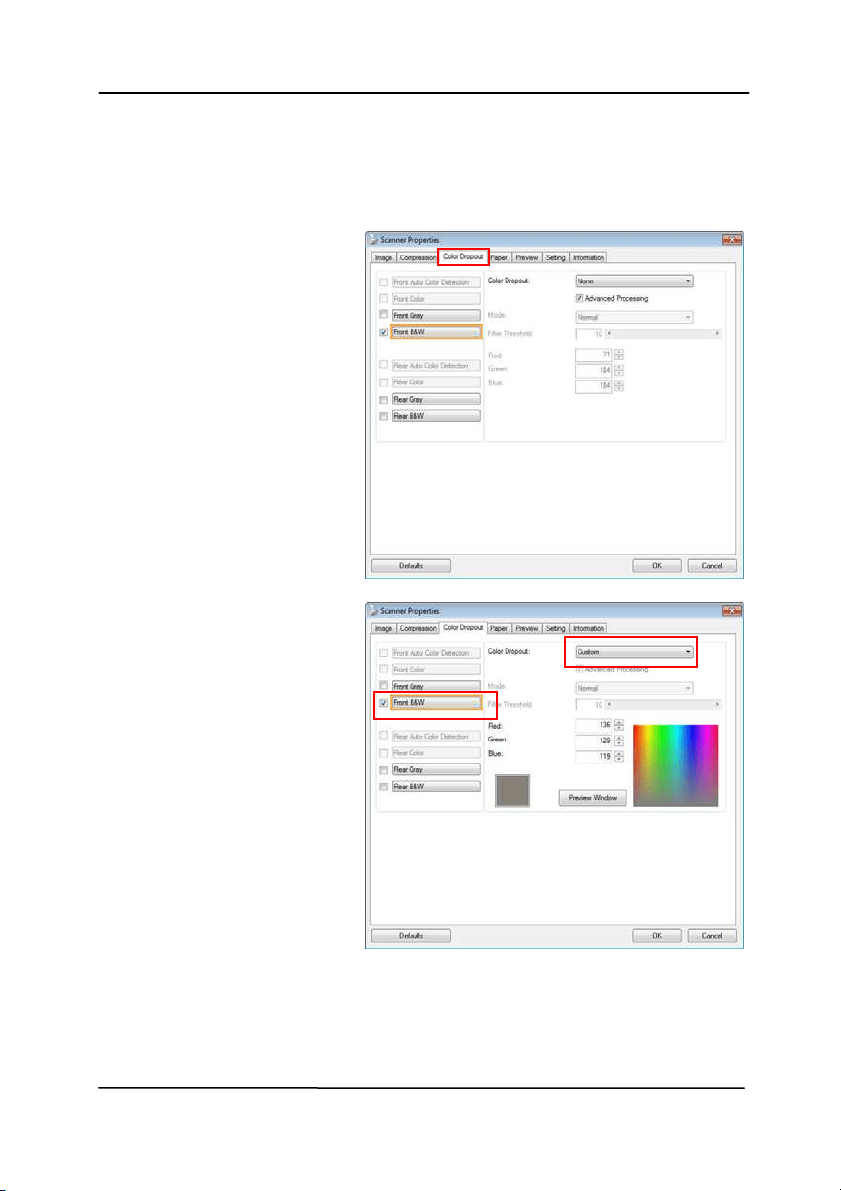
To select a color on the Color palet te,
1. Click the Color
Dropout tab from
the Scanner
Propert ies dialog
box.
2. Choose Gray or
B&W from the
I m age Select ion
box and click
“ Cust om ” from t he
Color Dropout
drop-down menu.
The Color palet t e
appears.
Use r’s Man ua l
4- 36
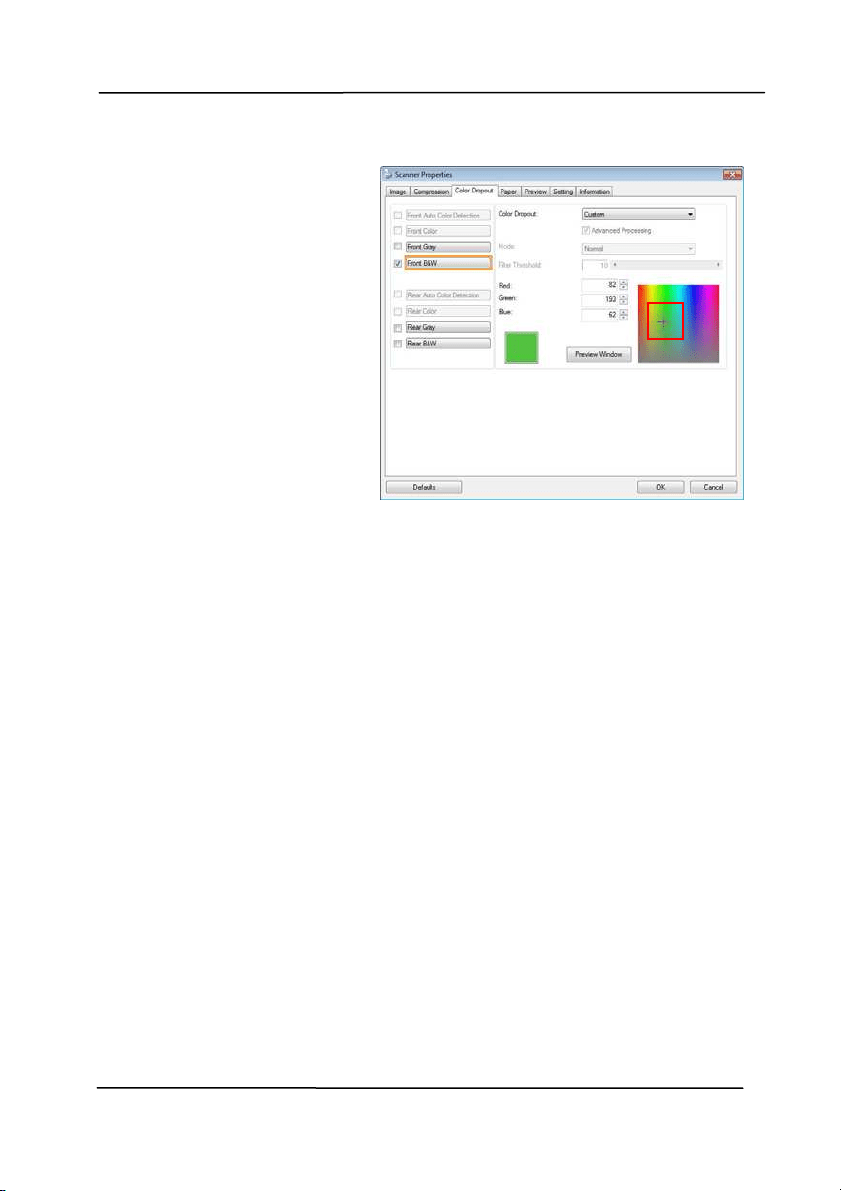
3. Move your cursor
over the palet te. The
cursor becom es a
cross sign.
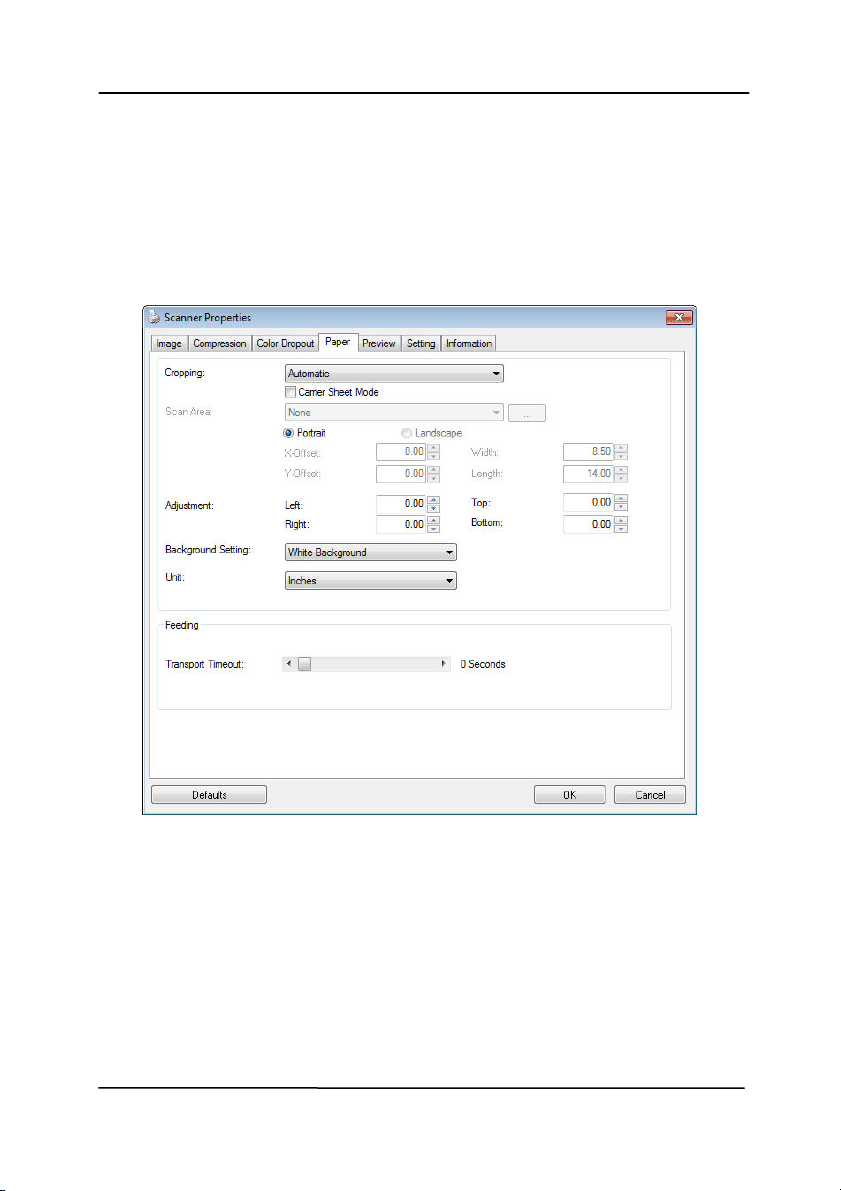
4. Click to choose a color. The RGB values are changed
sim ult aneously.
Use r’s Man ua l
4- 37
4 .6 The Pa per Tab
The Paper tab allows you to define values relat ing to im age
output ( i.e., Aut o Crop or not , Scan Area, OverScan, Mult i- Feed
Detect ion).
The Paper t a b dia log box

Use r’s Man ua l
4- 38
4 .6 .1 Cropping
Croppi
ng allows you t o capture a port ion of the docum ent
being scanned. Ch oice: Aut om at ic, Aut om at ic ( 3 6 ”) ,
Fix ed t o Tr a nsport , EOP ( End of Pa ge) Det e ction,
Autom a t ic M ult iple, Relat ive t o Docu m ents.
Options Descr ipt ion
Autom a t ic
Autom at ic adj ust s the cropping window
according t o different document sizes and
autom at ically st raighten a skewed
docum ent. Use t his opt ion for bat ches of
m ixed-sized docum ent s.
Autom a t ic
( 3 6 ”)
Autom at ically adj usts t he cropping window
according t o different document sizes
sm aller t han 36” and autom atically
st raighten a skewed im age. Use t his opt ion
for bat ches of m ixed- sized document.
N ote: Th e a vailabilit y of t his feat ure
varies due t o sca nner m odel.
Fix ed t o
Tra n sport
This feat ure allows you to define the area
or zone t o be im aged. Use for batches of
sam e- sized document s. I f you select this
option, you can use the arrow keys to
define t he x and y offset values, widt h and
length to redefine your scanned area. The
Display window will show im age placem ent
as you change t he values.
EOP ( End of
Pa ge)
Det e ction
This feat ure allows you to define the area
or zone t o be im aged. Use for batches of
sam e- width but different lengt h
docum ents. I f you select this opt ion, you
can use the arrow keys to define t he x and
y offset values, width and length to
redefine your scanned area. The Display
window will show im age placem ent as you
change t he values.

Use r’s Man ua l
4- 39
Autom a t ic
Mult iple
This opt ion allows you t o place various
sized docum ent s such as phot os, I D Cards,
or business cards on the flatbed (if
available) and let s you creat e m ult iple
individually cropped im ages in one scan.
Not e: To correctly creat e m ult iple im ages,
please make sure t here is at least 12mm
( 0.5”) of space bet ween each docum ent.
Rela t ive t o
Docum e n t
This option allows you to crop different
areas on your document s and deliver t hese
im ages in B&W, Gray, or Color separat ely.
For exam ple, t here are applicat ions which
require you to st ore the ent ire docum ent in
B&W and a part of t he docum ent in color t o
save st orage space. This is useful for
docum ents where a photograph or
signat ure appears in a consist ent area on
the docum ent such as resum es, and so on.
The following opt ions are only available when Fix ed t o
Tra n sport is select ed.
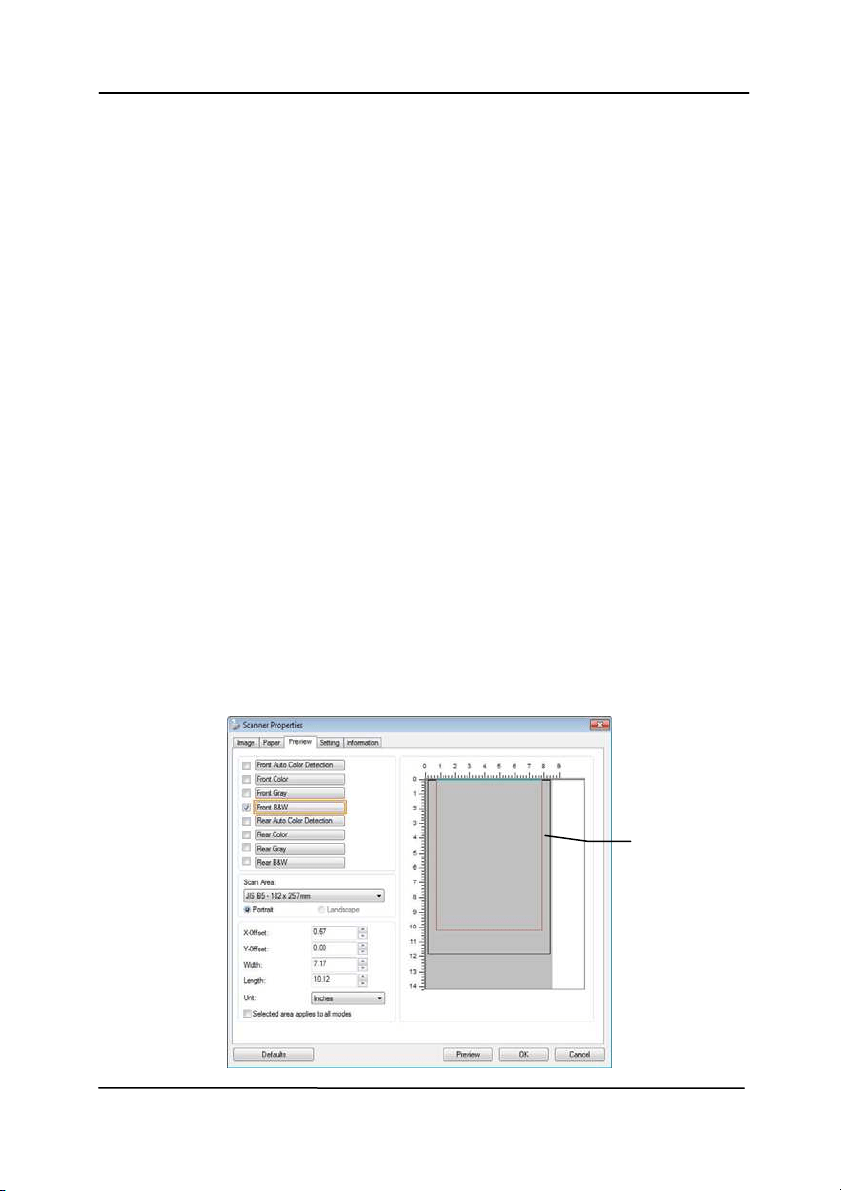
X- Offse t — the dist ance from the left end of the
scanner t o the left edge of t he scanning area.
Y- Offset — the position from the top end of the
docum ent t o the top end of the scanning area.
W idt h — the width of the scanning area.
Length — t he length of t he scanning area.
Cente r : autom at ically calculat es the x- offset for center-
fed feeding based upon document size select ed.
— relocat e t he scan area by click t he arrow key on
the cross sign while retain t he scan size. View t he result
from t he Display window.

Use r’s Man ua l
4- 40
The Adjust m ent opt ion is available when Aut om a t ic is
selected.
Adjust m ent —adds a posit ive/ negat ive m argin value
Top/ Bot t om or t oward left/ right of the im age.
Adjust m ent is used when t he autom at ic docum ent feeder
is used. Adj ust m ent reduces t he possibilit y of corner
clipping on skewed im ages. To set Adjust m ent values, use
the UP/ Down butt ons to select where you want t o apply
Adjust m ent values: Top/ Bott om or Left / Right, and then
select the am ount of inches/ m m / pixels applied. Select a
value within t he range of 0.00 to 1.00 / -1.00.
Use r’s Man ua l
4- 41
Rela t ive t o Docum e n t : (used for bat ches of sam e- sized
docum ents)
This opt ion allows you to crop different areas on your
docum ents and deliver t hese im ages in B&W, Gray, or Color
separat ely. For exam ple, t here are applicat ions which require
you to st ore the ent ire docum ent in B&W and a part of t he
docum ent in color t o save st orage space. This is useful for
docum ents where a photograph or signat ure appears in a
consist ent area on the docum ent such as resum es, and so on.
The following procedure describes how t o reproduce t he ent ire
docum ent in B&W and a portion of docum ent ( pict ure) in color.
1. On the Paper tab, choose “ Relative t o Docum ent” or “ Fixed
to Transport” from the Cropping option.
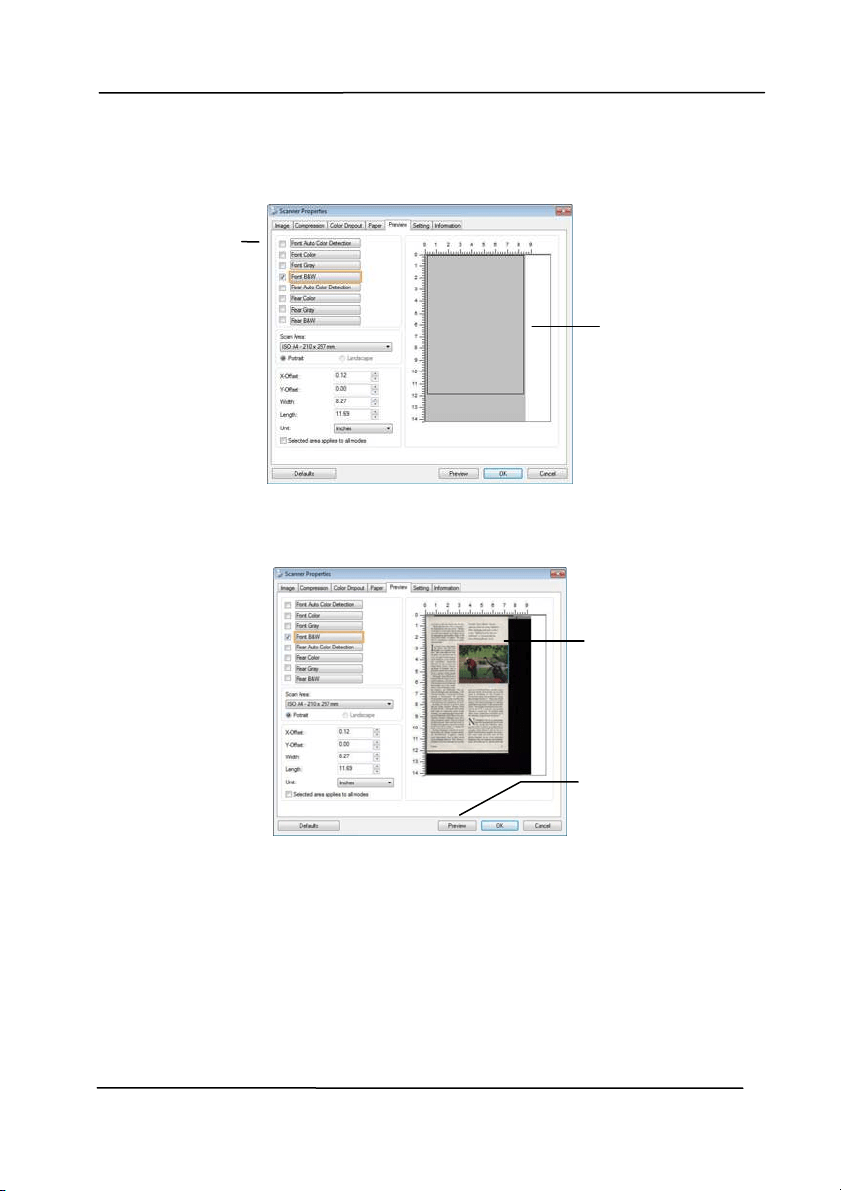
2. Choose your scan size from t he Scan Area opt ion. The
select ed scan size will be displayed in a red rect angular
box. This is also t he scan size of your entire docum ent .
( For exam ple, I SO B5. I f you have not chosen a scan area
and leave the select ion as None, t hen the default area will
be the scanner’s m axim um .)
A red
rect angular
box
Use r’s Man ua l
4- 42
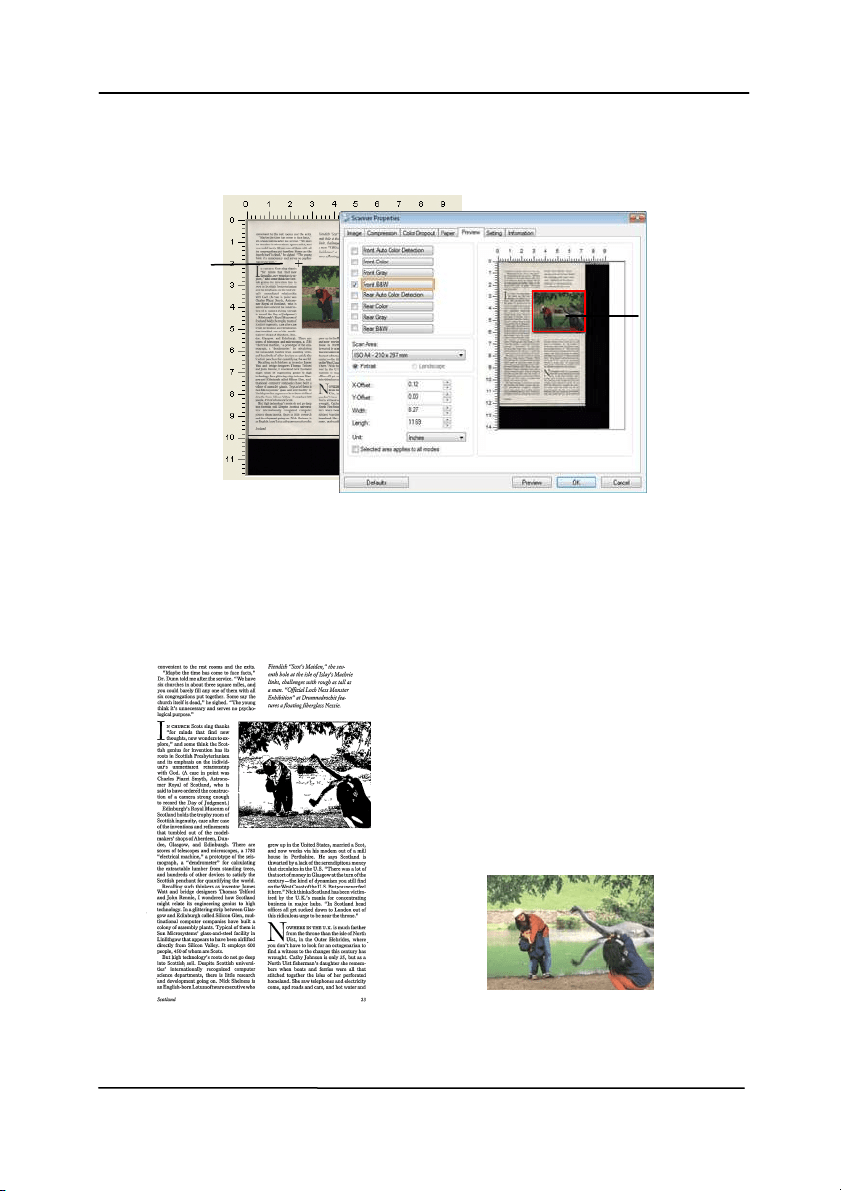
3. Click the Preview t ab to display the Preview window. A
black rect angular box appears t o indicat e t he m ax. scan
size your have j ust select ed.
4. Click t he Preview button to view t he ent ire im age in low
resolution to correct ly crop your relative scan area.
5. Select im age type from the I m age Select ion box. The
select ed im age will appear in highlighted color. ( For
exam ple, Front Color)
6. Place your cursor on the Preview window and click your
left m ouse butt on. A cross sign will appear as illust rat ed.
Creat e your relative scan size diagonally by dragging t he
left m ouse button to your preferable size. The select ed
area w ill appear in a red box as illust rat ed.
A black
rect angular
box
T
he Preview
I m age
T
he Preview
Button
The I m age
Selection
Box
Use r’s Man ua l
4- 43
7. Check t he B&W im age from the I m age Select ion box t o
scan the ent ire docum ent .
8. Click t he Scan button to st art scanning the docum ent in
two im age t ypes and sizes. ( See the result in below.)
The ent ire docum ent in B&W The relat ive area in color
T
he
Relat ive
Area
A Cross
Sign
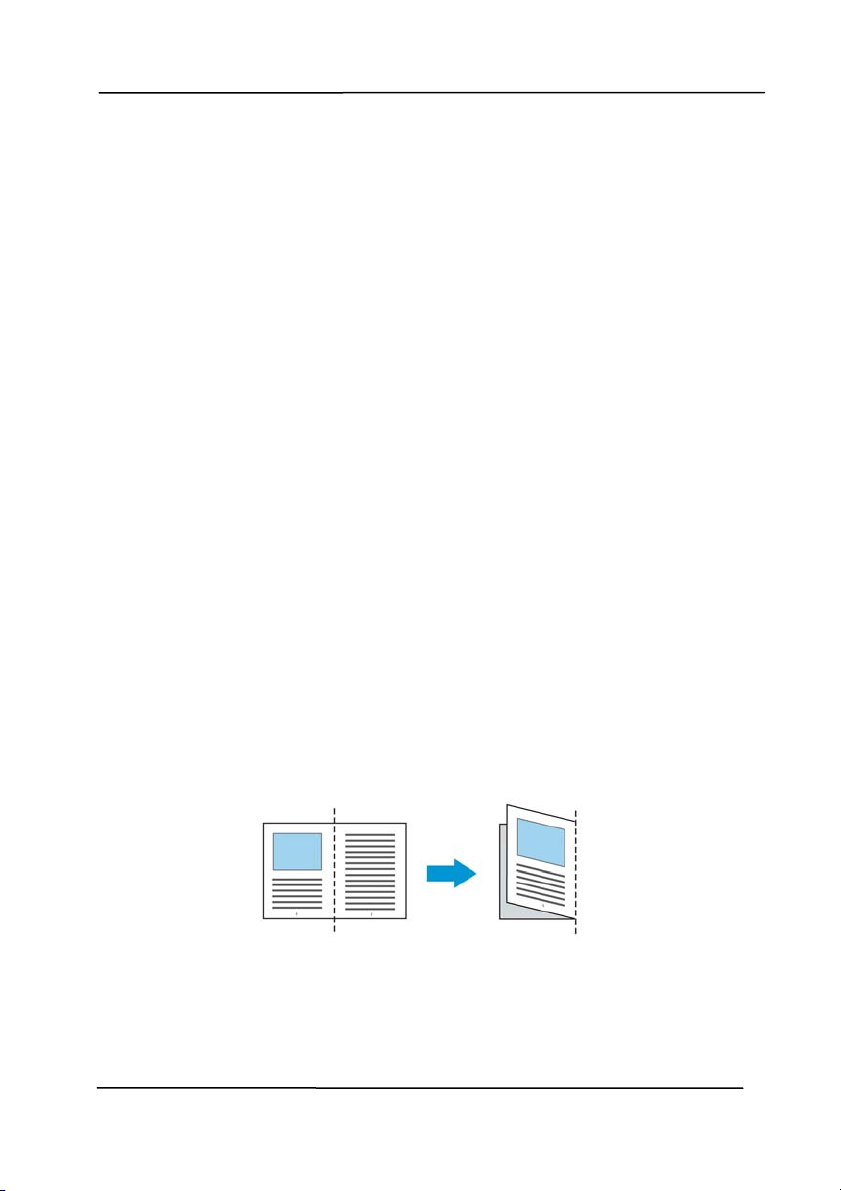
Use r’s Man ua l
4- 44
4 .6 .2 Ot her Pa per Select ion
Carrie r Sh e e t M ode:
Check thi
s opt ion to autom at ically crop the scan window
according t o your docum ent size when scanning non-st andard
docum ent ( fragile, irregular- size docum ent ) wit h a carrier sheet
( opt ional) . Note: The availabilit y of this opt ion varies due t o
scanner m odel.
Loa ding Docum e n t s Usin g a Ca rrier Sheet
A Carrier Sheet is a plast ic sheet specifically used for loading
non-st andard document onto the scanner. I t allows you to scan
docum ent t hat can not be scanned in the regular way. Also,
docum ents larger t han A4 size, such as A3 and B4, can be
scanned by folding in half, insert ing into t he Carrier Sheet , and
scanning in duplex m ode. You can also scan docum ents that
can be dam aged quite easily such as photographs, or irregular
size document s that are difficult to load directly such as
clippings.
To scan docum e nt using a Ca r rier Sheet,
For docum e n t s large r than A4 / Le t t e r size, such as A3
a. Fold the sheet t o be scanned in half.
b. Fold the sheet tightly and sm oot h out crease. Ot herwise,
the sheet m ay be skewed during scanning.
1 . Open t he Ca rrier Sheet and place t he docum e n t
inside.
Align t he t op of the docum ent t o the t op of t he Carrier
Sheet (t he printed area) .
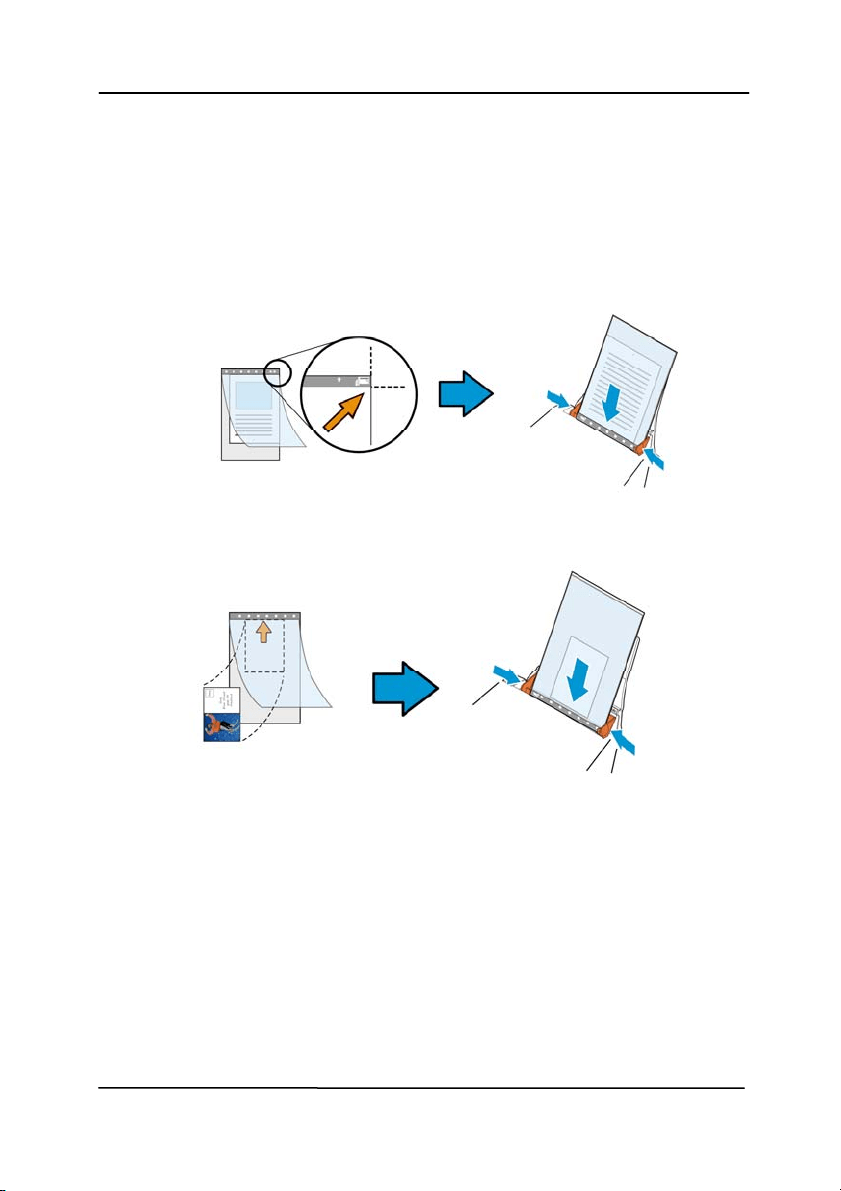
Use r’s Man ua l
4- 45
For docum e n t s large r than A4 / letter size, such a s
A3
Align t he t op of the docum ent t o the t op of t he Carrier
Sheet (t he printed sect ion) and the folded portion t o t he
right edge of the Carrier Sheet so that the docum ent fits
into t he Carrier Sheet at the upper corner.
For non- st a n dard docum ent
Center your docum ent in the Carrier Sheet .
2. Load the Carrier Sheet wit h t he gray sect ion (print ed
sect ion) facing downwards.
3. Adjust the paper guides t o the widt h of the Carrier Sheet .
Adjust the paper guides so t hat there is no space
bet ween the guides and the Carrier sheet . Space bet ween
the guides and Carrier Sheet m ay cause the Carrier Sheet
to becom e unaligned during scanning, and skew the
scanned im age.
4. St art t he scan.
Use r’s Man ua l
4- 46
N otice :
[ Carrier Sheet ] is available for t he m odels t hat support the
Carrier Sheet .
Som e funct ions are disabled when [ Carrier Sheet ] is
checked.
This opt ion m ay not work properly on som e applicat ions.
Sca n Ar ea
Choose your desired paper size wit h the drop- down list box. Or
you m ay select a cust om paper size by clicking t he Scan Area
box and t hen click Add t o include in the choice.
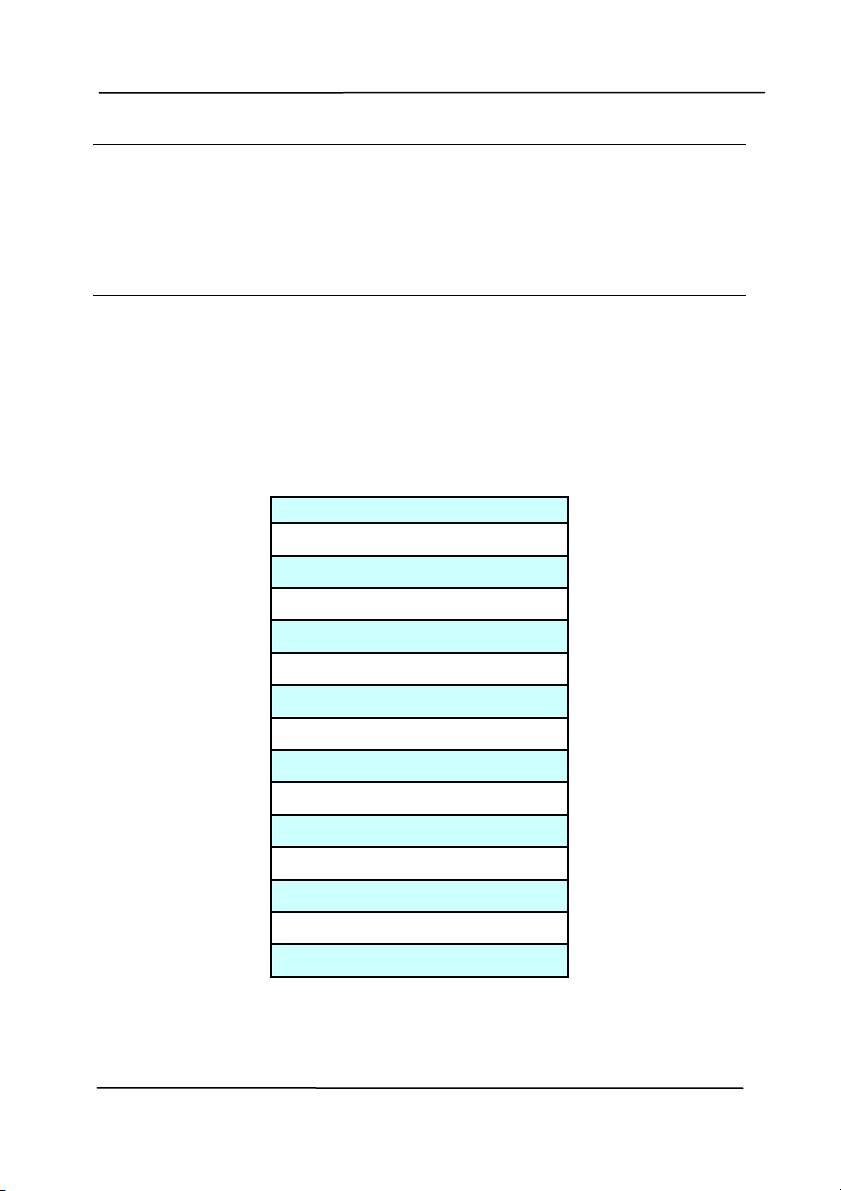
Choices a r e list ed below :
N one
US Let t er- 8 .5 ”x 1 1 ”
US Legal – 8 .5 ” x 1 4 ”
I SO A4 – 2 1 x 2 9 .7 cm
I SO A5 – 1 4 .8 x 2 1 cm
I SO A6 – 1 0 .5 x 1 4 .8 cm
I SO A7 – 7 .4 x 1 0 / 5 cm
I SO B5 – 1 7 .6 x 2 5 cm
I SO B6 – 1 2 .5 x 1 7 .6 cm
I SO B7 – 8 .8 x 1 2 .5 cm
JI S B5 – 1 8 .2 x 2 5 .7 cm
JI S B6 – 1 2 .8 x 1 8 .2 cm
JI S B7 – 9 .1 x 1 2 .8 cm
Sca nner Max im um
Long Page ( < 1 1 8 ”)

Use r’s Man ua l
4- 47
Long Page ( < 1 1 8 ”) :
When you need to scan docum ents whose length exceeds
scanner m axim um , please choose Long Pa ge. Not e if Lon g
Pa ge is select ed, t he M ult i- Fe e d De t ect ion will not be
available. ( Note: This opt ion and the m axim um allowable
docum ent lengt h vary due to type of scanner.)
When Long Page ( < 1 1 8 ”) is selected, be sure t o specify your
docum ent size in the Length and W idt h field.
N otice w hen scanning long page docum ent :
1. Pull out t he extension in t he ADF Paper Tray.
2. Secure enough space around the Out put Tray t o prevent
the ej ect ed paper from falling off the Output Tray.
3. To ensure t he perform ance, in color m ode, set t he
resolution to be 300 dpi or lower; in Black and White
m ode, set t he resolut ion t o be 600 dpi or lower.
4. Depending on your syst em environments, application, or
your specified paper size, t here m ay be insufficient
m em ory to perform scanning.
OverScan
Overscan allow s you t o add a specific m argin at t op and bot tom
or right and left ( Opt ions vary based on the t ype of scanner) of
the edge of the im age. This is used to reduce possible corner
clipping on the skewed im ages and often applied to a batch of
skewed docum ent t o be scanned in the aut o docum ent feeder.
Select a value bet ween 0 and + 5 m m . Note the overscan
result w ill not be shown in t he Display window and that t he
availabilit y of t he funct ion varies based on t ype of scanner.
Pre- Feed
Choice: Enable, Disable. I f enable is select ed, you can set t he
am ount of tim e t he scanner st art s pre- feeding your paper after
your docum ent s has been loaded into the feeder. The default is
disable. Note: The availabilit y of t his opt ion varies due to
scanner m odel.

Use r’s Man ua l
4- 48
Tra n sport Tim eout
Set the am ount of tim e the scanner will wait and then st art
auto scan aft er t he first scan j ob is com plet ed. I f you have
m any separate document s need t o be scanned at t he sam e
scan set tings, t his feat ure is especially useful. The default is 0.
The value ranges from 0 t o 30 seconds.
N ote:
1 Wit hin t he specified tim eout period, if you load your
docum ent t o the feeder, t he scanner st art s scanning
autom at ically.
2 I f your scanner has a flat bed opt ion and you place your
paper on t he flat bed, after t he t im eout period, you need
to click t he Scan button on the TWAI N user int erface to
st art scanning.
Use r’s Man ua l
4- 49
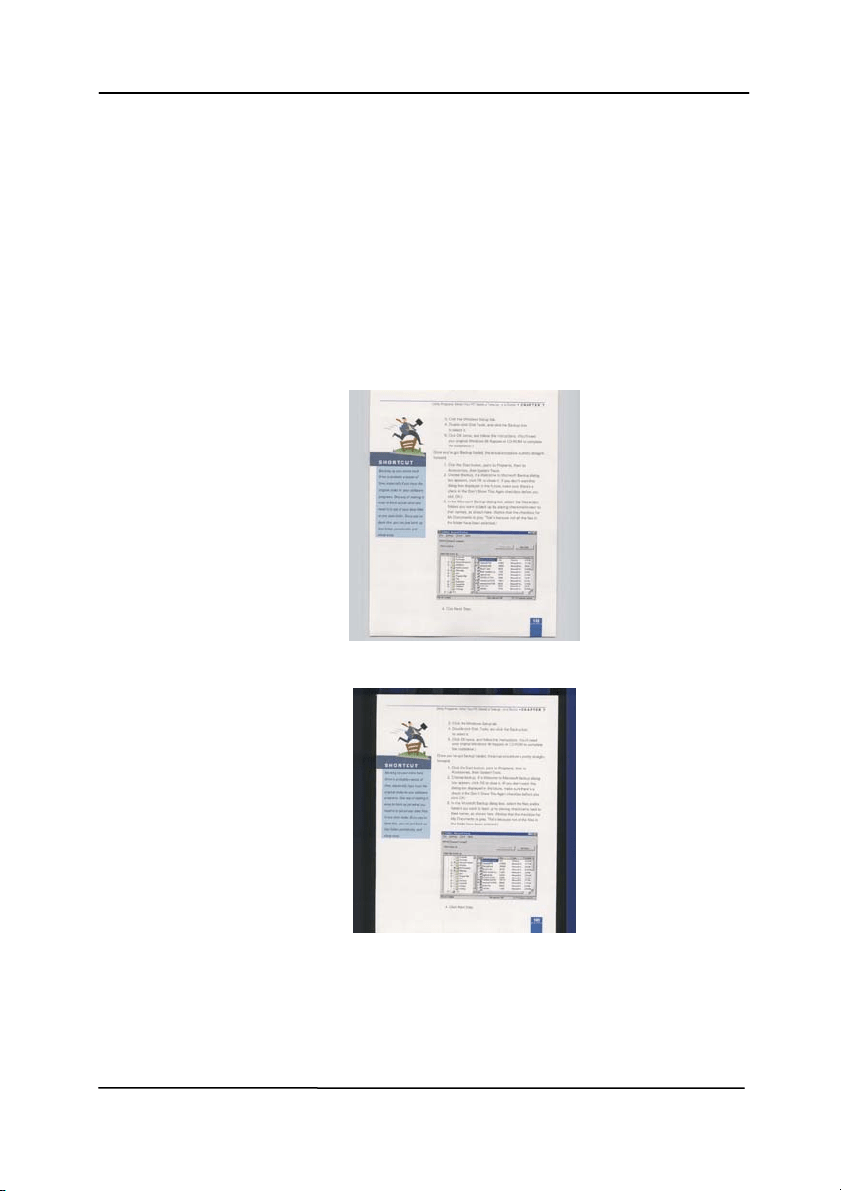
Ba ck ground
Se t t ing
This option allows you to set your scan
background. Choice : W hit e Ba ckground,
Bla ck Back ground.
Not e: For a sheet - fed scanner wit h an auto
docum ent feeder, t his opt ion is currently
available only in the “ Auto crop” m ode. For a
scanner wit h a flat bed platen, this opt ion is
available eit her in the “ Auto crop” or t he
“ Fixed to Transport” m ode.
Whit e Background
Black Background
Use r’s Man ua l
4- 50
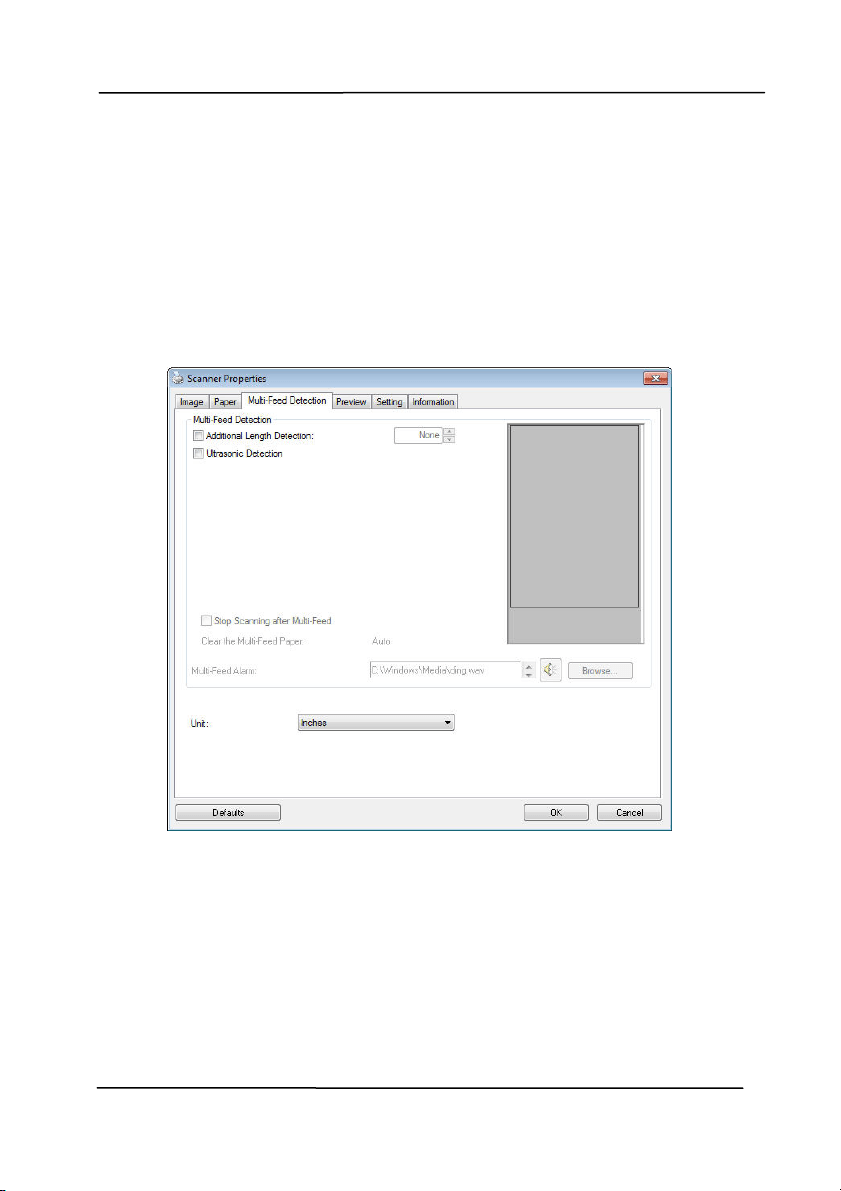
4 .7 The M ulti- Fe e d Det ect ion Ta b
Mult i- Feed D e t ect ion
M
ult i-Feed Det ect ion allows you t o detect overlapped docum ent
that go through the aut o document feeder. Mult i- Feed usually
occurs due t o st apled docum ent s, adhesives on docum ent s, or
elect ro- st at ically charged docum ent . Not e: The availability of
the funct ion varies based on type of scanner.

Use r’s Man ua l
4- 51
Addit iona l Length Det ect ion
Addit ional Length Detect ion allows you to define t he length of
docum ent being m ult i- fed. This value indicates the additional
lengt h exceeding your scan area. The Display window will
show t he size of t he docum ent as you change t he value. A
value of 0 indicates no additional length det ect ion. The
Addit ional Length Detect ion is best used when scanning sam e-
size document s in the aut o document feeder.
Ult rasonic Det ect ion
Ult rasonic Detect ion allow s you t o set overlapped document by
det ect ing paper t hickness between docum ent s. Note: The
availabilit y of t he funct ion varies based on t ype of scanner.
St op Scanning a ft e r Mult i- Feed
- I f t his is not select ed, the scanner will continue scanning
the rest docum ent t hough m ult i- feed is detect ed. Aft er t he
entire docum ent has been scanned, a m ult i- feed dialog box
will be prom pt ed to indicate the page num ber which has
been det ected m ult i- feed and need to be rescanned.
- I f this is selected, the following opt ions will be displayed.
St op: I f this is select ed, t he scanner will st op scanning aft er a
m ult i- feed is detect ed. No furt her dialog box will be prom pt ed.
Ask: I f t his is select ed, the im age of the page which has been
det ect ed m ult i- feed will be displayed and three opt ions are
provided.
Cont inue Scan: I f the im age of the m ult i- feed
page is accept able, select
[ Continue Sca n] t o cont inue
scanning t he rest pages.

Use r’s Man ua l
4- 52
Cont inue
Sca n( Discard
I m a ge) :
I f the im age of the m ult i- feed
page is not accept able, select
[ Continue Sca n ( D isca r d
I m a ge) ] to scan the rest pages
yet the m ult i- feed page will be
ignored and you need t o rescan
the page again.
Stop Sca n:
The scanner stop scans. Rem ove
the rem aining pages in the
scanner. Rem ove staples or any
adhesive tapes on your
docum ent. Or fan your docum ent
and rescan t he rest pages.
Mult i- Fe e d Ala r m
I f a wave file is added, the scanner will m ake a sound
alarm if m ult i- feed is det ect ed yet no Warning dialog box
will be displayed.
How t o a dd t he sound a larm :
1. Click t he Browse but ton on the right side of the speaker
icon. The Open dialog box appears.
2. Choose your wave file.
3. Click t he Open button. The wave file is added.
Unit s
Defines the prim ary m easurem ent syst em . I nches,
Millim e ter s, and Pix els are available.
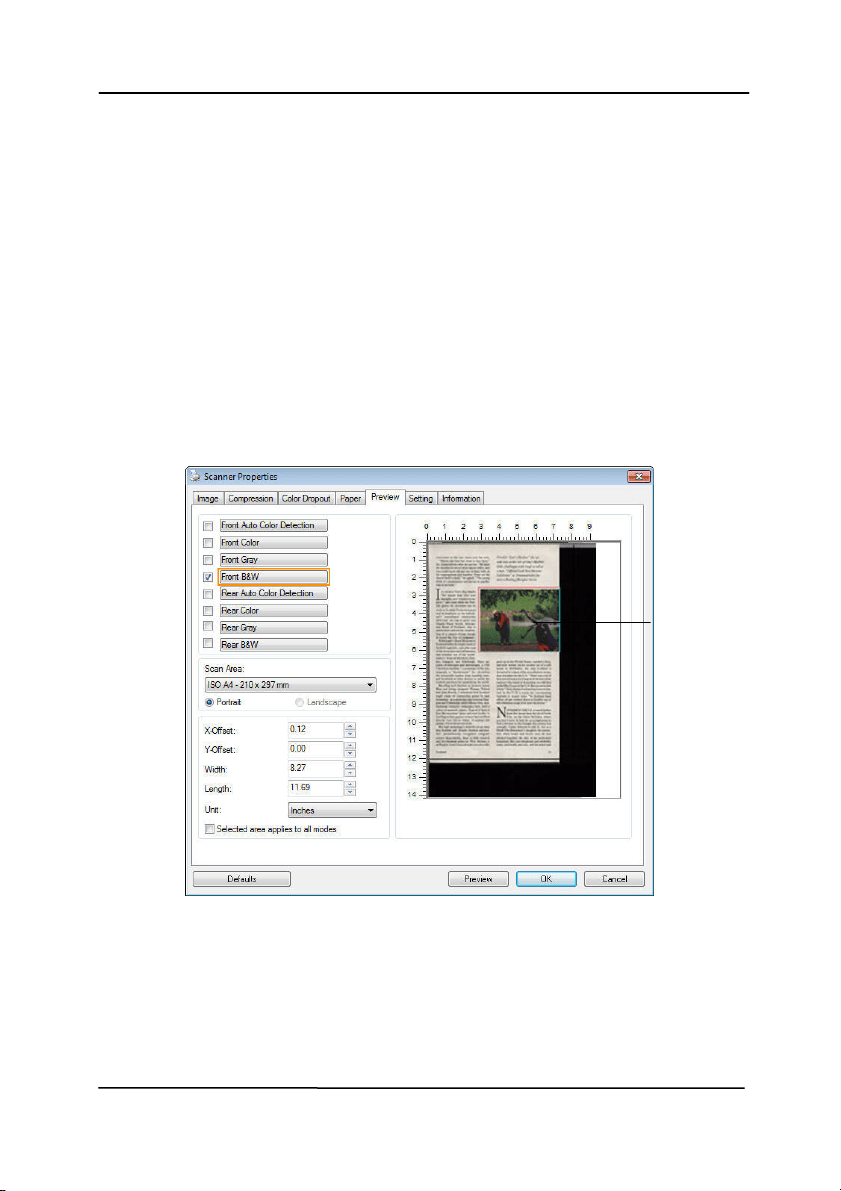
Use r’s Man ua l
4- 53
4 .8
Th e Pr e vie w Ta b
The Preview t ab allow s you t o preview (a low- resolut ion scan)
your im age before final scan. This preview im age lets you
allocat e your scan area. You can choose your scan area by t he
“ Scan Area” drop down list box or placing your cursor on t he
Display window and dragging it diagonally on the Display
window. Then, a red rect angle box will appear t o indicate the
selected area.
Not e: I f you choose “Autom at ic Cropping” on the “Paper Tab”,
then t o select a scan area on t he Preview t ab is not allow ed.
The Previe w Ta b
The Display
Window
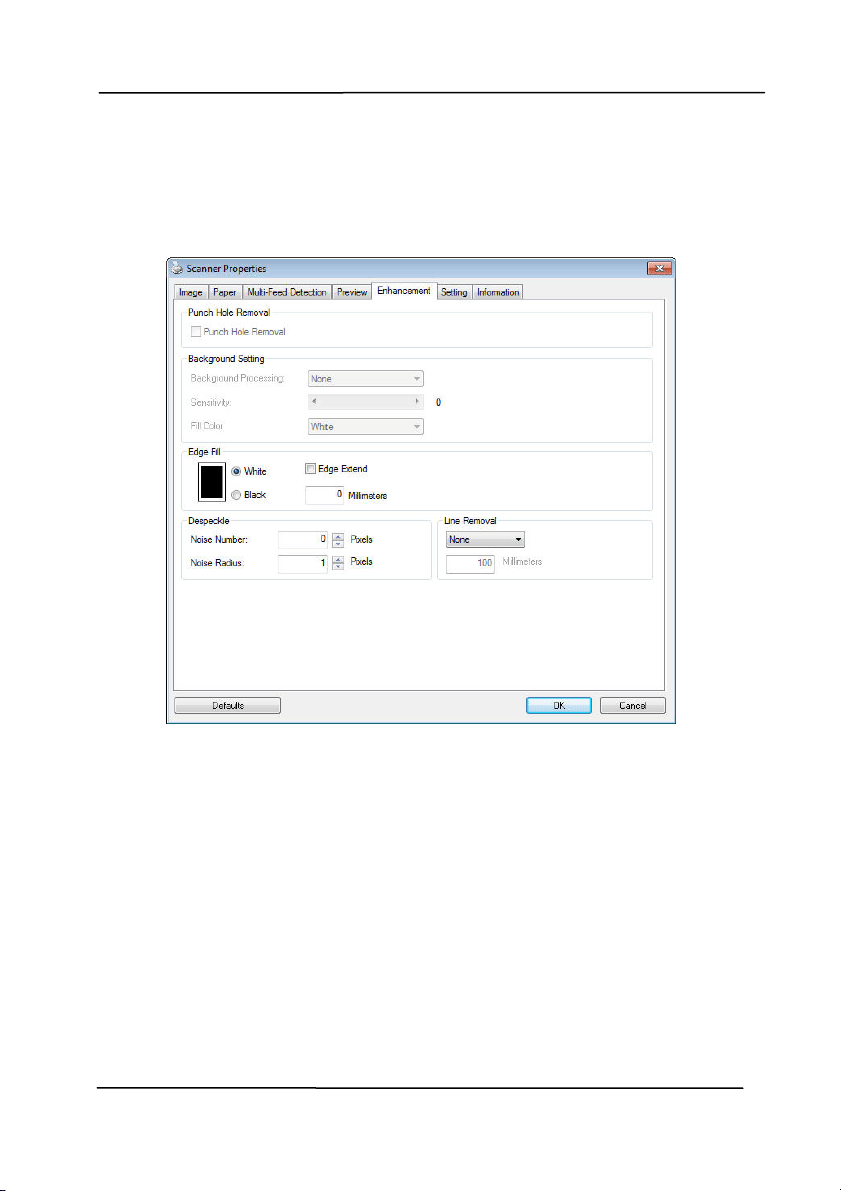
Use r’s Man ua l
4- 54
4 .9
The Enhance m ent Tab
The Enhancem ent t ab allows you t o set following addit ional
im age processing sett ings.
The Opt ion tab dialog box
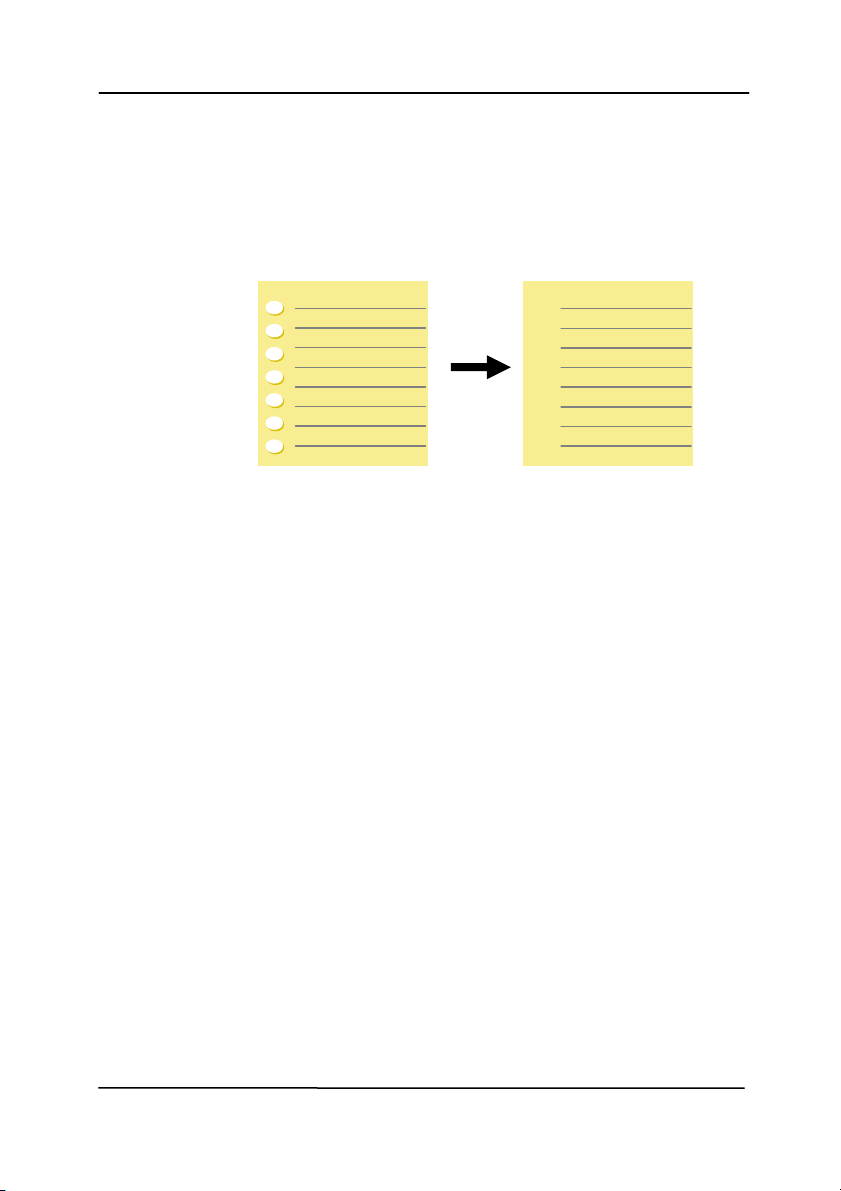
Use r’s Man ua l
4- 55
Punch
Hole
Rem ova l
You can rem ove punch holes from the output
scanned im age when scanning punched docum ent.
Note the availabilit y of this feat ure varies
depending on your scanner m odel.
Punch hole s ca n n ot be rem ove d w hen:
Resolution is set lower t han 150dpi
The hole is near t he edge of the docum ent
The holes are not aligned along t he edge of the
docum ent
Punch Hole Rem oval is available only when
“ Auto Crop” is enabled. I f eit her “ Fixed to
Transport” , “ EOP ( End of Page) Det ection”,
“ Autom at ic Mult iple” , “ Relative to Docum ents” is
selected from t he Cropping opt ion on the Paper
tab, t he Punch Hole Rem oval opt ion will be
disabled.
Original
Output im age
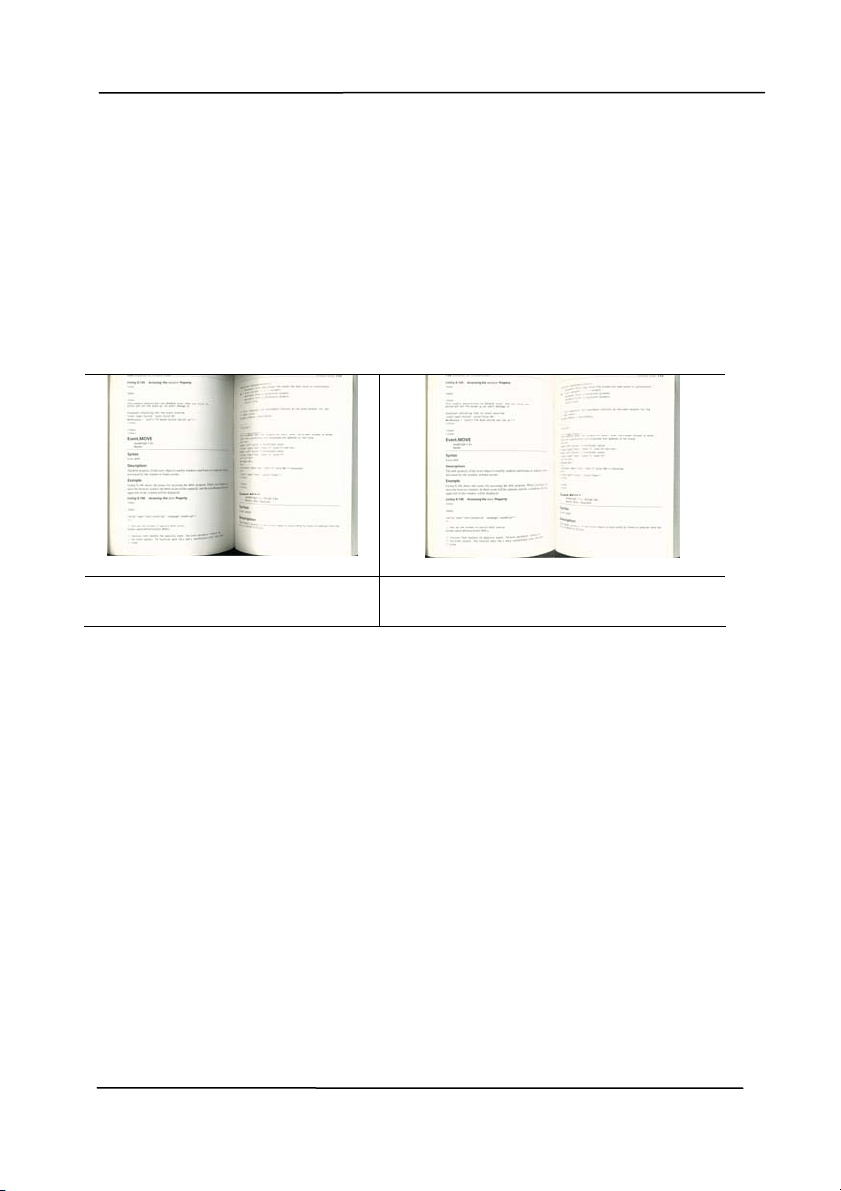
Use r’s Man ua l
4- 56
Sha dow Re m oval When 「Flatbed」on the 「Scan
Source 」 opt ion is select ed on the
「I m a ge」t ab, t he 「Shadow
Rem ova l」opt ion will be enabled. Click
to rem ove the shadow on t he book spine
when scanning a book.
Befor e Sha dow
Rem ova l
After Sh a dow Rem oval

Use r’s Man ua l
4- 57
Ba ck ground Pr ocessin g: The [ Ba ckground Pr oce ssing]
option allows you t o sm ooth background color or rem ove it to
m ake im age clearer. The opt ion is especially useful for
docum ents wit h color form s such as invoices.
Choices: None ( defa ult) , Sm ooth, Re m oval
- N one - no background processing will be perform ed
( default)
- Sm oot h - produces im ages wit h a m ore uniform
background color. This option im proves im age quality.
- Rem ova l - identifies the background color and then
rem oves it .
Se nsitivity: Choice: 0 , 1 , 2 , 3 , 4 . Default: 0
- The higher t he value, t he m ore background color will be
kept .
Mode: Aut o, M oiré
I f [ Sm ooth] is select ed in t he [ Ba ckground Processing]
option, t hen the choices for t he [ Mode] opt ion includes Auto,
and Moiré.
- Auto - uses the factory preprogram m ed mode t o proceed
background sm oothing.
- Moir é – Rem ove t he m oiré pat t erns that appear on the
background of the im age when scanning printed material.
I f [ Rem ova l] is select ed in t he [ Ba ckground Processing]
option, t hen the [ Mode] opt ion will be replaced wit h [ Fill
Color] . Choices: Whit e, Auto.
- W h it e - identifies the background color and subst it ut es it
wit h whit e.
- Auto - identifies the background color and subst it ut es it
wit h t he color of the largest background zone.
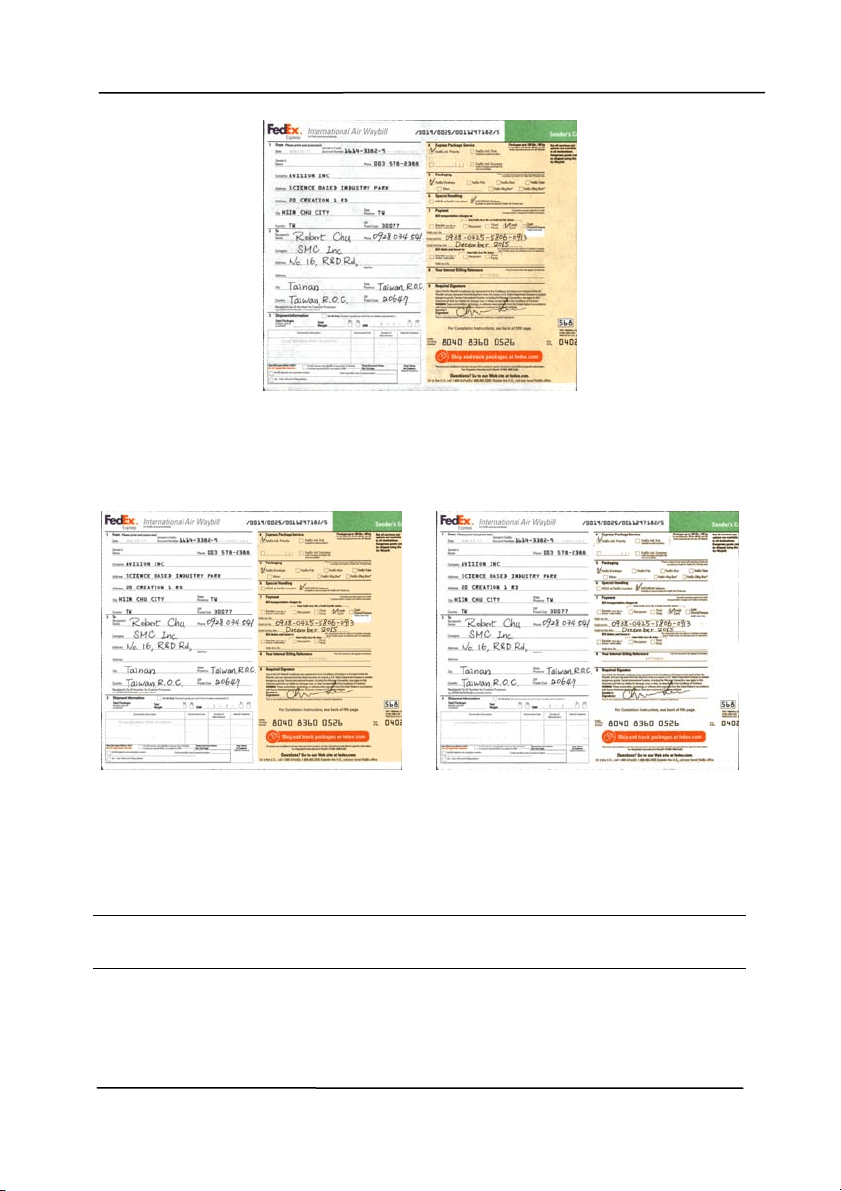
Use r’s Man ua l
4- 58
Ba ck ground Pr ocessin g: None
Ba ck ground Pr ocessin g:
Sm oot h
Ba ck ground Pr ocessin g:
Rem oval
Fill Color: Whit e
N ote: Background color in sm all zone will not be processed or
rem oved.
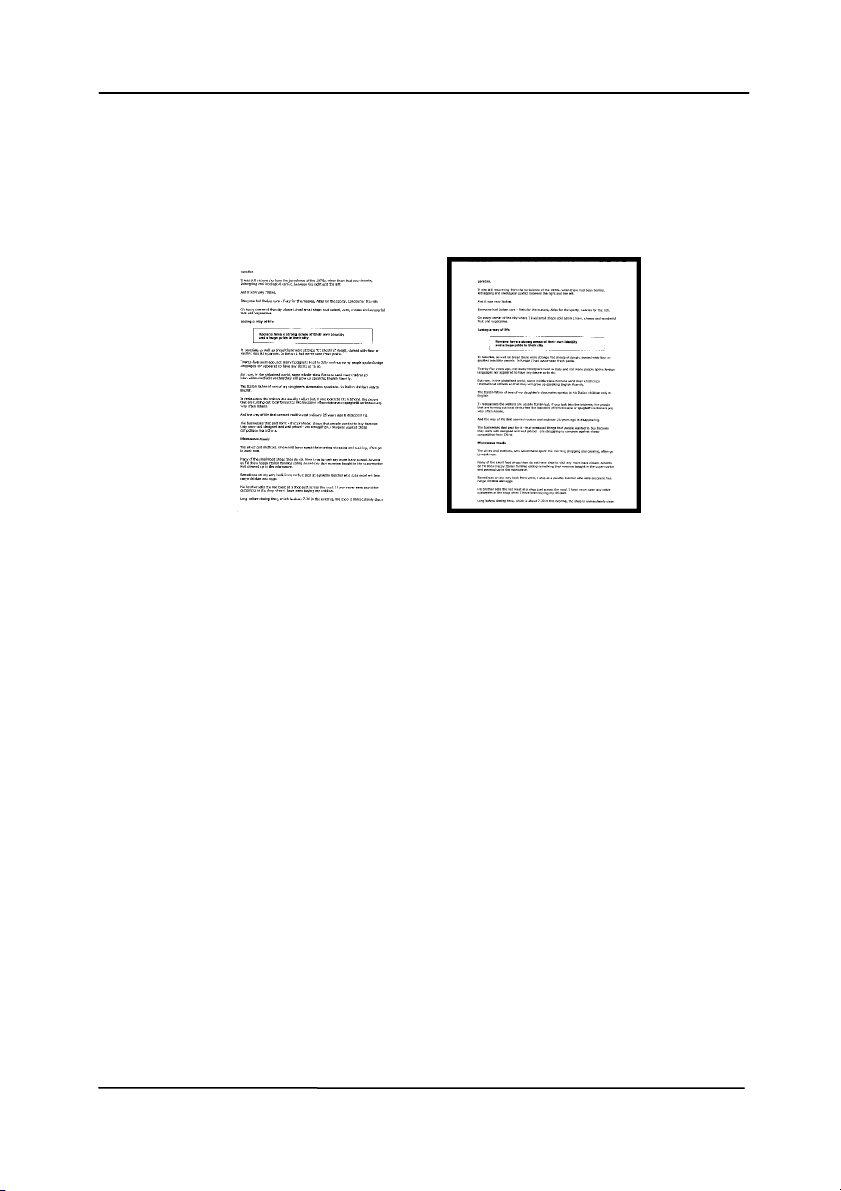
Use r’s Man ua l
4- 59
Edge
Fill
Check Whit e or Black if you wish to add w hit e or
black edge on the border of your scanned im age.
Enter t he value from 0 to 5 m m . Default value is 0.
Or iginal
Edge Fill: 5 m m ( Black )
I f you want t o add a whit e or black fram e on t he
edges of the scanned im age, check "Edge
Ext ension".
The default value is 0. The m axim um value is half of
the short side of t he selected scan area.
For exam ple, if you choose an A4 size (8.26
"X11.69"), then t he m axim um value of the whit e or
black box is 4.14" ( half of "8.26").
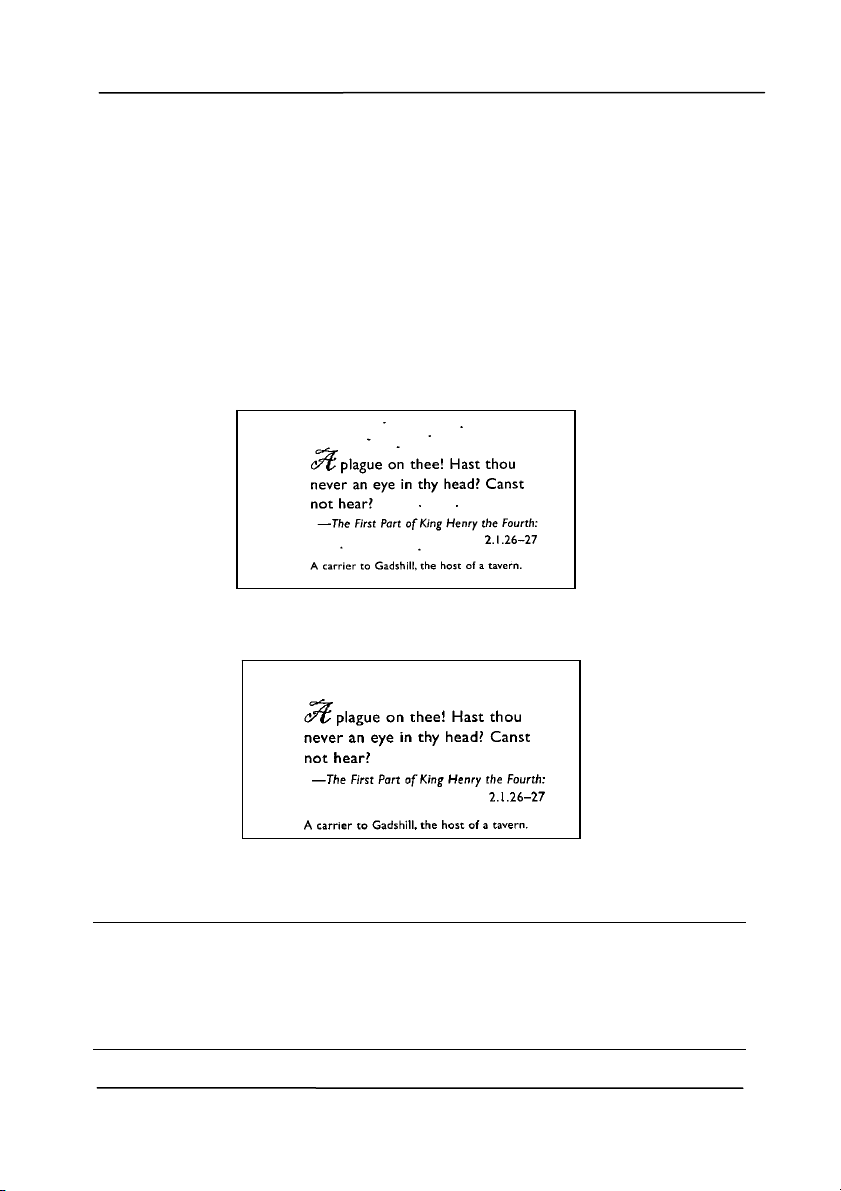
Use r’s Man ua l
4- 60
Despeckle
Occasionally sm all dot s or specks appear in t he background of
a scanned im age. Rem ove unwanted speckles provides a
cleaner im age for OCR (Opt ical Character Recognit ion)
processing, and also helps t o reduce com pressed file size.
Define t he speckles ( also known as im age noise) you wish to
rem ove by specifying it s num ber ( size) and radius ( range) . The
m easuring unit is pixel. The higher t he num ber, the m ore
speckles will be rem oved.
Before Despeckle
( noise num ber: 0, noise radius: 1)
After Despeckle
( noise num ber: 22, noise radius: 10)
N ote:
The funct ion is currently available for Black and Whit e
im age only.
To scan at rat ed speed, it is recom m ended t o set t he
noise radius up t o 10 pixels.
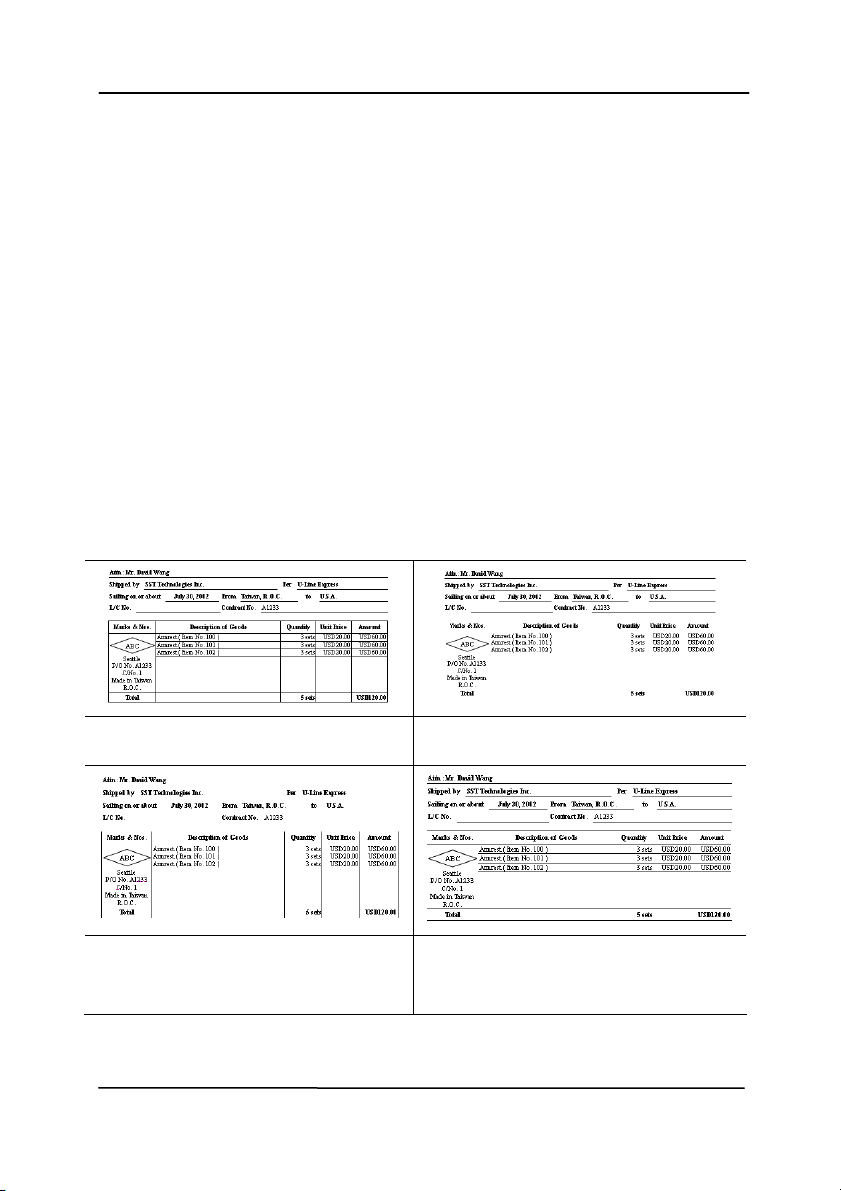
Use r’s Man ua l
4- 61
Line Rem oval: When Black and W hit e im age m ode is
selected on the [ I m a ge] tab, t he [ Line Re m oval] opt ion will
be enabled. Line Rem oval erases lines on the im age and then
reconst ruct s charact ers so t he OCR ( Optical Character
Recognit ion) accuracy can be im proved.
Choices: None, Form , Hor izontal, Vertica l
N one – t he default m ode which does not rem ove any line.
Form – rem ove any form in the docum ent.
Horizont al – select [ H or izontal] and t hen enter the lengt h of
horizont al line to rem ove only t he horizontal line exceeding
your specified length.
Vertica l – select [ Vert ica l] and then ent er t he length of
vertical line to rem ove only t he vert ical line exceeding your
specified lengt h.
N one Rem ove Form
Rem ove Horizon t al Line
( ove r 3 0 m m )
Rem ove Ve r t ica l Line
( ove r 7 0 m m )
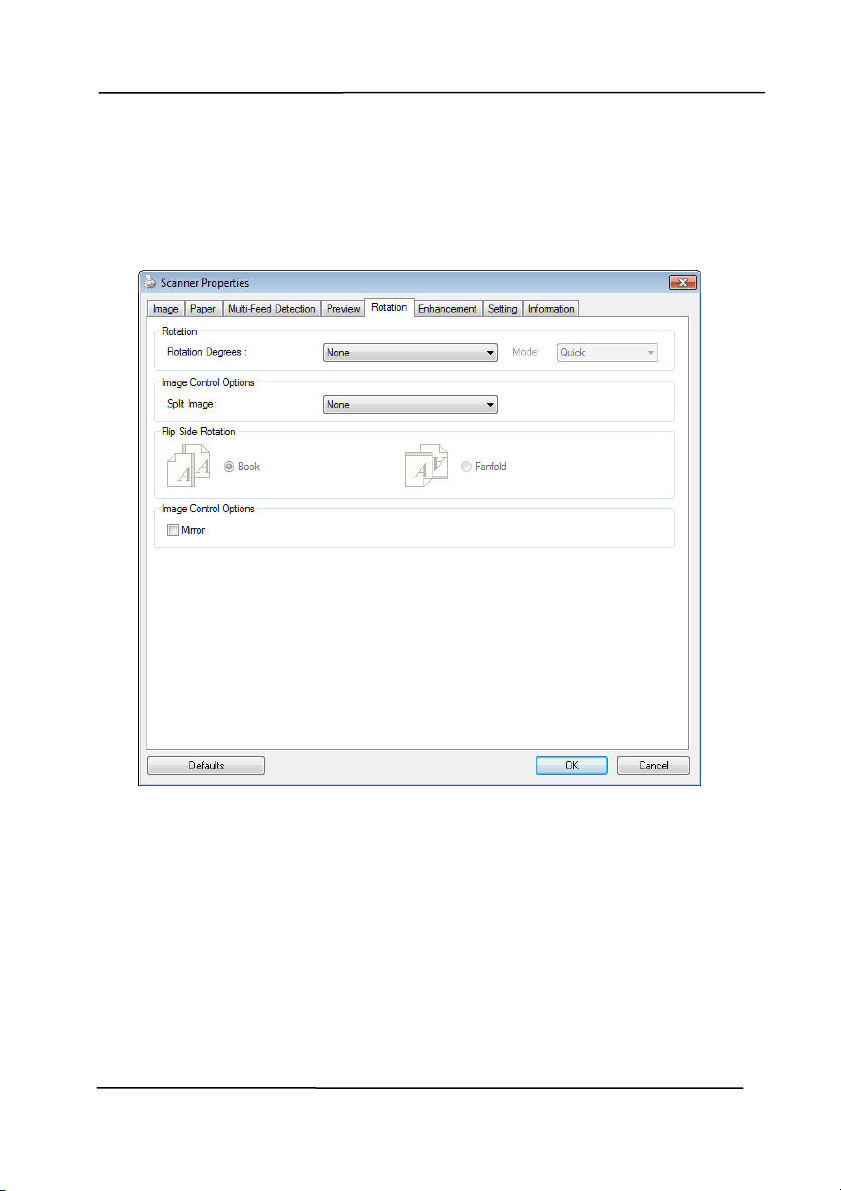
Use r’s Man ua l
4- 62
4 .1 0 The Rotat ion Ta b
The Rot at i
on t ab allows you to set t he following im age rotating
options:
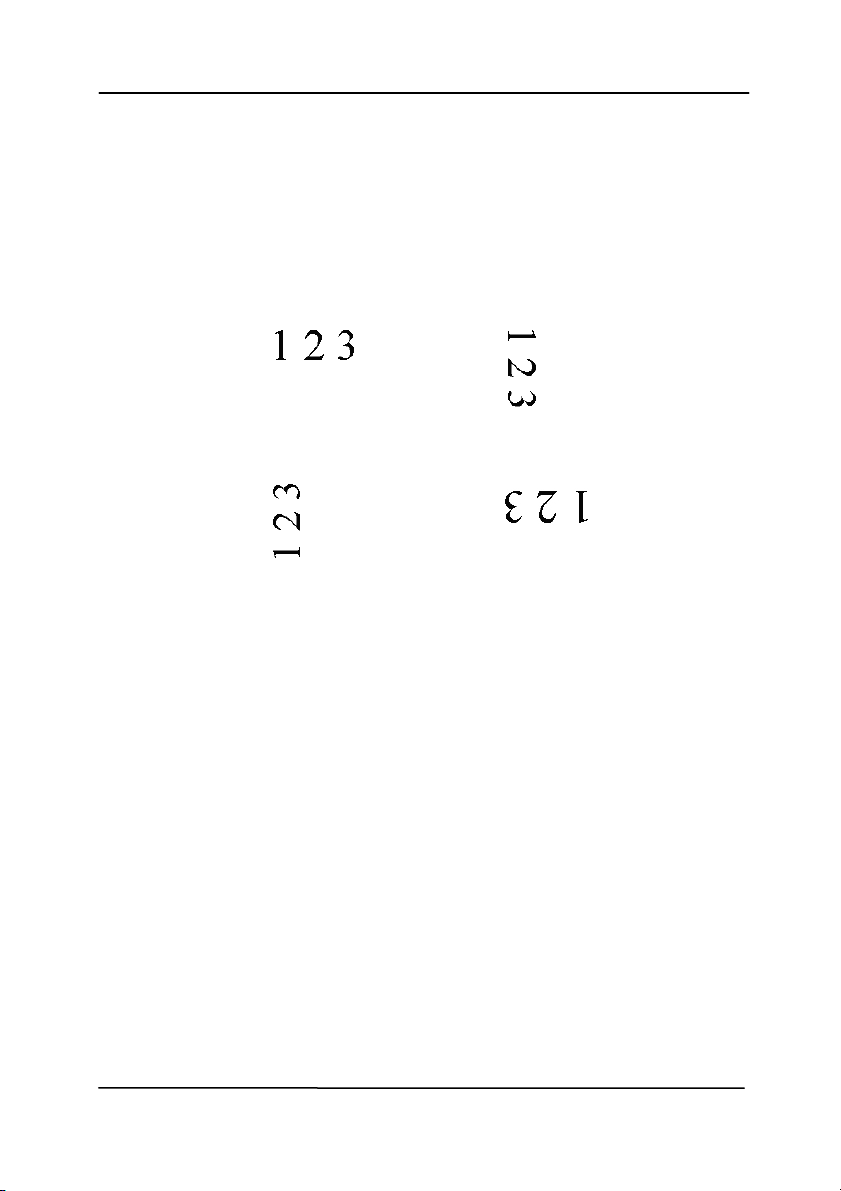
Use r’s Man ua l
4- 63
Rot at e
I m a ge
Choose the rotat ion angle from the drop down
list if you wish to rotat e your scanned im age.
Choice: N on e , 9 0 ° CW ( clockw ise) ,
9 0 ° CCW ( counter clock w ise ) , 1 8 0 ° , Aut o
based on content s. Aut o rot at e every
even page.
Or iginal
Rot at e 9 0 ° CW
Rot at e 9 0 ° CCW
Rot at e 1 8 0 °
Auto based on cont ents: Autom atically
rot at e im ages based on the cont ents of
docum ent. When
「Auto based on
con t ent s
」 is select ed, it s m odes will be
enabled t o let you select m ore opt ions.
Mode: Quick, Full Text, Com plexity
Quick – the default mode t o let you rot at e
im ages at the fast est speed.
Full Te x t – t he enhanced m ode for
docum ents wit h m ixed t ext orientat ion.
Com plex ity – t he enhanced m ode yet at the
slowest speed for docum ent wit h com plex
im age or t ext orientat ion.
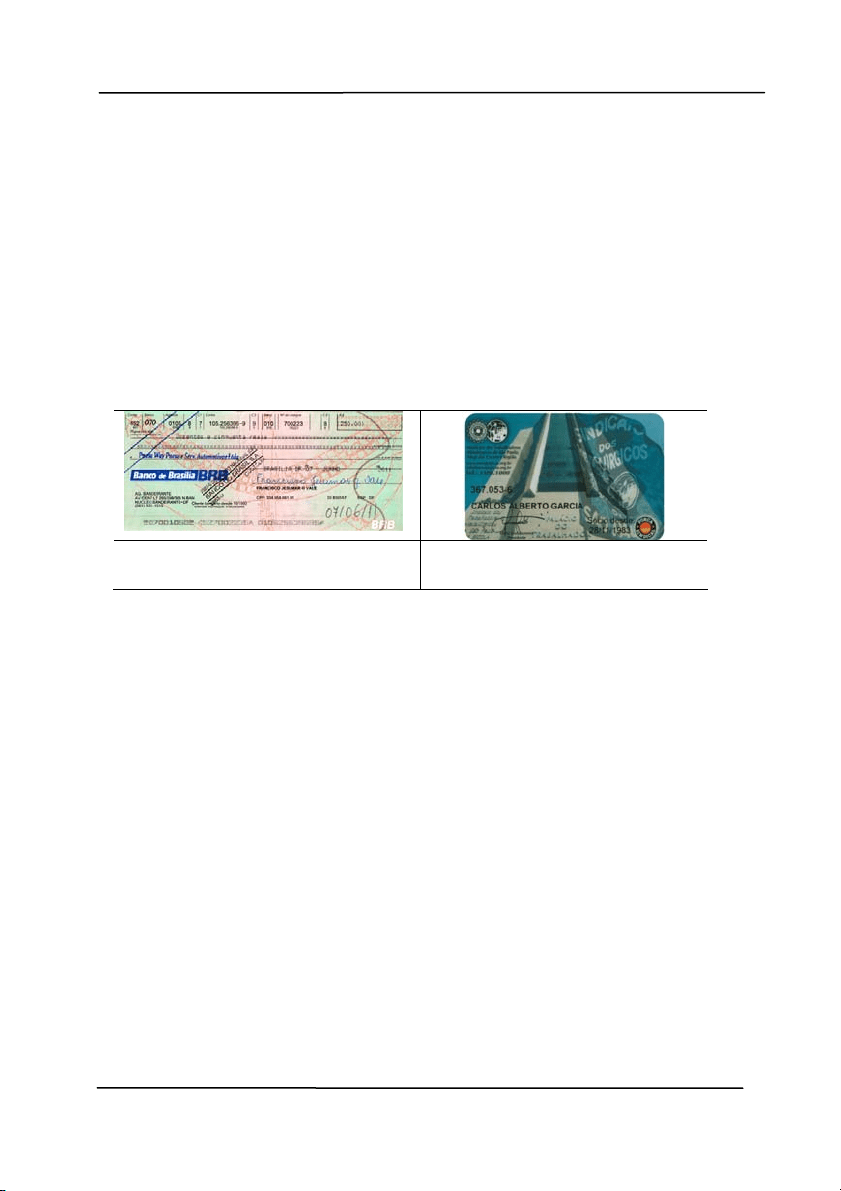
Use r’s Man ua l
4- 64
Auto r otat e every e ven page:
Autom at ically rot at e 180° on every even
page. This is especially useful when you scan
the inside pages from a book. As a result , if
you choose “Flat bed ( book)” from the “ Scan
Source” opt ion, “auto rot at e every even page”
will be select ed as default .
N ote: This opt ion varie s based on t ype of
sca nner.
Docum e n t w ith various
t e x t orienta t ions
Docum e n t w ith dark or
com ple x back ground
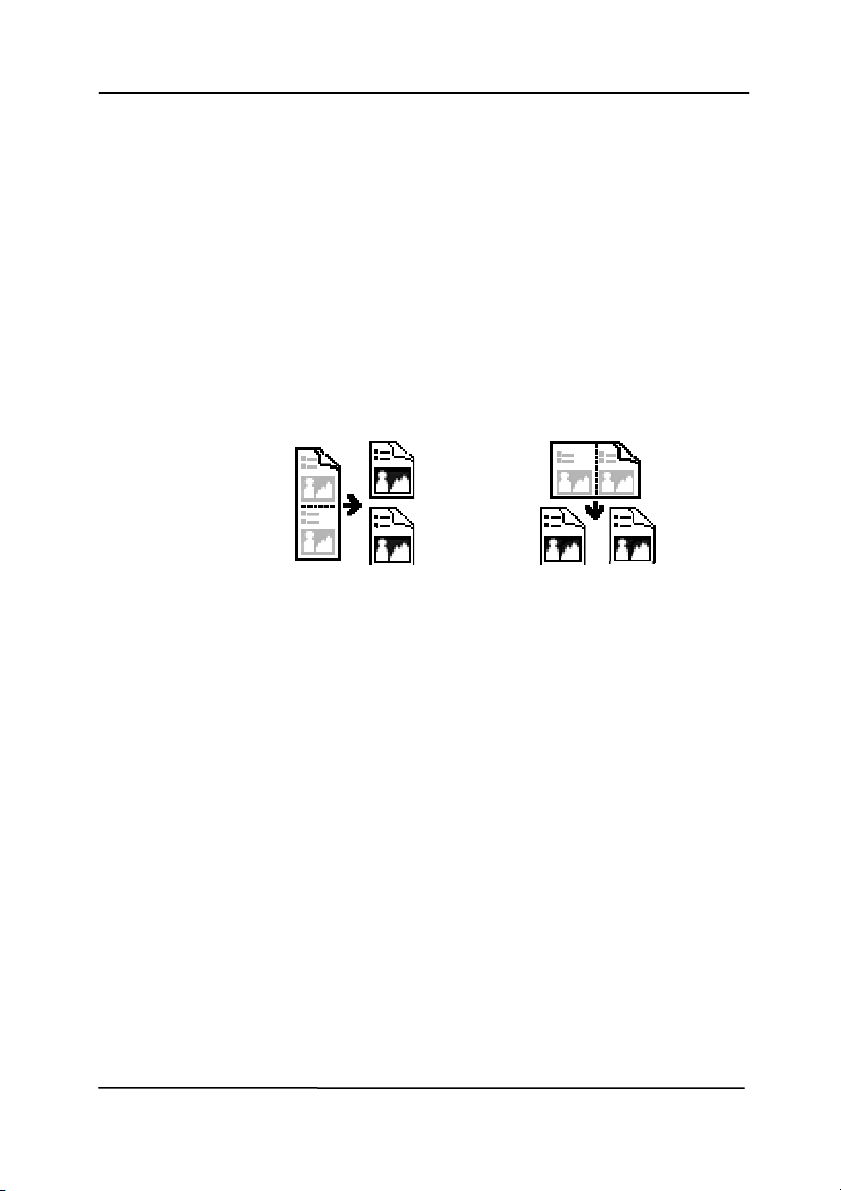
Use r’s Man ua l
4- 65
Split
I m a ge
By split t ing an im age, t wo separat e im ages are
creat ed horizontally or vert ically. This is useful
for docum ent s cont aining t wo pages per im age
when you want t o save them as t wo im ages
( one page for one im age) . Choice: N one ,
Horizont al, Vert ical. Default is None.
Horizont al: Divide one im age into the upper
half and t he lower half.
Vertica l: Divide one im age into t he left half and
the right half.
Split Horizontally
Split Vertical
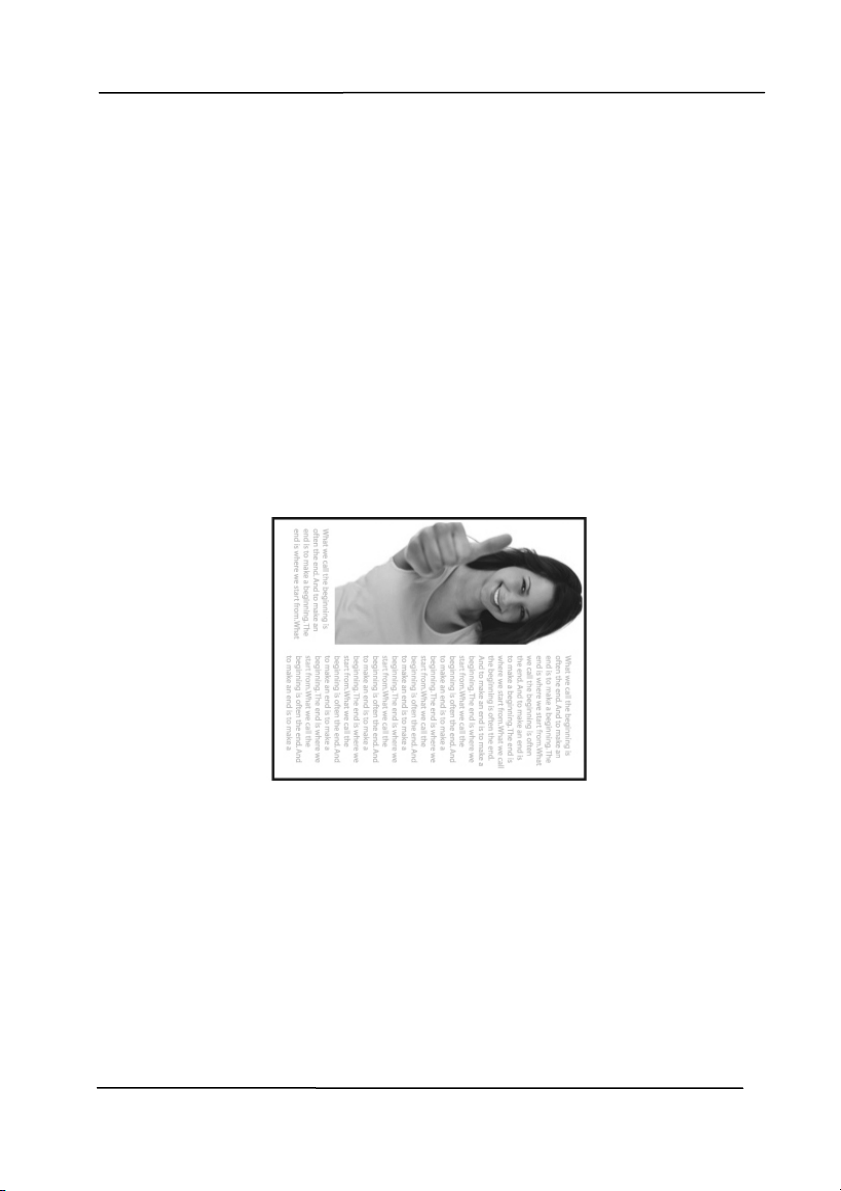
Use r’s Man ua l
4- 66
Flip Side
Rot at ion
Select “ fanfold” to rot at e t he im age of the
reverse side t o 180 degrees.
This is applied to double- sided docum ent
which are viewed in portrait are som et im e
fed int o the scanner in landscape or vice
versa.
Choice: Book, Fa nfold.
I f “Book” is select ed, t he im age of the
reverse side will not be rot at ed.
The following illust rat ion shows t he docum ents which should
be viewed in port rait are fed into the scanner in landscape
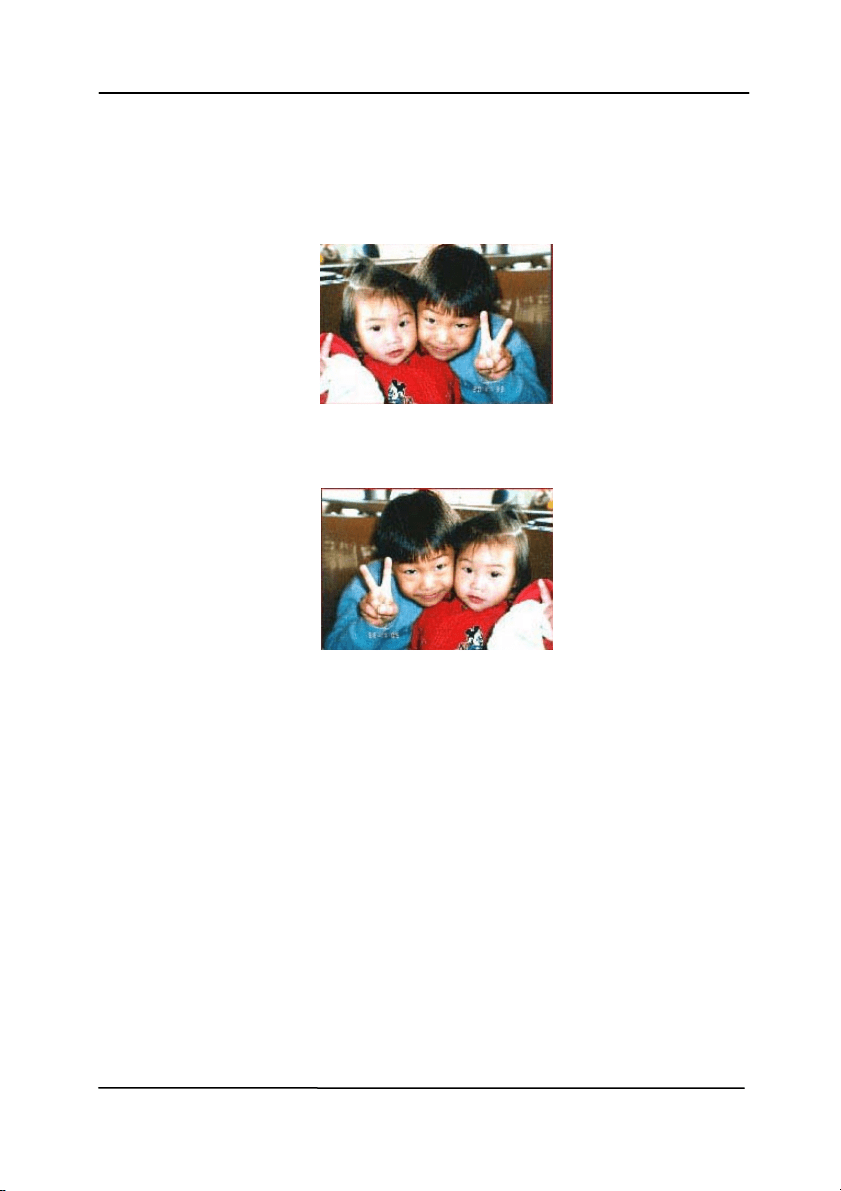
Use r’s Man ua l
4- 67
I m a ge
Cont rol
Option
Check the Mirror box if you wish t o reverse t he right
and left side of your im age.
Or iginal
The M irror Effect
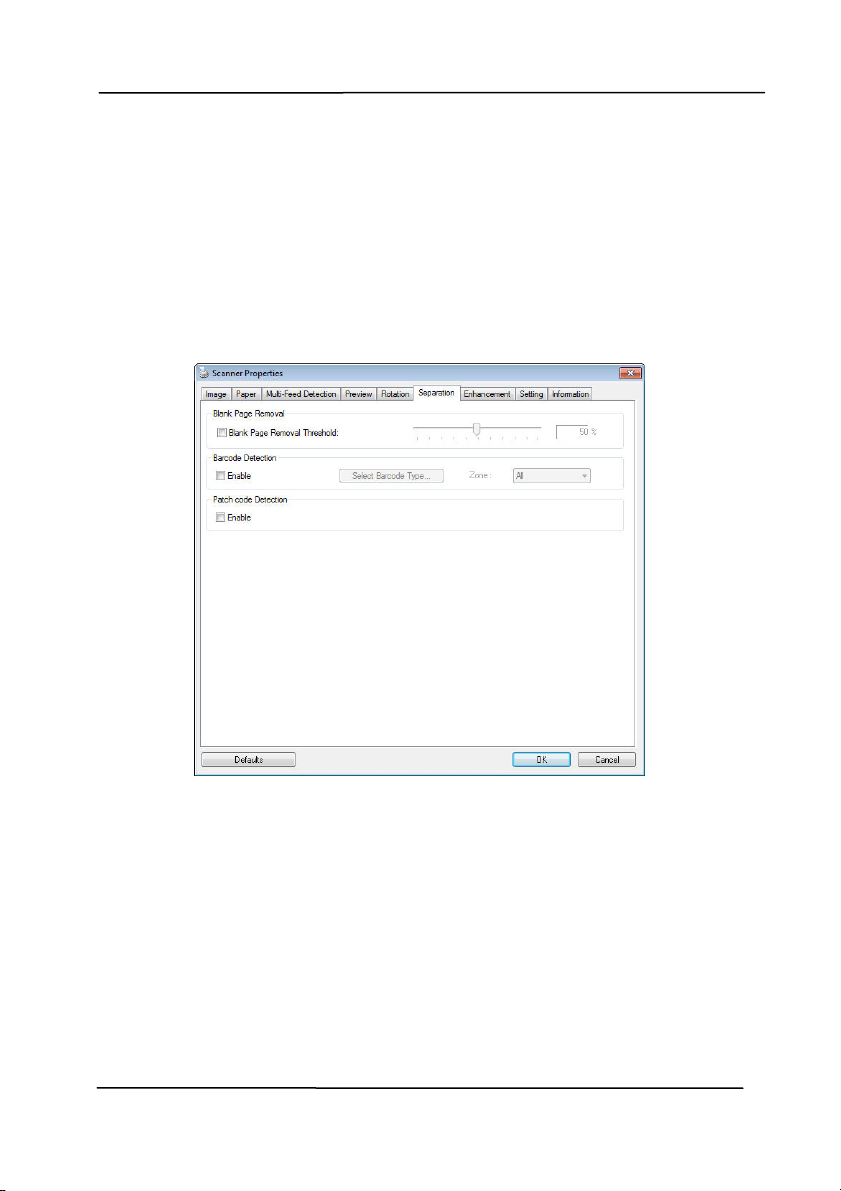
Use r’s Man ua l
4- 68
4 .1 1 The Se paration Tab
The Separation t ab allows you to enable the det ect ion engine to
det ect the blank page, barcode, and pat ch code and then notify
t
he software applicat ion which supports docum ent separat ion t o
separat e your m ult i- page docum ent s. Choices: Blank Page
Rem oval, Barcode Detect ion, Patch Code Detect ion.
Bla nk Pa ge
Rem ova l
Choices: None, Blank Page Rem oval Threshold,
I m age Size.
N one – Do not rem ove the blank pages.
Thresh old - Move the slider to the left or right
to define your threshold for t he blank page.
I m a ge Size – Range: 1~ 10000 KB. Specify
your desired im age size to det ect the page as a
blank page. For exam ple, if 3 KB is select ed,
any page less than 3 KB will be recognized as
blank page.

Use r’s Man ua l
4- 69
Ba r code
Det e ction
Check [ En a ble] t o det ect barcode and notify
the soft ware applicat ion for advanced
processing. Please not e the whole document
will be checked and no specific det ect ion area
needs to be designat ed.
When the bar code has been detect ed successfully,a file
[ avbarcode.ini] will be creat ed and st ored in t he following pat h:
Windows XP:
C: \ Docum ents and Sett ings\ All Users\ Applicat ion
Dat a\ % PRODUCTNAME%
Vist a, Windows 7, Windows 8, Windows 10:
C: \ Program Data\ % PRODUCTNAME%
Ba r code Types:
The following barcode types can be detect ed.
Tw o- dim ensiona l code s
Azt ec
Dat aMat rix
PDF417
QR Code
One- dim e nsional barcodes:
Add- 2
Add- 5
Airline 2 of 5
Aust ralian Post 4-St at e Code
BCD Mat rix
Codabar
Code 128 (A,B,C)
Code 2 of 5
Code 32
Code 39
Code 39 Ext ended
Code 93
Code 93 Ext ended
Dat aLogic 2 of 5

Use r’s Man ua l
4- 70
EAN 128 ( GS1, UCC)
EAN- 13
EAN- 8
GS1 Dat aBar
I ndust rial 2 of 5
I ntelligent Mail ( One Code)
I nterleaved 2 of 5
I nvert ed 2 of 5
I TF-14 / SCC- 14
Matrix 2 of 5
Pat ch Codes
Post Net
Royal Mail ( RM4SCC)
UCC 128
UPC-A
UPC-E
N ote:
Recom m ended resolut ion: 200~ 600 dpi for regular
barcode, 300~ 600 dpi for QR code
Skewed barcodes m ay not be recognized correct ly.
Using the sam e sheet repeat edly m ay decrease the
recognit ion accuracy due to accum ulated dirt on the sheets.
I f the sheet is not recognized correct ly or get s sm udged,
replace it with a new sheet .
Ba r code Zone:
Specify the barcode zone t o be det ect ed.
Select 「All」 to checks the whole docum ent and det ects
barcodes. Or you m ay speed up the process by specifying a
det ect ion area since only t he specified area is checked.
Choice: All, Top, Bott om , Left, Right, Bot t om Right,
Bott om Left, Top Right , Top Left
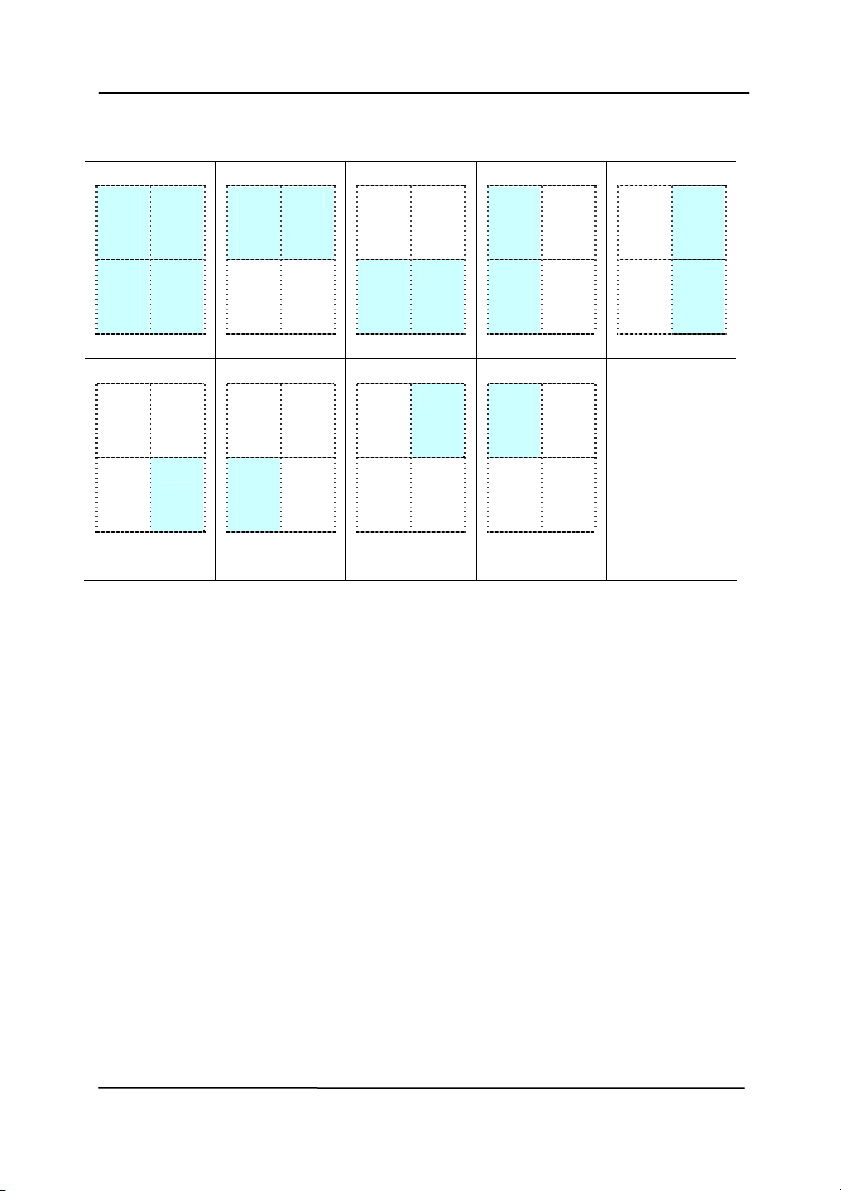
Use r’s Man ua l
4- 71
Choice for barcode zone on a page :
All
Top
Bott om
Left
Right
Bott om
Right
Bott om
Left
Top Right
Top Le ft
Pat ch code D e t ect ion:
Check [ En a ble] t o det ect pat ch codes and notify t he soft ware
applicat ion for advanced processing.
A pat ch code is a patt ern of parallel, alt ernating black bars and
spaces (i.e. a barcode) that is print ed on a docum ent . Patch
code sheet is most com m only used as a docum ent separat or in
a st ack of docum ent.
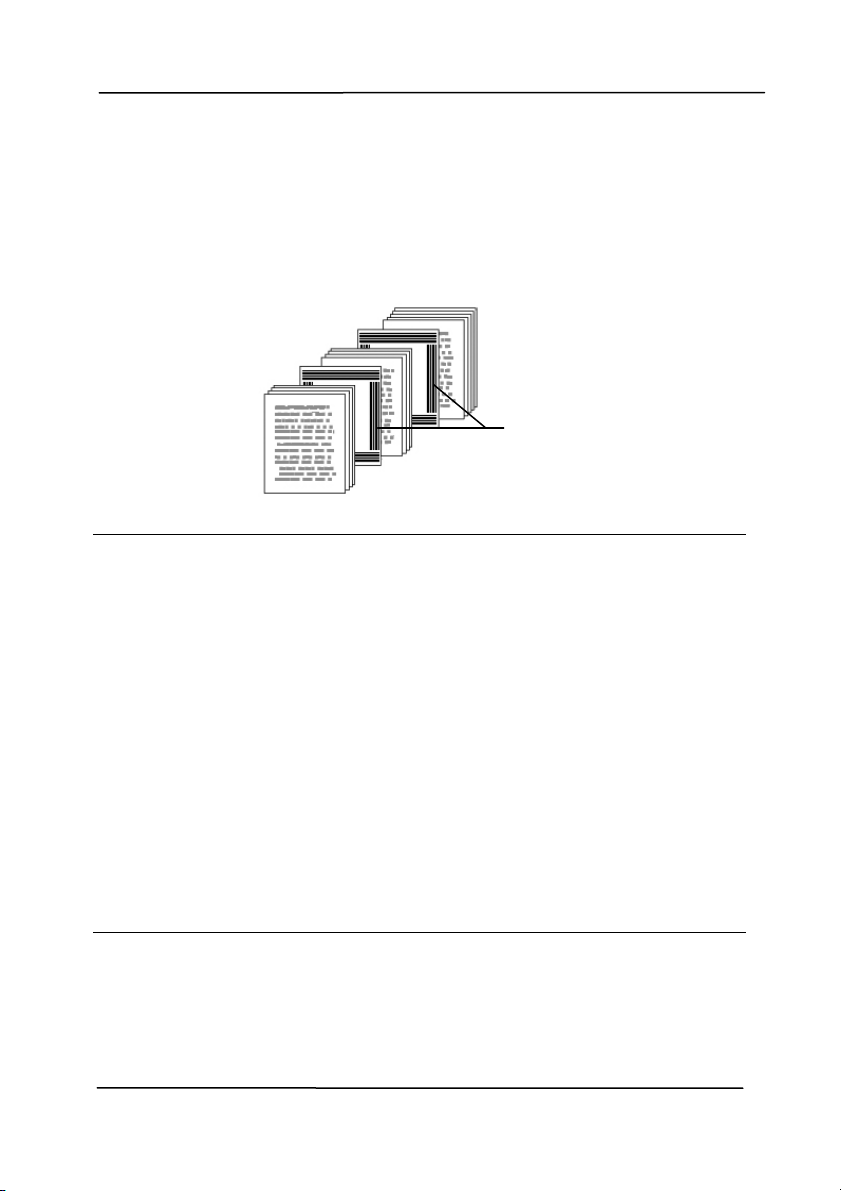
Use r’s Man ua l
4- 72
You can find various sizes of pat ch codes (PDF) by choosing
[ St a r t] m enu> [ All Program s] > [ Avision Scanner
Se r ies] > [ Patch code ] in succession.
Sim ply print t he PDF file to produce t he patch code sheet.
I nsert the pat ch code sheet s to wherever you want t he file to
separat e.
N otes t o print the patch code s:
Use blank whit e paper.
Set the scaling to 100% . The sheet is not recognized
correct ly when printed in a size sm aller than the original.
Do not use t oner saving m ode. The sheet is not recognized
correct ly when t he print is too light.
Do not use t hin paper in order t o avoid bleed- t hrough from
the back.
When you copy a pat ch code sheet that you printed out,
m ake sure t o copy by t he sam e size and bright ness as the
original copy.
Use the sam e sheet repeat edly m ay decrease the
recognit ion accuracy due to accum ulated dirt on the sheets.
I f the sheet is not recognized correct ly or get s sm udged,
replace it with a new sheet .
Pat ch code sheet
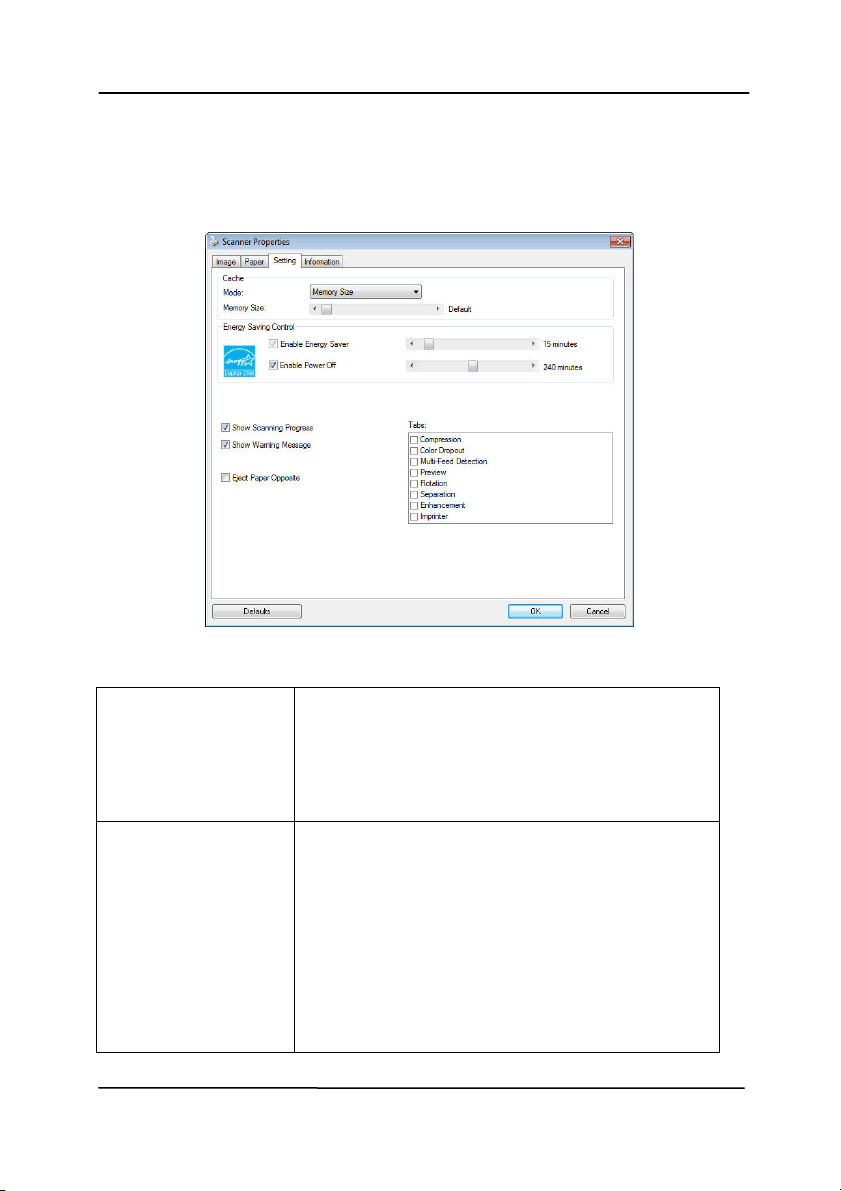
Use r’s Man ua l
4- 73
4 .1 2 The Se tt ing Tab
The Sett i
ng tab allows you to set the following set tings:
The Set t ing ta b dialog box
Energy Saving
Cont rol
Check t he Enable En e r gy Sa ver box
and m ove the slider t o set t he am ount
of t im e to st art t he energy saver aft er
your last action. The range is from 1 to
60 m inutes.
Ena ble Pow er
Off
Check t he Enable Pow er Off box and
m ove the slider to set the am ount of
tim e to aut om at ically t urn off t he
scanner aft er your last action. The
range is from 1 to 480 m inut es. The
default is 240 m inutes ( 4 hours). Note
the value of “ Power Off” has to be
greater t han or equal t o t he value of
“ Energy Saving”.

Use r’s Man ua l
4- 74
Cache
Mode: None, Pa ge N um ber, M em ory
Size.
This opt ion allows you to assign a specified
m em ory size from the available RAM to
process the im age dat a. By specifying a
sm aller m em ory size, you can free more
m em ory for ot her applicat ions you are
running. By specifying a larger m em ory
size, you can have m ore m em ory t o
process the im age dat a especially when you
have a large am ount of docum ents needed
to be scanned.
You can also specify your m em ory size by
the page num ber. For your inform at ion, an
A4 color docum ent scanning at 300 dpi
consumes approxim at es 24MB.
I m a ge Count
When the select ed cache m ode is “ none” ,
the im age count opt ion allows you to assign
num ber of pages you need to scan. For
exam ple, if you wish to scan t he first t wo
pages, sim ply m ove t he page slider to 2,
and t he scan action will be st opped when
the scanning of t he first two pages have
been com pleted.

Use r’s Man ua l
4- 75
Show Scanning
Progress
Check and t he scanning progress bar
will be shown during scanning.
Show W arning
Message
Check to show t he warning m essages
such as “ADF pad count exceeds
50,000 scans (the num ber varies based
on t ype of scanner). Please replace t he
ADF pad and reset t he pad count.”
Sa ve Set t ings
after Closing
Check to save your scanner propert ies
sett ings aft er leaving the dialog box.
Next t im e when you open the Scanner
Propert ies dialog box, the previously
saved set t ings will be shown.
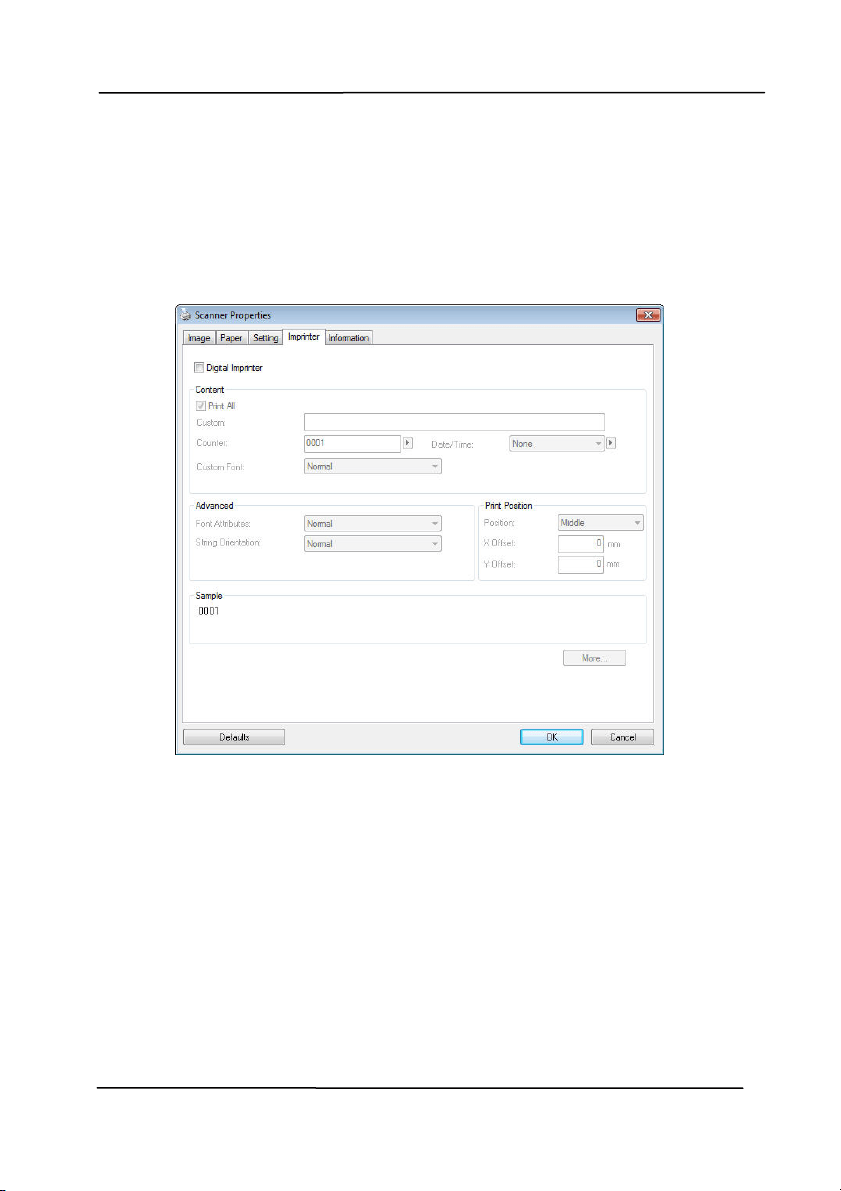
Use r’s Man ua l
4- 76
4 .1 3 The I m printer Tab
The I m pri
nt er t ab allows you t o print alphanum eric characters,
date, t im e, docum ent count and cust om m essage on your
scanned im age if digit al im printer is select ed or at the back of
your docum ent if ext ernal im printer is selected.
Choice: Ex t ernal I m print e r, Digit a l I m printer . I f you have
inst alled an ext ernal im printer, choose ext ernal im printer. I f
you do not have an im print er, choose digit al im print er. Not e
Ext ernal I m printer provides a vert ical and rear- side print
capability w hile digit al printer provides a horizontal and front-
side print capabilit y.
Use r’s Man ua l
4- 77
Cont ents
Print All Check Prin t All to autom atically print t he
text at all pages of your docum ents.
Uncheck Print All t o print t he t ext for t he
first page of your docum ent s only.
Cust om Enter your cust om text t o be included in your
print st ring.
Count er Show t he docum ent count for t he scan
session. This value is increased sequentially
by t he scanner.
Dat e/ Tim e Choose if you wish to include the dat e and
tim e in your print st ring.
Form at : YYYYMMDDHHSS For exam ple,
20090402170645- check0001 indicates year,
m ont h, dat e, hour, seconds, your cust om
text and the counter.
Cust om
Font
Choose your desired font.
Choice: N or m al, Fix e d W idth
Fix ed W idth ( Mono spaced) fonts have a
fixed charact er spacing. So each charact er
occupies the sam e widt h.
Adva nce d
Font
Att ributes
Choose your font att ributes. Choice:
N orm a l, Underline , Double, and Bold.
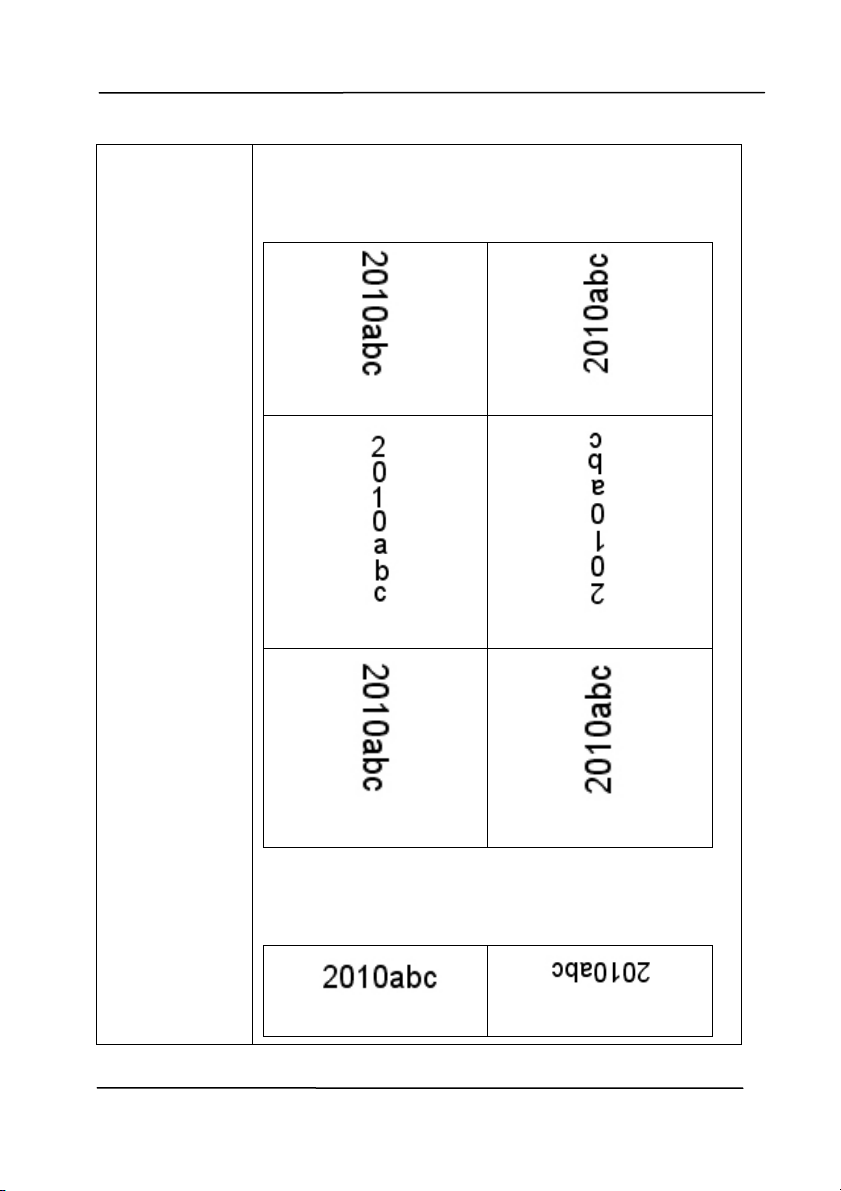
Use r’s Man ua l
4- 78
St ring
Or ie ntat ion
Choose your st ring orientat ion.
Choice: N or m al, Rot at ed, Vert ical,
Vertica l I nversion , 9 0 degrees CW , 9 0
degr e e s CCW
N orm a l
Rot at ed
Vertica l
Vertica l I nversion
9 0 degrees CW
9 0 degrees CCW
I f you check t he digit al im printer t o st am p
text on your scanned im age, t he illust rat ion of
norm al and rot at ed string is shown below:
N orm a l
Rot at ed
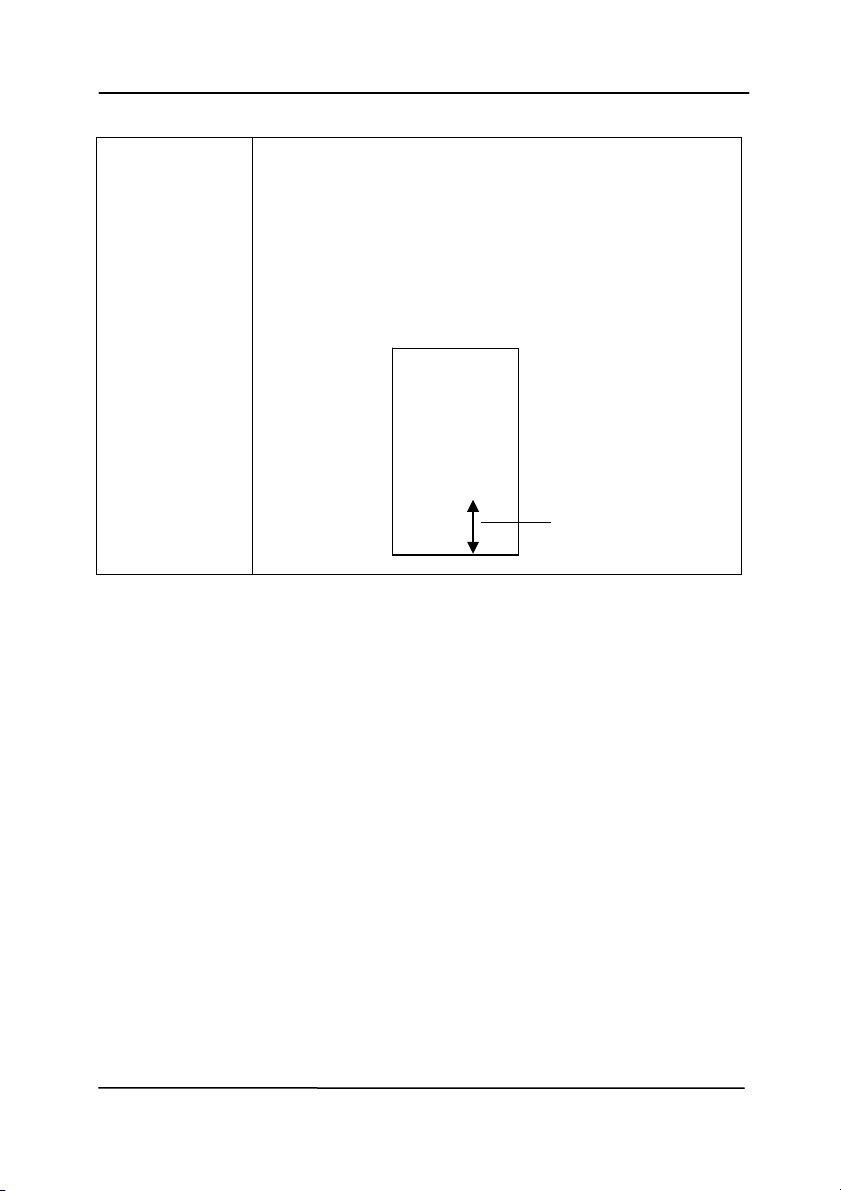
Use r’s Man ua l
4- 79
Print
Posit ion
Choose the position you wish to print your
st ring. Move the slider t o t he right t o increase
the value or t o the left t o decrease t he value.
Range: 0~ 355m m , default: 0 m m
The value indicates the height from the
bott om of your paper t o t he last let t er of your
st ring. This opt ion is available only if an
ext ernal im printer is inst alled.
Print Position ( for digit a l im pr inter )
Choose the posit ion of your print ed st ring. Choice: Top,
Middle , Bott om , Cust om . I f Cust om is selected, enter t he X
and Y offset value t o specify the posit ion.
More: Click t he [ More] butt on to display m ore font opt ions.
This opt ion is available for digit al im printer ( st am p text on your
scanned im age) only. This funct ion is not available on som e
m odels.
Font size: Move the slider to change the font size from 1 t o
10. D ensit y: Move the slider to change the source densit y from
0 to 255. The select ed density will appear at t he sam e tim e.
Tra n sparency: Move the slider to choose an appropriat e
transparency value from 0% ( not transparent) t o 100%
( com plet ely t ransparent) so t hat your text can be partially
transparent and you can see the background im age.
T
he value o
f
Print Posit ion
000z1abc 2010
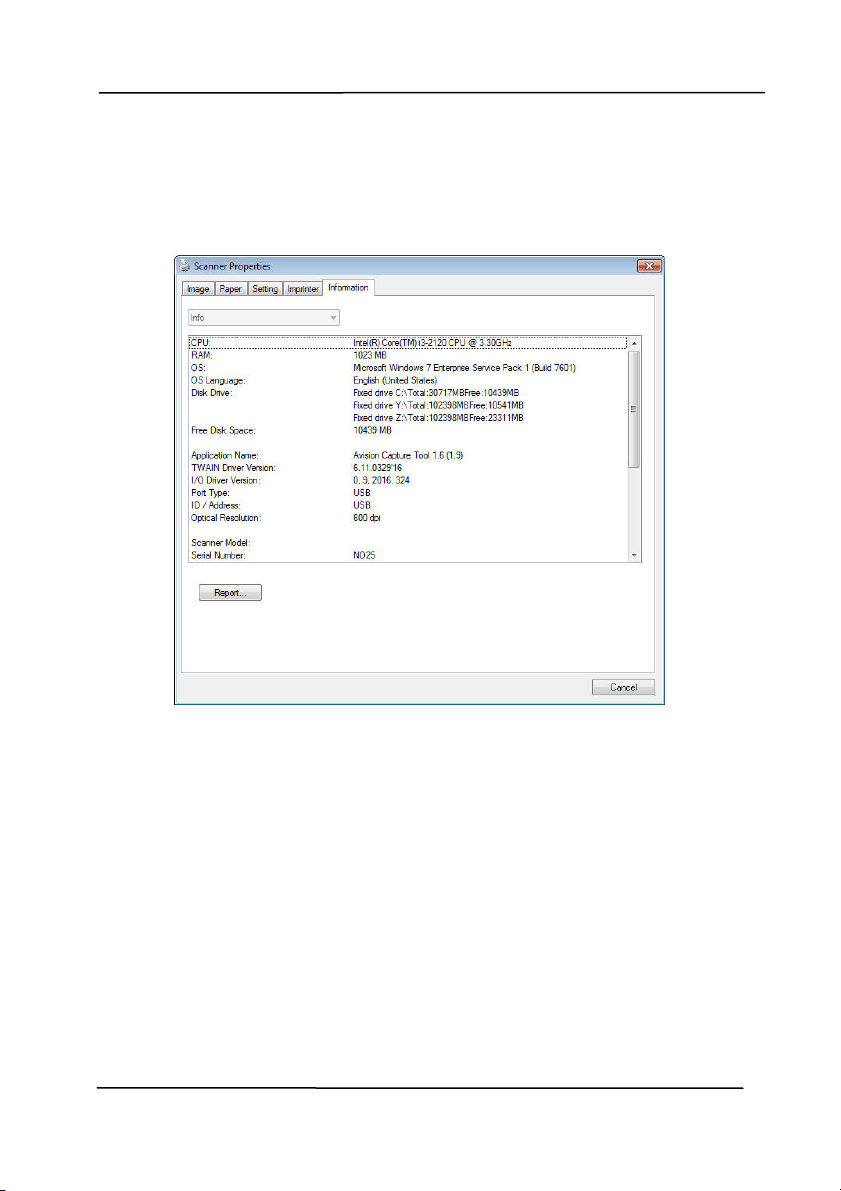
Use r’s Man ua l
4- 80
4 .1 4 The I nform at ion Tab
The I nform at ion t ab displays the following syst em and scanner
in
form ation.
The I nform a t ion t ab dia log box
The “Report ” butt on
:
I f you encounter any error m essage while using the scanner,
click t he Report butt on. A report.txt file [
Windows XP:
C: \ Docum ents and Set tings\ All Users\ Applicat ion
Dat a\ % PRODUCTNAME% ;
Vist a, Windows 7, Windows 8,
Windows 10:
C: \ Program Dat a\ % PRODUCTNAME% (C: syst em
drive) ] will be generat ed. Please send this file t o the nearest
service cent er for t rouble shooting.
xxx

Use r’s Man ua l
4- 81
The “Reset Rolle r Cou nt ” butt on:
After scanning over a recom m ended number of pages ( refer to
subsequent sect ion 7.4 Replacing t he ADF Roller) t hrough t he
ADF, the ADF roller m ay be worn out and you m ay experience
problem s with docum ent feeding. I n t his case, it is highly
recom m ended t o replace the ADF roller with a new one. ( Note
the replacem ent of the ADF roller has to be perform ed only by
authorized service center. Therefore, please ret urn your
scanner for roller replacem ent.) Aft er replacing t he ADF roller,
click t he “Rese t Roller Count” but ton to reset the roller count.
N ote:The lifet im e and the replacing procedure vary based on
type of scanner.
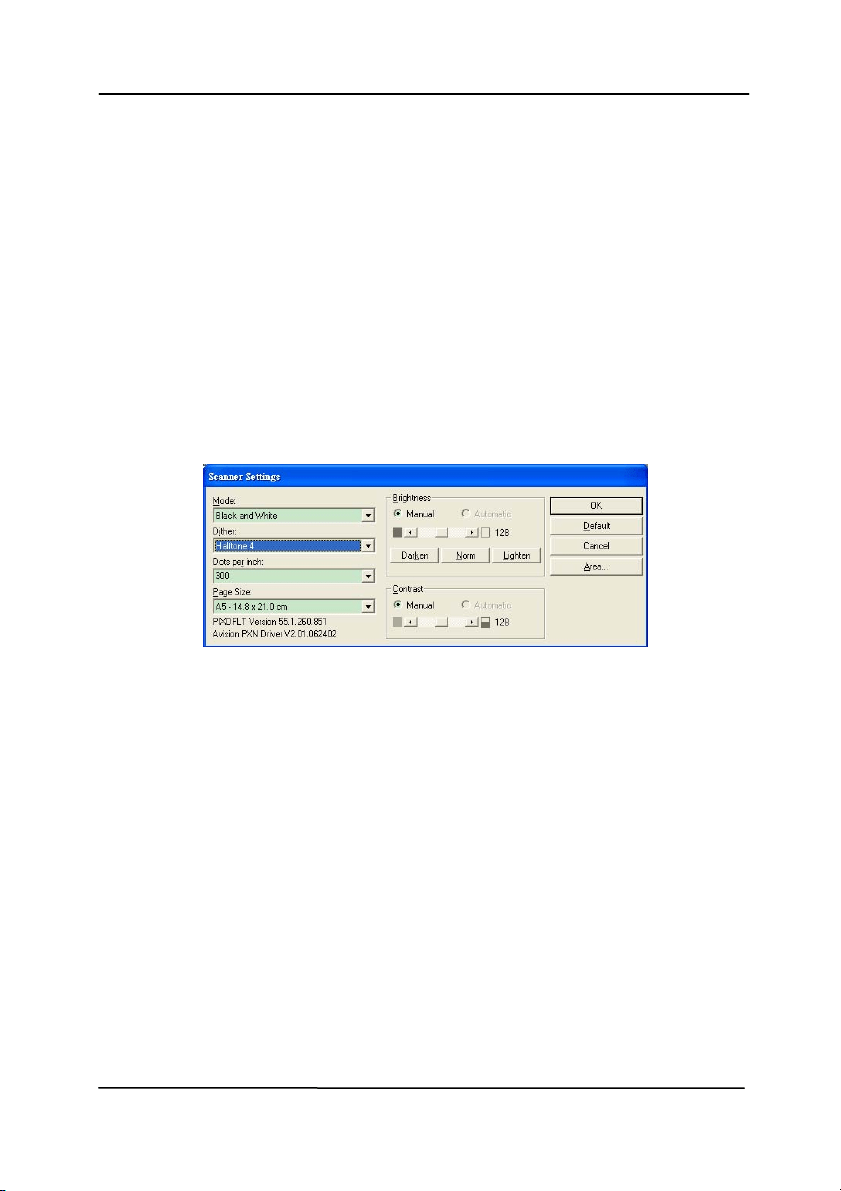
Use r’s Man ua l
5- 1
5 . I SI S I nterface Operat ion
* Please refer to t he preceding chapt er, Scanner I nst allation, to
inst all I SI S scanner driver. You m ay st art the supplied
QuickScan soft ware applicat ion to scan via t he I SI S user
interface.
The I SI S driver operation m et hod is sim ilar t o the TWAI N’s.
Every funct ion on the I SI S int erface screen is briefly described
as below:
Mode: Select one of scan m odes, including B&W, gray, color
options.
Dit her: 5 halft one levels available, can be disabled.
Dot s per in ch : Select your desired resolution.
Paper Size : Select your desired paper size.
Brightness: Adj ust your scan im age brightness or darkness.
Cont rast : Adj ust the range bet ween the darkest and the lightest
shades in the im age.
Default : Click t o reset all set tings.
Area: Select your desired scan area or posit ion.
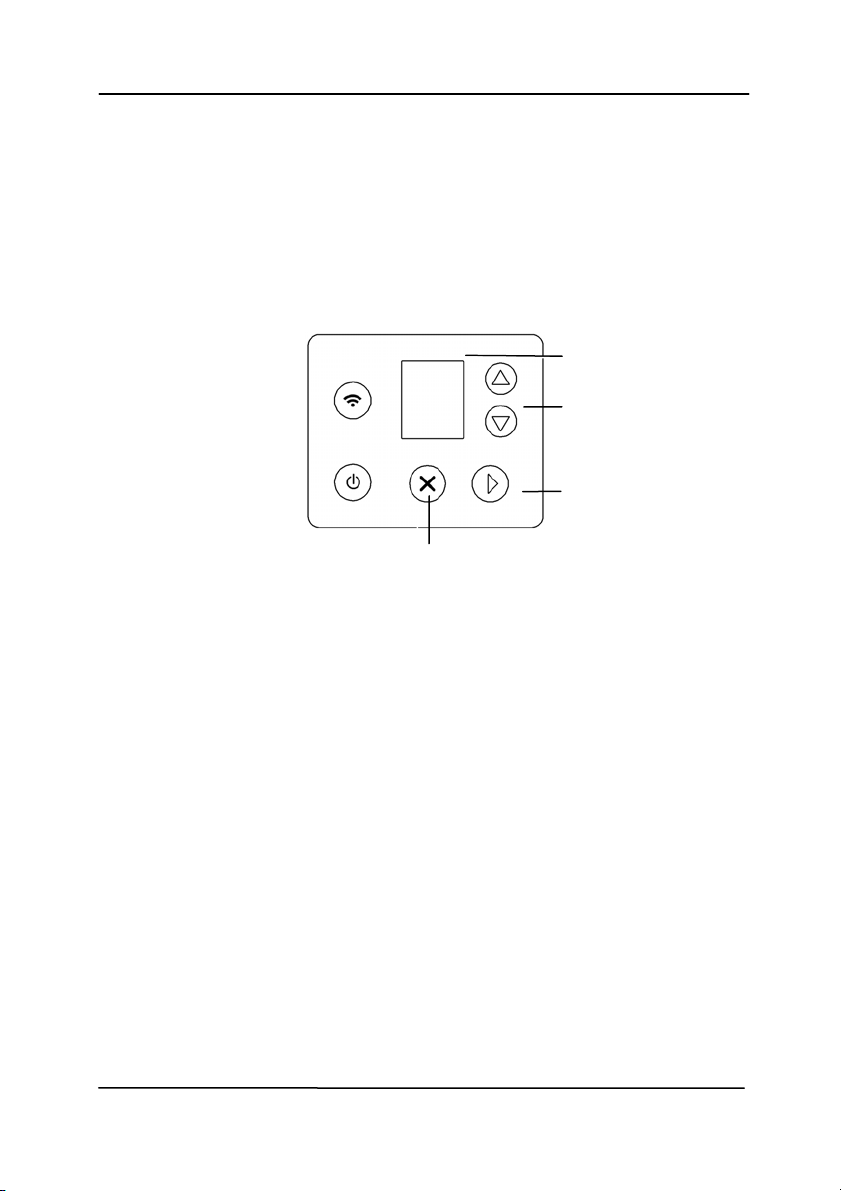
Use r’s Man ua l
6- 1
6 . Using t he But t ons
The following pict ure shows the 4 buttons and 1 funct ion
screen on the scanner.
6 .1 I nst alling But t on Manager V2
Button Manager V2 provi
des you an easy way to scan your
docum ent and t hen link the scanned im age to your designat ed
software application. All this can be done by a sim ple t ouch of
the but ton on the scanner. Yet , before you scan, it is
recom m ended t o check t he butt on configurations first to ensure
a proper file form at and a dest inat ion applicat ion.
Funct ion Screen
Funct ion- Select
Button
Cancel But t on
Scan But t on
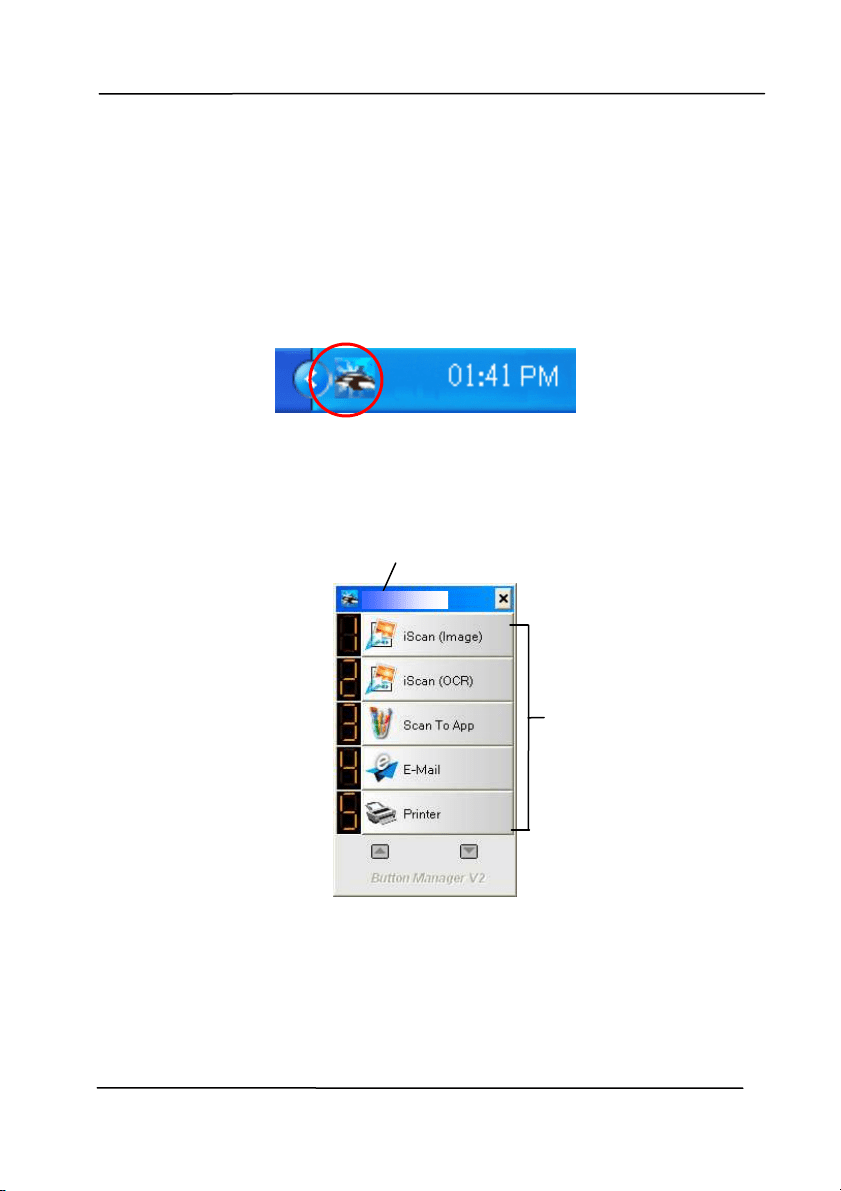
Use r’s Man ua l
6- 2
6 .2 Checking t he But t on Configurations before Scanning
1. Button Manager V2 runs from the syst em t ray. Aft er Button
Manager V2 and t he scanner driver are properly inst alled,
Bu
tt on Manager V2 is st art ed and the Button icon will be
displayed on the syst em tray at t he bot t om right corner of
your com puter screen.
2. Left-click t he Button Manager V2 icon t o prom pt t he
following But ton Panel.
The Button Panel
T
his indicat es
the scanner model
The Function
I con
( The number of
function icons
vary based on
type of
scanner.)
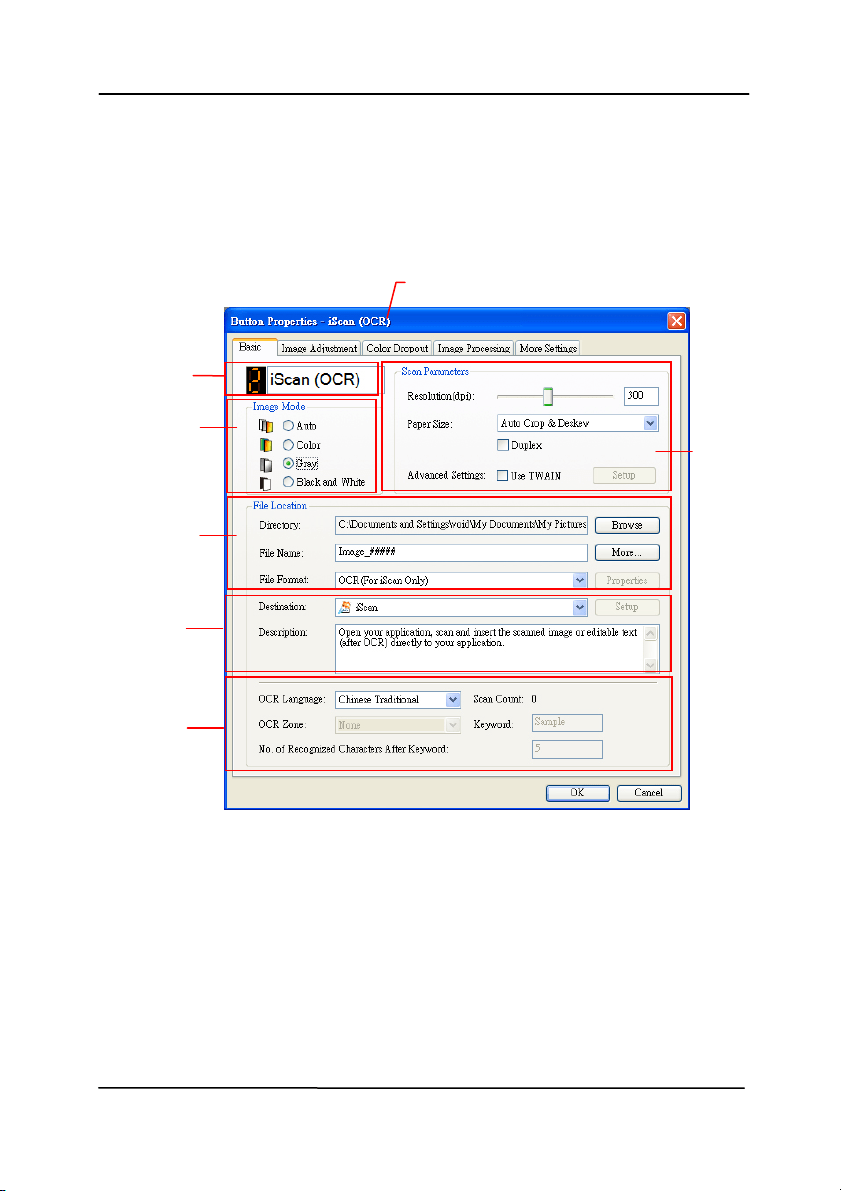
Use r’s Man ua l
6- 3
3. The Button Panel shows the first five scanning but tons.
Right- click t he butt on ( funct ion) you wish to check. The
Button Propert ies window appears.
I f you wish t o change t he set ting, use t his window t o reset
t he set t ing for t he file form at , dest inat ion applicat ion, or
ot her scan sett ings.
4. Click t he OK butt on to leave t he window.
Folder and
file nam e
for t he
scanned
im age
I m age Mode
Select ion
Box
Nam e of the Select ed Butt on
Scan To
dest ination
and settings
But t on
Nam e
OCR
set t ings
Basic Scan
Param eters
Use r’s Man ua l
6- 4
6 .3 Sca nnin g Fr om On e Touch of the But tons
1. Adjust the paper guide for t he widt h of paper and load the
docum ent wi
th their t ops into the autom atic docum ent feeder.
2. Check t he butt on nam e on the LCD screen to ensure if you
are select ing t he proper scan sett ings and dest inat ion
applicat ion. ( For exam ple, if you wish to scan wit h But ton,
“ Scan t o App” , which opens Microsoft Paint and displays t he
scanned im age in the window of Microsoft Paint, t he LCD
screen should show “ Scan to App”).
3. Press t he Sca n button on the scanner.
4. After t he scanning is finished, t he Microsoft Paint software
will be launched and the scanned im age appears in t he m ain
window of Microsoft Paint as below.
N ote: For det ails inform at ion on how t o use t he Button Manager
V2, please refer to the user’s m anual in the supplied CD.
Use r’s Man ua l
7- 1
7 . Start ing a Sca n from Your
Mobile Device
Wit h a * Wi- Fi m odule, t he scanner can be converted int o a
wireless device. When a m obile device is use, t he scanned
im ages can be received from t he m obile device.
* Wired ( Ethernet ) and Wireless (Wi- Fi) Networks:
The availability of these feat ures varies according to your
product m odel.
7 .1 Mak ing Pr e paration
MB Applica t ion
Download the MB Applicat ion on your m obile device from
an applicat ion store such as Google Play.
MB
Application
MB App
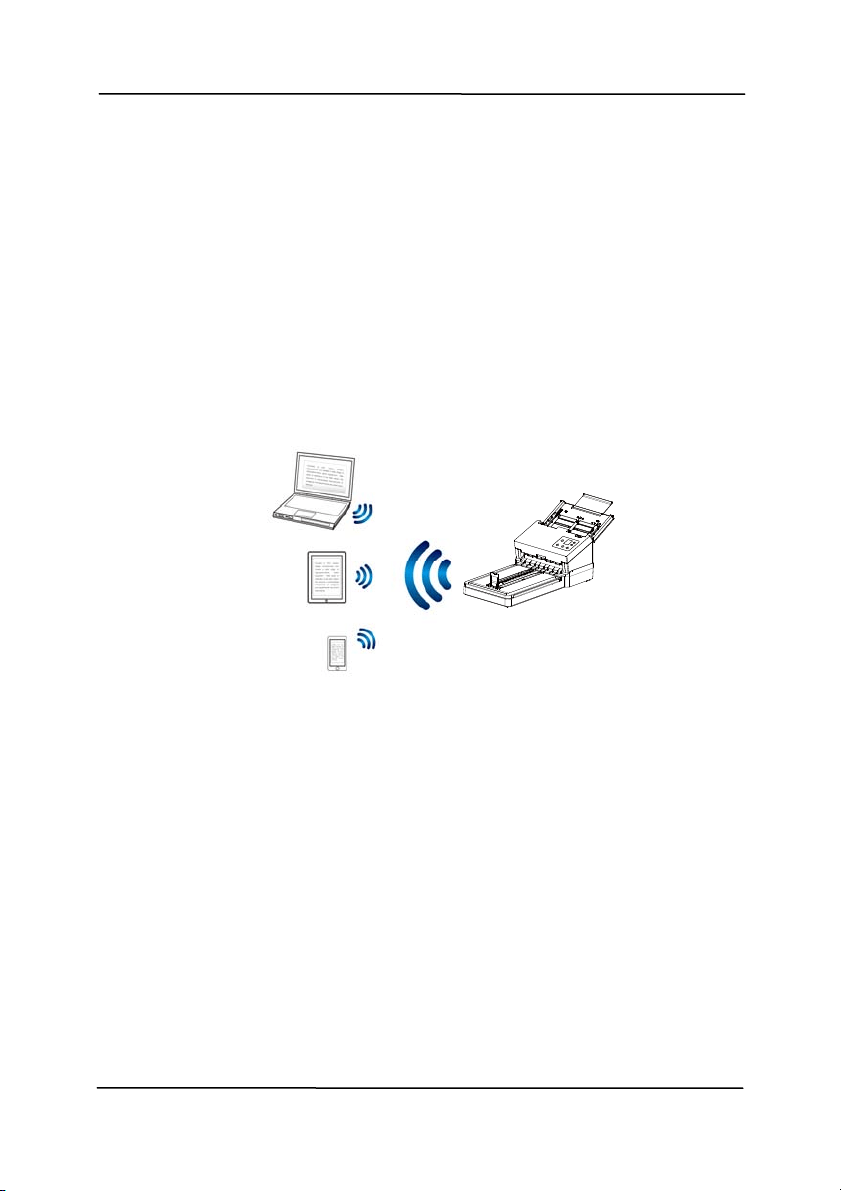
Use r’s Man ua l
7- 2
7 .2 Turning on W ir e less Con ne ct ion
After t urni
ng on t he power of the scanner, the wireless
connect ion is t urned on by default . The Wi- Fi LED light will t urn
solidly on in blue.
Not e the product supports only t he AP(Access Point) m ode. This
m eans the product it self is an Access Point and can connect
wirelessly t o a sm artphone, t ablet , or a wireless com puter
wit hout a Wi- Fi router.
7 .3 St art ing a Sca n From Your M obile D e vice
Make sure t hat the MB Applicat ion (Scan App) has been
in
st alled on your mobile device. The MB Applica tion can be
purchased for free from an application store such as Google
Play.
1. Enable [ W i- Fi] from [ Set t ings] of your wireless com puter,
sm artphone, or t ablet and then choose Avision–xxxxxx
( xxxxxx indicates the last six digits of the Mac Address at
the back of the scanner) t o be your Wi- Fi net work (SSI D) .
AP( Access Point )
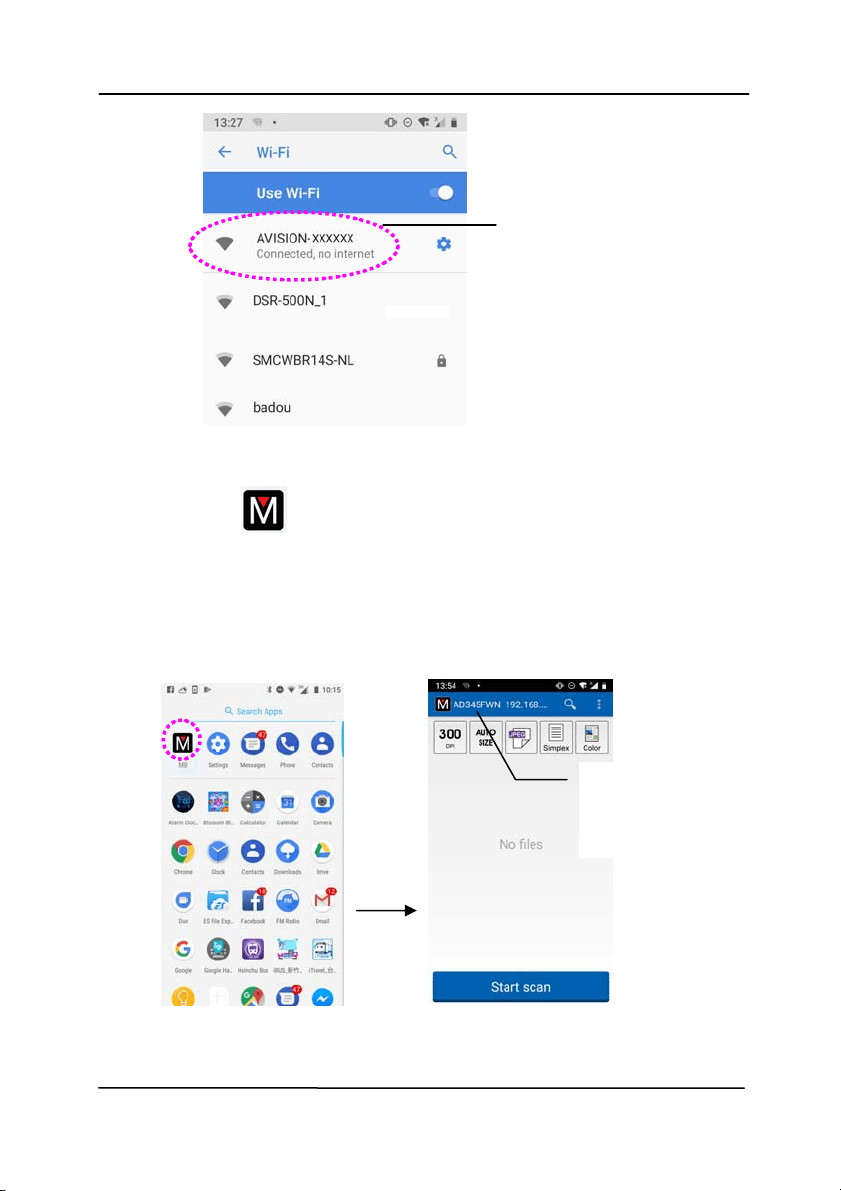
Use r’s Man ua l
7- 3
2. St arting MB App by taping [ Applicat ions] and then the
MB icon
on your m obile device. The m obile device
begins searching the available scanner in the wireless
net work.
I n a second, the m ain screen will be displayed if
scanner has been found successfully.
This indicat es t he
scanner m odel.
Avision–xxxxxx
Use r’s Man ua l
7- 4
N ote:
I f the scanner is not found, please check the followings:
The scanner is not ready yet . Tap [ More Set t in gs] and
then [ Sear ch scanner] to search the scanner again.
Check if the m obile device and the scanner are in the
sam e wireless LAN.
3. Check if the default set t ings m eet your requirem ents. I f
not , t ap t he sett ing icon and change t he scan set t ings to
fit your specific scanning task.
I
TEM DESCRI PTI ON
Resolution: Select your desired resolution.
The higher resolut ion, the great er t he im age
qualit y and disk space.
Choice: 1 5 0 , 2 0 0 , * 3 0 0 dpi
Scan Size: Select your paper size or you m ay
choose Aut o to let t he scanner detect your
docum ent size autom atically.
Choice: * Aut o size, A4 , LTR ( Let t er) , LGL
( Le gal) , 4 x6 , 5 x7
File Form at : Select the file form at for your
im age.
Choice: * JPEG, PDF, TI FF
N ote:
The JPEG file does not support the B&W
im age.
The TI FF file form at supports only t he
B&W im age.
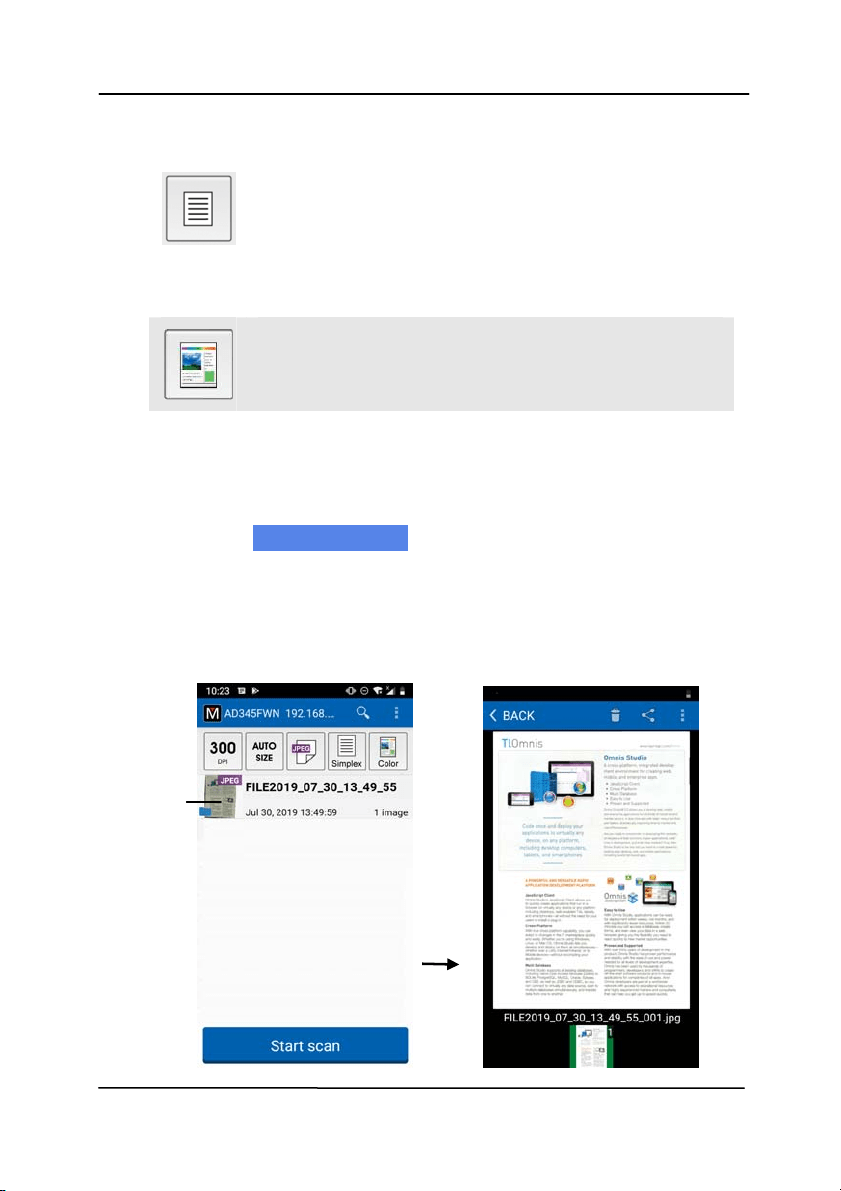
Use r’s Man ua l
7- 5
Select to scan the front side (sim plex) or
both the front side and the rear side (duplex)
of your docum ent.
Choice: * Sim plex, Duplex
Not e: The duplex m ode is available to scan
from t he aut o docum ent feeder only.
Color Mode: Select your desired im age m ode.
Choice: * Color, B& W , Gr ay
* Default set t ings
4. Place your docum ent to the scanner.
5. Tap the [ St ar t scan ] butt on to st art a scan.
6. I n a few seconds, t he scanned im ages will be
displayed in a t hum bnail view. Tap t he im age t o
enlarge the im age.
The thum bnail
view and
file nam e
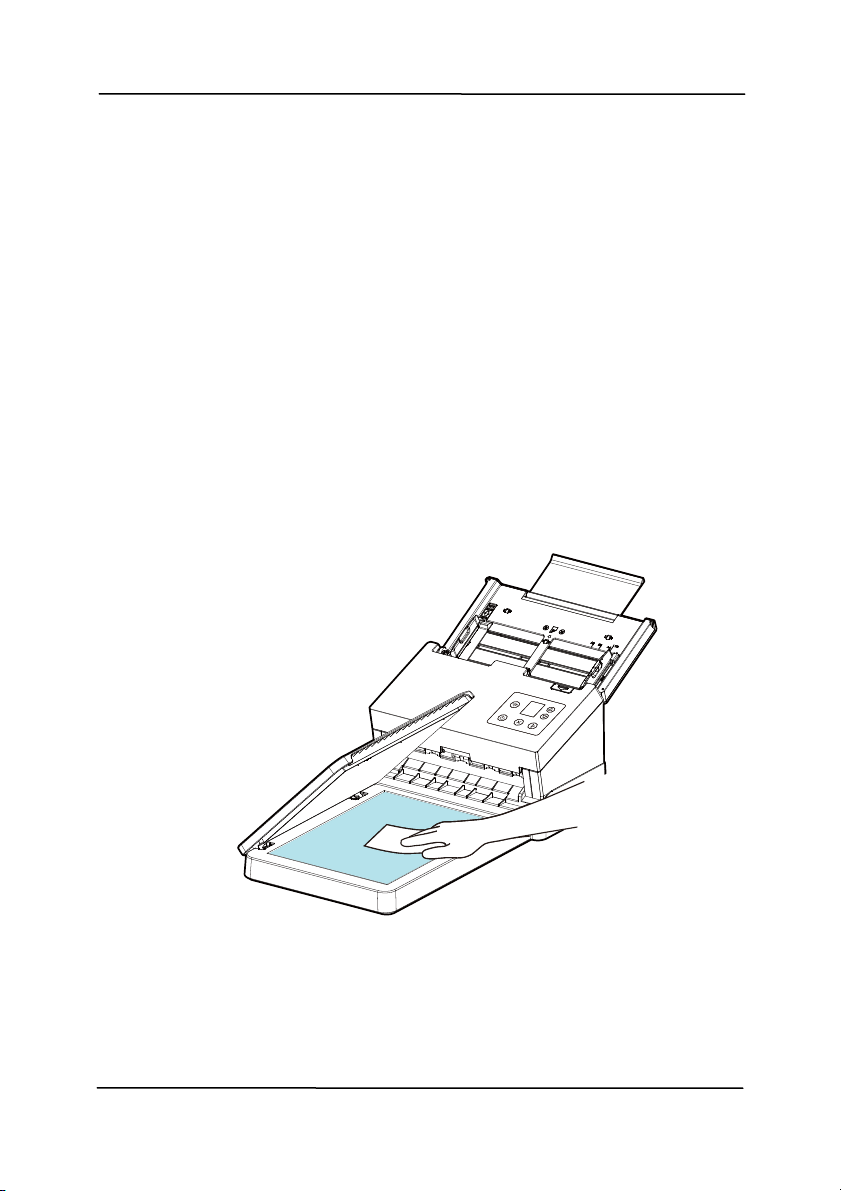
Use r’s Man ua l
8- 6
8 . Maint ena nce
8 .1
Cle a ning t he Fla tbed Glass
The proce dur e s
1. Wet a soft lint - free clot h wit h som e isopropyl alcohol. ( 95% )
2. Open t he docum ent cover as shown below. Gently wipe t he
surface of the glass of flatbed.
3. Close t he docum ent cover. Your scanner is now ready for
use.
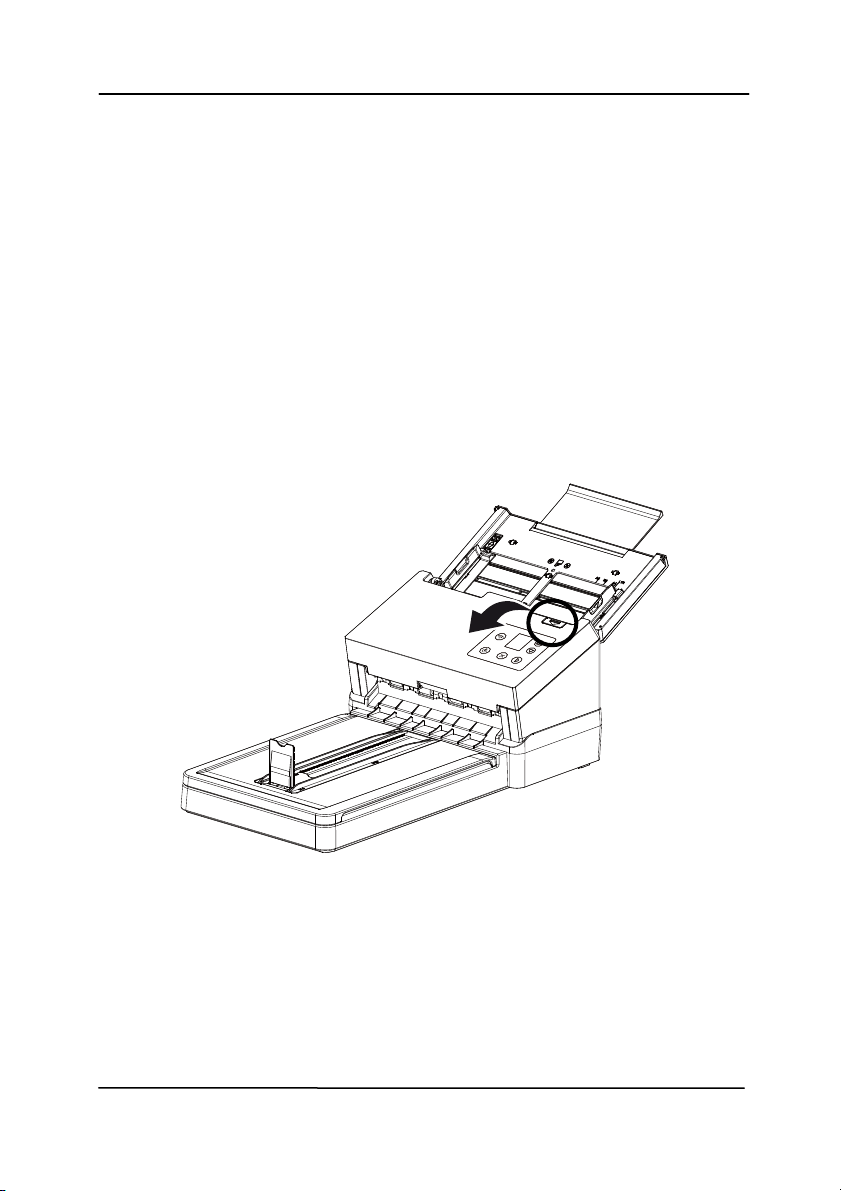
Use r’s Man ua l
8- 7
8 .2 Clea ning t he AD F
From t i
m e to tim e, the Reverse roller and the Feeding Rollers
m ay be contam inat ed wit h ink, t oner particles, or paper dust .
I n t his case, the paper may not be fed sm oot hly. Please follow
the following st eps to clean the Reverse roller and the Feeding
Rollers t o ensure t he best of the scanner.
The Cleaning St eps:
1. Soak a clean clot h wit h som e isopropyl alcohol ( 95% ) .
2. Press the ADF release butt on and open the front door.
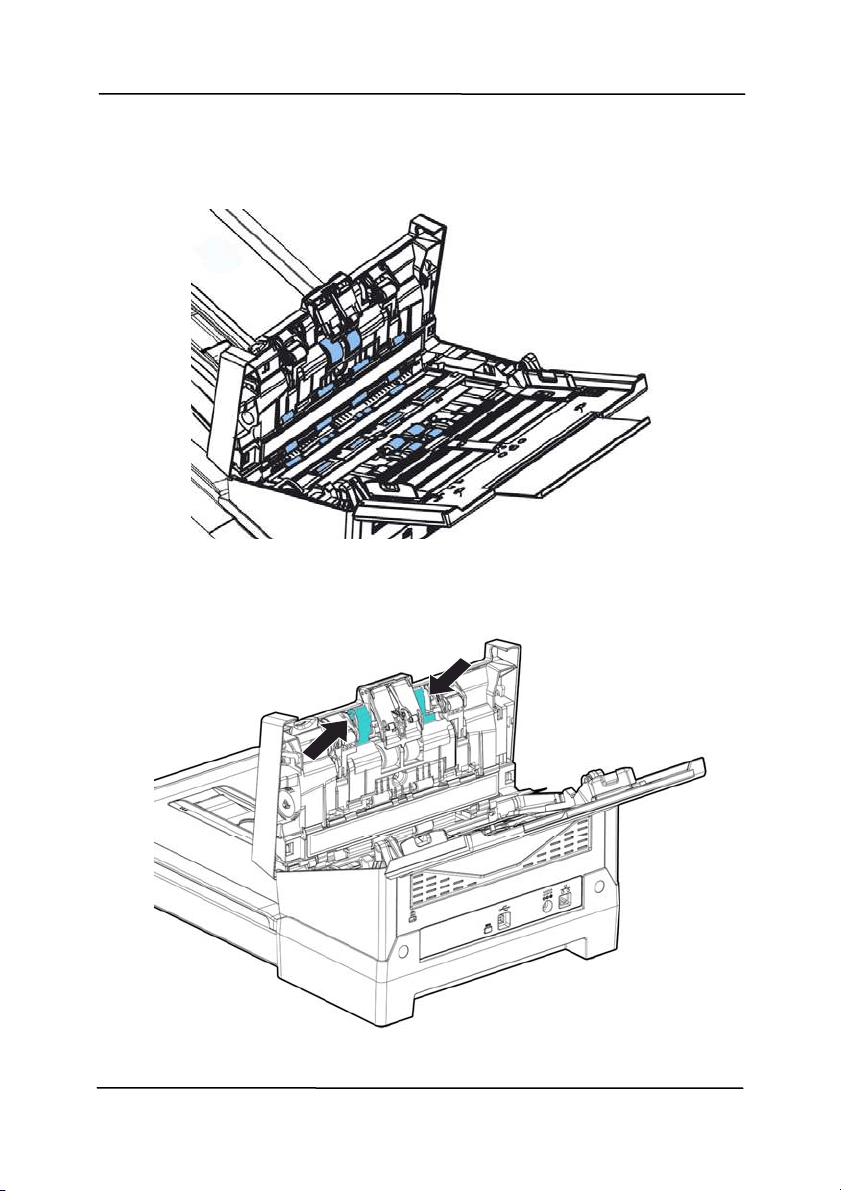
Use r’s Man ua l
8- 8
3. Wipe the feeding rollers unt il t hey are cleaned.
4. Press bot h sides of the cover of the ADF reverse roller and
pull t he cover down.
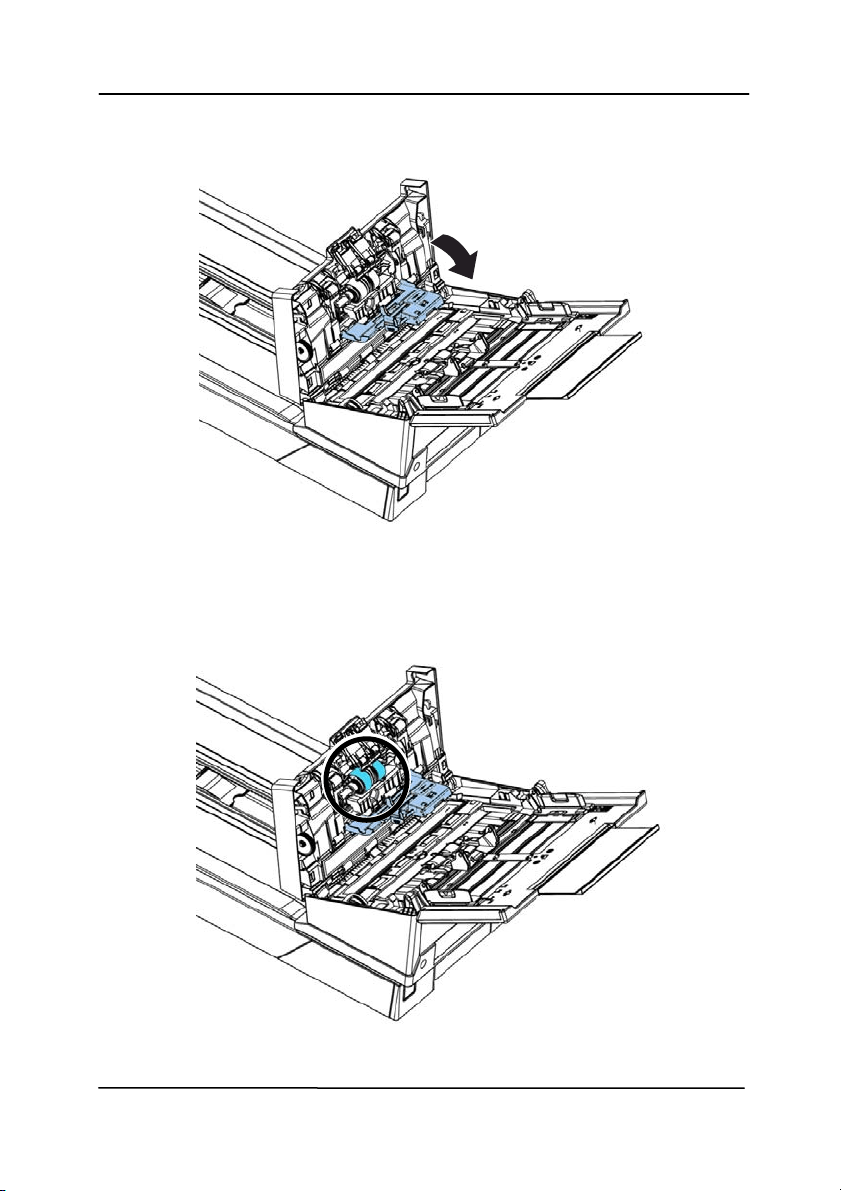
Use r’s Man ua l
8- 9
5. Press and wipe t he rollers one by one. Rotat e the roller unt il
the surfaces are com pletely cleaned.
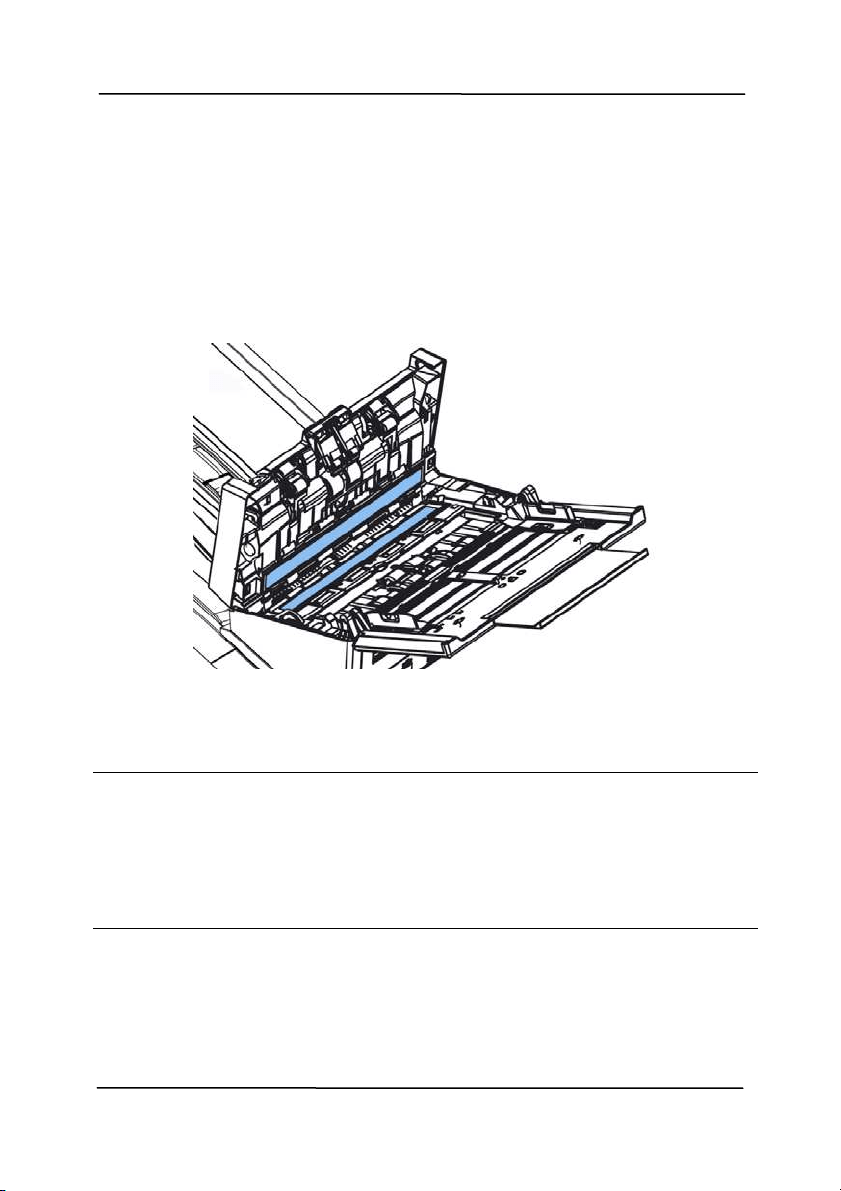
Use r’s Man ua l
8- 10
8 .3 Clea ning t he Glass
1. Press the ADF release butt on. Open the front door.
2. Wet a clean clot h wit h som e isopropy
l alcohol. ( 95% )
3. Wipe the glass as illustrat ed below by m oving the swab from
side to side to rid the dust or dirt.
W a rning:
Do not clean t he inside of t he scanner w it h wat er or a m ild
det ergent.
Do not spray t he glass cleaner directly on the glass. I f t oo
m uch glass cleaner is applied, t he cleaner could leak under
the glass and dam age the scanner.

Use r’s Man ua l
8- 11
8 .4 Calibrat ing t he Scanner
C
alibrat e only if t he scanned im age looks fuzzy, t he color looks
abnorm al (e.g., darker t han norm al) , after m ore than 8,000
scans, or t he scanner has been st ored without use for a long
tim e. The calibrat ion process reset s the Contact I m age Sensor t o
resum e its color and sharpness precision.
1. Turn on t he scanner.
2. St art your TWAI N- com pliant im age edit ing soft ware
applicat ion such as Avision Capture Tool by choosing
St art> Program s> Avision XXXX Scanner> Avision Capt ure
Tool (XXXX indicat es your scanner m odel) . The Select
Scanner Model dialog box will be displayed.
3. Select your driver t ype and scanner model and click OK.
The Avision Capture Tool dialog box will be displayed.
4. Click the “ Set up” button t o prom pt t he TWAI N user
interface.
5. Click the “ Set t ings” tab and then click t he “ Calibrat ion”
button. An “I nse rt calibrat ion sheet ” dialog box appears.
6. Hold the edges of the calibration sheet ( included) and insert
it to the feeder of the scanner as shown.
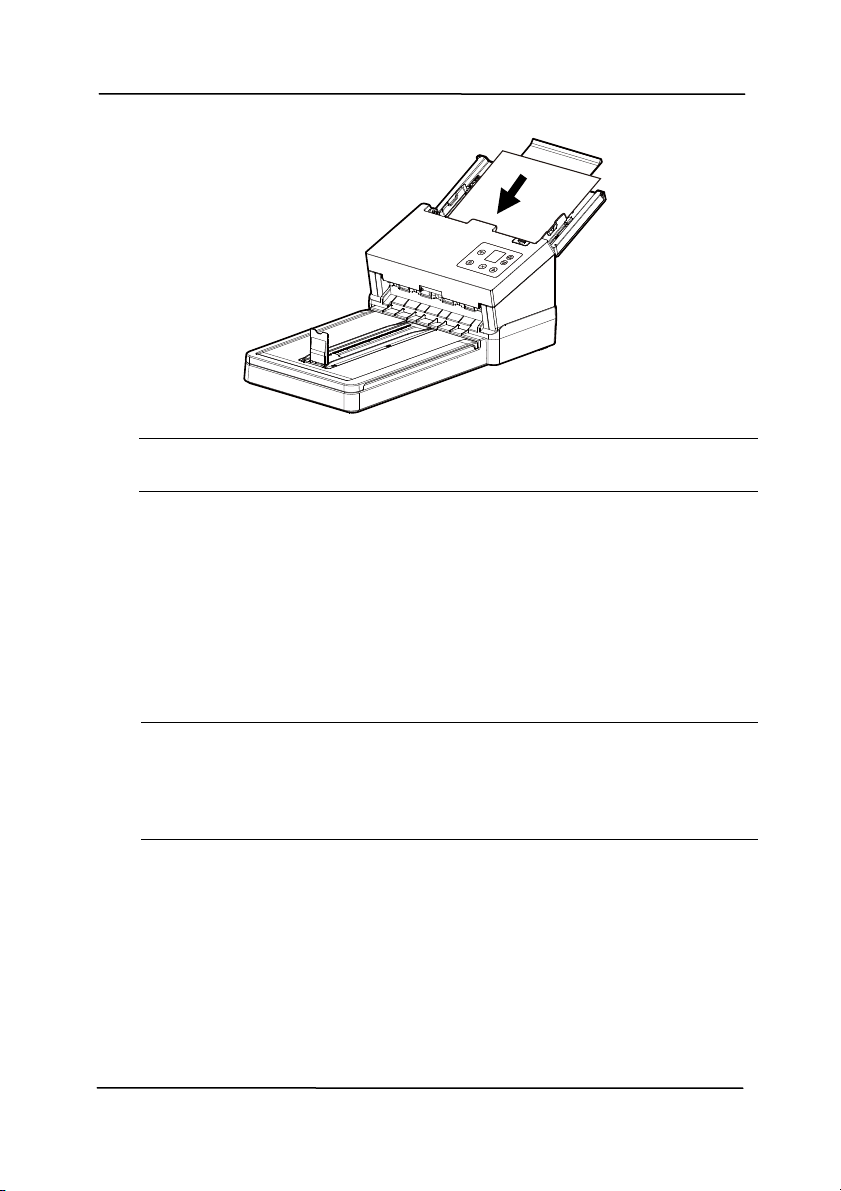
Use r’s Man ua l
8- 12
N ote: Only hold the edges of the calibrat ion sheet with your
fingers and do not touch the whit e or black area.
7. Click the “ OK” but ton on the “I nsert ca librat ion
sheet ” dialog box to start calibrat ing t he scanner.
8. When the calibration is com plet ed, t he LED light will
t urn solidly on, if there is no error m essage, it means
the calibration is com pleted successfully.
W a rning: I f the calibrat ion process failed, the LED light will
be flashing and an error message will be displayed on t he
screen. Power off the scanner and t hen repeat t he
calibrat ion st ep again.

Use r’s Man ua l
8- 13
W a rning:
Do not int errupt t he calibrat ion sequence or t ry t o shut off
the device while it is calibrat ing. I f you st op the calibration
before it has com pleted, a calibration error m ay occur. As a
result , when you next power up the unit, an error m essage
m ay be displayed, and you will have t o power off t he unit
and repeat the inst ruct ions in t his sect ion.
Calibrat e the scanner only w hen color of the scanned im age
looks abnorm al.
Keep the calibration sheet from dust and debris. Any dirt
m ay make t he calibrat ion chart invalid or im pact the
calibrat ion result .
Use only t he included calibrat ion sheet t o calibrat e the
scanner.
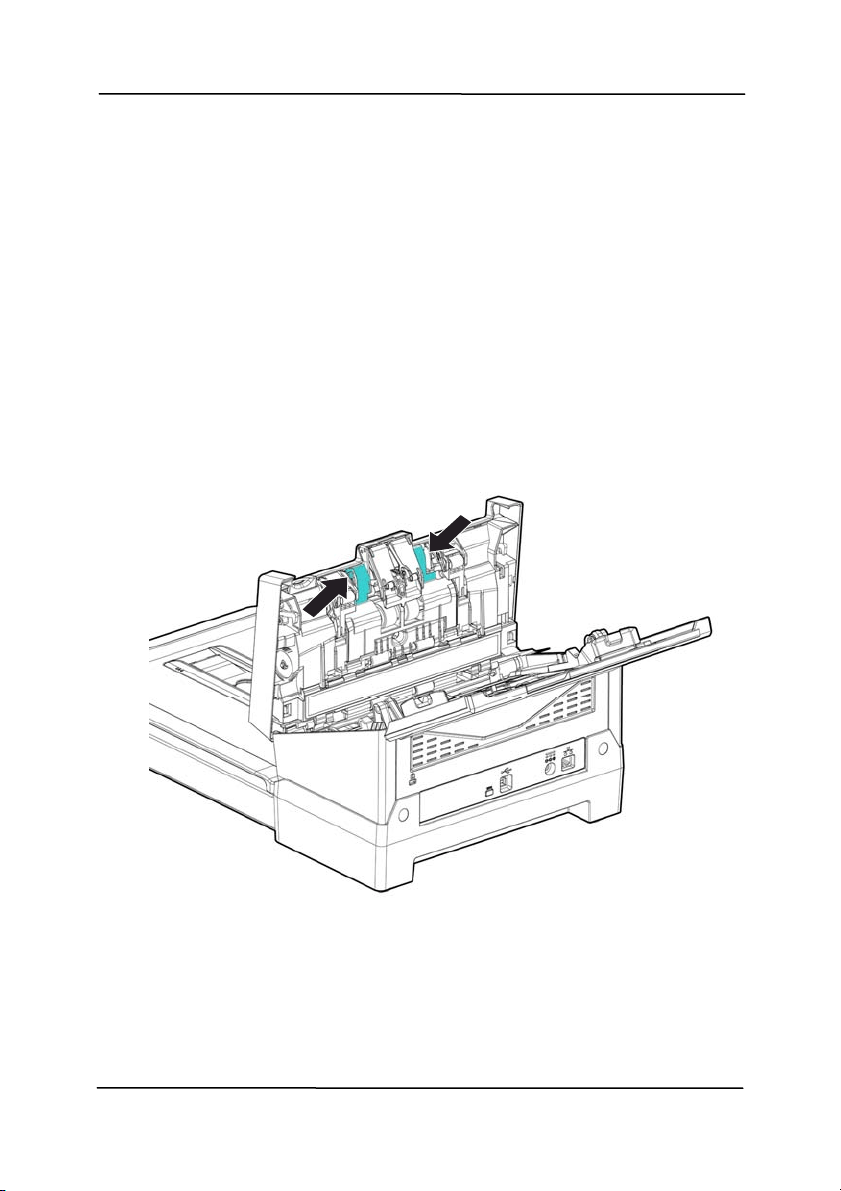
Use r’s Man ua l
8- 14
8 .5 Repla cing t he ADF Reverse Rolle r
After scanning approxim ately 100,000 pages through t he ADF,
t
he reverse roller w ill be worn out and you m ay have problem s
wit h docum ent feeding. I t is tim e to replace the Reverse roller.
For ordering the replacem ent, please cont act your dealer.
Disa ssem bling Procedure
1. Press the ADF release butt on.
2. Gently open t he ADF front door t o the left.
3. Hold the reverse roller cover wit h your fingers as shown and
place it down.
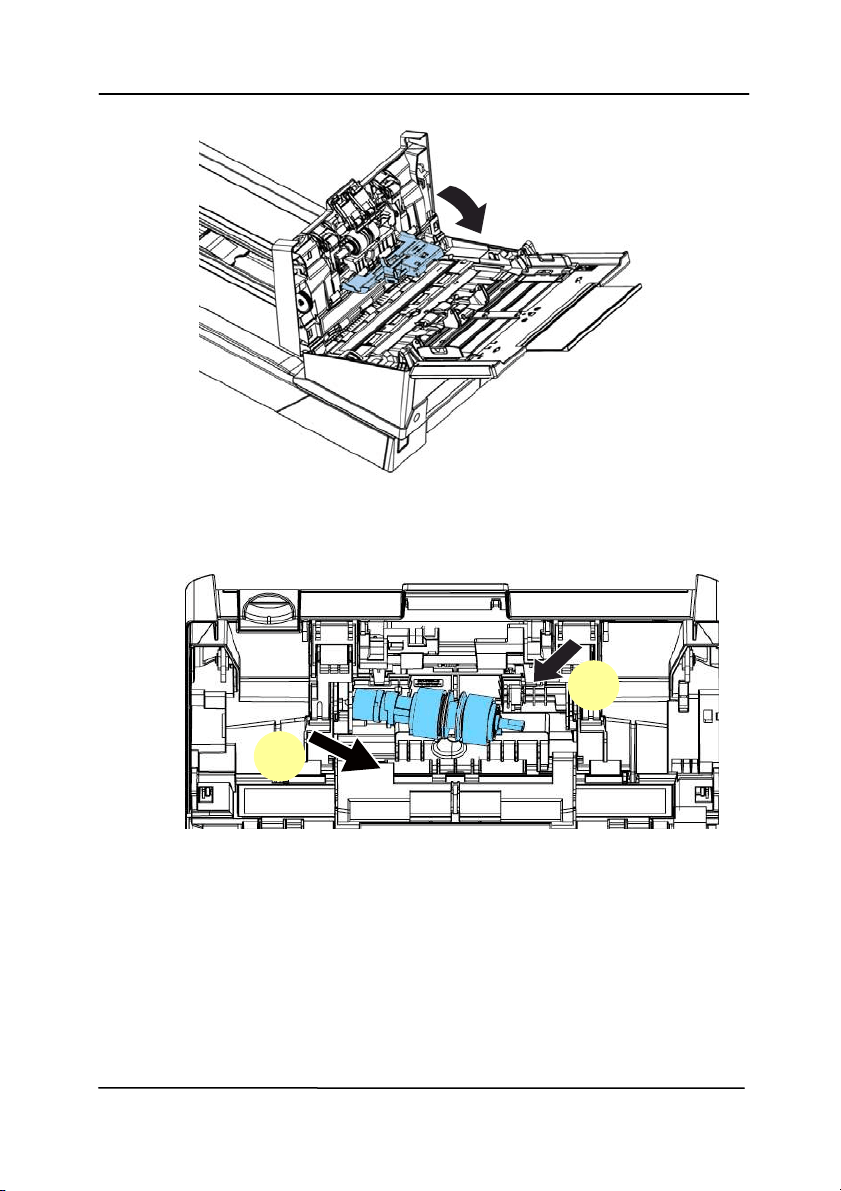
Use r’s Man ua l
8- 15
4. Press the right end of the reverse roller ext ernally t o det ach
it from the slot and then detach t he left end from it s hole.
Reassem bling Procedure
1. Grab the right end of the reverse roller ( flat side facing Up)
and insert it t o it s original place.
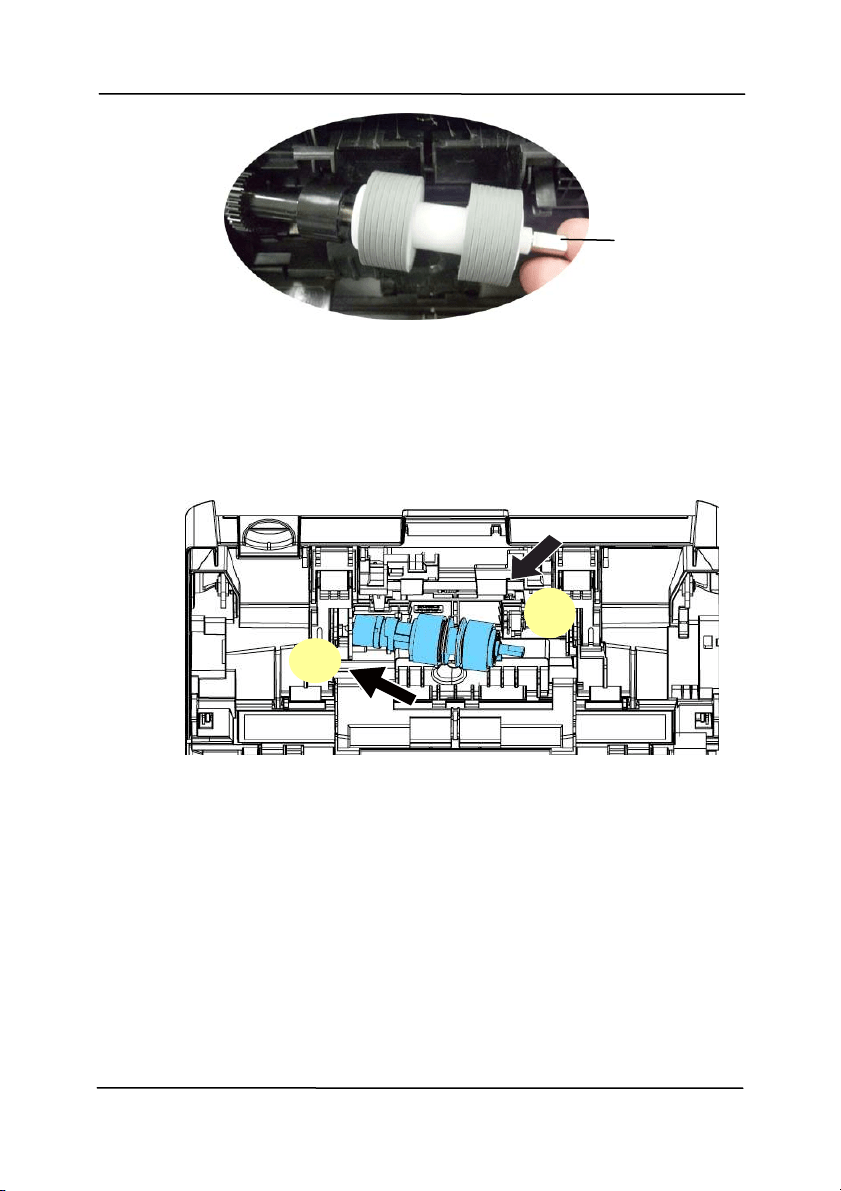
Use r’s Man ua l
8- 16
2. I nsert the left end of t he reverse roller t o the hole of it s
original place.
3. I nsert the right end of t he reverse roller t o it s slot .
1. Close t he reverse roller Cover.
Flat side
Up
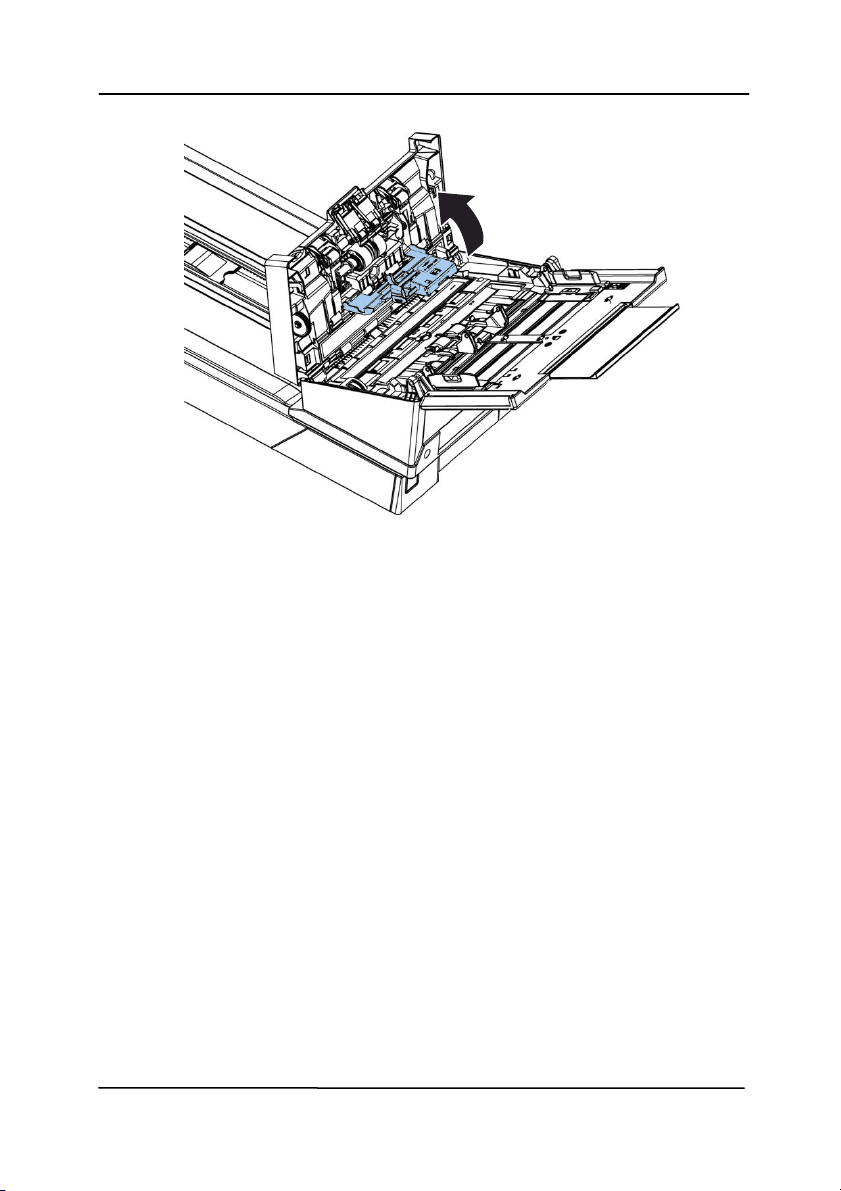
Use r’s Man ua l
8- 17
4. Close t he ADF cover.
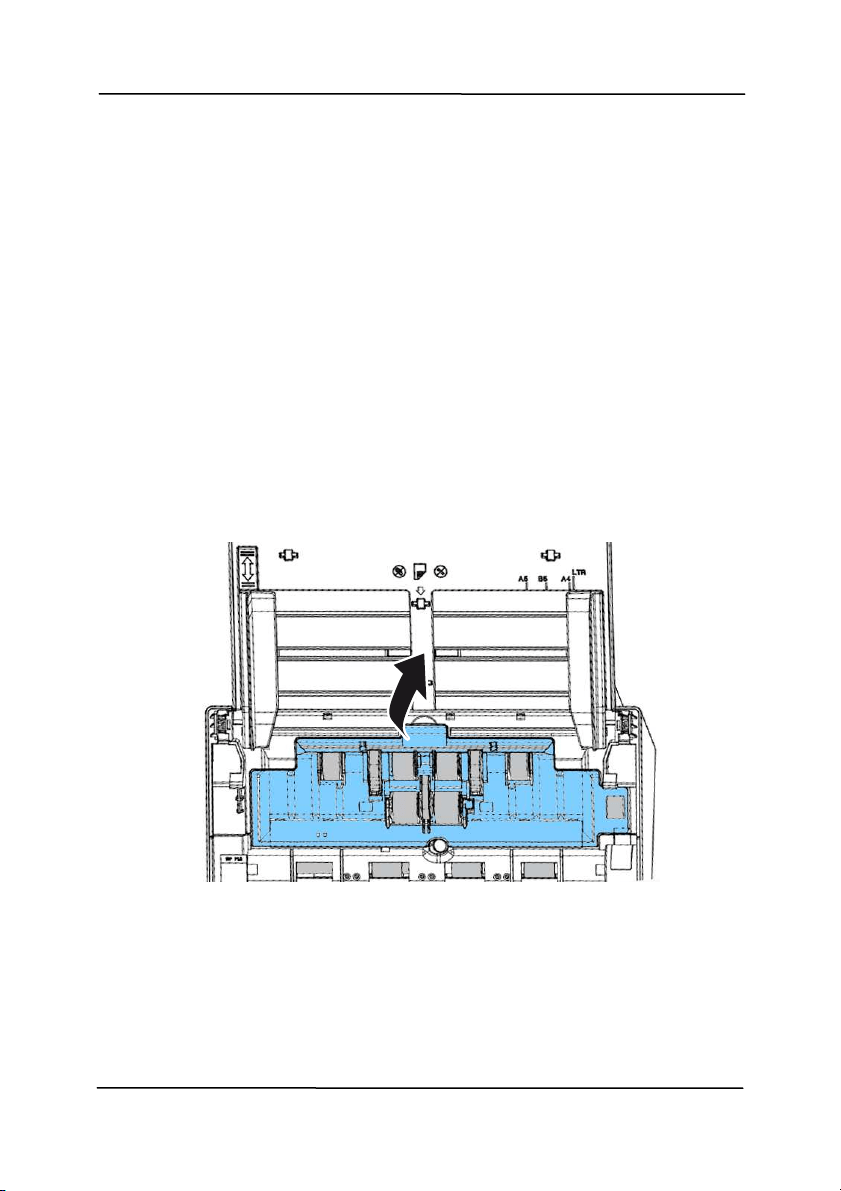
Use r’s Man ua l
8- 18
8 .6 Repla cing t he ADF Rollers
After scanning approxim ately 200,000 pages through t he ADF,
the ADF roller m ay be worn out and you m ay experience
probl
em s with docum ent feeding. I n this case, you m ay need to
replace a new ADF roller. For ordering the ADF roller, please
consult your nearest dealer and follow t he procedure below to
replace it .
Disa ssem bling Procedure
1. Press the ADF release butt on to open the front door.
2. Pull the center of the roller cover t o open it .
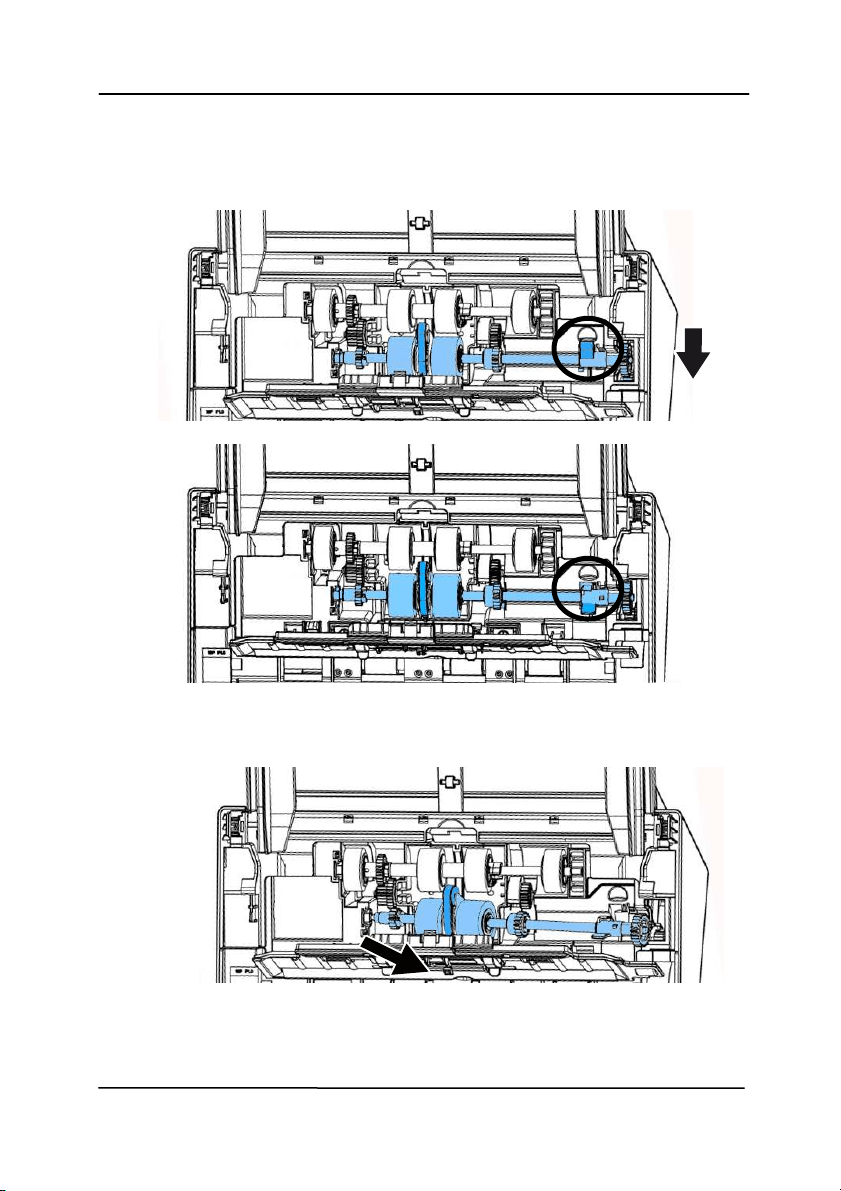
Use r’s Man ua l
8- 19
3. Move the tab of the ADF roller D OW N as indicated.
4. Det ach t he right end of t he ADF roller from t he scanner and
rem ove the ADF roller.

Use r’s Man ua l
8- 20
Asse m bling Proce dure
1. I nsert the left end of t he ADF roller first to it s slot and place t he
ADF roller t o it s proper posit ion.
Make sure the belt in t he cent er of t he lower ADF roller is
inst alled horizontally wit h the ot her rollers as indicat ed.
2. Move the tab of the ADF roller UP.
3. Close t he ADF roller cover. A snap- in sound could be heard if
correct ly inst alled.
The Belt
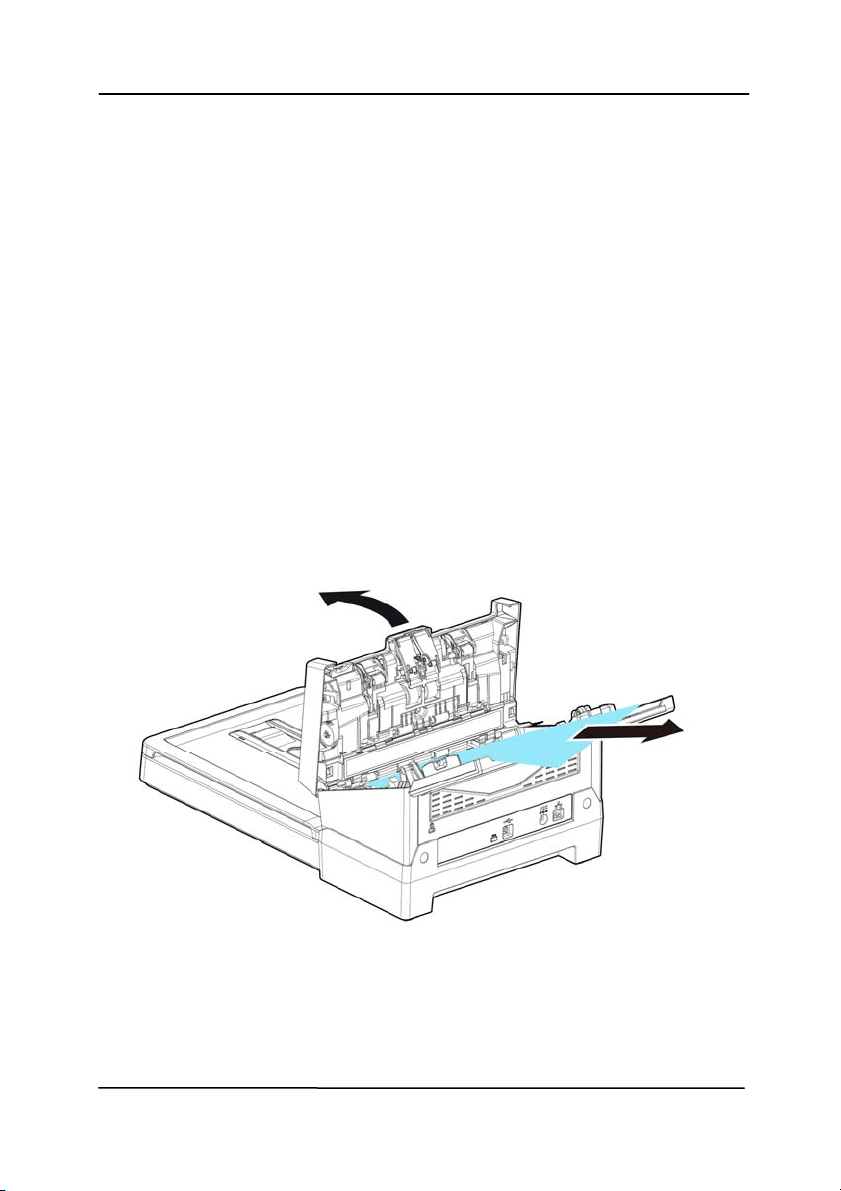
Use r’s Man ua l
9- 1
9 . Troubleshoot ing
9 .1 Clea r ing a Pape r Jam
I n t he event of a paper j am , follow t he procedures below to
rem ove the paper:
1. Press the ADF rel
ease butt on on t he right side. Gently
open t he front door.
2. Carefully pull the paper out of the ADF unit .
3. Close t he front door. Your scanner is now ready t o use.
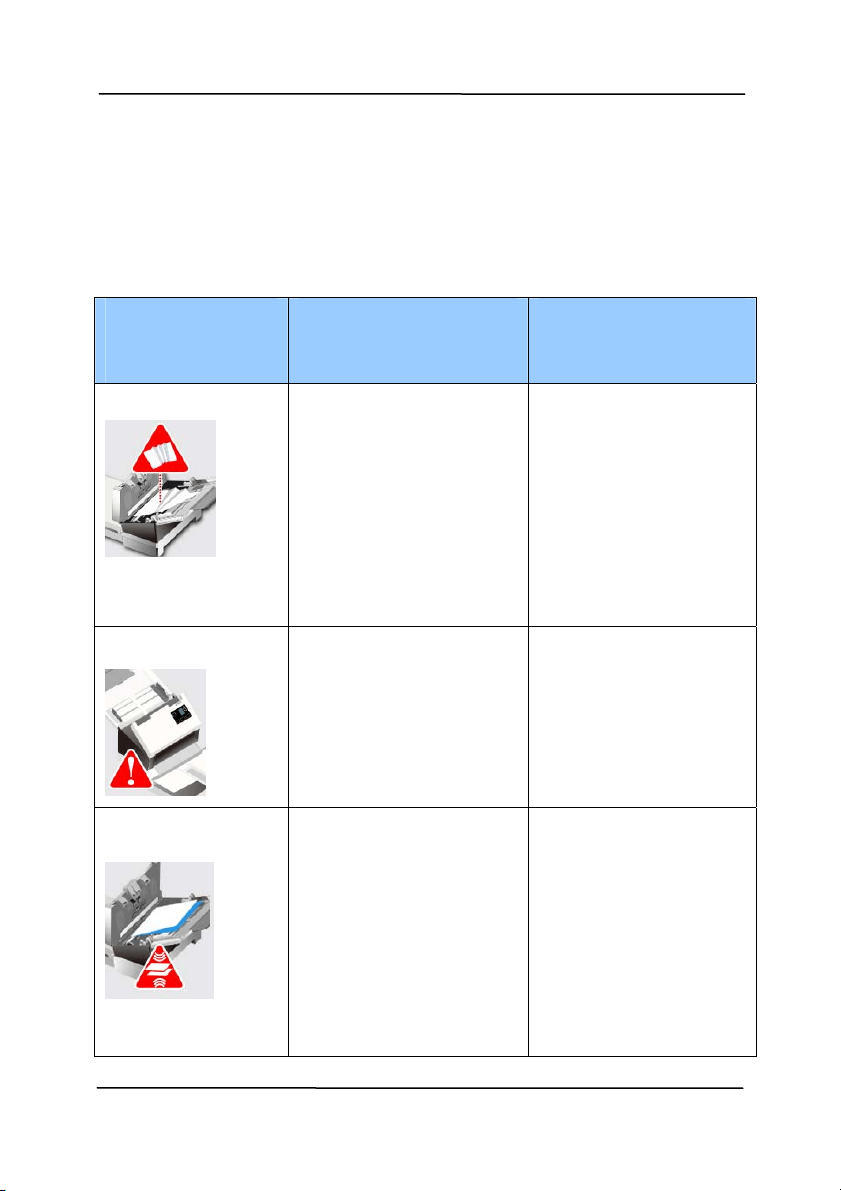
Use r’s Man ua l
9- 2
9 .2 Er r or Condit ions
I f
t here is error during scanning, t he LED light w ill be flashing in
red color and error drawing w ill be displayed. Refer t o the
following table t o clear t he error condit ions.
ERROR
DRAW I N G/ MEAN
I NG
CAUSE HOW TO RESTORE
Pa perj am
1. Original has
becom e st uck in
the feeder.
2. Original exceeds
m ax. lengt h [ 300
dpi: 36”
( 914m m ) , 600
dpi: 14”
( 356m m ) ]
Open the feeder
cover and pull t he
original out of the
feeder.
Cove r opens
Feeder cover opens. Close t he feeder
cover.
Mult i- Feed
More t han one pieces
of paper fed in the
feeder.
1. Rem ove t he
paper.
2. Fan the paper for
several t im es.
3. Make sure t he
edge of paper near
the paper guide and
try again.

Use r’s Man ua l
9- 3
Miss Fe e d
Failed to pick paper
1. Fan t he
docum ents.
2. Load the
docum ent wit h
it s edges
slightly t ouch
the paper
guides.
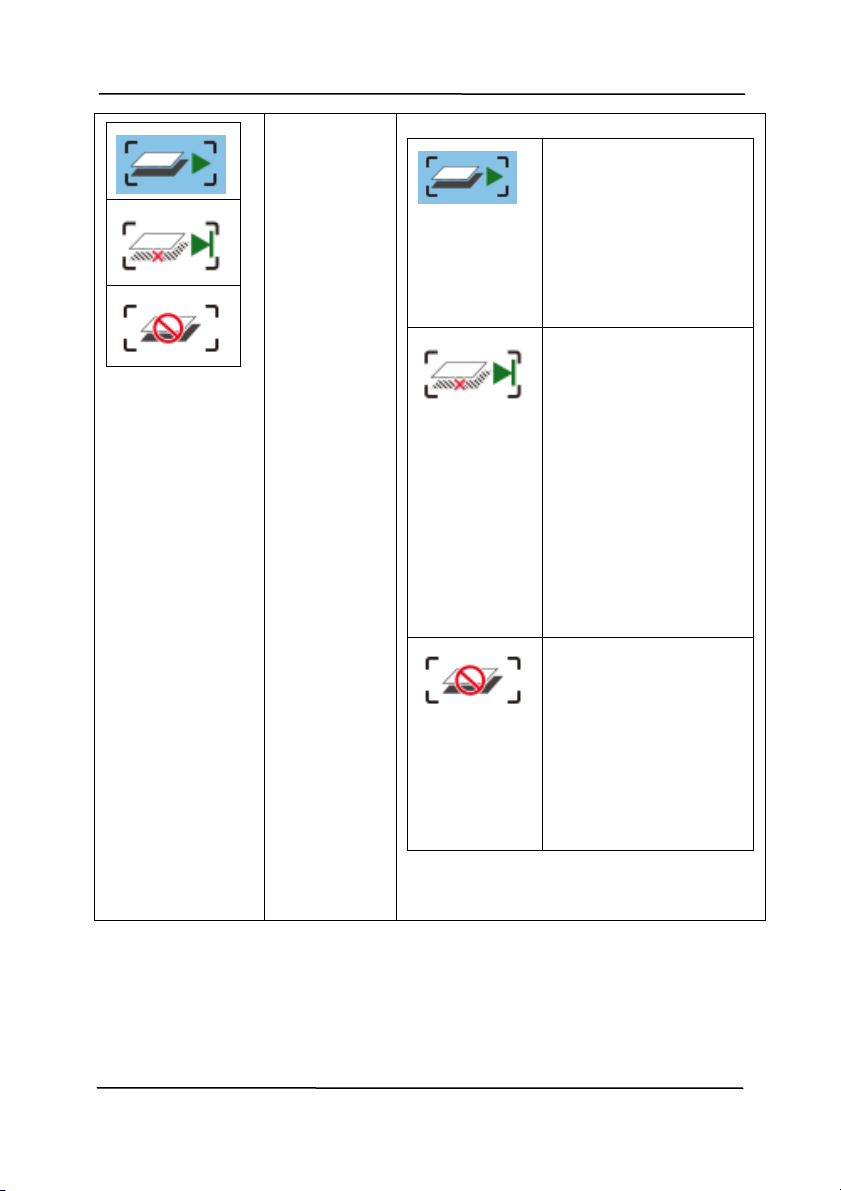
Use r’s Man ua l
9- 4
More t han
two sheet s
of paper
are fed in
the paper
path.
Cont inue
Sca n
I f the im age of the
m ult i- feed page is
acceptable, select
[ Continue Sca n]
to continue
scanning t he rest
pages.
Cont inue
Sca n
( D iscar d
I m a ge)
I f the im age of the
m ult i- feed page is
not accept able,
select [ Continue
Sca n ( Discard
I m a ge) ] to scan
the rest pages yet
the m ult i- feed
page will be
ignored and you
need to rescan t he
page again.
St op Scan
The scanner stop
scans. Rem ove
t he rem aining
pages in the
scanner. Fan your
docum ent and
rescan the rest
pages.
Use the Up and Down key (/ )
to select your act ion.

Use r’s Man ua l
9- 5
9 .3 Quest ions a nd Answ e r s
Quest ion:
Paper becom es j am m ed during
sca nning.
Answ er:
1) Open the front door.
2) Pull out t he j am m ed paper carefully.
3) Close the front door.
Quest ion:
More t han one shee t of paper are
fed int o t he sca nner.
Answ er:
1) Open the scanner front door.
2) Rem ove t he m ult i- fed sheet s.
3) Close the front door.
4) Flatt en the corners and edges.
Loosen t he paper before putting it
into t he paper guide again.
5) Check the feeding roller condit ion.
I f necessary, follow the cleaning
directions in sect ion 7.1 and
perform the cleaning.
Quest ion:
Paper becom es skew e d in t he
sca nner.
Answ er:
1) Use the slide guide t o keep the
paper path st raight.
2) Check the condit ion of t he feeding
roller. I f necessary, follow t he
cleaning direct ions in Sect ion 7.1
and perform t he cleaning.

Use r’s Man ua l
9- 6
Quest ion: W hy does m y scanned im a ge
alw a ys com e out t oo dark ?
Answ er:
1) Please adj ust the screen set t ings to
sRGB.
2) Please adj ust the brightness
sett ings on the screen from
applicat ion soft ware.
Quest ion:
W h e n I ch oose opt ica l resolution
t o be 6 0 0 dpi, the "aut o cr op" and
"deskew " functions w ill be
disable d.
Answ er:
Since to perform aut o crop and deskew
consumes great deal of system
m em ory, it is suggest ed if you w ish to
perform "auto crop" and "deskew"
functions, please choose your optical
resolution to be sm aller than 600 dpi
to prevent a error m essage.

Use r’s Man ua l
9- 7
9 .4 Technica l Service
Before contact ing Avision, please prepare t he following
inform at ion by referring t o Section 4.14, The I nform at ion Tab:
Scanner serial & revision num ber ( locat ed on t he bot tom of
the scanner) ;
Hardware confi
gurat ion (e.g., your host CPU type, RAM size,
free disk space, display card, interface card) ;
The nam e and version of your scanning soft ware applicat ion;
The version of your scanner driver.
Please call us at :
Hea dqua rt e r
Avision I n c.
No. 20, Creat ion Road I , Science- Based I ndust rial Park,
Hsinchu 300, Taiwan, ROC
TEL: + 886 ( 3) 578-2388
FAX: + 886 ( 3) 577- 7017
E- MAI L: service@avision.com .tw
Web Si
te: http: / / www.avision.com .tw
US and Canada Area
Avision Labs, I nc.
6815 Mowry Ave., Newark CA 94560, USA
TEL: + 1 ( 510) 739-2369
FAX: + 1 ( 510) 739-6060
E- MAI L: support@avision-labs.com
Web Si
te: ht t p: / / www.avision.com

Use r’s Man ua l
9- 8
China Area
Technica l Suppor t Ce nt er in Shanghai
7A, No.1010, Kaixuan Road, Shanghai 200052 P.R.C.
TEL :+ 86- 21- 62816680
FAX :+ 86- 21- 62818856
E- MAI L :sales@avision.net .cn
Web Sit e: ht t p: / / www.avision.com .cn
Europe Ar e a
Avision Europe Gm bH
Bischofstr. 101 D- 47809 Krefeld Germ any
TEL: + 49- 2151-56981-40
FAX: + 49- 2151-56981-42
E- MAI L: info@avision- europe.com
Web Sit e: http: / / www.avision.de
Espaço Brasil
Avision Br a sil Lt da.
Avenida Jabaquara, 2958 - Cj. 75 - Mirandópolis –
CEP: 04046-500 - São Paulo, Brasil
TEL: + 55- 11-2925- 5025
E- MAI L: suporte@avision.com .br
Web Sit e: ht t p: / / www.avision.com .br

Use r’s Man ua l
10-1
1 0 . Specificat ions
All specifica t ions a r e subject t o change w it hout not ice . For
the m ost up- to- date and det ailed specificat ions, please refer to
our web sit e at http: / / www.avision.com
Model Num ber: DL- 1802B/ DF-1903B
Opt ical Resolution: 600 dpi
Output Resolution: 72 ~ 1200 dpi (adjust able by 1 dpi
increm ent s)
Scanning Modes: Black & Whit e / Gray / Color
ADF Capacit y: Up to 100 pages (80 g/ m
2
) (20 lb.)
Max. Docum ent Size: 242 x 356 m m (9.5 x 14 in.)
Min. Docum ent Size: 50 x 50 m m ( 2 x 2 in.)
Paper Weight: 27 ~ 413 g/ m
2
( 7 ~ 110 lb.)
I D Card Thickness: < 1.25 m m
I nterface: USB 3.1 Gen 1, RJ- 45 Et hernet
10/ 100/ 1000 Mb, Wi- Fi
Power Source: 24V, 1.5A ( DL- 1802B)
24V, 2.0A ( DF-1903B)
Operat ing Tem perat ure: 10º C ~ 35º C
Dim ensions: ( WxDxH) :
Max. 753.5 x 321 x 301.4 m m
( 29.66 x 12.6 x 11.87 in.)
Min. 545 x 321 x 231.3 m m
( 21.46 x 12.6 x 9.10 in.)
Weight : 9.1 kg (20 lb.)
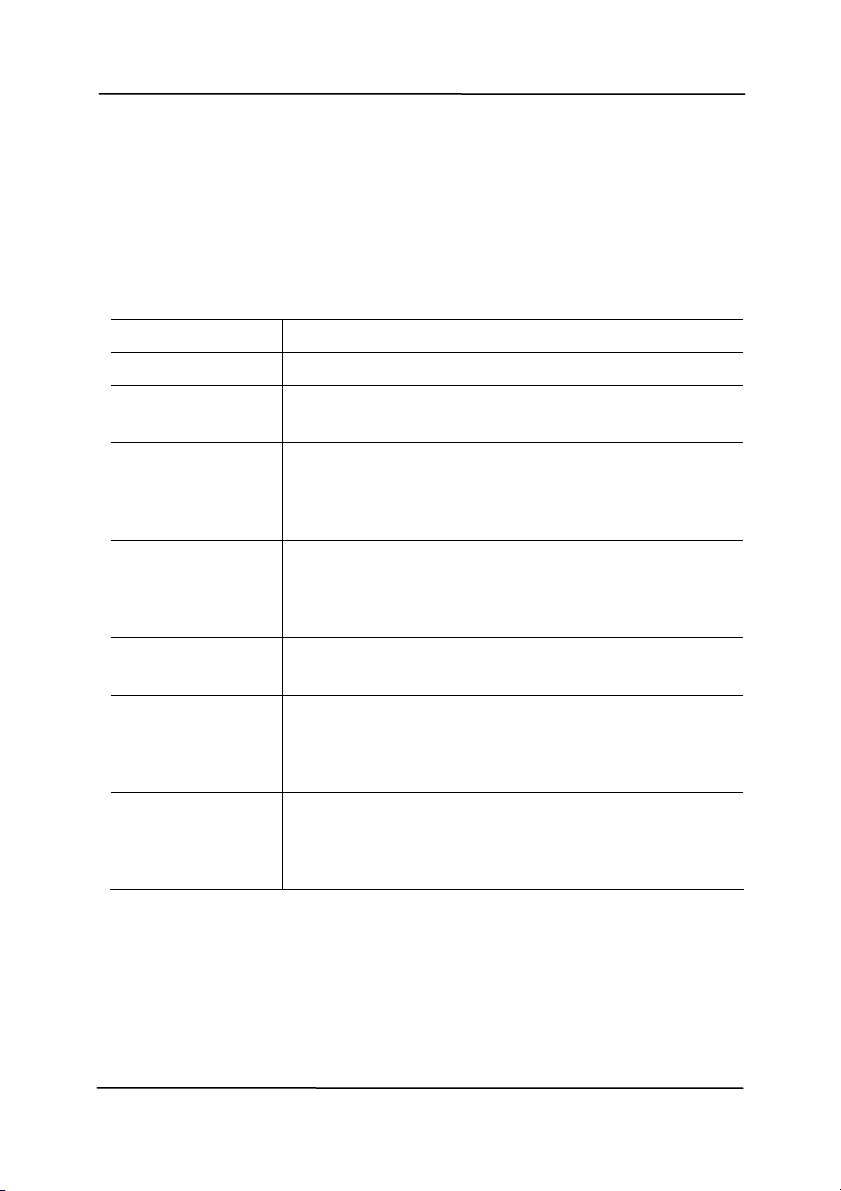
Use r’s Man ua l
10-2
W i- Fi Specifica t ions:
Model: CF- WU810N
Main Chipset RTL8188EUS
Host interface USB 2.0
Frequency
Range
2.412~ 2.484 GHz
Wi- Fi
St andard
I EEE 802.11b
I EEE 802.11g
I EEE 802.11n
Transm it
Speed
11b: 1/ 2/ 5.5/ 11 Mbps
11g: 6/ 9/ 12/ 24/ 36/ 48/ 54 Mbps
11n: 150 Mbps
Transm it
Power
Max. 18 dBm
Securit y
WPA-PSK/ WPA2- PSK
WPA/ WPA2
WEP
Operat ing
Syst em
Windows XP/ Vist a/ 7/ 8/ 8.1/ 10 (32/ 64 bit s)
Max OS 10.6 ~ 10.11
Linux Kernel 2.6.18~ 3.10