
Plasma TV
user manual
BN68-01411B-02
Contact SAMSUNG WORLD-WIDE
If you have any questions or comments relating to Samsung products, please contact the SAMSUNG customer care center.
Comment contacter Samsung dans le monde
Si vous avez des suggestions ou des questions concernant les produits Samsung, veuillez contacter le Service
Consommateurs Samsung.
Country Customer Care Center Web Site Address
CANADA 1-800-SAMSUNG (7267864) www.samsung.com/ca
Samsung Electronics Canada Inc., Customer Service 55
Standish Court Mississauga, Ontario L5R 4B2 Canada
Samsung Electronique Canada Inc., Service à la Clientèle
55 Standish Court Mississauga, Ontario L5R 4B2
Canada
U.S.A 1-800-SAMSUNG (7267864) www.samsung.com
Samsung Electronics America, Inc. 105 Challenger Road
Ridgefield Park, NJ 07660-0511
Thank you for purchasing this Samsung product.
To receive more complete service, please
register your product at
www.samsung.com/global/register
Model Serial No.
imagine the possibilities

English - 2
Important Warranty Information Regarding Television Format Viewing
Wide screen format PDP Displays (16:9, the aspect ratio of the screen width to height) are primarily designed to view wide
screen format full-motion video. The images displayed on them should primarily be in the wide screen 16:9 ratio format,
or expanded to fill the screen if your model offers this feature and the images are constantly moving. Displaying stationary
graphics and images on screen, such as the dark side-bars on nonexpanded standard format television video and
programming, should be limited to no more than 5% of the total television viewing per week.
Additionally, viewing other stationary images and text such as stock market reports, video game displays, station logos,
web sites or computer graphics and patterns, should be limited as described above for all televisions. Displaying stationary
images that exceed the above guidelines can cause uneven aging of PDP Displays that leave subtle, but permanent
burned-in ghost images in the PDP picture. To avoid this, vary the programming and images, and primarily display
full screen moving images, not stationary patterns or dark bars.
On PDP models that offer picture sizing features, use these controls to view different formats as a full screen picture.
Be careful in the selection and duration of television formats used for viewing. Uneven PDP aging as a result of format
selection and use, as well as burned-in images, are not covered by your Samsung limited warranty.
See the warranty card for more information on warranty terms.
© 2008 Samsung Electronics Co., Ltd. All rights reserved.
SAMSUNG ELECTRONICS NORTH AMERICAN LIMITED WARRANTY STATEMENT
Subject to the requirements, conditions, exclusions and limitations of the original Limited Warranty supplied with
Samsung Electronics (SAMSUNG) products, and the requirements, conditions, exclusions and limitations contained
herein, SAMSUNG will additionally provide Warranty Repair Service in the United States on SAMSUNG products
purchased in Canada, and in Canada on SAMSUNG products purchased in the United States, for the warranty period
originally specified, and to the Original Purchaser only.
The above described warranty repairs must be performed by a SAMSUNG Authorized Service Center. Along with this
Statement, the Original Limited Warranty Statement and a dated Bill of Sale as Proof of Purchase must be presented to
the Service Center. Transportation to and from the Service Center is the responsibility of the purchaser.
Conditions covered are limited only to manufacturing defects in material or workmanship, and only those encountered in
normal use of the product.
Excluded, but not limited to, are any originally specified provisions for, in-home or on-site services, minimum or
maximum repair times, exchanges or replacements, accessories, options, upgrades, or consumables.
For the location of a SAMSUNG Authorized Service Center, please call toll-free:
In the United States : 1-800-SAMSUNG (1-800-7
26-7864) In Canada : 1-800-SAMSUNG
English - 3
User Instructions
Screen Image retention
Do not display a still image (such as on a video game) on the plasma display panel for more than several minutes as it can
cause screen image retention. This image retention is also known as “screen burn”. To avoid such image retention, refer to
page 23 of this manual to reduce the degree of brightness and contrast of the screen when displaying a still image.
Altitude
The PDP can only operate normally at heights under 6500ft.
Heat on the top of the Plasma TV
The top side of the product may be hot after long periods of use as heat dissipates from the panel through the vent hole in
the upper part of the product.
This is normal and does not indicate any defect or operation failure of the product.
However, children should be prevented from touching the upper part of the product.
The product is making a ‘cracking’ noise.
A ‘cracking’ noise may occur when the product contracts or expands due to a change of surrounding environment such as
temperature or humidity. This is normal and not a defect of the unit.
Cell Defects
The PDP uses a panel consisting of 1,230,000(SD-level) to 3,150,000(HD-level) pixels which require sophisticated
technology to produce. However, there may be a few bright or dark pixels on the screen. These pixels will have no impact
on the performance of the product.
Avoid operating the TV at temperatures below 5°C (41°F)
A still image displayed too long may cause permanent damage to the PDP Panel.
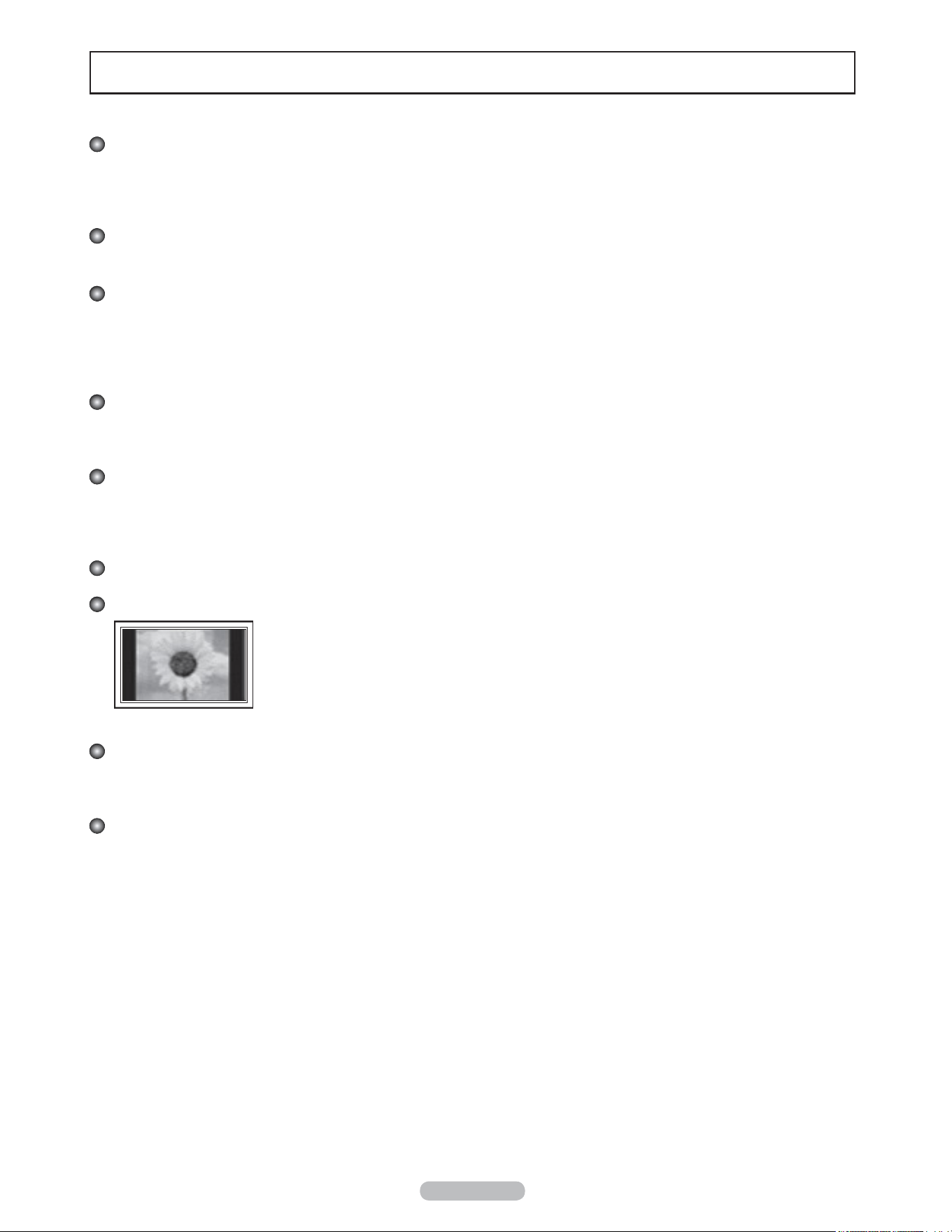
Watching the Plasma TV in 4:3 format for a long period of time may leave traces of borders
displayed on the left, right and center of the screen caused by the difference of light emission on
the screen.
Playing a DVD or a game console may cause similar effects to the screen.
Damages caused by the above effect are not covered by the Warranty.
After-images on the Screen.
Displaying still images from Video games and PC for longer than a certain period of time may produce partial after-images.
To prevent this effect, reduce the ‘brightness’ and ‘contrast’ when displaying still images for a long time.
Warranty
Warranty does not cover any damage caused by image retention.
Burn-in is not covered by the warranty.

English - 4
Symbols
Press
One-Touch
Button
Note
Contents
General Information
■ List of Features ..............................................................5
■ Accessories ....................................................................5
■ Viewing the Control Panel ............................................. 6
■ Viewing the Connection Panel .......................................7
■ Remote Control .............................................................. 8
■ Installing Batteries in the Remote Control .....................9
Connections
■ Connecting VHF and UHF Antennas ............................. 9
■ Connecting Cable TV ...................................................10
■ Connecting a DVD Player or Cable Box / Satellite
receiver (Set-Top Box) via HDMI ................................. 11
■ Connecting a DVD Player or Cable Box / Satellite
receiver (Set-Top Box) via DVI ..................................... 11
■ Connecting a DVD Player or Cable Box / Satellite
receiver (Set-Top Box) via Component cables ............. 12
■ Connecting a Camcorder .............................................12
■ Connecting a VCR ....................................................... 13
■ Connecting a Digital Audio System .............................. 14
■ Connecting an Amplifier/DVD Home Theater .............. 14
■ Connecting a PC .......................................................... 15
Operation
■ Turning the TV On and Off ...........................................16
■ Plug & Play Feature .....................................................16
■ Changing Channels ..................................................... 18
■ Adjusting the Volume ................................................... 19
■ Viewing the Display......................................................19
■ Viewing the Menus....................................................... 19
■ Using the TOOLS Button ............................................. 20
■ Memorizing the Channels ............................................ 20
■ To Select the Source ....................................................22
■ To Edit the Input Source Name ....................................22
Picture Control
■ Changing the Picture Standard ....................................23
■ Customizing the Picture Settings .................................23
■ Adjusting the Detailed Settings .................................... 24
■ Configuring Picture Options ........................................27
■
Resetting the Picture Settings to the Factory Defaults
..... 34
■ Viewing Picture-in-Picture ...........................................34
Sound Control
■ Changing the Sound Standard ....................................36
■ Customizing the Sound ................................................36
■ Setting the TruSurround XT .........................................37
■ Choosing the Preferred Language ............................... 38
■
Choosing a Multi-Channel Sound (MTS) Track - Analog
.......38
■ Automatic Volume Control ...........................................39
■ Setting the TV Speakers On/Off ..................................39
■ Listening to the Sound of the Sub (PIP) Picture .......... 40
■
Resetting the Sound Settings to the Factory Defaults
......40
■ Connecting Headphones (Sold separately) ................. 40
Channel Control
■ Managing Channels .....................................................41
■ Clearing Scrambled Channels – Digital ....................... 47
■ Fine Tuning Analog Channels ......................................47
■ Checking the Digital-Signal Strength ........................... 48
PC Display
■ Using Your TV as a Computer (PC) Display ................ 49
■ Display Modes ............................................................ 49
■ Setting up the TV with your PC .................................... 50
Time Setting
■ Setting the Time ...........................................................52
Function Description
■ Selecting a Menu Language ........................................56
■ Using the V-Chip .......................................................... 57
■ Viewing Closed Captions (On-Screen Text Messages)
- Digital ......................................................................... 65
■ Viewing Closed Captions (On-Screen Text Messages)
- Analog ........................................................................ 66
■ Adjusting the TV On/Off Melody Sound ....................... 67
■ Setting the Light Effect ................................................. 67
■ Setting the Entertainment mode .................................. 68
■ Using the Energy Saving Feature ................................ 68
■ Upgrading the Software ...............................................69
Wiselink
■ Using the WISELINK Function ..................................... 70
■ Using the Photo List .....................................................72
■ Viewing a Photo or Slide Show ....................................77
■ Using the Music List .....................................................81
■ Playing a Music File .....................................................85
■ Using the Setup Menu .................................................87
About Anynet
+
■ What is Anynet+? .........................................................88
■ Connecting Anynet+ Devices ....................................... 88
■ Setting Up Anynet+ ...................................................... 89
■ Scanning and Switching between Anynet+ Devices .... 89
■ Recording .................................................................... 90
■ Listening through a Receiver (Home theater) .............. 91
■ Troubleshooting for Anynet+ ........................................ 91
Appendix
■ Securing the TV to the Wall ......................................... 92
■ Troubleshooting ...........................................................93
■ Auto Wall-mount adjustment (Sold separately) ............94
■ Wall Mount Kit Specifications (VESA) .......................... 95
■ Preparing before installing Wall- Mount on the wall ..... 96
■ How to attach the Stand-Base ..................................... 96
■ Specifications ............................................................... 97
■ Dimensions ..................................................................98
English
English - 5
Accessories
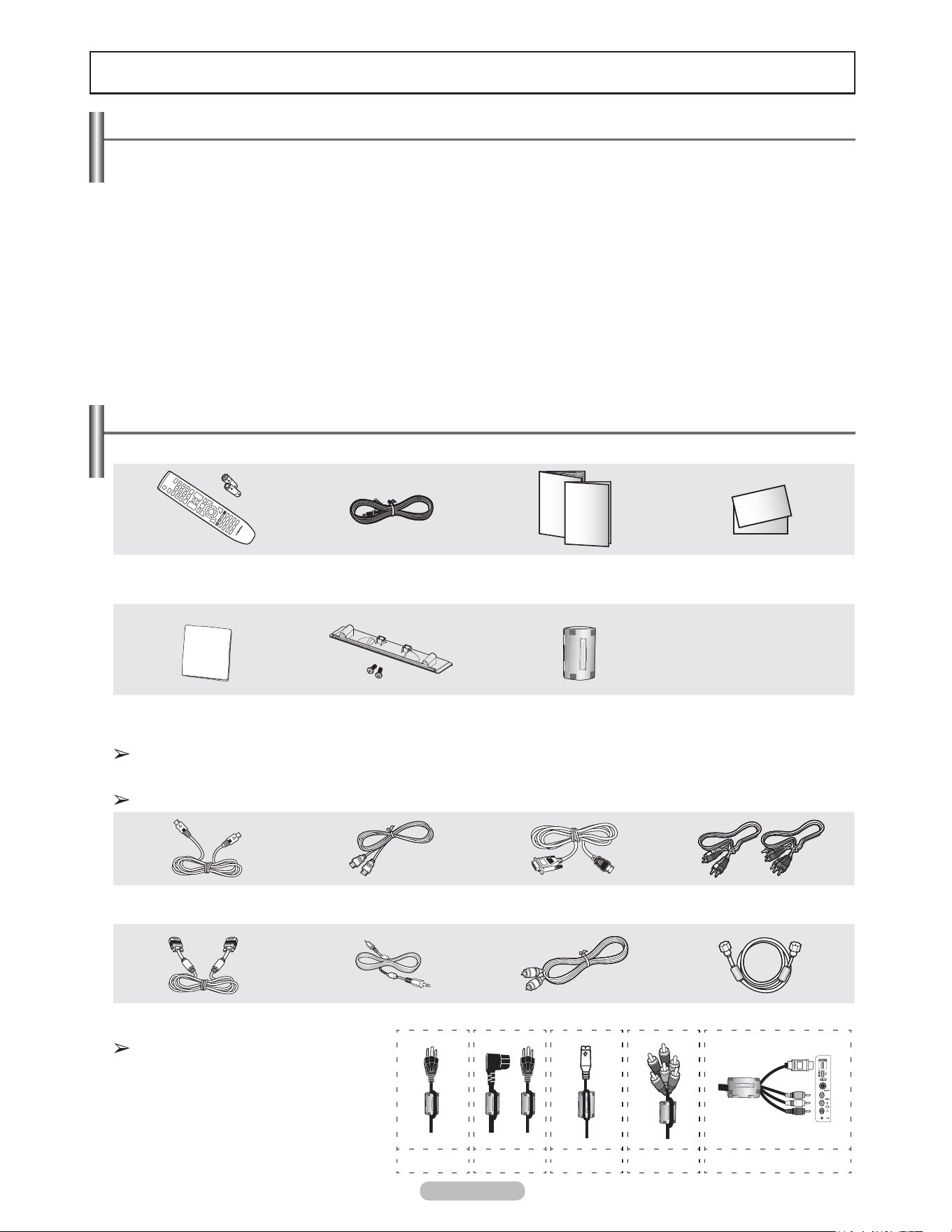
Please make sure the following items are included with your TV. If any items are missing, contact your dealer.
Remote Control
(BN59-00673A) /
AAA Batteries (4301-000103)
Power Cord
(3903-000144)
Owner’s Instructions /
Quick Setup Guide
Warranty Card /
Safety Guide Manual
(Not available in all locations)
Cleaning Cloth
(BN63-01798A)
Cover-Bottom /
Screws (2ea)
(Refer to page 93)
Ferrite Core(3301-001305)
PN50A550S1F Only : 5ea
PN58A550S1F Only : 3ea
See the bottom of the page for Ferrite Core usage.
The following parts are sold separately and are available at most electronics stores.
If you do not use a good quality cable, some noise may appear on the screen.
S-VIDEO Cable (BN39-00149A) HDMI Cable (BN39-00641A) HDMI/DVI cable (BN39-00643A) Component Cables (RCA)
(BN39-00279A)
PC Cable (BN39-00115A) PC Audio Cable (BN39-00061B) Optical Cable Antenna Cable (BN39-00333A)
Ferrite Core
The ferrite cores are used to shield the
cables from interference.
When connecting a cable, open the ferrite
core and clip it around the cable near the
plug.
General Information
List of Features
• Adjustable picture settings that can be stored in the TV’s memory.
• Automatic timer to turn the TV on and off.
• A special sleep timer.
• V-Chip function.
• Excellent Digital Interface & Networking :
With a built-in HD digital tuner, non-subscription HD broadcasts can be viewed with no Cable Box/Satellite receiver (Set-
Top Box) needed.
• HDMI/DVI connection of your PC to this TV.
• Excellent Picture Quality
- DNIe technology provides life-like clear images.
• SRS TruSurround XT
- SRS TruSurround XT provides a virtual surround system.
Power Cord
(PN58A550S1F)
Power Cord
(PN50A550S1F)
S-Video Cable
Component
Cable
Side HDMI Cable/Audio Cable/
Video cable (PN50A550S1F)
English - 6
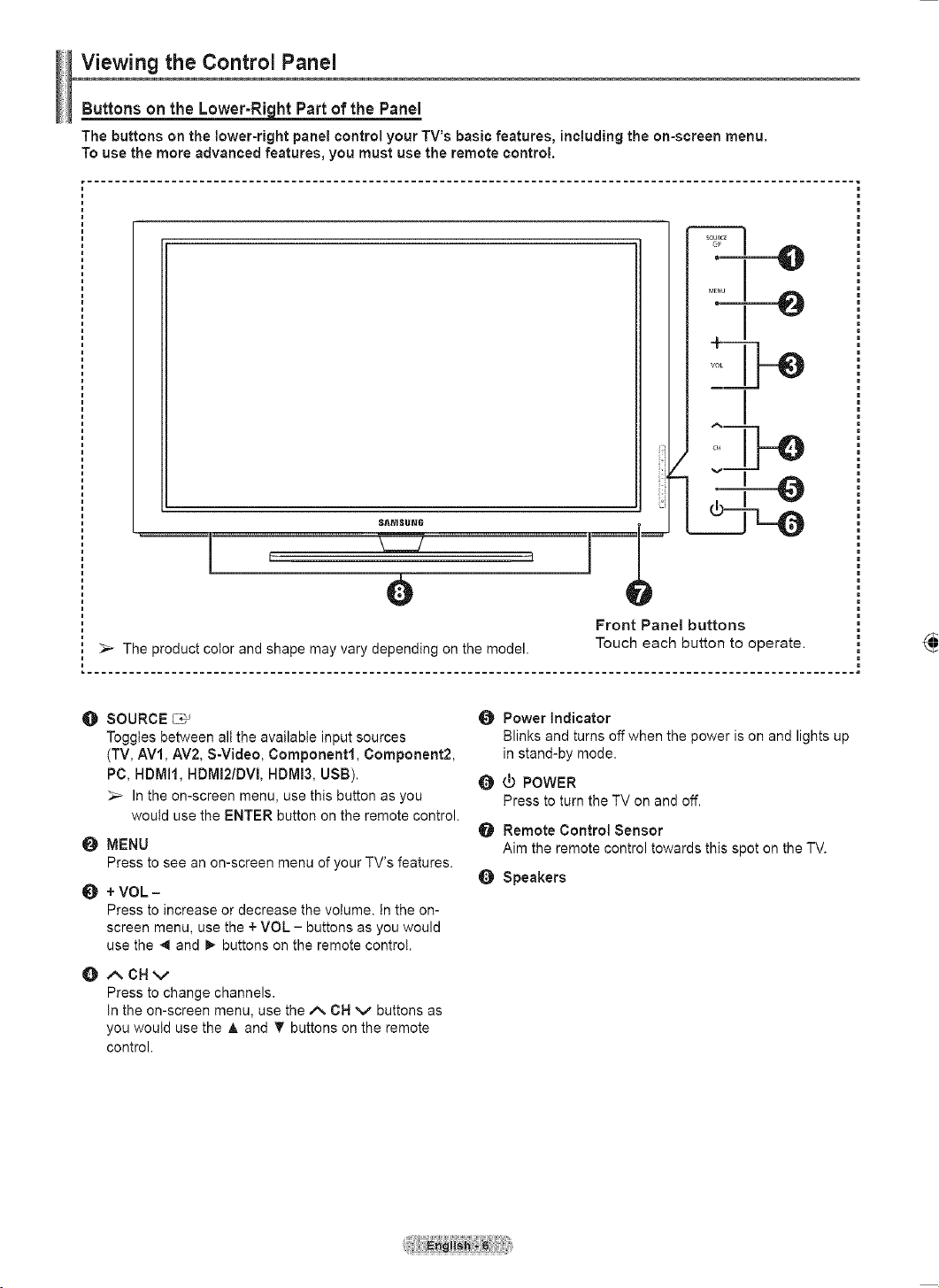
Viewing the Control Panel
Buttons on the Lower-Right Part of the Panel
The buttons on the lower-right panel control your TV’s basic features, including the on-screen menu.
To use the more advanced features, you must use the remote control.
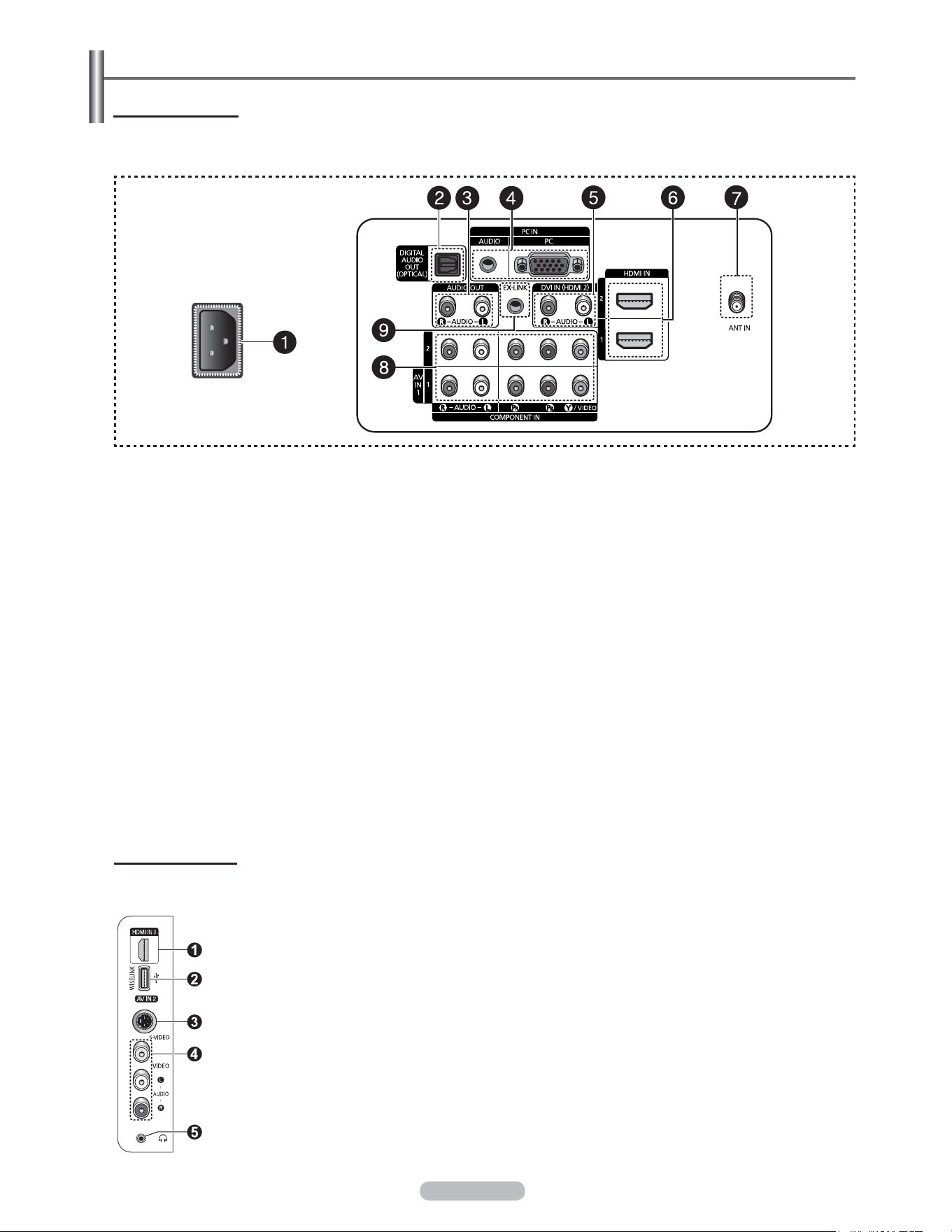
1
SOURCE
Toggles between all the available input sources
(TV, AV1, AV2, S-Video, Component1, Component2,
PC, HDMI1, HDMI2/DVI, HDMI3, USB).
In the on-screen menu, use this button as you
would use the ENTER button on the remote control.
2
MENU
Press to see an on-screen menu of your TV’s features.
3
+ VOL –
Press to increase or decrease the volume. In the on-
screen menu, use the + VOL
–
buttons as you would
use the ◄ and ► buttons on the remote control.
4
CH
Press to change channels.
In the on-screen menu, use the CH buttons as
you would use the ▲ and ▼ buttons on the remote
control.
5
Power Indicator
Blinks and turns off when the power is on and lights up
in stand-by mode.
6
POWER
Press to turn the TV on and off.
7
Remote Control Sensor
Aim the remote control towards this spot on the TV.
8
Speakers
The product color and shape may vary depending on the model.
Front Panel buttons
Touch each button to operate.
English - 7
Viewing the Connection Panel
Rear Panel Jacks
Use the rear panel jacks to connect A/V components that will be connected continuously, such as VCR or DVD players. For
more information on connecting equipment, see pages 9-15. The product color and shape may vary depending on the model.
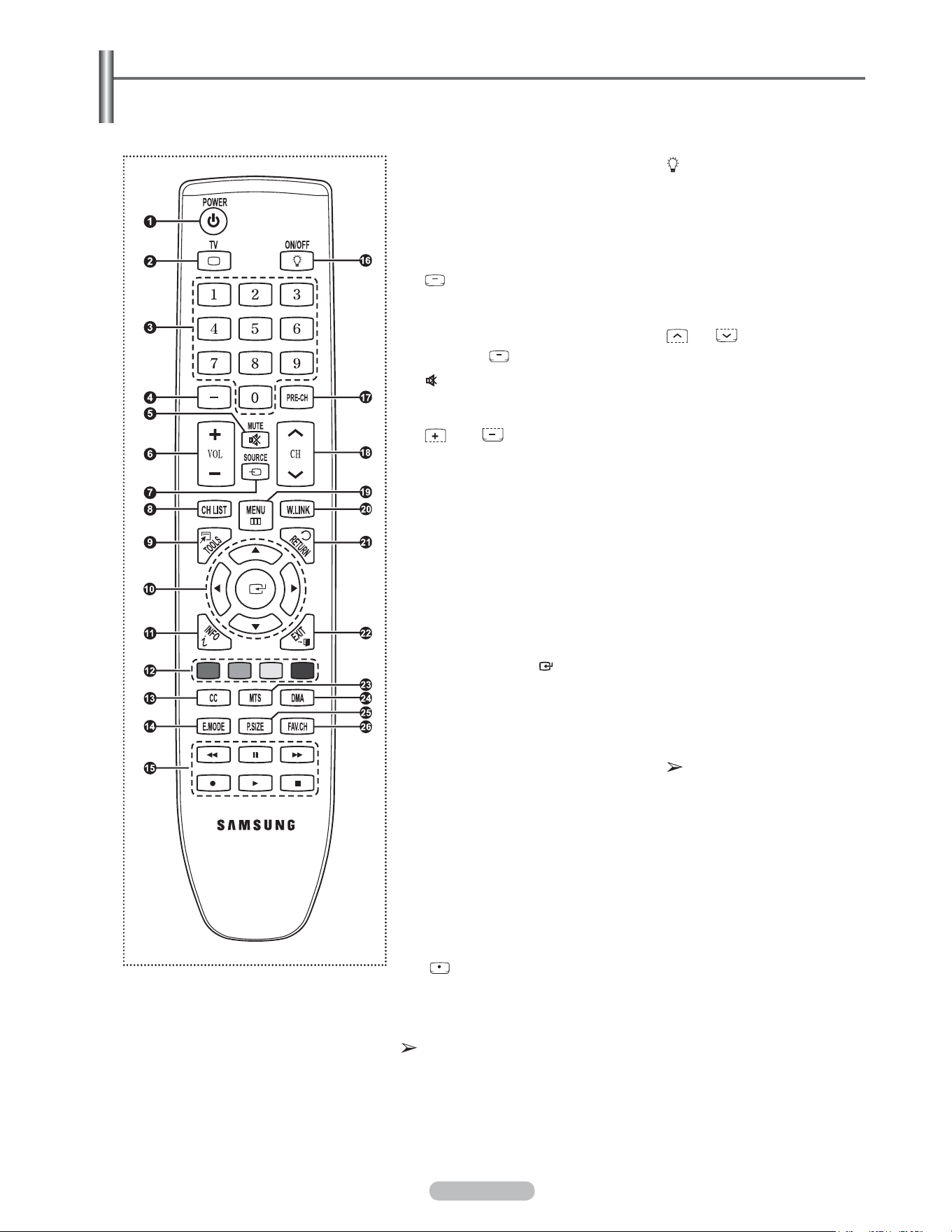
1
POWER IN
Connect the supplied power cord.
2
DIGITAL AUDIO OUT (OPTICAL)
Connect to a Digital Audio component.
3
AUDIO OUT (R/L)
Audio outputs to external devices.
4
PC IN[PC]/[AUDIO]
Connect to the video and audio output jack on your PC.
5
DVI IN (HDMI 2) (AUDIO-R/L)
Connect to the DVI audio output jack of an external device.
6
HDMI IN 1, 2
Connect to the HDMI jack of a device with an HDMI
output. (HDMI 2 supports HDMI-DVI IN and connection
from a PC.)
- This input can also be used as a DVI connection with
separate analog audio inputs. An optional HDMI/DVI
cable will be necessary to make this connection.
-
When using an optional HDMI/DVI adapter, the DVI
analog audio inputs on your TV allow you to receive left
and right audio from your DVI device.
7
ANT IN
Uses a 75Ω Coaxial connector for an Air/Cable
Network.
8
COMPONENT IN 1, 2 / AV IN 1
Connects Component video/audio.
The COMPONENT IN 1 jack is also used as the AV IN 1
jack.
- Connect the video cable to the COMPONENT IN 1 [Y/
VIDEO] jack and the audio cable to the COMPONENT IN
[R-AUDIO-L] jacks.
9
EX-LINK
Connect this to the jack on the optional wall mount
bracket. This will allow you to adjust the TV viewing
angle using your remote control.
Side Panel Jacks
Use the right side panel jacks to connect a component that is used only occasionally, such as a camcorder or video game.
The product color and shape may vary depending on the model.
1
HDMI IN 3
Connect to the HDMI jack of a device with an HDMI output.
2
WISELINK
Connect a USB mass storage device to view photo files (JPEG) and play audio files (MP3).
3
S-VIDEO (AV IN 2)
S-Video input for external devices with an S-Video output.
4
AV IN 2
Video and audio inputs for external devices.
5
HEADPHONE
You can connect a set of headphones if you wish to watch a television program without
disturbing other people in the room.
English - 8
Remote Control
You can use the remote control up to a distance of about 23 feet from the TV.
The performance of the remote control may be affected by bright light.
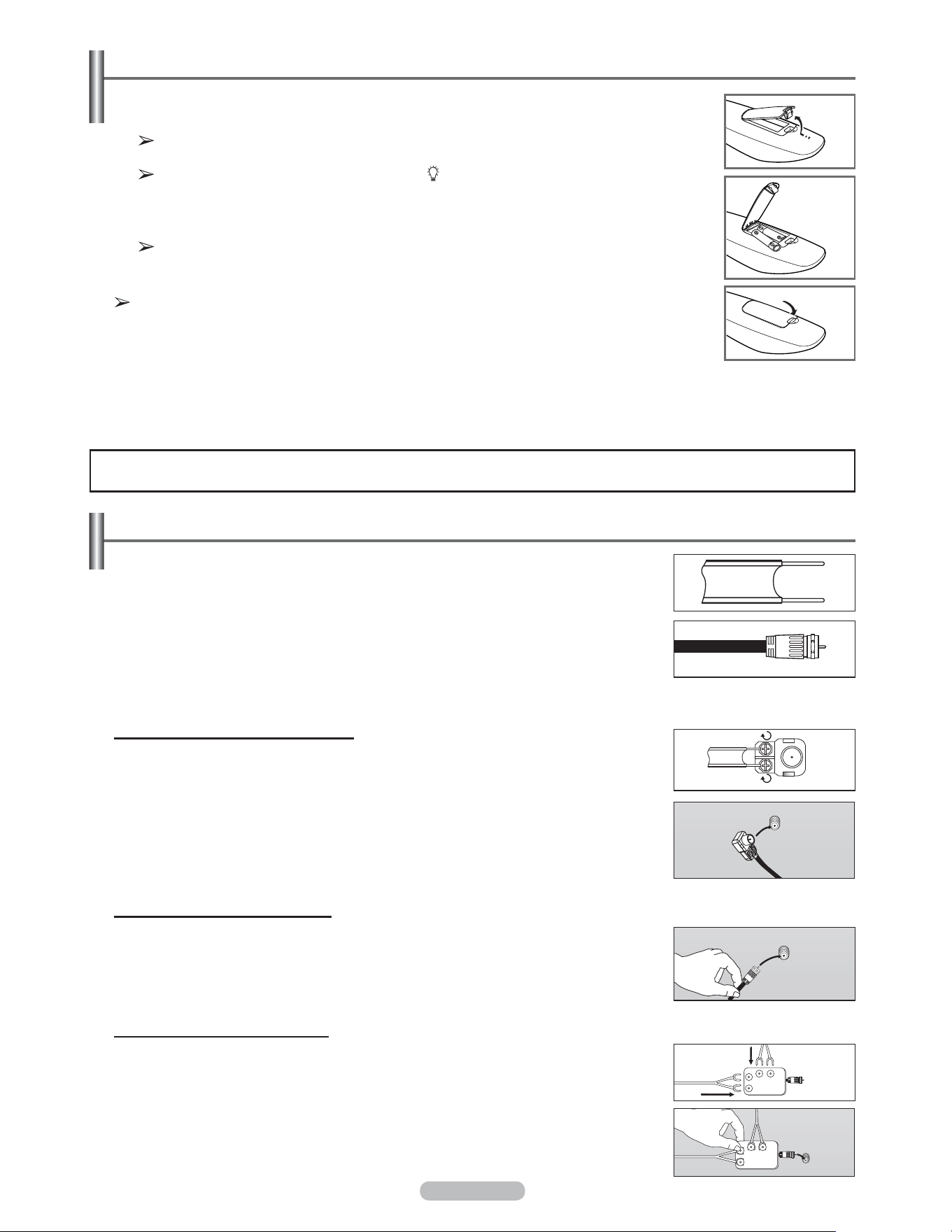
1
POWER
Turns the TV on and off.
2
TV
Selects the TV mode directly.
3
NUMERIC BUTTONS
Press to change the channel.
4
Press to select additional channels
(digital and analog) being broadcast
by the same station. For example,
to select channel “54-3”, press “54”,
then press “ ” and “3”.
5
MUTE
Press to temporarily cut off the
sound.
6
VOL
Press to increase or decrease the
volume.
7
SOURCE
Press to display and select the
available video sources.
8
CH LIST
Used to display Channel Lists on the
screen.
9
TOOLS
Use to quickly select frequently used
functions.
0
UP▲ / DOWN▼ / LEFT◄ /
RIGHT► / ENTER
Use to select on-screen menu items
and change menu values.
!
INFO
Press to display information on the
TV screen.
@
COLOR BUTTONS
Use these buttons in the Channel list
and WISELINK.
#
CC
Controls the caption decoder.
$
E.MODE
Press to select the preset display
and sound modes for sports, cinema
and games.
%
Use these buttons in the DMA,
WISELINK and Anynet+ modes.
( : This remote can be used
to control recording on Samsung
recorders with the Anynet+ feature)
^
ON/OFF
Press to backlight the buttons on the
remote.
This function is convenient for using
at night or when the room is dark.
(Using the remote control with the
light button set to On will reduce the
battery usage time.)
&
PRE-CH
Tunes to the previous channel.
*
CH
Press to change channels.
(
MENU
Displays the main on-screen menu.
)
W.LINK(WISELINK)
This function enables you to view
and play photo and music files from
an external device. (Refer to pages
72 (Photo) and 80 (Music))
a
RETURN
Returns to the previous menu.
b
EXIT
Press to exit the menu.
c
MTS
Press to choose stereo, mono or
Separate Audio Program (SAP
broadcast).
d
DMA (Digital Media Adapter)
Use this when connecting a
Samsung DMA device through an
HDMI interface and switching to
DMA mode.
For more information on the
operating procedures, refer to the
user manual of the DMA.
This button is available when
“Anynet+(HDMI-CEC)” is “On”.
(see page 89)
e
P.SIZE
Picture size selection.
f
FAV.CH
Press to switch to your favorite
channels.
English - 9
Connections
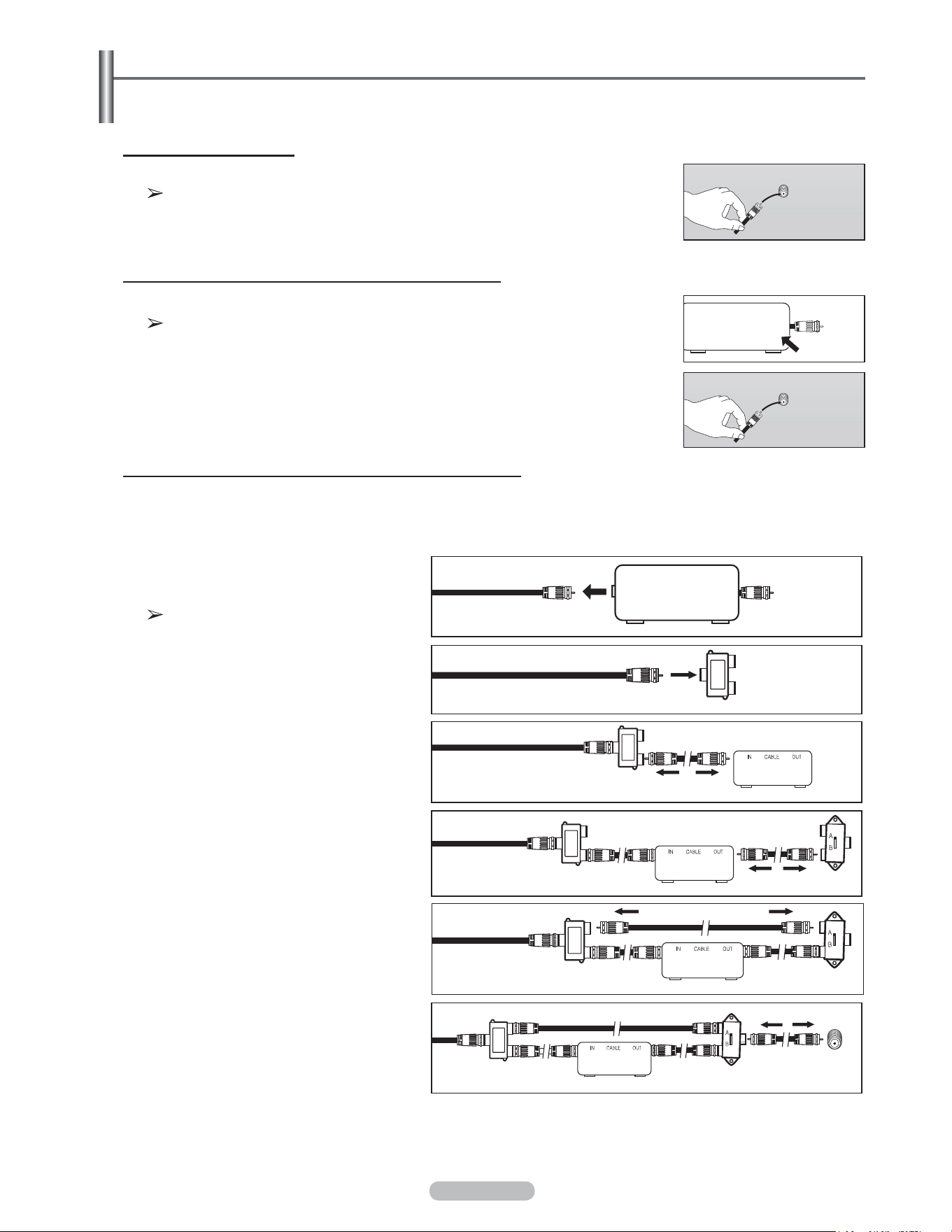
Connecting VHF and UHF Antennas
If your antenna has a set of leads that look like this, see “Antennas with 300 Ω Flat
Twin Leads” below.
If your antenna has one lead that looks like this, see “Antennas with 75 Ω Round
Leads”.
If you have two antennas, see “Separate VHF and UHF Antennas”.
Antennas with 300 Ω Flat Twin Leads
If you are using an off-air antenna (such as a roof antenna or “rabbit ears”) that
has 300 Ω twin flat leads, follow the directions below.
1 Place the wires from the twin leads under the screws on a 300-75 Ω adapter (not
supplied).
Use a screwdriver to tighten the screws.
2 Plug the adaptor into the ANT IN terminal on the back of the TV.
Antennas with 75 Ω Round Leads
1
Plug the antenna lead into the ANT IN terminal on the back of the TV.
Separate VHF and UHF Antennas
If you have two separate antennas for your TV (one VHF and one UHF), you must
combine the two antenna signals before connecting the antennas to the TV. This
procedure requires an optional combiner-adaptor (available at most electronics
shops).
1 Connect both antenna leads to the combiner.
2 Plug the combiner into the ANT IN terminal on the bottom of the back panel.
Installing Batteries in the Remote Control
1 Lift the cover at the back of the remote control upward as shown in the figure.
2 Install two AAA size batteries.
Make sure to match the “+” and “–” ends of the batteries with the diagram inside the
compartment.
Using the remote control with the ON/OFF( ) light button set to On will reduce the
battery usage time.
※
Use alkaline batteries for the remote control.
3 Close the cover as shown in the figure.
Remove the batteries and store them in a cool, dry place if you won’t be using the
remote control for a long time. The remote control can be used up to about 23 feet
from the TV. (Assuming typical TV usage, the batteries last for about one year.)
If the remote control doesn’t work, check the following:
1. Is the TV power on?
2. Are the plus and minus ends of the batteries reversed?
3. Are the batteries drained?
4. Is there a power cut, or is the power cord unplugged?
5. Is there a special fluorescent light or a neon sign nearby?
ANT IN
ANT IN
UHF
VHF
ANT IN
UHF
VHF
English - 10
Connecting Cable TV
To connect to a cable TV system, follow the instructions below.
Cable without a Cable Box
1 Plug the incoming cable into the ANT IN terminal on the back of the TV.
Because this TV is cable-ready, you do not need a cable box to view
unscrambled cable channels.
1 Find the cable that is connected to the ANT OUT terminal on your cable box.
This terminal might be labeled “ANT OUT”, “VHF OUT” or simply, “OUT”.
2 Connect the other end of this cable to the ANT IN terminal on the back of the TV.
Connecting to a Cable Box that Descrambles All Channels
Connecting to a Cable Box that Descrambles Some Channels
If your cable box descrambles only some channels (such as premium channels), follow the instructions below.
You will need a two-way splitter, an RF (A/B) switch, and four lengths of Antenna cable. (These items are available
at most electronics stores.)
1 Find and disconnect the cable that is
connected to the ANT IN terminal on your
cable box.
This terminal might be labeled “ANT
IN”, “VHF IN” or simply, “IN”.
2 Connect this cable to a two-way splitter.
3 Connect an Antenna cable between an
OUTPUT terminal on the splitter and the IN
terminal on the cable box.
4 Connect an Antenna cable between the
ANT OUT terminal on the cable box and the
B–IN terminal on the RF(A/B) switch.
5 Connect another cable between the other
OUT terminal on the splitter and the A–IN
terminal on the RF (A/B) switch.
6 Connect the last Antenna cable between
the OUT terminal on the RF (A/B) switch
and the ANT IN terminal on the rear of the
TV.
After you have made this connection, set the A/B switch to the “A” position for normal viewing. Set the A/B switch to the “B”
position to view scrambled channels. (When you set the A/B switch to “B”, you will need to tune your TV to the cable box’s
output channel, which is usually channel 3 or 4.)
ANT OUT
ANT IN
ANT IN
ANT IN
Splitter
Cable Box
RF (A/B)
Switch
Incoming
cable
Splitter
Incoming
cable
Splitter
Cable Box
Incoming
cable
Splitter
Incoming
cable
TV Rear
RF (A/B)
Switch
ANT IN
ANT IN
Splitter
Incoming
cable
RF (A/B)
Switch
Cable Box
English - 11
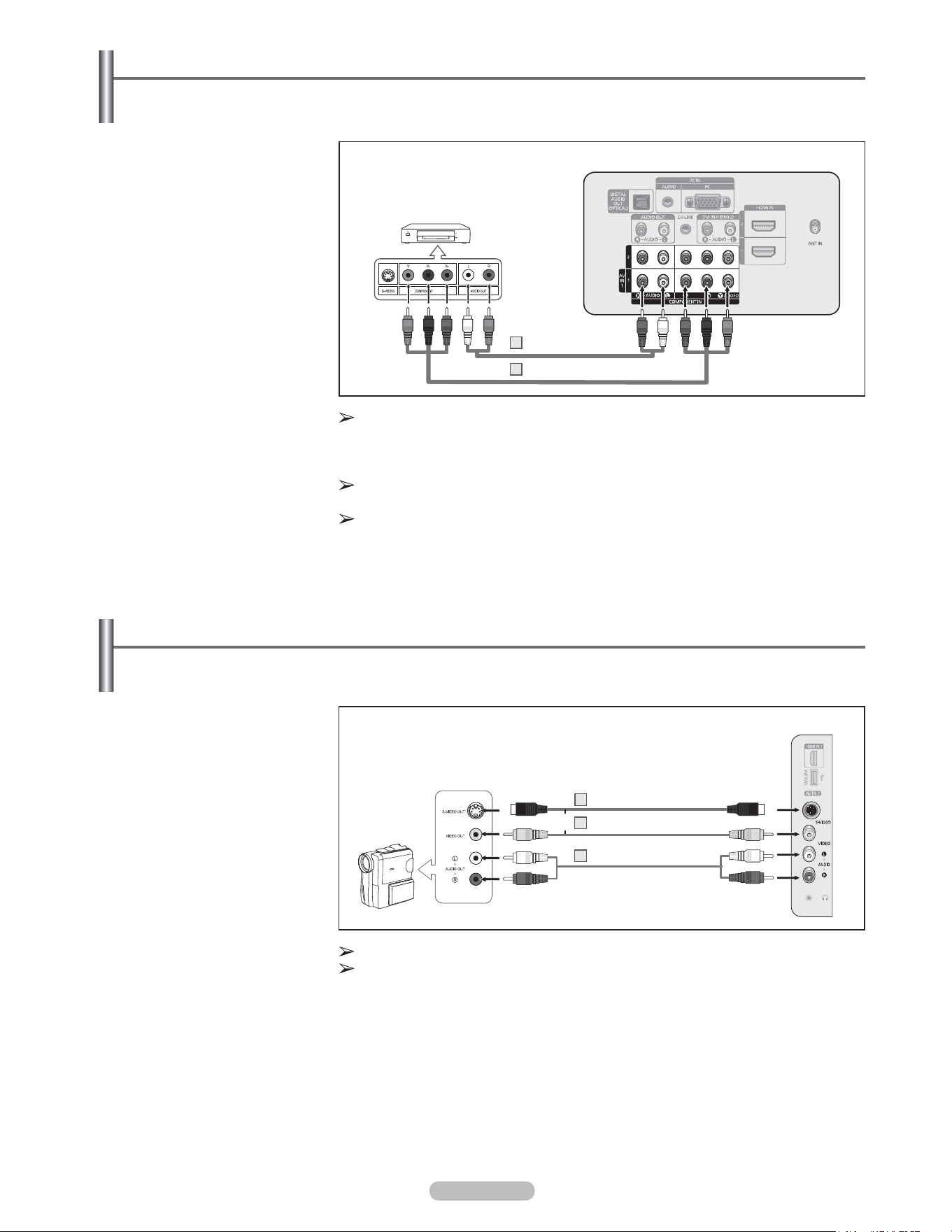
Connecting a DVD Player or Cable Box / Satellite receiver (Set-Top Box) via DVI
This connection can only be made if there is a DVI Output jack on the external device.
1 Connect a HDMI/DVI Cable
or DVI-HDMI Adapter
between the HDMI IN 2 jack
on the TV and the DVI jack
on the DVD Player or Cable
Box/Satellite receiver (Set-
Top Box).
2 Connect Audio Cables
between the DVI IN (HDMI 2)
[R-AUDIO-L] jack on the TV
and the DVD Player or Cable
Box / Satellite receiver (Set-
Top Box).
Each DVD Player or Cable Box / Satellite receiver (Set-Top Box) has a different
back panel configuration.
When connecting a DVD Player or Cable Box / Satellite receiver (Set-Top Box),
match the color of the connection terminal to the cable.
When using an HDMI / DVI cable connection, you must use the HDMI IN 2 jack.
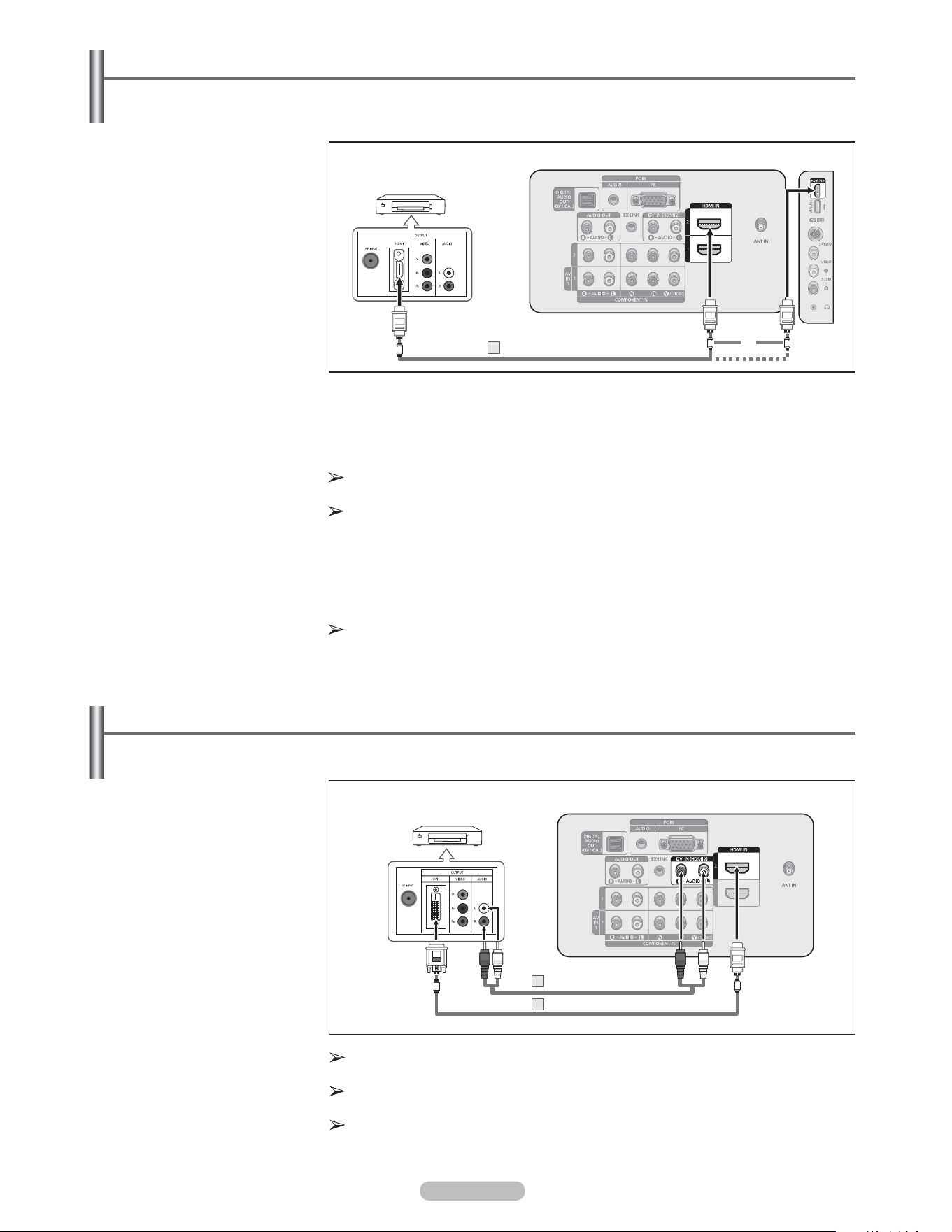
Connecting a DVD Player or Cable Box / Satellite receiver (Set-Top Box) via HDMI
This connection can only be made if there is an HDMI Output jack on the external device. This connection will
provide the highest quality picture.
1 Connect an HDMI Cable
between the HDMI IN (1, 2
or 3) jack on the TV and the
HDMI jack on the DVD Player
or Cable Box / Satellite
receiver (Set-Top Box).
What is HDMI?
• HDMI, or high-definition multimedia interface, is an interface that enables the
transmission of digital audio and video signals using a single cable.
• The difference between HDMI and DVI is that the HDMI device is smaller in size and
has the HDCP (High Bandwidth Digital Copy Protection) coding feature installed.
Each DVD Player or Cable Box / Satellite receiver (Set-Top Box) has a different
back panel configuration.
The TV may not output sound and pictures may be displayed with abnormal color
when DVD Player or Cable Box / Satellite receivers supporting HDMI versions
older than 1.3 are connected. When connecting an older HDMI cable and there
is no sound, connect the HDMI cable to the HDMI IN 2 jack and the audio cables
to the DVI IN (HDMI2) [R-AUDIO-L] jacks on the back of the TV. If this happens,
contact the company that provided the DVD Player or Cable Box / Satellite receiver
to confirm the HDMI version, then request an upgrade.
HDMI cables that are not 1.3 may cause annoying flicker or no screen display.
HDMI Cable (Not supplied)1
DVD Player or Cable Box /
Satellite receiver (Set-Top Box)
TV Rear Panel TV Side Panel
DVD Player or Cable Box /
Satellite receiver (Set-Top Box)
TV Rear Panel
Audio Cable (Not supplied)2
HDMI/DVI Cable (Not supplied)1
or
English - 12
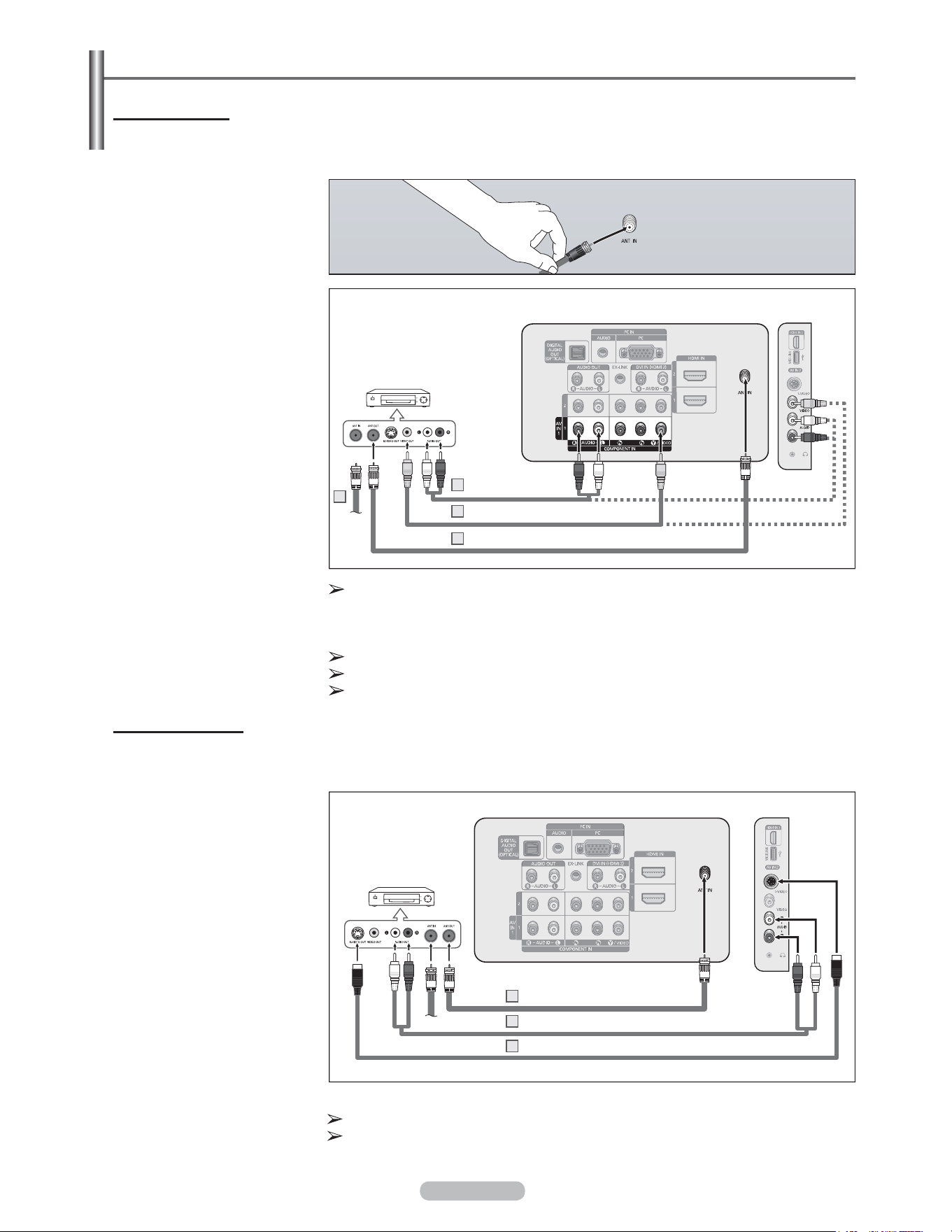
Connecting a Camcorder
The side panel jacks on your TV make it easy to connect a camcorder to your TV.
They allow you to view the camcorder tapes without using a VCR.
1 Connect a Video Cable
(or S-Video Cable) between
the AV IN 2 [VIDEO]
(or S-VIDEO) jack on the TV
and the VIDEO OUT jack on
the Camcorder.
2 Connect Audio Cables
between the AV IN 2
[L-AUDIO-R] jacks on the TV
and the AUDIO OUT jacks on
the Camcorder.
Each Camcorder has a different back panel configuration.
When connecting a Camcorder, match the color of the connection terminal to the cable
.
Camcorder
TV Side Panel
S-Video Cable(Not supplied)
1
Video Cable (Not supplied)1
Audio Cable (Not supplied)2
or
Connecting a DVD Player or Cable Box / Satellite receiver (Set-Top Box) via Component cables
The rear panel jacks on your TV make it easy to connect a DVD Player/Cable Box/Satellite receiver (Set-Top Box)
to your TV.
1 Connect Component Cable
between the COMPONENT
IN (1 or 2) [Y, PB, PR]
jacks on the TV and the
COMPONENT [Y, PB, PR]
jacks on the DVD Player
or Cable Box / Satellite
receiver(Set-Top Box).
2 Connect Audio Cables
between the COMPONENT
IN (1 or 2) [R-AUDIO-L] jacks
on the TV and the AUDIO
OUT jacks on the DVD Player
or Cable Box / Satellite
receiver (Set-Top Box).
Component video separates the video into Y (Luminance (brightness)), P
B
(Blue) and P
R
(Red) for enhanced video quality. Be sure to match the component
video and audio connections. For example, if connecting the video cable to
COMPONENT IN 1, connect the audio cable to COMPONENT IN 1 also.
Each DVD Player or Cable Box / Satellite receiver (Set-Top Box) has a different
back panel configuration.
When connecting a DVD Player or Cable Box / Satellite receiver (Set-Top Box),
match the color of the connection terminal to the cable.
DVD Player or Cable Box /
Satellite receiver (Set-Top Box)
TV Rear Panel
Audio Cable (Not supplied)2
Component Cable (Not supplied)1
English - 13
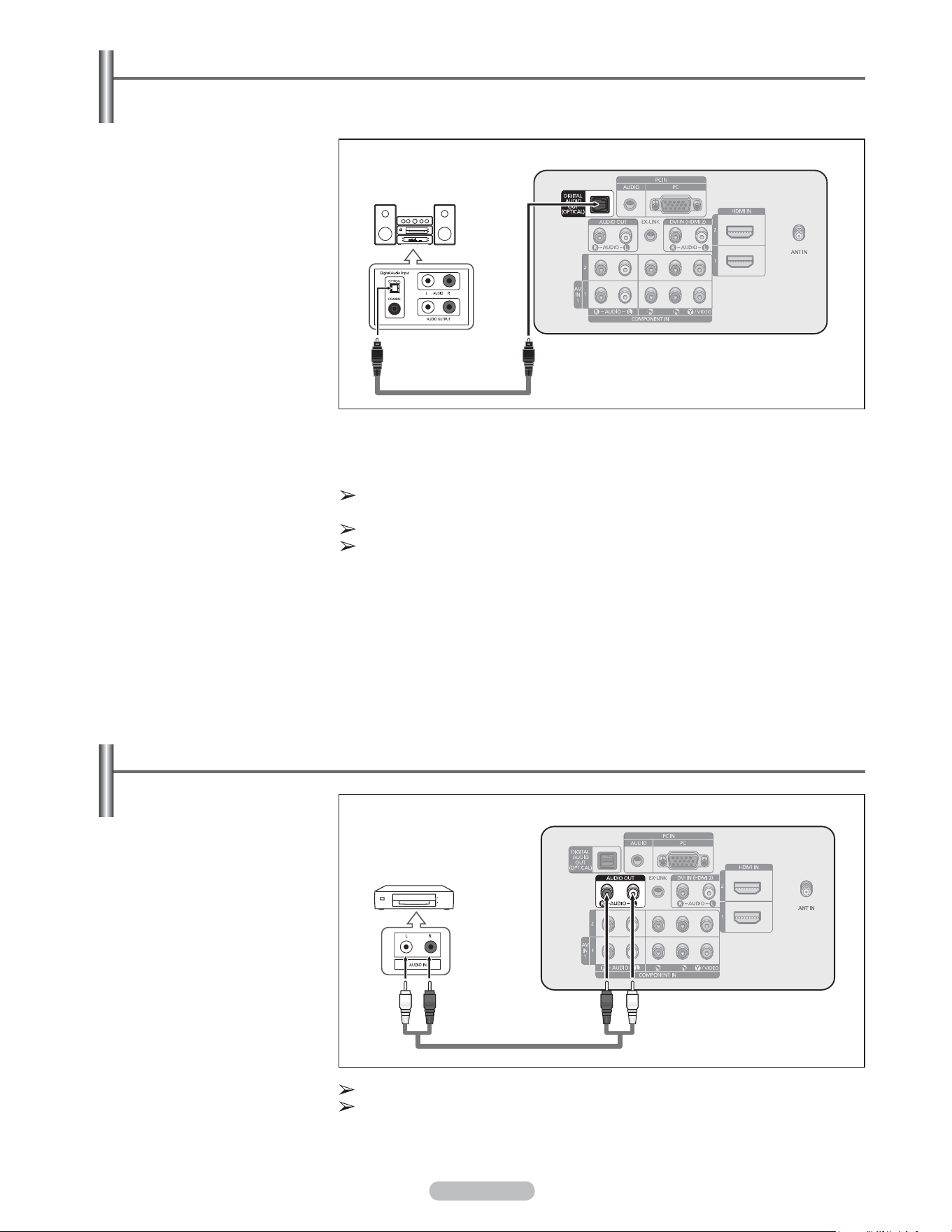
Connecting a VCR
Video Connection
These instructions assume that you have already connected your TV to an antenna or a cable TV system (according
to the instructions on pages 9~10). Skip step 1 if you have not yet connected to an antenna or a cable system.
If you have a “mono” (non-stereo) VCR, use a Y-connector (not supplied) to
connect to the right and left audio input jacks of the TV. Alternatively, connect the
cable to the “R” jack.
If your VCR is stereo, you must connect two cables.
Each VCR has a different back panel configuration.
When connecting a VCR, match the color of the connection terminal to the cable.
When connecting to AV IN 1, the color of the AV IN 1 [Y/VIDEO] jack (Green) does
not match the color of the video cable (Yellow).
S-Video Connection
Your Samsung TV can be connected to an S-Video jack on a VCR.
(This connection delivers a better picture as compared to a standard VCR.)
1 To begin, follow steps 1–3
in the previous section to
connect the antenna or cable
to your VCR and your TV.
2 Connect an S-Video Cable
between the S-VIDEO OUT
jack on the VCR and the AV
IN 2 [S-VIDEO] jack on the
TV.
3 Connect Audio Cables
between the AUDIO OUT
jacks on the VCR and the AV
IN 2 [R-AUDIO-L] jacks on
the TV.
An S-Video may be included with your VCR. (If not, check your local electronics store.)
Each VCR has a different back panel configuration.
When connecting a VCR, match the color of the connection terminal to the cable.
VCR Rear Panel
TV Rear Panel
Audio Cable (Not supplied)
3
S-Video Cable(Not supplied)2
Antenna cable(Not supplied)1
1 Unplug the cable or antenna
from the back of the TV.
2 Connect the cable or antenna
to the ANT IN terminal on the
back of the VCR.
3 Connect an Antenna Cable
between the ANT OUT
terminal on the VCR and the
ANT IN terminal on the TV.
4 Connect a Video Cable
between the VIDEO OUT
jack on the VCR and the AV
IN 1 [Y/VIDEO] or AV IN 2
[VIDEO] jack on the TV.
5 Connect Audio Cables
between the AUDIO OUT
jacks on the VCR and the AV
IN 1 (or AV IN 2) [R-AUDIO-L]
jacks on the TV.
TV Side Panel
VCR Rear Panel
TV Rear Panel
2
Audio Cable(Not supplied)5
Video Cable(Not supplied)4
Antenna cable(Not supplied)3
TV Side Panel
English - 14
Connecting an Amplifier / DVD Home Theater
1 Connect Audio Cables
between the AUDIO OUT
[R-AUDIO-L] jacks on the TV
and AUDIO IN [L-AUDIO-R]
jacks on the Amplifier/DVD
Home Theater.
When an audio amplifier is
connected to the AUDIO OUT
[R-AUDIO-L] jacks terminals :
Decrease the volume of the
TV, and adjust the volume
level with the Amplifier’s
volume control.
Each Amplifier / DVD Home Theater has a different back panel configuration.
When connecting an Amplifier / DVD Home Theater, match the color of the
connection terminal to the cable.
Amplifier / DVD Home Theater
TV Rear Panel
Audio Cable (Not supplied)
Connecting a Digital Audio System
The rear panel jacks on your TV make it easy to connect a Digital Audio System(Home theater/Receiver) to your
TV.
1 Connect an Optical Cable
between the DIGITAL AUDIO
OUT (OPTICAL) jacks on
the TV and the Digital Audio
Input (OPTICAL) jacks on the
Digital Audio System.
When a Digital Audio System
is connected to the “DIGITAL
AUDIO OUT (OPTICAL)”
jack:
Decrease the volume of the
TV, and adjust the volume
level with the system’s
volume control.
What is OPTICAL?
• An optical cable converts an electric signal into an optical light signal, and transmits
it through glass fibers. S/PDIF is a transmission system of digital audio in the form of
a light wave that uses a glass conductor.
5.1CH audio is possible when the TV is connected to an external device
supporting 5.1CH.
Each Digital Audio System has a different back panel configuration.
When the receiver (home theater) is set to On, you can hear sound output from
the TV’s Optical jack. When the TV is displaying a DTV(air) signal, the TV will send
out 5.1 channel sound to the Home theater receiver. When the source is a digital
component such as a DVD and is connected to the TV via HDMI, only 2 channel
sound will be heard from the Home Theater receiver.
If you want to hear 5.1 channel audio, connect the DIGITAL AUDIO OUT
(OPTICAL) jack on the DVD player or Cable/Satellite Box directly to an Amplifier or
Home Theater, not the TV.
Digital Audio System
TV Rear Panel
Optical Cable (Not supplied)
English - 15
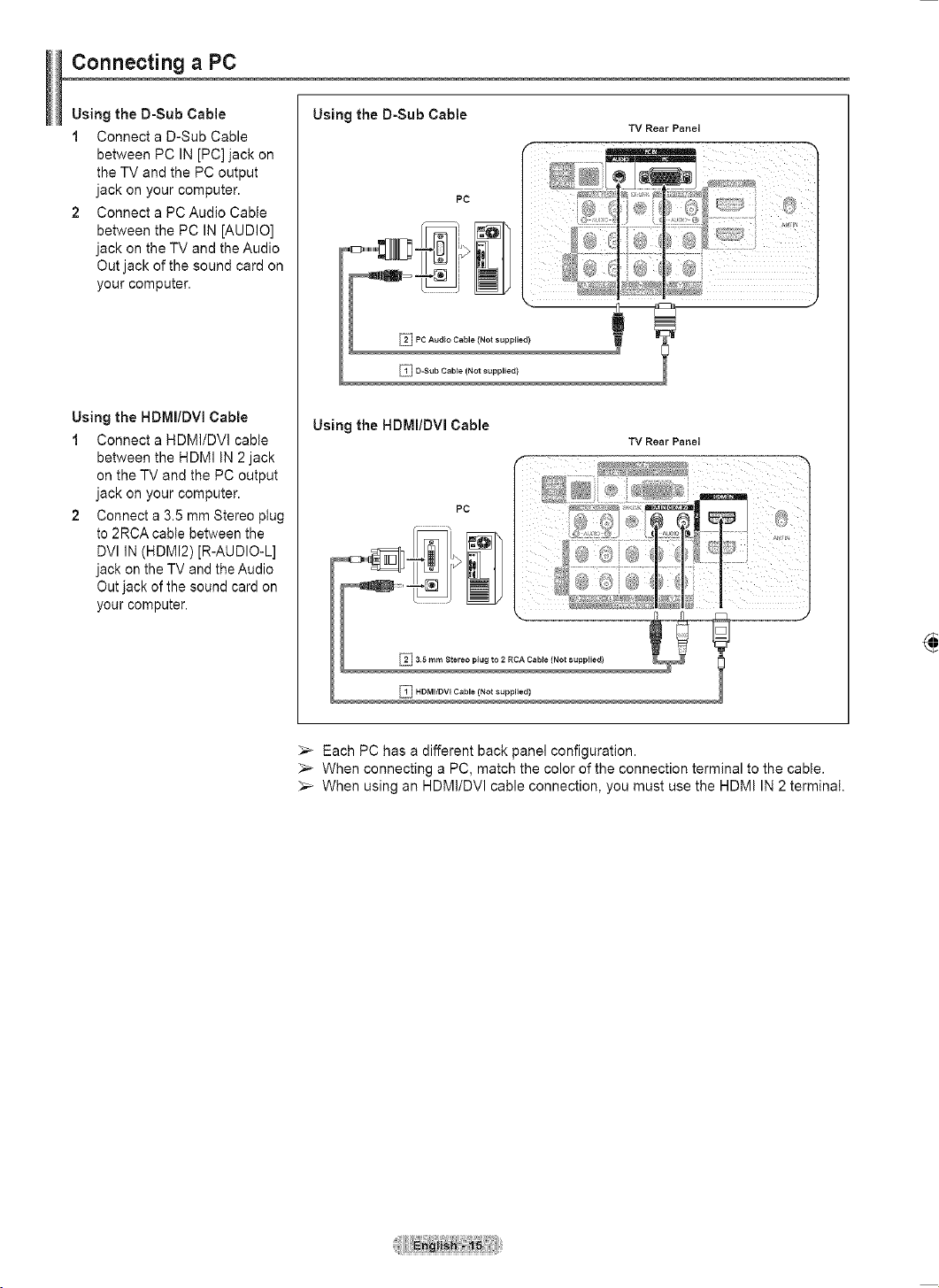
Using the D-Sub Cable
1 Connect a D-Sub Cable
between PC IN [PC] jack on
the TV and the PC output
jack on your computer.
2 Connect a PC Audio Cable
between the PC IN [AUDIO]
jack on the TV and the Audio
Out jack of the sound card on
your computer.
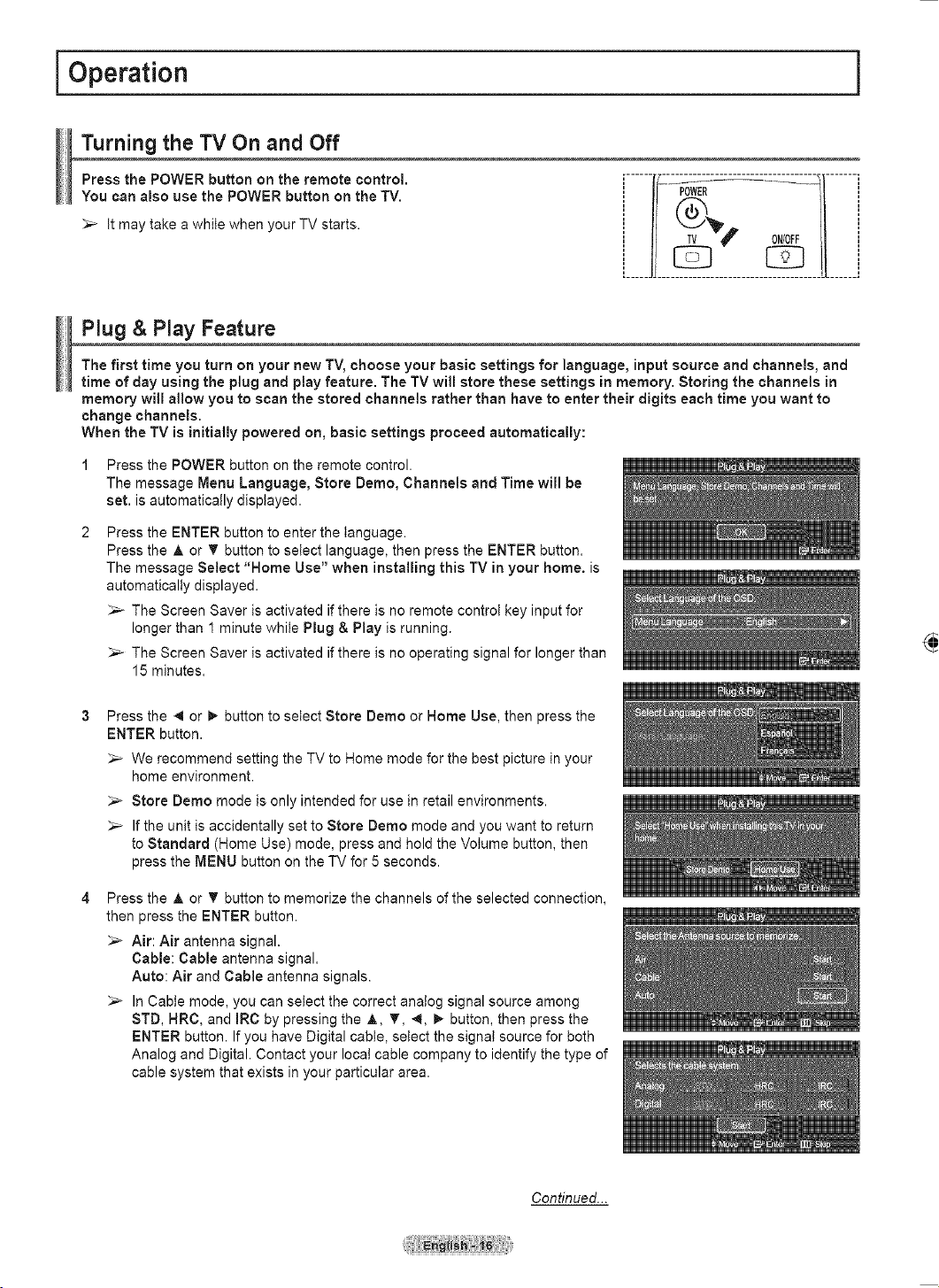
Using the HDMI/DVI Cable
1 Connect a HDMI/DVI cable
between the HDMI IN 2 jack
on the TV and the PC output
jack on your computer.
2
Connect a 3.5 mm Stereo plug
to 2RCA cable between the
DVI IN (HDMI2) [R-AUDIO-L]
jack on the TV and the Audio
Out jack of the sound card on
your computer.
Each PC has a different back panel configuration.
When connecting a PC, match the color of the connection terminal to the cable.
When using an HDMI/DVI cable connection, you must use the HDMI IN 2 terminal.
Connecting a PC
PC
TV Rear Panel
PC Audio Cable (Not supplied)2
D-Sub Cable (Not supplied)1
Using the D-Sub Cable
Using the HDMI/DVI Cable
TV Rear Panel
PC
3.5 mm Stereo plug to 2 RCA Cable (Not supplied)2
HDMI/DVI Cable (Not supplied)1
English - 16
Operation
Turning the TV On and Off
Press the POWER button on the remote control.
You can also use the POWER button on the TV.
It may take a while when your TV starts.
Plug & Play Feature
The first time you turn on your new TV, choose your basic settings for language, input source and channels, and
time of day using the plug and play feature. The TV will store these settings in memory. Storing the channels in
memory will allow you to scan the stored channels rather than have to enter their digits each time you want to
change channels.
When the TV is initially powered on, basic settings proceed automatically:
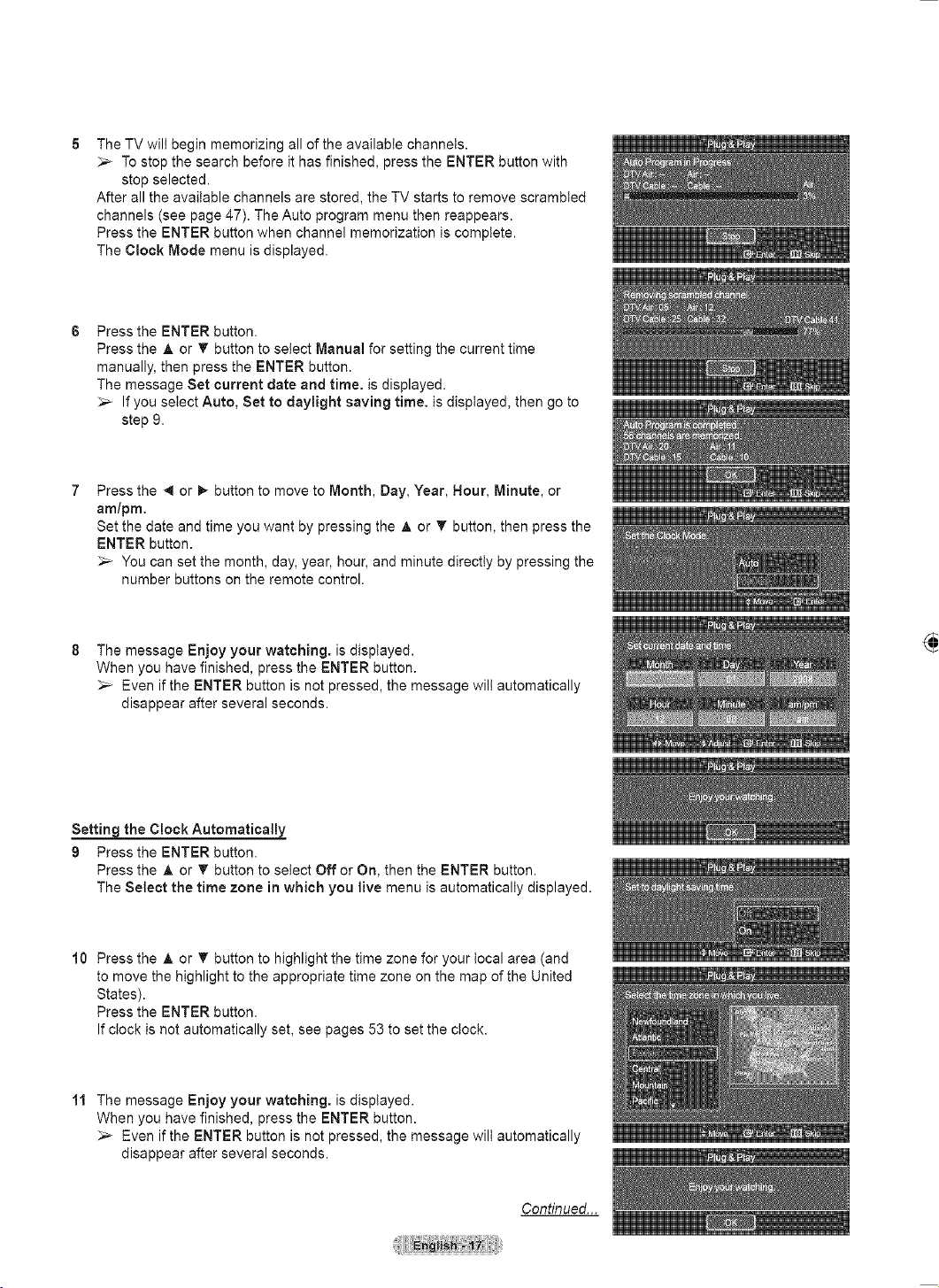
1 Press the POWER button on the remote control.
The message Menu Language, Store Demo, Channels and Time will be
set. is automatically displayed.
2 Press the ENTER button to enter the language.
Press the ▲ or ▼ button to select language, then press the ENTER button.
The message Select ‘Home Use’ when installing this TV in your home. is
automatically displayed.
The Screen Saver is activated if there is no remote control key input for
longer than 1 minute while Plug & Play is running.
The Screen Saver is activated if there is no operating signal for longer than
15 minutes.
3 Press the ◄ or ► button to select Store Demo or Home Use, then press the
ENTER button.
We recommend setting the TV to Home mode for the best picture in your
home environment.
Store Demo mode is only intended for use in retail environments.
If the unit is accidentally set to Store Demo mode and you want to return
to Standard (Home Use) mode, press and hold the Volume button, then
press the MENU button on the TV for 5 seconds.
4 Press the ▲ or ▼ button to memorize the channels of the selected connection,
then press the ENTER button.
Air: Air antenna signal.
Cable: Cable antenna signal.
Auto: Air and Cable antenna signals.
In Cable mode, you can select the correct analog signal source among
STD, HRC, and IRC by pressing the ▲, ▼, ◄, ► button, then press the
ENTER button. If you have Digital cable, select the signal source for both
Analog and Digital. Contact your local cable company to identify the type of
cable system that exists in your particular area.
Continued...
Plug & Play
Menu Language, Store Demo, Channels and Time will
be set.
Enter
OK
Plug & Play
Select Language of the OSD.
Menu Language : English ►
Enter
Plug & Play
Select ‘Home Use’ when installing this TV in your
home.
Home Use
Store Demo
EnterMove
Plug & Play
Select Language of the OSD.
Enter
Menu Language : English
Move
English
Español
Français
SkipEnter
Plug & Play
Select the Antenna source to memorize.
Air
Cable
Auto
Start
Start
Move
Start
Plug & Play
Selects the cable system.
Analog
Digital
HRC IRC
HRC IRC
SkipEnter
STD
Move
Start
STD
English - 17
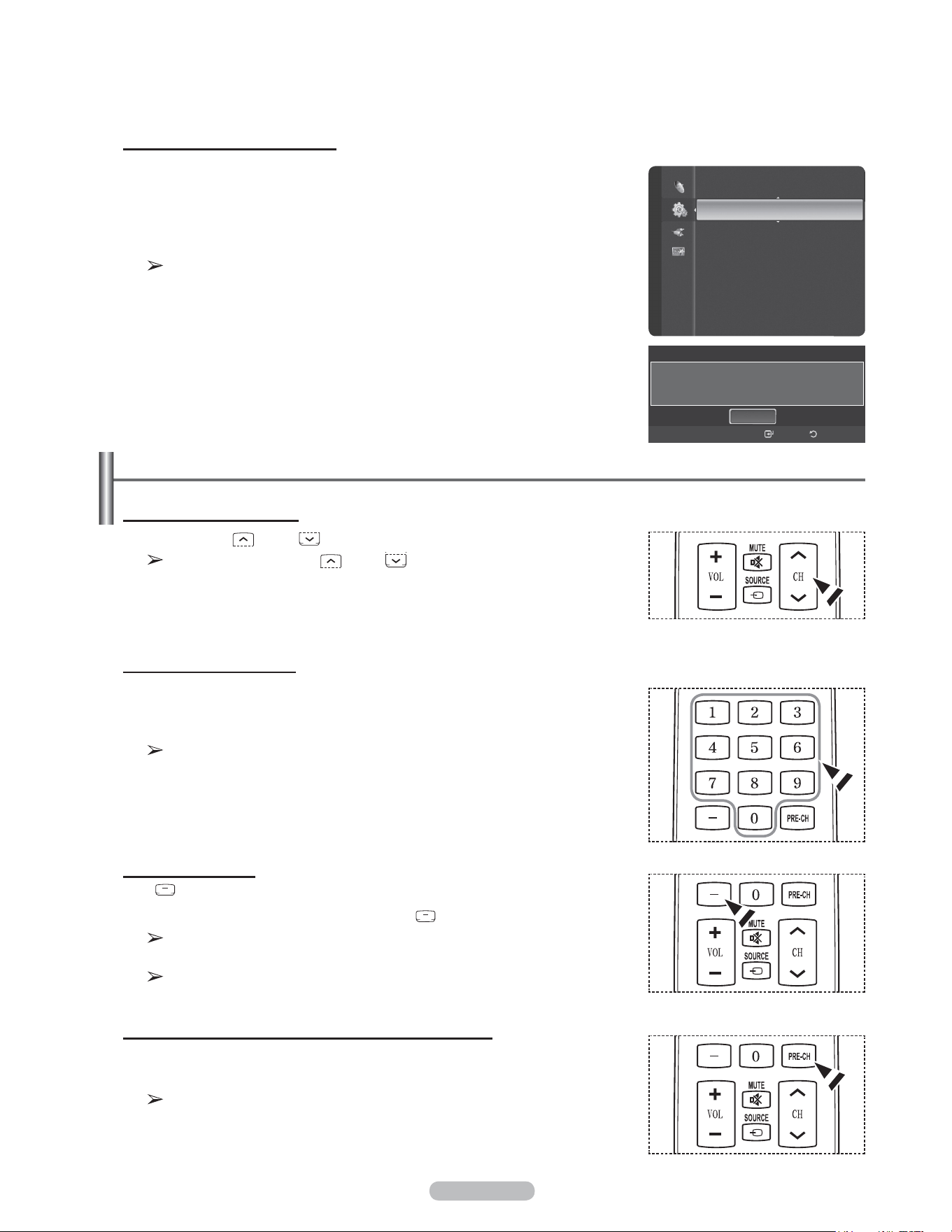
5 The TV will begin memorizing all of the available channels.
To stop the search before it has finished, press the ENTER button with
stop selected.
After all the available channels are stored, the TV starts to remove scrambled
channels (see page 47). The Auto program menu then reappears.
Press the ENTER button when channel memorization is complete.
The Clock Mode menu is displayed.
6 Press the ENTER button.
Press the ▲ or ▼ button to select Manual for setting the current time
manually, then press the ENTER button.
The message Set current date and time. is displayed.
If you select Auto, Set to daylight saving time. is displayed, then go to
step 9.
7 Press the ◄ or ► button to move to Month, Day, Year, Hour, Minute, or
am/pm.
Set the date and time you want by pressing the ▲ or ▼ button, then press the
ENTER button.
You can set the month, day, year, hour, and minute directly by pressing the
number buttons on the remote control.
8 The message Enjoy your watching. is displayed.
When you have finished, press the ENTER button.
Even if the ENTER button is not pressed, the message will automatically
disappear after several seconds.
Setting the Clock Automatically
9 Press the ENTER button.
Press the ▲ or ▼ button to select Off or On, then the ENTER button.
The Select the time zone in which you live menu is automatically displayed.
10 Press the ▲ or ▼ button to highlight the time zone for your local area (and
to move the highlight to the appropriate time zone on the map of the United
States).
Press the ENTER button.
If clock is not automatically set, see pages 53 to set the clock.
11 The message Enjoy your watching. is displayed.
When you have finished, press the ENTER button.
Even if the ENTER button is not pressed, the message will automatically
disappear after several seconds.
Continued...
Plug & Play
Auto Program is completed.
56 channels are memorized.
DTV Air : 20 Air : 11
DTV Cable : 15 Cable : 10
OK
Enter Skip
Plug & Play
Set the Clock Mode.
Clock Mode : Auto
Auto
Manual
EnterMove
Plug & Play
Auto Program in Progress.
Stop
Enter Skip
Air
3%
DTV Air : -- Air : --
DTV Cable : -- Cable : --
OK
Plug & Play
Enjoy your watching.
SkipEnter
Plug & Play
Set to daylight saving time.
DST : Off
Off
On
Move
Plug & Play
Set current date and time
0 1
Month
0 1
Day
2 00 8
Year
1 2
Hour
0 0
Minute
a m
am/pm
SkipEnterAdjustMove
Plug & Play
Select the time zone in which you live.
Newfoundland
Atlantic
Eastern
Central
Mountain
Pacific
▼
SkipEnterMove
OK
Plug & Play
Enjoy your watching.
Plug & Play
Stop
Enter Skip
Removing scrambled channel.
DTV Cable 41
77%
DTV Air : 05 Air : 12
DTV Cable : 25 Cable : 32
English - 18
If you want to reset this feature...
1 Press the MENU button to display the menu.
Press the ▲ or ▼ button to select Setup, then press the ENTER button.
2 Press the ENTER button to select Plug & Play. For further details on setting
up options, refer to the pages 16~17.
The Plug & Play feature is only available in the TV.
Changing Channels
Using the Channel Buttons
1 Press the CH or CH button to change channels.
When you press the CH or CH button, the TV changes channels in
sequence. You will see all the channels that the TV has memorized.
(The TV must have memorized at least three channels). You will not
see channels that were either erased or not memorized. See page 20 to
memorize channels.
Using the Number Buttons
1 Press the number buttons to go directly to a channel. For example, to select
channel 27, press 2, then 7.
The TV will change channels when you press the second number.
For quick channel change, press the number buttons, then press the ENTER
button.
Using the “-” Button
The “ ” button is used to select stations that broadcast a digital signal.
1 For example, for Channel 7-1, press 7, then , then 1.
HD indicates the TV is receiving a Digital High Definition signal.
SD indicates the TV is receiving a Standard Definition signal.
For quick channel change, press the number buttons, then press the ENTER
button.
Using the PRE-CH Button to select the Previous Channel
Use the number buttons to quickly tune to any channel.
1 Press the PRE-CH button. The TV will switch to the last channel viewed.
To quickly switch between two channels that are far apart, tune to one
channel, then use the number button to select the second channel.
Then use the PRE-CH button to quickly alternate between them.
Plug & Play
►
Language : English
Time
V-Chip
Caption
External Settings
Entertainment : Off
Energy Saving : Off
Setup
Plug & Play
Menu Language, Store Demo, Channels and Time will
be set.
Enter
OK
Return
English - 19
Adjusting the Volume
Using the Volume Buttons
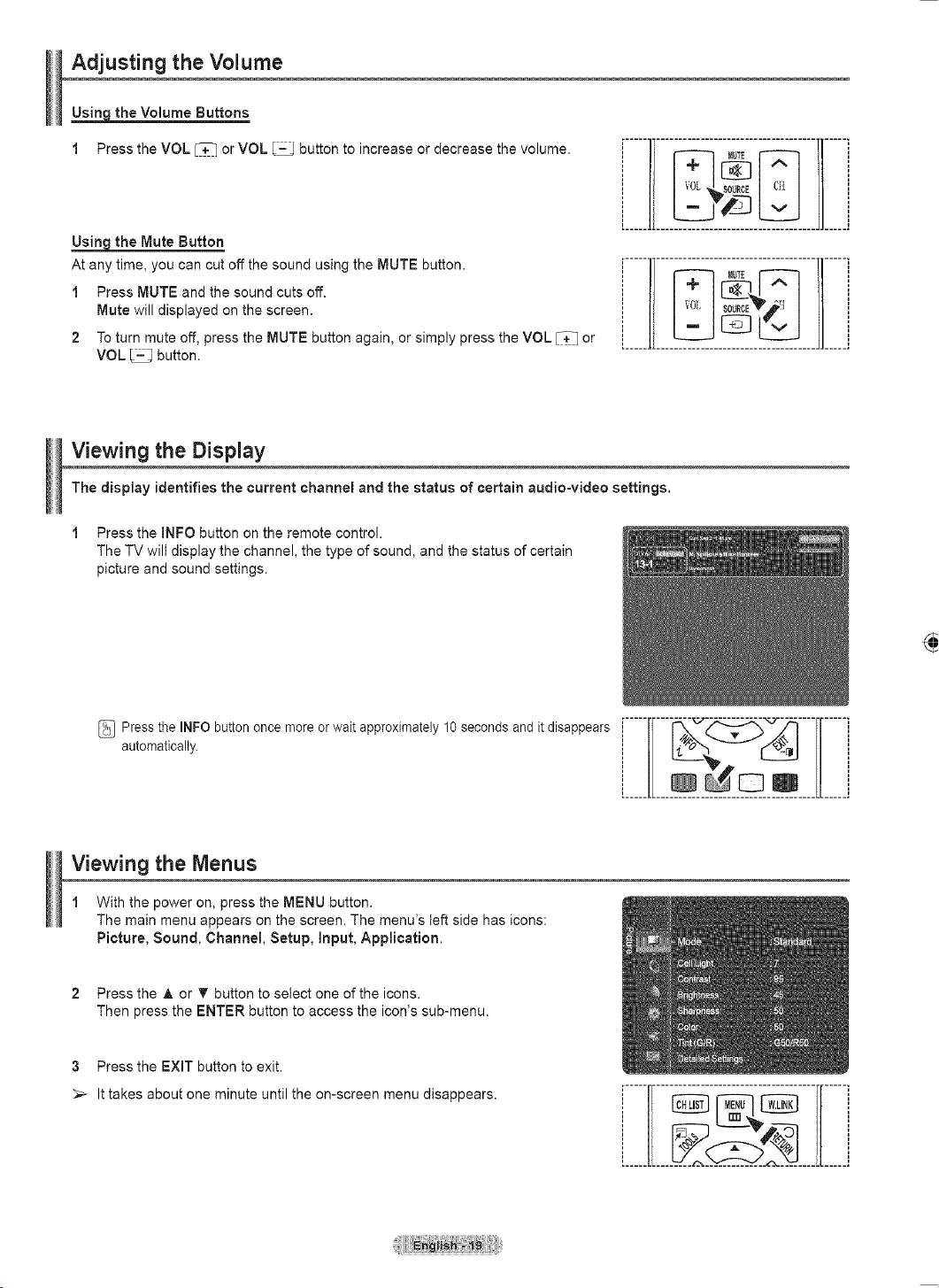
1 Press the VOL or VOL button to increase or decrease the volume.
Using the Mute Button
At any time, you can cut off the sound using the MUTE button.
1 Press MUTE and the sound cuts off.
Mute will displayed on the screen.
2 To turn mute off, press the MUTE button again, or simply press the VOL or
VOL button.
Viewing the Menus
1 With the power on, press the MENU button.
The main menu appears on the screen. The menu’s left side has icons:
Picture, Sound, Channel, Setup, Input, Application.
2 Press the ▲ or ▼ button to select one of the icons.
Then press the ENTER button to access the icon’s sub-menu.
3 Press the EXIT button to exit.
It takes about one minute until the on-screen menu disappears.
Viewing the Display
The display identifies the current channel and the status of certain audio-video settings.
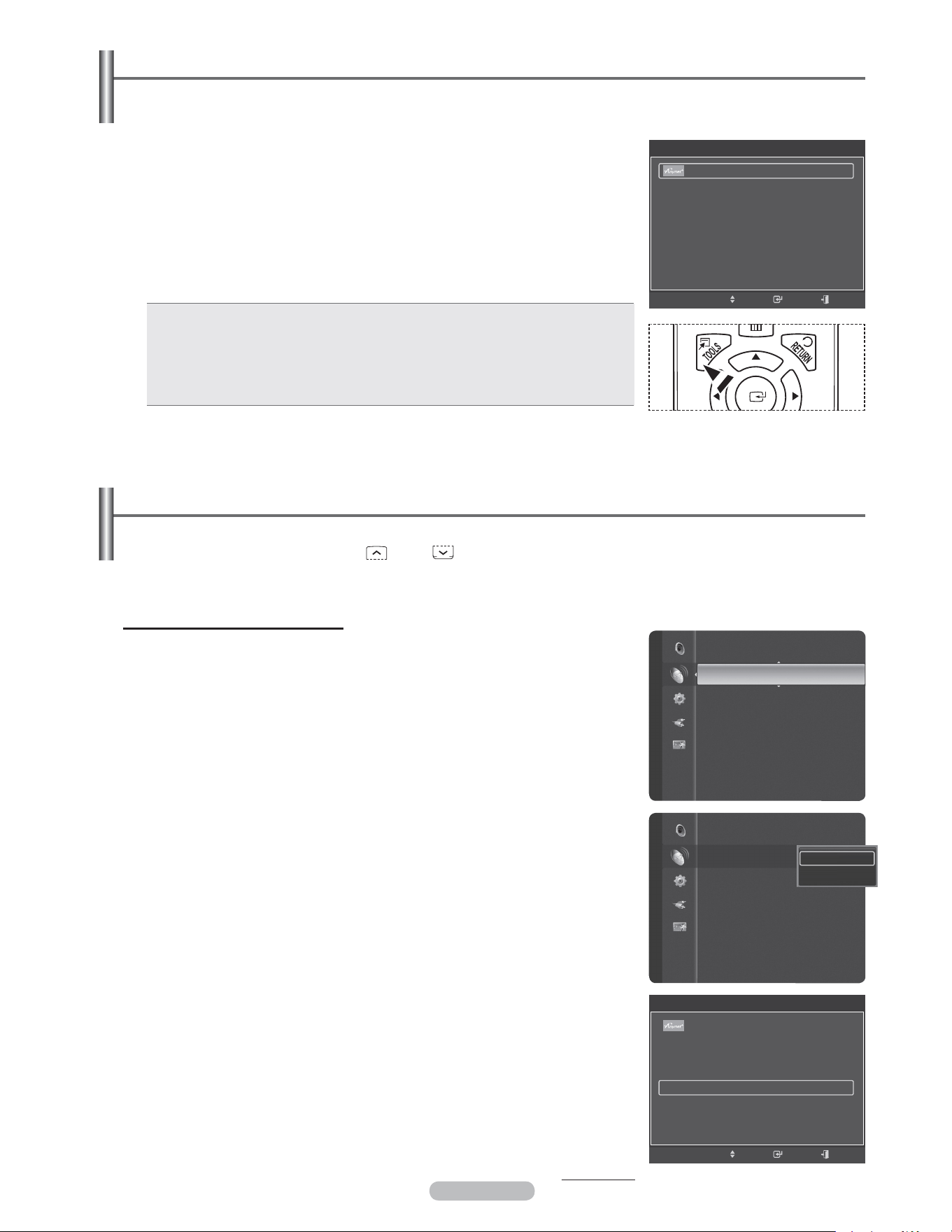
1 Press the INFO button on the remote control.
The TV will display the channel, the type of sound, and the status of certain
picture and sound settings.
Press the INFO button once more or wait approximately 10 seconds and it disappears
automatically.
Mode : Standard
Cell Light : 7
Contrast : 95
Brightness : 45
Sharpness : 50
Color : 50
Tint (G/R) : G50/R50
Detailed Settings
Picture
TV #1
Sun, Sep 3 1:45 pm
M. Spillane’s Mike Hammer
Bonocrunch
DTV Air
13-1
Dolby Digital
480i 4:3 English
12:59 pm - 1:5 9 pm
English - 20
Using the TOOLS Button
You can use the TOOLS button to select your frequently used functions quickly and easily. The TOOLS menu
changes depending on which external input mode you are viewing.
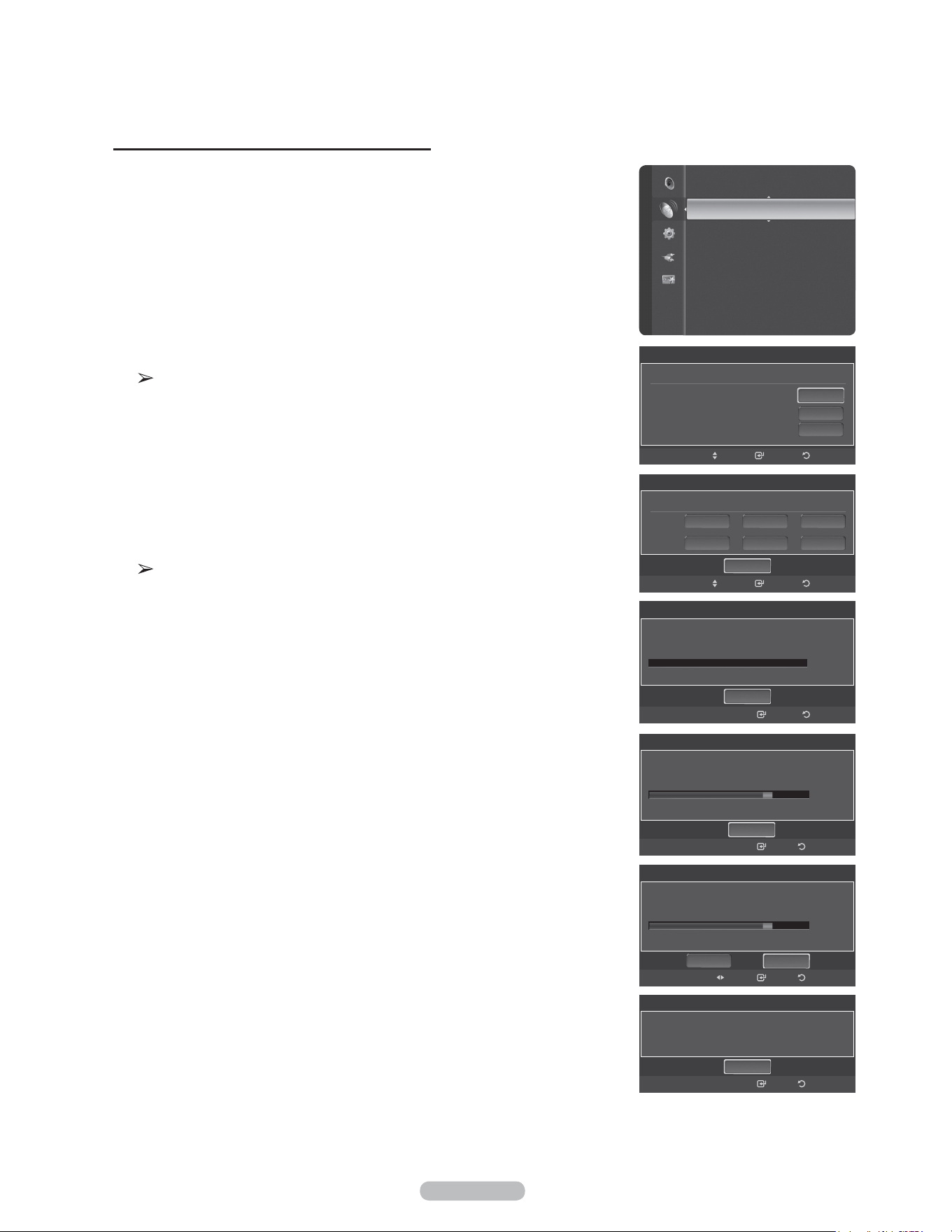
1 Press the TOOLS button.
The
TOOLS menu will appear.
2 Press the ▲/▼ button to select a menu, then press the ENTER button.
3 Press the ▲/▼/◄/►/ENTER buttons to display, change, or use the selected
items.
For a more detailed description of each function, refer to the corresponding
page.
• Device List, see page 89
• Picture Mode, see page 23
• Sound Mode, see page 36
• Add to Favorite, see page 43
• Delete from Favorite, see page 43
• Switch to Air, see page 20
Memorizing the Channels
Your TV can memorize and store all of the available channels for both air and cable channels. After the available
channels are memorized, use the CH or CH button to scan through the channels. This eliminates the need
to change channels by entering the channel digits. There are three steps for memorizing channels: selecting a
broadcast source, memorizing the channels (automatic) and adding and deleting channels (Channel Lists).
Selecting the Video Signal-source
Before your television can begin memorizing the available channels, you must
specify the type of signal source that is connected to the TV (i.e. an Air or a Cable
system).
1 Press the MENU button to display the menu.
Press the ▲ or ▼ button to select Channel, then press the ENTER button.
2 Press the ENTER button to select Antenna.
Press the ▲ or ▼ button to select Air or Cable, then press the ENTER button.
Press the EXIT button to exit.
Easy Setting
1 Press the TOOLS button on the remote control.
2 Press the ▲ or ▼ button to select Switch to Cable or Switch to Air.
3 Press the ENTER button.
Continued...
Antenna
:
Air
Auto Program
Channel List
Clear Scrambled Channel
Fine Tune
Signal Strength
Air
Cable
ChannelChannel
Antenna
:
Air ►
Auto Program
Channel List
Clear Scrambled Channel
Fine Tune
Signal Strength
TOOLS
Device List
Picture Mode : Standard
Sound Mode : Custom
Add to Favorite
Switch to Air
Move Enter Exit
TOOLS
Device List
Picture Mode : Standard
Sound Mode : Custom
Add to Favorite
Switch to Air
Move Enter Exit
English - 21
Storing Channels in Memory (Automatic Method)
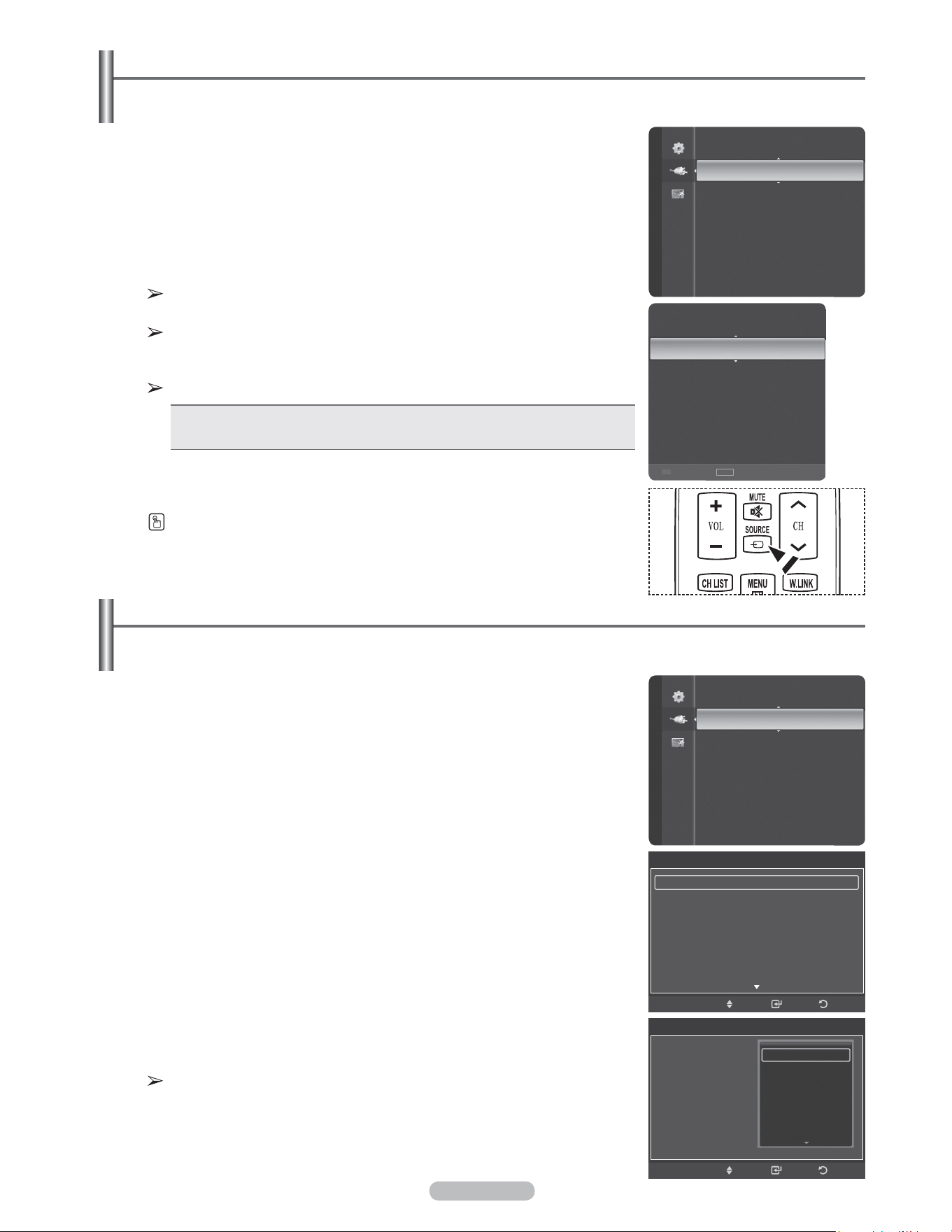
1 Press the MENU button to display the menu.
Press the ▲ or ▼ button to select Channel, then press the ENTER button.
2 Press the ▲ or ▼ button to select Auto Program, then press the ENTER
button.
3 Press the ▲ or ▼ button to select an antenna connection, then press the
ENTER button.
Air: Air antenna signal.
Cable: Cable antenna signal.
Auto: Air and Cable antenna signals.
4 When selecting the Cable TV system:
Press the ENTER button to start the auto program.
Press the ▲, ▼, ◄ or ► to select the correct analog signal cable system source
among STD, HRC, and IRC, then press the ENTER button. If you have Digital
cable TV, select the cable system signal source for both Analog and Digital.
STD, HRC, and IRC identify various types of cable TV systems. Contact
your local cable company to identify the type of cable system that exists in
your particular area. At this point the signal source has been selected.
5 The TV begins memorizing all available stations.
After all the available channels are stored, the TV starts to remove scrambled
channels (see page 47). The Auto program menu then reappears.
If you want to stop Auto Programming, press the ENTER button.
The Stop Auto Program? message will be displayed. Select Yes by pressing
the ◄ or ► button, then press the ENTER button.
Press the EXIT button to exit.
Auto Program
Auto Program is completed.
56 channels are memorized.
DTV Air : 20 Air : 11
DTV Cable : 15 Cable : 10
ReturnEnter
OK
Auto Program
Select the cable system.
Analog
Digital
HRC IRC
HRC IRCSTD
Auto Program
Select the Antenna source to memorize.
Air
Cable
Auto
ReturnEnterMove
Start
Start
Auto Program
Auto Program in Progress.
Stop
Cable 3
3%
DTV Air : 5 Air : 4
DTV Cable : -- Cable : --
Enter Return
Channel
Antenna : Air
Auto Program
►
Channel List
Clear Scrambled Channel
Fine Tune
Signal Strength
Start
Start
ReturnEnterMove
STD
Auto Program
Stop
Removing scrambled channel.
DTV Cable 41
77%
DTV Air : 5 Air : 4
DTV Cable : 7 Cable : 5
ReturnEnter
Auto Program
Stop Auto Program?
77%
DTV Air : 5 Air : 4
DTV Cable : 7 Cable : 5
ReturnEnter
NoYes
Move
English - 22
To Select the Source
Use to select TV or other external input sources such as DVD players or Cable Box/Satellite receivers (Set-Top
Box) connected to the TV. Use to select the input source of your choice.
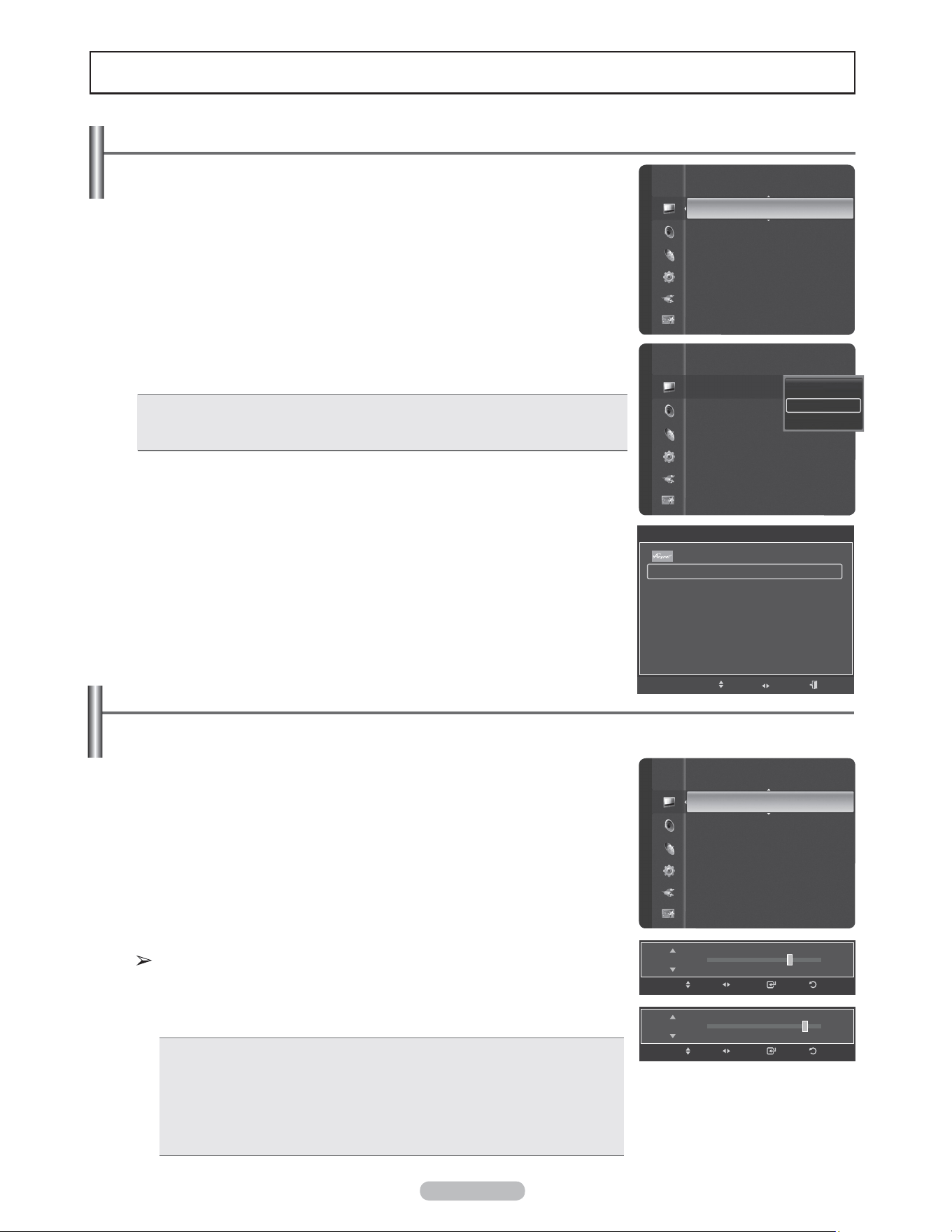
1 Press the MENU button to display the menu.
Press the ▲ or ▼ button to select Input, then press the ENTER button.
2 Press the ENTER button to select Source List.
Press the ▲ or ▼ button to select the signal source, then press the ENTER
button.
Available signal sources: TV, AV1, AV2, S-Video, Component1,
Component2, PC, HDMI1, HDMI2/DVI, HDMI3, USB.
You can choose only those external devices that are connected to the TV.
In the Source List, connected inputs will be highlighted and sorted to the top.
Inputs that are not connected will be sorted to the bottom.
Using the Color buttons on the remote with the Source list.
• Red (Refresh): Refreshes the connecting external devices.
• TOOLS (Option): Displays the Edit Name and Information menus.
To Edit the Input Source Name
You can name the device connected to the input jacks to make your input source selection easier.
1 Press the MENU button to display the menu.
Press the ▲ or ▼ button to select Input, then press the ENTER button.
Press the ▲ or ▼ button to select Edit Name, then press the ENTER button.
2 Press the ▲ or ▼ button to select AV1, AV2, S-Video, Component1,
Component2, PC, HDMI1, HDMI2/DVI, or HDMI3 input jack, then press the
ENTER button.
3 Press the ▲ or ▼ button to select VCR, DVD, Cable STB, Satellite STB, PVR
STB, AV Receiver, Game, Camcorder, PC, TV, IPTV, Blu-Ray, HD DVD,
Digital Media Adapter input source, then press the ENTER button.
Press the EXIT button to exit.
When a PC with a resolution of 1920 x 1080@60Hz is connected to the
HDMI IN 2 port, you should set the HDMI2 mode to PC in the Edit Name
menu.
You can also press the SOURCE button on the remote control to view an external
signal source.
Source List
Edit Name
Input
TV
AV1
----
AV2
----
S-Video
----
Component1
----
Component2
----
PC
----
Refresh Option
TOOLS
Input
Source List
Edit Name ►
Edit Name
AV1 :
----
►
AV2 :
----
S-Video :
----
Component1 :
----
Component2 :
----
PC :
----
HDMI1 :
----
Enter ReturnMove
Edit Name
AV1 :
----
AV2 :
----
S-Video :
----
Component1 :
----
Component2 :
----
PC :
HDMI1 :
Enter ReturnMove
----
VCR
DVD
Cable STB
Satellite STB
PVR STB
English - 23
Picture Control
Changing the Picture Standard
You can select the type of picture which best corresponds to your viewing
requirements.
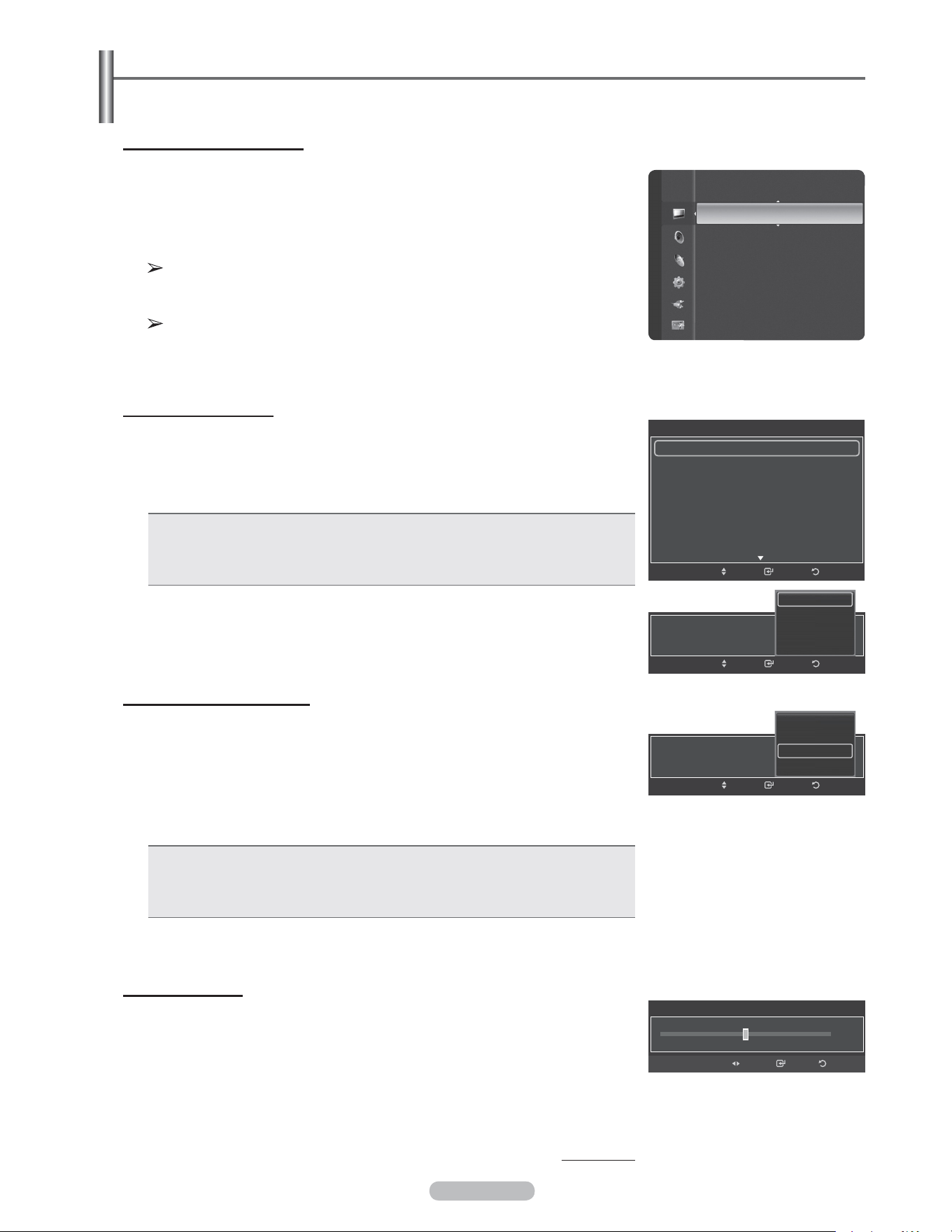
1 Press the MENU button to display the menu.
Press the ENTER button to select Picture.
2 Press the ENTER button to select Mode.
Press the ▲ or ▼ button to select Dynamic, Standard, or Movie.
Press the ENTER button.
• Dynamic: Select the picture for high-definition in a bright room.
• Standard: Select the picture for the optimum display in the normal environment.
• Movie: Select the picture for viewing movies in a dark room.
3 Press the EXIT button to exit.
Easy Setting
1 Press the TOOLS button on the remote control.
2 Press the ▲ or ▼ button to select Picture Mode.
3 Press the ◄ or ► button to select the required option.
Customizing the Picture Settings
Your television has several setting options that allow you to control the picture quality.
1 To select the desired picture mode, follow the “Changing the Picture Standard”
instructions number 1 to 2.
2 Press the ▲ or ▼ button to select Cell Light, Contrast, Brightness,
Sharpness, Color, or Tint (G/R), then press the ENTER button.
3 Press the ◄ or ► button to decrease or increase the value of a particular item.
Press the ENTER button.
Press the EXIT button to exit.
• When you make changes to Cell Light, Contrast, Brightness,
Sharpness, Color, or Tint (G/R) the OSD will be adjusted accordingly.
• When in PC mode, Tint(G/R), Sharpness and Color are not available.
• Each adjusted setting will be stored separately according to its input mode.
• Cell Light: Sets the pixel brightness; 10 being the highest setting.
• Contrast: Adjusts the contrast level of the picture.
• Brightness: Adjusts the brightness level of the picture.
• Sharpness: Adjusts the edge definition of the picture.
• Color: Adjusts color saturation of the picture.
• Tint(G/R): Adjusts the color tint of the picture by compensating the red and
green color.
Mode
:
Standard ►
Cell Light : 7
Contrast : 90
Brightness : 45
Sharpness : 50
Color : 50
Tint (G/R) : G50/R50
Detailed Settings
Picture Picture
Mode
:
Cell Light : 7
Contrast : 80
Brightness : 45
Sharpness : 50
Color : 50
Tint (G/R) : G50/R50
Detailed Settings
Dynamic
Standard
Movie
Mode
:
Standard
Cell Light : 7 ►
Contrast : 90
Brightness : 45
Sharpness : 75
Color : 55
Tint (G/R) : G50/R50
Detailed Settings
Picture Options
Picture
7Cell Light
ReturnEnterAdjustMove
90Contrast
ReturnEnterAdjustMove
TOOLS
Device List
Picture Mode ◄ Standard ►
Sound Mode : Custom
Add to Favorite
Switch to Air
Move Adjust Exit
English - 24
Adjusting the Detailed Settings
Samsung’s new TVs allow you to make even more precise picture settings than previous models. See below to
adjust detailed picture settings.
Activating Detailed Settings
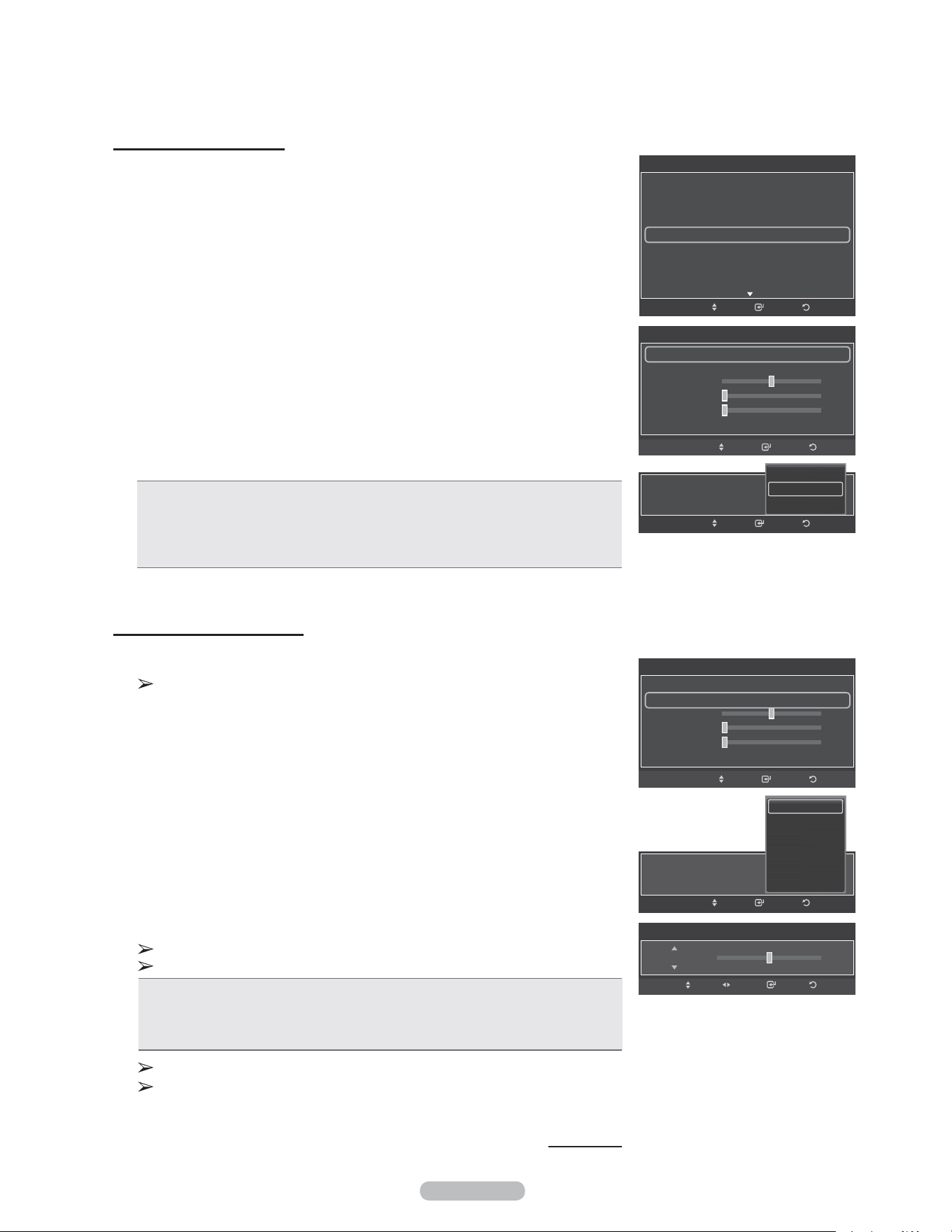
1 Press the MENU button to display the menu.
Press the ENTER button to select Picture.
2 Press the ENTER button to select Mode.
Press the ▲ or ▼ button to select Standard or Movie, then press the ENTER
button.
Detailed Settings is available in Standard or Movie mode.
3 Press the ▲ or ▼ button to select Detailed Settings, then press the ENTER
button.
In PC mode, you can only make changes to Dynamic Contrast, Gamma
and White Balance from among the Detailed Settings items.
Activating Black adjust
You can select the black level on the screen to adjust the screen depth.
4 Press the ▲ or ▼ button to select Black adjust, then press the ENTER button.
5 Press the ▲ or ▼ button to select Off, Low, Medium or High.
Press the ENTER button.
• Off: Turns off the black adjustment function.
• Low: Sets the black color depth to low.
• Medium: Sets the black color depth to medium.
• High: Sets the black color depth to high.
Activating Dynamic Contrast
You can adjust the screen contrast so that the optimal contrast is provided.
6 Press the ▲ or ▼ button to select Dynamic Contrast, then press the
ENTER button.
7 Press the ▲ or ▼ button to select Off, Low, Medium or High.
Press the ENTER button.
• Off: Turns off the dynamic contrast adjustment function.
• Low: Sets the dynamic contrast to low.
• Medium: Sets the dynamic contrast to medium.
• High: Sets the dynamic contrast to high.
Activating Gamma
You can adjust the Primary Color (Red, Green, Blue) Intensity. (-3 ~ +3)
8 Press the ▲ or ▼ button to select Gamma, then press the ENTER button.
9 Press the ◄ or ► button to decrease or increase the value.
Press the ENTER button.
Continued...
Color : 50
Tint (G/R) : G50/R50
Detailed Settings ►
Picture Options
Picture Reset
Picture
Black Adjust : Low
ReturnEnterMove
Off
Low
Medium
High
Dynamic Contrast : Low
ReturnEnterMove
Off
Low
Medium
High
Gamma
0
Enter ReturnAdjust
Detailed Settings
Black Adjust : Off ►
Dynamic Contrast : Medium
Gamma : 0
Color Space : Native
White Balance
Flesh Tone : 0
Edge Enhancement : On
ReturnEnterMove
English - 25
Changing the Color Space
Color space is a color matrix composed of red, green and blue colors.
Select your favorite color space to experience the most natural color.
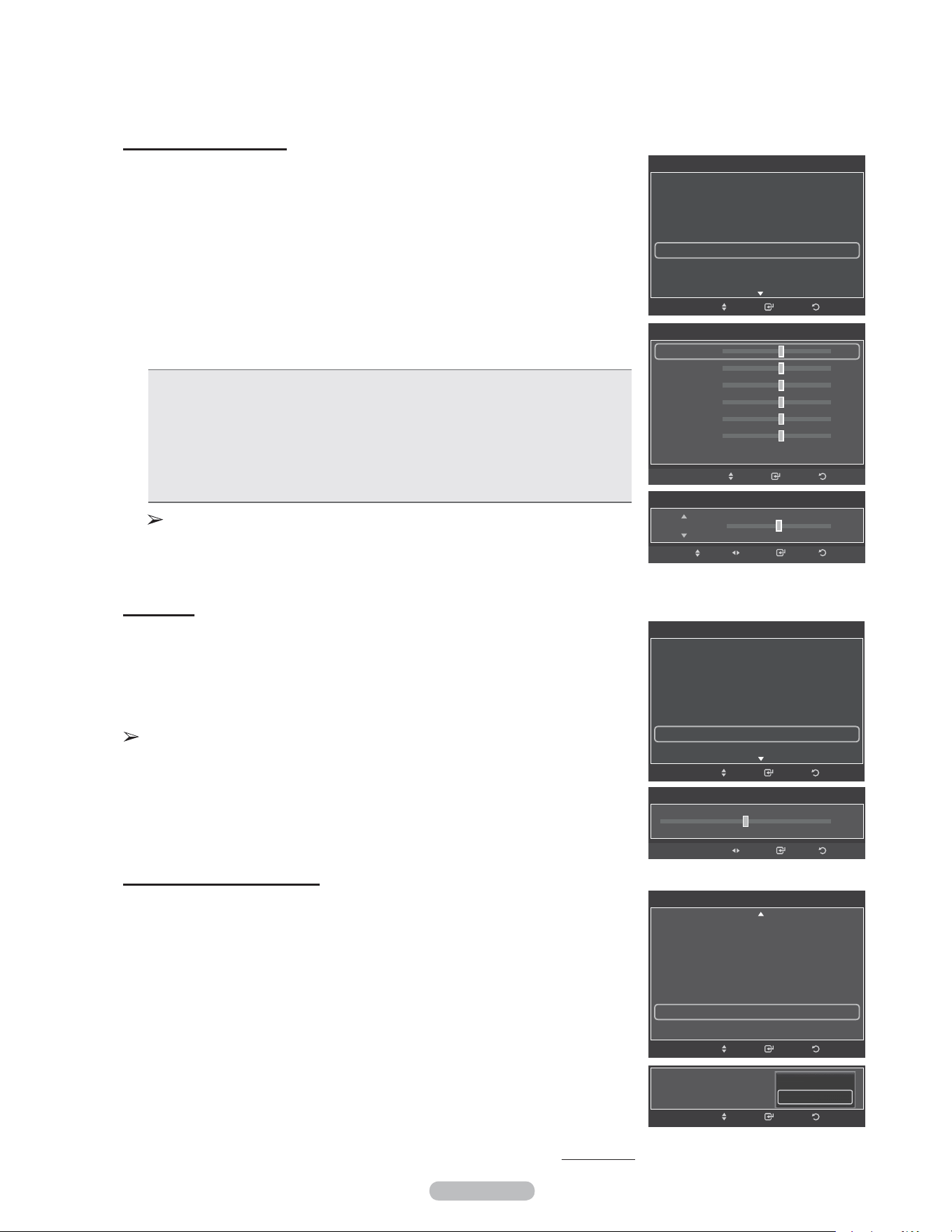
10 Press the ▲ or ▼ button to select Color Space, then press the ENTER button.
11 Press the ENTER button again to select Color Space.
12 Press the ▲ or ▼ button to select Auto, Native or Custom.
Press the ENTER button.
• Auto: Auto Color Space automatically adjusts to the most natural color tone
based on program sources.
• Native: Native Color Space offers deep and rich color tone.
• Custom: Adjusts the color range to suit your preference. (see “Customizing the
Color Space”)
Customizing the Color Space
13 Press the ▲ or ▼ button to select Color, then press the ENTER button.
Color is available when Color Space is set to Coustom.
14 Press the ▲ or ▼ button to select Red, Green, Blue, Yellow, Cyan or
Magenta.
Press the ENTER button.
15 Press the ▲ or ▼ button to select Red, Green or Blue to change it.
Press the ENTER button.
16 Press the ◄ or ► button to decrease or increase the value of a particular item.
Press the ENTER button.
In Color, you can adjust the RGB values for the selected color.
To reset the adjusted RGB value, select Reset.
• Red: Adjusts the red saturation level of the selected color.
• Green: Adjusts the green saturation level of the selected color.
• Blue: Adjusts the blue saturation level of the selected color.
• Reset: Resets the color space to the default values.
Changing the adjustment value will refresh the adjusted screen.
Settings can be adjusted and stored for each external device you have
connected to an input of the TV.
Continued...
Color Space
50
Color Space : Native
Color : Red
Red
Green
Blue
Reset
0
0
ReturnEnterMove
Color Space : Low
ReturnEnterMove
Auto
Native
Custom
Color Space
50
Color Space : Custom
Color : Red
Red
Green
Blue
Reset
0
0
ReturnEnterMove
Color : Low
ReturnEnterMove
Red
Green
Blue
Yellow
Cyan
Magenta
Color Space
50Red
Enter ReturnAdjustMove
Detailed Settings
Black Adjust : Off
Dynamic Contrast : Medium
Gamma : 0
Color Space : Native ►
White Balance
Flesh Tone : 0
Edge Enhancement : On
ReturnEnterMove
English - 26
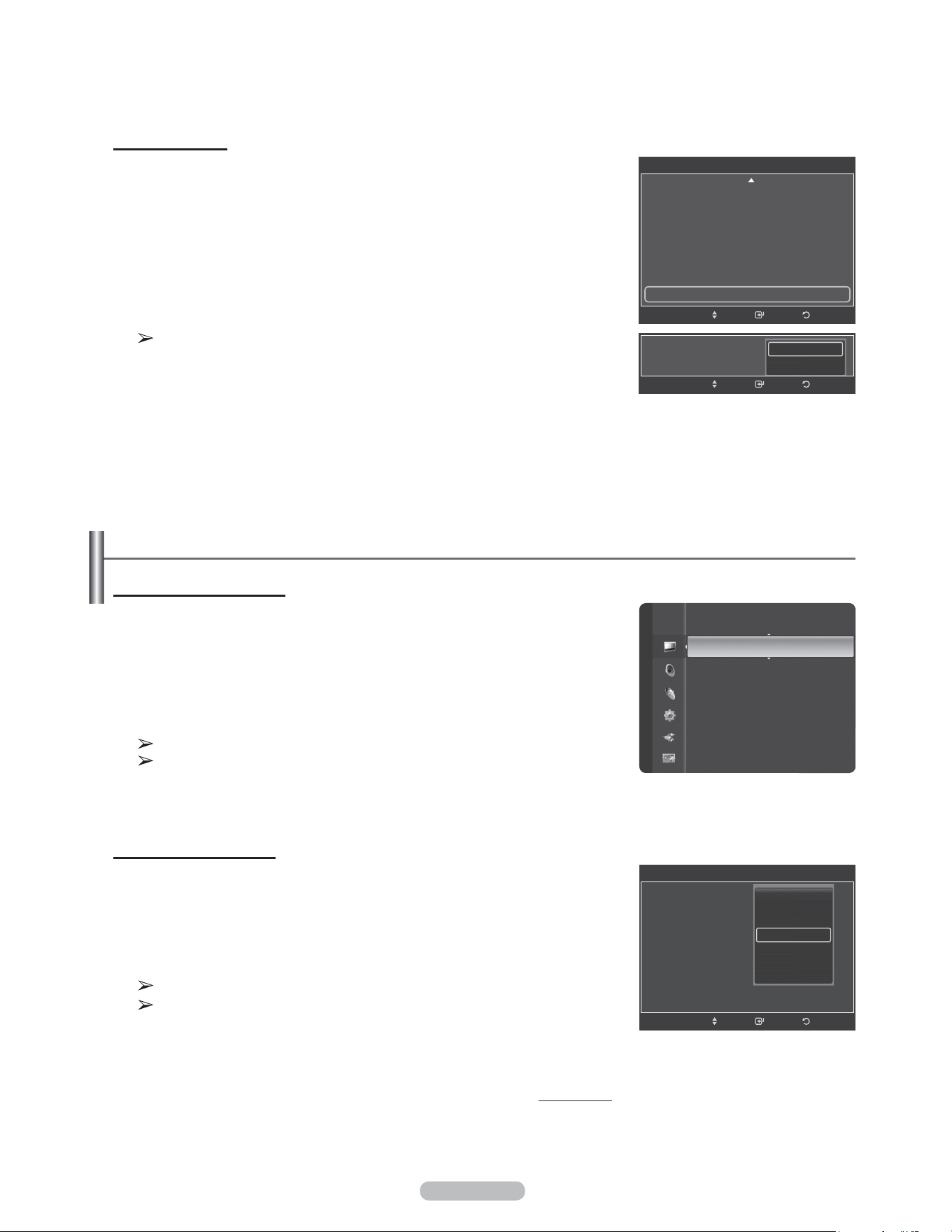
Flesh Tone
You can emphasize the pink flesh tone in the picture.
20 Press the ▲ or ▼ button to select Flesh Tone, then press the ENTER button.
21 Press the ◄ or ► button to decrease or increase the value.
Press the ENTER button.
Changing the adjustment value will refresh the adjusted screen.
Activating Edge Enhancement
You can emphasize object boundaries in the picture.
22 Press the ▲ or ▼ button to select Edge Enhancement, then press the ENTER
button.
23 Press the ▲ or ▼ button to select Off or On. Press the ENTER button.
Continued...
Activating White Balance
You can adjust the color temperature for more natural picture colors.
17 Press the ▲ or ▼ button to select White Balance, then press the ENTER
button.
18 Select the required option by pressing the ▲ or ▼ button, then press the
ENTER button.
19 Press the ◄ or ► button to decrease or increase the value of a particular item.
Press the ENTER button.
• R-Offset: Adjusts the red color darkness.
• G-Offset: Adjusts the green color darkness.
• B-Offset: Adjusts the blue color darkness.
• R-Gain: Adjusts the red color brightness.
• G-Gain: Adjusts the green color brightness.
• B-Gain: Adjusts the blue color brightness.
• Reset: The previously adjusted white balance will be reset to the factory
defaults.
Changing the adjustment value will refresh the adjusted screen.
Flesh Tone
0
Enter ReturnAdjust
ReturnEnter
Detailed Settings
Dynamic Contrast : Medium
Gamma : 0
Color Space : Native
White Balance
Flesh Tone : 0
Edge Enhancement : On ►
xvYCC : Off
Move
Edge Enhancement : On
ReturnEnterMove
Off
On
White Balance
R-Offset 25
G-Offset 25
B-Offset 25
R-Gain 25
G-Gain 25
B-Gain 25
Reset
ReturnEnterMove
White Balance
25R-Offset
Enter ReturnAdjustMove
Detailed Settings
Black Adjust : Off
Dynamic Contrast : Medium
Gamma : 0
Color Space : Native
White Balance ►
Flesh Tone : 0
Edge Enhancement : On
ReturnEnterMove
Detailed Settings
Black Adjust : Off
Dynamic Contrast : Medium
Gamma : 0
Color Space : Native
White Balance
Flesh Tone : 0 ►
Edge Enhancement : On
ReturnEnterMove
English - 27
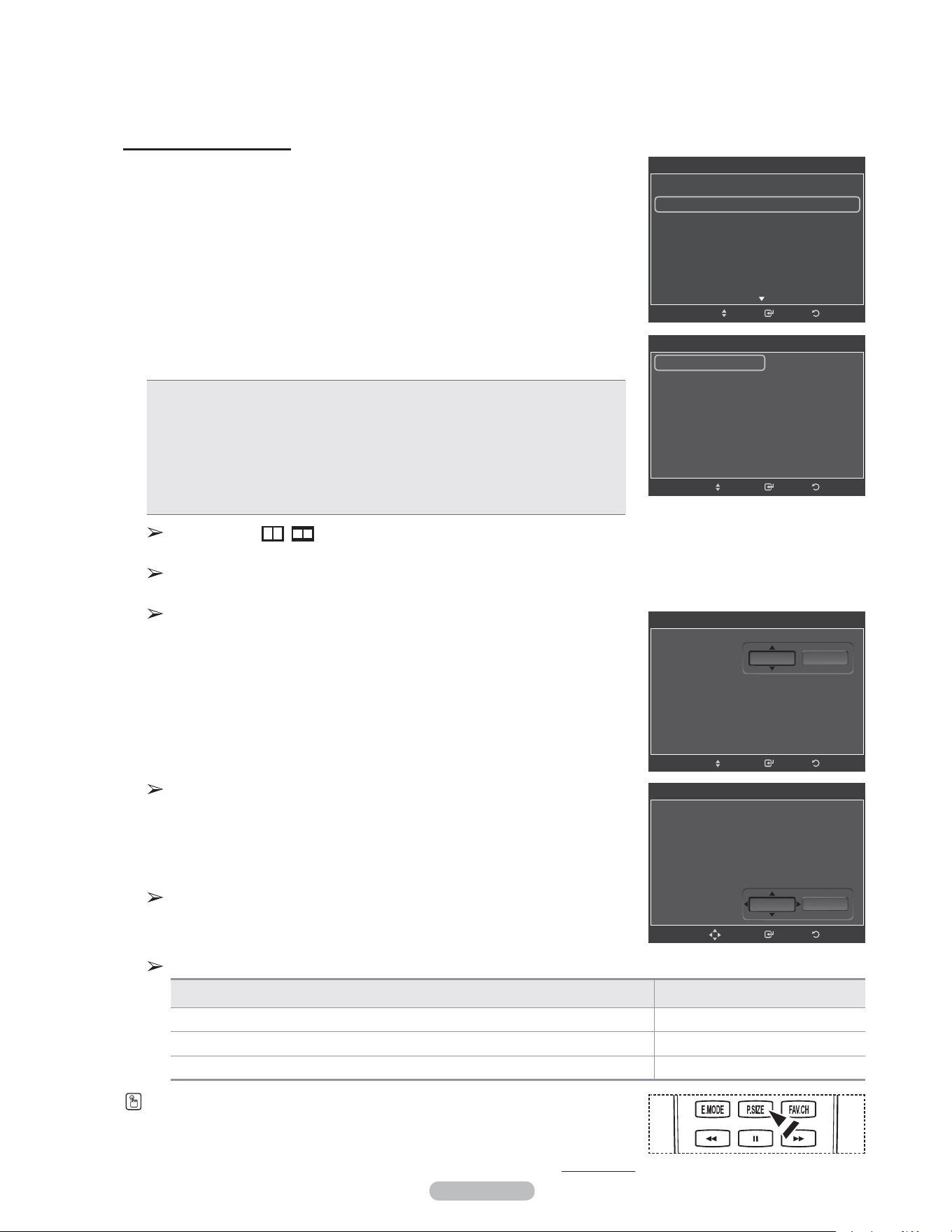
Activating xvYCC
Setting the xvYCC mode to On increases detail and color space when watching
movies from an external device (ie. DVD player) connected to the HDMI or
Component IN jacks.
24 Press the ▲ or ▼ button to select xvYCC, then press the ENTER button.
25 Press the ▲ or ▼ button to select Off or On.
Press the ENTER button.
xvYCC is available when the picture mode is set to Movie, and the external
input is set to Component or HDMI(Y,Cb,Cr) mode.
Configuring Picture Options
Activating Picture Options
1 Press the MENU button to display the menu.
Press the ENTER button to select Picture.
2 Press the ▲ or ▼ button to select Picture Options, then press the ENTER
button.
3 Press the ▲ or ▼ button to select a particular item.
Press the ENTER button.
When you are satisfied with your setting, press the ENTER button.
In PC mode, you can only make changes to the Color Tone, Size and
Screen Burn Protection from among the items in Picture Options.
Adjusting the Color Tone
1 Follow the Activating Picture Options instructions numbers 1 and 2.
2 Press the ▲ or ▼ button to select Color Tone, then press the ENTER button.
3 Press the ▲ or ▼ button to select Cool2, Cool1, Normal, Warm1 or Warm2.
Press the ENTER button.
Warm1 or Warm2 is only activated when the picture mode is Movie.
Settings can be adjusted and stored for each external device you have
connected to an input of the TV.
Continued...
ReturnEnter
Detailed Settings
Dynamic Contrast : Medium
Gamma : 0
Color Space : Native
White Balance
Flesh Tone : 0
Edge Enhancement : Off
xvYCC : Off ►
Move
xvYCC : On
ReturnEnterMove
Off
On
Picture
Tint (G/R) : G50/R50
Detailed Settings
Picture Options ►
Picture Reset
ReturnEnter
Picture Options
Color Tone :
Size :
Digital NR :
DNle : 2min
HDMI Black Level : 2min
Film Mode : 2min
Blue Only Mode : Off
Move
Cool2
Cool1
Normal
Warm1
Warm2
English - 28
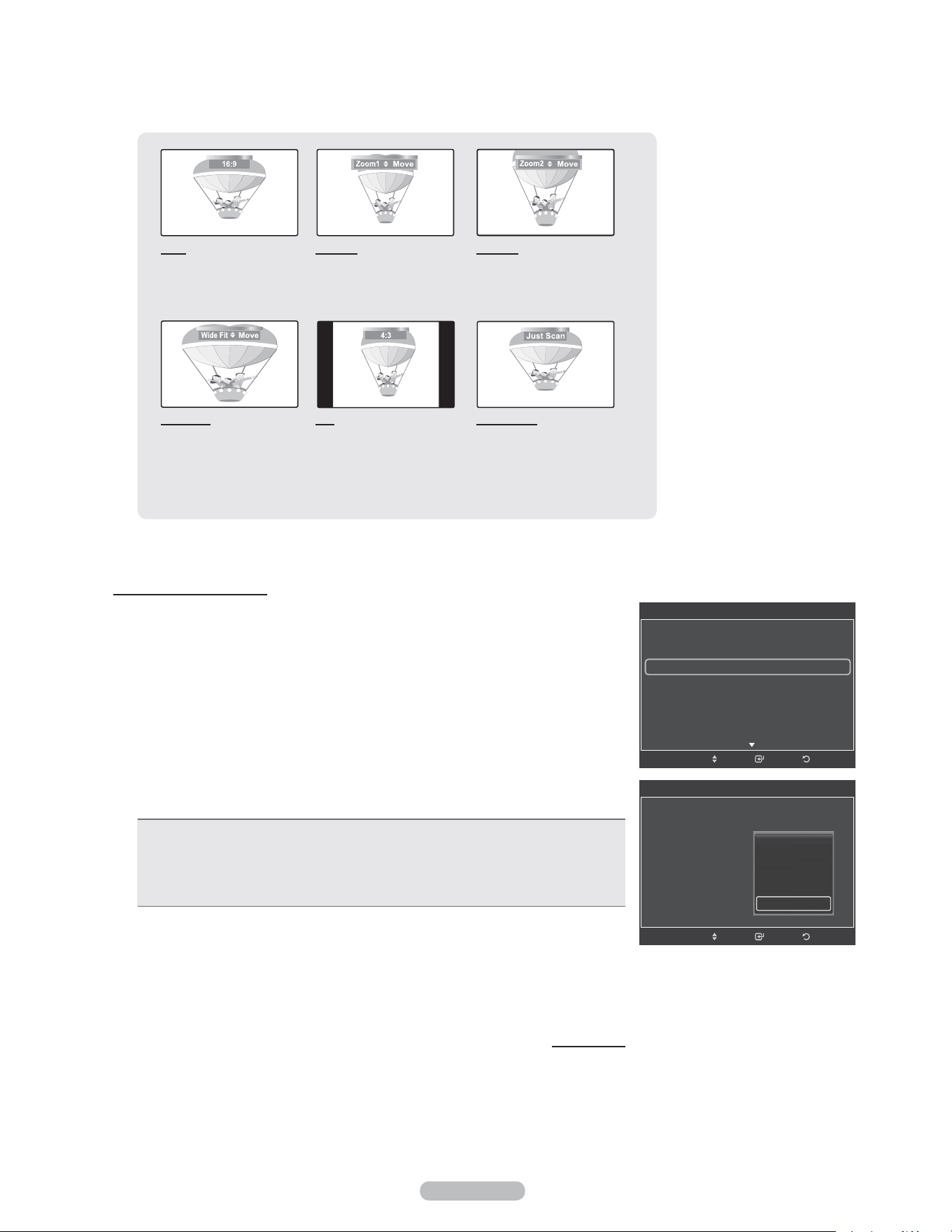
Changing the Screen Size
Occasionally, you may want to change the size of the image on your screen. Your
TV comes with six screen size options, each designed to work best with specific
types of video input. Your cable box or satellite receiver may have its own set of
screen sizes as well. In general, though, you should view the TV in 16:9 mode as
much as possible.
1 Follow the Activating Picture Options instructions numbers 1 and 2.
2 Press the ▲ or ▼ button to select Size, then press the ENTER button.
3 Press the ▲ or ▼ button to select the screen format you want.
Press the ENTER button.
Press the EXIT button to exit.
• 16:9 : Sets the picture to 16:9 wide mode.
• Zoom1 : Magnifies the size of the picture on the screen.
• Zoom2 : Expands the Zoom1 format picture.
• Wide Fit : Enlarges the aspect ratio of the picture to fit the entire screen.
• 4:3 : Sets the picture to 4:3 normal mode.
•
Just Scan : Use this function to see the full image without any cutoff when
HDMI(720p/1080i/1080p), Component(1080i/1080p) or DTV(1080i) signals are
input.
When Double ( , ) mode has been set in PIP, the Picture Size cannot
be set.
Temporary image retention may occur when viewing a static image on the
set for more than two hours.
After selecting Zoom1, Zoom2 or Wide Fit:
Press the ◄ or ► button to select Position, then press the ENTER button.
Press the ▲ or ▼ button to move the picture up and down.
Reset: Press the ◄ or ► button to select Reset, then press the ENTER
button. You can initialize the setting.
Alternately, you can press the P.SIZE button on the remote control repeatedly to change
the picture size.
Continued...
After selecting “Just Scan” in HDMI (1080i/1080p) or Component
(1080i/1080p) mode:
Press the ◄ or ► button to select Position, then press the ENTER button.
Press the ▲ or ▼ button to move the picture.
Reset: Press the ▲, ▼, ◄ or ► button to select Reset, then press the
ENTER button. You can initialize the setting.
HD (High Definition)
16:9 - 1080i/1080p (1920x1080), 720p (1280x720)
Settings can be adjusted and stored for each external device you have connected to an input of the TV.
Input Source Picture Size
ATV, Video, S-Video, Component (480i, 480p)
16:9, Zoom1, Zoom2, 4:3
DTV(1080i), Component (1080i, 1080p), HDMI (720p, 1080i, 1080p) 16:9, 4:3, Wide Fit, Just Scan
PC 16:9, 4:3
Size
16:9
Zoom1
Zoom2
Wide Fit
4:3
Just Scan
ReturnEnterMove
ReturnEnter
Picture Options
Color Tone : Normal
Size : 16:9 ►
Digital NR : Auto
DNle : Off
HDMI Black Level : Normal
Film Mode : Off
Blue Only Mode : Off
Move
Size
16:9
Zoom1
Zoom2
Wide Fit
4:3
Just Scan
ReturnEnterMove
Position
Reset
Size
16:9
Zoom1
Zoom2
Wide Fit
4:3
Just Scan
ReturnEnterMove
Position
Reset
English - 29
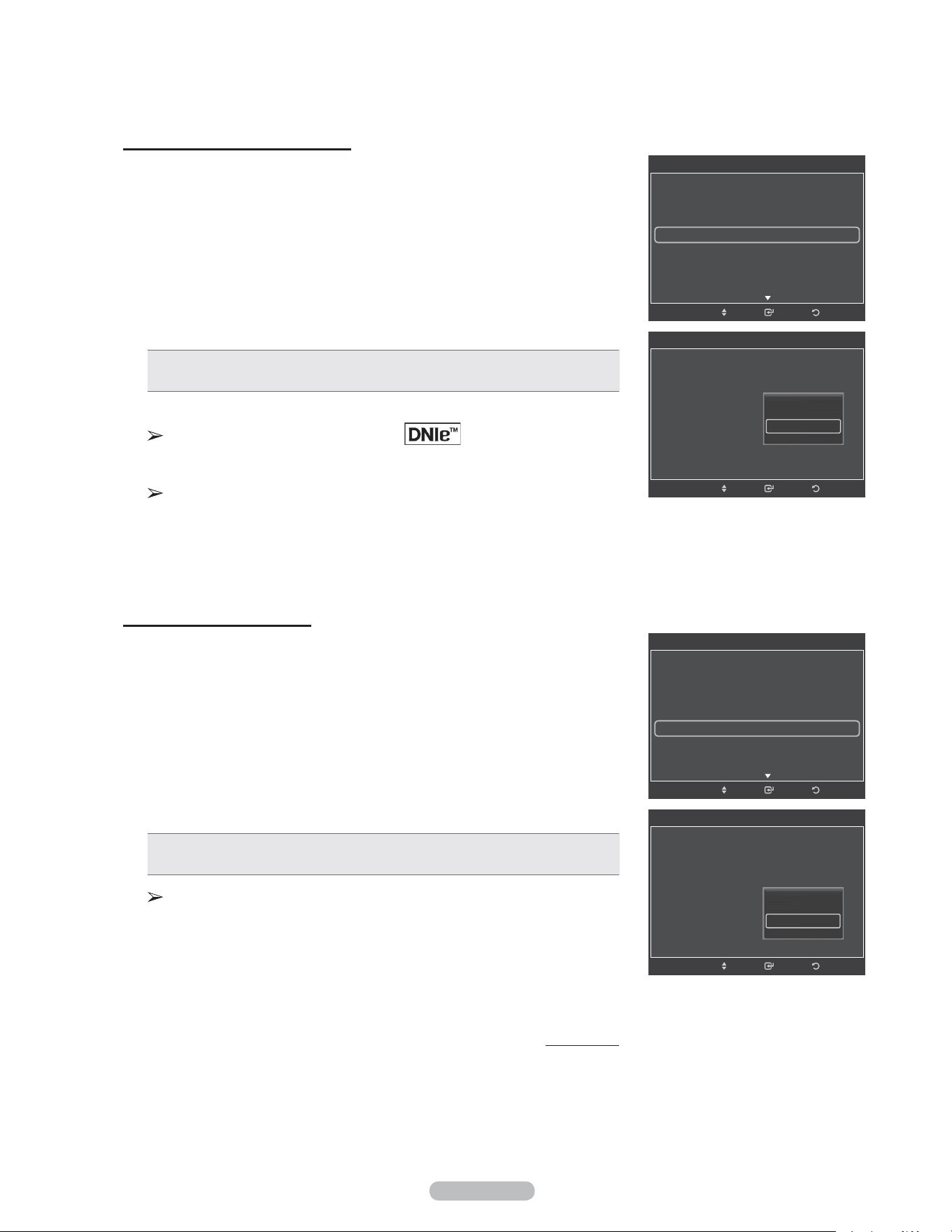
16:9
Sets the picture to 16:9
wide mode.
Zoom1
The screen size when
Wide screen is vertically
enlarged.
Zoom2
The screen size when
the Zoom1 screen is
vertically enlarged.
Wide Fit
Enlarges the aspect ratio
of the picture to fit the
entire screen.
4:3
Sets the picture to 4:3
normal mode.
Just Scan
Use this function to see the
full image without any cutoff
when HDMI(720p/1080i/1080p),
Component(1080i/1080p) or
DTV(1080i) signals are input.
Digital Noise Reduction
If the broadcast signal received by your TV is weak, you can activate the Digital
Noise Reduction feature to help reduce any static and ghosting that may appear
on the screen.
1 Follow the Activating Picture Options instructions numbers 1 and 2.
(Refer to page 27)
2 Press the ▲ or ▼ button to select Digital NR, then press the ENTER button.
3 Press the ▲ or ▼ button to select Off, Low, Medium, High or Auto.
Press the ENTER button.
• Off: Turns the screen noise reduction function off.
• Low: Reduces screen noise at a low level.
• Medium: Reduces screen noise at a medium level.
• High: Reduces screen noise at a high level.
• Auto: Automatically recognizes and reduces screen noise.
Press the EXIT button to exit.
Continued...
ReturnEnter
Picture Options
Color Tone : Normal
Size : 16:9
Digital NR : Auto
DNle : On
HDMI Black Level : Normal
Film Mode : Off
Blue Only Mode : Off
Move
Off
Low
Medium
High
Auto
ReturnEnter
Picture Options
Color Tone : Normal
Size : 16:9
Digital NR : Auto ►
DNle : Off
HDMI Black Level : Normal
Film Mode : Off
Blue Only Mode : Off
Move
English - 30
DNIe (Digital Natural Image engine)
This TV includes the DNIe function to provide high visual quality. If you set
DNIe to on, you can view the screen with the DNIe feature activated.
1 Follow the Activating Picture Options instructions numbers 1 and 2.
(Refer to page 27)
2 Press the ▲ or ▼ button to select DNIe, then press the ENTER button.
3 Press the ▲ or ▼ button to select On or Off or then press the ENTER button.
• Off: Switches off the DNIe mode.
• On: Switches on the DNIe mode.
Press the EXIT button to exit.
DNIe™ (Digital Natural Image engine)
This feature brings you a more detailed image with 3D noise reduction
and detail, contrast and white enhancement.
DNIe is only available in Dynamic mode.
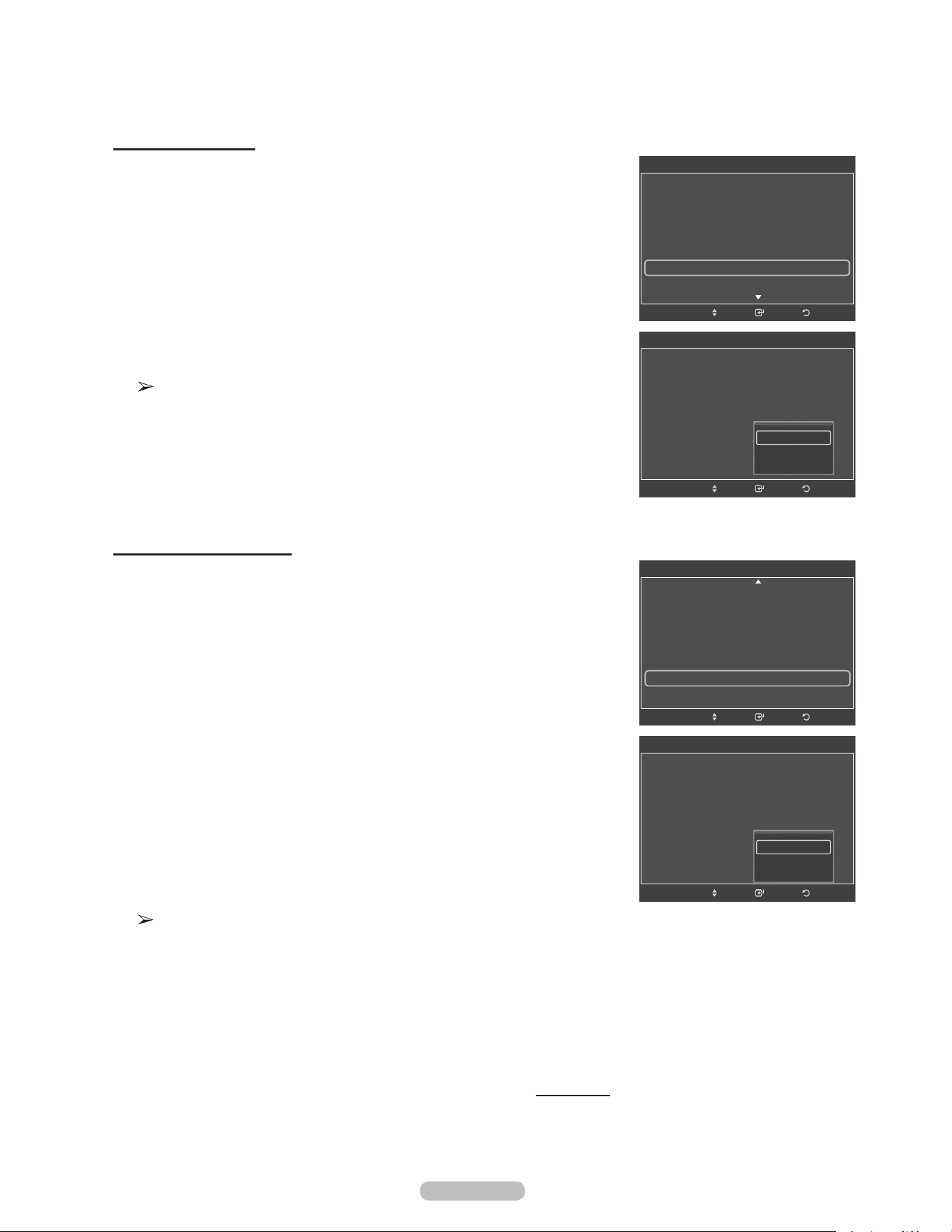
Setting the HDMI Black Level
Use this function to adjust the Black Level of the picture while in HDMI mode.
1 Follow the Activating Picture Options instructions numbers 1 and 2.
(Refer to page 27)
2 Press the ▲ or ▼ button to select HDMI Black Level, then press the ENTER
button.
3 Press the ▲ or ▼ button to select Normal or Low, then press the ENTER
button.
• Normal: The screen gets brighter.
• Low: The screen gets darker.
This function is active only when an external device is connected to the
TV via HDMI. HDMI Black Level function may not be compatible with all
external devices.
Press the EXIT button to exit.
Continued...
ReturnEnter
Picture Options
Color Tone : Normal
Size : 16:9
Digital NR : Auto
DNle : On
HDMI Black Level : Normal
Film Mode : Off
Blue Only Mode : Off
Move
Off
On
ReturnEnter
Picture Options
Color Tone : Normal
Size : 16:9
Digital NR : Auto
DNle : On ►
HDMI Black Level : Normal
Film Mode : Off
Blue Only Mode : Off
Move
ReturnEnter
Picture Options
Color Tone : Normal
Size : 16:9
Digital NR : Auto
DNle : Off
HDMI Black Level : Low ►
Film Mode : Off
Blue Only Mode : Off
Move
ReturnEnter
Picture Options
Color Tone :
Normal
Size : 16:9
Digital NR : Auto
DNle : On
HDMI Black Level : Normal
Film Mode : Off
Blue Only Mode : Off
Move
Normal
Low
English - 31
Setting the Film Mode
The TV can be set to automatically sense and process film signals from all
sources and adjust the picture for optimum quality.
1 Follow the Activating Picture Options instructions numbers 1 and 2.
(Refer to page 27)
2 Press the ▲ or ▼ button to select Film Mode, then press the ENTER button.
3 Press the ▲ or ▼ button to select Off or Auto, then press the ENTER button.
Press the EXIT button to exit.
Film mode is supported in TV, Video, S-Video, Component(480i / 1080i)
and HDMI(1080i).
Setting the Blue Only Mode
This function is for AV device measurement experts. This function displays the
blue signal only by removing the red and green signals from the video signal so
as to provide a Blue Filter effect that is used to adjust the Color and Tint of video
equipment such as DVD players, Home Theaters, etc.
Using this function, you can adjust the Color and Tint to preferred values appropri-
ate to the signal level of each video device using the Red/Green/Blue/ Cyan/Ma-
genta/Yellow Color Bar Patterns, without using an additional Blue Filter.
1 Follow the Activating Picture Options instructions numbers 1 and 2.
(Refer to page 27)
2 Press the ▲ or ▼ button to select Blue Only Mode, then press the ENTER
button.
3 Press the ▲ or ▼ button to select Off or On, then press the ENTER button.
Press the EXIT button to exit.
Blue Only Mode is available when the picture mode is set to Movie or
Standard.
Continued...
ReturnEnter
Picture Options
Size : 16:9
Digital NR : Auto
DNle : Off
HDMI Black Level : Normal
Film Mode : Off
Blue Only Mode : Off ►
Screen Burn Protection
Move
ReturnEnter
Picture Options
Size : 16:9
Digital NR : Auto
DNle : Off
HDMI Black Level : Normal
Film Mode : Off
Blue Only Mode : Off
Screen Burn Protection
Move
Off
On
ReturnEnter
Picture Options
Move
Color Tone : Normal
Size : 16:9
Digital NR : Auto
DNle : Off
HDMI Black Level : Normal
Film Mode : Off ►
Blue Only Mode : Off
ReturnEnter
Picture Options
Color Tone : Normal
Size : 16:9
Digital NR : Auto
DNle : Off
HDMI Black Level : Normal
Film Mode : Off
Blue Only Mode : Off
Move
Off
Auto

English - 32
Reducing the Effects of Screen Burn
If screen burn has occurred, you can select a white screen or scrolling to help
remove screen burn artifacts.
1 Follow the Activating Picture Options instructions numbers 1 and 2.
(Refer to page 27)
2 Press the ▲ or ▼ button to select Screen Burn Protection, then press the
ENTER button.
3 Press the ▲ or ▼ button to select Pixel Shift, All White, Scrolling, or Side
Gray then press the ENTER button.
Press the EXIT button to exit.
• All White
This function removes after-images on the screen by changing the color of
pixels to white. Use this function when there are remaining after-images or
symbols on the screen, especially when you displayed a still image on the
screen for a long time.
• Scrolling
This function removes after-images on the screen by moving all the pixels on
the PDP according to a pattern. Use this function when there are remaining
after-images or symbols on the screen, especially when you displayed a still
image on the screen for a long time.
• Side Gray
When you watch TV with the screen ratio of 4:3, the screen is prevented
from any damage by adjusting the white balance on both extreme left and
right sides.
To prevent the screen burn from happening, select Dark or Light.
• Dark: When you set the screen ratio to 4:3, it darkens the left and right sides.
• Light: When you set the screen ratio to 4:3, it brightens the left and right
sides.
To remove after-images on the screen, use either the All White or
Scrolling function. Although both functions remove after-images on the
screen, Scrolling is more effective.
The after-image removal function has to be executed for a long time
(approximately 1 hour) to effectively remove after-images on the
screen. If the after-image is not removed after performing the function,
repeat the function again.
Press any key on the remote control to cancel this feature.
Continued...
ReturnEnter
Picture Options
Size : 16:9
Digital NR : Auto
DNle : Off
HDMI Black Level : Normal
Film Mode : Off
Blue Only Mode : Off
Screen Burn Protection
►
Move
ReturnEnter
Screen Burn Protection
Pixel Shift ►
All White
Scrolling
Side Gray : Light
Move
ReturnEnter
Pixel Shift
Pixel Shift : On ►
Horizontal Dot : 4
Vertical Line : 4
Time : 2 min
Move
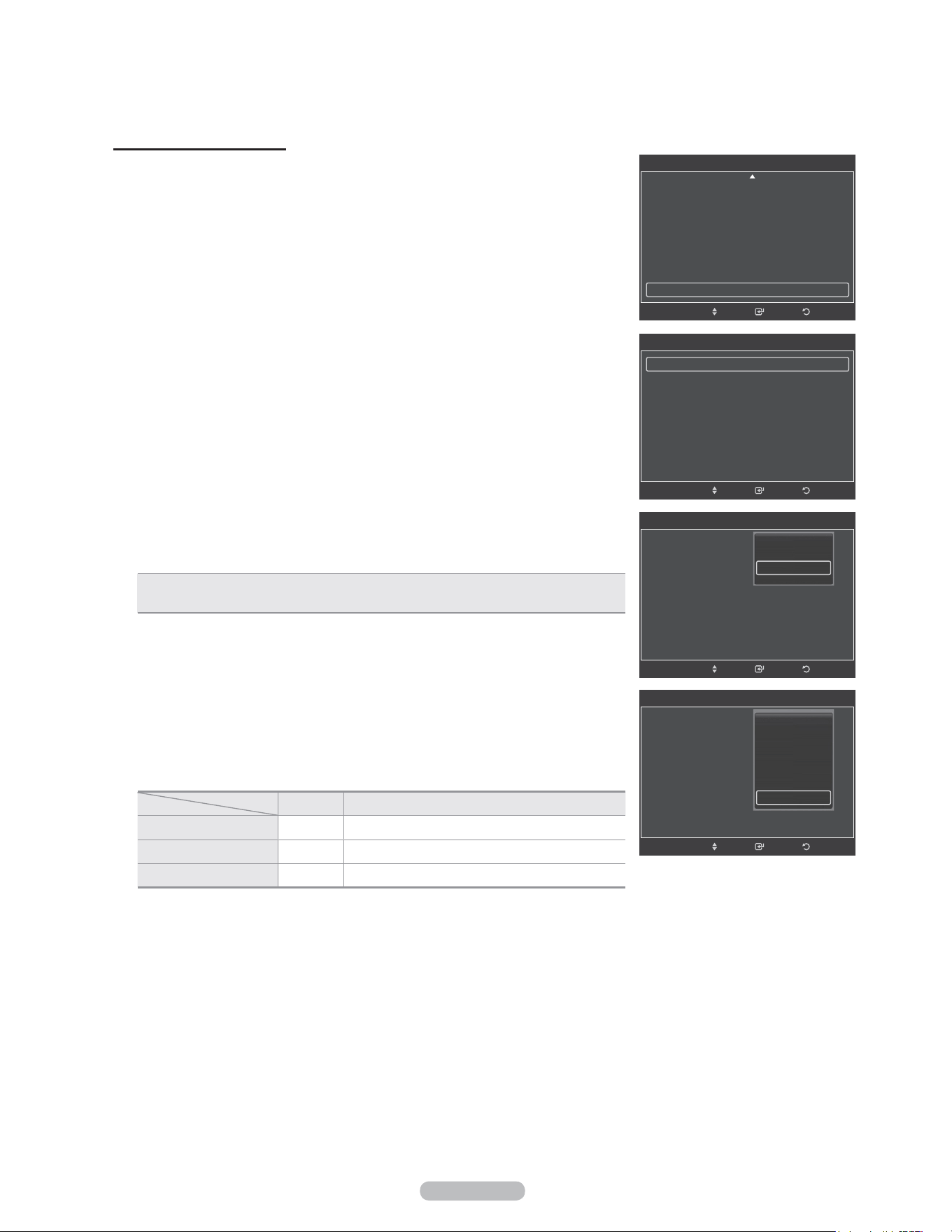
English - 33
Preventing Screen Burn-in
To reduce the possibility of screen burn, this unit is equipped with screen burn
prevention technology. This technology enables you to set picture movement up/
down (Vertical Line) and side to side (Horizontal Dot).
The Time setting allows you to program the time between movement of the picture
in minutes.
1 Follow the Activating Picture Options instructions numbers 1 and 2.
(Refer to page 27)
2 Press the ▲ or ▼ button to select Screen Burn Protection, then press the
ENTER button.
3 Press the ENTER button to select Pixel Shift, then press the ENTER button.
Pressing the ▲ or ▼ button will alternate between On and Off.
You will also see the items Horizontal Dot, Vertical Line and Time.
• Pixel Shift: Using this function, you can minutely move pixels on the PDP in the
horizontal or vertical direction to prevent after-images on the screen.
4 Press the ▲ or ▼ button to select the item you wish to change, then press the
ENTER button.
Press the ▲ or ▼ button to change the value of the item, then press the ENTER
button.
• Optimum condition for pixel shift;
PC TV/AV1/AV2/S-Video/Component/HDMI
Horizontal Dot 2 2
Vertical Line 2 2
Time(min) 2 2
Press the EXIT button to exit.
ReturnEnter
Picture Options
Size : 16:9
Digital NR : Auto
DNle : Off
HDMI Black Level : Normal
Film Mode : Off
Blue Only Mode : Off
Screen Burn Protection ►
Move
ReturnEnter
Screen Burn Protection
Pixel Shift ►
All White
Scrolling
Side Gray : Light
Move
ReturnEnter
Pixel Shift
Pixel Shift :
Horizontal Dot :
Vertical Line :
Time : 2min
Move
Off
On
ReturnEnter
Screen Brun Project
Pixel Shift :
Horizontal Dot :
Vertical Line :
Time : 2min
Move
0
1
2
3
4
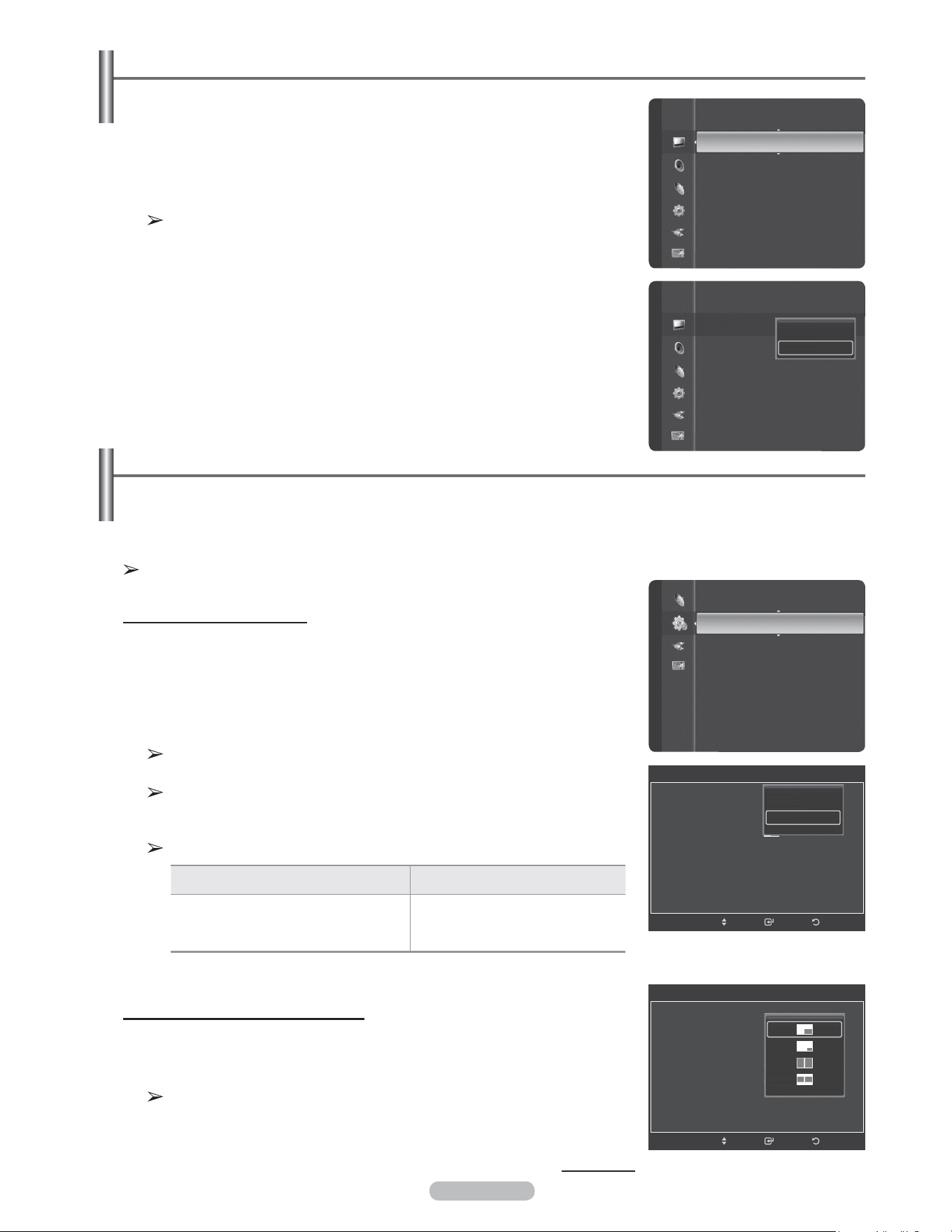
English - 34
Viewing Picture-in-Picture
You can use the PIP feature to simultaneously watch the TV tuner (analog broadcasts only) and one external
video source. (See page 40 to select the PIP picture sound.)
This product has one built-in tuner, which does not allow PIP to function in the same mode.
Please see ‘PIP Settings’ below for details.
While V-Chip (See page 57) is in operation, the PIP function cannot be used.
Activating Picture-in-Picture
1 Press the MENU button to display the menu.
Press the ▲ or ▼ button to select Setup, then press the ENTER button.
Press the ▲ or ▼ button to select PIP, then press the ENTER button.
2 Press the ENTER button again.
Press the ▲ or ▼ button to select On, then press the ENTER button.
If you turn the TV off while watching in PIP mode and turn it on again, the
PIP window will disappear.
You can view Analog TV broadcasts on the PIP screen (sub-picture) when
the main picture is from an external device connected to HDMI 1,HDMI/DVI
2, HDMI 3, Component 1, 2 or PC.
PIP Settings
Resetting the Picture Settings to the Factory Defaults
1 To select the desired picture mode, follow the Changing the Picture Standard
instructions numbers 1 and 2. (see page 23)
2 Press the ▲ or ▼ button to select Picture Reset, then press the ENTER button.
Press the ◄ or ► button to select OK or Cancel then press the ENTER button.
Press the EXIT button to exit.
Each mode can be reset.
Changing the Size of the PIP Window
3 Press the ▲ or ▼ button to select Size, then press the ENTER button.
Press the ▲ or ▼ button to select the desired size of the PIP window, then press
the ENTER button.
You may notice that the picture in the PIP window becomes slightly
unnatural when you use the main picture to view a game or karaoke.
Continued...
Main picture Sub picture
Component 1, 2
HDMI 1, HDMI/DVI 2, HDMI 3
PC
Analog TV broadcasts only
Picture
Detailed Settings
Picture Options
Picture Reset ►
Entertainment : Off
Energy Saving : Off
PIP ►
SW Upgrade
Setup
ReturnEnter
PIP
PIP : Off
Size :
Position :
Air/cable : Cable
Channel : Cable 3
Move
Off
On
ReturnEnter
PIP
PIP : On
Size :
Position :
Air/cable : Cable
Channel : Cable 3
Move
Picture
Detailed Settings
Picture Options
Picture Reset
OK
Cancel
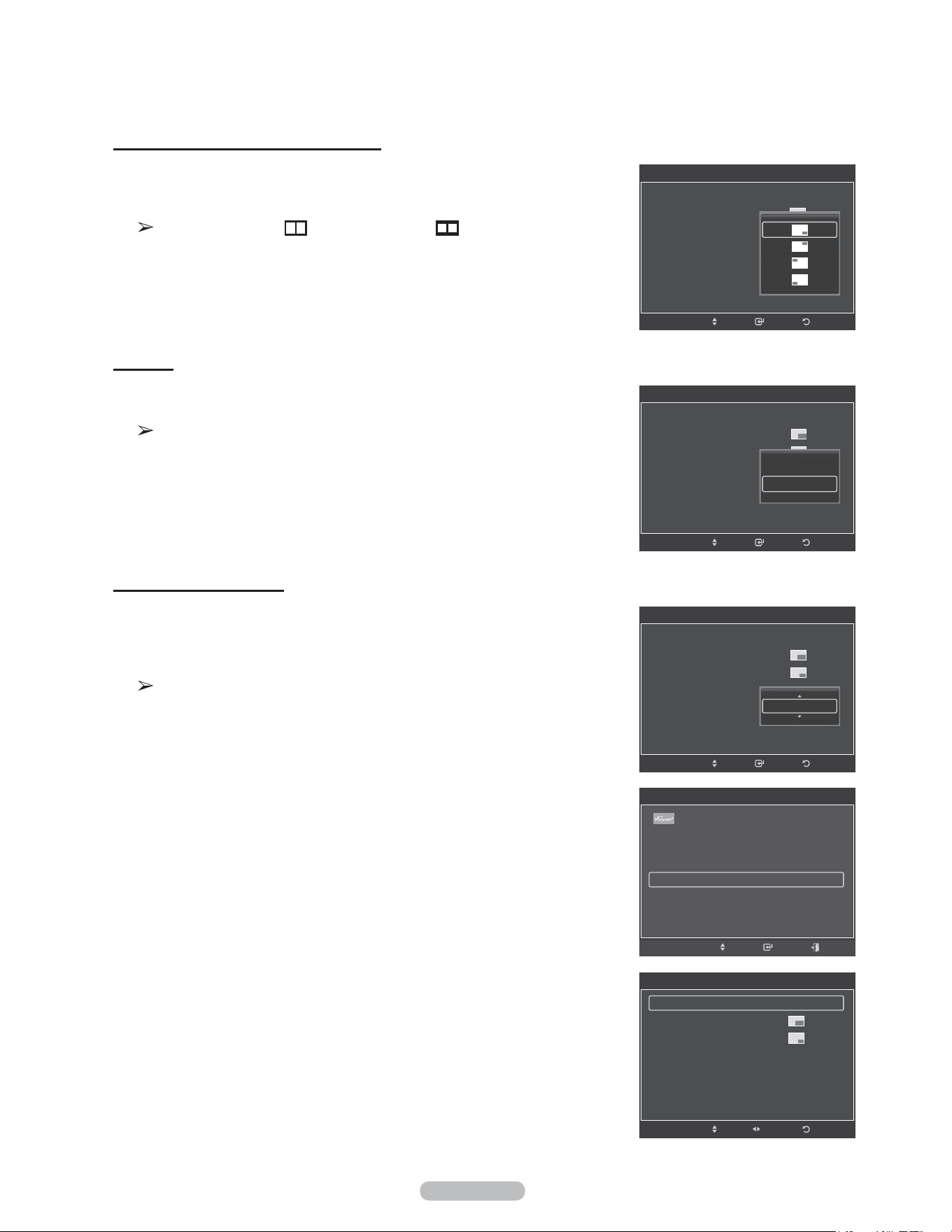
English - 35
Air/Cable
5 Press the ▲ or ▼ button select Antenna, then press the ENTER button.
Press the ▲ or ▼ button to select Air or Cable, then press the ENTER button.
Air: Air antenna signal.
Cable: Cable antenna signal.
Changing the PIP Channel
6 Press the ▲ or ▼ button to select Channel, then press the ENTER button.
Press the ▲ or ▼ button at the bottom of the remote to select the desired
channel in the PIP window, then press the ENTER button.
Press the EXIT button to exit.
You can select only analog TV broadcasts on the PIP screen (sub-picture).
Easy Setting
1 Press the TOOLS button on the remote control.
2 Press the ▲ or ▼ button to select PIP, then press the ENTER button.
3 Press the ▲ or ▼ button to select a particular item.
4 Press the ◄ or ► button to select the required option.
5 Press the EXIT or TOOLS button to exit.
Changing the Position of the PIP Window
4 Press the ▲ or ▼ button to select Position, then press the ENTER button.
Press the ▲ or ▼ button to select the desired PIP window position, then press
the ENTER button.
In Double Window (
) and Double Wide ( ) modes, Position cannot
be selected.
ReturnEnter
PIP
PIP : On
Size :
Position :
Air/cable : Cable
Channel : Cable 3
Move
Air
Cable
ReturnEnter
PIP
PIP : On
Size :
Position :
Air/cable : Cable
Channel : Cable 3
Move
Return
PIP
PIP ◄ On ►
Size :
Position :
Air/Cable : Cable
Channel : Cable 3
Move
Adjust
PIP
PIP : On
Size :
Position :
Air/cable : Cable
Channel : Cable 3
ReturnEnterMove
Cable 11
TOOLS
Device List
Picture Mode : Standard
Sound Mode : Custom
PIP
Move Enter Exit
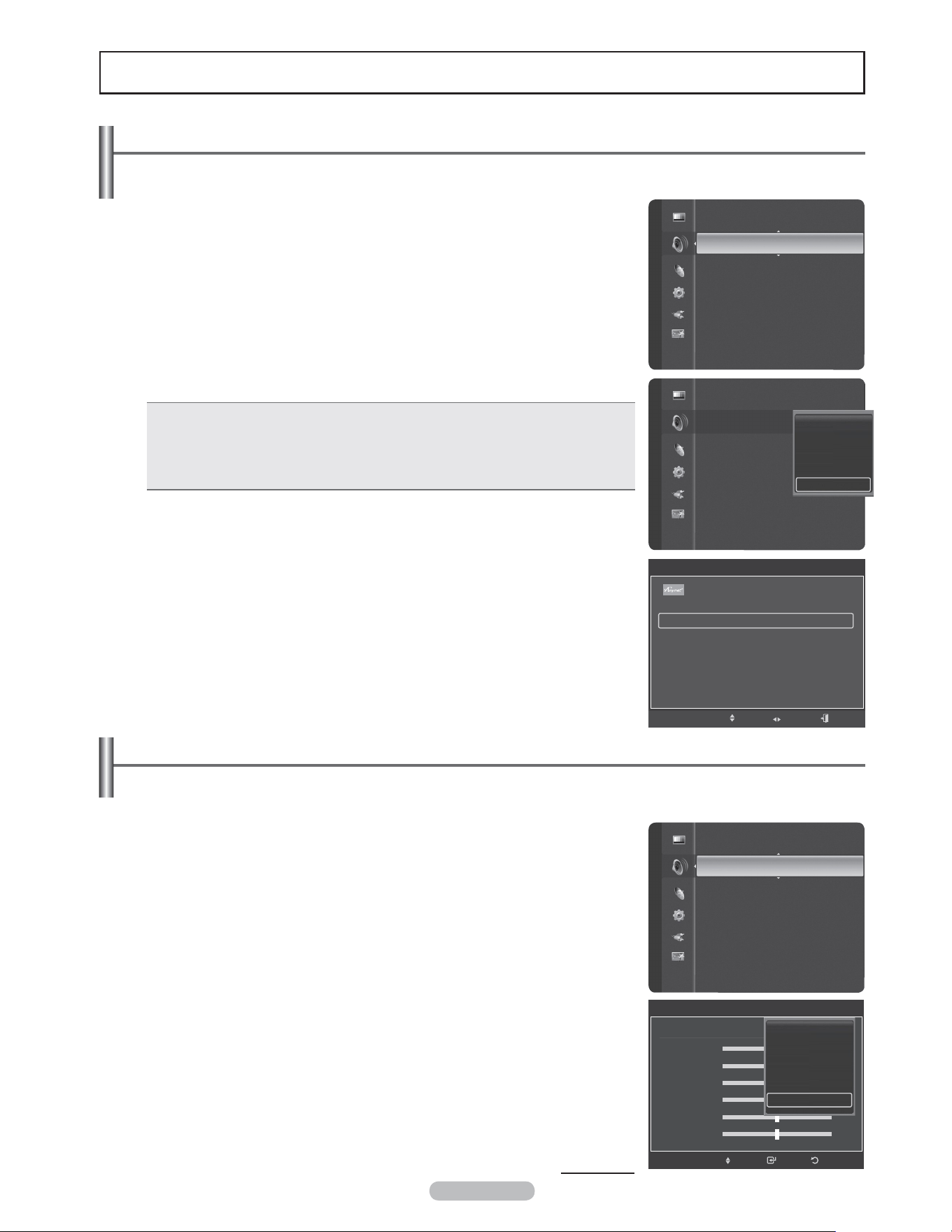
English - 36
Sound Control
Changing the Sound Standard
You can select the sound mode to best suit the programming you’re watching.
1 Press the MENU button to display the menu.
Press the ▲ or ▼ button to select Sound, then press the ENTER button.
2 Press the ENTER button to select Mode. Press the ▲ or ▼ button to select
Standard, Music, Movie, Speech, or Custom sound setting, then press the
ENTER button.
Press the EXIT button to exit.
• Standard: Selects the normal sound mode.
• Music: Emphasizes music over voices.
• Movie: Provides the best sound for movies.
• Speech: Emphasizes voice over other sounds.
• Custom: Recalls your customized sound settings. (see Customizing the Sound)
Easy Setting
1 Press the TOOLS button on the remote control.
2 Press the ▲ or ▼ button to select Sound Mode.
3 Press the ◄ or ► button to select the required option.
Customizing the Sound
The sound settings can be adjusted to suit your personal preference.
1 Press the MENU button.
Press the ▲ or ▼ button to select Sound, then press the ENTER button.
2 Press the ▲ or ▼ button to select Equalizer, then press the ENTER button.
3 Press the ENTER button to select Mode.
Press the ▲ or ▼ button to select a particular item (Standard, Music, Movie,
Speech, Custom), then press the ENTER button.
Continued...
Mode
:
Custom ►
Equalizer
SRS TruSurround XT : Off
Preferred Language : English
Multi-Track Sound : Mono
Auto Volume : Off
TV Speaker : On
Sound Select : Main
Sound Sound
Mode
:
Equalizer
SRS TruSurround XT : Off
Preferred Language : English
Multi-Track Sound : Stereo
Auto Volume : Off
TV Speaker : On
Sound Select : Main
Standard
Music
Movie
Speech
Custom
Sound
Mode : Custom
Equalizer
►
SRS TruSurround XT : Off
Preferred Language : English
Multi-Track Sound : Mono
Auto Volume : Off
TV Speaker : On
Sound Select : Main
Sound Reset
Equalizer
Mode : Standard
Balance L R
100Hz - +
300Hz - +
1kHz - +
3kHz - +
10kHz - +
ReturnEnterMove
Standard
Music
Movie
Speech
Custom
TOOLS
Device List
Picture Mode : Standard
Sound Mode ◄ Custom ►
Add to Favorite
Switch to Air
Move Adjust Exit
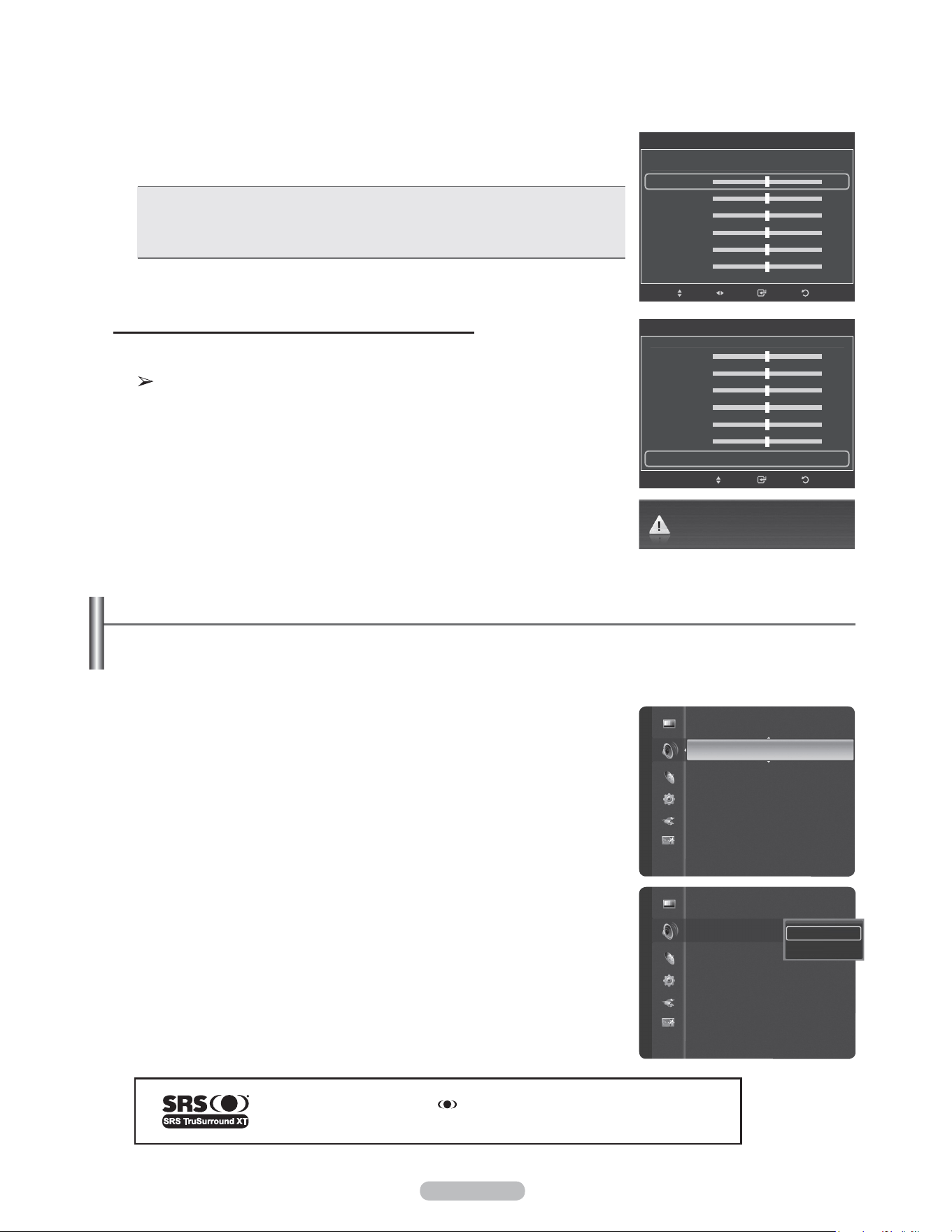
English - 37
4 Press the ▲ or ▼ button to select a particular frequency to adjust.
Press the ◄ or ► button to increase or decrease the level of the particular
frequency.
• L/R Sound Balance Adjustment: To adjust the sound balance of the L/R
speakers.
• Bandwidth Adjustment (100Hz, 300Hz, 1kHz, 2kHz, 3kHz, 10kHz):
To adjust the level of different bandwidth frequencies.
Resetting the Equalizer Settings to the Factory Defaults
5 Press the ▲ or ▼ button to select Reset, then press the ENTER button.
The equalizer resets to the factory defaults.
Press the EXIT button to exit.
Setting the TruSurround XT
TruSurround XT is a patented SRS technology that solves the problem of playing 5.1 multichannel content over
two-speakers. TruSurround delivers a compelling, virtual surround sound experience through any two-speaker
playback system, including internal television speakers. It is fully compatible with all multi channel formats.
1 Press the MENU button to display the menu.
Press the ▲ or ▼ button to select Sound, then press the ENTER button.
2 Press the ▲ or ▼ button to select SRS TruSurround XT, then press the
ENTER button.
3 Press the ▲ or ▼ button to select Off or On, then press the ENTER button.
Press the EXIT button to exit.
TruSurround XT, SRS and Symbol are trademarks of SRS Labs, Inc.
TruSurround XT technology is incorporated under license from SRS Labs, Inc.
Custom mode returns to default settings.
ReturnEnter
Equalizer
▲
Balance L R
100Hz - +
300Hz - +
1kHz - +
3kHz - +
10kHz - +
Reset ►
Move
Sound
Mode : Custom
Equalizer
SRS TruSurround XT : Off ►
Preferred Language : English
Multi-Track Sound : Mono
Auto Volume : Off
TV Speaker : On
Sound Select : Main
Sound Reset
Mode : Custom
Equalizer
SRS TruSurround XT : Off
Preferred Language : English
Multi-Track Sound : Mono
Auto Volume : Off
TV Speaker : On
Sound Select : Main
Sound Reset
Off
On
Sound
ReturnEnter
Equalizer
Mode : Custom
Balance L R
100Hz - +
300Hz - +
1kHz - +
3kHz - +
10kHz - +
▼
Move Adjust
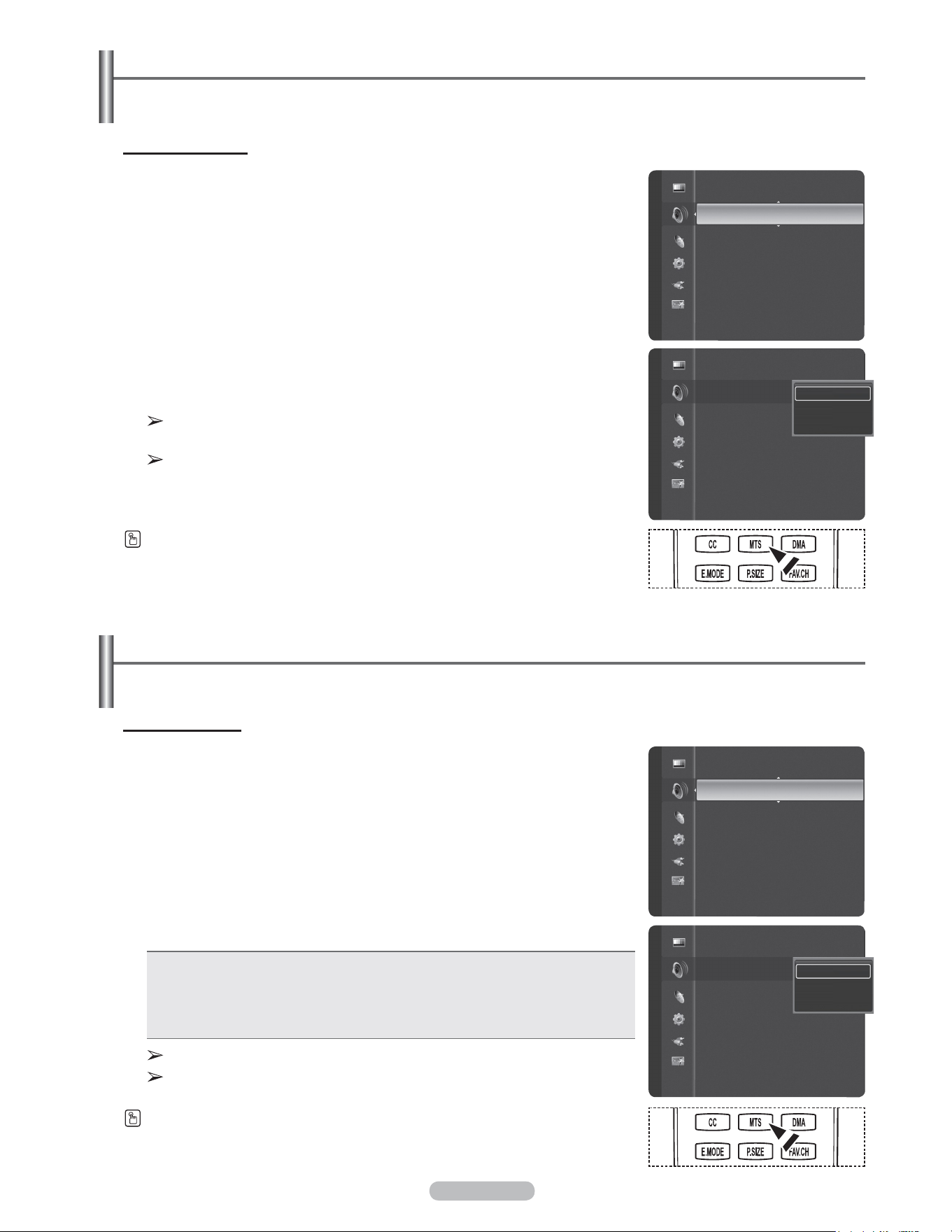
English - 38
Preferred language
1 Press the MENU button to display the menu.
Press the ▲ or ▼ button to select Sound, then press the ENTER button.
2 Press the ▲ or ▼ button to select Preferred Language, then press the ENTER
button.
3 Press the ▲ or ▼ button to choose the language (English, Spanish, or French)
you want, then press the ENTER button.
Press the EXIT button to exit.
You can only select the language from among the actual languages being
broadcast.
Preferred Language is available only in Digital TV mode.
Press the MTS button on the remote control to listen to the language other than the
preferred language.
Choosing the Preferred Language
The digital-TV transmission system is capable of simultaneous transmission of many audio tracks (for example,
simultaneous translations of the program into foreign languages).
Multi-Track Sound
1 Press the MENU button to display the menu.
Press the ▲ or ▼ button to select Sound, then press the ENTER button.
2 Press the ▲ or ▼ button to select Multi-Track Sound, then press the ENTER
button.
3 Press the ▲ or ▼ button to select a setting you want, then press the ENTER
button.
Press the EXIT button to exit.
• Mono: Choose for channels that are broadcasting in mono or if you are having a
difficulty receiving a stereo signal.
• Stereo: Choose for channels that are broadcasting in stereo.
• SAP: Choose to listen to the Separate Audio Program, which is usually a foreign
language translation.
Multi-Track Sound is available only in Analog TV mode.
Depending on the particular program being broadcast, you can listen to
Mono, Stereo or SAP.
Press the MTS buttons on the remote control to select Mono, Stereo, or SAP.
Choosing a Multi-Channel Sound (MTS) Track - Analog
Depending on the particular program being broadcast, you can listen to Mono, Stereo or SAP.
Sound
Equalizer
SRS TruSurround XT : Off
Preferred Language : English ►
Multi-Track Sound : Mono
Auto Volume : Off
TV Speaker : On
Sound Select : Main
Sound Reset
Sound
Equalizer
SRS TruSurround XT : Off
Preferred Language : English
Multi-Track Sound : Mono
Auto Volume : Off
TV Speaker : On
Sound Select : Main
Sound Reset
English
Spanish
French
Sound
SRS TruSurround XT : Off
Preferred Language : English
Multi-Track Sound : Mono ►
Auto Volume : Off
TV Speaker : On
Sound Select : Main
Sound Reset
Sound
SRS TruSurround XT : Off
Preferred Language : English
Multi-Track Sound : Mono
Auto Volume : Off
TV Speaker
: Off
Sound Select : Main
Sound Reset
Mono
Stereo
SAP
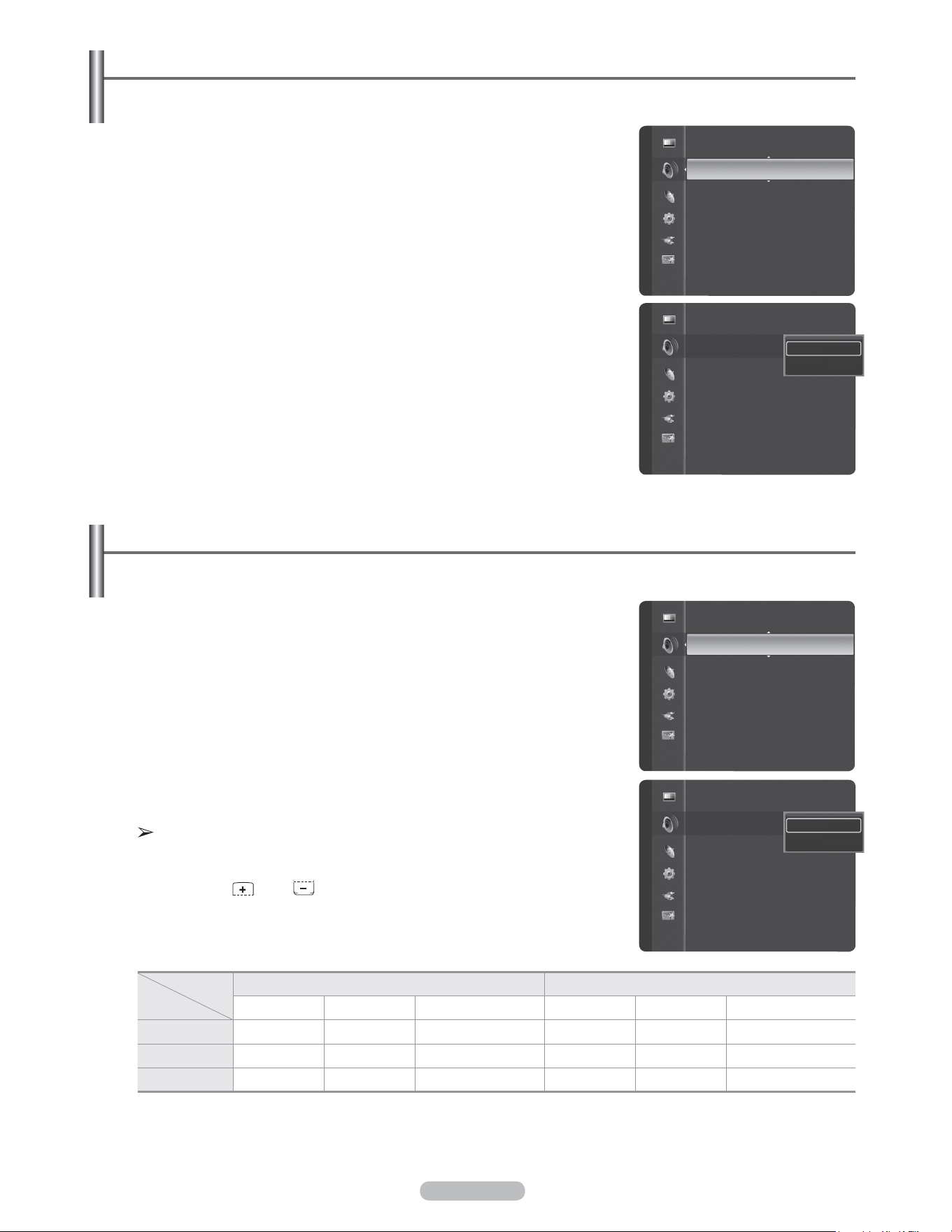
English - 39
1 Press the MENU button to display the menu.
Press the ▲ or ▼ button to select Sound, then press the ENTER button.
2 Press the ▲ or ▼ button to select Auto Volume, then press the ENTER button.
3 Press the ▲ or ▼ button to select Off or On, then press the ENTER button.
Press the EXIT button to exit.
Automatic Volume Control
Reduces the difference in volume level among broadcasters.
1 Press the MENU button to display the menu.
Press the ▲ or ▼ button to select Sound, then press the ENTER button.
2 Press the ▲ or ▼ button to select TV Speaker, then press the ENTER button.
3 Press the ▲ or ▼ button to select Off or On, then press the ENTER button.
Press the EXIT button to exit.
• When TV Speaker is set to Off, you can operate only Preferred
Language(in digital TV mode), Multi-Track Sound(in analog TV mode),
Sound Select(in PIP mode) and Sound Reset in Sound menu.
• The VOL , VOL and MUTE buttons do not operate when the
TV Speaker is set to Off.
Setting the TV Speakers On/Off
Sound output from the TV speakers is muted.
TV’s Internal Speakers Audio Out (Optical, L/R Out) to Sound System
TV AV, S-Video Component, PC, HDMI TV AV, S-Video Component, PC, HDMI
TV Speaker On Speaker Output Speaker Output Speaker Output Sound Output Sound Output Sound Output
TV Speaker Off Mute Mute Mute Sound Output Sound Output Sound Output
Video No Signal Mute Mute Mute Mute Mute Mute
Sound
Preferred Language : English
Multi-Track Sound : Stereo
Auto Volume : Off ►
TV Speaker : On
Sound Select : Main
Sound Reset
Sound
Preferred Language : English
Multi-Track Sound : Stereo
Auto Volume : Off
TV Speaker : Off
Sound Select : Main
Sound Reset
Off
On
Sound
Multi-Track Sound : Stereo
Auto Volume : Off
TV Speaker : On ►
Sound Select : Main
Sound Reset
Sound
Multi-Track Sound : Stereo
Auto Volume : Off
TV Speaker : Off
Sound Select : Main
Sound Reset
Off
On
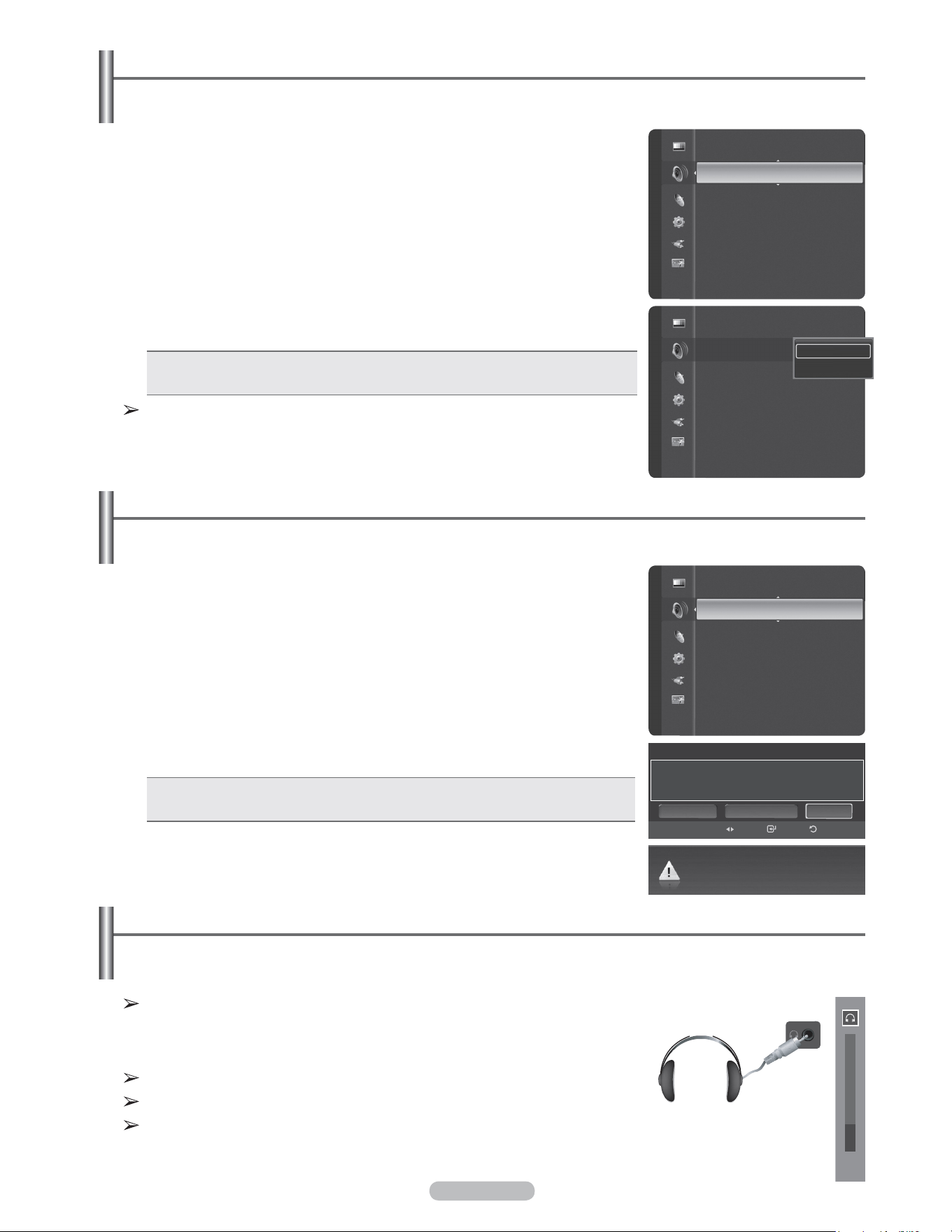
English - 40
1 Press the MENU button to display the menu.
Press the ▲ or ▼ button to select Sound, then press the ENTER button.
2 Press the ▲ or ▼ button to select Sound Select, then press the ENTER button.
3 Press the ▲ or ▼ button to select Main or Sub, then press the ENTER button.
Press the EXIT button to exit.
• Main: Used to listen to the sound of the main picture.
• Sub: Used to listen to the sound of the sub picture.
You can select this option when PIP is set to On. (See page 34)
Listening to the Sound of the Sub (PIP) Picture
When the PIP feature is activated, you can listen to the sound of the sub (PIP) picture.
1 Press the MENU button.
Press the ▲ or ▼ button to select Sound, then press the ENTER button.
Press the ▲ or ▼ button to select Sound Reset, then press the ENTER button.
2 Press the ◄ or ► button to select Reset All, Reset Sound Mode, or Cancel,
then press the ENTER button.
• Reset All: All the sound values return to default settings.
• Reset Sound Mode: Currently set values return to default settings.
Resetting the Sound Settings to the Factory Defaults
You can restore the Sound settings to the factory defaults.
Connecting Headphones (Sold separately)
You can connect a set of headphones to your set if you wish to watch a TV program without disturbing other
people in the room.
When you insert the headphone’s plug into the headphone jack, you can operate
only Preferred Language (in digital TV mode), Multi-Track Sound (in analog
TV mode), Auto Volume, Sound Select (in PIP mode) and Sound Reset in
Sound menu.
Prolonged use of headphones at a high volume may damage your hearing.
You will not hear sound from the speakers when you connect headphones to the TV.
The headphone volume and TV volume are adjusted separately.
TV Side Panel
Sound
Auto Volume : Off
TV Speaker : On
Sound Select : Main ►
Sound Reset
Sound
Auto Volume : Off
TV Speaker : On
Sound Select : Main
Sound Reset
Main
Sub
Sound
TV Speaker : On
Sound Select : Main
Sound Reset ►
Enter Return
Sound Reset
Select the sound reset options.
Cancel
Reset Sound Mode
Reset All
Move
Audio settings changed to default.
15
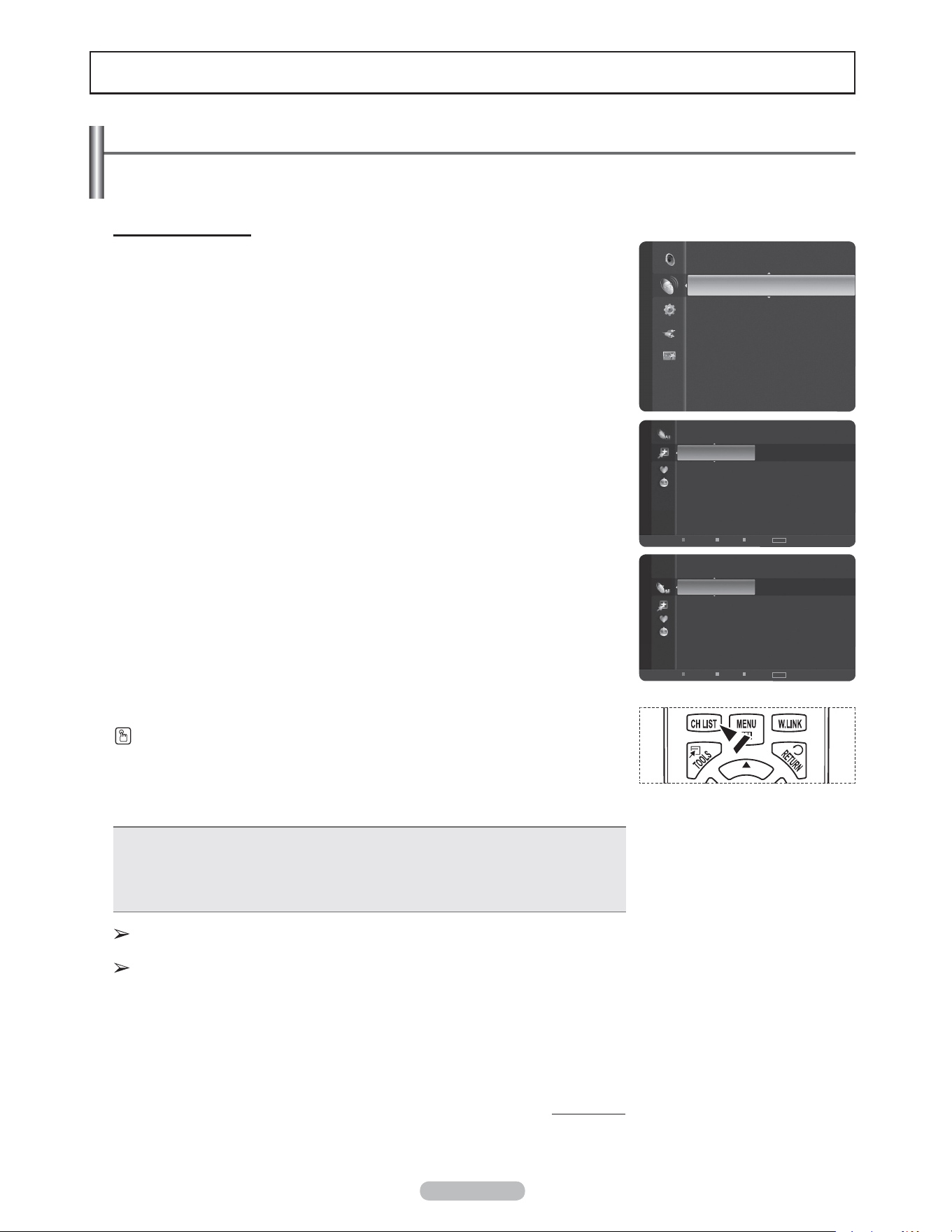
English - 41
Channel Control
Managing Channels
Using this menu, you can Add/Delete or set Favorite channels and use the program guide for digital broadcasts.
Viewing All Channels
Show all currently available channels. To use the Channel List function, first run Auto
Program (see page 21).
1 Press the MENU button.
Press the ▲ or ▼ button to select Channel, then press the ENTER button.
Press the ▲ or ▼ button to select Channel List, then press the ENTER button.
2 Press the ◄ button to select Added Channels.
3 Press the ▲ or ▼ button to select All Channels, then press the ENTER button.
Shows all currently available channels.
4 Press the ▲ or ▼ button to select a channel to view, then press the ENTER
button.
Press the CH LIST button on the remote control to bring up the channel lists.
Using the Color buttons on the Remote with the Channel List
• Red (Antenna): Switches to DTV air or DTV cable.
• Green (Zoom): Enlarges or shrinks a channel number.
• Yellow (Select): Selects multiple channel lists.
• TOOLS (Option): Displays the Add (or Delete), Add to Favorite (or Delete from
Favorite), Timer Viewing, and Channel Name Edit menus.
A gray-colored channel indicates the channel has been deleted. The Add menu
only appears for deleted channels.
A channel marked with ♥ mark means the channel has been set as a Favorite.
The Delete from Favorite menu only appears for channels with the ♥ mark.
Continued...
Channel
Antenna : Air
Auto Program
Channel List
Clear Scrambled Channel
Fine Tune
Signal Strength
6-1 ♥ SBS
7 Air
7-1 ♥ KBS D-2
9 Air
9-1 ♥ KBS D-1
10 Air
10-1 ♥ EBS DTV
11-1 ♥ MBC DTV
19 Air
22 Air
Added Channels
Air
Antenna
Zoom
Select Option ► Next Program
TOOLS
6-1 ♥ SBS
7 Air
7-1 ♥ KBS D-2
9 Air
9-1 ♥ KBS D-1
10 Air
10-1 ♥ EBS DTV
11-1 ♥ MBC DTV
19 Air
22 Air
All Channels
Air
Antenna
Zoom
Select Option ► Next Program
TOOLS
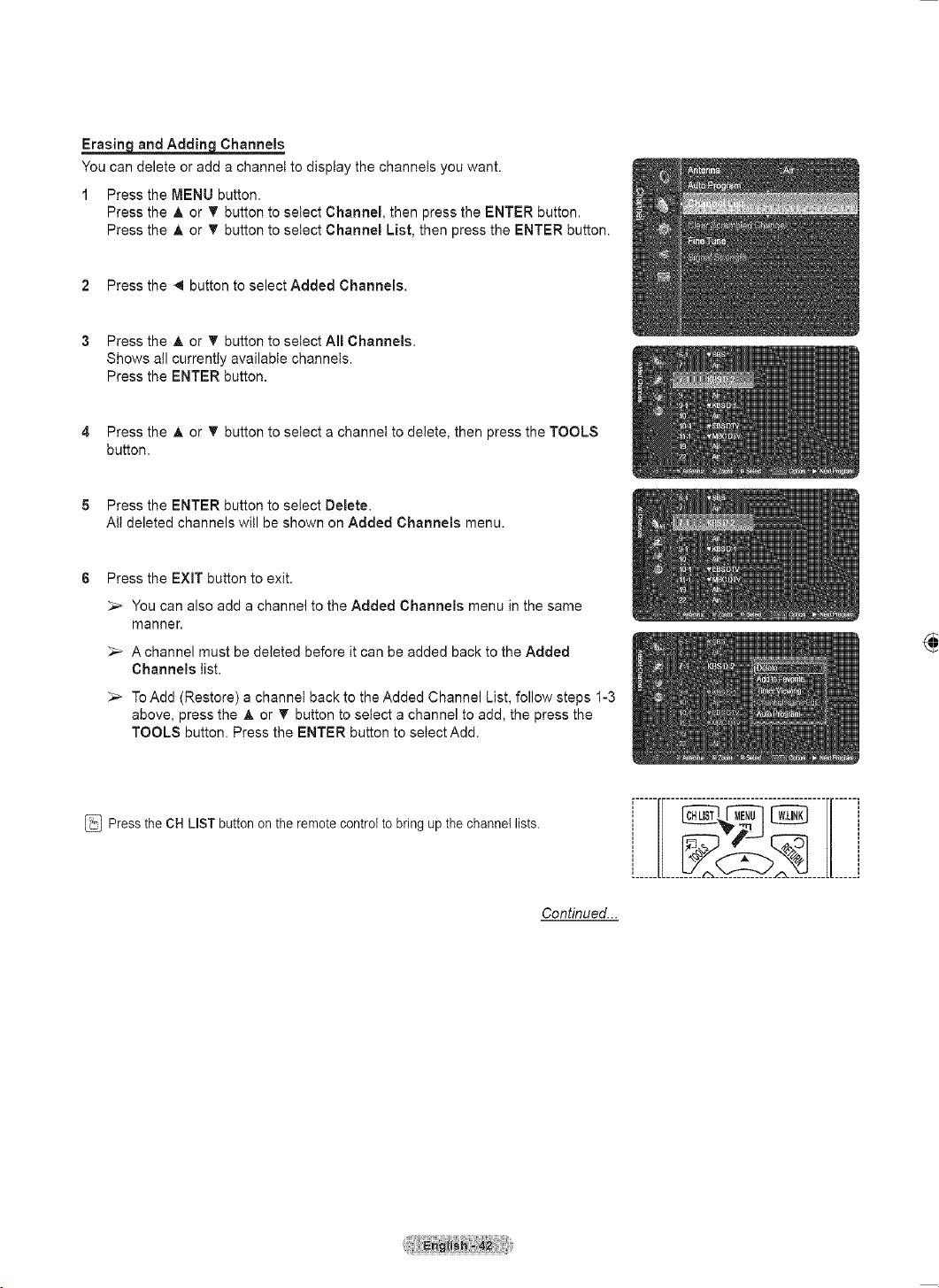
English - 42
Erasing and Adding Channels
You can delete or add a channel to display the channels you want.
1 Press the MENU button.
Press the ▲ or ▼ button to select Channel, then press the ENTER button.
Press the ▲ or ▼ button to select Channel List, then press the ENTER button.
2 Press the ◄ button to select Added Channels.
3 Press the ▲ or ▼ button to select All Channels.
Shows all currently available channels.
Press the ENTER button.
4 Press the ▲ or ▼ button to select a channel to delete, then press the TOOLS
button.
5 Press the ENTER button to select Delete.
All deleted channels will be shown on Added Channels menu.
6 Press the EXIT button to exit.
You can also add a channel to the Added Channels menu in the same
manner.
A channel must be deleted before it can be added back to the Added
Channels list.
To Add (Restore) a channel back to the Added Channel List, follow steps 1-3
above, press the ▲ or ▼ button to select a channel to add, the press the
TOOLS button. Press the ENTER button to select Add.
Press the CH LIST button on the remote control to bring up the channel lists.
Continued...
Channel
Antenna : Air
Auto Program
Channel List
Clear Scrambled Channel
Fine Tune
Signal Strength
6-1 ♥ SBS
7 Air
7-1 KBS D-2
9 Air
9-1 ♥ KBS D-1
10 Air
10-1 ♥ EBS DTV
11-1 ♥ MBC DTV
19 Air
22 Air
Added Channels
Air
Antenna
Zoom
Select Option ► Next Program
TOOLS
6-1 ♥ SBS
7 Air
7-1 KBS D-2
9 Air
9-1 ♥ KBS D-1
10 Air
10-1 ♥ EBS DTV
11-1 ♥ MBC DTV
19 Air
22 Air
All Channels
Air
Antenna
Zoom
Select Option ► Next Program
TOOLS
6-1 ♥ SBS
7 Air
7-1 KBS D-2
9 Air
9-1 ♥ KBS D-1
10 Air
10-1 ♥ EBS DTV
11-1 ♥ MBC DTV
19 Air
22 Air
Added Channels
Air
Antenna
Zoom
Select Option ► Next Program
TOOLS
Delete
Add to Favorite
Timer Viewing
Channel Name Edit
Auto Program
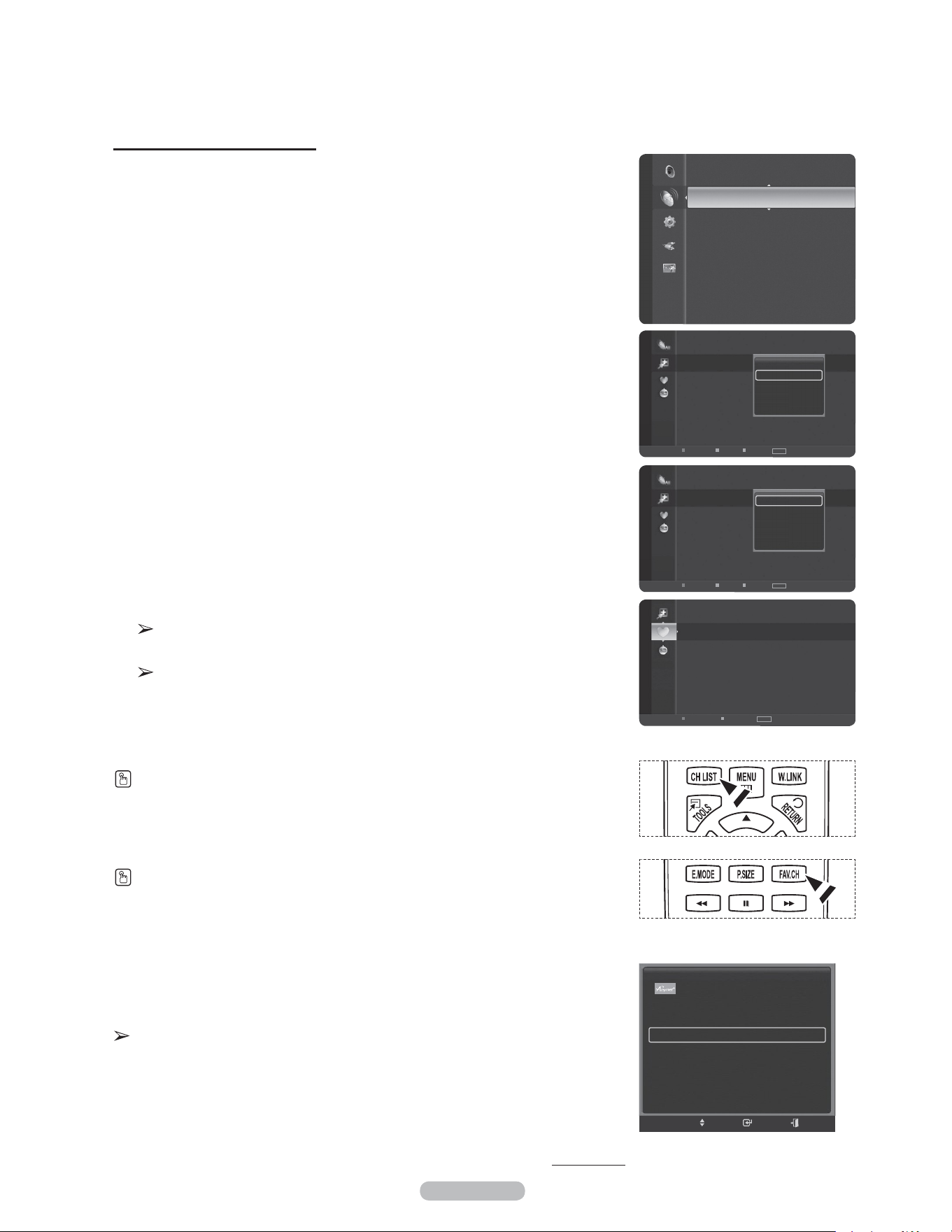
English - 43
Setting Your Favorite Channels
You can set channels you watch frequently as favorites.
1 Press the MENU button.
Press the ▲ or ▼ button to select Channel, then press the ENTER button.
Press the ▲ or ▼ button to select Channel List, then press the ENTER button.
2 Press the ◄ button to select Added Channels.
3 Press the ▲ or ▼ button to select All Channels, then press the ENTER button.
Shows all currently available channels.
4 Press the ▲ or ▼ button to select a channel as a favorite channel, then press
the TOOLS button.
5 Press the ▲ or ▼ button to select Add to Favorite, then press the ENTER
button.
The “♥” symbol will be displayed and the channel will be set as a favorite.
6 To cancel your favorite channel selection, press the TOOLS button when a
favorite channel is selected. Press the ▲ or ▼ button to select Delete from
Favorite, then press the ENTER button. The channel is deleted from Favorites
and the “♥” mark disappears.
Press the EXIT button to exit.
You can also Add or Delete a channel from Favorites in the Added
Channels menu in the same manner.
All favorite channels will be shown on Favorite menu.
Press the CH LIST button on the remote control to bring up the channel lists.
To select the favorite channels you have set up, press the FAV.CH button on the
remote control.
Easy Setting
1 Press the TOOLS button on the remote control.
2 Press the ▲ or ▼ button to select Add to Favorite or Delete from Favorite,
then press the ENTER button.
The current channel is added to or deleted from Favorites.
Continued...
6-1 ♥ SBS
7-1 ♥ KBS D-2
9-1 ♥ KBS D-1
10-1 ♥ EBS DTV
11-1 ♥ MBCDTV
Favorite
Air
Antenna
Zoom
Option
TOOLS
Channel
Antenna : Air
Auto Program
Channel List
Clear Scrambled Channel
Fine Tune
Signal Strength
6-1 ♥ SBS
7 Air
7-1 KBS D-2
9 Air
9-1 ♥ KBS D-1
10 Air
10-1 ♥ EBS DTV
11-1 ♥ MBC DTV
19 Air
22 Air
Added Channels
Air
Antenna
Zoom
Select Option ► Next Program
TOOLS
Delete
Add to Favorite
Timer Viewing
Channel Name Edit
Auto Program
6-1 ♥ SBS
7 Air
7-1 ♥ KBS D-2
9 Air
9-1 ♥ KBS D-1
10 Air
10-1 ♥ EBS DTV
11-1 ♥ MBC DTV
19 Air
22 Air
Added Channels
Air
Antenna
Zoom
Select Option ► Next Program
TOOLS
Delete
Delete from Favorite
Timer Viewing
Channel Name Edit
Auto Program
Device List
Picture Mode : Standard
Sound Mode : Custom
Add to Favorite
Switch to Air
TOOLS
Move Enter Exit
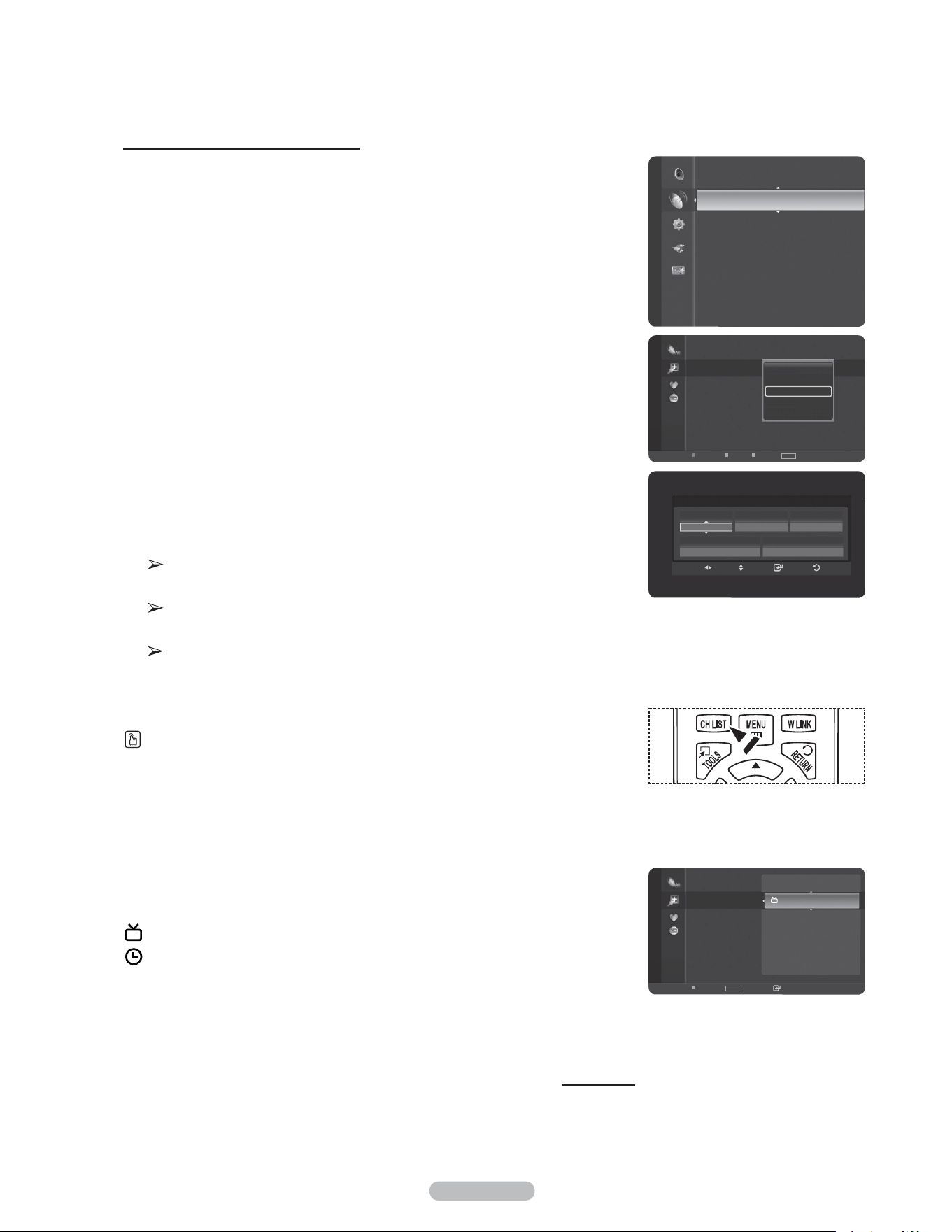
English - 44
Reserving a Program (Time Viewing)
If you reserve a program you want to watch, the channel is automatically switched
to the reserved channel in the Channel List; even when you are watching another
channel.
To reserve a program, set the current time first. See pages 52~53. Reserved
chanels can only be set if they are in the Channel List (See page 41).
1 Press the MENU button.
Press the ▲ or ▼ button to select Channel, then press the ENTER button.
Press the ▲ or ▼ button to select Channel List, then press the ENTER button.
2 Press the ▲ or ▼ button to select a channel, then press the TOOLS button.
3 Press the ▲ or ▼ button to select Timer Viewing, then press the ENTER
button.
The Reserve a Program (Timer Viewing) screen appears.
4 Press the ▲/▼/◄/► buttons to reserve a program and then press the ENTER
button.
Reserving a program has been completed.
Press the EXIT button to exit.
You can also reserve a program in the All Channels or Favorite menus
using the same procedures.
For information on how to confirm a viewing reservation, refer to page 46.
Only memorized channels can be reserved channels.
You can set the channel, month, day, year, hour and minute directly by
pressing the number buttons on the remote control.
Press the CH LIST button on the remote control to bring up the channel lists.
Digital Program Guide and Viewing Reservation
When a digital channel is selected, and you press the ► button, the Program Guide
for the channel appears. You can reserve a program according to the procedures
described above.
: A program currently being broadcast.
: A reserved program.
Continued...
Channel
Antenna : Air
Auto Program
Channel List
Clear Scrambled Channel
Fine Tune
Signal Strength
Timer Viewing
Antenna Channel Repeat
DTV Air 7-1 once
Date
01-01-2008
Start Time
10:09 am
Enter ReturnMove Adjust
6-1 ♥ SBS
7 Air
7-1 ♥ KBS D-2
9 Air
9-1 ♥ KBS D-1
10 Air
10-1 ♥ EBS DTV
11-1 ♥ MBC DTV
19 Air
22 Air
Added Channels
Air
Antenna
Zoom
Select Option ► Next Program
TOOLS
Delete
Delete from Favorite
Timer Viewing
Channel Name Edit
Auto Program
6-1 ♥ SBS 2007/2/3
7 Air 2007/2/3
7-1 ♥ KBS D-2
1:30 am
9 Air 2:27 am
9-1 ♥ KBS D-1 2:35 am
10 Air 3:21 am
10-1 ♥ EBS DTV 4:33 am
11-1 ♥ MBC DTV 6:00 am
19 Air 6:36 am
22 Air
Added Channels
Air
Zoom
TOOLS
Option
Watch
1/22/2008
12:47 am 2.0
3:54 am KBS 2TV
6:44 am HD 1 100
7:49 am HD
8:59 am +
10:08 am
10:37 am
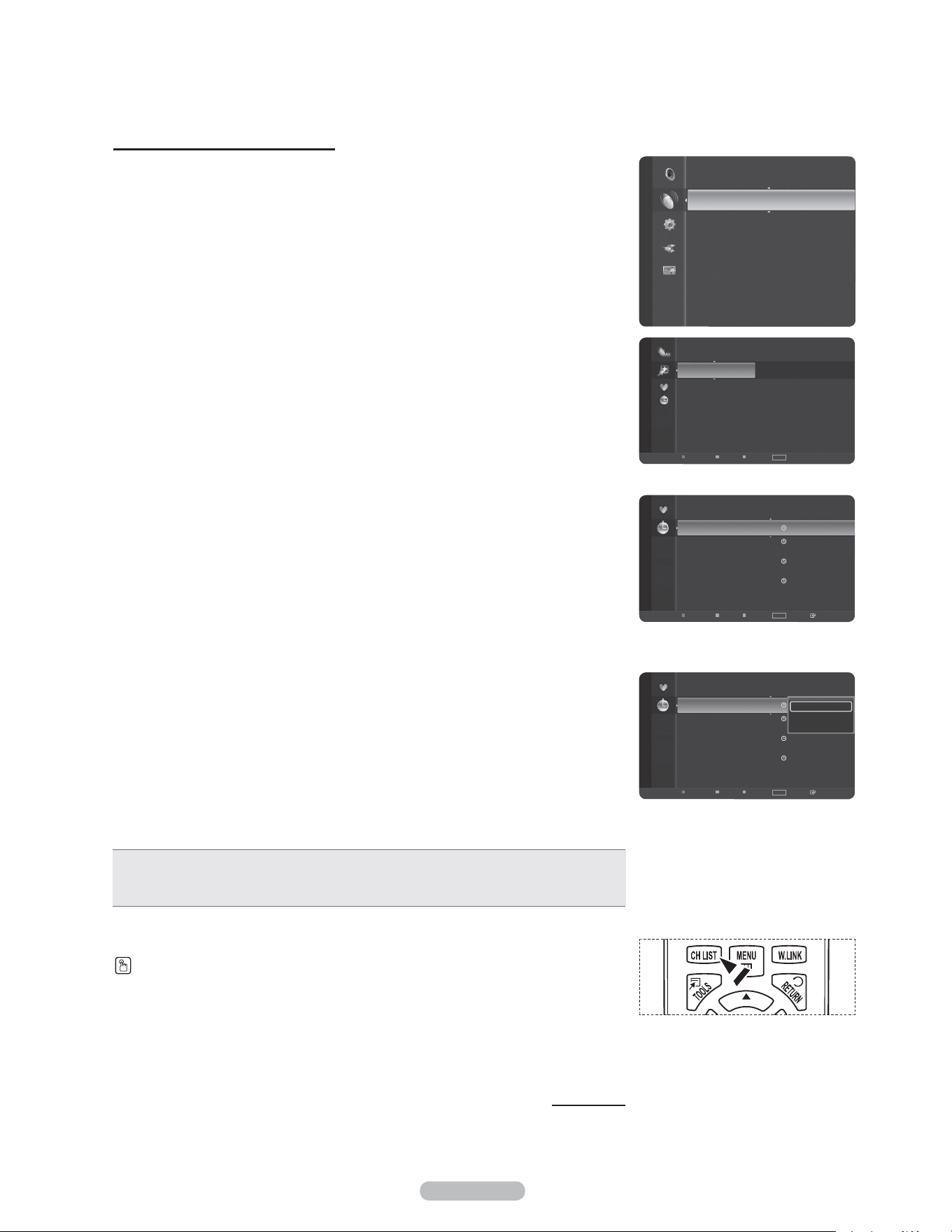
English - 45
Confirming a Viewing Reservation
You can view, modify or delete a reservation.
1 Press the MENU button.
Press the ▲ or ▼ button to select Channel, then press the ENTER button.
Press the ▲ or ▼ button to select Channel List, then press the ENTER button.
2 Press the ◄ button to select Added Channels.
3 Press the ▲ or ▼ button to select Programmed, then press the ENTER button.
You can view the program reservations.
Modifying a viewing reservation
4 To select a reservation item to be modified, press the ▲ or ▼ button and then
press the TOOLS button.
5 Press the ENTER button to select Change Info.
6 Press the ▲/▼/◄/► buttons to change a reservation setting and then press the
ENTER button.
The reservation modification is applied.
Canceling a reservation
4 To select a reservation item to be canceled, press the ▲ or ▼ button, and then
press the TOOLS button.
5 Press the ▲ or ▼ button to select Cancel Schedules, then press the ENTER
button.
6 Press the ◄ or ► button to select OK, then press the ENTER button.
The viewing reservation has been canceled.
Press the EXIT button to exit.
Programmed Menu
• Change Info: Select to change a viewing reservation.
• Cancel Schedules: Select to cancel a viewing reservation.
• Information: Select to view a viewing reservation.
Continued...
Press the CH LIST button on the remote control to bring up the channel lists.
Channel
Antenna : Air
Auto Program
Channel List
Clear Scrambled Channel
Fine Tune
Signal Strength
2007/2/3
3:15 am
6-1 Air
No Program Name
4:15 am 6-1 Air No Program Name
2007/2/4
2:14 am 6-1 Air No Program Name
2007/2/5
2:15 am 6-1 Air No Program Name
Programmed
Air
Antenna
Zoom
Select Option
Information
TOOLS
6 Air
6-1
♥
Air
7 Air
7-1 ♥ Air
9 Air
9-1 ♥ Air
10 Air
10-1 ♥ Air
11 Air
Added Channels
Air
Antenna
Zoom
Select Option
TOOLS
Programmed
2007/2/3
3:15 am
6-1 Air
No Program Name
4:15 am 6-1 Air No Program Name
2007/2/4
2:14 am 6-1 Air No Program Name
2007/2/5
2:15 am 6-1 Air No Program Name
Change Info
Cancel Schedules
Information
Air
Antenna
Zoom
Select Option
Information
TOOLS
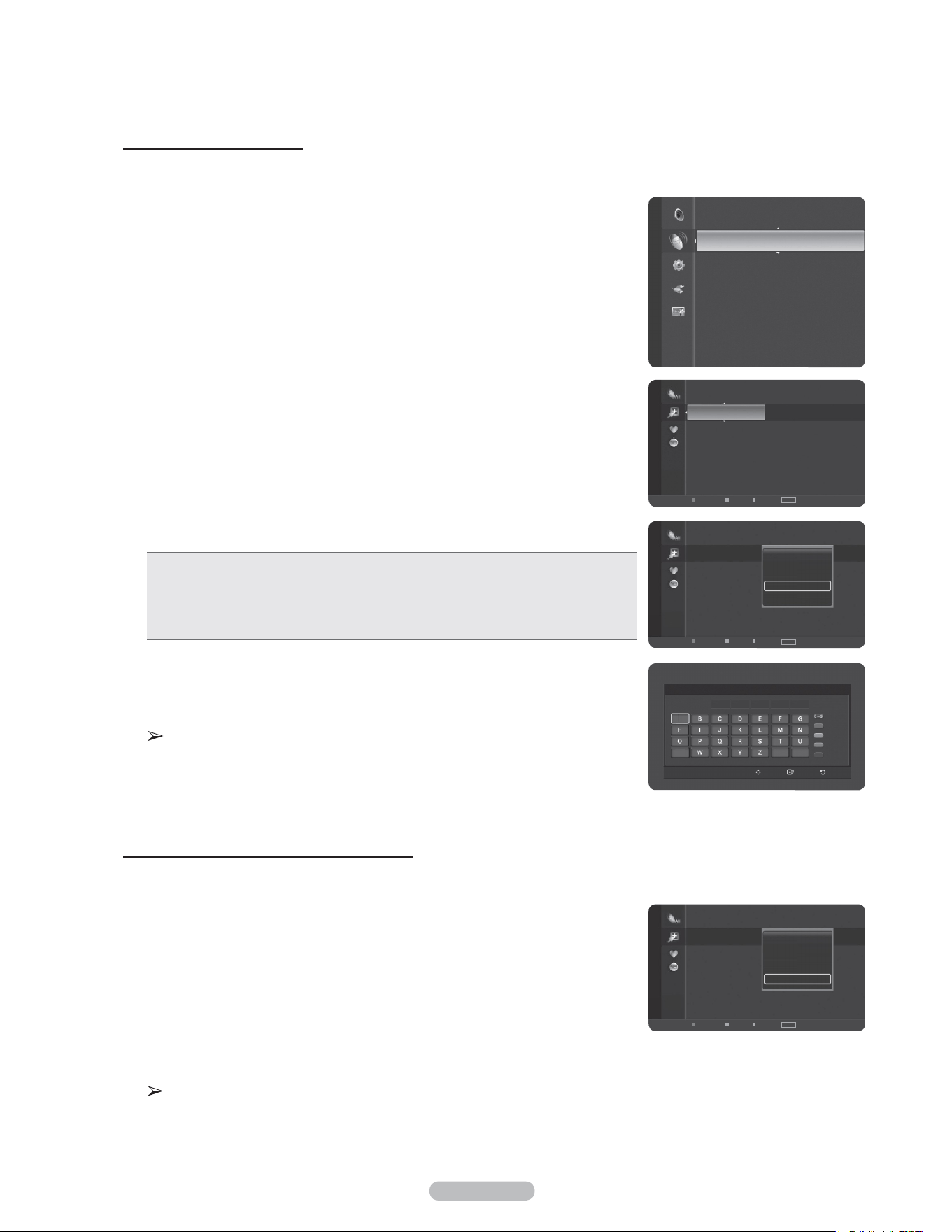
English - 46
Labeling Channels - Analog
Channels can labeled so that their call letters appear whenever the channel is
selected.
1 Press the MENU button.
Press the ▲ or ▼ button to select Channel, then press the ENTER button.
Press the ▲ or ▼ button to select Channel List, then press the ENTER button.
2 Press the ▲ or ▼ button to select the channel to be assigned a new name, then
press the TOOLS button.
3 Press the ▲ or ▼ button to select Channel Name Edit, then press the ENTER
button.
4 Press the ▲/▼/◄/► button to select a letter, then press the ENTER button.
• Numeric buttons: You can enter numbers.
• Red button: You can switch between English letters and Characters.
• Green button: You can delete an already entered letter or character.
• Yellow button: You can enter a blank space.
• Blue button: Press this button to finish renaming a channel.
5 When you have finished, press the blue button to assign the new name.
Press the EXIT button to exit.
The names of digital broadcasting channels are automatically assigned and
cannot be labelled.
Storing Channels in Memory (Auto Program)
Channels can labeled so that their call letters appear whenever the channel is
selected.
1 Press the MENU button.
Press the ▲ or ▼ button to select Channel, then press the ENTER button.
Press the ▲ or ▼ button to select Channel List, then press the ENTER button.
2 Press the ▲ or ▼ button to select the channel to be assigned a new name, then
press the TOOLS button.
3 Press the ▲ or ▼ button to select Auto Program, then press the ENTER buton.
For further details on setting up options, refer to pages 21.
Press the EXIT button to exit.
Channel Name Edit
6
Number
Character
Delete
Blank
Done
Enter ReturnMove
_
A
V
Channel
Antenna : Air
Auto Program
Channel List
Clear Scrambled Channel
Fine Tune
Signal Strength
6
Air
6-1 ♥ Air
7 Air
7-1 ♥ Air
9 Air
9-1 ♥ Air
10 Air
10-1 ♥ Air
Added Channels
Air
Antenna
Zoom
Select Option
TOOLS
6
Air
6-1 ♥ Air
7 Air
7-1 ♥ Air
9 Air
9-1 ♥ Air
10 Air
10-1 ♥ Air
Delete
Add to Favorite
Timer Viewing
Channel Name Edit
Auto Program
Added Channels
Air
Antenna
Zoom
Select Option
TOOLS
6
Air
6-1 ♥ Air
7 Air
7-1 ♥ Air
9 Air
9-1 ♥ Air
10 Air
10-1 ♥ Air
Delete
Add to Favorite
Timer Viewing
Channel Name Edit
Auto Program
Added Channels
Air
Antenna
Zoom
Select Option
TOOLS
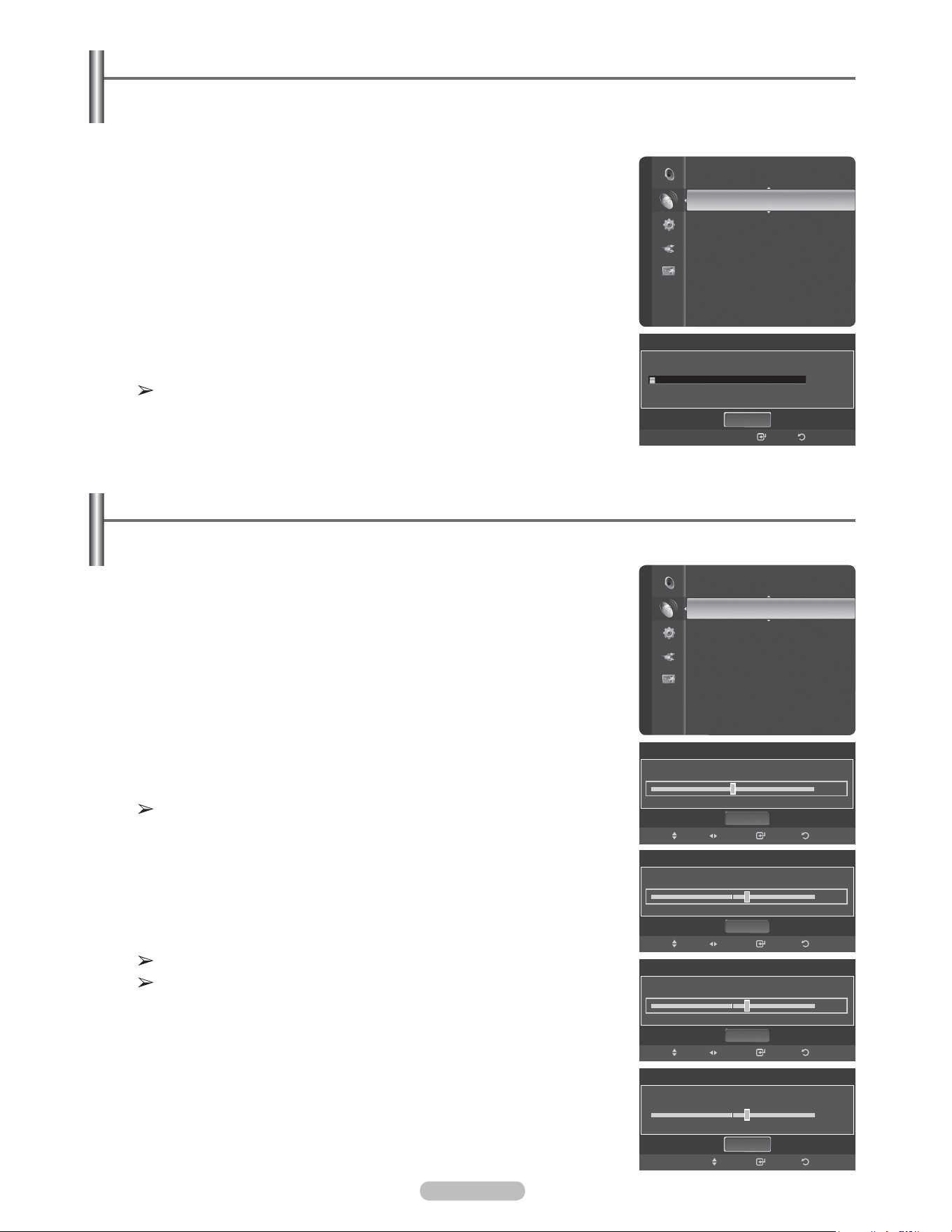
English - 47
Clearing Scrambled Channels - Digital
The Clear Scrambled Channel function is used to filter out scrambled channels after Auto Program is completed.
This process may take up to 20-30 minutes.
1 Press the MENU button.
Press the ▲ or ▼ button to select Channel, then press the ENTER button.
Press the ▲ or ▼ button to select Clear Scrambled Channel, then press the
ENTER button. It searches scrambled channels, which are to be removed from
the list.
To stop searching scrambled channels;
Press the ENTER button to select Stop.
Press the ◄ button to select Yes, then press the ENTER button.
2 When the scrambled channel searching is completed, press the ENTER button.
Press the EXIT button to exit.
This function is only available in Cable mode.
Fine Tuning Analog Channels
Use fine tuning to manually adjust a particular channel for optimal reception.
1 Press the MENU button to display the menu.
Press the ▲ or ▼ button to select Channel, then press the ENTER button.
2 Press the ▲ or ▼ button to select Fine Tune, then press the ENTER button.
3 Press the ◄ or ► button to adjust the fine tuning.
To store the fine tuning setting in the TV’s memory, press the ENTER
button.
If you do not store the fine-tuned channel in memory, adjustments are not
saved.
4 To reset the fine tuning setting, press the ▼ button to select Reset, then press
the ENTER button.
Press the EXIT button to exit.
Only analog TV channels can be fine tuned.
“
*
” will appear next to the number of fine-tuned channels.
Channel
Auto Program
Channel List
Clear Scrambled Channel ►
Fine Tune
Signal Strength
Clear Scrambled Channel
Removing scrambled channel.
Stop
ReturnEnter
DTV Cable 122
3%
Fine Tune
Air 6
0
Reset
Save
ReturnAdjustMove
Channel
Channel List
Clear Scrambled Channel
Fine Tune ►
Signal Strength
Fine Tune
Air 6
+5
Reset
Save
Return
AdjustMove
Fine Tune
Air 6* Fine Tuned
+5
Reset
Save
ReturnAdjustMove
Fine Tune
Air 6 Fine Tuned
+5
Reset
Enter
Return
Move
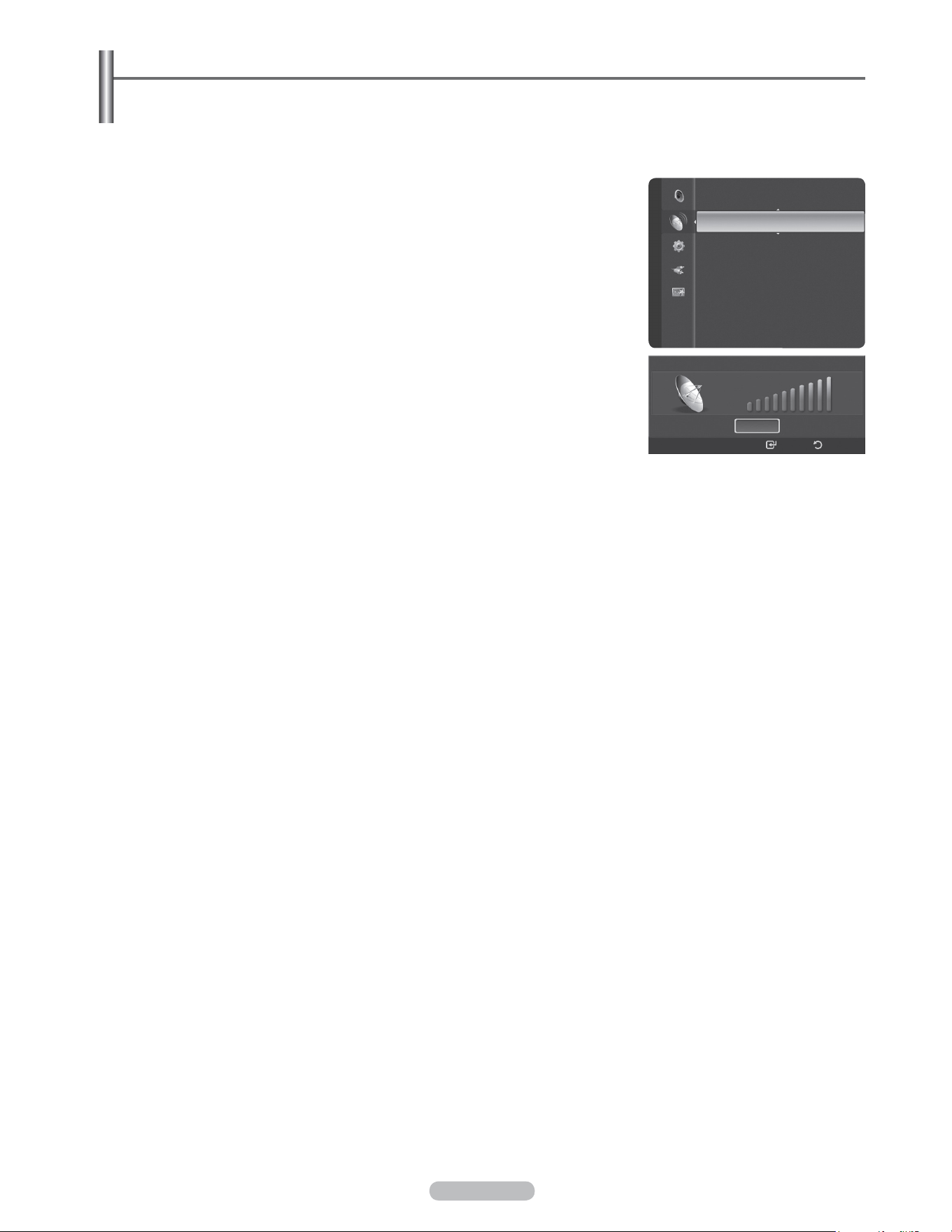
English - 48
Checking the Digital-Signal Strength
Unlike analog channels, which can vary in reception quality from “snowy” to clear, digital (HDTV) channels
have either perfect reception quality or you will not receive them at all. So, unlike analog channels, you cannot
fine tune a digital channel. You can, however, adjust your antenna to improve the reception of available digital
channels.
1 Press the MENU button to display the menu.
Press the ▲ or ▼ button to select Channel, then press the ENTER button.
2 Press the ▲ or ▼ button to select Signal Strength, then press the ENTER
button. If the signal strength meter indicates that the signal is weak, physically
adjust your antenna to increase the signal strength.
Continue to adjust the antenna until you find the best position with the strongest
signal.
Press the EXIT button to exit.
Signal Strength
OK
Enter Return
Channel
Clear Scrambled Channel
Fine Tune
Signal Strength ►
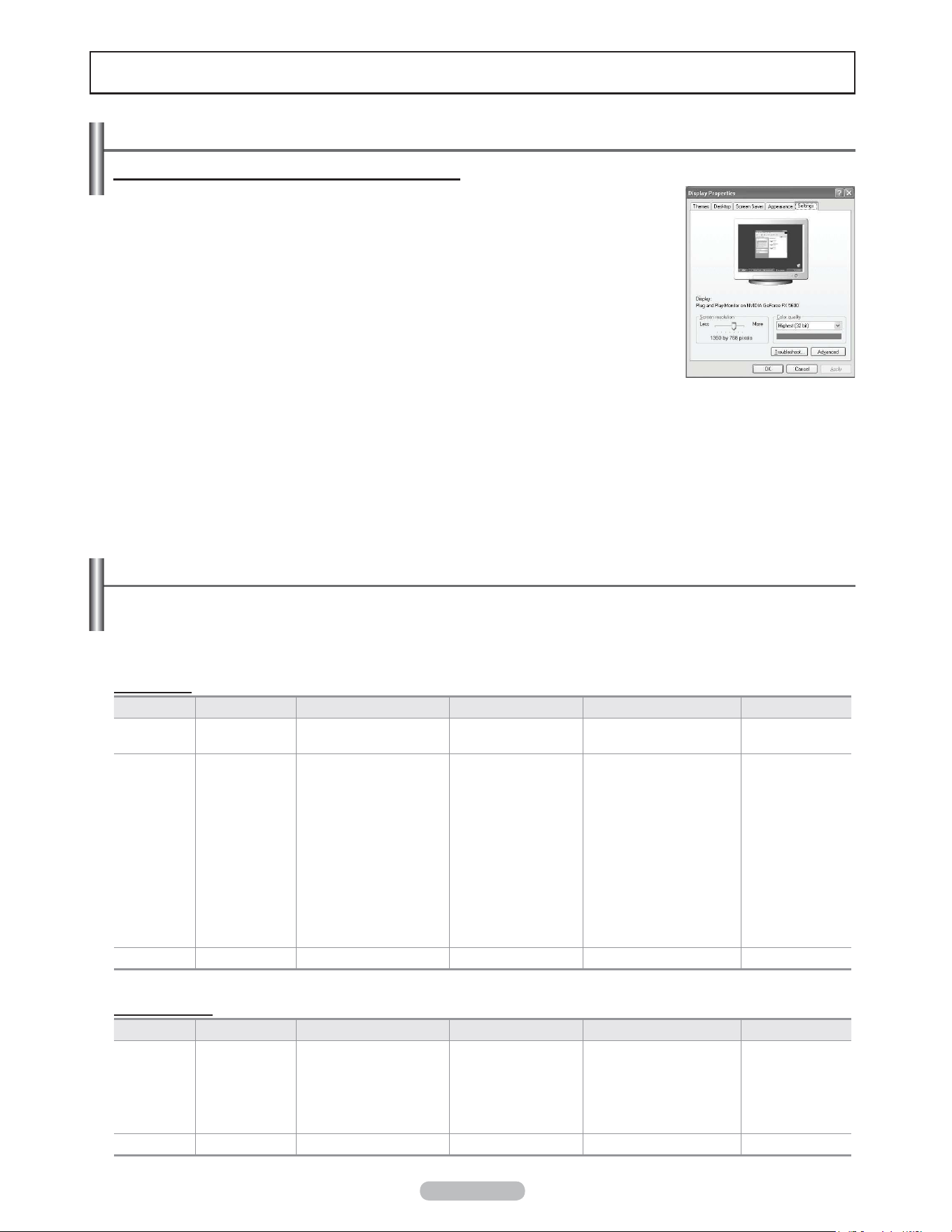
English - 49
PC Display
Using Your TV as a Computer (PC) Display
Setting Up Your PC Software (Based on Windows XP)
The Windows display-settings for a typical computer are shown below. The actual screens
on your PC will probably be different, depending upon your particular version of Windows
and your particular video card. However, even if your actual screens look different, the
same basic set-up information will apply in almost all cases. (If not, contact your computer
manufacturer or Samsung Dealer.)
1 First, click on Control Panel on the Windows start menu.
2 When the control panel window appears, click on Appearance and Themes and a
display dialog-box will appear.
3 When the control panel window appears, click on Display and a display dialogbox will
appear.
4 Navigate to the Settings tab on the display dialog-box.
The correct size setting (resolution)
Optimum: 1920 X 1080 pixels
If a vertical-frequency option exists on your display settings dialog box, the correct
value is 60 or 60 Hz. Otherwise, just click OK and exit the dialog box.
Display Modes
If the signal from the system equals the standard signal mode, the screen is adjusted automatically. If the signal
from the system doesn’t equal the standard signal mode, adjust the mode by referring to your videocard user
guide; otherwise there may be no video. For the display modes listed below, the screen image has been optimized
during manufacturing.
D-Sub Input
Mode Resolution Horizontal Frequency (kHz) Vertical Frequency (Hz) Pixel Clock Frequency (MHz) Sync Polarity (H/V)
IBM
640 x 350
720 x 400
31.469
31.469
70.086
70.087
25.175
28.322
+ / -
- / +
VESA
640 x 480
640 x 480
640 x 480
800 x 600
800 x 600
800 x 600
1024 x 768
1024 x 768
1024 x 768
1280 x 1024
1280 x 1024
1360 x 768
1600 x 1200
31.469
37.861
37.500
37.879
48.077
46.875
48.363
56.476
60.023
63.981
79.976
47.712
75.000
59.940
72.809
75.000
60.317
72.188
75.000
60.004
70.069
75.029
60.020
75.025
60.015
60.000
25.175
31.500
31.500
40.000
50.000
49.500
65.000
75.000
78.750
108.000
135.000
85.500
162.000
- / -
- / -
- / -
+ / +
+ / +
+ / +
- / -
- / -
+ / +
+ / +
+ / +
+ / +
+ / +
CVT 1920 x 1080RB 66.587 59.934 138.500 + / -
HDMI/DVI Input
Mode Resolution Horizontal Frequency (kHz) Vertical Frequency (Hz) Pixel Clock Frequency (MHz) Sync Polarity (H/V)
VESA
640 x 480
800 x 600
1024 x 768
1280 x 1024
1360 x 768
1600 x 1200
31.469
37.879
48.363
63.981
47.712
75.000
59.940
60.317
60.004
60.020
60.015
60.000
25.175
40.000
65.000
108.000
85.500
162.000
- / -
+ / +
- / -
+ / +
+ / +
+ / +
CEA 1920 x 1080p 67.500 60.000 148.500 + / +
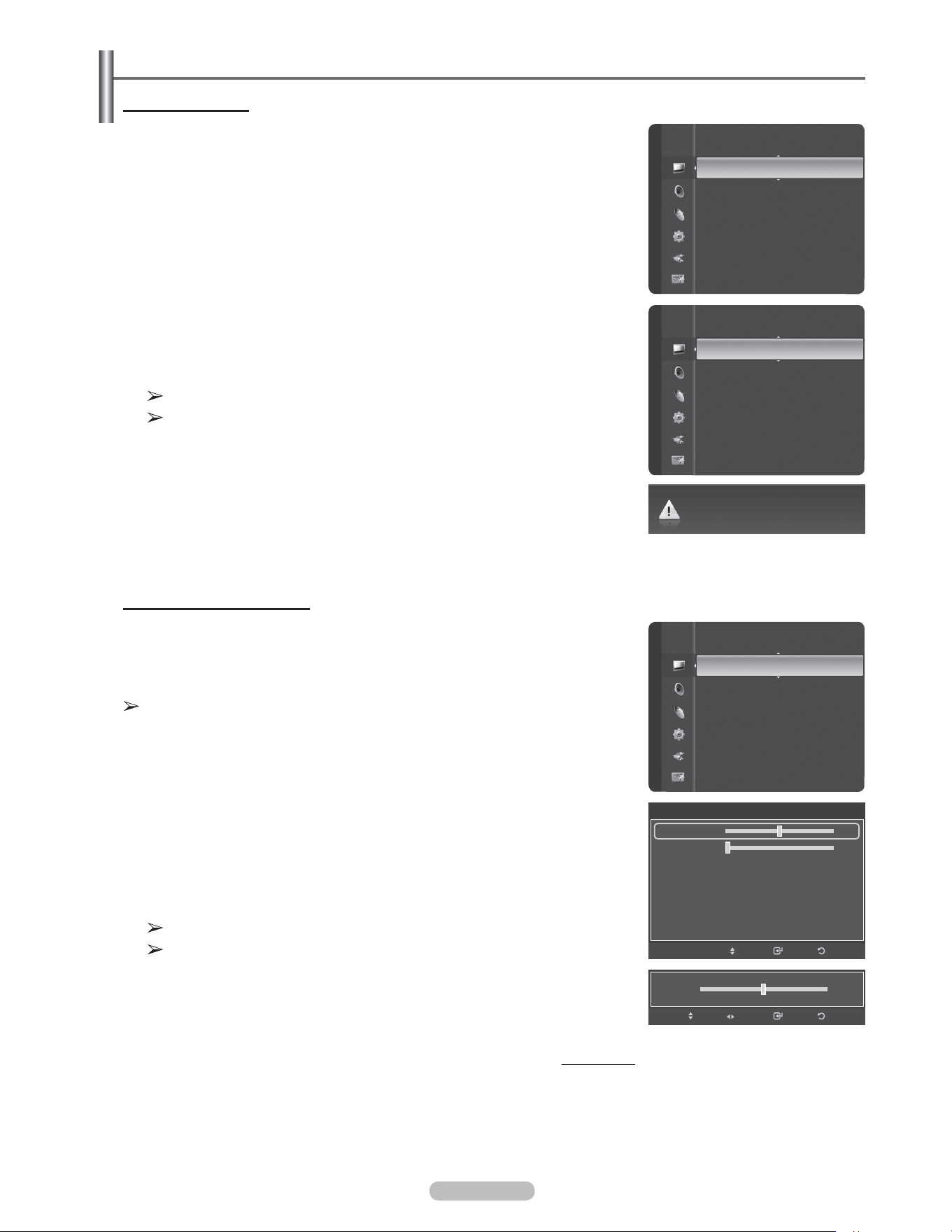
English - 50
Setting up the TV with your PC
How to Auto Adjust
Use the Auto Adjust function to have the TV set automatically adjust the video
signals it receives from the PC. The function also automatically fine-tunes the
settings and adjusts the frequency values and positions.
1 Press the MENU button to display the menu.
Press the ▲ or ▼ button to select Picture, then press the ENTER button.
Press the ▲ or ▼ button to select Auto Adjustment, then press the ENTER
button.
2 The message Auto Adjustment in progress. Please wait. appears on the
screen and the picture adjustments are automatically activated.
Press the EXIT button to exit.
This function does not work in DVI-Digital mode.
Preset: Press the SOURCE button to select PC mode.
Adjusting the Screen Quality
The purpose of the picture quality adjustment is to remove or reduce picture
noise. If the noise is not removed by fine tuning alone, then make the vertical
frequency adjustments and fine tune again. After the noise has been reduced,
re-adjust the picture so that it is aligned in the center of the screen.
Preset: Press the SOURCE button to select PC mode.
1 Press the MENU button to display the menu.
Press the ▲ or ▼ button to select Picture, then press the ENTER button.
Press the ▲ or ▼ button to select Screen, then press the ENTER button.
2 Press the ▲ or ▼ button to select Coarse or Fine, then press the ENTER
button.
Press the ◄ or ► button to adjust the screen quality, then press the ENTER
button.
Press the EXIT button to exit.
Vertical stripes may appear or the picture may be blurry.
Preset: Press the SOURCE button to select PC mode.
Continued...
Auto Adjustment in progress. Please Wait.
Screen
ReturnEnterMove
50
0
Coarse
Fine
Position
Image Reset
Mode
:
Standard ►
Cell Light Control : 7
Contrast : 95
Brightness : 45
Sharpness : 50
Auto Adjustment
Screen
Detailed Settings
Picture
Brightness : 45
Sharpness : 50
Auto Adjustment
►
Screen
Detailed Settings
Picture Options
Picture Reset
Picture
Sharpness : 50
Auto Adjustment
Screen
►
Detailed Settings
Picture Options
Picture Reset
Picture
ReturnEnterAdjust
50
Move
Coarse
▲
▼
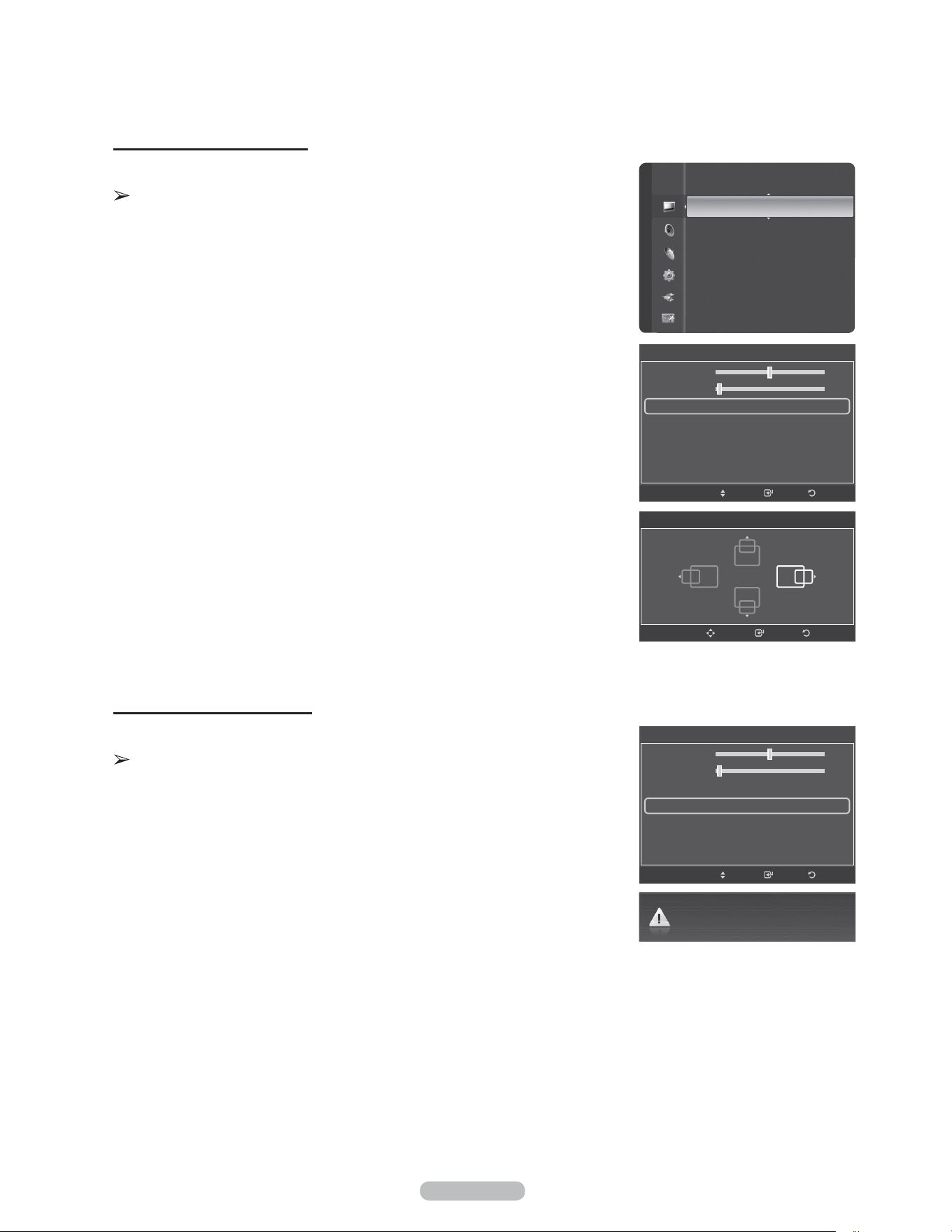
English - 51
Changing the Screen Position
Adjust the PC’s screen positioning if it does not fit the TV Screen.
Preset: Press the SOURCE button to select PC mode.
1 Press the MENU button to display the menu.
Press the ▲ or ▼ button to select Picture, then press the ENTER button.
Press the ▲ or ▼ button to select Screen, then press the ENTER button.
2 Press the ▲ or ▼ button to select Position, then press the ENTER button.
3 Press the ▲ or ▼ button to adjust the V-Position.
Press the ◄ or ► button to adjust the H-Position.
Press the ENTER button.
Press the EXIT button to exit.
Initializing the Screen Position
You can replace all image settings with the factory default values.
Preset: Press the SOURCE button to select PC mode.
1 Press the MENU button to display the menu.
Press the ▲ or ▼ button to select Picture, then press the ENTER button.
Press the ▲ or ▼ button to select Screen, then press the ENTER button.
2 Press the ▲ or ▼ button to select Image Reset, then press the ENTER button.
The message Image Reset is completed. appears on the screen.
Press the EXIT button to exit.
ReturnEnter
Position
Adjust
Image Reset is completed.
Screen
ReturnEnterMove
50
2
Coarse
Fine
Position
Image Reset
Screen
ReturnEnterMove
50
2
Coarse
Fine
Position
Image Reset
Sharpness : 75
Auto Adjustment
Screen
►
Detailed Settings
Picture Options
Picture Reset
Picture
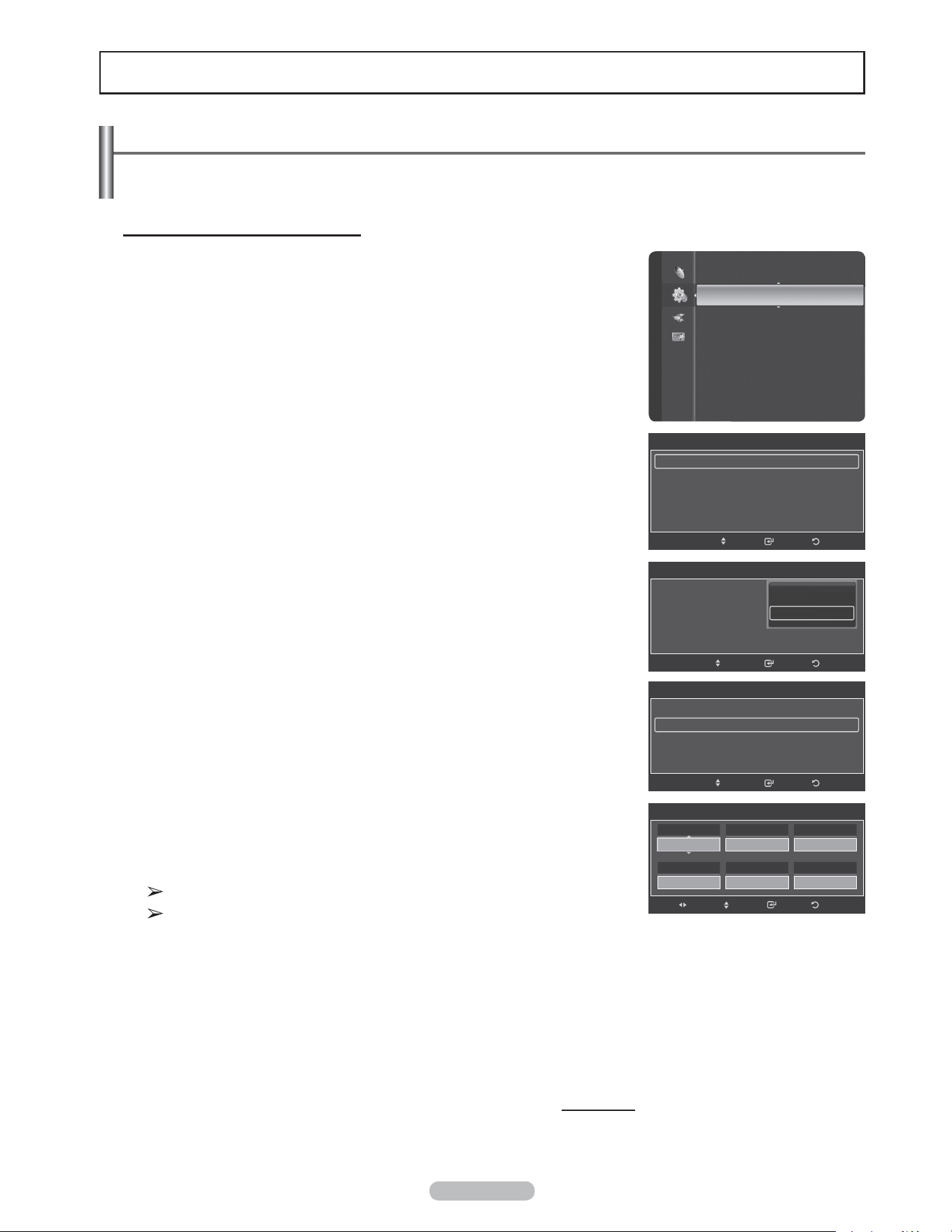
English - 52
Time Setting
Setting the Time
Setting the clock is necessary in order to use the various timer features of the TV. Also, you can check the time
while watching the TV. (Just press the INFO button.)
Option 1: Setting the Clock Manually
1 Press the MENU button to display the menu.
Press the ▲ or ▼ button to select Setup, then press the ENTER button.
Press the ▲ or ▼ button to select Time, then press the ENTER button.
2 Press the ENTER button to select Clock.
3 Press the ENTER button to select Clock Mode.
Press the ▲ or ▼ button to select Manual, then press the ENTER button.
4 Press the ▲ or ▼ button to select Clock Set, then press the ENTER button.
5 Press the ◄ or ► button to move to Month, Day, Year, Hour, Minute, or am/
pm. Set the date and time you want by pressing the ▲ or ▼ button, then press
the ENTER button.
Press the EXIT button to exit.
The current time will appear every time you press the INFO button.
You can set the Month, Day, Year, Hour, and Minute directly by pressing
the number buttons on the remote control.
Continued...
Setup
Plug & Play
Language : English
Time
►
V-Chip
Caption
External Settings
Entertainment : Off
Energy Saving : Off
PIP
SW Upgrade
Clock
Clock : 7 : 30 am ►
Sleep Timer : Off
Timer 1 : Inactivated
Timer 2 : Inactivated
Timer 3 : Inactivated
ReturnEnterMove
Clock Set
Adjust
Move Enter Return
01
Day
2008
Year
am
am/pm
30
Minute
01
Month
07
Hour
Clock
Clock Mode : Auto ►
Clock Set ►
Time Zone ►
DST : Off
ReturnEnter
Auto
Manual
Move
Clock
Clock Mode : Manual
Clock Set ►
Time Zone
DST : Off
ReturnEnterMove
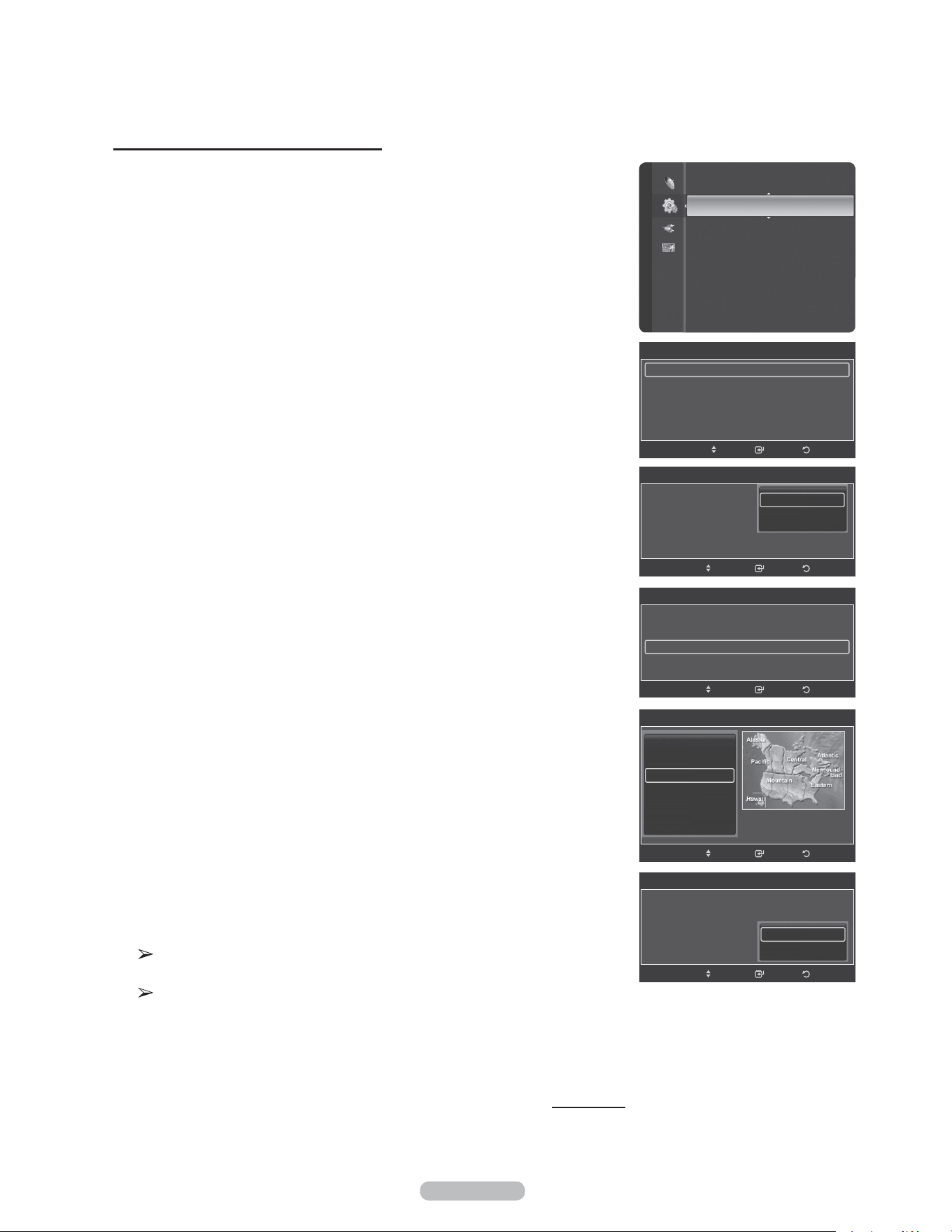
English - 53
Option 2: Setting the Clock Automatically
The Clock can be set automatically if you are receiving a digital signal.
1 Press the MENU button to display the menu.
Press the ▲ or ▼ button to select Setup, then press the ENTER button.
Press the ▲ or ▼ button to select Time, then press the ENTER button.
2 Press the ENTER button to select Clock.
3 Press the ENTER button to select Clock Mode.
Press the ▲ or ▼ button to select Auto, then press the ENTER button.
4 Press the ▲ or ▼ button to select Time Zone, then press the ENTER button.
5 Press the ▲ or ▼ button to highlight the time zone for your local area, then
press the ENTER button.
6 Press the ▲ or ▼ button to select DST (Daylight Saving Time), then press the
ENTER button.
Press the ▲ or ▼ button to select On or Off, then press the ENTER button.
Press the EXIT button to exit.
Depending on the broadcast station and signal, the auto time may not be set
correctly. If this occurs, set the time manually.
Antenna or Cable must be connected in order to set the time automatically.
Continued...
Setup
Plug & Play
Language : English
Time
►
V-Chip
Caption
External Settings
Entertainment : Off
Energy Saving : Off
PIP
SW Upgrade
Time Zone
Newfoundland
Atlantic
Eastern
Central
Mountain
Pacific
ReturnEnterMove
▼
Clock
Clock : 7 : 30 am ►
Sleep Timer : Off
Timer 1 : Inactivated
Timer 2 : Inactivated
Timer 3 : Inactivated
ReturnEnterMove
Clock
Clock Mode : Auto ►
Clock Set ►
Time Zone ►
DST : Off
ReturnEnter
Auto
Manual
Move
Clock
Clock Mode : Auto
Clock Set
Time Zone
DST :
ReturnEnter
Off
On
Move
Clock
Clock Mode : Auto
Clock Set
Time Zone ►
DST : Off
ReturnEnterMove
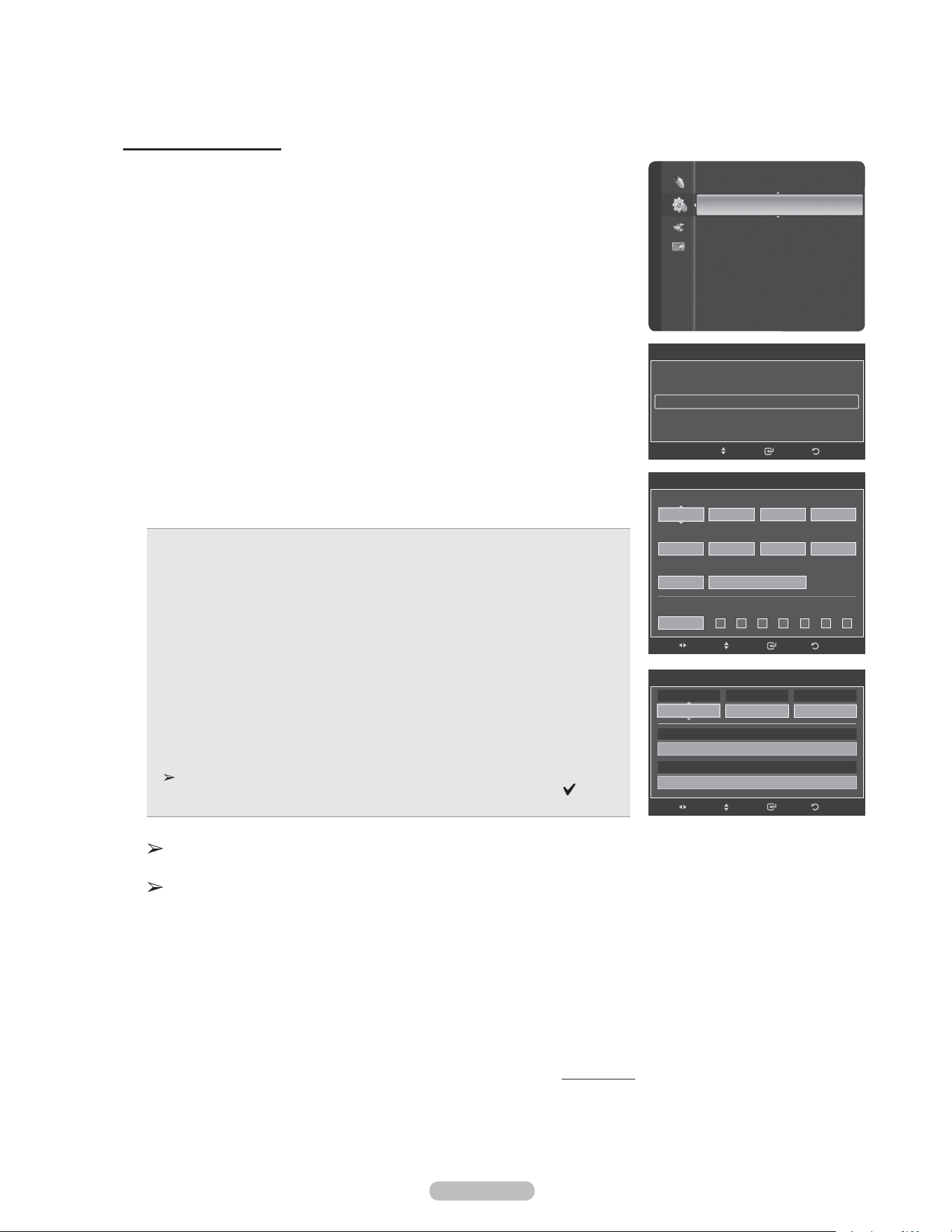
English - 54
Setting the On/Off Timer
Use this feature to set the TV to turn on or off at a desired time. You must set
the clock first.
1 Press the MENU button to display the menu.
Press the ▲ or ▼ button to select Setup, then press the ENTER button.
Press the ▲ or ▼ button to select Time, then press the ENTER button.
2 Three different On/Off Timer Settings can be made.
Press the ▲ or ▼ button to select Timer1, Timer2,or Timer3, then press the
ENTER button. The timer menu is displayed.
Press the ▲ or ▼ button to adjust hour, then press the ► button to move to the
next step. Set other items using the same method as above.
3 Press the ◄ or ► button to select the desired item below.
Press the ▲ or ▼ button to adjust the setting.
Press the EXIT button to exit.
On Time: Set the Hour, Minute, am/pm, and Activation/Inactivation.
(To activate timer with the setting you’ve chosen, set to Activate.)
Off Time: Set the Hour, Minute, am/pm, and Activation/Inactivation.
(To activate timer with the setting you’ve chosen, set to Activate.)
Volume: Set the required volume level.
Contents: When the On Time is activate, you can turn on a specific channel or
play back contents such as photo or audio files.
TV/USB: Select TV or USB. (Make sure that an USB device is connected to
your TV.)
Antenna: Select Air or Cable.
Channel: Select the desired channel.
Music: Select the folder containing MP3 files on the USB device.
Photo: Select the folder containing JPEG files on the USB device.
Repeat: Select Once, Everyday, Mon~Fri, Mon~Sat, Sat~Sun, or Manual.
When Manual is selected, Press the ► button to select the desired day of the
week. Press the ENTER button over the desired day and the mark ( ) will
appear.
•
•
•
•
–
–
–
–
–
•
You can set the hour, and minute directly by pressing the number buttons on
the remote control.
Auto Power Off
When you set the timer On, the television will eventually turn off, if no
controls are operated for 3 hours after the TV was turned on by the timer.
This function is only available in timer On mode and prevents overheating,
which may occur if a TV is on for too long time.
Continued...
Setup
Plug & Play
Language : English
Time
►
V-Chip
Caption
External Settings
Entertainment : Off
Energy Saving : Off
PIP
SW Upgrade
Clock
Clock : 7 : 30 am
Sleep Timer : Off
Timer 1 : Inactivated ►
Timer 2 : Inactivated
Timer 3 : Inactivated
ReturnEnter
Move
Timer 1
ReturnEnterAdjustMove
12 00 am Inactivate
On Time
12 00 am Inactivate
Off Time
10
TV
Volume Contents
Cable 3
Once
Repeat
Sun
Mon
Tue
Wed
The
Fri
Sat
Contents
AdjustMove Enter Return
Cable
Antenna
3
Channel
TV
TV/USB
None
Music
None
Photo
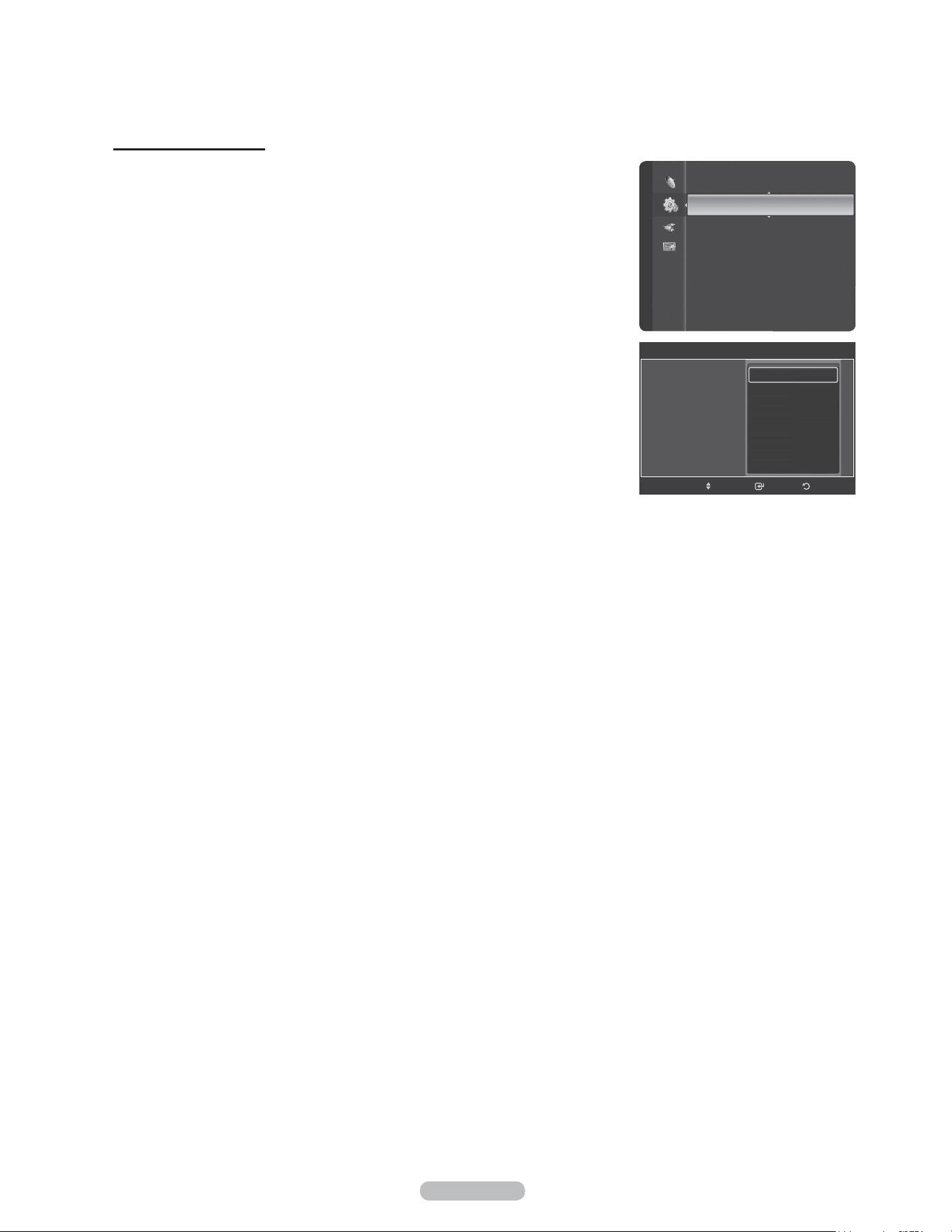
English - 55
Setting the Sleep Timer
The sleep timer automatically shuts off the TV after a preset time (30, 60, 90,
120, 150 and 180 minutes).
1 Press the MENU button to display the menu.
Press the ▲ or ▼ button to select Setup, then press the ENTER button.
Press the ▲ or ▼ button to select Time, then press the ENTER button.
2 Press the ▲ or ▼ button to select Sleep Timer, then press the ENTER button.
3 Press the ▲ or ▼ button to select the minute, then press the ENTER button.
To cancel the set sleep timer:
Press the ▲ or ▼ button to select Off, then press the ENTER button.
Press the EXIT button to exit.
Setup
Plug & Play
Language : English
Time
►
V-Chip
Caption
External Settings
Entertainment : Off
Energy Saving : Off
PIP
SW Upgrade
Time
ReturnEnterMove
Clock :
Sleep Timer :
Timer 1 :
Timer 2 :
Timer 3 :
Off
30 min.
60 min.
90 min.
120 min.
150 min.
180 min.
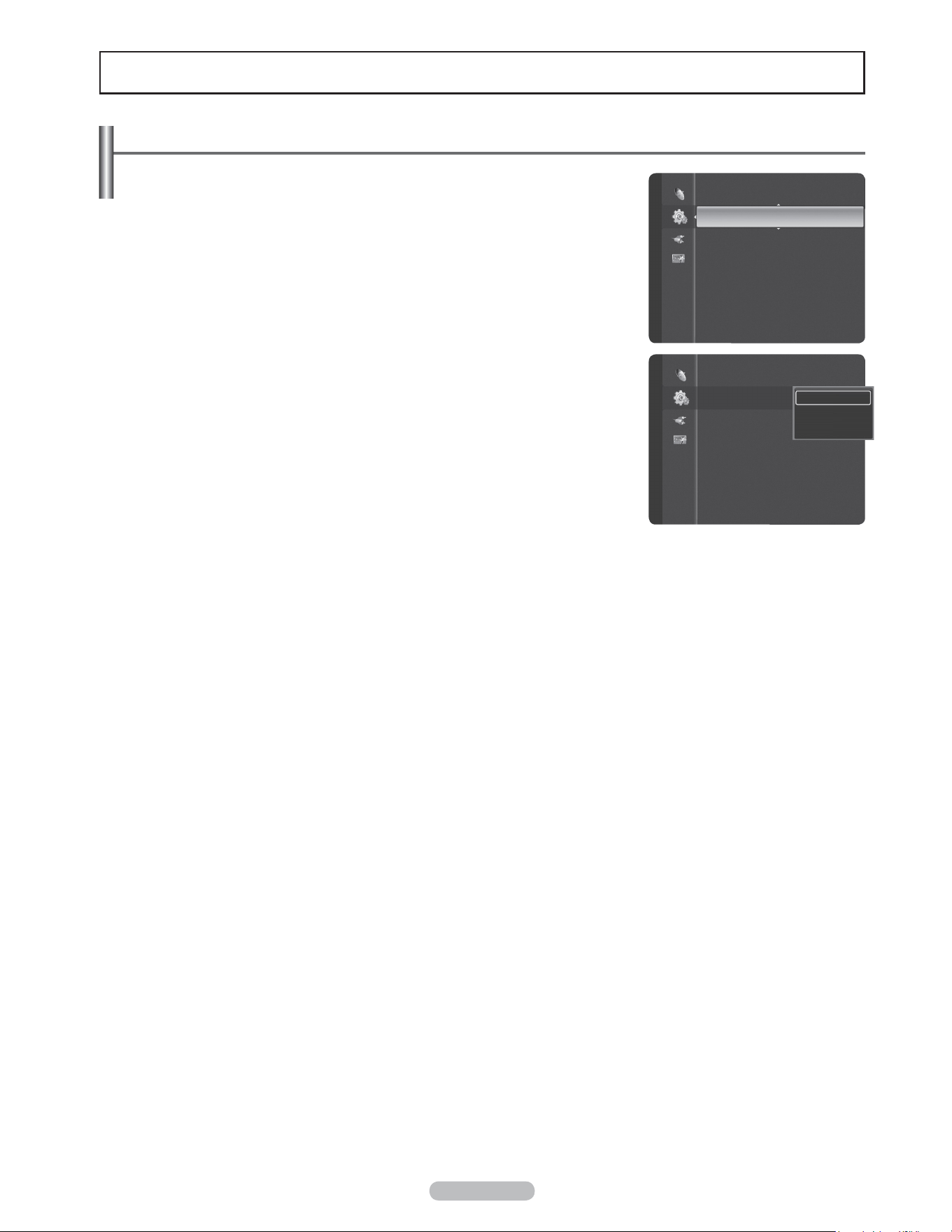
English - 56
Function Description
Selecting a Menu Language
1 Press the MENU button to display the menu.
Press the ▲ or ▼ button to select Setup, then press the ENTER button.
Press the ▲ or ▼ button to select Language, then press the ENTER button.
2 Press the ▲ or ▼ button to select the appropriate language: English, Español,
or Français, then press the ENTER button.
Press the EXIT button to exit.
Plug & Play
Language : English ►
Time
V-Chip
Caption
External Settings
Entertainment : Off
Energy Saving : Off
PIP
Setup
Plug & Play
Language : English ►
Time
V-Chip
Caption
External Settings
Entertainment : Off
Energy Saving : Off
PIP
Setup
English
Español
Français
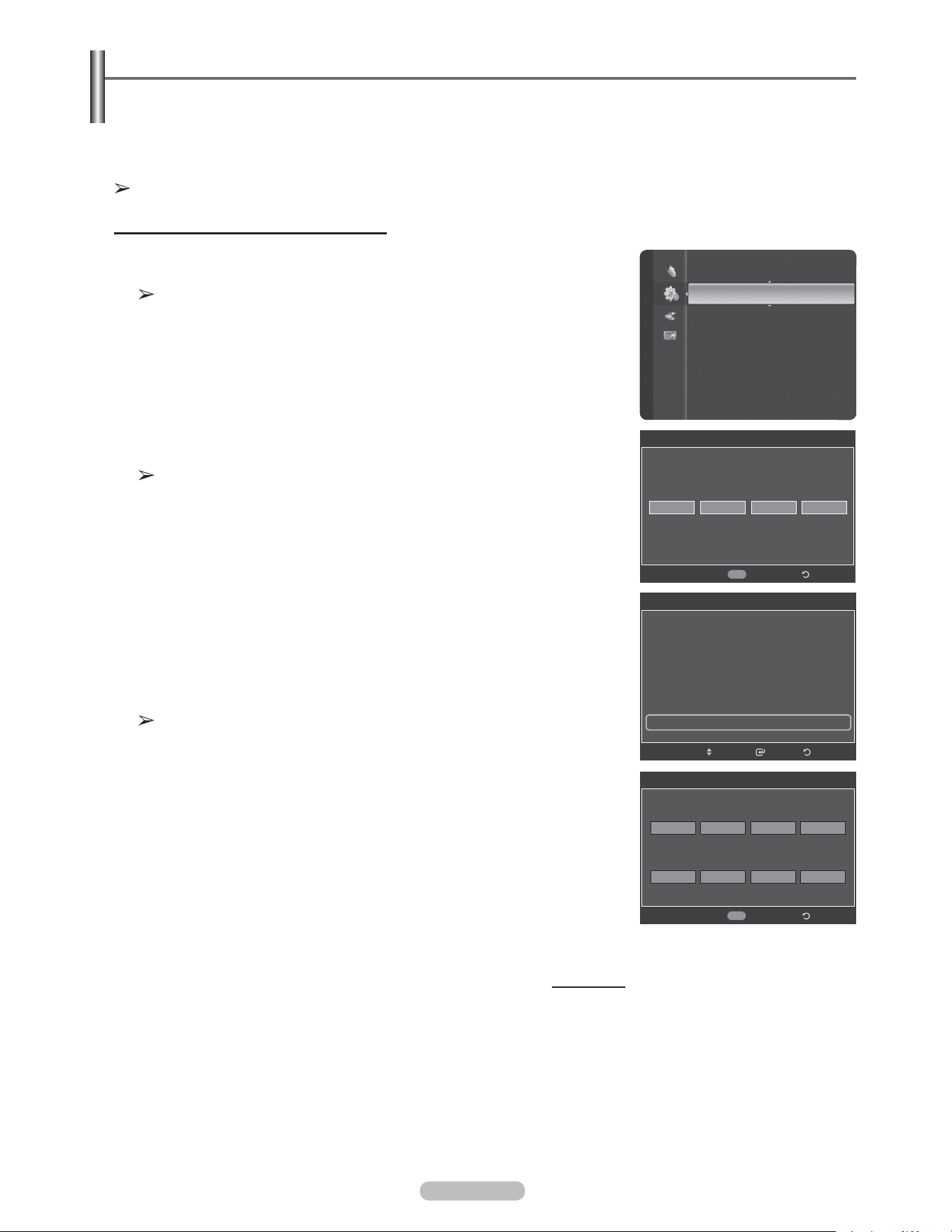
English - 57
Using the V-Chip
The V-Chip feature automatically locks out programs that are deemed inappropriate for children. The user must
enter a PIN (personal ID number) before any of the V-Chip restrictions are set up or changed.
V-Chip function is not available in HDMI, Component or PC mode.
Setting Up Your Personal ID Number (PIN)
1 Press the MENU button to display the menu.
Press the ▲ or ▼ button to select Setup, then press the ENTER button.
The Screen Saver is activated if there is no remote control key input for
longer than 1 minute while setting up the V-Chip.
2 Press the ▲ or ▼ button to select V-Chip, then press the ENTER button.
The message Enter PIN will appear. Enter your 4 digit PIN number.
The default PIN number of a new TV set is 0
-
0
-
0
-
0.
3 The V-Chip screen will appear.
Press the ▲ or ▼ button to select Change PIN, then press the ENTER button.
The Change PIN screen will appear. Choose any 4 digits for your PIN and
enter them. Re-enter the same 4 digits. When the message PIN is changed
successfully. is displayed, your PIN has been memorized.
Press the EXIT button to exit.
If you forget the PIN, press the remote-control buttons in the following
sequence, which resets the pin to 0-0-0-0 : Power Off. → MUTE → 8 → 2 →
4 → Power On.
Continued...
V-Chip
V-Chip Lock : On
TV Parental Guidelines
MPAA Rating
Canadian English
Canadian French
Downloadable U.S. Rating
Change PIN ►
ReturnEnterMove
Change PIN
Return
Enter New PIN
Confirm New PIN
0~9
Enter PIN
V-Chip
Enter PIN
* ***
Return
0~9
Enter PIN
Language : English
Time
V-Chip ►
Caption
External Settings
Entertainment : Off
Energy Saving : Off
PIP
SW Upgrade
Setup
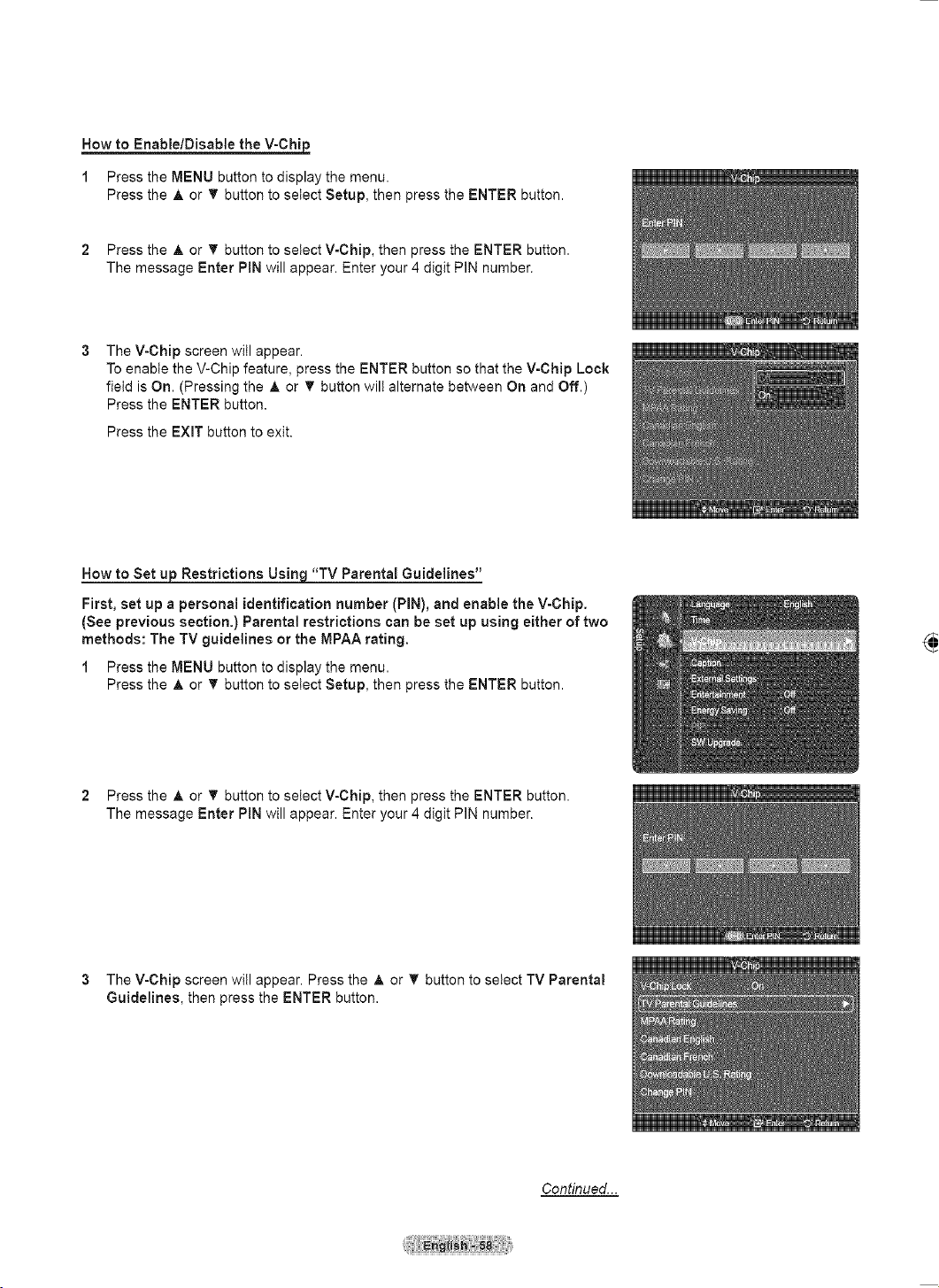
English - 58
How to Enable/Disable the V-Chip
1 Press the MENU button to display the menu.
Press the ▲ or ▼ button to select Setup, then press the ENTER button.
2 Press the ▲ or ▼ button to select V-Chip, then press the ENTER button.
The message Enter PIN will appear. Enter your 4 digit PIN number.
3 The V-Chip screen will appear.
To enable the V-Chip feature, press the ENTER button so that the V-Chip Lock
field is On. (Pressing the ▲ or ▼ button will alternate between On and Off.)
Press the ENTER button.
Press the EXIT button to exit.
How to Set up Restrictions Using “TV Parental Guidelines”
First, set up a personal identification number (PIN), and enable the V-Chip.
(See previous section.) Parental restrictions can be set up using either of two
methods: The TV guidelines or the MPAA rating.
1 Press the MENU button to display the menu.
Press the ▲ or ▼ button to select Setup, then press the ENTER button.
2 Press the ▲ or ▼ button to select V-Chip, then press the ENTER button.
The message Enter PIN will appear. Enter your 4 digit PIN number.
3 The V-Chip screen will appear. Press the ▲ or ▼ button to select TV Parental
Guidelines, then press the ENTER button.
Continued...
V-Chip
Enter PIN
* ***
Return
0~9
Enter PIN
V-Chip
V-Chip Lock : Off
TV Parental Guidelines
MPAA Rating
Canadian English
Canadian French
Downloadable U.S. Rating
Change PIN
Off
On
ReturnEnterMove
V-Chip
V-Chip Lock : On
TV Parental Guidelines ►
MPAA Rating
Canadian English
Canadian French
Downloadable U.S. Rating
Change PIN
ReturnEnterMove
Language : English
Time
V-Chip ►
Caption
External Settings
Entertainment : Off
Energy Saving : Off
PIP
SW Upgrade
Setup
V-Chip
Enter PIN
* ***
Return0~9
Enter PIN
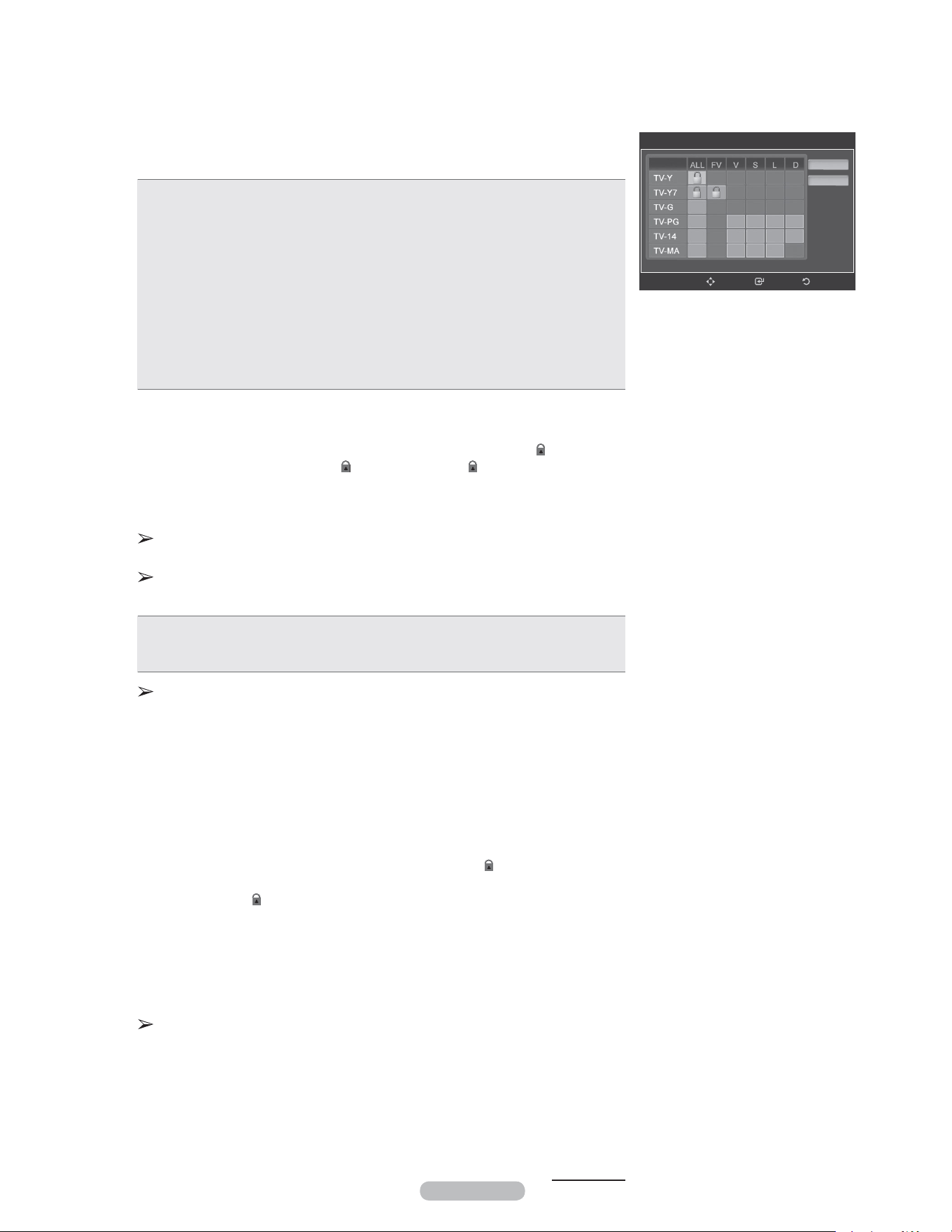
English - 59
4 The TV Parental Guidelines screen will appear.
Press the ▲ or ▼ button to select one of the six aged based categories:
• TV-Y: All children. The themes and elements in this program are specifically
designed for a very young audience, including children from ages two to six.
• TV-Y7: Directed to older children. The themes and elements in this program may
include mild physical or comedic violence, or may frighten children under the age
of seven.
• TV-G: General audience. It contains little or no violence, no strong language, and
little or no sexual dialog or situations.
• TV-PG: Parental guidance suggested. This program may contain infrequent
coarse language, limited violence, some suggestive sexual dialog and situations.
• TV-14: Parents strongly cautioned. This program may contain sophisticated
themes, sexual content, strong language and more intense violence.
• TV-MA: Mature audiences only. This program may contain mature themes,
profane language, graphic violence and explicit sexual content.
5 At this point, one of the TV-Ratings is selected.
Press the ENTER button. Depending on your existing setup, the “
” symbol will
be selected. (Blank = Unblocked,
= Blocked) While “
” is selected, press the
ENTER button to block or unblock the category.
To select a different TV-Rating, press the ▲ or ▼ button and then repeat the
process.
Allow All: Press to unlock all TV ratings.
Block All: Press to lock all TV ratings.
The TV-Y, TV-Y7, TV-G, TV-PG, TV-14 and TV-MA have additional options.
See the next step to change any of the following sub-ratings:
• ALL: Lock all TV ratings. • L: Adult language.
• FV: Fantasy violence. • S: Sexual situation.
• D: Sexually suggestive dialog. • V: Violence.
The V-Chip will automatically block certain categories that are “more
restrictive”.
For example, if you block TV-Y category, then TV-Y7 will automatically be
blocked. Similarly, if you block the TV-G category, then all the categories in
the “young adult” group will be blocked (TV-G, TV-PG, TV-14, and TV-MA).
The subratings (D, L, S, V) work together similarly. (See next section.)
6 How to set the FV, D, L, S and V sub-ratings.
First, select one of these TV-Ratings: TV-Y, TV-Y7, TV-G, TV-PG, TV-14, or
TV-MA (See Step 4), and press the ENTER button. The “
” symbol will be
displayed for each
sub-rating. While “
” is selected, press the ► button to go to a sub rating.
Press the ENTER to block the sub rating. To select a different TV-Rating, press
the ▲ or ▼ button and then repeat the process.
7 Press the EXIT button to clear all the screens. (Or proceed to the next section,
and set up additional restrictions based on the MPAA codes.)
These categories consist of two separate groups: TV-Y and TV-Y7 (young
children through age 7), and TV-G through TV-MA (everybody else).
The restrictions for these two groups work independently: If a household
includes very young children as well as young adults, the TV guidelines must
be set up separately for each age group.
Continued...
TV Parental Guidelines
Allow All
Block All
ReturnEnterMove
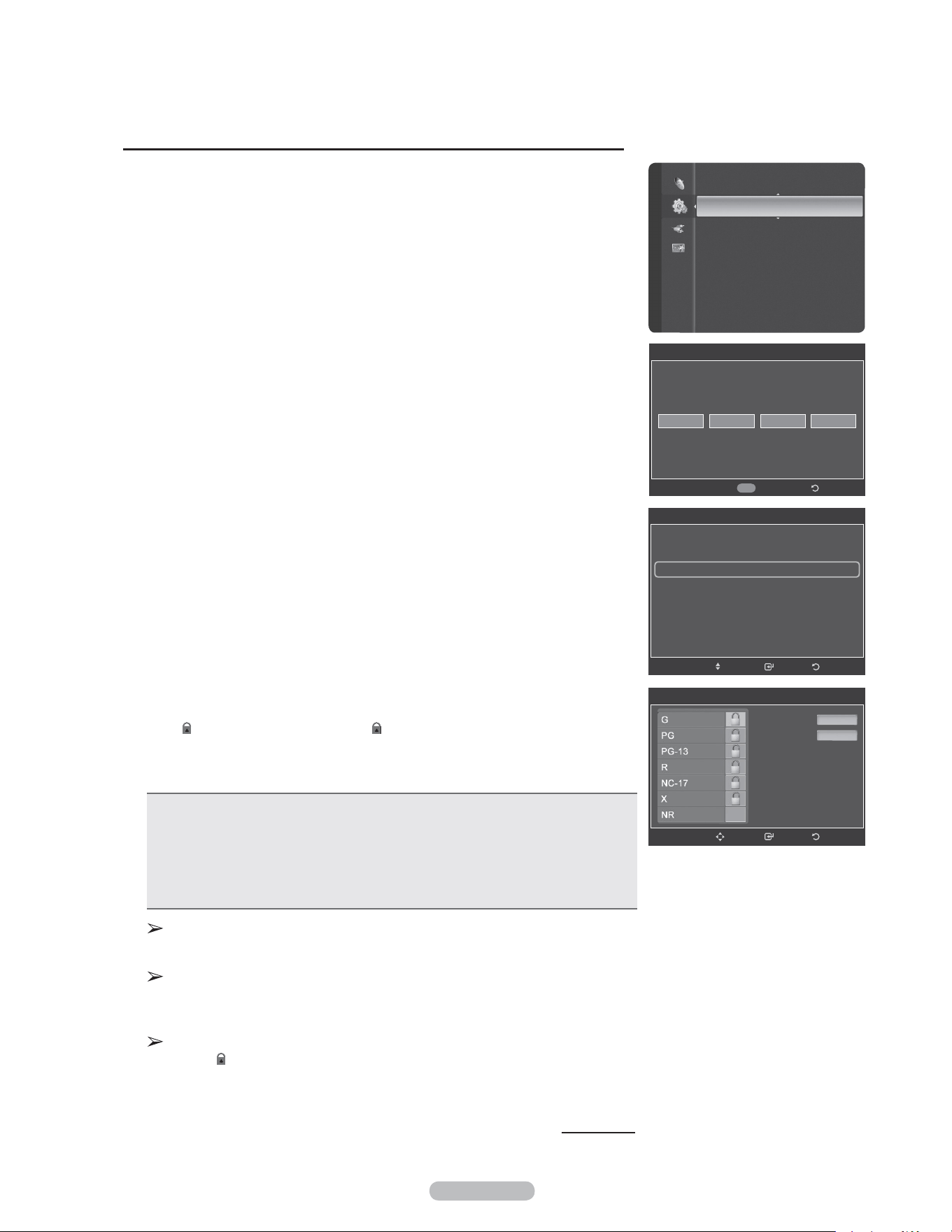
English - 60
How to Set up Restrictions Using “MPAA Ratings” (G, PG, PG-13, R, NC-17, X, NR )
The MPAA rating system uses the Motion Picture Association of America
(MPAA) system, and its main application is for movies. When the V-Chip
lock is on, the TV will automatically block any programs that are coded with
objectionable ratings (either MPAA or TV-Ratings).
1 Press the MENU button to display the menu.
Press the ▲ or ▼ button to select Setup, then press the ENTER button.
2 Press the ▲ or ▼ button to select V-Chip, then press the ENTER button.
The message Enter PIN will appear. Enter your 4 digit PIN number.
3 The V-Chip screen will appear. Press the ▲ or ▼ button to select MPAA
Rating, then press the ENTER button.
4 Press the ▲ or ▼ button to select an appropriate restriction.
Press the ENTER button to activate the restriction selected.
The “
” symbol is indicated. While “
” is selected, press the ENTER button to
block or unblock the category.
Press the EXIT button to exit.
• G: General audience (no restriction).
• PG: Parental guidance suggested.
• PG-13: Parents strongly cautioned.
• R: Restricted. Children under 17 should be accompanied by an adult.
• NC-17: No children under age 17.
• X: Adults only.
• NR: Not rated.
Allow All: Press to unlock all TV ratings.
Block All: Press to lock all TV ratings.
The V-Chip will automatically block any category that is more restrictive.
For example, if you block the PG-13 category, then R, NC-17 and X will
automatically be blocked also.
While a particular category is selected, press the ENTER button to activate
it. The “
” symbol will be displayed. Press the ENTER button to block or
unblock the category.
Continued...
Language : English
Time
V-Chip ►
Caption
External Settings
Entertainment : Off
Energy Saving : Off
PIP
SW Upgrade
Setup
V-Chip
Enter PIN
* ***
Return
0~9
Enter PIN
V-Chip
V-Chip Lock : On
TV Parental Guidelines
MPAA Rating ►
Canadian English
Canadian French
Downloadable U.S. Rating
Change PIN
ReturnEnterMove
MPAA Rating
Allow All
Block All
ReturnEnterMove
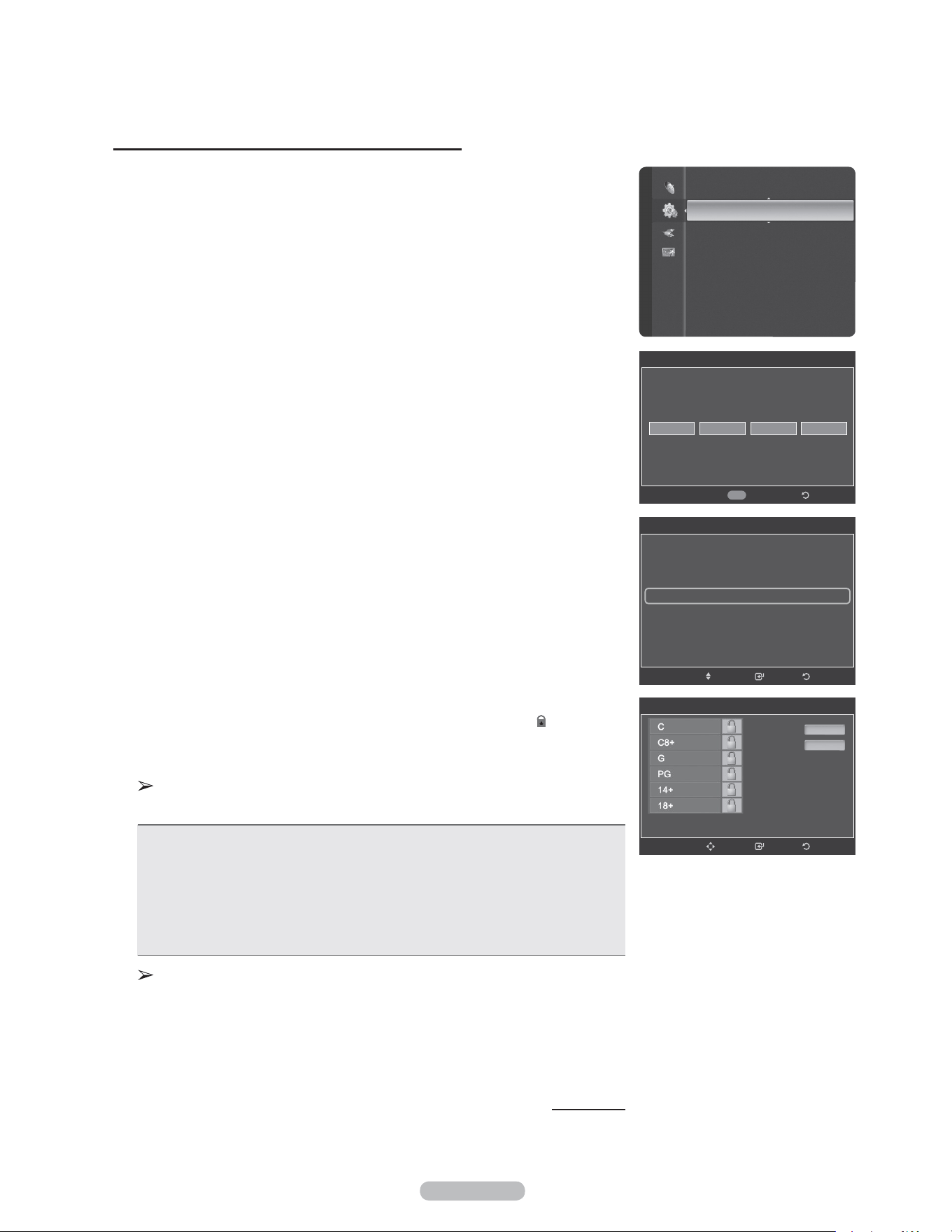
English - 61
How to Set up Restrictions Using “Canadian English”
1 Press the MENU button to display the menu.
Press the ▲ or ▼ button to select Setup, then press the ENTER button.
2 Press the ▲ or ▼ button to select V-Chip, then press the ENTER button.
The message Enter PIN will appear. Enter your 4 digit PIN number.
3 The V-Chip screen will appear. Press the ▲ or ▼ button to select Canadian
English, then press the ENTER button.
4 Press the ▲ or ▼ button to select an appropriate restriction.
Press the ENTER button to activate the restriction selected. The “
” symbol is
indicated.
Press the EXIT button to exit.
Allow All: Press to unlock all TV ratings.
Block All: Press to lock all TV ratings.
• C: Programming intended for children under age 8.
• C8+: Programming generally considered acceptable for children 8 years and over
to watch on their own.
• G: General programming, suitable for all audiences.
• PG: Parental guidance.
• 14+: Programming contains themes or content which may not be suitable for
viewers under the age of 14.
• 18+: Adult programming.
The V-Chip will automatically block any category that is “more restrictive”.
For example, if you block G category, then PG, 14+ and 18+ will
automatically be blocked also.
Continued...
Language : English
Time
V-Chip ►
Caption
External Settings
Entertainment : Off
Energy Saving : Off
PIP
SW Upgrade
Setup
V-Chip
Enter PIN
* ***
Return
0~9
Enter PIN
V-Chip
V-Chip Lock : On
TV Parental Guidelines
MPAA Rating
Canadian English ►
Canadian French
Downloadable U.S. Rating
Change PIN
ReturnEnterMove
Canadian English
Allow All
Block All
ReturnEnterMove
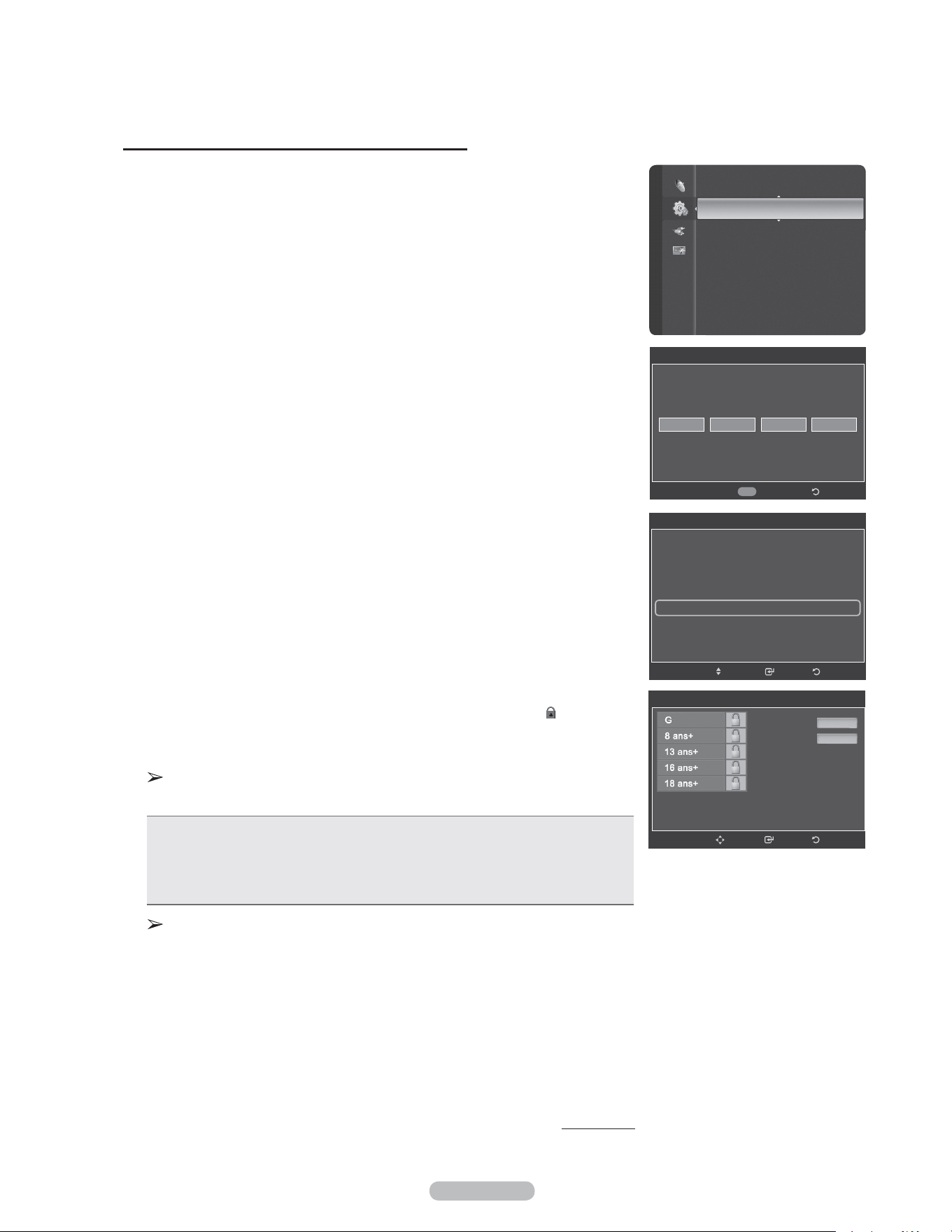
English - 62
How to Set up Restrictions Using “Canadian French”
1 Press the MENU button to display the menu.
Press the ▲ or ▼ button to select Setup, then press the ENTER button.
2 Press the ▲ or ▼ button to select V-Chip, then press the ENTER button.
The message Enter PIN will appear. Enter your 4 digit PIN number.
3 The V-Chip screen will appear. Press the ▲ or ▼ button to select Canadian
French, then press the ENTER button.
4 Press the ▲ or ▼ button to select an appropriate restriction.
Press the ENTER button to activate the restriction selected. The “
” symbol is
indicated.
Press the EXIT button to exit.
Allow All: Press to unlock all TV ratings.
Block All: Press to lock all TV ratings.
• G: General.
• 8 ans+: Not recommended for young children.
• 13 ans+: Programming may not be suitable for children under the age of 13.
• 16 ans+: Programming is not suitable for children under the age of 16.
• 18 ans+: Programming restricted to adults.
The V-Chip will automatically block any category that is “more restrictive”.
For example, if you block 8 ans+ category, then 13 ans+, 16 ans+ and 18
ans+ will automatically be blocked also.
Continued...
Language : English
Time
V-Chip ►
Caption
External Settings
Entertainment : Off
Energy Saving : Off
PIP
SW Upgrade
Setup
V-Chip
Enter PIN
* ***
Return0~9
Enter PIN
V-Chip
V-Chip Lock : On
TV Parental Guidelines
MPAA Rating
Canadian English
Canadian French ►
Downloadable U.S. Rating
Change PIN
ReturnEnterMove
Canadian French
Allow All
Block All
ReturnEnterMove
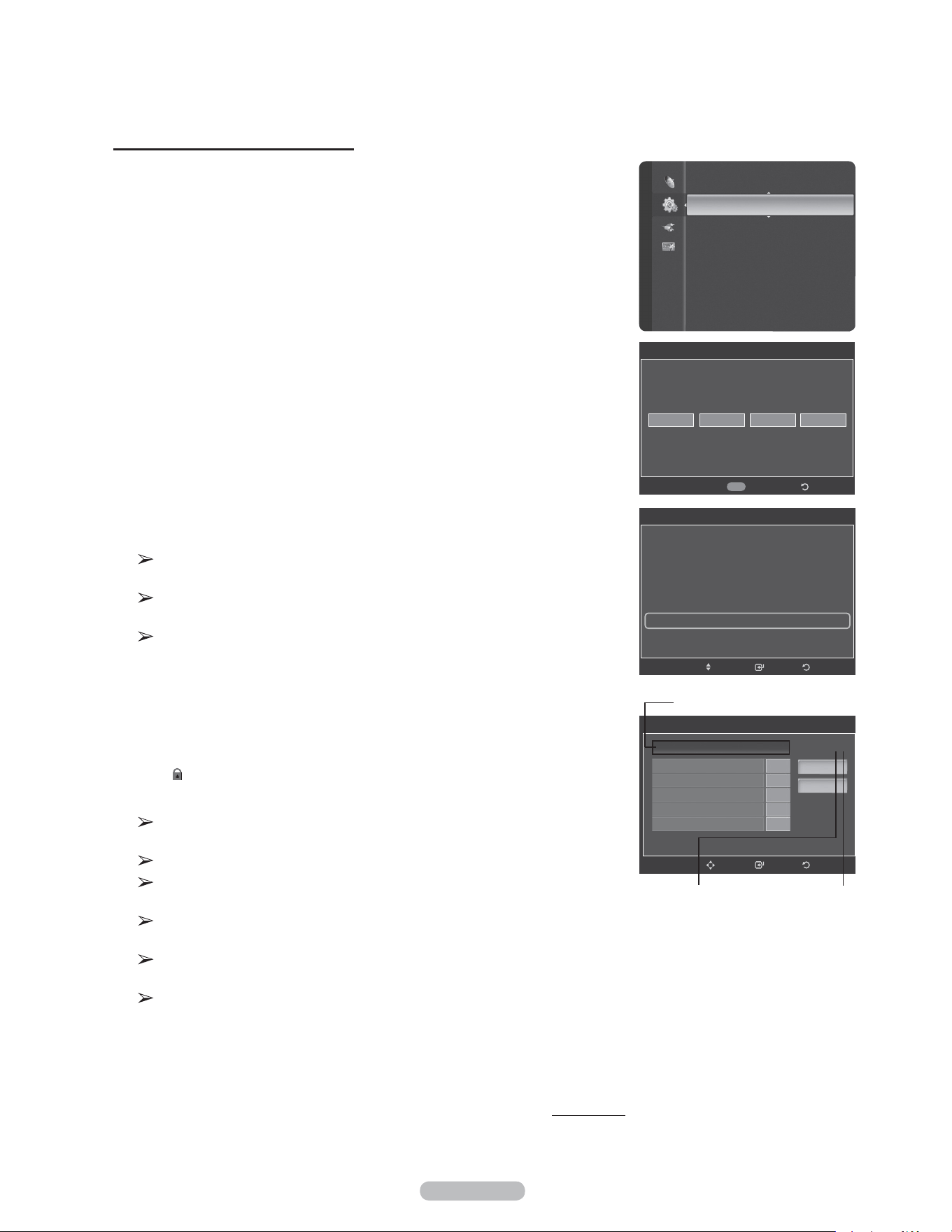
English - 63
Using the V-Chip for Digital channels
Parental restriction information can be used while watching DTV channels.
1 Press the MENU button to display the menu.
Press the ▲ or ▼ button to select Setup, then press the ENTER button.
2 Press the ▲ or ▼ button to select V-Chip, then press the ENTER button.
The message Enter PIN will appear. Enter your 4 digit PIN number.
3 The V-Chip screen will appear. Press the ▲ or ▼ button to select
Downloadable U.S. Rating, then press the ENTER button.
If information is not downloaded from the broadcasting station, the
Downloadable U.S. Rating menu is deactivated.
Parental restriction information is automatically downloaded while watching
DTV channels. It may take several seconds.
The Downloadable U.S. Rating menu is available for use after information
is downloaded from the broadcasting station. However, depending on the
information from the broadcasting station, it may not be available for use.
4 Press the ▲ or ▼ button to select an appropriate restriction.
Press the ENTER button to activate the restriction selected.
The “
” symbol is indicated.
Press the EXIT button to exit.
Allow All: Press to unlock all TV ratings.
Block All: Press to lock all TV ratings.
Parental restriction levels differ depending on the broadcasting station.
The default menu name and downloadable US rating changes depending on
the downloaded information.
Even if you set the on-screen display to your desired language, the
Downloadable U.S. Rating menu will appear in English only.
The rating will automatically block certain categories that are more
restrictive.
The rating titles (for example: Humor Level..etc) and TV ratings (for
example: DH,MH,H..etc) may differ depending on the broadcasting station.
Continued...
Language : English
Time
V-Chip ►
Caption
External Settings
Entertainment : Off
Energy Saving : Off
PIP
SW Upgrade
Setup
V-Chip
Enter PIN
* ***
Return0~9
Enter PIN
V-Chip
V-Chip Lock : On
TV Parental Guidelines
MPAA Rating
Canadian English
Canadian French
Downloadable U.S. Rating ►
Change PIN
ReturnEnterMove
Rating title
The number of
current rating
information
The number of all
rating information
Downloadable U.S. Rating
ReturnEnterMove
Allow All
DH
MH
H
VH
EH
Humor Level
►
Block All
1/2
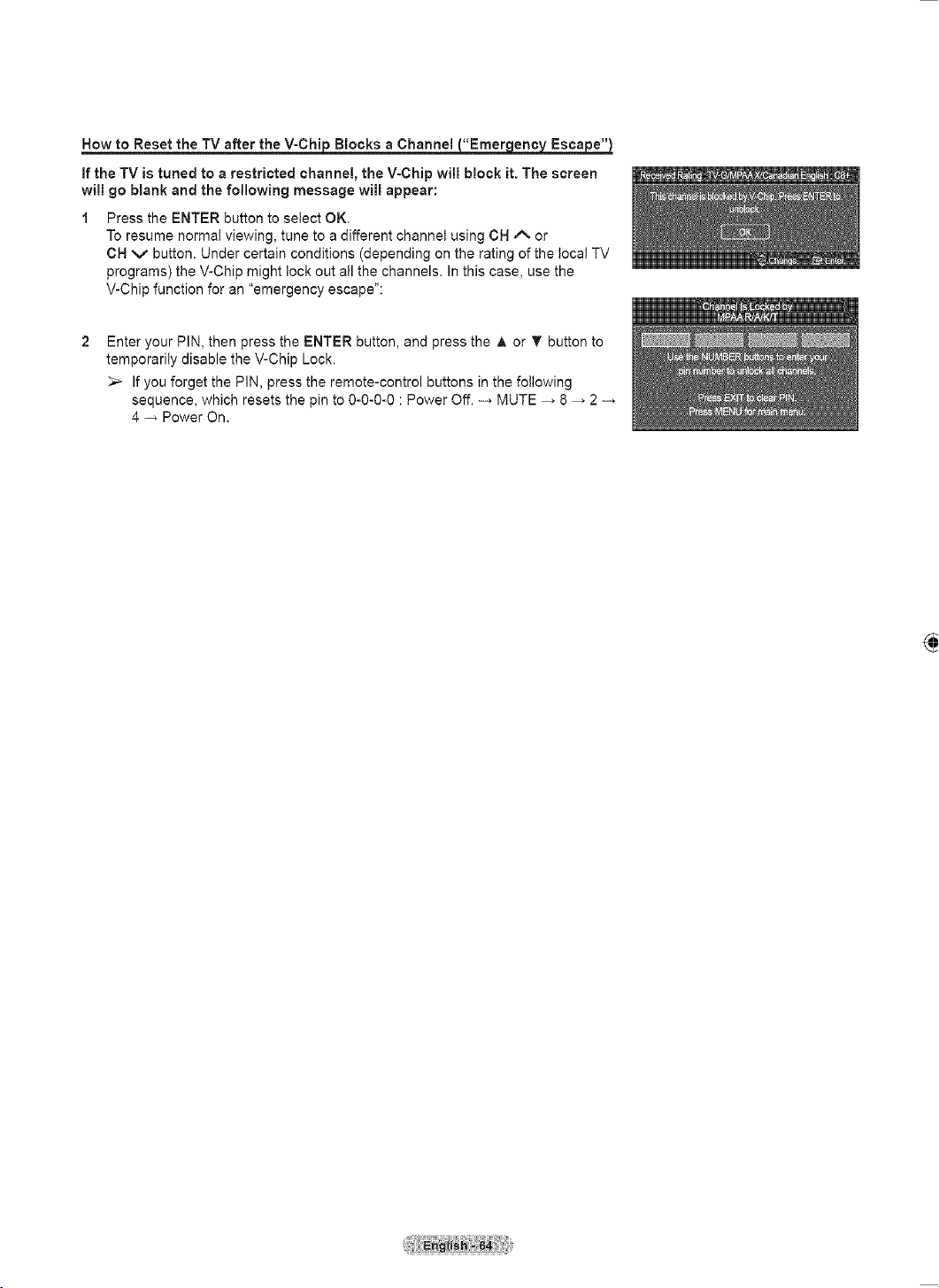
English - 64
How to Reset the TV after the V-Chip Blocks a Channel (“Emergency Escape”)
If the TV is tuned to a restricted channel, the V-Chip will block it. The screen
will go blank and the following message will appear:
1 Press the ENTER button to select OK.
To resume normal viewing, tune to a different channel using CH or
CH button. Under certain conditions (depending on the rating of the local TV
programs) the V-Chip might lock out all the channels. In this case, use the
V-Chip function for an “emergency escape”:
2 Enter your PIN, then press the ENTER button, and press the ▲ or ▼ button to
temporarily disable the V-Chip Lock.
If you forget the PIN, press the remote-control buttons in the following
sequence, which resets the pin to 0-0-0-0 : Power Off. → MUTE → 8 → 2 →
4 → Power On.
Received Rating : TV-G/MPAA X/Canadian English : C8+
Enter
This channel is blocked by V-Chip. Prees ENTER to
unblock.
OK
Change
CH
Channel Is Locked by
MPAA R/A/K/T
Use the NUMBER buttons to enter your
pin number to unlock all channels.
Press EXIT to clear PIN.
Press MENU for main menu.
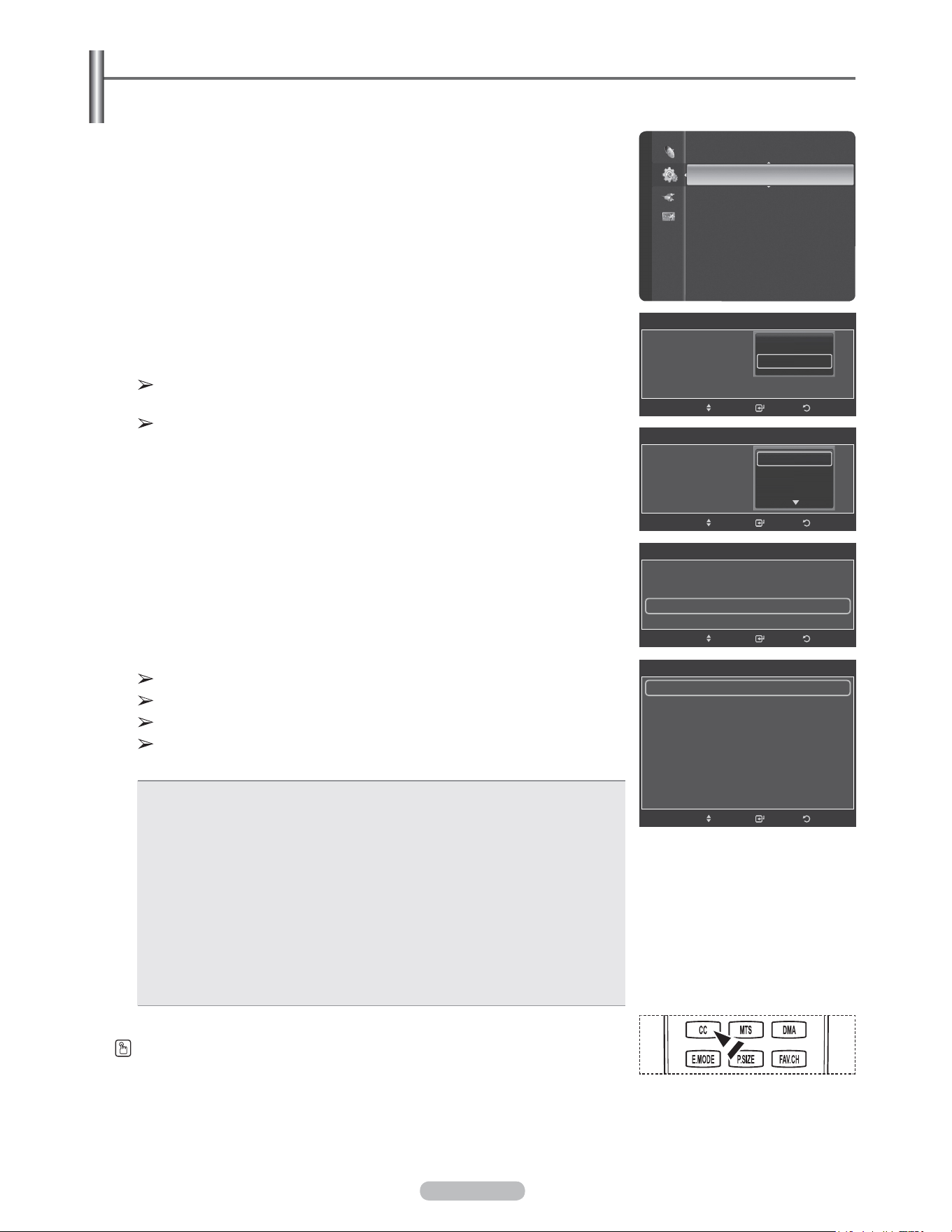
English - 65
Viewing Closed Captions (On-Screen Text Messages) - Digital
The Digital Captions function operates on digital channels.
1 Press the MENU button to display the menu.
Press the ▲ or ▼ button to select Setup, then press the ENTER button.
2 Press the ▲ or ▼ button to select Caption, then press the ENTER button.
3 Press the ENTER button to select Caption.
Press the ▲ or ▼ button to select On, then press the ENTER button.
4 Press the ▲ or ▼ button to select Caption Mode, then press the ENTER button.
Press the ▲ or ▼ button to select submenu (Default, Service1~Service6,
CC1~CC4 or Text1~Text4) you want, then press the ENTER button.
Caption Options are available only when Default, Service1~Service6 can
be selected in Caption Mode.
Service1~6 in digital caption mode may not be available depending on the
broadcast.
5 Press the ▲ or ▼ button to select Digital Caption Options, then press the
ENTER button.
6
Press the ▲ or ▼ button to select Size, then press the ENTER button.
Press the ▲ or ▼ button to select the desired caption option, then press the
ENTER button.
Press the ▲ or ▼ button to select the desired sub-menu options (see options
below), then press the ENTER button.
Press the EXIT button to exit.
The availability of captions depends on the program being broadcast.
Default means to follow the standard set by the broadcaster.
Foreground and Background cannot be set to have the same color.
Foreground Opacity and Background Opacity cannot be both set to
Transparent.
• Size: This option consists of Default, Small, Standard, and Large. The default is Default.
• Font Style: This option consists of Default, Style0 ~ Style7. You can change the font you
want. The default is Default.
• Foreground Color: This option consists of Default, White, Black, Red, Green, Blue,
Yellow, Magenta, and Cyan. You can change the color of the letter.
The default is Default.
• Background Color: This option consists of Default, White, Black, Red, Green, Blue,
Yellow, Magenta, and Cyan. You can change the background color of the caption.
The default is Default.
• Foreground Opacity: This option consists of Default, Transparent, Translucent, Solid,
and Flashing. You can change the opacity of the letter.
• Background Opacity: This option consists of Default, Transparent, Translucent, Solid,
and Flashing. You can change the background opacity of the caption.
• Return to Default: This option sets each of Size, Font Style, Foreground Color,
Background Color, Foreground Opacity, and Background Opacity to its default.
Press the CC button on the remote control to turn the Caption On or Off.
Time
V-Chip
Caption ►
External Settings
Entertainment : Off
Energy Saving : Off
PIP
SW Upgrade
Setup
Caption
Caption : On
Caption Mode : Default
Digital Caption Options ►
ReturnEnter
Move
Digital Caption Options
Size : Default ►
Font Style : Default
Foreground Color : Default
Background Color : Default
Foreground Opacity : Default
Background Opacity : Default
Return to Default
ReturnEnterMove
Caption
Caption : On
Caption Mode : Default
Digital Caption Options
ReturnEnterMove
Default
Service1
Service2
Caption
Caption : On
Caption Mode : Default
Digital Caption Options
ReturnEnterMove
Off
On
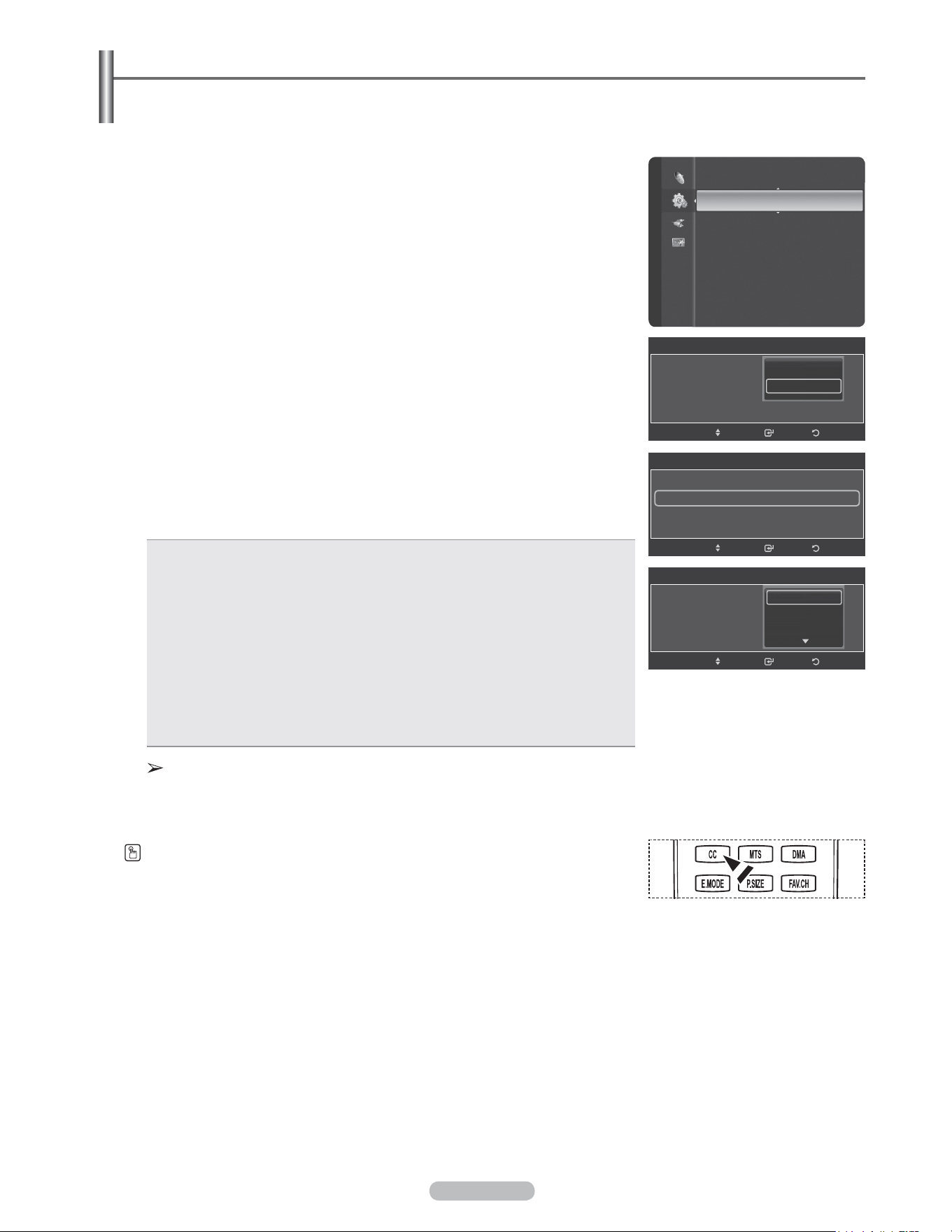
English - 66
Viewing Closed Captions (On-Screen Text Messages) - Analog
The Analog Caption function operates in either analog TV channel mode or when a signal is supplied from an
external device. (Depending on the broadcasting signal, the Analog Caption function may operate on digital
channels.)
1 Press the MENU button to display the menu.
Press the ▲ or ▼ button to select Setup, then press the ENTER button.
2 Press the ▲ or ▼ button to select Caption, then press the ENTER button.
3 Press the ENTER button to select Caption.
Press the ▲ or ▼ button to select On, then press the ENTER button.
4 Press the ▲ or ▼ button to select Caption Mode, then press the ENTER
button. Press the ▲ or ▼ button to select submenu (Default, CC1~CC4 or
Text1~Text4) you want, then press the ENTER button.
Press the EXIT button to exit.
• The default is Default.
• CC1: The Primary Synchronous Caption Service. These are captions in the
primary language that must be in sync with the sound, preferably matched to a
specific frame.
• CC2: The Special Non-Synchronous Use Captions.This channel carries data that
is intended to augment information carried in the program.
• CC3: Secondary Synchronous Caption Service.
Alternate program-related caption data, typically second language captions.
• CC4: Special Non-Synchronous Use Captions. Similar to CC2.
• Text1: First Text Service. This may be various non-program related data.
• Text2: Second Text Service. Additional data, usually not program related.
• Text3/Text4: Third and Fourth Text Services. These data channels should be
used only if Text1 and Text2 are not sufficient.
• The Caption feature doesn’t work in COMPONENT, PC, HDMI(DVI)
modes.
• The availability of captions depends on the program being broadcast.
You can also press the CC button on the remote control to select Captions
On or Off.
Time
V-Chip
Caption ►
External Settings
Entertainment : Off
Energy Saving : Off
PIP
SW Upgrade
Setup
Caption
Caption : On
Caption Mode : Default
Digital Caption Options
ReturnEnterMove
Default
CC1
CC2
Caption
Caption : On
Caption Mode : Default
Digital Caption Options
ReturnEnterMove
Off
On
Caption
Caption : On
Caption Mode : Default ►
Digital Caption Options
ReturnEnterMove
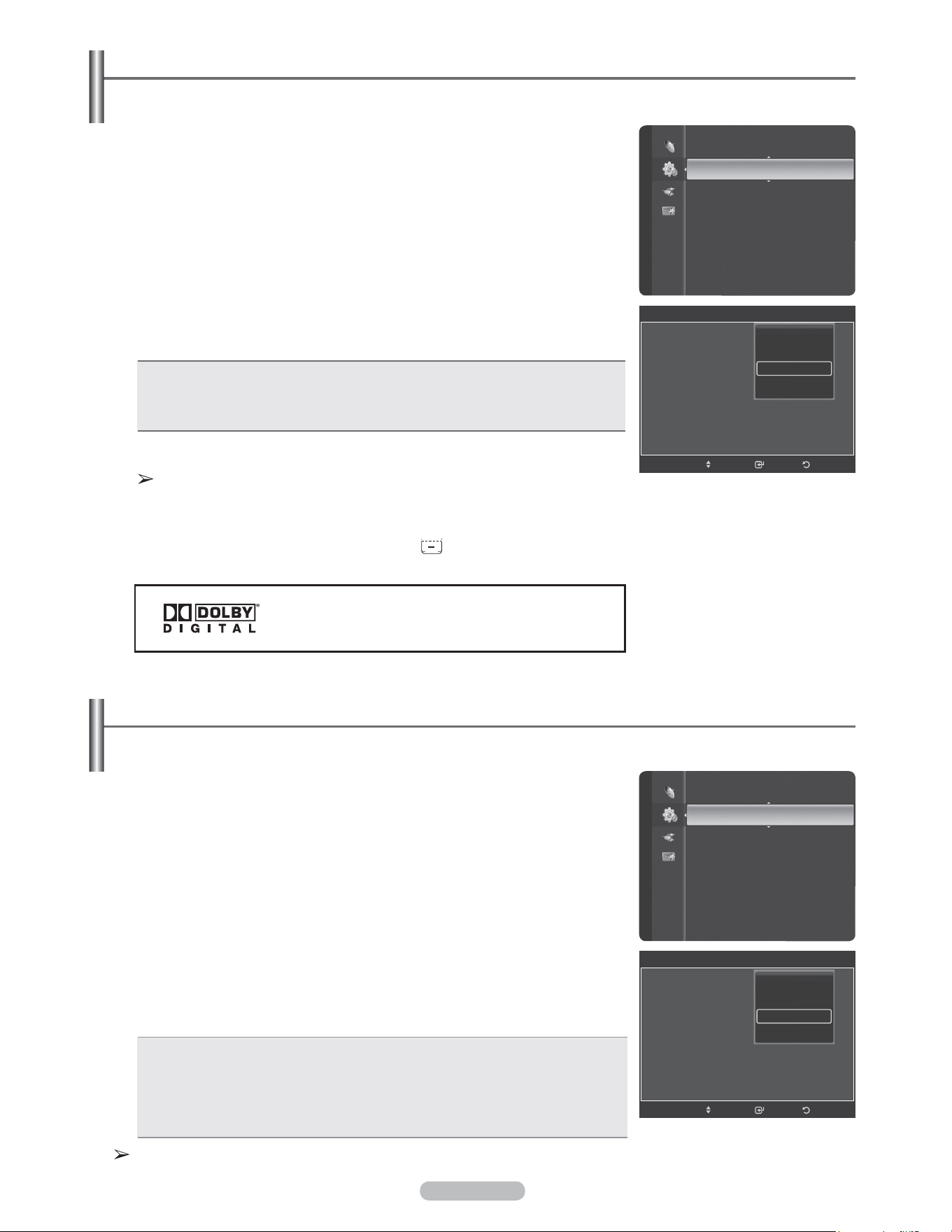
English - 67
Setting the Light Effect
You can turn the blue LED on the front of your TV on/off.
1 Press the MENU button to display the menu.
Press the ▲ or ▼ button to select Setup, then press the ENTER button.
2 Press the ▲ or ▼ button to select External Settings, then press the ENTER
button.
3 Press the ENTER button to select Melody.
Press the ▲ or ▼ button to select Off, Low, Medium, or High, then press the
ENTER button.
Adjusting the TV On/Off Melody Sound
The TV power on/off melody sound volume can be adjusted.
Manufactured under license from Dolby Laboratories.
Dolby and the double-D symbol are trademarks of Dolby
Laboratories.
• Off: Turns off the melody function.
• Low: Sets the melody volume to low.
• Medium: Sets the melody volume to medium.
• High: Sets the melody volume to high.
Press the EXIT button to exit.
The Melody does not play
- When no sound is output from the TV because the MUTE button has been
pressed,
- When no sound is output from the TV because you have reduced the
volume to minimum by pressing the VOL button.
- When the TV is turned off by Timer function.
1 Press the MENU button to display the menu.
Press the ▲ or ▼ button to select Setup, then press the ENTER button.
2 Press the ▲ or ▼ button to select External Settings, then press the ENTER
button.
3 Press the ▲ or ▼ button to select Light Effect, then press the ENTER button.
Press the ▲ or ▼ button to select Off, In Standby, When Watching TV, or
Always, then press the ENTER button.
Press the EXIT button to exit.
• Off: The LED is always off.
• In Standby: The LED lights while in Standby mode and it turns off when your TV
is turned on.
• When Watching TV: The LED lights when watching TV and it turns off when your
TV is turned off.
• Always: The LED is always lit.
Set the Light Effect to Off to reduce power consumption.
V-Chip
Caption
External Settings ►
Entertainment : Off
Energy Saving : Off
PIP
SW Upgrade
Setup
External Settings
Melody : On
Light Effect : Default
Wall-Mount Adjustment
ReturnEnterMove
Off
Low
Medium
High
V-Chip
Caption
External Settings ►
Entertainment : Off
Energy Saving : Off
PIP
SW Upgrade
Setup
External Settings
Melody : On
Light Effect : Default
Wall-Mount Adjustment
ReturnEnterMove
Off
In Standby
When Watching TV
Always
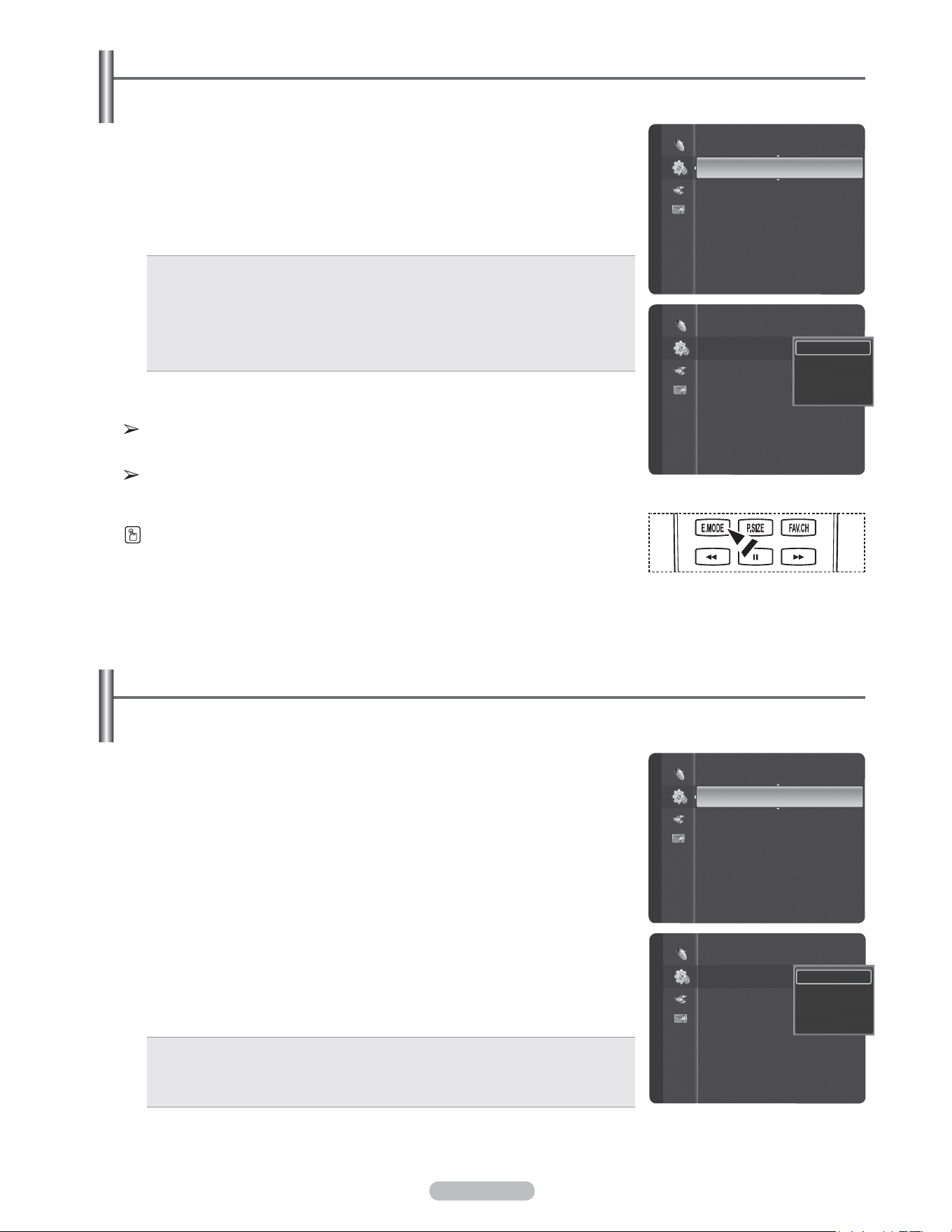
English - 68
Using the Energy Saving Feature
This feature adjusts the power consumption of the unit in order to save energy.
1 Press the MENU button to display the menu.
Press the ▲ or ▼ button to select Setup, then press the ENTER button.
2 Press the ▲ or ▼ button to select Energy Saving, then press the ENTER
button.
Press the ▲ or ▼ button to select Off, Low, Medium, or High, then press the
ENTER button.
Press the EXIT button to exit.
• Off: Switches off the Energy Saving mode.
• Low: Operates in standard mode.
• Medium: Enters medium power saving mode.
• High: Enters maximum power saving mode.
Setting the Entertainment mode
The Entertainment mode enables you to select the optimal display and sound for sports, cinema and games.
1 Press the MENU button to display the menu.
Press the ▲ or ▼ button to select Setup, then press the ENTER button.
2 Press the ▲ or ▼ button to select Entertainment, then press the ENTER
button.
3 Press the ▲ or ▼ button to select Off, Sports, Cinema or Game, then press
the ENTER button.
• Off: Switches the Entertainment function off.
• Sports: Provides the optimal picture and sound quality for sports.
• Cinema: Provides the optimal picture and sound quality for movie watching. You
can experience a richer picture and enhanced sound.
• Game: Provides the optimal picture and sound quality for games. This mode
accelerates the playing speed when using an external game console connected
to the TV.
Press the EXIT button to exit.
If you set any of the three Entertainment modes to On, the settings will be locked and
can not be adjusted. If you want to make Picture and Sound mode adjustments, the
Entertainment mode must be turned off.
The Entertainment settings are saved for each input source.
You can press the E.MODE button on the remote control repeatedly to change the
Entertainment setting.
External Settings
Entertainment : Off
Energy Saving : Off ►
PIP
SW Upgrade
Setup
External Settings
Entertainment : Off
Energy Saving : Off
PIP
SW Upgrade
Setup
Off
Low
Medium
High
Caption
External Settings
Entertainment : Off ►
Energy Saving : Off
PIP
SW Upgrade
Setup
Caption
External Settings
Entertainment : O
ff ►
Energy Saving : Off
PIP
SW Upgrade
Setup
Off
Sports
Cinema
Game
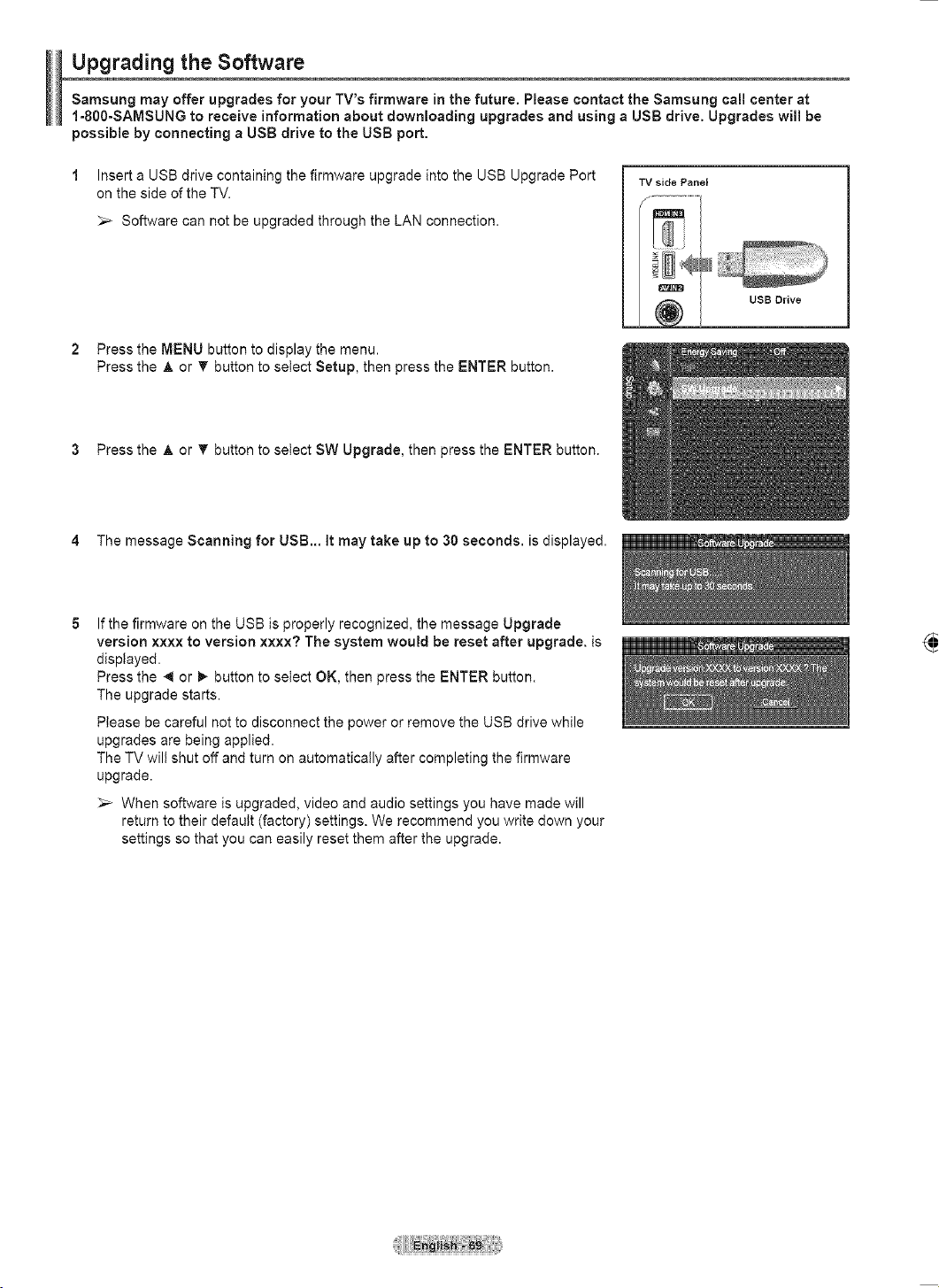
English - 69
Upgrading the Software
Samsung may offer upgrades for your TV’s firmware in the future. Please contact the Samsung call center at
1-800-SAMSUNG to receive information about downloading upgrades and using a USB drive. Upgrades will be
possible by connecting a USB drive to the USB port.
1 Insert a USB drive containing the firmware upgrade into the USB Upgrade Port
on the side of the TV.
Software can not be upgraded through the LAN connection.
2 Press the MENU button to display the menu.
Press the ▲ or ▼ button to select Setup, then press the ENTER button.
3 Press the ▲ or ▼ button to select SW Upgrade, then press the ENTER button.
4 The message Scanning for USB... It may take up to 30 seconds. is displayed.
5 If the firmware on the USB is properly recognized, the message Upgrade
version xxxx to version xxxx? The system would be reset after upgrade. is
displayed.
Press the ◄ or ► button to select OK, then press the ENTER button.
The upgrade starts.
Please be careful not to disconnect the power or remove the USB drive while
upgrades are being applied.
The TV will shut off and turn on automatically after completing the firmware
upgrade.
When software is upgraded, video and audio settings you have made will
return to their default (factory) settings. We recommend you write down your
settings so that you can easily reset them after the upgrade.
TV side Panel
USB Drive
Software Upgrade
Scanning for USB.....
It may take up to 30 seconds.
Energy Saving : Off
PIP
SW Upgrade ►
Setup
Software Upgrade
Upgrade version XXXX to version XXXX ? The
system would be reset after upgrade.
Cancel
OK
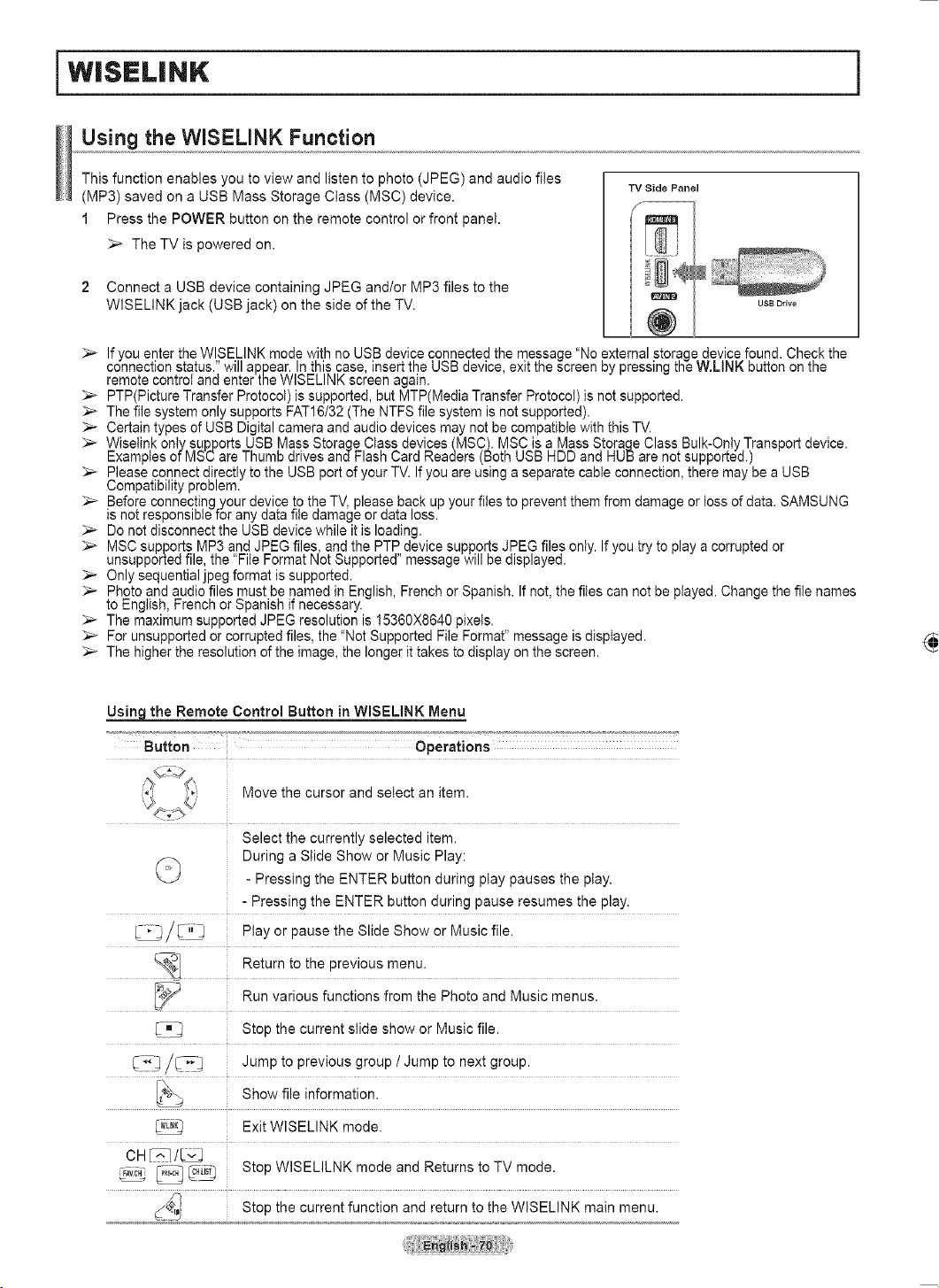
English - 70
This function enables you to view and listen to photo (JPEG) and audio files
(MP3) saved on a USB Mass Storage Class (MSC) device.
1 Press the POWER button on the remote control or front panel.
The TV is powered on.
2 Connect a USB device containing JPEG and/or MP3 files to the
WISELINK jack (USB jack) on the side of the TV.
WISELINK
Using the WISELINK Function
TV Side Panel
USB Drive
If you enter the WISELINK mode with no USB device connected the message “No external storage device found. Check the
connection status.” will appear. In this case, insert the USB device, exit the screen by pressing the W.LINK button on the
remote control and enter the WISELINK screen again.
PTP(Picture Transfer Protocol) is supported, but MTP(Media Transfer Protocol) is not supported.
The file system only supports FAT16/32 (The NTFS file system is not supported).
Certain types of USB Digital camera and audio devices may not be compatible with this TV.
Wiselink only supports USB Mass Storage Class devices (MSC). MSC is a Mass Storage Class Bulk-Only Transport device.
Examples of MSC are Thumb drives and Flash Card Readers (Both USB HDD and HUB are not supported.)
Please connect directly to the USB port of your TV. If you are using a separate cable connection, there may be a USB
Compatibility problem.
Before connecting your device to the TV, please back up your files to prevent them from damage or loss of data. SAMSUNG
is not responsible for any data file damage or data loss.
Do not disconnect the USB device while it is loading.
MSC supports MP3 and JPEG files, and the PTP device supports JPEG files only. If you try to play a corrupted or
unsupported file, the “File Format Not Supported” message will be displayed.
Only sequential jpeg format is supported.
Photo and audio files must be named in English, French or Spanish. If not, the files can not be played. Change the file names
to English, French or Spanish if necessary.
The maximum supported JPEG resolution is 15360X8640 pixels.
For unsupported or corrupted files, the “Not Supported File Format” message is displayed.
The higher the resolution of the image, the longer it takes to display on the screen.
Using the Remote Control Button in WISELINK Menu
Button Operations
Move the cursor and select an item.
Select the currently selected item.
During a Slide Show or Music Play:
- Pressing the ENTER button during play pauses the play.
- Pressing the ENTER button during pause resumes the play.
Play or pause the Slide Show or Music file.
Return to the previous menu.
Run various functions from the Photo and Music menus.
Stop the current slide show or Music file.
Jump to previous group / Jump to next group.
Show file information.
Exit WISELINK mode.
CH /
Stop WISELILNK mode and Returns to TV mode.
Stop the current function and return to the WISELINK main menu.
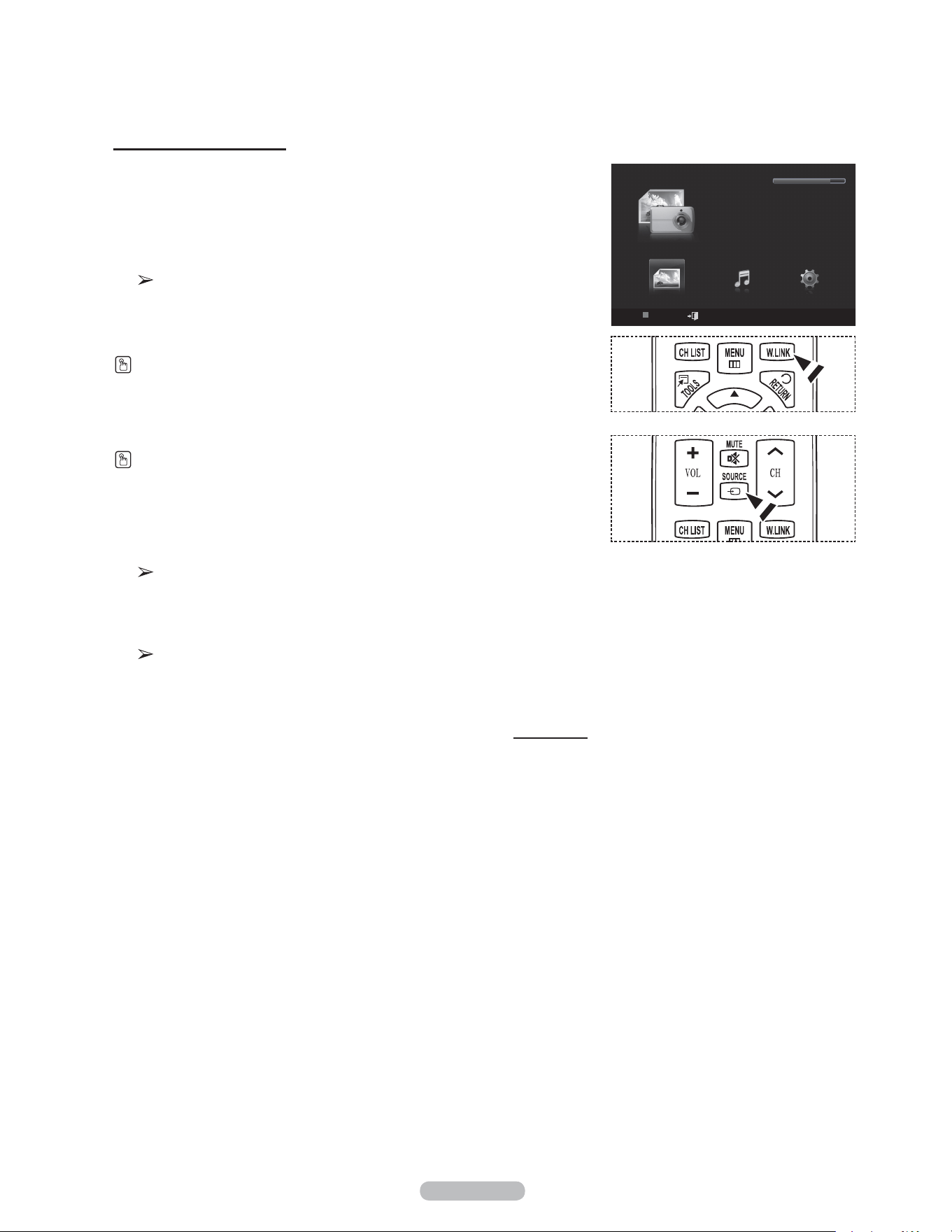
English - 71
Using the WISELINK Menu
1 Press the MENU button. Press the ▲ or ▼ button to select Application,
then press the ENTER button.
2 Press the ▲ or ▼ button to select WISELINK, then press the ENTER
button.
The WISELINK menu is diplayed.
Press the W.LINK button on the remote control to display the WISELINK menu.
Press the SOURCE button on the remote control repeatedly to select USB,
then press the ENTER button.
3 Press the Red button, then press the ▲ or ▼ button to select the
corresponding USB Memory Device. Press the ENTER button.
This function differs depending on the USB Memory Device connected
to TV.
4 Press the ◄ or ► button to select an icon (Photo, Music, Setup), then
press the ENTER button.
To exit WISELINK mode, press the W.LINK button on the remote
control.
Continued...
WISELINK
Photo
USB
Device
Exit
Music Setup
PHOTO
USB
851.98MB/995.00MB Free
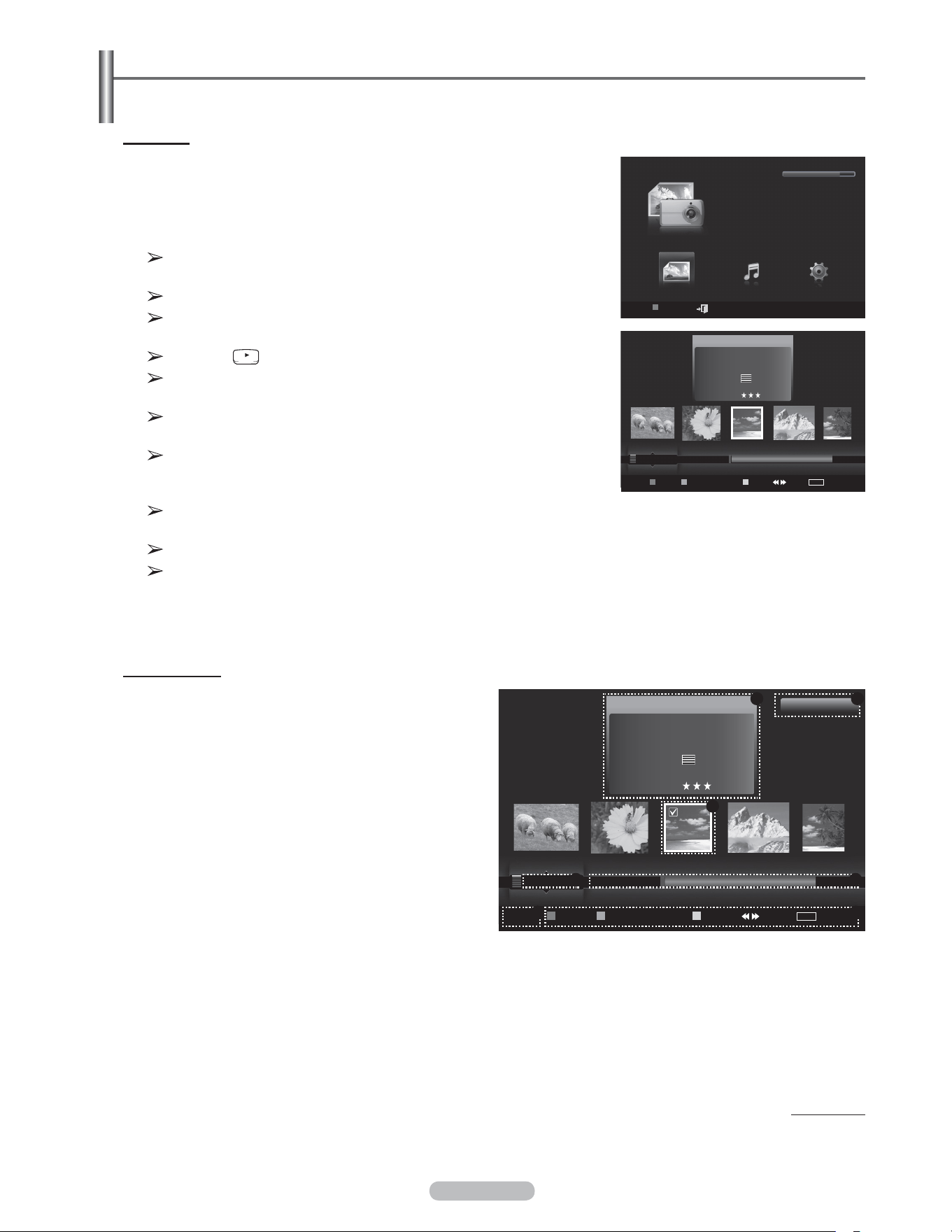
English - 72
Using the Photo List
This menu shows Photo files and folders saved on an USB memory device.
Photo List
1 Press the W.LINK button on the remote control to display the WISELINK
menu.
2 Press the ◄ or ► button to select Photo, then press the ENTER button.
This menu only shows files whose file extension is jpg. Files of other
formats such as bmp or tiff will not be displayed.
Photo files are displayed.
Press the ENTER button over a photo icon to show the currently
selected photo in full screen.
Press the (Play) button to start the Slide Show.
When moving to a photo, loading may take a few seconds. At this
point, the loading icon will appear at the screen.
Certain types of USB Digital camera and audio devices may not be
compatible with this TV.
Folders are displayed first and they are followed by all photo files
in the current folder. The folders and JPEG files are sorted in
alphabetical order.
If the photo is displayed in full screen, you can zoom in and out or
rotate the photo on the screen.
It make take a little time to load photo file Thumbnail images.
Photos without EXIF information may not be displayed as thumbnail
images in the PHOTO LIST depending on the picture quality and
resolution.
Screen Display
1 Currently selected photo
Shows the currently selected photo.
2 Photo Information Window
Shows information about the currently selectedphoto.
You can change the Color, Compositon, and Favorite.
3 Current Sort Standard
Press the ▲ or ▼ button to change the standard for
sorting photos.
(Monthly, Timeline, Color, Composition, Folder,
Preference)
The item that is selected as the sorting standing is
highlighted in the Photo Information Window.
4 View Groups
Shows the sorting groups. The sorting group including the currently selected photo is highlighted.
5 Current Device
Shows the currently selected device name. Press the Red button to select a device.
6 Item Selection Information
Shows the number of photos that are selected by pressing the Yellow button.
Continued...
WISELINK
Photo
USB
Device
Exit
Music Setup
PHOTO
USB
851.98MB/995.00MB Free
Photo
USB
Device
Favorites Setting
Select Jump
TOOLS
Option
image_1.jpg
Month : Jan
Date : Jan.01.2008
Color : Gray
Composition :
Folder : P-other
Favorite :
Preference
Monthly
Timeline
Jan Nov
▲
Photo
USB
Device Favorites Setting Select Jump
TOOLS
Option
image_1.jpg
Month : Jan
Date : Jan.01.2008
Color : Gray
Composition :
Folder : P-other
Favorite :
Preference
Monthly
Timeline
Jan Nov
▲
1File(s) Selected
2 6
1
3 4
75
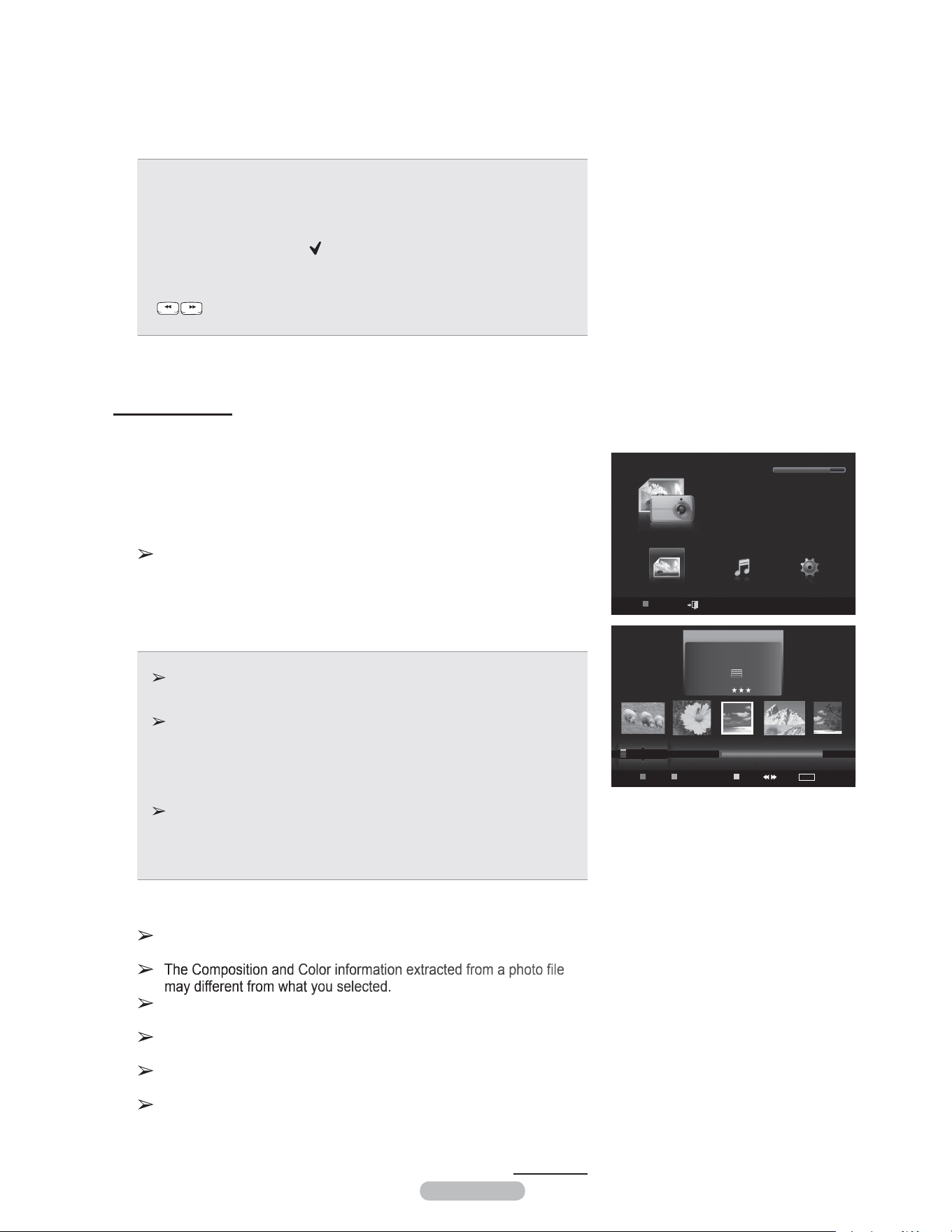
English - 73
7 Help Items
• Red(Device) button: Selects a connected device.
• Green(Favorites Setting) button: Changes the favorites setting for
the selected photo. Press this button repeatedly until the relevant value
appears.
• Yellow(Select) button: Selects photos from the photo list. Selected photos
are marked with a symbol ( ) on the left.
• TOOLS(Option) button: Displays the Slide Show, Play Current Group,
Delete, Change Group info (in Color or Composition group),Information
or Safe Remove menus.
• Jump: Jumps to the previous sorting group / Jumps to the next
sorting group.
Sorting Photo List
You can sort photos in the Photo List by a particular standard.
1 Press the W.LINK button on the remote control to display the WISELINK
menu.
2 Press the ◄ or ► button to select Photo, then press the ENTER button.
Photo files are displayed.
3 Press the ▲ or ▼ button to select a sorting standard.
(Monthly, Timeline, Color, Composition, Folder, Preference)
• Monthly: Sorts photos by month.
It sorts and shows photos in the file by month. It sorts only by month (from
January to December) regardless of year.
• Timeline: Sorts photos by time.
It sorts and shows photos by date. It sorts by year and month from the earliest
one.
• Color: Sorts photos by color. (You can change the photo color information.)
• Composition: Sorts photos by composition.
(You can change the compositional information of photos)
• Folder: Sorts photos by folder.
If there are many folders in USB, the photos files are shown in order in each
folder. The photo file in the Root folder is shown first and the others are shown in
alphabetical order by name.
• Preference: Sorts photos by preference. (Favorite)
(You can change the photo preferences.)
4 Press Enter to start the Slide Show in the order selected by the user.
Wiselink identifies the color and composition of images and groups
them accordingly by analyzing images on the USB device.
The photos are sorted according to the newly selected sorting
standard.
Photo information is automatically set. You can change the Color,
Composition, and Favorite.
Photos for which information cannot be displayed are set as
Unclassified.
PTP does not support folder sort mode.
Continued...
WISELINK
Photo Music Setup
PHOTO
USB
851.98MB/995.00MB
USB
Device
Exit
Photo
image_1.jpg
Month : Jan
Date : Jan.01.2008
Color : Gray
Composition :
Folder : P-other
Favorite :
Preference
Monthly
Timeline
Jan Nov
▲
USB
Device
Favorites Setting
Select Jump
TOOLS
Option
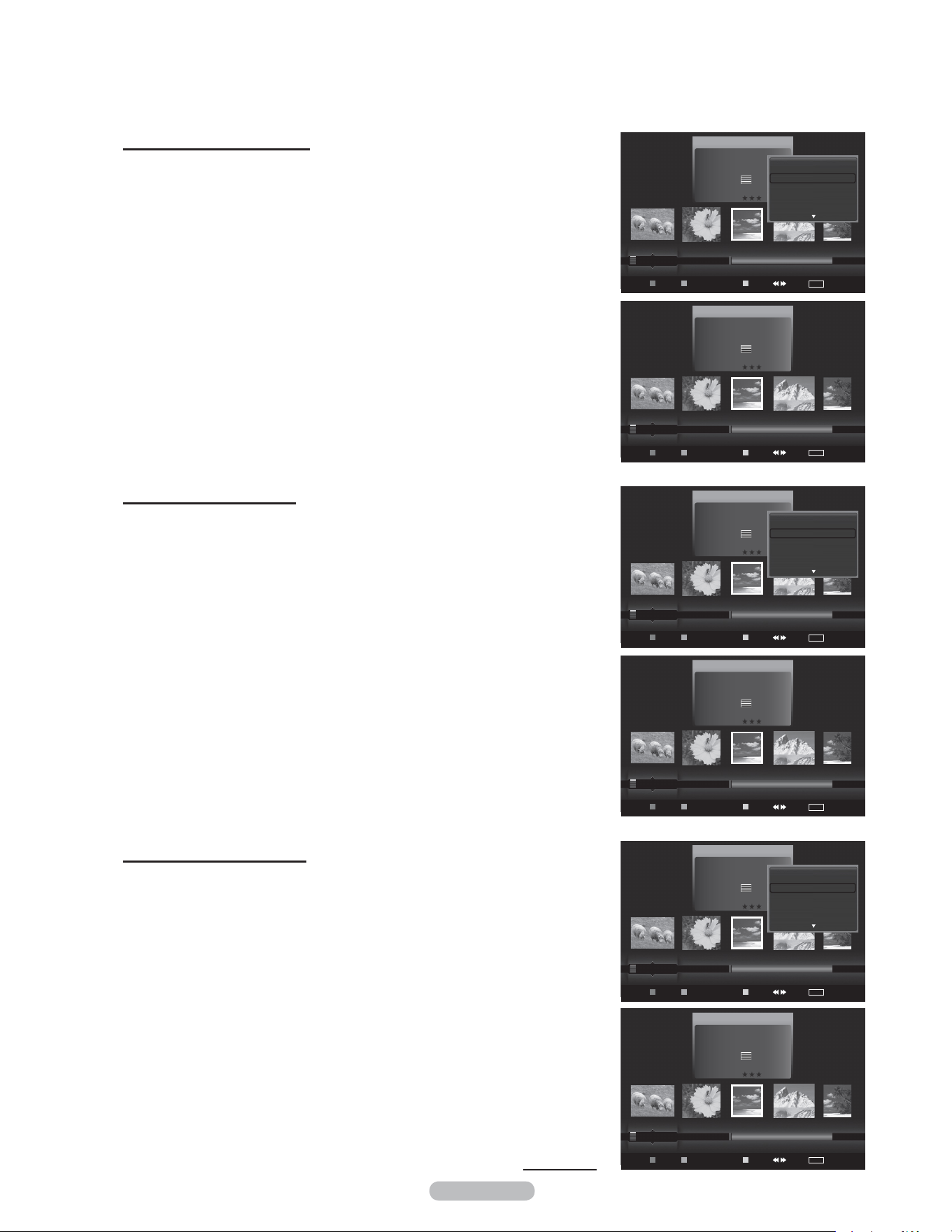
English - 74
Sorting the photos by month
1 Select Monthly as the sorting standard in the Photo List.
2 Press the ◄ or ► buttons to select from the sublist of files grouped by
Month.
3 Press the Tools button.
4 Press the ▲ or ▼ button to highlight Play Current Group.
5 Press ENTER button to play the the selected group of photo files from the
sublist.
Sorting the photos by time
1 Select Timeline as the sorting standard in the Photo List.
2 Press the ◄ or ► buttons to select from the sublist of files grouped by
Timeline.
3 Press the Tools button.
4 Press the ▲ or ▼ button to highlight Play Current Group.
5 Press ENTER button to play the the selected group of photo files from the
sublist.
Sorting the photos by folder
1 Select Folder as the sorting standard in the Photo List.
2 Press the ◄ or ► buttons to select from the sublist of files grouped by
Folder.
3 Press the Tools button.
4 Press the ▲ or ▼ button to highlight Play Current Group.
5 Press ENTER button to play the the selected group of photo files from the
sublist.
Continued...
Photo
USB
Device
Favorites Setting
Select Jump
TOOLS
Option
image_1.jpg
Month : Jan
Date : Jan.01.2008
Color : Gray
Composition :
Folder : P-other
Favorite :
Preference
Monthly
Timeline
Jan Nov
▲
Slide Show
Play Current Group
Delete
Information
Photo
USB
Device
Favorites Setting
Select Jump
TOOLS
Option
image_1.jpg
Month : Jan
Date : Jan.01.2008
Color : Gray
Composition :
Folder : P-other
Favorite :
Monthly
Timeline
Color
Jan Nov
▲
Photo
USB
Device
Favorites Setting
Select Jump
TOOLS
Option
image_1.jpg
Month : Jan
Date : Jan.01.2008
Color : Gray
Composition :
Folder : P-other
Favorite :
Preference
Monthly
Timeline
Jan Nov
▲
Slide Show
Play Current Group
Delete
Information
Photo
USB
Device
Favorites Setting
Select Jump
TOOLS
Option
image_1.jpg
Month : Jan
Date : Jan.01.2008
Color : Gray
Composition :
Folder : P-other
Favorite :
Monthly
Timeline
Color
Jan Nov
▲
Photo
USB
Device
Favorites Setting
Select Jump
TOOLS
Option
image_1.jpg
Month : Jan
Date : Jan.01.2008
Color : Gray
Composition :
Folder : P-other
Favorite :
Composition
Folder
Preference
Jan Nov
▲
Slide Show
Play Current Group
Delete
Information
Photo
USB
Device
Favorites Setting
Select Jump
TOOLS
Option
image_1.jpg
Month : Jan
Date : Jan.01.2008
Color : Gray
Composition :
Folder : P-other
Favorite :
Composition
Folder
Preference
USB Trash
▲
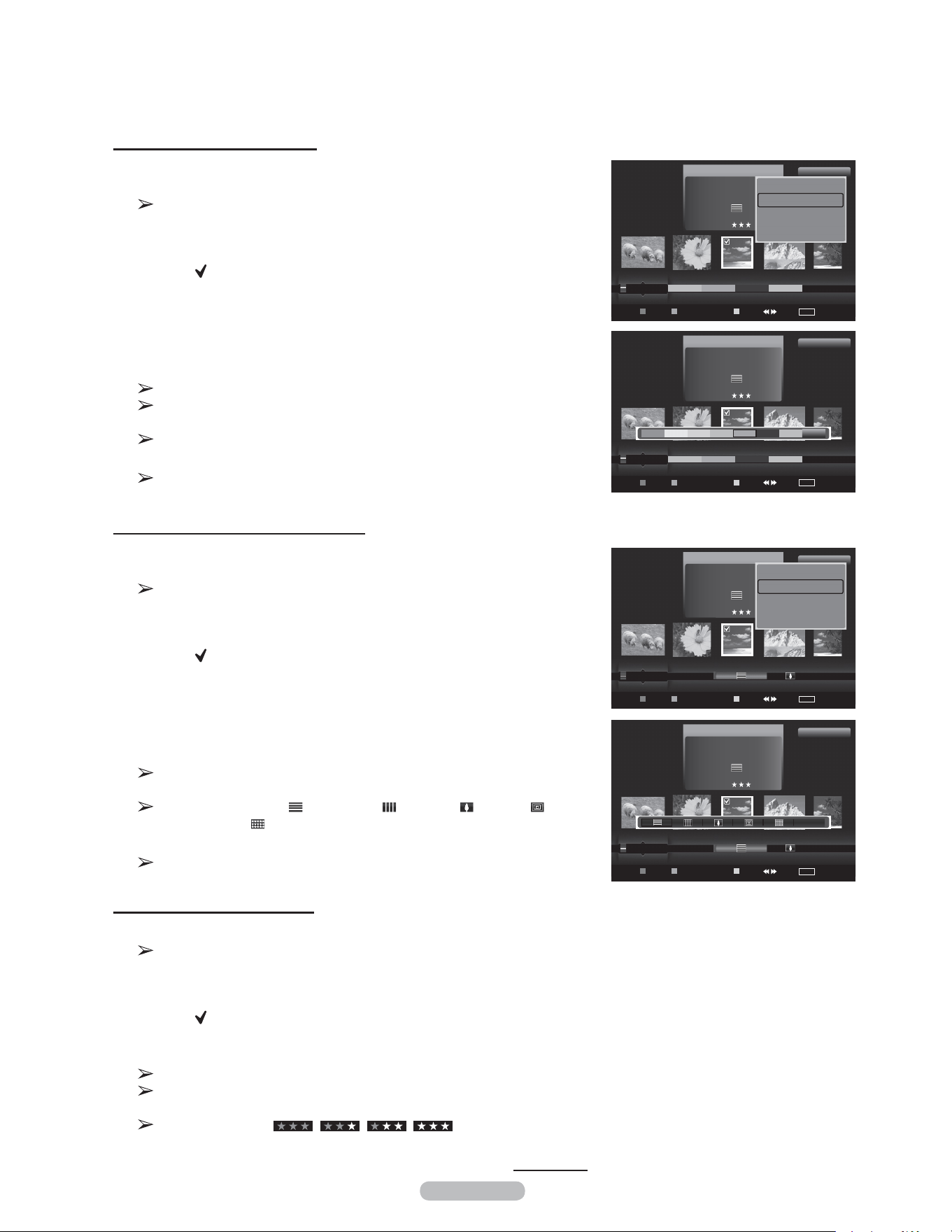
English - 75
Changing the composition information
1 Select Composition as the sorting standard in the Photo List and press
the ◄ or ► button to select a photo.
Changing the information of multiple files
Press the ◄ or ► button to select the desired photo in the Photo list.
Then press the yellow button.
Repeat the above operation to select multiple photos.
The ( ) mark appears to the left of the selected photo.
2 Press the TOOLS button.
3 Press the ▲ or ▼ button to select Change Group info.
Press the ENTER button.
4 Press the ◄ or ► button to select the desired option, then press the
ENTER button.
The group information of the current file is updated and the file is
moved to the new group.
Composition option: (horizontal), (vertical), (object),
(perspective), (pattern), Unclassified.
5 Press Enter to start the Slide Show.
All images are displayed by the Composition group.
Changing the Favorites setting
1 Press the ◄ or ► button to select the desired photo in the Photo list.
Changing the information of multiple files
Press the ◄ or ► button to select the desired photo in the Photo list.
Then press the yellow button.
Repeat the above operation to select multiple photos.
The ( ) mark appears to the left of the selected photo.
2 Press the Green button repeatedly until the relevant setting appears.
To exit WISELINK mode, press the W.LINK button on the remote control.
Favorites settings change completed.
Users can select the number of stars (up to 3) according to their
preference.
Favorites option: , , ,
3 Press Enter to start the Slide Show.
Continued...
Changing the color information
1 Select Color as the sorting standard in the Photo List and press the
◄ or ► button to select a photo.
Changing the information of multiple files
Press the ◄ or ► button to select the desired photo in the Photo list.
Then press the yellow button.
Repeat the above operation to select multiple photos.
The ( ) mark appears to the left of the selected photo.
2 Press the TOOLS button.
3 Press the ▲ or ▼ button to select Change Group info.
Press the ENTER button.
4 Press the ◄ or ► button to select the desired option, then press the
ENTER button.
Color information change completed.
The group information of the current file is updated and the file is
moved to the new group.
Color option: Red, Yellow, Green, Blue, Magenta, Black, Gray
5 Press Enter to start the Slide Show.
All images are displayed by the Color group.
Photo
image_1.jpg
Month : Jan
Date : Jan.01.2008
Color : Gray
Composition :
Folder : P-other
Favorite :
Timeline
Color
Composition
▲
USB
Device
Favorites Setting
Select Jump
TOOLS
Option
1File(s) Selected
Delete selected File
Change Group info
Deselect All
Safe Remove
Photo
image_1.jpg
Month : Jan
Date : Jan.01.2008
Color : Gray
Composition :
Folder : P-other
Favorite :
Timeline
Color
Composition
▲
USB
Device
Favorites Setting
Select Jump
TOOLS
Option
1File(s) Selected
Photo
image_1.jpg
Month : Jan
Date : Jan.01.2008
Color : Gray
Composition :
Folder : P-other
Favorite :
Color
Composition
Folder
Unclassified
▲
USB
Device
Favorites Setting
Select Jump
TOOLS
Option
1File(s) Selected
Delete selected File
Change Group info
Deselect All
Safe Remove
Photo
image_1.jpg
Month : Jan
Date : Jan.01.2008
Color : Gray
Composition :
Folder : P-other
Favorite :
Color
Composition
Folder
Unclassified
▲
USB
Device
Favorites Setting
Select Jump
TOOLS
Option
1File(s) Selected
Unclassified
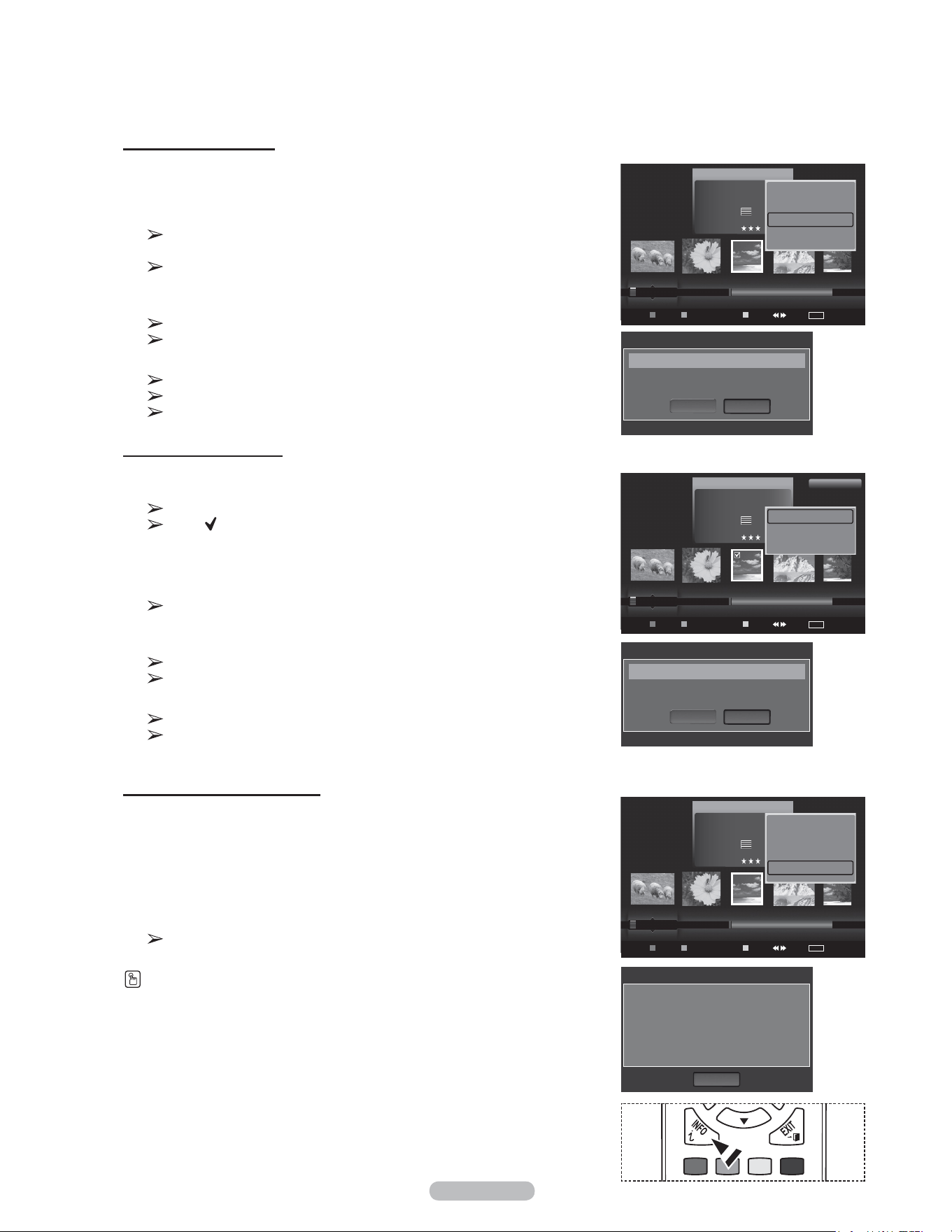
English - 76
Deleting Multiple Photos
1 Press the ◄ or ► button to select the desired photo in the Photo list.
Then press the yellow button.
Repeat the above operation to select multiple photos.
The ( ) mark appears to the left of the selected photo.
2 Press the TOOLS button.
3 Press the ▲ or ▼ button to select Delete selected File, then press the
ENTER button.
The Selected File(s): image... 2 File(s) Delete the selected file(s)?
message appear.
4 Press the ◄ or ► button to select OK, then press the ENTER buttons.
The selected photos are deleted.
If you select Cancel, the deletion is cancelled.
5 To exit WISELINK mode, press the W.LINK button on the remote control.
You cannot remove the read-only files from the selected ones.
You cannot recover a deleted photo file.
Viewing the Photo Information
The photo file information including the order of the file in the current directory,
the name, the size, the resolution, the date modified and the path is displayed.
1 Press the ◄ or ► button to select the desired photo in the Photo list.
2 Press the TOOLS button.
3 Press the ▲ or ▼ button to select Information, then press the ENTER
button.
The information on the selected photo appears.
Press the INFO button to viewing the information.
Deleting the Photo files
1 Press the ◄ or ► button to select the desired photo in the Photo list.
2 Press the TOOLS button.
3 Press the ▲ or ▼ button to select Delete, then press the ENTER button.
The Selected File(s): image... 1 File(s) Delete this file? message
appear.
When a read-only file is deleted, the This is read only file. Delete
this file? message appear.
4 Press the ◄ or ►button to select OK, then press the ENTER button.
The photo is deleted.
If you select Cancel, the deletion is cancelled.
5 To exit WISELINK mode, press the W.LINK button on the remote control.
You cannot remove the PTP-connected digital camera picture files.
While removing files, don’t remove the USB memory device.
You cannot recover a deleted photo file.
Name : image_1.JPG
Size : 0000000002MB
Resolution : 3008x2000
Date : Jan.1.2008
Path : /Photo/
OK
Photo Info
Photo
USB
Device
Favorites Setting
Select Jump
TOOLS
Option
image_1.jpg
Month : Jan
Date : Jan.01.2008
Color : Gray
Composition :
Folder : P-other
Favorite :
Preference
Monthly
Timeline
Jan Nov
▲
Delete selected File
Deselect All
Safe Remove
1File(s) Selected
Photo
USB
Device
Favorites Setting
Select Jump
TOOLS
Option
image_1.jpg
Month : Jan
Date : Jan.01.2008
Color : Gray
Composition :
Folder : P-other
Favorite :
Preference
Monthly
Timeline
Jan Nov
▲
Slide Show
Play Current Group
Delete
Information
▼
Photo
USB
Device
Favorites Setting
Select Jump
TOOLS
Option
image_1.jpg
Month : Jan
Date : Jan.01.2008
Color : Gray
Composition :
Folder : P-other
Favorite :
Preference
Monthly
Timeline
Jan Nov
▲
Slide Show
Play Current Group
Delete
Information
▼
Delete this file?
Delete
OK
Cancel
Selected File(s) : image_1.jpg 1 File(s)
Delete the selected files?
Delete
OK
Cancel
Selected File(s) : image_1.jpg 1 File(s)
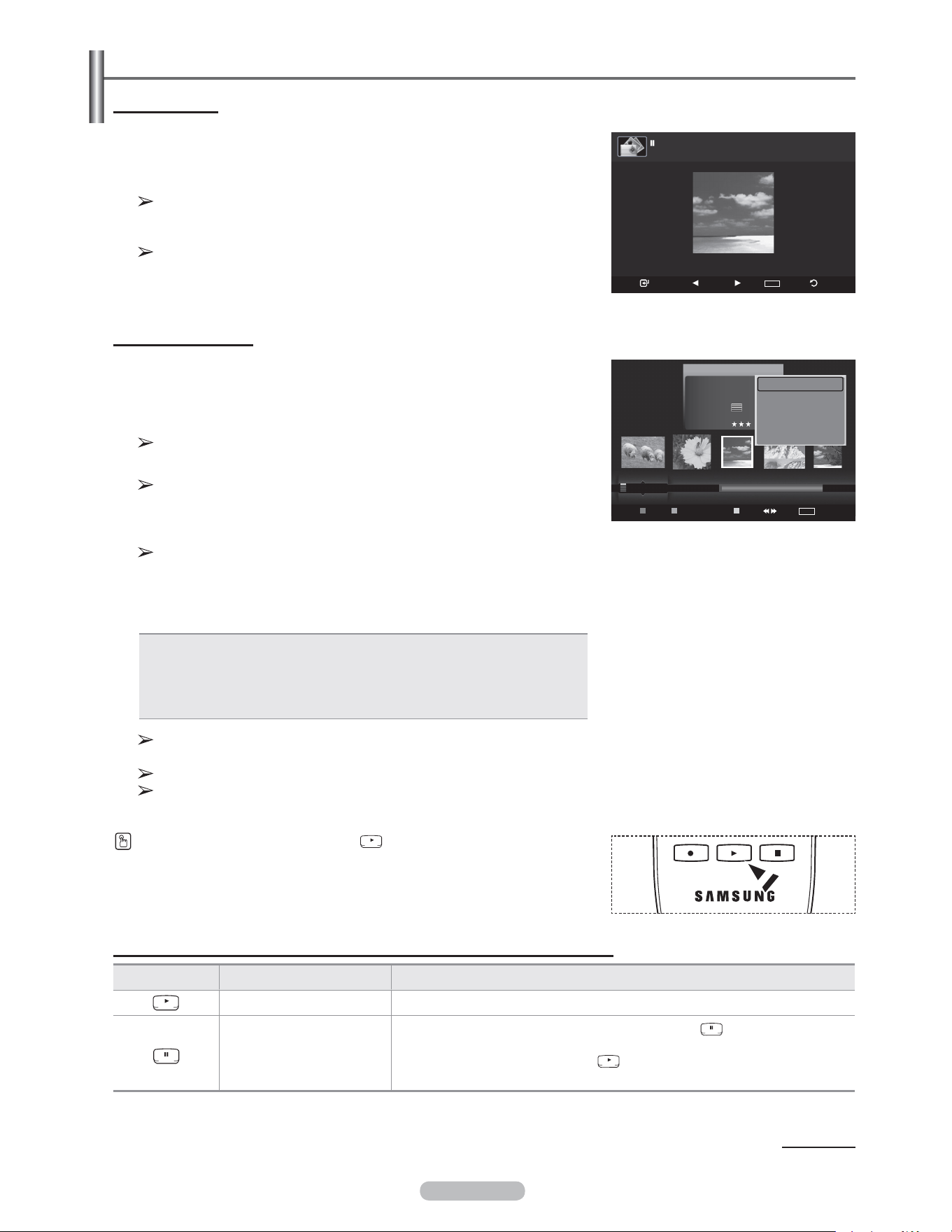
English - 77
Viewing a Photo or Slide Show
Viewing a photo
1 Press the W.LINK button on the remote control to display the WISELINK
menu.
2 Press the ◄ or ► button to move to Photo, then press the ENTER
button.
Photo files are displayed.
3 Press the ◄ or ► button to select the desired photo in the Photo list.
4 Press the ENTER button over a photo icon.
The currently selected photo is displayed in full screen.
Viewing a Slide Show
1 Press the W.LINK button on the remote control to display the WISELINK
menu.
2 Press the ◄ or ► button to move to Photo, then press the ENTER
button.
Photo files are displayed.
3 Press the ◄ or ► button to select the desired photo in the Photo list.
To perform a SlideShow with only the selected files,
Press the ◄ or ► button to select the desired photo in the Photo list.
Then press the yellow button. Repeat the above operation to select
multiple photos. The mark appears to the left of the selected photo.
If you select one file, the Slide Show will not be performed.
4 Press the TOOLS button.
5 Press the ▲ or ▼ button to select Slide Show or Play Current Group,
then press the ENTER button.
• Slide Show: All files in the photo list will be used for the Slide Show.
(If you have selected a file, only the selected file will be used for the Slide
Show.)
• Play Current Group: Only the photos in the sorting group including the
selected file will be used for the Slide Show.
While a photo list is displayed, press the (Play) button on the remote
control to start slide show.
Slide show function information icon (Displayed at the top left of the screen).
Icon Current OSD Function
(Photo) SlideShow Photo Slide Show is in progress.
Photo Pause
You can pause a SlideShow and Music by pressing the (pause) / ENTER
button on the remote control during a Slide Show.
To resume the SlideShow, press the (play) / ENTER button on the remote
control again.
Continued...
During the slide show, files are displayed in order from the currently
shown file.
The Slide Show progresses in the order sorted in the Photo list.
Music files can be automatically played during the Slide Show if the
Background Music is set to On. (Refer to page 79)
USB
Slide Show Previous Next
TOOLS
Option Return
image_1.jpg 440x440 104.1KB 2008/1/1
Photo
USB
Device
Favorites Setting
Select Jump
TOOLS
Option
image_1.jpg
Month : Jan
Date : Jan.01.2008
Color : Gray
Composition :
Folder : P-other
Favorite :
Preference
Monthly
Timeline
Jan Nov
▲
Slide Show
Play Current Group
Delete
Information
▼
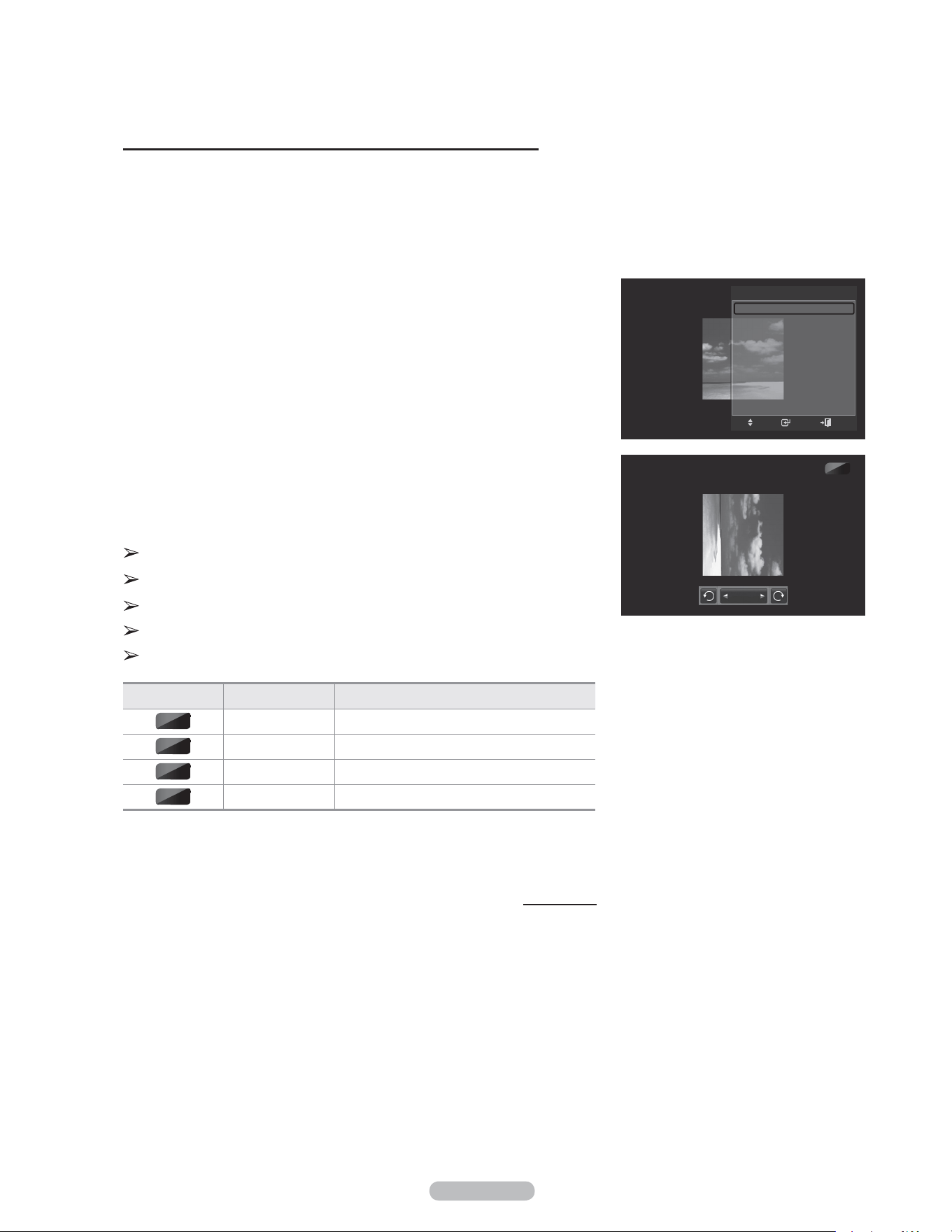
English - 78
Using the option menu during a slide show (or Viewing a Photo)
1 During a slide show(or viewing a photo), Press the TOOLS button to set
the option.
2 Press the ▲ or ▼ button to select the desired option. Then press the
ENTER button.
Start Slide Show (Stop Slide Show)
You can start or stop a Slide Show.
Press the ▲ or ▼ button to select Start Slide Show (or Stop Slide Show),
then press the ENTER button.
Rotate
You can rotate images in full screen mode.
Press the ▲ or ▼ button to select Rotate, then press the ENTER button.
Press the ◄ or ► button repeatedly to rotate the photo by the desired
amount.
Whenever you press the ◄ button, it rotates by 270˚, 180˚, 90˚, and 0˚.
Whenever you press the ► button, it rotates by 90˚, 180˚, 270˚, and 0˚.
If you have select Zoom, the Rotate function is deactivate
The rotated file is not saved.
The Rotating function information icon is displayed at the top right of the
screen
Icon Current OSD Function
Rotating (0°) This rotates a photo to its original position
Rotating (90°) This rotates a photo by 90 degrees
Rotating (180°) This rotates a photo by 180 degrees
Rotating (270°) This rotates a photo by 270 degrees
Continued...
0˚
90˚
180˚
270˚
90˚
Rotate
TOOLS
Start Slide Show
Rotate
Zoom
Background Music : Off
Background Music Setting
Picture Mode : Standard
Sound Mode : Custom
Information
Safe Remove
Enter
Move
Exit
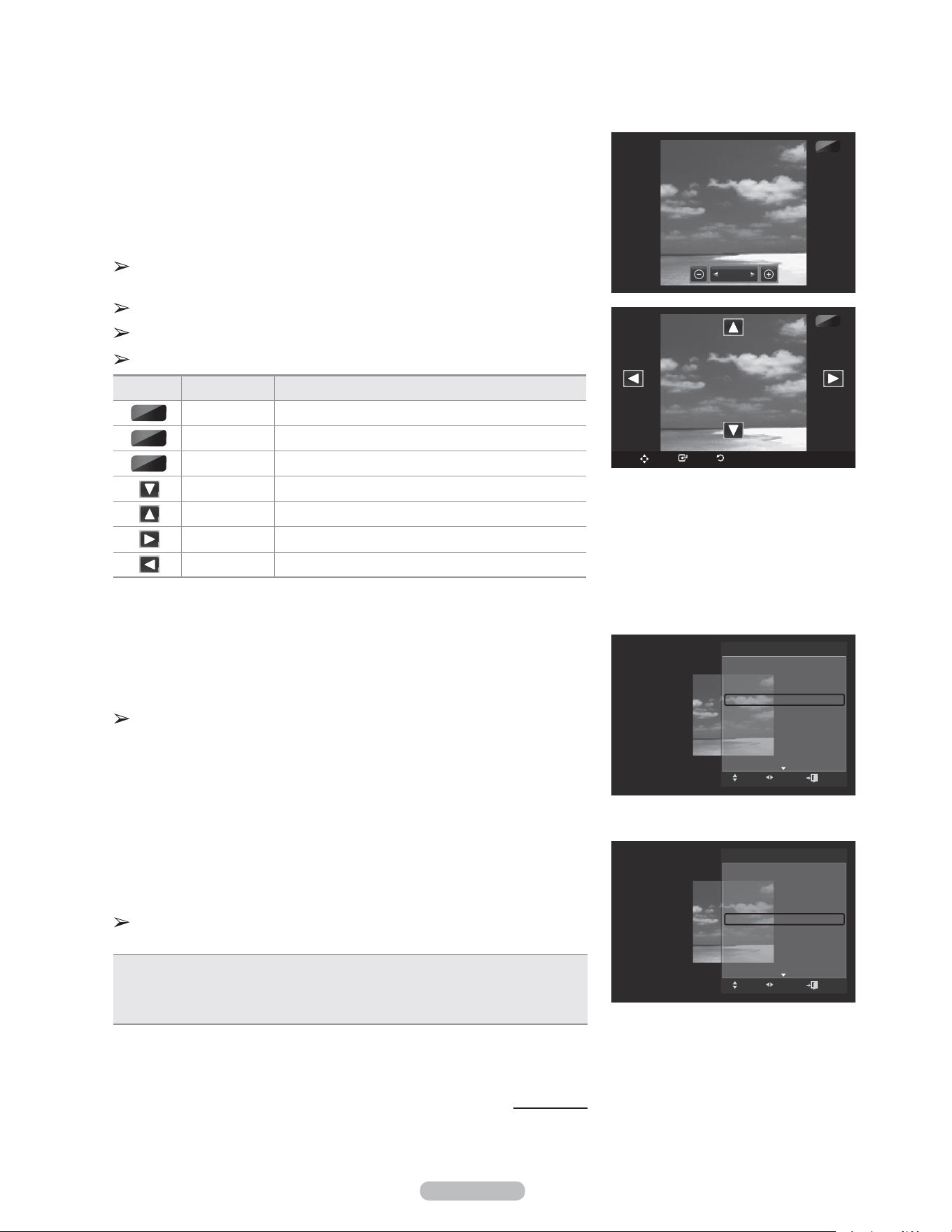
English - 79
Zoom
You can zoom into images in full screen mode.
Press the ▲ or ▼ button to select Zoom, then press the ENTER button.
Press the ◄ or ► button repeatedly to increase or decrease the Zoom effect.
(x1 → x2 → x4)
To move the enlarged photo image, press the ENTER button, then press the
▲/▼/◄/► buttons.
Note that when the enlarged picture is smaller than the original screen
size, the location change function doesn’t work.
The enlarged file is not saved.
If you have select Rotate, the Zoom function is deactivate
Zoom function information icon is displayed at the top right of the screen.
Icon Current OSD Function
Zoom (x 1) Restore a photo to its original size.
Zoom (x 2) Zoom-into a photo at 2x.
Zoom (x 4) Zoom-into a photo at 4x.
Pan Down Pan down to view the lower part of a zoomed-in photo.
Pan Up Pan up to view the upper part of a zoomedin photo.
Pan Right Pan right to view the right side of a zoomed-in photo.
Pan Left Pan left to view the left side of a zoomed-in photo.
Slide Show Speed
You can select the slide show speed.
Press the ▲ or ▼ button to select Slide Show Speed.
Press the ◄ or ► button to select the desired option.
(Normal → Fast → Slow)
You can select the Slide Show speed only during a slide show.
Background Music
If you set Background Music to On, the background music will be played when
viewing photos one by one or in a Slide Show.
Press the ▲ or ▼ button to select Background Music.
Press the ◄ or ► button to select On or Off.
If you set Background Music to On, a screen appears immediately
where you can set the Background Music.
• On: When the background music is available, if you select On, the music is
played back. To use this feature, there must be music and photo files stored on
the USB device.
• Off: Background music is not played.
Continued...
X2
X4
X1
X2
Zoom
TOOLS
Stop Slide Show
Rotate
Zoom
Slide Show Speed ◄ Normal ►
Background Music : Off
Background Music Setting
Picture Mode : Standard
Sound Mode : Custom
Information
Move Adjust
TOOLS
Stop Slide Show
Rotate
Zoom
Slide Show Speed : Normal
Background Music ◄ Off ►
Background Music Setting
Picture Mode : Standard
Sound Mode : Custom
Information
Move Adjust
X2
Move Enter Return
Exit
Exit
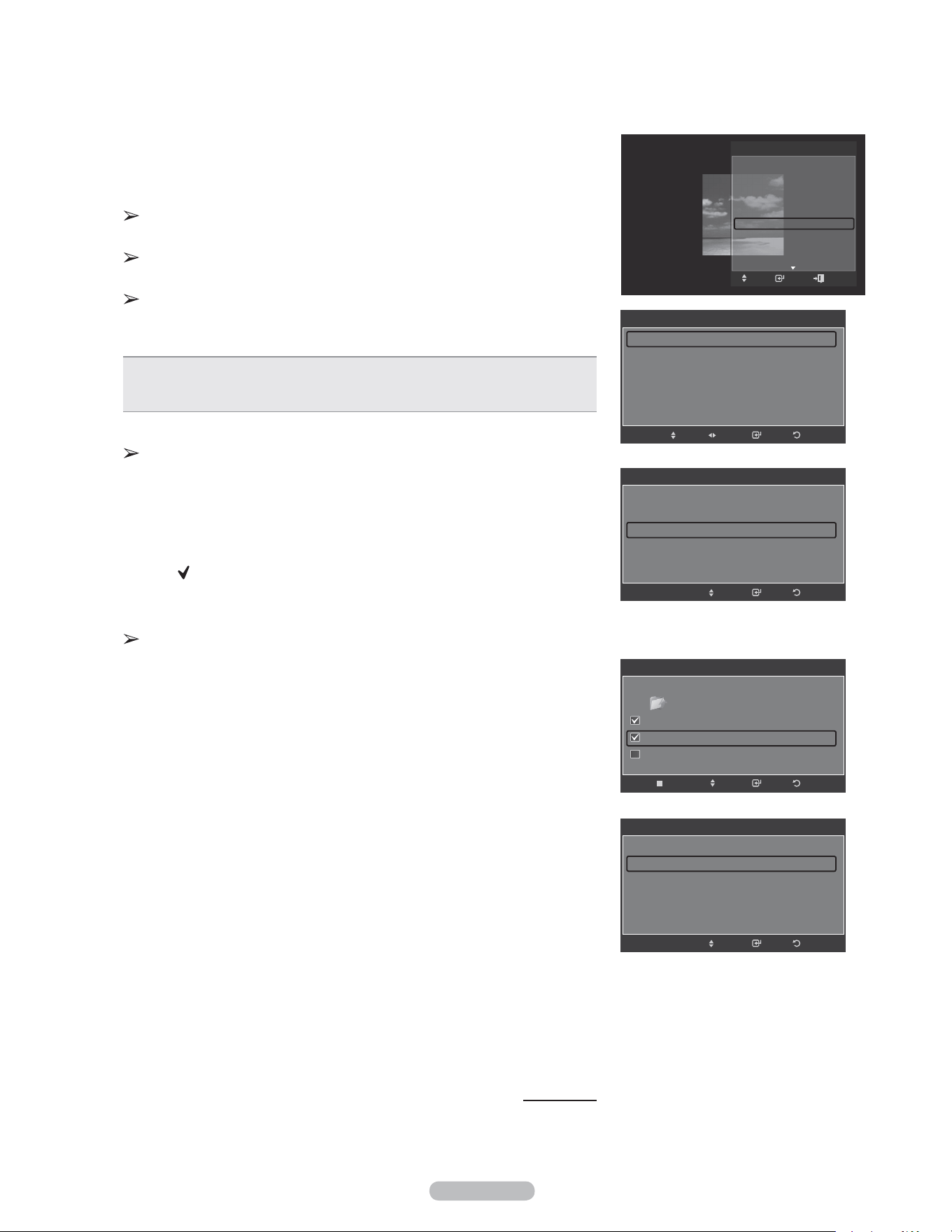
English - 80
Background Music Setting
You can set the background music.
Press the ▲ or ▼ button to select Background Music Setting, then press
the ENTER button.
If you turn off the Background Music, even if the Background Music
Settings have been set up, the background music will not be played.
Loading music files is needed to change BGM Mode. Play music files in
music category to load.
Background Music setting menu is displayed.
Press the ◄ or ► button to select the desired BGM(Background music)
mode. (Shuffle, Selected file, Mood)
• Shuffle: Plays music fi les in random order.
• Selected file: Plays a selected music fi le.
• Mood: Plays music fi les of a particular mood only.
Selecting the background music file mood
Set BGM Mode to Selected file in the Background Music Settings
menu.
Press the ◄ or ► button to select Selected Music File, then press the
ENTER button.
Press the ▲ or ▼ button to select a music file, then press the yellow
button.
The ( ) mark appears to the left of the selected music.
Repeat the above operation to select multiple music files.
Press the ENTER button.
Selecting the background music file mood
Press the ◄ or ► button to set BGM Mode to Mood.
Press the ▲ or ▼ button to select BGM Mood. Then press ◄ or ► button
to select the desired BGM mood. Press the ENTER button.
Wiselink identifies the mood of the music files and groups them
accordingly be analyzing the music files on the USB device.
BGM Mode option: Energetic, Rhythmical, Sad, Exciting, Calm
Picture Mode
You can set the Picture mode. (Refer to page 23)
Sound Mode
You can set the Sound mode. (Refer to page 36)
Information
The photo file information including the order of the file in the current directory,
the name, the size, the resolution, the date modified and the path is displayed.
(Refer to page 75)
Safe Remove
You can remove the device safely from the TV.
Press the ▲ or ▼ button to select Safe Remove, then press the ENTER
button.
The Removing the device safe... message appears and then the USB could
be removed safe. appears.
Remove the USB device from the TV.
Continued...
TOOLS
Stop Slide Show
Rotate
Zoom
Slide Show Speed : Normal
Background Music : Off
Background Music Setting
Picture Mode : Standard
Sound Mode : Custom
Information
Background Music setting
BGM Mode ◄ Shuffle ►
BGM Mood : Calm
Select Music File
ReturnEnterAdjustMove
Background Music setting
BGM Mode : Selected file
BGM Mood : Calm
Select Music File
ReturnEnterMove
Background Music setting
ReturnEnter
Move
Select
../Music/ 2 File(s) Selected
Music
01-glen_hansard_and_marketa_irglova-fallin...
02-marketa_irglova_and_glen_hansard-if_yo...
05-glen_hansard-lies
▼
Background Music setting
BGM Mode : Mood
BGM Mood ◄ Calm ►
Select Music File
ReturnEnterMove
Enter
Move
Exit
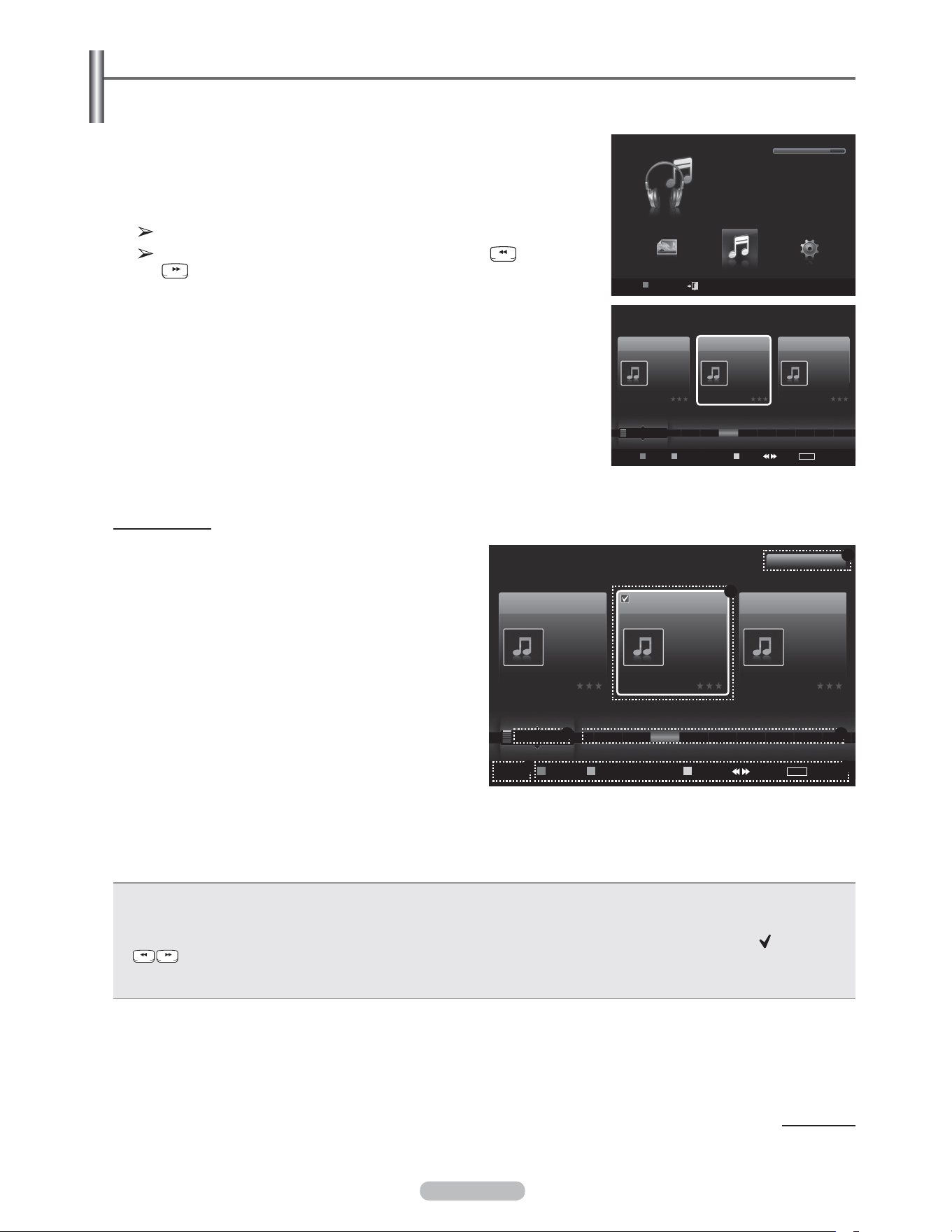
English - 81
1 Press the W.LINK button on the remote control to display the WISELINK
menu.
2 Press the ◄ or ► button to select Music, then press the ENTER button.
Music files are displayed.
To select a file on the previous / next group, press the (REW) or
(FF) button to move to the previous / next group.
Screen Display
1 Currently selected music
Shows the currently selected music.
2 Current Sort Standard
Press the ▲ or ▼ button to change the standard for
sorting music files. (Title, Artist, Mood, Genre, Folder,
Preference)
3 View Groups
Shows the sorting groups. The sorting group including
the currently selected music file is highlighted.
4 Current Device
Shows the currently selected device name.
Press the Red button to select a device.
Using the Music List
This menu shows MP3 files from among the files saved on a USB memory device.
5 Item Selection Information
Shows the number of music files that are selected by pressing the Yellow button.
6 Help Items
• Red(Device) button: Selects a connected device.
• Green(Favorites Setting) button: Changes the favorites setting for the selected music. Press this button repeatedly until the
relevant value appears.
• Yellow(Select) button: Selects music files from the music list. Selected music files are marked with a symbol ( ) on the left.
• Jump: Jumps to the previous sorting group / Jumps to the next sorting group.
• TOOLS(Option) button: Displays the Play Current Group, Delete, Change Group info(in Mood group), Information or
Safe Remove menus.
Continued...
Music
USB
Device
Favorites Setting
Select Jump
TOOLS
Option
Preference
Title
Artist
Energetic
Nickelback
All The Right Reas..
2005
Blues
If Everyone Cared
Sad
Marketa lrgl...
Once Ost
2007
Soundtrack
If You Want Me
Calm
Glen Hansard
Once Ost
2007
Soundtrack
Lies
F G H I J L P S T V
▲
WISELINK
Photo
USB
Device
Exit
Music Setup
MUSIC
USB
851.98MB/995.00MB Free
Music
USB
Device Favorites Setting Select Jump
TOOLS
Option
Preference
Title
Artist
Energetic
Nickelback
All The Right Reas..
2005
Blues
If Everyone Cared
Sad
Marketa lrgl...
Once Ost
2007
Soundtrack
If You Want Me
Calm
Glen Hansard
Once Ost
2007
Soundtrack
Lies
G H I J L P S T V
▲
1File(s) Selected
1
64
5
2 3
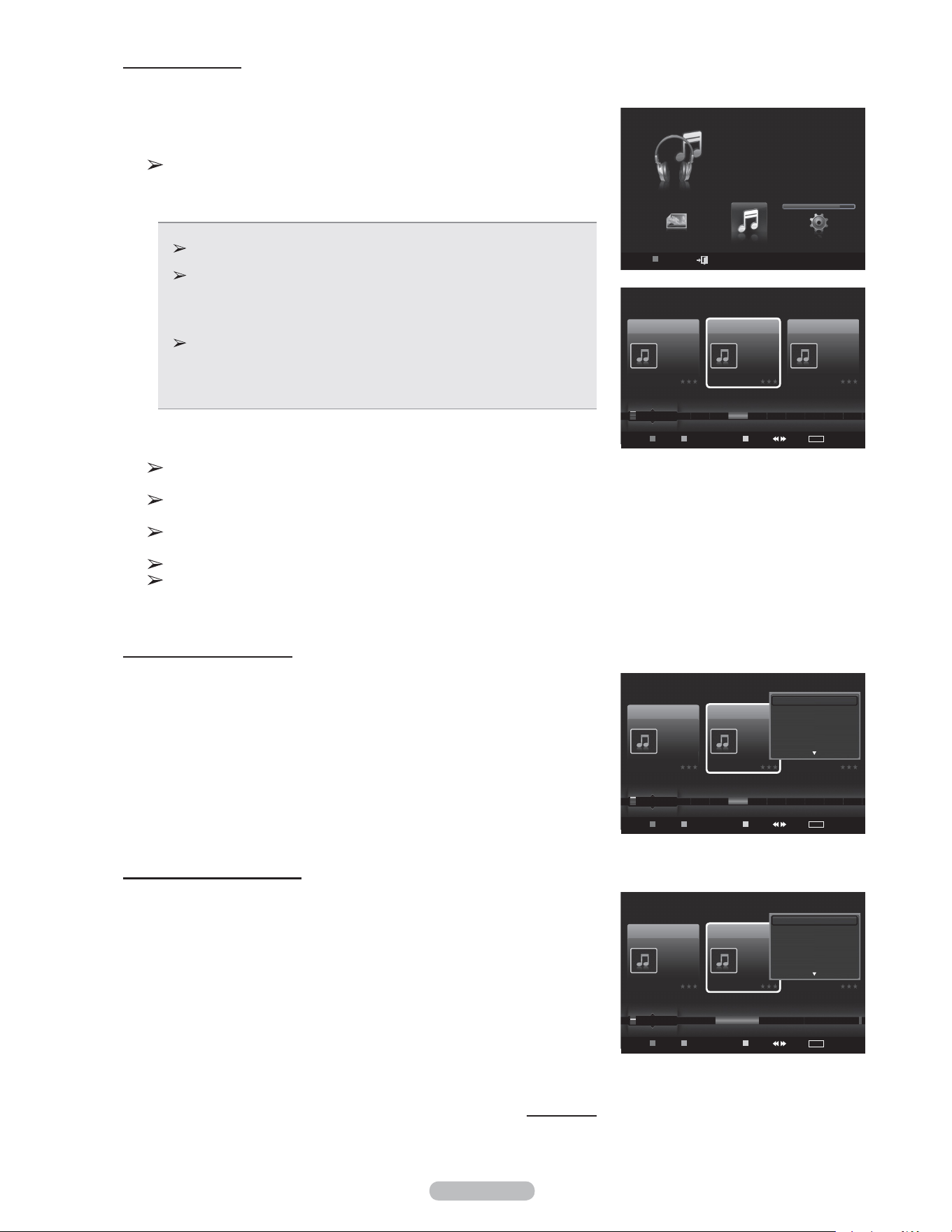
English - 82
Sorting Music List
You can sort music files in the Music List by a particular standard.
1 Press the W.LINK button on the remote control to display the WISELINK
menu.
2 Press the ◄ or ► button to select Music, then press the ENTER button.
Music files are displayed.
3 Press the ▲ or ▼ button to select a sorting standard.
(Title, Artist, Mood, Genre, Folder, Preference)
• Title: Sorts music files by the title.
It sorts the Music titles in alphabetical order, and shows the music file.
• Artist: Sorts music files by the artist.
It sorts the music file by artist in alphabetical order.
• Mood: Sorts music files by the mood.
(You can change the music mood information.)
• Genre: Sorts music files by the genre.
• Folder: Sorts music files by the folder.
If there are many folders in USB, the files are shown in order in each folder.
The music file in the Root folder is shown first and the others are shown in
alphabetical order by name.
• Preference: Sorts music files by preference. (Favorite)
(You can change the music files preferences.)
4 Press ENTER button to start playing music in the order selected by the
user.
Music files are sorted according to the newly selected sorting
standard.
Music information is set automatically and you can change the
Favorite information.
Music files for which information cannot be displayed are set to
“Unclassified”.
If there is no title information for a music file, the filename is displayed.
If no information is available for the Genre, Artist, Album, or Year, the
corresponding item is displayed as blank.
Sorting the photos by title
1 Select Title as the sorting standard in the Music List.
2 Press the ◄ or ► buttons to select from the sublist of files grouped in
alphabetical order.
3 Press the TOOLS button.
4 Press the ▲ or ▼ buttons to highlight Play Current Group.
5 Press ENTER button to play the selected group of music files from the
sublist.
Sorting the photos by artist
1 Select Artist as the sorting standard in the Music List.
2 Press the ◄ or ► button to select from the sublist of files grouped by
artist.
3 Press the TOOLS button.
4 Press the ▲ or ▼ buttons to highlight Play Current Group.
5 Press ENTER button to play the selected group of music files from the
sublist.
Continued..
WISELINK
USB
Device
Exit
MUSIC
USB
851.98MB/995.00MB Free
Music
USB
Device
Favorites Setting
Select Jump
TOOLS
Option
Preference
Title
Artist
Energetic
Nickelback
All The Right Reas..
2005
Blues
If Everyone Cared
Sad
Marketa lrgl...
Once Ost
2007
Soundtrack
If You Want Me
Calm
Glen Hansard
Once Ost
2007
Soundtrack
Lies
F G H I J L P S T V
▲
Music
USB
Device
Favorites Setting
Select Jump
TOOLS
Option
Preference
Title
Artist
Energetic
Nickelback
All The Right Reas..
2005
Blues
If Everyone Cared
Sad
Marketa lrgl...
Once Ost
2007
Soundtrack
If You Want Me
Calm
Glen Hansard
Once Ost
2007
Soundtrack
Lies
F G H I J L P S T V
▲
Play Current Group
Delete
Information
Safe Remove
Music
USB
Device
Favorites Setting
Select Jump
TOOLS
Option
Artist
Genre
Mood
Sad
Interference
Once Ost
2007
Soundtrack
Gold
Sad
Marketa lrgl...
Once Ost
2007
Soundtrack
If You Want Me
Exciting
Jamiroquai
Synkronized
1999
Acid Jazz
Black Capricorn Day
...
▲
Play Current Group
Delete
Change Group Info
Information
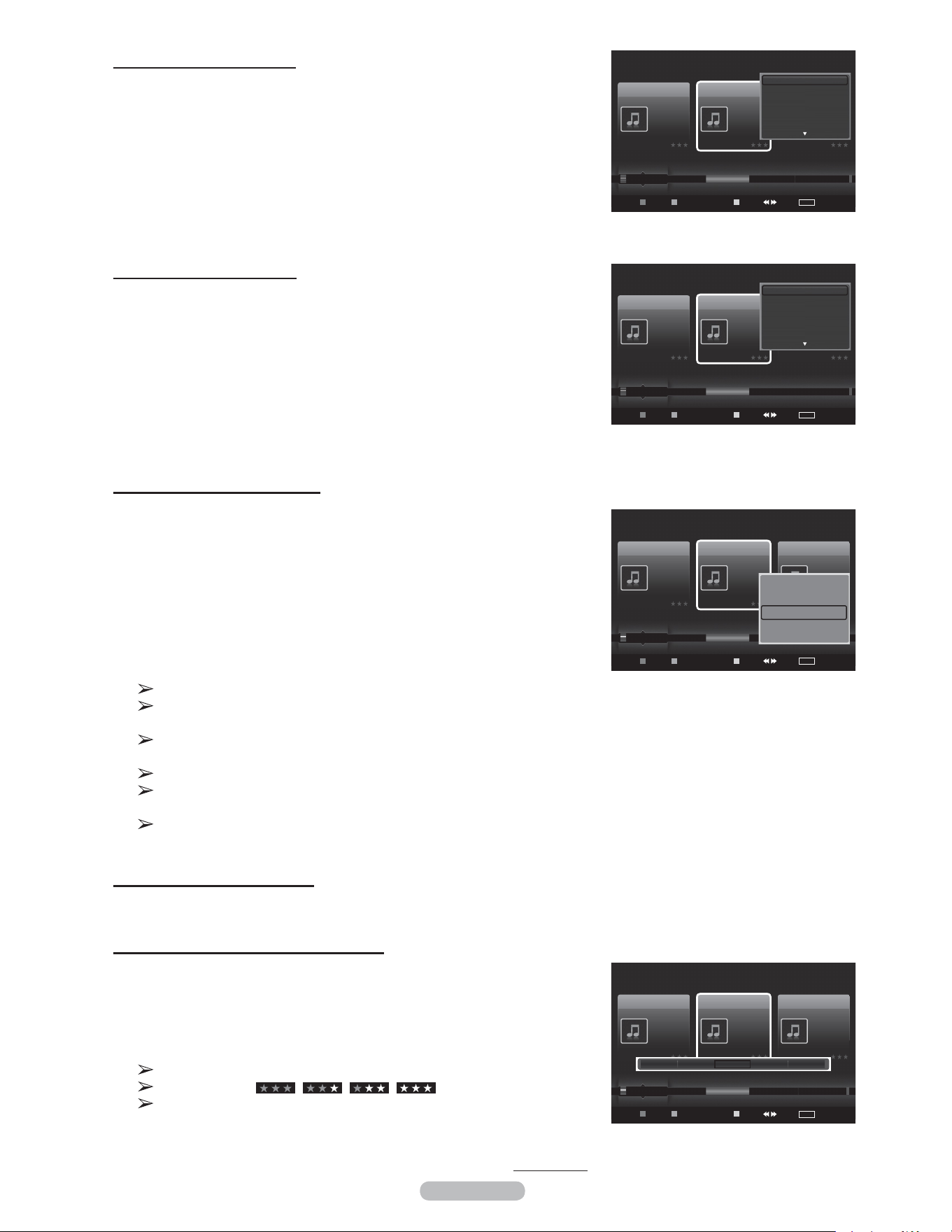
English - 83
Changing the Mood information
1 Select Mood as the sorting standard in the Music List and press the ◄ or
► button to select a music file.
2 Press the TOOLS button.
3 Press the ▲ or ▼ button to select Change Group info.
Press the ENTER button.
4 Press the ◄ or ► button to select the desired option, then press the
ENTER button.
5 Press Enter to start playing music.
Mood information change completed.
The group information of the current file is updated and the file is
moved to the new group.
Mood option: Energetic, Rhythmical, Sad, Exciting, Calm,
Unclassified
All music files are played by the Mood group.
Wiselink identifies the mood of the music files and groups them
accordingly by analyzing the music files on the USB device.
The “Mood” information extracted from a music file may differ from
what you selected.
Changing the Favorites setting
1 Press the ◄ or ► button to select the desired music in the Music List.
Changing the information of multiple files
1 Press the ◄ or ► button to select the desired music in the Music List.
Then press the yellow button.
Repeat the above operation to select multiple music.
The mark appears to the left of the selected music.
2 Press the Green button repeatedly until the desired setting appears.
Favorites settings change completed.
Favorite option: , , ,
Users can select the number of stars (up to 3) according to their
preference.
3 Press the ENTER button to start playing music.
Continued...
Sorting the photos by genre
1 Select Genre as the sorting standard in the Music List.
2 Press the ◄ or ► button to select from the sublist of files grouped by
genre.
3 Press the TOOLS button.
4 Press the ▲ or ▼ buttons to highlight Play Current Group
5 Press ENTER button to play the selected group of music files from the
sublist.
Sorting the photos by folder
1 Select Folder as the sorting standard in the Music List.
2 Press the ◄ or ► button to select from the sublist of files grouped by
folder.
3 Press the TOOLS button.
4 Press the ▲ or ▼ buttons to highlight Play Current Group.
5 Press ENTER button to play the selected group of music files from the
sublist.
Music
USB
Device
Favorites Setting
Select Jump
TOOLS
Option
Artist
Mood
Genre
Sad
Interference
Once Ost
2007
Soundtrack
Gold
Sad
Marketa lrgl...
Once Ost
2007
Soundtrack
If You Want Me
Exciting
Jamiroquai
Synkronized
1999
Acid Jazz
Black Capricorn Day
Rhythmical Sad Exciting Calm ...
▲
Energetic Rhythmical Sad Exciting Calm
Music
USB
Device
Favorites Setting
Select Jump
TOOLS
Option
Artist
Mood
Genre
Sad
Interference
Once Ost
2007
Soundtrack
Gold
Sad
Marketa lrgl...
Once Ost
2007
Soundtrack
If You Want Me
Exciting
Jamiroquai
Synkronized
1999
Acid Jazz
Black Capricorn Day
Rhythmical Sad Exciting Calm ...
▲
Play Current Group
Delete
Change Group info
Information
▼
Music
USB
Device
Favorites Setting
Select Jump
TOOLS
Option
Artist
Genre
Mood
Sad
Interference
Once Ost
2007
Soundtrack
Gold
Sad
Marketa lrgl...
Once Ost
2007
Soundtrack
If You Want Me
Exciting
Jamiroquai
Synkronized
1999
Acid Jazz
Black Capricorn Day
Blues ...
▲
Play Current Group
Delete
Change Group Info
Information
Music
USB
Device
Favorites Setting
Select Jump
TOOLS
Option
Mood
Folder
Preference
Sad
Interference
Once Ost
2007
Soundtrack
Gold
Sad
Marketa lrgl...
Once Ost
2007
Soundtrack
If You Want Me
Exciting
Jamiroquai
Synkronized
1999
Acid Jazz
Black Capricorn Day
USB Trash.
▲
Play Current Group
Delete
Change Group Info
Information
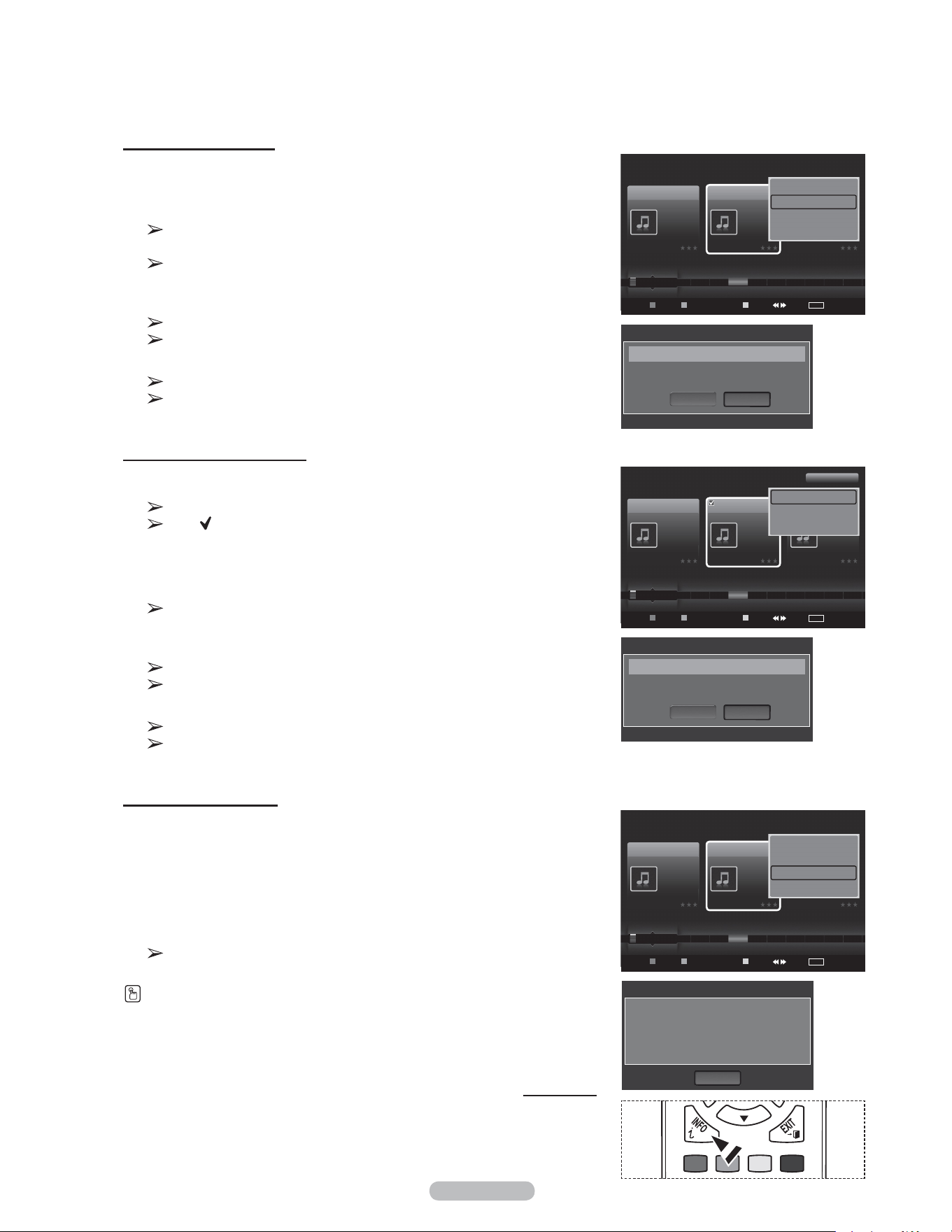
English - 84
Deleting the Music files
1 Press the ◄ or ► button to select the desired music file in the music list.
2 Press the TOOLS button.
3 Press the ▲ or ▼ button to select Delete, then press the ENTER button.
The (for example) Selected File(s): music file... 1 File(s) Delete this
file? message appear.
When a read-only file is deleted, the Read-only file(s). Delete the
file(s)? message appear.
4 Press the ◄ or ►button to select OK, then press the ENTER button.
The music is deleted.
If you select Cancel, the deletion is cancelled.
5 To exit WISELINK mode, press the W.LINK button on the remote control.
While removing files, don’t remove the USB memory device.
You cannot recover deleted music files.
Deleting Multiple Music files
1 Press the ◄ or ► button to select the desired music in the music list.
Then press the yellow button.
Repeat the above operation to select multiple music files.
The ( ) mark appears to the left of the selected music files.
2 Press the TOOLS button.
3 Press the ▲ or ▼ button to select Delete selected File, then press the
ENTER button.
The (for example) Selected File(s): music file.... 2 File(s) Delete the
selected file(s)? message appear.
4 Press the ◄ or ► button to select OK, then press the ENTER button.
The selected music files are deleted.
If you select Cancel, the deletion is cancelled.
5 To exit WISELINK mode, press the W.LINK button on the remote control.
You cannot remove the read-only files from the selected ones.
You cannot restore the deleted music files.
Viewing the Information
The music file information including the order of the file in the current directory,
the name, the size, the date modified and the path is displayed.
1 Press the ◄ or ► button to select the desired photo in the Music list.
2 Press the TOOLS button.
3 Press the ▲ or ▼ button to select Information, then press the ENTER
button.
The information on the selected file appears.
Press the INFO button to viewing the information.
Continued...
Music
USB
Device
Favorites Setting
Select Jump
TOOLS
Option
Preference
Title
Artist
Energetic
Nickelback
All The Right Reas..
2005
Blues
If Everyone Cared
Sad
Marketa lrgl...
Once Ost
2007
Soundtrack
If You Want Me
Calm
Glen Hansard
Once Ost
2007
Soundtrack
Lies
F G H I J L P S T V
▲
Play Current Group
Delete
Information
Safe Remove
Music
USB
Device
Favorites Setting
Select Jump
TOOLS
Option
Preference
Title
Artist
Energetic
Nickelback
All The Right Reas..
2005
Blues
If Everyone Cared
Sad
Marketa lrgl...
Once Ost
2007
Soundtrack
If You Want Me
Calm
Glen Hansard
Once Ost
2007
Soundtrack
Lies
F G H I J L P S T V
▲
Delete selected File
Deselect All
Safe Remove
1File(s) Selected
Name : 014 Hey boy.mp3
Size : 5.2MB
Date : Jan.1.2008
Path : /Music/
OK
Music Info
Music
USB
Device
Favorites Setting
Select Jump
TOOLS
Option
Preference
Title
Artist
Energetic
Nickelback
All The Right Reas..
2005
Blues
If Everyone Cared
Sad
Marketa lrgl...
Once Ost
2007
Soundtrack
If You Want Me
Calm
Glen Hansard
Once Ost
2007
Soundtrack
Lies
F G H I J L P S T V
▲
Play Current Group
Delete
Information
Safe Remove
Delete this file?
Delete
OK
Cancel
Selected File(s) : If You Want Me 1 File(s)
Delete the selected files?
Delete
OK
Cancel
Selected File(s) : If You Want Me 1 File(s)
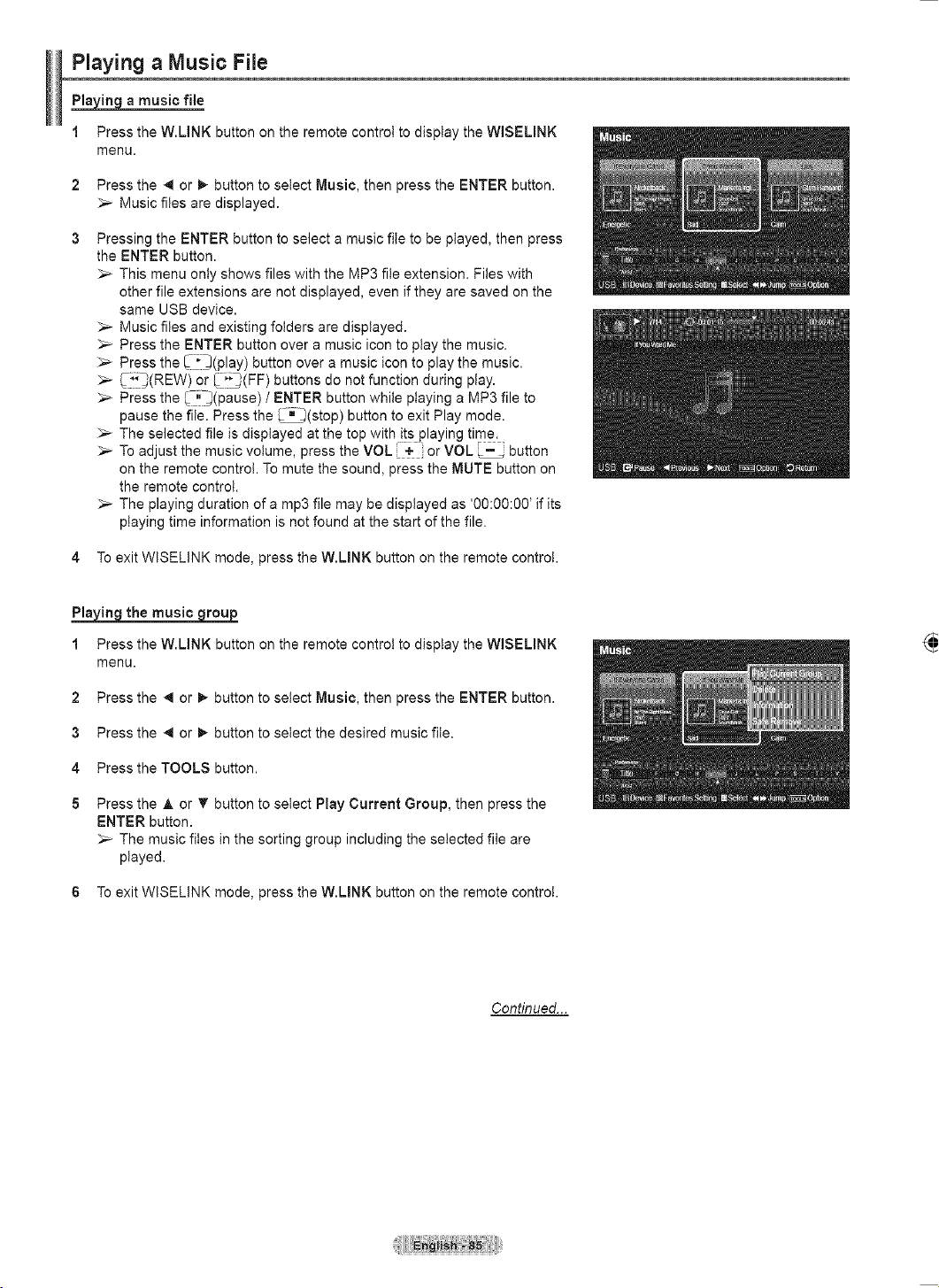
English - 85
Playing a Music File
Playing a music file
1 Press the W.LINK button on the remote control to display the WISELINK
menu.
2 Press the ◄ or ► button to select Music, then press the ENTER button.
Music files are displayed.
3 Pressing the ENTER button to select a music file to be played, then press
the ENTER button.
This menu only shows files with the MP3 file extension. Files with
other file extensions are not displayed, even if they are saved on the
same USB device.
Music files and existing folders are displayed.
Press the ENTER button over a music icon to play the music.
Press the (play) button over a music icon to play the music.
(REW) or (FF) buttons do not function during play.
Press the (pause) / ENTER button while playing a MP3 file to
pause the file. Press the (stop) button to exit Play mode.
The selected file is displayed at the top with its playing time.
To adjust the music volume, press the VOL or VOL button
on the remote control. To mute the sound, press the MUTE button on
the remote control.
The playing duration of a mp3 file may be displayed as ‘00:00:00’ if its
playing time information is not found at the start of the file.
4 To exit WISELINK mode, press the W.LINK button on the remote control.
Playing the music group
1 Press the W.LINK button on the remote control to display the WISELINK
menu.
2 Press the ◄ or ► button to select Music, then press the ENTER button.
3 Press the ◄ or ► button to select the desired music file.
4 Press the TOOLS button.
5 Press the ▲ or ▼ button to select Play Current Group, then press the
ENTER button.
The music files in the sorting group including the selected file are
played.
6 To exit WISELINK mode, press the W.LINK button on the remote control.
Continued...
USB
Pause Previous Next
TOOLS
Option Return
7/14 00:01:15 00:05:41
If You Want Me
Music
USB
Device
Favorites Setting
Select Jump
TOOLS
Option
Preference
Title
Artist
Energetic
Nickelback
All The Right Reas..
2005
Blues
If Everyone Cared
Sad
Marketa lrgl...
Once Ost
2007
Soundtrack
If You Want Me
Calm
Glen Hansard
Once Ost
2007
Soundtrack
Lies
F G H I J L P S T V
▲
Play Current Group
Delete
Information
Safe Remove
Music
USB
Device
Favorites Setting
Select Jump
TOOLS
Option
Preference
Title
Artist
Energetic
Nickelback
All The Right Reas..
2005
Blues
If Everyone Cared
Sad
Marketa lrgl...
Once Ost
2007
Soundtrack
If You Want Me
Calm
Glen Hansard
Once Ost
2007
Soundtrack
Lies
F G H I J L P S T V
▲
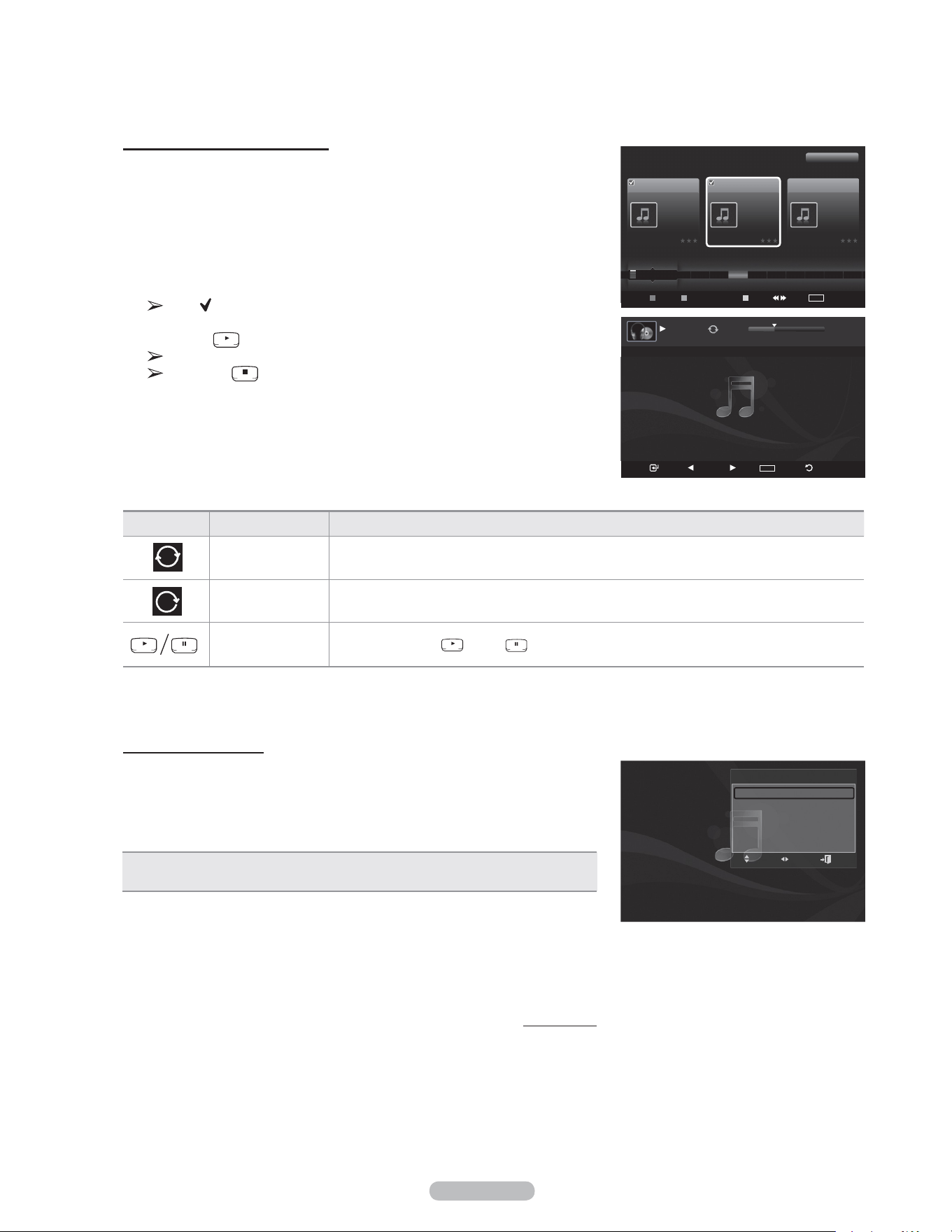
English - 86
Playing the selected music files
1 Press the W.LINK button on the remote control to display the WISELINK
menu.
2 Press the ◄ or ► button to select Music, then press the ENTER button.
3 Press the ◄ or ► button to select the desired music file, then press the
yellow button.
Repeat the above operation to select multiple music.
The ( ) mark appears to the left of the selected music files.
4 Press the ( / ENTER) button.
Only the selected fi le is played.
Press the button while playing to stop the current item and to
return to the music list.
5 To exit WISELINK mode, press the W.LINK button on the remote control.
Repeating Music Play
1 While a Music file is playing, press the TOOLS button.
2 Press the ▲ or ▼ button to select Repeat Mode.
3 Press the ◄ or ► button to select On or Off.
• On: Plays back all music fi les in the folder(or the selected fi le) repeatedly.
• Off: Doesn’t play back repeatedly.
4 To exit WISELINK mode, press the W.LINK button on the remote control.
Continued...
Music function information icon (Displayed at the top left of the screen).
Icon Current OSD Function
(Music) Repeat When all music fi les in the folder(or the selected fi le) are repeated. Repeat Mode is On.
(Music) One When all music fi les in the folder(or the selected fi le) are played once. Repeat Mode is Off.
(Music) Play/Pause
When pressing the (play) / (pause) button on the remote control while music is playing.
Music
USB
Device
Favorites Setting
Select Jump
TOOLS
Option
Preference
Title
Artist
Energetic
Nickelback
All The Right Reas..
2005
Blues
If Everyone Cared
Sad
Marketa lrgl...
Once Ost
2007
Soundtrack
If You Want Me
Calm
Glen Hansard
Once Ost
2007
Soundtrack
Lies
F G H I J L P S T V
▲
2File(s) Selected
USB
Pause Previous Next
TOOLS
Option Return
1/2 00:01:15 00:05:41
If Everyone Cared
TOOLS
Repeat Mode ◄ On ►
Picture Mode : Standard
Sound Mode : Custom
Information
Safe Remove
AdjustMove
Exit
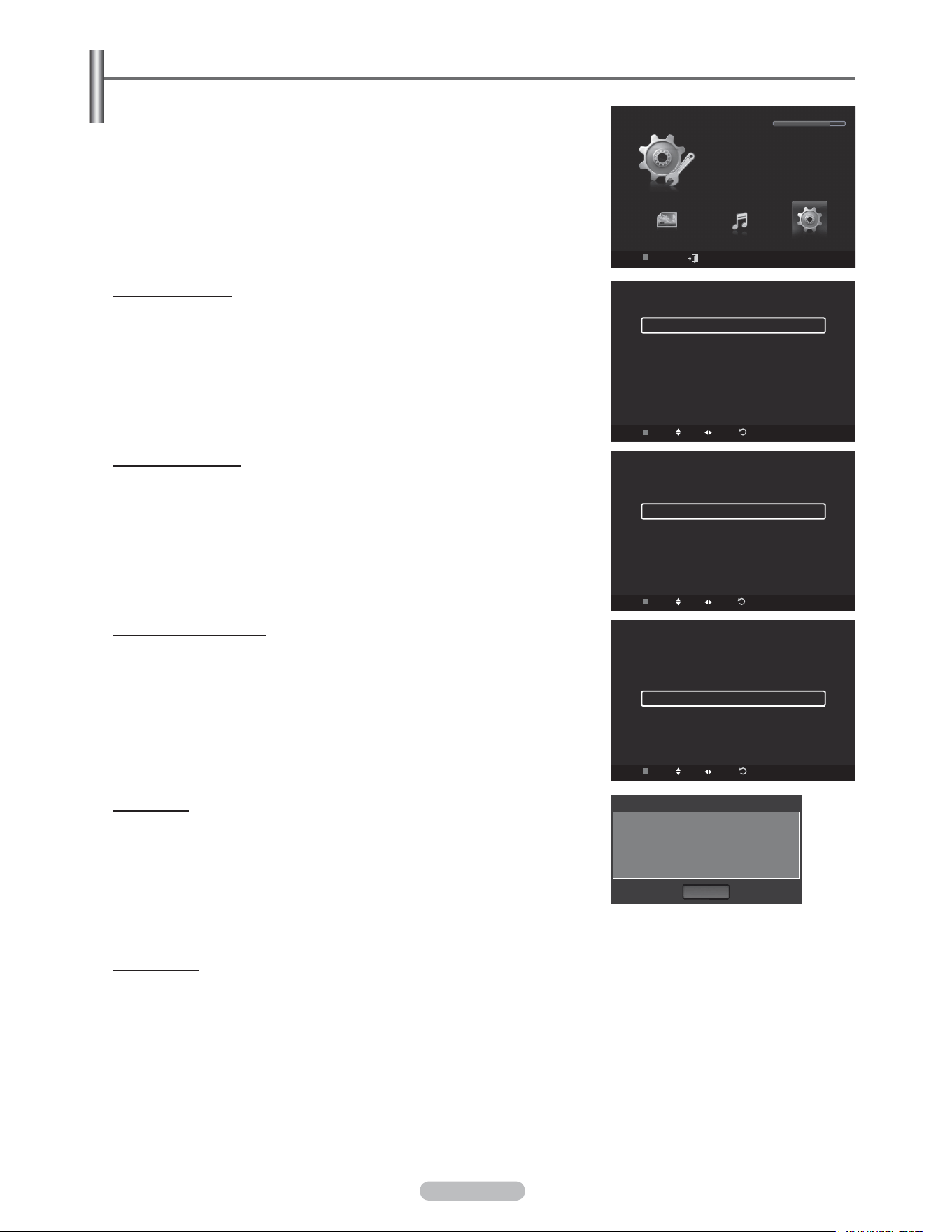
English - 87
Using the Setup Menu
Setup displays the user settings of the WISELINK menu.
1 Press the W.LINK button on the remote control to display the WISELINK
menu.
2 Press the ◄ or ► button to select Music, then press the ENTER button.
3 Press the ▲ or ▼ button to select the desired option.
(Slide Show Speed, Music Repeat Mode, Screen Saver Run Time,
Information, Safe Remove)
4 Press the ◄ or ► button to select the option, then press the ENTER
button.
Slide Show Speed
Select to control the slide show speed.
Press the ▲ or ▼ button to select Slide Show Speed.
Press the ◄ or ► button to select Fast, Normal or Slow.
Music Repeat Mode
Select to repeatedly play music files.
Press the ▲ or ▼ button to select Music Repeat Mode.
Press the ◄ or ► button to select On or Off.
Screen Saver Run Time
Select to set the waiting time before the screen saver appears.
Press the ▲ or ▼ button to select Screen Saver Run Time.
Press the ◄ or ► button to select 1 min, 3 min or 5 min.
Information
Select to viewing the information of the connected device.
Press the ▲ or ▼ button to select Information, then press the ENTER button.
Safe Remove
You can remove the device safely from the TV. (Refer to page 80)
To exit WISELINK mode, press the W.LINK button on the remote control.
WISELINK
Photo
USB
Device
Exit
Music Setup
SETUP
USB
851.98MB/995.00MB Free
Setup
USB
Device
Move Adjust
Return
Slide Show Speed ◄ Normal ►
Music Repeat Mode On
Screen Saver Run Time 5 min
Information
Safe Remove
Setup
USB
Device
Move Adjust
Return
Slide Show Speed Normal
Music Repeat Mode ◄ On ►
Screen Saver Run Time 5 min
Information
Safe Remove
Setup
USB
Device
Move Adjust
Return
Slide Show Speed Normal
Music Repeat Mode On
Screen Saver Run Time ◄ 5 min ►
Information
Safe Remove
Device Type : USB
Device : USB????
Available Memory : 852.90MB
Total Memory : 995.00MB
OK
Device Info
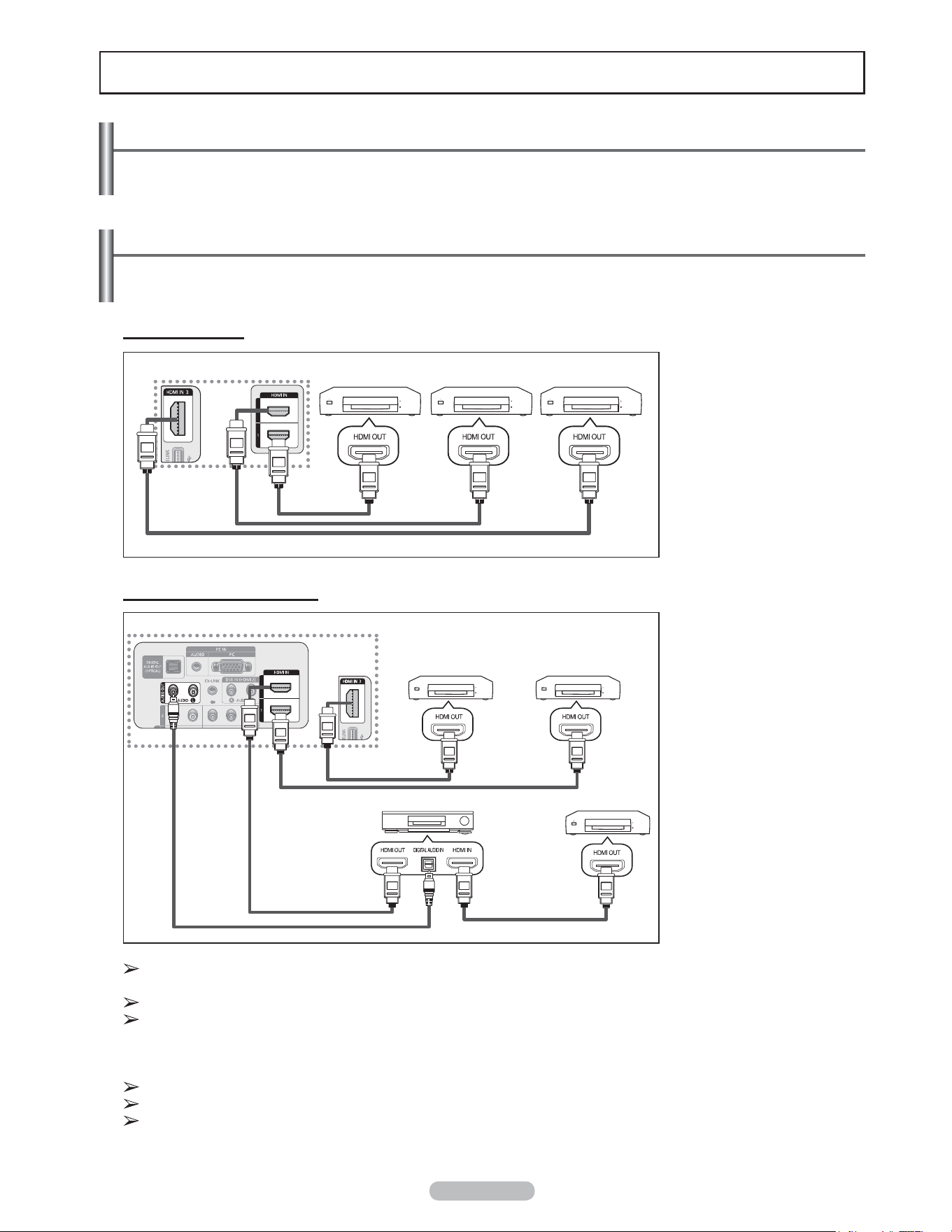
English - 88
Connecting Anynet
+
Devices
The Anynet+ system can be used only with Samsung devices that have the Anynet+ feature. To be sure your
Samsung device has this feature, check if there is an Anynet+ logo on it.
To connect to a TV
Connect the [HDMI 1], [HDMI 2]
or [HDMI 3] jack on the TV
and the HDMI OUT jack of the
corresponding Anynet
+
device
using an HDMI cable.
To connect to a Home Theater
1. Connect the [HDMI 1],
[HDMI 2] or [HDMI 3]
jack on the TV and the
HDMI OUT jack of the
corresponding Anynet
+
device using an HDMI
cable.
2. Connect the HDMI IN jack
of the home theater and
the HDMI OUT jack of the
corresponding Anynet
+
device using an HDMI
cable.
Connect the Optical cable between the Digital Audio Out (Optical) jack on your TV and the Digital Audio Input on the
Home Theater.
Connect only one Home Theater.
When following the connection above, the Optical jack only outputs 2 channel audio. You will only hear sound from the
Home Theater’s Front Left and Right speakers and the subwoofer. If you want to hear 5.1 channel audio, connect the
DIGITAL AUDIO OUT (OPTICAL) jack on the DVD player or Cable/Satellite Box (ie Anynet Device 1 or 2) directly to
the Amplifier or Home Theater, not the TV. Please see the home theater’s user manual for more information.
Some HDMI cables may not support Anynet
+
functions.
Anynet
+
works when the AV device supporting Anynet
+
is in the Standby or On status.
Anynet
+
supports up to 12 AV devices in total. Note that you can connect up to 3 devices of the same type.
About Anynet
+
What is Anynet
+
?
Anynet+ is a function that enables you to control all connected Samsung devices that support Anynet+ with your
Samsung TV’s remote.
TV
Anynet
+
Device 1 Anynet
+
Device 2
Anynet
+
Device 3
HDMI 1.3 Cable
HDMI 1.3 Cable
HDMI 1.3 Cable
Optical Cable
Home Theater
HDMI 1.3 Cable
TV
Anynet
+
Device 1 Anynet
+
Device 2 Anynet
+
Device 3
HDMI 1.3 Cable
HDMI 1.3 Cable
HDMI 1.3 Cable
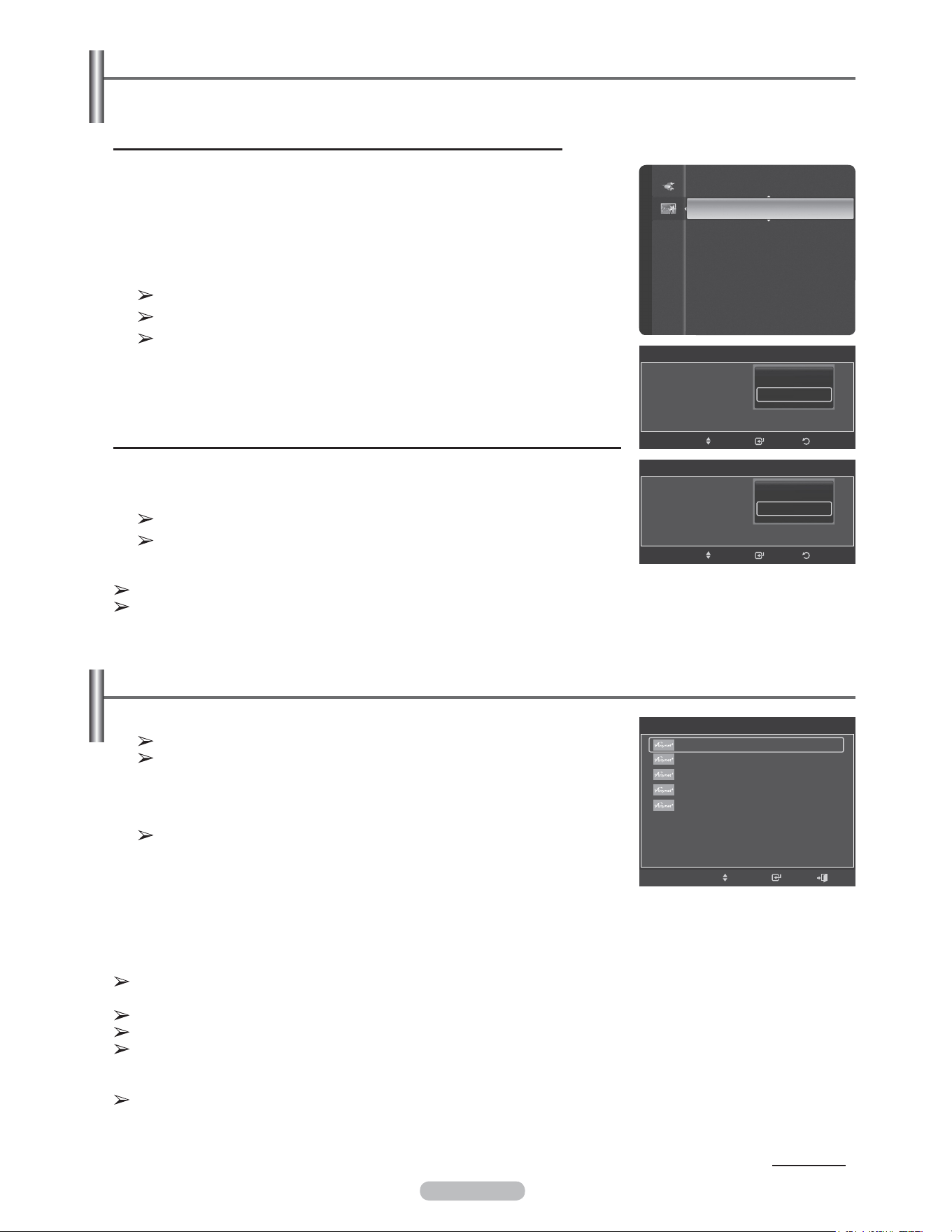
English - 89
Setting Up Anynet
+
The following settings help set the Anynet
+
functions.
Continued...
To use the Anynet+ Function, Anynet+ (HDMI-CEC) must be set to On
1 Press the MENU button. Press the ▲ or ▼ button to select Application, then
press the ENTER button.
2 Press the ▲ or ▼ button to select Anynet+ (HDMI-CEC), then press the
ENTER button.
3 Press the ▲ or ▼ button to select On, then press the ENTER button.
The Anynet+ (HDMI-CEC) function is enabled.
If you select Off, Anynet+ (HDMI-CEC) is disabled.
When the Anynet+ (HDMI-CEC) function is disabled, all the Anynet
+
related
operations are deactivated.
Setting an Anynet+ Device to turn Off Automatically when the TV is Turned Off
2 Press the ▲ or ▼ button to select Auto Turn Off, then press the ENTER button.
3 Press the ▲ or ▼ button to select Yes, then press the ENTER button.
The Auto Turn Off function is enabled.
If you select No, the Auto Turn Off function is canceled.
Press the EXIT button to exit.
Scanning and Switching between Anynet
+
Devices
1 Press the TOOLS button.
Anynet
+
devices connected to the TV are listed.
If you cannot find a device you want, press the red button to scan for
devices.
2 Press the ▲ or ▼ button to select a particular device and press the ENTER
button. It is switched to the selected device.
Only when you set Anynet+ (HDMI-CEC) to On in the Application menu,
the Device List menu appears.
3 If you cannot find a device you want, press the ▲ or ▼ button to select
Searching Connections, then press the ENTER button.
The message Configuring Anynet
+
connection... is displayed.
When searching devices complete, the connected devices are listed in the
Anynet+ menu.
The active source on the TV remote must be set to TV to use the Anynet
+
function.
If you set Auto Turn Off to Yes, connected external devices are also turned off when the TV is turned off.
If an external device is still recording, it may or may not turn off.
Switching to the selected devices may take up to 2 minutes. You cannot cancel the operation during the switching
operation.
The time required to scan for devices is determined by the number of connected devices.
When the device scan is complete, the number of devices found are not displayed.
Although the TV automatically scans devices when it is turned on using the POWER button, devices connected when
the TV is already on are not displayed in the device list. In this case, select the Searching Connections menu to search
devices.
If you have selected an external device by pressing the SOURCE button, you cannot use the Anynet
+
function. Make
sure to switch to an external Anynet
+
device by using the TOOLS button.
WISELINK
Anynet+ (HDMI-CEC) ►
Application
Anynet+ (HDMI-CEC)
Anynet+ (HDMI-CEC) :
Auto Turn Off :
ReturnEnterMove
Off
On
Anynet+ (HDMI-CEC)
Anynet+ (HDMI-CEC) :
Auto Turn Off :
ReturnEnterMove
No
Yes
TOOLS
Move Enter
View TV
Device List
Recording : DVD
DVD Menu
DVD Menu
Picture Size : 16:9
Picture Mode : Dynamic
Sound Mode : Custom
▼
Exit

English - 90
Anynet
+
Menu
The Anynet
+
menu changes depending on the type and status of the Anynet
+
devices connected to the TV.
Anynet
+
Menu Description
View TV Switches from Anynet+ to TV broadcast mode.
Device List Displays the Anynet+ device list.
Recording: (Device_Name) Starts a recording. (This menu works only for a device supporting recording.)
(Device_Name) Menu Shows the menu of the connected device.
Example: When a DVD Recorder is connected, the DVD Recorder’s title menu appears.
(Device_Name) Operation Shows the play control menu of the connected device.
Example: When a DVD Recorder is connected, the play control menu of the DVD
Recorder appears.
Timer Recording Allows reserving a recording. (This menu works only for a device supporting recording
reservations.)
Stop Recording Stops recording.
Receiver Sound is output through the receiver (home theater).
Setup You can set the Anynet+ (HDMI-CEC), auto turn off, and searching connections for using
Anynet+.
TV Remote Control Buttons Available in Anynet
+
Mode
Device Type Operating Status Available Buttons
Anynet
+
Device
After switching to the device, when the menu of the
corresponding device is displayed on the screen.
Numeric buttons
/ / / / buttons
Color buttons
EXIT button
After switching to the device, while playing a file
(Backward search)
(Forward search)
(Stop)
(Play/Pause)
Device with built-in Tuner
After switching to the device, when you are watching a
TV program
CH / button
Audio Device When a Receiver is activated
VOL / button
MUTE button
The Anynet
+
function only works when the active source on the TV remote control is set to TV.
The REC button works only while in the recordable state.
You cannot control Anynet
+
devices using the buttons on the side of the TV. You can control Anynet
+
devices only
using the TV remote control.
The TV remote control may not work under certain conditions. In this case, reselect the Anynet
+
device.
The Anynet
+
functions do not operate with other manufacturers’ products.
The , operations may differ depending on the device.
Recording
You can make a recording of a TV program using a Samsung recorder.
1 Press the TOOLS button.
2 Press the ▲ or ▼ button to select Recording Immediately and press the ENTER
button. Recording begins.
When there is more than one recording device
When multiple recording devices are connected, the recording devices are listed.
Press the ▲ or ▼ button to select a recording device and press the ENTER button.
Recording begins.
When the recording device is not displayed
Select Device List and press the red button to search devices.
Press the EXIT button to exit.
You can record the source streams by selecting Record after pressing the TOOLS button.
Pressing the REC button will record whatever you are currently watching. If you are watching video from another
device, the video from the device is recorded.
Before recording, check whether the antenna jack is properly connected to the recording device. To properly connect
an antenna to a recording device, refer to the recording device’s users manual.
TOOLS
Move Enter
View TV
Device List
Recording : DVD
DVD Menu
DVD Menu
Picture Size : 16:9
Picture Mode : Dynamic
Sound Mode : Custom
▼
Exit
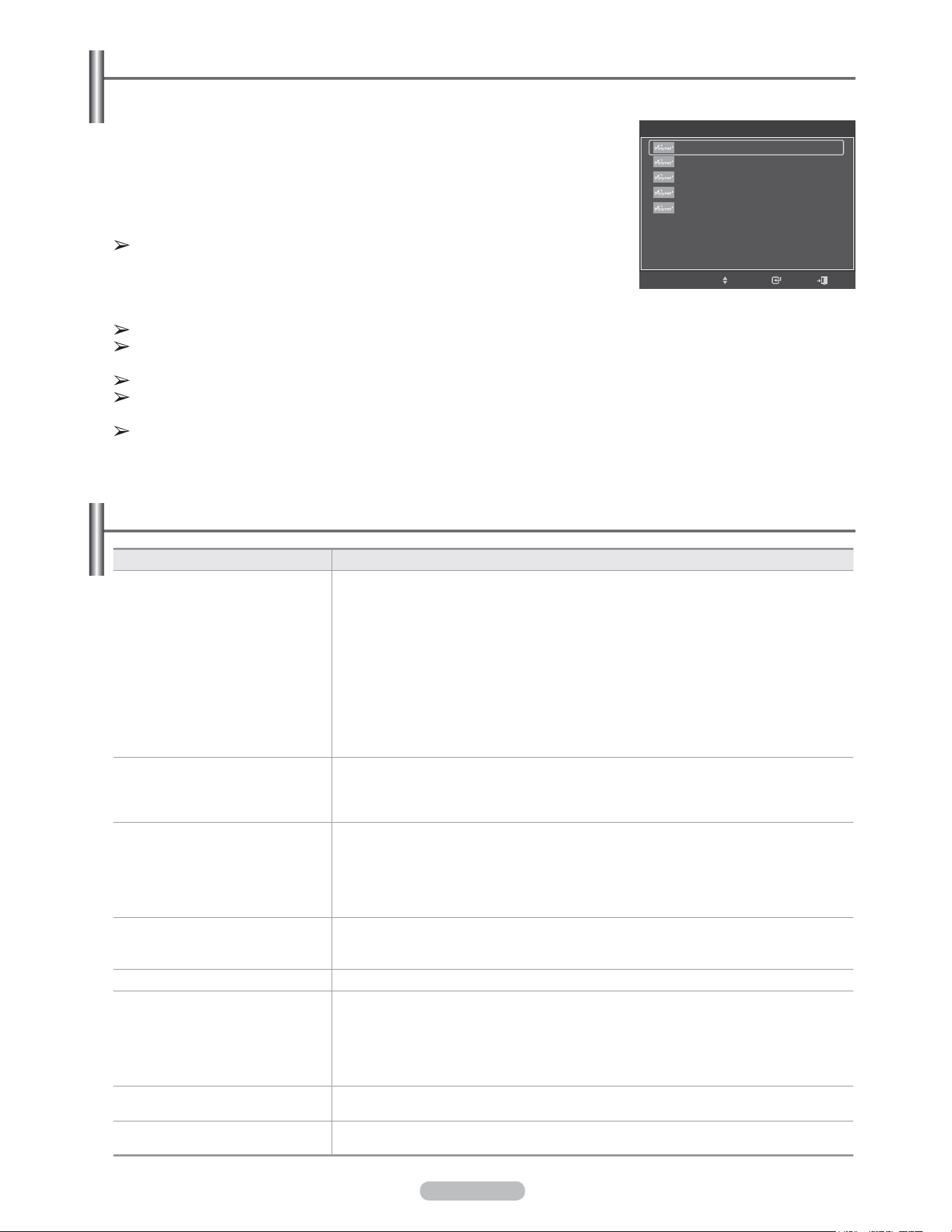
English - 91
Listening through a Receiver (Home theater)
You can listen to sound through a receiver instead of the TV speaker.
1 Press the TOOLS button.
Press the ▲ or ▼ button to select Receiver, then press the ENTER button.
2 Press the ◄ or ► button to select to On, then press the ENTER button.
Now you can listen to sound through the receiver.
3 Press the EXIT button to exit.
When the receiver (home theater) is set to On, you can hear sound output from
the TV’s Optical jack. When the TV is displaying a DTV(air) signal, the TV will
send out 5.1 channel sound to the Home theater receiver. When the source is a
digital component such as a DVD and is connected to the TV via HDMI, only 2
channel sound will be heard from the Home Theater receiver.
If your receiver supports audio only, it may not appear in the device list.
The receiver will work when you have properly connected the Optical IN jack of the receiver to the Optical Out jack of
the TV.
When using the WISELINK feature, sound may not output properly through the receiver.
When listening through the receiver, there are restrictions for using the PIP and audio-related(MTS, Preferred
language) menus.
If there is a power interruption to the TV when the Receiver is On (by disconnecting the power cord or a power
failure), the TV Speaker may be set to Off when you turn the TV on again.
Troubleshooting for Anynet
+
Symptom Solution
Anynet
+
does not work. ■ Check if the device is an Anynet
+
device. The Anynet
+
system supports Anynet
+
devices
only.
■ Connect only one receiver (home theater).
■ Check if the Anynet
+
device power cord is properly connected.
■ Check the Anynet
+
device’s Video/Audio/HDMI 1.3 cable connections.
■ Check whether Anynet+ (HDMI-CEC) is set to On in the Anynet+ setup menu.
■ Check whether the TV remote control is in TV mode.
■ Check whether it is Anynet+ exclusive remote control.
■ Anynet+ doesn’t work in certain situations. (Searching channels, Operating WISELINK)
■ When connecting or removing the HDMI 1.3 cable, please make sure to search devices
again or your TV off and on again.
■ Check if the Anynet+ Function of Anynet+ device is set on.
I want to start Anynet
+
. ■ Check if the Anynet
+
device is properly connected to the TV and check if the Anynet+
(HDMI-CEC) is set to On in the Anynet
+
Setup menu.
■ Press the TV button on the TV remote control to switch to TV. Then press the TOOLS
button to show the Anynet
+
menu and select a menu you want.
I want to exit Anynet
+
. ■ Select View TV in the Anynet
+
menu.
■ Press the SOURCE button on the TV remote control and select a device other than
Anynet
+
menu.
■ Press CH, CH LIST, PRE-CH, and FAV.CH to change the TV mode.
(Note that the channel button operates only when an Anynet
+
device with a built-in tuner is
not connected.)
The message Connecting to
Anynet
+
device... appears on the
screen.
■ You cannot use the remote control when you are configuring Anynet
+
or switching to a
view mode.
■ Use the remote control when the Anynet
+
setting or switching to view mode is complete.
The Anynet
+
device does not play. You cannot use the play function when Plug & Play is in progress.
The connected device is not
displayed.
■ Check whether or not the device supports Anynet
+
functions.
■ Check whether or not the HDMI 1.3 cable is properly connected.
■ Check whether Anynet+ (HDMI-CEC) is set to On in the Anynet+ setup menu.
■ Search Anynet+ devices again.
■ You can connect an Anynet
+
device using the HDMI 1.3 cable only. Some HDMI cables
may not support Anynet
+
functions.
The TV program cannot be
recorded.
Check whether the antenna jack on the recording device is properly connected.
The TV sound is not output through
the receiver.
Connect the optical cable between TV and the receiver.
TOOLS
Move Enter
View TV
Device List
Recording : DVD
DVD Menu
DVD Menu
Picture Size : 16:9
Picture Mode : Dynamic
Sound Mode : Custom
▼
Exit
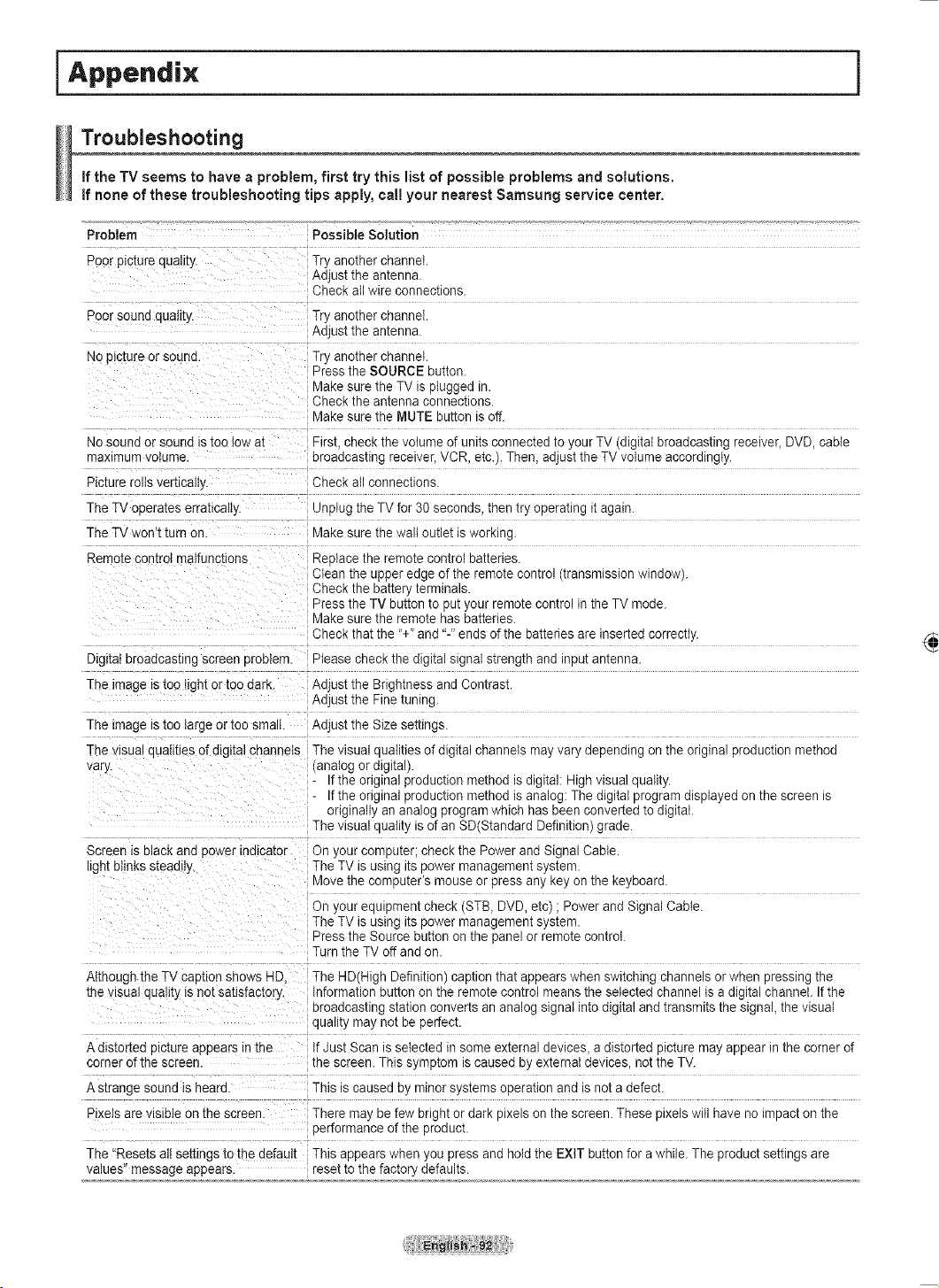
English - 92
Appendix
Pulling, pushing, or climbing on the TV may cause the TV to fall. In particular, ensure your children do not
hang over or destabilize the TV; doing so may cause the TV to tip over, causing serious injuries or death.
Follow all safety precautions provided on the included Safety Flyer. For added stability, install the anti-fall
device for safety purposes, as follows.
To avoid the TV from falling:
1 Put the screws into the clamps and firmly fasten them onto the wall. Confirm that
the screws have been firmly installed onto the wall.
You may need additional material such as an anchor depending on the type of
wall.
Since the necessary clamps, screws, and string are not supplied, please
purchase these additionally.
2 Remove the screws from the center back of the TV, put the screws into the clamps,
and then fasten the screws onto the TV again.
Screws may not be supplied with the product. In this case, please purchase
the screws of the following specifications.
3 Connect the clamps fixed onto the TV and the clamps fixed onto the wall with a
strong string and then tie the string tightly.
Install the TV near to the wall so that it does not fall backwards
.
It is safe to connect the string so that the clamps fixed on the wall are equal to
or lower than the clamps fixed on the TV.
Untie the string before moving the TV.
4 Verify all connections are properly secured. Periodically check connections for
any sign of fatigue for failure. If you have any doubt about the security of your
connections,contact a professional installer.
Wall
Wall
Caution
Securing the TV to the Wall
English - 93
Problem Possible Solution
Poor picture quality. Try another channel.
Adjust the antenna.
Check all wire connections.
Poor sound quality. Try another channel.
Adjust the antenna.
No picture or sound. Try another channel.
Press the SOURCE button.
Make sure the TV is plugged in.
Check the antenna connections.
Make sure the MUTE button is off.
No sound or sound is too low at
maximum volume.
First, check the volume of units connected to your TV (digital broadcasting receiver, DVD, cable
broadcasting receiver, VCR, etc.). Then, adjust the TV volume accordingly.
Picture rolls vertically. Check all connections.
The TV operates erratically. Unplug the TV for 30 seconds, then try operating it again.
The TV won’t turn on. Make sure the wall outlet is working.
Remote control malfunctions Replace the remote control batteries.
Clean the upper edge of the remote control (transmission window).
Check the battery terminals.
Press the TV button to put your remote control in the TV mode.
Make sure the remote has batteries.
Check that the “+” and “-” ends of the batteries are inserted correctly.
Digital broadcasting screen problem. Please check the digital signal strength and input antenna.
The image is too light or too dark. Adjust the Brightness and Contrast.
Adjust the Fine tuning.
The image is too large or too small. Adjust the Size settings.
The visual qualities of digital channels
vary.
The visual qualities of digital channels may vary depending on the original production method
(analog or digital).
- If the original production method is digital: High visual quality.
- If the original production method is analog: The digital program displayed on the screen is
originally an analog program which has been converted to digital.
The visual quality is of an SD(Standard Definition) grade.
Screen is black and power indicator
light blinks steadily.
On your computer; check the Power and Signal Cable.
The TV is using its power management system.
Move the computer’s mouse or press any key on the keyboard.
On your equipment check (STB, DVD, etc) ; Power and Signal Cable.
The TV is using its power management system.
Press the Source button on the panel or remote control.
Turn the TV off and on.
Although the TV caption shows HD,
the visual quality is not satisfactory.
The HD(High Definition) caption that appears when switching channels or when pressing the
Information button on the remote control means the selected channel is a digital channel. If the
broadcasting station converts an analog signal into digital and transmits the signal, the visual
quality may not be perfect.
A distorted picture appears in the
corner of the screen.
If Just Scan is selected in some external devices, a distorted picture may appear in the corner of
the screen. This symptom is caused by external devices, not the TV.
A strange sound is heard. This is caused by minor systems operation and is not a defect.
Pixels are visible on the screen. There may be few bright or dark pixels on the screen. These pixels will have no impact on the
performance of the product.
The “Resets all settings to the default
values” message appears.
This appears when you press and hold the EXIT button for a while. The product settings are
reset to the factory defaults.
Troubleshooting
If the TV seems to have a problem, first try this list of possible problems and solutions.
If none of these troubleshooting tips apply, call your nearest Samsung service center.
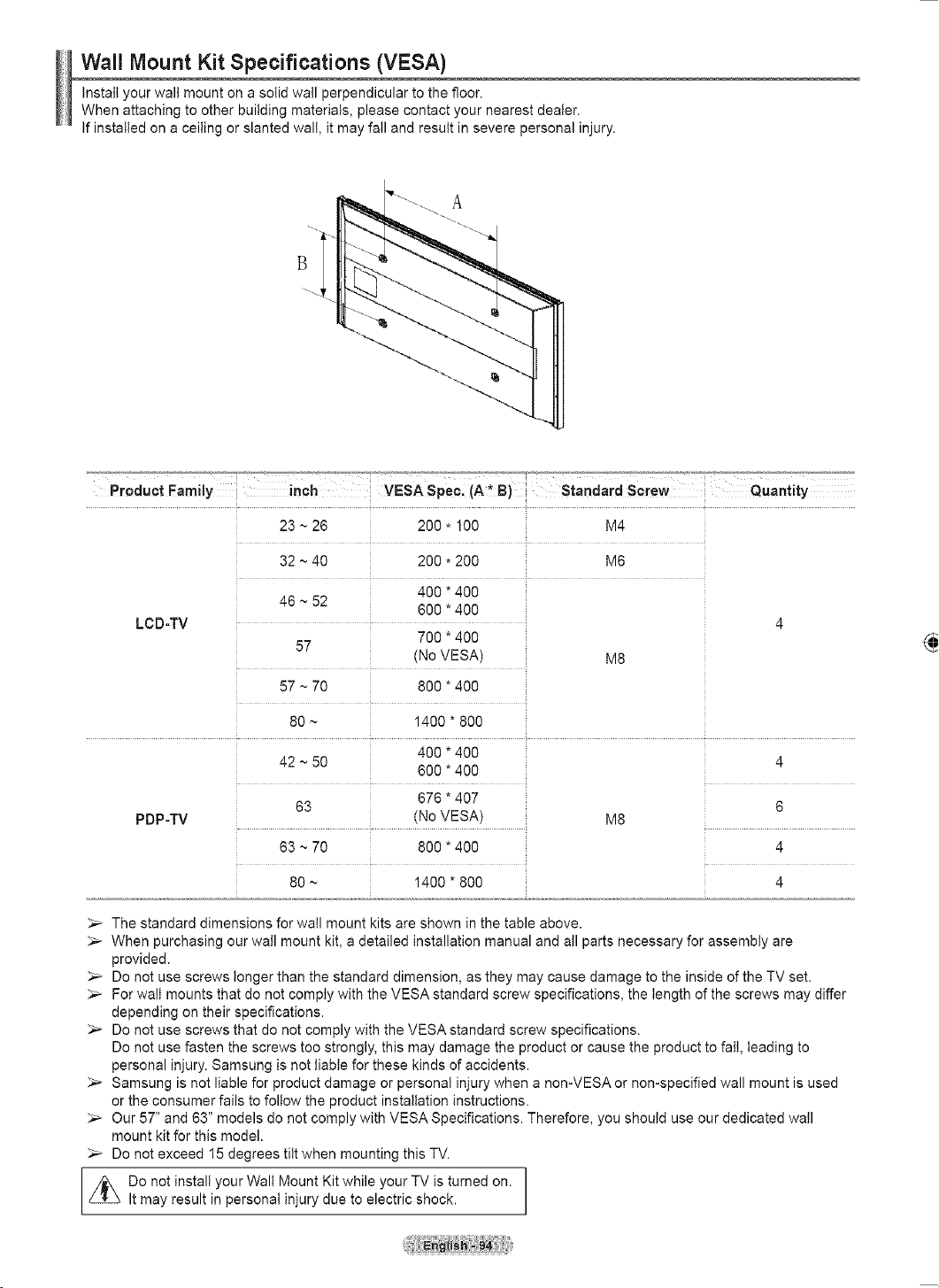
English - 94
Auto Wall-mount adjustment (Sold separately) (PN50A550S1F)
Once the auto wall mount is installed, the position of your TV can be easily adjusted.
Entering the menu
1 Press the ▲, ▼, ◄ or ► button on your remote control.
The Wall Mount Adjustment screen is displayed.
If the Wall Mount Adjustment screen is not displayed when clicking on a
direction button while watching your TV, use the menu to display that screen.
• Press the MENU button to display the menu. Press the ▲ or ▼ button to
select Setup, then press the ENTER button.
• Press the ▲ or ▼ button to select External Settings, then press the
ENTER button.
• Press the ▲ or ▼ button to select Wall-Mount Adjustment, then press the
ENTER button.
Remembering the Position
2 Adjust to the desired position using the ▲, ▼, ◄, ► buttons.
If you press an arrow button when no OSD is displayed on the TV screen, the
Adjustment screen appears.
Press the INFO button to reset. Press the ◄ or ► button to select Yes, then
press the ENTER button. The position is initialized to the default setting.
3 Press the Blue button.
Press the ▲ and ▼ buttons to select a save mode from either Position1,
Position2 or Position3 in order to save the current position.
To not save the current position, press the RETURN button.
When selecting a save mode, you cannot use the Color buttons.
4 Press the ENTER button to save.
When Position1 is selected, the message Current position saved as
Position1 is displayed.
5 Press the ENTER button.
The saved Position appears on the left side of the OSD.
Moving to the remembered position
1 Complete Step 1 of Entering the menu.
2 Pressing a Color (Red, Green, Yellow) button moves the auto wall mount to the
saved position.
You can move the wall mount to one of the 3 pre-set positions by pressing
the Red (Position 1), Green (Position 2) or Yellow (Position 3) buttons.
If you adjust the positon after moving to a pre-set position, the position
display will disappear.
For installation, refer to the Installation Manual provided with the wall mount.
For product installation and the installation and moving of the wall mount, make
sure to consult a specialized installation company.
This installation manual is to be used when attaching the wall mount to a wall. When attaching to other building
materials, please contact your nearest dealer.
The auto wall mount will not work when Anynet+ or WISELINK is operating.
42 inches model is not compatible with the older wall mount model (WMN5090A).
TV Rear Panel
Auto Wall-Mount
EX-LINK Cable (Not supplied)
Save
Adjust
Enter
Select a mode to Save.
Position1
Position2
Position3
Return
Wall-Mount Adjustment
Adjust
Position
1 2 3
INFO
Center
Save
External Settings
Melody : On
Light Effect : Default
Wall-Mount Adjustment
ReturnEnterMove
Wall-Mount Adjustment
Position1
Adjust
Position
1 2 3
INFO Center
Save
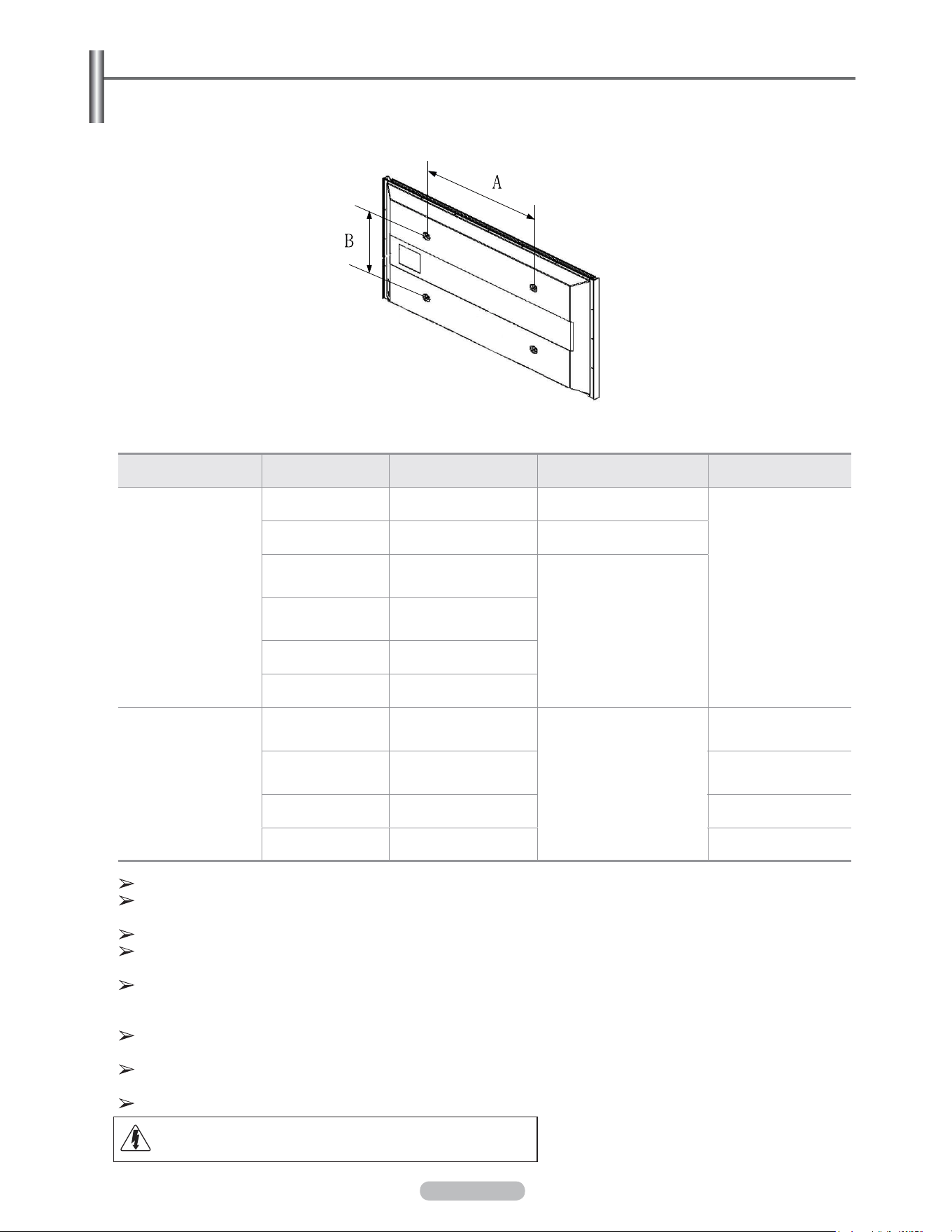
English - 95
Wall Mount Kit Specifications (VESA)
Install your wall mount on a solid wall perpendicular to the floor.
When attaching to other building materials, please contact your nearest dealer.
If installed on a ceiling or slanted wall, it may fall and result in severe personal injury.
Product Family inch VESA Spec. (A * B) Standard Screw Quantity
LCD-TV
23 ~ 26 200
*
100 M4
4
32 ~ 40 200
*
200 M6
46 ~ 52
400 * 400
600 * 400
M8
57
700 * 400
(No VESA)
57 ~ 70 800 * 400
80 ~ 1400 * 800
PDP-TV
42 ~ 50
400 * 400
600 * 400
M8
4
63
676 * 407
(No VESA)
6
63 ~ 70 800 * 400 4
80 ~ 1400 * 800 4
The standard dimensions for wall mount kits are shown in the table above.
When purchasing our wall mount kit, a detailed installation manual and all parts necessary for assembly are
provided.
Do not use screws longer than the standard dimension, as they may cause damage to the inside of the TV set.
For wall mounts that do not comply with the VESA standard screw specifications, the length of the screws may differ
depending on their specifications.
Do not use screws that do not comply with the VESA standard screw specifications.
Do not use fasten the screws too strongly, this may damage the product or cause the product to fall, leading to
personal injury. Samsung is not liable for these kinds of accidents.
Samsung is not liable for product damage or personal injury when a non-VESA or non-specified wall mount is used
or the consumer fails to follow the product installation instructions.
Our 57” and 63” models do not comply with VESA Specifications. Therefore, you should use our dedicated wall
mount kit for this model.
Do not exceed 15 degrees tilt when mounting this TV.
Do not install your Wall Mount Kit while your TV is turned on.
It may result in personal injury due to electric shock.
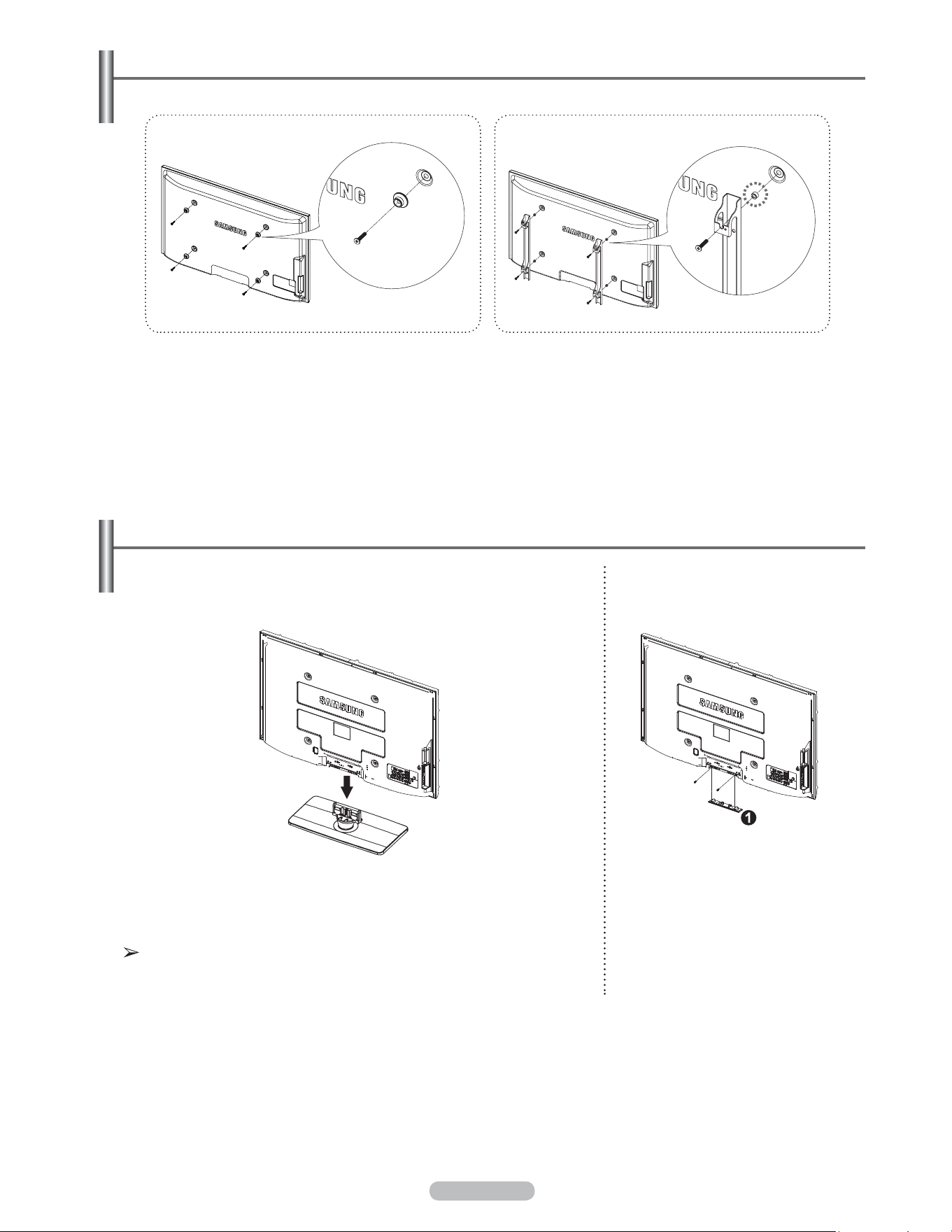
English - 96
Preparing before installing Wall- Mount on the wall
1 Install Wall Mount with the torque range of 15kgf·cm or less. Make sure that parts can be damaged if the torque is out
of the specified range.
2 Accessory Kit contains Holder–Ring [①] for installing other company’s Wall-Mount on Samsung TV. (Case B)
How to attach the Stand-Base
Warning
Firmly secure the stand to the TV before moving it, as the stand may fall and
could cause serious injury.
Two or more people should carry the TV. Never lay the TV on the floor
because of possible damage to the screen. Always store the TV upright.
Using the screws for securing the stand base and the monitor, firmly attach
the monitor to the stand base.
(The exterior of the set may be different from the picture.)
When mounting your TV on a wall,
install the cover (
1
) on the stand-base
using two screws.
Case A. Installing SAMSUNG Wall-Mount Case B. Installing other company’s Wall-Mount
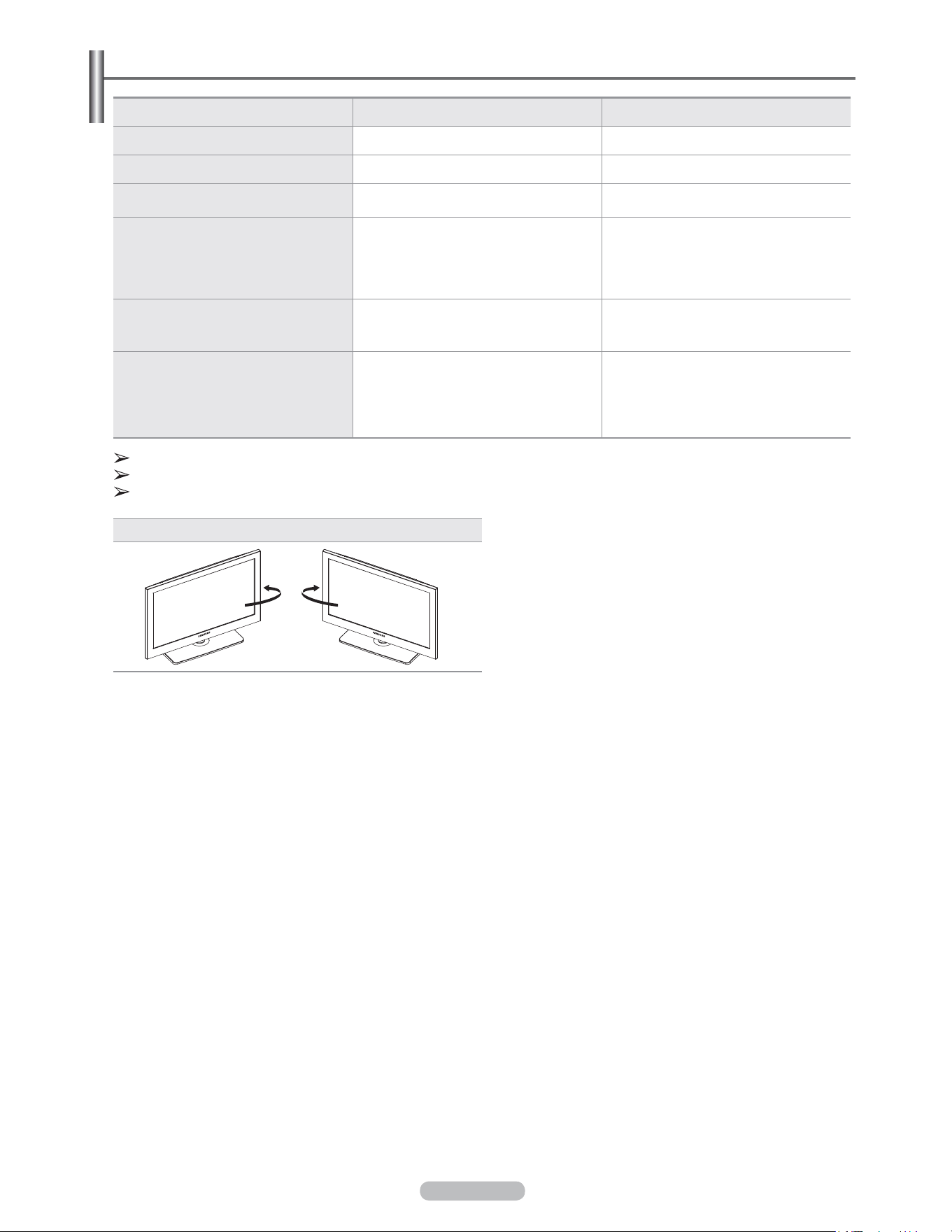
English - 97
Model Name PN50A550S1F PN58A550S1F
Screen Size (Diagonal) 50 inch (49.9 inches measured diagonally) 58 inch (58.0 inches measured diagonally)
PC Resolution 1920 x 1080 @ 60 Hz 1920 x 1080 @ 60 Hz
Sound (Output) 10W x 2 15W x 2
Dimension (W x H x D)
Body
With stand
48.5 x 30.3 x 3.8 inches
(1230.3 x 769.8 x 95.0 mm)
48.5 x 32.7 x 12.6 inches
(1230.3 x 830.6 x 319.9 mm)
55.5 x 34.0 x 3.8 inches
(1407.7 x 862.3 x 95.0 mm)
55.4 x 36.5 x 13.6 inches
(1407.7 x 927.9 x 344.7 mm)
Weight
Body
With stand
82.5 lbs (37.4 Kg)
91.3 lbs (41.4 Kg)
126.3 lbs (57.3 Kg)
138.0 lbs (62.5 Kg)
Environmental Considerations
Operating Temperature
Operating Humidity
Storage Temperature
Storage Humidity
50 °F to 104 °F (10 °C to 40 °C)
10% to 80%, non-condensing
-4 °F to 113 °F (-20 °C to 45 °C)
5% to 95%, non-condensing
50 °F to 104 °F (10 °C to 40 °C)
10% to 80%, non-condensing
-4 °F to 113 °F (-20 °C to 45 °C)
5% to 95%, non-condensing
This device is a Class B digital apparatus.
Design and specifications are subject to change without prior notice.
For the power supply and Power Consumption, refer to the label attached to the product.
Stand Swivel (Left / Right)
Specifications
-20° ~ 20°
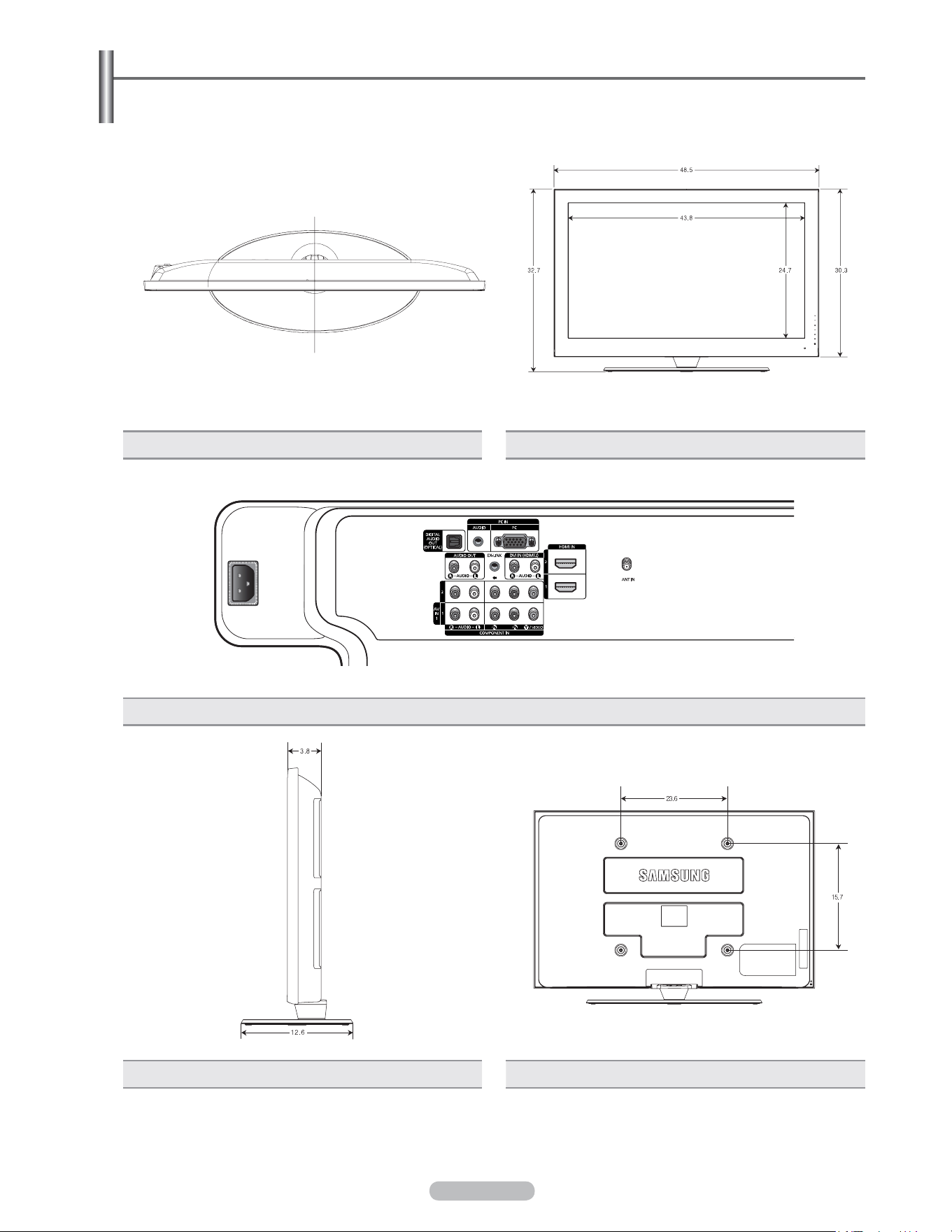
English - 98
Dimensions (PN50A550S1F)
NOTE: All drawings not necessarily to scale. Some
dimensions are subject to change without prior notice.
Refer to dimensions on each unit prior to performing
any carpentry. Not responsible for typographical or
printed errors.
© 2008 Samsung Electronics America, Inc.
TOP VIEW FRONT VIEW
JACK PANEL DETAIL 7.2 x 3.7 inches
SIDE VIEW REAR VIEW
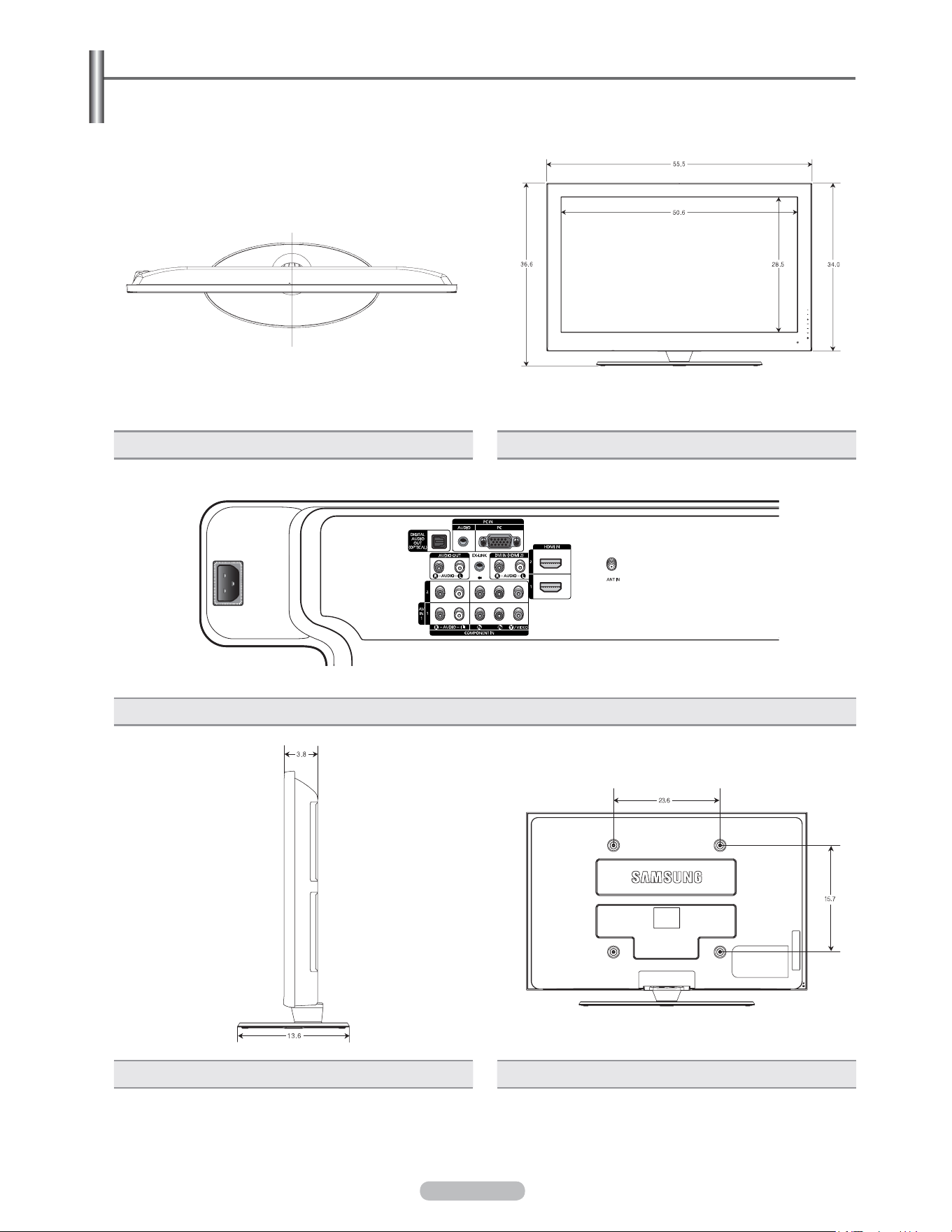
English - 99
Dimensions (PN58A550S1F)
NOTE: All drawings not necessarily to scale. Some
dimensions are subject to change without prior notice.
Refer to dimensions on each unit prior to performing
any carpentry. Not responsible for typographical or
printed errors.
© 2008 Samsung Electronics America, Inc.
TOP VIEW FRONT VIEW
JACK PANEL DETAIL 7.2 x 3.7 inches
SIDE VIEW REAR VIEW

English - 100
The GNU General Public License (GPL)
Version 2, June 1991
Copyright (C) 1989, 1991 Free Software Foundation, Inc. 59 Temple Place, Suite 330, Boston, MA 02111-1307 USA
Everyone is permitted to copy and distribute verbatim copies of this license document, but changing it is not allowed.
Preamble
The licenses for most software are designed to take away your freedom to share and change it. By contrast, the GNU
General Public License is intended to guarantee your freedom to share and change free software--to make sure the
software is free for all its users. This General Public License applies to most of the Free Software Foundation’s software and
to any other program whose authors commit to using it. (Some other Free Software Foundation software is covered by the
GNU Library General Public License instead.) You can apply it to your programs, too.
When we speak of free software, we are referring to freedom, not price. Our General Public Licenses are designed to
make sure that you have the freedom to distribute copies of free software (and charge for this service if you wish), that you
receive source code or can get it if you want it, that you can change the software or use pieces of it in new free programs;
and th at you know you can do these things.
To protect your rights, we need to make restrictions that forbid anyone to deny you these rights or to ask you to surrender
the rights. These restrictions translate to certain responsibilities for you if you distribute copies of the software, or if you
modify it.
For example, if you distribute copies of such a program, whether gratis or for a fee, you must give the recipients all the
rights that you have. You must make sure that they, too, receive or can get the source code. And you must show them these
terms so they know their rights.
We protect your rights with two steps: (1) copyright the software, and (2) offer you this license which gives you legal
permission to copy, distribute and/or modify the software.
Also, for each author’s protection and ours, we want to make certain that everyone understands that there is no warranty for
this free software. If the software is modified by someone else and passed on, we want its recipients to know that what they
have is not the original, so that any problems introduced by others will not reflect on the original authors’ reputations.
Finally, any free program is threatened constantly by software patents. We wish to avoid the danger that redistributors of a
free program will individually obtain patent licenses, in effect making the program proprietary. To prevent this, we have made
it clear that any patent must be licensed for everyone’s free use or not licensed at all.
The precise terms and conditions for copying, distribution and modification follow.
TERMS AND CONDITIONS FOR COPYING, DISTRIBUTION AND MODIFICATION
0. This License applies to any program or other work which contains a notice placed by the copyright holder saying it may
be distributed under the terms of this General Public License. The “Program”, below, refers to any such program or work,
and a “work based on the Program” means either the Program or any derivative work under copyright law: that is to say, a
work containing the Program or a portion of it, either verbatim or with modifications and/or translated into another language.
(Hereinafter, translation is included without limitation in the term “modification”.) Each licensee is addressed as “you”.
Activities other than copying, distribution and modification are not covered by this License; they are outside its scope. The
act of running the Program is not restricted, and the output from the Program is covered only if its contents constitute a work
based on the Program (independent of having been made by running the Program). Whether that is true depends on what
the Program does.
1. You may copy and distribute verbatim copies of the Program’s source code as you receive it, in any medium, provided
that you conspicuously and appropriately publish on each copy an appropriate copyright notice and disclaimer of warranty;
keep intact all the notices that refer to this License and to the absence of any warranty; and give any other recipients of the
Program a copy of this License along with the Program.
You may charge a fee for the physical act of transferring a copy, and you may at your option offer warranty protection in
exchange for a fee.
2. You may modify your copy or copies of the Program or any portion of it, thus forming a work based on the Program, and
copy and distribute such modifications or work under the terms of Section 1 above, provided that you also meet all of these
conditions:
a) You must cause the modified files to carry prominent notices stating that you changed the files and the date of any
change.
b) You must cause any work that you distribute or publish, that in whole or in part contains or is derived from the
Program or any part thereof, to be licensed as a whole at no charge to all third parties under the terms of this License.
c) If the modified program normally reads commands interactively when run, you must cause it, when started running
for such interactive use in the most ordinary way, to print or display an announcement including an appropriate
copyright notice and a notice that there is no warranty (or else, saying that you provide a warranty) and that users may
redistribute the program under these conditions, and telling the user how to view a copy of this License. (Exception: if
the Program itself is interactive but does not normally print such an announcement, your work based on the Program is
not required to print an announcement.)

English - 101
These requirements apply to the modified work as a whole. If identifiable sections of that work are not derived from the
Program, and can be reasonably considered independent and separate works in themselves, then this License, and its
terms, do not apply to those sections when you distribute them as separate works. But when you distribute the same
sections as part of a whole which is a work based on the Program, the distribution of the whole must be on the terms of this
License, whose permissions for other licensees extend to the entire whole, and thus to each and every part regardless of
who wrote it.
Thus, it is not the intent of this section to claim rights or contest your rights to work written entirely by you; rather, the intent
is to exercise the right to control the distribution of derivative or collective works based on the Program.
In addition, mere aggregation of another work not based on the Program with the Program (or with a work based on the
Program) on a volume of a storage or distribution medium does not bring the other work under the scope of this License.
3. You may copy and distribute the Program (or a work based on it, under Section 2) in object code or executable form
under the terms of Sections 1 and 2 above provided that you also do one of the following:
a) Accompany it with the complete corresponding machine-readable source code, which must be distributed under the
terms of Sections 1 and 2 above on a medium customarily used for software interchange; or,
b) Accompany it with a written offer, valid for at least three years, to give any third party, for a charge no more than your
cost of physically performing source distribution, a complete machine-readable copy of the corresponding source code,
to be distributed under the terms of Sections 1 and 2 above on a medium customarily used for software interchange;
or,
c) Accompany it with the information you received as to the offer to distribute corresponding source code. (This
alternative is allowed only for noncommercial distribution and only if you received the program in object code or
executable form with such an offer, in accord with Subsection b above.)
The source code for a work means the preferred form of the work for making modifications to it. For an executable work,
complete source code means all the source code for all modules it contains, plus any associated interface definition files,
plus the scripts used to control compilation and installation of the executable. However, as a special exception, the source
code distributed need not include anything that is normally distributed (in either source or binary form) with the major
components (compiler, kernel, and so on) of the operating system on which the executable runs, unless that component
itself accompanies the executable.
If distribution of executable or object code is made by offering access to copy from a designated place, then offering
equivalent access to copy the source code from the same place counts as distribution of the source code, even though third
parties are not compelled to copy the source along with the object code.
4. You may not copy, modify, sublicense, or distribute the Program except as expressly provided under this License. Any
attempt otherwise to copy, modify, sublicense or distribute the Program is void, and will automatically terminate your rights
under this License. However, parties who have received copies, or rights, from you under this License will not have their
licenses terminated so long as such parties remain in full compliance.
5. You are not required to accept this License, since you have not signed it. However, nothing else grants you permission
to modify or distribute the Program or its derivative works. These actions are prohibited by law if you do not accept this
License. Therefore, by modifying or distributing the Program (or any work based on the Program), you indicate your
acceptance of this License to do so, and all its terms and conditions for copying, distributing or modifying the Program or
works based on it.
6. Each time you redistribute the Program (or any work based on the Program), the recipient automatically receives a
license from the original licensor to copy, distribute or modify the Program subject to these terms and conditions. You may
not impose any further restrictions on the recipients’ exercise of the rights granted herein. You are not responsible for
enforcing compliance by third parties to this License.
7. If, as a consequence of a court judgment or allegation of patent infringement or for any other reason (not limited to patent
issues), conditions are imposed on you (whether by court order, agreement or otherwise) that contradict the conditions
of this License, they do not excuse you from the conditions of this License. If you cannot distribute so as to satisfy
simultaneously your obligations under this License and any other pertinent obligations, then as a consequence you may not
distribute the Program at all. For example, if a patent license would not permit royalty-free redistribution of the Program by
all those who receive copies directly or indirectly through you, then the only way you could satisfy both it and this License
would be to refrain entirely from distribution of the Program.
If any portion of this section is held invalid or unenforceable under any particular circumstance, the balance of the section is
intended to apply and the section as a whole is intended to apply in other circumstances.
It is not the purpose of this section to induce you to infringe any patents or other property right claims or to contest validity of
any such claims; this section has the sole purpose of protecting the integrity of the free software distribution system, which
is implemented by public license practices. Many people have made generous contributions to the wide range of software
distributed through that system in reliance on consistent application of that system; it is up to the author/donor to decide if
he or she is willing to distribute software through any other system and a licensee cannot impose that choice.
This section is intended to make thoroughly clear what is believed to be a consequence of the rest of this License.
8. If the distribution and/or use of the Program is restricted in certain countries either by patents or by copyrighted
interfaces, the original copyright holder who places the Program under this License may add an explicit geographical
distribution limitation excluding those countries, so that distribution is permitted only in or among countries not thus
excluded. In such case, this License incorporates the limitation as if written in the body of this License.

English - 102
9. The Free Software Foundation may publish revised and/or new versions of the General Public License from time to
time. Such new versions will be similar in spirit to the present version, but may differ in detail to address new problems or
concerns.
Each version is given a distinguishing version number. If the Program specifies a version number of this License which
applies to it and “any later version”, you have the option of following the terms and conditions either of that version or of any
later version published by the Free Software Foundation. If the Program does not specify a version number of this License,
you may choose any version ever published by the Free Software Foundation.
10. If you wish to incorporate parts of the Program into other free programs whose distribution conditions are different, write
to the author to ask for permission. For software which is copyrighted by the Free Software Foundation, write to the Free
Software Foundation; we sometimes make exceptions for this. Our decision will be guided by the two goals of preserving
the free status of all derivatives of our free software and of promoting the sharing and reuse of software generally.
NO WARRANTY
11. BECAUSE THE PROGRAM IS LICENSED FREE OF CHARGE, THERE IS NO WARRANTY FOR THE PROGRAM,
TO THE EXTENT PERMITTED BY APPLICABLE LAW. EXCEPT WHEN OTHERWISE STATED IN WRITING THE
COPYRIGHT HOLDERS AND/OR OTHER PARTIES PROVIDE THE PROGRAM “AS IS” WITHOUT WARRANTY OF
ANY KIND, EITHER EXPRESSED OR IMPLIED, INCLUDING, BUT NOT LIMITED TO, THE IMPLIED WARRANTIES OF
MERCHANTABILITY AND FITNESS FOR A PARTICULAR PURPOSE. THE ENTIRE RISK AS TO THE QUALITY AND
PERFORMANCE OF THE PROGRAM IS WITH YOU. SHOULD THE PROGRAM PROVE DEFECTIVE, YOU ASSUME
THE COST OF ALL NECESSARY SERVICING, REPAIR OR CORRECTION.
12. IN NO EVENT UNLESS REQUIRED BY APPLICABLE LAW OR AGREED TO IN WRITING WILL ANY COPYRIGHT
HOLDER, OR ANY OTHER PARTY WHO MAY MODIFY AND/OR REDISTRIBUTE THE PROGRAM AS PERMITTED
ABOVE, BE LIABLE TO YOU FOR DAMAGES, INCLUDING ANY GENERAL, SPECIAL, INCIDENTAL OR
CONSEQUENTIAL DAMAGES ARISING OUT OF THE USE OR INABILITY TO USE THE PROGRAM (INCLUDING BUT
NOT LIMITED TO LOSS OF DATA OR DATA BEING RENDERED INACCURATE OR LOSSES SUSTAINED BY YOU OR
THIRD PARTIES OR A FAILURE OF THE PROGRAM TO OPERATE WITH ANY OTHER PROGRAMS), EVEN IF SUCH
HOLDER OR OTHER PARTY HAS BEEN ADVISED OF THE POSSIBILITY OF SUCH DAMAGES.
END OF TERMS AND CONDITIONS
How to Apply These Terms to Your New Programs
If you develop a new program, and you want it to be of the greatest possible use to the public, the best way to achieve this
is to make it free software which everyone can redistribute and change under these terms.
To do so, attach the following notices to the program. It is safest to attach them to the start of each source file to most
effectively convey the exclusion of warranty; and each file should have at least the “copyright” line and a pointer to where
the full notice is found.
One line to give the program’s name and a brief idea of what it does.
Copyright (C) <year> <name of author>
This program is free software; you can redistribute it and/or modify it under the terms of the GNU General Public
License as published by the Free Software Foundation; either version 2 of the License, or (at your option) any later
version.
This program is distributed in the hope that it will be useful, but WITHOUT ANY WARRANTY; without even the implied
warranty of MERCHANTABILITY or FITNESS FOR A PARTICULAR PURPOSE. See the GNU General Public License
for more details.
You should have received a copy of the GNU General Public License along with this program; if not, write to the Free
Software Foundation, Inc., 59 Temple Place, Suite 330, Boston, MA 02111-1307 USA
Also add information on how to contact you by electronic and paper mail.
If the program is interactive, make it output a short notice like this when it starts in an interactive mode:
Gnomovision version 69, Copyright (C) year name of author Gnomovision comes with ABSOLUTELY NO WARRANTY;
for details type `show w’. This is free software, and you are welcome to redistribute it under certain conditions; type
`show c’ for details.
The hypothetical commands `show w’ and `show c’ should show the appropriate parts of the General Public License. Of
course, the commands you use may be called something other than `show w’ and `show c’; they could even be mouse-
clicks or menu items--whatever suits your program.
You should also get your employer (if you work as a programmer) or your school, if any, to sign a “copyright disclaimer” for
the program, if necessary. Here is a sample; alter the names:
Yoyodyne, Inc., hereby disclaims all copyright interest in the program `Gnomovision’ (which makes passes at
compilers) written by James Hacker.
signature of Ty Coon, 1 April 1989
Ty Coon, President of Vice
This General Public License does not permit incorporating your program into proprietary programs. If your program is a
subroutine library, you may consider it more useful to permit linking proprietary applications with the library. If this is what
you want to do, use the GNU Library General Public License instead of this License.

English - 103
GNU Lesser General Public License (LGPL)
Version 2.1, February 1999
Copyright (C) 1991, 1999 Free Software Foundation, Inc. 59 Temple Place, Suite 330, Boston, MA 02111-1307 USA
Everyone is permitted to copy and distribute verbatim copies of this license document, but changing it is not allowed.
[This is the first released version of the Lesser GPL. It also counts as the successor of the GNU Library Public License,
version 2, hence the version number 2.1.]
Preamble
The licenses for most software are designed to take away your freedom to share and change it. By contrast, the GNU
General Public Licenses are intended to guarantee your freedom to share and change free software--to make sure the
software is free for all its users.
This license, the Lesser General Public License, applies to some specially designated software packages--typically libraries-
-of the Free Software Foundation and other authors who decide to use it. You can use it too, but we suggest you first think
carefully about whether this license or the ordinary General Public License is the better strategy to use in any particular
case, based on the explanations below.
When we speak of free software, we are referring to freedom of use, not price. Our General Public Licenses are designed to
make sure that you have the freedom to distribute copies of free software (and charge for this service if you wish); that you
receive source code or can get it if you want it; that you can change the software and use pieces of it in new free programs;
and that you are informed that you can do these things.
To protect your rights, we need to make restrictions that forbid distributors to deny you these rights or to ask you to
surrender these rights. These restrictions translate to certain responsibilities for you if you distribute copies of the library or if
you modify it.
For example, if you distribute copies of the library, whether gratis or for a fee, you must give the recipients all the rights that
we gave you. You must make sure that they, too, receive or can get the source code. If you link other code with the library,
you must provide complete object files to the recipients, so that they can relink them with the library after making changes to
the library and recompiling it. And you must show them these terms so they know their rights.
We protect your rights with a two-step method: (1) we copyright the library, and (2) we offer you this license, which gives
you legal permission to copy, distribute and/or modify the library.
To protect each distributor, we want to make it very clear that there is no warranty for the free library. Also, if the library is
modified by someone else and passed on, the recipients should know that what they have is not the original version, so that
the original author’s reputation will not be affected by problems that might be introduced by others.
Finally, software patents pose a constant threat to the existence of any free program. We wish to make sure that a company
cannot effectively restrict the users of a free program by obtaining a restrictive license from a patent holder. Therefore, we
insist that any patent license obtained for a version of the library must be consistent with the full freedom of use specified in
this license.
Most GNU software, including some libraries, is covered by the ordinary GNU General Public License. This license, the
GNU Lesser General Public License, applies to certain designated libraries, and is quite different from the ordinary General
Public License. We use this license for certain libraries in order to permit linking those libraries into non-free programs.
When a program is linked with a library, whether statically or using a shared library, the combination of the two is legally
speaking a combined work, a derivative of the original library. The ordinary General Public License therefore permits such
linking only if the entire combination fits its criteria of freedom. The Lesser General Public License permits more lax criteria
for linking other code with the library.
We call this license the “Lesser” General Public License because it does Less to protect the user’s freedom than the
ordinary General Public License. It also provides other free software developers Less of an advantage over competing
non-free programs. These disadvantages are the reason we use the ordinary General Public License for many libraries.
However, the Lesser license provides advantages in certain special circumstances.
For example, on rare occasions, there may be a special need to encourage the widest possible use of a certain library, so
that it becomes a de-facto standard. To achieve this, non-free programs must be allowed to use the library. A more frequent
case is that a free library does the same job as widely used non-free libraries. In this case, there is little to gain by limiting
the free library to free software only, so we use the Lesser General Public License.
In other cases, permission to use a particular library in non-free programs enables a greater number of people to use a
large body of free software. For example, permission to use the GNU C Library in non-free programs enables many more
people to use the whole GNU operating system, as well as its variant, the GNU/Linux operating system.
Although the Lesser General Public License is Less protective of the users’ freedom, it does ensure that the user of a
program that is linked with the Library has the freedom and the wherewithal to run that program using a modified version of
the Library.
The precise terms and conditions for copying, distribution and modification follow. Pay close attention to the difference
between a “work based on the library” and a “work that uses the library”. The former contains code derived from the library,
whereas the latter must be combined with the library in order to run.

English - 104
TERMS AND CONDITIONS FOR COPYING, DISTRIBUTION AND MODIFICATION
0. This License Agreement applies to any software library or other program which contains a notice placed by the copyright
holder or other authorized party saying it may be distributed under the terms of this Lesser General Public License (also
called “this License”). Each licensee is addressed as “you”.
A “library” means a collection of software functions and/or data prepared so as to be conveniently linked with application
programs (which use some of those functions and data) to form executables.
The “Library”, below, refers to any such software library or work which has been distributed under these terms. A “work
based on the Library” means either the Library or any derivative work under copyright law: that is to say, a work containing
the Library or a portion of it, either verbatim or with modifications and/or translated straightforwardly into another language.
(Hereinafter, translation is included without limitation in the term “modification”.)
“Source code” for a work means the preferred form of the work for making modifications to it. For a library, complete source
code means all the source code for all modules it contains, plus any associated interface definition files, plus the scripts
used to control compilation and installation of the library.
Activities other than copying, distribution and modification are not covered by this License; they are outside its scope. The
act of running a program using the Library is not restricted, and output from such a program is covered only if its contents
constitute a work based on the Library (independent of the use of the Library in a tool for writing it). Whether that is true
depends on what the Library does and what the program that uses the Library does.
1. You may copy and distribute verbatim copies of the Library’s complete source code as you receive it, in any medium,
provided that you conspicuously and appropriately publish on each copy an appropriate copyright notice and disclaimer of
warranty; keep intact all the notices that refer to this License and to the absence of any warranty; and distribute a copy of
this License along with the Library.
You may charge a fee for the physical act of transferring a copy, and you may at your option offer warranty protection in
exchange for a fee.
2. You may modify your copy or copies of the Library or any portion of it, thus forming a work based on the Library, and
copy and distribute such modifications or work under the terms of Section 1 above, provided that you also meet all of these
conditions:
a) The modified work must itself be a software library.
b) You must cause the files modified to carry prominent notices stating that you changed the files and the date of any
change.
c) You must cause the whole of the work to be licensed at no charge to all third parties under the terms of this License.
d) If a facility in the modified Library refers to a function or a table of data to be supplied by an application program
that uses the facility, other than as an argument passed when the facility is invoked, then you must make a good faith
effort to ensure that, in the event an application does not supply such function or table, the facility still operates, and
performs whatever part of its purpose remains meaningful.
(For example, a function in a library to compute square roots has a purpose that is entirely well-defined independent of
the application. Therefore, Subsection 2d requires that any application-supplied function or table used by this function
must be optional: if the application does not supply it, the square root function must still compute square roots.)
These requirements apply to the modified work as a whole. If identifiable sections of that work are not derived from the
Library, and can be reasonably considered independent and separate works in themselves, then this License, and its
terms, do not apply to those sections when you distribute them as separate works. But when you distribute the same
sections as part of a whole which is a work based on the Library, the distribution of the whole must be on the terms
of this License, whose permissions for other licensees extend to the entire whole, and thus to each and every part
regardless of who wrote it.
Thus, it is not the intent of this section to claim rights or contest your rights to work written entirely by you; rather, the
intent is to exercise the right to control the distribution of derivative or collective works based on the Library.
In addition, mere aggregation of another work not based on the Library with the Library (or with a work based on the
Library) on a volume of a storage or distribution medium does not bring the other work under the scope of this License.
3. You may opt to apply the terms of the ordinary GNU General Public License instead of this License to a given copy of the
Library. To do this, you must alter all the notices that refer to this License, so that they refer to the ordinary GNU General
Public License, version 2, instead of to this License. (If a newer version than version 2 of the ordinary GNU General Public
License has appeared, then you can specify that version instead if you wish.) Do not make any other change in these
notices.
Once this change is made in a given copy, it is irreversible for that copy, so the ordinary GNU General Public License
applies to all subsequent copies and derivative works made from that copy.
This option is useful when you wish to copy part of the code of the Library into a program that is not a library.
4. You may copy and distribute the Library (or a portion or derivative of it, under Section 2) in object code or executable
form under the terms of Sections 1 and 2 above provided that you accompany it with the complete corresponding machine-
readable source code, which must be distributed under the terms of Sections 1 and 2 above on a medium customarily used
for software interchange.
If distribution of object code is made by offering access to copy from a designated place, then offering equivalent access to
copy the source code from the same place satisfies the requirement to distribute the source code, even though third parties
are not compelled to copy the source along with the object code.

English - 105
5. A program that contains no derivative of any portion of the Library, but is designed to work with the Library by being
compiled or linked with it, is called a “work that uses the Library”. Such a work, in isolation, is not a derivative work of the
Library, and therefore falls outside the scope of this License.
However, linking a “work that uses the Library” with the Library creates an executable that is a derivative of the Library
(because it contains portions of the Library), rather than a “work that uses the library”. The executable is therefore covered
by this License. Section 6 states terms for distribution of such executables.
When a “work that uses the Library” uses material from a header file that is part of the Library, the object code for the work
may be a derivative work of the Library even though the source code is not. Whether this is true is especially significant if
the work can be linked without the Library, or if the work is itself a library. The threshold for this to be true is not precisely
defined by law.
If such an object file uses only numerical parameters, data structure layouts and accessors, and small macros and small
inline functions (ten lines or less in length), then the use of the object file is unrestricted, regardless of whether it is legally a
derivative work. (Executables containing this object code plus portions of the Library will still fall under Section 6.)
Otherwise, if the work is a derivative of the Library, you may distribute the object code for the work under the terms of
Section 6. Any executables containing that work also fall under Section 6, whether or not they are linked directly with the
Library itself.
6. As an exception to the Sections above, you may also combine or link a “work that uses the Library” with the Library to
produce a work containing portions of the Library, and distribute that work under terms of your choice, provided that the
terms permit modification of the work for the customer’s own use and reverse engineering for debugging such modifications.
You must give prominent notice with each copy of the work that the Library is used in it and that the Library and its use are
covered by this License. You must supply a copy of this License. If the work during execution displays copyright notices, you
must include the copyright notice for the Library among them, as well as a reference directing the user to the copy of this
License. Also, you must do one of these things:
a) Accompany the work with the complete corresponding machine-readable source code for the Library including
whatever changes were used in the work (which must be distributed under Sections 1 and 2 above); and, if the work
is an executable linked with the Library, with the complete machine-readable “work that uses the Library”, as object
code and/or source code, so that the user can modify the Library and then relink to produce a modified executable
containing the modified Library. (It is understood that the user who changes the contents of definitions files in the
Library will not necessarily be able to recompile the application to use the modified definitions.)
b) Use a suitable shared library mechanism for linking with the Library. A suitable mechanism is one that (1) uses at
run time a copy of the library already present on the user’s computer system, rather than copying library functions into
the executable, and (2) will operate properly with a modified version of the library, if the user installs one, as long as
the modified version is interface-compatible with the version that the work was made with.
c) Accompany the work with a written offer, valid for at least three years, to give the same user the materials specified
in Subsection 6a, above, for a charge no more than the cost of performing this distribution.
d) If distribution of the work is made by offering access to copy from a designated place, offer equivalent access to
copy the above specified materials from the same place.
e) Verify that the user has already received a copy of these materials or that you have already sent this user a copy.
For an executable, the required form of the “work that uses the Library” must include any data and utility programs needed
for reproducing the executable from it. However, as a special exception, the materials to be distributed need not include
anything that is normally distributed (in either source or binary form) with the major components (compiler, kernel, and so
on) of the operating system on which the executable runs, unless that component itself accompanies the executable.
It may happen that this requirement contradicts the license restrictions of other proprietary libraries that do not normally
accompany the operating system. Such a contradiction means you cannot use both them and the Library together in an
executable that you distribute.
7. You may place library facilities that are a work based on the Library side-by-side in a single library together with other
library facilities not covered by this License, and distribute such a combined library, provided that the separate distribution
of the work based on the Library and of the other library facilities is otherwise permitted, and provided that you do these two
things:
a) Accompany the combined library with a copy of the same work based on the Library, uncombined with any other
library facilities. This must be distributed under the terms of the Sections above.
b) Give prominent notice with the combined library of the fact that part of it is a work based on the Library, and
explaining where to find the accompanying uncombined form of the same work.
8. You may not copy, modify, sublicense, link with, or distribute the Library except as expressly provided under this License.
Any attempt otherwise to copy, modify, sublicense, link with, or distribute the Library is void, and will automatically terminate
your rights under this License. However, parties who have received copies, or rights, from you under this License will not
have their licenses terminated so long as such parties remain in full compliance.
9. You are not required to accept this License, since you have not signed it. However, nothing else grants you permission to
modify or distribute the Library or its derivative works. These actions are prohibited by law if you do not accept this License.
Therefore, by modifying or distributing the Library (or any work based on the Library), you indicate your acceptance of this
License to do so, and all its terms and conditions for copying, distributing or modifying the Library or works based on it.

English - 106
10. Each time you redistribute the Library (or any work based on the Library), the recipient automatically receives a license
from the original licensor to copy, distribute, link with or modify the Library subject to these terms and conditions. You may
not impose any further restrictions on the recipients’ exercise of the rights granted herein. You are not responsible for
enforcing compliance by third parties with this License.
11. If, as a consequence of a court judgment or allegation of patent infringement or for any other reason (not limited
to patent issues), conditions are imposed on you (whether by court order, agreement or otherwise) that contradict the
conditions of this License, they do not excuse you from the conditions of this License. If you cannot distribute so as to
satisfy simultaneously your obligations under this License and any other pertinent obligations, then as a consequence you
may not distribute the Library at all. For example, if a patent license would not permit royalty-free redistribution of the Library
by all those who receive copies directly or indirectly through you, then the only way you could satisfy both it and this License
would be to refrain entirely from distribution of the Library.
If any portion of this section is held invalid or unenforceable under any particular circumstance, the balance of the section is
intended to apply, and the section as a whole is intended to apply in other circumstances.
It is not the purpose of this section to induce you to infringe any patents or other property right claims or to contest validity of
any such claims; this section has the sole purpose of protecting the integrity of the free software distribution system which
is implemented by public license practices. Many people have made generous contributions to the wide range of software
distributed through that system in reliance on consistent application of that system; it is up to the author/donor to decide if
he or she is willing to distribute software through any other system and a licensee cannot impose that choice.
This section is intended to make thoroughly clear what is believed to be a consequence of the rest of this License.
12. If the distribution and/or use of the Library is restricted in certain countries either by patents or by copyrighted interfaces,
the original copyright holder who places the Library under this License may add an explicit geographical distribution
limitation excluding those countries, so that distribution is permitted only in or among countries not thus excluded. In such
case, this License incorporates the limitation as if written in the body of this License.
13. The Free Software Foundation may publish revised and/or new versions of the Lesser General Public License from time
to time. Such new versions will be similar in spirit to the present version, but may differ in detail to address new problems or
concerns.
Each version is given a distinguishing version number. If the Library specifies a version number of this License which
applies to it and “any later version”, you have the option of following the terms and conditions either of that version or of any
later version published by the Free Software Foundation. If the Library does not specify a license version number, you may
choose any version ever published by the Free Software Foundation.
14. If you wish to incorporate parts of the Library into other free programs whose distribution conditions are incompatible
with these, write to the author to ask for permission. For software which is copyrighted by the Free Software Foundation,
write to the Free Software Foundation; we sometimes make exceptions for this. Our decision will be guided by the two
goals of preserving the free status of all derivatives of our free software and of promoting the sharing and reuse of software
generally.
NO WARRANTY
15. BECAUSE THE LIBRARY IS LICENSED FREE OF CHARGE, THERE IS NO WARRANTY FOR THE LIBRARY,
TO THE EXTENT PERMITTED BY APPLICABLE LAW. EXCEPT WHEN OTHERWISE STATED IN WRITING THE
COPYRIGHT HOLDERS AND/OR OTHER PARTIES PROVIDE THE LIBRARY “AS IS” WITHOUT WARRANTY OF ANY
KIND, EITHER EXPRESSED OR IMPLIED, INCLUDING, BUT NOT LIMITED TO, THE IMPLIED WARRANTIES OF
MERCHANTABILITY AND FITNESS FOR A PARTICULAR PURPOSE. THE ENTIRE RISK AS TO THE QUALITY AND
PERFORMANCE OF THE LIBRARY IS WITH YOU. SHOULD THE LIBRARY PROVE DEFECTIVE, YOU ASSUME THE
COST OF ALL NECESSARY SERVICING, REPAIR OR CORRECTION.
16. IN NO EVENT UNLESS REQUIRED BY APPLICABLE LAW OR AGREED TO IN WRITING WILL ANY COPYRIGHT
HOLDER, OR ANY OTHER PARTY WHO MAY MODIFY AND/OR REDISTRIBUTE THE LIBRARY AS PERMITTED
ABOVE, BE LIABLE TO YOU FOR DAMAGES, INCLUDING ANY GENERAL, SPECIAL, INCIDENTAL OR
CONSEQUENTIAL DAMAGES ARISING OUT OF THE USE OR INABILITY TO USE THE LIBRARY (INCLUDING BUT
NOT LIMITED TO LOSS OF DATA OR DATA BEING RENDERED INACCURATE OR LOSSES SUSTAINED BY YOU OR
THIRD PARTIES OR A FAILURE OF THE LIBRARY TO OPERATE WITH ANY OTHER SOFTWARE), EVEN IF SUCH
HOLDER OR OTHER PARTY HAS BEEN ADVISED OF THE POSSIBILITY OF SUCH DAMAGES.

English - 107
END OF TERMS AND CONDITIONS
How to Apply These Terms to Your New Libraries
If you develop a new library, and you want it to be of the greatest possible use to the public, we recommend making it
free software that everyone can redistribute and change. You can do so by permitting redistribution under these terms (or,
alternatively, under the terms of the ordinary General Public License).
To apply these terms, attach the following notices to the library. It is safest to attach them to the start of each source file to
most effectively convey the exclusion of warranty; and each file should have at least the “copyright” line and a pointer to
where the full notice is found.
<one line to give the library’s name and an idea of what it does.> Copyright (C) <year> <name of author>
This library is free software; you can redistribute it and/or modify it under the terms of the GNU Lesser General Public
License as published by the Free Software Foundation; either version 2.1 of the License, or (at your option) any later
version.
This library is distributed in the hope that it will be useful, but WITHOUT ANY WARRANTY; without even the implied
warranty of MERCHANTABILITY or FITNESS FOR A PARTICULAR PURPOSE. See the GNU Lesser General Public
License for more details.
You should have received a copy of the GNU Lesser General Public License along with this library; if not, write to the
Free Software Foundation, Inc., 59 Temple Place, Suite 330, Boston, MA 02111-1307 USA
Also add information on how to contact you by electronic and paper mail.
You should also get your employer (if you work as a programmer) or your school, if any, to sign a “copyright disclaimer” for
the library, if necessary. Here is a sample; alter the names:
Yoyodyne, Inc., hereby disclaims all copyright interest in the library `Frob’ (a library for tweaking knobs) written by
James Random Hacker.
signature of Ty Coon, 1 April 1990
Ty Coon, President of Vice
That’s all there is to it!

This page is intentionally
left blank.

This page is intentionally
left blank.

Merci d’avoir acheté ce produit Samsung.
Pour obtenir un service complet, veuillez
enregistrer votre produit à :
www.samsung.com/global/register
Modèle : N° de série :
Imaginez les possibilités
Écran à plasma
guide de l'utilisateur

Français - 2
Remarques importantes sur la garantie relative au format de l’image du téléviseur
Le format écran large des écrans à plasma (16:9, soit le rapport hauteur/largeur de l’image) est conçu principalement pour les
vidéos plein écran à écran large. Les images affichées sur ces écrans devraient être principalement du format d’écran large de
rapport 16:9, ou élargies pour remplir l’écran si le modèle est doté de cette fonction et si les images bougent continuellement.
Afficher des graphiques et images fixes à l’écran, comme les barres noires latérales des vidéo pour téléviseur de format
standard et les émissions de ce format doivent se limiter à 5 % du temps d’écoute par semaine.
En outre, l’affichage d’autres images et textes fixes, comme des rapports boursiers, des jeux vidéos, des logos des stations,
des sites Web ou des graphismes et motifs informatiques doit être limité, comme il est indiqué ci-dessus pour tous les
téléviseurs. Afficher des images fixes qui ne respectent pas les directives ci-dessus peut causer un vieillissement
inégal des écrans à plasma en y créant des images rémanentes, subtiles mais permanentes. Pour éviter ce problème,
varier les émissions et les images et regarder principalement des images en mouvement en plein écran, et non pas
des motifs fixes ou des barres noires.
Dans les modèles d’écran à plasma qui offrent des caractéristiques de format d’image, utiliser ces commandes pour obtenir
différents formats en plein écran.
Prendre garde au choix des formats et à leur durée d’utilisation. Le vieillissement inégal d’un écran à plasma causé par la
sélection et l’utilisation d’un format et les images rémanentes ne sont pas couverts par la garantie limitée de Samsung.
© 2008 Samsung Electronics Co., Ltd. All rights reserved.
Assujettie aux exigences, conditions, exclusions et limitations de la garantie limitée originale fournie avec les produits
de Samsung Electronics (SAMSUNG) et les exigences, conditions, exclusions et limitations de la présente garantie,
SAMSUNG offrira en plus un service de réparation sous garantie aux États-Unis pour les produits achetés au Canada et
un service de réparation sous garantie au Canada pour les produits achetés aux États-Unis pendant la période de garantie
précisée à l’origine et pour l’acheteur initial seulement.
Les réparations sous garantie décrites ci-dessus doivent être effectuées dans un centre de réparation agréé SAMSUNG.
En plus de la présente garantie, la garantie limitée originale et une facture datée en tant que preuve d’achat doivent être
présentées au centre de réparation.
Le transport de l’appareil au et à partir du centre de réparation demeure la responsabilité de l’acheteur.
Les conditions couvertes ne sont limitées qu’aux vices de matériaux et de fabrication dans des conditions d’utilisation
normale.
Exclues, mais non pas limitées à, sont les dispositions précisées à l’origine pour le service à domicile ou sur place, durées
de réparation minimales et maximales, échanges ou remplacements, accessoires, options, extensions ou produits non
durables.
Pour obtenir le nom d’un centre de réparation agréé Samsung, appelez sans frais:
Aux États-Unis : 1-800-SAMSUNG (1-800-726-7864) Au Canada : 1-800-SAMSUNG
SAMSUNG ELECTRONICS GARANTIE LIMITÉE POUR L’AMÉRIQUE DU NORD
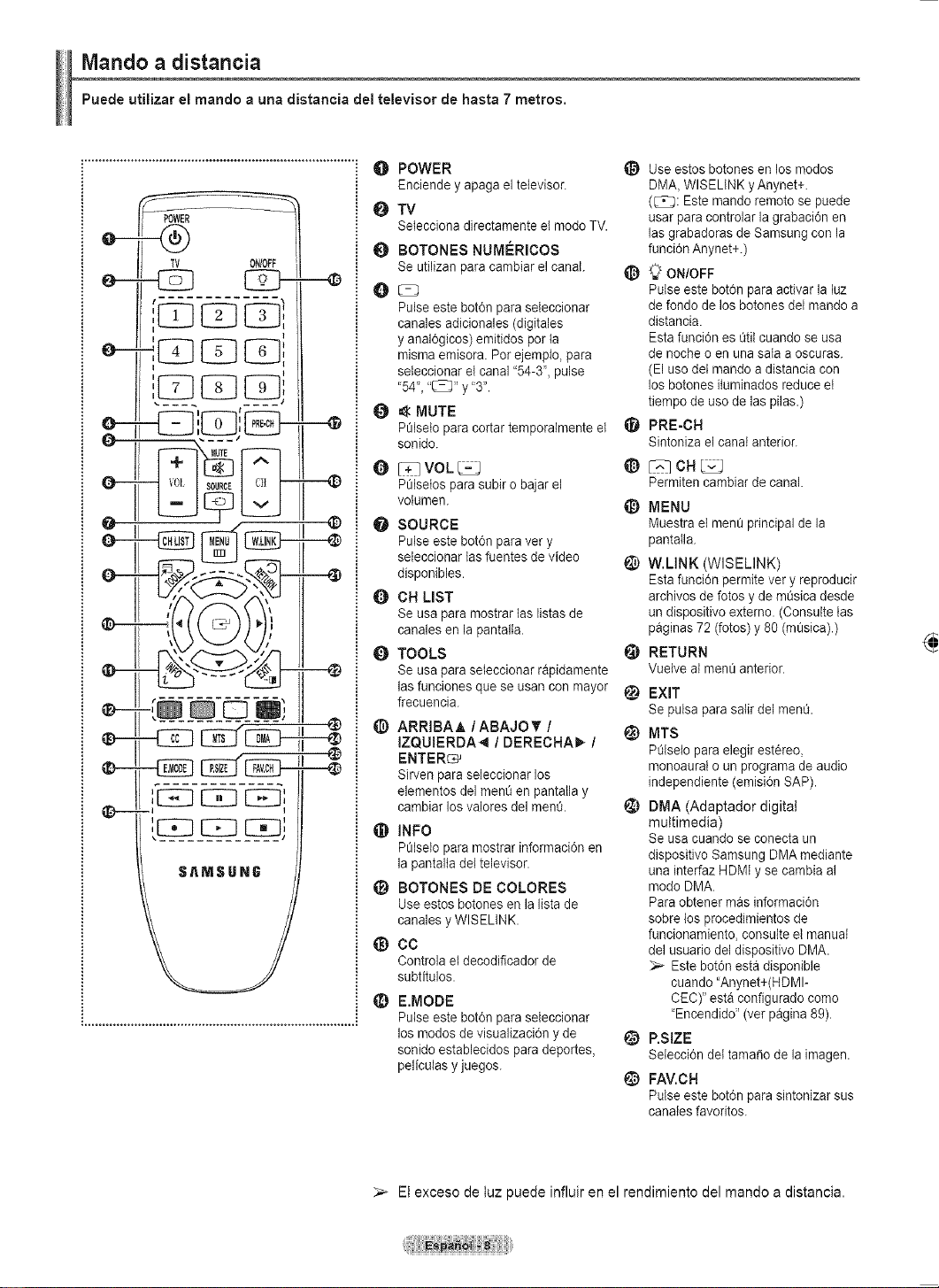
Français - 3
Guide de l’utilisateur
Image rémanente
Un écran à plasma ne doit pas présenter une image fixe (comme celle des jeux vidéos) durant un laps de temps trop
important, car elle peut causer une image rémanente. Ce phénomène est aussi appelé “brûlure d’écran” Pour éviter une
telle image rémanente, la page 23 du présent guide explique comment diminuer la luminosité et le contraste de l’écran
pour afficher une image fixe.
Altitude
L’écran à plasma ne fonctionne normalement qu’à une altitude inférieure à 6500pi.
Chaleur à la partie supérieure de l’écran à plasma
Le dessus de l’appareil peut devenir chaud après un fonctionnement prolongé alors que la chaleur se dissipe par les
orifices de ventilation aménagés dans la partie supérieure de l’écran.
Cet état est normal et n’est pas le signe d’une défectuosité du produit.
Toutefois, il faut empêcher les enfants de toucher cette partie de l’écran.
L’appareil laisse entendre un craquement.
Un craquement peut se produire lorsque l’appareil se contracte ou se dilate à cause d’un changement au milieu ambiant,
comme la température ou l’humidité. Cela est normal et n’est pas le signe d’une défectuosité.
Défauts de cellules
L’écran à plasma comporte de 1,230,000 (définition standard) à 3,150,000 (haute définition) pixels dont la création
nécessite une technologie hautement perfectionnée. Toutefois, il peut y avoir quelques pixels lumineux ou sombres à
l’écran. Ces pixels n’ont aucune incidence sur le rendement du produit.
Éviter de faire fonctionner le téléviseur à une température inférieure à 5°C (41°F)
Une image fixe affichée trop longtemps peut endommager l’écran à plasma de façon permanente.
Le fait de regarder l’écran à plasma en format 4:3 durant une longue période peut laisser des
traces de bordures apparaissant à gauche, à droite et au centre de l’écran causées par une
différence d’émission de lumière à l’écran.
Un DVD ou un jeu vidéo peut avoir le même effet sur l’écran.
Les dommages ainsi provoqués ne sont pas couverts par la garantie.
Image rémanente à l’écran.
Les images fixes des jeux vidéo et des ordinateurs affichées durant une longue période peuvent causer des images
rémanentes partielles.
Pour éviter cet effet, réduire la luminosité et le contraste lorsque des images fixes doivent rester longtemps à l’écran.
Garantie
La garantie ne couvre pas les dommages causés par la rémanence.
L’image rémanente n’est pas couverte par la garantie.

Français - 4
Symboles
Appuyer
Bouton à
une touche
Remarque
Contenu
Renseignements généraux
■ Liste des caractéristiques .............................................5
■ Accessoires ...................................................................5
■ Affichage du panneau de configuration ........................6
■ Affichage du panneau de branchement ........................ 7
■ Télécommande .............................................................8
■ Insertion des piles dans la télécommande ....................9
Branchements
■ Branchement des antennes VHF et UHF .....................9
■ Branchement du câble de télédistribution ...................10
■
Branchement d’un lecteur DVD ou d'un câblosélecteur
ou récepteur (décodeur) à l’aide d’un câble HDMI
.......... 11
■ Branchement d’un lecteur DVD, câblosélecteur ou
récepteur (décodeur) à l’aide d’un câble DVI .............. 11
■
Branchement d’un lecteur DVD, câblosélecteur ou
récepteur (décodeur) à l’aide de câbles de composant
...12
■ Branchement d’un caméscope ...................................12
■ Branchement d’un magnétoscope ..............................13
■ Branchement d’un système audionumérique ..............14
■ Branchement d’un amplificateur ou d’un système
de cinéma maison à DVD ...........................................14
■ Branchement d’un ordinateur ......................................15
Utilisation
■ Mise sous tension/hors tension du téléviseur .............16
■ Fonction Prêt-à-l’emploi ..............................................16
■ Changement de canal .................................................18
■ Réglage du volume .....................................................19
■ Affichage des paramètres ...........................................19
■ Affichage des menus ..................................................19
■ Utilisation de la touche TOOLS ...................................20
■ Mémorisation des canaux ...........................................20
■ Pour choisir la source .................................................22
■ Pour entrer le nom de la source d’entrée ....................22
Réglage de l’image
■ Changement du format normal de l'image ..................23
■ Personnalisation des réglages de l’image ..................23
■ Réglage des détails ....................................................24
■ Configuration des options d'image .............................27
■ Rétablir les réglages de l’image sur les réglages
par défaut ....................................................................34
■ Affichage de l’image sur image ..................................34
Paramètres audio
■ Changement du format normal du son .......................36
■ Réglages audio ...........................................................36
■ Réglage de TruSurround XT .......................................37
■ Sélection de la langue préférée ..................................38
■
Sélection d’une piste de son multicanaux - analogique
......38
■ Contrôle automatique du volume ................................39
■ Activation et désactivation des haut-parleurs du
téléviseur .....................................................................39
■
Écoute du son provenant de la fenêtre secondaire (ISI)
....40
■ Rétablir les réglages sonores sur les réglages par
défaut ..........................................................................40
■
Branchement du casque d'écoute (vendu séparément)
......40
Réglage des canaux
■ Gestion des canaux ....................................................41
■
Suppression des canaux brouillés – canaux numériques
.....47
■ Syntonisation fine des canaux analogiques ................47
■ Contrôle de l’intensité du signal numérique ................ 48
Écran d’ordinateur
■ Utilisation du téléviseur comme écran d’ordinateur ....49
■ Modes d’affichage ...................................................... 49
■ Configuration du téléviseur par l’ordinateur ................50
Réglage de l’heure
■ Réglage de l’horloge ...................................................52
Description des fonctions
■ Sélection de la langue de menu ..................................56
■ Fonction Puce V ..........................................................57
■
Affichage des sous-titres codés (messages à l’écran)
- numérique
s ................................................................65
■ Affichage des sous-titres (messages à l’écran)
- analogiques ..............................................................66
■
Réglage de la mélodie de marche/arrêt du téléviseur
........67
■ Réglage de l’effet lumineux .........................................67
■ Réglage du mode Divertissement ...............................68
■ Fonction économiseur d’énergie .................................68
■ Mise à jour du logiciel .................................................69
Wiselink
■ Utilisation de la fonction WISELINK ............................70
■ Utilisation de la liste de photos ...................................72
■ Visionnement d’une photo ou d’un diaporama ............77
■ Utilisation de la liste musicale .....................................81
■ Lecture d’une fichier musical ......................................85
■ Menu de configuration ................................................87
À propos d’Anynet+
■ Qu’est-ce qu’Anynet+? ...............................................88
■ Branchement d’appareils Anynet+ .............................88
■ Configuration d’Anynet+ .............................................89
■
Balayage et permutation entre les appareils Anynet+
.......89
■ Enregistrement ............................................................90
■ Écoute par l’intermédiaire d’un récepteur
(cinéma maison) .........................................................91
■ Dépannage de la fonction Anynet+ .............................91
Annexe
■ Fixation du téléviseur au mur ......................................92
■ Dépannage .................................................................93
■ Support mural à réglage automatique
(vendu séparément) (PN50A550) ...............................94
■ Spécifications de l’ensemble d’installation murale
(VESA) ........................................................................95
■ Préparation avant de fixer le support mural au mur ....96
■ Comment assembler le support ..................................96
■ Spécifications ..............................................................97
■ Dimensions .................................................................98
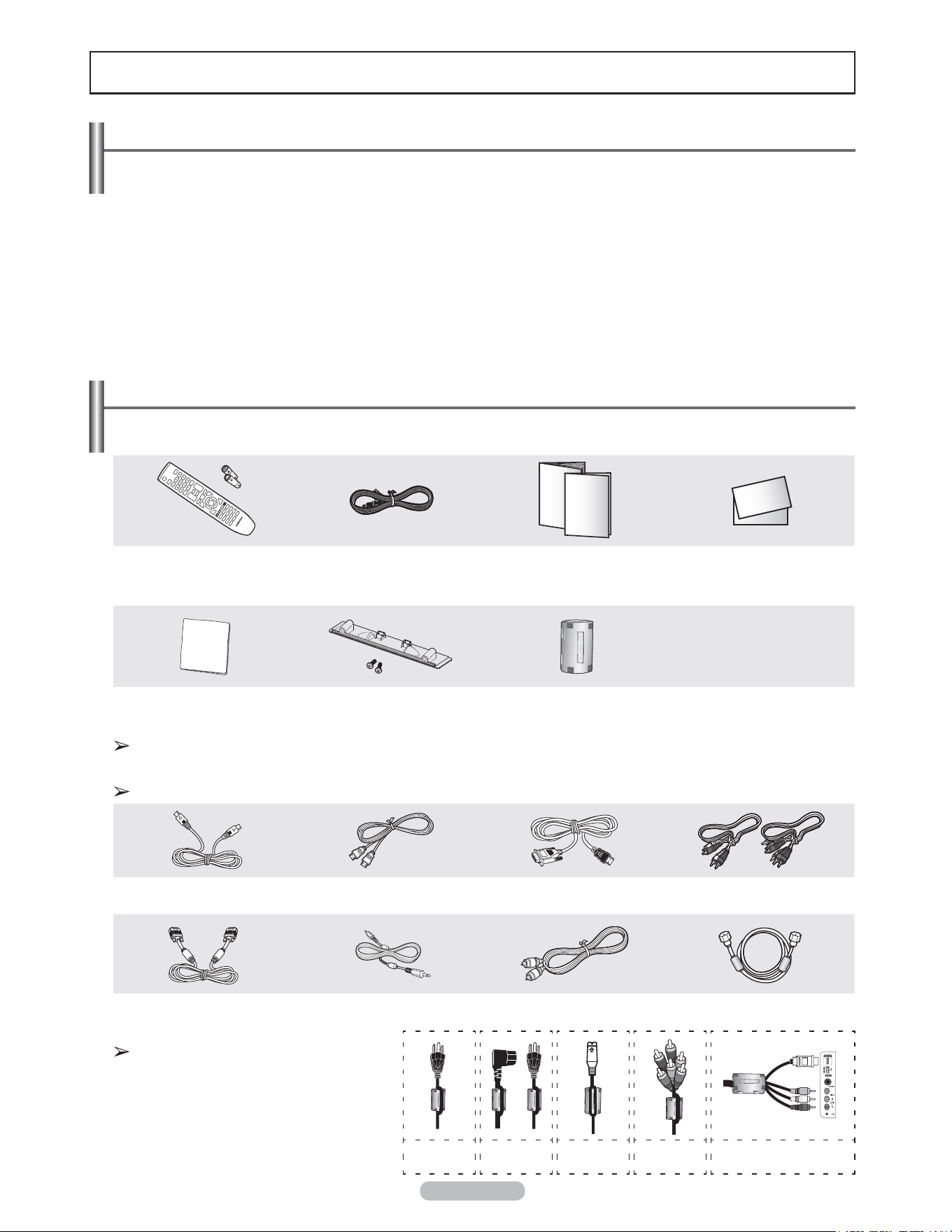
Français - 5
Accessoires
Veiller à ce que tous les articles suivants soient inclus avec le téléviseur. S’il en manque, communiquer avec le
détaillant.
Télécommande
(BN59-00673A) /
Piles AAA (4301-000103)
Cordon d’alimentation
(3903-000144)
Guide de l’utilisateur /
Guide de configuration rapide
Carte de garantie /
Guide de sécurité
(N’est pas disponible dans toutes
les agences)
Linge de nettoyage
(BN63-01798A)
Couvre base / Vis (2ea)
(Voir la page 95)
Tore magnétique(3301-001305)
PN50A550S1F seulement: 5ea
PN58A550S1F seulement: 3ea
Pour savoir comment utiliser le tore magnétique, consulter le bas de la page.
Les pièces suivantes sont vendues séparément, dans la plupart des magasins d’électronique.
Si l’on n’utilise pas un câble de bonne qualité, des parasites peuvent apparaître à l’écran.
Câble S-VIDÉO (BN39-00149A) Câble HDMI (BN39-00641A) Câble HDMI/DVI
(BN39-00643A)
Câbles pour composant (RCA)
(BN39-00279A)
Câble d’ordinateur
(BN39-00115A)
Câble audio d’ordinateur
(BN39-00061B)
Câble optique Câble d’antenne
(BN39-00333A)
Tore magnétique
Les tores de ferrite sont utilisés
pour protéger les câbles contre les
interférences.
Lorsque vous branchez un câble, ouvrez
le tore de ferrite et fixez-le sur le pourtour
du câble au niveau de la fiche.
Renseignements généraux
Liste des caractéristiques
• Réglages vidéo pouvant être mémorisés.
• Minuterie pour allumer et éteindre automatiquement le téléviseur.
• Minuterie spéciale de mise hors tension de l’appareil.
• Fonction de contrôle parental V-Chip.
• Excellents interface et réseautage numériques : Grâce au syntoniseur numérique HD intégré, les diffusions non
payantes HD peuvent être visualisées sans câblosélecteur ou récepteur satellite.
• Connexion HDMI/DVI d’un ordinateur à ce téléviseur.
• Excellente qualité d’image
- La technologie DNIe offre des images d’une clarté s’approchant de la réalité.
• SRS TruSurround XT
- La technologie SRS TruSurround XT offre une qualité de son ambiophonique.
Cordon d’alimentation
(PN58A550S1F)
seulement
Cordon d’alimentation
(PN50A550S1F)
seulement
Câble S-Vidéo Câble pour composant
Câble HDMI latéral/Câble audio/Câble vidéo
(PN50A550S1F) seulement
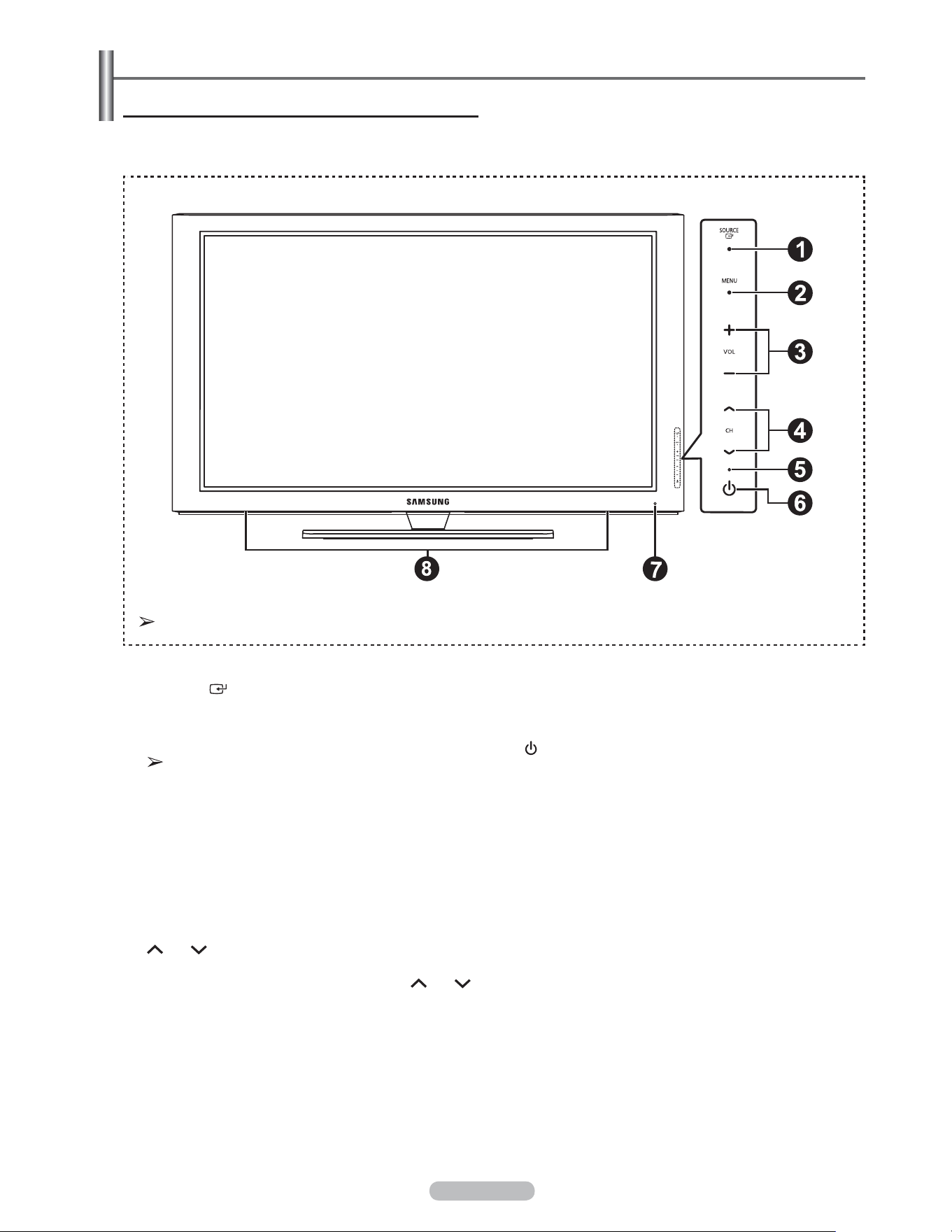
Français - 6
Affichage du panneau de configuration
Touches de la partie inférieure droite du panneau
Les touches du panneau droit inférieur commandent les fonctions de base du téléviseur, y compris le menu à
l’écran. Pour accéder aux fonctions plus avancées, utiliser la télécommande.
1
SOURCE
Permuter entre toutes les sources accessibles
(TV, AV1, AV2, S-Vidéo, Composant1, Composant2,
PC, HDMI1, HDMI2/DVI, HDMI3, USB).
Dans le menu à l’écran, utiliser cette touche de
la même manière que la touche ENTER de la
télécommande.
2
MENU
Afficher à l’écran le menu des fonctions du téléviseur.
3
+ VOL –
Augmenter ou diminuer le volume. Dans le menu
à l’écran, utiliser les touches + VOL
–
de la même
manière que les touches ◄ et ► de la télécommande.
4
CH
Changer de canal.
Dans le menu à l’écran, utiliser les touches CH
de la même manière que les touches ▲ et ▼ de la
télécommande.
5
Témoin d’alimentation
Clignote et s’éteint lorsque le téléviseur est sous
tension et s’allume en mode de veille.
6
POWER
Appuyer sur cette touche pour allumer et éteindre le
téléviseur.
7
Capteur infrarouge
Pointez la télécommande vers ce capteur sur le
téléviseur.
8
Haut-parleurs
La couleur et la forme de l’appareil peuvent varier selon le modèle.
Touches du panneau avant
Actionner chaque touche pour.
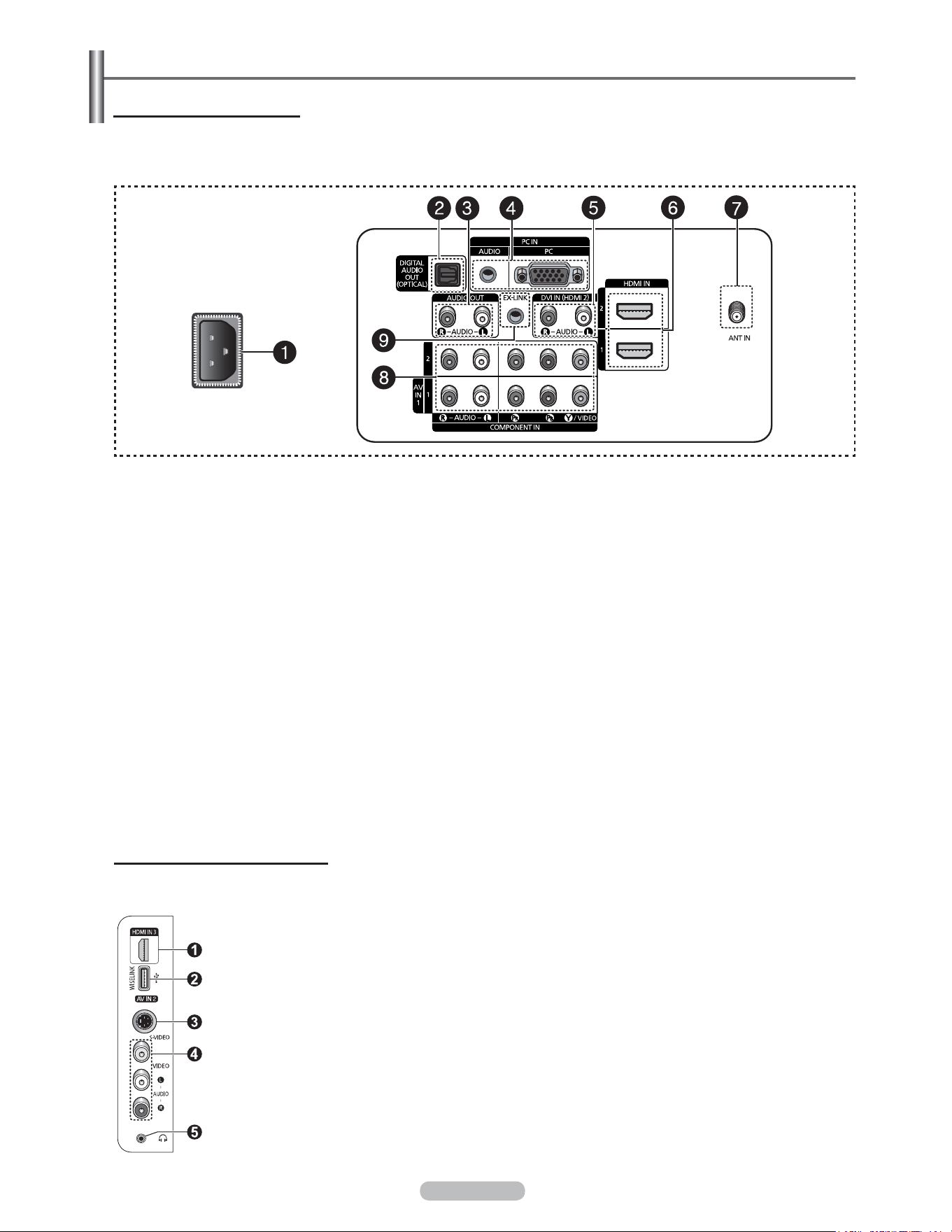
Français - 7
Affichage du panneau de branchement
Prises du panneau arrière
Utiliser les prises du panneau arrière pour brancher des composants audiovisuels utilisés continuellement, par exemple un
magnétoscope ou un lecteur DVD. Pour savoir comment brancher ces dispositifs, consulter les pages 9 à 15. La couleur et la
forme de l’appareil peuvent varier selon le modèle.
1
ENTRÉE DE L’ALIMENTATION (POWER IN)
Brancher le cordon d’alimentation fourni avec le
téléviseur.
2
SORTIE AUDIONUMÉRIQUE OPTIQUE
(DIGITAL AUDIO OUT [OPTICAL])
Brancher à un composant audionumérique.
3
SORTIE AUDIO OUT (D/G [R/L])
Sorties audio pour appareils externes.
4
ENTRÉE PC IN[PC]/[AUDIO]
Pour relier les sorties audio-vidéo à un PC.
5
ENTRÉE DVI IN (HDMI 2) (AUDIO-G/D [R/L])
Brancher à la prise de sortie audio DVI d’un appareil
externe.
6
ENTRÉE HDMI IN 1, 2
Raccorder à la prise HDMI d’un appareil avec sortie
HDMI. (HDMI 2 prend en charge l'entrée HDMI-DVI IN
et le branchement à un PC.)
- Cette entrée peut également servir de branchement
DVI avec entrées audio analogiques distinctes. Un
câble HDMI/DVI optionnel est nécessaire pour faire
cette connexion.
-
Lorsque l'adaptateur HDMI/DVI en option est utilisé, les
entrées audio analogiques DVI du téléviseur permettent
de recevoir le son des sorties gauche et droite de
l'appareil DVI.
7
ENTRÉE DE L'ANTENNE (ANT IN)
Utilise un connecteur coaxial de 75 Ω pour l’antenne et
le réseau câblé.
8
ENTRÉE COMPOSANT (COMPONENT) IN 1, 2 / AV
IN 1
Permet de brancher les composants vidéo et audio.
La prise d'entrée COMPONENT IN 1 sert également de
prise d'entrée AV IN 1.
- Brancher le câble vidéo sur la prise COMPONENT IN 1
[Y/VIDÉO] et le câble audio aux prises COMPONENT IN
[R(D)-AUDIO-L(G)].
9
LIEN EXTERNE EX-LINK
Brancher cette sortie à la prise sur le support mural
en option. Cette fonction permet de régler l'angle de
visionnement du téléviseur à l'aide de la télécommande.
Prises des panneaux latéraux
Les prises du panneau latéral droit permettent de brancher un composant utilisé occasionnellement, comme un
caméscope ou une console de jeu vidéo. La couleur et la forme de l’appareil peuvent varier selon le modèle.
1
ENTRÉE HDMI IN 3
Raccorder à la prise HDMI d'un appareil avec sortie HDMI.
2
WISELINK
Brancher une mémoire de grande capacité USB pour voir des fichiers de photographies (JPEG)
et lire des fichiers sonores (MP3).
3
S-VIDEO (ENTRÉE AV IN 2)
Entrée S-vidéo pour appareils externes pourvus d'une sortie S-Vidéo.
4
ENTRÉE AV IN 2
Entrées vidéo et audio pour les appareils externes.
5
CASQUE D'ÉCOUTE
Pour regarder une émission télévisée sans déranger les personnes se trouvant dans la même
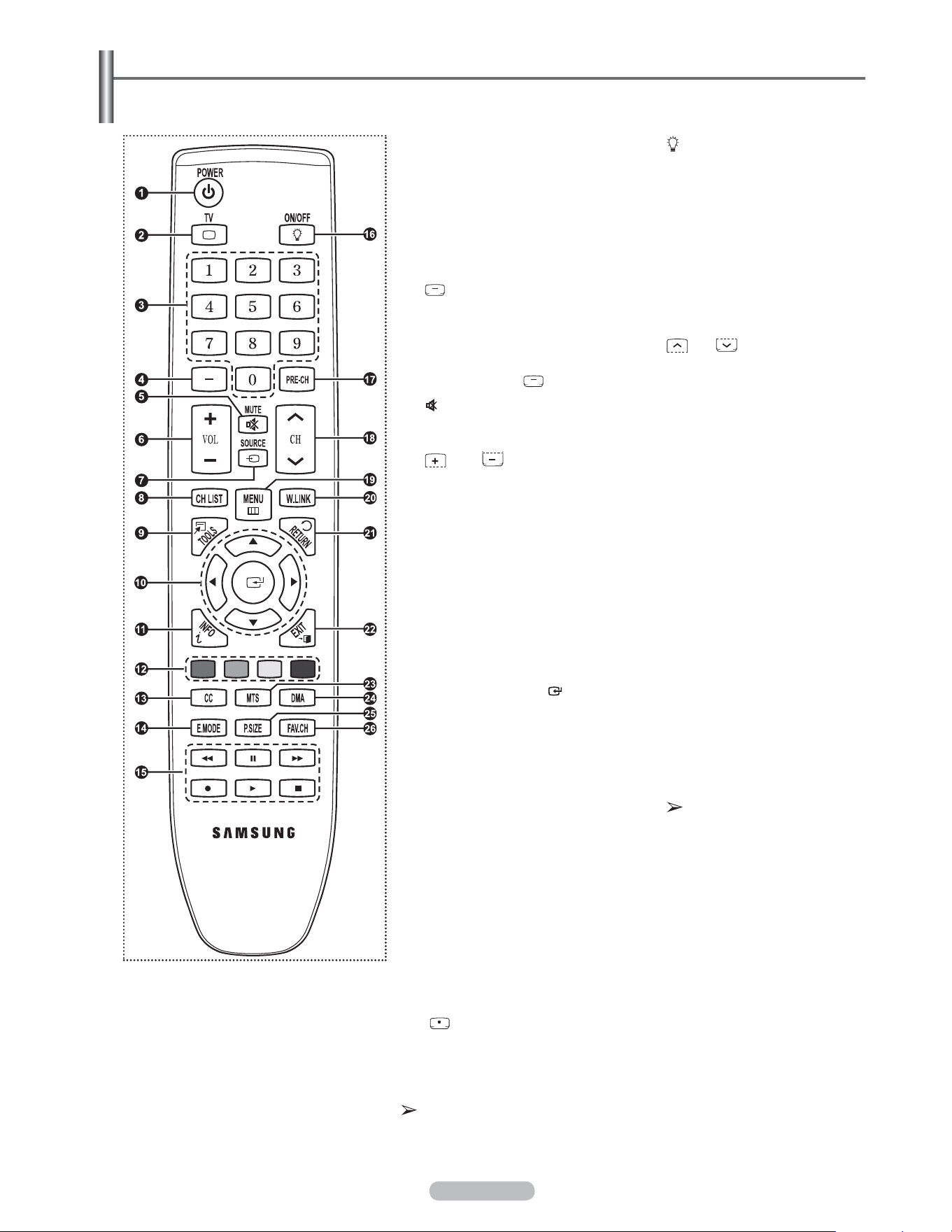
Français - 8
Télécommande
La télécommande peut être utilisée jusqu’à une distance d’environ 7 mètres (23 pieds) du téléviseur.
Un éclairage ambiant intense peut nuire à l’efficacité de la
télécommande.
1
POWER
Permet d’allumer et d’éteindre le
téléviseur.
2
TV
Pour sélectionner directement le
mode TV.
3
TOUCHES NUMÉRIQUES
Pour changer le canal.
4
Pour sélectionner des canaux
supplémentaires (numériques
et analogiques) diffusés par la
même station. Par exemple, pour
sélectionner le canal “54-3”, appuyer
sur “54”, puis sur “ ” et sur “3”.
5
MUTE
Permet de couper le son
temporairement et de le rétablir.
6
VOL
Appuyer sur ces touches pour
augmenter ou diminuer le volume.
7
SOURCE
Appuyer sur cette touche pour
afficher et choisir les sources vidéo
accessibles.
8
CH LIST
Afficher la liste des canaux à l’écran.
9
TOOLS
Permettent de sélectionner les
fonctions fréquemment utilisées.
0
HAUT▲ / BAS▼ / GAUCHE◄ /
DROITE► / ENTER
Pour sélectionner des options de
menu et modifier leur valeur.
!
INFO
Appuyer sur cette touche pour
afficher de l’information à l’écran.
@
TOUCHES DE COULEUR
Ces touches fonctionnent dans la
liste des canaux et avec WISELINK.
#
CC
Permet de commander la fonction
de sous-titrage.
$
E.MODE
Appuyer pour sélectionner
l’affichage préréglé et les modes
sonores pour les sports, le cinéma et
les jeux.
%
Utiliser ces touches en modes DMA,
WISELINK et Anynet+.
( : Cette télécommande peut
servir à commander l’enregistrement
des enregistreurs DVD Samsung
avec la fonction Anynet+)
^
MARCHE/ARRÊT
Appuyer sur cette touche afin de
rétroéclairer les touches de la
télécommande.
Cette fonction est pratique le soir ou
lorsque la pièce est sombre.
(L’utilisation de la télécommande
lorsque le rétroéclairage est allumé
réduit le temps d’utilisation des
piles.)
&
PRE-CH
Permet d’écouter le canal précédent.
*
CH
Permettent de changer de canal.
(
MENU
Afficher le menu à l'écran principal.
)
W.LINK (WISELINK)
Cette fonction permet de visualiser
des photographies et d'écouter
de la musique depuis un dispositif
externe. Voir pages 72 (photo) et 80
(musique).
a
RETURN
Retourner au menu précédent.
b
EXIT
Permet de sortir du menu.
c
MTS
Pour sélectionner le son stéréo,
mono ou SAP (Separate Audio
Program).
d
DMA (Digital Media Adapter)
Utiliser cette fonction lorsqu’un
appareil Samsung DMA est branché
à une interface HDMI ou lorsque le
téléviseur est en mode DMA.
Pour plus de renseignements sur les
procédures d’utilisation, se reporter
au guide de l’utilisateur du dispositif
DMA.
Cette touche est accessible
lorsque “Anynet+(HDMI-CEC”
est “activé”. (Voir page 89)
e
P.SIZE
Permet de sélectionner la taille
d'image.
f
FAV.CH
Naviguer entre les canaux favoris.
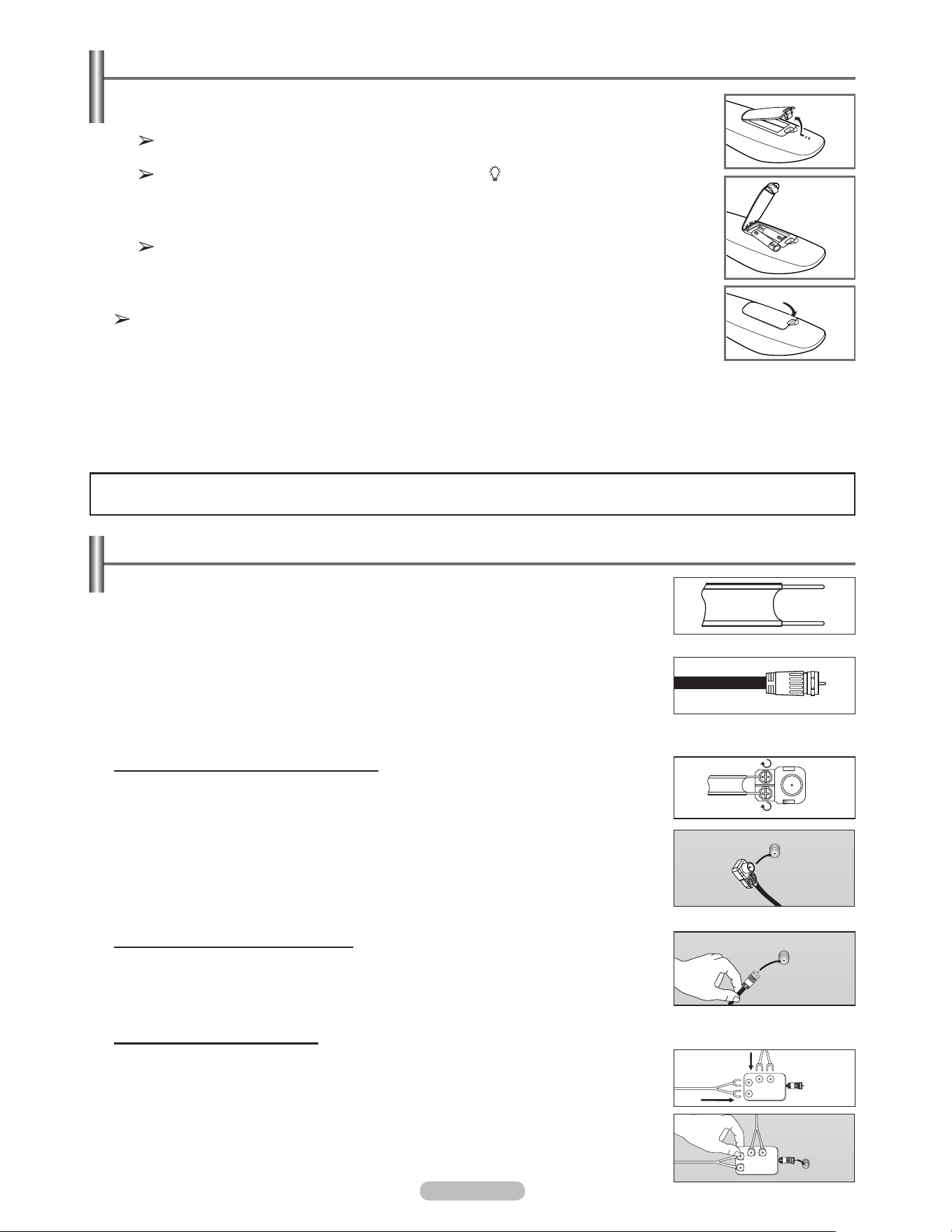
Français - 9
Branchements
Branchement des antennes VHF et UHF
Si l'antenne est dotée de conducteurs semblables à ceux représentés ici, consulter
la rubrique “Antenne 300 Ω à deux conducteurs plats” ci-dessous.
Si l'antenne est dotée d’un câble de branchement semblable à celui représenté ici,
consulter la rubrique “Antenne 75 Ω à connecteur rond”.
Si le téléviseur est pourvu de deux antennes, consulter la rubrique “Antennes VHF
et UHF séparées”.
Antenne 300 Ω à deux conducteurs plats
Si une antenne conventionnelle (par exemple, une antenne de toit ou des “oreilles
de lapin”) dotée de deux conducteurs plats de 300 Ω est utilisée, procéder comme
suit :
1 Installer les fils des deux conducteurs sous les vis de l’adaptateur de 300-75 Ω (non
fourni).
Serrer les vis à l’aide d’un tournevis.
2 Brancher l’adaptateur dans la prise ANT IN située à l’arrière du téléviseur.
Antennes à conducteur rond de 75 Ω
1
Brancher le câble de l'antenne dans la prise ANT IN située à l’arrière du téléviseur.
Antennes VHF et UHF séparées
Si le téléviseur est pourvu de deux antennes séparées (une antenne VHF et
une antenne UHF), leurs signaux doivent être combinés avant de raccorder les
antennes au téléviseur. Pour cette opération, un multiplexeur-adaptateur en option
(en vente dans la plupart des boutiques d’électronique) est nécessaire.
1 Raccorder les conducteurs des deux antennes au combinateur.
2 Brancher le multiplexeur dans la prise ANT IN située au bas du panneau arrière.
Insertion des piles dans la télécommande
1 Soulever le couvercle à l'arrière de la télécommande, comme illustré.
2 Installer deux piles AAA.
Veiller à faire correspondre les bornes “+” et “–” des piles conformément au
diagramme à l’intérieur du compartiment.
L’utilisation de la télécommande alors que la touche ( ) de rétroéclairage est
réglée à “On” réduit le temps d’utilisation des piles.
※
Utiliser des piles alcaline pour la télécommande.
3 Fermer le couvercle, comme illustré.
Si la télécommande ne doit pas être utilisée pour une longue période, retirer les piles
et les ranger dans un endroit frais et sec. La télécommande a une portée d’environ
7 mètres (23 pieds). (Les piles offrent une autonomie d’environ un an en usage
normal.)
Si la télécommande ne fonctionne pas, vérifier les points suivants :
1. Le téléviseur est-il sous tension?
2. Les bornes plus et moins des piles sont-elles inversées?
3. Les piles sont-elles déchargées?
4. Y a-t-il une interruption de courant? Le cordon d'alimentation est-il débranché?
5. Y a-t-il une source lumineuse fluorescente ou une enseigne au néon à proximité?
ANT IN
ANT IN
UHF
VHF
ANT IN
UHF
VHF
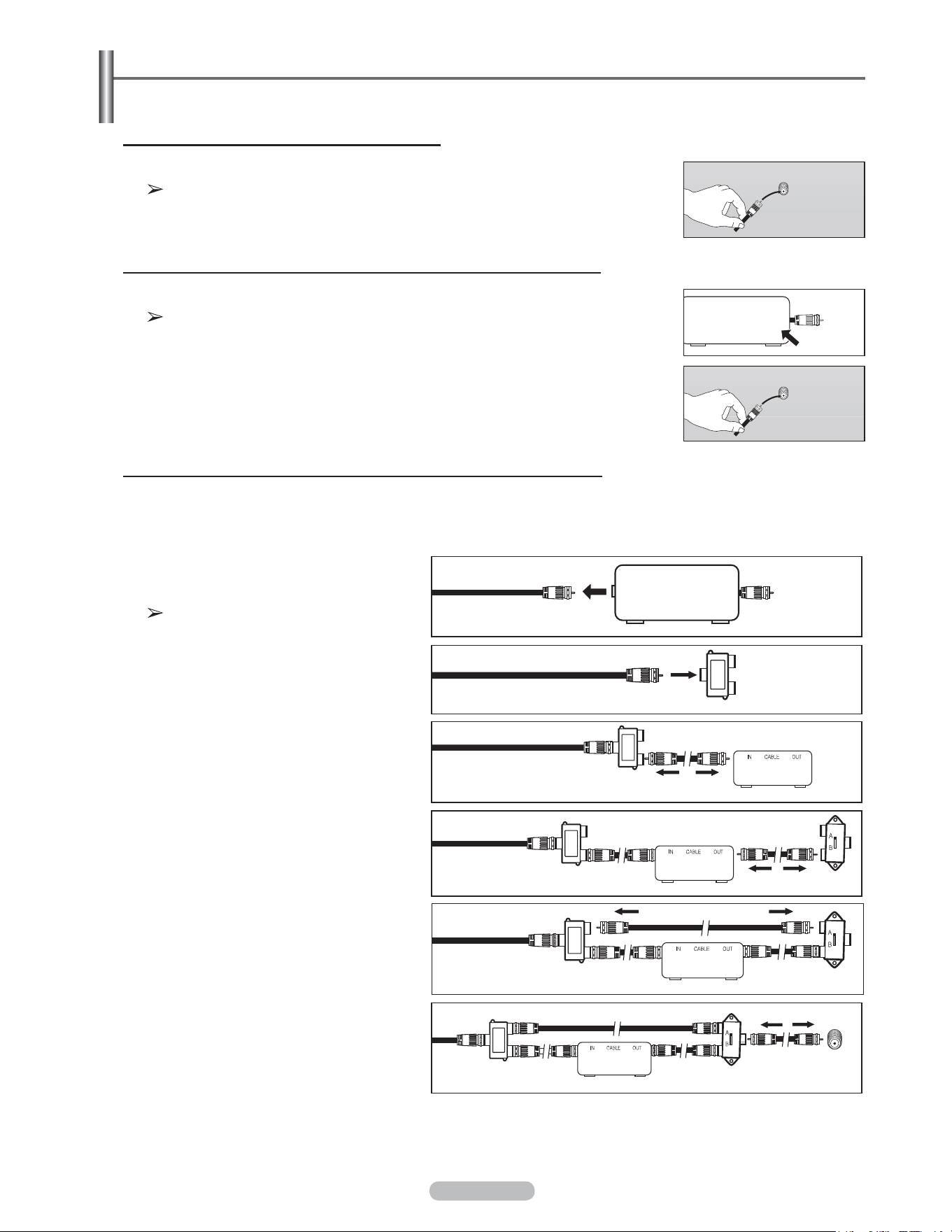
Français - 10
Branchement du câble de télédistribution
Pour raccorder un service de câblodistribution, procéder comme suit.
Service de câblodistribution sans câblosélecteur
1 Branchez le câble d’arrivée dans la prise ANT IN située à l’arrière du téléviseur.
Ce téléviseur étant configuré pour le câble, il n’est pas nécessaire de posséder
un câblosélecteur pour recevoir les canaux de câblodistribution diffusés en clair.
Branchement d’un câblosélecteur de désembrouillage de tous les canaux
1 Repérer le câble raccordé à la sortie d’antenne ANT OUT du câblosélecteur.
Cette prise peut porter la mention “ANT OUT”, “VHF OUT” ou simplement
“OUT”.
2 Branchez l’autre extrémité du câble à la borne d’antenne ANT IN à l’arrière du
téléviseur.
Branchement d’un câblosélecteur de désembrouillage de certains canaux
Si le câblosélecteur désembrouille seulement certains canaux (par exemple les canaux spécialisés), procéder
comme suit : Un répartiteur à deux voies, un commutateur RF (A/B) et quatre câbles d’antenne sont nécessaires.
(Ces articles sont offerts dans la plupart des boutiques d’électronique).
1 Repérer et débrancher le câble raccordé
à l’entrée d’antenne ANT IN de le
câblosélecteur.
Cette borne peut porter l’inscription “ANT
IN
”
,
“
VHF IN
”
ou simplement
“
IN
”
.
2 Relier ce câble à un répartiteur à deux
voies.
3 Raccorder un câble d’antenne entre une
sortie OUTPUT du répartiteur et l’entrée IN
du câblosélecteur.
4 Raccorder un câble d’antenne entre
la sortie d’antenne ANT OUT du
câblosélecteur et l’entrée B-IN du
commutateur RF (A/B).
5 Raccorder un autre câble entre l’autre sortie
du séparateur et l’entrée A du commutateur
RF (A/B).
6 Reliez au moyen du dernier câble d’antenne
la borne de sortie du commutateur RF (A/B)
et la borne ANT IN à l’arrière du téléviseur.
Une fois les branchements effectués, régler le commutateur A/B à la position “A” pour un visionnement normal. Régler
le commutateur A/B à la position “B” pour obtenir les canaux brouillés. (Lorsque la position “B” du commutateur A/B est
sélectionnée, il faut également syntoniser le canal du signal de sortie du câblosélecteur, habituellement le canal 3 ou 4.)
ANT OUT
ANT IN
ANT IN
ANT IN
Séparateur
Câblosélecteur
RF (A/B)
Interrupteur
En entrée
câble
Séparateur
En entrée
câble
Séparateur
Câblosélecteur
En entrée
câble
Séparateur
En entrée
câble
Arrière du
téléviseur
RF (A/B)
Interrupteur
ANT IN
ANT IN
Séparateur
En entrée
câble
RF (A/B)
Interrupteur
Câblosélecteur
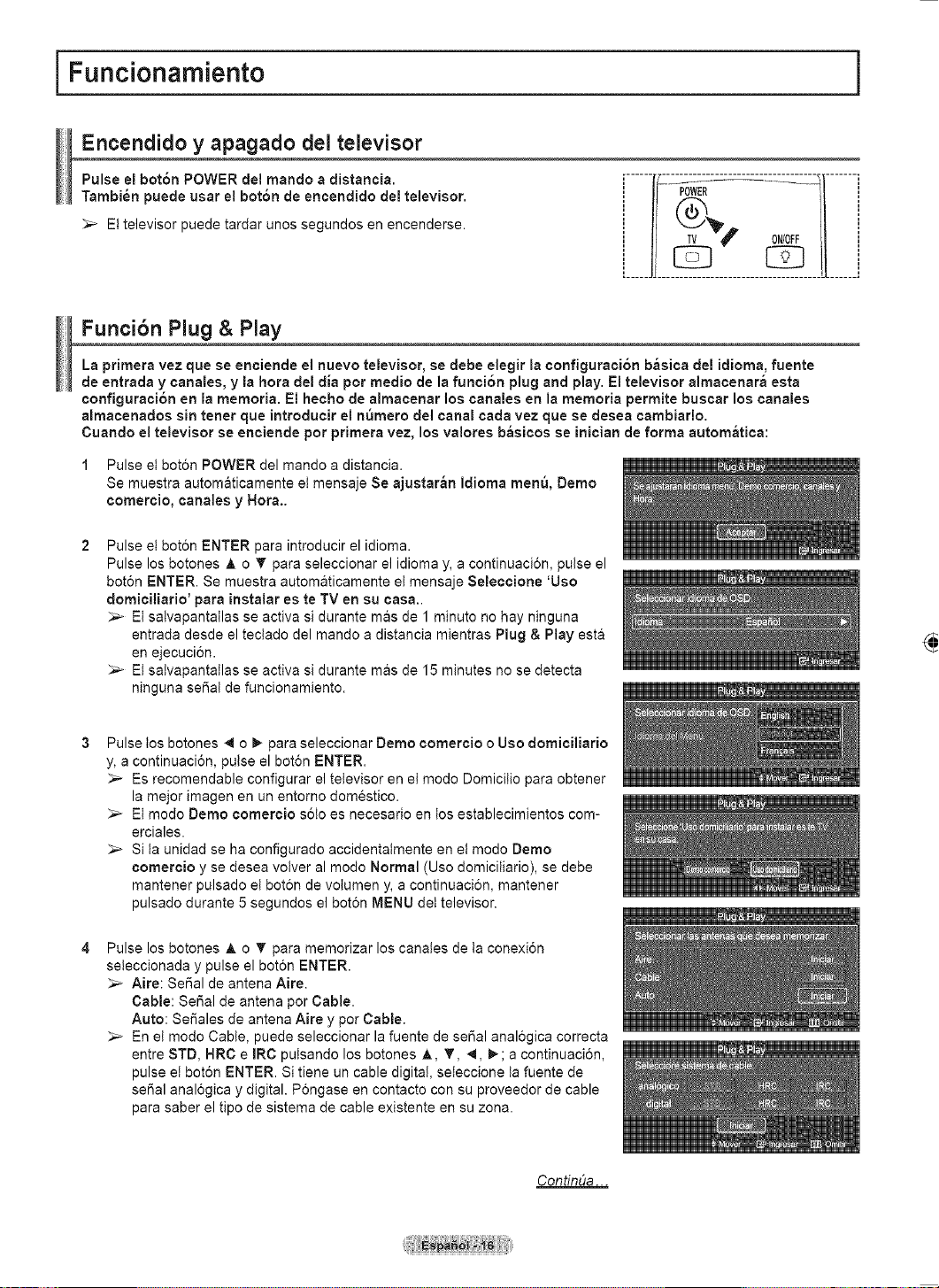
Français - 11
Branchement d’un lecteur DVD, câblosélecteur ou récepteur (décodeur) à l’aide d’un câble DVI
Ce branchement n’est possible que si l’appareil externe est pourvu d’une prise de sortie DVI.
1 Brancher un câble de
raccordement HDMI/DVI ou
un adaptateur DVI-HDMI
entre la prise d'entrée HDMI
IN 2 du téléviseur et la
prise DVI du lecteur DVD,
câblosélecteur ou récepteur
(décodeur).
2 Brancher les câbles audio
entre la prise d’entrée DVI
IN (HDMI 2) [R-AUDIO-L] du
téléviseur et les prises de
sortie AUDIO OUT du lecteur
DVD ou du câblosélecteur ou
récepteur (décodeur).
La configuration du panneau arrière de chaque lecteur DVD ou câblosélecteur ou
récepteur (décodeur) est différente.
Au moment de brancher un lecteur DVD ou câblosélecteur ou récepteur
(décodeur), les couleurs du câble et de la borne de raccordement doivent
correspondre.
Dans le cas d’une connexion de câble HDMI/DVI, il faut utiliser la prise d'entrée
HDMI IN 2.
Branchement d’un lecteur DVD ou d'un câblosélecteur ou récepteur (décodeur) à l’aide d’un câble HDMI
Ce branchement n’est possible que si l’appareil externe est pourvu d’une prise de sortie HDMI. Il offre la meilleure
qualité d’image.
1 Brancher un câble HDMI
entre la prise d'entrée HDMI
IN (1, 2 ou 3) du téléviseur
et la prise HDMI du lecteur
DVD ou du câblosélecteur ou
récepteur (décodeur).
Qu’est-ce que la HDMI?
• La HDMI est une interface multimédia à haute définition qui permet la transmission
de signaux numériques audio et vidéo à l’aide d’un seul câble.
• La différence entre les interfaces HDMI et DVI réside dans le fait que la HDMI
est de plus petites dimensions, qu’elle est dotée du composant de codage HDCP
(protection contre la copie numérique à large bande passante).
La configuration du panneau arrière de chaque lecteur DVD ou câblosélecteur ou
récepteur (décodeur) est différente.
Le téléviseur peut ne pas émettre de son ou afficher des images de couleur
anormale lorsqu’est branché un lecteur DVD ou un câblosélecteur ou récepteur
prenant en charge des versions HDMI antérieures à la version 1.3. Si l’on branche
un câble HDMI d’une version antérieure et qu’il n’y a pas de son, il faut brancher
le câble HDMI à la prise d’entrée HDMI IN 2 et les câbles audio aux prises DVI
IN (HDMI 2) [R-AUDIO-L] sur le panneau arrière du téléviseur. Si cela se produit,
communiquer avec le fournisseur du lecteur DVD ou du câblosélecteur ou
récepteur afin de confirmer la version HDMI, puis demander une mise à niveau.
Si les câbles HDMI ne sont pas compatibles avec la version 1.3, il peut y avoir des
scintillements désagréables à l’écran ou il n’y a pas d’image.
Câble HDMI (non fourni)1
Lecteur DVD ou câblosélecteur /
Récepteur (décodeur)
Panneau arrière du téléviseur
Panneau latéral du
téléviseur
Lecteur DVD ou câblosélecteur /
Récepteur (décodeur)
Panneau arrière du téléviseur
Câble audio (non fourni)2
Câble HDMI/DVI (non fourni)1
ou
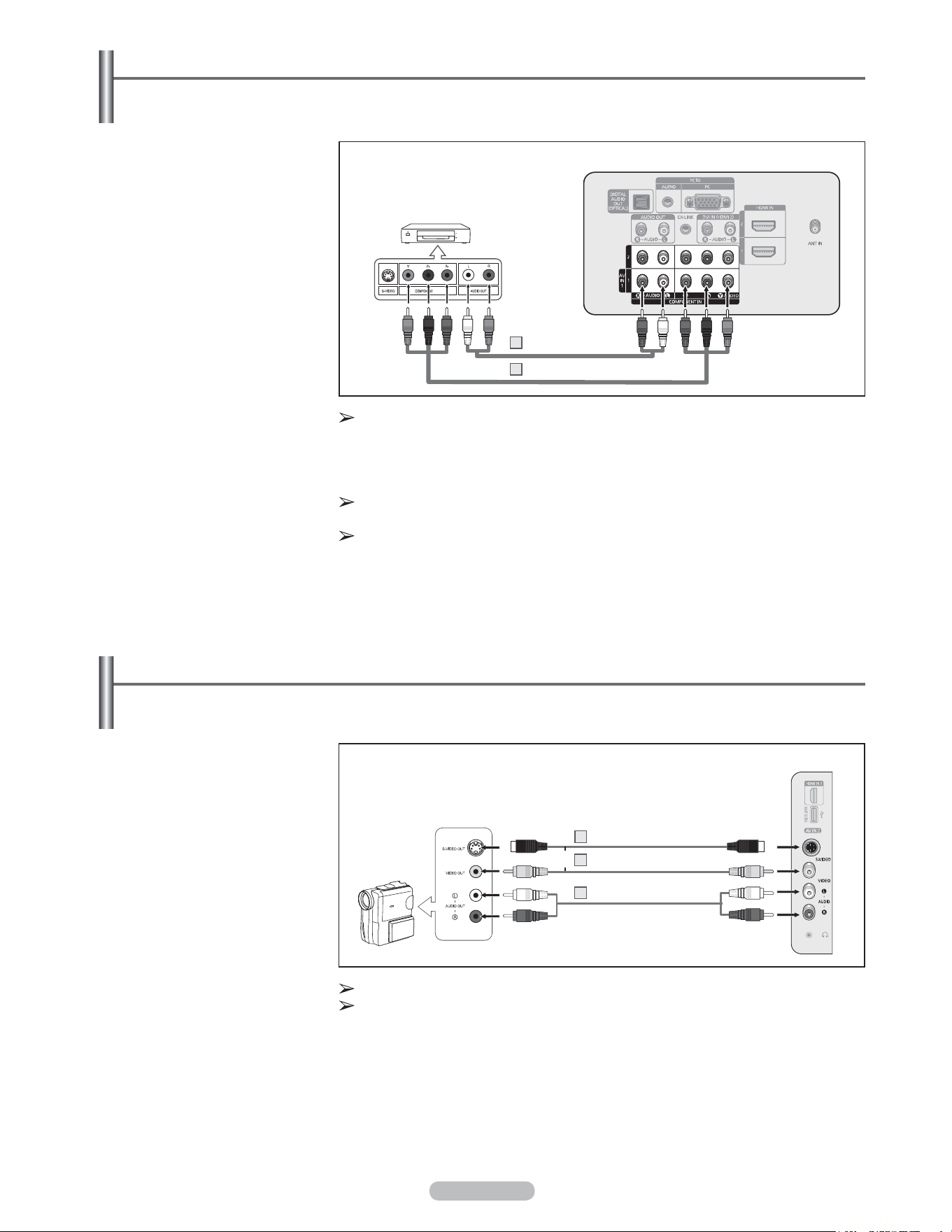
Français - 12
Branchement d’un caméscope
Les prises du panneau latéral du téléviseur simplifient le branchement d’un caméscope. Il est ainsi possible de
regarder directement les cassettes du caméscope, sans passer par un magnétoscope.
1 Raccorder un câble vidéo
(ou S-Vidéo) entre la prise
d'entrée vidéo AV IN 2
[VIDEO] (ou S-VIDEO) du
téléviseur et la prise de sortie
VIDEO OUT du caméscope.
2 Raccorder les câbles audio
entre les prises d'entrée
AV IN 2 [L-AUDIO-R] du
téléviseur et les prises
de sortie AUDIO OUT du
caméscope.
Chaque caméscope possède une configuration de panneau arrière différente.
Lors du branchement d'un caméscope, les couleurs du câble et de la borne de
branchement doivent correspondre
.
Caméscopes
Panneau latéral du téléviseur
Câble S-Vidéo (non fourni)
1
Vidéo Câble (non fourni)1
Câble audio (non fourni)2
ou
Branchement d’un lecteur DVD, câblosélecteur ou récepteur (décodeur) à l’aide de câbles de composant
Les prises du panneau arrière du téléviseur simplifient le branchement d'un lecteur DVD, câblosélecteur ou
récepteur satellite.
1 Brancher un câble de
composant entre les prises
d'entrée COMPONENT IN (1
ou 2) [Y, PB, PR] du téléviseur
et les prises COMPONENT
[Y, P
B
, P
R
] du lecteur DVD
ou du câblosélecteur ou
récepteur (décodeur).
2 Brancher les câbles audio
entre la prise d’entrée
COMPONENT IN (1 ou 2)
[R-AUDIO-L] du téléviseur et
les prises de sortie AUDIO
OUT du lecteur DVD ou du
câblosélecteur ou récepteur
(décodeur).
Le composant vidéo sépare le vidéo en Y (luminance (luminosité)), P
B
(bleu) et
P
R
(rouge) pour une qualité d'image supérieure. S'assurer que les branchements
audio et vidéo correspondent. Par exemple, si le câble vidéo est branché à la prise
d’entrée COMPONENT IN 1, le câble audio doit être branché à la prise d’entrée
COMPONENT IN 1.
La configuration du panneau arrière de chaque lecteur DVD ou câblosélecteur ou
récepteur (décodeur) est différente.
Au moment de brancher un lecteur DVD ou câblosélecteur ou récepteur
(décodeur), les couleurs du câble et de la borne de raccordement doivent
correspondre.
Lecteur DVD ou câblosélecteur /
Récepteur (décodeur)
Panneau arrière du téléviseur
Câble audio (non fourni)
Câble de composant (non fourni)1
2
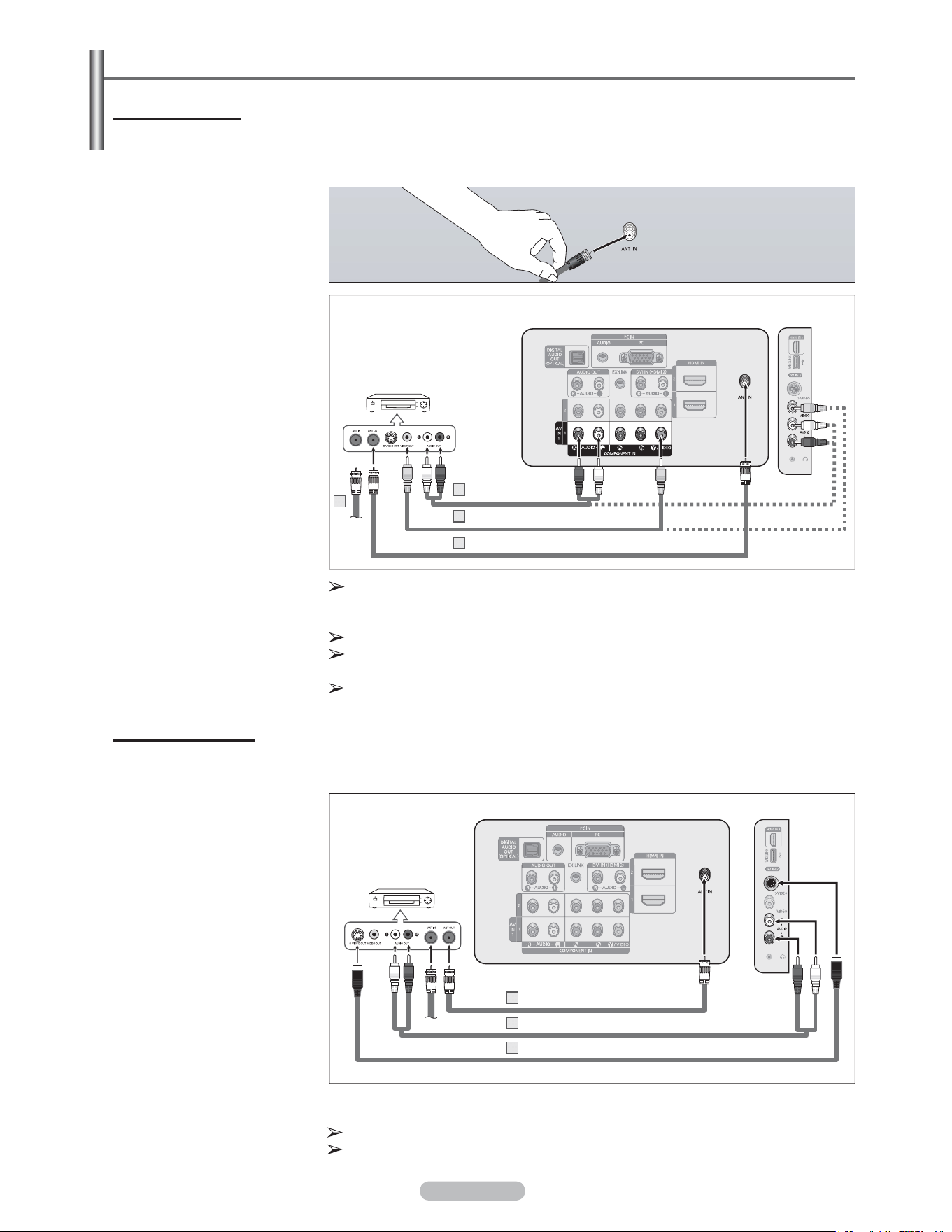
Français - 13
Branchement d’un magnétoscope
Branchement vidéo
Ces instructions supposent que le téléviseur est déjà branché à une antenne ou à un système de câblodistribution
(conformément aux instructions des pages 9 et 10). Ignorer l’étape 1 si le téléviseur n’est pas branché à une antenne
ou un système de câblodistribution.
Si le magnétoscope est un modèle “mono” (non stéréo), relier les prises d’entrée
audio droite et gauche du téléviseur au moyen d’un connecteur en Y (non fourni). Il
est également possible de brancher le câble à la prise “R”.
Le panneau arrière de chaque magnétoscope est différent.
Lors du branchement d’un magnétoscope, les couleurs du câble et de la borne de
branchement doivent correspondre.
La couleur de la prise d’entrée AV IN 1 [Y/VIDEO] (vert) ne correspond pas à la
couleur du câble vidéo (jaune).
Branchement S-Vidéo
Le téléviseur Samsung peut être branché à la prise S-Vidéo d’un magnétoscope. (Cette connexion offre une
meilleure qualité d’image qu’un magnétoscope standard.)
1 Pour commencer, suivre les
étapes 1 à 3 de la section
précédente pour brancher
l’antenne ou le câble
au magnétoscope et au
téléviseur.
2 Raccorder un câble S-vidéo
entre la sortie S-VIDEO
OUT du magnétoscope et
l'entrée AV IN 2 [S-VIDEO] du
téléviseur.
3 Raccorder les câbles audio
entre les sorties AUDIO OUT
du magnétoscope et les
entrées AV IN 2 [R-AUDIO-L]
du téléviseur.
Le magnétoscope peut être doté d'une prise S-Vidéo. (Sinon, se procurer les câbles
nécessaire dans un magasin d'électronique.)
Le panneau arrière de chaque magnétoscope est différent.
Lors du branchement d’un magnétoscope, les couleurs du câble et de la borne de
branchement doivent correspondre.
Panneau arrière du
magnétoscope
Panneau arrière du téléviseur
Câble audio (non fourni)
3
Câble S-Vidéo (non fourni)2
Câble d’antenne (non fourni)1
1 Débrancher le câble ou
l’antenne à l’arrière du
téléviseur.
2 Brancher le câble ou
l’antenne à l'entrée ANT IN à
l’arrière du magnétoscope.
3 Reliez au moyen d’un câble
d’antenne la borne ANT OUT
du magnétoscope et la borne
ANT IN du téléviseur.
4 Relier au moyen d’un câble
vidéo la prise de sortie vidéo
du magnétoscope et la prise
AV IN 1 [Y/VIDEO] ou AV IN
2 [VIDÉO] du téléviseur.
5 Raccorder les câbles audio
entre les sorties AUDIO OUT
du magnétoscope et les
entrées AV IN 1(ou AV IN 2)
[R-AUDIO-L] du téléviseur.
Panneau latéral du téléviseur
Panneau arrière du
magnétoscope
Panneau arrière du téléviseur
2
Câble audio (non fourni)
Câble vidéo (non fourni)
Câble d’antenne (non fourni)3
4
5
Panneau latéral du
téléviseur
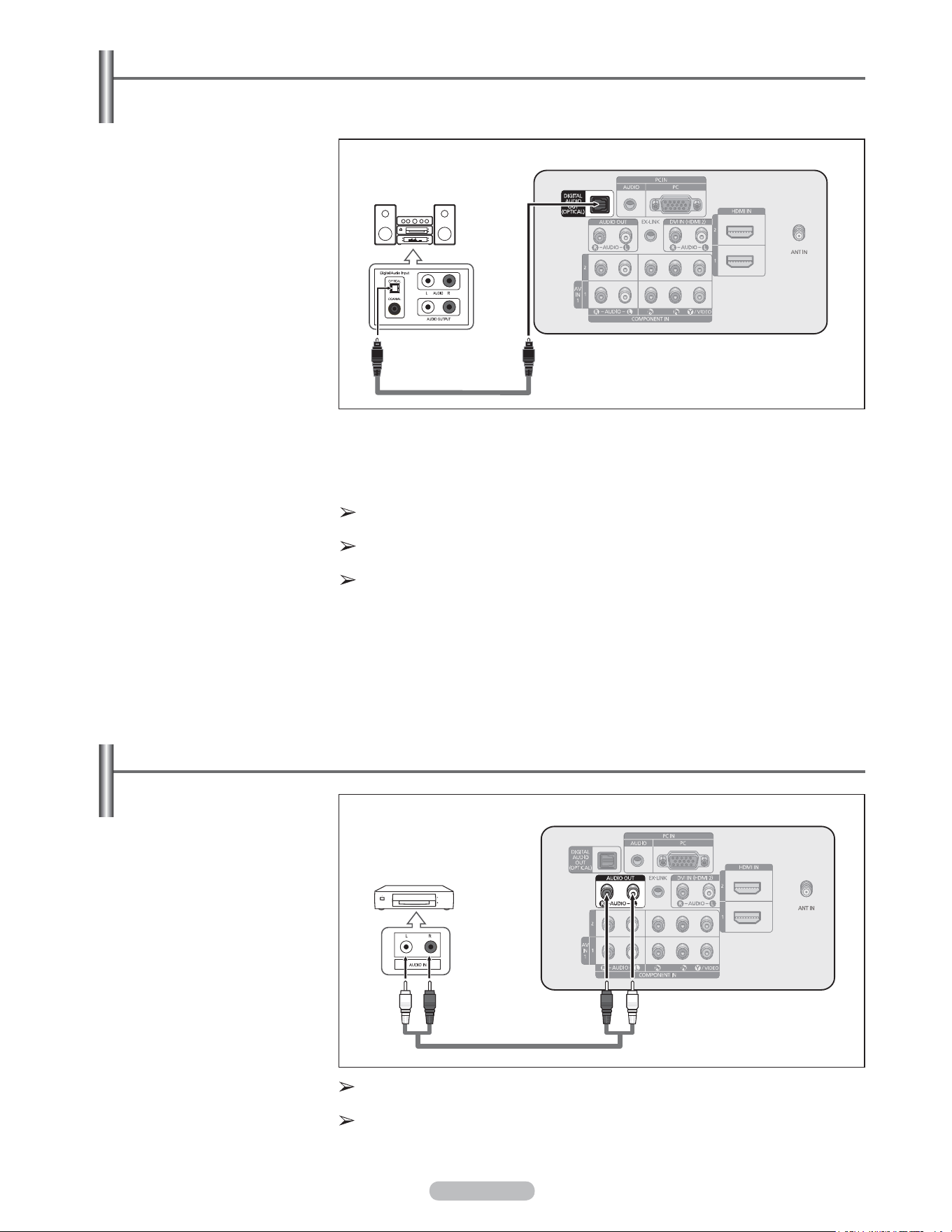
Français - 14
Branchement d’un amplificateur ou d’un système de cinéma maison à DVD
1 Brancher les câbles audio
entre les prises de sortie
AUDIO OUT [R-AUDIO-L]
du téléviseur et les prises
d’entrée AUDIO IN [L-AUDIO-
R] de l’amplificateur ou du
système de cinéma maison à
DVD.
Lorsqu'un amplificateur
audio est branché aux sorties
AUDIO OUT [R-AUDIO-
L] : Réduire le volume du
téléviseur et régler ensuite
le niveau du volume à l’aide
du contrôle de volume de
l’amplificateur.
Chaque amplificateur/système de cinéma maison à DVD possède une
configuration de panneau arrière différente.
Lors du branchement d’un amplificateur ou système de cinéma maison à DVD, les
couleurs du câble et de la borne de branchement doivent correspondre.
Amplificateur ou système de
cinéma maison à DVD
Panneau arrière du téléviseur
Câble audio (non fourni)
Branchement d’un système audionumérique
Les prises du panneau arrière du téléviseur permettent de brancher facilement une chaîne audio numérique
(cinéma maison/récepteur) à votre téléviseur.
1 Brancher un câble optique
entre les prises de sortie
numérique optique DIGITAL
AUDIO OUT (OPTICAL)
du téléviseur et les prises
d'entrée audionumérique du
système audionumérique.
Lorsqu'un système
audionumérique est branché
à la prise “DIGITAL AUDIO
OUT (OPTICAL)” : Réduire le
volume du téléviseur et régler
ensuite le niveau du volume à
l’aide du contrôle de volume
du système.
Que signifie OPTIQUE?
• Un câble optique convertit un signal électrique en un signal lumineux optique
et le transmet par des fibres de verre. Un système transmet des signaux
audionumériques sous forme d’ondes lumineuses, le format S/PDIF, par le biais
d’un conducteur en verre.
La diffusion audio en 5.1 canaux est possible lorsque le téléviseur est raccordé à
un appareil externe doté de cette fonction audio.
La configuration du panneau arrière de chaque système audionumérique est
différente.
Lorsque le récepteur (cinéma maison) est réglé sur “On”, vous pouvez entendre
du son provenant de la prise optique du téléviseur. Lorsque le téléviseur émet
des signaux numériques (antenne), il transmet le son en 5.1 canaux au récepteur
du cinéma maison. Lorsque la source est un composant numérique, comme un
lecteur DVD, et que ce dernier est branché au téléviseur à l’aide d’un câble HDMI,
seul un son deux canaux sera émis par le récepteur du cinéma maison.
Pour entendre le son en 5.1 canaux, brancher la prise de sortie optique DIGITAL
AUDIO OUT (OPTICAL) du lecteur DVD ou du câblosélecteur/récepteur satellite
sur un amplificateur ou une chaîne de cinéma maison, et non pas sur le téléviseur.
Système
audionumérique
Panneau arrière du téléviseur
Câble optique (non fourni)
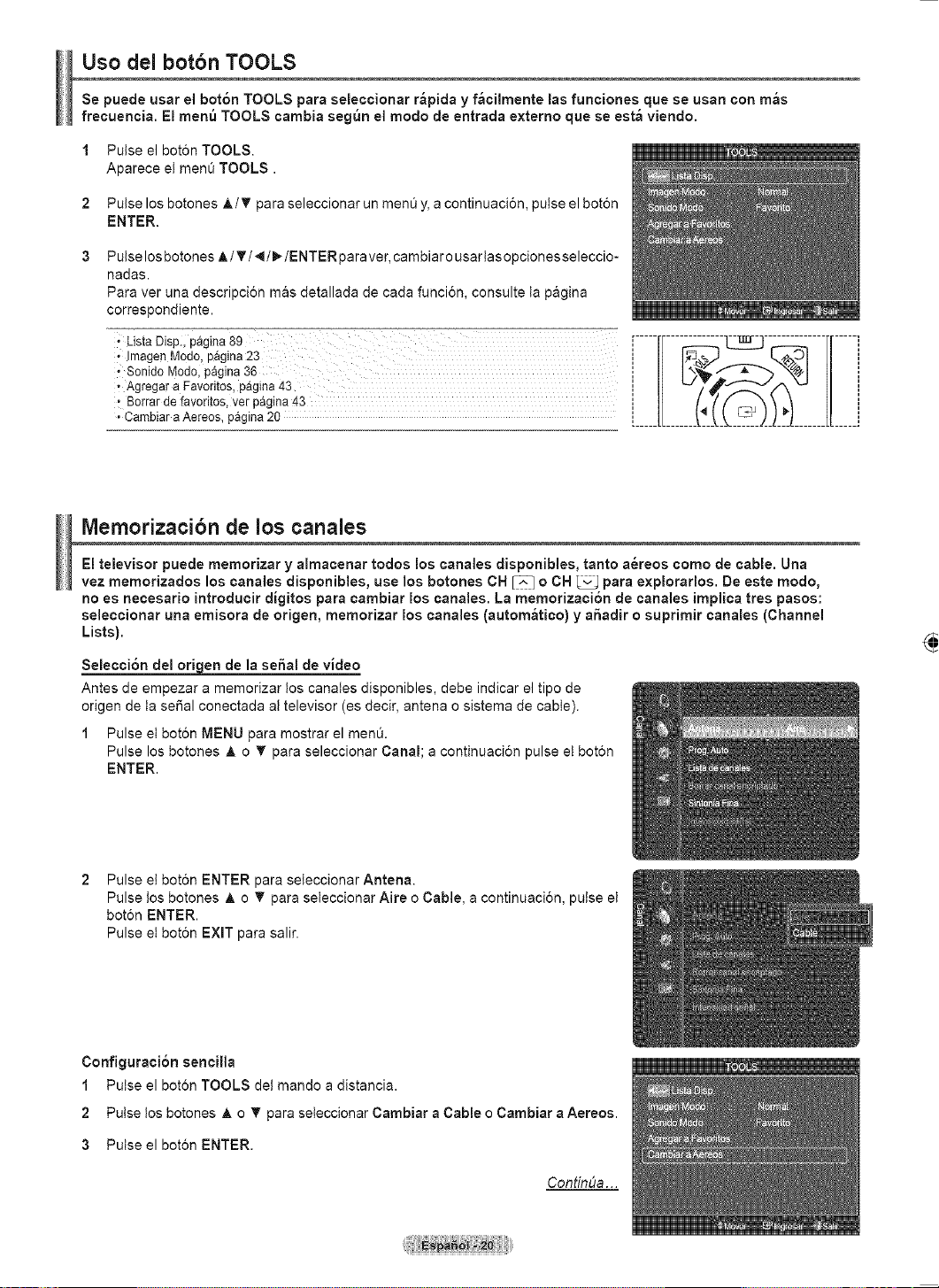
Français - 15
La configuration du panneau arrière de chaque ordinateur est différente.
Lors du branchement d’un ordinateur, les couleurs du câble et de la borne de
branchement doivent correspondre.
Il faut brancher un câble HDMI/DVI dans la prise HDMI IN 2.
Branchement d’un ordinateur
À l’aide du câble HDMI/DVI
Panneau arrière du téléviseur
PC
Câble pourvu d’une fiche stéréo de 3,5 mm et de deux fiches RCA (non fourni)
2
Câble HDMI/DVI (non fourni)1
À l’aide du câble D-Sub
1 Brancher un câble D-Sub
entre la prise d’entrée PC IN
[PC] du téléviseur et la prise
de sortie PC de l’ordinateur.
2 Brancher un câble audio PC
entre la prise d’entrée PC
IN [AUDIO] du téléviseur et
la prise de sortie audio de la
carte son de l’ordinateur.
À l’aide du câble HDMI/DVI
1 Brancher un câble HDMI/
DVI entre la prise d’entrée
HDMI1/DVI IN du téléviseur
et la prise de sortie PC de
l’ordinateur.
2
Brancher un câble stéréo/
2RCA de 3,5 mm entre la
prise d’entrée DVI IN (HDMI 2)
[R-AUDIO-L] du téléviseur et
la prise de sortie audio de la
carte son de l’ordinateur.
PC
Panneau arrière du téléviseur
Câble PC (non fourni)2
Câble D-Sub (non fourni)1
À l’aide du câble D-Sub
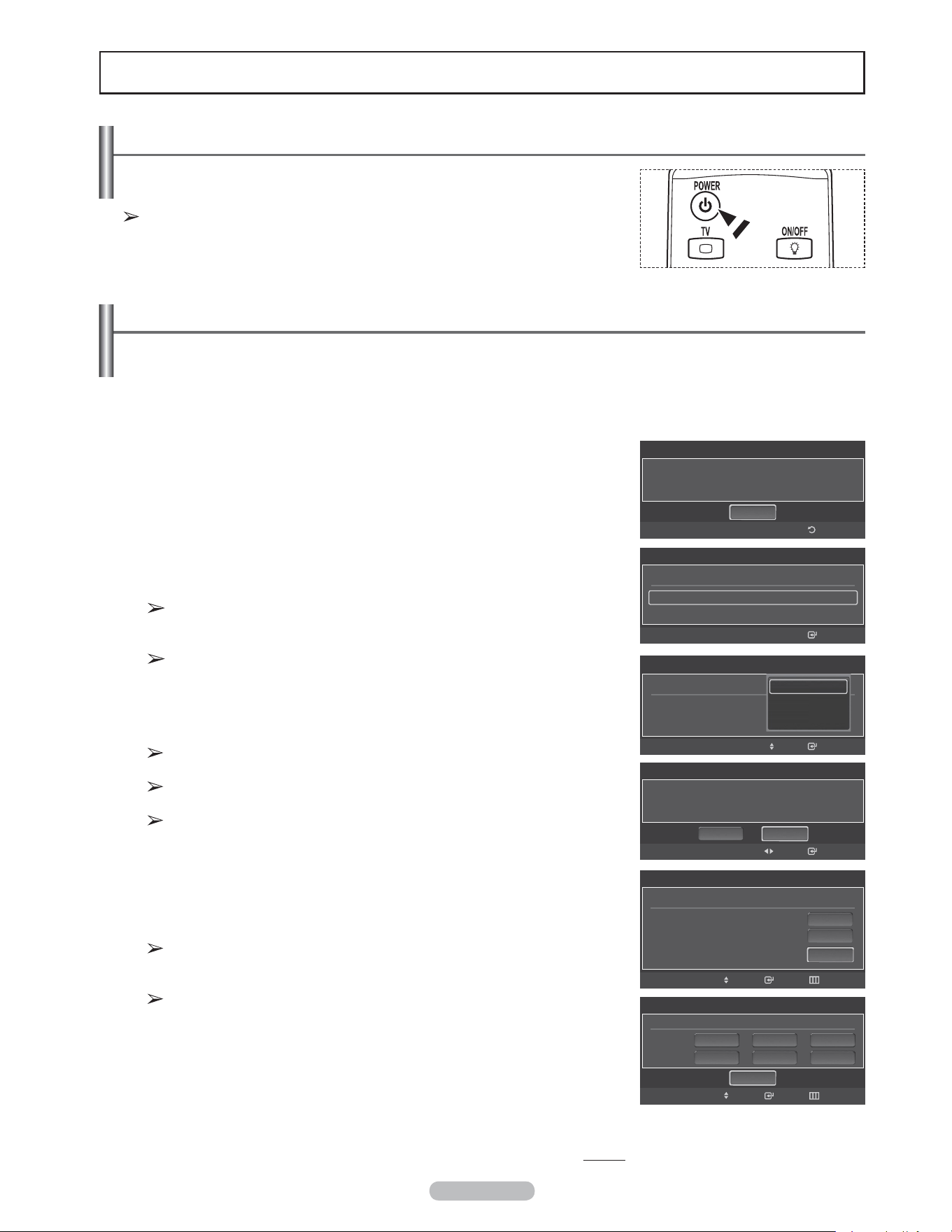
Français - 16
Utilisation
Mise sous tension/hors tension du téléviseur
Appuyer sur la touche POWER de la télécommande.
Il est aussi possible d’utiliser la touche POWER du téléviseur.
Le téléviseur peut prendre un certain temps avant de s'allumer.
Fonction Prêt-à-l’emploi
La première fois que le nouveau téléviseur est allumé, choisir les réglages de base pour la langue, la source
d'entrée et les canaux, ainsi que l'heure actuelle, en utilisant la fonction prêt-à-l'emploi. Le téléviseur mémorisera
ces réglages. La mise en mémoire des canaux permet de balayer les canaux mémorisés au lieu d’entrer leurs
chiffres chaque fois que l'on souhaite changer de canal.
Au moment de la première mise en marche du téléviseur, les réglages de base s’effectuent automatiquement :
1 Appuyer sur la touche POWER de la télécommande.
Le message La langue des menus, le mode Magasin, les canaux et de
lheure. s’affiche.
2 Appuyer sur la touche ENTER pour choisir la langue.
Appuyer sur la touche ▲ ou ▼ pour sélectionner la langue, suivie de la touche
ENTER.
Le message Choisir “Utilisation à domicile” pour un téléviseur à la
maison. s’affiche automatiquement.
Lorsque la fonction Prêt-à-l’emploi est activée, l’écran de veille se met en
marche si aucune touche de la télécommande n’a été actionnée depuis
plus d’une minute.
L’écran de veille s’active lorsqu’il n’y pas eu de signal depuis plus de 15
minutes.
3 Appuyer sur la touche ◄ ou ► pour sélectionner Démo magasin ou Util. à
domicile, suivie de la touche ENTER.
Nous recommandons de régler le téléviseur sur le mode Maison pour une
meilleure image à la maison.
Le mode Démo magasin n’est destiné qu’à une utilisation dans un
environnement commercial.
Pour retourner au mode Standard (Util. à domicile), dans l’éventualité où
l’appareil se trouve accidentellement en mode Démo magasin, maintenir
enfoncée la touche Volume, puis appuyer sur la touche MENU du
téléviseur pendant cinq secondes.
4 Appuyer sur la touche ▲ ou ▼ pour mémoriser les canaux du branchement
sélectionné, suivie de la touche ENTER.
Air: Signal d’antenne Air.
Câble: Signal d'antenne Câble.
Auto: Signaux d'antenne de type Air et Câble.
En mode Câble, il est possible de sélectionner la source de signal
analogique appropriée (STD, HRC ou IRC) en appuyant sur la touche
▲, ▼, ◄, ►, suivie de la touche ENTER. Si le câble est numérique,
sélectionner la source de signal pour une diffusion analogique et
numérique. Pour connaître le système utilisé dans un secteur particulier,
communiquer avec le câblodistributeur.
Suite...
Prêt à l’emploi
Choisir la langue d’affichage.
Langue : Français ►
Intro.
Prêt à l’emploi
Choisir « Utilisation à domicile » pour un téléviseur à la
maison.
Util. à domicile
Démo magasin
Intro.Dépl.
Prêt à l’emploi
Choisir la langue d’affichage.
Intro.
Langue : English
Dépl.
English
Español
Français
PasserIntro.
Prêt à l’emploi
Choisir les antennes à mémoriser.
Air
Câble
Auto
Démarrer
Démarrer
Dépl.
Démarrer
Prêt à l’emploi
Choisir le tableau de câblodiffusion.
analogique
numérique
HRC IRC
HRC IRC
PasserIntro.
STD
Dépl.
Démarrer
STD
Prêt à l’emploi
La langue des menus, le mode Magasin, les canaux et
de lheure.
OK
Retour
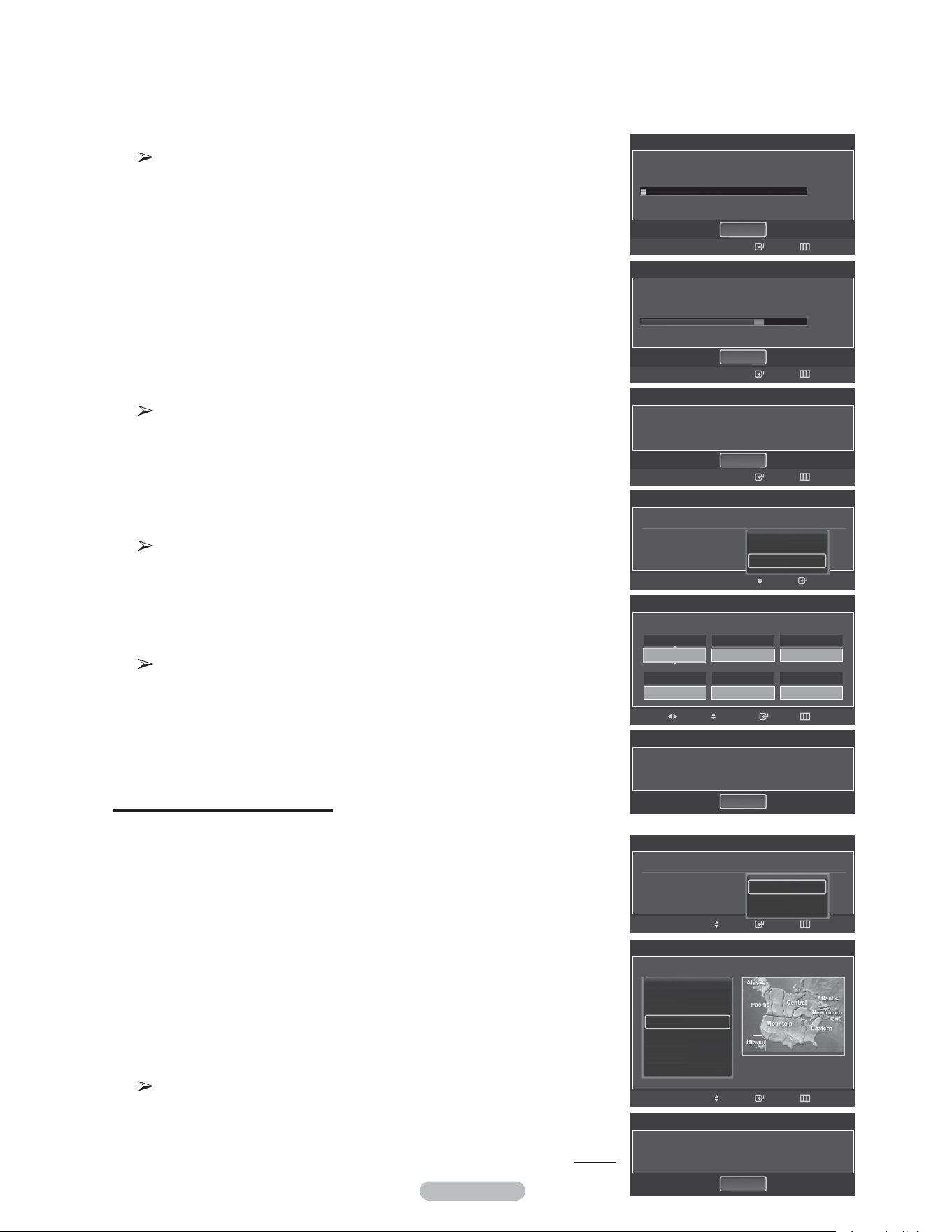
Français - 17
5 Le téléviseur commence la mémorisation des canaux accessibles.
Pour arrêter la recherche avant la fin, appuyer sur la touche ENTER
lorsque la fonction d’arrêt est sélectionnée.
Une fois tous les canaux mémorisés, le téléviseur commence à éliminer les
canaux brouillés (voir page 47). Puis le menu Prog. auto s’affiche.
Appuyer sur la touche ENTER lorsque la mémorisation des canaux est
terminée.
Le menu Mode horloge s’affiche.
6 Appuyer sur la touche ENTER.
Appuyer sur la touche ▲ ou ▼ pour sélectionner Manuel pour régler l'horloge
manuellement, suivie de la touche ENTER.
Le message Entrer l’heure et la date actuelles. s’affiche.
Si Auto est sélectionné, Régler l’horloge à l’heure avancée. s’affiche;
passer à l’étape 9.
7 Appuyer sur la touche ◄ ou ► pour passer à Mois, Jour, Année, Heure,
Minute ou am/pm. Régler la date et l’heure en appuyant sur la touche ▲ ou
▼, suivie de la touche ENTER.
Il est possible de régler directement le mois, le jour, l’année, l’heure et les
minutes à l’aide des touches numériques de la télécommande.
8 Le message Prenez plaisir à regarder. s'affiche.
Lorsque terminé, appuyer sur la touche ENTER.
Même sans appuyer sur la touche ENTER, le message s’efface
automatiquement au bout de quelques secondes.
Réglage automatique de l’horloge
9 Appuyer sur la touche ENTER.
Appuyer sur la touche ▲ ou ▼ pour sélectionner Off ou On, suivie de la
touche ENTER. Choisir le fuseau horaire de la région. le menu s’affiche
automatiquement.
10 Appuyer sur la touche ▲ ou ▼ pour mettre le fuseau horaire en surbrillance
(et pour mettre le fuseau horaire approprié en surbrillance sur la carte des
États-Unis).
Appuyer sur la touche ENTER.
Si l’horloge ne se règle pas automatiquement, consulter la page 53.
11 Le message Prenez plaisir à regarder. s'affiche.
Lorsque terminé, appuyer sur la touche ENTER.
Même sans appuyer sur la touche ENTER, le message s’efface
automatiquement au bout de quelques secondes.
Suite...
Prêt à l’emploi
Progr. Aut. en cours.
Arrêt
Intro. Passer
Air
3%
DTV Air : 05 Air : 11
DTV Câble : -- Câble : --
PasserIntro.
Prêt à l’emploi
Régler l’horloge à l’heure avancée.
DST : Off
Off
On
Dépl.
Prêt à l’emploi
Progr. Aut. Non terminée.
56 canaux sont mémorisés.
DTV Air : 20 Air : 11
DTV Câble : 15 Câble : 10
OK
Intro. Passer
Prêt à l’emploi
Régler le mode horloge.
Mode horloge : Auto
Auto
Manuel
Intro.Dépl.
OK
Prêt à l’emploi
Bon visionnement.
Prêt à l’emploi
Régler le date et l’heure du jour.
0 1
Mois
0 1
Jour
2 0 0 8
Année
1 2
Heure
0 0
Minute
a m
am/pm
PasserIntro.RéglageDépl.
Prêt à l’emploi
Choisir le fuseau horaire dans lequel vous vivez.
Newfoundland
Atlantique
Est
Centre
Rocheuses
Pacifique
▼
PasserIntro.Dépl.
OK
Prêt à l’emploi
Bon visionnement.
Prêt à l’emploi
Arrêt
Intro. Passer
Supprime les canaux brouillés.
DTV Cable 41
77%
DTV Air : 05 Air : 12
DTV Câble : 25 Câble : 32
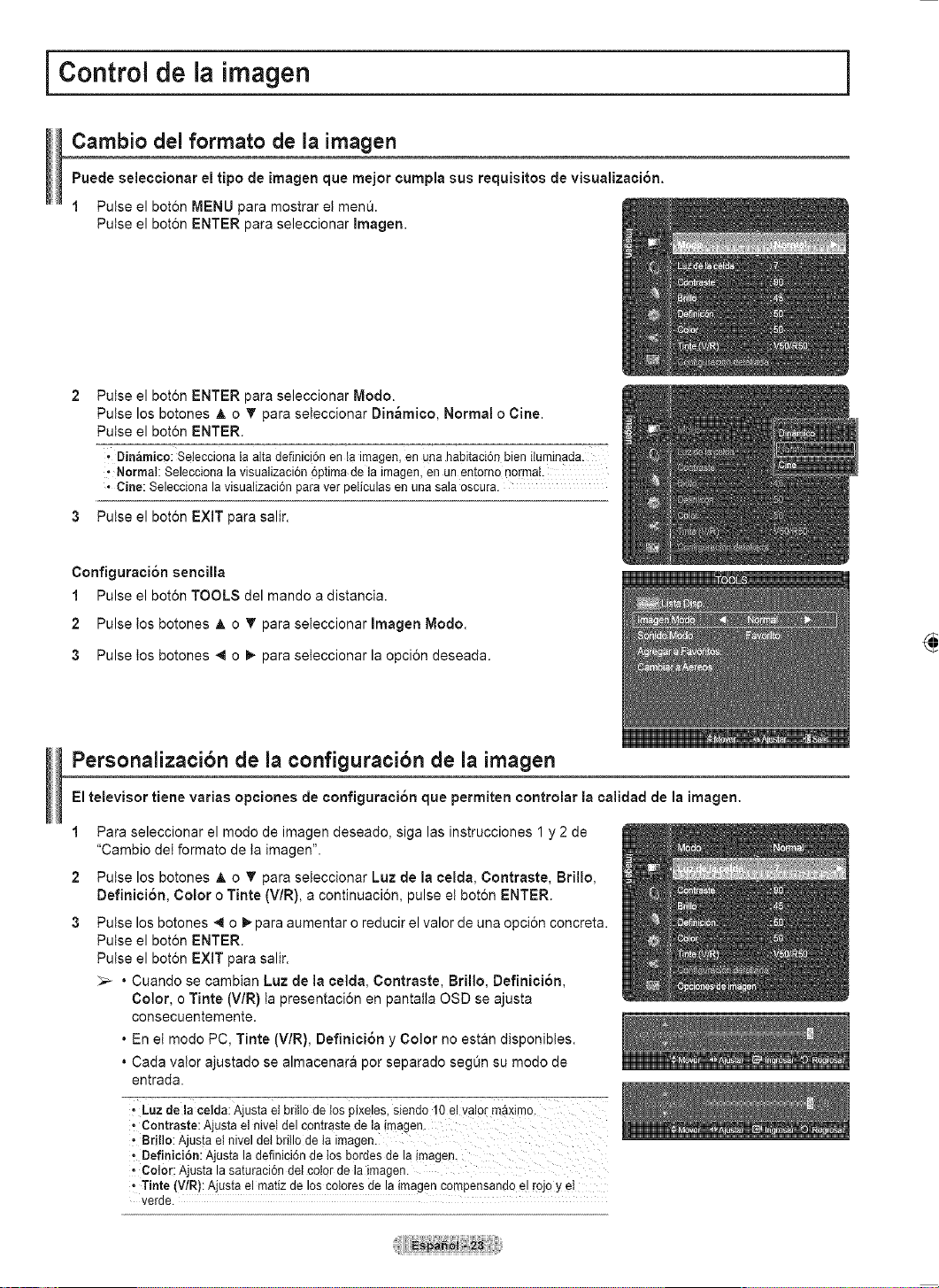
Français - 18
Pour réinitialiser ce paramètre…
1 Appuyer sur la touche MENU pour afficher le menu.
Appuyer sur la touche ▲ ou ▼ pour sélectionner Configuration, suivie de la
touche ENTER.
2 Appuyer sur ENTER pour choisir Prêt-à-l'emploi.
Pour en savoir plus sur la configuration des options, consulter les pages 16 et
17.
La fonction Prêt-à-l’emploi n’est accessible qu’en mode TV.
Changement de canal
Utilisation des touches de canaux
1 Appuyer sur la touche CH ou CH pour changer de canal.
Lorsque la touche CH ou CH best enfoncée, le téléviseur change
de canal en séquence. Tous les canaux mémorisés par le téléviseur défilent
à l’écran. (Le téléviseur doit avoir mémorisé au moins trois canaux.) Les
canaux qui n’ont pas été mémorisés ou qui ont été supprimés de la mémoire
ne seront pas affichés. Consulter la page 20 pour la mémorisation des
canaux.
Utilisation des touches numériques
1 À l’aide des touches numériques, entrer le numéro du canal à syntoniser. Par
exemple, pour syntoniser la chaîne 27, appuyer sur 2, puis sur 7.
Le téléviseur change la chaîne quand le second chiffre est enfoncé.
Pour changer rapidement de canal, appuyer sur les touches numériques,
suivies de la touche ENTER.
Utilisation de la touche “-”
La touche “ ” sert à choisir les stations émettrices de signaux numériques.
1 Par exemple, pour choisir le canal 7-1, appuyer sur 7, puis sur et sur 1.
Le code HD indique que le téléviseur est en mode réception réglé sur un
signal DHD (haute définition numérique).
Le code SD indique que le téléviseur est en mode réception réglé sur un
signal de définition standard.
Pour changer rapidement de canal, appuyer sur les touches numériques,
suivies de la touche ENTER.
Touche PRE-CH pour syntoniser le canal précédent
Les touches numériques permettent d’accéder directement à n’importe quel canal.
1 Appuyer sur la touche PRE-CH. Le dernier canal visionné est automatiquement
sélectionné.
Pour permuter rapidement entre deux canaux dont les positions sont
éloignées, syntoniser l’un des deux canaux, puis utiliser les touches
numériques pour syntoniser l’autre canal.Il suffit ensuite d’appuyer sur la
touche PRE-CH pour passer de l’un à l’autre.
Prêt à l’emploi
►
Langue : Français
Heure
V-Chip
Sous-titres
Réglages externes
Divertissement : Off
Économiseur énergie : Off
Configuration
Prêt à l’emploi
La langue des menus, Démo magasin, les canaux et
l’heure sont réglés.
Intro.
OK
Retour
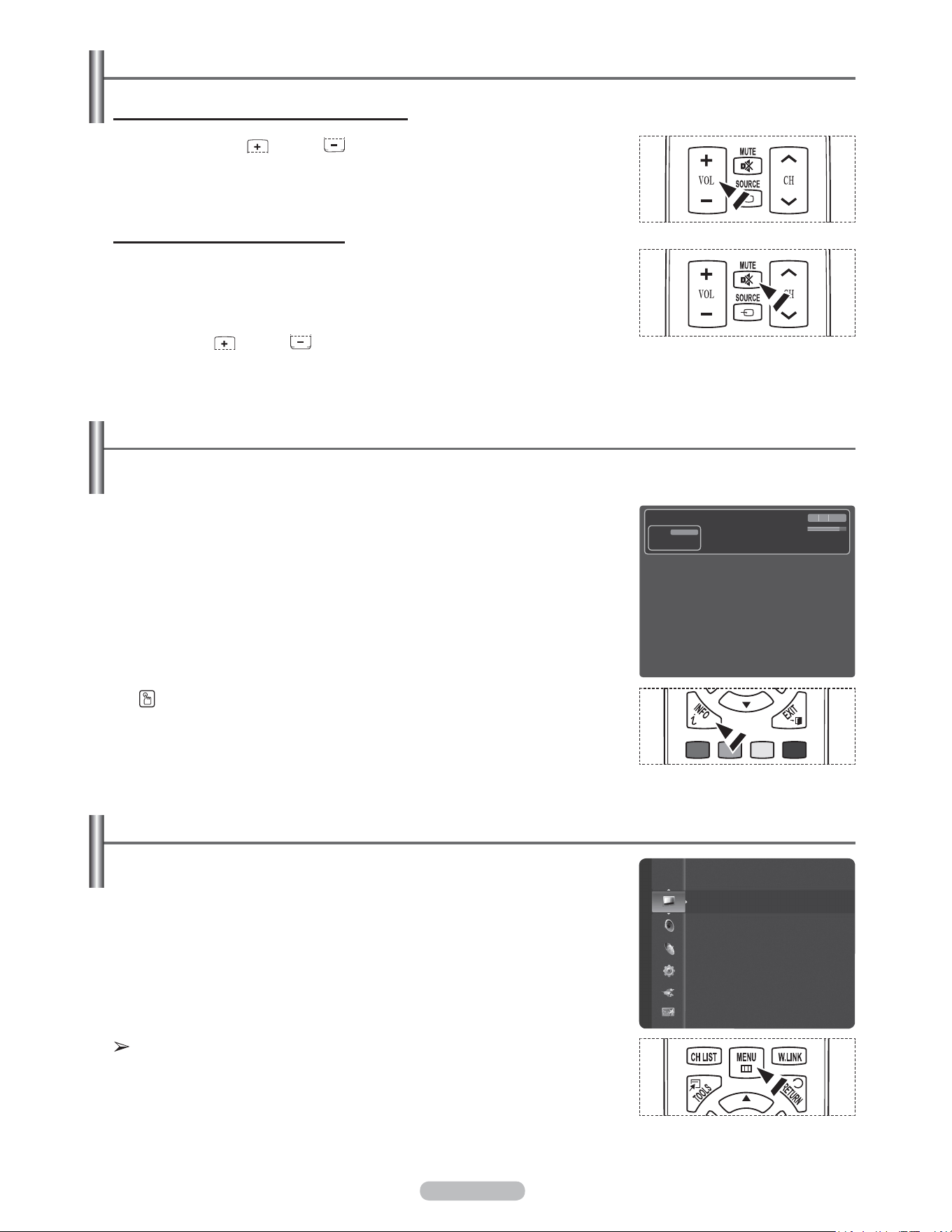
Français - 19
Réglage du volume
Utilisation des touches de réglage du volume
1 Appuyer sur VOL ou VOL pour augmenter ou diminuer le volume.
Utilisation de la touche de sourdine
En tout temps, le son peut être mis en sourdine à l'aide de la touche MUTE.
1 Appuyer sur la touche MUTE pour couper le son.
L’indicateur Mute apparaît dans le coin inférieur gauche de l’écran.
2 Pour désactiver la sourdine, appuyer de nouveau sur la touche MUTE ou sur la
touche VOL ou VOL .
Affichage des menus
1 Alors que le téléviseur est allumé, appuyer sur la touche MENU.
Le menu principal apparaît à l’écran. Le côté gauche du menu présente des
icônes : Image, Son, Chaîne, Configuration, Entrée, Applications.
2 Sélectionner une des cinq icônes à l’aide des touches ▲ et ▼.
Ensuite, appuyer sur ENTER pour accéder au sous-menu de l’icône.
3 Appuyer sur la touche EXIT pour quitter le menu.
Le menu à l'écran disparaît après environ une minute.
Affichage des paramètres
L’écran indique le canal actif et l’état de certains réglages audiovisuels.
1 Appuyer sur la touche INFO de la télécommande.
Le téléviseur affiche alors le canal, le type de configuration sonore et l'état de
certains paramètres du son et de l'image.
Appuyer sur la touche INFO une fois de plus ou attendre environ 10 secondes qu'il
disparaisse automatiquement.
Mode : Standard
Lumière cellule : 7
Contraste : 95
Luminosité : 45
Netteté : 50
Couleur : 50
Teinte (V/R) : V50/R50
Réglages des détails
Image
TV #1
Horloge non régle
M. Spillane’s Mike Hammer
Bonocrunch
DTV Air
13-1
Dolby Digital
480i 4:3 Coréen
12:59 pm - 1:59 pm
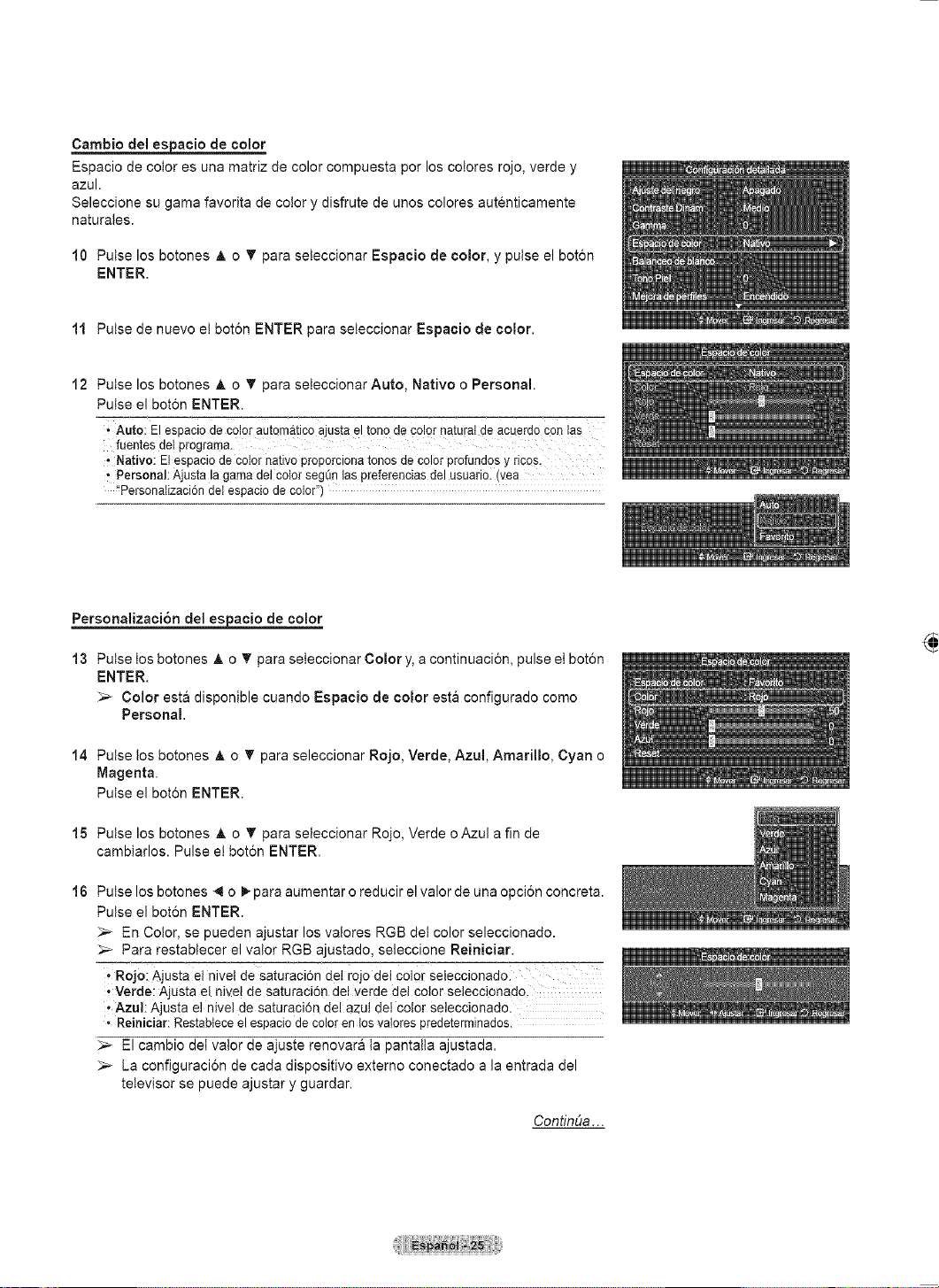
Français - 20
Utilisation de la touche TOOLS
La touche TOOLS peut servir à sélectionner rapidement et aisément les fonctions utilisées fréquemment. Le
menu TOOLS varie selon le mode d'entrée externe affiché.
1 Appuyer sur la touche TOOLS.
Le menu
OUTILS s'affiche.
2 Appuyer sur la touche ▲/▼ pour sélectionner un menu, suivie de la touche
ENTER.
3 Appuyer sur la touche ▲/▼/◄/►, suivie de ENTER, pour afficher, modifier ou
utiliser les éléments sélectionnés.
Pour plus de détails sur chaque fonction, se reporter à la page correspondante.
• Liste des appareils, voir page 89
• Mode image, voir page 23
• Mode son, voir page 36
• Ajouter aux favoris, voir page 43
• Supprimer des favoris, voir page 43
• Switch to Cable, voir page 20
Mémorisation des canaux
Le téléviseur peut mémoriser tous les canaux captés par l’antenne ou le câble. Une fois les canaux mémorisés,
la touche CH ou CH permet de les parcourir successivement, ce qui évite de syntoniser chaque canal
manuellement avec les touches numériques. La mémorisation des canaux s’effectue en trois étapes : sélection de
la source de diffusion, mémorisation automatique des canaux et ajout ou suppression manuelle de canaux (listes
des canaux).
Sélection de la source de diffusion
Pour que le téléviseur puisse mémoriser les canaux accessibles, il faut préciser la
source de signal à laquelle il est raccordé (air ou câble).
1 Appuyer sur la touche MENU pour afficher le menu.
Appuyer sur la touche ▲ ou ▼ pour sélectionner Chaîne, suivie de la touche
ENTER.
2 Appuyer sur ENTER pour choisir Antenne.
Appuyer sur la touche ▲ ou ▼ pour sélectionner Air ou Câble, suivie de la
touche ENTER.
ppuyer sur la touche EXIT pour quitter.
Configuration facile
1 Appuyer sur la touche TOOLS de la télécommande.
2 Appuyer sur la touche ▲ ou ▼ pour sélectionner Switch to Cable ou Switch to
Air.
3 Appuyer sur la touche ENTER.
Suite...
Antenne
:
Air
Prog. auto
Liste des canaux
Effacer les canaux brouillés
Syn. Précise
Puissance signal
Air
Câble
ChaîneChaîne
Antenne
:
Air ►
Prog. auto
Liste des canaux
Effacer les canaux brouillés
Syn. Précise
Puissance signal
OUTILS
Liste appareils
Image Mode : Standard
Son Mode : Personnel
Ajouter aux favoris
Switch to Cable
Dépl. Intro. Sortie
OUTILS
Liste appareils
Image Mode : Standard
Son Mode : Personnel
Ajouter aux favoris
Switch to Cable
Dépl. Intro. Sortie
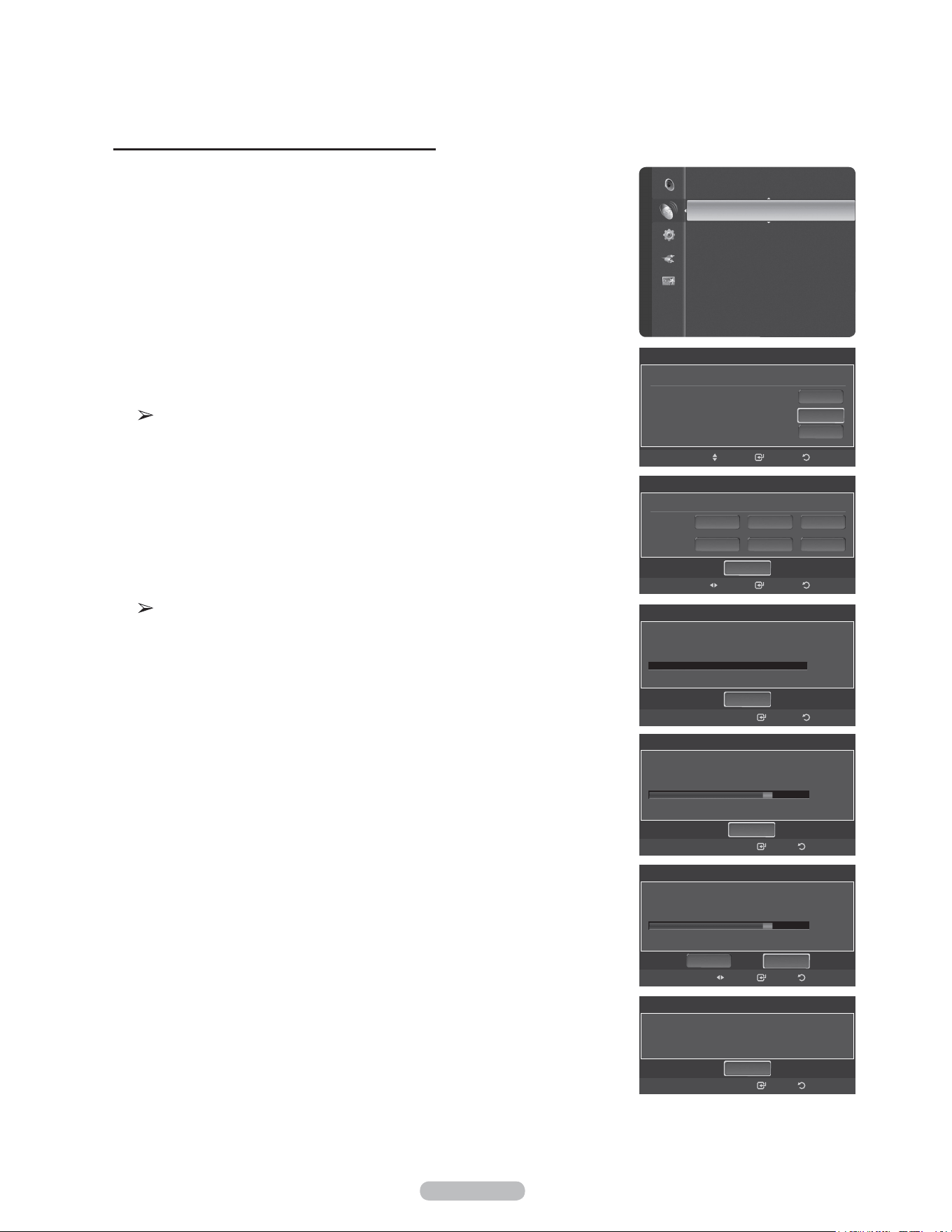
Français - 21
Mémorisation des canaux (méthode automatique)
1 Appuyer sur la touche MENU pour afficher le menu.
Appuyer sur la touche ▲ ou ▼ pour sélectionner Chaîne, suivie de la touche
ENTER.
2 Appuyer sur la touche ▲ ou ▼ pour sélectionner Prog. Auto, suivie de la
touche ENTER.
3 Appuyer sur la touche ▲ ou ▼ pour sélectionner le branchement d'antenne,
suivie de la touche ENTER.
Air: Signal d’antenne Air
Câble: Signal d'antenne Câble.
Auto: Signaux d'antenne de type Air et Câble.
4 Au moment de la sélection du système de télévision par câble :
Appuyer sur ENTER pour amorcer la programmation automatique.
Appuyer sur les touches ▲, ▼, ◄ ou ► tpour choisir la source du signal
analogique appropriée (STD, HRC ou IRC), puis sur ENTER. Si le câble est
numérique, sélectionner la source de signal pour une diffusion analogique et
numérique.
STD, HRC et IRC désignent différents systèmes de câblodistribution. Pour
connaître le système utilisé dans un secteur particulier, communiquer avec
le câblodistributeur. La sélection de la source de signal est maintenant
terminée.
5 Le téléviseur commence alors à mémoriser tous les canaux disponibles.
Une fois tous les canaux mémorisés, le téléviseur commence à éliminer les
canaux brouillés (voir la page 47). Puis le menu Prog. auto s’affiche.
Si vous voulez arrêter la programmation automatique, appuyez sur ENTER.
le message Arrêter la programmation automatique? s’affiche. Appuyer sur la
touche ◄ ou ► pour sélectionner
Oui, suivie de la touche ENTER.
Appuyer sur la touche EXIT pour quitter.
RetourIntro.
Prog. auto
Choisir les antennes à mettre en mémoire.
Air
Câble
Auto
Dépl.
Démarrer
Démarrer
Démarrer
Chaîne
Antenne : Air
Prog. auto
►
Liste des canaux
Effacer les canaux brouillés
Syn. Précise
Puissance signal
Prog. auto
Choisir le tableau de câblodiffusion.
analogique
numérique
HRC IRC
HRC IRCSTD
RetourIntro.Dépl.
Démarrer
STD
Prog. auto
Progr. Aut. Non terminée.
56 canaux sont mémorisés.
DTV Air : 20 Air : 11
DTV Câble : 15 Câble : 10
RetourIntro.
OK
Prog. auto
Progr. Aut. en cours.
Arrêt
Câble 3
3%
DTV Air : 5 Air : 4
DTV Câble : -- Câble : --
Intro. Retour
Prog. auto
Arrêt
Supprime les canaux brouillés.
DTV Cable 41
77%
DTV Air : 05 Air : 12
DTV Câble : 25 Câble : 32
RetourIntro.
Prog. auto
Arrêter la programmation automatique?
77%
DTV Air : 5 Air : 4
DTV Câble : 7 Câble : 5
RetourIntro.
NonOui
Dépl.
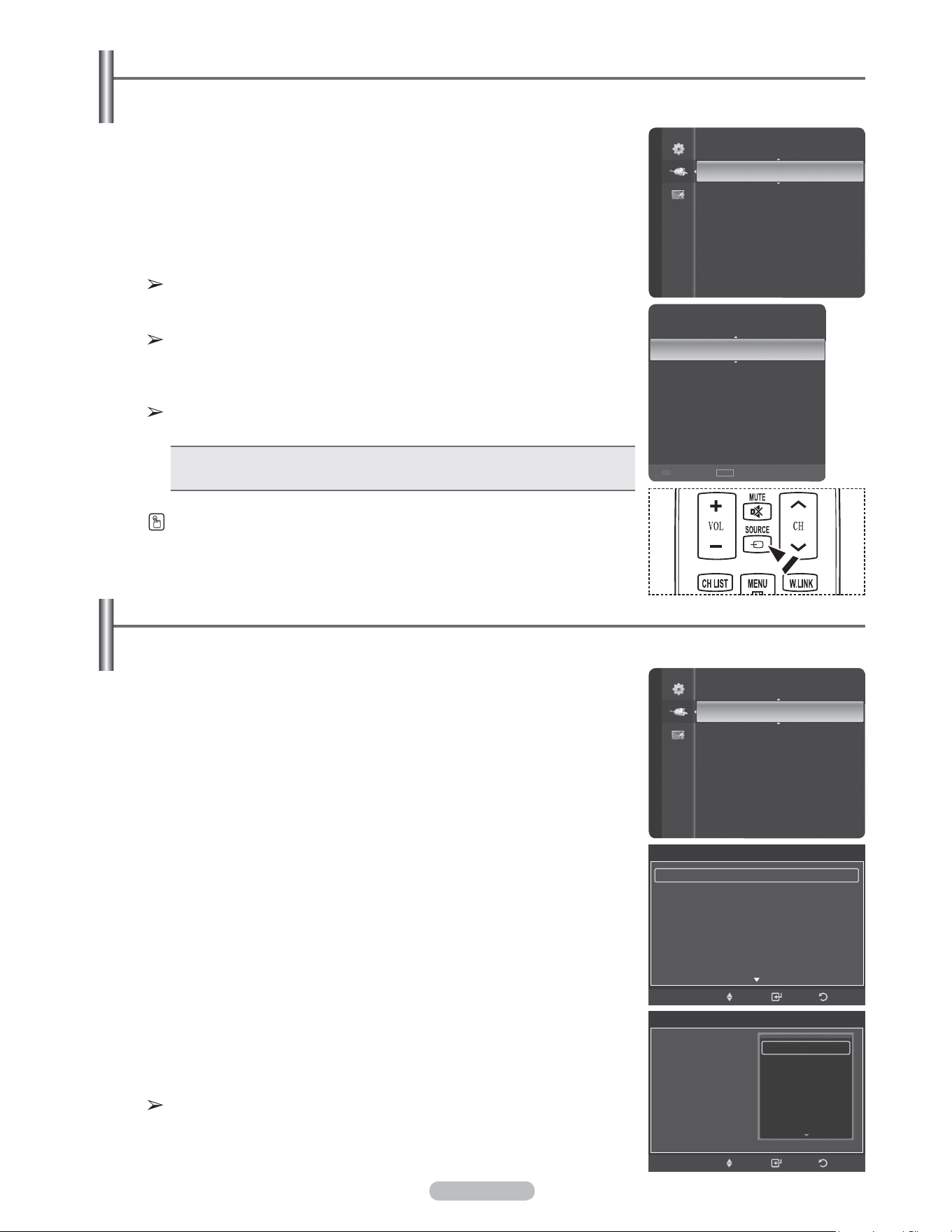
Français - 22
Pour choisir la source
Sélectionner le téléviseur ou une autre source d’entrée externe branchée au téléviseur, comme un lecteur DVD,
câblosélecteur ou récepteur. Sélectionner pour choisir la source d'entrée désirée.
1 Appuyer sur la touche MENU pour afficher le menu.
Appuyer sur la touche ▲ ou ▼ pour sélectionner Entrée, suivie de la touche
ENTER.
2 Appuyer sur ENTER pour choisir Liste des sources.
Appuyer sur la touche ▲ ou ▼ pour sélectionner la source du signal, suivie de
la touche ENTER.
Il est possible de choisir entre les jeux de prises suivants: TV, AV1, AV2,
S-Video, Component1, Component2, PC, HDMI1, HDMI2/DVI, HDMI3,
USB.
Seuls les appareils externes branchés au téléviseur peuvent être
sélectionnés.
Les entrées raccordées sont surlignées et figurent au haut de la Liste
source. Les entrées non raccordées figurent à la fin.
Utilisation des touches de couleurs sur la télécommande avec la liste
des sources.
• Rouge (Rafraîchir): Rafraîchit les dispositifs externes raccordés.
• TOOLS (Option): Affiche les menus Entrer le nom et Information.
Pour entrer le nom de la source d’entrée
Il est possible de nommer l’appareil branché aux prises d’entrée afin de faciliter la sélection de la source d’entrée.
1 Appuyer sur la touche MENU pour afficher le menu.
Appuyer sur la touche ▲ ou ▼ pour sélectionner Entrée, suivie de la touche
ENTER.
Appuyer sur la touche ▲ ou ▼ pour sélectionner Entrer le nom, suivie de la
touche ENTER.
2 Appuyer sur la touche ▲ ou ▼ pour sélectionner la prise d'entrée AV1, AV2,
S-Vidéo, Component1, Component2, PC, HDMI1, HDMI2/DVI, ou HDMI3,
suivie de la touche ENTER.
3 Appuyer sur la touche ▲ ou ▼ pour choisir la source d'entrée Magnétoscope,
DVD, Câble STB, Satellite STB, PVR STB, Récepteur A/V, Jeu, Caméscope,
PC, TV, IPTV, Blu-Ray, HD DVD, Digital Media Adapter, suivie de la touche
ENTER.
Appuyer sur la touche EXIT pour quitter.
Lorsqu'un PC ayant une résolution de 1920 x 1080 @ 60 Hz est branché au
port HDMI IN 2, le mode HDMI2 doit être choisi dans le paramètre Entrer le
nom.
En appuyant sur la touche SOURCE de la télécommande, il est possible d'afficher
une source de signal externe.
Liste source
Entrer le nom
Entrée
TV
AV1
----
AV2
----
S-Vidéo
----
Composante 1
----
Composante 2
----
PC
----
Rafraîchir Option
TOOLS
Entrée
Liste source
Entrer le nom ►
Entrer le nom
AV1 :
----
►
AV2 :
----
S-Vidéo :
----
Composante 1 :
----
Composante 2 :
----
PC :
----
HDMI1 :
----
Intro. RetourDépl.
Entrer le nom
AV1 :
----
AV2 :
----
S-Vidéo :
----
Composante 1 :
----
Composante 2 :
----
PC :
HDMI1 :
Intro. RetourDépl.
----
Magnétoscope
DVD
Câble STB
Satellite STB
PVR STB
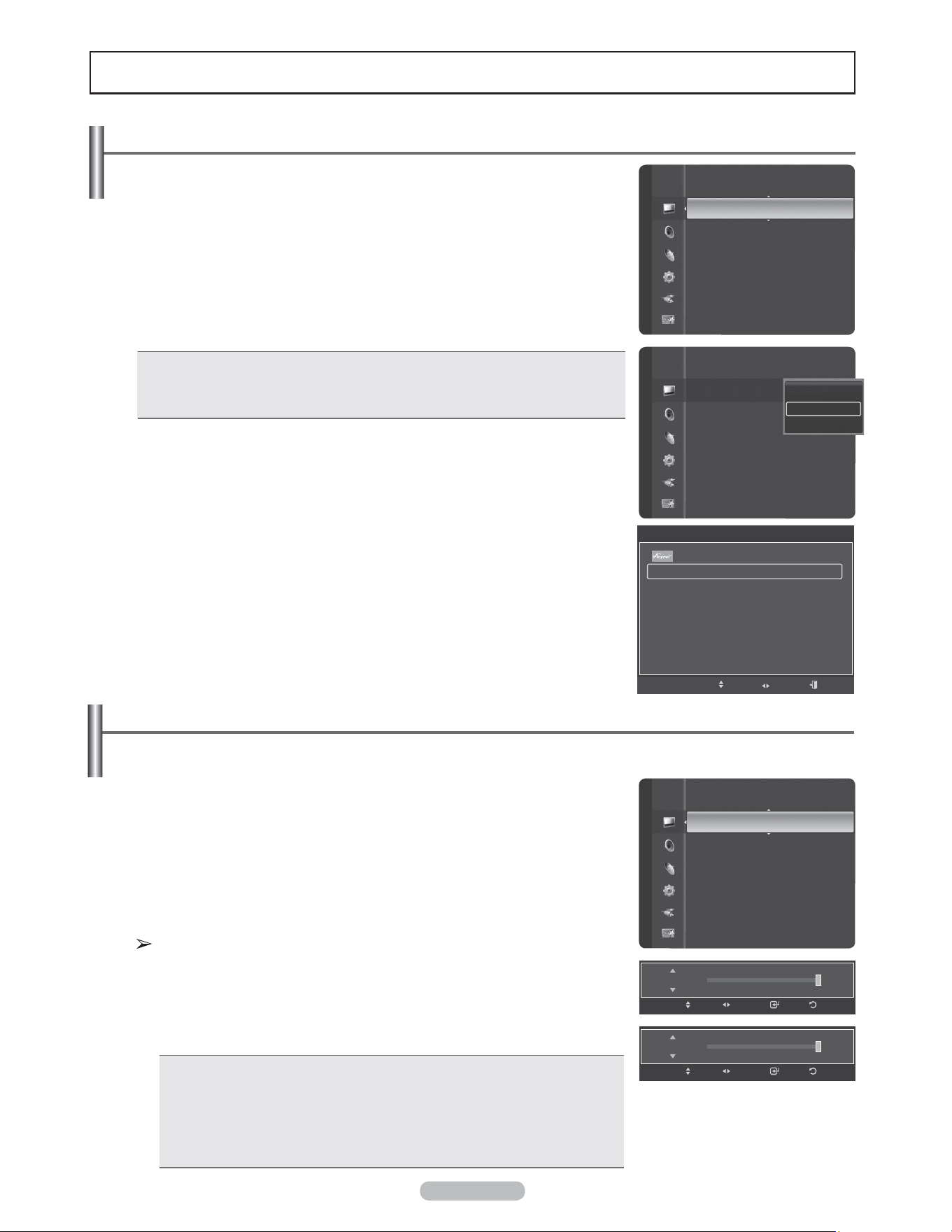
Français - 23
Réglage de l’image
Changement du format normal de l'image
Il est possible de choisir le type d’image qui correspond le plus à ses exigences.
1 Appuyer sur la touche MENU pour afficher le menu.
Appuyer sur la touche ENTER pour choisir Image.
2 Appuyer sur ENTER pour choisir Mode.
Appuyer sur la touche ▲ ou ▼ pour sélectionner le réglage d’image
Dynamique, Standard ou Cinéma.
Appuyer sur la touche ENTER.
• Dynamique: Choisit l’image pour la haute définition dans une pièce claire.
• Standard: Choisit la meilleure image possible dans un environnement normal.
• Cinéma: Choisit la meilleure image pour regarder des films dans une pièce
sombre.
3 Appuyer sur la touche EXIT pour quitter.
Configuration facile
1 Appuyer sur la touche TOOLS de la télécommande.
2 Appuyez sur la touche ▲ ou ▼ pour choisir Mode Image.
3 Appuyer sur la touche ◄ ou ► pour sélectionner l’option désirée.
Personnalisation des réglages de l’image
Le téléviseur offre plusieurs options de réglage de la qualité de l'image.
1 Pour sélectionner le mode d'image désiré, suivre les instructions Modifier
l'image standard numéros 1 à 2.
2 Appuyer sur la touche ▲ ou ▼ pour sélectionner Contre-jour, Contraste,
Luminosité, Netteté, Couleur ou Teinte (V/R), puis sur la touche ENTER.
3 Appuyer sur la touche ◄ ou ► pour augmenter ou réduire la valeur d’un
élément particulier.
Appuyer sur la touche ENTER.
Appuyer sur la touche EXIT pour quitter.
• Si des modifications sont apportées à Contre-jour, Contraste,
Luminosité, Netteté, Couleur ou Teinte (V/R), l'image à l'écran s'ajuste
en conséquence.
• En mode PC, Teinte (V/R), Netteté et Couleur ne sont pas accessibles.
• Chaque paramètre configuré est enregistré séparément en fonction du
mode d'entrée.
• Contre-jour :
Règle la luminosité des pixels (10 étant le réglage le plus élevé).
• Contraste : Règle le niveau de contraste de l'image.
• Luminosité : Règle le niveau de luminosité de l'image.
• Netteté : Règle la définition des contours de l'image.
• Couleur : Règle la saturation des couleurs de l’image.
• Teinte (V/R) : Règle la teinte des couleurs de l’image en compensant le
rouge et le vert.
Mode
:
Standard ►
Lumière cellule : 7
Contraste : 90
Luminosité : 45
Netteté : 50
Couleur : 50
Teinte (V/R) : V50/R50
Réglages des détails
Image Image
Mode
:
Lumière cellule : 7
Contraste : 80
Luminosité : 45
Netteté : 50
Couleur : 50
Teinte (V/R) : V50/R50
Réglages des détails
Dynamique
Standard
Cinéma
Mode
:
Standard
Lumière cellule : 7 ►
Contraste : 90
Luminosité : 45
Netteté : 75
Couleur : 55
Teinte (V/R) : V50/R50
Réglages des détails
Options d’image
Image
7Lumière cellule
RetourIntro.RéglageDépl.
90Contraste
RetourIntro.RéglageDépl.
OUTILS
Liste appareils
Image Mode ◄ Standard ►
Son Mode : Personnel
Ajouter aux favoris
Switch to Cable
Dépl. Réglage Sortie
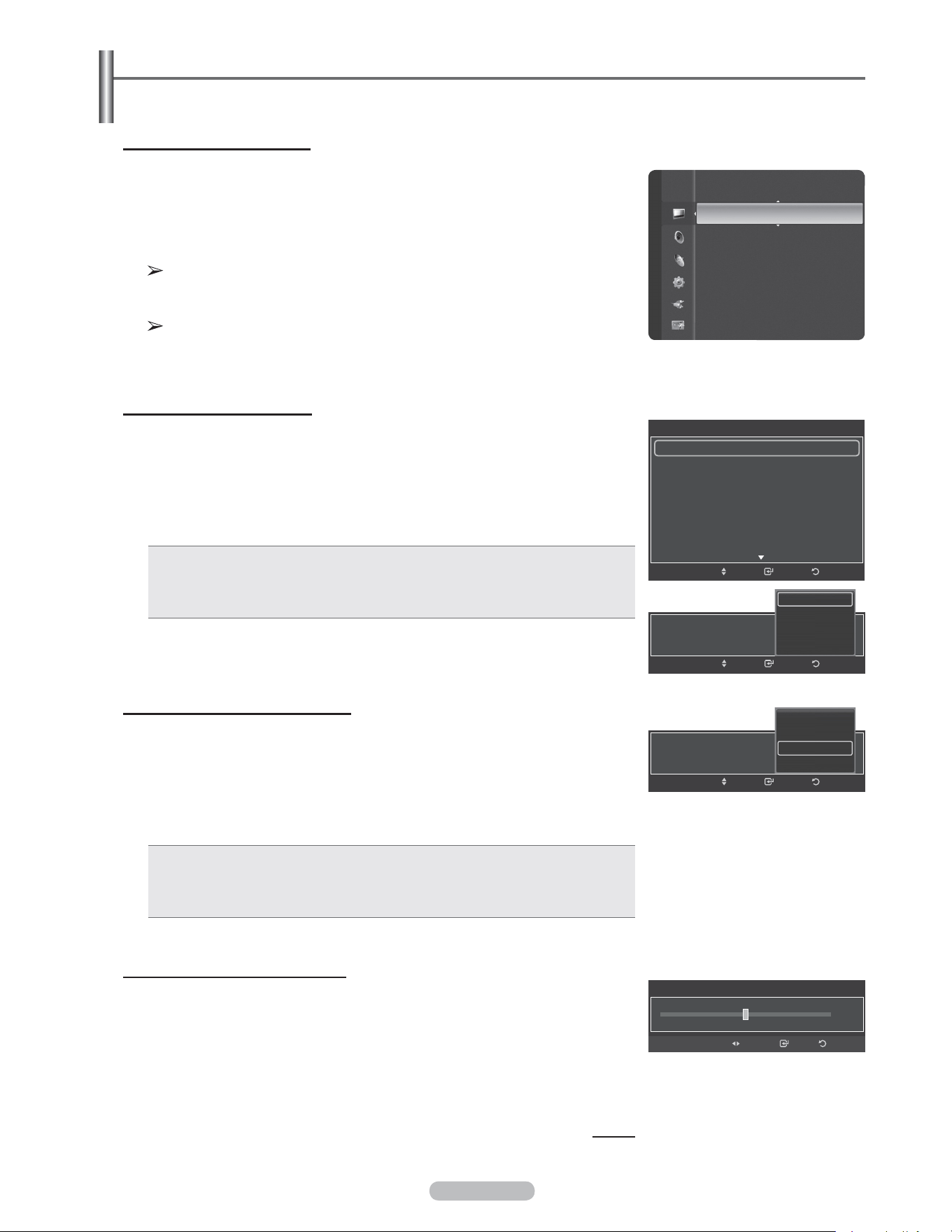
Français - 24
Réglage des détails
Le nouveau téléviseur Samsung permet d’effectuer des réglages d’image encore plus précis que les modèles
précédents. Voir ci-dessous pour exécuter des réglages détaillés de l’image.
Activer les réglages détaillés
1 Appuyer sur la touche MENU pour afficher le menu.
Appuyer sur la touche ENTER pour choisir Image.
2 Appuyer sur la touche ENTER pour sélectionner Mode.
Appuyer sur la touche ▲ ou ▼ pour sélectionner Standard ou Film, suivie de la
touche ENTER.
La fonction Réglages détaillés est accessible en mode Standard ou Film.
3 Appuyer sur la touche ▲ ou ▼ pour sélectionner Réglages détaillés, suivie de
la touche ENTER.
En mode PC, il est possible de modifier uniquement les fonctions Contraste
dynam., Gamma et Équilibrage du blanc à partir des éléments Réglages
des détails.
Activation du réglage du noir
Il est possible de régler le niveau de noir de l’écran afin d’ajuster la profondeur de
l’écran.
4 Appuyer sur la touche ▲ ou ▼ pour sélectionner Réglage du noir, suivie de la
touche ENTER.
5 Appuyer sur la touche ▲ ou ▼ pour sélectionner Off, Basse, Moyen ou Haute.
Appuyer sur la touche ENTER.
• Off : Désactive la fonction de réglage du noir.
• Basse : Règle l’intensité du noir à faible.
• Moyen : Règle l’intensité du noir à moyen.
• Haute : Règle l’intensité du noir à élevée.
Activation du contraste dynamique
Il est possible de régler le contraste de l’écran afin d’obtenir un contraste optimal.
6 Appuyer sur la touche ▲ ou ▼ pour sélectionner Contraste dynam, puis
appuyer sur la touche ENTER.
7 Appuyer sur la touche ▲ ou ▼ pour sélectionner Off, Basse, Moyen ou Haute.
Appuyer sur la touche ENTER.
• Off: Désactive la fonction de réglage du contraste dynamique.
• Basse: Règle le contraste dynamique au niveau bas.
• Moyen: Règle le contraste dynamique au niveau moyen.
• Haute: Règle le contraste dynamique au niveau élevé.
Activation de la correction gamma
Il est possible d'ajuster l'intensité des couleurs primaires (rouge, vert, bleu). (-3 ~ +3)
8 Appuyer sur la touche ▲ ou ▼ pour sélectionner Gamma, suivie de la touche
ENTER.
9 Appuyer sur la touche ◄ ou ► pour augmenter ou réduire la valeur.
Appuyer sur la touche ENTER.
Suite...
Couleur : 50
Teinte (V/R) : V50/R50
Réglages des détails
►
Options d’image
Réinitialisation de l’image
Image
Réglage du noir : Basse
RetourIntro.Dépl.
Off
Basse
Moyen
Haute
Contraste dynam. : Basse
RetourIntro.Dépl.
Off
Basse
Moyen
Haute
Gamma
0
Intro. RetourRéglage
Réglages des détails
Réglage du noir : Off ►
Contraste dynam. : Moyen
Gamma : 0
Espace couleur : Standard
Équilibrage du blanc
Ton chair : 0
Amélioration des bords : On
RetourIntro.Dépl.
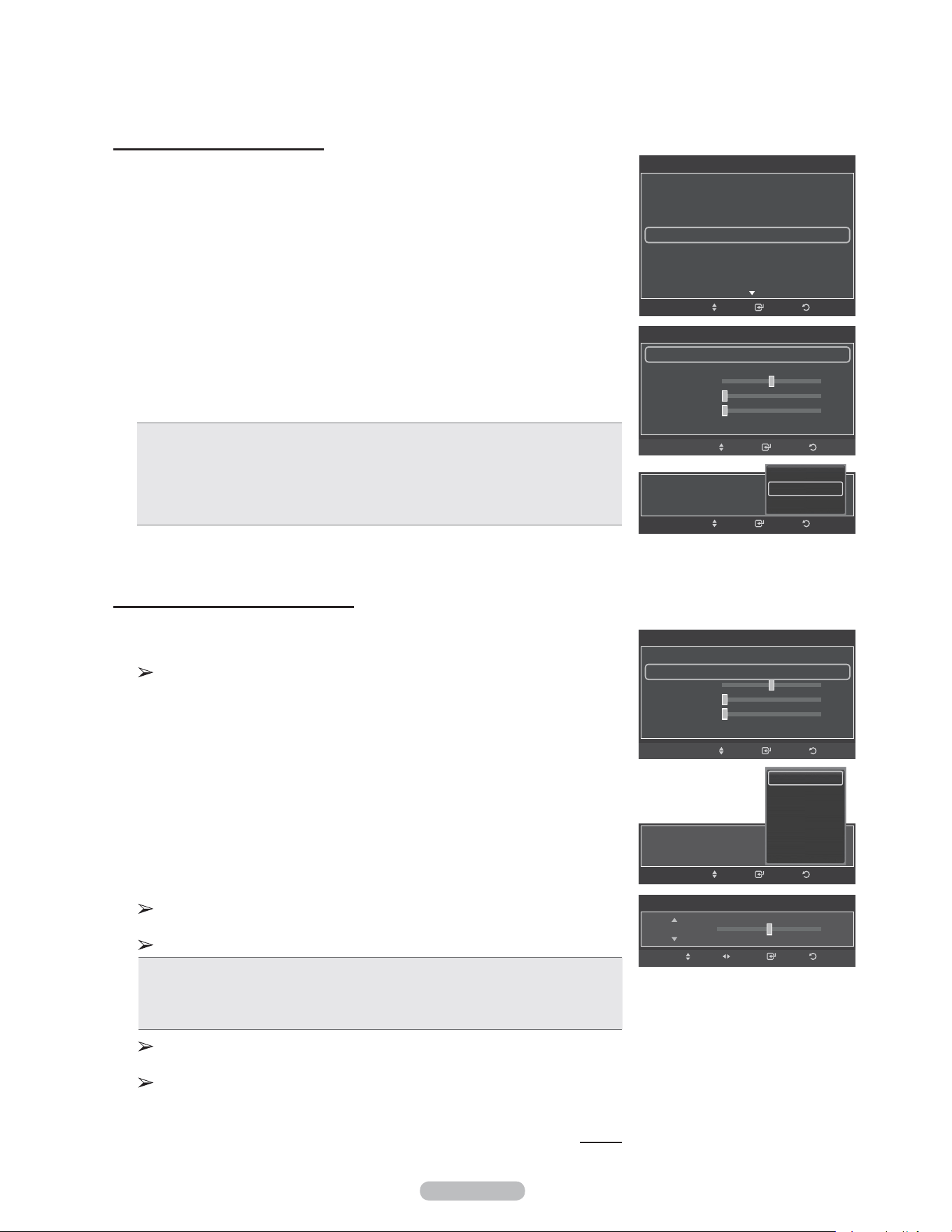
Français - 25
Modification de l'espace couleur
L’espace couleur est une matrice de couleurs comportant le rouge, le vert et le bleu.
Le choix d'un espace couleur permet de bénéficier d'une couleur plus naturelle.
10 Appuyer sur la touche ▲ ou ▼ pour sélectionner Espace couleur, suivie de la
touche ENTER.
11 Appuyer sur la touche ENTER de nouveau pour sélectionner Espace couleur.
12 Appuyer sur la touche ▲ ou ▼ pour choisir Auto, Standard ou Personnel.
Appuyer sur la touche ENTER.
• Auto : La commande d'espace couleur automatique permet d’obtenir
automatiquement les tons les plus naturels en fonction des sources de
programme.
• Standard : La commande d'espace couleur standard offre des tons riches.
• Personnel : Règle la gamme des couleurs selon les préférences de l'utilisateur.
(voir “Personnalisation de l'espace couleur”)
Personnalisation de l'espace couleur
13 Appuyer sur la touche ▲ ou ▼ pour sélectionner Couleur, suivie de la touche
ENTER.
Couleur est accessible lorsque Espace couleur est en mode
Personnalisé.
14 Appuyer sur la touche ▲ ou ▼ pour choisir Rouge, Vert, Bleu, Jaune, Cyan
ou Magenta.
Appuyer sur la touche ENTER.
15 Appuyer sur la touche ▲ ou ▼ pour choisir Rouge, Vert ou Bleu pour modifier
la couleur. Appuyer sur la touche ENTER.
16 Appuyer sur la touche ◄ ou ► pour augmenter ou réduire la valeur d’un
élément particulier.
Appuyer sur la touche ENTER.
Les valeurs RGB de la couleur sélectionnée peuvent être modifiées à l'aide
du menu Couleur.
Pour rétablir la valeur RGB ajustée, choisir Rétablir.
• Rouge : Règle le niveau de saturation du rouge de la couleur choisie.
• Vert : Règle le niveau de saturation du vert de la couleur choisie.
• Bleu : Règle le niveau de saturation du bleu de la couleur choisie.
• Rétablir : Ramène l’espace couleur aux valeurs par défaut.
Une modification de la valeur des réglages entraîne un rafraîchissement de
l'écran.
Les réglages peuvent être modifiés et mémorisés pour chaque appareil
externe branché à une entrée du téléviseur.
Suite...
Espace couleur
50
Espace couleur : Standard
Couleur : Rouge
Rouge
Vert
Bleu
Régler
0
0
RetourIntro.Dépl.
Espace couleur : Basse
RetourIntro.Dépl.
Auto
Standard
Personnel
Espace couleur
50
Espace couleur : Personnel
Couleur : Rouge
Rouge
Vert
Bleu
Régler
0
0
RetourIntro.Dépl.
Couleur : Basse
RetourIntro.Dépl.
Rouge
Vert
Bleu
Jaune
Cyan
Magenta
Espace couleur
50Rouge
Intro. RetourRéglageDépl.
Réglages des détails
Réglage du noir : Off
Contraste dynam. : Moyen
Gamma : 0
Espace couleur : Standard ►
Équilibrage du blanc
Ton chair : 0
Amélioration des bords : On
RetourIntro.Dépl.
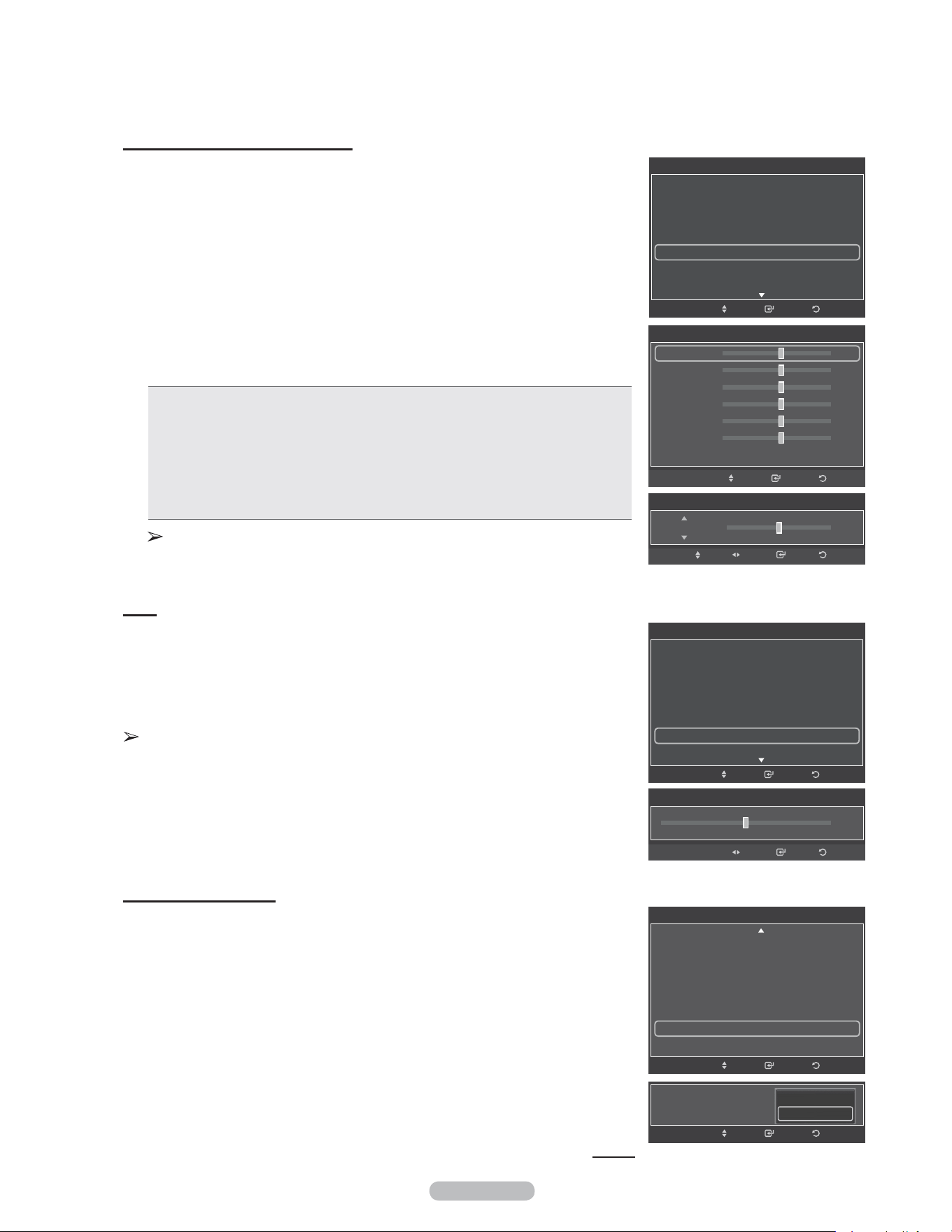
Français - 26
Rose
Il est possible d'accentuer le rose de l'image.
20 Appuyer sur la touche ▲ ou ▼ pour choisir Rose, puis sur la touche ENTER.
21 Appuyer sur la touche ◄ ou ► pour augmenter ou réduire la valeur.
Appuyer sur la touche ENTER.
Une modification de la valeur des réglages entraîne un rafraîchissement de
l'écran.
Amélioration des bords
Il est possible d'accentuer le contour des objets de l'image.
22 Appuyer sur la touche ▲ ou ▼ pour sélectionner Améliorat. bords, puis sur
ENTER.
23 Appuyer sur la touche ▲ ou ▼ pour sélectionner Off ou On. Appuyer sur la
touche ENTER.
Suite...
Activation de l'équilibrage du blanc
Il est possible de régler la température de la couleur pour obtenir une image de
couleurs plus naturelles.
17 Appuyer sur la touche ▲ ou ▼ pour sélectionner Équilibrage des blancs,
suivie de la touche ENTER.
18 Sélectionner l’option désirée en appuyant sur la touche ▲ ou ▼, suivie de la
touche ENTER.
19 Appuyer sur la touche ◄ ou ► pour augmenter ou réduire la valeur d’un
élément particulier. Appuyer sur la touche ENTER.
• Décal.-R: Permet de réduire la luminosité de la couleur rouge.
• Décal.-V: Permet de réduire la luminosité de la couleur verte.
• Décal.-B: Permet de réduire la luminosité de la couleur bleu.
• Gain-R: Permet d’augmenter la luminosité de la couleur rouge.
• Gain-V: Permet d’augmenter la luminosité de la couleur vert.
• Gain-B: Permet d’augmenter la luminosité de la couleur bleu.
• Rétablir: L'équilibre des blancs précédemment établi sera rétabli selon les
valeurs par défaut prédéfinies en usine.
Une modification de la valeur des réglages entraîne un rafraîchissement de
l'écran.
Ton chair
0
Intro. RetourRéglage
RetourIntro.
Réglages des détails
Contraste dynam. : Basse
Gamma : 0
Espace couleur : Auto
Équilibrage du blanc
Ton chair : 0
Amélioration des bords : On ►
xvYCC : Off
Dépl.
Améliorat. bords : On
RetourIntro.Dépl.
Off
On
Équilibrage du blanc
Décal.-R 25
Décal.-V 25
Décal.-B 25
Gain-R 25
Gain-V 25
Gain-B 25
Régler
RetourIntro.Dépl.
Équilibrage du blanc
25Décal.-R
Intro. RetourRéglageDépl.
Réglages des détails
Réglage du noir : Off
Contraste dynam. : Moyen
Gamma : 0
Espace couleur : Standard
Équilibrage du blanc ►
Ton chair : 0
Amélioration des bords : On
RetourIntro.Dépl.
Réglages des détails
Réglage du noir : Off
Contraste dynam. : Basse
Gamma : 0
Espace couleur : Auto
Équilibrage du blanc
Ton chair : 0 ►
Amélioration des bords : On
RetourIntro.Dépl.
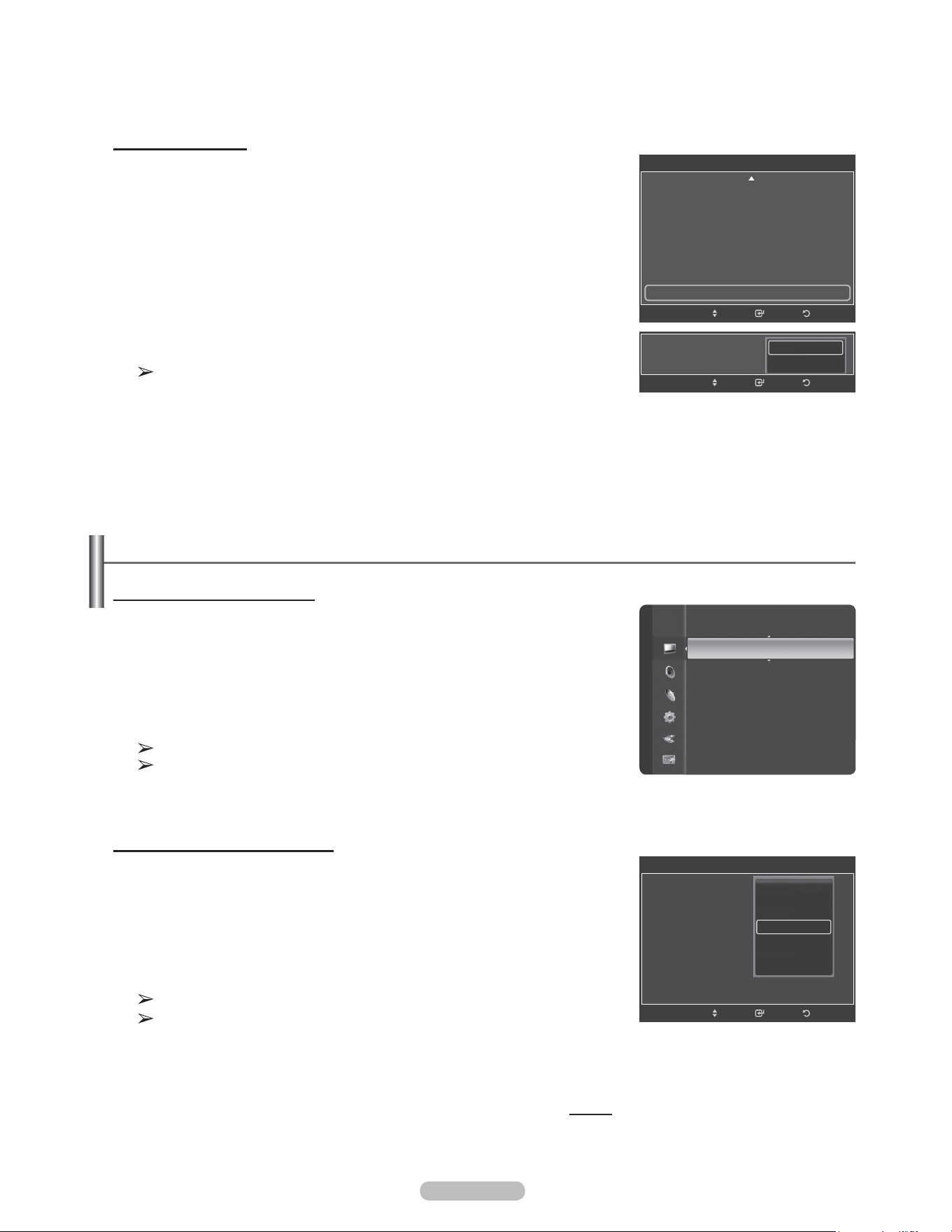
Français - 27
Activation de xvYCC
L’activation du mode xvYCC augmente le niveau de détail et l’espace couleur
pendant le visionnement de films provenant d’un appareil externe (c.-à-d. un lecteur
DVD) branché à la prise HDMI ou Component IN.
24 Appuyer sur la touche ▲ ou ▼ pour sélectionner xvYCC, suivie de la touche
ENTER.
25 Appuyer sur la touche ▲ ou ▼ pour sélectionner Off ou On.
Appuyer sur la touche ENTER.
xvYCC est accessible en mode d'image Film et l'entrée externe est en
mode HDMI(Y,Cb,Cr) ou Composant.
Configuration des options d'image
Activation des options d'image
1 Appuyer sur la touche MENU button to pour afficher le menu.
Appuyer sur la touche ENTER pour choisir Image.
2 Appuyer sur la touche ▲ ou ▼ pour sélectionner Options d'image suivie de
la touche ENTER.
3 Appuyer sur la touche ▲ ou ▼ pour choisir un élément.
Appuyer sur la touche ENTER.
Une fois le réglage effectué correctement, appuyer sur la touche ENTER.
En mode PC, il est possible de modifier uniquement Nuance coul.,
Format et Protection grillage écran à partir des éléments de Options
d’image.
Sélection de la nuance de couleur
1 Suivre les instructions d'activation des options d'image 1 et 2.
2 Appuyer sur la touche ▲ ou ▼ pour sélectionner Nuance de couleur, suivie
de la touche ENTER.
3 Appuyer sur la touche ▲ ou ▼ pour sélectionner Froide2, Froide1, Normal,
Chaude1 ou Chaude2, suivie de la touche ENTER. Appuyer sur la touche
ENTER.
Chaude1 et Chaude2 ne s'activent qu'en mode Film.
Les réglages peuvent être modifiés et mémorisés pour chaque appareil
externe branché à une entrée du téléviseur.
Suite...
RetourIntro.
Réglages des détails
Contraste dynam. : Moyen
Gamma : 0
Espace couleur : Standard
Équilibrage du blanc
Ton chair : 0
Amélioration des bords : Off
xvYCC : Off ►
Dépl.
xvYCC : On
RetourIntro.Dépl.
Off
On
Image
Teinte (V/R) : V50/R50
Réglages des détails
Options d’image ►
Réinitialisation de l’image
RetourIntro.
Options d’image
Nuance coul. :
Format :
Réduct. bruit num. :
DNle : 2min
Nv nr HDMI : 2min
Mode Film : 2min
Mode bleu seu. : Off
Dépl.
Froide2
Froide1
Normale
Chaude1
Chaude2
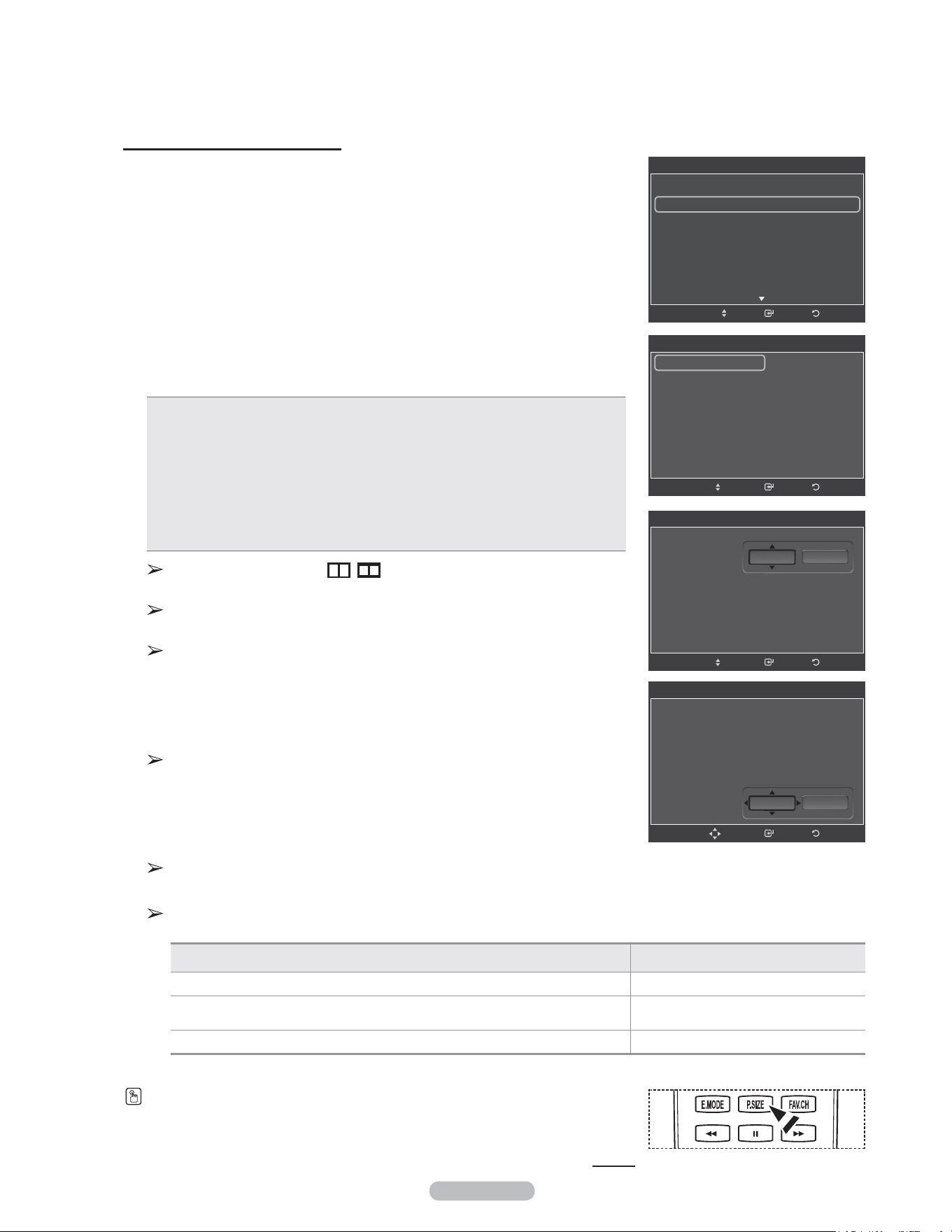
Français - 28
Modification du format de l’image
Il peut arriver à l'occasion que l'on désire modifier la taille de l’image. Le
téléviseur comporte six options de format d’image, chacune d’elle étant conçue
pour fonctionner avec des types particuliers d'entrée vidéo. Le câblosélecteur ou
récepteur peut avoir son propre jeu de formats d'images. En règle générale, le
visionnement du téléviseur doit se faire en mode 16:9 autant que possible.
1 Suivre les instructions d'activation des options d'image 1 et 2.
2 Appuyer sur la touche ▲ ou ▼ pour sélectionner Format, suivie de la touche
ENTER.
3 Appuyer sur la touche ▲ ou ▼ pour sélectionner le format d'écran désiré.
Appuyer sur la touche ENTER.
Appuyer sur la touche EXIT pour quitter.
• 16:9: Règle l'image au mode écran large 16:9.
• Zoom1: Cette option permet d’agrandir le format de l’image.
• Zoom2: Agrandir le format d'image de l'option Zoom1.
• Format large : Augmente le facteur de forme de l'image pour qu'elle remplisse
l'écran en entier.
• 4:3: Règle l'image au mode d'écran normal 4:3.
•
Numér. seul.: Cette fonction permet d’afficher l’image complète non tronquée
pour une entrée de signaux HDMI(720p/1080i/1080p), Composant(1080i/
1080p) ou DTV (1080i).
Lorsque le mode Double ( , ) est choisi pour ISI, le format de l'image
ne peut être configuré.
Une image rémanente temporaire peut apparaître si une image statique
est visionnée pendant plus de deux heures.
Après avoir sélectionné Zoom1, Zoom2 ou Format large:
Appuyer sur la touche ◄ ou ► pour sélectionner Position, suivie de la
touche ENTER. Utiliser la touche ▲ ou ▼ pour déplacer l’image vers le
bas et le haut.
Rétablir : Appuyer sur la touche ▲ ou ▼ pour sélectionner Rétablir, suivie
de la touche ENTER. Le paramètre peut être initialisé.
On peut également appuyer plusieurs fois sur la touche P.SIZE de la télécommande pour
changer le format de l’image.
Suite...
Après avoir sélectionné “Numér. seul.” en modes HDMI (1080i/1080p)
ou Composant (1080i/1080p):
Appuyer sur la touche ◄ ou ► pour sélectionner Position, suivie de la
touche ENTER. Utiliser la touche ▲, ▼, ◄ ou ► pour déplacer l’image.
Rétablir: Appuyer sur la touche ◄ ou ► pour sélectionner Rétablir, suivie
de la touche ENTER. Le paramètre peut être initialisé.
HD (Haute définition)
16:9 - 1080i/1080p (1920x1080), 720p (1280x720)
Les réglages peuvent être modifiés et mémorisés pour chaque appareil externe branché à une entrée du
téléviseur.
Source de l'entrée Format de l'image
ATV, Vidéo, S-Vidéo, Composant (480i, 480p) 16:9, Zoom1, Zoom2, 4:3
DTV(1080i), Composant (1080i, 1080p), HDMI (720p, 1080i, 1080p)
16:9, 4:3, Format large,
Numér. seul.
PC 16:9, 4:3
Format
16:9
Zoom1
Zoom2
Format large
4:3
Numér. seul.
RetourIntro.Dépl.
RetourIntro.
Options d’image
Nuance coul. : Normal
Format : 16:9 ►
Réduct. bruit num. : Auto
DNle : Off
Nv nr HDMI : Normal
Mode Film : Off
Mode bleu seu. : Off
Dépl.
Format
16:9
Zoom1
Zoom2
Format large
4:3
Numér. seul.
RetourIntro.Dépl.
Position
Régler
Format
16:9
Zoom1
Zoom2
Format large
4:3
Numér. seul.
RetourIntro.Dépl.
Position
Régler
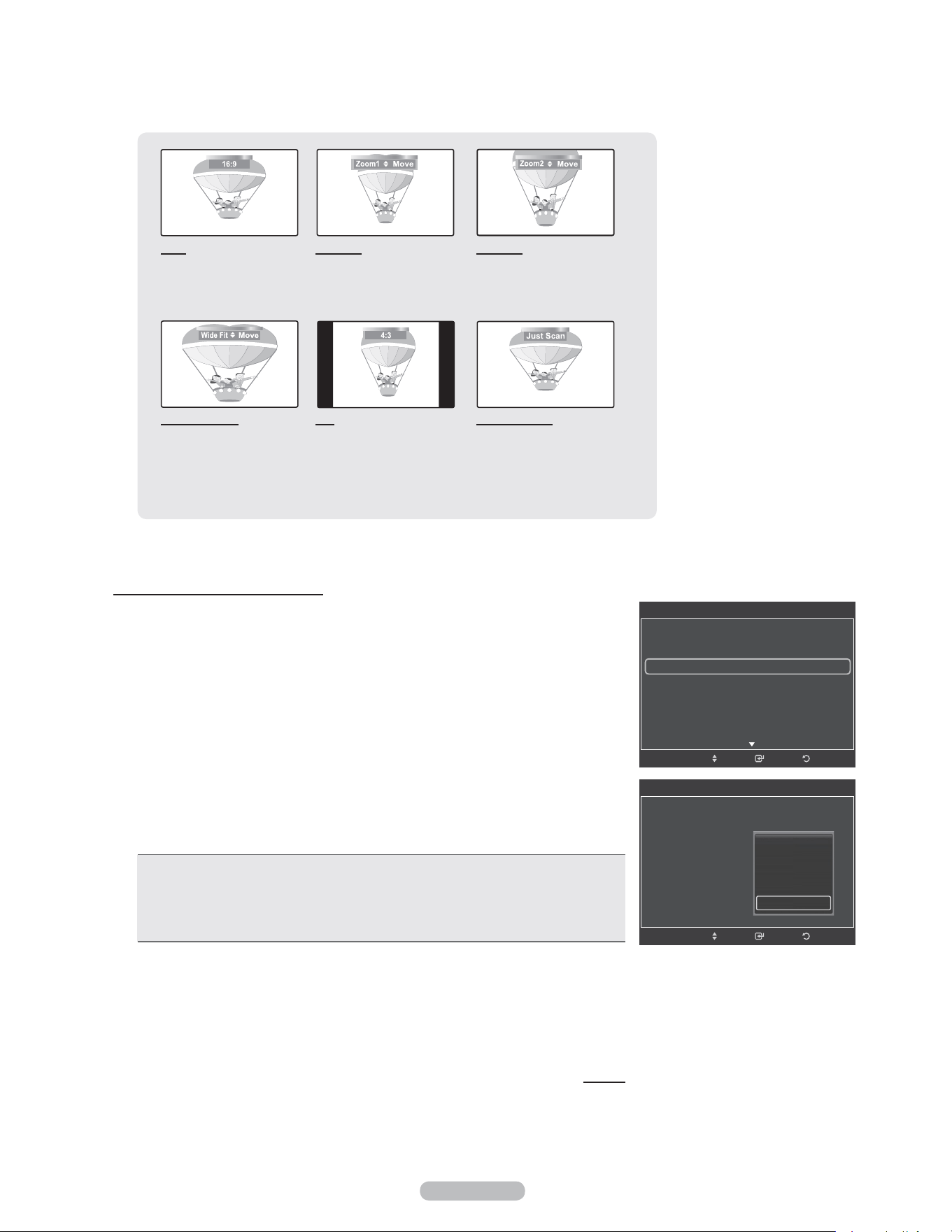
Français - 29
16:9
Règle l’image au mode
écran large 16:9.
Zoom 1
Format de l’écran lorsque
l’écran large est agrandi
verticalement.
Zoom 2
Format de l’écran lorsque
l’écran Zoom1 est
agrandi verticalement.
Format large
Augmente le facteur de
forme de l'image pour
qu'elle remplisse l'écran
en entier.
4:3
Règle l’image au format
normal 4:3.
Numér. seul.
Cette fonction permet d’afficher
l’image complète non tronquée
pour une entrée de signaux
HDMI(720p/1080i/1080p),
Component(1080i/1080p) ou
DTV (1080i).
Réduction numérique des bruits
Si le signal de diffusion capté par le téléviseur est faible, il est possible d'activer la
fonction de réduction numérique des bruits pour aider à éliminer les parasites et les
images rémanentes qui apparaissent à l'écran.
1 Suivre les instructions d'activation des options d'image 1 et 2.
(Voir la page 27)
2 Appuyer sur la touche ▲ ou ▼ pour sélectionner Réduc. bruit num., suivie de
la touche ENTER.
3 Appuyer sur la touche ▲ ou ▼ pour sélectionner Off, Basse, Moyen, Haute ou
Auto.
Appuyer sur la touche ENTER.
• Off: Désactive la fonction de réduction du bruit à l’écran.
• Basse: Règle le bruit à l’écran au niveau bas.
• Moyen: Règle le bruit à l’écran au niveau moyen.
• Haute: Règle le bruit à l’écran au niveau élevé.
• Auto: Détecte et diminue automatiquement le bruit à l’écran.
Appuyer sur la touche EXIT pour quitter.
Suite...
RetourIntro.
Options d’image
Nuance coul. : Normal
Format : 16:9
Réduct. bruit num. : Auto
DNle : On
Nv nr HDMI : Normal
Mode Film : Off
Mode bleu seu. : Off
Dépl.
Off
Basse
Moyen
Haute
Auto
RetourIntro.
Options d’image
Nuance coul. : Normal
Format : 16:9
Réduct. bruit num. : Auto ►
DNle : Off
Nv nr HDMI : Normal
Mode Film : Off
Mode bleu seu. : Off
Dépl.
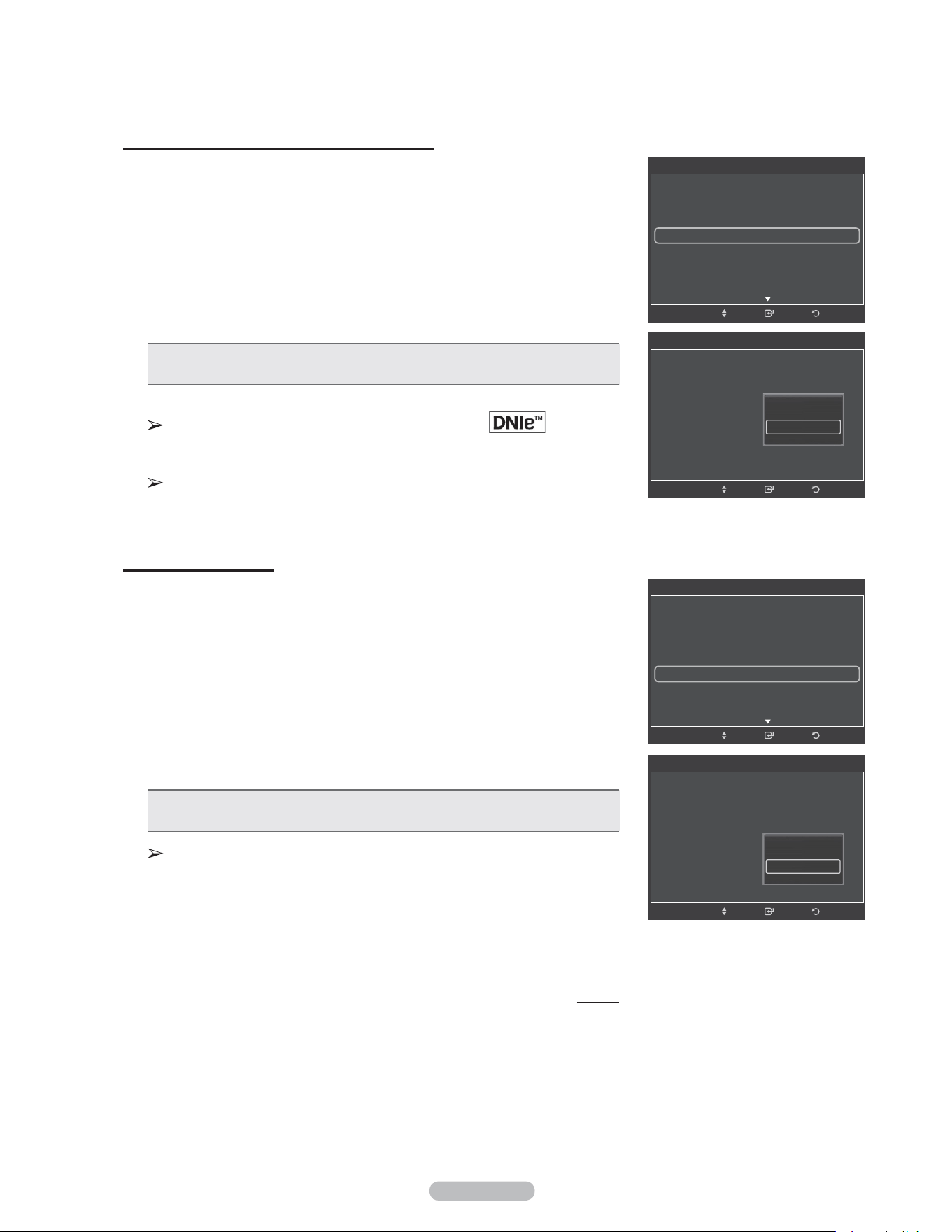
Français - 30
Technologie DNIe (Digital Natural Image engine)
Ce téléviseur est doté de la fonction DNIe qui offre une image de qualité
supérieure. Si la DNIe est activée, le visionnement DNIe est possible.
1 Suivre les instructions d'activation des options d'image 1 et 2.
(Voir la page 27)
2 Appuyer sur la touche ▲ ou ▼ pour sélectionner DNIe, suivie de la touche
ENTER.
3 Appuyer sur la touche ▲ ou ▼ pour sélectionner On, Démo ou Off, suivie de
la touche ENTER.
• Off : Met le mode DNIe hors fonction.
• On: Active le mode DNIe.
Appuyer sur la touche EXIT pour quitter.
Technologie DNIeMC (Digital Natural Image engine)
Cette fonction offre une image plus détaillée grâce à la réduction du bruit
3D et à l’amélioration des détails, du contraste et des blancs.
La fonction DNIe n'est accessible qu'en mode dynamique.
Réglage du Nv nr HDMI
Utiliser cette fonction pour régler le niveau de noir de l’image en mode HDMI.
1 Suivre les instructions d'activation des options d'image 1 et 2.
(Voir la page 27)
2 Appuyer sur la touche ▲ ou ▼ pour sélectionner Nv nr HDM suivie de la
touche ENTER.
3 Appuyer sur la touche ▲ ou ▼ pour sélectionner Normal ou Basse, suivie de
la touche ENTER.
• Normal: L'écran est plus lumineux.
• Basse: L'écran est plus sombre.
Cette fonction n’est active que lorsqu’un appareil externe est branché au
téléviseur avec un câble HDMI. La fonction Niveau noir HDMI peut ne
pas être compatible avec tous les appareils externes.
Appuyer sur la touche EXIT pour quitter.
Suite...
RetourIntro.
Options d’image
Nuance coul. : Normale
Format : 16:9
Réduct. bruit num. : Auto
DNle : On
Nv nr HDMI : Normal
Mode Film : Off
Mode bleu seu. : Off
Dépl.
Off
On
RetourIntro.
Options d’image
Nuance coul. : Normal
Format : 16:9
Réduct. bruit num. : Auto
DNle : On ►
Nv nr HDMI : Normal
Mode Film : Off
Mode bleu seu. : Off
Dépl.
RetourIntro.
Options d’image
Nuance coul. : Normal
Format : 16:9
Réduct. bruit num. : Auto
DNle : Off
Nv nr HDMI : Basse ►
Mode Film : Off
Mode bleu seu. : Off
Dépl.
RetourIntro.
Options d’image
Nuance coul. : Normal
Format : 16:9
Réduct. bruit num. : Auto
DNle : On
Nv nr HDMI : Normal
Mode Film : Off
Mode bleu seu. : Off
Dépl.
Normal
Basse
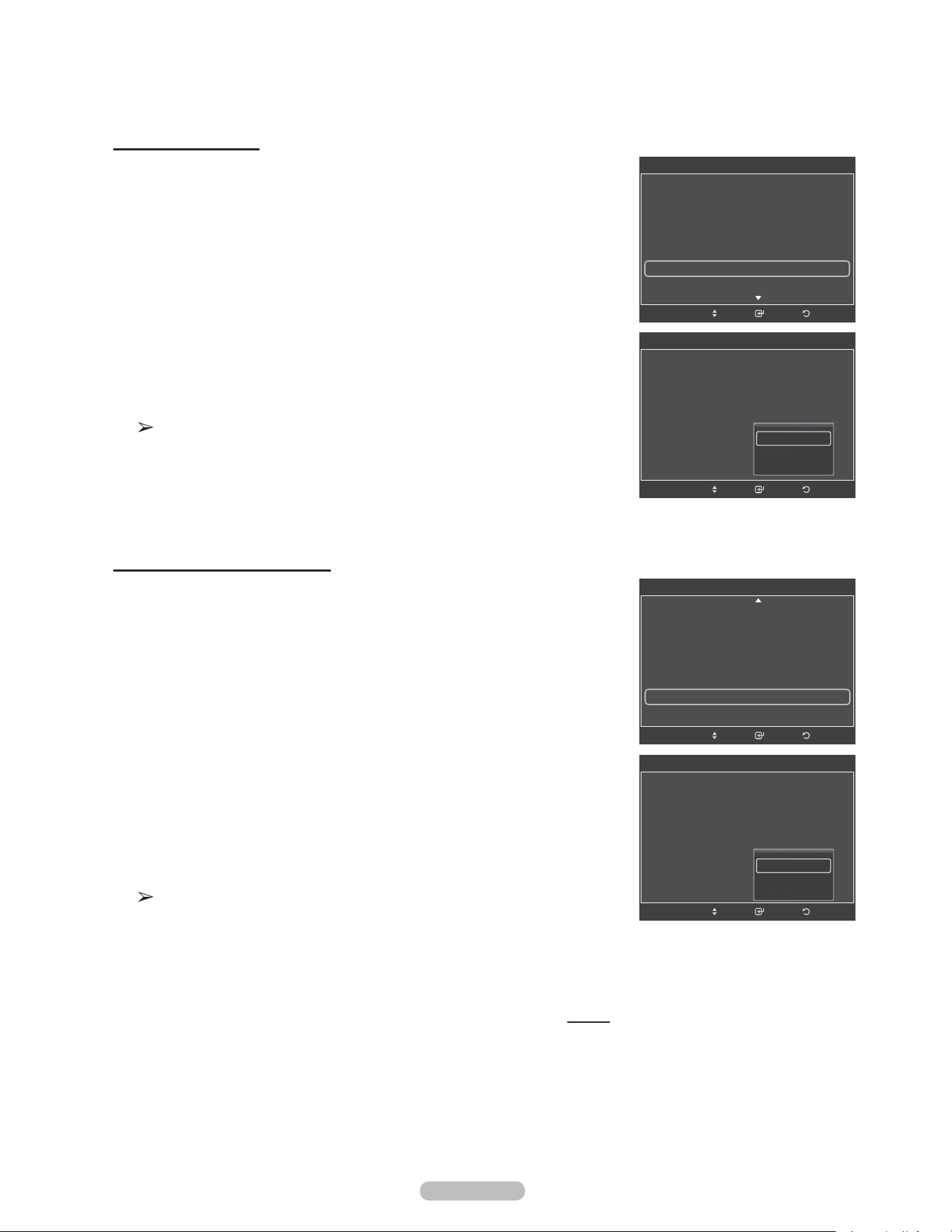
Français - 31
Réglage du mode Film
Il est possible de régler le téléviseur afin qu’il détecte et traite automatiquement
les signaux de film provenant de toutes les sources et règle l'image pour obtenir
une définition optimale.
1 Suivre les instructions d'activation des options d'image 1 et 2.
(Voir la page 27)
2 Appuyer sur la touche ▲ ou ▼ pour sélectionner le mode Film, suivie de la
touche ENTER.
3 Appuyer sur la touche ▲ ou ▼ pour sélectionner Off ou Auto, suivie de la
touche ENTER.
Appuyer sur la touche EXIT pour quitter.
Mode Film est disponible dans les modes TV, VIDÉO, S-VIDÉO et
COMPOSANT (480i / 1080i) et HDMI (1080i).
Réglage du mode bleu seulement
Cette fonction est réservée aux experts en mesures d’appareils audiovisuels.
Cette fonction affiche le signal bleu seulement en éliminant les signaux rouge et
vert du signal vidéo afin d’offrir un effet de filtre bleu qui sert à régler la couleur et
la teinte de l’image d’un appareil vidéo, comme un lecteur de DVD, une chaîne de
cinéma maison, etc. En utilisant cette fonction, vous pouvez régler la couleur et
la teinte en fonction des paramètres privilégiés convenant au niveau de signal de
chaque appareil vidéo à l’aide des motifs à barres de couleur rouge, verte, bleue,
cyan, magenta et jaune sans avoir à utiliser un filtre bleu supplémentaire.
1 Suivre les instructions d'acttivation des options d'image 1 et 2.
(Voir page 27)
2 Appuyer sur la touche ▲ ou ▼ pour sélectionner Mode bleu seulement,
suivie de la touche ENTER.
3 Appuyer sur la touche ▲ ou ▼ pour sélectionner On ou Off, suivie de la
touche ENTER. Appuyer sur la touche EXIT pour quitter.
Mode bleu seulement est accessible en mode Film ou Standard.
Suite...
RetourIntro.
Options d’image
Format : Zoom 1
Réduct. bruit num. : Auto
DNle : Off
Nv nr HDMI : Normal
Mode Film : Off
Mode bleu seu. : Off ►
Protection grillage écran
Dépl.
RetourIntro.
Options d’image
Format : Zoom 1
Réduct. bruit num. : Auto
DNle : Off
Nv nr HDMI : Normal
Mode Film : Off
Mode bleu seu. : Off
Protection grillage écran
Dépl.
Off
On
RetourIntro.
Options d’image
Dépl.
Nuance coul. : Normal
Format : 16:9
Réduct. bruit num. : Auto
DNle : Off
Nv nr HDMI : Normal
Mode Film : Off ►
Mode bleu seu. : Off
RetourIntro.
Options d’image
Nuance coul. : Normal
Format : 16:9
Réduct. bruit num. : Auto
DNle : Off
Nv nr HDMI : Normal
Mode Film : Off
Mode bleu seu. : Off
Dépl.
Off
Auto

Français - 32
Réduction des effets de la brûlure d'écran
S’il y a eu brûlure d’écran, il est possible de sélectionner un écran blanc ou un
parcours du signal pour supprimer les traces de brûlure à l’écran.
1 Suivre les instructions d'activation des options d'image 1 et 2.
(Voir page 27)
2 Appuyer sur la touche ▲ ou ▼ pour sélectionner Protection contre la
brûlure d'écran, suivie de la touche ENTER.
3 Appuyer sur la touche▲ ou ▼ pour sélectionner Déplac. Point, Blanc,
Défilement ou Bords gris, suivie de la touche ENTER.
Appuyer sur la touche EXIT pour quitter.
• Entièrement blanc
Cette fonction permet de supprimer les images rémanentes à l'écran
en changeant la couleur des points en blanc. Utiliser cette fonction
lorsque l'écran présente des symboles ou des images rémanentes, tout
particulièrement lorsqu'une image fixe est affichée pendant une période
prolongée.
• Défilement
Cette fonction permet de supprimer les images rémanentes en déplaçant
tous les points à l’écran sur un parcours prédéfini. Utiliser cette fonction
lorsque l'écran présente des symboles ou des images rémanentes, tout
particulièrement lorsqu'une image fixe est affichée pendant une période
prolongée.
• Bords gris
Lorsque l'on utilise le téléviseur en format d'écran 4:3, les dommages à
l'écran sont empêchés en ajustant l'équilibre des blancs de l'extrême gauche
et de l'extrême droite.
Pour éviter une brûlure d’écran, sélectionner Sombre ou Clair.
• Foncé : Lorsque le format de l'image est réglé à 4:3, les côtés gauche et droit
sont plus foncés.
• Léger : Lorsque le format de l'image est réglé à 4:3, les côtés gauche et droit
sont plus clairs.
Pour supprimer les images rémanentes à l'écran, utiliser la fonction
Blanc ou Défilement. Bien que ces deux fonctions suppriment les
images rémanentes à l'écran, la fonction Défilement est la plus
efficace.
Pour atteindre sa pleine efficacité, la fonction de suppression des
images rémanentes doit être activée pendant une longue période
(environ une heure). Si les images rémanentes n'ont pas été
supprimées après avoir exécuté la fonction, recommencer l'opération.
Appuyer sur n'importe quelle touche de la télécommande pour annuler
cette fonction.
Suite...
RetourIntro.
Options d’image
Format : Zoom 1
Réduct. bruit num. : Auto
DNle : Off
Nv nr HDMI : Normal
Mode Film : Off
Mode bleu seu. : Off
Protection grillage écran ►
Dépl.
RetourIntro.
Protection grillage écran
Déplac. Point ►
Entièr. Blanc
Défilement
Bords gris : Clair
Dépl.
RetourIntro.
Déplac. Point
Déplac. Point : On ►
Point horiz. : 4
Ligne verticale : 4
Heure : 2 min
Dépl.
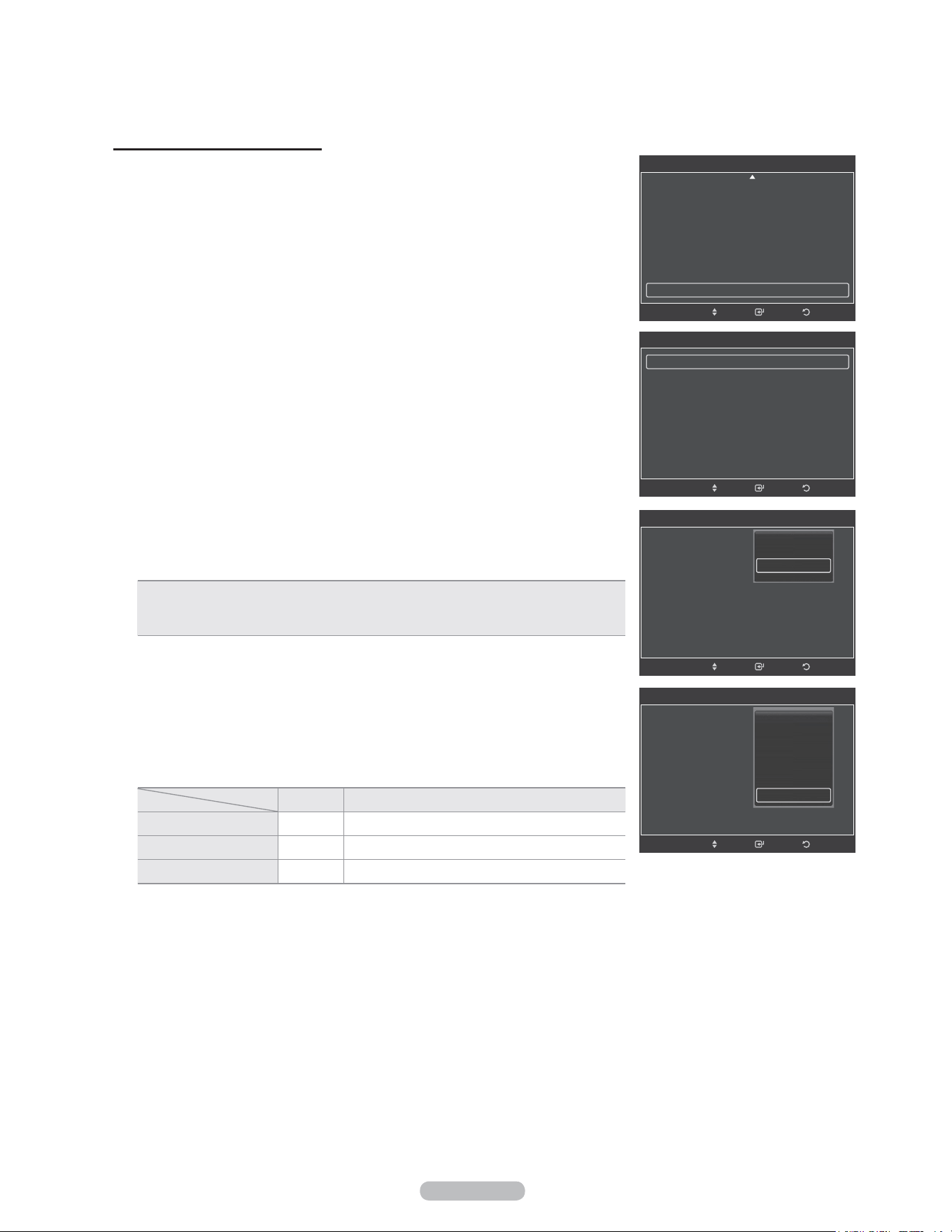
Français - 33
4 Appuyer sur la touche ▲ ou ▼ pour choisir l’élément à modifier, suivie de la
touche ENTER.
Appuyer sur la touche ▲ ou ▼ pour modifier la valeur de l’élément, suivie de la
touche ENTER.
• Condition optimale pour le déplacement des points à l’écran;
PC TV/AV1/AV2/S-Vidéo/Composant/HDMI
Point horizontal 2 2
Ligne verticale 2 2
Heure (min) 2 2
Appuyer sur la touche EXIT pour quitter.
Prévention de la brûlure d'écran
Pour réduire les risques de brûlure d'écran, cet appareil est doté
d'une technologie de protection. Cette technologie permet de régler le déplacement
de l'image vers le haut et vers le bas (lignes verticales) et de droite à gauche et
inversement (points horizontaux).
L'option Délai permet de programmer en minutes le délai entre les défilements
d'images.
1 Suivre les instructions d'activation des options d'image 1 et 2.
(Voir page 27)
2 Appuyer sur la touche ▲ ou ▼ pour sélectionner Protection contre la brûlure
d'écran, suivie de la touche ENTER.
3 Appuyer sur la touche ENTER pour choisir Déplac. Point, suivie de la touche
ENTER.
Appuyer sur la touche ▲ ou ▼ pour permuter entre On et Off.
S’affichent également les options Point horiz., Ligne verticale et Heure.
• Déplac. point: Cette fonction permet de déplacer avec une très grande précision
les points à l'écran, verticalement et horizontalement, afin d'éviter la présence
d'images rémanentes.
RetourIntro.
Options d’image
Format : Zoom 1
Réduct. bruit num. : Auto
DNle : Off
Nv nr HDMI : Normal
Mode Film : Off
Mode bleu seu. : Off
Protection grillage écran ►
Dépl.
RetourIntro.
Protection grillage écran
Déplac. Point ►
Entièr. Blanc
Défilement
Bords gris : Clair
Dépl.
RetourIntro.
Déplac. Point
Déplac. Point :
Point horiz. :
Ligne verticale :
Heure : 2min
Dépl.
Off
On
RetourIntro.
Protection grillage écran
Déplac. Point :
Point horiz. :
Ligne verticale :
Heure : 2min
Dépl.
0
1
2
3
4
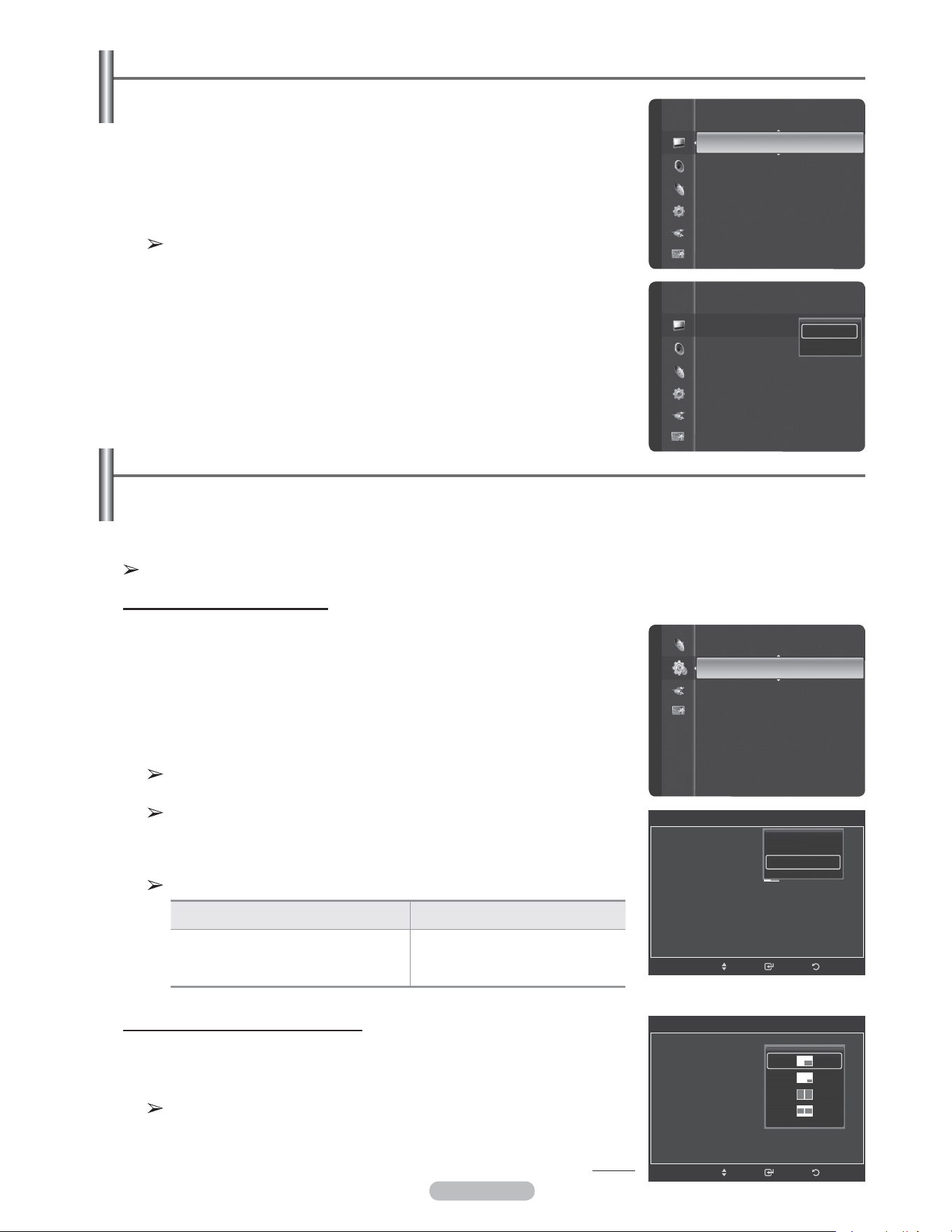
Français - 34
Affichage de l’image sur image
Il est possible d’utiliser la fonction ISI pour regarder simultanément le syntoniseur du téléviseur (seulement les
canaux analogiques) et une source vidéo externe. (Pour sélectionner le son de l’image ISI, consulter la page 40.)
Cet appareil est doté d'un syntoniseur intégré qui ne permet pas la fonction ISI (image sur image) dans le même
mode. Consulter la section ‘Paramètres ISI’ ci-dessous pour les détails.
Quand la fonction V-Chip est activée (voir page 57), la fonction ISI ne peut être utilisée.
Activation de l’image sur image
1 Appuyer sur la touche MENU pour afficher le menu.
Appuyer sur la touche ▲ ou ▼ pour sélectionner Configuration, suivie de la
touche ENTER.
Appuyer sur la touche ▲ ou ▼ pour sélectionner ISI, suivie de la touche
ENTER.
2 Appuyer à nouveau sur la touche ENTER.Appuyer sur la touche ▲ ou ▼ pour
sélectionner On, suivie de la touche ENTER.
Si le téléviseur est éteint alors qu’il est en mode ISI, la fenêtre ISI ne
s'affichera pas au rallumage.
Il est possible de visualiser des émissions en signaux numériques sur
l’écran ISI (image secondaire) lorsque l’image principale provient d’un
appareil externe branché aux prises HDMI 1, HDMI/DVI 2, HDMI 3,
Composant 1, 2 ou PC.
Réglages de la fonction image sur image (ISI)
Rétablir les réglages de l’image sur les réglages par défaut
1 Pour sélectionner le mode d'image désiré, suivre les instructions Modifier
l'image standard 1 et 2. (voir page 23)
2 Appuyer sur la touche ▲ ou ▼ pour sélectionner Réinitialisation de l'image,
suivie de la touche ENTER. Appuyer sur la touche ▲ ou ▼ pour sélectionner
OK ou Effacer, suivie de la touche ENTER.
Appuyer sur la touche EXIT pour quitter.
Chaque mode peut être réinitialisé.
Redimensionnement de la fenêtre ISI
3 Appuyer sur la touche ▲ ou ▼ pour sélectionner Format, puis sur ENTER.
Appuyer sur la touche ▲ ou ▼ pour sélectionner le format voulu, puis sur
ENTER.
L'image de la fenêtre ISI peut sembler légèrement non naturelle lorsque
l'écran principal est utilisé pour un jeu ou le karaoké.
Suite...
Image principale Image secondaire
Composant1, 2
HDMI 1, HDMI/DVI 2, HDMI 3
PC
Émissions en signaux
analogiques uniquement
Image
Réglages des détails
Options d’image
Réinitialisation de l'image
►
Divertissement : Off
Économiseur énergie : Off
ISI ►
M. à jour logiciel
Configuration
RetourIntro.
ISI
ISI : Off
Format :
Position :
Air/câble : Air
Chaîne : Air
Dépl.
Off
On
RetourIntro.
ISI
ISI : On
Format :
Position :
Air/câble : Câble
Chaîne : Câble 3
Dépl.
Image
Réglages des détails
Options d’image
Réinitialisation de l'image
OK
Effacer
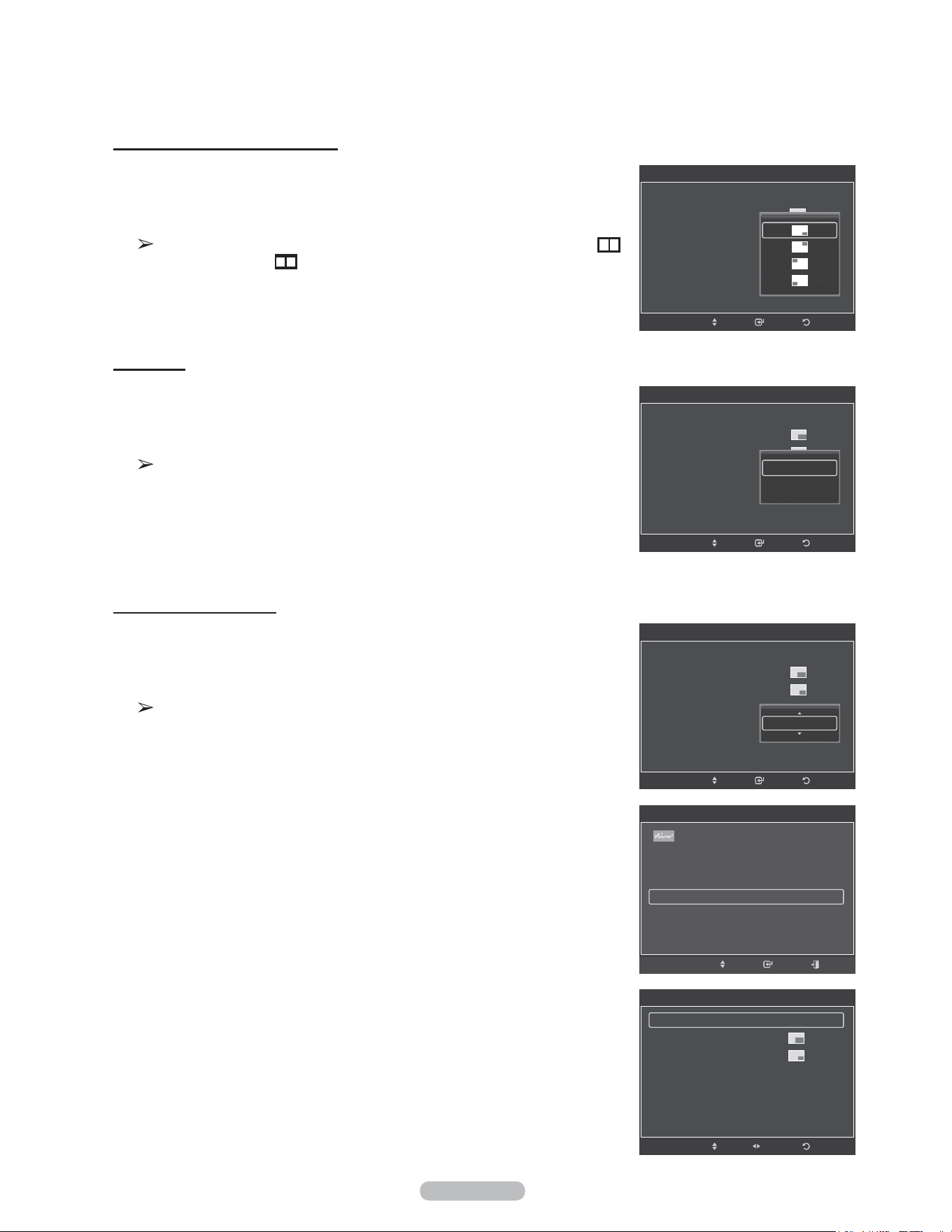
Français - 35
Air + Câble
5 Appuyer sur la touche ▲ ou ▼ pour sélectionner Antenne, suivie de la touche
ENTER.
Appuyer sur la touche ▲ ou ▼ pour sélectionner Air ou Câble, suivie de la
touche ENTER.
Air: Signal d’antenne Air.
Câble: Signal d'antenne Câble.
Changement du canal ISI
6 Appuyer sur la touche ▲ ou ▼ pour sélectionner Chaîne, puis sur ENTER.
Appuyer sur la touche ▲ ou ▼ au bas de la télécommande pour sélectionner le
canal désiré dans la fenêtre ISI, puis sur ENTER.
Appuyer sur la touche EXIT pour quitter le menu.
Seuls les canaux analogiques peuvent être affichés sur l’image ISI (image
secondaire).
Configuration facile
1 Appuyer sur la touche TOOLS de la télécommande.
2 Appuyer sur la touche ▲ ou ▼ pour sélectionner SIS, suivie de la touche
ENTER.
3 Appuyer sur ▲ ou ▼ pour choisir un élément.
4 Appuyer sur la touche ◄ ou ► pour sélectionner l'option désirée.
5 Appuyer sur la touche EXIT ou TOOLS de la télécommande pour quitter.
Repositionnement de la fenêtre ISI
4 Appuyer sur la touche ▲ ou ▼ pour sélectionner Position, suivie de la touche
ENTER.
Appuyer sur la touche ▲ ou ▼ pour sélectionner la position désirée pour la
fenêtre ISI, suivie de la touche ENTER.
Il n’est pas possible de sélectionner Position en modes Fenêtre double ( )
et Double largeur ( ).
RetourIntro.
ISI
ISI : On
Format :
Position :
Air/câble : Câble
Chaîne : Câble 3
Dépl.
Air
Câble
RetourIntro.
ISI
ISI : On
Format :
Position :
Air/câble : Câble
Chaîne : Câble 3
Dépl.
ISI
ISI : On
Format :
Position :
Air/câble : Câble
Chaîne : Câble 3
Câble 11
RetourIntro.Dépl.
Retour
ISI
ISI ◄ On ►
Format :
Position :
Air/câble : Air
Chaîne : Air
Dépl.
Réglage
OUTILS
Liste appareils
Image Mode : Standard
Son Mode : Personnel
ISI
Dépl. Intro. Retour
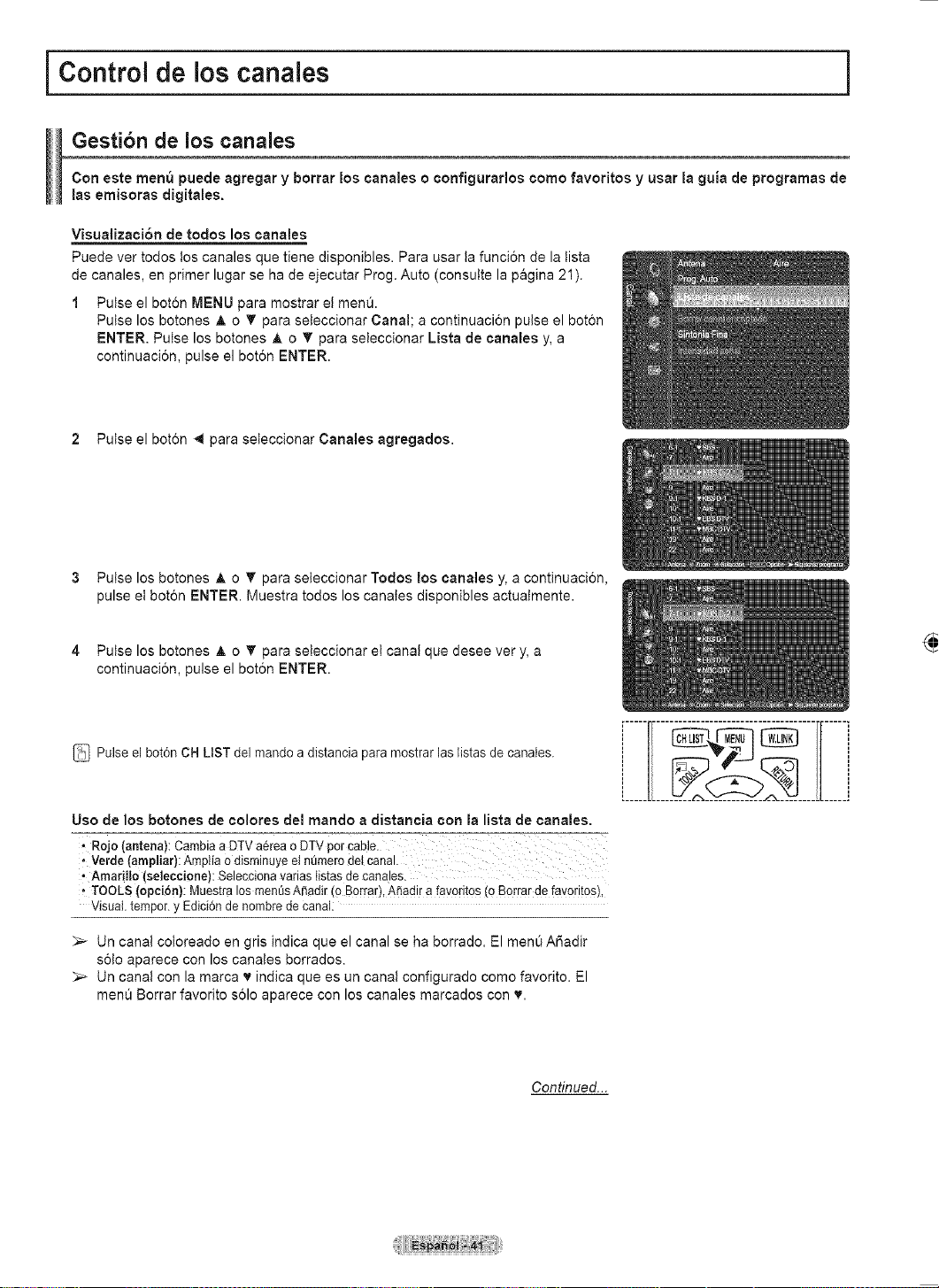
Français - 36
Paramètres audio
Changement du format normal du son
Il est possible de sélectionner le mode sonore convenant le mieux à l'émission regardée.
1 Appuyer sur la touche MENU pour afficher le menu.
Appuyer sur la touche ▲ ou ▼ pour sélectionner Son, suivie de la touche
ENTER.
2 Appuyer sur ENTER pour choisir Mode. Appuyer sur la touche ▲ ou ▼ pour
choisir le mode sonore Standard, Musique, Film, Parole ou Personnalisé,
suivie de la touche ENTER.
Appuyer sur la touche EXIT pour quitter.
• Standard: Choisit le mode sonore normal.
• Musique : Accentue la musique par rapport aux dialogues.
• Film : Provides the best sound for movies.
• Parole : Accentue les dialogues par rapport aux autres sons.
• Personnalisé: Réglages des paramètres audio. (Personnalisation des réglages
audio)
Configuration facile
1 Appuyer sur la touche TOOLS de la télécommande.
2 Appuyer sur la touche ▲ ou ▼ pour choisir le Mode Son.
3 Appuyer sur la touche ◄ ou ► pour sélectionner l’option désirée.
Réglages audio
L'utilisateur peut ajuster les paramètres audio selon ses préférences personnelles.
1 Appuyer sur la touche MENU.
Appuyer sur la touche ▲ ou ▼ pour sélectionner Son, suivie de la touche
ENTER.
2 Appuyer sur la touche ▲ ou ▼ pour sélectionner Égaliseur, suivie de la touche
ENTER.
3 Appuyer sur ENTER pour choisir Mode.
Appuyer sur la touche ▲ ou ▼ pour sélectionner un élément (Standard,
Musique, Film, Parole, Personnel), suivie de la touche ENTER.
Suite...
Mode
:
Personnel ►
Égaliseur
SRS TruSurround XT : Off
Langue privilégiée : Anglais
Son multi-piste : Mono
Volume auto : Off
Haut-parleur : On
Sélect. son : Principale
Son Son
Mode
:
Égaliseur
SRS TruSurround XT : Off
Langue privilégiée : Anglais
Son multi-piste : Mono
Volume auto : Off
Haut-parleur : On
Sélect. son : Principale
Standard
Musique
Cinéma
Parole
Personnel
Son
Mode : Personnel
Égaliseur
►
SRS TruSurround XT : Off
Langue privilégiée : Anglais
Son multi-piste : Mono
Volume auto : Off
Haut-parleur : Off
Sélect. son : Principale
Réinitialisation du son
Égaliseur
Mode : Standard
Balance G D
100Hz - +
300Hz - +
1kHz - +
3kHz - +
10kHz - +
RetourIntro.Dépl.
Standard
Musique
Cinéma
Parole
Personnel
OUTILS
Liste appareils
Image Mode : Standard
Son Mode ◄ Personnel ►
Ajouter aux favoris
Switch to Cable
Dépl. Réglage Sortie
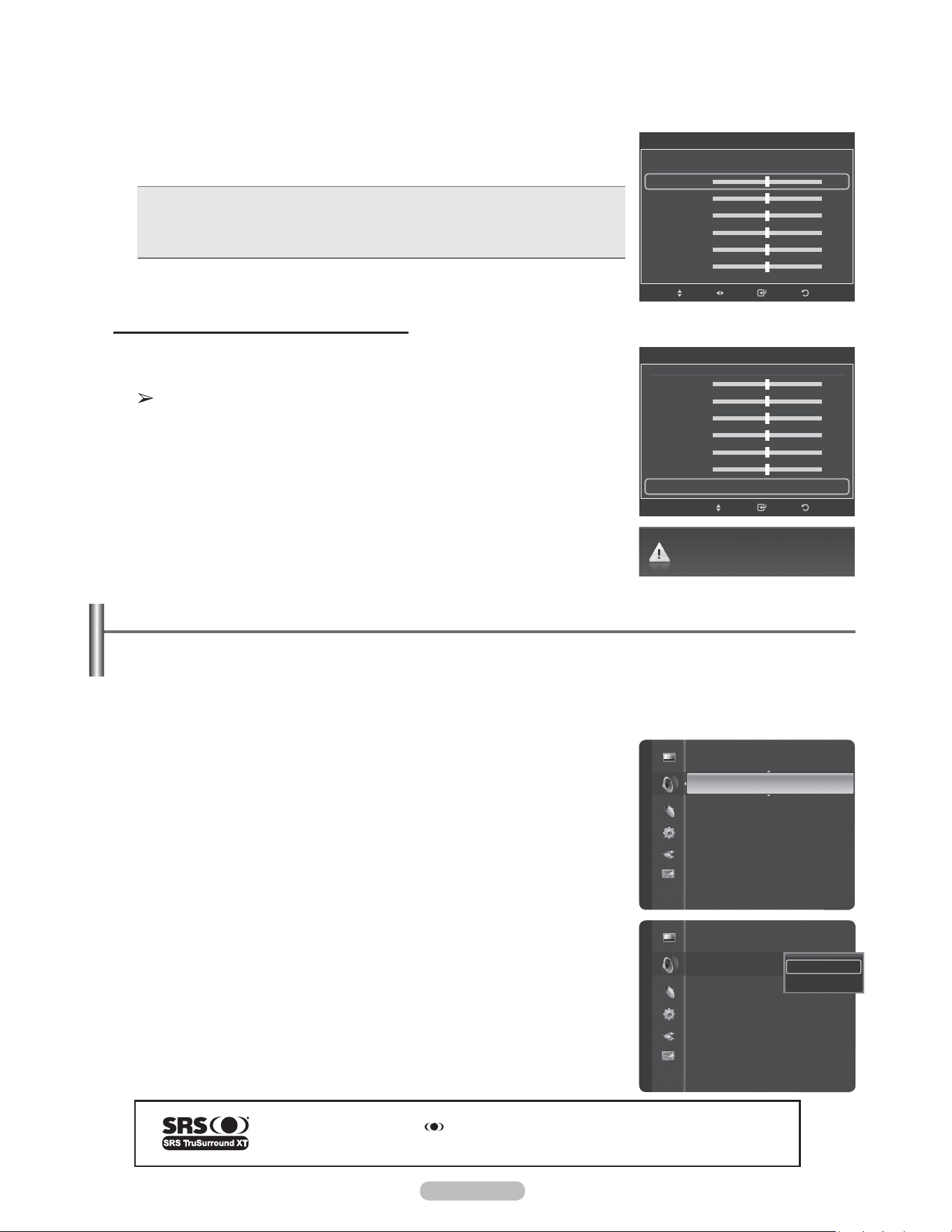
Français - 37
4 Appuyer sur ◄ ou ► pour choisir une fréquence particulière à ajuster.
Appuyer sur la touche ▲ ou ▼ pour augmenter ou réduire le niveau de la
fréquence particulière.
• Réglage de l’équilibrage du son G/D : Pour régler l’équilibrage du son des
haut-parleurs G/D.
• Réglage des fréquences (100Hz, 300Hz, 1kHz, 2kHz, 3kHz, 10kHz):
Pour régler le niveau des fréquences de différentes bandes passantes.
Rétablir les réglages par défaut de l’égaliseur
5 Appuyer sur la touche ▲ ou ▼ pour sélectionner Rétablir, suivie de la touche
ENTER.
Les valeurs par défaut de l’égaliseur sont rétablies.
Appuyer sur la touche EXIT pour quitter.
Réglage de TruSurround XT
TruSurround XT est une technologie SRS brevetée qui permet de reproduire les contenus multicanaux 5.1 par
l’intermédiaire de deux haut-parleurs. Grâce à la technique TruSurround, le téléspectateur vit une expérience
polyphonique totale, le son enveloppant étant diffusé par les deux enceintes de reproduction auxquelles
s’ajoutent les haut-parleurs intégrés au téléviseur. Ce système est totalement compatible avec tous les formats
multicanaux.
1 Appuyer sur la touche MENU pour afficher le menu.Appuyer sur la touche ▲ ou
▼ pour sélectionner Son, suivie de la touche ENTER.
2 Appuyer sur la touche ▲ ou ▼ pour sélectionner SRS TruSurround XT, suivie
de la touche ENTER.
3 Appuyer sur la touche ▲ ou ▼ pour sélectionner Off ou On, suivie de la touche
ENTER.
Appuyer sur la touche EXIT pour quitter.
TruSurround XT, SRS et Symbol sont des marques de commerce de SRS Labs, Inc.
TruSurround XT est intégrée sous licence de SRS Labs, Inc.
RetourIntro.
Égaliseur
Mode : Personnel
Balance G D
100Hz - +
300Hz - +
1kHz - +
3kHz - +
10kHz - +
▼
Dépl. Réglage
Personnel rederient les réglages par défaut.
RetourIntro.
Égaliseur
▲
Balance G D
100Hz - +
300Hz - +
1kHz - +
3kHz - +
10kHz - +
Régler ►
Dépl.
Son
Mode : Personnel
Égaliseur
SRS TruSurround XT
: Off ►
Langue privilégiée : Anglais
Son multi-piste : Mono
Volume auto : Off
Haut-parleur : On
Sélect. son : Principale
Réinitialisation du son
Mode : Personnel
Égaliseur
SRS TruSurround XT : Off
Langue privilégiée : Anglais
Son multi-piste : Mono
Volume auto : Off
Haut-parleur : On
Sélect. son : Principale
Réinitialisation du son
Off
On
Son
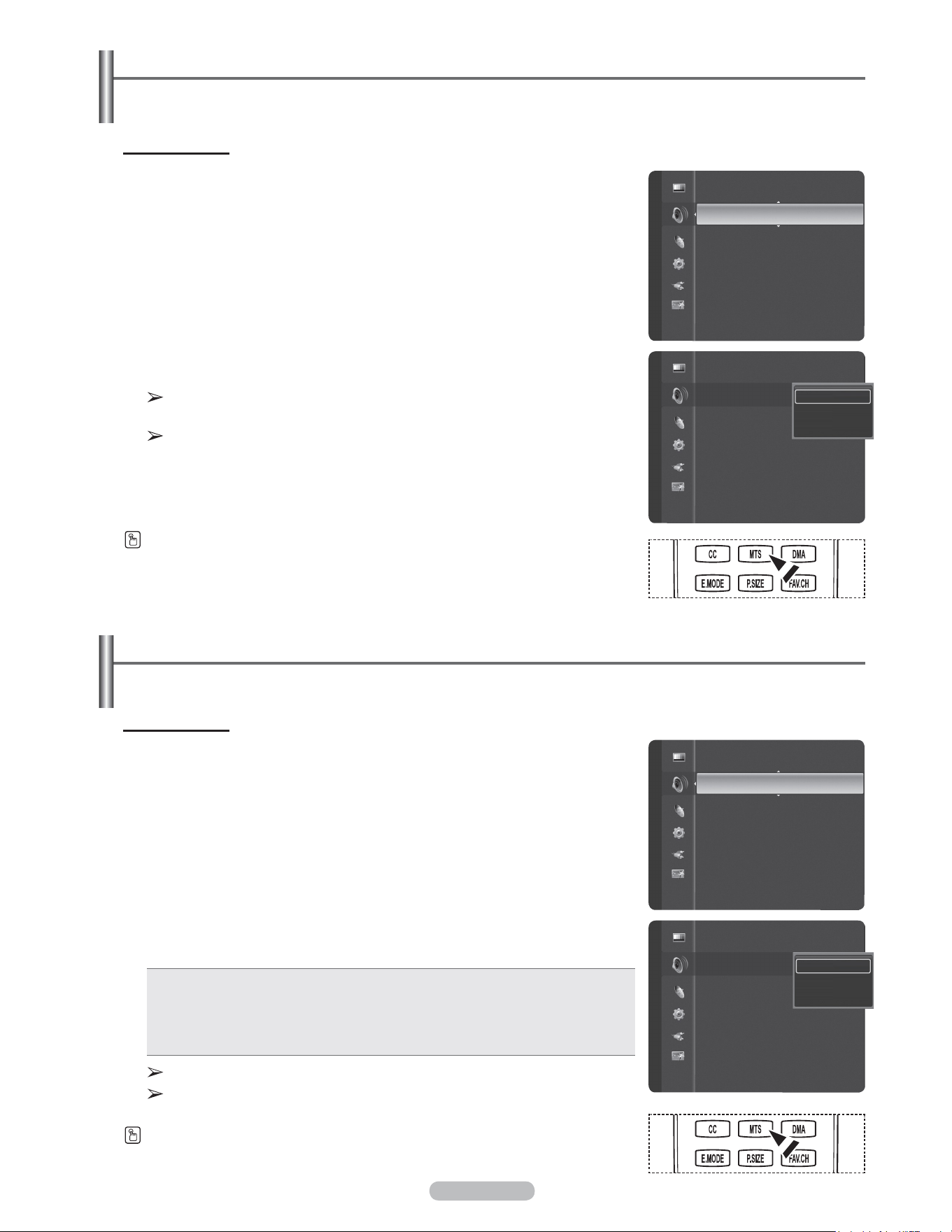
Français - 38
Langue préférée
1 Appuyer sur la touche MENU pour afficher le menu.
Appuyer sur la touche ▲ ou ▼ pour sélectionner Son, suivie de la touche
ENTER.
2 Appuyer sur la touche ▲ ou ▼ pour sélectionner Langue préférée, suivie de la
touche ENTER.
3 Appuyer sur la touche ▲ ou ▼ pour sélectionner la langue désirée (Anglais,
Espagnol ou Français), suivie de la touche ENTER.
Appuyer sur la touche EXIT pour quitter.
Seule une langue faisant partie des langues diffusées peut être
sélectionnée.
Langue préférée n’est accessible qu’en mode de télévision numérique.
Appuyer sur la touche MTS de la télécommande pour écouter une autre langue que la
langue préférée.
Sélection de la langue préférée
Le système de transmission numérique du téléviseur assure la transmission simultanée de nombreuses pistes de
son (par exemple, la traduction simultanée de l’émission en langues étrangères).
Son multi-pistes
1 Appuyer sur la touche MENU pour afficher le menu.
Appuyer sur la touche ▲ ou ▼ pour sélectionner Son, suivie de la touche
ENTER.
2 Appuyer sur la touche ▲ ou ▼ pour sélectionner Son multi-pistes, suivie de la
touche ENTER.
3 Appuyer sur la touche ▲ ou ▼ pour sélectionner le paramètre désiré, suivie de
la touche ENTER.
Appuyer sur la touche EXIT pour quitter.
• Mono: Pour les canaux diffusés en monophonie ou en cas de de la difficulté à
recevoir un signal stéréo.
• Stéréo: Pour les canaux diffusés en stéréophonie.
• SAP: Pour écouter une émission diffusée en mode SAP, généralement un
doublage en langue étrangère.
Son multi-piste n’est accessible qu’en mode de télévision analogique.
Selon l’émission diffusée, il est possible de procéder à une écoute en Mono,
Stéréo ou SAP.
Appuyer sur la touche MTS de la télécommande pour sélectionner Mono, Stéréo ou
SAP.
Sélection d’une piste de son multicanaux - analogique
Selon l’émission, il est possible de choisir entre les modes mono, stéréo, ou SAP.
Son
Égaliseur
SRS TruSurround XT : Off
Langue privilégiée : Anglais ►
Son multi-piste : Mono
Volume auto : Off
Haut-parleur : On
Sélect. son : Principale
Réinitialisation du son
Son
Égaliseur
SRS TruSurround XT : Off
Langue privilégiée : English
Son multi-piste : Mono
Volume auto : Off
Haut-parleur : On
Sélect. son : Principale
Réinitialisation du son
Anglais
Espagnol
Français
Son
SRS TruSurround XT : Off
Langue privilégiée : Anglais
Son multi-piste : Mono ►
Volume auto : Off
Haut-parleur : On
Sélect. son : Principale
Réinitialisation du son
Son
SRS TruSurround XT : Off
Langue privilégiée : Anglais
Son multi-piste : Mono
Volume auto : Off
Haut-parleur
: Off
Sélect. son : Principale
Réinitialisation du son
Mono
Stéréo
SAP
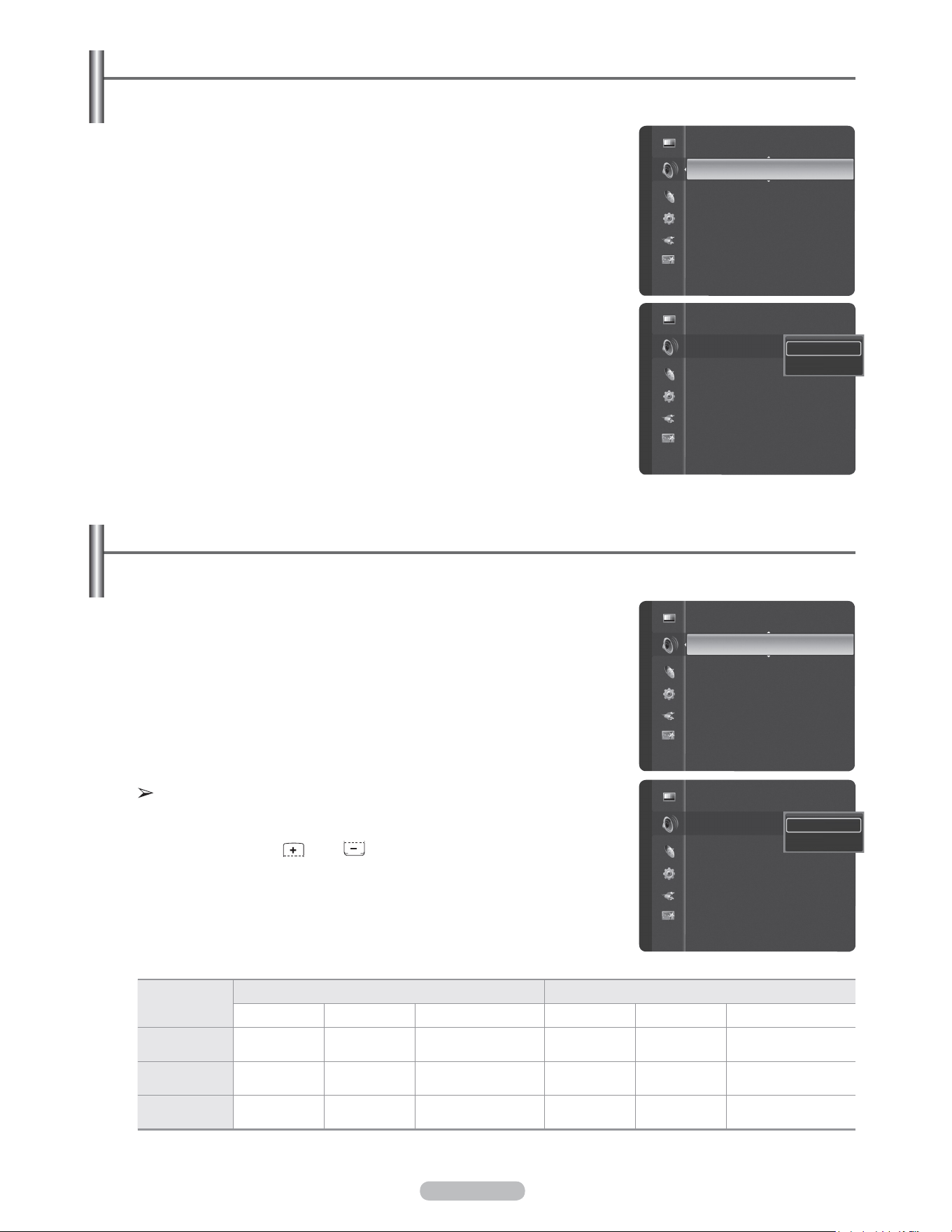
Français - 39
1 Appuyer sur la touche MENU pour afficher le menu.
Appuyer sur la touche ▲ ou ▼ pour sélectionner Son, suivie de la touche
ENTER.
2 Appuyer sur la touche ▲ ou ▼ pour sélectionner Volume auto, suivie de la
touche ENTER.
3 Appuyer sur la touche ▲ ou ▼ pour sélectionner On ou Off, suivie de la touche
ENTER.
Appuyer sur la touche EXIT pour quitter.
Contrôle automatique du volume
Réduit la différence de niveau sonore entre les diffuseurs.
1 Appuyer sur la touche MENU pour afficher le menu.
Appuyer sur la touche ▲ ou ▼ pour sélectionner Son, suivie de la touche
ENTER.
2 Appuyer sur la touche ▲ ou ▼ pour sélectionner Haut-parleur, suivie de la
touche ENTER.
3 Appuyer sur la touche ▲ ou ▼ pour sélectionner On ou Off, suivie de la touche
ENTER.
Appuyer sur la touche EXIT pour quitter.
• Si l’option Haut-parleur est Off, les fonctions du menu Son sont les
suivantes: Langue préférée(mode numérique), Son multi-piste(mode
analogique), Sélect. Son(mode ISI) et Réinitialisation du son.
• Les touches VOL , VOL et MUTE fonctionnent pas lorsque la
sourdine interne est Off.
Activation et désactivation des haut-parleurs du téléviseur
Le son des haut-parleurs du téléviseur est coupé.
Haut-parleurs du téléviseur Sortie audio (optique, sortie G/D) vers la chaîne audio
TV AV, S-Vidéo Composant, PC, HDMI TV AV, S-Vidéo Composant, PC, HDMI
Haut-parleur
activée
Sortie haut-
parleur
Sortie haut-
parleur
Sortie haut-parleur Sortie son Sortie son Sortie son
Haut-parleur
désactivée
Mute Mute Mute Sortie son Sortie son Sortie son
Aucun signal
vidéo
Mute Mute Mute Mute Mute Mute
Son
Langue privilégiée : Anglais
Son multi-piste : Mono
Volume auto : Off ►
Haut-parleur : On
Sélect. son : Principale
Réinitialisation du son
Son
Langue privilégiée : Anglais
Son multi-piste : Mono
Volume auto : Off
Haut-parleur : Off
Sélect. son : Principale
Réinitialisation du son
Off
On
Son
Son multi-piste : Mono
Volume auto : Off
Haut-parleur : On ►
Sélect. son : Principale
Réinitialisation du son
Son
Son multi-piste : Mono
Volume auto : Off
Haut-parleur : Off
Sélect. son : Principale
Réinitialisation du son
Off
On
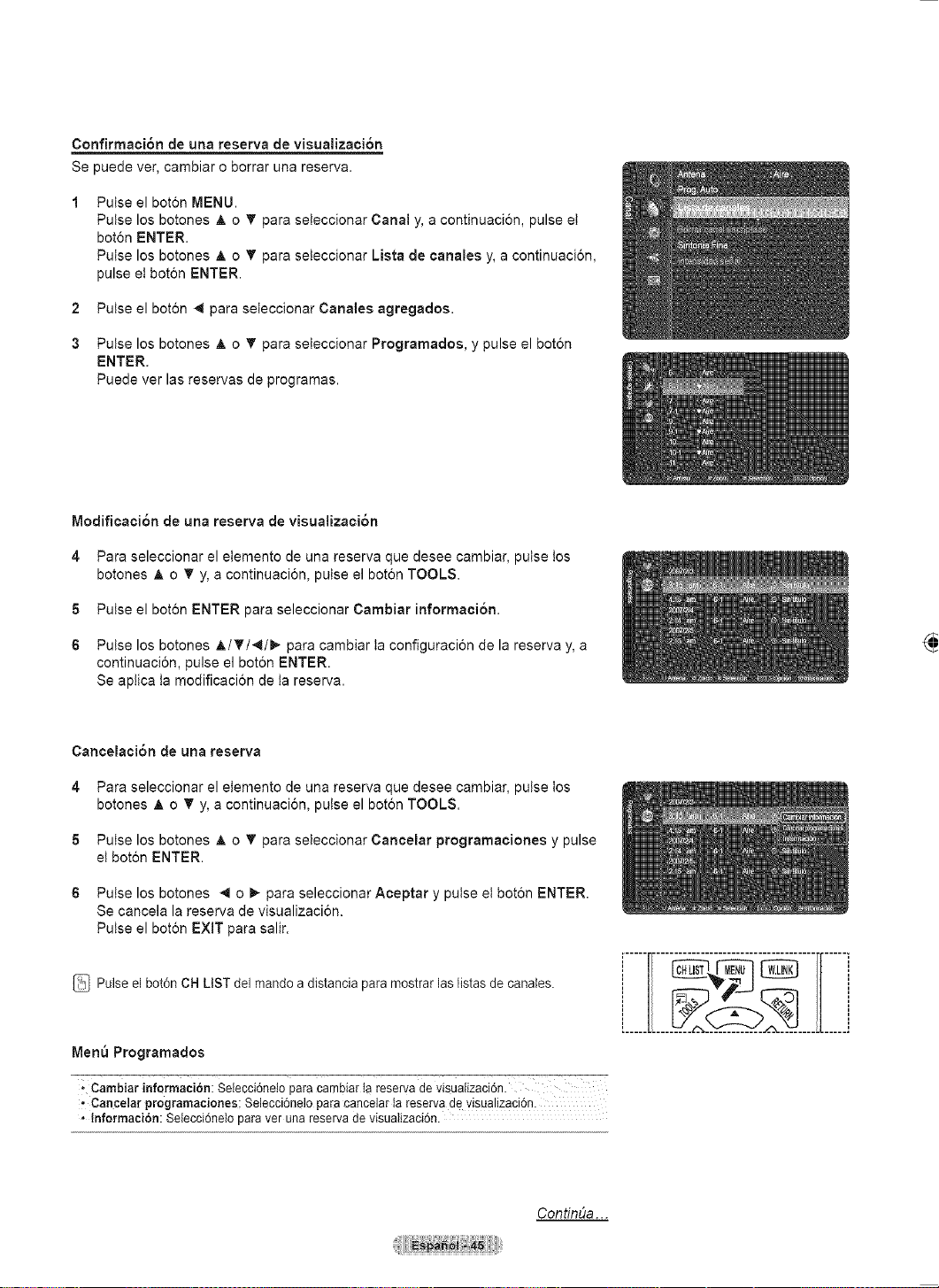
Français - 40
1 Appuyer sur la touche MENU pour afficher le menu.
Appuyer sur la touche ▲ ou ▼ pour sélectionner Son, suivie de la touche
ENTER.
2 Appuyer sur la touche ▲ ou ▼ pour sélectionner Sélect. son, suivie de la
touche ENTER.
3 Appuyer sur la touche ▲ ou ▼ pour sélectionner Principale ou Secondaire,
suivie de la touche ENTER.
Appuyer sur la touche EXIT pour quitter.
• Principale: Permet d’écouter le son de l’image principale.
• Second: Permet d’écouter le son de l’image secondaire.
Cette option peut être choisie lorsque l’ISI est activée. (Voir page 34)
Écoute du son provenant de la fenêtre secondaire (ISI)
Lorsque la fonction ISI est activée, il est possible d’écouter le son provenant de la fenêtre secondaire (ISI).
1 Appuyer sur la touche MENU.
Appuyer sur la touche ▲ ou ▼ pour sélectionner Son, suivie de la touche
ENTER.
Appuyer sur la touche ▲ ou ▼ pour sélectionner Réinitialisation du son, suivie
de la touche ENTER.
2 Appuyer sur la touche ▲ ou ▼ pour sélectionner Tout rétablir, Rétablir mode
son ou Effacer, suivie de la touche ENTER.
• Tout rétablir: Tous les paramètres par défaut des valeurs audio sont rétablis.
• Rétablir mode son: Les paramètres par défaut remplacent les valeurs actuelles.
Rétablir les réglages sonores sur les réglages par défaut
Il est possible de rétablir les paramètres audio par défaut.
Branchement du casque d'écoute (vendu séparément)
Pour regarder la télévision sans déranger les personnes se trouvant dans la même pièce, il est possible de
brancher un casque d'écoute au téléviseur.
Lorsque la fiche du casque d'écoute est insérée dans la prise du casque,
les options du menu Son sont les suivantes : Langue préférée (en mode
numérique), Son multi-piste (en mode analogique), Volume auto, Sélection
du son (en mode ISI) et Réinitialisation du son.
L’utilisation prolongée du casque d'écoute à volume élevé peut endommager
l’ouïe.
Les haut-parleurs n’émettent plus de son lorsque le casque d'écoute est branché au
téléviseur.
Le réglage du volume du téléviseur et du casque d'écoute se fait de manière
séparée.
Panneau latéral du téléviseur
Son
Volume auto : Off
Haut-parleur : On
Sélect. son : Principale ►
Réinitialisation du son
Son
Volume auto : Off
Haut-parleur : On
Sélect. son : Principale
Réinitialisation du son
Principale
Secondaire
Son
Haut-parleur : On
Sélect. son : Principale
Réinitialisation du son
►
Intro. Retour
Réinitialisation du son
Choisir les options de rétablissement du son.
EffacerRéinitial. mode sonRéinitial. tout
Dépl.
Les paramètres de réglage audio sont les
valeurs par défaut.
15
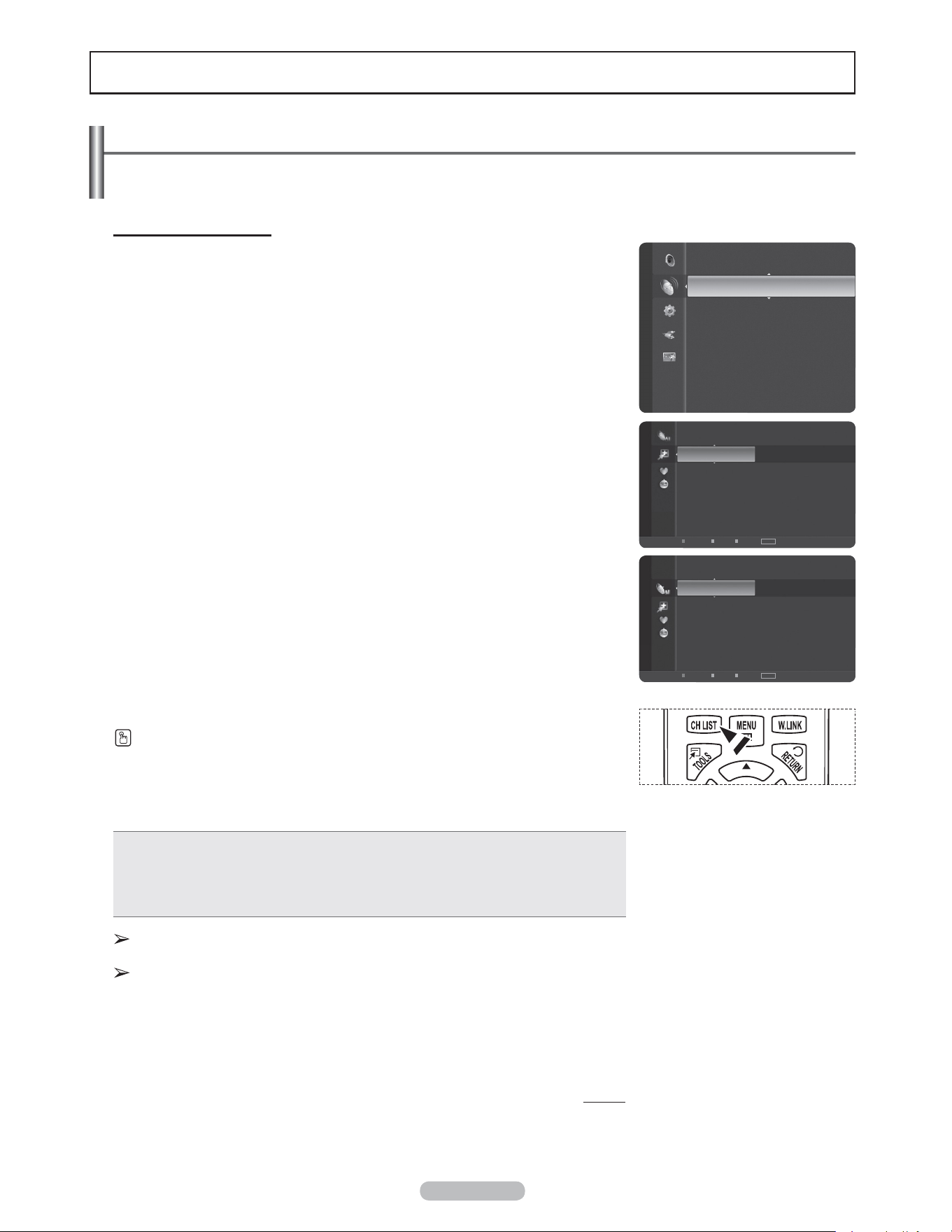
Français - 41
Réglage des canaux
Gestion des canaux
Ce menu permet d’ajouter et de supprimer ou de définir les canaux favoris et d’utiliser le télé-horaire pour les
diffusions numériques.
Afficher tous les canaux
Affiche tous les canaux actuellement accessibles. Pour utiliser la fonction Liste des
canaux, exécuter d’abord la fonction Progr. auto. (voir page 21).
1 Appuyer sur la touche MENU.
Appuyer sur la touche ▲ ou ▼ pour sélectionner Chaîne, suivie de la touche
ENTER.
Appuyer sur la touche ▲ ou ▼ pour sélectionner Liste des canaux, suivie de la
touche ENTER.
2 Appuyer sur la touche ◄ pour sélectionner Canaux ajoutés.
3 Appuyer sur la touche ▲ ou ▼ pour sélectionner Tous les canaux, suivie de la
touche ENTER.
Affiche tous les canaux actuellement accessibles.
4 Appuyer sur la touche ▲ ou ▼ pour sélectionner le canal à visualiser, suivie de
la touche ENTER.
Appuyer sur la touche CH LIST de la télécommande pour afficher les listes de canaux.
À l’aide des touches de couleur sur la télécommande avec la liste des canaux
• Rouge: Permute vers l’antenne numérique ou le câble numérique.
• Vert: Agrandit ou rapetisse un numéro de canal.
• Jaune: Sélectionner de multiples listes de canaux.
• TOOLS : Affiche les menus Ajouter (ou Supprimer), Ajouter aux favoris (ou Supprimer
les favoris), Programmation d’émission et Modifier le nom du canal.
Un canal gris correspond à un canal supprimé. Le menu Ajouter ne s’affiche que
pour les canaux supprimés.
Le symbole ♥ accompagnant un canal signifie que ce dernier fait partie des
Favoris. Le menu Supprimer le favori ne s’affiche que pour les canaux associés
au symbole ♥.
Suite...
Chaîne
Antenne : Air
Prog. auto
Liste des canaux
Effacer les canaux brouillés
Syn. Précise
Puissance signal
6-1 ♥ SBS
7 Air
7-1 ♥ KBS D-2
9 Air
9-1 ♥ KBS D-1
10 Air
10-1 ♥ EBS DTV
11-1 ♥ MBC DTV
19 Air
22 Air
Canaux ajoutés
6-1 ♥ SBS
7 Air
7-1 ♥ KBS D-2
9 Air
9-1 ♥ KBS D-1
10 Air
10-1 ♥ EBS DTV
11-1 ♥ MBC DTV
19 Air
22 Air
Tous les canaux
Air
Antenne
Zoom
Choisir
TOOLS
Option ► Pregramme suivant
Air
Antenne
Zoom
Choisir
TOOLS
Option ► Pregramme suivant
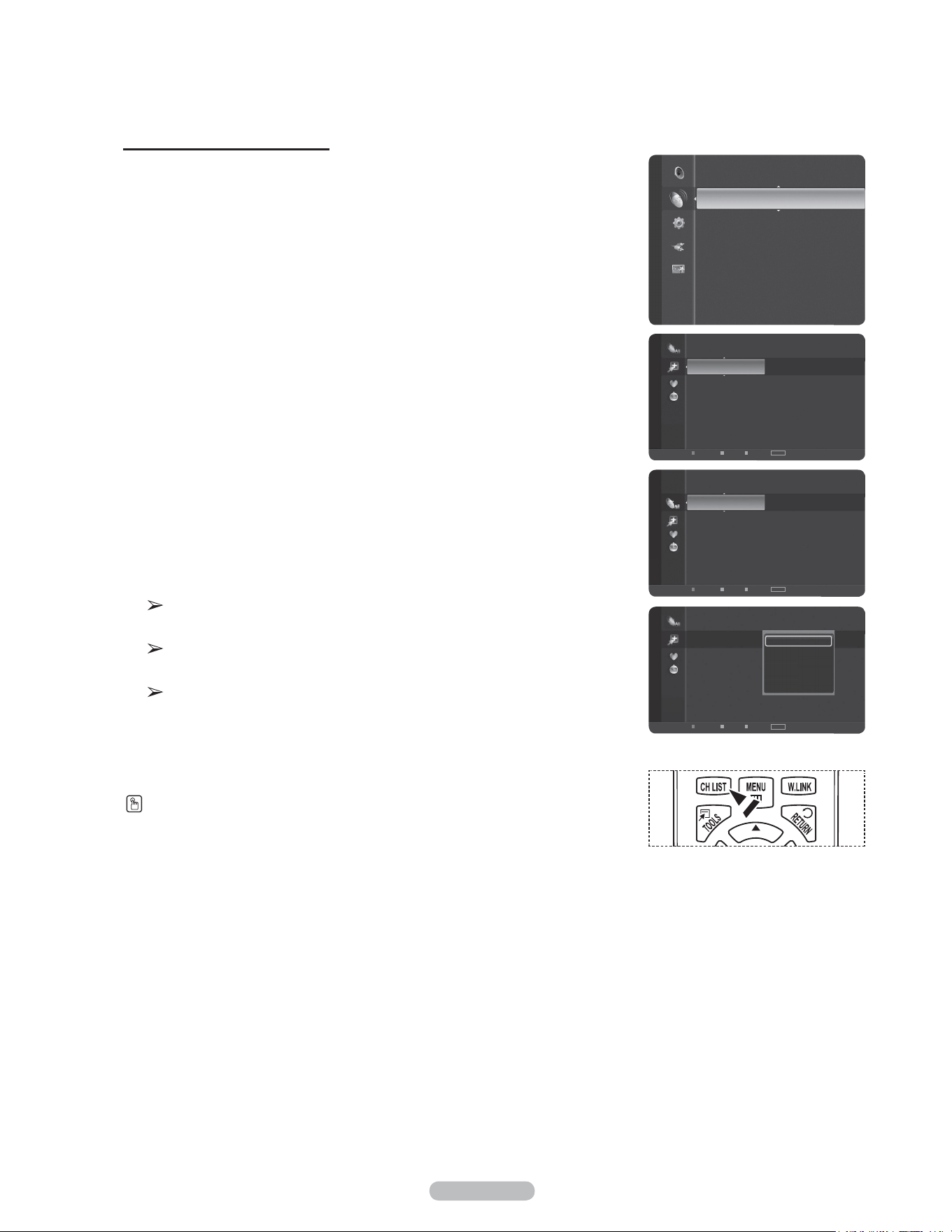
Français - 42
Ajout et suppression de canaux
Il est possible d’ajouter ou de supprimer un canal pour afficher seulement les
canaux voulus.
1 Appuyer sur la touche MENU.
Appuyer sur la touche ▲ ou ▼ pour sélectionner Chaîne, suivie de la touche
ENTER.
Appuyer sur la touche ▲ ou ▼ pour sélectionner Liste des canaux, suivie de la
touche ENTER.
2 Appuyer sur la touche ◄ pour sélectionner Canaux ajoutés.
3 Appuyer sur ▲ ou ▼ pour choisir Tous les canaux.
Affiche tous les canaux actuellement accessibles.
Appuyer sur la touche ENTER.
4 Appuyer sur la touche ▲ ou ▼ pour sélectionner un canal à supprimer, puis sur
TOOLS.
5 Appuyer sur la touche ENTER pour sélectionner Supprimer.
Tous les canaux ajoutés seront affichés dans le menu Canaux ajoutés.
6 Appuyer sur la touche EXIT pour quitter le menu.
Il est également possible d’ajouter un canal dans le menu Canaux ajoutés
de la même façon.
Il faut supprimer le canal avant de pouvoir l’ajouter à nouveau à la liste
Canaux ajoutés.
Pour ajouter (rétablir) un canal dans la liste des canaux ajoutés, suivre
les étapes 1 à 3 ci-dessus, appuyer sur la touche ▲ ou ▼ pour choisir un
canal à ajouter, puis sur TOOLS. Appuyer sur la touche ENTER pour choisir
Ajouter.
Appuyer sur la touche CH LIST de la télécommande pour afficher les listes de canaux.
Chaîne
Antenne : Air
Prog. auto
Liste des canaux
Effacer les canaux brouillés
Syn. Précise
Puissance signal
6-1 ♥ SBS
7 Air
7-1 ♥ KBS D-2
9 Air
9-1 ♥ KBS D-1
10 Air
10-1 ♥ EBS DTV
11-1 ♥ MBC DTV
19 Air
22 Air
Canaux ajoutés
Air
Antenne
Zoom
Choisir
TOOLS
Option ► Pregramme suivant
6-1 ♥ SBS
7 Air
7-1 ♥ KBS D-2
9 Air
9-1 ♥ KBS D-1
10 Air
10-1 ♥ EBS DTV
11-1 ♥ MBC DTV
19 Air
22 Air
Tous les canaux
Air
Antenne
Zoom
Choisir
TOOLS
Option ► Pregramme suivant
6-1 ♥ SBS
7 Air
7-1 ♥ KBS D-2
9 Air
9-1 ♥ KBS D-1
10 Air
10-1 ♥ EBS DTV
11-1 ♥ MBC DTV
19 Air
22 Air
Canaux ajoutés
Supprimer
Ajouter aux favoris
Écoute par minuterie
Modifier le nom du canal
Prog. auto
Air
Antenne
Zoom
Choisir
TOOLS
Option ► Pregramme suivant
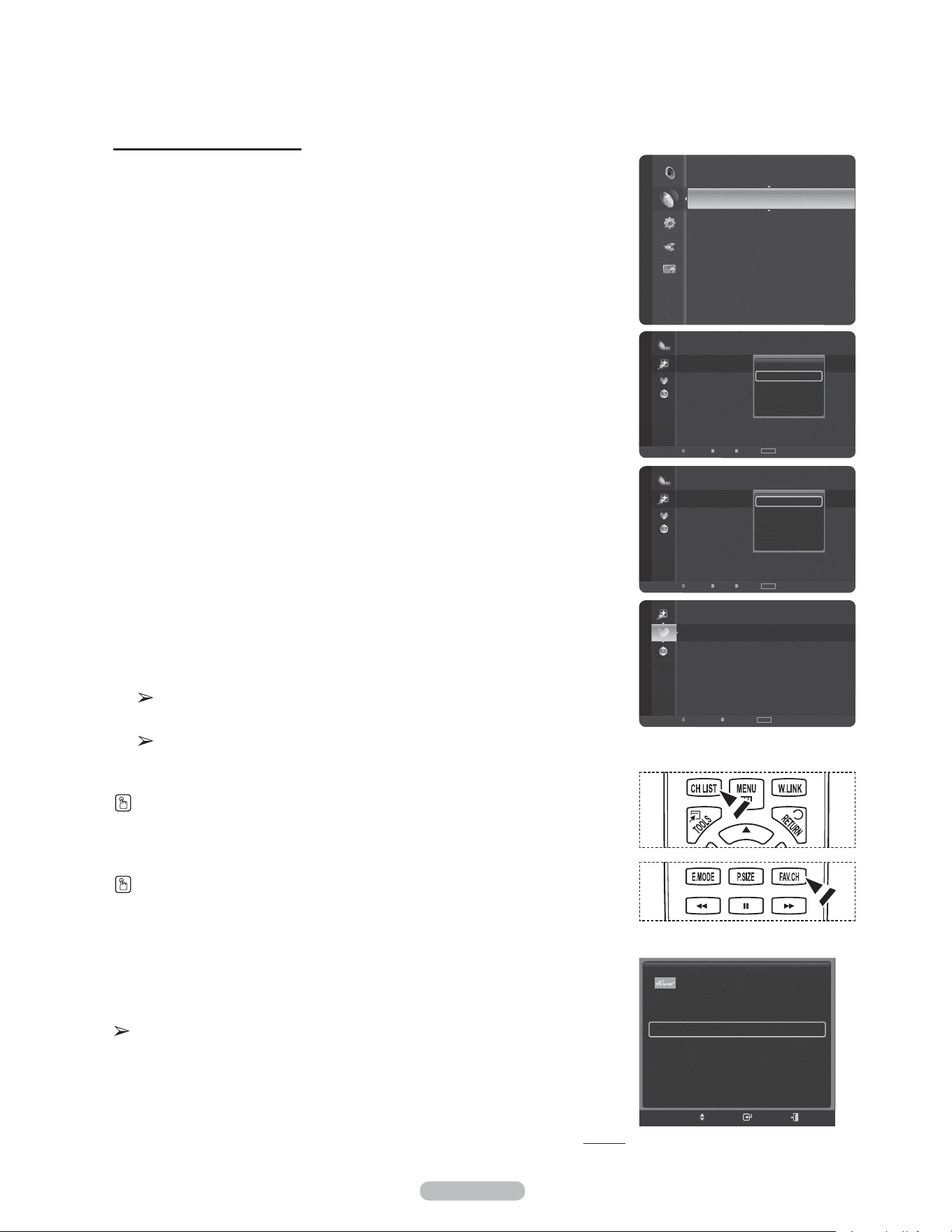
Français - 43
Sélection des canaux favoris
Il est possible de classer les canaux souvent regardés dans la liste de canaux
favoris.
1 Appuyer sur la touche MENU.
Appuyer sur la touche ▲ ou ▼ pour sélectionner Chaîne, suivie de la touche
ENTER.
Appuyer sur la touche ▲ ou ▼ pour sélectionner Liste des canaux, suivie de la
touche ENTER.
2 Appuyer sur la touche ◄ pour sélectionner Canaux ajoutés.
3 Appuyer sur la touche ▲ ou ▼ pour sélectionner Tous les canaux, suivie de la
touche ENTER.
Affiche tous les canaux actuellement accessibles.
4 Appuyer sur la touche ▲ ou ▼ pour sélectionner le canal à ajouter à la liste des
canaux favoris, suivie de la touche OUTILS.
5 Appuyer sur la touche ▲ ou ▼ pour sélectionner Ajouter un favori, suivie de la
touche ENTER.
Le symbole ♥ s’affiche et le canal est enregistré comme canal favori.
6 Pour annuler une sélection de canal favori, appuyer sur la touche TOOLS
jusqu’à ce qu’un canal favori soit sélectionné. Appuyer sur la touche ▲ ou ▼
pour sélectionner Supprimer un favori, suivie de la touche ENTER. Le canal
est retiré de la liste des canaux favoris et le symbole ♥ disparaît.
Appuyer sur la touche EXIT pour quitter.
Il est également possible de supprimer un canal de la liste des favoris à
l’aide du menu Canaux ajoutés, de la même façon.
Tous les canaux favoris seront affichés dans le menu Favori.
Appuyer sur la touche CH LIST de la télécommande pour afficher les listes de canaux.
Pour accéder aux chaînes favorites, appuyer sur la touche FAV.CH de la télécommande.
Configuration facile
1 Appuyer sur la touche TOOLS de la télécommande.
2 Appuyer sur la touche ▲ ou ▼ pour sélectionner Ajouter aux favoris ou
Supprimer de la liste des favoris, suivie de la touche ENTER.
Le canal sélectionné est ajouté ou supprimé de la liste des favoris.
Suite...
6-1 ♥ SBS
7-1 ♥ KBS D-2
9-1 ♥ KBS D-1
10-1 ♥ EBS DTV
11-1 ♥ MBCDTV
Favoris
Air
Antenne
Zoom
Option
TOOLS
Chaîne
Antenne : Air
Prog. auto
Liste des canaux
Effacer les canaux brouillés
Syn. Précise
Puissance signal
6-1 ♥ SBS
7 Air
7-1 ♥ KBS D-2
9 Air
9-1 ♥ KBS D-1
10 Air
10-1 ♥ EBS DTV
11-1 ♥ MBC DTV
19 Air
22 Air
Canaux ajoutés
Supprimer
Ajouter aux favoris
Écoute par minuterie
Modifier le nom du canal
Prog. auto
Air
Antenne
Zoom
Choisir
TOOLS
Option ► Pregramme suivant
6-1 ♥ SBS
7 Air
7-1 KBS D-2
9 Air
9-1 ♥ KBS D-1
10 Air
10-1 ♥ EBS DTV
11-1 ♥ MBC DTV
19 Air
22 Air
Canaux ajoutés
Supprimer
Ajouter aux favoris
Écoute par minuterie
Modifier le nom du canal
Prog. auto
Air
Antenne
Zoom
Choisir
TOOLS
Option ► Pregramme suivant
Liste appareils
Image Mode : Standard
Son Mode : Personnel
Ajouter aux favoris
Switch to Air
OUTILS
Dépl. Intro. Sortie
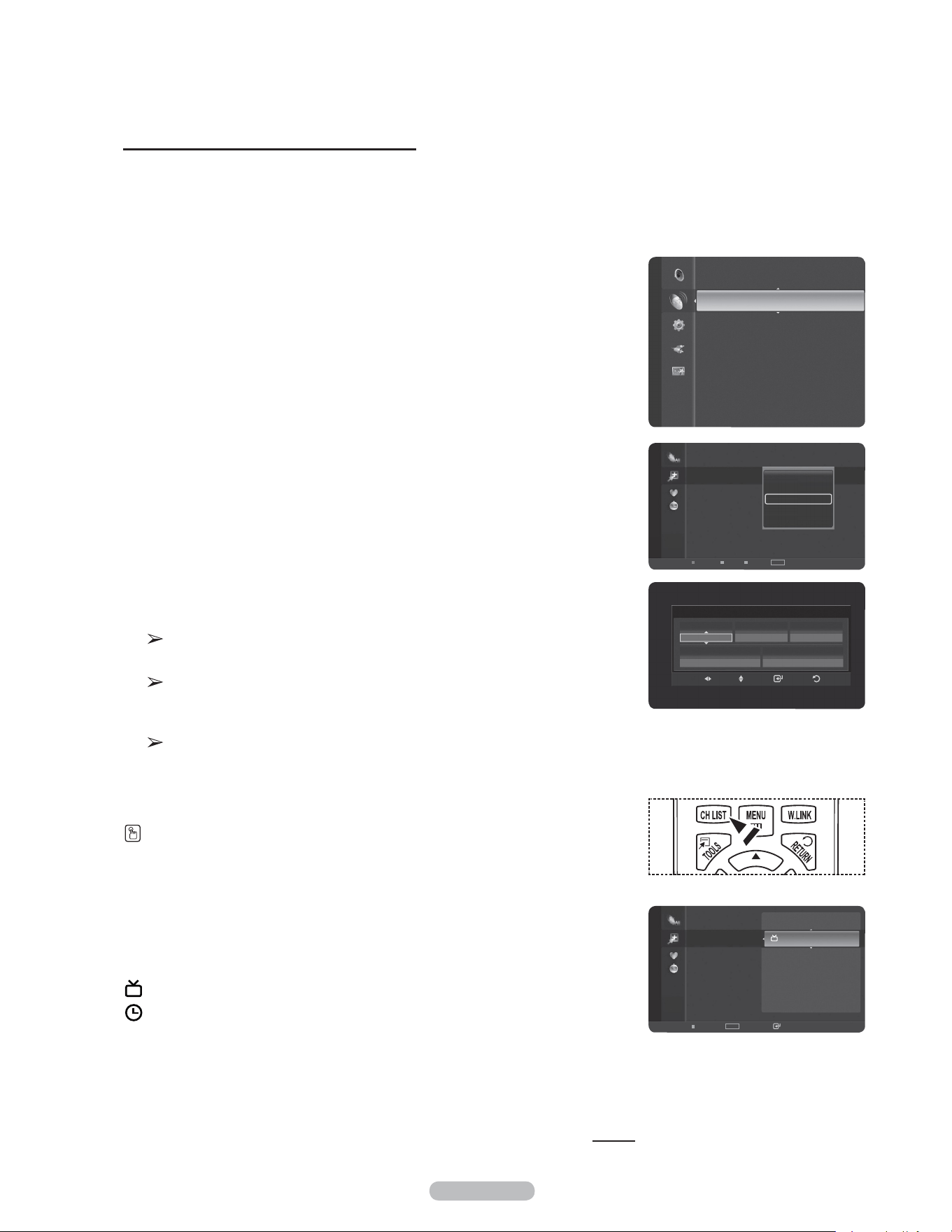
Français - 44
Pour réserver une émission (temps d’écoute)
Si une réservation d’émission à regarder est effectuée, le téléviseur passe
automatiquement au canal réservé dans la liste des canaux, même si un autre canal
est écouté. Pour réserver une émission, régler d’abord l’horloge. Voir pages 52 et
53. Il est possible de régler les canaux réservés uniquement s’ils sont dans la liste
des canaux (voir page 41).
1 Appuyer sur la touche MENU.
Appuyer sur la touche ▲ ou ▼ pour sélectionner Chaîne, suivie de la touche
ENTER.
Appuyer sur la touche ▲ ou ▼ pour sélectionner Liste des canaux, suivie de la
touche ENTER.
2 Appuyer sur la touche ▲ ou ▼ pour sélectionner un canal, suivie de la touche
TOOLS.
3 Appuyer sur la touche ▲ ou ▼ pour sélectionner Programmation d’émission,
suivie de la touche ENTER.
L’écran Réserver une émission (Écoute par minuterie) apparaît.
4 Appuyer sur les touches ▲/▼/◄/► pour réserver une émission, suivies de la
touche ENTER.
La réservation de l’émission est terminée.
Appuyer sur la touche EXIT pour quitter.
Il est également possible de réserver une émission à l’aide des menus Tous
les canaux ou Favori de la même façon.
Pour des renseignements sur la confirmation d’une réservation d’émission,
consulter la page 46. Seuls les canaux déjà en mémoire peuvent faire partie
des canaux réservés.
Il est possible de régler directement le mois, le jour, l’année, l’heure et les
minutes à l’aide des touches numériques de la télécommande.
Appuyer sur la touche CH LIST de la télécommande pour afficher les listes de canaux.
Guide d’émissions numérique et réservation d’émission
Lorsqu’un canal numérique est sélectionné et que la touche ► est enfoncée, le
Guide des émissions du canal s’affiche. Il est possible de réserver une émission en
suivant les procédures ci-dessus.
: Une émission en cours.
: Une émission réservée.
Suite...
Chaîne
Antenne : Air
Prog. auto
Liste des canaux
Effacer les canaux brouillés
Syn. Précise
Puissance signal
Écoute par minuterie
Antenne Chaîne Répéter
Air 7-1 Une fois
Date
01-01-2008
Heure de début
10:09 am
Intro. RetourDépl. Réglage
6-1 ♥ SBS 2007/2/3
7 Air 2007/2/3
7-1 ♥ KBS D-2
1:30 am
9 Air 2:27 am
9-1 ♥ KBS D-1 2:35 am
10 Air 3:21 am
10-1 ♥ EBS DTV 4:33 am
11-1 ♥ MBC DTV 6:00 am
19 Air 6:36 am
22 Air
Canaux ajoutés
Air
Zoom
TOOLS
Option
Regarder
1/22/2008
12:47 am 2.0
3:54 am KBS 2TV
6:44 am HD 1 100
7:49 am HD
8:59 am +
10:08 am
10:37 am
6-1 ♥ SBS
7 Air
7-1 ♥ KBS D-2
9 Air
9-1 ♥ KBS D-1
10 Air
10-1 ♥ EBS DTV
11-1 ♥ MBC DTV
19 Air
22 Air
Canaux ajoutés
Supprimer
Ajouter aux favoris
Écoute par minuterie
Modifier le nom du canal
Prog. auto
Air
Antenne
Zoom
Choisir
TOOLS
Option ► Pregramme suivant
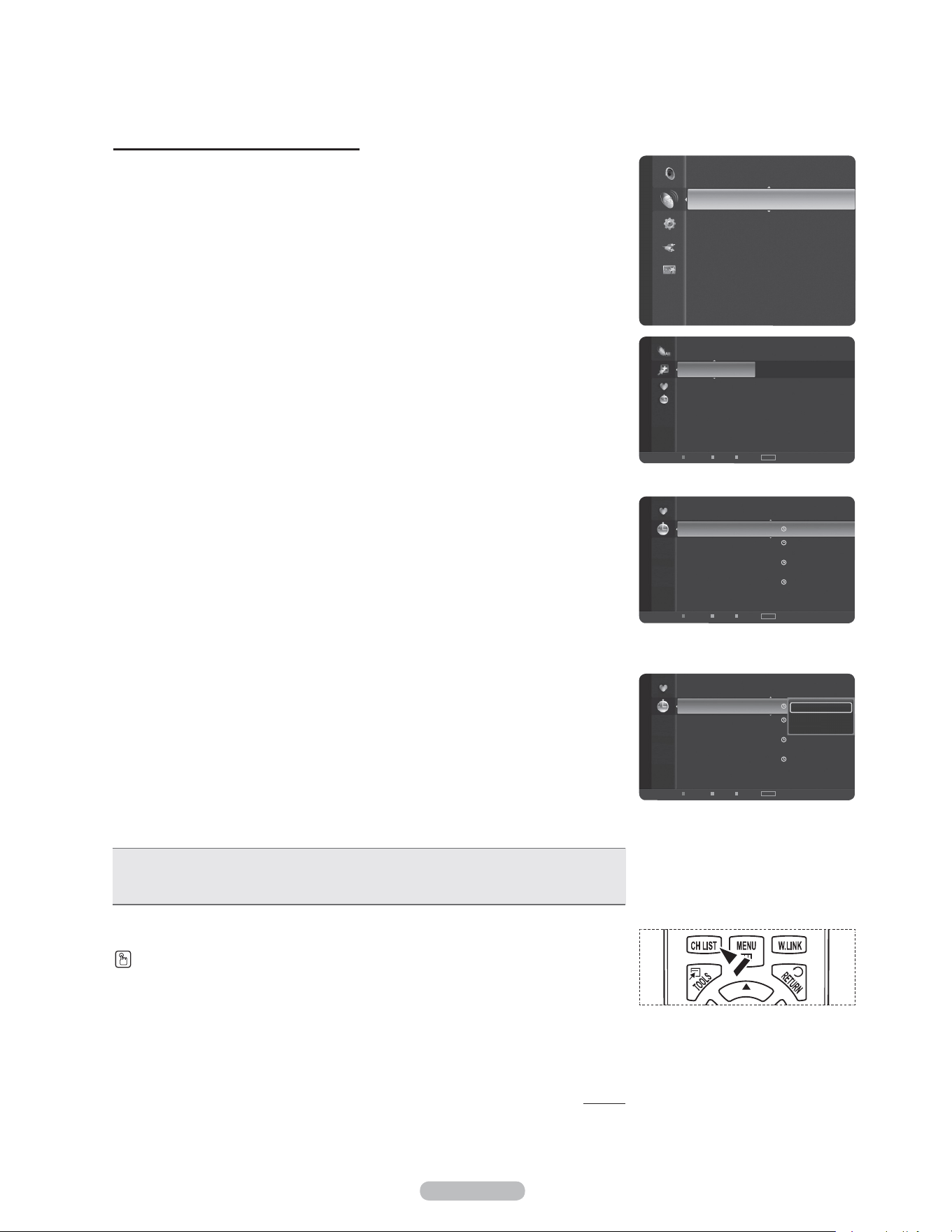
Français - 45
Confirmer une réservation d’émission
Il est possible de visualiser, de modifier ou de supprimer une réservation.
1 Appuyer sur la touche MENU.
Appuyer sur la touche ▲ ou ▼ pour sélectionner Chaîne, suivie de la touche
ENTER.
Appuyer sur la touche ▲ ou ▼ pour sélectionner Liste des canaux, suivie de la
touche ENTER.
2 Appuyer sur la touche ◄ pour sélectionner Canaux ajoutés.
3 Appuyer sur la touche ▲ ou ▼ pour sélectionner Programmés, suivie de la
touche ENTER.
Les réservations sont affichées.
Modifier une réservation d’émission
4 Appuyer sur la touche ▲ ou ▼ pour sélectionner la réservation à modifier,
suivie de la touche TOOLS.
5 Appuyer sur la touche ENTER pour sélectionner Modifier l’info.
6 Appuyer sur la touche ▲/▼/◄/► pour modifier un paramètre de réservation,
suivie de la touche ENTER.
La modification est apportée à la réservation.
Annuler une réservation
4 Appuyer sur la touche ▲ ou ▼ pour sélectionner la réservation à annuler,
suivie de la touche TOOLS.
5 Appuyer sur la touche ▲ ou ▼ pour sélectionner Annuler réservations,
suivie de la touche ENTER.
6 Appuyer sur la touche ▲ ou ▼ pour sélectionner OK, suivie de la touche
ENTER.
La réservation d’émission est annulée.
Appuyer sur la touche EXIT pour quitter.
Menu programmé
• Modifier l’info: Sélectionner pour modifier une réservation d’émission.
• Annuler les réservations: Sélectionner pour annuler une réservation d’émission.
• Information: Sélectionner pour afficher une réservation d’émission.
Suite...
Appuyer sur la touche CH LIST de la télécommande pour afficher les listes de canaux.
Chaîne
Antenne : Air
Prog. auto
Liste des canaux
Effacer les canaux brouillés
Syn. Précise
Puissance signal
6 Air
6-1
♥
Air
7 Air
7-1 ♥ Air
9 Air
9-1 ♥ Air
10 Air
10-1 ♥ Air
11 Air
Canaux ajoutés
Air
Antenne
Zoom
Choisir
TOOLS
Option
2007/2/3
3:15 am
6-1 Air
Pas de titre
4:15 am 6-1 Air Pas de titre
2007/2/4
2:14 am 6-1 Air Pas de titre
2007/2/5
2:15 am 6-1 Air Pas de titre
Programmés
Air
Antenne
Zoom
Choisir
TOOLS
Option ► Information
Programmés
2007/2/3
3:15 am
6-1 Air
Pas de titre
4:15 am 6-1 Air Pas de titre
2007/2/4
2:14 am 6-1 Air Pas de titre
2007/2/5
2:15 am 6-1 Air Pas de titre
Modifier l’info
Annuler les réservations
Information
Air
Antenne
Zoom
Choisir
TOOLS
Option ► Information
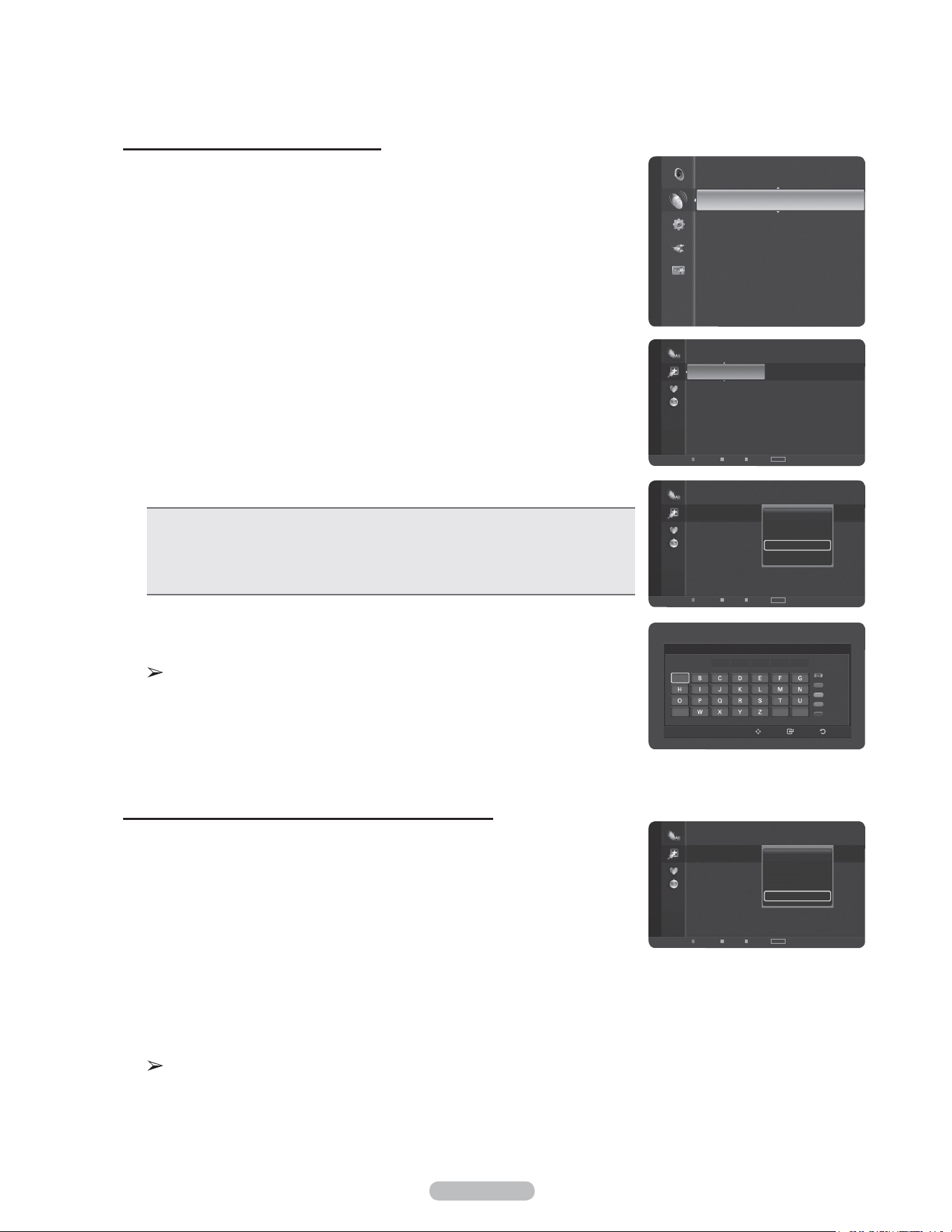
Français - 46
Identification des canaux – analogiques
Les canaux peuvent être identifiés de sorte que leur indicatif d’appel s’affiche
chaque fois que le canal est sélectionné.
1 Appuyer sur la touche MENU.
Appuyer sur la touche ▲ ou ▼ pour sélectionner Chaîne, suivie de la touche
ENTER.
Appuyer sur la touche ▲ ou ▼ pour sélectionner Liste des canaux, suivie de la
touche ENTER.
2 Appuyer sur la touche ▲ ou ▼ pour sélectionner le canal à renommer, suivie de
la touche TOOLS.
3 Appuyer sur la touche ▲ ou ▼ pour sélectionner Éditer le nom du canal, suivie
de la touche ENTER.
4 Appuyer sur la touche ▲/▼/◄/► pour sélectionner une lettre, suivie de la
touche ENTER.
• Touches numériques : Il est possible d’entrer des chiffres.
• Touche rouge: Il est possible d’alterner entre l’anglais et les caractères.
• Touche verte: Il est possible de supprimer un caractère déjà saisi.
• Touche jaune: Il est possible de saisir une espace.
• Touche bleue: Appuyer sur cette touche une fois le canal renommé.
5 Lorsque terminé, appuyer sur la touche bleue pour assigner le nouveau nom.
Appuyer sur la touche EXIT pour quitter.
Les noms des canaux numériques sont automatiquement assignés et ne
peuvent pas être renommés.
Mémorisation des chaînes (Programmation automatique)
Les canaux peuvent être identifiés de sorte que leur indicatif d’appel s’affiche
chaque fois que le canal est sélectionné.
1 Appuyer sur la touche MENU.
Appuyer sur la touche ▲ ou ▼ pour sélectionner Chaîne, suivie de la touche
ENTER.
Appuyer sur la touche ▲ ou ▼ pour sélectionner Liste des canaux, suivie de la
touche ENTER.
2 Appuyer sur la touche ▲ ou ▼ pour sélectionner le canal à renommer, suivie de
la touche TOOLS.
3 Appuyer sur la touche ▲ ou ▼ pour sélectionner Prog. auto, suivie de la touche
ENTER.
Pour en savoir plus sur la configuration des options, consulter la page 21.
Appuyer sur la touche EXIT pour quitter.
Modifier le nom du canal
6
Numéro
Caractère
Supprimer
Blanc
Fait
Intro. RetourDépl.
_
A
V
Chaîne
Antenne : Air
Prog. auto
Liste des canaux
Effacer les canaux brouillés
Syn. Précise
Puissance signal
6
Air
6-1 ♥ Air
7 Air
7-1 ♥ Air
9 Air
9-1 ♥ Air
10 Air
10-1 ♥ Air
Canaux ajoutés
Air
Antenne
Zoom
Choisir
TOOLS
Option
6
Air
6-1 ♥ Air
7 Air
7-1 ♥ Air
9 Air
9-1 ♥ Air
10 Air
10-1 ♥ Air
Supprimer
Ajouter aux favoris
Écoute par minuterie
Modifier le nom du canal
Prog. auto
Canaux ajoutés
Air
Antenne
Zoom
Choisir
TOOLS
Option
6
Air
6-1 ♥ Air
7 Air
7-1 ♥ Air
9 Air
9-1 ♥ Air
10 Air
10-1 ♥ Air
Supprimer
Ajouter aux favoris
Écoute par minuterie
Modifier le nom du canal
Prog. auto
Canaux ajoutés
Air
Antenne
Zoom
Choisir
TOOLS
Option
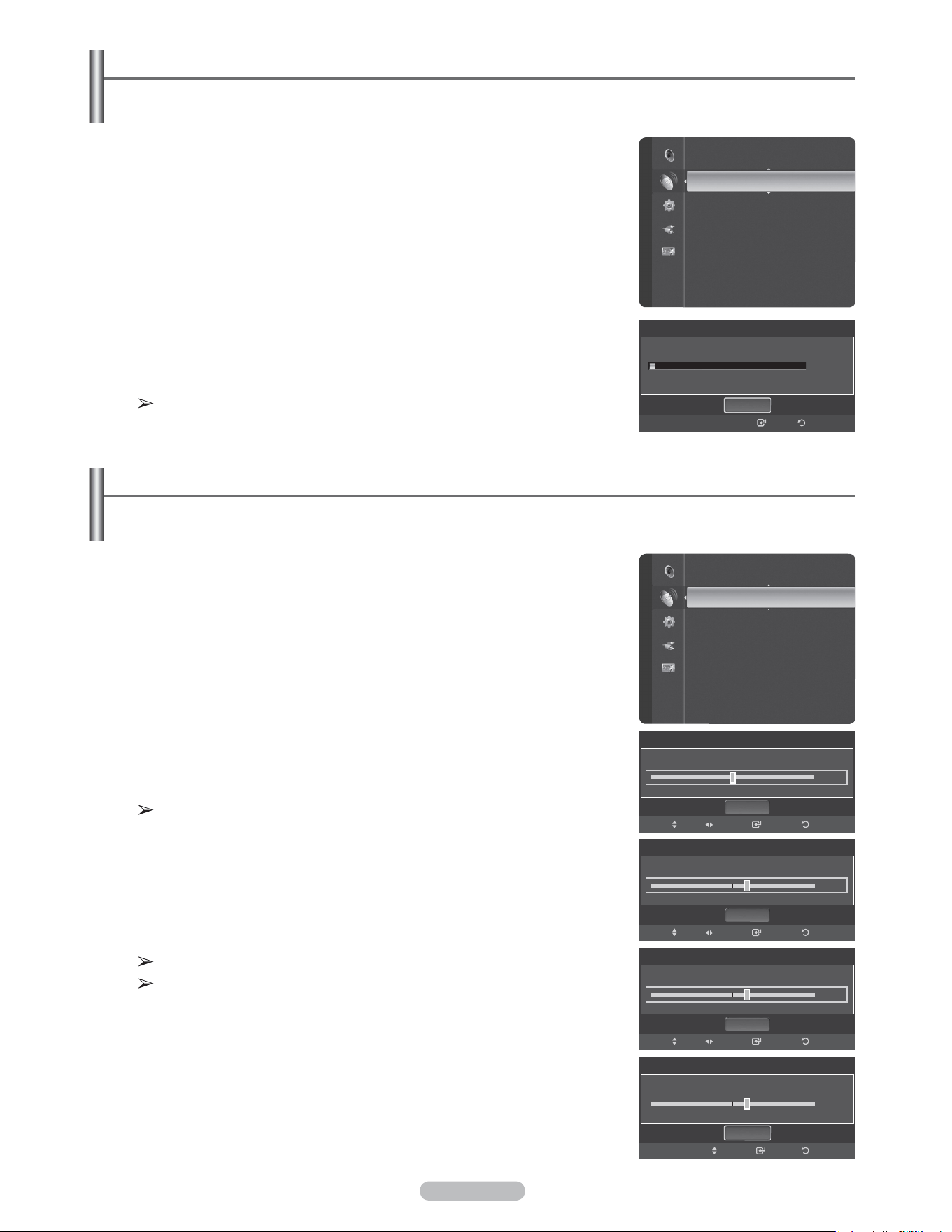
Français - 47
Suppression des canaux brouillés – canaux numériques
La fonction Effacer les canaux brouillés permet d’éliminer les canaux brouillés une fois que la programmation
automatique est terminée. Cela peut prendre de 20 à 30 minutes.
1 Appuyer sur la touche MENU.
Appuyer sur la touche ▲ ou ▼ pour sélectionner Chaîne, suivie de la touche
ENTER.
Appuyer sur la touche ▲ ou ▼ pour sélectionner Supprimer les canaux
brouillés, suivie de la touche ENTER. Cette fonction détecte les canaux
brouillés à supprimer de la liste.
Pour arrêter la fonction de recherche des canaux brouillés :
Appuyer sur la touche ENTER pour sélectionner Arrêt.
Appuyer sur la touche ▲ ou ▼ pour sélectionner Oui, suivie de la touche
ENTER.
2 Lorsque la recherche de canaux brouillés est terminée, appuyer sur la touche
ENTER.
Appuyer sur la touche EXIT pour quitter.
Cette fonction n’est accessible qu’en mode Câble.
Syntonisation fine des canaux analogiques
La fonction de syntonisation précise permet d’optimiser manuellement la réception d’un canal.
1 Appuyer sur la touche MENU pour afficher le menu.Appuyer sur la touche ▲ ou
▼ pour sélectionner Chaîne, suivie de la touche ENTER.
2 Appuyer sur la touche ▲ ou ▼ pour sélectionner Syn. Précise, suivie de la
touche ENTER.
3 Appuyer sur ◄ ou ► pour procéder à la syntonisation précise.
Pour mémoriser les réglages de syntonisation précise, appuyer sur la
touche ENTER.
Si aucune chaîne syntonisée précisément n’est mémorisée, les réglages ne
sont pas enregistrés.
4 Pour réinitialiser la syntonisation précise, appuyer sur la touche ▼ pour choisir
Régler, puis sur ENTER.
Appuyer sur la touche EXIT pour quitter.
Seuls les canaux analogiques peuvent être syntonisés finement.
Les noms des canaux syntonisés s’affichent accompagnés d’un “
*
”.
Chaîne
Prog. auto
Liste des canaux
Effacer les canaux brouillés ►
Syn. Précise
Puissance signal
Effacer les canaux brouillés
Supprime les canaux brouillés.
Arrêt
RetourIntro.
DTV Câble 122
3%
Syn. Précise
Air 6
0
Régler
Enregistrer
Retour
RéglageDépl.
Chaîne
Liste des canaux
Effacer les canaux brouillés
Syn. Précise ►
Puissance signal
Syn. Précise
Air 6
+5
Régler
Enregistrer
Retour
Réglage
Dépl.
Syn. Précise
Air 6* Synt. précision
+5
Régler
Enregistrer
Retour
RéglageDépl.
Syn. Précise
Air 6* Synt. précision
+5
Régler
Intro.
Retour
Dépl.
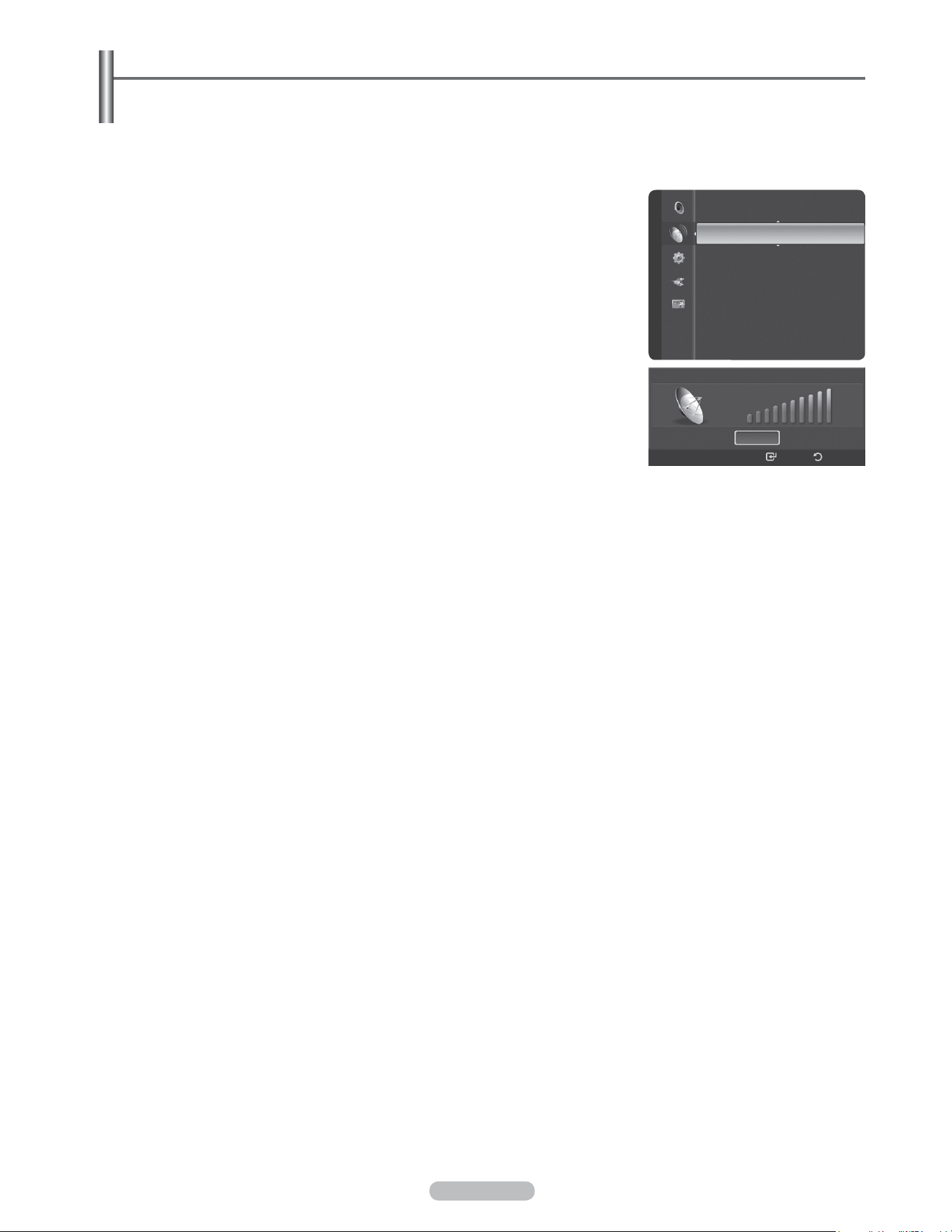
Français - 48
Contrôle de l’intensité du signal numérique
Contrairement aux canaux analogiques, dont la qualité de réception peut aller de “Réception embrouillée” à
“Réception claire”. les canaux numériques (HDTV) ont une réception parfaite ou ne sont pas captés du tout. Par
conséquent, contrairement aux canaux analogiques, il n’est pas possible de syntoniser un canal numérique avec
précision. Cependant, il est possible d’ajuster l’antenne pour améliorer la réception des canaux numériques
disponibles.
1 Appuyer sur la touche MENU pour afficher le menu.
Appuyer sur la touche ▲ ou ▼ pour sélectionner Chaîne, suivie de la touche
ENTER.
2 Appuyer sur la touche ▲ ou ▼ pour sélectionner Puissance signal, suivie de
la touche ENTER. Si le capteur d’intensité du signal indique que le signal capté
est faible, ajuster l’antenne pour améliorer sa puissance de réception.Poursuivre
l’ajustement de l’antenne jusqu’à ce que l’obtention de la meilleure réception.
Appuyer sur la touche EXIT pour quitter.
Puissance signal
OK
Intro. Retour
Chaîne
Effacer les canaux brouillés
Syn. Précise
Puissance signal ►
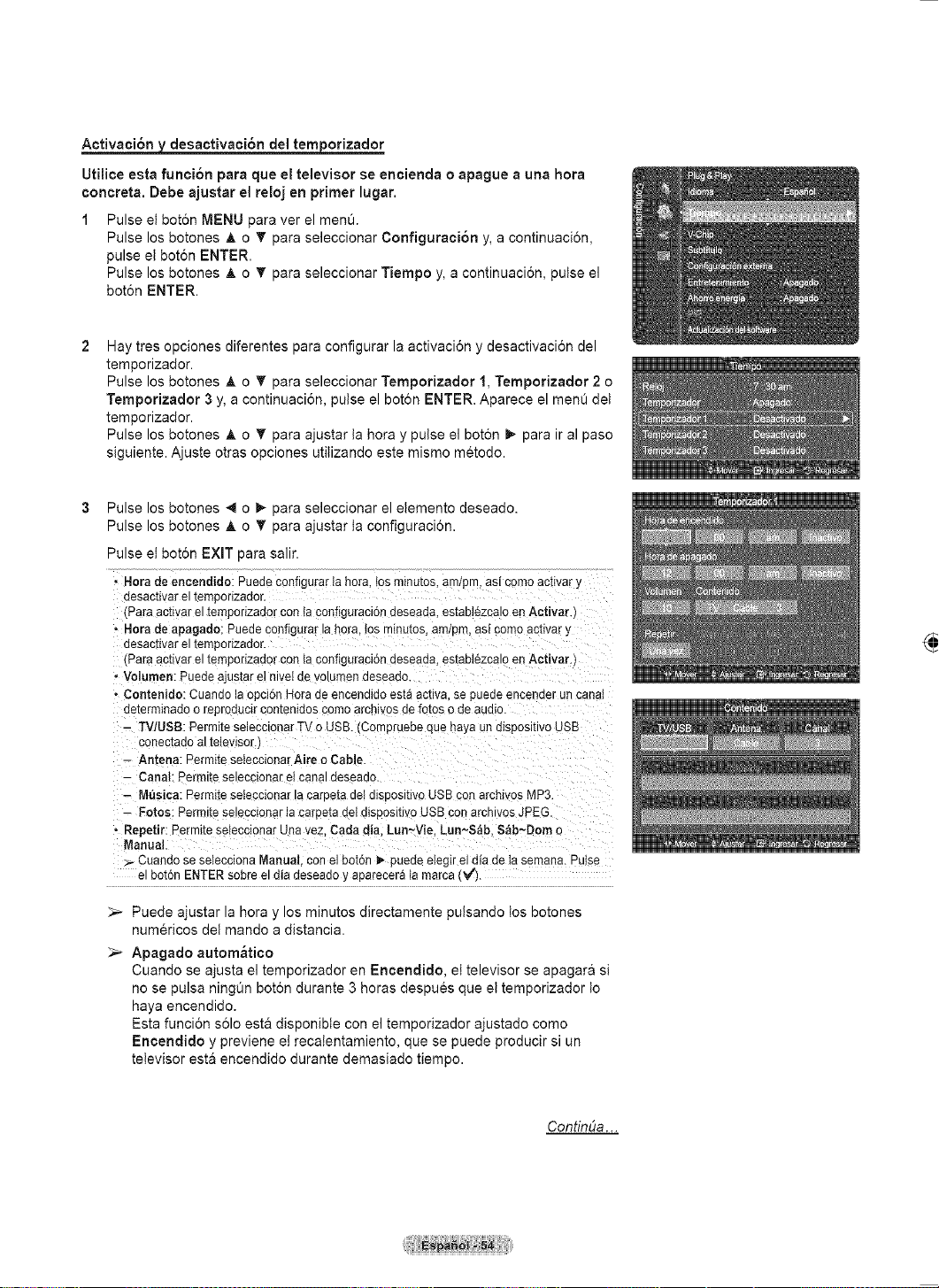
Français - 49
Écran d’ordinateur
Utilisation du téléviseur comme écran d’ordinateur
Configuration du logiciel pour PC (Windows XP)
Les paramètres d’affichage de Windows pour un PC standard sont indiqués ci-dessous.
Toutefois, les écrans qui s’afficheront sur l’ordinateur pourraient être différents, selon la
version de Windows et la carte vidéo installées. Cependant, même si l’affichage diffère, les
paramètres de base s’appliquent dans la grande majorité des cas. (Sinon, communiquer
avec le fabricant du PC ou un détaillant Samsung.)
1 Premièrement, cliquer sur Panneau de configuration dans le menu Démarrer de
Windows.
2 Lorsque la fenêtre du panneau de configuration s’affiche, cliquer sur Apparence et
thèmes. La boîte de dialogue du même nom s’affiche.
3 Lorsque le panneau de configuration s’affiche, cliquer sur Affichage pour afficher la
boîte de dialogue du même nom.
4 Cliquer sur l’onglet Paramètres de la boîte de dialogue Affichage.
Réglage de format approprié (résolution)
Optimal : 1920 x 1080 pixels
Si la boîte de dialogue offre une option de fréquence de rafraîchissement vertical,
la valeur appropriée est 60 ou 60 Hz. Sinon, cliquer sur OK et quitter la boîte de
dialogue.
Modes d’affichage
Si le signal en provenance du système équivaut au mode de signal standard, l’affichage s’ajuste
automatiquement. Si le signal n’équivaut pas au mode de signal standard, consulter le manuel d’utilisation de la
carte vidéo pour régler le mode. Sinon, il est possible qu’il n’y ait pas d’affichage vidéo. L’image à l’écran a été
optimisée en usine pour les modes d’affichage ci-dessous.
Entrée D-Sub
Mode Résolution Fréquence horizontale (kHz) Fréquence verticale (Hz) Fréquence d’horloge du pixel (MHz) Polarité synchro (H/V)
IBM
640 x 350
720 x 400
31.469
31.469
70.086
70.087
25.175
28.322
+ / -
- / +
VESA
640 x 480
640 x 480
640 x 480
800 x 600
800 x 600
800 x 600
1024 x 768
1024 x 768
1024 x 768
1280 x 1024
1280 x 1024
1360 x 768
1600 x 1200
31.469
37.861
37.500
37.879
48.077
46.875
48.363
56.476
60.023
63.981
79.976
47.712
75.000
59.940
72.809
75.000
60.317
72.188
75.000
60.004
70.069
75.029
60.020
75.025
60.015
60.000
25.175
31.500
31.500
40.000
50.000
49.500
65.000
75.000
78.750
108.000
135.000
85.500
162.000
- / -
- / -
- / -
+ / +
+ / +
+ / +
- / -
- / -
+ / +
+ / +
+ / +
+ / +
+ / +
CVT 1920 x 1080RB 66.587 59.934 138.500 + / -
Entrée HDMI/DVI
Mode Résolution Fréquence horizontale (kHz) Fréquence verticale (Hz) Fréquence d’horloge du pixel (MHz) Polarité synchro (H/V)
VESA
640 x 480
800 x 600
1024 x 768
1280 x 1024
1360 x 768
1600 x 1200
31.469
37.879
48.363
63.981
47.712
75.000
59.940
60.317
60.004
60.020
60.015
60.000
25.175
40.000
65.000
108.000
85.500
162.000
- / -
+ / +
- / -
+ / +
+ / +
+ / +
CEA 1920 x 1080p 67.500 60.000 148.500 + / +
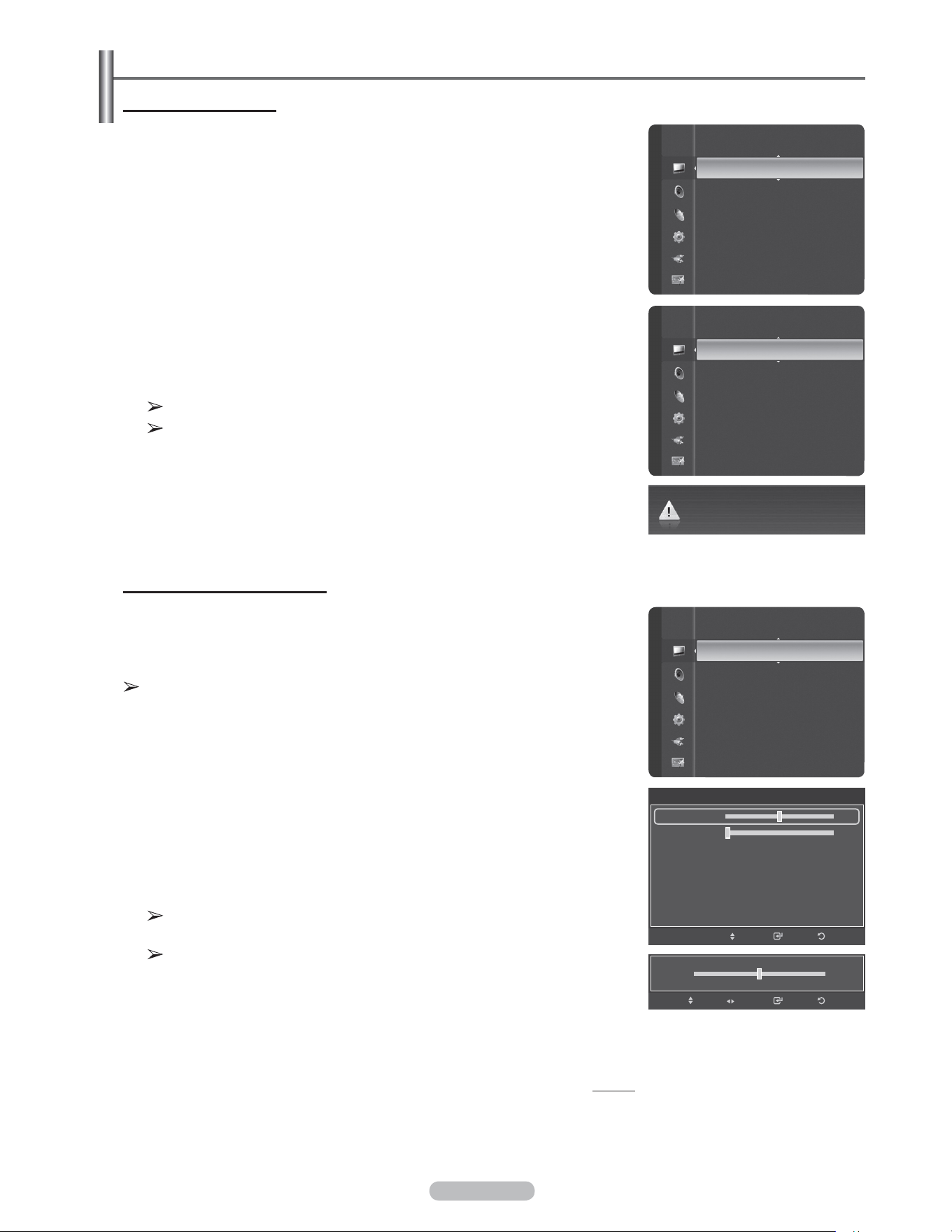
Français - 50
Configuration du téléviseur par l’ordinateur
Réglages automatiques
Utiliser la fonction de réglage automatique pour que le téléviseur règle
automatiquement les signaux vidéo reçus de l’ordinateur. En outre, cette fonction
syntonise automatiquement les réglages et ajuste les valeurs et les positions de la
fréquence.
1 Appuyer sur la touche MENU pour afficher le menu.
Appuyer sur la touche ▲ ou ▼ pour sélectionner Image, suivie de la touche
ENTER.
Appuyer sur la touche ▲ ou ▼ pour sélectionner Réglage automatique, suivie
de la touche ENTER.
2 Le message Réglage Auto en cours. Veuillez patienter. s’affiche et les
réglages automatiques de l’image sont activés.
Appuyer sur la touche EXIT pour quitter.
Cette fonction n’est pas accessible en mode DVI-Numérique.
Préréglage: Appuyer sur la touche SOURCE pour sélectionner le mode PC.
Réglage de la qualité de l’écran
La fonction de réglage de la qualité de l’image supprime ou réduit les parasites.
Si la syntonisation fine ne suffit pas à supprimer les parasites, régler la fréquence
verticale et recommencer la syntonisation fine. Une fois les parasites réduits,
reprendre le réglage de l’image de façon à bien centrer celle-ci sur l’écran.
Préréglage: Appuyer sur la touche SOURCE pour sélectionner le mode PC.
1 Appuyer sur la touche MENU pour afficher le menu.
Appuyer sur la touche ▲ ou ▼ pour sélectionner Image, suivie de la touche
ENTER.
Appuyer sur la touche ▲ ou ▼ pour sélectionner Écran, suivie de la touche
ENTER.
2 Appuyer sur la touche ▲ ou ▼ pour sélectionner Grain ou Affiné, suivie de la
touche ENTER.
Appuyer sur la touche ◄ ou ► pour régler la qualité de l’écran, suivie de la
touche ENTER.
Appuyer sur la touche EXIT pour quitter.
Des barres verticales peuvent apparaître ou l’image peut sembler
embrouillée.
Préréglage: Appuyer sur la touche SOURCE pour sélectionner le mode PC.
Suite...
Réglage auto. en cours Attendez,
s’il vous plait.
Écran
RetourIntro.
Dépl.
50
0
Coarse
Affiné
Position
Rétablir l’image
Mode
:
Standard ►
Lumière cellule : 7
Contraste : 95
Luminosité : 45
Netteté : 50
Réglage Auto
Écran
Réglages des détails
Image
Luminosité : 45
Netteté : 50
Réglage Auto
►
Écran
Réglages des détails
Options d’image
Réinitialisation de l’image
Image
Netteté : 50
Réglage Auto
Écran
►
Réglages des détails
Options d’image
Réinitialisation de l’image
Image
RetourIntro.Réglage
50
Dépl.
Grain
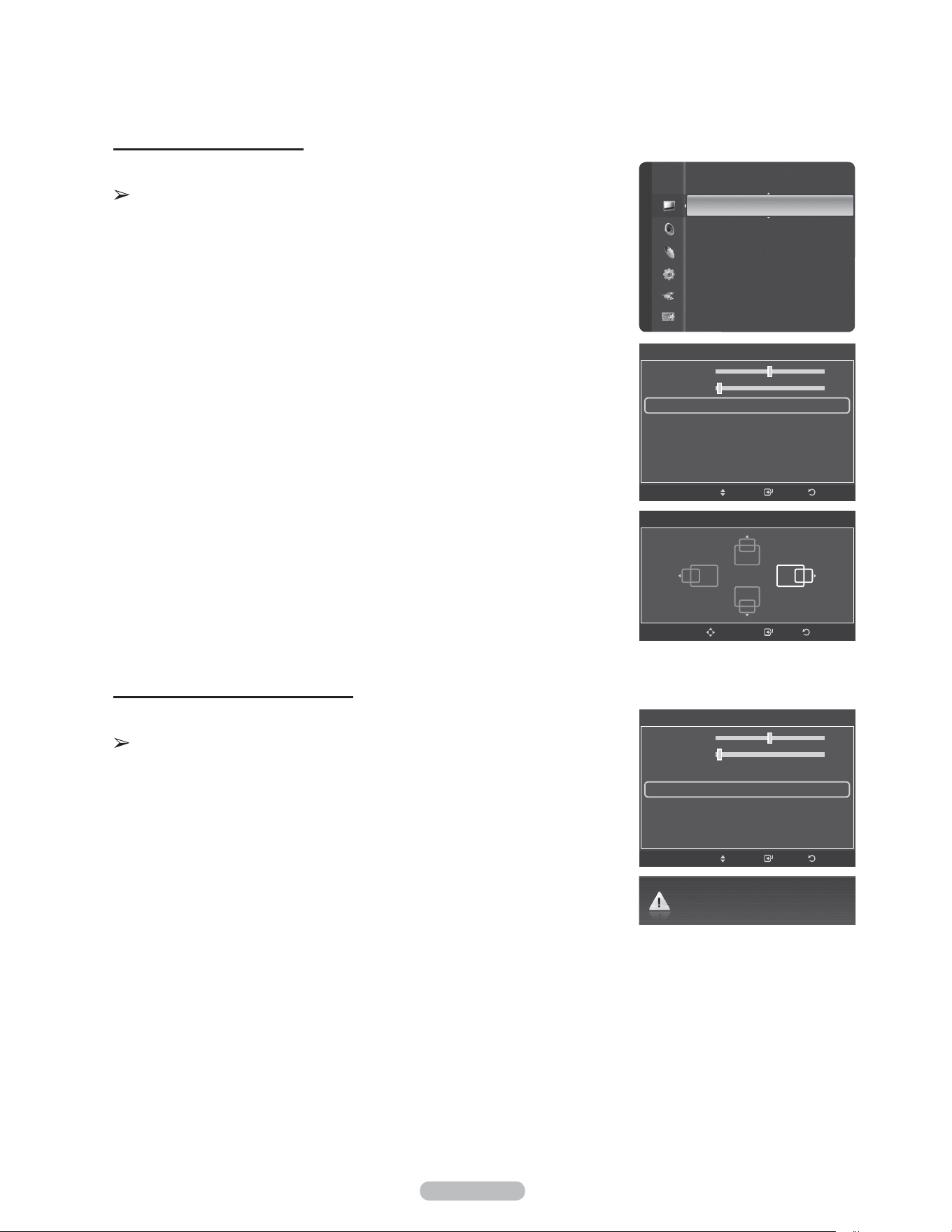
Français - 51
Repositionnement de l’image
Régler l’écran du PC s’il ne convient pas à l’écran du téléviseur.
Préréglage: Appuyer sur la touche SOURCE pour sélectionner le mode PC.
1 Appuyer sur la touche MENU pour afficher le menu.
Appuyer sur la touche ▲ ou ▼ pour sélectionner Image, suivie de la touche
ENTER.
Appuyer sur la touche ▲ ou ▼ pour sélectionner Écran, suivie de la touche
ENTER.
2 Appuyer sur la touche ▲ ou ▼ pour sélectionner Position, suivie de la touche
ENTER.
3 Appuyer sur la touche ▲ ou ▼ pour ajuster la position verticale.
Appuyer sur la touche ◄ ou ► pour ajuster la position horizontale de l’image.
Appuyer sur la touche ENTER.
Appuyer sur la touche EXIT pour quitter.
Initialisation de la position de l’écran
Tous les paramètres d’image peuvent être remplacés par les valeurs par défaut.
Préréglage: Appuyer sur la touche SOURCE pour sélectionner le mode PC.
1 Appuyer sur la touche MENU pour afficher le menu.
Appuyer sur la touche ▲ ou ▼ pour sélectionner Image, suivie de la touche
ENTER.
Appuyer sur la touche ▲ ou ▼ pour sélectionner Écran, suivie de la touche
ENTER.
2 Appuyer sur la touche ▲ ou ▼ pour sélectionner Rétablir l’image, suivie de la
touche ENTER.
Le message Rétablissement de l’image terminé s’affiche.
Appuyer sur la touche EXIT pour quitter.
RetourIntro.
Position
Réglage
Rétablissement de l’image terminé.
Écran
RetourIntro.Dépl.
50
2
Grain
Affiné
Position
Rétablir l’image
Écran
RetourIntro.Dépl.
50
2
Grain
Affiné
Position
Rétablir l’image
Netteté : 75
Réglage Auto
Écran
►
Réglages des détails
Options d’image
Réglages des détails
Image
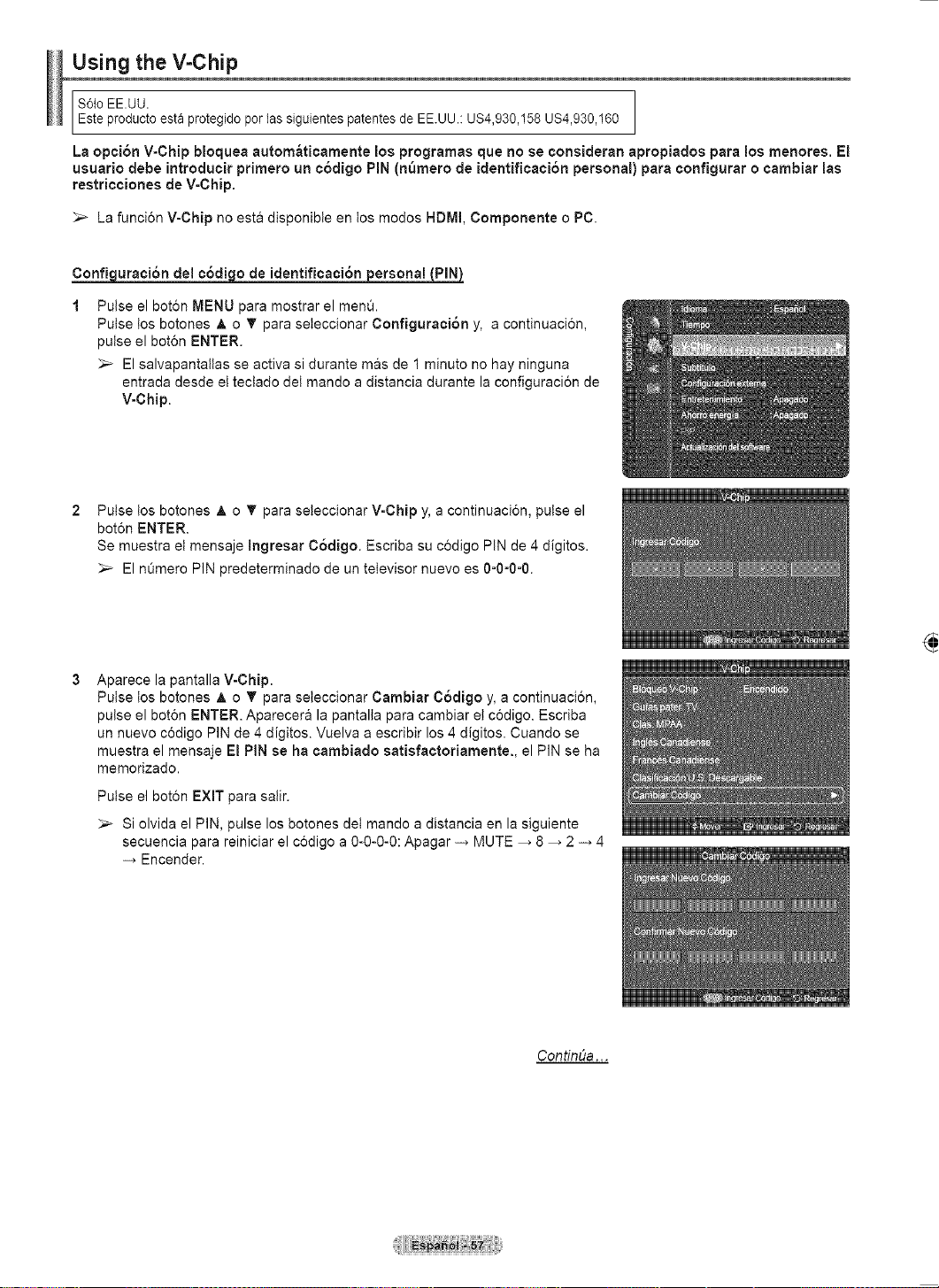
Français - 52
Réglage de l’heure
Réglage de l’horloge
Pour utiliser les différentes fonctions de minuterie du téléviseur, il faut d’abord régler l’horloge. Cette fonction
permet de vérifier l’heure pendant l’écoute. (Il suffit d’appuyer sur la touche INFO).
Option 1: Setting the Clock Manually
1 Appuyer sur la touche MENU pour afficher le menu.
Appuyer sur la touche ▲ ou ▼ pour sélectionner Configuration, suivie de la
touche ENTER.
Appuyer sur la touche ▲ ou ▼ pour sélectionner Heure, suivie de la touche
ENTER.
2 Appuyer sur la touche ENTER pour sélectionner Horloge.
3 Appuyer sur ENTER pour choisir Mode Horloge.
Appuyer sur la touche ▲ ou ▼ pour sélectionner Manuel, suivie de la touche
ENTER.
4 Appuyer sur la touche ▲ ou ▼ pour sélectionner Réglage de l’horloge, suivie
de la touche ENTER.
5 Appuyer sur la touche ◄ ou ► pour passer à Mois, Jour, Année, Heure,
Minute ou AM/pm. Régler la date et l’heure en appuyant sur la touche ▲ ou ▼,
suivie de la touche ENTER.
Appuyer sur la touche EXIT pour quitter.
L’heure s’affiche chaque fois que la touche INFO est enfoncée.
Il est possible de régler directement le mois, le jour, l’année, les heures, et
les minutes en appuyant sur les touches numériques de la télécommande.
Suite...
Configuration
Prêt à l’emploi
Langue : Français
Heure
►
V-Chip
Sous-titres
Réglages externes
Divertissement : Off
Économiseur énergie : Off
ISI
M. à jour logiciel
Heure
Horloge : 7 : 30 am ►
Mise en veille : Off
Minuterie 1 : Désactivé
Minuterie 2 : Désactivé
Minuterie 3 : Désactivé
RetourIntro.Dépl.
Réglage Horloge
RéglageDépl. Intro. Retour
01
Jour
2008
Année
am
am/pm
30
Minute
01
Mois
07
Heure
Horloge
Mode Horloge : Auto ►
Réglage Horloge ►
Fuseau hor. ►
H. d’ été : On
RetourIntro.
Auto
Manuel
Dépl.
Horloge
Mode Horloge : Auto
Réglage Horloge ►
Fuseau hor.
H. d’ été : On
RetourIntro.Dépl.
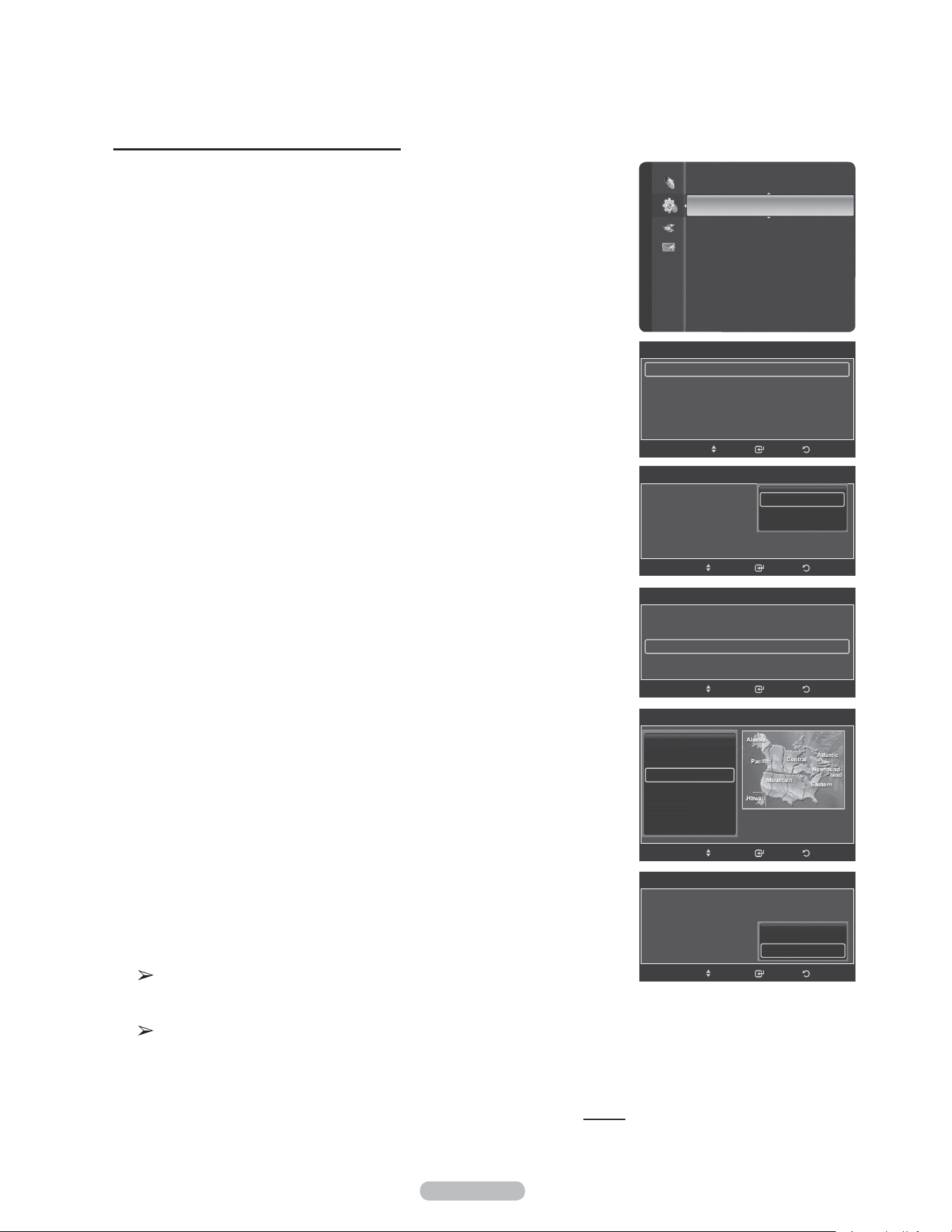
Français - 53
Option 2 : Réglage automatique de l’horloge
L’horloge peut être réglée automatiquement si le téléviseur reçoit un signal
numérique.
1 Appuyer sur la touche MENU pour afficher le menu.
Appuyer sur la touche ▲ ou ▼ pour sélectionner Configuration, suivie de la
touche ENTER.
Appuyer sur la touche ▲ ou ▼ pour sélectionner Heure, suivie de la touche
ENTER.
2 Appuyer sur la touche ENTER pour choisir Horloge.
3 Appuyer sur ENTER pour choisir Mode Horloge.
Appuyer sur la touche ▲ ou ▼ pour sélectionner Auto, suivie de la touche
ENTER.
4 Appuyer sur la touche ▲ ou ▼ pour sélectionner Fuseau hor., suivie de la
touche ENTER.
5 Appuyer sur la touche ▲ ou ▼ pour sélectionner le fuseau horaire local, puis
sur la touche ENTER.
6 Appuyer sur la touche ▲ ou ▼ pour sélectionner DST (Heure avancée), suivie
de la touche ENTER.
Appuyer sur la touche ▲ ou ▼ pour sélectionner Off ou On, suivie de la touche
ENTER.
Appuyer sur la touche EXIT pour quitter.
En fonction de la station émettrice et du signal, il est possible que la fonction
de réglage automatique de l’horloge ne fonctionne pas correctement. Dans
un tel cas, régler l’horloge manuellement.
L’antenne ou le câble doit être branché pour que le réglage automatique de
l’horloge s’effectue.
Suite...
Configuration
Prêt à l’emploi
Langue : Français
Heure
►
V-Chip
Sous-titres
Réglages externes
Divertissement : Off
Économiseur énergie : Off
ISI
M. à jour logiciel
Fuseau hor.
Newfoundland
Atlantique
Est
Centre
Rocheuses
Pacifique
RetourIntro.Dépl.
▼
Heure
Horloge : 7 : 30 am ►
Mise en veille : Off
Minuterie 1 : Désactivé
Minuterie 2 : Désactivé
Minuterie 3 : Désactivé
RetourIntro.Dépl.
Horloge
Mode Horloge : Auto ►
Réglage Horloge ►
Fuseau hor. ►
H. d’ été : On
RetourIntro.
Auto
Manuel
Dépl.
Horloge
Mode Horloge : Auto
Réglage Horloge
Fuseau hor. ►
H. d’ été : On :
RetourIntro.
Off
On
Dépl.
Horloge
Mode Horloge : Auto
Réglage Horloge
Fuseau hor. ►
H. d’ été : On
RetourIntro.Dépl.
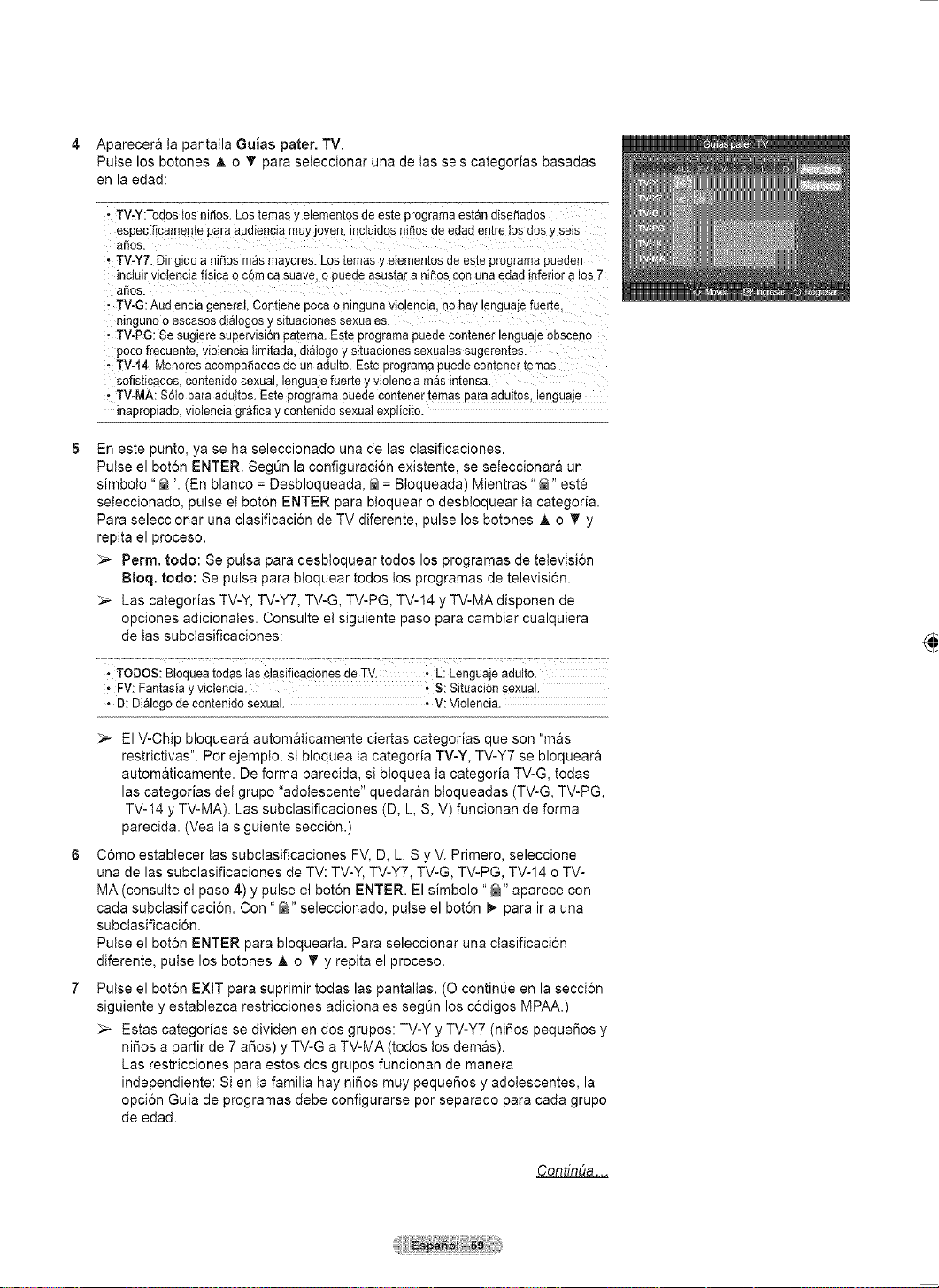
Français - 54
Réglage de la minuterie activée/désactivée
Cette fonction permet d’allumer ou d’éteindre le téléviseur à l’heure voulue. Tout
d’abord, il faut régler l’horloge.
1 Appuyer sur la touche MENU pour afficher le menu.
Appuyer sur la touche ▲ ou ▼ pour sélectionner Configuration, suivie de la
touche ENTER.
Appuyer sur la touche ▲ ou ▼ pour sélectionner Heure, suivie de la touche
ENTER.
2 Trois réglages d’activation et de désactivation de la minuterie sont possibles.
Appuyer sur la touche ▲ ou ▼ pour sélectionner Minuterie1, Minuterie2 ou
Minuterie3, suivie de la touche ENTER. Le menu Minuterie s’affiche.
Appuyer sur la touche ▲ ou ▼ pour régler l’heure, suivie de la touche ► pour
passer à la prochaine étape. Régler les autres options en procédant de la même
manière.
3 Appuyer sur la touche ◄ ou ► pour sélectionner l’élément désiré ci-dessous.
Appuyer sur ▲ ou ▼ pour ajuster ce paramètre.
Appuyer sur la touche
EXIT pour quitter.
Heure de mise en marche: Sélectionner l’heure, les minutes, am/pm et
Activation ou Désactivation. (Pour activer la minuterie avec le réglage choisi,
sélectionner Activate.)
Heure de mise hors tension: Sélectionner l’heure, les minutes, am/pm et
Activation ou Désactivation. (Pour activer la minuterie avec le réglage choisi,
sélectionner Activate.)
Volume: Sélectionner le niveau sonore désiré.
Contenu: Quand la minuterie Activation est activée, il est possible de
syntoniser un canal particulier ou lire d’autre type de contenu, comme des
photographies ou des fichiers sonores.
TV/USB: Sélectionne le téléviseur ou l’appareil USB. (Veiller à ce qu’un
dispositif USB soit branché au téléviseur.)
Antenne: Sélectionne Air ou Câble.
Canaux: Sélectionne le canal désiré.
Musique: Sélectionne le dossier de l’appareil USB contenant des fichiers
MP3.
Photo: Sélectionne le dossier de l’appareil USB contenant des fichiers JPEG.
Répéter: Selectionner Une fois, Tous les jours, Lundi-vendredi, Lundi-
samedi, Sam. à dim., ou Manuel.
Si Manuel est sélectionné, appuyer sur la touche ► pour sélectionner le
jour de la semaine désiré. Appuyer sur la touche ENTER et la marque ( )
s’affiche.
•
•
•
•
–
–
–
–
–
•
Il est possible de régler directement les heures et les minutes en appuyant
sur les touches numériques de la télécommande.
Arrêt automatique
Lorsque la minuterie est On, le téléviseur s’éteint si aucune commande n’est
activée dans les 3 heures qui suivent la mise sous tension du téléviseur par
la minuterie.Cette fonction est seulement disponible en mode Minuterie On
et évite la surchauffe, possible si le téléviseur est sous tension pendant trop
longtemps.
Suite...
Configuration
Prêt à l’emploi
Langue : Français
Heure
►
V-Chip
Sous-titres
Réglages externes
Divertissement : Off
Économiseur énergie : Off
ISI
M. à jour logiciel
Horloge
Horloge : 7 : 30 am
Mise en veille : Off
Minuterie 1 : Désactivé ►
Minuterie 2 : Désactivé
Minuterie 3 : Désactivé
RetourIntro.Dépl.
Minuterie 1
RetourIntro.RéglageDépl.
12 00 am
Désactiver
Mise en marche
12 00 am
Désactiver
Mise hors tension
10
TV
Volume Contenu
Câble 3
Une fois
Répéter
Dim Lun Mar Mer Jev Ven Sam.
Contenu
RéglageDépl. Intro. Retour
Câble
Antenne
3
Chaîne
TV
TV/USB
None
Musique
None
Photo
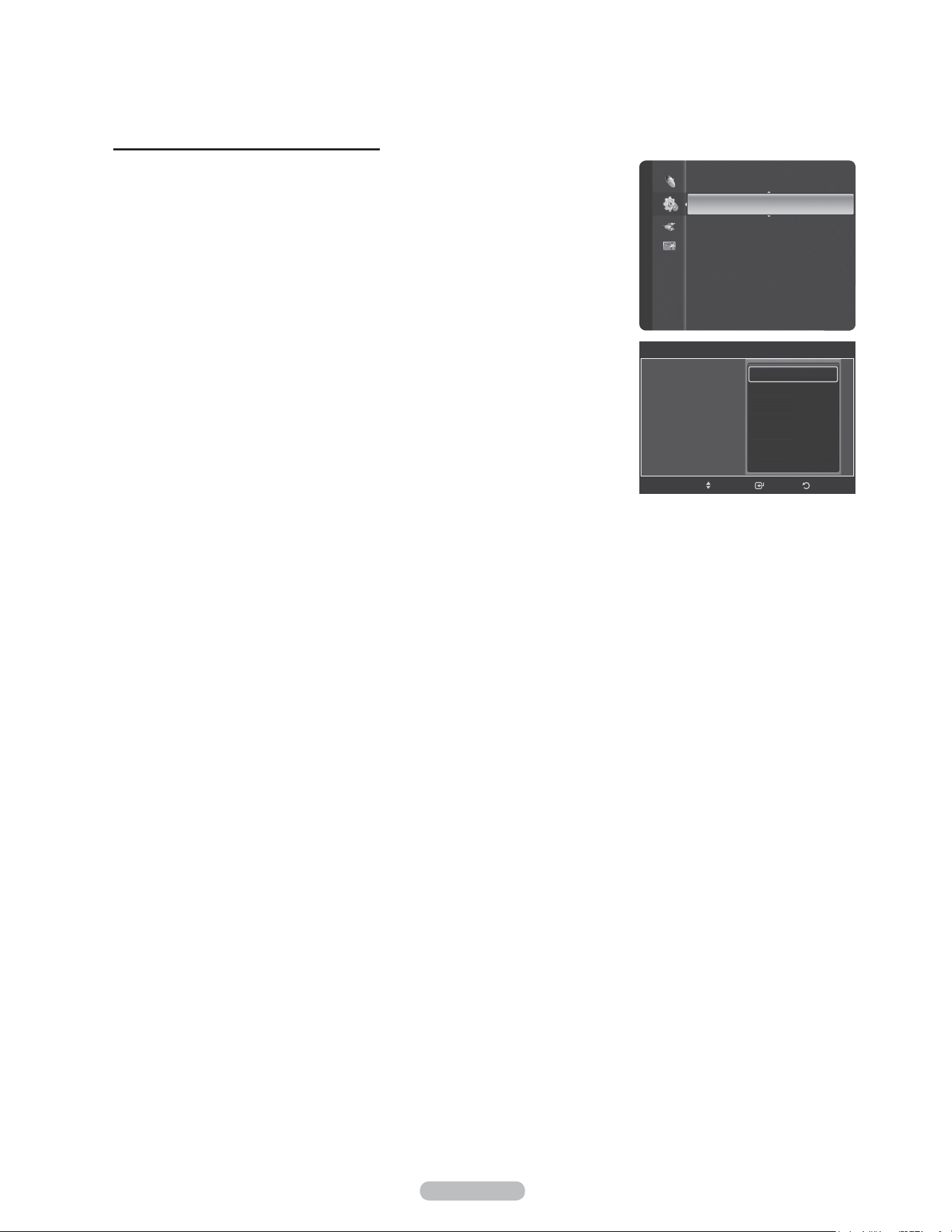
Français - 55
Réglage de la minuterie de mise en veille
Cette minuterie éteint automatiquement le téléviseur après le délai choisi (30, 60,
90, 120, 150 et 180 minutes).
1 Appuyer sur la touche MENU pour afficher le menu.
Appuyer sur la touche ▲ ou ▼ pour sélectionner Configuration, suivie de la
touche ENTER.
Appuyer sur la touche ▲ ou ▼ pour sélectionner Heure, suivie de la touche
ENTER.
2 Appuyer sur la touche ▲ ou ▼ pour sélectionner Mise en veille, suivie de la
touche ENTER.
3 Appuyer sur la touche ▲ ou ▼ pour sélectionner la minute, suivie de la touche
ENTER.
Pour annuler la mise en veille :
Appuyer sur la touche ▲ ou ▼ pour sélectionner Off, suivie de la touche
ENTER.
Appuyer sur la touche EXIT pour quitter le menu.
Configuration
Prêt à l’emploi
Langue : Français
Heure
►
V-Chip
Sous-titres
Réglages externes
Divertissement : Off
Économiseur énergie : Off
ISI
M. à jour logiciel
Heure
RetourIntro.Dépl.
Horloge :
Mise en veille :
Minuterie 1 :
Minuterie 2 :
Minuterie 3 :
Off
30 min.
60 min.
90 min.
120 min.
150 min.
180 min.
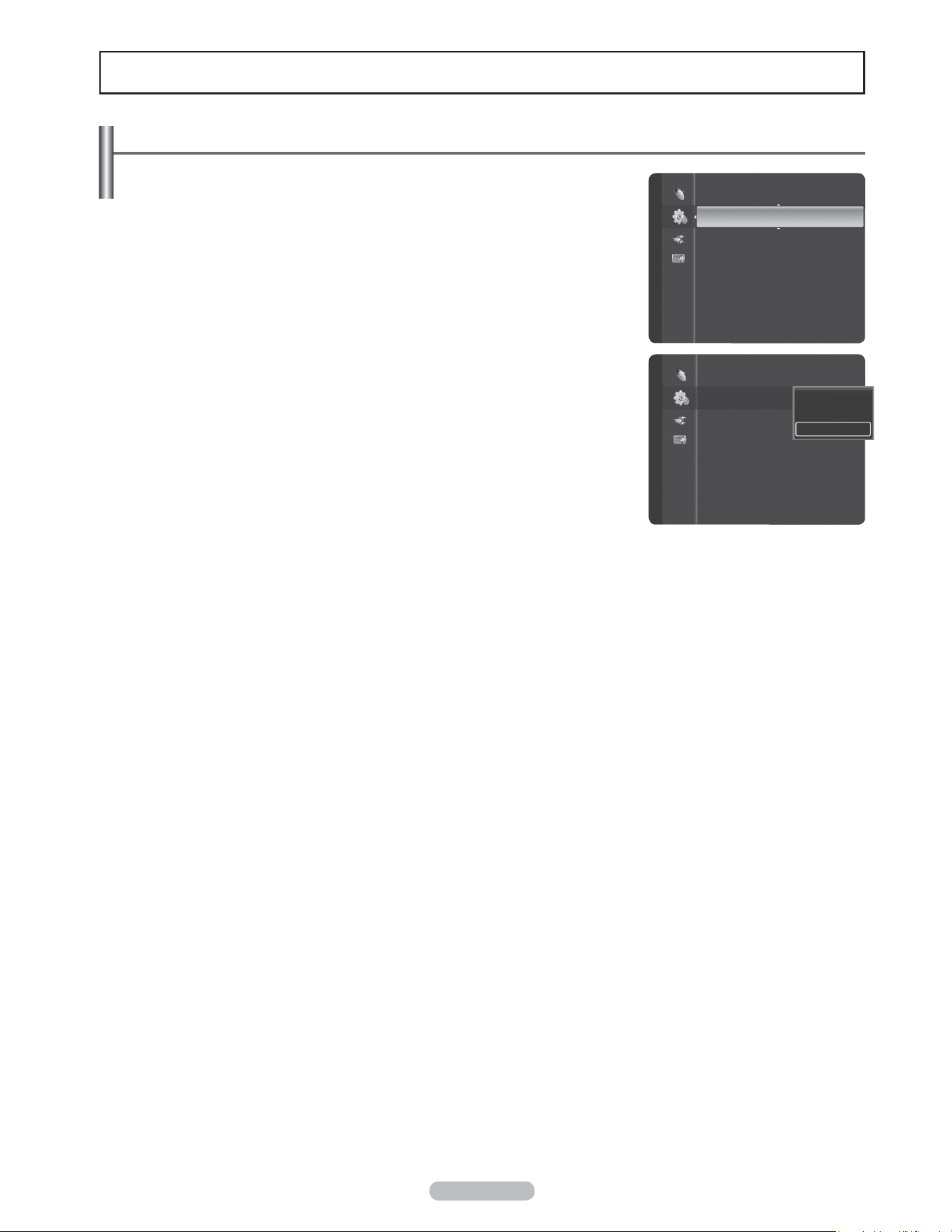
Français - 56
Description des fonctions
Sélection de la langue de menu
1 Appuyer sur la touche MENU pour afficher le menu.
Appuyer sur la touche ▲ ou ▼ pour sélectionner Configuration, suivie de la
touche ENTER.
Appuyer sur la touche ▲ ou ▼ pour sélectionner Langue, suivie de la touche
ENTER.
2 Appuyer sur la touche ▲ ou ▼ pour choisir la langue appropriée : Anglais,
Espagnol ou Français, suivie de la touche ENTER.
Appuyer sur la touche EXIT pour quitter.
Prêt à l’emploi
Langue : Français ►
Heure
V-Chip
Sous-titres
Réglages externes
Divertissement : Off
Économiseur énergie : Off
ISI
Configuration
Prêt à l’emploi
Langue : English ►
Heure
V-Chip
Sous-titres
Réglages externes
Divertissement : Off
Économiseur énergie : Off
ISI
Configuration
English
Español
Français
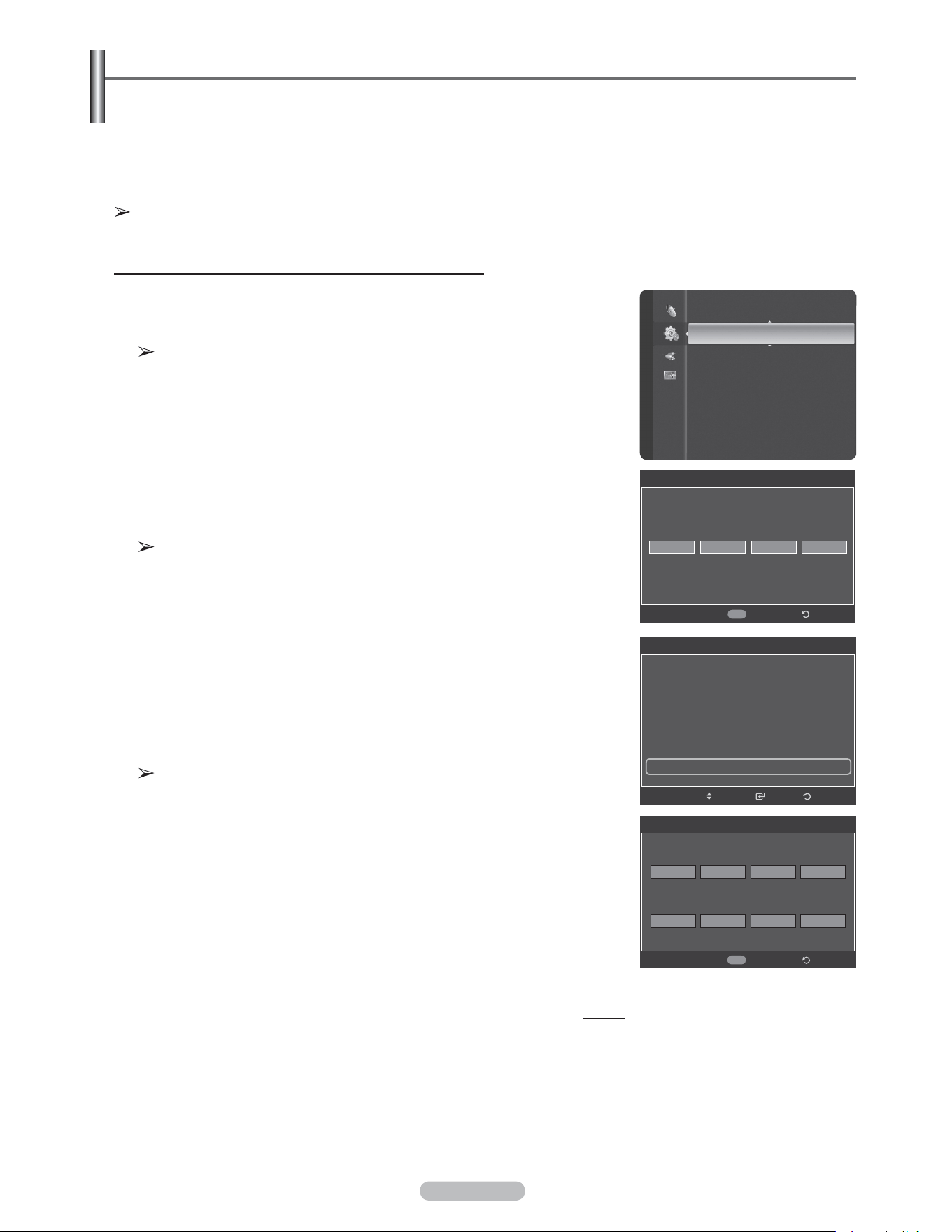
Français - 57
Fonction Puce V
La fonction V-Chip bloque automatiquement la diffusion d’émissions pouvant ne pas convenir aux enfants.
L’utilisateur doit entrer un numéro d’identification personnel (NIP) avant de pouvoir configurer ou modifier les
restrictions relatives de la V-Chip.
La fonction de contrôle parental (V-Chip) n’est pas offerte en mode HDMI,
Composant ou PC.
Configuration du numéro d’identification personnel (NIP)
1 Appuyer sur la touche MENU pour afficher le menu.
Appuyer sur la touche ▲ ou ▼ pour sélectionner Configuration, suivie de la
touche ENTER.
Lorsque vous configurez la fonction V-Chip, l’écran de veille s’active si
aucune touche de la télécommande n’a été actionnée depuis plus d’une
minute.
2 Appuyer sur la touche ▲ ou ▼ pour sélectionner V-Chip, suivie de la touche
ENTER.
Le message Entrer NIP s’affiche. Entrer le NIP à 4 chiffres.
Le NIP par défaut d’un nouveau téléviseur est 0
-
0
-
0
-
0.
3 L’écran V-Chip s’affiche.Appuyer sur la touche ▲ ou ▼ pour sélectionner
Modifier NIP, suivie de la touche ENTER.
L’écran Changer NIP s’affiche. Choisir et saisir quatre chiffres pour le NIP.
Entrer de nouveau le code à 4 chiffres. Le message NIP modifié avec succès
est affiché. Le NIP a été enregistré.
Appuyer sur la touche EXIT pour quitter.
Si le NIP est oublié, appuyer sur les touches de la télécommande dans
l’ordre suivant pour rétablir le code 0-0-0-0 : hors tension. → MUTE → 8 →
2 → 4 → Power On.
Suite...
V-Chip
Blocage V-Chip : Off
Cont. paren. TV
Classif. MPAA
Anglais canadien
Français canadien
Catég. américaine téléchargeable
Changer NIP ►
RetourIntro.Dépl.
Changer NIP
Retour
Nouveau NIP.
Confirmer NIP.
0~9
Entrez NIP
V-Chip
Entrez NIP
* ***
Retour
0~9
Entrez NIP
Langue : Français
Heure
V-Chip ►
Sous-titres
Réglages externes
Divertissement : Off
Économiseur énergie : Off
ISI
M. à jour logiciel
Configuration

Français - 58
Comment activer et désactiver la fonction Puce V
1 Appuyer sur la touche MENU pour afficher le menu.
Appuyer sur la touche ▲ ou ▼ pour sélectionner Configuration, suivie de la
touche ENTER.
2 Appuyer sur la touche ▲ ou ▼ pour sélectionner V-Chip, suivie de la touche
ENTER.
Le message Entrer NIP s’affiche. Entrer le NIP à 4 chiffres.
3 L’écran V-Chip s’affiche.
Pour activer la fonction V-Chip, appuyer sur la touche ENTER de façon à mettre
le champ Blocage V-Chip à la position On. (Appuyer sur la touche ▲ ou ▼
pour permuter entre On et Off).
Appuyer sur la touche ENTER.
Appuyer sur la touche EXIT pour quitter.
Configuration des restrictions à l’aide du système “Contrôle TV parental”
Premièrement, créer un numéro d’identification personnel (NIP). Activer ensuite la
fonction V-Chip.(consulter la section précédente). Vous pouvez configurer le contrôle
parental en procédant de deux façons : à l’aide du contrôle parental du téléviseur ou
à l’aide des classifications de la MPAA.
1 Appuyer sur la touche MENU pour afficher le menu.
Appuyer sur la touche ▲ ou ▼ pour sélectionner Configuration, suivie de la
touche ENTER.
2 Appuyer sur la touche ▲ ou ▼ pour sélectionner V-Chip, suivie de la touche
ENTER.
Le message Entrer NIP s’affiche. Entrer le NIP à 4 chiffres.
3 L’écran V-Chip s’affiche.
Appuyer sur la touche ▲ ou ▼ pour sélectionner Contrôle parental TV, suivie
de la touche ENTER.
Suite...
V-Chip
Entrez NIP
* ***
Retour
0~9
Entrez NIP
V-Chip
Blocage V-Chip : Off
Cont. paren. TV
Classif. MPAA
Anglais canadien
Français canadien
Catég. américaine téléchargeable
Changer NIP
Off
On
RetourIntro.Dépl.
V-Chip
Blocage V-Chip : On
Cont. paren. TV ►
Classif. MPAA
Anglais canadien
Français canadien
Catég. américaine téléchargeable
Changer NIP
RetourIntro.
Dépl.
Langue : Français
Heure
V-Chip ►
Sous-titres
Réglages externes
Divertissement : Off
Économiseur énergie : Off
ISI
M. à jour logiciel
Configuration
V-Chip
Entrez NIP
* ***
Retour0~9
Entrez NIP
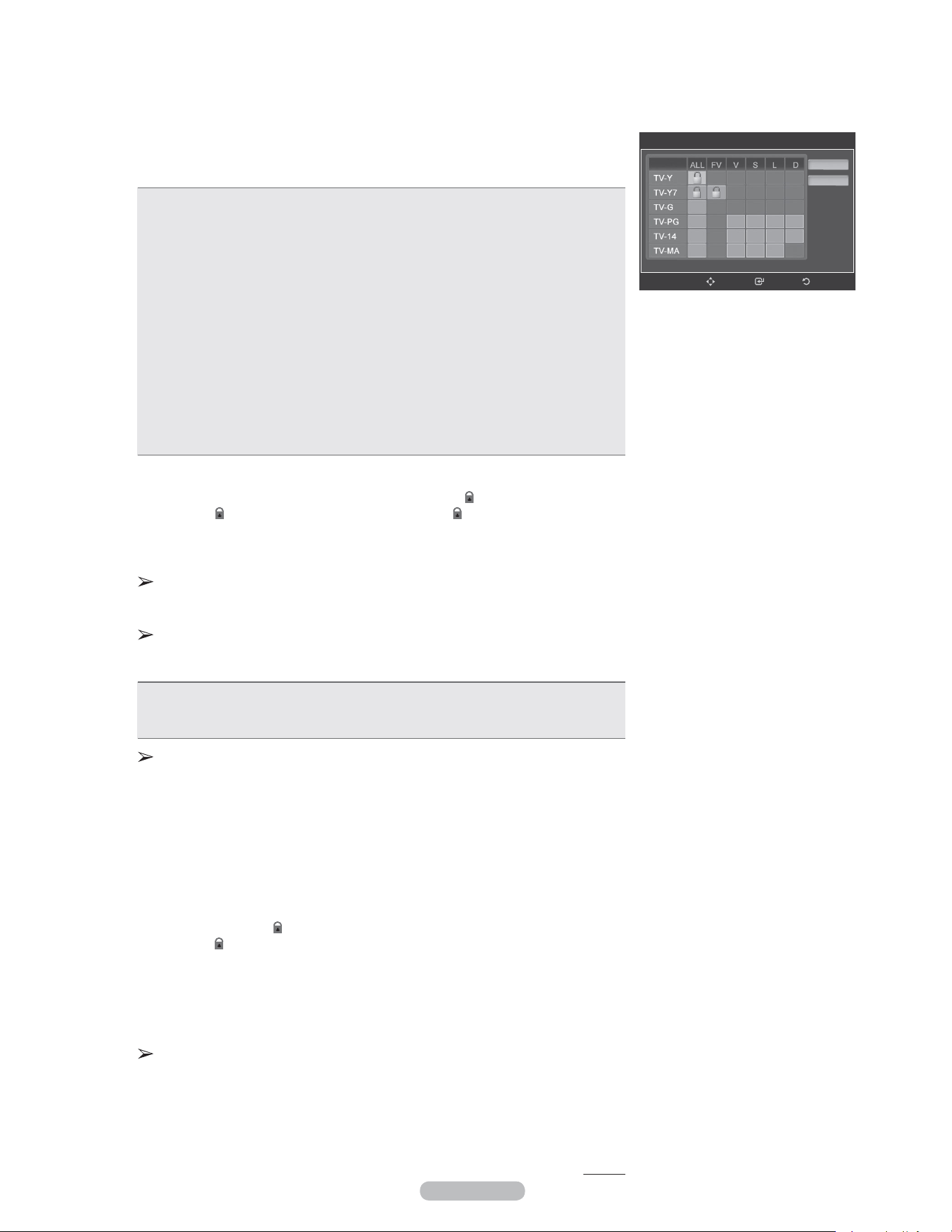
Français - 59
4 L’écran Contrôle parental TV s’affiche.
Appuyer sur la touche ▲ ou ▼ pour sélectionner une des six classifications,
établies en fonction de l’âge.
• TV-Y: Tous les enfants. Les thèmes et éléments de cette émission ont été
spécialement conçus pour un public très jeune, notamment les enfants de deux à
six ans.
• TV-Y7: Vise des enfants plus vieux. Les thèmes et éléments de cette émission
peuvent comprendre un certain niveau de violence physique ou de comédie, ou
peut faire peur aux enfants de moins de sept ans.
• TV-G: Public de tous âges. Cette émission ne comporte aucune ou peu de
violence, aucun langage rude ni dialogue ou situation à connotation sexuelle.
• TV-PG: Surveillance parentale recommandée. Cette émission peut contenir du
langage grossier peu fréquent, de la violence limitée ainsi que certaines situations
ou dialogues à connotation sexuelle.
• TV-14: Supervision des parents fortement recommandée. Cette émission peut
inclure des thèmes évolués, des scènes à connotation sexuelle, du langage rude
et de la violence plus intense.
• TV-MA: Adultes seulement. Cette émission peut inclure des thèmes destinés aux
adultes, un langage vulgaire, de la violence explicite et des scènes à connotation
clairement sexuelle.
5 Une classification est maintenant sélectionnée.Appuyer sur la touche ENTER.
En fonction de la configuration existante, le symbole “
” est sélectionné. (Vide
= Débloqué, = Bloqué) Pendant que le symbole “
” est sélectionné, appuyer
sur la touche ENTER pour bloquer ou débloquer la classification.
Pour choisir une autre classification, appuyer sur la touche ▲ ou ▼ et répéter le
processus.
Perm. tout : Appuyer sur cette touche pour débloquer toutes les
classifications.
Bloq. tout : Appuyer sur cette touche pour bloquer toutes les classifications.
Les classifications TV-Y7-, TV-Y7+, TV-G, TV-SP, TV-14 et TV-A comportent
des options supplémentaires. Voir l’étape suivante pour changer les sous-
classifications ci-dessous:
• TOUT: Bloquer toutes les classifications. • L: Langage pour adultes.
• FV: Fantastique, violence. • S: Situations à connotation sexuelle.
• D: Dialogues à connotation sexuelle. • V: Violence.
La fonction V-Chip permet de bloquer automatiquement certaines
classifications “plus restrictives”.
Par exemple, si la classification TV-Y est bloquée, la classification TV-Y7
est automatiquement bloquée. De la même façon, si la classification TV-G
est bloquée, toutes les classifications du groupe “jeunes adultes” sont aussi
bloquées (TV-G, TV-PG, TV-14 et TV-MA). Les sous-classifications (D, L, S
et V) sont regroupées de la même façon. (Consulter la prochaine section.)
6 Configuration des sous-catégories FV, D, L, S et V.
Pour commencer, sélectionner une des classifications suivantes : TV-7-, TV-
7+, TV-G, TV-SP, TV-14 ou TV-A (voir l’étape 4); appuyer ensuite sur la touche
ENTER. Le symbole “
” s’affiche pour chaque sous-classification. Lorsque
le symbole “
” est sélectionné, appuyer sur la touche ► pour accéder à
une sous-classification. Appuyer sur la touche ENTER pour bloquer la sous-
classification. Pour choisir une classification différente, appuyer sur la touche ▲
ou ▼ et répéter les étapes précédentes.
7 Appuyer sur la touche EXIT pour quitter tous les écrans (ou passer à la section
suivante et configurer des restrictions supplémentaires selon les codes MPAA).
Ces classifications se répartissent en deux groupes distincts : TV-Y- et TV-
Y7+ (jusqu’à 7 ans) et TV-G à TV-A (tous les autres).Les restrictions de ces
deux groupes s’appliquent indépendamment : Si une famille compte de très
jeunes enfants ainsi que de jeunes adultes, les classifications doivent être
définies séparément pour ces groupes.
Suite...
Contrôle parental TV
Perm. tout
Bloq. tout
RetourIntro.Dépl.
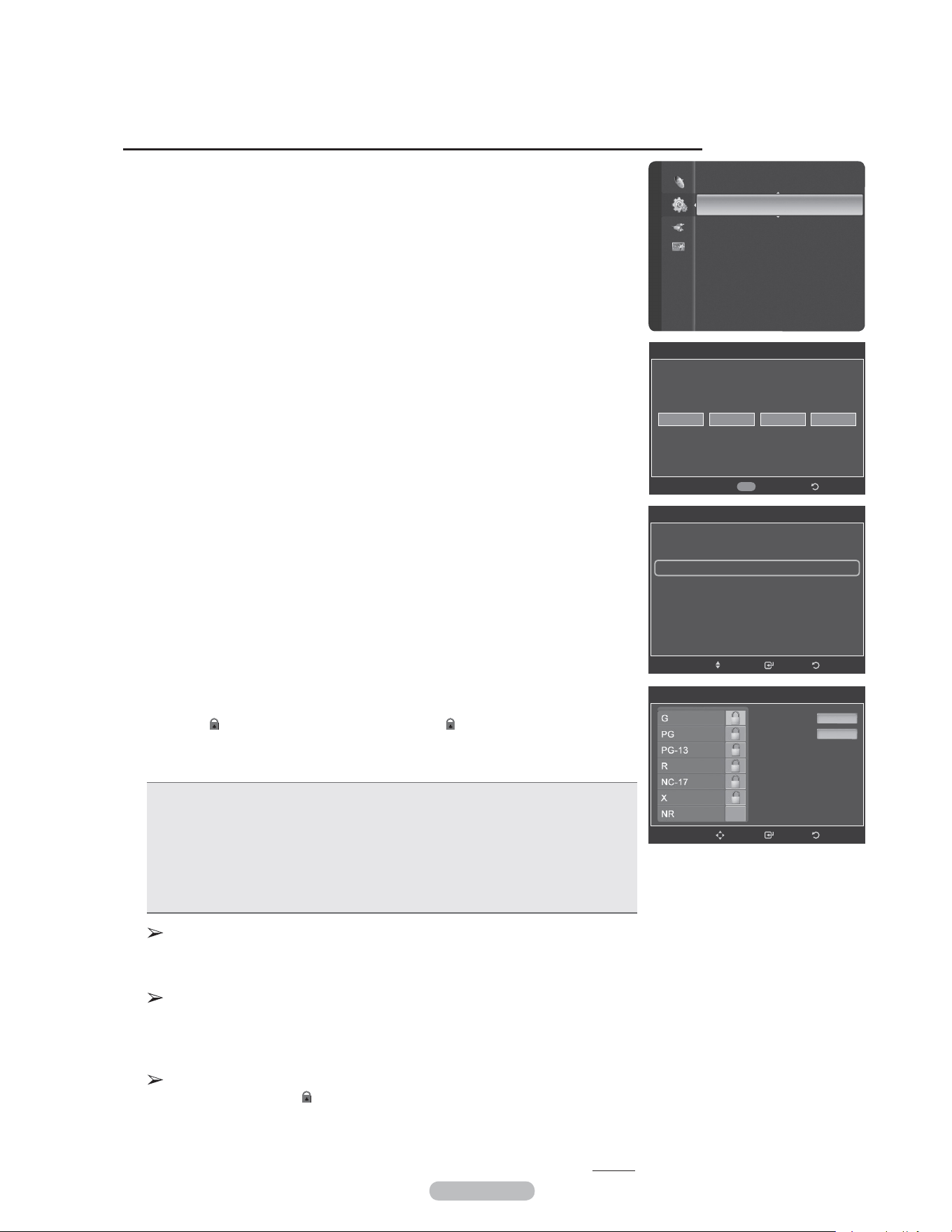
Français - 60
Le système de classification MPAA, qui est basé sur les codes établis par la Motion
Picture Association of America (MPAA), s’applique surtout aux longs métrages.
Si la fonction V-Chip est activée, les émissions classées offensantes (système de
classification des émissions ou MPAA) sont automatiquement bloquées.
1 Appuyer sur la touche MENU pour afficher le menu.
Appuyer sur la touche ▲ ou ▼ pour sélectionner Configuration, suivie de la
touche ENTER.
2 Appuyer sur la touche ▲ ou ▼ pour sélectionner V-Chip, suivie de la touche
ENTER.
Le message Entrer NIP s’affiche. Entrer le NIP à 4 chiffres.
3 L’écran V-Chip s’affiche.
Appuyer sur la touche ▲ ou ▼ pour sélectionner Catégories MPAA, suivie de
la touche ENTER.
4 Appuyer sur la touche ▲ ou ▼ pour sélectionner la restriction appropriée.
Appuyer sur la touche ENTER pour activer la restriction sélectionnée.Le
symbole “
”
s’affiche. Pendant que le symbole “
”
est sélectionné, appuyer
sur la touche ENTER pour bloquer ou débloquer la classification.
Appuyer sur la touche EXIT pour quitter.
• G : Public de tous âges (aucune restriction).
• PG : Surveillance parentale recommandée.
• PG-13 : Supervision des parents fortement recommandée.
• R : Réservé aux adultes. Les enfants de moins de 17 ans devraient être
accompagnés d’un adulte.
• NC-17 : Non recommandé pour les jeunes de moins de 17 ans.
• X : Adultes seulement.
• NR : Non classé
Perm. tout : Appuyer sur cette touche pour débloquer toutes les
classifications.
Bloq. tout : Appuyer sur cette touche pour bloquer toutes les classifications.
La fonction V-Chip bloque automatiquement toute classification plus
restrictive.
Par exemple, si la classification PG-13 est bloquée, les classifications R,
NC-17 et X sont automatiquement bloquées.
Lorsqu’une classification est sélectionnée, appuyer sur ENTER pour
l’activer. Le symbole “
” s’affiche. Appuyer sur ENTER pour bloquer ou
débloquer la classification.
Suite...
Configuration des restrictions à l’aide des catégories MPAA (G, PG, PG-13, 18+, NO-17, X et NR)
Langue : Français
Heure
V-Chip ►
Sous-titres
Réglages externes
Divertissement : Off
Économiseur énergie : Off
ISI
M. à jour logiciel
Configuration
V-Chip
Entrez NIP
* ***
Retour0~9
Entrez NIP
V-Chip
Blocage V-Chip : Off
Cont. paren. TV
Classif. MPAA ►
Anglais canadien
Français canadien
Catég. américaine téléchargeable
Changer NIP
RetourIntro.Dépl.
Classif. MPAA
Perm. tout
Bloq. tout
RetourIntro.Dépl.
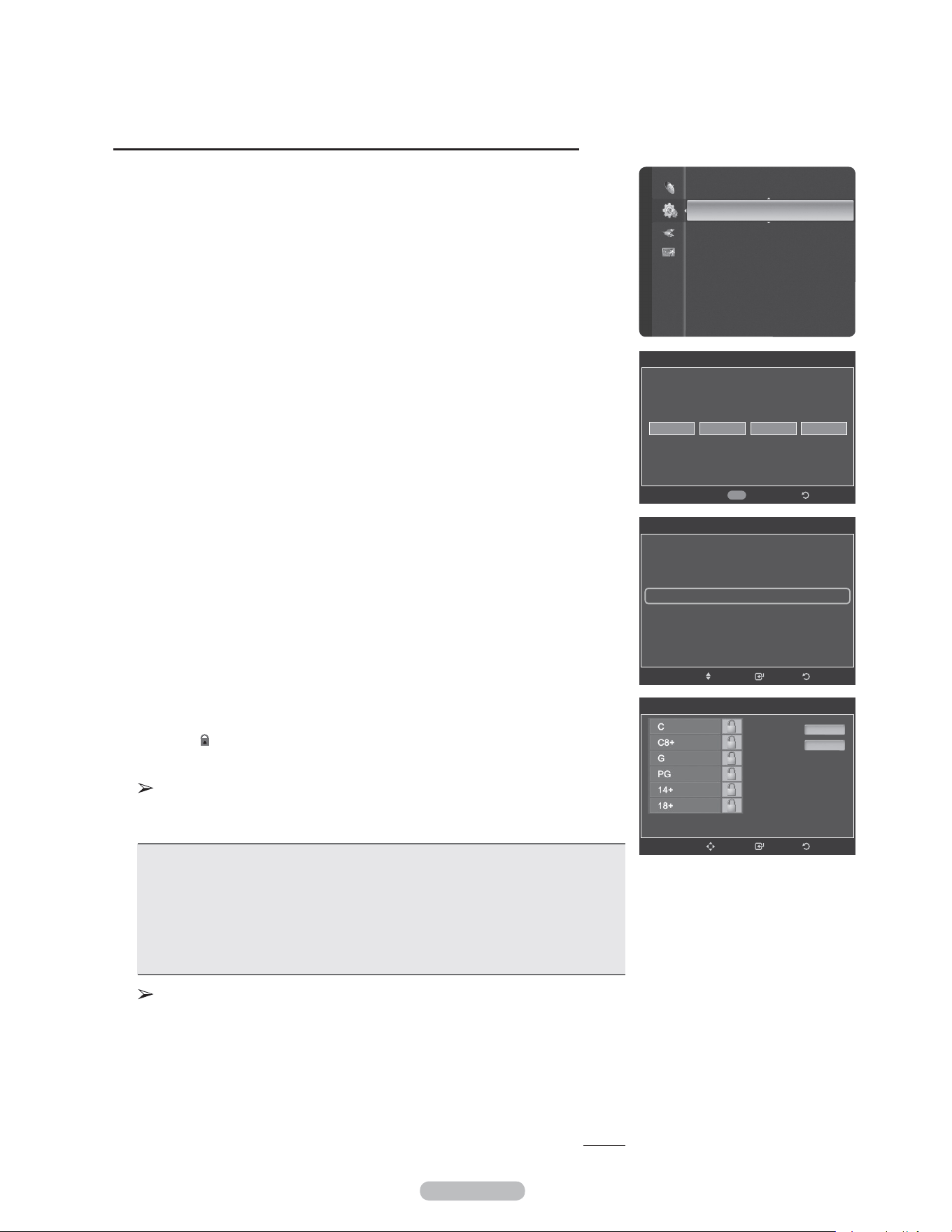
Français - 61
Configuration des restrictions au moyen de l’option “Anglais canadien”
1 Appuyer sur la touche MENU pour afficher le menu.
Appuyer sur la touche ▲ ou ▼ pour sélectionner Configuration, suivie de la
touche ENTER.
2 Appuyer sur la touche ▲ ou ▼ pour sélectionner V-Chip, suivie de la touche
ENTER.
Le message Entrer NIP s’affiche. Entrer le NIP à 4 chiffres.
3 L’écran V-Chip s’affiche. Appuyer sur la touche ▲ ou ▼ pour sélectionner
Anglais canadien, suivie de la touche ENTER.
4 Appuyer sur la touche ▲ ou ▼ pour sélectionner la restriction appropriée.
Appuyer sur la touche ENTER pour activer la restriction sélectionnée. Le
symbole “
” s’affiche.
Appuyer sur la touche EXIT pour quitter.
Perm. tout : Appuyer sur cette touche pour débloquer toutes les
classifications.
Bloq. tout : Appuyer sur cette touche pour bloquer toutes les classifications.
• C : Émissions destinées aux enfants de moins de 8 ans.
• C8+ : Émissions convenant généralement aux enfants de 8 ans et plus, sans
surveillance.
• G : Émissions grand public convenant à tous les auditoires.
• PG : Surveillance parentale.
• 14+ : Émissions dont la teneur peut ne pas convenir, en tout ou en partie, aux
auditeurs de moins de 14 ans.
• 18+ : Émissions pour adultes.
La fonction V-Chip bloque automatiquement toute classification “plus
restrictive”.
Par exemple, si la classification G est bloquée, les classifications PG, 14+ et
18+ sont automatiquement bloquées.
Suite...
Langue : English
Heure
V-Chip ►
Sous-titres
Réglages externes
Divertissement : Off
Économiseur énergie : Off
ISI
M. à jour logiciel
Configuration
V-Chip
Entrez NIP
* ***
Retour
0~9
Entrez NIP
V-Chip
Blocage V-Chip : On
Cont. paren. TV
Classif. MPAA
Anglais canadien ►
Français canadien
Catég. américaine téléchargeable
Changer NIP
RetourIntro.Dépl.
Anglais canadien
Perm. tout
Bloq. tout
RetourIntro.Dépl.
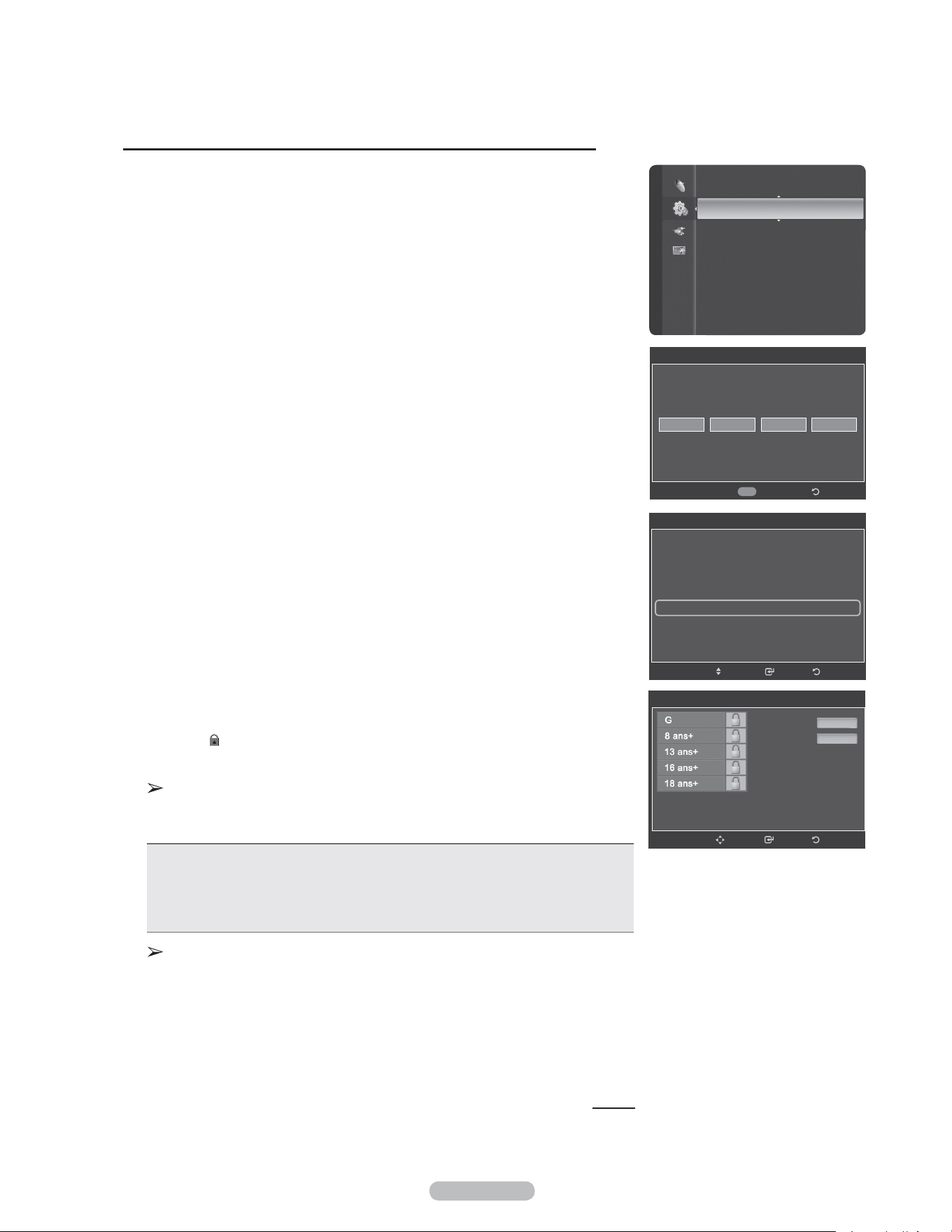
Français - 62
Configuration des restrictions au moyen de l’option “Français canadien”
1 Appuyer sur la touche MENU pour afficher le menu.
Appuyer sur la touche ▲ ou ▼ pour sélectionner Configuration, suivie de la
touche ENTER.
2 Appuyer sur la touche ▲ ou ▼ pour sélectionner V-Chip, suivie de la touche
ENTER.
Le message Entrer NIP s’affiche. Entrer le NIP à 4 chiffres.
3 L’écran V-Chip s’affiche. Appuyer sur la touche ▲ ou ▼ pour sélectionner
Français canadien, suivie de la touche ENTER.
4 Appuyer sur la touche ▲ ou ▼ pour sélectionner la restriction appropriée.
Appuyer sur la touche ENTER pour activer la restriction sélectionnée. Le
symbole “
” s’affiche.
Appuyer sur la touche EXIT pour quitter.
Perm. tout : Appuyer sur cette touche pour débloquer toutes les
classifications.
Bloq. tout : Appuyer sur cette touche pour bloquer toutes les classifications.
• G : Général (grand public).
• 8 ans+ : Émissions non recommandées pour les jeunes enfants.
• 13 ans+ : Émissions pouvant ne pas convenir aux enfants de moins de 13 ans.
• 16 ans+ : Émissions ne convenant pas aux enfants de moins de 16 ans.
• 18 ans+ : Émissions réservées aux adultes.
La fonction V-Chip bloque automatiquement toute classification plus
restrictive.
Par exemple, si la classification 8 ans+ est bloquée, les classifications
13 ans+, 16 ans+ et 18 ans+ sont automatiquement bloquées.
Suite...
Langue : Français
Heure
V-Chip ►
Sous-titres
Réglages externes
Divertissement : Off
Économiseur énergie : Off
ISI
M. à jour logiciel
Configuration
V-Chip
Entrez NIP
* ***
Retour0~9
Entrez NIP
V-Chip
Blocage V-Chip : Off
Cont. paren. TV
Classif. MPAA
Anglais canadien
Français canadien ►
Catég. américaine téléchargeable
Changer NIP
RetourIntro.Dépl.
Français canadien
Perm. tout
Bloq. tout
RetourIntro.Dépl.
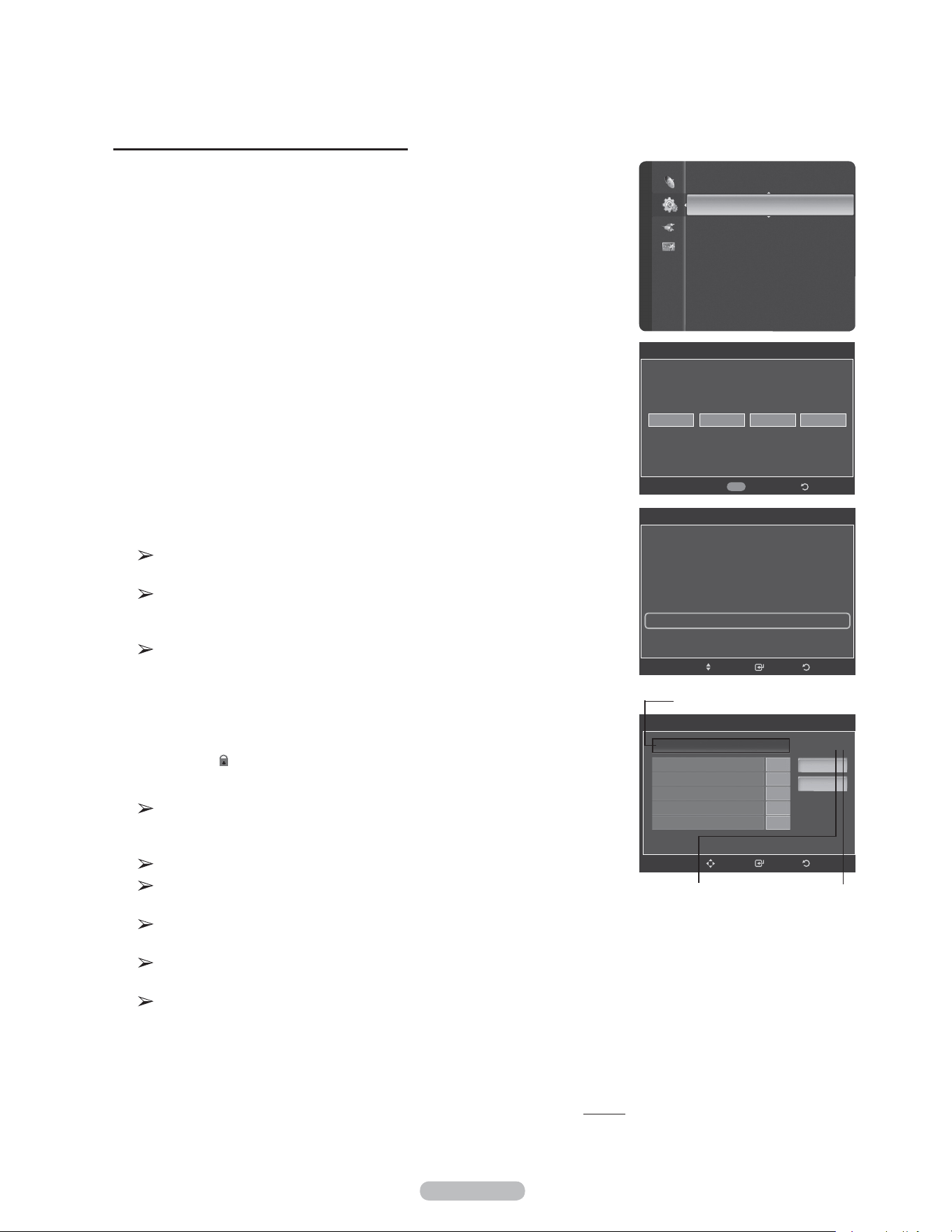
Français - 63
Fonction V-Chip pour les canaux numériques
Il est possible d’utiliser les informations relatives au contrôle parental pour l’écoute
de canaux numériques.
1 Appuyer sur la touche MENU pour afficher le menu.
Appuyer sur la touche ▲ ou ▼ pour sélectionner Configuration, suivie de la
touche ENTER.
2 Appuyer sur la touche ▲ ou ▼ pour sélectionner V-Chip, suivie de la touche
ENTER.
Le message Entrer NIP s’affiche. Entrer le NIP à 4 chiffres.
3 L’écran V-Chip s’affiche. Appuyer sur la touche ▲ ou ▼ pour sélectionner
Catég. américaine téléchargeable, suivie de la touche ENTER.
S’il n’est pas possible de télécharger les informations de la station émettrice,
le menu Catég. américaine téléchargeable est désactivé.
Les informations relatives au contrôle parental sont automatiquement
téléchargées pendant le visionnement de canaux numériques. Cela peut
prendre quelques secondes.
Le menu Catég. américaine téléchargeable est de nouveau accessible
une fois les informations téléchargées de la station émettrice. Cependant,
selon les informations de la station émettrice, elle pourrait ne pas être
accessible.
4 Appuyer sur la touche ▲ ou ▼ pour sélectionner la restriction appropriée.
Appuyer sur la touche ENTER pour activer la restriction sélectionnée.
Le symbole “
” s’affiche.
Appuyer sur la touche EXIT pour quitter.
Perm. tout: Appuyer sur cette touche pour débloquer toutes les
classifications.
Bloq. tout: Appuyer sur cette touche pour bloquer toutes les classifications.
Les niveaux de contrôle parental varient selon la station émettrice.
Le nom de menu par défaut et les modifications de catégories américaines
téléchargeables varient selon les informations téléchargées.
Même si l’affichage à l’écran est dans une autre langue, le menu Catég.
américaine téléchargeable ne s’affiche qu’en anglais.
La classification permet de bloquer automatiquement certaines
classifications plus restrictives.
Les titres de classification (par exemple : Humor Level (Humour)) et les
classifications (par exemple : DH,MH,H) peuvent varier selon la station
émettrice.
Suite...
Langue : Français
Heure
V-Chip ►
Sous-titres
Réglages externes
Divertissement : Off
Économiseur énergie : Off
ISI
M. à jour logiciel
Configuration
V-Chip
Entrez NIP
* ***
Retour0~9
Entrez NIP
V-Chip
Blocage V-Chip : On
Cont. paren. TV
Classif. MPAA
Anglais canadien
Français canadien
Catég. américaine téléchargeable ►
Changer NIP
RetourIntro.Dépl.
Titre de la catégorie
Le nombre de
catégories en
cours
Le nombre total
de catégories
Catég. américaine téléchargeable
RetourIntro.Dépl.
Perm. tout
DH
MH
H
VH
EH
Humor Level
►
Bloq. tout
1/2
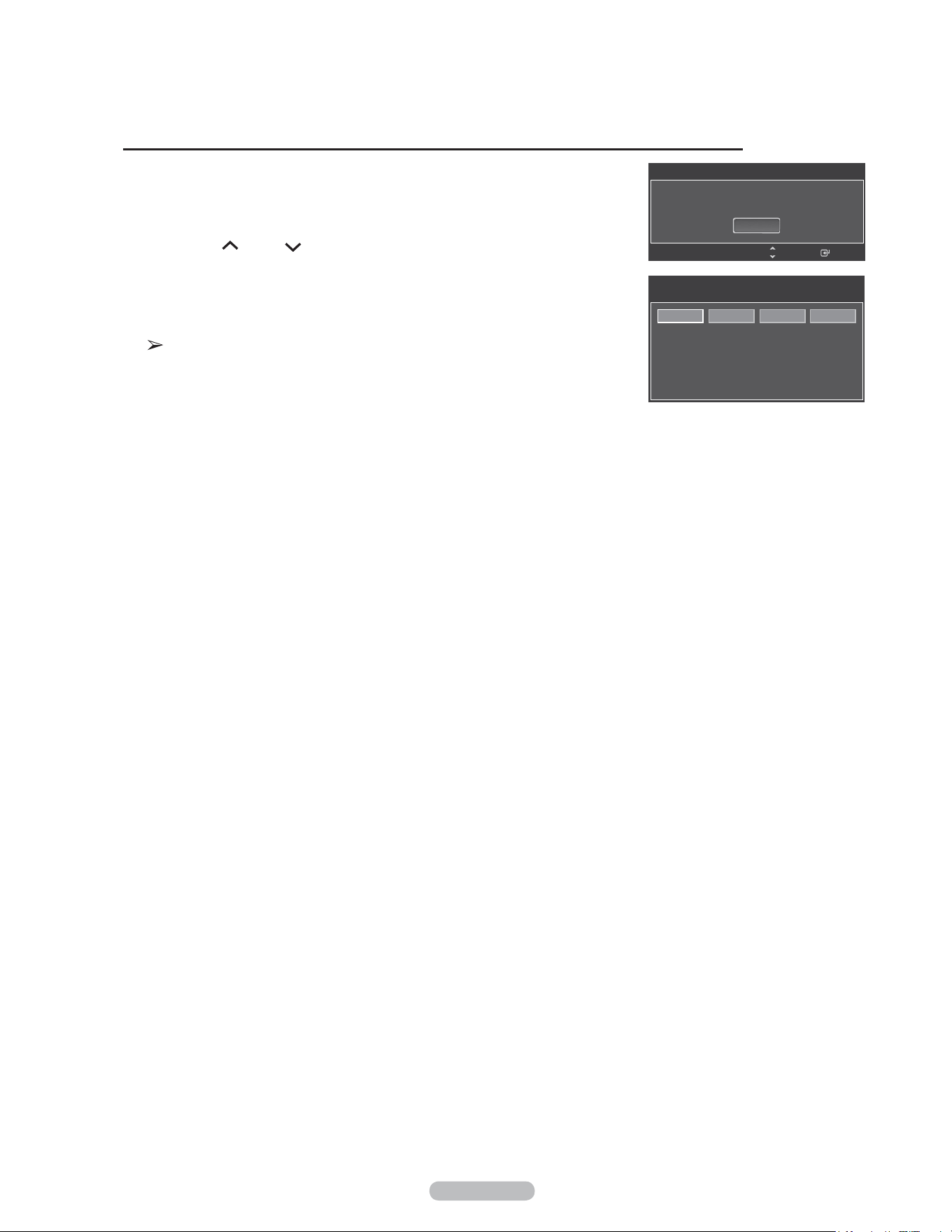
Français - 64
Si un canal à accès restreint est syntonisé, la fonction V-Chip la bloque. L’écran
devient vide et le message suivant s’affiche :
1 Appuyer sur la touche ENTER pour sélectionner OK.
Pour rétablir le visionnement normal, syntoniser un autre canal à l’aide des
touches CH ou CH . Dans certains cas (selon la classification des
programmes de télévision locaux), la fonction V-Chip permet de bloquer tous les
canaux. Dans ce cas, utiliser la touche V-Chip comme solution d’urgence :
2 Entrer le NIP et appuyer sur la touche ENTER, suivie la touche ▲ ou ▼ pour
désactiver temporairement la fonction Blocage V-Chip (Lock).
Si le NIP est oublié, appuyer sur les touches de la télécommande dans
l’ordre suivant pour rétablir le code 0-0-0-0 : Power Off → MUTE → 8 → 2
→ 4 → Power On.
Réinitialisation du téléviseur lorsque la fonction V-Chip bloque un canal (“solution d’urgence”).
Classif. obtenue : TV-G/MPAA X/Canadian English : C8+
Intro.
Ce canal est bloque en
mode puce V. Appuyer sur ENTER pour debloquer.
OK
Changer
CH
La chaîne est bloquée
MPAA R/A/K/T
Entrer NIP sur les touches num.
pour débloquer toutes les chaînes.
Presser EXIT pour effacer le NIP.
MENU pour afficher menu principal.
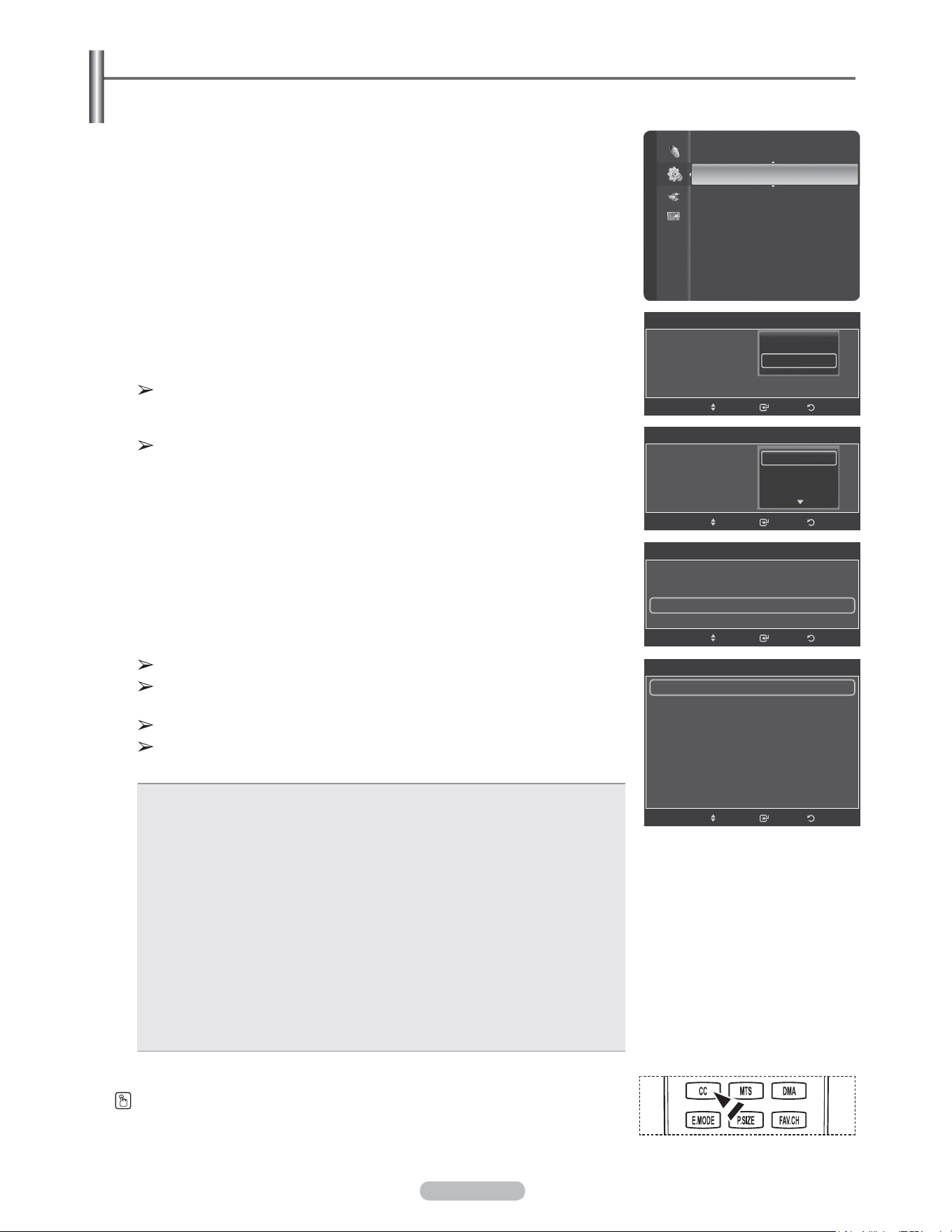
Français - 65
Affichage des sous-titres codés (messages à l’écran) - numériques
La fonction de sous-titrage numérique est compatible avec les canaux numériques.
1 Appuyer sur la touche MENU pour afficher le menu.
Appuyer sur la touche ▲ ou ▼ pour sélectionner Configuration, suivie de la
touche ENTER.
2 Appuyer sur la touche ▲ ou ▼ pour sélectionner Sous-titres, suivie de la
touche ENTER.
3 Appuyer sur ENTER pour choisir Sous-titres.
Appuyer sur la touche ▲ ou ▼ pour sélectionner On, suivie de la touche
ENTER.
4 Appuyer sur la touche ▲ ou ▼ pour sélectionner Sous-titres, suivie de la
touche ENTER.
Appuyer sur la touche ▲ ou ▼ pour sélectionner le sous-menu désiré (Par
défaut, Service1 à Service6, CC1 à CC4 ou Text1 à Text4), suivie de la touche
ENTER.
Les Options de sous-titres sont disponibles uniquement lorsque les
paramètres par défaut, Service1~Service6 peuvent être sélectionnés en
Mode ss-titres codés.
Les paramètres Service1 à 6 en mode Sous-titres numériques ne sont pas
toujours disponibles, selon le système de diffusion utilisé.
5 Appuyer sur la touche ▲ ou ▼ pour sélectionner Options de sous-titrage
numérique, suivie de la touche ENTER.
6 Appuyer sur la touche ▲ ou ▼ pour sélectionner Format, suivie de la touche
ENTER.
Appuyer sur la touche ▲ ou ▼ pour sélectionner l'option de sous-titrage
désirée, suivie de la touche ENTER button.
Appuyer sur la touche ▲ ou ▼ pour sélectionner les options de sous-menu
désirées (voir les options ci-dessous), suivie de la toucheENTER.
Appuyer sur la touche EXIT pour quitter.
L’option de sous-titrage dépend du programme diffusé.
L’expression par défaut signifie revenir aux choix de sous-titrage initiaux
déterminés par le diffuseur.
L’avant-plan et l’arrière-plan ne peuvent être de la même couleur.
Les paramètres Opacité avant-plan et Opacité arrière-plan ne peuvent être
tous deux réglés sur Transparent.
• Format: Cette option permet de choisir entre Par défaut, Petit, Standard et Large. La
sélection par défaut est Par défaut.
• Style de police: Cette option permet de choisir entre Par défaut, Style0 ~ Style7. Il est
possible de choisir le style de police désiré. La sélection par défaut est Par défaut.
• Couleur d’avant-plan: Cette option permet de choisir entre Par default, Blanc, Noir,
Rouge, Vert, Bleu, Jaune, Magenta et Cyan. Il est possible de choisir la couleur des
caractères. La sélection par défaut est Par défaut.
• Couleur d’arrière-plan: Cette option permet de choisir entre Par default, Blanc, Noir,
Rouge, Vert, Bleu, Jaune, Magenta et Cyan. Il est possible de choisir la couleur
d’arrière-plan des sous-titres. La sélection par défaut est Par défaut.
• Opacité d’avant-plan Cette option permet de choisir entre Par défaut, Transparent,
Translucide, Solide, et Clignotant. Il est possible de modifier l’opacité des caractères.
• Opacité d’arrière-plan Cette option permet de choisir entre Par défaut, Transparent,
Translucide, Solide, et Clignotant. Il est possible de modifier l’opacité arrière-plan des
sous-titres.
• Retour à l’option Par défaut : Cette option permet de rétablir Format, Style de police,
Couleur avant-plan, Couleur arrière-plan, Opacité av.-plan et Opacité ar.-plan à la
valeur par défaut.
Appuyer sur la touche CC de la télécommande pour sélectionner On ou Off.
Heure
V-Chip
Sous-titres ►
Réglages externes
Divertissement : Off
Économiseur énergie : Off
ISI
M. à jour logiciel
Configuration
Sous-titres
Sous-titres : On
Mode ss-titres codés : Par défaut
Options de sous-titrage numérique
►
RetourIntro.Dépl.
Options de sous-titrage numérique
Format : Par défaut ►
Style des polices : Par défaut
Couleur avant-plan : Par défaut
Couleur arrière-plan : Par défaut
Opacité avant-plan : Par défaut
Opacité arrière-plan : Par défaut
Retour par défaut
RetourIntro.Dépl.
Sous-titres
Sous-titres : On
Mode ss-titres codés : Default
Options de sous-titrage numérique
RetourIntro.Dépl.
Par défaut
Service1
Service2
Sous-titres
Sous-titres : On
Mode ss-titres codés : Default
Options de sous-titrage numérique
RetourIntro.Dépl.
Off
On
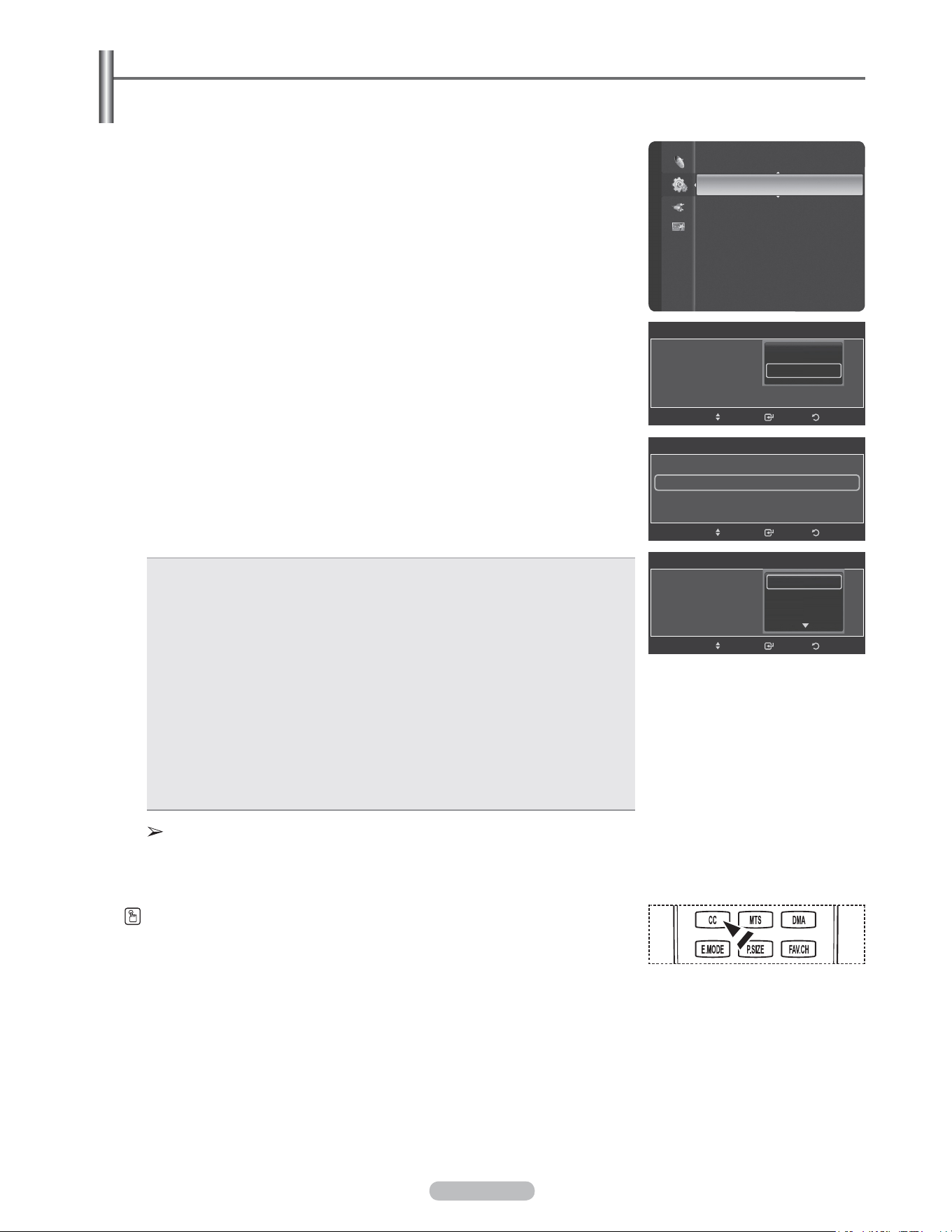
Français - 66
Affichage des sous-titres (messages à l’écran) - analogiques
La fonction sous-titres codés analogiques fonctionne en mode canal TV analogique ou lorsqu’un signal est émis
par une source externe. (Selon le signal émetteur, la fonction de sous-titrage analogique peut fonctionner sur les
canaux numériques.)
1 Appuyer sur la touche MENU pour afficher le menu.
Appuyer sur la touche ▲ ou ▼ pour sélectionner Configuration, suivie de la
touche ENTER.
2 Appuyer sur la touche ▲ ou ▼ pour sélectionner Sous-titres, suivie de la
touche ENTER.
3 Appuyer sur ENTER pour choisir Sous-titres.
Appuyer sur la touche ▲ ou ▼ pour sélectionner On, suivie de la touche
ENTER.
4 Appuyer sur la touche ▲ ou ▼ pour sélectionner Sous-titres, suivie de la
touche ENTER.
Appuyer sur la touche ▲ ou ▼ pour sélectionner le sous-menu désiré
(Par défaut, CC1~CC4 ou Text1~Text4) , suivie de la touche ENTER button.
Appuyer sur la touche EXIT pour quitter.
• La sélection par défaut est Par défaut.
• CC1 : Le principal service de sous-titrage synchronisé. Ces sous-titres s’affichent
dans la langue initiale qui doit être synchronisée avec le son, correspondant de
préférence à un cadre particulier.
• CC2 : Sous-titrage non synchronisés particulier. Ce canal transmet des données
qui ont pour fonction d’accroître l’information transmise par l'émission.
• CC3 : Service de sous-titrage secondaire synchronisé.Données de sous-titrage
de l'émission, généralement dans une seconde langue.
• CC4 : Sous-titrage non synchronisés particulier. Option semblable à CC2.
• Texte1 : Premier service de texte. Il peut comprendre diverses données qui ne se
rapportent pas à l'émission.
• Texte2 : Deuxième service de texte. Données supplémentaires, qui en général ne
se rapportent pas à l'émission.
• Texte3/Texte4 : Troisième et quatrième services de texte. Ces canaux de
données ne doivent être utilisés que si les fonctions d’affichage Texte1 et Texte2
sont insuffisantes.
• La fonction Sous-titrage n’est pas accessible dans les modes
COMPOSANT, PC et HDMI(DVI).
• L’accessibilité au sous-titrage dépend de l’émission diffusée.
Il est également possible d’appuyer sur la touche CC de la télécommande pour régler les
sous-titrages à Activé ou Off.
Heure
V-Chip
Sous-titres ►
Réglages externes
Divertissement : Off
Économiseur énergie : Off
ISI
M. à jour logiciel
Configuration
Sous-titres
Sous-titres : On
Mode ss-titres codés : Default
Options de sous-titrage numérique
RetourIntro.Dépl.
Par défaut
CC1
CC2
Sous-titres
Sous-titres : On
Mode ss-titres codés : Default
Options de sous-titrage numérique
RetourIntro.Dépl.
Off
On
Sous-titres
Sous-titres : On
Mode ss-titres codés : Par défaut ►
Options de sous-titrage numérique
RetourIntro.Dépl.
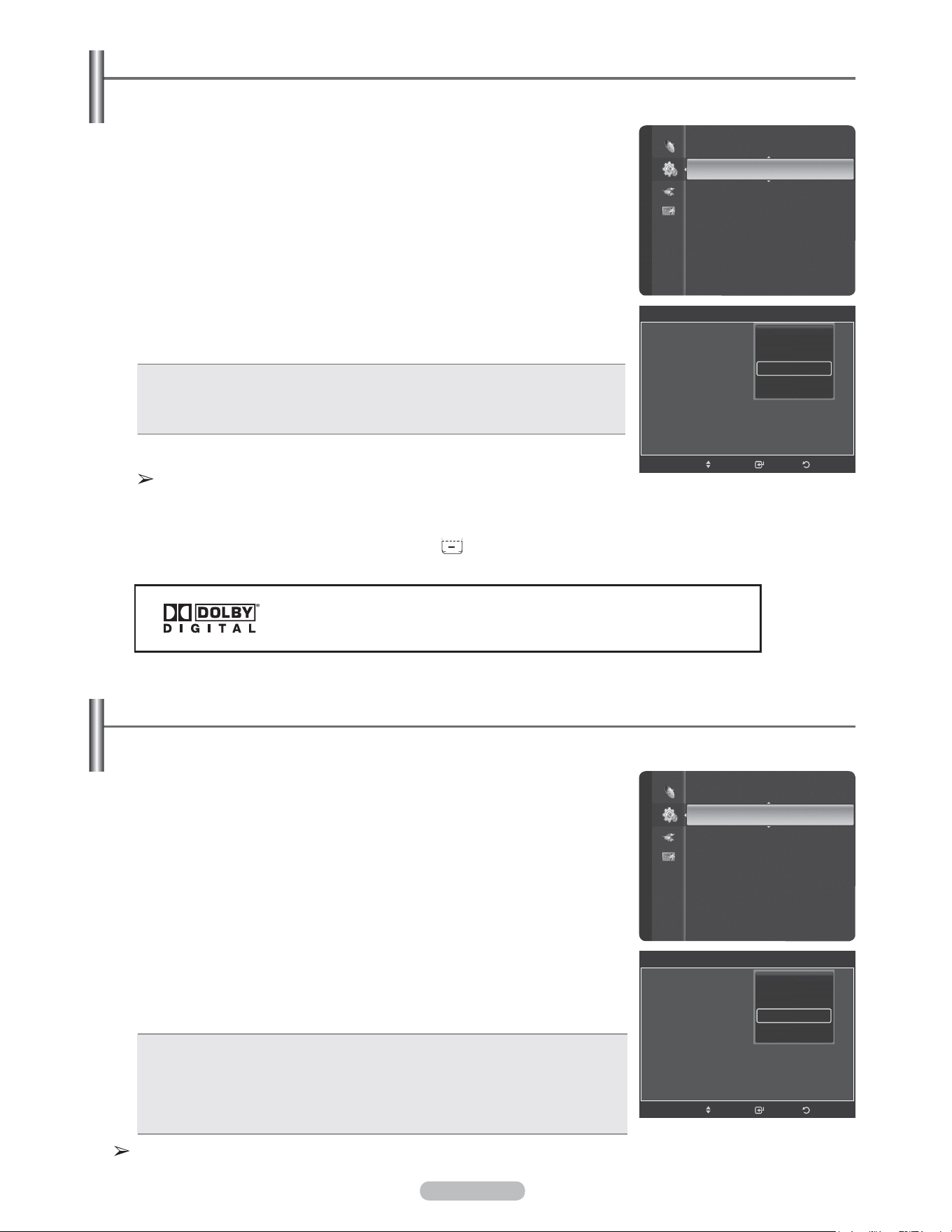
Français - 67
Réglage de l’effet lumineux
La DEL bleue située à l’avant du téléviseur peut être allumée ou éteinte.
1 Appuyer sur la touche MENU pour afficher le menu.
Appuyer sur la touche ▲ ou ▼ pour sélectionner Configuration, suivie de la
touche ENTER.
2 Appuyer sur la touche ▲ ou ▼ pour sélectionner Paramètres externes, suivie
de la touche ENTER.
3 Appuyer sur la touche ENTER pour sélectionner Mélodie.
Appuyer sur la touche ▲ ou ▼ pour sélectionner Off, Basse, Moyen ou Élevée,
suivie de la touche ENTER.
Réglage de la mélodie de marche/arrêt du téléviseur
La mélodie jouée par le téléviseur à l’allumage et à l’arrêt est configurable.
Fabriqué sous licence de Dolby Laboratories.
Dolby et le symbole double D sont des marques de commerce de Dolby Laboratories.
• Off: Désactive la fonction Mélodie.
• Basse: Règle le volume Mélodie au niveau bas.
• Moyen: Règle le volume Mélodie au niveau moyen.
• Haute: Règle le volume Mélodie au niveau élevé.
Appuyer sur la touche EXIT pour quitter.
Aucune mélodie ne se fait entendre
- Si le téléviseur n’émet aucun son parce que la touche MUTE a été
enfoncée,
- Lorsque le téléviseur n’émet aucun son parce que l’on a réduit le volume
au minimum en appuyant sur la touche VOL .
- Si le téléviseur est éteint par la minuterie.
1 Appuyer sur la touche MENU pour afficher le menu.
Appuyer sur la touche ▲ ou ▼ pour sélectionner Configuration, suivie de la
touche ENTER.
2 Appuyer sur la touche ▲ ou ▼ pour sélectionner Paramètres externes, suivie
de la touche ENTER.
3 Appuyer sur la touche ▲ ou ▼ pour sélectionner Chandelles, suivie de la
touche ENTER.
Appuyer sur la touche ▲ ou ▼ pour sélectionner Off, Mode veille, Pen. ècoute
ou Toujours, suivie de la touche ENTER.
Appuyer sur la touche EXIT pour quitter.
• Off: La DEL est toujours éteinte.
• Mode veille: La DEL s’allume lorsque le téléviseur est en mode de mise en veille
et s’éteint lorsque le téléviseur est sous tension.
• Pen. ècoute: La DEL s’allume lorsque le téléviseur est sous tension et s’éteint
lorsque le téléviseur est hors tension.
• Toujours: La DEL est toujours allumée.
Désactiver l'effet lumière pour réduire la consommation d’énergie.
V-Chip
Sous-titres
Réglages externes ►
Divertissement : Off
Économiseur énergie : Off
ISI
M. à jour logiciel
Configuration
Réglages externes
Mélodie : On
Effet lumière : Default
Réglage du support mural
RetourIntro.Dépl.
Off
Basse
Moyen
Haute
V-Chip
Sous-titres
Réglages externes ►
Divertissement : Off
Économiseur énergie : Off
ISI
M. à jour logiciel
Configuration
Réglages externes
Mélodie : On
Effet lumière : Default
Réglage du support mural
RetourIntro.Dépl.
Off
Mode veille
Pen. ècoute
Toujours
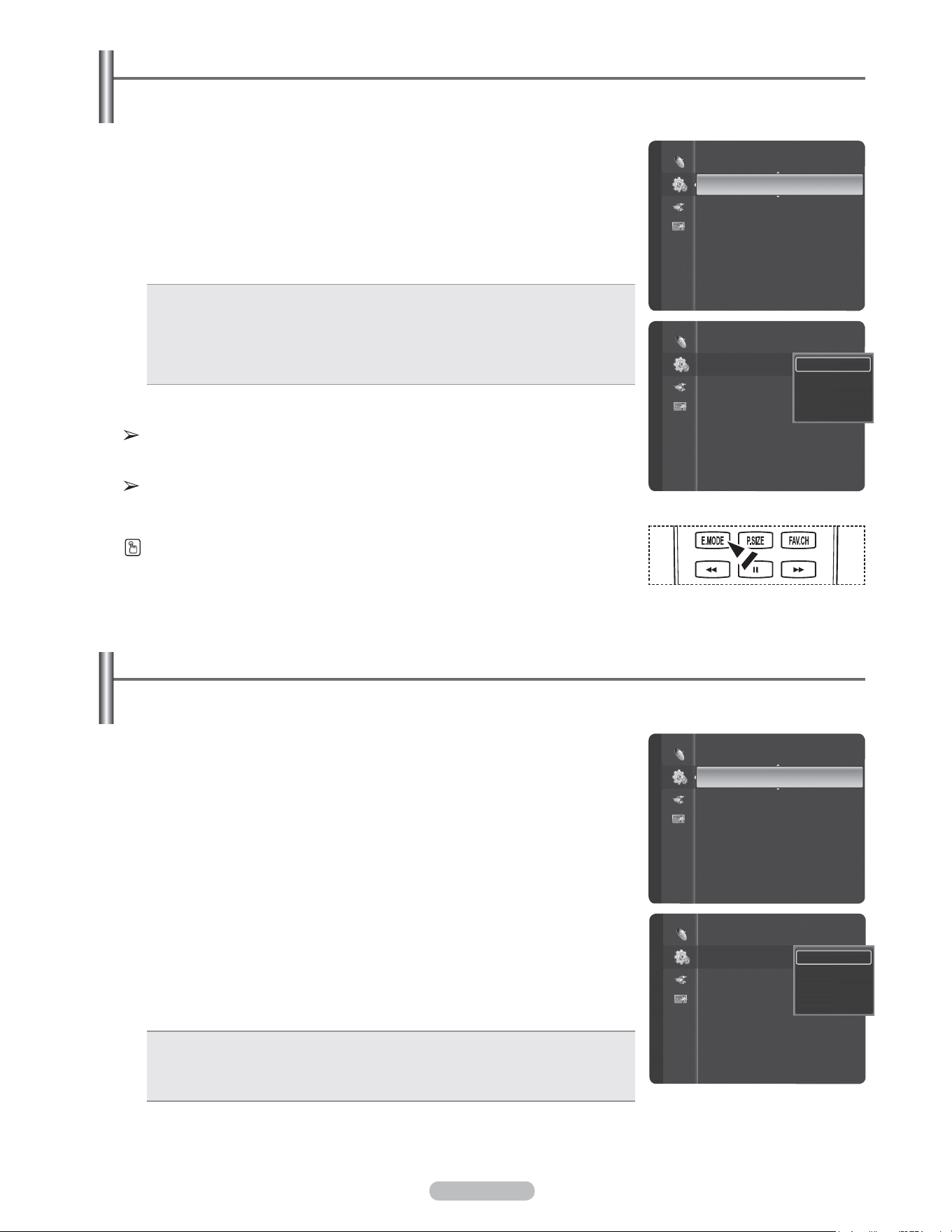
Français - 68
Fonction économiseur d’énergie
Cette option ajuste la consommation électrique de l’appareil et permet de faire des économies d’énergie.
1 Appuyer sur la touche MENU pour afficher le menu.
Appuyer sur la touche ▲ ou ▼ pour sélectionner Configuration, suivie de la
touche ENTER.
2 Appuyer sur la touche ▲ ou ▼ pour sélectionner Économiseur énergie, suivie
de la touche ENTER.
Appuyer sur la touche ▲ ou ▼ pour sélectionner Off, Basse, Moyen ou Haute,
suivie de la touche ENTER.
Appuyer sur la touche EXIT pour quitter.
• Off: Met le mode économiseur d’énergie hors fonction.
• Basse : Fonctionne en mode standard.
• Moyen: Passe au mode d’économie d’énergie moyen.
• Haute : Passe au mode d’économie d’énergie élevé.
Réglage du mode Divertissement
Le mode Divertissement permet de sélectionner l’affichage et les modes sonores optimaux pour les sports, le
cinéma et les jeux.
1 Appuyer sur la touche MENUpour afficher le menu.
Appuyer sur la touche ▲ ou ▼ pour sélectionner Configuration, suivie de la
touche ENTER.
2 Appuyer sur la touche ▲ ou ▼ pour sélectionner Divertissement, suivie de la
touche ENTER.
3 Appuyer sur la touche ▲ ou ▼ pour sélectionner Off, Sports, Cinéma ou Jeu,
suivie de la touche ENTER.
• Off: Désactive la fonction Entertainment.
• Sports: Offre une image et une qualité sonore optimales pour les sports.
• Cinéma: Offre une image et une qualité sonore optimales pour le visionnement
de films. L’image et le son sont enrichis.
• Jeux: Offre une image et une qualité sonore optimales pour les jeux. Ce mode
accélère la vitesse de jeu d’une console externe branchée au téléviseur.
Appuyer sur la touche EXIT pour quitter.
Si l’un des modes Divertissement est Activé, les paramètres sont verrouillés et ne
peuvent être modifiés. Pour régler les modes Image et Son, le mode Divertissement doit
être désactivé.
Les paramètres du mode Divertissement sont mémorisés pour chaque source d’entrée.
Il est également possible d’appuyer plusieurs fois sur la touche E.MODE de la
télécommande pour modifier le paramètre Divertissement.
Réglages externes
Divertissement : Off
Économiseur énergie
: Off ►
ISI
M. à jour logiciel
Configuration
Réglages externes
Divertissement : Off
Économiseur énergie : Off
ISI
M. à jour logiciel
Configuration
Off
Basse
Moyen
Haute
Sous-titres
Réglages externes
Divertissement : Off ►
Économiseur énergie : Off
ISI
M. à jour logiciel
Configuration
Sous-titres
Réglages externes
Divertissement : O
ff ►
Économiseur énergie : Off
ISI
M. à jour logiciel
Configuration
Off
Sports
Cinéma
Jeu
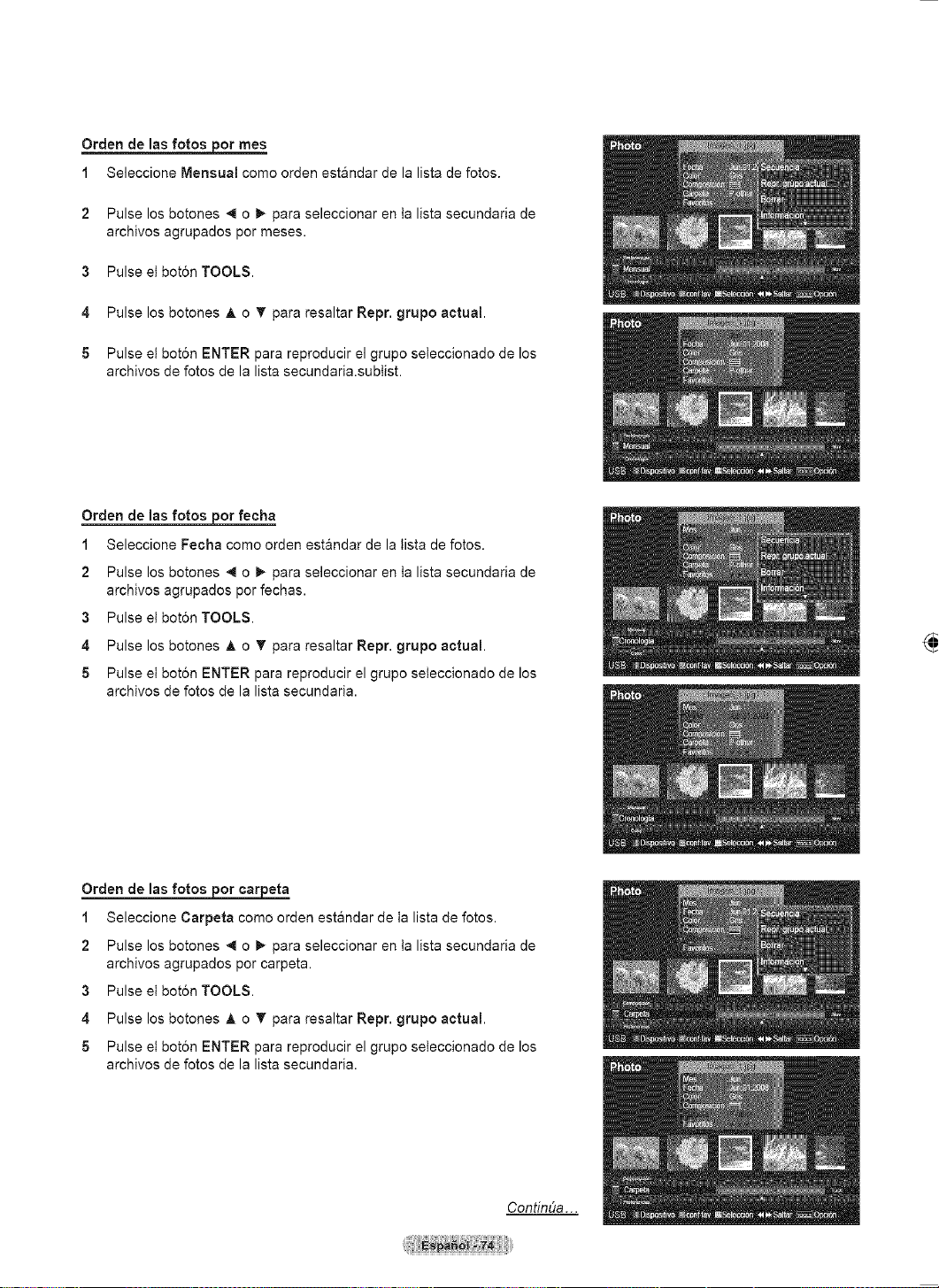
Français - 69
Mise à jour du logiciel
Samsung peut offrir des mises à niveau du microprogramme dans le futur. Contacter le centre d’appel Samsung
au 1-800-SAMSUNG pour obtenir de l’information sur le téléchargement des mises à jour et sur l’utilisation d’une
clé USB. Les mises à jour sont accessibles en branchant un lecteur USB au port USB.
1 Insérer une clé USB contenant la mise à jour du microprogramme dans le port
de mise à jour USB situé sur le côté du téléviseur.
Le logiciel ne peut pas être mis à niveau lorsque vous êtes en connexion
réseau local.
2 Appuyer sur la touche MENU pour afficher le menu.
Appuyer sur la touche ▲ ou ▼ pour sélectionner Configuration, suivie de la
touche ENTER.
3 Appuyer sur la touche ▲ ou ▼ pour sélectionner Mise à niveau du logiciel,
suivie de la touche ENTER.
4 Le message Scanning for USB... It may take up to 30 seconds. s’affiche.
5 Si le microprogramme de la clé USB est reconnu, le message Mettre à niveau
de la version xxxx à la version xxxx? Le système sera réinitialisé après la
mise à niveau. s’affiche.
Appuyer sur la touche ◄ ou ► pour sélectionner
OK, suivie de la touche
ENTER.
La mise à niveau démarre.
Veiller à ne pas débrancher l’alimentation et à ne pas retirer la clé USB pendant
l’application des mises à jour.
Le téléviseur s’éteint et se remet en marche automatiquement une fois la mise à
jour du microprogramme terminée.
Au moment de la mise à niveau du logiciel, les réglages vidéo et audio
effectués seront remplacés par les réglages par défaut (définis en usine). Il
est recommandé de prendre note des réglages afin de pouvoir les rétablir
facilement après la mise à niveau.
Panneau latéral
du téléviseur
Lecteur USB
Mise à jour du logiciel
Recherche du dispositif USB par balayage.
Cela peut prendre jusqu’à 30 secondes.
Économiseur énergie : Off
ISI
M. à jour logiciel ►
Configuration
Mise à jour du logiciel
Aucun fichier disponible pour la mise à niveau.
Vérifiez et réessayez.
Effacer
OK
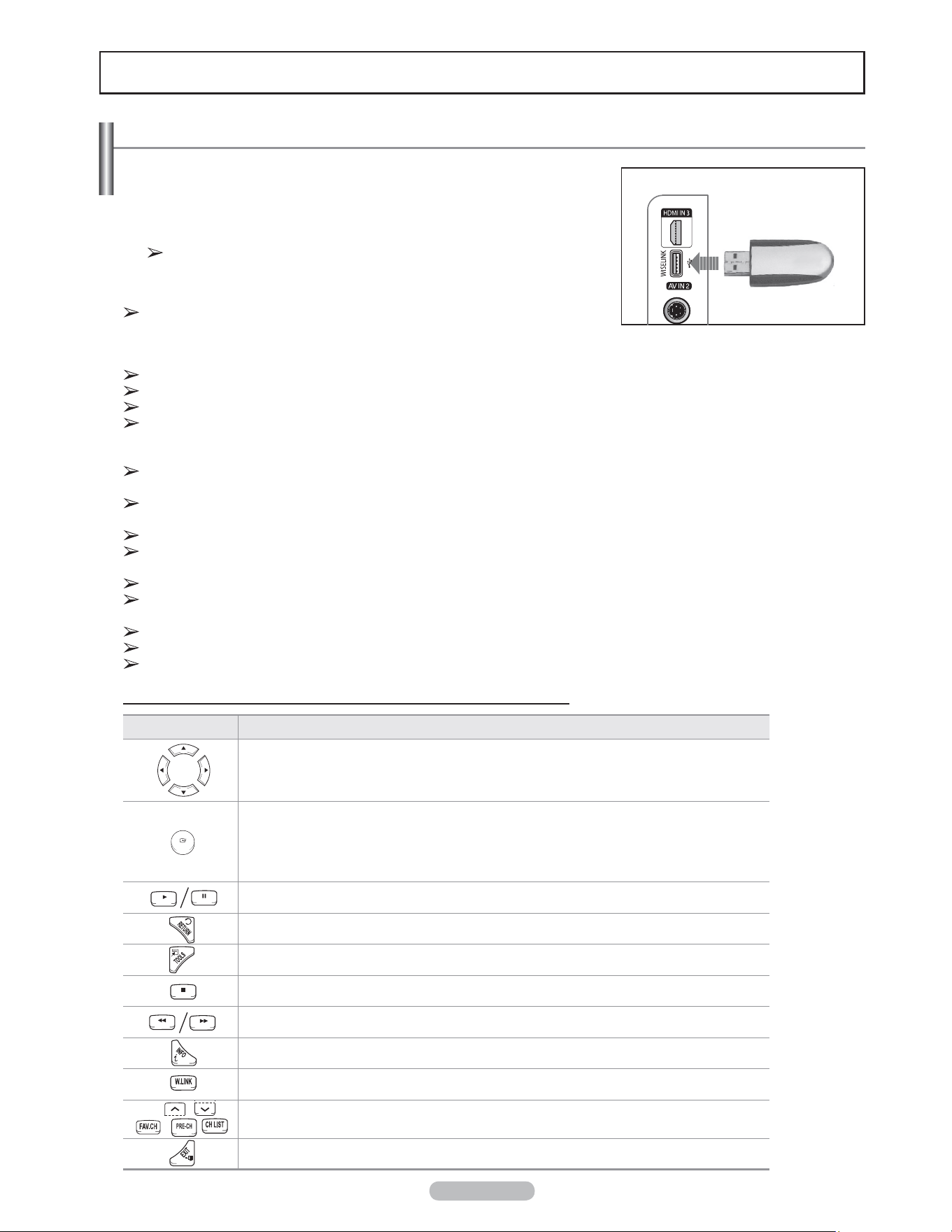
Français - 70
Cette fonction permet de visualiser des photographies (JPEG) et d’écouter des
fichiers audio (MP3) sauvegardés sur un dispositif USB à mémoire de grande
capacité (MSC).
1 Appuyer sur la touche POWER de la télécommande ou du panneau frontal.
Le téléviseur est sous tension.
2 Brancher un dispositif USB contenant des fichiers JPEG ou MP3 dans la
prise WISELINK (prise USB), sur le panneau latéral du téléviseur.
WISELINK
Utilisation de la fonction WISELINK
Si le mode WISELINK est activé et qu’aucun dispositif USB n’est branché, le message
“There is no device connected. Check the connection status.” (Aucun appareil n’est
branché. Vérifier l’état du branchement.) s’affiche. Le cas échéant, insérer le dispositif USB, quitter l’écran en appuyant sur la touche
W.LINK de la télécommande du téléviseur et entrer dans l’écran WISELINK à nouveau.
Ce téléviseur prend en charge le protocole de transfert d’image (PTP) mais pas le protocole de transfert de média (MTP).
Le système ne prend en charge que FAT 16/32 (NTFS n’est pas pris en charge).
Il se peut que certains modèles d’appareils photo et de dispositifs sonores USB numériques soient incompatibles avec ce téléviseur.
Wiselink est uniquement compatible avec les dispositifs à mémoire de grande capacité (MSC) USB. MSC est un dispositif de trans-
port mémoire de grande capacité en bloc seulement. Exemples de MSC : disques Thumb et lecteurs de cartes Flash (USB HDD et
HUB ne sont pas pris en charge).
Brancher directement au port USB du téléviseur. Il peut y avoir un problème de compatibilité USB si une connexion par câble dis-
tincte est utilisée.
Avant de brancher le dispositif au téléviseur, veiller à effectuer une copie de sauvegarde des fichiers afin d’éviter toute perte ou
dommage. SAMSUG ne saurait être tenu responsable des dommages aux fichiers ou de perte de données.
Ne pas débrancher l’appareil USB pendant qu’il est en mode de chargement.
MSC prend en charge les fichiers MP3 et JPEG, alors que l’appareil PTP ne prend en charge que les fichiers JPEG. Si vous essayez
de lire un fichier corrompu ou incompatible, le message “Format fichier pas pris en charge” sera affiché.
Seul le format jpeg séquentiel est pris en charge.
Les fichiers de photo et de musique doivent porter des noms en anglais, en français ou en espagnol. Dans le cas contraire, il est
impossible de les lire. Modifier le nom des fichiers pour un nom anglais, français ou espagnol, au besoin.
La résolution JPEG maximale prise en charge est de 15360X8640 pixels.
Chaque fois qu’un fichier est corrompu ou n’est pas pris en charge, le message “Format de fichier pas pris en charge” s’affiche.
Plus la résolution de l’image est élevée, plus son affichage à l’écran prend de temps.
Utilisation des touches de la télécommande dans le menu WISELINK
Touche Opérations
Déplacer le curseur et choisir un élément.
Sélectionner l’élément en surbrillance.
Pendant la lecture d’un diaporama ou d’un morceau de musique :
-
La lecture passe en mode de pause si on appuie sur la touche ENTER pendant la lecture.
- La lecture reprend si on appuie sur la touche ENTER en mode pause.
Lire ou faire une pause dans la lecture d’un diaporama ou d’un fichier de musique.
Retourner au menu précédent.
Exécuter diverses fonctions des menus Photo et Music.
Arrêter le diaporama ou le fichier de musique en cours de lecture.
Passer au groupe précédent ou suivant.
Afficher les informations du fichier.
Quitter le mode WISELINK.
Arrêter le mode WISELINK et revenir au mode TV.
Arrêter la fonction en cours et retourner au menu principal WISELINK.
Panneau latéral du
téléviseur
Lecteur USB
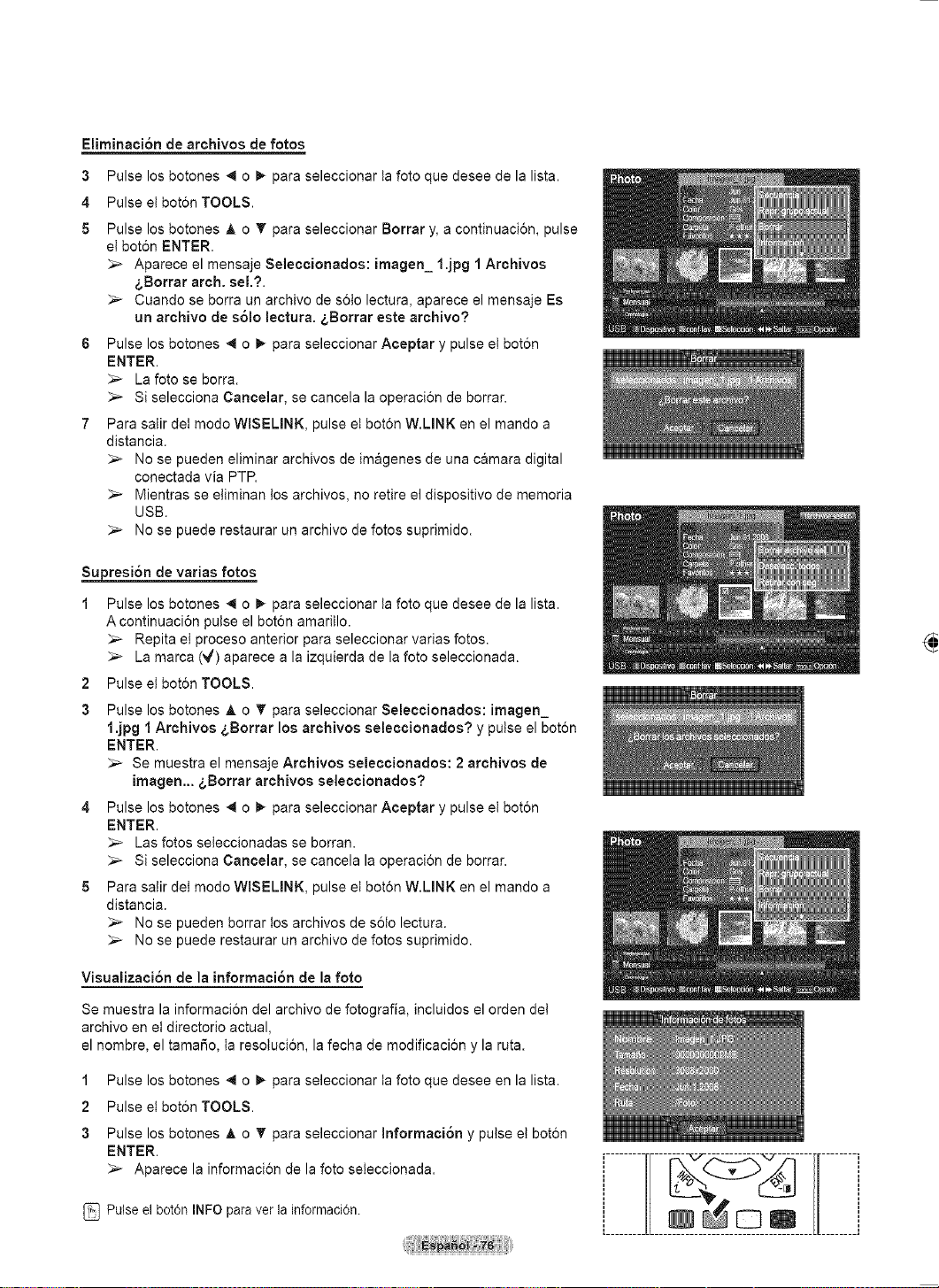
Français - 71
Utilisation du menu WISELINK
1 Appuyer sur la touche MENU.
Appuyer sur la touche ▲ ou ▼ pour sélectionner Applications, suivie de
la touche ENTER.
2 Appuyer sur la touche ▲ ou ▼ pour sélectionner WISELINK, suivie de la
touche ENTER.
Le menu WISELINK s’affiche.
Appuyer sur la touche W.LINK de la télécommande pour afficher le menu
WISELINK.
Appuyer sur la touche SOURCE de la télécommande pour sélectionner USB,
suivie de la touche ENTER.
3 Appuyer sur la touche rouge, suivie de la touche ▲ ou ▼ pour
sélectionner l’appareil de mémoire USB correspondant. Appuyer sur la
touche ENTER.
Cette fonction varie selon le dispositif à mémoire USB branché au
téléviseur.
4 Appuyer sur la touche ◄ ou ► pour sélectionner une icône (Photo,
Musique ou Configuration), suivie de la touche ENTER.
Pour quitter le mode WISELINK, appuyer sur la touche W.LINK de la
télécommande.
Suite...
WISELINK
Photo
USB
Appareil
Sortie
Music Setup
PHOTO
USB
851.98MB/995.00MB Iibre
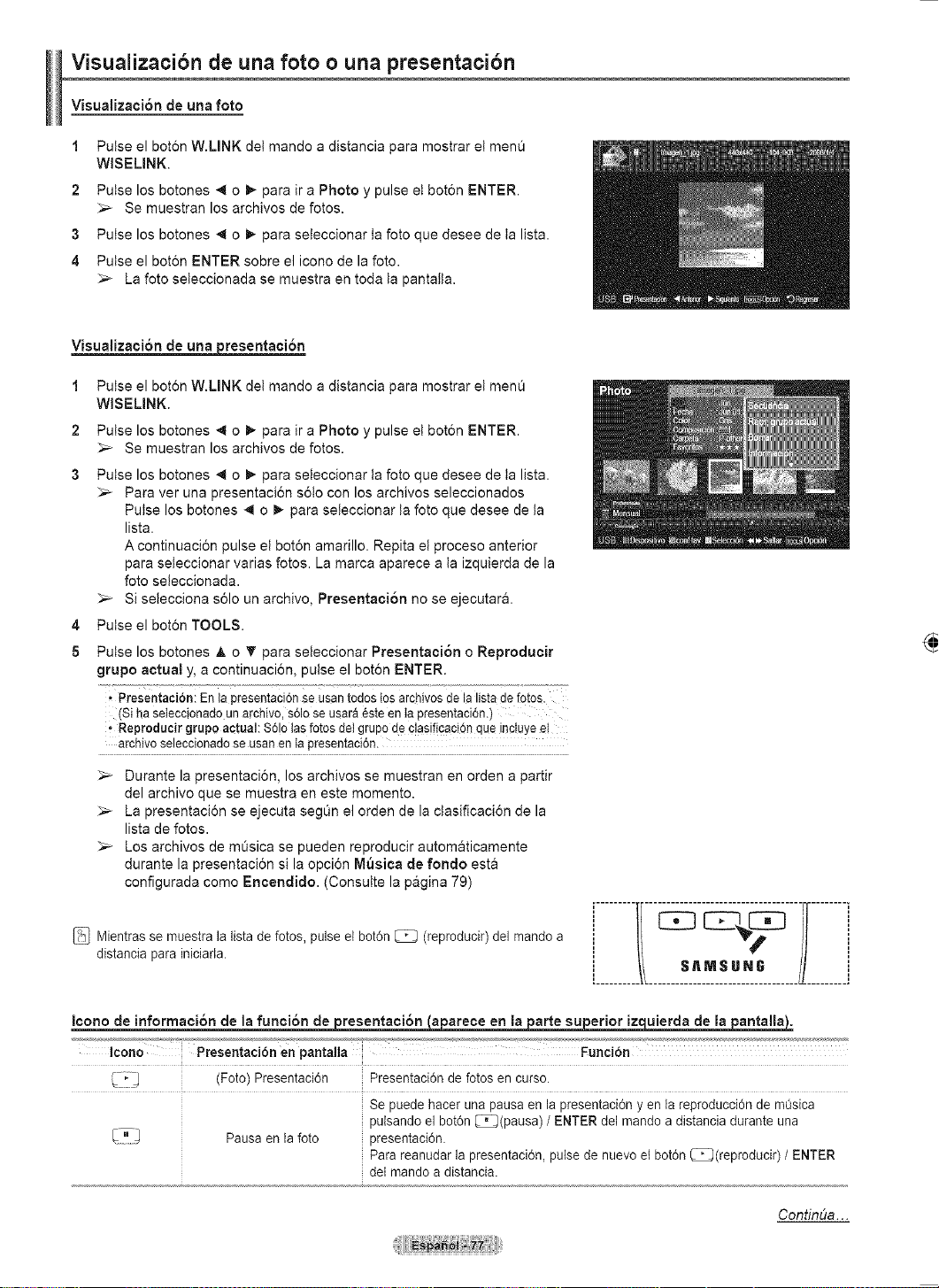
Français - 72
Utilisation de la liste de photos
Ce menu affiche les fichiers et des dossiers JPEG sauvegardés sur un dispositif à mémoire USB.
Liste des photos
1 Appuyer sur la touche W.LINK de la télécommande pour afficher le menu
WISELINK.
2 Appuyer sur la touche ▲ ou ▼ pour sélectionner Photo, suivie de la
touche ENTER.
Ce menu ne présente que les fichiers dont l’extension est jpg. Les
fichiers d’autres formats, comme bmp ou tiff, ne seront pas affichés.
Les fichiers de photo sont affichés.
Appuyer sur la touche ENTER lorsqu’une icône de photo est en
surbrillance pour l’afficher en plein écran.
Appuyer sur la touche (Lecture) pour lancer le Diaporama.
Le chargement d’une photo peut prendre quelques secondes. L’icône
de chargement s’affiche.
Certain types de caméra et de dispositifs sonores USB numériques
peuvent être incompatibles avec ce téléviseur.
Les dossiers sont affichés en premier, suivis de tous les fichiers de
photo du dossier actif. Les dossiers et les fichiers JPEG sont triés par
ordre alphabétique.
Lorsque la photo est affichée en mode plein écran, il est possible de
zoomer vers l’avant ou vers l’arrière ou de faire pivoter la photo à
l’écran.
Le chargement des vignettes de photo peut prendre du temps.
Les photos dépourvues de données EXIF peuvent ne pas s’afficher
sous forme de vignettes dans la liste des photos, selon la qualité de
l’image et sa résolution.
Affichage à l’écran
1 Photo sélectionnée
Affiche la photo sélectionnée.
2 Fenêtre de données sur la photo
Affiche les renseignements concernant la photo
sélectionnée.
Il est possible de modifier les options Couleur,
Composition et Favorite.
3 Tri standard - actuel
Appuyer sur la touche ▲ ou ▼ pour modifier le standard
de tri des photos.
(Mensuel, Chronologie, Couleur, Composition,
Dossier, Préférence)
L’article sélectionné comme tri est mis en surbrillance
dans la fenêtre de données des photos.
4 Afficher les groupes
Affiche les groupes de tri. Le groupe de tri, incluant la photo sélectionnée, est mis en surbrillance.
5 Appareil actuel
Affiche le nom de l’appareil sélectionné. Appuyer sur la touche rouge pour sélectionner un appareil.
6 Information sur la sélection
Affiche le nombre de photos sélectionnées, lorsque la touche jaune est enfoncée.
Suite...
WISELINK
Photo
USB
Appareil
Sortie
Music Setup
PHOTO
USB
851.98MB/995.00MB Iibre
Photo
USB
Appareil
Régl. f.
Choisir Saut
TOOLS
Option
image_1.jpg
Mois : Janv.
Date : Janv..01.2008
Couleur : Rouge
Composition :
Dossier : P-other
Favori :
Préférence
P. mois
P. date
juin Oct. nov.
▲
Photo
USB
Appareil
Régl. f.
Choisir Saut
TOOLS
Option
image_1.jpg
Mois : Janv.
Date : Janv..01.2008
Couleur : Rouge
Composition :
Dossier : P-other
Favori :
Préférence
P. mois
P. date
juin Oct. nov.
▲
1Fich. Sél.
2 6
1
3 4
75
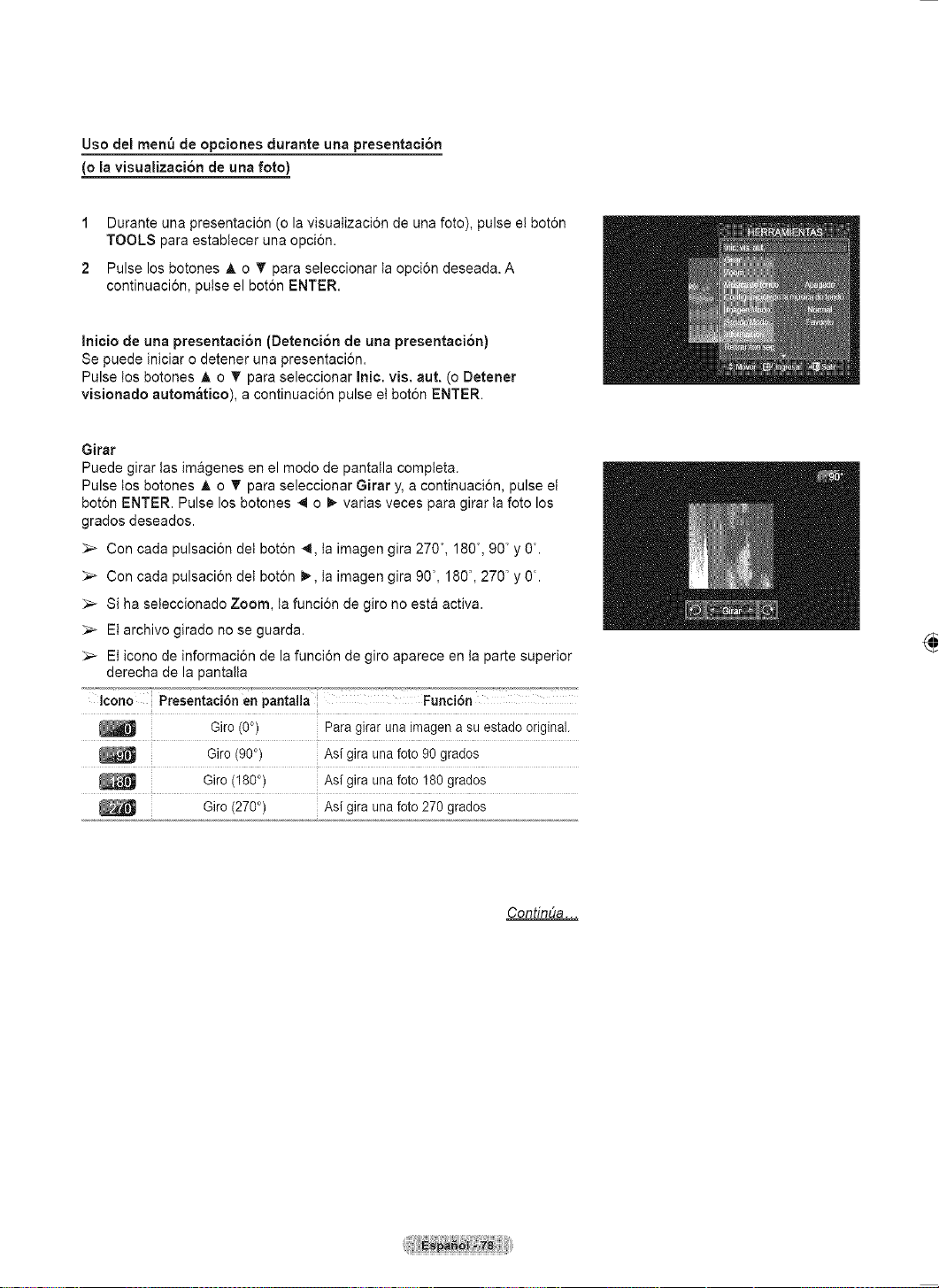
Français - 73
7 Aide sur les éléments
• Touche rouge (appareil) : Sélectionne un appareil branché.
• Touche verte (Réglage des favoris) : Modifie les paramètres des favoris
pour la photo sélectionnée. Appuyer plusieurs fois sur cette touche jusqu’à
ce que la valeur désirée s’affiche.
• Touche jaune (Sélectionner) : Sélectionne des photos parmi la liste. Un
symbole ( ) s’affiche à la gauche des photos sélectionnées.
• Touche TOOLS (Option) : Affiche le menu Diaporama, Lecture du
groupe actuel, Supprimer, Modifier les données du groupe (dans le
groupe Couleur ou Composition), Information ou Retrait sécuritaire.
• Saut : Passe au groupe de tri précédent ou suivant.
Tri de la liste des photos
Les photos de la liste de photos peuvent être triées selon un standard
particulier.
1 Appuyer sur la touche W.LINK de la télécommande pour afficher le menu
WISELINK.
2 Appuyer sur la touche ▲ ou ▼ pour sélectionner Photo, suivie de la
touche ENTER.
Les fichiers de photo sont affichés.
3 Appuyer sur ▲ ou ▼ pour choisir un tri standard.
(Mensuel, Chronologie, Couleur, Composition, Dossier, Préférence)
• Mensuel: Les photos sont triées par mois.
Trie et affiche les photos du fichier par mois. Le tri ne s’effectue qu’en fonction
du mois (de Janv.vier à décembre), sans tenir compte de l’année.
• Chronologie: Les photos sont triées en ordre chronologique.
Trie et affiche les photos par date. Trie par année et mois en commençant par
le plus récent.
• Couleur: Les photos sont triées par couleur. Il est possible de modifier les
données sur la couleur des photos.
• Composition : Les photos sont triées par composition.Il est possible de
modifier les données sur la composition des photos.
• Dossier: Les photos sont triées par dossier.
S’il y a plusieurs dossiers dans le dispositif USB, les fichiers photos sont
affichés dans l’ordre dans chaque dossier. Le fichier photo dans le dossier
racine est affiché en premier et les autres suivent en ordre alphabétique, par
nom.
• Préférence : Les photos sont triées par préférence.
(Favoris)
(Il est possible de modifier les préférences des photos.)
4 Appuyer sur la touche Enter pour lancer le Diaporama dans l’ordre choisi
par l’utilisateur.
Wiselink détermine la couleur et la composition des images et les
regroupe en conséquence en analysant les images sur l’appareil USB.
L’information relative à Composition et la Couleur extraite d’un fichier
photo peut différer du choix effectué.
Les photos sont triées selon les nouveaux critères choisis.
Les données relatives aux photos sont réglées automatiquement. Il
est possible de modifier les paramètres Couleur, Composition ou
Favoris.
Les photos dont les données ne peuvent être affichées sont
enregistrées comme Pas de classification.
Le protocole de transfert d’image (PTP) ne prend pas en charge le
mode de tri des dossiers.
Suite...
WISELINK
Photo
USB
Appareil
Sortie
Music Setup
PHOTO
USB
851.98MB/995.00MB
Photo
USB
Appareil
Régl. f.
Choisir Saut
TOOLS
Option
image_1.jpg
Mois : Janv.
Date : Janv..01.2008
Couleur : Rouge
Composition :
Dossier : P-other
Favori :
Préférence
P. mois
P. date
juin Oct. nov.
▲
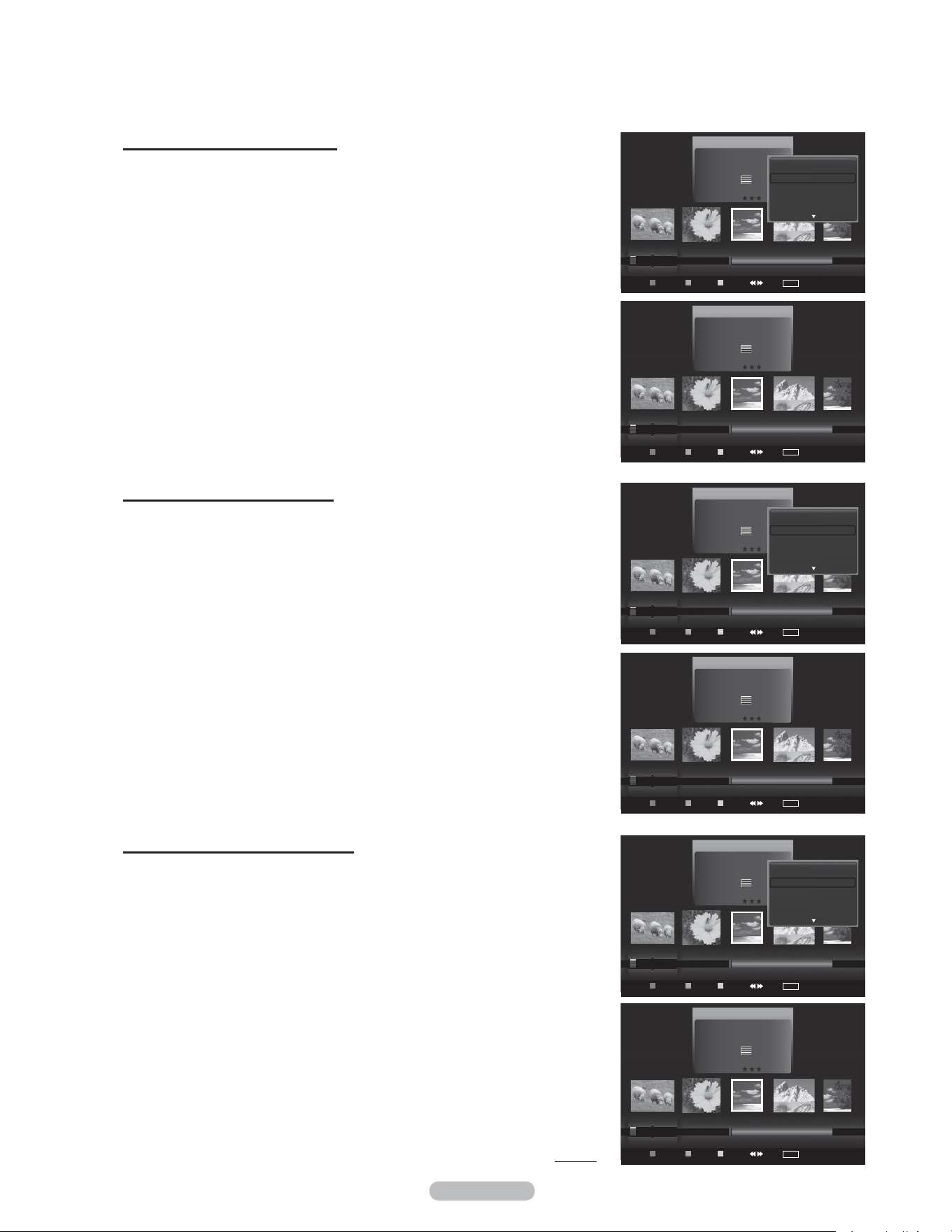
Français - 74
Classement des photos par mois
1 Sélectionner P. mois comme critère de classification dans la liste de
photos.
2 Appuyer sur la touche ◄ ou ► pour choisir à partir de la sous-liste de
fichiers classés par mois.
3 Appuyer sur la touche TOOLS.
4 Appuyer sur la touche ▲ ou ▼ pour mettre en surbrillance Lire groupe
cour..
5 Appuyer sur ENTER pour lire l’ensemble de fichiers photos sélectionnés
dans la sous-liste.
Classement des photos par date
1 Sélectionner P. date comme critère de classification dans la liste de
photos.
2 Appuyer sur la touche ◄ ou ► pour choisir à partir de la sous-liste de
fichiers classés par date.
3 Appuyer sur la touche TOOLS.
4 Appuyer sur la touche ▲ ou ▼ pour mettre en surbrillance Lire groupe
cour..
5 Appuyer sur ENTER pour lire l’ensemble de fichiers photos sélectionnés
dans la sous-liste.
Classement des photos par dossier
1 Sélectionner Dossier comme critère de classification dans la liste de
photos.
2 Appuyer sur la touche ◄ ou ► pour choisir à partir de la sous-liste de
fichiers classés par dossier.
3 Appuyer sur la touche TOOLS.
4 Appuyer sur la touche ▲ ou ▼ pour mettre en surbrillance Lire groupe
cour..
5 Appuyer sur ENTER pour lire l’ensemble de fichiers photos sélectionnés
dans la sous-liste.
Suite...
Photo
USB
Appareil
Régl. f.
Choisir Saut
TOOLS
Option
image_1.jpg
Mois : Janv.
Date : Janv..01.2008
Couleur : Rouge
Composition :
Dossier : P-other
Favori :
Préférence
Mensuel
Chronologie
Oct. nov.
▲
Diaporama
Lecture actuel
Supprimer
Information
Photo
USB
Appareil
Régl. f.
Choisir Saut
TOOLS
Option
image_1.jpg
Mois : Janv.
Date : Janv..01.2008
Couleur : Rouge
Composition :
Dossier : P-other
Favori :
Mensuel
Chronologie
Couleur
Oct. nov.
▲
Photo
USB
Appareil
Régl. f.
Choisir Saut
TOOLS
Option
image_1.jpg
Mois : Janv.
Date : Janv..01.2008
Couleur : Rouge
Composition :
Dossier : P-other
Favori :
Préférence
Mensuel
Chronologie
Oct. nov.
▲
Diaporama
Lecture actuel
Supprimer
Information
Photo
USB
Appareil
Régl. f.
Choisir Saut
TOOLS
Option
image_1.jpg
Mois : Janv.
Date : Janv..01.2008
Couleur : Rouge
Composition :
Dossier : P-other
Favori :
Mensuel
Chronologie
Couleur
Oct. nov.
▲
Photo
USB
Appareil
Régl. f.
Choisir Saut
TOOLS
Option
image_1.jpg
Mois : Janv.
Date : Janv..01.2008
Couleur : Rouge
Composition :
Dossier : P-other
Favori :
Composition
Dossier
Préférence
Oct. nov.
▲
Diaporama
Lecture actuel
Supprimer
Information
Photo
USB
Appareil
Régl. f.
Choisir Saut
TOOLS
Option
image_1.jpg
Mois : Janv.
Date : Janv..01.2008
Couleur : Rouge
Composition :
Dossier : P-other
Favori :
Composition
Dossier
Préférence
USB Trash
▲
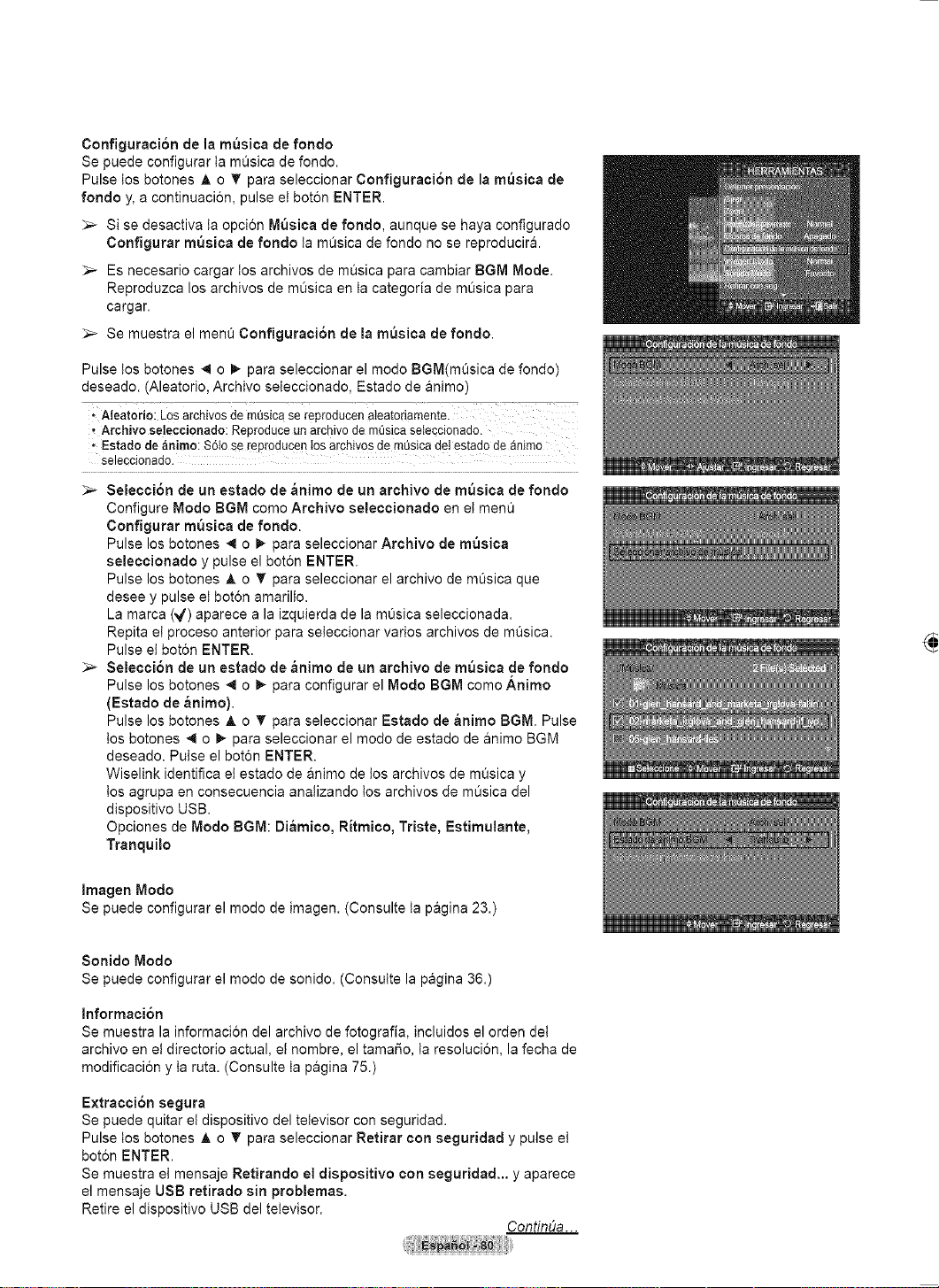
Français - 75
Modification des données de composition
1 Sélectionner Composition comme tri standard de la liste de photos et
appuyer sur la touche ◄ ou ► pour sélectionner une photo.
Modifier les données de fichiers multiples
Appuyer sur la touche ◄ ou ► pour sélectionner une photo dans la
liste. Appuyer ensuite sur la touche jaune.
Répéter la procédure ci-dessus pour sélectionner de multiples fichiers
photo.
Le symbole ( ) s’affiche à la gauche de la photo sélectionnée.
2 Appuyer sur la touche TOOLS.
3 Appuyer la touche sur ▲ ou ▼ pour sélectionner Modifier le groupe.
Appuyer sur la touche ENTER.
4 Sélectionner l’option désirée en appuyant sur la touche ◄ ou ►, suivie de
la touche ENTER.
L’information de groupe du fichier en cours est mise à jour, puis le
fichier est placé dans le nouveau groupe.
Option Composition: (horizontal), (vertical), (objet),
(perspective), (motif), Non classés
5 Appuyer sur la touche Enter pour lancer le Diaporama.
Toutes les images sont affichées par le groupe Composition.
Sélection des paramètres favoris
1 Appuyer sur la touche ◄ ou ► pour sélectionner une photo dans la liste.
Modifier les données de fichiers multiples
Appuyer sur la touche ◄ ou ► pour sélectionner une photo dans la
liste. Appuyer ensuite sur la touche jaune.
Répéter la procédure ci-dessus pour sélectionner de multiples fichiers
photo.
Le symbole ( ) s’affiche à la gauche de la photo sélectionnée.
2 Appuyer plusieurs fois la cette touche verte, jusqu’à ce que le paramètre
désiré s’affiche.
Pour quitter le mode WISELINK, appuyer sur la touche W.LINK de la
télécommande.
Modification des paramètres des favoris terminée.
Les utilisateurs peuvent choisir le nombre d’étoiles (jusqu’à trois)
selon leur préférence.
Option Favoris: , , ,
3 Appuyer sur la touche Enter pour lancer le Diaporama.
Suite...
Modification des données de couleur
1 Sélectionner Couleur comme tri standard de la liste de photos et appuyer
sur la touche ◄ ou ► pour sélectionner une photo.
Modifier les données de fichiers multiples
Appuyer sur la touche ◄ ou ► pour sélectionner une photo dans la
liste. Appuyer ensuite sur la touche jaune.
Répéter la procédure ci-dessus pour sélectionner de multiples fichiers
photo.
Le symbole ( ) s’affiche à la gauche de la photo sélectionnée.
2 Appuyer sur la touche TOOLS.
3 Appuyer la touche sur ▲ ou ▼ pour sélectionner Modifier le groupe.
Appuyer sur la touche ENTER.
4 Sélectionner l’option désirée en appuyant sur la touche ◄ ou ►, suivie de
la touche ENTER.
Couleurs : rouge, jaune, vert, bleu, magenta, noir, gris.
L’information de groupe du fichier en cours est mise à jour, puis le
fichier est placé dans le nouveau groupe.
Couleurs: rouge, jaune, vert, bleu, magenta, noir, gris
5 Appuyer sur la touche Enter pour lancer le Diaporama.
Toutes les images sont affichées par le groupe Couleur.
Photo
image_1.jpg
Mois : Janv.
Date : Janv..01.2008
Couleur : Rouge
Composition :
Dossier : P-other
Favori :
Couleur
P. comp.
Dossier
Unclassified
▲
USB
Appareil
Régl. f.
Choisir Saut
TOOLS
Option
1Fich. Sél.
Non classés
Photo
USB
Appareil
Régl. f.
Choisir Saut
TOOLS
Option
image_1.jpg
Mois : Janv.
Date : Janv..01.2008
Couleur : Rouge
Composition :
Dossier : P-other
Favori :
Couleur
P. comp.
Dossier
Unclassified
▲
1Fich. Sél.
Effacer fichier sél.
Changer de groupe
Désélect. tout
Supp. sécurité
Photo
USB
Appareil
Régl. f.
Choisir Saut
TOOLS
Option
image_1.jpg
Mois : Janv.
Date : Janv..01.2008
Couleur : Rouge
Composition :
Dossier : P-other
Favori :
P. date
Couleur
P. comp
▲
1Fich. Sél.
Photo
USB
Appareil
Régl. f.
Choisir Saut
TOOLS
Option
image_1.jpg
Mois : Janv.
Date : Janv..01.2008
Couleur : Rouge
Composition :
Dossier : P-other
Favori :
P. date
Couleur
P. comp
▲
1Fich. Sél.
Effacer fichier sél.
Changer de groupe
Désélect. tout
Supp. sécurité
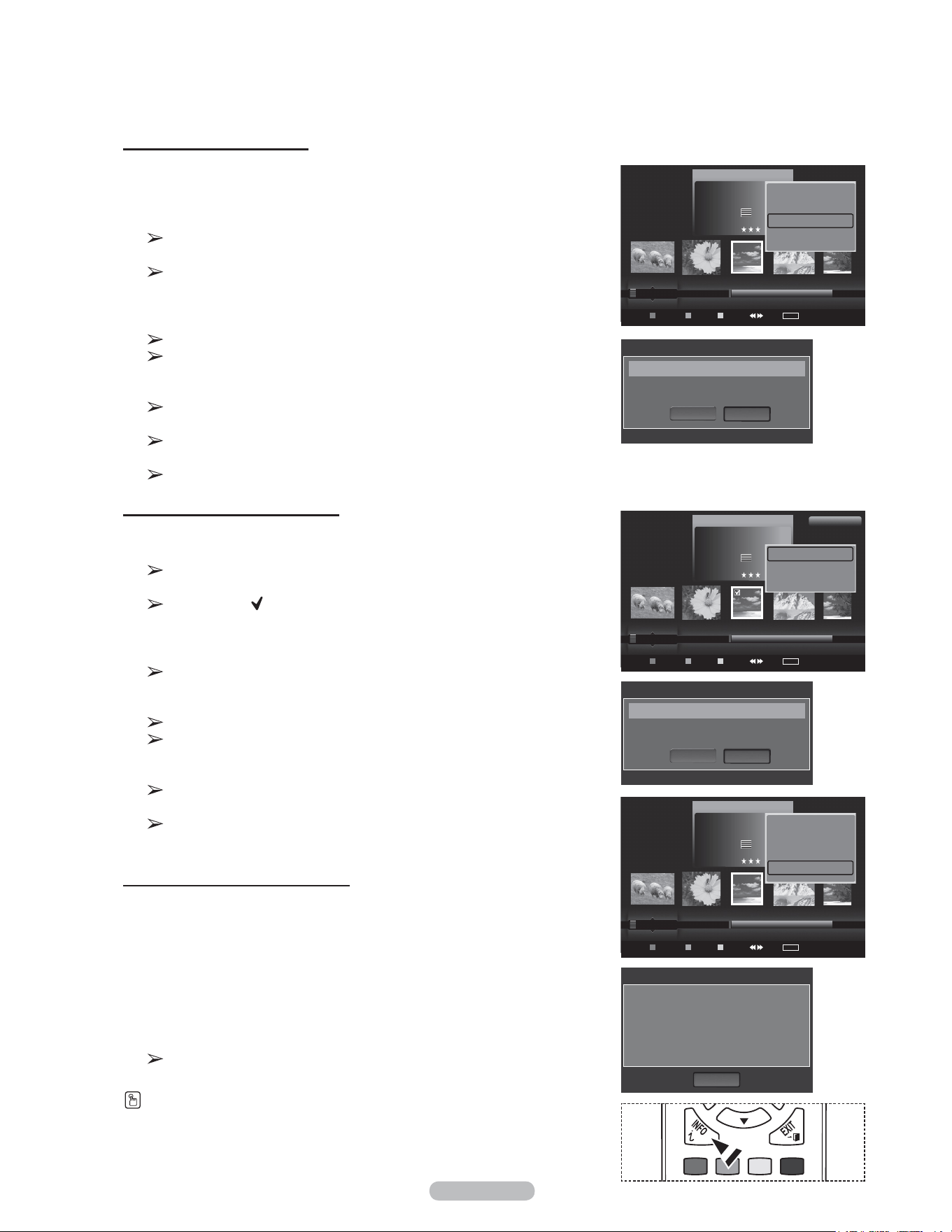
Français - 76
Suppression de multiples photos
1 Appuyer sur la touche ◄ ou ► pour sélectionner une photo dans la liste.
Appuyer ensuite sur la touche jaune.
Répéter la procédure ci-dessus pour sélectionner de multiples fichiers
photo.
Le symbole ( ) s’affiche à la gauche de la photo sélectionnée.
2 Appuyer sur la touche TOOLS.
3 Appuyer sur la touche ▲ ou ▼ pour sélectionner Supprimer la sélection,
suivie de la touche ENTER.
Le(s) fichier(s) sélectionné(s) : image… Le message 2 fichier(s)
Supprimer le(s) fichier(s) sélectionné(s)? s’affiche.
4 Appuyer sur la touche ◄ ou ► pour choisir OK, puis sur Enter.
Les photos sélectionnées sont supprimées.
Si Effacer est sélectionné, la suppression est annulée.
5 Pour quitter le mode WISELINK, appuyer sur la touche W.LINK de la
télécommande.
Il est impossible de supprimer les fichiers en lecture seule parmi les
fichiers sélectionnés.
Il est impossible de restaurer un fichier photo supprimé.
Affichage des données des photos
Les données du fichier de photo, incluant la position du fichier dans le
répertoire courant, le nom, le format, la résolution, la date de modification et le
chemin d’accès, sont affichées.
1 Appuyer sur la touche ◄ ou ► pour choisir la photo désirée dans la liste
de photos.
2 Appuyer sur la touche OUTILS.
3 Appuyer sur la touche ▲ ou ▼ pour sélectionner Information, puis
appuyer sur la touche ENTER.
Les données relatives à la photo choisie s’affichent.
Appuyer sur la touche INFO pour afficher l’information.
Supprimer les fichiers photo
1 Appuyer sur la touche ◄ ou ► pour sélectionner une photo dans la liste.
2 Appuyer sur la touche TOOLS.
3 Appuyer sur la touche ▲ ou ▼ pour sélectionner Supprimer, suivie de la
touche ENTER.
Le message sélectionné(s) : image… Le message 1 fichier(s)
Supprimer le(s) fichier(s) sélectionné(s)? s’affiche.
Lorsqu’un fichier en lecture seule est sélectionné, le message Ce
fichier est en lecture seule. Supprimer ce fichier? s’affiche.
4 Appuyer sur la touche ◄ ou ► pour sélectionner OK, suivie de la touche
ENTER.
La photo est supprimée.
Si Effacer est sélectionné, la suppression est annulée.
5 Pour quitter le mode WISELINK, appuyer sur la touche W.LINK de la
télécommande.
Il est impossible de supprimer les fichiers photo d’une caméra
numérique branchée par protocole PTP.
Ne pas retirer le dispositif de mémoire USB pendant la suppression
des fichiers.
Il est impossible de restaurer un fichier photo supprimé.
Photo
USB
Appareil
Régl. f.
Choisir Saut
TOOLS
Option
image_1.jpg
Mois : Janv.
Date : Janv..01.2008
Couleur : Rouge
Composition :
Dossier : P-other
Favori :
P. préf
P. mois
P. date
Oct. nov.
▲
Diaporama
Lecture actuel
Supprimer
Information
▼
Nom : image_1.JPG
Taild fic. : 0000000002MB
Résolution : 3008x2000
Date : Janv..1.2008
Chemin : /Photo/
OK
Inform. photo
Photo
USB
Appareil
Régl. f.
Choisir Saut
TOOLS
Option
image_1.jpg
Mois : Janv.
Date : Janv..01.2008
Couleur : Rouge
Composition :
Dossier : P-other
Favori :
P. préf
P. mois
P. date
Oct. nov.
▲
Effacer fichier sél.
Désélect. tout
Supp. sécurité
1Fich. Sél.
Photo
USB
Appareil
Régl. f.
Choisir Saut
TOOLS
Option
image_1.jpg
Mois : Janv.
Date : Janv..01.2008
Couleur : Rouge
Composition :
Dossier : P-other
Favori :
P. préf
P. mois
P. date
Oct. nov.
▲
Effacer fichier sél.
Désélect. tout
Supp. sécurité
Information
▼
Effacer le fichier?
Supprimer
OK
Effacer
Sélectionné(s) : image_1.jpg 1 Fichier(s)
Suppr. le fich. sél.?
Supprimer
OK
Effacer
Sélectionné(s) : image_1.jpg 1 Fichier(s)
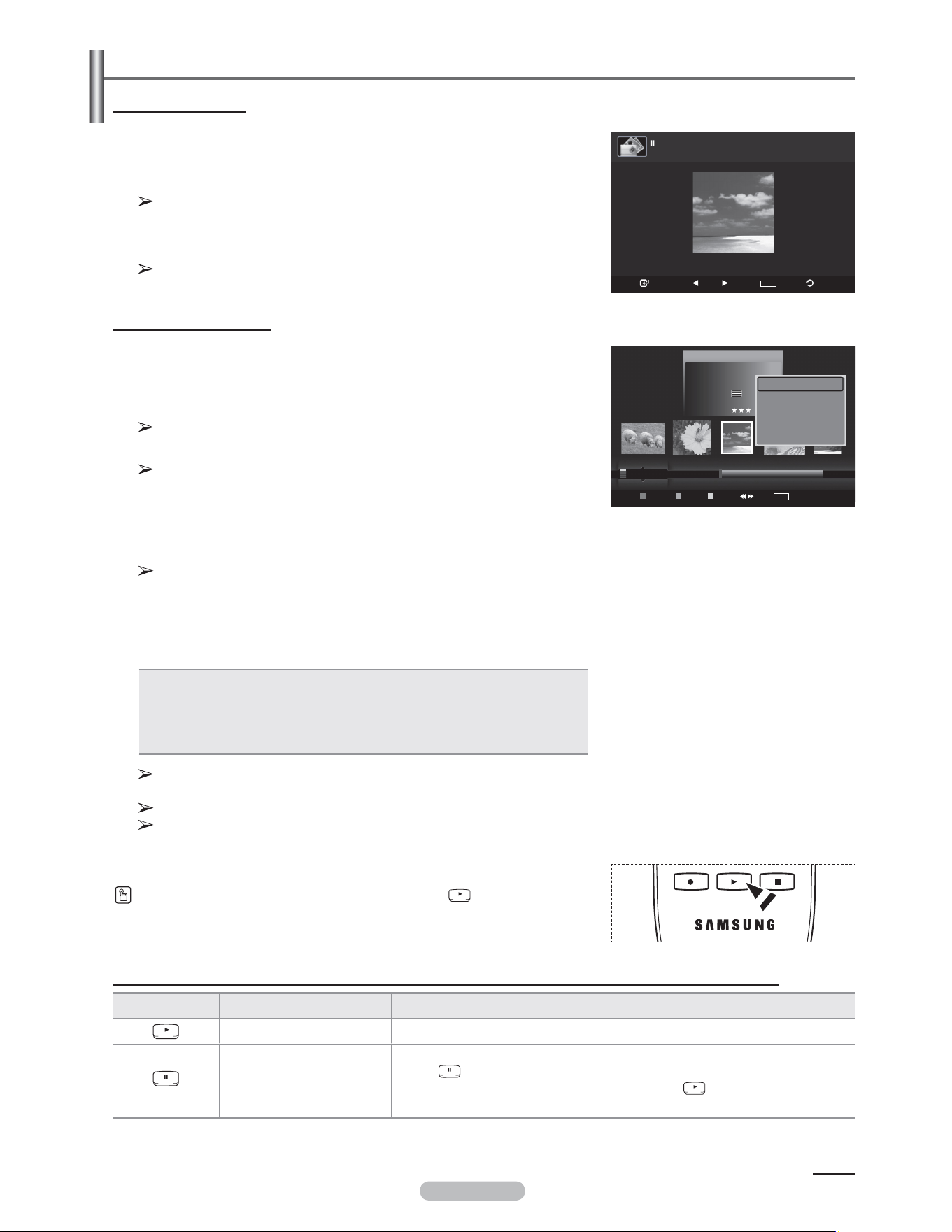
Français - 77
Visionnement d’une photo ou d’un diaporama
Visionner une photo
1 Appuyer sur la touche W.LINK de la télécommande pour afficher le menu
WISELINK.
2 Appuyer sur la touche ◄ ou ► pour sélectionner Photo, suivie de la
touche ENTER.
Les fichiers de photo sont affichés.
3 Appuyer sur la touche ◄ ou ► pour sélectionner une photo dans la liste.
4 Appuyer sur la touche ENTER pour lorsqu’une icône de photo est en
surbrillance.
La photo sélectionnée est affichée en mode plein écran.
Visualiser un diaporama
1 Appuyer sur la touche W.LINK de la télécommande pour afficher le menu
WISELINK.
2 Appuyer sur la touche ◄ ou ► pour sélectionner Photo, suivie de la
touche ENTER.
Les fichiers de photo sont affichés.
3 Appuyer sur la touche ◄ ou ► pour sélectionner une photo dans la liste.
Pour exécuter un diaporama avec les seuls fichiers sélectionnés,
Appuyer sur la touche ◄ ou ► pour sélectionner une photo dans la
liste.
Appuyer ensuite sur la touche jaune. Répéter la procédure ci-dessus
pour sélectionner de multiples fichiers photo. Le symbole s’affiche à
la gauche de la photo sélectionnée.
Lorsque vous sélectionnez un fichier, le Diaporama ne s’exécutera
pas.
4 Appuyer sur la touche TOOLS.
5 Appuyer sur la touche ▲ ou ▼ pour sélectionner Diaporama ou Lire
groupe cour., suivie de la touche ENTER.
• Diaporama: Tous les fichiers de la liste de photos seront affichés en
diaporama. (Le cas échéant, seuls les fichiers sélectionnés feront partie
du diaporama.)
• Lire groupe cour.: Seules les photos du groupe de tri, incluant les fichiers
sélectionnés, feront partie du diaporama.
Lorsque la liste de photo s’affiche, appuyer sur la touche (PLAY) de la
télécommande pour lancer le diaporama.
Icône d’information sur les fonctions de diaporama (affichée dans le coin supérieur gauche de l’écran.
Icône OSD actuel Fonction
Diaporama Diaporama en cours.
Photo Pause
Il est possible d’interrompre un diaporama et de la musique en appuyant sur la
touche (pause) / ENTER de la télécommande pendant un diaporama.
Pour reprendre le diaporama, appuyer sur la touche (play) / ENTER à
nouveau.
Suite...
Pendant le diaporama, les fichiers sont affichés dans l’ordre, à partir
du fichier affiché.
Le diaporama se déroule dans l’ordre de tri de la liste de photos.
Les fichiers musicaux peuvent être lus automatiquement pendant le
diaporama, lorsque l’option Musique de fond est Activée.
(voir page 79)
USB
Diaporama Préc Suivant
TOOLS
Option Retour
image_1.jpg 440x440 104.1KB 2008/1/1
Photo
USB
Appareil
Régl. f.
Choisir Saut
TOOLS
Option
image_1.jpg
Mois : Janv.
Date : Janv..01.2008
Couleur : Rouge
Composition :
Dossier : P-other
Favori :
Préférence
P. mois
P. date
Oct. nov.
▲
Diaporama
Lecture actuel
Supprimer
Information
▼
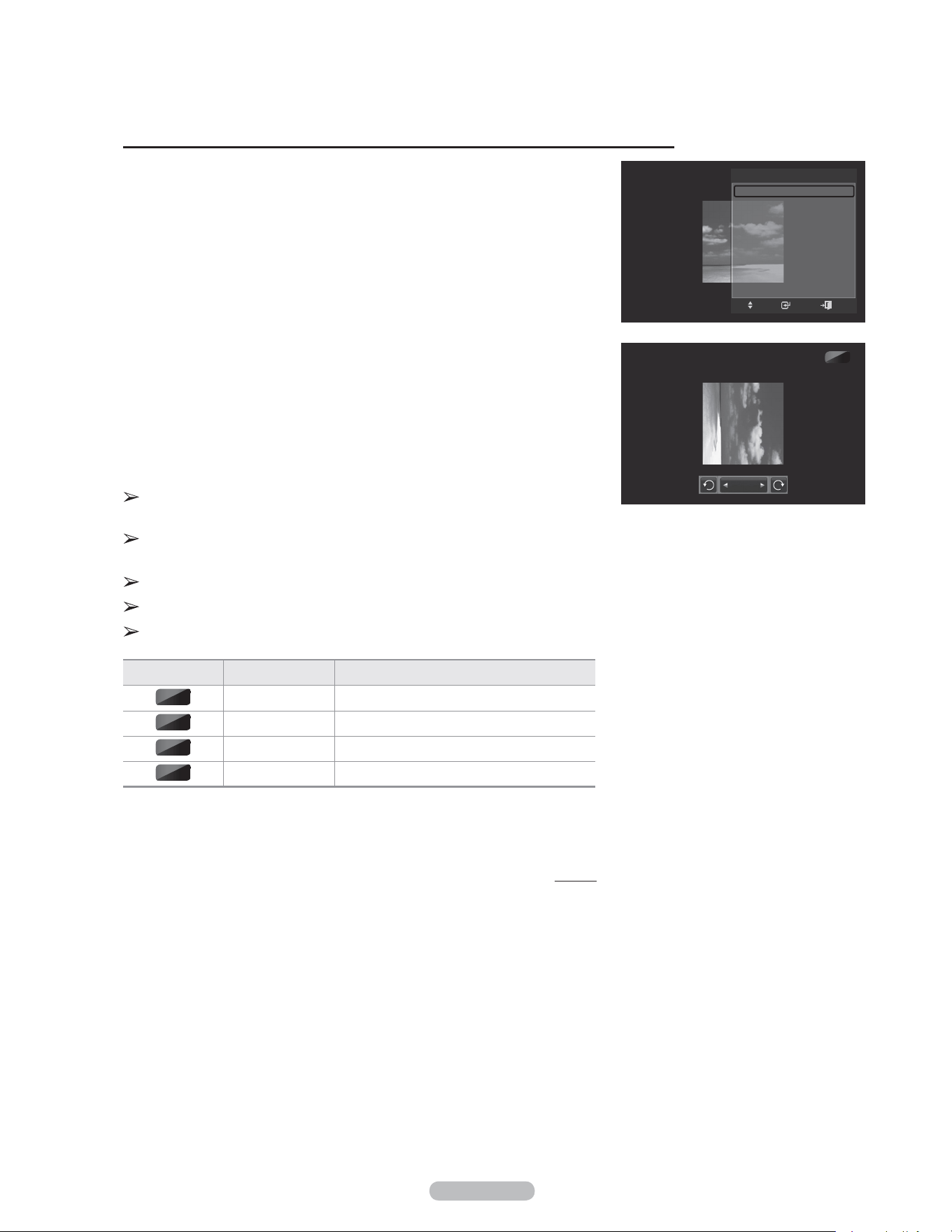
Français - 78
1 Pendant un diaporama (ou le visionnement d’une photo), appuyer sur la
touche OUTILS pour configurer l’option.
2 Appuyer sur la touche ▲ ou ▼ pour sélectionner l’option désirée.
Appuyer ensuite sur la touche ENTER.
Lancer (ou arrêter) un diaporama
Il est possible de lancer ou d’arrêter un diaporama.
Appuyer sur la touche ▲ ou ▼ pour sélectionner Démarrer diaporama (ou
Arrêter le diaporama), suivie de la touche ENTER.
Pivoter
Il est possible de faire pivoter les images en mode plein écran.
Appuyer sur la touche ▲ ou ▼ pour sélectionner Pivoter, suivie de la touche
ENTER. Appuyer sur la touche ◄ ou ► pour faire pivoter la photo selon
l’angle désiré.
Chaque fois que la touche ◄ est enfoncée, elle pivote de 270˚, 180˚, 90˚
et 0˚.
Chaque fois que la touche ► est enfoncée, elle pivote de 90˚, 180˚, 270˚
et 0˚.
Si Zoom est sélectionné, la fonction Pivoter est désactivée.
Le fichier pivoté n’est pas sauvegardé.
L’icône d’information de la fonction Pivoter s’affiche affichées dans le coin
supérieur droit de l’écran.
Icône OSD actuel Fonction
Rotation (0°) Pivote une photo à sa position originale
Rotation (90°) Pour faire pivoter une photo de 90 degrés
Rotation (180°) Pour faire pivoter une photo de 180 degrés
Rotation (270°) Pour faire pivoter une photo de 270 degrés
Suite...
0˚
90˚
180˚
270˚
Utilisation du menu d’options pendant un diaporama (ou le visionnement d’une photo)
90˚
Rotation
OUTISL
Arrêter le diaporama
Rotation
Zoom
Vitesse du diap. : Normal
Musique de fond : Off
Sélection musique de fond
Image Mode : Standard
Son Mode : Personnel
Information
Intro.
Dépl.
Sortie
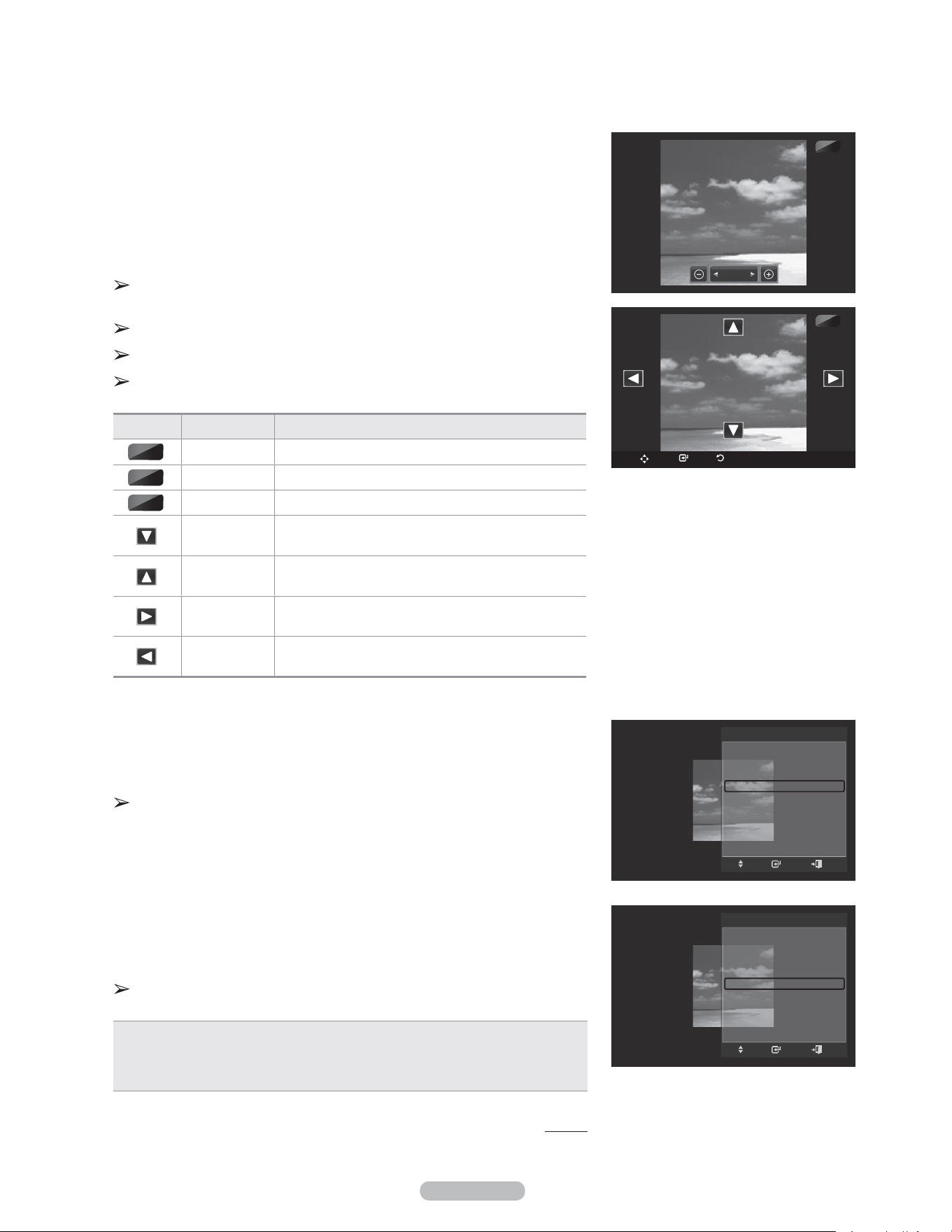
Français - 79
Zoom
Il est possible de zoomer les images en mode plein écran.
Appuyer sur la touche ▲ ou ▼ pour sélectionner Zoom, suivie de la touche
ENTER.
Appuyer sur la touche ◄ ou ► pour augmenter ou diminuer l’effet de zoom.
(x1 → x2 → x4)
Pour déplacer la photo agrandie, appuyer sur la touche ENTER, suivie des
touches ▲/▼/◄/►.
Remarque : lorsque l’image agrandie est plus petite que le format d’écran
d’origine, la fonction de repositionnement ne fonctionne pas.
Le fichier agrandi n’est pas sauvegardé.
Si Pivoter est sélectionné, la fonction Zoom est désactivée.
L’icône d’information de la fonction Zoom s’affiche dans le coin supérieur
gauche de l’écran.
Icône OSD actuel Fonction
Zoom (x 1) Ramène la photo à sa taille d’origine.
Zoom (x 2) Agrandissement de la photo de 2x.
Zoom (x 4) Agrandissement de la photo de 4x.
Panoramique
vers le bas
Panoramiquer vers le bas pour afficher la portion
inférieure d’une photo zoomée.
Panoramique
vers le haut
Panoramiquer vers le haut pour afficher la portion
supérieure d’une photo agrandie.
Panoramique
vers la droite
Panoramiquer vers la droite pour afficher la portion
droite d’une photo zoomée.
Panoramiquer
vers la gauche
Panoramiquer vers la gauche pour afficher la portion
gauche d’une photo zoomée.
Vitesse du diaporama
Il est possible de choisir la vitesse du diaporama.
Appuyer sur la touche ▲ ou ▼ pour sélectionner Vitesse du diaporama.
Appuyer sur la touche ◄ ou ► pour sélectionner l’option désirée.
(Normal → Rapide → Lent)
Vous pouvez sélectionner la vitesse du Diaporama uniquement pendant
le diaporama.
Musique de fond
Si la musique de fond est activée, elle est lue pendant le visionnement des
photos une par une ou en diaporama.
Appuyer sur la touche ▲ ou ▼ pour sélectionner Musique de fond.
Appuyer sur la touche ◄ ou ► pour sélectionner On ou Off.
Lorsque vous activez la fonction Musique arrière-plan, un écran apparaît
aussitôt vous permettant d’en configurer les paramètres.
• On: Lorsque la musique de fond est accessible, elle est lue en sélectionnant
On. Pour utiliser cette option, il faut que des fichiers photos et de musique
soient mémorisés dans l’appareil USB.
• Off: La musique de fond n’est pas lue.
Suite...
X2
X4
X1
X2
Zoom
X2
Dépl. Intro. Retour
OUTISL
Arrêter le diaporama
Rotation
Zoom
Vitesse du diap. ◄ Normal ►
Musique de fond : Off
Sélection musique de fond
Image Mode : Standard
Son Mode : Personnel
Information
Intro.
Dépl.
Sortie
OUTISL
Arrêter le diaporama
Rotation
Zoom
Vitesse du diap. : Normal
Musique de fond ◄ Off ►
Sélection musique de fond
Image Mode : Standard
Son Mode : Personnel
Information
Intro.
Dépl.
Sortie
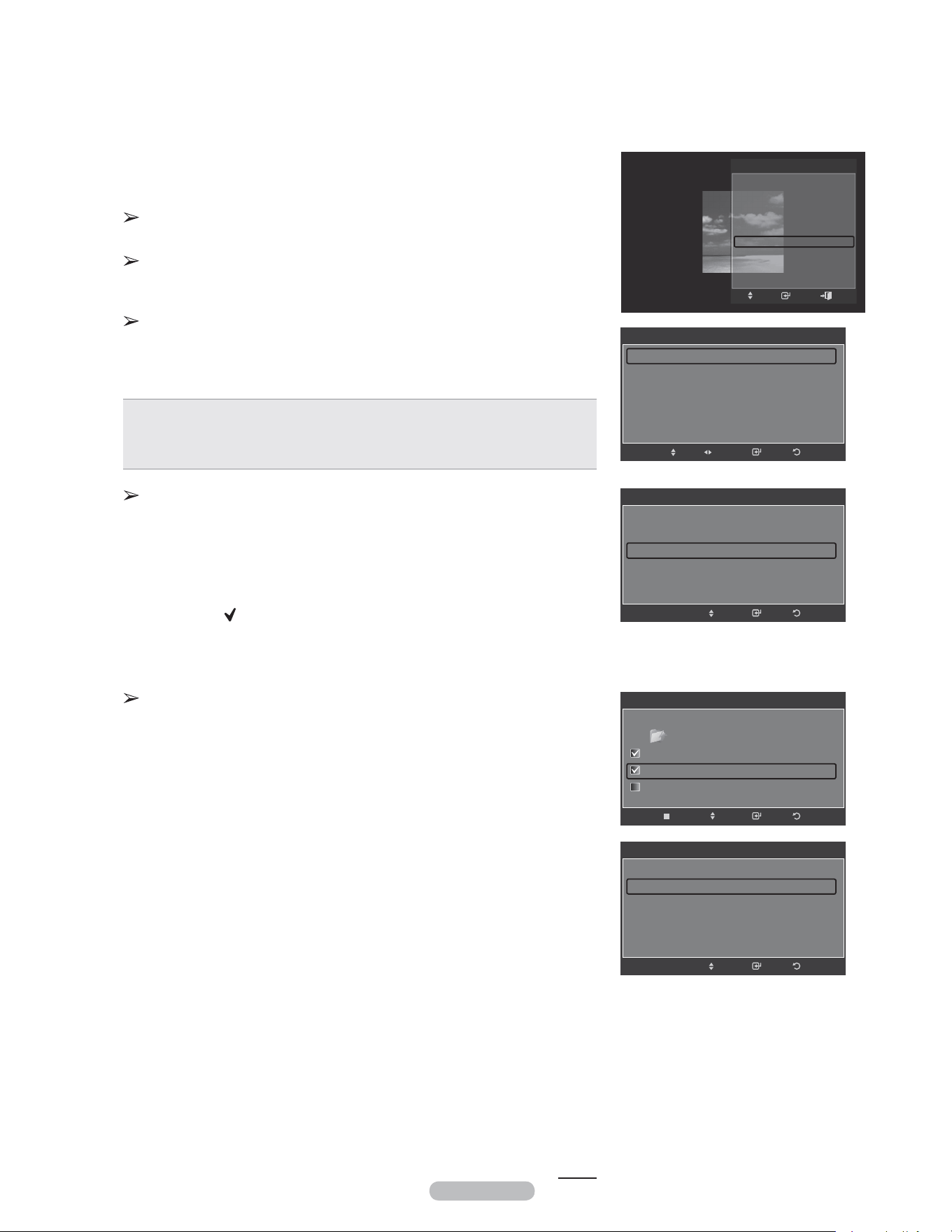
Français - 80
Configuration musique de fond
Il est possible de configurer la musique de fond.
Appuyer sur la touche ▲ ou ▼ pour sélectionner Configuration de la
musique de fond, suivie de la touche ENTER.
Si la musique de fond est désactivée, la musique de fond ne sera pas
lue, même si ses paramètres ont été configurés.
Le mode MAP ne peut être modifié que lorsque des fichiers musique sont
téléchargés. Lire des fichiers musique dans la catégorie musique pour
télécharger des fichiers musique.
Le menu Configuration musique de fond s’affiche.
Appuyer sur la touche ◄ ou ► pour sélectionner la BGM Musique de fond
désirée. (aléatoire, fichier sélectionné, ambiance)
• Aléatoire: Lit la musique de façon aléatoire.
• Fichier sélect.: Lit les fichiers de musique sélectionnés.
• Ambiance: Lit les fichiers de musique correspondant à une ambiance
particulière.
Sélection de l’ambiance de la musique de fond
Régler le Mode MDF à Fichiers sélect. dans le menu Configuration de
la musique de fond.
Appuyer sur la touche ◄ ou ► pour sélectionner Fichiers musicaux
sélect., suivie de la touche ENTER.
Appuyer sur la touche ▲ ou ▼ pour sélectionner un fichier musical, suivie
de la touche jaune.
Le symbole ( ) s’affiche à la gauche de la musique sélectionnée.
Répéter la procédure ci-dessus pour sélectionner de multiples fichiers
musicaux.
Appuyer sur la touche ENTER.
Sélection de l’ambiance de la musique de fond
Appuyez sur ◄ ou ► pour régler le Mode BGM sur Ambiance.
Appuyer sur la touche ▲ ou ▼ pour sélectionner Ambiance MDF.
Appuyer sur la touche ◄ ou ► pour sélectionner l’ambiance de musique
de fond désirée. Appuyer sur la touche ENTER.
Wiselink définit l’ambiance des fichiers musicaux et les regroupe selon
l’analyse des fichiers musicaux mémorisés dans l’appareil USB.
Musique d’arrière-plan: énergique, rythmique, triste, enflammé,
calme
Mode Image
Il est possible de configurer le mode Image. (Voir la page 23.)
Mode sonore
Il est possible de configurer le mode Son. (Voir la page 36.)
Information
Les données relatives au fichier photo, y compris le numéro de séquence du
fichier dans le dossier actuel, le nom, la taille, la résolution ainsi que la date
de modification, s’affichent. (Consulter la page 75.)
Retrait sécuritaire
Retirer le dispositif USB du téléviseur en toute sécurité.
Appuyer sur la touche ▲ ou ▼ pour sélectionner Retrait sécuritaire, suivie
de la touche ENTER.
Le message Retrait sécuritaire du dispositif... s’affiche, suivi du message
Retrait sécuritaire du dispositif USB effectué.
Retirer le dispositif USB du téléviseur.
Suite..
Sélection musique de fond
Mode mus. de fond ◄ Fichier sélect. ►
Ambiance mus. fond : Calme
Sél. fichier musical
RetourIntro.RéglageDépl.
Sélection musique de fond
Mode mus. de fond : Fichier sélect.
Ambiance mus. fond : Calme
Sél. fichier musical
RetourIntro.Dépl.
Sélection musique de fond
RetourIntro.
Dépl.
Choisir
../Music/ 2 Fich. Sél.
Music
01-glen_hansard_and_marketa_irglova-fallin...
02-marketa_irglova_and_glen_hansard-if_yo...
05-glen_hansard-lies
▼
Sélection musique de fond
Mode mus. de fond : Fichier sélect.
Ambiance mus. fond ◄ Calme ►
Sél. fichier musical
RetourIntro.Dépl.
OUTISL
Arrêter le diaporama
Rotation
Zoom
Vitesse du diap. : Normal
Musique de fond : Off
Sélection musique de fond
Image Mode : Standard
Son Mode : Personnel
Information
Intro.
Dépl.
Sortie
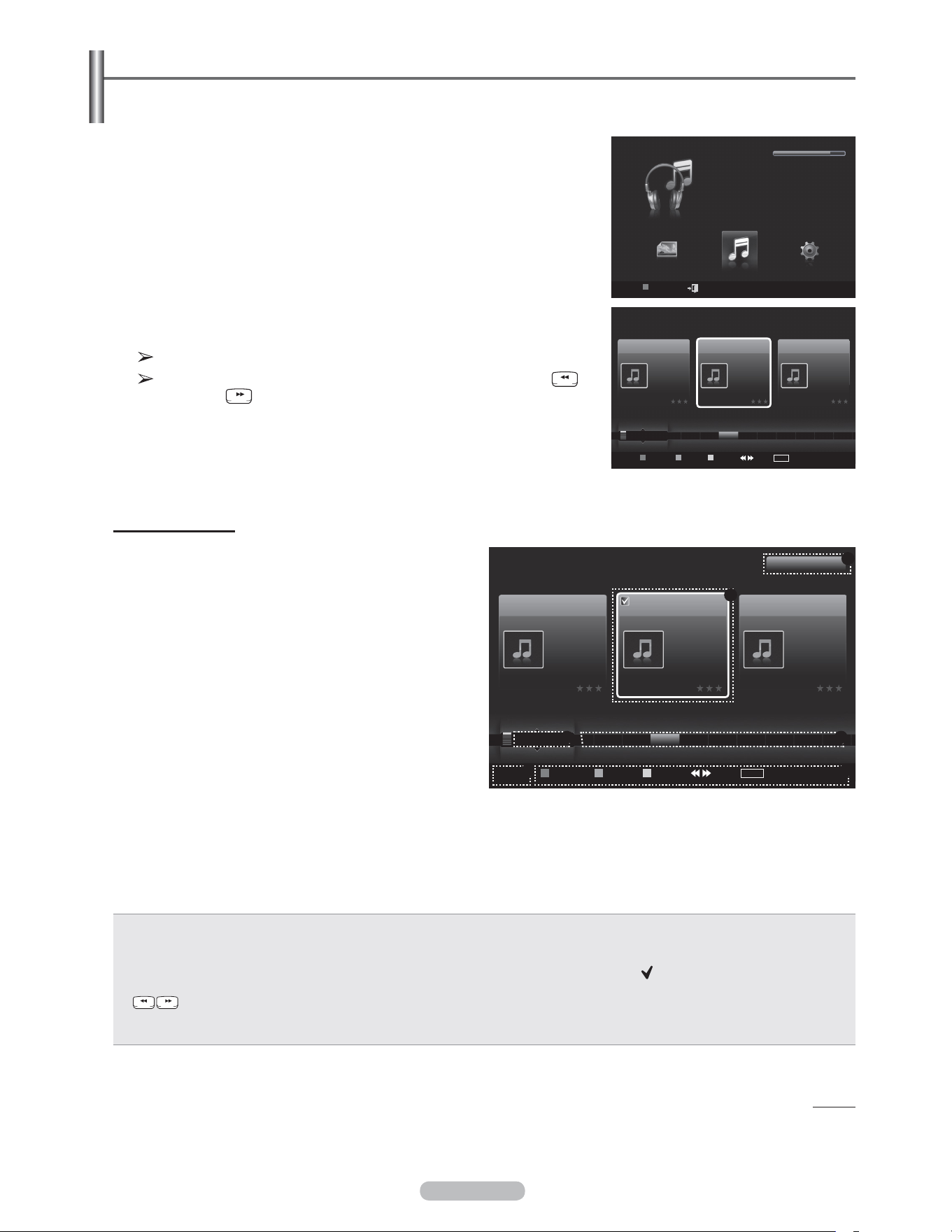
Français - 81
1 Appuyer sur la touche W.LINK de la télécommande pour afficher le menu
WISELINK.
2 Appuyer sur la touche ◄ ou ► pour sélectionner Music, suivie de la
touche ENTER.
Les fichiers de musique sont affichés.
Pour choisir un fichier à la page suivante, appuyer sur la touche
(REW) ou (FF) pour passer au groupe suivant.
Affichage à l’écran
1 Musique sélectionnée
Affiche la musique sélectionnée.
2 Tri standard actuel
Appuyer sur la touche ▲ ou ▼ pour modifier le standard
de tri des fichiers musicaux. (Titre, Artiste, Ambiance,
Genre, Dossier, Préférence)
3 Afficher les groupes
Affiche les groupes de tri. Le groupe de tri, incluant le
fichier musical sélectionné, est mis en surbrillance.
4 Appareil actuel
Affiche le nom de l’appareil sélectionné.
Appuyer sur la touche rouge pour sélectionner un
appareil.
Utilisation de la liste musicale
Ce menu présente les fichiers MP3 parmi les fichiers sauvegardés sur un dispositif à mémoire USB.
5 Information sur la sélection
Affiche le nombre de fichiers musicaux sélectionnés, lorsque la touche jaune est enfoncée.
6 Aide sur les éléments
• Touche rouge (appareil) : Sélectionne un appareil branché.
• Touche verte (Réglage des favoris) : Modifie les paramètres des favoris pour la musique sélectionnée. Appuyer plusieurs
fois sur cette touche jusqu’à ce que la valeur désirée s’affiche.
• Touche jaune (Sélectionner) : Sélectionne les fichiers musicaux de la liste. Un symbole ( ) s’affiche à la gauche des fichiers
musicaux sélectionnés.
• Jump (Saut) : Passe au groupe de tri précédent ou suivant.
• Touche TOOLS (Option) : Affiche le menu Lire groupe cour., Supprimer, Modifier données groupe (dans le groupe
Ambiance), Information ou Retrait sécur..
Suite...
Music
USB
Appareil
Régl. f.
Choisir Saut
TOOLS
Option
Préférence
Titre
Artiste
Énergique
Nickelback
All The Right Reas..
2005
Blues
If Everyone Cared
Triste
Marketa lrgl...
Once Ost
2007
Soundtrack
If You Want Me
Calme
Glen Hansard
Once Ost
2007
Soundtrack
Lies
F G H I J L P S T V
▲
WISELINK
Photo
USB
Appareil
Sortie
Music Setup
MUSIC
USB
851.98MB/995.00MB Iibre
Music
Préférence
Titre
Artiste
Énergique
Nickelback
All The Right Reas..
2005
Blues
If Everyone Cared
Triste
Marketa lrgl...
Once Ost
2007
Soundtrack
If You Want Me
Calme
Glen Hansard
Once Ost
2007
Soundtrack
Lies
G H I J L P S T V
▲
1Fich. Sél.
USB
Appareil
Régl. f.
Choisir Saut
TOOLS
Option
1
64
5
2 3
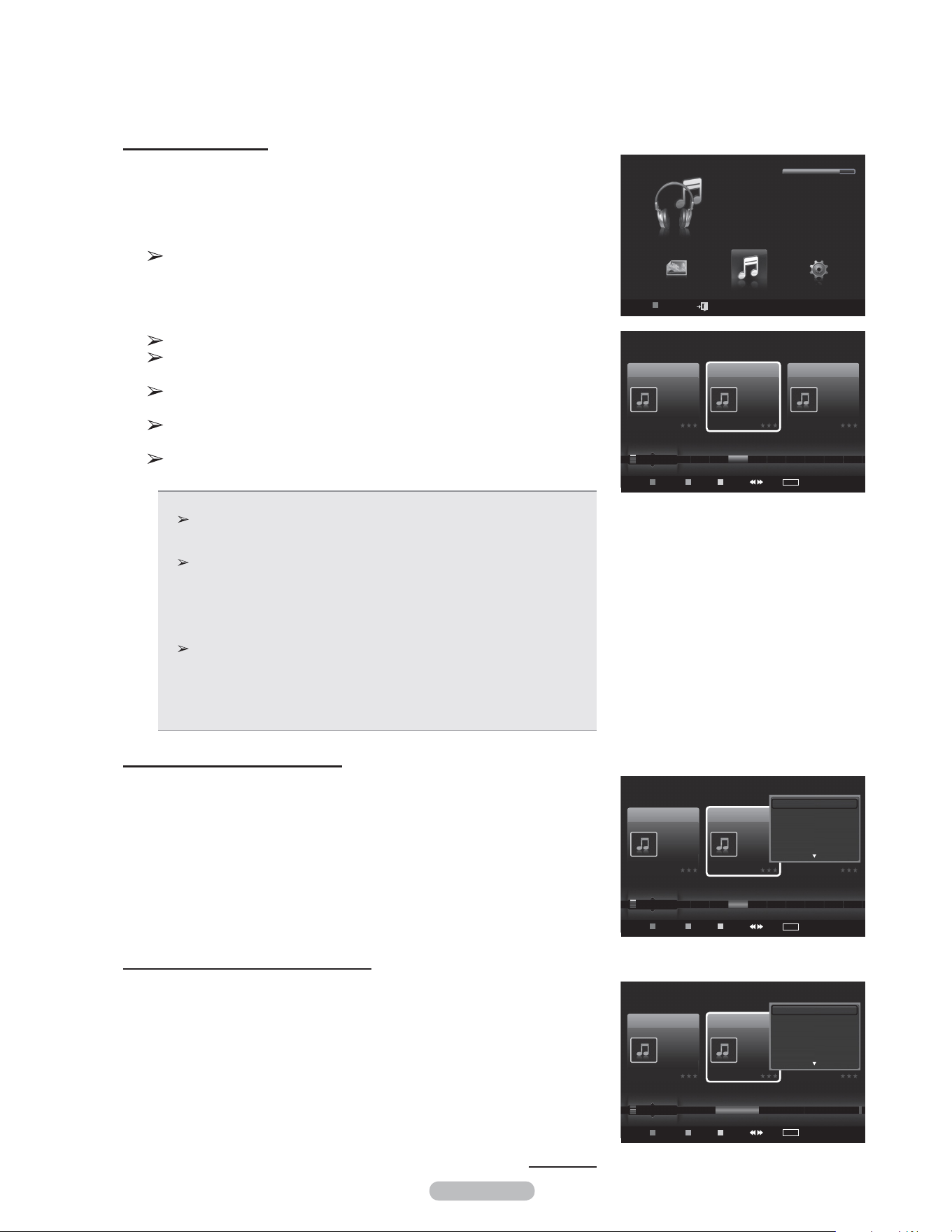
Français - 82
Tri de la liste musicale
Les fichiers musicaux peuvent être triés selon un standard particulier.
1 Appuyer sur la touche W.LINK de la télécommande pour afficher le menu
WISELINK.
2 Appuyer sur la touche ◄ ou ► pour sélectionner Music, suivie de la
touche ENTER.
Les fichiers de musique sont affichés.
3 Appuyer sur ▲ ou ▼ pour choisir un tri standard.
(Titre, Artiste, Ambiance, Genre, Dossier, Préférence)
4 Appuyer sur la touche Enter pour commencer à écouter la musique dans
l’ordre choisi.
Les fichiers musicaux sont triés selon le tri standard sélectionné.
Les données musicales sont réglées automatiquement et il est
possible de modifier les données Favorite.
Les fichiers musicaux pour lesquels les données ne peuvent être
affichées sont “non classées”.
En cas d’absence d’information sur un fichier musical, le nom du
fichier s’affiche.
En l’absence de données sur le genre, l’artiste, l’album ou l’année,
l’élément est affiché en blanc.
• Titre: Trie les fichiers musicaux par titre.
Trie les titres musicaux en ordre alphabétique et affiche le fichier
musical.
• Artiste: Trie les fichiers musicaux par artiste.
Trie les noms d’P. artis.es des fichiers musicaux en ordre
alphabétique.
• Ambiance: Trie les fichiers musicaux par ambiance. (Il est possible de
modifier les données sur la musique.)
• Genre: Trie les fichiers musicaux par genre.
• Dossier: Trie les fichiers musicaux par dossier.
S’il y a plusieurs dossiers dans le dispositif USB, les fichiers sont
affichés dans l’ordre dans chaque dossier. Le fichier musical dans le
dossier racine est affiché en premier et les autres suivent en ordre
alphabétique, par nom.
• Préférence: Trie les fichiers musicaux par préférence. (Favoris)
(Il est possible de modifier les préférences des fichiers musicaux.)
Classement des musique par titre
1 Sélectionner Titre comme critère de classification dans la liste de fichiers
musicaux.
2 Appuyer sur la touche ◄ ou ► pour choisir à partir de la sous-liste de
fichiers classés alphabétiquement.
3 Appuyer sur la touche TOOLS.
4 Appuyer sur la touche ▲ ou ▼ pour mettre en surbrillance Lire groupe
cour..
5 Appuyer sur ENTER pour lire l’ensemble de fichiers musicaux
sélectionnés dans la sous-liste.
Classement des musique par P. artis.e
1 Sélectionner P. artis.e comme critère de classification dans la liste de
fichiers musicaux.
2 Appuyer sur la touche ◄ ou ► pour choisir à partir de la sous-liste de
fichiers classés par P. artis.e.
3 Appuyer sur la touche TOOLS.
4 Appuyer sur la touche ▲ ou ▼ pour mettre en surbrillance Lire groupe
cour..
5 Appuyer sur ENTER pour lire l’ensemble de fichiers musicaux
sélectionnés dans la sous-liste.
Continúa…
Music
USB
Appareil
Régl. f.
Choisir Saut
TOOLS
Option
Préférence
Titre
Artiste
Énergique
Nickelback
All The Right Reas..
2005
Blues
If Everyone Cared
Triste
Marketa lrgl...
Once Ost
2007
Soundtrack
If You Want Me
Calme
Glen Hansard
Once Ost
2007
Soundtrack
Lies
F G H I J L P S T V
▲
Lecture actuel
Supprimer
Information
Safe Remove
Music
USB
Appareil
Régl. f.
Choisir Saut
TOOLS
Option
Artiste
Genre
Ambiance
Triste
Interference
Once Ost
2007
Soundtrack
Gold
Triste
Marketa lrgl...
Once Ost
2007
Soundtrack
If You Want Me
Enflammé
Jamiroquai
Synkronized
1999
Acid Jazz
Black Capricorn Day
...
▲
Lecture actuel
Supprimer
Change Group Info
Information
WISELINK
Photo
USB
Appareil
Sortie
Music Setup
MUSIC
USB
851.98MB/995.00MB Iibre
Music
USB
Appareil
Régl. f.
Choisir Saut
TOOLS
Option
Préférence
Titre
Artiste
Énergique
Nickelback
All The Right Reas..
2005
Blues
If Everyone Cared
Triste
Marketa lrgl...
Once Ost
2007
Soundtrack
If You Want Me
Calme
Glen Hansard
Once Ost
2007
Soundtrack
Lies
F G H I J L P S T V
▲
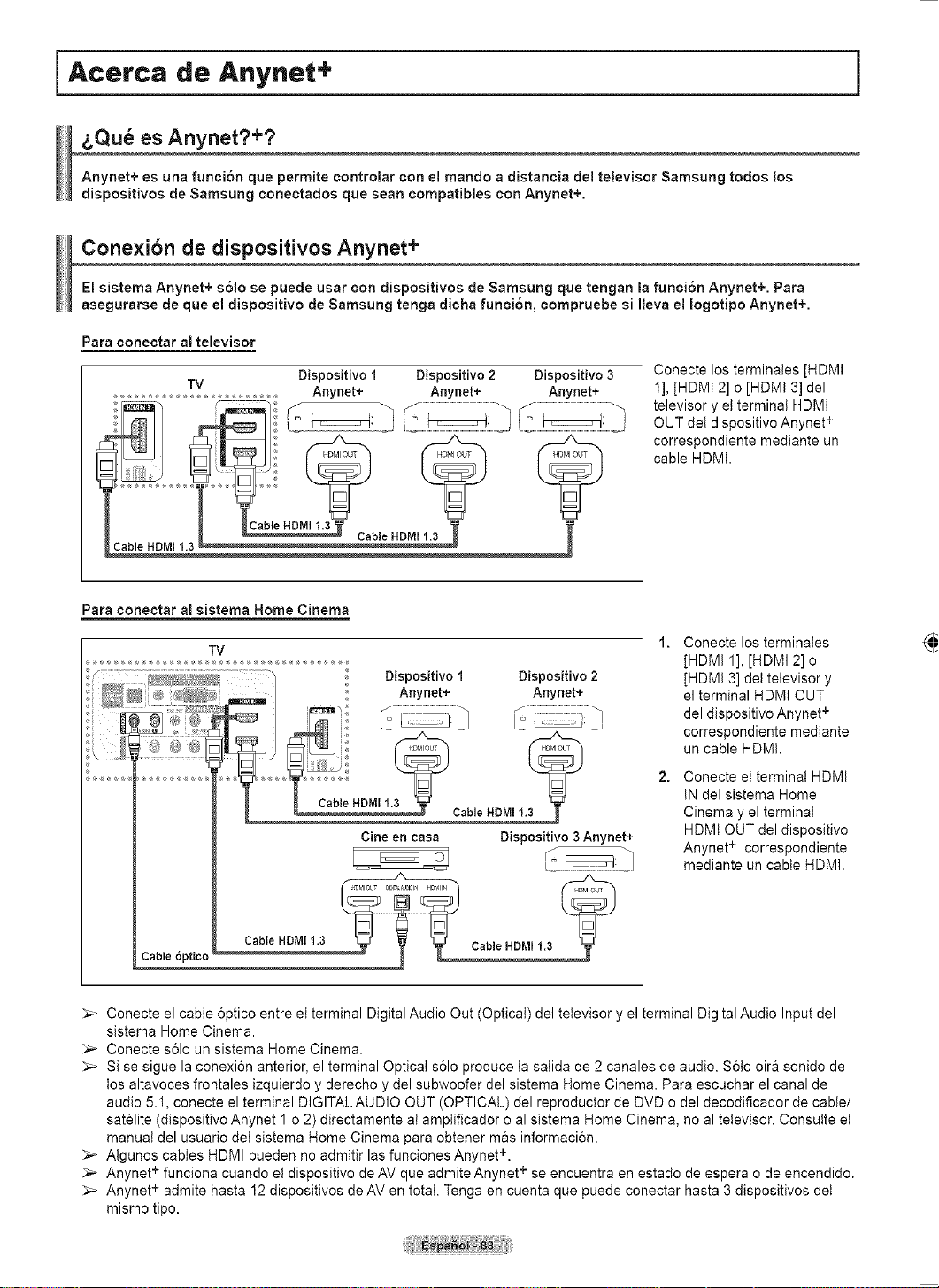
Français - 83
Modification des données d’ambiance
1 Sélectionner Ambiance comme tri standard de la liste musicale et
appuyer sur la touche ◄ ou ► pour sélectionner un fichier musical.
2 Appuyer sur la touche TOOLS.
3 Appuyer la touche sur ▲ ou ▼ pour sélectionner Modifier le groupe.
Appuyer sur la touche ENTER.
4 Sélectionner l’option désirée en appuyant sur la touche ◄ ou ►, suivie de
la touche ENTER.
5 Appuyer sur la touche Enter pour démarrer la musique.
Modification de l’information relative à l’ambiance terminée.
L’information de groupe du fichier en cours est mise à jour, puis le
fichier est placé dans le nouveau groupe.
Option ambiance: énergique, rythmique, triste, enflammé, calme, pas
de classification
Tous les fichiers de musique sont lus par le groupe Ambiance.
Wiselink définit l’ambiance des fichiers musicaux et les regroupe
selon l’analyse des fichiers musicaux mémorisés dans l’appareil USB.
L’information Ambiance extraite d’un fichier musical peut différer de
l’information choisie.
Modification du réglage favori
1 Appuyer sur la touche ◄ ou ► pour choisir la pièce musicale voulue dans
la liste Musique.
Modification de l’information de plusieurs fichiers
1 Appuyer sur la touche ◄ ou ► pour choisir la pièce musicale voulue dans
la liste Musique. Appuyer ensuite sur la touche jaune.
Répéter la procédure ci-dessus pour sélectionner plusieurs fichiers de
musique.
Le symbole s’affiche à la gauche de la musique sélectionnée.
2 Appuyer sur la touche verte à plusieurs reprises jusqu’à l’obtention du
réglage voulu.
La modification du réglage favori est terminée.
Option Favori: , , ,
Les utilisateurs peuvent choisir le nombre d’étoiles (jusqu’à trois)
selon leur préférence.
3 Appuyer sur Enter pour commencer le diaporama.
Suite...
Classement des musique par genre
1 Sélectionner Genre comme critère de classification dans la liste de
fichiers musicaux.
2 Appuyer sur la touche ◄ ou ► pour choisir à partir de la sous-liste de
fichiers classés par genre.
3 Appuyer sur la touche TOOLS.
4 Appuyer sur la touche ▲ ou ▼ pour mettre en surbrillance Lire groupe
cour..
5 Appuyer sur ENTER pour lire l’ensemble de fichiers musicaux
sélectionnés dans la sous-liste.
Classement des musique par dossier
1 Sélectionner Dossier comme critère de classification dans la liste de
fichiers musicaux.
2 Appuyer sur la touche ◄ ou ► pour choisir à partir de la sous-liste de
fichiers classés par dossier.
3 Appuyer sur la touche TOOLS.
4 Appuyer sur la touche ▲ ou ▼ pour mettre en surbrillance Lire groupe
cour..
5 Appuyer sur ENTER pour lire l’ensemble de fichiers musicaux
sélectionnés dans la sous-liste.
Music
USB
Device
Favorites Setting
Select Jump
TOOLS
Option
Artiste
Genre
Ambiance
Triste
Interference
Once Ost
2007
Soundtrack
Gold
Triste
Marketa lrgl...
Once Ost
2007
Soundtrack
If You Want Me
Enflammé
Jamiroquai
Synkronized
1999
Acid Jazz
Black Capricorn Day
Blues ...
▲
Lecture actuel
Supprimer
Change Group Info
Information
Music
USB
Device
Favorites Setting
Select Jump
TOOLS
Option
Ambiance
Dossier
Préférence
Triste
Interference
Once Ost
2007
Soundtrack
Gold
Triste
Marketa lrgl...
Once Ost
2007
Soundtrack
If You Want Me
Enflammé
Jamiroquai
Synkronized
1999
Acid Jazz
Black Capricorn Day
USB Trash.
▲
Lecture actuel
Supprimer
Change Group Info
Information
Music
USB
Appareil
Régl. f.
Choisir Saut
TOOLS
Option
Artiste
Ambiance
Genre
Triste
Interference
Once Ost
2007
Soundtrack
Gold
Triste
Marketa lrgl...
Once Ost
2007
Soundtrack
If You Want Me
Stimulant
Jamiroquai
Synkronized
1999
Acid Jazz
Black Capricorn Day
Rythmé Triste Stimulant Calme ...
▲
Énergique Rythmé Triste Stimulant Calme
Music
USB
Appareil
Régl. f.
Choisir Saut
TOOLS
Option
Artiste
Ambiance
Genre
Triste
Interference
Once Ost
2007
Soundtrack
Gold
Triste
Marketa lrgl...
Once Ost
2007
Soundtrack
If You Want Me
Stimulant
Jamiroquai
Synkronized
1999
Acid Jazz
Black Capricorn Day
Rythmé Triste Stimulant Calme ...
▲
Lecture actuel
Supprimer
Changer de groupe
Information
▼
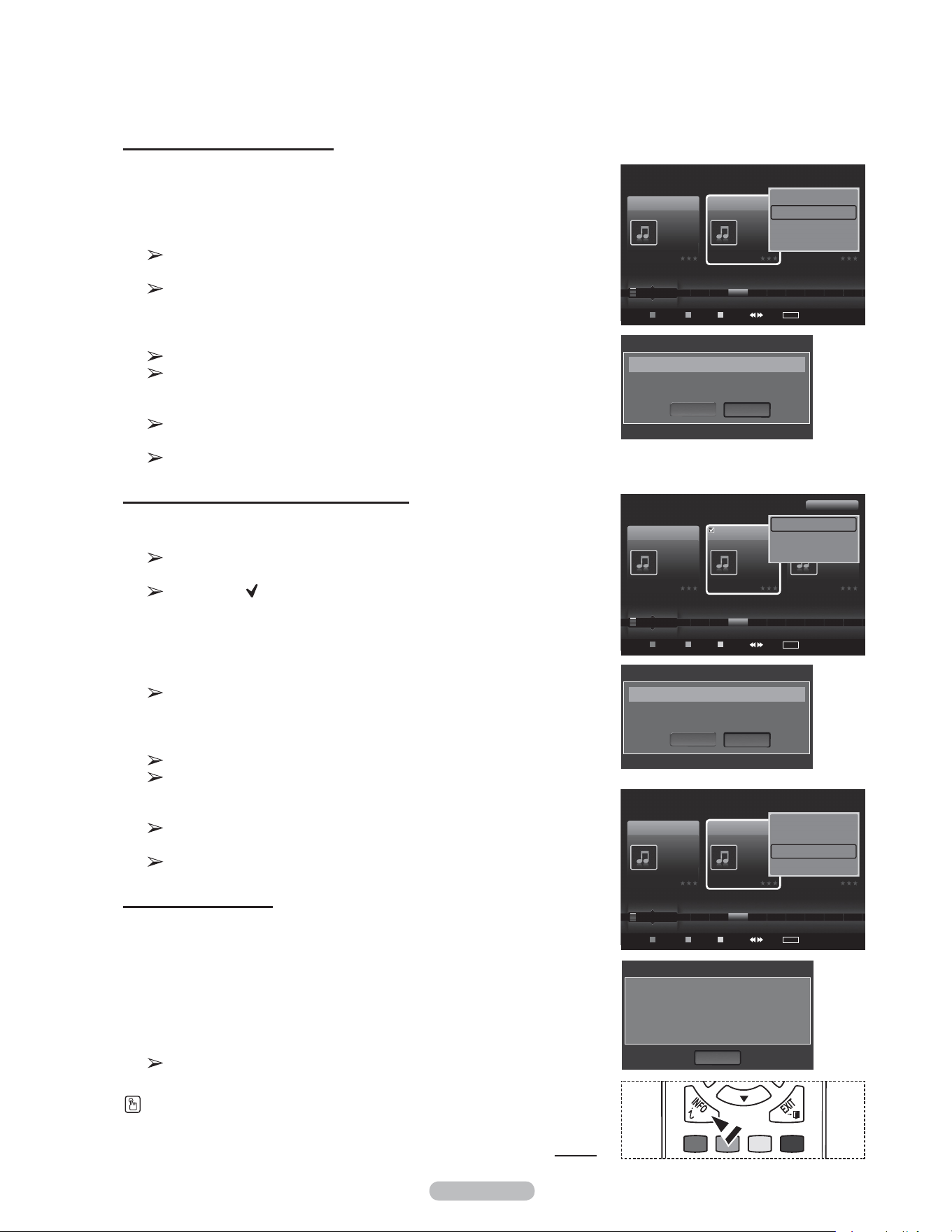
Français - 84
Supprimer les fichiers musicaux
1 Appuyer sur la touche ◄ ou ► pour choisir le fichier musical souhaité
dans la liste des fichiers musicaux.
2 Appuyer sur la touche TOOLS.
3 Appuyer sur la touche ▲ ou ▼ pour sélectionner Supprimer, suivie de la
touche ENTER.
Le(s) (par exemple) fichier(s) sélectionné(s) : musique… Le
message 1 Fichier Supprimer ce fichier? s’affiche.
Lorsqu’un fichier en lecture seule est supprimé, le message (s)
fichier(s) en lecture seule. Supprimer le(s) fichier(s)? e apparaît.
4 Sélectionner Oui à l’aide des touches ◄ ou ►. Appuyer ensuite sur la
touche ENTER.
La musique est supprimée.
Si Effacer est sélectionné, la suppression est annulée.
5 Pour quitter le mode WISELINK, appuyer sur la touche W.LINK de la
télécommande.
Ne pas retirer le dispositif de mémoire USB pendant la suppression
des fichiers.
Il est impossible de restaurer un fichier musical supprimé.
Suppression de multiples fichiers musicaux
1 Appuyer sur la touche ◄ ou ► pour sélectionner la musique désirée dans
la liste. Appuyer ensuite sur la touche jaune.
Répéter la procédure ci-dessus pour sélectionner de multiples fichiers
musicaux.
Le symbole ( ) s’affiche à la gauche des fichiers musicaux
sélectionnés.
2 Appuyer sur la touche TOOLS.
3 Appuyer sur la touche ▲ ou ▼ pour sélectionner Supprimer la sélection,
suivie de la touche ENTER.
Le message(s) (par exemple) fichier(s) sélectionné(s) : fichier
musique… 2 fichier(s) Supprimer les fichier(s) sélectionné(s)?
apparaît.
4 Appuyer sur la touche ◄ ou ► pour choisir OK, puis sur ENTER.
Les fichiers musicaux sélectionnés sont supprimés.
Si Effacer est sélectionné, la suppression est annulée.
5 Pour quitter le mode WISELINK, appuyer sur la touche W.LINK de la
télécommande.
Il est impossible de supprimer les fichiers en lecture seule parmi les
fichiers sélectionnés.
Il est impossible de restaurer un fichier musical supprimé.
Affichage des données
Les données du fichier musical, incluant la position du fichier dans le
répertoire courant, le nom, le format, la résolution, la date de modification et le
chemin d’accès, sont affichées.
3 Appuyer sur la touche ◄ ou ► pour choisir la photo désirée dans la liste
de musique.
4 Appuyer sur la touche OUTILS.
5 Appuyer sur la touche ▲ ou ▼ pour sélectionner Information, puis
appuyer sur la touche ENTER.
Les données relatives au fichier choisi s’affichent.
Appuyer sur la touche INFO pour visionner l’information.
Suite...
Music
USB
Appareil
Régl. f.
Choisir Saut
TOOLS
Option
Préférence
Titre
Artiste
Énergique
Nickelback
All The Right Reas..
2005
Blues
If Everyone Cared
Triste
Marketa lrgl...
Once Ost
2007
Soundtrack
If You Want Me
Calme
Glen Hansard
Once Ost
2007
Soundtrack
Lies
F G H I J L P S T V
▲
Lecture actuel
Supprimer
Information
Supp. sécurité
Music
USB
Appareil
Régl. f.
Choisir Saut
TOOLS
Option
Préférence
Titre
Artiste
Énergique
Nickelback
All The Right Reas..
2005
Blues
If Everyone Cared
Triste
Marketa lrgl...
Once Ost
2007
Soundtrack
If You Want Me
Calme
Glen Hansard
Once Ost
2007
Soundtrack
Lies
F G H I J L P S T V
▲
Effacer fichier sél.
Désélect. tout
Supp. sécurité
1 Fich. Sél.
Nom : 014 Hey boy.mp3
Format : 5.2MB
Date : Janv..1.2008
Path : /Music/
OK
Music Info
Supprimer ce fichier?
Supprimer
OK
Effacer
Fichier(s) sélectionné(s) : If You Want Me 1 Fichier
Supprimer les fichier sélectionné?
Supprimer
OK
Effacer
Fichier(s) sélectionné(s) : If You Want Me 1 Fichier
Music
Préférence
Titre
Artiste
Énergique
Nickelback
All The Right Reas..
2005
Blues
If Everyone Cared
Triste
Marketa lrgl...
Once Ost
2007
Soundtrack
If You Want Me
Calme
Glen Hansard
Once Ost
2007
Soundtrack
Lies
F G H I J L P S T V
▲
Lecture actuel
Supprimer
Information
Supp. sécurité
USB
Appareil
Régl. f.
Choisir Saut
TOOLS
Option
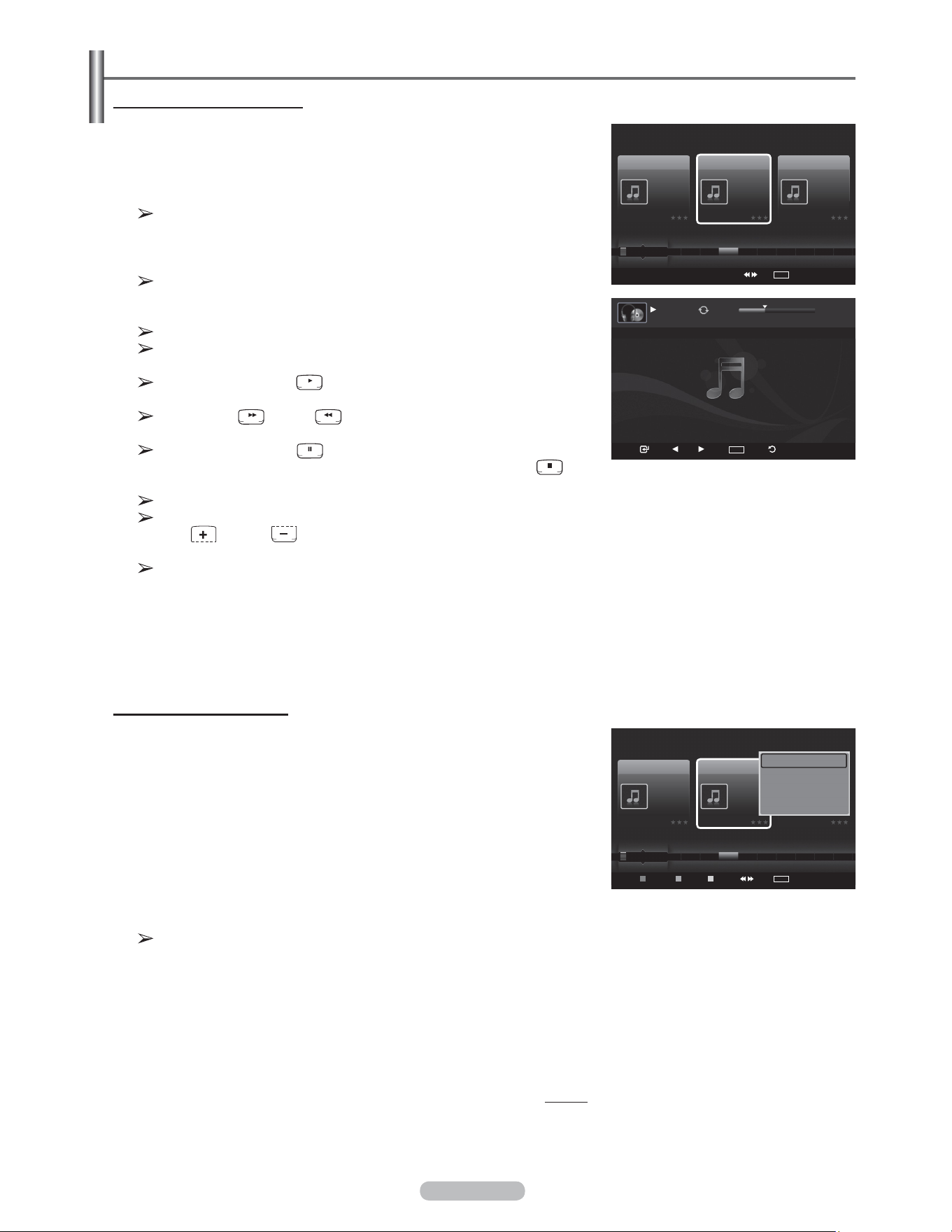
Français - 85
Lecture d’une fichier musical
Lecture d’une fichier musical
1 Appuyer sur la touche W.LINK de la télécommande pour afficher le menu
WISELINK.
2 Appuyer sur la touche ◄ ou ► pour sélectionner Music, suivie de la
touche ENTER.
Les fichiers de musique sont affichés.
3 Appuyer sur la touche ENTER pour sélectionner la musique à lire, suivie à
nouveau de la touche ENTER.
Ce menu affiche uniquement les fichiers avec extension MP3. Les
fichiers comportant d’autres extensions ne sont pas affichés, même
s’ils sont mémorisés sur le même dispositif USB.
Les fichiers musicaux et les dossiers existants s’affichent.
Appuyer sur la touche ENTER lorsqu’une icône de musique est en
surbrillance pour lire la musique.
Appuyer sur la touche (PLAY) lorsqu’une icône de musique est en
surbrillance pour lire la musique.
Les touches (FF) et (REW) ne fonctionnent pas pendant la
lecture du fichier.
Appuyer sur la touche (pause) / ENTER pendant la lecture d’un
fichier MP3 pour interrompre la lecture. Appuyer sur la touche
(stop) pour quitter le mode Lecture.
Le fichier sélectionné est affiché en tête de liste avec sa durée.
Pour ajuster le niveau sonore de la musique, appuyer sur la touche
VOL ou VOL de la télécommande. Pour mettre le volume en
sourdine, appuyer sur la touche MUTE de la télécommande.
Le temps de lecture d’un fichier MP3 peut s’afficher sous la forme
‘00:00:00’ si l’information relative au temps de lecture n’est pas
détectée au début du fichier.
4 Pour quitter le mode WISELINK, appuyer sur la touche W.LINK de la
télécommande.
Lecture du groupe musical
1 Appuyer sur la touche W.LINK de la télécommande pour afficher le menu
WISELINK.
2 Appuyer sur la touche ◄ ou ► pour sélectionner Music, suivie de la
touche ENTER.
3 Appuyer sur la touche ◄ ou ► pour sélectionner le fichier musical désiré.
4 Appuyer sur la touche TOOLS.
5 Appuyer sur la touche ▲ ou ▼ pour sélectionner Lire groupe cour.,
suivie de la touche ENTER.
Les fichiers musicaux du groupe de tri, y compris les fichiers
sélectionnés, sont lus.
6 Pour quitter le mode WISELINK, appuyer sur la touche W.LINK de la
télécommande.
Suite...
USB
Pause
Préc.
Suivant
TOOLS
Option
Retour
7/14 00:01:15 00:05:41
If You Want Me
Music
USB
Appareil
Régl. f.
Choisir Saut
TOOLS
Option
Préférence
Titre
Artiste
Énergique
Nickelback
All The Right Reas..
2005
Blues
If Everyone Cared
Triste
Marketa lrgl...
Once Ost
2007
Soundtrack
If You Want Me
Calme
Glen Hansard
Once Ost
2007
Soundtrack
Lies
F G H I J L P S T V
▲
Lecture actuel
Supprimer
Information
Supp. sécurité
Music
USB
Appareil
Régl. f.
Choisir
Saut
TOOLS
Option
Préférence
Titre
Artiste
Énergique
Nickelback
All The Right Reas..
2005
Blues
If Everyone Cared
Triste
Marketa lrgl...
Once Ost
2007
Soundtrack
If You Want Me
Calme
Glen Hansard
Once Ost
2007
Soundtrack
Lies
F G H I J L P S T V
▲
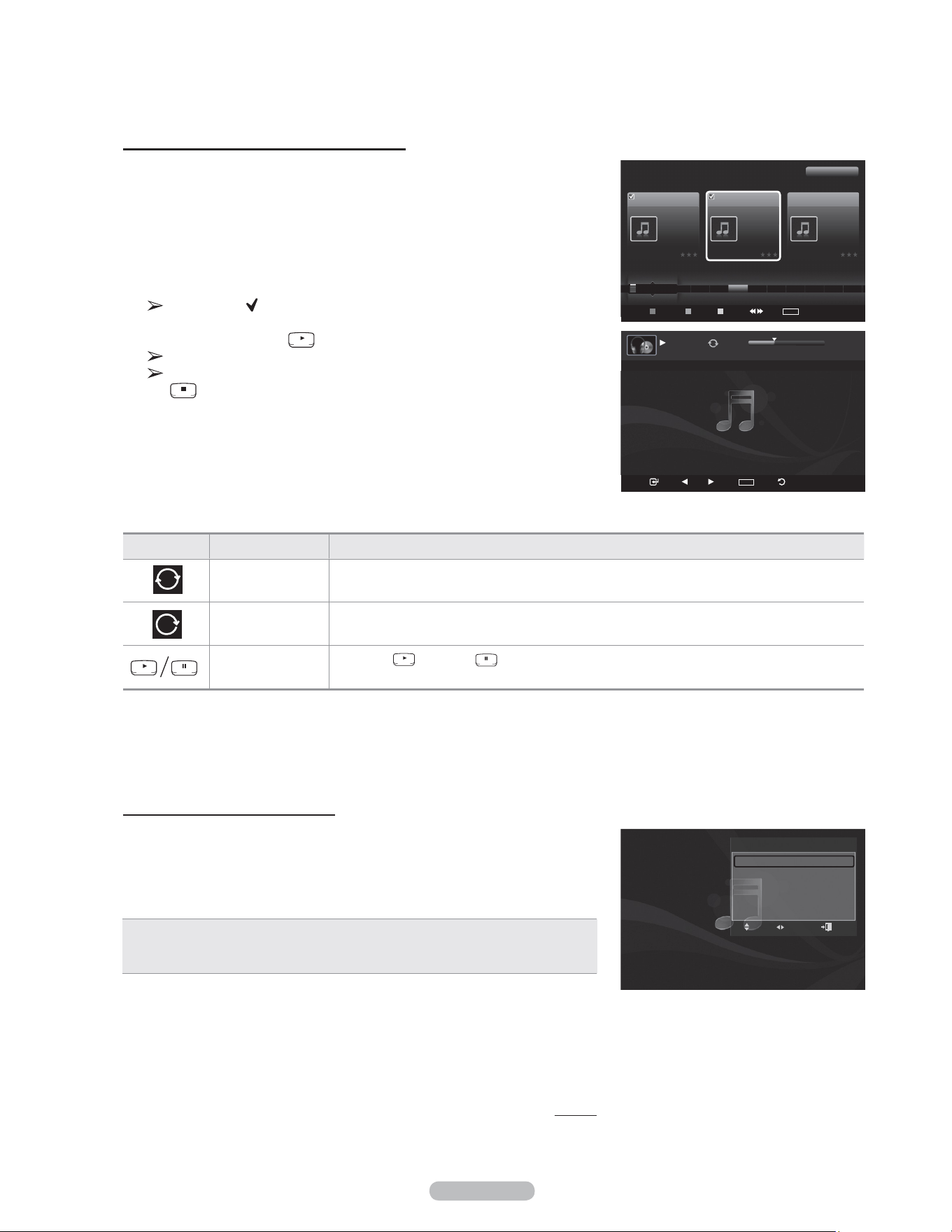
Français - 86
Lecture des fichiers musicaux sélectionnés
1 Appuyer sur la touche W.LINK de la télécommande pour afficher le menu
WISELINK.
2 Appuyer sur la touche ◄ ou ► pour sélectionner Music, suivie de la
touche ENTER.
3 Sélectionner le fichier musical désiré en appuyant sur la touche ◄ ou ►,
suivie de la touche jaune.
Répéter la procédure ci-dessus pour sélectionner de multiples fichiers
musicaux.
Le symbole ( ) s’affiche à la gauche des fichiers musicaux
sélectionnés.
4 Appuyer sur la touche ( / ENTER).
Seul les fichiers sélectionnés sont lus.
Lorsque vous écoutez de la musique, appuyez sur la touche Arrêt
pour arrêter le morceau qui est en train de jouer et retourner à la
liste de musique.
5 Pour quitter le mode WISELINK, appuyer sur la touche W.LINK de la
télécommande.
Lecture de la musique en boucle
1 Pendant la lecture d’un fichier musical, appuyer sur la touche OUTILS.
2 Appuyer la touche sur ▲ ou ▼ pour sélectionner Mode reprise.
3 Appuyer sur la touche ◄ ou ► pour sélectionner On ou Off.
• On: Reprend la lecture de tous les fichiers musicaux du dossier (ou les fichiers
sélectionnés).
• Off: Aucune reprise de la lecture des fichiers musicaux.
4 Pour quitter le mode WISELINK, appuyer sur la touche W.LINK de la
télécommande.
Suite...
Icône d’information de la fonction Musique (affichée dans le coin supérieur gauche de l’écran).
Icône OSD actuel Fonction
Lecture en boucle
de la musique
Reprend la lecture de tous les fichiers musicaux du dossier (ou les fichiers sélectionnés). Mode
reprise est On.
(Musique) Un
Tous les fichiers musicaux du dossier (ou les fichiers sélectionnés) sont lus une fois. Mode
reprise est Off.
Musique (Lecture/
Pause)
La touche (Lecture) / (Pause) de la télécommande est enfoncée pendant la lecture de
la musique.
Music
USB
Appareil
Régl. f.
Choisir Saut
TOOLS
Option
Préférence
Titre
Artiste
Énergique
Nickelback
All The Right Reas..
2005
Blues
If Everyone Cared
Triste
Marketa lrgl...
Once Ost
2007
Soundtrack
If You Want Me
Calme
Glen Hansard
Once Ost
2007
Soundtrack
Lies
F G H I J L P S T V
▲
1 Fich. Sél.
USB
Pause
Préc.
Suivant
TOOLS
Option
Retour
1/2 00:01:15 00:05:41
If Everyone Cared
OUTISL
Modo rep. ◄ On ►
Image Mode : Standard
Son Mode : Personnel
Information
Supp. sécurité
RéglageDépl.
Sortie
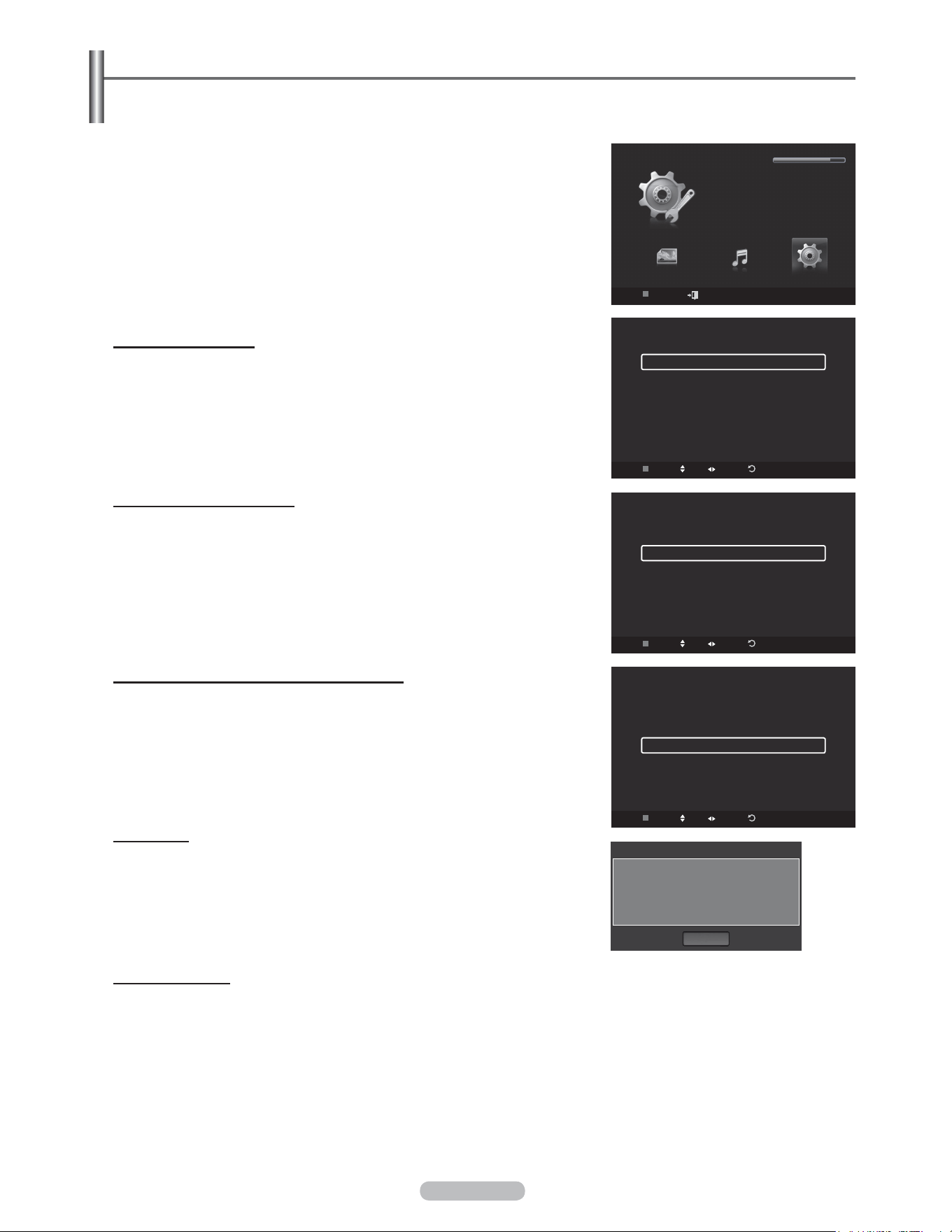
Français - 87
Menu de configuration
Le menu de configuration affiche les paramètres d’utilisateur du menu
WISELINK.
1 Appuyer sur la touche W.LINK de la télécommande pour afficher le menu
WISELINK.
2 Appuyer sur la touche ◄ ou ► pour sélectionner Music, suivie de la
touche ENTER.
3 Appuyer sur la touche ▲ ou ▼ pour sélectionner l’option désirée.
(Vitesse du diaporama, Musique Mode de répétition, Durée de
fonctionnement de l’écran de veille, Information, Retrait sécuritaire)
4 Sélectionner l’option désirée en appuyant sur la touche ◄ ou ►, suivie de
la touche ENTER.
Vitesse du diaporama
Sélectionner cette fonction pour contrôler la vitesse du diaporama.
Appuyer sur la touche ▲ ou ▼ pour sélectionner Vitesse du diaporama.
Appuyer sur la touche ◄ ou ► pour sélectionner Rapide, Normal ou Lent.
Musique Mode de répétition
Pour lire les fichiers musicaux en boucle.
Appuyer la touche sur ▲ ou ▼ pour sélectionner Musique Mode de
répétition.
Appuyer sur la touche ◄ ou ► pour sélectionner On ou Off.
Durée de fonctionnement de l’écran de veille
Sélectionner pour régler le délai avant l’apparition de l’écran de veille.
Appuyer sur la touche ▲ ou ▼ pour sélectionner Durée de fonctionnement
de l’écran de veille.
Appuyer sur la touche ◄ ou ► pour sélectionner 1 min, 3 min ou 5 min.
Information
Sélectionner pour afficher l’information sur le dispositif branché.
Appuyer sur la touche ▲ ou ▼ pour sélectionner Information, suivie de la
touche ENTER.
Retrait sécuritaire
Il est possible de retirer le dispositif USB du téléviseur en toute sécurité.
(Voir la page 79.)
Pour quitter le mode WISELINK, appuyer sur la touche W.LINK de la
télécommande.
WISELINK
Photo
USB
Appareil
Sortie
Music Setup
SETUP
USB
851.98MB/995.00MB Iibre
Setup
USB
Appareil
Dépl. Réglage
Retour
Vitesse du diaporama ◄ Normal ►
Musique Mode de répétition
On
Durée économ. écran 5 min
Information
Supp. sécurité
Type appar. : USB
Appareil : USB????
Mém. dispo : 852.90MB
Mém. Totale : 995.00MB
OK
Information appar.
Setup
Vitesse du diaporama Normal
Musique Mode de répétition
◄ On ►
Durée économ. écran 5 min
Information
Supp. sécurité
USB
Appareil
Dépl. Réglage
Retour
Setup
Vitesse du diaporama Normal
Musique Mode de répétition
On
Durée économ. écran ◄ 5 min ►
Information
Supp. sécurité
USB
Appareil
Dépl. Réglage
Retour
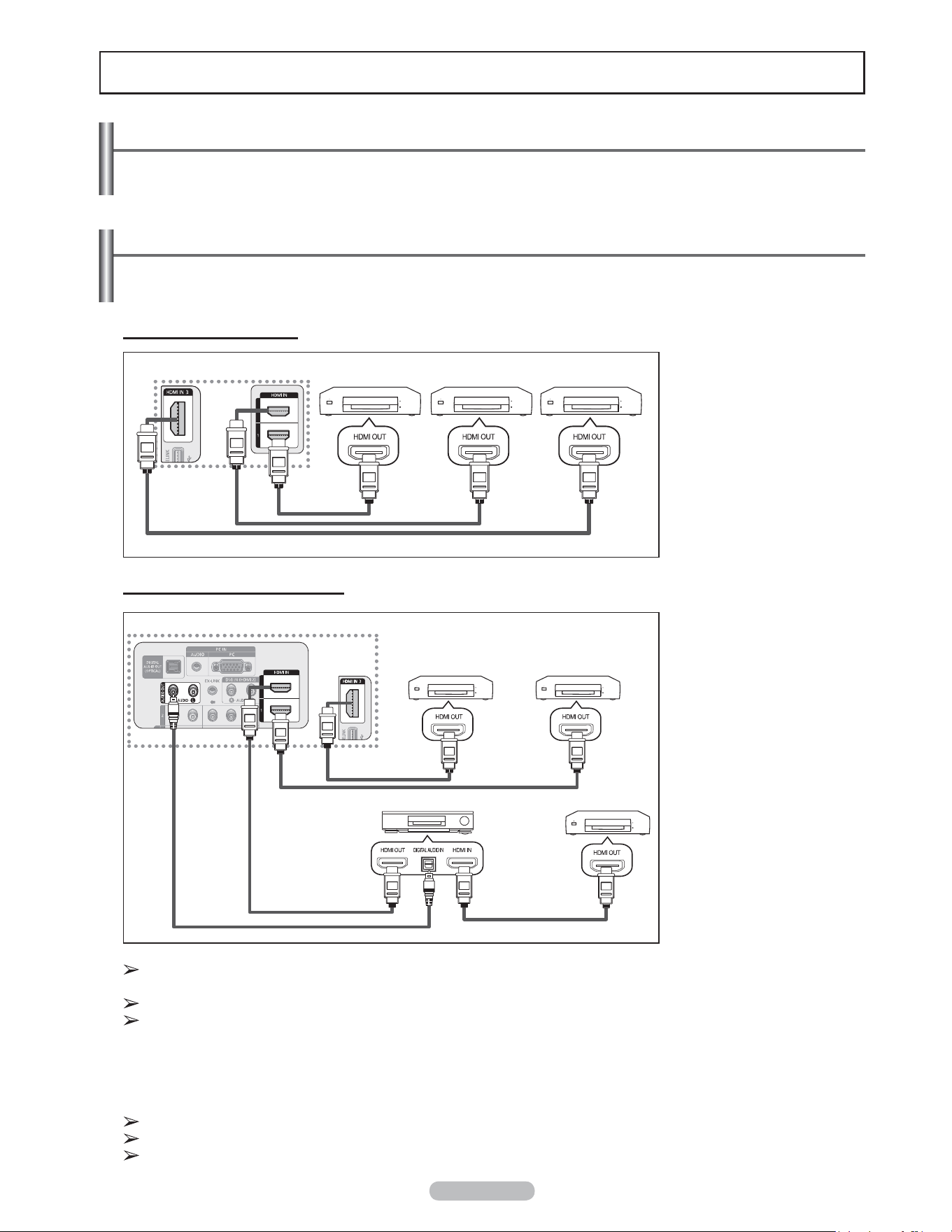
Français - 88
Branchement d’appareils Anynet
+
Le système Anynet+ peut être utilisé uniquement avec les appareils Samsung dotés de la fonction Anynet+. Pour
vérifier si un appareil Samsung en est pourvu, vérifier la présence d’un logo Anynet+ sur celui-ci.
Branchement au téléviseur
Raccorder la prise HDMI1,
HDMI2 ou HDMI3 du téléviseur
à la prise de sortie HDMI
OUT de l’appareil Anynet
+
correspondant à l’aide d’un
câble HDMI.
Pour raccorder un cinéma maison
1. Raccorder la prise HDMI1,
HDMI2 ou HDMI3 du
téléviseur à la prise
de sortie HDMI OUT
de l’appareil Anynet
+
correspondant à l’aide d’un
câble HDMI.
2. Raccorder la prise d’entrée
HDMI IN du cinéma maison
et la prise de sortie HDMI
OUT de l’appareil Anynet
+
correspondant à l’aide d’un
câble HDMI.
Brancher le câble optique entre la prise de sortie audionumérique (optique) du téléviseur et l’entrée audionumérique
du système de cinéma maison.
Ne brancher qu’un seul système de cinéma maison.
Dans le cas de la connexion indiquée ci-dessus, la prise optique n’offre que deux canaux audio. Le son ne proviendra
que des haut-parleurs avant gauche et droit ainsi que du haut-parleur d’extrêmes-graves du cinéma maison. Pour
entendre le son en 5.1 canaux, brancher directement la prise de sortie optique DIGITAL AUDIO OUT (OPTICAL)
du lecteur DVD ou du câblosélecteur/récepteur satellite (c.-à-d. Appareil 1 ou 2 Anynet) sur un amplificateur ou un
ensemble de cinéma maison, et non pas sur le téléviseur. Consulter le guide d’utilisation du cinéma maison pour
obtenir de plus amples renseignements.
Certains câbles HDMI ne prennent pas en charge des fonctions Anynet
+
.
Anynet
+
fonctionne lorsque l’appareil audiovisuel qui le prend en charge est à l’état de veille ou en marche.
Anynet
+
prend en charge un maximum de 12 appareils audiovisuels. Remarque : 3 dispositifs du même type peuvent
être branchés.
À propos d’Anynet
+
Qu’est-ce qu’Anynet
+
?
Anynet+ est une fonction qui permet, à l’aide de la télécommande Samsung, de commander tous les appareils
audiovisuels Samsung raccordés.
TV
Anynet
+
–
Appareil 1
3Anynet
+
–
Appareil 2
Anynet
+
–
Appareil
Câble HDMI 1.3
Câble HDMI 1.3
Cinéma maison
TV
Anynet
+
–
Appareil 1
Anynet
+
–
Appareil 2
Anynet
+
–
Appareil 3
Câble HDMI 1.3
Câble HDMI 1.3
Câble HDMI 1.3
Câble HDMI 1.3
Câble optique
Câble HDMI 1.3
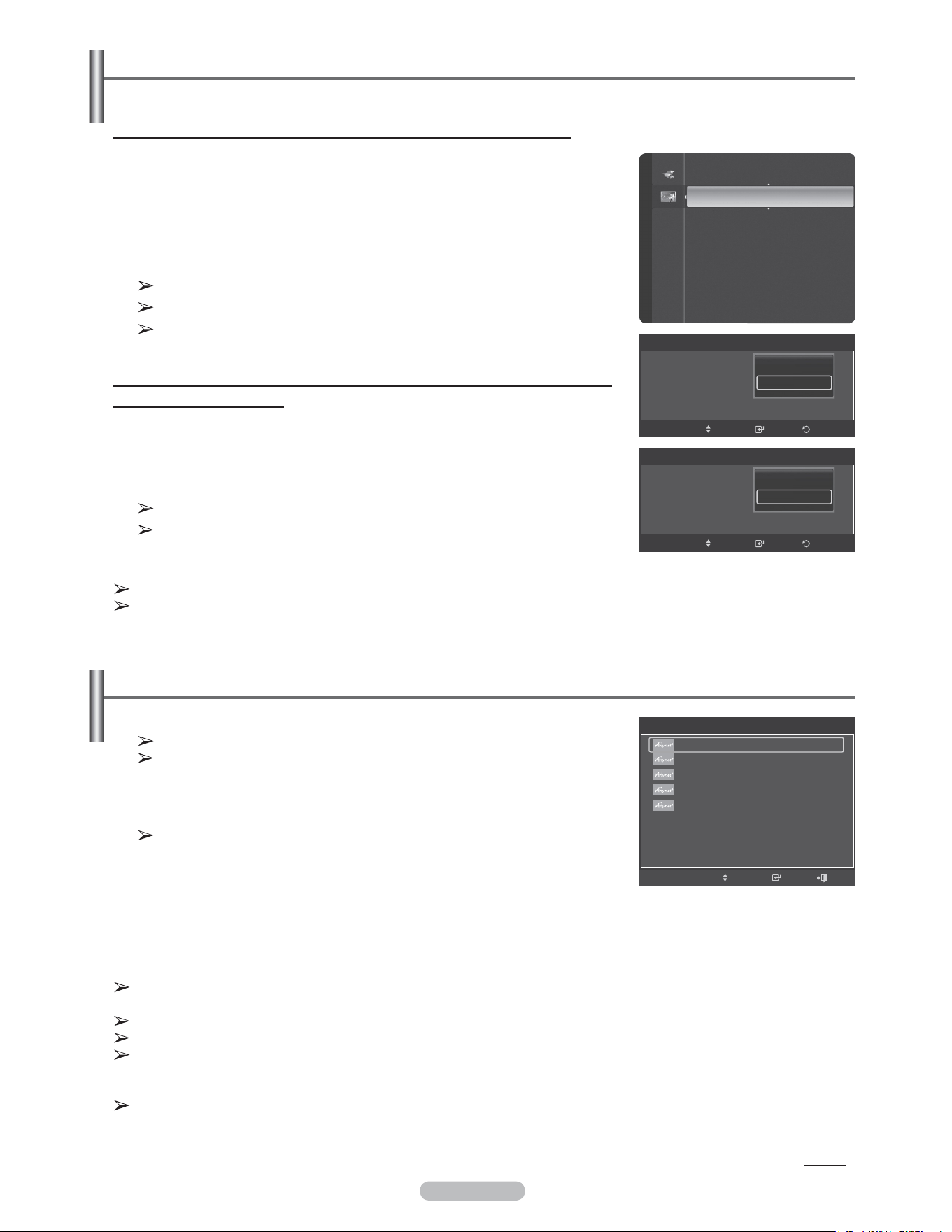
Français - 89
Configuration d’Anynet
+
Les réglages suivants permettent de configurer les fonctions Anynet
+
.
Suite...
Pour utiliser la fonction Anynet+, Anynet= (HDMI-CEC) doit être activé.
1 Appuyer sur la touche MENU. Appuyer sur la touche ▲ ou ▼ pour sélectionner
Applications, suivie de la touche ENTER.
2 Appuyer sur la touche ▲ ou ▼ pour sélectionner Anynet+ (HDMI-CEC), suivie
de la touche ENTER.
3 Appuyer sur la touche ▲ ou ▼ pour sélectionner On, suivie de la touche
ENTER.
La fonction Anynet+ (HDMI-CEC) est activée.
Si Off est sélectionné, la fonction Anynet+ (HDMI-CEC) est désactivée.
Lorsque la fonction Anynet+ (HDMI-CEC) est désactivée, toutes les
opérations Anynet+ connexes sont désactivées.
Régler un appareil Anynet+ de sorte qu’il s’arrête automatiquement lorsque le
téléviseur est hors tension
2 Appuyer sur la touche ▲ ou ▼ pour sélectionner Arrêt auto, suivie de la touche
ENTER.
3 Appuyer sur la touche ▲ ou ▼ pour sélectionner On, suivie de la touche
ENTER.
La fonction d’arrêt automatique est activée.
Si Off est sélectionné, la fonction d’arrêt automatique est annulée.
Appuyer sur la touche EXIT pour quitter.
Balayage et permutation entre les appareils Anynet
+
1 Appuyer sur la touche TOOLS.
La liste des appareils Anynet
+
branchés au téléviseur s’affiche.
S’il est impossible de trouver l’appareil désiré, appuyer sur la touche rouge
pour effectuer un balayage des appareils.
2 Appuyer sur la touche ▲ ou ▼ pour sélectionner un appareil, suivie de la touche
ENTER. Le téléviseur permute vers l’appareil sélectionné.
Le menu Liste des appareils ne s’affiche que lorsque la commande
Anynet+ (HDMI-CEC) est activée dans le menu Applications.
3 Si l’appareil désiré est introuvable, appuyer sur la touche ▲ ou ▼ pour
sélectionner Rechercher les branchements suivie de la touche ENTER.
Le message Configuration du branchement Anynet+ s’affiche. Une fois la
recherche d’appareils terminée, les appareils branchés sont affichés dans le
menu Anynet+.
La source active de la télécommande du téléviseur doit être réglée à TV afin d’utiliser la fonction Anynet
+
.
Si l’arrêt automatique est On, les appareils externes branchés s’éteignent en même temps que le téléviseur.
Cependant, si un appareil est en mode d’enregistrement, il ne sera peut-être pas éteint.
Permuter vers les appareils sélectionnés peut prendre jusqu’à 2 minutes. Il n’est pas possible d’annuler l’opération de
permutation.
La durée nécessaire au balayage des appareils dépend du nombre d’appareils branchés.
Lorsque le balayage est terminé, le nombre d’appareils trouvés n’est pas affiché.
Bien que le téléviseur recherche automatiquement tous les appareils lorsqu’il est mis en marche à l’aide de la touche
POWER, ceux qui sont branchés lorsque le téléviseur est en marche ne sont pas affichés. Dans ce cas, sélectionner
Recherche de branchements pour détecter les appareils.
Si un appareil externe a été sélectionné en appuyant sur la touche SOURCE, il est impossible d’utiliser la fonction
Anynet
+
. Veiller à permuter vers un appareil Anynet
+
à l’aide de la touche TOOLS.
WISELINK
Anynet+ (HDMI-CEC) ►
Applications
Anynet+ (HDMI-CEC)
Anynet+ (HDMI-CEC) :
Arrêt automatique :
RetourIntro.Dépl.
Arrêt
Marche
Anynet+ (HDMI-CEC)
Anynet+ (HDMI-CEC) :
Arrêt automatique :
RetourIntro.Dépl.
Non
Oui
OUTILS
Dépl. Intro.
View TV
Liste appareils
Enregistrement : DVD
DVD Menu
DVD Menu
Picture Size : 16:9
Mode Image : Dynamique
Mode Son : Personnel
▼
Sortie
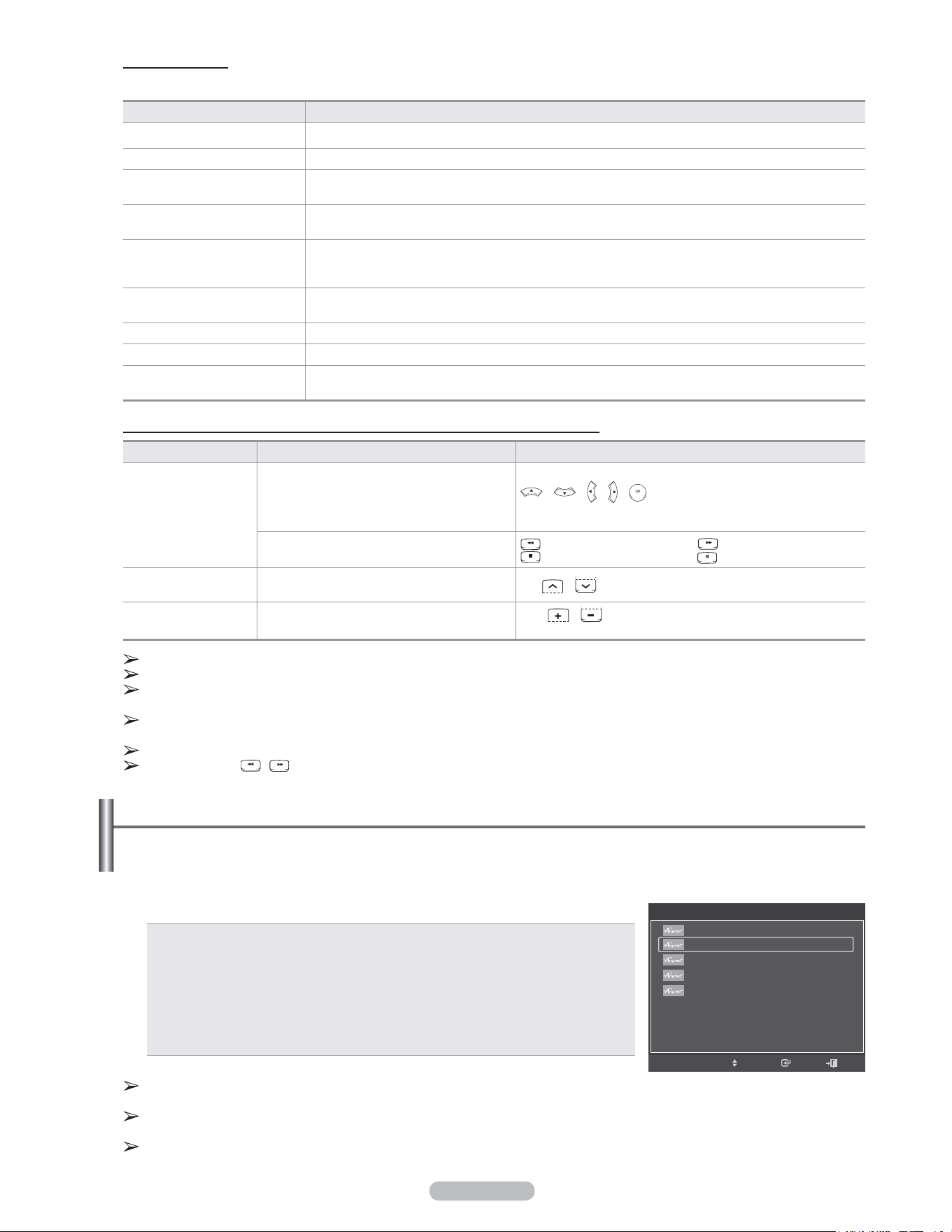
Français - 90
Anynet
+
– Menu
Le menu Anynet
+
varie selon le type et l’état des appareils Anynet
+
branchés au téléviseur.
Anynet
+
– Menu Description
Regarder la télévision Permuter d’Anynet+ vers le mode d’émission télévisuelle.
Liste des appareils Affiche la liste des appareils Anynet+.
Enregistrement :
Nom_Appareil
Démarre un enregistrement. (Ce menu ne fonctionne que pour un appareil qui prend en charge l’
enregistrement.)
(Nom_Appareil) – Menu Affiche le menu de l’appareil branché.
Exemple : Lorsqu’un enregistreur DVD est branché, le menu principal de l’enregistreur DVD s’affiche.
(Nom_Appareil) –
Fonctionnement
Affiche le menu de commande de lecture de l’appareil branché.
Exemple : Lorsqu’un enregistreur DVD est branché, le menu de contrôle de lecture de l’enregistreur
DVD s’affiche.
Enregistrement par minuterie Permet de programmer un enregistrement. (Ce menu ne fonctionne que pour un appareil qui prend
en charge la programmation d’enregistrements.)
Arrêter l’enregistrement Arrête l’enregistrement.
Récepteur Le son sort par le récepteur (cinéma maison).
Configuration Il est possible de configurer Anynet+ (HDMI-CEC), la fonction d’arrêt automatique et la recherche de
branchements pour l’utilisation de la fonction Anynet+.
Touches de la télécommande du téléviseur accessibles en mode Anynet
+
Type d’appareil État de fonctionnement Touches accessibles
Anynet
+
– Appareil
Après une permutation vers l’appareil, lorsque
le menu de l’appareil correspondant s’affiche
à l’écran.
Touches numériques
/ / / /
Touches de couleur
Touche EXIT
Après la permutation vers l’appareil, pendant
la lecture d’un fichier
(Recherche vers l’arrière)
(Recherche vers l’avant)
(Arrêt)
(Lecture/Pause)
Appareil avec
syntoniseur intégré
Après la permutation vers l’appareil, pendant l’
écoute d’une émission télévisée
CH /
Appareil audio Lorsqu’un récepteur est activé
VOL /
Touche MUTE
La fonction Anynet
+
ne fonctionne que lorsque la source active de la télécommande du téléviseur est réglée à TV.
La touche REC (enregistrement) fonctionne uniquement en mode enregistrement.
Il est impossible de commander les appareils Anynet
+
à l’aide des touches du panneau latéral du téléviseur Seule la
télécommande permet de commander les appareils Anynet
+
à l’aide du téléviseur.
Il est possible que la télécommande du téléviseur ne fonctionne pas dans certaines conditions. Le cas échéant,
resélectionner l’appareil Anynet
+
.
Les fonctions Anynet
+
ne fonctionnent pas avec des produits d’autres marques.
Les opérations , peuvent varier selon les appareils.
Enregistrement
Il est possible d’enregistrer une émission télévisée à l’aide d’un enregistreur Samsung.
1 Appuyer sur la touche TOOLS.
2 Appuyer sur la touche ▲ ou ▼ pour sélectionner Enregistrement immédiat, suivie de la touche ENTER.
L’enregistrement démarre.
Lorsque plus d’un appareil d’enregistrement est branché
Lorsque plusieurs appareils d’enregistrement sont branchés, ils sont énumérés.
Appuyer sur la touche ▲ ou ▼ pour sélectionner un appareil Bluetooth, suivie
de la touche ENTER.
L’enregistrement démarre.
Lorsque l’appareil branché n’est pas affiché
Sélectionner Liste des appareils et appuyer sur la touche rouge pour
rechercher les appareils.
Appuyer sur la touche EXIT pour quitter.
Il est possible d’enregistrer les flux à la source en sélectionnant Enregistrement après avoir appuyé sur la touche
TOOLS.
Appuyer sur la touche REC pour enregistrer le visionnement en cours. Si le visionnement provient d’un autre appareil,
ce visionnement est enregistré.
Avant d’enregistrer, vérifier si la prise d’antenne est correctement branchée à l’appareil enregistreur. Pour brancher
correctement une antenne à un appareil d’enregistrement, consulter le guide d’utilisation de l’appareil.
OUTILS
Dépl. Intro.
View TV
Liste appareils
Enregistrement : DVD
DVD Menu
DVD Menu
Picture Size : 16:9
Mode Image : Dynamique
Mode Son : Personnel
▼
Sortie
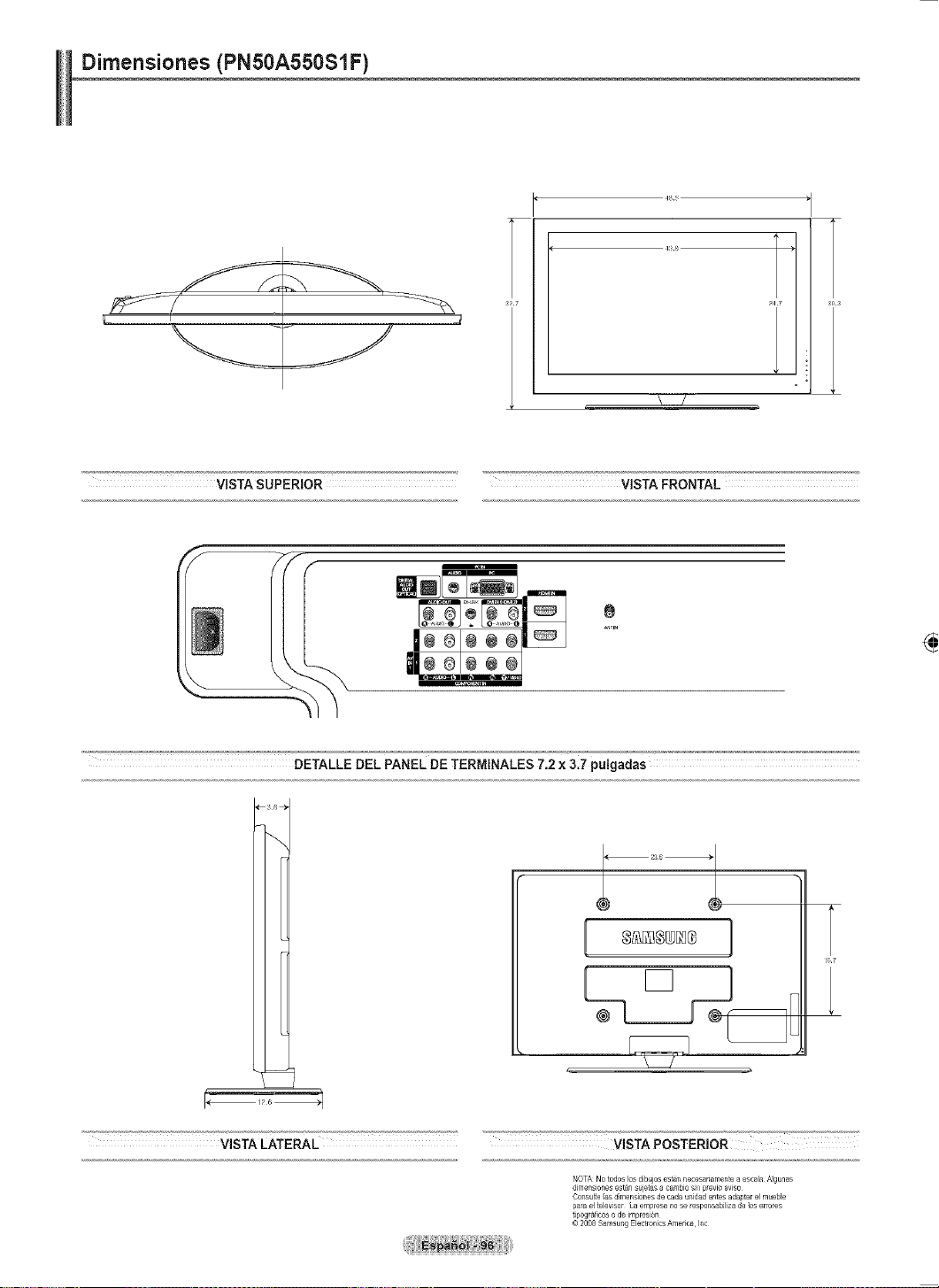
Français - 91
Écoute par l’intermédiaire d’un récepteur (cinéma maison)
Il est possible d’écouter le son par l’intermédiaire d’un récepteur, plutôt que par les haut-parleurs du téléviseur.
1 Appuyer sur la touche TOOLS. Appuyer sur la touche ▲ ou ▼ pour sélectionner
Récepteur, suivie de la touche ENTER.
2 Appuyer sur la touche ◄ ou ► pour sélectionner On, suivie de la touche ENTER.
Il à présent possible d’écouter le son par l’intermédiaire du récepteur.3
Appuyer sur la touche EXIT pour quitter.
Lorsque le récepteur (cinéma maison) est Activé, la prise optique du téléviseur
émet du son. Lorsque le téléviseur émet des signaux numériques (antenne),
il transmet le son en 5.1 canaux au récepteur du cinéma maison. Lorsque la
source est un composant numérique, comme un lecteur DVD, et que ce dernier
est branché au téléviseur à l’aide d’un câble HDMI, seul un son deux canaux sera émis par le récepteur du cinéma
maison.
Si le récepteur ne prend en charge que le son, il peut ne pas figurer dans la liste des appareils.
Le récepteur fonctionnera lorsque sa prise d’entrée optique sera correctement branchée à la prise de sortie optique du
téléviseur.
Lorsqu’on utilise la fonction WISELINK, il est possible que le son émis par le récepteur soit médiocre.
Lorsque le récepteur est en mode d’écoute, certaines restrictions relatives à la fonction ISI et aux fonctions audio
(fonction MTS, langue préférée) s’appliquent.
Si le téléviseur s’éteint anormalement alors que le récepteur est On (en débranchant le cordon d’alimentation, ou à
cause d’une panne d’électricité), le haut-parleur peut être Off au moment de rallumer le téléviseur.
Dépannage de la fonction Anynet
+
Symptôme Solution
Anynet
+
ne fonctionne pas. ■ Vérifier si l’appareil est bien un appareil Anynet
+
. Le système Anynet
+
ne prend en charge
que les appareils Anynet
+
.
■ Ne brancher qu’un seul récepteur (cinéma maison).
■ Vérifier si le cordon d’alimentation de l’appareil Anynet
+
est bien branché.
■ Vérifier les branchements des câbles vidéo/audio/HDMI 1.3 de l’appareil Anynet
+
.
■ Vérifier si Anynet+ (HDMI-CEC) est activé dans le menu Configuration (Setup) d’Anynet+.
■ Vérifier si la télécommande est en mode TV.
■ Vérifier s’il s’agit de la télécommande exclusive Anynet+.
■ Anynet+ ne fonctionne pas dans certaines conditions. (recherche de canaux, utilisation de
WISELINK)
■ Au moment du branchement ou du débranchement du câble HDMI 1.3, s’assurer
d’effectuer une nouvelle recherche des appareils ou de redémarrer le téléviseur.
■ Vérifier si la fonction Anynet+ de l’appareil Anynet+ est activée.
Je souhaite lancer Anynet
+
. ■ Vérifier si l’appareil Anynet
+
est correctement branché au téléviseur et si Anynet+ (HDMI-
CEC) est activé dans le menu Configuration (Setup) d’Anynet
+
.
■ Appuyer sur la touche TV de la télécommande du téléviseur pour permuter vers le
téléviseur. Appuyer ensuite sur la touche TOOLS pour afficher le menu Anynet
+
et
sélectionner le menu désiré.
Je souhaite quitter Anynet
+
. ■ Sélectionner Visionner TV dans le menu Anynet
+
.
■ Appuyer sur la touche SOURCE de la télécommande du téléviseur pour sélectionner un
appareil autre qu’un appareil Anynet
+
.
■ Appuyer sur la touche CH, CH LIST, PRE-CH ou FAV.CH pour modifier le mode TV.
(Remarque : les touches des canaux ne fonctionnent que si aucun appareil Anynet
+
à
syntoniseur intégré n’est branché.)
Le message Connecting to
Anynet
+
device... (Branchement à
un appareil Anynet+) s’affiche à l’
écran.
■ La télécommande ne peut être utilisée pendant la configuration d’Anynet
+
ou pour la
permutation vers un mode de visionnement.
■ Utiliser la télécommande lorsque le réglage d’Anynet
+
ou la permutation vers le mode de
visionnement sont terminés.
Anynet
+
ne lit pas. Il n'est pas possible d'utiliser la fonction lecture lorsque le mode Prêt-à-l’emploi est en cours d’
exécution.
L’appareil branché n’est pas
affiché.
■ Vérifier si l’appareil prend en charge les fonctions Anynet
+
.
■ Vérifier si le câble HDMI 1.3 est bien branché.
■ Vérifier si Anynet+ (HDMI-CEC) est activé dans le menu Configuration (Setup) d’Anynet+.
■ Rechercher les appareils Anynet+ à nouveau.
■ Seul le câble HDMI 1.3 permet de brancher un appareil Anynet
+
. Certains câbles HDMI ne
prennent pas en charge des fonctions Anynet
+
.
L’émission ne peut pas être
enregistrée.
Vérifier si la prise d’antenne sur l’appareil enregistreur est branchée correctement.
Le son du téléviseur ne sort pas
par le récepteur.
Brancher le câble optique entre le téléviseur et le récepteur.
OUTILS
Dépl. Intro.
View TV
Liste appareils
Enregistrement : DVD
DVD Menu
DVD Menu
Picture Size : 16:9
Mode Image : Dynamique
Mode Son : Personnel
▼
Sortie
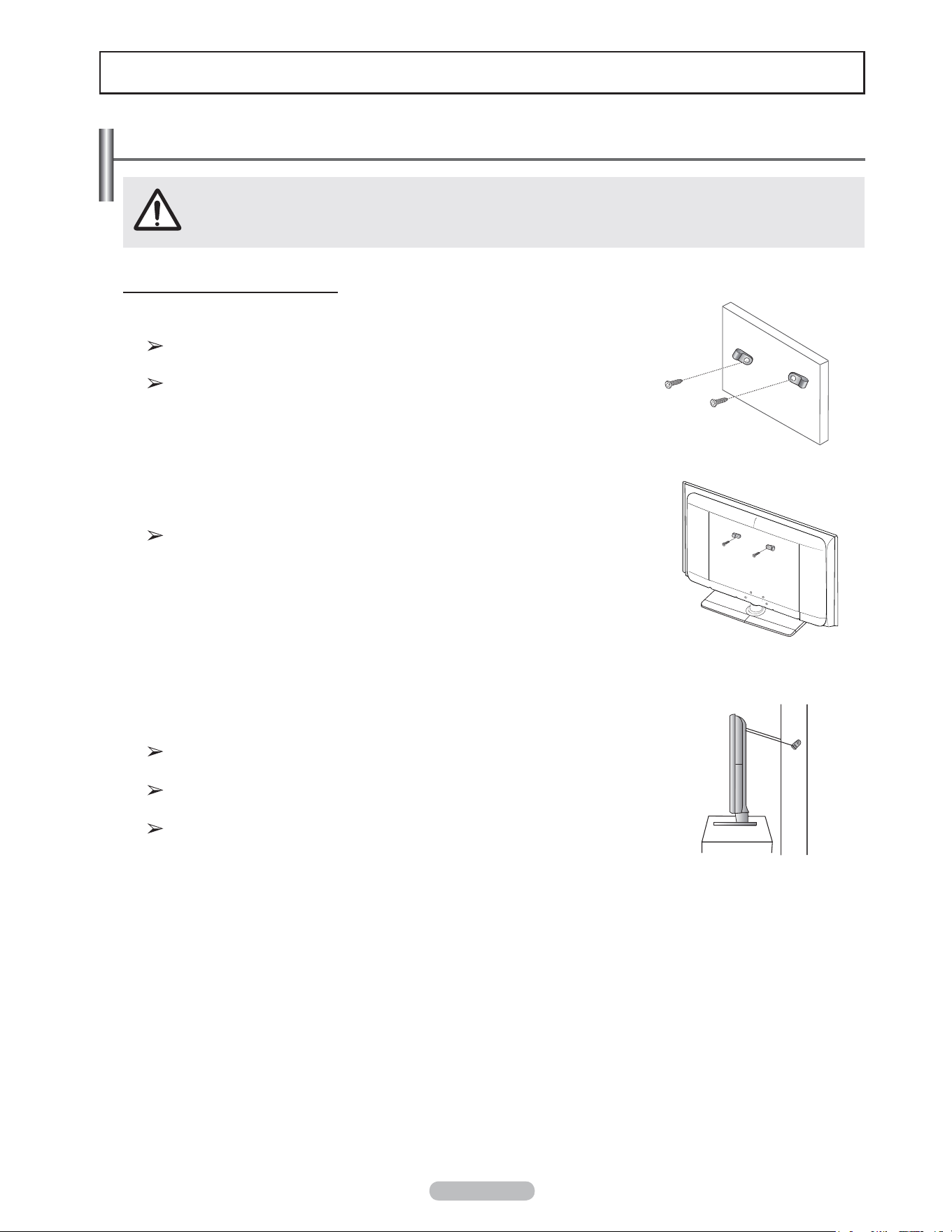
Français - 92
Annexe
Le fait de tirer, de pousser ou de monter sur le téléviseur peut en provoquer la chute. Il faut s’assurer que
les enfants ne grimpent pas sur le téléviseur et qu’ils ne le déstabilisent pas, car il pourrait se renverser
et causer des blessures sérieuses, voire la mort. Suivez toutes les mesures de sécurité indiquées sur la
brochure. Pour une stabilité accrue, installez un dispositif anti-chute tel qu’indiqué ci-dessous.
Pour éviter la chute du téléviseur
1 Poser les vis dans les pièces de retenue et les visser fermement dans le mur.
S’assurer que les vis sont bien vissées au mur.
Il pourrait s’avérer nécessaire d’utiliser des douilles d’ancrage selon le type de
mur.
Comme les pièces de retenue, les vis et la corde ne sont pas fournis, il faut
les acheter.
2 Retirer les vis à l’arrière du téléviseur, au centre, passer les vis dans les pièces de
retenue, puis reposer les vis sur le téléviseur.
Il se peut que le produit soit dépourvu de vis. Le cas échéant, il faut acheter
les types de vis suivants.
3 Relier les pièces de retenue du téléviseur à celles du mur à l’aide d’une corde
solide, puis bien nouer cette dernière.
Installer le téléviseur à proximité du mur de manière qu’il ne se renverse pas
vers l’arrière.
Pour nouer la corde de façon sécuritaire, les pièces de retenue murales
doivent être fixées à une hauteur identique ou inférieure à celles du téléviseur.
Dénouer la corde avant de déplacer le téléviseur.
4 S’assurer que tous les points d’ancrage sont solides. Il faut les vérifier
périodiquement afin de détecter tout signe de fatigue. En cas de doute au sujet
des points d’ancrage, communiquer avec un installateur professionnel.
Mur
Mur
Fixation du téléviseur au mur
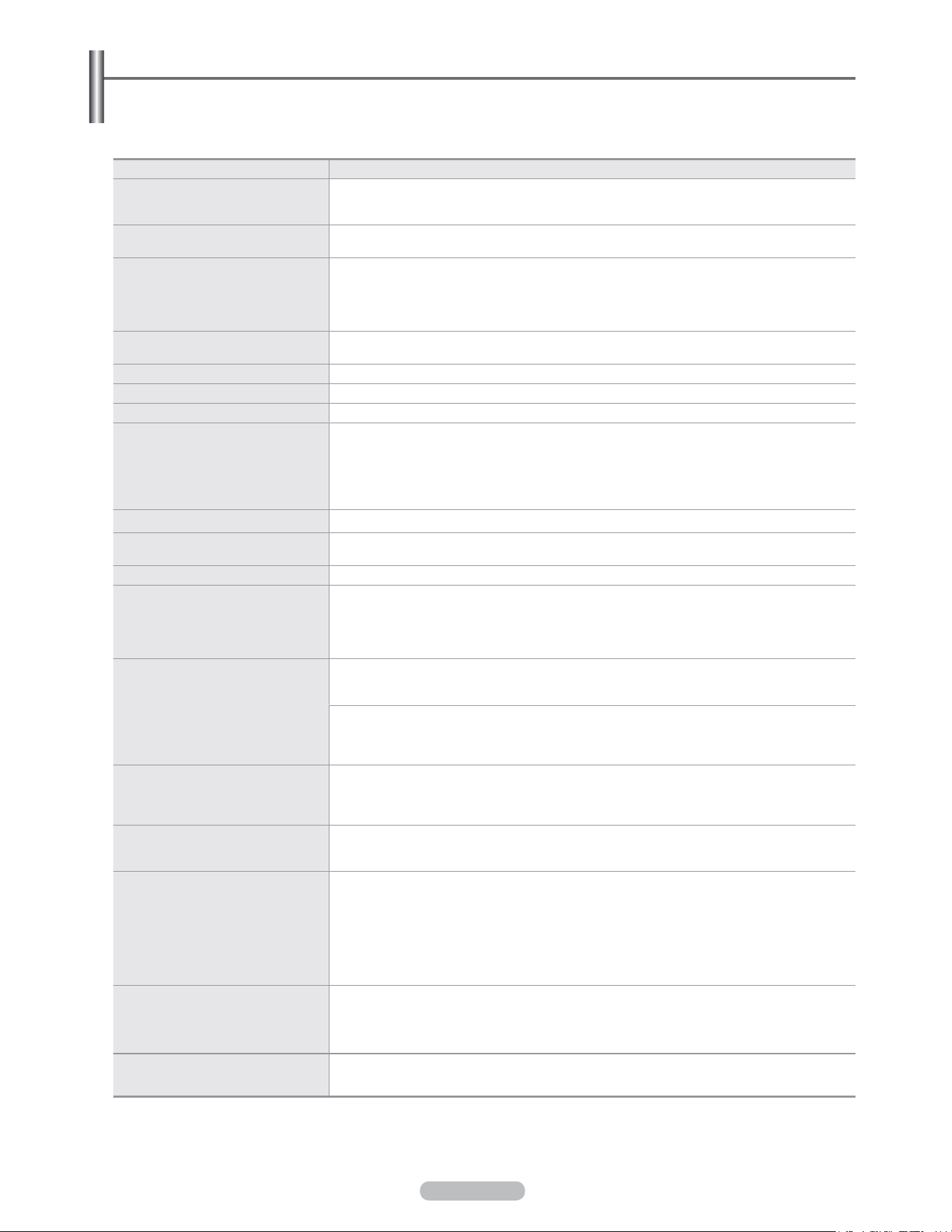
Français - 93
Problème Solution possible
Image de mauvaise qualité. Essayer un autre canal.
Réorienter l’antenne.
Vérifier tous les branchements de câbles.
Son de mauvaise qualité. Essayer un autre canal.
Réorienter l’antenne.
Pas d’image ni de son. Essayer un autre canal.
Appuyer sur la touche SOURCE.
Vérifier que le téléviseur est branché.
Vérifier les connexions de l’antenne.
Vérifier que la touche MUTE n’est pas enfoncée.
Pas de son ou le son est trop faible au
volume maximum
En premier lieu, vérifier le volume des appareils branchés au téléviseur (récepteur numérique, lecteur DVD,
câblosélecteur, magnétoscope, etc.). Régler ensuite le volume du téléviseur en conséquence.
Défilement vertical de l’image. Vérifier tous les branchements de câbles.
Fonctionnement anormal du téléviseur. Débrancher le téléviseur pendant 30 secondes, le rebrancher et le rallumer.
Le téléviseur ne s’allume pas. Vérifier si la prise électrique fonctionne.
La télécommande fonctionne mal. Remplacer les piles de la télécommande.
Nettoyer l’extrémité supérieure de la télécommande (d’où le signal est transmis).
Vérifier les bornes des piles.
Appuyer sur la touche TV pour régler la télécommande au mode TV.
S’assurer qu’il y a des piles dans la télécommande.
Vérifier si les bornes « + » et « - » des batteries sont insérées correctement.
Problème d’écran en diffusion numérique. Vérifier la puissance du signal numérique et l’entrée de l’antenne.
L’image est trop pâle ou trop foncée. Régler la luminosité et le contraste.
Utiliser le réglage de précision.
L'image est trop grande ou trop petite. Redimensionner l'image.
La qualité visuelle des canaux numériques
varie.
La qualité des images des canaux peut varier en fonction du mode de diffusion (analogique ou numérique).
- Si la méthode de production d’origine est numérique : Qualité visuelle supérieure.
- Si la méthode de production d’origine est analogique : L’émission numérique affichée à l’écran est une
émission analogue à l’origine, mais convertie au format numérique.
La qualité visuelle est de calibre SD (définition standard).
L'écran est noir et le témoind'alimentation
clignote.
Sur l’ordinateur, vérifier l’alimentation et le câble de signal.
Le téléviseur est en mode d’économie d’énergie.
Déplacer la souris ou appuyer sur une touche du clavier.
Sur le matériel, vérifier le mode (STB, DVD, etc.), l’alimentation et le signal du câble.
Le téléviseur est en mode d’économie d’énergie.
Appuyer sur la touche Source du panneau ou de la télécommande.
Éteindre le téléviseur et le rallumer.
Bien que le téléviseur affiche HD (haute
définition), la qualité des images n’est pas
satisfaisante.
L’indication HD (haute définition) affichée lors d’un changement de poste ou lorsque la touche Information
de la télécommande est enfoncée signifie que le canal sélectionné est un canal numérique. Si le diffuseur
convertit un signal analogue au format numérique et transmet ce signal, il est possible que la qualité visuelle
ne soit pas parfaite.
L’image détériorée apparaît dans un
angle de l’écran.
Si la fonction Numérisation seulement est sélectionnée sur un appareil externe, l’image
détériorée peut apparaître dans un angle de l’écran. Ce dommage est causé par les appareils
externes et non par le téléviseur.
Un bruit étrange est émis par
le produit, continuellement.
Comme un téléviseur à plasma est doté d’un circuit de mise en marche et d’interruption à haute vitesse et
d’une tension élevée, un certain bruit
est possible, selon la luminosité de l’écran. Le téléviseur à plasma peut être plus bruyant qu’un téléviseur
classique. Le niveau de bruit
est rigoureusement géré par la société, selon ses propres normes, peu importe le produit,
son rendement et sa fiabilité. Un certain niveau de bruit est inévitable, étant donné les caractéristiques
inhérentes à
un téléviseur à plasma. Il ne peut être une raison d’échange ou de remboursement.
Ce panneau à plasma est constitué de
sous-pixels (6,220,800), produits par une
technologie évoluée.
Toutefois, il peut y avoir des pixels plus lumineux ou plus sombres à l’écran. Ces pixels n’ont aucune
incidence sur le rendement du produit.
Le message “rétablit tous les paramètres
aux réglages prédéfinis” s’affiche.
Ce message s’affiche lorsque vous appuyez et maintenez la touche EXIT enfoncée pendant un moment.
Les valeurs par défaut du produit sont rétablies selon les paramètres prédéfinis à l’usine.
Dépannage
Le tableau ci-dessous dresse la liste des problèmes courants et suggère des solutions.
Si aucun de ces conseils ne permet de corriger le problème, communiquer avec le centre de service Samsung le
plus près.
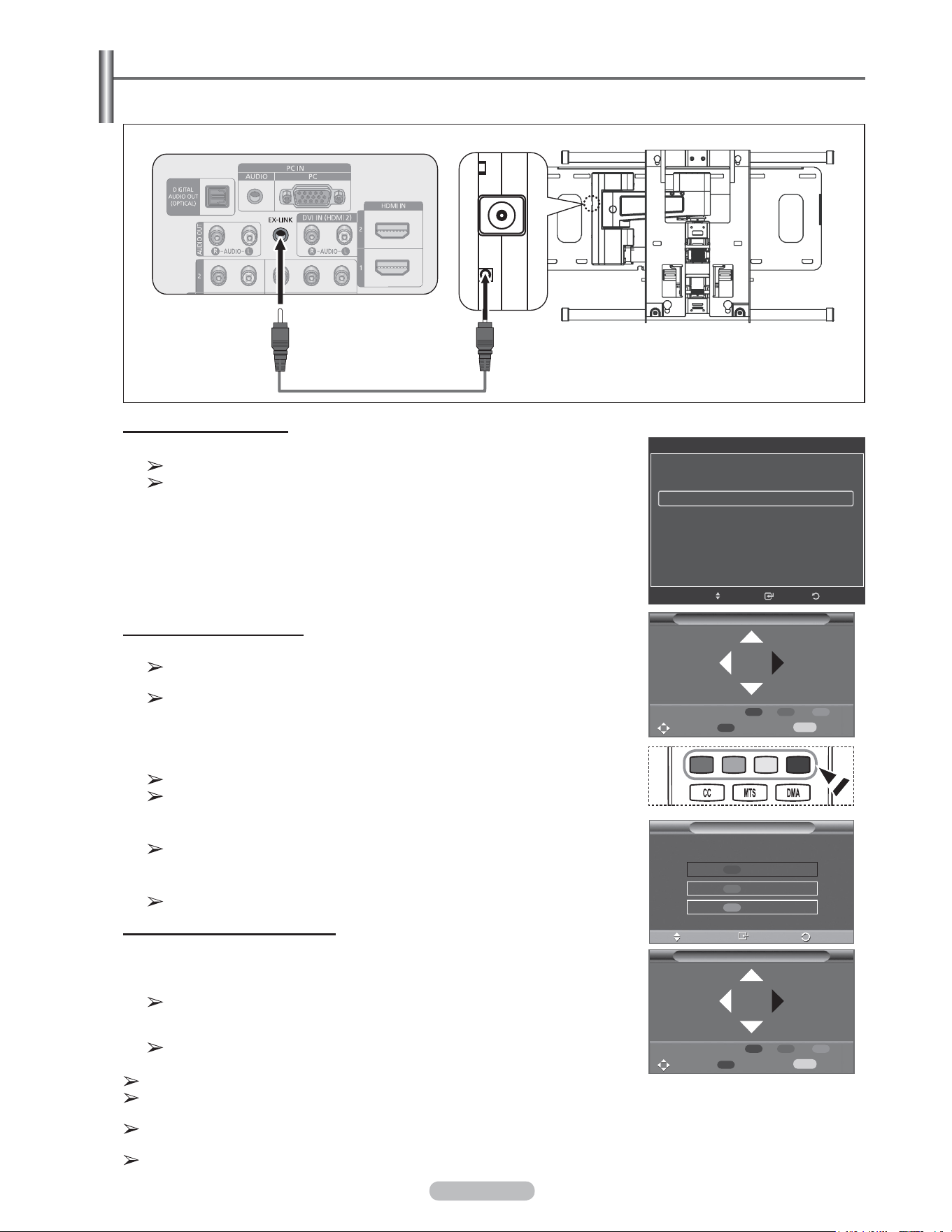
Français - 94
Support mural à réglage automatique (vendu séparément) (PN50A550S1F)
Lorsque le support mural à réglage automatique est installé, la position du téléviseur peut être facilement ajustée.
Pour entrer dans le menu
1 Appuyer sur la touche ▲, ▼, ◄ ou ►de la télécommande.
L’écran de réglage du support mural s’affiche.
Si l’écran de réglage du support mural ne s’affiche lorsqu’on appuie sur une
touche de direction pendant que le téléviseur est en marche, utiliser le menu
pour l’afficher.
• Appuyer sur la touche MENU pour afficher le menu. Appuyer sur la touche
▲ ou ▼ pour sélectionner Configuration, suivie de la touche ENTER.
• Appuyer sur la touche ▲ ou ▼ pour sélectionner Paramètres externes,
suivie de la touche ENTER.
• Appuyer sur la touche ▲ ou ▼ pour sélectionner Réglage du support
mural, suivie de la touche ENTER.
Mémorisation de la position
2 Établir la position désirée à l’aide des touches ▲, ▼, ◄, ►.
Si une touche fléchée est enfoncée lorsqu’il n’y a pas d’affichage à l’écran du
téléviseur, l’écran de réglage s’affiche.
Appuyer sur la touche INFO pour réinitialiser. Appuyer sur la touche ◄ ou ►
pour sélectionner Oui, suivie de la touche ENTER. La position est initialisée
au réglage par défaut.
3 Appuyer sur la touche bleue. Appuyer sur les touches ▲ et ▼ pour sélectionner
un mode à enregistrer, Position1, Position2 ou Position3.
Pour ne pas sauvegarder la position actuelle, appuyer sur la touche RETURN.
Les touches de couleur sont désactivées pendant la sélection d’un mode de
sauvegarde.
4 Appuyer sur la touche ENTER pour enregistrer.
Lorsque la Position1 est sélectionné, le message Position en cours
sauvegardée sous Position1 s’affiche.
5 Appuyer sur la touche ENTER.
La position sauvegardée s’affiche à la gauche de l’écran.
Réglage à la position mémorisée
1 Effectuer l’étape 1 de Accéder au menu.
2 En appuyant sur une touche de couleur (rouge, verte, jaune), le support mural à
réglage automatique se règle sur la position sauvegardée.
Il est possible de régler le support mural sur une des trois positions
préréglées en appuyant sur les touches rouge (Position 1), verte (Position 2)
ou jaune (Position 3).
Si la position est modifiée après avoir activé une position préréglée,
l’affichage de la position disparaît.
Pour l’installation, se reporter au guide d’installation fourni avec le support mural.
Pour installer le téléviseur ainsi que pour installer et déplacer le support mural, s’adresser à une entreprise spécialisée
en la matière.
Ce dispositif doit être utilisé pour poser le support mural sur un mur. Pour le fixer à d’autres matériaux de construction,
communiquer avec le détaillant.
Le support mural automatique ne fonctionne pas lorsque la fonction Anynet+ ou WISELINK est activée.
Panneau arrière du téléviseur
Support mural automatique
Câble EX-LINK (non fourni)
Enregistrer
Réglage
Intro.
Choisissez un mode à sauvegarder.
Position1
Position2
Position3
Retour
Réglage du support mural
Réglage
Position
1 2 3
INFO
Centre
Enregistrer
Réglages externes
Mélodie : On
Effet lumière : Par défaut
Réglage du support mural
RetourIntro.Dépl.
Réglage du support mural
Position1
Réglage
Position
1 2 3
INFO Centre
Enregistrer
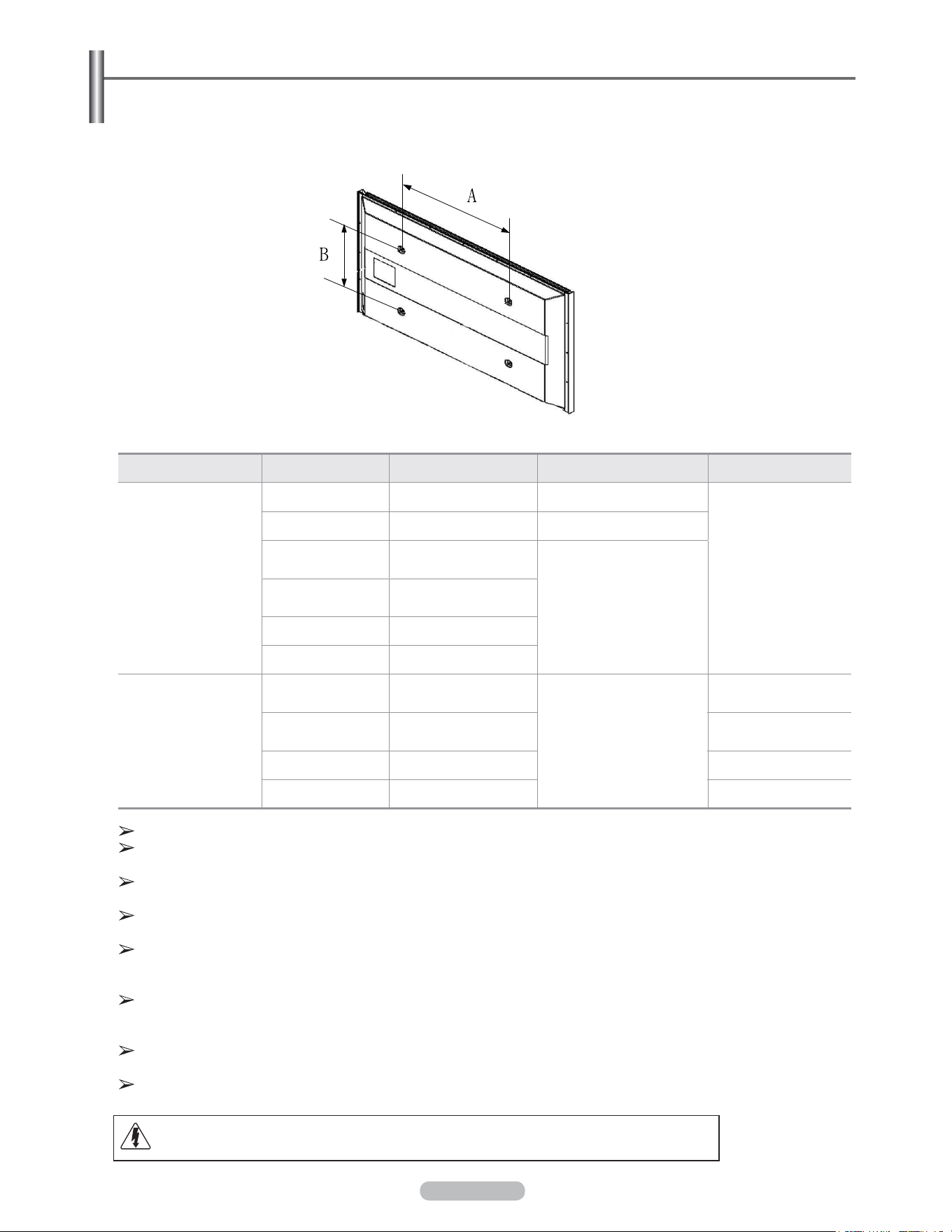
Français - 95
Spécifications de l’ensemble d’installation murale (VESA)
Installer le support mural sur un mur solide, perpendiculaire au plancher.
Pour le fixer à d’autres matériaux de construction, communiquer avec le détaillant.
S'il est installé au plafond ou sur un mur incliné, il risque de tomber et de causer des blessures.
Type de produit pouces Spéc. VESA (A * B) Vis standard Quantité
Téléviseur ACL
23 ~ 26 200
*
100 M4
4
32 ~ 40 200
*
200 M6
46 ~ 52
400 * 400
600 * 400
M8
57
700 * 400
(Non VESA)
57 ~ 70 800 * 400
80 ~ 1400 * 800
Téléviseur à écran à
plasma
42 ~ 50
400 * 400
600 * 400
M8
4
63
676 * 407
(Non VESA)
6
63 ~ 70 800 * 400 4
80 ~ 1400 * 800 4
Nous offrons les dimensions standard des ensembles d’installation murale, indiquées dans le tableau ci-dessus.
Un guide d’installation détaillé et toutes les pièces nécessaires à l’assemblage sont compris avec l’achat de
l’ensemble d’installation murale.
Ne pas utiliser de vis plus longues que les dimensions standards : elles pourraient endommager l’intérieur du
téléviseur.
En ce qui a trait aux supports muraux qui ne sont pas conformes aux spécifications de vis standard VESA, la
longueur des vis peut varier selon leurs spécifications.
Ne pas utiliser de vis non conformes aux spécifications de vis standards VESA. Ne pas trop serrer les vis,
cela pourrait endommager le produit ou provoquer sa chute et causer des blessures. Samsung décline toute
responsabilité dans le cas où de tels accidents se produisent.
Samsung ne saurait être tenu responsable des dommages au produit ou des blessures occasionnés par l’utilisation
d’un support mural autre que VESA ou non recommandé, ou si le consommateur ne suit pas les instructions
d’installation du produit.
Nos modèles de 145 cm (57 po) et 160 cm (63 po) ne sont pas conformes aux spécifications VESA. Par conséquent,
utiliser notre support mural, conçu pour ces modèles.
Ne dépassez pas une inclinaison de 15 degrés lorsque vous fixez ce téléviseur.
N’installez pas votre kit de montage mural lorsque votre téléviseur est en fonctionnement.
Une blessure par choc électrique pourrait en résulter.
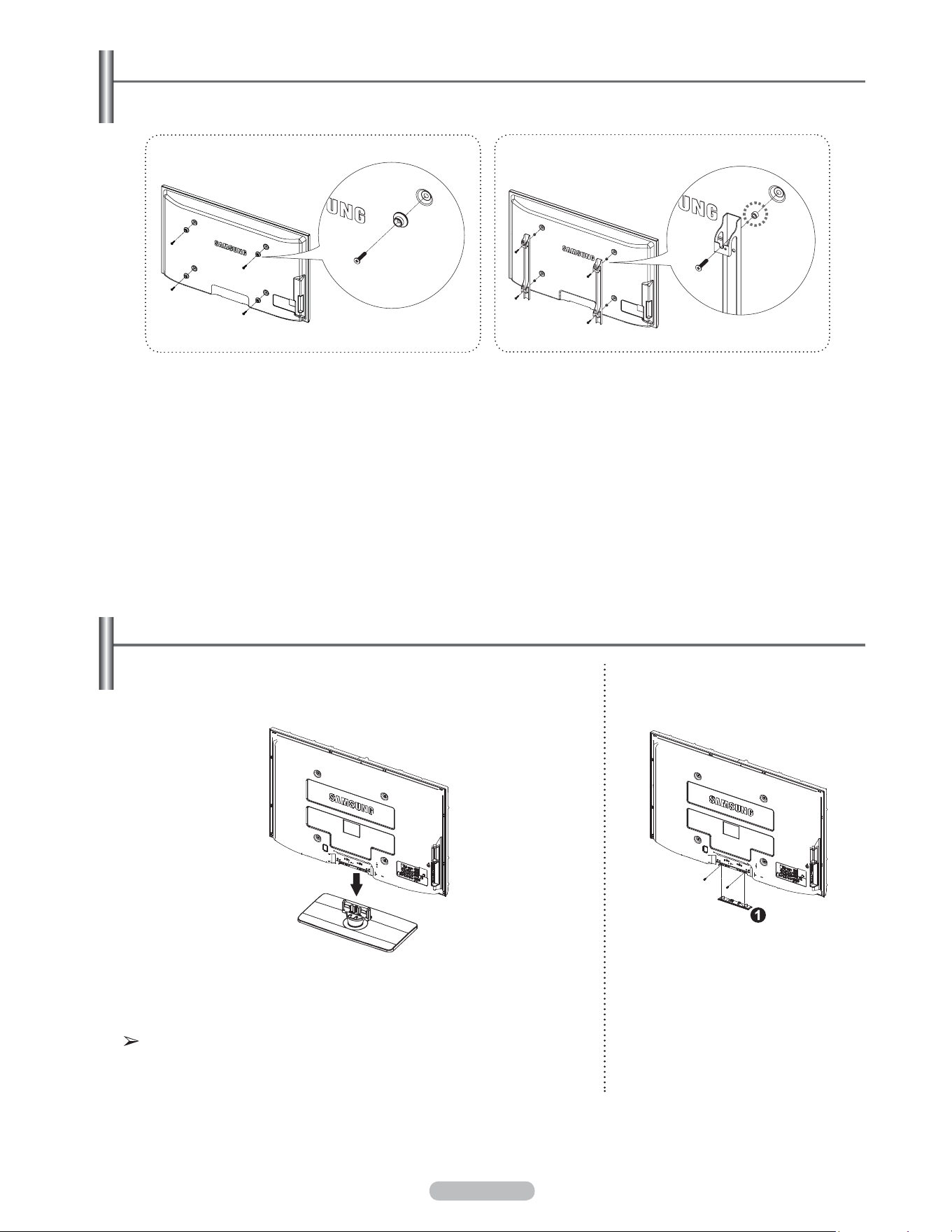
Français - 96
Comment assembler le support
Mise en garde
Fixer fermement le support au téléviseur avant de le déplacer, car le support
risque de tomber et de causer des blessures sérieuses.
Le téléviseur doit être transporté par au moins deux personnes. Ne
jamais déposer le téléviseur sur le sol afin d’éviter d’endommager l’écran.
Toujours ranger le téléviseur en position verticale.
À l’aide des vis servant à immobiliser le support et l’écran, fixer fermement
l’écran au support.
(L’aspect extérieur de l’appareil peut être différent de celui du modèle
illustré.)
Dans le cas d’une installation murale du
téléviseur, fixer le couvercle (
1
) sur le
support à l’aide de deux vis fournies.
Préparation avant de fixer le support mural au mur
1 Fixer le support mural en utilisant la plage de couple de 15 kgf/cm ou moins. S’assurer que les pièces ne seront pas
endommagées si le couple se trouve à l’extérieur de la plage indiquée.
2 La trousse d’accessoires contient une pièce de fixation – un anneau [①] pour fixer les supports muraux d’autres
fabricants sur un téléviseur Samsung. (Cas B)
Cas A. Installation d'un support mural
SAMSUNG
Cas B. Installation d’un support mural d’un
autre fabricant
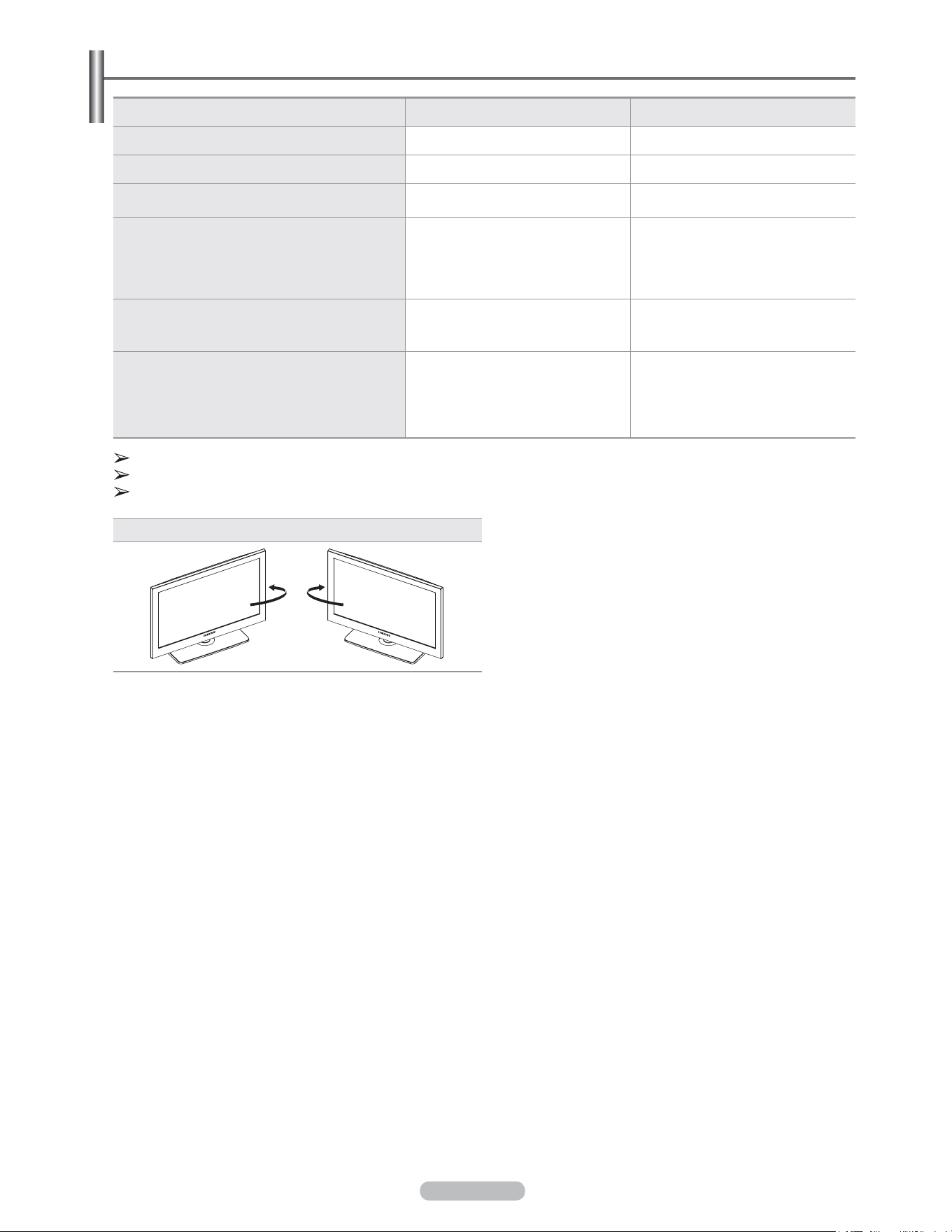
Français - 97
Modèle PN50A550S1F PN58A550S1F
Taille de l’écran (en diagonal) 50 po 58 po
Résolution PC 1920 x 1080 à 60 Hz 1920 x 1080 à 60 Hz
Sortie du son 10W x 2 15W x 2
Dimension (L x H x P)
Corps avec support
48.5 x 30.3 x 3.8 pouces
(1230.3 x 769.8 x 95.0 mm)
48.5 x 32.7 x 12.6 pouces
(1230.3 x 830.6 x 319.9 mm)
55.5 x 34.0 x 3.8 pouces
(1407.7 x 862.3 x 95.0 mm)
55.4 x 36.5 x 13.6 pouces
(1407.7 x 927.9 x 344.7 mm)
Poids
Boîtier
Avec support
82.5 lbs (37.4 Kg)
91.3 lbs (41.4 Kg)
126.3 lbs (57.3 Kg)
138.0 lbs (62.5 Kg)
Environnement d’utilisation
Température pour le fonctionnement
Niveau d’humidité relative pour le fonctionnement
Température pour l’entreposage
Niveau d’humidité pour l’entreposage
10 à 40 °C (50 à 104 °F)
10 à 80 %, sans condensation
20 à 45 °C (-4 à 113 °F)
5 à 95%, sans condensation
10 à 40 °C (50 à 104 °F)
10 à 80 %, sans condensation
20 à 45 °C (-4 à 113 °F)
5 à 95%, sans condensation
Appareil numérique de catégorie B.
La conception et les spécifications sont sujettes à changement sans préavis.
Pour la source d’alimentation et la consommation électrique, consulter l’étiquette apposée sur le produit.
Pivotement du support (Gauche/Droite)
Spécifications
-20° ~ 20°
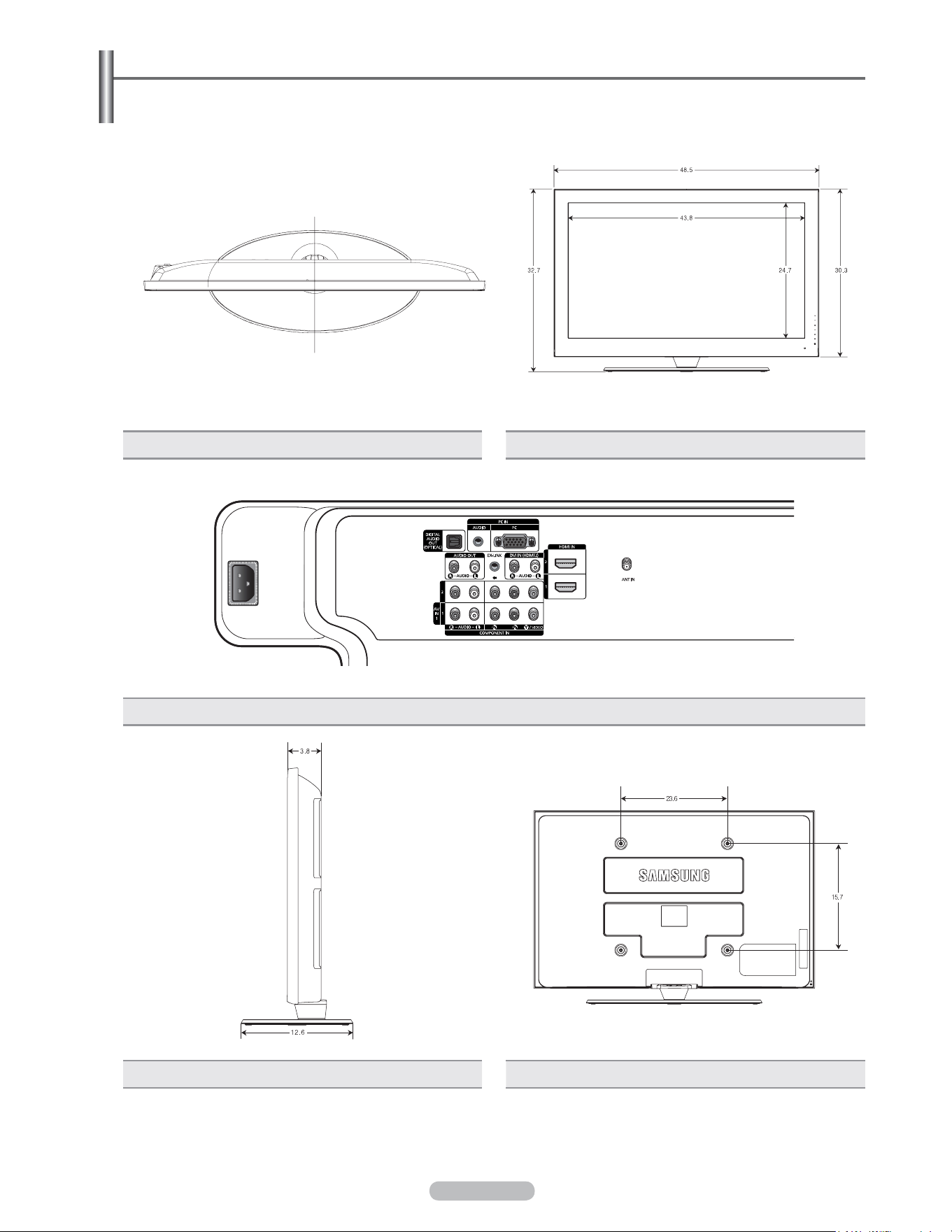
Français - 98
REMARQUE : Tous les dessins ne sont pas nécessairement
des représentations à l’échelle. Certaines
dimensions peuvent avoir été modifiées sans préavis.
Vérifier les dimensions de chaque unité avant de procéder
à des travaux de menuiserie. Nous n’assumons aucune
responsabilité pour les erreurs typographiques ou
d’impression.
© 2008 Samsung Electronics America, Inc.
Dimensions (PN50A550S1F)
VUE DE DESSUS VUE AVANT
DÉTAIL DU PANNEAU DE PRISES (AD) 3.7”H x 7.2”W
VUE LATÉRALE VUE ARRIÈRE
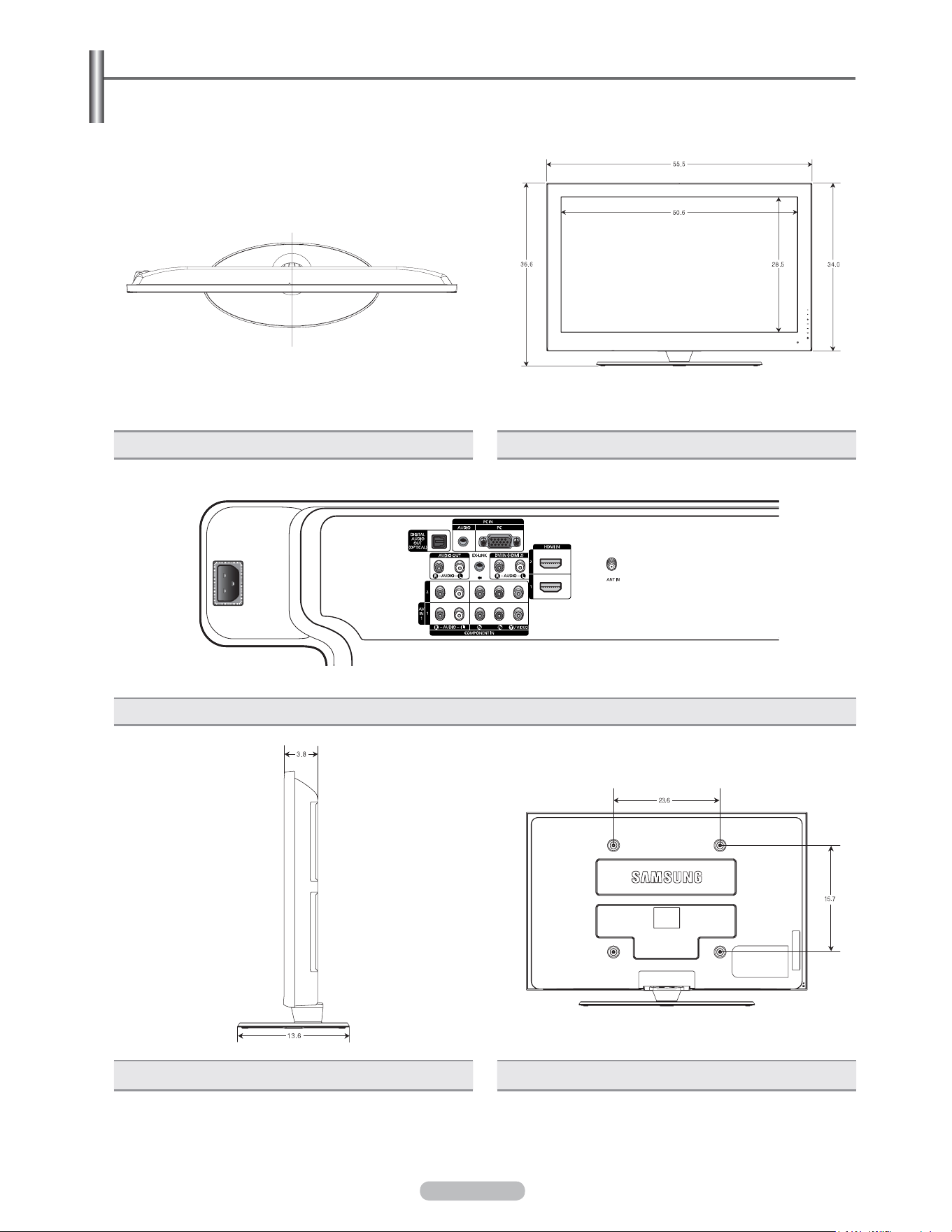
Français - 99
REMARQUE : Tous les dessins ne sont pas nécessairement
des représentations à l’échelle. Certaines
dimensions peuvent avoir été modifiées sans préavis.
Vérifier les dimensions de chaque unité avant de procéder
à des travaux de menuiserie. Nous n’assumons aucune
responsabilité pour les erreurs typographiques ou
d’impression.
© 2008 Samsung Electronics America, Inc.
Dimensions (PN58A550S1F)
VUE DE DESSUS VUE AVANT
DÉTAIL DU PANNEAU DE PRISES (AD) 3.7”H x 7.2”W
VUE LATÉRALE VUE ARRIÈRE

Français - 100
The GNU General Public License (GPL)
Version 2, June 1991
Copyright (C) 1989, 1991 Free Software Foundation, Inc. 59 Temple Place, Suite 330, Boston, MA 02111-1307 USA
Everyone is permitted to copy and distribute verbatim copies of this license document, but changing it is not allowed.
Preamble
The licenses for most software are designed to take away your freedom to share and change it. By contrast, the GNU
General Public License is intended to guarantee your freedom to share and change free software--to make sure the
software is free for all its users. This General Public License applies to most of the Free Software Foundation’s software and
to any other program whose authors commit to using it. (Some other Free Software Foundation software is covered by the
GNU Library General Public License instead.) You can apply it to your programs, too.
When we speak of free software, we are referring to freedom, not price. Our General Public Licenses are designed to
make sure that you have the freedom to distribute copies of free software (and charge for this service if you wish), that you
receive source code or can get it if you want it, that you can change the software or use pieces of it in new free programs;
and th at you know you can do these things.
To protect your rights, we need to make restrictions that forbid anyone to deny you these rights or to ask you to surrender
the rights. These restrictions translate to certain responsibilities for you if you distribute copies of the software, or if you
modify it.
For example, if you distribute copies of such a program, whether gratis or for a fee, you must give the recipients all the
rights that you have. You must make sure that they, too, receive or can get the source code. And you must show them these
terms so they know their rights.
We protect your rights with two steps: (1) copyright the software, and (2) offer you this license which gives you legal
permission to copy, distribute and/or modify the software.
Also, for each author’s protection and ours, we want to make certain that everyone understands that there is no warranty for
this free software. If the software is modified by someone else and passed on, we want its recipients to know that what they
have is not the original, so that any problems introduced by others will not reflect on the original authors’ reputations.
Finally, any free program is threatened constantly by software patents. We wish to avoid the danger that redistributors of a
free program will individually obtain patent licenses, in effect making the program proprietary. To prevent this, we have made
it clear that any patent must be licensed for everyone’s free use or not licensed at all.
The precise terms and conditions for copying, distribution and modification follow.
TERMS AND CONDITIONS FOR COPYING, DISTRIBUTION AND MODIFICATION
0. This License applies to any program or other work which contains a notice placed by the copyright holder saying it may
be distributed under the terms of this General Public License. The “Program”, below, refers to any such program or work,
and a “work based on the Program” means either the Program or any derivative work under copyright law: that is to say, a
work containing the Program or a portion of it, either verbatim or with modifications and/or translated into another language.
(Hereinafter, translation is included without limitation in the term “modification”.) Each licensee is addressed as “you”.
Activities other than copying, distribution and modification are not covered by this License; they are outside its scope. The
act of running the Program is not restricted, and the output from the Program is covered only if its contents constitute a work
based on the Program (independent of having been made by running the Program). Whether that is true depends on what
the Program does.
1. You may copy and distribute verbatim copies of the Program’s source code as you receive it, in any medium, provided
that you conspicuously and appropriately publish on each copy an appropriate copyright notice and disclaimer of warranty;
keep intact all the notices that refer to this License and to the absence of any warranty; and give any other recipients of the
Program a copy of this License along with the Program.
You may charge a fee for the physical act of transferring a copy, and you may at your option offer warranty protection in
exchange for a fee.
2. You may modify your copy or copies of the Program or any portion of it, thus forming a work based on the Program, and
copy and distribute such modifications or work under the terms of Section 1 above, provided that you also meet all of these
conditions:
a) You must cause the modified files to carry prominent notices stating that you changed the files and the date of any
change.
b) You must cause any work that you distribute or publish, that in whole or in part contains or is derived from the
Program or any part thereof, to be licensed as a whole at no charge to all third parties under the terms of this License.
c) If the modified program normally reads commands interactively when run, you must cause it, when started running
for such interactive use in the most ordinary way, to print or display an announcement including an appropriate
copyright notice and a notice that there is no warranty (or else, saying that you provide a warranty) and that users may
redistribute the program under these conditions, and telling the user how to view a copy of this License. (Exception: if
the Program itself is interactive but does not normally print such an announcement, your work based on the Program is
not required to print an announcement.)

Français - 101
These requirements apply to the modified work as a whole. If identifiable sections of that work are not derived from the
Program, and can be reasonably considered independent and separate works in themselves, then this License, and its
terms, do not apply to those sections when you distribute them as separate works. But when you distribute the same
sections as part of a whole which is a work based on the Program, the distribution of the whole must be on the terms of this
License, whose permissions for other licensees extend to the entire whole, and thus to each and every part regardless of
who wrote it.
Thus, it is not the intent of this section to claim rights or contest your rights to work written entirely by you; rather, the intent
is to exercise the right to control the distribution of derivative or collective works based on the Program.
In addition, mere aggregation of another work not based on the Program with the Program (or with a work based on the
Program) on a volume of a storage or distribution medium does not bring the other work under the scope of this License.
3. You may copy and distribute the Program (or a work based on it, under Section 2) in object code or executable form
under the terms of Sections 1 and 2 above provided that you also do one of the following:
a) Accompany it with the complete corresponding machine-readable source code, which must be distributed under the
terms of Sections 1 and 2 above on a medium customarily used for software interchange; or,
b) Accompany it with a written offer, valid for at least three years, to give any third party, for a charge no more than your
cost of physically performing source distribution, a complete machine-readable copy of the corresponding source code,
to be distributed under the terms of Sections 1 and 2 above on a medium customarily used for software interchange;
or,
c) Accompany it with the information you received as to the offer to distribute corresponding source code. (This
alternative is allowed only for noncommercial distribution and only if you received the program in object code or
executable form with such an offer, in accord with Subsection b above.)
The source code for a work means the preferred form of the work for making modifications to it. For an executable work,
complete source code means all the source code for all modules it contains, plus any associated interface definition files,
plus the scripts used to control compilation and installation of the executable. However, as a special exception, the source
code distributed need not include anything that is normally distributed (in either source or binary form) with the major
components (compiler, kernel, and so on) of the operating system on which the executable runs, unless that component
itself accompanies the executable.
If distribution of executable or object code is made by offering access to copy from a designated place, then offering
equivalent access to copy the source code from the same place counts as distribution of the source code, even though third
parties are not compelled to copy the source along with the object code.
4. You may not copy, modify, sublicense, or distribute the Program except as expressly provided under this License. Any
attempt otherwise to copy, modify, sublicense or distribute the Program is void, and will automatically terminate your rights
under this License. However, parties who have received copies, or rights, from you under this License will not have their
licenses terminated so long as such parties remain in full compliance.
5. You are not required to accept this License, since you have not signed it. However, nothing else grants you permission
to modify or distribute the Program or its derivative works. These actions are prohibited by law if you do not accept this
License. Therefore, by modifying or distributing the Program (or any work based on the Program), you indicate your
acceptance of this License to do so, and all its terms and conditions for copying, distributing or modifying the Program or
works based on it.
6. Each time you redistribute the Program (or any work based on the Program), the recipient automatically receives a
license from the original licensor to copy, distribute or modify the Program subject to these terms and conditions. You may
not impose any further restrictions on the recipients’ exercise of the rights granted herein. You are not responsible for
enforcing compliance by third parties to this License.
7. If, as a consequence of a court judgment or allegation of patent infringement or for any other reason (not limited to patent
issues), conditions are imposed on you (whether by court order, agreement or otherwise) that contradict the conditions
of this License, they do not excuse you from the conditions of this License. If you cannot distribute so as to satisfy
simultaneously your obligations under this License and any other pertinent obligations, then as a consequence you may not
distribute the Program at all. For example, if a patent license would not permit royalty-free redistribution of the Program by
all those who receive copies directly or indirectly through you, then the only way you could satisfy both it and this License
would be to refrain entirely from distribution of the Program.
If any portion of this section is held invalid or unenforceable under any particular circumstance, the balance of the section is
intended to apply and the section as a whole is intended to apply in other circumstances.
It is not the purpose of this section to induce you to infringe any patents or other property right claims or to contest validity of
any such claims; this section has the sole purpose of protecting the integrity of the free software distribution system, which
is implemented by public license practices. Many people have made generous contributions to the wide range of software
distributed through that system in reliance on consistent application of that system; it is up to the author/donor to decide if
he or she is willing to distribute software through any other system and a licensee cannot impose that choice.
This section is intended to make thoroughly clear what is believed to be a consequence of the rest of this License.
8. If the distribution and/or use of the Program is restricted in certain countries either by patents or by copyrighted
interfaces, the original copyright holder who places the Program under this License may add an explicit geographical
distribution limitation excluding those countries, so that distribution is permitted only in or among countries not thus
excluded. In such case, this License incorporates the limitation as if written in the body of this License.

Français - 102
9. The Free Software Foundation may publish revised and/or new versions of the General Public License from time to
time. Such new versions will be similar in spirit to the present version, but may differ in detail to address new problems or
concerns.
Each version is given a distinguishing version number. If the Program specifies a version number of this License which
applies to it and “any later version”, you have the option of following the terms and conditions either of that version or of any
later version published by the Free Software Foundation. If the Program does not specify a version number of this License,
you may choose any version ever published by the Free Software Foundation.
10. If you wish to incorporate parts of the Program into other free programs whose distribution conditions are different, write
to the author to ask for permission. For software which is copyrighted by the Free Software Foundation, write to the Free
Software Foundation; we sometimes make exceptions for this. Our decision will be guided by the two goals of preserving
the free status of all derivatives of our free software and of promoting the sharing and reuse of software generally.
NO WARRANTY
11. BECAUSE THE PROGRAM IS LICENSED FREE OF CHARGE, THERE IS NO WARRANTY FOR THE PROGRAM,
TO THE EXTENT PERMITTED BY APPLICABLE LAW. EXCEPT WHEN OTHERWISE STATED IN WRITING THE
COPYRIGHT HOLDERS AND/OR OTHER PARTIES PROVIDE THE PROGRAM “AS IS” WITHOUT WARRANTY OF
ANY KIND, EITHER EXPRESSED OR IMPLIED, INCLUDING, BUT NOT LIMITED TO, THE IMPLIED WARRANTIES OF
MERCHANTABILITY AND FITNESS FOR A PARTICULAR PURPOSE. THE ENTIRE RISK AS TO THE QUALITY AND
PERFORMANCE OF THE PROGRAM IS WITH YOU. SHOULD THE PROGRAM PROVE DEFECTIVE, YOU ASSUME
THE COST OF ALL NECESSARY SERVICING, REPAIR OR CORRECTION.
12. IN NO EVENT UNLESS REQUIRED BY APPLICABLE LAW OR AGREED TO IN WRITING WILL ANY COPYRIGHT
HOLDER, OR ANY OTHER PARTY WHO MAY MODIFY AND/OR REDISTRIBUTE THE PROGRAM AS PERMITTED
ABOVE, BE LIABLE TO YOU FOR DAMAGES, INCLUDING ANY GENERAL, SPECIAL, INCIDENTAL OR
CONSEQUENTIAL DAMAGES ARISING OUT OF THE USE OR INABILITY TO USE THE PROGRAM (INCLUDING BUT
NOT LIMITED TO LOSS OF DATA OR DATA BEING RENDERED INACCURATE OR LOSSES SUSTAINED BY YOU OR
THIRD PARTIES OR A FAILURE OF THE PROGRAM TO OPERATE WITH ANY OTHER PROGRAMS), EVEN IF SUCH
HOLDER OR OTHER PARTY HAS BEEN ADVISED OF THE POSSIBILITY OF SUCH DAMAGES.
END OF TERMS AND CONDITIONS
How to Apply These Terms to Your New Programs
If you develop a new program, and you want it to be of the greatest possible use to the public, the best way to achieve this
is to make it free software which everyone can redistribute and change under these terms.
To do so, attach the following notices to the program. It is safest to attach them to the start of each source file to most
effectively convey the exclusion of warranty; and each file should have at least the “copyright” line and a pointer to where
the full notice is found.
One line to give the program’s name and a brief idea of what it does.
Copyright (C) <year> <name of author>
This program is free software; you can redistribute it and/or modify it under the terms of the GNU General Public
License as published by the Free Software Foundation; either version 2 of the License, or (at your option) any later
version.
This program is distributed in the hope that it will be useful, but WITHOUT ANY WARRANTY; without even the implied
warranty of MERCHANTABILITY or FITNESS FOR A PARTICULAR PURPOSE. See the GNU General Public License
for more details.
You should have received a copy of the GNU General Public License along with this program; if not, write to the Free
Software Foundation, Inc., 59 Temple Place, Suite 330, Boston, MA 02111-1307 USA
Also add information on how to contact you by electronic and paper mail.
If the program is interactive, make it output a short notice like this when it starts in an interactive mode:
Gnomovision version 69, Copyright (C) year name of author Gnomovision comes with ABSOLUTELY NO WARRANTY;
for details type `show w’. This is free software, and you are welcome to redistribute it under certain conditions; type
`show c’ for details.
The hypothetical commands `show w’ and `show c’ should show the appropriate parts of the General Public License. Of
course, the commands you use may be called something other than `show w’ and `show c’; they could even be mouse-
clicks or menu items--whatever suits your program.
You should also get your employer (if you work as a programmer) or your school, if any, to sign a “copyright disclaimer” for
the program, if necessary. Here is a sample; alter the names:
Yoyodyne, Inc., hereby disclaims all copyright interest in the program `Gnomovision’ (which makes passes at
compilers) written by James Hacker.
signature of Ty Coon, 1 April 1989
Ty Coon, President of Vice
This General Public License does not permit incorporating your program into proprietary programs. If your program is a
subroutine library, you may consider it more useful to permit linking proprietary applications with the library. If this is what
you want to do, use the GNU Library General Public License instead of this License.

Français - 103
GNU Lesser General Public License (LGPL)
Version 2.1, February 1999
Copyright (C) 1991, 1999 Free Software Foundation, Inc. 59 Temple Place, Suite 330, Boston, MA 02111-1307 USA
Everyone is permitted to copy and distribute verbatim copies of this license document, but changing it is not allowed.
[This is the first released version of the Lesser GPL. It also counts as the successor of the GNU Library Public License,
version 2, hence the version number 2.1.]
Preamble
The licenses for most software are designed to take away your freedom to share and change it. By contrast, the GNU
General Public Licenses are intended to guarantee your freedom to share and change free software--to make sure the
software is free for all its users.
This license, the Lesser General Public License, applies to some specially designated software packages--typically libraries-
-of the Free Software Foundation and other authors who decide to use it. You can use it too, but we suggest you first think
carefully about whether this license or the ordinary General Public License is the better strategy to use in any particular
case, based on the explanations below.
When we speak of free software, we are referring to freedom of use, not price. Our General Public Licenses are designed to
make sure that you have the freedom to distribute copies of free software (and charge for this service if you wish); that you
receive source code or can get it if you want it; that you can change the software and use pieces of it in new free programs;
and that you are informed that you can do these things.
To protect your rights, we need to make restrictions that forbid distributors to deny you these rights or to ask you to
surrender these rights. These restrictions translate to certain responsibilities for you if you distribute copies of the library or if
you modify it.
For example, if you distribute copies of the library, whether gratis or for a fee, you must give the recipients all the rights that
we gave you. You must make sure that they, too, receive or can get the source code. If you link other code with the library,
you must provide complete object files to the recipients, so that they can relink them with the library after making changes to
the library and recompiling it. And you must show them these terms so they know their rights.
We protect your rights with a two-step method: (1) we copyright the library, and (2) we offer you this license, which gives
you legal permission to copy, distribute and/or modify the library.
To protect each distributor, we want to make it very clear that there is no warranty for the free library. Also, if the library is
modified by someone else and passed on, the recipients should know that what they have is not the original version, so that
the original author’s reputation will not be affected by problems that might be introduced by others.
Finally, software patents pose a constant threat to the existence of any free program. We wish to make sure that a company
cannot effectively restrict the users of a free program by obtaining a restrictive license from a patent holder. Therefore, we
insist that any patent license obtained for a version of the library must be consistent with the full freedom of use specified in
this license.
Most GNU software, including some libraries, is covered by the ordinary GNU General Public License. This license, the
GNU Lesser General Public License, applies to certain designated libraries, and is quite different from the ordinary General
Public License. We use this license for certain libraries in order to permit linking those libraries into non-free programs.
When a program is linked with a library, whether statically or using a shared library, the combination of the two is legally
speaking a combined work, a derivative of the original library. The ordinary General Public License therefore permits such
linking only if the entire combination fits its criteria of freedom. The Lesser General Public License permits more lax criteria
for linking other code with the library.
We call this license the “Lesser” General Public License because it does Less to protect the user’s freedom than the
ordinary General Public License. It also provides other free software developers Less of an advantage over competing
non-free programs. These disadvantages are the reason we use the ordinary General Public License for many libraries.
However, the Lesser license provides advantages in certain special circumstances.
For example, on rare occasions, there may be a special need to encourage the widest possible use of a certain library, so
that it becomes a de-facto standard. To achieve this, non-free programs must be allowed to use the library. A more frequent
case is that a free library does the same job as widely used non-free libraries. In this case, there is little to gain by limiting
the free library to free software only, so we use the Lesser General Public License.
In other cases, permission to use a particular library in non-free programs enables a greater number of people to use a
large body of free software. For example, permission to use the GNU C Library in non-free programs enables many more
people to use the whole GNU operating system, as well as its variant, the GNU/Linux operating system.
Although the Lesser General Public License is Less protective of the users’ freedom, it does ensure that the user of a
program that is linked with the Library has the freedom and the wherewithal to run that program using a modified version of
the Library.
The precise terms and conditions for copying, distribution and modification follow. Pay close attention to the difference
between a “work based on the library” and a “work that uses the library”. The former contains code derived from the library,
whereas the latter must be combined with the library in order to run.

Français - 104
TERMS AND CONDITIONS FOR COPYING, DISTRIBUTION AND MODIFICATION
0. This License Agreement applies to any software library or other program which contains a notice placed by the copyright
holder or other authorized party saying it may be distributed under the terms of this Lesser General Public License (also
called “this License”). Each licensee is addressed as “you”.
A “library” means a collection of software functions and/or data prepared so as to be conveniently linked with application
programs (which use some of those functions and data) to form executables.
The “Library”, below, refers to any such software library or work which has been distributed under these terms. A “work
based on the Library” means either the Library or any derivative work under copyright law: that is to say, a work containing
the Library or a portion of it, either verbatim or with modifications and/or translated straightforwardly into another language.
(Hereinafter, translation is included without limitation in the term “modification”.)
“Source code” for a work means the preferred form of the work for making modifications to it. For a library, complete source
code means all the source code for all modules it contains, plus any associated interface definition files, plus the scripts
used to control compilation and installation of the library.
Activities other than copying, distribution and modification are not covered by this License; they are outside its scope. The
act of running a program using the Library is not restricted, and output from such a program is covered only if its contents
constitute a work based on the Library (independent of the use of the Library in a tool for writing it). Whether that is true
depends on what the Library does and what the program that uses the Library does.
1. You may copy and distribute verbatim copies of the Library’s complete source code as you receive it, in any medium,
provided that you conspicuously and appropriately publish on each copy an appropriate copyright notice and disclaimer of
warranty; keep intact all the notices that refer to this License and to the absence of any warranty; and distribute a copy of
this License along with the Library.
You may charge a fee for the physical act of transferring a copy, and you may at your option offer warranty protection in
exchange for a fee.
2. You may modify your copy or copies of the Library or any portion of it, thus forming a work based on the Library, and
copy and distribute such modifications or work under the terms of Section 1 above, provided that you also meet all of these
conditions:
a) The modified work must itself be a software library.
b) You must cause the files modified to carry prominent notices stating that you changed the files and the date of any
change.
c) You must cause the whole of the work to be licensed at no charge to all third parties under the terms of this License.
d) If a facility in the modified Library refers to a function or a table of data to be supplied by an application program
that uses the facility, other than as an argument passed when the facility is invoked, then you must make a good faith
effort to ensure that, in the event an application does not supply such function or table, the facility still operates, and
performs whatever part of its purpose remains meaningful.
(For example, a function in a library to compute square roots has a purpose that is entirely well-defined independent of
the application. Therefore, Subsection 2d requires that any application-supplied function or table used by this function
must be optional: if the application does not supply it, the square root function must still compute square roots.)
These requirements apply to the modified work as a whole. If identifiable sections of that work are not derived from the
Library, and can be reasonably considered independent and separate works in themselves, then this License, and its
terms, do not apply to those sections when you distribute them as separate works. But when you distribute the same
sections as part of a whole which is a work based on the Library, the distribution of the whole must be on the terms
of this License, whose permissions for other licensees extend to the entire whole, and thus to each and every part
regardless of who wrote it.
Thus, it is not the intent of this section to claim rights or contest your rights to work written entirely by you; rather, the
intent is to exercise the right to control the distribution of derivative or collective works based on the Library.
In addition, mere aggregation of another work not based on the Library with the Library (or with a work based on the
Library) on a volume of a storage or distribution medium does not bring the other work under the scope of this License.
3. You may opt to apply the terms of the ordinary GNU General Public License instead of this License to a given copy of the
Library. To do this, you must alter all the notices that refer to this License, so that they refer to the ordinary GNU General
Public License, version 2, instead of to this License. (If a newer version than version 2 of the ordinary GNU General Public
License has appeared, then you can specify that version instead if you wish.) Do not make any other change in these
notices.
Once this change is made in a given copy, it is irreversible for that copy, so the ordinary GNU General Public License
applies to all subsequent copies and derivative works made from that copy.
This option is useful when you wish to copy part of the code of the Library into a program that is not a library.
4. You may copy and distribute the Library (or a portion or derivative of it, under Section 2) in object code or executable
form under the terms of Sections 1 and 2 above provided that you accompany it with the complete corresponding machine-
readable source code, which must be distributed under the terms of Sections 1 and 2 above on a medium customarily used
for software interchange.
If distribution of object code is made by offering access to copy from a designated place, then offering equivalent access to
copy the source code from the same place satisfies the requirement to distribute the source code, even though third parties
are not compelled to copy the source along with the object code.

Français - 105
5. A program that contains no derivative of any portion of the Library, but is designed to work with the Library by being
compiled or linked with it, is called a “work that uses the Library”. Such a work, in isolation, is not a derivative work of the
Library, and therefore falls outside the scope of this License.
However, linking a “work that uses the Library” with the Library creates an executable that is a derivative of the Library
(because it contains portions of the Library), rather than a “work that uses the library”. The executable is therefore covered
by this License. Section 6 states terms for distribution of such executables.
When a “work that uses the Library” uses material from a header file that is part of the Library, the object code for the work
may be a derivative work of the Library even though the source code is not. Whether this is true is especially significant if
the work can be linked without the Library, or if the work is itself a library. The threshold for this to be true is not precisely
defined by law.
If such an object file uses only numerical parameters, data structure layouts and accessors, and small macros and small
inline functions (ten lines or less in length), then the use of the object file is unrestricted, regardless of whether it is legally a
derivative work. (Executables containing this object code plus portions of the Library will still fall under Section 6.)
Otherwise, if the work is a derivative of the Library, you may distribute the object code for the work under the terms of
Section 6. Any executables containing that work also fall under Section 6, whether or not they are linked directly with the
Library itself.
6. As an exception to the Sections above, you may also combine or link a “work that uses the Library” with the Library to
produce a work containing portions of the Library, and distribute that work under terms of your choice, provided that the
terms permit modification of the work for the customer’s own use and reverse engineering for debugging such modifications.
You must give prominent notice with each copy of the work that the Library is used in it and that the Library and its use are
covered by this License. You must supply a copy of this License. If the work during execution displays copyright notices, you
must include the copyright notice for the Library among them, as well as a reference directing the user to the copy of this
License. Also, you must do one of these things:
a) Accompany the work with the complete corresponding machine-readable source code for the Library including
whatever changes were used in the work (which must be distributed under Sections 1 and 2 above); and, if the work
is an executable linked with the Library, with the complete machine-readable “work that uses the Library”, as object
code and/or source code, so that the user can modify the Library and then relink to produce a modified executable
containing the modified Library. (It is understood that the user who changes the contents of definitions files in the
Library will not necessarily be able to recompile the application to use the modified definitions.)
b) Use a suitable shared library mechanism for linking with the Library. A suitable mechanism is one that (1) uses at
run time a copy of the library already present on the user’s computer system, rather than copying library functions into
the executable, and (2) will operate properly with a modified version of the library, if the user installs one, as long as
the modified version is interface-compatible with the version that the work was made with.
c) Accompany the work with a written offer, valid for at least three years, to give the same user the materials specified
in Subsection 6a, above, for a charge no more than the cost of performing this distribution.
d) If distribution of the work is made by offering access to copy from a designated place, offer equivalent access to
copy the above specified materials from the same place.
e) Verify that the user has already received a copy of these materials or that you have already sent this user a copy.
For an executable, the required form of the “work that uses the Library” must include any data and utility programs needed
for reproducing the executable from it. However, as a special exception, the materials to be distributed need not include
anything that is normally distributed (in either source or binary form) with the major components (compiler, kernel, and so
on) of the operating system on which the executable runs, unless that component itself accompanies the executable.
It may happen that this requirement contradicts the license restrictions of other proprietary libraries that do not normally
accompany the operating system. Such a contradiction means you cannot use both them and the Library together in an
executable that you distribute.
7. You may place library facilities that are a work based on the Library side-by-side in a single library together with other
library facilities not covered by this License, and distribute such a combined library, provided that the separate distribution
of the work based on the Library and of the other library facilities is otherwise permitted, and provided that you do these two
things:
a) Accompany the combined library with a copy of the same work based on the Library, uncombined with any other
library facilities. This must be distributed under the terms of the Sections above.
b) Give prominent notice with the combined library of the fact that part of it is a work based on the Library, and
explaining where to find the accompanying uncombined form of the same work.
8. You may not copy, modify, sublicense, link with, or distribute the Library except as expressly provided under this License.
Any attempt otherwise to copy, modify, sublicense, link with, or distribute the Library is void, and will automatically terminate
your rights under this License. However, parties who have received copies, or rights, from you under this License will not
have their licenses terminated so long as such parties remain in full compliance.
9. You are not required to accept this License, since you have not signed it. However, nothing else grants you permission to
modify or distribute the Library or its derivative works. These actions are prohibited by law if you do not accept this License.
Therefore, by modifying or distributing the Library (or any work based on the Library), you indicate your acceptance of this
License to do so, and all its terms and conditions for copying, distributing or modifying the Library or works based on it.

Français - 106
10. Each time you redistribute the Library (or any work based on the Library), the recipient automatically receives a license
from the original licensor to copy, distribute, link with or modify the Library subject to these terms and conditions. You may
not impose any further restrictions on the recipients’ exercise of the rights granted herein. You are not responsible for
enforcing compliance by third parties with this License.
11. If, as a consequence of a court judgment or allegation of patent infringement or for any other reason (not limited
to patent issues), conditions are imposed on you (whether by court order, agreement or otherwise) that contradict the
conditions of this License, they do not excuse you from the conditions of this License. If you cannot distribute so as to
satisfy simultaneously your obligations under this License and any other pertinent obligations, then as a consequence you
may not distribute the Library at all. For example, if a patent license would not permit royalty-free redistribution of the Library
by all those who receive copies directly or indirectly through you, then the only way you could satisfy both it and this License
would be to refrain entirely from distribution of the Library.
If any portion of this section is held invalid or unenforceable under any particular circumstance, the balance of the section is
intended to apply, and the section as a whole is intended to apply in other circumstances.
It is not the purpose of this section to induce you to infringe any patents or other property right claims or to contest validity of
any such claims; this section has the sole purpose of protecting the integrity of the free software distribution system which
is implemented by public license practices. Many people have made generous contributions to the wide range of software
distributed through that system in reliance on consistent application of that system; it is up to the author/donor to decide if
he or she is willing to distribute software through any other system and a licensee cannot impose that choice.
This section is intended to make thoroughly clear what is believed to be a consequence of the rest of this License.
12. If the distribution and/or use of the Library is restricted in certain countries either by patents or by copyrighted interfaces,
the original copyright holder who places the Library under this License may add an explicit geographical distribution
limitation excluding those countries, so that distribution is permitted only in or among countries not thus excluded. In such
case, this License incorporates the limitation as if written in the body of this License.
13. The Free Software Foundation may publish revised and/or new versions of the Lesser General Public License from time
to time. Such new versions will be similar in spirit to the present version, but may differ in detail to address new problems or
concerns.
Each version is given a distinguishing version number. If the Library specifies a version number of this License which
applies to it and “any later version”, you have the option of following the terms and conditions either of that version or of any
later version published by the Free Software Foundation. If the Library does not specify a license version number, you may
choose any version ever published by the Free Software Foundation.
14. If you wish to incorporate parts of the Library into other free programs whose distribution conditions are incompatible
with these, write to the author to ask for permission. For software which is copyrighted by the Free Software Foundation,
write to the Free Software Foundation; we sometimes make exceptions for this. Our decision will be guided by the two
goals of preserving the free status of all derivatives of our free software and of promoting the sharing and reuse of software
generally.
NO WARRANTY
15. BECAUSE THE LIBRARY IS LICENSED FREE OF CHARGE, THERE IS NO WARRANTY FOR THE LIBRARY,
TO THE EXTENT PERMITTED BY APPLICABLE LAW. EXCEPT WHEN OTHERWISE STATED IN WRITING THE
COPYRIGHT HOLDERS AND/OR OTHER PARTIES PROVIDE THE LIBRARY “AS IS” WITHOUT WARRANTY OF ANY
KIND, EITHER EXPRESSED OR IMPLIED, INCLUDING, BUT NOT LIMITED TO, THE IMPLIED WARRANTIES OF
MERCHANTABILITY AND FITNESS FOR A PARTICULAR PURPOSE. THE ENTIRE RISK AS TO THE QUALITY AND
PERFORMANCE OF THE LIBRARY IS WITH YOU. SHOULD THE LIBRARY PROVE DEFECTIVE, YOU ASSUME THE
COST OF ALL NECESSARY SERVICING, REPAIR OR CORRECTION.
16. IN NO EVENT UNLESS REQUIRED BY APPLICABLE LAW OR AGREED TO IN WRITING WILL ANY COPYRIGHT
HOLDER, OR ANY OTHER PARTY WHO MAY MODIFY AND/OR REDISTRIBUTE THE LIBRARY AS PERMITTED
ABOVE, BE LIABLE TO YOU FOR DAMAGES, INCLUDING ANY GENERAL, SPECIAL, INCIDENTAL OR
CONSEQUENTIAL DAMAGES ARISING OUT OF THE USE OR INABILITY TO USE THE LIBRARY (INCLUDING BUT
NOT LIMITED TO LOSS OF DATA OR DATA BEING RENDERED INACCURATE OR LOSSES SUSTAINED BY YOU OR
THIRD PARTIES OR A FAILURE OF THE LIBRARY TO OPERATE WITH ANY OTHER SOFTWARE), EVEN IF SUCH
HOLDER OR OTHER PARTY HAS BEEN ADVISED OF THE POSSIBILITY OF SUCH DAMAGES.

Français - 107
END OF TERMS AND CONDITIONS
How to Apply These Terms to Your New Libraries
If you develop a new library, and you want it to be of the greatest possible use to the public, we recommend making it
free software that everyone can redistribute and change. You can do so by permitting redistribution under these terms (or,
alternatively, under the terms of the ordinary General Public License).
To apply these terms, attach the following notices to the library. It is safest to attach them to the start of each source file to
most effectively convey the exclusion of warranty; and each file should have at least the “copyright” line and a pointer to
where the full notice is found.
<one line to give the library’s name and an idea of what it does.> Copyright (C) <year> <name of author>
This library is free software; you can redistribute it and/or modify it under the terms of the GNU Lesser General Public
License as published by the Free Software Foundation; either version 2.1 of the License, or (at your option) any later
version.
This library is distributed in the hope that it will be useful, but WITHOUT ANY WARRANTY; without even the implied
warranty of MERCHANTABILITY or FITNESS FOR A PARTICULAR PURPOSE. See the GNU Lesser General Public
License for more details.
You should have received a copy of the GNU Lesser General Public License along with this library; if not, write to the
Free Software Foundation, Inc., 59 Temple Place, Suite 330, Boston, MA 02111-1307 USA
Also add information on how to contact you by electronic and paper mail.
You should also get your employer (if you work as a programmer) or your school, if any, to sign a “copyright disclaimer” for
the library, if necessary. Here is a sample; alter the names:
Yoyodyne, Inc., hereby disclaims all copyright interest in the library `Frob’ (a library for tweaking knobs) written by
James Random Hacker.
signature of Ty Coon, 1 April 1990
Ty Coon, President of Vice
That’s all there is to it!

Plasma TV
user manual
BN68-01411B-02
Contact SAMSUNG WORLD-WIDE
If you have any questions or comments relating to Samsung products, please contact the SAMSUNG customer care center.
Comment contacter Samsung dans le monde
Si vous avez des suggestions ou des questions concernant les produits Samsung, veuillez contacter le Service
Consommateurs Samsung.
Country Customer Care Center Web Site Address
CANADA 1-800-SAMSUNG (7267864) www.samsung.com/ca
Samsung Electronics Canada Inc., Customer Service 55
Standish Court Mississauga, Ontario L5R 4B2 Canada
Samsung Electronique Canada Inc., Service à la Clientèle
55 Standish Court Mississauga, Ontario L5R 4B2
Canada
U.S.A 1-800-SAMSUNG (7267864) www.samsung.com
Samsung Electronics America, Inc. 105 Challenger Road
Ridgefield Park, NJ 07660-0511
Thank you for purchasing this Samsung product.
To receive more complete service, please
register your product at
www.samsung.com/global/register
Model Serial No.
imagine the possibilities