Instruction Manual
DIGITAL CAMERA
Thank you for purchasing an Olympus digital camera. Before you start to use your new camera,
please read these instructions carefully to enjoy optimum performance and a longer service life.
Keep this manual in a safe place for future reference.
We recommend that you take test shots to get accustomed to your camera before taking important
photographs.
The screen and camera illustrations shown in this manual were produced during the development
stages and may differ from the actual product.
If there are additions and/or modifications of functions due to firmware update for the camera, the
contents will differ. For the latest information, please visit the Olympus website.
Table of Contents
Quick task index
1. Preparation
2. Shooting
3. Playback
4. Menu functions
5.
Connecting the camera to a
smartphone
6.
Connecting the camera to a
computer
7. Cautions
8. Information
9. SAFETY PRECAUTIONS
Certification No.: IM008
Wi-Fi
®
Logo Certification No.: IM008Z

Table of Contents
2
EN
Quick task index 7
Names of parts 12
Preparation 14
Unpacking the box contents .....14
Charging and inserting
the battery ...................................15
Inserting the card .......................17
Removing the card ...................17
Attaching a lens to the
camera ......................................... 18
Turning the camera on ...............20
Initial setup .................................21
Camera displays unreadable/
not in the selected language .....23
Shooting 24
Information displays while
shooting ......................................24
Switching the information
display ......................................26
Choosing a shooting mode and
taking photos ..............................27
Types of shooting modes..........27
Taking high angle and
low angle shots ..........................29
Switching Displays with
the u (Shortcut) Button ...........30
Letting the camera choose
the settings (AUTO mode) .........31
Shooting in scene mode
(SCN mode) ................................33
Types of scene modes..............33
Shooting in advanced photo
mode (Z mode) ........................37
AP Mode Options .....................37
[Live Composite]: Live
Composite Photography ...........38
[Live Time]: Live Time
Photography .............................39
[Multiple Exposure]: Shooting
Multiple Exposures ...................40
[HDR]: Taking Composite
Photos with HDR ......................41
[Silent s] Mode .......................42
Shooting a Panorama ...............43
[Keystone Compensation] ........44
[AE Bracketing]: Varying
Exposure over a Series of
Shots ........................................45
[Focus Bracketing]: Varying
Focus Distance over a Series
of Shots ....................................46
Using art fi lters (ART mode) ......47
Types of art fi lters .....................49
Adjusting the degree of the art
fi lter effect (Fine-Tuning)...........50
Using [Partial Color]..................50
Letting the camera choose
aperture and shutter speed
(Program mode) ..........................51
Choosing aperture
(Aperture Priority mode) ............52
Choosing shutter speed
(Shutter Priority mode) ..............53
Choosing aperture and shutter
speed (Manual mode) .................54
Table of Contents

Table of Contents
3
EN
Shooting with long exposure
time (BULB/LIVE TIME) ..............55
Live composite photography
(dark and light fi eld
composite) ..................................56
Shooting with touch screen
operations ...................................57
Recording movies in photo
shooting modes ..........................58
Recording movies in movie
mode ............................................ 59
Movie Mode Options.................60
Movie Effects ..............................61
Creating Movies from Clips .......63
Recording Clips ........................63
Creating new My Clips..............63
Removing a clip from
My Clips ....................................64
Editing “My Clips” .....................64
Recording Slow Motion
Movies .........................................66
Using the silencing function
when shooting a movie ..............66
Taking Photos in Self-Portrait
Mode ............................................67
Using various settings ...............69
Controlling exposure
(Exposure F) ...........................69
Digital Zoom
(Digital Tele-converter) .............69
Selecting the AF target mode
(AF target settings) ...................70
Setting the AF target .................70
Face priority AF/
Eye priority AF ..........................71
Using a fl ash
(Flash photography) .................72
Performing the sequential/
self-timer shooting ....................74
The Electronic Shutter
(Silent s) ................................75
Calling shooting options ...........76
Processing options
(Picture Mode) ..........................78
Changing ISO sensitivity
(ISO) .........................................79
Adjusting color
(WB (white balance)) ................80
Choosing a focus mode
(AF Mode).................................81
Setting the image aspect ..........83
Selecting image quality
(Still image quality, KK) ......83
Selecting image quality
(Movie quality, nK) ..............84
Adding effects to a movie .........87
Adjusting fl ash output
(Flash intensity control) ............88
Reducing camera shake
(Image Stabilizer) .....................89
Making fi ne adjustments to
white balance
(WB Compensation) .................90
Choosing how the camera
measures brightness
(Metering) .................................91
Making fi ne adjustments to
sharpness (Sharpness) ............91
Making fi ne adjustments to
contrast (Contrast) ....................92
Making fi ne adjustments to
saturation (Saturation) ..............92
Making fi ne adjustments to
tone (Gradation) .......................93

Table of Contents
4
EN
Applying fi lter effects to
monochrome pictures
(Color Filter)..............................93
Adjusting the tone of
a monochrome image
(Monochrome Color).................94
Adjusting i-Enhance effects
(Effect) ......................................94
Setting the color reproduction
format (Color Space) ................95
Changing the brightness
of highlights and shadows
(Highlight&Shadow Control) .....96
Assigning functions to buttons
(Button Function) ......................97
Playback 100
Information display during
playback ....................................100
Playback image information ...100
Switching the information
display ....................................101
Viewing photographs and
movies .......................................102
Index display/Calendar
display ....................................103
Viewing still images ................103
Watching movies ....................105
Protecting images ...................105
Erasing an image....................105
Setting a transfer order on
images (Share Order) .............106
Cancelling a share order ........106
Selecting images
(0, Erase Selected,
Share Order Selected)............106
Creating a print order
(DPOF) ...................................107
Removing all or selected
pictures from the print order ...108
Audio recording ......................108
Audio Playback .......................108
Viewing My Clips ....................109
Adding still pictures to
My Clips ..................................109
Removing clips from
My Clips ..................................109
Scrolling Panoramas .............. 110
Using the touch screen ............ 111
Single-frame playback ............ 111
Index/My Clips/
Calendar playback .................. 111
Selecting and protecting
images .................................... 112
Viewing pictures in
self-portrait mode.................... 112
Menu functions 113
Basic menu operations ............ 113
Using Shooting Menu 1/
Shooting Menu 2 ...................... 114
Returning to default settings
(Reset) .................................... 114
Processing options
(Picture Mode) ........................ 115
Digital Zoom
(Digital Tele-converter) ...........115
Improving Focus in
Dark Surroundings
(AF Illuminator) ....................... 115
Choosing a Zoom Speed
(K Elec. Zoom Speed) ......... 116
Shooting automatically with
a fi xed interval
(Intrvl. Sh./Time Lapse) .......... 116
Silent-Mode Options
(Silent s Settings) ................ 117
Wireless remote control
fl ash photography
(# RC Mode) ......................... 118

Table of Contents
5
EN
Using the Video Menu .............. 119
Using the Playback Menu ........120
Displaying images rotated
(R) ........................................ 120
Editing still images (Edit) ........120
Saving a still image from
a movie (In-Movie Image
Capture)..................................122
Trimming movies
(Movie Trimming) ....................123
Canceling all protections ........123
Using the setup menu ..............124
Formatting the card
(Card Setup) ...........................125
Deleting all images
(Card Setup) ...........................125
Choosing a language (W) .... 125
Using the custom menus .........126
a AF/MF................................126
M Button/Dial.........................126
N Disp/8/PC ......................127
O Disp/8/PC .......................127
P Exp/ISO/BULB ..................128
Q Exp/ISO/BULB ..................128
b # Custom .........................129
W K/WB/Color ....................129
X Record...............................130
c
K
Utility ...........................131
AEL/AFL .................................131
MF Assist ................................132
Adding information displays....132
Viewing camera images on
TV ...........................................134
Shutter speeds when the fl ash
fi res .........................................135
Combinations of JPEG
image sizes and compression
rates........................................135
Connecting the camera to
a smartphone 136
Pairing the Camera
and Smartphone .......................137
Wireless Settings for When
the Camera Is Off ......................138
Transferring images to
a smartphone ............................140
Automatically uploading
images while the camera
is off ...........................................140
Shooting remotely with
a smartphone ............................141
Adding position information to
images .......................................141
Resetting wireless LAN/
Bluetooth
®
settings ..................142
Changing the password ...........142
Disabling wireless LAN/
Bluetooth
®
................................. 143
Table of Contents
6
EN
Connecting the camera to
a computer 144
Connecting the camera to
a computer ................................144
Copying pictures to
a computer ................................144
Installing the PC software .......145
User Registration .....................145
Cautions 146
Battery and charger .................146
Using your charger abroad .....146
Usable cards .............................147
Record mode and fi le size/
number of storable still
pictures .....................................147
Interchangeable lenses ............148
Compatible Flash Units ...........149
Wireless remote control fl ash
photography............................150
Other external fl ash units ........151
System chart .............................152
Cleaning and storing
the camera ................................154
Cleaning the camera ..............154
Storage ...................................154
Cleaning and checking
the image pickup device .........154
Pixel Mapping - Checking
the image processing
functions .................................155
Information 156
Shooting tips and
information ................................156
Error codes ...............................160
Defaults .....................................162
Specifi cations ...........................166
SAFETY PRECAUTIONS 169
SAFETY PRECAUTIONS ..........169
Index 174
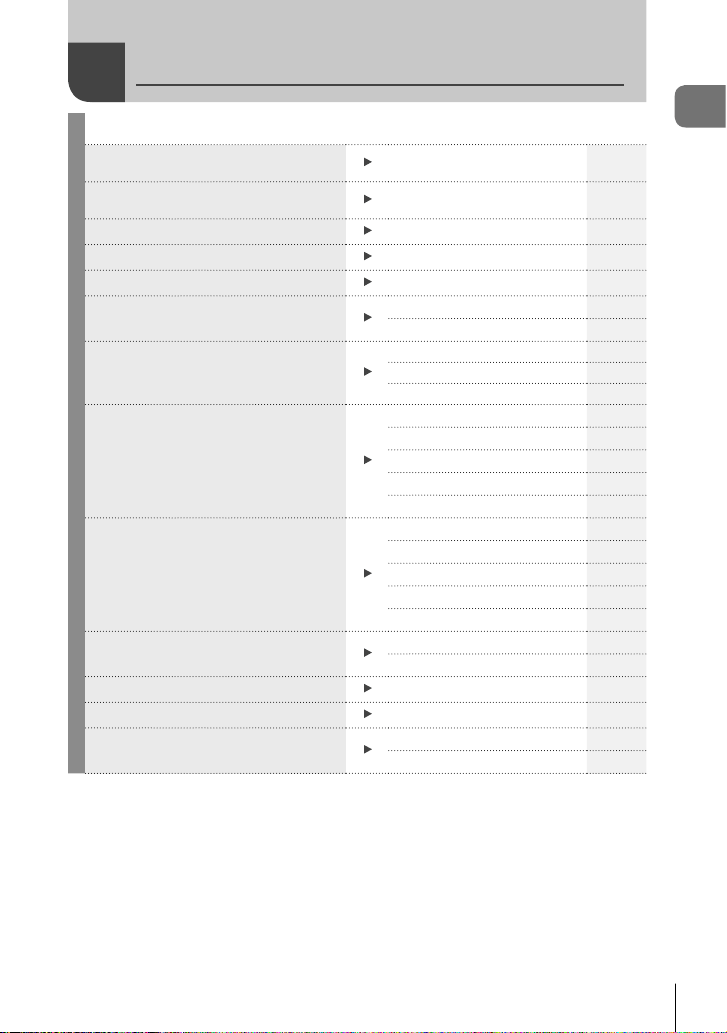
Quick task index
7
EN
Shooting
g
Just shoot without making any diffi cult
settings
AUTO mode (B)
31
Shooting in the way you want without
needing to know technical terms
Live Guide 31
Taking self-portraits
Self-portraits 67
Taking stylish pictures
Art fi lter 47
Quickly matching settings to the scene
Scene mode (SCN) 33
Taking pictures with a blurred
background
Live Guide 31
Aperture priority shooting 52
Shooting night views
Portrait + Nightscape (SCN) 33
Nightscape (SCN) 34
Hand-Held Starlight (SCN)34
Photographing fi reworks
Fireworks (SCN)34
Live Time (Z)
39
Live Composite (Z)
38
Live Composite (M)
56
Bulb/time photography (M)
55
Photographing light trails
Light Trails (SCN) 34
Live Time (Z)
39
Live Composite (Z)
38
Live Composite (M)
56
Bulb/time photography (M)
55
Adjusting the brightness of highlights
and shadows
Live Guide 31
Exposure compensation 69
Taking photos with the fl ash
Flash photography 72
Taking photos without the fl ash
ISO sensitivity 79
Reducing camera shake
Image Stabilizer 89
Self-timer 74
Quick task index
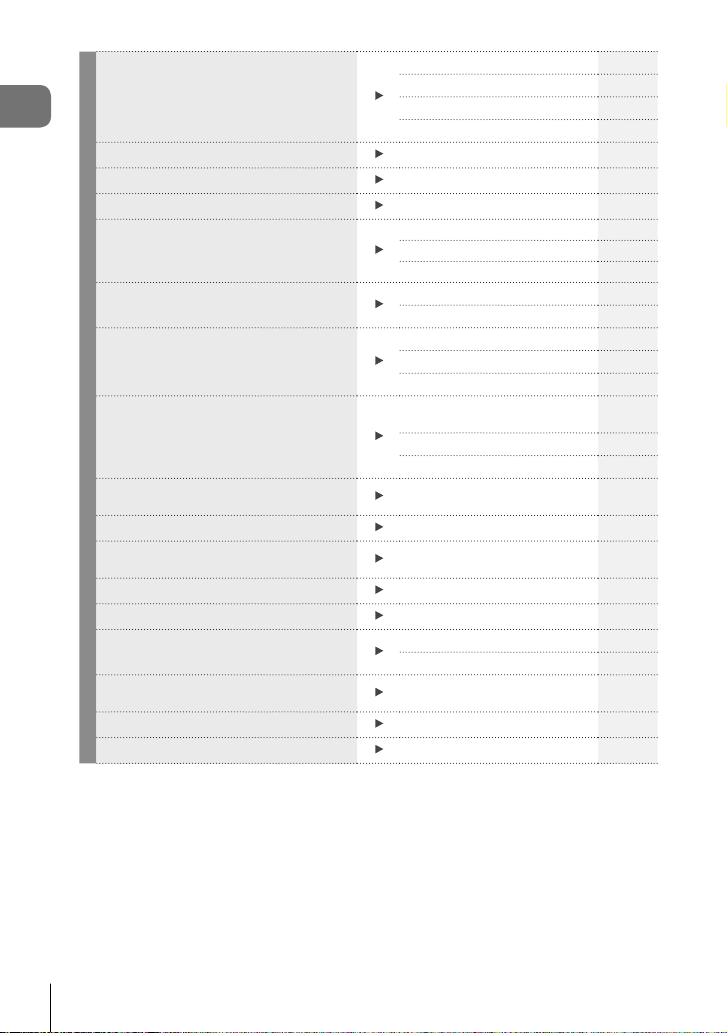
Quick task index
8
EN
Taking pictures of a subject against
backlight
Flash photography 72
Backlight HDR (SCN)35
Gradation (Picture Mode) 93
Spot metering 91
Using the self-timer
Self-timer 74
Sequential shooting
Sequential shooting 74
Changing an aspect ratio
Aspect ratio 83
Changing photo coloring
Live Guide 31
Picture Mode 78
White balance 80
Processing pictures to match the
subject/Taking monotone pictures
Picture Mode 78
Art fi lter (ART)47
Taking pictures that stop the subject in
motion or convey a sense of motion
Live Guide 31
Scene mode (SCN)33
Shutter priority shooting 53
When the camera will not focus on
your subject/Focusing on one area
Tap AF (Using the touch
screen)
57
AF target settings 70
Zoom frame AF/zoom AF 99
Focusing on a small spot in the frame/
confi rming focus before shooting
Zoom frame AF/zoom AF 99
Keeping a moving subject in focus
C-AF+TR (AF tracking) 82
Focusing on and shooting a moving
subject
C-AF 81
Creating commercial-style movies
My Clips 63
Reducing image noise (mottling)
Noise Reduct. 128
Optimizing the monitor/
adjusting monitor hue
Monitor brightness adjustment 124
Live View Boost 127
Checking horizontal or vertical
orientation before shooting
Level gauge 26
Shooting with deliberate composition
Displayed Grid 127
Conserving battery power
Sleep 131
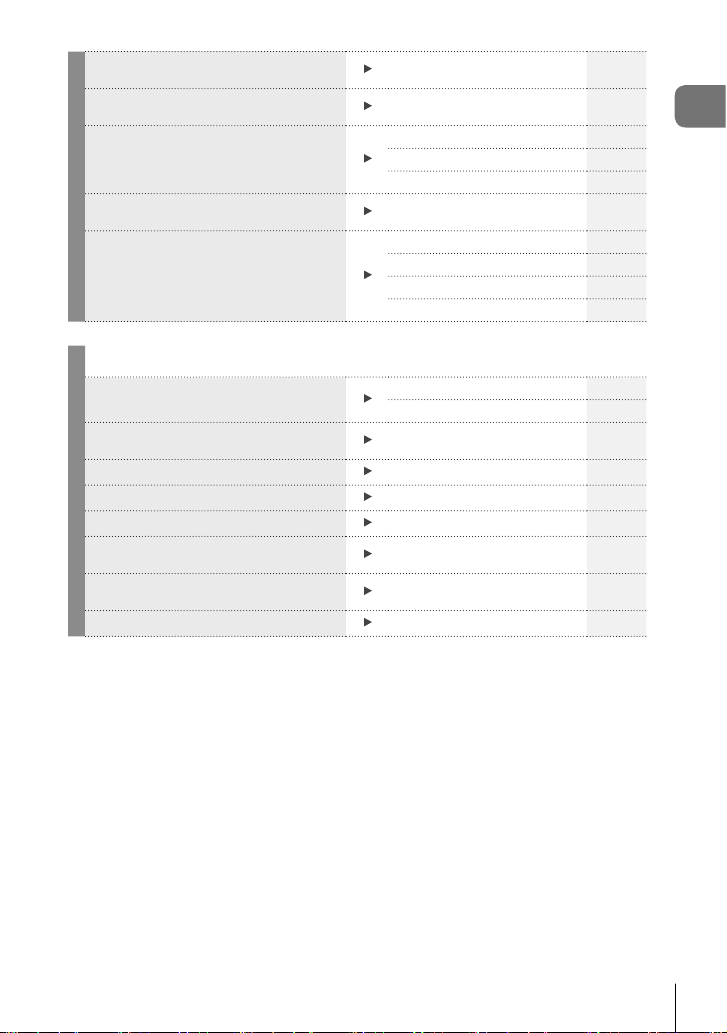
Quick task index
9
EN
Increasing the number of pictures that
can be taken
Still image quality mode 83
Using a remote control
Shooting remotely with a
smartphone
141
Shooting without the shutter sound
Silent [♥] (SCN)35
Silent [♥] (Z)
42
Silent [♥] (P/A/S/M/ART)
75
Zooming in so your subject fi lls more
of the frame
Digital Tele-converter 69
Improving complexions
One-Touch e-Portrait 67
Portrait (Picture Mode) 78
e-Portrait (Picture Mode) 78
Scene mode (SCN)33
Playback/Retouch
g
Viewing images on a TV
HDMI 127
Playback on TV 134
Viewing slideshows with background
music
Slideshow 104
Brightening shadows
Shadow Adj (JPEG Edit) 121
Dealing with red-eye
Redeye Fix (JPEG Edit) 121
Printing made easy
Creating a print order 147
Viewing pictures on a smartphone
Transferring images to a
smartphone
140
Uploading pictures to a smartphone
automatically
Automatically uploading
images while the camera is off
140
Adding location data to images
Adding location data to images 141
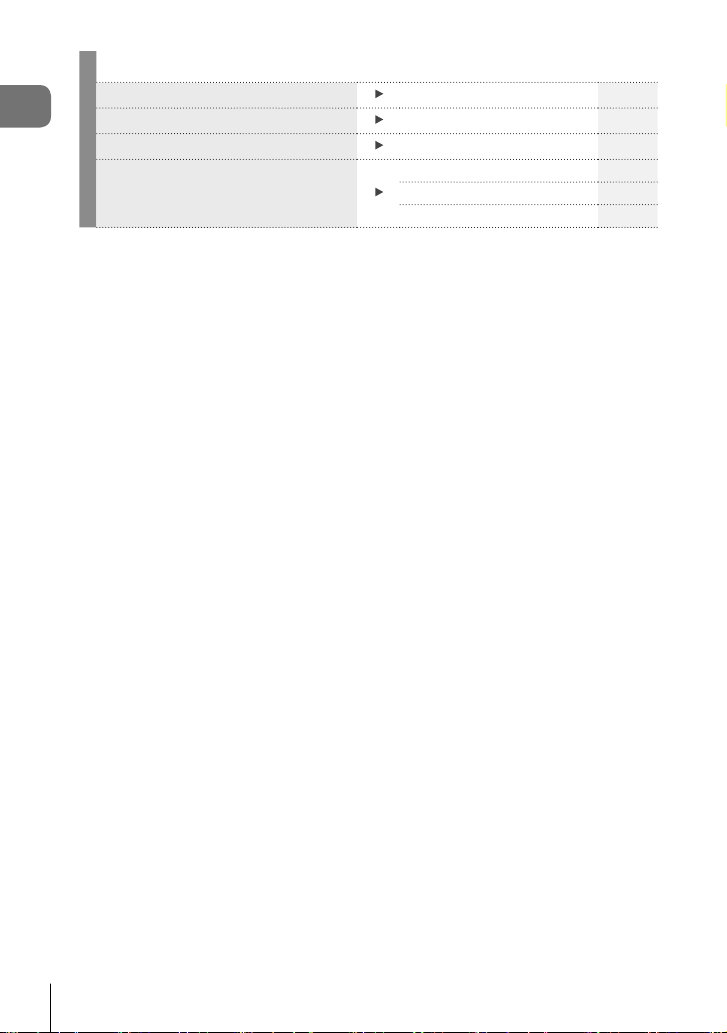
Quick task index
10
EN
Camera Settings
g
Synchronizing the date and time Setting the date/time 21
Restoring default settings
Reset 114
Changing the menu display language
W
125
Turning off the auto focus sound
8 (Beep sound)
127
Silent [♥] (SCN)35
Silent [♥] (Z)
42
Quick task index
11
EN
Indications used in this manual
The following symbols are used throughout this manual.
FGHI
Symbols designating the buttons (respectively the up, down, left, and
right arrow buttons) to press on the arrow pad (P. 13).
$
Notes
Points to note when using the camera.
%
Tips
Useful information and hints that will help you get the most out of
your camera.
g
Reference pages describing details or related information.
Olympus will not be held liable for violations of local regulations arising from use of this
product outside the country or region of purchase.
• Use of these features outside the country or region of purchase may violate local
wireless regulations; be sure to check with local authorities before use. Olympus will
not be held liable for the user’s failure to comply with local regulations.
Names of parts
12
EN
Names of parts
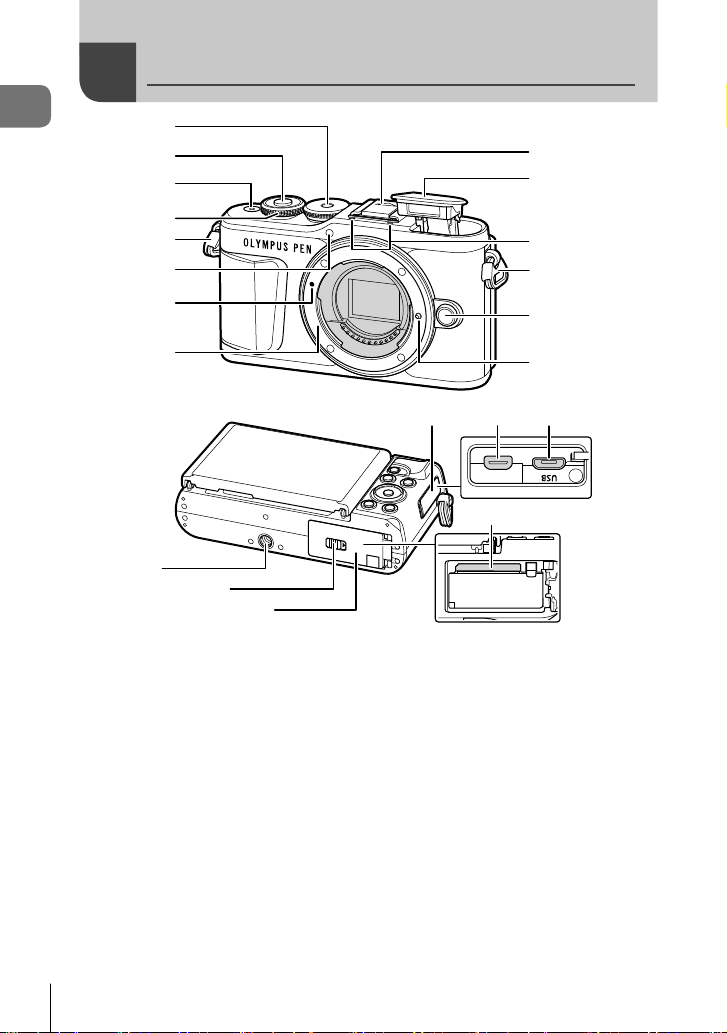
j
ghi
d
e
f
1
2
3
5
4
6
7
8
0
9
a
5
b
c
1 Mode dial ........................................P. 27
2 Shutter button .................................P. 28
3 ON/OFF button ..............................P. 20
4 Control dial (P)
.............................P. 51 – 54, 69, 72, 102
5 Strap eyelet.....................................P. 14
6 Self-timer lamp/AF illuminator
.............................................P. 74/P. 115
7 Lens attachment mark ....................P. 18
8 Mount (Remove the body cap before
attaching the lens.)
9 Hot shoe cover
0 Internal fl ash ...................................P. 72
a Stereo microphone .......P. 108, 119, 121
b Lens release button ........................P. 19
c Lens lock pin
d Tripod socket
e Battery/card compartment lock
..................................................P. 15, 17
f Battery/card compartment cover
..................................................P. 15, 17
g Connector cover
h HDMI micro connector ..................P. 134
i Micro-USB connector....................P. 144
j Card slot .........................................P. 17
Names of parts
13
EN
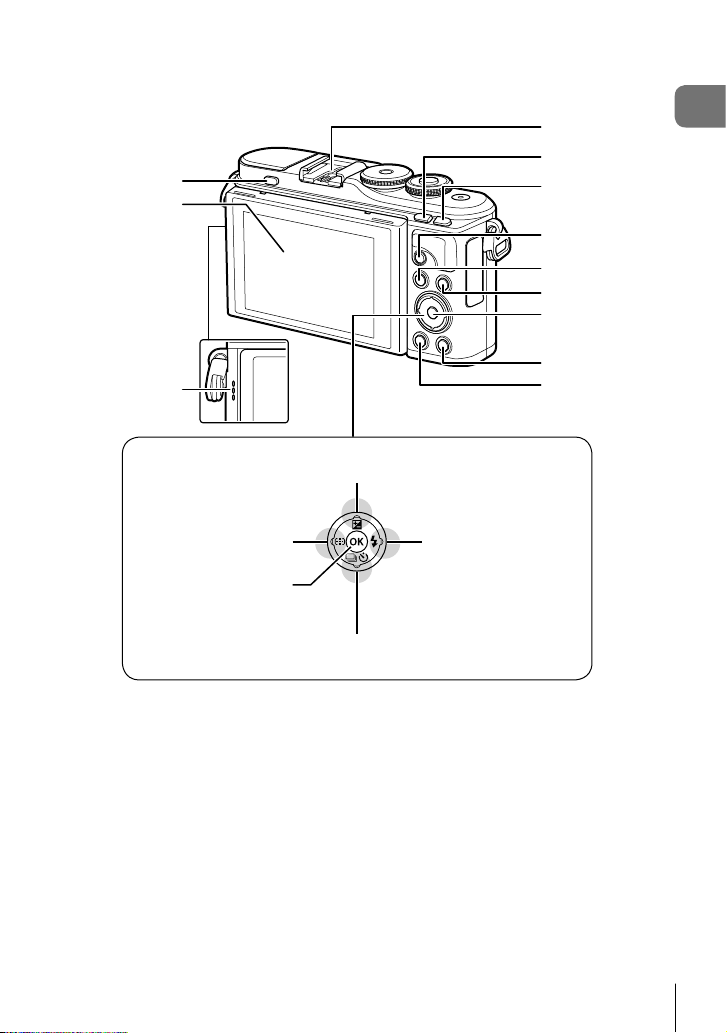
F (Up) / F (Exposure compensation)
button (P. 69)
G (Down) / jY (Sequential shooting/Self-timer)
button (P. 74)
H (Left) / N (AF target)
button (P. 70)
I (Right) /# (Flash)
button (P. 72)
Q button
(P. 76, 102)
1
3
2
4
7
8
9
0
b
c
5
6
a
1 Flash pop-up button ........................P. 72
2 Monitor (Touch screen)
............................ P. 24, 57, 76, 100, 111
3 Speaker
4 Hot shoe .......................................P. 149
5 u (Shortcut)/G button ......P. 30/P. 103
6 Fn/a button ..................P. 97/P. 69, 103
7 R (Movie)/h button ............P. 58/P. 106
8 MENU button ...............................P. 113
9 INFO button ...................P. 26, 101, 132
0 Q button ................................P. 76, 102
a Arrow pad* (FGHI)
...................................P. 21, 70 – 74, 102
b q (Playback) button ....................P. 102
c (Erase) button ..........................P. 105
* In this manual, the FGHI icons represent operations performed using the arrow pad.
Preparation
1
14
EN
1
Preparation
Unpacking the box contents
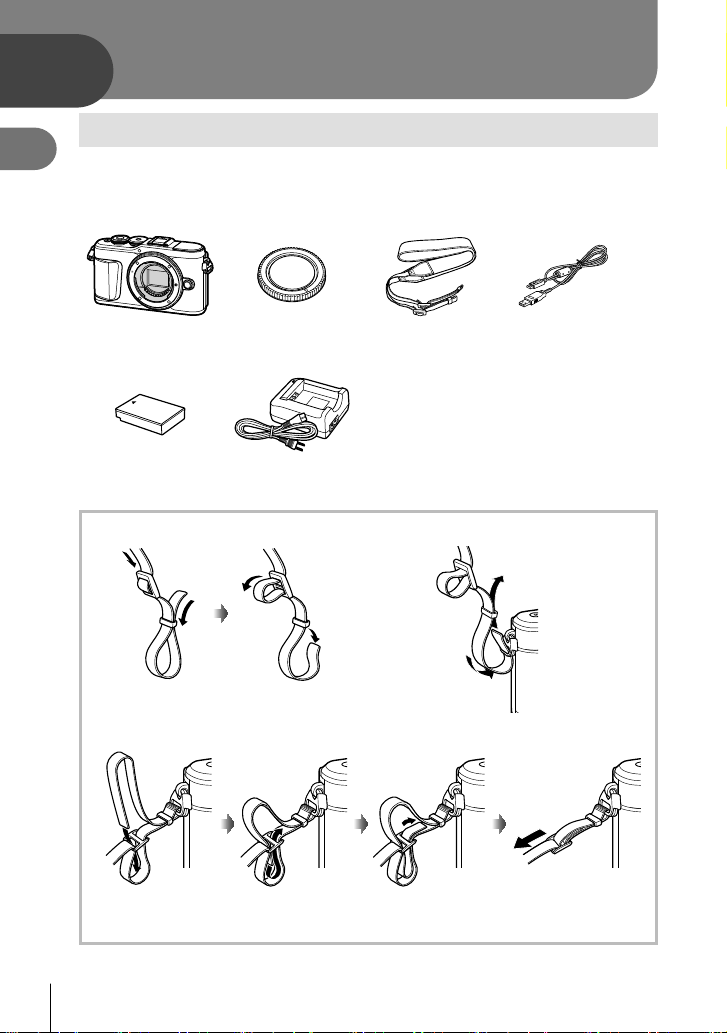
The following items are included with the camera.
If anything is missing or damaged, contact the dealer from whom you purchased the
camera.
Camera Body cap Strap USB cable
CB-USB12
• Basic Manual
• Warranty card
Lithium-ion battery
BLS-50
Lithium-ion charger
BCS-5
Attaching the strap
1
2
3
• Attach the strap on the other side in the same way.
• Lastly, pull the strap fi rmly, making sure that it is fastened securely.
Preparation
1
15
EN
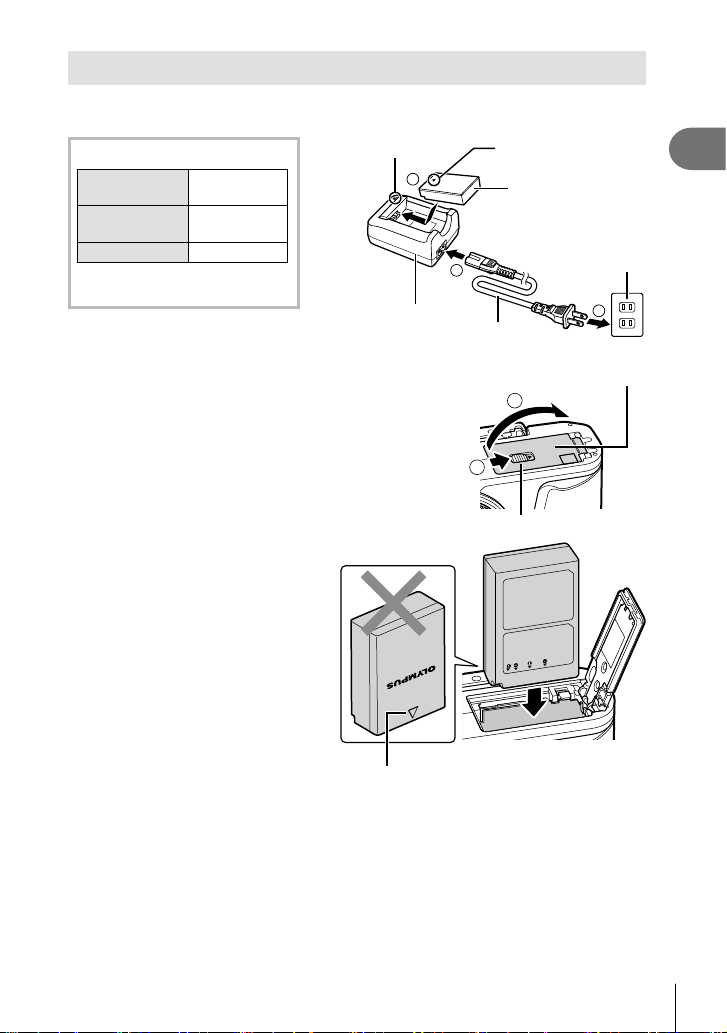
Charging and inserting the battery
1
Charging the battery.
Charging indicator
Charging in
progress
Lights orange
Charging
complete
Off
Charging error Blinks orange
(Charging time: Up to
approximately 3 hours 30 minutes)
1
2
3
AC wall outlet
Lithium ion battery
Charging
indicator
AC cable
Direction indicating
mark (C)
Lithium ion
charger
• Unplug the charger when charging is complete.
2
Opening the battery/card
compartment cover.
1
2
Battery/card compartment lock
Battery/card compartment cover
3
Loading the battery.
• Use only BLS-50 batteries
(P. 14, 168).
Direction indicating mark
Preparation
1
16
EN
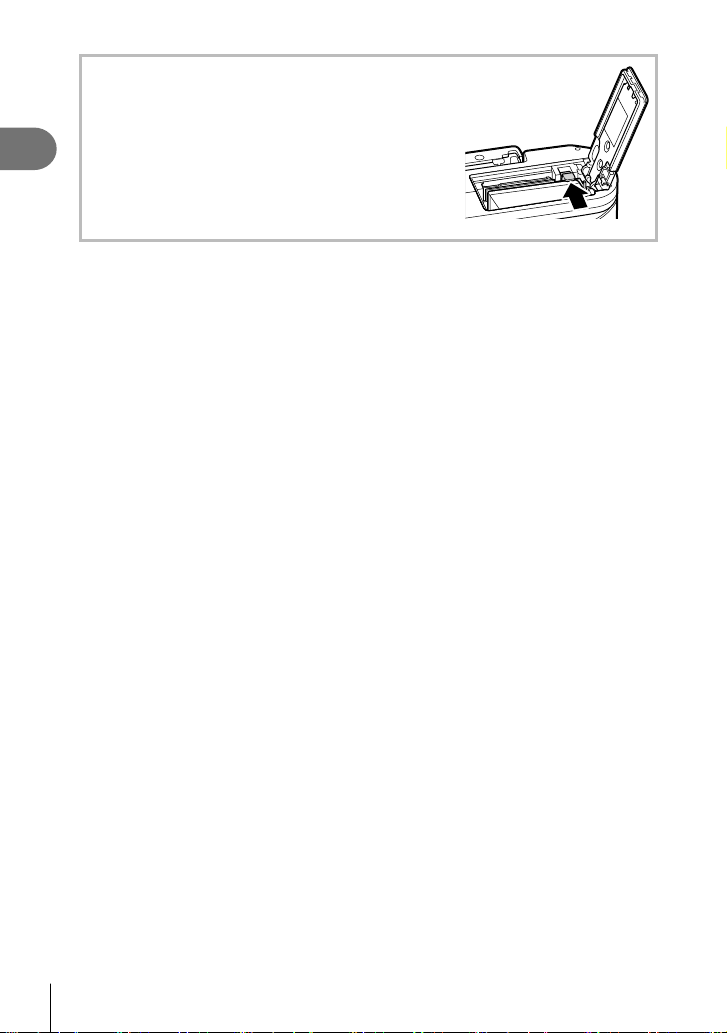
Removing the battery
Turn off the camera before opening or closing the
battery/card compartment cover. To remove the
battery, fi rst push the battery lock knob in the direction
of the arrow and then remove.
• Do not remove the battery while the card write
indicator is displayed (P. 24).
• Contact an authorized distributor or service center
if you are unable to remove the battery. Do not use
force.
$ Notes
• It is recommended to set aside a backup battery for prolonged shooting in case the
battery in use drains.
• The camera is not equipped with a built-in charger and cannot be recharged via a USB
connection.
• Also read “Battery and charger” (P. 146).
Preparation
1
17
EN
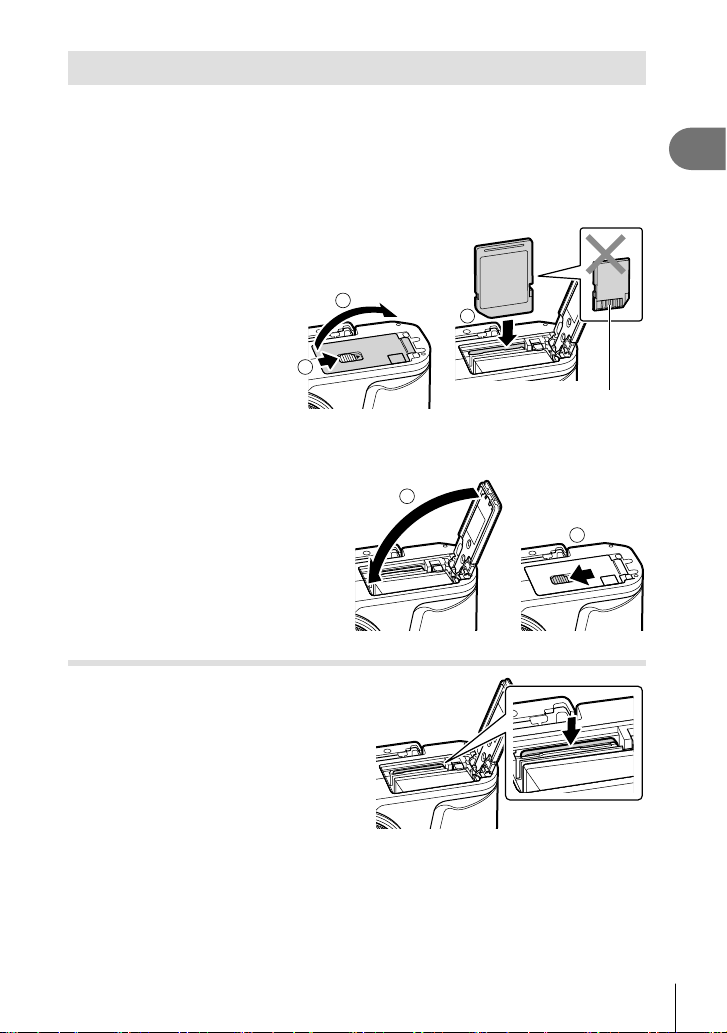
Inserting the card
In this manual, all storage devices are referred to as “cards.”
The camera uses third-party SD, SDHC, or SDXC memory cards conforming to the SD
(Secure Digital) standard.
Cards must be formatted with this camera before fi rst use or after being used with
other cameras or computers. g “Formatting the card (Card Setup)” (P. 125)
1
Loading the card.
• Open the battery/card compartment cover.
• Slide the card in until it is locked into place.
g “Usable cards” (P. 147)
3
Terminal area
1
2
• Turn off the camera before loading or removing the battery or card.
• Do not forcibly insert a damaged or deformed card. Doing so may damage the card
slot.
2
Closing the battery/card
compartment cover.
• Be sure the battery/card compartment
cover is closed before using the camera.
1
2
Removing the card
Press the inserted card lightly and it will be
ejected. Pull out the card.
• Do not remove the card while the card
write indicator is displayed (P. 24).
Preparation
1
18
EN
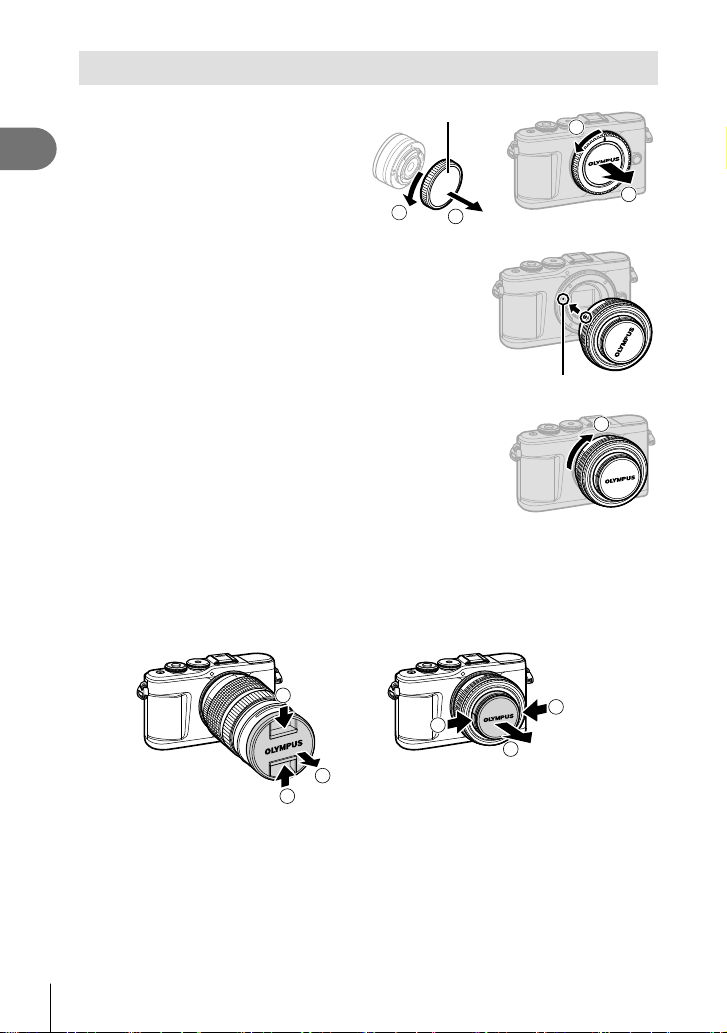
Attaching a lens to the camera
1
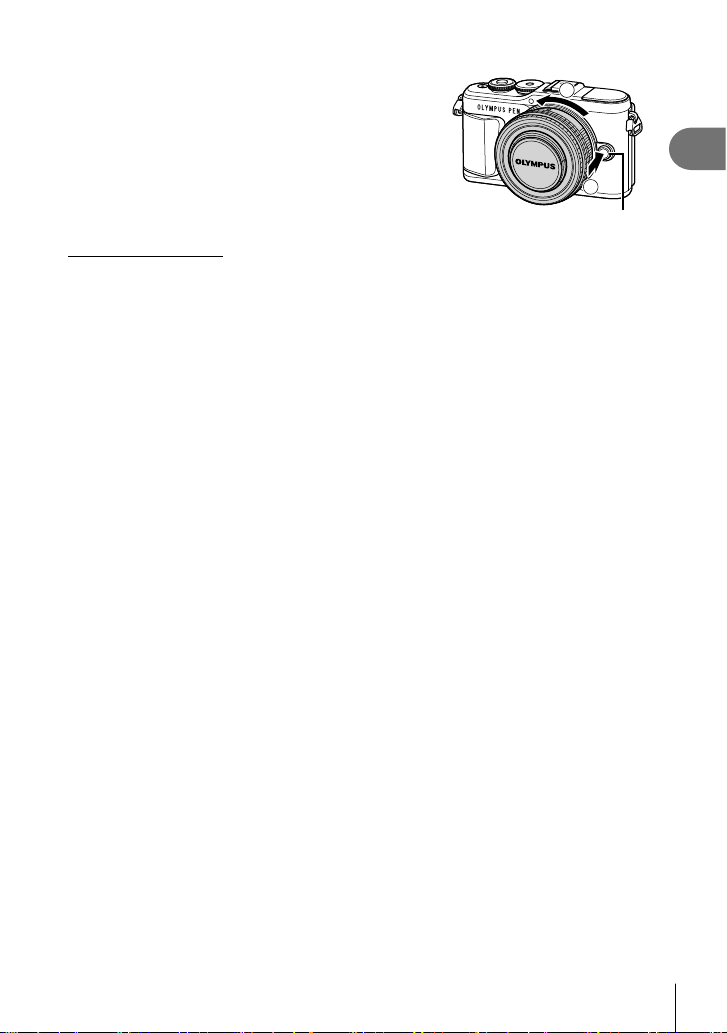
Remove the rear cap of the lens
and the body cap of the camera.
1
2
1
2
Rear cap
2
Align the lens attachment mark (red) on
the camera with the alignment mark (red)
on the lens, then insert the lens into the
camera’s body.
Lens attachment mark
3
Rotate the lens clockwise until you hear it
click (direction indicated by arrow 3).
3
• Make sure the camera is turned off when attaching or removing the lens.
• Do not press the lens release button.
• Do not touch internal portions of the camera.
Removing the lens cap
1
1
2
1
1
2
Preparation
1
19
EN
Removing the lens from the camera
Make sure the camera is turned off when removing the
lens. While pressing the lens release button, rotate the
lens in the direction of the arrow.
1
2
Lens release button
Interchangeable lenses
Read “Interchangeable lenses” (P. 148).
Preparation
1
20
EN
Turning the camera on
1
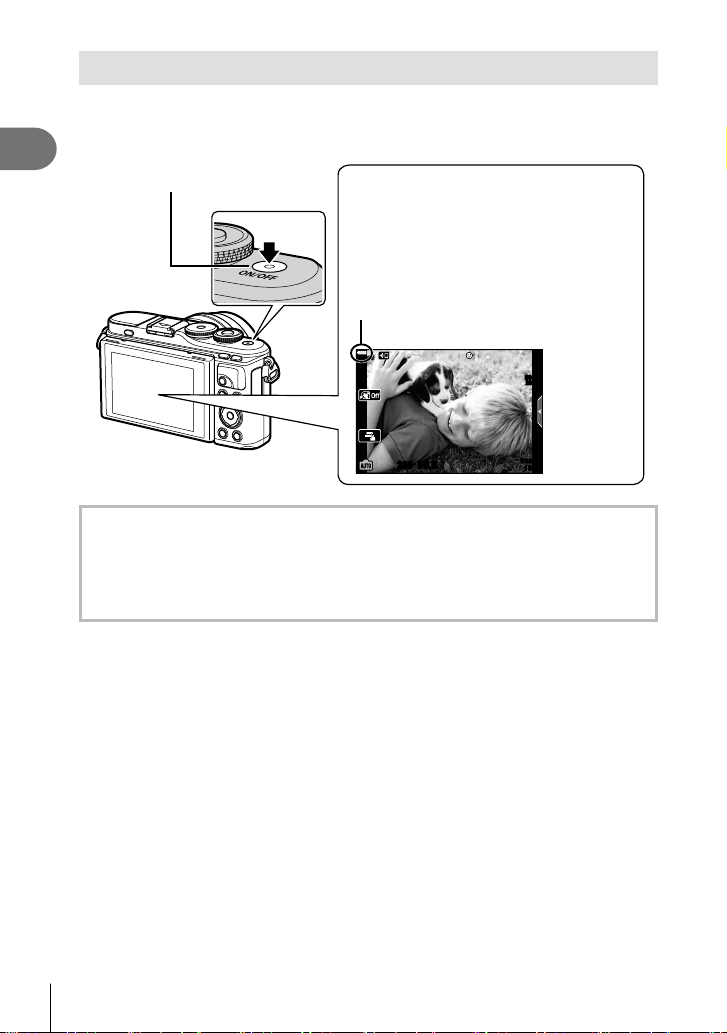
Press the ON/OFF button to turn on the camera.
• When the camera is turned on, the monitor will turn on.
ON/OFF button
250250 F5.6
ISO-A
200
1023
1:02:03
Monitor
Battery level
The battery level icon will be displayed.
j
(green): The camera is ready to shoot.
k
(green): The battery is not full.
l
(green): The battery is low.
m
(blinks red): Charge the battery.
Camera sleep operation
If no operations are performed for a minute, the camera enters “sleep” (stand-by) mode to
turn off the monitor and to cancel all actions. The camera activates again when you touch
any button (the shutter button, q button, etc.). The camera will turn off automatically if left
in sleep mode for 5 minutes. Turn the camera on again before use. You can choose how
long the camera remains idle before entering sleep mode. g [Sleep] (P. 131)
Preparation
1
21
EN
Initial setup
After turning the camera on for the fi rst time, perform the initial setup by choosing a
language and setting the camera clock.
• Date and time information is recorded on the card together with the images.
• The fi le name is also included with the date and time information. Be sure to set the
correct date and time before using the camera. Some functions cannot be used if the date
and time have not been set.
1
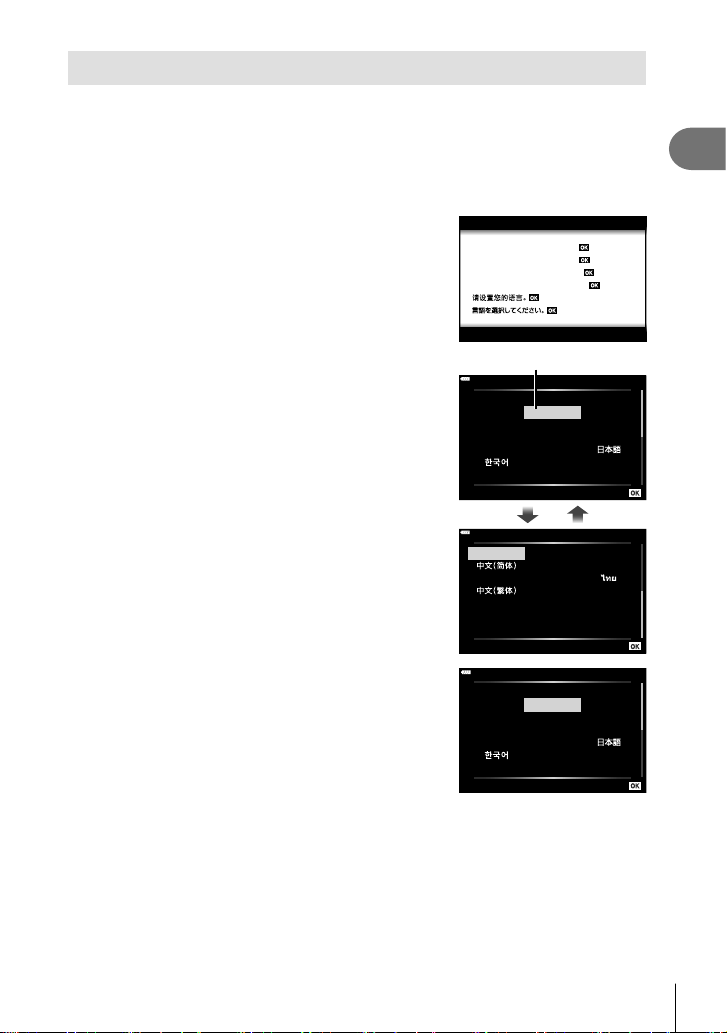
Press the Q button when the initial setup
dialog is displaying prompting you to choose a
language.
Please select your language.
Por favor, selecciona tu idioma.
Veuillez choisir votre langue.
Bitte wählen Sie Ihre Sprache.
2
Highlight the desired language using the control
dial or the FGHI buttons on the arrow pad.
• The language-selection dialog has two pages
of options. Use the control dial or the FGHI
buttons on the arrow pad to move the cursor
between pages.
Cursor
W
Hrvatski
Dansk
Eesti
Deutsch
Indonesia
Norsk
ýHVN\
English
Suomi
ǼȜȜȘȞȚțȐ
Italiano
Latviski
Polski
Ȼɴɥɝɚɪɫɤɢ
Nederlands
Français
0DJ\DU
/LHWXYLǐN
Português(Pt)
Set
W
Romanian
Español
Viet Nam
Ɋɭɫɫɤɢɣ
Slovensky
Svenska
Türkçe
Srpski
6ORYHQãþLQD
ɍɤɪɚʀɧɫɶɤɚ
Setare
3
Press the Q button when the desired language
is highlighted.
• If you press the shutter button before pressing the
Q button, the camera will exit to shooting mode and
no language will be selected. You can perform the
initial setup by turning the camera off and then on
again to display the initial setup dialog and repeating
the process from Step 1.
W
Set
Hrvatski
Dansk
Eesti
Deutsch
Indonesia
Norsk
ýHVN\
English
Suomi
ǼȜȜȘȞȚțȐ
Italiano
Latviski
Polski
Ȼɴɥɝɚɪɫɤɢ
Nederlands
Français
0DJ\DU
/LHWXYLǐN
Português(Pt)
• The language can be changed at any time from the e setup menu. g “Choosing a
language (W)” (P. 125)
Preparation
1
22
EN
4
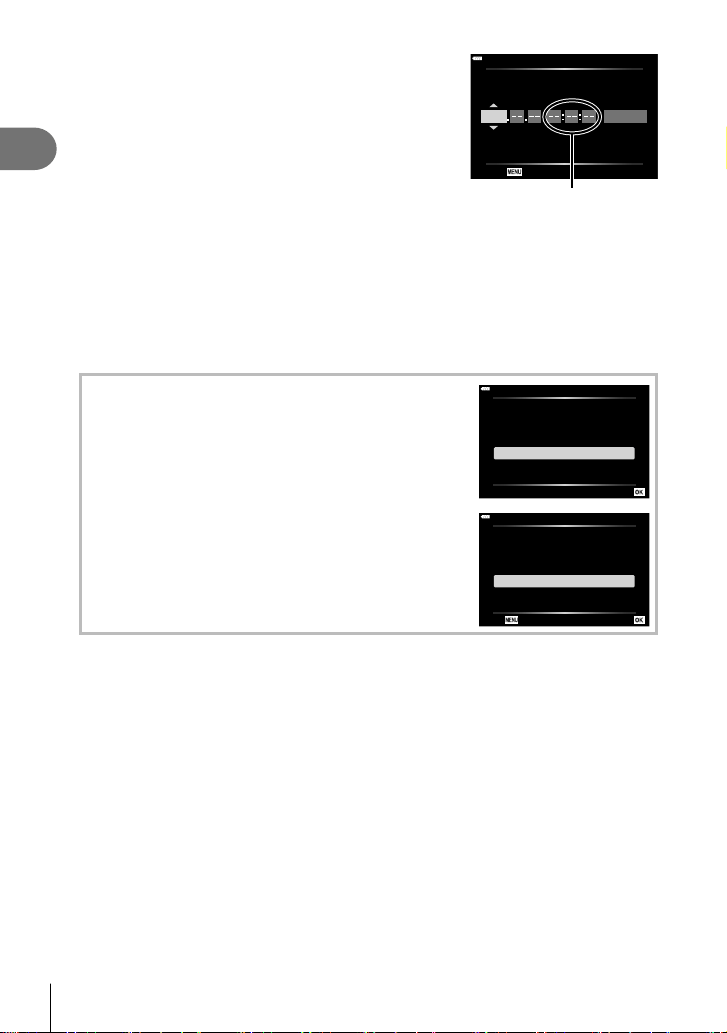
Set the date, time, and date format.
• Use the HI buttons on the arrow pad to highlight
items.
• Use the FG buttons on the arrow pad to change
the highlighted item.
• The clock can be adjusted at any time from the
e setup menu. g [X] (P. 124)
X
2019
YMD Time
Y/M/D
Cancel
The time is displayed using
a 24-hour clock.
5
Complete the initial setup.
• Press the Q button to set the clock.
• If the battery is removed from the camera and the camera is left for a while, the date and
time may be reset to the factory default setting.
• You may also need to adjust the frame rate before shooting movies. g [Video Frame
Rate] (P. 119)
Turning the camera off
Press the ON/OFF button to turn the camera off. See
page 138 for information on how to proceed if the camera
displays the dialog shown in the illustration.
Power-off Standby
Activate Wi-Fi/Bluetooth Power-off
Standby so images can be imported
while power is off?
Yes
No
Set
Power-off Standby:On
Confirm whether or not to activate
Power-off Standby every time power
is turned off? This setting can be
changed from the menu anytime.
Confirm every time
Don't show this screen again
Back Set
Preparation
1
23
EN
Camera displays unreadable/not in the selected language
If the camera displays are in an unfamiliar language or use characters you are unable
to read, you may have accidentally selected the wrong language in the language-
selection dialog. Follow the steps below to change languages.
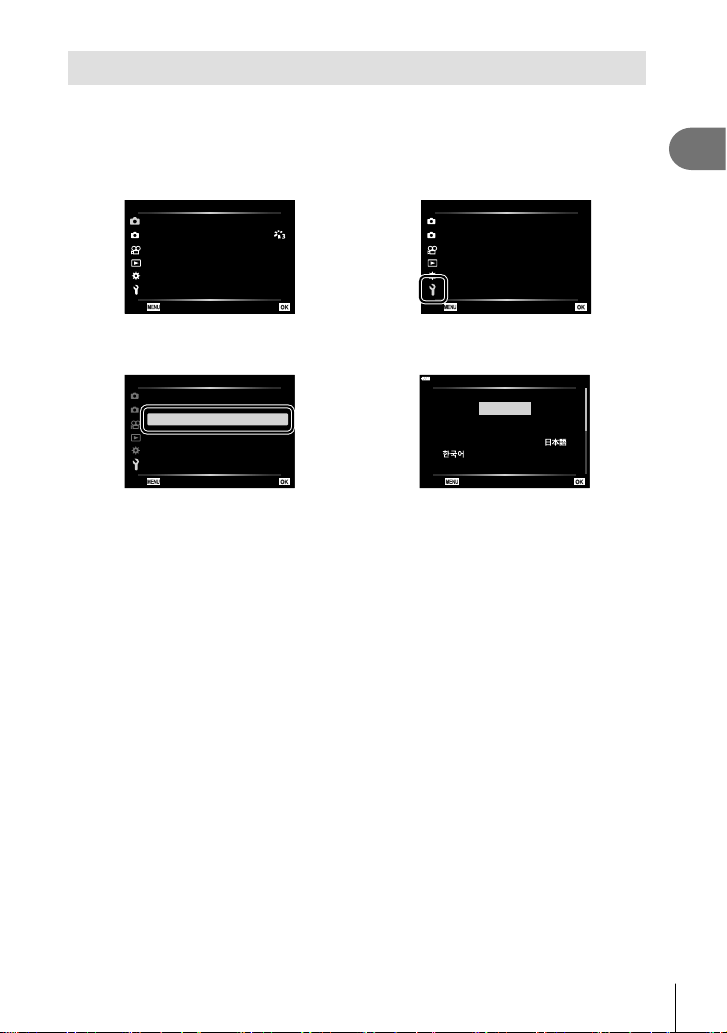
1 Press the MENU button to display the
menus.
2 Highlight the e tab using FG and press
the Q button.
2
1
1
ѯєьѬщҕѥѕѓѥё 1
p
ѱўєчѓѥё
чѧлѧъѤјѯъѯјзѠь
ѱўєчњѤчѰѝк
іѨѯо
Ѷ
ш
юѧч
дјѤэшѤҟкзҕѥ
2
1
ѯєьѬшѤҟкзҕѥ
X
ѳъѕ
s
ѯђѧіҙєѰњіҙ
дѥішѤҟкзҕѥWi-Fi/Bluetooth
чѬѓѥёэѤьъѩд
j±0 k±0
0.5 њѧьѥъѨ
’--.--.-- --:--:--
шѤҟкзҕѥдѥіҙч
дјѤэшѤҟкзҕѥ
W
3 Highlight [W] using FG and press the
Q button.
4 Highlight the desired language using
FGHI and press the Q button.
2
1
ѯєьѬшѤҟкзҕѥ
X
W ѳъѕ
s
ѯђѧіҙєѰњіҙ
дѥішѤҟкзҕѥWi-Fi/Bluetooth
чѬѓѥёэѤьъѩд
j±0 k±0
’--.--.-- --:--:--
шѤҟкзҕѥдѥіҙч
0.5 њѧьѥъѨ
дјѤэшѤҟкзҕѥ
W
Back Set
Hrvatski
Dansk
Eesti
Deutsch
Indonesia
Norsk
ýHVN\
English
Suomi
ǼȜȜȘȞȚțȐ
Italiano
Latviski
Polski
Ȼɴɥɝɚɪɫɤɢ
Nederlands
Français
0DJ\DU
/LHWXYLǐN
Português(Pt)
Shooting
2
24
EN
2
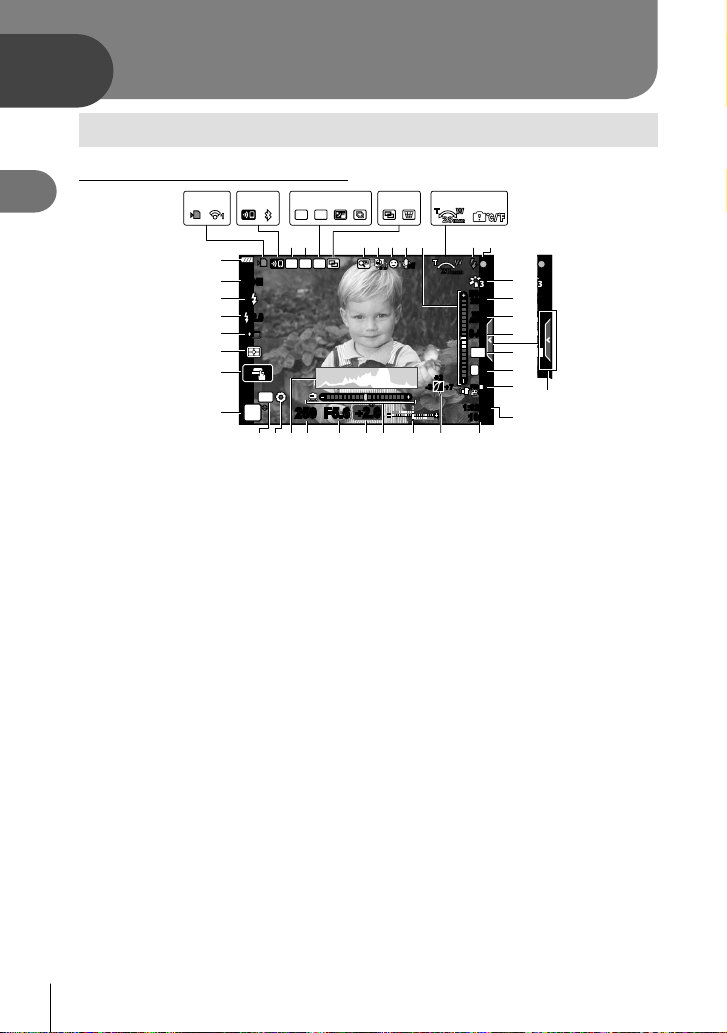
Information displays while shooting
Shooting
Monitor display during still photography
250250 F5.6
L
F
4:3
AEL
HDR
+
2.0
+
2.0
P
off
FP
+7+7-3-3
+2+2
S-AF
WB
AUTO
-
2.0
28
mm
S-IS ONS-IS ON
F
FHD
30p
ISO-A
200
1023
1:02:03
RC
N
B
T
O
-
A
0
3
A
F
BKT
HDR
28
mm
1
m
n
o
p
q
l
k
r
3412 7890 ab g h
56 ef ic
v
jd
yBxwvuztsA
K
E
D
F
G
H
I
J
C
1 Card write indicator .........................P. 17
2 Wireless LAN connection status
.............................................P. 136 – 143
3 Wireless LAN connection starting up
.............................................P. 136 – 143
4 Connected via Bluetooth ....P. 136 – 143
5 Super FP fl ash ..............................P. 149
6 RC mode.......................................P. 149
7 HDR ................................................P. 41
8 AE Bracketing .................................P. 45
Focus Bracketing ............................P. 46
9 Handheld Starlight ..........................P. 34
0 Multi Focus Shot .............................P. 36
a Multiple exposure............................P. 40
b D Keystone compensation ...........P. 44
c Digital Tele-converter ....................P. 115
d Time lapse shooting ......................P. 116
e Face priority/Eye priority .................P. 71
f Movie sound ...........P. 58, 108, 119, 121
g Zoom operation direction/Focal length
h Internal temperature warning m
......................................................P. 160
i Flash ...............................................P. 72
(blinks: charging in progress, lights up:
charging completed)
j AF confi rmation mark......................P. 28
k Picture mode...........................P. 78, 115
l ISO sensitivity .................................P. 79
m White balance .................................P. 80
n AF mode .........................................P. 81
o Aspect ratio .....................................P. 83
p Image quality (still images) .............P. 83
q Record mode (movies) ...................P. 84
r Available recording time
s Number of storable still pictures ...P. 147
t Highlight & shadow control .............P. 96
u Top: Flash intensity control .............P. 88
Bottom: Exposure compensation ....P. 69
v Level gauge ....................................P. 26
w Exposure compensation value........P. 69
x Aperture value .........................P. 51 – 54
y Shutter speed ..........................P. 51 – 54
z Histogram .......................................P. 26
A Preview ...........................................P. 98
B AE lock....................................P. 98, 131
C Shooting mode.........................P. 27 – 62
D Touch operation ..............................P. 57
E Metering mode ................................P. 91
F Sequential shooting/Self-timer ........P. 74
Silent shooting ................................P. 42
G
Flash intensity control .....................P. 88
H Flash mode .....................................P. 72
I Image stabilizer...............................P. 89
J Battery level ....................................P. 20
K Live guide recall ..............................P. 31

Shooting
2
25
EN
Monitor display during movie mode
28
mm
n
M-ISM-IS
1
L
R
L
R
ISO
AUTO
C-AF
P
F
FHD
30p
1:02:03
WB
AUTO
L
F
N
M
L
O
L Recording level meter ...................P. 119
M Silent shooting tab ..........................P. 66
N Movie (exposure) mode ..................P. 87
O Movie effect ....................................P. 61
Shooting
2
26
EN
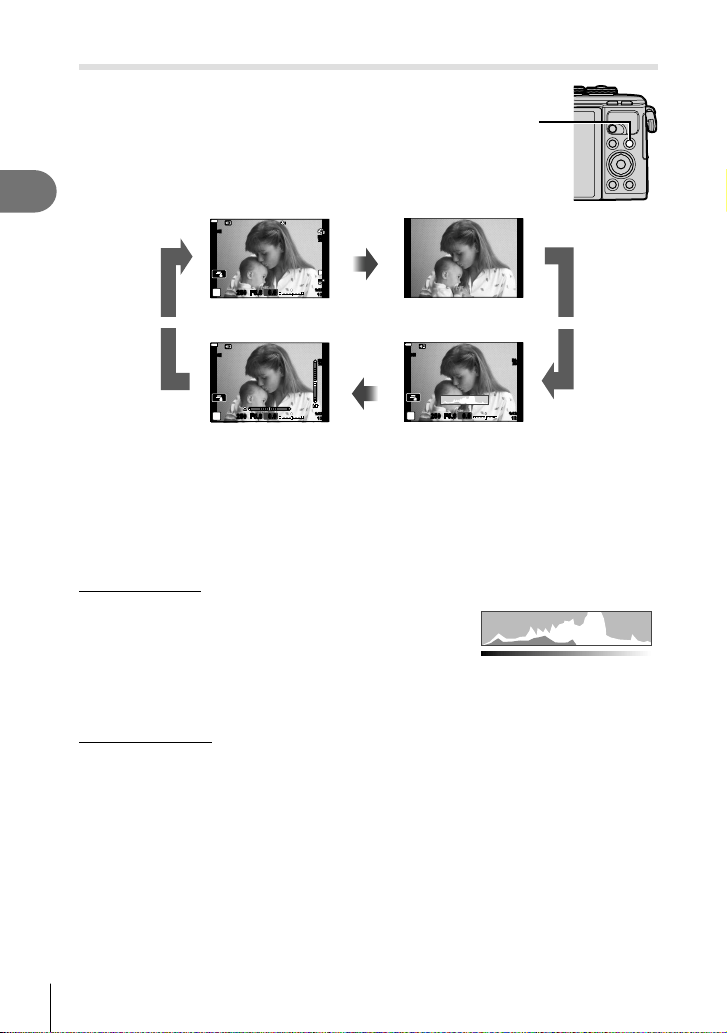
Switching the information display
You can switch the information displayed in
the monitor during shooting using the INFO
button.
INFO button
INFO
INFO
Level Gauge display
(Custom2)
250250 F5.6
P
S-IS ONS-IS ON
ISO-A
200
1023
1:02:03
0.0
INFO
INFO
Image Only
Histogram display
(Custom1)
Basic Information*
250250 F5.6
P
S-IS ONS-IS ON
ISO-A
200
1023
1:02:03
0.0
250250 F5.6
P
S-IS ONS-IS ON
ISO-A
200
F
FHD
30p
1023
1:02:03
0.0
L
F
INFO
INFO
INFO
INFO
* Not displayed in n mode (movie mode) unless recording is in progress.
• You can change Custom1 and Custom2 settings. g [G/Info Settings] > [LV-Info]
(P. 127)
• The information display screens can be switched in either direction by rotating the control
dial while pressing the INFO button.
Histogram display
A histogram showing the distribution of brightness
in the image is displayed. The horizontal axis
gives the brightness, the vertical axis the number
of pixels of each brightness in the image. During
shooting, overexposure is indicated in red,
underexposure in blue, and the range metered
using spot metering in green.
More
Less
Dark Bright
Level gauge display
The orientation of the camera is indicated. The “tilt” direction is indicated on the vertical bar
and the “horizon” direction on the horizontal bar. The camera is level and plumb when the
bars turn green.
• Use the indicators on the level gauge as a guide.
• Error in the display can be corrected via calibration (P. 131).
Shooting
2
27
EN
Choosing a shooting mode and taking photos
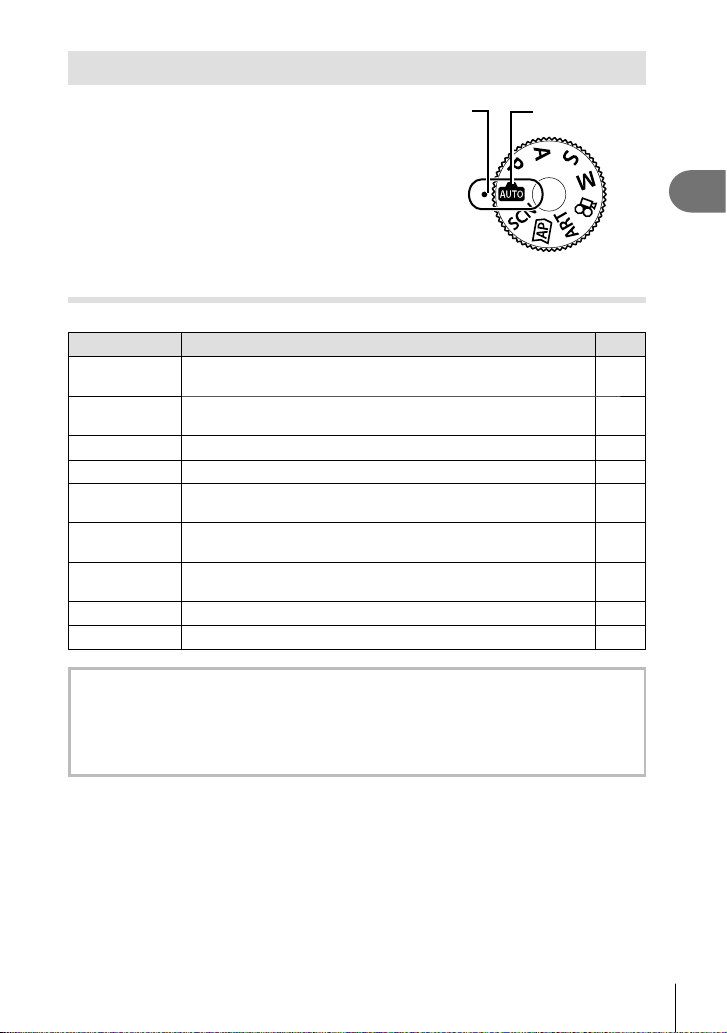
Use the mode dial to select the shooting mode,
and then shoot the image.
Indicator Mode icon
Types of shooting modes
For how to use the various shooting modes, see the following.
Shooting mode Description
g
B
The camera automatically selects the most appropriate shooting
mode.
31
SCN
The camera automatically optimizes settings for the subject or
scene.
33
Z
Use for quick access to advanced shooting settings. 37
ART You can shoot with the effect of artistic expression added. 47
P
The camera meters subject brightness and automatically adjusts
shutter speed and aperture for optimal results.
51
A
You choose the aperture and the camera automatically adjusts
shutter speed for optimal results.
52
S
You choose the shutter speed and the camera automatically
adjusts aperture for optimal results.
53
M
You choose both the aperture and shutter speed. 54
n
Shoot movies of various types. 59
Functions that cannot be selected from menus
Some items may not be selectable from the menus when using the arrow pad.
• Items that cannot be set with the current shooting mode.
• Items that cannot be set because of an item that has already been set:
Settings such as picture mode are unavailable when the mode dial is rotated to B.
Shooting
2
28
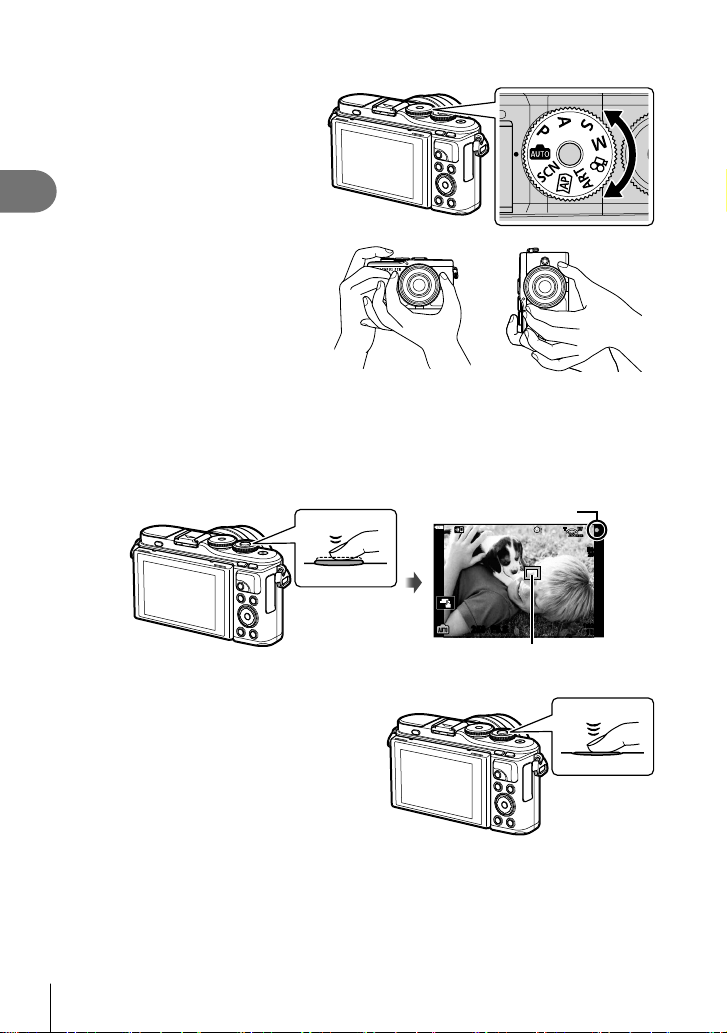
EN
1
Rotate the mode dial to choose a mode.
2
Frame the shot.
• Be careful that your fi ngers
or the camera strap do
not obstruct the lens or AF
illuminator.
Landscape position Portrait position
3
Adjust the focus.
• Display the subject in the center of the monitor, and lightly press the shutter button
down to the fi rst position (press the shutter button halfway).
The AF confi rmation mark (() will be displayed, and a green frame (AF target) will
be displayed in the focus location.
250250 F5.6
1023
1:02:03
28
mm
ISO-A
200
AF confi rmation mark
AF target
Press the shutter
button halfway.
• If the AF confi rmation mark blinks, the subject is not in focus. (P. 156)
4
Release the shutter.
• Press the shutter button all the way
(fully).
• The camera will release the shutter
and take a picture.
• The shot image will be displayed on
the monitor.
Press the shutter
button all the way.
$ Notes
• You can focus and take pictures using touch controls. g “Shooting with touch screen
operations” (P. 57)
• To exit to shooting mode from menus or playback, press the shutter button halfway.
Shooting
2
29
EN
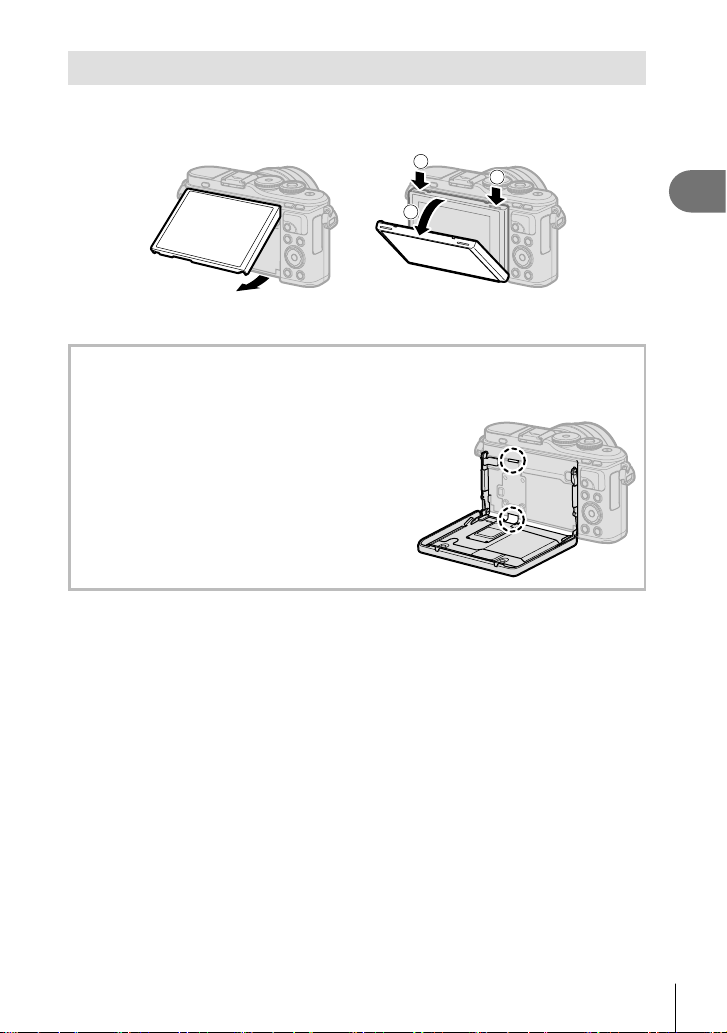
Taking high angle and low angle shots
You can change the orientation and angle of the monitor.
Lower angle Upper angle
2
1
1
1 Press the monitor down.
2 Adjust the angle of the monitor.
Rotating the Monitor: Cautions
• Rotate the monitor gently within the limits shown. Do not use force; failure to observe
this precaution could damage the connectors.
• Do not touch the areas indicated in the
illustration. Failure to observe this precaution
could damage the product or cause it to
malfunction.
$ Notes
• Inverting the monitor allows you to take pictures of yourself while you preview the frame.
g “Taking Photos in Self-Portrait Mode” (P. 67)
Shooting
2
30
EN
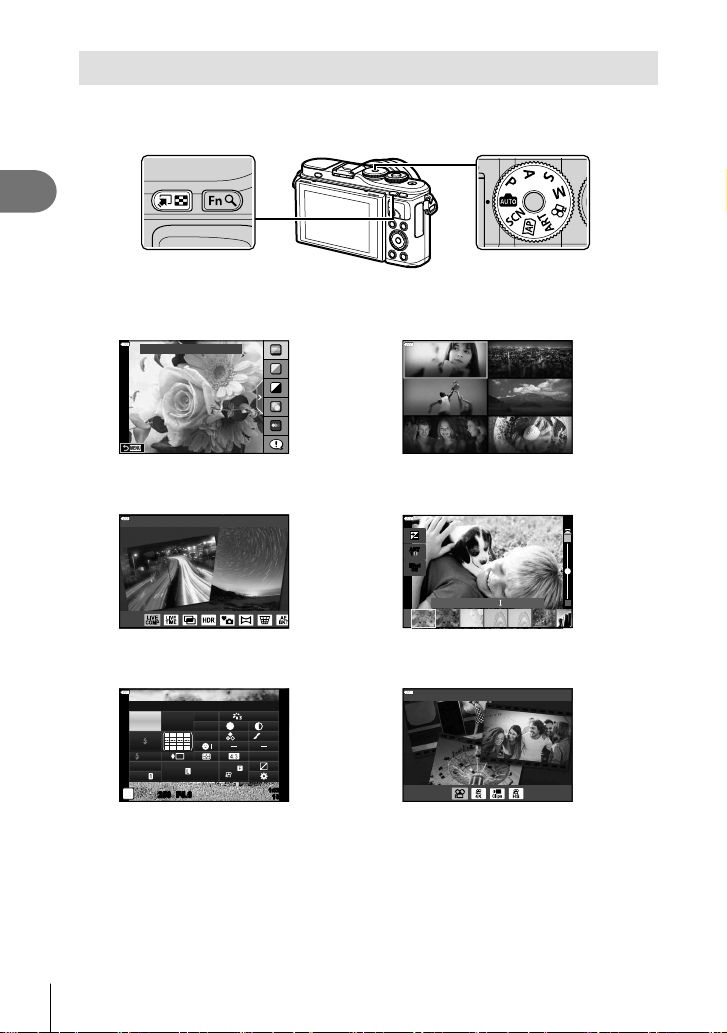
Switching Displays with the u (Shortcut) Button
Press the u button to switch to each screen of the selected shooting mode between
shots.
u (Shortcut) button
Mode dial
B
Live guide (P. 31)
SCN
Scene mode (P. 33)
Change Color Saturation
Motion Scenery
Nightscapes
Indoors Close-ups
People
Z
Advanced photo mode (P. 37)
ART
Art fi lter mode (P. 47)
Live Composite
Effect
Off
ART
1
ART
1
Pop Art
P/A/S/M
LV super control panel (P. 77)
n
Movie mode (P. 59)
250250 F5.6
P
1023
1:02:03
sRGB
Natural
S
-
AF
F
FHD
60p
S
Normal
WB
Auto
ISO
Auto
M-IS
S-IS On
±
0
A
±
0
±
0.0
±
0
±
0
±
0
G
±
0
Recommended ISO
Standard
Shooting
2
31
EN
Letting the camera choose the settings ( AUTO mode)
The camera adjusts settings to suit the scene; all you have to do is press the shutter
button. Set the mode dial to B.
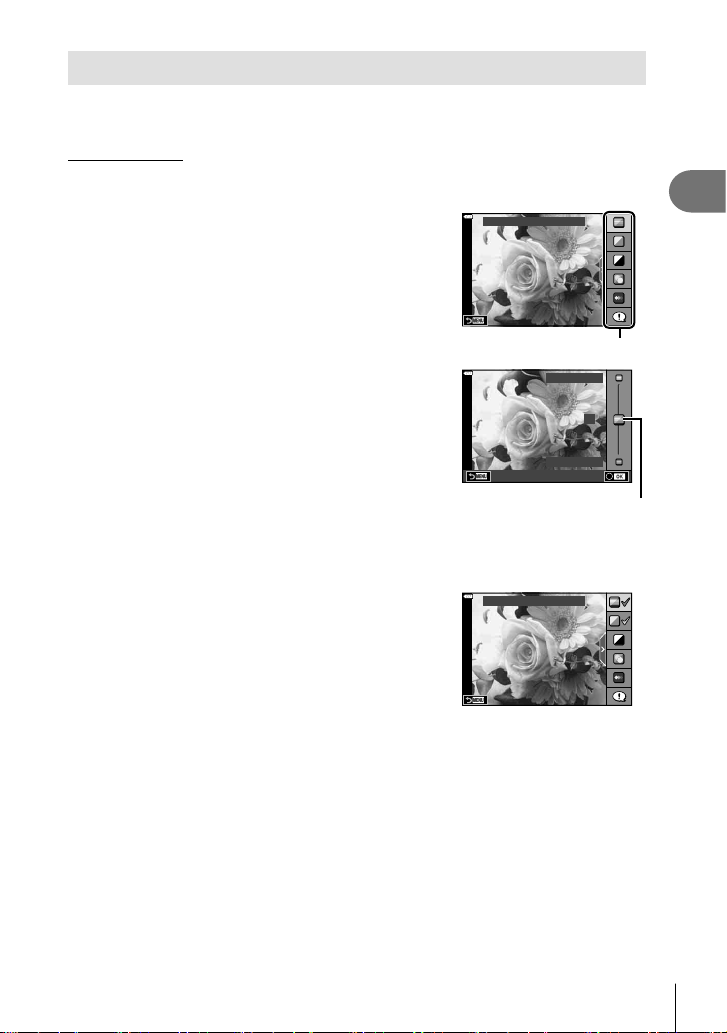
Using live guides
Use live guides to easily adjust such parameters as color, brightness, and background
blurring.
1
Press the u button to display live guides.
• Use FG to highlight an item in the live guide and
press Q to display a slider.
Change Color Saturation
Guide item
2
Use FG to position the slider and choose a
level.
• Press the Q button to save changes.
• To exit, press the MENU button.
• When [Shooting Tips] is selected, use FG to
highlight the item and press the Q button to display
the detail.
• The effect of the selected level is visible in the
display.
If [Blur Background] or [Express Motions] is selected,
the display will return to normal, but the selected
effect will be visible in the fi nal photograph.
0
Clear & Vivid
Flat & Muted
Slider
3
To set multiple live guides, repeat Steps 1 and 2.
• A check is displayed on the guide item for live guides
that are already set.
• [Blur Background] and [Express Motions] cannot be
set at the same time.
Change Color Saturation
4
Shoot.
• To clear the live guides from the display, press the MENU button.
• If [RAW] is currently selected for image quality, image quality will automatically be set to
RAW+JPEG.
• Live guide settings are not applied to the RAW copy.
• Pictures may appear grainy at some live guide setting levels.
Shooting
2
32
EN
• Changes to live guide setting levels may not be visible in the monitor.
• Frame rates drop the closer the [Express Motions] slider is to [Blurred Motion].
• The fl ash cannot be used when a live guide is set.
• Choosing live guide settings that exceed the limits of the camera exposure meters may
result in pictures that are overexposed or underexposed.
$ Notes
• Touch controls can also be used.
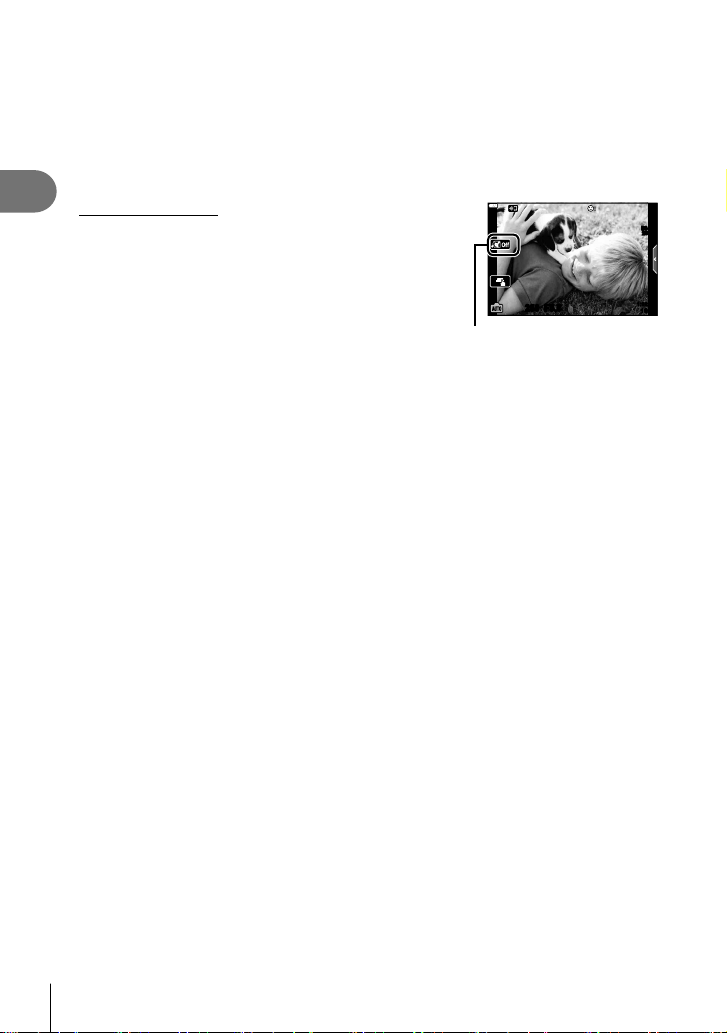
One-Touch e-Portrait
To enable one-touch e-Portrait so that the camera
smooths the complexions of portrait subjects, tap the
A (one-touch e-Portrait) icon to turn it on (B).
g “Shooting with touch screen operations” (P. 57)
250250 F5.6
ISO-A
200
1023
1:02:03
One-touch e-Portrait icon
Shooting
2
33
EN
Shooting in scene mode (SCN mode)
The camera automatically optimizes settings for the subject or scene.
1
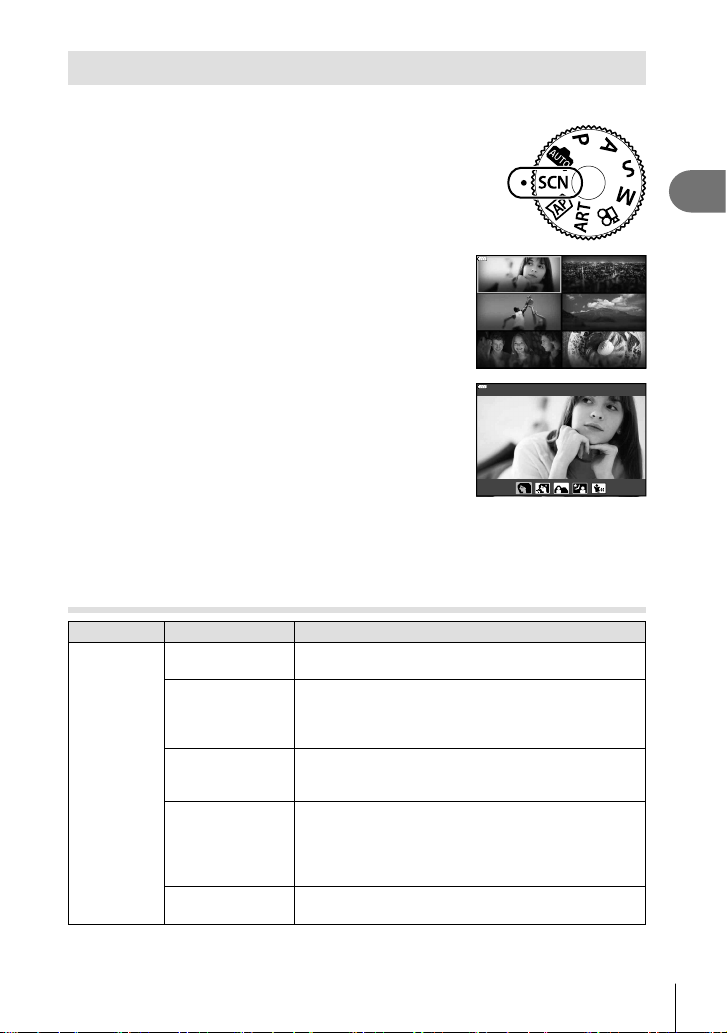
Rotate the mode dial to SCN.
2
Use FGHI to highlight a scene and press the
Q button.
Motion Scenery
Nightscapes
Indoors Close-ups
People
3
Use HI to highlight a scene mode and press the
Q button.
• Press the u button to choose a different scene.
Portrait
4
Shoot.
$ Notes
• Touch controls can also be used.
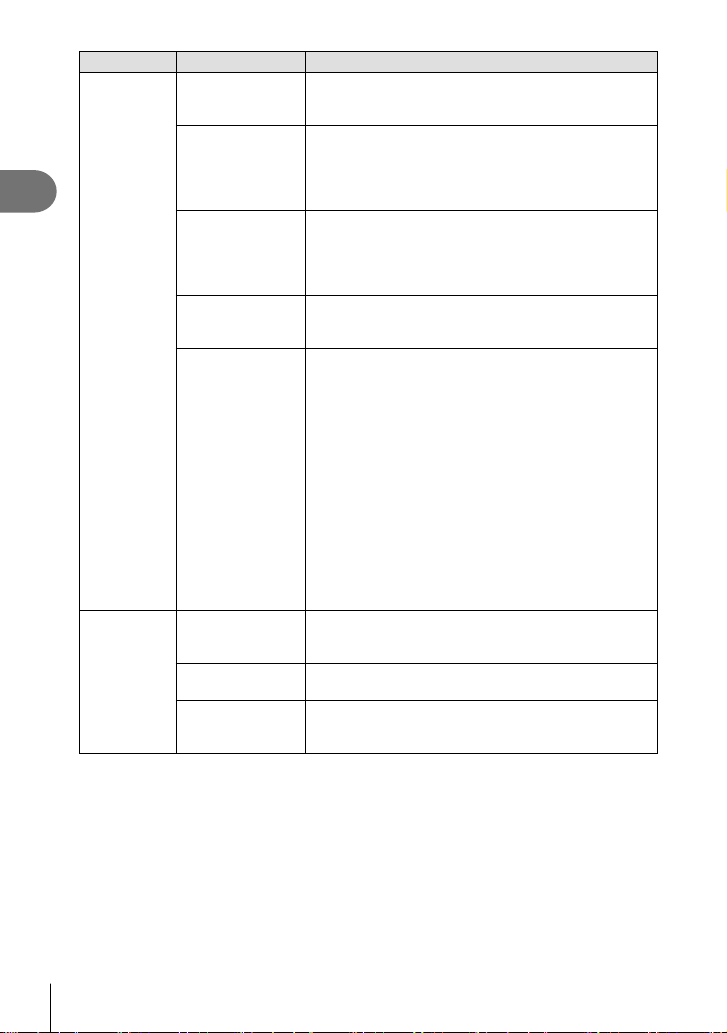
Types of scene modes
Subject type Scene mode Description
People
B
Portrait
Suitable for portrait shooting.
Brings out skin texture.
e
e-Portrait
Smooths out skin tones and texture. This mode is
suitable when viewing images on a high-defi nition TV.
The camera records two pictures: one with the effect
applied and one without.
D
Portrait +
Landscape
Suitable for portraits featuring a landscape in the
background.
Blues, greens, and skin tones are captured beautifully.
U
Portrait +
Nightscape
Suitable for portrait shooting against a background of
night view.
Raise the fl ash (P. 72).
Use of a tripod and remote control via OI.Share is
recommended (P. 137, 141).
m
Children
Suitable for photographs of children and other active
subjects.
Shooting
2
34
EN
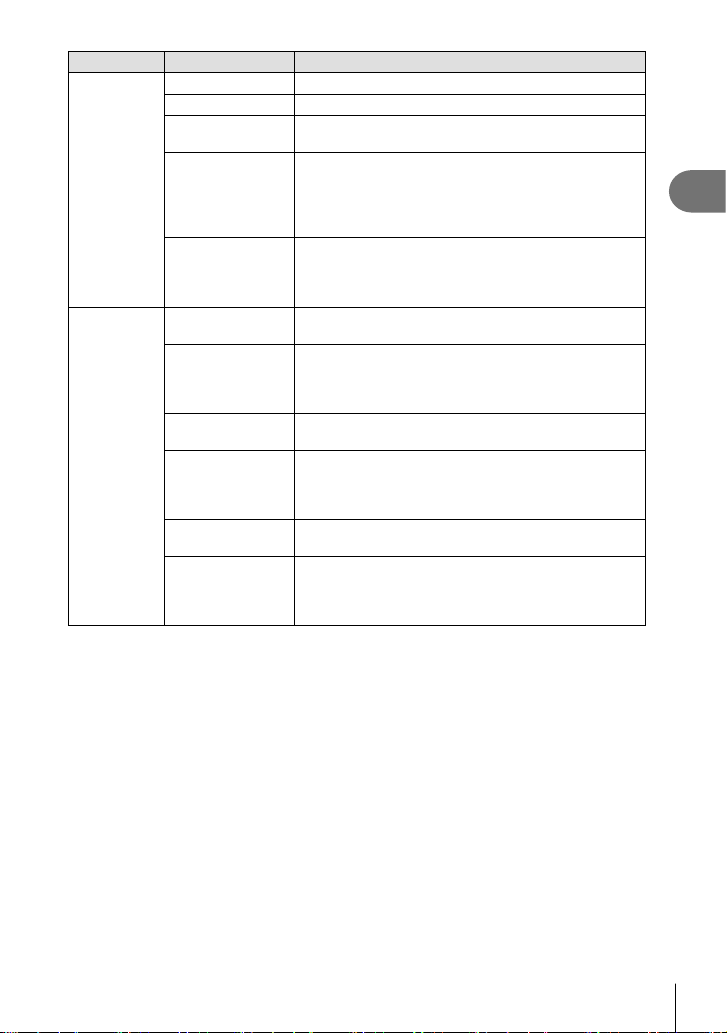
Subject type Scene mode Description
Nightscapes
G
Nightscape
Suitable for tripod shooting of night scenes.
Use of a tripod and remote control via OI.Share is
recommended (P. 137, 141).
U
Portrait +
Nightscape
Suitable for portrait shooting against a background of
night view.
Raise the fl ash (P. 72).
Use of a tripod and remote control via OI.Share is
recommended (P. 137, 141).
H
Handheld
Starlight
Suitable for shooting night scenes without a tripod.
Reduces blur when shooting low light/illuminated
scenes.
The camera makes eight exposures and combines
them into a single photograph.
X
Fireworks
Suitable for shooting fi reworks at night.
Use of a tripod and remote control via OI.Share is
recommended (P. 137, 141).
d
Light Trails
The camera automatically shoots multiple images,
takes newly bright areas only, and composites them
into a single image.
With normal long exposure, an image of light trace such
as star trails with bright buildings tends to get too bright.
You can capture them without over exposure while
checking the progress.
Press the shutter button to start shooting, then view the
changing result in the monitor and press the shutter
button again to end shooting once the desired result is
achieved (maximum 3 hours).
Use of a tripod and remote control via OI.Share is
recommended (P. 137, 141).
• Advanced settings can be accessed via live
composite photography (dark and light fi eld
composite) in M mode (P. 56).
Motion
C
Sport
Suitable for fast action shooting.
The camera will take photos while the shutter button is
pressed.
m
Children
Suitable for photographs of children and other active
subjects.
J
Panning
Choose to blur the background behind moving objects.
The camera chooses the optimal shutter speed for
panning shots based on camera motion.
Shooting
2
35
EN
Subject type Scene mode Description
Scenery
F
Landscape Suitable for landscape shooting.
`
Sunset Suitable for shooting the sunset.
g
Beach & Snow
Suitable for shooting at snow-capped mountains,
seascapes in the sun, and other whitish scenes.
s
Panorama
Take panoramic photos with a wider angle of view than
other shots.
• For information on taking photos using this feature,
see “Shooting a Panorama” (P. 43), starting from
Step 3.
E
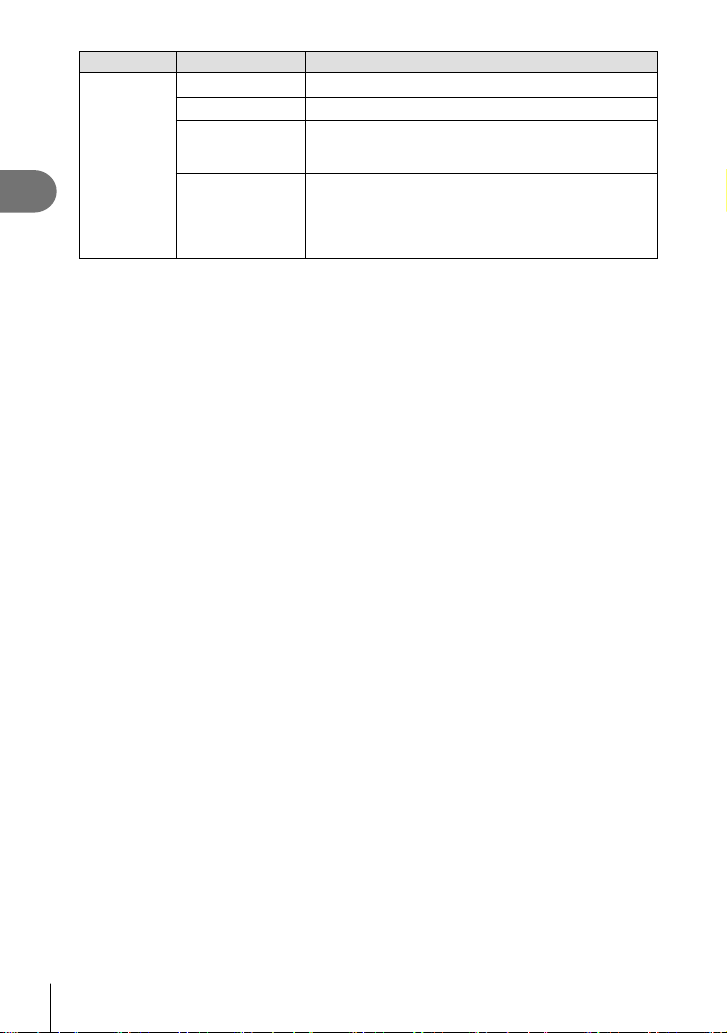
Backlight HDR
Suitable for high-contrast scenes. Each time the shutter
button is pressed, the camera takes four shots and
subsequently merges them into one, correctly exposed
image.
Indoors
W
Candlelight
Suitable for shots of candlelit scenes. Warm colors are
preserved.
k Silent s
Disable camera sounds and lights in situations in which
they may be unwelcome.
• For information on taking photos using this feature,
see “[Silent s] Mode” (P. 42), starting from Step 2.
B
Portrait
Suitable for portrait shooting.
Brings out skin texture.
e
e-Portrait
Smooths out skin tones and texture. This mode is
suitable when viewing images on a high-defi nition TV.
The camera records two pictures: one with the effect
applied and one without.
m
Children
Suitable for photographs of children and other active
subjects.
E
Backlight HDR
Suitable for high-contrast scenes. Each time the shutter
button is pressed, the camera takes four shots and
subsequently merges them into one, correctly exposed
image.
Shooting
2
36
EN
Subject type Scene mode Description
Close-ups
i
Macro Suitable for close-ups.
j
Nature Macro Suitable for vivid close-ups of fl owers or insects.
d
Documents
Suitable for photos of timetables or other documents.
The camera heightens the contrast between the text
and background.
t
Multi Focus
Shot
The camera takes eight photos, varying the focus
distance with each shot.
• For information on taking photos using this feature,
see “[Focus Bracketing]: Varying Focus Distance over
a Series of Shots” (P. 46), starting from Step 2.
• To maximize the benefi ts of the scene modes, some of the shooting function settings are
disabled.
• Some time may be needed to record pictures taken using [e-Portrait]. In addition, when
the image quality mode is [RAW], the image is recorded in RAW+JPEG.
• Movies cannot be recorded using [e-Portrait], [Handheld Starlight], [Panorama], or
[Backlight HDR].
• [Handheld Starlight] pictures taken with [RAW] selected for image quality will be recorded
in RAW+JPEG format, with the fi rst frame recorded as a RAW image and the fi nal
composite as a JPEG image.
• [Backlight HDR] records HDR-processed images in JPEG format. When the image quality
mode is set to [RAW], the image is recorded in RAW+JPEG.
• In [Panning], J is displayed during panning detection, and I is displayed when nothing
is detected.
• When using a lens with an image stabilizer switch in [Panning], turn the image stabilizer
switch off.
Suffi cient panning effects may not be obtained in bright conditions. Use a commercially
available ND fi lter to obtain effects more easily.
Shooting
2
37
EN
Shooting in advanced photo mode (
Z
mode)
Use for quick access to advanced shooting settings.
1
Rotate the mode dial to Z.
2
Use HI to highlight an AP mode.
• Some modes offer additional options that can be
accessed using G.
Live Composite
3
Press the Q button to select the highlighted mode.
• Press the u button to choose a different mode. If additional options are displayed,
press F.
$ Notes
• Exposure compensation (P. 69) and program shift (P. 51) are available in some AP
modes.
• Touch controls can also be used.
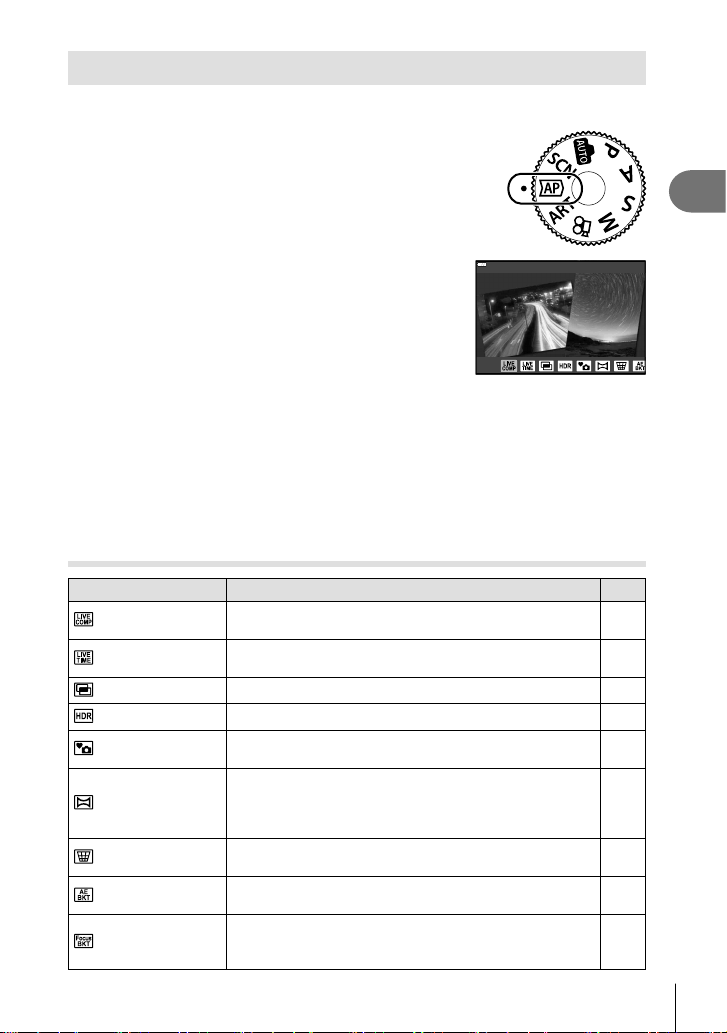
AP Mode Options
AP mode Description
g
Live Composite
Record light trails from stars and other objects while
keeping exposure constant overall.
38
Live Time
Choose for photos of fi reworks and night scenery. Make
long time exposures at selected shutter speeds.
39
Multiple Exposure Combine two different images on top of one another. 40
HDR Capture details in both highlights and shadows. 41
Silent s
Disable camera sounds and lights in situations in which
they may be unwelcome.
42
Panorama
Take a series of shots that are joined together to create
a wide-angle photo. Choose from two angles of view: a
wider angle than normal shots (z), or an even wider
angle (y).
43
Keystone
Compensation
Correct the effects of perspective in photos of buildings or
landscapes.
44
AE Bracketing
Each time the shutter button is pressed, the camera takes
a series of photos, varying exposure with each shot.
45
Focus Bracketing
Each time the shutter button is pressed, the camera takes
a series of eight photos, varying the focus distance with
each shot.
46

Shooting
2
38
EN
[Live Composite]: Live Composite Photography
Create photos that record light trails from stars and other objects without changing the
brightness of the background; during shooting, the changing results can be viewed
in the monitor. You can adjust white balance or picture mode and other settings not
available with the SCN mode “Light Trails” option.
1
Highlight [Live Composite] in the AP mode menu (P. 37) and press the Q
button.
2
Press the shutter button halfway down to focus.
• To reduce blur caused by camera shake, fi x the camera securely to a tripod and use
a remote shutter release controlled via OI.Share (P. 141) in wireless remote mode.
• If the focus indicator blinks, the camera is not in focus.
3
Press the shutter button all the way down to shoot.
• The camera confi gures the proper settings automatically and starts shooting.
• After pressing the shutter button, there is a time lag until shooting starts.
• The composite image will be displayed at regular intervals.
4
Press the shutter button again to stop shooting.
• View the changing result in the monitor and press the shutter button to end shooting
once the desired result is achieved.
• The recording length in one shooting is up to 3 hours.
$ Notes
• Advanced settings can be accessed via live composite photography (dark and light fi eld
composite) in M mode (P. 56).
Shooting
2
39
EN
[ Live Time]: Live Time Photography
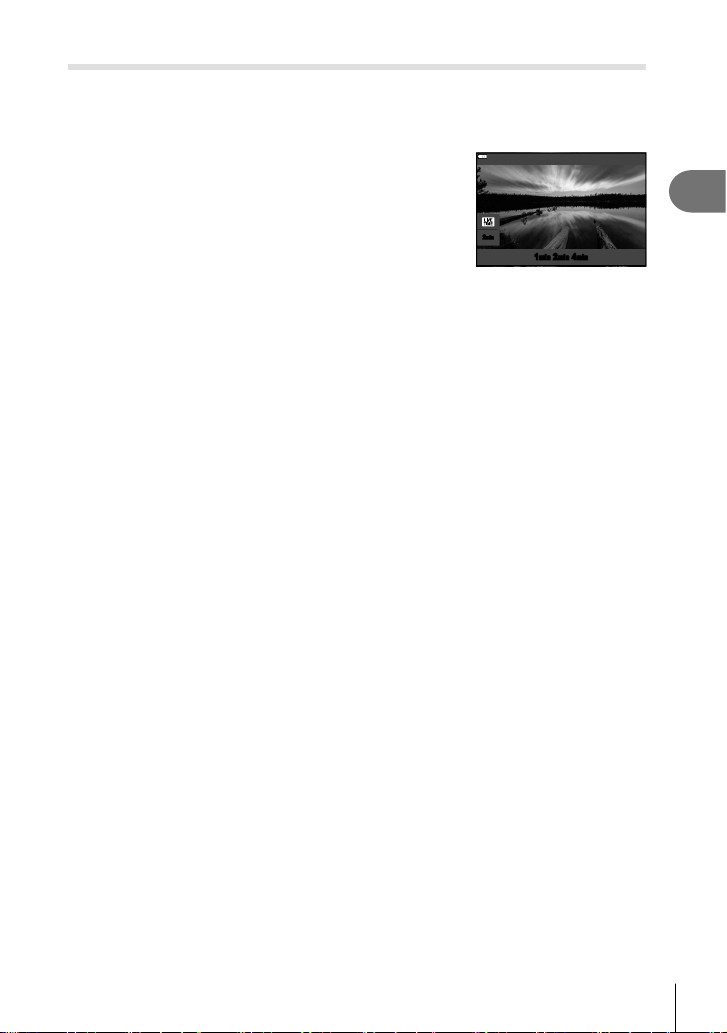
You can make long exposures without having to keep the shutter button pressed. The
changing result can be viewed in the monitor during shooting.
1
Highlight [Live Time] in the AP mode menu (P. 37).
2
Press G, use HI to choose the maximum
exposure time, and press the Q button.
• The display refresh rate may change automatically
depending on the maximum exposure time selected.
• The shorter the maximum exposure time, the faster the
display refresh rate.
2
min
2
min
2
min
1
min
4
min
Live Time
3
Press the shutter button halfway down to focus.
• To reduce blur caused by camera shake, fi x the camera securely to a tripod and use
a remote shutter release controlled via OI.Share (P. 141) in wireless remote mode.
• If the focus indicator blinks, the camera is not in focus.
4
Press the shutter button all the way down to start live time photography.
• The camera adjusts settings automatically and begins shooting.
• The changing result can be viewed in the monitor.
5
Press the shutter button again to stop shooting.
• View the changing result in the monitor and press the shutter button to end shooting
once the desired result is achieved.
• Shooting ends automatically when the selected exposure time is reached.
$ Notes
• The long exposure (bulb/time) options in M mode offer more advanced settings (P. 55).

Shooting
2
40
EN
[ Multiple Exposure]: Shooting Multiple Exposures
Combine two different images on top of one another.
1
Highlight [Multiple Exposure] in the AP mode menu (P. 37) and press the
Q button.
2
Press the shutter button halfway down to focus.
• If the focus indicator blinks, the camera is not in focus.
3
Press the shutter button all the way down for the fi rst shot.
• a is displayed in green if shooting starts.
• The image is shown superimposed on the monitor.
• Press to delete the last shot.
4
Take the second shot.
• Use the fi rst image as a guide to compose the second shot.
• The camera will not go to sleep while multiple exposure is in effect.
• Performing any of the following actions automatically deletes the second shot:
The camera is turned off, the q button is pressed, the MENU button is pressed,
pressing the u button, rotating the mode dial, the battery power runs out, or any cable
is connected to the camera.
% Tips
• For more information on creating image overlays: g “Image overlay” (P. 122)
Shooting
2
41
EN
[ HDR]: Taking Composite Photos with HDR
Capture details in both highlights and shadows. The camera varies exposure over a
series of four shots and combines them into a single image.
1
Highlight [HDR] in the AP mode menu (P. 37).
2
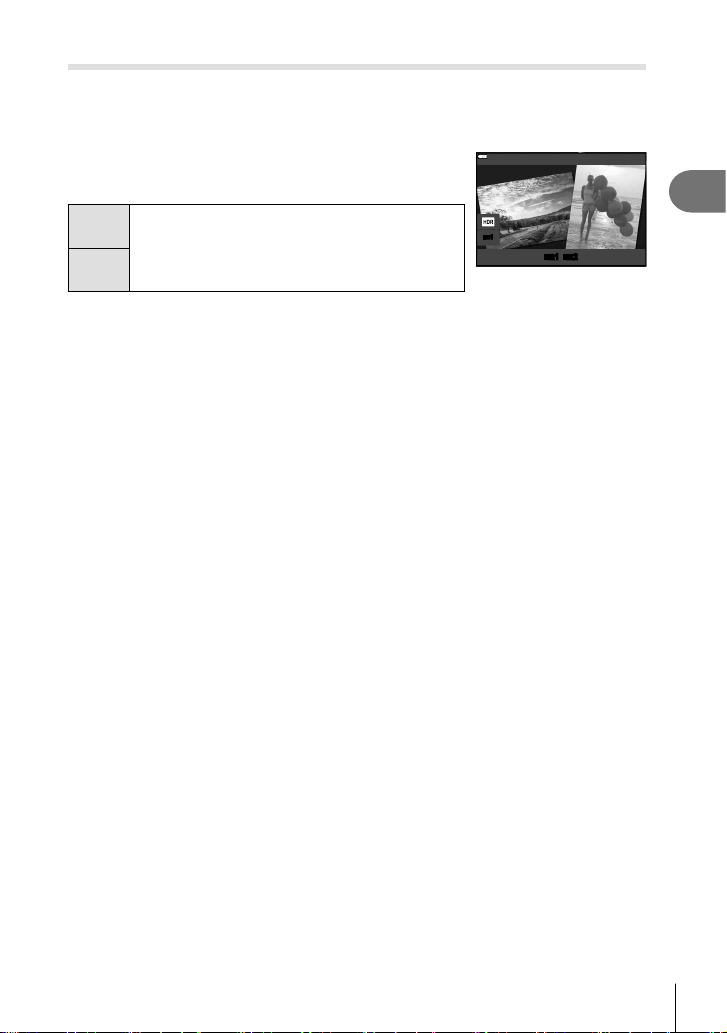
Press G, use HI to choose [HDR1] or [HDR2],
and press the Q button.
HDR1
Four shots are taken, each with a different
exposure, and the shots are combined into one
HDR image inside the camera. HDR2 provides a
more impressive image than HDR1. ISO sensitivity
is fi xed to 200.
HDR2
HDR
1
HDR
2
HDR
1
HDR
3
Press the shutter button halfway down to focus.
• If the focus indicator blinks, the camera is not in focus.
4
Press the shutter button all the way down to start HDR photography.
• The camera automatically takes four shots when the shutter button is pressed.
• Noise may be more noticeable in photos taken in conditions associated with slow shutter
speeds.
• For best results, secure the camera by, for example, mounting it on a tripod.
• The image displayed on the monitor while shooting will differ from the HDR-processed
image.
• The HDR-processed image will be saved as a JPEG fi le. When the image quality mode is
set to [RAW], the image is recorded in RAW+JPEG.
• The picture mode is fi xed to [Natural] and the color space is fi xed to [sRGB].

Shooting
2
42
EN
[ Silent s] Mode
Disable camera sounds and lights in situations in which they may be unwelcome.
1
Highlight [Silent s] in the AP mode menu (P. 37) and press the Q button.
2
Press the shutter button halfway down to focus.
• If the focus indicator blinks, the camera is not in focus.
3
Press the shutter button all the way down to shoot.
• When the shutter is released, the monitor screen will go dark for a moment. No
shutter sound will be emitted.
• The desired results may not be achieved under fl ickering light sources such as fl uorescent
or LED lamps or if the subject moves abruptly during shooting.
• When [Silent s] is selected in the SCN or Z mode, the following measures are
undertaken to reduce the sound and light produced by the camera.
- Electronic shutter: Enabled
- 8: Off
- AF Illuminator: Off
- Flash mode: Off
• Noise reduction is not available when [Silent s] is selected in the SCN or Z mode.
• Note that due to the electronic shutter, the subject may appear to be distorted in
photographs if camera moves quickly during shooting or when shooting fast-moving
subjects.
$ Notes
• Press G for sequential/self-timer photography (P. 74).
• Advanced settings (P. 117) can be used when you select Silent s photography using
the jY (G) button (P. 75) in the P/A/S/M/ART mode .
Shooting
2
43
EN
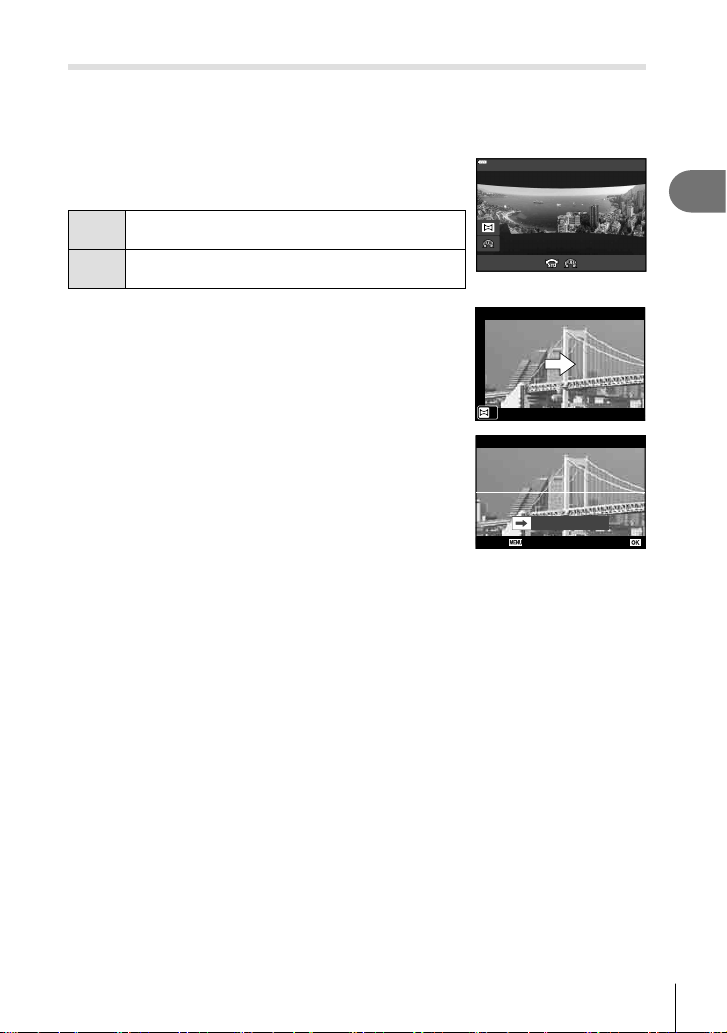
Shooting a Panorama
Pan the camera following an on-screen guide to create a single wide-angle (panorama)
photo.
1
Highlight [Panorama] in the AP mode menu (P. 37).
2
Press G, then use HI to highlight the desired
panorama type and press the Q button.
z
Take panorama photos with a wider angle of view
than other shots.
y
Take panorama photos with a wider angle of view
than z.
Panorama
3
Highlight a pan direction using FGHI and press
the Q button.
4
Press the shutter button halfway to focus.
5
Press the shutter button the rest of the way down to
start shooting, and then pan the camera slowly in
the direction indicated by the arrow in the display.
• The arrow in the display moves as the camera is
panned.
• To cancel shooting and return to Step 3, press the
MENU button.
Cancel Save
6
When the arrow in the display reaches the end of the progress bar, shooting
will end and the camera will create a panorama.
$ Notes
• Focus, exposure, and the like are fi xed at the values in effect at the start of shooting.
• Before the arrow reaches the end of the progress bar, you can press the Q button or
press the shutter button again to end shooting and record a panorama from the data
recorded to the current point.
• Shooting may be cancelled and an error displayed if:
the camera is panned too slowly or too quickly/the camera is panned diagonally/
the camera is panned in the opposite direction to the arrow in the display/the lens is
zoomed in or out/panning does not start within a set period
• Panorama photography may be unavailable with some lenses.
Shooting
2
44
EN
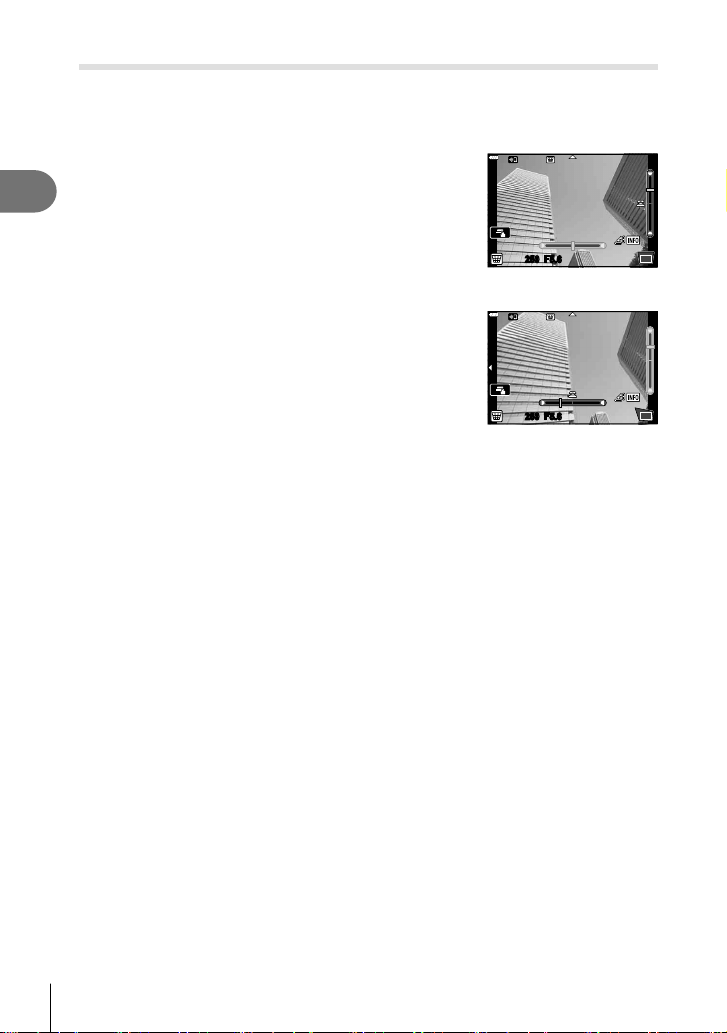
[ Keystone Compensation]
Correct the effects of perspective in photos of buildings or landscapes.
1
Highlight [Keystone Compensation] in the AP mode menu (P. 37) and press
the Q button.
2
Make the vertical adjustment while viewing the
effect in the display and frame the shot.
• Use the control dial to choose the compensation
amount.
• Use FG to choose the area to be recorded.
Depending on the compensation amount, you may be
unable to choose the area recorded.
• Press and hold the Q button to cancel any changes.
250250 F5.6
3
Press the INFO button and then make the
horizontal adjustment and frame the shot.
• Use the control dial to choose the compensation
amount.
• Use HI to choose the area to be recorded. Depending
on the compensation amount, you may be unable to
choose the area recorded.
• Press and hold the Q button to cancel any changes.
250250 F5.6
• Press the INFO button to toggle between the vertical (Step 2) and horizontal (Step 3)
adjustment displays as desired.
4
Press the shutter button halfway down to focus.
• If the focus indicator blinks, the camera is not in focus.
5
Press the shutter button all the way down to shoot.
• As the compensation amount increases:
- The image will become coarser
- The zoom ratio of the crop will increase
- It will no longer be possible to reposition the crop in both the vertical and horizontal
displays
• Photos are recorded in RAW+JPEG format when [RAW] is selected for image quality.
• The desired results may not be obtained with converter lenses.
• Depending on the amount of correction, some AF targets may be outside the display area.
An icon (g, h, i or j) is displayed when the camera focuses on an AF target outside
the display area.
• If a focus distance is selected for [Image Stabilizer], the correction will be adjusted for
the selected focus distance. Except when using a Micro Four Thirds or Four Thirds lens,
choose a focal length using the [Image Stabilizer] option (P. 89).
• You can not use the # (I) button and jY (G) button for fl ash mode or continuous/
self-timer mode selection while making keystone compensation adjustments. Use the LV
super control panel (P. 77) instead.
Shooting
2
45
EN
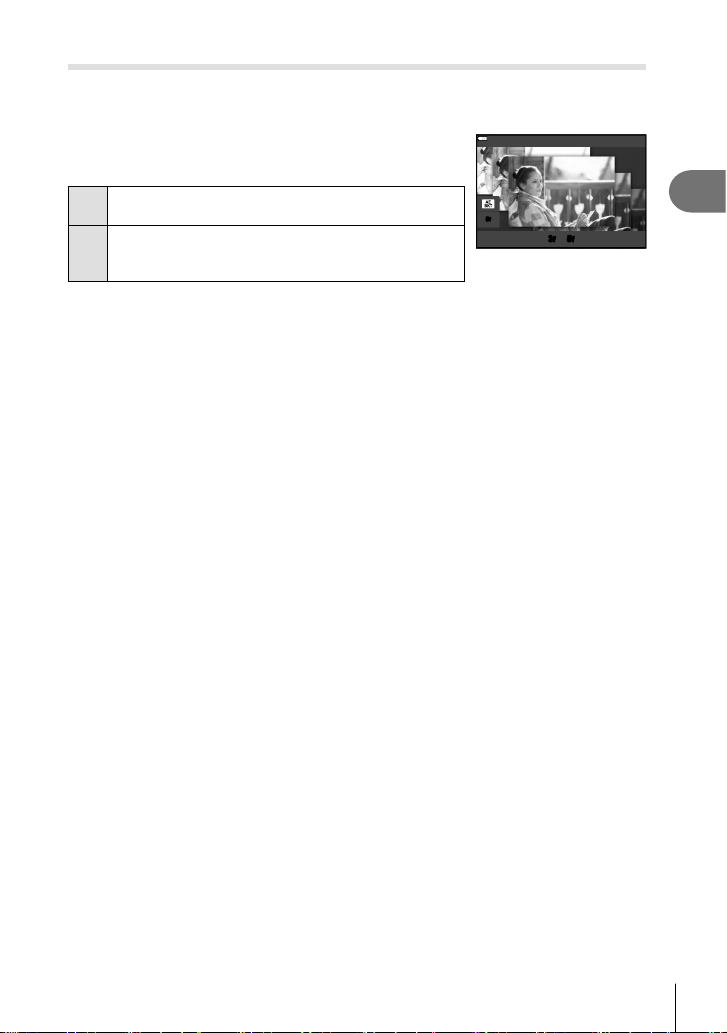
[ AE Bracketing]: Varying Exposure over a Series of Shots
Take a series of photos, varying exposure with each shot.
1
Highlight [AE Bracketing] in the AP mode menu (P. 37).
2
Press G, use HI to choose the number of shots,
and press the Q button.
3f
Take 3 shots, the fi rst at optimal exposure (±0.0 EV),
the second at −1.0 EV, and the third at +1.0 EV.
5f
Take 5 shots, the fi rst at optimal exposure (±0.0 EV),
the second at −1.3 EV, the third at −0.7 EV, the fourth
at +0.7 EV, and the fi fth at +1.3 EV.
5
f
3
f
5
f
AE Bracketing
3
Press the shutter button halfway down to focus.
• If the focus indicator blinks, the camera is not in focus.
4
Press the shutter button all the way down to shoot.
• Take the set number of shots.
• The t indicator turns green during bracketing.
• The camera brackets the value currently selected for exposure compensation.
Shooting
2
46
EN
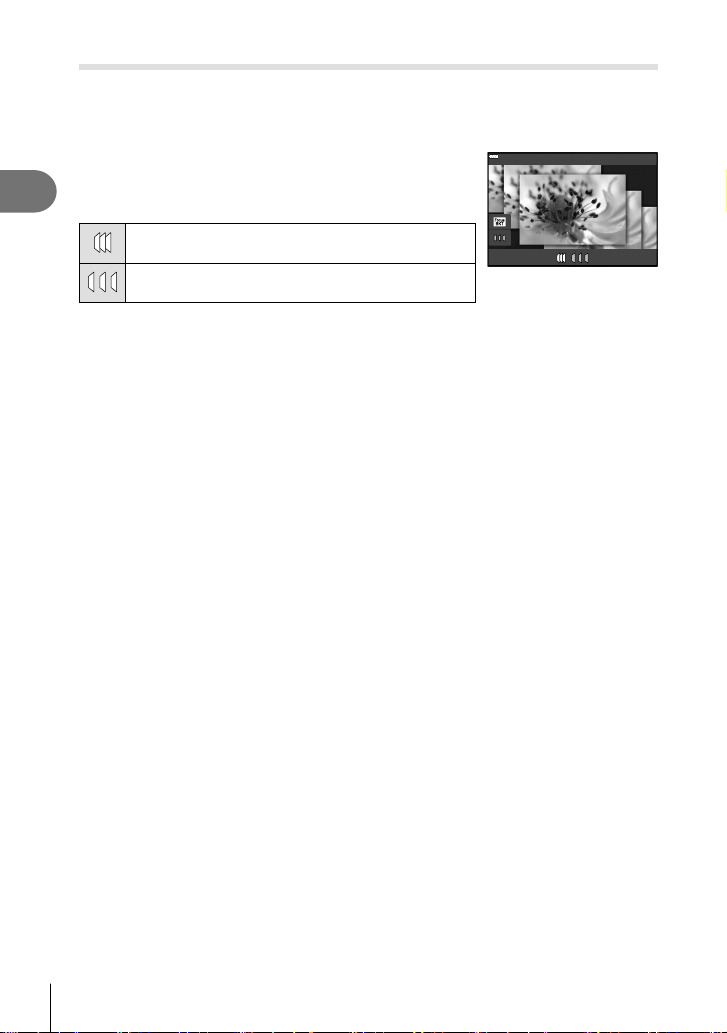
[ Focus Bracketing]: Varying Focus Distance over a Series of Shots
Each time the shutter button is pressed, the camera takes a series of eight photos,
varying the focus distance with each shot.
1
Highlight [Focus Bracketing] in the AP mode menu (P. 37).
2
Press G, use HI to choose the amount focus
distance changes with each shot, and press the Q
button.
The focus distance changes by a small amount with
each shot.
The focus distance changes by a large amount with
each shot.
Focus Bracketing
3
Press the shutter button halfway down to focus.
• If the focus indicator blinks, the camera is not in focus.
4
Press the shutter button all the way down to shoot.
• The camera takes eight photos, varying the focus distance with each shot. The camera
will take pictures at, and at distances in front of and behind, the focus distance chosen
when the shutter button is pressed halfway.
• The t indicator turns green during bracketing.
• Focus bracketing ends if zoom is adjusted during shooting.
• Shooting ends when focus reaches ) (infi nity).
• Focus bracketing uses the electronic shutter.
• Focus bracketing is not available with lenses that have mounts conforming to the Four
Thirds or some Micro Four Thirds standards.
Shooting
2
47
EN
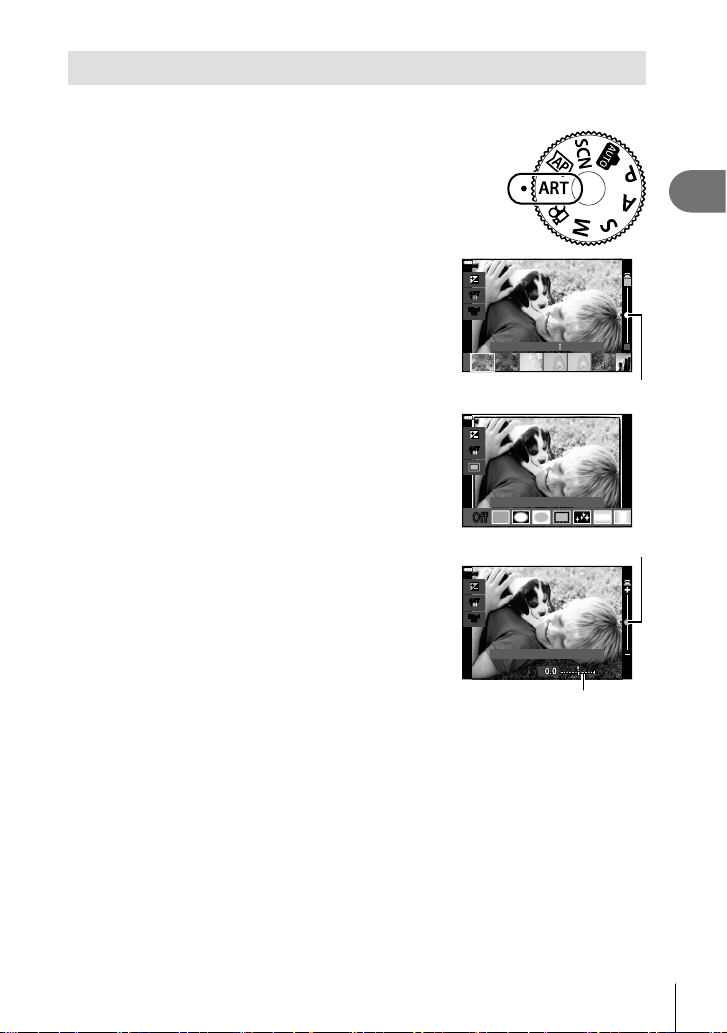
Using art fi lters (ART mode)
Using art fi lters, you can easily have fun with artistic effects.
1
Rotate the mode dial to ART.
2
Use HI to highlight a fi lter.
• The slider appears on the display when [Pop Art I] or
[Soft Focus] is highlighted. Use the slider to adjust the
degree of the art fi lter effect (P. 50).
Effect
Off
ART
1
ART
1
Pop Art
Slider
3
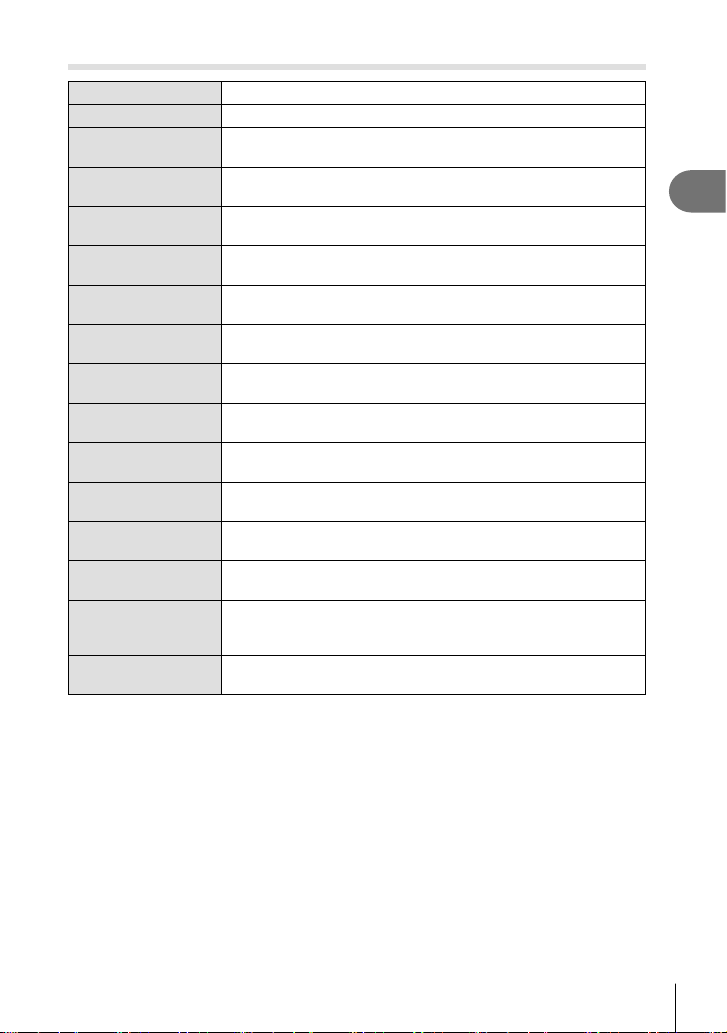
Press G, and highlight an effect using HI.
• The effects available vary with the selected fi lter
(Soft Focus Effect, Pin Hole Effect, Frame Effect,
White Edge Effect, Star Light Effect, Color Filter,
Monochrome Color, Blur Effect, or Shade Effect).
O
ff
ART
1
ART
1
Frame Effect
4
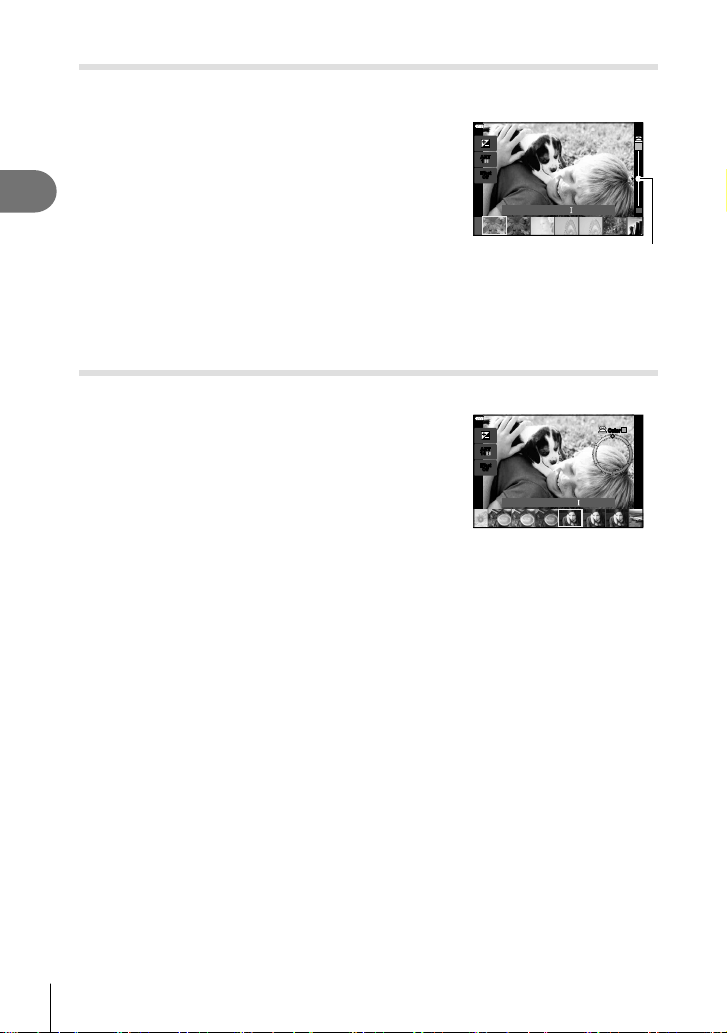
Press G to adjust exposure compensation.
• The slider will appear on the display.
• Rotate the control dial to adjust exposure
compensation.
• Choose positive (“+”) values to make pictures
brighter, negative (“–”) values to make pictures darker.
Exposure can be adjusted by ±5.0 EV. During live
view, the brightness of the monitor will be adjusted to
a maximum of only ±3.0 EV. If the exposure exceeds
±3.0 EV, the exposure bar will begin fl ashing.
• To reset exposure compensation, press and hold the
Q button.
Effect
Off
ART
1
ART
1
Exposure/Brightness
0.00.0
Exposure bar
Slider
5
Press the Q button.
6
Shoot.
• Press the u button to choose a different art fi lter. If effects are displayed, press F.
If [Exposure/Brightness] is displayed, press G.

Shooting
2
48
EN
$ Notes
• [Color Filter] (P. 93) and [Monochrome Color] (P. 94) options are available with some
art fi lters.
• Exposure compensation (P. 69) can also be adjusted between shots by rotating the
control dial or by pressing the F (F) button and then using HI.
• Program shift (P. 51) can be adjusted by pressing the F (F) button and then using
FG.
• Touch controls can also be used.
Shooting
2
49
EN
Types of art fi lters
Pop Art I/II Creates an image that emphasizes the beauty of color.
Soft Focus Creates an image that expresses a soft tone atmosphere.
Pale&Light Color I/II
Creates an image that expresses warm light by scattering overall
light and slightly overexposing the image.
Light Tone
Creates a high-quality image by softening both shadows and
highlights.
Grainy Film I/II
Creates an image that expresses the roughness of black and
white images.
Pin Hole I/II/III
Creates an image that looks as if it was taken using an old or toy
camera by dimming the image perimeter.
Diorama I/II
Creates a miniature-like image by emphasizing saturation and
contrast, and blurring unfocused areas.
Cross Process I/II
Creates an image that expresses a surreal atmosphere. Cross
Process II creates an image that emphasizes magenta.
Gentle Sepia
Creates a high-quality image by drawing out shadows and
softening the overall image.
Dramatic Tone I/II
Creates an image that emphasizes the difference between
brightness and darkness by partially increasing contrast.
Key Line I/II
Creates an image that emphasizes edges and adds an illustrative
style.
Watercolor I/II
Creates a soft, bright image by removing dark areas, blending
pale colors on a white canvas, and further softening contours.
Vintage I/II/III
Expresses an everyday shot in a nostalgic, vintage tone using
printed fi lm discoloration and fading.
Partial Color I/II/III
Impressively expresses a subject by extracting colors you want to
emphasize and keeping everything else monotone.
Bleach Bypass I/II
The “bleach bypass” effect, which you may recognize from motion
pictures and the like, can be used to great effect in shots of
streetscapes or metal objects.
Instant Film
A contemporary take on the skin tones and shadow gradations
typical of fi lm.
II and III are altered versions of the original (I).
• To maximize the benefi ts of the art fi lters, some of the shooting function settings are
disabled.
• If [RAW] is currently selected for image quality (P. 83), image quality will automatically
be set to RAW+JPEG. The art fi lter will be applied to the JPEG copy only.
• Depending on the subject, tone transitions may be ragged, the effect may be less
noticeable, or the image may become more “grainy.”
• Some effects may not be visible during movie recording.
• Your choice of fi lters, effects, and movie quality when recording movies may affect
playback speed and smoothness.
Shooting
2
50
EN
Adjusting the degree of the art fi lter effect ( Fine-Tuning)
You can adjust the degree of the fi lter effect for Pop Art I and Soft Focus before taking
pictures.
1
Select [Pop Art I] or [Soft Focus] in the art fi lter
menu (P. 49).
• The slider will appear on the display.
• Rotate the control dial to fi ne-tune the art fi lter.
• Touch controls can also be used.
• The effect is visible in the display.
• To reset the fi lter effect, press and hold the Q button.
Effect
Off
ART
1
ART
1
Pop Art
Slider
2
Press the Q button.
3
Shoot.
• Press the u button if you want to fi ne-tune the art fi lter again.
Using [ Partial Color]
Record only selected hues in color.
1
Select [Partial Color I/II/III] in the art fi lter menu
(P. 49).
• A color ring appears in the display.
Effect
Off
ART
14
ART
14
ColorColor
Partial Color
2
Rotate the control dial to select a color.
• The effect is visible in the display.
• Touch controls can also be used.
3
Press the Q button.
4
Shoot.
• To choose a different color after shooting, press the u button.
Shooting
2
51
EN
Letting the camera choose aperture and shutter speed
( Program mode)
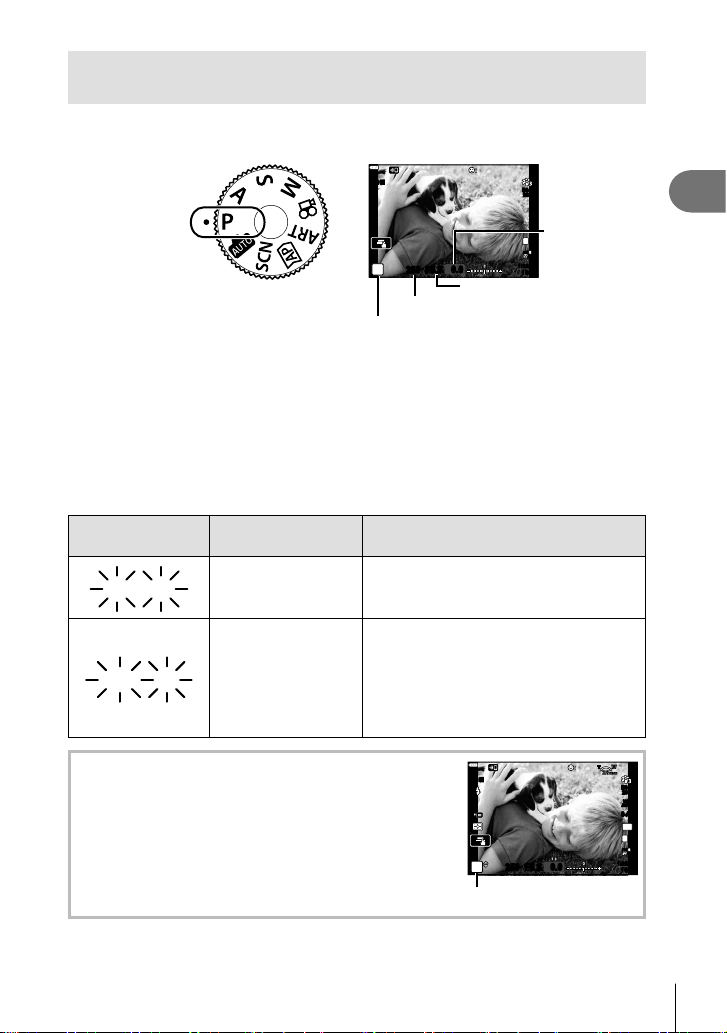
P mode is a shooting mode where the camera automatically sets the optimal aperture
and shutter speed according to subject brightness. Set the mode dial to P.
250250 F5.6
P
S-IS ONS-IS ON
F
FHD
30p
ISO-A
200
1023
1:02:03
0.0
L
F
Shooting mode
Shutter speed
Aperture value
Exposure
compensation
amount
• The shutter speed and aperture selected by the camera are displayed.
• Exposure compensation (P. 69) can be adjusted by rotating the control dial or by
pressing the F (F) button and then using HI.
• The shutter speed and aperture value displays will blink if the camera is unable to achieve
correct exposure.
The aperture value at the moment when its indication blinks varies with the lens type and
focal length of the lens.
When using a fi xed [ISO] setting, change the setting. g “Changing ISO sensitivity
(ISO)” (P. 79)
Warning display
example (blinking)
Status Action
60"
60"
F2.8
F2.8
The subject is too
dark.
Use the fl ash.
F22
F22
4000
4000
The subject is too
bright.
• The metered range of the camera is
exceeded. A commercially available ND
fi lter (for adjusting the amount of light) is
required.
• Shutter speeds as fast as 1/16000 s are
available in s (silent) mode. g “The
Electronic Shutter (Silent s)” (P. 75)
Program shift (%)
250250 F5.6
P
s
S-IS ONS-IS ON
ISO-A
200
F
FHD
30p
1023
1:02:03
0.0
WB
AUTO
S-AF
4:3
28
mm
L
F
Program shift
In P mode, ART mode, and some Z modes, you can
choose other combinations of aperture and shutter speed
that will produce the same exposure. Press F (F) button,
then press FG to set program shift so that “s” appears
next to the shooting mode. To cancel program shift, press
FG until “s” is no longer displayed.
• Program shift is not available in other modes or when the
fl ash is used.
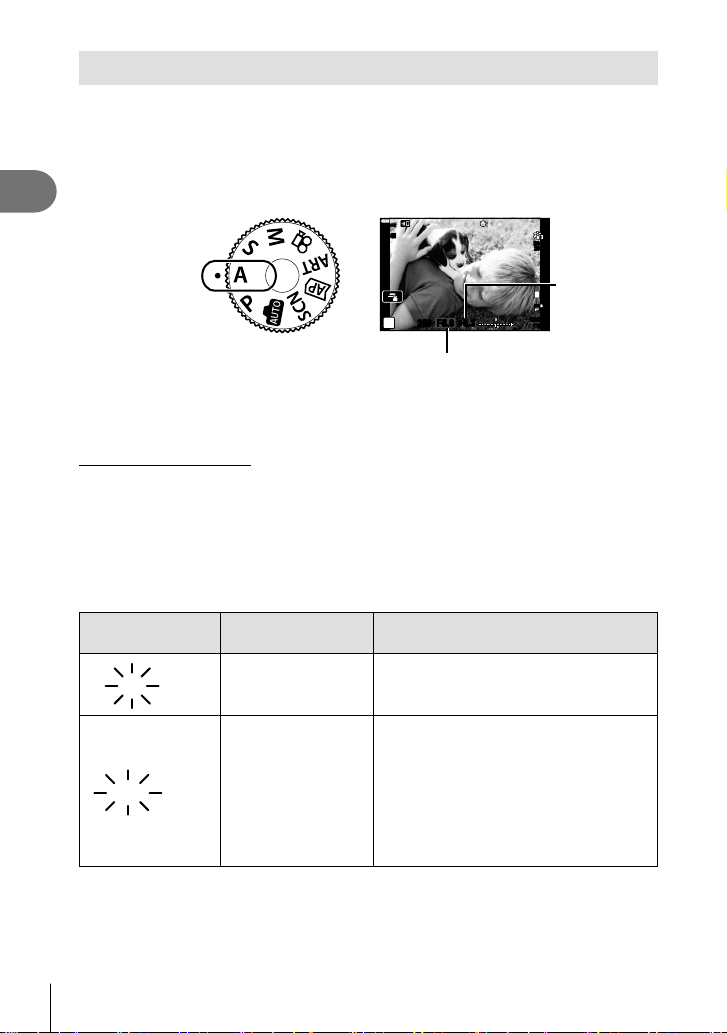
Shooting
2
52
EN
Choosing aperture ( Aperture Priority mode)
A mode is a shooting mode where you choose the aperture and let the camera
automatically adjust to the appropriate shutter speed. Rotate the mode dial to A and
then use the control dial to select an aperture value.
Larger apertures (lower F-numbers) decrease depth of fi eld (the area in front of or
behind the focus point that appears to be in focus), softening background details.
Smaller apertures (higher F-numbers) increase depth of fi eld.
Aperture value
250250 F5.6
A
S-IS ONS-IS ON
ISO-A
200
F
FHD
30p
1023
1:02:03
L
F
+0.3
Exposure
compensation
amount
• After pressing the F (F) button, you can also use FG to choose the aperture.
• Exposure compensation (P. 69) can be adjusted by rotating the control dial or by
pressing the F (F) button and then using HI.
Setting the aperture value
Decreasing aperture value Increasing aperture value
F2.8 F4.0 F5.6 F8.0 F11
(Decreasing depth of fi eld) (Increasing depth of fi eld)
• The shutter speed display will blink if the camera is unable to achieve correct exposure.
When using a fi xed [ISO] setting, change the setting. g “Changing ISO sensitivity
(ISO)” (P. 79)
Warning display
example (blinking)
Status Action
60"
60"
F5.6
F5.6
The subject is
underexposed.
Decrease the aperture value.
4000
4000
F5.6
F5.6
The subject is
overexposed.
• Increase the aperture value.
• If the warning display does not disappear,
the metered range of the camera is
exceeded. A commercially available ND
fi lter (for adjusting the amount of light) is
required.
• Shutter speeds as fast as 1/16000 s are
available in s (silent) mode. g “The
Electronic Shutter (Silent s)” (P. 75)
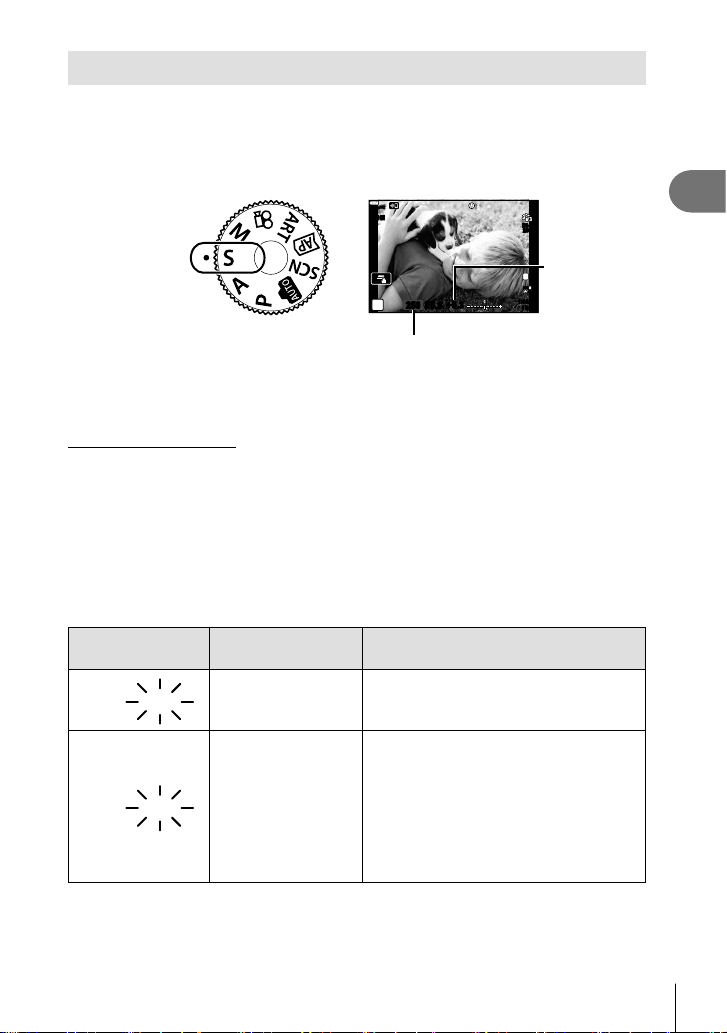
Shooting
2
53
EN
Choosing shutter speed ( Shutter Priority mode)
S mode is a shooting mode where you choose the shutter speed and let the camera
automatically adjust to the appropriate aperture value. Rotate the mode dial to S and
then use the control dial to select shutter speed.
Fast shutter speeds freeze motion of fast-moving subjects. Slow shutter speeds add
motion by blurring moving subjects.
Shutter speed
250250 F5.6
S
S-IS ONS-IS ON
ISO-A
200
F
FHD
30p
1023
1:02:03
+0.3
L
F
Exposure
compensation
amount
• After pressing the F (F) button, you can also use FG to choose the shutter speed.
• Exposure compensation (P. 69) can be adjusted by rotating the control dial or by
pressing the F (F) button and then using HI.
Setting the shutter speed
Slower shutter speed Faster shutter speed
60" 15 30 60 125 250 4000
(Add motion) (Freeze motion)
• The aperture value display will blink if the camera is unable to achieve correct exposure.
The aperture value at the moment when its indication blinks varies with the lens type and
focal length of the lens.
When using a fi xed [ISO] setting, change the setting. g “Changing ISO sensitivity
(ISO)” (P. 79)
Warning display
example (blinking)
Status Action
2000
2000
F2.8
F2.8
The subject is
underexposed.
Set the shutter speed slower.
125
125
F22
F22
The subject is
overexposed.
• Set the shutter speed faster.
• If the warning display does not disappear,
the metered range of the camera is
exceeded. A commercially available ND
fi lter (for adjusting the amount of light) is
required.
• Shutter speeds as fast as 1/16000 s are
available in s (silent) mode. g “The
Electronic Shutter (Silent s)” (P. 75)
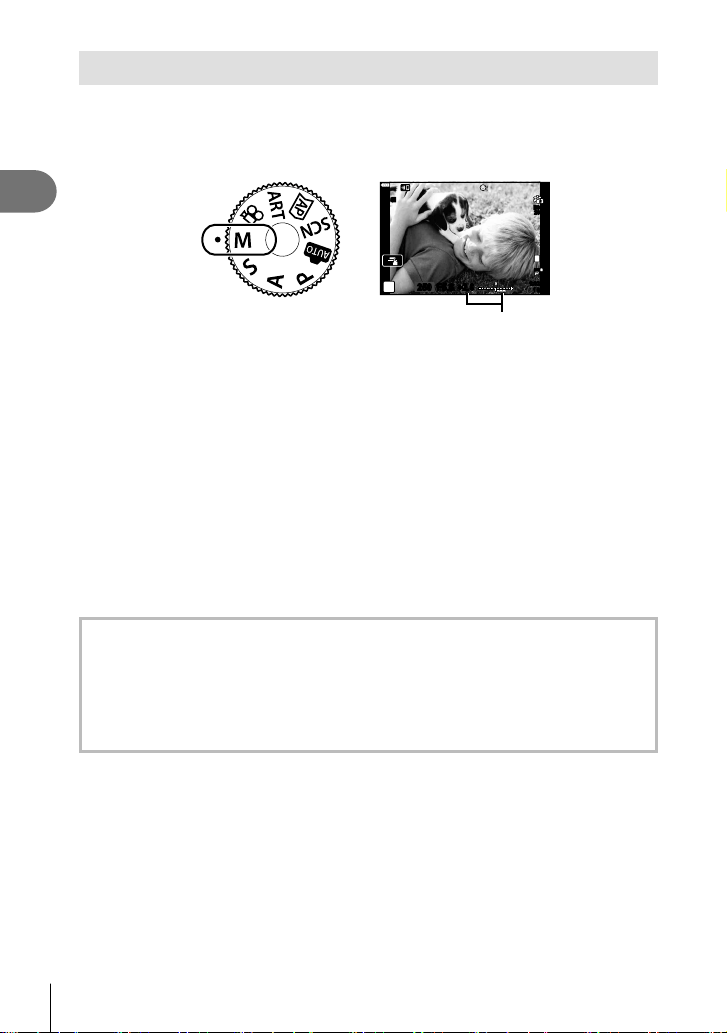
Shooting
2
54
EN
Choosing aperture and shutter speed ( Manual mode)
M mode is a shooting mode where you choose both the aperture value and shutter
speed. Bulb, time, and live composite photography are also available. Rotate the mode
dial to M, rotate the control dial to adjust the shutter speed, and after presssing the
F (F) button, rotate the control dial to adjust the aperture.
Difference from correct exposure
250250 F5.6
M
+
2.0
+
2.0
S-IS ONS-IS ON
ISO-A
200
F
FHD
30p
1023
1:02:03
L
F
• After pressing the F (F) button, you can also use FG to choose the shutter speed.
• After pressing the F (F) button, you can also use HI to choose the aperture.
• The exposure determined by the aperture value and shutter speed you have set and
the difference from the suitable exposure measured by the camera are displayed on the
monitor.
• Shutter speed can be set to values between 1/4000 and 60 seconds or to [BULB], [LIVE
TIME], or [LIVECOMP].
• Shutter speeds as fast as 1/16000 s are available in s (silent) mode. g “The
Electronic Shutter (Silent s)” (P. 75)
• The brightness of the image displayed in the monitor will change with changes in aperture
and shutter speed. You can fi x the brightness of the display so that you can keep the
subject in view while shooting. g [Live View Boost] (P. 127)
• Even when you have set [Noise Reduct.], noise and/or light spots may still be noticeable
in the image displayed on the monitor and shot images under certain environmental
conditions (temperature etc.) and camera settings.
Noise in images
While shooting at slow shutter speeds, noise may appear on screen. These phenomena
occur when the temperature rises in the image pickup device or image pickup device
internal drive circuit, causing current to be generated in those sections of the image pickup
device that are not normally exposed to light. This can also occur when shooting with a
high ISO setting in a high-temperature environment. To reduce this noise, the camera
activates the noise reduction function. g [Noise Reduct.] (P. 128)
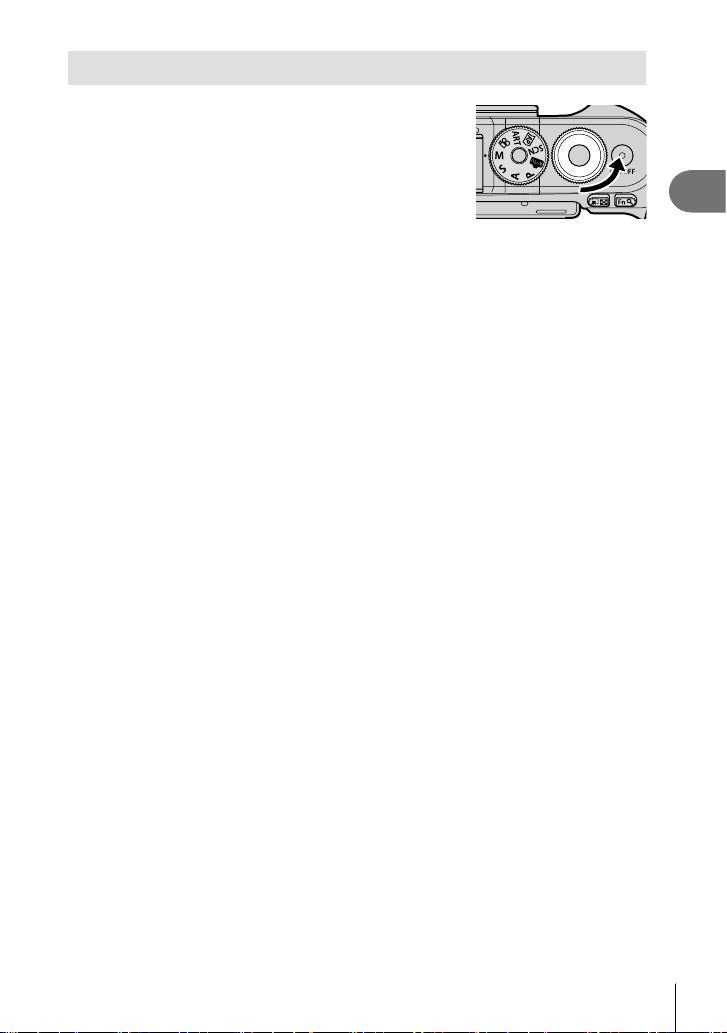
Shooting
2
55
EN
Shooting with long exposure time ( BULB/ LIVE TIME)
Use for photos such as fi reworks or night scenery. In M
mode, rotate the control dial in the direction shown until
[BULB] or [LIVE TIME] is displayed in the monitor.
Bulb photography
(BULB):
The shutter remains open while the shutter button is pressed.
The exposure ends when the shutter button is released. The view
through the lens is not displayed while exposure is in progress.
Time photography
(LIVE TIME):
The exposure begins when the shutter button is pressed all the
way down. To end the exposure, press the shutter button all the
way down again. The view through the lens is displayed while
exposure is in progress.
• Press the MENU button to choose the display interval for [Live Bulb] or [Live Time]
photography. Select [Off] to disable the display while exposure is in progress.
• To refresh the display while exposure is in progress, tap the monitor or press the shutter
button halfway ([LIVE TIME] only).
• [BULB] and [LIVE TIME] are not available at some ISO sensitivity settings.
• To reduce blur caused by camera shake, fi x the camera securely to a tripod and use a
remote shutter release controlled via OI.Share (P. 141).
• During shooting, there are limits on the settings for the following functions.
Sequential shooting, self-timer shooting, time lapse shooting, image stabilizer, etc.
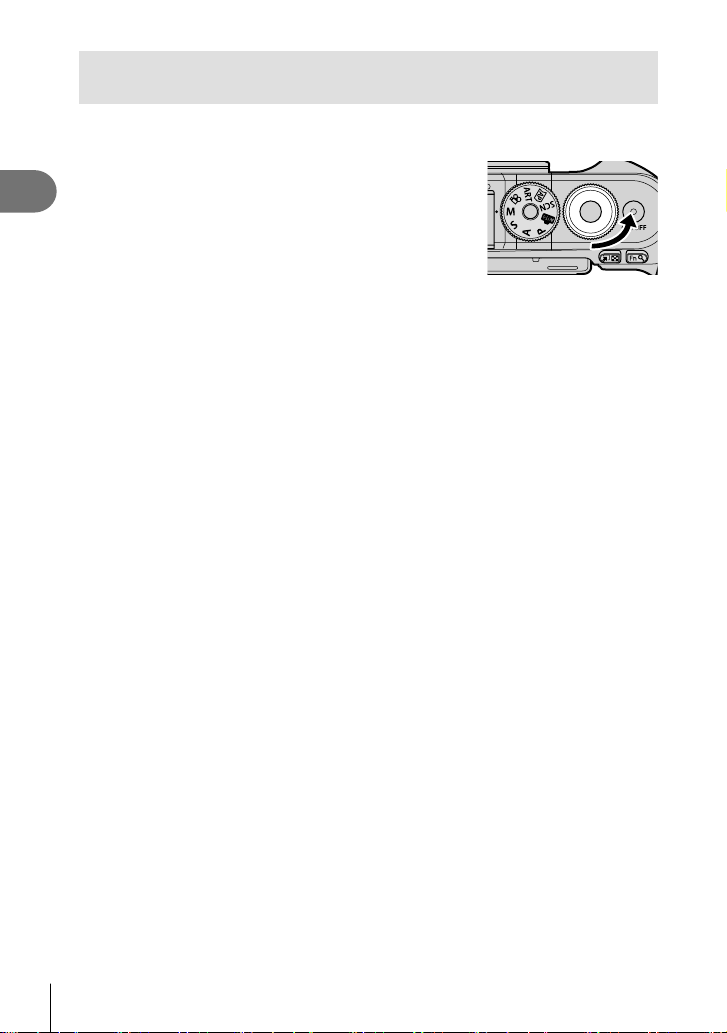
Shooting
2
56
EN
Live composite photography (dark and light fi eld
composite)
Combine several exposures to create a photo that records light trails from stars or
fi reworks and other objects without changing the brightness of the background.
1
In M mode, set the shutter speed to [LIVECOMP].
• In M mode, rotate the control dial in the direction
shown until [LIVECOMP] is displayed in the monitor.
2
Press the MENU button to display [Composite Settings] and press FG to
choose the exposure time for the individual exposures.
3
Press the shutter button to ready the camera.
• The camera will shoot a frame as a reference for noise reduction.
• The camera is ready when [Ready for composite shooting] is displayed in the monitor.
4
Press the shutter button halfway down to focus.
• If the focus indicator blinks, the camera is not in focus.
5
Press the shutter button all with way down to start live composite
photography.
• The combined image will be displayed in the monitor with each exposure.
6
Press the shutter button again to stop shooting.
• View the changing result in the monitor and press the shutter button to end shooting
once the desired result is achieved.
• The maximum length of composite shooting is 3 hours. However, the available
shooting time will vary depending on shooting conditions, and charging state of the
camera.
• There are limits on the available ISO sensitivity settings.
• To reduce blur caused by camera shake, fi x the camera securely to a tripod and use a
remote shutter release controlled via OI.Share (P. 141).
• During shooting, there are limits on the settings for the following functions.
Sequential shooting, self-timer shooting, time lapse shooting, image stabilizer, etc.
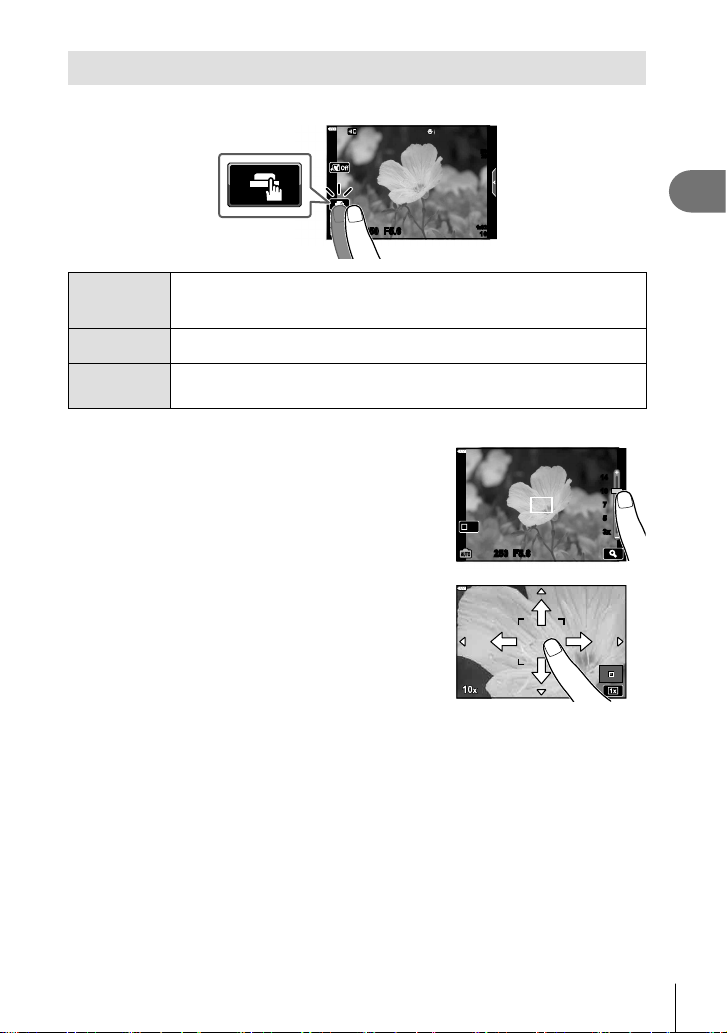
Shooting
2
57
EN
Shooting with touch screen operations
Tap d to cycle through touch screen settings.
250250 F5.6
ISO-A
200
1023
1:02:03
d
Tap a subject to focus and automatically release the shutter.
This feature is not available in movie mode and during bulb, time, or
composite photography.
U
Touch screen operations are disabled.
V
Tap to display an AF target and focus on the subject in the selected area.
Photographs can be taken by pressing the shutter button.
Previewing the subject (V)
1
Tap the subject in the display.
• An AF target will be displayed.
• Use the slider to choose the size of the frame.
• Tap S to turn off the display of the AF target.
1414
1010
7
7
5
5
3x
3x
Off
250250 F5.6
2
Tap Y to zoom in at the frame position.
• Use your fi nger to scroll the display when the
picture is zoomed in.
• Tap Z to cancel the zoom display.
• You cannot resize or zoom in on the target in movie
mode.
• The situations in which touch screen operations are not available include the following.
One-touch WB, while buttons or dials are in use, etc.
• Do not touch the display with your fi ngernails or other sharp objects.
• Gloves or monitor covers may interfere with touch screen operation.
• You can disable the touch screen operation. g [Touchscreen Settings] (P. 131)
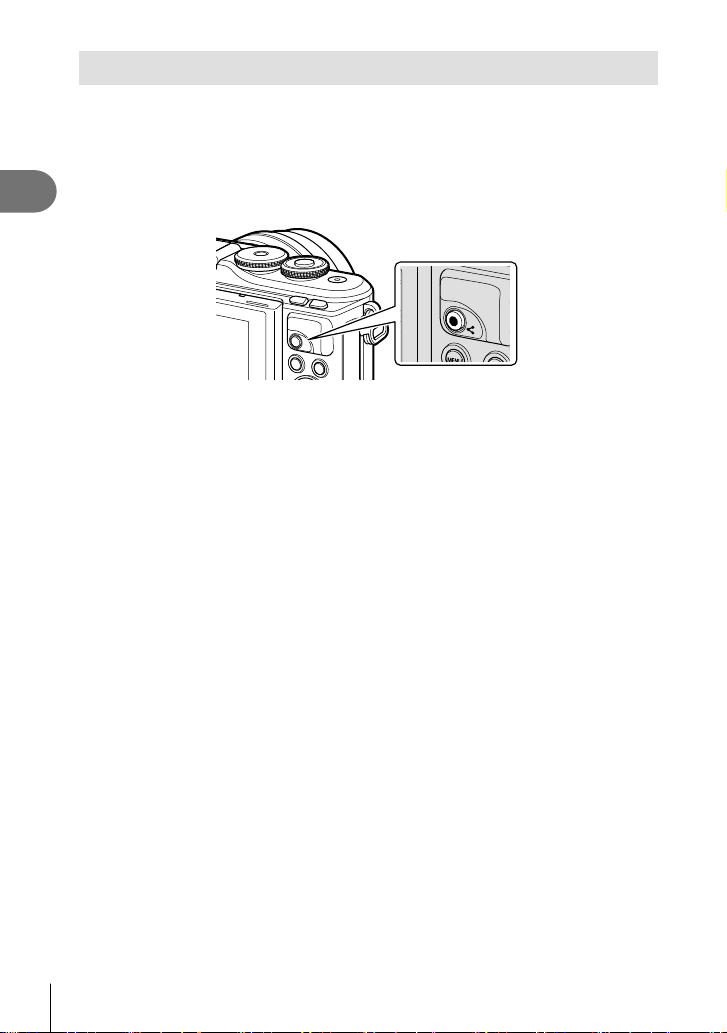
Shooting
2
58
EN
Recording movies in photo shooting modes
The R button can be used for movie recording even when the mode dial is not in the
n position.
• Be sure that [R REC] is assigned to the R button (P. 97).
1
Press the R button to begin recording.
• Movie you are recording will be displayed on the monitor.
• You can change the focus location by tapping the screen while recording.
R button
2
Press the R button again to end recording.
• The sound of touch operations and button operations may be recorded.
• CMOS image sensors of the type used in the camera generate a so-called “rolling shutter”
effect that can cause distortion in pictures of moving objects. This distortion is a physical
phenomenon that occurs in pictures of fast-moving subjects or if the camera is moved
during shooting. It is particularly noticeable in pictures taken at long focal lengths.
• If the size of the movie fi le being recorded exceeds 4 GB, the fi le will be split
automatically. (Depending on shooting conditions, movies under 4 GB in size may be split
into multiple fi les.)
• If the camera is used for extended periods, the temperature of the image pickup device
will rise and noise and colored fog may appear in images. Turn off the camera for a short
time. Noise and colored fog may also appear in images recorded at high ISO sensitivity
settings. If the temperature rises further, the camera will turn off automatically.
• When using a Four Thirds system lens, the AF will not operate while recording movies.
• The R button cannot be used to record movies in the following instances:
While shutter the button is pressed halfway; during bulb, time, composite, sequential or
time lapse photography; or when e-portrait, handheld starlight, panorama, or backlight
HDR is selected in SCN mode or keystone compensation, panorama, live time, multiple
exposure, or HDR is selected in Z mode
• A beep does not sound when the camera focuses in movie mode.
$ Notes
• Some settings, such as AF mode, can be set separately for movies and photographs.
g “Using the Video Menu” (P. 119)
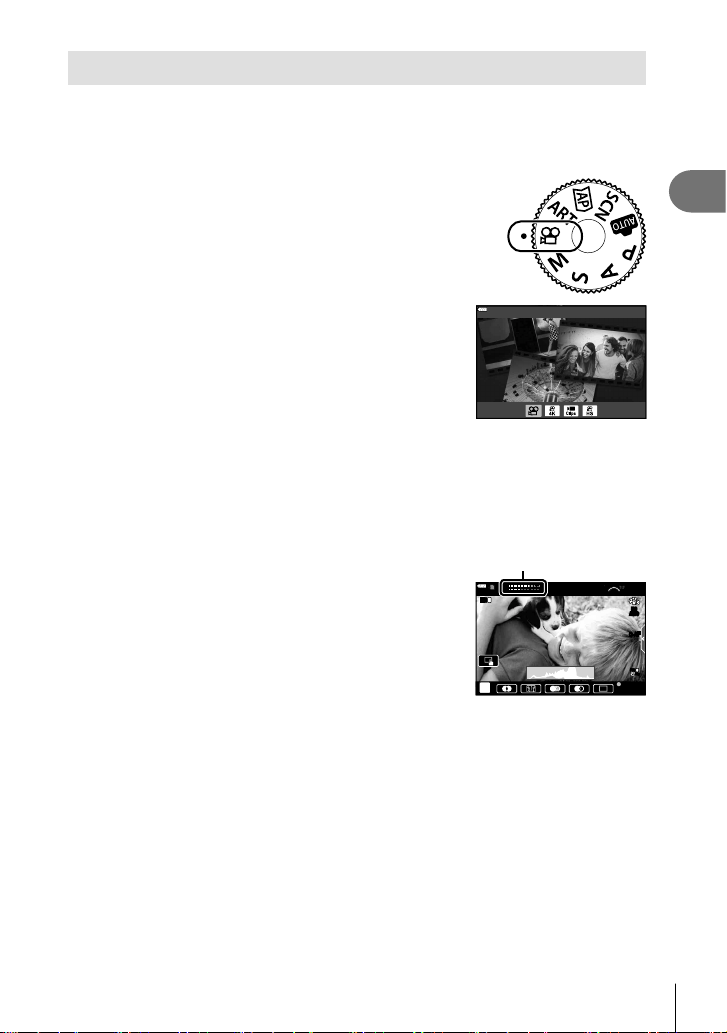
Shooting
2
59
EN
Recording movies in movie mode
Movie mode can be used to create movies that take advantage of the effects available
in photo shooting modes.
• Effects can be added to movies in the same way as photographs. g “Adding effects to
a movie” (P. 87)
1
Rotate the mode dial to n.
2
Use HI to highlight movie mode (P. 60).
• Some modes offer additional options that can be
accessed using G.
Standard
3
Press the Q button to select the highlighted mode.
• Press the u button to choose a different movie mode. If additional options are
displayed, press F.
4
Press the R button to begin recording.
• Be sure that [R REC] is assigned to the R button (P. 97).
• Press the R button again to end recording.
• The sound level during recording is shown by the
recording level meter. The more the meter extends into
the red, the higher the recording level.
• The recording level can be adjusted from the n video
menu. g [Recording Volume] (P. 119)
Recording level meter
n
L
R
L
R
28
mm
1:02:03
M-ISM-IS
1
ISO
AUTO
C-AF
F
FHD
30p
REC 00:12
• A beep does not sound when the camera focuses in movie mode.
$ Notes
• You can prevent the camera from recording operating sounds that occur due to camera
operations while shooting. g “Using the silencing function when shooting a movie”
(P. 66)
• Touch controls can also be used.
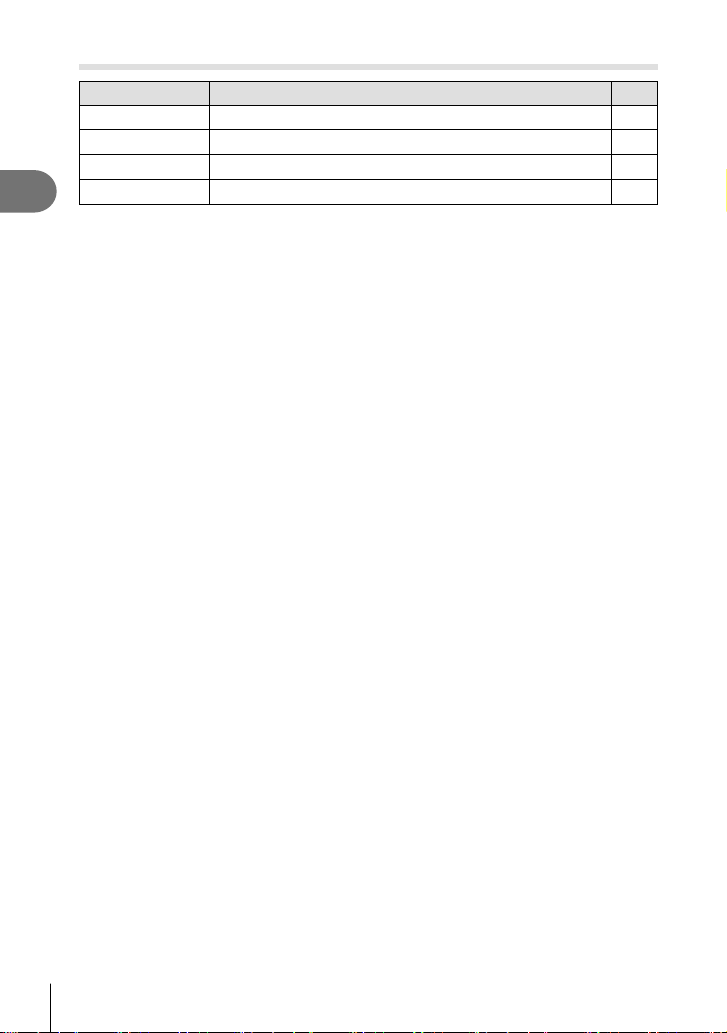
Shooting
2
60
EN
Movie Mode Options
Movie mode Description
g
n
Standard Shoot standard movies, or shoot movies with selected effects. 61
o
4K Shoot 4K movies. ―
q
Clips Create a single movie fi le including multiple short movies. 63
p
High-speed Record slow-motion movies. Sound will not be recorded. 66
• The picture modes available vary with the movie mode.
• Use UHS-I memory card with a UHS Speed Class of 3 when shooting in [4K] or [High-
speed] mode.
• Use a memory card with a Speed Class of 10 or better when shooting in [Standard] or
[Clips] mode.
• Depending on the system, some computers may be unable to play movies recorded at
[4K]. See the OLYMPUS website for information on the system requirements for viewing
4K movies on a computer.
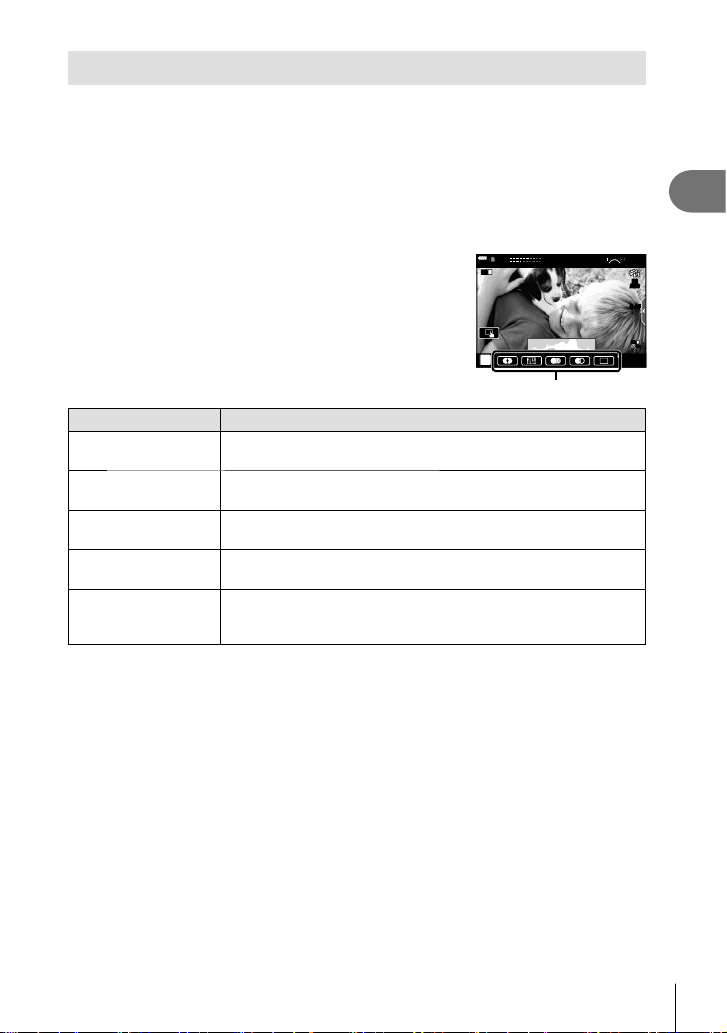
Shooting
2
61
EN
Movie Effects
A variety of effects can be added to movies. You can also zoom in on a selected area
of the frame without zooming the lens.
1
Highlight [Standard] in the movie mode option (P. 60) and press the Q
button.
• Use live controls to choose from a movie quality (frame size and rate) options
(P. 84).
2
Press the R button to begin recording.
3
Tap the on-screen icon of the effect you wish to use.
• Tap the display to add effects during shooting.
• Some effects can be added by tapping the display
before starting recording.
n
L
R
L
R
28
mm
1:02:03
M-ISM-IS
1
ISO
AUTO
C-AF
F
FHD
30p
REC 00:12
Movie effect
Movie effect Description
W
Art Fade
Films with the selected picture mode effect. The fade effect is
applied to the transition between scenes.
M
Old Film
Randomly applies damage and dust-like noise similar to old
movies.
U
Multi Echo
Applies an after-image effect. After-images will appear behind
moving objects.
T
One Shot Echo
A ghost of the image displayed when the icon is tapped persists for
a short while, disappearing with the passage of time.
X
Movie
Tele-converter
Zooms in on an area of the image without using the lens zoom.
The selected position of the image can be zoomed in even while
the camera is kept fi xed.
4
Press the R button again to end recording.
• The INFO button also controls the display of shooting information during movie recording.
Note, however, that pressing the INFO button during recording cancels all movie effects
except art fade and movie tele-converter.
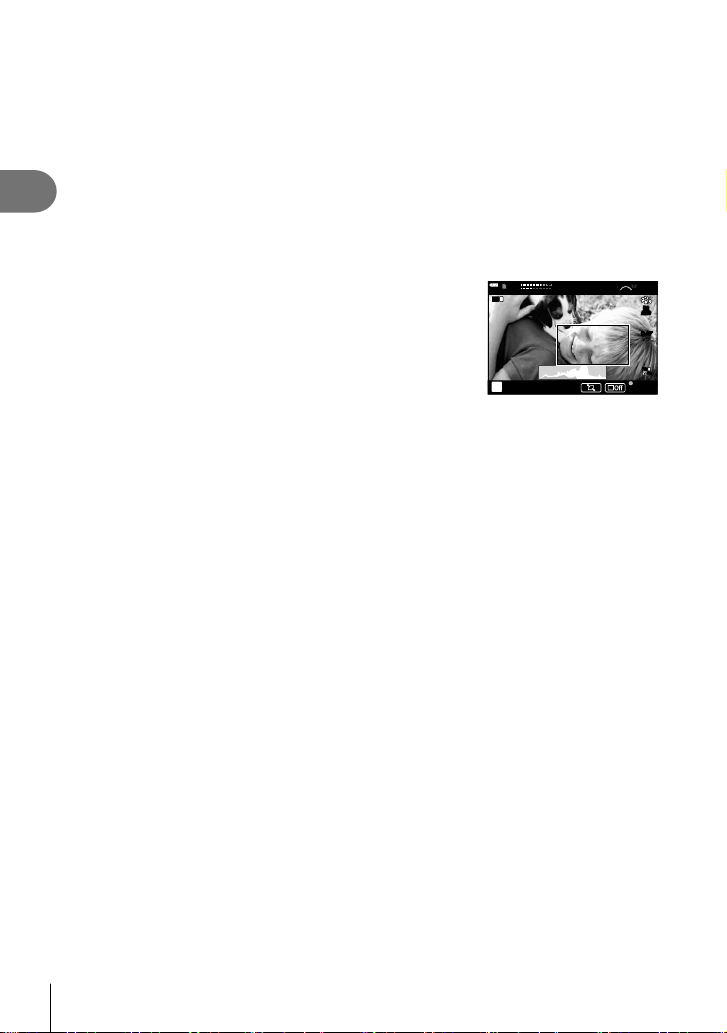
Shooting
2
62
EN
Art Fade
Tap the icon. The effect will be applied gradually when you tap the icon of a picture mode.
• Movies shot in partial color use the color selected in ART mode.
Old Film
Tap the icon for the effect to be applied. Tap again to cancel the effect.
Multi Echo
Tap the icon for the effect to be applied. Tap again to cancel the effect.
One Shot Echo
Each tap of the icon adds the effect.
Movie Tele-converter
1
Tap the icon to display the zoom frame.
• You can change the position of the zoom frame by
tapping the screen or using FGHI.
• Press and hold the Q button to return the zoom frame
to a central position.
n
L
R
L
R
28
mm
1:02:03
M-ISM-IS
1
ISO
AUTO
C-AF
F
FHD
30p
REC 00:12
2
Tap M to zoom in on the area in the zoom frame.
• Tap N to return to the zoom frame display.
3
Tap O or press the Q button to cancel the zoom frame and exit Movie
Tele-converter mode.
• Movie Tele-converter is not available in self-portrait mode.
• The 2 effects cannot be applied simultaneously.
• Some effects may not be available depending on the picture mode.
• The frame rate may drop if an art fi lter or a movie effect is used.
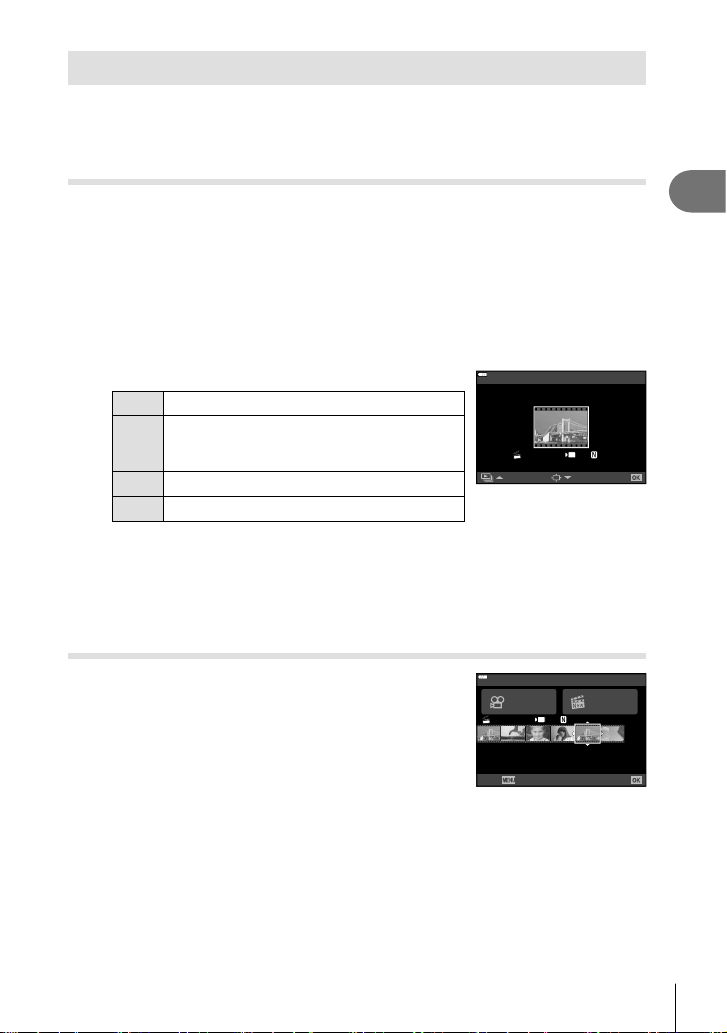
Shooting
2
63
EN
Creating Movies from Clips
You can create a single movie fi le including multiple short movies (clips). Clips can be
split into multiple groups (“My Clips”). You can also add still pictures to the My Clips
movie (P. 109).
Recording Clips
1
Highlight [Clips] in the movie mode option (P. 60).
2
Press G, use HI to choose the clip length, and press the Q button.
• Use live controls to choose from a movie quality (frame size and rate) options
(P. 84).
3
Press the R button to start shooting.
• Shooting ends automatically when the selected recording time is reached.
• To extend the recording time, press the R button during recording. Recording time
can be extended by up to 16 seconds by pressing the button repeatedly.
• The new clip is added to My Clips.
F
Plays back My Clips from the beginning.
G
Changes My Clips to save the clip to and the
position to add the clip to. Use HI to change
the position to add the clip to in the My Clips.
Q
Prepare to record the next clip.
Deletes the shot clip.
Set
1
MOV00:04 FHD 30p
Added to My Clips.
4
Press the R button to shoot the next clip.
• The confi rmation screen will disappear and shooting of the next clip will start.
• The new clip is added to the same My Clips group as the previous clip.
• Movies recorded at different frame sizes or rates are saved to different My Clips
groups.
Creating new My Clips
Press G in Step 3.
Use FG to move the clip to v and press the Q button.
1
MOV11:24 FHD 3 0p
Back Set
Move a clip within a My Clips folder.
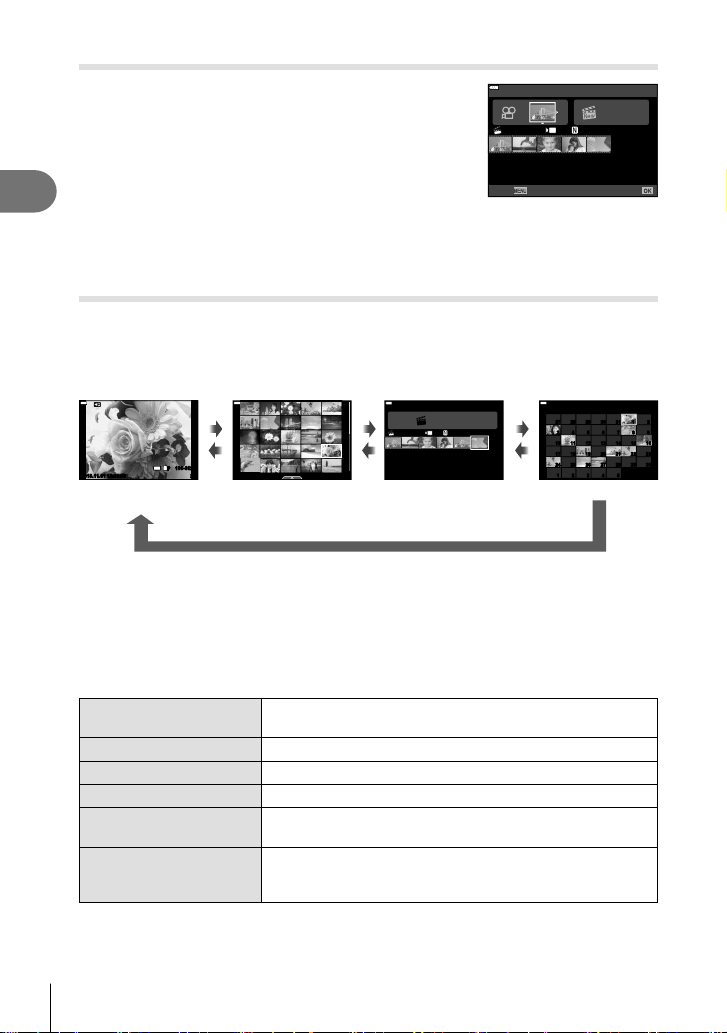
Shooting
2
64
EN
Removing a clip from My Clips
Press G in Step 3.
Move a clip to n using FGHI, and press the Q
button.
• The clip removed from My Clips will be a normal movie fi le.
• Clips can be removed during playback. g “Removing clips
from My Clips” (P. 109)
1
MOV11:24 FHD 30p
Back Set
Remove from My Clips.
% Tips
• Clips that have been removed can be added to My Clips again. g “Adding still pictures
to My Clips” (P. 109)
Editing “My Clips”
You can create a single movie fi le from My Clips.
The shot clips are stored in My Clips. You can add movie clips and still pictures to My
Clips (P. 109). You can also add screen transition effects and art fi lter effects.
1
Press q and then press G button repeatedly to play back My Clips.
Q
Index display Calendar displaySingle-frame
playback
20
100-0020
12:30:002019.11.01
4
:
3
L
F
202019.11.01 12:30:00
2019.11
Sun Mon Tue Wed Thu Fri Sat
9
16151413121110
23222120191817
30292827262524
5
4 3 2 1
2 1 3130292827
8 3 4 5 6 7
My Clips
1
MOV11:2 4 FHD 30p
12:30:002019.11.01
G
a
G
a
G
a
My Clips playback*
* If one or more My Clips have been created, it will be displayed here. After pressing
the q button, you can also view the My Clips playback display by highlighting an
item marked with c, pressing the Q button, and selecting [See all My Clips] from the
menu that appears.
2
Use FG to select My Clips and HI to select a clip, and press the Q
button.
• The clip menu will be displayed.
Play My Clips Plays back the fi les in My Clips in order, starting from the
beginning.
Play Movie Plays back the selected clips as movie.
Export My Clips Exports the fi les in My Clips as a movie fi le.
Rearrange Order Moves or adds fi les in My Clips.
Preset Destination From the next time you shoot, movies shot in the same
settings will be added to this c My Clips.
Remove from My Clips Removes the selected clip from My Clips. The clip is then
treated as a normal movie fi le. g “Removing clips from My
Clips” (P. 109)
Shooting
2
65
EN
3
With the My Clips you want for the movie selected, highlight [Export My Clips]
and press the Q button.
4
Select an item using FG and press the Q button.
Clip Effects You can apply 6 types of art effects.
Transition Effect You can apply fade effects.
BGM You can set [Happy Days] or [Off].
Recorded Clip Volume When [BGM] is set to [Happy Days], you can set a volume for
sounds recorded in the movie.
Recorded Clip Sound By setting to [On], you can create a movie with the recorded
sound. This setting is only available when [BGM] is set to
[Off].
Preview You can preview the fi les of the edited My Clips in order,
starting from the fi rst fi le.
5
When you have fi nished the editing, select [Begin Export] and press the Q
button.
• The combined album is saved as a single movie.
• Exporting a movie may take some time.
• The maximum length for My Clips is 15 minutes and the maximum fi le size is 4 GB.
• It may take a while for My Clips to display after taking out, inserting, erasing, or protecting
the card.
• You can record a maximum of 99 My Clips and a maximum of 99 cuts per clip. The
maximum values may vary depending on the fi le size and length of My Clips.
• You cannot add movies other than clips to My Clips.
BGM other than [Happy Days]
To use BGM other than [Happy Days], record data that you have downloaded from the
Olympus website onto the card and select it as [ BGM] in Step 4. Visit the following website
for the download.
http://support.olympus-imaging.com/bgmdownload/
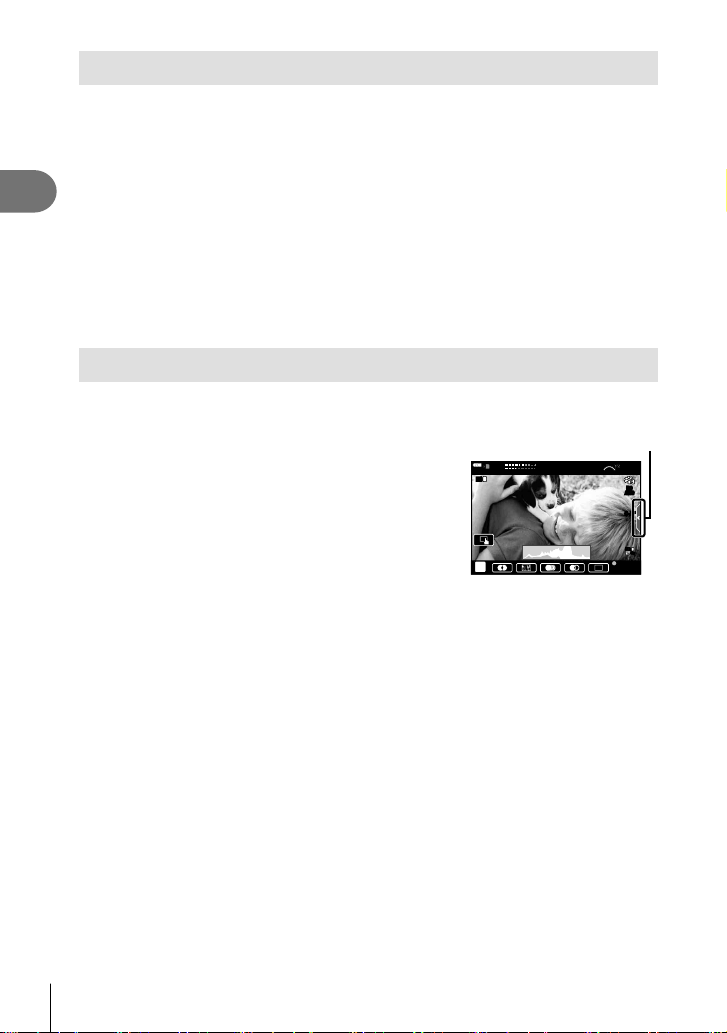
Shooting
2
66
EN
Recording Slow Motion Movies
Record slow-motion movies. Footage shot at 120 fps plays back at 30 fps; quality is
equivalent to [HD].
1
Highlight [High-speed] in the movie mode option (P. 60) and press the Q
button.
2
Press the R button to start shooting.
• Press the R button again to end shooting.
• Focus and exposure are fi xed at the start of recording.
• Recording can continue for up to 20 seconds.
• Sound will not be recorded.
Using the silencing function when shooting a movie
You can prevent the camera from recording operating sounds that occur due to camera
operations while shooting.
Tap the silent shooting tab to display the function items.
After tapping an item, tap the displayed arrows to select
the settings.
• Electronic zoom*, recording volume, aperture, shutter
speed, exposure compensation, ISO sensitivity
* Only available with power zoom lenses
• The options available vary with the shooting mode.
• This option is not available in self-portrait mode (P. 67).
Silent shooting tab
n
L
R
L
R
28
mm
1:02:03
M-ISM-IS
1
ISO
AUTO
C-AF
F
FHD
30p
REC 00:12
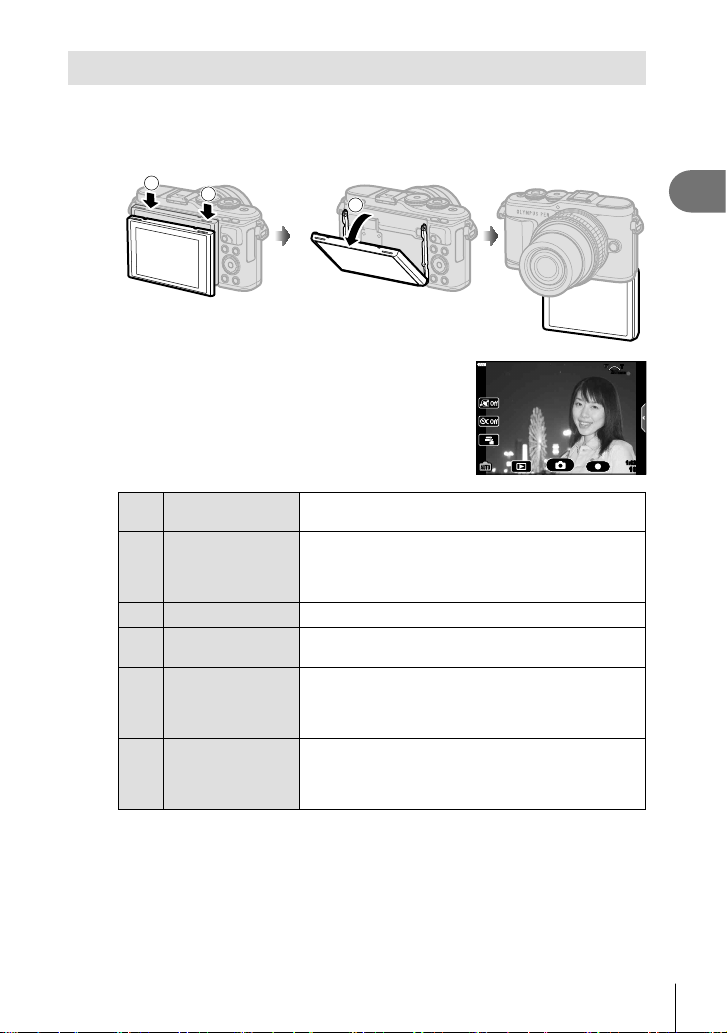
Shooting
2
67
EN
Taking Photos in Self-Portrait Mode
Inverting the monitor allows you to take pictures of yourself while you preview the
frame.
1
Push the monitor down slightly and swing it downward.
2
1
1
Read “Rotating the Monitor: Cautions” (P. 29) before moving the
monitor.
• If a power zoom lens is attached, the camera
automatically switches to wide angle.
• The self portrait menu is displayed in the monitor.
• Different icons may be displayed depending on the
shooting mode.
28
mm
1023
1:02:03
C
Shutter Touch
When the icon is touched, the shutter is released
about 1 second later.
R
Movie
When you touch this icon, movie recording will start.
To stop recording, press the (Q) icon. While
recording a clip, touch (R) again to extend the
recording time (up to a maximum of 16 seconds).
5
Playback Tap to switch to playback mode (P. 112).
A
One-Touch
e-Portrait
Turning this on makes skin look smooth and
translucent.
D
One-Touch
Custom Self Timer
Shoot 3 frames using the self timer. You can set
the number of times the shutter is released and the
interval between each release using Custom Self
Timer. g “Custom Self-timer” (P. 74)
E
Brightness
adjustment
(Exposure
compensation)
Touch [+] or [-] icon to adjust the brightness.

Shooting
2
68
EN
2
Frame the shot.
• Be careful that your fi ngers or the camera strap do not obstruct the lens.
3
Touch C and shoot.
• You can also shoot by touching the subject displayed in the monitor, or by pressing
the shutter button.
• The shot image will be displayed on the monitor.
• Be careful not to drop the camera when using the touch screen with the camera held in
one hand.
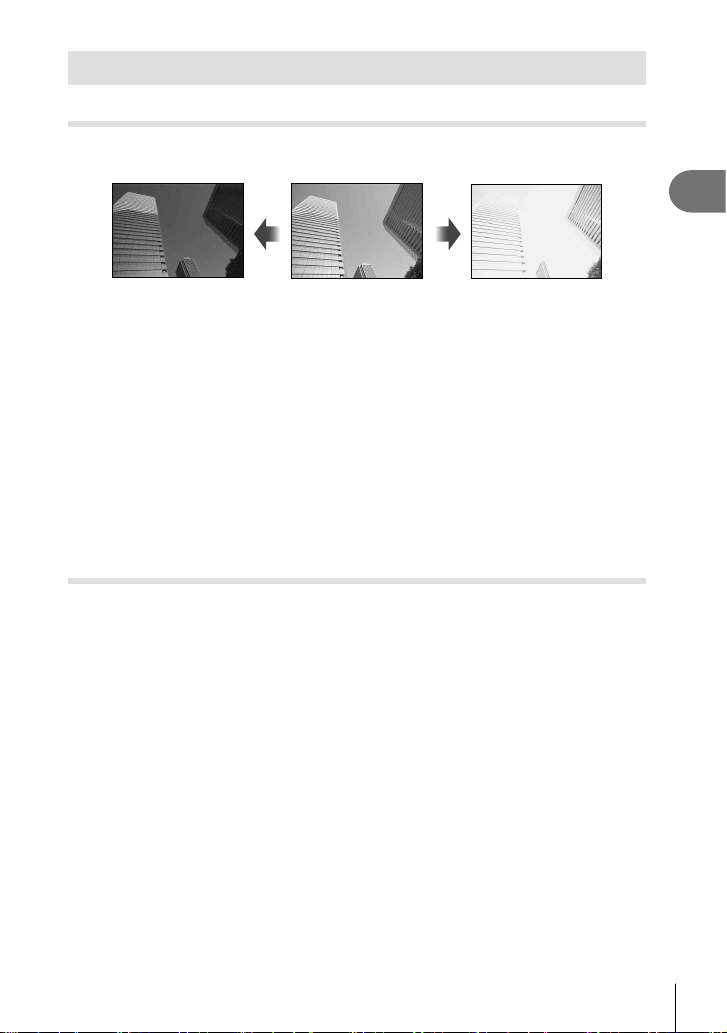
Shooting
2
69
EN
Using various settings
Controlling exposure ( Exposure F)
Choose positive (“+”) values to make pictures brighter, negative (“–”) values to make
pictures darker. Exposure can be adjusted by ±5.0 EV.
Negative (–) No compensation (0) Positive (+)
• In mode P, ART mode, movie mode, and some Z modes, exposure compensation can
be adjusted by rotating the control dial or by pressing the F (F) button and then using
HI.
• In modes A and S, exposure compensation can be adjusted by pressing the F (F)
button and then rotating the control dial or using HI.
• Exposure compensation is not available in B, M, or SCN mode or when Live Time or
panorama is selected in Z mode.
• During live view, the brightness of the monitor will be adjusted to a maximum of only
±3.0 EV. If the exposure exceeds ±3.0 EV, the exposure bar will begin fl ashing.
• Movies can be corrected in a range up to ±3.0 EV.
$ Notes
• The role of the control dial can be changed in the G custom menus. g [Dial Function]
(P. 126)
Digital Zoom ( Digital Tele-converter)
Press the Fn button to zoom in beyond the current zoom ratio. The display zoom ratio
will double and any photographs taken will show the area visible in the monitor.
• H is displayed on the monitor.
• If another role is assigned to the Fn button, choose [b] (P. 97).
• To exit digital zoom, press the Fn button again.
• Digital zoom is not available when panorama is selected in SCN mode, multiple
exposure, panorama, or keystone compensation is selected in Z mode or when
[Standard] is selected in movie mode.
• When a RAW image is displayed, the area visible in the monitor is indicated by a frame.
• AF target drops.
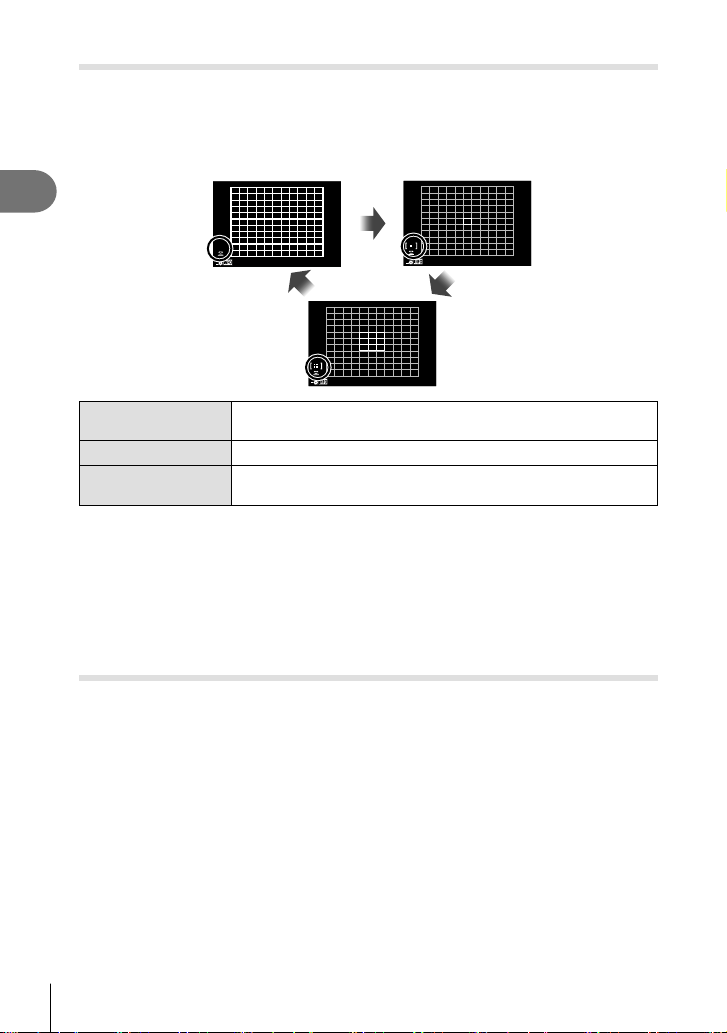
Shooting
2
70
EN
Selecting the AF target mode ( AF target settings)
You can choose the position and size of the focus area for autofocus. You can also
select Face priority AF (P. 71).
1
Press the N (H) button.
2
Select [I (Single Target)] or [J (9-Target Group)] using the control dial.
o
o
All Targets
The camera automatically chooses from the full set of focus
targets.
I
Single Target
You can choose a single AF target.
J
9-Target Group
The camera automatically chooses from the targets in the selected
nine-target group.
• The single target mode is automatically applied in movie shooting if the group target mode
is set.
• When using a Four Thirds system lens, the camera automatically switches to single target
mode.
$ Notes
• You can also make your selection in Step 2 by pressing the INFO button and then using
FG.
Setting the AF target
Select the single target or group target position.
1
Press the N (H) button.
• If [o (All Targets)] is selected, select [I (Single Target)] or [J (9-Target Group)]
using the control dial.
2
Use FGHI to choose a focus area.
• The size and number of the AF targets changes with the aspect ratio (P. 83) and the
option selected for [Digital Tele-converter] (P. 115).
$ Notes
• You can also make your selection in Step 2 by pressing the INFO button and then using
the control dial.
• Touch controls can also be used.
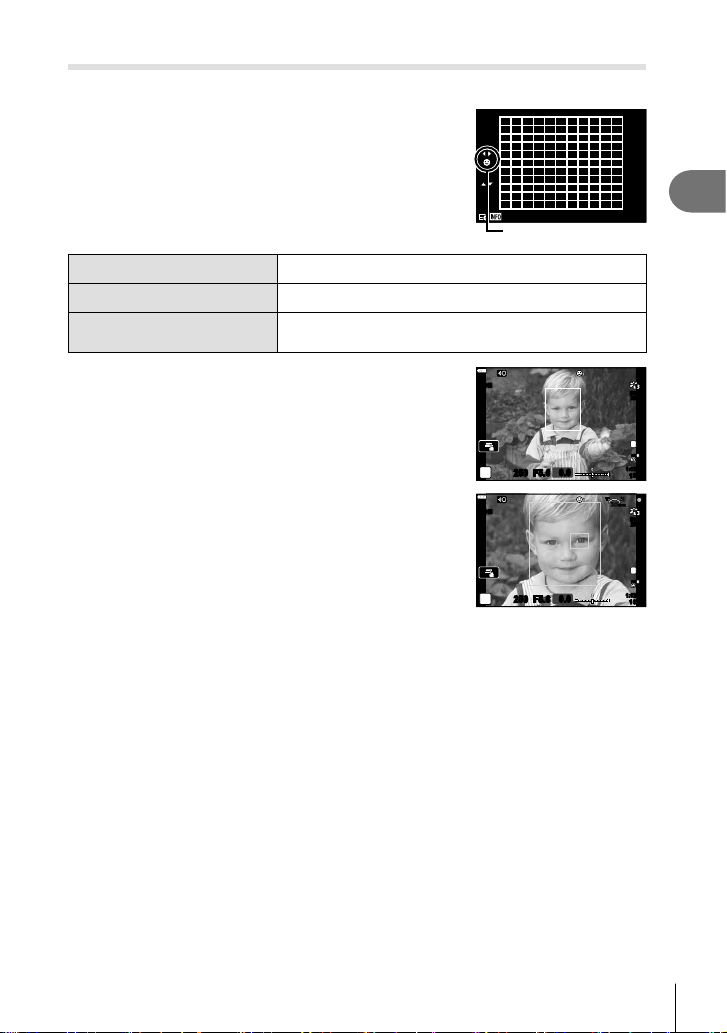
Shooting
2
71
EN
Face priority AF/ Eye priority AF
The camera detects faces and adjusts focus and digital ESP.
1
Press the N (H) button.
2
Press the INFO button.
• You can adjust face and eye priority settings.
3
Use HI to select an option and press Q.
o
Selection method
I
Face Priority On Face priority is on.
N
Face Priority Off
Face priority is off.
K
Face & Eye Priority On
The autofocus system selects the eye closest to the
camera for face-priority AF.
4
Point the camera at your subject.
• If a face is detected, it will be indicated by a white
frame.
5
Press the shutter button halfway to focus.
• When the camera focuses on the face in the white
frame, the frame will turn green.
250250 F5.6
P
S-IS ONS-IS ON
ISO-A
200
F
FHD
30p
1023
1:02:03
0.0
L
F
• If the camera is able to detect the subject’s eyes, it will
display a green frame over the selected eye.
(eye priority AF)
6
Press the shutter button the rest of the way down
to shoot.
250250 F5.6
P
ISO-A
200
1023
1:02:03
F
FHD
30p
28
mm
S-IS ONS-IS ON
0.0
L
F
• During sequential shooting, face priority applies only to the fi rst shot in each sequence.
• Depending on the subject and the art fi lter setting, the camera may not be able to correctly
detect the face.
• When set to [p (Digital ESP metering)] (P. 91), metering is performed with priority
given to faces.
$ Notes
• Face priority is also available in [MF] (P. 81). Faces detected by the camera are
indicated by white frames.

Shooting
2
72
EN
Using a fl ash ( Flash photography)
The fl ash can be used for fl ash photography in a variety of shooting conditions.
1
Press the fl ash pop-up button to raise the fl ash.
Flash pop-up button
2
Press the # (I) button.
3
Select an item using the control dial and press the Q button.
• The options available and the order in which they are displayed vary depending on
the shooting mode. g “Flash modes that can be set by shooting mode” (P. 73)
#
Fill In The fl ash fi res.
0
Redeye
The fl ash fi res so that the red-eye phenomenon is
reduced.
$
Flash Off The fl ash does not fi re.
1
Red-Eye Slow
Slow synchronization
(1st curtain/Red-eye
reduction fl ash)
The slow synchronization is combined with the red-eye
reduction fl ash.
2
Slow
Slow synchronization
(1st curtain)
The fl ash fi res with slow shutter speeds to brighten
dimly-lit backgrounds.
M
Slow2
Slow synchronization
(2nd curtain)
The fl ash fi res immediately before the
shutter closes to create trails of light
behind moving light sources.
3
,
4
etc.
Manual Value
For users who prefer manual operation. Press the
INFO button and use FG to adjust fl ash output.
• In [0 (Redeye)], after the pre-fl ashes, it takes about 1 second before the shutter is
released. Do not move the camera until shooting is complete.
• [0 (Redeye)] may not work effectively under some shooting conditions.
• When the fl ash fi res, the shutter speed is set to 1/250 seconds or slower. When shooting a
subject against a bright background with the fl ash, the background may be overexposed.
• The fl ash sync speed for the silent mode (P. 75) is 1/20
seconds
or less.
Optional Flash Units
When using optional fl ash units, be sure the built-in fl ash has been securely restored to its
housing.
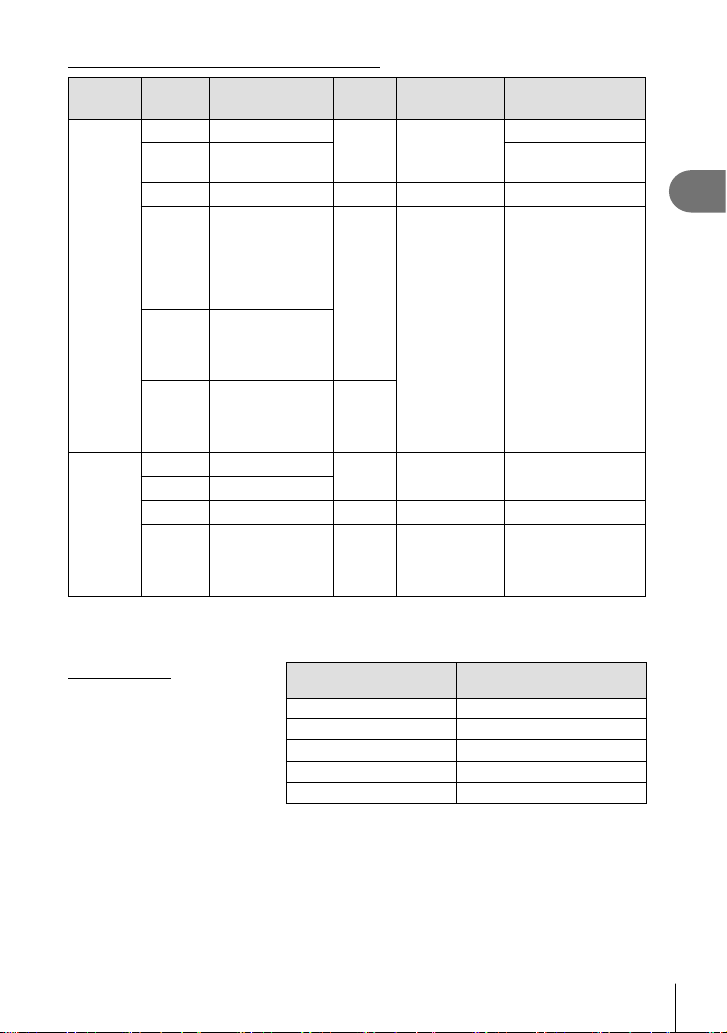
Shooting
2
73
EN
Flash modes that can be set by shooting mode
Shooting
mode
Monitor Flash mode
Flash
timing
Conditions for
fi ring the fl ash
Shutter speed limit
P/A
#
Fill In
1st
curtain
Always fi res
30 sec. – 1/250 sec.*
0
Redeye
1/30 sec. –
1/250 sec.*
$
Flash Off —— —
1
Red-Eye Slow
Slow
synchronization
(1st curtain/
Red-eye
reduction fl ash)
1st
curtain
Always fi res 60 sec. – 1/250 sec.*
2
Slow
Slow
synchronization
(1st curtain)
M
Slow2
Slow
synchronization
(2nd curtain)
2nd
curtain
S/M
#
Fill In
1st
curtain
Always fi res 60 sec. – 1/250 sec.*
0
Redeye
$
Flash Off —— —
M
Slow2
Slow
synchronization
(2nd curtain)
2nd
curtain
Always fi res 60 sec. – 1/250 sec.*
• Only # and $ can be set in B mode.
* The shutter speed is 1/200 seconds when using a separately sold external fl ash. For the
silent mode, the shutter speed is 1/20 seconds.
Minimum range
The lens may cast shadows over
objects close to the camera,
causing vignetting, or the fl ash
may be too bright even at
minimum output.
Lens
Approximate distance at
which vignetting occurs
17mm f1.8 0.25 m
25mm f1.8 0.25 m
45mm f1.8 0.5 m
ED 14-42mm f3.5-5.6 EZ 1 m
ED 40-150mm f4.0-5.6 0.9 m
• External fl ash units can be used to prevent vignetting. To prevent photographs from being
overexposed, select A or M mode, and choose a high aperture value or reduce ISO
sensitivity.
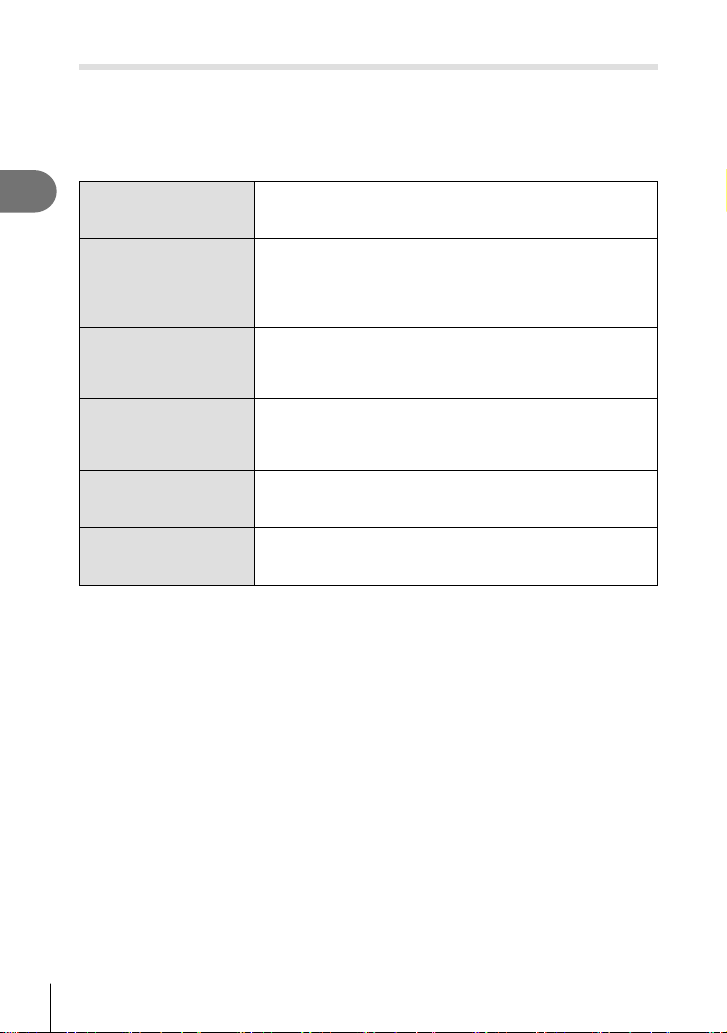
Shooting
2
74
EN
Performing the sequential/ self-timer shooting
You can take a series of pictures by keeping the shutter button pressed all the way
down. Alternatively, you can take pictures using the self-timer.
1
Press the jY (G) button.
2
Highlight one of the following options using HI.
o/
o/
♥o
Single 1 frame is taken at a time when the shutter button is pressed.
T/
♥T
Sequential High
With T, pictures are taken at up to about 8.6 frames per
second (fps) while the shutter button is pressed all the way
down. With ♥T, pictures are taken at up to about 14.1 fps.
Focus, exposure, and white balance are fi xed at the values for
the fi rst shot in each series.
S/
S/
♥S
Sequential Low
Pictures are taken at up to about 4.8 frames per second (fps)
while the shutter button is pressed all the way down. Focus
and exposure are fi xed according to the options selected for
[AF Mode] (P. 81) and [AEL/AFL] (P. 131).
Y12s/
Y12s/
♥Y12s
Y 12 sec
Press the shutter button halfway to focus, the rest of the way
down to start the timer. First, the self-timer lamp lights up for
approximately 10 seconds, then it blinks for approximately
2 seconds and the picture is taken.
Y2s/
Y2s/
♥Y2s
Y 2 sec
Press the shutter button halfway to focus, the rest of the
way down to start the timer. The self-timer lamp blinks for
approximately 2 seconds, and then the picture is taken.
YC/
YC/
♥YC
Custom
Self-timer
Press the INFO button to set [Y Timer], [Number of Frames],
and [Interval Length].
Use HI to highlight items and FG to choose a value.
Items marked with use the electronic shutter to control the small amount of camera blur
caused by operation of the shutter.
Items marked with ♥ use the electronic shutter. Use these with shutter speeds faster than
1/4000 seconds, or in settings where the sound of the shutter would be unwelcome.
3
Press the Q button.
• Fix the camera securely on a tripod for self-timer shooting.
• If you stand in front of the camera to press the shutter button when using the self-timer,
the picture may be out of focus.
• When you are using S, S or ♥S, live view is displayed. In T or ♥T, the display
shows the last photograph taken during the sequential shooting.
• The speed of sequential shooting varies depending on the lens you are using and the
focus of the zoom lens.
• During sequential shooting, if the battery level icon blinks due to low battery, the camera
stops shooting and starts saving the pictures you have taken on the card. The camera
may not save all of the pictures depending on how much battery power remains.
$ Notes
• To cancel the activated self-timer, press G.

Shooting
2
75
EN
The Electronic Shutter ( Silent s)
Take pictures using the electronic shutter. Use for shutter speeds faster than 1/4000 s
or in settings where the sound of the shutter would be unwelcome. The electronic
shutter can be used in single-frame mode and self-timer modes and for frame rates as
high as about 14.1 fps in sequential shooting modes. This setting is only available in
P/A/S/M/ART modes.
• The fl ash sync speed is 1/20 s.
• To use the fl ash in [Silent s] mode, select [Allow] for [Silent s Settings] > [Flash Mode]
(P. 117).
1
Press the jY (G) button.
2
Highlight one of the options marked with ♥ using HI.
3
Press the Q button.
• When the shutter is released, the monitor screen will go dark for a moment. No
shutter sound will be emitted.
• The desired results may not be achieved under fl ickering light sources such as fl uorescent
or LED lamps or if the subject moves abruptly during shooting.
• Note that due to the electronic shutter, the subject may appear to be distorted in
photographs if camera moves quickly during shooting or when shooting fast-moving
subjects.
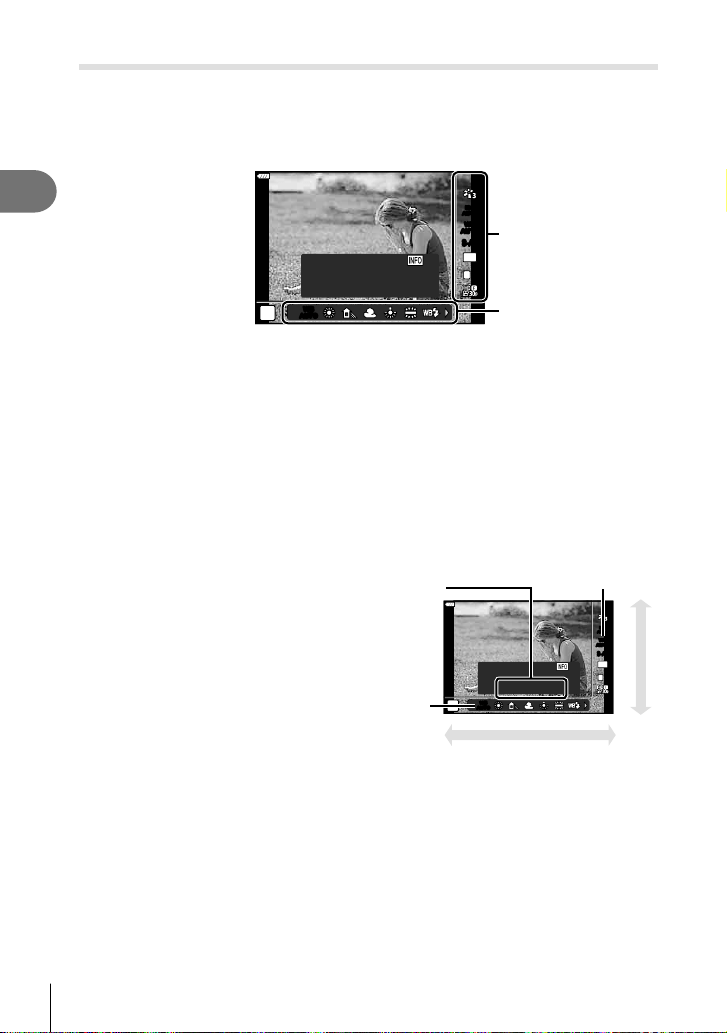
Shooting
2
76
EN
Calling shooting options
Live control
You can use live control to select the shooting function while checking the effect on the
screen.
WB
AUTO
WB
AUTO
WB Auto
4:3
S-AFS-AF
ISO
AUTO
WB
AUTO
WB
AUTO
L
F
P
Off
W Keep Warm Color
Functions
Live control screen
Settings
Available settings
Picture mode ........................................P. 78
ISO sensitivity .......................................P. 79
White balance .......................................P. 80
AF mode ...............................................P. 81
Aspect ratio*
1
........................................P. 83
KK ...................................................P. 83
nK ...................................................P. 84
Movie (exposure) mode ........................P. 87
Scene mode*
2
.......................................P. 33
Art fi lter mode*
3
.....................................P. 47
*1 Not available in movie mode.
*2 Available in SCN mode.
*3 Available in ART mode and with some P/A/S/M/
n
/Z mode features.
1
Press Q to display the live control.
• To hide the live control, press Q again.
2
Use FG to highlight the desired
function and HI to highlight a
setting, and then press the Q
button.
• You can use the control dial to
select a setting.
• The selected settings take effect
automatically if no operations are
performed for about 8 seconds.
WB
AUTO
WB
AUTO
WB Auto
4:3
S-AFS-AF
ISO
AUTO
WB
AUTO
WB
AUTO
L
F
P
Off
W Keep Warm Color
Cursor
Displays
the selected
function
name
Cursor
HI or P
F
G
• Some items are not available in some shooting modes.
$ Notes
• For the default settings of each option, refer to “Defaults” (P. 162).
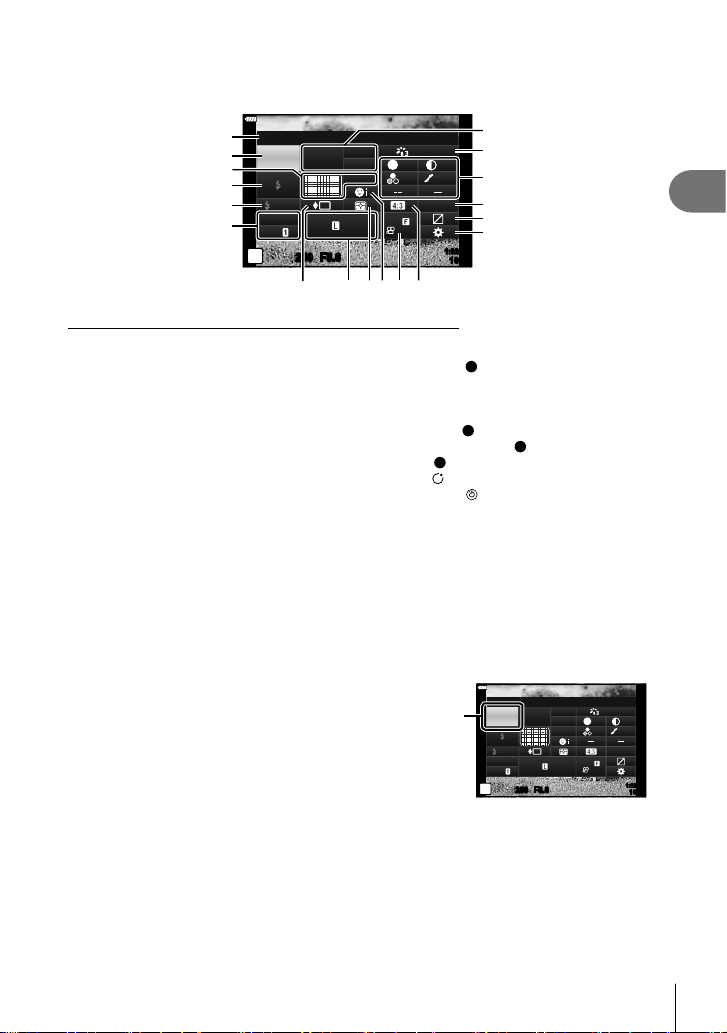
Shooting
2
77
EN
LV super control panel
Other shooting options can be accessed via the LV super control panel, which lists the
options selected for the following shooting settings.
250250 F5.6
sRGB
Natural
S
-
AF
F
FHD
60p
S
Normal
WB
Auto
ISO
Auto
M-IS
S-IS On
P
1023
1:02:03
A
±
0
±
0.0
±
0
±
0
±
0
G
±
0
Recommended ISO
1
2
4
5
6
c
d
e
f
g
h
ab
3
8097
Settings that can be modifi ed using LV super control panel
1 Currently selected option
2 ISO sensitivity .................................P. 79
3
K
AF mode ...................................P. 81
AF target .........................................P. 70
4 Flash mode .....................................P. 72
5 Flash intensity control .....................P. 88
6 Image stabilizer...............................P. 89
7 Sequential shooting/Self-timer ........P. 74
8 KK .............................................P. 83
9 Metering mode ................................P. 91
0 Face priority ....................................P. 71
a nK..............................................P. 84
b Aspect ratio .....................................P. 83
c White balance .................................P. 80
White balance compensation..........P. 90
d Picture mode...................................P. 78
e Sharpness
S
*
1
................................P. 91
Contrast u*
1
...................................P. 92
Saturation t*
1
................................P. 92
Gradation z*
1
................................P. 93
Color fi lter
F
*
1
................................P. 93
Monochrome color
T
*
1
...................P. 94
Effect
E
*
1
........................................P. 94
Color
*
1
*
2
......................................P. 50
Color/Vivid
*
1
*
3
.............................P. 78
Fine-Tune*
1
................................ ….P. 78
f Color space.....................................P. 95
g Highlight & shadow control .............P. 96
h Button function assignment ............P. 97
*1 The display may differ when Art Filter is selected for picture mode.
*2 Displayed when Partial Color is set.
*3 Displayed when Color Creator is set.
1
Press the u button in P/A/S/M modes.
• The LV super control panel will be displayed.
• In B, ART, SCN, and Z modes, the
display of the LV super control panel is
controlled via [K Control Settings] (P. 127).
• The LV super control panel is not displayed in
movie mode.
250250 F5.6
P
1023
1:02:03
sRGB
Natural
S
-
AF
F
FHD
60p
S
Normal
WB
Auto
ISO
Auto
M-IS
S-IS On
±
0
A
±
0
±
0.0
±
0
±
0
±
0
G
±
0
Recommended ISO
Cursor
2
Highlight an item using FGHI and press the Q button.
3
Use HI to highlight an option.
$ Notes
• Settings can also be adjusted using the control dial or touch controls.
• For the default settings of each option, refer to “Defaults” (P. 162).
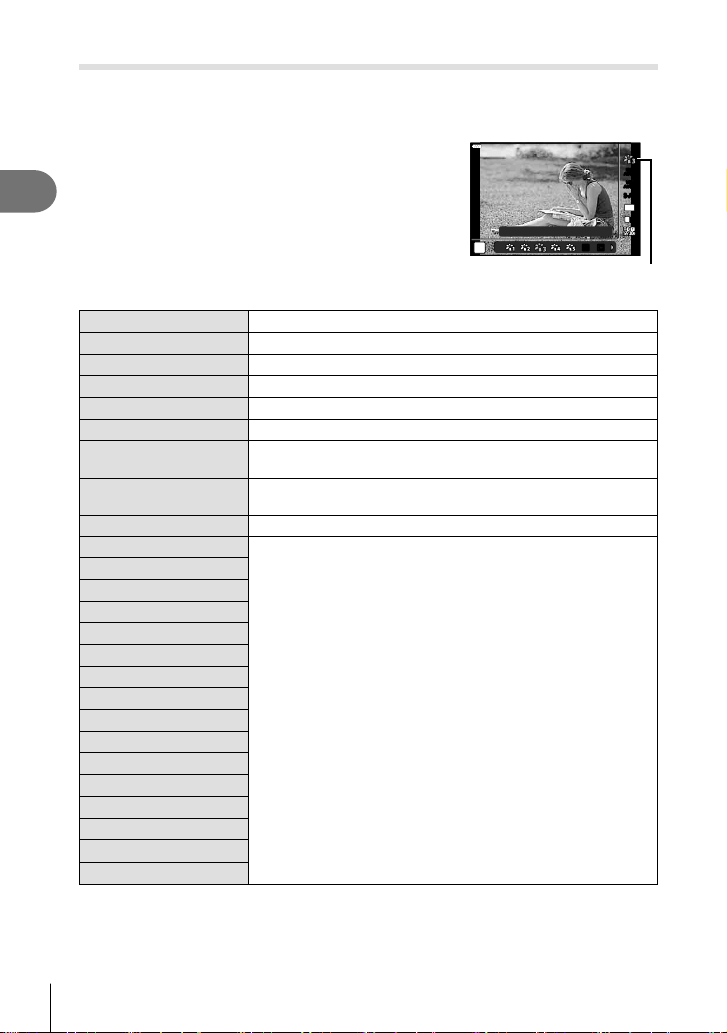
Shooting
2
78
EN
Processing options ( Picture Mode)
You can select a picture mode and make individual adjustments to contrast, sharpness,
and other parameters (P. 91–94). Changes to each picture mode are stored
separately.
1
Press the Q button and use FG to highlight
Picture Mode.
2
Highlight an option using HI and press the Q
button.
JJ KK
Natural
4:3
WB
AUTO
WB
AUTO
S-AFS-AF
ISO
AUTO
L
F
P
Picture Mode
Picture mode options
A
i-Enhance Produces more impressive-looking results suited to the scene.
B
Vivid Produces vivid colors.
C
Natural Produces natural colors.
D
Muted Produces fl at tones.
E
Portrait Produces beautiful skin tones.
J
Monochrome Produces black and white tone.
K
Custom
Use to select one picture mode, set the parameters, and
register the setting.
v
e-Portrait
Produces smooth skin textures. This mode cannot be used with
bracket photography or when shooting movies.
c
Color Creator*
1
Provides a color fi nish set in Color Creator.
e
Pop Art*
2
Uses Art Filter settings. Art effects can also be used.
f
Soft Focus*
2
g
Pale&Light Color
h
Light Tone
i
Grainy Film
j
Pin Hole
k
Diorama
l
Cross Process
m
Gentle Sepia
n
Dramatic Tone
o
Key Line
p
Watercolor
q
Vintage
r
Partial Color*
3
v
Bleach Bypass
9
Instant Film
*1 After choosing Color Creator using the HI buttons, press the INFO button and use the
control dial or HI to adjust hue and FG to adjust saturation.
*2 After choosing Pop Art I or Soft Focus using the HI buttons, press the INFO button to
display the slider for Fine Tuning (P. 50).
*3 After choosing Partial Color using HI, press the INFO button to display the color ring
(P. 50).
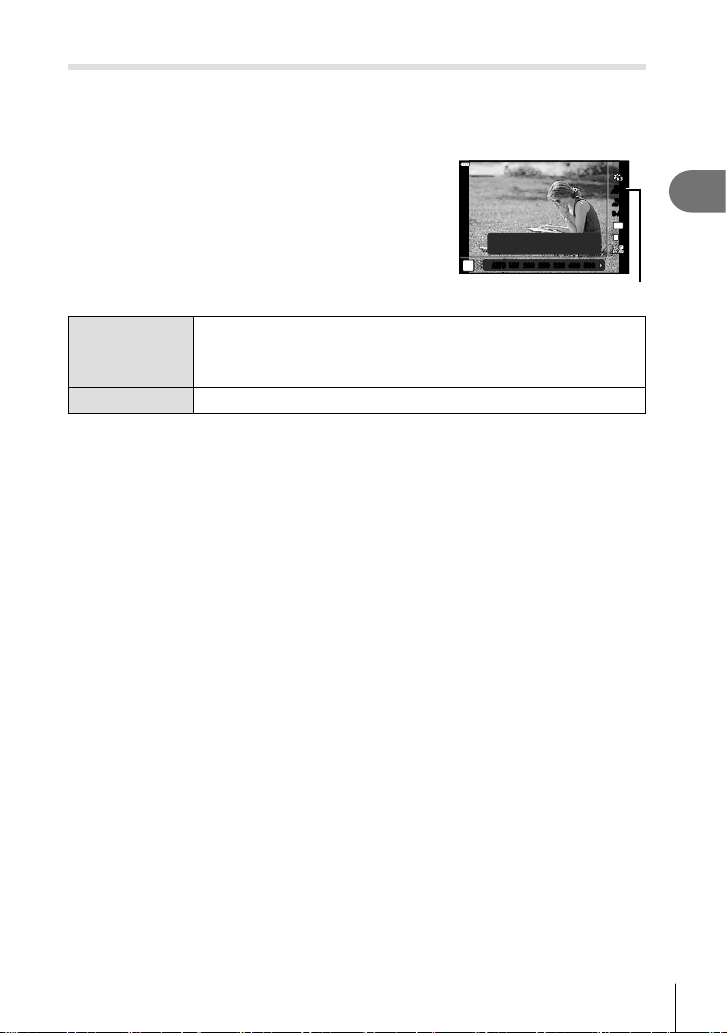
Shooting
2
79
EN
Changing ISO sensitivity (ISO)
Increasing ISO sensitivity increases noise (graininess) but allows photographs to be
taken when lighting is poor. The setting recommended in most situations is [AUTO],
which starts at ISO 200—a value that balances noise and dynamic range—and then
adjusts ISO sensitivity according to shooting conditions.
1
Press the Q button and then highlight ISO
sensitivity using FG.
2
Highlight an option using HI and press the Q
button.
250
4:3
WB
AUTO
WB
AUTO
S-AFS-AF
ISO
AUTO
L
F
P
AUTOAUTO
LOWLOW
200200 250250 320320 400400 500500
0.0F5.6
Recommend
ISO
AUTO
The sensitivity is set automatically according to the shooting
conditions. The maximum ISO sensitivity value and other auto ISO
settings can be adjusted using the [ISO-Auto Set] option in custom
menus (P. 128).
LOW, 200–25600 The sensitivity is set to the selected value.
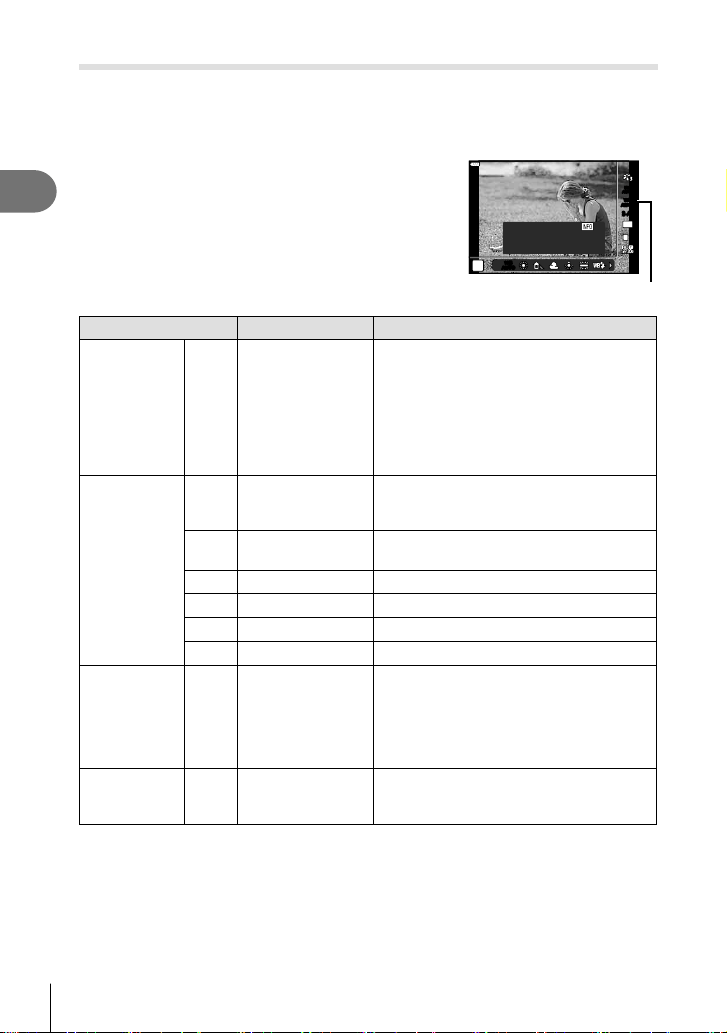
Shooting
2
80
EN
Adjusting color ( WB (white balance))
White balance (WB) ensures that white objects in images recorded by the camera
appear white. [AUTO] is suitable in most circumstances, but other values can be
selected according to the light source when [AUTO] fails to produce the desired results
or you wish to introduce a deliberate color cast into your images.
1
Press the Q button and use FG to highlight
White Balance.
2
Highlight an option using HI and press the Q
button.
WB
AUTO
WB
AUTO
WB Auto
4:3
S-AFS-AF
ISO
AUTO
WB
AUTO
WB
AUTO
L
F
P
Off
W Keep Warm Color
White Balance
WB mode Color temperature Light conditions
Auto white
balance
AUTO —
For most light conditions (when there is a
white portion framed on the monitor). Use
this mode for general use.
• When this option is highlighted, you
can press the INFO button and use
FGHI or the control dial to select
[On] or [Off] for [W Keep Warm Color]
(P. 129).
Preset white
balance
5
5300 K
For shooting outdoors on a clear day, or to
capture the reds in a sunset or the colors in
a fi reworks display
N
7500 K
For shooting outdoors in the shadows on a
clear day
O
6000 K For shooting outdoors on a cloudy day
1
3000 K For shooting under a tungsten light
>
4000 K For shooting under a fl uorescent light
n
5500 K For fl ash shooting
One-touch
white balance
P/
Q/
W/
X
Color temperature
set by one-touch
WB
Press the INFO button to measure white
balance using a white or gray target when
using a fl ash or other light source of an
unknown type or when shooting under
mixed lighting. g “One-touch white
balance” (P. 81)
Custom white
balance
CWB 2000 K – 14000 K
After pressing the INFO button, use
FGHI to select a color temperature and
then press the Q button.
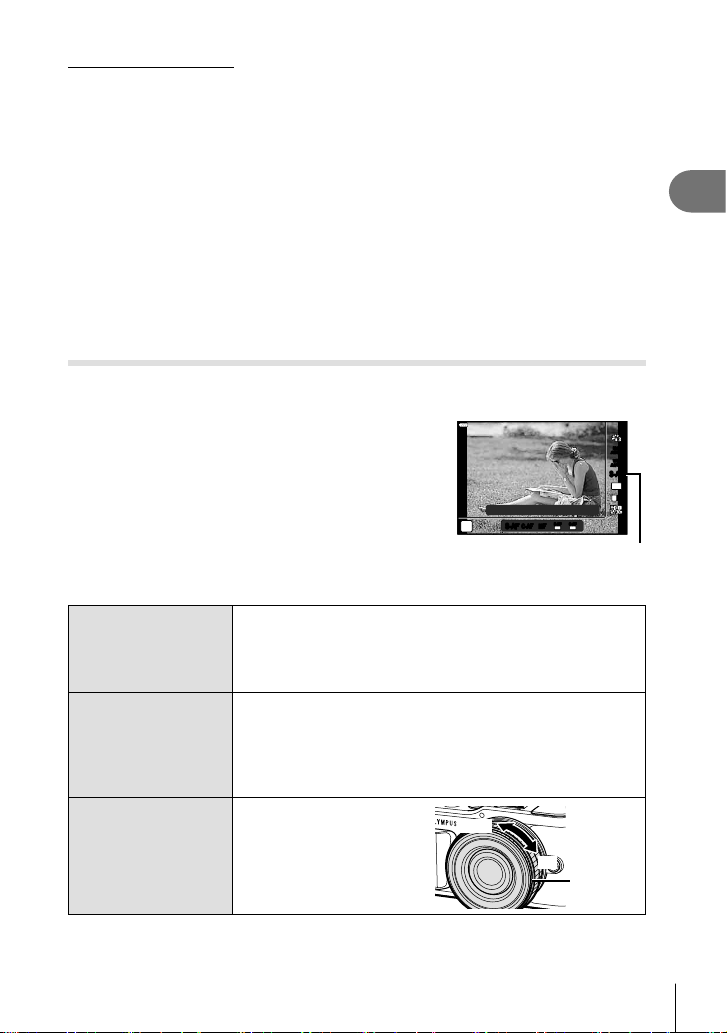
Shooting
2
81
EN
One-touch white balance
Measure white balance by framing a piece of paper or other white object under the lighting
that will be used in the fi nal photograph. This is useful when shooting a subject under natural
light, as well as under various light sources with different color temperatures.
1
Select [P], [Q], [W], or [X] (one-touch white balance 1, 2, 3, or 4) and
press the INFO button.
2
Photograph a piece of colorless (white or gray) paper.
• Frame the paper so that it fi lls the display and no shadows fall it.
• The one-touch white balance screen appears.
3
Select [Yes] and press the Q button.
• The new value is saved as a preset white balance option.
• The new value is stored until one-touch white balance is measured again. Turning the
power off does not erase the data.
Choosing a focus mode ( AF Mode)
You can select a focusing method (focus mode). You can choose separate focusing
methods for still photography mode and movie mode.
1
Press the Q button and use FG to highlight
AF Mode.
S-AFS-AF
C-AFC-AF
MFMF
S-AFS-AF
MF
C-AFC-AF
TR
Single AF
S-AFS-AF
4:3
WB
AUTO
WB
AUTO
ISO
AUTO
L
F
P
AF Mode
2
Highlight an option using HI and press the Q button.
S-AF
( Single AF)
The camera focuses once when the shutter button is pressed
halfway. When the focus is locked, a beep sounds, and the AF
confi rmation mark and the AF target mark light up. This mode
is suitable for taking pictures of still subjects or subjects with
limited movement.
C-AF
( Continuous AF)
The camera repeats focusing while the shutter button remains
pressed halfway. When the subject is in focus, the AF
confi rmation mark lights up on the monitor and the beep sounds
when the focus is locked at the fi rst time.
Even if the subject moves or you change the composition of the
picture, the camera continues trying to focus.
MF
( Manual focus)
This function allows you
to manually focus on any
position by operating the
focus ring on the lens.
Near
Focus ring
)
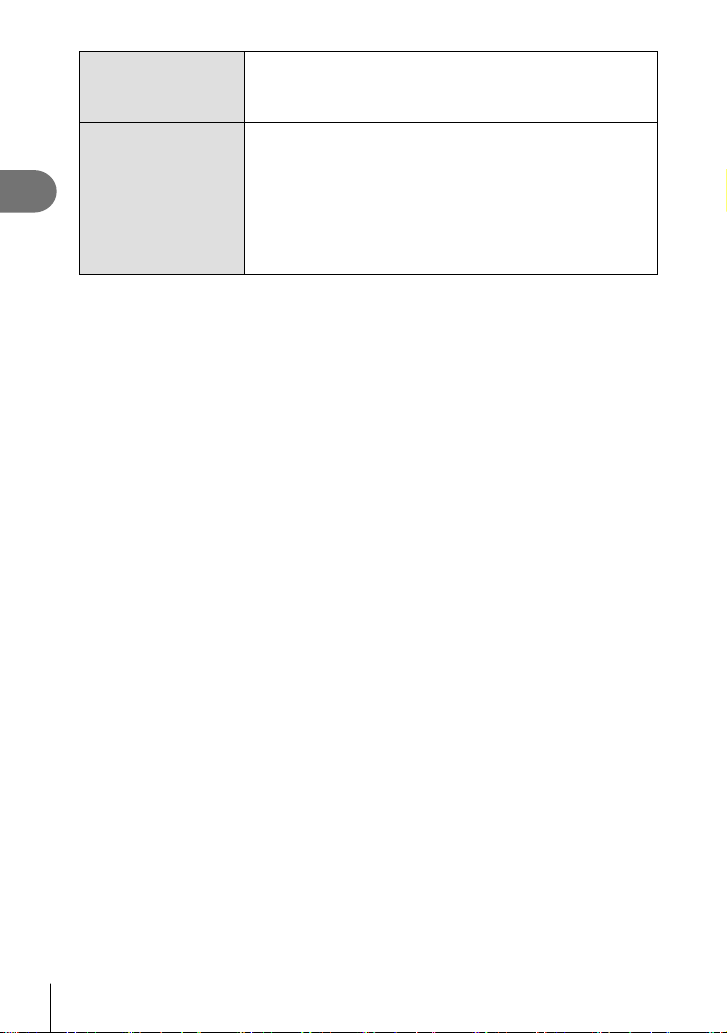
Shooting
2
82
EN
S-AF+MF
(Simultaneous use of
S-AF mode and MF
mode)
After pressing the shutter button halfway to focus in [S-AF]
mode, you can turn the focus ring to fi ne-adjust focus manually.
C-AF+TR
( AF tracking)
Press the shutter button halfway to focus; the camera then
tracks and maintains focus on the current subject while the
shutter button is held in this position.
• The AF target is displayed in red if the camera can no longer
track the subject. Release the shutter button and then frame
the subject again and press the shutter button halfway.
• Tracking range will be narrow when using a Four Thirds system
lens. Autofocus does not work while the AF target is displayed in
red even if the camera is tracking the subject.
• The camera may be unable to focus if the subject is poorly lit, obscured by mist or smoke,
or lacks contrast.
• When using a Four Thirds system lens, AF will not be available during movie recording.
• AF mode is unavailable when the lens MF focus clutch is set to MF.
• If [MF], [C-AF], or [C-AF+TR] is selected in P, A, S, M,
n
or ART mode, the shutter can
be released even when the camera is not focus.
$ Notes
• The focus method can be chosen in the G custom menu. g “AEL/AFL” (P. 131)
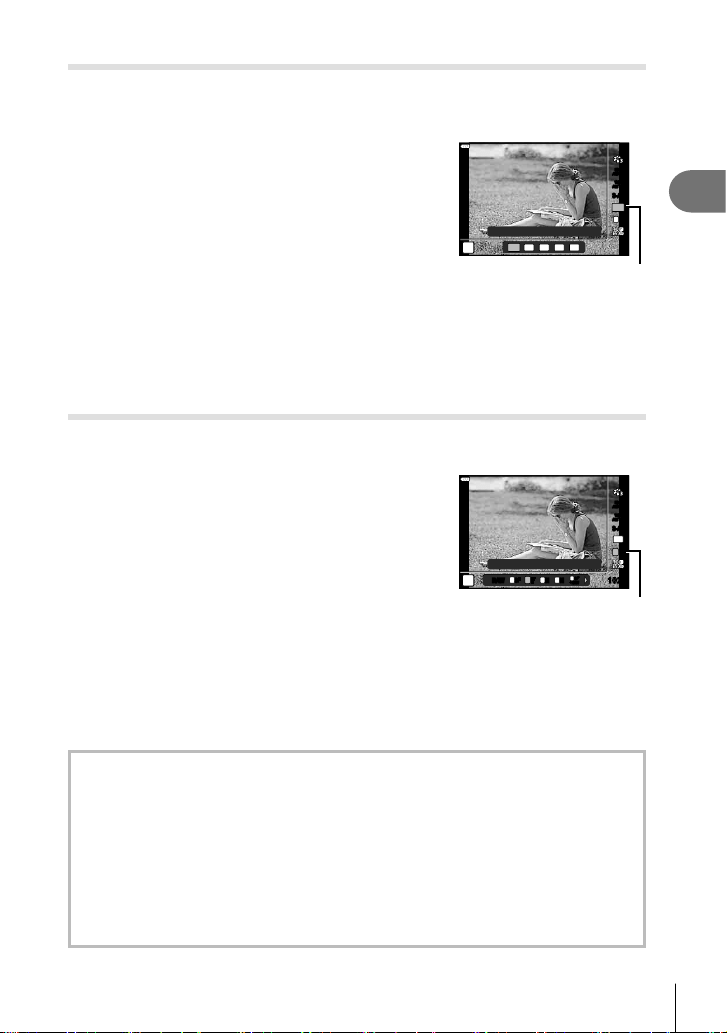
Shooting
2
83
EN
Setting the image aspect
You can change the aspect ratio (horizontal-to-vertical ratio) when taking pictures.
Depending on your preference, you can set the aspect ratio to [4:3] (standard), [16:9],
[3:2], [1:1], or [3:4].
1
Press the Q button and use FG to highlight
Image Aspect.
2
Use HI to choose a value and press the Q
button.
4:3
16
:9
3:2 1:1 3:4
4608x3456
4:3
WB
AUTO
WB
AUTO
S-AFS-AF
ISO
AUTO
L
F
P
Image Aspect
• Image aspect can only be set for still images.
• JPEG images are recorded at the selected aspect ratio. RAW images are the same size
as the image sensor and are recorded at an aspect ratio of 4:3 with a tag indicating the
aspect ratio selected. A crop indicating the selected aspect ratio is displayed when images
are played back.
Selecting image quality (Still image quality, KK)
You can set an image quality mode for still images. Select a quality suitable for the
application (such as for processing on PC, use on website etc.).
1
Press the Q button and use FG to highlight
(Still image quality, KK).
4608x3456
4:3
S-AFS-AF
ISO
AUTO
WB
AUTO
WB
AUTO
L
F
L
SFSF
RAW
F
L
N
L
N
M
P
1023
+RAW+RAW
L
SFSF
Still Image Quality
2
Highlight an option using HI and press the Q button.
• Choose from JPEG (YF, YN, XN, and WN) and RAW modes. Choose a JPEG+RAW
option to record both a JPEG and a RAW image with each shot. JPEG modes
combine image size (Y, X, and W) and compression ratio (SF, F, and N).
• When you want to select a combination other than YF, YN, XN, and WN, change the
[K Set] (P. 129) settings in Custom Menu.
RAW image data
RAW images consist of unprocessed image data to which settings such as exposure
compensation and white balance have yet to be applied. They serve as raw data for
images that will be processed after shooting. RAW image fi les:
- Have the extension “.orf”
- Cannot be viewed on other cameras
- Can be viewed on computers using Olympus Workspace photo editing software
- Can be saved in JPEG format using the [RAW Data Edit] (P. 120) retouch option in
the camera menus
g “Editing still images (Edit)” (P. 120)
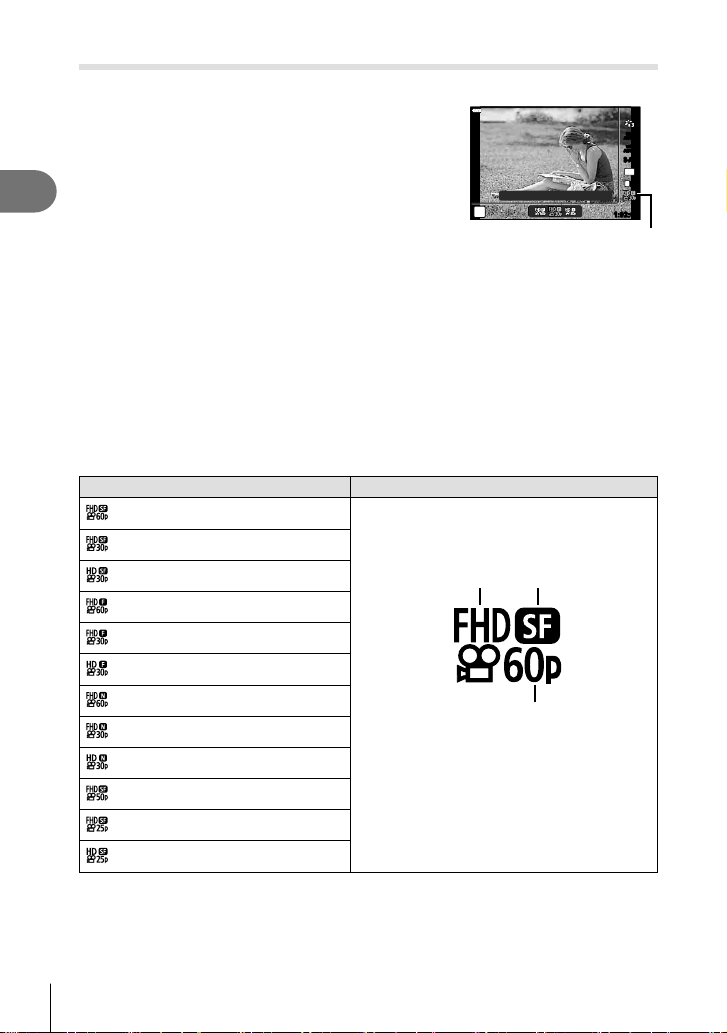
Shooting
2
84
EN
Selecting image quality (Movie quality, nK)
You can set a movie record mode suitable for the desired use.
1
Press the Q button and use FG to highlight
(Movie quality, nK).
2
Use HI to choose a value and press the Q
button.
1920×1080 Fine 30p
4:3
WB
AUTO
WB
AUTO
S-AFS-AF
ISO
AUTO
L
F
P
1:02:03
Movie Quality
Available Movie Quality Options
The options available for movie quality vary with the movie mode (P. 60) and the
options selected for [Video Frame Rate] and [Video Bit Rate] in the video menu
(P. 119).
• When shooting movies that will be viewed on a television, choose a frame rate that
matches the video standard used in the device, as otherwise the movie may not play back
smoothly. Video standards vary by country or region: some use NTSC, others PAL.
- When shooting for display on NTSC devices, choose 60p (30p)
- When shooting for display on PAL devices, choose 50p (25p)
The following options are available when [Standard] is selected for movie mode
or the mode dial is rotated to a position other than n:
Movie quality Movie quality components
1920×1080 Super Fine 60p
Choose the desired combination of frame size,
bit rate, and frame rate.
12
3
1 Frame size
FHD : 1920×1080
HD : 1280×720
2 Bit rate (compression ratio)
SF (Super Fine), F (Fine), N (Normal)
3 Frame rate
30p (60p), 25p (50p), 24p
1920×1080 Super Fine 30p
1280×720 Super Fine 30p
1920×1080 Fine 60p
1920×1080 Fine 30p
1280×720 Fine 30p
1920×1080 Normal 60p
1920×1080 Normal 30p
1280×720 Normal 30p
1920×1080 Super Fine 50p
1920×1080 Super Fine 25p
1280×720 Super Fine 25p

Shooting
2
85
EN
Movie quality Movie quality components
1920×1080 Fine 50p
Choose the desired combination of frame size,
bit rate, and frame rate.
12
3
1 Frame size
FHD : 1920×1080
HD : 1280×720
2 Bit rate (compression ratio)
SF (Super Fine), F (Fine), N (Normal)
3 Frame rate
30p (60p), 25p (50p), 24p
1920×1080 Fine 25p
1280×720 Fine 25p
1920×1080 Normal 50p
1920×1080 Normal 25p
1280×720 Normal 25p
1920×1080 Super Fine 24p
1280×720 Super Fine 24p
1920×1080 Fine 24p
1280×720 Fine 24p
1920×1080 Normal 24p
1280×720 Normal 24p
The following options are available when [4K] is selected for movie mode *
1
:
Movie quality Movie quality components
3840×2160 30p
Choose the desired combination of frame size
and frame rate.
1
2
1 Frame size
4K : 3840×2160
2 Frame rate
30p, 25p, 24p
3840×2160 25p
3840×2160 24p
*1 The bit rate can not be changed.
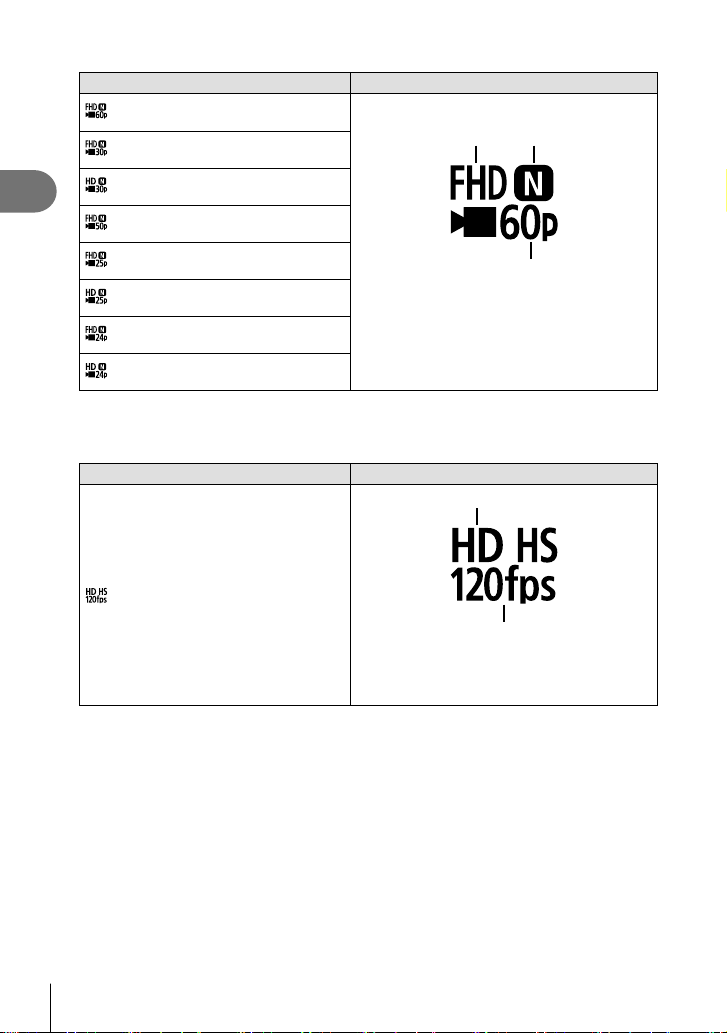
Shooting
2
86
EN
The following options are available when [Clips] is selected for movie mode *
1
:
Movie quality Movie quality components
1920×1080 Normal 60p
Choose the desired combination of frame size,
bit rate, and frame rate.
12
3
1 Frame size
FHD : 1920×1080
HD : 1280×720
2 Bit rate (compression ratio)
N (Normal)
3 Frame rate
30p (60p), 25p (50p), 24p
1920×1080 Normal 30p
1280×720 Normal 30p
1920×1080 Normal 50p
1920×1080 Normal 25p
1280×720 Normal 25p
1920×1080 Normal 24p
1280×720 Normal 24p
*1 The bit rate can not be changed.
The following option is available when [High-speed] is selected for movie
mode *
2
:
Movie quality Movie quality components
1280×720 HighSpeed 120fps
1
2
1 Frame size
HD : 1280×720
2 Frame rate
120fps
*2 The frame rate and bit rate can not be changed.
• Movies are stored in MPEG-4 AVC/H.264 format. The maximum size of individual fi le is
limited to 4 GB. The maximum recording time of individual movie is limited to 29 minutes.
• Depending on the type of card used, recording may end before the maximum length is
reached.
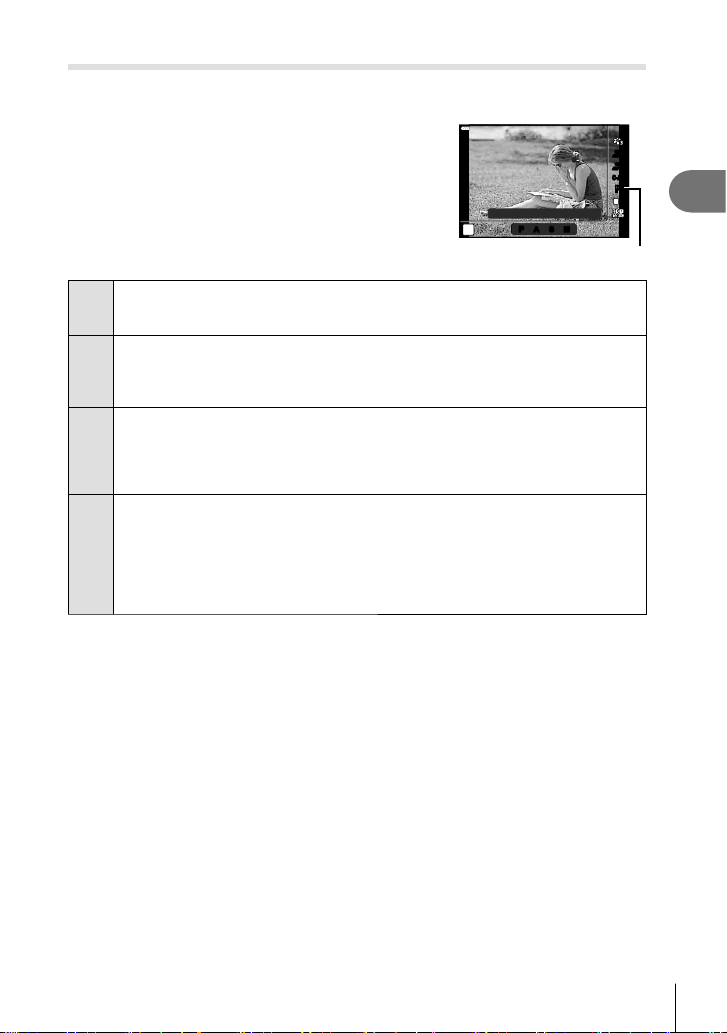
Shooting
2
87
EN
Adding effects to a movie
You can create movies that take advantage of the effects available in still photography
mode.
1
Rotate the mode dial to n.
2
Press the Q button and use FG to highlight
movie (exposure) mode.
3
Use HI to choose a value and press the Q
button.
Program Auto
n
P
A S M
WB
AUTO
WB
AUTO
C-AFC-AF
ISO
AUTO
P
L
F
Movie (exposure) mode
P
Exposure is automatically adjusted in response to subject brightness.
You can adjust the exposure by using the control dial.
After pressing the F (F) button, you can also set it by using HI.
A
Depiction of background is changed by setting the aperture.
You can set the aperture by using the control dial.
After pressing the F (F) button, you can also set it by using FG.
After pressing the F (F) button, you can adjust the exposure by using HI.
S
Shutter speed affects how the subject appears.
You can set the shutter speed by using the control dial.
After pressing the F (F) button, you can also set it by using FG.
After pressing the F (F) button, you can adjust the exposure by using HI.
Shutter speed can be set to values between 1/24 s and 1/4000 s.
M
Aperture and shutter speed can be manually set.
You can set the shutter speed by using the control dial.
After pressing the F (F) button, you can also set it by using FG.
After pressing the F (F) button, you can set the aperture by using the control dial
or HI.
Shutter speed can be set to values between 1/24 s and 1/4000 s.
ISO sensitivity can only be set manually to values between 200 and 6400.
• Blurred frames caused by such factors as the subject moving while the shutter is open
can be reduced by selecting the fastest available shutter speed.
• The low end of the shutter speed changes according to the frame rate of the movie record
mode.
$ Notes
• The role of the control dial can be changed in the G custom menus. g [Dial Function]
(P. 126)
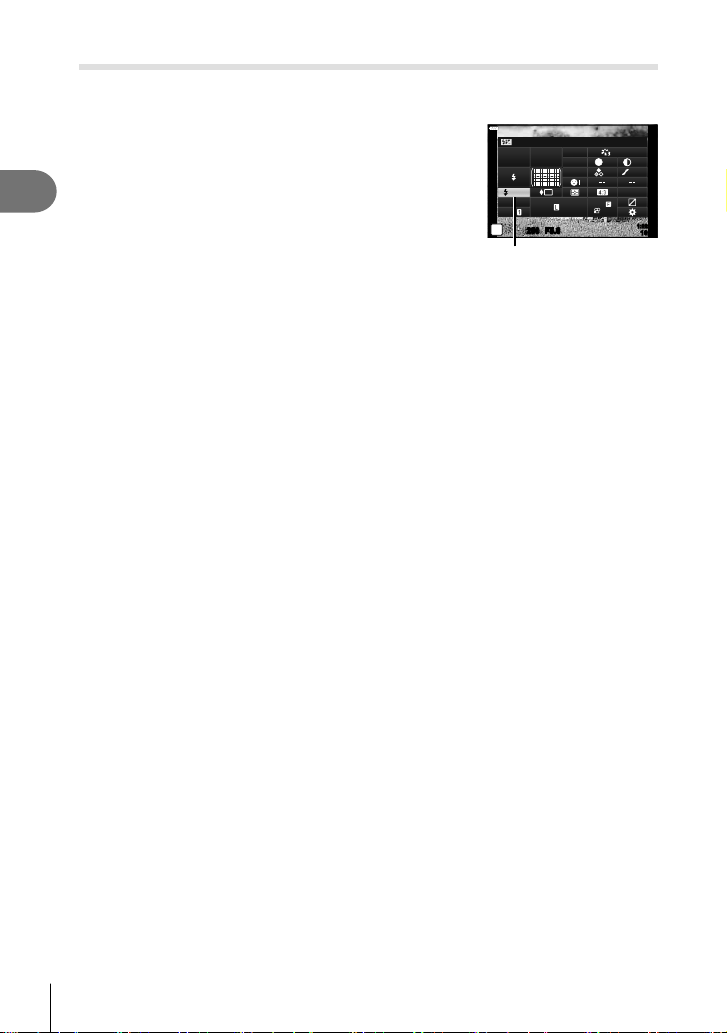
Shooting
2
88
EN
Adjusting fl ash output ( Flash intensity control)
Flash output can be adjusted if you fi nd that your subject to appears overexposed, or is
underexposed even though the exposure in the rest of the frame is just right.
1
Press the u button in P/A/S/M modes.
• In B, ART, SCN, and Z modes, the display of the
LV super control panel is controlled via [K Control
Settings] (P. 127).
2
Use FGHI to select [x], then press the Q
button.
3
Use HI to choose a value and press the Q
button.
250250 F5.6
P
1023
1:02:03
sRGB
Natural
S
-
AF
F
FHD
60p
S
Normal
WB
Auto
ISO
Auto
M-IS
S-IS On
±
0
A
±
0
±
0.0
±
0
±
0
±
0
G
±
0
Flash intensity control
• This setting has no effect when the fl ash control mode for the external fl ash unit is set to
MANUAL.
• Changes to fl ash intensity made with the external fl ash unit are added to those made with
the camera.
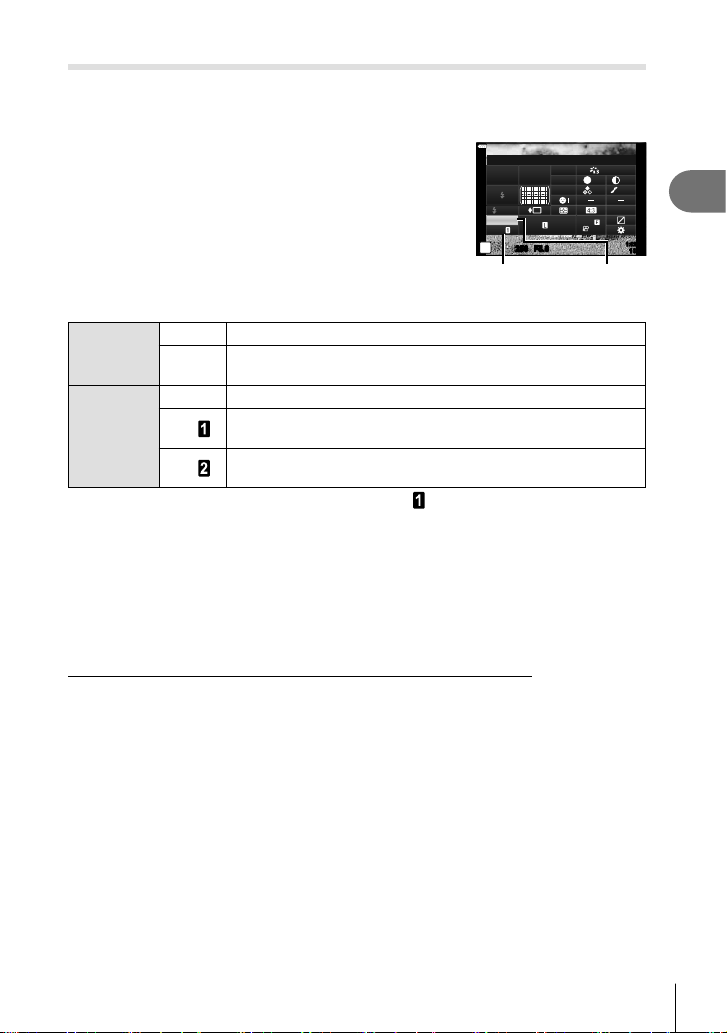
Shooting
2
89
EN
Reducing camera shake ( Image Stabilizer)
You can reduce the amount of camera shake that can occur when shooting in low light
situations or shooting with high magnifi cation.
The image stabilizer starts when you press the shutter button halfway.
1
Press the u button in P/A/S/M modes.
• In B, ART, SCN, and Z modes, the display of the
LV super control panel is controlled via [K Control
Settings] (P. 127).
2
Use FGHI to select [Image Stabilizer], then
press the Q button.
3
Highlight an option using HI and press the Q
button.
250250 F5.6
P
1023
1:02:03
sRGB
Natural
S
-
AF
F
FHD
60p
S
Normal
WB
Auto
ISO
Auto
M-IS
S-IS On
±
0
A
±
0
±
0.0
±
0
±
0
±
0
G
±
0
K
Image Stabilizer
n
Image
Stabilizer
K
Image
Stabilizer
Still picture
(S-IS)
S-IS Off Image stabilizer is off.
S-IS On
The camera detects the panning direction and applies the
appropriate image stabilization.
Movie
(M-IS)
M-IS Off Image stabilizer is off.
M-IS
The camera uses both sensor shift (VCM) and electronic
correction.
M-IS
The camera uses sensor shift (VCM) correction only.
Electronic correction is not used.
• The edges of the frame are cropped out when [M-IS
] is selected, reducing the area
recorded.
• The image stabilizer cannot correct excessive camera shake or camera shake that occurs
when the shutter speed is set to the slowest speed. In these cases, it is recommended
that you use a tripod.
• When using a tripod, set [Image Stabilizer] to [S-IS Off]/[M-IS Off].
• When using a lens with an image stabilization function switch, priority is given to the lens
side setting.
• You may notice an operating sound or vibration when the image stabilizer is activated.
Using lenses other than Micro Four Thirds/Four Thirds System lenses
You can use focal length information to reduce camera shake when shooting with lenses that
are not Micro Four Thirds or Four Thirds system lenses.
• Press the INFO button while [Image Stabilizer] is selected, use FGHI to highlight a
focal length, and press the Q button.
• Choose a focal length between 0.1 mm and 1000.0 mm.
• Choose the value that matches the one printed on the lens.
• Selecting [Reset] (basic) in Shooting Menu 1 does not reset the focal length.
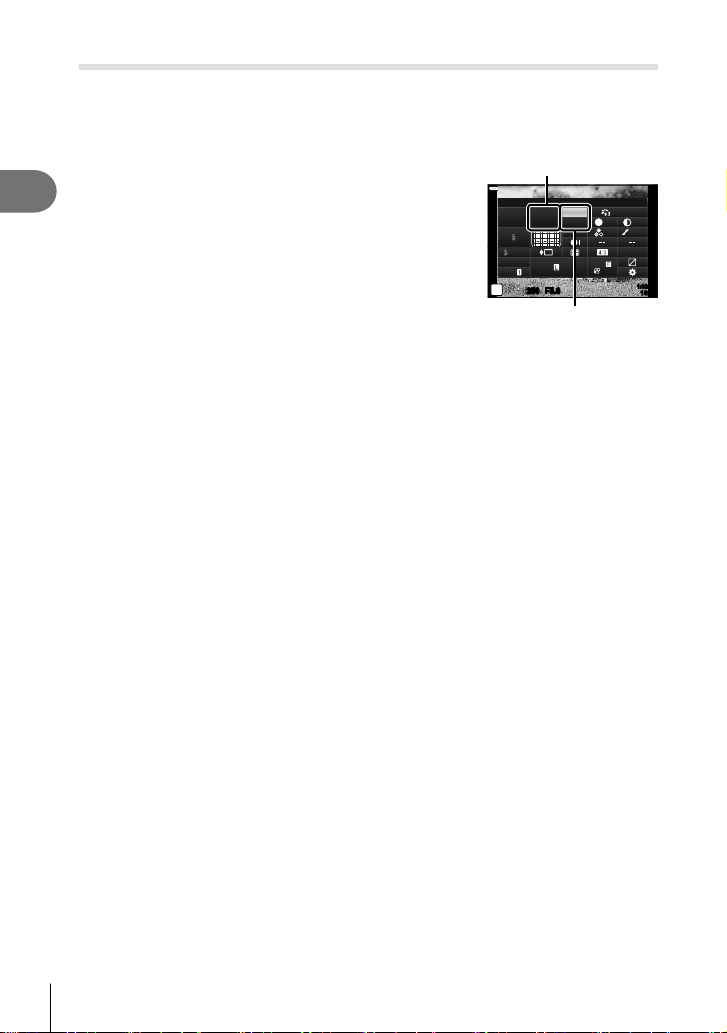
Shooting
2
90
EN
Making fi ne adjustments to white balance ( WB Compensation)
You can set and fi nely adjust the compensation values for both auto white balance and
preset white balance.
Before proceeding, choose a white balance option to which to make fi ne adjustments.
g “Adjusting color (WB (white balance))” (P. 80)
1
Press the u button in P/A/S/M modes.
• In B, ART, SCN, and Z modes, the display of the
LV super control panel is controlled via [K Control
Settings] (P. 127).
2
Highlight white balance compensation using
FGHI and press the Q button.
3
Use HI to choose an axis.
4
Choose a value using FG and press the Q
button.
WB
250250 F5.6
P
1023
1:02:03
sRGB
Natural
S
-
AF
F
FHD
60p
S
Normal
WB
Auto
ISO
Auto
M-IS
S-IS On
±
0
A
±
0
±
0.0
±
0
±
0
±
0
G
±
0
Auto x
White balance compensation
For compensation on the A axis (Red-Blue)
Move the bar in the + direction to emphasize red tones and in the – direction to
emphasize blue tones.
For compensation on the G axis (Green-Magenta)
Move the bar in the + direction to emphasize green tones and in the – direction to
emphasize magenta tones.
• Selecting [Reset] (basic) in Shooting Menu 1 does not reset the values selected.
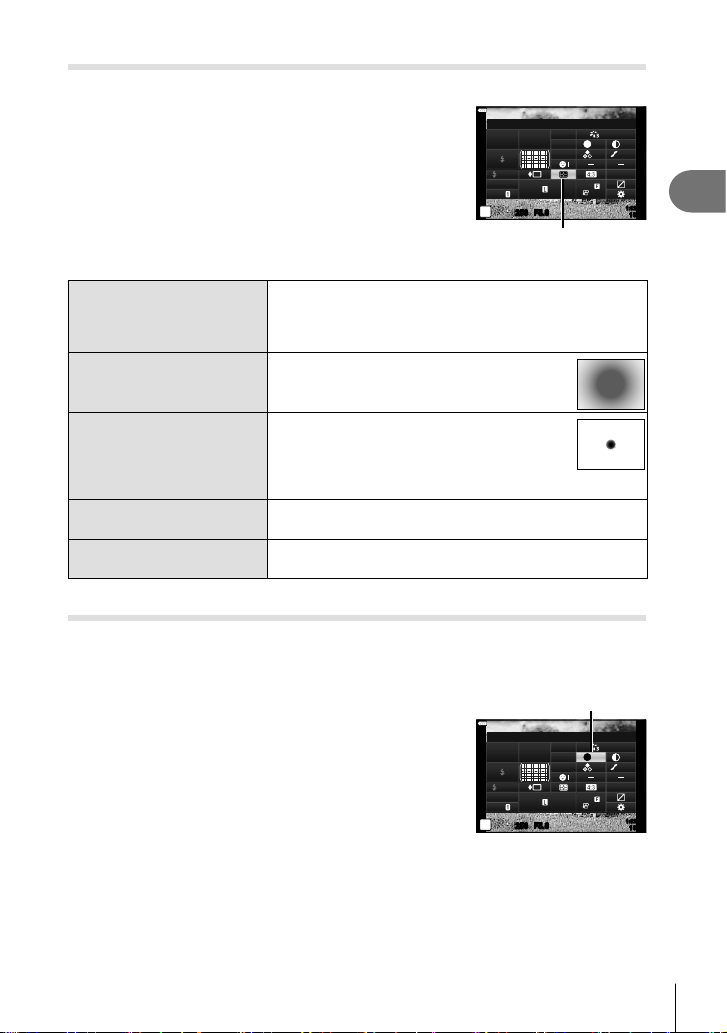
Shooting
2
91
EN
Choosing how the camera measures brightness ( Metering)
You can choose how the camera meters subject brightness.
1
Press the u button in P/A/S/M modes.
• In B, ART, SCN, and Z modes, the display of the
LV super control panel is controlled via [K Control
Settings] (P. 127).
2
Use FGHI to select [Metering], then press the
Q button.
3
Highlight an option using HI and press the Q
button.
250250 F5.6
P
1023
1:02:03
sRGB
Natural
S
-
AF
F
FHD
60p
S
Normal
WB
Auto
ISO
Auto
M-IS
S-IS On
A
±
0
±
0.0
±
0
±
0
±
0
G
±
0
Metering
Metering
p
Digital ESP
metering
Meters exposure in 324 areas of the frame and optimizes
exposure for the current scene or portrait subject (if an
option other than [OFF] is selected for [I Face Priority]).
This mode is recommended for general use.
H
Center weighted
averaging metering
Provides the average metering between the
subject and the background lighting, placing
more weight on the subject at the center.
I
Spot metering
Meters a small area (about 2% of the frame)
with the camera pointed at the object you
wish to meter. Exposure will be adjusted
according to the brightness at the metered
point.
IHI
Spot metering
(highlight)
Increases spot metering exposure. Ensures bright subjects
appear bright.
ISH
Spot metering
(shadow)
Lowers spot metering exposure. Ensures dark subjects
appear dark.
Making fi ne adjustments to sharpness ( Sharpness)
In the picture mode (P. 78) settings, you can make fi ne adjustments to sharpness
and store the changes.
• Adjustments may not be available depending on the shooting mode.
1
Press the u button in P/A/S/M modes.
• In B, ART, SCN, and Z modes, the display of the
LV super control panel is controlled via [K Control
Settings] (P. 127).
2
Use FGHI to select [Sharpness], then press
the Q button.
3
Adjust sharpness using HI and press the Q
button.
Sharpness
250250 F5.6
P
1023
1:02:03
sRGB
Natural
S
-
AF
F
FHD
60p
S
Normal
WB
Auto
ISO
Auto
M-IS
S-IS On
A
±
0
±
0.0
±
0
±
0
±
0
G
±
0
Sharpness
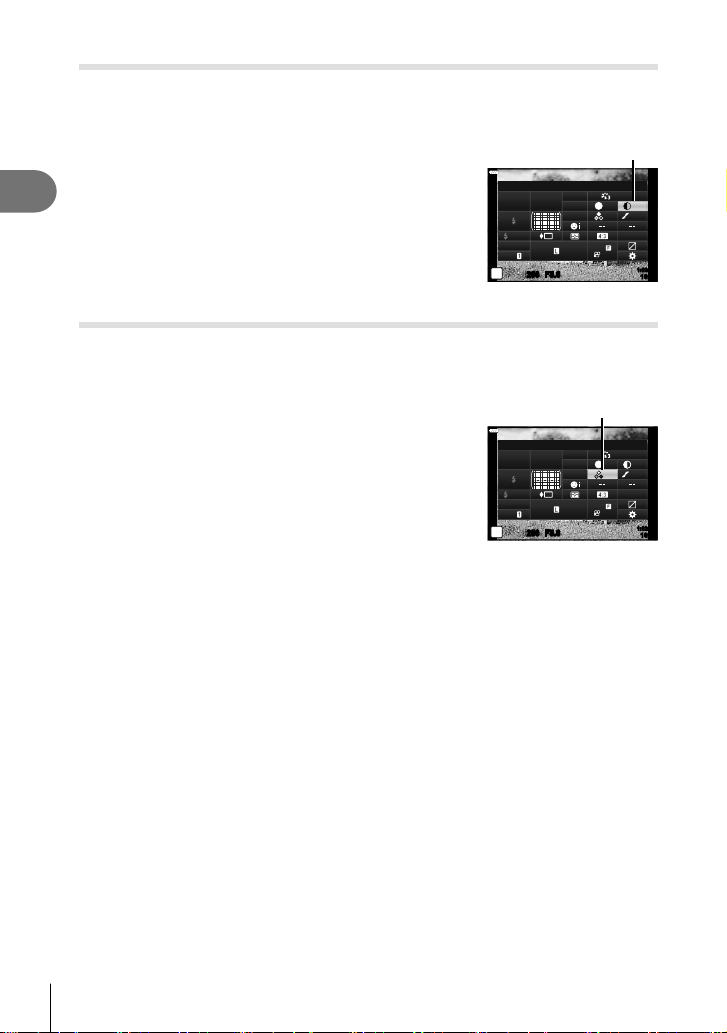
Shooting
2
92
EN
Making fi ne adjustments to contrast ( Contrast)
In the picture mode (P. 78) settings, you can make fi ne adjustments to contrast and
store the changes.
• Adjustments may not be available depending on the shooting mode.
1
Press the u button in P/A/S/M modes.
• In B, ART, SCN, and Z modes, the display of the
LV super control panel is controlled via [K Control
Settings] (P. 127).
2
Use FGHI to select [Contrast], then press the
Q button.
3
Adjust contrast using HI and press the Q button.
Contrast
250250 F5.6
P
1023
1:02:03
sRGB
Natural
S
-
AF
F
FHD
60p
S
Normal
WB
Auto
ISO
Auto
M-IS
S-IS On
A
±
0
±
0.0
±
0
±
0
±
0
G
±
0
Contrast
Making fi ne adjustments to saturation ( Saturation)
In the picture mode (P. 78) settings, you can make fi ne adjustments to saturation
and store the changes.
• Adjustments may not be available depending on the shooting mode.
1
Press the u button in P/A/S/M modes.
• In B, ART, SCN, and Z modes, the display of the
LV super control panel is controlled via [K Control
Settings] (P. 127).
2
Use FGHI to select [Saturation], then press the
Q button.
3
Adjust saturation using HI and press the Q
button.
Saturation
250250 F5.6
P
1023
1:02:03
sRGB
Natural
S
-
AF
F
FHD
60p
S
Normal
WB
Auto
ISO
Auto
M-IS
S-IS On
A
±
0
±
0.0
±
0
±
0
±
0
G
±
0
Saturation
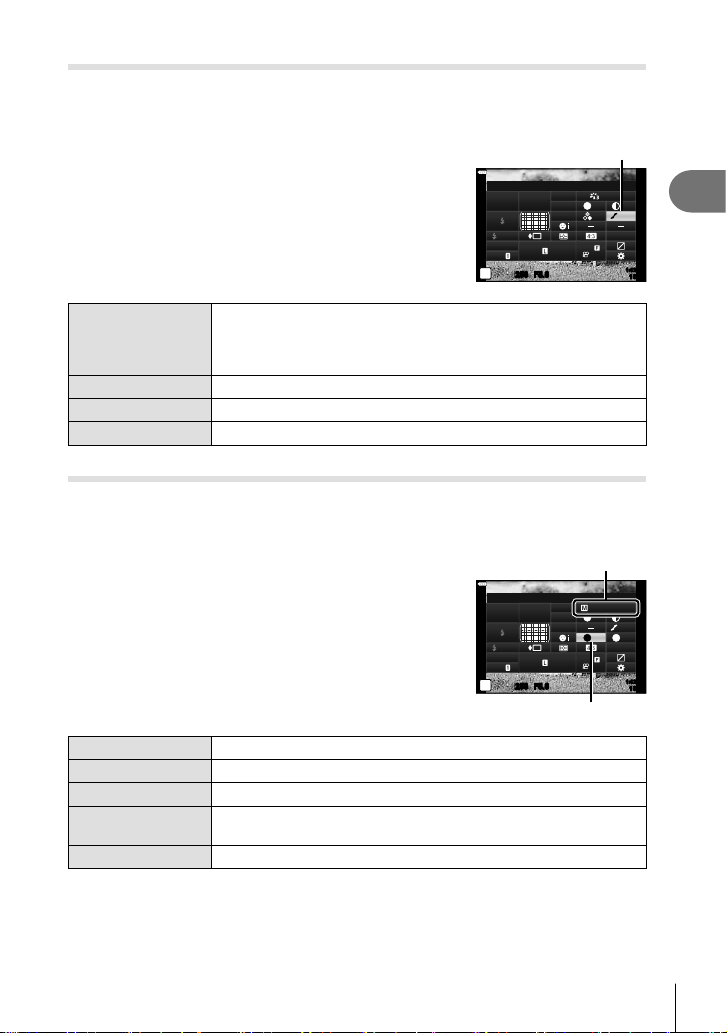
Shooting
2
93
EN
Making fi ne adjustments to tone ( Gradation)
In the picture mode (P. 78) settings, you can make fi ne adjustments to tone and
store the changes.
• Adjustments may not be available depending on the shooting mode.
1
Press the u button in P/A/S/M modes.
• In B, ART, SCN, and Z modes, the display of the
LV super control panel is controlled via [K Control
Settings] (P. 127).
2
Use FGHI to select [Gradation], then press the
Q button.
3
Adjust tone using HI and press the Q button.
Gradation
250250 F5.6
P
1023
1:02:03
sRGB
Natural
S
-
AF
F
FHD
60p
S
Normal
WB
Auto
ISO
Auto
M-IS
S-IS On
A
±
0
±
0.0
±
0
±
0
±
0
G
±
0
Gradation
Shadow Adj
Divides the image into detailed regions and adjusts the brightness
separately for each region. This is effective for images with areas
of large contrast in which the whites appear too bright or the blacks
appear too dark.
Gradation Normal Use the normal mode for general uses.
Gradation High Key Uses a tone suitable for a bright subject.
Gradation Low Key Uses a tone suitable for a dark subject.
Applying fi lter effects to monochrome pictures ( Color Filter)
In the monochrome setting of picture mode (P. 78) settings, you can add and store a
fi lter effect in advance. This creates a monochrome image in which the color matching
the fi lter color is brightened and the complementary color is darkened.
1
Press the u button in P/A/S/M modes.
• In B, ART, SCN, and Z modes, the display of the
LV super control panel is controlled via [K Control
Settings] (P. 127).
2
Use FGHI to select [Color Filter], then press
the Q button.
3
Highlight an option using HI and press the Q
button.
Picture Mode
N
F
250250 F5.6
Normal
P
1023
1:02:03
N
T
S
-
AF
F
WB
Auto
ISO
Auto
M-IS
S-IS On
A
±
0
±
0.0
S
±
0
±
0
sRGB
FHD
60p
G
±
0
Monochrome
Color Filter
Color Filter
N:None Creates a normal black and white image.
Ye:Yellow Reproduces clearly defi ned white cloud with natural blue sky.
Or:Orange Slightly emphasizes colors in blue skies and sunsets.
R:Red
Strongly emphasizes colors in blue skies and brightness of crimson
foliage.
G:Green Strongly emphasizes colors in red lips and green leaves.
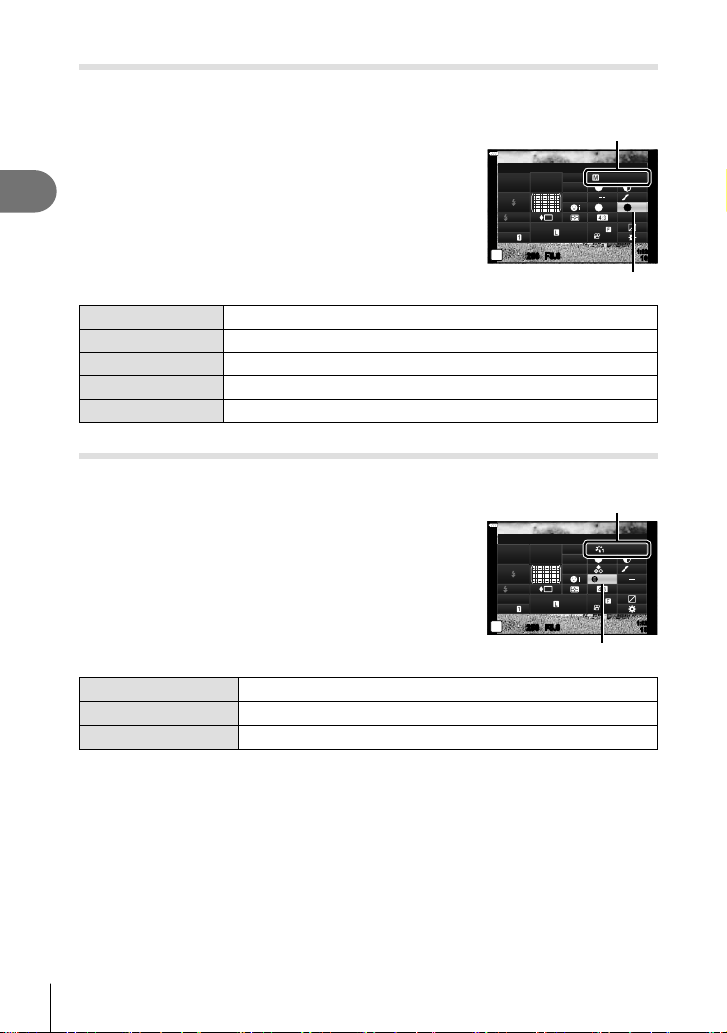
Shooting
2
94
EN
Adjusting the tone of a monochrome image ( Monochrome Color)
In the monochrome setting of picture mode (P. 78) settings, you can add and store a
color tint in advance.
1
Press the u button in P/A/S/M modes.
• In B, ART, SCN, and Z modes, the display of the
LV super control panel is controlled via [K Control
Settings] (P. 127).
2
Use FGHI to select [Monochrome Color], then
press the Q button.
3
Use HI to choose a value and press the Q
button.
Picture Mode
N
F
250250 F5.6
Normal
P
1023
1:02:03
N
T
S
-
AF
F
WB
Auto
ISO
Auto
M-IS
S-IS On
A
±
0
±
0.0
sRGB
FHD
60p
S
±
0
±
0
G
±
0
Monochrome Color
Monochrome
Monochrome Color
N:Normal Creates a normal black and white image.
S:Sepia Creates a sepia image.
B:Blue Creates a bluish image.
P:Purple Creates a purplish image.
G:Green Creates a greenish image.
Adjusting i-Enhance effects ( Effect)
You can set the i-Enhance effect strength in picture mode (P. 78).
1
Press the u button in P/A/S/M modes.
• In B, ART, SCN, and Z modes, the display of the
LV super control panel is controlled via [K Control
Settings] (P. 127).
2
Use FGHI to select [Effect], then press the Q
button.
3
Adjust the effect using HI and press the Q
button.
Picture Mode
Standard
250250 F5.6
P
1023
1:02:03
S
-
AF
F
WB
Auto
ISO
Auto
M-IS
S-IS On
sRGB
FHD
60p
S
Normal
A
±
0
±
0.0
±
0
±
0
±
0
G
±
0
Effect
i-Enhance
Effect
r (Effect: Low)
Adds a low i-Enhance effect to images.
s (Effect: Standard)
Adds an i-Enhance effect between “low” and “high” to images.
t (Effect: High)
Adds a high i-Enhance effect to images.
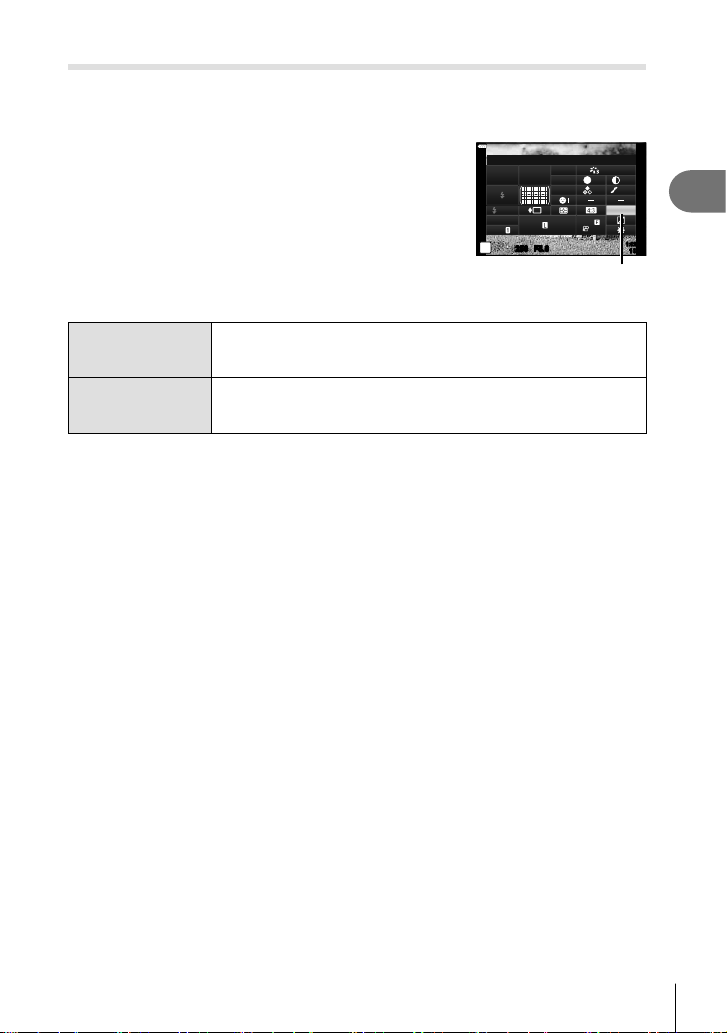
Shooting
2
95
EN
Setting the color reproduction format ( Color Space)
You can select a format to ensure that colors are correctly reproduced when shot
images are regenerated on a monitor or using a printer. This option is equivalent to the
[Color Space] (P. 129) in Custom Menu.
1
Press the u button in P/A/S/M modes.
• In B, ART, SCN, and Z modes, the display of the
LV super control panel is controlled via [K Control
Settings] (P. 127).
2
Use FGHI to select [Color Space], then press
the Q button.
3
Select a color format using HI and press the Q
button.
250250 F5.6
P
1023
1:02:03
sRGB
Natural
S
-
AF
F
FHD
60p
S
Normal
WB
Auto
ISO
Auto
M-IS
S-IS On
A
±
0
±
0.0
±
0
±
0
±
0
G
±
0
Color Space
Color Space
sRGB
This is the RGB color space standard stipulated by the International
Electrotechnical Commission (IEC).
Normally, use [sRGB] as the standard setting.
AdobeRGB
This is a standard provided by Adobe Systems.
Compatible software and hardware such as a display, printer etc.
are required for a correct output of images.
• [Adobe RGB] is not available in ART (P. 47) or movie mode (P. 60) or when
Backlight HDR is selected in SCN mode (P. 35) or HDR is selected in Z mode
(P. 41).
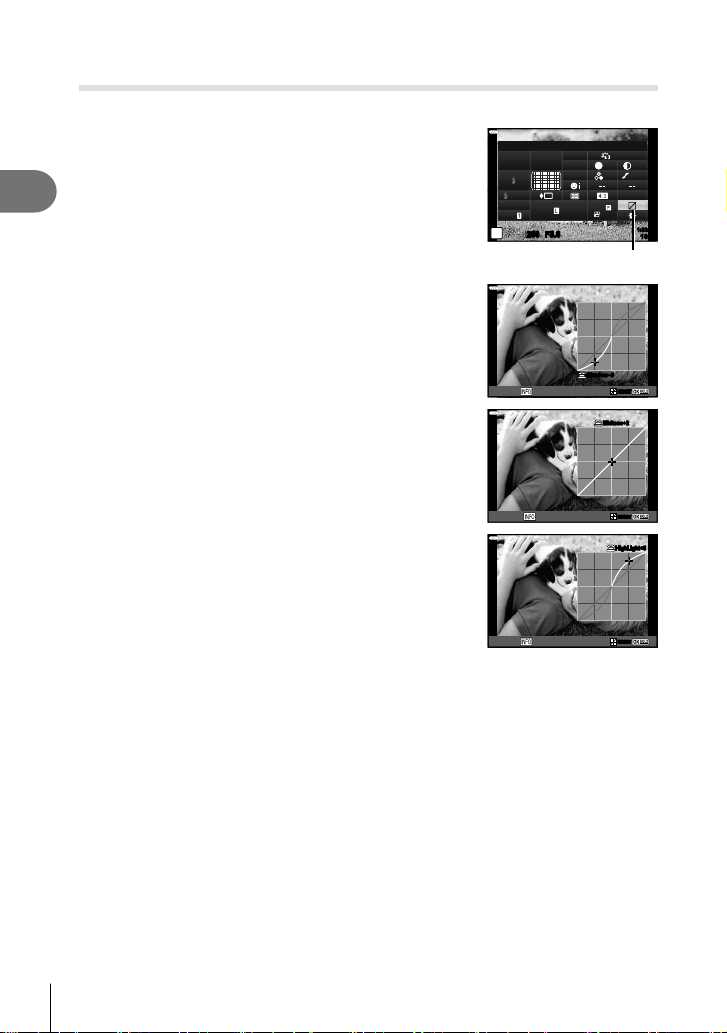
Shooting
2
96
EN
Changing the brightness of highlights and shadows
( Highlight&Shadow Control)
Use [Highlight&Shadow Control] to adjust the brightness of highlights and shadows.
1
Press the u button in P/A/S/M modes.
• In B, ART, SCN, and Z modes, the display of the
LV super control panel is controlled via [K Control
Settings] (P. 127).
2
Use FGHI to select [Highlight&Shadow
Control], then press the Q button.
250250 F5.6
P
1023
1:02:03
sRGB
Natural
S
-
AF
F
FHD
60p
S
Normal
WB
Auto
ISO
Auto
M-IS
S-IS On
A
±
0
±
0.0
±
0
±
0
±
0
G
±
0
Highlight&Shadow Control
Highlight&Shadow Control
3
Adjust brightness in shadows using the control dial
or FGHI.
• Settings can be reset by pressing and holding the Q
button.
Midtone
RESETRESET
Shadow
-
5
4
Press the INFO button to switch to mid-tones and
then adjust brightness using the control dial or
FGHI.
• Settings can be reset by pressing and holding the Q
button.
Highlight
RESETRESET
Midtone+2
5
Press the INFO button to switch to highlights and
then adjust brightness using the control dial or
FGHI.
• Settings can be reset by pressing and holding the Q
button.
• Press the INFO button again to return to shadows
(Step 3).
RESETRESET
Shadow
HighLight+5HighLight+5
6
Press the Q button to save settings.
$ Notes
• You can also access these controls by pressing the F (F) button and then pressing the
INFO button.
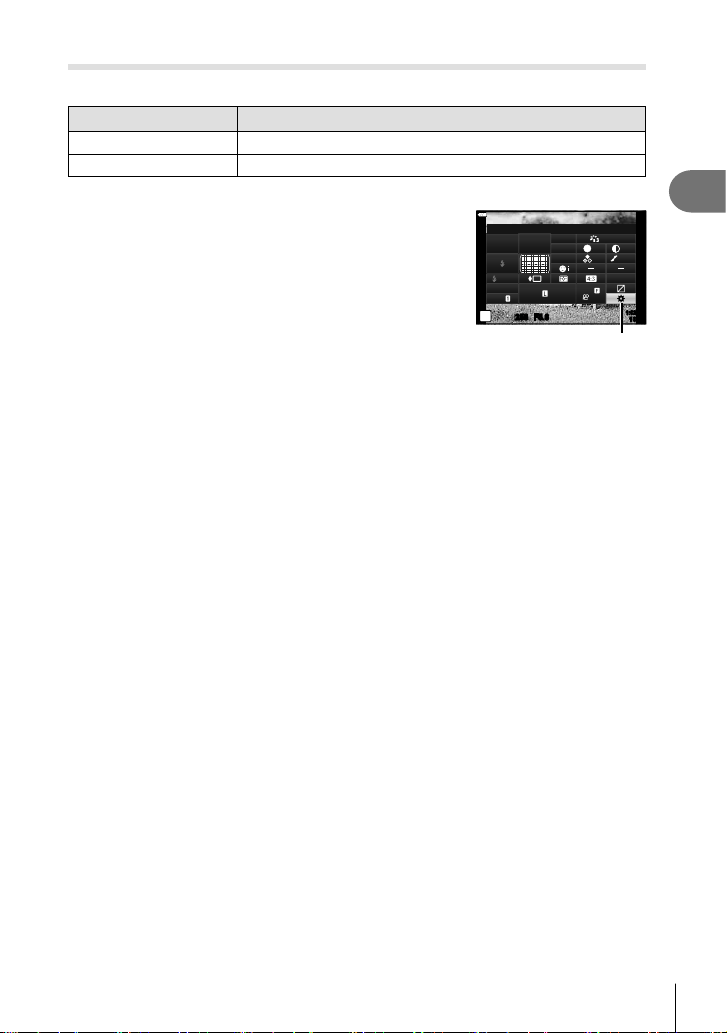
Shooting
2
97
EN
Assigning functions to buttons ( Button Function)
At default settings, the following functions are assigned to the buttons:
Button Default
F Function b (Digital Tele-converter)
R Function R REC
To change the function assigned to a button, follow the steps below.
1
Press the u button in P/A/S/M modes.
• In B, ART, SCN, and Z modes, the display of the
LV super control panel is controlled via [K Control
Settings] (P. 127).
2
Use FGHI to select [Button Function], then
press the Q button.
• The custom menu [Button Function] item will be
displayed.
250250 F5.6
P
1023
1:02:03
sRGB
Natural
S
-
AF
F
FHD
60p
S
Normal
WB
Auto
ISO
Auto
M-IS
S-IS On
A
±
0
±
0.0
±
0
±
0
±
0
G
±
0
Button Function
Button Function
• [Button Function] can also be accessed from the menus (P. 113, 126).
3
Use FG to highlight the desired button and press I.
4
Use FG to highlight the desired function and press the Q button.
5
Press the Q button again to exit.
$ Notes
• The functions assigned to the buttons may be unavailable in some modes.
• The options available vary with the current mode.
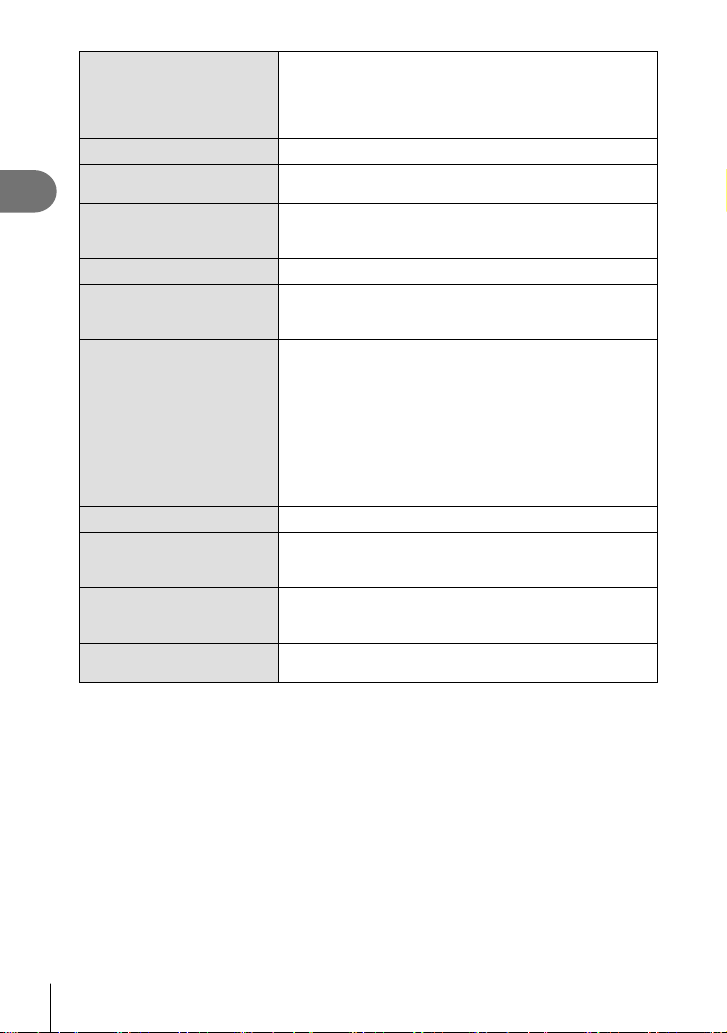
Shooting
2
98
EN
t (AEL/AFL)
Press the button to use AE lock or AF lock. The function
changes according to the [AEL/AFL] (P. 131) setting.
When AEL is selected, press the button once to lock the
exposure and display u on the monitor. Press the button
again to cancel the lock.
R REC
Press the button to record a movie.
z (Preview)
Aperture is stopped down to the selected value while the
button is pressed.
k (One-touch white
balance)
Press the shutter button while the button is pressed to
acquire a white balance value (P. 81). Highlight the
desired number and press the Q button to save the value.
N (AF Area Select)
Press the button to choose the AF target (P. 70).
MF Press the button to select [MF] mode. Press the button
again to restore the previously selected AF mode. Hold the
button and rotate the control dial to choose a focus mode.
F (Exposure
compensation)
Press the button to adjust exposure compensation.
In P, A, S, ART, movie, and some Z modes, you can
adjust exposure compensation (P. 69) by pressing the
button and using HI to choose the desired value. Some
modes also offer program shift (P. 51).
In M mode, you can adjust shutter speed or aperture by
pressing the button and using FGHI or the control dial
to choose the desired values.
• The role of the control dial can be changed in the
G custom menus. g [Dial Function] (P. 126)
b (Digital Tele-converter)
Press the button to turn digital zoom [On] or [Off] (P. 115).
a (Magnify)
Press the button to display the magnifi cation frame and
press it again to magnify the image. Press and hold the
button to cancel magnifi ed display.
Peaking Press the button to turn on and off the peaking display.
When peaking is displayed, histogram and highlight/
shadow display are not available (P. 132).
G (Switch G Lock)
Press and hold the button to enable and disable touch
screen operation.
Locking the exposure ( AE Lock)
You can lock the exposure by pressing the button to which t has been assigned
(P. 97). Use this when you want to adjust the focus and exposure separately or when
you want to shoot several images at the same exposure.
• If you press the button to which t has been assigned once, the exposure is locked and
u is displayed. g “AEL/AFL” (P. 131)
• Press the button to which
t has been assigned once again to release the AE Lock.
• The lock will be released if you operate the mode dial, MENU button, or Q button.

Shooting
2
99
EN
Zoom frame AF/Zoom AF ( Super Spot AF)
You can zoom in on a portion of the frame when adjusting focus. Choosing a high
zoom ratio allows you to use autofocus to focus on a smaller area than is normally
covered by the AF target. You can also position the focus target more precisely.
Press and hold the button to which [a] has been assigned to cycle through the
displays as follows:
250250 F5.6
P
L
F
S-IS ONS-IS ON
ISO-A
200
F
FHD
30p
1023
1:02:03
0.0
Shooting display
250250 F5.6
P
S-IS ONS-IS ON
ISO-A
200
F
FHD
30p
1023
1:02:03
Off
0.0
L
F
Zoom frame AF display Zoom AF display
Press and hold / Q
1
Assign [a] to the Fn or R button.
• To use Super Spot AF, you must fi rst assign [a] to the Fn or R button (P. 97).
2
Press the button to which [a] has been assigned to display the zoom frame.
• If the subject has been focused using autofocus immediately before the button is
pressed, the zoom frame will be displayed at the current focus position.
• Use FGHI to position the zoom frame.
• Press the INFO button and use FG to choose the zoom ratio. (×3, ×5, ×7, ×10,
×14)
3
Press the assigned button again to zoom in on the zoom frame.
• Use FGHI to position the zoom frame.
• You can change the zoom ratio by rotating the control dial.
4
Press the shutter button halfway to initiate autofocus.
• The camera will focus using the subject in the frame at the center of the screen. Use
FGHI to choose a different focus position.
• Zoom is visible only in the monitor and has no effect on the resulting photographs.
• Press and hold the assigned button or press the Q button to end zoom and exit the zoom
frame AF display.
• When you are using a Four Thirds system lens, the AF will not operate with during zoom
display.
• While zoomed in, a sound is made by the IS (Image Stabilizer).
$ Notes
• Touch controls can also be used.
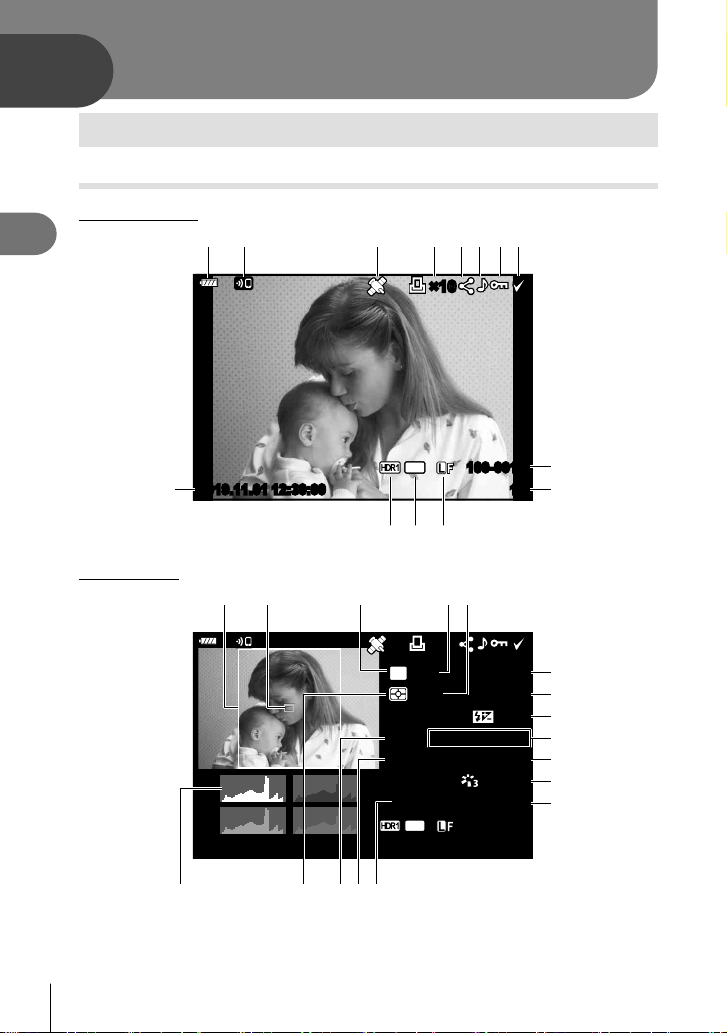
Playback
3
100
EN
3
Information display during playback
Playback image information
Simplifi ed display
15
100-0015
4
:
3
×10
2019.11.01 12:30:00
d
9
0
146 78
abc
2 3 5
Overall display
F5.6F5.6
+1.0+1.0
G+4G+4A+4A+4
NaturalNatural
ISO 400ISO 400
45mm45mm
1/84608×3456
4
:
3
15
100-0015
WB
AUTO
P
×10×10
2019.11.01 12:30:00
250
+2.0
sRGB
fe g
m
j
k
l
n
p
o
qrs
t
u
ih
Playback
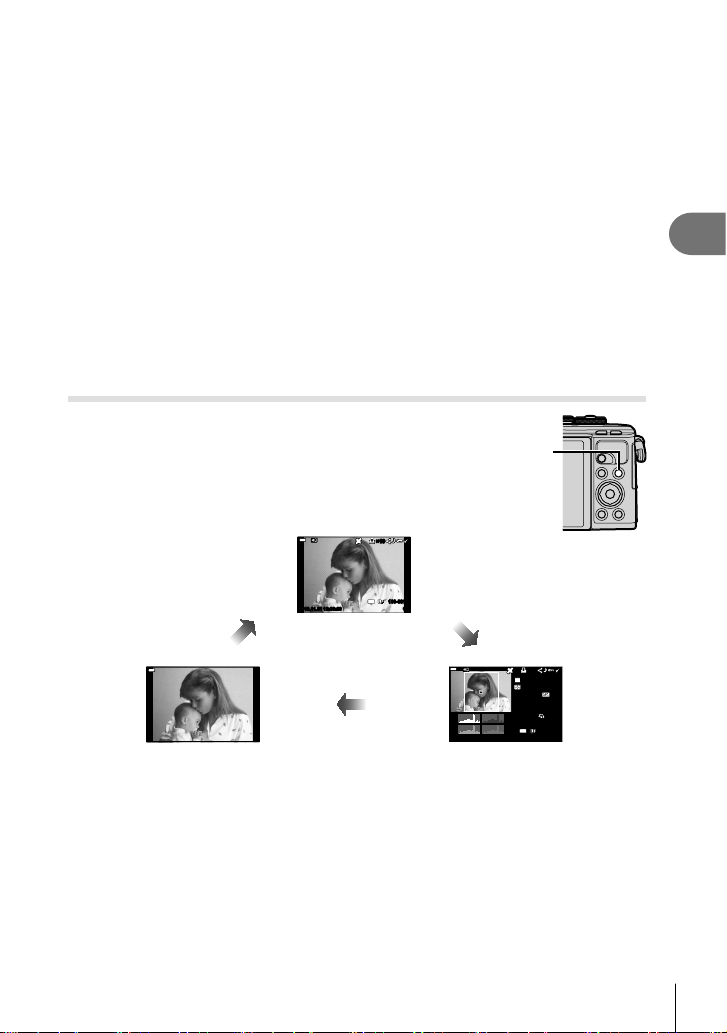
Playback
3
101
EN
1 Battery level ....................................P. 20
2 Wireless LAN connection......P. 136–143
3 Including GPS information ............P. 141
4 Print order
Number of prints ...........................P. 107
5 Share order ...................................P. 106
6 Sound record ........................P. 108, 121
7 Protect ..........................................P. 105
8 Image selected .............................P. 106
9 File number ...................................P. 130
0 Frame number
a Image quality ..................................P. 83
b Aspect ratio .....................................P. 83
c HDR image .....................................P. 41
d Date and time .................................P. 21
e Aspect border .................................P. 83
f AF area pointer ...............................P. 70
g Shooting mode..........................P. 27–59
h Shutter speed ...........................P. 51–54
i Exposure compensation .................P. 69
j Aperture value ..........................P. 51–54
k Focal length
l Flash intensity control .....................P. 88
m White balance compensation..........P. 90
n Color space.....................................P. 95
o Picture mode...........................P. 78, 115
p Compression rate .........................P. 135
q Pixel count ....................................P. 135
r ISO sensitivity .................................P. 79
s White balance .................................P. 80
t Metering mode ................................P. 91
u Histogram .......................................P. 26
Switching the information display
You can switch the information displayed during playback
by pressing the INFO button.
INFO button
15
100-0015
12:30:00
P
F5.6F5.6
+1.0+1.0
G+4G+4A+4A+4
NaturalNatural
ISO 400ISO 400
45mm45mm
1/8
4608×3456
15
100-0015
WB
AUTO
2019.11.01 12:30:00
×10×10
×10×10
4
:
3
4
:
3
2019.11.01
250
+2.0
sRGB
Image only Overall display
Simplifi ed display
INFO
INFO
INFO
• You can add histogram and highlight & shadow to the information displayed during
playback. g [q Info] (P. 132)
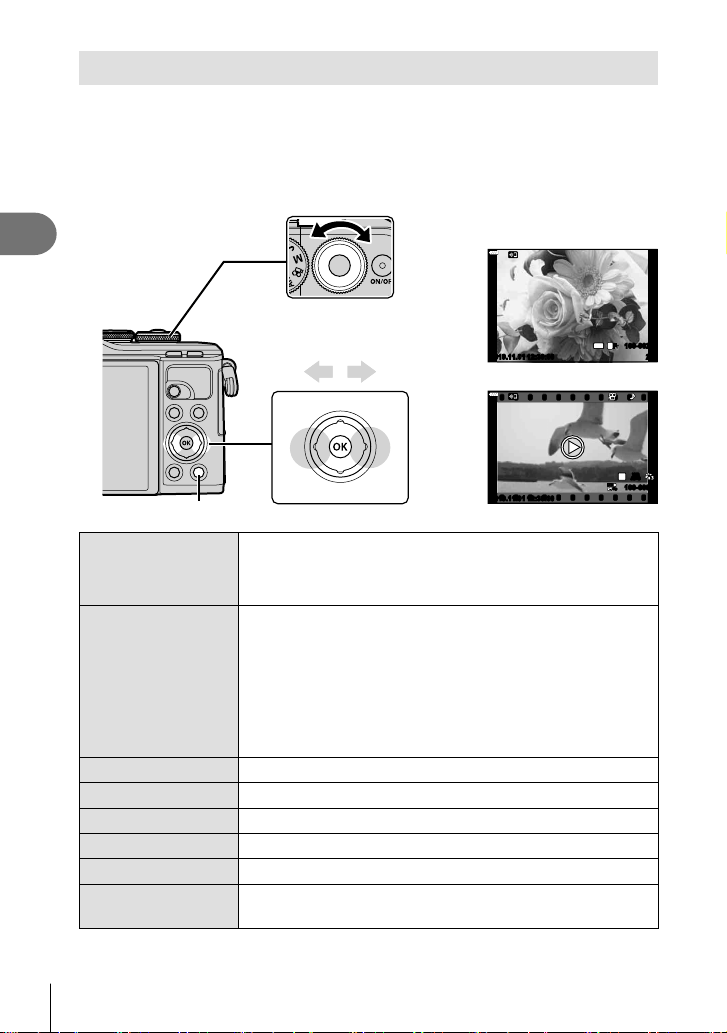
Playback
3
102
EN
Viewing photographs and movies
1
Press the q button.
• A photograph or movie will be displayed.
• Select the desired photograph or movie using the control dial or arrow pad.
• To return to shooting mode, press the shutter button halfway or press the q button.
Control dial
Displays
the previous
frame
Displays
the next
frame
q button
20
100-0020
12:30:002019.11.01
4
:
3
L
F
F
FHD
60p
100-0004
WB
AUTO
WBWBWB
AUTOAUTOAUTO
P
42019.11.01 12:30:00
Still image
Movie
Control dial
Single-frame playback: Previous (t)/Next (s)
Close-up playback: You can display the next frame or the
previous frame during close-up playback.
Index/My Clips/calendar playback: Highlight image
Arrow pad (FGHI)
Single-frame playback: display the next frame (I)/display the
previous frame (H)/jump ahead 10 frames (G)/jump back
10 frames (F)
Close-up playback: Changing the close-up position
You can display the next frame (I) or the previous frame (H)
during close-up playback by pressing the INFO button.
Press the INFO button again to display a zoom frame and use
FGHI to change its position.
Index/My Clips/calendar playback: Highlight image
u (G) button
Index display
Fn (a) button
Close-up playback
R (h) button
Select images for sharing (P. 106)
INFO button
View image info
button
Delete picture (P. 105)
Q button
View menus (in calendar playback, press this button to exit to single-
frame playback)
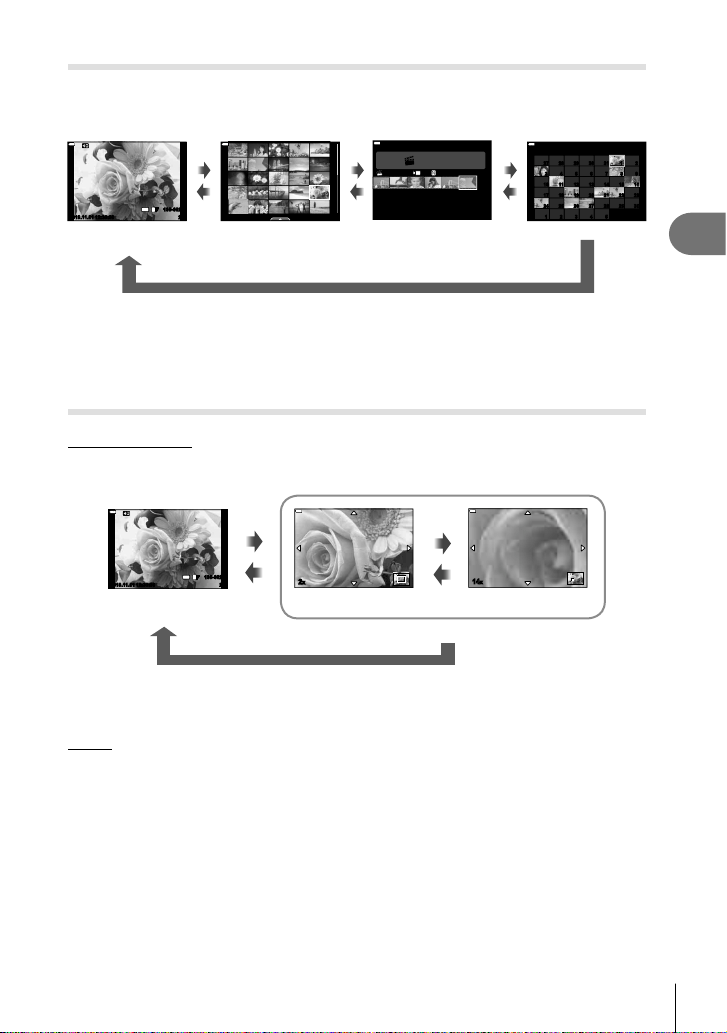
Playback
3
103
EN
Index display/ Calendar display
• From single-frame playback, press the G button for index playback. Press the G button
further for My Clips playback and further still for calendar playback.
• Press the Q button to return to single-frame playback.
Q
Index display Calendar display
Single-frame
playback
20
100-0020
12:30:002019.11.01
4
:
3
L
F
202019.11.01 12:30:00
2019.11
Sun Mon Tue Wed Thu Fri Sat
9
16151413121110
23222120191817
30292827262524
5
4 3 2 1
2 1 3130292827
8 3 4 5 6 7
My Clips
1
MOV11:2 4 FHD 30p
12:30:002019.11.01
G
a
G
a
G
a
My Clips playback*
1
*1 If one or more My Clips have been created, it will be displayed here (P. 63).
• You can change the number of frames for index display. g [G Settings] (P. 133)
$ Notes
• Touch controls can also be used (P. 112).
Viewing still images
Close-up playback
In single-frame playback, press the a button to zoom in. Press the G button to return to
single-frame playback.
Q
2× zoom
Close-up playback
Single-frame
playback
14× zoom
2x
G
G
a
a
20
100-0020
12:30:002019.11.01
4
:
3
L
F
14x
$ Notes
• Touch controls can also be used (P. 111).
Rotate
Choose whether to rotate photographs.
1
Play the photograph back and press the Q button.
2
Select [Rotate] and press the Q button.
3
Press F to rotate the image counterclockwise, G to rotate it clockwise; the
image rotates each time the button is pressed.
• Press the Q button to save settings and exit.
• The rotated image is saved in its current orientation.
• Movies and protected images cannot be rotated.
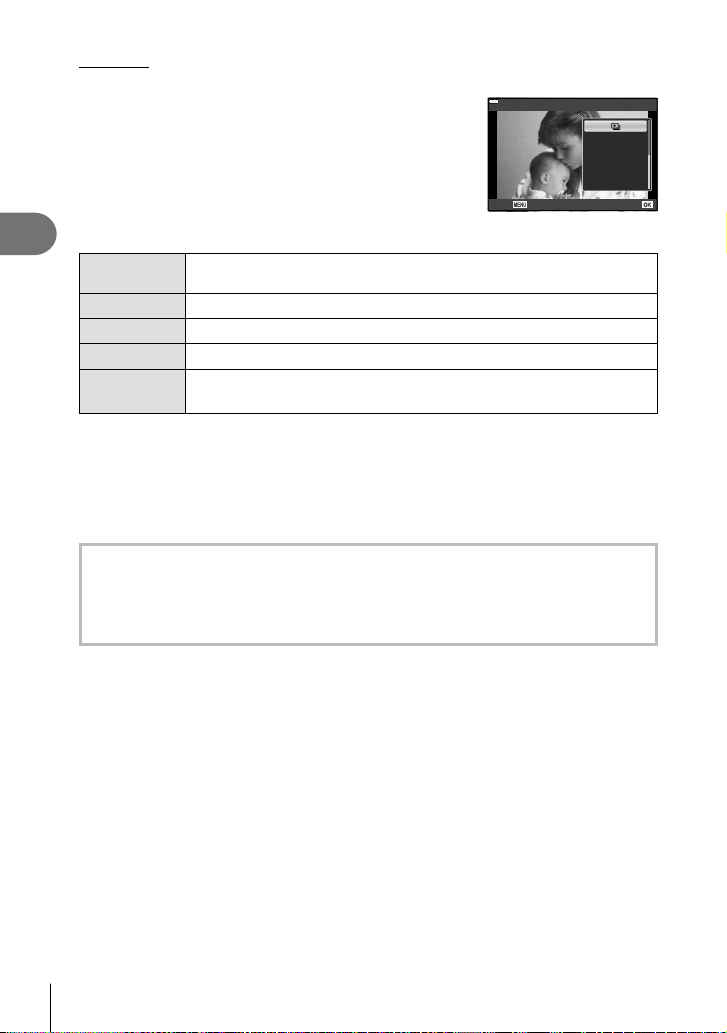
Playback
3
104
EN
Slideshow
This function displays images stored on the card one after another.
1
Press the Q button in the playback display.
2
Select [L] and press the Q button.
<
Erase
JPEG
Back Set
3
Adjust settings.
Start
Start the slideshow. Images are displayed in order, starting with the
current picture.
BGM
Set [Happy Days] or [Off].
Slide
Set the type of data to be played back.
Slide Interval
Choose the length of time each slide is displayed from 2 to 10 seconds.
Movie Interval
Select [Full] to play back full length of each movie clip in the slideshow or
[Short] to play back only the opening portion of each movie clip.
4
Select [Start] and press the Q button.
• The slideshow will start.
• Press FG during the slideshow to adjust the overall volume of the camera speaker.
Press HI while the volume adjustment indicator is displayed to adjust the balance
between the sound recorded with the image or movie and background music.
• Press the Q button to stop the slideshow.
BGM other than [Happy Days]
To use BGM other than [Happy Days], record data that you have downloaded from the
Olympus website onto the card and select it as [ BGM] in Step 3. Visit the following website
for the download.
http://support.olympus-imaging.com/bgmdownload/
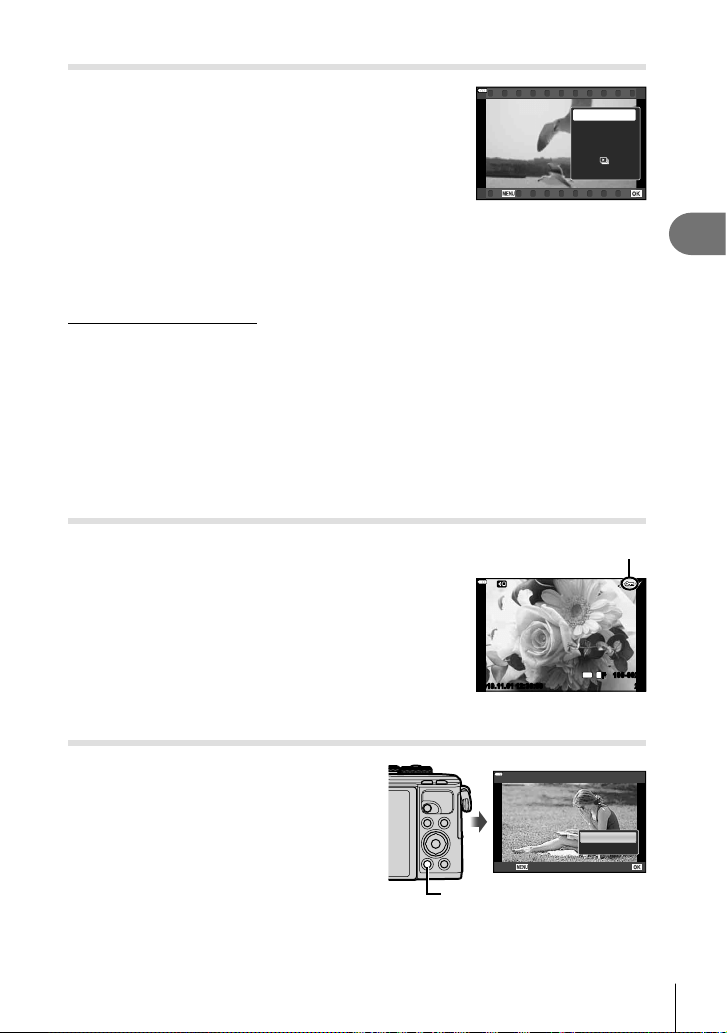
Playback
3
105
EN
Watching movies
Select a movie and press the Q button to display the
playback menu. Select [Play Movie] and press the Q
button to begin playback. Fast-forward and rewind using
H/I. Press the Q button again to pause playback. While
playback is paused, use F to view the fi rst frame and G
to view the last frame. Use HI or the control dial to view
previous or next frame. Press the MENU button to end
playback.
Movie
Share Order
Movie Edit
Play Movie
0
Erase
Back Set
• Use FG to adjust the volume during movie playback.
$ Notes
• Touch controls can also be used (P. 111).
For movies of 4 GB or larger
If the movie was automatically split into multiple fi les, pressing Q will display a menu
containing the following options:
[Play from Beginning]: Plays back a split movie all the way through
[Play Movie]: Plays back fi les separately
[Delete entire n]: Deletes all parts of a split movie
[Erase]: Deletes fi les separately
• We recommend using the latest version of Olympus Workspace to play back movies on
a computer. Before launching the software for the fi rst time, connect the camera to the
computer.
Protecting images
Protect images from accidental deletion. Display an image
you wish to protect and press Q to display the playback
menu. Select [0] and press Q, and then press F or G
to protect the image. Protected images are shown by a 0
(protect) icon. Press F or G to remove protection.
You can also protect multiple selected images.
g “Selecting images (0, Erase Selected, Share Order
Selected)” (P. 106)
0 (protect) icon
20
100-0020
4
:
3
12:30:002019.11.01
L
F
• Formatting the card erases all data including protected images.
Erasing an image
Display an image you want to delete and press
the button. Select [Yes] and press the Q
button.
button
Erase
Yes
No
Back Set
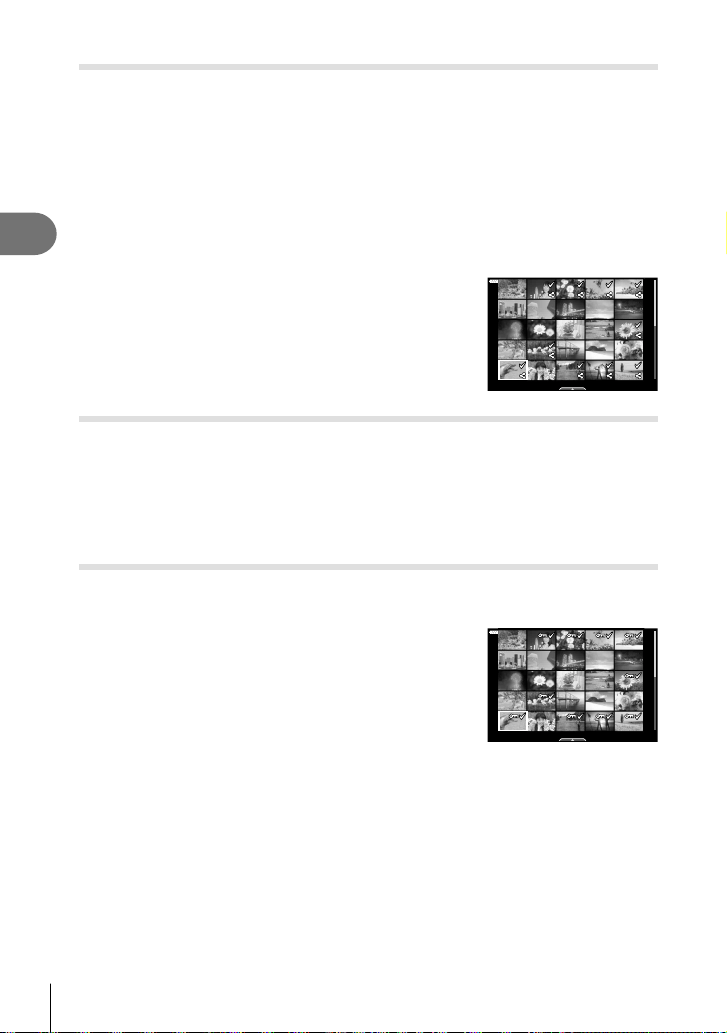
Playback
3
106
EN
Setting a transfer order on images ( Share Order)
You can select images you want to transfer to a smartphone in advance. You can also
use OI.Share to browse the images included in the share order. When playing back
images you want to transfer, press the Q button to display the playback menu. After
selecting [Share Order] and pressing the Q button, press F or G to set a share order
on an image and display h. To cancel a share order, press F or G.
You can select images you want to transfer in advance and set a share order all at
once.
• You can set a share order on 200 frames.
• Share orders cannot include RAW images.
$ Notes
Pictures can also be marked for sharing using the h (R)
button. If the h (R) button is currently assigned a role other
than [h], assign it the [h] role using the [qR Function] option
in the custom menus (P. 126).
21
2019.11.01 12:30:00
Cancelling a share order
Cancel share orders that are set on images.
1
Highlight [Reset share Order] in the q playback menu and press the Q
button.
2
Select [Yes] and press the Q button.
Selecting images (0, Erase Selected, Share Order Selected)
You can select multiple images for [0], [Erase Selected] or [Share Order Selected].
• To select multiple images, you will fi rst need to select [H] for [qR Function] (P. 126).
Press the h (R) button on the index display screen
(P. 103) to select an image; a v icon will appear on
the image. Press the h (R) button again to cancel the
selection.
Press the Q button to display the menu, and then select
from [0], [Erase Selected] or [Share Order Selected].
This function is also available in single-frame playback.
21
2019.11.01 12:30:00
$ Notes
• Touch controls can also be used (P. 112).
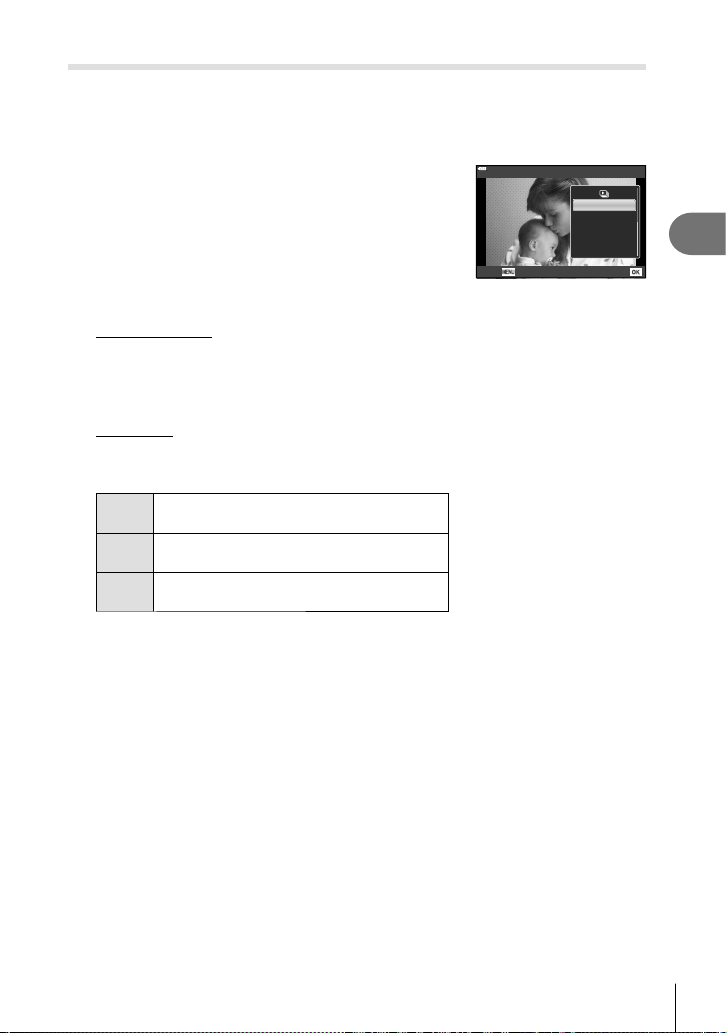
Playback
3
107
EN
Creating a print order ( DPOF)
You can select pictures for printing and choose the number of copies and the
information printed on each picture. The pictures can be printed at print shops that
support the Digital Print Order Format (DPOF). A digital print order is stored on the
memory card.
1
Press the Q button in the playback display.
2
Select [< (Print Order)] and press the Q button.
<
Erase
JPEG
Back Set
3
Select [<] or [<ALL] and press the Q button.
Individual picture
Press HI to select the frame that you want to set as print reservation, then press FG
to set the number of prints.
• To set print reservation for several pictures, repeat this step. Press the Q button
when all the desired pictures have been selected.
All pictures
Select [<ALL] and press the Q button.
4
Select the date and time format and press the Q button.
No
The pictures are printed without the date and
time.
Date
The pictures are printed with the shooting
date.
Time
The pictures are printed with the shooting
time.
• When printing images, the setting cannot be changed between the images.
5
Select [Set] and press the Q button.
• The camera cannot be used to modify print orders created with other devices. Creating a
new print order deletes any existing print orders created with other devices.
• Print orders cannot include RAW images or movies.
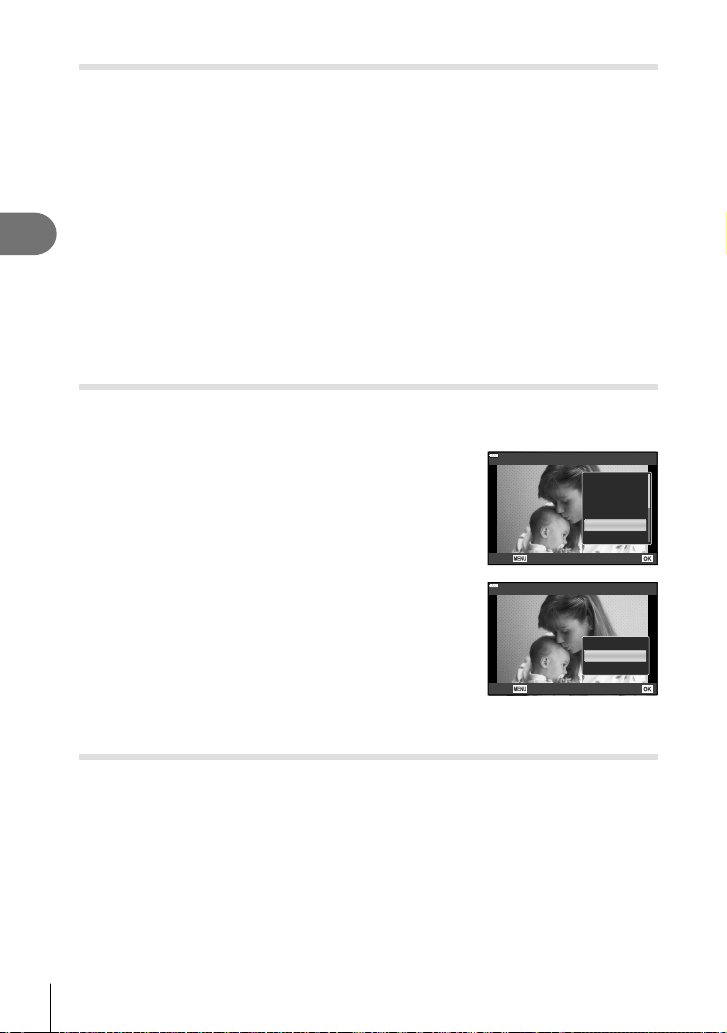
Playback
3
108
EN
Removing all or selected pictures from the print order
You can reset all print reservation data or just the data for selected pictures.
1
Press the Q button in the playback display.
2
Select [< (Print Order)] and press the Q button.
3
Select [<] and press the Q button.
• To remove all pictures from the print order, select [Reset] and press the Q button. To
exit without removing all pictures, select [Keep] and press the Q button.
4
Press HI to select images you wish to remove from the print order.
• Use G to set the number of prints to 0. Press the Q button once you have removed
all the desired pictures from the print order.
5
Select the date and time format and press the Q button.
• This setting is applied to all frames with print reservation data.
6
Select [Set] and press the Q button.
Audio recording
Audio can be added to still images (up to 30 sec. long).
1
Display the image to which you want to add audio and press the Q button.
• Audio recording is not available with protected images.
• Audio recording is also available in the playback menu.
2
Select [R] and press the Q button.
• To exit without adding audio, select [No].
JPEG
JPEG Edit
Add to My Clips
Share Order
0
R
Rotate
Back Set
3
Select [R Start] and press the Q button to begin
recording.
4
Press the Q button to end recording.
• Images recorded with audio are indicated by a H icon.
R
R Start
No
Erase
Back Set
• To delete recorded audio, select [Erase] in Step 3.
Audio Playback
If an audio recording is available for the current picture, pressing the Q button will
display audio playback options. Highlight [Play ] and press the Q button to begin
playback. To end playback, press the Q or MENU button. During playback, you can
press FG to raise or lower the volume.
$ Notes
• Audio recordings can also be played back using touch controls (P. 111).
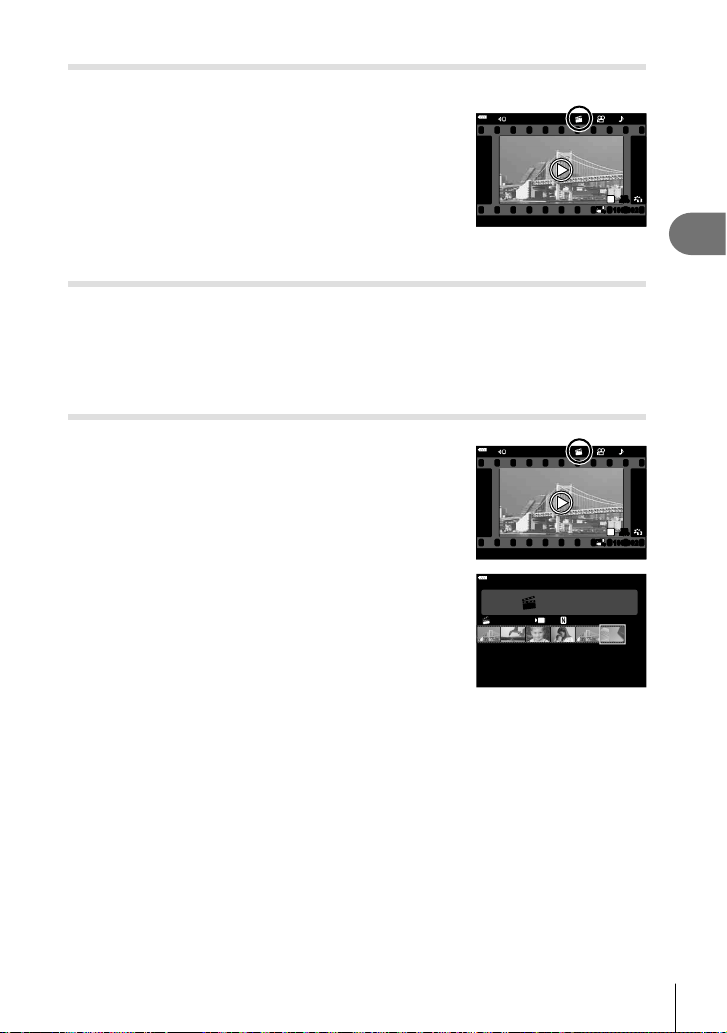
Playback
3
109
EN
Viewing My Clips
You can play back the fi les in My Clips consecutively.
1
Press the q button and select an image marked
c.
2
After pressing the Q button to display the menus,
highlight [Play My Clips] using FG and press the
Q button.
• The fi les in My Clips will play back consecutively.
• Press the Q button to end the consecutive playback.
12:30:002019.11.01 20
100-0020
FHD
30p
N
WB
AUTO
WBWBWB
AUTOAUTOAUTO
WB
AUTO
1
P
Adding still pictures to My Clips
You can also select still pictures and add them to My Clips.
Display the still picture you wish to add and press the Q button to display the menu.
Select [Add to My Clips] and press the Q button. Using FGHI, select My Clips
and the order in which you wish to add the pictures, then press the Q button.
• RAW pictures are added to My Clips as low-resolution preview images.
Removing clips from My Clips
1
Press the q button and display a picture marked
with a c icon.
2
Press the Q button to view options, then highlight
[See all My Clips] using FG and press the Q
button.
• A list of clips will be displayed.
12:30:002019.11.01 20
100-0020
FHD
30p
N
WB
AUTO
WBWBWB
AUTOAUTOAUTO
WB
AUTO
1
P
3
Highlight a clip you wish to remove using
FGHI.
4
Press the Q button to view options, then highlight
[Remove from My Clips] using FG and press the
Q button.
• The highlighted clip will be removed from My Clips.
My Clips
1
MOV11:24 FHD 3 0p
12:30:002019.11.01
• Clips removed from My Clips are treated as normal movies.
• The same procedure can be used to remove photos from My Clips.
% Tips
• Clips that have been removed can be added to My Clips again as described in “Adding
still pictures to My Clips”.

Playback
3
110
EN
Scrolling Panoramas
Panoramas made up of multiple images joined together can be viewed in a scrolling
display.
1
Select a panorama in single-frame playback.
2
Press the Fn (a) button.
• Use FGHI to scroll.
1x
• During playback, you can press the Fn (a) button to zoom in from 2× to 14× or press the
u (G) button to zoom out. Press the Q button to return to single-frame playback.
• To view other images at zoom ratios above 2×, press the INFO button and then press
HI. Press the INFO button again to re-enable scrolling. You can also view other images
using the control dial.
$ Notes
• Touch controls can also be used (P. 111).
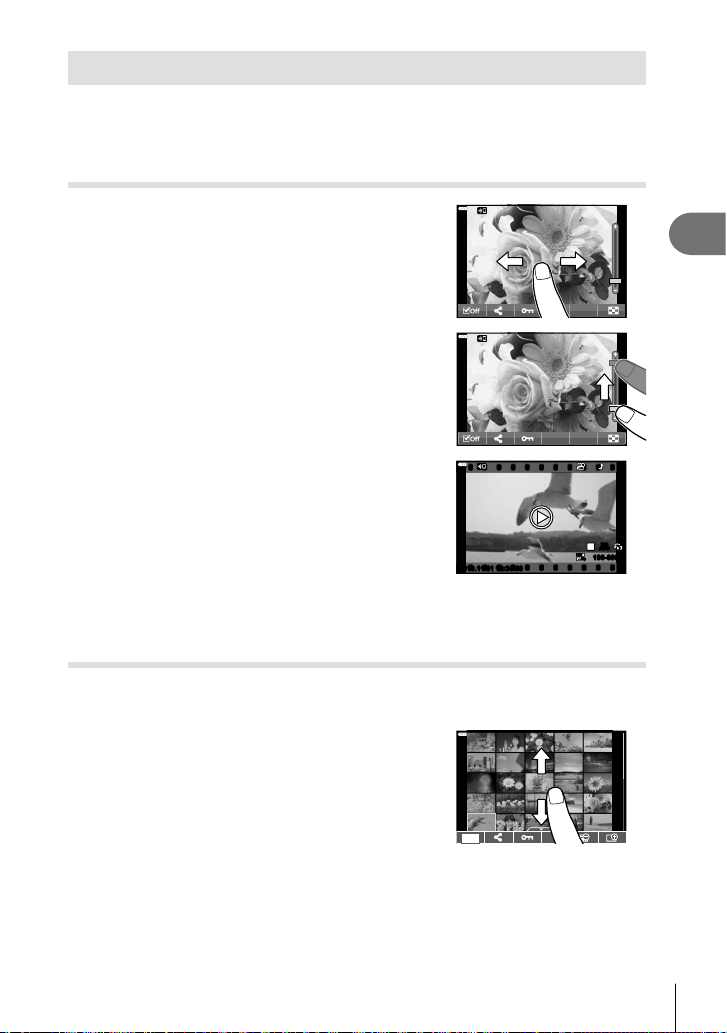
Playback
3
111
EN
Using the touch screen
You can use the touch screen to manipulate images.
• Do not tap the display with your fi ngernails or other sharp objects.
• Gloves or monitor covers may interfere with touch screen operation.
Single-frame playback
Displaying the previous or next image
• Slide your fi nger to the left to view the next image, and
right to view the previous image.
Magnify
• Lightly tap the screen to display the slider and P.
• Slide the bar up or down to zoom in or out.
• Slide your fi nger to scroll the display area when the
picture is zoomed in.
Audio playback/Movie playback
• Tap 8 to start playback.
• To adjust volume during playback, place a fi nger on the
display and slide it up or down.
• Movie playback can be paused by tapping the display.
Tap again to resume playback.
• While playback is paused, you can slide the playback
position indicator at the bottom of the screen left or right
to choose a new starting point.
• Tap 6 to end playback.
F
FHD
60p
100-0004
WB
AUTO
WBWBWB
AUTOAUTOAUTO
P
42019.11.01 12:30:00
Index/My Clips/Calendar playback
Lightly tapping the display during single-frame playback displays a P icon. Tap P
to display index playback. Tap Q for calendar playback and My Clips playback.
Displaying the previous or next page
• Slide your fi nger up to view the next page, and down to
view the previous page.
• Tap Q or R to switch the number of images
displayed. g [G Settings] (P. 127)
• Tap R several times to return to single-frame
playback.
S
Viewing images
• Tap an image to view it full frame.
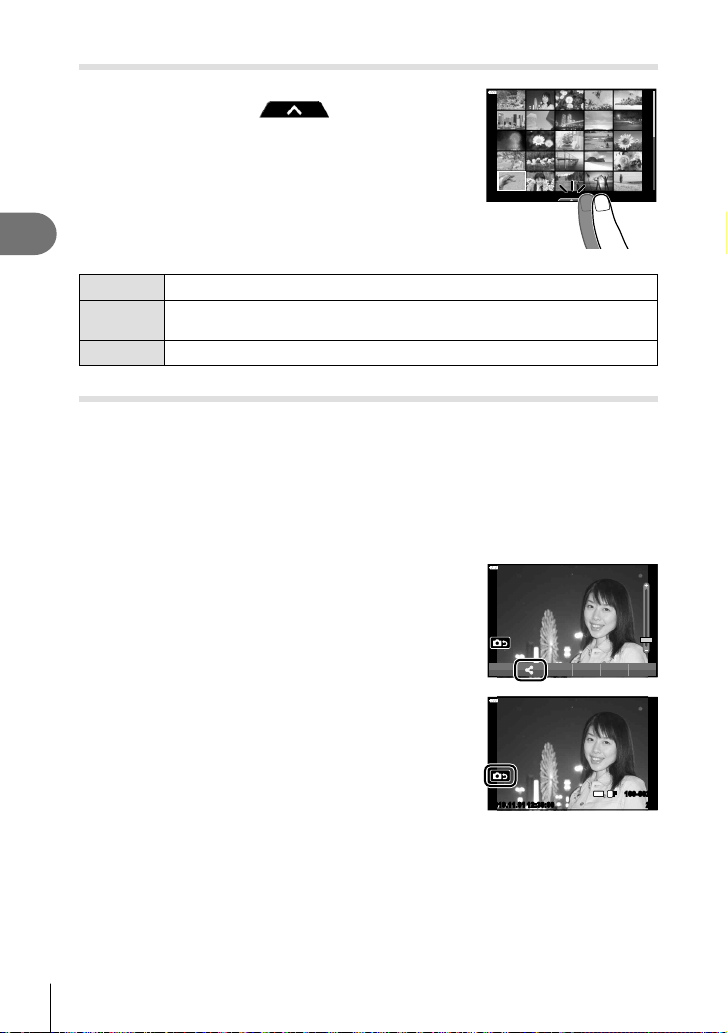
Playback
3
112
EN
Selecting and protecting images
To view the touch menu, lightly tap the display (single-
frame playback) or tap the icon (index
playback). You can then perform the desired operation
by tapping the icons in the touch menu.
212019.11.01 12:30:00
H
Select an image. You can select multiple images and delete them collectively.
h
Images you want to share with a smartphone can be set. g “Setting a
transfer order on images (Share Order)” (P. 106)
0
Protects an image.
Viewing pictures in self-portrait mode
Displaying the previous or next image
The controls are the same as for single-frame playback (P. 111).
Magnify
The controls are the same as for single-frame playback (P. 111).
Audio playback/Movie playback
The controls are the same as for single-frame playback (P. 111).
Selecting pictures for sharing
• Tap the monitor to display the share icon.
• Tap h to select pictures for sharing.
Returning to shooting mode
• Tap 7 to return to shooting mode (P. 67).
20
100-0020
12:30:002019.11.01
4
:
3
L
F
$ Notes
• The INFO button is disabled in self-portrait mode.
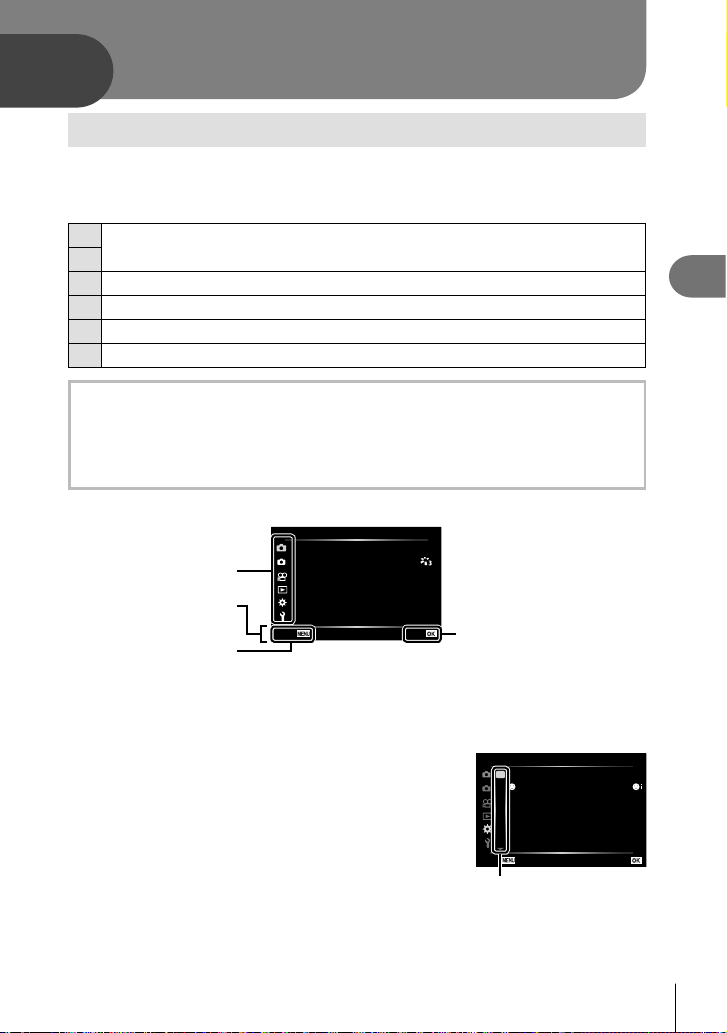
Menu functions (Basic operations)
4
113
EN
4
Basic menu operations
The menus can be used to customize the camera for ease of use and include shooting
and playback options not accessible via the live control, LV super control panel, or the
like.
W
Shooting setup and shooting settings (P. 114)
X
n
Movie mode settings (P. 119)
q
Playback and retouch options (P. 120)
G
Customizing camera settings (P. 126)
e
Camera setup (e.g., date and language) (P. 124)
Functions that cannot be selected from menus
Some items may not be selectable from the menus when using the arrow pad.
• Items that cannot be set with the current shooting mode.
• Items that cannot be set because of an item that has already been set:
Settings such as picture mode are unavailable when the mode dial is rotated to B.
1
Press the MENU button to display the menus.
2
1
1
Shooting Menu 1
Picture Mode
Digital Tele-converter
Metering
Off
p
Reset
Back Set
Press the Q button to confi rm
the setting
Operation guide
Press the MENU button
to go back one screen
Tab
• A guide is displayed in 2 seconds after you select an option.
• Press the INFO button to view or hide guides.
2
Use FG to select a tab and press the Q button.
• The menu group tab appears when the G Custom
Menu is selected. Use FG to select the menu group
and press the Q button.
2
1
A. AF/MF
AEL/AFL S1/C2/M1
A
B
C1
C2
D1
D2
E
F
Back Set
Reset Lens On
MF Assist
Face Priority
A
Menu group
Menu functions

Menu functions (Shooting menu)
4
114
EN
3
Select an item using FG and press the Q button to display options for the
selected item.
2
1
Shooting Menu 2
AF Illuminator
K
Elec. Zoom Speed Normal
On
S-IS On
±0.0
K
Image Stabilizer
Intrvl. Sh./Time Lapse Off
6LOHQW>Ɔ@6HWWLQJV
Back Set
#RC Mode Off
2
2
1
AF Illuminator
Shooting Menu 2
K
Elec. Zoom Speed
K
Image Stabilizer
Intrvl. Sh./Time Lapse
Back Set
Normal
On
S-IS On
±0.0
Off
#RC Mode Off
6LOHQW>Ɔ@6HWWLQJV
Off
On
2
The current
setting is
displayed
Function
Q
4
Use FG to highlight an option and press the Q button to select.
• Press the MENU button repeatedly to exit the menu.
$ Notes
• For the default settings of each option, refer to “Defaults” (P. 162).
Using Shooting Menu 1/Shooting Menu 2
2
1
1
Shooting Menu 1
Picture Mode
Digital Tele-converter
Metering
Off
p
Reset
Back Set
Shooting Menu 1 Shooting Menu 2
W
Reset
Picture Mode (P. 78, 115)
Digital Tele-converter (P. 115)
Metering (P. 91)
X K Image Stabilizer (P. 89)
AF Illuminator (P. 115)
K Elec. Zoom Speed (P. 116)
x (P. 88)
Intrvl. Sh./Time Lapse (P. 116)
Silent s Settings (P. 117)
# RC Mode (P. 118)
Returning to default settings ( Reset)
Camera settings can be easily restored to default settings.
1
Select [Reset] in W Shooting Menu 1 and press the Q button.
2
Highlight a reset option ([Full] or [Basic]) and press the Q button.
• To reset all settings except the time, date, and a few others, highlight [Full] and press
the Q button.
g “Defaults” (P. 162)
3
Select [Yes] and press the Q button.
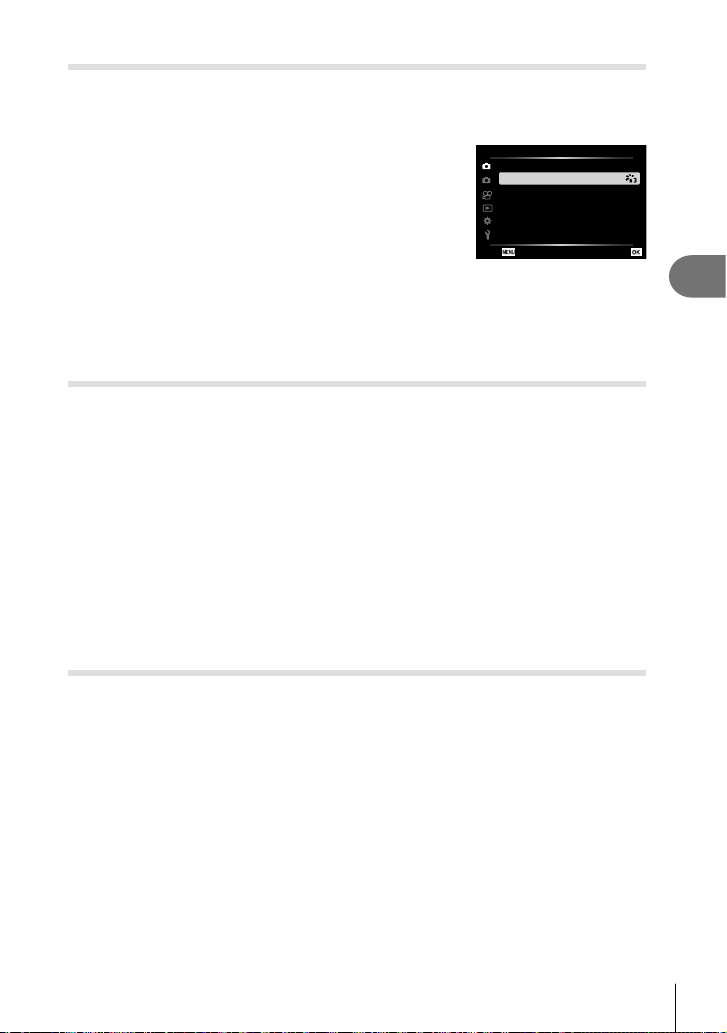
Menu functions (Shooting menu)
4
115
EN
Processing options ( Picture Mode)
You can make individual adjustments to contrast, sharpness and other parameters in
[Picture Mode] (P. 78) settings. Changes to parameters are stored for each picture
mode separately.
1
Select [Picture Mode] in W Shooting Menu 1 and
press the Q button.
• The camera will display the picture mode available in the
current shooting mode.
2
1
Shooting Menu 1
p
Picture Mode
Digital Tele-converter
Metering
Reset
Back Set
Off
2
Select an option with FG and press the Q button.
• Press I to set the detailed options for the selected picture mode. Detailed options are not
available for some picture modes.
• Changes to contrast have no effect at settings other than [Normal].
Digital Zoom ( Digital Tele-converter)
Digital Tele-converter is used to zoom in beyond the current zoom ratio. The camera
saves the center crop. The subject is nearly doubled in size.
1
Select [On] for [Digital Tele-converter] in W Shooting Menu 1.
2
The view in the monitor will be enlarged by a factor of two.
• The subject will be recorded as it appears in the monitor.
• Digital zoom is not available when [Panorama] is selected in SCN mode, multiple
exposure, panorama, or keystone compensation is selected in Z mode or when
[Standard] is selected in movie mode.
• When a RAW image taken with [On] selected for [Digital Tele-converter] is displayed, the
area visible in the monitor is indicated by a frame.
• AF target drops.
• H is displayed on the monitor.
Improving Focus in Dark Surroundings ( AF Illuminator)
The AF illuminator (AF assist lamp) lights to assist the focus operation in dark
environments. Select [Off] to disable AF illuminator.
To use the AF illuminator during silent photography, you will need to change the option
selected for [Silent s Settings] (P. 117).
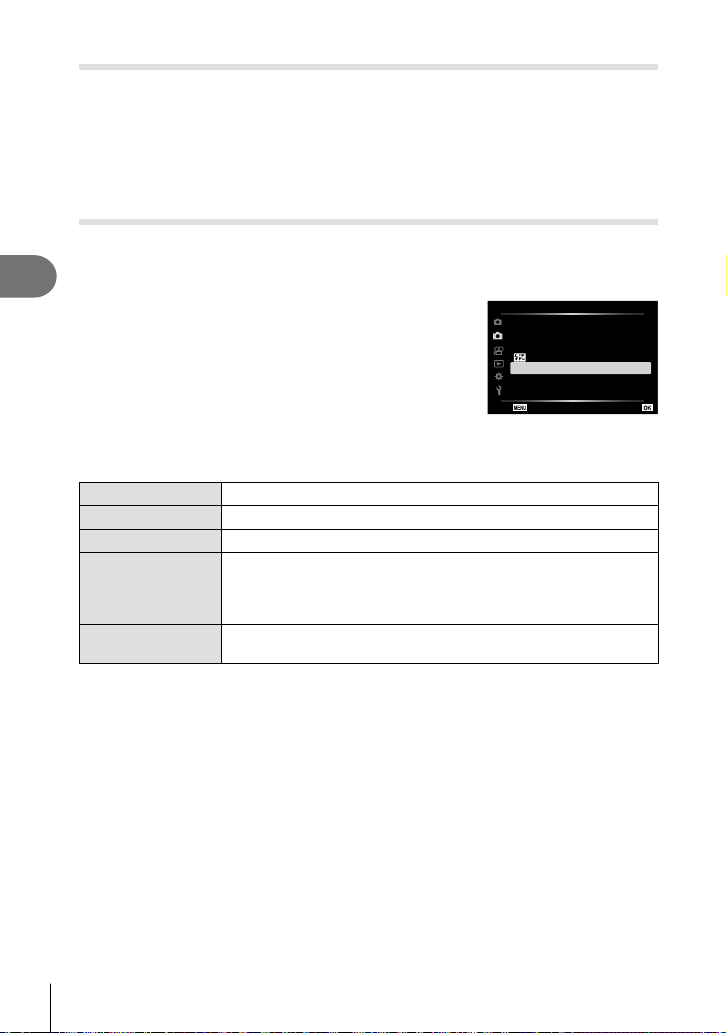
Menu functions (Shooting menu)
4
116
EN
Choosing a Zoom Speed ( K Elec. Zoom Speed)
Choose the speed at which electronic zoom lenses can be zoomed in or out using the
zoom ring during still photography.
1
Highlight [K Elec. Zoom Speed] in X Shooting Menu 2 and press the Q
button.
2
Select an option with FG and press the Q button.
Shooting automatically with a fi xed interval ( Intrvl. Sh./Time Lapse)
You can set the camera to shoot automatically with a set time lapse. The shot frames
can also be recorded as into a single movie. This setting is only available in P/A/S/M
modes.
1
Highlight [Intrvl. Sh./Time Lapse] in X Shooting
Menu 2 and press the Q button.
2
1
Shooting Menu 2
AF Illuminator
K
Elec. Zoom Speed
Normal
On
S-IS On
±0.0
K
Image Stabilizer
Intrvl. Sh./Time Lapse Off
Back Set
#RC Mode Off
6LOHQW>Ɔ@6HWWLQJV
2
2
Select [On] and press the I.
3
Adjust the following settings and press the Q button.
Number of Frames Sets the number of frames to be shot.
Start Waiting Time Sets waiting time before starting to shoot.
Interval Length Sets interval between shots after shooting starts.
Time Lapse Movie
Sets recording format of frame sequence.
[Off]: Records each frame as a still picture.
[On]: Records each frame as a still picture and generates a single
movie from the frame sequence.
Movie Settings
[Movie Resolution]: Choose a size for time lapse movies.
[Frame Rate]: Choose a frame rate for time lapse movies.
• The starting and ending times shown in the display are intended as a guide only. The
actual times may vary with shooting conditions.
4
The [Off]/[On] options will be displayed once more; confi rm that [On] is
highlighted and press the Q button again.
5
Shoot.
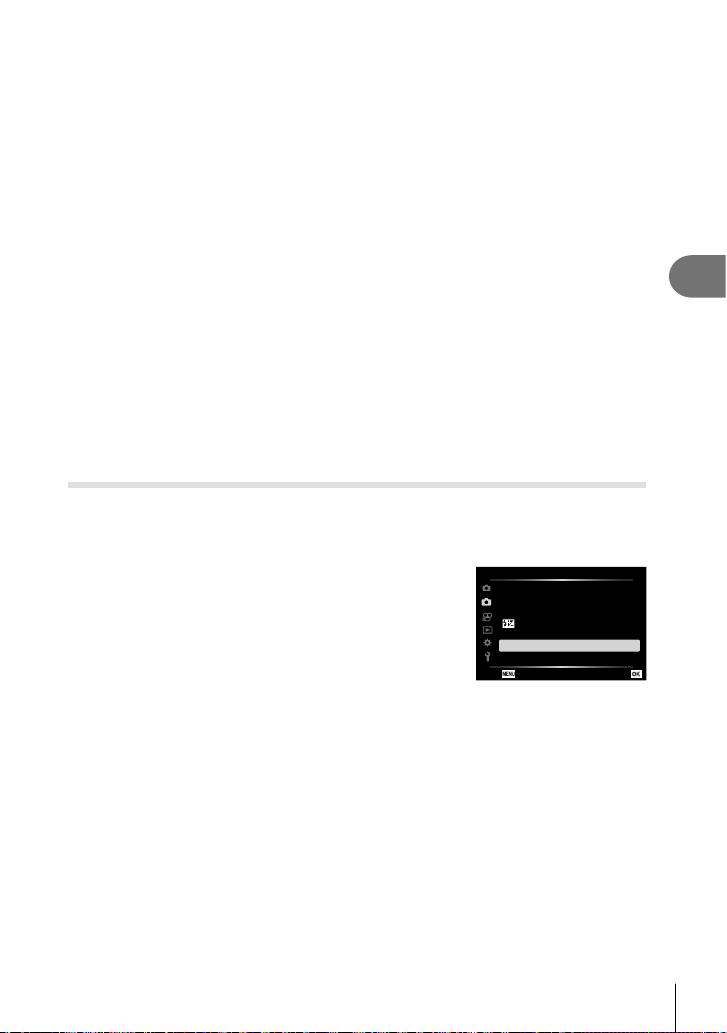
Menu functions (Shooting menu)
4
117
EN
• Frames are shot even if the image is not in focus after AF. If you wish to fi x the focus
position, shoot in MF.
• [Rec View] (P. 124) operates for 0.5 seconds.
• If either of the time before shooting, or shooting interval is set to 1 minute 31 seconds
or longer, the monitor and camera power will turn off after 1 minute. 10 seconds before
shooting, the power will automatically turn on again. When the monitor is off, press the
ON/OFF button to turn it on again.
• If the AF mode (P. 81) is set to [C-AF] or [C-AF+TR], it is automatically changed to
[S-AF].
• Touch operations are disabled during time lapse shooting.
• Bulb, time, and composite photography are not available during time lapse photography.
• The fl ash will not work if the fl ash charging time is longer than the interval between shots.
• If any of still pictures are not recorded correctly, the time lapse movie will not be
generated.
• If there is insuffi cient space on the card, the time lapse movie will not be recorded.
• The following cancel time-lapse shooting:
using the mode dial, MENU button, q button, or lens-release button; connecting a USB
cable; turning the camera off
• If there is not enough charge left on the battery, the shooting may end partway through.
Make sure the battery is charged enough before shooting.
• Movies recorded with [4K] selected for [Movie Settings] > [Movie Resolution] may not
display on some computer systems. More information is available on the OLYMPUS
website.
Silent-Mode Options ( Silent s Settings)
Choose the following options when shooting in the silent mode (P. 75):
- Noise reduction on/off
- Whether or not to enable [8], [AF Illuminator], and [Flash Mode]
1
Highlight [Silent s Settings] in X Shooting Menu 2
and press the Q button.
2
1
Shooting Menu 2
AF Illuminator
K
Elec. Zoom Speed
Normal
On
S-IS On
±0.0
K
Image Stabilizer
Intrvl. Sh./Time Lapse Off
Back Set
#RC Mode Off
6LOHQW>Ɔ@6HWWLQJV
2
2
Select an option with FG and press I.
Menu functions (Shooting menu)
4
118
EN
3
Adjust the following settings and press the Q button.
Noise Reduction
s
[Auto]: Reduce noise in long exposures when shooting in the silent
mode (P. 75). The sound of the shutter may be audible when
noise reduction is active.
[Off]: Noise reduction off.
8 (Beep sound)
[Allow]: Uses the settings currently selected for [8] in G Custom
Menu O (P. 127).
[Not Allow]: Turns off the beep sound when shooting in the silent
mode.
AF Illuminator
[Allow]: Uses the settings currently selected for [AF Illuminator] in
X Shooting Menu 2 (P. 115).
[Not Allow]: Disables the AF Illuminator when shooting in the silent
mode.
Flash Mode
[Allow]: Uses the current fl ash settings (P. 72).
[Not Allow]: Disables the fl ash when shooting in the silent mode.
Wireless remote control fl ash photography (# RC Mode)
You can take wireless fl ash photographs using the built-in fl ash and a special fl ash with
a remote control function. g “Wireless remote control fl ash photography” (P. 150)
Menu functions (Video menu)
4
119
EN
Using the Video Menu
Movie recording functions are set in the Video Menu.
2
1
Video Menu
nImage Stabilizer
nElec. Zoom Speed
C-AF
30p
Fine
nAF Mode
Video Frame Rate
Video Bit Rate
Normal
On
±0Recording Volume
Movie R
M-IS
1
Back Set
Option Description
g
Movie R
[Off]: Record movies without sound.
[On]: Record movies with sound.
[On e]: Record movies with sound; wind noise reduction
enabled.
58
Recording Volume Adjust the sensitivity of the built-in microphone. Adjust
the sensitivity using FG while checking the peak sound
level picked up by the microphone over the previous few
seconds.
―
n AF Mode
Choose the AF mode for movie recording.
81
n Image Stabilizer
Sets image stabilization for movie recording.
89
n Elec. Zoom Speed
Choose the speed at which electronic zoom lenses can
be zoomed in or out during movie recording.
―
Video Frame Rate Choose the frame rate for movie recording.
• When shooting movies that will be viewed on a
television, choose a frame rate that matches the video
standard used in the device, as otherwise the movie
may not play back smoothly. Video standards vary by
country or region: some use NTSC, others PAL.
- When shooting for display on NTSC devices, choose
60p (30p)
- When shooting for display on PAL devices, choose
50p (25p)
84
Video Bit Rate Choose the compression ratio for movie recording. 84
• Operation sounds of the lens and camera may be recorded in a movie. To prevent it from
recording, reduce the operation sounds by setting [AF Mode] to [S-AF] or [MF], or by
minimizing the button operations of the camera.
• Sound cannot be recorded in k (Diorama) mode.
• When [Movie R] is set to [Off], O is displayed.
Menu functions (Playback menu)
4
120
EN
Using the Playback Menu
Playback Menu
y (P. 104)
2
1
Playback Menu
R
Edit
On
Reset Protect
Reset share Order
Device Connection
Print Order
Back Set
R
Edit
Print Order (P. 107)
Reset Protect (P. 123)
Reset share Order (P. 106)
Device Connection (P. 137)
Displaying images rotated ( R)
If set to [On], images in portrait orientation are automatically rotated to be displayed in
the correct orientation on the playback display.
Editing still images (Edit)
Recorded images can be edited and saved as separate images.
1
Select [Edit] in the q Playback Menu and press the Q button.
2
Use FG to select [Sel. Image] and press the Q button.
3
Use HI to select the image to be edited and press the Q button.
• [RAW Data Edit] is displayed if a RAW image is selected, and [JPEG Edit] if a JPEG
image is selected. For images recorded in RAW+JPEG format, both [RAW Data Edit]
and [JPEG Edit] are displayed. Select the desired option from them.
4
Select [RAW Data Edit] or [JPEG Edit] and press the Q button.
RAW Data
Edit
Creates a JPEG copy of a RAW image according to the selected settings.
Current The JPEG copy is processed using the current camera
settings. Adjust the camera settings before choosing this
option. Some settings such as exposure compensation are
not applied.
ART BKT The image is edited using settings for the selected art fi lter.
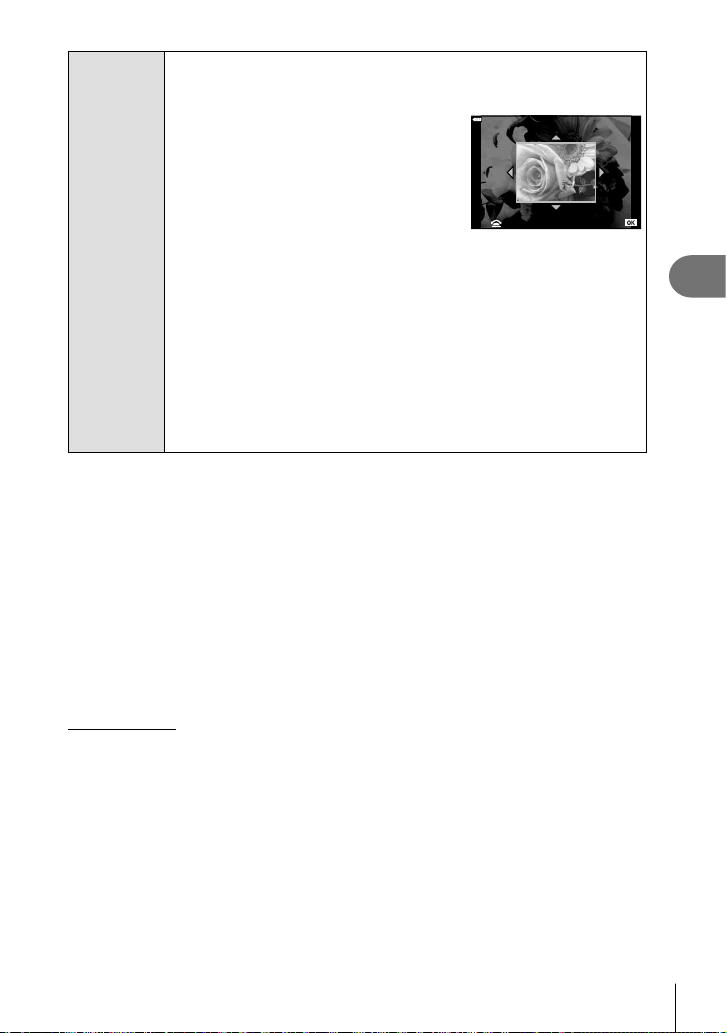
Menu functions (Playback menu)
4
121
EN
JPEG Edit
Choose from the following options:
[Shadow Adj]: Brightens a dark backlit subject.
[Redeye Fix]: Reduces the red-eye phenomenon due to fl ash shooting.
[ P]: Trims an image. Use the control dial to
choose the size of the crop and FGHI to
specify the crop position.
O
Set
[Aspect]: Changes the aspect ratio of images from 4:3 (standard) to [3:2],
[16:9], [1:1], or [3:4]. After changing the aspect ratio, use FGHI to
specify the trimming position.
[Black & White]: Creates black and white images.
[Sepia]: Creates sepia-toned images.
[Saturation]: Increases the vividness of images. Adjust the color saturation
checking the image on the screen.
[Q]: Converts the image size to 1280 × 960, 640 × 480, or 320 × 240.
Images with an aspect ratio other than 4:3 (standard) are converted to the
closest image size.
[e-Portrait]: Compensates the skin look for smoothness.
Compensation cannot be applied in such a case that a face cannot be
detected.
5
When the settings are complete, press the Q button.
• The settings are applied to the image.
6
Select [Yes] and press the Q button.
• The edited image is stored in the card.
• Red-eye correction may not work depending on the image.
• Editing of a JPEG image is not possible in the following cases:
When an image is processed on a PC, when there is not enough space in the card
memory, or when an image is recorded on another camera.
• The image cannot be resized (Q) to the larger size than the original size.
• Some images can not be resized.
• [P] (trimming) and [Aspect] can only be used to edit images with an aspect ratio of 4:3
(standard).
Audio recording
Audio can be added to still images (up to 30 sec. long).
This is the same function as [R] during playback (P. 108).
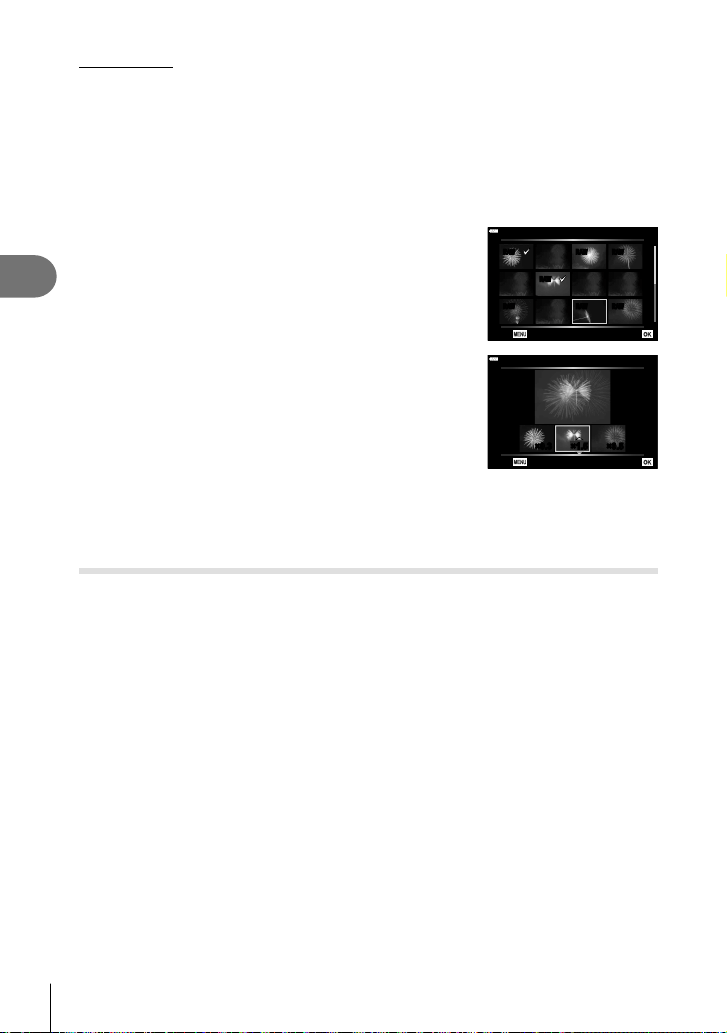
Menu functions (Playback menu)
4
122
EN
Image overlay
Up to 3 frames of RAW images taken with the camera can be overlaid and saved as a
separate image.
The image is saved with the record mode set at the time the image is saved. (If [RAW] is
selected, the copy will be saved in RAW+JPEG format.)
1
Select [Edit] in the q Playback Menu and press the Q button.
2
Use FG to select [Image Overlay] and press the Q button.
3
Select the number of images to be overlaid and press the Q button.
4
Use FGHI to select the RAW images and press
the Q button to add them to the overlay.
• The overlaid image will be displayed if images of the
number specifi ed in step 3 are selected.
5
Adjust the gain for each image to be overlaid.
• Use HI to select an image and FG to adjust gain.
• Gain can be adjusted in the range 0.1 – 2.0. Check the
results in the monitor.
6
Press the Q button to display the confi rmation
dialog. Select [Yes] and press the Q button.
RAW RAW RAW
RAW
RAW RAW RAW
Image Overlay
Back Set
×1.5×1.5×0.3 ×0.5
Image Overlay
Back Set
$ Notes
• To overlay 4 or more frames, save the overlay image as a RAW fi le and use [Image
Overlay] repeatedly.
Saving a still image from a movie ( In-Movie Image Capture)
Save selected frames from 4K movies as still images.
1
Select [Edit] in the q Playback Menu and press the Q button.
2
Use FG to select [Sel. Image] and press the Q button.
3
Use HI to select a movie and press the Q button.
4
Select [Movie Edit] and press the Q button.
5
Use FG to select [In-Movie Image Capture] and press the Q button.
6
Use HI to select a frame to be saved as a still image and press the Q
button.
• Use FG or to skip multiple frames.
• Press the MENU button to return to single-frame playback.
• Editing is available with movies recorded using this camera.
• The date of recording of the still may differ from that of the original movie.

Menu functions (Playback menu)
4
123
EN
Trimming movies (Movie Trimming)
1
Select [Edit] in the q Playback Menu and press the Q button.
2
Use FG to select [Sel. Image] and press the Q button.
3
Use HI to select a movie and press the Q button.
4
Select [Movie Edit] and press the Q button.
5
Use FG to select [Movie Trimming] and press the Q button.
6
Select [Overwrite] or [New File] and press the Q button.
• If the image is protected, you cannot select [Overwrite].
7
Choose whether the section to be deleted begins with the fi rst frame or ends
with the last frame, using HI to highlight the desired option and pressing
the Q button to select.
8
Use HI to choose the section to be deleted.
• The section to be deleted is shown in red.
9
Press the Q button.
10
Select [Yes] and press the Q button.
• Editing is available with movies recorded using this camera.
• The date of recording of the still may differ from that of the original movie.
Canceling all protections
Protections of multiple images can be canceled at a time.
1
Select [Reset Protect] in the q Playback Menu and press the Q button.
2
Select [Yes] and press the Q button.
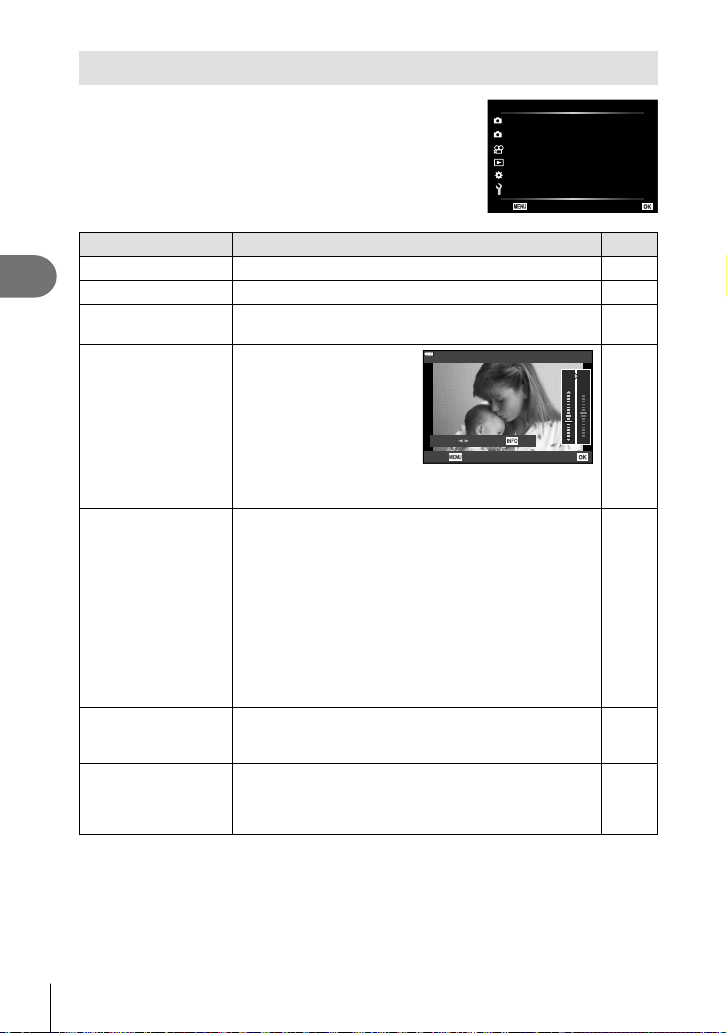
Menu functions (Setup menu)
4
124
EN
Using the setup menu
Use the e Setup Menu to set the basic camera functions.
2
1
Setup Menu
X
W English
s
Firmware
Wi-Fi/Bluetooth Settings
Rec View
j±0 k±0
’--.--.-- --:--:--
Card Setup
Back Set
0.5 sec
Option Description
g
Card Setup Format the card and delete all images. 125
X (Date/time setting)
Set the camera clock.
21
W (Changing the
display language)
Choose a different language for the menus and
messages displayed in the monitor.
125
s ( Monitor
brightness adjustment)
You can adjust the
brightness and color
temperature of the monitor.
Use HI to highlight j
(color temperature) or k
(brightness) and FG to
adjust the value.
s
Back Set
Vivid Natural
-
2
j
+1
k
—
Press the INFO button to switch the saturation of the
monitor between [Natural] and [Vivid] settings.
Rec View Sets whether to display the captured image on the
monitor after shooting, and the length of time for the
display. This is useful for a brief check of the picture you
have taken. You can shoot the next shot by pressing the
shutter button halfway even while the captured image is
displayed on the monitor.
[0.3sec] – [20sec]: Sets the length of time (seconds) to
display the captured image on the monitor.
[Off]: The captured image is not displayed on the monitor.
[Auto q]: Displays the captured image, and then
switches to playback mode. This is useful for erasing a
picture after checking it.
—
Wi-Fi/Bluetooth
Settings
Adjust settings for connection to Wi-Fi/Bluetooth-
compatible smartphones using the camera’s wireless
function.
138,
142,
143
Firmware Displays the fi rmware versions of the camera and
connected accessories.
Check the versions when you inquire about the camera
or accessories or when you download the software.
—
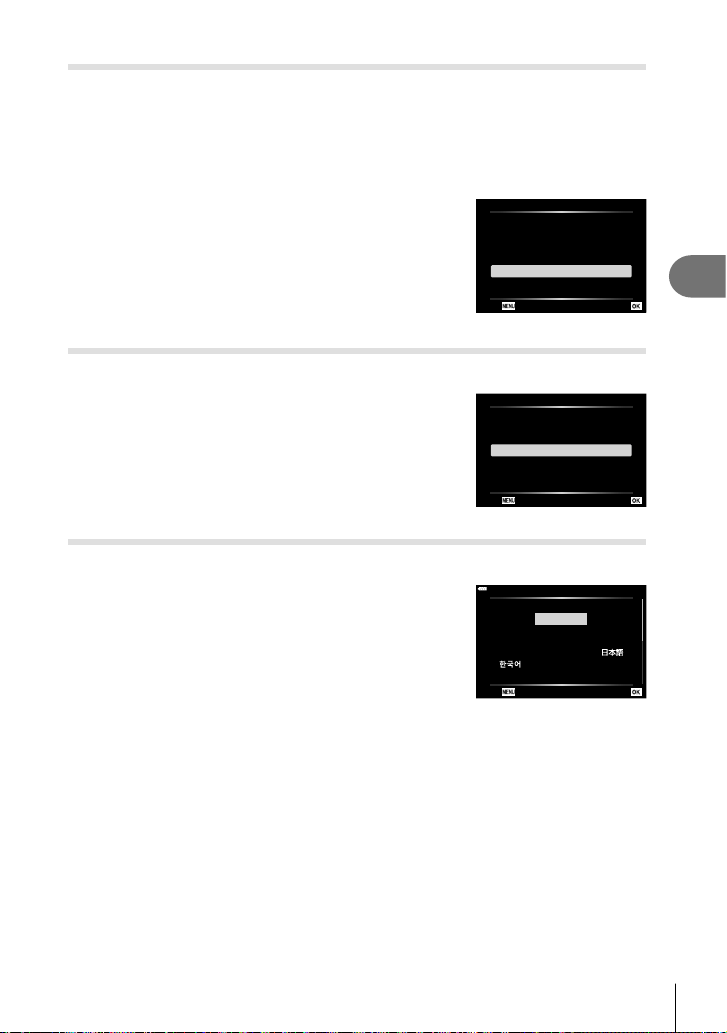
Menu functions (Setup menu)
4
125
EN
Formatting the card ( Card Setup)
Cards must be formatted with this camera before fi rst use or after being used with
other cameras or computers.
All data stored on the card, including protected images, is erased when the card is
formatted.
When formatting a used card, confi rm there are no images that you still want to keep
on the card. g “Usable cards” (P. 147)
1
Select [Card Setup] in the e Setup Menu and press
the Q button.
• If there is data on the card, menu items appear. Select
[Format] and press the Q button.
2
Select [Yes] and press the Q button.
• Formatting is performed.
Card Setup
All Erase
Format
Back Set
Deleting all images (Card Setup)
All images on a card can be deleted at a time. Protected images are not deleted.
1
Select [Card Setup] in the e Setup Menu and press
the Q button.
2
Select [All Erase] and press the Q button.
3
Select [Yes] and press the Q button.
• All images are deleted.
Card Setup
All Erase
Format
Back Set
Choosing a language (W)
Choose a different language for the menus and messages displayed in the monitor.
1
Select [W] in the e Setup Menu and press the Q
button.
2
Highlight the desired language using FGHI or
the control dial.
• The language-selection dialog has two pages of
options. Use the control dial or the FGHI buttons
on the arrow pad to move the cursor between pages.
W
Back Set
Hrvatski
Dansk
Eesti
Deutsch
Indonesia
Norsk
ýHVN\
English
Suomi
ǼȜȜȘȞȚțȐ
Italiano
Latviski
Polski
Ȼɴɥɝɚɪɫɤɢ
Nederlands
Français
0DJ\DU
/LHWXYLǐN
Português(Pt)
3
Press the Q button when the desired language is highlighted.
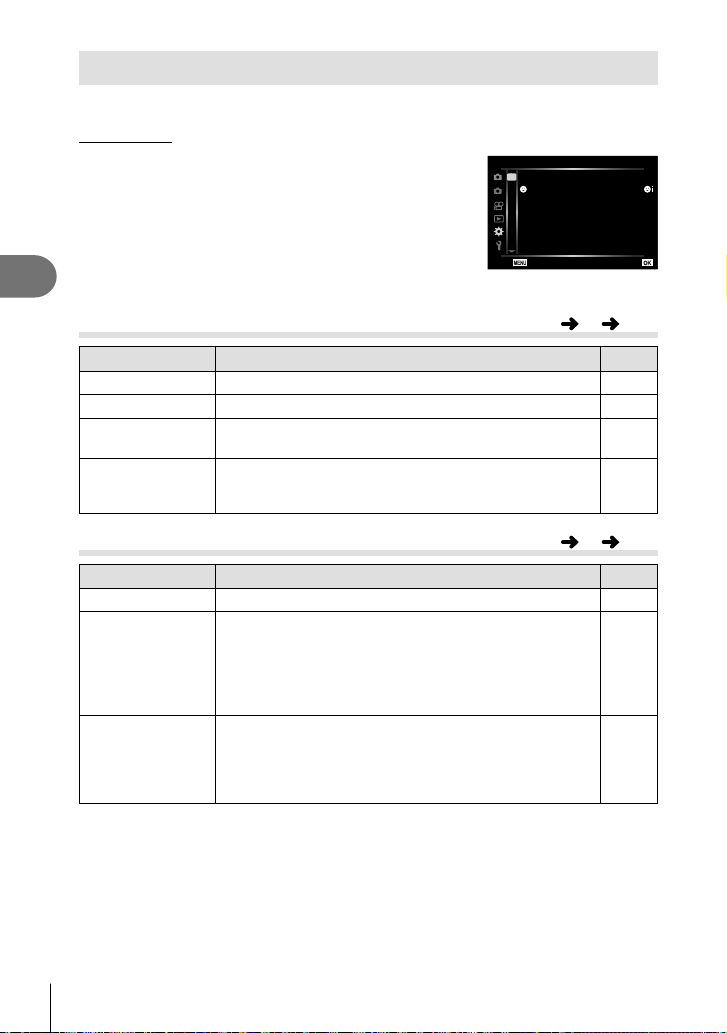
Menu functions (Custom menus)
4
126
EN
Using the custom menus
Camera settings can be customized using the G Custom Menu.
Custom Menu
a
AF/MF
2
1
A. AF/MF
AEL/AFL S1/C2/M1
A
B
C1
C2
D1
D2
E
F
Back Set
Reset Lens On
MF Assist
Face Priority
A
M
Button/Dial
N/O Disp/8/PC (P. 127)
P/Q
Exp/ISO/BULB (P. 128)
b
# Custom (P. 129)
W K/WB/Color (P. 129)
X
Record (P. 130)
c
K Utility (P. 131)
a AF/MF
Option Description
g
AEL/AFL Customize AF and AE lock. 131
I Face Priority
You can select the face priority or eye priority AF mode.
71
MF Assist When set to [On], you can automatically switch to zoom or
peaking in manual focus mode by rotating the focus ring.
132
Reset Lens When set to [Off], the focus position of the lens is not reset
even when the power is turned off. When set to [On], the
focus of power zoom lenses is also reset.
—
M Button/Dial
Option Description
g
Button Function Choose the function assigned to the selected button. 97
qR Function Choose the role played by the R button during playback.
[H]: Select multiple pictures.
[0]: Protect pictures.
[h]: Mark pictures for sharing.
[<]: Mark pictures for printing at a later date. The number
of copies is set to 1. The date is not printed.
105,
106,
107
Dial Function You can change the function of the control dial.
[P]: F / %
[A]: FNo. / F
[S]: Shutter / F
[M]: Shutter / FNo.
—
MENU G a
MENU G M
Menu functions (Custom menus)
4
127
EN
N Disp/8/PC
Option Description
g
K Control
Settings
For each shooting mode except movie, choose whether
pressing the Q button displays live controls or LV super
controls.
76, 77
G/Info Settings
Choose the information displayed when the INFO button
is pressed.
[ q Info]: Choose the information displayed in full frame
playback.
[ LV-Info]: Choose the information displayed when the
camera is in shooting mode.
[ G Settings]: Choose the information displayed in index,
“My Clips”, and calendar playback.
132,
133
Live View Boost [Off]: Changes to settings such as exposure compensation
are refl ected in the display in the monitor.
[On]: Changes to settings such as exposure compensation
are not refl ected in the display in the monitor; instead,
brightness is adjusted to bring the display as close as
possible to optimal exposure.
—
Flicker reduction Reduce the effects of fl icker under some kinds of lighting,
including fl uorescent lamps. When fl icker is not reduced by
the [Auto] setting, set to [50Hz] or [60Hz] in accordance with
the commercial power frequency of the region where the
camera is used.
—
Displayed Grid
Select [w], [x], [1], [y], [X] or [x] to display a grid on
the monitor.
—
Peaking Color Choose the color of the outlines (red, yellow, white, or
black) in the focus peaking display.
132
O Disp/8/PC
Option Description
g
8 ( Beep sound)
When set to [Off], you can turn off the beep sound that is
emitted when the focus locks by pressing the shutter button.
• You may need to adjust the settings in the
[Silent s Settings] menu (P. 117) in order to enable the
beep when shooting in the silent mode (P. 75).
—
HDMI [Output Size]: Selecting the digital video signal format for
connecting to a TV via an HDMI cable.
[HDMI Control]: Select [On] to allow the camera to be
operated using remotes for TVs that support HDMI control.
This option takes effect when pictures are displayed on a
TV.
134
USB Mode Choose a mode for connecting the camera to a computer.
Choose [Auto] to display USB mode options every time the
camera is connected.
—
MENU
G N
MENU G O
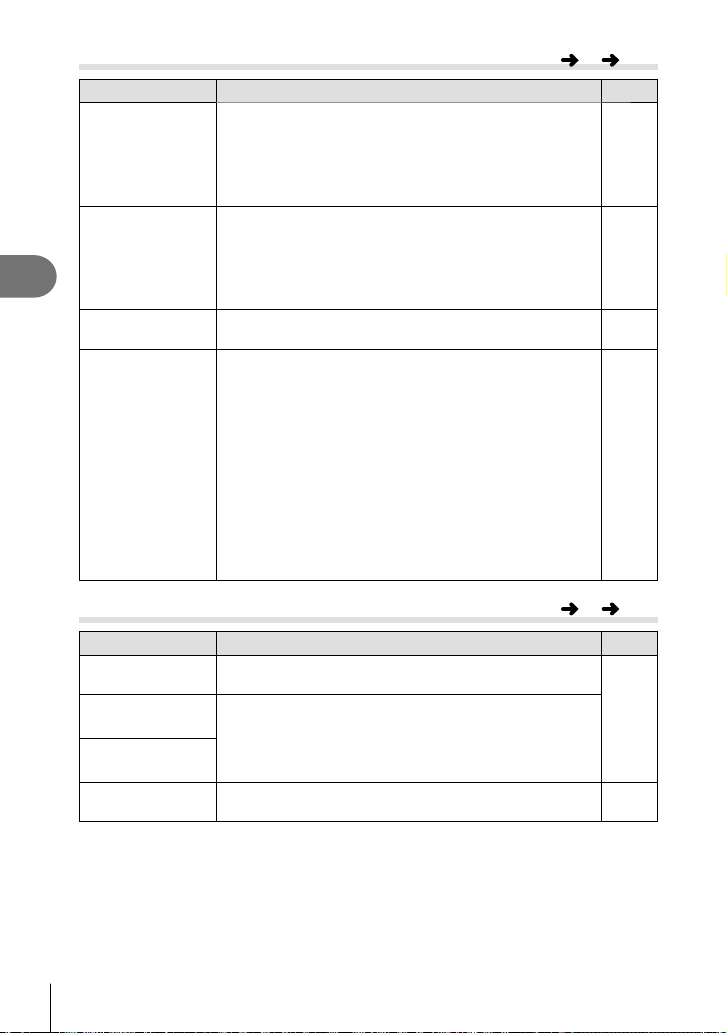
Menu functions (Custom menus)
4
128
EN
P Exp/ISO/BULB
Option Description
g
Exposure Shift Adjust correct exposure separately for each metering mode.
• This reduces the number of exposure compensation
options available in the selected direction.
• The effects are not visible in the monitor. To make
normal adjustments to the exposure, perform exposure
compensation (P. 69).
—
ISO-Auto Set Choose the upper limit and default value used for ISO
sensitivity when [Auto] is selected for ISO.
[High Limit]: Choose the upper limit for auto ISO sensitivity
selection.
[Default]: Choose the default value for auto ISO sensitivity
selection.
—
Noise Filter Choose the amount of noise reduction performed at high
ISO sensitivities.
—
Noise Reduct. This function reduces the noise that is generated during
long exposures.
[Auto]: Noise reduction is performed at slow shutter speeds,
or when the internal temperature of the camera has risen.
[On]: Noise reduction is performed with every shot.
[Off]: Noise reduction off.
• The time required for noise reduction is shown in the
display.
• [Off] is selected automatically during sequential shooting.
• This function may not work effectively with some shooting
conditions or subjects.
• When shooting in the silent mode, priority is given to the
[Noise Reduction s] setting in the [Silent s Settings]
menu (P. 117).
54
Q Exp/ISO/BULB
Option Description
g
Bulb/Time Timer* Choose the maximum exposure for bulb and time
photography.
55
Live Bulb Choose the display interval during shooting. The number
of update times is limited. The frequency drops at high ISO
sensitivities. Tap the monitor or press the shutter button
halfway to refresh the display. Choose [Off] to disable the
display.
Live Time*
Composite
Settings*
Set an exposure time to be the reference in composite
photography.
56
* Settings for bulb/time maximum exposure and live composite photography apply only in
mode M.
MENU
G P
MENU
G Q
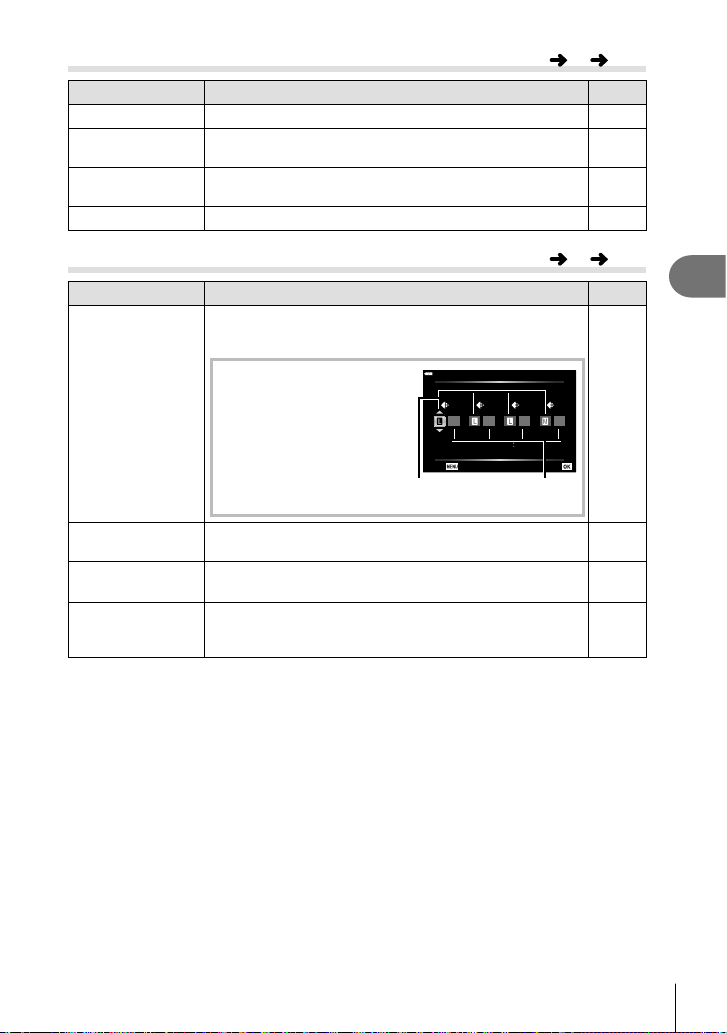
Menu functions (Custom menus)
4
129
EN
b # Custom
Option Description
g
# X-Sync.
Choose the shutter speed used when the fl ash fi res.
135
# Slow Limit
Choose the slowest shutter speed available when a fl ash
is used.
135
w+F
When set to [On], the exposure compensation value is
added to the fl ash compensation value.
69, 88
#+WB
Adjust white balance for use with a fl ash.
—
W K/WB/Color
Option Description
g
K Set
You can select the JPEG image quality mode from
combinations of three image sizes and three compression
rates.
1) Use HI to select a
combination ([K1] –
[K4]) and use FG to
change.
2) Press the Q button.
4608x3456
1
SF
2
F
3
N
4
N
Pixel Count
Back Set
K Set
Compression
rate
Image size
83, 135
WB Set the white balance. You can also fi ne-tune the white
balance for each mode.
80, 90
W Keep Warm
Color
Select [On] to preserve “warm” colors in pictures taken
under incandescent lighting.
—
Color Space You can select a format to ensure that colors are correctly
reproduced when shot images are regenerated on a monitor
or using a printer.
95
MENU
G b
MENU
G W
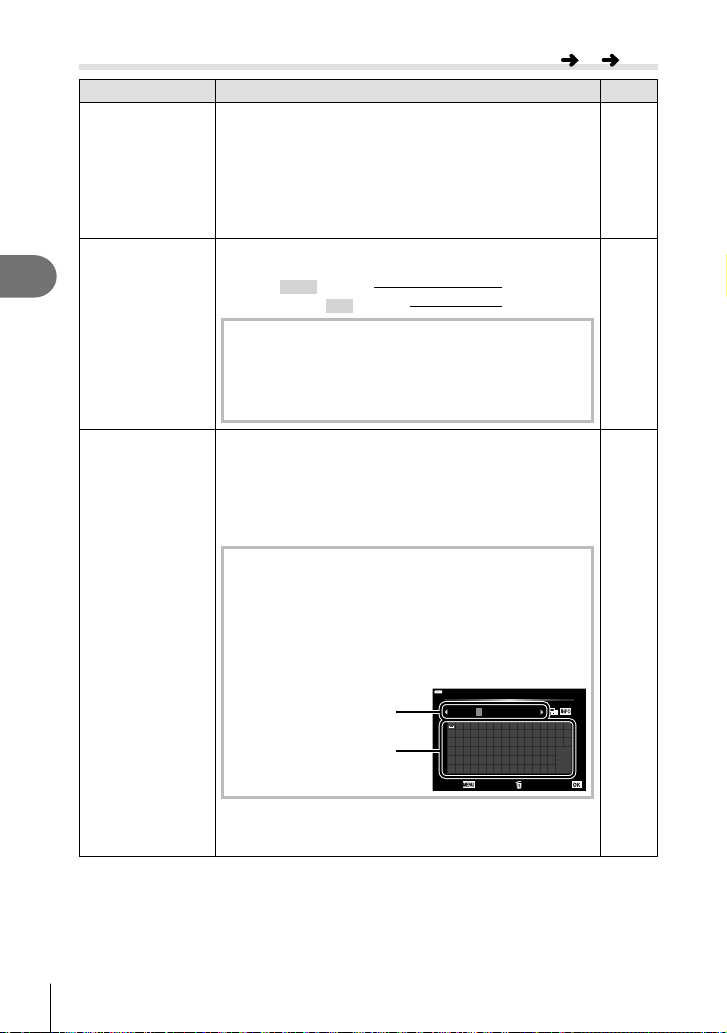
Menu functions (Custom menus)
4
130
EN
X Record
Option Description
g
File Name [Auto]: Even when a new card is inserted, the fi le numbers
are retained from the previous card. File numbering
continues from the last number used or from the highest
number available on the card.
[Reset]: When you insert a new card, the folder numbers
starts at 100 and the fi le name starts at 0001. If a card
containing images is inserted, the fi le numbers start at the
number following the highest fi le number on the card.
—
Edit Filename Choose how image fi les are named by editing the portion of
the fi lename highlighted below in gray.
sRGB: Pmdd0000.jpg Pmdd
Adobe RGB: _mdd0000.jpg mdd
1) Highlight [sRGB] or [AdobeRGB] and press I.
2) Use HI to move the cursor and FG to edit the
highlighted character.
3) Repeat Step 2 as necessary to create the desired
fi lename and then press Q.
—
Copyright
Settings*
Add the names of the photographer and copyright holder to
new photographs. Names can be up to 63 characters long.
[Copyright Info.]: Select [On] to include the names of the
photographer and copyright holder in the Exif data for new
photographs.
[Artist Name]: Enter the name of the photographer.
[Copyright Name]: Enter the name of the copyright holder.
1) Select characters from 1 and press the Q button.
The selected characters appear in 2.
2) Repeat Step 1 to complete the name, then highlight
[END] and press the Q button.
• To delete a character, press the INFO button to
place the cursor in the name area 2, highlight
the character, and press .
!”#$%&
()
*+,-./
01234567
’
89 : ; <=>?
@
ABCDEFGH I J KLMNO
PQR S T U VWX Y Z
[]_
a b c d e f g h i j k l m n END
opqr s t uvwxyz
{}
ABCDE
05/63
Delete
Copyright Name
Cancel Set
2
1
* OLYMPUS does not accept liability for damages arising
from disputes involving the use of [Copyright Settings].
Use at your own risk.
—
MENU
G X
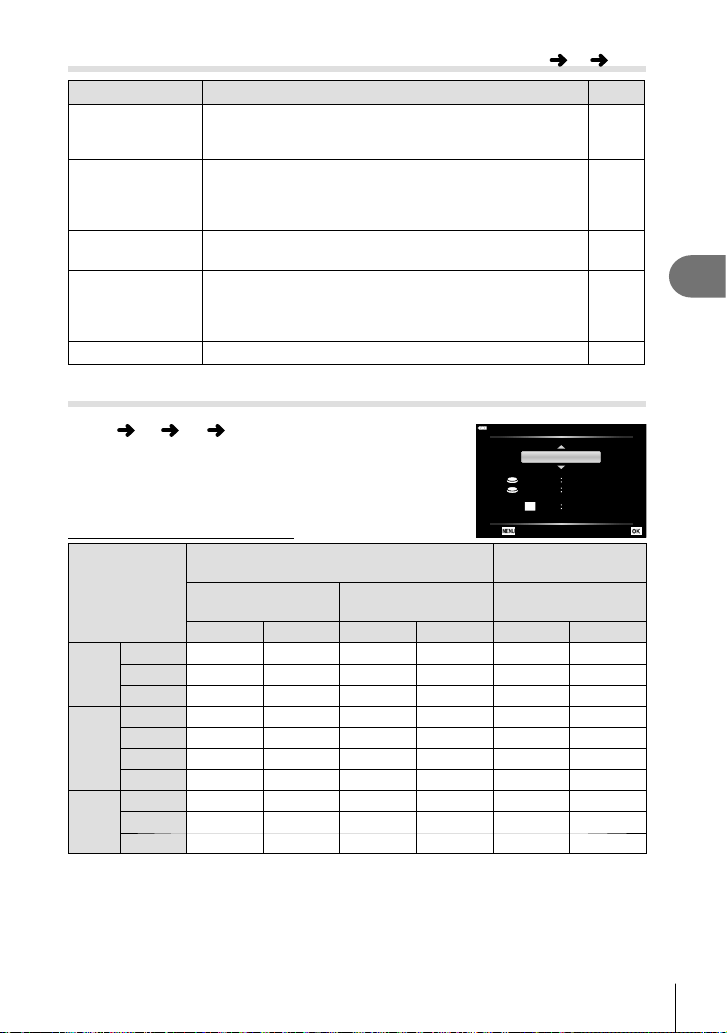
Menu functions (Custom menus)
4
131
EN
c
K
Utility
Option Description
g
Pixel Mapping The pixel mapping feature allows the camera to check
and adjust the image pickup device and image processing
functions.
155
Level Adjust You can calibrate the angle of the level gauge.
[Reset]: Resets adjusted values to the default settings.
[Adjust]: Sets the current camera orientation as the 0
position.
—
Touchscreen
Settings
Activate the touch screen. Choose [Off] to disable the touch
screen.
—
Sleep The camera will enter sleep (energy saving) mode if no
operations are performed for the selected period. The
camera can be reactivated by pressing the shutter button
halfway.
—
Certifi cation Display certifi cation icons. —
AEL/AFL
MENU G a [AEL/AFL]
Autofocus and metering can be performed by pressing the
button to which AEL/AFL has been assigned. Choose a
mode for each focus mode.
AEL
AFL
mode1
AEL/S-AF
AEL
S-AF AEL/AFL
ExposureFully
Half Way
Back Set
Assignments of AEL/AFL function
Mode
Shutter button function
AEL/AFL Button
function
Half-press Full press
When holding down
AEL/AFL
Focus Exposure Focus Exposure Focus Exposure
S-AF
mode1 S-AF Locked – – – Locked
mode2 S-AF – – Locked – Locked
mode3 – Locked – – S-AF –
C-AF
mode1 C-AF start Locked Locked – – Locked
mode2 C-AF start – Locked Locked – Locked
mode3 – Locked Locked – C-AF start –
mode4 – – Locked Locked C-AF start –
MF
mode1 – Locked – – – Locked
mode2 – – – Locked – Locked
mode3 – Locked – – S-AF –
MENU
G c
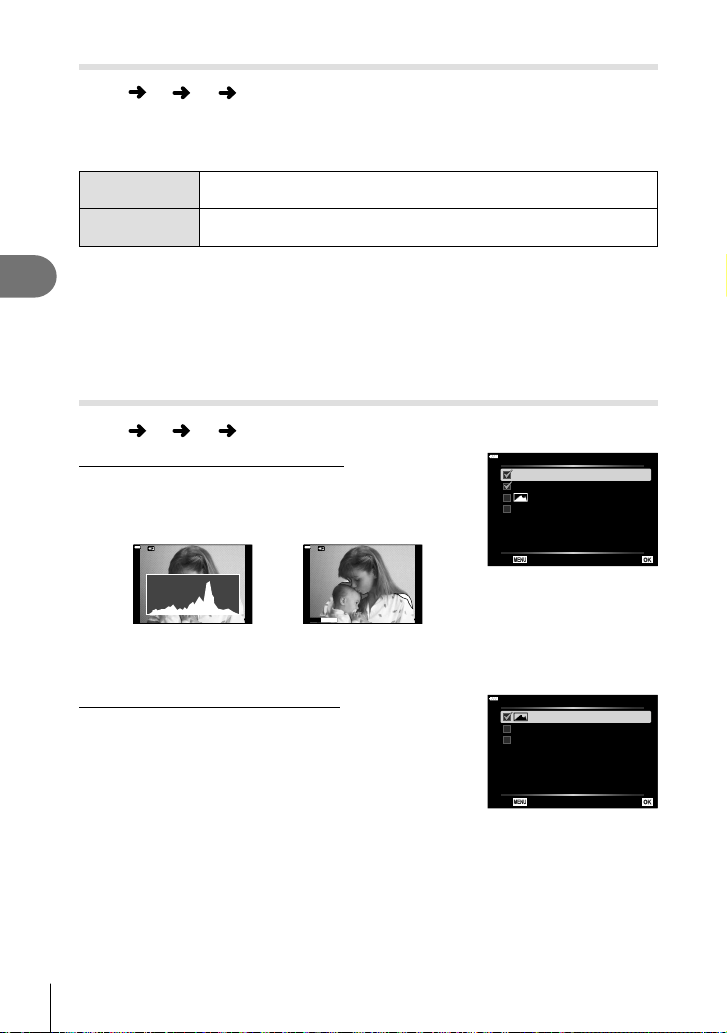
Menu functions (Custom menus)
4
132
EN
MF Assist
MENU G a [MF Assist]
This is a focus assist function for MF. When the focus ring is rotated, the edge of the
subject is enhanced or a portion of the screen display is magnifi ed. When you stop
operating the focus ring, the screen returns to the original display.
Magnify Magnifi es a portion of the screen. The portion to be magnifi ed can be
set in advance using AF target. g “Setting the AF target” (P. 70)
Peaking Displays clearly defi ned outlines with edge enhancement. You can
choose the color of the outlines. g [Peaking Color] (P. 127)
• When Peaking is in use, the edges of small subjects tend to be enhanced more strongly.
This is no guarantee of accurate focusing.
$ Notes
• [Peaking] can be displayed using button operations. The display is switched every time
the button is pressed. Assign the switching function to one of the buttons in advance using
Button Function (P. 97).
Adding information displays
MENU G N [ G/Info Settings]
q Info (Playback information displays)
Use [q Info] to add the following playback information
displays. The added displays are displayed by repeatedly
pressing the INFO button during playback. You can also
choose to not show displays that appear at the default setting.
Highlight & Shadow display
Shadow
Highlight
15
Histogram display
15
q Info
Overall
Image Only
Highlight&Shadow
Back H
• The Highlight & Shadow display shows overexposed areas in red, underexposed areas in
blue.
LV-Info (Shooting information displays)
The histogram, Highlight & Shadow, and level gauge displays
can be added to [LV-Info]. Choose [Custom 1] or [Custom 2]
and select the displays you wish to add.
The added displays
are displayed by repeatedly pressing the
INFO
button during
shooting.
You can also choose to not show displays that appear
at the default setting.
Custom1
Highlight&Shadow
Level Gauge
Back
H
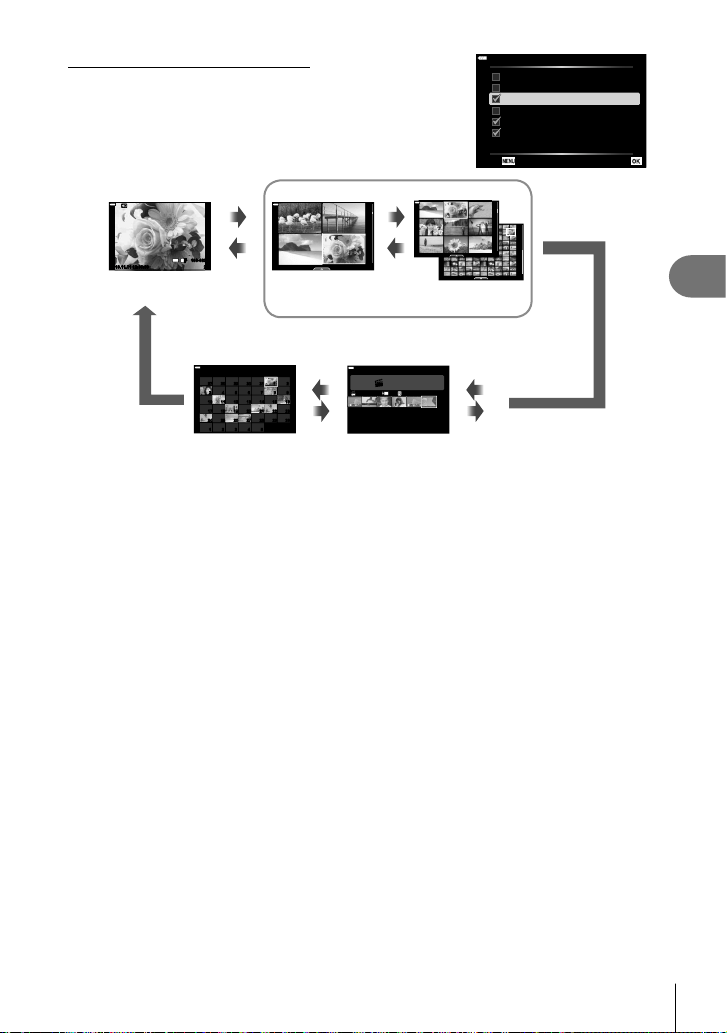
Menu functions (Custom menus)
4
133
EN
G Settings ( Index/ calendar display)
You can change the number of frames to be displayed on the
index display and set to not display the screens that are set to
be displayed by default with [G Settings]. Displays indicated
by a check mark can be viewed by pressing G repeatedly
during playback.
G Settings
B 9
A 4
C 25
C 100
My Clips
Calendar
Back
H
12:30:00 202019.11.01
2012: 30:002019.11.01
12:30:00 20
2019.11.01
20
100-0020
12:30:002019.11.01
4
:
3
L
F
My Clips
1
MOV11: 24 F HD 30p
12:30:002019.11.01
2019.11
Sun Mon Tue Wed Thu Fri Sat
9
16151413121110
23222120191817
30292827262524
5
4 3 2 1
2 1 3130292827
8 3 4 5 6 7
Q
Q
G
a
Index display
G
a
G
a
4 frames 9, 25, or 100
frames
Single-frame
playback
My Clips playback*Calendar display
G
a
* If one or more My Clips have been created, it will be displayed here (P. 63).
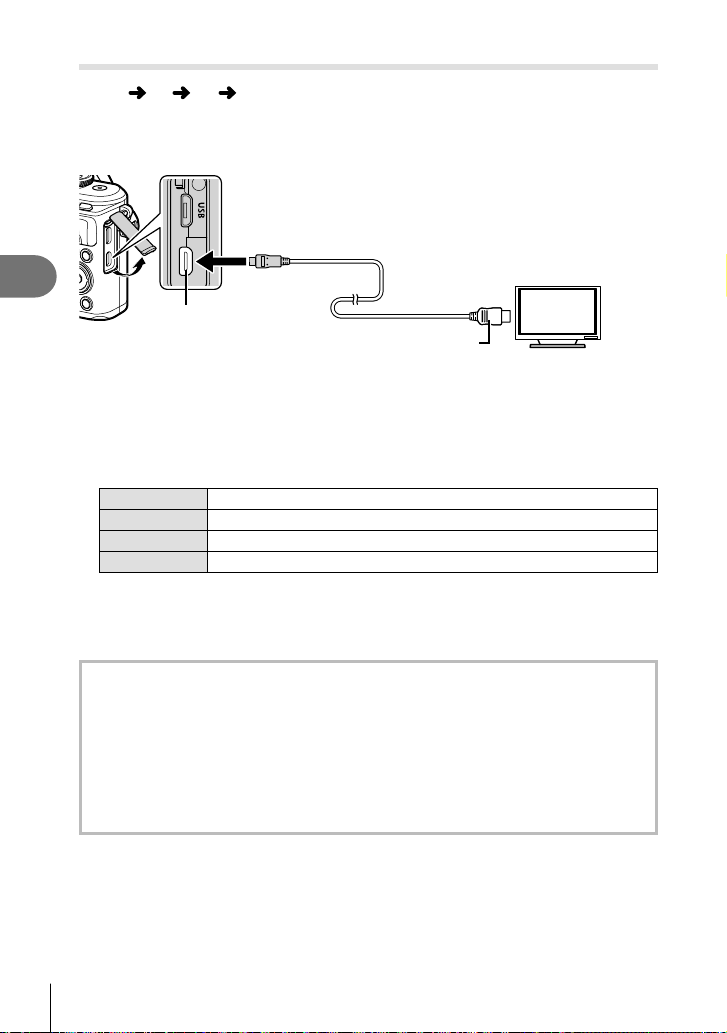
Menu functions (Custom menus)
4
134
EN
Viewing camera images on TV
MENU G O [ HDMI]
Use the separately sold cable with the camera to playback recorded images on your
TV. This function is available during shooting. Connect the camera to an HD TV using
an HDMI cable to view high-quality images on a TV screen.
Type A
HDMI cable
(Connect to the HDMI connector on the TV.)
HDMI micro connector
Connect the TV and camera and switch the input source of the TV.
• The camera monitor turns off when an HDMI cable is connected.
• For details on changing the input source of the TV, refer to the TV’s instruction manual.
• Depending on the TV’s settings, the displayed images and information may become
cropped.
• If the camera is connected via an HDMI cable, you will be able to choose the digital video
signal type. Choose a format that matches the input format selected with the TV.
4K Priority is given to 4K HDMI output.
1080p Priority is given to 1080p HDMI output.
720p Priority is given to 720p HDMI output.
480p/576p 480p/576p HDMI output.
• Do not connect the camera to other HDMI output devices. Doing so may damage the
camera.
• HDMI output is not performed while connected via USB to a computer.
• When [4K] is selected, video output in shooting mode is [1080p].
Using the TV remote control
The camera can be operated by a TV remote control when connected to a TV that
supports HDMI control. Select [On] for [HDMI Control]. When [On] is selected,
camera controls can be used for playback only.
• You can operate the camera by following the operation guide displayed on the TV.
• During single-frame playback, you can display or hide the information display by
pressing the “Red” button, and display or hide the index display by pressing the
“Green” button.
• Some televisions may not support all features.
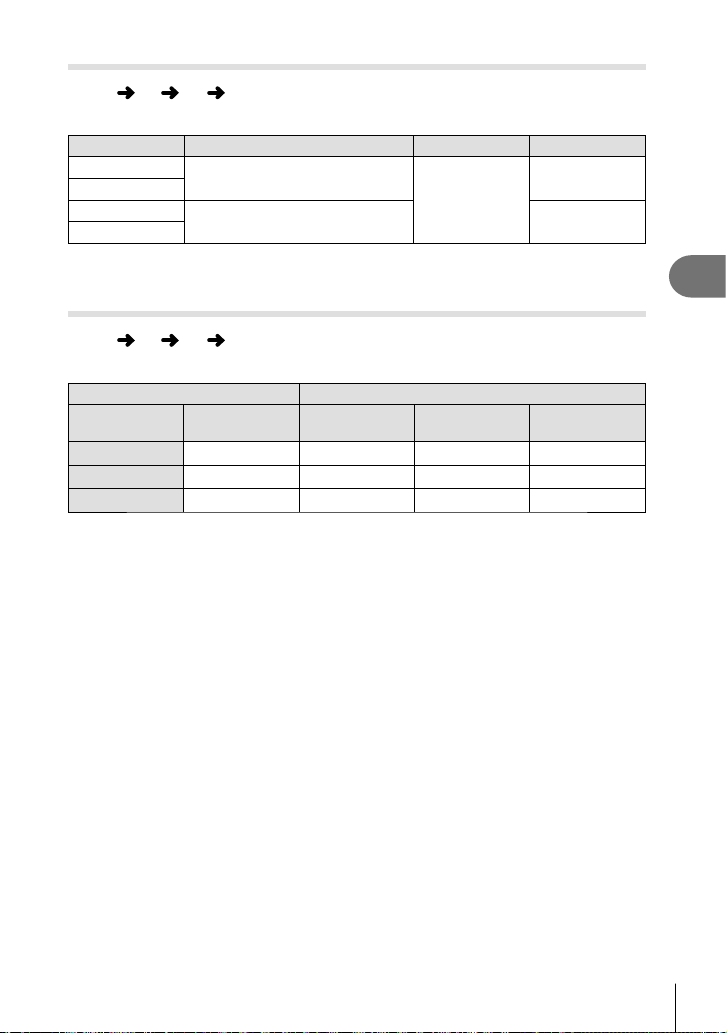
Menu functions (Custom menus)
4
135
EN
Shutter speeds when the fl ash fi res
MENU G b [ # X-Sync.]/[ # Slow Limit]
You can set shutter speed conditions for when the fl ash fi res.
Shooting mode Flash fi ring shutter speed Upper limit Lower limit
P
The camera automatically sets the
shutter speed.
[# X-Sync.]
setting*
1
[# Slow Limit]
setting*
2
A
S
The set shutter speed No lower limit
M
*1 1/200 seconds when using a separately sold external fl ash.
*2 Extends up to 60 seconds when slow synchronization is set.
Combinations of JPEG image sizes and compression rates
MENU G W [K Set]
You can set the JPEG image quality by combining image size and compression rate.
Image size Compression rate
Name Pixel Count
SF
(Super Fine)
F
(Fine)
N
(Normal)
Y(Large)
4608×3456
YSF
Y
F
Y
N
X
(Middle)
3200×2400
XSF XF
X
N
W
(Small)
1280×960
WSF WF
W
N

Connecting the camera to a smartphone
5
136
EN
5
Use the camera’s wireless LAN (Wi-Fi) and Bluetooth
®
features to connect to a
smartphone, where you can use the dedicated app to enhancement your enjoyment of
the camera both before and after shooting. Once a connection has been established,
you can download and take pictures remotely and add GPS tags to the images on the
camera.
• Operation is not guaranteed on all smartphones.
Things you can do with the specifi ed app, OLYMPUS Image Share ( OI.Share)
• Download images from the camera to the smartphone
You can load images in the camera to a smartphone.
You can also use the smartphone to select images for download from the camera.
• Remote shooting from a smartphone
You can remotely operate the camera and shoot using a smartphone.
• Access information to help you enjoy your camera and photography.
You can easily access explanations of photographic techniques (Photo Guide), the
Instruction Manual, and the photo-sharing community site even when on the go.
For details, visit the address below:
http://app.olympus-imaging.com/oishare/
Things you can do with the specifi ed app, Olympus Image Palette ( OI.Palette)
• Beautiful image processing
Use intuitive controls to apply impressive effects to images downloaded to your smartphone.
For details, visit the address below:
http://app.olympus-imaging.com/oipalette/
Things you can do with the specifi ed app, OLYMPUS Image Track ( OI.Track)
• Addition of GPS tags to camera images
You can add GPS tags to images simply by transferring the GPS log saved on the
smartphone to the camera.
For details, visit the address below:
http://app.olympus-imaging.com/oitrack/
• Before using the wireless LAN function, read “Using the wireless LAN/Bluetooth
®
functions” (P. 172).
• Olympus accepts no responsibility for violations of local regulations governing wireless
communications caused by the use of the camera’s wireless LAN/Bluetooth
®
features
outside the country or region of purchase.
• As with any wireless communication, there is always a risk of interception by a third party.
• The wireless LAN function on the camera cannot be used to connect to a home or public
access point.
• The transceiver antenna is located inside the grip. Keep the antenna away from metal
objects whenever possible.
• Depending on the composition of the container or the objects it contains, the camera may
be unable to connect to a smartphone when placed inside a bag or other container.
• During wireless LAN connection, the battery will run down faster. If the battery is running
low, the connection may be lost during a transfer.
• Connection may be diffi cult or slow in proximity to devices that generate magnetic fi elds,
static electricity or radio waves, such as near microwaves, cordless telephone.
• Wireless LAN can not be used when the memory card write-protect switch is in the
“LOCK” position.
Connecting the camera to a
smartphone
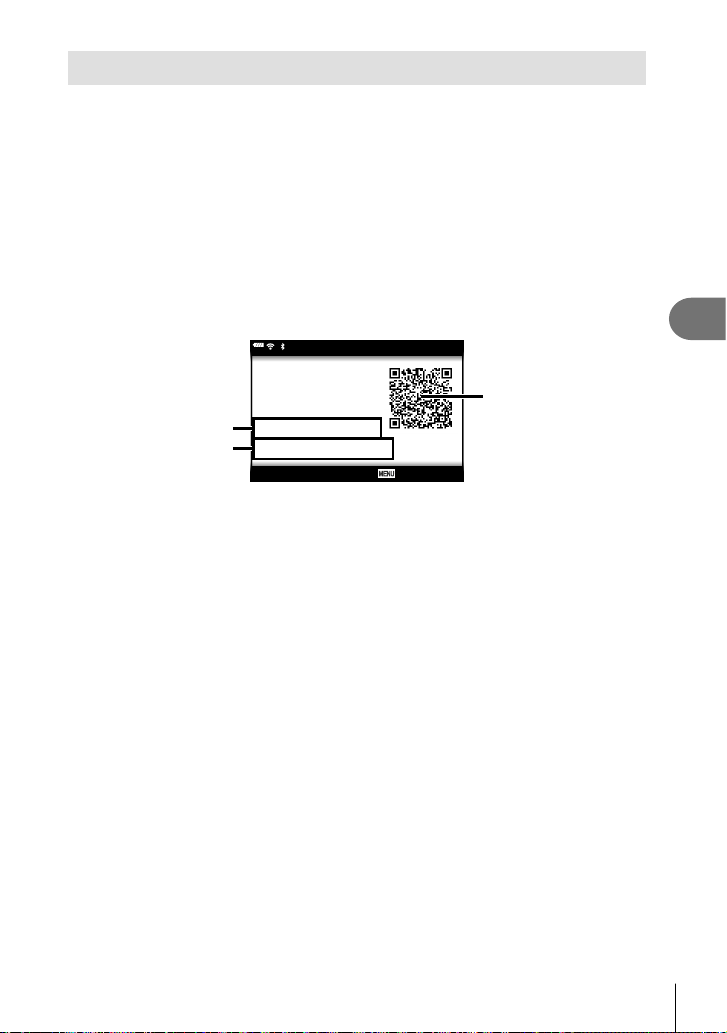
Connecting the camera to a smartphone
5
137
EN
Pairing the Camera and Smartphone
Follow the steps below when connecting the devices for the fi rst time.
• Adjust pairing settings using OI.Share, not the settings app that is part of the smartphone
operating system.
1
Launch the copy of the dedicated OI.Share app previously installed on your
smartphone.
2
Select [Device Connection] in the q Playback Menu and press the Q
button.
• You can also connect by tapping G in the monitor.
3
Follow the on-screen guide to adjust Wi-Fi/Bluetooth settings.
• The Bluetooth local name and passcode, the Wi-Fi SSID and password, and a QR
code are displayed in the monitor.
Connection Setup
Scan the QR code, using
the Olympus Image Share
app.
Disconnect
Bluetooth Name
Bluetooth Passcode
Wi-Fi SSID
Wi-Fi Password
: xxxxxxxxxxx
: 000000
: xxx-x-x-xxxxxxxx
: 00000000
3/3
QR code
Wi-Fi SSID
Wi-Fi Password
Bluetooth local name
Bluetooth Passcode
4
Tap the camera icon at the bottom of the OI.Share display.
• An [Easy Setup] tab will be displayed.
5
Follow the on-screen instructions in OI.Share to scan the QR code and adjust
connection settings.
• If you are unable to scan the QR code, follow the on-screen instructions in OI.Share
to adjust settings manually.
- Bluetooth: To connect, select the local name and enter the passcode displayed in
the camera monitor into the Bluetooth settings dialog in OI.Share.
- Wi-Fi: To connect, enter the SSID and password displayed on the camera
monitor into the Wi-Fi settings dialog in OI.Share.
• w1 will be displayed when pairing is complete.
6
To end the connection, press MENU on the camera or tap [Disconnect] on
the monitor screen.
• You can also turn the camera off and end the connection from OI.Share.
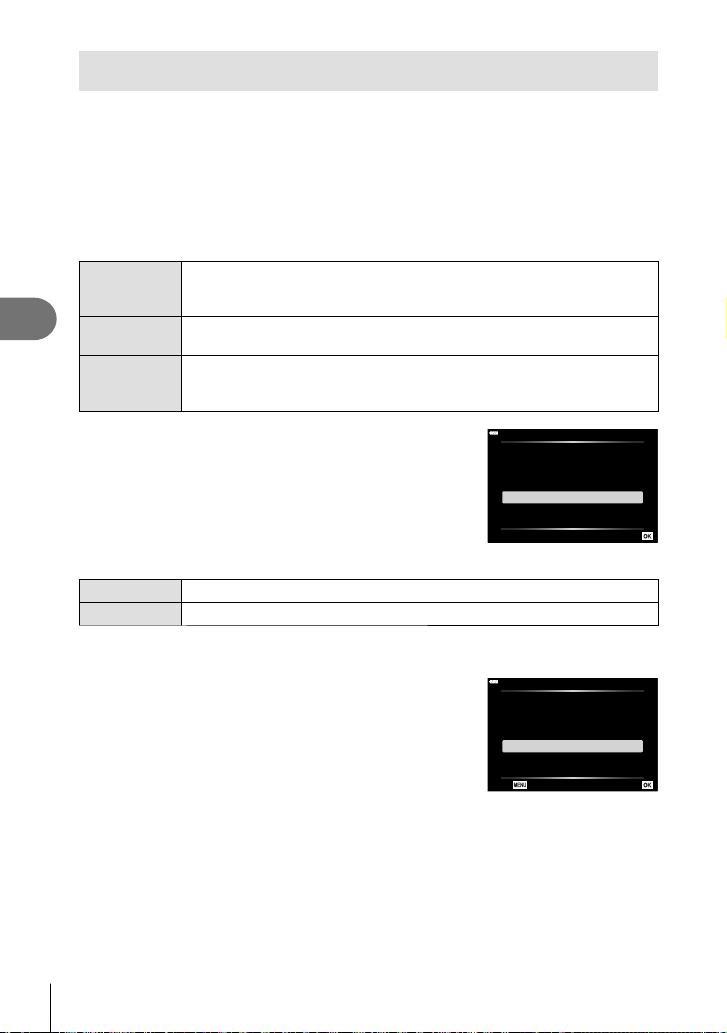
Connecting the camera to a smartphone
5
138
EN
Wireless Settings for When the Camera Is Off
You can choose whether the camera will maintain a wireless connection to the
smartphone when off.
1
Highlight [Wi-Fi/Bluetooth Settings] in the e setup menu and press the Q
button.
2
Highlight [Power-off Standby] and press I.
3
Highlight the desired option and press the Q button.
Select When the ON/OFF button is pressed to turn the camera off, a confi rmation
dialog will be displayed asking the user if they wish the wireless connection
to the smartphone to remain active.
Off Turning the camera off terminates the wireless connection to the
smartphone.
On When the camera is turned off, the connection to the smartphone remains
active and the smartphone can still be used to download or view the
pictures on the camera.
“Select”
When [Select] is chosen for [Power-off Standby], a
confi rmation dialog will be displayed before the camera
turns off if all the following conditions are met:
• [On] is selected for [Wi-Fi/Bluetooth Settings]
• The camera is currently connected with a smartphone
(P. 137)
• The memory card is correctly inserted
Power-off Standby
Activate Wi-Fi/Bluetooth Power-off
Standby so images can be imported
while power is off?
Yes
No
Set
Yes
Turn the camera off but leave the wireless smartphone connection active.
No
Turn the camera off and terminate the wireless smartphone connection.
• If you press the ON/OFF button while the confi rmation dialog is displayed, the camera
will terminate the wireless smartphone connection before turning off.
• The fi rst time you turn the camera off after connecting to
a smartphone (P. 137), you may be prompted to choose
whether to hide the confi rmation dialog in future. To keep the
camera from displaying the confi rmation dialog when turned
off in future, select [Don’t show this screen again].
Power-off Standby:On
Confirm whether or not to activate
Power-off Standby every time power
is turned off? This setting can be
changed from the menu anytime.
Confirm every time
Don't show this screen again
Back Set

Connecting the camera to a smartphone
5
139
EN
$ Notes
• If left active, the wireless connection will automatically terminate if:
- the connection remains inactive for 24 hours
- the memory card is removed
- the camera is connected to a computer via USB
The connection can be restored by turning the camera on.
• When [On] is selected for [Power-off Standby], the camera may not immediately turn on
when the ON/OFF button is pressed. If the camera does not turn on, press the ON/OFF
button again.
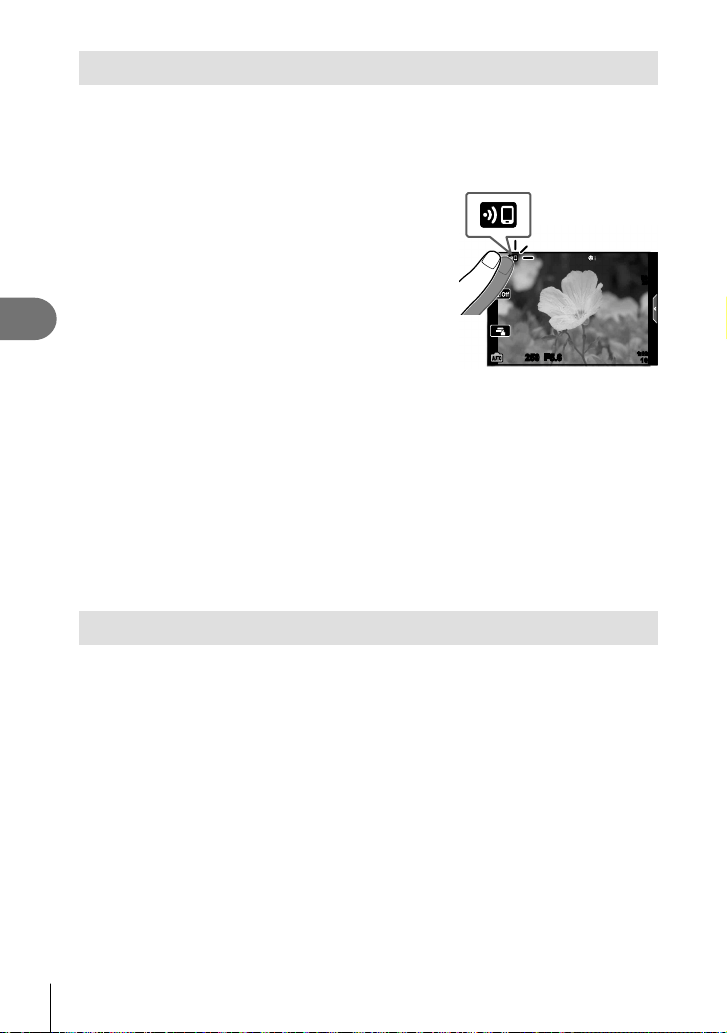
Connecting the camera to a smartphone
5
140
EN
Transferring images to a smartphone
You can select images in the camera and load them to a smartphone. You can also
use the camera to select images you want to share in advance. g “Setting a transfer
order on images (Share Order)” (P. 106)
1
Launch the dedicated OI.Share app on the smartphone.
2
Start [Device Connection] on the camera
(P. 137).
• You can also connect by tapping G in the
monitor.
• If you have previously connected to the
smartphone, the camera will start the connection
automatically.
• w1 will be displayed when pairing is complete.
250250 F5.6
1023
1:02:03
S-IS ONS-IS ON
ISO-A
200
3
Tap [Import Photos] in OI.Share on the smartphone.
• The images in the camera are displayed in a list.
4
Select the pictures you want to transfer and tap the Save button.
• When saving is completed, you can turn off the camera from the smartphone.
$ Notes
• If the following options are selected for [Wi-Fi/Bluetooth settings] in the camera e (setup)
menu, you can download pictures to the smartphone as described in Steps 3 and 4,
above, even when the camera is off:
- [Availability]: [On]
- [Power-off standby]: [On]
Automatically uploading images while the camera is off
To confi gure the camera to automatically upload images to a smartphone while off:
• Mark images for sharing (P. 106)
• Enable power-off standby (P. 138)
• If you are using an iOS device, launch OI.Share
$ Notes
• Auto upload is not available if you are connected via a router (for example, a home
network), in which case you will need to transfer pictures using OI.Share.
• Some smartphones may terminate upload on entering sleep mode. Keep the smartphone
awake while upload is in progress.

Connecting the camera to a smartphone
5
141
EN
Shooting remotely with a smartphone
You can shoot remotely by operating the camera with a smartphone.
1
Launch the dedicated OI.Share app on the smartphone.
2
Start [Device Connection] on the camera (P. 137).
• You can also connect by tapping G in the monitor.
• If you have previously connected to the smartphone, the camera will start the
connection automatically.
• w1 will be displayed when pairing is complete.
3
Tap [Remote Control] in OI.Share on the smartphone.
4
Tap the shutter button to shoot.
• The image taken is saved on the memory card in the camera.
• Available shooting options are partially limited.
Adding position information to images
You can add GPS tags to images that were taken while the GPS log was saving by
transferring the GPS log saved on the smartphone to the camera.
1
Before taking pictures with the camera, launch OI.Track on the smartphone to
begin saving the GPS log.
• Before starting a GPS track log, you will need to connect once via OI.Track and
synchronize the clock.
• You can use the phone or other apps while the GPS log is saving. Do not terminate
OI.Track.
2
Once you have fi nished taking pictures with the camera, end tracking in
OI.Share.
3
Tap the G icon in the camera monitor to connect to the smartphone.
• You can also connect by selecting [Device Connection] in the q playback menu.
4
Upload the GPS log to the camera using OI.Track.
• The GPS log will be used to add location data to any pictures taken after you
launched OI.Track in Step 1.
• g is displayed on images to which position information has been added.
• Addition of location information can only be used with smartphones that have a GPS
function.
• Position information cannot be added to movies.
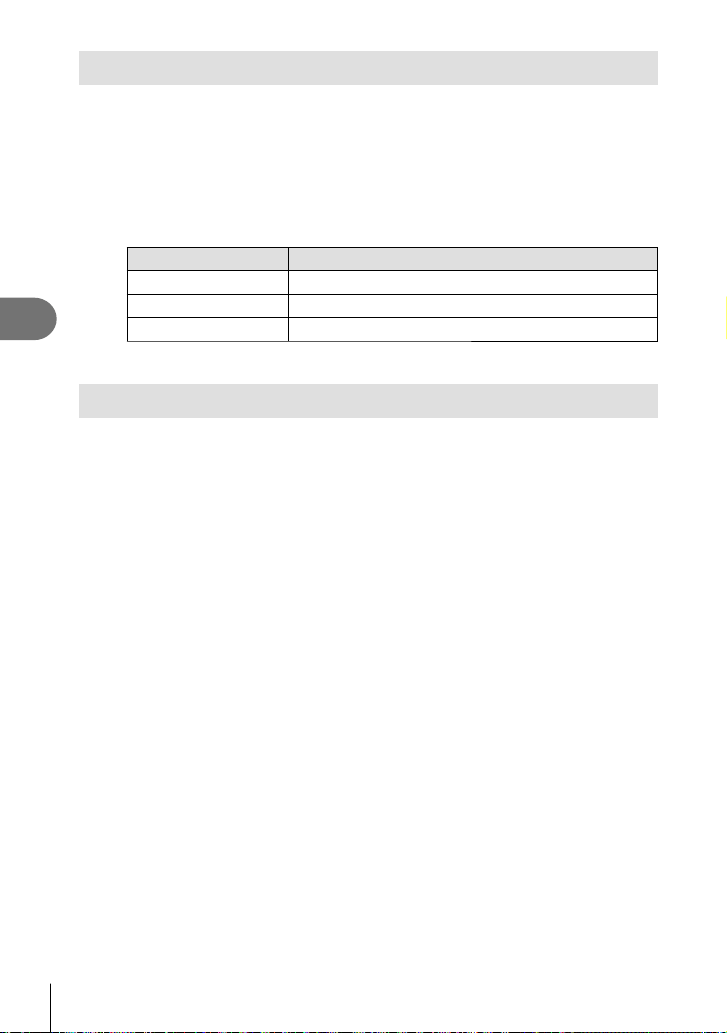
Connecting the camera to a smartphone
5
142
EN
Resetting wireless LAN/Bluetooth
®
settings
To restore [Wi-Fi/Bluetooth Settings] to default values:
1
Select [Wi-Fi/Bluetooth Settings] in the e Setup Menu and press the Q
button.
2
Select [Reset Settings] and press I.
3
Select [Yes] and press the Q button.
• The following settings will be reset:
Option Default
Availability On
Connection Password ― (generated randomly) *
Power-off Standby Select *
* The connection to the smartphone will also be reset (deactivated).
Changing the password
To change the Wi-Fi/Bluetooth passwords:
1
Select [Wi-Fi/Bluetooth Settings] in the e Setup Menu and press the Q
button.
2
Select [Connection Password] and press I.
3
Follow the operation guide and press the R button.
• A new password will be set.
• Both the Wi-Fi connection password and Bluetooth connection passcode can be
changed.
• Reconnect to the smartphone after changing passwords. g “Pairing the Camera and
Smartphone” (P. 137)

Connecting the camera to a smartphone
5
143
EN
Disabling wireless LAN/Bluetooth
®
To disable wireless LAN/Bluetooth
®
:
1
Select [Wi-Fi/Bluetooth Settings] in the e Setup Menu and press the Q
button.
2
Select [Availability] and press I.
3
Select [Off] and press the Q button.
$ Notes
• To disable wireless LAN/Bluetooth
®
only while the camera is off, select [Off] for [Wi-Fi/
Bluetooth Settings] > [Power-off Standby]. g “Wireless Settings for When the Camera
Is Off” (P. 138)
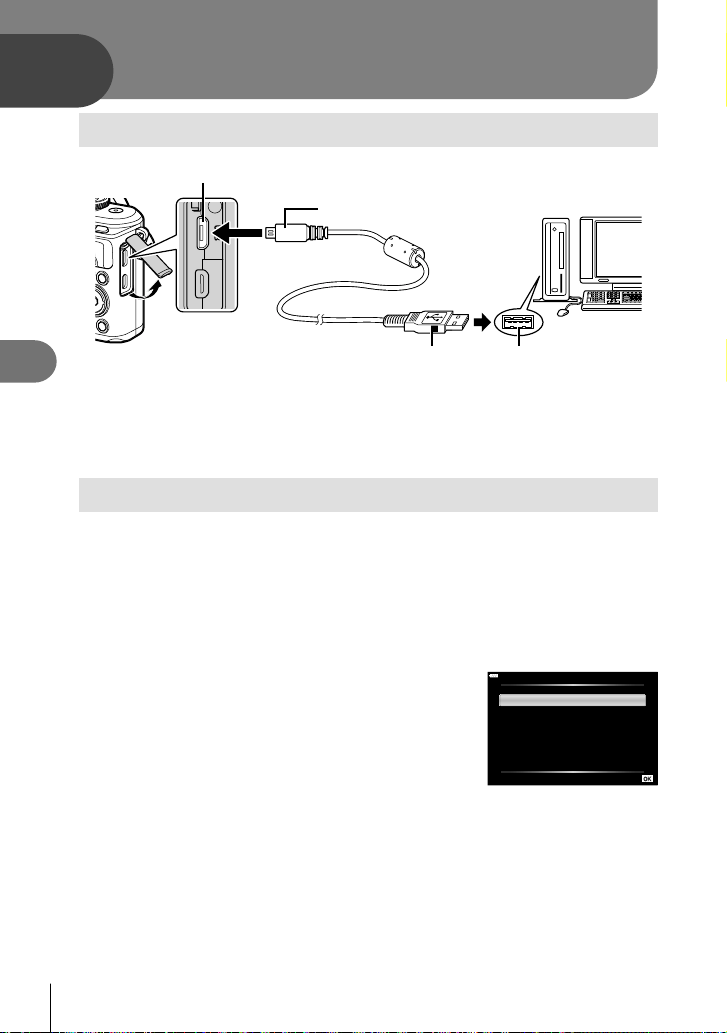
Connecting the camera to a computer
6
144
EN
6
Connecting the camera to a computer
Micro-USB connector
Smaller terminal
USB cable USB port
• When the camera is connected to a computer via USB, a dialog should be displayed
in the monitor prompting you to choose a host. If it is not, select [Auto] for [USB Mode]
(P. 127) in the camera custom menus.
• If nothing is displayed on the camera screen even after connecting the camera to the
computer, the battery may be exhausted. Use a full-charged battery.
Copying pictures to a computer
The following operating systems are compatible with the USB connection:
Windows: Windows 7 SP1/Windows 8/Windows 8.1/Windows 10
Mac: OS X v10.9-v10.11/macOS v10.12-v10.14
1
Turn the camera off and connect it to the computer.
• The location of the USB port varies with the computer. For details, refer to your
computer’s manual.
• The selection screen for the USB connection is displayed.
2
Press FG to select [ Storage]. Press the Q
button.
USB
Storage
Exit
MTP
Set
3
The computer recognizes the camera as a new device.
• Data transfer is not guaranteed in the following environments, even if your computer is
equipped with a USB port.
Computers with a USB port added by means of an extension card, etc., computers
without a factory-installed OS, or home-built computers
• Camera controls cannot be used while the camera is connected to a computer.
• If the dialog shown in Step 2 is not displayed when the camera is connected to a
computer, select [Auto] for [USB Mode] (P. 127) in the camera custom menus.
Connecting the camera to a computer

Connecting the camera to a computer
6
145
EN
Installing the PC software
The photographs and movies you have shot with your camera can be transferred
to a computer and viewed, and edited using the Olympus Workspace offered by
OLYMPUS.
• To install Olympus Workspace, download it from https://support.olympus-imaging.com/
owdownload/ and follow the on-screen instructions.
• Visit the website above for system requirements and installation instructions.
• You will be required to enter the product serial number prior to download.
User Registration
Visit the OLYMPUS website for information on registering your OLYMPUS products.

Cautions
7
146
EN
7
Battery and charger
• The camera uses a single Olympus lithium-ion battery. Never use any battery other than
genuine OLYMPUS batteries.
• The camera’s power consumption varies widely with usage and other conditions.
• As the following consume a lot of power even without shooting, the battery will be drained
quickly.
• Performing auto focus repeatedly by pressing the shutter button halfway in shooting
mode.
• Displaying images on the monitor for a prolonged period.
• When connected to a computer.
• Leaving wireless LAN/Bluetooth
®
enabled.
• When using a drained battery, the camera may turn off without the low battery warning
being displayed.
• Remove the batteries before putting the camera into storage for periods of a month or
more.
Leaving the batteries in the camera for extended periods shortens their lives, potentially
rendering them unusable.
• The battery will not be fully charged at the time of purchase. Charge the battery using the
provided charger before use.
• The normal charging time using the provided charger is approximately 3 hours 30 minutes
(estimated).
• Do not attempt to use chargers not specifi cally designated for use with the supplied
battery, or to use batteries not specifi cally designated for use with the supplied charger.
• There is a risk of explosion if the battery is replaced with the incorrect battery type.
• Dispose of the used battery following the instructions “CAUTION” (P. 171) in the
instruction manual.
Using your charger abroad
• The charger can be used in most home electrical sources within the range of 100 V to
240 V AC (50/60 Hz) around the world. However, depending on the country or area you
are in, the AC wall outlet may be shaped differently and the charger may require a plug
adapter to match the wall outlet.
• Do not use commercially available travel adapters as the charger may malfunction.
Cautions
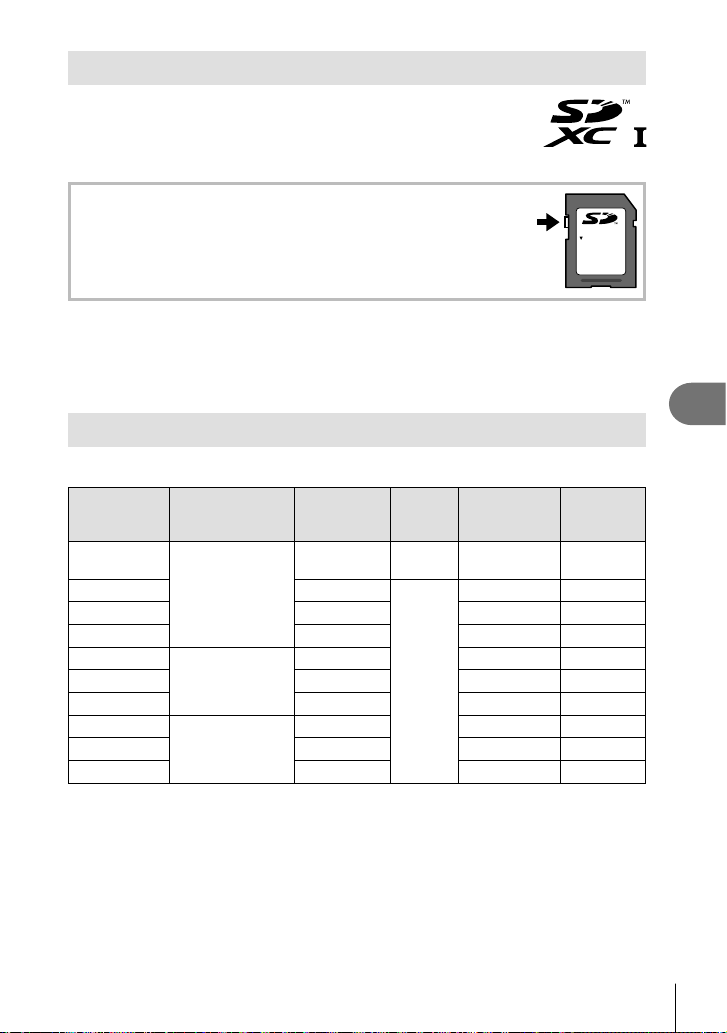
Cautions
7
147
EN
Usable cards
In this manual, all storage devices are referred to as “cards.” The
following types of SD memory card (commercially available) can
be used with this camera: SD, SDHC, and SDXC. For the latest
information, please visit the Olympus website.
SD card write protect switch
The SD card body has a write protect switch. Setting the switch to
“LOCK” prevents data being written to the card. Return the switch to
the unlock position enable writing.
LOCK
• Cards must be formatted with this camera before fi rst use or after being used with other
cameras or computers. g “Formatting the card (Card Setup)” (P. 125)
• The data in the card will not be erased completely even after formatting the card or
deleting the data. When discarding, destroy the card to prevent leakage of personal
information.
Record mode and fi le size/ number of storable still pictures
The fi le size in the table is approximate for fi les with a 4:3 aspect ratio.
Record mode
Image size
( Pixel Count)
Compression
File
format
File size (MB)
Number of
storable still
pictures*
RAW
4608×3456
Loss-less
compression
ORF Approx. 17.4 867
YSF
1/2.7
JPEG
Approx. 10.4 1326
YF
1/4 Approx. 7.1 1944
YN
1/8 Approx. 3.7 3783
XSF
3200×2400
1/2.7 Approx. 5.1 2696
XF
1/4 Approx. 3.6 3905
XN
1/8 Approx. 1.9 7395
WSF
1280×960
1/2.7 Approx. 1.0 13559
WF
1/4 Approx. 0.8 18079
WN
1/8 Approx. 0.5 28713
* Assumes a 16GB SD card.
• The number of storable still pictures may change according to the subject, whether or not
print reservations have been made, and other factors. In certain instances, the number
of storable still pictures displayed on the monitor will not change even when you take
pictures or erase stored images.
• The actual fi le size varies according to the subject.
• The maximum number of storable still pictures displayed on the monitor is 9999.
• For the available recording time for movies, see the Olympus website.
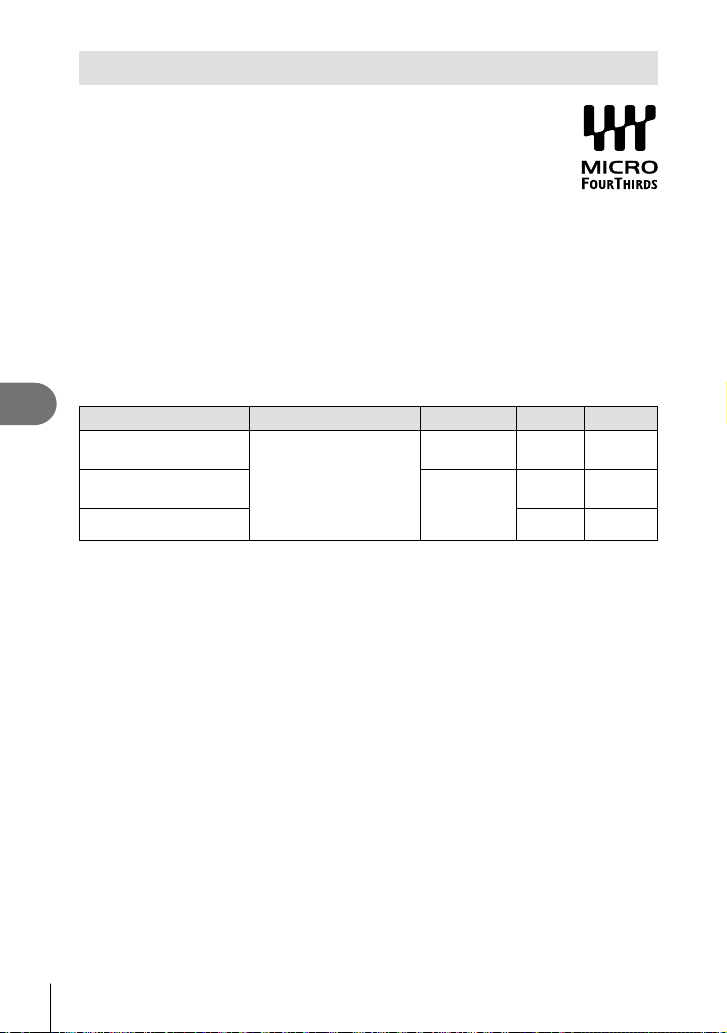
Cautions
7
148
EN
Interchangeable lenses
Choose a lens according to the scene and your creative intent. Use
lenses designed exclusively for the Micro Four Thirds system and
bearing the M.ZUIKO DIGITAL label or the symbol shown at right.
With an adapter, you can also use Four Thirds System and OM System
lenses. The optional adapter is required.
• When you attach or remove the body cap and lens from the camera, keep the lens mount
on the camera pointed downward. This helps prevent dust and other foreign matter from
getting inside the camera.
• Do not remove the body cap or attach the lens in dusty places.
• Do not point the lens attached to the camera toward the sun. This may cause the camera
to malfunction or even ignite due to the magnifying effect of sunlight focusing through the
lens.
• Be careful not to lose the body cap and rear cap.
• Attach the body cap to the camera to prevent dust from getting inside when no lens is
attached.
Lens and camera combinations
Lens Camera Attachment AF Metering
Micro Four Thirds system
lens
Micro Four Thirds system
camera
Yes Ye s Yes
Four Thirds system lens
Attachment
possible
with mount
adapter
Yes*
1
Yes
OM System lenses No Yes*
2
*1 AF is not operational when recording movies.
*2 Accurate metering is not possible.
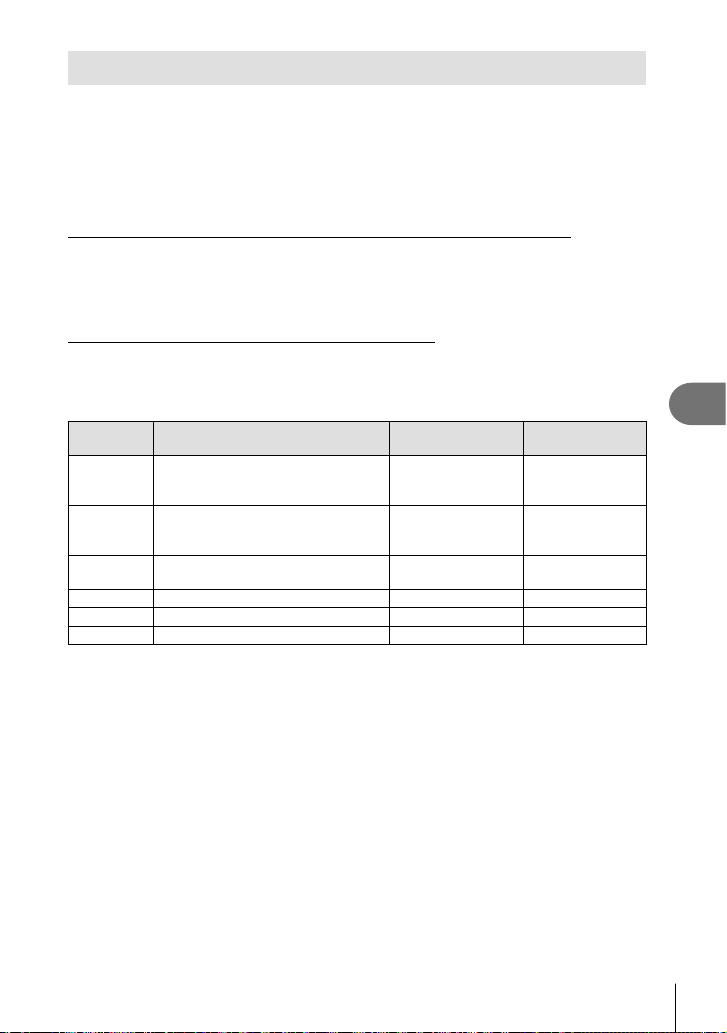
Cautions
7
149
EN
Compatible Flash Units
Choose a fl ash unit to suit your needs, taking into consideration such factors as the
output required and whether the unit supports macro photography. Flash units designed
to communicate with the camera support a variety of fl ash modes, including TTL auto and
super FP. Flash units can be mounted on the camera hot shoe or connected using a cable
(available separately) and fl ash bracket. See the documentation provided with the fl ash
unit for information on fl ash features and their use. The camera also supports the following
wireless fl ash control systems:
Radio-Controlled Flash Photography: CMD, #CMD, RCV, and X-RCV Modes
The camera controls one or more remote fl ash units by means of radio signals. The
range of locations in which fl ash units can be placed increases. Flash units can control
other compatible units or be fi tted with radio commander/receivers to allow the use of
units that do not otherwise support radio fl ash control.
Wireless Remote-Control Flash Photography: RC Mode
The camera controls one or more remote fl ash units by means of optical signals.
The fl ash mode can be selected using camera controls (P. 72).
Functions available with external fl ash units
Flash unit Flash control mode
GN (Guide number)
(ISO100)
Supported
wireless systems
FL-700WR
TTL-AUTO, MANUAL,
FP TTL AUTO, FP MANUAL,
MULTI, RC, SL MANUAL
GN 42 (150 mm*
1
)
GN 21 (24 mm*
1
)
CMD,
#CMD, RCV,
X-RCV, RC
FL-900R
TTL-AUTO, AUTO, MANUAL, FP TTL
AUTO, FP MANUAL, MULTI, RC, SL
AUTO, SL MANUAL
GN58 (200 mm*
1
)RC
FL-600R
TTL-AUTO, AUTO, MANUAL, FP TTL
AUTO, FP MANUAL
GN36 (85 mm*
1
)
GN20 (24 mm*
1
)
RC
FL-300R TTL-AUTO, MANUAL GN20 (28 mm*
1
)RC
FL-14 TTL-AUTO, AUTO, MANUAL GN14 (28 mm*
1
)RC
STF-8 TTL-AUTO, MANUAL GN8.5 RC*
2
*1 The focal length of the lens that can be used (Calculated based on 35 mm fi lm camera).
*2 Functions as commander (transmitter) only.
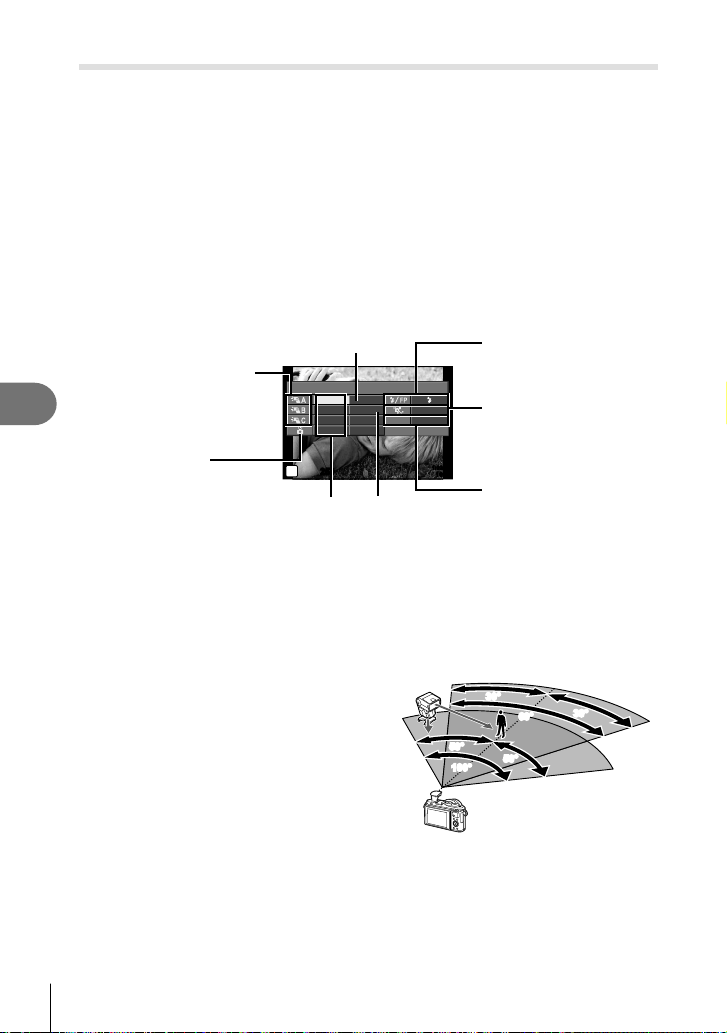
Cautions
7
150
EN
Wireless remote control fl ash photography
External fl ash units that are designated for use with this camera and have a remote
control mode can be used for wireless fl ash photography. The camera can separately
control each of three groups of remote fl ash units, and the internal fl ash. See the
instruction manuals provided with the external fl ash units for details.
1
Set the remote fl ash units to RC mode and place them as desired.
• Turn the external fl ash units on, press the MODE button, and select RC mode.
• Select a channel and group for each external fl ash unit.
2
Select [On] for [# RC Mode] in X Shooting Menu 2 (P. 114).
• Press the Q button to exit to the RC mode display. Press the INFO button to cycle
between LV super controls or live controls and the RC mode display.
• Select a fl ash mode (note that red-eye reduction is not available in RC mode).
3
Adjust the settings for each group in the RC mode display.
250
A Mode
TTL
Manual
Off
+5.0
TTL +3.0
1/8
–
Low
1
Ch
1023
F5.6250
P
1:02:03
Flash intensity value
Group
• Select the fl ash control
mode and adjust the fl ash
intensity separately for
each group. For MANUAL,
select the fl ash intensity.
Normal fl ash/Super FP fl ash
• Switch between normal
fl ash and Super FP fl ash.
Communication light level
• Set the communication
light level to [HI], [MID],
or [LO].
Channel
• Set the communication
channel to the same
channel used on the fl ash.
Flash intensityFlash control
mode
Adjust settings for the
camera fl ash unit.
4
Press the fl ash pop-up button to raise the fl ash.
• After confi rming that the fl ash has charged, take a test shot.
Wireless fl ash control range
Position the wireless fl ash units with their remote sensors facing the camera. The following
illustration shows the approximate ranges at which the fl ash units can be positioned. The
actual control range varies with local conditions.
• We recommend using a single group of up to
three remote fl ash units.
• Remote fl ash units cannot be used for second
curtain slow synchronization exposures longer
than 4 seconds.
• If the subject is too close to the camera,
the control fl ashes emitted by the camera
fl ash may affect exposure (this effect can be
reduced by reducing the output of the camera
fl ash by, for example, using a diffuser).
7m
5m
100°100°
50°
50°
50°
50°
60°
60°
30°
30°
30°
30°
• The upper limit of fl ash synchronization timing is 1/160 sec. when using the fl ash in RC
mode.

Cautions
7
151
EN
Other external fl ash units
Note the following when using a third-party fl ash unit mounted on the camera hot shoe:
• Using obsolete fl ash units that apply currents of more than about 24 V to the X-contact will
damage the camera.
• Connecting fl ash units with signal contacts that do not conform to Olympus specifi cations
may damage the camera.
• Set the Shooting mode to M, set the shutter speed to a value no higher than fl ash
synchronous speed, and set ISO sensitivity to a setting other than [AUTO].
• Flash control can only be performed by manually setting the fl ash to the ISO sensitivity
and aperture values selected with the camera. Flash brightness can be adjusted by
adjusting either ISO sensitivity or aperture.
• Use a fl ash with an angle of illumination suited to the lens. Angle of illumination is usually
expressed using 35-mm format equivalent focal lengths.
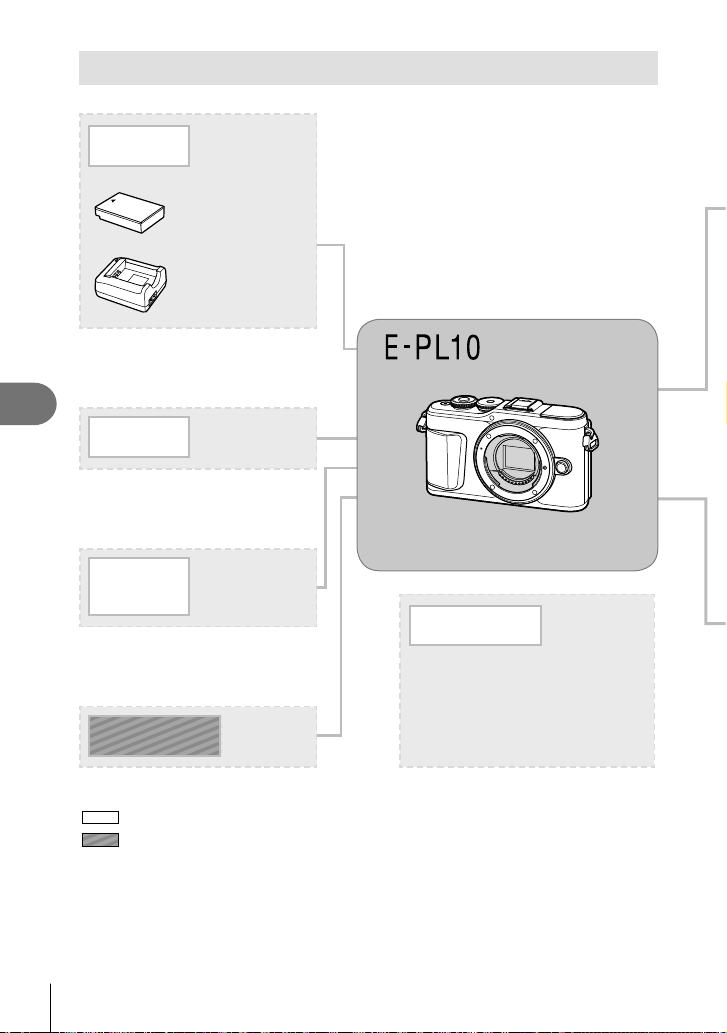
Cautions
7
152
EN
*1 Not all lenses can be used with adapter. For details, refer to the Olympus Official Web Site. Also, please
note that manufacture of OM System Lenses has been discontinued.
*2 For compatible lens, refer to the Olympus Official Web Site.
System chart
SD/SDHC/
SDXC
Memory Card
Case / Strap
Shoulder Strap /
Camera Case /
Body Jacket
Connection
Cable
USB Cable /
HDMI Cable
For the latest information, please visit the Olympus website.
: E-PL10 compatible products
: Commercially available products
Power Supply
BLS-50
Lithium-ion battery
BCS-5
Lithium-ion Charger
Software
Olympus Workspace
Photo editing software
OLYMPUS Image Share (OI.Share)
Olympus Image Palette (OI.Palette)
OLYMPUS Image Track (OI.Track)
Smartphone App
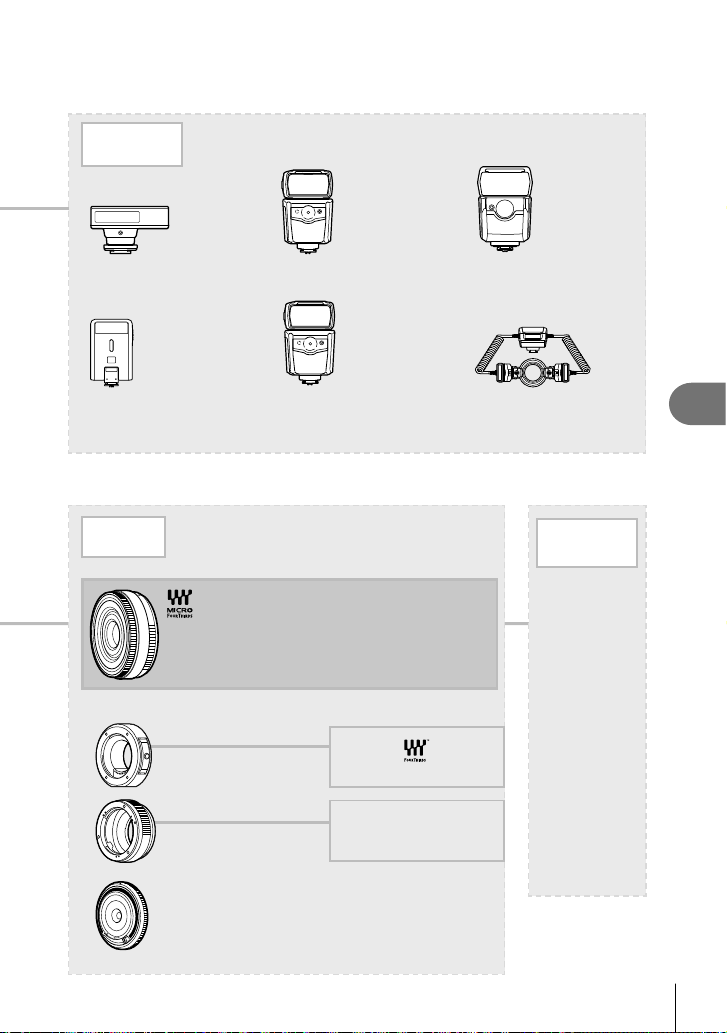
Cautions
7
153
EN
Lens
Flash
MMF-2/MMF-3
*1
Four Thirds Adapter
Four Thirds System Lenses
Micro Four Thirds system lenses
FL-14
Electronic Flash
FL-900R
Electronic Flash
FL-700WR
Electronic Flash
FL-300R
Electronic Flash
FL-600R
Electronic Flash
STF-8
Macro Flash
MF-2
*1
OM Adapter 2
OM System Lenses
BCL-1580/BCL-0980
Body Cap Lens
Converter
Lens*
2
FCON-P01
Fisheye
WCON-P01
Wide
MCON-P01
Macro
MCON-P02
Macro
MC-14
Teleconverter
Cautions
7
154
EN
Cleaning and storing the camera
Cleaning the camera
Turn off the camera and remove the battery before cleaning the camera.
• Do not use strong solvents such as benzene or alcohol, or a chemically treated cloth.
Exterior:
• Wipe gently with a soft cloth. If the camera is very dirty, soak the cloth in mild soapy water
and wring well. Wipe the camera with the damp cloth and then dry it with a dry cloth. If you
have used the camera at the beach, use a cloth soaked in clean water and well wrung.
Monitor:
• Wipe gently with a soft cloth.
Lens:
• Blow dust off the lens with a commercially available blower. For the lens, wipe gently with
a lens cleaning paper.
Storage
• When not using the camera for a prolonged period, remove the battery and card. Store
the camera in a cool, dry place that is well ventilated.
• Insert the battery periodically and test the camera’s functions.
• Remove dust and other foreign matter from the body and rear caps before attaching them.
• Attach the body cap to the camera to prevent dust from getting inside when no lens is
attached. Be sure to replace the front and rear lens caps before putting the lens away.
• Clean the camera after use.
• Do not store with insect repellent.
• Avoid storing the camera in places where chemicals are treated, in order to protect the
camera from corrosion.
• Mold may form on the lens surface if the lens is left dirty.
• Check each part of the camera before use if it has not been used for a long time. Before
taking important pictures, be sure to take a test shot and check that the camera works
properly.
Cleaning and checking the image pickup device
This camera incorporates a dust reduction function to keep dust from getting on the
image pickup device and to remove any dust or dirt from the image pickup device
surface with ultrasonic vibrations. The dust reduction function operates when the
camera is turned on.
The dust reduction function operates at the same time as the pixel mapping, which
checks the image pickup device and image processing circuitry. Since dust reduction
is activated every time the camera’s power is turned on, the camera should be held
upright for the dust reduction function to be effective.

Cautions
7
155
EN
Pixel Mapping - Checking the image processing functions
The pixel mapping feature allows the camera to check and adjust the image pickup
device and image processing functions. Before using the pixel mapping function to
ensure that it operates correctly, wait for 1 minute or longer immediately after shooting
or playback.
1
In Custom Menu c, select [Pixel Mapping] (P. 131).
2
Press I, then press the Q button.
• The [Busy] bar is displayed when pixel mapping is in progress. When pixel mapping
is fi nished, the menu is restored.
• If you accidentally turn the camera off during pixel mapping, start again from Step 1.
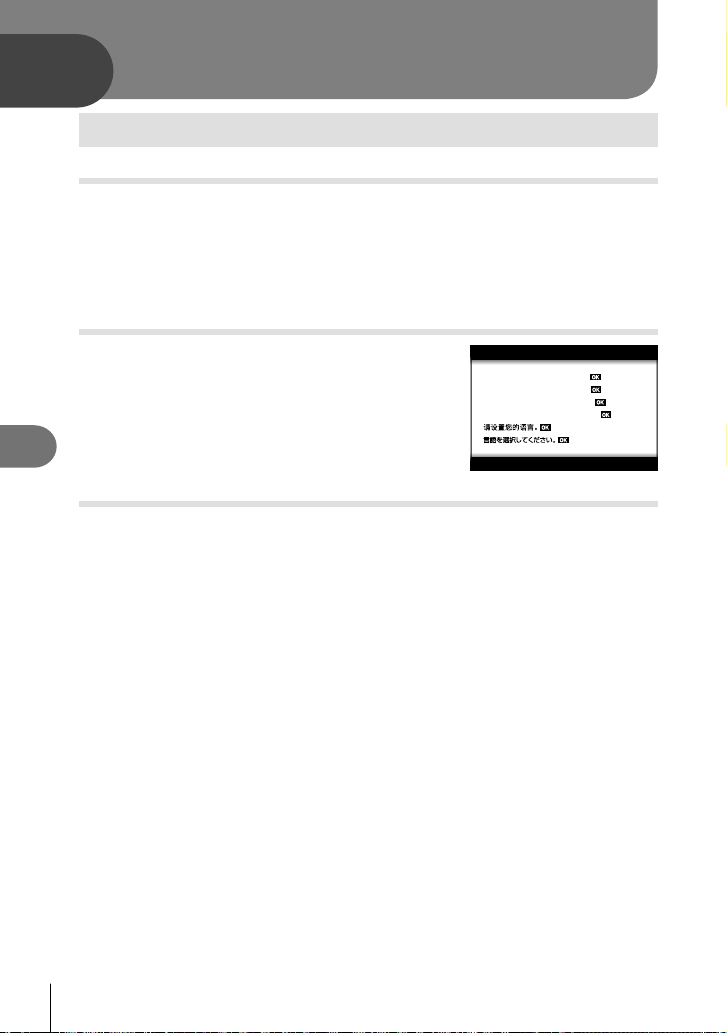
Information
8
156
EN
8
Shooting tips and information
The camera does not turn on even when a battery is loaded
The battery is not fully charged
• Charge the battery with the charger.
The battery is temporarily unable to function because of the cold
• Battery performance drops at low temperatures. Remove the battery and warm it by
putting it in your pocket for a while.
A language-selection prompt is displayed
The dialog shown in the illustration will be displayed in the
following circumstances:
• The camera is turned on for the fi rst time
• You previously ended initial setup without choosing a
language
Please select your language.
Por favor, selecciona tu idioma.
Veuillez choisir votre langue.
Bitte wählen Sie Ihre Sprache.
Choose a language as described in “Initial setup” (P. 21).
No picture is taken when the shutter button is pressed
The camera has turned off automatically
• The camera automatically enters sleep mode to reduce the drain on the battery if no
operations are performed for a set period of time. g [Sleep] (P. 131)
Press the shutter button halfway to exit the sleep mode.
The camera will turn off automatically if left in sleep mode for 5 minutes.
The fl ash is charging
• On the monitor, the # mark blinks when charging is in progress. Wait for the blinking to
stop, then press the shutter button.
Information
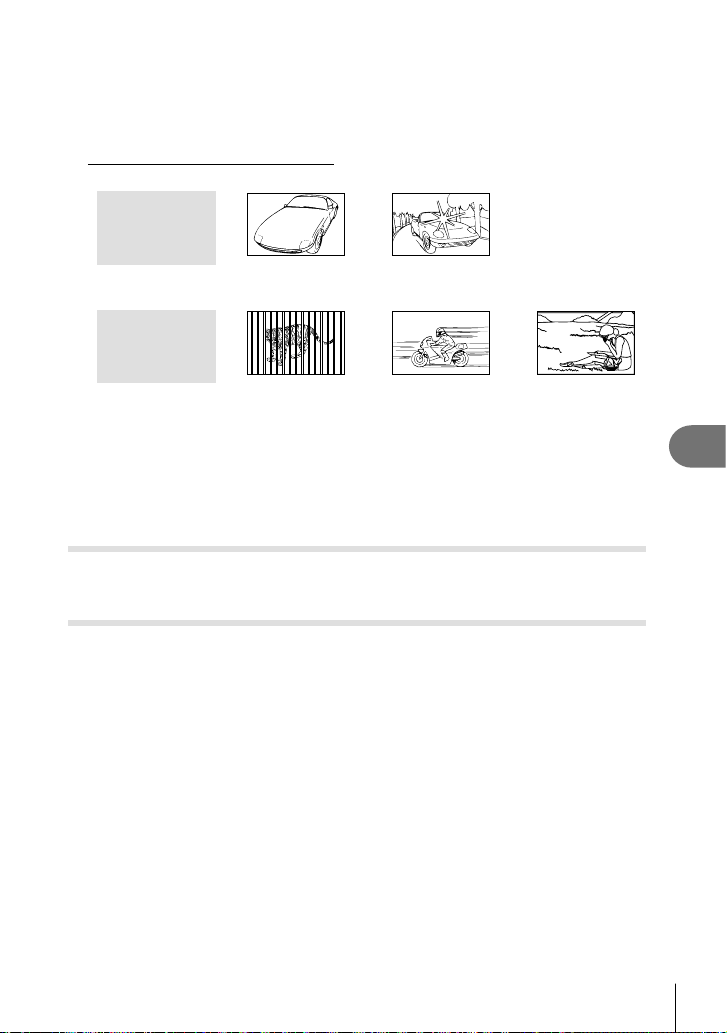
Information
8
157
EN
Unable to focus
• The camera cannot focus on subjects that are too close to the camera or that are not
suited to autofocus (the AF confi rmation mark will blink in the monitor). Increase the
distance to the subject or focus on a high contrast object at the same distance from the
camera as your main subject, compose the shot, and shoot.
Subjects that are diffi cult to focus on
It may be diffi cult to focus with auto focus in the following situations.
Subject with low
contrast
Excessively bright
light in center of frame
AF confi rmation
mark is blinking.
These subjects
are not focused.
Subjects at different
distances
Fast-moving subject Subject not inside
AF area
AF confi rmation
mark lights up but
the subject is not
focused.
Noise reduction is activated
• When shooting night scenes, shutter speeds are slower and noise tends to appear in
images. The camera activates the noise-reduction process after shooting at slow shutter
speeds. During which, shooting is not allowed. You can set [Noise Reduct.] to [Off].
g [Noise Reduct.] (P. 128)
The number of AF targets is reduced
The size and number of the AF targets changes with the aspect ratio (P. 83), the AF target
mode (P. 70), and the option selected for [Digital Tele-converter] (P. 115).
The date and time has not been set
The camera is used with the settings at the time of purchase
• The date and time of the camera is not set when purchased. Set the date and time before
using the camera. g “Initial setup” (P. 21)
The battery has been removed from the camera
• The date and time settings will be returned to the factory default settings if the camera is
left without the battery for approximately 1 day. The settings will be canceled more quickly
if the battery was only loaded in the camera for a short time before being removed. Before
taking important pictures, check that the date and time settings are correct.
Information
8
158
EN
Set functions are restored to their factory default settings
When you rotate the mode dial or turn off the power in a shooting mode other than P, A, S,
M, or n, any settings you have altered will be reset to default values.
Image taken appears whitish
This may occur when the picture is taken in backlight or semi-backlight conditions. This is
due to a phenomenon called fl are or ghosting. As far as possible, consider a composition
where strong light source is not taken in the picture. Flare may occur even when a light
source is not present in the picture. Use a lens hood to shade the lens from the light
source. If a lens hood does not have effect, use your hand to shade the lens from the light.
g “Interchangeable lenses” (P. 148)
Unknown bright dot(s) appear on the subject in the picture taken
This may be due to stuck pixel(s) on the image pickup device. Perform [Pixel Mapping].
If the problem persists, repeat pixel mapping a few times. g “Pixel Mapping - Checking the
image processing functions” (P. 155)
The subject appears distorted
The following functions use an electronic shutter:
movie recording (P. 58)/silent (P. 75)/the SCN mode panorama (P. 35),
“silent” (P. 35), and “multi-focus shot” (P. 36) options/the Z mode “silent” (P. 42),
panorama (P. 43), and “focus bracketing” (P. 46) options
This may cause distortion if the subject is moving rapidly or the camera is moved abruptly.
Avoid moving the camera abruptly during shooting or use standard sequential shooting.
Lines appear in photographs
The following functions use an electronic shutter, which may result in lines due to fl icker and
other phenomena associated with fl uorescent and LED lighting, an effect that can sometimes
be reduced by choosing slower shutter speeds:
movie recording (P. 58)/silent (P. 75)/the SCN mode panorama (P. 35),
“silent” (P. 35), and “multi-focus shot” (P. 36) options/the Z mode “silent” (P. 42),
panorama (P. 43), and “focus bracketing” (P. 46) options
The camera is stuck in manual focus (MF) mode
Some lenses are equipped with a manual focus clutch that engages manual focus when the
focus ring is slid back. Check the lens. More information can be found in the lens manual.

Information
8
159
EN
Changing the number of frames or adding frames to the index
playback display
Use the [G/Info Settings] > [G Settings] option in custom menu N to change the number
of frames shown in or add frames to the index playback display (P. 133).
Hiding menu guides
Press the INFO button to hide or show on-screen guides in the menu display (P. 113).
Viewing the functions assigned to dials and buttons
Use the options in Custom Menu M to view the functions assigned to camera controls.
[Button Function] (P. 126)/[qR Function] (P. 126)/[Dial Function] (P. 126)
Movies do not play back smoothly when viewed on a TV
The movie frame rate may not match the video standard used in the TV. View the movie on
a computer instead. Before recording movies for display on a TV, choose a frame rate that
matches the video standard used in the device. g [Video Frame Rate] (P. 119)
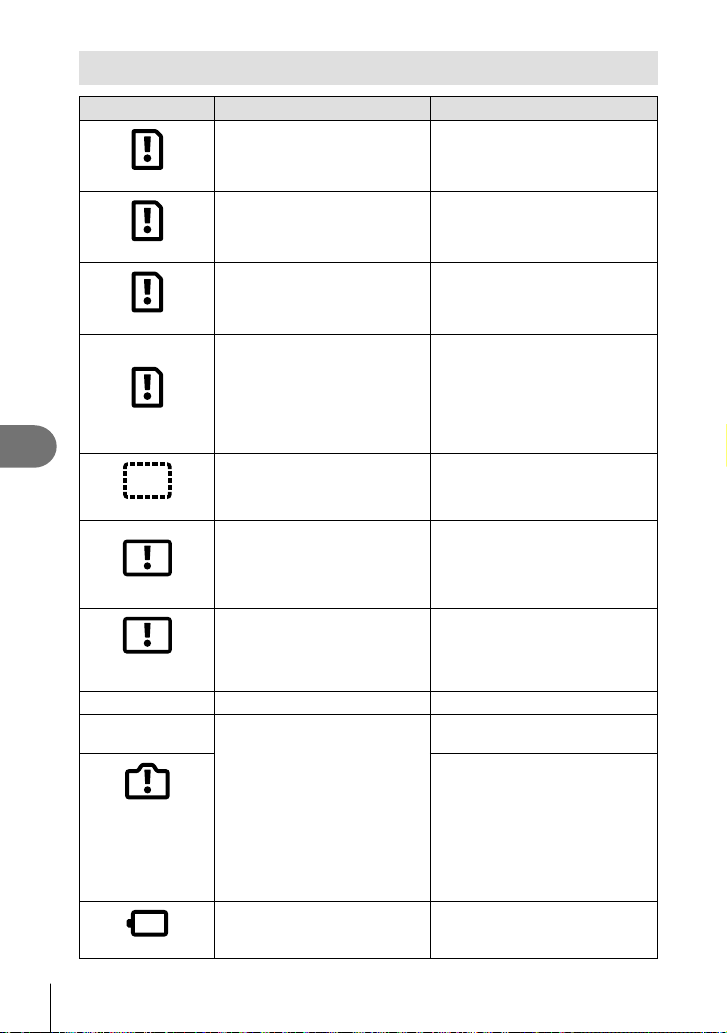
Information
8
160
EN
Error codes
Monitor indication Possible cause Corrective action
No Card
The card is not inserted, or it
cannot be recognized.
Insert a card or insert a different
card.
Card Error
There is a problem with the card.
Insert the card again. If the
problem persists, format the card.
If the card cannot be formatted, it
cannot be used.
Write Protect
Writing to the card is prohibited.
The card write-protect switch is set
to the “LOCK” side. Release the
switch. (P. 147)
Card Full
• The card is full. No more
pictures can be taken or no
more information such as print
reservation can be recorded.
• There is no space in the card
and print reservation or new
images cannot be recorded.
Replace the card or erase
unwanted pictures.
Before erasing, download
important images to a PC.
No Picture
There are no pictures on the
card.
The card contains no pictures.
Record pictures and play back.
Picture Error
The selected picture cannot be
displayed for playback due to
a problem with this picture. Or
the picture cannot be used for
playback on this camera.
Use image processing software to
view the picture on a PC.
If that cannot be done, the image
fi le is damaged.
The Image Cannot
Be Edited
Pictures taken with another
camera cannot be edited on this
camera.
Use image processing software to
edit the picture.
Y/M/D The clock is not set. Set the clock (P. 22).
m
The internal temperature of
the camera has risen due to
sequential shooting.
Turn off the camera and wait for
the internal temperature to cool.
Internal camera
temperature is too
high.
Please wait for
cooling before
camera use.
Wait a moment for the camera to
turn off automatically.
Allow the internal temperature
of the camera to cool before
resuming operations.
Battery Empty
The battery is drained. Charge the battery.
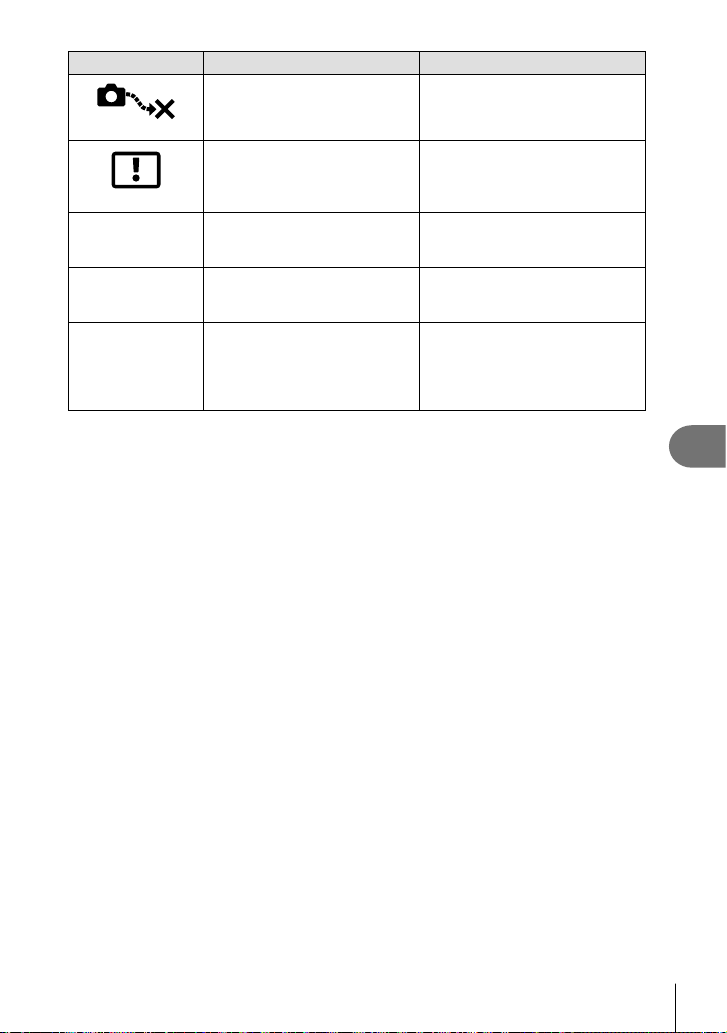
Information
8
161
EN
Monitor indication Possible cause Corrective action
No Connection
The camera is not correctly
connected to a computer, HDMI
display, or other device.
Reconnect the camera.
Cannot Print
It may not be possible to create
print reservations for pictures
recorded on other cameras via
this camera.
Print separately via a personal
computer, etc.
The lens is locked.
Please extend the
lens.
The lens of the retractable lens
stays retracted.
Extend the lens.
Please check the
status of a lens.
An abnormality has occurred
between the camera and the
lens.
Turn off the camera, check the
connection with the lens, and turn
the power on again.
This function
requires a
compatible lens.
Please attach a
compatible lens.
The lens does not support the
selected shooting mode.
Choose a lens that does or
choose a different shooting mode.
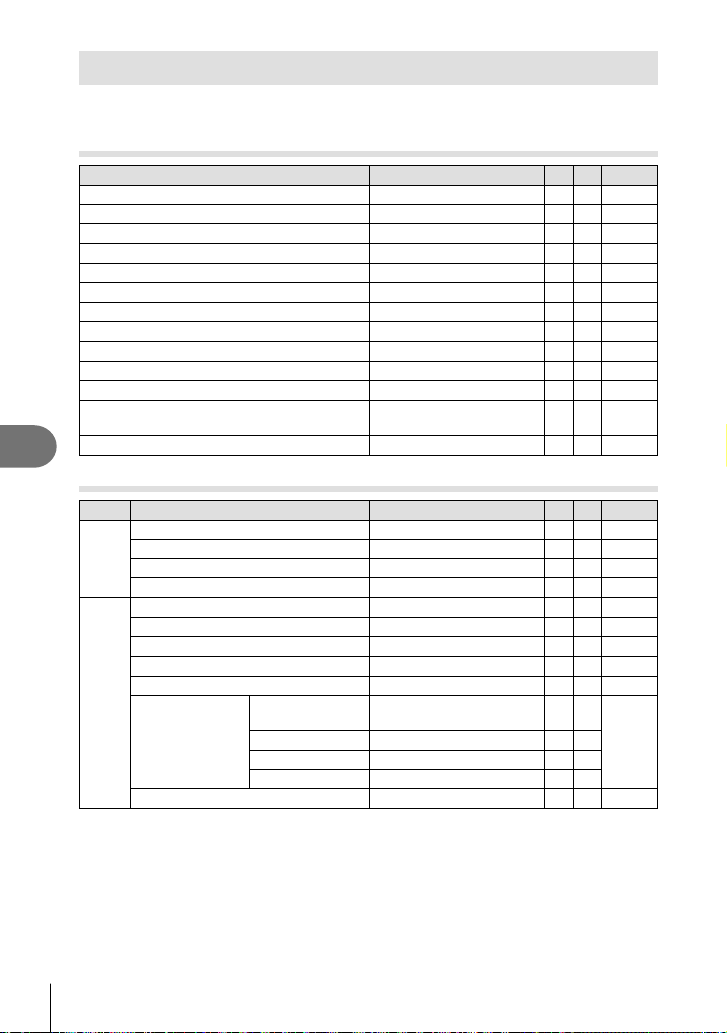
Information
8
162
EN
Defaults
*1: Default can be restored by selecting [Full] for [Reset].
*2: Default can be restored by selecting [Basic] for [Reset].
Button Functions/Live Control/LV Super Control
Function Default *1 *2
g
ISO AUTO
79
Sequential shooting/Self-timer
o
74
AF target settings
o
70
Flash photography
#
72
K AF mode
S-AF
81
n AF mode
C-AF
119
Aspect ratio 4:3
83
KK YF
83
nK (Standard)
1920×1080 Fine 60p
84
nK (4K)
3840×2160 30p ―― 85
nK (Clips)
1920×1080 Normal 60p 4s
86
nK (High-speed)
1280×720 HighSpeed
120fps
―― 86
Movie (exposure) mode
P
― 87
K
Shooting Menu
Tab Function Default *1 *2
g
W
Reset Basic ―― 114
Picture Mode
C Natural
78, 115
Digital Tele-converter Off
115
Metering
p
91
X
K Image Stabilizer
S-IS On
89
AF Illuminator On
115
K Elec. Zoom Speed
Normal
― 116
x
±0.0
88
Intrvl. Sh./Time Lapse Off
116
Silent s Settings
Noise Reduction
s
Off
117
8
Not Allow
AF Illuminator Not Allow
Flash Mode Not Allow
# RC Mode
Off
118
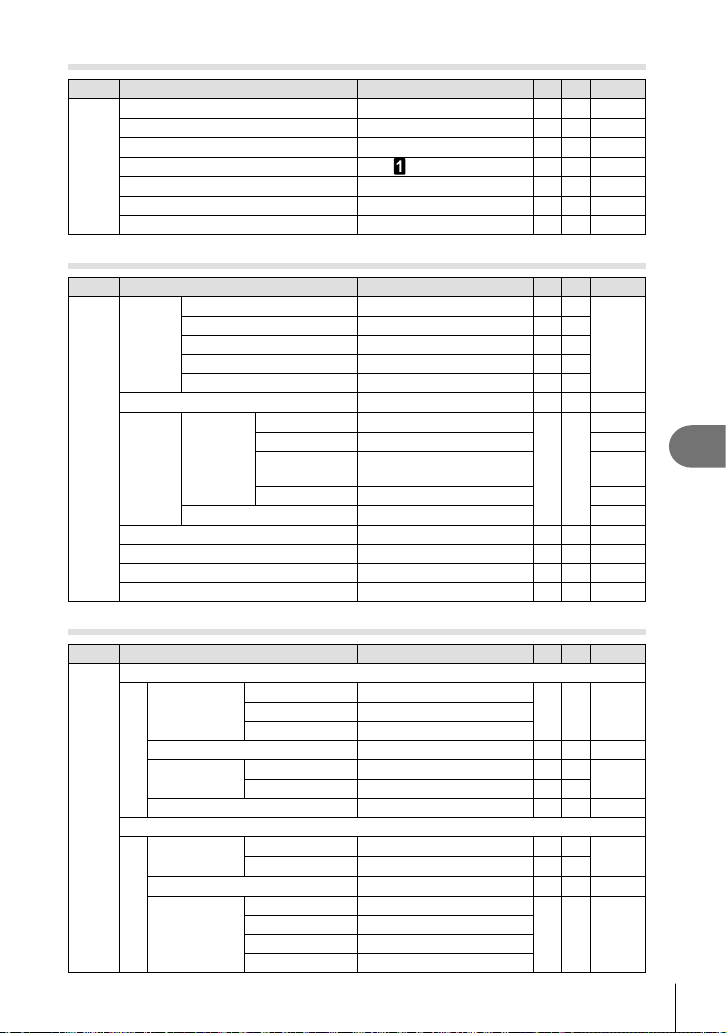
Information
8
163
EN
n Video Menu
Tab Function Default *1 *2
g
n
Movie R
On
119
Recording Volume ±0
― 119
n AF Mode
C-AF
119
n Image Stabilizer
M-IS
89
n Elec. Zoom Speed
Normal
― 119
Video Frame Rate 30p
― 84, 119
Video Bit Rate Fine
― 84, 119
q
Playback Menu
Tab Function Default *1 *2
g
q
y
Start ―――
104
BGM Happy Days
Slide All
Slide Interval 3 sec
―
Movie Interval Short
―
R
On
120
Edit
Sel. Image
RAW Data Edit ―
――
120
JPEG Edit ― 121
Movie Edit ―
122,
123
R
― 108, 121
Image Overlay ― 122
Print Order ―――107
Reset Protect ―――123
Reset share Order ―――106
Device Connection ―――137
G Custom Menu
Tab Function Default *1 *2
g
G
AF/MF
a
AEL/AFL
S-AF mode1
126,
131
C-AF mode2
MF mode1
IFace Priority
K
― 71, 126
MF Assist
Magnify Off
―
126,
132
Peaking Off
―
Reset Lens On
126
Button/Dial
M
Button
Function
F Function b
―
97, 126
R Function R REC
―
qR Function
h
― 126
Dial Function
P
F
― 126
A
FNo.
S
Shutter
M
Shutter
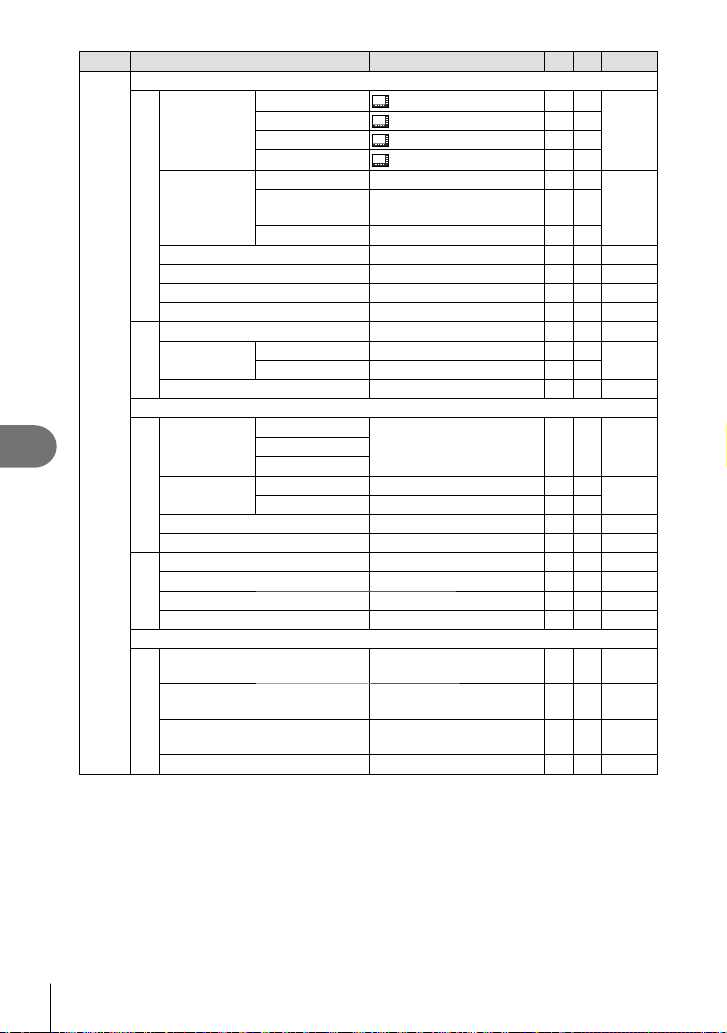
Information
8
164
EN
Tab Function Default *1 *2
g
G
Disp/8/PC
N
K Control
Settings
B
LV-C
―
77, 127
P/A/S/M
LV-C
―
ART
LV-C
―
SCN/Z
LV-C
―
G/Info
Settings
q Info
Image Only, Overall
127,
132
LV-Info
Custom1 (u), Custom2
(Level Gauge)
―
G Settings
25, My Clips, Calendar
―
Live View Boost Off
127
Flicker reduction Auto
― 127
Displayed Grid Off
― 127
Peaking Color Red
― 127
O 8
On
127
HDMI
Output Size 1080p
―
127,
134
HDMI Control Off
―
USB Mode Auto
127
Exp/ISO/BULB
P
Exposure Shift
p
±0
― 128
J
5
ISO-Auto Set
High Limit 6400
128
Default 200
Noise Filter Standard
128
Noise Reduct. Auto
54, 128
Q
Bulb/Time Timer 8min
55, 128
Live Bulb Off
― 55, 128
Live Time 0.5 sec
― 55, 128
Composite Settings 1 sec
― 56, 128
# Custom
b
#X-Sync.
1/250
129,
135
#Slow Limit
1/60
129,
135
w+F
Of
f
69, 88,
129
#+WB
W
― 129
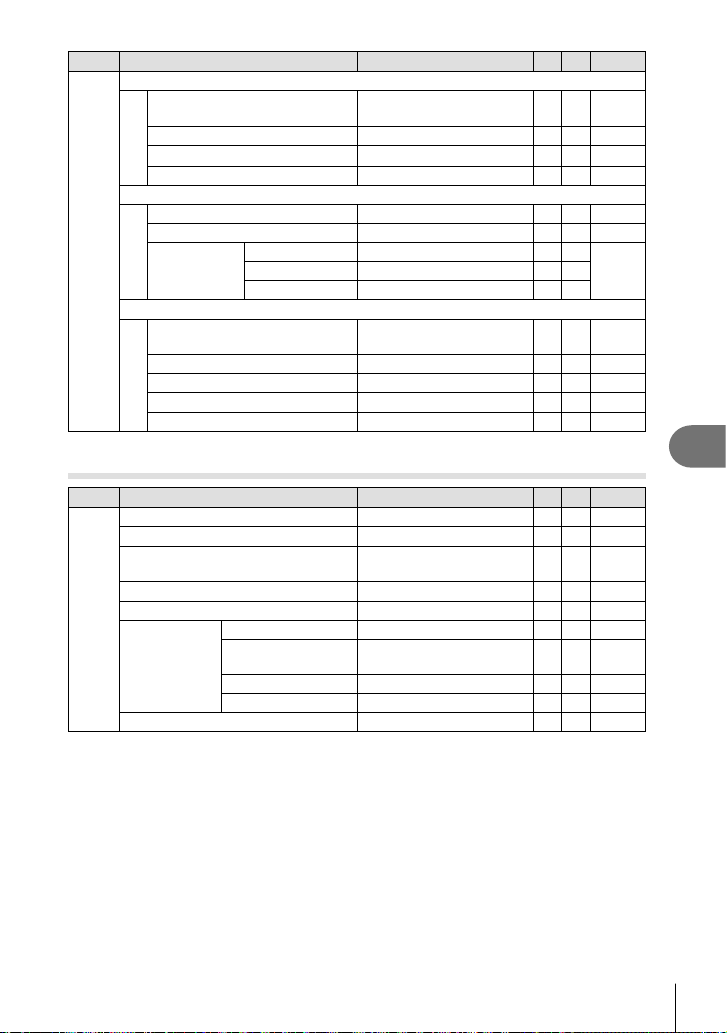
Information
8
165
EN
Tab Function Default *1 *2
g
G
K/WB/Color
W
K Set
K1 YSF, K2 YF,
K3 YN, K4 XN
129,
135
WB Auto
80, 129
W Keep Warm Color
On
129
Color Space sRGB
95, 129
Record
X
File Name Reset
― 130
Edit Filename ―
― 130
Copyright
Settings
Copyright Info. Off
―
130Artist Name ―――
Copyright Name ―――
K
Utility
c
Pixel Mapping ―――
131,
155
Level Adjust ―
― 131
Touchscreen Settings On
― 131
Sleep 1 min
20, 131
Certifi cation ―――131
e Setup Menu
Tab Function Default *1 *2
g
e
Card Setup ―――125
X
―――22
W
English ――
124,
125
s
j ±0, k ±0, Vivid
― 124
Rec View 0.5 sec
― 124
Wi-Fi/Bluetooth
Settings
Availability On
― 143
Connection
Password
―――142
Power-off Standby Select
― 138
Reset Settings ―――142
Firmware ―――124
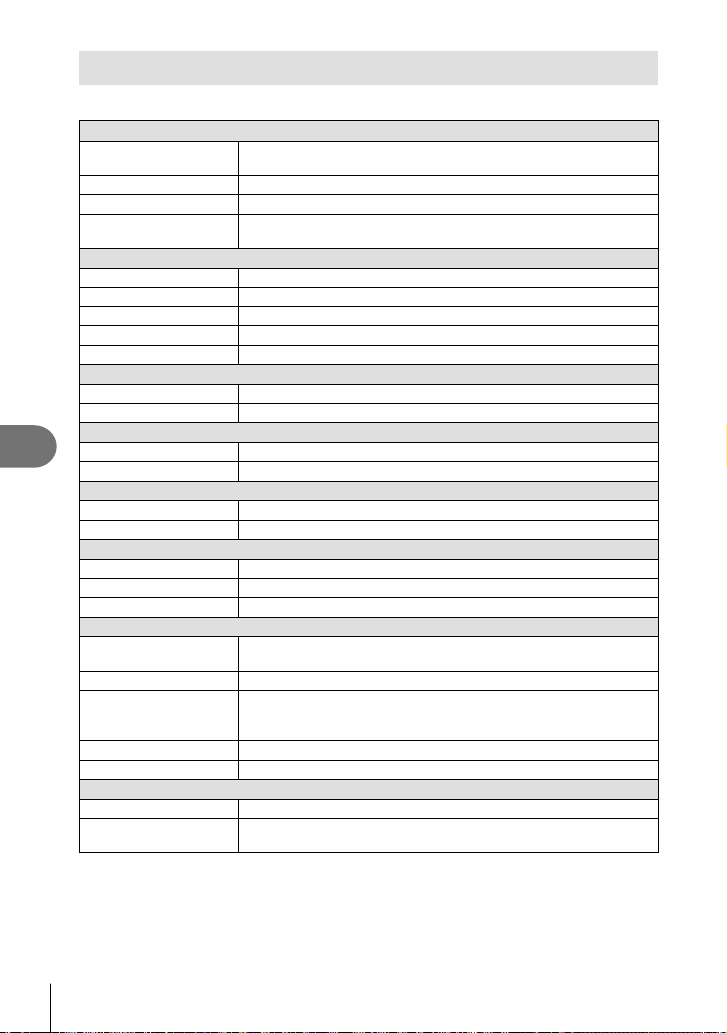
Information
8
166
EN
Specifi cations
Camera
Product type
Product type Digital camera with interchangeable Micro Four Thirds Standard lens
system
Lens M.Zuiko Digital, Micro Four Thirds System Lens
Lens mount Micro Four Thirds mount
Equivalent focal length on
a 35 mm fi lm camera
Approx. twice the focal length of the lens
Image pickup device
Product type 4/3” Live MOS sensor
Total no. of pixels Approx. 17.20 million pixels
No. of effective pixels Approx. 16.05 million pixels
Screen size 17.3 mm (H) × 13.0 mm (V)
Aspect ratio 1.33 (4:3)
Live view
Sensor Uses Live MOS sensor
Magnifi cation 100%
Monitor
Product type 3.0" TFT color LCD, Vari-angle, touch screen
Total no. of pixels Approx. 1.04 million dots (aspect ratio 3:2)
Shutter
Product type Computerized focal-plane shutter
Shutter speed 1/4000 - 60 sec., bulb photography, time photography
Auto focus
Product type Hi-Speed Imager AF
Focusing points 121 points
Selection of focusing point Auto, Optional
Exposure control
Metering system TTL metering system (imager metering)
Digital ESP metering/Center weighted averaging metering/Spot metering
Metered range EV –2 - 20 (f/2.8 lens, ISO100)
Shooting modes
B: AUTO/P: Program AE (Program shift can be performed)/
A: Aperture priority AE/S: Shutter priority AE/M: Manual/
n
: Movie/ART: Art Filter/SCN: Scene/Z: Advanced Photo
ISO sensitivity LOW, 200 - 25600 (1/3 EV step)
Exposure compensation ±5.0 EV (1/3 EV step)
White balance
Product type Image pickup device
Mode setting Auto/Preset WB (6 settings)/Customized WB/One-touch WB (camera can
store up to 4 settings)
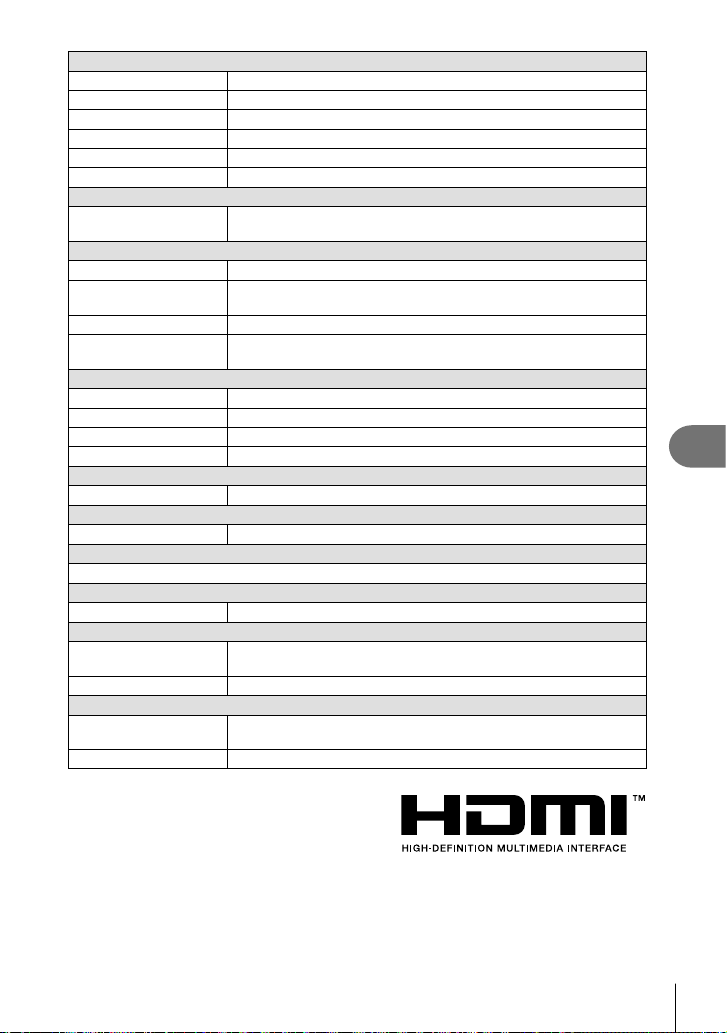
Information
8
167
EN
Recording
Memory SD, SDHC and SDXC
Recording system Digital recording, JPEG (DCF2.0), RAW Data
Applicable standards Exif 2.3, Digital Print Order Format (DPOF)
Sound with still pictures Wave format
Movie MPEG-4 AVC/H.264
Audio Stereo, PCM 48kHz
Playback
Display format Single-frame playback/Close-up playback/Index display/Calendar display/
My Clips
Drive
Drive mode Single-frame shooting/Sequential shooting/Self-timer/Silent shooting
Sequential shooting
Up to approximately 8.6 fps (
T
) /
Up to approximately 14.1 fps (♥T)
Self-timer Operation time: 12 sec./2 sec./Customized
Energy saving function Switch to sleep mode: 1 minute (This function can be customized.)
Power OFF: 5 minutes
Flash
Guide number 5.4 (ISO100•m)/7.6 (ISO200•m)
Firing angle Covers the angle of view of a 14 mm lens (28 mm in 35 mm format)
Flash control mode TTL-AUTO (TTL pre-fl ash mode)/MANUAL
Sync speed 1/250 s or slower
Wireless LAN
Compatible standard IEEE 802.11b/g/n
Bluetooth
®
Compatible standard Bluetooth Version 4.0
External connector
Micro-USB connector/HDMI micro connector (type D)
Power supply
Battery Lithium-ion Battery ×1
Dimensions/weight
Dimensions 117.1 mm (W) × 68.0 mm (H) × 39.0 mm (D) (4.6" × 2.7" × 1.5")
(excluding protrusions)
Weight Approx. 380 g (0.8 Ib.) (including battery and memory card)
Operating environment
Temperature
0 °C - 40 °C (32 °F - 104 °F) (operation)/
–20 °C - 60 °C (–4 °F - 140 °F) (storage)
Humidity 30% - 90% (operation)/10% - 90% (storage)
The terms HDMI and HDMI High-Defi nition
Multimedia Interface, and the HDMI Logo are
trademarks or registered trademarks of HDMI
Licensing Administrator, Inc. in the United
States and other countries.
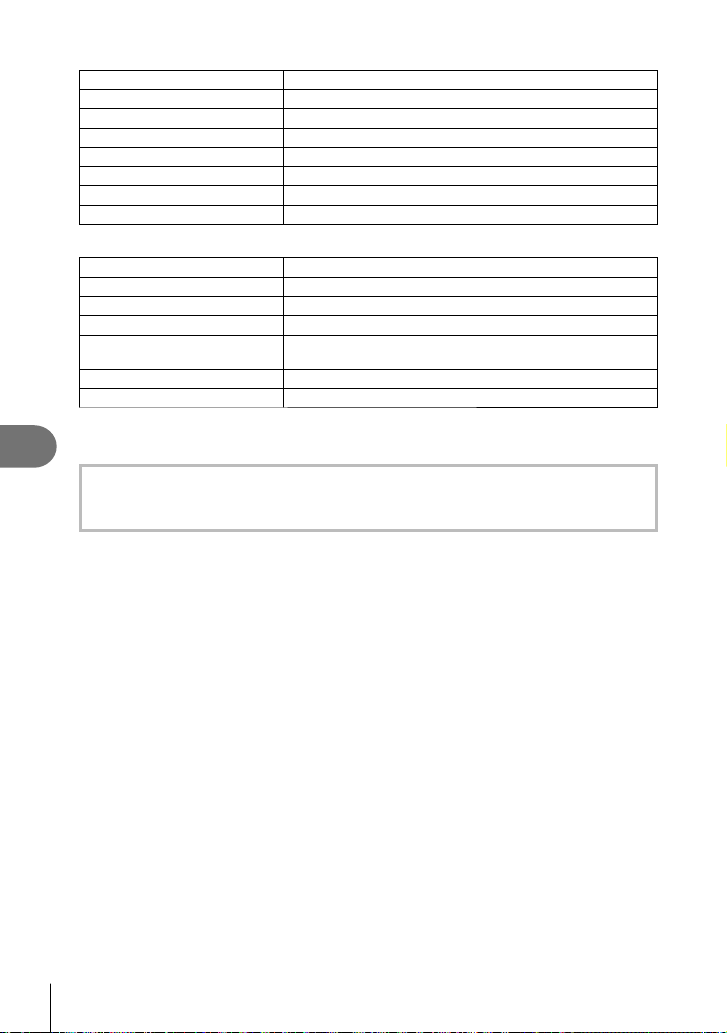
Information
8
168
EN
Lithium-ion battery
MODEL NO. BLS-50
Product type Rechargeable Lithium ion battery
Nominal voltage DC 7.2 V
Nominal capacity 1210 mAh
No. of charge and discharge times Approx. 500 times (varies with usage conditions)
Ambient temperature 0 °C - 40 °C (32 °F - 104 °F) (charging)
Dimensions
Approx. 35.5 mm (W) × 12.8 mm (H) × 55 mm (D) (1.4" × 0.5" × 2.2")
Weight Approx. 46 g (0.1 Ib.)
Lithium-ion charger
MODEL NO. BCS-5
Rated input AC 100 V - 240 V (50/60 Hz)
Rated output DC 8.35 V, 400 mA
Charging time Approx. 3 hours 30 minutes (room temperature)
Ambient temperature 0 °C - 40 °C (32 °F - 104 °F) (operation)/
–20 °C - 60 °C (–4 °F - 140 °F) (storage)
Dimensions Approx. 62 mm (W) × 38 mm (H) × 83 mm (D) (2.4" × 1.5" × 3.3")
Weight (without AC cable) Approx. 70 g (0.15 Ib.)
• The AC cable supplied with this device is for use only with this device and should not be
used with other devices. Do not use cables for other devices with this device.
• SPECIFICATIONS ARE SUBJECT TO CHANGE WITHOUT ANY NOTICE OR
OBLIGATION ON THE PART OF THE MANUFACTURER.
• Visit our website for the latest specifi cations.
SAFETY PRECAUTIONS
9
169
EN
9
SAFETY PRECAUTIONS
SAFETY PRECAUTIONS
CAUTION
RISK OF ELECTRIC SHOCK
DO NOT OPEN
CAUTION: TO REDUCE THE RISK OF ELECTRICAL SHOCK, DO NOT
REMOVE COVER (OR BACK). NO USER-SERVICEABLE PARTS INSIDE.
REFER SERVICING TO QUALIFIED OLYMPUS SERVICE PERSONNEL.
An exclamation mark enclosed in a triangle alerts you to important operating
and maintenance instructions in the documentation provided with the
product.
WARNING
If the product is used without observing the information given under this
symbol, serious injury or death may result.
CAUTION
If the product is used without observing the information given under this
symbol, injury may result.
NOTICE
If the product is used without observing the information given under this
symbol, damage to the equipment may result.
WARNING!
TO AVOID THE RISK OF FIRE OR ELECTRICAL SHOCK, NEVER DISASSEMBLE, EXPOSE
THIS PRODUCT TO WATER OR OPERATE IN A HIGH HUMIDITY ENVIRONMENT.
General Precautions
Read All Instructions — Before you use the
product, read all operating instructions. Save all
manuals and documentation for future reference.
Power Source — Connect this product only to
the power source described on the product label.
Foreign Objects — To avoid personal injury,
never insert a metal object into the product.
Cleaning — Always unplug this product from
the wall outlet before cleaning. Use only a damp
cloth for cleaning. Never use any type of liquid or
aerosol cleaner, or any type of organic solvent to
clean this product.
Heat — Never use or store this product near
any heat source such as a radiator, heat register,
stove, or any type of equipment or appliance that
generates heat, including stereo amplifi ers.
Attachments — For your safety, and to avoid
damaging the product, use only accessories
recommended by Olympus.
Location — To avoid damage to the product,
mount the product securely on a stable tripod,
stand, or bracket.
WARNING
• Do not use the camera near fl ammable or
explosive gases.
• Rest your eyes periodically when using
the viewfi nder.
Failure to observe this precaution could result
in eyestrain, nausea, or sensations similar to
motion sickness. The length and frequency
of the required rest varies with the individual;
use your own judgement. If you feel tired
or unwell, avoid using the viewfi nder and if
necessary consult a physician.
• Do not use the fl ash and LED (including
AF illuminator) on people (infants, small
children, etc.) at close range.
• You must be at least 1 m (3 ft.) away
from the faces of your subjects. Firing the
fl ash too close to the subject’s eyes could
cause a momentary loss of vision.
• Do not look at the sun or strong lights
with the camera.

SAFETY PRECAUTIONS
9
170
EN
• Keep young children, infants away from
the camera.
• Always use and store the camera out of
the reach of young children and infants to
prevent the following dangerous situations
which could cause serious injury:
• Becoming entangled in the camera
strap, causing strangulation.
• Accidentally swallowing the battery,
cards or other small parts.
• Accidentally fi ring the fl ash into their
own eyes or those of another child.
• Accidentally being injured by the
moving parts of the camera.
• Should you notice that the charger is
emitting smoke, heat, or an unusual noise
or smell, immediately cease use and
unplug the charger from the power outlet,
and then contact an authorized distributor
or service center.
• Stop using the camera immediately if
you notice any unusual odors, noise, or
smoke around it.
• Never remove the batteries with bare
hands, which may cause a fi re or burn
your hands.
• Never hold or operate the camera with wet
hands.
This may cause overheating, exploding,
burning, electrical shocks, or malfunctions.
• Do not leave the camera in places where
it may be subject to extremely high
temperatures.
• Doing so may cause parts to deteriorate
and, in some circumstances, cause
the camera to catch fi re. Do not use
the charger if it is covered (such as a
blanket). This could cause overheating,
resulting in fi re.
• Handle the camera with care to avoid
getting a low temperature burn.
• When the camera contains metal
parts, overheating can result in a low-
temperature burn. Pay attention to the
following:
• When used for a long period, the
camera will get hot. If you hold on
to the camera in this state, a low-
temperature burn may be caused.
• In places subject to extremely cold
temperatures, the temperature of the
camera’s body may be lower than the
environmental temperature. If possible,
wear gloves when handling the camera
in cold temperatures.
• To protect the high-precision technology
contained in this product, never leave the
camera in the places listed below, no matter if
in use or storage:
• Places where temperatures and/or
humidity are high or go through extreme
changes. Direct sunlight, beaches, locked
cars, or near other heat sources (stove,
radiator, etc.) or humidifi ers.
• In sandy or dusty environments.
• Near fl ammable items or explosives.
• In wet places, such as bathrooms or in
the rain.
• In places prone to strong vibrations.
• The camera uses a lithium-ion battery
specifi ed by Olympus. Charge the battery
with the specifi ed charger. Do not use any
other chargers.
• Never incinerate or heat batteries in
microwaves, on hot plates, or in pressure
vessels, etc.
• Never leave the camera on or near
electromagnetic devices.
This may cause overheating, burning, or
exploding.
• Do not connect terminals with any metallic
objects.
• Take precautions when carrying or storing
batteries to prevent them from coming into
contact with any metal objects such as
jewelry, pins, fasteners, keys, etc.
The short circuit may cause overheating,
exploding, or burning, which burn or damage
you.
• To prevent causing battery leaks or damaging
their terminals, carefully follow all instructions
regarding the use of batteries. Never attempt
to disassemble a battery or modify it in any
way, solder, etc.
• If battery fl uid gets into your eyes, fl ush
your eyes immediately with clear, cold
running water and seek medical attention
immediately.
• If you cannot remove the battery from the
camera, contact an authorized distributor
or service center. Do not try to remove the
battery by force.
Damage to the battery exterior (scratches,
etc.) may produce heat or an explosion.
• Always store batteries out of the reach of
small children and pets. If they accidentally
swallow a battery, seek medical attention
immediately.
• To prevent batteries from leaking,
overheating, or causing a fi re or explosion,
use only batteries recommended for use with
this product.
• If rechargeable batteries have not been
recharged within the specifi ed time, stop
charging them and do not use them.
• Do not use batteries with scratches or
damage to the casing, and do not scratch
the battery.
SAFETY PRECAUTIONS
9
171
EN
• Never subject batteries to strong shocks or
continuous vibration by dropping or hitting.
This may cause exploding, overheating, or
burning.
• If a battery leaks, has unusual odor, becomes
discolored or deformed, or becomes
abnormal in any other way during operation,
stop using the camera, and keep away from
fi re immediately.
• If a battery leaks fl uid onto your clothing
or skin, remove the clothing and fl ush the
affected area with clean, running cold water
immediately. If the fl uid burns your skin, seek
medical attention immediately.
• Never use lithium-ion batteries in a low-
temperature environment. Doing so may
cause generation of heat, ignition, or
explosion.
• The Olympus lithium-ion battery is designed
to be used only for the Olympus digital
camera. Do not use the battery to other
devices.
• Do not allow children or animals/pets to
handle or transport batteries (prevent
dangerous behaviour such as licking,
putting in mouth or chewing).
Use Only Dedicated Rechargeable
Battery and Battery Charger
We strongly recommend that you use only the
genuine Olympus dedicated rechargeable battery
and battery charger with this camera.
Using a non-genuine rechargeable battery and/
or battery charger may result in fi re or personal
injury due to leakage, heating, ignition or damage
to the battery. Olympus does not assume any
liability for accidents or damage that may result
from the use of a battery and/or battery charger
that are not genuine Olympus accessories.
CAUTION
• Do not cover the fl ash with a hand while
fi ring.
• Never store batteries where they will be
exposed to direct sunlight, or subjected to
high temperatures in a hot vehicle, near a
heat source, etc.
• Keep batteries dry at all times.
• The battery may become hot during
prolonged use. To avoid minor burns, do not
remove it immediately after using the camera.
• This camera uses one Olympus lithium-ion
battery. Use the specifi ed genuine battery.
There is a risk of explosion if the battery is
replaced with the incorrect battery type.
• Please recycle batteries to help save our
planet’s resources. When you throw away
dead batteries, be sure to cover their
terminals and always observe local laws and
regulations.
NOTICE
• Do not use or store the camera in dusty or
humid places.
• Use SD/SDHC/SDXC memory cards only.
Never use other types of cards.
If you accidently insert another type of card
into the camera, contact an authorized
distributor or service center. Do not try to
remove the card by force.
• Regularly back up important data to a
computer or other storage device to prevent
accidental loss.
• OLYMPUS accepts no liability for any loss of
data associated with this device.
• Be careful with the strap when you carry the
camera. It could easily catch on stray objects
and cause serious damage.
• Before transporting the camera, remove
a tripod and all other non-OLYMPUS
accessories.
• Never drop the camera or subject it to severe
shocks or vibrations.
• When attaching the camera to or removing
it from a tripod, rotate the tripod screw, not
the camera.
• Do not touch electric contacts on cameras.
• Do not leave the camera pointed directly
at the sun. This may cause lens or shutter
curtain damage, color failure, ghosting on
the image pickup device, or may possibly
cause fi res.
• Do not leave the viewfi nder exposed to a
strong light source or direct sunlight. The
heat may damage the viewfi nder.
• Do not push or pull severely on the lens.
• Be sure to remove any water droplets or
other moisture from the product before
replacing the battery or opening or closing
covers.
• Before storing the camera for a long period,
remove the batteries. Select a cool, dry
location for storage to prevent condensation
or mold from forming inside the camera. After
storage, test the camera by turning it on and
pressing the shutter button to make sure that
it is operating normally.
• The camera may malfunction if it is used in
a location where it is subject to a magnetic/
electromagnetic fi eld, radio waves, or high
voltage, such as near a TV set, microwave,
video game, loud speakers, large monitor
unit, TV/radio tower, or transmission towers.
In such cases, turn the camera off and on
again before further operation.
• Always observe the operating environment
restrictions described in the camera’s
manual.

SAFETY PRECAUTIONS
9
172
EN
• Insert the battery carefully as described in the
operating instructions.
• Before loading, always inspect the battery
carefully for leaks, discoloration, warping, or
any other abnormality.
• Always unload the battery from the camera
before storing the camera for a long period.
• When storing the battery for a long period,
select a cool location for storage.
• Power consumption by the camera varies
depending on which functions are used.
• During the conditions described below, power
is consumed continuously and the battery
becomes exhausted quickly.
• The zoom is used repeatedly.
• The shutter button is pressed halfway
repeatedly in shooting mode, activating
the auto focus.
• A picture is displayed on the monitor for
an extended period of time.
• Using an exhausted battery may cause the
camera to turn off without displaying the
battery level warning.
• If the battery’s terminals get wet or greasy,
camera contact failure may result. Wipe the
battery well with a dry cloth before use.
• Always charge a battery when using it for
the fi rst time, or if it has not been used for a
long period.
• When operating the camera with battery
power at low temperatures, try to keep
the camera and spare battery as warm as
possible. A battery that has run down at
low temperatures may be restored after it is
warmed at room temperature.
• Before going on a long trip, and especially
before traveling abroad, purchase extra
batteries. A recommended battery may be
diffi cult to obtain while traveling.
Using the wireless LAN/
Bluetooth
®
functions
• Turn off the camera in hospitals and other
locations where medical equipment is
present.
The radio waves from the camera may
adversely affect medical equipment, causing
a malfunction that results in an accident. Be
sure to disable wireless LAN/Bluetooth
®
functions in the vicinity of medical equipment
(P. 143).
• Turn off the camera when onboard
aircraft.
Using wireless devices onboard may hinder
safe operation of the aircraft. Be sure to
disable wireless LAN/Bluetooth
®
functions
onboard aircraft (P. 143).
Monitor
• Do not push the monitor forcibly; otherwise
the image may become vague, resulting in
a playback mode failure or damage to the
monitor.
• A strip of light may appear on the top/bottom
of the monitor, but this is not a malfunction.
• When a subject is viewed diagonally in the
camera, the edges may appear zigzagged on
the monitor. This is not a malfunction; it will
be less noticeable in playback mode.
• In places subject to low temperatures, the
monitor may take a long time to turn on or its
color may change temporarily.
When using the camera in extremely cold
places, it is a good idea to occasionally place
it in a warm place. The monitor exhibiting
poor performance due to low temperatures
will recover in normal temperatures.
• The monitor of this product is manufactured
with high-quality accuracy, however, there
may be a stuck or dead pixel on the monitor.
These pixels do not have any infl uence
on the image to be saved. Because of the
characteristics, the unevenness of the color
or brightness may also be found depending
on the angle, but this is due to the structure
of the monitor. This is not a malfunction.
Legal and Other Notices
• Olympus makes no representations or
warranties regarding any damages, or
benefi t expected by using this unit lawfully,
or any request from a third person, which
are caused by the inappropriate use of this
product.
• Olympus makes no representations or
warranties regarding any damages or any
benefi t expected by using this unit lawfully
which are caused by erasing picture data.
Disclaimer of Warranty
• Olympus makes no representations or
warranties, either expressed or implied, by
or concerning any content of these written
materials or software, and in no event
shall be liable for any implied warranty of
merchantability or fi tness for any particular
purpose or for any consequential, incidental
or indirect damages (including but not limited
to damages for loss of business profi ts,
business interruption and loss of business
information) arising from the use or inability
to use these written materials or software
or equipment. Some countries do not allow
the exclusion or limitation of liability for
consequential or incidental damages or of
the implied warranty, so the above limitations
may not apply to you.
• Olympus reserves all rights to this manual.
SAFETY PRECAUTIONS
9
173
EN
Warning
Unauthorized photographing or use of
copyrighted material may violate applicable
copyright laws. Olympus assumes no
responsibility for unauthorized photographing,
use or other acts that infringe upon the rights of
copyright owners.
Copyright Notice
All rights reserved. No part of these written
materials or this software may be reproduced
or used in any form or by any means, electronic
or mechanical, including photocopying and
recording or the use of any type of information
storage and retrieval system, without the prior
written permission of Olympus. No liability
is assumed with respect to the use of the
information contained in these written materials
or software, or for damages resulting from
the use of the information contained therein.
Olympus reserves the right to alter the features
and contents of this publication or software
without obligation or advance notice.
Trademarks
• Microsoft and Windows are registered
trademarks of Microsoft Corporation.
• Mac, OS X, and macOS are trademarks of
Apple Inc.
• SDXC Logo is a trademark of SD-3C, LLC.
• Apical logo is a registered
trademark of Apical Limited.
• Micro Four Thirds, Four Thirds,
and the Micro Four Thirds and
Four Thirds logos are trademarks
or registered trademarks of the
OLYMPUS CORPORATION in
Japan, the United States, the countries of the
European Union, and other countries.
• Wi-Fi is a registered trademark of the Wi-Fi
Alliance.
• The Wi-Fi CERTIFIED logo
is a certifi cation mark of
the Wi-Fi Alliance.
• The Bluetooth
®
word mark
and logos are registered
trademarks owned by the Bluetooth SIG, Inc.
and any use of such marks by OLYMPUS
CORPORATION is under license.
• The standards for camera fi le systems
referred to in this manual are the “Design
Rule for Camera File System/DCF” standards
stipulated by the Japan Electronics and
Information Technology Industries Association
(JEITA).
• All other company and product names are
registered trademarks and/or trademarks of
their respective owners.
THIS PRODUCT IS LICENSED UNDER THE
AVC PATENT PORTFOLIO LICENSE FOR THE
PERSONAL AND NONCOMMERCIAL USE
OF A CONSUMER TO (i) ENCODE VIDEO IN
COMPLIANCE WITH THE AVC STANDARD (“AVC
VIDEO”) AND/OR (ii) DECODE AVC VIDEO THAT
WAS ENCODED BY A CONSUMER ENGAGED
IN A PERSONAL AND NON-COMMERCIAL
ACTIVITY AND/OR WAS OBTAINED FROM A
VIDEO PROVIDER LICENSED TO PROVIDE
AVC VIDEO. NO LICENSE IS GRANTED OR
SHALL BE IMPLIED FOR ANY OTHER USE.
ADDITIONAL INFORMATION MAY BE OBTAINED
FROM MPEG LA, L.L.C. SEE HTTP://WWW.
MPEGLA.COM
The software in this camera may include third
party software. Any third party software is subject
to the terms and conditions, imposed by the
owners or licensors of that software, under which
software is provided to you.
Those terms and other third party software
notices, if any, may be found in the software
notice PDF fi le stored at
http://www.olympus.co.jp/en/support/imsg/
digicamera/download/notice/notice.cfm

174
EN
Index
Numbers
8 (Beep sound) ...............................127
0 (Protect) .....................................105
# Slow Limit..............................129, 135
#+WB ...............................................129
# X-Sync. .................................129, 135
# RC Mode .......................................150
a (Close-up playback) .....................103
s (Monitor brightness
adjustment) ....................................124
G (Index display) ............. 103, 111, 133
G/Info Settings ........................127, 132
w+F ...............................................129
j/Y ..................................................74
(Single-frame erase) .....................105
W (language) ..................................124
k (One-touch white balance) ......81, 98
v (Image selection) .........................106
I (Face priority AF) ............................71
R (Image rotation) ...........................120
W Keep Warm Color .......................129
z (Preview) .........................................98
S (Sequential Low) ...........................74
T (Sequential High) ..........................74
q Info ..............................................127
G Settings .......................................127
K Control Settings ...........................127
u (Shortcut) Button............................30
R (Movie) button ..................58, 97, 126
h (Share Order) ................................106
A
A (Aperture priority mode) ..................52
AdobeRGB ..........................................95
Advanced photo mode.........................37
AE Bracketing ......................................45
AEL/AFL ............................................131
AE lock ................................98, 126, 131
AF Area................................................70
AF illuminator............................... 28, 115
AF Mode ..............................................81
Movie .............................................. 119
AF target settings ................................70
AF tracking ..........................................82
AP Mode ..............................................37
ART (Art fi lter) .....................................47
Art fade ................................................61
Aspect ratio..........................................83
Audio recording
Still image .......................................108
AUTO mode (B) ................................31
B
Backlight HDR .....................................35
Battery charge .....................................15
Battery level .........................................20
Beep sound .......................................127
BGM ............................................65, 104
Bleach Bypass .....................................49
Bluetooth .......................................... 136
BULB ...................................................55
Bulb photography ................................55
Bulb/Time Timer ................................128
Button Function ...................................97
C
C-AF (Continuous AF) .........................81
C-AF+TR (AF tracking) ........................82
Calendar display ................ 103, 111, 133
Card ............................................. 17, 147
Card Setup ........................................125
Certifi cation........................................131
Clips.....................................................63
Close-up playback .............................103
Color Filter ...........................................93
Color Space .................................95, 129
Composite Settings ...........................128
Compression rate ................83, 135, 147
Connection
Computer ........................................144
Smartphone ....................................136

175
EN
Continuous AF .....................................81
Contrast ............................................... 92
Control Settings .................................127
Copyright Settings .............................130
Custom Menu ............................126, 163
D
Date/time setting (X) ..........................21
Dial Function......................................126
Digital Tele-converter ................... 69, 115
Displayed Grid ...................................127
DPOF .................................................107
E
Edit Filename.....................................130
Effect (i-Enhance) ................................94
Elec. Zoom Speed
Movie .............................................. 119
Still image ....................................... 116
Erase
All images .......................................125
Selected images .............................106
Single-frame ...................................105
Exif data.............................................130
Exposure compensation ......................69
Exposure Shift ...................................128
External fl ash units ............................149
Eye priority AF .....................................71
F
Face priority AF ...................................71
File format..........................................147
File Name ..........................................130
File size .............................................147
Fine-Tune ............................................50
Firmware ............................................124
Flash .................................................... 72
Flash intensity control ..........................88
Flicker reduction ................................127
Fn button .............................................97
Focus Bracketing .................................46
Focus mode .........................................81
Focus ring ............................................81
Format ...............................................125
G
GPS log .............................................141
Gradation ............................................. 93
H
HDMI .........................................127, 134
HDR ..................................................... 41
Highlight&Shadow Control...................96
Histogram display ................................26
I
Image aspect .......................................83
Image Overlay ...................................122
Image quality
Movie (nK) ...................................84
Still image (KK) ........................... 83
Image quality settings
Movie ................................................84
Still image .................83, 129, 135, 147
Image selection .................................106
Image size
Movie ................................................84
Still image .......................129, 135, 147
Image Stabilizer ...................................89
Movie .............................................. 119
Image transfer to smartphone ...........140
Index display...................... 103, 111, 133
INFO button ........................ 26, 101, 113
Information display ..............................24
Playback .........................................100
In-movie image capture .....................122
Installation .........................................145
Instant Film ..........................................49
Interchangeable lenses .....................148
ISO-Auto Set .....................................128
ISO sensitivity ......................................79
J
JPEG Edit ..........................................121
K
Keystone Compensation .....................44

176
EN
L
Language setting (W) .....................124
Level Adjust .......................................131
Level gauge .........................................26
Light Trails ...........................................34
Live Bulb ............................................128
Live composite photography..........38, 56
Live control ..........................................76
Live guide ............................................31
LIVE TIME .....................................39, 55
Live View Boost .................................127
Long time exposure
(BULB/LIVE TIME) ..........................55
LV-Info .......................................127, 132
LV super control panel .........................77
M
M (Manual mode) ................................54
Manual focus .......................................81
Menu.......................................... 113, 162
Metering...............................................91
MF Assist ...................................126, 132
MF (Button Function) ...........................98
MF (Manual focus)...............................81
Mode dial .............................................27
Monitor brightness adjustment ..........124
Monochrome Color ..............................94
Movie R ............................................. 119
Movie Effects .......................................61
Movie mode ...................................60, 87
Movie shooting ....................................58
Movie Tele-converter ...........................61
Multi echo ............................................61
Multiple Exposure ................................40
My Clips .......................................63, 109
N
Noise Filter ........................................128
Noise Reduct. ....................................128
Number of storable still pictures ........147
O
OI.Palette...........................................136
OI.Share ............................................136
OI.Track ............................................. 136
Old fi lm ................................................61
Olympus Workspace .........................145
One shot echo .....................................61
One-touch white balance (k) ......81, 98
P
P (Program mode) ..............................51
Panorama .................................... 43, 110
Partial Color .........................................50
PC software .......................................145
Peaking........................................98, 132
Peaking Color ....................................127
Picture Mode ............................... 78, 115
Pixel Count ................................135, 147
Pixel mapping ............................131, 155
Playback
Movie ......................................102, 105
Still image ...............................102, 103
Playback Menu ..........................120, 163
Position information ...........................141
Preview (z) .........................................98
Program shift (%) ...............................51
Protect ...............................................105
Protect reset ......................................123
R
Radio-Controlled Flash
Photography ..................................149
RAW Data Edit ..................................120
RAW image .........................................83
RC Mode (# RC Mode) ....................150
Recording Volume ............................. 119
Rec View ...........................................124
Registration .......................................145
Remote shooting ...............................141
Reset ................................................. 114
Reset Lens ........................................126
Rotation .....................................103, 120

177
EN
S
S (Shutter priority mode) .....................53
S-AF+MF (Single AF and
Manual focus) ..................................82
S-AF (Single AF)..................................81
Saturation ............................................92
SCN (Scene).......................................33
SD card..............................................147
Formatting the card .........................125
Self-portraits ........................................67
Self-timer .............................................74
Sequential shooting .............................74
Setup Menu ...............................124, 165
Share Order .......................................106
Sharpness ...........................................91
Shooting Menu .......................... 114, 162
Shooting Menu 1 ............................. 114
Shooting Menu 2 ............................. 114
Shooting modes...................................27
Silent s ..................................35, 42, 75
Silent s Settings .............................. 117
Single AF .............................................81
Sleep ...........................................20, 131
Slideshow ..........................................104
Slow-motion movie ..............................66
sRGB ................................................... 95
Storage .............................................. 144
Super Spot AF .....................................99
T
Time Lapse Movie ............................. 116
Time lapse shooting .......................... 116
Time photography ................................55
Touch screen operations ............. 57, 111
Touchscreen Settings ........................131
Trimming
JPEG image ....................................121
Movie ..............................................123
TV ...................................................... 134
U
USB connection .................................144
USB Mode .........................................127
V
Video Bit Rate .............................. 84, 119
Video Frame Rate ....................... 84, 119
Video Menu ............................... 119, 163
Volume adjustment ............................105
W
WB ..................................................... 129
White balance ......................................80
White balance compensation ..............90
Wi-Fi/Bluetooth Settings
..............................124, 138, 142, 143
Wireless Remote Control Flash .........150
Z
Zoom frame AF ....................................99
WD663300
date of issue 2019.10.