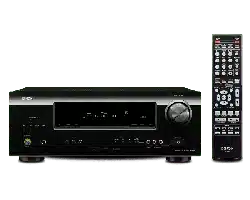
AV SURROUND RECEIVER
AVR-391
Owner’s Manual
Manuel de l’Utilisateur
Manual del usuario
Manual do Proprietário
Simple
version
Version simplifi ée
Versión sencilla
Versão simples
v
3
Basic
version
Version basique
Versión básica
Versão básica
v
11
Advanced
version
Version avancée
Versión avanzada
Versão avançada
v
24
Information
“Part names and functions”
(vpage39)
v
38
Informations
“Nomenclature et fonctions“
(vpage39)
Información
“Nombres y funciones de las
piezas“ (vpágina 39)
Informações
“Designação das peças e funções“
(vpágina 39)
1.AVR391E3ENG4th100602.indd11.AVR391E3ENG4th100602.indd1 2010/06/0414:29:142010/06/0414:29:14
I
ENGLISHFRANCAISESPAÑOLPORTUGUÊS
n
SAFETY PRECAUTIONS
CAUTION
RISK OF ELECTRIC SHOCK
DO NOT OPEN
CAUTION:
TO REDUCE THE RISK OF ELECTRIC SHOCK, DO NOT REMOVE
COVER (OR BACK). NO USER-SERVICEABLE PARTS INSIDE.
REFER SERVICING TO QUALIFIED SERVICE PERSONNEL.
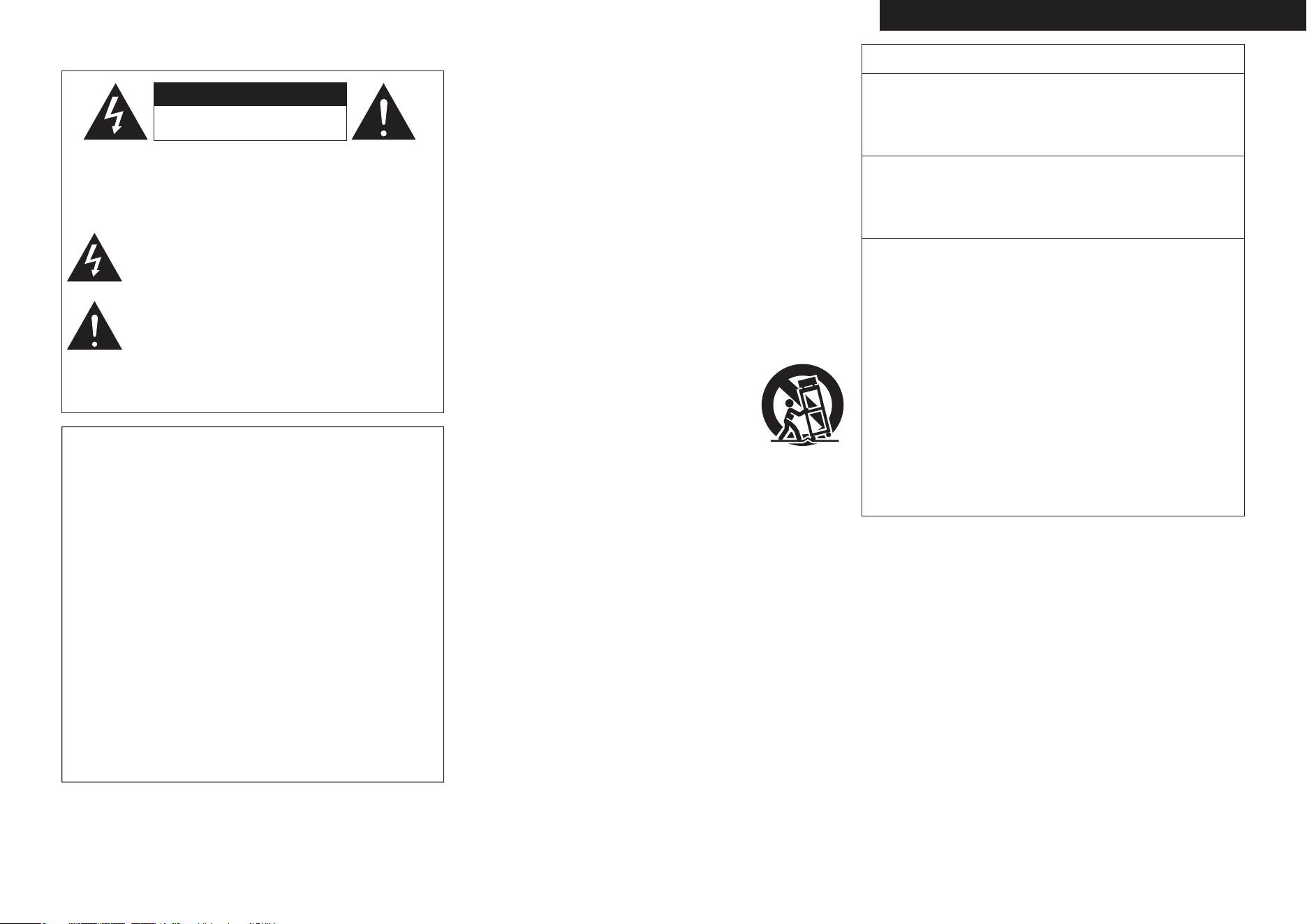
The lightning fl ash with arrowhead symbol, within an equilateral
triangle, is intended to alert the user to the presence of
uninsulated “dangerous voltage” within the product’s enclosure
that may be of suffi cient magnitude to constitute a risk of
electric shock to persons.
The exclamation point within an equilateral triangle is intended
to alert the user to the presence of important operating
and maintenance (servicing) instructions in the literature
accompanying the appliance.
WARNING:
TO REDUCE THE RISK OF FIRE OR ELECTRIC SHOCK, DO NOT
EXPOSE THIS APPLIANCE TO RAIN OR MOISTURE.
CAUTION:
To completely disconnect this product from the mains, disconnect the plug
from the wall socket outlet.
The mains plug is used to completely interrupt the power supply to the unit
and must be within easy access by the user.
PRECAUTION:
Pour déconnecter complètement ce produit du courant secteur, débranchez
la prise de la prise murale.
La prise secteur est utilisée pour couper complètement l’alimentation de
l’appareil et l’utilisateur doit pouvoir y accéder facilement.
PRECAUCIÓN:
Para desconectar completamente este producto de la alimentación eléctrica,
desconecte el enchufe del enchufe de la pared.
El enchufe de la alimentación eléctrica se utiliza para interrumpir por completo
el suministro de alimentación eléctrica a la unidad y debe de encontrarse en
un lugar al que el usuario tenga fácil acceso.
ATENÇÃO:
Para desligar este produto completamente da tomada de alimentação, retire
a fi cha da tomada de alimentação.
A fi cha da tomada de alimentação é utilizada para cortar completamente a
alimentação de corrente à unidade e tem de estar facilmente acessível ao
utilizador.
IMPORTANT SAFETY
INSTRUCTIONS
1. Read these instructions.
2. Keep these instructions.
3. Heed all warnings.
4. Follow all instructions.
5. Do not use this apparatus near water.
6. Clean only with dry cloth.
7. Do not block any ventilation openings.
Install in accordance with the manufacturer’s instructions.
8. Do not install near any heat sources such as radiators, heat registers,
stoves, or other apparatus (including amplifi ers) that produce heat.
9. Do not defeat the safety purpose of the polarized or grounding-type plug. A
polarized plug has two blades with one wider than the other. A grounding
type plug has two blades and a third grounding prong. The wide blade or the
third prong are provided for your safety. If the provided plug does not fi t into
your outlet, consult an electrician for replacement of the obsolete outlet.
10. Protect the power cord from being walked on or pinched particularly at
plugs, convenience receptacles, and the point where they exit from the
apparatus.
11. Only use attachments/accessories specifi ed by the manufacturer.
12. Use only with the cart, stand, tripod, bracket, or table
specifi ed by the manufacturer, or sold with the apparatus.
When a cart is used, use caution when moving the cart/
apparatus combination to avoid injury from tip-over.
13. Unplug this apparatus during lightning storms or when
unused for long periods of time.
14. Refer all servicing to qualifi ed service personnel.
Servicing is required when the apparatus has been damaged in any way,
such as power-supply cord or plug is damaged, liquid has been spilled or
objects have fallen into the apparatus, the apparatus has been exposed to
rain or moisture, does not operate normally, or has been dropped.
15. Batteries shall not be exposed to excessive heat such as sunshine, fi re or
the like.
FCC INFORMATION (For US customers)
1. PRODUCT
This product complies with Part 15 of the FCC Rules. Operation is subject
to the following two conditions: (1) this product may not cause harmful
interference, and (2) this product must accept any interference received,
including interference that may cause undesired operation.
2. IMPORTANT NOTICE: DO NOT MODIFY THIS PRODUCT
This product, when installed as indicated in the instructions contained
in this manual, meets FCC requirements. Modifi cation not expressly
approved by DENON may void your authority, granted by the FCC, to use
the product.
3. NOTE
This product has been tested and found to comply with the limits for
a Class B digital device, pursuant to Part 15 of the FCC Rules. These
limits are designed to provide reasonable protection against harmful
interference in a residential installation.
This product generates, uses and can radiate radio frequency energy and,
if not installed and used in accordance with the instructions, may cause
harmful interference to radio communications. However, there is no
guarantee that interference will not occur in a particular installation. If this
product does cause harmful interference to radio or television reception,
which can be determined by turning the product OFF and ON, the user
is encouraged to try to correct the interference by one or more of the
following measures:
• Reorient or relocate the receiving antenna.
• Increase the separation between the equipment and receiver.
• Connect the product into an outlet on a circuit different from that to
which the receiver is connected.
• Consult the local retailer authorized to distribute this type of product or
an experienced radio/TV technician for help.
For Canadian customers:
This Class B digital apparatus complies with Canadian ICES-003.
Cet appareil numérique de la classe B est conforme à la norme NMB-003 du
Canada.
1.AVR391E3ENG4th100602.inddI1.AVR391E3ENG4th100602.inddI 2010/06/0414:29:162010/06/0414:29:16
II
ESPAÑOLENGLISH FRANCAIS PORTUGUÊS
n
NOTES ON USE / OBSERVATIONS RELATIVES A L’UTILISATION / NOTAS SOBRE EL USO /
NOTAS SOBRE A UTILIZAÇÃO
WARNINGS AVERTISSEMENTS ADVERTENCIAS AVISOS
• Avoid high temperatures.
Allow for suffi cient heat dispersion
when installed in a rack.
• Handle the power cord carefully.
Hold the plug when unplugging the
cord.
• Keep the unit free from moisture,
water, and dust.
• Unplug the power cord when not
using the unit for long periods of
time.
• Do not obstruct the ventilation
holes.
• Do not let foreign objects into the
unit.
• Do not let insecticides, benzene,
and thinner come in contact with
the unit.
• Never disassemble or modify the
unit in any way.
• Ventilation should not be impeded
by covering the ventilation openings
with items, such as newspapers,
tablecloths or curtains.
• Naked fl ame sources such as
lighted candles should not be
placed on the unit.
• Observe and follow local
regulations regarding battery
disposal.
• Do not expose the unit to dripping
or splashing fl uids.
• Do not place objects fi lled with
liquids, such as vases, on the unit.
• Do not handle the mains cord with
wet hands.
• When the switch is in the OFF
position, the equipment is not
completely switched off from
MAINS.
• The equipment shall be installed
near the power supply so that the
power supply is easily accessible.
• Eviter des températures élevées.
Tenir compte d’une dispersion
de chaleur suffi sante lors de
l’installation sur une étagère.
• Manipuler le cordon d’alimentation
avec précaution.
Tenir la prise lors du débranchement
du cordon.
• Protéger l’appareil contre
l’humidité, l’eau et la poussière.
• Débrancher le cordon
d’alimentation lorsque l’appareil
n’est pas utilisé pendant de
longues périodes.
• Ne pas obstruer les trous
d’aération.
• Ne pas laisser des objets étrangers
dans l’appareil.
• Ne pas mettre en contact des
insecticides, du benzène et un
diluant avec l’appareil.
• Ne jamais démonter ou modifi er
l’appareil d’une manière ou d’une
autre.
• Ne pas recouvrir les orifi ces de
ventilation avec des objets tels que
des journaux, nappes ou rideaux.
Cela entraverait la ventilation.
• Ne jamais placer de fl amme nue
sur l’appareil, notamment des
bougies allumées.
• Veillez à respecter les lois en
vigueur lorsque vous jetez les piles
usagées.
• L’appareil ne doit pas être exposé à
l’eau ou à l’humidité.
• Ne pas poser d’objet contenant du
liquide, par exemple un vase, sur
l’appareil.
• Ne pas manipuler le cordon
d’alimentation avec les mains
mouillées.
• Lorsque l’interrupteur est sur la
position OFF, l’appareil n’est pas
complètement déconnecté du
SECTEUR (MAINS).
• L’appareil sera installé près de la
source d’alimentation, de sorte
que cette dernière soit facilement
accessible.
• Evite altas temperaturas.
Permite la sufi ciente dispersión del
calor cuando está instalado en la
consola.
• Maneje el cordón de energía con
cuidado.
Sostenga el enchufe cuando
desconecte el cordón de energía.
• Mantenga el equipo libre de
humedad, agua y polvo.
• Desconecte el cordón de energía
cuando no utilice el equipo por
mucho tiempo.
• No obstruya los orifi cios de
ventilación.
• No deje objetos extraños dentro
del equipo.
• No permita el contacto de
insecticidas, gasolina y diluyentes
con el equipo.
• Nunca desarme o modifi que el
equipo de ninguna manera.
• La ventilación no debe quedar
obstruida por haberse cubierto
las aperturas con objetos como
periódicos, manteles o cortinas.
• No deberán colocarse sobre el
aparato fuentes infl amables sin
protección, como velas encendidas.
• A la hora de deshacerse de las
pilas, respete la normativa para el
cuidado del medio ambiente.
• No exponer el aparato al goteo o
salpicaduras cuando se utilice.
• No colocar sobre el aparato objetos
llenos de líquido, como jarros.
• No maneje el cable de alimentación
con las manos mojadas.
• Cuando el interruptor está en la
posición OFF, el equipo no está
completamente desconectado de
la alimentación MAINS.
• El equipo se instalará cerca de la
fuente de alimentación de manera
que resulte fácil acceder a ella.
• Evite temperaturas altas.
Assegure uma sufi ciente dispersão
do calor quando a unidade for
instalada numa prateleira.
• Manuseie o cabo de alimentação
com cuidado.
Puxe pela fi cha quando desligar o
cabo de alimentação.
• Mantenha a unidade afastada da
humidade, da água e do pó.
• Desligue o cabo de alimentação
quando não estiver a utilizar a
unidade por longos períodos de
tempo.
• Não obstrua os orifícios de
ventilação.
• Não deixe objectos estranhos
dentro da unidade.
• Não permita que insecticidas,
benzina e diluente entrem em
contacto com a unidade.
• Nunca desmonte ou modifi que de
alguma forma a unidade.
• A ventilação não deve ser
obstruída, tapando as aberturas
de ventilação com objectos, como
jornais, toalhas ou cortinas.
• Não devem ser colocadas junto à
unidade fontes de chama aberta,
como velas acesas.
• Respeite as regulamentações
locais relativas à eliminação de
pilhas.
• Não exponha a unidade a
gotejamento ou salpicos de
líquidos.
• Não coloque objectos com líquidos,
como jarras, em cima da unidade.
• Não manuseie o cabo de
alimentação com as mãos
molhadas.
• Quando o interruptor se encontra
na posição OFF, o equipamento
não está completamente desligado
da REDE ELÉCTRICA.
• O equipamento deve ser instalado
junto da fonte de alimentação, para
que a fonte de alimentação esteja
facilmente acessível.
n CAUTIONS ON INSTALLATION
PRÉCAUTIONS D’INSTALLATION
EMPLAZAMIENTO DE LA INSTALACIÓN
PRECAUÇÕES DE INSTALAÇÃO
zz
z
Wall
Paroi
Pared
Parede
z
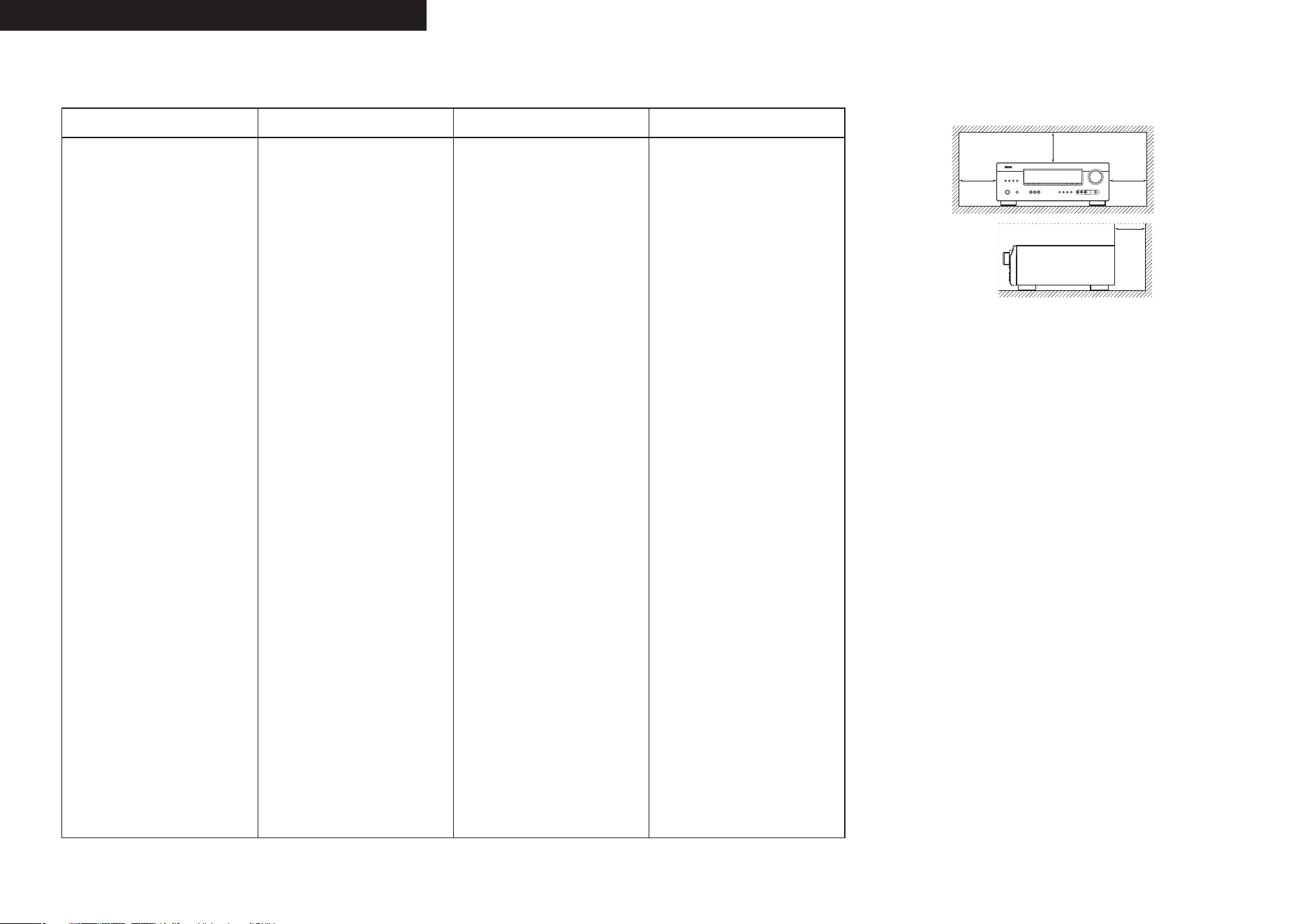
zFor proper heat dispersal, do not install this unit in a confi ned
space, such as a bookcase or similar enclosure.
• More than 0.3 m (12 in.) is recommended.
• Do not place any other equipment on this unit.
zPour permettre la dissipation de chaleur requise, n’installez
pas cette unité dans un espace confi né tel qu’une bibliothèque
ou un endroit similaire.
• Une distance de plus de 0,3 m (12 po) est recommandée.
• Ne placez aucun matériel sur cet appareil.
zPara la dispersión del calor adecuadamente, no instale este
equipo en un lugar confi nado tal como una librería o unidad
similar.
• Se recomienda dejar más de 0,3 m (12 pulg.) alrededor.
• No coloque ningún otro equipo sobre la unidad.
zPara uma correcta dispersão do calor, não instale esta unidade
num espaço confi nado, como uma estante de livros ou uma
estrutura semelhante.
• São recomendados mais de 0,3 m.
• Não coloque qualquer outro equipamento sobre est unidade.
1.AVR391E3ENG4th100602.inddII1.AVR391E3ENG4th100602.inddII 2010/06/0414:29:162010/06/0414:29:16
1
ENGLISH
Basic version Advanced versionSimple version Information
Thank you for purchasing this DENON product. To ensure proper operation, please read these owner’s manual carefully before using the product.
After reading them, be sure to keep them for future reference.
Getting started
Accessories
Check that the following parts are supplied with the product.
q Owner’s manual ...................................................................... 1
w Warranty (for North America model only) ................................ 1
e Service network list ................................................................. 1
r Remote control unit (RC-1149) ................................................ 1
t R03/AAA batteries ................................................................... 2
y AM loop antenna ..................................................................... 1
u FM indoor antenna .................................................................. 1
ruy
About this manual
n Operation buttons
The operations described in this manual are based mainly on
remote control operation.
n Symbols
v
This symbol indicates a reference page on which
related information is described.
This symbol indicates a supplementary information
and tips for operations.
NOTE
This symbol indicates points to remember operations
or function limitations.
n Illustrations
Note that the illustrations in these instructions are for explanation
purposes and may differ from the actual unit.
Simple version (Simple setup guide) ··························3
Basic version ··········································································11
Connections ················································································· 12
Important information ·································································12
Connecting an HDMI-compatible device ····································12
Connecting a TV··········································································13
Connecting a Blu-ray Disc player / DVD player ···························14
Connecting a set-top box (Satellite tuner/cable TV) ····················14
Connecting a digital camcorder ··················································15
Connecting a portable player ······················································15
Connecting a control dock for iPod ·············································16
Connecting an antenna ·······························································16
Playback (Basic operation) ·························································17
Important information ·································································17
Playing a Blu-ray Disc player/DVD player ····································17
Playing a portable player ·····························································17
Playing an iPod
®
·········································································18
Tuning in radio stations ·······························································20
Selecting a listening mode (Surround mode) ··························21
Standard playback ·······································································21
Multi channel stereo playback ····················································23
Virtual playback ···········································································23
Stereo playback ··········································································23
Direct playback ···········································································23
Advanced version ·······························································24
Speaker installation/connection (Other than 5.1-channel) ····· 25
Install ··························································································25
Connect ······················································································26
Playback (Advanced operation) ·················································27
Convenient functions ··································································27
How to make detailed settings ··················································29
Menu map ··················································································29
Examples of front display ···························································30
Input Setup ·················································································31
Option Setup···············································································33
Adjusting the sound fi eld effects ················································34
Information ·················································································37
Information ·············································································38
Part names and functions···························································39
Front panel ··················································································39
Display ························································································39
Rear panel ···················································································40
Remote control unit ····································································41
Other information ·······································································43
Trademark information ································································43
Surround ·····················································································44
Explanation of terms ···································································48
Troubleshooting ·········································································· 49
Resetting the microprocessor ····················································51
Specifi cations ··············································································51
Contents
Getting started ··············································································1
Accessories ··················································································1
About this manual ·········································································1
Features ························································································2
Cautions on handling ····································································2
1.AVR391E3ENG4th100602.inddSec:11.AVR391E3ENG4th100602.inddSec:1 2010/06/0414:29:162010/06/0414:29:16
2
ENGLISH
Cautions on handling
• Before turning the power switch on
Check once again that all connections are correct and that there are
no problems with the connection cables.
• Power is supplied to some of the circuitry even when the unit is
set to the standby mode. When going on vacation or leaving home
for long periods of time, be sure to unplug the power cord from the
power outlet.
• About Condensation
If there is a major difference in temperature between the inside of
the unit and the surroundings, condensation (dew) may form on
the operating parts inside the unit, causing the unit not to operate
properly.
If this happens, let the unit sit for an hour or two with the power
turned off and wait until there is little difference in temperature
before using the unit.
• Cautions on using mobile phones
Using a mobile phone near this unit may result in noise. If that
occurs, move the mobile phone away from this unit when it is in use.
• Moving the unit
Turn off the power and unplug the power cord from the power
outlet. Next, disconnect the connection cables to other system units
before moving the unit.
• About Care
• Wipe the cabinet and control panel clean with a soft cloth.
• Follow the instructions when using a chemical cleaner.
• Benzene, paint thinner or other organic solvents as well as
insecticide may cause material changes and discoloration if brought
into contact with the unit, and should therefore not be used.
Features
Fully Discrete, identical quality and power for all
5 channels (110 W x 5ch)
The unit is equipped with a power amplifi er that plays back high-
fi delity sound in surround mode with equal quality and power for all
channels, true to the original sound.
The power amplifi er circuit adopts a discrete-circuit confi guration
that achieves high-quality surround sound play back.
Supports HDMI 1.4a with 3D, Deep Color and
x.v.Color function
This unit can output 3D video signals input from a Blu-ray Disc
player to a TV that supports a 3D system.
4-HDMI inputs and 1-output
The unit is equipped with 4 HDMI input connectors for connecting
devices with HDMI connectors, such as a Blu-ray Disc player,
game machine, HD video camera, etc.
High Defi nition Audio Support
The unit is equipped with a decoder which supports high-quality
digital audio format for Blu-ray Disc players such as Dolby TrueHD,
DTS-HD Master Audio, etc.
Dock connecrivity for iPod
®
and network
streaming
If an optional DENON control dock for iPod (ASD-3N, ASD-3W,
ASD-51N or ASD-51W) is connected to this unit, you can listen to
Internet radio or enjoy music and photos stored in your PC.
zAn Internet connection environment is required.
1.AVR391E3ENG4th100602.inddSec:21.AVR391E3ENG4th100602.inddSec:2 2010/06/0414:29:162010/06/0414:29:16
3
ENGLISH
Basic version Advanced version InformationSimple version
Simple
version
Simple version (Simple setup guide)
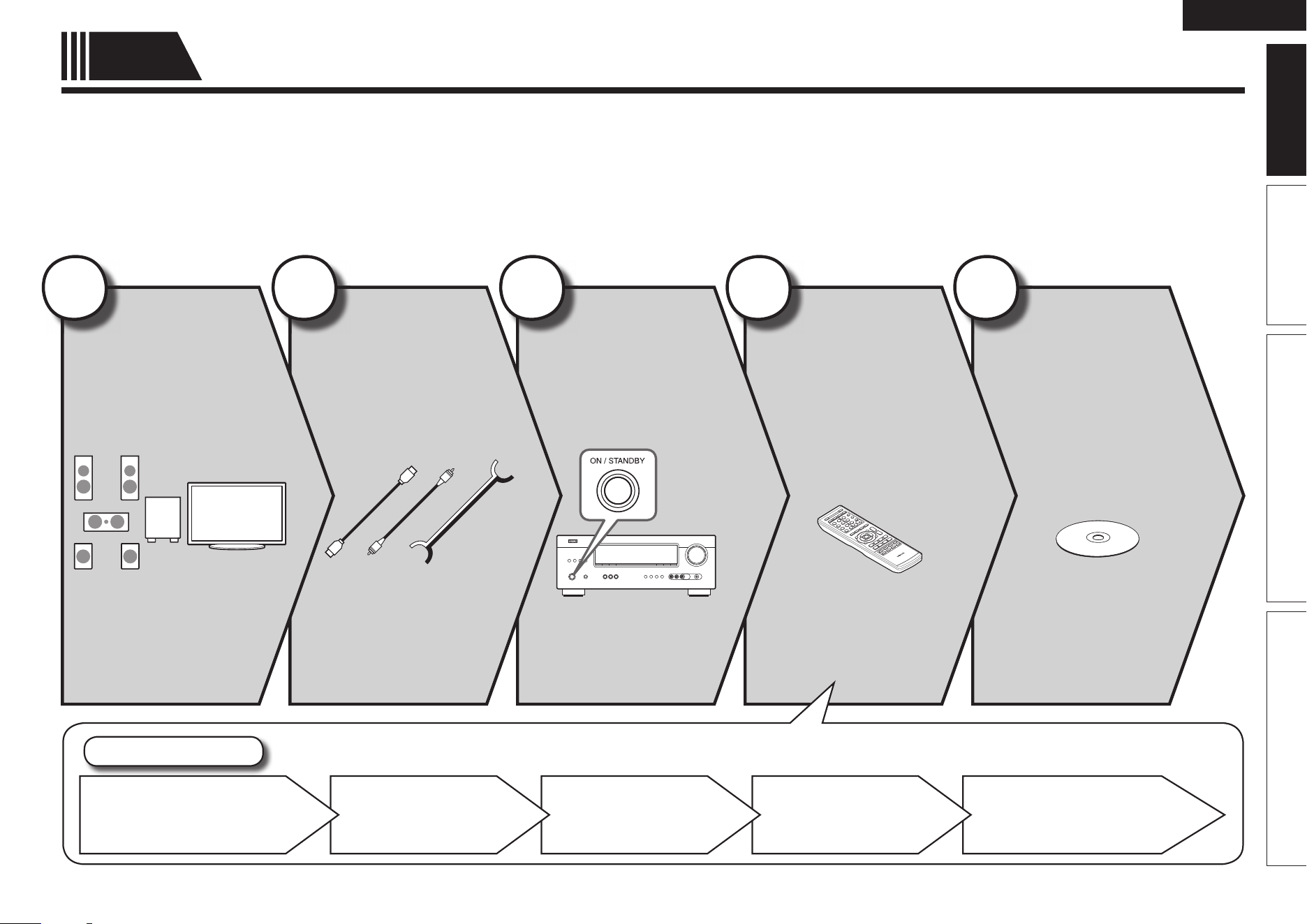
Here, we explain the entire setup procedure, from unboxing the unit to using it in a home theater.
Standard settings have been made for the speaker as default.
For optimum surround playback, adjustment of the distance of speakers and sound level of each channel, using the test tone, are
required, depending on the environment for speakers to be used.
n Before connecting the unit, turn off the power to all devices.
n For operation of the connected devices, refer to the user manuals for each device.
Play back
disc
(vpage10)
Enjoy Blu-ray Disc and DVD
in surround sound.
5
Set up
speakers
(vpage6)
4
Turn on
power
(vpage6)
3
Connect
(vpage4)
Connect 5.1-channel
speakers, a TV and Blu-
ray Disc player equipped
with an HDMI connector.
2
Install
(vpage4)
Enjoy better audio, using
the correct install method.
1
Set Up Speakers
Crossover FrequencyChannel LevelDistanceBass Setting
Speaker Confi guration
1.AVR391E3ENG4th100602.inddSec:31.AVR391E3ENG4th100602.inddSec:3 2010/06/0414:29:162010/06/0414:29:16
4
ENGLISH
Speakers
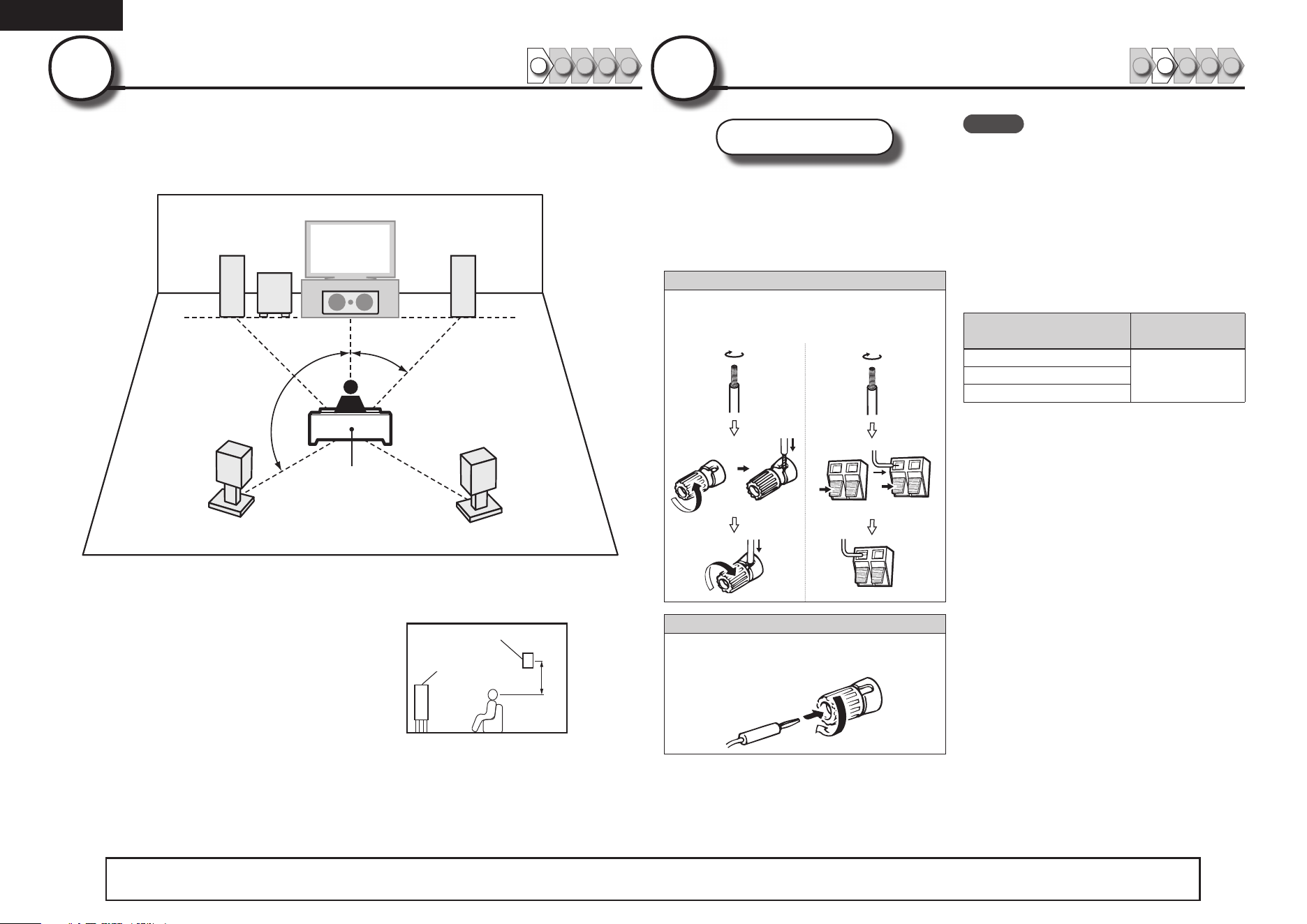
Carefully check the left (L) and right (R)
channels and + (red) and – (black) polarities
on the speakers being connected to the
this unit, and be sure to interconnect the
channels and polarities correctly.
Connecting the speaker cables
Peel off about 0.03 ft/10 mm of sheathing from
the tip of the speaker cable, then either twist the
core wire tightly or terminate it.
When using a banana plug
Tighten the speaker terminal fi rmly before
inserting the banana plug.
NOTE
• Connect so that the speaker cable core wires
do not protrude from the speaker terminal.
The protection circuit may be activated if the
core wires touch the rear panel or if the + and –
sides touch each other (vpage48 “Protection
Circuit”).
• Never touch the speaker terminals while the
power supply is connected. Doing so could
result in electric shock.
• Use speakers with the speaker impedances
shown below.
Speaker terminals
Speaker
impedance
FRONT
6 – 16 ΩCENTER
SURROUND
Install
1 2 4 53
This unit can perform 2.0/2.1 to 7.1-channel surround playback.
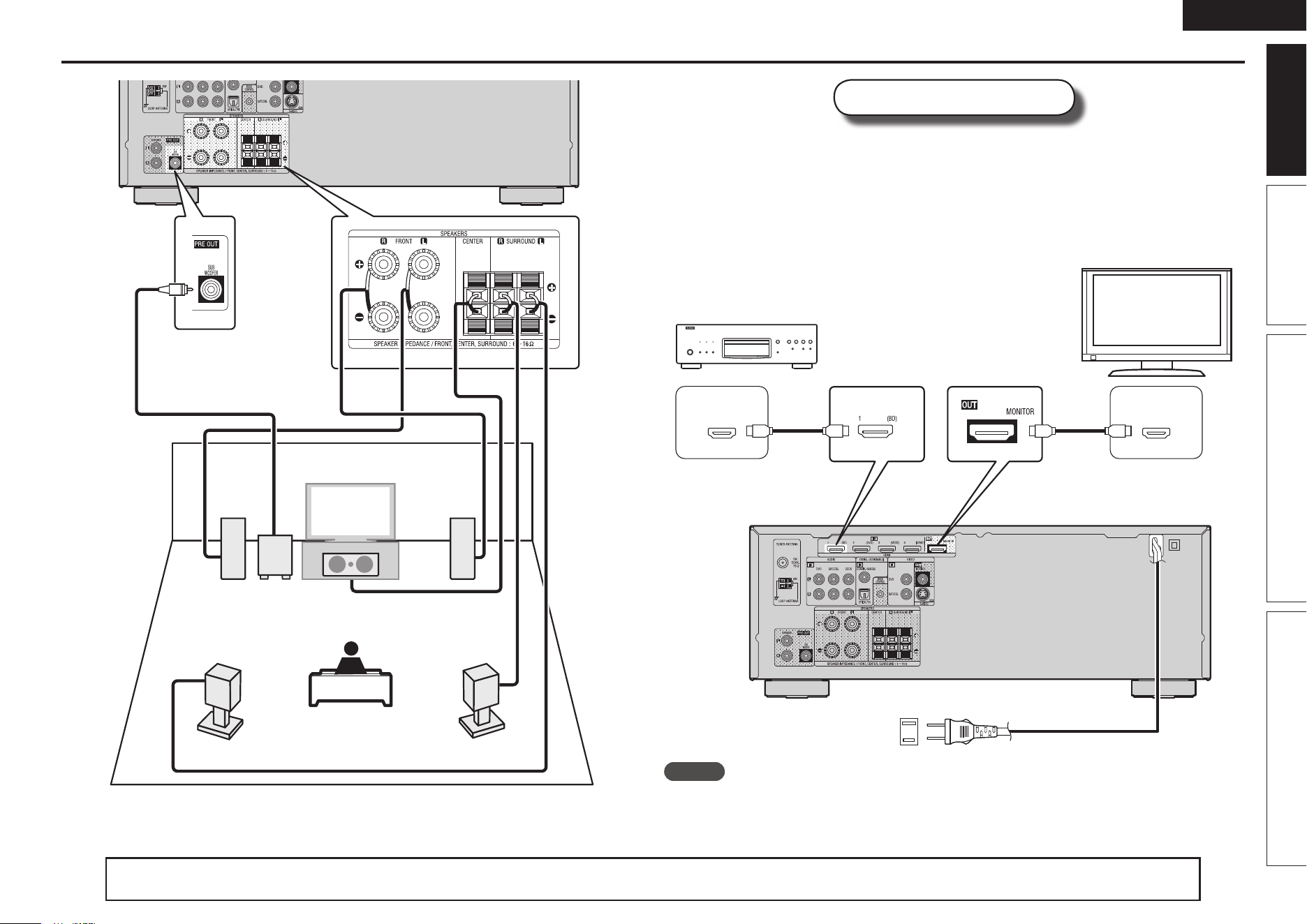
Here, we explain setup using the example of 5.1-channel speaker
playback.
FL FR
SW
C
SL
SR
120˚
22 – 30˚
Listening position
FL Front speaker (L) • Install the surround speakers in a position
2 to 3 ft (60 to 90 cm) higher than ear
level.
Surround
speaker
2 – 3 ft /
60 – 90 cm
GViewed from the sideH
Front
speaker
FR Front speaker (R)
C Center speaker
SW Subwoofer
SL Surround speaker (L)
SR Surround speaker (R)
1
Connect
1 2 4 53
2
The “Simple version” describes the installation, connection and setup methods for 5.1-channel speakers.
See page 25 for the installation and connection for speakers other than 5.1-channel speakers.
1.AVR391E3ENG4th100602.inddSec:41.AVR391E3ENG4th100602.inddSec:4 2010/06/0414:29:172010/06/0414:29:17
5
ENGLISH
Basic version Advanced version InformationSimple version
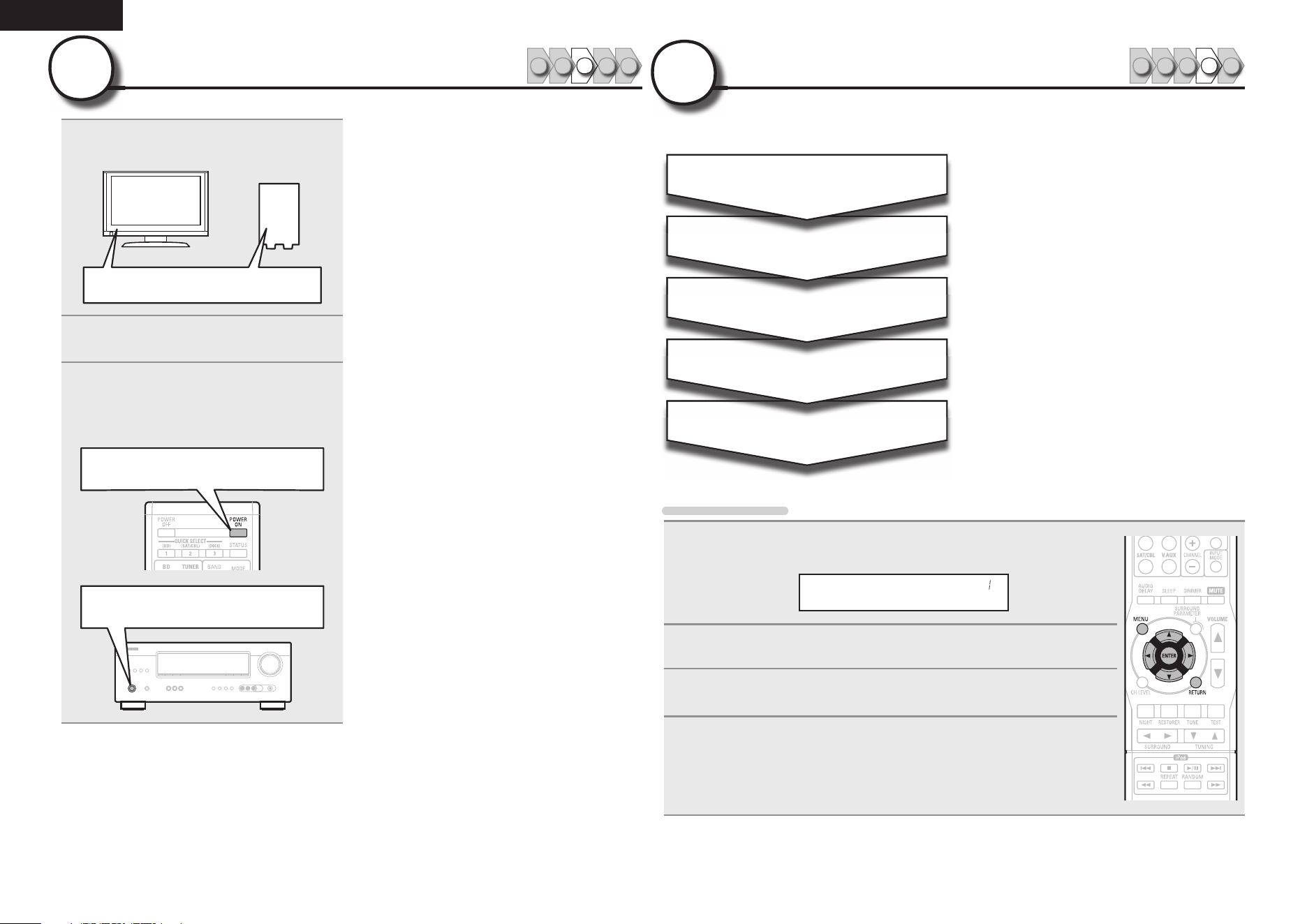
Blu-ray Disc player and TV
Use only an HDMI (High Defi nition Multimedia Interface) cable that bears the HDMI
logo (a certifi ed HDMI product). Using a cable without the HDMI logo (an uncertifi ed
HDMI product) may result in abnormal playback.
When outputting Deep Color or 1080p, etc., we recommend you use “High Speed
HDMI cable
” or “High Speed HDMI cable with Ethernet” for enhanced high-quality
playback.
*/
)%.*
065
)%.*
To household power outlet
(AC 120 V, 60 Hz)
Power cord
TV
Blu-ray Disc player
HDMI cable
(sold separately)
HDMI cable
(sold separately)
NOTE
• Do not plug in the power cord until all connections have been completed.
• Do not bundle power cords together with connection cables. Doing so can result in humming or noise.
Connect
SL
SR
FL FR
SW
C
Speaker cables
(sold separately)
Audio cable
(sold separately)
Subwoofer
with built-in
amplifi er
The “Simple version” describes the installation, connection and setup methods for 5.1-channel speakers.
See page 25 for the installation and connection for speakers other than 5.1-channel speakers.
1.AVR391E3ENG4th100602.inddSec:51.AVR391E3ENG4th100602.inddSec:5 2010/06/0414:29:172010/06/0414:29:17
6
ENGLISH
Set up speakers
1 2 4 53
4
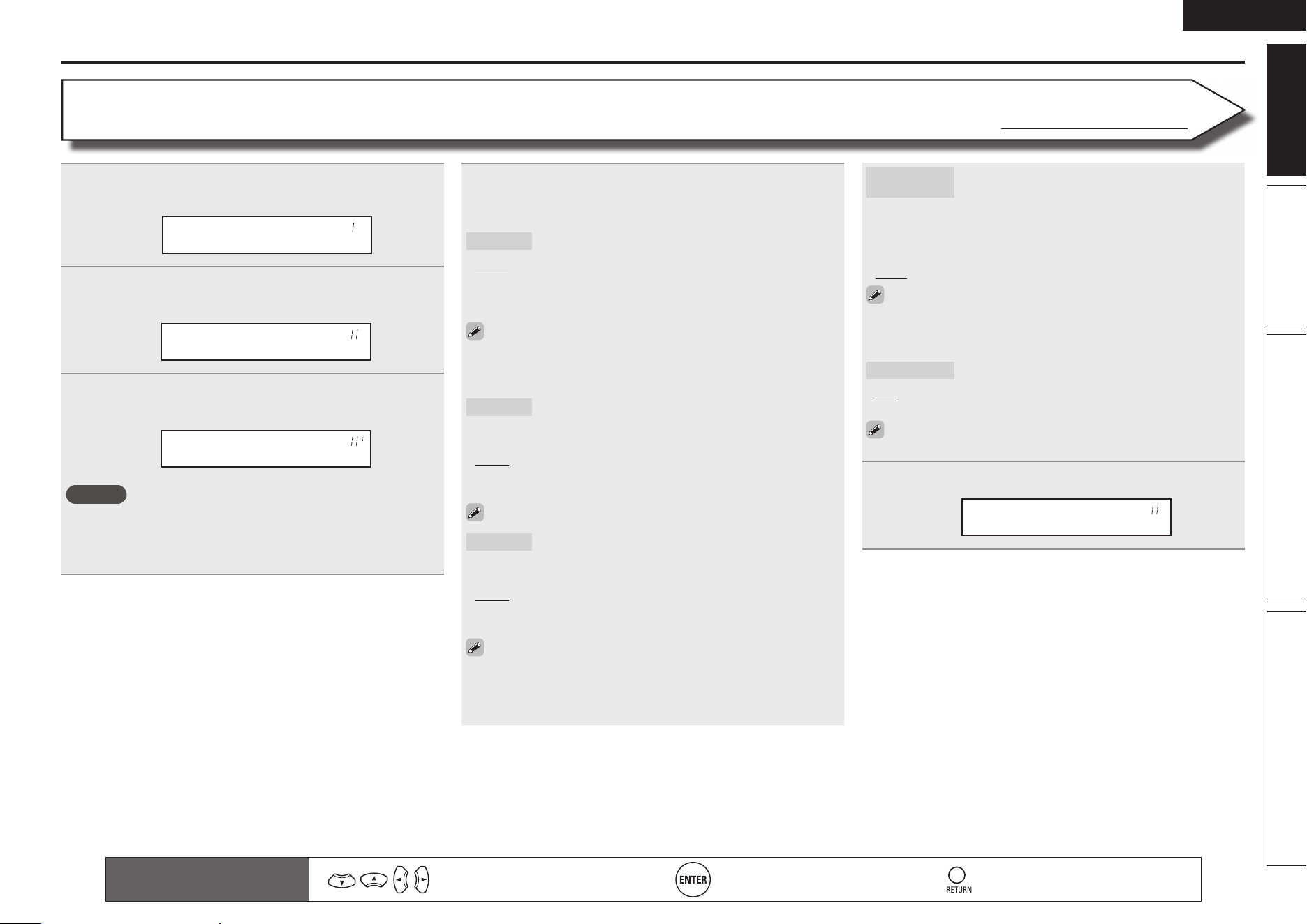
The settings for the following 5 items should be made:
Crossover Freq.
Channel Level
Distance
Bass Setting
Speaker Confi g.
Select speaker confi guration and size (bass
reproduction capability).
Set subwoofer and LFE signal range playback.
Set distance from listening position to speakers.
Measure beforehand the distance from the
listening position to each speaker.
Set the volume of the test tone to be the same
when it is output from each speaker.
Set the maximum frequency of the bass signal
output from each channel to the subwoofer.
Set the Crossover Frequency to suit the bass
reproduction capability of the speaker being used.
Menu operation
1
Press MENU.
The menu is displayed on the display of this unit.
Speaker Setup
2
Press ENTER.
3
Use ui to select the menu to be set or operated, and then press
ENTER.
4
Use o p to select a detailed setting, and then press ENTER.
• To return to the previous item, press RETURN.
• Exiting the Menu, press MENU while the menu is displayed.
The menu returns to normal display.
Turn on power
1 2 4 53
3
1
Turn on the TV and subwoofer
power.
Power on
2
Change the TV input to the input of
this unit.
3
Press POWER ON to turn on power
to the unit.
The power indicator fl ashes green and the
power turns on.
Power on
Power on
1.AVR391E3ENG4th100602.inddSec:61.AVR391E3ENG4th100602.inddSec:6 2010/06/0414:29:182010/06/0414:29:18
7
ENGLISH
Basic version Advanced version InformationSimple version
Set up speakers
Remote control operation
buttons
Move the cursor
(Up/Down/Left/Right)
Confi rm the setting Return to previous menu
4
Use ui to select a speaker, and use o p to select a
detailed setting.
Items to be set are shown below.
Front
Set the front speaker size.
• Large : Use a large speaker that can adequately play back low
frequencies.
• Small : Use a small speaker that has inadequate playback capacity
for low frequencies.
• When “SW” is set to “No”, “Front” is automatically set to “Large”.
• When “Front” is set to “Small”, “Center”, “Surround“ and
“S.B(Pre)” can not be set to “Large”.
Center
Set the presence and size of the center speaker.
• Large : Use a large speaker that can adequately play back low
frequencies.
• Small : Use a small speaker that has inadequate playback capacity
for low frequencies.
• None : Select when a center speaker is not connected.
“Large” is not displayed when “Front” is set to “Small”.
Surround
Set the presence and size of the surround speakers.
• Large : Use a large speaker that can adequately play back low
frequencies.
• Small : Use a small speaker that has inadequate playback capacity
for low frequencies.
• None : Select when the surround speakers are not connected.
• When “Surround” is set to “Large”, “S.B(Pre)” can be set to
“Large”.
• When “Surround” is set to “None”, “S.B(Pre)” can automatically
set to “None”.
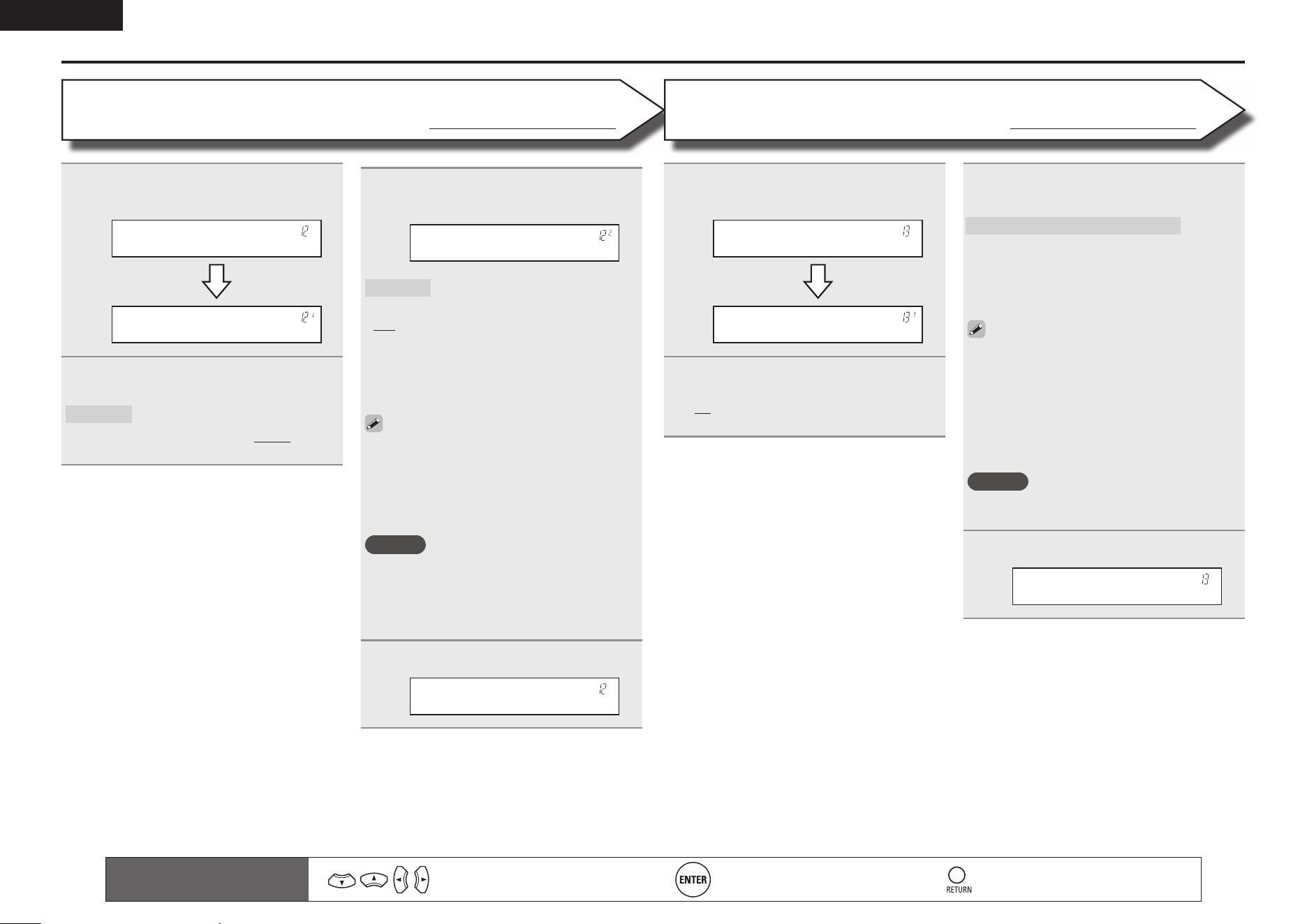
1
Press MENU.
The menu is displayed on the display of this unit.
Speaker Setup
2
Use ui to select “Speaker Setup”, and then press
ENTER.
Speaker Config.
3
Use ui to select “Speaker Confi g.”, and then press
ENTER.
Front :•Large–
NOTE
Do not use the outward shape of the speaker to determine selection
of a “Large” or “Small” speaker. Instead, use the frequencies set in
“Crossover Frequency” (vpage9) as the standard for determining
bass reproduction capability.
S.B(Pre)
(Surround Back)
Set the presence, size and number of surround
back speakers.
• Large : Use a large speaker that can adequately play back low
frequencies.
• Small : Use a small speaker that has inadequate playback capacity
for low frequencies.
• None : Select when the surround back speakers are not connected.
Even when the “S.B(Pre)“ setting is other than “None”, sound
maynot be emitted from the surround back speaker, depending
on the playback source. In this case, make “Surround Parameter”
– “SB CH OUT” (vpage35) setting other than “OFF”.
SW (Subwoofer)
Set the presence of a subwoofer.
• Yes : Use a subwoofer.
• No : Select when a subwoofer is not connected.
When “Front” is set to “Small”, “SW” is automatically set to
“Yes”.
5
Press ENTER to enter the setting.
Speaker Config.
Speaker Confi g.
Default settings are underlined.
1.AVR391E3ENG4th100602.inddSec:71.AVR391E3ENG4th100602.inddSec:7 2010/06/0414:29:182010/06/0414:29:18
8
ENGLISH
Set up speakers
Remote control operation
buttons
Move the cursor
(Up/Down/Left/Right)
Confi rm the setting Return to previous menu
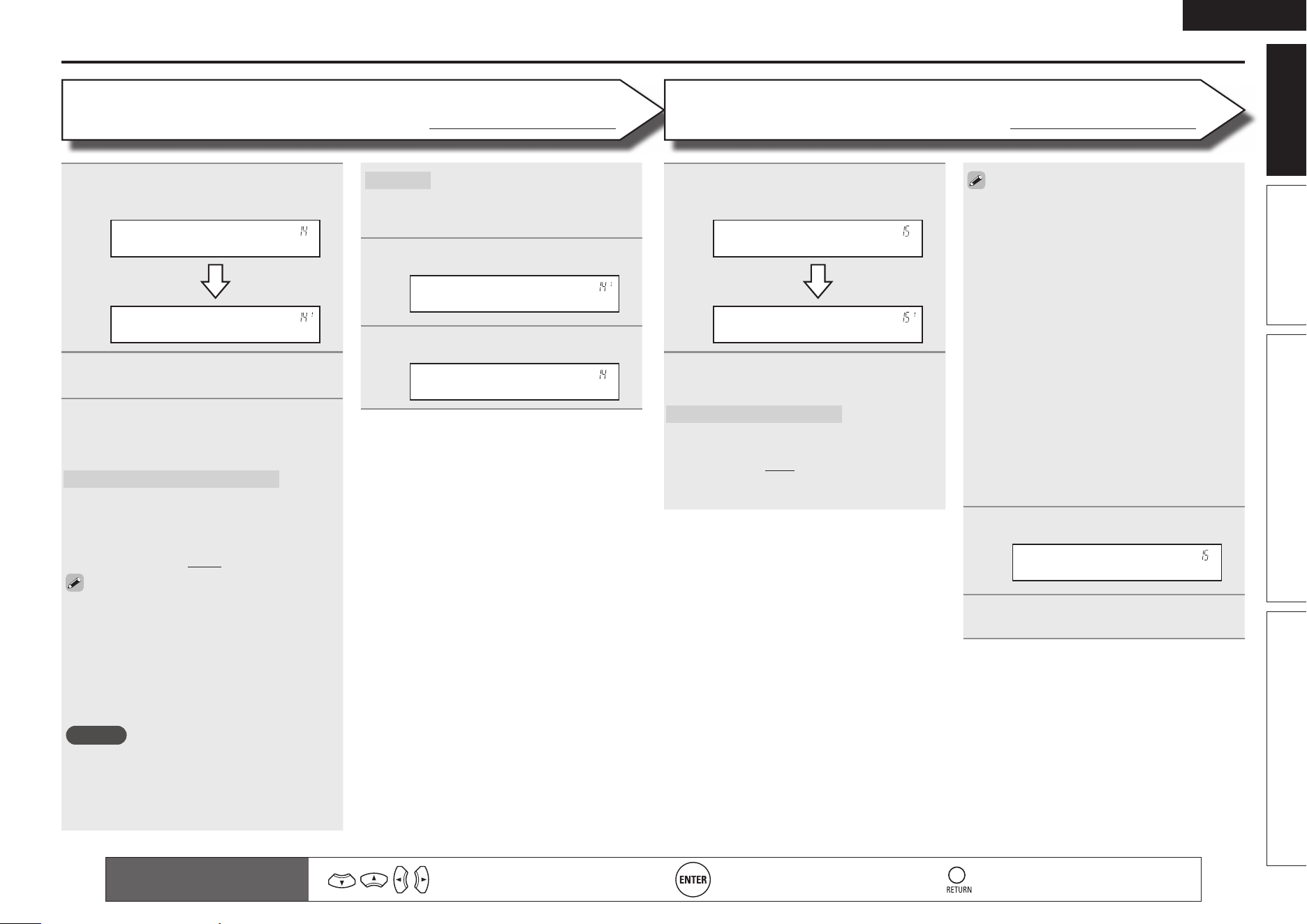
3
Use ui to select “Mode”, and use
o p to select a detailed setting.
Mode :• LFE –
Mode
Select low range signals to be
reproduced by subwoofer.
• LFE : The low range signal of the channel set to
“Small” speaker size is added to the LFE signal
output from the subwoofer.
• LFE+Main : The low range signal of all channels
is added to the LFE signal output from the
subwoofer.
• “Mode” can be set when “Speaker Confi g.” –
“SW” (vpage7) is set to “Yes”.
• Play music or a movie source and select the
mode offering the strongest bass.
• Select “LFE+Main” if you want the bass signals
to always be produced from the subwoofer.
NOTE
If “Front” and “Center” for “Speaker Confi g.”
are set to “Large”, and “Mode” is set to “LFE”,
no sound may be output from the subwoofers,
depending on the input signal or selected
surround mode.
4
Press ENTER to enter the setting.
Bass Setting
1
Use ui to select “Bass Setting”, and
then press ENTER.
Bass Setting
LFE •120Hz–
2
Use o p to select the frequency.
LFE
Set LFE signal playback range.
• 80Hz / 90Hz / 100Hz / 110Hz / 120Hz / 150Hz
/ 200Hz / 250Hz
1
Use ui to select “Distance”, and
then press ENTER.
Distance
Feet :• 1ft–
2
Use o p to change the step (minimum
variable distance).
1ft : For changing in 1-foot steps.
0.1ft : For changing in 0.1-foot steps.
Bass Setting
Default settings are underlined.
Distance
Default settings are underlined.
3
Use ui to select a speaker, and use
o p to select distance.
FL / FR / C / SW / SL / SR / SBLz / SBRz
Select the speaker.
zWhen the “Speaker Confi g.” – “S.B(Pre)”
(vpage 7) setting is set to “None”,
“SBL” and “SBR” is not displayed.
• 0.0ft – 60.0ft : Set the distance.
• The speakers that can be selected differ
depending on the “Speaker Confi g.” (vpage7)
settings.
• Default settings :
FL / FR / C / SW : 12.0 ft
SL / SR / SBL / SBR : 10.0 ft
• Set the difference in the distance between the
speakers to less than 20 ft.
NOTE
Speakers set to “None” in “Speaker Confi g.”
(vpage7) are not displayed.
4
Press ENTER to enter the setting.
Distance
1.AVR391E3ENG4th100602.inddSec:81.AVR391E3ENG4th100602.inddSec:8 2010/06/0414:29:192010/06/0414:29:19
9
ENGLISH
Basic version Advanced version InformationSimple version
Set up speakers
Remote control operation
buttons
Move the cursor
(Up/Down/Left/Right)
Confi rm the setting Return to previous menu
1
Use ui to select “Channel Level”,
and then press ENTER.
Channel Level
Test Tone Start
2
Press ENTER.
Output test tone.
3
Use ui to select a speaker, and use
o p to adjust the sound volume of
each speaker to be equal.
FL / C / FR / SR / SBRz / SBLz / SL / SW
Select the speaker.
z When the “Speaker Confi g.” – “S.B(Pre)”
(vpage 7) setting is set to “None”,
“SBL” and “SBR” is not displayed.
• –12.0dB – +12.0dB (0.0dB) : Adjust the volume.
• When o is pressed while the subwoofer volume
is set to “–12 dB”, the “SW” setting switches
to “OFF”.
• When “Channel Level” is adjusted, the adjusted
values are set for all the surround modes. To
adjust the channel level separately for the
different surround modes, use the operation
see page 27.
NOTE
• Speakers set to “None” in the “Speaker
Confi g.” (vpage7) settings are not displayed.
• When a headphones jack is inserted in the
PHONES jack of this unit, the “Channel Level”
is not displayed.
Default
The “Channel Level” settings are
returned to the default settings.
• Yes : Reset to the defaults.
• No : Do not reset to the defaults.
4
Press ENTER to enter the setting.
Test Tone Start
5
Press RETURN.
Channel Level
n Outputting a test tone directly with remote
control operation
This is operable when the surround mode is
Dolby Pro Logic g, Dolby Pro Logic gx, or DTS
NEO:6.
q Press TEST.
The test tone is output from the “L” channel
of the front speakers.
w Use o p to adjust the sound volume of each
speaker to be equal.
e Use u i to select the next speaker for
outputting the test tone.
r Once adjustment is completed, press TEST
again.
1
Use ui to select “Crossover Freq.”,
and then press ENTER.
Crossover Freq.
Front :• 80Hz–
2
Use ui to select a speaker, and use
o p to select the frequency.
Front / Center / Surround / S.Back
Specify crossover frequency for each
speaker.
• 40Hz / 60Hz / 80Hz / 90Hz / 100Hz / 110Hz
/ 120Hz / 150Hz / 200Hz / 250Hz : Set the
crossover frequency.
Channel Level
Default settings are underlined.
• “Crossover Freq.” can be set when the “Bass
Setting” – “Mode” (vpage 8) setting is
“LFE+Main”, or when you have a speaker that
is set to “Small”.
• Always set the crossover frequency to “80Hz”.
When using small speakers, however, we
recommend setting the crossover frequency to
a higher frequency.
• For speakers set to “Small”, sound below the
crossover frequency is cut from the sound
output. The cut bass sound is output from the
subwoofer or front speakers.
• The “Mode” setting (vpage 8) determines
which speakers can be set.
• When “LFE” is selected, speakers set to
“Small” at “Speaker Confi g.” can be set. If
the speakers are set to “Large”, “– Full –” is
displayed and the setting cannot be made.
• If set to “LFE+Main”, this setting can be made
regardless of the speaker size.
3
Press ENTER to enter the setting.
Crossover Freq.
4
Press MENU.
The menu returns to normal display.
Crossover Freq.
Default settings are underlined.
1.AVR391E3ENG4th100602.inddSec:91.AVR391E3ENG4th100602.inddSec:9 2010/06/0414:29:192010/06/0414:29:19
10
ENGLISH
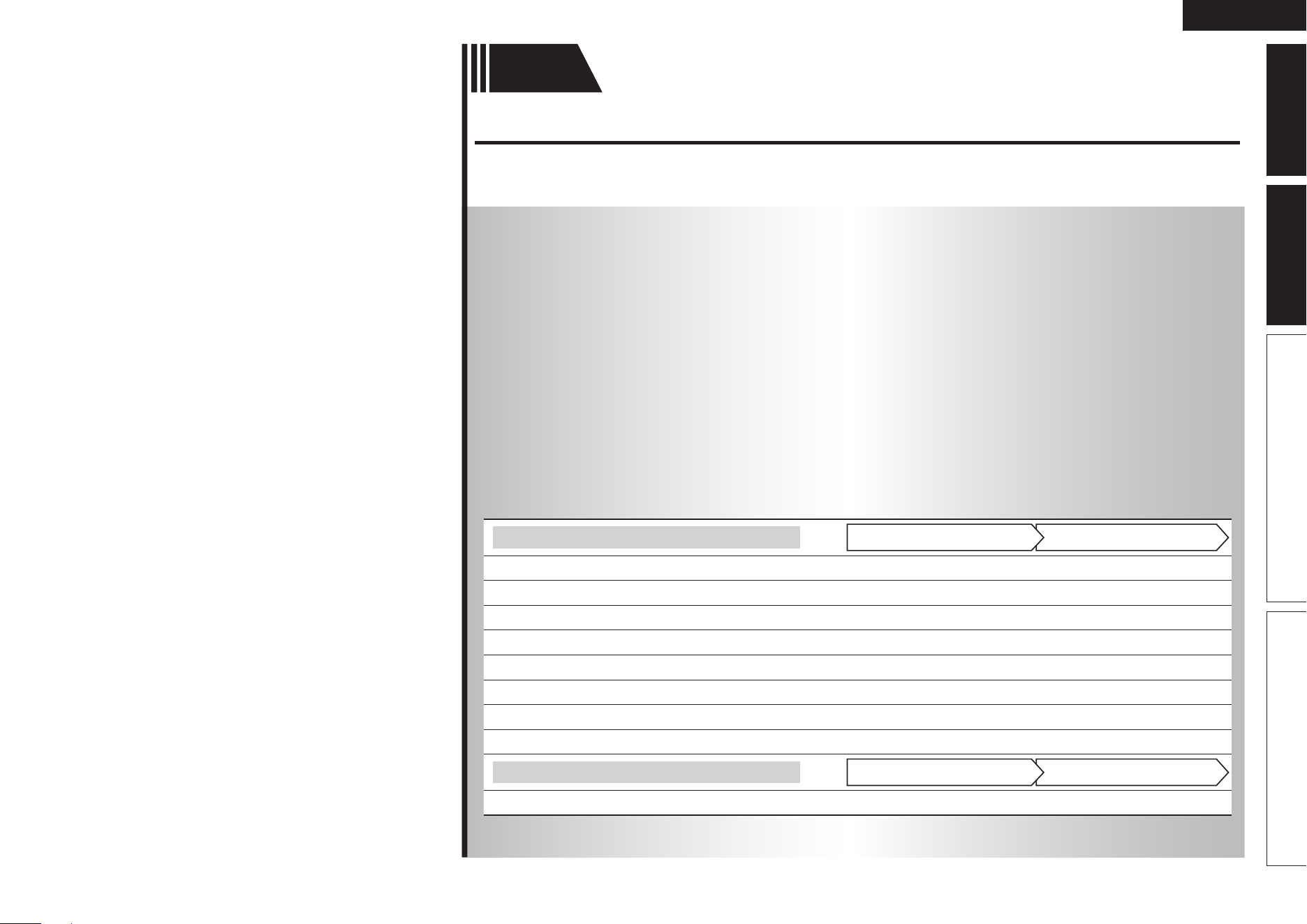
Play back disc
1 2 4 53
5
1
Press BD to switch an input source
for a player used for playback.
2
Play the component connected to
this unit.
Make the necessary settings on the
player (language setting, subtitles
setting, etc.) beforehand.
3
Adjust the sound volume.
VOL d ··········································· Volume up
VOL f ······································ Volume down
MUTE ·················································· Muting
4
Set the listening mode.
Set the listening mode according to the
playback contents (cinema, music, etc.)
or according to your liking (vpage21
“Selecting a listening mode (Surround
mode)”).
When power is switched to standby
Press POWER OFF.
GPower indicator status in standby modeH
• Normal standby : Off
You can also switch the power to standby by
pressing ON/STANDBY on the main unit.
NOTE
During power standby, a minimal amount of power is consumed. To
totally cut off the power, remove the power cord from the power
outlet.
1.AVR391E3ENG4th100602.inddSec:101.AVR391E3ENG4th100602.inddSec:10 2010/06/0414:29:202010/06/0414:29:20
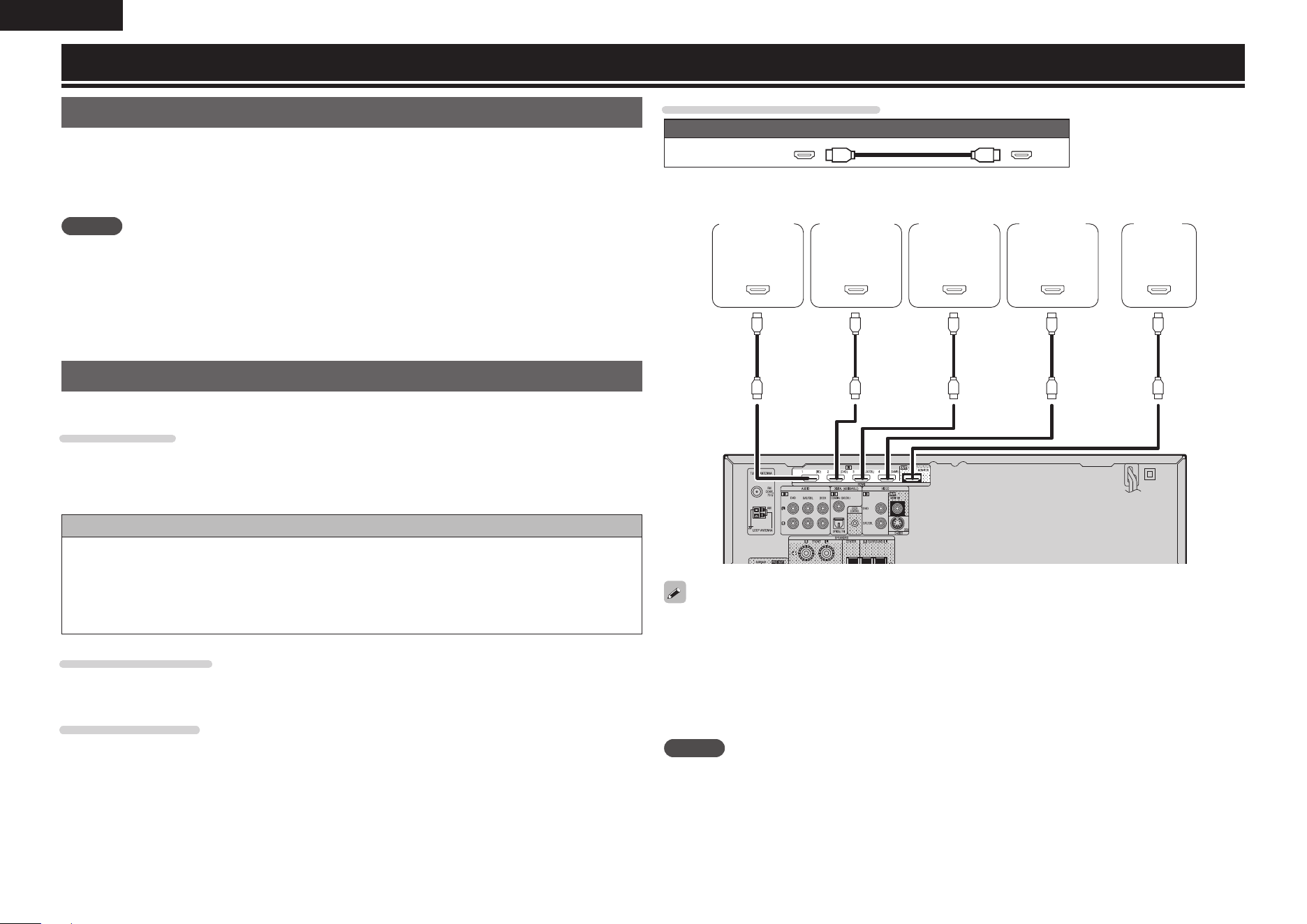
Basic
version
11
ENGLISH
Advanced version InformationBasic versionSimple version
F Connections vpage12
F Playback (Basic operation) vpage17
F Selecting a listening mode (Surround mode) vpage21
n Refer to the pages indicated below for information on connecting and playing back the various
media and external devices.
Audio and video
PlaybackConnection
TV
vpage12, 13
–
Blu-ray Disc player
vpage12, 14 vpage17
DVD player
vpage12, 14 vpage17
Set-top box (Satellite tuner or cable TV)
vpage12, 14
–
Game console
vpage12
–
Digital camcorder
vpage15
–
Control dock for iPod
vpage16 vpage18
Portable player
vpage15 vpage17
Audio
PlaybackConnection
Radio
vpage16 vpage20
For speaker connections, see page 4.
Basic version
Here, we explain the connections and basic operation methods for this unit.
1.AVR391E3ENG4th100602.inddSec:111.AVR391E3ENG4th100602.inddSec:11 2010/06/0414:29:202010/06/0414:29:20
12
ENGLISH
Connections
Connecting an HDMI-compatible device
You can connect up to fi ve HDMI-compatible devices to the unit.
HDMI function
• 3D
• Deep Color (vpage48)
• x.v.Color, sYCC601 color, Adobe RGB color, Adobe YCC601color (vpage48, 49)
• High defi nition digital audio format
Copyright protection system
In order to play back digital video and audio such as BD-Video or DVD-Video via HDMI connection, both
this unit and TV or the player need to support the copyright protection system known as HDCP (High-
bandwidth Digital Content Protection System). HDCP is copyright protection technology comprised of
data encryption and authentication of the connected AV device. This unit supports HDCP.
• If a device that does not support HDCP is connected, video and audio are not output correctly. Read
the owner’s manual of your television or player for more information.
About HDMI cables
When a device supporting Deep Color signal transfer is connected, use a cable compatible “High Speed
HDMI cable” or “High Speed HDMI cable with Ethernet”.
About 3D function
This unit supports input and output of 3D (3 dimensional) video signals of the HDMI 1.4a standards. For
playing the 3D video content, a player, and a TV that support the 3D function of the HDMI 1.4a standards
are required in addition to this unit.
Important information
• Make connections as follows before using this unit. Select an appropriate connection type
according to the components to be connected.
• You may need to make some settings on this unit depending on the connection method. Refer to
each description for more information.
• Select the cables (sold separately) according to the components being connected.
NOTE
• Do not plug in the power cord until all connections have been completed.
• When making connections, also refer to the operating instructions of the other components being
connected.
• Be sure to connect the left and right channels properly (left with left, right with right).
• Do not bundle power cords together with connection cables. Doing so can result in noise.
Cables used for connections
Audio and video cable (sold separately)
HDMI cable
• This interface allows transfer of digital video signals and digital audio signals over a single HDMI cable.
065
)%.*
065
)%.*
065
)%.*
065
)%.*
*/
)%.*
Blu-ray Disc
player
DVD player TV Set-top box
Game
console
• When this unit is connected to other devices with HDMI cables, connect this unit and TV also with an
HDMI cable.
• When connecting a device that supports Deep Color transmission, please use a “High Speed HDMI
cable” or “High Speed cable with Ethernet”.
• Video signals are not output if the input video signals do not match the monitor’s resolution. In this case,
switch the Blu-ray Disc/DVD player’s resolution to a resolution with which the monitor is compatible.
• When this unit and monitor are connected with an HDMI cable, if the monitor is not compatible with
HDMI audio signal playback, only the video signals are output to the monitor.
NOTE
• The audio signal from the HDMI output connector (sampling frequency, number of channels, etc.) may be
limited by the HDMI audio specifi cations of the connected device regarding permissible inputs.
• Only an HDMI signal is output from the HDMI MONITOR OUT connector.
1.AVR391E3ENG4th100602.inddSec:121.AVR391E3ENG4th100602.inddSec:12 2010/06/0414:29:202010/06/0414:29:20

13
ENGLISH
Advanced versionSimple version InformationBasic version
Connecting to a device equipped with a DVI-D connector
When an HDMI/DVI conversion cable (sold separately) is used, the HDMI video signals are converted to
DVI signals, allowing connection to a device equipped with a DVI-D connector.
NOTE
• No sound is output when connected to a device equipped with a DVI-D connector. Make separate audio
connections.
• Signals cannot be output to DVI-D devices that do not support HDCP.
• Depending on the combination of devices, the video signals may not be output.
n Settings related to HDMI connections
Set as necessary. For details, see the respective reference pages.
Other Setup (vpage34)
Make settings for HDMI audio output.
• Audio Out
NOTE
The audio signals output from the HDMI connectors are only the HDMI input signals.
Connecting an HDMI-compatible device
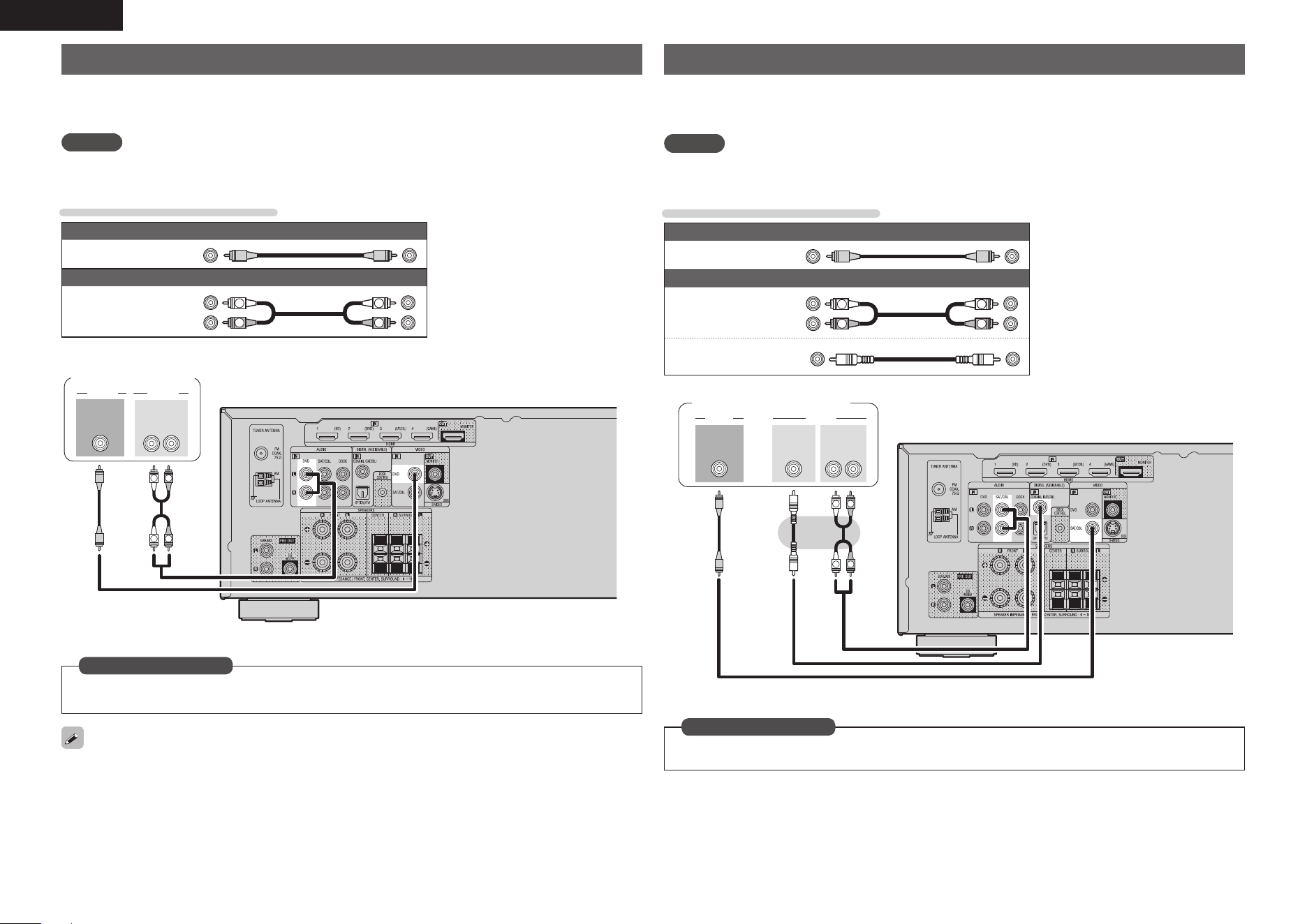
Connecting a TV
• Select the connector to use and connect the device.
• For instructions on HDMI connections, see “Connecting an HDMI-compatible device” (vpage12).
To listen to TV audio through this device, use the optical digital connection.
NOTE
If the VIDEO input connector and S-VIDEO input connector are to be used, be sure to connect the
MONITOR output connector of the unit and the VIDEO input connector of the TV, using a video cable.
Cables used for connections
Video cable (sold separately)
Video cable
(Yellow)
Audio cable (sold separately)
Optical cable
*/
7*%&0
7*%&0
"6%*0
015*$"-
065
TV
Set this to change the digital input connector to which the input source is assigned.
“Input Assign” (vpage31)
in Set as Necessary
1.AVR391E3ENG4th100602.inddSec:131.AVR391E3ENG4th100602.inddSec:13 2010/06/0414:29:202010/06/0414:29:20
14
ENGLISH
Connecting a Blu-ray Disc player / DVD player
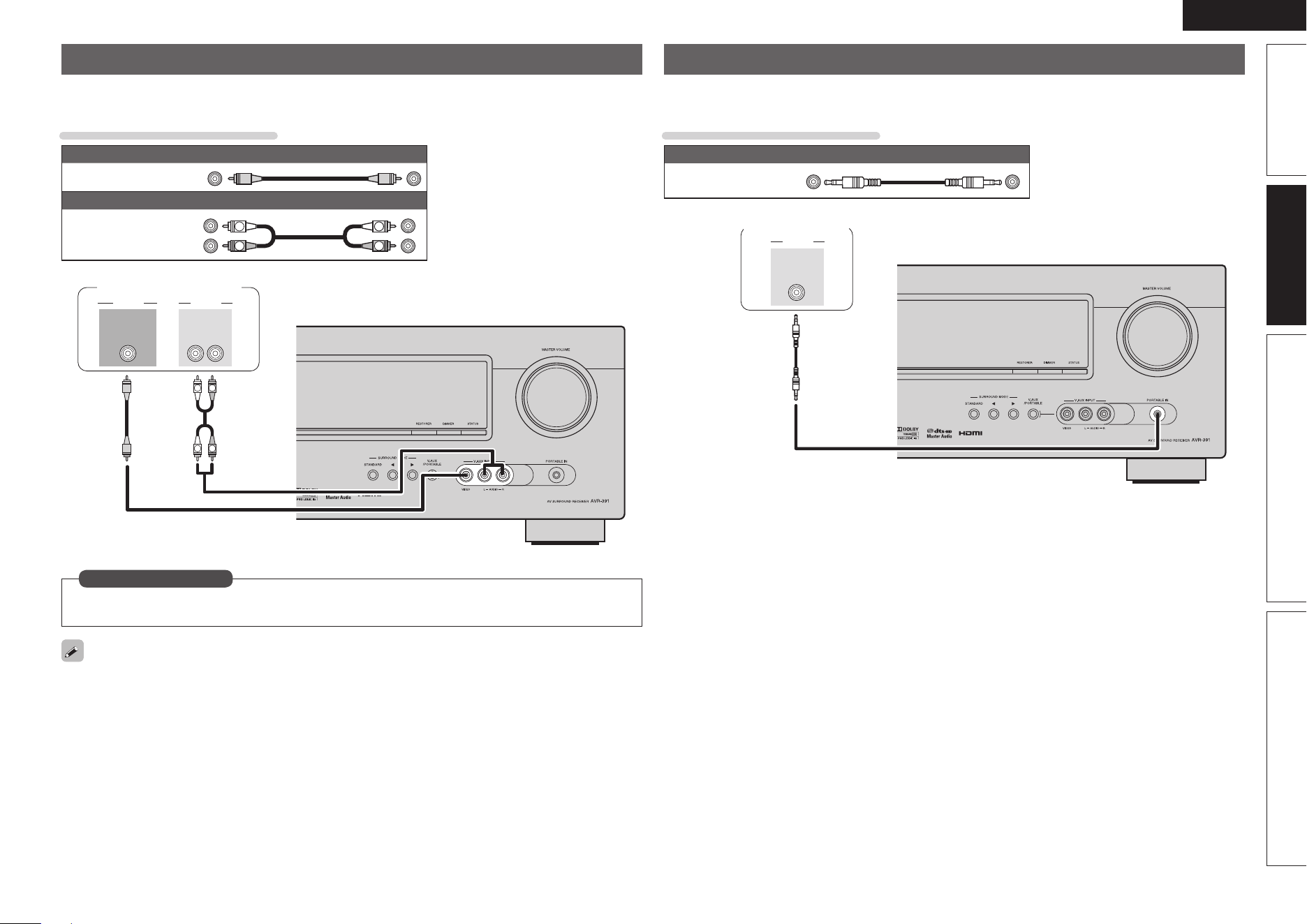
• You can enjoy video and audio from a Blu-ray Disc or DVD.
• Select the connector to use and connect the device.
• For instructions on HDMI connections, see “Connecting an HDMI-compatible device” (vpage12).
NOTE
If the DVD VIDEO input connector is to be used, be sure to connect the MONITOR output connector of the
unit and the VIDEO input connector of the TV, using a video cable.
Cables used for connections
Video cables (sold separately)
Video cable
(Yellow)
Audio cable (sold separately)
Audio cable
(White)
(Red)
R
L
R
L
R
L
R
L
7*%&0 "6%*0
"6%*0
3-
065
065
7*%&0
Blu-ray Disc player /
DVD player
Set this to change the digital input connector to which the input source is assigned.
“Input Assign” (vpage31)
in Set as Necessary
For HD audio (Dolby TrueHD, DTS-HD, Dolby Digital Plus and DTS Express) playback, connect with HDMI
(vpage12 “Connecting an HDMI-compatible device”).
Connecting a set-top box (Satellite tuner/cable TV)
• You can watch satellite or cable TV.
• Select the connector to use and connect the device.
• For instructions on HDMI connections, see “Connecting an HDMI-compatible device” (vpage12).
NOTE
If the SAT/CBL VIDEO input connector is to be used, be sure to connect the MONITOR output connector
of the unit and the VIDEO input connector of the TV, using a video cable.
Cables used for connections
Video cables (sold separately)
Video cable
(Yellow)
Audio cables (sold separately)
Audio cable
(White)
(Red)
R
L
R
L
Coaxial
digital cable
(Orange)
R
L
R
L
7*%&0
"6%*0
"6%*0
3-
065
065
7*%&0
065
$0"9*"-
Satellite Tuner/Cable TV
Set this to change the digital input connector to which the input source is assigned.
“Input Assign” (vpage31)
in Set as Necessary
1.AVR391E3ENG4th100602.inddSec:141.AVR391E3ENG4th100602.inddSec:14 2010/06/0414:29:212010/06/0414:29:21
15
ENGLISH
Advanced versionSimple version InformationBasic version
Connecting a digital camcorder
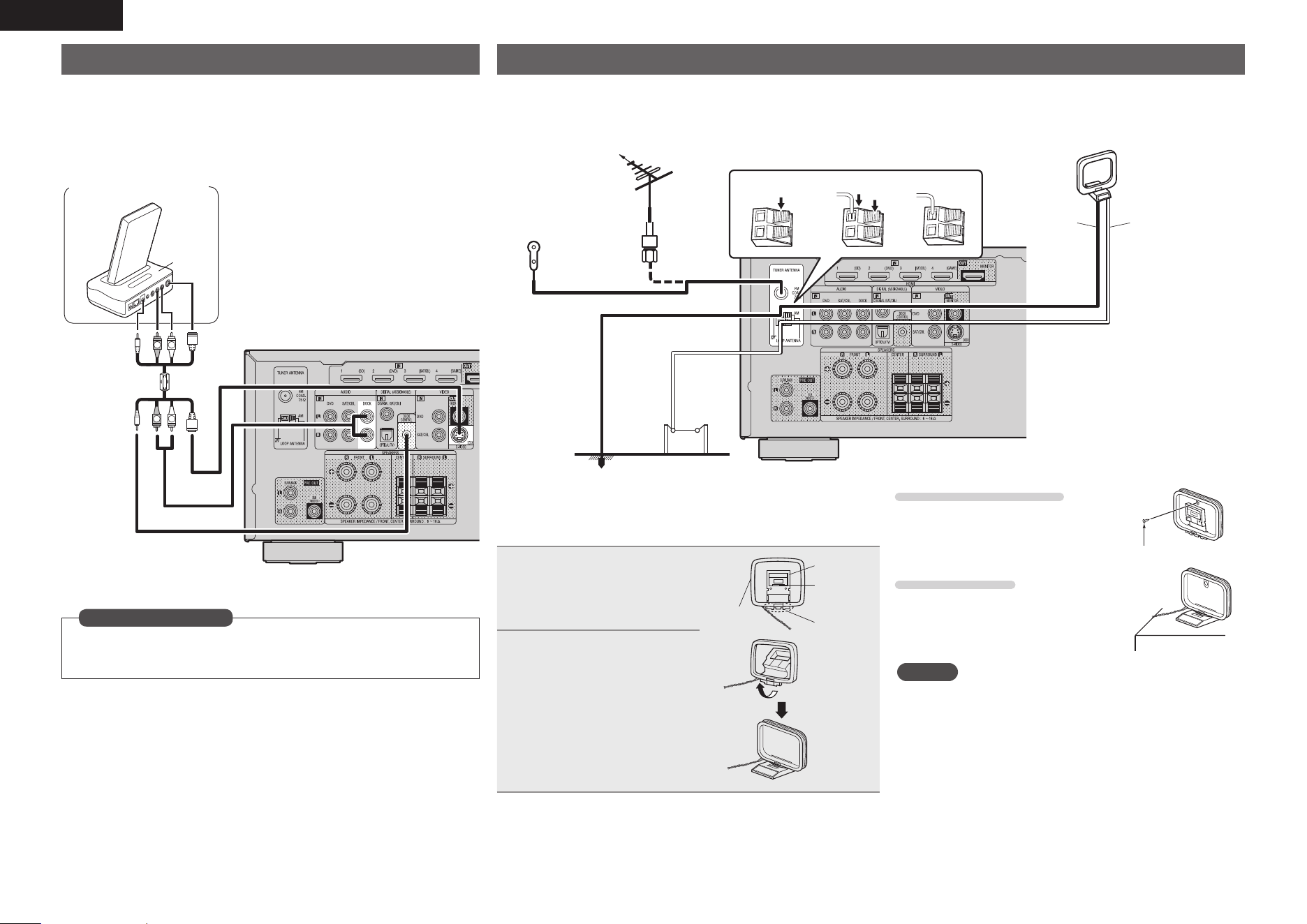
• You can enjoy video and audio from a digital camcorder.
• For instructions on HDMI connections, see “Connecting an HDMI-compatible device” (vpage12).
Cables used for connections
Video cable (sold separately)
Video cable
(Yellow)
Audio cable (sold separately)
Audio cable
(White)
(Red)
R
L
R
L
R
L
R
L
065
"6%*07*%&0
7*%&0 "6%*0
3-
065
Digital camcorder
Set this to change the digital input connector to which the input source is assigned.
“Input Assign” (vpage31)
in Set as Necessary
• You can enjoy games by connecting a game machine via the V.AUX input connector. In this case, set the
input source to “V.AUX”.
• If a portable player is connected via the PORTABLE IN jack on the front panel, playback from the portable
player has priority.
Connecting a portable player
If a portable player is connected via the PORTABLE IN jack of the unit, music from the portable player can
be played.
Cables used for connections
Audio cable (sold separately)
Stereo mini
plug cable
"6%*0
"6%*0
065
Portable player
1.AVR391E3ENG4th100602.inddSec:151.AVR391E3ENG4th100602.inddSec:15 2010/06/0414:29:212010/06/0414:29:21
16
ENGLISH
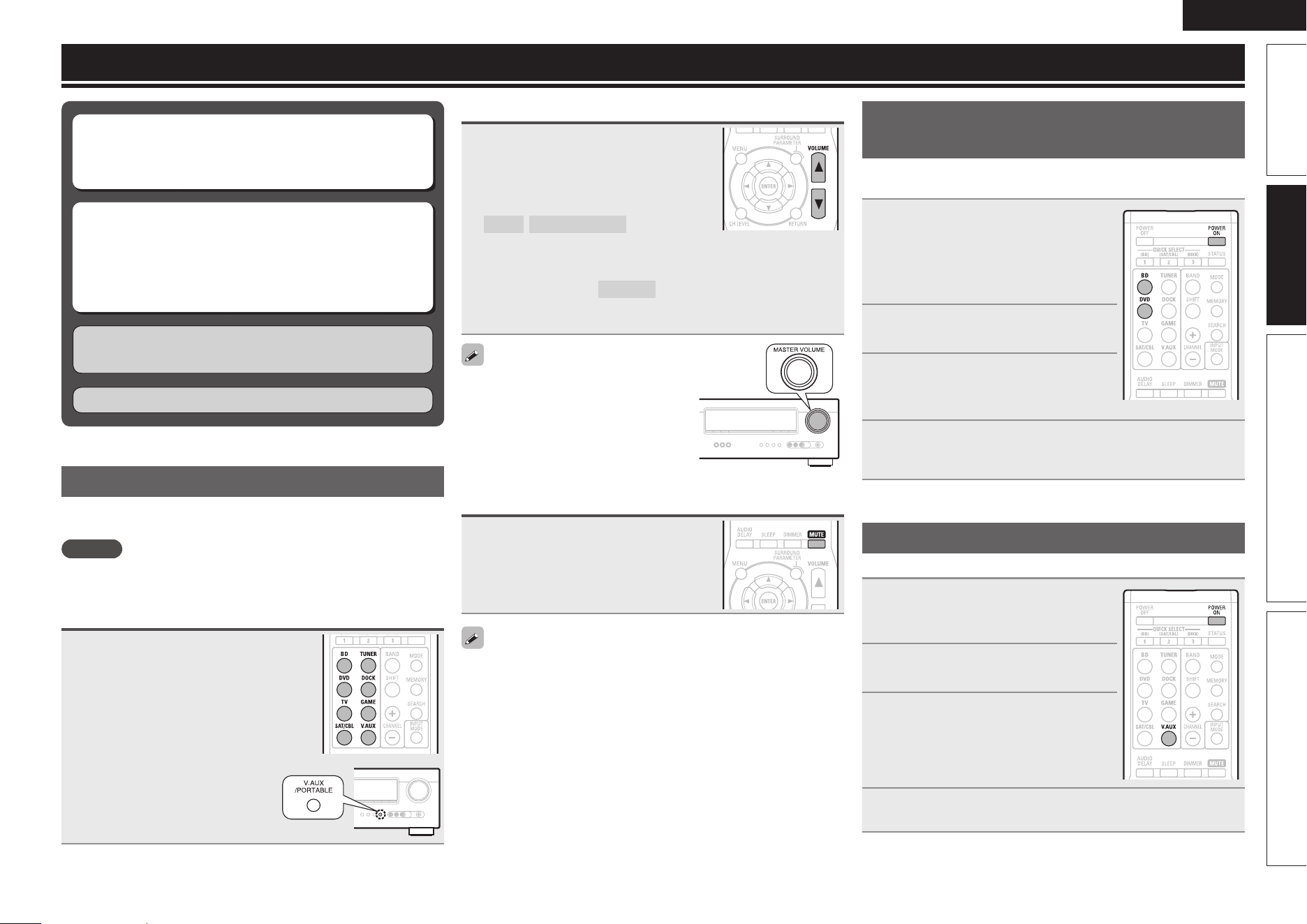
Connecting an antenna
• Connect the FM antenna or AM loop antenna supplied with the unit to enjoy listening to radio broadcasts.
• After connecting the antenna and receiving a broadcast signal (vpage20 “Listening to FM/AM broadcasts”), fi x the antenna with tape
in a position where the noise level becomes minimal.
weq
FM outdoor
antenna
75 Ω Coaxial
cable
Ground
AM outdoor
antenna
AM loop antenna
(supplied)
Black White
FM indoor
antenna
(supplied)
Direction of broadcasting station
n AM loop antenna assembly
1
Put the stand section
through the bottom of the
loop antenna from the
rear and bend it forward.
Stand
Square
hole
Projecting
part
Loop
antenna
2
Insert the projecting part
into the square hole in
the stand.
n Using the AM loop antenna
Suspending on a wall
Suspend directly on a wall without
assembling.
Nail, tack, etc.
Standing alone
Use the procedure shown left to
assemble.
NOTE
• Do not connect two FM antennas simultaneously.
• Even if an external AM antenna is used, do not disconnect the
AM loop antenna.
• Make sure the AM loop antenna lead terminals do not touch
metal parts of the panel.
• If the signal has noise interference, connect the ground
terminal (GND) to reduce noise.
• If you are unable to receive a good broadcast signal, we
recommend installing an outdoor antenna. For details, inquire
at the retail store where you purchased the unit.
Connecting a control dock for iPod
• Connect a control dock for iPod to the unit to enjoy video and music stored
on an iPod.
• For a control dock for iPod, use ASD-11R, ASD-3N, ASD-3W, ASD-51N and
ASD-51W made by DENON (sold separately).
• For instructions on the control dock for iPod settings, refer to the control
dock for iPod’s operating instructions.
R
L
R
L
"4%/
Control dock for iPod
zUse the AV/Control Cable supplied with the DENON
control dock for iPod.
z
Set this to change the digital input connector to which the input source
is assigned.
“Input Assign” (vpage31)
in Set as Necessary
1.AVR391E3ENG4th100602.inddSec:161.AVR391E3ENG4th100602.inddSec:16 2010/06/0414:29:212010/06/0414:29:21
17
ENGLISH
Advanced versionSimple version InformationBasic version
Playback (Basic operation)
n Playing a Blu-ray Disc player/DVD player
(vpage17)
n Playing a portable player (vpage17)
n Playing an iPod
®
(vpage18)
n Tuning in radio stations (vpage20)
Selecting a listening mode (Surround mode)
(vpage21)
n Selecting the input source (vpage17)
n Adjusting the master volume (vpage17)
n Turning off the sound temporarily (vpage17)
Playback (Advanced operation) (vpage27)
Important information
Before starting playback, make the connections between the different
components and the settings on the receiver.
NOTE
Also refer to the operating instructions of the connected components
when playing them.
Selecting the input source
Press the input source select button
(DVD, BD, TUNER, DOCK, SAT/CBL,
GAME, V.AUX
z
, TV) to be played
back.
The desired input source can be selected
directly.
z For operation with the main unit,
use V.AUX/PORTABLE.
Adjusting the master volume
Use VOL df to adjust the volume.
n When the “Volume Display” setting
(vpage33) is “Relative”
GAdjustable rangeH
– – –
–80.5dB – 18.0dB
n When the “Volume Display” setting (vpage33) is
“Absolute”
GAdjustable rangeH
0.0 – 99.0
• The variable range differs according to the input signal and channel
level setting.
You can also operate via the main unit.
In this case, perform the following
operations.
Turn MASTER VOLUME to adjust the
volume.
Turning off the sound temporarily
Press MUTE.
• The sound is reduced to the level set at “Mute Level” (vpage33).
• To cancel, press MUTE again. Muting can also be canceled by
adjusting the master volume.
Playing a Blu-ray Disc player/DVD
player
The following describes the procedure for playing Blu-ray Disc player/
DVD player.
1
Prepare for playback.
q Turn on the power of the TV,
subwoofer and player.
w Change the TV input to the input of
this unit.
e Load the disc in the player.
2
Press POWER ON to turn on
power to the unit.
3
Press BD or DVD to switch an
input source for a player used for
playback.
4
Play the component connected to this unit.
Make the necessary settings on the player (language setting,
subtitles setting, etc.) beforehand.
Playing a portable player
The following describes the procedure for playing portable player.
1
Connect the portable player to
this unit (vpage 15 “Connecting
a portable player”).
2
Press POWER ON to turn on
power to the unit.
3
Press V.AUX to switch the input
source to “V.AUX”.
4
Play the component connected to this unit.
1.AVR391E3ENG4th100602.inddSec:171.AVR391E3ENG4th100602.inddSec:17 2010/06/0414:29:222010/06/0414:29:22
18
ENGLISH
Playing an iPod
®
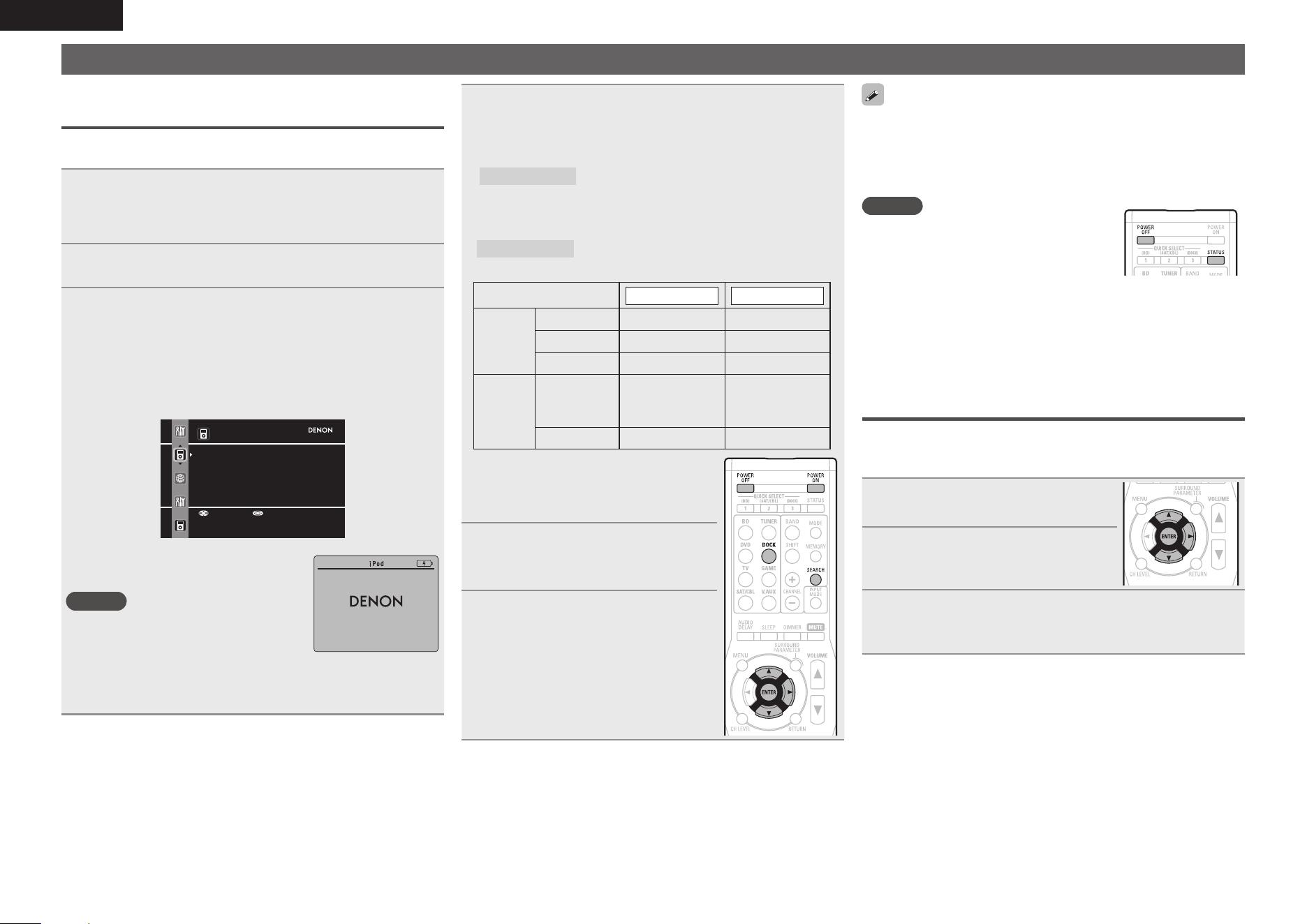
You can play back both video, photo and audio.
Listening to music on an iPod
®
DENON Control dock for iPod usable on this unit
• ASD-11R/ASD-3N/ASD-3W/ASD-51N/ASD-51W
1
Prepare for playback.
q Connect the DENON control dock for iPod to this unit
(vpage16 “Connecting a control dock for iPod”).
w Set the iPod
®
in the DENON control dock for iPod.
2
Press POWER ON to turn on power to the unit.
3
Press DOCK to switch the input source to “DOCK”.
• If “Browse mode” is selected in step 4, the following screen is
displayed on a TV screen.
When ASD-11R is used, iPod information is not displayed on a TV
screen. It is displayed on the display of the unit.
iPod
Music
Video
Up/Down Select
GWhen using an ASD-3N, ASD-3W, ASD-51N and ASD-51WH
• In “Browse mode”, the iPod display is as
shown at right.
NOTE
• If the connections screen is not displayed,
the iPod may not be properly connected.
Reconnect it.
OK to disconnect.
• For operating an iPod while viewing on a TV screen, connect the
VIDEO MONITOR output connectors on this unit and the VIDEO
input connectors on the TV, using a video cable.
4
Press SEARCH and hold it down for 2 seconds or
more to select the display mode.
• There are two modes for displaying the contents recorded on the
iPod.
Browse mode
Display iPod information on the TV screen or
display of this unit.
• English letters, numbers and certain symbols are displayed.
Incompatible characters are displayed as “.” (period).
Remote mode
Display iPod information on the iPod screen.
• “Dock Remote” is displayed on the display of this unit.
Display mode
Browse mode Remote mode
Playable
fi les
Music fi le
33
Photo fi le
3
z
Video fi le
33
z
Active
buttons
Remote
control unit
(This unit)
33
iPod
®
3
z Video may not be output, depending on
the combination of ASD-11R, ASD-3N,
ASD-3W, ASD-51N or ASD-51W DENON
control dock for iPod and iPod.
5
Use ui to select the item, then
press ENTER or p to select the
fi le to be played.
6
Press ENTER or p.
Playback starts.
• To play back compressed audio with extended bass or treble
reproduction, we recommend playback in RESTORER mode
(vpage36). The default setting is “ON”.
• In Browse mode, press
STATUS during playback to check the title
name, artist name, and album name.
NOTE
• Press POWER OFF and set this unit’s power
to the standby mode before disconnecting
the iPod. Also switch the input source to
“DOCK” before disconnecting the iPod.
• Depending on the type of iPod and the software version, some
functions may not operate.
• Note that DENON will accept no responsibility whatsoever for any
problems arising with the data on an iPod when using this unit in
conjunction with the iPod.
Viewing videos on an iPod
®
in the Browse
mode
When an iPod equipped with a video function is connected to a
DENON ASD-11R, ASD-3N, ASD-3W, ASD-51N and ASD-51W control
dock for iPod, image fi les can be played in the Browse mode.
1
Use ui to select “Videos”, then
press ENTER or p.
2
Use ui to select the search item
or folder, then press ENTER or p.
3
Use ui to select the video fi le, then press ENTER
or p.
Playback starts.
1.AVR391E3ENG4th100602.inddSec:181.AVR391E3ENG4th100602.inddSec:18 2010/06/0414:29:232010/06/0414:29:23
19
ENGLISH
Advanced versionSimple version InformationBasic version
Playing an iPod
®
Viewing photos and videos on an iPod
®
in
the Remote mode
This unit can play back on a TV screen photos and data stored on an
iPod equipped with a slide show or video function.
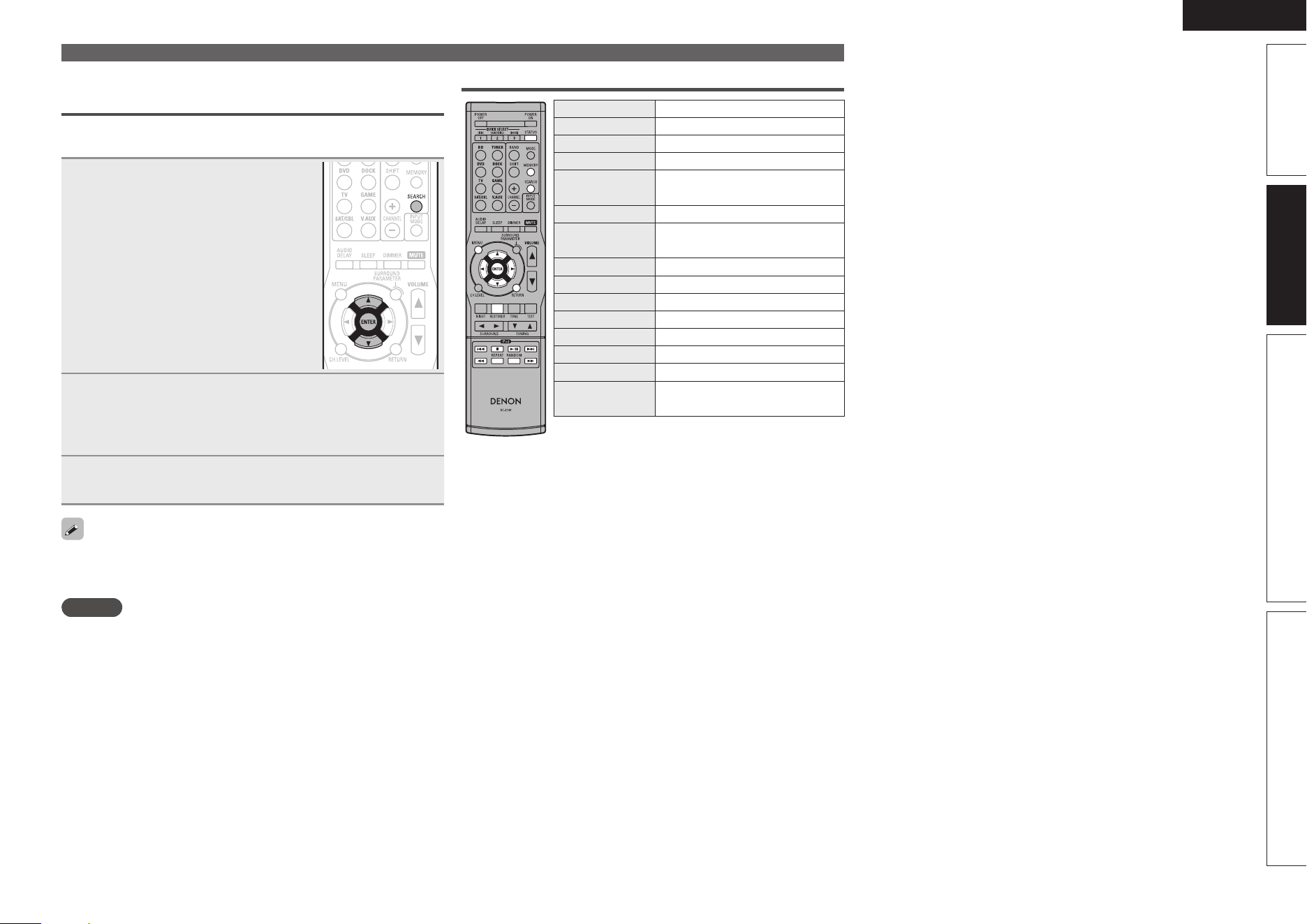
1
Press and hold SEARCH to set the
Remote mode.
“Dock Remote” is displayed on the
display of this unit.
2
Watching the iPod’s screen, use ui to select
“Photos” or “Videos”.
• Depending on the iPod model, it may be necessary to operate the
iPod unit directly.
3
Press ENTER until the image you want to view is
displayed.
“TV Out” at the iPod’s “Slide show Settings” or “Video Settings”
must be set to “On” in order to display the iPod’s photo data or videos
on the monitor. For details, see the iPod’s operating instructions.
NOTE
Video may not be output, depending on the combination of ASD-11R,
ASD-3N, ASD-3W, ASD-51N or ASD-51W and iPod.
iPod operation
Operation buttons Function
MENU Amp menu
uio p
Cursor operation
ENTER Enter
SEARCH
(Press and hold)
Browse / Remote mode switching
RETURN Return
6 7
(Press and hold)
Manual search
(fast-reverse/fast-forward)
1/3
Playback / Pause
8 9
Auto search (cue)
2
Stop
REPEAT Repeat playback
RANDOM Shuffl ing playback
RESTORER RESTORER
MEMORY
Store memoryz
STATUS
Check of title name/artist name/album
name (in Browse mode)
• Repeat playback (vpage33 “Repeat”)
• Shuffl ing playback (vpage33 “Shuffl e”)
zThis functions when an ASD-3N, ASD-3W, ASD-
51N or ASD-51W is used.
1.AVR391E3ENG4th100602.inddSec:191.AVR391E3ENG4th100602.inddSec:19 2010/06/0414:29:232010/06/0414:29:23
20
ENGLISH
Tuning in radio stations
Listening to FM/AM broadcasts
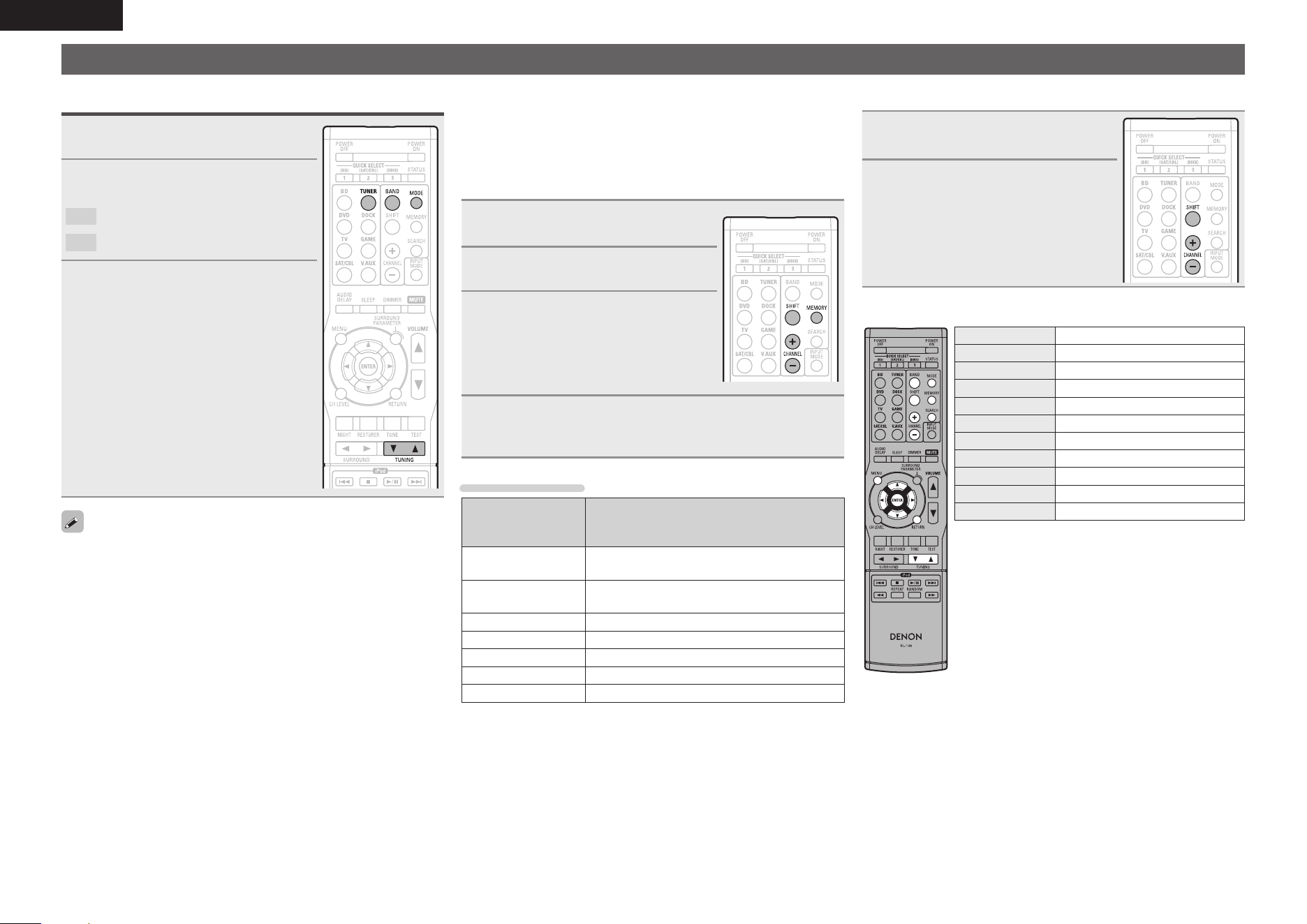
1
Press TUNER to switch the input
source to “TUNER”.
2
Press BAND to select “FM” or
“AM”.
FM
When listening to an FM broadcast.
AM
When listening to an AM broadcast.
3
Tune in the desired broadcast
station.
q To tune in automatically
(Auto tuning)
Press MODE to light the “AUTO” indicator
on the display, then use TUNING d or
TUNING f to select the station you want
to hear.
w To tune in manually (Manual tuning)
Press MODE to turn off the display’s
“AUTO” indicator, then use TUNING d or
TUNING f to select the station you want
to hear.
• If the desired station cannot be tuned in with auto tuning, tune it in
manually.
• When tuning in stations manually, press and hold TUNING d or
TUNING f to change frequencies continuously.
n Listening to preset stations
1
Press SHIFT to select the memory
block (A to G).
2
Press CHANNEL + or CHANNEL –
to select the desired preset
channel.
n Tuner (FM/AM) operation
Operation buttons Function
CHANNEL +, – Preset channel selection
MENU Amp menu
uio p
Cursor operation
ENTER Enter
RETURN Return
BAND FM/AM switching
MODE Switch search modes
TUNING df
Tuning (up/down)
SHIFT Preset channel block selection
MEMORY Preset memory registration
n Presetting radio stations (Manual preset)
Your favorite broadcast stations can be preset so that you can tune
them in easily. Up to 56 stations can be preset.
• Stations can be preset automatically at “Auto Preset”
(vpage32). If “Auto Preset” is performed after performing “Manual
Preset”, the “Manual Preset” settings will be overwritten.
1
Tune in the broadcast station you
want to preset.
2
Press MEMORY.
3
Press SHIFT to select the block (A
to G) in which the channel (1 to 8
per a block) is to be preset, then
press CHANNEL + or CHANNEL
–
to select the preset number.
4
Press MEMORY again to complete the setting.
• To preset other stations, repeat steps 1 to 4.
Default settings
Block (A – G)
and
Channel (1 – 8)
Default Settings
A1 – A8
87.5 / 89.1 / 98.1 / 107.9 / 90.1 / 90.1 / 90.1 /
90.1 MHz
B1 – B8
520 / 600 / 1000 / 1400 / 1500 / 1710 kHz,
90.1 / 90.1 MHz
C1 – C8 90.1 MHz
D1 – D8 90.1 MHz
E1 – E8 90.1 MHz
F1 – F8 90.1 MHz
G1 – G8 90.1 MHz
1.AVR391E3ENG4th100602.inddSec:201.AVR391E3ENG4th100602.inddSec:20 2010/06/0414:29:232010/06/0414:29:23
21
ENGLISH
Advanced versionSimple version InformationBasic version
Selecting a listening mode (Surround mode)
This unit can play input audio signals in multi-channel surround mode or in stereo mode.
Select a listening mode suitable for the playback contents (cinema, music, etc.) or according to your liking.
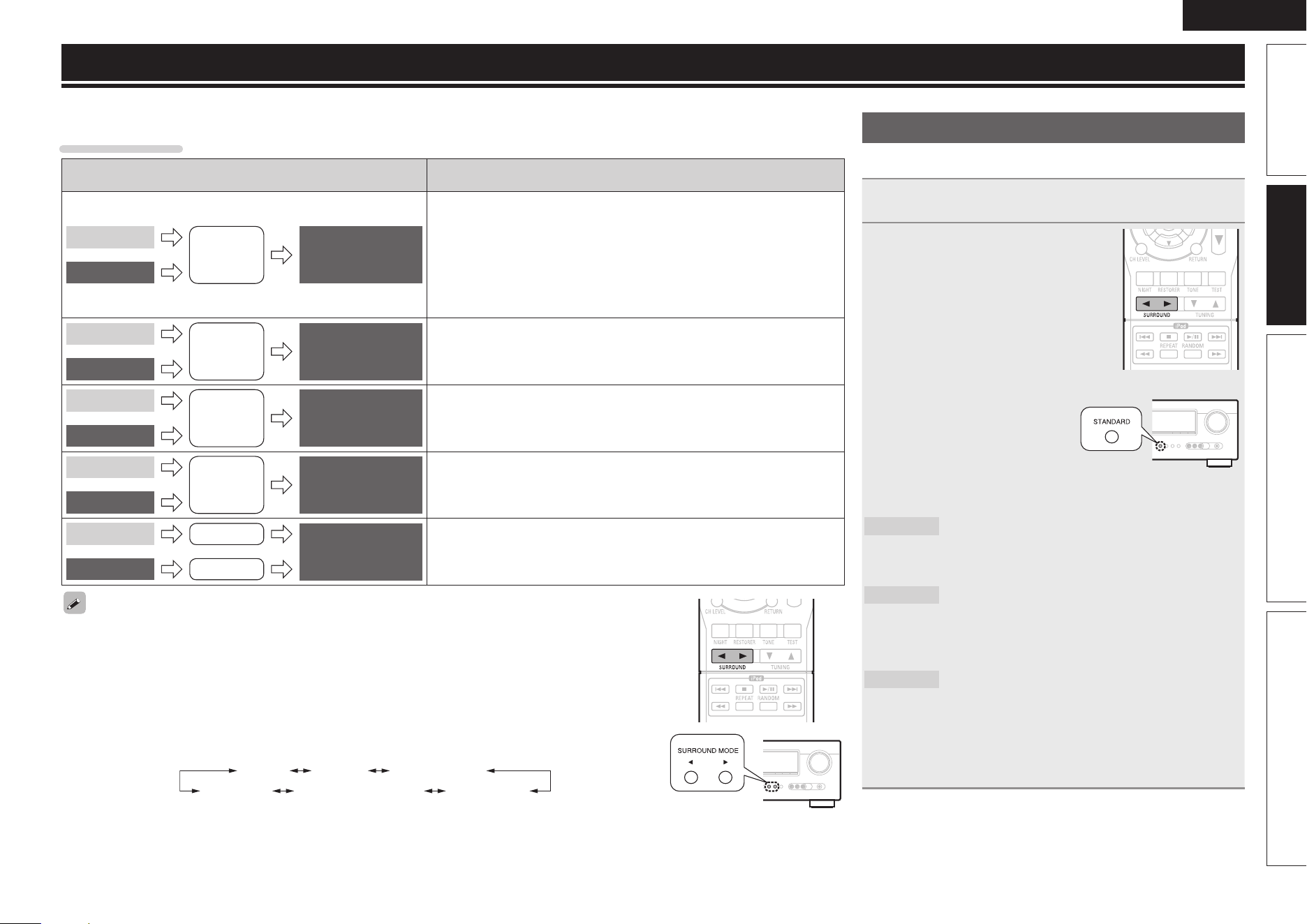
Listening Mode
Input audio
signal
Playback Listening mode
2-channel
Multi channel
Surround
Standard playback
(vpage21)
For 2-channel signal input:
• Surround-channel signals are created and played with surround playback.
For multichannel signal input:
• The surround signal recorded in source is played as surround playback.
(The sound is played according to the settings of the speaker size in
“Speaker Confi g.” (vpage7).)
• Surround-back-channel signals that are not recorded in source can be
created.
2-channel
Multi channel
Surround
Multi channel stereo
playback (vpage23)
This mode is for enjoying stereo sound from all speakers.
2-channel
Multi channel
Surround
Virtual playback
(vpage23)
This mode is for enjoying surround effects using only the front speakers
or headphones.
2-channel
Multi channel
Stereo
Stereo playback
(vpage23)
• If multichannel signals are input, they are mixed down to 2-channel audio
and are played.
• Subwoofer signals are also output.
2-channel
Multi channel
Stereo
Surround
Direct playback
(vpage23)
Sound recorded in source is played as is.
• Surround back signals are not created.
• In this mode, the following items cannot be adjusted.
• Tone (vpage36) • RESTORER (vpage36)
• Some listening modes cannot be selected, depending on the audio format or number of channels of the input
signal. For details, see “Types of input signals, and corresponding surround modes” (vpage46).
• Adjust the sound fi eld effect with the menu “Surround Parameter” (vpage34) to enjoy your favorite sound
mode.
• Buttons on the remote control unit or main unit can be used for operations.
GOperations with the remote control unitH
Press SURROUND 0 or SURROUND 1 and the modes are switched as shown below.
GOperations with the main unitH
Press SURROUND MODE 0 or SURROUND MODE 1 and the modes are switched as shown below.
DIRECT STEREO PLg (or PLgx)
z
DTS NEO:6
z
MULTI CH STEREO
z
VIRTUAL
z
z The display varies depending on the audio format or the number
of channels of input signals.
Standard playback
n Surround playback of 2-channel sources
1
Playing the source (vpage 17 – 20).
2
GOperations with the remote
control unitH
Press SURROUND 0 or
SURROUND 1 to select the
surround decoder to play back
multichannel sound.
Select the surround mode while viewing
the display on the display of this unit.
GOperations with the main unitH
Press STANDARD to select
the surround decoder to
play back multichannel
sound.
• Which decoder can be selected depends on the settings of
“Speaker Confi g.” (vpage7).
DOLBY PLgx
z
This mode is for 7.1-channel surround playback
using the surround back speakers.
• “PLgx Cinema”, “PLgx Music”or “PLgx Game”
is displayed.
DOLBY PLg
This mode is for 5.1-channel surround playback.
Select this mode if no surround back speaker is
to be used.
• “PLg Cinema”, “PLg Music”, “PLg Game” or
“Pro Logic” is displayed.
DTS NEO:6
This mode is for 7.1-channel or 5.1-channel
surround playback using the surround back
speakers.
• “DTS NEO:6 Cinema” or “DTS NEO:6 Music” is
displayed.
zThis can be selected when “Speaker Confi g.” – “S.B(Pre)”
(vpage7) is not set to “None”.
1.AVR391E3ENG4th100602.inddSec:211.AVR391E3ENG4th100602.inddSec:21 2010/06/0414:29:242010/06/0414:29:24
22
ENGLISH
3
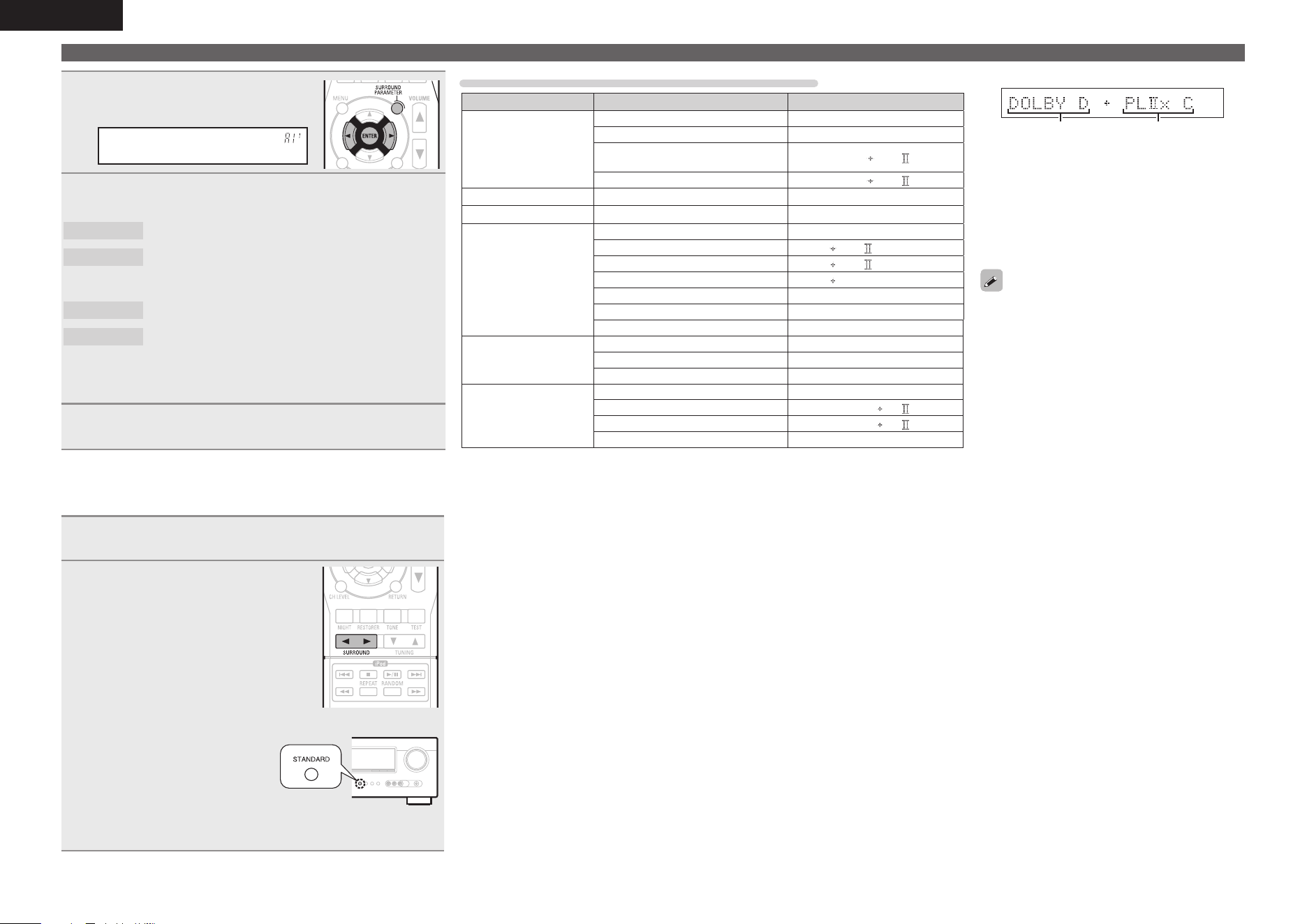
Press SURROUND PARAMETER
and then press ENTER
.
Mode:• Cinema –
4
Use o p to select the mode according to the content
to be played and then press ENTER.
Cinema
This mode is suited for movie sources.
Music
This mode is suited for music sources. More sound
is sent to the front speakers than in “Cinema”
mode.
Game
This mode is suited for games.
Pro Logic
z
This mode is suitable for playback of 2-channel
sources recorded with Dolby Pro Logic.
zThis can be selected when “Speaker Confi g.” – “S.B(Pre)”
(vpage7) is not set to “None”.
5
Press SURROUND PARAMETER.
The menu returns to normal display.
n Surround playback of multi-channel sources
(Dolby Digital, DTS etc.)
1
Playing the source (vpage 17 – 20).
2
GOperations with the remote
control unitH
Press SURROUND 0 or
SURROUND 1 to select the
surround decoder to play back
multichannel sound.
Select the surround mode while viewing
the display on the display of this unit.
GOperations with the main unitH
Press STANDARD to select
the surround decoder to
play back multichannel
sound.
• Which decoder can be selected depends on the input signal, the
settings of “Speaker Confi g.” (vpage7).
Displaying the currently playing surround mode
Input signal Surround mode Display
DOLBY DIGITAL
(other than 2ch) /
DOLBY DIGITAL EX
DOLBY DIGITAL
DOLBY DIGITAL
DOLBY DIGITAL EX
DOLBY DIGITAL EX
DOLBY DIGITAL + PLgx
CINEMA
DOLBY D PL x C
DOLBY DIGITAL + PLgx MUSIC
DOLBY D PL x M
DOLBY DIGITAL Plus DOLBY DIGITAL Plus
DOLBY DIGITAL +
DOLBY TrueHD DOLBY TrueHD
DOLBY TrueHD
DTS (5.1ch) /
DTS-ES Discrete 6.1 /
DTS-ES Matrix 6.1 /
DTS 96/24
DTS SURROUND
DTS SURROUND
DTS + PLgx CINEMA
DTS PL x C
DTS + PLgx MUSIC
DTS PL x M
DTS + NEO:6
DTS NEO:6
DTS ES MTRX6.1
z1
DTS ES MTRX6.1
DTS ES DSCRT6.1
z2
DTS ES DSCRT6.1
DTS 96/24
z3
DTS 96/24
DTS-HD
DTS-HD HI RES
DTS-HD HI RES
DTS-HD MSTR
DTS-HD MSTR
DTS Express
DTS Express
PCM (multi ch)
MULTI CH IN
MULTI CH IN
MULTI IN + PLgx CINEMA
MULTI IN PL x C
MULTI IN + PLgx MUSIC
MULTI IN PL x M
MULTI CH IN 7.1
MULTI CH IN 7.1
z1 This is displayed when the input signal is “DTS-ES Matrix 6.1” and this unit’s “AFDM”
(vpage35) setting is “ON”.
z2 This is displayed when the input signal is “DTS-ES Discrete 6.1”.
z3 This is displayed when the input signal is “DTS 96/24”.
Standard playback
GViews on the displayH
qw
q Shows a decoder to be used.
• A DOLBY DIGITAL decoder is displayed as
“DOLBY D”.
• A DOLBY DIGITAL Plus decoder is displayed
as “DOLBY DIGITAL +”.
w Shows a decoder that creates sound output
from the surround back speakers.
For an input signal that can be reproduced in
each surround mode, see “Surround modes and
surround parameters” (vpage44).
1.AVR391E3ENG4th100602.inddSec:221.AVR391E3ENG4th100602.inddSec:22 2010/06/0414:29:242010/06/0414:29:24
23
ENGLISH
Advanced versionSimple version InformationBasic version
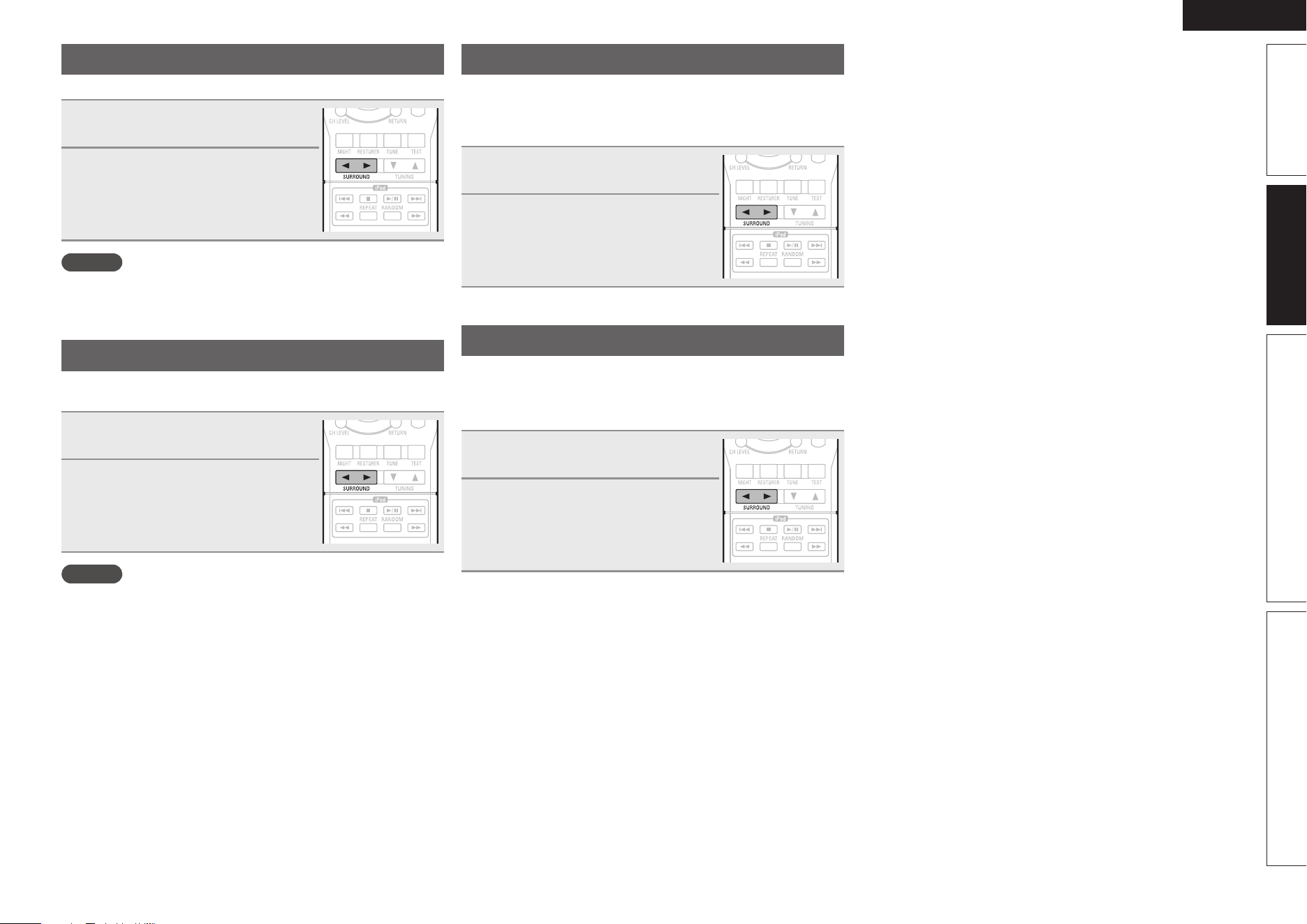
Multi channel stereo playback
This mode is for enjoying stereo sound from all speakers.
1
Playing the source (vpage 17
– 20).
2
Press SURROUND 0 or
SURROUND 1 to select “MULTI
CH STEREO”.
Multi channel stereo playback begins.
NOTE
When the input signal is Dolby TrueHD, Dolby Digital Plus, DTS-HD or
DTS Express, you cannot select multi channel stereo mode.
Virtual playback
This mode is for enjoying surround effects using only the front
speakers or headphones.
1
Playing the source (vpage 17
– 20).
2
Press SURROUND 0 or
SURROUND 1 to select
“VIRTUAL”.
Virtual playback begins.
NOTE
When the input signal is Dolby TrueHD, Dolby Digital Plus, DTS-HD or
DTS Express, you cannot select virtual mode.
Stereo playback
This is the mode for playing in stereo. The tone can be adjusted.
• Sound is output from the front left and right speakers and subwoofer.
• If multichannel signals are input, they are mixed down to 2-channel
audio and are played.
1
Playing the source (vpage 17
– 20).
2
Press SURROUND 0 or
SURROUND 1 to select
“STEREO”.
Stereo playback begins.
Direct playback
Sound recorded in source is played as is.
• Surround back signals are not created.
• In this mode, the following items cannot be adjusted.
• Tone (vpage36) • RESTORER (vpage36)
1
Playing the source (vpage 17
– 20).
2
Press SURROUND 0 or
SURROUND 1 to select
“DIRECT”.
Direct playback begins.
1.AVR391E3ENG4th100602.inddSec:231.AVR391E3ENG4th100602.inddSec:23 2010/06/0414:29:252010/06/0414:29:25

Advanced
version
24
ENGLISH
F Speaker installation/connection (Other than 5.1-channel) vpage25
F Playback (Advanced operation) vpage27
F How to make detailed settings vpage29
Advanced version
Here, we explain functions and operations that let you make better use of this unit.
1.AVR391E3ENG4th100602.inddSec:241.AVR391E3ENG4th100602.inddSec:24 2010/06/0414:29:252010/06/0414:29:25
25
ENGLISH
Basic versionSimple version InformationAdvanced version
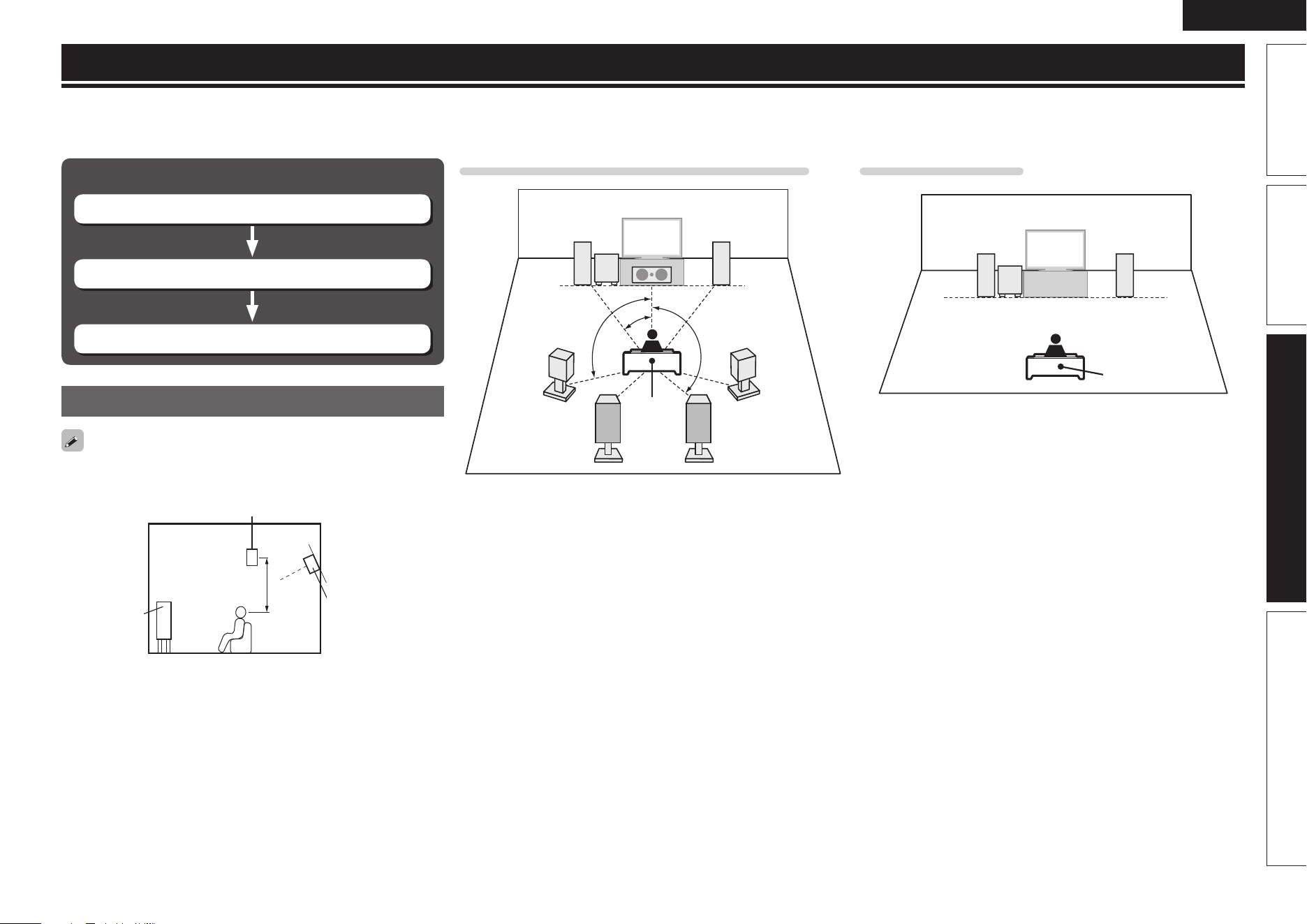
When 2.1ch installed
FL FR
SW
Listening position
FL Front speaker (L) SL Surround speaker (L)
FR Front speaker (R) SR Surround speaker (R)
C Center speaker SBL Surround back speaker (L)
SW Subwoofer SBR Surround back speaker (R)
Procedure for speaker settings
Install
Connect (vpage26)
Set up speakers (vpage6)
Install
Install the surround back speakers in a position 2 to 3 ft (60 to 90 cm)
higher than ear level.
Surround
speaker
2 – 3 ft /
60 – 90 cm
GViewed from the sideH
Surround back
speaker
• Point slightly
downwards
Front
speaker
When 7.1ch (Surround back speaker) installed
SBL SBR
C
SL
SR
FL FR
SW
z1
z2
z3
Listening
position
z1 22˚ – 30˚ z2 90˚ – 110˚ z3 135˚ – 150˚
Speaker installation/connection (Other than 5.1-channel)
Here we describe the installation and connection methods for speakers other than 5.1-channel speakers. The speaker setting method is the same as “Simple
version (Simple setup guide)” (vpage3).
For the installation, connection and setup methods for 5.1-channel speakers, see “Simple version (Simple setup guide)” (vpage3).
1.AVR391E3ENG4th100602.inddSec:251.AVR391E3ENG4th100602.inddSec:25 2010/06/0414:29:252010/06/0414:29:25
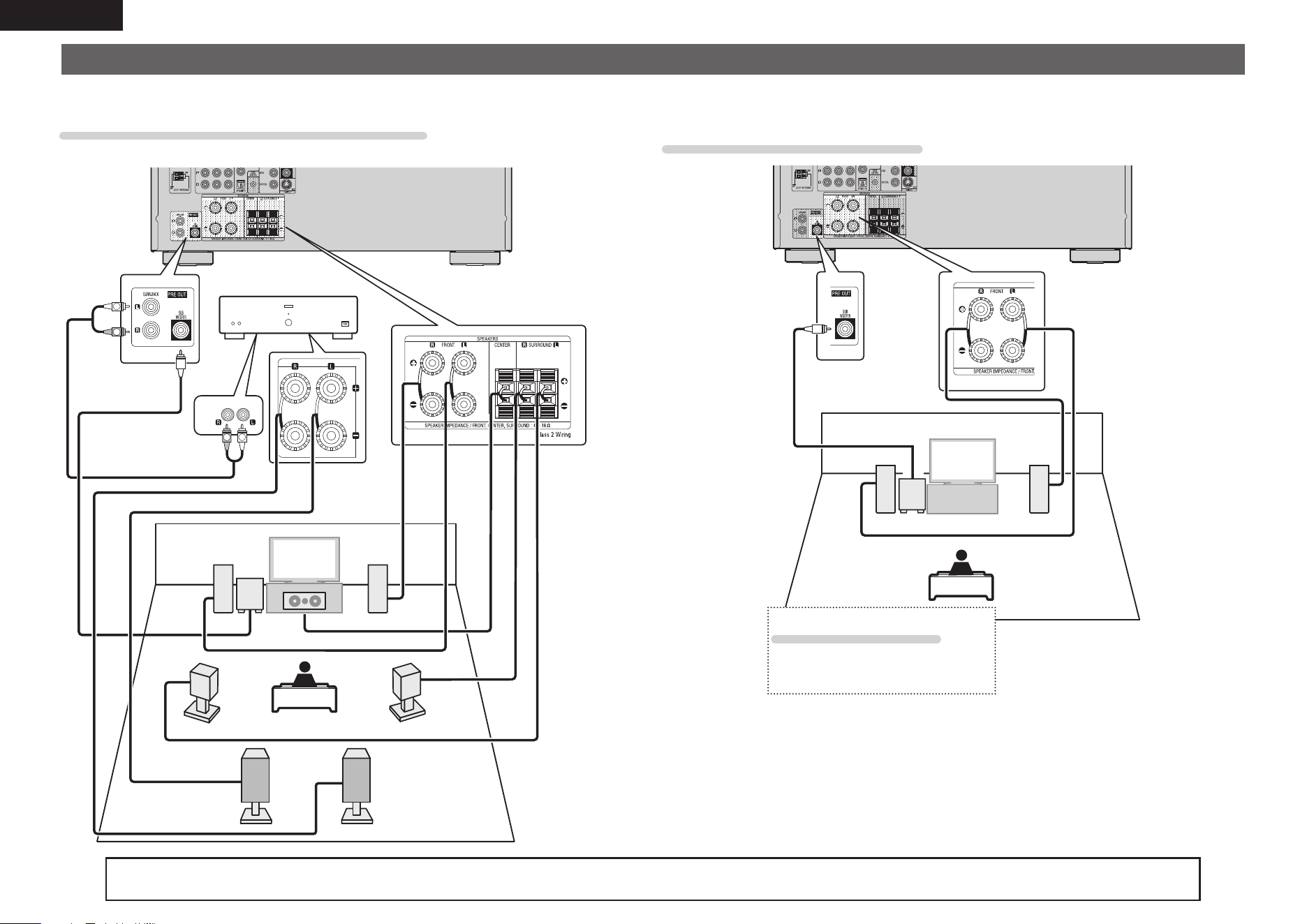
26
ENGLISH
Connect
• For the method of connecting 5.1-channel speakers, see page 4.
• For the method of connecting the TV, see page 5.
7.1-channel (Surround back speaker) connection
• A power amplifi er (sold separately) is required for this connection.
C
SBL SBR
SL
SR
*/
R
L
R
L
FL FR
SW
Power amplifi er
2.1-channel/2-channel connection
SW
FL FR
2-channel connection
For 2-channel playback, disconnect the
subwoofers.
For speaker impedance and speaker cable connections, see page 4.
1.AVR391E3ENG4th100602.inddSec:261.AVR391E3ENG4th100602.inddSec:26 2010/06/0414:29:262010/06/0414:29:26
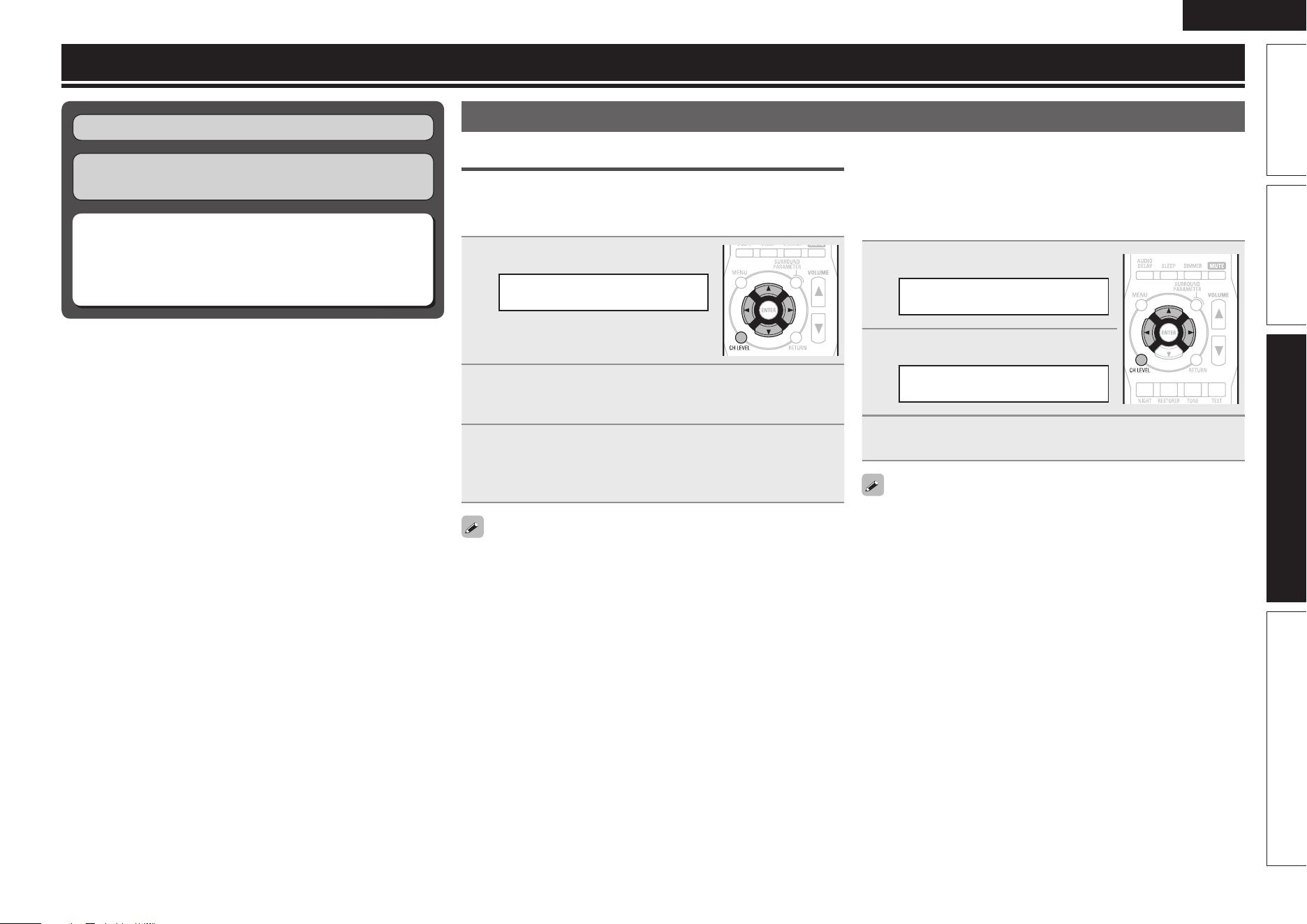
27
ENGLISH
Basic versionSimple version InformationAdvanced version
n Adjusting the volume of the speakers (vpage27)
n Sleep timer function (vpage28)
n Quick select function (vpage28)
n Various memory functions (vpage28)
Playback (Basic operation) (vpage17)
Selecting a listening mode (Surround mode)
(vpage21)
Playback (Advanced operation)
Convenient functions
Adjusting the volume of the speakers
You can adjust the channel level either according to the playback
sources or to your taste, as described below.
n Adjusting the volume of the different speakers
1
Press CH LEVEL.
FL :• 0.0dB –
2
Use ui to select the speaker.
The speaker that can be set switches each time one of the
buttons is pressed.
3
Use o p to adjust the volume.
• In the case of a subwoofer, pressing o when it is at “–12 dB” will
change the setting to “OFF”.
• If no button is operated for about 5 seconds, the display is returned
to the normal display.
After registering, the display is returned to the normal display.
• When a headphone jack is inserted, the headphone channel level
can be adjusted.
n Adjusting the volume of group of speakers
(Fader function)
This function lets you adjust (fade) the sound all at once from the
front (front speaker / center speaker) or rear (surround speaker /
surround back speaker).
1
Press CH LEVEL.
FL :• 0.0dB –
2
Press u.
Front•:–Rear
3
Use o p to adjust the volume of the speakers.
(o : front, p: rear)
• If no button is operated for about 5 seconds, the display is returned
to the normal display.
After registering, the display is returned to the normal display.
• The fader function does not affect the subwoofer.
• The fader can be adjusted until the volume of the speaker is adjusted
to the lowest value of –12 dB.
1.AVR391E3ENG4th100602.inddSec:271.AVR391E3ENG4th100602.inddSec:27 2010/06/0414:29:262010/06/0414:29:26
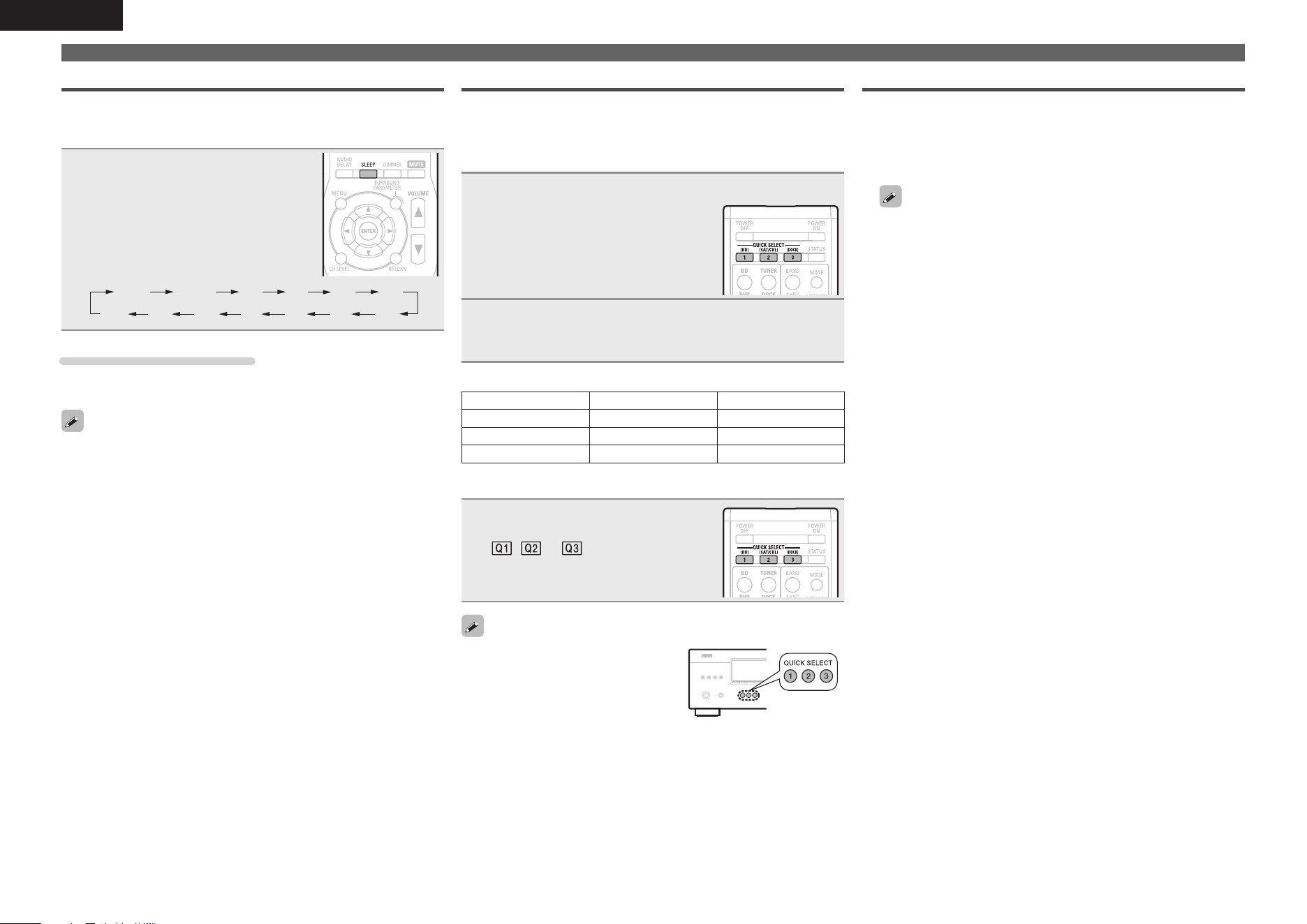
28
ENGLISH
Convenient functions
Sleep timer function
The power automatically goes into standby once the set time has
elapsed.
This is convenient for playing sources while going to sleep.
Press SLEEP and display the time you
want to set.
The “SLEEP” indicator on the display lights.
• The time switches as shown below each
time SLEEP is pressed.
OFF 10 min 20 30 40 50
6080 7090100
110
120
To cancel the sleep timer
Press SLEEP to set “OFF”.
The “SLEEP” indicator on the display turns off.
• If no button is operated for about 5 seconds, the display is returned
to the normal display.
After registering, the display is returned to the normal display.
• The sleep timer setting is canceled if this unit’s power is set to
standby or turned off.
Quick select function
All of the settings in step 1 can be memorized together. By memorizing
frequently used settings, you can quickly access and enjoy a playback
environment that is consistently the same.
n Saving the settings
1
Set the items below to the settings you want to save.
q Input source (vpage17)
w Volume (vpage17)
e Surround mode (vpage21)
r Video Select (vpage32)
2
Press and hold the desired QUICK SELECT until
“Memory” appears on the display.
The current settings will be memorized.
GQuick Select DefaultsH
Input Source Volume
QUICK SELECT 1 BD –40 dB
QUICK SELECT 2 SAT/CBL –40 dB
QUICK SELECT 3 DOCK –40 dB
n Recalling the settings
Press QUICK SELECT at which the
settings you want to call out are saved.
The , or indicator illuminates on
the display.
If QUICK SELECT on the main unit is
pressed, the same function as with the
remote control unit can be obtained.
Various memory functions
n Personal memory plus function
This function sets the settings (input mode, surround mode, HDMI
output mode, audio delay etc.) last selected for the individual input
sources.
The surround parameters, tone settings and the volumes of the
different speakers are stored for the individual surround modes.
n Last function memory
This function stores the settings which were made before going
into the standby mode.
When the power is turned back on, the settings are restored.
1.AVR391E3ENG4th100602.inddSec:281.AVR391E3ENG4th100602.inddSec:28 2010/06/0414:29:272010/06/0414:29:27
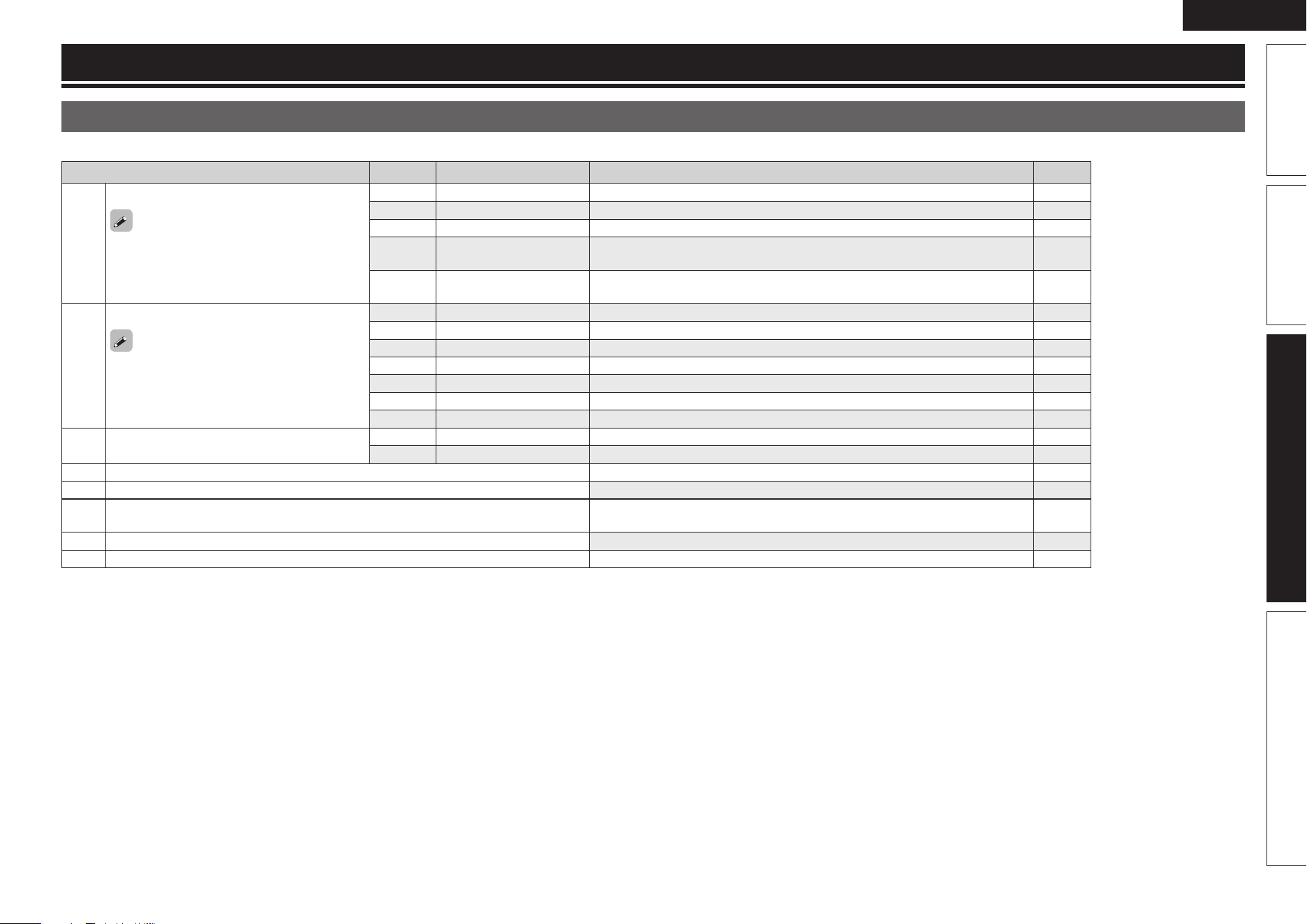
29
ENGLISH
Basic versionSimple version InformationAdvanced version
Menu map
For menu operations, see the following page.
Setting items Number Detailed items Description Page
1 Speaker Setup
Once these items are set, there is no need to
set them again unless the speaker layout or
the connected speakers have been changed.
1-1 Speaker Confi g. Select speaker confi guration and size (bass reproduction capability). 7
1-2 Bass Setting Set subwoofer and LFE signal range playback. 8
1-3 Distance Set distance from listening position to speakers. 8
1-4 Channel Level Set the volume of the test tone to be the same when it is output from each
speaker.
9
1-5 Crossover Freq. Set the maximum frequency of the bass signal output from each channel to
the subwoofer.
9
2 Input Setup
Displayed items of the “Input Setup” menu
differs, depending on the selected input
source.
2-1 Input Assign Changes input connector assignment. 31
2-2 Auto Preset Uses the auto preset function to program radio stations. 32
2-3 Preset Skip Sets the preset memories that you do not want to display when tuning. 32
2-4 Video Select Makes the video settings. 32
2-5 Input Mode Sets the audio input mode and decode mode. 32
2-6 Source Level Adjusts the playback level of the audio input. 33
2-7 Playback Mode Makes settings for iPod playback. 33
3 Option Setup 3-1 Volume Control Sets the volume setting. 33
3-2 Other Setup Makes various other settings. 34
A-1 Surround Parameter Adjusts surround sound parameters. 34
A-2 Tone Adjusts the tonal quality of the sound. 36
A-3 NIGHT MODE Optimized setting for late-night listening.
Compress dynamic range (difference between loud and soft sounds).
36
A-4 RESTORER Uncompresses compressed sources and apply bass boost for richer sound. 36
A-5 Audio Delay Compensates for incorrect timing between video and audio. 36
How to make detailed settings
1.AVR391E3ENG4th100602.inddSec:291.AVR391E3ENG4th100602.inddSec:29 2010/06/0414:29:272010/06/0414:29:27
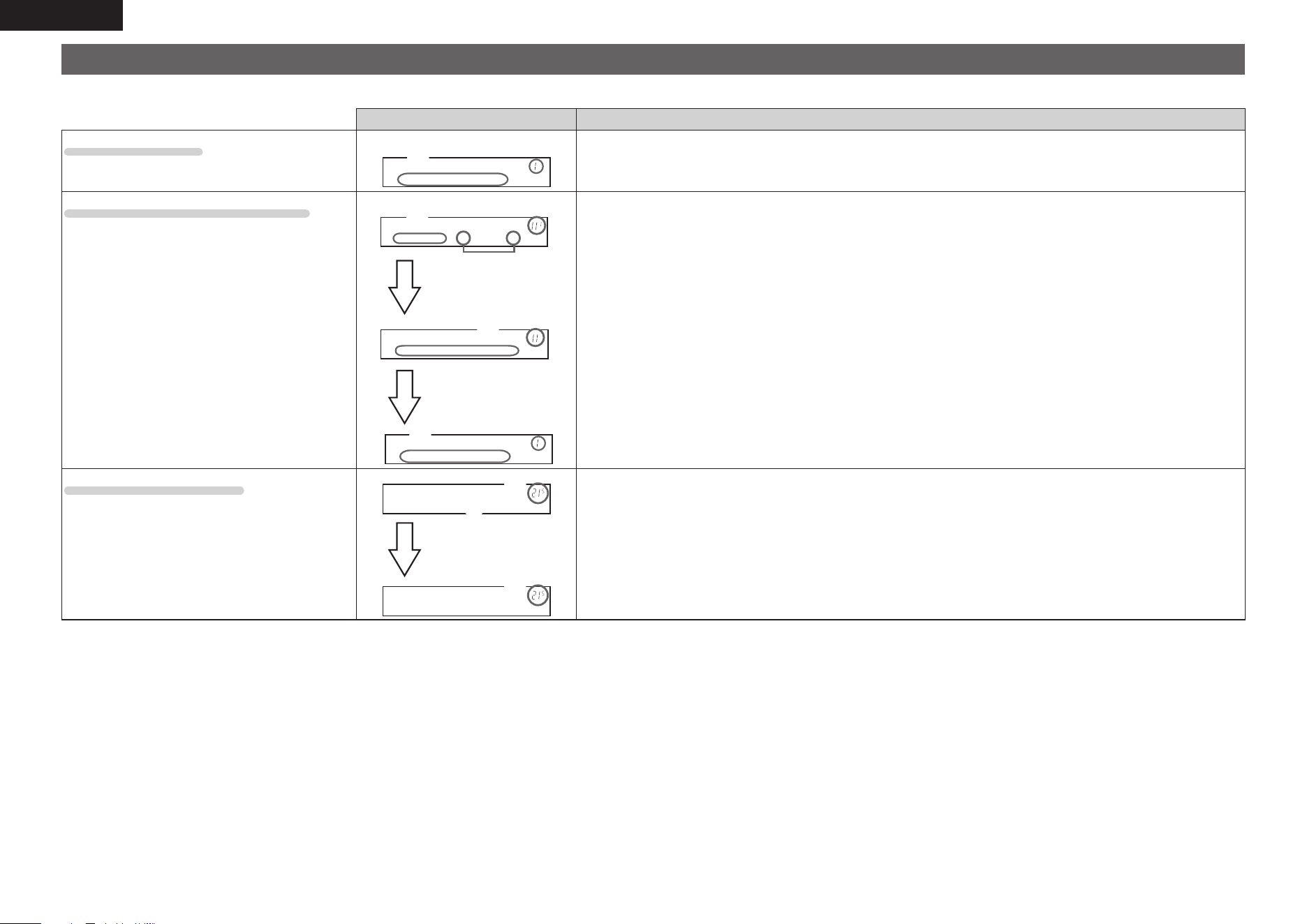
30
ENGLISH
Examples of front display
Below we describe typical examples of displays on the set’s display window.
Front Display Description
Top menu display
Speaker Setup
w
q
q The number of the current selected setting menu is displayed.
w The currently selected item is displayed on the display.
Use ui to move to the item you want to set.
Display when changing settings
Front •Large–
w
e
q
Speaker Config.
w
q
r Press ENTER.
t Press RETURN.
Speaker Setup
w
q
q The number of the current selected setting menu is displayed.
w Use ui to move to the item you want to set.
e • – is displayed at the sides of item whose setting can be changed. Use o p to change to the desired setting.
r Press ENTER to set to the mode in which the setting can be made.
t Press RETURN to return to the previous menu.
Display when resetting
Default? :• No
q
w
q
Default
Press ENTER.
q The number of the current selected setting menu is displayed.
w Press
i to select “Default”, then press ENTER to set.
1.AVR391E3ENG4th100602.inddSec:301.AVR391E3ENG4th100602.inddSec:30 2010/06/0414:29:272010/06/0414:29:27
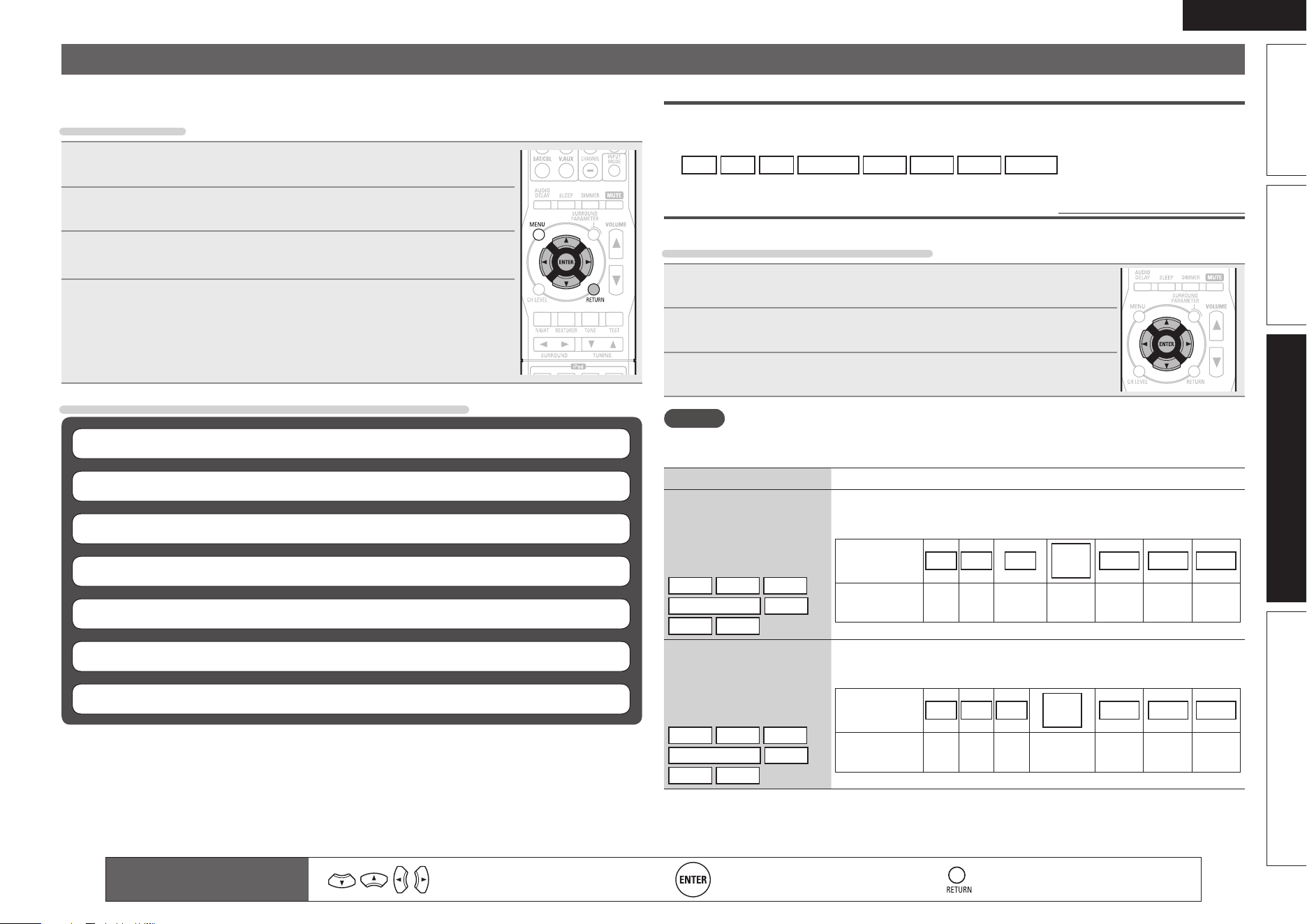
31
ENGLISH
Basic versionSimple version InformationAdvanced version
Important information
n About the display of input sources
In this section, the confi gurable input sources for each item are shown as follows.
BD
DVD
TV
SAT/CBL
GAME
V.AUX
DOCK
TUNER
Input Assign
Default settings are underlined.
Input assignments menu operations
1
Use ui to select the menu you want to set.
2
Use o p to select the input connector to be assigned.
3
Press ENTER to enter the setting.
NOTE
If all “Digital” assignment of the TV source are set to “None”, TV source cannot be selected with the input
source selection.
Setting items Setting details
Opt (Optical)
Set this to change the
optical (digital) input
connectors assigned to the
input sources.
BD
DVD
TV
SAT/CBL
GAME
V.AUX
DOCK
OFF : Select when an optical input connector is not to be used.
• At time of purchase, the settings of the different input sources are as
shown below.
Input source BD DVD TV
SAT/
CBL
GAME V.AUX
DOCK
Default
setting
––
Opt
––––
Coax (Coaxial)
Set this to change the
coaxial (digital) input
connectors assigned to the
input sources.
BD
DVD
TV
SAT/CBL
GAME
V.AUX
DOCK
OFF : Select when a coaxial input connector is not to be used.
• At time of purchase, the settings of the different input sources are as
shown below.
Input source BD DVD TV
SAT/
CBL
GAME V.AUX
DOCK
Default
setting
––– Coax –––
Input Setup
Perform settings related to input source playback.
You do not have to change the settings to use the unit. Make settings when needed.
Menu operation
1
Press MENU.
The menu is displayed on the display of this unit.
2
Use ui to select “Input Setup”, and then press ENTER.
3
Use ui to select the menu to be set or operated, and then press
ENTER.
4
Use ui to register the settings or use o p to change the
settings.
• To return to the previous item, press RETURN.
• Exiting the Menu, press MENU while the menu is displayed.
The menu returns to normal display.
Items that can be set with the “Input Setup” procedure
Input Assign (vpage31)
Auto Preset (vpage32)
Preset Skip (vpage32)
Video Select (vpage32)
Input Mode (vpage32)
Source Level (vpage33)
Playback Mode (vpage33)
Remote control operation
buttons
Move the cursor
(Up/Down/Left/Right)
Confi rm the setting Return to previous menu
1.AVR391E3ENG4th100602.inddSec:311.AVR391E3ENG4th100602.inddSec:31 2010/06/0414:29:272010/06/0414:29:27
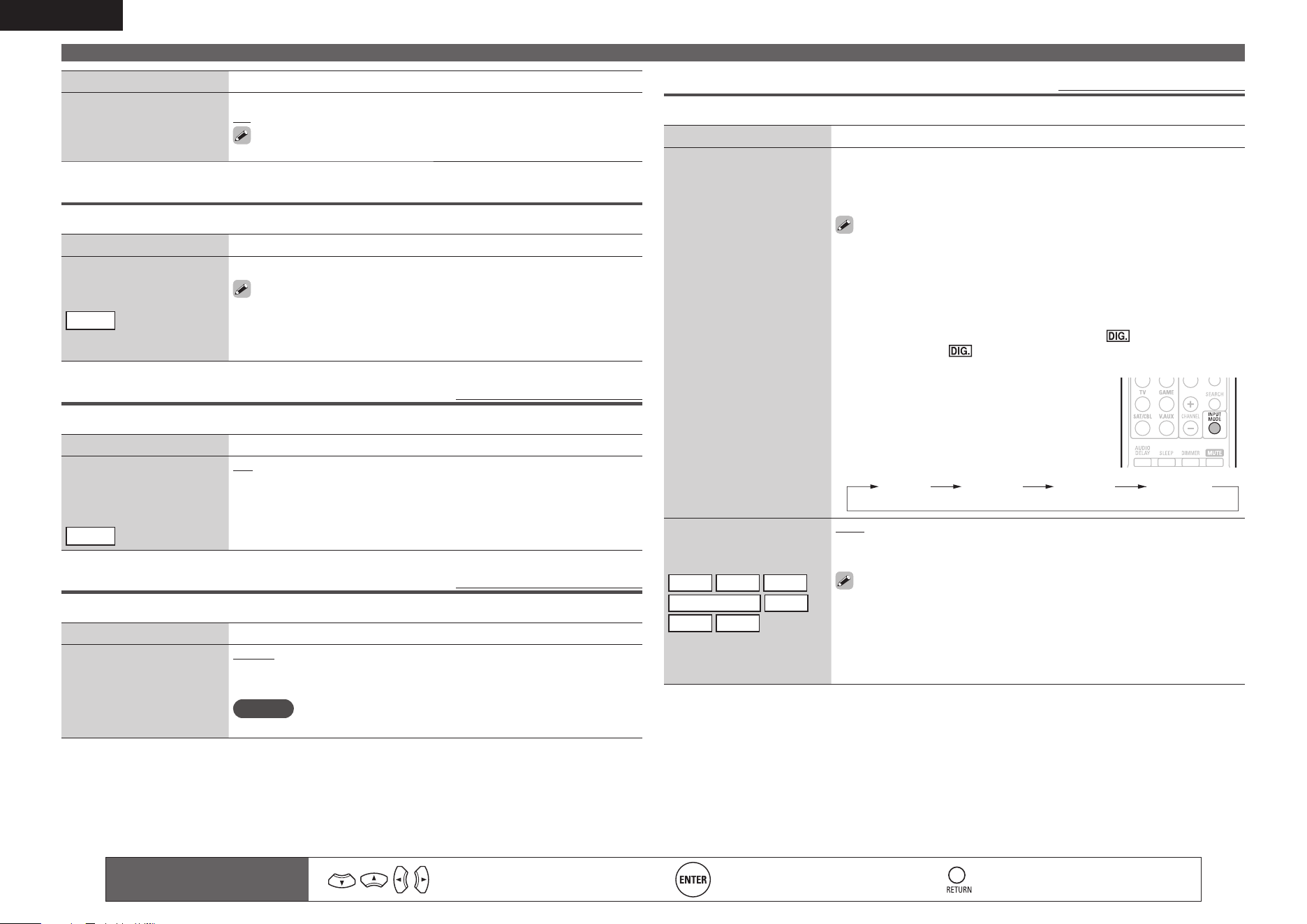
32
ENGLISH
Setting items Setting details
Default
The “Input Assign” settings
are returned to the default
settings.
Yes : Reset to the defaults.
No : Do not reset to the defaults.
If you select “Default” and press ENTER, the message “Default?” is
displayed. Select “Yes” or “No”, and then press
ENTER.
Auto Preset
Use the auto preset function to program radio stations.
Setting items Setting details
Start
Start the auto preset
process.
TUNER
Press ENTER to start “Auto Preset”.
• Press RETURN or MENU to return to the setting menu without “Auto
Preset”.
• If an FM station cannot be preset automatically, select the desired
station by tuning it in manually, then preset it manually.
Preset Skip
Default settings are underlined.
Set the preset memory block (from A to G) you do not want to display.
Setting items Setting details
Block A – Block G
Select a block to be skipped
from among preset blocks
(from A to G).
TUNER
ON : Display the selected preset memory block.
Skip : Do not display the selected preset memory block.
Video Select
Default settings are underlined.
Set the source video.
Setting items Setting details
Video Select
Video of another input
source is played back
combined with the playing
audio.
Source : Play the picture and sound of the input source.
DVD / SAT/CBL / V.AUX / DOCK : Select video input source to view. This
can be set for individual input sources.
NOTE
It is not possible to select HDMI input signals.
Input Setup
Input Mode
Default settings are underlined.
The input modes available for selection may vary depending on the input source.
Setting items Setting details
Input
Set the audio input modes
for the different input
sources.
Auto : Automatically detect input signal and perform playback.
HDMI : Play only signals from HDMI input.
Digital : Play only signals from digital input (OPTICAL/COAXIAL).
Analog : Play only signals from analog input.
• If an input source is “BD”, “GAME” or “DOCK”, “Digital” can be
selected by assigning “Input Assign” (vpage31) to “Opt” or “Coax.”
(Selectable items differ depending on the input source.)
If an input source is “TU”, the setting is fi xed to “Digital”.
• If the input source is set to “BD”, “TV” or “Game”, it cannot be set to
“Analog”.
• When digital signals are properly input, the indicator lights on
the display. If the indicator does not light, check the digital input
connector assignment and the connections.
• Buttons on the remote control unit can be used
for operations.
Each time INPUT MODE is pressed, the setting is
changed as shown below.
Auto HDMI Digital Analog
Decode
Set the decode mode for
input source.
BD
DVD
TV
SAT/CBL
DOCK
GAME
V.AUX
Auto : Detect type of digital input signal and decode and play automatically.
PCM : Decode and play only PCM input signals.
DTS : Decode and play only DTS input signals.
• This item can be set for input sources for which “OPT” or “COAX” is
assigned at “Input Assign” (vpage31).
• This item can be set for HDMI input sources (BD, DVD, SAT/CBL or
GAME).
• Normally set this mode to “Auto”. Set “PCM” and “DTS” when
inputting the corresponding input signal.
Remote control operation
buttons
Move the cursor
(Up/Down/Left/Right)
Confi rm the setting Return to previous menu
1.AVR391E3ENG4th100602.inddSec:321.AVR391E3ENG4th100602.inddSec:32 2010/06/0414:29:282010/06/0414:29:28
33
ENGLISH
Basic versionSimple version InformationAdvanced version
Input Setup
Source Level
Default settings are underlined.
• This function corrects the playback level of the selected input source’s audio input.
• Make this setting if there are differences in the input volume levels between the different sources.
Setting details
–12dB – +12dB (0dB)
The analog input level and digital input level can be adjusted independently for input sources for
which “OPT” or “COAX” is assigned at “Input Assign“ (vpage31).
Playback Mode
This item can be set when the input source is “DOCK”.
Setting items Setting details
Repeat
Make settings for repeat
mode.
All : All fi les are played repeatedly.
One : A fi le being played is played repeatedly.
OFF : Repeat playback mode is canceled.
Shuffl e
Make settings for shuffl e
mode.
n When DENON control dock for iPod ASD-11R is connected
Songs : All fi les are played in shuffl e playback mode.
Albums : Files in the album are played in shuffl e playback mode.
OFF : Shuffl e playback mode is canceled.
n When DENON control dock for iPod ASD-3N, ASD-3W, ASD-51N
or ASD-51W is connected
ON : Shuffl e playback mode is enabled.
OFF : Shuffl e playback mode is canceled.
Remote control operation
buttons
Move the cursor
(Up/Down/Left/Right)
Confi rm the setting Return to previous menu
Option Setup
Make various option settings.
Volume Control
Default settings are underlined.
Sets the volume setting.
Setting items Setting details
Disp. (Volume Display)
Set how volume is
displayed.
Relative : Display ---dB (Min), in the range –80.5 dB – 18 dB.
Absolute : Display in the range 0 (Min) – 99.
The “Volume Display” setting is applied also to the “Volume Limit”
and “Power On Level” display method.
Limit (Volume Limit)
Make a setting for
maximum volume.
OFF : Do not set a maximum volume.
–20dB (61) / –10dB (71) / 0dB (81)
If “Disp.” is set to “Absolute”, the value in ( ) is displayed.
P.On (Power On Level)
Defi ne the volume setting
that is active when the
power is turned on.
Last : Use the memorized setting from the last session.
– – – (0) : Always use the muting on condition when power is turned on.
–80dB – +18dB (1 – 99) : The volume is adjusted to the set level.
Mute (Mute Level)
Set the amount of
attenuation when muting
is on.
Full : The sound is muted entirely.
–40dB : The sound is attenuated by 40 dB down.
–20dB : The sound is attenuated by 20 dB down.
1.AVR391E3ENG4th100602.inddSec:331.AVR391E3ENG4th100602.inddSec:33 2010/06/0414:29:282010/06/0414:29:28
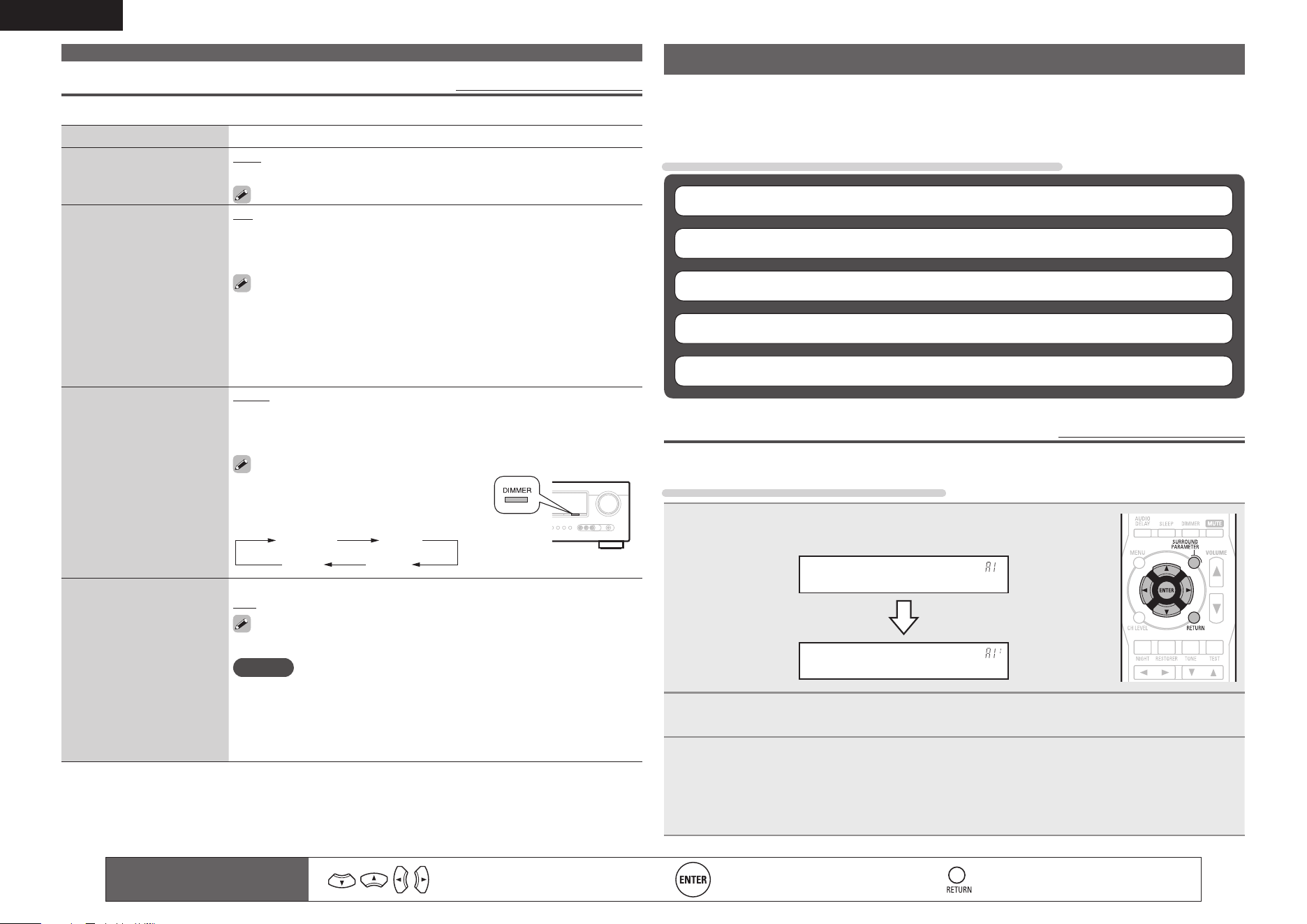
34
ENGLISH
Other Setup
Default settings are underlined.
Make various option settings.
Setting items Setting details
Audio Out
Select HDMI audio output
device.
Amp : Play back through speakers connected to the receiver.
TV : Play back through TV connected to the receiver.
If “TV” is selected, only an HDMI audio signal is output from the TV.
Auto Surr.
(Auto Surround Mode)
Make setting for
memorizing surround mode
setting for each input signal
type.
ON : Memorize settings. Automatically play with the last used surround
mode.
OFF : Do not memorize settings. Surround mode does not change
according to input signal.
The auto surround mode function lets you store in the memory the
surround mode last used for playing the four types of input signals
listed below.
q Analog and PCM 2-channel signals
w Dolby Digital and DTS 2-channel signals
e Dolby Digital and DTS multi-channel signals
r LPCM Multi-channel signals
Display
Adjust the display
brightness of this unit.
Bright : Normal display brightness.
Dim : Reduced display brightness.
Dark : Very low display brightness.
OFF : Turns the display off.
Buttons on the main unit can be used for
operations.
Each time DIMMER is pressed, the
setting is changed as shown below.
Bright Dim
DarkOFF
Setup Lock
Protect settings from
inadvertent change.
ON : Turn protection on.
OFF : Turn protection off.
To release “Setup Lock”, hold MENU pressed until “Setup Lock• ON
–” appears on the display.
NOTE
When “Setup Lock” is set to “ON”, the settings listed below can no
longer be changed. Also, “Setup Lock!” is displayed if you attempt to
operate related settings.
· Menu operations · Channel Level
· RESTORER
Adjusting the sound fi eld effects
The sound being played in the surround mode can be adjusted to your liking.
The items (parameters) that can be adjusted depend on the signal being input and the currently
set surround mode. For details on the adjustable parameters, see “Surround modes and surround
parameters” (vpage44).
Items that can be set with the audio adjust procedure
Surround Parameter (vpage34)
Tone (vpage36)
NIGHT MODE (vpage36)
RESTORER (vpage36)
Audio Delay (vpage36)
Surround Parameter
Default settings are underlined.
Adjust surround sound parameters. It may not be possible to set this item depending on the input signal.
Surround parameter menu operations
1
Press SURROUND PARAMETER and then press ENTER.
The menu is displayed on the display of this unit.
Surround Para
Mode:• Cinema –
2
Use ui to select the mode according to the playback content.
3
Use o p to select an item to be set and then press ENTER to enter the setting.
• To return to the previous item, press RETURN.
• Exiting the Menu, press
SURROUND PARAMETER while the menu is displayed.
The menu returns to normal display.
Remote control operation
buttons
Move the cursor
(Up/Down/Left/Right)
Confi rm the setting Return to previous menu
Option Setup
1.AVR391E3ENG4th100602.inddSec:341.AVR391E3ENG4th100602.inddSec:34 2010/06/0414:29:282010/06/0414:29:28
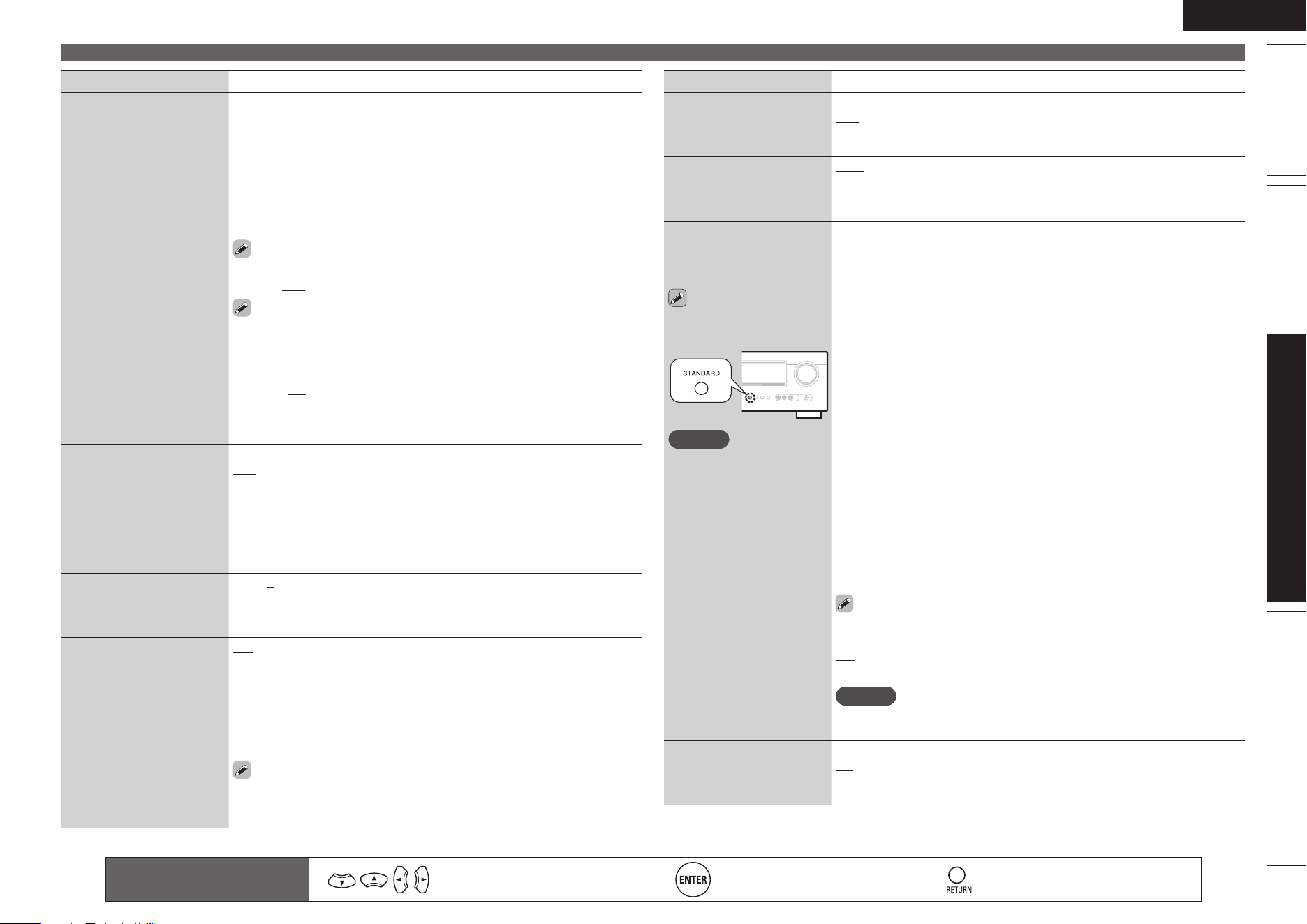
35
ENGLISH
Basic versionSimple version InformationAdvanced version
Setting items Setting details
Mode
Set the play modes for the
different surround modes.
n In the PLgx or PLg mode
Cinema : Surround sound mode optimized for movie sources.
Music : Surround sound mode optimized for music sources.
Game : Surround sound mode optimized for games.
Pro Logic : Dolby Pro Logic playback mode (PLg mode only).
n In the DTS NEO:6 mode
Cinema : Surround sound mode optimized for movie sources.
Music : Surround sound mode optimized for music sources.
The “Music” mode is also effective for movie sources including a lot
of stereo music.
LFE
Adjust the low-frequency
effects level (LFE).
–10dB – 0dB
For proper playback of the different sources, we recommend setting
to the values below.
• Dolby Digital sources : “0dB”
• DTS movie sources : “0dB”
• DTS music sources : “–10dB”
Center Image
Assign center channel
signal to front left and right
channels for wider sound.
0.0 – 1.0 (0.3)
Panorama
Assign front L/R signal also
to surround channels for
wider sound.
ON : Set.
OFF : Do not set.
Dimension
Shift sound image center
to front or rear to adjust
playback balance.
0 – 6 (3)
Center Width
Assign center channel
signal to front left and right
channels for wider sound.
0 – 7 (3)
AFDM
(Auto fl ag detect mode)
Detect the source’s
surround back channel
signal and set the
optimum surround mode
automatically.
ON : Set.
OFF : Do not set.
[Example] Playing Dolby Digital software (with EX fl ag)
• When “AFDM” is set to “ON”, the surround mode is automatically set
to the DOLBY D + PLgx C mode.
• To play in the DOLBY DIGITAL EX mode, set “AFDM” to “OFF” and
“Surround Parameter” – “SB CH OUT” to “MTRX ON”.
Some Dolby Digital EX sources do not include EX fl ags. If the playback
mode does not switch automatically even when “AFDM” is set to
“ON”, set “Surround Parameter” – “SB CH OUT” to “MTRX ON” or
“PLgx CINEMA”.
Remote control operation
buttons
Move the cursor
(Up/Down/Left/Right)
Confi rm the setting Return to previous menu
Adjusting the sound fi eld effects
Setting items Setting details
D.Comp
Compress dynamic range
(difference between loud
and soft sounds).
Low / Mid / High : These set the compression level.
OFF : Turn dynamic range compression off.
DRC
Compress dynamic range
(difference between loud
and soft sounds).
Auto : Automatic dynamic range compression on/off control according to
the source. This can be set in the Dolby TrueHD mode.
Low / Mid / High : These set the compression level.
OFF : Dynamic range compression is always off.
SB CH OUT
Sets the method of
generating of the surround
back channel.
This can also be set by
pressing STANDARD on
the main unit.
NOTE
If the setting in “Speaker
Confi g.” – “S.B(Pre)”
(vpage7) is “None”, “SB
CH OUT” is not displayed.
n For 2-channel sources
ON : The surround back channel is used.
OFF : No signal is played from the surround back channels.
n For Multi-channel sources
Set the decoding method for the surround back channel.
DSCRT ON : Play the surround back signals included in the 7.1-channel
source.
MTRX ON : Generate and play the surround back signals from the
surround channel signals.
ES MTRX
z1
: Generate and play the surround back signals from the
surround channel signals of the DTS source.
ES DSCRT
z2
: Play the surround back signals included in the
6.1-channel DTS source.
PLgx CINEMA
z3
: Generate and play the surround back signals by
decoding the signals in the Dolby Pro Logic gx Cinema mode.
PLgx MUSIC : Generate and play the surround back signals by
decoding the signals in the Dolby Pro Logic gx Music mode.
OFF : Do not play the surround back channel.
z1 This can be selected when playing DTS sources.
z2 This can be selected when playing DTS sources including a signal to
identify discrete 6.1-channel signals.
z3 This can be selected when “Speaker Confi g.” – “S.B(Pre)” (vpage7)
is set to other than “None”.
If the source being played contains a surround back signal, the decoder
type is automatically selected by the AFDM function. Set “AFDM” to
“OFF” to switch to your preferred decoder.
Subwoofer
Turn subwoofer output on
and off.
ON : The subwoofer is used.
OFF : The subwoofer is not used.
NOTE
This can be set when the surround mode is “DIRECT” (vpage44, 45), and
the “Mode” (vpage8) is “LFE+Main”.
Default
The “Surround Parameter”
settings are returned to the
default settings.
Yes : Reset to the defaults.
No : Do not reset to the defaults.
1.AVR391E3ENG4th100602.inddSec:351.AVR391E3ENG4th100602.inddSec:35 2010/06/0414:29:292010/06/0414:29:29
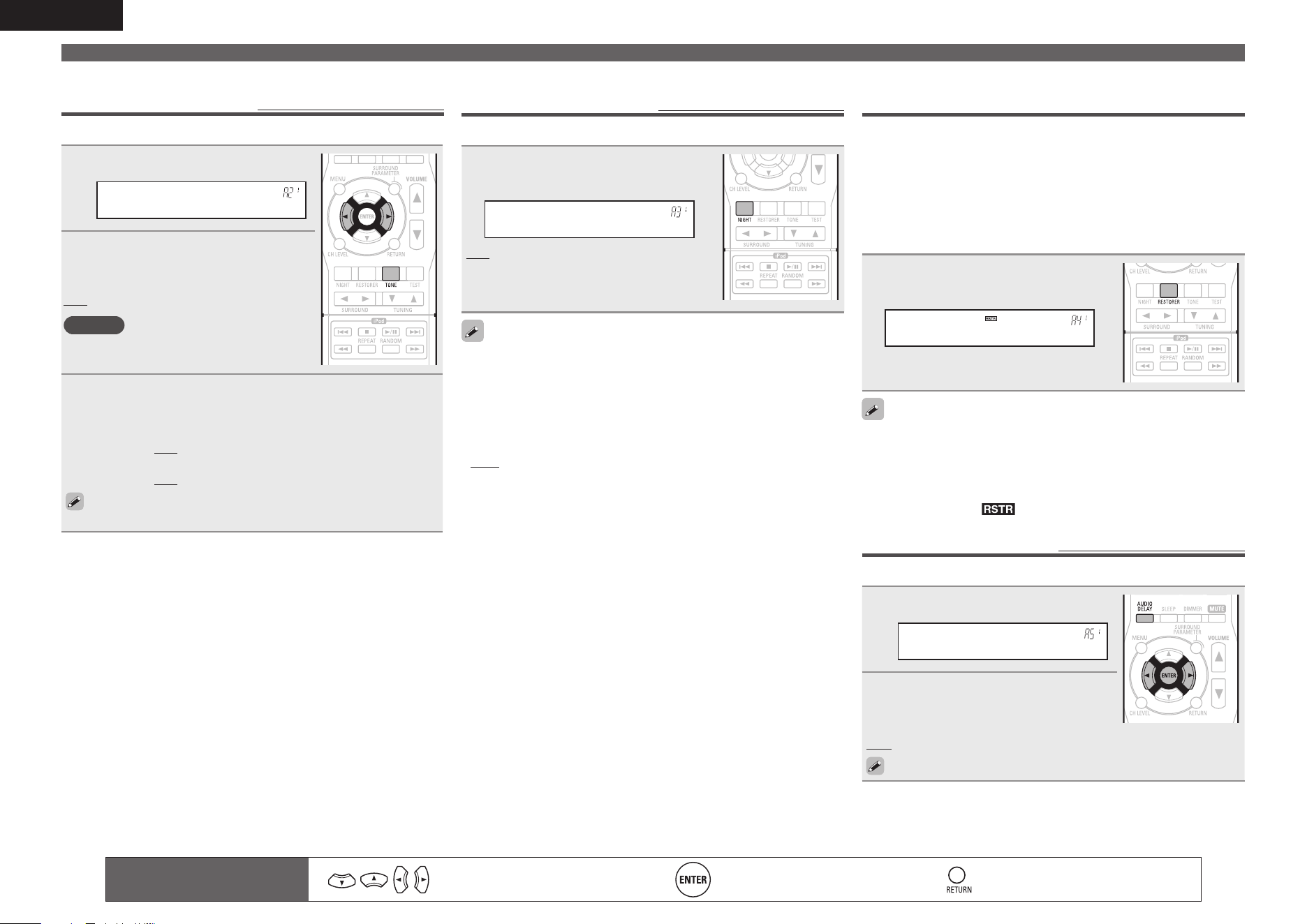
36
ENGLISH
RESTORER
Compressed audio formats such as MP3, WMA (Windows Media
Audio) and MPEG-4 AAC reduce the amount of data by eliminating
signal components that are hard for the human ear to hear. The
RESTORER function generates the signals eliminated upon
compression, restoring the sound to conditions near those of the
original sound before compression. It also corrects the sense of
volume of the bass to obtain richer sound with compressed audio
signals.
Press RESTORER to select “ON” or
“OFF”.
RESTORER: ON
ON : Use RESTORER.
OFF : Do not use RESTORER.
• This item can be set with analog signals or when a PCM signal (fs =
44.1/48 kHz) is input.
• This cannot be set when the surround mode is set to “DIRECT”.
• This item default setting for “iPod” is “ON”. All others are set to
“OFF”.
• When set to “ON”, is displayed.
Audio Delay
Default settings are underlined.
While viewing video, manually adjust the time to delay audio output.
1
Press AUDIO DELAY.
A.Delay :• 0ms–
2
Use o p to select the value to be
set and then press ENTER to enter
the setting.
0ms – 200ms
Store “Audio Delay” for each input source.
NIGHT MODE
Default settings are underlined.
Optimized setting for late-night listening.
Press NIGHT to select your desired
mode.
D.Comp : OFF
OFF : Not set.
Low : Set the adjusted value to “Low”.
Mid : Set the adjusted value to “Middle”.
High : Set the adjusted value to “High”.
When a Dolby TrueHD signal is output, “DRC” is displayed on the
display of the main unit.
The setting mode is also changed as shown below.
• OFF : Not set.
• Low : Set the adjusted value to “Low”.
• Mid : Set the adjusted value to “Middle”.
• High : Set the adjusted value to “High”.
• Auto : Automatic dynamic range compression on/off control
according to the source.
Adjusting the sound fi eld effects
• If no button is operated for about 5 seconds, the display is returned to the normal display. After registering, the display is returned to the normal display.
Tone
Default settings are underlined.
Adjust the tonal quality of the sound.
1
Press TONE.
ToneControl•OFF–
2
Use o p to select “ON”.
ON : Allow tone adjustment (bass, treble).
OFF : Playback without tone adjustment.
NOTE
The tone cannot be adjusted in the direct
mode.
3
Press TONE to select an item to be set, and use o p
to select a setting value.
Bass : Adjust low frequency range (bass).
• –6dB – +6dB (0dB)
Treble : Adjust high frequency range (treble).
• –6dB – +6dB (0dB)
“Bass” or “Treble” can be set when “Tone Control” is set to
“ON”.
Remote control operation
buttons
Move the cursor
(Up/Down/Left/Right)
Confi rm the setting Return to previous menu
1.AVR391E3ENG4th100602.inddSec:361.AVR391E3ENG4th100602.inddSec:36 2010/06/0414:29:292010/06/0414:29:29
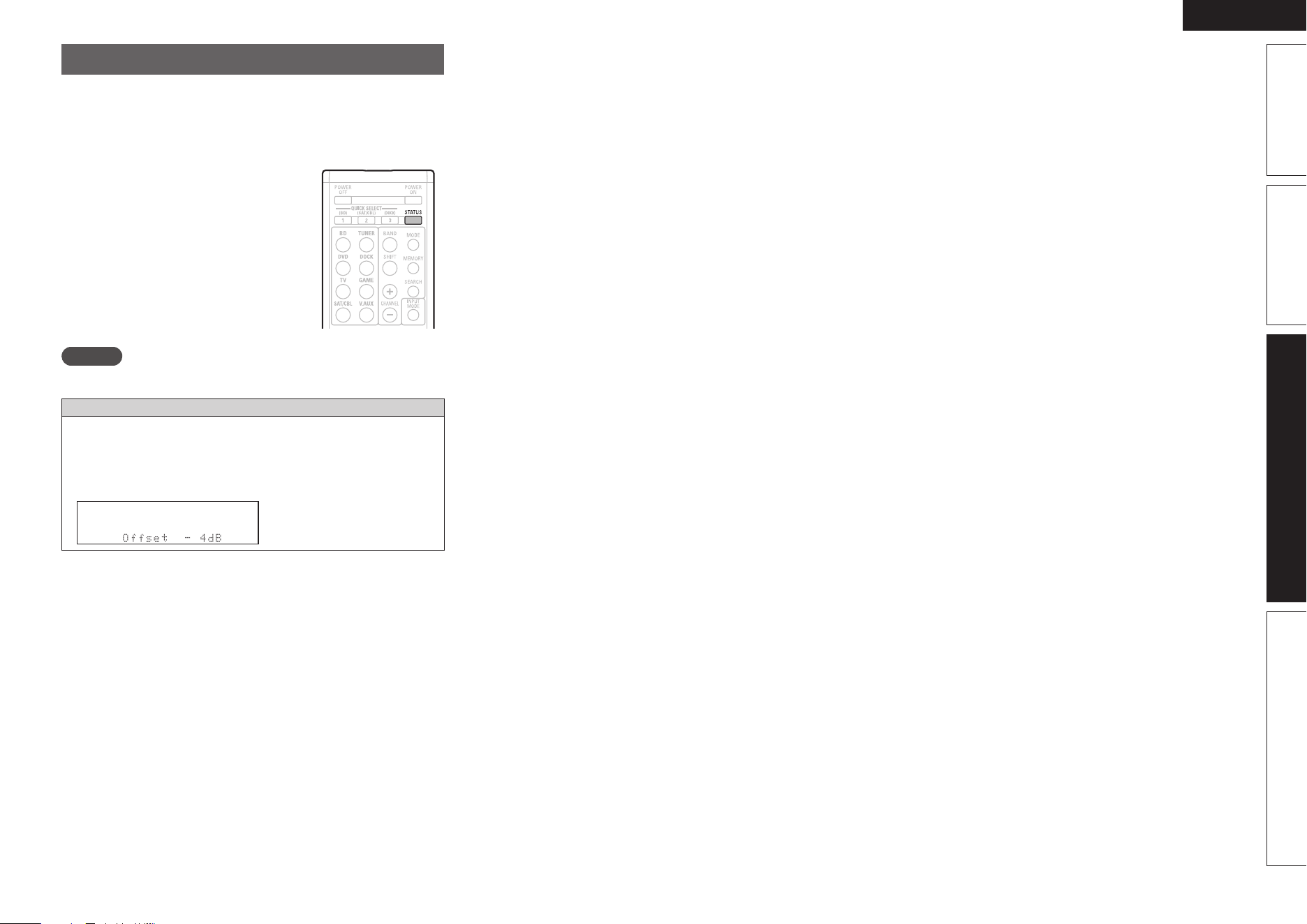
37
ENGLISH
Basic versionSimple version InformationAdvanced version
Information
Information on the main unit’s various settings (Status) and on input
signals (Audio Input Signal) is shown on the display.
The information displayed changes each time you press
STATUS.
The information is displayed for several seconds before the display
returns to its original condition.
GItems to be checkedH
• Input source
• Surround mode
• Input digital terminal
• Input mode
• Decode mode
• Video select
• Dialogue normalization
etc.
NOTE
The information displayed differs according to the input source.
Dialogue normalization function
This function is automatically activated when playing Dolby Digital
sources.
It automatically corrects the standard signal level for individual
program sources.
The correction value can be checked using
STATUS.
The fi gure is the corrected
value. This cannot be
changed.
1.AVR391E3ENG4th100602.inddSec:371.AVR391E3ENG4th100602.inddSec:37 2010/06/0414:29:302010/06/0414:29:30

Information
38
ENGLISH
F Part names and functions vpage39
F Other information vpage43
F Troubleshooting vpage49
F Specifi cations vpage51
F Index vpage52
Information
Here, we list various information related to this unit.
Please refer to this information as needed.
1.AVR391E3ENG4th100602.inddSec:381.AVR391E3ENG4th100602.inddSec:38 2010/06/0414:29:302010/06/0414:29:30
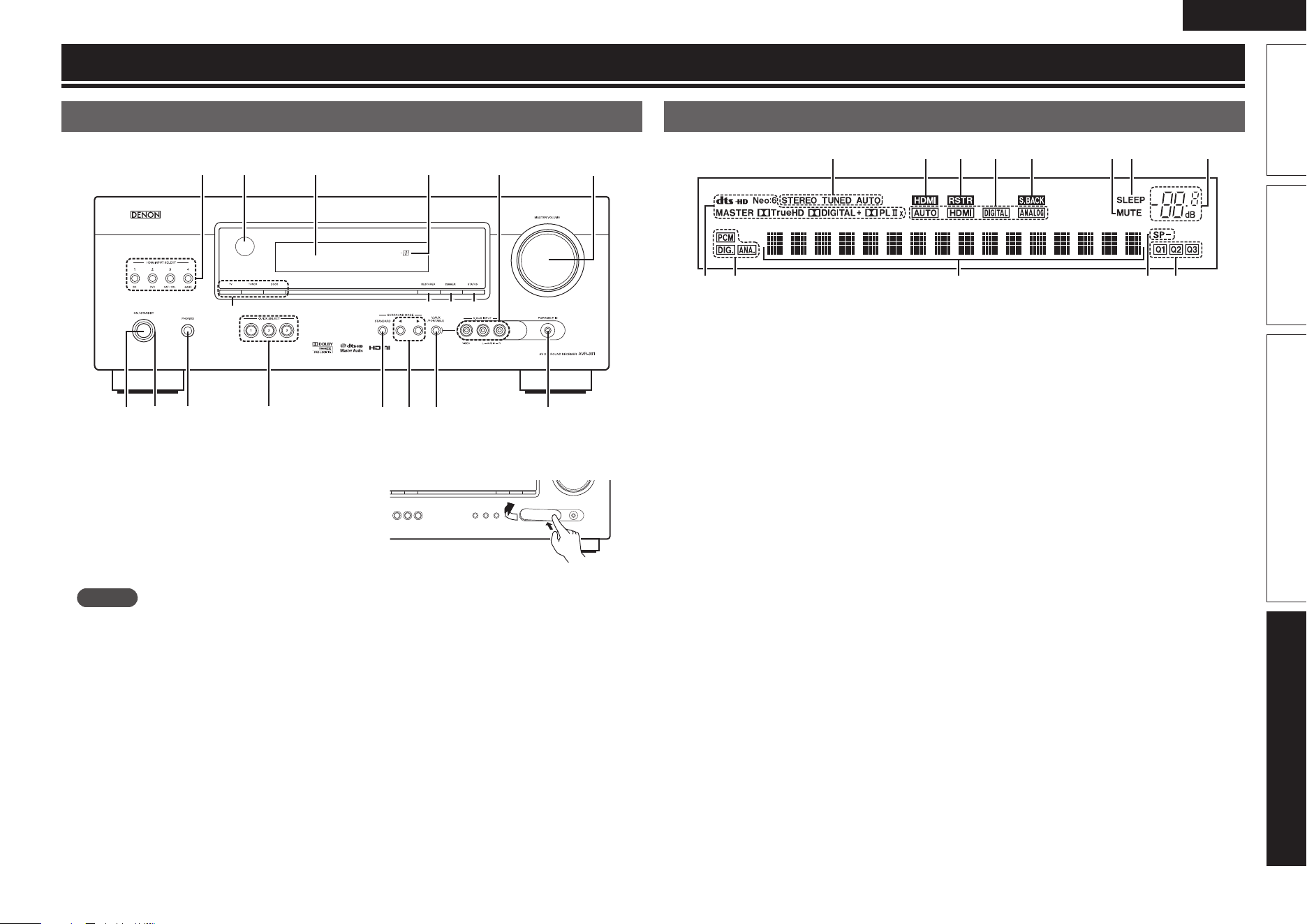
39
ENGLISH
Basic version Advanced versionSimple version Information
Front panel
For buttons not explained here, see the page indicated in parentheses ( ).
qw e r yt u i
oQ0Q1Q2Q3Q4
Q5
Q6 Q7 Q8
q Power operation button
(ON/STANDBY) ······································ (6, 10)
Turns power to this unit on and off (standby).
w Power indicator ·········································· (10)
e Headphones jack (PHONES)
When the headphones are plugged into this
jack, audio will no longer be output from the
connected speakers or from the PRE OUT
connectors.
NOTE
To prevent hearing loss, do not raise the volume
level excessively when using headphones.
r QUICK SELECT buttons ····························· (28)
t STANDARD button ························· (21, 22, 35)
y SURROUND MODE buttons ················ (21, 51)
u V.AUX/PORTABLE button ························· (17)
i PORTABLE jack ··········································· (15)
o MASTER VOLUME control knob ··············· (17)
Q0 V.AUX INPUT connectors ·························· (15)
Remove the cap covering the connectors when
you want to use them.
Q1 Master volume indicator
Q2 Display ························································· (39)
Q3 Remote control sensor ······························ (42)
Q4 HDMI INPUT SELECT buttons ··················· (17)
Q5 Input source select buttons ··········· (17, 18, 20)
Q6 RESTORER button ······································ (36)
Q7 DIMMER button ·········································· (34)
Q8 STATUS button ···································· (18, 37)
Part names and functions
Display
u yioQ0Q1Q2Q3
wq e tr
q Decoder indicators
These light when the respective decoders are
operating.
w Input signal indicators
e Information display
The input source name, surround mode, setting
values and other information are displayed here.
r Front speaker indicator
This lights when audio signals are being output
from the speakers.
t QUICK SELECT indicators
The indicator corresponding to the memory
for which Quick Select function is set, lights
(“Quick select function” (vpage28)).
y Master volume indicator
When performing setting operations, displays
the menu number.
u Sleep timer indicator
This lights when the sleep mode is selected
(vpage28).
i MUTE indicator
This lights when the mute mode is selected
(vpage17).
o Surround back indicator
This lights when audio signals are being output
from the surround back speakers (vpage7).
Q0 Input mode indicators
Set the audio input modes for the different input
sources (vpage32).
Q1 RESTORER indicator
This lights when the RESTORER mode is
selected (vpage36).
Q2 HDMI indicator
This lights when playing using HDMI connections.
Q3 Tuner reception mode indicators
These light according to the reception conditions
when the input source is set to “TUNER”.
STEREO: In the FM mode, this lights when
receiving analog stereo broadcasts.
TUNED: This lights when the broadcast is
properly tuned in.
AUTO: This lights when in the auto tuning
mode.
1.AVR391E3ENG4th100602.inddSec:391.AVR391E3ENG4th100602.inddSec:39 2010/06/0414:29:302010/06/0414:29:30
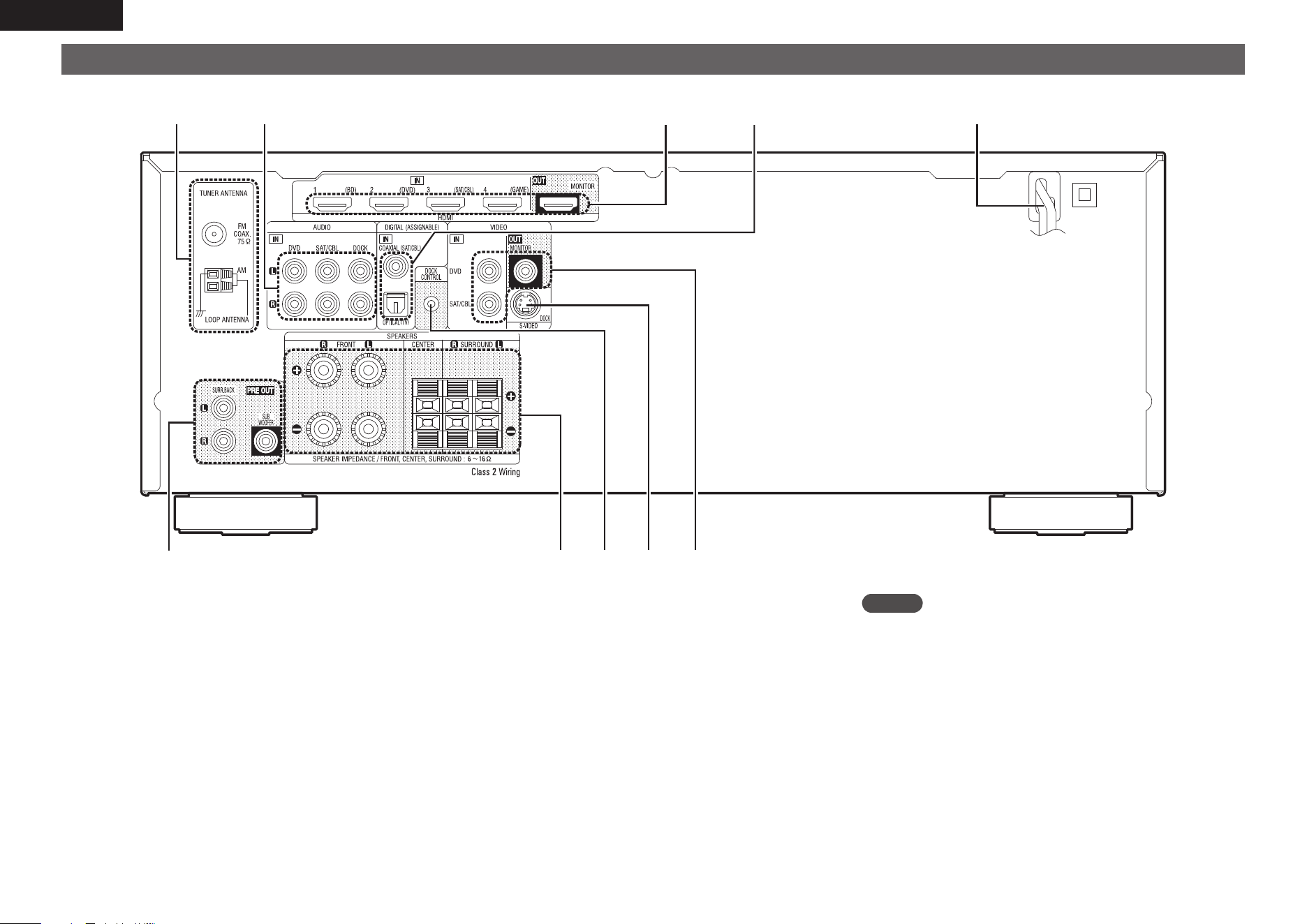
40
ENGLISH
Rear panel
See the page indicated in parentheses ( ).
q
we tr
yi uoQ0
q PRE OUT connectors ··························································· (5, 26)
w Speaker terminals ······························································· (5, 26)
e DOCK CONTROL jack ······························································ (16)
r S-VIDEO connector ································································· (16)
t VIDEO connectors ····························································· (13, 14)
y Power cord ················································································· (5)
u Digital audio connectors ··················································· (13, 14)
i HDMI connectors ····································································· (12)
o Analog audio connectors ·················································· (14, 16)
Q0 FM/AM antenna terminals ····················································· (16)
NOTE
Do not touch the inner pins of the connectors on the rear panel.
Electrostatic discharge may cause permanent damage to the unit.
1.AVR391E3ENG4th100602.inddSec:401.AVR391E3ENG4th100602.inddSec:40 2010/06/0414:29:302010/06/0414:29:30
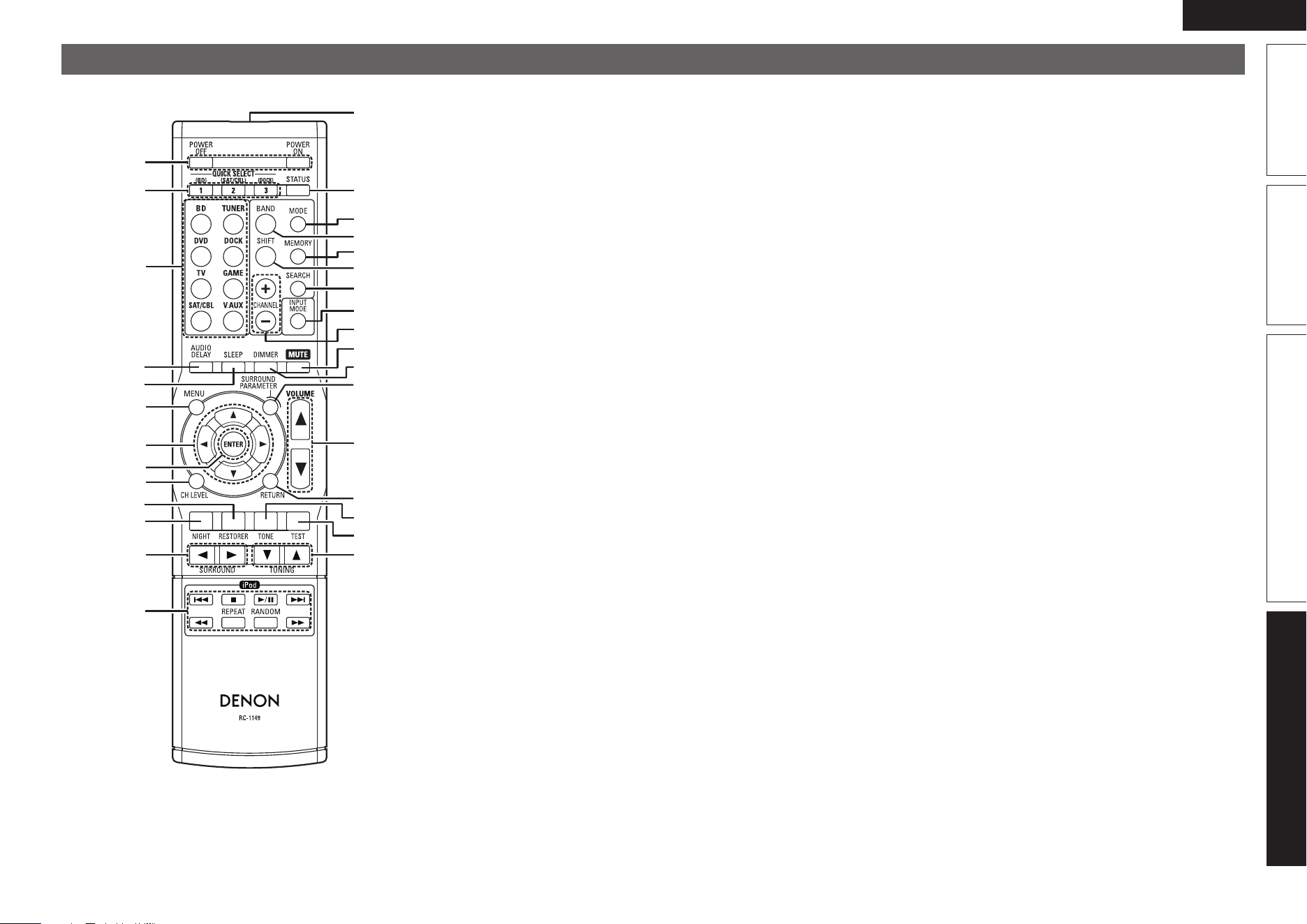
41
ENGLISH
Basic version Advanced versionSimple version Information
Remote control unit
For buttons not explained here, see the page indicated in parentheses ( ).
q
w
e
r
t
Q0
y
u
i
o
Q1
Q2
Q3
W9
Q8
Q4
Q5
Q6
W5
W7
W4
W3
W8
W6
W2
W0
W1
Q9
Q7
E0
q Power buttons (POWER ON / OFF) ··································· (6, 10)
w QUICK SELECT buttons ·························································· (28)
e Input source select buttons ········································ (17, 18, 20)
r AUDIO DELAY button ····························································· (36)
t Sleep timer button (SLEEP) ···················································· (28)
y MENU button ····························································· (6, 9, 31, 34)
u Cursor buttons (uio p) ··························(6 – 9, 18, 27, 30 – 36)
i ENTER button ·············································(6 – 9, 18, 27, 30 – 36)
o Channel level button (CH LEVEL) ·········································· (27)
Q0 RESTORER button ··································································· (36)
Q1 NIGHT button ·········································································· (36)
Q2 SURROUND buttons (0 1) ·············································(21 – 23)
Q3 iPod system buttons ······························································· (18)
• Skip buttons (8, 9)
• Play/Pause button (1/3)
• Stop button (2)
• Search buttons (6, 7)
• Repeat playback button (REPEAT)
• Random playback button (RANDOM)
Q4 TUNING buttons (d f) ···························································· (20)
Q5 TEST button ··············································································· (9)
Q6 TONE button ············································································ (36)
Q7 RETURN button ······················································(6, 30 – 32, 34)
Q8 Master volume control buttons (VOLUME d f) ··················· (17)
Q9 SURROUND PARAMETER button ···································· (22, 34)
W0 DIMMER button ······································································· (34)
W1 Muting button (MUTE) ··························································· (17)
W2 Channel buttons (CHANNEL +, –) ·········································· (20)
W3 INPUT MODE button ······························································· (32)
W4 SEARCH button ································································· (18, 19)
W5 SHIFT button ············································································ (20)
W6 MEMORY button ····································································· (20)
W7 BAND button ··········································································· (20)
W8 MODE button ··········································································· (20)
W9 STATUS button ································································· (18, 37)
E0 Remote control signal transmitter ········································ (42)
1.AVR391E3ENG4th100602.inddSec:411.AVR391E3ENG4th100602.inddSec:41 2010/06/0414:29:302010/06/0414:29:30
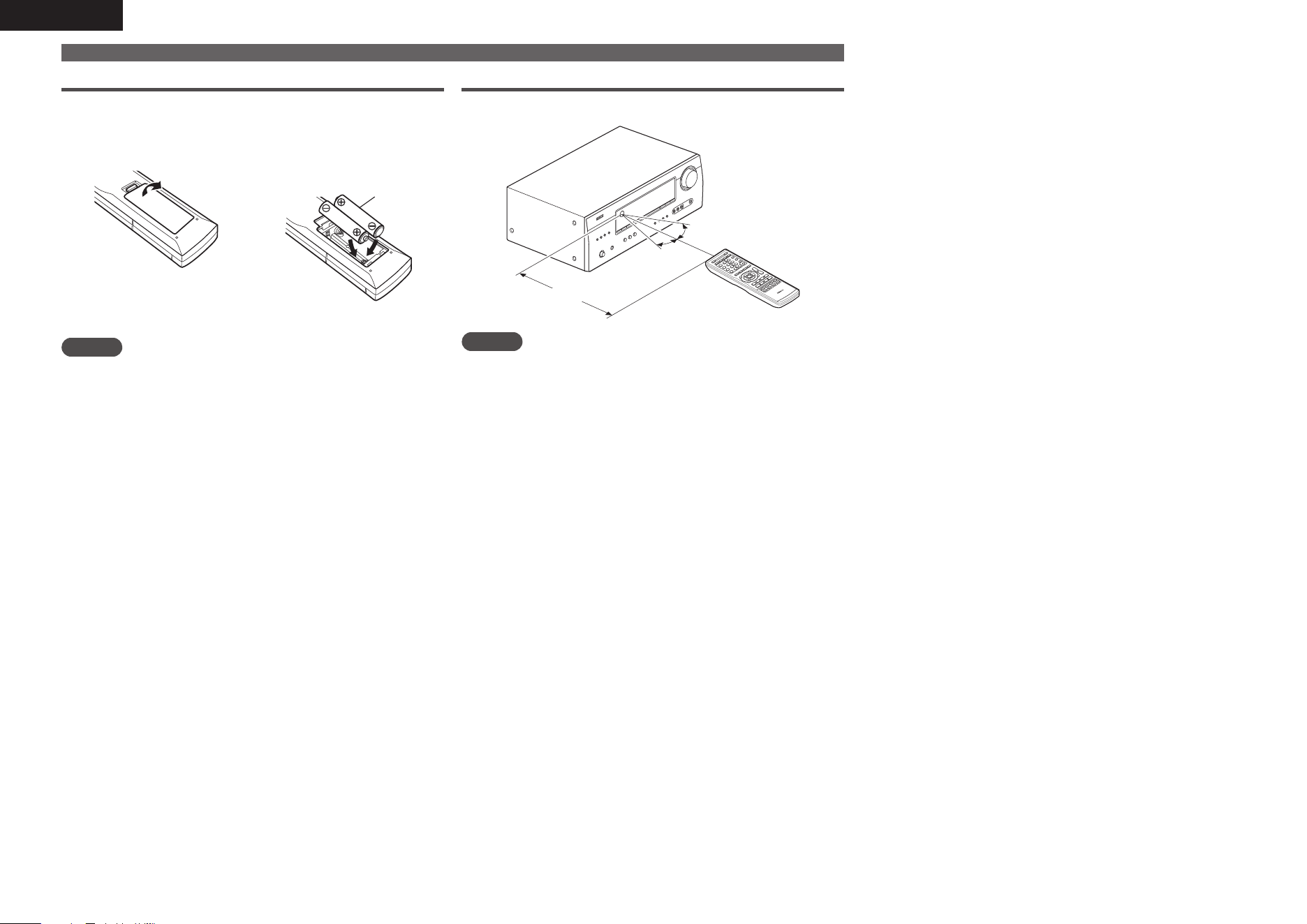
42
ENGLISH
Operating range of the remote control unit
Point the remote control unit at the remote sensor when operating it.
30°
30°
Approx. 23 ft /7 m
NOTE
The set may function improperly or the remote control unit may not
operate if the remote control sensor is exposed to direct sunlight,
strong artifi cial light from an inverter type fl uorescent lamp or infrared
light.
Remote control unit
Inserting the batteries
q Remove the rear lid in the
direction of the arrow and
remove it.
w Load the two batteries
properly as indicated by
the marks in the battery
compartment.
R03/AAA
e Put the rear cover back on.
NOTE
• Insert the specifi ed batteries in the remote control unit.
• Replace the batteries with new ones if the set does not operate
even when the remote control unit is operated close to the unit. (The
supplied batteries are only for verifying operation.)
• When inserting the batteries, be sure to do so in the proper direction,
following the q and w marks in the battery compartment.
• To prevent damage or leakage of battery fl uid:
• Do not use a new battery together with an old one.
• Do not use two different types of batteries.
• Do not attempt to charge dry batteries.
• Do not short-circuit, disassemble, heat or dispose of batteries in
fl ames.
• Do not keep the battery in a place exposed to direct sunlight or in
places with extremely high temperatures, such as near a heater.
• If the battery fl uid should leak, carefully wipe the fl uid off the inside
of the battery compartment and insert new batteries.
• Remove the batteries from the remote control unit if it will not be in
use for long periods.
• Used batteries should be disposed of in accordance with the local
regulations regarding battery disposal.
1.AVR391E3ENG4th100602.inddSec:421.AVR391E3ENG4th100602.inddSec:42 2010/06/0414:29:302010/06/0414:29:30
43
ENGLISH
Basic version Advanced versionSimple version Information
Other information
n Trademark information (vpage43)
n Surround (vpage44)
n Explanation of terms (vpage48)
Trademark information
This product uses the following technologies:
Manufactured under license from Dolby
Laboratories. “Dolby”, “Pro Logic” and
the double-D symbol are trademarks of
Dolby Laboratories.
Manufactured under license under
U.S. Patent #’s: 5,451,942; 5,956,674;
5,974,380; 5,978,762; 6,226,616;
6,487,535; 7,212,872; 7,333,929;
7,392,195; 7,272,567 & other U.S. and
worldwide patents issued & pending.
DTS and the Symbol are registered
trademarks, & DTS-HD, DTS-HD Master
Audio, and the DTS logos are trademarks
of DTS, Inc. Product includes software.
© DTS, Inc. All Rights Reserved.
HDMI, the HDMI Logo and High-
Defi nition Multimedia Interface are
trademarks or registered trademarks of
HDMI Licensing LLC in the United States
and other countries.
1.AVR391E3ENG4th100602.inddSec:431.AVR391E3ENG4th100602.inddSec:43 2010/06/0414:29:302010/06/0414:29:30
44
ENGLISH
Surround
This unit is equipped with a digital signal processing circuit that lets you play program sources in the surround mode to achieve the same sense of presence as in a movie theater.
Surround modes and surround parameters
This table shows the speakers that can be used in each surround mode and the surround parameters adjustable in each surround mode.
Symbols in the table
S This indicates the audio output channels or surround parameters that can be set.
D This indicates the audio output channels. The output channels depend on the settings of “Speaker Confi g.” (vpage7).
Surround mode (vpage21)
Channel output
Surround Parameter (vpage34)
Front L/R Center Surround L/R Surround Back L/R Subwoofer
Mode
(vpage35)
D. Comp z3
(vpage35)
DRCz4
(vpage35)
LFE z5
(vpage35)
DIRECT (2channel)
S D
z2
SS
DIRECT (Multi-channel)
SDD D
z1
DSSS
STEREO
S DSSS
MULTI CH IN
SDDDD S
DOLBY PRO LOGIC gx SDDDDSSS
DOLBY PRO LOGIC g SDD DSSS
DTS NEO:6
SDDDDSSS
DOLBY DIGITAL
SDDDD S S
DOLBY DIGITAL Plus
SDDDD S S
DOLBY TrueHD
SDDDD S
DTS SURROUND
SDDDD S S
DTS 96/24
SDDDD S S
DTS-HD
SDDDD S S
DTS Express
SDDDD S S
MULTI CH STEREO
SDDDD S S
VIRTUAL
S D
z2
SS
z1 A signal for each channel contained in an input signal is output as audio.
z2 Only when “Mode” is set to “LFE+Main” (vpage8), sound is output from the subwoofer.
z3 This item can be selected when a Dolby Digital or DTS signal is played.
z4 This item can be selected when a Dolby TrueHD signal is played.
z5 This item can be selected when a Dolby Digital or DTS signal or DVD-Audio is played.
1.AVR391E3ENG4th100602.inddSec:441.AVR391E3ENG4th100602.inddSec:44 2010/06/0414:29:312010/06/0414:29:31
45
ENGLISH
Basic version Advanced versionSimple version Information
Surround
Surround mode (vpage21)
Surround Parameter (vpage34)
Tone (vpage36)
RESTORER z7
(vpage36)
AFDM z6 (vpage35) S.Back (vpage35) Subwoofer (vpage35)
PRO LOGIC g/gx Music mode only
NEO:6 Music mode only
Panorama (vpage35) Dimension (vpage35) Center Width (vpage35) Center Image (vpage35)
DIRECT (2 channel)
S
z2
DIRECT (Multi-channel)
STEREO
SS
MULTI CH IN
SS S
DOLBY PRO LOGIC gx S SSS SS
DOLBY PRO LOGIC g S SSS SS
DTS NEO:6
S SSS
DOLBY DIGITAL
SS S
DOLBY DIGITAL Plus
SS S
DOLBY TrueHD
SS
DTS SURROUND
SS S
DTS 96/24
SS S
DTS-HD
SS
DTS Express
SS S
MULTI CH STEREO
S SS
VIRTUAL
SS
z2 Only when “Mode” is set to “LFE+Main” (vpage8), sound is output from the subwoofer.
z6 This item can be selected when a Dolby Digital or DTS or DVD-Audio signal is played.
z7 This item can be set when the input signal is analog, PCM 48 kHz or 44.1 kHz.
1.AVR391E3ENG4th100602.inddSec:451.AVR391E3ENG4th100602.inddSec:45 2010/06/0414:29:312010/06/0414:29:31
46
ENGLISH
Surround
n Types of input signals, and corresponding surround modes
This table shows the input signal that can be played in each surround mode. Check the audio signal of the input source then select the surround mode.
Symbols in the table
F This indicates the default surround mode.
D This indicates the surround mode that is fi xed when “AFDM” (vpage35) is set to “ON”.
S This indicates the selectable surround mode.
Surround mode (vpage21)
NOTE
Input signal types and formats
ANALOG
PCM DTS-HD DTS DOLBY DOLBY DIGITAL
LINEAR PCM
(multi ch)
LINEAR PCM
(2ch)
DTS-HD
Master
Audio
DTS-HD
High
Resolution
Audio
DTS
EXPRESS
DTS ES
DSCRT
(With Flag)
DTS ES
MTRX
(With Flag)
DTS
(5.1ch)
DTS 96/24
DOLBY
TrueHD
DOLBY
DIGITAL Plus
DOLBY
DIGITAL EX
(With Flag)
DOLBY
DIGITAL EX
(With no
Flag)
DOLBY
DIGITAL
(5.1/5/4ch)
DOLBY
DIGITAL
(4/3ch)
DOLBY
DIGITAL
(2ch)
DTS SURROUND
DTS-HD MSTR
F
DTS-HD HI RES
F
DTS ES DSCRT6.1
z F D
DTS ES MTRX6.1
z F D
DTS SURROUND
SSF
DTS 96/24
F
DTS + PLgx CINEMA z SSSS
DTS + PLgx MUSIC z SSSS
DTS EXPRESS
F
DTS + NEO:6
z SSS
DTS NEO:6 CINEMA
SS S
DTS NEO:6 MUSIC
SS S
DOLBY SURROUND
DOLBY TrueHD
F
DOLBY DIGITAL+
F
DOLBY DIGITAL EX
z SSSS
DOLBY DIGITAL
SFFF
DOLBY (D) +PLg
x CINEMA z F DS S S
DOLBY (D) +PLgx MUSIC z SSSS
DOLBY PRO LOGIC gx CINEMA zS S S
DOLBY PRO LOGIC gx MUSIC zS S S
DOLBY PRO LOGIC gx GAME zS S S
DOLBY PRO LOGIC g CINEMA SS S
DOLBY PRO LOGIC g MUSIC SS S
DOLBY PRO LOGIC g GAME SS S
DOLBY PRO LOGIC
SS S
z If “Speaker Confi g.“ – “S.B(Pre)“ (vpage7) is set to “None”, this surround mode cannot be selected.
1.AVR391E3ENG4th100602.inddSec:461.AVR391E3ENG4th100602.inddSec:46 2010/06/0414:29:312010/06/0414:29:31
47
ENGLISH
Basic version Advanced versionSimple version Information
Surround
Surround mode (vpage21)
NOTE
Input signal types and formats
ANALOG
PCM DTS-HD DTS DOLBY DOLBY DIGITAL
LINEAR PCM
(multi ch)
LINEAR PCM
(2ch)
DTS-HD
Master
Audio
DTS-HD
High
Resolution
Audio
DTS
EXPRESS
DTS ES
DSCRT
(With Flag)
DTS ES
MTRX
(With Flag)
DTS
(5.1ch)
DTS 96/24
DOLBY
TrueHD
DOLBY
DIGITAL Plus
DOLBY
DIGITAL EX
(With Flag)
DOLBY
DIGITAL EX
(With no
Flag)
DOLBY
DIGITAL
(5.1/5/4ch)
DOLBY
DIGITAL
(4/3ch)
DOLBY
DIGITAL
(2ch)
MULTI CH IN
MULTI CH IN
F
MULTI CH IN + PLgx CINEMA zS
MULTI CH IN + PLgx MUSIC zS
MULTI CH IN 7.1
F D (7.1)
DIRECT
DIRECT
SS SSSSSSSSSSSSSSS
DSP SIMULATION
MULTI CH STEREO
SS S SSSS SSSSS
VIRTUAL
SS S SSSS SSSSS
STEREO
STEREO
FS FSSSSSSSSSSSSSS
z If “Speaker Confi g.“ – “S.B(Pre)“ (vpage7) is set to “None”, this surround mode cannot be selected.
1.AVR391E3ENG4th100602.inddSec:471.AVR391E3ENG4th100602.inddSec:47 2010/06/0414:29:312010/06/0414:29:31
48
ENGLISH
Explanation of terms
A
Adobe RGB color / Adobe YCC601 color
Like x.v.Color, each of these color spaces defi nes
a palette of available colors that is larger than the
traditional RGB color model.
D
Deep Color
This technology allows expression of more number
of colors than the conventional 8 bits and can
reproduce colors close to natural ones without color
streak.
Dolby Digital
Dolby Digital is a multi-channel digital signal format
developed by Dolby Laboratories.
A total of 5.1 channels are played: 3 front channels
(“FL” , “FR” and “C”), 2 surround channels
(“SL” and “SR”) and the “LFE” channel for low
frequencies.
Because of this, there is no crosstalk between
channels and a realistic sound fi eld with a “three-
dimensional” feeling (sense of distance, movement
and positioning) is achieved.
A realistic, powerful sense of presence is achieved
when playing movie sources in AV rooms as well.
Dolby Digital EX
Dolby Digital EX is a 6.1-channel surround format
proposed by Dolby Laboratories that allows users
to enjoy in their homes the “DOLBY DIGITAL
SURROUND EX” audio format jointly developed by
Dolby Laboratories and Lucas Films.
The 6.1 channels of sound, including surround back
channels, provide improved sound positioning and
expression of space.
Dolby Digital Plus
Dolby Digital Plus is an improved Dolby Digital signal
format that is compatible with up to 7.1 channels
of discrete digital sound and also improves sound
quality thanks to extra data bit rate performance.
It is upwardly compatible with conventional Dolby
Digital, so it offers greater fl exibility in response to
the source signal and the conditions of the playback
equipment.
Dolby TrueHD
Dolby TrueHD is a high defi nition audio technology
developed by Dolby Laboratories, using lossless
coding technology to faithfully reproduce the sound
of the studio master.
This format provides the facility to support up to
8 audio channels with a sampling frequency of
96kHz/24bit resolution and up to 6 audio channels
with a sampling frequency of 192kHz/24bit
resolution. Dolby TrueHD is adopted for applications
that put very high importance on sound quality.
Dolby Pro Logic g
Dolby Pro Logic g is a matrix decoding technology
developed by Dolby Laboratories.
Regular music such as that on CDs is encoded into
5 channels to achieve an excellent surround effect.
The surround channel signals are converted into
stereo and full band signals (with a frequency
response of 20 Hz to 20 kHz or greater) to create
a “three-dimensional” sound image offering a rich
sense of presence for all stereo sources.
Dolby Pro Logic gx
Dolby Pro Logic gx is a further improved version of
the Dolby Pro Logic g matrix decoding technology.
Audio signals recorded in 2 channels are decoded
to achieve a natural sound with up to 7.1 channels.
There are three modes: “Music” suited for playing
music, “Cinema” suited for playing movies, and
“Game” which is optimized for playing games.
Downmix
This function converts the number of channels of
surround audio to less number of channels and
plays back.
DTS
This is an abbreviation of Digital Theater System,
which is a digital audio system developed by DTS.
When playing back audio by connecting this system
with a device such as DTS amplifi er, accurate sound
fi eld position and realistic sound effect as if you are
in a movie theater can be obtained.
DTS 96/24
DTS 96/24 is a digital audio format enabling high
sound quality playback in 5.1 channels with a
sampling frequency of 96 kHz and 24 bit quantization
on DVD-Video.
DTS Digital Surround
DTS Digital Surround is the standard digital surround
format of DTS, Inc., compatible with a sampling
frequency of 44.1 or 48 kHz and up to 5.1 channels
of digital discrete surround sound.
DTS-ES™ Discrete 6.1
DTS-ES™ Discrete 6.1 is a 6.1-channel discrete
digital audio format adding a surround back (SB)
channel to the DTS digital surround sound.
Decoding of conventional 5.1-channel audio signals
is also possible according to the decoder.
DTS-ES™ Matrix 6.1
DTS-ES™ Matrix 6.1 is a 6.1-channel discrete digital
audio format inserting a surround back (SB) channel
to the DTS digital surround sound through matrix
encoding. Decoding of conventional 5.1-channel
audio signals is also possible according to the
decoder.
DTS Express
DTS Express is an audio format supporting low bit
rates (max. 5.1 channels, 24 to 256 kbps).
DTS-HD
This audio technology provides higher sound quality
and enhanced functionality than the conventional
DTS and is adopted as an optional audio for Blu-ray
Disc. This technology supports multi-channel, high
data transfer speed, high sampling frequency, and
lossless audio playback. Maximum 7.1-channels are
supported in Blu-ray Disc.
DTS-HD High Resolution Audio
DTS-HD High Resolution Audio is an improved
version of the conventional DTS, DTS-ES and
DTS 96/24 signals formats, compatible with
sampling frequencies of 96 or 48 kHz and up to
7.1 channels of discrete digital sound. High data
bit rate performance provides high quality sound.
This format is fully compatible with conventional
products, including conventional DTS digital
surround 5.1-channel data.
DTS-HD Master Audio
DTS-HD Master Audio is a lossless audio format
created by Digital Theater System (DTS). This
format provides the facility to support up to 8 audio
channels with a sampling frequency of 96kHz/24bit
resolution and up to 6 audio channels with a
sampling frequency of 192kHz/24bit resolution.
It is fully compatible with conventional products,
including conventional DTS digital surround
5.1-channel data.
DTS NEO:6™ Surround
DTS NEO:6™ is a matrix decoding technology
for achieving 6.1-channel surround playback
with 2-channel sources. It includes “DTS NEO:6
Cinema” suited for playing movies and “DTS
NEO:6 Music” suited for playing music.
Dynamic range
The difference between the maximum undistorted
sound level and the minimum discernible level
above the noise emitted by the device.
H
HDCP
When transmitting digital signals between devices,
this copyright protection technology encrypts
the signals to prevent content from being copied
without authorization.
HDMI
This is an abbreviation of High-Defi nition Multimedia
Interface, which is an AV digital interface that can
be connected to a TV or amplifi er. Video signal and
audio signal can be connected using 1 cable.
L
LFE
This is an abbreviation of Low Frequency Effect,
which is an output channel that emphasizes
low frequency effect sound. Surround audio is
intensifi ed by outputting 20 Hz to 120 Hz deep
bass.
M
MP3 (MPEG Audio Layer-3)
This is an internationally standardized audio data
compression scheme, using the “MPEG-1” video
compression standard. It compresses the data
volume to about one eleventh its original size while
maintaining sound quality equivalent to a music CD.
MPEG (Moving Picture Experts Group), MPEG-2,
MPEG-4
These are the names for digital compression format
standards used for the encoding of video and audio.
Video standards include “MPEG-1 Video”, “MPEG-
2 Video”, “MPEG-4 Visual”, “MPEG-4 AVC”. Audio
standards include “MPEG-1 Audio”, “MPEG-2
Audio”, “MPEG-4 AAC”.
P
Protection Circuit
This is a function to prevent damage to components
within the power supply when an abnormality
such as an overload, excess voltage occurs or
temperature for any reason.
In this unit, the power indicator blinks and the unit
enters standby mode when an abnormality occurs.
S
Sampling frequency
Sampling involves taking a reading of a sound wave
(analog signal) at regular intervals and expressing
the height of the wave at each reading in digitized
1.AVR391E3ENG4th100602.inddSec:481.AVR391E3ENG4th100602.inddSec:48 2010/06/0414:29:312010/06/0414:29:31
49
ENGLISH
Basic version Advanced versionSimple version Information
format (producing a digital signal).
The number of readings taken in one second is
called the “sampling frequency”. The larger the
value, the closer the reproduced sound is to the
original.
Speaker impedance
This is an AC resistance value, indicated in Ω
(ohms). Greater power can be obtained with this
value smaller.
sYCC601 color
Like x.v.Color, each of these color spaces defi nes
a palette of available colors that is larger than the
traditional RGB color model.
W
WMA (Windows Media Audio)
This is audio compression technology developed by
Microsoft Corporation.
WMA data can be encoded using Windows
Media
®
Player Ver.7, 7.1, Windows Media
®
Player
for Windows
®
XP and Windows Media
®
Player 9
Series.
To encode WMA fi les, only use applications
authorized by Microsoft Corporation. If you use
an unauthorized application, the fi le may not work
properly.
X
x.v.Color
This function lets HDTVs display colors more
accurately. It enables display with natural, vivid
colors. “x.v.Color” is a Sony registered trademark.
Explanation of terms
If a problem should arise, fi rst check the following:
1. Are the connections correct?
2. Is the set being operated as described in the owner’s manual?
3. Are the other components operating properly?
If this unit does not operate properly, check the items listed in the table below. Should the problem persist,
there may be a malfunction.
In this case, disconnect the power immediately and contact your store of purchase.
GGeneralH
Symptom Cause/Solution Page
Power does not turn
on.
• Check whether the power plug is correctly inserted into the power
outlet.
• The protection circuit is active. Disconnect the power plug from
the electric outlet, wait 5 to 10 seconds and then insert it back
into the outlet.
5
4, 48
Display is off. • Set “Display” on the menu to something other than “OFF”. 34
The power indicator
is blinking red
in intervals of
approximately 2
seconds.
• The temperature inside the unit has risen. Please turn off power
once, and re-apply the power after the temperature has fallen
suffi ciently.
• Please re-install this unit in a place having good ventilation.
–
–
The power indicator
is blinking red
in intervals of
approximately 0.5
seconds.
• Please use speakers which have the specifi ed impedance.
• The speaker cable has shorted (is touching). Firmly twist the core
wire in the speaker cable, and then re-connect it to the speaker
terminal.
4
4
After turning on the
power, the power
indicator is blinking
red in intervals of
approximately 0.5
seconds.
• This unit amplifi er circuit has failed. Turn off the power and please
contact the DENON service adviser.
–
Set does not operate
properly.
• Reset the microprocessor. 51
GVideoH
Symptom Cause/Solution Page
No picture appears. • Check the TV connection.
• Set the TV input correctly.
5
6
Troubleshooting
1.AVR391E3ENG4th100602.inddSec:491.AVR391E3ENG4th100602.inddSec:49 2010/06/0414:29:312010/06/0414:29:31
50
ENGLISH
GAudioH
Symptom Cause/Solution Page
Audio is not output. • Check the connections for all devices.
• Check the speaker connections.
• Check whether the audio device power is turned on.
• Adjust the master volume.
• Cancel the mute mode.
• Select a suitable input source.
• Select a suitable input mode.
• Disconnect the headphones. No sound is output from the speakers
or the PRE OUT connectors when headphones are connected.
5, 12 – 16
5, 26
6
17
17
17
32
39
No sound is
produced from
surround speaker.
• Check if the surround speakers are connected to the SURROUND
terminals.
–
No sound is
produced from
surround back
speaker.
• Set “Speaker Confi g.” – “S.B(Pre)” on the menu to something
other than “None”.
• Set “Surround Parameter” – “SB CH OUT” on the menu to
something other than “OFF”.
• Set the surround mode to something other than “STEREO”.
7
35
21
No sound is
produced from
subwoofer.
• Check the subwoofer connections.
• Turn on the subwoofer’s power.
• Set “Speaker Confi g.” – “SW” on the menu to “Yes”.
• If “Front” and “Center” for “Speaker Confi g.” are set to “Large”,
and “Mode” is set to “LFE”, no sound may be output from the
subwoofers, depending on the input signal or selected surround
mode.
5, 26
6
7
7, 8
DTS sound is not
output.
• Set “Decode” on the menu to “Auto” or “DTS”. 32
Dolby TrueHD, DTS-
HD, Dolby Digital
Plus audio is not
output.
• Make HDMI connections. 12
GHDMIH
Symptom Cause/Solution Page
No audio is
output with HDMI
connection.
• Check the connection of the HDMI connectors.
• When outputting HDMI audio from the speakers, set “Audio Out”
on the menu to “Amp”.
• When outputting HDMI audio from a TV, set “Audio Out” on the
menu to “TV”.
12
34
34
No video is
output with HDMI
connection.
• Check the connection of the HDMI connectors.
• Set the input source to match the connected HDMI connector.
• Check whether the TV is compatible with copyright protection
(HDCP). If connected to a device not compatible with HDCP, video
will not be output correctly.
12
12, 17
12
GRadioH
Symptom Cause/Solution Page
Reception fails, or
there is a lot of noise
or distortion.
• Change the antenna orientation or position.
• Separate the AM loop antenna from the unit.
• Use an FM outdoor antenna.
• Separate the antenna from other connection cables.
16
16
16
16
GiPodH
Symptom Cause/Solution Page
iPod cannot be
played.
• Check the iPod connections.
• Plug the control dock for iPod’s AC adapter into a power outlet.
• Switch the input source to “DOCK”.
16
–
17
“Connection Error”
is displayed.
• Unable to communicate properly. Turn off the power to this unit,
disconnect the iPod and then reconnect it.
–
“Not Support” is
displayed.
• The iPod connected to the unit is not compatible. Please make
sure the iPod you are connecting is compatible.
• The software version of the connected iPod is an old one. Please
update to the latest version.
–
–
“Connection Error”
is displayed.
• The iPod is not responding. Turn off the power to this unit,
disconnect the iPod and then reconnect it.
–
GRemote control unitH
Symptom Cause/Solution Page
The set cannot be
operated with the
remote control unit.
• Batteries are worn out. Replace with new batteries.
• Operate the remote control unit within a distance of about 23 ft /
7 m from this unit and at an angle of within 30°.
• Remove any obstacle between this unit and the remote control
unit.
• Insert the batteries in the proper direction, checking the q and
w marks.
• The set’s remote control sensor is exposed to strong light (direct
sunlight, inverter type fl uorescent bulb light, etc.). Move the set
to a place in which the remote control sensor will not be exposed
to strong light.
42
42
42
42
42
1.AVR391E3ENG4th100602.inddSec:501.AVR391E3ENG4th100602.inddSec:50 2010/06/0414:29:312010/06/0414:29:31
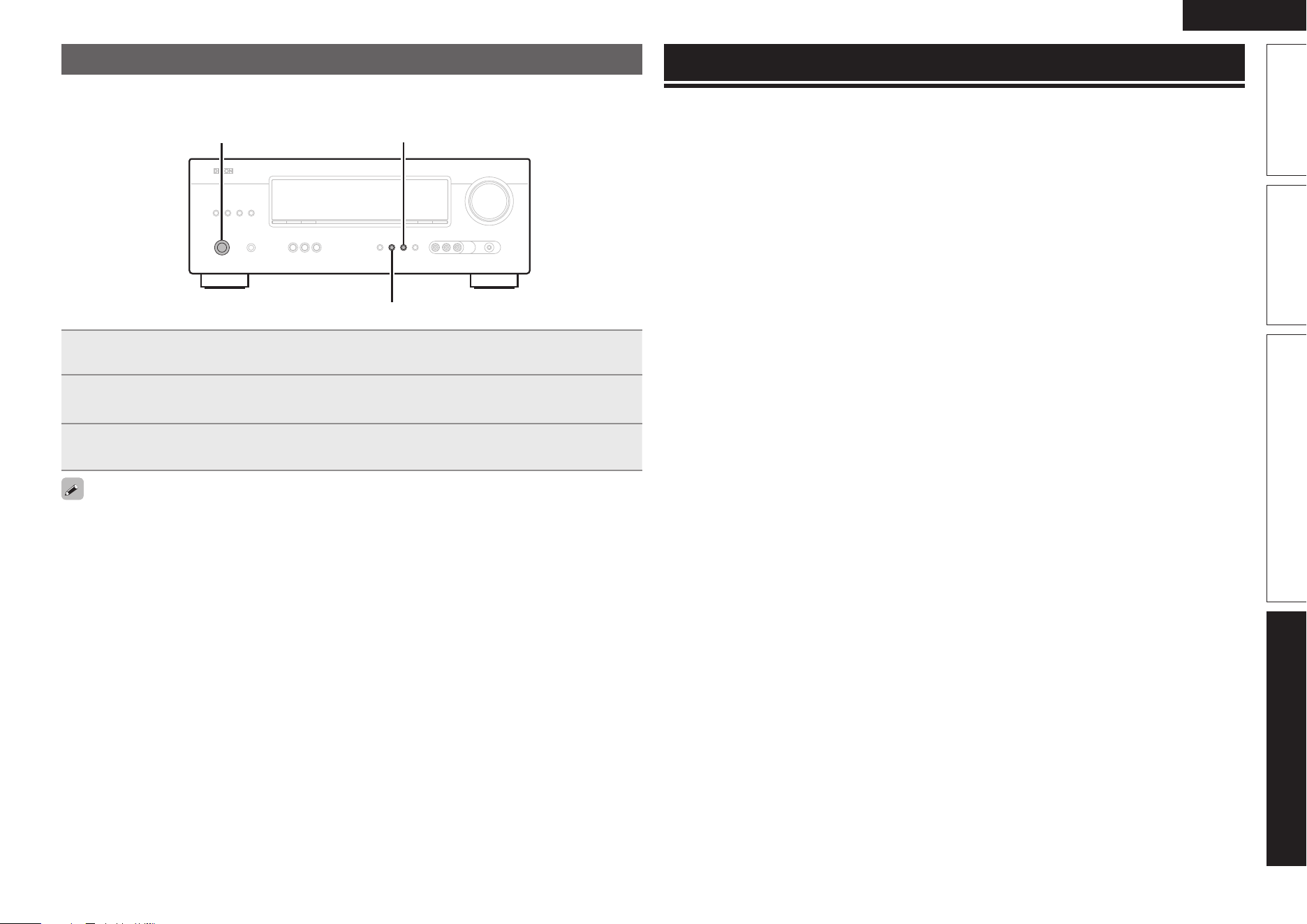
51
ENGLISH
Basic version Advanced versionSimple version Information
Resetting the microprocessor
Perform this procedure if the display is abnormal or if operations cannot be performed.
When the microprocessor is reset, all the settings are reset to their default values.
SURROUND MODE 0
SURROUND MODE 1
ON/STANDBY
1
Turn off the power using ON/STANDBY.
2
Press ON/STANDBY while simultaneously pressing SURROUND MODE 0 and
SURROUND MODE 1.
3
Once the display starts fl ashing at intervals of about 1 second, release the two
buttons.
If in step 3 the display does not fl ash at intervals of about 1 second, start over from step 1.
Specifi cations
n Audio section
• Power amplifi er
Rated output: Front:
75 W + 75 W (8 Ω, 20 Hz – 20 kHz with 0.08 % T.H.D.)
110 W + 110 W (6 Ω, 1 kHz with 0.7 % T.H.D.)
Center:
75 W (8 Ω, 20 Hz – 20 kHz with 0.08 % T.H.D.)
110 W (6 Ω, 1 kHz with 0.7 % T.H.D.)
Surround:
75 W + 75 W (8 Ω, 20 Hz – 20 kHz with 0.08 % T.H.D.)
110 W + 110 W (6 Ω, 1 kHz with 0.7 % T.H.D.)
Output connectors: 6 – 16 Ω
• Analog
Input sensitivity/Input impedance: 200 mV/47 kΩ
Frequency response: 10 Hz – 100 kHz — +1, –3 dB (DIRECT mode)
S/N: 98 dB (IHF–A weighted, DIRECT mode)
n Video section
• Standard video connectors
Input/output level and impedance: 1 Vp-p, 75 Ω
Frequency response: 5 Hz – 10 MHz — +1, –3 dB
n Tuner section [FM] [AM]
(Note: μV at 75 Ω, 0 dBf = 1 x 10
–15
W)
Receiving Range: 87.5 MHz – 107.9 MHz 520 kHz – 1710 kHz
Usable Sensitivity: 1.2 μV (12.8 dBf) 18 μV
50 dB Quieting Sensitivity: MONO 2.8 μV (20.2 dBf)
S/N (IHF-A): MONO 70 dB
STEREO 67 dB
Total harmonic Distortion (at 1 kHz): MONO 0.7 %
STEREO 1.0 %
n General
Power supply: AC 120 V, 60 Hz
Power consumption: 330 W
Less than 0.5 W (Standby)
Maximum external dimensions: 435 (W) x 166 (H) x 381 (D) mm (17-1/8” x 6-17/32” x 15”)
Weight: 9.2 kg (20 lbs 4.5 oz)
n Remote Control Unit (RC-1149)
Batteries: R03/AAA Type (two batteries)
Maximum external dimensions: 50 (W) x 211 (H) x 22 (D) mm (1-31/32” x 8-5/16” x 55/64”)
Weight: 110 g (3.9 oz, including batteries)
For purposes of improvement, specifi cations and design are subject to change without notice.
1.AVR391E3ENG4th100602.inddSec:511.AVR391E3ENG4th100602.inddSec:51 2010/06/0414:29:312010/06/0414:29:31

52
ENGLISH
Index
v Numerics
2.1-channel ··················································· 25, 26
3D ······································································· 12
5.1-channel ··························································· 4
7.1-channel ··················································· 25, 26
v A
Accessories ·························································· 1
Adobe RGB color / Adobe YCC601 color ··········· 48
AFDM ································································· 35
AM loop antenna ················································ 16
Audio cable ··············································· 5, 14, 15
Audio Delay ························································ 36
Audio Out ··························································· 34
Auto Preset ························································ 32
Auto Surround Mode ·········································· 34
v B
Banana plug ·························································· 4
Bass ··································································· 36
Bass Setting ························································· 8
Browse mode ····················································· 18
v C
Cable
Audio cable ············································ 5, 14, 15
Coaxial digital cable ········································· 14
HDMI cable ·················································· 5, 12
Optical cable ···················································· 13
Speaker cable ···················································· 5
Video cable ···········································13, 14, 15
Center Image ····················································· 35
Center Width ······················································ 35
Channel Level ······················································· 9
Coaxial digital cable ············································ 14
Condensation ······················································· 2
Connection
Antenna ··························································· 16
Blu-ray Disc player ····································· 12, 14
Cable TV ··························································· 14
Control dock for iPod ········································ 16
Digital camcorder ············································· 15
DVD player ················································· 12, 14
Game console ·················································· 12
HDMI ······························································· 12
Portable player ················································· 15
Power cord ························································· 5
Satellite tuner ··················································· 14
Set-top box ················································ 12, 14
Speaker ························································4, 26
TV··························································· 5, 12, 13
Crossover Freq. ···················································· 9
v D
D.Comp ······························································ 35
Decode ······························································· 32
Deep Color ··················································· 12, 48
Dimension ·························································· 35
Display ·························································· 34, 39
Distance ······························································· 8
Dolby
Dolby Digital··············································· 22, 48
Dolby Digital EX ········································· 22, 48
Dolby Digital Plus ······································· 22, 48
Dolby Pro Logic II ············································· 48
Dolby Pro Logic IIx ··········································· 48
Dolby TrueHD ············································· 22, 48
Downmix ···························································· 48
DRC ···································································· 35
DTS ······························································ 22, 48
DTS 96/24 ·················································· 22, 48
DTS Digital Surround ······································· 48
DTS-ES Discrete 6.1 ·································· 22, 48
DTS-ES Matrix 6.1 ····································· 22, 48
DTS Express ···················································· 48
DTS-HD ······················································ 22, 48
DTS-HD High Resolution Audio ······················· 48
DTS-HD Master Audio ····································· 48
DTS NEO:6™ Surround ····························· 21, 48
Dynamic range ··················································· 48
v F
FM indoor antenna ············································· 16
Front Panel ························································· 39
v H
HDCP ··························································· 12, 48
HDMI ···························································· 12, 48
HDMI 1.4a ·························································· 12
HDMI cable ···················································· 5, 12
Headphones ······················································· 39
v I
Information ························································· 37
Input Assign ······················································· 31
Input Mode ························································· 32
Input Setup ························································· 31
Input signal ··················································· 22, 46
v L
LFE ······························································· 35, 48
Listening mode ·················································· 21
v M
Menu map ·························································· 29
Mode ·································································· 35
MP3 ···································································· 48
MPEG ································································· 48
Mute Level ························································· 33
v N
NIGHT MODE ···················································· 36
v O
Optical cable ······················································· 13
Option Setup ······················································ 33
Other Setup ····················································· 34
Volume Control ················································ 33
Other Setup ························································ 34
Audio Out ························································· 34
Auto Surround Mode ······································· 34
Display ·····························································34
Setup Lock ······················································· 34
v P
Panorama ··························································· 35
Playback
Blu-ray Disc player ··········································· 17
Control dock for iPod ········································ 18
Direct ······························································· 23
DVD player ······················································· 17
FM/AM broadcasts ·········································· 20
Multi channel stereo ········································23
Portable player ················································· 17
Standard ·························································· 21
Stereo ······························································ 23
Virtual ·······························································23
Playback Mode (Control dock for iPod) ·············· 33
Power On Level ················································· 33
Preset Skip ························································· 32
Presetting radio stations ···································· 20
Protection circuit ················································ 48
v Q
Quick select ······················································· 28
v R
Rear panel ·························································· 40
Remote control unit ··········································· 41
Inserting the batteries ······································ 42
Remote mode ···················································· 18
Repeat ································································ 33
Resetting the microprocessor ···························· 51
RESTORER ························································· 36
v S
Sampling frequency ··········································· 48
SB CH OUT ························································ 35
Selecting the input source ································· 17
Setup Lock ························································· 34
Shuffl e ································································ 33
Sleep timer ························································· 28
Source Level ······················································ 33
Speaker
Connect ······················································· 4, 26
Install ··························································· 4, 25
Set up ································································ 6
Speaker cable ······················································· 5
Speaker Confi g. ···················································· 7
Speaker impedance ········································ 4, 49
Subwoofer ·························································· 35
Surround back speaker ································· 25, 26
Surround Mode ············································ 21, 44
Surround Parameter ··········································· 34
sYCC601 color ···················································· 49
v T
Tone ··································································· 36
Trademark ·························································· 43
Treble ································································· 36
Turn off power (standby) ···································· 10
Turn on power ······················································ 6
v V
Video ·································································· 32
Video cable ············································· 13, 14, 15
Video Select ······················································· 32
Volume Control ·················································· 33
Volume Limit ······················································ 33
v W
WMA ·································································· 49
v X
x.v.Color ····························································· 49
1.AVR391E3ENG4th100602.inddSec:521.AVR391E3ENG4th100602.inddSec:52 2010/06/0414:29:322010/06/0414:29:32

D&M Holdings Inc.
Printed in China 5411 10484 105D
www.denon.com
5.AVR391E2BackPage105.inddLisence:45.AVR391E2BackPage105.inddLisence:4 2010/06/1514:29:182010/06/1514:29:18