15
14
16
17
To temporarily turn off auto squelch:
Press the Max Range Hi/Lo button for
less than ve seconds.
To turn maximum range extender on:
– Press and hold the Max Range Hi/Lo button
for at least ve seconds until you hear
two beeps which indicates the maximum
range extender is on.
To turn maximum range extender off:
– Press and release the Max Range Hi/Lo
button or change channels.
Lock Function
The Lock function locks the Channel Up, Channel
Down, Volume Up, Volume Down and Mode/Power
buttons to prevent accidental operation.
To turn the lock on or off:
– Press and hold the Lock/Lock button for
two seconds.
A double beep sound is used to conrm your lock on
or off request. When in Lock mode,
the Lock icon will be displayed.
microTALK
®
Range
Your range will vary depending on terrain and conditions.
In at, open country your radio will
operate at maximum range.
Buildings and foliage in the path of the
signal can reduce the range of the radio.
Dense foliage and hilly terrain will further
reduce the range of the radio.
On FRS Channels 8 through 14, your radio
automatically switches to low power, which
will limit the range the radio can communicate.
Insert Batteries
Radio Charger Jack
Staying in touch with your family and friends is
convenient and easy when using your microTALK
®
radio.
Some of the many uses you will discover include:
Communicating with others while hiking, biking, and working; keeping
track of family and friends at a crowded public event; checking with
travel companions in another car; talking with neighbors; arranging
meeting spots with others while shopping at the mall.
Secure your microTALK
®
radio while on
the go.
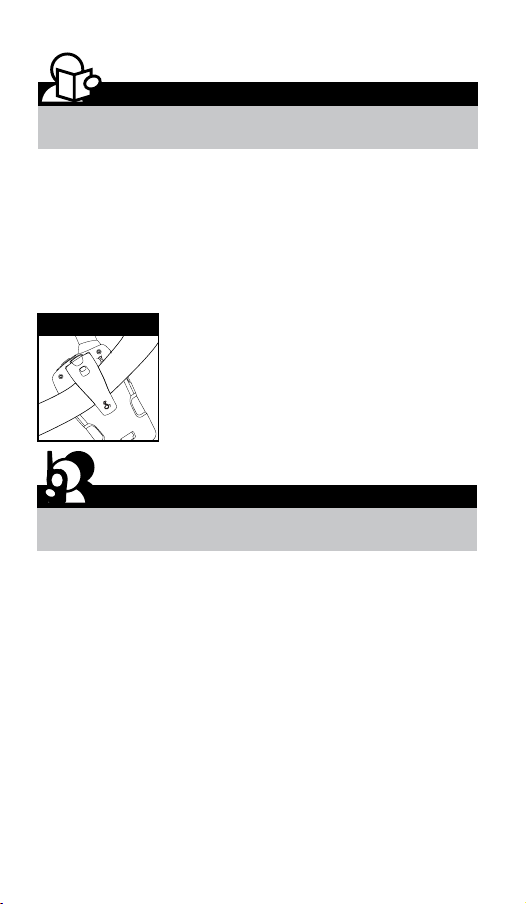
Carrying your microTALK
®
radio with you is easy
when using the belt clip or optional wrist strap.
The belt clip easily attaches to your belt, purse, or
backpack.
Owner’s Manual
Introduction
Making Life Easier and Safer
Introduction
Product Features
Operation
Using Your Radio
Customer Assistance
Product Service & Support
Belt Clip
Backlit LCD Display
Features
• 22 Channels
Seven shared
with FRS/GMRS,
seven FRS only,
eight GMRS only.
• 10 Channel
Weather Radio
• Weather Alert
• 121 Privacy Codes
(38 CTCSS codes/
83 DCS codes)
• Hands-Free Operation
(VOX)
• VibrAlert
®
Silent Paging
• Scan
Channels,
privacy codes
• Backlit LCD Display
• LED Flashlight
• Call Alert
Ten selectable
tones
• Button Lock
• Speaker/
Microphone/
Charge Jack
• Roger Beep
Selectable On/Off
• Battery/Power Saver
• Keystroke Tones
• Battery Level
Indicator
• Low Battery
Audible Alert
• Auto Squelch
• Maximum
Range Extender
• Belt Clip
Printed in China
Part No. KEM-ML38402
English
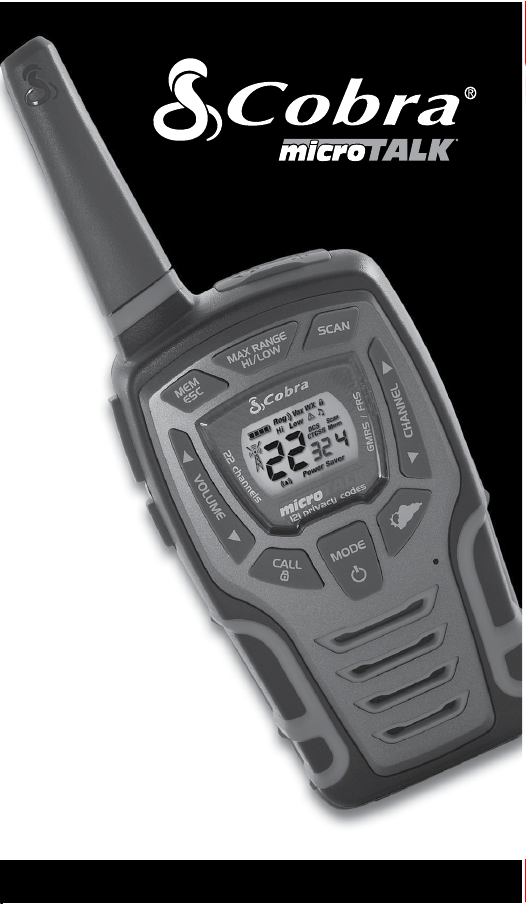
TWO-WAY RADIO MODEL
ACXT545
Nothing Comes Close to a Cobra
®
For any questions about operating this new Cobra branded product,
PLEASE CONTACT US FIRST...do not return this product to the retail store.
The contact information for support will vary depending on the country in
which you purchased and utilize the product.
To obtain warranty service or other information for products purchased
and utilized in the U.S.A., please call our consumer support line at
instructions on how to ship the products at your expense to an Altis Global
Limited Authorized Service Center. To obtain service, you must include:
(a) a copy of your receipt, bill of sale or other comparable proof of
purchase; (b) a written description of the problem; and, most importantly;
(c) your address and telephone number.
For warranty and customer service information outside the US, please
contact your local dealer.
For further information needed on its features,
please visit www.cobrawalkietalkie.com
for frequently asked questions and the
electronic manual.
A-1
A-2 A-3
1 2
Remove Belt Clip
Pull Up Lock Latch
Caring for Your microTALK
®
Radio
Your microTALK
®
radio will give you years of trouble-free service
if cared for properly. Handle the radio gently. Keep the radio away from
dust. Never put the radio in water or in a damp place. Avoid exposure to
extreme temperatures.
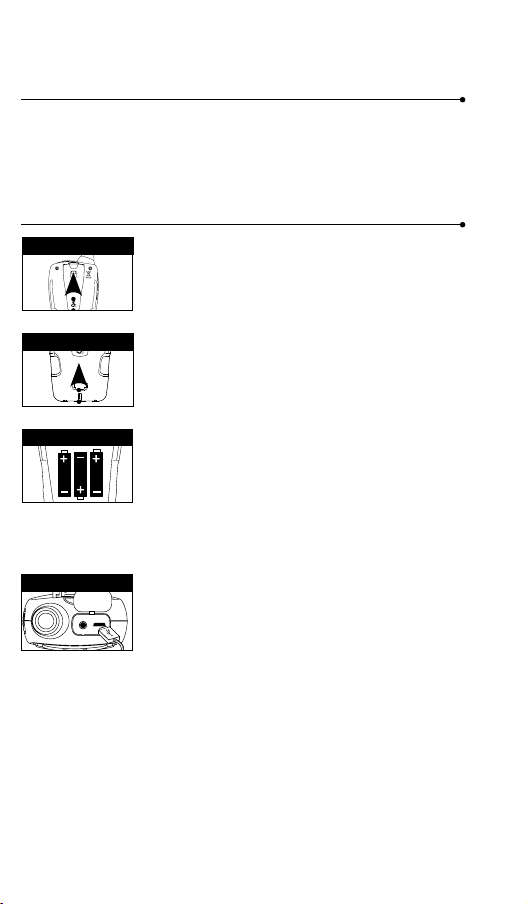
Installing Batteries
To install or replace batteries:
1. Remove belt clip by releasing belt clip
latch and sliding clip up.
2. Pull up on the battery door latch to remove the
battery compartment cover.
3. Insert the supplied three AA rechargeable
batteries or non-rechargeable alkaline batteries.
Position batteries according to polarity markings.
4. Replace battery compartment cover and
belt clip.
• Do not attempt to charge alkaline batteries.
• Do not mix old and new batteries.
• Do not mix alkaline, standard (carbon-zinc), or
rechargeable (Ni-Cd, Ni-MH, etc.) batteries.
To charge batteries in radio:
1. Check to see that the batteries have been
inserted properly.
2. Insert the cable into the charge jack located at
the top of the radio.
3. Plug the cable into USB-compatible power port.
Use only the supplied rechargeable batteries and charger for recharging
your Cobra microTALK
®
radio.
Cobra recommends your radio is turned off while being charged.
Non-rechargeable alkaline batteries can also be used in your radio.
3 4 55 6 7 8
Battery Low
Two Inches (5 cm)
from Mouth
Battery Low
When battery power is low, the nal bar in the
Battery Low icon will blink and an audible tone will
sound twice before the radio shuts off. Your batteries
should be replaced or recharged, if using
rechargeable batteries.
Auto Battery Save
If there are no transmissions within 10 seconds, the
radio will automatically switch to Battery Save mode
and the Power Saver icon will ash in the display.
This will not affect the radio’s ability to receive
incoming transmissions.
Communicating with Another Person
1. Press and hold the Talk button.
2. With the microphone about two inches (5 cm) from
your mouth, speak in a normal voice.
3. Release the Talk button when you are
nished talking and listen for a response.
You cannot receive incoming calls while
pressing the Talk button.
To Select a Channel
With the radio on, select any of the 22 channels by
pressing the Channel Up or Channel Down button.
Channels 1 through 7 are shared with FRS/ GMRS.
Channels 8 through 14 are FRS only. Channels 15
through 22 are GMRS only.
Both radios must be tuned to the
same channel to communicate.
The radio will display ashing battery icon
while charging if the radio is on.
Both radios must be tuned to the
same channel to communicate.
See page 18 for FRS/GMRS frequency
allocations and compatibility charts.
Listening for a Response
Release the Talk button to receive incoming
transmissions. Your microTALK
®
radio is always
in Standby mode while the Talk or Call buttons
are not pressed.
To Adjust Volume
Press the Volume Up or Volume
Down button.
A double beep sound is used to indicate
the minimum and maximum volume levels
(1 through 8).
Call Button
Press and release the Call button.
The other person will hear a three second call
tone. This tone is used only to establish voice
communications.
LED/S.O.S. Flashlight
Press and release the LED ashlight button
below the TALK button to use the LED ashlight
located at the bottom of the radio.
To activate S.O.S. function, press and hold the
LED ashlight button to turn on. Press and release to turn off the
ashlight or S.O.S. function.
Auto Squelch/Maximum Range
Your microTALK
®
radio will automatically shut off weak transmissions
and unwanted noise due to terrain, conditions or if you’ve reached
your Maximum Range limit.
You can temporarily turn off auto squelch or turn on maximum range
extender, allowing all signals to be received and extending the
maximum range of your radio.
See page 12 on how to select between
ten call tone settings.
Remember, you can achieve maximum
range by using maximum range extender.
See page 4 for details.
Scrolling Through the Mode Function
By scrolling through the Mode function, you will be able to
select or turn on preferred features of your microTALK
®
radio. When
scrolling through the Mode function, your radio features
will be displayed in the same predetermined order:
Set CTCSS Privacy Codes
Set DCS Privacy Codes
Set Vox On/Off
Set Vox Sensitivity
Set Call Tones 1-10
Set VibrAlert On/Off
Set Roger Beep On/Off
Set Key Tones On/Off
Privacy Codes
Your microTALK
®
radio incorporates two advanced coded squelch
systems that can help to reduce interference from other users
on any given channel. CTCSS (Continuous Tone Coded Squelch
System) provides 38 privacy codes and DCS (Digitally Coded Squelch)
provides 83 privacy codes. This provides a total of 121 Privacy
Codes. Either system can be used on all channels, but both systems
cannot be used on the same channel at the same time.
To successfully communicate using a privacy code, both
the sending and receiving radios must be tuned to the same
channel and to the same privacy code system (CTCSS or DCS)
and privacy code number. Each channel will remember the
last privacy code system and number you select.
The privacy code 00 is not a privacy code, but allows all
signals to be heard on a channel that is set to 00 on both
the CTCSS and DCS systems.
©2016 Altis Global Limited
Berkeley Lake, GA US 30071
www.cobrawalkietalkie.com
Mode Functions (continued on back side)
Important FCC Licensing Information
This radio operates on General Mobile Radio
Service (GMRS) frequencies which require a
Federal Communications Commission (FCC)
license. See page 19 for licensing and other
related information.
Maximum range may vary and is based on
unobstructed line-of-sight communication
under ideal conditions.
2
1
3
7
4
8
11
5
10
6
9
12
13
19
18
20
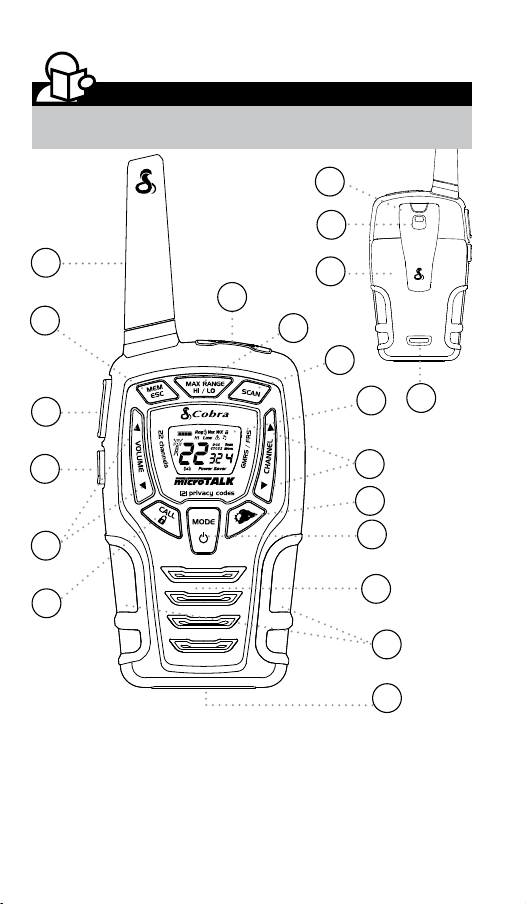
1. Antenna
2. External Speaker/
Microphone/ USB Charge Jack
3. Mode/Power Button
4. Call/Lock Button
5. Channel Up/Down Buttons
6. Backlit LCD Display
7. Speaker/Microphone
8. Volume Up/Down Buttons
9. LED Light Button
10. Talk Button
11. Memory/Escape Button
12. Max Range Hi/Lo Button
13. Scan Button
14. Wrist Strap Connection
15. Belt Clip
16. Battery Compartment
17. Battery Door Latch
18. Rubberized Grips
19. LED Flashlight
20. Weather Button
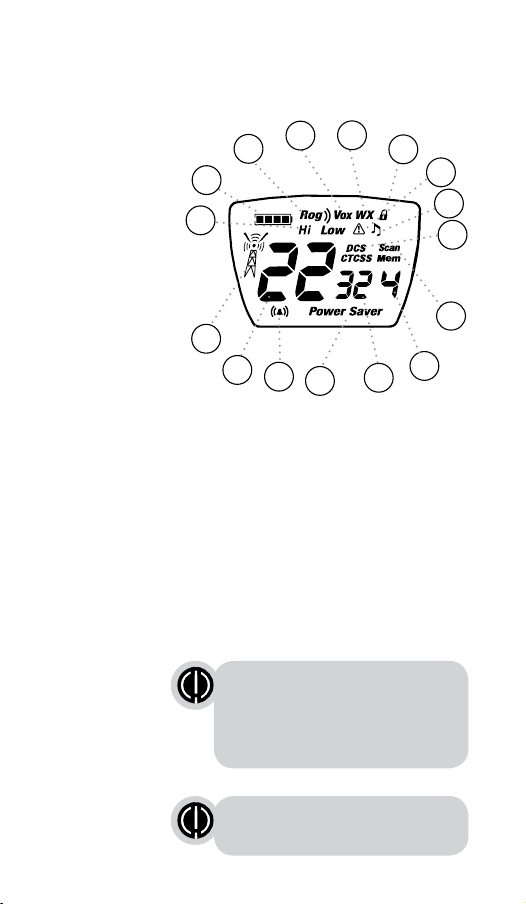
1. Battery Level Indicator
2. Roger Beep Icon
3. VOX Icon
4. Weather Icon
5. Lock Icon
6. Hi/Low Power Icon
7. DCS/CTCSS Icons
8. Scan/Memory Icon
9. Weather Alert Icon
10. DCS/CTCSS Privacy Code Numbers
11. Power Saver Icon
12. Channel Numbers
13. Receive/Transmit Icon
14. Memory Channel Number
15. VibrAlert
®
/ Call Alert Icon
16. Key Tone Icon
1
2
3
4
5
6
11
12
13
10
8
7
9
14
15
16
Turning on Your microTALK
®
Radio
Press and hold the Mode/Power button until you hear
a series of audible tones indicating the radio is on.
Your microTALK
®
radio is now in Standby mode,
ready to receive transmissions. The radio is always in
Standby mode except when the Talk, Call or
Mode/Power buttons are pressed.
Quick Start
1. Press and hold the Mode/Power button to turn on your radio.
2. Press the Channel Up or Channel Down button to select
a channel.
3. Press and hold the Talk button while
speaking into the microphone.
4. When nished talking, release the Talk
button and listen for a response.
Both radios must be tuned to the same
channel/privacy code to communicate.
For charging microTALK radio(s) in desktop charger:
1. Insert radio(s) into desktop charger as shown.
2. Insert the micro-USB cable into jack on back of charger.
3. Plug the cable into USB-compatible power port.
For pluggable equipment, the socket-outlet shall be
installed near the equipment and shall be easily accessible.
If charging light is not on, check position of radio. Radio should be
upright. The charge indicator light will stay on as long as the radio is in
the charging well, and the light will go off when the charging is complete.
Note: To charge a single radio, you can bypass the desktop charger and
simply insert the micro-USB’s connector directly into the charge jack
located on the top of the radio.
The radio will display ashing battery icon while charging.
Cobra recommends your radio be turned off while being charged.
Non-rechargeable alkaline batteries can also be used in your radio.
Mode/Power
Channel Button
Mode/Power
Light/Max Range
Volume Button
Call Button
Lock Button
Battery Save Mode
Talk Button
LED/S.O.S. Flashlight
Channel Number
Listening
Volume Level
Lock Icon
Operation
Mode Functions
Set CTCSS Privacy Codes
To select a CTCSS privacy code:
1. After selecting a channel, press
the Mode/Power button until the CTCSS icon
appears and the small numbers next to the
channel number ash on the display.
2. Press using the Channel Up or Channel Down
button to select a privacy code. You can hold the
Up or Down button for fast advance.
3. When your desired CTCSS privacy code is
displayed, choose one of the following:
a. Press the Mode/Power button to enter the
new setting and proceed to other functions.
b. Press the Talk or Call/Lock button to return to
Standby mode.
c. Do not press any buttons for 15 seconds
to return to Standby mode.
If DCS is turned on at the channel
selected, the display will ash the
CTCSS icon and “OFF.” To switch from
DCS to CTCSS, press the Channel Up
or Channel Down button while the display
is ashing “OFF.” The display will then
show the small numbers ashing and you
will then be able to proceed to step 2.
Set DCS Privacy Codes
To select a DCS privacy code:
1. After selecting a channel, press the Mode/Power
button until the DCS icon appears and the small
numbers ash on the display (00 through 83).
2. Press using the Channel Up or Channel Down button to select a DCS
privacy code. You can hold the Up or Down button for fast advance.
3. When DCS privacy code is displayed, choose one of the following:
a. Press the Mode/Power button to enter the new setting and
proceed to other functions.
b. Press the Talk or Call/Lock button to return to Standby mode.
c. Do not press any buttons for 15 seconds to enter the new settings
and to return to Standby mode.
If CTCSS is turned on at the channel selected,
the display will ash the DCS icon and “OFF.”
To switch from CTCSS to DCS, press the
Channel Up or Channel Down button while
the display is ashing “OFF.” The display will
then show the small numbers ashing and
you will then be able to proceed to step 2.
Privacy Code
Mode/Power
Mode/Power
Channel Button
Channel Button
DCS Privacy Code
15
14
16
17
To temporarily turn off auto squelch:
Press the Max Range Hi/Lo button for
less than ve seconds.
To turn maximum range extender on:
– Press and hold the Max Range Hi/Lo button
for at least ve seconds until you hear
two beeps which indicates the maximum
range extender is on.
To turn maximum range extender off:
– Press and release the Max Range Hi/Lo
button or change channels.
Lock Function
The Lock function locks the Channel Up, Channel
Down, Volume Up, Volume Down and Mode/Power
buttons to prevent accidental operation.
To turn the lock on or off:
– Press and hold the Lock/Lock button for
two seconds.
A double beep sound is used to conrm your lock on
or off request. When in Lock mode,
the Lock icon will be displayed.
microTALK
®
Range
Your range will vary depending on terrain and conditions.
In at, open country your radio will
operate at maximum range.
Buildings and foliage in the path of the
signal can reduce the range of the radio.
Dense foliage and hilly terrain will further
reduce the range of the radio.
On FRS Channels 8 through 14, your radio
automatically switches to low power, which
will limit the range the radio can communicate.
Insert Batteries
Radio Charger Jack
Staying in touch with your family and friends is
convenient and easy when using your microTALK
®
radio.
Some of the many uses you will discover include:
Communicating with others while hiking, biking, and working; keeping
track of family and friends at a crowded public event; checking with
travel companions in another car; talking with neighbors; arranging
meeting spots with others while shopping at the mall.
Secure your microTALK
®
radio while on
the go.
Carrying your microTALK
®
radio with you is easy
when using the belt clip or optional wrist strap.
The belt clip easily attaches to your belt, purse, or
backpack.
Owner’s Manual
Introduction
Making Life Easier and Safer
Introduction
Product Features
Operation
Using Your Radio
Customer Assistance
Product Service & Support
Belt Clip
Backlit LCD Display
Features
• 22 Channels
Seven shared
with FRS/GMRS,
seven FRS only,
eight GMRS only.
• 10 Channel
Weather Radio
• Weather Alert
• 121 Privacy Codes
(38 CTCSS codes/
83 DCS codes)
• Hands-Free Operation
(VOX)
• VibrAlert
®
Silent Paging
• Scan
Channels,
privacy codes
• Backlit LCD Display
• LED Flashlight
• Call Alert
Ten selectable
tones
• Button Lock
• Speaker/
Microphone/
Charge Jack
• Roger Beep
Selectable On/Off
• Battery/Power Saver
• Keystroke Tones
• Battery Level
Indicator
• Low Battery
Audible Alert
• Auto Squelch
• Maximum
Range Extender
• Belt Clip
Printed in China
Part No. KEM-ML38402
English
TWO-WAY RADIO MODEL
ACXT545
Nothing Comes Close to a Cobra
®
For any questions about operating this new Cobra branded product,
PLEASE CONTACT US FIRST...do not return this product to the retail store.
The contact information for support will vary depending on the country in
which you purchased and utilize the product.
To obtain warranty service or other information for products purchased
and utilized in the U.S.A., please call our consumer support line at
instructions on how to ship the products at your expense to an Altis Global
Limited Authorized Service Center. To obtain service, you must include:
(a) a copy of your receipt, bill of sale or other comparable proof of
purchase; (b) a written description of the problem; and, most importantly;
(c) your address and telephone number.
For warranty and customer service information outside the US, please
contact your local dealer.
For further information needed on its features,
please visit www.cobrawalkietalkie.com
for frequently asked questions and the
electronic manual.
A-1
A-2 A-3
1 2
Remove Belt Clip
Pull Up Lock Latch
Caring for Your microTALK
®
Radio
Your microTALK
®
radio will give you years of trouble-free service
if cared for properly. Handle the radio gently. Keep the radio away from
dust. Never put the radio in water or in a damp place. Avoid exposure to
extreme temperatures.
Installing Batteries
To install or replace batteries:
1. Remove belt clip by releasing belt clip
latch and sliding clip up.
2. Pull up on the battery door latch to remove the
battery compartment cover.
3. Insert the supplied three AA rechargeable
batteries or non-rechargeable alkaline batteries.
Position batteries according to polarity markings.
4. Replace battery compartment cover and
belt clip.
• Do not attempt to charge alkaline batteries.
• Do not mix old and new batteries.
• Do not mix alkaline, standard (carbon-zinc), or
rechargeable (Ni-Cd, Ni-MH, etc.) batteries.
To charge batteries in radio:
1. Check to see that the batteries have been
inserted properly.
2. Insert the cable into the charge jack located at
the top of the radio.
3. Plug the cable into USB-compatible power port.
Use only the supplied rechargeable batteries and charger for recharging
your Cobra microTALK
®
radio.
Cobra recommends your radio is turned off while being charged.
Non-rechargeable alkaline batteries can also be used in your radio.
3 4 55 6 7 8
Battery Low
Two Inches (5 cm)
from Mouth
Battery Low
When battery power is low, the nal bar in the
Battery Low icon will blink and an audible tone will
sound twice before the radio shuts off. Your batteries
should be replaced or recharged, if using
rechargeable batteries.
Auto Battery Save
If there are no transmissions within 10 seconds, the
radio will automatically switch to Battery Save mode
and the Power Saver icon will ash in the display.
This will not affect the radio’s ability to receive
incoming transmissions.
Communicating with Another Person
1. Press and hold the Talk button.
2. With the microphone about two inches (5 cm) from
your mouth, speak in a normal voice.
3. Release the Talk button when you are
nished talking and listen for a response.
You cannot receive incoming calls while
pressing the Talk button.
To Select a Channel
With the radio on, select any of the 22 channels by
pressing the Channel Up or Channel Down button.
Channels 1 through 7 are shared with FRS/ GMRS.
Channels 8 through 14 are FRS only. Channels 15
through 22 are GMRS only.
Both radios must be tuned to the
same channel to communicate.
The radio will display ashing battery icon
while charging if the radio is on.
Both radios must be tuned to the
same channel to communicate.
See page 18 for FRS/GMRS frequency
allocations and compatibility charts.
Listening for a Response
Release the Talk button to receive incoming
transmissions. Your microTALK
®
radio is always
in Standby mode while the Talk or Call buttons
are not pressed.
To Adjust Volume
Press the Volume Up or Volume
Down button.
A double beep sound is used to indicate
the minimum and maximum volume levels
(1 through 8).
Call Button
Press and release the Call button.
The other person will hear a three second call
tone. This tone is used only to establish voice
communications.
LED/S.O.S. Flashlight
Press and release the LED ashlight button
below the TALK button to use the LED ashlight
located at the bottom of the radio.
To activate S.O.S. function, press and hold the
LED ashlight button to turn on. Press and release to turn off the
ashlight or S.O.S. function.
Auto Squelch/Maximum Range
Your microTALK
®
radio will automatically shut off weak transmissions
and unwanted noise due to terrain, conditions or if you’ve reached
your Maximum Range limit.
You can temporarily turn off auto squelch or turn on maximum range
extender, allowing all signals to be received and extending the
maximum range of your radio.
See page 12 on how to select between
ten call tone settings.
Remember, you can achieve maximum
range by using maximum range extender.
See page 4 for details.
Scrolling Through the Mode Function
By scrolling through the Mode function, you will be able to
select or turn on preferred features of your microTALK
®
radio. When
scrolling through the Mode function, your radio features
will be displayed in the same predetermined order:
Set CTCSS Privacy Codes
Set DCS Privacy Codes
Set Vox On/Off
Set Vox Sensitivity
Set Call Tones 1-10
Set VibrAlert On/Off
Set Roger Beep On/Off
Set Key Tones On/Off
Privacy Codes
Your microTALK
®
radio incorporates two advanced coded squelch
systems that can help to reduce interference from other users
on any given channel. CTCSS (Continuous Tone Coded Squelch
System) provides 38 privacy codes and DCS (Digitally Coded Squelch)
provides 83 privacy codes. This provides a total of 121 Privacy
Codes. Either system can be used on all channels, but both systems
cannot be used on the same channel at the same time.
To successfully communicate using a privacy code, both
the sending and receiving radios must be tuned to the same
channel and to the same privacy code system (CTCSS or DCS)
and privacy code number. Each channel will remember the
last privacy code system and number you select.
The privacy code 00 is not a privacy code, but allows all
signals to be heard on a channel that is set to 00 on both
the CTCSS and DCS systems.
©2016 Altis Global Limited
Berkeley Lake, GA US 30071
www.cobrawalkietalkie.com
Mode Functions (continued on back side)
Important FCC Licensing Information
This radio operates on General Mobile Radio
Service (GMRS) frequencies which require a
Federal Communications Commission (FCC)
license. See page 19 for licensing and other
related information.
Maximum range may vary and is based on
unobstructed line-of-sight communication
under ideal conditions.
2
1
3
7
4
8
11
5
10
6
9
12
13
19
18
20
1. Antenna
2. External Speaker/
Microphone/ USB Charge Jack
3. Mode/Power Button
4. Call/Lock Button
5. Channel Up/Down Buttons
6. Backlit LCD Display
7. Speaker/Microphone
8. Volume Up/Down Buttons
9. LED Light Button
10. Talk Button
11. Memory/Escape Button
12. Max Range Hi/Lo Button
13. Scan Button
14. Wrist Strap Connection
15. Belt Clip
16. Battery Compartment
17. Battery Door Latch
18. Rubberized Grips
19. LED Flashlight
20. Weather Button
1. Battery Level Indicator
2. Roger Beep Icon
3. VOX Icon
4. Weather Icon
5. Lock Icon
6. Hi/Low Power Icon
7. DCS/CTCSS Icons
8. Scan/Memory Icon
9. Weather Alert Icon
10. DCS/CTCSS Privacy Code Numbers
11. Power Saver Icon
12. Channel Numbers
13. Receive/Transmit Icon
14. Memory Channel Number
15. VibrAlert
®
/ Call Alert Icon
16. Key Tone Icon
1
2
3
4
5
6
11
12
13
10
8
7
9
14
15
16
Turning on Your microTALK
®
Radio
Press and hold the Mode/Power button until you hear
a series of audible tones indicating the radio is on.
Your microTALK
®
radio is now in Standby mode,
ready to receive transmissions. The radio is always in
Standby mode except when the Talk, Call or
Mode/Power buttons are pressed.
Quick Start
1. Press and hold the Mode/Power button to turn on your radio.
2. Press the Channel Up or Channel Down button to select
a channel.
3. Press and hold the Talk button while
speaking into the microphone.
4. When nished talking, release the Talk
button and listen for a response.
Both radios must be tuned to the same
channel/privacy code to communicate.
For charging microTALK radio(s) in desktop charger:
1. Insert radio(s) into desktop charger as shown.
2. Insert the micro-USB cable into jack on back of charger.
3. Plug the cable into USB-compatible power port.
For pluggable equipment, the socket-outlet shall be
installed near the equipment and shall be easily accessible.
If charging light is not on, check position of radio. Radio should be
upright. The charge indicator light will stay on as long as the radio is in
the charging well, and the light will go off when the charging is complete.
Note: To charge a single radio, you can bypass the desktop charger and
simply insert the micro-USB’s connector directly into the charge jack
located on the top of the radio.
The radio will display ashing battery icon while charging.
Cobra recommends your radio be turned off while being charged.
Non-rechargeable alkaline batteries can also be used in your radio.
Mode/Power
Channel Button
Mode/Power
Light/Max Range
Volume Button
Call Button
Lock Button
Battery Save Mode
Talk Button
LED/S.O.S. Flashlight
Channel Number
Listening
Volume Level
Lock Icon
Operation
Mode Functions
Set CTCSS Privacy Codes
To select a CTCSS privacy code:
1. After selecting a channel, press
the Mode/Power button until the CTCSS icon
appears and the small numbers next to the
channel number ash on the display.
2. Press using the Channel Up or Channel Down
button to select a privacy code. You can hold the
Up or Down button for fast advance.
3. When your desired CTCSS privacy code is
displayed, choose one of the following:
a. Press the Mode/Power button to enter the
new setting and proceed to other functions.
b. Press the Talk or Call/Lock button to return to
Standby mode.
c. Do not press any buttons for 15 seconds
to return to Standby mode.
If DCS is turned on at the channel
selected, the display will ash the
CTCSS icon and “OFF.” To switch from
DCS to CTCSS, press the Channel Up
or Channel Down button while the display
is ashing “OFF.” The display will then
show the small numbers ashing and you
will then be able to proceed to step 2.
Set DCS Privacy Codes
To select a DCS privacy code:
1. After selecting a channel, press the Mode/Power
button until the DCS icon appears and the small
numbers ash on the display (00 through 83).
2. Press using the Channel Up or Channel Down button to select a DCS
privacy code. You can hold the Up or Down button for fast advance.
3. When DCS privacy code is displayed, choose one of the following:
a. Press the Mode/Power button to enter the new setting and
proceed to other functions.
b. Press the Talk or Call/Lock button to return to Standby mode.
c. Do not press any buttons for 15 seconds to enter the new settings
and to return to Standby mode.
If CTCSS is turned on at the channel selected,
the display will ash the DCS icon and “OFF.”
To switch from CTCSS to DCS, press the
Channel Up or Channel Down button while
the display is ashing “OFF.” The display will
then show the small numbers ashing and
you will then be able to proceed to step 2.
Privacy Code
Mode/Power
Mode/Power
Channel Button
Channel Button
DCS Privacy Code
15
14
16
17
To temporarily turn off auto squelch:
Press the Max Range Hi/Lo button for
less than ve seconds.
To turn maximum range extender on:
– Press and hold the Max Range Hi/Lo button
for at least ve seconds until you hear
two beeps which indicates the maximum
range extender is on.
To turn maximum range extender off:
– Press and release the Max Range Hi/Lo
button or change channels.
Lock Function
The Lock function locks the Channel Up, Channel
Down, Volume Up, Volume Down and Mode/Power
buttons to prevent accidental operation.
To turn the lock on or off:
– Press and hold the Lock/Lock button for
two seconds.
A double beep sound is used to conrm your lock on
or off request. When in Lock mode,
the Lock icon will be displayed.
microTALK
®
Range
Your range will vary depending on terrain and conditions.
In at, open country your radio will
operate at maximum range.
Buildings and foliage in the path of the
signal can reduce the range of the radio.
Dense foliage and hilly terrain will further
reduce the range of the radio.
On FRS Channels 8 through 14, your radio
automatically switches to low power, which
will limit the range the radio can communicate.
Insert Batteries
Radio Charger Jack
Staying in touch with your family and friends is
convenient and easy when using your microTALK
®
radio.
Some of the many uses you will discover include:
Communicating with others while hiking, biking, and working; keeping
track of family and friends at a crowded public event; checking with
travel companions in another car; talking with neighbors; arranging
meeting spots with others while shopping at the mall.
Secure your microTALK
®
radio while on
the go.
Carrying your microTALK
®
radio with you is easy
when using the belt clip or optional wrist strap.
The belt clip easily attaches to your belt, purse, or
backpack.
Owner’s Manual
Introduction
Making Life Easier and Safer
Introduction
Product Features
Operation
Using Your Radio
Customer Assistance
Product Service & Support
Belt Clip
Backlit LCD Display
Features
• 22 Channels
Seven shared
with FRS/GMRS,
seven FRS only,
eight GMRS only.
• 10 Channel
Weather Radio
• Weather Alert
• 121 Privacy Codes
(38 CTCSS codes/
83 DCS codes)
• Hands-Free Operation
(VOX)
• VibrAlert
®
Silent Paging
• Scan
Channels,
privacy codes
• Backlit LCD Display
• LED Flashlight
• Call Alert
Ten selectable
tones
• Button Lock
• Speaker/
Microphone/
Charge Jack
• Roger Beep
Selectable On/Off
• Battery/Power Saver
• Keystroke Tones
• Battery Level
Indicator
• Low Battery
Audible Alert
• Auto Squelch
• Maximum
Range Extender
• Belt Clip
Printed in China
Part No. KEM-ML38402
English
TWO-WAY RADIO MODEL
ACXT545
Nothing Comes Close to a Cobra
®
For any questions about operating this new Cobra branded product,
PLEASE CONTACT US FIRST...do not return this product to the retail store.
The contact information for support will vary depending on the country in
which you purchased and utilize the product.
To obtain warranty service or other information for products purchased
and utilized in the U.S.A., please call our consumer support line at
instructions on how to ship the products at your expense to an Altis Global
Limited Authorized Service Center. To obtain service, you must include:
(a) a copy of your receipt, bill of sale or other comparable proof of
purchase; (b) a written description of the problem; and, most importantly;
(c) your address and telephone number.
For warranty and customer service information outside the US, please
contact your local dealer.
For further information needed on its features,
please visit www.cobrawalkietalkie.com
for frequently asked questions and the
electronic manual.
A-1
A-2 A-3
1 2
Remove Belt Clip
Pull Up Lock Latch
Caring for Your microTALK
®
Radio
Your microTALK
®
radio will give you years of trouble-free service
if cared for properly. Handle the radio gently. Keep the radio away from
dust. Never put the radio in water or in a damp place. Avoid exposure to
extreme temperatures.
Installing Batteries
To install or replace batteries:
1. Remove belt clip by releasing belt clip
latch and sliding clip up.
2. Pull up on the battery door latch to remove the
battery compartment cover.
3. Insert the supplied three AA rechargeable
batteries or non-rechargeable alkaline batteries.
Position batteries according to polarity markings.
4. Replace battery compartment cover and
belt clip.
• Do not attempt to charge alkaline batteries.
• Do not mix old and new batteries.
• Do not mix alkaline, standard (carbon-zinc), or
rechargeable (Ni-Cd, Ni-MH, etc.) batteries.
To charge batteries in radio:
1. Check to see that the batteries have been
inserted properly.
2. Insert the cable into the charge jack located at
the top of the radio.
3. Plug the cable into USB-compatible power port.
Use only the supplied rechargeable batteries and charger for recharging
your Cobra microTALK
®
radio.
Cobra recommends your radio is turned off while being charged.
Non-rechargeable alkaline batteries can also be used in your radio.
3 4 55 6 7 8
Battery Low
Two Inches (5 cm)
from Mouth
Battery Low
When battery power is low, the nal bar in the
Battery Low icon will blink and an audible tone will
sound twice before the radio shuts off. Your batteries
should be replaced or recharged, if using
rechargeable batteries.
Auto Battery Save
If there are no transmissions within 10 seconds, the
radio will automatically switch to Battery Save mode
and the Power Saver icon will ash in the display.
This will not affect the radio’s ability to receive
incoming transmissions.
Communicating with Another Person
1. Press and hold the Talk button.
2. With the microphone about two inches (5 cm) from
your mouth, speak in a normal voice.
3. Release the Talk button when you are
nished talking and listen for a response.
You cannot receive incoming calls while
pressing the Talk button.
To Select a Channel
With the radio on, select any of the 22 channels by
pressing the Channel Up or Channel Down button.
Channels 1 through 7 are shared with FRS/ GMRS.
Channels 8 through 14 are FRS only. Channels 15
through 22 are GMRS only.
Both radios must be tuned to the
same channel to communicate.
The radio will display ashing battery icon
while charging if the radio is on.
Both radios must be tuned to the
same channel to communicate.
See page 18 for FRS/GMRS frequency
allocations and compatibility charts.
Listening for a Response
Release the Talk button to receive incoming
transmissions. Your microTALK
®
radio is always
in Standby mode while the Talk or Call buttons
are not pressed.
To Adjust Volume
Press the Volume Up or Volume
Down button.
A double beep sound is used to indicate
the minimum and maximum volume levels
(1 through 8).
Call Button
Press and release the Call button.
The other person will hear a three second call
tone. This tone is used only to establish voice
communications.
LED/S.O.S. Flashlight
Press and release the LED ashlight button
below the TALK button to use the LED ashlight
located at the bottom of the radio.
To activate S.O.S. function, press and hold the
LED ashlight button to turn on. Press and release to turn off the
ashlight or S.O.S. function.
Auto Squelch/Maximum Range
Your microTALK
®
radio will automatically shut off weak transmissions
and unwanted noise due to terrain, conditions or if you’ve reached
your Maximum Range limit.
You can temporarily turn off auto squelch or turn on maximum range
extender, allowing all signals to be received and extending the
maximum range of your radio.
See page 12 on how to select between
ten call tone settings.
Remember, you can achieve maximum
range by using maximum range extender.
See page 4 for details.
Scrolling Through the Mode Function
By scrolling through the Mode function, you will be able to
select or turn on preferred features of your microTALK
®
radio. When
scrolling through the Mode function, your radio features
will be displayed in the same predetermined order:
Set CTCSS Privacy Codes
Set DCS Privacy Codes
Set Vox On/Off
Set Vox Sensitivity
Set Call Tones 1-10
Set VibrAlert On/Off
Set Roger Beep On/Off
Set Key Tones On/Off
Privacy Codes
Your microTALK
®
radio incorporates two advanced coded squelch
systems that can help to reduce interference from other users
on any given channel. CTCSS (Continuous Tone Coded Squelch
System) provides 38 privacy codes and DCS (Digitally Coded Squelch)
provides 83 privacy codes. This provides a total of 121 Privacy
Codes. Either system can be used on all channels, but both systems
cannot be used on the same channel at the same time.
To successfully communicate using a privacy code, both
the sending and receiving radios must be tuned to the same
channel and to the same privacy code system (CTCSS or DCS)
and privacy code number. Each channel will remember the
last privacy code system and number you select.
The privacy code 00 is not a privacy code, but allows all
signals to be heard on a channel that is set to 00 on both
the CTCSS and DCS systems.
©2016 Altis Global Limited
Berkeley Lake, GA US 30071
www.cobrawalkietalkie.com
Mode Functions (continued on back side)
Important FCC Licensing Information
This radio operates on General Mobile Radio
Service (GMRS) frequencies which require a
Federal Communications Commission (FCC)
license. See page 19 for licensing and other
related information.
Maximum range may vary and is based on
unobstructed line-of-sight communication
under ideal conditions.
2
1
3
7
4
8
11
5
10
6
9
12
13
19
18
20
1. Antenna
2. External Speaker/
Microphone/ USB Charge Jack
3. Mode/Power Button
4. Call/Lock Button
5. Channel Up/Down Buttons
6. Backlit LCD Display
7. Speaker/Microphone
8. Volume Up/Down Buttons
9. LED Light Button
10. Talk Button
11. Memory/Escape Button
12. Max Range Hi/Lo Button
13. Scan Button
14. Wrist Strap Connection
15. Belt Clip
16. Battery Compartment
17. Battery Door Latch
18. Rubberized Grips
19. LED Flashlight
20. Weather Button
1. Battery Level Indicator
2. Roger Beep Icon
3. VOX Icon
4. Weather Icon
5. Lock Icon
6. Hi/Low Power Icon
7. DCS/CTCSS Icons
8. Scan/Memory Icon
9. Weather Alert Icon
10. DCS/CTCSS Privacy Code Numbers
11. Power Saver Icon
12. Channel Numbers
13. Receive/Transmit Icon
14. Memory Channel Number
15. VibrAlert
®
/ Call Alert Icon
16. Key Tone Icon
1
2
3
4
5
6
11
12
13
10
8
7
9
14
15
16
Turning on Your microTALK
®
Radio
Press and hold the Mode/Power button until you hear
a series of audible tones indicating the radio is on.
Your microTALK
®
radio is now in Standby mode,
ready to receive transmissions. The radio is always in
Standby mode except when the Talk, Call or
Mode/Power buttons are pressed.
Quick Start
1. Press and hold the Mode/Power button to turn on your radio.
2. Press the Channel Up or Channel Down button to select
a channel.
3. Press and hold the Talk button while
speaking into the microphone.
4. When nished talking, release the Talk
button and listen for a response.
Both radios must be tuned to the same
channel/privacy code to communicate.
For charging microTALK radio(s) in desktop charger:
1. Insert radio(s) into desktop charger as shown.
2. Insert the micro-USB cable into jack on back of charger.
3. Plug the cable into USB-compatible power port.
For pluggable equipment, the socket-outlet shall be
installed near the equipment and shall be easily accessible.
If charging light is not on, check position of radio. Radio should be
upright. The charge indicator light will stay on as long as the radio is in
the charging well, and the light will go off when the charging is complete.
Note: To charge a single radio, you can bypass the desktop charger and
simply insert the micro-USB’s connector directly into the charge jack
located on the top of the radio.
The radio will display ashing battery icon while charging.
Cobra recommends your radio be turned off while being charged.
Non-rechargeable alkaline batteries can also be used in your radio.
Mode/Power
Channel Button
Mode/Power
Light/Max Range
Volume Button
Call Button
Lock Button
Battery Save Mode
Talk Button
LED/S.O.S. Flashlight
Channel Number
Listening
Volume Level
Lock Icon
Operation
Mode Functions
Set CTCSS Privacy Codes
To select a CTCSS privacy code:
1. After selecting a channel, press
the Mode/Power button until the CTCSS icon
appears and the small numbers next to the
channel number ash on the display.
2. Press using the Channel Up or Channel Down
button to select a privacy code. You can hold the
Up or Down button for fast advance.
3. When your desired CTCSS privacy code is
displayed, choose one of the following:
a. Press the Mode/Power button to enter the
new setting and proceed to other functions.
b. Press the Talk or Call/Lock button to return to
Standby mode.
c. Do not press any buttons for 15 seconds
to return to Standby mode.
If DCS is turned on at the channel
selected, the display will ash the
CTCSS icon and “OFF.” To switch from
DCS to CTCSS, press the Channel Up
or Channel Down button while the display
is ashing “OFF.” The display will then
show the small numbers ashing and you
will then be able to proceed to step 2.
Set DCS Privacy Codes
To select a DCS privacy code:
1. After selecting a channel, press the Mode/Power
button until the DCS icon appears and the small
numbers ash on the display (00 through 83).
2. Press using the Channel Up or Channel Down button to select a DCS
privacy code. You can hold the Up or Down button for fast advance.
3. When DCS privacy code is displayed, choose one of the following:
a. Press the Mode/Power button to enter the new setting and
proceed to other functions.
b. Press the Talk or Call/Lock button to return to Standby mode.
c. Do not press any buttons for 15 seconds to enter the new settings
and to return to Standby mode.
If CTCSS is turned on at the channel selected,
the display will ash the DCS icon and “OFF.”
To switch from CTCSS to DCS, press the
Channel Up or Channel Down button while
the display is ashing “OFF.” The display will
then show the small numbers ashing and
you will then be able to proceed to step 2.
Privacy Code
Mode/Power
Mode/Power
Channel Button
Channel Button
DCS Privacy Code
15
14
16
17
To temporarily turn off auto squelch:
Press the Max Range Hi/Lo button for
less than ve seconds.
To turn maximum range extender on:
– Press and hold the Max Range Hi/Lo button
for at least ve seconds until you hear
two beeps which indicates the maximum
range extender is on.
To turn maximum range extender off:
– Press and release the Max Range Hi/Lo
button or change channels.
Lock Function
The Lock function locks the Channel Up, Channel
Down, Volume Up, Volume Down and Mode/Power
buttons to prevent accidental operation.
To turn the lock on or off:
– Press and hold the Lock/Lock button for
two seconds.
A double beep sound is used to conrm your lock on
or off request. When in Lock mode,
the Lock icon will be displayed.
microTALK
®
Range
Your range will vary depending on terrain and conditions.
In at, open country your radio will
operate at maximum range.
Buildings and foliage in the path of the
signal can reduce the range of the radio.
Dense foliage and hilly terrain will further
reduce the range of the radio.
On FRS Channels 8 through 14, your radio
automatically switches to low power, which
will limit the range the radio can communicate.
Insert Batteries
Radio Charger Jack
Staying in touch with your family and friends is
convenient and easy when using your microTALK
®
radio.
Some of the many uses you will discover include:
Communicating with others while hiking, biking, and working; keeping
track of family and friends at a crowded public event; checking with
travel companions in another car; talking with neighbors; arranging
meeting spots with others while shopping at the mall.
Secure your microTALK
®
radio while on
the go.
Carrying your microTALK
®
radio with you is easy
when using the belt clip or optional wrist strap.
The belt clip easily attaches to your belt, purse, or
backpack.
Owner’s Manual
Introduction
Making Life Easier and Safer
Introduction
Product Features
Operation
Using Your Radio
Customer Assistance
Product Service & Support
Belt Clip
Backlit LCD Display
Features
• 22 Channels
Seven shared
with FRS/GMRS,
seven FRS only,
eight GMRS only.
• 10 Channel
Weather Radio
• Weather Alert
• 121 Privacy Codes
(38 CTCSS codes/
83 DCS codes)
• Hands-Free Operation
(VOX)
• VibrAlert
®
Silent Paging
• Scan
Channels,
privacy codes
• Backlit LCD Display
• LED Flashlight
• Call Alert
Ten selectable
tones
• Button Lock
• Speaker/
Microphone/
Charge Jack
• Roger Beep
Selectable On/Off
• Battery/Power Saver
• Keystroke Tones
• Battery Level
Indicator
• Low Battery
Audible Alert
• Auto Squelch
• Maximum
Range Extender
• Belt Clip
Printed in China
Part No. KEM-ML38402
English
TWO-WAY RADIO MODEL
ACXT545
Nothing Comes Close to a Cobra
®
For any questions about operating this new Cobra branded product,
PLEASE CONTACT US FIRST...do not return this product to the retail store.
The contact information for support will vary depending on the country in
which you purchased and utilize the product.
To obtain warranty service or other information for products purchased
and utilized in the U.S.A., please call our consumer support line at
instructions on how to ship the products at your expense to an Altis Global
Limited Authorized Service Center. To obtain service, you must include:
(a) a copy of your receipt, bill of sale or other comparable proof of
purchase; (b) a written description of the problem; and, most importantly;
(c) your address and telephone number.
For warranty and customer service information outside the US, please
contact your local dealer.
For further information needed on its features,
please visit www.cobrawalkietalkie.com
for frequently asked questions and the
electronic manual.
A-1
A-2 A-3
1 2
Remove Belt Clip
Pull Up Lock Latch
Caring for Your microTALK
®
Radio
Your microTALK
®
radio will give you years of trouble-free service
if cared for properly. Handle the radio gently. Keep the radio away from
dust. Never put the radio in water or in a damp place. Avoid exposure to
extreme temperatures.
Installing Batteries
To install or replace batteries:
1. Remove belt clip by releasing belt clip
latch and sliding clip up.
2. Pull up on the battery door latch to remove the
battery compartment cover.
3. Insert the supplied three AA rechargeable
batteries or non-rechargeable alkaline batteries.
Position batteries according to polarity markings.
4. Replace battery compartment cover and
belt clip.
• Do not attempt to charge alkaline batteries.
• Do not mix old and new batteries.
• Do not mix alkaline, standard (carbon-zinc), or
rechargeable (Ni-Cd, Ni-MH, etc.) batteries.
To charge batteries in radio:
1. Check to see that the batteries have been
inserted properly.
2. Insert the cable into the charge jack located at
the top of the radio.
3. Plug the cable into USB-compatible power port.
Use only the supplied rechargeable batteries and charger for recharging
your Cobra microTALK
®
radio.
Cobra recommends your radio is turned off while being charged.
Non-rechargeable alkaline batteries can also be used in your radio.
3 4 55 6 7 8
Battery Low
Two Inches (5 cm)
from Mouth
Battery Low
When battery power is low, the nal bar in the
Battery Low icon will blink and an audible tone will
sound twice before the radio shuts off. Your batteries
should be replaced or recharged, if using
rechargeable batteries.
Auto Battery Save
If there are no transmissions within 10 seconds, the
radio will automatically switch to Battery Save mode
and the Power Saver icon will ash in the display.
This will not affect the radio’s ability to receive
incoming transmissions.
Communicating with Another Person
1. Press and hold the Talk button.
2. With the microphone about two inches (5 cm) from
your mouth, speak in a normal voice.
3. Release the Talk button when you are
nished talking and listen for a response.
You cannot receive incoming calls while
pressing the Talk button.
To Select a Channel
With the radio on, select any of the 22 channels by
pressing the Channel Up or Channel Down button.
Channels 1 through 7 are shared with FRS/ GMRS.
Channels 8 through 14 are FRS only. Channels 15
through 22 are GMRS only.
Both radios must be tuned to the
same channel to communicate.
The radio will display ashing battery icon
while charging if the radio is on.
Both radios must be tuned to the
same channel to communicate.
See page 18 for FRS/GMRS frequency
allocations and compatibility charts.
Listening for a Response
Release the Talk button to receive incoming
transmissions. Your microTALK
®
radio is always
in Standby mode while the Talk or Call buttons
are not pressed.
To Adjust Volume
Press the Volume Up or Volume
Down button.
A double beep sound is used to indicate
the minimum and maximum volume levels
(1 through 8).
Call Button
Press and release the Call button.
The other person will hear a three second call
tone. This tone is used only to establish voice
communications.
LED/S.O.S. Flashlight
Press and release the LED ashlight button
below the TALK button to use the LED ashlight
located at the bottom of the radio.
To activate S.O.S. function, press and hold the
LED ashlight button to turn on. Press and release to turn off the
ashlight or S.O.S. function.
Auto Squelch/Maximum Range
Your microTALK
®
radio will automatically shut off weak transmissions
and unwanted noise due to terrain, conditions or if you’ve reached
your Maximum Range limit.
You can temporarily turn off auto squelch or turn on maximum range
extender, allowing all signals to be received and extending the
maximum range of your radio.
See page 12 on how to select between
ten call tone settings.
Remember, you can achieve maximum
range by using maximum range extender.
See page 4 for details.
Scrolling Through the Mode Function
By scrolling through the Mode function, you will be able to
select or turn on preferred features of your microTALK
®
radio. When
scrolling through the Mode function, your radio features
will be displayed in the same predetermined order:
Set CTCSS Privacy Codes
Set DCS Privacy Codes
Set Vox On/Off
Set Vox Sensitivity
Set Call Tones 1-10
Set VibrAlert On/Off
Set Roger Beep On/Off
Set Key Tones On/Off
Privacy Codes
Your microTALK
®
radio incorporates two advanced coded squelch
systems that can help to reduce interference from other users
on any given channel. CTCSS (Continuous Tone Coded Squelch
System) provides 38 privacy codes and DCS (Digitally Coded Squelch)
provides 83 privacy codes. This provides a total of 121 Privacy
Codes. Either system can be used on all channels, but both systems
cannot be used on the same channel at the same time.
To successfully communicate using a privacy code, both
the sending and receiving radios must be tuned to the same
channel and to the same privacy code system (CTCSS or DCS)
and privacy code number. Each channel will remember the
last privacy code system and number you select.
The privacy code 00 is not a privacy code, but allows all
signals to be heard on a channel that is set to 00 on both
the CTCSS and DCS systems.
©2016 Altis Global Limited
Berkeley Lake, GA US 30071
www.cobrawalkietalkie.com
Mode Functions (continued on back side)
Important FCC Licensing Information
This radio operates on General Mobile Radio
Service (GMRS) frequencies which require a
Federal Communications Commission (FCC)
license. See page 19 for licensing and other
related information.
Maximum range may vary and is based on
unobstructed line-of-sight communication
under ideal conditions.
2
1
3
7
4
8
11
5
10
6
9
12
13
19
18
20
1. Antenna
2. External Speaker/
Microphone/ USB Charge Jack
3. Mode/Power Button
4. Call/Lock Button
5. Channel Up/Down Buttons
6. Backlit LCD Display
7. Speaker/Microphone
8. Volume Up/Down Buttons
9. LED Light Button
10. Talk Button
11. Memory/Escape Button
12. Max Range Hi/Lo Button
13. Scan Button
14. Wrist Strap Connection
15. Belt Clip
16. Battery Compartment
17. Battery Door Latch
18. Rubberized Grips
19. LED Flashlight
20. Weather Button
1. Battery Level Indicator
2. Roger Beep Icon
3. VOX Icon
4. Weather Icon
5. Lock Icon
6. Hi/Low Power Icon
7. DCS/CTCSS Icons
8. Scan/Memory Icon
9. Weather Alert Icon
10. DCS/CTCSS Privacy Code Numbers
11. Power Saver Icon
12. Channel Numbers
13. Receive/Transmit Icon
14. Memory Channel Number
15. VibrAlert
®
/ Call Alert Icon
16. Key Tone Icon
1
2
3
4
5
6
11
12
13
10
8
7
9
14
15
16
Turning on Your microTALK
®
Radio
Press and hold the Mode/Power button until you hear
a series of audible tones indicating the radio is on.
Your microTALK
®
radio is now in Standby mode,
ready to receive transmissions. The radio is always in
Standby mode except when the Talk, Call or
Mode/Power buttons are pressed.
Quick Start
1. Press and hold the Mode/Power button to turn on your radio.
2. Press the Channel Up or Channel Down button to select
a channel.
3. Press and hold the Talk button while
speaking into the microphone.
4. When nished talking, release the Talk
button and listen for a response.
Both radios must be tuned to the same
channel/privacy code to communicate.
For charging microTALK radio(s) in desktop charger:
1. Insert radio(s) into desktop charger as shown.
2. Insert the micro-USB cable into jack on back of charger.
3. Plug the cable into USB-compatible power port.
For pluggable equipment, the socket-outlet shall be
installed near the equipment and shall be easily accessible.
If charging light is not on, check position of radio. Radio should be
upright. The charge indicator light will stay on as long as the radio is in
the charging well, and the light will go off when the charging is complete.
Note: To charge a single radio, you can bypass the desktop charger and
simply insert the micro-USB’s connector directly into the charge jack
located on the top of the radio.
The radio will display ashing battery icon while charging.
Cobra recommends your radio be turned off while being charged.
Non-rechargeable alkaline batteries can also be used in your radio.
Mode/Power
Channel Button
Mode/Power
Light/Max Range
Volume Button
Call Button
Lock Button
Battery Save Mode
Talk Button
LED/S.O.S. Flashlight
Channel Number
Listening
Volume Level
Lock Icon
Operation
Mode Functions
Set CTCSS Privacy Codes
To select a CTCSS privacy code:
1. After selecting a channel, press
the Mode/Power button until the CTCSS icon
appears and the small numbers next to the
channel number ash on the display.
2. Press using the Channel Up or Channel Down
button to select a privacy code. You can hold the
Up or Down button for fast advance.
3. When your desired CTCSS privacy code is
displayed, choose one of the following:
a. Press the Mode/Power button to enter the
new setting and proceed to other functions.
b. Press the Talk or Call/Lock button to return to
Standby mode.
c. Do not press any buttons for 15 seconds
to return to Standby mode.
If DCS is turned on at the channel
selected, the display will ash the
CTCSS icon and “OFF.” To switch from
DCS to CTCSS, press the Channel Up
or Channel Down button while the display
is ashing “OFF.” The display will then
show the small numbers ashing and you
will then be able to proceed to step 2.
Set DCS Privacy Codes
To select a DCS privacy code:
1. After selecting a channel, press the Mode/Power
button until the DCS icon appears and the small
numbers ash on the display (00 through 83).
2. Press using the Channel Up or Channel Down button to select a DCS
privacy code. You can hold the Up or Down button for fast advance.
3. When DCS privacy code is displayed, choose one of the following:
a. Press the Mode/Power button to enter the new setting and
proceed to other functions.
b. Press the Talk or Call/Lock button to return to Standby mode.
c. Do not press any buttons for 15 seconds to enter the new settings
and to return to Standby mode.
If CTCSS is turned on at the channel selected,
the display will ash the DCS icon and “OFF.”
To switch from CTCSS to DCS, press the
Channel Up or Channel Down button while
the display is ashing “OFF.” The display will
then show the small numbers ashing and
you will then be able to proceed to step 2.
Privacy Code
Mode/Power
Mode/Power
Channel Button
Channel Button
DCS Privacy Code
15
14
16
17
To temporarily turn off auto squelch:
Press the Max Range Hi/Lo button for
less than ve seconds.
To turn maximum range extender on:
– Press and hold the Max Range Hi/Lo button
for at least ve seconds until you hear
two beeps which indicates the maximum
range extender is on.
To turn maximum range extender off:
– Press and release the Max Range Hi/Lo
button or change channels.
Lock Function
The Lock function locks the Channel Up, Channel
Down, Volume Up, Volume Down and Mode/Power
buttons to prevent accidental operation.
To turn the lock on or off:
– Press and hold the Lock/Lock button for
two seconds.
A double beep sound is used to conrm your lock on
or off request. When in Lock mode,
the Lock icon will be displayed.
microTALK
®
Range
Your range will vary depending on terrain and conditions.
In at, open country your radio will
operate at maximum range.
Buildings and foliage in the path of the
signal can reduce the range of the radio.
Dense foliage and hilly terrain will further
reduce the range of the radio.
On FRS Channels 8 through 14, your radio
automatically switches to low power, which
will limit the range the radio can communicate.
Insert Batteries
Radio Charger Jack
Staying in touch with your family and friends is
convenient and easy when using your microTALK
®
radio.
Some of the many uses you will discover include:
Communicating with others while hiking, biking, and working; keeping
track of family and friends at a crowded public event; checking with
travel companions in another car; talking with neighbors; arranging
meeting spots with others while shopping at the mall.
Secure your microTALK
®
radio while on
the go.
Carrying your microTALK
®
radio with you is easy
when using the belt clip or optional wrist strap.
The belt clip easily attaches to your belt, purse, or
backpack.
Owner’s Manual
Introduction
Making Life Easier and Safer
Introduction
Product Features
Operation
Using Your Radio
Customer Assistance
Product Service & Support
Belt Clip
Backlit LCD Display
Features
• 22 Channels
Seven shared
with FRS/GMRS,
seven FRS only,
eight GMRS only.
• 10 Channel
Weather Radio
• Weather Alert
• 121 Privacy Codes
(38 CTCSS codes/
83 DCS codes)
• Hands-Free Operation
(VOX)
• VibrAlert
®
Silent Paging
• Scan
Channels,
privacy codes
• Backlit LCD Display
• LED Flashlight
• Call Alert
Ten selectable
tones
• Button Lock
• Speaker/
Microphone/
Charge Jack
• Roger Beep
Selectable On/Off
• Battery/Power Saver
• Keystroke Tones
• Battery Level
Indicator
• Low Battery
Audible Alert
• Auto Squelch
• Maximum
Range Extender
• Belt Clip
Printed in China
Part No. KEM-ML38402
English
TWO-WAY RADIO MODEL
ACXT545
Nothing Comes Close to a Cobra
®
For any questions about operating this new Cobra branded product,
PLEASE CONTACT US FIRST...do not return this product to the retail store.
The contact information for support will vary depending on the country in
which you purchased and utilize the product.
To obtain warranty service or other information for products purchased
and utilized in the U.S.A., please call our consumer support line at
instructions on how to ship the products at your expense to an Altis Global
Limited Authorized Service Center. To obtain service, you must include:
(a) a copy of your receipt, bill of sale or other comparable proof of
purchase; (b) a written description of the problem; and, most importantly;
(c) your address and telephone number.
For warranty and customer service information outside the US, please
contact your local dealer.
For further information needed on its features,
please visit www.cobrawalkietalkie.com
for frequently asked questions and the
electronic manual.
A-1
A-2 A-3
1 2
Remove Belt Clip
Pull Up Lock Latch
Caring for Your microTALK
®
Radio
Your microTALK
®
radio will give you years of trouble-free service
if cared for properly. Handle the radio gently. Keep the radio away from
dust. Never put the radio in water or in a damp place. Avoid exposure to
extreme temperatures.
Installing Batteries
To install or replace batteries:
1. Remove belt clip by releasing belt clip
latch and sliding clip up.
2. Pull up on the battery door latch to remove the
battery compartment cover.
3. Insert the supplied three AA rechargeable
batteries or non-rechargeable alkaline batteries.
Position batteries according to polarity markings.
4. Replace battery compartment cover and
belt clip.
• Do not attempt to charge alkaline batteries.
• Do not mix old and new batteries.
• Do not mix alkaline, standard (carbon-zinc), or
rechargeable (Ni-Cd, Ni-MH, etc.) batteries.
To charge batteries in radio:
1. Check to see that the batteries have been
inserted properly.
2. Insert the cable into the charge jack located at
the top of the radio.
3. Plug the cable into USB-compatible power port.
Use only the supplied rechargeable batteries and charger for recharging
your Cobra microTALK
®
radio.
Cobra recommends your radio is turned off while being charged.
Non-rechargeable alkaline batteries can also be used in your radio.
3 4 55 6 7 8
Battery Low
Two Inches (5 cm)
from Mouth
Battery Low
When battery power is low, the nal bar in the
Battery Low icon will blink and an audible tone will
sound twice before the radio shuts off. Your batteries
should be replaced or recharged, if using
rechargeable batteries.
Auto Battery Save
If there are no transmissions within 10 seconds, the
radio will automatically switch to Battery Save mode
and the Power Saver icon will ash in the display.
This will not affect the radio’s ability to receive
incoming transmissions.
Communicating with Another Person
1. Press and hold the Talk button.
2. With the microphone about two inches (5 cm) from
your mouth, speak in a normal voice.
3. Release the Talk button when you are
nished talking and listen for a response.
You cannot receive incoming calls while
pressing the Talk button.
To Select a Channel
With the radio on, select any of the 22 channels by
pressing the Channel Up or Channel Down button.
Channels 1 through 7 are shared with FRS/ GMRS.
Channels 8 through 14 are FRS only. Channels 15
through 22 are GMRS only.
Both radios must be tuned to the
same channel to communicate.
The radio will display ashing battery icon
while charging if the radio is on.
Both radios must be tuned to the
same channel to communicate.
See page 18 for FRS/GMRS frequency
allocations and compatibility charts.
Listening for a Response
Release the Talk button to receive incoming
transmissions. Your microTALK
®
radio is always
in Standby mode while the Talk or Call buttons
are not pressed.
To Adjust Volume
Press the Volume Up or Volume
Down button.
A double beep sound is used to indicate
the minimum and maximum volume levels
(1 through 8).
Call Button
Press and release the Call button.
The other person will hear a three second call
tone. This tone is used only to establish voice
communications.
LED/S.O.S. Flashlight
Press and release the LED ashlight button
below the TALK button to use the LED ashlight
located at the bottom of the radio.
To activate S.O.S. function, press and hold the
LED ashlight button to turn on. Press and release to turn off the
ashlight or S.O.S. function.
Auto Squelch/Maximum Range
Your microTALK
®
radio will automatically shut off weak transmissions
and unwanted noise due to terrain, conditions or if you’ve reached
your Maximum Range limit.
You can temporarily turn off auto squelch or turn on maximum range
extender, allowing all signals to be received and extending the
maximum range of your radio.
See page 12 on how to select between
ten call tone settings.
Remember, you can achieve maximum
range by using maximum range extender.
See page 4 for details.
Scrolling Through the Mode Function
By scrolling through the Mode function, you will be able to
select or turn on preferred features of your microTALK
®
radio. When
scrolling through the Mode function, your radio features
will be displayed in the same predetermined order:
Set CTCSS Privacy Codes
Set DCS Privacy Codes
Set Vox On/Off
Set Vox Sensitivity
Set Call Tones 1-10
Set VibrAlert On/Off
Set Roger Beep On/Off
Set Key Tones On/Off
Privacy Codes
Your microTALK
®
radio incorporates two advanced coded squelch
systems that can help to reduce interference from other users
on any given channel. CTCSS (Continuous Tone Coded Squelch
System) provides 38 privacy codes and DCS (Digitally Coded Squelch)
provides 83 privacy codes. This provides a total of 121 Privacy
Codes. Either system can be used on all channels, but both systems
cannot be used on the same channel at the same time.
To successfully communicate using a privacy code, both
the sending and receiving radios must be tuned to the same
channel and to the same privacy code system (CTCSS or DCS)
and privacy code number. Each channel will remember the
last privacy code system and number you select.
The privacy code 00 is not a privacy code, but allows all
signals to be heard on a channel that is set to 00 on both
the CTCSS and DCS systems.
©2016 Altis Global Limited
Berkeley Lake, GA US 30071
www.cobrawalkietalkie.com
Mode Functions (continued on back side)
Important FCC Licensing Information
This radio operates on General Mobile Radio
Service (GMRS) frequencies which require a
Federal Communications Commission (FCC)
license. See page 19 for licensing and other
related information.
Maximum range may vary and is based on
unobstructed line-of-sight communication
under ideal conditions.
2
1
3
7
4
8
11
5
10
6
9
12
13
19
18
20
1. Antenna
2. External Speaker/
Microphone/ USB Charge Jack
3. Mode/Power Button
4. Call/Lock Button
5. Channel Up/Down Buttons
6. Backlit LCD Display
7. Speaker/Microphone
8. Volume Up/Down Buttons
9. LED Light Button
10. Talk Button
11. Memory/Escape Button
12. Max Range Hi/Lo Button
13. Scan Button
14. Wrist Strap Connection
15. Belt Clip
16. Battery Compartment
17. Battery Door Latch
18. Rubberized Grips
19. LED Flashlight
20. Weather Button
1. Battery Level Indicator
2. Roger Beep Icon
3. VOX Icon
4. Weather Icon
5. Lock Icon
6. Hi/Low Power Icon
7. DCS/CTCSS Icons
8. Scan/Memory Icon
9. Weather Alert Icon
10. DCS/CTCSS Privacy Code Numbers
11. Power Saver Icon
12. Channel Numbers
13. Receive/Transmit Icon
14. Memory Channel Number
15. VibrAlert
®
/ Call Alert Icon
16. Key Tone Icon
1
2
3
4
5
6
11
12
13
10
8
7
9
14
15
16
Turning on Your microTALK
®
Radio
Press and hold the Mode/Power button until you hear
a series of audible tones indicating the radio is on.
Your microTALK
®
radio is now in Standby mode,
ready to receive transmissions. The radio is always in
Standby mode except when the Talk, Call or
Mode/Power buttons are pressed.
Quick Start
1. Press and hold the Mode/Power button to turn on your radio.
2. Press the Channel Up or Channel Down button to select
a channel.
3. Press and hold the Talk button while
speaking into the microphone.
4. When nished talking, release the Talk
button and listen for a response.
Both radios must be tuned to the same
channel/privacy code to communicate.
For charging microTALK radio(s) in desktop charger:
1. Insert radio(s) into desktop charger as shown.
2. Insert the micro-USB cable into jack on back of charger.
3. Plug the cable into USB-compatible power port.
For pluggable equipment, the socket-outlet shall be
installed near the equipment and shall be easily accessible.
If charging light is not on, check position of radio. Radio should be
upright. The charge indicator light will stay on as long as the radio is in
the charging well, and the light will go off when the charging is complete.
Note: To charge a single radio, you can bypass the desktop charger and
simply insert the micro-USB’s connector directly into the charge jack
located on the top of the radio.
The radio will display ashing battery icon while charging.
Cobra recommends your radio be turned off while being charged.
Non-rechargeable alkaline batteries can also be used in your radio.
Mode/Power
Channel Button
Mode/Power
Light/Max Range
Volume Button
Call Button
Lock Button
Battery Save Mode
Talk Button
LED/S.O.S. Flashlight
Channel Number
Listening
Volume Level
Lock Icon
Operation
Mode Functions
Set CTCSS Privacy Codes
To select a CTCSS privacy code:
1. After selecting a channel, press
the Mode/Power button until the CTCSS icon
appears and the small numbers next to the
channel number ash on the display.
2. Press using the Channel Up or Channel Down
button to select a privacy code. You can hold the
Up or Down button for fast advance.
3. When your desired CTCSS privacy code is
displayed, choose one of the following:
a. Press the Mode/Power button to enter the
new setting and proceed to other functions.
b. Press the Talk or Call/Lock button to return to
Standby mode.
c. Do not press any buttons for 15 seconds
to return to Standby mode.
If DCS is turned on at the channel
selected, the display will ash the
CTCSS icon and “OFF.” To switch from
DCS to CTCSS, press the Channel Up
or Channel Down button while the display
is ashing “OFF.” The display will then
show the small numbers ashing and you
will then be able to proceed to step 2.
Set DCS Privacy Codes
To select a DCS privacy code:
1. After selecting a channel, press the Mode/Power
button until the DCS icon appears and the small
numbers ash on the display (00 through 83).
2. Press using the Channel Up or Channel Down button to select a DCS
privacy code. You can hold the Up or Down button for fast advance.
3. When DCS privacy code is displayed, choose one of the following:
a. Press the Mode/Power button to enter the new setting and
proceed to other functions.
b. Press the Talk or Call/Lock button to return to Standby mode.
c. Do not press any buttons for 15 seconds to enter the new settings
and to return to Standby mode.
If CTCSS is turned on at the channel selected,
the display will ash the DCS icon and “OFF.”
To switch from CTCSS to DCS, press the
Channel Up or Channel Down button while
the display is ashing “OFF.” The display will
then show the small numbers ashing and
you will then be able to proceed to step 2.
Privacy Code
Mode/Power
Mode/Power
Channel Button
Channel Button
DCS Privacy Code
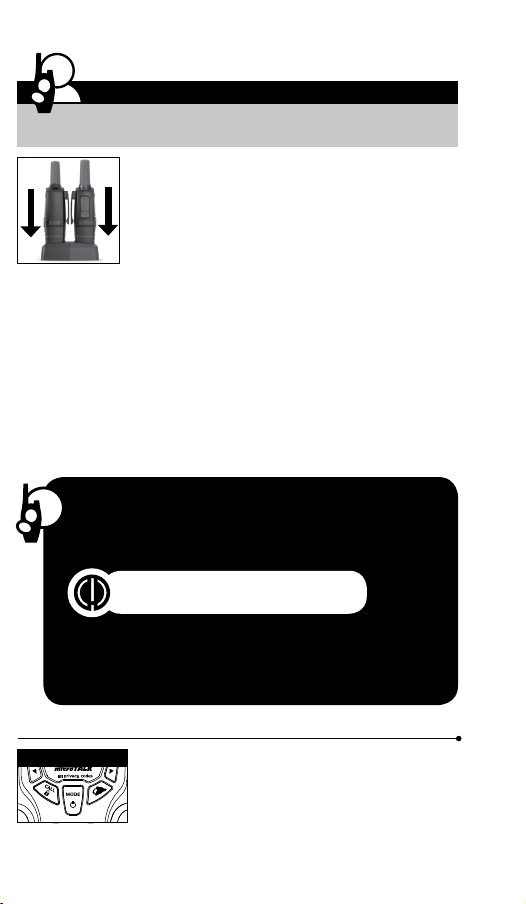
15
14
16
17
To temporarily turn off auto squelch:
Press the Max Range Hi/Lo button for
less than ve seconds.
To turn maximum range extender on:
– Press and hold the Max Range Hi/Lo button
for at least ve seconds until you hear
two beeps which indicates the maximum
range extender is on.
To turn maximum range extender off:
– Press and release the Max Range Hi/Lo
button or change channels.
Lock Function
The Lock function locks the Channel Up, Channel
Down, Volume Up, Volume Down and Mode/Power
buttons to prevent accidental operation.
To turn the lock on or off:
– Press and hold the Lock/Lock button for
two seconds.
A double beep sound is used to conrm your lock on
or off request. When in Lock mode,
the Lock icon will be displayed.
microTALK
®
Range
Your range will vary depending on terrain and conditions.
In at, open country your radio will
operate at maximum range.
Buildings and foliage in the path of the
signal can reduce the range of the radio.
Dense foliage and hilly terrain will further
reduce the range of the radio.
On FRS Channels 8 through 14, your radio
automatically switches to low power, which
will limit the range the radio can communicate.
Insert Batteries
Radio Charger Jack
Staying in touch with your family and friends is
convenient and easy when using your microTALK
®
radio.
Some of the many uses you will discover include:
Communicating with others while hiking, biking, and working; keeping
track of family and friends at a crowded public event; checking with
travel companions in another car; talking with neighbors; arranging
meeting spots with others while shopping at the mall.
Secure your microTALK
®
radio while on
the go.
Carrying your microTALK
®
radio with you is easy
when using the belt clip or optional wrist strap.
The belt clip easily attaches to your belt, purse, or
backpack.
Owner’s Manual
Introduction
Making Life Easier and Safer
Introduction
Product Features
Operation
Using Your Radio
Customer Assistance
Product Service & Support
Belt Clip
Backlit LCD Display
Features
• 22 Channels
Seven shared
with FRS/GMRS,
seven FRS only,
eight GMRS only.
• 10 Channel
Weather Radio
• Weather Alert
• 121 Privacy Codes
(38 CTCSS codes/
83 DCS codes)
• Hands-Free Operation
(VOX)
• VibrAlert
®
Silent Paging
• Scan
Channels,
privacy codes
• Backlit LCD Display
• LED Flashlight
• Call Alert
Ten selectable
tones
• Button Lock
• Speaker/
Microphone/
Charge Jack
• Roger Beep
Selectable On/Off
• Battery/Power Saver
• Keystroke Tones
• Battery Level
Indicator
• Low Battery
Audible Alert
• Auto Squelch
• Maximum
Range Extender
• Belt Clip
Printed in China
Part No. KEM-ML38402
English
TWO-WAY RADIO MODEL
ACXT545
Nothing Comes Close to a Cobra
®
For any questions about operating this new Cobra branded product,
PLEASE CONTACT US FIRST...do not return this product to the retail store.
The contact information for support will vary depending on the country in
which you purchased and utilize the product.
To obtain warranty service or other information for products purchased
and utilized in the U.S.A., please call our consumer support line at
instructions on how to ship the products at your expense to an Altis Global
Limited Authorized Service Center. To obtain service, you must include:
(a) a copy of your receipt, bill of sale or other comparable proof of
purchase; (b) a written description of the problem; and, most importantly;
(c) your address and telephone number.
For warranty and customer service information outside the US, please
contact your local dealer.
For further information needed on its features,
please visit www.cobrawalkietalkie.com
for frequently asked questions and the
electronic manual.
A-1
A-2 A-3
1 2
Remove Belt Clip
Pull Up Lock Latch
Caring for Your microTALK
®
Radio
Your microTALK
®
radio will give you years of trouble-free service
if cared for properly. Handle the radio gently. Keep the radio away from
dust. Never put the radio in water or in a damp place. Avoid exposure to
extreme temperatures.
Installing Batteries
To install or replace batteries:
1. Remove belt clip by releasing belt clip
latch and sliding clip up.
2. Pull up on the battery door latch to remove the
battery compartment cover.
3. Insert the supplied three AA rechargeable
batteries or non-rechargeable alkaline batteries.
Position batteries according to polarity markings.
4. Replace battery compartment cover and
belt clip.
• Do not attempt to charge alkaline batteries.
• Do not mix old and new batteries.
• Do not mix alkaline, standard (carbon-zinc), or
rechargeable (Ni-Cd, Ni-MH, etc.) batteries.
To charge batteries in radio:
1. Check to see that the batteries have been
inserted properly.
2. Insert the cable into the charge jack located at
the top of the radio.
3. Plug the cable into USB-compatible power port.
Use only the supplied rechargeable batteries and charger for recharging
your Cobra microTALK
®
radio.
Cobra recommends your radio is turned off while being charged.
Non-rechargeable alkaline batteries can also be used in your radio.
3 4 55 6 7 8
Battery Low
Two Inches (5 cm)
from Mouth
Battery Low
When battery power is low, the nal bar in the
Battery Low icon will blink and an audible tone will
sound twice before the radio shuts off. Your batteries
should be replaced or recharged, if using
rechargeable batteries.
Auto Battery Save
If there are no transmissions within 10 seconds, the
radio will automatically switch to Battery Save mode
and the Power Saver icon will ash in the display.
This will not affect the radio’s ability to receive
incoming transmissions.
Communicating with Another Person
1. Press and hold the Talk button.
2. With the microphone about two inches (5 cm) from
your mouth, speak in a normal voice.
3. Release the Talk button when you are
nished talking and listen for a response.
You cannot receive incoming calls while
pressing the Talk button.
To Select a Channel
With the radio on, select any of the 22 channels by
pressing the Channel Up or Channel Down button.
Channels 1 through 7 are shared with FRS/ GMRS.
Channels 8 through 14 are FRS only. Channels 15
through 22 are GMRS only.
Both radios must be tuned to the
same channel to communicate.
The radio will display ashing battery icon
while charging if the radio is on.
Both radios must be tuned to the
same channel to communicate.
See page 18 for FRS/GMRS frequency
allocations and compatibility charts.
Listening for a Response
Release the Talk button to receive incoming
transmissions. Your microTALK
®
radio is always
in Standby mode while the Talk or Call buttons
are not pressed.
To Adjust Volume
Press the Volume Up or Volume
Down button.
A double beep sound is used to indicate
the minimum and maximum volume levels
(1 through 8).
Call Button
Press and release the Call button.
The other person will hear a three second call
tone. This tone is used only to establish voice
communications.
LED/S.O.S. Flashlight
Press and release the LED ashlight button
below the TALK button to use the LED ashlight
located at the bottom of the radio.
To activate S.O.S. function, press and hold the
LED ashlight button to turn on. Press and release to turn off the
ashlight or S.O.S. function.
Auto Squelch/Maximum Range
Your microTALK
®
radio will automatically shut off weak transmissions
and unwanted noise due to terrain, conditions or if you’ve reached
your Maximum Range limit.
You can temporarily turn off auto squelch or turn on maximum range
extender, allowing all signals to be received and extending the
maximum range of your radio.
See page 12 on how to select between
ten call tone settings.
Remember, you can achieve maximum
range by using maximum range extender.
See page 4 for details.
Scrolling Through the Mode Function
By scrolling through the Mode function, you will be able to
select or turn on preferred features of your microTALK
®
radio. When
scrolling through the Mode function, your radio features
will be displayed in the same predetermined order:
Set CTCSS Privacy Codes
Set DCS Privacy Codes
Set Vox On/Off
Set Vox Sensitivity
Set Call Tones 1-10
Set VibrAlert On/Off
Set Roger Beep On/Off
Set Key Tones On/Off
Privacy Codes
Your microTALK
®
radio incorporates two advanced coded squelch
systems that can help to reduce interference from other users
on any given channel. CTCSS (Continuous Tone Coded Squelch
System) provides 38 privacy codes and DCS (Digitally Coded Squelch)
provides 83 privacy codes. This provides a total of 121 Privacy
Codes. Either system can be used on all channels, but both systems
cannot be used on the same channel at the same time.
To successfully communicate using a privacy code, both
the sending and receiving radios must be tuned to the same
channel and to the same privacy code system (CTCSS or DCS)
and privacy code number. Each channel will remember the
last privacy code system and number you select.
The privacy code 00 is not a privacy code, but allows all
signals to be heard on a channel that is set to 00 on both
the CTCSS and DCS systems.
©2016 Altis Global Limited
Berkeley Lake, GA US 30071
www.cobrawalkietalkie.com
Mode Functions (continued on back side)
Important FCC Licensing Information
This radio operates on General Mobile Radio
Service (GMRS) frequencies which require a
Federal Communications Commission (FCC)
license. See page 19 for licensing and other
related information.
Maximum range may vary and is based on
unobstructed line-of-sight communication
under ideal conditions.
2
1
3
7
4
8
11
5
10
6
9
12
13
19
18
20
1. Antenna
2. External Speaker/
Microphone/ USB Charge Jack
3. Mode/Power Button
4. Call/Lock Button
5. Channel Up/Down Buttons
6. Backlit LCD Display
7. Speaker/Microphone
8. Volume Up/Down Buttons
9. LED Light Button
10. Talk Button
11. Memory/Escape Button
12. Max Range Hi/Lo Button
13. Scan Button
14. Wrist Strap Connection
15. Belt Clip
16. Battery Compartment
17. Battery Door Latch
18. Rubberized Grips
19. LED Flashlight
20. Weather Button
1. Battery Level Indicator
2. Roger Beep Icon
3. VOX Icon
4. Weather Icon
5. Lock Icon
6. Hi/Low Power Icon
7. DCS/CTCSS Icons
8. Scan/Memory Icon
9. Weather Alert Icon
10. DCS/CTCSS Privacy Code Numbers
11. Power Saver Icon
12. Channel Numbers
13. Receive/Transmit Icon
14. Memory Channel Number
15. VibrAlert
®
/ Call Alert Icon
16. Key Tone Icon
1
2
3
4
5
6
11
12
13
10
8
7
9
14
15
16
Turning on Your microTALK
®
Radio
Press and hold the Mode/Power button until you hear
a series of audible tones indicating the radio is on.
Your microTALK
®
radio is now in Standby mode,
ready to receive transmissions. The radio is always in
Standby mode except when the Talk, Call or
Mode/Power buttons are pressed.
Quick Start
1. Press and hold the Mode/Power button to turn on your radio.
2. Press the Channel Up or Channel Down button to select
a channel.
3. Press and hold the Talk button while
speaking into the microphone.
4. When nished talking, release the Talk
button and listen for a response.
Both radios must be tuned to the same
channel/privacy code to communicate.
For charging microTALK radio(s) in desktop charger:
1. Insert radio(s) into desktop charger as shown.
2. Insert the micro-USB cable into jack on back of charger.
3. Plug the cable into USB-compatible power port.
For pluggable equipment, the socket-outlet shall be
installed near the equipment and shall be easily accessible.
If charging light is not on, check position of radio. Radio should be
upright. The charge indicator light will stay on as long as the radio is in
the charging well, and the light will go off when the charging is complete.
Note: To charge a single radio, you can bypass the desktop charger and
simply insert the micro-USB’s connector directly into the charge jack
located on the top of the radio.
The radio will display ashing battery icon while charging.
Cobra recommends your radio be turned off while being charged.
Non-rechargeable alkaline batteries can also be used in your radio.
Mode/Power
Channel Button
Mode/Power
Light/Max Range
Volume Button
Call Button
Lock Button
Battery Save Mode
Talk Button
LED/S.O.S. Flashlight
Channel Number
Listening
Volume Level
Lock Icon
Operation
Mode Functions
Set CTCSS Privacy Codes
To select a CTCSS privacy code:
1. After selecting a channel, press
the Mode/Power button until the CTCSS icon
appears and the small numbers next to the
channel number ash on the display.
2. Press using the Channel Up or Channel Down
button to select a privacy code. You can hold the
Up or Down button for fast advance.
3. When your desired CTCSS privacy code is
displayed, choose one of the following:
a. Press the Mode/Power button to enter the
new setting and proceed to other functions.
b. Press the Talk or Call/Lock button to return to
Standby mode.
c. Do not press any buttons for 15 seconds
to return to Standby mode.
If DCS is turned on at the channel
selected, the display will ash the
CTCSS icon and “OFF.” To switch from
DCS to CTCSS, press the Channel Up
or Channel Down button while the display
is ashing “OFF.” The display will then
show the small numbers ashing and you
will then be able to proceed to step 2.
Set DCS Privacy Codes
To select a DCS privacy code:
1. After selecting a channel, press the Mode/Power
button until the DCS icon appears and the small
numbers ash on the display (00 through 83).
2. Press using the Channel Up or Channel Down button to select a DCS
privacy code. You can hold the Up or Down button for fast advance.
3. When DCS privacy code is displayed, choose one of the following:
a. Press the Mode/Power button to enter the new setting and
proceed to other functions.
b. Press the Talk or Call/Lock button to return to Standby mode.
c. Do not press any buttons for 15 seconds to enter the new settings
and to return to Standby mode.
If CTCSS is turned on at the channel selected,
the display will ash the DCS icon and “OFF.”
To switch from CTCSS to DCS, press the
Channel Up or Channel Down button while
the display is ashing “OFF.” The display will
then show the small numbers ashing and
you will then be able to proceed to step 2.
Privacy Code
Mode/Power
Mode/Power
Channel Button
Channel Button
DCS Privacy Code
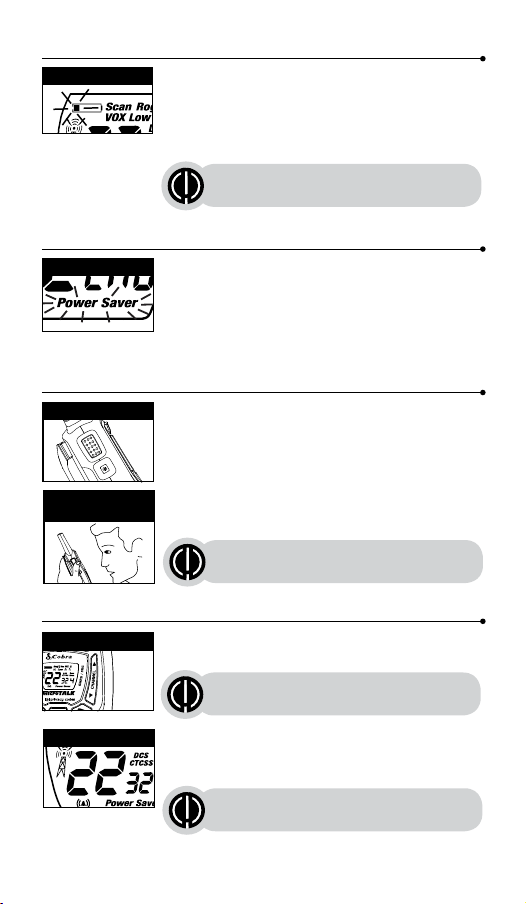
15
14
16
17
To temporarily turn off auto squelch:
Press the Max Range Hi/Lo button for
less than ve seconds.
To turn maximum range extender on:
– Press and hold the Max Range Hi/Lo button
for at least ve seconds until you hear
two beeps which indicates the maximum
range extender is on.
To turn maximum range extender off:
– Press and release the Max Range Hi/Lo
button or change channels.
Lock Function
The Lock function locks the Channel Up, Channel
Down, Volume Up, Volume Down and Mode/Power
buttons to prevent accidental operation.
To turn the lock on or off:
– Press and hold the Lock/Lock button for
two seconds.
A double beep sound is used to conrm your lock on
or off request. When in Lock mode,
the Lock icon will be displayed.
microTALK
®
Range
Your range will vary depending on terrain and conditions.
In at, open country your radio will
operate at maximum range.
Buildings and foliage in the path of the
signal can reduce the range of the radio.
Dense foliage and hilly terrain will further
reduce the range of the radio.
On FRS Channels 8 through 14, your radio
automatically switches to low power, which
will limit the range the radio can communicate.
Insert Batteries
Radio Charger Jack
Staying in touch with your family and friends is
convenient and easy when using your microTALK
®
radio.
Some of the many uses you will discover include:
Communicating with others while hiking, biking, and working; keeping
track of family and friends at a crowded public event; checking with
travel companions in another car; talking with neighbors; arranging
meeting spots with others while shopping at the mall.
Secure your microTALK
®
radio while on
the go.
Carrying your microTALK
®
radio with you is easy
when using the belt clip or optional wrist strap.
The belt clip easily attaches to your belt, purse, or
backpack.
Owner’s Manual
Introduction
Making Life Easier and Safer
Introduction
Product Features
Operation
Using Your Radio
Customer Assistance
Product Service & Support
Belt Clip
Backlit LCD Display
Features
• 22 Channels
Seven shared
with FRS/GMRS,
seven FRS only,
eight GMRS only.
• 10 Channel
Weather Radio
• Weather Alert
• 121 Privacy Codes
(38 CTCSS codes/
83 DCS codes)
• Hands-Free Operation
(VOX)
• VibrAlert
®
Silent Paging
• Scan
Channels,
privacy codes
• Backlit LCD Display
• LED Flashlight
• Call Alert
Ten selectable
tones
• Button Lock
• Speaker/
Microphone/
Charge Jack
• Roger Beep
Selectable On/Off
• Battery/Power Saver
• Keystroke Tones
• Battery Level
Indicator
• Low Battery
Audible Alert
• Auto Squelch
• Maximum
Range Extender
• Belt Clip
Printed in China
Part No. KEM-ML38402
English
TWO-WAY RADIO MODEL
ACXT545
Nothing Comes Close to a Cobra
®
For any questions about operating this new Cobra branded product,
PLEASE CONTACT US FIRST...do not return this product to the retail store.
The contact information for support will vary depending on the country in
which you purchased and utilize the product.
To obtain warranty service or other information for products purchased
and utilized in the U.S.A., please call our consumer support line at
instructions on how to ship the products at your expense to an Altis Global
Limited Authorized Service Center. To obtain service, you must include:
(a) a copy of your receipt, bill of sale or other comparable proof of
purchase; (b) a written description of the problem; and, most importantly;
(c) your address and telephone number.
For warranty and customer service information outside the US, please
contact your local dealer.
For further information needed on its features,
please visit www.cobrawalkietalkie.com
for frequently asked questions and the
electronic manual.
A-1
A-2 A-3
1 2
Remove Belt Clip
Pull Up Lock Latch
Caring for Your microTALK
®
Radio
Your microTALK
®
radio will give you years of trouble-free service
if cared for properly. Handle the radio gently. Keep the radio away from
dust. Never put the radio in water or in a damp place. Avoid exposure to
extreme temperatures.
Installing Batteries
To install or replace batteries:
1. Remove belt clip by releasing belt clip
latch and sliding clip up.
2. Pull up on the battery door latch to remove the
battery compartment cover.
3. Insert the supplied three AA rechargeable
batteries or non-rechargeable alkaline batteries.
Position batteries according to polarity markings.
4. Replace battery compartment cover and
belt clip.
• Do not attempt to charge alkaline batteries.
• Do not mix old and new batteries.
• Do not mix alkaline, standard (carbon-zinc), or
rechargeable (Ni-Cd, Ni-MH, etc.) batteries.
To charge batteries in radio:
1. Check to see that the batteries have been
inserted properly.
2. Insert the cable into the charge jack located at
the top of the radio.
3. Plug the cable into USB-compatible power port.
Use only the supplied rechargeable batteries and charger for recharging
your Cobra microTALK
®
radio.
Cobra recommends your radio is turned off while being charged.
Non-rechargeable alkaline batteries can also be used in your radio.
3 4 55 6 7 8
Battery Low
Two Inches (5 cm)
from Mouth
Battery Low
When battery power is low, the nal bar in the
Battery Low icon will blink and an audible tone will
sound twice before the radio shuts off. Your batteries
should be replaced or recharged, if using
rechargeable batteries.
Auto Battery Save
If there are no transmissions within 10 seconds, the
radio will automatically switch to Battery Save mode
and the Power Saver icon will ash in the display.
This will not affect the radio’s ability to receive
incoming transmissions.
Communicating with Another Person
1. Press and hold the Talk button.
2. With the microphone about two inches (5 cm) from
your mouth, speak in a normal voice.
3. Release the Talk button when you are
nished talking and listen for a response.
You cannot receive incoming calls while
pressing the Talk button.
To Select a Channel
With the radio on, select any of the 22 channels by
pressing the Channel Up or Channel Down button.
Channels 1 through 7 are shared with FRS/ GMRS.
Channels 8 through 14 are FRS only. Channels 15
through 22 are GMRS only.
Both radios must be tuned to the
same channel to communicate.
The radio will display ashing battery icon
while charging if the radio is on.
Both radios must be tuned to the
same channel to communicate.
See page 18 for FRS/GMRS frequency
allocations and compatibility charts.
Listening for a Response
Release the Talk button to receive incoming
transmissions. Your microTALK
®
radio is always
in Standby mode while the Talk or Call buttons
are not pressed.
To Adjust Volume
Press the Volume Up or Volume
Down button.
A double beep sound is used to indicate
the minimum and maximum volume levels
(1 through 8).
Call Button
Press and release the Call button.
The other person will hear a three second call
tone. This tone is used only to establish voice
communications.
LED/S.O.S. Flashlight
Press and release the LED ashlight button
below the TALK button to use the LED ashlight
located at the bottom of the radio.
To activate S.O.S. function, press and hold the
LED ashlight button to turn on. Press and release to turn off the
ashlight or S.O.S. function.
Auto Squelch/Maximum Range
Your microTALK
®
radio will automatically shut off weak transmissions
and unwanted noise due to terrain, conditions or if you’ve reached
your Maximum Range limit.
You can temporarily turn off auto squelch or turn on maximum range
extender, allowing all signals to be received and extending the
maximum range of your radio.
See page 12 on how to select between
ten call tone settings.
Remember, you can achieve maximum
range by using maximum range extender.
See page 4 for details.
Scrolling Through the Mode Function
By scrolling through the Mode function, you will be able to
select or turn on preferred features of your microTALK
®
radio. When
scrolling through the Mode function, your radio features
will be displayed in the same predetermined order:
Set CTCSS Privacy Codes
Set DCS Privacy Codes
Set Vox On/Off
Set Vox Sensitivity
Set Call Tones 1-10
Set VibrAlert On/Off
Set Roger Beep On/Off
Set Key Tones On/Off
Privacy Codes
Your microTALK
®
radio incorporates two advanced coded squelch
systems that can help to reduce interference from other users
on any given channel. CTCSS (Continuous Tone Coded Squelch
System) provides 38 privacy codes and DCS (Digitally Coded Squelch)
provides 83 privacy codes. This provides a total of 121 Privacy
Codes. Either system can be used on all channels, but both systems
cannot be used on the same channel at the same time.
To successfully communicate using a privacy code, both
the sending and receiving radios must be tuned to the same
channel and to the same privacy code system (CTCSS or DCS)
and privacy code number. Each channel will remember the
last privacy code system and number you select.
The privacy code 00 is not a privacy code, but allows all
signals to be heard on a channel that is set to 00 on both
the CTCSS and DCS systems.
©2016 Altis Global Limited
Berkeley Lake, GA US 30071
www.cobrawalkietalkie.com
Mode Functions (continued on back side)
Important FCC Licensing Information
This radio operates on General Mobile Radio
Service (GMRS) frequencies which require a
Federal Communications Commission (FCC)
license. See page 19 for licensing and other
related information.
Maximum range may vary and is based on
unobstructed line-of-sight communication
under ideal conditions.
2
1
3
7
4
8
11
5
10
6
9
12
13
19
18
20
1. Antenna
2. External Speaker/
Microphone/ USB Charge Jack
3. Mode/Power Button
4. Call/Lock Button
5. Channel Up/Down Buttons
6. Backlit LCD Display
7. Speaker/Microphone
8. Volume Up/Down Buttons
9. LED Light Button
10. Talk Button
11. Memory/Escape Button
12. Max Range Hi/Lo Button
13. Scan Button
14. Wrist Strap Connection
15. Belt Clip
16. Battery Compartment
17. Battery Door Latch
18. Rubberized Grips
19. LED Flashlight
20. Weather Button
1. Battery Level Indicator
2. Roger Beep Icon
3. VOX Icon
4. Weather Icon
5. Lock Icon
6. Hi/Low Power Icon
7. DCS/CTCSS Icons
8. Scan/Memory Icon
9. Weather Alert Icon
10. DCS/CTCSS Privacy Code Numbers
11. Power Saver Icon
12. Channel Numbers
13. Receive/Transmit Icon
14. Memory Channel Number
15. VibrAlert
®
/ Call Alert Icon
16. Key Tone Icon
1
2
3
4
5
6
11
12
13
10
8
7
9
14
15
16
Turning on Your microTALK
®
Radio
Press and hold the Mode/Power button until you hear
a series of audible tones indicating the radio is on.
Your microTALK
®
radio is now in Standby mode,
ready to receive transmissions. The radio is always in
Standby mode except when the Talk, Call or
Mode/Power buttons are pressed.
Quick Start
1. Press and hold the Mode/Power button to turn on your radio.
2. Press the Channel Up or Channel Down button to select
a channel.
3. Press and hold the Talk button while
speaking into the microphone.
4. When nished talking, release the Talk
button and listen for a response.
Both radios must be tuned to the same
channel/privacy code to communicate.
For charging microTALK radio(s) in desktop charger:
1. Insert radio(s) into desktop charger as shown.
2. Insert the micro-USB cable into jack on back of charger.
3. Plug the cable into USB-compatible power port.
For pluggable equipment, the socket-outlet shall be
installed near the equipment and shall be easily accessible.
If charging light is not on, check position of radio. Radio should be
upright. The charge indicator light will stay on as long as the radio is in
the charging well, and the light will go off when the charging is complete.
Note: To charge a single radio, you can bypass the desktop charger and
simply insert the micro-USB’s connector directly into the charge jack
located on the top of the radio.
The radio will display ashing battery icon while charging.
Cobra recommends your radio be turned off while being charged.
Non-rechargeable alkaline batteries can also be used in your radio.
Mode/Power
Channel Button
Mode/Power
Light/Max Range
Volume Button
Call Button
Lock Button
Battery Save Mode
Talk Button
LED/S.O.S. Flashlight
Channel Number
Listening
Volume Level
Lock Icon
Operation
Mode Functions
Set CTCSS Privacy Codes
To select a CTCSS privacy code:
1. After selecting a channel, press
the Mode/Power button until the CTCSS icon
appears and the small numbers next to the
channel number ash on the display.
2. Press using the Channel Up or Channel Down
button to select a privacy code. You can hold the
Up or Down button for fast advance.
3. When your desired CTCSS privacy code is
displayed, choose one of the following:
a. Press the Mode/Power button to enter the
new setting and proceed to other functions.
b. Press the Talk or Call/Lock button to return to
Standby mode.
c. Do not press any buttons for 15 seconds
to return to Standby mode.
If DCS is turned on at the channel
selected, the display will ash the
CTCSS icon and “OFF.” To switch from
DCS to CTCSS, press the Channel Up
or Channel Down button while the display
is ashing “OFF.” The display will then
show the small numbers ashing and you
will then be able to proceed to step 2.
Set DCS Privacy Codes
To select a DCS privacy code:
1. After selecting a channel, press the Mode/Power
button until the DCS icon appears and the small
numbers ash on the display (00 through 83).
2. Press using the Channel Up or Channel Down button to select a DCS
privacy code. You can hold the Up or Down button for fast advance.
3. When DCS privacy code is displayed, choose one of the following:
a. Press the Mode/Power button to enter the new setting and
proceed to other functions.
b. Press the Talk or Call/Lock button to return to Standby mode.
c. Do not press any buttons for 15 seconds to enter the new settings
and to return to Standby mode.
If CTCSS is turned on at the channel selected,
the display will ash the DCS icon and “OFF.”
To switch from CTCSS to DCS, press the
Channel Up or Channel Down button while
the display is ashing “OFF.” The display will
then show the small numbers ashing and
you will then be able to proceed to step 2.
Privacy Code
Mode/Power
Mode/Power
Channel Button
Channel Button
DCS Privacy Code
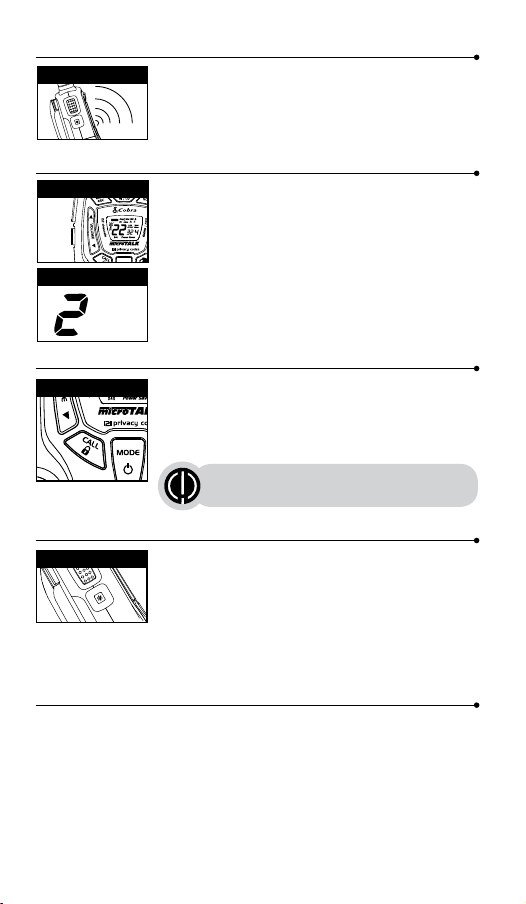
15
14
16
17
To temporarily turn off auto squelch:
Press the Max Range Hi/Lo button for
less than ve seconds.
To turn maximum range extender on:
– Press and hold the Max Range Hi/Lo button
for at least ve seconds until you hear
two beeps which indicates the maximum
range extender is on.
To turn maximum range extender off:
– Press and release the Max Range Hi/Lo
button or change channels.
Lock Function
The Lock function locks the Channel Up, Channel
Down, Volume Up, Volume Down and Mode/Power
buttons to prevent accidental operation.
To turn the lock on or off:
– Press and hold the Lock/Lock button for
two seconds.
A double beep sound is used to conrm your lock on
or off request. When in Lock mode,
the Lock icon will be displayed.
microTALK
®
Range
Your range will vary depending on terrain and conditions.
In at, open country your radio will
operate at maximum range.
Buildings and foliage in the path of the
signal can reduce the range of the radio.
Dense foliage and hilly terrain will further
reduce the range of the radio.
On FRS Channels 8 through 14, your radio
automatically switches to low power, which
will limit the range the radio can communicate.
Insert Batteries
Radio Charger Jack
Staying in touch with your family and friends is
convenient and easy when using your microTALK
®
radio.
Some of the many uses you will discover include:
Communicating with others while hiking, biking, and working; keeping
track of family and friends at a crowded public event; checking with
travel companions in another car; talking with neighbors; arranging
meeting spots with others while shopping at the mall.
Secure your microTALK
®
radio while on
the go.
Carrying your microTALK
®
radio with you is easy
when using the belt clip or optional wrist strap.
The belt clip easily attaches to your belt, purse, or
backpack.
Owner’s Manual
Introduction
Making Life Easier and Safer
Introduction
Product Features
Operation
Using Your Radio
Customer Assistance
Product Service & Support
Belt Clip
Backlit LCD Display
Features
• 22 Channels
Seven shared
with FRS/GMRS,
seven FRS only,
eight GMRS only.
• 10 Channel
Weather Radio
• Weather Alert
• 121 Privacy Codes
(38 CTCSS codes/
83 DCS codes)
• Hands-Free Operation
(VOX)
• VibrAlert
®
Silent Paging
• Scan
Channels,
privacy codes
• Backlit LCD Display
• LED Flashlight
• Call Alert
Ten selectable
tones
• Button Lock
• Speaker/
Microphone/
Charge Jack
• Roger Beep
Selectable On/Off
• Battery/Power Saver
• Keystroke Tones
• Battery Level
Indicator
• Low Battery
Audible Alert
• Auto Squelch
• Maximum
Range Extender
• Belt Clip
Printed in China
Part No. KEM-ML38402
English
TWO-WAY RADIO MODEL
ACXT545
Nothing Comes Close to a Cobra
®
For any questions about operating this new Cobra branded product,
PLEASE CONTACT US FIRST...do not return this product to the retail store.
The contact information for support will vary depending on the country in
which you purchased and utilize the product.
To obtain warranty service or other information for products purchased
and utilized in the U.S.A., please call our consumer support line at
instructions on how to ship the products at your expense to an Altis Global
Limited Authorized Service Center. To obtain service, you must include:
(a) a copy of your receipt, bill of sale or other comparable proof of
purchase; (b) a written description of the problem; and, most importantly;
(c) your address and telephone number.
For warranty and customer service information outside the US, please
contact your local dealer.
For further information needed on its features,
please visit www.cobrawalkietalkie.com
for frequently asked questions and the
electronic manual.
A-1
A-2 A-3
1 2
Remove Belt Clip
Pull Up Lock Latch
Caring for Your microTALK
®
Radio
Your microTALK
®
radio will give you years of trouble-free service
if cared for properly. Handle the radio gently. Keep the radio away from
dust. Never put the radio in water or in a damp place. Avoid exposure to
extreme temperatures.
Installing Batteries
To install or replace batteries:
1. Remove belt clip by releasing belt clip
latch and sliding clip up.
2. Pull up on the battery door latch to remove the
battery compartment cover.
3. Insert the supplied three AA rechargeable
batteries or non-rechargeable alkaline batteries.
Position batteries according to polarity markings.
4. Replace battery compartment cover and
belt clip.
• Do not attempt to charge alkaline batteries.
• Do not mix old and new batteries.
• Do not mix alkaline, standard (carbon-zinc), or
rechargeable (Ni-Cd, Ni-MH, etc.) batteries.
To charge batteries in radio:
1. Check to see that the batteries have been
inserted properly.
2. Insert the cable into the charge jack located at
the top of the radio.
3. Plug the cable into USB-compatible power port.
Use only the supplied rechargeable batteries and charger for recharging
your Cobra microTALK
®
radio.
Cobra recommends your radio is turned off while being charged.
Non-rechargeable alkaline batteries can also be used in your radio.
3 4 55 6 7 8
Battery Low
Two Inches (5 cm)
from Mouth
Battery Low
When battery power is low, the nal bar in the
Battery Low icon will blink and an audible tone will
sound twice before the radio shuts off. Your batteries
should be replaced or recharged, if using
rechargeable batteries.
Auto Battery Save
If there are no transmissions within 10 seconds, the
radio will automatically switch to Battery Save mode
and the Power Saver icon will ash in the display.
This will not affect the radio’s ability to receive
incoming transmissions.
Communicating with Another Person
1. Press and hold the Talk button.
2. With the microphone about two inches (5 cm) from
your mouth, speak in a normal voice.
3. Release the Talk button when you are
nished talking and listen for a response.
You cannot receive incoming calls while
pressing the Talk button.
To Select a Channel
With the radio on, select any of the 22 channels by
pressing the Channel Up or Channel Down button.
Channels 1 through 7 are shared with FRS/ GMRS.
Channels 8 through 14 are FRS only. Channels 15
through 22 are GMRS only.
Both radios must be tuned to the
same channel to communicate.
The radio will display ashing battery icon
while charging if the radio is on.
Both radios must be tuned to the
same channel to communicate.
See page 18 for FRS/GMRS frequency
allocations and compatibility charts.
Listening for a Response
Release the Talk button to receive incoming
transmissions. Your microTALK
®
radio is always
in Standby mode while the Talk or Call buttons
are not pressed.
To Adjust Volume
Press the Volume Up or Volume
Down button.
A double beep sound is used to indicate
the minimum and maximum volume levels
(1 through 8).
Call Button
Press and release the Call button.
The other person will hear a three second call
tone. This tone is used only to establish voice
communications.
LED/S.O.S. Flashlight
Press and release the LED ashlight button
below the TALK button to use the LED ashlight
located at the bottom of the radio.
To activate S.O.S. function, press and hold the
LED ashlight button to turn on. Press and release to turn off the
ashlight or S.O.S. function.
Auto Squelch/Maximum Range
Your microTALK
®
radio will automatically shut off weak transmissions
and unwanted noise due to terrain, conditions or if you’ve reached
your Maximum Range limit.
You can temporarily turn off auto squelch or turn on maximum range
extender, allowing all signals to be received and extending the
maximum range of your radio.
See page 12 on how to select between
ten call tone settings.
Remember, you can achieve maximum
range by using maximum range extender.
See page 4 for details.
Scrolling Through the Mode Function
By scrolling through the Mode function, you will be able to
select or turn on preferred features of your microTALK
®
radio. When
scrolling through the Mode function, your radio features
will be displayed in the same predetermined order:
Set CTCSS Privacy Codes
Set DCS Privacy Codes
Set Vox On/Off
Set Vox Sensitivity
Set Call Tones 1-10
Set VibrAlert On/Off
Set Roger Beep On/Off
Set Key Tones On/Off
Privacy Codes
Your microTALK
®
radio incorporates two advanced coded squelch
systems that can help to reduce interference from other users
on any given channel. CTCSS (Continuous Tone Coded Squelch
System) provides 38 privacy codes and DCS (Digitally Coded Squelch)
provides 83 privacy codes. This provides a total of 121 Privacy
Codes. Either system can be used on all channels, but both systems
cannot be used on the same channel at the same time.
To successfully communicate using a privacy code, both
the sending and receiving radios must be tuned to the same
channel and to the same privacy code system (CTCSS or DCS)
and privacy code number. Each channel will remember the
last privacy code system and number you select.
The privacy code 00 is not a privacy code, but allows all
signals to be heard on a channel that is set to 00 on both
the CTCSS and DCS systems.
©2016 Altis Global Limited
Berkeley Lake, GA US 30071
www.cobrawalkietalkie.com
Mode Functions (continued on back side)
Important FCC Licensing Information
This radio operates on General Mobile Radio
Service (GMRS) frequencies which require a
Federal Communications Commission (FCC)
license. See page 19 for licensing and other
related information.
Maximum range may vary and is based on
unobstructed line-of-sight communication
under ideal conditions.
2
1
3
7
4
8
11
5
10
6
9
12
13
19
18
20
1. Antenna
2. External Speaker/
Microphone/ USB Charge Jack
3. Mode/Power Button
4. Call/Lock Button
5. Channel Up/Down Buttons
6. Backlit LCD Display
7. Speaker/Microphone
8. Volume Up/Down Buttons
9. LED Light Button
10. Talk Button
11. Memory/Escape Button
12. Max Range Hi/Lo Button
13. Scan Button
14. Wrist Strap Connection
15. Belt Clip
16. Battery Compartment
17. Battery Door Latch
18. Rubberized Grips
19. LED Flashlight
20. Weather Button
1. Battery Level Indicator
2. Roger Beep Icon
3. VOX Icon
4. Weather Icon
5. Lock Icon
6. Hi/Low Power Icon
7. DCS/CTCSS Icons
8. Scan/Memory Icon
9. Weather Alert Icon
10. DCS/CTCSS Privacy Code Numbers
11. Power Saver Icon
12. Channel Numbers
13. Receive/Transmit Icon
14. Memory Channel Number
15. VibrAlert
®
/ Call Alert Icon
16. Key Tone Icon
1
2
3
4
5
6
11
12
13
10
8
7
9
14
15
16
Turning on Your microTALK
®
Radio
Press and hold the Mode/Power button until you hear
a series of audible tones indicating the radio is on.
Your microTALK
®
radio is now in Standby mode,
ready to receive transmissions. The radio is always in
Standby mode except when the Talk, Call or
Mode/Power buttons are pressed.
Quick Start
1. Press and hold the Mode/Power button to turn on your radio.
2. Press the Channel Up or Channel Down button to select
a channel.
3. Press and hold the Talk button while
speaking into the microphone.
4. When nished talking, release the Talk
button and listen for a response.
Both radios must be tuned to the same
channel/privacy code to communicate.
For charging microTALK radio(s) in desktop charger:
1. Insert radio(s) into desktop charger as shown.
2. Insert the micro-USB cable into jack on back of charger.
3. Plug the cable into USB-compatible power port.
For pluggable equipment, the socket-outlet shall be
installed near the equipment and shall be easily accessible.
If charging light is not on, check position of radio. Radio should be
upright. The charge indicator light will stay on as long as the radio is in
the charging well, and the light will go off when the charging is complete.
Note: To charge a single radio, you can bypass the desktop charger and
simply insert the micro-USB’s connector directly into the charge jack
located on the top of the radio.
The radio will display ashing battery icon while charging.
Cobra recommends your radio be turned off while being charged.
Non-rechargeable alkaline batteries can also be used in your radio.
Mode/Power
Channel Button
Mode/Power
Light/Max Range
Volume Button
Call Button
Lock Button
Battery Save Mode
Talk Button
LED/S.O.S. Flashlight
Channel Number
Listening
Volume Level
Lock Icon
Operation
Mode Functions
Set CTCSS Privacy Codes
To select a CTCSS privacy code:
1. After selecting a channel, press
the Mode/Power button until the CTCSS icon
appears and the small numbers next to the
channel number ash on the display.
2. Press using the Channel Up or Channel Down
button to select a privacy code. You can hold the
Up or Down button for fast advance.
3. When your desired CTCSS privacy code is
displayed, choose one of the following:
a. Press the Mode/Power button to enter the
new setting and proceed to other functions.
b. Press the Talk or Call/Lock button to return to
Standby mode.
c. Do not press any buttons for 15 seconds
to return to Standby mode.
If DCS is turned on at the channel
selected, the display will ash the
CTCSS icon and “OFF.” To switch from
DCS to CTCSS, press the Channel Up
or Channel Down button while the display
is ashing “OFF.” The display will then
show the small numbers ashing and you
will then be able to proceed to step 2.
Set DCS Privacy Codes
To select a DCS privacy code:
1. After selecting a channel, press the Mode/Power
button until the DCS icon appears and the small
numbers ash on the display (00 through 83).
2. Press using the Channel Up or Channel Down button to select a DCS
privacy code. You can hold the Up or Down button for fast advance.
3. When DCS privacy code is displayed, choose one of the following:
a. Press the Mode/Power button to enter the new setting and
proceed to other functions.
b. Press the Talk or Call/Lock button to return to Standby mode.
c. Do not press any buttons for 15 seconds to enter the new settings
and to return to Standby mode.
If CTCSS is turned on at the channel selected,
the display will ash the DCS icon and “OFF.”
To switch from CTCSS to DCS, press the
Channel Up or Channel Down button while
the display is ashing “OFF.” The display will
then show the small numbers ashing and
you will then be able to proceed to step 2.
Privacy Code
Mode/Power
Mode/Power
Channel Button
Channel Button
DCS Privacy Code
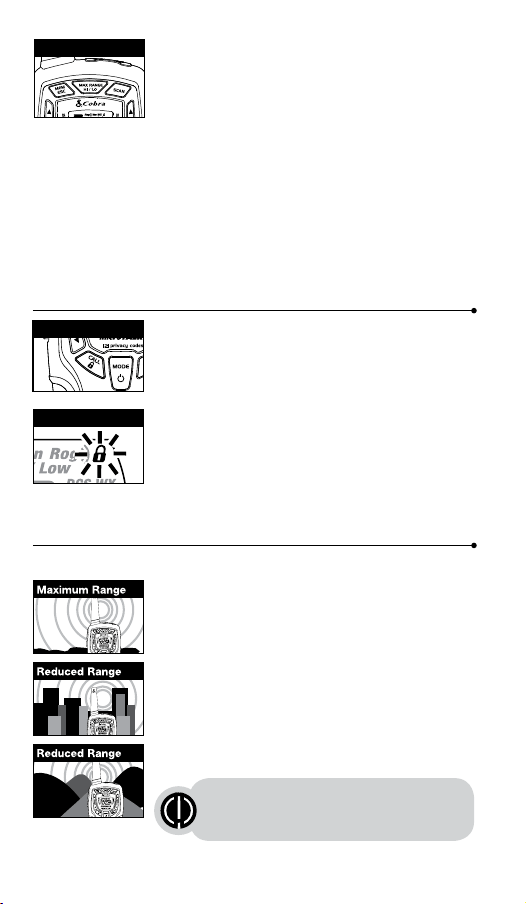
15
14
16
17
To temporarily turn off auto squelch:
Press the Max Range Hi/Lo button for
less than ve seconds.
To turn maximum range extender on:
– Press and hold the Max Range Hi/Lo button
for at least ve seconds until you hear
two beeps which indicates the maximum
range extender is on.
To turn maximum range extender off:
– Press and release the Max Range Hi/Lo
button or change channels.
Lock Function
The Lock function locks the Channel Up, Channel
Down, Volume Up, Volume Down and Mode/Power
buttons to prevent accidental operation.
To turn the lock on or off:
– Press and hold the Lock/Lock button for
two seconds.
A double beep sound is used to conrm your lock on
or off request. When in Lock mode,
the Lock icon will be displayed.
microTALK
®
Range
Your range will vary depending on terrain and conditions.
In at, open country your radio will
operate at maximum range.
Buildings and foliage in the path of the
signal can reduce the range of the radio.
Dense foliage and hilly terrain will further
reduce the range of the radio.
On FRS Channels 8 through 14, your radio
automatically switches to low power, which
will limit the range the radio can communicate.
Insert Batteries
Radio Charger Jack
Staying in touch with your family and friends is
convenient and easy when using your microTALK
®
radio.
Some of the many uses you will discover include:
Communicating with others while hiking, biking, and working; keeping
track of family and friends at a crowded public event; checking with
travel companions in another car; talking with neighbors; arranging
meeting spots with others while shopping at the mall.
Secure your microTALK
®
radio while on
the go.
Carrying your microTALK
®
radio with you is easy
when using the belt clip or optional wrist strap.
The belt clip easily attaches to your belt, purse, or
backpack.
Owner’s Manual
Introduction
Making Life Easier and Safer
Introduction
Product Features
Operation
Using Your Radio
Customer Assistance
Product Service & Support
Belt Clip
Backlit LCD Display
Features
• 22 Channels
Seven shared
with FRS/GMRS,
seven FRS only,
eight GMRS only.
• 10 Channel
Weather Radio
• Weather Alert
• 121 Privacy Codes
(38 CTCSS codes/
83 DCS codes)
• Hands-Free Operation
(VOX)
• VibrAlert
®
Silent Paging
• Scan
Channels,
privacy codes
• Backlit LCD Display
• LED Flashlight
• Call Alert
Ten selectable
tones
• Button Lock
• Speaker/
Microphone/
Charge Jack
• Roger Beep
Selectable On/Off
• Battery/Power Saver
• Keystroke Tones
• Battery Level
Indicator
• Low Battery
Audible Alert
• Auto Squelch
• Maximum
Range Extender
• Belt Clip
Printed in China
Part No. KEM-ML38402
English
TWO-WAY RADIO MODEL
ACXT545
Nothing Comes Close to a Cobra
®
For any questions about operating this new Cobra branded product,
PLEASE CONTACT US FIRST...do not return this product to the retail store.
The contact information for support will vary depending on the country in
which you purchased and utilize the product.
To obtain warranty service or other information for products purchased
and utilized in the U.S.A., please call our consumer support line at
instructions on how to ship the products at your expense to an Altis Global
Limited Authorized Service Center. To obtain service, you must include:
(a) a copy of your receipt, bill of sale or other comparable proof of
purchase; (b) a written description of the problem; and, most importantly;
(c) your address and telephone number.
For warranty and customer service information outside the US, please
contact your local dealer.
For further information needed on its features,
please visit www.cobrawalkietalkie.com
for frequently asked questions and the
electronic manual.
A-1
A-2 A-3
1 2
Remove Belt Clip
Pull Up Lock Latch
Caring for Your microTALK
®
Radio
Your microTALK
®
radio will give you years of trouble-free service
if cared for properly. Handle the radio gently. Keep the radio away from
dust. Never put the radio in water or in a damp place. Avoid exposure to
extreme temperatures.
Installing Batteries
To install or replace batteries:
1. Remove belt clip by releasing belt clip
latch and sliding clip up.
2. Pull up on the battery door latch to remove the
battery compartment cover.
3. Insert the supplied three AA rechargeable
batteries or non-rechargeable alkaline batteries.
Position batteries according to polarity markings.
4. Replace battery compartment cover and
belt clip.
• Do not attempt to charge alkaline batteries.
• Do not mix old and new batteries.
• Do not mix alkaline, standard (carbon-zinc), or
rechargeable (Ni-Cd, Ni-MH, etc.) batteries.
To charge batteries in radio:
1. Check to see that the batteries have been
inserted properly.
2. Insert the cable into the charge jack located at
the top of the radio.
3. Plug the cable into USB-compatible power port.
Use only the supplied rechargeable batteries and charger for recharging
your Cobra microTALK
®
radio.
Cobra recommends your radio is turned off while being charged.
Non-rechargeable alkaline batteries can also be used in your radio.
3 4 55 6 7 8
Battery Low
Two Inches (5 cm)
from Mouth
Battery Low
When battery power is low, the nal bar in the
Battery Low icon will blink and an audible tone will
sound twice before the radio shuts off. Your batteries
should be replaced or recharged, if using
rechargeable batteries.
Auto Battery Save
If there are no transmissions within 10 seconds, the
radio will automatically switch to Battery Save mode
and the Power Saver icon will ash in the display.
This will not affect the radio’s ability to receive
incoming transmissions.
Communicating with Another Person
1. Press and hold the Talk button.
2. With the microphone about two inches (5 cm) from
your mouth, speak in a normal voice.
3. Release the Talk button when you are
nished talking and listen for a response.
You cannot receive incoming calls while
pressing the Talk button.
To Select a Channel
With the radio on, select any of the 22 channels by
pressing the Channel Up or Channel Down button.
Channels 1 through 7 are shared with FRS/ GMRS.
Channels 8 through 14 are FRS only. Channels 15
through 22 are GMRS only.
Both radios must be tuned to the
same channel to communicate.
The radio will display ashing battery icon
while charging if the radio is on.
Both radios must be tuned to the
same channel to communicate.
See page 18 for FRS/GMRS frequency
allocations and compatibility charts.
Listening for a Response
Release the Talk button to receive incoming
transmissions. Your microTALK
®
radio is always
in Standby mode while the Talk or Call buttons
are not pressed.
To Adjust Volume
Press the Volume Up or Volume
Down button.
A double beep sound is used to indicate
the minimum and maximum volume levels
(1 through 8).
Call Button
Press and release the Call button.
The other person will hear a three second call
tone. This tone is used only to establish voice
communications.
LED/S.O.S. Flashlight
Press and release the LED ashlight button
below the TALK button to use the LED ashlight
located at the bottom of the radio.
To activate S.O.S. function, press and hold the
LED ashlight button to turn on. Press and release to turn off the
ashlight or S.O.S. function.
Auto Squelch/Maximum Range
Your microTALK
®
radio will automatically shut off weak transmissions
and unwanted noise due to terrain, conditions or if you’ve reached
your Maximum Range limit.
You can temporarily turn off auto squelch or turn on maximum range
extender, allowing all signals to be received and extending the
maximum range of your radio.
See page 12 on how to select between
ten call tone settings.
Remember, you can achieve maximum
range by using maximum range extender.
See page 4 for details.
Scrolling Through the Mode Function
By scrolling through the Mode function, you will be able to
select or turn on preferred features of your microTALK
®
radio. When
scrolling through the Mode function, your radio features
will be displayed in the same predetermined order:
Set CTCSS Privacy Codes
Set DCS Privacy Codes
Set Vox On/Off
Set Vox Sensitivity
Set Call Tones 1-10
Set VibrAlert On/Off
Set Roger Beep On/Off
Set Key Tones On/Off
Privacy Codes
Your microTALK
®
radio incorporates two advanced coded squelch
systems that can help to reduce interference from other users
on any given channel. CTCSS (Continuous Tone Coded Squelch
System) provides 38 privacy codes and DCS (Digitally Coded Squelch)
provides 83 privacy codes. This provides a total of 121 Privacy
Codes. Either system can be used on all channels, but both systems
cannot be used on the same channel at the same time.
To successfully communicate using a privacy code, both
the sending and receiving radios must be tuned to the same
channel and to the same privacy code system (CTCSS or DCS)
and privacy code number. Each channel will remember the
last privacy code system and number you select.
The privacy code 00 is not a privacy code, but allows all
signals to be heard on a channel that is set to 00 on both
the CTCSS and DCS systems.
©2016 Altis Global Limited
Berkeley Lake, GA US 30071
www.cobrawalkietalkie.com
Mode Functions (continued on back side)
Important FCC Licensing Information
This radio operates on General Mobile Radio
Service (GMRS) frequencies which require a
Federal Communications Commission (FCC)
license. See page 19 for licensing and other
related information.
Maximum range may vary and is based on
unobstructed line-of-sight communication
under ideal conditions.
2
1
3
7
4
8
11
5
10
6
9
12
13
19
18
20
1. Antenna
2. External Speaker/
Microphone/ USB Charge Jack
3. Mode/Power Button
4. Call/Lock Button
5. Channel Up/Down Buttons
6. Backlit LCD Display
7. Speaker/Microphone
8. Volume Up/Down Buttons
9. LED Light Button
10. Talk Button
11. Memory/Escape Button
12. Max Range Hi/Lo Button
13. Scan Button
14. Wrist Strap Connection
15. Belt Clip
16. Battery Compartment
17. Battery Door Latch
18. Rubberized Grips
19. LED Flashlight
20. Weather Button
1. Battery Level Indicator
2. Roger Beep Icon
3. VOX Icon
4. Weather Icon
5. Lock Icon
6. Hi/Low Power Icon
7. DCS/CTCSS Icons
8. Scan/Memory Icon
9. Weather Alert Icon
10. DCS/CTCSS Privacy Code Numbers
11. Power Saver Icon
12. Channel Numbers
13. Receive/Transmit Icon
14. Memory Channel Number
15. VibrAlert
®
/ Call Alert Icon
16. Key Tone Icon
1
2
3
4
5
6
11
12
13
10
8
7
9
14
15
16
Turning on Your microTALK
®
Radio
Press and hold the Mode/Power button until you hear
a series of audible tones indicating the radio is on.
Your microTALK
®
radio is now in Standby mode,
ready to receive transmissions. The radio is always in
Standby mode except when the Talk, Call or
Mode/Power buttons are pressed.
Quick Start
1. Press and hold the Mode/Power button to turn on your radio.
2. Press the Channel Up or Channel Down button to select
a channel.
3. Press and hold the Talk button while
speaking into the microphone.
4. When nished talking, release the Talk
button and listen for a response.
Both radios must be tuned to the same
channel/privacy code to communicate.
For charging microTALK radio(s) in desktop charger:
1. Insert radio(s) into desktop charger as shown.
2. Insert the micro-USB cable into jack on back of charger.
3. Plug the cable into USB-compatible power port.
For pluggable equipment, the socket-outlet shall be
installed near the equipment and shall be easily accessible.
If charging light is not on, check position of radio. Radio should be
upright. The charge indicator light will stay on as long as the radio is in
the charging well, and the light will go off when the charging is complete.
Note: To charge a single radio, you can bypass the desktop charger and
simply insert the micro-USB’s connector directly into the charge jack
located on the top of the radio.
The radio will display ashing battery icon while charging.
Cobra recommends your radio be turned off while being charged.
Non-rechargeable alkaline batteries can also be used in your radio.
Mode/Power
Channel Button
Mode/Power
Light/Max Range
Volume Button
Call Button
Lock Button
Battery Save Mode
Talk Button
LED/S.O.S. Flashlight
Channel Number
Listening
Volume Level
Lock Icon
Operation
Mode Functions
Set CTCSS Privacy Codes
To select a CTCSS privacy code:
1. After selecting a channel, press
the Mode/Power button until the CTCSS icon
appears and the small numbers next to the
channel number ash on the display.
2. Press using the Channel Up or Channel Down
button to select a privacy code. You can hold the
Up or Down button for fast advance.
3. When your desired CTCSS privacy code is
displayed, choose one of the following:
a. Press the Mode/Power button to enter the
new setting and proceed to other functions.
b. Press the Talk or Call/Lock button to return to
Standby mode.
c. Do not press any buttons for 15 seconds
to return to Standby mode.
If DCS is turned on at the channel
selected, the display will ash the
CTCSS icon and “OFF.” To switch from
DCS to CTCSS, press the Channel Up
or Channel Down button while the display
is ashing “OFF.” The display will then
show the small numbers ashing and you
will then be able to proceed to step 2.
Set DCS Privacy Codes
To select a DCS privacy code:
1. After selecting a channel, press the Mode/Power
button until the DCS icon appears and the small
numbers ash on the display (00 through 83).
2. Press using the Channel Up or Channel Down button to select a DCS
privacy code. You can hold the Up or Down button for fast advance.
3. When DCS privacy code is displayed, choose one of the following:
a. Press the Mode/Power button to enter the new setting and
proceed to other functions.
b. Press the Talk or Call/Lock button to return to Standby mode.
c. Do not press any buttons for 15 seconds to enter the new settings
and to return to Standby mode.
If CTCSS is turned on at the channel selected,
the display will ash the DCS icon and “OFF.”
To switch from CTCSS to DCS, press the
Channel Up or Channel Down button while
the display is ashing “OFF.” The display will
then show the small numbers ashing and
you will then be able to proceed to step 2.
Privacy Code
Mode/Power
Mode/Power
Channel Button
Channel Button
DCS Privacy Code
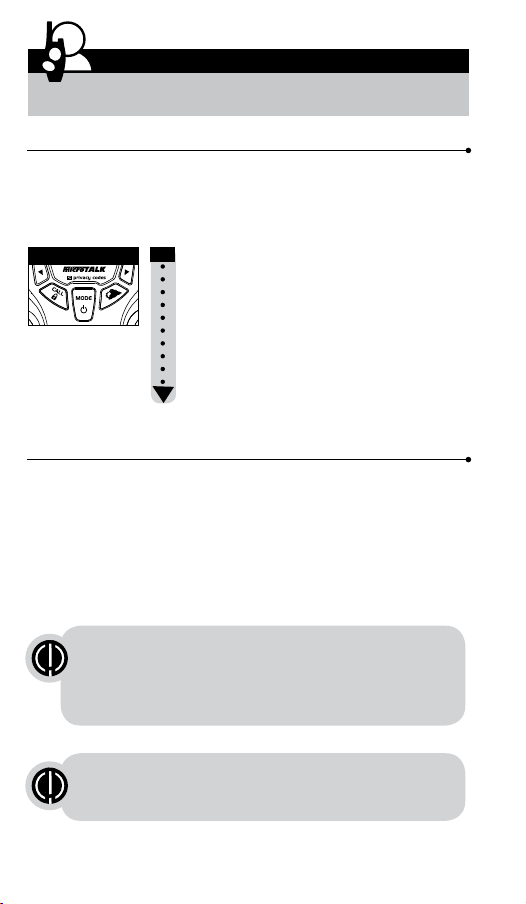
15
14
16
17
To temporarily turn off auto squelch:
Press the Max Range Hi/Lo button for
less than ve seconds.
To turn maximum range extender on:
– Press and hold the Max Range Hi/Lo button
for at least ve seconds until you hear
two beeps which indicates the maximum
range extender is on.
To turn maximum range extender off:
– Press and release the Max Range Hi/Lo
button or change channels.
Lock Function
The Lock function locks the Channel Up, Channel
Down, Volume Up, Volume Down and Mode/Power
buttons to prevent accidental operation.
To turn the lock on or off:
– Press and hold the Lock/Lock button for
two seconds.
A double beep sound is used to conrm your lock on
or off request. When in Lock mode,
the Lock icon will be displayed.
microTALK
®
Range
Your range will vary depending on terrain and conditions.
In at, open country your radio will
operate at maximum range.
Buildings and foliage in the path of the
signal can reduce the range of the radio.
Dense foliage and hilly terrain will further
reduce the range of the radio.
On FRS Channels 8 through 14, your radio
automatically switches to low power, which
will limit the range the radio can communicate.
Insert Batteries
Radio Charger Jack
Staying in touch with your family and friends is
convenient and easy when using your microTALK
®
radio.
Some of the many uses you will discover include:
Communicating with others while hiking, biking, and working; keeping
track of family and friends at a crowded public event; checking with
travel companions in another car; talking with neighbors; arranging
meeting spots with others while shopping at the mall.
Secure your microTALK
®
radio while on
the go.
Carrying your microTALK
®
radio with you is easy
when using the belt clip or optional wrist strap.
The belt clip easily attaches to your belt, purse, or
backpack.
Owner’s Manual
Introduction
Making Life Easier and Safer
Introduction
Product Features
Operation
Using Your Radio
Customer Assistance
Product Service & Support
Belt Clip
Backlit LCD Display
Features
• 22 Channels
Seven shared
with FRS/GMRS,
seven FRS only,
eight GMRS only.
• 10 Channel
Weather Radio
• Weather Alert
• 121 Privacy Codes
(38 CTCSS codes/
83 DCS codes)
• Hands-Free Operation
(VOX)
• VibrAlert
®
Silent Paging
• Scan
Channels,
privacy codes
• Backlit LCD Display
• LED Flashlight
• Call Alert
Ten selectable
tones
• Button Lock
• Speaker/
Microphone/
Charge Jack
• Roger Beep
Selectable On/Off
• Battery/Power Saver
• Keystroke Tones
• Battery Level
Indicator
• Low Battery
Audible Alert
• Auto Squelch
• Maximum
Range Extender
• Belt Clip
Printed in China
Part No. KEM-ML38402
English
TWO-WAY RADIO MODEL
ACXT545
Nothing Comes Close to a Cobra
®
For any questions about operating this new Cobra branded product,
PLEASE CONTACT US FIRST...do not return this product to the retail store.
The contact information for support will vary depending on the country in
which you purchased and utilize the product.
To obtain warranty service or other information for products purchased
and utilized in the U.S.A., please call our consumer support line at
instructions on how to ship the products at your expense to an Altis Global
Limited Authorized Service Center. To obtain service, you must include:
(a) a copy of your receipt, bill of sale or other comparable proof of
purchase; (b) a written description of the problem; and, most importantly;
(c) your address and telephone number.
For warranty and customer service information outside the US, please
contact your local dealer.
For further information needed on its features,
please visit www.cobrawalkietalkie.com
for frequently asked questions and the
electronic manual.
A-1
A-2 A-3
1 2
Remove Belt Clip
Pull Up Lock Latch
Caring for Your microTALK
®
Radio
Your microTALK
®
radio will give you years of trouble-free service
if cared for properly. Handle the radio gently. Keep the radio away from
dust. Never put the radio in water or in a damp place. Avoid exposure to
extreme temperatures.
Installing Batteries
To install or replace batteries:
1. Remove belt clip by releasing belt clip
latch and sliding clip up.
2. Pull up on the battery door latch to remove the
battery compartment cover.
3. Insert the supplied three AA rechargeable
batteries or non-rechargeable alkaline batteries.
Position batteries according to polarity markings.
4. Replace battery compartment cover and
belt clip.
• Do not attempt to charge alkaline batteries.
• Do not mix old and new batteries.
• Do not mix alkaline, standard (carbon-zinc), or
rechargeable (Ni-Cd, Ni-MH, etc.) batteries.
To charge batteries in radio:
1. Check to see that the batteries have been
inserted properly.
2. Insert the cable into the charge jack located at
the top of the radio.
3. Plug the cable into USB-compatible power port.
Use only the supplied rechargeable batteries and charger for recharging
your Cobra microTALK
®
radio.
Cobra recommends your radio is turned off while being charged.
Non-rechargeable alkaline batteries can also be used in your radio.
3 4 55 6 7 8
Battery Low
Two Inches (5 cm)
from Mouth
Battery Low
When battery power is low, the nal bar in the
Battery Low icon will blink and an audible tone will
sound twice before the radio shuts off. Your batteries
should be replaced or recharged, if using
rechargeable batteries.
Auto Battery Save
If there are no transmissions within 10 seconds, the
radio will automatically switch to Battery Save mode
and the Power Saver icon will ash in the display.
This will not affect the radio’s ability to receive
incoming transmissions.
Communicating with Another Person
1. Press and hold the Talk button.
2. With the microphone about two inches (5 cm) from
your mouth, speak in a normal voice.
3. Release the Talk button when you are
nished talking and listen for a response.
You cannot receive incoming calls while
pressing the Talk button.
To Select a Channel
With the radio on, select any of the 22 channels by
pressing the Channel Up or Channel Down button.
Channels 1 through 7 are shared with FRS/ GMRS.
Channels 8 through 14 are FRS only. Channels 15
through 22 are GMRS only.
Both radios must be tuned to the
same channel to communicate.
The radio will display ashing battery icon
while charging if the radio is on.
Both radios must be tuned to the
same channel to communicate.
See page 18 for FRS/GMRS frequency
allocations and compatibility charts.
Listening for a Response
Release the Talk button to receive incoming
transmissions. Your microTALK
®
radio is always
in Standby mode while the Talk or Call buttons
are not pressed.
To Adjust Volume
Press the Volume Up or Volume
Down button.
A double beep sound is used to indicate
the minimum and maximum volume levels
(1 through 8).
Call Button
Press and release the Call button.
The other person will hear a three second call
tone. This tone is used only to establish voice
communications.
LED/S.O.S. Flashlight
Press and release the LED ashlight button
below the TALK button to use the LED ashlight
located at the bottom of the radio.
To activate S.O.S. function, press and hold the
LED ashlight button to turn on. Press and release to turn off the
ashlight or S.O.S. function.
Auto Squelch/Maximum Range
Your microTALK
®
radio will automatically shut off weak transmissions
and unwanted noise due to terrain, conditions or if you’ve reached
your Maximum Range limit.
You can temporarily turn off auto squelch or turn on maximum range
extender, allowing all signals to be received and extending the
maximum range of your radio.
See page 12 on how to select between
ten call tone settings.
Remember, you can achieve maximum
range by using maximum range extender.
See page 4 for details.
Scrolling Through the Mode Function
By scrolling through the Mode function, you will be able to
select or turn on preferred features of your microTALK
®
radio. When
scrolling through the Mode function, your radio features
will be displayed in the same predetermined order:
Set CTCSS Privacy Codes
Set DCS Privacy Codes
Set Vox On/Off
Set Vox Sensitivity
Set Call Tones 1-10
Set VibrAlert On/Off
Set Roger Beep On/Off
Set Key Tones On/Off
Privacy Codes
Your microTALK
®
radio incorporates two advanced coded squelch
systems that can help to reduce interference from other users
on any given channel. CTCSS (Continuous Tone Coded Squelch
System) provides 38 privacy codes and DCS (Digitally Coded Squelch)
provides 83 privacy codes. This provides a total of 121 Privacy
Codes. Either system can be used on all channels, but both systems
cannot be used on the same channel at the same time.
To successfully communicate using a privacy code, both
the sending and receiving radios must be tuned to the same
channel and to the same privacy code system (CTCSS or DCS)
and privacy code number. Each channel will remember the
last privacy code system and number you select.
The privacy code 00 is not a privacy code, but allows all
signals to be heard on a channel that is set to 00 on both
the CTCSS and DCS systems.
©2016 Altis Global Limited
Berkeley Lake, GA US 30071
www.cobrawalkietalkie.com
Mode Functions (continued on back side)
Important FCC Licensing Information
This radio operates on General Mobile Radio
Service (GMRS) frequencies which require a
Federal Communications Commission (FCC)
license. See page 19 for licensing and other
related information.
Maximum range may vary and is based on
unobstructed line-of-sight communication
under ideal conditions.
2
1
3
7
4
8
11
5
10
6
9
12
13
19
18
20
1. Antenna
2. External Speaker/
Microphone/ USB Charge Jack
3. Mode/Power Button
4. Call/Lock Button
5. Channel Up/Down Buttons
6. Backlit LCD Display
7. Speaker/Microphone
8. Volume Up/Down Buttons
9. LED Light Button
10. Talk Button
11. Memory/Escape Button
12. Max Range Hi/Lo Button
13. Scan Button
14. Wrist Strap Connection
15. Belt Clip
16. Battery Compartment
17. Battery Door Latch
18. Rubberized Grips
19. LED Flashlight
20. Weather Button
1. Battery Level Indicator
2. Roger Beep Icon
3. VOX Icon
4. Weather Icon
5. Lock Icon
6. Hi/Low Power Icon
7. DCS/CTCSS Icons
8. Scan/Memory Icon
9. Weather Alert Icon
10. DCS/CTCSS Privacy Code Numbers
11. Power Saver Icon
12. Channel Numbers
13. Receive/Transmit Icon
14. Memory Channel Number
15. VibrAlert
®
/ Call Alert Icon
16. Key Tone Icon
1
2
3
4
5
6
11
12
13
10
8
7
9
14
15
16
Turning on Your microTALK
®
Radio
Press and hold the Mode/Power button until you hear
a series of audible tones indicating the radio is on.
Your microTALK
®
radio is now in Standby mode,
ready to receive transmissions. The radio is always in
Standby mode except when the Talk, Call or
Mode/Power buttons are pressed.
Quick Start
1. Press and hold the Mode/Power button to turn on your radio.
2. Press the Channel Up or Channel Down button to select
a channel.
3. Press and hold the Talk button while
speaking into the microphone.
4. When nished talking, release the Talk
button and listen for a response.
Both radios must be tuned to the same
channel/privacy code to communicate.
For charging microTALK radio(s) in desktop charger:
1. Insert radio(s) into desktop charger as shown.
2. Insert the micro-USB cable into jack on back of charger.
3. Plug the cable into USB-compatible power port.
For pluggable equipment, the socket-outlet shall be
installed near the equipment and shall be easily accessible.
If charging light is not on, check position of radio. Radio should be
upright. The charge indicator light will stay on as long as the radio is in
the charging well, and the light will go off when the charging is complete.
Note: To charge a single radio, you can bypass the desktop charger and
simply insert the micro-USB’s connector directly into the charge jack
located on the top of the radio.
The radio will display ashing battery icon while charging.
Cobra recommends your radio be turned off while being charged.
Non-rechargeable alkaline batteries can also be used in your radio.
Mode/Power
Channel Button
Mode/Power
Light/Max Range
Volume Button
Call Button
Lock Button
Battery Save Mode
Talk Button
LED/S.O.S. Flashlight
Channel Number
Listening
Volume Level
Lock Icon
Operation
Mode Functions
Set CTCSS Privacy Codes
To select a CTCSS privacy code:
1. After selecting a channel, press
the Mode/Power button until the CTCSS icon
appears and the small numbers next to the
channel number ash on the display.
2. Press using the Channel Up or Channel Down
button to select a privacy code. You can hold the
Up or Down button for fast advance.
3. When your desired CTCSS privacy code is
displayed, choose one of the following:
a. Press the Mode/Power button to enter the
new setting and proceed to other functions.
b. Press the Talk or Call/Lock button to return to
Standby mode.
c. Do not press any buttons for 15 seconds
to return to Standby mode.
If DCS is turned on at the channel
selected, the display will ash the
CTCSS icon and “OFF.” To switch from
DCS to CTCSS, press the Channel Up
or Channel Down button while the display
is ashing “OFF.” The display will then
show the small numbers ashing and you
will then be able to proceed to step 2.
Set DCS Privacy Codes
To select a DCS privacy code:
1. After selecting a channel, press the Mode/Power
button until the DCS icon appears and the small
numbers ash on the display (00 through 83).
2. Press using the Channel Up or Channel Down button to select a DCS
privacy code. You can hold the Up or Down button for fast advance.
3. When DCS privacy code is displayed, choose one of the following:
a. Press the Mode/Power button to enter the new setting and
proceed to other functions.
b. Press the Talk or Call/Lock button to return to Standby mode.
c. Do not press any buttons for 15 seconds to enter the new settings
and to return to Standby mode.
If CTCSS is turned on at the channel selected,
the display will ash the DCS icon and “OFF.”
To switch from CTCSS to DCS, press the
Channel Up or Channel Down button while
the display is ashing “OFF.” The display will
then show the small numbers ashing and
you will then be able to proceed to step 2.
Privacy Code
Mode/Power
Mode/Power
Channel Button
Channel Button
DCS Privacy Code
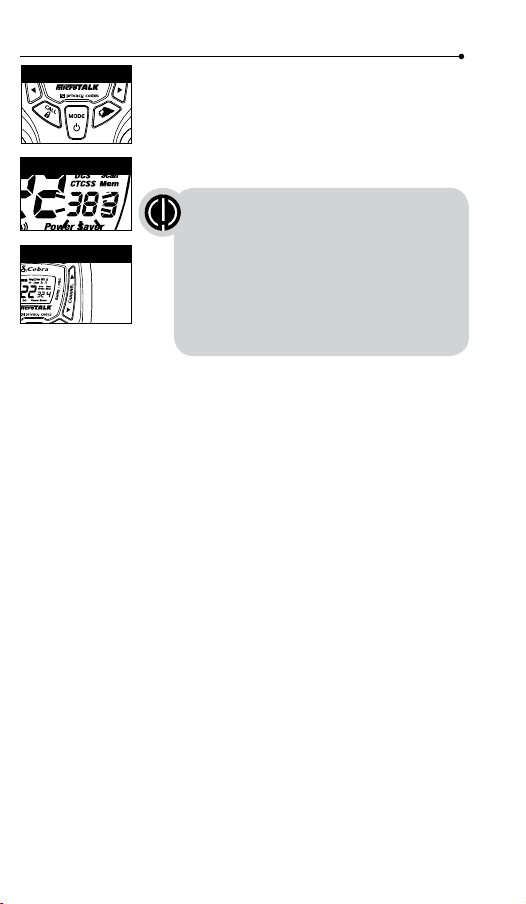
15
14
16
17
To temporarily turn off auto squelch:
Press the Max Range Hi/Lo button for
less than ve seconds.
To turn maximum range extender on:
– Press and hold the Max Range Hi/Lo button
for at least ve seconds until you hear
two beeps which indicates the maximum
range extender is on.
To turn maximum range extender off:
– Press and release the Max Range Hi/Lo
button or change channels.
Lock Function
The Lock function locks the Channel Up, Channel
Down, Volume Up, Volume Down and Mode/Power
buttons to prevent accidental operation.
To turn the lock on or off:
– Press and hold the Lock/Lock button for
two seconds.
A double beep sound is used to conrm your lock on
or off request. When in Lock mode,
the Lock icon will be displayed.
microTALK
®
Range
Your range will vary depending on terrain and conditions.
In at, open country your radio will
operate at maximum range.
Buildings and foliage in the path of the
signal can reduce the range of the radio.
Dense foliage and hilly terrain will further
reduce the range of the radio.
On FRS Channels 8 through 14, your radio
automatically switches to low power, which
will limit the range the radio can communicate.
Insert Batteries
Radio Charger Jack
Staying in touch with your family and friends is
convenient and easy when using your microTALK
®
radio.
Some of the many uses you will discover include:
Communicating with others while hiking, biking, and working; keeping
track of family and friends at a crowded public event; checking with
travel companions in another car; talking with neighbors; arranging
meeting spots with others while shopping at the mall.
Secure your microTALK
®
radio while on
the go.
Carrying your microTALK
®
radio with you is easy
when using the belt clip or optional wrist strap.
The belt clip easily attaches to your belt, purse, or
backpack.
Owner’s Manual
Introduction
Making Life Easier and Safer
Introduction
Product Features
Operation
Using Your Radio
Customer Assistance
Product Service & Support
Belt Clip
Backlit LCD Display
Features
• 22 Channels
Seven shared
with FRS/GMRS,
seven FRS only,
eight GMRS only.
• 10 Channel
Weather Radio
• Weather Alert
• 121 Privacy Codes
(38 CTCSS codes/
83 DCS codes)
• Hands-Free Operation
(VOX)
• VibrAlert
®
Silent Paging
• Scan
Channels,
privacy codes
• Backlit LCD Display
• LED Flashlight
• Call Alert
Ten selectable
tones
• Button Lock
• Speaker/
Microphone/
Charge Jack
• Roger Beep
Selectable On/Off
• Battery/Power Saver
• Keystroke Tones
• Battery Level
Indicator
• Low Battery
Audible Alert
• Auto Squelch
• Maximum
Range Extender
• Belt Clip
Printed in China
Part No. KEM-ML38402
English
TWO-WAY RADIO MODEL
ACXT545
Nothing Comes Close to a Cobra
®
For any questions about operating this new Cobra branded product,
PLEASE CONTACT US FIRST...do not return this product to the retail store.
The contact information for support will vary depending on the country in
which you purchased and utilize the product.
To obtain warranty service or other information for products purchased
and utilized in the U.S.A., please call our consumer support line at
instructions on how to ship the products at your expense to an Altis Global
Limited Authorized Service Center. To obtain service, you must include:
(a) a copy of your receipt, bill of sale or other comparable proof of
purchase; (b) a written description of the problem; and, most importantly;
(c) your address and telephone number.
For warranty and customer service information outside the US, please
contact your local dealer.
For further information needed on its features,
please visit www.cobrawalkietalkie.com
for frequently asked questions and the
electronic manual.
A-1
A-2 A-3
1 2
Remove Belt Clip
Pull Up Lock Latch
Caring for Your microTALK
®
Radio
Your microTALK
®
radio will give you years of trouble-free service
if cared for properly. Handle the radio gently. Keep the radio away from
dust. Never put the radio in water or in a damp place. Avoid exposure to
extreme temperatures.
Installing Batteries
To install or replace batteries:
1. Remove belt clip by releasing belt clip
latch and sliding clip up.
2. Pull up on the battery door latch to remove the
battery compartment cover.
3. Insert the supplied three AA rechargeable
batteries or non-rechargeable alkaline batteries.
Position batteries according to polarity markings.
4. Replace battery compartment cover and
belt clip.
• Do not attempt to charge alkaline batteries.
• Do not mix old and new batteries.
• Do not mix alkaline, standard (carbon-zinc), or
rechargeable (Ni-Cd, Ni-MH, etc.) batteries.
To charge batteries in radio:
1. Check to see that the batteries have been
inserted properly.
2. Insert the cable into the charge jack located at
the top of the radio.
3. Plug the cable into USB-compatible power port.
Use only the supplied rechargeable batteries and charger for recharging
your Cobra microTALK
®
radio.
Cobra recommends your radio is turned off while being charged.
Non-rechargeable alkaline batteries can also be used in your radio.
3 4 55 6 7 8
Battery Low
Two Inches (5 cm)
from Mouth
Battery Low
When battery power is low, the nal bar in the
Battery Low icon will blink and an audible tone will
sound twice before the radio shuts off. Your batteries
should be replaced or recharged, if using
rechargeable batteries.
Auto Battery Save
If there are no transmissions within 10 seconds, the
radio will automatically switch to Battery Save mode
and the Power Saver icon will ash in the display.
This will not affect the radio’s ability to receive
incoming transmissions.
Communicating with Another Person
1. Press and hold the Talk button.
2. With the microphone about two inches (5 cm) from
your mouth, speak in a normal voice.
3. Release the Talk button when you are
nished talking and listen for a response.
You cannot receive incoming calls while
pressing the Talk button.
To Select a Channel
With the radio on, select any of the 22 channels by
pressing the Channel Up or Channel Down button.
Channels 1 through 7 are shared with FRS/ GMRS.
Channels 8 through 14 are FRS only. Channels 15
through 22 are GMRS only.
Both radios must be tuned to the
same channel to communicate.
The radio will display ashing battery icon
while charging if the radio is on.
Both radios must be tuned to the
same channel to communicate.
See page 18 for FRS/GMRS frequency
allocations and compatibility charts.
Listening for a Response
Release the Talk button to receive incoming
transmissions. Your microTALK
®
radio is always
in Standby mode while the Talk or Call buttons
are not pressed.
To Adjust Volume
Press the Volume Up or Volume
Down button.
A double beep sound is used to indicate
the minimum and maximum volume levels
(1 through 8).
Call Button
Press and release the Call button.
The other person will hear a three second call
tone. This tone is used only to establish voice
communications.
LED/S.O.S. Flashlight
Press and release the LED ashlight button
below the TALK button to use the LED ashlight
located at the bottom of the radio.
To activate S.O.S. function, press and hold the
LED ashlight button to turn on. Press and release to turn off the
ashlight or S.O.S. function.
Auto Squelch/Maximum Range
Your microTALK
®
radio will automatically shut off weak transmissions
and unwanted noise due to terrain, conditions or if you’ve reached
your Maximum Range limit.
You can temporarily turn off auto squelch or turn on maximum range
extender, allowing all signals to be received and extending the
maximum range of your radio.
See page 12 on how to select between
ten call tone settings.
Remember, you can achieve maximum
range by using maximum range extender.
See page 4 for details.
Scrolling Through the Mode Function
By scrolling through the Mode function, you will be able to
select or turn on preferred features of your microTALK
®
radio. When
scrolling through the Mode function, your radio features
will be displayed in the same predetermined order:
Set CTCSS Privacy Codes
Set DCS Privacy Codes
Set Vox On/Off
Set Vox Sensitivity
Set Call Tones 1-10
Set VibrAlert On/Off
Set Roger Beep On/Off
Set Key Tones On/Off
Privacy Codes
Your microTALK
®
radio incorporates two advanced coded squelch
systems that can help to reduce interference from other users
on any given channel. CTCSS (Continuous Tone Coded Squelch
System) provides 38 privacy codes and DCS (Digitally Coded Squelch)
provides 83 privacy codes. This provides a total of 121 Privacy
Codes. Either system can be used on all channels, but both systems
cannot be used on the same channel at the same time.
To successfully communicate using a privacy code, both
the sending and receiving radios must be tuned to the same
channel and to the same privacy code system (CTCSS or DCS)
and privacy code number. Each channel will remember the
last privacy code system and number you select.
The privacy code 00 is not a privacy code, but allows all
signals to be heard on a channel that is set to 00 on both
the CTCSS and DCS systems.
©2016 Altis Global Limited
Berkeley Lake, GA US 30071
www.cobrawalkietalkie.com
Mode Functions (continued on back side)
Important FCC Licensing Information
This radio operates on General Mobile Radio
Service (GMRS) frequencies which require a
Federal Communications Commission (FCC)
license. See page 19 for licensing and other
related information.
Maximum range may vary and is based on
unobstructed line-of-sight communication
under ideal conditions.
2
1
3
7
4
8
11
5
10
6
9
12
13
19
18
20
1. Antenna
2. External Speaker/
Microphone/ USB Charge Jack
3. Mode/Power Button
4. Call/Lock Button
5. Channel Up/Down Buttons
6. Backlit LCD Display
7. Speaker/Microphone
8. Volume Up/Down Buttons
9. LED Light Button
10. Talk Button
11. Memory/Escape Button
12. Max Range Hi/Lo Button
13. Scan Button
14. Wrist Strap Connection
15. Belt Clip
16. Battery Compartment
17. Battery Door Latch
18. Rubberized Grips
19. LED Flashlight
20. Weather Button
1. Battery Level Indicator
2. Roger Beep Icon
3. VOX Icon
4. Weather Icon
5. Lock Icon
6. Hi/Low Power Icon
7. DCS/CTCSS Icons
8. Scan/Memory Icon
9. Weather Alert Icon
10. DCS/CTCSS Privacy Code Numbers
11. Power Saver Icon
12. Channel Numbers
13. Receive/Transmit Icon
14. Memory Channel Number
15. VibrAlert
®
/ Call Alert Icon
16. Key Tone Icon
1
2
3
4
5
6
11
12
13
10
8
7
9
14
15
16
Turning on Your microTALK
®
Radio
Press and hold the Mode/Power button until you hear
a series of audible tones indicating the radio is on.
Your microTALK
®
radio is now in Standby mode,
ready to receive transmissions. The radio is always in
Standby mode except when the Talk, Call or
Mode/Power buttons are pressed.
Quick Start
1. Press and hold the Mode/Power button to turn on your radio.
2. Press the Channel Up or Channel Down button to select
a channel.
3. Press and hold the Talk button while
speaking into the microphone.
4. When nished talking, release the Talk
button and listen for a response.
Both radios must be tuned to the same
channel/privacy code to communicate.
For charging microTALK radio(s) in desktop charger:
1. Insert radio(s) into desktop charger as shown.
2. Insert the micro-USB cable into jack on back of charger.
3. Plug the cable into USB-compatible power port.
For pluggable equipment, the socket-outlet shall be
installed near the equipment and shall be easily accessible.
If charging light is not on, check position of radio. Radio should be
upright. The charge indicator light will stay on as long as the radio is in
the charging well, and the light will go off when the charging is complete.
Note: To charge a single radio, you can bypass the desktop charger and
simply insert the micro-USB’s connector directly into the charge jack
located on the top of the radio.
The radio will display ashing battery icon while charging.
Cobra recommends your radio be turned off while being charged.
Non-rechargeable alkaline batteries can also be used in your radio.
Mode/Power
Channel Button
Mode/Power
Light/Max Range
Volume Button
Call Button
Lock Button
Battery Save Mode
Talk Button
LED/S.O.S. Flashlight
Channel Number
Listening
Volume Level
Lock Icon
Operation
Mode Functions
Set CTCSS Privacy Codes
To select a CTCSS privacy code:
1. After selecting a channel, press
the Mode/Power button until the CTCSS icon
appears and the small numbers next to the
channel number ash on the display.
2. Press using the Channel Up or Channel Down
button to select a privacy code. You can hold the
Up or Down button for fast advance.
3. When your desired CTCSS privacy code is
displayed, choose one of the following:
a. Press the Mode/Power button to enter the
new setting and proceed to other functions.
b. Press the Talk or Call/Lock button to return to
Standby mode.
c. Do not press any buttons for 15 seconds
to return to Standby mode.
If DCS is turned on at the channel
selected, the display will ash the
CTCSS icon and “OFF.” To switch from
DCS to CTCSS, press the Channel Up
or Channel Down button while the display
is ashing “OFF.” The display will then
show the small numbers ashing and you
will then be able to proceed to step 2.
Set DCS Privacy Codes
To select a DCS privacy code:
1. After selecting a channel, press the Mode/Power
button until the DCS icon appears and the small
numbers ash on the display (00 through 83).
2. Press using the Channel Up or Channel Down button to select a DCS
privacy code. You can hold the Up or Down button for fast advance.
3. When DCS privacy code is displayed, choose one of the following:
a. Press the Mode/Power button to enter the new setting and
proceed to other functions.
b. Press the Talk or Call/Lock button to return to Standby mode.
c. Do not press any buttons for 15 seconds to enter the new settings
and to return to Standby mode.
If CTCSS is turned on at the channel selected,
the display will ash the DCS icon and “OFF.”
To switch from CTCSS to DCS, press the
Channel Up or Channel Down button while
the display is ashing “OFF.” The display will
then show the small numbers ashing and
you will then be able to proceed to step 2.
Privacy Code
Mode/Power
Mode/Power
Channel Button
Channel Button
DCS Privacy Code
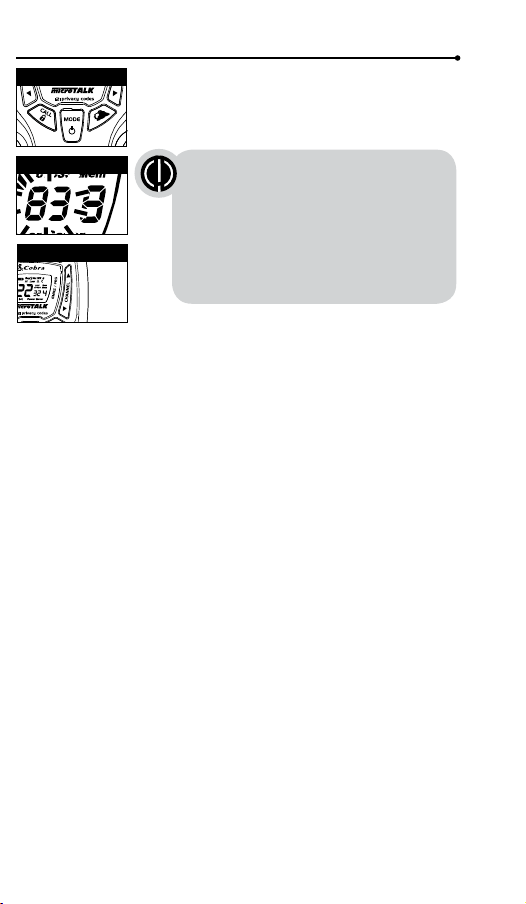
15
14
16
17
To temporarily turn off auto squelch:
Press the Max Range Hi/Lo button for
less than ve seconds.
To turn maximum range extender on:
– Press and hold the Max Range Hi/Lo button
for at least ve seconds until you hear
two beeps which indicates the maximum
range extender is on.
To turn maximum range extender off:
– Press and release the Max Range Hi/Lo
button or change channels.
Lock Function
The Lock function locks the Channel Up, Channel
Down, Volume Up, Volume Down and Mode/Power
buttons to prevent accidental operation.
To turn the lock on or off:
– Press and hold the Lock/Lock button for
two seconds.
A double beep sound is used to conrm your lock on
or off request. When in Lock mode,
the Lock icon will be displayed.
microTALK
®
Range
Your range will vary depending on terrain and conditions.
In at, open country your radio will
operate at maximum range.
Buildings and foliage in the path of the
signal can reduce the range of the radio.
Dense foliage and hilly terrain will further
reduce the range of the radio.
On FRS Channels 8 through 14, your radio
automatically switches to low power, which
will limit the range the radio can communicate.
Insert Batteries
Radio Charger Jack
Staying in touch with your family and friends is
convenient and easy when using your microTALK
®
radio.
Some of the many uses you will discover include:
Communicating with others while hiking, biking, and working; keeping
track of family and friends at a crowded public event; checking with
travel companions in another car; talking with neighbors; arranging
meeting spots with others while shopping at the mall.
Secure your microTALK
®
radio while on
the go.
Carrying your microTALK
®
radio with you is easy
when using the belt clip or optional wrist strap.
The belt clip easily attaches to your belt, purse, or
backpack.
Owner’s Manual
Introduction
Making Life Easier and Safer
Introduction
Product Features
Operation
Using Your Radio
Customer Assistance
Product Service & Support
Belt Clip
Backlit LCD Display
Features
• 22 Channels
Seven shared
with FRS/GMRS,
seven FRS only,
eight GMRS only.
• 10 Channel
Weather Radio
• Weather Alert
• 121 Privacy Codes
(38 CTCSS codes/
83 DCS codes)
• Hands-Free Operation
(VOX)
• VibrAlert
®
Silent Paging
• Scan
Channels,
privacy codes
• Backlit LCD Display
• LED Flashlight
• Call Alert
Ten selectable
tones
• Button Lock
• Speaker/
Microphone/
Charge Jack
• Roger Beep
Selectable On/Off
• Battery/Power Saver
• Keystroke Tones
• Battery Level
Indicator
• Low Battery
Audible Alert
• Auto Squelch
• Maximum
Range Extender
• Belt Clip
Printed in China
Part No. KEM-ML38402
English
TWO-WAY RADIO MODEL
ACXT545
Nothing Comes Close to a Cobra
®
For any questions about operating this new Cobra branded product,
PLEASE CONTACT US FIRST...do not return this product to the retail store.
The contact information for support will vary depending on the country in
which you purchased and utilize the product.
To obtain warranty service or other information for products purchased
and utilized in the U.S.A., please call our consumer support line at
instructions on how to ship the products at your expense to an Altis Global
Limited Authorized Service Center. To obtain service, you must include:
(a) a copy of your receipt, bill of sale or other comparable proof of
purchase; (b) a written description of the problem; and, most importantly;
(c) your address and telephone number.
For warranty and customer service information outside the US, please
contact your local dealer.
For further information needed on its features,
please visit www.cobrawalkietalkie.com
for frequently asked questions and the
electronic manual.
A-1
A-2 A-3
1 2
Remove Belt Clip
Pull Up Lock Latch
Caring for Your microTALK
®
Radio
Your microTALK
®
radio will give you years of trouble-free service
if cared for properly. Handle the radio gently. Keep the radio away from
dust. Never put the radio in water or in a damp place. Avoid exposure to
extreme temperatures.
Installing Batteries
To install or replace batteries:
1. Remove belt clip by releasing belt clip
latch and sliding clip up.
2. Pull up on the battery door latch to remove the
battery compartment cover.
3. Insert the supplied three AA rechargeable
batteries or non-rechargeable alkaline batteries.
Position batteries according to polarity markings.
4. Replace battery compartment cover and
belt clip.
• Do not attempt to charge alkaline batteries.
• Do not mix old and new batteries.
• Do not mix alkaline, standard (carbon-zinc), or
rechargeable (Ni-Cd, Ni-MH, etc.) batteries.
To charge batteries in radio:
1. Check to see that the batteries have been
inserted properly.
2. Insert the cable into the charge jack located at
the top of the radio.
3. Plug the cable into USB-compatible power port.
Use only the supplied rechargeable batteries and charger for recharging
your Cobra microTALK
®
radio.
Cobra recommends your radio is turned off while being charged.
Non-rechargeable alkaline batteries can also be used in your radio.
3 4 55 6 7 8
Battery Low
Two Inches (5 cm)
from Mouth
Battery Low
When battery power is low, the nal bar in the
Battery Low icon will blink and an audible tone will
sound twice before the radio shuts off. Your batteries
should be replaced or recharged, if using
rechargeable batteries.
Auto Battery Save
If there are no transmissions within 10 seconds, the
radio will automatically switch to Battery Save mode
and the Power Saver icon will ash in the display.
This will not affect the radio’s ability to receive
incoming transmissions.
Communicating with Another Person
1. Press and hold the Talk button.
2. With the microphone about two inches (5 cm) from
your mouth, speak in a normal voice.
3. Release the Talk button when you are
nished talking and listen for a response.
You cannot receive incoming calls while
pressing the Talk button.
To Select a Channel
With the radio on, select any of the 22 channels by
pressing the Channel Up or Channel Down button.
Channels 1 through 7 are shared with FRS/ GMRS.
Channels 8 through 14 are FRS only. Channels 15
through 22 are GMRS only.
Both radios must be tuned to the
same channel to communicate.
The radio will display ashing battery icon
while charging if the radio is on.
Both radios must be tuned to the
same channel to communicate.
See page 18 for FRS/GMRS frequency
allocations and compatibility charts.
Listening for a Response
Release the Talk button to receive incoming
transmissions. Your microTALK
®
radio is always
in Standby mode while the Talk or Call buttons
are not pressed.
To Adjust Volume
Press the Volume Up or Volume
Down button.
A double beep sound is used to indicate
the minimum and maximum volume levels
(1 through 8).
Call Button
Press and release the Call button.
The other person will hear a three second call
tone. This tone is used only to establish voice
communications.
LED/S.O.S. Flashlight
Press and release the LED ashlight button
below the TALK button to use the LED ashlight
located at the bottom of the radio.
To activate S.O.S. function, press and hold the
LED ashlight button to turn on. Press and release to turn off the
ashlight or S.O.S. function.
Auto Squelch/Maximum Range
Your microTALK
®
radio will automatically shut off weak transmissions
and unwanted noise due to terrain, conditions or if you’ve reached
your Maximum Range limit.
You can temporarily turn off auto squelch or turn on maximum range
extender, allowing all signals to be received and extending the
maximum range of your radio.
See page 12 on how to select between
ten call tone settings.
Remember, you can achieve maximum
range by using maximum range extender.
See page 4 for details.
Scrolling Through the Mode Function
By scrolling through the Mode function, you will be able to
select or turn on preferred features of your microTALK
®
radio. When
scrolling through the Mode function, your radio features
will be displayed in the same predetermined order:
Set CTCSS Privacy Codes
Set DCS Privacy Codes
Set Vox On/Off
Set Vox Sensitivity
Set Call Tones 1-10
Set VibrAlert On/Off
Set Roger Beep On/Off
Set Key Tones On/Off
Privacy Codes
Your microTALK
®
radio incorporates two advanced coded squelch
systems that can help to reduce interference from other users
on any given channel. CTCSS (Continuous Tone Coded Squelch
System) provides 38 privacy codes and DCS (Digitally Coded Squelch)
provides 83 privacy codes. This provides a total of 121 Privacy
Codes. Either system can be used on all channels, but both systems
cannot be used on the same channel at the same time.
To successfully communicate using a privacy code, both
the sending and receiving radios must be tuned to the same
channel and to the same privacy code system (CTCSS or DCS)
and privacy code number. Each channel will remember the
last privacy code system and number you select.
The privacy code 00 is not a privacy code, but allows all
signals to be heard on a channel that is set to 00 on both
the CTCSS and DCS systems.
©2016 Altis Global Limited
Berkeley Lake, GA US 30071
www.cobrawalkietalkie.com
Mode Functions (continued on back side)
Important FCC Licensing Information
This radio operates on General Mobile Radio
Service (GMRS) frequencies which require a
Federal Communications Commission (FCC)
license. See page 19 for licensing and other
related information.
Maximum range may vary and is based on
unobstructed line-of-sight communication
under ideal conditions.
2
1
3
7
4
8
11
5
10
6
9
12
13
19
18
20
1. Antenna
2. External Speaker/
Microphone/ USB Charge Jack
3. Mode/Power Button
4. Call/Lock Button
5. Channel Up/Down Buttons
6. Backlit LCD Display
7. Speaker/Microphone
8. Volume Up/Down Buttons
9. LED Light Button
10. Talk Button
11. Memory/Escape Button
12. Max Range Hi/Lo Button
13. Scan Button
14. Wrist Strap Connection
15. Belt Clip
16. Battery Compartment
17. Battery Door Latch
18. Rubberized Grips
19. LED Flashlight
20. Weather Button
1. Battery Level Indicator
2. Roger Beep Icon
3. VOX Icon
4. Weather Icon
5. Lock Icon
6. Hi/Low Power Icon
7. DCS/CTCSS Icons
8. Scan/Memory Icon
9. Weather Alert Icon
10. DCS/CTCSS Privacy Code Numbers
11. Power Saver Icon
12. Channel Numbers
13. Receive/Transmit Icon
14. Memory Channel Number
15. VibrAlert
®
/ Call Alert Icon
16. Key Tone Icon
1
2
3
4
5
6
11
12
13
10
8
7
9
14
15
16
Turning on Your microTALK
®
Radio
Press and hold the Mode/Power button until you hear
a series of audible tones indicating the radio is on.
Your microTALK
®
radio is now in Standby mode,
ready to receive transmissions. The radio is always in
Standby mode except when the Talk, Call or
Mode/Power buttons are pressed.
Quick Start
1. Press and hold the Mode/Power button to turn on your radio.
2. Press the Channel Up or Channel Down button to select
a channel.
3. Press and hold the Talk button while
speaking into the microphone.
4. When nished talking, release the Talk
button and listen for a response.
Both radios must be tuned to the same
channel/privacy code to communicate.
For charging microTALK radio(s) in desktop charger:
1. Insert radio(s) into desktop charger as shown.
2. Insert the micro-USB cable into jack on back of charger.
3. Plug the cable into USB-compatible power port.
For pluggable equipment, the socket-outlet shall be
installed near the equipment and shall be easily accessible.
If charging light is not on, check position of radio. Radio should be
upright. The charge indicator light will stay on as long as the radio is in
the charging well, and the light will go off when the charging is complete.
Note: To charge a single radio, you can bypass the desktop charger and
simply insert the micro-USB’s connector directly into the charge jack
located on the top of the radio.
The radio will display ashing battery icon while charging.
Cobra recommends your radio be turned off while being charged.
Non-rechargeable alkaline batteries can also be used in your radio.
Mode/Power
Channel Button
Mode/Power
Light/Max Range
Volume Button
Call Button
Lock Button
Battery Save Mode
Talk Button
LED/S.O.S. Flashlight
Channel Number
Listening
Volume Level
Lock Icon
Operation
Mode Functions
Set CTCSS Privacy Codes
To select a CTCSS privacy code:
1. After selecting a channel, press
the Mode/Power button until the CTCSS icon
appears and the small numbers next to the
channel number ash on the display.
2. Press using the Channel Up or Channel Down
button to select a privacy code. You can hold the
Up or Down button for fast advance.
3. When your desired CTCSS privacy code is
displayed, choose one of the following:
a. Press the Mode/Power button to enter the
new setting and proceed to other functions.
b. Press the Talk or Call/Lock button to return to
Standby mode.
c. Do not press any buttons for 15 seconds
to return to Standby mode.
If DCS is turned on at the channel
selected, the display will ash the
CTCSS icon and “OFF.” To switch from
DCS to CTCSS, press the Channel Up
or Channel Down button while the display
is ashing “OFF.” The display will then
show the small numbers ashing and you
will then be able to proceed to step 2.
Set DCS Privacy Codes
To select a DCS privacy code:
1. After selecting a channel, press the Mode/Power
button until the DCS icon appears and the small
numbers ash on the display (00 through 83).
2. Press using the Channel Up or Channel Down button to select a DCS
privacy code. You can hold the Up or Down button for fast advance.
3. When DCS privacy code is displayed, choose one of the following:
a. Press the Mode/Power button to enter the new setting and
proceed to other functions.
b. Press the Talk or Call/Lock button to return to Standby mode.
c. Do not press any buttons for 15 seconds to enter the new settings
and to return to Standby mode.
If CTCSS is turned on at the channel selected,
the display will ash the DCS icon and “OFF.”
To switch from CTCSS to DCS, press the
Channel Up or Channel Down button while
the display is ashing “OFF.” The display will
then show the small numbers ashing and
you will then be able to proceed to step 2.
Privacy Code
Mode/Power
Mode/Power
Channel Button
Channel Button
DCS Privacy Code
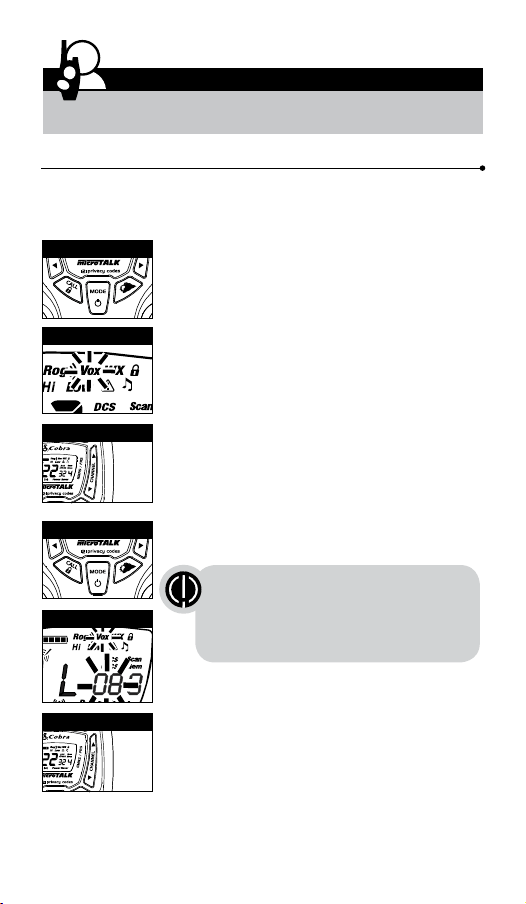
Warranty & Trademark Acknowledgment
Operation
General Specications & Licensing
10
11 12
13 14
15 16 17 18 19 20
9
Voice Activated Transmit (VOX)
In VOX mode, your microTALK
®
radio can be used “hands-free,” automatically
transmitting when you speak. You can set the VOX sensitivity level to t the
volume of your voice and avoid transmissions triggered by background noise.
To turn VOX mode on or off:
1. Press the Mode/Power button until the VOX
icon ashes on the display. The current On or Off
setting is displayed.
2. Press the Channel Up or Channel Down
button to turn VOX On or Off.
3. Choose one of the following:
a. Press the Mode/Power button to enter the
new setting and proceed to other functions.
b. Press the Talk or Call/Lock button to return to
Standby mode.
To set VOX sensitivity:
1. Press the Mode/Power button until the VOX icon
ashes and the current sensitivity level is displayed.
2. Press the Channel Up or Channel Down
button to change the setting.
3. Choose one of the following:
a. Press the Mode/Power button to enter the
new setting and proceed to other functions.
b. Press the Talk or Call/Lock button to return to
Standby mode.
c. Do not press any buttons for 6 seconds to
return to Standby mode.
The current VOX sensitivity level is
displayed with letters “L” and a Number 1
through 5, with Number 5 being the most
sensitive level and Number 1 being the
least sensitive level.
The radio ignores specic privacy
codes while scanning channels.
General Specications
FRS/GMRS Frequency Allocation and Compatibility
Important: Please note that Cobra GMRS models with 15 Channels
may designate different channel numbers for the same frequency.
For example, a Cobra 15 Channel GMRS model would need to be
tuned to Channel 11 in order to communicate with a 22 Channel
GMRS tuned to Channel 15. Please refer to the chart below for
channel/ frequency number compatibility.
A = Channel No. for 22 Channel FRS/GMRS Models
B = Channel No. for 15 Channel GMRS Models
C = Type of Radio Service
D = Frequency in MHz
E = Power Output
A B C D E
1 1 FRS/GMRS 462.5625 High
2 2 FRS/GMRS 462.5875 High
3 3 FRS/GMRS 462.6125 High
4 4 FRS/GMRS 462.6375 High
5 5 FRS/GMRS 462.6625 High
6 6 FRS/GMRS 462.6875 High
7 7 FRS/GMRS 462.7125 High
8 FRS 467.5625 Low
9 FRS 467.5875 Low
10 FRS 467.6125 Low
11 FRS 467.6375 Low
12 FRS 467.6625 Low
13 FRS 467.6875 Low
14 FRS 467.7125 Low
15 11 GMRS 462.5500 High
16 8 GMRS 462.5750 High
17 12 GMRS 462.6000 High
18 9 GMRS 462.6250 High
19 13 GMRS 462.6500 High
20 10 GMRS 462.6750 High
21 14 GMRS 462.7000 High
22 15 GMRS 462.7250 High
IMPORTANT NOTICE: FCC LICENSE REQUIRED
This two-way radio operates on GMRS (General Mobile Radio Service) frequencies which require an FCC (Federal
Communications Commission) license. A user must be licensed prior to operating on Channels 1 through 7 on
high power or 15 through 22, which comprise the GMRS channels of this radio. Serious penalties could result for
unlicensed use of GMRS channels, in violation of FCC rules. Operation of this radio is subject to additional rules
specied in 47 C.F.R. Part 95.
Licensed users will be issued a call sign by the FCC, which should be used for station identication when
operating this radio. GMRS users should also cooperate by engaging in permissible transmissions only, avoiding
channel interference with other GMRS users, and being prudent with the length of their transmission time.
For licensing information and application forms, please call the FCC Hotline at 800-418-FORM. Request form
#159 and form #605. Questions regarding the license application should be directed to the FCC at
888-CALL-FCC. Additional information is available on the FCC’s website at www.fcc.gov.
Channel 1 through 7 on low power and channels 8 through 14 comprise the FRS (Family Radio Service). No
license is required to operate on the FRS.
WARNING: Changes or modications to this unit not expressly approved by the party responsible for compliance
could void the user’s authority to operate the equipment.”
NOTE: This equipment has been tested and found to comply with the limits for a Class B digital device, pursuant
to Part 15 of the FCC Rules. These limits are designed to provide reasonable protection against harmful
interference in a residential installation. This equipment generates, uses and can radiate radio frequency energy
and, if not installed and used in accordance with the instructions, may cause harmful interference to radio
communications.
However, there is no guarantee that interference will not occur in a particular installation. If this equipment does
cause harmful interference to radio or television reception, which can be determined by turning the equipment
off and on, the user is encouraged to try to correct the interference by one or more of the following measures:
• Reorient or relocate the receiving antenna.
• Increase the separation between the equipment and receiver.
• Connect the equipment into an outlet on a circuit different from that to which the
receiver is connected.
• Consult the dealer or an experienced radio/TV technician for help.
Safety Information for microTALK Radios
Your wireless handheld portable transceiver contains a low power transmitter. When the talk button is pushed, it
sends out radio frequency (RF) signals. The device is authorized to operate at a duty factor not to exceed 50%. In
August 1996, the Federal Communications Commissions (FCC) adopted RF exposure guidelines with safety
levels for handheld wireless devices.
Important
FCC RF Exposure Requirements: For body-worn operation, this radio has been tested and meets the FCC RF
exposure guidelines when used with Cobra accessories supplied or designated for this product. Use of other
accessories may not ensure compliance with FCC RF exposure guidelines. Use only the supplied antenna.
Unauthorized antennas, modications or attachments could damage the transmitter and may violate FCC
regulations.
Normal Position
Hold the transmitter approximately 2 inches from your face and speak in a normal voice, with the antenna
pointed up and away.
MODEL ACXT545:
This device complies with part 15 of the FCC Rules. Operation is subject to the following two
conditions: 1) This device may not cause harmful interference, and 2) this device must accept
any interference received,including interference that may cause undesired operation.
FCC Warnings: Replacement or substitution of transistors, regular diodes or other parts of a
unique nature, with parts other than those recommended by Cobra may cause a violation of
the technical regulations of part 95 of the FCC rules, or violation of type acceptance
requirements of part 2 of the rules.
Limited One-Year Warranty
Altis Global Limited warrants that this product and the component parts thereof, will be
free from defects in workmanship and materials for a period of one year from the date of
rst consumer purchase. This warranty may be enforced by the rst consumer
purchaser, and is not transferable. If the product is under warranty, it will be repaired or
exchanged depending on the model at Altis’ sole discretion. Such remedy may be your
sole and exclusive remedy for any breach of warranty.
The procedure for obtaining service and support, and the applicability of this warranty,
will vary depending on the country or jurisdiction in which you purchase and utilize the
product. For details on obtaining product service, support and warranty please visit
www.cobrawalkietalkie.com.
Provided that the product is utilized in the U.S.A., Altis will, without charge, repair or
replace, at its option, defective products, products or component parts upon delivery to
the authorized Altis Global Limited Authorized Service Center, accompanied by proof of
the date of rst customer purchase, such as a duplicated copy of a sales receipt.
You must pay any initial shipping charges required to ship the product for warranty
service, but the return charges, to an address in the U.S.A., will be at Altis’ expense, if
the product is under warranty.
This warranty gives you specic legal rights, and you may also have other rights which
vary from state to state and country to country.
Exclusions: This limited warranty does not apply: 1) To any product damaged by
accident; 2) In the event of misuse, ordinary wear, failure to follow directions, or
improper maintenance of the product or as a result of unauthorized alterations or repairs;
3) If the serial number has been altered, defaced, or removed; 4) If the product was
purchased or is utilized in a jurisdiction not covered by the limited warranty.
All implied warranties, including warranties of merchantability and tness for a particular
purpose are limited in duration to the length of this warranty. Altis shall not be liable for
any inconsequential or other damages, including without limitation, damages resulting
from the loss of use or cost of installation.
Some states and countries do not allow limitations on how long an implied warranty lasts
and do not allow the exclusion or limitation of incidental or consequential damages, so
the above limitations may not apply to you. This warranty gives you specic legal rights,
and you may also have other rights which vary from state to state and country to country.
Trademark Acknowledgment
Manufactured, distributed, or sold by Altis Global Limited, ofcial licensee for this
product. Cobra
®
, microTalk
®
, Nothing Comes Close to a Cobra
®
, and the snake design
are registered trademarks of Cobra Electronics Corporation, USA. Cobra Electronics
Corporation™ is a trademark of Cobra Electronics Corporation, USA. All other product or
service names are the property of their respective owners.
©2016 Altis Global Limited, Berkeley Lake, GA, USA. All rights reserved.
For Products Purchased Outside the U.S.A.
Please contact your local dealer for warranty information.
90-Day Warranty on Rechargeable Batteries
For products purchased in the U.S.A. and Canada.
Mode/Power
MEM/ESC Button
MEM/ESC Button
MEM/ESC Button
Mode/Power
Mode/Power
Mode/Power
Scan Button
Mode/Power
Channel Button
Channel Button
Channel Button
Channel Button
Channel Button
Scan Button
Channel Button
Weather Button
Channel Button
Channel Button
Channel Button
Channel Button
Channel Button
Channel Button
VOX Icon
VOX Sensitivity Level
Memory Channel
Memory Channel
10 Memory Location
Your microTALK
®
radio has 10 Memory Locations for storing your most
frequently used channels and channel/privacy code combinations.
These Memory Locations can be selected individually or can be scanned.
(See page 18 for memory location scan.)
To program a memory location:
1. Press the MEM/ESC button. Memory icon and
the Memory Location show on the display.
2. Press the Channel Up or Channel Down button
to select the memory location (0 through 9).
3. Press the MEM/ESC button to enter a new
memory location or edit an already programmed
memory location.
4. Press the Channel Up or Channel Down button
to select the memory location.
5. Press the MEM/ESC button. The channel
numbers will ash on the display.
6. Press the Channel Up or Channel Down button
to select a channel (1 through 22).
7. Press the MEM/ESC button. The CTCSS icon and
privacy code numbers will ash on the display.
8. Choose one of the following:
a. Press the Channel Up or Channel Down
button to select a CTCSS privacy code (00
through 38) for the channel.
b. Press the MEM/ESC button to switch from
CTCSS to DCS. The DCS icon and privacy code
numbers will ash on the display. The Channel
Up or Channel Down button can then be used
to select a DCS privacy code (00 through 83)
for the channel.
9. Choose one of the following:
a. Press the MEM/ESC button to enter the channel/privacy code in the
selected memory location. Radio then proceeds to next memory
location, which will blink.
b. Press and hold the MEM/ESC button to save the current state of the
Set Memory Function and press the MEM/ESC button again return
to Standby mode.
To recall a stored memory channel location:
1. Press the MEM/ESC button until the Memory icon
and the memory location number ash on the
display.
2. Press the Channel Up or Channel Down button to
select a memory location (0 through 9).
3. Press and hold the MEM/ESC button to return to
Standby mode on the selected memory location.
If a location has been programmed before,
its associated channel/privacy code will be
shown on the display.
If “oF” ashes in place of the privacy code numbers, a privacy
code is already set in the opposite (CTCSS or DCS) system.
Press the Channel Up or Channel Down button to cancel the
opposite code and select a privacy code from the active
system for the selected channel.
If a location has been programmed before,
its associated channel/privacy code will
be shown on the display.
A memory location can be reprogrammed
at any time it is displayed. Press the
MEM/ESC button to begin.
Operation
Mode Functions (continued)
Call Tone Setting
Call Tone On/
Vibrate On
Call Tone On/
Vibrate Off
Roger Beep Off
Ten Call Tone Settings
You can choose between ten different Call Tone Settings to transmit
a call alert.
To change a call tone setting:
1. Press the Mode/Power button until the letter “C”
and the current call tone number (01 through 10)
is displayed. The current call tone will sound for
three seconds.
2. Press the Channel Up or Channel Down button to
hear the other call tone settings.
3. Choose one of the following:
a. Press the Mode/Power button to enter the new
setting and proceed to other functions.
b. Press Talk or Call/Lock button to return to
Standby mode.
c. Do not press any buttons for 6 seconds to
return to Standby mode.
VibrAlert
®
and Call Alert
Your MicroTALK
®
radio can alert you to incoming signals by sounding an
audible call tone or an audible tone with VibrAlert
®
.
To change call settings:
1. Press the Mode button until the Call Setting icon
ashes on the display. The current setting (“01”
vibrate + ring, “02” ring only) is displayed.
2. Press the Channel Up or Channel Down button to
change the call setting.
3. Choose one of the following:
a. Press the Mode button to enter the new setting
and proceed to other functions.
b. Press Talk or Call/Lock button to return to
Standby mode.
c. Do not press any buttons for 6 seconds to
return to Standby mode.
Roger Beep Conrmation Tone
Your listener will hear an audible tone when you release the Talk button.
This alerts the other party that you are nished talking and it is OK for
them to speak.
To turn roger beep on or off:
1. Press the Mode/Power button until the
Roger Beep icon ashes. The current
on or off setting is displayed.
2. Press the Channel Up or Channel Down button to
select roger beep on or off.
3. Choose one of the following:
a. Press the Mode/Power button to enter the new
setting and proceed to other functions.
b. Press Talk or Call/Lock button to return to
Standby mode.
c. Do not press any buttons for 6 seconds to
return to Standby mode.
Key Tone On/Off
When Key Tone is On, an audible tone will sound each time a button is
pressed.
To turn key tone on or off:
1. Current key tone status On/Off will ash.
2. Press the Channel Up or Channel Down button to
select key tone on or off.
3. Choose one of the following:
a. Press the Mode/Power button to enter the
Standby mode.
b. Press Talk or Call/Lock button to return to
Standby mode.
c. Do not press any buttons for 6 seconds to
return to Standby mode.
Channel Scan
Your microTALK
®
radio can automatically scan channels.
To scan channels:
1. Press and release the Scan button until the Scan
icon and the channel numbers appear
on the display.
2. Press and hold the Scan button to begin scanning
channels.
The Scan icon will continue to be displayed when
scan is on. Your radio will continue to scan all
channels and stop if an incoming transmission is
detected. Your radio will remain on that channel for
2 seconds.
During scanning (while receiving an incoming transmission),
you can choose from the following:
a. Press and hold the Talk button to communicate on that channel.
Your radio will remain on that channel and return to Standby mode.
b. Press the Channel Up or Channel Down button to resume
scanning channels.
c. Press and hold the Scan button to return to Standby.
Privacy Code Scan
Your microTALK
®
radio can automatically scan the Privacy Codes (either
CTCSS 01 through 38 or DCS 01 through 83) within one channel. Only
one set of privacy codes (CTCSS or DCS) can be scanned at a time.
To scan privacy codes:
1. While in Standby mode, press and release the
Scan button twice (CTCSS) or three times
(DCS)until the CTCSS or DCS icon and numbers
are ashing.
2. Press and hold the Scan button to begin scanning
privacy codes within the selected channel.
The Scan icon will continue to be displayed when
privacy code scan is on. Your radio will continue to
scan privacy codes and stop as an incoming
transmission is detected. Your radio will remain on
that channel/privacy code for 6 seconds.
NOAA* All Hazards Radio Channels
You can use your microTALK
®
radio to listen to NOAA All Hazards Radio
channels transmitting in your area.
To listen to All Hazards Radio channels:
1. Press the Weather button once until the
All Hazards Radio icon and the currently
selected All Hazards Radio channel are displayed.
2. Use the Channel Up or Channel Down
button to change All Hazards Radio channels.
3. The All Hazards Radio icon will continue to
be displayed when All Hazards Radio is on.
4. To exit All Hazards Radio, press and hold the
Weather button until On or Off is displayed.
*National Oceanographic and Atmospheric Administration
Select Channel
Scan Privacy Codes
Scan Channels
Hazards Radio Icon
Weather (WX) Alert Mode
Turning On the Weather Alert function will allow your radio to
automatically receive NOAA weather signals and warnings from
designated weather broadcast stations. If the radio is turned ON, it will
alert to Weather and other emergency alerts broadcast by NOAA.
To turn Weather Alert On or Off:
1. Press the Weather button twice until the
Weather Alert icon ashes on the display.
The current On or Off setting is displayed.
2. Press the Channel Up and Channel Down button
to turn Weather Alert On or Off.
3. Press and hold the Weather button again to save
the new setting and exit the Weather Alert Mode
and return to Standby mode.
Weather Button
Channel Button
This feature is set to OFF by default.
Make sure the strongest Weather
channel is selected for your area
using the NOAA All Hazards Radio
Channels selection in the
previous menu.
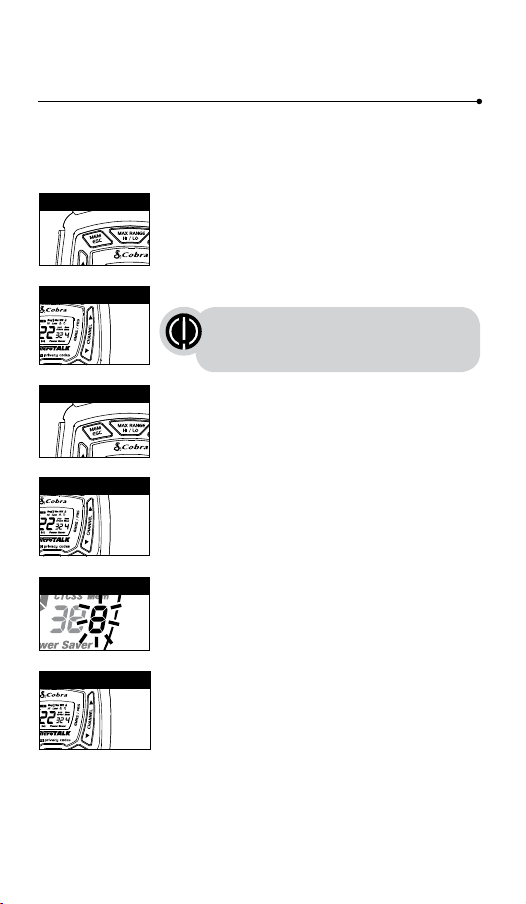
Warranty & Trademark Acknowledgment
Operation
General Specications & Licensing
10
11 12
13 14
15 16 17 18 19 20
9
Voice Activated Transmit (VOX)
In VOX mode, your microTALK
®
radio can be used “hands-free,” automatically
transmitting when you speak. You can set the VOX sensitivity level to t the
volume of your voice and avoid transmissions triggered by background noise.
To turn VOX mode on or off:
1. Press the Mode/Power button until the VOX
icon ashes on the display. The current On or Off
setting is displayed.
2. Press the Channel Up or Channel Down
button to turn VOX On or Off.
3. Choose one of the following:
a. Press the Mode/Power button to enter the
new setting and proceed to other functions.
b. Press the Talk or Call/Lock button to return to
Standby mode.
To set VOX sensitivity:
1. Press the Mode/Power button until the VOX icon
ashes and the current sensitivity level is displayed.
2. Press the Channel Up or Channel Down
button to change the setting.
3. Choose one of the following:
a. Press the Mode/Power button to enter the
new setting and proceed to other functions.
b. Press the Talk or Call/Lock button to return to
Standby mode.
c. Do not press any buttons for 6 seconds to
return to Standby mode.
The current VOX sensitivity level is
displayed with letters “L” and a Number 1
through 5, with Number 5 being the most
sensitive level and Number 1 being the
least sensitive level.
The radio ignores specic privacy
codes while scanning channels.
General Specications
FRS/GMRS Frequency Allocation and Compatibility
Important: Please note that Cobra GMRS models with 15 Channels
may designate different channel numbers for the same frequency.
For example, a Cobra 15 Channel GMRS model would need to be
tuned to Channel 11 in order to communicate with a 22 Channel
GMRS tuned to Channel 15. Please refer to the chart below for
channel/ frequency number compatibility.
A = Channel No. for 22 Channel FRS/GMRS Models
B = Channel No. for 15 Channel GMRS Models
C = Type of Radio Service
D = Frequency in MHz
E = Power Output
A B C D E
1 1 FRS/GMRS 462.5625 High
2 2 FRS/GMRS 462.5875 High
3 3 FRS/GMRS 462.6125 High
4 4 FRS/GMRS 462.6375 High
5 5 FRS/GMRS 462.6625 High
6 6 FRS/GMRS 462.6875 High
7 7 FRS/GMRS 462.7125 High
8 FRS 467.5625 Low
9 FRS 467.5875 Low
10 FRS 467.6125 Low
11 FRS 467.6375 Low
12 FRS 467.6625 Low
13 FRS 467.6875 Low
14 FRS 467.7125 Low
15 11 GMRS 462.5500 High
16 8 GMRS 462.5750 High
17 12 GMRS 462.6000 High
18 9 GMRS 462.6250 High
19 13 GMRS 462.6500 High
20 10 GMRS 462.6750 High
21 14 GMRS 462.7000 High
22 15 GMRS 462.7250 High
IMPORTANT NOTICE: FCC LICENSE REQUIRED
This two-way radio operates on GMRS (General Mobile Radio Service) frequencies which require an FCC (Federal
Communications Commission) license. A user must be licensed prior to operating on Channels 1 through 7 on
high power or 15 through 22, which comprise the GMRS channels of this radio. Serious penalties could result for
unlicensed use of GMRS channels, in violation of FCC rules. Operation of this radio is subject to additional rules
specied in 47 C.F.R. Part 95.
Licensed users will be issued a call sign by the FCC, which should be used for station identication when
operating this radio. GMRS users should also cooperate by engaging in permissible transmissions only, avoiding
channel interference with other GMRS users, and being prudent with the length of their transmission time.
For licensing information and application forms, please call the FCC Hotline at 800-418-FORM. Request form
#159 and form #605. Questions regarding the license application should be directed to the FCC at
888-CALL-FCC. Additional information is available on the FCC’s website at www.fcc.gov.
Channel 1 through 7 on low power and channels 8 through 14 comprise the FRS (Family Radio Service). No
license is required to operate on the FRS.
WARNING: Changes or modications to this unit not expressly approved by the party responsible for compliance
could void the user’s authority to operate the equipment.”
NOTE: This equipment has been tested and found to comply with the limits for a Class B digital device, pursuant
to Part 15 of the FCC Rules. These limits are designed to provide reasonable protection against harmful
interference in a residential installation. This equipment generates, uses and can radiate radio frequency energy
and, if not installed and used in accordance with the instructions, may cause harmful interference to radio
communications.
However, there is no guarantee that interference will not occur in a particular installation. If this equipment does
cause harmful interference to radio or television reception, which can be determined by turning the equipment
off and on, the user is encouraged to try to correct the interference by one or more of the following measures:
• Reorient or relocate the receiving antenna.
• Increase the separation between the equipment and receiver.
• Connect the equipment into an outlet on a circuit different from that to which the
receiver is connected.
• Consult the dealer or an experienced radio/TV technician for help.
Safety Information for microTALK Radios
Your wireless handheld portable transceiver contains a low power transmitter. When the talk button is pushed, it
sends out radio frequency (RF) signals. The device is authorized to operate at a duty factor not to exceed 50%. In
August 1996, the Federal Communications Commissions (FCC) adopted RF exposure guidelines with safety
levels for handheld wireless devices.
Important
FCC RF Exposure Requirements: For body-worn operation, this radio has been tested and meets the FCC RF
exposure guidelines when used with Cobra accessories supplied or designated for this product. Use of other
accessories may not ensure compliance with FCC RF exposure guidelines. Use only the supplied antenna.
Unauthorized antennas, modications or attachments could damage the transmitter and may violate FCC
regulations.
Normal Position
Hold the transmitter approximately 2 inches from your face and speak in a normal voice, with the antenna
pointed up and away.
MODEL ACXT545:
This device complies with part 15 of the FCC Rules. Operation is subject to the following two
conditions: 1) This device may not cause harmful interference, and 2) this device must accept
any interference received,including interference that may cause undesired operation.
FCC Warnings: Replacement or substitution of transistors, regular diodes or other parts of a
unique nature, with parts other than those recommended by Cobra may cause a violation of
the technical regulations of part 95 of the FCC rules, or violation of type acceptance
requirements of part 2 of the rules.
Limited One-Year Warranty
Altis Global Limited warrants that this product and the component parts thereof, will be
free from defects in workmanship and materials for a period of one year from the date of
rst consumer purchase. This warranty may be enforced by the rst consumer
purchaser, and is not transferable. If the product is under warranty, it will be repaired or
exchanged depending on the model at Altis’ sole discretion. Such remedy may be your
sole and exclusive remedy for any breach of warranty.
The procedure for obtaining service and support, and the applicability of this warranty,
will vary depending on the country or jurisdiction in which you purchase and utilize the
product. For details on obtaining product service, support and warranty please visit
www.cobrawalkietalkie.com.
Provided that the product is utilized in the U.S.A., Altis will, without charge, repair or
replace, at its option, defective products, products or component parts upon delivery to
the authorized Altis Global Limited Authorized Service Center, accompanied by proof of
the date of rst customer purchase, such as a duplicated copy of a sales receipt.
You must pay any initial shipping charges required to ship the product for warranty
service, but the return charges, to an address in the U.S.A., will be at Altis’ expense, if
the product is under warranty.
This warranty gives you specic legal rights, and you may also have other rights which
vary from state to state and country to country.
Exclusions: This limited warranty does not apply: 1) To any product damaged by
accident; 2) In the event of misuse, ordinary wear, failure to follow directions, or
improper maintenance of the product or as a result of unauthorized alterations or repairs;
3) If the serial number has been altered, defaced, or removed; 4) If the product was
purchased or is utilized in a jurisdiction not covered by the limited warranty.
All implied warranties, including warranties of merchantability and tness for a particular
purpose are limited in duration to the length of this warranty. Altis shall not be liable for
any inconsequential or other damages, including without limitation, damages resulting
from the loss of use or cost of installation.
Some states and countries do not allow limitations on how long an implied warranty lasts
and do not allow the exclusion or limitation of incidental or consequential damages, so
the above limitations may not apply to you. This warranty gives you specic legal rights,
and you may also have other rights which vary from state to state and country to country.
Trademark Acknowledgment
Manufactured, distributed, or sold by Altis Global Limited, ofcial licensee for this
product. Cobra
®
, microTalk
®
, Nothing Comes Close to a Cobra
®
, and the snake design
are registered trademarks of Cobra Electronics Corporation, USA. Cobra Electronics
Corporation™ is a trademark of Cobra Electronics Corporation, USA. All other product or
service names are the property of their respective owners.
©2016 Altis Global Limited, Berkeley Lake, GA, USA. All rights reserved.
For Products Purchased Outside the U.S.A.
Please contact your local dealer for warranty information.
90-Day Warranty on Rechargeable Batteries
For products purchased in the U.S.A. and Canada.
Mode/Power
MEM/ESC Button
MEM/ESC Button
MEM/ESC Button
Mode/Power
Mode/Power
Mode/Power
Scan Button
Mode/Power
Channel Button
Channel Button
Channel Button
Channel Button
Channel Button
Scan Button
Channel Button
Weather Button
Channel Button
Channel Button
Channel Button
Channel Button
Channel Button
Channel Button
VOX Icon
VOX Sensitivity Level
Memory Channel
Memory Channel
10 Memory Location
Your microTALK
®
radio has 10 Memory Locations for storing your most
frequently used channels and channel/privacy code combinations.
These Memory Locations can be selected individually or can be scanned.
(See page 18 for memory location scan.)
To program a memory location:
1. Press the MEM/ESC button. Memory icon and
the Memory Location show on the display.
2. Press the Channel Up or Channel Down button
to select the memory location (0 through 9).
3. Press the MEM/ESC button to enter a new
memory location or edit an already programmed
memory location.
4. Press the Channel Up or Channel Down button
to select the memory location.
5. Press the MEM/ESC button. The channel
numbers will ash on the display.
6. Press the Channel Up or Channel Down button
to select a channel (1 through 22).
7. Press the MEM/ESC button. The CTCSS icon and
privacy code numbers will ash on the display.
8. Choose one of the following:
a. Press the Channel Up or Channel Down
button to select a CTCSS privacy code (00
through 38) for the channel.
b. Press the MEM/ESC button to switch from
CTCSS to DCS. The DCS icon and privacy code
numbers will ash on the display. The Channel
Up or Channel Down button can then be used
to select a DCS privacy code (00 through 83)
for the channel.
9. Choose one of the following:
a. Press the MEM/ESC button to enter the channel/privacy code in the
selected memory location. Radio then proceeds to next memory
location, which will blink.
b. Press and hold the MEM/ESC button to save the current state of the
Set Memory Function and press the MEM/ESC button again return
to Standby mode.
To recall a stored memory channel location:
1. Press the MEM/ESC button until the Memory icon
and the memory location number ash on the
display.
2. Press the Channel Up or Channel Down button to
select a memory location (0 through 9).
3. Press and hold the MEM/ESC button to return to
Standby mode on the selected memory location.
If a location has been programmed before,
its associated channel/privacy code will be
shown on the display.
If “oF” ashes in place of the privacy code numbers, a privacy
code is already set in the opposite (CTCSS or DCS) system.
Press the Channel Up or Channel Down button to cancel the
opposite code and select a privacy code from the active
system for the selected channel.
If a location has been programmed before,
its associated channel/privacy code will
be shown on the display.
A memory location can be reprogrammed
at any time it is displayed. Press the
MEM/ESC button to begin.
Operation
Mode Functions (continued)
Call Tone Setting
Call Tone On/
Vibrate On
Call Tone On/
Vibrate Off
Roger Beep Off
Ten Call Tone Settings
You can choose between ten different Call Tone Settings to transmit
a call alert.
To change a call tone setting:
1. Press the Mode/Power button until the letter “C”
and the current call tone number (01 through 10)
is displayed. The current call tone will sound for
three seconds.
2. Press the Channel Up or Channel Down button to
hear the other call tone settings.
3. Choose one of the following:
a. Press the Mode/Power button to enter the new
setting and proceed to other functions.
b. Press Talk or Call/Lock button to return to
Standby mode.
c. Do not press any buttons for 6 seconds to
return to Standby mode.
VibrAlert
®
and Call Alert
Your MicroTALK
®
radio can alert you to incoming signals by sounding an
audible call tone or an audible tone with VibrAlert
®
.
To change call settings:
1. Press the Mode button until the Call Setting icon
ashes on the display. The current setting (“01”
vibrate + ring, “02” ring only) is displayed.
2. Press the Channel Up or Channel Down button to
change the call setting.
3. Choose one of the following:
a. Press the Mode button to enter the new setting
and proceed to other functions.
b. Press Talk or Call/Lock button to return to
Standby mode.
c. Do not press any buttons for 6 seconds to
return to Standby mode.
Roger Beep Conrmation Tone
Your listener will hear an audible tone when you release the Talk button.
This alerts the other party that you are nished talking and it is OK for
them to speak.
To turn roger beep on or off:
1. Press the Mode/Power button until the
Roger Beep icon ashes. The current
on or off setting is displayed.
2. Press the Channel Up or Channel Down button to
select roger beep on or off.
3. Choose one of the following:
a. Press the Mode/Power button to enter the new
setting and proceed to other functions.
b. Press Talk or Call/Lock button to return to
Standby mode.
c. Do not press any buttons for 6 seconds to
return to Standby mode.
Key Tone On/Off
When Key Tone is On, an audible tone will sound each time a button is
pressed.
To turn key tone on or off:
1. Current key tone status On/Off will ash.
2. Press the Channel Up or Channel Down button to
select key tone on or off.
3. Choose one of the following:
a. Press the Mode/Power button to enter the
Standby mode.
b. Press Talk or Call/Lock button to return to
Standby mode.
c. Do not press any buttons for 6 seconds to
return to Standby mode.
Channel Scan
Your microTALK
®
radio can automatically scan channels.
To scan channels:
1. Press and release the Scan button until the Scan
icon and the channel numbers appear
on the display.
2. Press and hold the Scan button to begin scanning
channels.
The Scan icon will continue to be displayed when
scan is on. Your radio will continue to scan all
channels and stop if an incoming transmission is
detected. Your radio will remain on that channel for
2 seconds.
During scanning (while receiving an incoming transmission),
you can choose from the following:
a. Press and hold the Talk button to communicate on that channel.
Your radio will remain on that channel and return to Standby mode.
b. Press the Channel Up or Channel Down button to resume
scanning channels.
c. Press and hold the Scan button to return to Standby.
Privacy Code Scan
Your microTALK
®
radio can automatically scan the Privacy Codes (either
CTCSS 01 through 38 or DCS 01 through 83) within one channel. Only
one set of privacy codes (CTCSS or DCS) can be scanned at a time.
To scan privacy codes:
1. While in Standby mode, press and release the
Scan button twice (CTCSS) or three times
(DCS)until the CTCSS or DCS icon and numbers
are ashing.
2. Press and hold the Scan button to begin scanning
privacy codes within the selected channel.
The Scan icon will continue to be displayed when
privacy code scan is on. Your radio will continue to
scan privacy codes and stop as an incoming
transmission is detected. Your radio will remain on
that channel/privacy code for 6 seconds.
NOAA* All Hazards Radio Channels
You can use your microTALK
®
radio to listen to NOAA All Hazards Radio
channels transmitting in your area.
To listen to All Hazards Radio channels:
1. Press the Weather button once until the
All Hazards Radio icon and the currently
selected All Hazards Radio channel are displayed.
2. Use the Channel Up or Channel Down
button to change All Hazards Radio channels.
3. The All Hazards Radio icon will continue to
be displayed when All Hazards Radio is on.
4. To exit All Hazards Radio, press and hold the
Weather button until On or Off is displayed.
*National Oceanographic and Atmospheric Administration
Select Channel
Scan Privacy Codes
Scan Channels
Hazards Radio Icon
Weather (WX) Alert Mode
Turning On the Weather Alert function will allow your radio to
automatically receive NOAA weather signals and warnings from
designated weather broadcast stations. If the radio is turned ON, it will
alert to Weather and other emergency alerts broadcast by NOAA.
To turn Weather Alert On or Off:
1. Press the Weather button twice until the
Weather Alert icon ashes on the display.
The current On or Off setting is displayed.
2. Press the Channel Up and Channel Down button
to turn Weather Alert On or Off.
3. Press and hold the Weather button again to save
the new setting and exit the Weather Alert Mode
and return to Standby mode.
Weather Button
Channel Button
This feature is set to OFF by default.
Make sure the strongest Weather
channel is selected for your area
using the NOAA All Hazards Radio
Channels selection in the
previous menu.
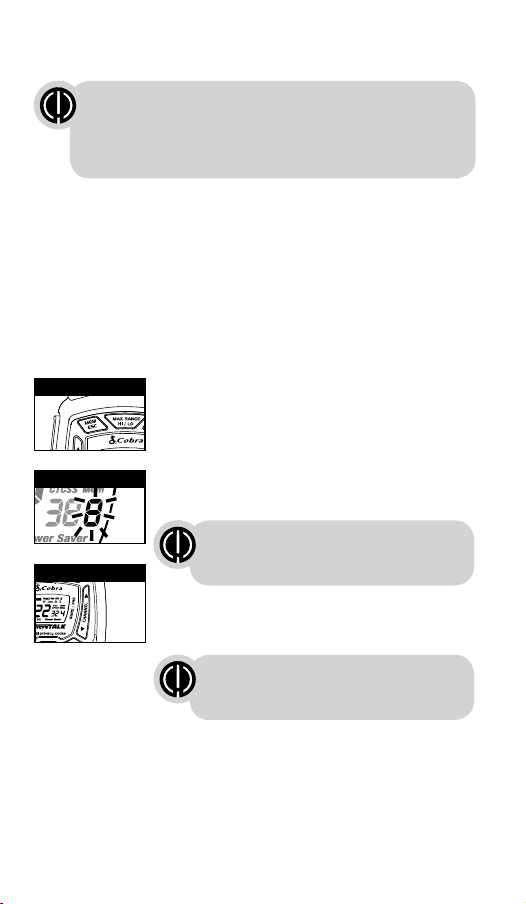
Warranty & Trademark Acknowledgment
Operation
General Specications & Licensing
10
11 12
13 14
15 16 17 18 19 20
9
Voice Activated Transmit (VOX)
In VOX mode, your microTALK
®
radio can be used “hands-free,” automatically
transmitting when you speak. You can set the VOX sensitivity level to t the
volume of your voice and avoid transmissions triggered by background noise.
To turn VOX mode on or off:
1. Press the Mode/Power button until the VOX
icon ashes on the display. The current On or Off
setting is displayed.
2. Press the Channel Up or Channel Down
button to turn VOX On or Off.
3. Choose one of the following:
a. Press the Mode/Power button to enter the
new setting and proceed to other functions.
b. Press the Talk or Call/Lock button to return to
Standby mode.
To set VOX sensitivity:
1. Press the Mode/Power button until the VOX icon
ashes and the current sensitivity level is displayed.
2. Press the Channel Up or Channel Down
button to change the setting.
3. Choose one of the following:
a. Press the Mode/Power button to enter the
new setting and proceed to other functions.
b. Press the Talk or Call/Lock button to return to
Standby mode.
c. Do not press any buttons for 6 seconds to
return to Standby mode.
The current VOX sensitivity level is
displayed with letters “L” and a Number 1
through 5, with Number 5 being the most
sensitive level and Number 1 being the
least sensitive level.
The radio ignores specic privacy
codes while scanning channels.
General Specications
FRS/GMRS Frequency Allocation and Compatibility
Important: Please note that Cobra GMRS models with 15 Channels
may designate different channel numbers for the same frequency.
For example, a Cobra 15 Channel GMRS model would need to be
tuned to Channel 11 in order to communicate with a 22 Channel
GMRS tuned to Channel 15. Please refer to the chart below for
channel/ frequency number compatibility.
A = Channel No. for 22 Channel FRS/GMRS Models
B = Channel No. for 15 Channel GMRS Models
C = Type of Radio Service
D = Frequency in MHz
E = Power Output
A B C D E
1 1 FRS/GMRS 462.5625 High
2 2 FRS/GMRS 462.5875 High
3 3 FRS/GMRS 462.6125 High
4 4 FRS/GMRS 462.6375 High
5 5 FRS/GMRS 462.6625 High
6 6 FRS/GMRS 462.6875 High
7 7 FRS/GMRS 462.7125 High
8 FRS 467.5625 Low
9 FRS 467.5875 Low
10 FRS 467.6125 Low
11 FRS 467.6375 Low
12 FRS 467.6625 Low
13 FRS 467.6875 Low
14 FRS 467.7125 Low
15 11 GMRS 462.5500 High
16 8 GMRS 462.5750 High
17 12 GMRS 462.6000 High
18 9 GMRS 462.6250 High
19 13 GMRS 462.6500 High
20 10 GMRS 462.6750 High
21 14 GMRS 462.7000 High
22 15 GMRS 462.7250 High
IMPORTANT NOTICE: FCC LICENSE REQUIRED
This two-way radio operates on GMRS (General Mobile Radio Service) frequencies which require an FCC (Federal
Communications Commission) license. A user must be licensed prior to operating on Channels 1 through 7 on
high power or 15 through 22, which comprise the GMRS channels of this radio. Serious penalties could result for
unlicensed use of GMRS channels, in violation of FCC rules. Operation of this radio is subject to additional rules
specied in 47 C.F.R. Part 95.
Licensed users will be issued a call sign by the FCC, which should be used for station identication when
operating this radio. GMRS users should also cooperate by engaging in permissible transmissions only, avoiding
channel interference with other GMRS users, and being prudent with the length of their transmission time.
For licensing information and application forms, please call the FCC Hotline at 800-418-FORM. Request form
#159 and form #605. Questions regarding the license application should be directed to the FCC at
888-CALL-FCC. Additional information is available on the FCC’s website at www.fcc.gov.
Channel 1 through 7 on low power and channels 8 through 14 comprise the FRS (Family Radio Service). No
license is required to operate on the FRS.
WARNING: Changes or modications to this unit not expressly approved by the party responsible for compliance
could void the user’s authority to operate the equipment.”
NOTE: This equipment has been tested and found to comply with the limits for a Class B digital device, pursuant
to Part 15 of the FCC Rules. These limits are designed to provide reasonable protection against harmful
interference in a residential installation. This equipment generates, uses and can radiate radio frequency energy
and, if not installed and used in accordance with the instructions, may cause harmful interference to radio
communications.
However, there is no guarantee that interference will not occur in a particular installation. If this equipment does
cause harmful interference to radio or television reception, which can be determined by turning the equipment
off and on, the user is encouraged to try to correct the interference by one or more of the following measures:
• Reorient or relocate the receiving antenna.
• Increase the separation between the equipment and receiver.
• Connect the equipment into an outlet on a circuit different from that to which the
receiver is connected.
• Consult the dealer or an experienced radio/TV technician for help.
Safety Information for microTALK Radios
Your wireless handheld portable transceiver contains a low power transmitter. When the talk button is pushed, it
sends out radio frequency (RF) signals. The device is authorized to operate at a duty factor not to exceed 50%. In
August 1996, the Federal Communications Commissions (FCC) adopted RF exposure guidelines with safety
levels for handheld wireless devices.
Important
FCC RF Exposure Requirements: For body-worn operation, this radio has been tested and meets the FCC RF
exposure guidelines when used with Cobra accessories supplied or designated for this product. Use of other
accessories may not ensure compliance with FCC RF exposure guidelines. Use only the supplied antenna.
Unauthorized antennas, modications or attachments could damage the transmitter and may violate FCC
regulations.
Normal Position
Hold the transmitter approximately 2 inches from your face and speak in a normal voice, with the antenna
pointed up and away.
MODEL ACXT545:
This device complies with part 15 of the FCC Rules. Operation is subject to the following two
conditions: 1) This device may not cause harmful interference, and 2) this device must accept
any interference received,including interference that may cause undesired operation.
FCC Warnings: Replacement or substitution of transistors, regular diodes or other parts of a
unique nature, with parts other than those recommended by Cobra may cause a violation of
the technical regulations of part 95 of the FCC rules, or violation of type acceptance
requirements of part 2 of the rules.
Limited One-Year Warranty
Altis Global Limited warrants that this product and the component parts thereof, will be
free from defects in workmanship and materials for a period of one year from the date of
rst consumer purchase. This warranty may be enforced by the rst consumer
purchaser, and is not transferable. If the product is under warranty, it will be repaired or
exchanged depending on the model at Altis’ sole discretion. Such remedy may be your
sole and exclusive remedy for any breach of warranty.
The procedure for obtaining service and support, and the applicability of this warranty,
will vary depending on the country or jurisdiction in which you purchase and utilize the
product. For details on obtaining product service, support and warranty please visit
www.cobrawalkietalkie.com.
Provided that the product is utilized in the U.S.A., Altis will, without charge, repair or
replace, at its option, defective products, products or component parts upon delivery to
the authorized Altis Global Limited Authorized Service Center, accompanied by proof of
the date of rst customer purchase, such as a duplicated copy of a sales receipt.
You must pay any initial shipping charges required to ship the product for warranty
service, but the return charges, to an address in the U.S.A., will be at Altis’ expense, if
the product is under warranty.
This warranty gives you specic legal rights, and you may also have other rights which
vary from state to state and country to country.
Exclusions: This limited warranty does not apply: 1) To any product damaged by
accident; 2) In the event of misuse, ordinary wear, failure to follow directions, or
improper maintenance of the product or as a result of unauthorized alterations or repairs;
3) If the serial number has been altered, defaced, or removed; 4) If the product was
purchased or is utilized in a jurisdiction not covered by the limited warranty.
All implied warranties, including warranties of merchantability and tness for a particular
purpose are limited in duration to the length of this warranty. Altis shall not be liable for
any inconsequential or other damages, including without limitation, damages resulting
from the loss of use or cost of installation.
Some states and countries do not allow limitations on how long an implied warranty lasts
and do not allow the exclusion or limitation of incidental or consequential damages, so
the above limitations may not apply to you. This warranty gives you specic legal rights,
and you may also have other rights which vary from state to state and country to country.
Trademark Acknowledgment
Manufactured, distributed, or sold by Altis Global Limited, ofcial licensee for this
product. Cobra
®
, microTalk
®
, Nothing Comes Close to a Cobra
®
, and the snake design
are registered trademarks of Cobra Electronics Corporation, USA. Cobra Electronics
Corporation™ is a trademark of Cobra Electronics Corporation, USA. All other product or
service names are the property of their respective owners.
©2016 Altis Global Limited, Berkeley Lake, GA, USA. All rights reserved.
For Products Purchased Outside the U.S.A.
Please contact your local dealer for warranty information.
90-Day Warranty on Rechargeable Batteries
For products purchased in the U.S.A. and Canada.
Mode/Power
MEM/ESC Button
MEM/ESC Button
MEM/ESC Button
Mode/Power
Mode/Power
Mode/Power
Scan Button
Mode/Power
Channel Button
Channel Button
Channel Button
Channel Button
Channel Button
Scan Button
Channel Button
Weather Button
Channel Button
Channel Button
Channel Button
Channel Button
Channel Button
Channel Button
VOX Icon
VOX Sensitivity Level
Memory Channel
Memory Channel
10 Memory Location
Your microTALK
®
radio has 10 Memory Locations for storing your most
frequently used channels and channel/privacy code combinations.
These Memory Locations can be selected individually or can be scanned.
(See page 18 for memory location scan.)
To program a memory location:
1. Press the MEM/ESC button. Memory icon and
the Memory Location show on the display.
2. Press the Channel Up or Channel Down button
to select the memory location (0 through 9).
3. Press the MEM/ESC button to enter a new
memory location or edit an already programmed
memory location.
4. Press the Channel Up or Channel Down button
to select the memory location.
5. Press the MEM/ESC button. The channel
numbers will ash on the display.
6. Press the Channel Up or Channel Down button
to select a channel (1 through 22).
7. Press the MEM/ESC button. The CTCSS icon and
privacy code numbers will ash on the display.
8. Choose one of the following:
a. Press the Channel Up or Channel Down
button to select a CTCSS privacy code (00
through 38) for the channel.
b. Press the MEM/ESC button to switch from
CTCSS to DCS. The DCS icon and privacy code
numbers will ash on the display. The Channel
Up or Channel Down button can then be used
to select a DCS privacy code (00 through 83)
for the channel.
9. Choose one of the following:
a. Press the MEM/ESC button to enter the channel/privacy code in the
selected memory location. Radio then proceeds to next memory
location, which will blink.
b. Press and hold the MEM/ESC button to save the current state of the
Set Memory Function and press the MEM/ESC button again return
to Standby mode.
To recall a stored memory channel location:
1. Press the MEM/ESC button until the Memory icon
and the memory location number ash on the
display.
2. Press the Channel Up or Channel Down button to
select a memory location (0 through 9).
3. Press and hold the MEM/ESC button to return to
Standby mode on the selected memory location.
If a location has been programmed before,
its associated channel/privacy code will be
shown on the display.
If “oF” ashes in place of the privacy code numbers, a privacy
code is already set in the opposite (CTCSS or DCS) system.
Press the Channel Up or Channel Down button to cancel the
opposite code and select a privacy code from the active
system for the selected channel.
If a location has been programmed before,
its associated channel/privacy code will
be shown on the display.
A memory location can be reprogrammed
at any time it is displayed. Press the
MEM/ESC button to begin.
Operation
Mode Functions (continued)
Call Tone Setting
Call Tone On/
Vibrate On
Call Tone On/
Vibrate Off
Roger Beep Off
Ten Call Tone Settings
You can choose between ten different Call Tone Settings to transmit
a call alert.
To change a call tone setting:
1. Press the Mode/Power button until the letter “C”
and the current call tone number (01 through 10)
is displayed. The current call tone will sound for
three seconds.
2. Press the Channel Up or Channel Down button to
hear the other call tone settings.
3. Choose one of the following:
a. Press the Mode/Power button to enter the new
setting and proceed to other functions.
b. Press Talk or Call/Lock button to return to
Standby mode.
c. Do not press any buttons for 6 seconds to
return to Standby mode.
VibrAlert
®
and Call Alert
Your MicroTALK
®
radio can alert you to incoming signals by sounding an
audible call tone or an audible tone with VibrAlert
®
.
To change call settings:
1. Press the Mode button until the Call Setting icon
ashes on the display. The current setting (“01”
vibrate + ring, “02” ring only) is displayed.
2. Press the Channel Up or Channel Down button to
change the call setting.
3. Choose one of the following:
a. Press the Mode button to enter the new setting
and proceed to other functions.
b. Press Talk or Call/Lock button to return to
Standby mode.
c. Do not press any buttons for 6 seconds to
return to Standby mode.
Roger Beep Conrmation Tone
Your listener will hear an audible tone when you release the Talk button.
This alerts the other party that you are nished talking and it is OK for
them to speak.
To turn roger beep on or off:
1. Press the Mode/Power button until the
Roger Beep icon ashes. The current
on or off setting is displayed.
2. Press the Channel Up or Channel Down button to
select roger beep on or off.
3. Choose one of the following:
a. Press the Mode/Power button to enter the new
setting and proceed to other functions.
b. Press Talk or Call/Lock button to return to
Standby mode.
c. Do not press any buttons for 6 seconds to
return to Standby mode.
Key Tone On/Off
When Key Tone is On, an audible tone will sound each time a button is
pressed.
To turn key tone on or off:
1. Current key tone status On/Off will ash.
2. Press the Channel Up or Channel Down button to
select key tone on or off.
3. Choose one of the following:
a. Press the Mode/Power button to enter the
Standby mode.
b. Press Talk or Call/Lock button to return to
Standby mode.
c. Do not press any buttons for 6 seconds to
return to Standby mode.
Channel Scan
Your microTALK
®
radio can automatically scan channels.
To scan channels:
1. Press and release the Scan button until the Scan
icon and the channel numbers appear
on the display.
2. Press and hold the Scan button to begin scanning
channels.
The Scan icon will continue to be displayed when
scan is on. Your radio will continue to scan all
channels and stop if an incoming transmission is
detected. Your radio will remain on that channel for
2 seconds.
During scanning (while receiving an incoming transmission),
you can choose from the following:
a. Press and hold the Talk button to communicate on that channel.
Your radio will remain on that channel and return to Standby mode.
b. Press the Channel Up or Channel Down button to resume
scanning channels.
c. Press and hold the Scan button to return to Standby.
Privacy Code Scan
Your microTALK
®
radio can automatically scan the Privacy Codes (either
CTCSS 01 through 38 or DCS 01 through 83) within one channel. Only
one set of privacy codes (CTCSS or DCS) can be scanned at a time.
To scan privacy codes:
1. While in Standby mode, press and release the
Scan button twice (CTCSS) or three times
(DCS)until the CTCSS or DCS icon and numbers
are ashing.
2. Press and hold the Scan button to begin scanning
privacy codes within the selected channel.
The Scan icon will continue to be displayed when
privacy code scan is on. Your radio will continue to
scan privacy codes and stop as an incoming
transmission is detected. Your radio will remain on
that channel/privacy code for 6 seconds.
NOAA* All Hazards Radio Channels
You can use your microTALK
®
radio to listen to NOAA All Hazards Radio
channels transmitting in your area.
To listen to All Hazards Radio channels:
1. Press the Weather button once until the
All Hazards Radio icon and the currently
selected All Hazards Radio channel are displayed.
2. Use the Channel Up or Channel Down
button to change All Hazards Radio channels.
3. The All Hazards Radio icon will continue to
be displayed when All Hazards Radio is on.
4. To exit All Hazards Radio, press and hold the
Weather button until On or Off is displayed.
*National Oceanographic and Atmospheric Administration
Select Channel
Scan Privacy Codes
Scan Channels
Hazards Radio Icon
Weather (WX) Alert Mode
Turning On the Weather Alert function will allow your radio to
automatically receive NOAA weather signals and warnings from
designated weather broadcast stations. If the radio is turned ON, it will
alert to Weather and other emergency alerts broadcast by NOAA.
To turn Weather Alert On or Off:
1. Press the Weather button twice until the
Weather Alert icon ashes on the display.
The current On or Off setting is displayed.
2. Press the Channel Up and Channel Down button
to turn Weather Alert On or Off.
3. Press and hold the Weather button again to save
the new setting and exit the Weather Alert Mode
and return to Standby mode.
Weather Button
Channel Button
This feature is set to OFF by default.
Make sure the strongest Weather
channel is selected for your area
using the NOAA All Hazards Radio
Channels selection in the
previous menu.
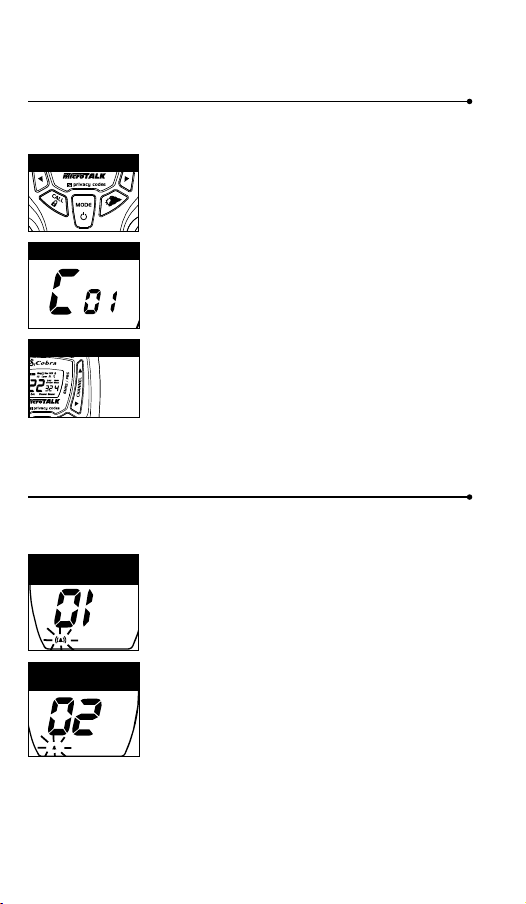
Warranty & Trademark Acknowledgment
Operation
General Specications & Licensing
10
11 12
13 14
15 16 17 18 19 20
9
Voice Activated Transmit (VOX)
In VOX mode, your microTALK
®
radio can be used “hands-free,” automatically
transmitting when you speak. You can set the VOX sensitivity level to t the
volume of your voice and avoid transmissions triggered by background noise.
To turn VOX mode on or off:
1. Press the Mode/Power button until the VOX
icon ashes on the display. The current On or Off
setting is displayed.
2. Press the Channel Up or Channel Down
button to turn VOX On or Off.
3. Choose one of the following:
a. Press the Mode/Power button to enter the
new setting and proceed to other functions.
b. Press the Talk or Call/Lock button to return to
Standby mode.
To set VOX sensitivity:
1. Press the Mode/Power button until the VOX icon
ashes and the current sensitivity level is displayed.
2. Press the Channel Up or Channel Down
button to change the setting.
3. Choose one of the following:
a. Press the Mode/Power button to enter the
new setting and proceed to other functions.
b. Press the Talk or Call/Lock button to return to
Standby mode.
c. Do not press any buttons for 6 seconds to
return to Standby mode.
The current VOX sensitivity level is
displayed with letters “L” and a Number 1
through 5, with Number 5 being the most
sensitive level and Number 1 being the
least sensitive level.
The radio ignores specic privacy
codes while scanning channels.
General Specications
FRS/GMRS Frequency Allocation and Compatibility
Important: Please note that Cobra GMRS models with 15 Channels
may designate different channel numbers for the same frequency.
For example, a Cobra 15 Channel GMRS model would need to be
tuned to Channel 11 in order to communicate with a 22 Channel
GMRS tuned to Channel 15. Please refer to the chart below for
channel/ frequency number compatibility.
A = Channel No. for 22 Channel FRS/GMRS Models
B = Channel No. for 15 Channel GMRS Models
C = Type of Radio Service
D = Frequency in MHz
E = Power Output
A B C D E
1 1 FRS/GMRS 462.5625 High
2 2 FRS/GMRS 462.5875 High
3 3 FRS/GMRS 462.6125 High
4 4 FRS/GMRS 462.6375 High
5 5 FRS/GMRS 462.6625 High
6 6 FRS/GMRS 462.6875 High
7 7 FRS/GMRS 462.7125 High
8 FRS 467.5625 Low
9 FRS 467.5875 Low
10 FRS 467.6125 Low
11 FRS 467.6375 Low
12 FRS 467.6625 Low
13 FRS 467.6875 Low
14 FRS 467.7125 Low
15 11 GMRS 462.5500 High
16 8 GMRS 462.5750 High
17 12 GMRS 462.6000 High
18 9 GMRS 462.6250 High
19 13 GMRS 462.6500 High
20 10 GMRS 462.6750 High
21 14 GMRS 462.7000 High
22 15 GMRS 462.7250 High
IMPORTANT NOTICE: FCC LICENSE REQUIRED
This two-way radio operates on GMRS (General Mobile Radio Service) frequencies which require an FCC (Federal
Communications Commission) license. A user must be licensed prior to operating on Channels 1 through 7 on
high power or 15 through 22, which comprise the GMRS channels of this radio. Serious penalties could result for
unlicensed use of GMRS channels, in violation of FCC rules. Operation of this radio is subject to additional rules
specied in 47 C.F.R. Part 95.
Licensed users will be issued a call sign by the FCC, which should be used for station identication when
operating this radio. GMRS users should also cooperate by engaging in permissible transmissions only, avoiding
channel interference with other GMRS users, and being prudent with the length of their transmission time.
For licensing information and application forms, please call the FCC Hotline at 800-418-FORM. Request form
#159 and form #605. Questions regarding the license application should be directed to the FCC at
888-CALL-FCC. Additional information is available on the FCC’s website at www.fcc.gov.
Channel 1 through 7 on low power and channels 8 through 14 comprise the FRS (Family Radio Service). No
license is required to operate on the FRS.
WARNING: Changes or modications to this unit not expressly approved by the party responsible for compliance
could void the user’s authority to operate the equipment.”
NOTE: This equipment has been tested and found to comply with the limits for a Class B digital device, pursuant
to Part 15 of the FCC Rules. These limits are designed to provide reasonable protection against harmful
interference in a residential installation. This equipment generates, uses and can radiate radio frequency energy
and, if not installed and used in accordance with the instructions, may cause harmful interference to radio
communications.
However, there is no guarantee that interference will not occur in a particular installation. If this equipment does
cause harmful interference to radio or television reception, which can be determined by turning the equipment
off and on, the user is encouraged to try to correct the interference by one or more of the following measures:
• Reorient or relocate the receiving antenna.
• Increase the separation between the equipment and receiver.
• Connect the equipment into an outlet on a circuit different from that to which the
receiver is connected.
• Consult the dealer or an experienced radio/TV technician for help.
Safety Information for microTALK Radios
Your wireless handheld portable transceiver contains a low power transmitter. When the talk button is pushed, it
sends out radio frequency (RF) signals. The device is authorized to operate at a duty factor not to exceed 50%. In
August 1996, the Federal Communications Commissions (FCC) adopted RF exposure guidelines with safety
levels for handheld wireless devices.
Important
FCC RF Exposure Requirements: For body-worn operation, this radio has been tested and meets the FCC RF
exposure guidelines when used with Cobra accessories supplied or designated for this product. Use of other
accessories may not ensure compliance with FCC RF exposure guidelines. Use only the supplied antenna.
Unauthorized antennas, modications or attachments could damage the transmitter and may violate FCC
regulations.
Normal Position
Hold the transmitter approximately 2 inches from your face and speak in a normal voice, with the antenna
pointed up and away.
MODEL ACXT545:
This device complies with part 15 of the FCC Rules. Operation is subject to the following two
conditions: 1) This device may not cause harmful interference, and 2) this device must accept
any interference received,including interference that may cause undesired operation.
FCC Warnings: Replacement or substitution of transistors, regular diodes or other parts of a
unique nature, with parts other than those recommended by Cobra may cause a violation of
the technical regulations of part 95 of the FCC rules, or violation of type acceptance
requirements of part 2 of the rules.
Limited One-Year Warranty
Altis Global Limited warrants that this product and the component parts thereof, will be
free from defects in workmanship and materials for a period of one year from the date of
rst consumer purchase. This warranty may be enforced by the rst consumer
purchaser, and is not transferable. If the product is under warranty, it will be repaired or
exchanged depending on the model at Altis’ sole discretion. Such remedy may be your
sole and exclusive remedy for any breach of warranty.
The procedure for obtaining service and support, and the applicability of this warranty,
will vary depending on the country or jurisdiction in which you purchase and utilize the
product. For details on obtaining product service, support and warranty please visit
www.cobrawalkietalkie.com.
Provided that the product is utilized in the U.S.A., Altis will, without charge, repair or
replace, at its option, defective products, products or component parts upon delivery to
the authorized Altis Global Limited Authorized Service Center, accompanied by proof of
the date of rst customer purchase, such as a duplicated copy of a sales receipt.
You must pay any initial shipping charges required to ship the product for warranty
service, but the return charges, to an address in the U.S.A., will be at Altis’ expense, if
the product is under warranty.
This warranty gives you specic legal rights, and you may also have other rights which
vary from state to state and country to country.
Exclusions: This limited warranty does not apply: 1) To any product damaged by
accident; 2) In the event of misuse, ordinary wear, failure to follow directions, or
improper maintenance of the product or as a result of unauthorized alterations or repairs;
3) If the serial number has been altered, defaced, or removed; 4) If the product was
purchased or is utilized in a jurisdiction not covered by the limited warranty.
All implied warranties, including warranties of merchantability and tness for a particular
purpose are limited in duration to the length of this warranty. Altis shall not be liable for
any inconsequential or other damages, including without limitation, damages resulting
from the loss of use or cost of installation.
Some states and countries do not allow limitations on how long an implied warranty lasts
and do not allow the exclusion or limitation of incidental or consequential damages, so
the above limitations may not apply to you. This warranty gives you specic legal rights,
and you may also have other rights which vary from state to state and country to country.
Trademark Acknowledgment
Manufactured, distributed, or sold by Altis Global Limited, ofcial licensee for this
product. Cobra
®
, microTalk
®
, Nothing Comes Close to a Cobra
®
, and the snake design
are registered trademarks of Cobra Electronics Corporation, USA. Cobra Electronics
Corporation™ is a trademark of Cobra Electronics Corporation, USA. All other product or
service names are the property of their respective owners.
©2016 Altis Global Limited, Berkeley Lake, GA, USA. All rights reserved.
For Products Purchased Outside the U.S.A.
Please contact your local dealer for warranty information.
90-Day Warranty on Rechargeable Batteries
For products purchased in the U.S.A. and Canada.
Mode/Power
MEM/ESC Button
MEM/ESC Button
MEM/ESC Button
Mode/Power
Mode/Power
Mode/Power
Scan Button
Mode/Power
Channel Button
Channel Button
Channel Button
Channel Button
Channel Button
Scan Button
Channel Button
Weather Button
Channel Button
Channel Button
Channel Button
Channel Button
Channel Button
Channel Button
VOX Icon
VOX Sensitivity Level
Memory Channel
Memory Channel
10 Memory Location
Your microTALK
®
radio has 10 Memory Locations for storing your most
frequently used channels and channel/privacy code combinations.
These Memory Locations can be selected individually or can be scanned.
(See page 18 for memory location scan.)
To program a memory location:
1. Press the MEM/ESC button. Memory icon and
the Memory Location show on the display.
2. Press the Channel Up or Channel Down button
to select the memory location (0 through 9).
3. Press the MEM/ESC button to enter a new
memory location or edit an already programmed
memory location.
4. Press the Channel Up or Channel Down button
to select the memory location.
5. Press the MEM/ESC button. The channel
numbers will ash on the display.
6. Press the Channel Up or Channel Down button
to select a channel (1 through 22).
7. Press the MEM/ESC button. The CTCSS icon and
privacy code numbers will ash on the display.
8. Choose one of the following:
a. Press the Channel Up or Channel Down
button to select a CTCSS privacy code (00
through 38) for the channel.
b. Press the MEM/ESC button to switch from
CTCSS to DCS. The DCS icon and privacy code
numbers will ash on the display. The Channel
Up or Channel Down button can then be used
to select a DCS privacy code (00 through 83)
for the channel.
9. Choose one of the following:
a. Press the MEM/ESC button to enter the channel/privacy code in the
selected memory location. Radio then proceeds to next memory
location, which will blink.
b. Press and hold the MEM/ESC button to save the current state of the
Set Memory Function and press the MEM/ESC button again return
to Standby mode.
To recall a stored memory channel location:
1. Press the MEM/ESC button until the Memory icon
and the memory location number ash on the
display.
2. Press the Channel Up or Channel Down button to
select a memory location (0 through 9).
3. Press and hold the MEM/ESC button to return to
Standby mode on the selected memory location.
If a location has been programmed before,
its associated channel/privacy code will be
shown on the display.
If “oF” ashes in place of the privacy code numbers, a privacy
code is already set in the opposite (CTCSS or DCS) system.
Press the Channel Up or Channel Down button to cancel the
opposite code and select a privacy code from the active
system for the selected channel.
If a location has been programmed before,
its associated channel/privacy code will
be shown on the display.
A memory location can be reprogrammed
at any time it is displayed. Press the
MEM/ESC button to begin.
Operation
Mode Functions (continued)
Call Tone Setting
Call Tone On/
Vibrate On
Call Tone On/
Vibrate Off
Roger Beep Off
Ten Call Tone Settings
You can choose between ten different Call Tone Settings to transmit
a call alert.
To change a call tone setting:
1. Press the Mode/Power button until the letter “C”
and the current call tone number (01 through 10)
is displayed. The current call tone will sound for
three seconds.
2. Press the Channel Up or Channel Down button to
hear the other call tone settings.
3. Choose one of the following:
a. Press the Mode/Power button to enter the new
setting and proceed to other functions.
b. Press Talk or Call/Lock button to return to
Standby mode.
c. Do not press any buttons for 6 seconds to
return to Standby mode.
VibrAlert
®
and Call Alert
Your MicroTALK
®
radio can alert you to incoming signals by sounding an
audible call tone or an audible tone with VibrAlert
®
.
To change call settings:
1. Press the Mode button until the Call Setting icon
ashes on the display. The current setting (“01”
vibrate + ring, “02” ring only) is displayed.
2. Press the Channel Up or Channel Down button to
change the call setting.
3. Choose one of the following:
a. Press the Mode button to enter the new setting
and proceed to other functions.
b. Press Talk or Call/Lock button to return to
Standby mode.
c. Do not press any buttons for 6 seconds to
return to Standby mode.
Roger Beep Conrmation Tone
Your listener will hear an audible tone when you release the Talk button.
This alerts the other party that you are nished talking and it is OK for
them to speak.
To turn roger beep on or off:
1. Press the Mode/Power button until the
Roger Beep icon ashes. The current
on or off setting is displayed.
2. Press the Channel Up or Channel Down button to
select roger beep on or off.
3. Choose one of the following:
a. Press the Mode/Power button to enter the new
setting and proceed to other functions.
b. Press Talk or Call/Lock button to return to
Standby mode.
c. Do not press any buttons for 6 seconds to
return to Standby mode.
Key Tone On/Off
When Key Tone is On, an audible tone will sound each time a button is
pressed.
To turn key tone on or off:
1. Current key tone status On/Off will ash.
2. Press the Channel Up or Channel Down button to
select key tone on or off.
3. Choose one of the following:
a. Press the Mode/Power button to enter the
Standby mode.
b. Press Talk or Call/Lock button to return to
Standby mode.
c. Do not press any buttons for 6 seconds to
return to Standby mode.
Channel Scan
Your microTALK
®
radio can automatically scan channels.
To scan channels:
1. Press and release the Scan button until the Scan
icon and the channel numbers appear
on the display.
2. Press and hold the Scan button to begin scanning
channels.
The Scan icon will continue to be displayed when
scan is on. Your radio will continue to scan all
channels and stop if an incoming transmission is
detected. Your radio will remain on that channel for
2 seconds.
During scanning (while receiving an incoming transmission),
you can choose from the following:
a. Press and hold the Talk button to communicate on that channel.
Your radio will remain on that channel and return to Standby mode.
b. Press the Channel Up or Channel Down button to resume
scanning channels.
c. Press and hold the Scan button to return to Standby.
Privacy Code Scan
Your microTALK
®
radio can automatically scan the Privacy Codes (either
CTCSS 01 through 38 or DCS 01 through 83) within one channel. Only
one set of privacy codes (CTCSS or DCS) can be scanned at a time.
To scan privacy codes:
1. While in Standby mode, press and release the
Scan button twice (CTCSS) or three times
(DCS)until the CTCSS or DCS icon and numbers
are ashing.
2. Press and hold the Scan button to begin scanning
privacy codes within the selected channel.
The Scan icon will continue to be displayed when
privacy code scan is on. Your radio will continue to
scan privacy codes and stop as an incoming
transmission is detected. Your radio will remain on
that channel/privacy code for 6 seconds.
NOAA* All Hazards Radio Channels
You can use your microTALK
®
radio to listen to NOAA All Hazards Radio
channels transmitting in your area.
To listen to All Hazards Radio channels:
1. Press the Weather button once until the
All Hazards Radio icon and the currently
selected All Hazards Radio channel are displayed.
2. Use the Channel Up or Channel Down
button to change All Hazards Radio channels.
3. The All Hazards Radio icon will continue to
be displayed when All Hazards Radio is on.
4. To exit All Hazards Radio, press and hold the
Weather button until On or Off is displayed.
*National Oceanographic and Atmospheric Administration
Select Channel
Scan Privacy Codes
Scan Channels
Hazards Radio Icon
Weather (WX) Alert Mode
Turning On the Weather Alert function will allow your radio to
automatically receive NOAA weather signals and warnings from
designated weather broadcast stations. If the radio is turned ON, it will
alert to Weather and other emergency alerts broadcast by NOAA.
To turn Weather Alert On or Off:
1. Press the Weather button twice until the
Weather Alert icon ashes on the display.
The current On or Off setting is displayed.
2. Press the Channel Up and Channel Down button
to turn Weather Alert On or Off.
3. Press and hold the Weather button again to save
the new setting and exit the Weather Alert Mode
and return to Standby mode.
Weather Button
Channel Button
This feature is set to OFF by default.
Make sure the strongest Weather
channel is selected for your area
using the NOAA All Hazards Radio
Channels selection in the
previous menu.
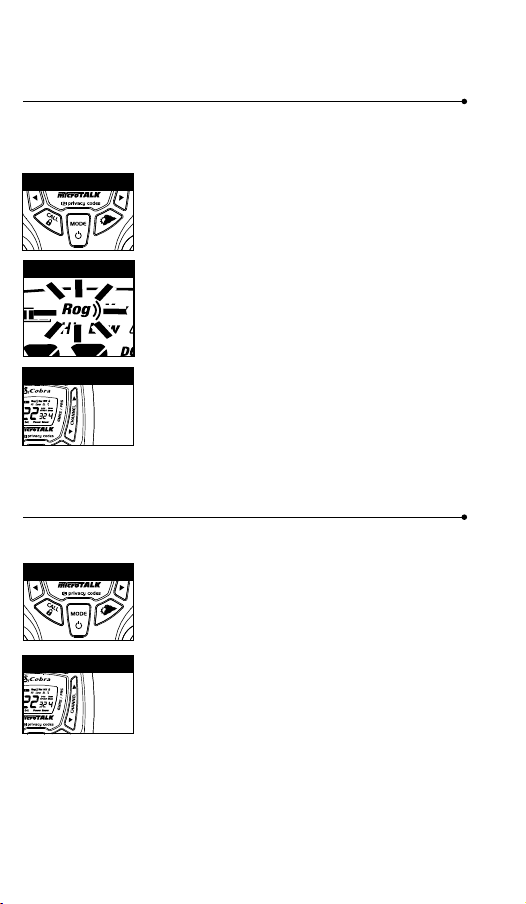
Warranty & Trademark Acknowledgment
Operation
General Specications & Licensing
10
11 12
13 14
15 16 17 18 19 20
9
Voice Activated Transmit (VOX)
In VOX mode, your microTALK
®
radio can be used “hands-free,” automatically
transmitting when you speak. You can set the VOX sensitivity level to t the
volume of your voice and avoid transmissions triggered by background noise.
To turn VOX mode on or off:
1. Press the Mode/Power button until the VOX
icon ashes on the display. The current On or Off
setting is displayed.
2. Press the Channel Up or Channel Down
button to turn VOX On or Off.
3. Choose one of the following:
a. Press the Mode/Power button to enter the
new setting and proceed to other functions.
b. Press the Talk or Call/Lock button to return to
Standby mode.
To set VOX sensitivity:
1. Press the Mode/Power button until the VOX icon
ashes and the current sensitivity level is displayed.
2. Press the Channel Up or Channel Down
button to change the setting.
3. Choose one of the following:
a. Press the Mode/Power button to enter the
new setting and proceed to other functions.
b. Press the Talk or Call/Lock button to return to
Standby mode.
c. Do not press any buttons for 6 seconds to
return to Standby mode.
The current VOX sensitivity level is
displayed with letters “L” and a Number 1
through 5, with Number 5 being the most
sensitive level and Number 1 being the
least sensitive level.
The radio ignores specic privacy
codes while scanning channels.
General Specications
FRS/GMRS Frequency Allocation and Compatibility
Important: Please note that Cobra GMRS models with 15 Channels
may designate different channel numbers for the same frequency.
For example, a Cobra 15 Channel GMRS model would need to be
tuned to Channel 11 in order to communicate with a 22 Channel
GMRS tuned to Channel 15. Please refer to the chart below for
channel/ frequency number compatibility.
A = Channel No. for 22 Channel FRS/GMRS Models
B = Channel No. for 15 Channel GMRS Models
C = Type of Radio Service
D = Frequency in MHz
E = Power Output
A B C D E
1 1 FRS/GMRS 462.5625 High
2 2 FRS/GMRS 462.5875 High
3 3 FRS/GMRS 462.6125 High
4 4 FRS/GMRS 462.6375 High
5 5 FRS/GMRS 462.6625 High
6 6 FRS/GMRS 462.6875 High
7 7 FRS/GMRS 462.7125 High
8 FRS 467.5625 Low
9 FRS 467.5875 Low
10 FRS 467.6125 Low
11 FRS 467.6375 Low
12 FRS 467.6625 Low
13 FRS 467.6875 Low
14 FRS 467.7125 Low
15 11 GMRS 462.5500 High
16 8 GMRS 462.5750 High
17 12 GMRS 462.6000 High
18 9 GMRS 462.6250 High
19 13 GMRS 462.6500 High
20 10 GMRS 462.6750 High
21 14 GMRS 462.7000 High
22 15 GMRS 462.7250 High
IMPORTANT NOTICE: FCC LICENSE REQUIRED
This two-way radio operates on GMRS (General Mobile Radio Service) frequencies which require an FCC (Federal
Communications Commission) license. A user must be licensed prior to operating on Channels 1 through 7 on
high power or 15 through 22, which comprise the GMRS channels of this radio. Serious penalties could result for
unlicensed use of GMRS channels, in violation of FCC rules. Operation of this radio is subject to additional rules
specied in 47 C.F.R. Part 95.
Licensed users will be issued a call sign by the FCC, which should be used for station identication when
operating this radio. GMRS users should also cooperate by engaging in permissible transmissions only, avoiding
channel interference with other GMRS users, and being prudent with the length of their transmission time.
For licensing information and application forms, please call the FCC Hotline at 800-418-FORM. Request form
#159 and form #605. Questions regarding the license application should be directed to the FCC at
888-CALL-FCC. Additional information is available on the FCC’s website at www.fcc.gov.
Channel 1 through 7 on low power and channels 8 through 14 comprise the FRS (Family Radio Service). No
license is required to operate on the FRS.
WARNING: Changes or modications to this unit not expressly approved by the party responsible for compliance
could void the user’s authority to operate the equipment.”
NOTE: This equipment has been tested and found to comply with the limits for a Class B digital device, pursuant
to Part 15 of the FCC Rules. These limits are designed to provide reasonable protection against harmful
interference in a residential installation. This equipment generates, uses and can radiate radio frequency energy
and, if not installed and used in accordance with the instructions, may cause harmful interference to radio
communications.
However, there is no guarantee that interference will not occur in a particular installation. If this equipment does
cause harmful interference to radio or television reception, which can be determined by turning the equipment
off and on, the user is encouraged to try to correct the interference by one or more of the following measures:
• Reorient or relocate the receiving antenna.
• Increase the separation between the equipment and receiver.
• Connect the equipment into an outlet on a circuit different from that to which the
receiver is connected.
• Consult the dealer or an experienced radio/TV technician for help.
Safety Information for microTALK Radios
Your wireless handheld portable transceiver contains a low power transmitter. When the talk button is pushed, it
sends out radio frequency (RF) signals. The device is authorized to operate at a duty factor not to exceed 50%. In
August 1996, the Federal Communications Commissions (FCC) adopted RF exposure guidelines with safety
levels for handheld wireless devices.
Important
FCC RF Exposure Requirements: For body-worn operation, this radio has been tested and meets the FCC RF
exposure guidelines when used with Cobra accessories supplied or designated for this product. Use of other
accessories may not ensure compliance with FCC RF exposure guidelines. Use only the supplied antenna.
Unauthorized antennas, modications or attachments could damage the transmitter and may violate FCC
regulations.
Normal Position
Hold the transmitter approximately 2 inches from your face and speak in a normal voice, with the antenna
pointed up and away.
MODEL ACXT545:
This device complies with part 15 of the FCC Rules. Operation is subject to the following two
conditions: 1) This device may not cause harmful interference, and 2) this device must accept
any interference received,including interference that may cause undesired operation.
FCC Warnings: Replacement or substitution of transistors, regular diodes or other parts of a
unique nature, with parts other than those recommended by Cobra may cause a violation of
the technical regulations of part 95 of the FCC rules, or violation of type acceptance
requirements of part 2 of the rules.
Limited One-Year Warranty
Altis Global Limited warrants that this product and the component parts thereof, will be
free from defects in workmanship and materials for a period of one year from the date of
rst consumer purchase. This warranty may be enforced by the rst consumer
purchaser, and is not transferable. If the product is under warranty, it will be repaired or
exchanged depending on the model at Altis’ sole discretion. Such remedy may be your
sole and exclusive remedy for any breach of warranty.
The procedure for obtaining service and support, and the applicability of this warranty,
will vary depending on the country or jurisdiction in which you purchase and utilize the
product. For details on obtaining product service, support and warranty please visit
www.cobrawalkietalkie.com.
Provided that the product is utilized in the U.S.A., Altis will, without charge, repair or
replace, at its option, defective products, products or component parts upon delivery to
the authorized Altis Global Limited Authorized Service Center, accompanied by proof of
the date of rst customer purchase, such as a duplicated copy of a sales receipt.
You must pay any initial shipping charges required to ship the product for warranty
service, but the return charges, to an address in the U.S.A., will be at Altis’ expense, if
the product is under warranty.
This warranty gives you specic legal rights, and you may also have other rights which
vary from state to state and country to country.
Exclusions: This limited warranty does not apply: 1) To any product damaged by
accident; 2) In the event of misuse, ordinary wear, failure to follow directions, or
improper maintenance of the product or as a result of unauthorized alterations or repairs;
3) If the serial number has been altered, defaced, or removed; 4) If the product was
purchased or is utilized in a jurisdiction not covered by the limited warranty.
All implied warranties, including warranties of merchantability and tness for a particular
purpose are limited in duration to the length of this warranty. Altis shall not be liable for
any inconsequential or other damages, including without limitation, damages resulting
from the loss of use or cost of installation.
Some states and countries do not allow limitations on how long an implied warranty lasts
and do not allow the exclusion or limitation of incidental or consequential damages, so
the above limitations may not apply to you. This warranty gives you specic legal rights,
and you may also have other rights which vary from state to state and country to country.
Trademark Acknowledgment
Manufactured, distributed, or sold by Altis Global Limited, ofcial licensee for this
product. Cobra
®
, microTalk
®
, Nothing Comes Close to a Cobra
®
, and the snake design
are registered trademarks of Cobra Electronics Corporation, USA. Cobra Electronics
Corporation™ is a trademark of Cobra Electronics Corporation, USA. All other product or
service names are the property of their respective owners.
©2016 Altis Global Limited, Berkeley Lake, GA, USA. All rights reserved.
For Products Purchased Outside the U.S.A.
Please contact your local dealer for warranty information.
90-Day Warranty on Rechargeable Batteries
For products purchased in the U.S.A. and Canada.
Mode/Power
MEM/ESC Button
MEM/ESC Button
MEM/ESC Button
Mode/Power
Mode/Power
Mode/Power
Scan Button
Mode/Power
Channel Button
Channel Button
Channel Button
Channel Button
Channel Button
Scan Button
Channel Button
Weather Button
Channel Button
Channel Button
Channel Button
Channel Button
Channel Button
Channel Button
VOX Icon
VOX Sensitivity Level
Memory Channel
Memory Channel
10 Memory Location
Your microTALK
®
radio has 10 Memory Locations for storing your most
frequently used channels and channel/privacy code combinations.
These Memory Locations can be selected individually or can be scanned.
(See page 18 for memory location scan.)
To program a memory location:
1. Press the MEM/ESC button. Memory icon and
the Memory Location show on the display.
2. Press the Channel Up or Channel Down button
to select the memory location (0 through 9).
3. Press the MEM/ESC button to enter a new
memory location or edit an already programmed
memory location.
4. Press the Channel Up or Channel Down button
to select the memory location.
5. Press the MEM/ESC button. The channel
numbers will ash on the display.
6. Press the Channel Up or Channel Down button
to select a channel (1 through 22).
7. Press the MEM/ESC button. The CTCSS icon and
privacy code numbers will ash on the display.
8. Choose one of the following:
a. Press the Channel Up or Channel Down
button to select a CTCSS privacy code (00
through 38) for the channel.
b. Press the MEM/ESC button to switch from
CTCSS to DCS. The DCS icon and privacy code
numbers will ash on the display. The Channel
Up or Channel Down button can then be used
to select a DCS privacy code (00 through 83)
for the channel.
9. Choose one of the following:
a. Press the MEM/ESC button to enter the channel/privacy code in the
selected memory location. Radio then proceeds to next memory
location, which will blink.
b. Press and hold the MEM/ESC button to save the current state of the
Set Memory Function and press the MEM/ESC button again return
to Standby mode.
To recall a stored memory channel location:
1. Press the MEM/ESC button until the Memory icon
and the memory location number ash on the
display.
2. Press the Channel Up or Channel Down button to
select a memory location (0 through 9).
3. Press and hold the MEM/ESC button to return to
Standby mode on the selected memory location.
If a location has been programmed before,
its associated channel/privacy code will be
shown on the display.
If “oF” ashes in place of the privacy code numbers, a privacy
code is already set in the opposite (CTCSS or DCS) system.
Press the Channel Up or Channel Down button to cancel the
opposite code and select a privacy code from the active
system for the selected channel.
If a location has been programmed before,
its associated channel/privacy code will
be shown on the display.
A memory location can be reprogrammed
at any time it is displayed. Press the
MEM/ESC button to begin.
Operation
Mode Functions (continued)
Call Tone Setting
Call Tone On/
Vibrate On
Call Tone On/
Vibrate Off
Roger Beep Off
Ten Call Tone Settings
You can choose between ten different Call Tone Settings to transmit
a call alert.
To change a call tone setting:
1. Press the Mode/Power button until the letter “C”
and the current call tone number (01 through 10)
is displayed. The current call tone will sound for
three seconds.
2. Press the Channel Up or Channel Down button to
hear the other call tone settings.
3. Choose one of the following:
a. Press the Mode/Power button to enter the new
setting and proceed to other functions.
b. Press Talk or Call/Lock button to return to
Standby mode.
c. Do not press any buttons for 6 seconds to
return to Standby mode.
VibrAlert
®
and Call Alert
Your MicroTALK
®
radio can alert you to incoming signals by sounding an
audible call tone or an audible tone with VibrAlert
®
.
To change call settings:
1. Press the Mode button until the Call Setting icon
ashes on the display. The current setting (“01”
vibrate + ring, “02” ring only) is displayed.
2. Press the Channel Up or Channel Down button to
change the call setting.
3. Choose one of the following:
a. Press the Mode button to enter the new setting
and proceed to other functions.
b. Press Talk or Call/Lock button to return to
Standby mode.
c. Do not press any buttons for 6 seconds to
return to Standby mode.
Roger Beep Conrmation Tone
Your listener will hear an audible tone when you release the Talk button.
This alerts the other party that you are nished talking and it is OK for
them to speak.
To turn roger beep on or off:
1. Press the Mode/Power button until the
Roger Beep icon ashes. The current
on or off setting is displayed.
2. Press the Channel Up or Channel Down button to
select roger beep on or off.
3. Choose one of the following:
a. Press the Mode/Power button to enter the new
setting and proceed to other functions.
b. Press Talk or Call/Lock button to return to
Standby mode.
c. Do not press any buttons for 6 seconds to
return to Standby mode.
Key Tone On/Off
When Key Tone is On, an audible tone will sound each time a button is
pressed.
To turn key tone on or off:
1. Current key tone status On/Off will ash.
2. Press the Channel Up or Channel Down button to
select key tone on or off.
3. Choose one of the following:
a. Press the Mode/Power button to enter the
Standby mode.
b. Press Talk or Call/Lock button to return to
Standby mode.
c. Do not press any buttons for 6 seconds to
return to Standby mode.
Channel Scan
Your microTALK
®
radio can automatically scan channels.
To scan channels:
1. Press and release the Scan button until the Scan
icon and the channel numbers appear
on the display.
2. Press and hold the Scan button to begin scanning
channels.
The Scan icon will continue to be displayed when
scan is on. Your radio will continue to scan all
channels and stop if an incoming transmission is
detected. Your radio will remain on that channel for
2 seconds.
During scanning (while receiving an incoming transmission),
you can choose from the following:
a. Press and hold the Talk button to communicate on that channel.
Your radio will remain on that channel and return to Standby mode.
b. Press the Channel Up or Channel Down button to resume
scanning channels.
c. Press and hold the Scan button to return to Standby.
Privacy Code Scan
Your microTALK
®
radio can automatically scan the Privacy Codes (either
CTCSS 01 through 38 or DCS 01 through 83) within one channel. Only
one set of privacy codes (CTCSS or DCS) can be scanned at a time.
To scan privacy codes:
1. While in Standby mode, press and release the
Scan button twice (CTCSS) or three times
(DCS)until the CTCSS or DCS icon and numbers
are ashing.
2. Press and hold the Scan button to begin scanning
privacy codes within the selected channel.
The Scan icon will continue to be displayed when
privacy code scan is on. Your radio will continue to
scan privacy codes and stop as an incoming
transmission is detected. Your radio will remain on
that channel/privacy code for 6 seconds.
NOAA* All Hazards Radio Channels
You can use your microTALK
®
radio to listen to NOAA All Hazards Radio
channels transmitting in your area.
To listen to All Hazards Radio channels:
1. Press the Weather button once until the
All Hazards Radio icon and the currently
selected All Hazards Radio channel are displayed.
2. Use the Channel Up or Channel Down
button to change All Hazards Radio channels.
3. The All Hazards Radio icon will continue to
be displayed when All Hazards Radio is on.
4. To exit All Hazards Radio, press and hold the
Weather button until On or Off is displayed.
*National Oceanographic and Atmospheric Administration
Select Channel
Scan Privacy Codes
Scan Channels
Hazards Radio Icon
Weather (WX) Alert Mode
Turning On the Weather Alert function will allow your radio to
automatically receive NOAA weather signals and warnings from
designated weather broadcast stations. If the radio is turned ON, it will
alert to Weather and other emergency alerts broadcast by NOAA.
To turn Weather Alert On or Off:
1. Press the Weather button twice until the
Weather Alert icon ashes on the display.
The current On or Off setting is displayed.
2. Press the Channel Up and Channel Down button
to turn Weather Alert On or Off.
3. Press and hold the Weather button again to save
the new setting and exit the Weather Alert Mode
and return to Standby mode.
Weather Button
Channel Button
This feature is set to OFF by default.
Make sure the strongest Weather
channel is selected for your area
using the NOAA All Hazards Radio
Channels selection in the
previous menu.
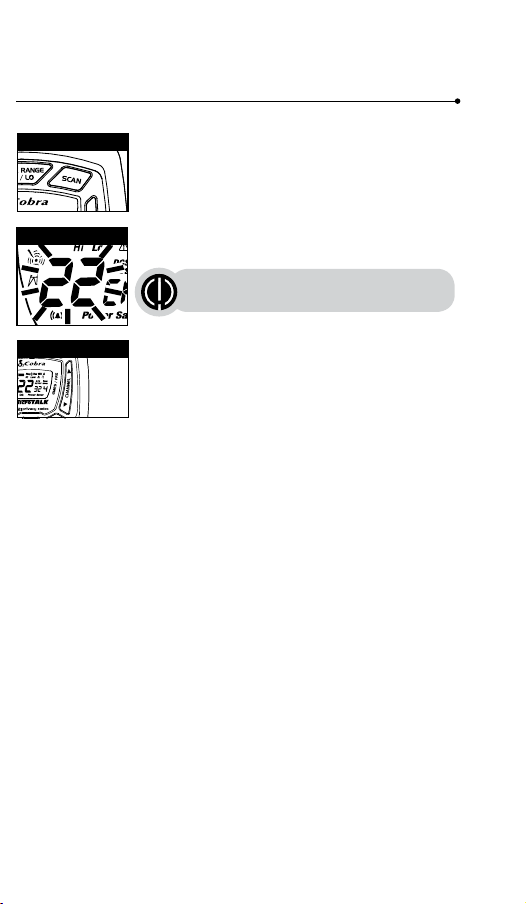
Warranty & Trademark Acknowledgment
Operation
General Specications & Licensing
10
11 12
13 14
15 16 17 18 19 20
9
Voice Activated Transmit (VOX)
In VOX mode, your microTALK
®
radio can be used “hands-free,” automatically
transmitting when you speak. You can set the VOX sensitivity level to t the
volume of your voice and avoid transmissions triggered by background noise.
To turn VOX mode on or off:
1. Press the Mode/Power button until the VOX
icon ashes on the display. The current On or Off
setting is displayed.
2. Press the Channel Up or Channel Down
button to turn VOX On or Off.
3. Choose one of the following:
a. Press the Mode/Power button to enter the
new setting and proceed to other functions.
b. Press the Talk or Call/Lock button to return to
Standby mode.
To set VOX sensitivity:
1. Press the Mode/Power button until the VOX icon
ashes and the current sensitivity level is displayed.
2. Press the Channel Up or Channel Down
button to change the setting.
3. Choose one of the following:
a. Press the Mode/Power button to enter the
new setting and proceed to other functions.
b. Press the Talk or Call/Lock button to return to
Standby mode.
c. Do not press any buttons for 6 seconds to
return to Standby mode.
The current VOX sensitivity level is
displayed with letters “L” and a Number 1
through 5, with Number 5 being the most
sensitive level and Number 1 being the
least sensitive level.
The radio ignores specic privacy
codes while scanning channels.
General Specications
FRS/GMRS Frequency Allocation and Compatibility
Important: Please note that Cobra GMRS models with 15 Channels
may designate different channel numbers for the same frequency.
For example, a Cobra 15 Channel GMRS model would need to be
tuned to Channel 11 in order to communicate with a 22 Channel
GMRS tuned to Channel 15. Please refer to the chart below for
channel/ frequency number compatibility.
A = Channel No. for 22 Channel FRS/GMRS Models
B = Channel No. for 15 Channel GMRS Models
C = Type of Radio Service
D = Frequency in MHz
E = Power Output
A B C D E
1 1 FRS/GMRS 462.5625 High
2 2 FRS/GMRS 462.5875 High
3 3 FRS/GMRS 462.6125 High
4 4 FRS/GMRS 462.6375 High
5 5 FRS/GMRS 462.6625 High
6 6 FRS/GMRS 462.6875 High
7 7 FRS/GMRS 462.7125 High
8 FRS 467.5625 Low
9 FRS 467.5875 Low
10 FRS 467.6125 Low
11 FRS 467.6375 Low
12 FRS 467.6625 Low
13 FRS 467.6875 Low
14 FRS 467.7125 Low
15 11 GMRS 462.5500 High
16 8 GMRS 462.5750 High
17 12 GMRS 462.6000 High
18 9 GMRS 462.6250 High
19 13 GMRS 462.6500 High
20 10 GMRS 462.6750 High
21 14 GMRS 462.7000 High
22 15 GMRS 462.7250 High
IMPORTANT NOTICE: FCC LICENSE REQUIRED
This two-way radio operates on GMRS (General Mobile Radio Service) frequencies which require an FCC (Federal
Communications Commission) license. A user must be licensed prior to operating on Channels 1 through 7 on
high power or 15 through 22, which comprise the GMRS channels of this radio. Serious penalties could result for
unlicensed use of GMRS channels, in violation of FCC rules. Operation of this radio is subject to additional rules
specied in 47 C.F.R. Part 95.
Licensed users will be issued a call sign by the FCC, which should be used for station identication when
operating this radio. GMRS users should also cooperate by engaging in permissible transmissions only, avoiding
channel interference with other GMRS users, and being prudent with the length of their transmission time.
For licensing information and application forms, please call the FCC Hotline at 800-418-FORM. Request form
#159 and form #605. Questions regarding the license application should be directed to the FCC at
888-CALL-FCC. Additional information is available on the FCC’s website at www.fcc.gov.
Channel 1 through 7 on low power and channels 8 through 14 comprise the FRS (Family Radio Service). No
license is required to operate on the FRS.
WARNING: Changes or modications to this unit not expressly approved by the party responsible for compliance
could void the user’s authority to operate the equipment.”
NOTE: This equipment has been tested and found to comply with the limits for a Class B digital device, pursuant
to Part 15 of the FCC Rules. These limits are designed to provide reasonable protection against harmful
interference in a residential installation. This equipment generates, uses and can radiate radio frequency energy
and, if not installed and used in accordance with the instructions, may cause harmful interference to radio
communications.
However, there is no guarantee that interference will not occur in a particular installation. If this equipment does
cause harmful interference to radio or television reception, which can be determined by turning the equipment
off and on, the user is encouraged to try to correct the interference by one or more of the following measures:
• Reorient or relocate the receiving antenna.
• Increase the separation between the equipment and receiver.
• Connect the equipment into an outlet on a circuit different from that to which the
receiver is connected.
• Consult the dealer or an experienced radio/TV technician for help.
Safety Information for microTALK Radios
Your wireless handheld portable transceiver contains a low power transmitter. When the talk button is pushed, it
sends out radio frequency (RF) signals. The device is authorized to operate at a duty factor not to exceed 50%. In
August 1996, the Federal Communications Commissions (FCC) adopted RF exposure guidelines with safety
levels for handheld wireless devices.
Important
FCC RF Exposure Requirements: For body-worn operation, this radio has been tested and meets the FCC RF
exposure guidelines when used with Cobra accessories supplied or designated for this product. Use of other
accessories may not ensure compliance with FCC RF exposure guidelines. Use only the supplied antenna.
Unauthorized antennas, modications or attachments could damage the transmitter and may violate FCC
regulations.
Normal Position
Hold the transmitter approximately 2 inches from your face and speak in a normal voice, with the antenna
pointed up and away.
MODEL ACXT545:
This device complies with part 15 of the FCC Rules. Operation is subject to the following two
conditions: 1) This device may not cause harmful interference, and 2) this device must accept
any interference received,including interference that may cause undesired operation.
FCC Warnings: Replacement or substitution of transistors, regular diodes or other parts of a
unique nature, with parts other than those recommended by Cobra may cause a violation of
the technical regulations of part 95 of the FCC rules, or violation of type acceptance
requirements of part 2 of the rules.
Limited One-Year Warranty
Altis Global Limited warrants that this product and the component parts thereof, will be
free from defects in workmanship and materials for a period of one year from the date of
rst consumer purchase. This warranty may be enforced by the rst consumer
purchaser, and is not transferable. If the product is under warranty, it will be repaired or
exchanged depending on the model at Altis’ sole discretion. Such remedy may be your
sole and exclusive remedy for any breach of warranty.
The procedure for obtaining service and support, and the applicability of this warranty,
will vary depending on the country or jurisdiction in which you purchase and utilize the
product. For details on obtaining product service, support and warranty please visit
www.cobrawalkietalkie.com.
Provided that the product is utilized in the U.S.A., Altis will, without charge, repair or
replace, at its option, defective products, products or component parts upon delivery to
the authorized Altis Global Limited Authorized Service Center, accompanied by proof of
the date of rst customer purchase, such as a duplicated copy of a sales receipt.
You must pay any initial shipping charges required to ship the product for warranty
service, but the return charges, to an address in the U.S.A., will be at Altis’ expense, if
the product is under warranty.
This warranty gives you specic legal rights, and you may also have other rights which
vary from state to state and country to country.
Exclusions: This limited warranty does not apply: 1) To any product damaged by
accident; 2) In the event of misuse, ordinary wear, failure to follow directions, or
improper maintenance of the product or as a result of unauthorized alterations or repairs;
3) If the serial number has been altered, defaced, or removed; 4) If the product was
purchased or is utilized in a jurisdiction not covered by the limited warranty.
All implied warranties, including warranties of merchantability and tness for a particular
purpose are limited in duration to the length of this warranty. Altis shall not be liable for
any inconsequential or other damages, including without limitation, damages resulting
from the loss of use or cost of installation.
Some states and countries do not allow limitations on how long an implied warranty lasts
and do not allow the exclusion or limitation of incidental or consequential damages, so
the above limitations may not apply to you. This warranty gives you specic legal rights,
and you may also have other rights which vary from state to state and country to country.
Trademark Acknowledgment
Manufactured, distributed, or sold by Altis Global Limited, ofcial licensee for this
product. Cobra
®
, microTalk
®
, Nothing Comes Close to a Cobra
®
, and the snake design
are registered trademarks of Cobra Electronics Corporation, USA. Cobra Electronics
Corporation™ is a trademark of Cobra Electronics Corporation, USA. All other product or
service names are the property of their respective owners.
©2016 Altis Global Limited, Berkeley Lake, GA, USA. All rights reserved.
For Products Purchased Outside the U.S.A.
Please contact your local dealer for warranty information.
90-Day Warranty on Rechargeable Batteries
For products purchased in the U.S.A. and Canada.
Mode/Power
MEM/ESC Button
MEM/ESC Button
MEM/ESC Button
Mode/Power
Mode/Power
Mode/Power
Scan Button
Mode/Power
Channel Button
Channel Button
Channel Button
Channel Button
Channel Button
Scan Button
Channel Button
Weather Button
Channel Button
Channel Button
Channel Button
Channel Button
Channel Button
Channel Button
VOX Icon
VOX Sensitivity Level
Memory Channel
Memory Channel
10 Memory Location
Your microTALK
®
radio has 10 Memory Locations for storing your most
frequently used channels and channel/privacy code combinations.
These Memory Locations can be selected individually or can be scanned.
(See page 18 for memory location scan.)
To program a memory location:
1. Press the MEM/ESC button. Memory icon and
the Memory Location show on the display.
2. Press the Channel Up or Channel Down button
to select the memory location (0 through 9).
3. Press the MEM/ESC button to enter a new
memory location or edit an already programmed
memory location.
4. Press the Channel Up or Channel Down button
to select the memory location.
5. Press the MEM/ESC button. The channel
numbers will ash on the display.
6. Press the Channel Up or Channel Down button
to select a channel (1 through 22).
7. Press the MEM/ESC button. The CTCSS icon and
privacy code numbers will ash on the display.
8. Choose one of the following:
a. Press the Channel Up or Channel Down
button to select a CTCSS privacy code (00
through 38) for the channel.
b. Press the MEM/ESC button to switch from
CTCSS to DCS. The DCS icon and privacy code
numbers will ash on the display. The Channel
Up or Channel Down button can then be used
to select a DCS privacy code (00 through 83)
for the channel.
9. Choose one of the following:
a. Press the MEM/ESC button to enter the channel/privacy code in the
selected memory location. Radio then proceeds to next memory
location, which will blink.
b. Press and hold the MEM/ESC button to save the current state of the
Set Memory Function and press the MEM/ESC button again return
to Standby mode.
To recall a stored memory channel location:
1. Press the MEM/ESC button until the Memory icon
and the memory location number ash on the
display.
2. Press the Channel Up or Channel Down button to
select a memory location (0 through 9).
3. Press and hold the MEM/ESC button to return to
Standby mode on the selected memory location.
If a location has been programmed before,
its associated channel/privacy code will be
shown on the display.
If “oF” ashes in place of the privacy code numbers, a privacy
code is already set in the opposite (CTCSS or DCS) system.
Press the Channel Up or Channel Down button to cancel the
opposite code and select a privacy code from the active
system for the selected channel.
If a location has been programmed before,
its associated channel/privacy code will
be shown on the display.
A memory location can be reprogrammed
at any time it is displayed. Press the
MEM/ESC button to begin.
Operation
Mode Functions (continued)
Call Tone Setting
Call Tone On/
Vibrate On
Call Tone On/
Vibrate Off
Roger Beep Off
Ten Call Tone Settings
You can choose between ten different Call Tone Settings to transmit
a call alert.
To change a call tone setting:
1. Press the Mode/Power button until the letter “C”
and the current call tone number (01 through 10)
is displayed. The current call tone will sound for
three seconds.
2. Press the Channel Up or Channel Down button to
hear the other call tone settings.
3. Choose one of the following:
a. Press the Mode/Power button to enter the new
setting and proceed to other functions.
b. Press Talk or Call/Lock button to return to
Standby mode.
c. Do not press any buttons for 6 seconds to
return to Standby mode.
VibrAlert
®
and Call Alert
Your MicroTALK
®
radio can alert you to incoming signals by sounding an
audible call tone or an audible tone with VibrAlert
®
.
To change call settings:
1. Press the Mode button until the Call Setting icon
ashes on the display. The current setting (“01”
vibrate + ring, “02” ring only) is displayed.
2. Press the Channel Up or Channel Down button to
change the call setting.
3. Choose one of the following:
a. Press the Mode button to enter the new setting
and proceed to other functions.
b. Press Talk or Call/Lock button to return to
Standby mode.
c. Do not press any buttons for 6 seconds to
return to Standby mode.
Roger Beep Conrmation Tone
Your listener will hear an audible tone when you release the Talk button.
This alerts the other party that you are nished talking and it is OK for
them to speak.
To turn roger beep on or off:
1. Press the Mode/Power button until the
Roger Beep icon ashes. The current
on or off setting is displayed.
2. Press the Channel Up or Channel Down button to
select roger beep on or off.
3. Choose one of the following:
a. Press the Mode/Power button to enter the new
setting and proceed to other functions.
b. Press Talk or Call/Lock button to return to
Standby mode.
c. Do not press any buttons for 6 seconds to
return to Standby mode.
Key Tone On/Off
When Key Tone is On, an audible tone will sound each time a button is
pressed.
To turn key tone on or off:
1. Current key tone status On/Off will ash.
2. Press the Channel Up or Channel Down button to
select key tone on or off.
3. Choose one of the following:
a. Press the Mode/Power button to enter the
Standby mode.
b. Press Talk or Call/Lock button to return to
Standby mode.
c. Do not press any buttons for 6 seconds to
return to Standby mode.
Channel Scan
Your microTALK
®
radio can automatically scan channels.
To scan channels:
1. Press and release the Scan button until the Scan
icon and the channel numbers appear
on the display.
2. Press and hold the Scan button to begin scanning
channels.
The Scan icon will continue to be displayed when
scan is on. Your radio will continue to scan all
channels and stop if an incoming transmission is
detected. Your radio will remain on that channel for
2 seconds.
During scanning (while receiving an incoming transmission),
you can choose from the following:
a. Press and hold the Talk button to communicate on that channel.
Your radio will remain on that channel and return to Standby mode.
b. Press the Channel Up or Channel Down button to resume
scanning channels.
c. Press and hold the Scan button to return to Standby.
Privacy Code Scan
Your microTALK
®
radio can automatically scan the Privacy Codes (either
CTCSS 01 through 38 or DCS 01 through 83) within one channel. Only
one set of privacy codes (CTCSS or DCS) can be scanned at a time.
To scan privacy codes:
1. While in Standby mode, press and release the
Scan button twice (CTCSS) or three times
(DCS)until the CTCSS or DCS icon and numbers
are ashing.
2. Press and hold the Scan button to begin scanning
privacy codes within the selected channel.
The Scan icon will continue to be displayed when
privacy code scan is on. Your radio will continue to
scan privacy codes and stop as an incoming
transmission is detected. Your radio will remain on
that channel/privacy code for 6 seconds.
NOAA* All Hazards Radio Channels
You can use your microTALK
®
radio to listen to NOAA All Hazards Radio
channels transmitting in your area.
To listen to All Hazards Radio channels:
1. Press the Weather button once until the
All Hazards Radio icon and the currently
selected All Hazards Radio channel are displayed.
2. Use the Channel Up or Channel Down
button to change All Hazards Radio channels.
3. The All Hazards Radio icon will continue to
be displayed when All Hazards Radio is on.
4. To exit All Hazards Radio, press and hold the
Weather button until On or Off is displayed.
*National Oceanographic and Atmospheric Administration
Select Channel
Scan Privacy Codes
Scan Channels
Hazards Radio Icon
Weather (WX) Alert Mode
Turning On the Weather Alert function will allow your radio to
automatically receive NOAA weather signals and warnings from
designated weather broadcast stations. If the radio is turned ON, it will
alert to Weather and other emergency alerts broadcast by NOAA.
To turn Weather Alert On or Off:
1. Press the Weather button twice until the
Weather Alert icon ashes on the display.
The current On or Off setting is displayed.
2. Press the Channel Up and Channel Down button
to turn Weather Alert On or Off.
3. Press and hold the Weather button again to save
the new setting and exit the Weather Alert Mode
and return to Standby mode.
Weather Button
Channel Button
This feature is set to OFF by default.
Make sure the strongest Weather
channel is selected for your area
using the NOAA All Hazards Radio
Channels selection in the
previous menu.
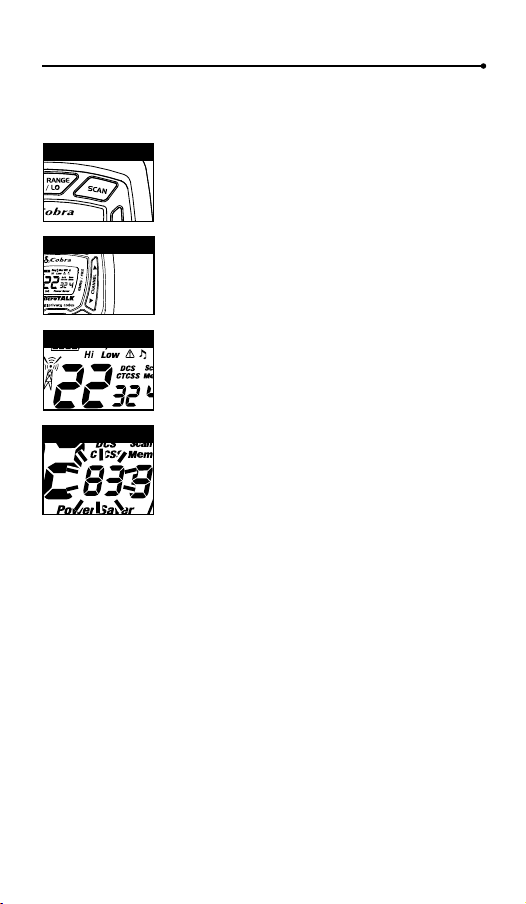
Warranty & Trademark Acknowledgment
Operation
General Specications & Licensing
10
11 12
13 14
15 16 17 18 19 20
9
Voice Activated Transmit (VOX)
In VOX mode, your microTALK
®
radio can be used “hands-free,” automatically
transmitting when you speak. You can set the VOX sensitivity level to t the
volume of your voice and avoid transmissions triggered by background noise.
To turn VOX mode on or off:
1. Press the Mode/Power button until the VOX
icon ashes on the display. The current On or Off
setting is displayed.
2. Press the Channel Up or Channel Down
button to turn VOX On or Off.
3. Choose one of the following:
a. Press the Mode/Power button to enter the
new setting and proceed to other functions.
b. Press the Talk or Call/Lock button to return to
Standby mode.
To set VOX sensitivity:
1. Press the Mode/Power button until the VOX icon
ashes and the current sensitivity level is displayed.
2. Press the Channel Up or Channel Down
button to change the setting.
3. Choose one of the following:
a. Press the Mode/Power button to enter the
new setting and proceed to other functions.
b. Press the Talk or Call/Lock button to return to
Standby mode.
c. Do not press any buttons for 6 seconds to
return to Standby mode.
The current VOX sensitivity level is
displayed with letters “L” and a Number 1
through 5, with Number 5 being the most
sensitive level and Number 1 being the
least sensitive level.
The radio ignores specic privacy
codes while scanning channels.
General Specications
FRS/GMRS Frequency Allocation and Compatibility
Important: Please note that Cobra GMRS models with 15 Channels
may designate different channel numbers for the same frequency.
For example, a Cobra 15 Channel GMRS model would need to be
tuned to Channel 11 in order to communicate with a 22 Channel
GMRS tuned to Channel 15. Please refer to the chart below for
channel/ frequency number compatibility.
A = Channel No. for 22 Channel FRS/GMRS Models
B = Channel No. for 15 Channel GMRS Models
C = Type of Radio Service
D = Frequency in MHz
E = Power Output
A B C D E
1 1 FRS/GMRS 462.5625 High
2 2 FRS/GMRS 462.5875 High
3 3 FRS/GMRS 462.6125 High
4 4 FRS/GMRS 462.6375 High
5 5 FRS/GMRS 462.6625 High
6 6 FRS/GMRS 462.6875 High
7 7 FRS/GMRS 462.7125 High
8 FRS 467.5625 Low
9 FRS 467.5875 Low
10 FRS 467.6125 Low
11 FRS 467.6375 Low
12 FRS 467.6625 Low
13 FRS 467.6875 Low
14 FRS 467.7125 Low
15 11 GMRS 462.5500 High
16 8 GMRS 462.5750 High
17 12 GMRS 462.6000 High
18 9 GMRS 462.6250 High
19 13 GMRS 462.6500 High
20 10 GMRS 462.6750 High
21 14 GMRS 462.7000 High
22 15 GMRS 462.7250 High
IMPORTANT NOTICE: FCC LICENSE REQUIRED
This two-way radio operates on GMRS (General Mobile Radio Service) frequencies which require an FCC (Federal
Communications Commission) license. A user must be licensed prior to operating on Channels 1 through 7 on
high power or 15 through 22, which comprise the GMRS channels of this radio. Serious penalties could result for
unlicensed use of GMRS channels, in violation of FCC rules. Operation of this radio is subject to additional rules
specied in 47 C.F.R. Part 95.
Licensed users will be issued a call sign by the FCC, which should be used for station identication when
operating this radio. GMRS users should also cooperate by engaging in permissible transmissions only, avoiding
channel interference with other GMRS users, and being prudent with the length of their transmission time.
For licensing information and application forms, please call the FCC Hotline at 800-418-FORM. Request form
#159 and form #605. Questions regarding the license application should be directed to the FCC at
888-CALL-FCC. Additional information is available on the FCC’s website at www.fcc.gov.
Channel 1 through 7 on low power and channels 8 through 14 comprise the FRS (Family Radio Service). No
license is required to operate on the FRS.
WARNING: Changes or modications to this unit not expressly approved by the party responsible for compliance
could void the user’s authority to operate the equipment.”
NOTE: This equipment has been tested and found to comply with the limits for a Class B digital device, pursuant
to Part 15 of the FCC Rules. These limits are designed to provide reasonable protection against harmful
interference in a residential installation. This equipment generates, uses and can radiate radio frequency energy
and, if not installed and used in accordance with the instructions, may cause harmful interference to radio
communications.
However, there is no guarantee that interference will not occur in a particular installation. If this equipment does
cause harmful interference to radio or television reception, which can be determined by turning the equipment
off and on, the user is encouraged to try to correct the interference by one or more of the following measures:
• Reorient or relocate the receiving antenna.
• Increase the separation between the equipment and receiver.
• Connect the equipment into an outlet on a circuit different from that to which the
receiver is connected.
• Consult the dealer or an experienced radio/TV technician for help.
Safety Information for microTALK Radios
Your wireless handheld portable transceiver contains a low power transmitter. When the talk button is pushed, it
sends out radio frequency (RF) signals. The device is authorized to operate at a duty factor not to exceed 50%. In
August 1996, the Federal Communications Commissions (FCC) adopted RF exposure guidelines with safety
levels for handheld wireless devices.
Important
FCC RF Exposure Requirements: For body-worn operation, this radio has been tested and meets the FCC RF
exposure guidelines when used with Cobra accessories supplied or designated for this product. Use of other
accessories may not ensure compliance with FCC RF exposure guidelines. Use only the supplied antenna.
Unauthorized antennas, modications or attachments could damage the transmitter and may violate FCC
regulations.
Normal Position
Hold the transmitter approximately 2 inches from your face and speak in a normal voice, with the antenna
pointed up and away.
MODEL ACXT545:
This device complies with part 15 of the FCC Rules. Operation is subject to the following two
conditions: 1) This device may not cause harmful interference, and 2) this device must accept
any interference received,including interference that may cause undesired operation.
FCC Warnings: Replacement or substitution of transistors, regular diodes or other parts of a
unique nature, with parts other than those recommended by Cobra may cause a violation of
the technical regulations of part 95 of the FCC rules, or violation of type acceptance
requirements of part 2 of the rules.
Limited One-Year Warranty
Altis Global Limited warrants that this product and the component parts thereof, will be
free from defects in workmanship and materials for a period of one year from the date of
rst consumer purchase. This warranty may be enforced by the rst consumer
purchaser, and is not transferable. If the product is under warranty, it will be repaired or
exchanged depending on the model at Altis’ sole discretion. Such remedy may be your
sole and exclusive remedy for any breach of warranty.
The procedure for obtaining service and support, and the applicability of this warranty,
will vary depending on the country or jurisdiction in which you purchase and utilize the
product. For details on obtaining product service, support and warranty please visit
www.cobrawalkietalkie.com.
Provided that the product is utilized in the U.S.A., Altis will, without charge, repair or
replace, at its option, defective products, products or component parts upon delivery to
the authorized Altis Global Limited Authorized Service Center, accompanied by proof of
the date of rst customer purchase, such as a duplicated copy of a sales receipt.
You must pay any initial shipping charges required to ship the product for warranty
service, but the return charges, to an address in the U.S.A., will be at Altis’ expense, if
the product is under warranty.
This warranty gives you specic legal rights, and you may also have other rights which
vary from state to state and country to country.
Exclusions: This limited warranty does not apply: 1) To any product damaged by
accident; 2) In the event of misuse, ordinary wear, failure to follow directions, or
improper maintenance of the product or as a result of unauthorized alterations or repairs;
3) If the serial number has been altered, defaced, or removed; 4) If the product was
purchased or is utilized in a jurisdiction not covered by the limited warranty.
All implied warranties, including warranties of merchantability and tness for a particular
purpose are limited in duration to the length of this warranty. Altis shall not be liable for
any inconsequential or other damages, including without limitation, damages resulting
from the loss of use or cost of installation.
Some states and countries do not allow limitations on how long an implied warranty lasts
and do not allow the exclusion or limitation of incidental or consequential damages, so
the above limitations may not apply to you. This warranty gives you specic legal rights,
and you may also have other rights which vary from state to state and country to country.
Trademark Acknowledgment
Manufactured, distributed, or sold by Altis Global Limited, ofcial licensee for this
product. Cobra
®
, microTalk
®
, Nothing Comes Close to a Cobra
®
, and the snake design
are registered trademarks of Cobra Electronics Corporation, USA. Cobra Electronics
Corporation™ is a trademark of Cobra Electronics Corporation, USA. All other product or
service names are the property of their respective owners.
©2016 Altis Global Limited, Berkeley Lake, GA, USA. All rights reserved.
For Products Purchased Outside the U.S.A.
Please contact your local dealer for warranty information.
90-Day Warranty on Rechargeable Batteries
For products purchased in the U.S.A. and Canada.
Mode/Power
MEM/ESC Button
MEM/ESC Button
MEM/ESC Button
Mode/Power
Mode/Power
Mode/Power
Scan Button
Mode/Power
Channel Button
Channel Button
Channel Button
Channel Button
Channel Button
Scan Button
Channel Button
Weather Button
Channel Button
Channel Button
Channel Button
Channel Button
Channel Button
Channel Button
VOX Icon
VOX Sensitivity Level
Memory Channel
Memory Channel
10 Memory Location
Your microTALK
®
radio has 10 Memory Locations for storing your most
frequently used channels and channel/privacy code combinations.
These Memory Locations can be selected individually or can be scanned.
(See page 18 for memory location scan.)
To program a memory location:
1. Press the MEM/ESC button. Memory icon and
the Memory Location show on the display.
2. Press the Channel Up or Channel Down button
to select the memory location (0 through 9).
3. Press the MEM/ESC button to enter a new
memory location or edit an already programmed
memory location.
4. Press the Channel Up or Channel Down button
to select the memory location.
5. Press the MEM/ESC button. The channel
numbers will ash on the display.
6. Press the Channel Up or Channel Down button
to select a channel (1 through 22).
7. Press the MEM/ESC button. The CTCSS icon and
privacy code numbers will ash on the display.
8. Choose one of the following:
a. Press the Channel Up or Channel Down
button to select a CTCSS privacy code (00
through 38) for the channel.
b. Press the MEM/ESC button to switch from
CTCSS to DCS. The DCS icon and privacy code
numbers will ash on the display. The Channel
Up or Channel Down button can then be used
to select a DCS privacy code (00 through 83)
for the channel.
9. Choose one of the following:
a. Press the MEM/ESC button to enter the channel/privacy code in the
selected memory location. Radio then proceeds to next memory
location, which will blink.
b. Press and hold the MEM/ESC button to save the current state of the
Set Memory Function and press the MEM/ESC button again return
to Standby mode.
To recall a stored memory channel location:
1. Press the MEM/ESC button until the Memory icon
and the memory location number ash on the
display.
2. Press the Channel Up or Channel Down button to
select a memory location (0 through 9).
3. Press and hold the MEM/ESC button to return to
Standby mode on the selected memory location.
If a location has been programmed before,
its associated channel/privacy code will be
shown on the display.
If “oF” ashes in place of the privacy code numbers, a privacy
code is already set in the opposite (CTCSS or DCS) system.
Press the Channel Up or Channel Down button to cancel the
opposite code and select a privacy code from the active
system for the selected channel.
If a location has been programmed before,
its associated channel/privacy code will
be shown on the display.
A memory location can be reprogrammed
at any time it is displayed. Press the
MEM/ESC button to begin.
Operation
Mode Functions (continued)
Call Tone Setting
Call Tone On/
Vibrate On
Call Tone On/
Vibrate Off
Roger Beep Off
Ten Call Tone Settings
You can choose between ten different Call Tone Settings to transmit
a call alert.
To change a call tone setting:
1. Press the Mode/Power button until the letter “C”
and the current call tone number (01 through 10)
is displayed. The current call tone will sound for
three seconds.
2. Press the Channel Up or Channel Down button to
hear the other call tone settings.
3. Choose one of the following:
a. Press the Mode/Power button to enter the new
setting and proceed to other functions.
b. Press Talk or Call/Lock button to return to
Standby mode.
c. Do not press any buttons for 6 seconds to
return to Standby mode.
VibrAlert
®
and Call Alert
Your MicroTALK
®
radio can alert you to incoming signals by sounding an
audible call tone or an audible tone with VibrAlert
®
.
To change call settings:
1. Press the Mode button until the Call Setting icon
ashes on the display. The current setting (“01”
vibrate + ring, “02” ring only) is displayed.
2. Press the Channel Up or Channel Down button to
change the call setting.
3. Choose one of the following:
a. Press the Mode button to enter the new setting
and proceed to other functions.
b. Press Talk or Call/Lock button to return to
Standby mode.
c. Do not press any buttons for 6 seconds to
return to Standby mode.
Roger Beep Conrmation Tone
Your listener will hear an audible tone when you release the Talk button.
This alerts the other party that you are nished talking and it is OK for
them to speak.
To turn roger beep on or off:
1. Press the Mode/Power button until the
Roger Beep icon ashes. The current
on or off setting is displayed.
2. Press the Channel Up or Channel Down button to
select roger beep on or off.
3. Choose one of the following:
a. Press the Mode/Power button to enter the new
setting and proceed to other functions.
b. Press Talk or Call/Lock button to return to
Standby mode.
c. Do not press any buttons for 6 seconds to
return to Standby mode.
Key Tone On/Off
When Key Tone is On, an audible tone will sound each time a button is
pressed.
To turn key tone on or off:
1. Current key tone status On/Off will ash.
2. Press the Channel Up or Channel Down button to
select key tone on or off.
3. Choose one of the following:
a. Press the Mode/Power button to enter the
Standby mode.
b. Press Talk or Call/Lock button to return to
Standby mode.
c. Do not press any buttons for 6 seconds to
return to Standby mode.
Channel Scan
Your microTALK
®
radio can automatically scan channels.
To scan channels:
1. Press and release the Scan button until the Scan
icon and the channel numbers appear
on the display.
2. Press and hold the Scan button to begin scanning
channels.
The Scan icon will continue to be displayed when
scan is on. Your radio will continue to scan all
channels and stop if an incoming transmission is
detected. Your radio will remain on that channel for
2 seconds.
During scanning (while receiving an incoming transmission),
you can choose from the following:
a. Press and hold the Talk button to communicate on that channel.
Your radio will remain on that channel and return to Standby mode.
b. Press the Channel Up or Channel Down button to resume
scanning channels.
c. Press and hold the Scan button to return to Standby.
Privacy Code Scan
Your microTALK
®
radio can automatically scan the Privacy Codes (either
CTCSS 01 through 38 or DCS 01 through 83) within one channel. Only
one set of privacy codes (CTCSS or DCS) can be scanned at a time.
To scan privacy codes:
1. While in Standby mode, press and release the
Scan button twice (CTCSS) or three times
(DCS)until the CTCSS or DCS icon and numbers
are ashing.
2. Press and hold the Scan button to begin scanning
privacy codes within the selected channel.
The Scan icon will continue to be displayed when
privacy code scan is on. Your radio will continue to
scan privacy codes and stop as an incoming
transmission is detected. Your radio will remain on
that channel/privacy code for 6 seconds.
NOAA* All Hazards Radio Channels
You can use your microTALK
®
radio to listen to NOAA All Hazards Radio
channels transmitting in your area.
To listen to All Hazards Radio channels:
1. Press the Weather button once until the
All Hazards Radio icon and the currently
selected All Hazards Radio channel are displayed.
2. Use the Channel Up or Channel Down
button to change All Hazards Radio channels.
3. The All Hazards Radio icon will continue to
be displayed when All Hazards Radio is on.
4. To exit All Hazards Radio, press and hold the
Weather button until On or Off is displayed.
*National Oceanographic and Atmospheric Administration
Select Channel
Scan Privacy Codes
Scan Channels
Hazards Radio Icon
Weather (WX) Alert Mode
Turning On the Weather Alert function will allow your radio to
automatically receive NOAA weather signals and warnings from
designated weather broadcast stations. If the radio is turned ON, it will
alert to Weather and other emergency alerts broadcast by NOAA.
To turn Weather Alert On or Off:
1. Press the Weather button twice until the
Weather Alert icon ashes on the display.
The current On or Off setting is displayed.
2. Press the Channel Up and Channel Down button
to turn Weather Alert On or Off.
3. Press and hold the Weather button again to save
the new setting and exit the Weather Alert Mode
and return to Standby mode.
Weather Button
Channel Button
This feature is set to OFF by default.
Make sure the strongest Weather
channel is selected for your area
using the NOAA All Hazards Radio
Channels selection in the
previous menu.
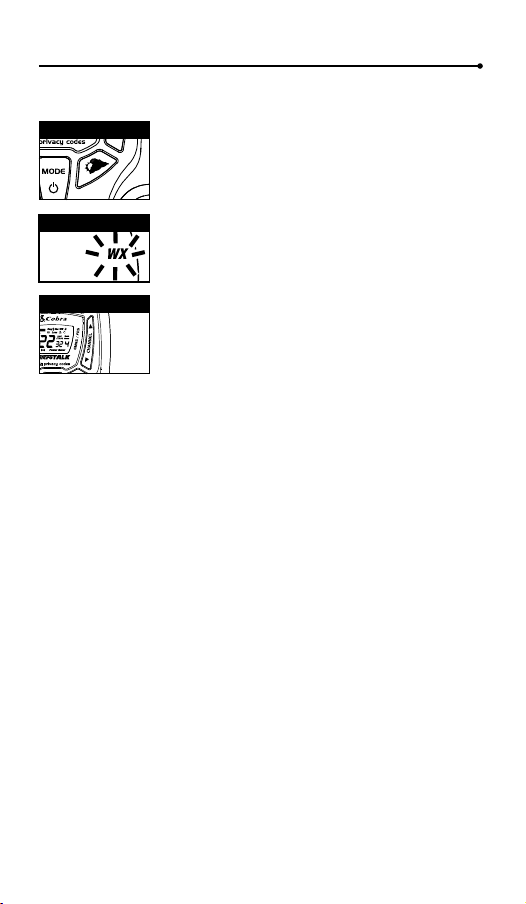
Warranty & Trademark Acknowledgment
Operation
General Specications & Licensing
10
11 12
13 14
15 16 17 18 19 20
9
Voice Activated Transmit (VOX)
In VOX mode, your microTALK
®
radio can be used “hands-free,” automatically
transmitting when you speak. You can set the VOX sensitivity level to t the
volume of your voice and avoid transmissions triggered by background noise.
To turn VOX mode on or off:
1. Press the Mode/Power button until the VOX
icon ashes on the display. The current On or Off
setting is displayed.
2. Press the Channel Up or Channel Down
button to turn VOX On or Off.
3. Choose one of the following:
a. Press the Mode/Power button to enter the
new setting and proceed to other functions.
b. Press the Talk or Call/Lock button to return to
Standby mode.
To set VOX sensitivity:
1. Press the Mode/Power button until the VOX icon
ashes and the current sensitivity level is displayed.
2. Press the Channel Up or Channel Down
button to change the setting.
3. Choose one of the following:
a. Press the Mode/Power button to enter the
new setting and proceed to other functions.
b. Press the Talk or Call/Lock button to return to
Standby mode.
c. Do not press any buttons for 6 seconds to
return to Standby mode.
The current VOX sensitivity level is
displayed with letters “L” and a Number 1
through 5, with Number 5 being the most
sensitive level and Number 1 being the
least sensitive level.
The radio ignores specic privacy
codes while scanning channels.
General Specications
FRS/GMRS Frequency Allocation and Compatibility
Important: Please note that Cobra GMRS models with 15 Channels
may designate different channel numbers for the same frequency.
For example, a Cobra 15 Channel GMRS model would need to be
tuned to Channel 11 in order to communicate with a 22 Channel
GMRS tuned to Channel 15. Please refer to the chart below for
channel/ frequency number compatibility.
A = Channel No. for 22 Channel FRS/GMRS Models
B = Channel No. for 15 Channel GMRS Models
C = Type of Radio Service
D = Frequency in MHz
E = Power Output
A B C D E
1 1 FRS/GMRS 462.5625 High
2 2 FRS/GMRS 462.5875 High
3 3 FRS/GMRS 462.6125 High
4 4 FRS/GMRS 462.6375 High
5 5 FRS/GMRS 462.6625 High
6 6 FRS/GMRS 462.6875 High
7 7 FRS/GMRS 462.7125 High
8 FRS 467.5625 Low
9 FRS 467.5875 Low
10 FRS 467.6125 Low
11 FRS 467.6375 Low
12 FRS 467.6625 Low
13 FRS 467.6875 Low
14 FRS 467.7125 Low
15 11 GMRS 462.5500 High
16 8 GMRS 462.5750 High
17 12 GMRS 462.6000 High
18 9 GMRS 462.6250 High
19 13 GMRS 462.6500 High
20 10 GMRS 462.6750 High
21 14 GMRS 462.7000 High
22 15 GMRS 462.7250 High
IMPORTANT NOTICE: FCC LICENSE REQUIRED
This two-way radio operates on GMRS (General Mobile Radio Service) frequencies which require an FCC (Federal
Communications Commission) license. A user must be licensed prior to operating on Channels 1 through 7 on
high power or 15 through 22, which comprise the GMRS channels of this radio. Serious penalties could result for
unlicensed use of GMRS channels, in violation of FCC rules. Operation of this radio is subject to additional rules
specied in 47 C.F.R. Part 95.
Licensed users will be issued a call sign by the FCC, which should be used for station identication when
operating this radio. GMRS users should also cooperate by engaging in permissible transmissions only, avoiding
channel interference with other GMRS users, and being prudent with the length of their transmission time.
For licensing information and application forms, please call the FCC Hotline at 800-418-FORM. Request form
#159 and form #605. Questions regarding the license application should be directed to the FCC at
888-CALL-FCC. Additional information is available on the FCC’s website at www.fcc.gov.
Channel 1 through 7 on low power and channels 8 through 14 comprise the FRS (Family Radio Service). No
license is required to operate on the FRS.
WARNING: Changes or modications to this unit not expressly approved by the party responsible for compliance
could void the user’s authority to operate the equipment.”
NOTE: This equipment has been tested and found to comply with the limits for a Class B digital device, pursuant
to Part 15 of the FCC Rules. These limits are designed to provide reasonable protection against harmful
interference in a residential installation. This equipment generates, uses and can radiate radio frequency energy
and, if not installed and used in accordance with the instructions, may cause harmful interference to radio
communications.
However, there is no guarantee that interference will not occur in a particular installation. If this equipment does
cause harmful interference to radio or television reception, which can be determined by turning the equipment
off and on, the user is encouraged to try to correct the interference by one or more of the following measures:
• Reorient or relocate the receiving antenna.
• Increase the separation between the equipment and receiver.
• Connect the equipment into an outlet on a circuit different from that to which the
receiver is connected.
• Consult the dealer or an experienced radio/TV technician for help.
Safety Information for microTALK Radios
Your wireless handheld portable transceiver contains a low power transmitter. When the talk button is pushed, it
sends out radio frequency (RF) signals. The device is authorized to operate at a duty factor not to exceed 50%. In
August 1996, the Federal Communications Commissions (FCC) adopted RF exposure guidelines with safety
levels for handheld wireless devices.
Important
FCC RF Exposure Requirements: For body-worn operation, this radio has been tested and meets the FCC RF
exposure guidelines when used with Cobra accessories supplied or designated for this product. Use of other
accessories may not ensure compliance with FCC RF exposure guidelines. Use only the supplied antenna.
Unauthorized antennas, modications or attachments could damage the transmitter and may violate FCC
regulations.
Normal Position
Hold the transmitter approximately 2 inches from your face and speak in a normal voice, with the antenna
pointed up and away.
MODEL ACXT545:
This device complies with part 15 of the FCC Rules. Operation is subject to the following two
conditions: 1) This device may not cause harmful interference, and 2) this device must accept
any interference received,including interference that may cause undesired operation.
FCC Warnings: Replacement or substitution of transistors, regular diodes or other parts of a
unique nature, with parts other than those recommended by Cobra may cause a violation of
the technical regulations of part 95 of the FCC rules, or violation of type acceptance
requirements of part 2 of the rules.
Limited One-Year Warranty
Altis Global Limited warrants that this product and the component parts thereof, will be
free from defects in workmanship and materials for a period of one year from the date of
rst consumer purchase. This warranty may be enforced by the rst consumer
purchaser, and is not transferable. If the product is under warranty, it will be repaired or
exchanged depending on the model at Altis’ sole discretion. Such remedy may be your
sole and exclusive remedy for any breach of warranty.
The procedure for obtaining service and support, and the applicability of this warranty,
will vary depending on the country or jurisdiction in which you purchase and utilize the
product. For details on obtaining product service, support and warranty please visit
www.cobrawalkietalkie.com.
Provided that the product is utilized in the U.S.A., Altis will, without charge, repair or
replace, at its option, defective products, products or component parts upon delivery to
the authorized Altis Global Limited Authorized Service Center, accompanied by proof of
the date of rst customer purchase, such as a duplicated copy of a sales receipt.
You must pay any initial shipping charges required to ship the product for warranty
service, but the return charges, to an address in the U.S.A., will be at Altis’ expense, if
the product is under warranty.
This warranty gives you specic legal rights, and you may also have other rights which
vary from state to state and country to country.
Exclusions: This limited warranty does not apply: 1) To any product damaged by
accident; 2) In the event of misuse, ordinary wear, failure to follow directions, or
improper maintenance of the product or as a result of unauthorized alterations or repairs;
3) If the serial number has been altered, defaced, or removed; 4) If the product was
purchased or is utilized in a jurisdiction not covered by the limited warranty.
All implied warranties, including warranties of merchantability and tness for a particular
purpose are limited in duration to the length of this warranty. Altis shall not be liable for
any inconsequential or other damages, including without limitation, damages resulting
from the loss of use or cost of installation.
Some states and countries do not allow limitations on how long an implied warranty lasts
and do not allow the exclusion or limitation of incidental or consequential damages, so
the above limitations may not apply to you. This warranty gives you specic legal rights,
and you may also have other rights which vary from state to state and country to country.
Trademark Acknowledgment
Manufactured, distributed, or sold by Altis Global Limited, ofcial licensee for this
product. Cobra
®
, microTalk
®
, Nothing Comes Close to a Cobra
®
, and the snake design
are registered trademarks of Cobra Electronics Corporation, USA. Cobra Electronics
Corporation™ is a trademark of Cobra Electronics Corporation, USA. All other product or
service names are the property of their respective owners.
©2016 Altis Global Limited, Berkeley Lake, GA, USA. All rights reserved.
For Products Purchased Outside the U.S.A.
Please contact your local dealer for warranty information.
90-Day Warranty on Rechargeable Batteries
For products purchased in the U.S.A. and Canada.
Mode/Power
MEM/ESC Button
MEM/ESC Button
MEM/ESC Button
Mode/Power
Mode/Power
Mode/Power
Scan Button
Mode/Power
Channel Button
Channel Button
Channel Button
Channel Button
Channel Button
Scan Button
Channel Button
Weather Button
Channel Button
Channel Button
Channel Button
Channel Button
Channel Button
Channel Button
VOX Icon
VOX Sensitivity Level
Memory Channel
Memory Channel
10 Memory Location
Your microTALK
®
radio has 10 Memory Locations for storing your most
frequently used channels and channel/privacy code combinations.
These Memory Locations can be selected individually or can be scanned.
(See page 18 for memory location scan.)
To program a memory location:
1. Press the MEM/ESC button. Memory icon and
the Memory Location show on the display.
2. Press the Channel Up or Channel Down button
to select the memory location (0 through 9).
3. Press the MEM/ESC button to enter a new
memory location or edit an already programmed
memory location.
4. Press the Channel Up or Channel Down button
to select the memory location.
5. Press the MEM/ESC button. The channel
numbers will ash on the display.
6. Press the Channel Up or Channel Down button
to select a channel (1 through 22).
7. Press the MEM/ESC button. The CTCSS icon and
privacy code numbers will ash on the display.
8. Choose one of the following:
a. Press the Channel Up or Channel Down
button to select a CTCSS privacy code (00
through 38) for the channel.
b. Press the MEM/ESC button to switch from
CTCSS to DCS. The DCS icon and privacy code
numbers will ash on the display. The Channel
Up or Channel Down button can then be used
to select a DCS privacy code (00 through 83)
for the channel.
9. Choose one of the following:
a. Press the MEM/ESC button to enter the channel/privacy code in the
selected memory location. Radio then proceeds to next memory
location, which will blink.
b. Press and hold the MEM/ESC button to save the current state of the
Set Memory Function and press the MEM/ESC button again return
to Standby mode.
To recall a stored memory channel location:
1. Press the MEM/ESC button until the Memory icon
and the memory location number ash on the
display.
2. Press the Channel Up or Channel Down button to
select a memory location (0 through 9).
3. Press and hold the MEM/ESC button to return to
Standby mode on the selected memory location.
If a location has been programmed before,
its associated channel/privacy code will be
shown on the display.
If “oF” ashes in place of the privacy code numbers, a privacy
code is already set in the opposite (CTCSS or DCS) system.
Press the Channel Up or Channel Down button to cancel the
opposite code and select a privacy code from the active
system for the selected channel.
If a location has been programmed before,
its associated channel/privacy code will
be shown on the display.
A memory location can be reprogrammed
at any time it is displayed. Press the
MEM/ESC button to begin.
Operation
Mode Functions (continued)
Call Tone Setting
Call Tone On/
Vibrate On
Call Tone On/
Vibrate Off
Roger Beep Off
Ten Call Tone Settings
You can choose between ten different Call Tone Settings to transmit
a call alert.
To change a call tone setting:
1. Press the Mode/Power button until the letter “C”
and the current call tone number (01 through 10)
is displayed. The current call tone will sound for
three seconds.
2. Press the Channel Up or Channel Down button to
hear the other call tone settings.
3. Choose one of the following:
a. Press the Mode/Power button to enter the new
setting and proceed to other functions.
b. Press Talk or Call/Lock button to return to
Standby mode.
c. Do not press any buttons for 6 seconds to
return to Standby mode.
VibrAlert
®
and Call Alert
Your MicroTALK
®
radio can alert you to incoming signals by sounding an
audible call tone or an audible tone with VibrAlert
®
.
To change call settings:
1. Press the Mode button until the Call Setting icon
ashes on the display. The current setting (“01”
vibrate + ring, “02” ring only) is displayed.
2. Press the Channel Up or Channel Down button to
change the call setting.
3. Choose one of the following:
a. Press the Mode button to enter the new setting
and proceed to other functions.
b. Press Talk or Call/Lock button to return to
Standby mode.
c. Do not press any buttons for 6 seconds to
return to Standby mode.
Roger Beep Conrmation Tone
Your listener will hear an audible tone when you release the Talk button.
This alerts the other party that you are nished talking and it is OK for
them to speak.
To turn roger beep on or off:
1. Press the Mode/Power button until the
Roger Beep icon ashes. The current
on or off setting is displayed.
2. Press the Channel Up or Channel Down button to
select roger beep on or off.
3. Choose one of the following:
a. Press the Mode/Power button to enter the new
setting and proceed to other functions.
b. Press Talk or Call/Lock button to return to
Standby mode.
c. Do not press any buttons for 6 seconds to
return to Standby mode.
Key Tone On/Off
When Key Tone is On, an audible tone will sound each time a button is
pressed.
To turn key tone on or off:
1. Current key tone status On/Off will ash.
2. Press the Channel Up or Channel Down button to
select key tone on or off.
3. Choose one of the following:
a. Press the Mode/Power button to enter the
Standby mode.
b. Press Talk or Call/Lock button to return to
Standby mode.
c. Do not press any buttons for 6 seconds to
return to Standby mode.
Channel Scan
Your microTALK
®
radio can automatically scan channels.
To scan channels:
1. Press and release the Scan button until the Scan
icon and the channel numbers appear
on the display.
2. Press and hold the Scan button to begin scanning
channels.
The Scan icon will continue to be displayed when
scan is on. Your radio will continue to scan all
channels and stop if an incoming transmission is
detected. Your radio will remain on that channel for
2 seconds.
During scanning (while receiving an incoming transmission),
you can choose from the following:
a. Press and hold the Talk button to communicate on that channel.
Your radio will remain on that channel and return to Standby mode.
b. Press the Channel Up or Channel Down button to resume
scanning channels.
c. Press and hold the Scan button to return to Standby.
Privacy Code Scan
Your microTALK
®
radio can automatically scan the Privacy Codes (either
CTCSS 01 through 38 or DCS 01 through 83) within one channel. Only
one set of privacy codes (CTCSS or DCS) can be scanned at a time.
To scan privacy codes:
1. While in Standby mode, press and release the
Scan button twice (CTCSS) or three times
(DCS)until the CTCSS or DCS icon and numbers
are ashing.
2. Press and hold the Scan button to begin scanning
privacy codes within the selected channel.
The Scan icon will continue to be displayed when
privacy code scan is on. Your radio will continue to
scan privacy codes and stop as an incoming
transmission is detected. Your radio will remain on
that channel/privacy code for 6 seconds.
NOAA* All Hazards Radio Channels
You can use your microTALK
®
radio to listen to NOAA All Hazards Radio
channels transmitting in your area.
To listen to All Hazards Radio channels:
1. Press the Weather button once until the
All Hazards Radio icon and the currently
selected All Hazards Radio channel are displayed.
2. Use the Channel Up or Channel Down
button to change All Hazards Radio channels.
3. The All Hazards Radio icon will continue to
be displayed when All Hazards Radio is on.
4. To exit All Hazards Radio, press and hold the
Weather button until On or Off is displayed.
*National Oceanographic and Atmospheric Administration
Select Channel
Scan Privacy Codes
Scan Channels
Hazards Radio Icon
Weather (WX) Alert Mode
Turning On the Weather Alert function will allow your radio to
automatically receive NOAA weather signals and warnings from
designated weather broadcast stations. If the radio is turned ON, it will
alert to Weather and other emergency alerts broadcast by NOAA.
To turn Weather Alert On or Off:
1. Press the Weather button twice until the
Weather Alert icon ashes on the display.
The current On or Off setting is displayed.
2. Press the Channel Up and Channel Down button
to turn Weather Alert On or Off.
3. Press and hold the Weather button again to save
the new setting and exit the Weather Alert Mode
and return to Standby mode.
Weather Button
Channel Button
This feature is set to OFF by default.
Make sure the strongest Weather
channel is selected for your area
using the NOAA All Hazards Radio
Channels selection in the
previous menu.
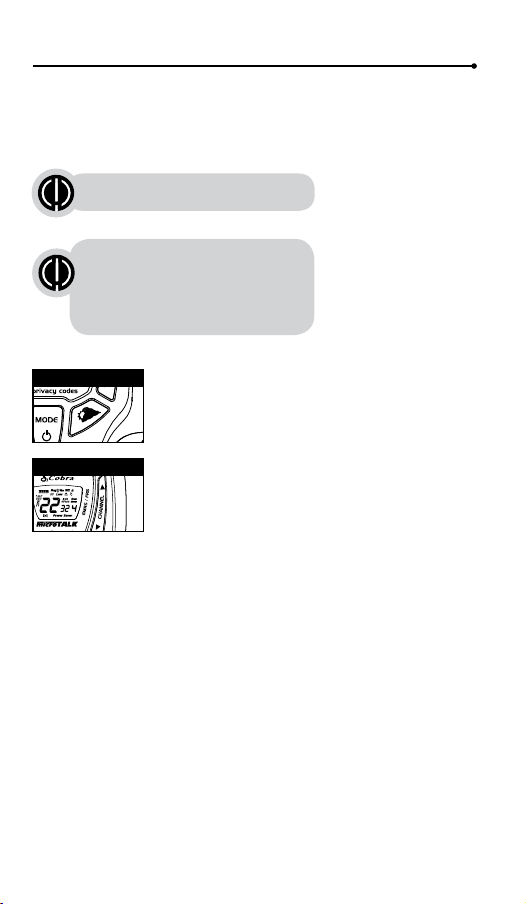
Warranty & Trademark Acknowledgment
Operation
General Specications & Licensing
10
11 12
13 14
15 16 17 18 19 20
9
Voice Activated Transmit (VOX)
In VOX mode, your microTALK
®
radio can be used “hands-free,” automatically
transmitting when you speak. You can set the VOX sensitivity level to t the
volume of your voice and avoid transmissions triggered by background noise.
To turn VOX mode on or off:
1. Press the Mode/Power button until the VOX
icon ashes on the display. The current On or Off
setting is displayed.
2. Press the Channel Up or Channel Down
button to turn VOX On or Off.
3. Choose one of the following:
a. Press the Mode/Power button to enter the
new setting and proceed to other functions.
b. Press the Talk or Call/Lock button to return to
Standby mode.
To set VOX sensitivity:
1. Press the Mode/Power button until the VOX icon
ashes and the current sensitivity level is displayed.
2. Press the Channel Up or Channel Down
button to change the setting.
3. Choose one of the following:
a. Press the Mode/Power button to enter the
new setting and proceed to other functions.
b. Press the Talk or Call/Lock button to return to
Standby mode.
c. Do not press any buttons for 6 seconds to
return to Standby mode.
The current VOX sensitivity level is
displayed with letters “L” and a Number 1
through 5, with Number 5 being the most
sensitive level and Number 1 being the
least sensitive level.
The radio ignores specic privacy
codes while scanning channels.
General Specications
FRS/GMRS Frequency Allocation and Compatibility
Important: Please note that Cobra GMRS models with 15 Channels
may designate different channel numbers for the same frequency.
For example, a Cobra 15 Channel GMRS model would need to be
tuned to Channel 11 in order to communicate with a 22 Channel
GMRS tuned to Channel 15. Please refer to the chart below for
channel/ frequency number compatibility.
A = Channel No. for 22 Channel FRS/GMRS Models
B = Channel No. for 15 Channel GMRS Models
C = Type of Radio Service
D = Frequency in MHz
E = Power Output
A B C D E
1 1 FRS/GMRS 462.5625 High
2 2 FRS/GMRS 462.5875 High
3 3 FRS/GMRS 462.6125 High
4 4 FRS/GMRS 462.6375 High
5 5 FRS/GMRS 462.6625 High
6 6 FRS/GMRS 462.6875 High
7 7 FRS/GMRS 462.7125 High
8 FRS 467.5625 Low
9 FRS 467.5875 Low
10 FRS 467.6125 Low
11 FRS 467.6375 Low
12 FRS 467.6625 Low
13 FRS 467.6875 Low
14 FRS 467.7125 Low
15 11 GMRS 462.5500 High
16 8 GMRS 462.5750 High
17 12 GMRS 462.6000 High
18 9 GMRS 462.6250 High
19 13 GMRS 462.6500 High
20 10 GMRS 462.6750 High
21 14 GMRS 462.7000 High
22 15 GMRS 462.7250 High
IMPORTANT NOTICE: FCC LICENSE REQUIRED
This two-way radio operates on GMRS (General Mobile Radio Service) frequencies which require an FCC (Federal
Communications Commission) license. A user must be licensed prior to operating on Channels 1 through 7 on
high power or 15 through 22, which comprise the GMRS channels of this radio. Serious penalties could result for
unlicensed use of GMRS channels, in violation of FCC rules. Operation of this radio is subject to additional rules
specied in 47 C.F.R. Part 95.
Licensed users will be issued a call sign by the FCC, which should be used for station identication when
operating this radio. GMRS users should also cooperate by engaging in permissible transmissions only, avoiding
channel interference with other GMRS users, and being prudent with the length of their transmission time.
For licensing information and application forms, please call the FCC Hotline at 800-418-FORM. Request form
#159 and form #605. Questions regarding the license application should be directed to the FCC at
888-CALL-FCC. Additional information is available on the FCC’s website at www.fcc.gov.
Channel 1 through 7 on low power and channels 8 through 14 comprise the FRS (Family Radio Service). No
license is required to operate on the FRS.
WARNING: Changes or modications to this unit not expressly approved by the party responsible for compliance
could void the user’s authority to operate the equipment.”
NOTE: This equipment has been tested and found to comply with the limits for a Class B digital device, pursuant
to Part 15 of the FCC Rules. These limits are designed to provide reasonable protection against harmful
interference in a residential installation. This equipment generates, uses and can radiate radio frequency energy
and, if not installed and used in accordance with the instructions, may cause harmful interference to radio
communications.
However, there is no guarantee that interference will not occur in a particular installation. If this equipment does
cause harmful interference to radio or television reception, which can be determined by turning the equipment
off and on, the user is encouraged to try to correct the interference by one or more of the following measures:
• Reorient or relocate the receiving antenna.
• Increase the separation between the equipment and receiver.
• Connect the equipment into an outlet on a circuit different from that to which the
receiver is connected.
• Consult the dealer or an experienced radio/TV technician for help.
Safety Information for microTALK Radios
Your wireless handheld portable transceiver contains a low power transmitter. When the talk button is pushed, it
sends out radio frequency (RF) signals. The device is authorized to operate at a duty factor not to exceed 50%. In
August 1996, the Federal Communications Commissions (FCC) adopted RF exposure guidelines with safety
levels for handheld wireless devices.
Important
FCC RF Exposure Requirements: For body-worn operation, this radio has been tested and meets the FCC RF
exposure guidelines when used with Cobra accessories supplied or designated for this product. Use of other
accessories may not ensure compliance with FCC RF exposure guidelines. Use only the supplied antenna.
Unauthorized antennas, modications or attachments could damage the transmitter and may violate FCC
regulations.
Normal Position
Hold the transmitter approximately 2 inches from your face and speak in a normal voice, with the antenna
pointed up and away.
MODEL ACXT545:
This device complies with part 15 of the FCC Rules. Operation is subject to the following two
conditions: 1) This device may not cause harmful interference, and 2) this device must accept
any interference received,including interference that may cause undesired operation.
FCC Warnings: Replacement or substitution of transistors, regular diodes or other parts of a
unique nature, with parts other than those recommended by Cobra may cause a violation of
the technical regulations of part 95 of the FCC rules, or violation of type acceptance
requirements of part 2 of the rules.
Limited One-Year Warranty
Altis Global Limited warrants that this product and the component parts thereof, will be
free from defects in workmanship and materials for a period of one year from the date of
rst consumer purchase. This warranty may be enforced by the rst consumer
purchaser, and is not transferable. If the product is under warranty, it will be repaired or
exchanged depending on the model at Altis’ sole discretion. Such remedy may be your
sole and exclusive remedy for any breach of warranty.
The procedure for obtaining service and support, and the applicability of this warranty,
will vary depending on the country or jurisdiction in which you purchase and utilize the
product. For details on obtaining product service, support and warranty please visit
www.cobrawalkietalkie.com.
Provided that the product is utilized in the U.S.A., Altis will, without charge, repair or
replace, at its option, defective products, products or component parts upon delivery to
the authorized Altis Global Limited Authorized Service Center, accompanied by proof of
the date of rst customer purchase, such as a duplicated copy of a sales receipt.
You must pay any initial shipping charges required to ship the product for warranty
service, but the return charges, to an address in the U.S.A., will be at Altis’ expense, if
the product is under warranty.
This warranty gives you specic legal rights, and you may also have other rights which
vary from state to state and country to country.
Exclusions: This limited warranty does not apply: 1) To any product damaged by
accident; 2) In the event of misuse, ordinary wear, failure to follow directions, or
improper maintenance of the product or as a result of unauthorized alterations or repairs;
3) If the serial number has been altered, defaced, or removed; 4) If the product was
purchased or is utilized in a jurisdiction not covered by the limited warranty.
All implied warranties, including warranties of merchantability and tness for a particular
purpose are limited in duration to the length of this warranty. Altis shall not be liable for
any inconsequential or other damages, including without limitation, damages resulting
from the loss of use or cost of installation.
Some states and countries do not allow limitations on how long an implied warranty lasts
and do not allow the exclusion or limitation of incidental or consequential damages, so
the above limitations may not apply to you. This warranty gives you specic legal rights,
and you may also have other rights which vary from state to state and country to country.
Trademark Acknowledgment
Manufactured, distributed, or sold by Altis Global Limited, ofcial licensee for this
product. Cobra
®
, microTalk
®
, Nothing Comes Close to a Cobra
®
, and the snake design
are registered trademarks of Cobra Electronics Corporation, USA. Cobra Electronics
Corporation™ is a trademark of Cobra Electronics Corporation, USA. All other product or
service names are the property of their respective owners.
©2016 Altis Global Limited, Berkeley Lake, GA, USA. All rights reserved.
For Products Purchased Outside the U.S.A.
Please contact your local dealer for warranty information.
90-Day Warranty on Rechargeable Batteries
For products purchased in the U.S.A. and Canada.
Mode/Power
MEM/ESC Button
MEM/ESC Button
MEM/ESC Button
Mode/Power
Mode/Power
Mode/Power
Scan Button
Mode/Power
Channel Button
Channel Button
Channel Button
Channel Button
Channel Button
Scan Button
Channel Button
Weather Button
Channel Button
Channel Button
Channel Button
Channel Button
Channel Button
Channel Button
VOX Icon
VOX Sensitivity Level
Memory Channel
Memory Channel
10 Memory Location
Your microTALK
®
radio has 10 Memory Locations for storing your most
frequently used channels and channel/privacy code combinations.
These Memory Locations can be selected individually or can be scanned.
(See page 18 for memory location scan.)
To program a memory location:
1. Press the MEM/ESC button. Memory icon and
the Memory Location show on the display.
2. Press the Channel Up or Channel Down button
to select the memory location (0 through 9).
3. Press the MEM/ESC button to enter a new
memory location or edit an already programmed
memory location.
4. Press the Channel Up or Channel Down button
to select the memory location.
5. Press the MEM/ESC button. The channel
numbers will ash on the display.
6. Press the Channel Up or Channel Down button
to select a channel (1 through 22).
7. Press the MEM/ESC button. The CTCSS icon and
privacy code numbers will ash on the display.
8. Choose one of the following:
a. Press the Channel Up or Channel Down
button to select a CTCSS privacy code (00
through 38) for the channel.
b. Press the MEM/ESC button to switch from
CTCSS to DCS. The DCS icon and privacy code
numbers will ash on the display. The Channel
Up or Channel Down button can then be used
to select a DCS privacy code (00 through 83)
for the channel.
9. Choose one of the following:
a. Press the MEM/ESC button to enter the channel/privacy code in the
selected memory location. Radio then proceeds to next memory
location, which will blink.
b. Press and hold the MEM/ESC button to save the current state of the
Set Memory Function and press the MEM/ESC button again return
to Standby mode.
To recall a stored memory channel location:
1. Press the MEM/ESC button until the Memory icon
and the memory location number ash on the
display.
2. Press the Channel Up or Channel Down button to
select a memory location (0 through 9).
3. Press and hold the MEM/ESC button to return to
Standby mode on the selected memory location.
If a location has been programmed before,
its associated channel/privacy code will be
shown on the display.
If “oF” ashes in place of the privacy code numbers, a privacy
code is already set in the opposite (CTCSS or DCS) system.
Press the Channel Up or Channel Down button to cancel the
opposite code and select a privacy code from the active
system for the selected channel.
If a location has been programmed before,
its associated channel/privacy code will
be shown on the display.
A memory location can be reprogrammed
at any time it is displayed. Press the
MEM/ESC button to begin.
Operation
Mode Functions (continued)
Call Tone Setting
Call Tone On/
Vibrate On
Call Tone On/
Vibrate Off
Roger Beep Off
Ten Call Tone Settings
You can choose between ten different Call Tone Settings to transmit
a call alert.
To change a call tone setting:
1. Press the Mode/Power button until the letter “C”
and the current call tone number (01 through 10)
is displayed. The current call tone will sound for
three seconds.
2. Press the Channel Up or Channel Down button to
hear the other call tone settings.
3. Choose one of the following:
a. Press the Mode/Power button to enter the new
setting and proceed to other functions.
b. Press Talk or Call/Lock button to return to
Standby mode.
c. Do not press any buttons for 6 seconds to
return to Standby mode.
VibrAlert
®
and Call Alert
Your MicroTALK
®
radio can alert you to incoming signals by sounding an
audible call tone or an audible tone with VibrAlert
®
.
To change call settings:
1. Press the Mode button until the Call Setting icon
ashes on the display. The current setting (“01”
vibrate + ring, “02” ring only) is displayed.
2. Press the Channel Up or Channel Down button to
change the call setting.
3. Choose one of the following:
a. Press the Mode button to enter the new setting
and proceed to other functions.
b. Press Talk or Call/Lock button to return to
Standby mode.
c. Do not press any buttons for 6 seconds to
return to Standby mode.
Roger Beep Conrmation Tone
Your listener will hear an audible tone when you release the Talk button.
This alerts the other party that you are nished talking and it is OK for
them to speak.
To turn roger beep on or off:
1. Press the Mode/Power button until the
Roger Beep icon ashes. The current
on or off setting is displayed.
2. Press the Channel Up or Channel Down button to
select roger beep on or off.
3. Choose one of the following:
a. Press the Mode/Power button to enter the new
setting and proceed to other functions.
b. Press Talk or Call/Lock button to return to
Standby mode.
c. Do not press any buttons for 6 seconds to
return to Standby mode.
Key Tone On/Off
When Key Tone is On, an audible tone will sound each time a button is
pressed.
To turn key tone on or off:
1. Current key tone status On/Off will ash.
2. Press the Channel Up or Channel Down button to
select key tone on or off.
3. Choose one of the following:
a. Press the Mode/Power button to enter the
Standby mode.
b. Press Talk or Call/Lock button to return to
Standby mode.
c. Do not press any buttons for 6 seconds to
return to Standby mode.
Channel Scan
Your microTALK
®
radio can automatically scan channels.
To scan channels:
1. Press and release the Scan button until the Scan
icon and the channel numbers appear
on the display.
2. Press and hold the Scan button to begin scanning
channels.
The Scan icon will continue to be displayed when
scan is on. Your radio will continue to scan all
channels and stop if an incoming transmission is
detected. Your radio will remain on that channel for
2 seconds.
During scanning (while receiving an incoming transmission),
you can choose from the following:
a. Press and hold the Talk button to communicate on that channel.
Your radio will remain on that channel and return to Standby mode.
b. Press the Channel Up or Channel Down button to resume
scanning channels.
c. Press and hold the Scan button to return to Standby.
Privacy Code Scan
Your microTALK
®
radio can automatically scan the Privacy Codes (either
CTCSS 01 through 38 or DCS 01 through 83) within one channel. Only
one set of privacy codes (CTCSS or DCS) can be scanned at a time.
To scan privacy codes:
1. While in Standby mode, press and release the
Scan button twice (CTCSS) or three times
(DCS)until the CTCSS or DCS icon and numbers
are ashing.
2. Press and hold the Scan button to begin scanning
privacy codes within the selected channel.
The Scan icon will continue to be displayed when
privacy code scan is on. Your radio will continue to
scan privacy codes and stop as an incoming
transmission is detected. Your radio will remain on
that channel/privacy code for 6 seconds.
NOAA* All Hazards Radio Channels
You can use your microTALK
®
radio to listen to NOAA All Hazards Radio
channels transmitting in your area.
To listen to All Hazards Radio channels:
1. Press the Weather button once until the
All Hazards Radio icon and the currently
selected All Hazards Radio channel are displayed.
2. Use the Channel Up or Channel Down
button to change All Hazards Radio channels.
3. The All Hazards Radio icon will continue to
be displayed when All Hazards Radio is on.
4. To exit All Hazards Radio, press and hold the
Weather button until On or Off is displayed.
*National Oceanographic and Atmospheric Administration
Select Channel
Scan Privacy Codes
Scan Channels
Hazards Radio Icon
Weather (WX) Alert Mode
Turning On the Weather Alert function will allow your radio to
automatically receive NOAA weather signals and warnings from
designated weather broadcast stations. If the radio is turned ON, it will
alert to Weather and other emergency alerts broadcast by NOAA.
To turn Weather Alert On or Off:
1. Press the Weather button twice until the
Weather Alert icon ashes on the display.
The current On or Off setting is displayed.
2. Press the Channel Up and Channel Down button
to turn Weather Alert On or Off.
3. Press and hold the Weather button again to save
the new setting and exit the Weather Alert Mode
and return to Standby mode.
Weather Button
Channel Button
This feature is set to OFF by default.
Make sure the strongest Weather
channel is selected for your area
using the NOAA All Hazards Radio
Channels selection in the
previous menu.
Warranty & Trademark Acknowledgment
Operation
General Specications & Licensing
10
11 12
13 14
15 16 17 18 19 20
9
Voice Activated Transmit (VOX)
In VOX mode, your microTALK
®
radio can be used “hands-free,” automatically
transmitting when you speak. You can set the VOX sensitivity level to t the
volume of your voice and avoid transmissions triggered by background noise.
To turn VOX mode on or off:
1. Press the Mode/Power button until the VOX
icon ashes on the display. The current On or Off
setting is displayed.
2. Press the Channel Up or Channel Down
button to turn VOX On or Off.
3. Choose one of the following:
a. Press the Mode/Power button to enter the
new setting and proceed to other functions.
b. Press the Talk or Call/Lock button to return to
Standby mode.
To set VOX sensitivity:
1. Press the Mode/Power button until the VOX icon
ashes and the current sensitivity level is displayed.
2. Press the Channel Up or Channel Down
button to change the setting.
3. Choose one of the following:
a. Press the Mode/Power button to enter the
new setting and proceed to other functions.
b. Press the Talk or Call/Lock button to return to
Standby mode.
c. Do not press any buttons for 6 seconds to
return to Standby mode.
The current VOX sensitivity level is
displayed with letters “L” and a Number 1
through 5, with Number 5 being the most
sensitive level and Number 1 being the
least sensitive level.
The radio ignores specic privacy
codes while scanning channels.
General Specications
FRS/GMRS Frequency Allocation and Compatibility
Important: Please note that Cobra GMRS models with 15 Channels
may designate different channel numbers for the same frequency.
For example, a Cobra 15 Channel GMRS model would need to be
tuned to Channel 11 in order to communicate with a 22 Channel
GMRS tuned to Channel 15. Please refer to the chart below for
channel/ frequency number compatibility.
A = Channel No. for 22 Channel FRS/GMRS Models
B = Channel No. for 15 Channel GMRS Models
C = Type of Radio Service
D = Frequency in MHz
E = Power Output
A B C D E
1 1 FRS/GMRS 462.5625 High
2 2 FRS/GMRS 462.5875 High
3 3 FRS/GMRS 462.6125 High
4 4 FRS/GMRS 462.6375 High
5 5 FRS/GMRS 462.6625 High
6 6 FRS/GMRS 462.6875 High
7 7 FRS/GMRS 462.7125 High
8 FRS 467.5625 Low
9 FRS 467.5875 Low
10 FRS 467.6125 Low
11 FRS 467.6375 Low
12 FRS 467.6625 Low
13 FRS 467.6875 Low
14 FRS 467.7125 Low
15 11 GMRS 462.5500 High
16 8 GMRS 462.5750 High
17 12 GMRS 462.6000 High
18 9 GMRS 462.6250 High
19 13 GMRS 462.6500 High
20 10 GMRS 462.6750 High
21 14 GMRS 462.7000 High
22 15 GMRS 462.7250 High
IMPORTANT NOTICE: FCC LICENSE REQUIRED
This two-way radio operates on GMRS (General Mobile Radio Service) frequencies which require an FCC (Federal
Communications Commission) license. A user must be licensed prior to operating on Channels 1 through 7 on
high power or 15 through 22, which comprise the GMRS channels of this radio. Serious penalties could result for
unlicensed use of GMRS channels, in violation of FCC rules. Operation of this radio is subject to additional rules
specied in 47 C.F.R. Part 95.
Licensed users will be issued a call sign by the FCC, which should be used for station identication when
operating this radio. GMRS users should also cooperate by engaging in permissible transmissions only, avoiding
channel interference with other GMRS users, and being prudent with the length of their transmission time.
For licensing information and application forms, please call the FCC Hotline at 800-418-FORM. Request form
#159 and form #605. Questions regarding the license application should be directed to the FCC at
888-CALL-FCC. Additional information is available on the FCC’s website at www.fcc.gov.
Channel 1 through 7 on low power and channels 8 through 14 comprise the FRS (Family Radio Service). No
license is required to operate on the FRS.
WARNING: Changes or modications to this unit not expressly approved by the party responsible for compliance
could void the user’s authority to operate the equipment.”
NOTE: This equipment has been tested and found to comply with the limits for a Class B digital device, pursuant
to Part 15 of the FCC Rules. These limits are designed to provide reasonable protection against harmful
interference in a residential installation. This equipment generates, uses and can radiate radio frequency energy
and, if not installed and used in accordance with the instructions, may cause harmful interference to radio
communications.
However, there is no guarantee that interference will not occur in a particular installation. If this equipment does
cause harmful interference to radio or television reception, which can be determined by turning the equipment
off and on, the user is encouraged to try to correct the interference by one or more of the following measures:
• Reorient or relocate the receiving antenna.
• Increase the separation between the equipment and receiver.
• Connect the equipment into an outlet on a circuit different from that to which the
receiver is connected.
• Consult the dealer or an experienced radio/TV technician for help.
Safety Information for microTALK Radios
Your wireless handheld portable transceiver contains a low power transmitter. When the talk button is pushed, it
sends out radio frequency (RF) signals. The device is authorized to operate at a duty factor not to exceed 50%. In
August 1996, the Federal Communications Commissions (FCC) adopted RF exposure guidelines with safety
levels for handheld wireless devices.
Important
FCC RF Exposure Requirements: For body-worn operation, this radio has been tested and meets the FCC RF
exposure guidelines when used with Cobra accessories supplied or designated for this product. Use of other
accessories may not ensure compliance with FCC RF exposure guidelines. Use only the supplied antenna.
Unauthorized antennas, modications or attachments could damage the transmitter and may violate FCC
regulations.
Normal Position
Hold the transmitter approximately 2 inches from your face and speak in a normal voice, with the antenna
pointed up and away.
MODEL ACXT545:
This device complies with part 15 of the FCC Rules. Operation is subject to the following two
conditions: 1) This device may not cause harmful interference, and 2) this device must accept
any interference received,including interference that may cause undesired operation.
FCC Warnings: Replacement or substitution of transistors, regular diodes or other parts of a
unique nature, with parts other than those recommended by Cobra may cause a violation of
the technical regulations of part 95 of the FCC rules, or violation of type acceptance
requirements of part 2 of the rules.
Limited One-Year Warranty
Altis Global Limited warrants that this product and the component parts thereof, will be
free from defects in workmanship and materials for a period of one year from the date of
rst consumer purchase. This warranty may be enforced by the rst consumer
purchaser, and is not transferable. If the product is under warranty, it will be repaired or
exchanged depending on the model at Altis’ sole discretion. Such remedy may be your
sole and exclusive remedy for any breach of warranty.
The procedure for obtaining service and support, and the applicability of this warranty,
will vary depending on the country or jurisdiction in which you purchase and utilize the
product. For details on obtaining product service, support and warranty please visit
www.cobrawalkietalkie.com.
Provided that the product is utilized in the U.S.A., Altis will, without charge, repair or
replace, at its option, defective products, products or component parts upon delivery to
the authorized Altis Global Limited Authorized Service Center, accompanied by proof of
the date of rst customer purchase, such as a duplicated copy of a sales receipt.
You must pay any initial shipping charges required to ship the product for warranty
service, but the return charges, to an address in the U.S.A., will be at Altis’ expense, if
the product is under warranty.
This warranty gives you specic legal rights, and you may also have other rights which
vary from state to state and country to country.
Exclusions: This limited warranty does not apply: 1) To any product damaged by
accident; 2) In the event of misuse, ordinary wear, failure to follow directions, or
improper maintenance of the product or as a result of unauthorized alterations or repairs;
3) If the serial number has been altered, defaced, or removed; 4) If the product was
purchased or is utilized in a jurisdiction not covered by the limited warranty.
All implied warranties, including warranties of merchantability and tness for a particular
purpose are limited in duration to the length of this warranty. Altis shall not be liable for
any inconsequential or other damages, including without limitation, damages resulting
from the loss of use or cost of installation.
Some states and countries do not allow limitations on how long an implied warranty lasts
and do not allow the exclusion or limitation of incidental or consequential damages, so
the above limitations may not apply to you. This warranty gives you specic legal rights,
and you may also have other rights which vary from state to state and country to country.
Trademark Acknowledgment
Manufactured, distributed, or sold by Altis Global Limited, ofcial licensee for this
product. Cobra
®
, microTalk
®
, Nothing Comes Close to a Cobra
®
, and the snake design
are registered trademarks of Cobra Electronics Corporation, USA. Cobra Electronics
Corporation™ is a trademark of Cobra Electronics Corporation, USA. All other product or
service names are the property of their respective owners.
©2016 Altis Global Limited, Berkeley Lake, GA, USA. All rights reserved.
For Products Purchased Outside the U.S.A.
Please contact your local dealer for warranty information.
90-Day Warranty on Rechargeable Batteries
For products purchased in the U.S.A. and Canada.
Mode/Power
MEM/ESC Button
MEM/ESC Button
MEM/ESC Button
Mode/Power
Mode/Power
Mode/Power
Scan Button
Mode/Power
Channel Button
Channel Button
Channel Button
Channel Button
Channel Button
Scan Button
Channel Button
Weather Button
Channel Button
Channel Button
Channel Button
Channel Button
Channel Button
Channel Button
VOX Icon
VOX Sensitivity Level
Memory Channel
Memory Channel
10 Memory Location
Your microTALK
®
radio has 10 Memory Locations for storing your most
frequently used channels and channel/privacy code combinations.
These Memory Locations can be selected individually or can be scanned.
(See page 18 for memory location scan.)
To program a memory location:
1. Press the MEM/ESC button. Memory icon and
the Memory Location show on the display.
2. Press the Channel Up or Channel Down button
to select the memory location (0 through 9).
3. Press the MEM/ESC button to enter a new
memory location or edit an already programmed
memory location.
4. Press the Channel Up or Channel Down button
to select the memory location.
5. Press the MEM/ESC button. The channel
numbers will ash on the display.
6. Press the Channel Up or Channel Down button
to select a channel (1 through 22).
7. Press the MEM/ESC button. The CTCSS icon and
privacy code numbers will ash on the display.
8. Choose one of the following:
a. Press the Channel Up or Channel Down
button to select a CTCSS privacy code (00
through 38) for the channel.
b. Press the MEM/ESC button to switch from
CTCSS to DCS. The DCS icon and privacy code
numbers will ash on the display. The Channel
Up or Channel Down button can then be used
to select a DCS privacy code (00 through 83)
for the channel.
9. Choose one of the following:
a. Press the MEM/ESC button to enter the channel/privacy code in the
selected memory location. Radio then proceeds to next memory
location, which will blink.
b. Press and hold the MEM/ESC button to save the current state of the
Set Memory Function and press the MEM/ESC button again return
to Standby mode.
To recall a stored memory channel location:
1. Press the MEM/ESC button until the Memory icon
and the memory location number ash on the
display.
2. Press the Channel Up or Channel Down button to
select a memory location (0 through 9).
3. Press and hold the MEM/ESC button to return to
Standby mode on the selected memory location.
If a location has been programmed before,
its associated channel/privacy code will be
shown on the display.
If “oF” ashes in place of the privacy code numbers, a privacy
code is already set in the opposite (CTCSS or DCS) system.
Press the Channel Up or Channel Down button to cancel the
opposite code and select a privacy code from the active
system for the selected channel.
If a location has been programmed before,
its associated channel/privacy code will
be shown on the display.
A memory location can be reprogrammed
at any time it is displayed. Press the
MEM/ESC button to begin.
Operation
Mode Functions (continued)
Call Tone Setting
Call Tone On/
Vibrate On
Call Tone On/
Vibrate Off
Roger Beep Off
Ten Call Tone Settings
You can choose between ten different Call Tone Settings to transmit
a call alert.
To change a call tone setting:
1. Press the Mode/Power button until the letter “C”
and the current call tone number (01 through 10)
is displayed. The current call tone will sound for
three seconds.
2. Press the Channel Up or Channel Down button to
hear the other call tone settings.
3. Choose one of the following:
a. Press the Mode/Power button to enter the new
setting and proceed to other functions.
b. Press Talk or Call/Lock button to return to
Standby mode.
c. Do not press any buttons for 6 seconds to
return to Standby mode.
VibrAlert
®
and Call Alert
Your MicroTALK
®
radio can alert you to incoming signals by sounding an
audible call tone or an audible tone with VibrAlert
®
.
To change call settings:
1. Press the Mode button until the Call Setting icon
ashes on the display. The current setting (“01”
vibrate + ring, “02” ring only) is displayed.
2. Press the Channel Up or Channel Down button to
change the call setting.
3. Choose one of the following:
a. Press the Mode button to enter the new setting
and proceed to other functions.
b. Press Talk or Call/Lock button to return to
Standby mode.
c. Do not press any buttons for 6 seconds to
return to Standby mode.
Roger Beep Conrmation Tone
Your listener will hear an audible tone when you release the Talk button.
This alerts the other party that you are nished talking and it is OK for
them to speak.
To turn roger beep on or off:
1. Press the Mode/Power button until the
Roger Beep icon ashes. The current
on or off setting is displayed.
2. Press the Channel Up or Channel Down button to
select roger beep on or off.
3. Choose one of the following:
a. Press the Mode/Power button to enter the new
setting and proceed to other functions.
b. Press Talk or Call/Lock button to return to
Standby mode.
c. Do not press any buttons for 6 seconds to
return to Standby mode.
Key Tone On/Off
When Key Tone is On, an audible tone will sound each time a button is
pressed.
To turn key tone on or off:
1. Current key tone status On/Off will ash.
2. Press the Channel Up or Channel Down button to
select key tone on or off.
3. Choose one of the following:
a. Press the Mode/Power button to enter the
Standby mode.
b. Press Talk or Call/Lock button to return to
Standby mode.
c. Do not press any buttons for 6 seconds to
return to Standby mode.
Channel Scan
Your microTALK
®
radio can automatically scan channels.
To scan channels:
1. Press and release the Scan button until the Scan
icon and the channel numbers appear
on the display.
2. Press and hold the Scan button to begin scanning
channels.
The Scan icon will continue to be displayed when
scan is on. Your radio will continue to scan all
channels and stop if an incoming transmission is
detected. Your radio will remain on that channel for
2 seconds.
During scanning (while receiving an incoming transmission),
you can choose from the following:
a. Press and hold the Talk button to communicate on that channel.
Your radio will remain on that channel and return to Standby mode.
b. Press the Channel Up or Channel Down button to resume
scanning channels.
c. Press and hold the Scan button to return to Standby.
Privacy Code Scan
Your microTALK
®
radio can automatically scan the Privacy Codes (either
CTCSS 01 through 38 or DCS 01 through 83) within one channel. Only
one set of privacy codes (CTCSS or DCS) can be scanned at a time.
To scan privacy codes:
1. While in Standby mode, press and release the
Scan button twice (CTCSS) or three times
(DCS)until the CTCSS or DCS icon and numbers
are ashing.
2. Press and hold the Scan button to begin scanning
privacy codes within the selected channel.
The Scan icon will continue to be displayed when
privacy code scan is on. Your radio will continue to
scan privacy codes and stop as an incoming
transmission is detected. Your radio will remain on
that channel/privacy code for 6 seconds.
NOAA* All Hazards Radio Channels
You can use your microTALK
®
radio to listen to NOAA All Hazards Radio
channels transmitting in your area.
To listen to All Hazards Radio channels:
1. Press the Weather button once until the
All Hazards Radio icon and the currently
selected All Hazards Radio channel are displayed.
2. Use the Channel Up or Channel Down
button to change All Hazards Radio channels.
3. The All Hazards Radio icon will continue to
be displayed when All Hazards Radio is on.
4. To exit All Hazards Radio, press and hold the
Weather button until On or Off is displayed.
*National Oceanographic and Atmospheric Administration
Select Channel
Scan Privacy Codes
Scan Channels
Hazards Radio Icon
Weather (WX) Alert Mode
Turning On the Weather Alert function will allow your radio to
automatically receive NOAA weather signals and warnings from
designated weather broadcast stations. If the radio is turned ON, it will
alert to Weather and other emergency alerts broadcast by NOAA.
To turn Weather Alert On or Off:
1. Press the Weather button twice until the
Weather Alert icon ashes on the display.
The current On or Off setting is displayed.
2. Press the Channel Up and Channel Down button
to turn Weather Alert On or Off.
3. Press and hold the Weather button again to save
the new setting and exit the Weather Alert Mode
and return to Standby mode.
Weather Button
Channel Button
This feature is set to OFF by default.
Make sure the strongest Weather
channel is selected for your area
using the NOAA All Hazards Radio
Channels selection in the
previous menu.
Warranty & Trademark Acknowledgment
Operation
General Specications & Licensing
10
11 12
13 14
15 16 17 18 19 20
9
Voice Activated Transmit (VOX)
In VOX mode, your microTALK
®
radio can be used “hands-free,” automatically
transmitting when you speak. You can set the VOX sensitivity level to t the
volume of your voice and avoid transmissions triggered by background noise.
To turn VOX mode on or off:
1. Press the Mode/Power button until the VOX
icon ashes on the display. The current On or Off
setting is displayed.
2. Press the Channel Up or Channel Down
button to turn VOX On or Off.
3. Choose one of the following:
a. Press the Mode/Power button to enter the
new setting and proceed to other functions.
b. Press the Talk or Call/Lock button to return to
Standby mode.
To set VOX sensitivity:
1. Press the Mode/Power button until the VOX icon
ashes and the current sensitivity level is displayed.
2. Press the Channel Up or Channel Down
button to change the setting.
3. Choose one of the following:
a. Press the Mode/Power button to enter the
new setting and proceed to other functions.
b. Press the Talk or Call/Lock button to return to
Standby mode.
c. Do not press any buttons for 6 seconds to
return to Standby mode.
The current VOX sensitivity level is
displayed with letters “L” and a Number 1
through 5, with Number 5 being the most
sensitive level and Number 1 being the
least sensitive level.
The radio ignores specic privacy
codes while scanning channels.
General Specications
FRS/GMRS Frequency Allocation and Compatibility
Important: Please note that Cobra GMRS models with 15 Channels
may designate different channel numbers for the same frequency.
For example, a Cobra 15 Channel GMRS model would need to be
tuned to Channel 11 in order to communicate with a 22 Channel
GMRS tuned to Channel 15. Please refer to the chart below for
channel/ frequency number compatibility.
A = Channel No. for 22 Channel FRS/GMRS Models
B = Channel No. for 15 Channel GMRS Models
C = Type of Radio Service
D = Frequency in MHz
E = Power Output
A B C D E
1 1 FRS/GMRS 462.5625 High
2 2 FRS/GMRS 462.5875 High
3 3 FRS/GMRS 462.6125 High
4 4 FRS/GMRS 462.6375 High
5 5 FRS/GMRS 462.6625 High
6 6 FRS/GMRS 462.6875 High
7 7 FRS/GMRS 462.7125 High
8 FRS 467.5625 Low
9 FRS 467.5875 Low
10 FRS 467.6125 Low
11 FRS 467.6375 Low
12 FRS 467.6625 Low
13 FRS 467.6875 Low
14 FRS 467.7125 Low
15 11 GMRS 462.5500 High
16 8 GMRS 462.5750 High
17 12 GMRS 462.6000 High
18 9 GMRS 462.6250 High
19 13 GMRS 462.6500 High
20 10 GMRS 462.6750 High
21 14 GMRS 462.7000 High
22 15 GMRS 462.7250 High
IMPORTANT NOTICE: FCC LICENSE REQUIRED
This two-way radio operates on GMRS (General Mobile Radio Service) frequencies which require an FCC (Federal
Communications Commission) license. A user must be licensed prior to operating on Channels 1 through 7 on
high power or 15 through 22, which comprise the GMRS channels of this radio. Serious penalties could result for
unlicensed use of GMRS channels, in violation of FCC rules. Operation of this radio is subject to additional rules
specied in 47 C.F.R. Part 95.
Licensed users will be issued a call sign by the FCC, which should be used for station identication when
operating this radio. GMRS users should also cooperate by engaging in permissible transmissions only, avoiding
channel interference with other GMRS users, and being prudent with the length of their transmission time.
For licensing information and application forms, please call the FCC Hotline at 800-418-FORM. Request form
#159 and form #605. Questions regarding the license application should be directed to the FCC at
888-CALL-FCC. Additional information is available on the FCC’s website at www.fcc.gov.
Channel 1 through 7 on low power and channels 8 through 14 comprise the FRS (Family Radio Service). No
license is required to operate on the FRS.
WARNING: Changes or modications to this unit not expressly approved by the party responsible for compliance
could void the user’s authority to operate the equipment.”
NOTE: This equipment has been tested and found to comply with the limits for a Class B digital device, pursuant
to Part 15 of the FCC Rules. These limits are designed to provide reasonable protection against harmful
interference in a residential installation. This equipment generates, uses and can radiate radio frequency energy
and, if not installed and used in accordance with the instructions, may cause harmful interference to radio
communications.
However, there is no guarantee that interference will not occur in a particular installation. If this equipment does
cause harmful interference to radio or television reception, which can be determined by turning the equipment
off and on, the user is encouraged to try to correct the interference by one or more of the following measures:
• Reorient or relocate the receiving antenna.
• Increase the separation between the equipment and receiver.
• Connect the equipment into an outlet on a circuit different from that to which the
receiver is connected.
• Consult the dealer or an experienced radio/TV technician for help.
Safety Information for microTALK Radios
Your wireless handheld portable transceiver contains a low power transmitter. When the talk button is pushed, it
sends out radio frequency (RF) signals. The device is authorized to operate at a duty factor not to exceed 50%. In
August 1996, the Federal Communications Commissions (FCC) adopted RF exposure guidelines with safety
levels for handheld wireless devices.
Important
FCC RF Exposure Requirements: For body-worn operation, this radio has been tested and meets the FCC RF
exposure guidelines when used with Cobra accessories supplied or designated for this product. Use of other
accessories may not ensure compliance with FCC RF exposure guidelines. Use only the supplied antenna.
Unauthorized antennas, modications or attachments could damage the transmitter and may violate FCC
regulations.
Normal Position
Hold the transmitter approximately 2 inches from your face and speak in a normal voice, with the antenna
pointed up and away.
MODEL ACXT545:
This device complies with part 15 of the FCC Rules. Operation is subject to the following two
conditions: 1) This device may not cause harmful interference, and 2) this device must accept
any interference received,including interference that may cause undesired operation.
FCC Warnings: Replacement or substitution of transistors, regular diodes or other parts of a
unique nature, with parts other than those recommended by Cobra may cause a violation of
the technical regulations of part 95 of the FCC rules, or violation of type acceptance
requirements of part 2 of the rules.
Limited One-Year Warranty
Altis Global Limited warrants that this product and the component parts thereof, will be
free from defects in workmanship and materials for a period of one year from the date of
rst consumer purchase. This warranty may be enforced by the rst consumer
purchaser, and is not transferable. If the product is under warranty, it will be repaired or
exchanged depending on the model at Altis’ sole discretion. Such remedy may be your
sole and exclusive remedy for any breach of warranty.
The procedure for obtaining service and support, and the applicability of this warranty,
will vary depending on the country or jurisdiction in which you purchase and utilize the
product. For details on obtaining product service, support and warranty please visit
www.cobrawalkietalkie.com.
Provided that the product is utilized in the U.S.A., Altis will, without charge, repair or
replace, at its option, defective products, products or component parts upon delivery to
the authorized Altis Global Limited Authorized Service Center, accompanied by proof of
the date of rst customer purchase, such as a duplicated copy of a sales receipt.
You must pay any initial shipping charges required to ship the product for warranty
service, but the return charges, to an address in the U.S.A., will be at Altis’ expense, if
the product is under warranty.
This warranty gives you specic legal rights, and you may also have other rights which
vary from state to state and country to country.
Exclusions: This limited warranty does not apply: 1) To any product damaged by
accident; 2) In the event of misuse, ordinary wear, failure to follow directions, or
improper maintenance of the product or as a result of unauthorized alterations or repairs;
3) If the serial number has been altered, defaced, or removed; 4) If the product was
purchased or is utilized in a jurisdiction not covered by the limited warranty.
All implied warranties, including warranties of merchantability and tness for a particular
purpose are limited in duration to the length of this warranty. Altis shall not be liable for
any inconsequential or other damages, including without limitation, damages resulting
from the loss of use or cost of installation.
Some states and countries do not allow limitations on how long an implied warranty lasts
and do not allow the exclusion or limitation of incidental or consequential damages, so
the above limitations may not apply to you. This warranty gives you specic legal rights,
and you may also have other rights which vary from state to state and country to country.
Trademark Acknowledgment
Manufactured, distributed, or sold by Altis Global Limited, ofcial licensee for this
product. Cobra
®
, microTalk
®
, Nothing Comes Close to a Cobra
®
, and the snake design
are registered trademarks of Cobra Electronics Corporation, USA. Cobra Electronics
Corporation™ is a trademark of Cobra Electronics Corporation, USA. All other product or
service names are the property of their respective owners.
©2016 Altis Global Limited, Berkeley Lake, GA, USA. All rights reserved.
For Products Purchased Outside the U.S.A.
Please contact your local dealer for warranty information.
90-Day Warranty on Rechargeable Batteries
For products purchased in the U.S.A. and Canada.
Mode/Power
MEM/ESC Button
MEM/ESC Button
MEM/ESC Button
Mode/Power
Mode/Power
Mode/Power
Scan Button
Mode/Power
Channel Button
Channel Button
Channel Button
Channel Button
Channel Button
Scan Button
Channel Button
Weather Button
Channel Button
Channel Button
Channel Button
Channel Button
Channel Button
Channel Button
VOX Icon
VOX Sensitivity Level
Memory Channel
Memory Channel
10 Memory Location
Your microTALK
®
radio has 10 Memory Locations for storing your most
frequently used channels and channel/privacy code combinations.
These Memory Locations can be selected individually or can be scanned.
(See page 18 for memory location scan.)
To program a memory location:
1. Press the MEM/ESC button. Memory icon and
the Memory Location show on the display.
2. Press the Channel Up or Channel Down button
to select the memory location (0 through 9).
3. Press the MEM/ESC button to enter a new
memory location or edit an already programmed
memory location.
4. Press the Channel Up or Channel Down button
to select the memory location.
5. Press the MEM/ESC button. The channel
numbers will ash on the display.
6. Press the Channel Up or Channel Down button
to select a channel (1 through 22).
7. Press the MEM/ESC button. The CTCSS icon and
privacy code numbers will ash on the display.
8. Choose one of the following:
a. Press the Channel Up or Channel Down
button to select a CTCSS privacy code (00
through 38) for the channel.
b. Press the MEM/ESC button to switch from
CTCSS to DCS. The DCS icon and privacy code
numbers will ash on the display. The Channel
Up or Channel Down button can then be used
to select a DCS privacy code (00 through 83)
for the channel.
9. Choose one of the following:
a. Press the MEM/ESC button to enter the channel/privacy code in the
selected memory location. Radio then proceeds to next memory
location, which will blink.
b. Press and hold the MEM/ESC button to save the current state of the
Set Memory Function and press the MEM/ESC button again return
to Standby mode.
To recall a stored memory channel location:
1. Press the MEM/ESC button until the Memory icon
and the memory location number ash on the
display.
2. Press the Channel Up or Channel Down button to
select a memory location (0 through 9).
3. Press and hold the MEM/ESC button to return to
Standby mode on the selected memory location.
If a location has been programmed before,
its associated channel/privacy code will be
shown on the display.
If “oF” ashes in place of the privacy code numbers, a privacy
code is already set in the opposite (CTCSS or DCS) system.
Press the Channel Up or Channel Down button to cancel the
opposite code and select a privacy code from the active
system for the selected channel.
If a location has been programmed before,
its associated channel/privacy code will
be shown on the display.
A memory location can be reprogrammed
at any time it is displayed. Press the
MEM/ESC button to begin.
Operation
Mode Functions (continued)
Call Tone Setting
Call Tone On/
Vibrate On
Call Tone On/
Vibrate Off
Roger Beep Off
Ten Call Tone Settings
You can choose between ten different Call Tone Settings to transmit
a call alert.
To change a call tone setting:
1. Press the Mode/Power button until the letter “C”
and the current call tone number (01 through 10)
is displayed. The current call tone will sound for
three seconds.
2. Press the Channel Up or Channel Down button to
hear the other call tone settings.
3. Choose one of the following:
a. Press the Mode/Power button to enter the new
setting and proceed to other functions.
b. Press Talk or Call/Lock button to return to
Standby mode.
c. Do not press any buttons for 6 seconds to
return to Standby mode.
VibrAlert
®
and Call Alert
Your MicroTALK
®
radio can alert you to incoming signals by sounding an
audible call tone or an audible tone with VibrAlert
®
.
To change call settings:
1. Press the Mode button until the Call Setting icon
ashes on the display. The current setting (“01”
vibrate + ring, “02” ring only) is displayed.
2. Press the Channel Up or Channel Down button to
change the call setting.
3. Choose one of the following:
a. Press the Mode button to enter the new setting
and proceed to other functions.
b. Press Talk or Call/Lock button to return to
Standby mode.
c. Do not press any buttons for 6 seconds to
return to Standby mode.
Roger Beep Conrmation Tone
Your listener will hear an audible tone when you release the Talk button.
This alerts the other party that you are nished talking and it is OK for
them to speak.
To turn roger beep on or off:
1. Press the Mode/Power button until the
Roger Beep icon ashes. The current
on or off setting is displayed.
2. Press the Channel Up or Channel Down button to
select roger beep on or off.
3. Choose one of the following:
a. Press the Mode/Power button to enter the new
setting and proceed to other functions.
b. Press Talk or Call/Lock button to return to
Standby mode.
c. Do not press any buttons for 6 seconds to
return to Standby mode.
Key Tone On/Off
When Key Tone is On, an audible tone will sound each time a button is
pressed.
To turn key tone on or off:
1. Current key tone status On/Off will ash.
2. Press the Channel Up or Channel Down button to
select key tone on or off.
3. Choose one of the following:
a. Press the Mode/Power button to enter the
Standby mode.
b. Press Talk or Call/Lock button to return to
Standby mode.
c. Do not press any buttons for 6 seconds to
return to Standby mode.
Channel Scan
Your microTALK
®
radio can automatically scan channels.
To scan channels:
1. Press and release the Scan button until the Scan
icon and the channel numbers appear
on the display.
2. Press and hold the Scan button to begin scanning
channels.
The Scan icon will continue to be displayed when
scan is on. Your radio will continue to scan all
channels and stop if an incoming transmission is
detected. Your radio will remain on that channel for
2 seconds.
During scanning (while receiving an incoming transmission),
you can choose from the following:
a. Press and hold the Talk button to communicate on that channel.
Your radio will remain on that channel and return to Standby mode.
b. Press the Channel Up or Channel Down button to resume
scanning channels.
c. Press and hold the Scan button to return to Standby.
Privacy Code Scan
Your microTALK
®
radio can automatically scan the Privacy Codes (either
CTCSS 01 through 38 or DCS 01 through 83) within one channel. Only
one set of privacy codes (CTCSS or DCS) can be scanned at a time.
To scan privacy codes:
1. While in Standby mode, press and release the
Scan button twice (CTCSS) or three times
(DCS)until the CTCSS or DCS icon and numbers
are ashing.
2. Press and hold the Scan button to begin scanning
privacy codes within the selected channel.
The Scan icon will continue to be displayed when
privacy code scan is on. Your radio will continue to
scan privacy codes and stop as an incoming
transmission is detected. Your radio will remain on
that channel/privacy code for 6 seconds.
NOAA* All Hazards Radio Channels
You can use your microTALK
®
radio to listen to NOAA All Hazards Radio
channels transmitting in your area.
To listen to All Hazards Radio channels:
1. Press the Weather button once until the
All Hazards Radio icon and the currently
selected All Hazards Radio channel are displayed.
2. Use the Channel Up or Channel Down
button to change All Hazards Radio channels.
3. The All Hazards Radio icon will continue to
be displayed when All Hazards Radio is on.
4. To exit All Hazards Radio, press and hold the
Weather button until On or Off is displayed.
*National Oceanographic and Atmospheric Administration
Select Channel
Scan Privacy Codes
Scan Channels
Hazards Radio Icon
Weather (WX) Alert Mode
Turning On the Weather Alert function will allow your radio to
automatically receive NOAA weather signals and warnings from
designated weather broadcast stations. If the radio is turned ON, it will
alert to Weather and other emergency alerts broadcast by NOAA.
To turn Weather Alert On or Off:
1. Press the Weather button twice until the
Weather Alert icon ashes on the display.
The current On or Off setting is displayed.
2. Press the Channel Up and Channel Down button
to turn Weather Alert On or Off.
3. Press and hold the Weather button again to save
the new setting and exit the Weather Alert Mode
and return to Standby mode.
Weather Button
Channel Button
This feature is set to OFF by default.
Make sure the strongest Weather
channel is selected for your area
using the NOAA All Hazards Radio
Channels selection in the
previous menu.
Warranty & Trademark Acknowledgment
Operation
General Specications & Licensing
10
11 12
13 14
15 16 17 18 19 20
9
Voice Activated Transmit (VOX)
In VOX mode, your microTALK
®
radio can be used “hands-free,” automatically
transmitting when you speak. You can set the VOX sensitivity level to t the
volume of your voice and avoid transmissions triggered by background noise.
To turn VOX mode on or off:
1. Press the Mode/Power button until the VOX
icon ashes on the display. The current On or Off
setting is displayed.
2. Press the Channel Up or Channel Down
button to turn VOX On or Off.
3. Choose one of the following:
a. Press the Mode/Power button to enter the
new setting and proceed to other functions.
b. Press the Talk or Call/Lock button to return to
Standby mode.
To set VOX sensitivity:
1. Press the Mode/Power button until the VOX icon
ashes and the current sensitivity level is displayed.
2. Press the Channel Up or Channel Down
button to change the setting.
3. Choose one of the following:
a. Press the Mode/Power button to enter the
new setting and proceed to other functions.
b. Press the Talk or Call/Lock button to return to
Standby mode.
c. Do not press any buttons for 6 seconds to
return to Standby mode.
The current VOX sensitivity level is
displayed with letters “L” and a Number 1
through 5, with Number 5 being the most
sensitive level and Number 1 being the
least sensitive level.
The radio ignores specic privacy
codes while scanning channels.
General Specications
FRS/GMRS Frequency Allocation and Compatibility
Important: Please note that Cobra GMRS models with 15 Channels
may designate different channel numbers for the same frequency.
For example, a Cobra 15 Channel GMRS model would need to be
tuned to Channel 11 in order to communicate with a 22 Channel
GMRS tuned to Channel 15. Please refer to the chart below for
channel/ frequency number compatibility.
A = Channel No. for 22 Channel FRS/GMRS Models
B = Channel No. for 15 Channel GMRS Models
C = Type of Radio Service
D = Frequency in MHz
E = Power Output
A B C D E
1 1 FRS/GMRS 462.5625 High
2 2 FRS/GMRS 462.5875 High
3 3 FRS/GMRS 462.6125 High
4 4 FRS/GMRS 462.6375 High
5 5 FRS/GMRS 462.6625 High
6 6 FRS/GMRS 462.6875 High
7 7 FRS/GMRS 462.7125 High
8 FRS 467.5625 Low
9 FRS 467.5875 Low
10 FRS 467.6125 Low
11 FRS 467.6375 Low
12 FRS 467.6625 Low
13 FRS 467.6875 Low
14 FRS 467.7125 Low
15 11 GMRS 462.5500 High
16 8 GMRS 462.5750 High
17 12 GMRS 462.6000 High
18 9 GMRS 462.6250 High
19 13 GMRS 462.6500 High
20 10 GMRS 462.6750 High
21 14 GMRS 462.7000 High
22 15 GMRS 462.7250 High
IMPORTANT NOTICE: FCC LICENSE REQUIRED
This two-way radio operates on GMRS (General Mobile Radio Service) frequencies which require an FCC (Federal
Communications Commission) license. A user must be licensed prior to operating on Channels 1 through 7 on
high power or 15 through 22, which comprise the GMRS channels of this radio. Serious penalties could result for
unlicensed use of GMRS channels, in violation of FCC rules. Operation of this radio is subject to additional rules
specied in 47 C.F.R. Part 95.
Licensed users will be issued a call sign by the FCC, which should be used for station identication when
operating this radio. GMRS users should also cooperate by engaging in permissible transmissions only, avoiding
channel interference with other GMRS users, and being prudent with the length of their transmission time.
For licensing information and application forms, please call the FCC Hotline at 800-418-FORM. Request form
#159 and form #605. Questions regarding the license application should be directed to the FCC at
888-CALL-FCC. Additional information is available on the FCC’s website at www.fcc.gov.
Channel 1 through 7 on low power and channels 8 through 14 comprise the FRS (Family Radio Service). No
license is required to operate on the FRS.
WARNING: Changes or modications to this unit not expressly approved by the party responsible for compliance
could void the user’s authority to operate the equipment.”
NOTE: This equipment has been tested and found to comply with the limits for a Class B digital device, pursuant
to Part 15 of the FCC Rules. These limits are designed to provide reasonable protection against harmful
interference in a residential installation. This equipment generates, uses and can radiate radio frequency energy
and, if not installed and used in accordance with the instructions, may cause harmful interference to radio
communications.
However, there is no guarantee that interference will not occur in a particular installation. If this equipment does
cause harmful interference to radio or television reception, which can be determined by turning the equipment
off and on, the user is encouraged to try to correct the interference by one or more of the following measures:
• Reorient or relocate the receiving antenna.
• Increase the separation between the equipment and receiver.
• Connect the equipment into an outlet on a circuit different from that to which the
receiver is connected.
• Consult the dealer or an experienced radio/TV technician for help.
Safety Information for microTALK Radios
Your wireless handheld portable transceiver contains a low power transmitter. When the talk button is pushed, it
sends out radio frequency (RF) signals. The device is authorized to operate at a duty factor not to exceed 50%. In
August 1996, the Federal Communications Commissions (FCC) adopted RF exposure guidelines with safety
levels for handheld wireless devices.
Important
FCC RF Exposure Requirements: For body-worn operation, this radio has been tested and meets the FCC RF
exposure guidelines when used with Cobra accessories supplied or designated for this product. Use of other
accessories may not ensure compliance with FCC RF exposure guidelines. Use only the supplied antenna.
Unauthorized antennas, modications or attachments could damage the transmitter and may violate FCC
regulations.
Normal Position
Hold the transmitter approximately 2 inches from your face and speak in a normal voice, with the antenna
pointed up and away.
MODEL ACXT545:
This device complies with part 15 of the FCC Rules. Operation is subject to the following two
conditions: 1) This device may not cause harmful interference, and 2) this device must accept
any interference received,including interference that may cause undesired operation.
FCC Warnings: Replacement or substitution of transistors, regular diodes or other parts of a
unique nature, with parts other than those recommended by Cobra may cause a violation of
the technical regulations of part 95 of the FCC rules, or violation of type acceptance
requirements of part 2 of the rules.
Limited One-Year Warranty
Altis Global Limited warrants that this product and the component parts thereof, will be
free from defects in workmanship and materials for a period of one year from the date of
rst consumer purchase. This warranty may be enforced by the rst consumer
purchaser, and is not transferable. If the product is under warranty, it will be repaired or
exchanged depending on the model at Altis’ sole discretion. Such remedy may be your
sole and exclusive remedy for any breach of warranty.
The procedure for obtaining service and support, and the applicability of this warranty,
will vary depending on the country or jurisdiction in which you purchase and utilize the
product. For details on obtaining product service, support and warranty please visit
www.cobrawalkietalkie.com.
Provided that the product is utilized in the U.S.A., Altis will, without charge, repair or
replace, at its option, defective products, products or component parts upon delivery to
the authorized Altis Global Limited Authorized Service Center, accompanied by proof of
the date of rst customer purchase, such as a duplicated copy of a sales receipt.
You must pay any initial shipping charges required to ship the product for warranty
service, but the return charges, to an address in the U.S.A., will be at Altis’ expense, if
the product is under warranty.
This warranty gives you specic legal rights, and you may also have other rights which
vary from state to state and country to country.
Exclusions: This limited warranty does not apply: 1) To any product damaged by
accident; 2) In the event of misuse, ordinary wear, failure to follow directions, or
improper maintenance of the product or as a result of unauthorized alterations or repairs;
3) If the serial number has been altered, defaced, or removed; 4) If the product was
purchased or is utilized in a jurisdiction not covered by the limited warranty.
All implied warranties, including warranties of merchantability and tness for a particular
purpose are limited in duration to the length of this warranty. Altis shall not be liable for
any inconsequential or other damages, including without limitation, damages resulting
from the loss of use or cost of installation.
Some states and countries do not allow limitations on how long an implied warranty lasts
and do not allow the exclusion or limitation of incidental or consequential damages, so
the above limitations may not apply to you. This warranty gives you specic legal rights,
and you may also have other rights which vary from state to state and country to country.
Trademark Acknowledgment
Manufactured, distributed, or sold by Altis Global Limited, ofcial licensee for this
product. Cobra
®
, microTalk
®
, Nothing Comes Close to a Cobra
®
, and the snake design
are registered trademarks of Cobra Electronics Corporation, USA. Cobra Electronics
Corporation™ is a trademark of Cobra Electronics Corporation, USA. All other product or
service names are the property of their respective owners.
©2016 Altis Global Limited, Berkeley Lake, GA, USA. All rights reserved.
For Products Purchased Outside the U.S.A.
Please contact your local dealer for warranty information.
90-Day Warranty on Rechargeable Batteries
For products purchased in the U.S.A. and Canada.
Mode/Power
MEM/ESC Button
MEM/ESC Button
MEM/ESC Button
Mode/Power
Mode/Power
Mode/Power
Scan Button
Mode/Power
Channel Button
Channel Button
Channel Button
Channel Button
Channel Button
Scan Button
Channel Button
Weather Button
Channel Button
Channel Button
Channel Button
Channel Button
Channel Button
Channel Button
VOX Icon
VOX Sensitivity Level
Memory Channel
Memory Channel
10 Memory Location
Your microTALK
®
radio has 10 Memory Locations for storing your most
frequently used channels and channel/privacy code combinations.
These Memory Locations can be selected individually or can be scanned.
(See page 18 for memory location scan.)
To program a memory location:
1. Press the MEM/ESC button. Memory icon and
the Memory Location show on the display.
2. Press the Channel Up or Channel Down button
to select the memory location (0 through 9).
3. Press the MEM/ESC button to enter a new
memory location or edit an already programmed
memory location.
4. Press the Channel Up or Channel Down button
to select the memory location.
5. Press the MEM/ESC button. The channel
numbers will ash on the display.
6. Press the Channel Up or Channel Down button
to select a channel (1 through 22).
7. Press the MEM/ESC button. The CTCSS icon and
privacy code numbers will ash on the display.
8. Choose one of the following:
a. Press the Channel Up or Channel Down
button to select a CTCSS privacy code (00
through 38) for the channel.
b. Press the MEM/ESC button to switch from
CTCSS to DCS. The DCS icon and privacy code
numbers will ash on the display. The Channel
Up or Channel Down button can then be used
to select a DCS privacy code (00 through 83)
for the channel.
9. Choose one of the following:
a. Press the MEM/ESC button to enter the channel/privacy code in the
selected memory location. Radio then proceeds to next memory
location, which will blink.
b. Press and hold the MEM/ESC button to save the current state of the
Set Memory Function and press the MEM/ESC button again return
to Standby mode.
To recall a stored memory channel location:
1. Press the MEM/ESC button until the Memory icon
and the memory location number ash on the
display.
2. Press the Channel Up or Channel Down button to
select a memory location (0 through 9).
3. Press and hold the MEM/ESC button to return to
Standby mode on the selected memory location.
If a location has been programmed before,
its associated channel/privacy code will be
shown on the display.
If “oF” ashes in place of the privacy code numbers, a privacy
code is already set in the opposite (CTCSS or DCS) system.
Press the Channel Up or Channel Down button to cancel the
opposite code and select a privacy code from the active
system for the selected channel.
If a location has been programmed before,
its associated channel/privacy code will
be shown on the display.
A memory location can be reprogrammed
at any time it is displayed. Press the
MEM/ESC button to begin.
Operation
Mode Functions (continued)
Call Tone Setting
Call Tone On/
Vibrate On
Call Tone On/
Vibrate Off
Roger Beep Off
Ten Call Tone Settings
You can choose between ten different Call Tone Settings to transmit
a call alert.
To change a call tone setting:
1. Press the Mode/Power button until the letter “C”
and the current call tone number (01 through 10)
is displayed. The current call tone will sound for
three seconds.
2. Press the Channel Up or Channel Down button to
hear the other call tone settings.
3. Choose one of the following:
a. Press the Mode/Power button to enter the new
setting and proceed to other functions.
b. Press Talk or Call/Lock button to return to
Standby mode.
c. Do not press any buttons for 6 seconds to
return to Standby mode.
VibrAlert
®
and Call Alert
Your MicroTALK
®
radio can alert you to incoming signals by sounding an
audible call tone or an audible tone with VibrAlert
®
.
To change call settings:
1. Press the Mode button until the Call Setting icon
ashes on the display. The current setting (“01”
vibrate + ring, “02” ring only) is displayed.
2. Press the Channel Up or Channel Down button to
change the call setting.
3. Choose one of the following:
a. Press the Mode button to enter the new setting
and proceed to other functions.
b. Press Talk or Call/Lock button to return to
Standby mode.
c. Do not press any buttons for 6 seconds to
return to Standby mode.
Roger Beep Conrmation Tone
Your listener will hear an audible tone when you release the Talk button.
This alerts the other party that you are nished talking and it is OK for
them to speak.
To turn roger beep on or off:
1. Press the Mode/Power button until the
Roger Beep icon ashes. The current
on or off setting is displayed.
2. Press the Channel Up or Channel Down button to
select roger beep on or off.
3. Choose one of the following:
a. Press the Mode/Power button to enter the new
setting and proceed to other functions.
b. Press Talk or Call/Lock button to return to
Standby mode.
c. Do not press any buttons for 6 seconds to
return to Standby mode.
Key Tone On/Off
When Key Tone is On, an audible tone will sound each time a button is
pressed.
To turn key tone on or off:
1. Current key tone status On/Off will ash.
2. Press the Channel Up or Channel Down button to
select key tone on or off.
3. Choose one of the following:
a. Press the Mode/Power button to enter the
Standby mode.
b. Press Talk or Call/Lock button to return to
Standby mode.
c. Do not press any buttons for 6 seconds to
return to Standby mode.
Channel Scan
Your microTALK
®
radio can automatically scan channels.
To scan channels:
1. Press and release the Scan button until the Scan
icon and the channel numbers appear
on the display.
2. Press and hold the Scan button to begin scanning
channels.
The Scan icon will continue to be displayed when
scan is on. Your radio will continue to scan all
channels and stop if an incoming transmission is
detected. Your radio will remain on that channel for
2 seconds.
During scanning (while receiving an incoming transmission),
you can choose from the following:
a. Press and hold the Talk button to communicate on that channel.
Your radio will remain on that channel and return to Standby mode.
b. Press the Channel Up or Channel Down button to resume
scanning channels.
c. Press and hold the Scan button to return to Standby.
Privacy Code Scan
Your microTALK
®
radio can automatically scan the Privacy Codes (either
CTCSS 01 through 38 or DCS 01 through 83) within one channel. Only
one set of privacy codes (CTCSS or DCS) can be scanned at a time.
To scan privacy codes:
1. While in Standby mode, press and release the
Scan button twice (CTCSS) or three times
(DCS)until the CTCSS or DCS icon and numbers
are ashing.
2. Press and hold the Scan button to begin scanning
privacy codes within the selected channel.
The Scan icon will continue to be displayed when
privacy code scan is on. Your radio will continue to
scan privacy codes and stop as an incoming
transmission is detected. Your radio will remain on
that channel/privacy code for 6 seconds.
NOAA* All Hazards Radio Channels
You can use your microTALK
®
radio to listen to NOAA All Hazards Radio
channels transmitting in your area.
To listen to All Hazards Radio channels:
1. Press the Weather button once until the
All Hazards Radio icon and the currently
selected All Hazards Radio channel are displayed.
2. Use the Channel Up or Channel Down
button to change All Hazards Radio channels.
3. The All Hazards Radio icon will continue to
be displayed when All Hazards Radio is on.
4. To exit All Hazards Radio, press and hold the
Weather button until On or Off is displayed.
*National Oceanographic and Atmospheric Administration
Select Channel
Scan Privacy Codes
Scan Channels
Hazards Radio Icon
Weather (WX) Alert Mode
Turning On the Weather Alert function will allow your radio to
automatically receive NOAA weather signals and warnings from
designated weather broadcast stations. If the radio is turned ON, it will
alert to Weather and other emergency alerts broadcast by NOAA.
To turn Weather Alert On or Off:
1. Press the Weather button twice until the
Weather Alert icon ashes on the display.
The current On or Off setting is displayed.
2. Press the Channel Up and Channel Down button
to turn Weather Alert On or Off.
3. Press and hold the Weather button again to save
the new setting and exit the Weather Alert Mode
and return to Standby mode.
Weather Button
Channel Button
This feature is set to OFF by default.
Make sure the strongest Weather
channel is selected for your area
using the NOAA All Hazards Radio
Channels selection in the
previous menu.