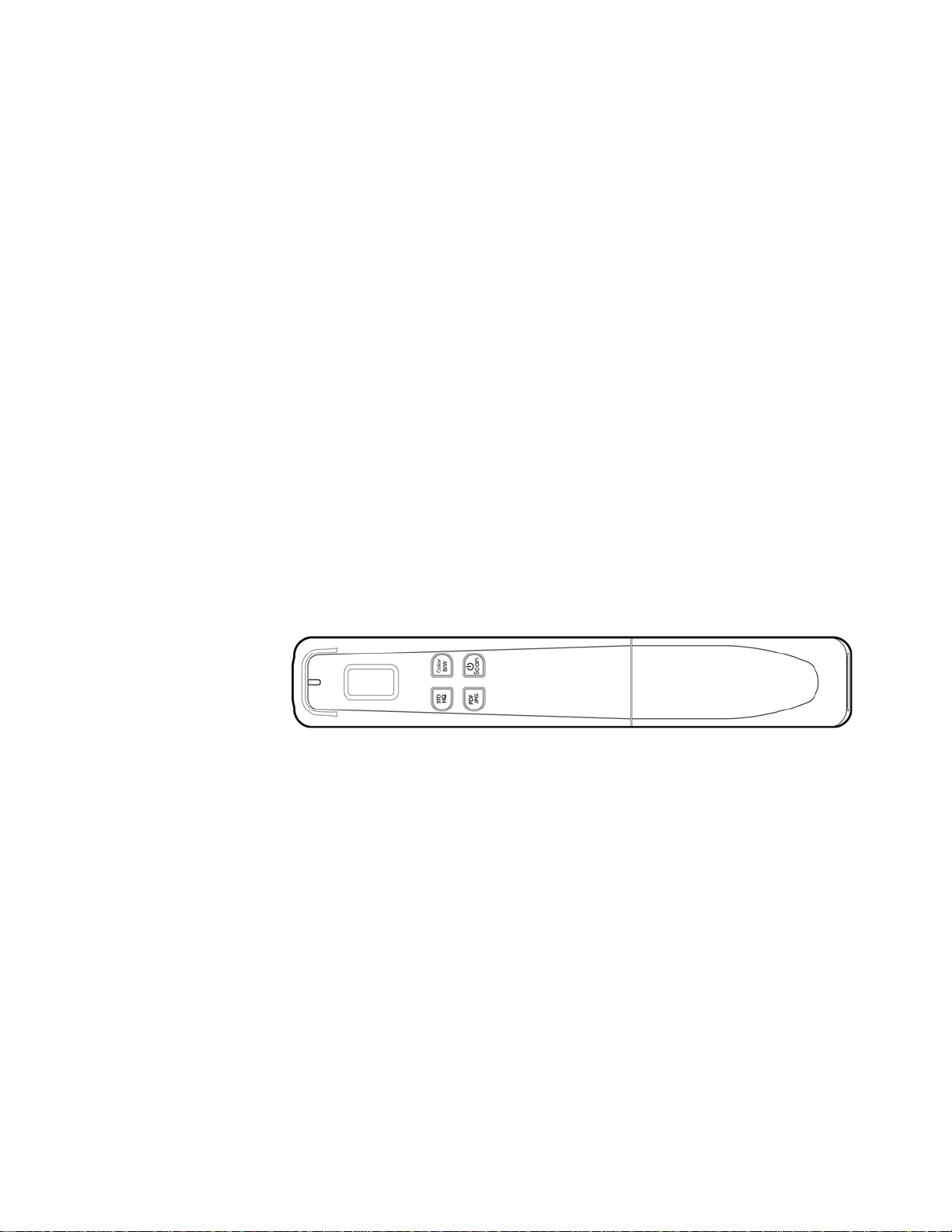
Hand-Held Scanner
User’s Manual
Regulatory model: HF-1408B
Avision Inc.
manual-en-250-0859-E-miwand2lite-v100

Trademarks
Microsoft is a U.S. registered trademark of Microsoft Corporation.
Windows, Windows XP, Windows Vista, Windows 7, and Windows 8 are either registered
trademarks or trademarks of Microsoft Corporation in the United States and/or other countries.
IBM, IBM PC are registered trademarks of International Business Machines Corp.
Other brands and product names herein are trademarks or registered trademarks of their
respective holders.
Copyright
All rights reserved. No part of this publication may be reproduced, transmitted, transcribed,
stored in a retrieval system, or translated into any language or computer language, in any
form or by any means, electronic, mechanical, magnetic, optical, chemical, manual, or
otherwise, without the prior written permission of Avision Inc.
Material scanned by this product may be protected by governmental laws and other
regulations, such as copyright laws, the customer is solely responsible for complying with all
such laws and regulations.
Warranty
The information contained in this document is subject to change without notice.
Avision makes no warranty of any kind with regard to this material, including, but not
limited to, the implied warranties of fitness for a particular purpose.
Avision shall not be liable for errors contained herein or for incidental or consequential
damages in connection with the furnishing, performance, or use of this material.
Disposal of Waste Equipment by Users in Private Union
This symbol on the product or on its packaging indicates that the product can not be
disposed of with your other household waste. Instead it should be sent to appropriate
facilities for recovery and recycling in an effort to protect human health and the
environment. Fore more information about where you can drop off your waste equipment
for recycling, please contact your local city office, your household waste disposal service or
the shop where you purchased the product.
ii

User’s Manual
FCC Radio Frequency Interference Statement
This product has been tested and found to comply with the limits for a class B digital
device, pursuant to Part 15 of the FCC rules. Operation is subject to the following two
conditions: (1) this device may not cause harmful interference, and (2) this device must
accept any interference received, including interference that may cause undesired
operation. The FCC Class B limits are designed to provide reasonable protection
against harmful interference in a residential installation. This equipment generates,
uses, and can radiate radio frequency energy and, if not installed and used in
accordance with the instructions, may cause harmful interference to radio
communications. However, there is no guarantee that interference will not occur in a
particular installation. If this equipment does cause harmful interference to radio or
television reception, which can be determined by turning the equipment off and on, the
user is encouraged to try to correct the interference by one or more of the following
measures:
Reorient or relocate the receiving antenna.
Increase the separation between the equipment and receiver.
Connect the equipment into an outlet on a circuit different from that to which the
receiver is connected.
Consult your point of purchase or service representative for additional suggestions.
European Union Regulatory Notice
Products bearing the CE marking comply with the following EU Directives:
Low Voltage Directive 2006/95/EC
EMC Directive 2004/108/EC
Restriction of the use of certain hazardous substances (RoHS) Directive 2011/65/EU
This product satisfies the Class B limits of EN55022, EN55024, safety requirements of EN
60950 and ROHS requirements of EN50581.
*This machine is certified as Class 1 LED product. This means that this machine does not
produce hazardous laser radiation.
iii

iv
Table of Contents
1. Overview ........................................................................... 1-1
1.1 Introduction.................................................................................... 1-1
1.2 Package Contents............................................................................ 1-1
1.3 Top View ........................................................................................ 1-2
1.4 Rear View....................................................................................... 1-3
1.5 Bottom View ................................................................................... 1-3
1.6 Scanner Indicator Light .................................................................... 1-4
1.7 LCD Display.................................................................................... 1-5
2. Installation........................................................................ 2-1
2.1 Precautions..................................................................................... 2-1
2.2 Install the Batteries (not included) ..................................................... 2-1
2.3 Install micro SD
TM
Card (not included) ................................................ 2-2
3. Operation........................................................................... 3-1
3.1 Suitable and Unsuitable Original Types ............................................... 3-1
3.2 Turn on the Scanner ........................................................................ 3-1
3.3 Choose Your Desired Scan Settings .................................................... 3-1
3.4 Start Wand Scanning (Hand-Held)...................................................... 3-2
3.5 View or Download the Scanned Images (Windows)............................... 3-3
3.5.1 Computer System Requirements for USB Connection.................3-4
3.5.2 After Successful Connection ...................................................3-4
3.5.3 Safely Disconnect Scanner/micro SD Card From PC ...................3-4
3.6 View or Download Images with iPad ................................................... 3-5
4. Maintenance ...................................................................... 4-1
4.1 Calibrate the Scanner....................................................................... 4-1
4.2 Clean the Rollers and Glass............................................................... 4-2
5. Troubleshooting................................................................. 5-1
5.1 Error Messages................................................................................ 5-1
5.2 Frequently asked questions and answers............................................. 5-2
5.3 Technical Service............................................................................. 5-5
6. Specifications .................................................................... 6-1
User’s Manual
1. Overview
1.1 Introduction
Congratulations on your purchase of the portable handheld scanner. With this scanner, you
can scan and store your photos or documents directly to a micro SD
TM
card without any
computer. Simply turn on the scanner, press the Power/Scan button to start and slide the
scanner on the surface of your document and press the Power/Scan button again to stop.
The scanned image is stored into your micro SD card.
Before you install and operate the product, please take a few minutes to read through this
manual. It provides proper instructions for you to install, operate and maintain the
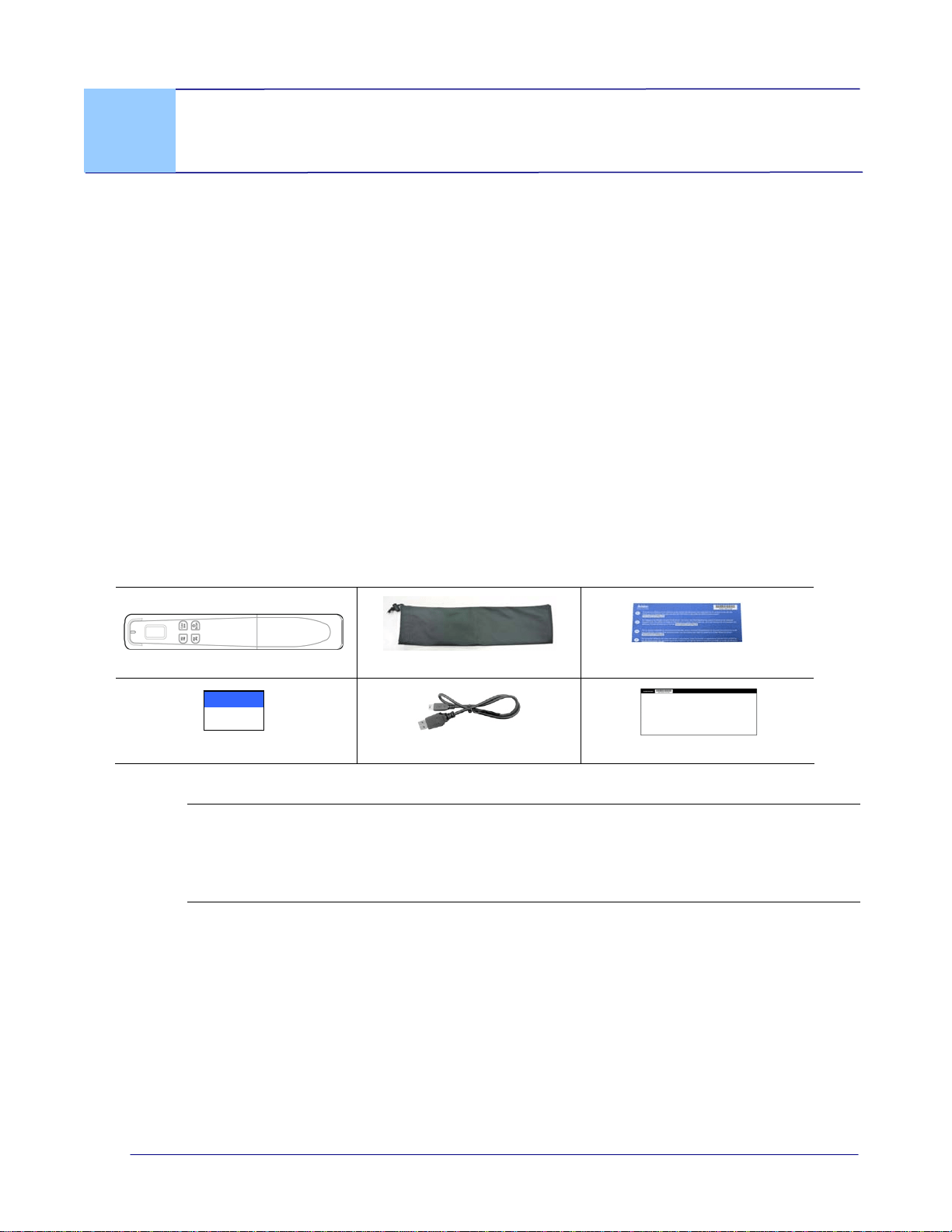
product. The following figure indicates the package contents. Please check all the items
against your checklist. If you do not receive all the items, please contact your authorized
local dealer immediately.
1.2 Package Contents
Scanner
Carry Bag
Online Registration Notice
Quick Start Guide
USB Cable
Calibration Sheet
Note:
Retain the scanner box and packing materials in case you may use them for
shipping purposes.
Please register the product on our web site at http://www.avision.com to have
complete support.
1-1
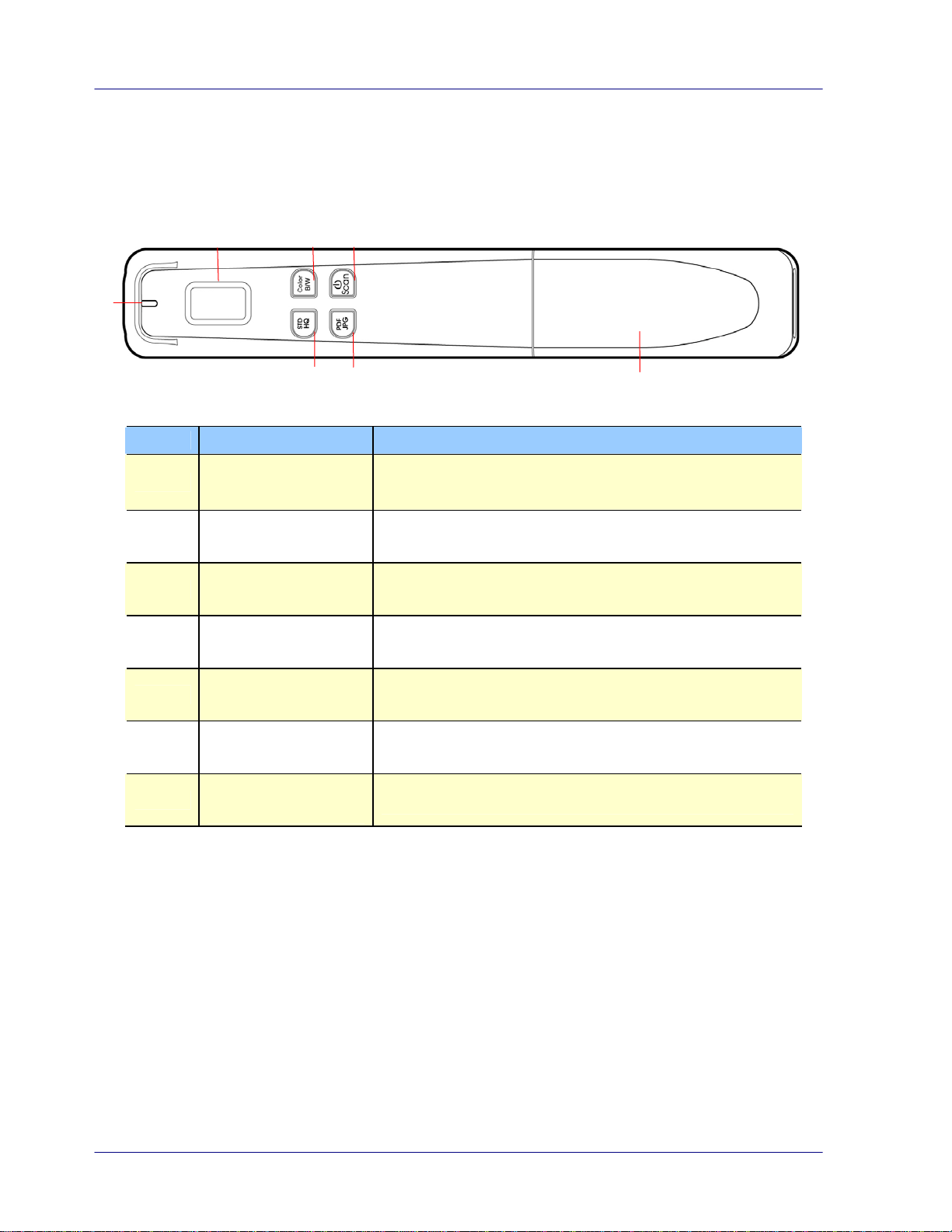
1.3 Top View
2 3 4
1
7
5 6
Item Name Description
1
System indicator
light
Indicates the operating/warning status of the
scanner.
2
LCD display Displays battery status and scan settings.
3
Color selector Press to choose Color or Black and white
4
Power/Scan
button
Press to power on, press again to start a scan and
end a scan.
5
Resolution
selector
Press to choose STD (300 dpi), HQ (600 dpi), or
STD HQ (1200 dpi).
6
File format
selector
Press to choose JPEG or PDF.
7
Battery
compartment
Slide to remove the cover.
1-2
User’s Manual
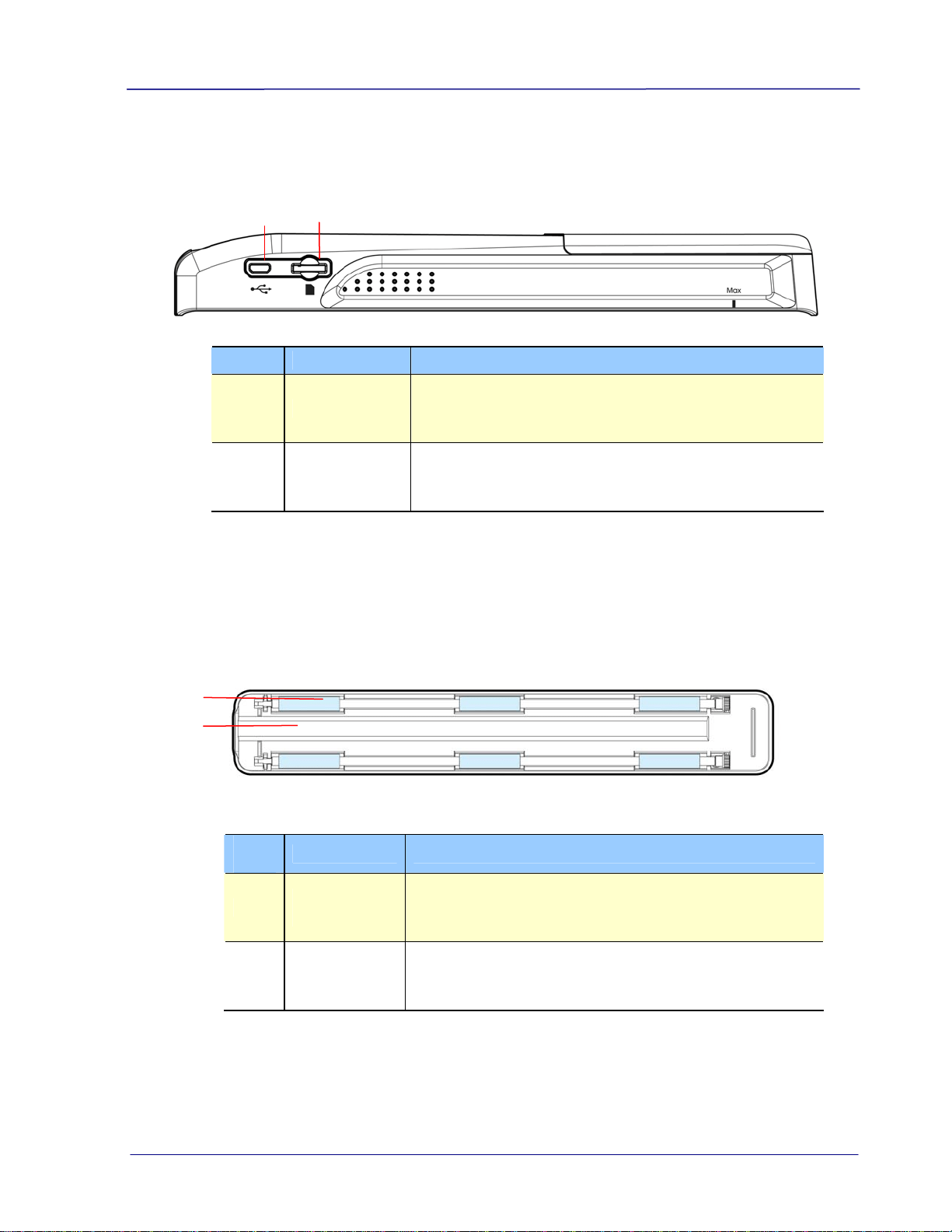
1.4 Rear View
1 2
Item Name Description
1 USB port
Used to plug the micro end of the USB cable to
connect to PC for power charging or images
transferring.
2
Memory
card slot
Used to insert a memory card.
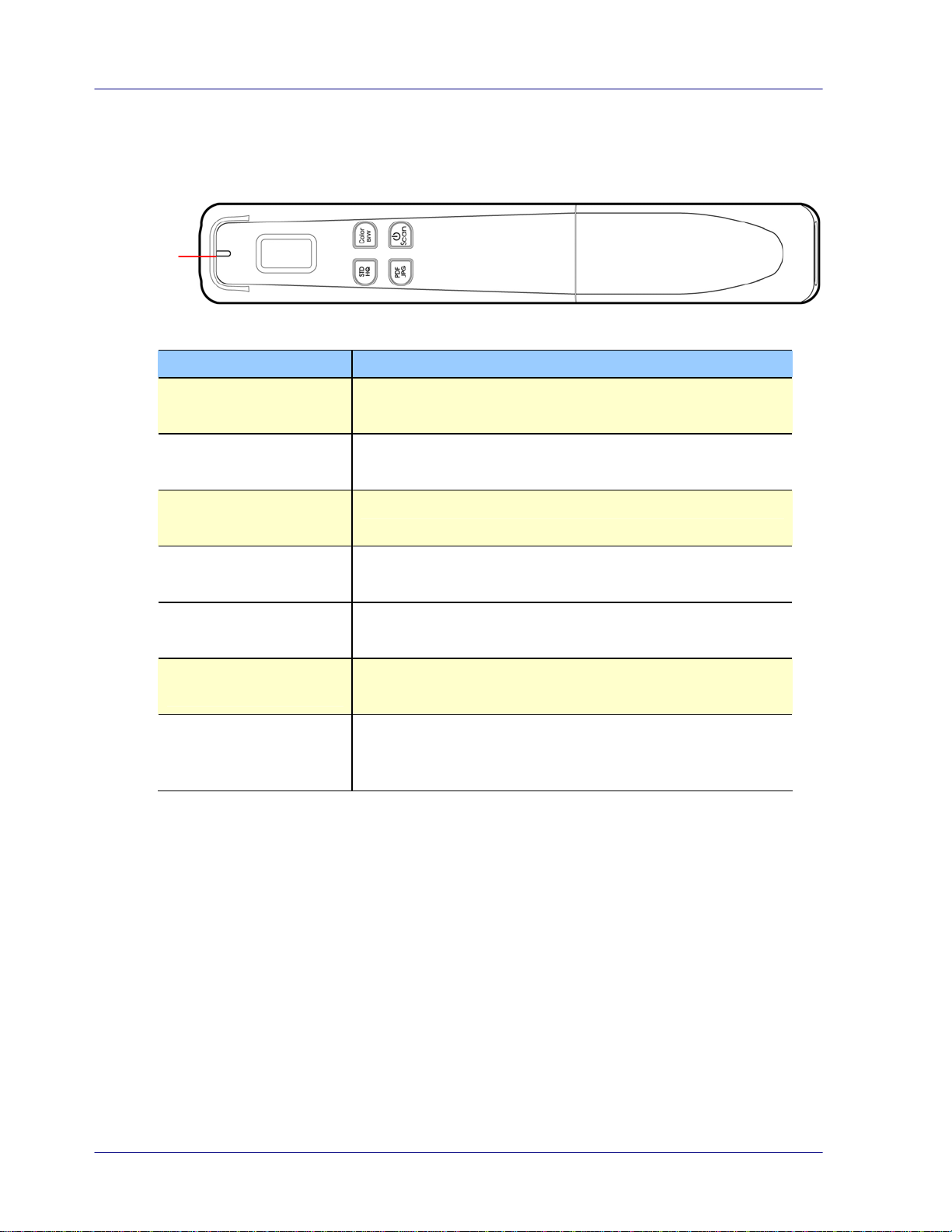
1.5 Bottom View
1
2
Ite
m
Name Description
1
Sensor
rollers
The rollers are sensors and should only be rolled in
one direction. Do NOT roll back and forth while
scanning, except during calibration.
2 Glass
While rolling scanner over a document, the optical
sensor in the glass reads and scans the image.
1-3
1.6 Scanner Indicator Light
Scanner
Indicator
Light
Status Indication
Off
Scanner is off or scanner is on and ready for use
Orange briefly
Powering on for initialization
Green, steadily on
Scanning in progress in STD mode (300 dpi)
Orange, steadily on Scanning in progress in HQ mode (600 dpi)
Orange, flashing Scanning in progress in STD HQ mode (1200 dpi)
Green or Orange
flashing
Processing scanned image
Red, flashing No SD card, SD card full, card error, no scan
performed after initiating wand scan mode, or low
battery
1-4
User’s Manual
1-5
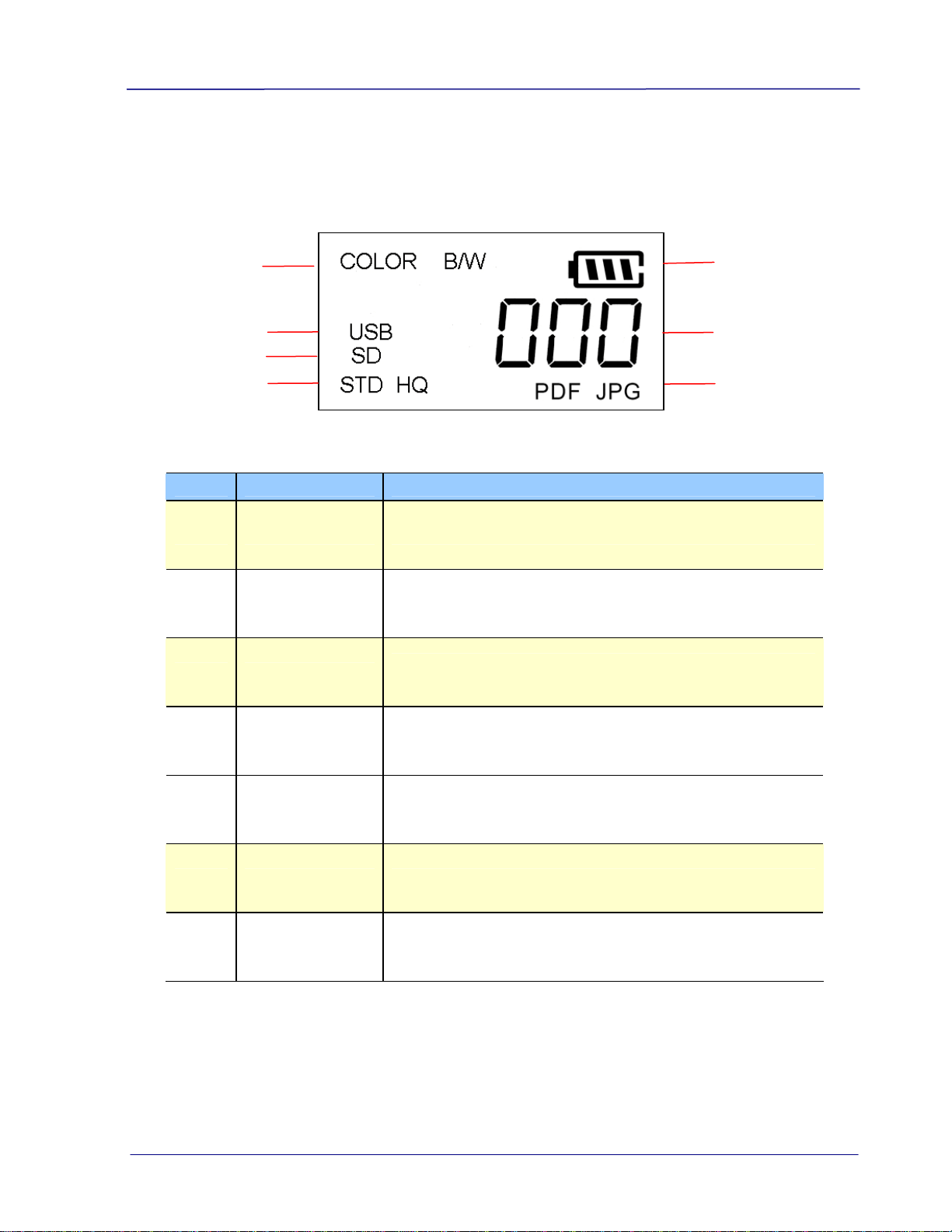
1.7 LCD Display
Item Name Description
1 Battery status Indicates the power status of the battery.
2 Scan count Indicates scan count.
3 File format
Indicates current file format for the scanned image.
Choice: PDF, JPEG.
4 Color mode
Indicates current color mode. Choice: Color, Black
and White.
5 USB Indicates the scanner is connected to a computer.
6 Memory card Indicates an inserted memory card.
7 Resolution
Indicates current resolution. Choice: STD (300 dpi),
HQ (600 dpi), STD HQ (1200 dpi).
4
5
6
7
1
2
3
User’s Manual
2. Installation
2.1 Precautions
Keep the product out of direct sunlight. Direct exposure to the sun or excessive
heat may cause damage to the unit.
Do not install the product in a humid or dusty place.
Place the product securely on an even, flat surface. Tilted or uneven surfaces may
cause mechanical or paper-feeding problems.
Retain the product box and packing materials for shipping purposes.
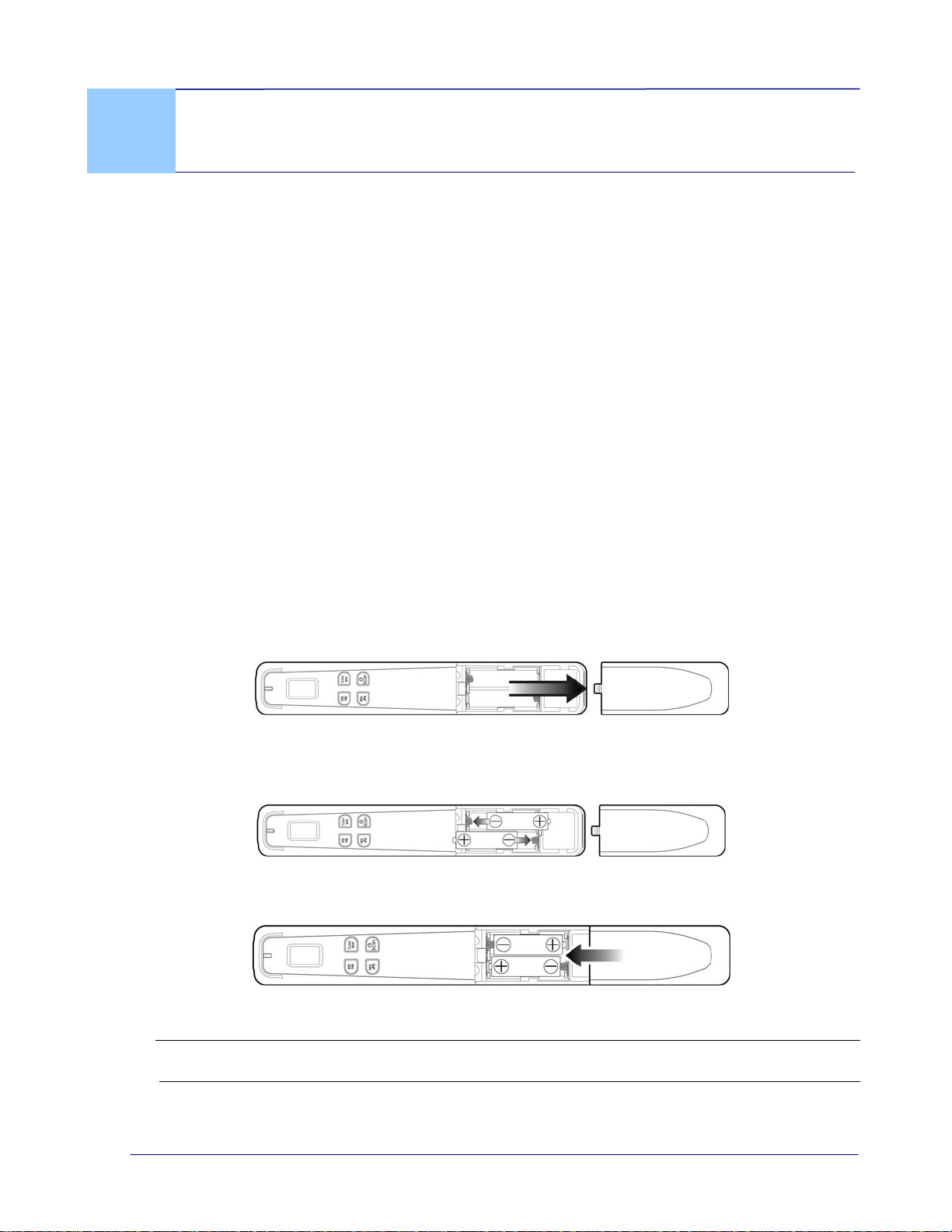
2.2 Install the Batteries (not included)
1. Push and remove the battery cover on the scanner.
2. Insert 2x AA batteries into the battery compartment. Make sure the batteries are
inserted with the correct polarity. (note correct + - direction)
3. Insert the battery cover.
Note:
The scanner does not recharge the rechargeabl
e batteries.
2-1
2-2
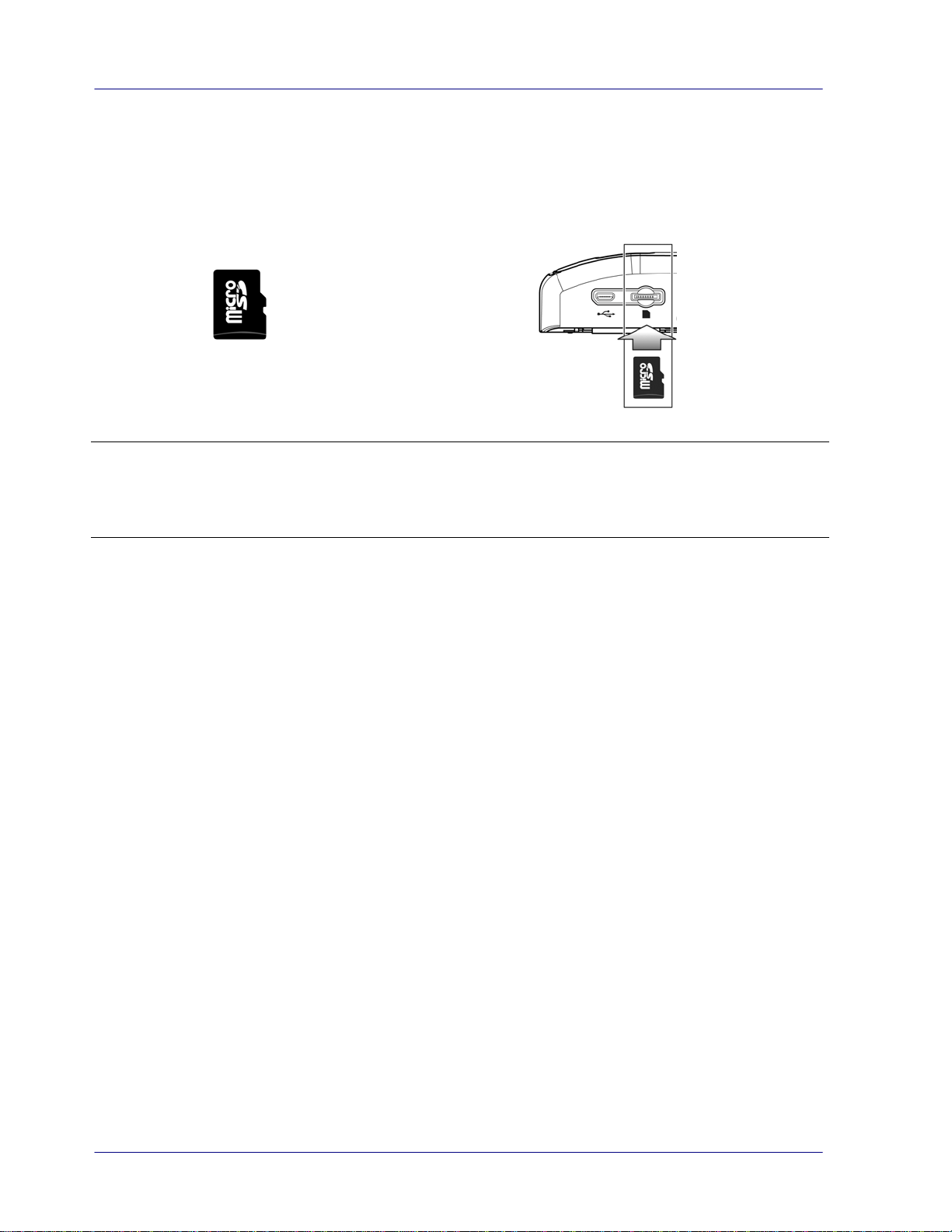
2.3 Install micro SD
TM
Card (not included)
You must install a micro SD
TM
card to the SD slot of the scanner to store your images.
Gently press in until the SD card is latched.
micro SD card
Note:
The scanner only accepts micro SD
TM
card in FAT16 or FAT32 format. NTFS and other
file formats are not supported.
Always insert a micro SD
TM
card before calibrating and scanning.
User’s Manual
3. Operation
3.1 Suitable and Unsuitable Original Types
Suitable for Wand Scanning
The scanner used as a wand scanner without the feeder dock is designed to obtain the best
scanning results with photo and document up to 216 x 356 mm (8.5 x 14 in.) size.
3.2 Turn on the Scanner
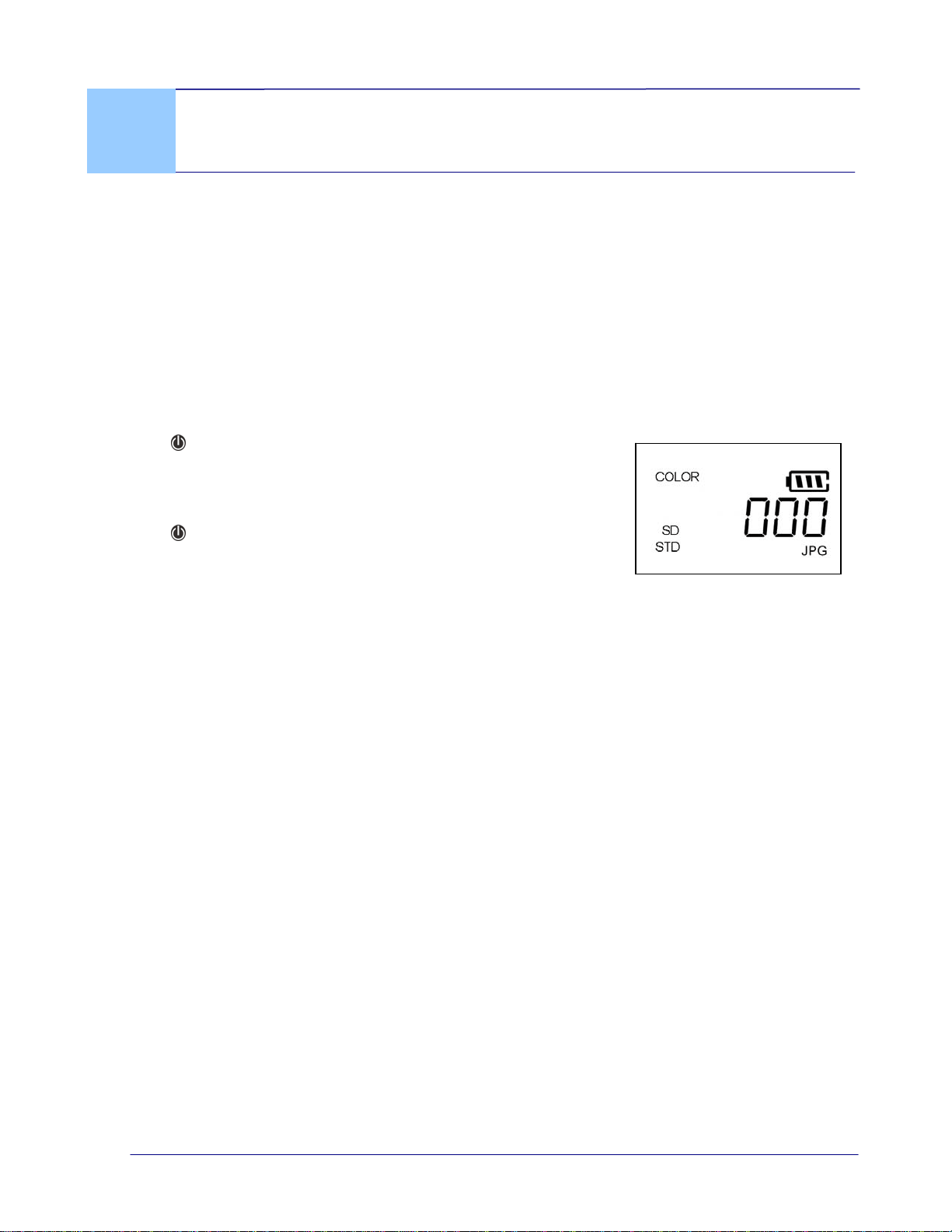
Press to turn on the scanner. The LED will be flashing and
then extinguished. The [Scanner Ready] screen will be
displayed as illustrated.
Press
again for about 3 seconds to turn off the scanner. The
scanner will be automatically shut off if it is left idle for 3
minutes.
3.3 Choose Your Desired Scan Settings
Press “Color/BW” to switch to BW mode.
Press “JPG/PDF” to switch to PDF file.
Press “STD/HQ” to switch to HQ (600 dpi), or STD HQ (1200 dpi) mode.
* The default scan settings – Color, JPG, STD (300 dpi).
3-1
3.4 Start Wand Scanning (Hand-Held)
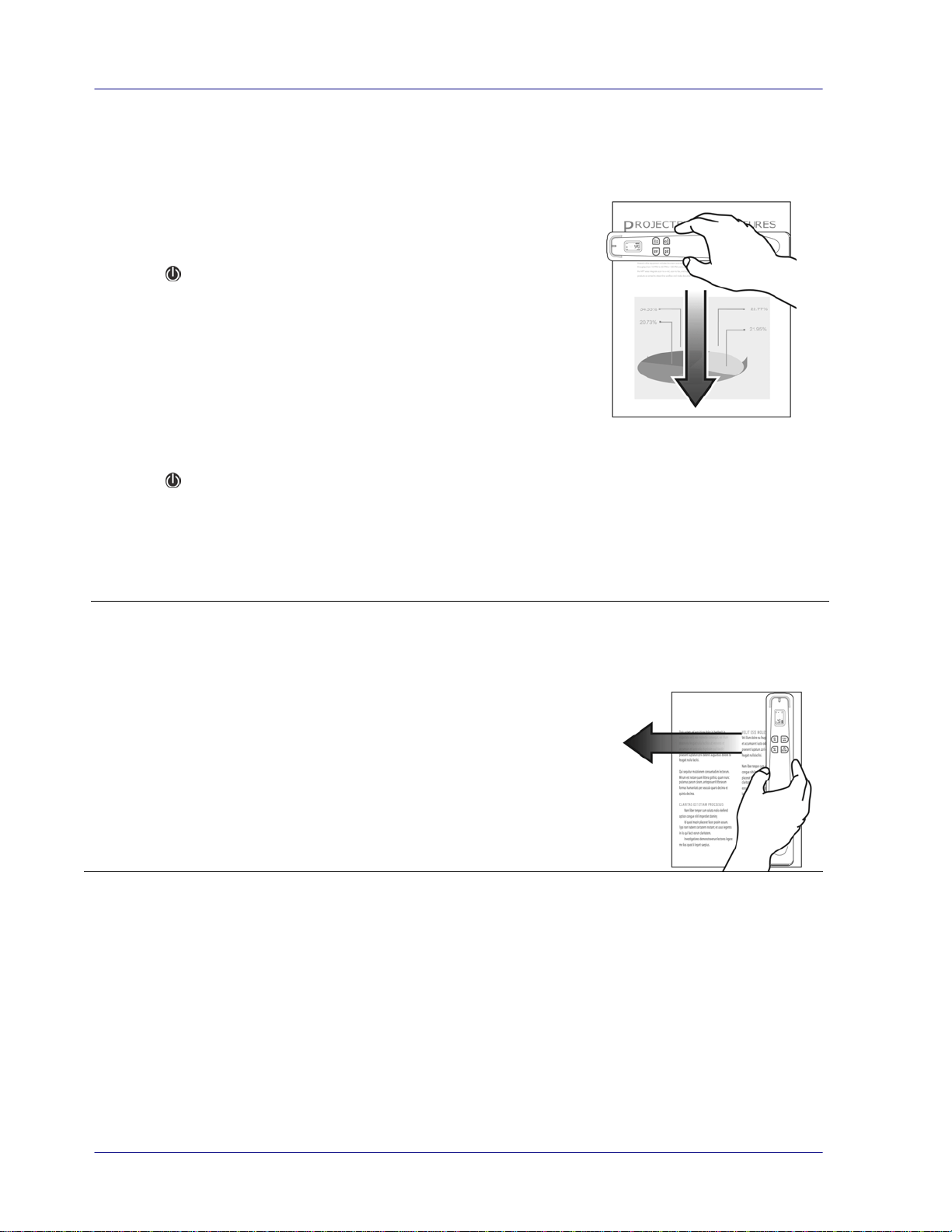
1. Place your document on a flat surface.
2. Press
to start a scan.
3. Hold the scanner and glide the scanner gently over the
surface of the page as illustrated.
4. During scanning, the scan speed (SP0~SP1) will be
displayed on the screen. “SP0” indicates the lowest speed
while “SP1” is warning you the scan speed is too fast. To
obtain the best image quality, please keep your speed at
the lowest level (SP0).
5. Press
to stop the scan. If a page is scanned successfully,
the scan count (001) will be displayed.
Note:
1. Refer to the fol
lowing list for a proper scan speed (based on an A4-size paper): 0.6
second (B&W, STD) /1.6 second (Color, STD);2.4 seconds (B&W, HQ) / 6.5 (Color,
HQ)
2. If you hold the scanner vertically and scan your original
from right to left, your image will be rotated 90° left.
Please use the image-editing software application to rotate
the scanned image correctly.
3. You may download the free image editing software
application – the Avision Image Editing Helper to enhance
your image quality after completing product registration on
our web site at http://www.avision.com.
3-2
User’s Manual
3.5 View or Download the Scanned Images (Windows)
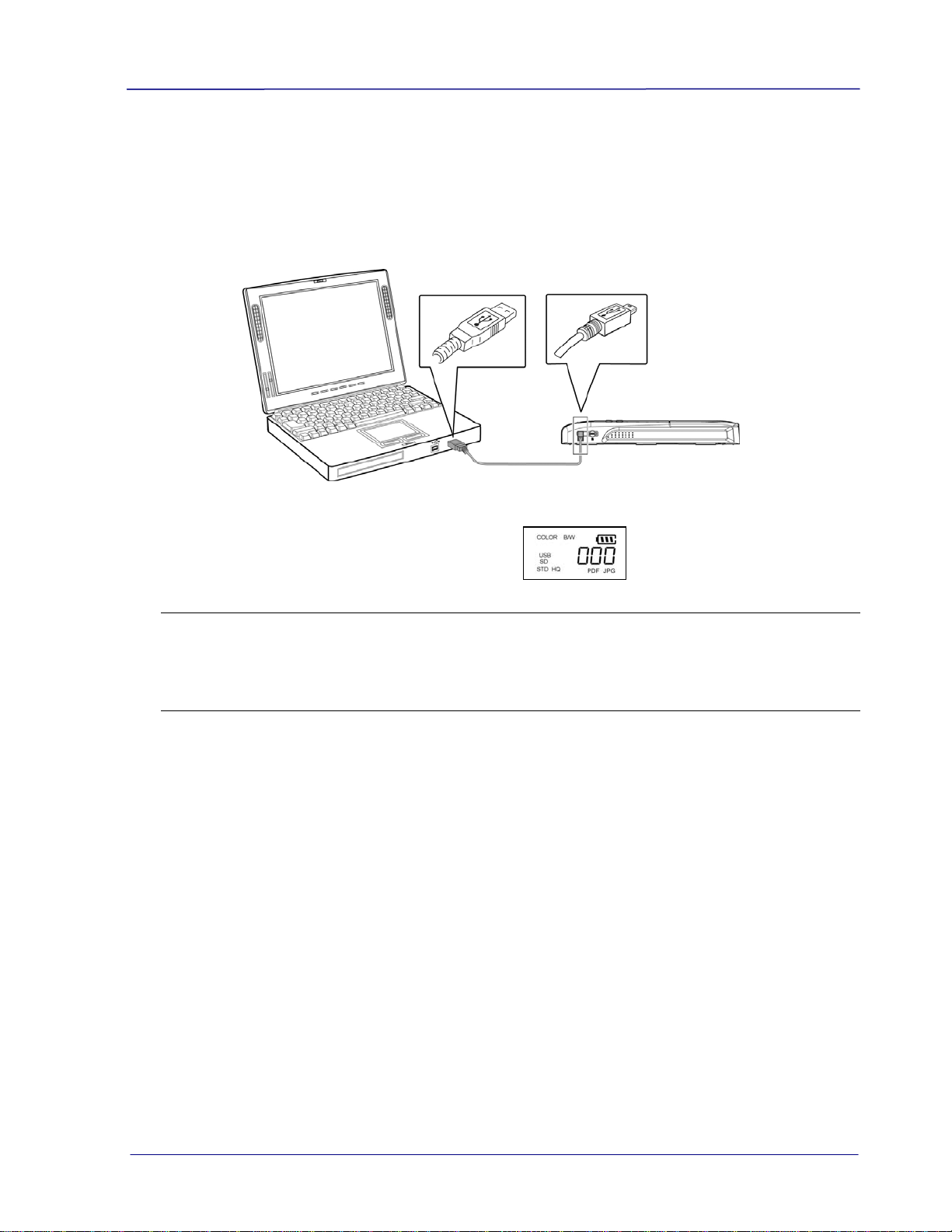
1. To view or download your scanned images, you can either remove the micro SD
TM
card
and connect it to a card reader, or connect the scanner to your computer via the
supplied USB cable (be sure to turn on your scanner).
* When the scanner and your computer is connected successfully, all tasks are
interrupted and the USB connection screen is display.
Wa
rning:
It is recommended to download the scanned images by removing the memory card
from the scanner and then i
nserting the memory card to your computer instead of
connecting the scanner directly to your computer with the USB cable since this may
require a lot of battery power.
2. Your computer should recognize the card or the scanner as a Removable Disk.
3. Click the Removable Disk and you will find a folder of “DCIM” is created and all the PDF
files will be stored in the subfolder of “200DOC” and the JPEG files in the subfolder of
“100PHOTO”. File name starts from IMG_0001.pdf or IMG_0001.jpg.
Each scanned image is given a file name with the prefix IMG_ followed by a 4-digit
sequential number in the order the images are stored. For example, IMG_0001.jpg,
IMG_0002.jpg, IMG_0001.pdf, IMG_0002.pdf, etc.
JPG files are stored in a sub folder titled DCIM\100PHOTO. The folder stores 9999
photo files, and then automatically creates another sub folder titled 101PHOTO, and so
on to 199PHOTO.
PDF files are stored in a sub folder titled DCIM\200DOC. The folder stores 9999
document files, and then automatically creates another sub folder titled 201DOC, and
so on to 299DOC.
3-3

3.5.1 Computer System Requirements for USB Connection
Operating system: Windows XP, Windows Vista, Windows 7, Windows 8
Mac 10.5 or above (Mac is used only for data transferring)
USB port: USB 2.0 /USB 1.1
3.5.2 After Successful Connection
When the scanner connects with the P
C, an additional drive is listed in the Explorer window
titled Removable Disk [drive letter], or the personalized title you may have previously
assigned to your microSD
TM
card.
3.5.3 Safely Disconnect Scanner/micro SD Card From PC
1. On
the Windows System Tray, click the hardware removal icon.
2. Click the “Safely remove USB mass Storage device” message with the corresponding
Drive.
3. When the “Safe to Remove Hardware” message appears, you can safely remove the
scanner’s USB cable.
3-4
User’s Manual
3-5
3.6 View or Download Images with iPad
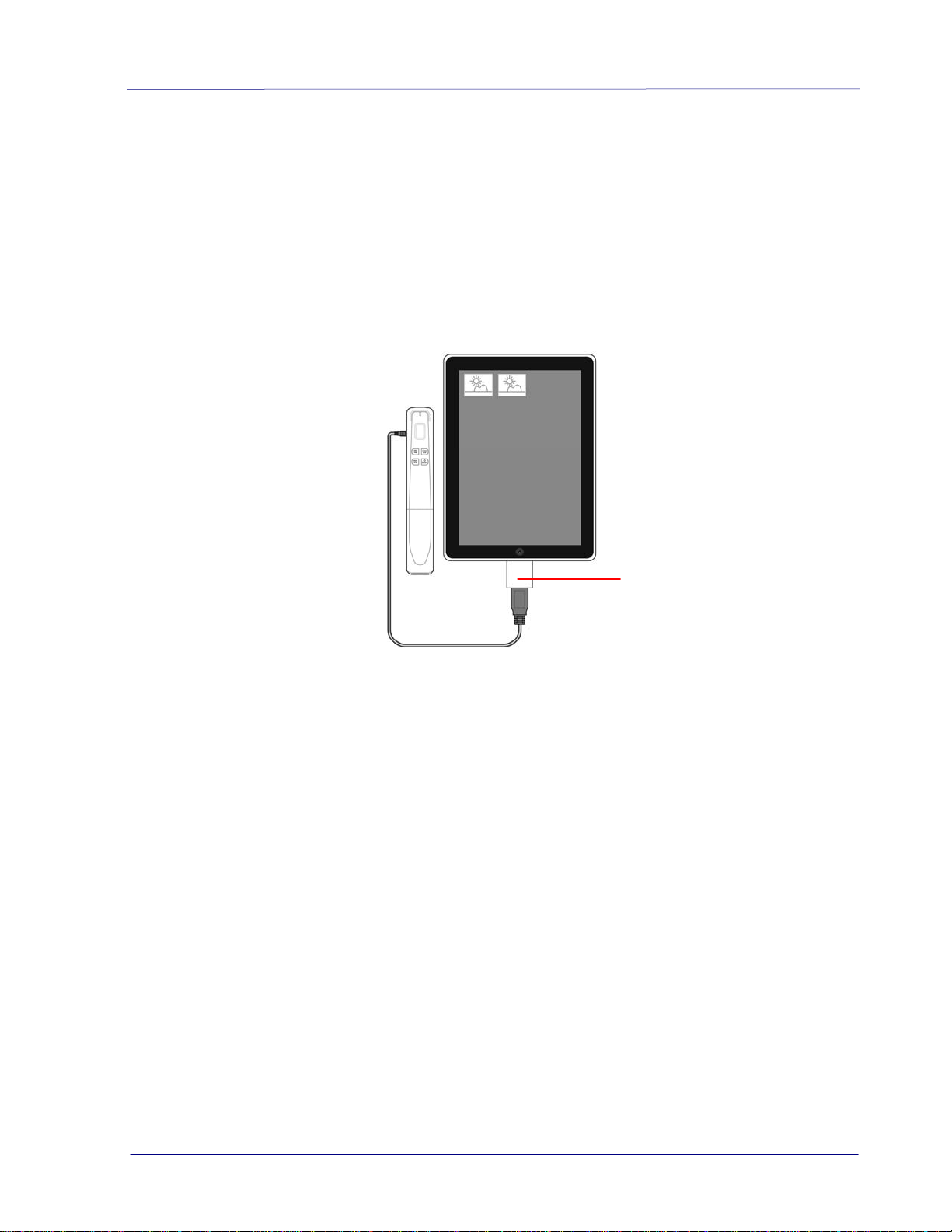
1. Plug the iPad Camera Connector(not included)to iPad dock connector. Plug the mini
USB connector of the supplied USB cable to the Mini USB port of your scanner and plug
the USB connector of the supplied USB cable to iPad Camera Connector.
2. The scanned images in the micro SD card of your scanner will be displayed in iPad in 3
seconds.
3. Choose “Import All” to load the scanned images to the album of your iPad.
iPad Camera
Connector
User’s Manual
4. Maintenance
4.1 Calibrate the Scanner
Calibrate only if the scanned image looks fuzzy, the color looks abnormal (e.g., darker
than normal), after 8K+ scanned, or the scanner has been stored without use for a long
time. The calibration process resets the Contact Image Sensor to resume its color and
sharpness precision.
To calibrate the scanner, complete the following steps:
1. Make sure the battery is fully charged and a memory card is inserted.
2. Remove the calibration sheet from its plastic cover and lay it on a flat surface with
the printed side UP.
3. Place the scanner on the white area of the calibration sheet, at the top of the white
area.
* Make sure the sheet is clean (i.e. no debris or colored objects).
4. Turn off the scanner.
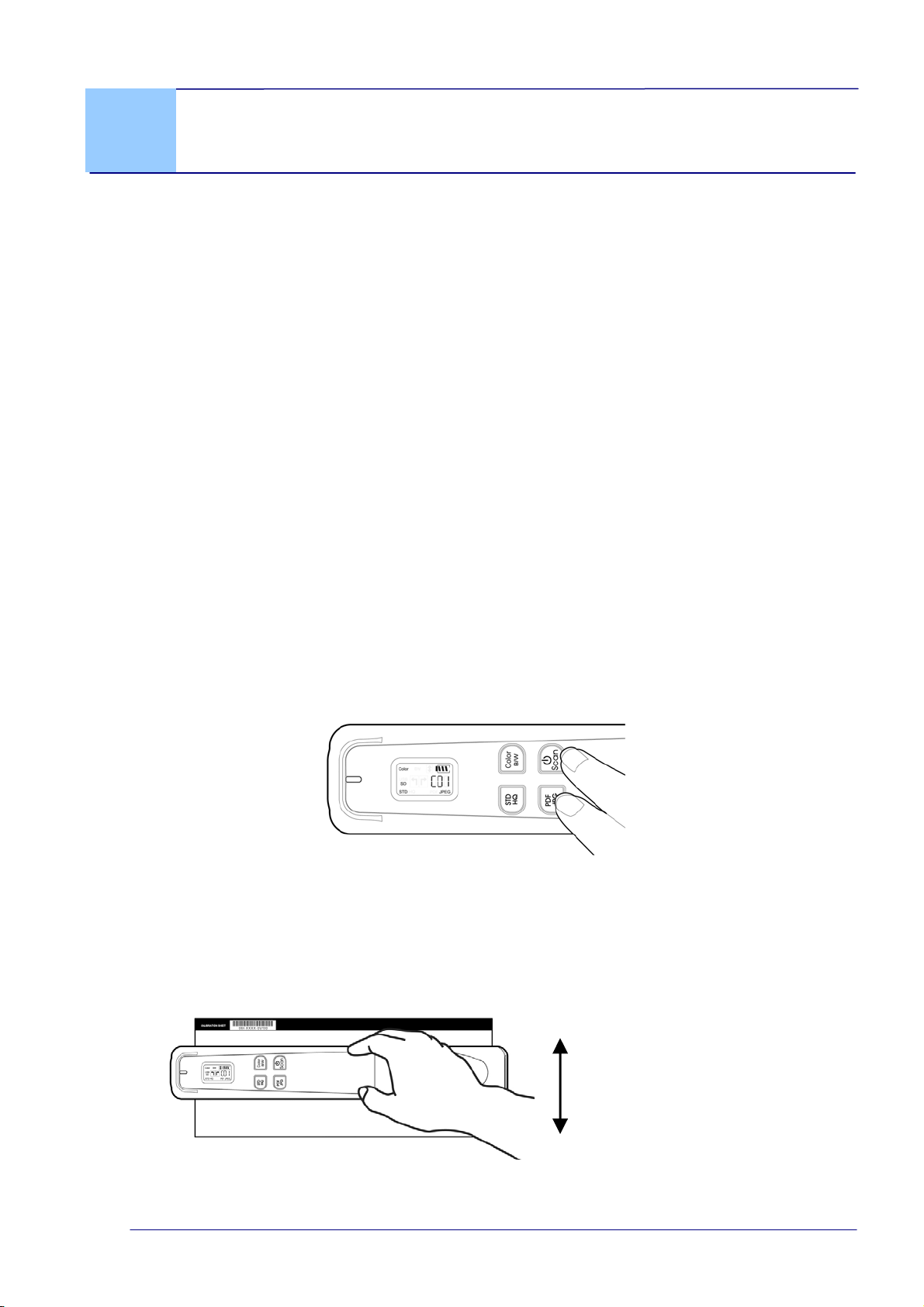
5. To enter the calibration mode, press and hold the [JPG/PDF] + [Scan] buttons
until [C01] is displayed on the screen and the LED flashes in green, indicating you
are in calibration mode.
6. Slowly slide the scanner down over ONLY the white area of the calibration sheet.
7. The scanner completes the calibration sequence and automatically powers off.
8. Carefully place the calibration sheet back into the plastic cover and store it in a safe
place for future use.
During calibration, move
the scanner only in the
white area.
4-1
4-2
Wa
rning:
If the calibration process failed, the Red L
ED will be flashing and [E06] will be displayed
on the screen. Power off the scanner and then repeat the calibration step again.
Wa
rning:
Do not interrupt the calibration sequence or try to shut off the device while it is
calibrating. If you stop the calibration before it has completed, a calibration error may
occur. As a result, you will have to power off the unit and repeat the instructions in
this section.
Calibrate the scanner only when color of the scanned image looks abnormal.
Keep the calibration sheet from dust and debris. Any dirt may make the calibration
chart invalid or impact the calibration result.
Use only the included calibration sheet to calibrate the scanner.
4.2 Clean the Rollers and Glass
It is recommended to clean the scanner approximately every 200 scans or if vertical lines
or stripes appear on the scanned image.
To clean the rollers and glass:
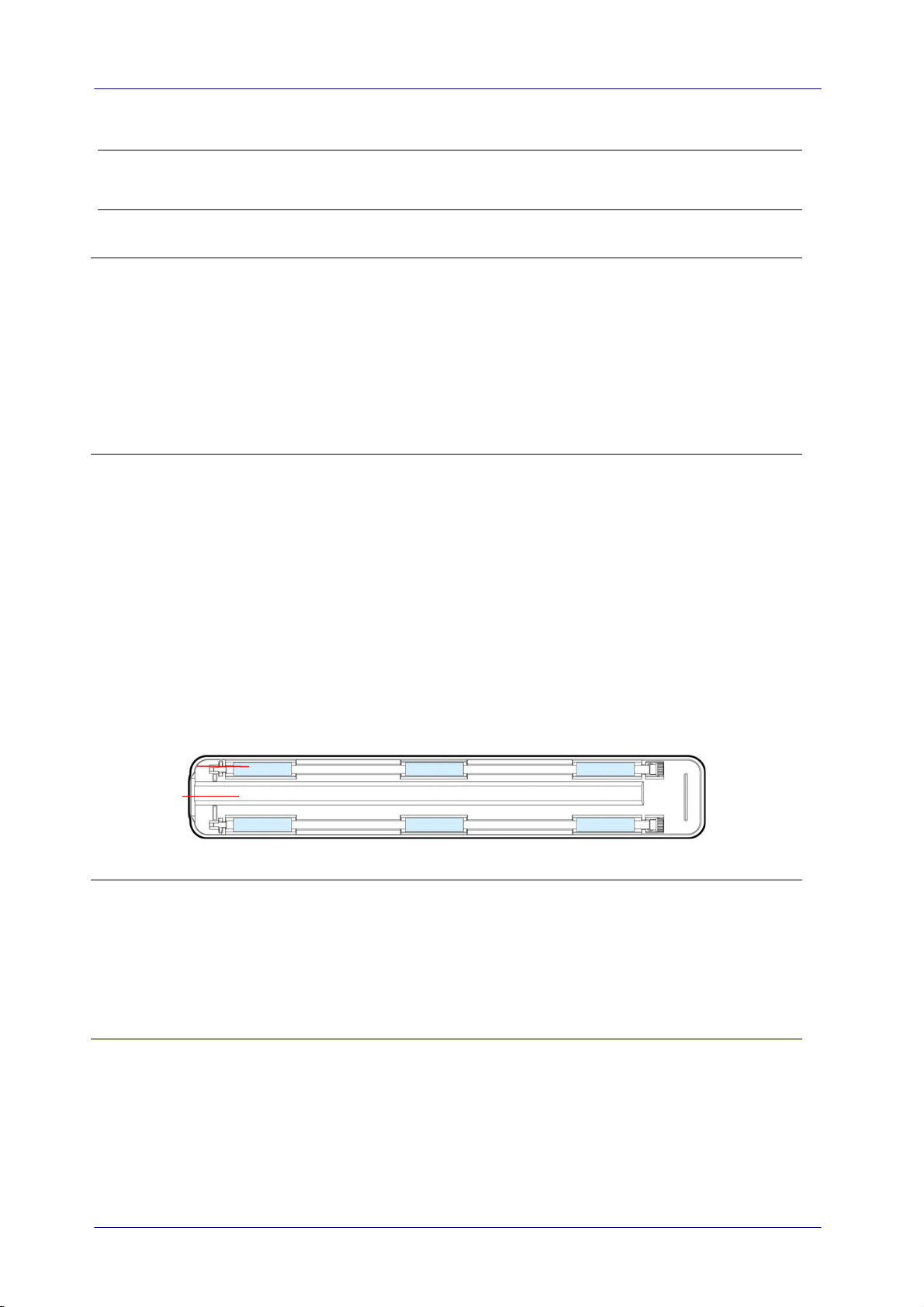
1. Turn the scanner over to reveal the rollers and glass.
2. Wipe the rollers and the glass with the included cleaning cloth as illustrated.
3. Wipe the scanner with a dry and clean lint-free cloth.
Rollers
Glass
Note:
Adding some isopropyl alcohol (95%) on the cleaning cloth is more efficient when
cleaning the rollers.
Do not use any solvents or corrosive liquid (i.e., alcohol, kerosene, etc.) to clean any
part of the scanner, otherwise the plastic material will be permanently damaged.
Make sure the surface of the document or photo doesn’t have any paper clips, etc. or
this could damage the scanner glass lens.

User’s Manual
5. Troubleshooting
5.1 Error Messages
If there is error during scanning, the LED light will be flashing in red color and error code will
be displayed. Refer to the following table to clear the error conditions.
Error Problems/Causes How to restore
E02/No SD
card
1. No memory card inserted.
2. Card not recognized.
1. Insert a memory card.
2. Try a new different card.
E03 / Card Full Card full; Images can not be saved.
Free more space or insert a new
memory card.
E08 / Low
battery
Battery power is getting low
Replace batteries (or recharge if
using rechargeable batteries).
E05 / No
image scanned
1. No scan data detected.
2. Scanner time out.
Wait until message disappears.
E06 /
Calibration
Fails
Scanner has detected a calibration
error
Recalibrate the scanner (See
User Manual for details.)
SP1 / Scanned
speed too fast
Images look distorted (Scanning
speed too fast)
Rescan original again with a
lower speed.
None Vertical lines appeared on images
(The glass and rollers are dirty.)
Clean the glass and rollers with
a cleaning cloth.
* Warning:
If "low battery" is indicated on the LCD di
splay, it is recommended to replace the batteries to
prevent possible incomplete scanned images or other operational problems.
5-1

5.2 Frequently asked questions and answers
Q: Why does not my scanner turn on?
A:
The batteries may not enough power or may not be inserted
correctly.
Q: The image can not be saved into the memory card while
scanning?
A:
Make sure you have a microSD
TM
card inserted correctly, and that
it has adequate space
Q: Why doesn’t my computer recognize my scanner when it’s
connected via USB cable?
A: Make sure the cable connection is correct and secure. Restart the
computer if necessary.
Q: Why are my scanned images distorted?
A: You may be scanning too fast; scan again at a lower speed.
5-2

User’s Manual
Q: Why do all the images I scanned have the same date when
saved on the memory card? Is it possible to show real time
for these images?
A:
Yes. Please follow these steps to set a real-time clock for the
device:
1. Open your browser and type Avision’s web site
(http://www.avision.com
) at the URL address. On the Product
or Support page, select this mobile scanner and then
download a time.txt file for the device.
2. Make sure your scanner is inserted with a SD card and a
battery full of power.
3. Turn on your scanner and connect it to your computer with a
USB cable. Your computer should recognize the scanner as a
Removable Disk.
4. Copy and paste the time.txt file to the root directory of the
Removable Disk Drive.
5. Open the text file. The text file contains a string in
YYYY/MM/DD/HH/MM format which indicates year(4-
digit)/month(2-digit)/date(2-digit)/hour(2-digit)/minute(2-
digit), for example, 2013/06/15/07/30.
6. Change the date and time to correct values and then save the
file.
7. Turn off the scanner and then turn it on. Now your have
completed setting the real-time clock for the device.
Scan a document and save the image to the memory card.
Connect the scanner to your computer, you will find the
scanned images are displayed with correct date and time.
Note:
Charge your battery when its power is running low.
If the battery has been replaced or the battery has no power
at all, you will need to recharge the battery and repeat the
above steps to set a real-time clock again.
5-3

Q: Why there are strange lines on the scanned document?
A:
Please check the following:
1. Are there scratches on the original or is the original clean?
2. Remove any stains or dust from the original before scanning.
3. Clean the rollers and glass with the included cleaning cloth.
(Refer to the section “Cleaning the Rollers and Glass))
Q: Will the scanner recharge my rechargeable batteries?
A: No, the scanner does NOT recharge rechargeable batteries. You
must use your own battery charging device.
Q: Should the scanner feel warm to the touch?
A: It is normal for the scanner to emit a small amount of heat after
prolonged use. However, if there are strange odors coming from the
scanner or the scanner feels a little bit hot to the touch, turn the
scanner off immediately.
5-4

User’s Manual
5-5
5.3 Technical Service
Please register your product on our web site (http://www.avision.com) to have complete
technical support. Before contact Avision, please prepare the following information:
Scanner serial & revision number (l
ocated on the bottom of the scanner);
Hardware configuration (e.g., your host CPU type, RAM size, free disk space, display card,
interface card);
Headquarter
Avision Inc.
No. 20, Creation Road I, Science-Based Industrial Park,
Hsinchu 300, Taiwan, ROC
TEL: +886 (3) 578-2388
FAX: +886 (3) 577-7017
E-MAIL: [email protected]
Web Si
te: http://www.avision.com.tw
US and Canada Area
Avision Labs, Inc.
6815 Mowry Ave., Newark CA 94560, USA
TEL: +1 (510) 739-2369
FAX: +1 (510) 739-6060
E-MAIL: [email protected]
Web Site: http://www.avision.com
China Area
Hongcai Technology Limited
7A,No.1010, Kaixuan Road, Shanghai 200052 P.R.C.
TEL :+86-21-62816680
FAX :+86-21-62818856
E-MAIL : [email protected]
Web Site: http://www.avision.com.cn
Europe Area
Avision Europe GmbH
Bischofstr. 101 D-47809 Krefeld Germany
TEL: +49-2151-56981-40
FAX: +49-2151-56981-42
E-MAIL: [email protected]
Web Site: http://www.avision.de
Espaço Brasil
Avision Brasil Ltda.
Avenida Jabaquara, 2958 - Cj. 75 - Mirandópolis –
CEP: 04046-500 - São Paulo, Brasil
TEL: +55-11-2925-5025
E-MAIL: suporte@avisionbrasil.com.br
Web Site: http://www.avisionbrasil.com.br

User’s Manual
6-1
6. Specifications
Specifications are subject to change without notice. For the most up-to-date and detailed
specifications, please refer to our web site at http://www.avision.com
Item Description
Regulatory model
number
HF-1408B
Image Technology Contact Image Sensor (CIS)
Scanner Display TSN LCD (1.2 in.)
Max. Document Size 216 x 355 mm (8 x 14 in.) (600 dpi / 1200 dpi)
216 x 914 mm (8.5 x 36 in.) (300 dpi)
Resolution STD (300 dpi)/ HQ (600 dpi) / STD HQ (1200 dpi)
Output File Format JPEG / PDF
Memory Card micro SD
TM
card Interface
USB micro USB
Auto power off 3 minutes
Supported Operating
Systems
Windows XP / Vista / 7 / 8
Power
2 x AA Alkaline batteries
Warning: Never mix battery types as this could
cause damage or fire. The scanner does not
recharge rechargeable batteries.
Net Weight 230 g (0.51 lb.)
Dimensions(WxLxH)
258 x 41 x 35 mm (10.16 x 1.61 x 1.38 in.)