
iMPORTANT SAFETY iNSTRUCTIONS ............................................................................. 2=3
FIRST TiME USE .................................................................................................................. 4-20
THE REMOTE CONTROL .................................................................................................. 21=40
ON-SCREEN DISPLAY ........................................................................................................ 41-68
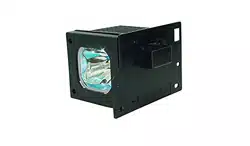
LAMP REPLACEMENT ................................................................................. 69-72
CARE OF YOUR HITACHI TV & REMOTE CONTROL ................................................ 73
RECEPTION PROBLEMS ................................................................................................. 74
USEFUL iNFORMATiON / INDEX ...................................................................................... 75=83
UL'_r_v_$1ON As an ENERGY STAR® Partner.Hitachi®Ltd,has determinedthatthis
D I G n T A L product meets the ENERGYSTAR guidelines for energy efficiency,
iMPORTANT SAFETY iNSTRUCTiONS
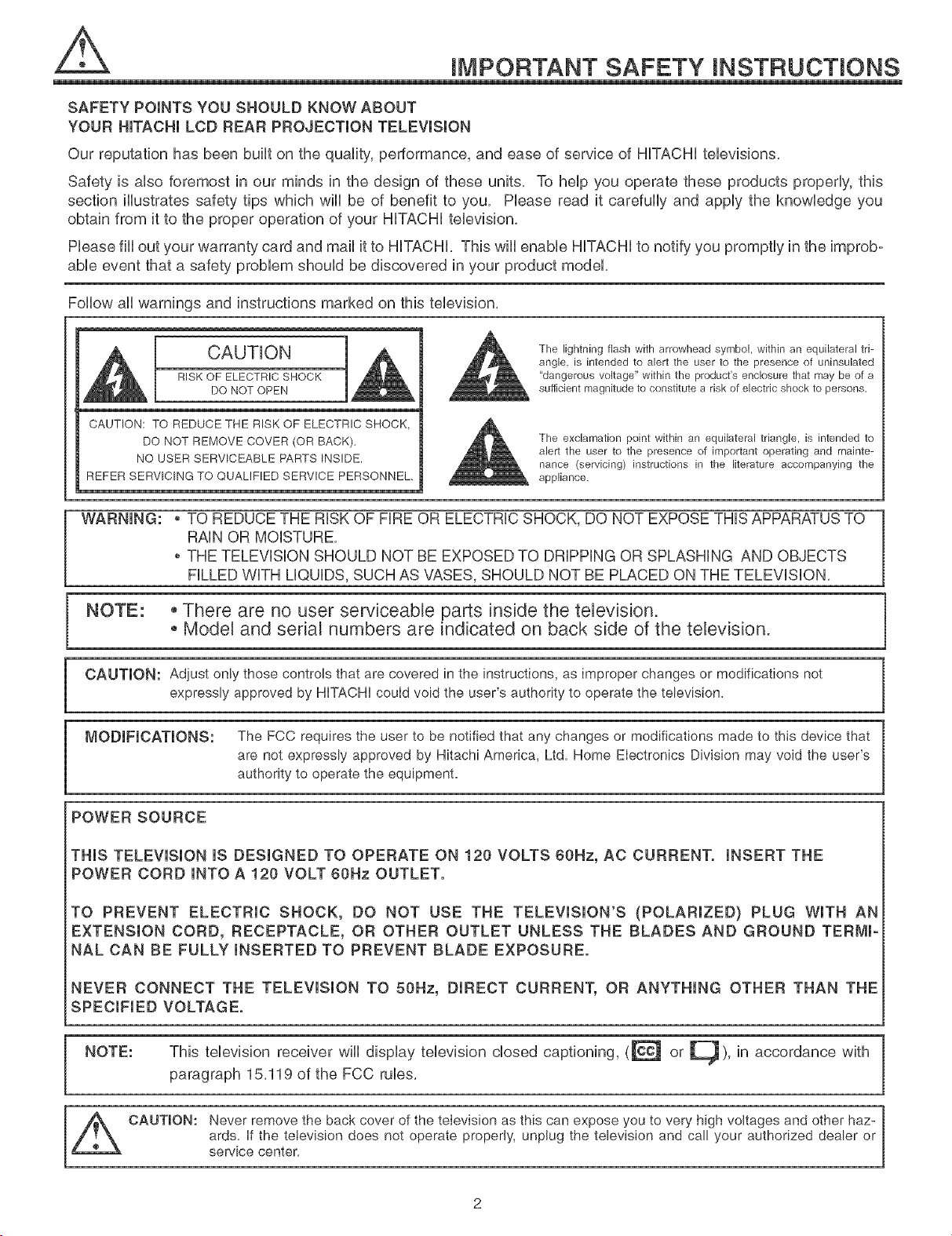
SAFETY POINTS YOU SHOULD KNOW ABOUT
YOUR HiTACHi LCD REAR PROJECTION TELEViSiON
Our reputation has been built on the quality, performance, and ease of service of HiTACHi tebvisions,
Safety is also foremost in our minds in the design of these units, To help you operate these products properly, this
section illustrates safety tips which will be of benefit to you, Phase read it carefully and apply the knowbdge you
obtain from it to the proper operation of your HiTACHi tebvision,
Phase fill out your warranty card and mail it to HiTACHi, This will enable HITACHI to notify you promptly in the improb-
able event that a safety problem should be discovered in your product model,
Follow all warnings and instructions marked on this television,
CAUTION
RISK OF ELECTRIC SHOCK
DO NOT OPEN
The lightning flash with arrowhead symbol, within an equilateral tri-
angle, is intended to alert the user to the presence of uninsulated
"dangerous voltage" within the product's enclosure that may be of a
sufficient magnitude to constitute a risk of electric shock to persons.
CAUTION: TO REDUCE THE RISK OF ELECTRIC SHOCK,
DO NOT REMOVE COVER (OR BACK),
NO USER SERVICEABLE PARTS INSIDE.
REFER SERVICING TO QUALIFIED SERVICE PERSONNEL,
The exclamation point within an equilateral triangle, is intended to
alert the user to the presence of important operating and mainte-
nance (servicing) instructions in the literature accompanying the
appliance.
WARNING: , TO REDUCE THE RiSK OF FiRE OR ELECTRIC SHOCK, DO NOT EXPOSE THiS APPARATUS TO
RAiN OR MOISTURE,
THE TELEViSiON SHOULD NOT BE EXPOSED TO DRiPPiNG OR SPLASHING AND OBJECTS
FILLED WiTH LiQUiDS, SUCH AS VASES, SHOULD NOT BE PLACED ON THE TELEViSiON,
NOTE: o There are no user serviceable parts inside the television.
Model and sedal numbers are indicated on back side of the television.
CAUTION: Adiust only those controls that are covered in the instructions, as improper changes or modifications not
expressly approved by HiTACHi could void the user's authority to operate the television.
MODiFiCATiONS: The FCC requires the user to be notified that any changes or modifications made to this device that
are not expressly approved by Hitachi America, Ltd. Home Electronics Division may void the user's
authority to operate the equipment.
POWER SOURCE
THIS TELEVISION IS DESIGNED TO OPERATE ON 120 VOLTS 60Hz, AC CURRENT. INSERT THE
POWER CORD INTO A !20 VOLT 60Hz OUTLET.
TO PREVENT ELECTRIC SHOCK, DO NOT USE THE TELEVISION'S (POLARIZED} PLUG WITH AN
EXTENSION CORD, RECEPTACLE, OR OTHER OUTLET UNLESS THE BLADES AND GROUND TERMI-
NAL CAN BE FULLY iNSERTED TO PREVENT BLADE EXPOSURE.
NEVER CONNECT THE TELEViSiON TO 50Hz, DIRECT CURRENT, OR ANYTHING OTHER THAN THE
SPECIFIED VOLTAGE.
NOTE: This television receiver wiii display television closed captioning, (_"_ or _), in accordance with
paragraph 15,119 of the FCC rubs,
CAUTION: Never remove the back cover of the teIevision as this can expose you to very high voltages and other haz-
ards. if the television does not operate properly, unplug the television and call your authorized dealer or
service center.
iMPORTANT SAFETY iNSTRUCTiONS
Read before operating equipment
Follow all warnings and instructions marked on this television.
1. Read these instructions.
2. Keep these instructions.
3. Heed all warnings.
4. Follow nil instructions.
5. Do not use this apparatus near water.
6. Clean only with a dry cloth.
7. Do not block any ventilation openings. Install in accordance
with the manufacturer's instructions.
8. Do not install near any heat sources such as radiators, heat
registers, stoves, or other apparatus (including amplifiers)
that produce heat.
9. Do not defeat the safety purpose of the polarized or ground-
ing-type plug. A polarized plug has two blades with one
wider than the other. A grounding type plug has two blades
and a third grounding prong. The wide blade or the third
prong are provided for your safety. If the provided plug does
not fit into your outlet, consult an electrician for replacement
of the obsolete outlet.
10. Protect the power cord from being walked on or pinched par-
ticulady at plugs, convenience receptacles, and the point
where they exit from the apparatus.
11. Only use the attachments/accessories specified by the man-
ufacturer.
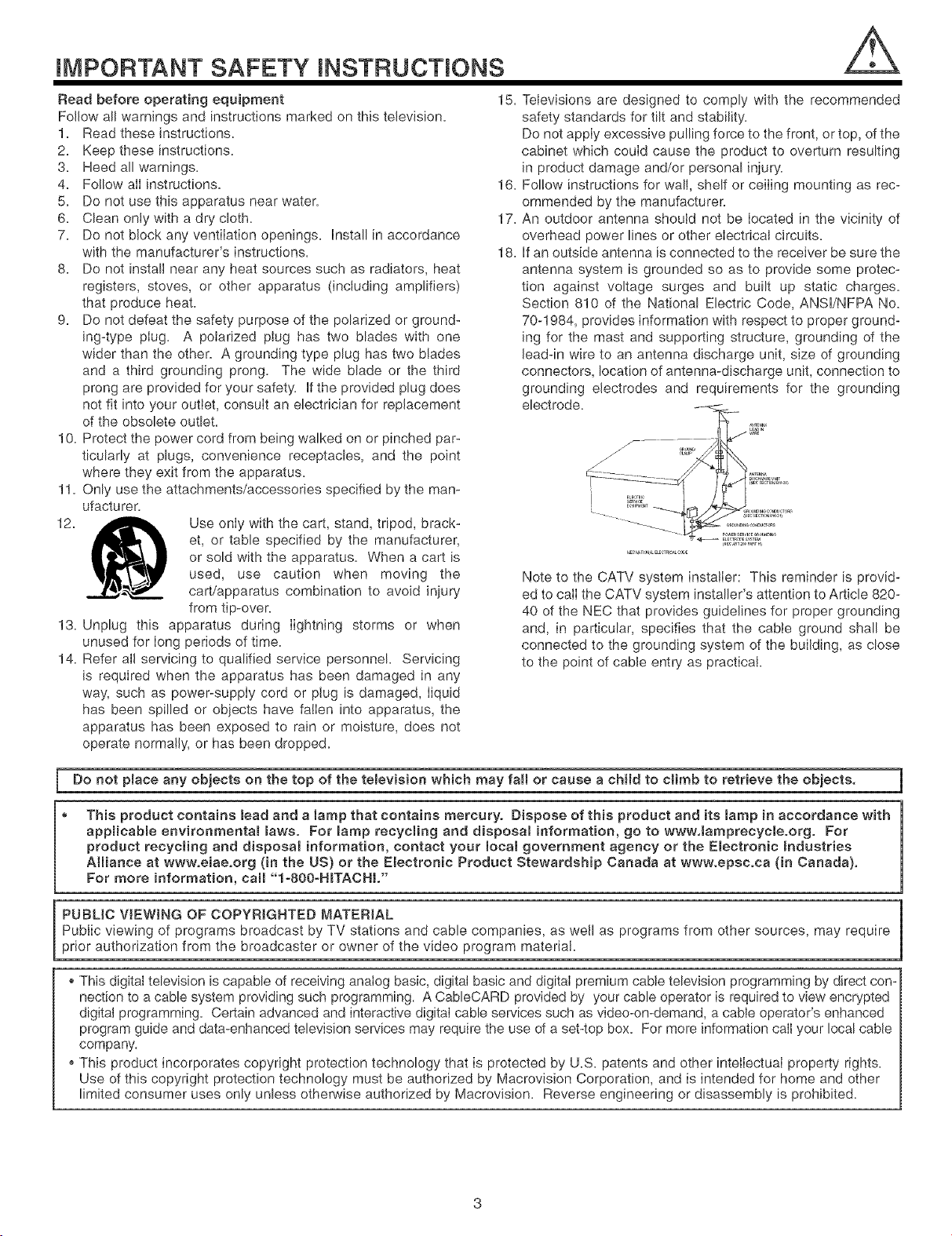
12. _ Use only with the cart, stand, tripod, brack-
et, or table specified by the manufacturer,
or sold with the apparatus. When a cart is
used, use caution when moving the
cart/apparatus combination to avoid iniury
from tip-over.
13. Unplug this apparatus during lightning storms or when
unused for long periods of time.
14. Refer all servicing to qualified service personnel. Servicing
is required when the apparatus has been damaged in any
way, such as power-supply cord or plug is damaged, liquid
has been spilled or objects have fallen into apparatus, the
apparatus has been exposed to rain or moisture, does not
operate normally, or has been dropped.
15. Televisions are designed to comply with the recommended
safety standards for tilt and stability.
Do not apply excessive pulling force to the front, or top, of the
cabinet which could cause the product to overturn resulting
in product damage and/or personal injury.
16. Fol!ow instructions for wall, shelf or ceiling mounting as rec-
ommended by the manufacturer.
17. An outdoor antenna should not be located in the vicinity of
overhead power lines or other electrical circuits.
18. If an outside antenna is connected to the receiver be sure the
antenna system is grounded so as to provide some protec-
tion against voltage surges and built up static charges.
Section 810 of the National Electric Code, ANSl/NFPA No.
70-1984, provides information with respect to proper ground-
ing for the mast and supporting structure, grounding of the
lead-in wire to an antenna discharge unit, size of grounding
connectors, location of antenna-discharge unit, connection to
grounding electrodes and re(uirements for the grounding
electrode.
N,__TI,,_L ELEC,RI_L¢0D,
Note to the CATV system installer: This reminder is provid-
ed to calI the CATV system installer's attention to Article 820-
40 of the NEC that provides guidelines for proper grounding
and, in particular, specifies that the cable ground shall be
connected to the grounding system of the building, as close
to the point of cable entry as practical.
Do not pranceany objects on the top of the temevision which may fam[or cause a child to cmimb to retrieve the objects,
® This product contains lead and a lamp that contains mercury. Dispose of this product and its lamp in accordance with
appHcabme environmentam maws. For lamp recycling and disposal information, go to www.[amprecyc[e.org. For
product recycling and disposal information, contact your local government agency or the Electronic industries
Alliance at www.eiae.org (in the US) or the Emectronic Product Stewardship Canada at www, epsc.ca (in Canada),
For more information, cam[°'I-800oH_TACHI,"
PUBLIC WEWING OF COPYRIGHTED MATERIAL
Public viewing of programs broadcast by TV stations and cable companies, as well as programs from other sources, may require
prior authorization from the broadcaster or owner of the video program material.
This digital television is capable of receiving analog basic, digital basic and digital premium cabte television programming by direct con-
nection to a came system providing such programming. A CableCARD provided by your cable operator is required to view encrypted
digital programming. Certain advanced and interactive digital cable services such as video-on-demand, a cable operator's enhanced
program guide and data-enhanced television services may require the use of a set-top box. For more information call your local cable
company.
* This product incorporates copyright protection technology that is protected by U.S. patents and other intellectual property rights.
Use of this copyright protection technology must be authorized by Macrovision Corporation, and is intended for home and other
limited consumer uses only unless otherwise authorized by Macrovision. Reverse engineering or disassembly is prohibited.
iiiiiiiiiiiiii@i! 'il
iiiiiiiiiiiiiiiiiiiii !ii i
iiiiiiiiiiiiiiiiiiiii i: ! ii
iiii'ii i!ii!iiiiiiiiiiii!i!iiii!ii!ii!ii!i iiii !!!!i !
iiiiiiii'i iiiiiiiiiiiiiiii ii !i !i iiii!ii i! !i!
iiiiiiiiiiii'i_!ii:ii:ii:i!i!ii}_!{iil
iiiiiiiiiiiiiiii_;i:i!,!_iii!iii_!,i
iiiiiiiiiiiiiiiiiiiiiiiiiiiiiiiiiiiiiiiiii i ii ii! il
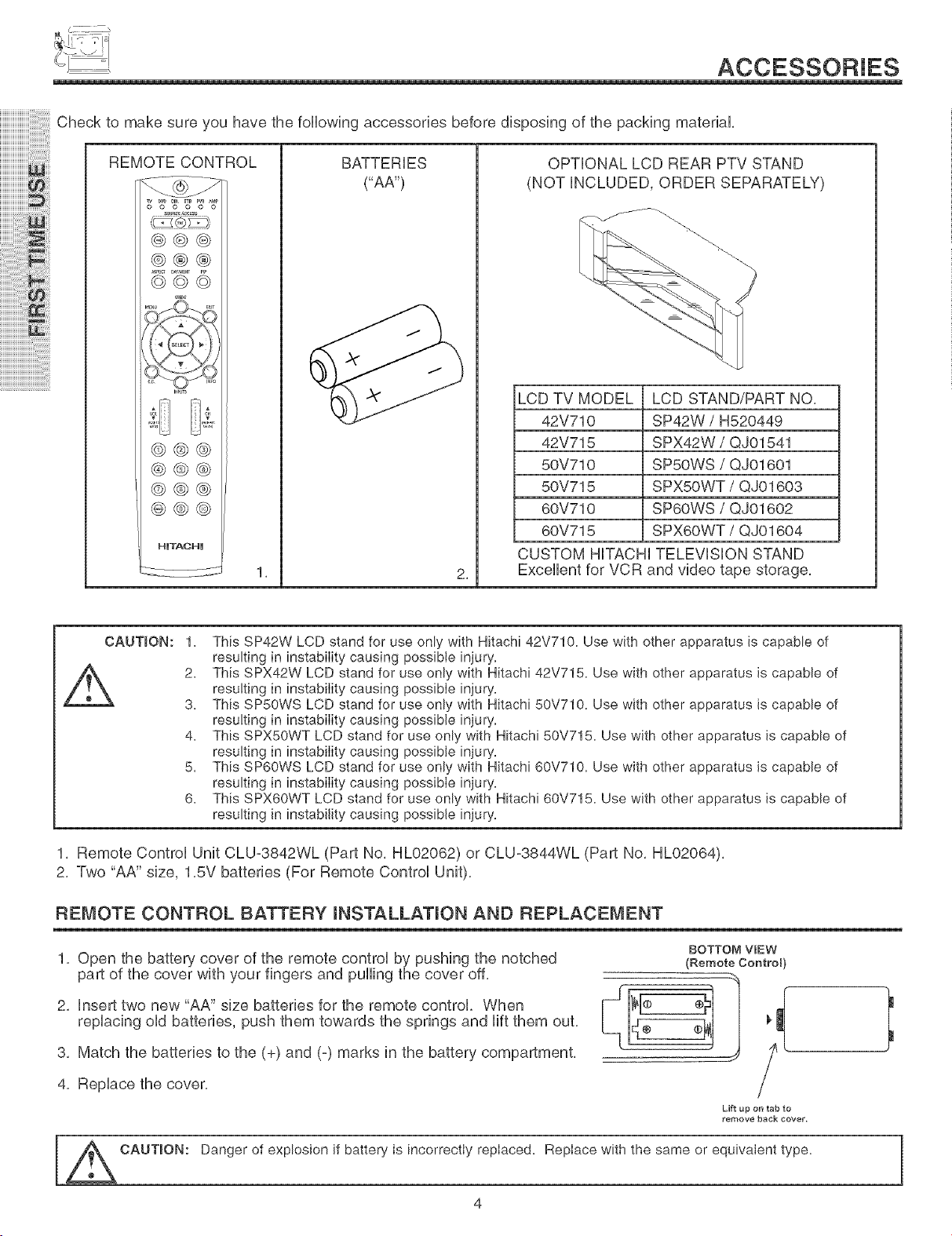
Check to make sure you have the following accessories before disposing of the packing material,
REMOTE CONTROL
@@@
@@@
(_ (__sr,Ec_DAVaI_Hr
@@@
@@@
@@@
@@@
HmTACHm
BATTERIES
("AA')
i
2,
OPTIONAL LCD REAR PTV STAND
(NOT iNCLUDED, ORDER SEPARATELY)
LCD TV MODEL LCD STAND/PART NO,
42V710 SP42W / H520449
42V715 SPX42W / QJ01541
50V710 SP5OWS / QJ01601
50V715 SPX5OWT / QJ01603
60V710 SP6OWS / QJ01602
60V715 SPX6OWT / QJ01604
CUSTOM HiTACHi TELEViSiON STAND
Excellent for VCR and video tape storage,
This SP42W LCD stand for use only with Hitachi 42V710. Use with other apparatus is capable of
resulting in instabiIity causing :_ossibte _njury.
This SPX42W LCD stand for use only with Hitachi 42V715. Use with other apparatus is capable of
resulting in instabiIity causing :_ossibIe _njury.
This SP50WS LCD stand for use only with Hitachi 50V710. Use with other apparatus is capable of
resulting in instabiIity causing 9ossible injury.
This SPXSOWT LCD stand for use only with Hitachi 50V715. Use with other apparatus is capable of
resulting in instabiIity causing oossible injury.
This SP60WS LCD stand for use only with Hitachi 60V710. Use with other apparatus is capable of
resulting in instabiIity causing 9ossibIe _njury.
This SPX60WT LCD stand for use only with Hitachi 60V715. Use with other apparatus is capable of
resulting in instability causing :_ossible injury.
1, Remote Control Unit CLU-3842WL (Part No, HL02062) or CLU°3844WL (Part No, HL02064),
2, Two "AA" size, 1,5V batteries (For Remote Control Unit),
REMOTE CONTROL BATTERY INSTALLATION AND REPLACEMENT
1, Open the battery cover of the remote control by pushing the notched
part of the cover with your fingers and pulling the cover off,
2, insert two new "AA" size batteries for the remote control. When
replacing old batteries, push them towards the springs and lift them out,
3, Match the batteries to the (+) and (°) marks in the battery compartment,
4, Replace the cover,
BOTTOM WEW
(Remote Control}
Lift up on tab to
remove back covet.
}
CAUTION: Danger of explosion if battery is incorrectIy repIaced. RepIace with the same or equivalent type.
4
HOW TO SET UP YOUR NEW HiTACHi LCD REAR PTV
ANTENNA
Unless your LCD Rear PTV is connected to a cable TV system or to a centralized antenna system, a good outdoor TV antenna is
recommended for best performance. However, if you are located in an exceptionally good signal area that is free from interference and
multiple image ghosts, an indoor antenna may be sufficient.
LOCATION
Select an area where sunlight or bright indoor illumination will not fall directly on the picture screen. Aiso, be sure that the location
selected allows a free flow of air to and from the perforated back cover of the set.
To avoid cabinet warping, cabinet color changes, and increased chance of set failure, do not place the TV where temperatures can
become excessively hot, for example, in direct sunlight or near a heating appliance, etc.
When installing your LCD Rear PTV against a wall, keep it at least 10 cm (4 inches) from the wall.
VSEWJNG
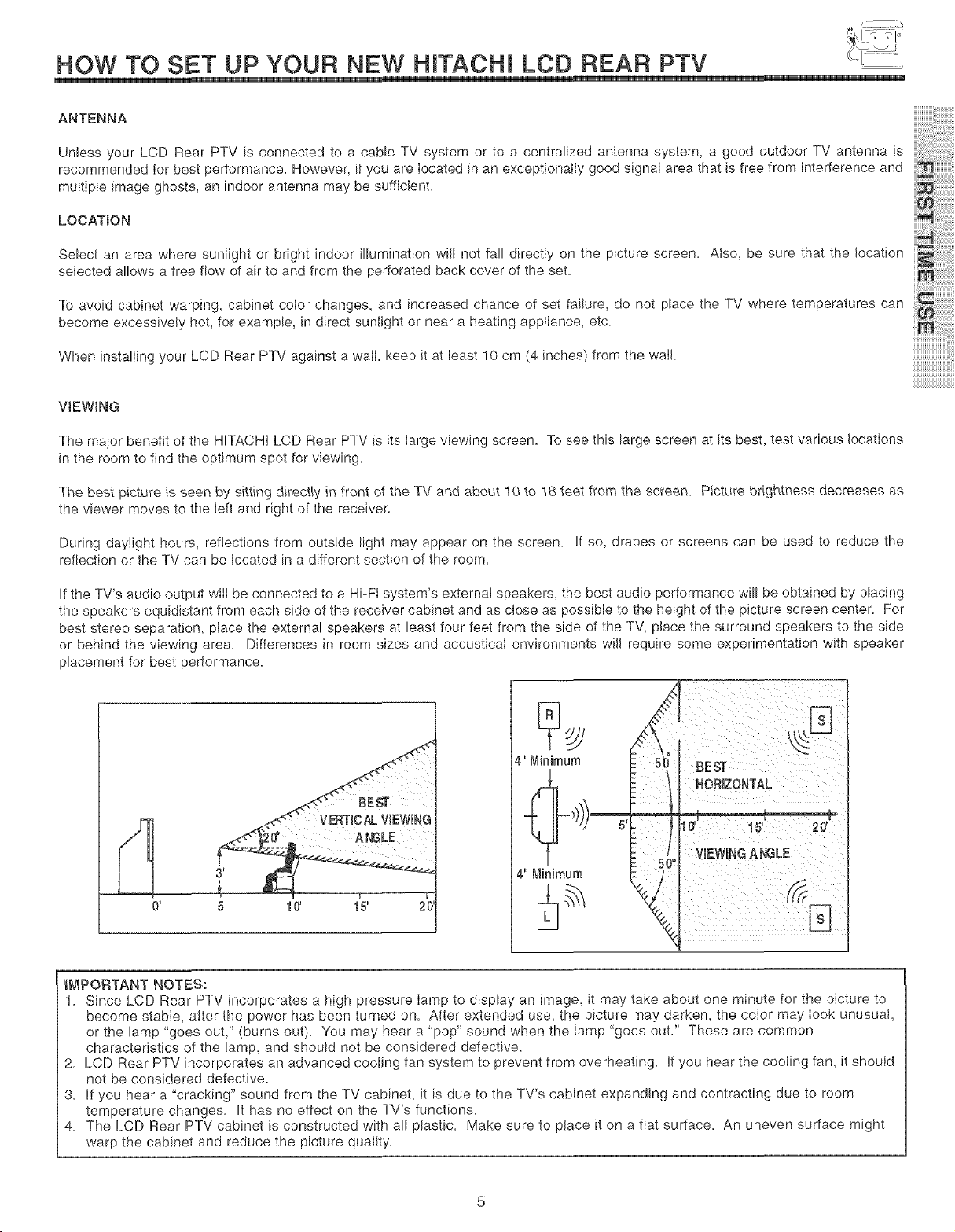
The major benefit of the HITACHI LCD Rear PTV is its large viewing screen. To see this large screen at its best, test various locations
in the room to find the optimum spot for viewing.
The best picture is seen by sitting directly in front of the TV and about 10 to 18 feet from the screen. Picture brightness decreases as
the viewer moves to the left and right of the receiver.
During daylight hours, reflections from outside light may appear on the screen. If so, drapes or screens can be used to reduce the
reflection or the TV can be located in a different section of the room.
If the TV's audio output wilI be connected to a Hi-Fi system's external speakers, the best audio performance will be obtained by placing
the speakers equidistant from each side of the receiver cabinet and as close as possible to the height of the picture screen center. For
best stereo separation, place the external speakers at least four feet from the side of the TV, place the surround speakers to the side
or behind the viewing area. Differences in room sizes and acoustical environments will require some experimentation with speaker
placement for best performance.
r
5' 10' 15' 20'
BEST
HORIZONTAL
VIEWINGANGLE
IMPORTANT NOTES:
1= Since LCD Rear PTV incorporates a high pressure Iamp to display an image, it may take about one minute for the picture to
become stable, after the power has been turned on= After extended use, the picture may darken, the color may look unusual,
or the lamp "goes out," (burns out)= You may hear a "pop" sound when the Iamp "goes out=" These are common
characteristics of the lamp, and should not be considered defective.
2= LCD Rear PTV incorporates an advanced cooling fan system to prevent from overheating. If you hear the cooling fan, it should
not be considered defective.
3= If you hear a "cracking" sound from the TV cabinet, it is due to the TV's cabinet expanding and contracting due to room
temperature changes. It has no effect on the TV's functions.
4= The LCD Rear PTV cabinet is constructed with all plastic. Make sure to place it on a flat surface. An uneven surface might
warp the cabinet and reduce the picture quality.
HOOK-UP CABLES AND CONNECTORS
m i
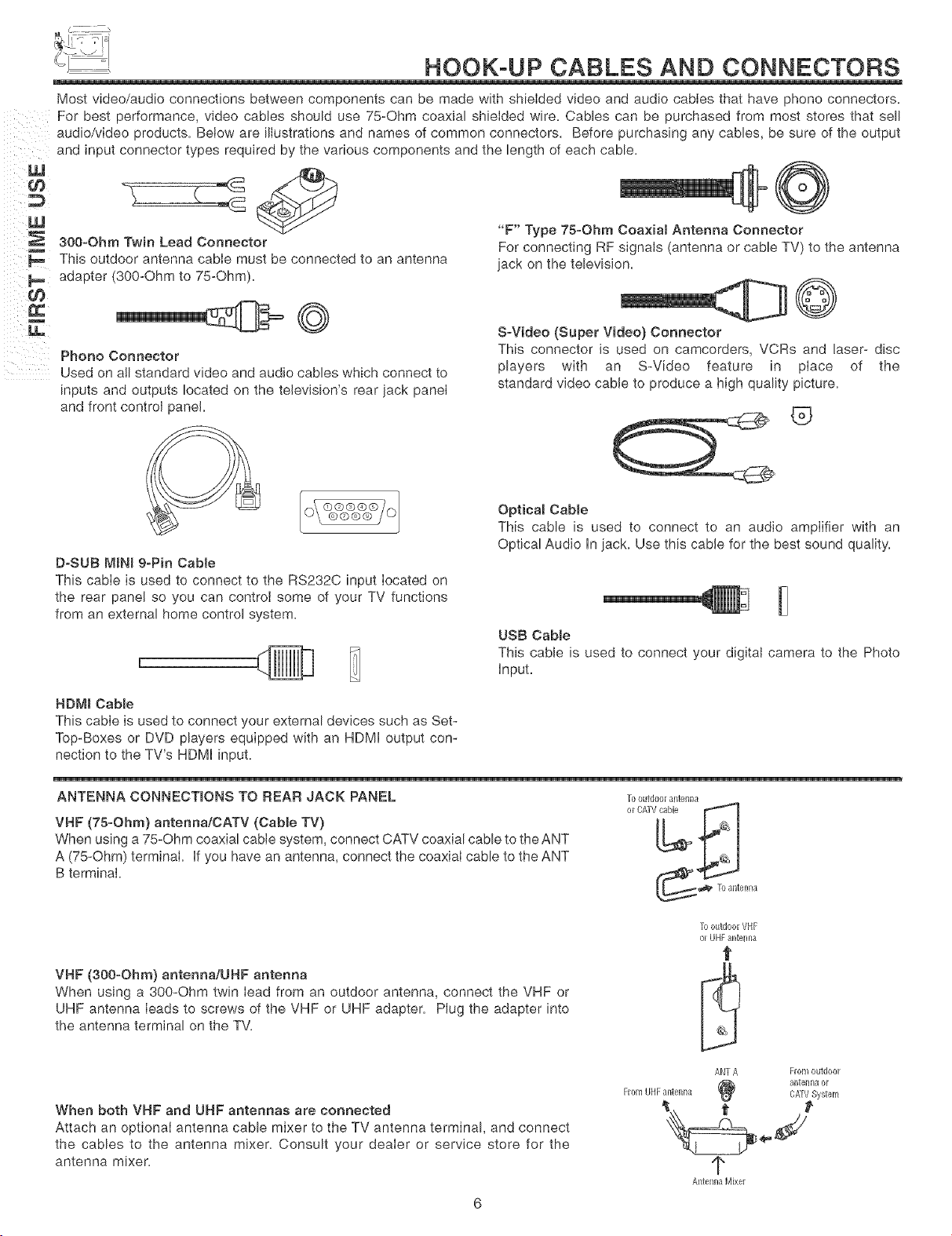
Most video/audio connections between components can be made with shielded video and audio cables that have phono connectors.
For best performance, video cables should use 75-Ohm coaxial shielded wire. Cables can be purchased from most stores that sell
audio/video products. Below are illustrations and names of common connectors. Before purchasing any cables, be sure of the output
and input connector types required by the various components and the length of each cable.
300-Ohm Twin Lead Connector
This outdoor antenna cable must be connected to an antenna
adapter (300-Ohm to 75-Ohm).
Phono Connector
Used on all standard video and audio cables which connect to
inputs and outputs located on the television's rear jack panel
and front control panel.
D-SUB MiNi 9-Pin CabWe
This cabIe is used to connect to the RS232C input Iocated on
the rear panel so you can control some of your TV functions
from an external home control system.
"F" Type 75-Ohm Coa×ia_ Antenna Connector
For connecting RF signals (antenna or cable TV) to the antenna
jack on the tebvision.
S_Video (Super Video) Connector
This connector is used on camcorders, VCRs and laser- disc
players with an S-Video feature in place of the
standard video cable to produce a high quality picture.
®
OpticaB Cable
This cable is used to connect to an audio amplifier with an
Optical Audio In jack. Use this cable for the best sound quality.
USB CaMe
This cable is used to connect your digital camera to the Photo
input.
HDMJ Cable
This cable is used to connect your external devices such as Set-
Top-Boxes or DVD players equipped with an HDMI output con-
nection to the TV's HDMI input.
ANTENNA CONNECTIONS TO REAR JACK PANEL
VHF (75-Ohm) antenna/CATV (Cable TV}
When using a 75-Ohm coaxial cable system, connect CATV coaxial cable to the ANT
A (75-Ohm) terminal if you have an antenna, connect the coaxial cable to the ANT
B terminal.
To outdoor alktenlla
or 6ATV cane
,_ To antenna
VNF (300-Ohm) antenna/UHF antenna
When using a 300-Ohm twin Iead from an outdoor antenna, connect the VHF or
UHF antenna leads to screws of the VHF or UHF adapter. Plug the adapter into
the antenna terminal on the TV.
When both VNF and UNF antennas are connected
Attach an optional antenna cable mixer to the TV antenna terminal, and connect
the cables to the antenna mixer. Consult your dealer or service store for the
antenna mixer.
To outdoor VHF
oJ UHF antenna
t
ANT A FIo11/outd0oJ
_ aJ/tenll_ orFrorn UHF antenna 6_V System
¢
Antenna Mixer
SIDE/FRONT PANEL CONTROLS
MODELS: 42V710/42V715
®
®®®_
MODELS:
®
r i
50V710/50V715
®
@
®
MENU'SELECT
[]
OH+
OH
INPUT'EXIT
[]
POWER
E3
INPUT
SWDEO
v,oEo{©}--_
....I,NoQ_
LR_O}_
............ _ _¢ _ _ I_ M_U
[_ _
®
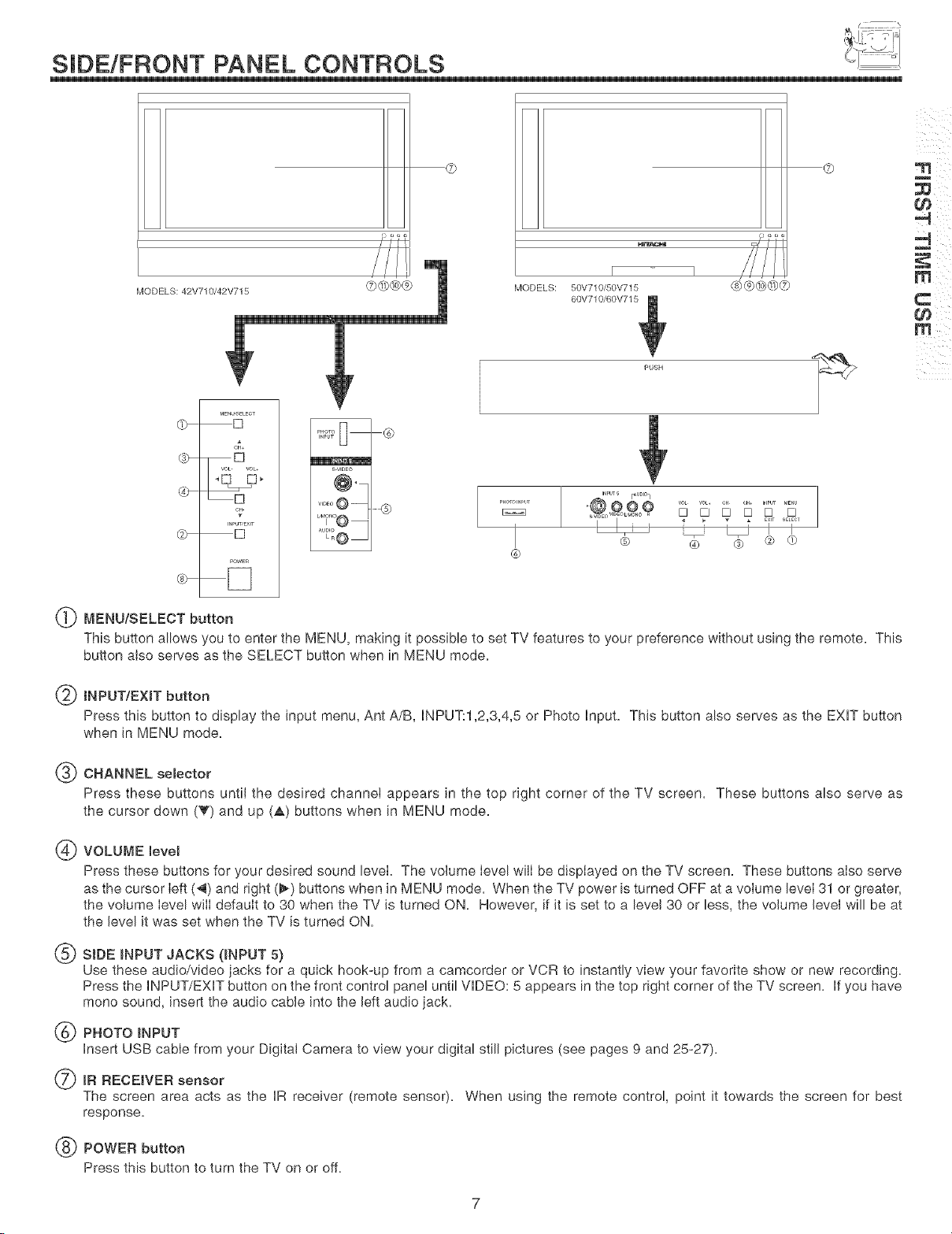
(_ MENU/SELECT button
This button allows you to enter the MENU, making it possible to set TV features to your preference without using the remote. This
button also serves as the SELECT button when in MENU mode.
m
,4 ¸
m ¸
INPUT/EXiT button
Press this button to display the input menu, Ant A/B, INPUT:1,2,3,4,5 or Photo InpuL This button also serves as the EXIT button
when in MENU mode.
_ CHANNEL semector
Press these buttons until the desired channei appears in the top right corner of the TV screen. These buttons also serve as
the cursor down (T) and up (_,) buttons when in MENU mode.
(_ VOLUME levem
Press these buttons for your desired sound level. The volume Ievel wilI be dispIayed on the TV screen. These buttons aIso serve
as the cursor Ieft (_) and right (_) buttons when in MENU mode. When the TV power is turned OFF at a volume level 31 or greater,
the volume level wili default to 30 when the TV is turned ON. However, if it is set to a level 30 or less, the volume level will be at
the level it was set when the TV is turned ON.
(_ SIDE _NPUT JACKS (_NPUT 5)
Use these audio/video jacks for a quick hook-up from a camcorder or VCR to instantly view your favorite show or new recording.
Press the INPUT/EXIT button on the front control panel until VIDEO: 5 appears in the top right corner of the TV screen. If you have
mono sound, insert the audio cable into the left audio jack.
(_) PHOTO _NPUT
Insert USB cable from your Digital Camera to view your digital still pictures (see pages 9 and 25-27).
_IR RECEIVER sensor
The screen area acts as the IR receiver (remote sensor). When using the remote control, point it towards the screen for best
response.
(_ POWER button
Press this button to turn the TV on or off.
SIDE/FRONT PANEL CONTROLS
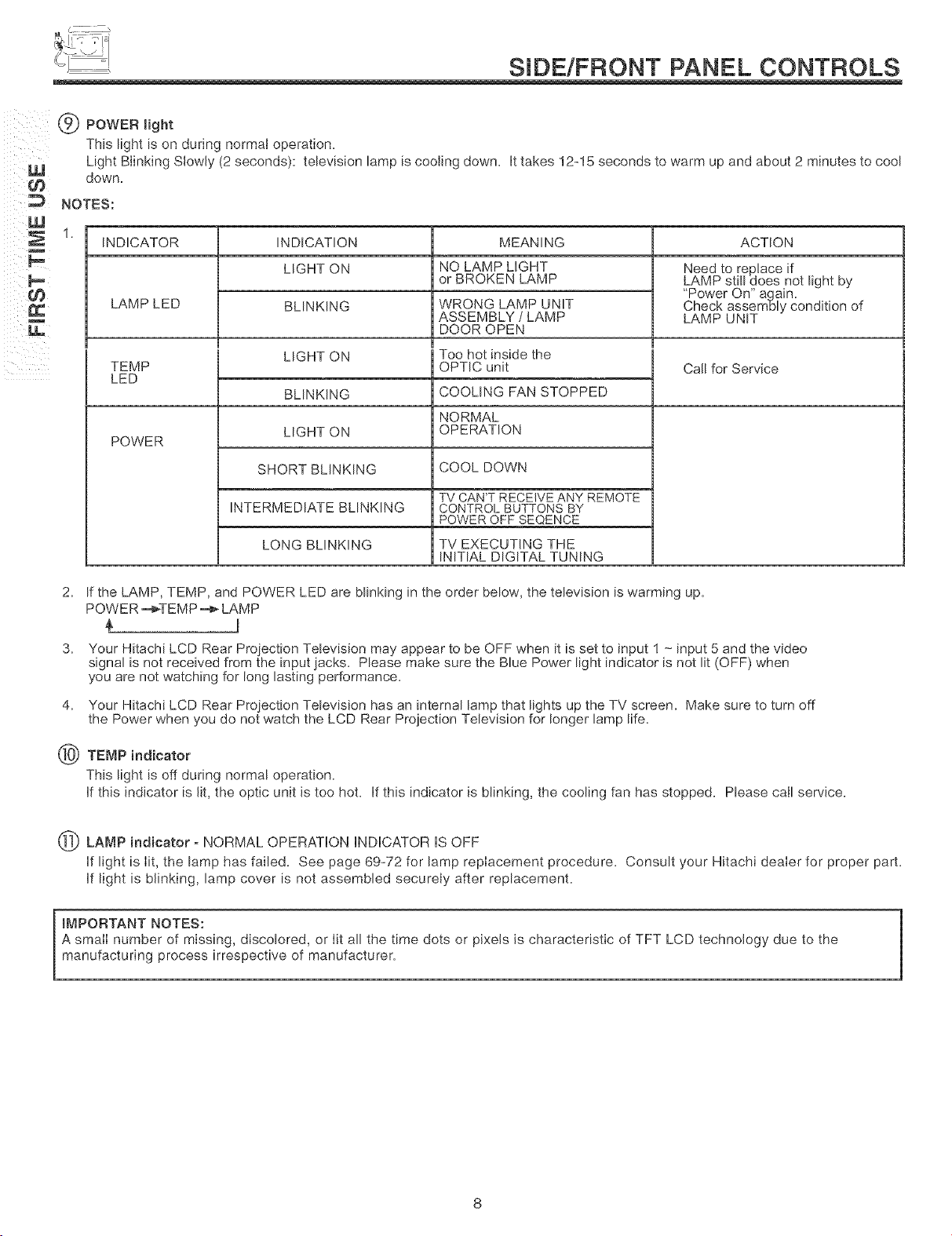
® POWER.ght
This light is on during normal operation.
Light Blinking Slowly (2 seconds): television lamp is cooling down. It takes 12-15 seconds to warm up and about 2 minutes to cool
down.
E
NOTES:
INDICATOR INDICATION ACTION
LIGHT ON
LAMP LED
TEMP
LED
POWER
BLINKING
LIGHT ON
BLINKING
LIGHT ON
SHORT BLINKING
INTERMEDIATE BLINKING
LONG BLINKING
MEANING
NO LAMP LIGHT
or BROKEN LAMP
WRONG LAMP UNIT
ASSEMBLY / LAMP
DOOR OPEN
Too hot inside the
OPTIC unit
COOLING FAN STOPPED
NORMAL
OPERATION
COOL DOWN
TV CAN'T RECEIVE ANY REMOTE
CONTROL BUTTONS BY
POWER OFF SEQENCE
TV EXECUTING THE
INITIAL DIGITAL TUNING
Need to replace if
LAMP still does not light by
"Power On" again.
Check assembly condition of
LAMP UNIT
Call for Service
2. If the LAMP, TEMP, and POWER LED are blinking in the order below, the television is warming up.
POWER -¢_TEMP -€_ LAMP
4,
®
Your Hitachi LCD Rear Projection Television may appear to be OFF when it is set to input ! -_ input 5 and the video
signal is not received from the input jacks. Please make sure the Blue Power light indicator is not lit (OFF) when
you are not watching for long lasting performance.
Your Hitachi LCD Rear Proiection Television has an internal lamp that lights up the TV screen. Make sure to turn off
the Power when you do not watch the LCD Rear Projection Television for longer lamp life.
TEMP indicator
This light is off during normal operation.
If this indicator is lit, the optic unit is too hot. If this indicator is blinking, the cooling fan has stopped. Please call service.
LAMP indicator - NORMAL OPERATION iNDiCATOR iS OFF
if light is lit, the lamp has failed. See page 69-72 for lamp replacement procedure. Consult your Hitachi dealer for proper part.
if light is blinking, lamp cover is not assembled securely after replacement.
IMPORTANT NOTES:
A small number of missing, discolored, or lit all the time dots or pixels is characteristic of TFT LCD technology due to the
manufacturing process irrespective of manufacturer.
1
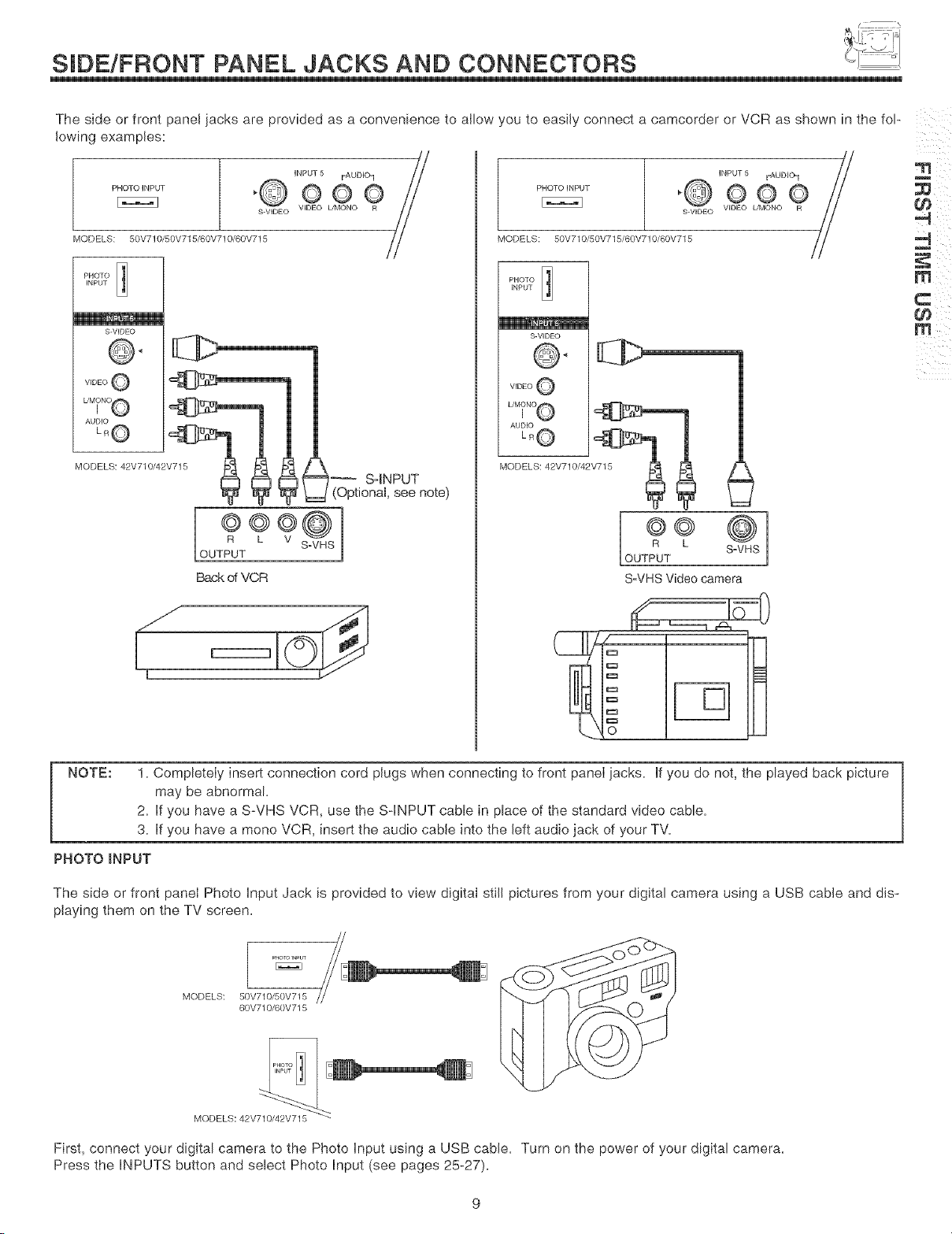
S DE/FRONT PANEL JACKS AND CONNECTORS
The side or front panel jacks are provided as a convenience to allow you to easily connect a camcorder or VCR as shown in the fop
lowing examples:
PHOTO iNPUT
S-VIDEO
MODELS: 50V710/50V715/60V710/60V715
PHOTO _
iNPUT
S-VIDEO
SqNPUT
(Opt onal, see note)
R L V .
OUTPUT
Back of VCR
i
-q
PHOTOINPUT
S-VIDEO
MODELS: 50V710/50V715/60V710/60V715
PHOTO
iNPUT
S-VIDEO
@@
R L
S+VHS
OUTPUT
SoVHSVideo camera
iC:3
i+==
ic=
o
NOTE:
1. Completely insert connection cord plugs when connecting to front panel jacks, if you do not, the played back picture
may be abnormal
2. if you have a S-VHS VCR, use the S-INPUT cable in place of the standard video cable.
3. if you have a mono VCR, insert the audio cable into the left audio jack of your TV.
PHOTO INPUT
The side or front panel Photo input Jack is provided to view digital still pictures from your digital camera using a USB cable and dis-
playing them on the TV screen.
m
m ¸
PHOTOINPUT
MODELS: 50V710/50V715
60V710/60V715
MODELS:42+
First, connect your digital camera to the Photo input using a USB cable. Turn on the power of your digital camera.
Press the iNPUTS button and select Photo input (see pages 25-27).
REAR PANEL JACKS
iiiiiiiiiiiiiiiiiiiii ! ! ;;
iiiiiiiiiiiiiiiiiiiii i: ! ii
iiii'ii i!ii!iiiiiiiiiiii!i!iiii!ii!ii!ii!i iiii !!!!i !
iiiiiiii'i iiiiiiiiiiiiiiii ii;!i !i iiii!ii i! !i!
iiiiiiiiiiii'i_!iii:ii:ii:i!i!ii}_!{iil
iiiiiiiiiiiiiiii_:i:i!,!_;ii!;:i_!,i
iiiiiiiiiiiiiiiiiiiiiiiiiiiiiiiiiiiiiiiiii i ii ii! il
--O ......... E
_N,....
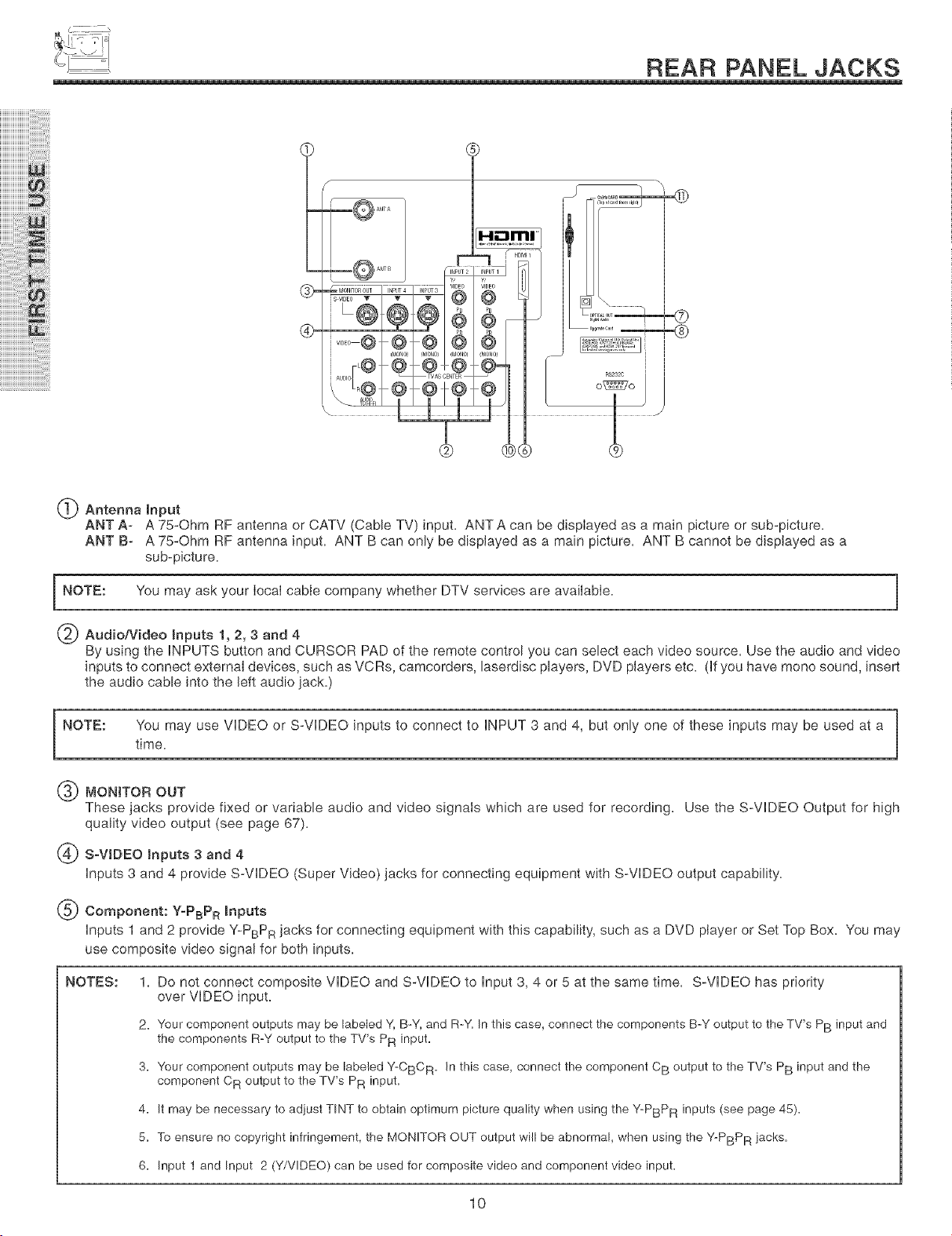
Antenna Input
ANT A- A 75-Ohm RF antenna or CATV (Cable TV) input. ANTA can be displayed as a main picture or sub-picture.
ANT B- A 75-Ohm RF antenna input. ANT B can only be displayed as a main picture. ANT B cannot be displayed as a
sub-picture.
NOTE: You may ask your local cable company whether DTV services are avaiiable.
Audio/Video Inputs 1, 2, 3 and 4
By using the iNPUTS button and CURSOR PAD of the remote control you can select each video source. Use the audio and video
inputs to connect external devices, such as VCRs, camcorders, laserdisc players, DVD players etc. (if you have mono sound, insert
the audio cable into the left audio jack.)
NOTE: You may use VIDEO or S-VIDEO inputs to connect to iNPUT 3 and 4, but only one of these inputs may be used at a
time.
@
®
MONITOR OUT
These jacks provide fixed or variable audio and video signals which are used for recording. Use the S-VIDEO Output for high
quality video output (see page 67).
S_VJDEO Inputs 3 and 4
inputs 3 and 4 provide S-VIDEO (Super Video) jacks for connecting equipment with S-VIDEO output capability.
Component: Y-PBPR inputs
inputs 1 and 2 provide Y-PBPR jacks for connecting equipment with this capability, such as a DVD player or Set Top Box. You may
use composite video signal for both inputs.
NOTES: 1. Do not connect composite VIDEO and S-VIDEO to input 3, 4 or 5 at the same time. S-VIDEO has priority
over VIDEO input.
2. Your component outputs may be labeled Y, B-Y, and R-Y. In this case, connect the components B-Y output to the TV's PB input and
the components R-Y output to the TV's PR input.
3. Your component outputs may be labeled Y-CBC R. In this case, connect the component C B output to the TV's PB input and the
component C R output to the TV's PR input.
4. It may be necessary to adjust TINT to obtain optimum picture quality when using the Y-PBPR inputs (see page 45).
5. To ensure no copyright infringement, the MONITOR OUT output will be abnormal, when using the Y-PBPR iacks.
6. Input t and Input 2 (Y/VIDEO) can be used for composite video and component video input.
10
REAR PANEL JACKS
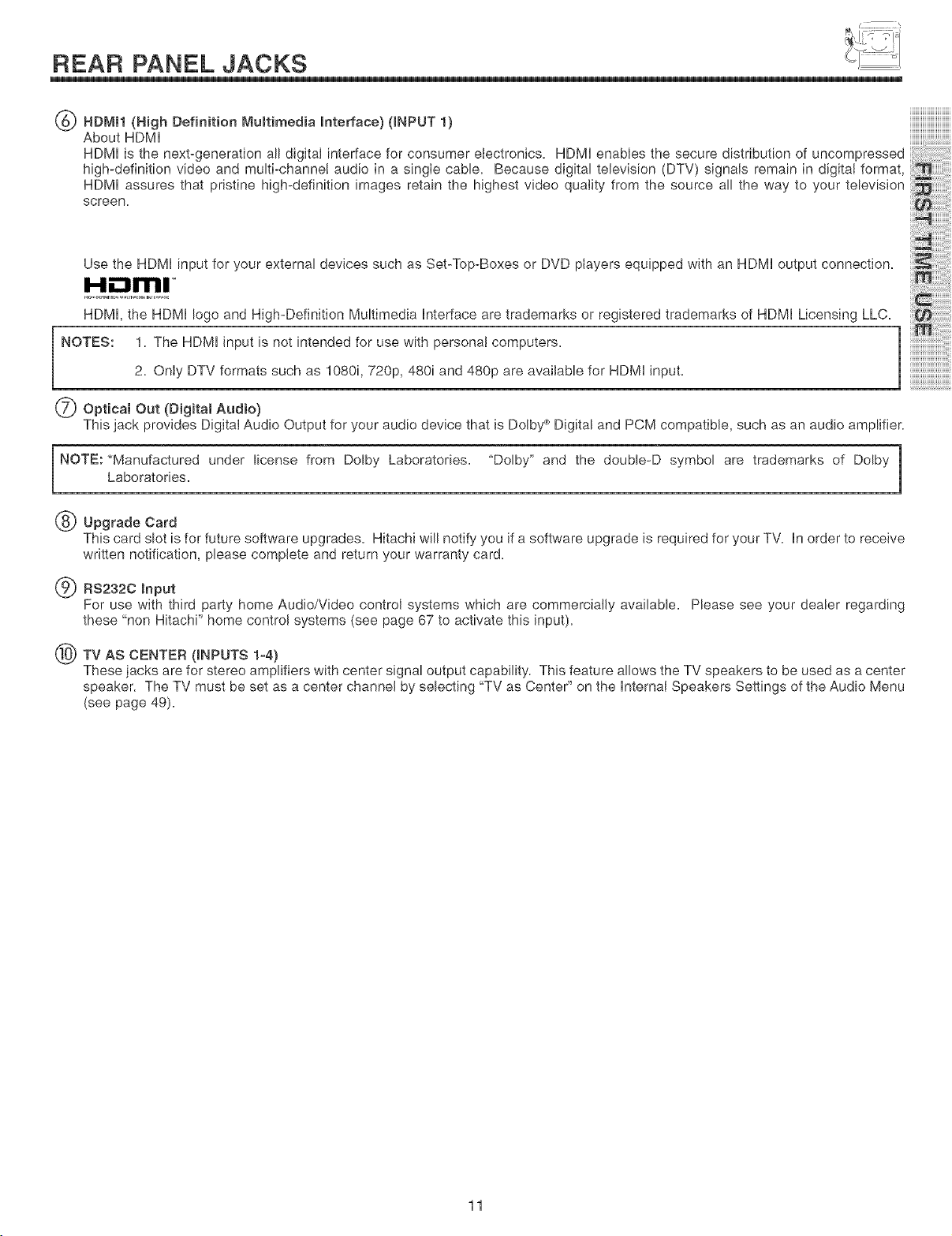
@ HD_,_I1(High Definition Multimedia Interface) (INPUT 1)
About HDMI
HDMI is the next-generation all digital interface for consumer electronics. HDMI enables the secure distribution of uncompressed
high-definition video and multi-channe! audio in a single cable. Because digital television (DTV) signals remain in digital format,
HDMI assures that pristine high-definition images retain the highest video quality from the source all the way to your television
screen.
Use the HDMI input for your external devices such as Set-Top-Boxes or DVD players equipped with an HDMI output connection.
HDMI, the HDMI logo and High-Definition Multimedia interface are trademarks or registered trademarks of HDMI Licensing LLC.
NOTES: 1. The HDMI input is not intended for use with personal computers.
2. Only DTV formats such as 1080i, 720p, 480i and 480p are available for HDMI input.
Optical Out (Digital Audio)
This jack provides Digital Audio Output for your audio device that is Dolby _ Digital and PCM compatible, such as an audio amplifier.
NOTE: *Manufactured under license from Dolby Laboratories. "Dolby" and the double-D symbol are trademarks of Dolby 1
Laboratories.
1
Upgrade Card
This card slot is for future software upgrades. Hitachi will notify you if a software upgrade is required for your TV. in order to receive
written notification, please complete and return your warranty card.
RS2320 Input
For use with third party home Audio/Video control systems which are commercially available. Please see your dealer regarding
these "non Hitachi" home control systems (see page 67 to activate this input).
TV AS CENTER (INPUTS 1-4)
These jacks are for stereo amplifiers with center signal output capability. This feature allows the TV speakers to be used as a center
speaker. The TV must be set as a center channel by selecting "TV as Center" on the Internal Speakers Settings of the Audio Menu
(see page 49).
11
REAR PANEL JACKS
iiiiiiiiiiiiiiiiiiiii ! ! ;i
iiiiiiiiiiiiiiiiiiiii i: ! i;
iiii'ii i!ii!iiiiiiiiiiii!i!iiii!ii!ii!ii!i iiii !!!!i !
iiiiiiii'i iiiiiiiiiiiiiiii ii !i !i iiii!ii i! !i!
iiiiiiiiiiii'i_!iii:ii:ii:i!i!ii!_!_i_iiil
iiiiiiiiiiiiiiii_:i:i!,!_iii!i:i_!,i
iiiiiiiiiiiiiiiiiiiiiiiiiiiiiiiiiiiiiiiiii i ii ii!;i
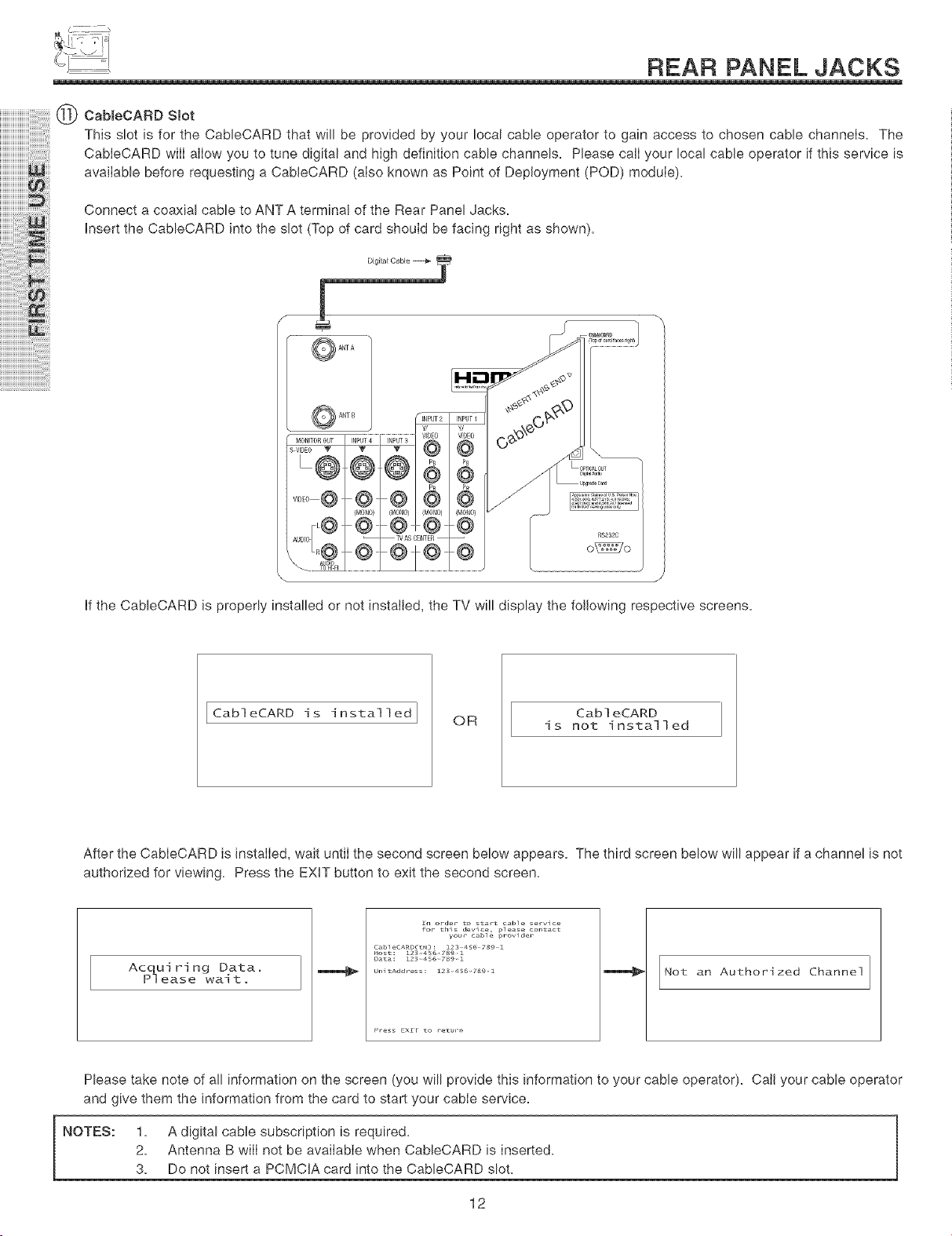
CableCARD Slot
This slot is for the CableCARD that will be provided by your local cable operator to gain access to chosen cable channels. The
CableCARD will allow you to tune digital and high definition cable channels. Please call your local cable operator if this service is
available before requesting a CableCARD (also known as Point of Deployment (POD) module).
Connect a coaxial cable to ANT A terminal of the Rear Panel Jacks.
Insert the CableCARD into the slot (Top of card should be facing right as shown).
.............................................................i'i' T. B @'0E0
(MON (MON/}) I IMONO) IMON0)
TV AS CENTER --
RS2S2C
o_o
if the CableCARD is properly installed or not installed the TV will display the following respective screens.
I Cab]eCARD is installed
OR
Cab] eCARD
is not installed
After the CabIeCARD is installed, wait until the second screen below appears. The third screen below will appear if a channel is not
authorized for viewing. Press the EXIT button to exit the second screen.
Acquiring Data.
Please wail:.
CableCARD(_): Z234567ggz
Host: Z23456789Z
Data: Z234S67SgZ
UnitAdd_-ess: Z234S67_gZ
an Authorized Channe]
Please take note of all information on the screen (you will provide this information to your cable operator). Call your cable operator
and give them the information from the card to start your cable service.
NOTES: 1. A digital cable subscription is required.
2. Antenna B will not be available when CableCARD is inserted.
3. Do not insert a PCMCIA card into the CableCARD slot.
12
REAR PANEL CONNECTIONS
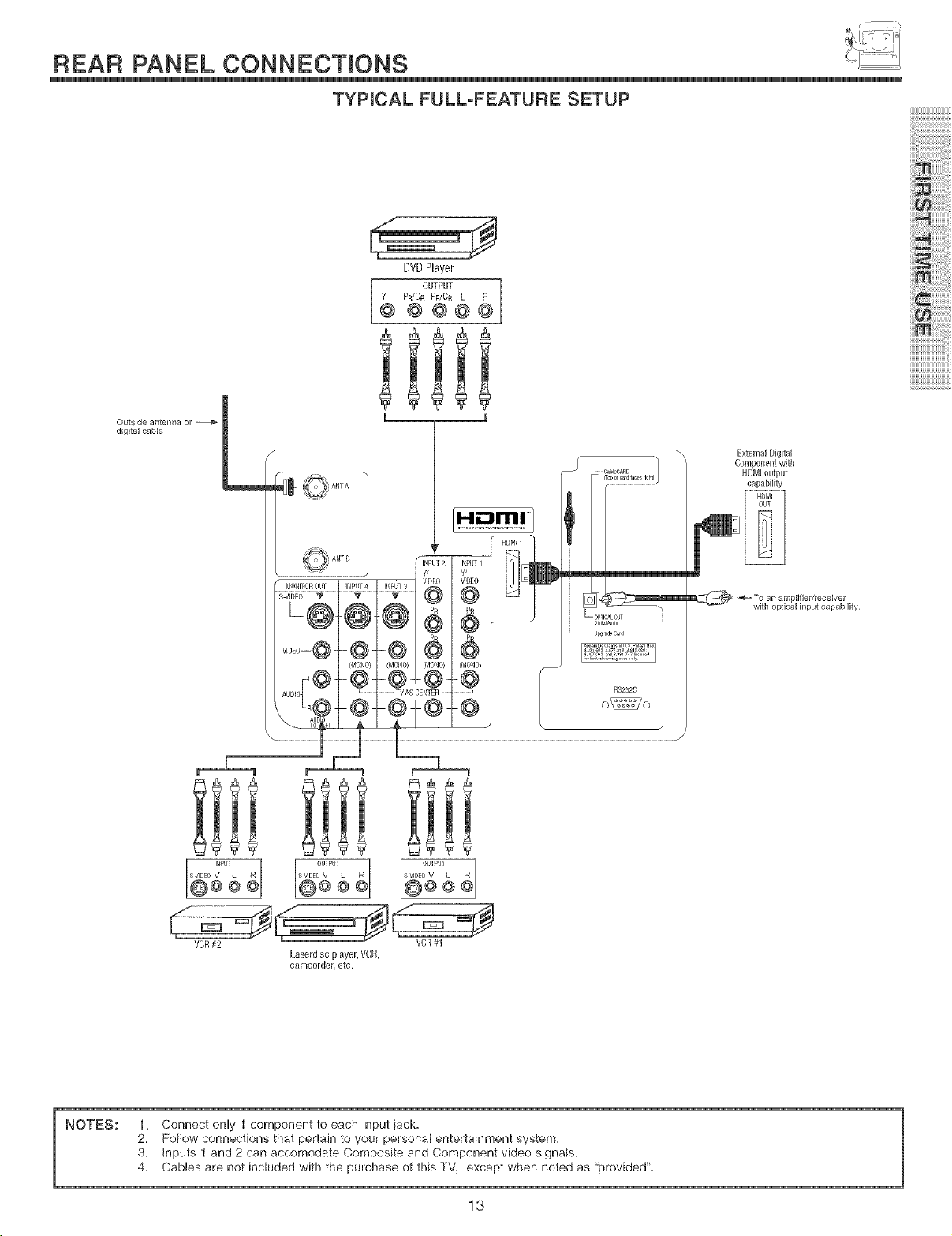
TYPICAL FULL-FEATURE SETUP
Outside antel_lla ol" -_
digital cabb
MONITOROUT
SVIDEO V
VIDEO-- @ -
DVDPlayer
OUTPUT ]
Y PB/C£ PR/CR L R
@ @ @@@
iii!i
[ 1
INPUT2
Y/
(MONO} ] (MONO}
NS232C
Extemal Digital
Component with
HDMI output
capability
:::::::::::::::::::::::::::::3"
ili!!_i!ili!i!ililil
iiiii_iiiililililili
iiiiiiiiiB
i!!!ii!i i!ii
Laserdiscplayer,VOR,
camcordehetc.
NOTES:
1. Connect only t component to each input iack.
2. Follow connections that pertain to your personal entertainment system.
3. inputs 1 and 2 can accomodate Composite and Component video signals.
4. Cables are not included with the purchase of this TV, except when noted as "provided".
13
TIPS ON REAR PANEL CONNECTIONS
ii w °
ii_ iii i i_
flu _i
o
o
o
o
S-VIDEO, HDMI and component connections are provided for high performance laserdisc players, VCRs etc. that have this
feature. Use these connections in place of the standard video connection if your device has this feature.
if your device has only one audio output (mono sound), connect it to the left audio jack on the television.
Refer to the operating guide of your other electronic equipment for additional information on connecting your hook-up cables.
A singte VCR can be used for VCR #1 and VCR #2, but note that a VCR cannot record its own video or line output (iNPUT: 3 in
the example on page 13). Refer to your VCR operating guide for more information on line input-output connections.
You may use VIDEO or S-VIDEO inputs to connect to input 3, input 4 or input 5, but only one of these may be used at a time.
Connect only 1 component (VCR, DVD player, camcorder, etc.) to each input jack.
COMPONENT: Y-PBPR (input 1 & 2) connections are provided for high performance components, such as DVD players and set-
top-boxes. Use these connections in place of the standard video connection if your device has this feature, input 1 and 2
accepts both composite and component video signals.
Your component outputs may be labeled Y, B-Y, and R-Y. in this case, connect the components B-Y output to the TV's PB input
and the components R-Y output to the TV's PR input.
Your component outputs may be labeled Y-CBC R. in this case, connect the components CB output to the TV's PB input and
the components C R output to the TV's PR input.
You may use composite video signal for input 1-input 5.
It may be necessary to adiust TINT to obtain optimum picture quality when using the Y-PBPR inputs. (See page 45)
To ensure no copyright infringement, the MONITOR OUT output may be abnormal, when using the Y-PBPR iacks.
When using HDMI or DVl input from a Set-Top-Box, it is recommended to use a 1080i or 720p input signal.
14
CONNECTING EXTERNAL AUDIO DEVmCES
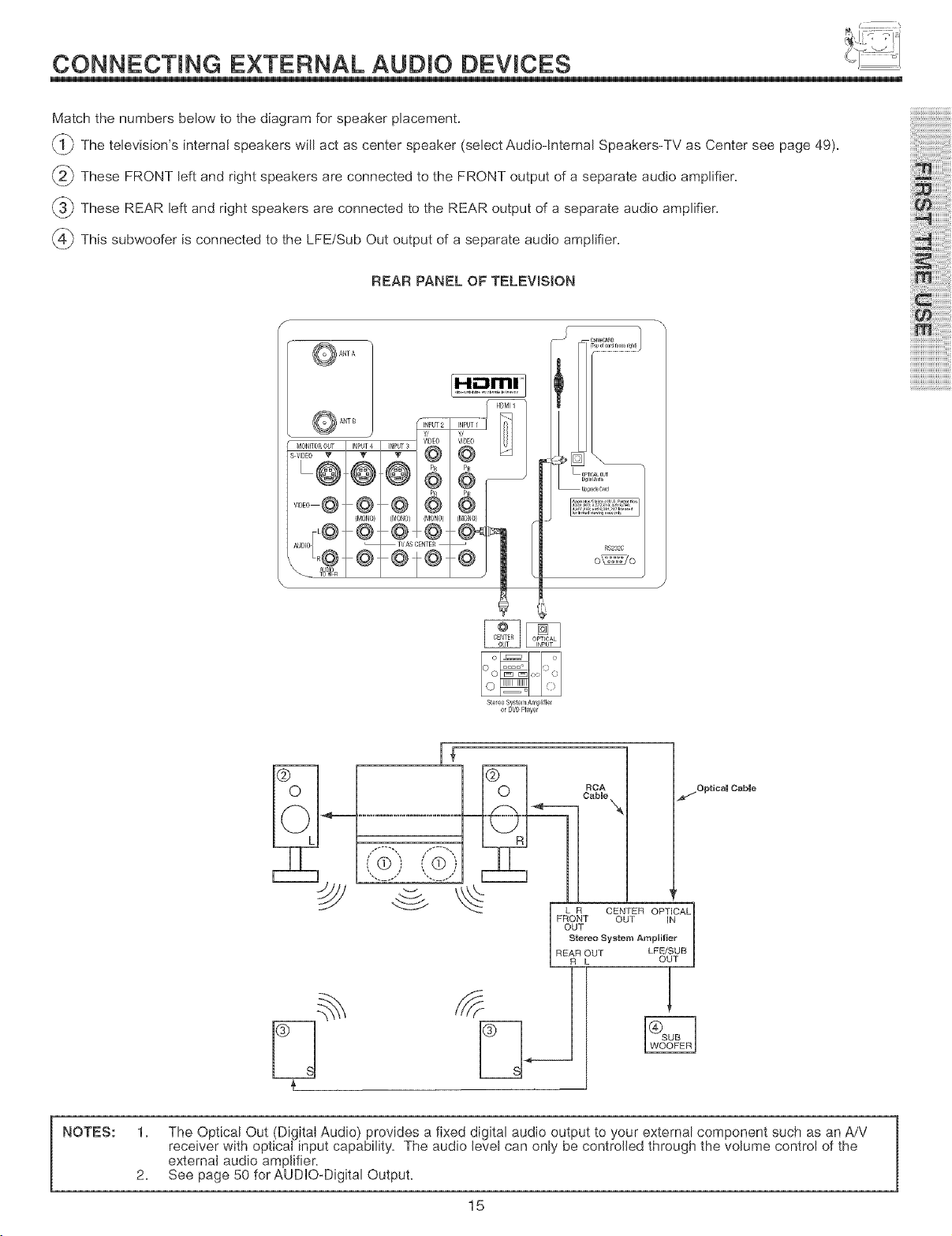
Match the numbers below to the diagram for speaker placement.
_The television's internal speakers will act as center speaker (select Audio-Internal Speakers-TV as Center see page 49),
(_ These FRONT left and right speakers are connected to the FRONT output of a separate audio amplifier,
_ These REAR left and right speakers are connected to the REAR output of a separate audio amplifier,
(_) This subwoofer is connected to the LFE/Sub Out output of a separate audio amplifier,
REAR PANEL OF TELEVISION
MON_TOROUT INPUT4 INPUT3
@ @
(MONO} IMONO) IMONO)
@ @I@
I-i,-"lrlrll
HDMI1
PB
(MONO
@
RS232C
o_o
ili!! i!ili!i!ililil
iiiii 'iiiililililili
iiiiiiiiiiiiiiiiiiiiiiih
Stereo Syslem Amplifier
or DVD Player
If
NOTES:
1. The Optical Out (Digital Audio) provides a fixed digital audio output to your external component such as an A/V
receiver with optical input capability. The audio level can only be controlled through the volume control of the
external audio amplifier.
2. See page 50 for AUDIO-Digital Output.
15
CONNECTING EXTERNAL VIDEO DEVmCES
iiiiiiiiiiiiiiiiiiiii ! ! ;i
iiiiiiiiiiiiiiiiiiiii 7i;
iJJJJJJJJJiiiiiiiiiT ! i 7i
iiii'ii i!ii!iiiiiiiiiiii!i!iiii!ii!ii!ii!i iiii !!!!i !
iiiiiiTiiiiiiiiiiiiiiiTii!ii i! !i!
iiiiiiiiiiii'i_!i171!ii!_7iii
iiiiiiiiiiiiiiiT;i:i!,!_iii!iii_!,i
iiiiiiiiiiiiiiiiiiiiiiiiiiiiiiiiTii i ii ii!;il
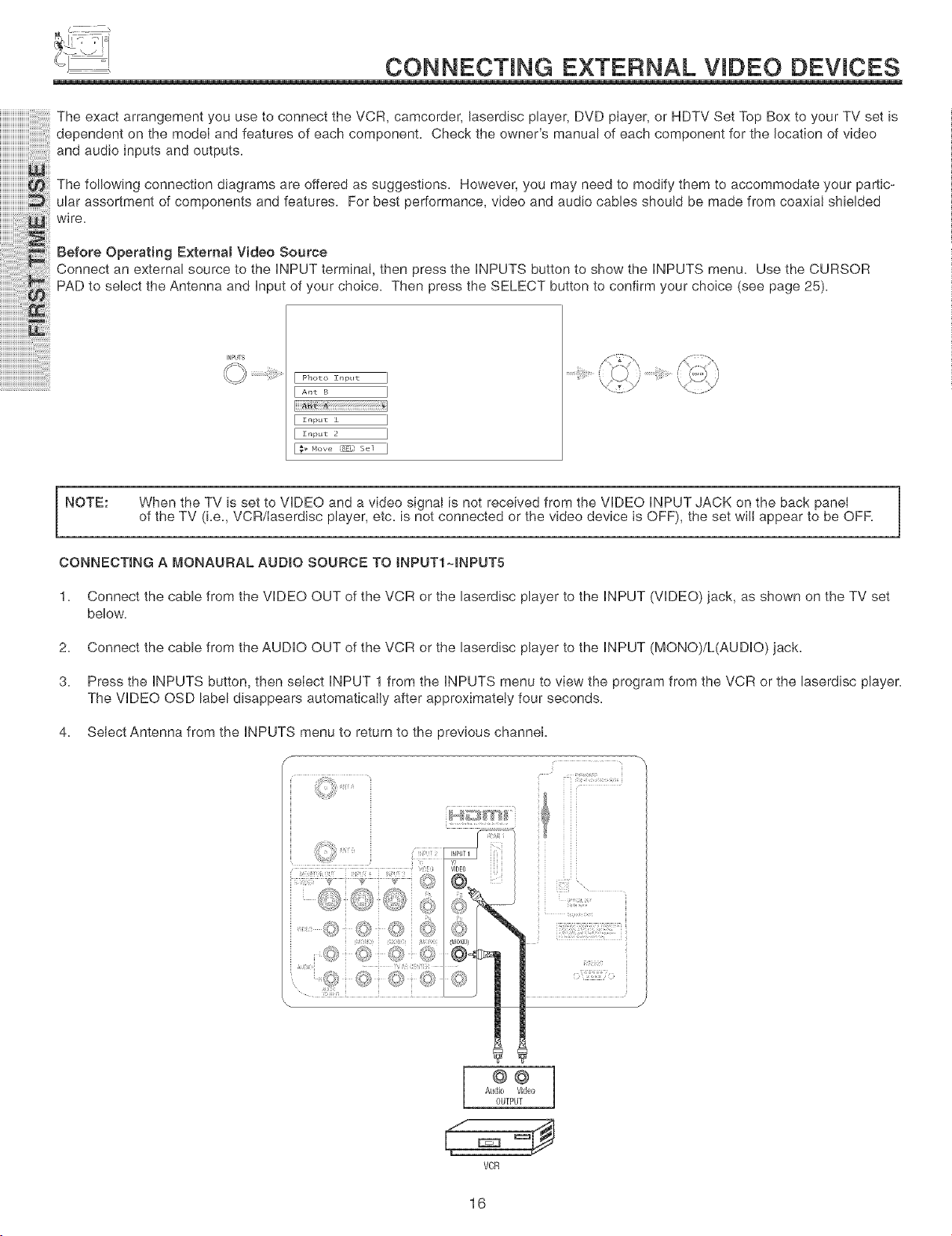
The exact arrangement you use to connect the VCR, camcorder, laserdisc player, DVD player, or HDTV Set Top Box to your TV set is
dependent on the model and features of each component. Check the owner's manual of each component for the location of video
and audio inputs and outputs.
The following connection diagrams are offered as suggestions. However, you may need to modify them to accommodate your partic-
ular assortment of components and features. For best performance, video and audio cables should be made from coaxial shielded
wire.
Before Operating ExtemaB Video Source
Connect an external source to the iNPUT terminal, then }ress the iNPUTS button to show the iNPUTS menu. Use the CURSOR
PAD to select the Antenna and input of your choice. Then press the SELECT button to confirm your choice (see page 25).
INPUTS
/i\Y
Photo [nput I
[ ..... I
I I
[ ....... I
[ ........ I
I_" .o_ _E,:s_ I
NOTE: When the TV is set to VIDEO and a video signal is not received from the VIDEO iNPUT JACK on the back panel
of the TV (Le, VCR/Iaserdisc player, etc. is not connected or the video device is OFF), the set will appear to be OFF.
CONNECTING A MONAURAL AUDIO SOURCE TO tNPUT1 ~#_IPUT5
1. Connect the cable from the VIDEO OUT of the VCR or the laserdisc player to the iNPUT (VIDEO) jack, as shown on the TV set
below.
2. Connect the cable from the AUDIO OUT of the VCR or the laserdisc player to the iNPUT (MONO)/L(AUDIO) jack.
3. Press the iNPUTS button, then select iNPUT from the iNPUTS menu to view the program from the VCR or the laserdisc player.
The VIDEO OSD label disappears automatically after approximately four seconds.
4. Select Antenna from the iNPUTS menu to return to the previous channel.
S •
°°]
Audio Video
0urPUT
VCR
16
CONNECTING EXTERNAL VIDEO DEVICES
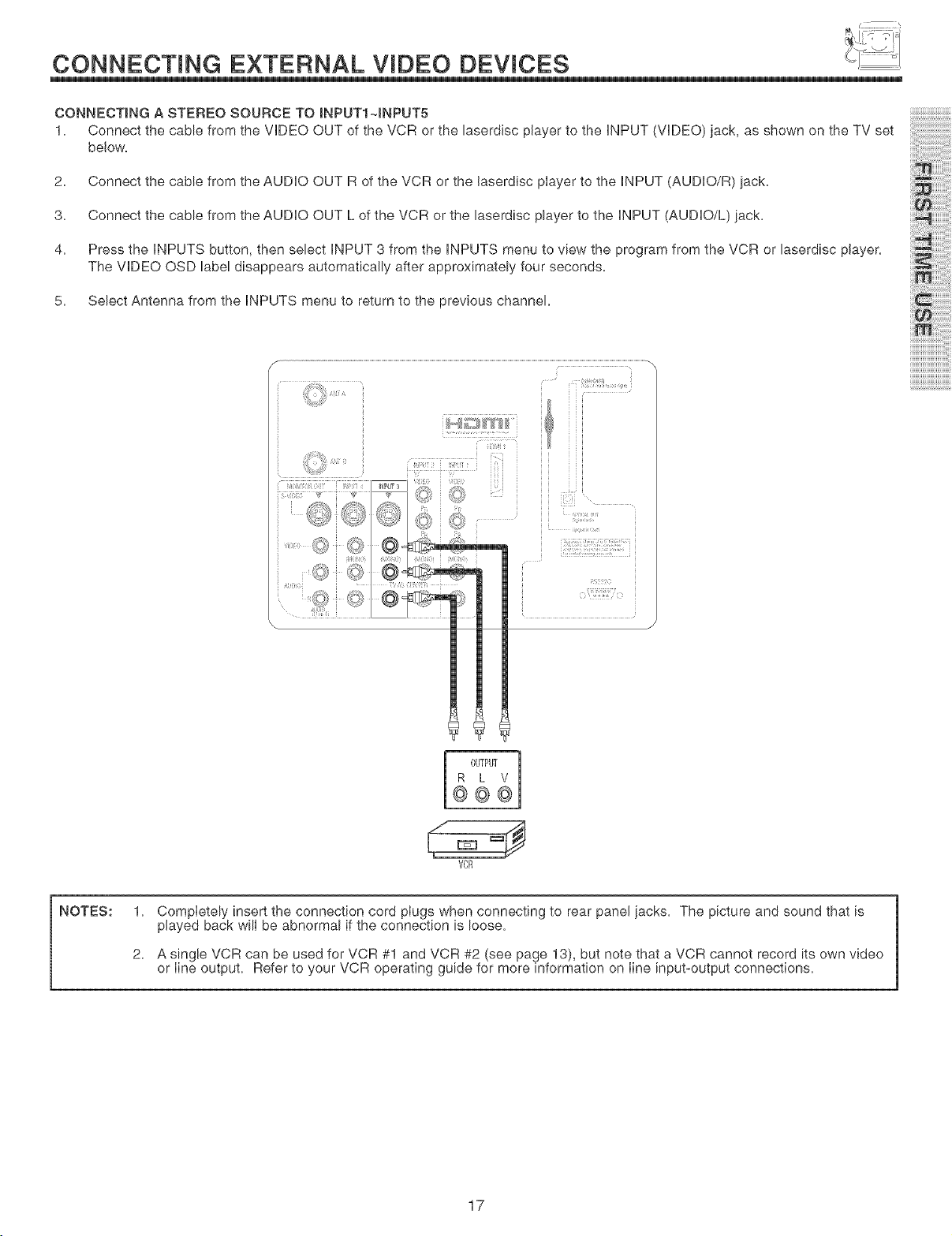
CONNECTING A STEREO SOURCE TO INPUT14NPUT5
1. Connect the cable from the VIDEO OUT of the VCR or the laserdiec player to the iNPUT (VIDEO) jack, as shown on the TV set
below.
2. Connect the cable from the AUDIO OUT R of the VCR or the laserdisc player to the iNPUT (AUDIO/R) jack.
3. Connect the cable from the AUDIO OUT L of the VCR or the laserdisc player to the iNPUT (AUDIO/L) jack.
4. Press the iNPUTS button, then select iNPUT 3 from the iNPUTS menu to view the program from the VCR or laserdisc player.
The VIDEO OSD label disappears automatically after approximately four seconds.
5. Select Antenna from the iNPUTS menu to return to the )revious channel.
ilim!ili!i!ililil
iiiii iiiililililili
iiiiiiiiiiiih
OUTPUT
R L V
@@@
VCR
NOTES: 1.
2.
Completely insert the connection cord plugs when connecting to rear panel iacks. The picture and sound that is
played back will be abnormal if the connection is loose.
A single VCR can be used for VCR #1 and VCR #2 (see page 13), but note that a VCR cannot record its own video
or line output. Refer to your VCR operating guide for more information on line input-output connections.
17
CONNECTING EXTERNAL VIDEO DEVmCES
iiiiiiiiiiiiiiiiiiiii ! ! ;i
iiiiiiiiiiiiiiiiiiiii i: ! i;
iiiiiiiiiB!,:, i!iii
iiii'ii i!ii!iiiiiiiiiiii!i!iiii!ii!ii!ii!i iiii !!!!i !
iiiiiiii'i iiiiiiiiiiiiiiii ii !i !i iiii!ii i! !i!
iiiiiiiiiiii'i_!iii:ii:ii:i!i!ii}_!{iil
iiiiiiiiiiiiiiiiiiiiiiiiiiiiiiiiiiiiiiiiii i ii ii!;i
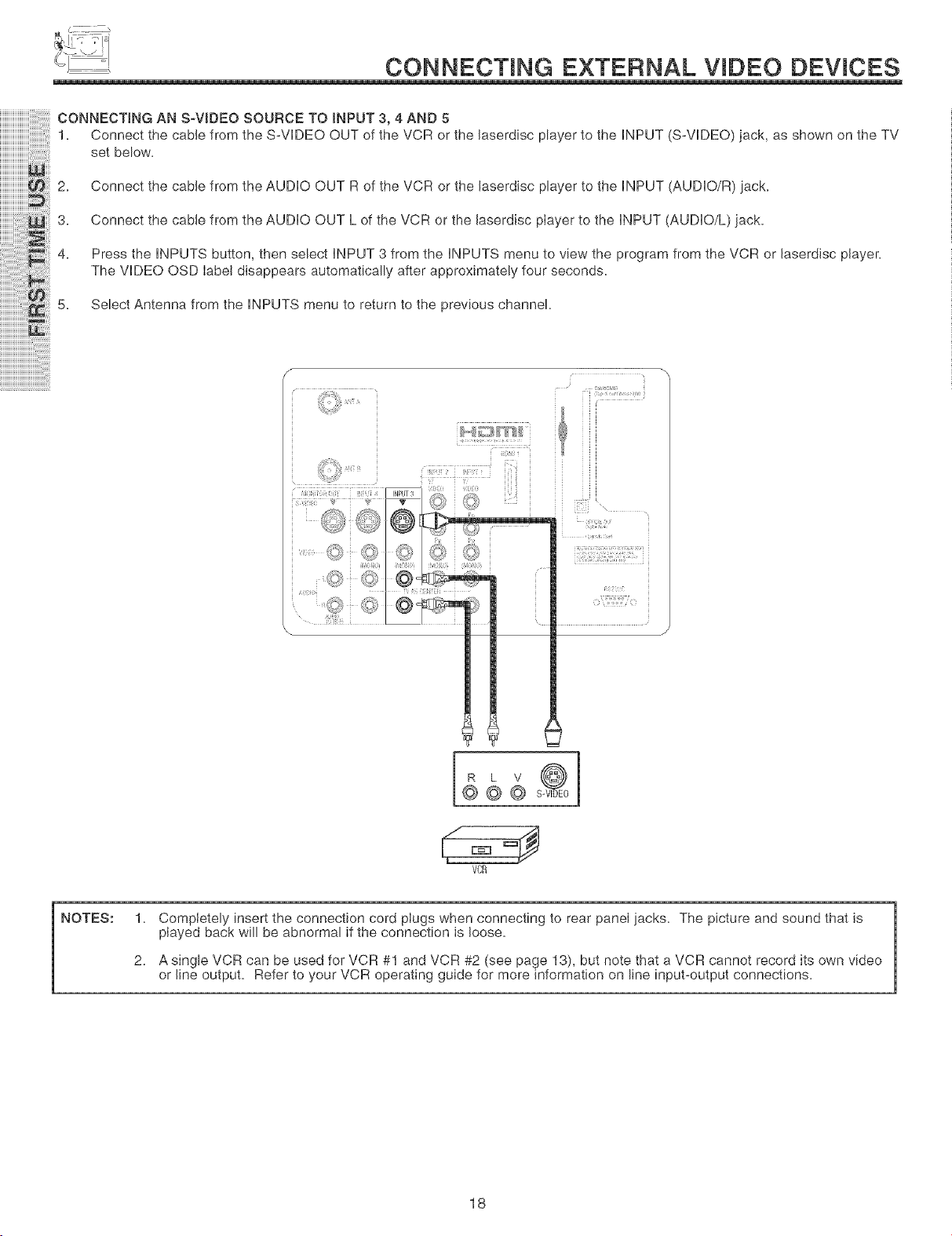
CONNECTING AN S-VIDEO SOURCE TO iNPUT 3, 4 AND 5
1. Connect the cable from the S-VDEO OUT of the VCR or the laserdisc player to the iNPUT (S-VDEO) jack, as shown on the TV
set below.
2. Connect the cabb from the AUDIO OUT R of the VCR or the laserdisc player to the iNPUT (AUDIO/R) jack.
3. Connect the cable from the AUDIO OUT L of the VCR or the laserdisc player to the iNPUT (AUDIO/L) jack.
4. Press the iNPUTS button, then select iNPUT 3 from the iNPUTS menu to view the program from the VCR or laserdisc player.
The VIDEO OSD Iabel disappears automatically after approximately four seconds.
5. Select Antenna from the iNPUTS menu to return to the previous channel.
f
i(;i i
'%i} f '_
'Vy¢> %i/J£"
..... (/:S t%
8}{q
@@@ -
VCR
NOTES: 1.
2.
Compbtely insert the connection cord plugs when connecting to rear panel jacks. The picture and sound that is
played back will be abnormal if the connection is loose.
A single VCR can be used for VCR #1 and VCR #2 (see page 13), but note that a VCR cannot record its own video
or line output. Refer to your VCR operating guide for more information on line input-output connections.
18
CONNECTING EXTERNAL VmDEO DEVICES
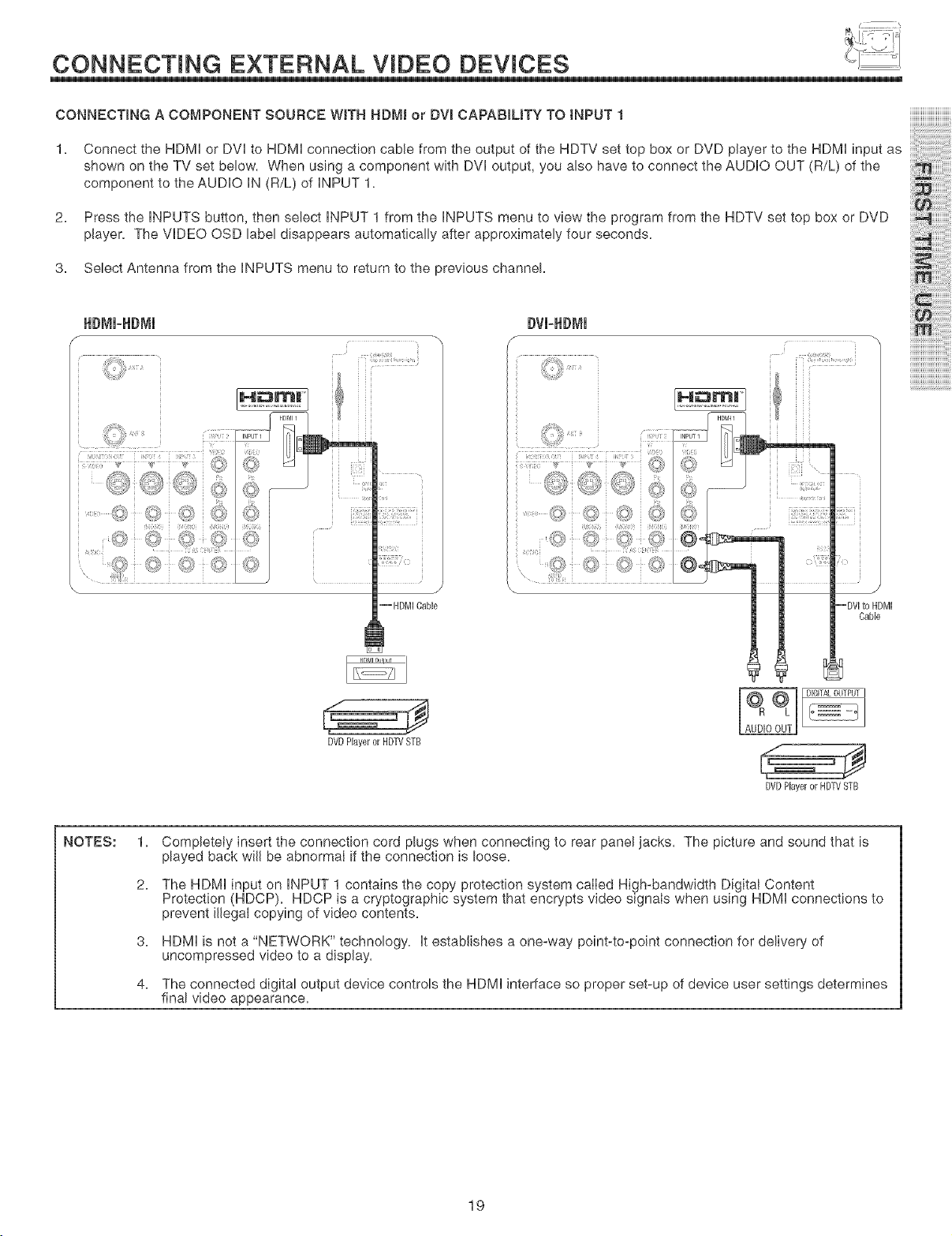
CONNECTING A COMPONENT SOURCE WiTH HDM[ or DW CAPABIUTY TO I_PUT I
1, Connect the NDMI or DVl to NDMI connection cable from the output of the HDTV set top box or DVD playerto the NDMI input as
shown on the TV set below, When using a component with DVl output, you also have to connect the AUDIO OUT (R/L) of the
component to the AUDIO IN (R/L) of INPUT 1,
2.
Press the INPUTS button, then select INPUT 1 from the INPUTS menu to view the program from the HDTV set top box or DVD
player, The VIDEO OSD label disappears automatically after approximately four seconds,
3, Select Antenna from the INPUTS menu to return to the previous channel,
HDMm=HDMm
iliZiiiYili_ii¸ i iiii_Z] _iiii)_!;i "_ ¸¸_
..... _,9 L_8 _£b
<._ 0 0,_ !0"
¢ :,,_,/ {_S/ (( J,;'
" ] ] ]
i ¸¸ •
iii;i i •
¸
--FIDM[ Cable
Cable
ii_!!!!!!!
iiii i! iiii i
iii! i!ili!i!ililil
iiiii 'iiiililililili
DVDHayeror HDTVSTB
DIGITAL OUTPUT
DVDPlayeror HDTVSTB
NOTES: 1.
2.
3.
4.
Completely insert the connection cord plugs when connecting to rear panel jacks, The picture and sound that is
played back will be abnormal if the connection is loose,
The HDMI input on INPUT 1 contains the copy protection system called High-bandwidth Digital Content
Protection (HDCP), HDCP is a cryptographic system that encrypts video signals when using HDMI connections to
prevent illegal copying of video contents,
HDMI is not a "NETWORK" technology, It establishes a one-way point-to-point connection for delivery of
uncompressed video to a display,
The connected digital output device controls the HDMI interface so proper set-up of device user settings determines
final video appearance,
19
CONNECTING EXTERNAL VIDEO DEVICES
iiiiiiiiiiiiiiiiiiiii ! ! i
iiiiiiiiiiiiiiiiiiiii i: ! ii
iiii'ii i!ii!iiiiiiiiiiii!i!iiii!ii!ii!ii!i iiii !!!!i !
iiiiiiii'i iiiiiiiiiiiiiiii ii !i !i iiii!ii i! !i!
iiiiiiiiiiii'i_!iii:ii:ii:i!i!ii!_!_i_iiil
iiiiiiiiiiiiiiii_:i:i!!_iii!i:i_!,i
iiiiiiiiiiiiiiiiiiiiiiiiiiiiiiiiiiiiiiiiii i ii ii! il
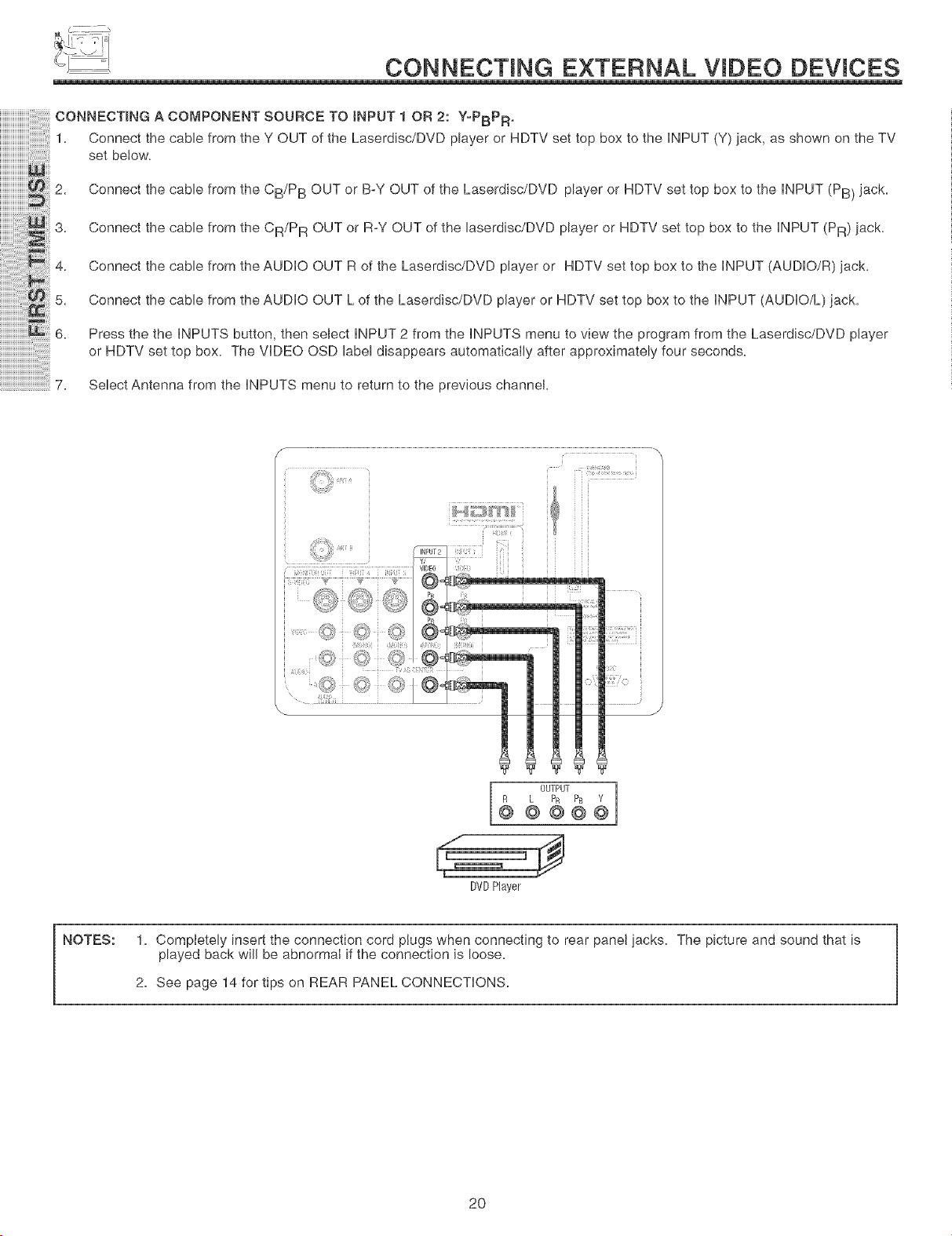
CONNECTING A COMPONENT SOURCE TO iNPUT 1 OR 2: Y-PBPR.
1. Connect the cable from the Y OUT of the Laserdisc/DVD player or HDTV set top box to the iNPUT (Y) jack, as shown on the TV
set below.
2. Connect the cable from the CB/P B OUT or B-Y OUT of the Laserdisc/DVD player or HDTV set top box to the iNPUT (PB) jack.
3. Connect the cable from the CR/P R OUT or R-Y OUT of the laserdisc/DVD player or HDTV set top box to the iNPUT (PR) jack.
4. Connect the cable from the AUDIO OUT R of the Laserdisc/DVD player or HDTV set top box to the iNPUT (AUDIO/R) jack.
5. Connect the cable from the AUDIO OUT L of the Laserdisc/DVD player or HDTV set top box to the iNPUT (AUDIO/L) jack.
6. Press the the iNPUTS button, then select iNPUT 2 from the iNPUTS menu to view the program from the Laserdisc/DVD player
or HDTV set top box. The VIDEO OSD label disappears automatically after approximately four seconds.
7. Select Antenna from the iNPUTS menu to return to the previous channel
I
OUTPUT I
R L PR P_ Y
@ @ @@@
DVDPlayer
NOTES: 1. Completely insert the connection cord plugs when connecting to rear panel iacks. The picture and sound that is
played back wii[ be abnormai if the connection is loose.
2. See page 14 for tips on REAR PANEL CONNECTIONS.
2O
THE REMOTE CONTROL
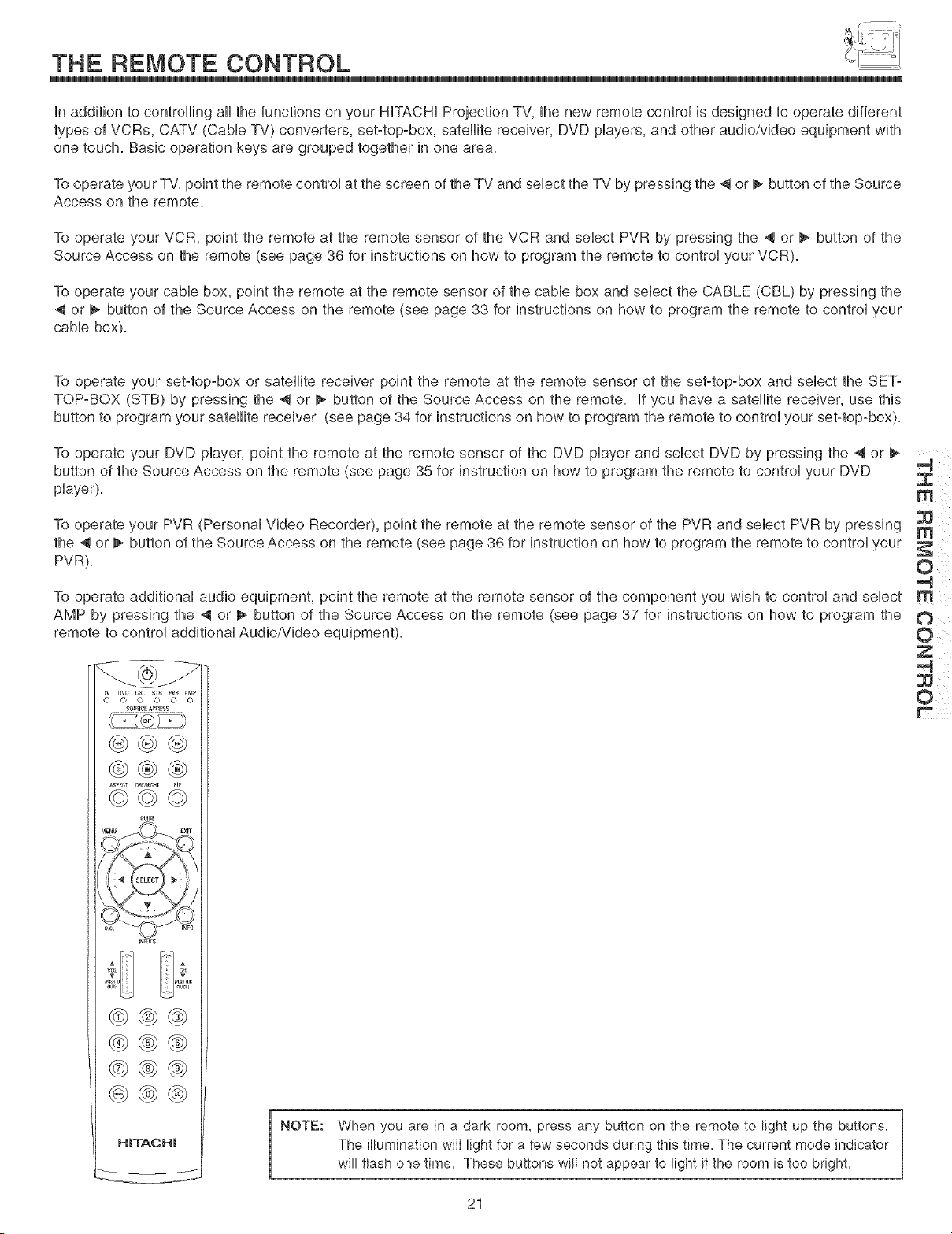
In addition to controlling all the functions on your HITACHI Projection TV, the new remote control is designed to operate different
types of VCRs, CATV (Cable TV) converters, set-top-box, satellite receiver, DVD players, and other audio/video equipment with
one touch. Basic operation keys are grouped together in one area.
To operate your TV, point the remote control at the screen ot the TV and select the TV by pressing the ,i or _ button ot the Source
Access on the remote.
To operate your VCR, point the remote at the remote sensor ot the VCR and select PVR by pressing the ,_ or _ button of the
Source Access on the remote (see page 36 for instructions on how to program the remote to control your VCR).
To operate your cable box, point the remote at the remote sensor ot the cable box and select the CABLE (CBL) by pressing the
or _ button of the Source Access on the remote (see page 33 for instructions on how to program the remote to control your
cable box).
To operate your set-top-box or satellite receiver point the remote at the remote sensor of the set-top-box and select the SET-
TOP-BOX (STB) by pressing the ,_ or _ button ot the Source Access on the remote. It you have a satellite receiver, use this
button to program your satellite receiver (see page 34 tot instructions on how to program the remote to control your set-top-box).
To operate your DVD player, point the remote at the remote sensor of the DVD player and select DVD by pressing the _ or
button of the Source Access on the remote (see page 35 for instruction on how to program the remote to control your DVD
player).
To operate your PVR (Personal Video Recorder), point the remote at the remote sensor of the PVR and select PVR by pressing
the _ or _ button ot the Source Access on the remote (see page 36 for instruction on how to program the remote to control your
PVR).
To operate additional audio equipment, point the remote at the remote sensor of the component you wish to control and select
AMP by pressing the _ or _ button of the Source Access on the remote (see page 37 tor instructions on how to program the
remote to control additional Audio/Video equipment).
TV uvr_ CBC S]_ PW A_P
0 0 0 0 0 0
SOU£CEACCESS
®@%
%%%
aumE
iNP_rs
H|TACH|
NOTE:
When you are in a dark room, press any button on the remote to light up the buttons.
The Hlumination wilI light for a few seconds during this time. The current mode indicator
will flash one time. These buttons will not appear to light if the room is too bright.
21
(_ ii!iii_i
0
OHi
HOW TO USE THE REMOTE TO
CONTROL YOUR LeD REAR PTV
J
O
q}
@
®
®
@
@
@_
@_
_0 0 0 0 0 0
SOUCEACOESS
@@@
,'@@ @i
H_TACH_
-48)
--@
-<b
--@
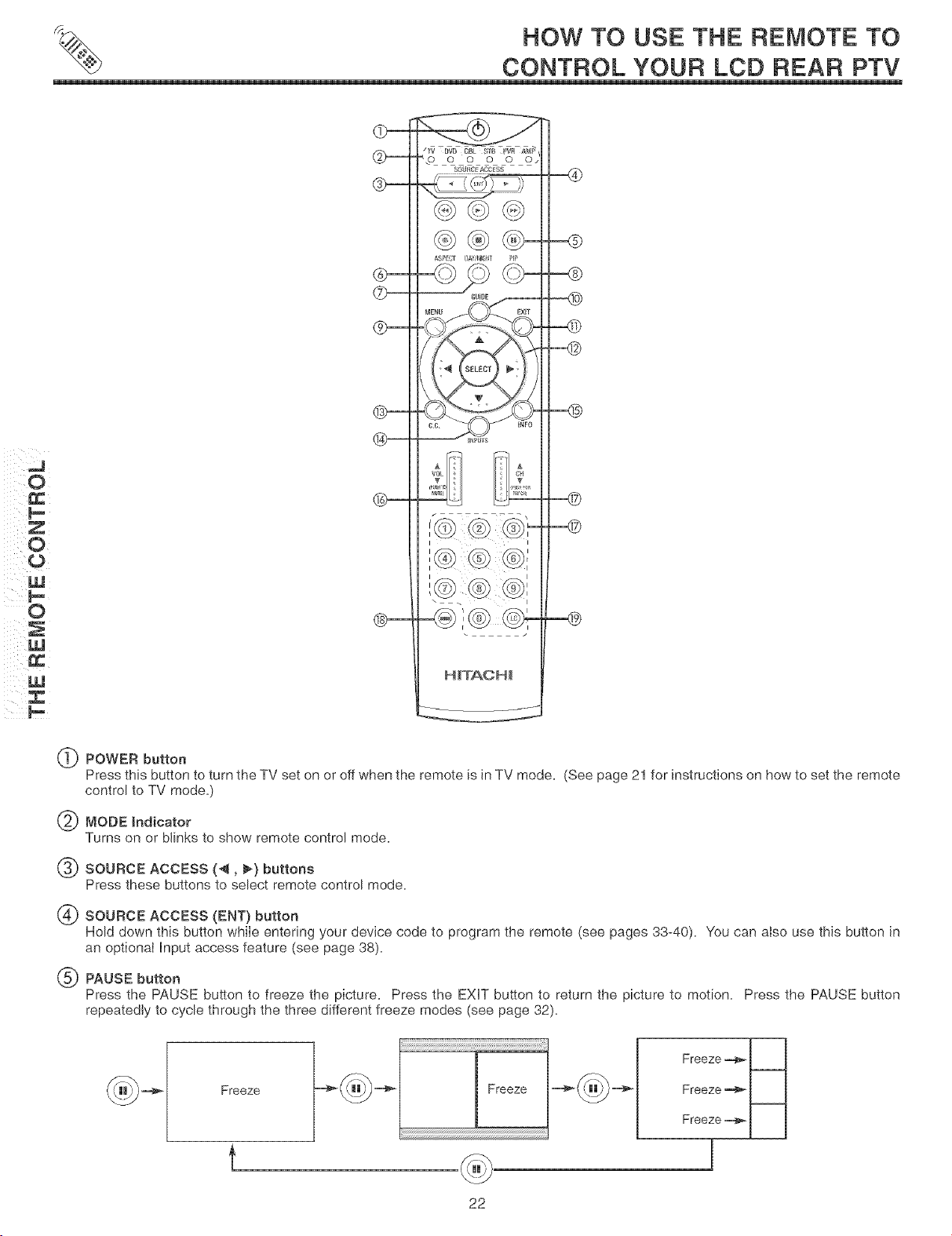
POWER button
Press this button to turn the TV set on or off when the remote is in TV mode, (See page 21 for instructions on how to set the remote
control to TV mode,)
MODE Indicator
Turns on or blinks to show remote control mode.
SOURCE ACCESS (4, I_) buttons
Press these buttons to select remote control mode,
SOURCE ACCESS (ENT) button
Hold down this button while entering your device code to program the remote (see pages 33-40). You can also use this button in
an optional Input access feature (see page 38),
PAUSE button
Press the PAUSE button to freeze the picture, Press the EXIT button to return the picture to motion. Press the PAUSE button
repeatedly to cycle through the three different freeze modes (see page 32),
Freeze
Freeze
Freeze _ N
Freeze _
Freeze_l I
22
HOW TO USE THE REMOTE TO _'
GONTROL YOUR LGD REAR PTV
ASPECT button
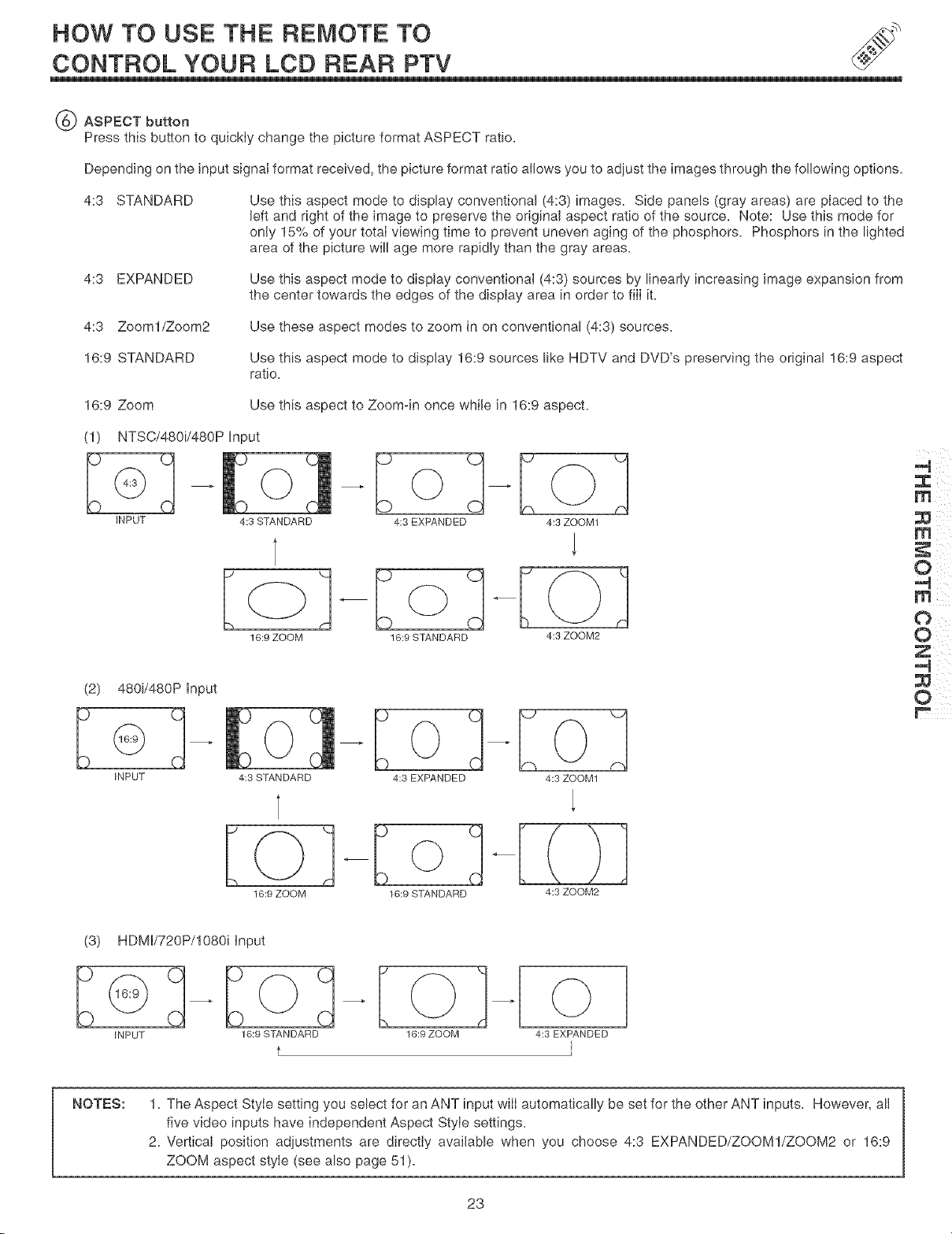
Press this button to quickly change the picture format ASPECT ratio.
Depending on the input signaI format received, the picture format ratio allows you to adjust the images through the following options.
4:3 STANDARD
Use this aspect mode to display conventional (4:3) images. Side panels (gray areas) are placed to the
left and right of the image to preserve the original aspect ratio of the source. Note: Use this mode for
only 15% of your total viewing time to prevent uneven aging of the phosphors. Phosphors in the lighted
area of the picture will age more rapidly than the gray areas.
4:3 EXPANDED
4:3 Zooml/Zoom2
16:9 STANDARD
16:9 Zoom
(1) NTSC/48Oi/48OP input
o
INPUT 4:3 STANDARD
Use this aspect mode to display conventional (4:3) sources by linearly increasing image expansion from
the center towards the edges of the display area in order to fill it.
Use these aspect modes to zoom in on conventional (4:3) sources.
Use this aspect mode to display 16:9 sources HikeHDTV and DVD's preserving the original 16:9 aspect
ratio.
Use this aspect to Zoom-in once while in 16:9 aspect.
Lo]
4:3 EXPANDED 4:3 ZOOM1
16:9 ZOOM 16:9 STANDARD 4:3 ZOOM2
(2) 480i/480P Input
INPUT 4:3 STANDARD
J K_]
4:3 EXPANDED 4:3 ZOOM1
0
[
16:9 ZOOM 16:9 STANDARD 4:3 ZOOM2
(3)
INPUT
HDMI/720P/1080i Input
169 S]_ANDARD
f
16:9 ZOOM 4:3 EXPANDED
NOTES:
1. The Aspect Style setting you select for an ANT input will automatically be set for the other ANT inputs. However, all
five video inputs have independent Aspect Style settings.
2. Vertical position adjustments are directly available when you choose 4:3 EXPANDED/ZOOM1/ZOOM2 or 16:9
ZOOM aspect style (see also page 51).
23
HOW TO USE THE REMOTE TO
CONTROL YOUR LeD REAR PTV
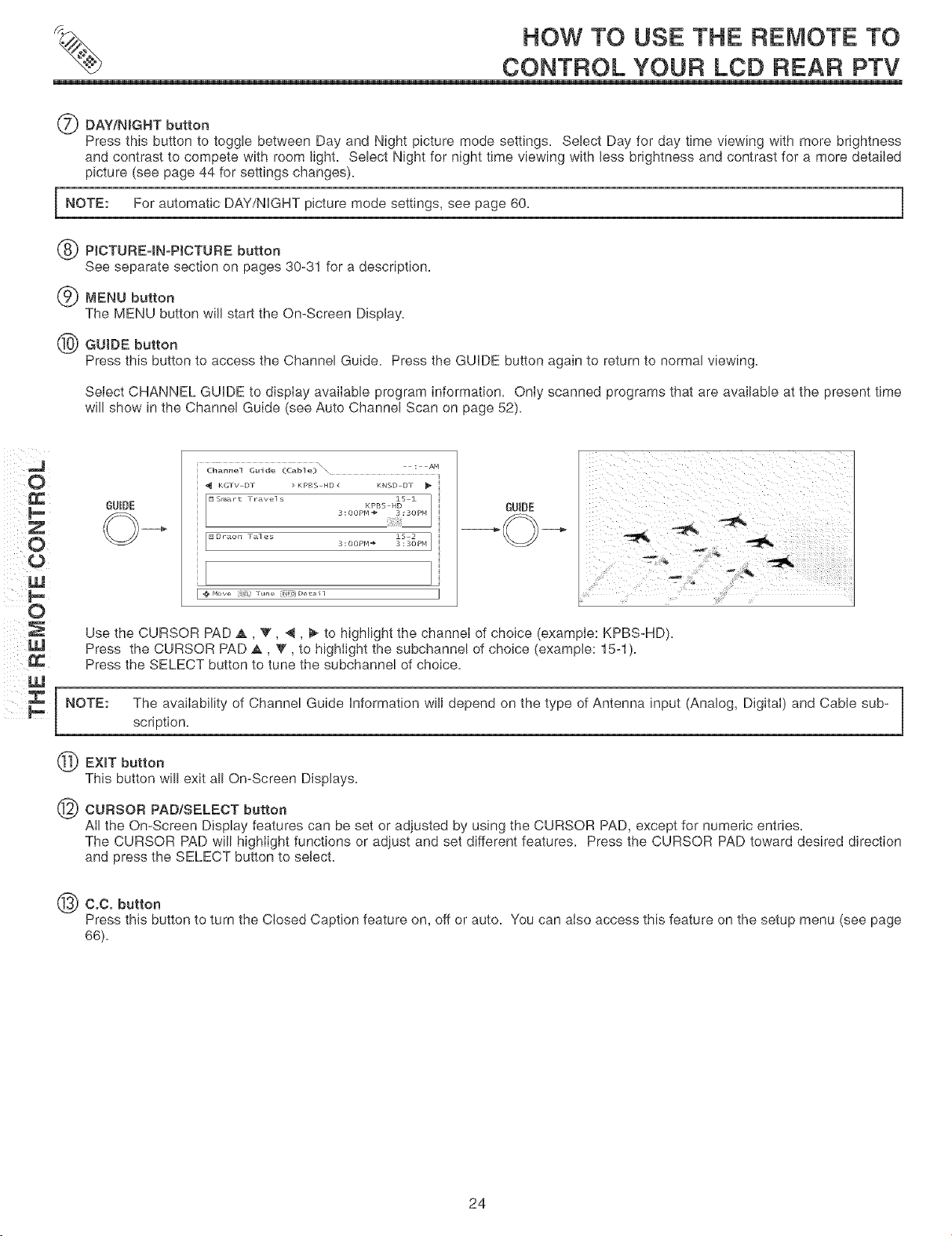
_ DAY/N_GHT button
Press this button to toggle between Day and Night picture mode settings. Select Day for day time viewing with more brightness
and contrast to compete with room light. Select Night for night time viewing with less brightness and contrast for a more detailed
picture (see page 44 for settings changes).
NOTE: For automatic DAY/NIGHT picture mode settings, see page 60.
,_(_j_PJCTURE-INopIcTu RE button
See separate section on pages 30-31 for a description.
(_,._)MENU button
The MENU button will start the On-Screen Display.
(%_) GUIDE button
Press this button to access the Channel Guide. Press the GUDE button again to return to normal viewing.
Select CHANNEL GUDE to display available program information. Only scanned programs that are available at the present time
will show in the Channel Guide (see Auto Channel Scan on page 52).
J
O
GUIDE
\ : AM
Channel Guide (Cable)
i _ KGTV DT >KPBS HD4 KNSD DT
[]smart Fravels KPBS H1S 1
3:OOPM _ 3:3OPM
iiii'i;!_i;_;!ii!_i_i,!i!_I
iil...... 3_OOPM÷ 3_30PM I
GUIDE
Use the CURSOR PAD A, V, 4, _ to highlight the channel of choice (example: KPBS-HD).
Press the CURSOR PAD A, _', to highlight the subchannel of choice (example: 15-1).
Press the SELECT button to tune the subchannel of choice.
NOTE: The availability of Channel Guide Information will depend on the type of Antenna input (Analog, Digital) and Cable sub-
scription.
EXiT button
This button will exit all On-Screen Displays.
CURSOR PAD/SELECT button
All the On-Screen Display features can be set or adjusted by using the CURSOR PAD, except for numeric entries.
The CURSOR PAD will highlight functions or adjust and set different features. Press the CURSOR PAD toward desired direction
and press the SELECT button to select.
C.C. button
Press this button to turn the Closed Caption feature on, off or auto. You can also access this feature on the setup menu (see page
66).
24
HOW TO USE THE REMOTE TO _
CONTROL YOUR LCD REAR PTV
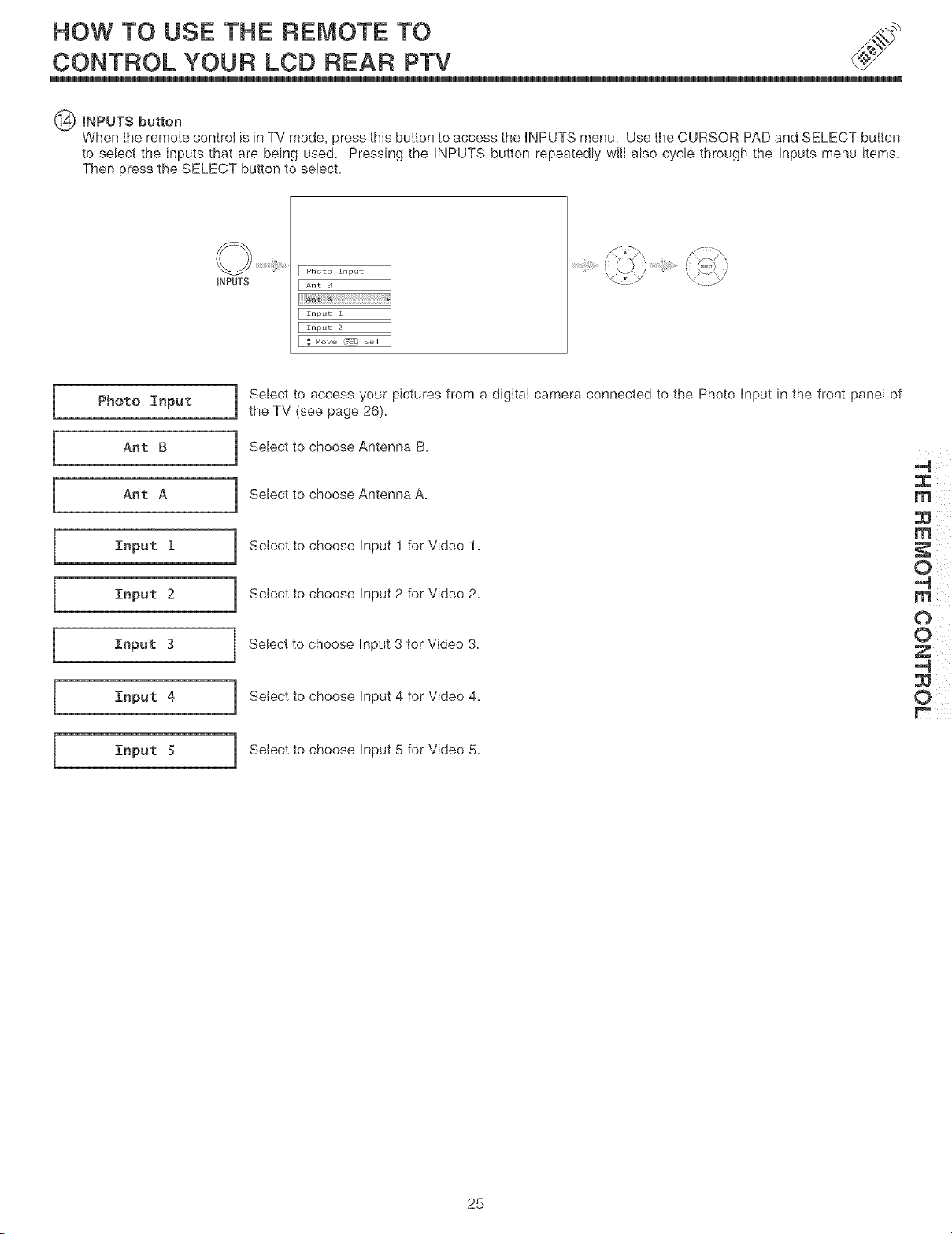
@ INPUTS button
When the remote control is in TV mode, press this button to access the iNPUTS menu. Use the CURSOR PAD and SELECT button
to select the inputs that are being used. Pressing the iNPUTS button repeatedly will also cycle through the inputs menu items.
Then press the SELECT button to select.
INPUTS
Photo Znput ]
[ ..... 1
[ ........ 1
[ ....... 2 1
I
i
[
l
i
l
l
Photo Input
Ant B
Ant A
Input 1
Input 2
Input 3
Input 4
Input f
J elect to access your pictures from a digital camera connected to the Photo input in the front panel of
the TV (see page 26)=
I Select to choose Antenna B.
I Select to choose Antenna A.
I Select to choose input 1 for Video 1.
i Select to choose Input 2 for Video 2.
Select to choose Input 3 for Video 3.
i Select to choose Input 4 for Video 4.
i Select to choose Input 5 for Video 5.
O
25
HOW TO USE THE REMOTE TO
CONTROL YOUR LCD REAR PTV
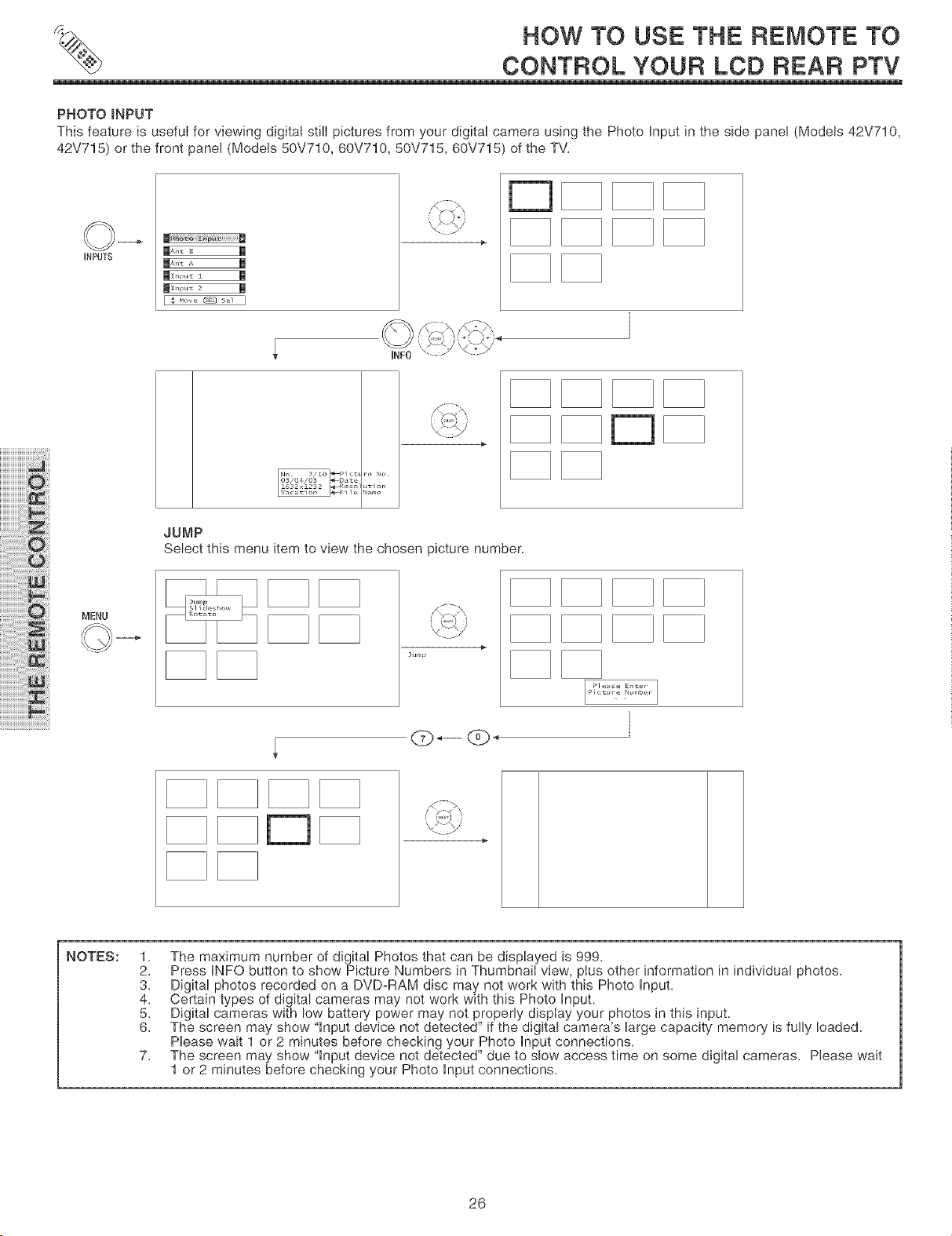
PHOTO _NPUT
This feature is useful for viewing digital still pictures from your digital camera using the Photo Input in the side panel (Models 42V710,
42V715) or the front panel (Models 50V710, 60V710, 50V715, 60V715) of the TV.
iNPUTS
FA I
E, _,ow,_ s,., ]
iiiiiiiiiiiiiiiiiiiii@iiiiliJ
iiiiiiiiiiiiiii!!!!i}_iljil
iiii'ii_i!iiiilililili@!@iiiili_i
iiiiii'i_ii:i:ii:ii:ii:ii:ii:ii:ii:ii:ii:i!!i!@i!i!iiiii
iiiiiiiiiiii_i_iiiiiiiiiiiiiiiiiiii_!!i,i_
iiiiiiiiiiiiiiii'_i:ii:ilj_i!i!i!i!
iiiiiiiiiiii:i:ii:ii:ii:i!:!!!i!i!i!_i!i!i_!ill
iiiiiiii@i!_i!iiiiiii!!_!iiiiii_!
iiiiiiiiiiiiiiiiiiiiiiiiiiiiiiiiiiiiii_ii!ii_ii!!i!i
MENU
Plct ,_, No.
_at_ L,t4 ....
Vi _ N,,le
INF0
JUMP
Select this menu item to view the chosen picture number.
Jt_mp
(_ _-- (_ _
NOTES:
1. The maximum number of digital Photos that can be displayed is 999.
2. Press INFO button to show Picture Numbers in ThumbnaiI view, plus other information in individual photos.
3. Digital photos recorded on a DVD-RAM disc may not work with this Photo input.
4. Certain types of digital cameras may not work with this Photo input.
5. Digital cameras with low battery power may not properly display your photos in this input.
6. The screen may show "input device not detected" if the digital camera's large capacity memory is fully loaded.
Please wait 1 or 2 minutes before checking your Photo input connections.
7. The screen may show "input device not detected" due to slow access time on some digital cameras. Please wait
1 or 2 minutes before checking your Photo input connections.
26
HOW TO USE THE REMOTE TO
CONTROL YOUR LCD REAR PTV
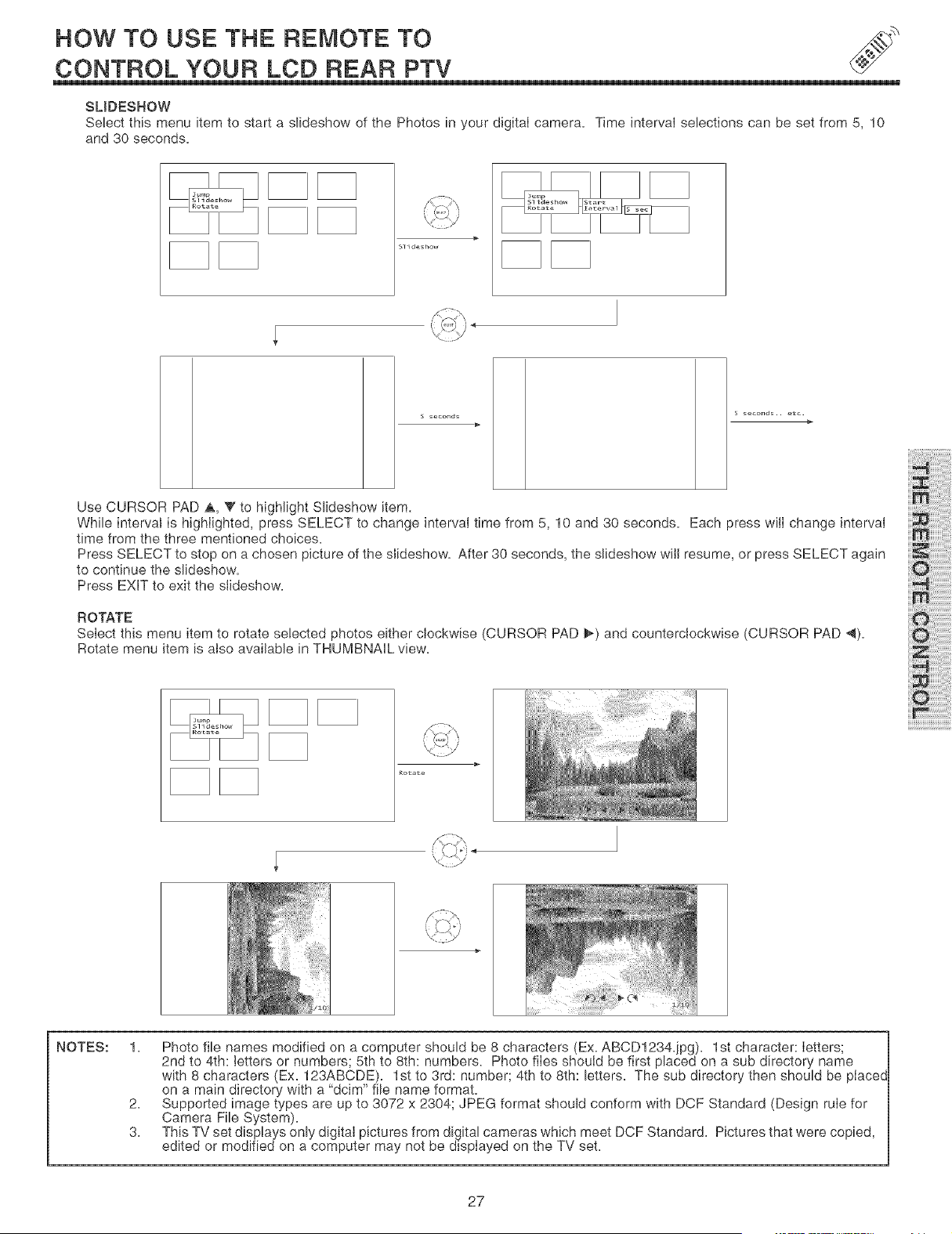
SLIDESNOW
Select this menu item to start a slideshow of the Photos in your digital camera. Time interval selections can be set from 5, 10
and 30 seconds.
s_co_ds
seconds., etc.
Use CURSOR PAD _,, V to highlight Slideshow item.
While interval is highlighted, press SELECT to change interval time from 5, 10 and 30 seconds. Each press wiiI change interval
time from the three mentioned choices.
Press SELECT to stop on a chosen picture of the slideshow. After 30 seconds, the slideshow will resume, or press SELECT again
to continue the slideshow.
Press EXIT to exit the slideshow.
ROTATE
Select this menu item to rotate selected photos either clockwise (CURSOR PAD _) and counterclockwise (CURSOR PAD 4).
Rotate menu item is also available in THUMBNAIL view.
Rotate
iiiiOiiiii!ii!ii!ii!ii!ii!ii!il
iUimii_i!:ilJiJiJiJiJiJiJi
NOTES:
1. Photo file names modified on a computer should be 8 characters (Ex. ABCD1234.ipg). 1st character: letters;
2nd to 4th: letters or numbers; 5th to 8th: numbers. Photo files should be first placed on a sub directory name
with 8 characters (Ex. 123ABCDE). 1st to 3rd: number; 4th to 8th: letters. The sub directory then should be placec
on a main directory with a "dcim" file name format.
2. Supported image types are up to 3072 x 2304; JPEG format should conform with DCF Standard (Design rule for
Camera File System).
3. This TV set displays only digital pictures from digital cameras which meet DCF Standard. Pictures that were copied,
edited or modified on a computer may not be displayed on the TV set.
27
HOW TO USE THE REMOTE TO
CONTROL YOUR LCD REAR PTV
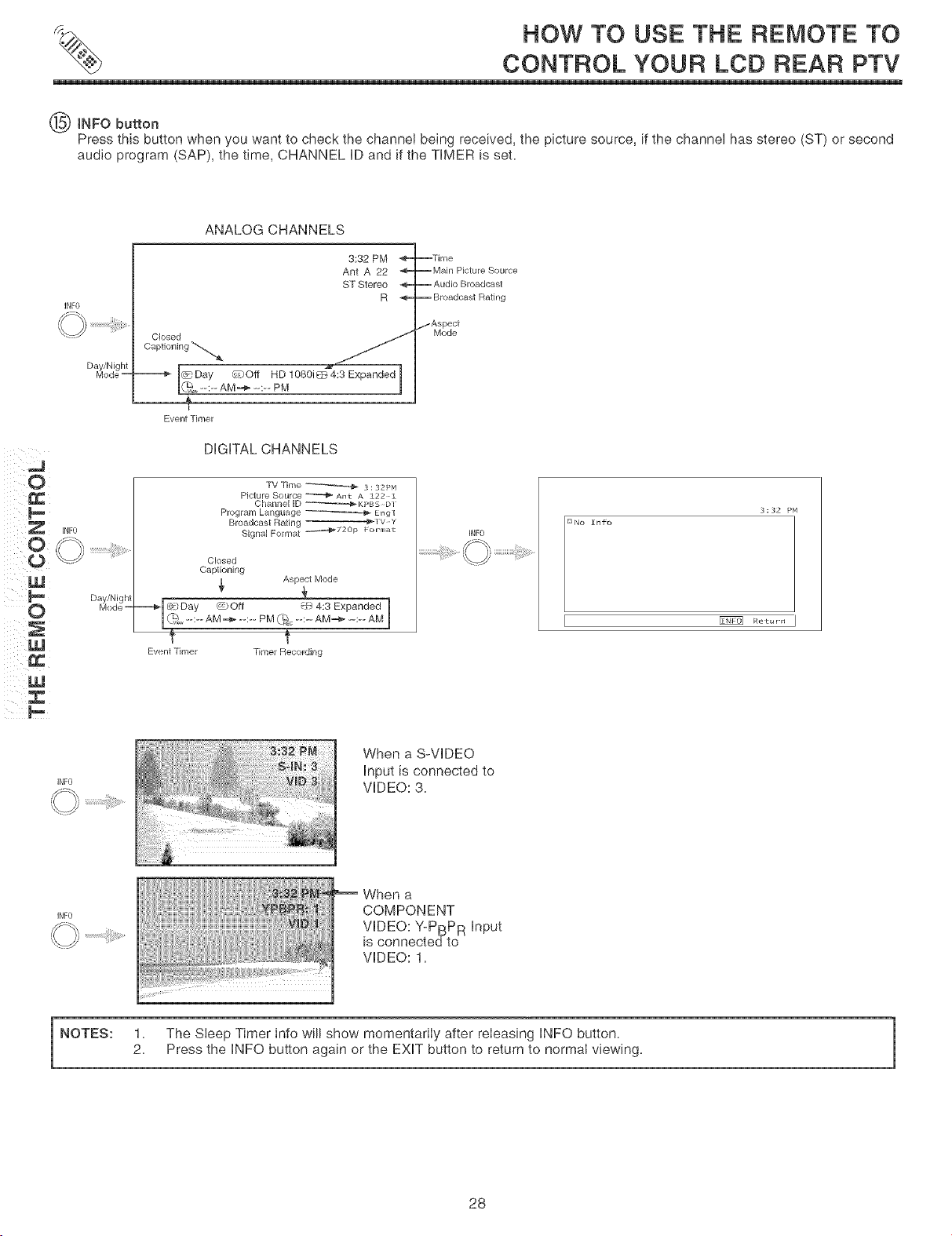
[NFO button
Press this button when you want to check the channel being received, the picture source, if the channel has stereo (ST) or second
audio program (SAP), the time, CHANNEL [D and if the TIMER is set.
INF0
ANALOG CHANNELS
3:32 PM __--Time
Ant A 22 _--Main Picture Source
ST Stereo -- Audio Broadcast
R -- Broadcast Rating
._/Aspect
Closed Mode
Captioning "_-_ ,.,_
"=====_ [_Day _,'_)Off HD 1080i_ 4:3 Expanded
[(._.,_--:-- AM _ --:-- PM
}
Event Timer
DiGiTAL CHANNELS
TV Time _ S : S2PM
Picture SoLlrce _ Ant A 122 Z
Channe[ [D _KPBS D[
Program han_uag_ _ Eng]
Broadcast Rating _lv Y
Signal Format _,_-@_720p Formal
Closed
Captioning
Aspect Mode
===_©cDay _Off _ 4:3 Expanded
I {9"_ --:-- AM .--4_ --:-- PM _% --:-- AM=,_ --:-- AM
f f
Event Timer Timer Recording
INFO
S:S2 PM
[] NO Znfo
I _ Ret°rn
INFO
When a S-VIDEO
input is connected to
VIDEO: 3.
INFO
When a
COMPONENT
VIDEO: Y-PBPR input
is connected to
VIDEO: 1.
NOTES: 1. The Sleep Timer info will show momentarily after releasing INFO button.
2. Press the INFO button again or the EXiT button to return to normal viewing.
1
28
HOW TO USE THE REMOTE TO
GONTROL YOUR LGD REAR PTV
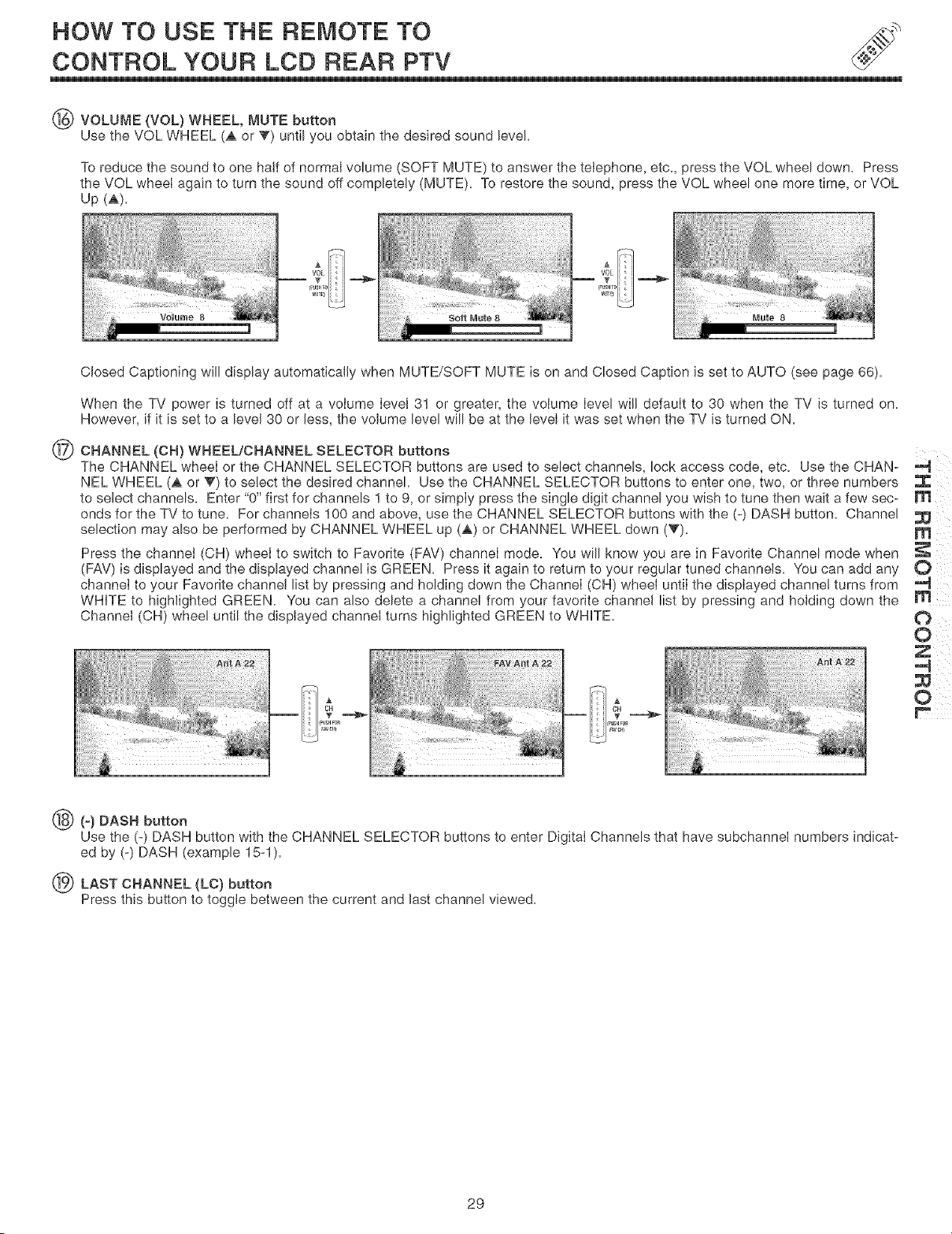
_ VOLUME (VOL) WHEEL, MUTE button
Use the VOL WHEEL (_, or _) until you obtain the desired sound level.
To reduce the sound to one half of normal volume (SOFT MUTE) to answer the telephone, etc., press the VOL wheel down. Press
the VOL wheel again to turn the sound off completely (MUTE). To restore the sound, press the VOL wheel one more time, or VOL
Up (_).
Closed Captioning will display automatically when MUTE/SOFT MUTE is on and Closed Caption is set to AUTO (see page 66).
When the TV power is turned off at a volume level 31 or greater, the volume level will default to 30 when the TV is turned on.
However, if it is set to a level 30 or less, the volume level will be at the level it was set when the TV is turned ON.
(_D CHANNEL (CH) WHEELtCHANNEL SELECTOR buttons
The CHANNEL wheel or the CHANNEL SELECTOR buttons are used to select channels, lock access code, etc. Use the CHAN-
NEL WHEEL (A or T) to select the desired channel. Use the CHANNEL SELECTOR buttons to enter one, two, or three numbers :_
to select channels. Enter "0" first for channels 1 to 9, or simply press the single digit channel you wish to tune then wait a few sec- m
onds for the TV to tune. For channels 100 and above, use the CHANNEL SELECTOR buttons with the (-) DASH button. Channel ::_
selection may also be performed by CHANNEL WHEEL up (a,) or CHANNEL WHEEL down (V). m
Press the channel (CH) wheel to switch to Favorite (FAV) channel mode. You will know you are in Favorite Channel mode when
(FAV) is displayed and the displayed channel is GREEN. Press it again to return to your regular tuned channels. You can add any
channel to your Favorite channel list by pressing and holding down the Channel (CH) wheel until the displayed channe! turns from
WHITE to highlighted GREEN. You can also delete a channel from your favorite channel list by pressing and holding down the
Channel (CH) wheel until the displayed channel turns highlighted GREEN to WHITE.
O
U_) (_) DASH button
Use the (-) DASH button with the CHANNEL SELECTOR buttons to enter Digital Channels that have subchannel numbers indicat-
ed by (-) DASH (example 15-1).
_LAST CHANNEL (LC) button
Press this button to toggle between the current and last channel viewed.
29
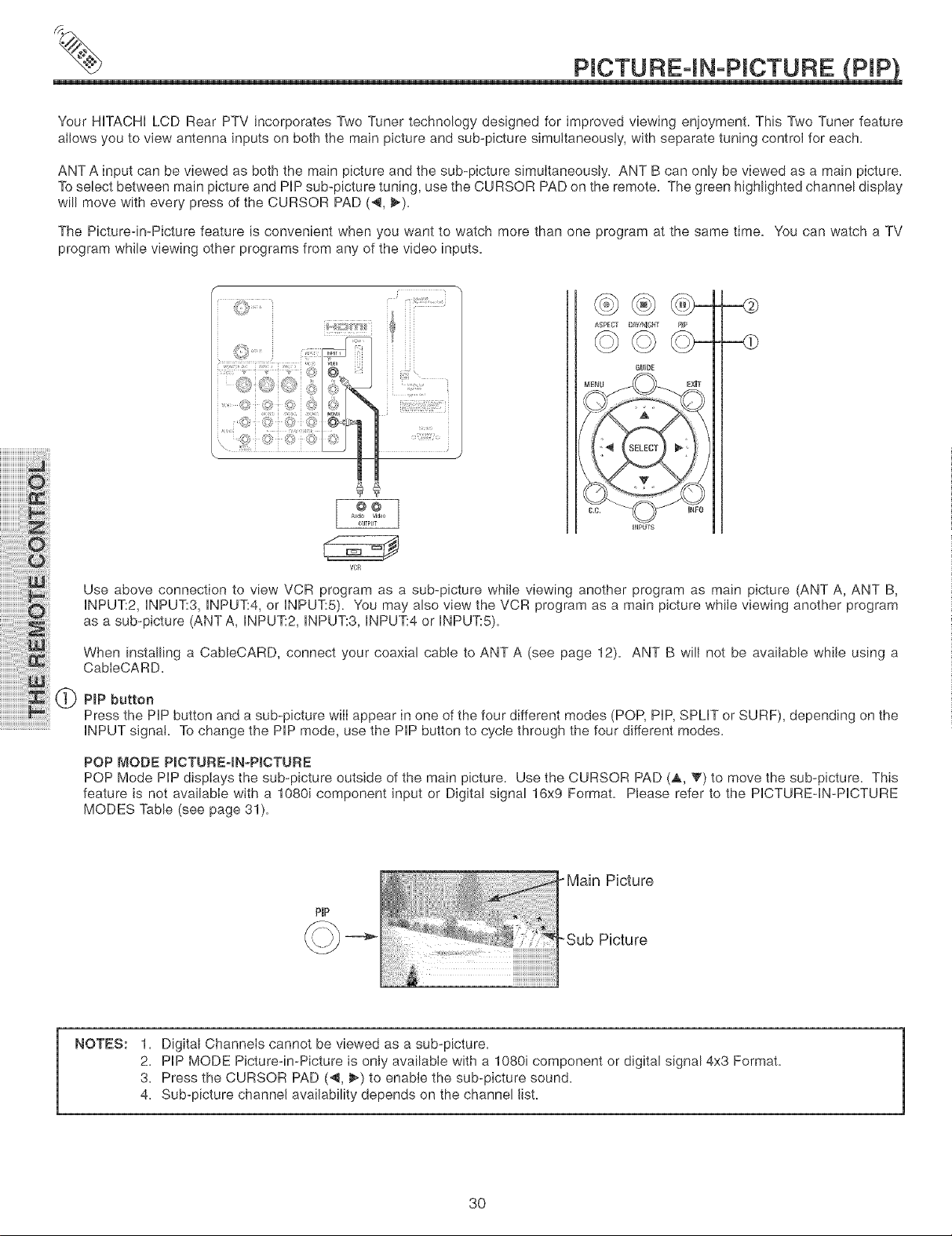
Your HiTACHi LCD Rear PTV incorporates Two Tuner technology designed for improved viewing enjoyment. This Two Tuner feature
allows you to view antenna inputs on both the main picture and sub-picture simultaneously, with separate tuning control for each.
ANT A input can be viewed as both the main picture and the sub-picture simultaneously. ANT B can only be viewed as a main picture.
To select between main picture and PiP sub-picture tuning, use the CURSOR PAD on the remote. The green highlighted channel display
will move with every press of the CURSOR PAD (4, _).
The Picture-in-Picture feature is convenient when you want to watch more than one program at the same time. You can watch a TV
program while viewing other programs from any of the video inputs.
iiiiiiiiiiiiiiiiiiiii ii:i:iJ
iiiiiiiiiiiiiii!!!!i: ::ji:
iii_:ii!i:;i:i_:iii
iiiiii i!iiiililigiiii!Oiiiili:i
iiiiii': :i:i:ii:ii:ii:ii:ii:ii:ii:ii:ii:i!!i! i!i!i:ili
iiiiiiiiii]i i iiiiiiiiiiiiiiiiiiii !!:,i
iiiiiiiiiiiiiiii':_:i:ii:ilj_iii:!
iiiiii!ii:ii:ii:ii:ii::!::!!;!i!!!:i:Wi¸
iiiiiiiii::i:i:ii:ii:ii:i!:!!!i!i!i!_i!i!i:!i:i
iiiiiiiiiiiiiiiiiiiiiiiiii]iii i! i!iiiiiii!! !iiiii: :!
iiiiiiiiiiiiiiiiiiiiiiiiiiiiiiiiiiiiii::!ii ii!!i!i
ASPECT D_f/NIG_T P_P
GUIOE
_NPUTS
VCR
Use above connection to view VCR program as a sub-picture while viewing another program as main picture (ANT A, ANT B,
INPUT:2, INPUT:3, INPUT:4, or INPUT:5). You may also view the VCR program as a main picture while viewing another program
as a sub-picture (ANT A, INPUT:2, INPUT:3, INPUT:4 or INPUT:5).
When installing a CableCARD, connect your coaxial cable to ANT A (see page 12). ANT B will not be available while using a
CableCARD.
P_P button
Press the PiP button and a sub-picture wilI appear in one of the four different modes (POP, PiP, SPLIT or SURF), depending on the
iNPUT signal. To change the PiP mode, use the PiP button to cycle through the four different modes.
POP NIOBE PICTURE4NopICTURE
POP Mode PiP displays the sub-picture outside of the main picture. Use the CURSOR PAD (_, _) to move the sub-picture. This
feature is not available with a 1080i component input or Digital signal 16x9 Format. Please refer to the PICTUREqN-PICTURE
MODES Table (see page 31).
PIP
°Main Picture
-Sub Picture
NOTES:
1. Digital Channels cannot be viewed as a sub-picture.
2. PiP MODE Picture-in-Picture is only availabIe with a 1080i component or digital signal 4x3 Format.
3. Press the CURSOR PAD (4, _*) to enable the sub-picture sound.
4. Sub-picture channel availability depends on the channel fist.
3O
PmCTUREqN-P CTURE ProP
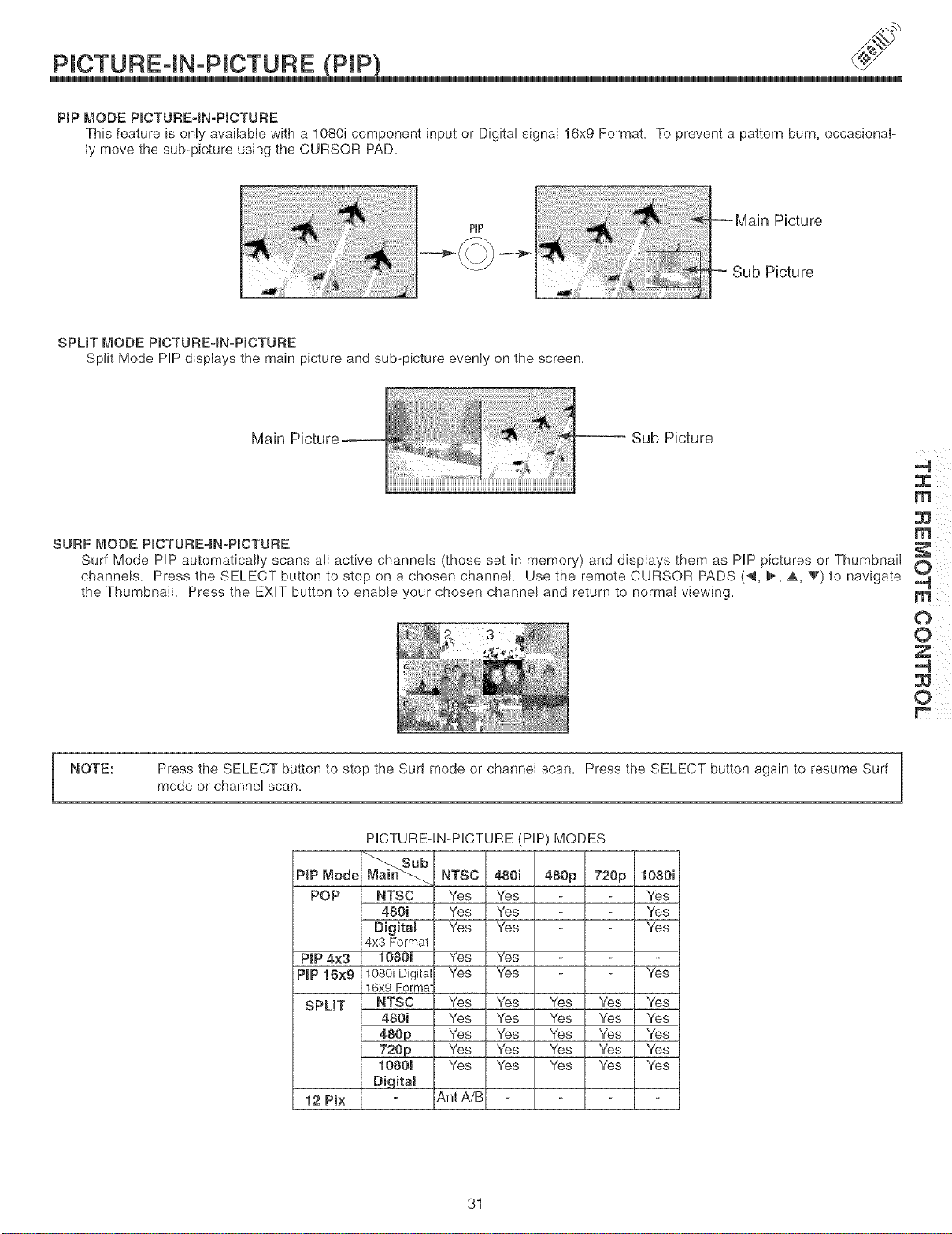
PiP MODE PiCTURE-iNoPJCTURE
This feature is only availabIe with a 1080i component input or Digital signal 16x9 Format, To prevent a pattern burn, occasional-
ly move the sub-picture using the CURSOR PAD,
Picture
Picture
SPLIT MODE PJCTURE4N-PJCTURE
Split Mode PEPdisplays the main picture and sub-picture evenly on the screen,
!!ii!iiiii:iiiiiii!i_:_iliiiii_i!ii!!i!iii!i_!,iiiii!!;_ii_ii_ii_¸}
Main Picture ii
Sub Picture
SURF MODE PICTURE-IN-P_CTURE
Surf Mode PIP automatically scans all active channels (those set in memory) and displays them as PIP pictures or Thumbnail
channels, Press the SELECT button to stop on a chosen channel, Use the remote CURSOR PADS (4, _, _, V) to navigate
the Thumbnail, Press the EXIT button to enable your chosen channel and return to normal viewing,
:_ ! ¸
m
0
0
NOTE: Press the SELECT button to stop the Surf mode or channel scan, Press the SELECT button again to resume Surf
mode or channel scan,
P_P _ode
POP
PIP 4x3
P_P 16×9
SPUT
12 Pi×
PICTURE-IN-PICTURE (PIP) MODES
NTSC
NTSC
480i
Digita_
4x3 Format
1080i Digital
16x9 Formal
NTSC
480i
480p
720p
1080i
Digita_
480i 480p 720p 1080i
_s _s _s
_s _s _s
_s _s _s
Yes Yes
_s _s _s
_s _s _s _s _s
_s _s _s _s _s
_s _s _s _s _s
_s _s _s _s _s
_s _s _s _s _s
Ant A/B
31
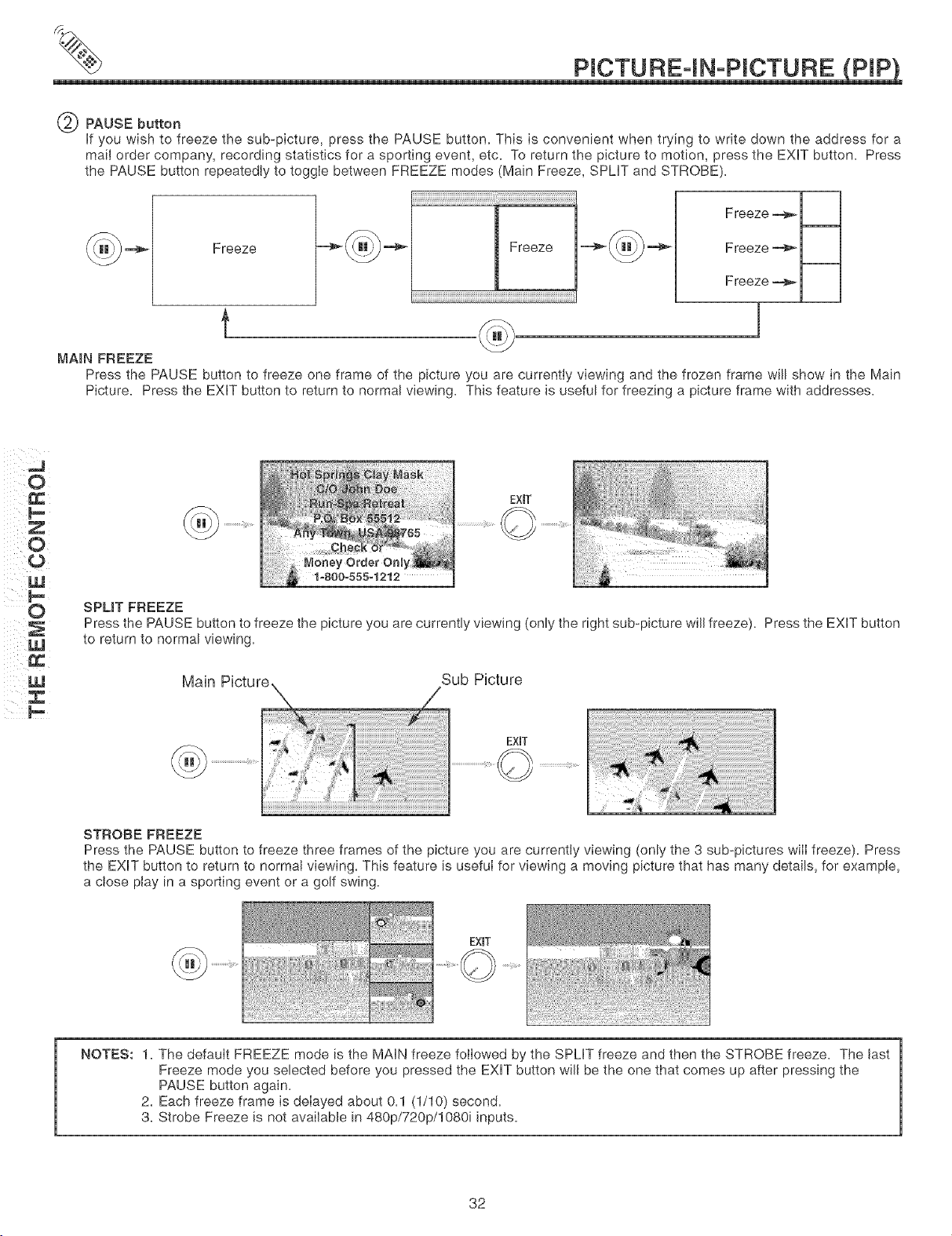
PAUSE button
If you wish to freeze the sub-picture, press the PAUSE button. This is convenient when trying to write down the address for a
mail order company, recording statistics for a sporting event, etc. To return the picture to motion, press the EXIT button. Press
the PAUSE button repeatedly to toggle between FREEZE modes (Main Freeze, SPMT and STROBE).
Freeze
Freeze
t
1 I
Freeze _
1 R
Freeze _
Freeze "_1 I
MAIN FREEZE
Press the PAUSE button to freeze one frame of the picture you are currentiy viewing and the frozen frame will show in the Main
Picture. Press the EXIT button to return to normal viewing. This feature is useful for freezing a picture frame with addresses.
J
O
0 W
EXIT
SPLIT FREEZE
Press the PAUSE button to freeze the picture you are currently viewing (only the right sub-picture will freeze). Press the EXIT button
to return to normal viewing.
Main Picture Sub Picture
STROBE FREEZE
EXBT
Press the PAUSE button to freeze three frames of the picture you are currently viewing (only the 3 sub-pictures wilI freeze). Press
the EXIT button to return to normal viewing. This feature is useful for viewing a moving picture that has many details, for example,
a close play in a sporting event or a golf swing.
EXiT
NOTES: 1. The default FREEZE mode is the MAiN freeze followed by the SPLIT freeze and then the STROBE freeze. The last
Freeze mode you selected before you pressed the EXIT button will be the one that comes up after pressing the
PAUSE button again.
2. Each freeze frame is delayed about 0.1 (1/10) second.
3. Strobe Freeze is not available in 480p/720p/1080i inputs.
32
USING THE REMOTE TO CONTROL CABLE BOX
Operating the precoded function for your cable box+
This remote is designed to operate different types of cable boxes+ You must first program the remote to match the remote system of
your cable box (refer to pages 39-40 for pre-codes)+
1+ Turn ON your cable box+
2+ Aim the remote control at the front of your cable box+
3+ To switch to Cable (CBL) pre-coded mode, use the SOURCE ACCESS buttons (4, _) on the remote control to position the LED
light to the corresponding selection+
4+ Hold down the ENT button on the remote and enter the four digit preset code that matches your cable box as shown on pages 39-
40+ Release the ENT button+ The indicator light will flash 3 times if the code was accepted+
Aim the remote at the cable box and press the POWER button+ The remote will turn off your cable box when the correct four digit
preset code is entered+ When this occurs, the remote control is programmed for your cable box+ If the cable box does not turn off,
try a different four digit preset code+
6+ The remote will now control your Cable box+
NOTES:
1+ If your cable box cannot be operated after performing the
above procedures, your cable box code has not been
preceded into the remote+
2+ In the unlikely event that your cable box cannot be
operated after performing the above procedures, please
consult your cable box operating guide+
d>--
3+ The remote control will remember the codes you have
programmed until the batteries are removed from the
remote control, After replacing the batteries repeat the
entire programming procedure as stated above+
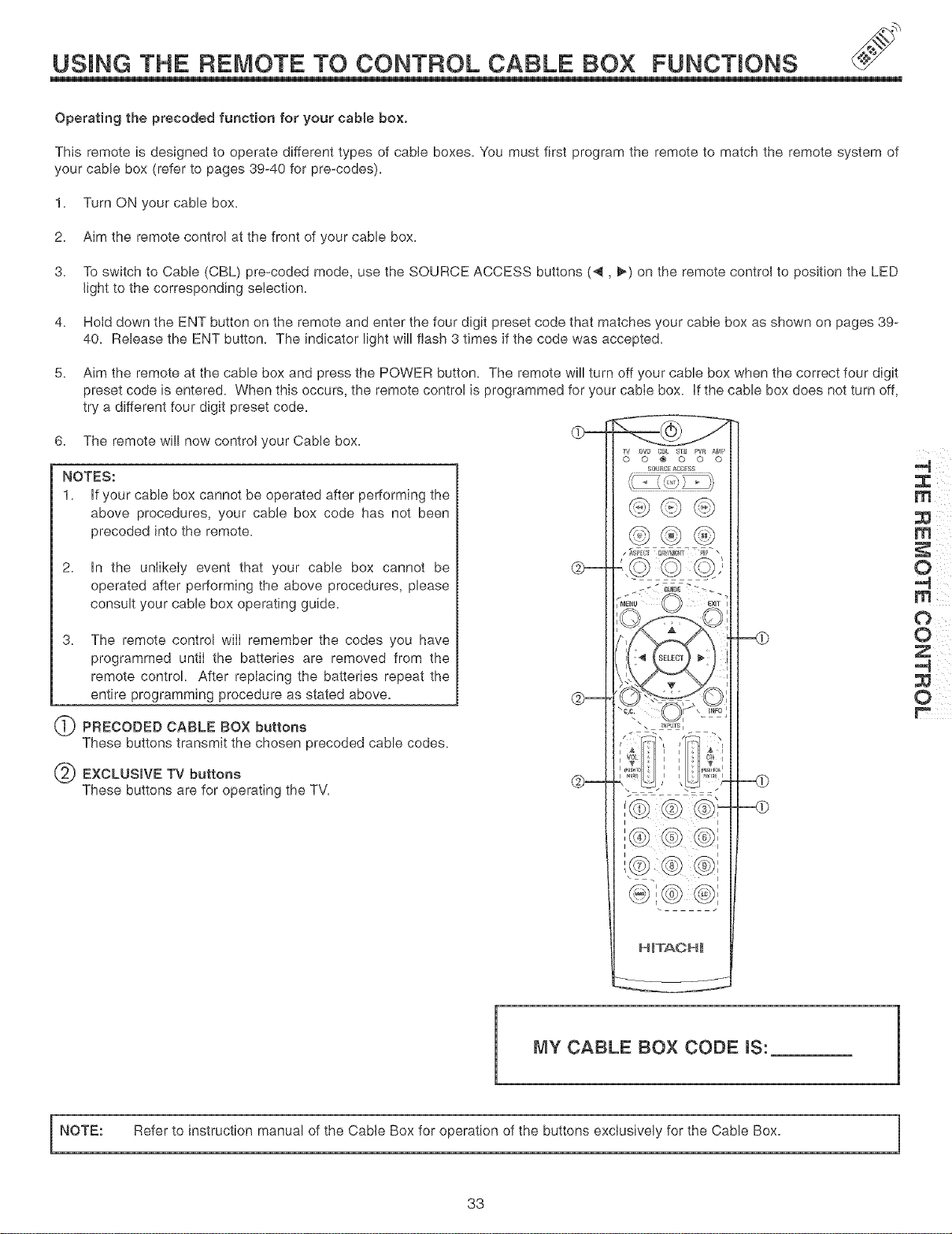
(_ PRECODED CABLE BOX buttons
These buttons transmit the chosen precoded cable codes+
EXCLUSIVE TV buttons
These buttons are for operating the TV+
TV _}Vg CBL STB Pv_ _t_p
0 0 @ 0 0 0
r;ou_c ACCESS
-'.© © ©,',
0
MY CABLE BOX CODE IS:
NOTE: Refer to instruction manual of the Cable Box for operation of the buttons exclusively for the Cable Box+
33
USING THE REMOTE TO CONTROL
SET-TOP-BOX/SATELLITE RECEmVER FUNCTIONS
Operating the precoded function for your set-top-bo×lsatelite rece{ver°
This remote is designed to operate different types of set-top-box/sate/ite systems. You must first program the remote to match the
remote system of your set-top-box/satelite systems (refer to pages 39-40 for pre-codes).
1. Turn ON your set-top-box/sate/ite systems.
2. Aim the remote control at the front of your set-top-box/sate/ite systems.
3. To switch to set-top-box/sate/ite (STB) pre-coded mode, use the SOURCE ACCESS buttons (4, _) on the remote control to posi-
tion the LED light to the corresponding selection.
4. Hold down the ENT button on the remote and enter the four digit preset code that matches your set-top-box/satelite receiver as
shown on page 39-40. Release the ENT button. The indicator light will flash 3 times if the code was accepted.
5. Aim the remote at the set-top-box/satellite receiver and press the POWER button. The remote will turn off your set-top-box/satel-
lite receiver when the correct four digit preset code is entered. When this occurs, the remote control is programmed for your set-
top-box/sate/ite receiver. If the set-top-box/sate/ite receiver does not turn off, try a different four digit preset code.
6. The remote will now control your set-top-box/sate/ite receiver.
NOTES:
1. If your set-top-box/satellite receiver cannot be operated
after performing the above procedures, your set-top-
box/sate/ite receiver code has not been precoded into the
remote.
In the unlikely event that your set-top-box/satellte
receiver cannot be operated after performing the above
procedures, please consult your set-top-box/sateilite
receiver operating guide.
0
@
The remote control will remember the codes you have
programmed untl the batteries are removed from the
remote control. After replacing the batteries repeat the
entire programming procedure as stated above.
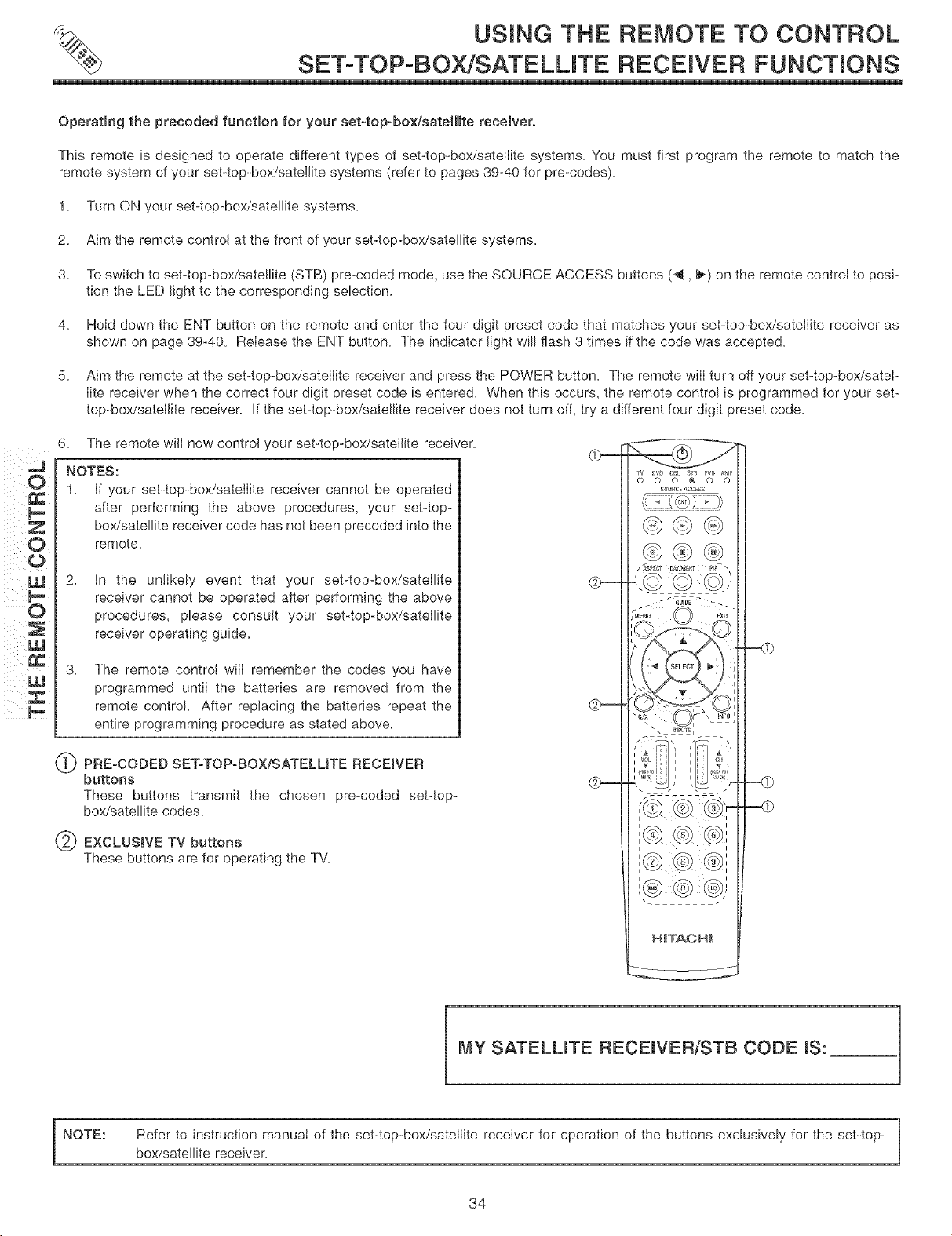
PRE-CODED SEToTOP-BOX/SATELUTE RECESVER
buttons
These buttons transmit the chosen pre-coded set-top-
box/sate/ite codes.
EXCLUSIVE TV buttons
These buttons are for operating the TV.
SOURCEACCESS
C]]III] !]Z])
/ _spcq D_Y/_lGId P/'_ \
© Q,',
M_NU 0 £XIT
(
i ,
i i
i i
MY SATELUTE RECEIVER/STB CODE IS:
NOTE: Refer to instruction manual of the set-top-box/sate/ite receiver for operation of the buttons exclusively for the set-top-
box/sate/ite receiver.
34
USING THE REMOTE TO CONTROL DVD FUNCTIONS
Operating the precoded function for your DVD player,
This remote is designed to operate different types of DVD players. You must first program the remote to match the remote system of
your DVD player (refer to pages 39-40 for pre-codes).
1. Turn ON your DVD player.
2. Aim the remote control at the front of your DVD player.
3. To switch to DVD pre-coded mode, use the SOURCE ACCESS buttons (_1, I_) on the remote control to position the LED light to
the corresponding selection.
4. Hold down the ENT button on the remote and enter the four digit preset code that matches your DVD player, as shown on pages
39-40. Release the ENT button. The indicator light will flash 3 times if the code was accepted.
5. Aim the remote at the DVD player and press the POWER button. The remote will turn off your DVD player when the correct four
digit preset code is entered. When this occurs, the remote control is programmed for your DVD player, if the DVD player does not
turn off, try a different four digit preset code.
6. The remote will now control your DVD player.
7. You will need to set the display type of your DVD player to 16:9 widescreen.
NOTES:
1. if your DVD player cannot be operated after performing
the above procedures, your DVD player's code has not
been preceded into the remote.
2. in the unlikely event that your DVD player cannot be
operated after performing the above procedures, please
consult your DVD piayer operating guide.
3. The remote control will remember the codes you have
programmed until the batteries are removed from the
remote control. After replacing the batteries repeat the
entire programming procedure as stated above.
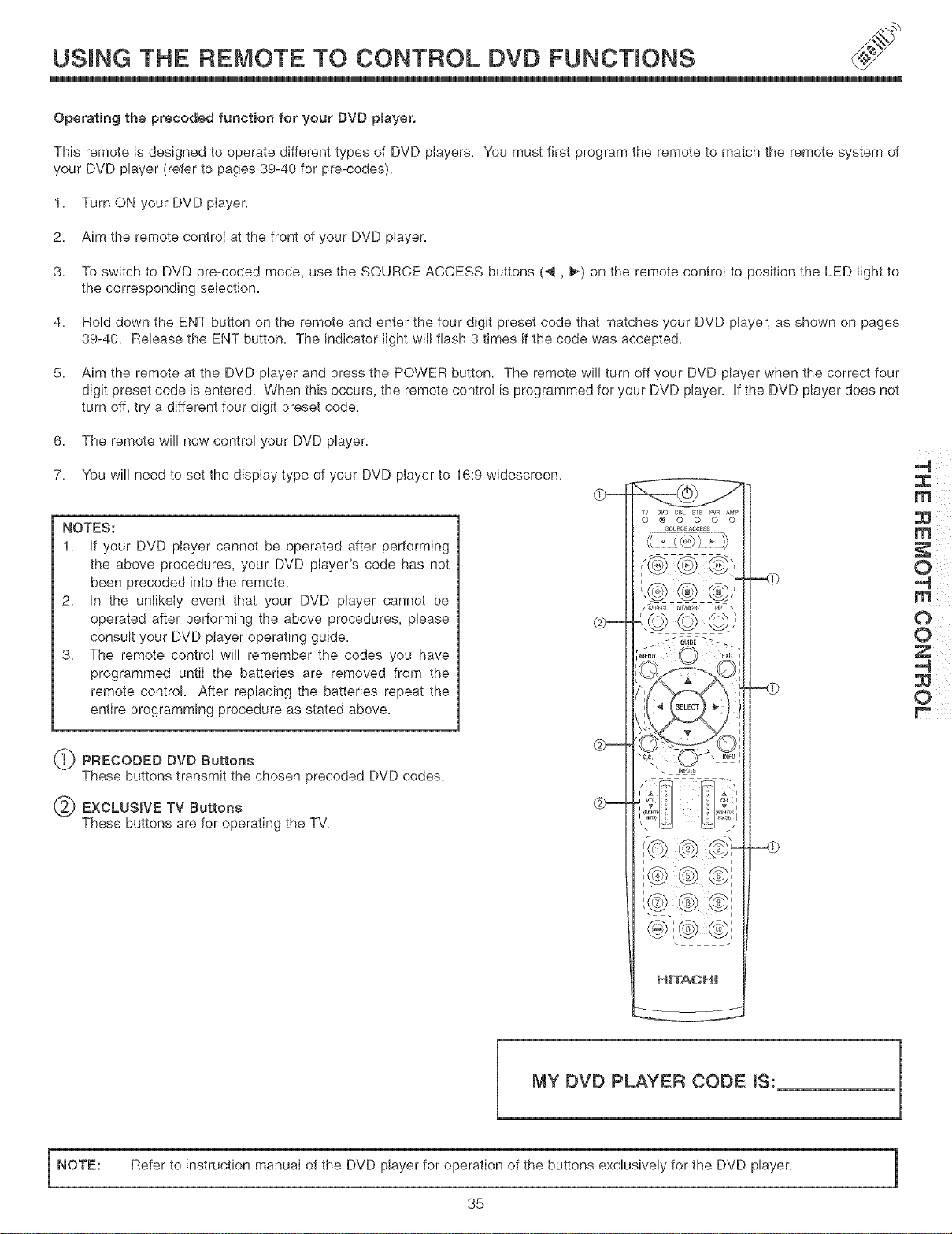
(_ PRECODED DVD Buttons
These buttons transmit the chosen precoded DVD codes.
EXCLUSIVE TV Buttons
These buttons are for operating the TV.
(b--
50URCE_CCESS
..@® ®/
".© © ©.',
i "_h i
I
@f@ @i
HITAOHI
0
MY OVO PLAYER CODE IS:
NOTE:
Refer to instruction manual of the DVD player for operation of the buttons exclusively for the DVD player,
35
1
USING YOUR REMOTE
TO CONTROL VCR/PVR FUNCTIONS
Operating the precoded function for your VCR/PVR (Personam Video Recorder).
This remote is designed to operate different types of VCRs/PVRs. You must first program the remote to match the remote system of
your VCR/PVR (refer to pages 39-40 for pre-codes).
1. Turn ON your VCR/PVR.
2. Aim the remote control at the front of your VCR/PVR.
3. To switch to VCR/PVR pro-coded mode, use the SOURCE ACCESS buttons (4, _) on the remote control to position the LED light
to the corresponding selection.
4. Hold down the ENT button on the remote and enter the four digit preset code that matches your VCR/PVR, as shown on pages 39-
40. Release the ENT button. The indicator light will flash 3 times if the code was accepted.
5. Aim the remote at the VCR/PVR and press the POWER button. The remote will turn off your PVR when the correct four digit pre-
set code is entered. When this occurs, the remote control is programmed for your VCR/PVR. if the VCR/PVR does not turn off,
try a different four digit preset code.
6. The remote will now control your VCR/PVR.
NOTES:
1. if your PVR cannot be operated after performing the
above procedures, your PVR's code has not been
precoded into the remote.
2. in the unlikely event that your PVR cannot be operated
after performing the above procedures, please consult
your PVR operating guide.
3. The remote control will remember the codes you have
programmed until the batteries are removed from the
remote control. After replacing the batteries repeat the
entire programming procedure as stated above.
4. VCR precode library is included in the PVR mode.
Default device for this mode is Hitachi VCR.
5. INFO, GUIDE and LC (Last Channel) buttons are for PVR
devices, not for VCR.
q}
@
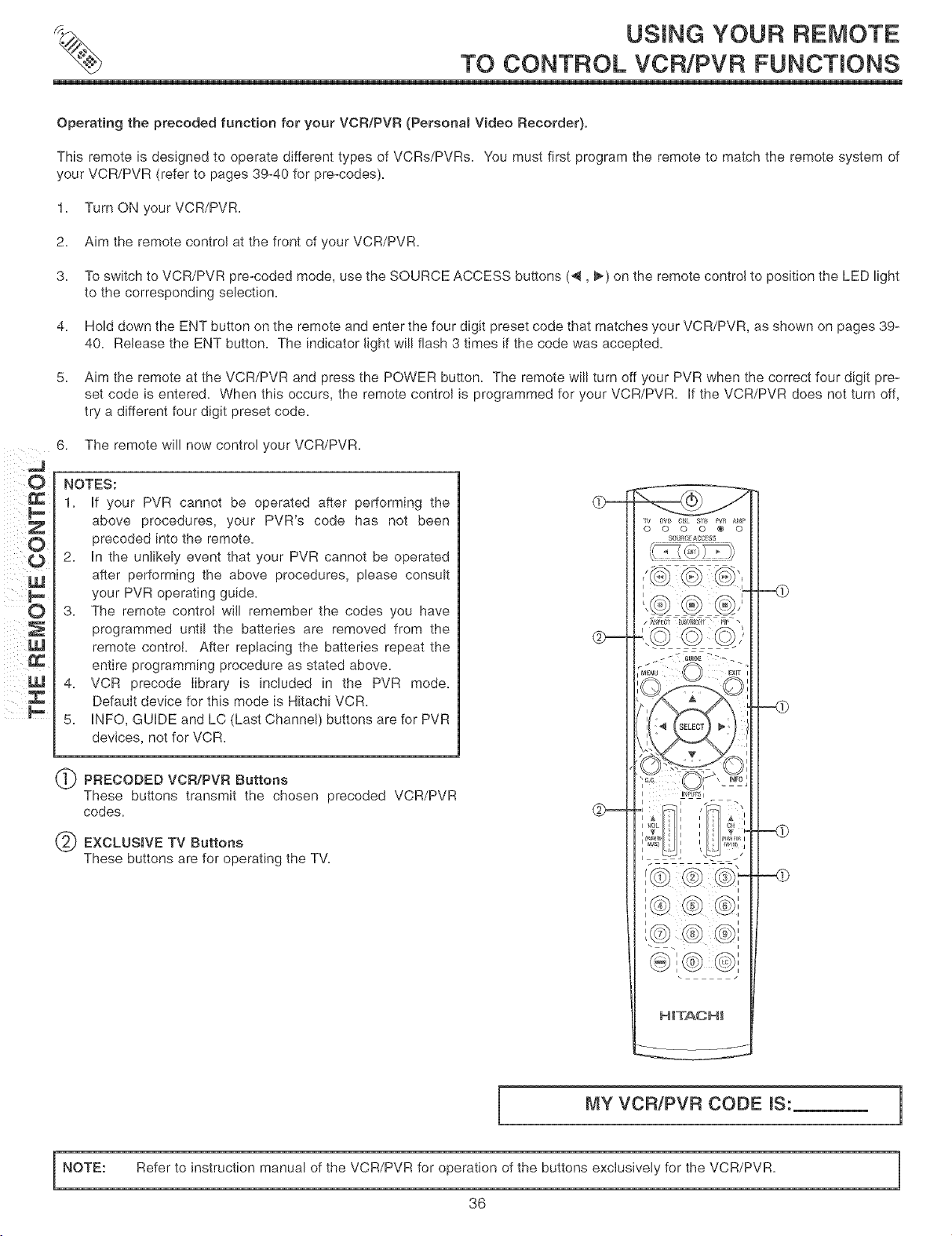
PRECODED VCR/PVR Buttons
These buttons transmit the chosen precoded VCR/PVR
codes.
EXCLUSIVE TV Buttons
These buttons are for operating the TV.
rv ol/8 CSL SrS PVR A_P
0 0 O 0 ® 0
SOSRC A¢;CESS
z /
VOL I I 8_ I
/
I I
@,@@,
H_TACH_
MY VCR/PVR CODE IS:
1
NOTE: Refer to instruction manual of the VCR/PVR for operation of the buttons exclusively for the VCR/PVR.
36
USING YOUR REMOTE
TO CONTROL ADDmTIONAL AUDIO EQUIPMENT
Operating the precoded function for your Audio component.
This remote is designed to operate different types of Audio component. You must first program the remote to match the remote system
of your Audio component (refer to pages 39-40 for pre-codes).
1. Turn ON your Audio component you wish to control with the Remote.
2. Aim the remote control at the front of your Audio component.
3. To switch to Audio (AMP) component pre-coded mode, use the SOURCE ACCESS buttons (4, _) on the remote control to posi-
tion the LEE) Nght to the corresponding selection.
4. Hold down the ENT button on the remote and enter the four digit preset code that matches your Audio component, as shown on
pages 39-40. Release the ENT button. The indicator light will flash 3 times if the code was accepted.
5. Aim the remote at the Audio component and press the POWER button. The remote will turn off your Audio component when the
correct four digit preset code is entered. When this occurs, the remote control is programmed for your Audio component. If the
Audio component does not turn off, try a different four digit preset code.
6. The remote will now control your Audio component.
7. Repeat steps 1 - 6 if you wish to program the remote to control another Audio component.
NOTES:
1. If your Audio component cannot be operated after
performing the above procedures, your Audio
component's code has not been preceded into the
remote.
2. In the unlikely event that your Audio component cannot be
operated after performing the above procedures, please
consult your Audio equipment operating guide.
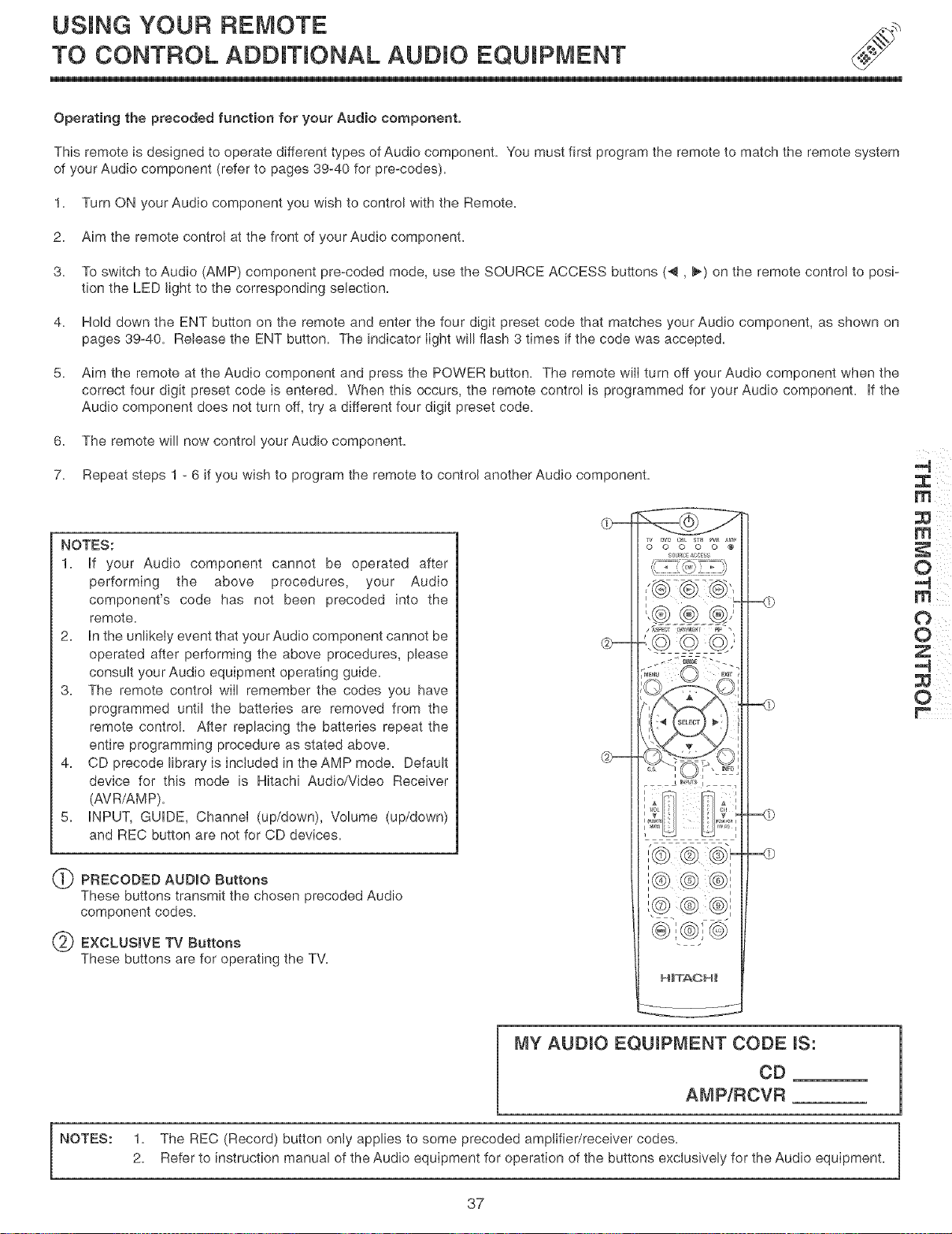
3. The remote control will remember the codes you have
programmed until the batteries are removed from the
remote control. After replacing the batteries repeat the
entire programming procedure as stated above.
4. CD precede library is included in the AMP mode. Default
device for this mode is Hitachi Audio/Video Receiver
(AVR/AMP).
5. INPUT, GUIDE, Channel (up/down), Volume (up/down)
and REC button are not for CD devices.
PRECODED AUDIO Buttons
These buttons transmit the chosen preceded Audio
component codes.
EXCLUSIVE TV Buttons
These buttons are for operating the TV.
MY AUDIO EQUIPMENT CODE IS:
CD
A[V]P/RCVR
O
NOTES: 1. The REC (Record) button only applies to some preceded amplifier/receiver codes.
2. Refer to instruction manual of the Audio equipment for operation of the buttons exclusively for the Audio equipment.
37
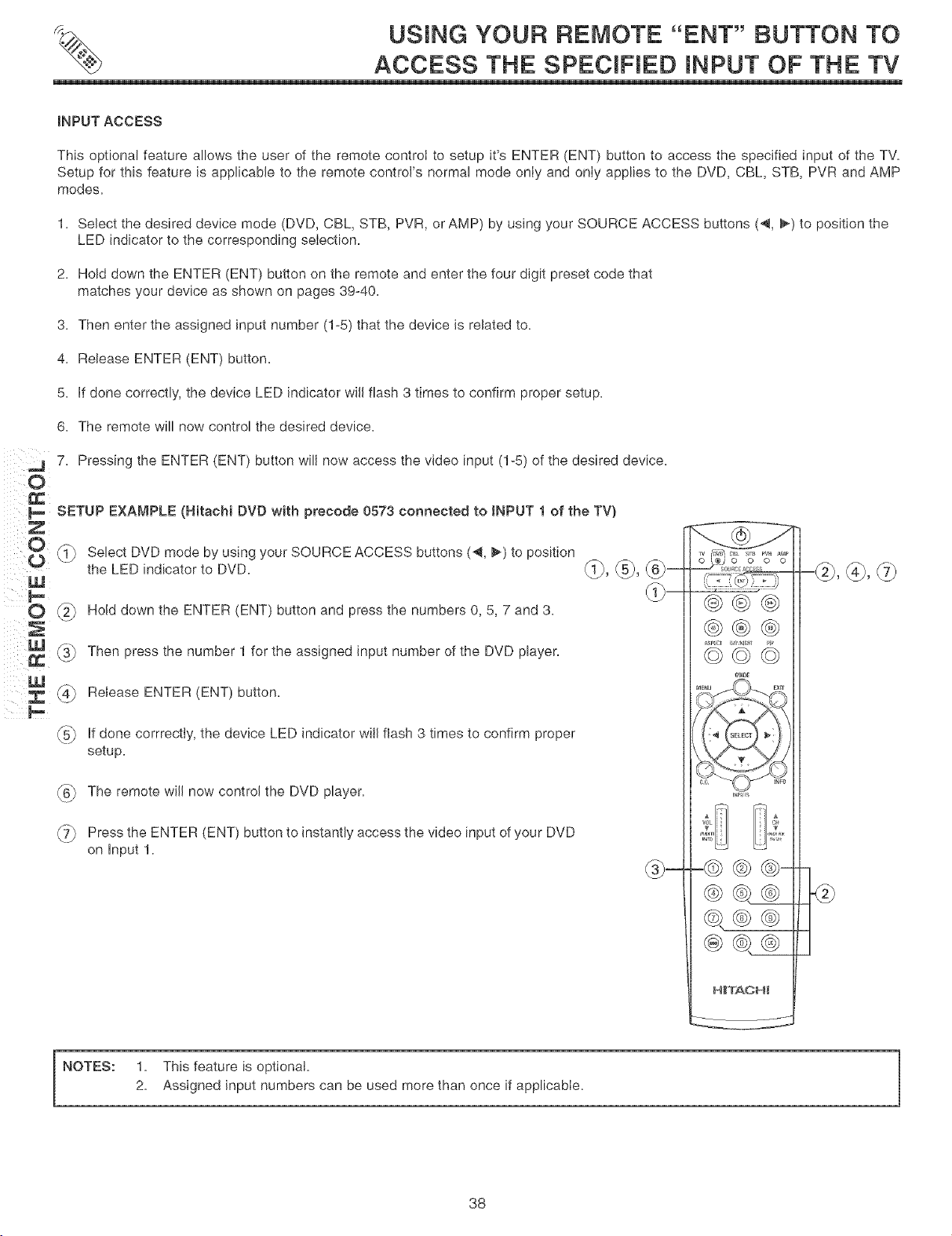
USING YOUR REMOTE "ENT" BUTTON TO
ACCESS THE SPECIFIED iNPUT OF THE TV
INPUT ACCESS
This optional feature allows the user of the remote control to setup it's ENTER (ENT) button to access the specified input of the TV.
Setup for this feature is applicable to the remote control's normal mode only and only applies to the DVD, CBL, STB, PVR and AMP
modes.
1. Select the desired device mode (DVD, CBL, STB, PVR, or AMP) by using your SOURCE ACCESS buttons (4, _) to position the
LED indicator to the corresponding selection.
2. Hold down the ENTER (ENT) button on the remote and enter the four digit preset code that
matches your device as shown on pages 39-40.
3. Then enter the assigned input number (1-5) that the device is related to.
4. Release ENTER (ENT) button.
5. if done correctly, the device LED indicator will flash 3 times to confirm proper setup.
6. The remote will now control the desired device.
j 7. Pressing the ENTER (ENT) button will now access the video input (1-5) of the desired device.
}_ SETUP EXAMPLE (Hitachi DVD with precede 0573 connected to INPUT 1 of the TV)
_ Select DVD mode by using your SOURCE ACCESS buttons (4, _) to position
the LED indicator to DVD. _, _5_, _--
UJ
O {2} Hold down the ENTER (ENT) button and press the numbers 0, 5, 7 and 3.
! _:3_ Then press the number 1 for the assigned input number of the DVD player.
_4_ Release ENTER (ENT)button.
_ if done corrrectly, the device LED indicator will flash 3 times to confirm proper
setup.
_6} The remote will now control the DVD player.
_7} Press the ENTER (ENT) button to instantly access the video input of your DVD
on input 1.
@@@
@®@
ME_ EXr"
-@,@,
NOTES: 1. This feature is optional.
2. Assigned input numbers can be used more than once if applicable.
38
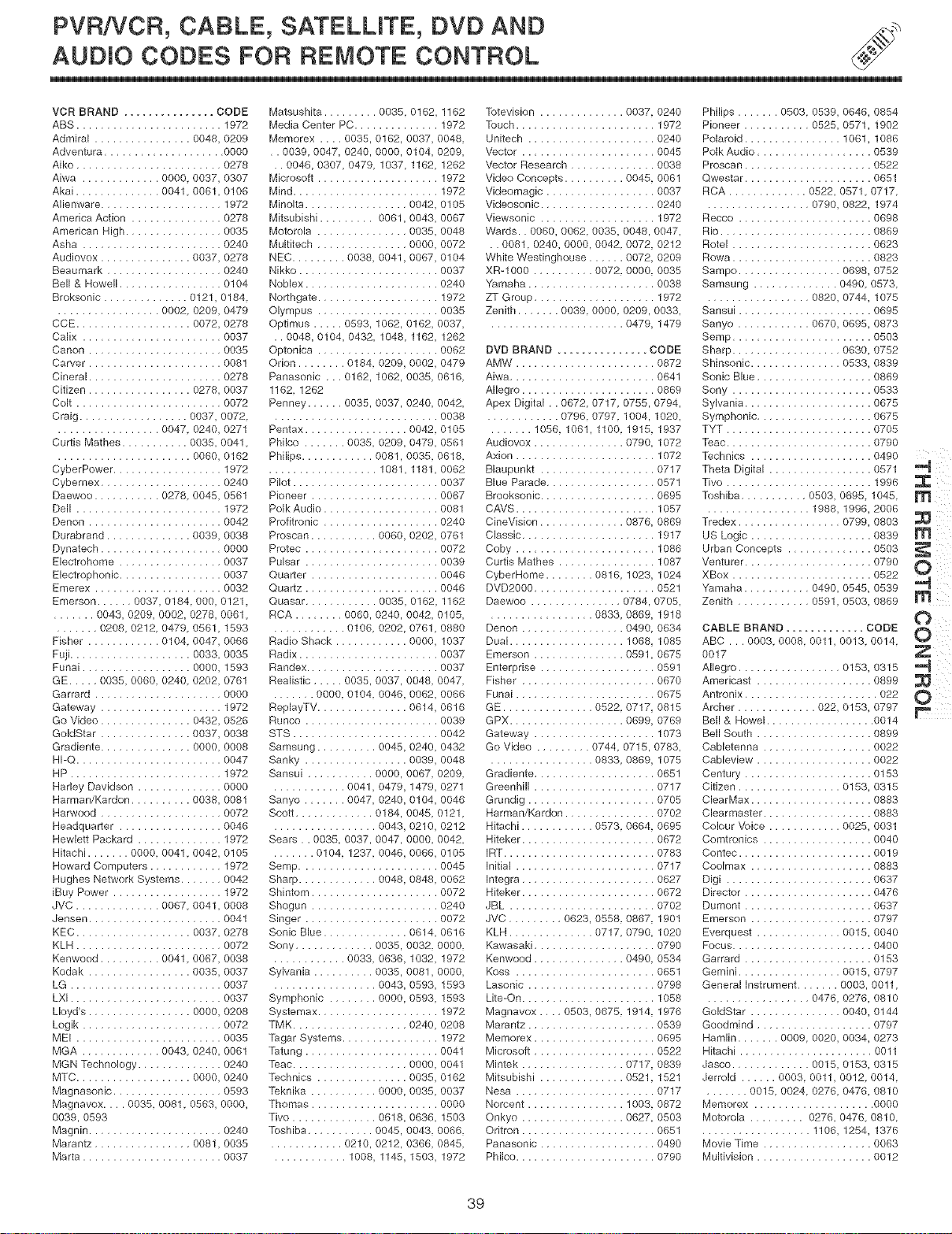
PVR/VCR, CABLE, SATELLITE, DVD AND
AUDIO CODES FOR REMOTE CONTROL
VCR BRAND ............... CODE
ABS ........................ 1972
Admiral ................ 0048, 0209
Adventura .................... 0000
Aiko ........................ 0278
Aiwa ............. 0000, 0037, 0307
Akai .............. 0041,0061, 0108
Alienware .................... 1972
America Action ............... 0278
American High ................ 0035
Asha ...................... 0240
Audiovox ............... 0037, 0278
Beaumark ................... 0240
Bell & Howell ................. 0104
Broksonic .............. 0121, 0184,
................. 0002, 0209, 0479
CCE ................... 0072, 0278
Calix ....................... 0037
Canon ...................... 0035
Carver ...................... 0081
Cineral ...................... 0278
Citizen ................. 0278, 0037
Colt ........................ 0072
Craig .................. 0037, 0072
................. 0047 0240, 0271
Curtis Mathes ........... 0035, 0041
...................... 0060, 0162
CyberPower .................. 1972
Cybernex ................... 0240
Daewoo ........... 0278 0045, 0561
Dell ........................ 1972
Denon ..................... 0042
Durabrand .............. 0039, 0038
Dynatech .................... 0000
Electrohome ................. 0037
Electrophonic ................. 0037
Emerex ..................... 0032
Emerson ...... 0037, 0184 000, 0121
....... 0043, 0209 0002, 0278, 0061
....... 0208, 0212 0479 0561, 1593
Fisher ............ 0104 0047, 0066
Fuji .................... 0033, 0035
Funai .................. 0000, 1593
GE ..... 0035, 0060 0240 0202, 0761
Garrard ..................... 0000
Gateway .................... 1972
Go Video ............... 0432, 0526
GoldStar ............... 0037, 0038
Gradiente ............... 0000, 0008
HI-Q ........................ 0047
HP ........................ 1972
Harley Davidson ............. 0000
Harman/Kardon .......... 0038, 0081
Harwood .................... 0072
Headquarter ................. 0046
Hewlett Packard .............. 1972
Hitachi ....... 0000 0041 0042, 0105
Howard Computers ............ 1972
Hughes Network Systems ....... 0042
iBuy Power .................. 1972
JVC .............. 0067 0041, 0008
Jensen ...................... 0041
KEC ................... 0037, 0278
KLH ........................ 0072
Kenwood .......... 0041 0067, 0038
Kodak ................. 0035, 0037
LG ......................... 0037
LXl ......................... 0037
Lloyd's ................. 0000, 0208
Logik ....................... 0072
MEI ........................ 0035
MGA ............. 0043 0240, 0061
MGN Technology .............. 0240
MTC .................. 0000, 0240
Magnasonic .................. 0593
Magnavox .... 0035 0081 0563, 0000,
0039, 0593
Magnin ...................... 0240
Marantz ................ 0081, 0035
Marta ....................... 0037
Matsushita ......... 0035, 0162, 1162
Media Center PC .............. 1972
Memorex .... 0035, 0162, 0037 0048,
, . 0039 0047 0240, 0000, 0104 0209
.. 0046, 0307, 0479 1037 1162, 1262
Microsoft .................... 1972
Mind ........................ 1972
Minolta ................. 0042, 0105
Mitsubishi ......... 0061, 0043, 0067
Motorola ............... 0035, 0048
Multitech .............. 0000, 0072
NEC ......... 0038 0041, 0067, 0104
Nikko ....................... 0037
Noblex ...................... 0240
Northgate .................... 1972
Olympus .................... 0035
Optimus ..... 0593, 1062, 0162 0037
.. 0048, 0104, 0432 1048 1162, 1262
Optonica .................... 0062
Orion ........ 0184 0209, 0002, 0479
Panasonic , ., 0162, 1062, 0035 0616
1162 1262
Penney ...... 0035, 0037, 0240 0042
........................... 0038
Pentax ................. 0042 0105
Philco ....... 0035 0209, 0479, 0561
Philips ............ 0081, 0035 0618,
.................. 1081, 1181 0062
Pilot ........................ 0037
Pioneer ..................... 0067
Polk Audio ................... 0081
Profitronic ................... 0240
Proscan ........... 0060, 0202, 0761
Protec ...................... 0072
Pulsar ...................... 0039
Quarter ..................... 0046
Quartz ..................... 0046
Quasar ............ 0035, 0162, 1162
RCA ........ 0060, 0240, 0042 0105
........... 0106 0202, 0761, 0880
Radio Shack ............ 0000, 1037
Radix ....................... 0037
Bandex ...................... 0037
Realistic ..... 0035, 0037, 0048 0047
....... 0000 0104 0046, 0062, 0066
ReplayTV ............... 0614, 0616
Bunco ...................... 0039
STS ........................ 0042
Samsung .......... 0045, 0240, 0432
Sanky ................. 0039, 0048
Sansui ........... 0000, 0067 0209
............ 0041 0479, 1479, 0271
Sanyo ....... 0047 0240, 0104, 0046
Scott ............. 0184, 0045, 0121
................. 0043, 0210, 0212
Sears.. 0035 0037, 0047, 0000, 0042
....... 0104 1237 0046, 0066, 0105
Setup ....................... 0045
Sharp ............. 0048, 0848, 0062
Shintom ..................... 0072
Shogun ..................... 0240
Singer ...................... 0072
Sonic Blue .............. 0614, 0616
Sony ............. 0035, 0032 0000
............ 0033 0636, 1032, 1972
Sylvania .......... 0035, 0081 0000
................. 0043, 0593, 1593
Symphonic ........ 0000, 0593, 1593
Systemax .................... 1972
TMK ................... 0240, 0208
Tagar Systems ................ 1972
Tatung ...................... 0041
Teac ................... 0000, 0041
Technics ............... 0035, 0162
Teknika ........... 0000, 0035, 0037
Thomas ..................... 0000
Tivo .............. 0618, 0636, 1503
Toshiba ........... 0045, 0043 0066
............ 0210, 0212, 0366 0845
............ 1008 1145, 1503, 1972
Totevision .............. 0037, 0240
Touch ....................... 1972
Unitech ..................... 0240
V'ector ...................... 0045
\.lector Research .............. 0038
Video Concepts .......... 0045 0061
Videomagic .................. 0037
Videosonic ................... 0240
Viewsonic ................... 1972
Wards.. 0060, 0062 0035 0048, 0047,
• . 0081 0240, 0000, 0042 0072 0212
White Westinghouse ..... 0072 0209
XR-1000 .......... 0072 0000 0035
Yamaha ..................... 0038
ZT Group .................... 1972
Zenith ....... 0039 0000 0209, 0033,
...................... 0479 1479
DVD BRAND ............... CODE
AMW ....................... 0872
Aiwa ........................ 0641
Allegro ...................... 0869
Apex Digital ,. 0672 0717 0755, 0794,
............ 0796 0797 1004, 1020,
....... 1056 1061, 1100 1915 1937
Audiovox ............... 0790 1072
Axion ....................... 1072
Blaupunkt ................... 0717
Blue Parade .................. 0571
Brooksonic ................... 0695
CAVS ....................... 1057
CineVision .............. 0876 0869
Classic ...................... 1917
Coby ....................... 1086
Curtis Mathes ................ 1087
CyberHome ........ 0816 1023 1024
DVD2000 .................... 0521
Daewoo ............... 0784, 0705,
................. 0833 0869 1918
Denon ................. 0490 0634
Dual ................... 1068, 1085
Emerson ............... 0591 0675
Enterprise ................... 0591
Fisher ...................... 0670
Funai ....................... 0675
GE ............... 0522 0717, 0815
GPX ................... 0699 0769
Gateway .................... 1073
Go Video ......... 0744 0715, 0783,
................. 0833 0869 1075
Gradiente .................... 0651
Greenhill .................... 0717
Grundig ..................... 0705
Harman/Kardon ............... 0702
Hitachi ............ 0573 0664 0695
Hiteker ...................... 0672
IRT ......................... 0783
Initial ....................... 0717
Integra ...................... 0627
Hiteker ...................... 0672
JBL ........................ 0702
JVC ......... 0623, 0558 0867 1901
KLH .............. 0717 0790 1020
Kawasaki .................... 0790
Kenwood ............... 0490 0534
Koss ....................... 0651
Lasonic ..................... 0798
Lite-On ...................... 1058
Magnavox .... 0503, 0675 1914 1976
Marantz ..................... 0539
Memorex .................... 0695
Microsoft .................... 0522
Mintek ................. 0717, 0839
Mitsubishi .............. 0521 1521
Nesa ....................... 0717
Norcent ................ 1003 0872
Onkyo ................. 0627 0503
Oritron ...................... 0651
Panasonic ................... 0490
Philco ....................... 0790
Philips ....... 0503 0539, 0646, 0854
Pioneer ........... 0525, 0571, 1902
Polaroid ................ 1061, 1086
Polk Audio ................... 0539
Proscan ..................... 0522
Qwestar ..................... 0651
RCA ............. 0522, 0571 0717
................. 0790, 0822, 1974
Recco ...................... 0698
Rio ......................... 0869
Rotel ....................... 0623
Rowa ....................... 0823
Sampo ................. 0698, 0752
Samsung .............. 0490 0573
................. 0820, 0744, 1075
Sansui ...................... 0695
Sanyo ............ 0670, 0695, 0873
Setup ....................... 0503
Sharp .................. 0630, 0752
Shinsonic ............... 0533, 0839
Sonic Blue ................... 0869
Sony ....................... 0533
Sylvania ..................... 0675
Symphonic ................... 0675
TYT ........................ 0705
Teac ........................ 0790
Technics .................... 0490
Theta Digital ................ 0571
Tivo ........................ 1996
Toshiba ........... 0503, 0695, 1045
................. 1988, 1996, 2006
Tredex ................. 0799, 0803
US Logic .................... 0839
Urban Concepts .............. 0503
Venturer ..................... 0790
XBox ....................... 0522
Yamaha ........... 0490, 0545, 0539
Zenith ............ 0591, 0503, 0869
CABLE BRAND ............. CODE
ABC. . . 0003, 0008, 0011, 0013, 0014,
0017
Allegro ................ 0153, 0315
Americast ................... 0899
Antronix ...................... 022
Archer ............. 022, 0153, 0797
Bell & Howel .................. 0014
Bell South ................... 0899
Cabletenna .................. 0022
Cableview ................... 0022
Century ..................... 0153
Citizen ................. 0153, 0315
ClearMax .................... 0883
Clearmaster .................. 0883
Colour '_ice ............ 0025, 0031
Comtronics .................. 0040
Contec ...................... 0019
Coolmax .................... 0883
Digi ........................ 0637
Director ..................... 0476
Dumont ..................... 0637
Emerson .................... 0797
Everquest .............. 0015, 0040
Focus ....................... 0400
Garrard ..................... 0153
Gemini ................. 0015, 0797
General Instrument ....... 0003, 0011
................. 0476, 0276, 0810
GoldStar ............... 0040, 0144
Goodmind ................... 0797
Hamlin ....... 0009 0020, 0034, 0273
Hitachi ...................... 0011
Jasco ............. 0015, 0153, 0315
Jerrold ...... 0003 0011, 0012 0014
....... 0015 0024 0276, 0476, 0810
Memorex ................... 0000
Motorola ......... 0276, 0476 0810
.................. 1106, 1254, 1376
Movie Time .................. 0063
Multivision ................... 0012
O
O
39
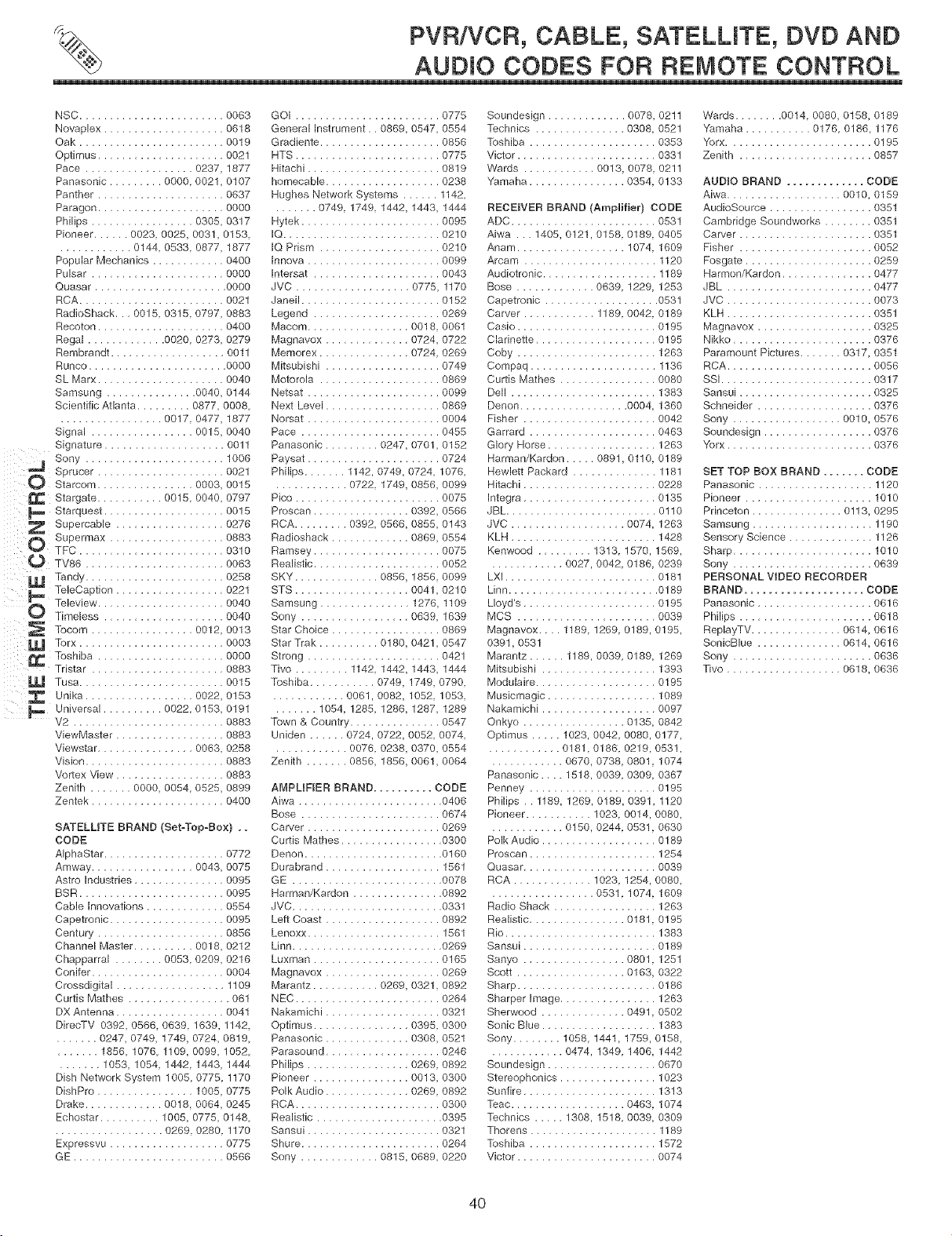
PVR/VCR, CABLE, SATELLITE, DVD AND
AUDIO CODES FOR REMOTE CONTROL
i_i_iO
NSC ........................ 0063
Novaplex .................... 0618
Oak ........................ 0019
Optimus ..................... 0021
Pace .................. 0237, 1877
Panasonic ......... 0000 0021, 0107
Panther ..................... 0637
Paragon ..................... 0000
Philips ................. 0305, 0317
Pioneer ...... 0023, 0025, 0031, 0153
............ 0144 0533 0877, 1877
Popular Mechanics ............ 0400
Pulsar ...................... 0000
Quasar ...................... 0000
RCA ....................... 0021
RadioShack,., 0015 0315 0797, 0883
Recoton .................... 0400
Regal ............. 0020 0273, 0279
Rembrandt ................... 0011
Runco ....................... 0000
SL Marx ..................... 0040
Samsung ............... 0040, 0144
Scientific Atlanta ......... 0877, 0008
................. 0017 0477, 1877
Signal ................. 0015, 0040
Signature .................... 0011
Sony ....................... 1006
Sprucer ..................... 0021
Starcom ................ 0003, 0015
Stargate ........... 0015 0040, 0797
Starquest .................... 0015
Supercable .................. 0276
Supermax ................... 0883
TFC ........................ 0310
TV86 ....................... 0063
Tandy ....................... 0258
TeleCaption .................. 0221
Teleview ..................... 0040
TimeLess ................... 0040
Tocom ................. 0012, 0013
Torx ........................ 0003
Toshiba ..................... 0000
Tristar ...................... 0883
Tusa ........................ 0015
GOI ........................ 0775
General Instrument., 0869, 0547, 0554
Gradiente .................... 0856
HTS ........................ 0775
Hitachi ...................... 0819
homecable ................... 0238
Hughes Network Systems ...... 1142
....... 0749 1749 1442, 1443, 1444
Hytek ....................... 0095
IQ.......................... 0210
IQ Prism .................... 0210
Innova ...................... 0099
Intersat ..................... 0043
JVC ................... 0775, 1170
Janeil ....................... 0152
Legend ..................... 0269
Macom ................ 0018 0061
Magnavox .............. 0724, 0722
Memorex ............... 0724 0269
Mitsubishi ................... 0749
Motorola .................... 0869
Netsat ...................... 0099
Next Level ................... 0869
Norsat ...................... 0004
Pace ....................... 0455
Panasonic ......... 0247, 0701, 0152
Paysat ..................... 0724
Philips ....... 1142, 0749, 0724. 1076
............ 0722 1749, 0856, 0099
Pico ........................ 0075
Proscan ................ 0392, 0566
RCA ......... 0392 0566, 0855, 0143
Radioshack ............. 0869, 0554
Ramsey ..................... 0075
Realistic ..................... 0052
SKY .............. 0856, 1856, 0099
STS .................. 0041 0210
Samsung ............... 1276, 1109
Sony .................. 0639 1639
Star Choice .................. 0869
Star Trak .......... 0180, 0421, 0547
Strong ...................... 0421
TNo ......... 1142 1442, 1443, 1444
Toshiba ........... 0749, 1749, 0790
Unika .................. 0022, 0153 ............ 0061, 0082, 1052 1053
Universal .......... 0022. 0153, 0191
V2 ................... ...... 0883
ViewMaster .................. 0883
Viewstar ................ 0063, 0258
Vision ....................... 0883
Vortex View ................. 0883
Zenith ....... 0000 0054 0525, 0899
Zentek ...................... 0400
SATELLITE BRAND (Set-Top-Box) ..
CODE
AIphaStar .................... 0772
Amway ................. 0043, 0075
Astro Industries ............... 0095
BSR ........................ 0095
Cable Innovations ............. 0554
Capetronic ................... 0095
Century ..................... 0856
Channel Master .......... 0018, 0212
Chapparral ........ 0053, 0209, 0216
Conifer ...................... 0004
Crossdigital .................. 1109
Curtis Mathes ................. 061
DX Antenna .................. 0041
Dire(:TV 0392, 0566, 0639, 1639, 1142
....... 0247, 0749, 1749, 0724, 0819,
....... 1856, 1076, 1109, 0099, 1052,
....... 1053, 1054, 1442, 1443, 1444
Dish Network System 1005, 0775, 1170
DishPro ................ 1005, 0775
Drake ............. 0018 0064, 0245
Echostar .......... 1005, 0775, 0148,
.................. 0269, 0280, 1170
Expressvu ................... 0775
GE ......................... 0566
....... 1054, 1285 1286, 1287, 1289
Town & Country .............. 0547
Uniden ...... 0724, 0722, 0052 0074
............ 0076 0238, 0370, 0554
Zenith ....... 0856 1856, 0061, 0064
AMPLIFIER BRAND .......... CODE
Aiwa ........................ 0406
Bose ....................... 0674
Carver ...................... 0269
Curtis Mathes ................. 0300
Denon ....................... 0160
Durabrand ................... 1561
GE ......................... 0078
Harman/Kardon ............... 0892
JVC ......................... 0331
Left Coast ................... 0892
Lenoxx ...................... 1561
Linn ......................... 0269
Luxman ..................... 0165
Magnavox ................... 0269
Marantz ........... 0269, 0321,0892
NEC ........................ 0264
Nakamichi ................... 0321
Optimus ............... 0395, 0300
Panasonic .............. 0308, 0521
Parasound ................... 0246
Philips ................. 0269, 0892
Pioneer ................ 0013, 0300
Polk Audio .............. 0269, 0892
RCA ........................ 0300
Realistic ..................... 0395
Sansui ...................... 0321
Shure ....................... 0264
Sony ............. 0815, 0689, 0220
Soundesign ............. 0078, 0211
Technics ............... 0308 0521
Toshiba ..................... 0353
Victor ....................... 0331
Wards ............ 0013, 0078 0211
Yamaha ................ 0354 0133
RECEIVER BRAND (Amplifier) CODE
ADC ........................ 0531
Aiwa ... 1405, 0121, 0158 0189 0405
Anam .................. 1074 1609
Arcam ...................... 1120
Audiotronic ................... 1189
Bose ............. 0639 1229 1253
Capetronic ................... 0531
Carver ............ 1189 0042 0189
Casio ....................... 0195
Clarinette .................... 0195
Coby ....................... 1263
Compaq ..................... 1136
Curtis Mathes ................ 0080
Dell ........................ 1383
Denon .................. 0004, 1360
Fisher ...................... 0042
Garrard ..................... 0463
Glory Horse .................. 1263
Harman/Kardon ..... 0891, 0110, 0189
Hewlett Packard .............. 1181
Hitachi ...................... 0228
Integra ...................... 0135
JBL ......................... 0110
JVC ................... 0074, 1263
KLH ........................ 1428
Kenwood ......... 1313, 1570, 1569,
............ 0027, 0042, 0186, 0239
LXl ......................... 0181
Linn ......................... 0189
Lloyd's ...................... 0195
MCS ....................... 0039
Magnavox .... 1189, 1269, 0189, 0195,
0391, 0531
Marantz ...... 1189, 0039, 0189, 1269
Mitsubishi ................... 1393
Modulaire .................... 0195
Musicmagic .................. 1089
Nakamichi .................. 0097
Onkyo ................. 0135, 0842
Optimus ..... 1023, 0042, 0080, 0177,
............ 0181,0186, 0219, 0531,
............ 0670, 0738, 0801, 1074
Fanasonic .... 1518, 0039, 0309, 0367
Fenney ..................... 0195
Philips ,. 1189, 1269, 0189, 0391, 1120
Pioneer ........... 1023, 0014, 0080,
............ 0150, 0244, 0531, 0630
Polk Audio ................... 0189
Proscan ..................... 1254
Quasar ...................... 0039
RCA ............. 1023, 1254, 0080,
................. 0531, 1074, 1609
Radio Shack ................. 1263
Realistic ................ 0181, 0195
Rio ......................... 1383
Sansui ...................... 0189
Sanyo ................. 0801, 1251
Scott .................. 0163, 0322
Sharp ....................... 0186
Sharper Image ................ 1263
Sherwood .............. 0491, 0502
Sonic Blue ................... 1383
Sony ........ 1058, 1441, 1759, 0158,
............ 0474, 1349, 1406, 1442
Soundesign .................. 0670
Stereophonics ................ 1023
Sunfire ...................... 1313
Teac ................... 0463, 1074
Technics ..... 1308, 1518, 0039, 0309
Thorens ..................... 1189
Toshiba ..................... 1572
Victor ....................... 0074
Wards ........ 0014, 0080, 0158, 0189
"Yamaha ........... 0176,0186,1176
Yorx ........................ 0195
Zenith ...................... 0857
AUDIO BRAND ............. CODE
Aiwa ................... 0010, 0159
AudioSource ................. 0351
Cambridge Soundworks ........ 0351
Carver ...................... 0351
Fisher ...................... 0052
Fosgate ..................... 0259
Harmon/Kardon ............... 0477
JBL ........................ 0477
JVC ........................ 0073
KLH ........................ 0351
Magnavox ................... 0325
Nikko ....................... 0376
Paramount Pictures ....... 0317, 0351
RCA ........................ 0056
SSI ......................... 0317
Sansui ..................... 0325
Schneider ................... 0376
Sony .................. 0010, 0576
Soundesign .................. 0376
Yorx ........................ 0376
SET TOP BOX BRAND ....... CODE
Panasonic ................... 1120
Pioneer ..................... 1010
Princeton ............... 0113, 0298
Samsung .................... 1190
Sensory Science .............. 1126
Sharp ....................... 1010
Sony ....................... 0639
PERSONAL VIDEO RECORDER
BRAND .................... CODE
Panasonic ................... 0816
Philips ...................... 0618
ReplayTV ............... 0614, 0616
SonicBlue .............. 0614, 0616
Sony ....................... 0636
Tivo ................... 0618, 0636
4O
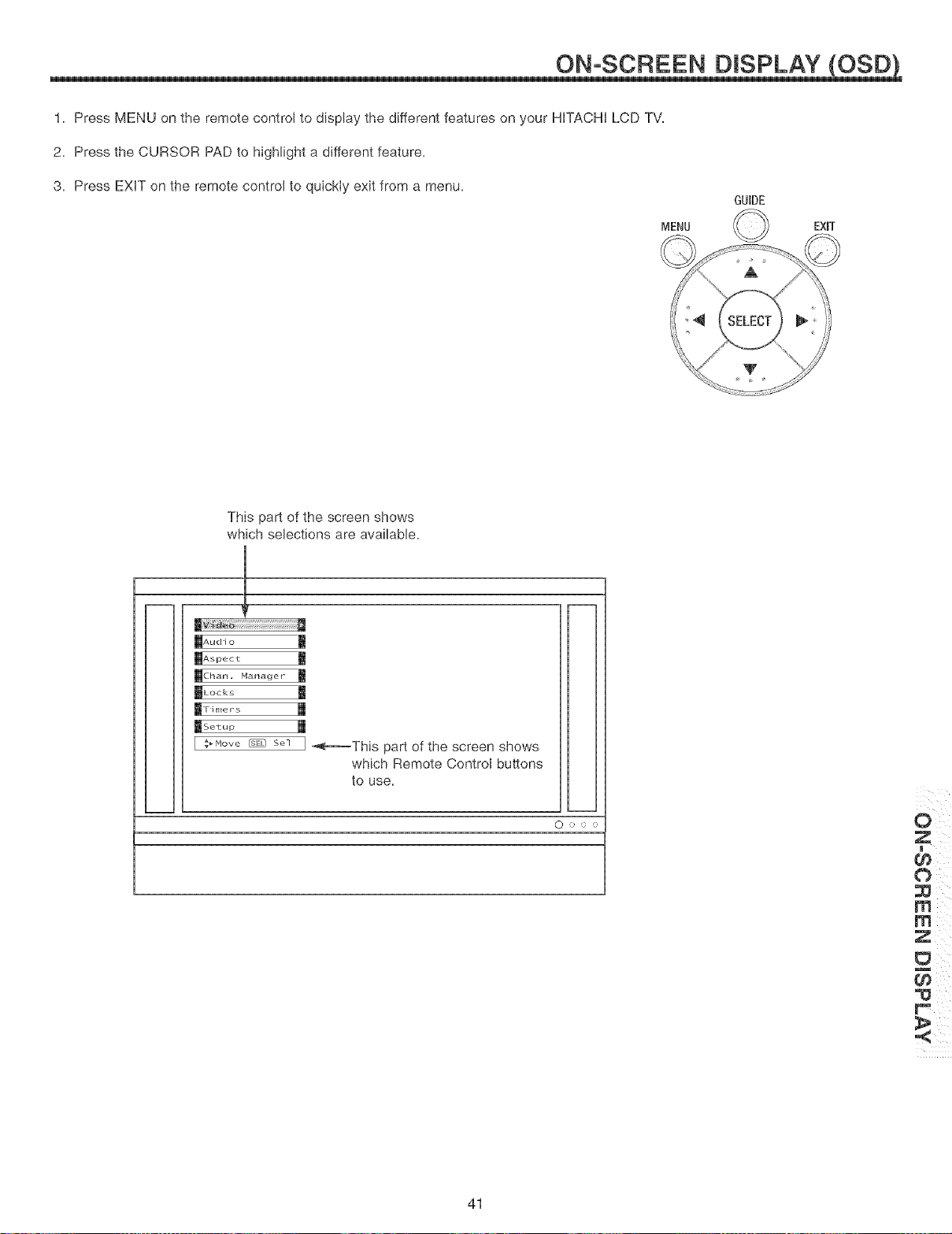
1. Press MENU on the remote control to display the different features on your HiTACHi LCD TV.
2. Press the CURSOR PAD to highlight a different feature.
3. Press EXiT on the remote control to quickIy exit from a menu.
EXmT
A
This part of the screen shows
which selections are available.
which Remote Control buttons
to use.
0 :> o .;:
41
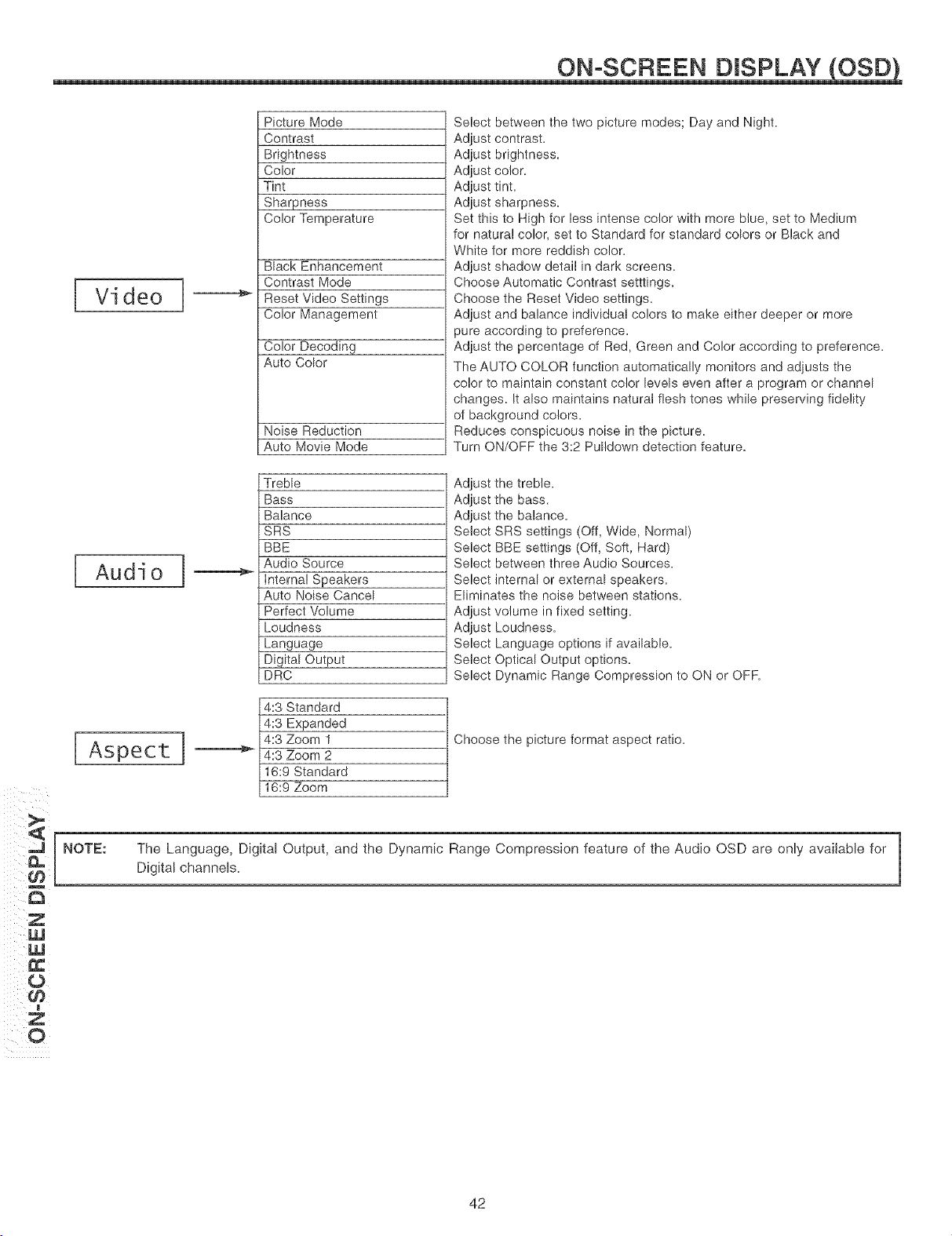
ii ¸O
iiii!i ¢_
Vi deo I
Audio
Aspect I
Picture Mode
Contrast
Brightness
Color
Tint
Sharpness
Color Temperature
Black Enhancement
Contrast Mode
Reset Video Settings
Color Management
Color Decoding
Auto Color
Noise Reduction
Auto Movie Mode
Treble
Bass
Balance
SRS
BBE
Audio Source
internal Speakers
Auto Noise Cancel
Perfect Volume
Loudness
Language
Digital Output
DRC
4:3 Standard
4:3 Expanded
4:3 Zoom 1
4:3 Zoom 2
16:9 Standard
16:9 Zoom
Select between the two picture modes; Day and Night.
Adjust contrast.
Adjust brightness.
Adjust color.
Adjust tint.
Adjust sharpness.
Set this to High for less intense color with more blue, set to Medium
for natural color, set to Standard for standard colors or Black and
White for more reddish color.
Adjust shadow detail in dark screens.
Choose Automatic Contrast setttings.
Choose the Reset Video settings.
Adjust and balance individual colors to make either deeper or more
_ure according to preference.
Adjust the percentage of Red, Green and Color according to preference.
The AUTO COLOR function automatically monitors and adiusts the
color to maintain constant color levels even after a program or channel
changes. It also maintains natural flesh tones while preserving fidelity
of background colors.
Reduces conspicuous noise in the picture.
Turn ON/OFF the 3:2 Pulldown detection feature.
Adjust the treble.
Adjust the bass.
Adjust the balance.
Select SRS settings (Off, Wide, Normal)
Select BBE settings (Off, Soft, Hard)
Select between three Audio Sources.
Select internal or external speakers.
Eliminates the noise between stations.
Adjust volume in fixed setting.
Adjust Loudness.
Select Language options if available.
Select Optical Output options.
Select Dynamic Range Compression to ON or OFF.
Choose the picture format aspect ratio.
NOTE: The Language, Digital Output, and the Dynamic Range Compression feature of the Audio OSD are only available for
Digital channels.
42
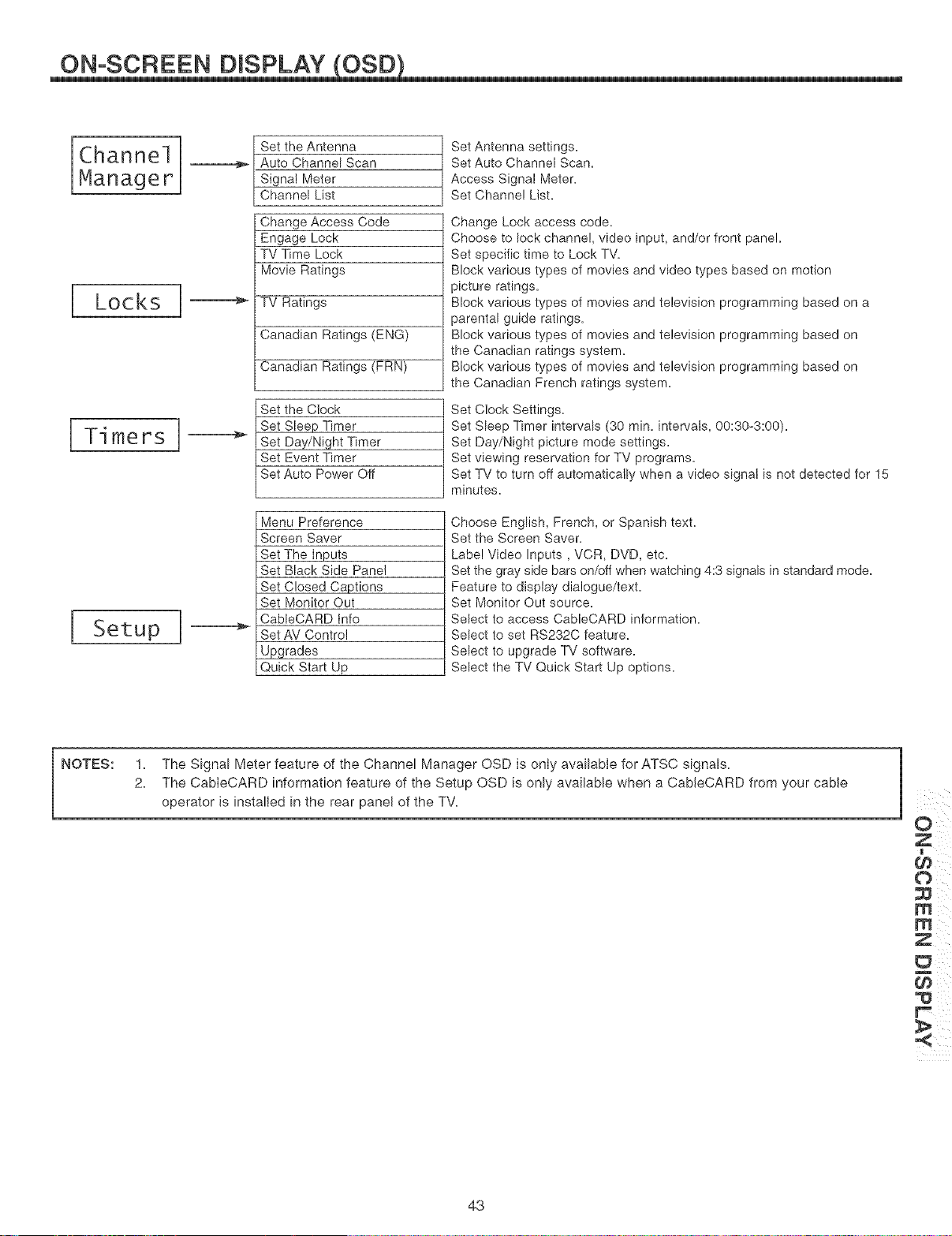
ON-SCREEN D SPLAY OSD
Channel
Manager
[ Locks i
[Timers
Setup
Set the Antenna
Auto Channel Scan
Signal Meter
Channel List
Change Access Code
Engage Lock
TV Time Lock
Movie Ratings
TV Ratings
Canadian Ratings (ENG)
Canadian Ratings (FRN)
the Clock
Sleep Timer
Day/Night Timer
Event Timer
Auto Power Off
Menu Preference
Screen Saver
Set The Inputs
Set Black Side Panel
Set Closed Captions
Set Monitor Out
CableCARD tnfo
Set AV Control
Upgrades
Quick Start Up
Set Antenna settings.
Set Auto Channel Scan.
Access Signal Meter.
Set Channel List.
Change Lock access code.
Choose to lock channel, video input, and/or front panel.
Set specific time to Lock TV.
Block various types of movies and video types based on motion
picture ratings.
Block various types of movies and television programming based on a
parental guide ratings.
Block various types of movies and television programming based on
the Canadian ratings system.
Block various types of movies and television programming based on
the Canadian French ratings system.
Set Clock Settings.
Set Sleep Timer intervals (30 rain. intervals, 00:30_3:00).
Set Day/Night picture mode settings.
Set viewing reservation for TV programs.
Set TV to turn off automatically when a video signal is not detected for 15
minutes.
Choose English, French, or Spanish text.
Set the Screen Saver.
Label Video Inputs, VCR, DVD, etc.
Set the grav side bars on/off when watching 4:3 signals in standard mode.
Feature to disptav dialogue/text.
Set Monitor Out source.
Select to access CableCARD information.
Select to set RS232C feature.
Select to upgrade TV software.
Select the TV Quick Start Up options.
NOTES:
1. The Signal Meter feature of the Channel Manager OSD is only available for ATSC signals.
2. The CableCARD information feature of the Setup OSD is only available when a CableCARD from your cable
operator is installed in the rear panel of the TV.
m g
43
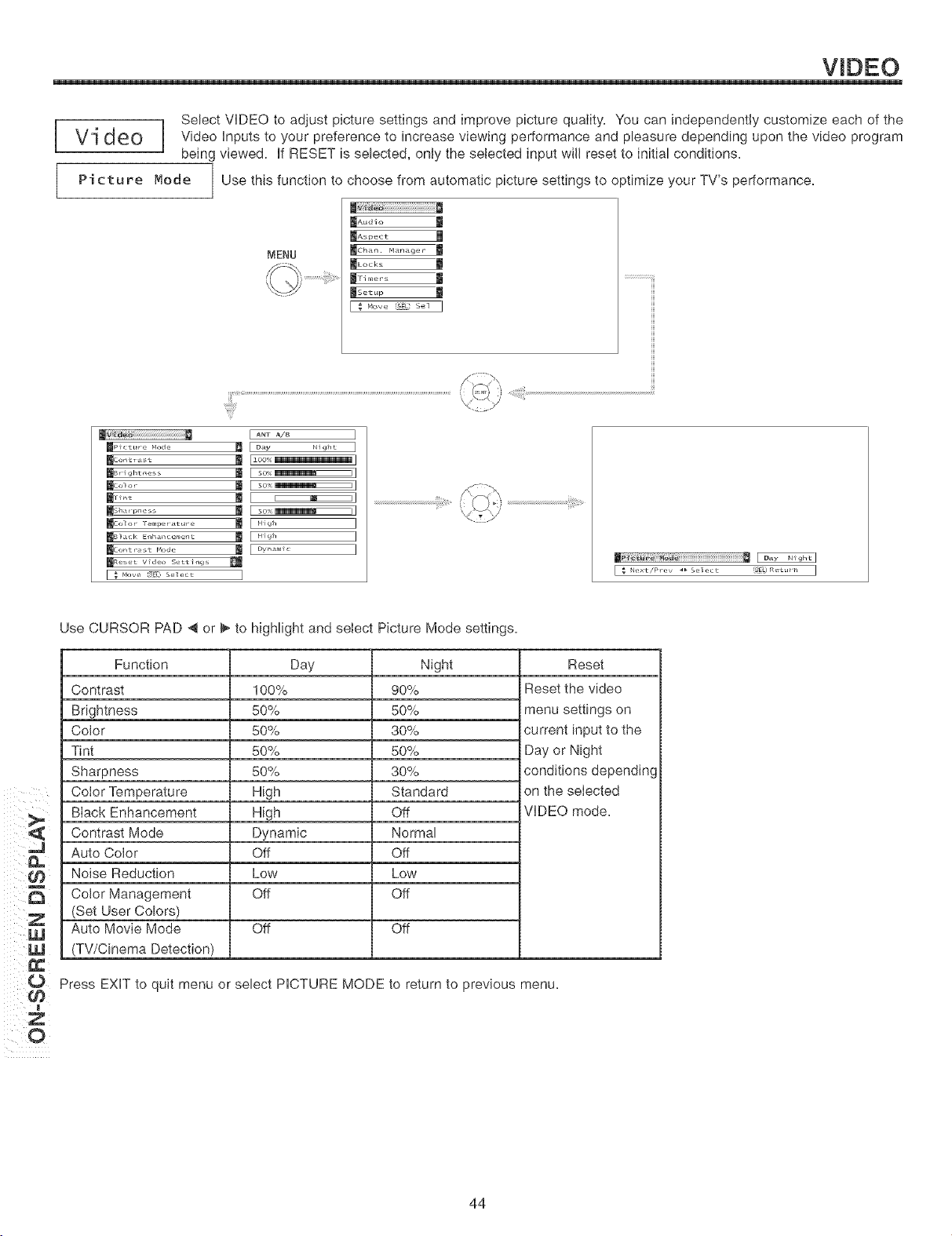
[
I
Select VIDEO to adjust picture settings and improve picture quality. You can independently customize each of the
Vi deo Video inputs to your preference to increase viewing performance and pleasure depending upon the video program
being viewed, if RESET is selected, onty the selected input will reset to initial conditions.
1
Pi ctu re Mode ] Use this function to choose from automatic picture settings to optimize your TV's
per[ormance.
_Lock_ l
mPicture Node ttJ
_Sl_ar Pr_e s
_Col or Teall)er _tt_r e
_B] _ck El_laan ce_ }et_ t
_Contr *st _'ode
_Aeset Video Setting,_
r _ _,,_,',_ _,_,_ I
I ANT A/B I
[ ]
[ s 0 _I ]
[ .... ]
[ _rq , ........
L_o _q
m#_:_!_!_;;_i_!_i_i_i_i_i_i_i_i_i_i_i_i_i_i_i_i_i_i_i_i_i_i_i_i_i_i_i_i_i_i_i_i_i_i_i_i_i_i_i_i_i_i_i_i_i_i_i_i_
Use CURSOR PAD @ or _ to highlight and select Picture Mode settings.
Function Day Night Reset
Contrast 100% 90% Reset the video
Brightness 50% 50% menu settings on
Color 50% 30% current input to the
Tint 50% 50% Day or Night
Sharpness 50% 30% conditions depending
Color Temperature High Standard on the seIected
Black Enhancement High Off VIDEO mode.
Contrast Mode Dynamic Normal
Auto Color Off Off
Noise Reduction Low Low
Color Management Off Off
(Set User Colors)
Auto Movie Mode Off Off
(TV/Cinema Detection)
Press EXiT to quit menu or select PICTURE MODE to return to previous menu.
t_
I[
O
44
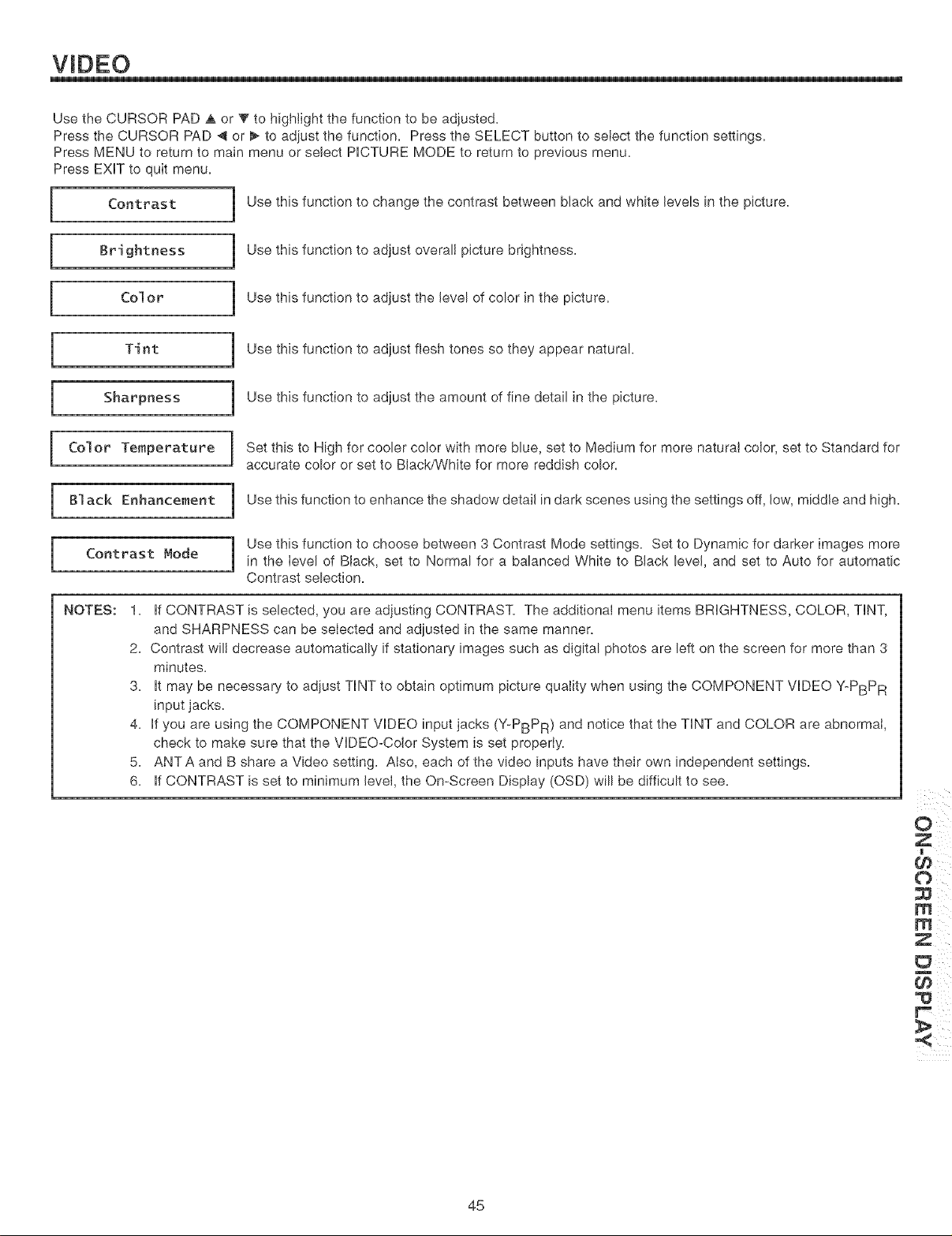
Use the CURSOR PAD a, or V to highlight the function to be adjusted.
Press the CURSOR PAD 4 or _ to adjust the function. Press the SELECT button to select the function settings.
Press MENU to return to main menu or select PICTURE MODE to return to previous menu.
Press EXITto quit menu.
[ Contrast [
Brightness [
Color [
Color Temperature
m Black Enhancement ]
m Contrast Mode
Use this function to change the contrast between black and white levels in the picture.
Use this function to adjust overall picture brightness.
Use this function to adjust the level of color in the picture.
Use this function to adjust flesh tones so they appear natural.
Use this function to adjust the amount of fine detail in the picture.
Set this to High for cooler color with more blue, set to Medium for more naturaI color, set to Standard for
accurate color or set to Black/White for more reddish color.
Use this function to enhance the shadow detail in dark scenes using the settings off, low, middle and high.
Use this function to choose between 3 Contrast Mode settings. Set to Dynamic for darker images more
in the level of Black, set to Normal for a balanced White to Black level, and set to Auto for automatic
Contrast selection.
NOTES:
1. if CONTRAST is selected, you are adjusting CONTRAST. The additional menu items BRIGHTNESS, COLOR, TINT,
and SHARPNESS can be selected and adiusted in the same manner.
2. Contrast will decrease automatically if stationary images such as digital photos are left on the screen for more than 3
minutes.
3. it may be necessary to adiust TiNT to obtain optimum picture quality when using the COMPONENT VIDEO Y-PBPR
input jacks.
4. if you are using the COMPONENT VIDEO input jacks (Y-PBPR) and notice that the TiNT and COLOR are abnormal,
check to make sure that the VIDEO-Color System is set properly.
5. ANTA and B share a Video setting. Also, each of the video inputs have their own independent settings.
6. if CONTRAST is set to minimum level, the On-Screen Display (OSD) will be difficult to see.
m
45
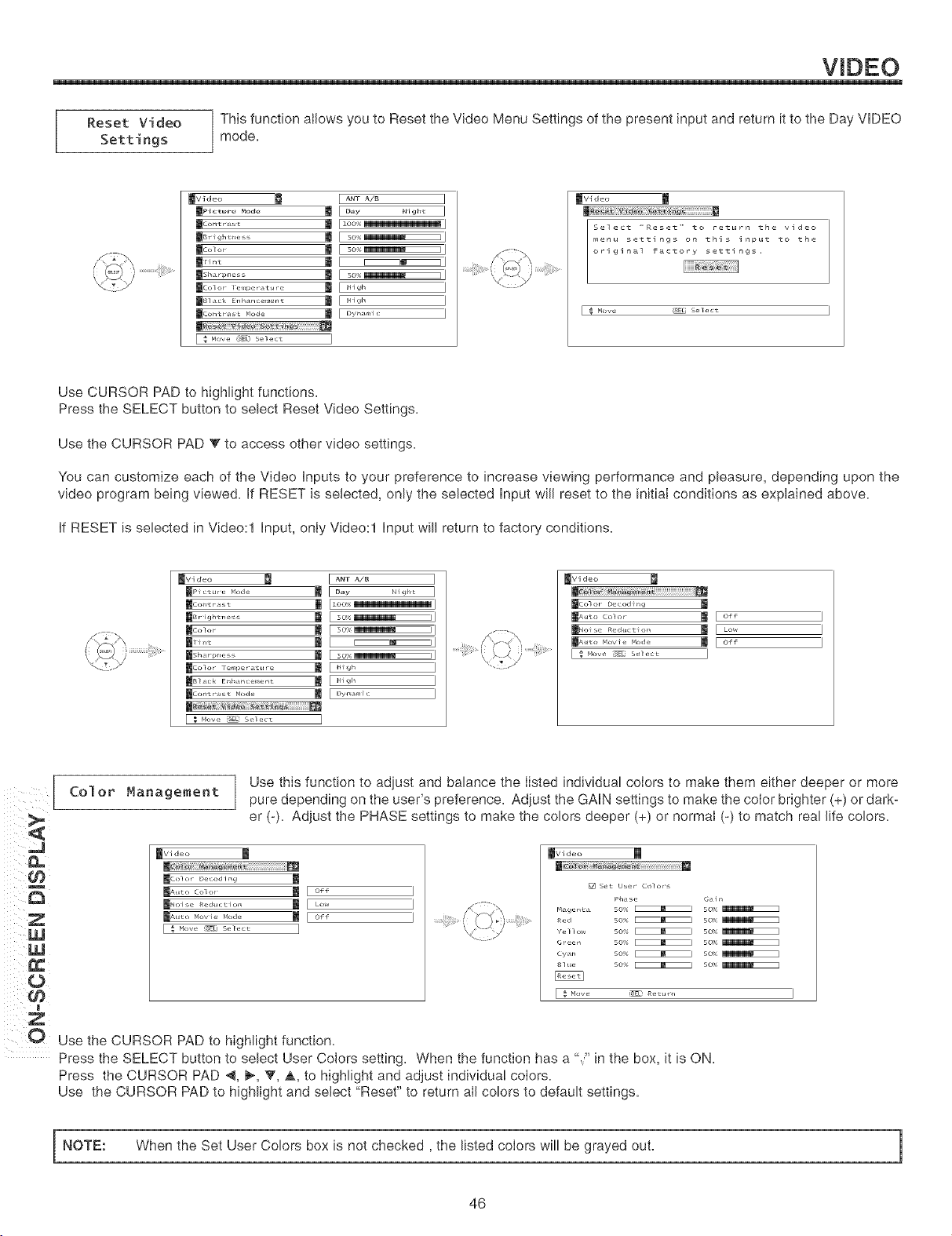
Reset Video ] This function allows you to Reset the Video Menu Settings of the present input and return it to the Day VIDEO
Settings j mode.
_Video
Select '<Reset <' to return the vldeo
menu settlngs on thls inpu_ _o the
orlgln_l f_c_ory settlngs.
[ # How_ _j select I
Use CURSOR PAD to highlight functions.
Press the SELECT button to select Reset Video Settings.
Use the CURSOR PAD V to access other video settings.
You can customize each of the Video Inputs to your preference to increase viewing performance and pleasure, depending upon the
video program being viewed. If RESET is selected, only the selected Input will reset to the initiaI conditions as explained above.
If RESET is selected in Video:l Input, only Video:l Input will return to factory conditions.
_vi deo
m _m
mco]or Decod ilg
ElNoise Red_cLio_ I_ I LO_
_AuLo novie node _ I Off
i _ Hove _SEL, Select i
I
I
I
Use this function to adjust and balance the listed individual colors to make them either deeper or more
Eo]or' _artageaertt pure depending on the user's preference. Adjust the GAIN settings to make the coior brighter (+) or dark-
er (-). Adjust the PHASE settings to make the colors deeper (+) or normal (-) to match real life colors.
_Video
m m
m c°_ °r¸ Dec°d ing m
_jAu_o r_ovie _od_ m I off
[ _ _OV£' '_ELJ S£,]£.C£ ]
I
I
I
_Video m
[] set User ¸ Co_ors
F'_genL *
f_ed
YeS 1 o_
Green
Cya_l
s]ue
Pht s e G[ i n
SOS _ soe<
so _ sot
SOSl _ so
so% _ 5o% _
O Use the CURSOR PAD to highlight function.
Press the SELECT button to select User Colors setting. When the function has a "," in the box, it is ON.
Press the CURSOR PAD _, l_, V, _,, to highlight and adjust individua! colors.
Use the CURSOR PAD to highlight and select "Reset" to return aN colors to default settings.
NOTE: When the Set User Colors box is not checked, the listed colors will be grayed out. 1
46
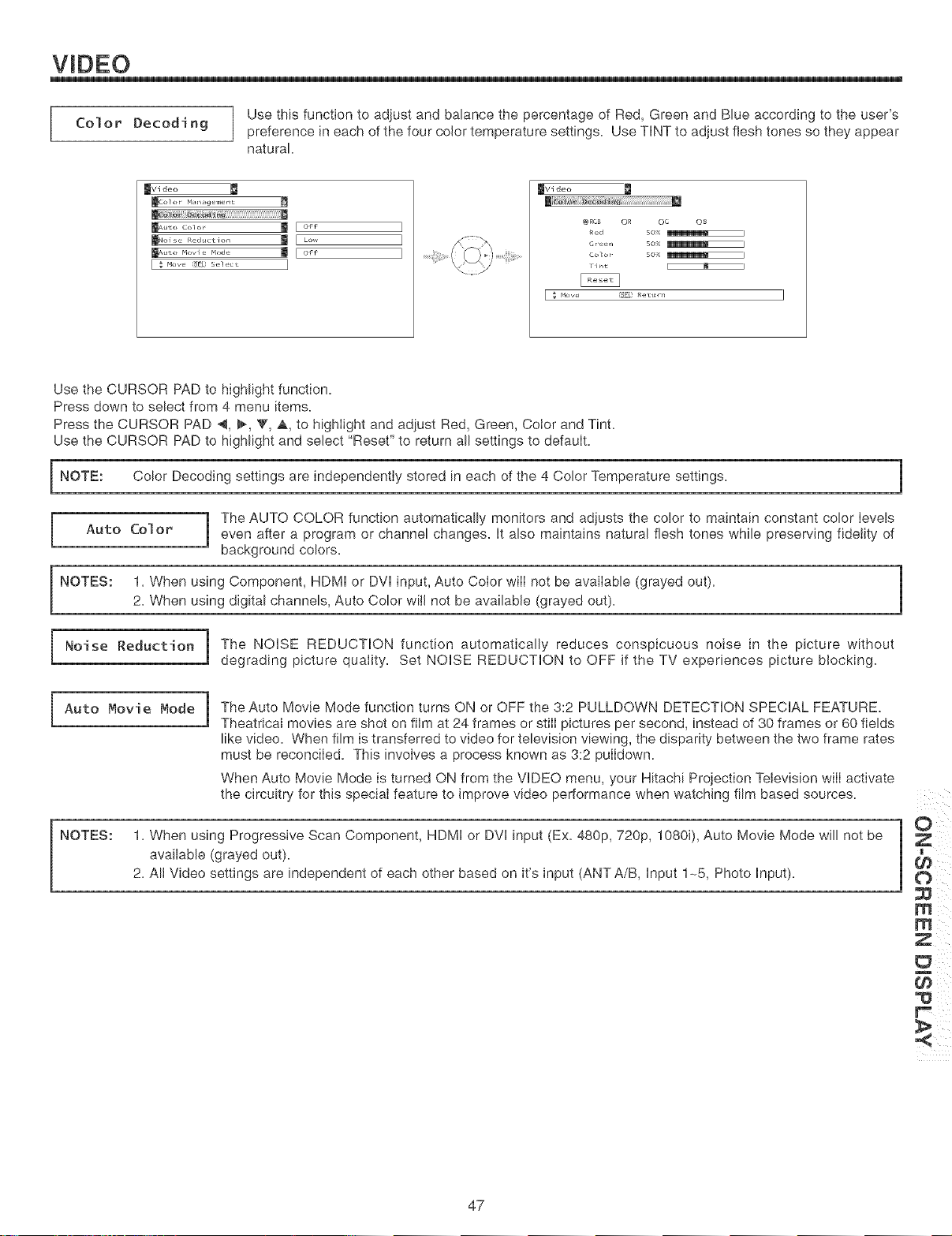
Use this function to adjust and balance the percentage of Red, Green and Blue according to the user's
Col or Decod i ng preference in each of the four color temperature settings. Use TiNT to adjust flesh tones so they appear
natural
_VI deo
mcolor Ma_agemen _
_A_,to colo_ _ [ of_
[ : Mow,_E:s_,_,_ I
]
]
]
_Video
@RCB OR OC Og
Red SO_ _1
Cree_ SO_ _1
Color ¸ SO_ _1
[ _ Hove _EL! Re_t_
Use the CURSOR PAD to highlight function.
Press down to select from 4 menu items.
Press the CURSOR PAD 4, l_, V, _&, to highlight and adjust Red, Green, Color and Tint.
Use the CURSOR PAD to highlight and select "Reset" to return all settings to default.
NOTE: Color Decoding settings are independently stored in each of the 4 Color Temperature settings.
1 The AUTO COLOR function automatically monitors and adjusts the color to maintain constant color levels
Auto Col or J even after a program or channel changes. It also maintains natural flesh tones while preserving fidelity of
background colors.
NOTES: 1. When using Component, HDMI or DVl input, Auto Coior will not be available (grayed out). m
2. When using digital channels, Auto Color will not be available (grayed out).
1
1
Noise Reduction | The NOISE REDUCTION function automatically reduces conspicuous noise in the picture without
degrading picture quality. Set NOISE REDUCTION to OFF if the TV experiences picture blocking.
Auto Movie Mode ]
The Auto Movie Mode function turns ON or OFF the 3:2 PULLDOWN DETECTION SPECIAL FEATURE.
Theatrical movies are shot on film at 24 frames or still pictures per second, instead of 30 frames or 60 fields
like video. When film is transferred to video for television viewing, the disparity between the two frame rates
must be reconciled. This involves a process known as 3:2 pulldown.
When Auto Movie Mode is turned ON from the VIDEO menu, your Hitachi Projection Television will activate
the circuitry for this special feature to improve video performance when watching film based sources.
NOTES:
1. When using Progressive Scan Component, HDMI or DVI input (Ex. 480p, 720p, 1080i), Auto Movie Mode will not be
available (grayed out).
2. All Video settings are independent of each other based on it's input (ANT A/B, Input 1_5, Photo Input).
i ¸¸i
47
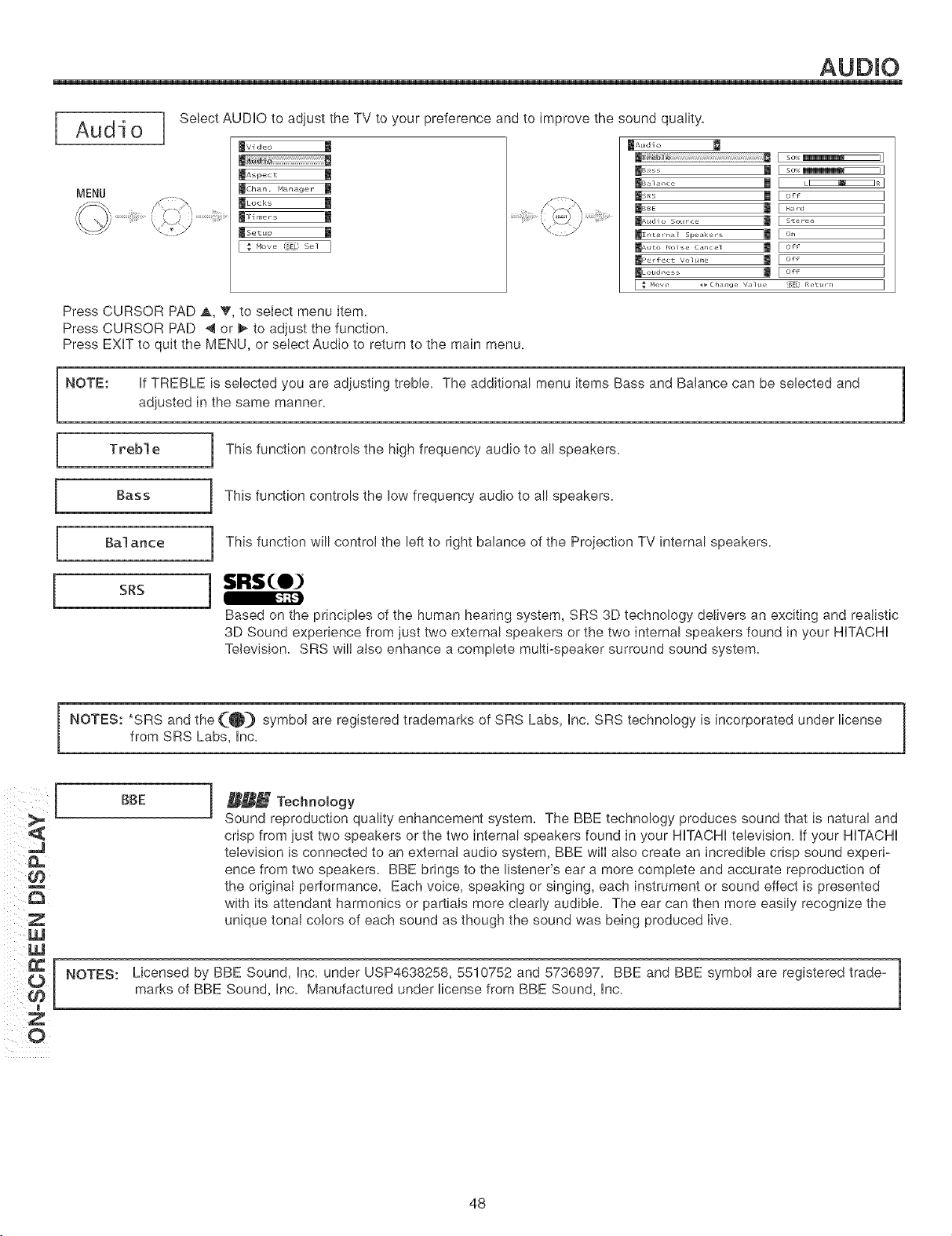
AUDIO
[ Audio
MENU
Select AUDIO to adjust the TV to your preference and to improve the sound quality.
Jvi deo m
jA_poct l
_Ch_n. M_n_ge r
ILock_ l
Bso_u_ l
I _ "o_o'_ s_ I
_Audio
...................................................................._ I so __1
II_ II [ ..,*., ]
_Audi ...... ce _ [ stereo ]
[ _ Hove _ ChalJge Vi]tle SEL Rettl/n ]
Press CURSOR PAD _,, V, to select menu item.
Press CURSOR PAD 4 or _ to adjust the function.
Press EXW to quit the MENU, or select Audio to return to the main menu.
NOTE: If TREBLE is selected you are adjusting treble. The additional menu items Bass and Balance can be selected and
adjusted in the same manner.
[
Treble
Bass
Bal ante
SRS
I This function controls the high frequency audio to all speakers.
I This function controls the low frequency audio to all speakers.
I This function will control the left to right balance of the Projection TV internal speakers.
Based on the principles of the human hearing system, SRS 3D technology delivers an exciting and realistic
3D Sound experience from just two externa! speakers or the two internal speakers found in your HITACHI
Television. SRS will also enhance a complete multi-speaker surround sound system.
NOTES: *SRS and the (_]} symbol are registered trademarks of SRS Labs, Inc. SRS technology is incorporated under licensefrom SRS Labs, Inc.
BBE
A,
0 NOTES:
Z
0
_[_ Technology
Sound reproduction quality enhancement system_ The BBE technology produces sound that is natural and
crisp from iust two speakers or the two internal speakers found in your HITACHI television. If your HITACHI
television is connected to an external audio system, BBE wiII also create an incredible crisp sound experi-
ence from two speakers. BBE brings to the listener's ear a more complete and accurate reproduction of
the original performance. Each voice, speaking or singing, each instrument or sound effect is presented
with its attendant harmonics or partials more clearly audible. The ear can then more easily recognize the
unique tonal colors of each sound as though the sound was being produced live.
Licensed by BBE Sound, Inc. under USP4638258, 5510752 and 5736897. BBE and BBE symbol are registered trade-
marks of BBE Sound, Inc. Manufactured under license from BBE Sound, Inc.
48
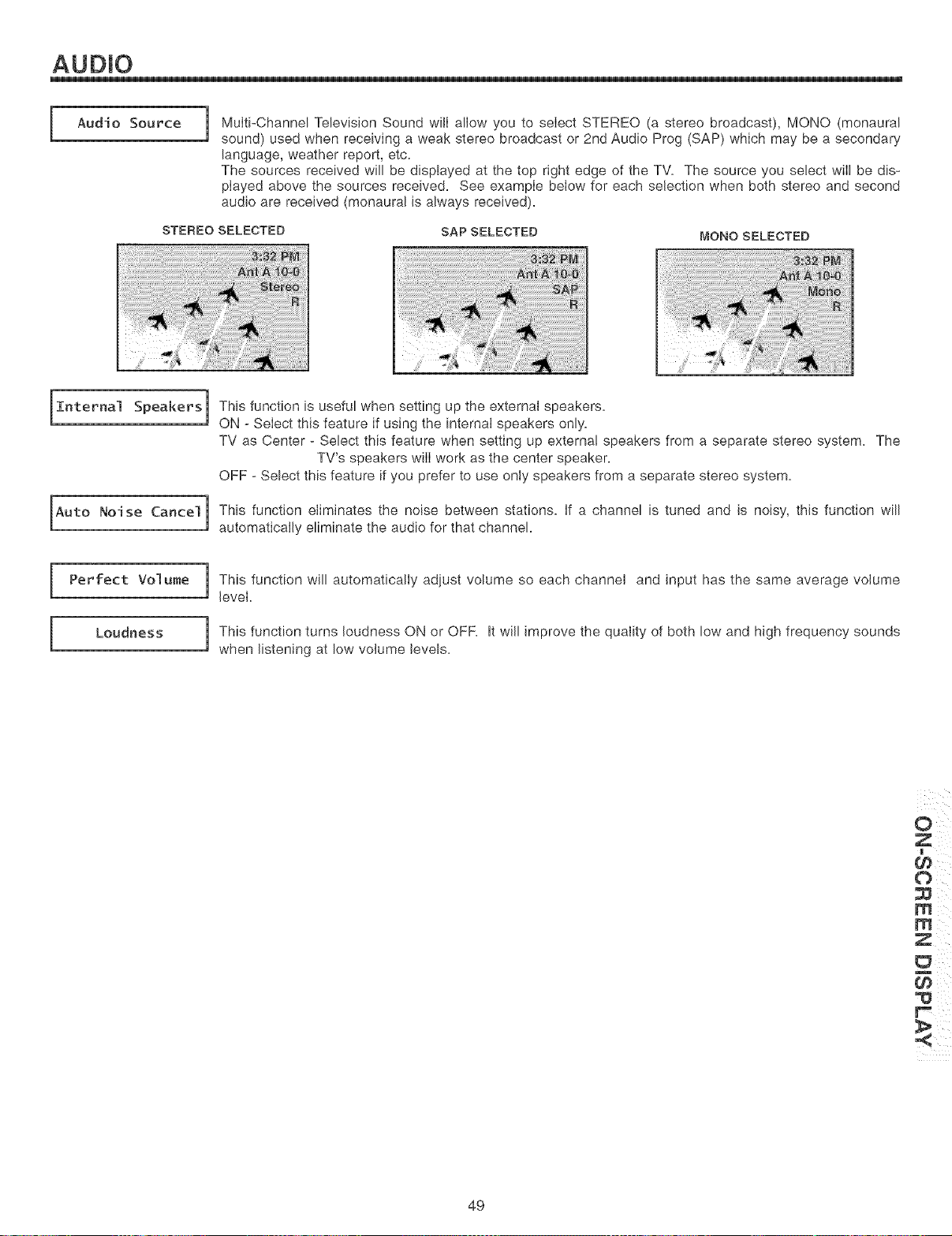
AUDIO
Audio Source
]
Multi-Channel Television Sound will allow you to select STEREO (a stereo broadcast), MONO (monaural
sound) used when receiving a weak stereo broadcast or 2nd Audio Prog (SAP) which may be a secondary
language, weather report, etc.
The sources received will be displayed at the top right edge of the TV. The source you select will be dis-
played above the sources received. See example below for each selection when both stereo and second
audio are received (monaural is always received).
STEREO SELECTED SAP SELECTED
I
MONO SELECTED
Internal Speakers]
Auto Noise Cancel]
This function is useful when setting up the external speakers.
ON - Select this feature if using the internal speakers only.
TV as Center - Select this feature when setting up externa! speakers from a separate stereo system. The
TV's speakers will work as the center speaker.
OFF - Select this feature if you prefer to use only speakers from a separate stereo system.
This function eliminates the noise between stations. If a channel is tuned and is noisy, this function will
automatically eliminate the audio for that channel.
i
Perfect Volume
Loudness
]
J
This function will automatically adjust volume so each channel and input has the same average volume
level.
This function turns loudness ON or OFF. It will improve the quality of both low and high frequency sounds
when listening at low volume levels.
m
49
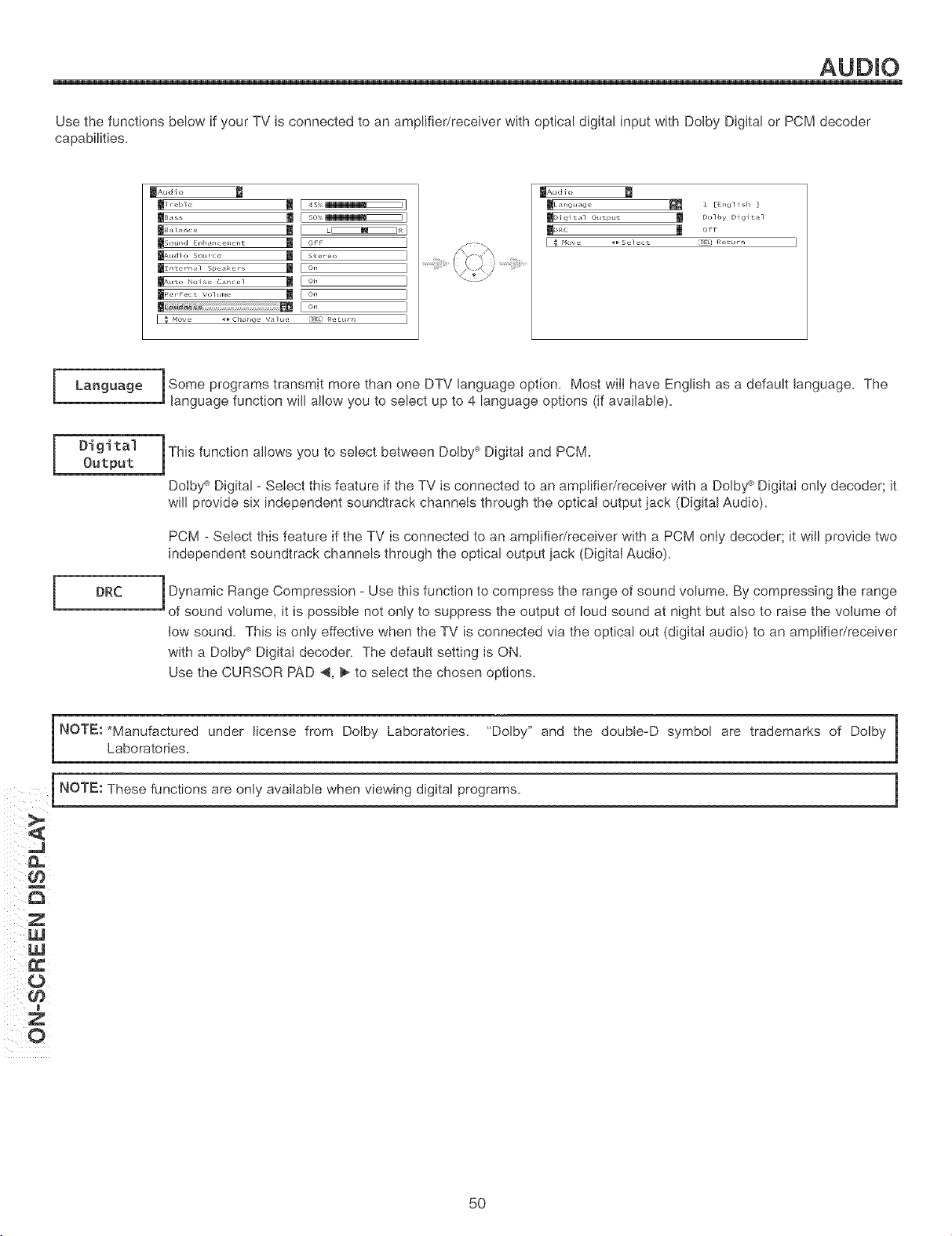
AUDIO
Use the functions below if your TV is connected to an ampNfier/receiver with optical digital input with Dolby Digital or PCM decoder
capabilities.
_Audio
_ould El_h_llce_le_lt _ [ Off
lUAudi ........ ce 111 [ ste, eo
11........ ,.......... _ I Eo,
[ On
[ _ Mow, _Ch_,,,ge Valt, e fS_L¸ Rett,_n
_Audio
_L_r_guage _ • EEr_glish ]
_Digital Output m Dolby Digital
llo,<c | o_
I _ Move _ Selec_ {S_7 ReLU_n
[
[
Language
DRC
Some transmit more than one DTV language option. Most will have English as a default language. The
programs
language function will allow you to select up to 4 language options (if available).
This function allows you to select between Dolby _ Digital and PCM.
Dolby +' Digital - Select this feature if the TV is connected to an amp!ifier/receiver with a Dolby :+Digital only decoder; it
will provide six independent soundtrack channels through the optical output jack (Digital Audio).
PCM - Select this feature if the TV is connected to an amplifier/receiver with a PCM only decoder; it will provide two
independent soundtrack channels through the optical output jack (Digital Audio).
Dynamic Range Compression - Use this function to compress the range of sound volume. By compressing the range
of sound volume, it is possible not only to suppress the output of loud sound at night but also to raise the volume of
low sound. This is only effective when the TV is connected via the optical out (digital audio) to an amplifier/receiver
with a Dolby _ Digital decoder. The default setting is ON.
Use the CURSOR PAD _1, _ to select the chosen options.
NOTI=: *Manufactured under license from Dolby Laboratories. "Dolby" and the double-D symbol are trademarks of Dolby m
1
Laboratories.
1
[ NO TI=: These functions are only available when viewing digital programs. 1
z
ii ¸0
iiii!i CJj
Z If
5O
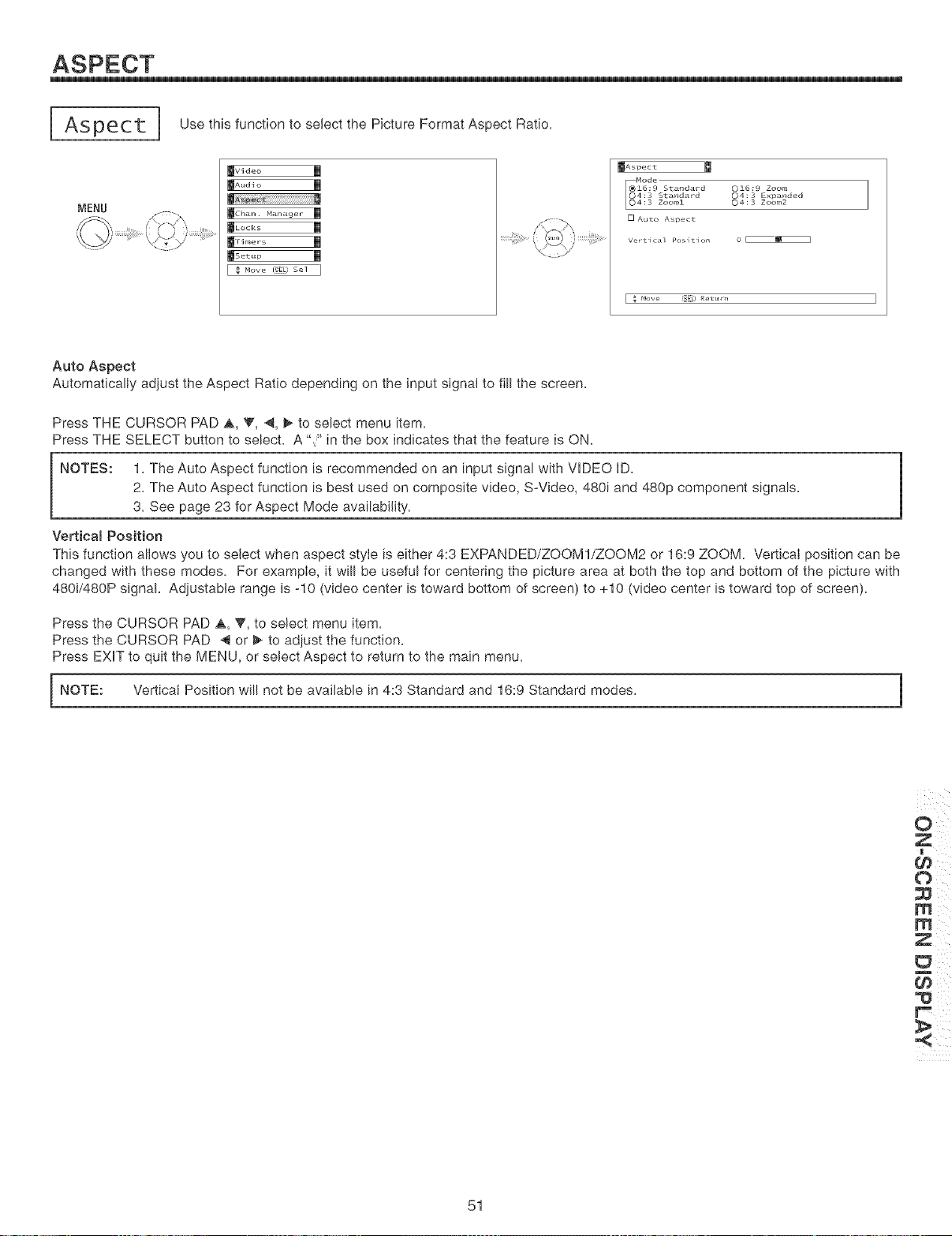
Aspect i
MENU
Use this function to select the Picture Format Aspect Ratio,
_VI dec m
_Lock_ l
_otup l
mAspect
Mode
16:9 Standard O16:9 Zoom
04:3 Standard 04:3 Exp_nded
4:3 Zooml 04:3 Zoom2
[] Auto Aspect
Auto Aspect
Automatically adjust the Aspect Ratio depending on the input signal to fill the screen,
Press THE CURSOR PAD A, V, 41,_ to select menu item,
Press THE SELECT button to select, A "_" in the box indicates that the feature is ON,
NOTES: 1, The Auto Aspect function is recommended on an input signal with VIDEO ID,
2, The Auto Aspect function is best used on composite video, SWideo, 480i and 480p component signals,
3, See page 23 for Aspect Mode availability,
Vertical Position
1
This function allows you to select when aspect style is either 4:3 EXPANDED/ZOOM1/ZOOM2 or 16:9 ZOOM, Vertical position can be
changed with these modes, For example, it will be useful for centering the picture area at both the top and bottom of the picture with
480i/480P signal, Adjustable range is -10 (video center is toward bottom of screen) to +10 (video center is toward top of screen),
Press the CURSOR PAD A, V, to select menu item,
Press the CURSOR PAD 41 or _ to adjust the function,
Press EXIT to quit the MENU, or select Aspect to return to the main menu,
I NOTE: Vertical Position will not be available in 4:3 Standard and 16:9 Standard modes,
1
133
m
51
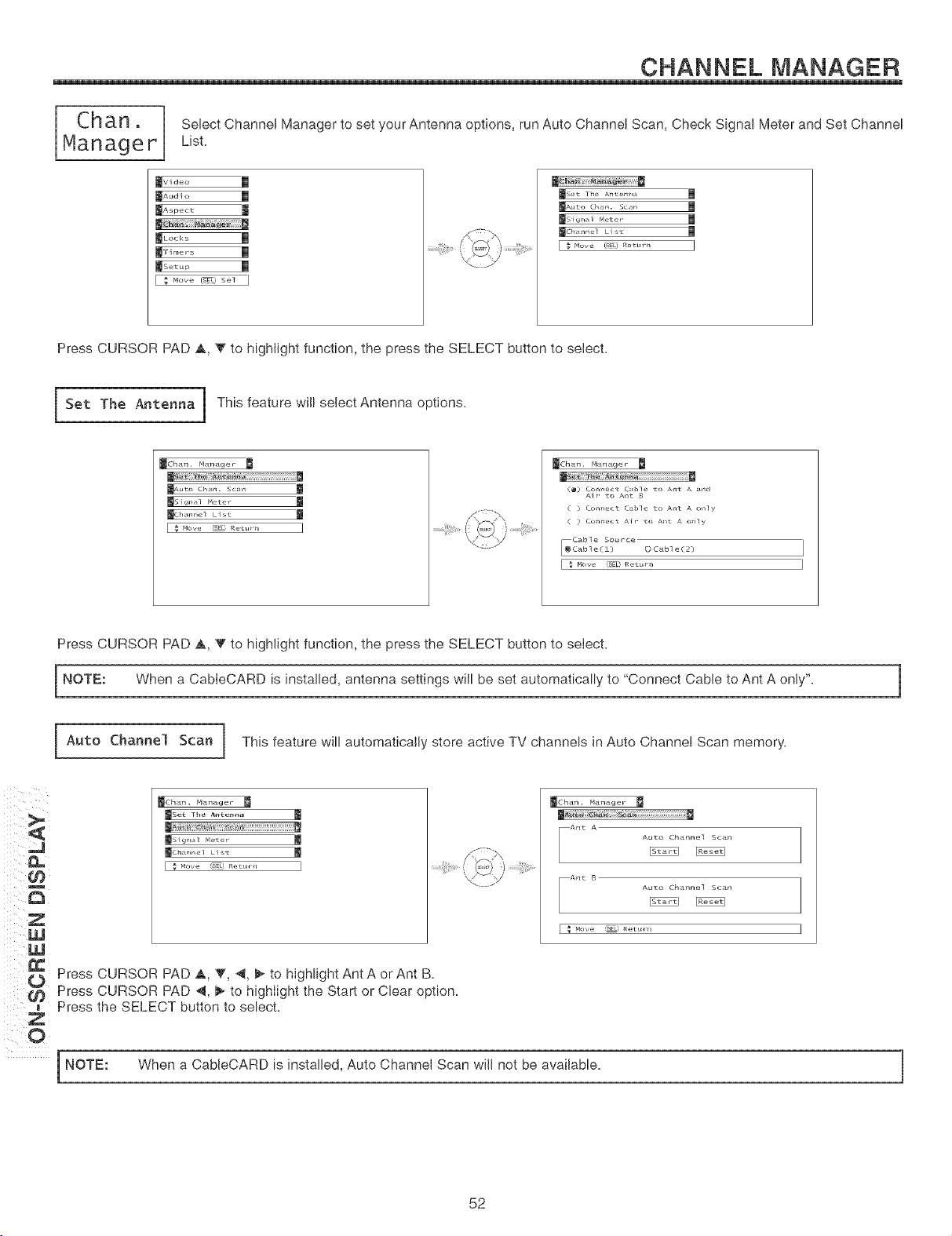
CHANNEL MANAGER
C h a r_ . select Channel Manager to set your Antenna options, run Auto Channel Scan, Check Signal Meter and Set Channel
Manager List.
rvideo m
IAua_o l
IA_poct l
mcdh_
_set 1he A_te_r,a m
mAn,to ch*r_ sc*r_ m
lUSi,j ,,1 _et e_ l
_Ch *l_ne] Li*_L l
Press CURSOR PAD A, V to highlight function, the press the SELECT button to select.
Set The Antenna I This feature will select Antenna options.
11 El
ms ig_ *1 _e te_
_Ch _n le] L_st
m 8
( ) Co11_ect CtbQe Lo Ailt A o11]y
( ) collnect Air LO Aiqt A only
Cable Source
[@C,_b]e (&) OCable(2)
E _ Hove 5EL Return
Press CURSOR PAD A, Y to highlight function, the press the SELECT button to select.
NOTE: When a CableCARD is installed, antenna settings will be set automatically to "Connect Cable to Ant A only".
1
Auto Channe] Scan This feature will automatically store active TV channels in Auto Channel Scan memory.
ii?}
/ il¢l
J NOTE:
[
_Chan. Manager
WSet The Ante,_a _!_
l s_:,.,_,iiiiiiiiiiiiiiiiiiiiiiiiiiiiiiiiiiiiiF_
WSig ,*] [_set e r
WCh m le] List
_Chan. Manager
m_IB¸_¸i_iii____i!_iiii!_ _i_!!!!!!!!!!!!!!!!!!!!!!!!!!!!!!!!!!!!ii_
mAnt A Auto Channel Scan
--An_ B Auto Channel Scan
Press CURSOR PAD _, _i' _1,_ to highlight Ant A orAnt B.
Press CURSOR PAD 41, _ to highlight the Start or Clear option.
Press the SELECT button to select.
When a CableCARD is installed, Auto Channel Scan will not be available.
52
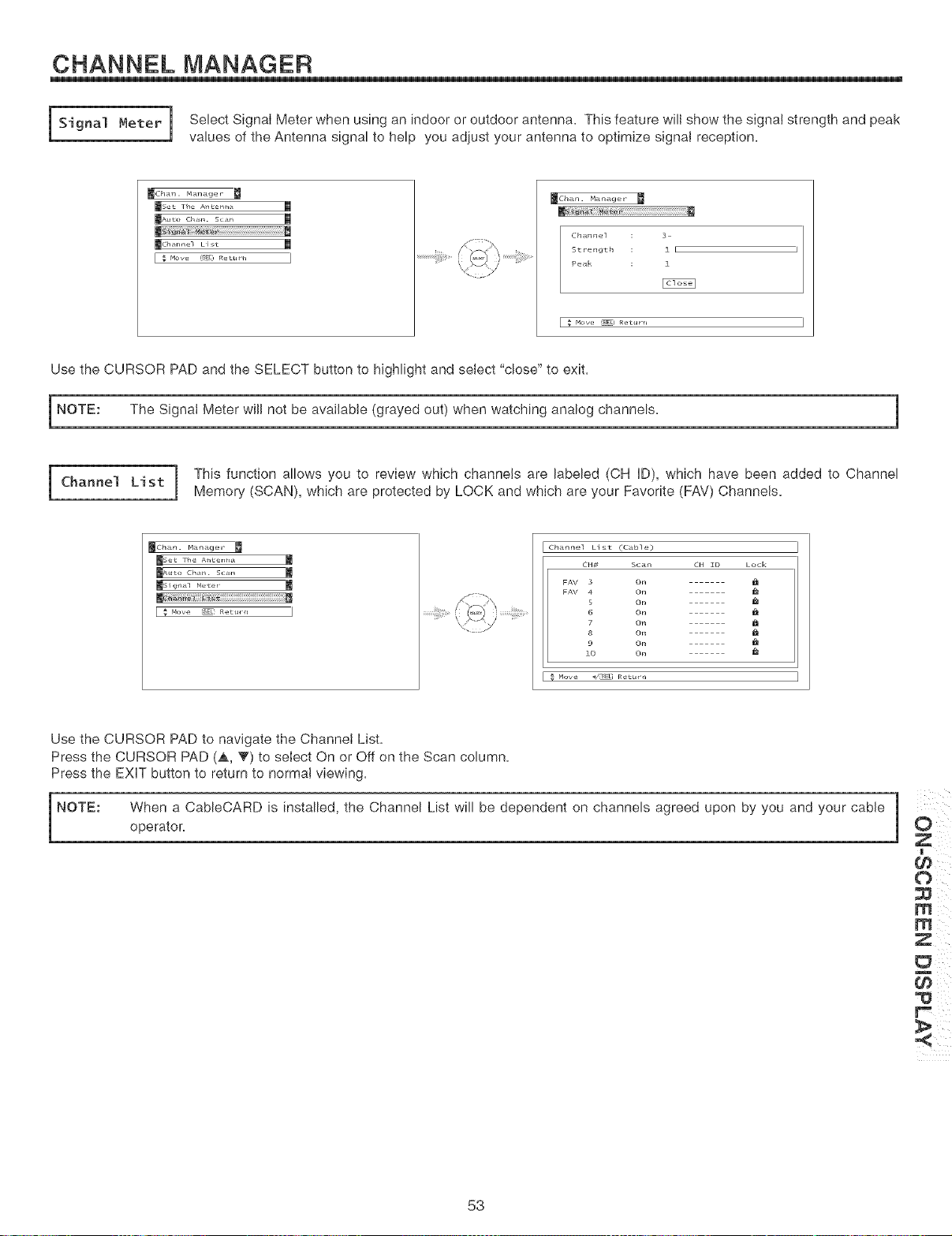
CHANNEL MANAGER
I Signal Meter | Select Signal Meter when using an indoor or outdoor antenna. This feature will show the signal strength and peak
1
J
values of the Antenna signal to help you adjust your antenna to optimize signat reception.
_Ch_n. M_<n _ge r
mse_ lhe A_te_ m
mAt_to Ch_. Sc_ I
m
_Chan. Manager
Channel 3
Strength i I
Peak 1
Use the CURSOR PAD and the SELECT button to highlight and select "close" to exit.
I NOTE: The Signat Meter will not be available (grayed out) when watching analog channels.
This function allows you to review which channels are labeled (CH ID), which have been added to Channel
Channel L1 st Memory (SCAN), which are protected by LOCK and which are your Favorite (FAV) Channels.
JChan. Manager
j, eL the A,Len,*
jA.to oh,. sc*_, m
ms i (j,_ _] Melee r
........._i!_;_i_;_'__,\ ,_';_i_'iJ;_'_.......
Channel List (iCable)
CH# Scan
FAV 3 On
FAV 4 On
On
On
7 On
8 On
9 On
lO On
CH ID Lock
Muv_ </s_ R_ tu, n
Use the CURSOR PAD to navigate the Channel List.
Press the CURSOR PAD (A, V) to select On or Off on the Scan column.
Press the EXIT button to return to normal viewing.
NOTE: When a CableCARD is installed, the Channel List willbe dependent on channels agreed upon by you and your cable
operator.
1
53
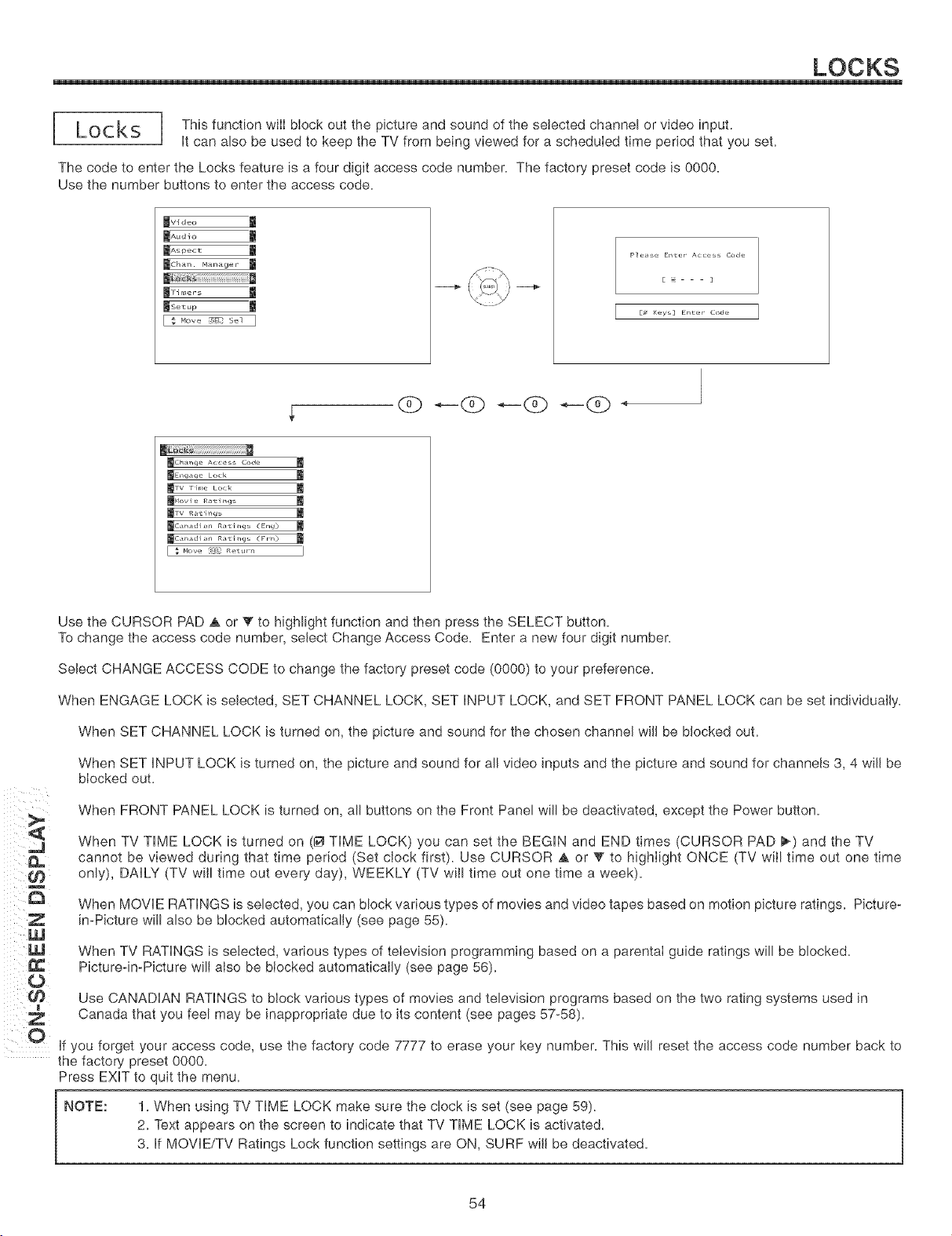
LOCKS
_ This function will block out the picture and sound of the selected channel or video input.
i
Loc ks
J
It can also be used to keep the TV from being viewed for a scheduled time period that you set.
The code to enter the Locks feature is a four digit access code number. The factory preset code is 0000.
Use the number buttons to enter the access code.
iv1 dec m
IAu_o l
IA_poct l
Eso_+ l
[_ _o_os_: s_l ]
Please EI1LeT A_eSS Code
E ]
E# Keys] Er_Ler Code
_Ch_r_ge Acce s Code
mEl_gage Lock
_[_ov Pe Rat P _gs
_C_adia_ RaLP_gs (Era(J)
_C_adia_ RaLP_gs (FrTO
Use the CURSOR PAD J, or V to highlight function and then press the SELECT button.
To change the access code number, select Change Access Code. Enter a new four digit number.
Select CHANGE ACCESS CODE to change the factory preset code (0000) to your preference,
When ENGAGE LOCK is selected, SET CHANNEL LOCK, SET iNPUT LOCK, and SET FRONT PANEL LOCK can be set individually.
When SET CHANNEL LOCK is turned on, the picture and sound for the chosen channel will be blocked out.
When SET iNPUT LOCK is turned on, the picture and sound for all video inputs and the picture and sound for channels 3, 4 will be
blocked out.
When FRONT PANEL LOCK is turned on, all buttons on the Front Panel will be deactivated, except the Power button.
ii?}
z_
ii?)W
When TV TiME LOCK is turned on ([_ TiME LOCK) you can set the BEGIN and END times (CURSOR PAD _) and the TV
cannot be viewed during that time period (Set clock first). Use CURSOR _. or V to highlight ONCE (TV will time out one time
only), DAILY (TV will time out every day), WEEKLY (TV will time out one time a week).
When MOVIE RATINGS is selected, you can block various types of movies and video tapes based on motion picture ratings. Picture-
in-Picture will also be blocked automatically (see page 55).
When TV RATINGS is selected, various types of television programming based on a parental guide ratings will be blocked.
Picture-in-Picture will also be blocked automatically (see page 56).
Use CANADIAN RATINGS to block various types of movies and television programs based on the two rating systems used in
X II
Z Canada that you feel may be inappropriate due to its content (see pages 57+58).
O if you forget your access code, use the factory code 7777 to erase your key number. This will reset the access code number back to
the factory preset 0000.
Press EXIT to quit the menu.
NOTE:
1. When using TV TiME LOCK make sure the clock is set (see page 59).
2. Text appears on the screen to indicate that TV TIME LOCK is activated.
3. if MOVlE/TV Ratings Lock function settings are ON, SURF will be deactivated.
54
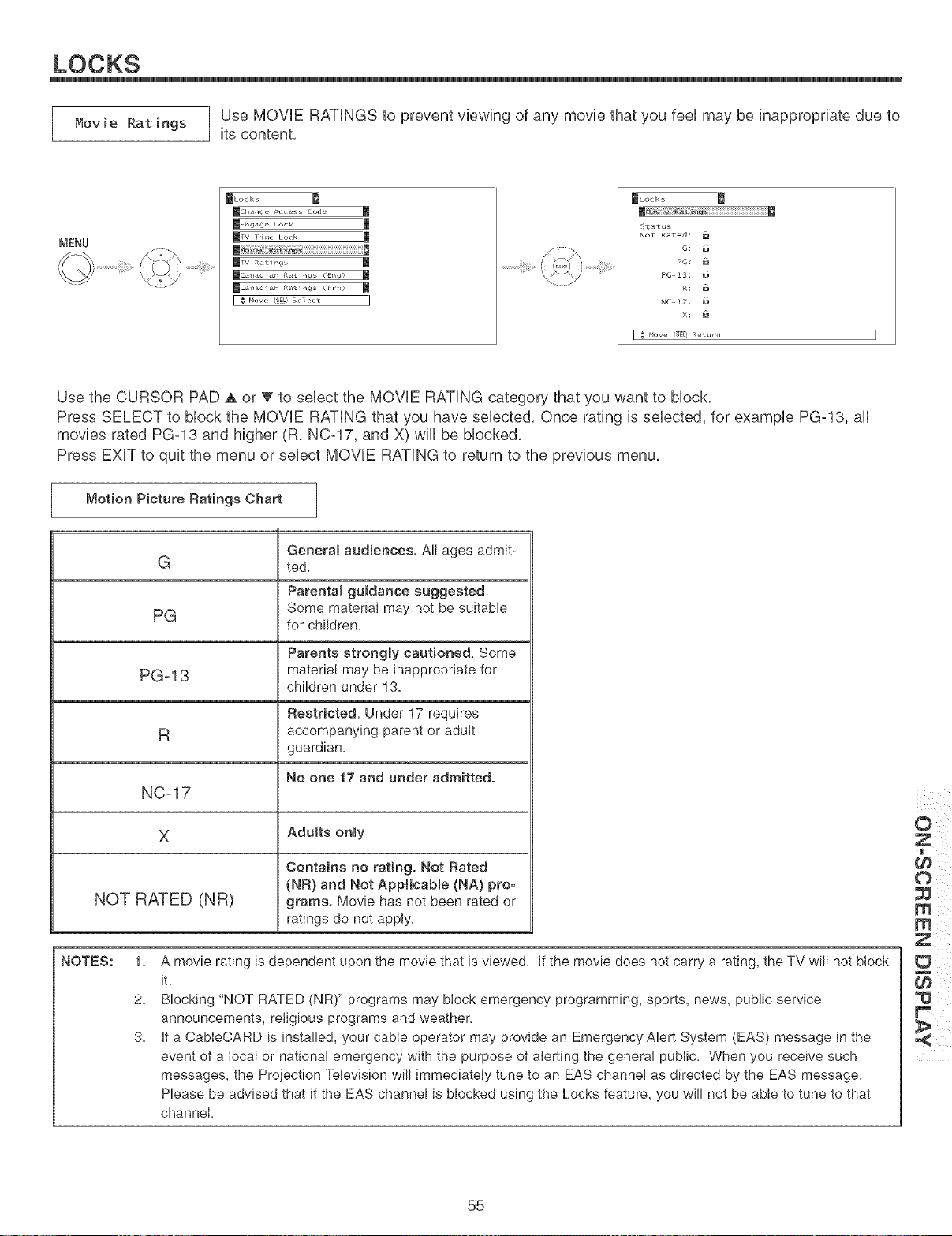
LOCKS
Movie Ratings ] Use MOVIE RATINGS to prevent viewing of any movie that you feel may be inappropriate due to
]
its content,
MENU
mLocks
_Chmge Access Code m
_E ,g;lge Lock m
mTV Ibl,e Lock
iiiiiiiiiiiiiiiiiiiiiiiiiiiiiiiiiiiiiiiiiiiil_
mCaH£di £_ Ral"ir_gs (EHg)
mCaH£di £_ Ral"ir_gs (FrO
_Locks
m
S1:_tus
Not Rated:
PC:
PG 13:
NC 17:
x:
[ _ MOVe {_E[ Ret{l/rl
Use the CURSOR PAD a, or T to select the MOVIE RATING category that you want to block,
Press SELECT to block the MOVIE RATING that you have selected, Once rating is selected, for example PG-13, all
movies rated PG-13 and higher (R, NC-17, and X) will be blocked,
Press EXiT to quit the menu or select MOVIE RATING to return to the previous menu,
Motion Picture Ratings Chart
General audiences. All ages admit-
ted.
Parental guidance suggested.
Some material may not be suitable
for children.
G
PG
Parents strongly cautioned. Some
PG-13 material may be inappropriate for
children under 13.
Restricted. Under 17 requires
R accompanying parent or adult
guardian.
No one 17 and under admitted.
NC=17
X Adutts onmy
Contains no rating. Not Rated
(NR) and Not Applicable (NA) pro-
NOT RATED (NR) grams. Movie has net been rated or
ratings do not apply.
NOTES: 1.
2.
3.
A movie rating is dependent upon the movie that is viewed. If the movie does not carry a rating, the TV will not block
it.
Blocking "NOT RATED (NR)" programs may block emergency programming, sports, news, public service
announcements, religious programs and weather.
if a CableCARD is installed, your cable operator may provide an Emergency Alert System (EAS) message in the
event of a local or national emergency with the purpose of alerting the general public. When you receive such
messages, the Projection Television will immediately tune to an EAS channel as directed by the EAS message.
Please be advised that if the EAS channel is blocked using the Locks feature, you will not be able to tune to that
channel.
Z
m
55
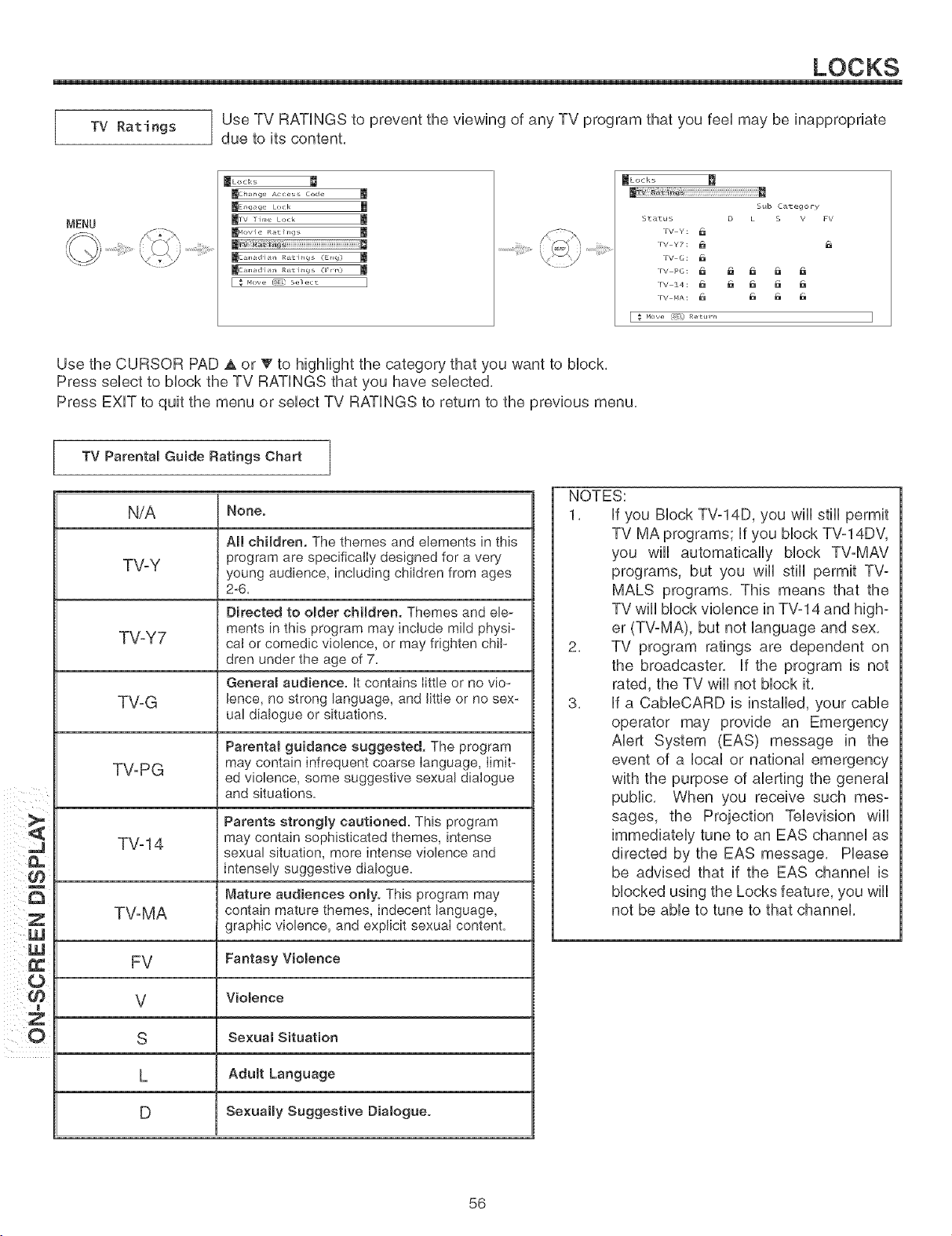
LOCKS
TV Ratings ]
Use TV RATINGS to prevent the viewing of any TV program that you feel may be inappropriate
due to its content.
MENU
JLocks
mcha.ge £ccess code m
mE,_gage Lock
_[_'ov i e I_at i igs
ITv
.........!iii!!S>
_Locks
m_i¸¸i¸¸_i_i_aaaaaaaaaaa
Sub C_tegory
St._t us D L S V FV
rv Y:
FV YT: _
rv G:
rv z4: _ _ _ _
rv MA: _ _a _ fa
E _ Hove _ELJ Re£[i _
Use the CURSOR PAD A or _' to highlight the category that you want to block.
Press select to block the TV RATINGS that you have selected.
Press EXiT to quit the menu or select TV RATINGS to return to the previous menu.
TV Parental Guide Ratings Chart
N/A
TV-Y
TV-Y7
None.
AH children. The themes and elements in this
program are specifically designed for a very
young audience, including children from ages
2-6.
TVoG
Parental guidance suggested, The program
may contain infrequent coarse language, limit-
TV-PG ed violence, some suggestive sexual dialogue
and situations.
Parents strongly cautioned. This program
TVo14 may contain sophisticated themes, intense
sexual situation, more intense violence and
intensely suggestive dialogue.
Mature audiences only. This program may
TVoMA contain mature themes, indecent language,
graphic violence, and explicit sexual content.
FV Fantasy Violence
V Violence
S SexuamSituation
L AdumtLanguage
D Sexually Suggestive Diamogae.
Directed to omder children. Themes and ele-
ments in this program may include mild physi-
cal or comedic violence, or may frighten chil-
dren under the age of 7.
General audience, it contains Iittle or no vio-
lence, no strong language, and littie or no sex-
ual dialogue or situations.
NOTES:
1. if you Block TV-14D, you wiii still permit
TV MA programs; if you block TV-14DV,
you wiii automatically block TV-MAV
programs, but you wiii still permit TV-
MALS programs. This means that the
TV wiii block violence in TV-14 and high°
er (TV-MA), but not language and sex.
2. TV program ratings are dependent on
the broadcaster, if the program is not
rated, the TV will not block it.
3. if a CableCARD is installed, your cable
operator may provide an Emergency
Alert System (EAS) message in the
event of a local or national emergency
with the purpose of alerting the general
public. When you receive such mes-
sages, the Projection Television wiii
immediately tune to an EAS channel as
directed by the EAS message. Please
be advised that if the EAS channel is
blocked using the Locks feature, you wiii
not be able to tune to that channel.
56
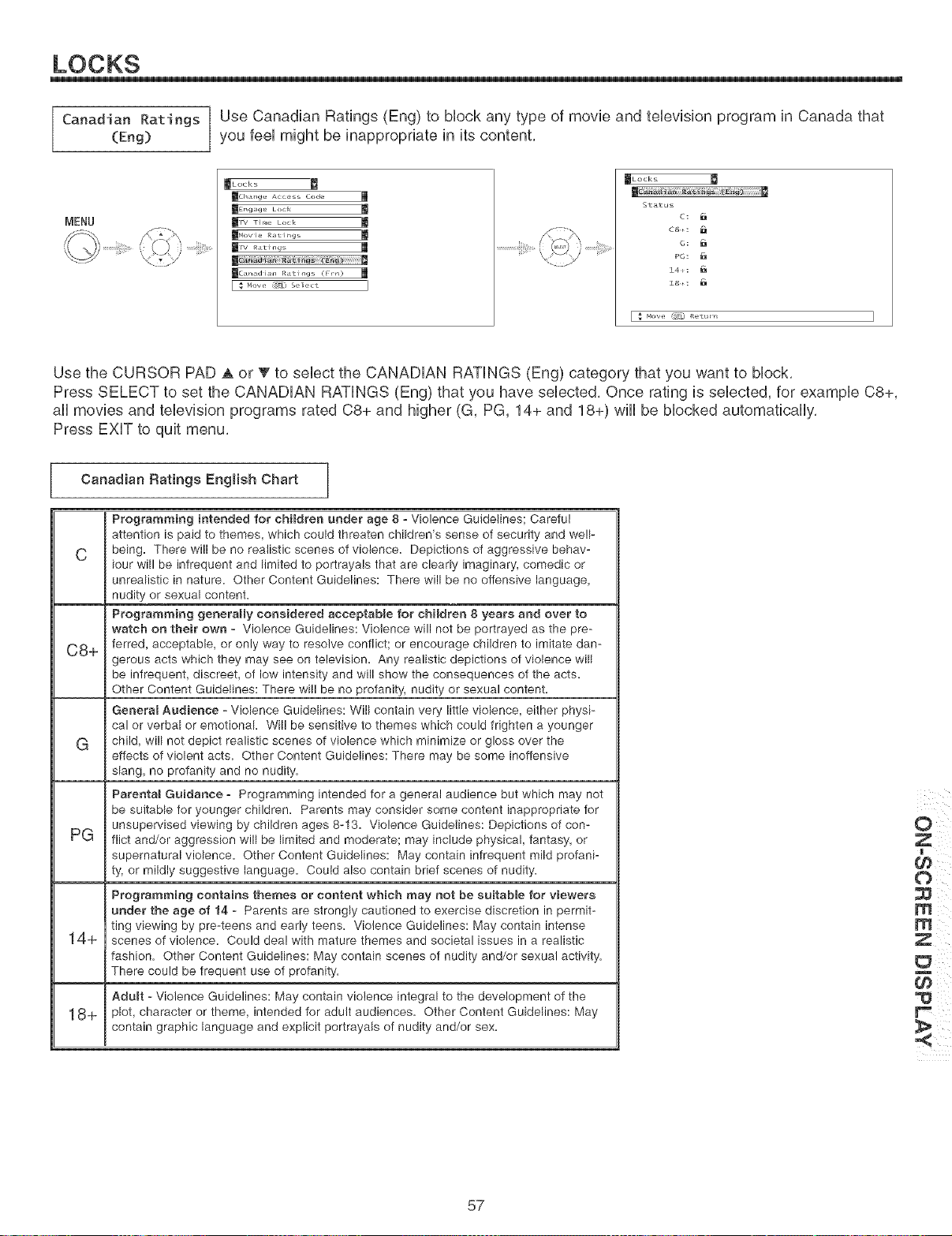
LOCKS
Canadian Ratings Use Canadian Ratings (Eng) to Mock any type of movie and teUevision program in Canada that
(Eng) you feeUmight be inappropriate in its content.
MENU
_Locks
inch _r_ge Acce s Code m
_Erlg ;_*g e Lock
ml_/ lime Lock m
_C_d[al_ IR,lt[ngS (Frn)
_Locks
st._t us
PC:
&4 t
[ _ Mow, (SEU Retu_ ]
Use the CURSOR PAD A or _' to select the CANADIAN RATINGS (Eng) category that you want to block.
Press SELECT to set the CANADIAN RATINGS (Eng) that you have selected. Once rating is selected, for example C8+,
all movies and television programs rated C8+ and higher (G, PG, 14+ and 18+) will be blocked automatically.
Press EXIT to quit menu.
Canadian Ratings Engmish Chart
C
C8+
G
PG
14+
18+
Programming intended for children under age 8 = Violence Guidelines; Careful
attention is paid to themes, which could threaten children's sense of security and welF
being, There will be no realistic scenes of violence, Depictions of aggressive behav-
iour will be infrequent and limited to portrayals that are clearly imaginary, comedic or
unrealistic in nature, Other Content Guidelines: There will be no offensive language,
nudity or sexual content,
Programming generally considered acceptabme for children 8 years and over to
watch on their own - Violence Guidelines: Violence will not be portrayed as the pre-
ferred, acceptable, or only way to resolve conflict; or encourage children to imitate dan-
gerous acts which they may see on television, Any realistic depictions of violence will
be infrequent, discreet, of low intensity and will show the consequences of the acts,
Other Content Guidelines: There will be no profanity, nudity or sexual content,
J General Audience - Violence Guidelines: Will contain very little violence, either physi-
cal or verbal or emotional, Will be sensitive to themes which could frighten a younger
child, will not depict realistic scenes of violence which minimize or gloss over the
effects of violent acts, Other Content Guidelines: There may be some inoffensive
i slang, no profanity and no nudity,
Parental Guidance - Programming intended for a general audience but which may not
be suitable for younger children, Parents may consider some content inappropriate for
unsupervised viewing by children ages 8-13, Violence Guidelines: Depictions of con-
flict and/or aggression will be limited and moderate; may include physical, fantasy, or
supernatural violence, Other Content Guidelines: May contain infrequent mild profani-
ty, or mildly suggestive language, Could also contain brief scenes of nudity,
Programming contains themes or content which may not be suitable for viewers
under the age of 14 - Parents are strongly cautioned to exercise discretion in permit-
ting viewing by pre-teens and early teens, Violence Guidelines: May contain intense
scenes of violence, Could dea! with mature themes and societal issues in a realistic
fashion, Other Content Guidelines: May contain scenes of nudity and/or sexual activity,
JThere could be frequent use of profanity,
J Adult - Violence Guidelines: May contain violence integral to the development of the
plot, character or theme, intended for adult audiences, Other Content Guidelines: May
contain graphic language and explicit portrayals of nudity and/or sex,
Z
m
57
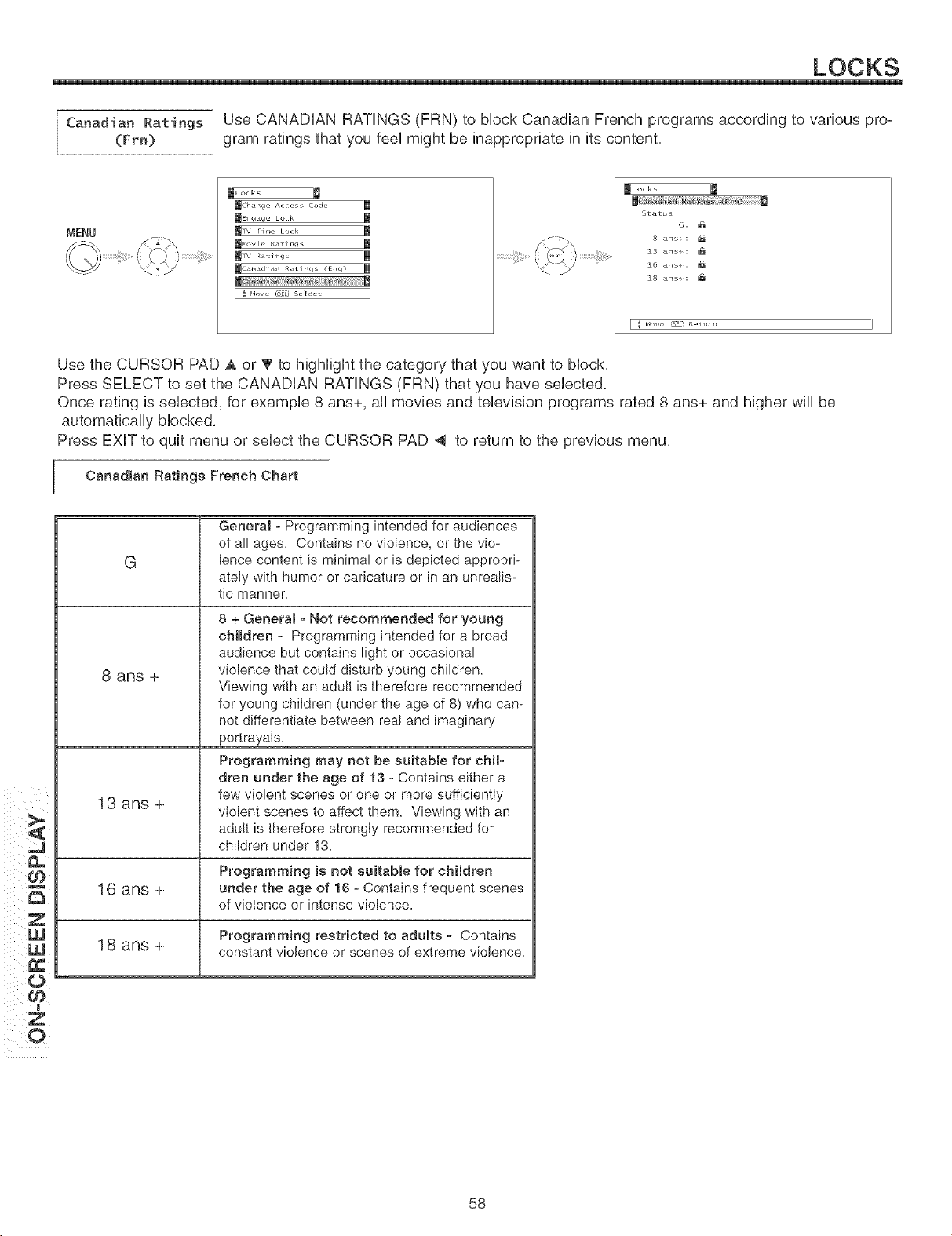
LOCKS
Canadian Ratings Use CANADIAN RATINGS (FRN) to block Canadian French programs according to various pro°
(Frn) gram ratings that you feel might be inappropriate in its content,
MENU
_Locks
_cha.ge Access code m
_E,_g lge Lock
_rv r_.,_ Lock
_wov ie R_t i_g,,
_1_' Rati igs
m
_Locks
B
Status
13 ansi:
&6 ansi:
18 ansi:
F _" mow_ r_] r_etu_n I
Use the CURSOR PAD A or T to highlight the category that you want to block,
Press SELECT to set the CANADIAN RATINGS (FRN) that you have selected,
Once rating is selected, for example 8 ans+, all movies and television programs rated 8 ans+ and higher will be
Press EXiT to quit menu or select the CURSOR PAD _ to return to the previous menu,
Canadian Ratings French Chart
G
8 arls +
13 ans +
General o Programming intended for audiences
of all ages. Contains no violence, or the vie-
bnce content is minimal or is depicted appropri-
ately with humor or caricature or in an unrealis-
tic manner.
8 + General - Not recommended for young
chimdren o Programming intended for a broad
audience but contains light or occasional
violence that could disturb young children.
Viewing with an adult is therefore recommended
for young children (under the age of 8) who can-
not differentiate between real and imaginary
portrayals.
Programming may not be suitable for chib
dren under the age of 13 o Contains either a
few violent scenes or one or more sufficientiy
violent scenes to affect them. Viewing with an
adult is therefore strongly recommended for
children under 13.
Programming is not suitable for children
16 ans + under the age of 16 - Contains frequent scenes
of violence or intense violence.
Programming restricted to adumts o Contains
18 ans + constant violence or scenes of extreme violence.
Y
Z ¸
58
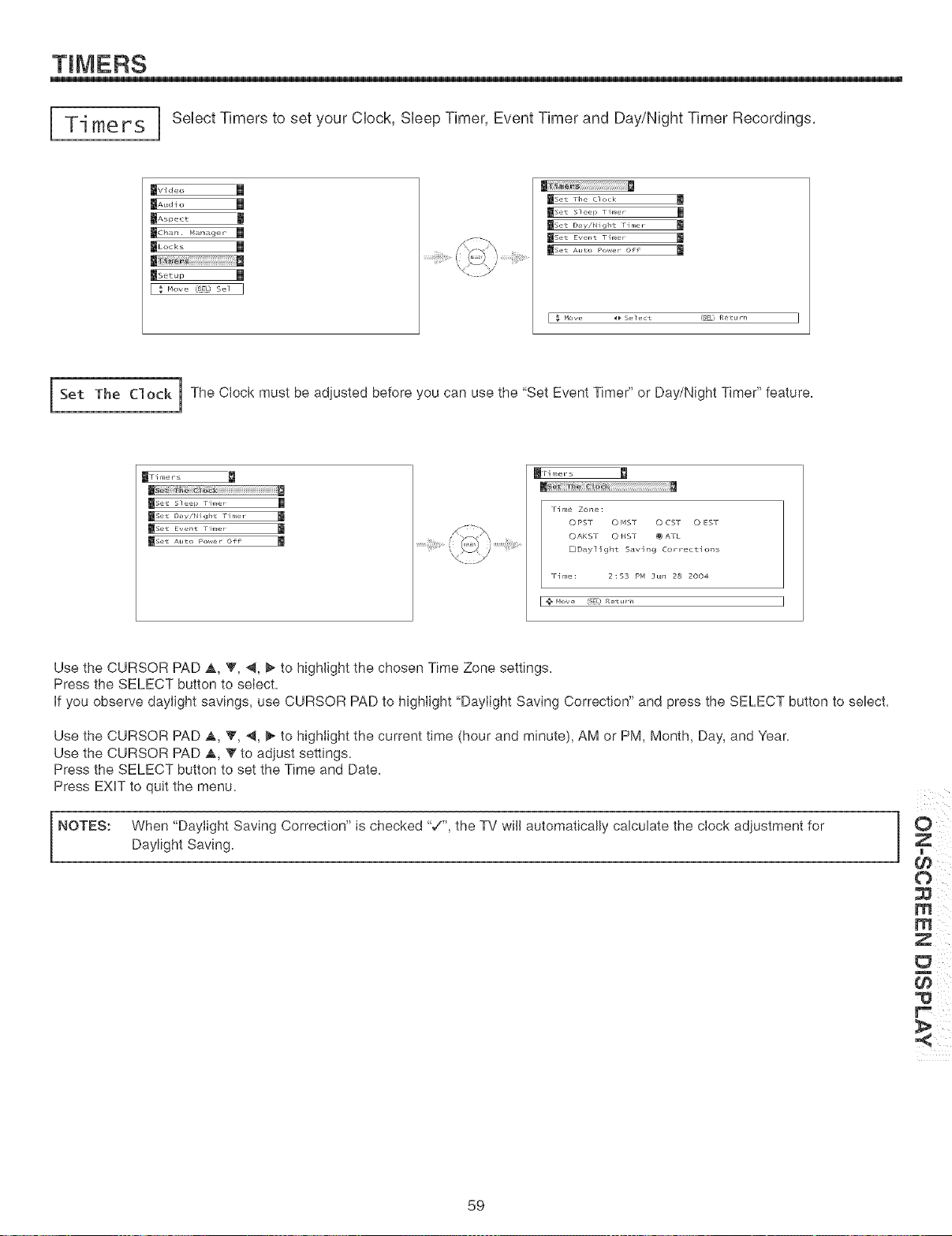
TIMERS
Ti me rs ] Select Timers to set your Clock, Sleep Timer, Event Timer and Day/Night Timer Recordings,
_Video m
ms,ua_o l
II....... l
_Ch_n I M_n _ge r
_Lock_ l
l
r ; Move_:,_so: I
WSet 1he Clock
[mse_ sleep 1 h_er m
reset Day/NighL Timer
[_Set A_LO Power Off
I _How, _ Select 18ELIR_,_t,., I
Set The Clock i The Clock must be adjusted before you can use the "Set Event Timer" or Day/Night Timer" feature.
_rimers
_[set sleep Ph_e_ m
m set DaY/NighL rimer m
reset Eve_t rh_eT
_Set Auto Poster Off |
lrimers
rime Zone:
O PST O MST O CST O EST
OAKST 0 HST _ ATL
DDaylight Saving Corrections
rime: 2:53 PM 3un 28 2004
Hove (_C} R t n
Use the CURSOR PAD A, T, 4, _ to highlight the chosen Time Zone settings.
Press the SELECT button to select.
if you observe daylight savings, use CURSOR PAD to highlight "Daylight Saving Correction" and press the SELECT button to select.
Use the CURSOR PAD a,, V, 4, _ to highlight the current time (hour and minute), AM or PM, Month, Day, and Year.
Use the CURSOR PAD A, V to adjust settings.
Press the SELECT button to set the Time and Date.
Press EXiT to quit the menu.
NOTES: When "Daylight Saving Correction" is checked "7", the TV will automatically calculate the clock adjustment for
Daylight Saving.
59
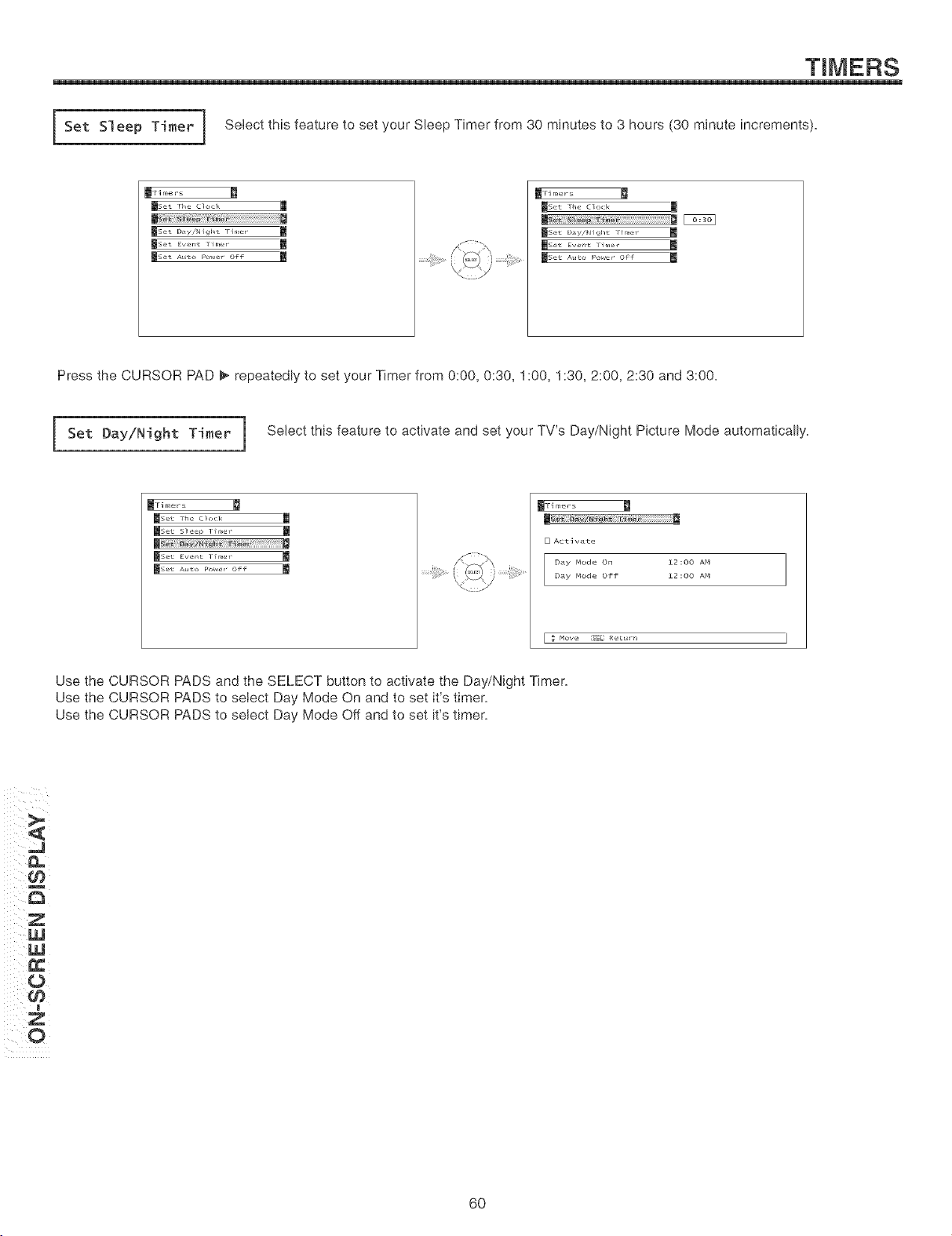
Set S1 eep Timer I Select this feature to set your Sleep Timer from 30 minutes to 3 hours (30 minute increments).
_Fimers
m
ISet Day/Night timer
BSet Everlt rimer
BSet Auto Power OFf
_Fi me r s
l, et the clock
_bet Day/Night limer
_set Event ri_e_
Press the CURSOR PAD _ repeatedly to set your Timer from 0:00, 0:30, 1:00, 1:30, 2:00, 2:30 and 3:00.
Set Day/Night Timer i Select this feature to activate and set your TV's Day/Night Picture Mode automatically.
_ri me r s
mset the Clock
_Set Sleep 1 liner
B
[_Sel _ Event 1 _nler
[_Sel _ At_to Po_er Off
_ri me r s
[] Actlvate
Day Mode On 12:OO AMDay Mode off 12:00 AM
[ _ Move r_£ Retrain
Use the CURSOR PADS and the SELECT button to activate the Day/Night Timer.
Use the CURSOR PADS to select Day Mode On and to set it's timer.
Use the CURSOR PADS to select Day Mode Off and to set it's timer.
/
ii ¸O
iiii!i ¢_
6O
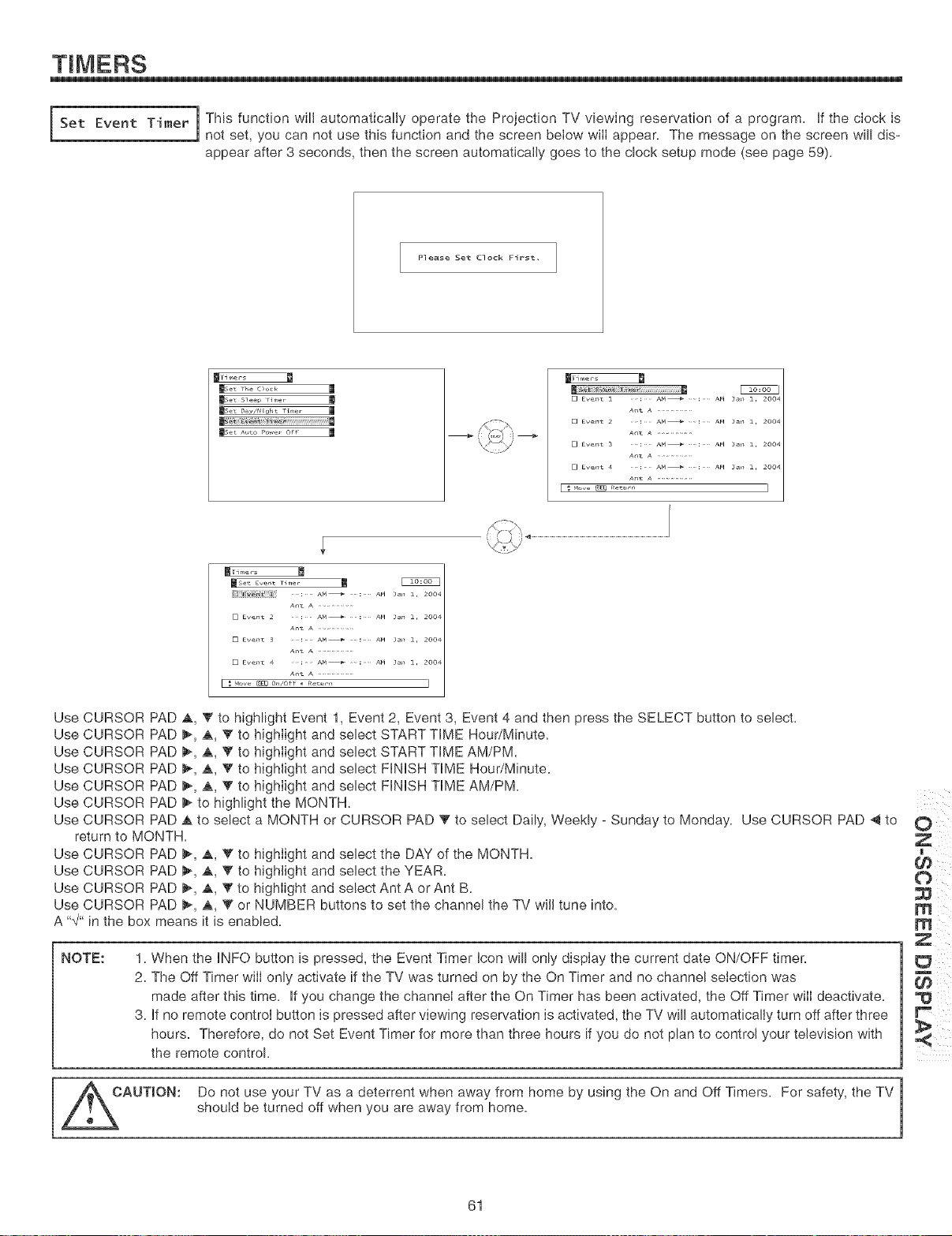
TIMERS
|
Set Event Timer mThis function will automatically operate the Projection TV viewing reservation of a program. If the ciock is
1
not set, you can not use this function and the screen below wiII appear. The message on the screen will dis-
appear after 3 seconds, then the screen automatically goes to the clock setup mode (see page 59):
P]ease Set C]ock First.
_imers
mse_ the c_od, 1
mse_ s_eep r_me,
reset A_,to Po_e, off 1
Use CURSOR PAD ,&, Y to highlight Event 1, Event 2, Event 3, Event 4 and then press the SELECT button to select.
Use CURSOR PAD _, _, V to highlight and select START TIME Hour/Minute.
Use CURSOR PAD _, _, Y to highlight and select START TIME AM/PM.
Use CURSOR PAD _, _, V to highlight and select FINISH TIME Hour/Minute.
Use CURSOR PAD _, _, T to highlight and select FINISH TIME AM/PM.
Use CURSOR PAD _ to highlight the MONTH.
Use CURSOR PAD ,& to select a MONTH or CURSOR PAD V to select Daily, Weekly - Sunday to Monday. Use CURSOR PAD 4 to
return to MONTH.
Use CURSOR PAD _, _, _ to highlight and select the DAY of the MONTH.
Use CURSOR PAD _, _, _ to highlight and select the YEAR. _._.
Use CURSOR PAD I_, _, '_ to highlight and select Ant A or Ant B.
Use CURSOR PAD _, _, V or NUMBER buttons to set the channel the TV will tune into.
A X/" in the box means it is enabled.
NOTE:
1. When the INFO button is pressed, the Event Timer Icon will only display the current date ON/OFF timer.
2. The Off Timer will only activate if the TV was turned on by the On Timer and no channel selection was
made after this time. If you change the channel after the On Timer has been activated, the Off Timer will deactivate.
3. If no remote control button is pressed after viewing reservation is activated, the TV will automatically turn off after three
hours. Therefore, do not Set Event Timer for more than three hours if you do not plan to control your television with
the remote control.
Do not use your TV as a deterrent when away from home by using the On and Off Timers. For safety, the TV
should be turned off when you are away from home.
61
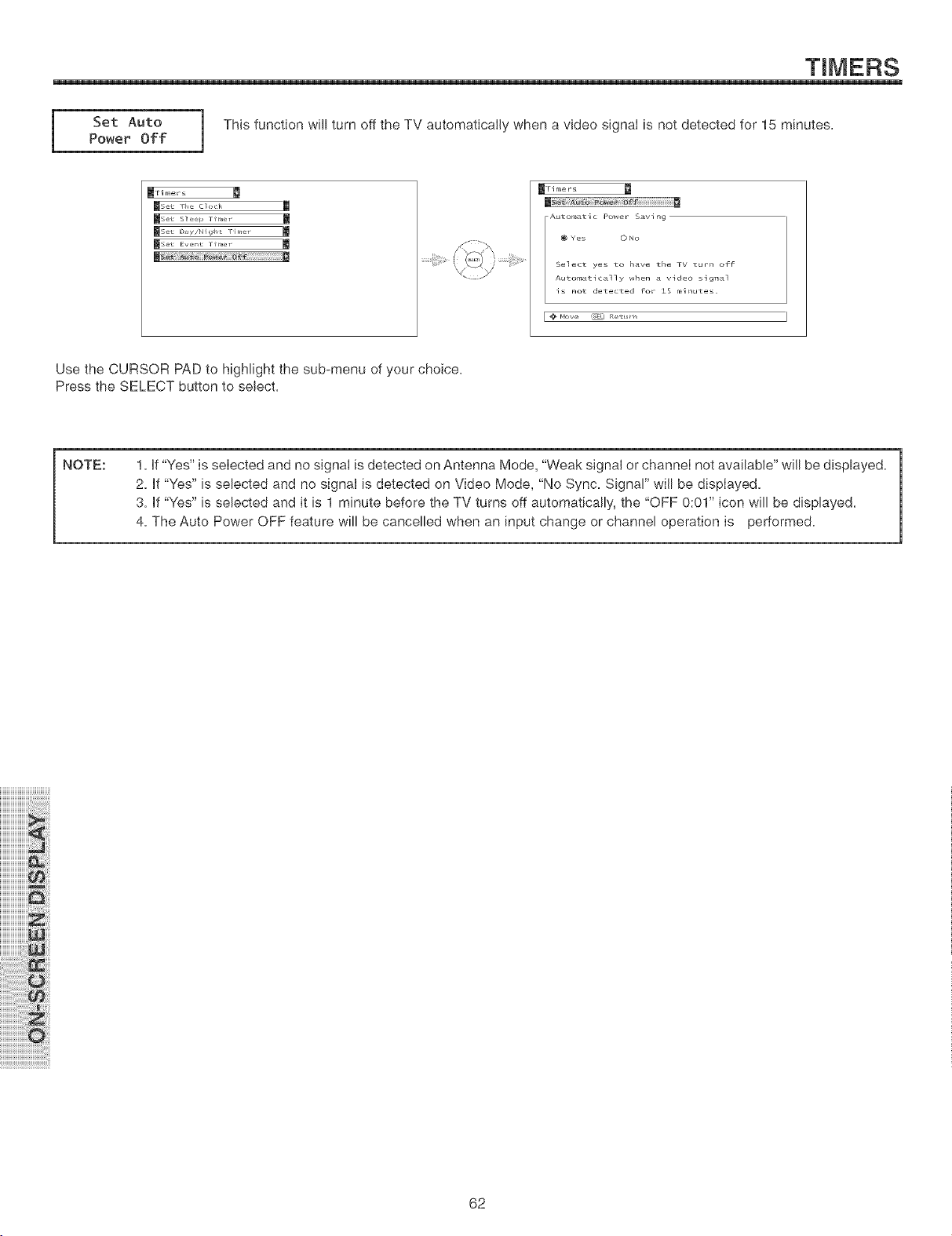
1
Set Auto | This function will turn off the TV automatically when a video signal is not detected for 15 minutes.
Power Off
J
_Fi me r s
_set the clock
_set slee1_ rime_
reset Day/Nigher lime_ ¸
reset Eyelet rime_ ¸
_Fimers
Autom.ttic Power S,_vlng
Yes O No
Select yes to have the TV turn off
Automatically when a video signal
is not detected for 15 minutes.
Use the CURSOR PAD to highlight the sub-menu of your choice.
Press the SELECT button to select.
NOTE:
1. if "Yes" is seIected and no signal is detected on Antenna Mode, "Weak signal or channeI not available" will be displayed.
2. if "Yes" is selected and no signal is detected on Video Mode, "No Sync. Signal" will be displayed.
3. if "Yes" is selected and it is 1 minute before the TV turns off automatically, the "OFF 0:01" icon will be displayed.
4. The Auto Power OFF feature will be cancelled when an input change or channel operation is performed.
iiiiiiiiiiiiiiiiiiiii ii i i
iiiiiiiiiiiiiiiiiiiii_!!_!!_!:i
iiiiiiiiiiiiiiiiiiiii_i_i_ii!:!
iiiiiiiiiiiiiiiiiiiii i iiii !
iiiiiiiiiiiiiiiiii'i ii:ilWiii:ii il
iil;i:ii:ii:ii:ii:ii:ii:ii:ii:ii:ii:ii:ii:i!:!!!i!i!i!_iiiil;!
iiiiiiiiili:ii:ii:ii:ii:ii:ii:ii:ii:ii:i!izi!iQii!iii!¸
iiiiiiiiiiiiiiiiii_ii_i!iiii:i:i:i:i:i:i:i_!!_!i!ill
iiiiiiiiiiiiiiiiiiiiiiiiiiii'ii'ii i! iii i !;i i i i:il¸
62
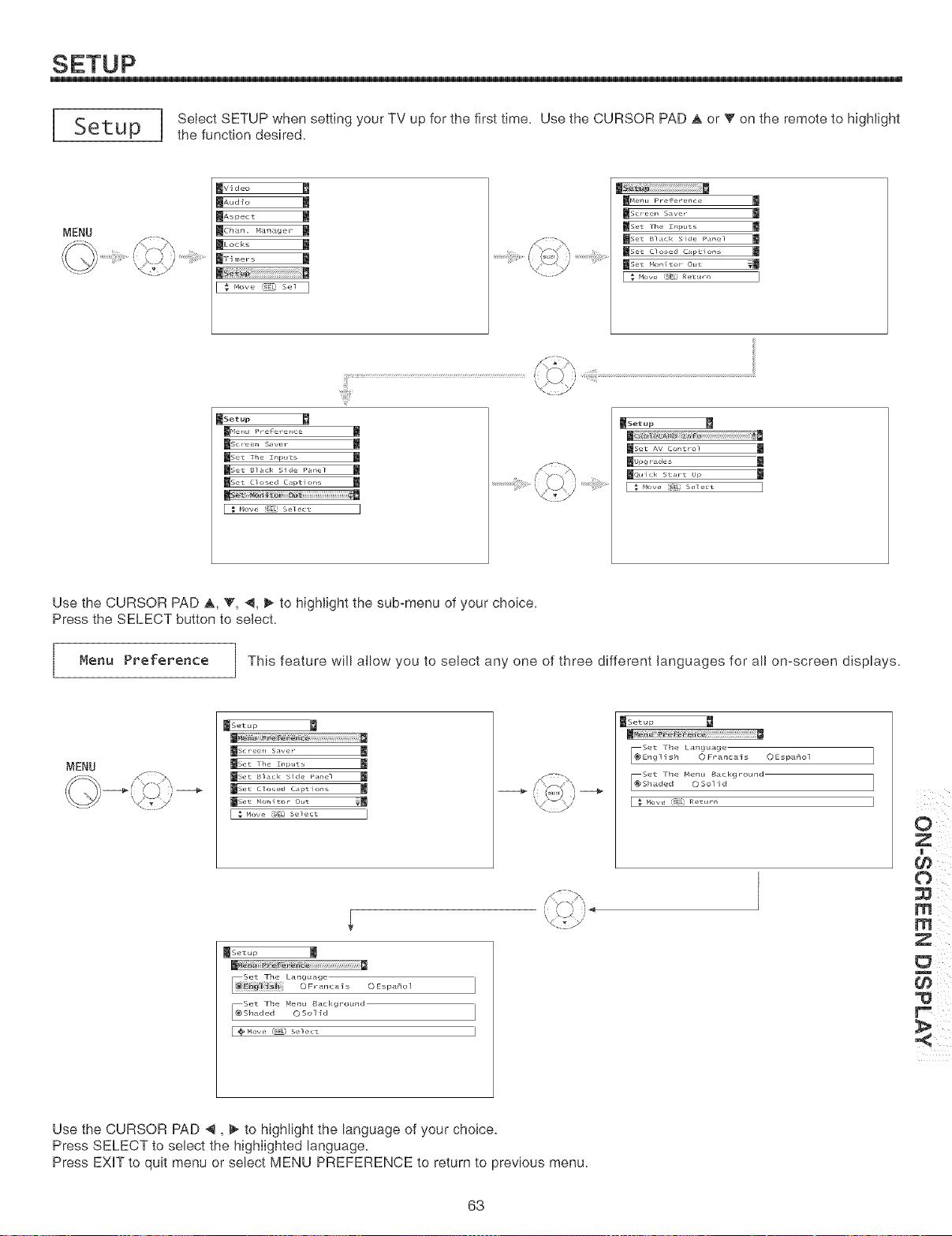
I SeI[u _ I Select SETUP when setting your TV up for the first time. Use the CURSOR PAD _ or V on the remote to highlight
J
the function desired.
MENU
_i deo
_,ua_o l
_Ch.*,7. M.*n.*ger m
BLock_ l
m
Move "SEE Sel I
_Set up
reset the Z_pt_ts
mSet Black Side Pal_el
reset Clo'_ed C_ptio_,_
_Setup
reset AV control m
[mupgr¸_de_ j
mq_ick Star_ up m
[ $ Mo_, _ s_m,_ I
Use the CURSOR PAD A, V, @, _ to highlight the sub-menu of your choice.
Press the SELECT button to select.
Menu Preference ] This feature will allow you to select any one of three different languages for all on-screen displays.
MENU
_Set up
mse_ ]h_ znpt_ m
mse_ _l_ck Side Pa_el m
_set c_osed cap_ion_ m
_otop I
0 Esp_no]
set The Menu B_ckgroundShaded ©Solid
[ _Move I_E Select
_Setup
_!_!_!_!_!_!_i_i_#_i!i!i!i!i!i!i!i!i!i!i!i!i!i!i!i!i!i!i!i!i!i!i!i!i!i!i!i!i!i!i!i!i!i!i!_i_
S_ © _o_
0
T
m
Use the CURSOR PAD _, _ to highlight the language of your choice.
Press SELECT to select the highlighted language.
Press EXiT to quit menu or select MENU PREFERENCE to return to previous menu.
63
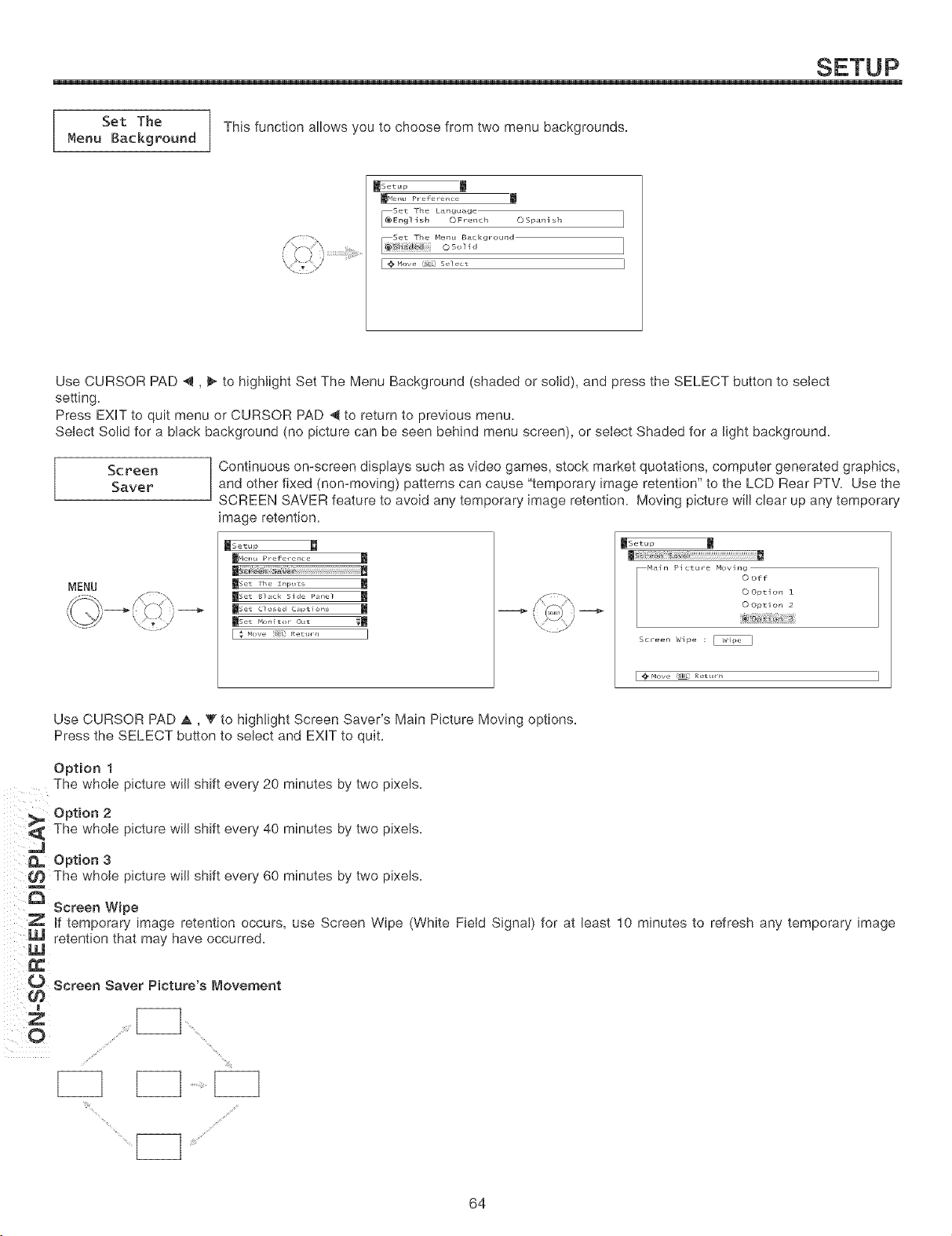
q
Set The / This function allows you to choose from two menu backgrounds.
Menu Background
/
msetup m
set Fhe L_nguageEnglish OFrcnch 0 $pani sh
S_t The Mcnu Backgroundo soi i d
[ @ M_w (s_Q s_]ect
Use CURSOR PAD _, _ to highlight Set The Menu Background (shaded or solid), and press the SELECT button to select
setting.
Press EXIT to quit menu or CURSOR PAD _1 to return to previous menu.
Select Solid for a black background (no picture can be seen behind menu screen), or select Shaded for a light background.
Screen
Saver
MENU
Continuous on-screen displays such as video games, stock market quotations, computer generated graphics,
and other fixed (non-moving) patterns can cause "temporary image retention" to the LCD Rear PTV. Use the
SCREEN SAVER feature to avoid any temporary image retention. Moving picture will clear up any temporary
image retention.
_Setup
Main Picture Moving
© Off
0 Option 1
0 Option 2
Screen Wipe : _
[ @, Mow r_L Return ]
Use CURSOR PAD ,L, _' to highlight Screen Saver's Main Picture Moving options.
Press the SELECT button to select and EXIT to quit.
Option 1
The whole picture wiil shift every 20 minutes by two pixels.
Option 2
, The whole picture wiil shift every 40 minutes by two pixels.
_k, Option 3
¢J) The whole picture will shift every 60 minutes by two pixels.
L_ Screen Wipe
Z If temporary image retention occurs, use Screen Wipe (White Field Signal) for at least 10 minutes to refresh any temporary image
retent,onthatmayhaveoccurred
Screen Saver Picture's Movement
e ¸
He
64
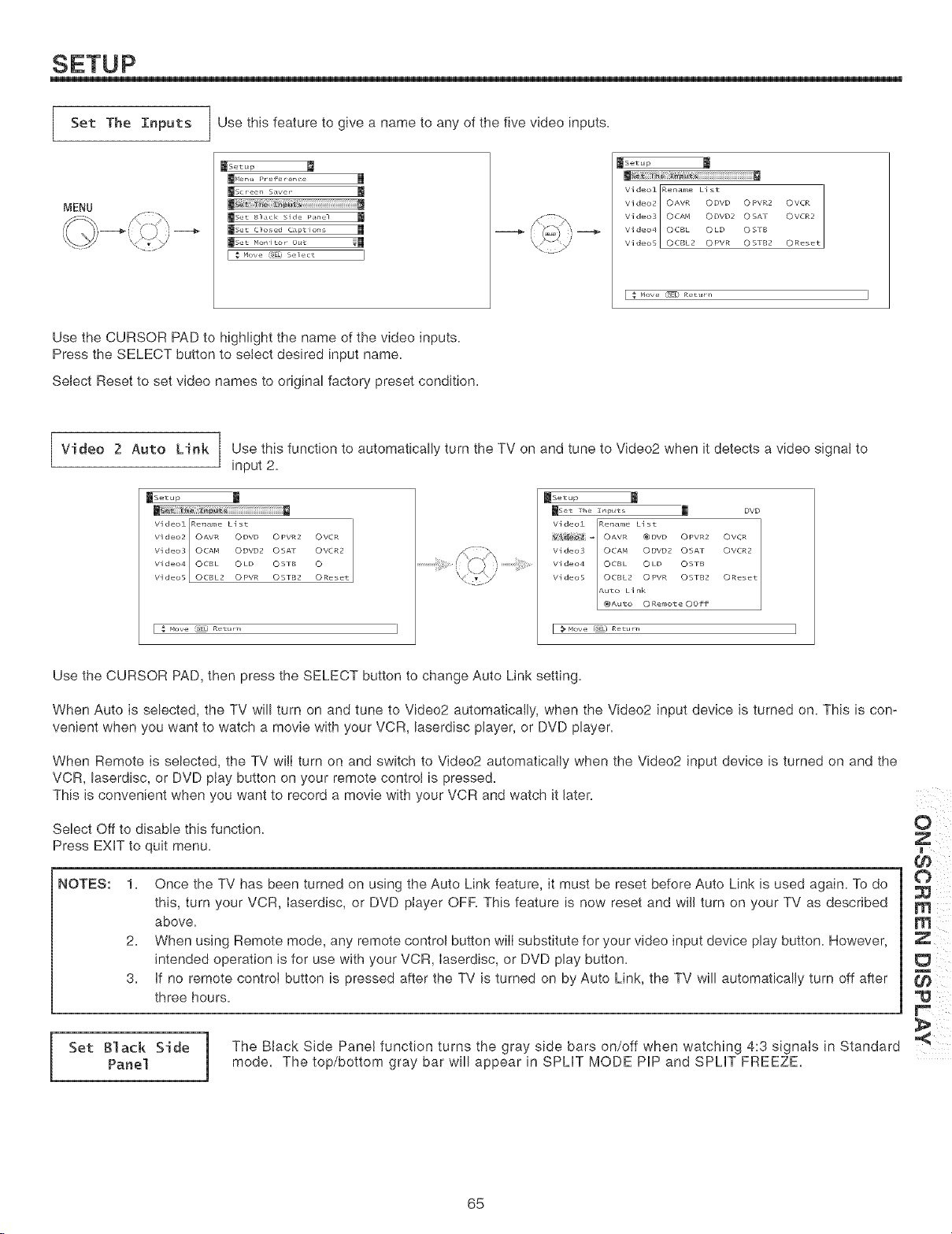
I Set The Tnputs ] Use this feature to give a name to any of the five video inputs=
MENU
_Setup
mMe_,t_Pr_ Pe,e_,ce m
_set sl_ck Side Pa_el m
mse_ clo_ed ca£io_ m
/< : -.\
_Setup m
Videol Rename List OReset
Vi deo2 OAVR ODVD OPVR2 OVCR
Video30CAN ODVD20SAr OVCR2
Vi deo40CBL OLD OSTB
Vi deo50CBL2 OPVR OSTB2
E _ How_ ,SEL R_tt_rn I
Use the CURSOR PAD to highlight the name of the video inputs.
Press the SELECT button to select desired input name.
Select Reset to set video names to original factory preset condition.
Video 2 Auto Link Use this function to automatically turn the TV on and tune to Video2 when it detects a video signat to
input 2.
_Setup
m_i_i!iiiii_ i:;_:_i_i_iiiiiiiiiiiiiiiiiiiiiiiiiiiiiiiiiiiiiiiil
Videol Rename List
Video2 OAVR ODVD OPVR2 OVCR
Video30CAN ODVD20SAr OVCR2
Vi deo40CBL OLD OSTB O
Video50CBL2 OPVR OSTB2 O Rese_
[ _ How, _E£1 R_tt, r,, ]
_Set uP
_set 1he zrqx_ts _ DVD
VideoZ Rename List 1
V'_ = OAVR @DVD OPVR2 OVCR
Vi deo3 OCAN ODVD20SAT OVCR2
Video4 OCBL OLD OSTB
_Auto O Remote OOff
Video5 OCBL2 OPVR OSTB2 OReset
Auto Link
Use the CURSOR PAD, then press the SELECT button to change Auto Link setting.
When Auto is selected, the TV will turn on and tune to Video2 automatically, when the Video2 input device is turned on. This is con-
venient when you want to watch a movie with your VCR, bserdisc player, or DVD player.
When Remote is selected, the TV will turn on and switch to Video2 automatically when the Video2 input device is turned on and the
VCR, bserdisc, or DVD play button on your remote control is pressed.
This is convenient when you want to record a movie with your VCR and watch it later.
Select Off to disable this function.
Press EXiT to quit menu.
NOTES:
1. Once the TV has been turned on using the Auto Link feature, it must be reset before Auto Link is used again. To do
this, turn your VCR, Iaserdisc, or DVD player OFR This feature is now reset and will turn on your TV as described
above.
2. When using Remote mode, any remote control button will substitute for your video input device play button. However,
intended operation is for use with your VCR, Iaserdisc, or DVD play button.
3. if no remote control button is pressed after the TV is turned on by Auto Link, the TV will automatically turn off after
three hours.
1
Set Black Side | The Black Side Panel function turns the gray side bars on/off when watching 4:3 signals in Standard
Panel j mode. The top/bottom gray bar will appear in SPLIT MODE PiP and SPLIT FREEZE.
O
i
65
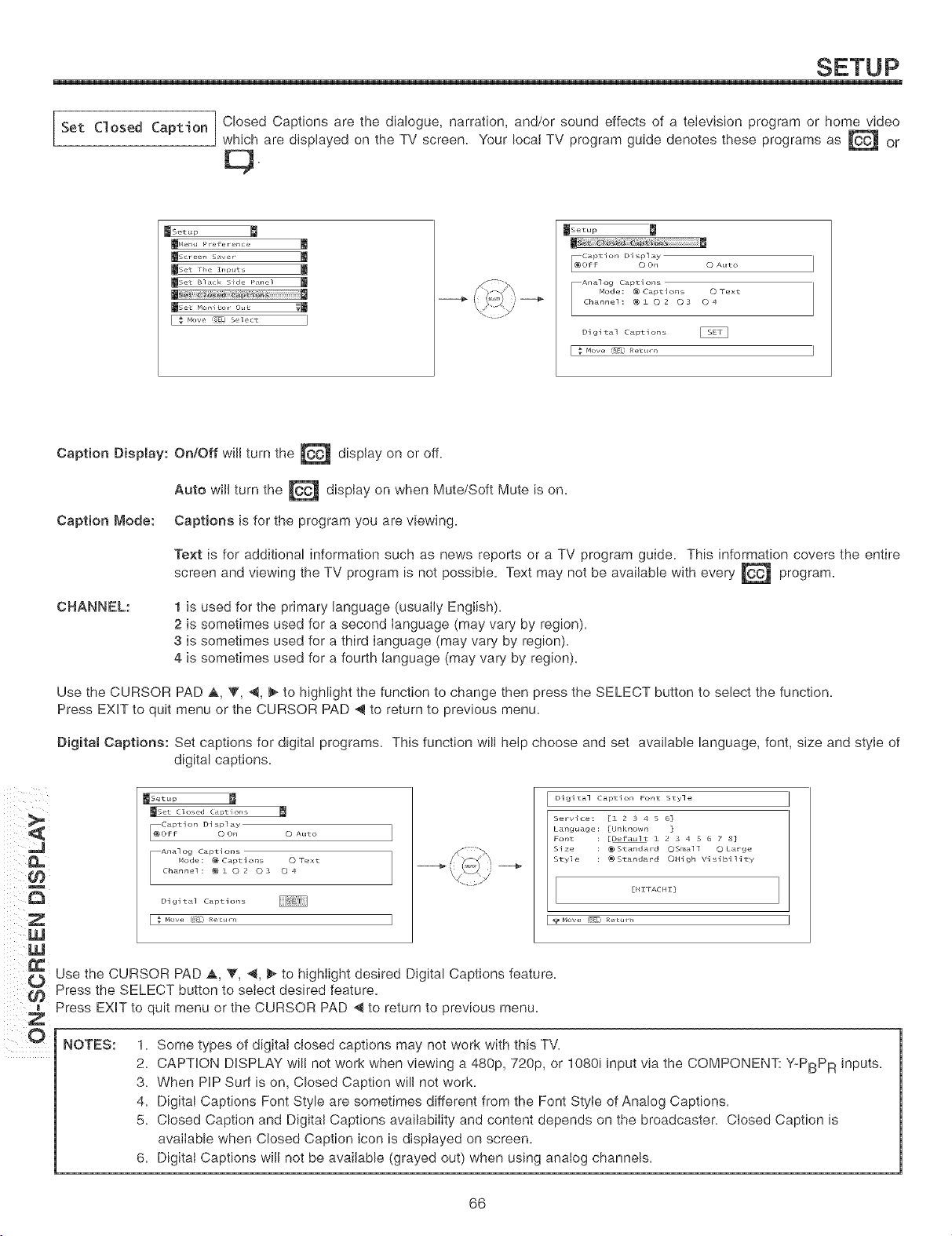
Set Closed Caption / Closed Captions are the dialogue, narration, and/or sound effects of a television program or home video
1
which are displayed on the TV screen. Your local TV program guide denotes these programs as _ or
s
_Setup
_Ne_ _re re_e_ce
ms_ _e_, s_v_, ¸
mset the z_p_t_ m
_set t_l_ck Side P_el
_set Monitor ¸ Ot_t _
_rSetup
Caption Display
Off O On © Auto
Analog Captions
Node: @ Captions O Text
Channel: @ 10 2 O 3 O 4
Digital Captions _
[ _ Hove SE_ Ret_rJ
iii/;
;; IW
iii(;W
Caption Display:
Caption Mode:
On!Off will turn the _ display on or off.
Auto will turn the _ display on when Mute/Soft Mute is on.
Captions is for the program you are viewing.
Text is for additional information such as news reports or a TV program guide. This information covers the entire
and viewing the TV program is not possible. Text may not be available with every
screen
program.
CHANNEL:
1 is used for the primary language (usually English).
2 is sometimes used for a second language (may vary by region).
3 is sometimes used for a third language (may vary by region).
4 is sometimes used for a fourth language (may vary by region).
Use the CURSOR PAD a,, V, _, _ to highlight the function to change then press the SELECT button to select the function.
Press EXiT to quit menu or the CURSOR PAD _ to return to previous menu.
Digital Captions: Set captions for digital programs. This function will help choose and set available language, font, size and style of
digital captions.
_rSetup
_Set Closed Cal_Lior_s
Caption Displ_
Off O On O Auto
Analog Captions
Node: @ Captions O rext
Channel: @ 1 © 2 O 3 O 4
Digital Captions _
[ $ Move (SEO Ret_
7"bx
Digltal Captlon Font Style
Servlce: [1 2 3 4 S 6]
Language: [Unknown ]
Font : [Default 1 2 3 4 5 6 7 8]
SiTe : @ Standard OSmall 0 Large
Style : @ Standard OHigh Visibility
[HZFACHZ]
Use the CURSOR PAD A, V, _, _ to highlight desired Digital Captions feature.
Press the SELECT button to select desired feature.
Press EXiT to quit menu or the CURSOR PAD _ to return to previous menu.
NOTES:
1. Some types of digital closed captions may not work with this TV.
2. CAPTION DISPLAY wil! not work when viewing a 480p, 720p, or 1080i input via the COMPONENT: Y-PBPR inputs.
3. When PiP Surf is on, Closed Caption will not work.
4. Digital Captions Font Style are sometimes different from the Font Style of Analog Captions.
5. Closed Caption and Digital Captions availability and content depends on the broadcaster. Closed Caption is
available when Closed Caption icon is displayed on screen.
6. Digital Captions will not be available (grayed out) when using analog channels.
66
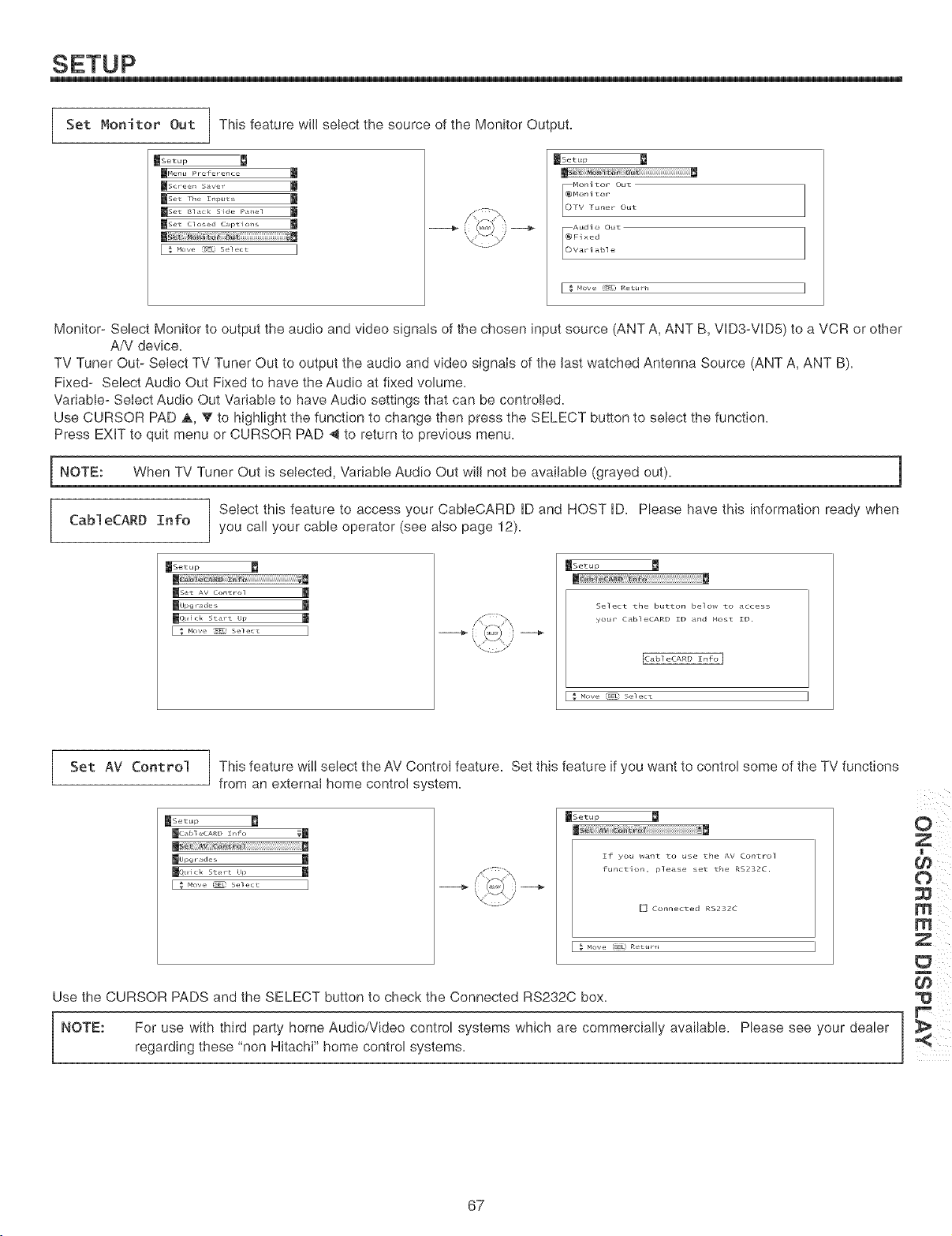
Set Monitor Out This feature will select the source of the Monitor Output,
Noni tot Out
Monitor
FV Funer Out
Audio Out
_0_Fixed
Variable
[ _ Move [_E£, Retu ] ]
Monitor- Select Monitor to output the audio and video signals of the chosen input source (ANT A, ANT B, VID3-VIDS) to a VCR or other
A/V device,
TV Tuner Out- Select TV Tuner Out to output the audio and video signais of the last watched Antenna Source (ANT A, ANT B),
Fixed- Select Audio Out Fixed to have the Audio at fixed volume,
Variable- Select Audio Out Variable to have Audio settings that can be controlled,
Use CURSOR PAD A, V to highlight the function to change then press the SELECT button to select the function,
Press EXIT to quit menu or CURSOR PAD @ to return to previous menu,
[ NOTE: When TV Tuner Out is selected, Variable Audio Out will not be available (grayed out),
CableCARD Info
1
Select this feature to access your CableCARD ID and HOST ID, Please have this information ready when
you call your cable operator (see also page 12),
_etup
B
reset AV control m
lc/uick Start up l
_etup
m d
Select thc button below to access
your Cable_ARD ZD and Host ZD.
ICableCARD Znfo[
Move _E_ Select
Set AV Control [ This feature wil! select the AV Control feature, Set this feature if want to control some of the TV functions
]
you
]
from an external home control system,
[aSetup
mcabl eCARD I_fo v_
_rtck star_ up m
_etup
Use the CURSOR PADS and the SELECT button to check the Connected RS232C box,
NOTE: For use with third party home Audio/Video control systems which are commercially available, Please see your dealer
regarding these "non Hitachi" home control systems,
m
67
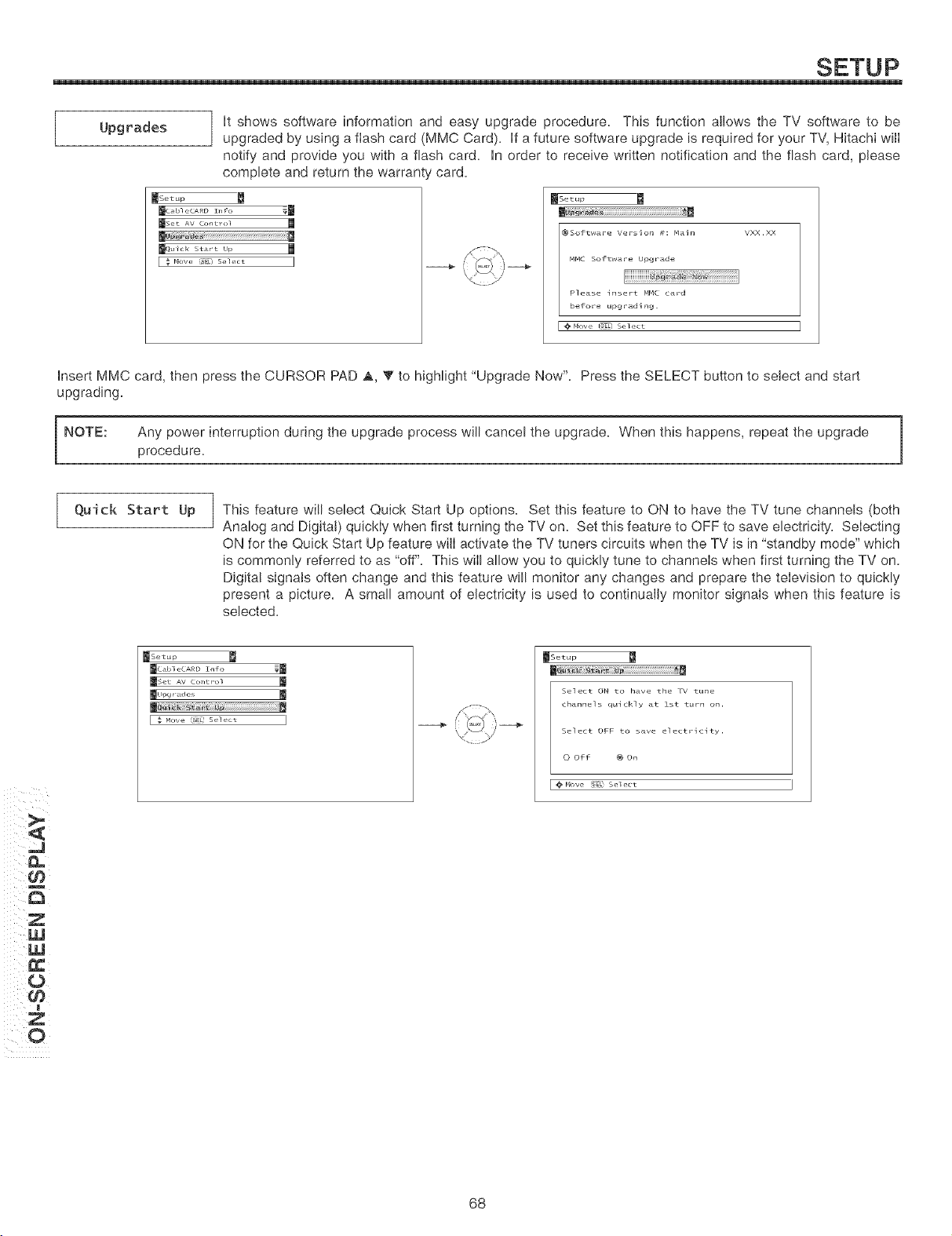
[
Upgrades
It shows software information and easy upgrade procedure. This function allows the TV software to be
upgraded by using a flash card (MMC Card). If a future software upgrade is required for your TV, Hitachi will
notify and provide you with a flash card. In order to receive written notification and the flash card, please
complete and return the warrant_' card.
_Set up _t_
mc H_] eCARD IWo _m
_Set AV ContTo] m
_(/uick St_Tt Up m
[ _ ,o_{. _j s{._{._ I
_set up
F_Mow_ i_ ¸ s ct
Insert MMC card, then press the CURSOR PAD A, V to highlight "Upgrade Now". Press the SELECT button to select and start
upgrading.
NOTE:
l
Any power interruption during the upgrade process will cancel the upgrade. When this happens, repeat the upgrade |
procedure.
1
Quick Start Up
This feature wi!l select Quick Start Set this feature to ON to have the TV tune channels
Up options. (both
Analog and Digital) quickly when first turning the TV on. Set this feature to OFF to save electricity. Selecting
ON for the Quick Start Up feature will activate the TV tuners circuits when the TV is in "standby mode" which
is commonly referred to as "off". This will allow you to quickly tune to channels when first turning the TV on.
Digital signals often change and this feature will monitor any changes and prepare the television to quickly
present a picture. A small amount of electricity is used to continually monitor signals when this feature is
selected.
_setup
mc d_l eCARD Info _
_set AV control
mlll_ r_d_ l
S+-+:\
_Setup
Select ON to have the TV tune
channcls quickly at 1st turn on.
Select OFF to save electricity.
O Off @ On
I @mow (SE_ S_]_C_
Z
g W
ii ¸O
Z
68
LAMP REPLACEMENT
Lam_ Life
The lamp life may vary based on usage of the LCD Rear PTV. Turning on and off frequently may
shorten the life of the lamp.
Lam_lacement
After extended use, if the TV picture turns dark, the color looks unusual or LAMP INDICATOR light
turns on, then it is time to replace the lamp with a new lamp.
WARNING:
The lamp gets very hot! The lamp may explode if improperly handled. To avoid injury, please observe the follow-
ing precautions.
Do not open lamp compartment or attempt to remove lamp assembly unless the lamp assembly is being replaced.
Unplug the product's power cord from the AC outlet before attempting to replace the lamp assembly.
If the lamp is in use when failure occurs or if the lamp has exploded, wait at least 30-45 minutes for the lamp to
cool before opening the lamp compartment or touching the lamp assembly or any broken pieces.
Broken lamp pieces can cause injury. Handle with gloves to avoid cuts.
Do not place any foreign objects inside the lamp compartment.
When installing a new lamp, follow handling instruction included with the new lamp. Do not touch glass surface of
new lamp.
This product contains lead and a lamp that contains mercury. Dispose of this product and its lamp in accordance
with applicable environmental laws. For lamp recycling and disposal information, go to wwwJamprecycle.org. For
product recycling and disposal information, contact your local government agency or the Electronic Industries
Alliance at www.eiae.org (in the US) or the Electronic Product Stewardship Canada at www.epsc.ca (in Canada).
For more information, call "1-800-HITACHI."
CAUTION!
A "LAMP" indicator will light when lamp becomes hot. Unplug product's power cord from the AC outlet and allow
tamp to cool for at least 30-45 minutes. If "LAMP" indicator is still tit, please contact your authorized service
center (see page 77-78).
NOTES:
, Contact your Hitachi dealer for a new lamp unit. Using other lamps may cause damage to the TV
Set.
LAMP TYPE: LM500
, When replacing the lamp, let it cool down completely, for approximately 30 to 45 minutes after the
power has been switched off and A.C. cord has been unplugged.
, Do not touch the glass of the new lamp or make it dirty which can shorten the life of the lamp and
reduce the picture quality.
, Keep the lamp out of the reach of children and away from flammable materials.
, Do not pour water onto the removed lamp or put any object inside the lamp.
, Once the lamp is removed, do not put flammable materials and metal objects inside the lamp
receptacle on the TV set. Do not touch the receptacle.
, Install the new lamp securely, otherwise the picture may become dark or it may cause severe over-
heating.
, Install the lamp cover correctly, otherwise power will not come on.
69
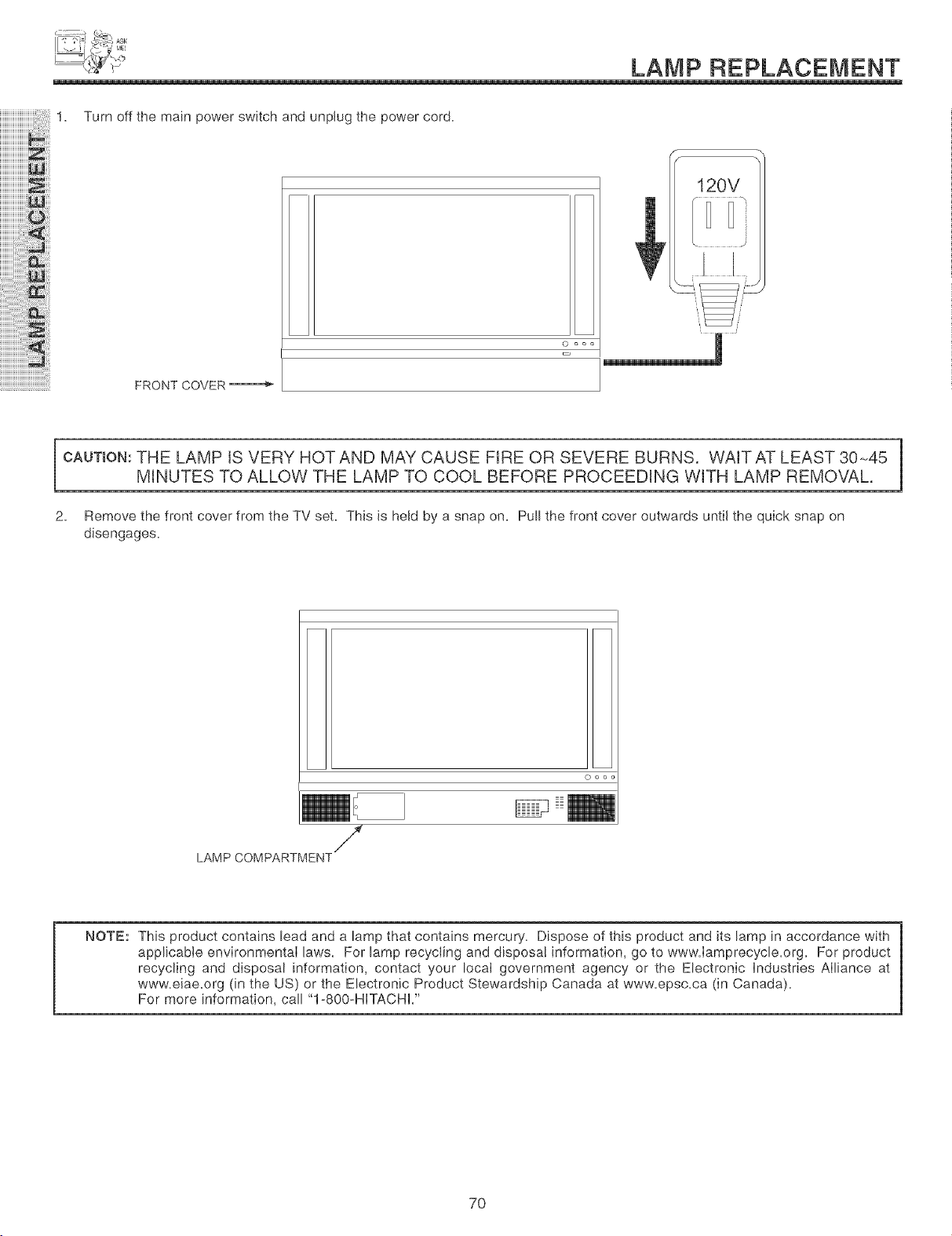
LAMP REPLACEMENT
iiiiiiiiiiiiiiiiiiiiiiiii!i!i!iiiiiii!
iiiiiiiiiiiiiiiiiiiii !i !i!i il
iiiiiiiiiiiiiiiiiiiiZ_!ii
iiiiiiiiiiiiiiiiiiiiiw: i
1. Turn off the main power switch and unplug the power cord.
FRONT COVER
]
CAUTmON:THE LAMP tS VERY HOTAND MAY CAUSE FIRE OR SEVERE BURNS. WAITAT LEAST 3045 |
MINUTES TO ALLOW THE LAMP TO COOL BEFORE PROCEEDING WITH LAMP REMOVAL.
1
2. Remove the front cover from the TV set. This is held by a snap on. Pull the front cover outwards until the quick snap on
disengages.
f
LAMP COMPARTMENT
NOTE: This product contains lead and a lamp that contains mercury. Dispose of this product and its lamp in accordance with
applicable environmental laws. For lamp recycling and disposa! information, go to www.Iamprecycle.org. For product
recycling and disposal information, contact your local government agency or the Electronic Industries Alliance at
www.eiae.org (in the US) or the Electronic Product Stewardship Canada at www.epsc.ca (in Canada).
For more information, call "I-800-NITACNU'
7O
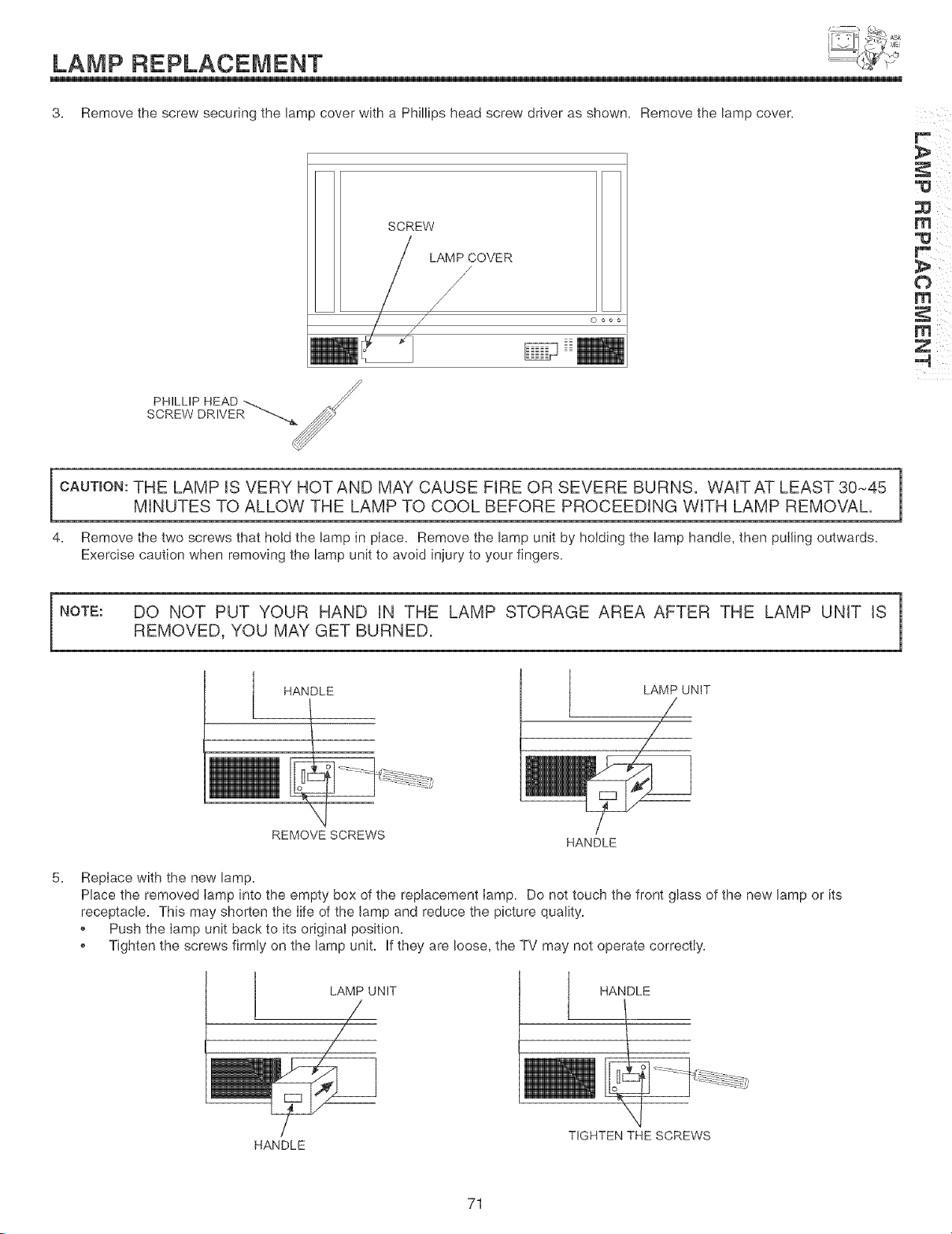
LAMP REPLACEMENT
3= Remove the screw securing the lamp cover with a Phillips head screw driver as shown. Remove the lamp cover.
SCREW
LAMP COVER
/
/
ooo
t_¸
m ii _iii
1
CAVT_ON:THE LAMP iS VERY HOTAND MAY CAUSE FIRE OR SEVERE BURNS. WAFAT LEAST 30-45 |
MINUTES TO ALLOW THE LAMP TO COOL BEFORE PROCEEDING WITH LAMP REMOVAL.
1
4. Remove the two screws that hold the lamp in place. Remove the lamp unit by holding the lamp handle, then pulling outwards.
Exercise caution when removing the lamp unit to avoid injury to your fingers.
NOTE: DO NOT PUT YOUR HAND IN THE LAMP STORAGE AREA AFTER THE LAMP UNiT IS ]
REMOVED, YOU MAY GET BURNED.
1
HANDLE
REMOVE SCREWS
LAMP UNIT
HANDLE
5.
Replace with the new lamp.
Place the removed lamp into the empty box of the replacement lamp. Do not touch the front glass of the new lamp or its
receptacle. This may shorten the life of the lamp and reduce the picture quality.
Push the lamp unit back to its original position.
Tighten the screws firmly on the lamp unit. if they are loose, the TV may not operate correctly.
LAMP UNIT HANDLE
HANDLE
TIGHTEN THE SCREWS
71
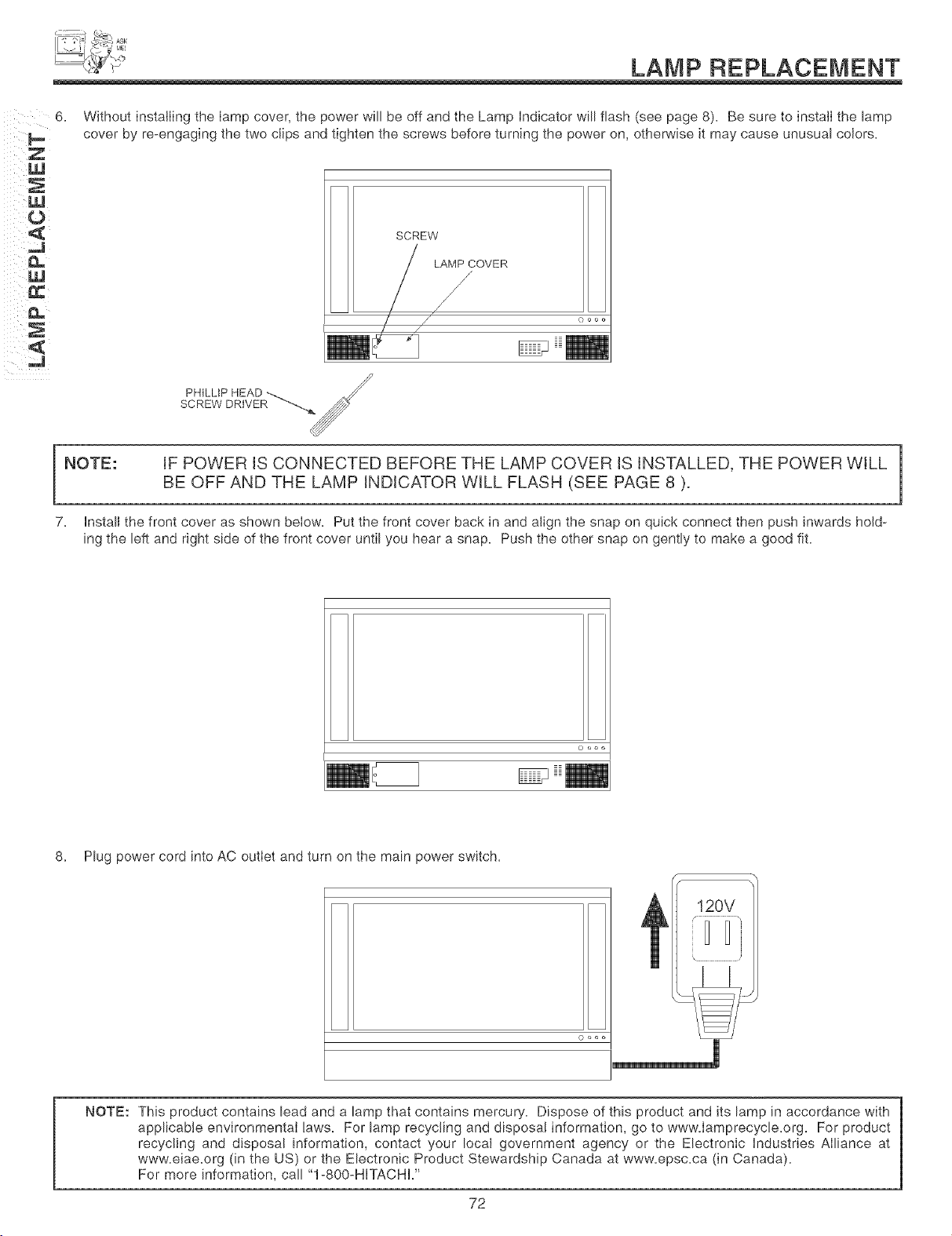
LAMP REPLACEMENT'
i
i ¸ W
ii 0 ¸
6. Without installing the lamp cover, the power will be off and the Lamp indicator will flash (see page 8). Be sure to install the lamp
cover by re-engaging the two clips and tighten the screws before turning the power on, otherwise it may cause unusual colors.
SCREW
/ LAMP COVER
/
/
NOTE:
iF POWER IS CONNECTED BEFORE THE LAMP COVER IS iNSTALLED, THE POWER WILL
BE OFF AND THE LAMP INDICATOR WILL FLASH (SEE PAGE 8 ).
7. Install the front cover as shown below. Put the front cover back in and align the snap on quick connect then push inwards hold-
ing the left and right side of the front cover until you hear a snap. Push the other snap on gently to make a good fit.
1
8. Plug power cord into AC outlet and turn on the main power switch.
120V
NOTE: This product contains lead and a lamp that contains mercury. Dispose of this product and its lamp in accordance with
applicable environmental laws. For lamp recycling and disposa! information, go to www.Iamprecycle.org. For product
recycling and disposal information, contact your local government agency or the Electronic industries Alliance at
www.eiae.org (in the US) or the Electronic Product Stewardship Canada at www.epsc.ca (in Canada).
For more information, call "1-800-HITACHI."
72
CARE{ OF YOUR HiTACHi TELEVmSION
AND YOUR REMOTE CONTROL
DO
Dust the screen and cabinet with a soft cloth,
Cban the screen with a soft cloth moistened in warm water and dry with a soft cloth, A mild soap may be used if
the screen is extremeUy dirty,
Hace your Tebvision away from extreme heat, humidity, and extremeUy dusty pUaces,
Remove the pUug from the wall outlet if your Tebvision wHUnot be used for a bng period of time, for instances,
when you go on vacation,
DO NOT
Do not clean your screen or cabinet with strong cleaners, polishes or a chemically treated cloth.
Do not place rubber or vinyl products or cellophane tape on your Television.
Do not touch the screen too often,
Do not subject the remote control to shocks such as dropping it on the floor, etc. Physical damage to the precision
parts may result.
Avoid placing the remote control in a high humidity place or getting it wet. Do not leave it on or near a heater.
Excessive heat or moisture may cause the unit to cease operation.
When the batteries run down, remote control operation wiii become erratic or possibly stop altogether. Replace the
old batteries with two new "AA" size batteries as soon as possible to preserve the remote control precodes that were
set for the devices. Pressing a remote control button with a "DEAD" battery might erase all precodes in memory. Do
not use an old battery with a new battery.
Exposure of the viewing screen to prolonged direct sunlight or heat may cause the screen to permanently warp,
resulting in a distorted picture.
73
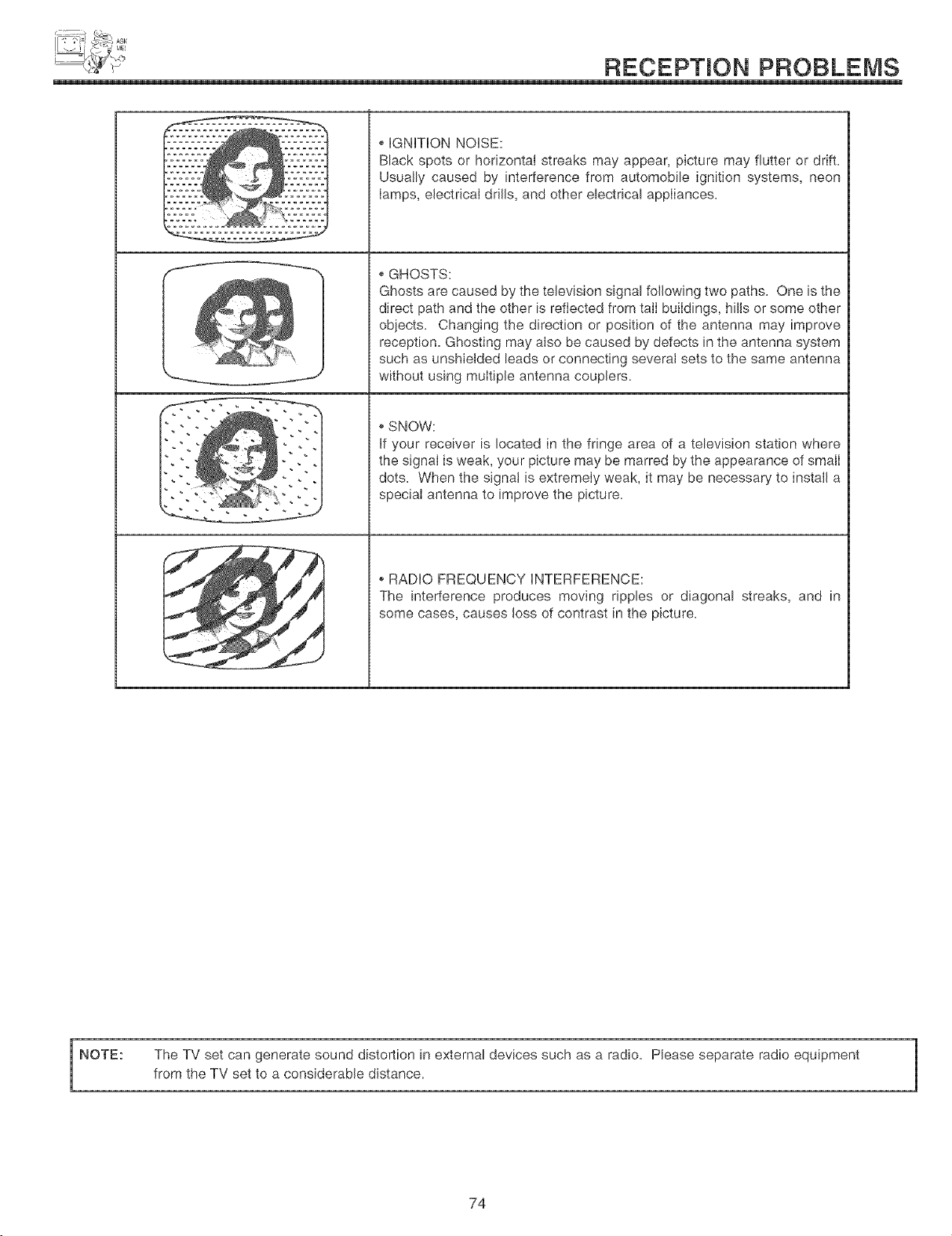
RECEPTION PROBLEMS
-m
J
i
i
IGNITION NOISE:
Black spots or horizontal streaks may appear, picture may flutter or drift,
Usually caused by interference from automobile ignition systems, neon
Iamps, electrical drills, and other electrical appIiances,
GHOSTS:
Ghosts are caused by the television signal following two paths, One is the
direct path and the other is reflected from talI buildings, hills or some other
obiects, Changing the direction or position of the antenna may improve
reception, Ghosting may also be caused by defects in the antenna system
such as unshieided leads or connecting severat sets to the same antenna
without using muItiple antenna couplers,
o SNOW:
If your receiver is located in the fringe area of a television station where
the signal is weak, your picture may be marred by the appearance of smalI
dots, When the signal is extremely weak, it may be necessary to install a
special antenna to improve the picture,
o RADIO FREQUENCY INTERFERENCE:
The interference produces moving ripples or diagonal streaks, and in
some cases, causes loss of contrast in the picture,
NOTE:
The TV set can generate sound distortion in external devices such as a radio, Please separate radio equipment
from the TV set to a considerable distance,
1
74
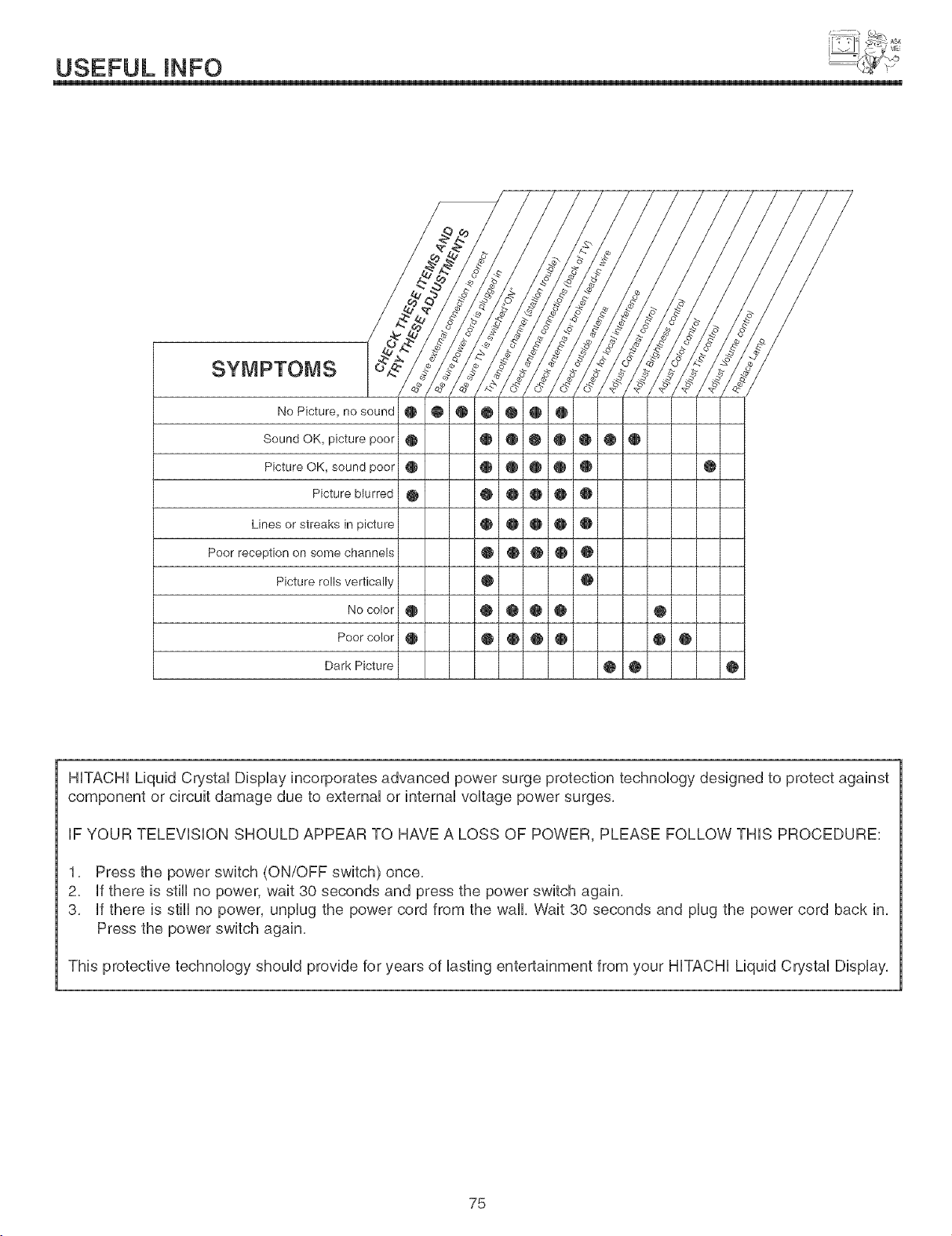
USEFULINFO
SYMPTOMS
No Picture, no sound 0 00@0@0
Sound OK, picture poor @ • • 0 @ 0 @ •
Picture OK, sound poor • • @ • • 0
Picture blurred @ @ @ @ @ @
Lines or streaks in picture @ @ @ @ @
Poor reception on some channels 0 @ @ @ @
Picture ro!ls vertically _ @
Nocolor @ @ @ @ @
Poor c!!or @ @ @ @ @
Dark Picture
HiTACHi Liquid Crystal Display incorporates advanced power surge protection technology designed to protect against
component or circuit damage due to external or internal voltage power surges,
iF YOUR TELEViSiON SHOULD APPEAR TO HAVE A LOSS OF POWER, PLEASE FOLLOW THiS PROCEDURE:
1, Press the power switch (ON/OFF switch) once,
2, if there is still no power, wait 30 seconds and press the power switch again,
3, if there is still no power, unplug the power cord from the wall, Wait 30 seconds and plug the power cord back in,
Press the power switch again,
This protective technology should provide for years of lasting entertainment from your HiTACHi Liquid CG,stal Display,
75
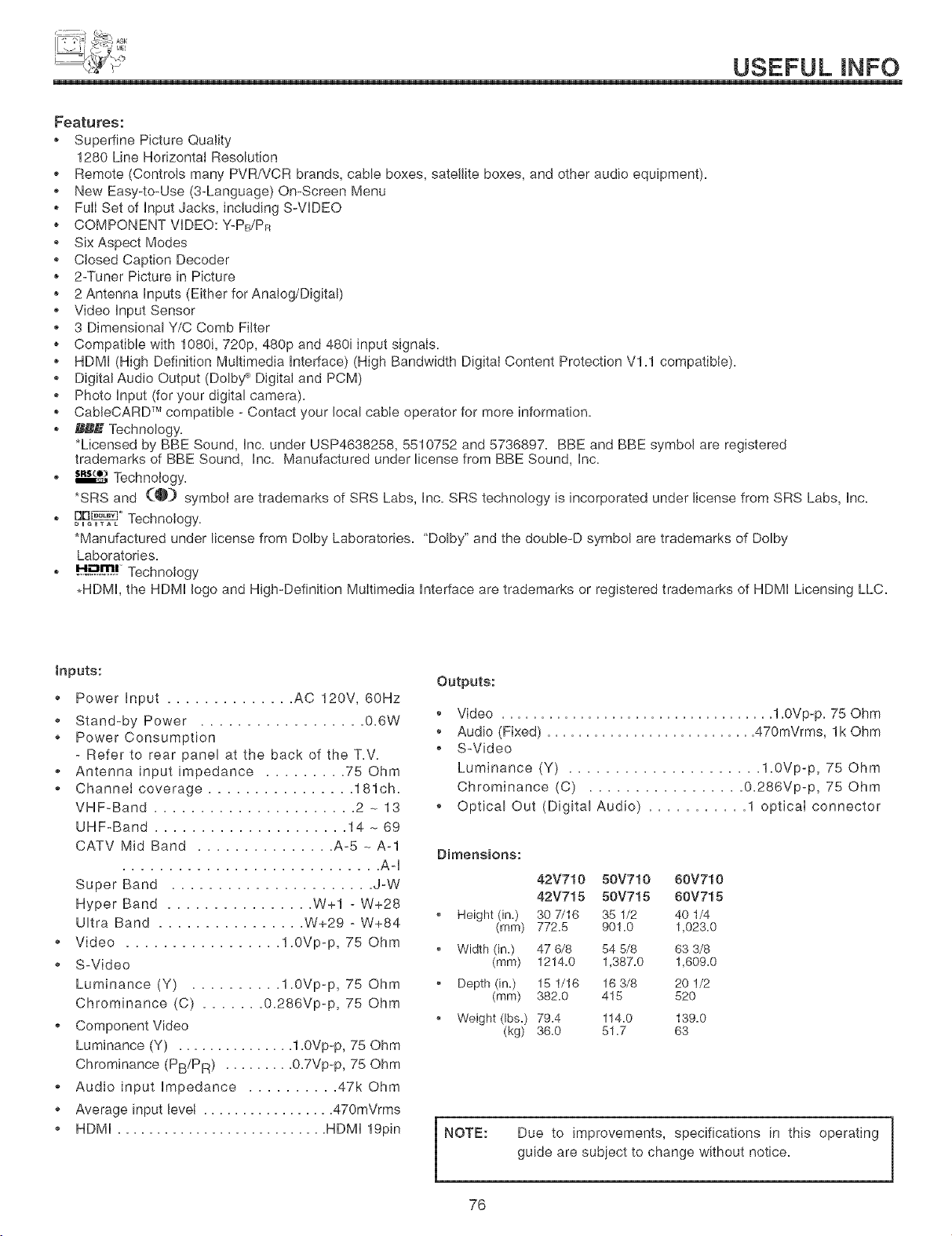
USEFUL INFO
Features:
Superfine Picture Quality
1280 Line Horizontal Resolution
. Remote (Controls many PVR/VCR brands, cable boxes, satellite boxes, and other audio equipment).
. New Easy-to-Use (3-Language) On-Screen Menu
FuII Set of Input Jacks, including S-VDEO
COMPONENT VDEO: Y-PB/P_
" Six Aspect Modes
Closed Caption Decoder
2-Tuner Picture in Picture
2 Antenna Inputs (Either for Analog/Digital)
. Video Input Sensor
3 Dimensional Y/C Comb Filter
Compatible with 1080i, 720p, 480p and 480i input signals.
HDMI (High Definition Multimedia interface) (High Bandwidth Digital Content Protection V1.1 compatible).
. Digital Audio Output (Dolby :_Digital and PCM)
. Photo Input (for your digital camera).
CabbCARD TM compatible - Contact your local cabIe operator for more information.
_k" Technology.
*Licensed by BBE Sound, Inc. under USP4638258, 5510752 and 5736897. BBE and BBE symbol are registered
trademarks of BBE Sound, Inc. Manufactured under license from BBE Sound, Inc.
. _ Technology.
*SRS and (-@) symbol are trademarks of SRS Labs, Inc. SRS technology is incorporated under license from SRS Labs, Inc.
BB_° Technology.
DU_AL
*Manufactured under license from Dolby Laboratories. "Dolby" and the double-D symbol are trademarks of Dolby
Laboratories.
H..,__m_|Technology
.HDMI, the HDMI logo and High-Definition Multimedia Interface are trademarks or registered trademarks of HDMI Licensing LLC.
Inputs:
o Power input .............. AC 120V, 60Hz
o Stand-by Power ................. 0.6W
Power Consumption
- Refer to rear panel at the back of the T.V.
o Antenna input impedance ......... 75 Ohm
o Channei coverage ................ 181ch.
VHF-Band ...................... 2 _ 13
UHF-Band ..................... 14 - 69
CATV Mid Band ............... A-5 - A-1
............................ Aq
Super Band ...................... J-W
Hyper Band ................ W+I - W+28
Ultra Band ................ W+29 - W+84
o Video ................. 1.0Vp-p, 75 Ohm
o S-Video
Luminance (Y) .......... 1.0Vp-p, 75 Ohm
Chrominance (C) ....... 0.286Vp-p, 75 Ohm
Component Video
Luminance (Y) ............... 1.0Vp-p, 75 Ohm
Chrominance (PB/PR) ......... 0.7Vp@, 75 Ohm
o Audio input impedance .......... 47k Ohm
o Average input levee ................. 470mVrms
HDMI ........................... HDM119pin
Outputs:
Video ................................... 1.0Vp@. 75 Ohm
Audio (Fixed) ........................... 470mVrms, lk Ohm
, S-Video
Luminance (Y) ..................... 1.0Vp-p, 75 Ohm
Chrominance (C) ................. 0.286Vp-p, 75 Ohm
, Optical Out (Digital Audio) ........... 1 optieai connector
Dimensions:
42V710 50V710 60V710
42V715 50V715 60V715
Height (in.) 30 7/16 35 1/2 40 1/4
(mm) 772.5 901.0 1,023.0
Width (in.) 47 6/8 54 5/8 63 3/8
(mm) 1214.0 1,387.0 1,609.0
Depth (in.) 15 t/16 16 3/8 20 1/2
(mm) 382.0 415 520
Weight (Ibs.) 79.4 114.0 t39.0
(kg) 36.0 51.7 63
NOTE: Due to improvements, specifications in this operating
guide are subiect to change without notice.
76
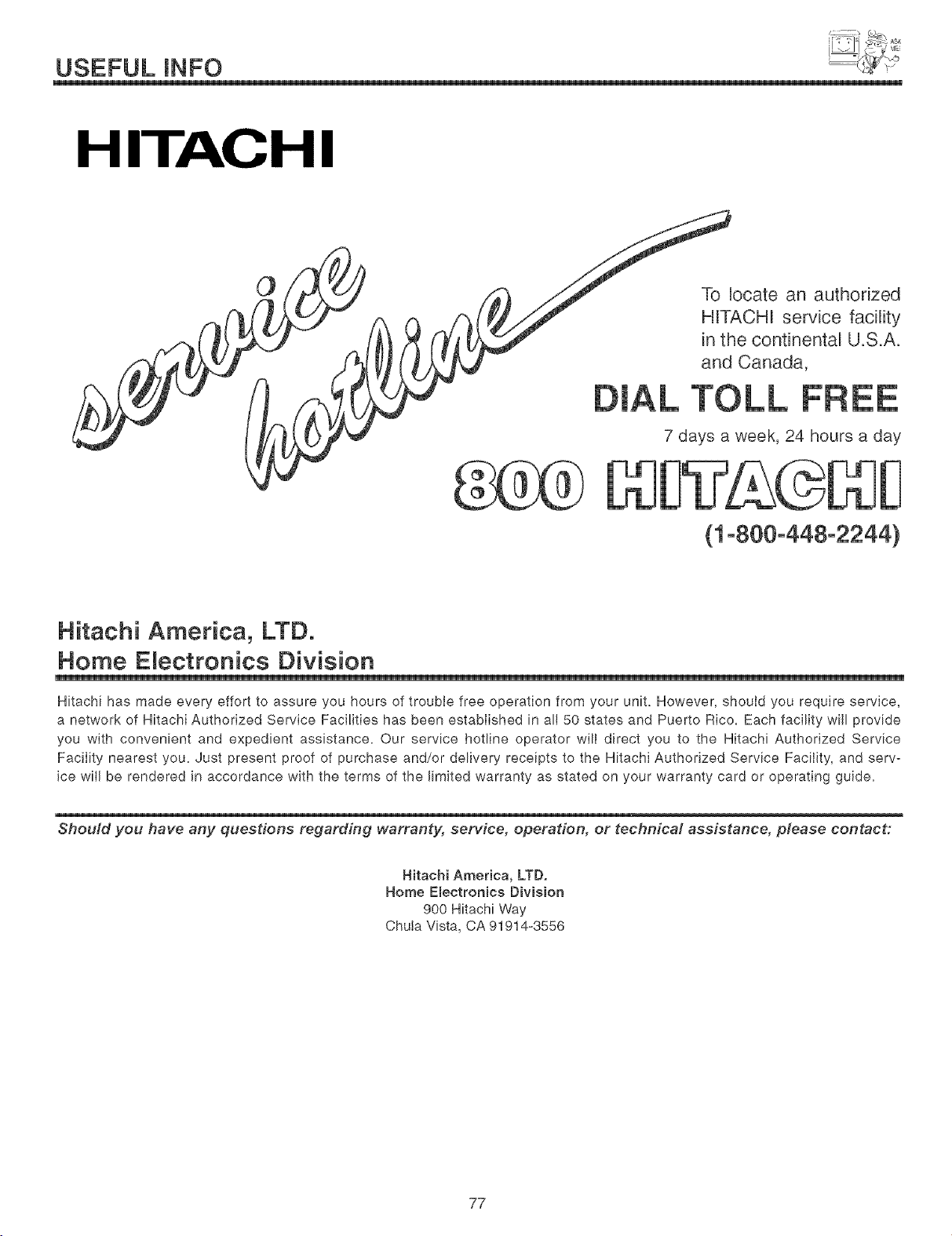
USEFULINFO
HITACHI
0
7 days a week, 24 hours a day
VZ ©D D
(1-800-448-2244)
Hitachi America, LTD.
Home ERectronics Division
Hitachi has made every effort to assure you hours of troubie free operation from your unit. However, shoutd you require service,
a network of Hitachi Authorized Service Facilities has been established in all 50 states and Puerto Rico. Each facility will provide
you with convenient and expedient assistance. Our service hotline operator wili direct you to the Hitachi Authorized Service
FaciIity nearest you. Just present proof of purchase and/or delivery receipts to the Hitachi Authorized Service Faciiity, and serv-
ice wiil be rendered in accordance with the terms of the limited warranty as stated on your warranty card or operating guide.
Should you have any questions regarding warranty, service, operation, or technical assistance, please contact:
Hitachi America, LTD.
Home E_ectronies Division
900 Hitachi Way
Chula Vista, CA 91914-3556
77
USEFUL INFO
Hitachi Canada, LTD.
Digita Media Division
Should you have any questions regarding warranty, service, operation, or technical assistance, please
contact:
in Canada:
1-800-HUTACHU
(1-800-448-2244)
Monday - Friday EST 9:00am - 7:00pro
Saturday EST 9:00am - 5:00pro
Look for your French Manual on the outside of the box.
if the manual is missing, call
1-800-HUTACHU
(1-800-448-2244)
for a copy.
Pour de plus amples renseignements sur le service durant la p_riode couverte par la garantie, sur le fonction-
nement ou pour de I'assistance technique communiquez avec:
Au Canada:
1-800-HUTACHU
(1-800-448-2244)
Lundi - Vendredi L'EST 9:00am - 7:00pro
Samedi L'EST 9:00am - 5:00pro
La version frangais de votre manua! se trouve a I'exterieur de la boite.
Si le manuel est manquant, coposez le
1-800-HUTACHU
(1-800-448-2244)
pour obenir votre copie.
HITACHI CANADA, LTD.
6740 CampobeHo Road
Mississauga, ON L5N 2L8
78
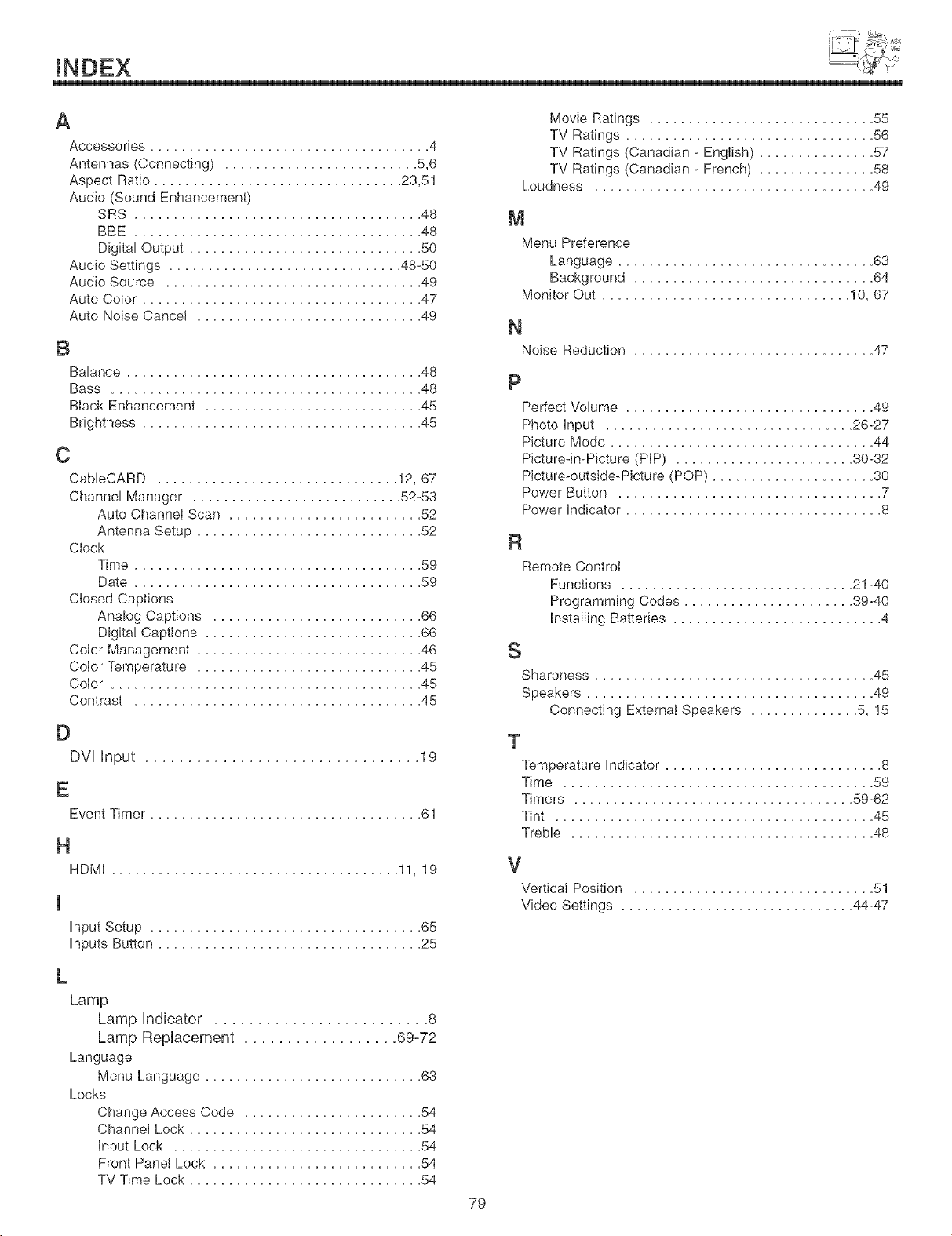
D
DVl input ................................ 19
E
Event Timer ................................... 61
H
HDMI ..................................... 11, 19
I
input Setup ................................... 65
inputs Button .................................. 25
L
Lamp
Lamp indicator ......................... 8
Lamp Replacement .................. 69°72
Language
Menu Language ............................ 63
Locks
Change Access Code ....................... 54
Channel Lock .............................. 54
input Lock ................................ 54
Front Panel Lock ........................... 54
TV Time Lock .............................. 54
Movie Ratings ............................. 55
TV Ratings ................................ 56
TV Ratings (Canadian - English) ............... 57
TV Ratings (Canadian - French) ............... 58
Loudness .................................... 49
N
Noise Reduction ............................... 47
P
Perfect Volume ................................ 49
Photo input ................................ 26-27
Picture Mode .................................. 44
Picture-in-Picture (PIP) ....................... 30-32
Picture-outside-Picture (POP) ..................... 30
Power Button .................................. 7
Power indicator ................................. 8
R
Remote Control
Functions .............................. 21-40
Programming Codes ...................... 39-40
installing Batteries ........................... 4
S
Sharpness .................................... 45
Speakers ..................................... 49
ConneGing External Speakers .............. 5, 15
V
Vertical Position ............................... 51
Video Settings .............................. 44-47
79
END USER LICENSE AGREEMENT FOR HiTACHi DTV SOFTWARE
IMPORTANT = READ CAREFULLY: This License Agreement is a legal agreement between you and Hitachi America,
Ltd,, Home Electronics Division ("HAL-HED"), By using this Hitachi digital television (the "DTV") and its software (the
"Software"), you agree to be bound by the terms of this License Agreement, iF YOU DO NOT AGREE TO BE BOUND
BY THiS LICENSE AGREEMENT, DO NOT USE THiS DTV AND iTS SOFTWARE,
The Software is protected by copyright laws and international copyright treaties, as well as other intellectual property
laws and treaties, The Software is licensed, not sold,
1. LICENSE GRANT. Subject to all of the terms, conditions and restrictions of this License Agreement, HAL-HED grants
to you a limited, revocable, non-exclusive right to use one copy of the Software only on one Hitachi labeled DTV owned
by you,
2. RIGHTS AND LIMITATIONS, Software Not for Resale, You may not resell or otherwise transfer for value the
Software, except that you may transfer the Software as part of a resale of the entire DTV product only,
Prohibition on Reverse Engineering, Decompilation, Disassembly and/or Modification, You may not reverse engineer,
decompile, disassemble or modify the Software,
Separation of Components, The Software is licensed as single product, its component parts may not be separated for
use on more than one DTV,
No Transfers, You may not transfer, assign, rent, lease, lend or in any way sublicense the Software,
Trademarks, This License Agreement does not grant you any rights to any trademarks,
Third Parts/Software, You shall not use the Software in combination with any third party software,
3. VIOLATIONS; INDEMNITY. You understand that any use, copying or transfer of the Software, except as permitted
pursuant to this License Agreement, constitutes a violation of legal rights and may subject you to damages and an
award to HAL-HED of attorneys' fees in connection with any violation of this License, You further understand that you
may be held legally responsible for any copyright infringement or other violation of intellectual property rights that is
caused or encouraged by your failure to abide by the terms of this License Agreement, You agree to defend, indemnify
and hold HAL-HED and its parent and affiliate companies harmless from and against any and all liability resulting from
any breach by you of this License Agreement and/or any use by you of the Software in combination with third party soft-
ware,
4. COPYRIGHT. All title and intellectual property rights in and to the Software (including but not limited to any images,
photographs, animation, video, audio, music, text, and "applets" incorporated into the Software), and any accompanying
printed materials are owned by HAL-HED, All title and intellectual property rights in and to the content which may be
accessed through use of the Software is the property of the respective content owner and may be protected by applica-
ble copyright or other intellectual property laws and treaties, This License Agreement grants you no rights to use such
content, All rights not expressly granted are reserved by HAL-HED, This provision applies to U,S, Government end-
users, who are granted only those rights expressly set forth herein,
5. EXPORT RESTRICTIONS, HAL-HED is licensing the Software for use within the United States only, You agree that
you will not export or re-export the Software, You specifically agree not to export or re-export the Software: (i) to any
country to which the U,S, has embargoed or restricted the export of goods or services, which currently include, but are
not necessarily limited to Cuba, Iran, Iraq, Libya, North Korea, Sudan, and Syria, or to any national of any such country,
wherever located, who intends to transmit or transport the Software back to such country; (ii) to any person or entity who
you know or have reason to know will utilize the Software in the design, development, or production of nuclear, chemi-
cal, or biological wepons; or (iii) to any person or entity who has been prohibited from participating in U,S, export trans-
actions by any federal agency of the U,S, government, You warrant and represent that neither the Bureau of Export
Administration (BXA) nor any other U,S Federal Agency has suspended, revoked, or denied your export privileges,
6. NO WARRANTIES, THE SOFTWARE iS PROVIDED "AS-IS, WHERE-IS," HAL-HED MAKES NO WARRANTIES
OF ANY KiND WHATSOEVER REGARDING THE SOFTWARE AND, TO THE MAXIMUM EXTENT PERMITTED BY
LAW, HEREBY EXPRESSLY DiSCLAiMS ALL WARRANTIES OF ANY KiND WHATSOEVER, EXPRESS OR iMPLiED,
WiTH RESPECT TO THE SOFTWARE, ALL iMPLiED WARRANTIES, iNCLUDiNG WITHOUT LiMiTATiON, THE
iMPLiED WARRANTIES OF NON-INFRINGEMENT, MERCHANTABiLiTY AND FITNESS FOR A PARTICULAR PUR-
POSE ARE HEREBY EXPRESSLY DiSCLAiMED TO THE MAXIMUM EXTENT PERMITTED BY LAW,
8O
END USER LICENSE AGREEMENT FOR HiTACHi DTV SOFTWARE
7. LIMITATION OF LIABILITY. UNNO EVENT SHALL HAL-HED OR ANY OF UTSPARENT OR AFFUUATE COMPA-
NES BE UABLE TO YOU OR ANY THURD PARTY FOR ANY DIRECT, INDIRECT, INCIDENTAL, SPECUAL, EXEM-
PLARY, OR CONSEQUENTUAL DAMAGES dNCLUDUNG, BUT NOT UMFED TO, PROCUREMENT OF SUBSTFUTE
GOODS OR SERVUCES; LOSS OF USE, DATA, OR PROFFS; LOSS OF GOODWULL, EXPENDUTURES MADE OR
COMMUTTED FOR UNREUANCE ON THE CONTINUATION OF THUS UCENSE AGREEMENT OR BUSUNESS UNTER-
RUPTUON) HOWEVER CAUSED AND ON ANY THEORY OF UABUUTY, WHETHER UNCONTRACT, STRUCT UABULF
TY, OR TORT dNCLUDUNG NEGUGENCE OR OTHERWUSE) ARUSUNGUNANY WAY OUT OF THE USE OF THE
SOFTWARE, EVEN UFADVUSED OF THE POSSUBUUTY OF SUCH DAMAGE.
8. NO FAILURE OF ESSENTIAL PURPOSE, YOU AGREE THAT NO FAULURE TO REPAIR A DEFECT, ERROR OR
BUG IN THE SOFTWARE SHALL CONSTITUTE A FAILURE OF THE ESSENTIAL PURPOSE OF THIS LICENSE
AGREEMENT,
9. CRYPTOGRAPNIC SOFTWARE, THIS PRODUCT CONTAINS SOFTWARE DEVELOPED BY THE OpenSSL PRO-
JECT INCLUDING CRYPTOGRAPHIC SOFTWARE WRITTEN BY ERIC YOUNG (THE "CRYPTOGRAPHIC SOFT-
WARE"). THE CRYPTOGRAPHIC SOFTWARE IS PROVIDED BY THE OpenSSL PROJECT "AS IS" AND ANY
EXPRESSED OR IMPLIED WARRANTES, INCLUDING BUT NOT LIMITED TO, THE IMPLIED WARRANTIES OF
MERCHANTABILITY AND FITNESS FOR A PARTICULAR PURPOSE ARE HEREBY EXPRESSLY DISCLAIMED TO
THE MAXIMUM EXTENT PERMITTED BY LAW. IN NO EVENT SHALL THE OpenSSL PROJECT, ITS CONTRIBU-
TORS, HAL-HED OR ANY OF ITS PARENT OR AFFILIATE COMPANIES BE LIABLE FOR ANY DIRECT, INDIRECT,
INCIDENTAL, SPECIAL, EXEMPLARY, OR CONSEQUENTIAL DAMAGES (INCLUDING, BUT NOT LIMITED TO, PRO-
CUREMENT OF SUBSTITUTE GOODS OR SERVICES; LOSS OF USE, DATA, OR PROFITS; OR BUSINESS INTER-
RUPTION) HOWEVER CAUSED AND ON ANY THEORY OF LIABILITY, WHETHER IN CONTRACT, STRICT LIABILF
TY, OR TORT (INCLUDING NEGLIGENCE OR OTHERWISE) ARISING IN ANY WAY OUT OF THE USE OF THE
SOFTWARE OR THE CRYPTOGRAPHIC SOFTWARE, EVEN IF ADVISED OF THE POSSIBILITY OF SUCH DAM-
AGE.
10. TERMINATION. This License Agreement may be terminated at any time by HAL-HED effective immediately upon
notice to you.
11. GOVERNING LAW; SEVERABILITY. This Agreement shall be governed and construed in accordance with the laws
of the State of California, without regard to its conflict of laws rules, and any disputes hereunder shall be subject to the
exclusive jurisdiction and venue of the U.S. Federal Courts in the Southern District of California. If any part of this
License Agreement is unenforceable, the remainder shall be valid and binding to the maximum extent permitted by appli-
cable law.
81

82

83

HITACHI
QR60543