User manual

Contents
Getting started
Device Layout:Galaxy Buds2 Pro
Set up your device| Start using your device
Galaxy Wearable app
Battery level | Noise controls | Voice detect | Touch controls | 360 audio | Earbuds
settings| Find my earbuds| Tips and user manual
Learn More
Videos | Tips | Samsung Care | Talk to an agent
Legal information
Restricting children’s access to your mobile device
2
WEA_R510_EN_UM_VG5_081722_FINAL
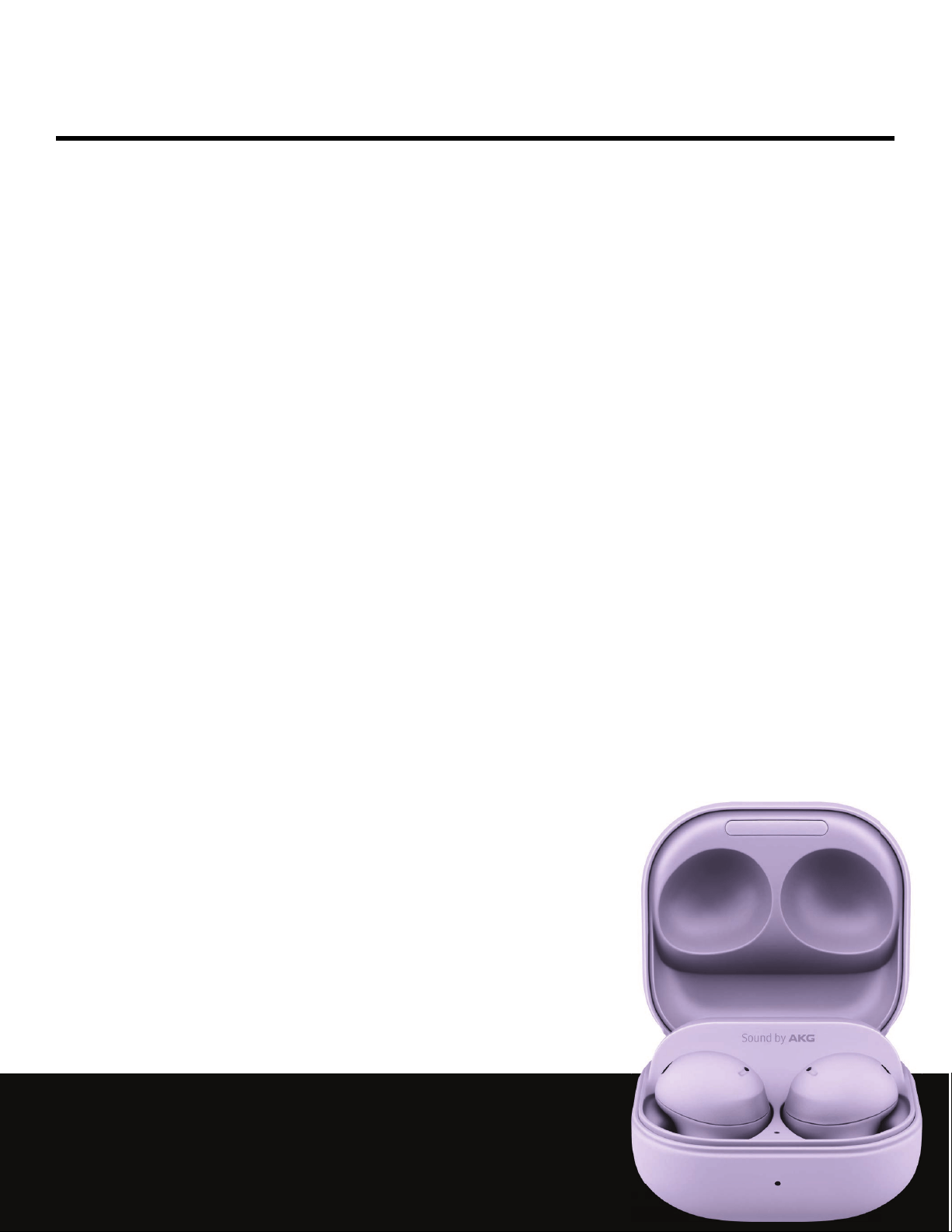
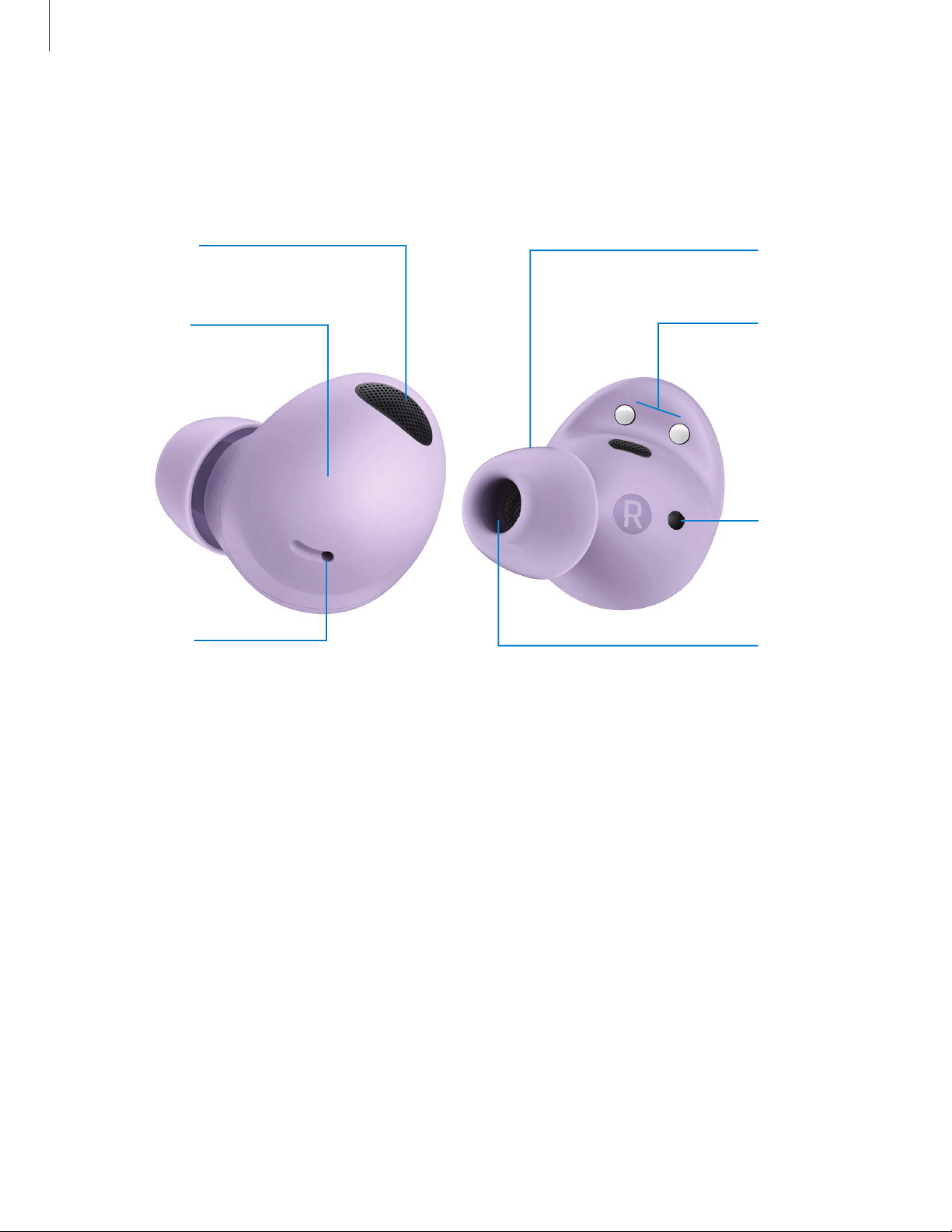
Galaxy Buds2 Pro
Charging
contacts
Touch pad
Touch-
sensitive
sensor
Microphone
Ear tip
Microphone
Speaker
Getting started
4
Devices and software are constantly evolving — the illustrations you see here are for reference only.
Set up your device
Learn more about your device hardware, assembling and charging, and how to get
started using your new device.
Charge the battery| Maintaining water and dust resistance | Check the charge status|
Wireless power sharing| Attach the ear tip| Wear the earbuds| Coupling earbuds
Charge the battery
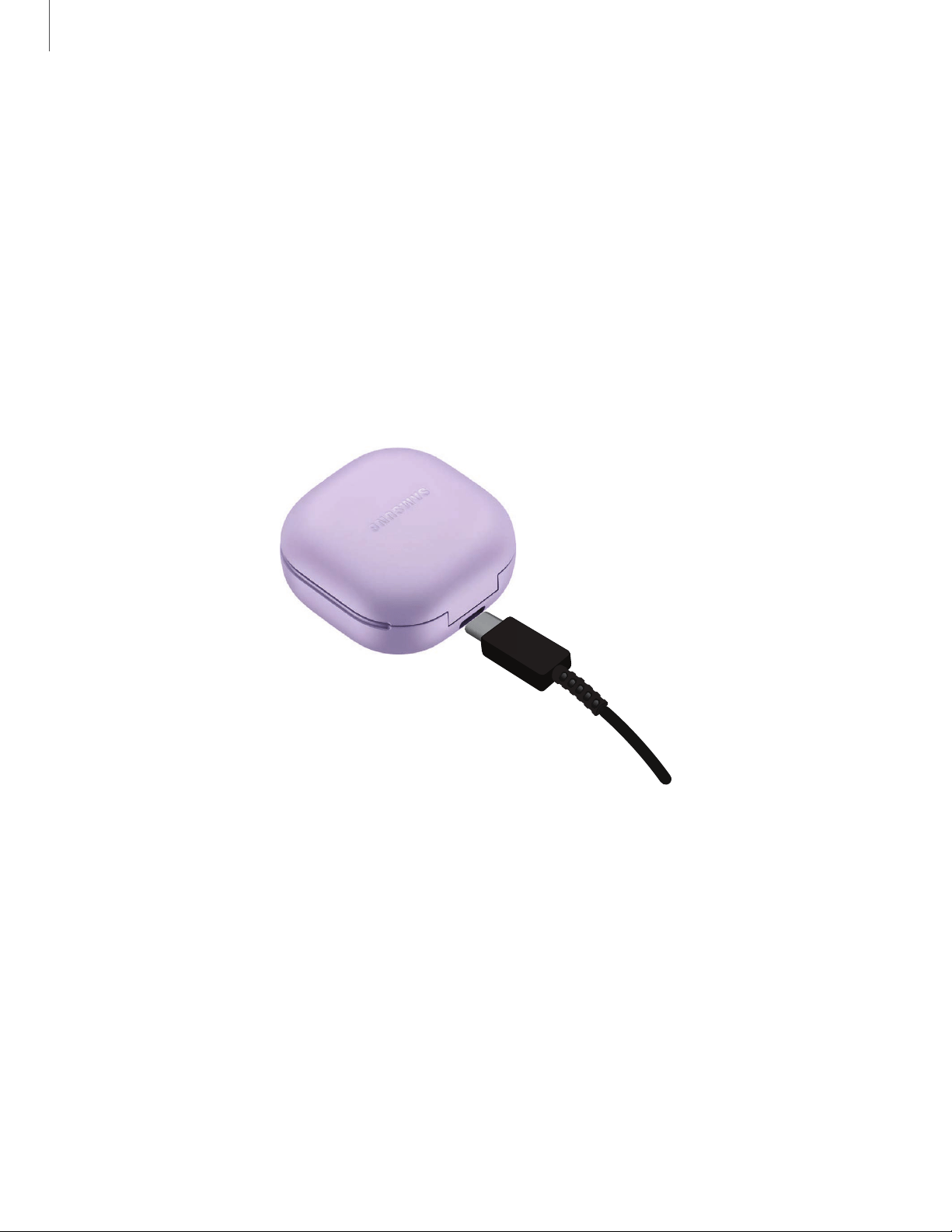
Your device case is also the charger.
1. Place the earbuds into the charging case. For best results, do not insert
earbuds in the charging case if they are wet or dirty.
2. Close the charging case, and either connect the USBcable as shown, or place
the charging case on a wireless charger. The earbuds and charging case are
charged simultaneously.
Getting started
5
Devices and software are constantly evolving — the illustrations you see here are for reference only.

CAUTIONThe charging head for plugging the USB cable into a wall outlet is not
included. Use only Samsung charging devices rated with an output voltage of 5v
and an output current of over 150mA (sold separately). Samsung accessories are
designed for your device to maximize battery life. Using other accessories may
cause damage, and damage may not be covered by warranty.
While charging, the device and the charger may become hot. This does not affect the
device’s lifespan or performance and is in the device’s normal range of operation.
Remove the device from the charger and wait for the device to cool down. For more
information, visit https://www.samsung.com/us/support/answer/ANS00076952.
NOTEDo not disassemble, modify, or repair your device. Placing objects, such as
magnetic stripe cards, including credit cards, phone cards, passbooks, and
boarding passes, next to the device or charger may cause damage from the
charger or device’s magnetic field.
Maintaining water and dust resistance
CAUTIONTo avoid electric shock and damage to your device, do not charge
device while it is wet or in an area where it could get wet. Do not handle device,
charger or cords with wet hands while charging.
The device is not impervious to dust and water damage in any situation. It is important
that all compartments are closed tightly.
Follow these tips carefully to prevent damage to the device and maintain dust and
water resistance performance:
Water resistant based on IPX7 rating, which means submersion in up to 1 meter of
fresh water for up to 30 minutes based on international standard ISO 60529. Not
advised for beach or pool use. Charging case is not water resistant. If the earbuds are
damaged, they are not guaranteed to be water resistant. If the earbuds or your
hands are wet, they must be dried thoroughly prior to handling.
6
Getting started

Follow these tips carefully to prevent damage to the device.
Whenever your device gets wet, dry it thoroughly with a clean, soft cloth. Failure to
rinse the device in fresh water and dry it as instructed may cause the device to
suffer from operability or cosmetic issues.
Do not expose the device to water at high pressure.
If the device is dropped or receives an impact, the water and dust resistant features
of the device may be damaged.
7
Getting started
Check the charge status
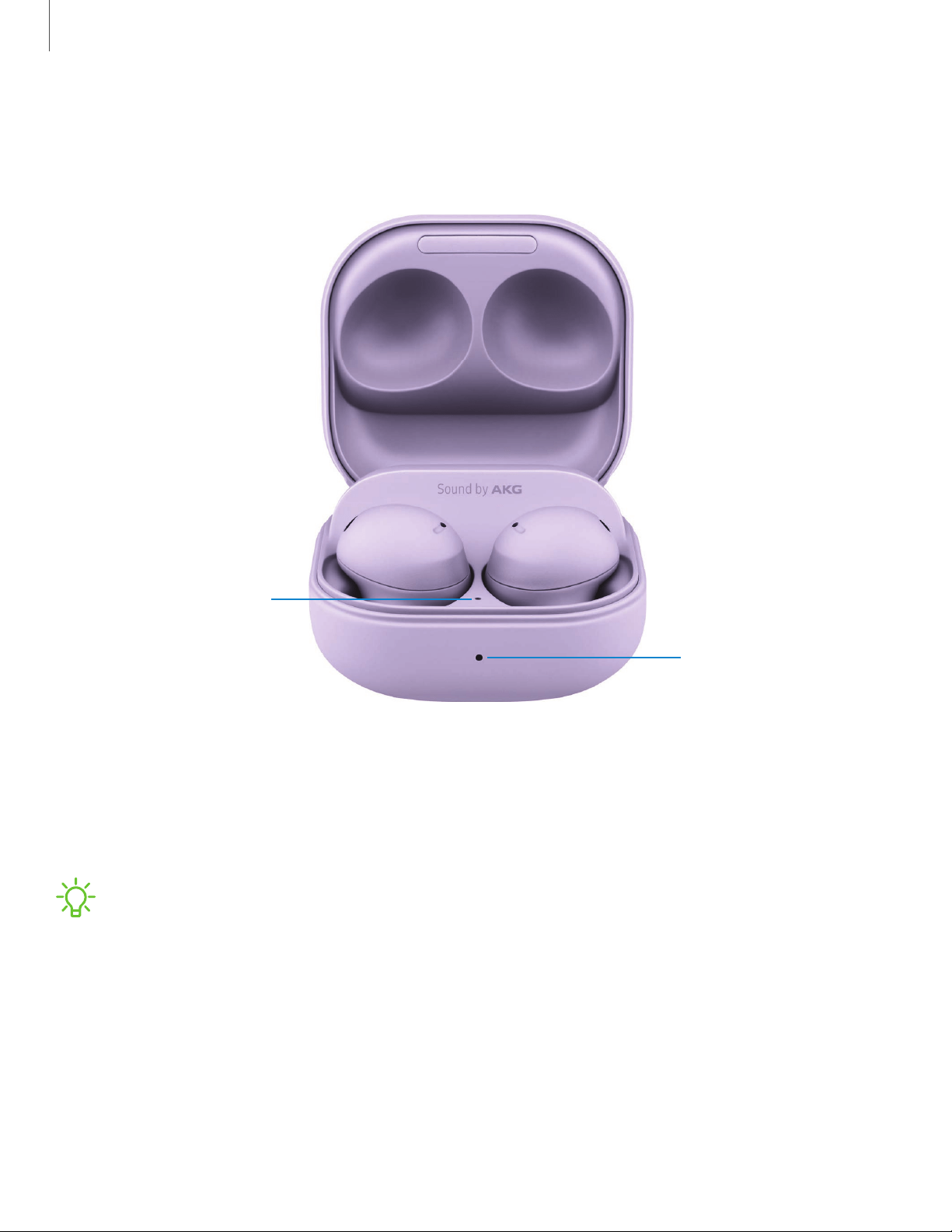
When you connect the earbuds and the charger case the LED indicators flash certain
colors to indicate the battery level.
Charging case
battery indicator
Earbud battery
i
ndicator
l
Green: Fully charged.
l
Red: Charging.
l
Flashing Red: Charging error. Reconnect the case and earbuds. If the error occurs
again, contact a Samsung Service Center for service support.
NOTE You can check the battery level for the case and earbuds in the Galaxy
Wearable app. For more information, see Battery level.
Getting started
8
Devices and software are constantly evolving — the illustrations you see here are for reference only.
Wireless power sharing
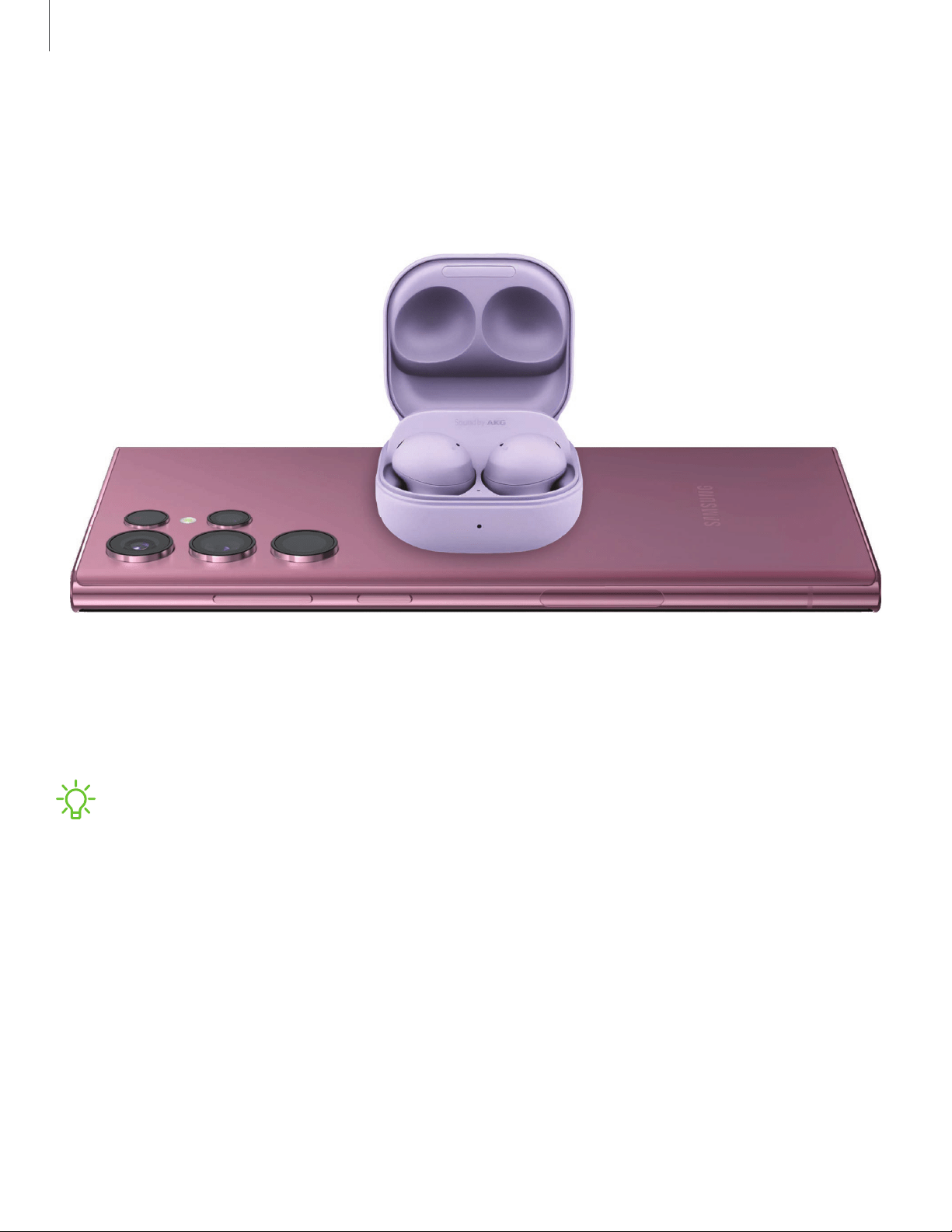
Wirelessly charge your device using a supported Samsung smartphone. Some
features are not available while sharing power.
1. From your phone, enable the Wireless power sharing feature.
2. With the phone face down, place the compatible device on the back of the
phone to charge. A notification sound or vibration occurs when charging begins.
NOTEWireless power sharing works with most Qi-Certified devices. Requires
minimum 30% battery to share. Speed and power efficiency of charge varies by
device. May not work with some accessories, covers, or other manufacturer’s
devices. If you have trouble connecting or charging is slow, remove any cover
from each device.
Getting started
9
Devices and software are constantly evolving — the illustrations you see here are for reference only.

For best results when using Wireless power sharing, please note:
•
Remove any accessories or cover before using the feature. Depending on the
type of accessory or cover, Wireless power sharing may not work properly.
•
The location of the wireless charging coil may vary by device, so you may need
to adjust the placement to make a connection. When charging starts, a
notification or vibration will occur, so the notification will help you know you've
made a connection. During charging, do not move or use either device.
•
Call reception or data services may be affected, depending on your network
environment.
•
Charging speed or efficiency can vary depending on device condition or
surrounding environment.
•
Do not use headphones.
10
Getting started
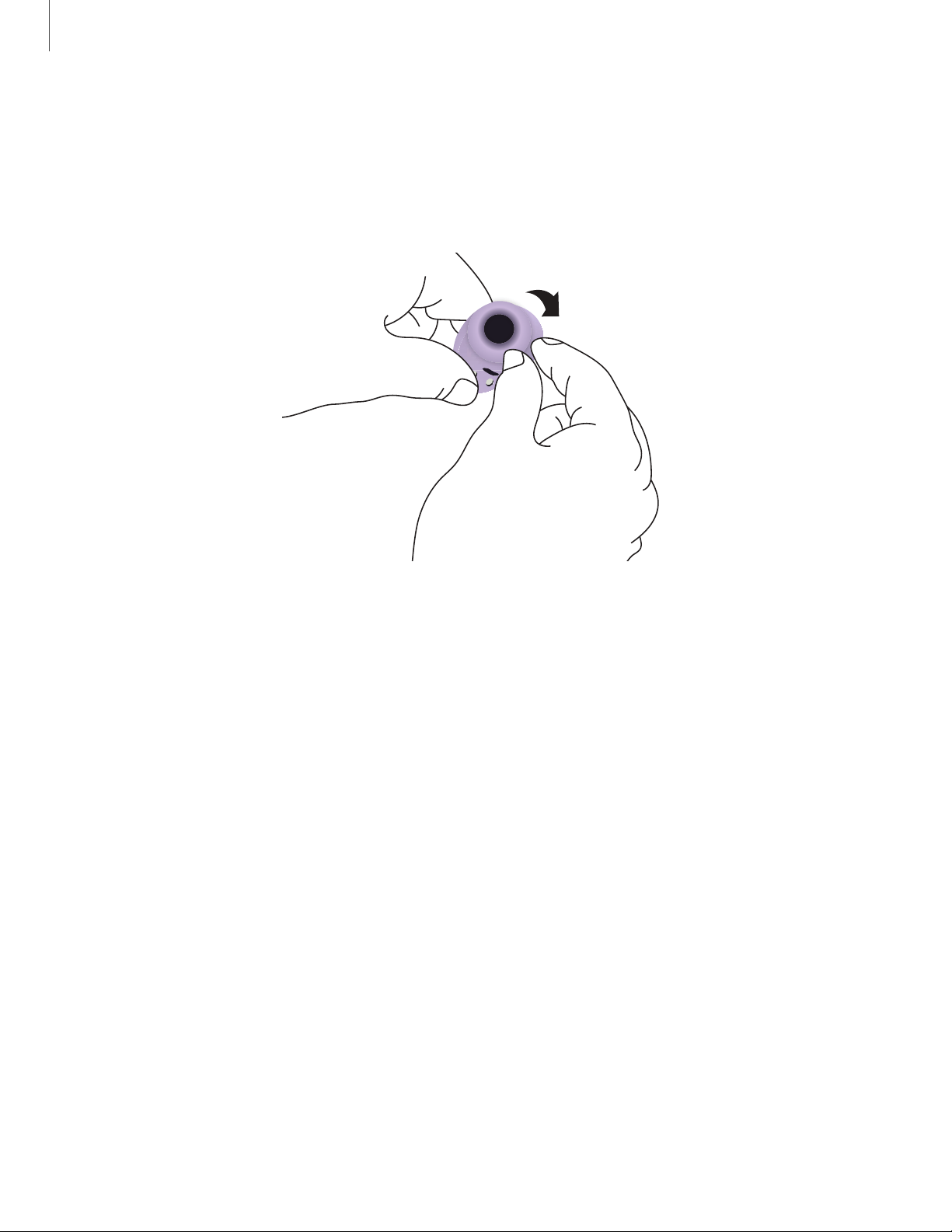
Attach the ear tip
Before wearing the earbuds, be sure to attach the ear tips. Wearing the earbuds
without ear tips may hurt your ears.
1. Select the ear tip size that best fits your ear.
2. Hook the ear tip's groove to the earbud's fixation hook on one side and gently pull
the ear tip to cover the earbud. Do not pull the ear tip excessively when you
attach or detach it because it may tear.
3. Follow the same procedure for the other earbud.
Getting started
11
Devices and software are constantly evolving — the illustrations you see here are for reference only.
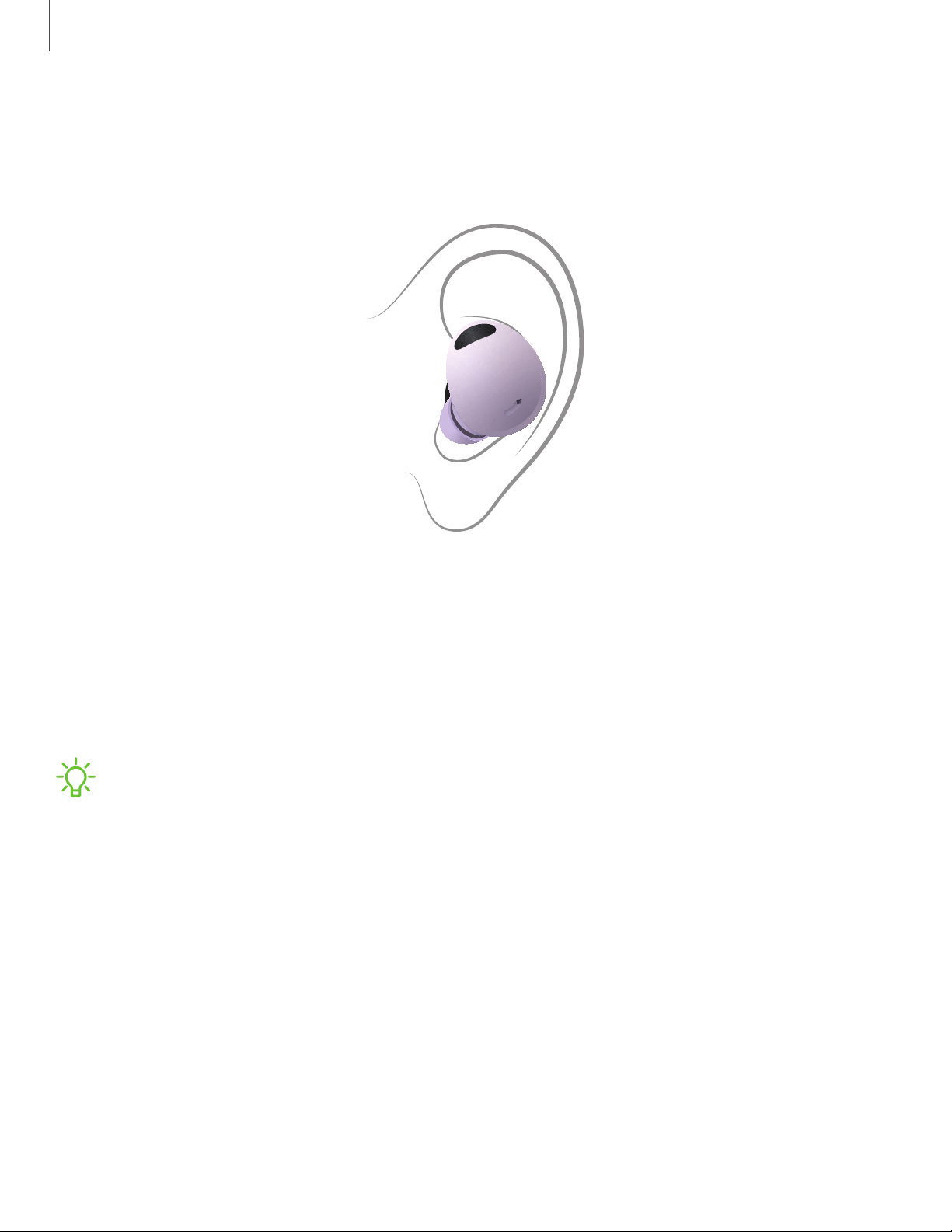
Wear the earbuds
Place the earbuds in your ears correctly for a comfortable fit.
1. Check the direction of each earbud and insert them into your ears by holding
them so that you see the imprinted direction marks. Adjust the earbuds until they
fit comfortably in your ears.
2. The touch-sensitive sensor will detect that you are wearing the earbuds and
emit a sound
NOTE You can optimize your earbud fit in the Galaxy Wearable app. For more
information, see Earbud fit test.
Coupling earbuds
Should you lose one of the earbuds, you can buy a replacement and couple the old
and new earbuds together.
1. Insert the earbuds into the charging case. The earbud battery indicator light will
flash red to indicate that the earbuds are not coupled.
2. Tap and hold the touch pad on both earbuds for seven seconds or more. When
the earbud battery indicator light flashes green and then turns off, the earbuds
are coupled and ready for use.
Getting started
12
Devices and software are constantly evolving — the illustrations you see here are for reference only.
Start using your device
Connect the earbuds to your phone | Use Touch controls | Music features | Call features
Connect the earbuds to your phone
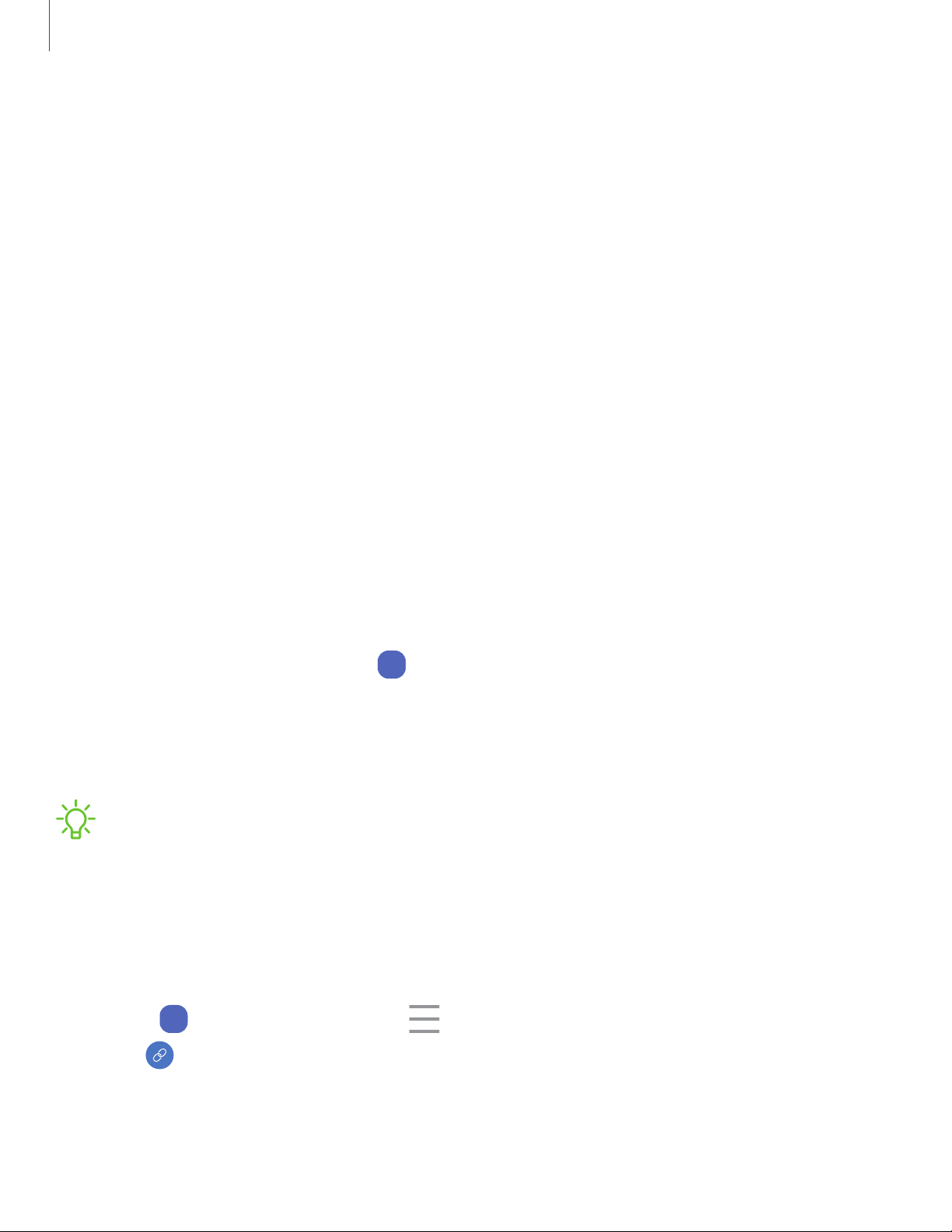
To connect your earbuds to a smartphone, install the Galaxy Wearable app on the
smartphone. You can download the app from the GalaxyStore or the Google Play
™
store.
Galaxy Wearable is compatible with select devices using Android 8.0 and later with at
least 1.5 GB RAM. Supported devices may vary by carrier and device. Some features
may not be available. For best results, connect with compatible Samsung Galaxy
devices. Visit samsung.com/us/support/owners/app/galaxy-wearable-watch for a
list of compatible smartphones.
1. Open the charging case to enter Bluetooth pairing mode.
•
You can also enter Bluetooth pairing mode while wearing the earbuds by
press and holding the left and right touch pads on the earbuds at the same
time for more than three seconds.
2.
From your smartphone, tap
Wear
Galaxy Wearable. If necessary, update the app to
the latest version.
3. Tap Start and select your device.
4. Follow the prompts to complete the connection.
NOTE When connecting earbuds with a mobile device that has a Samsung
account, the earbud pairing information will be synced to other devices that use
the same Samsung account.
Disconnect
To disconnect the earbuds from your phone:
1.
From
Wear
Galaxy Wearable, tap Menu.
2.
Tap Disconnect by the name of your earbuds.
13
Getting started
Use Touch controls
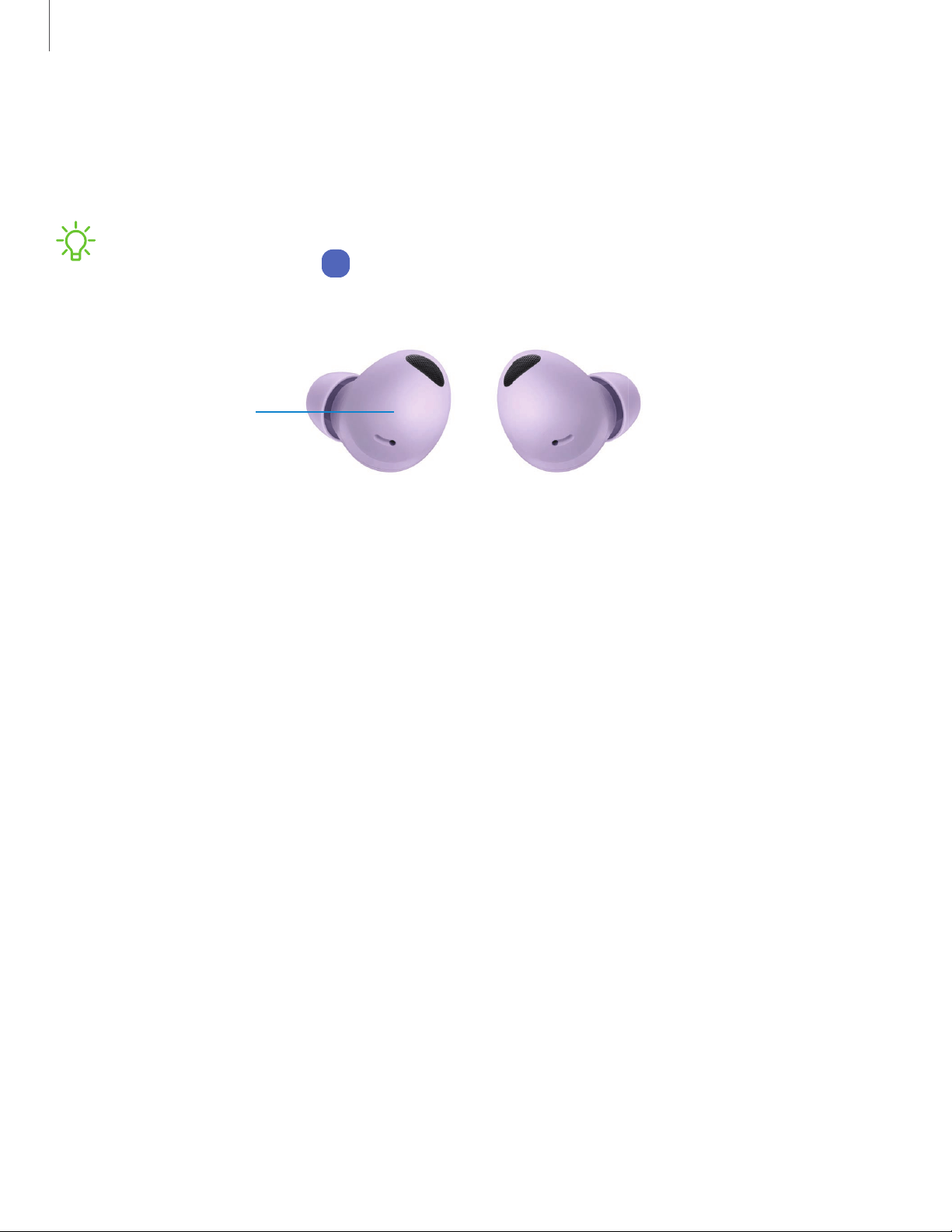
Use the touch pads on the earbuds to control your music, phone calls, and other useful
shortcuts without getting out your phone.
NOTE The touch actions are set to single tap and tap and hold by default. To use
all touch actions, from
Wear
Galaxy Wearable, tap Touch controls to activate the
related features.
Touch pad
Single tap
Lightly tap the touch pad one time for the following options:
l
Play a track.
l
Pause a track.
Double tap
Quickly tap the touch pad two times for the following options:
l
Play the next track.
l
Answer or end a call.
Getting started
14
Devices and software are constantly evolving — the illustrations you see here are for reference only.
Triple tap
Quickly tap the touch pad three times for the following options:
l
Play previous track (if done in the first three seconds of a track).
l
Start the current track over at the beginning (if done after the first three seconds of
a track).
Touch and hold
Touch and hold the touch pad for the following options:
l
Activate a custom shortcut. See Touch controls for more information.
l
Decline a call.
Music features
Once connected to your phone, when you play music, videos, or other audio files the
sound will come through your earbuds. You can use the touch pad on the earbuds to
control how the audio is played.
Playback controls
Navigate your playlist using the touch pads on your earbuds.
Single tap Play or pause
Touch and hold Volume controls (Customizable)
Double tap Next song
Triple tap Previous song
15
Getting started
Call features
Answer and control calls using your earbuds.
Phone controls
Manage calls by tapping the touch pad on your earbuds.
Touch and hold Decline call
Double tap Answer or end call
Call waiting
If you receive an incoming call while already on a call, the earbuds will emit a sound.
l
To reject the incoming call and stay on the current call, touch and hold the touch
pad on either earbud.
l
To answer the incoming call and place the current call on hold, double tap the touch
pad on either earbud.
l
To switch between the current call and one placed on hold, double tap the touch
pad on either earbud.
16
Getting started
Battery level
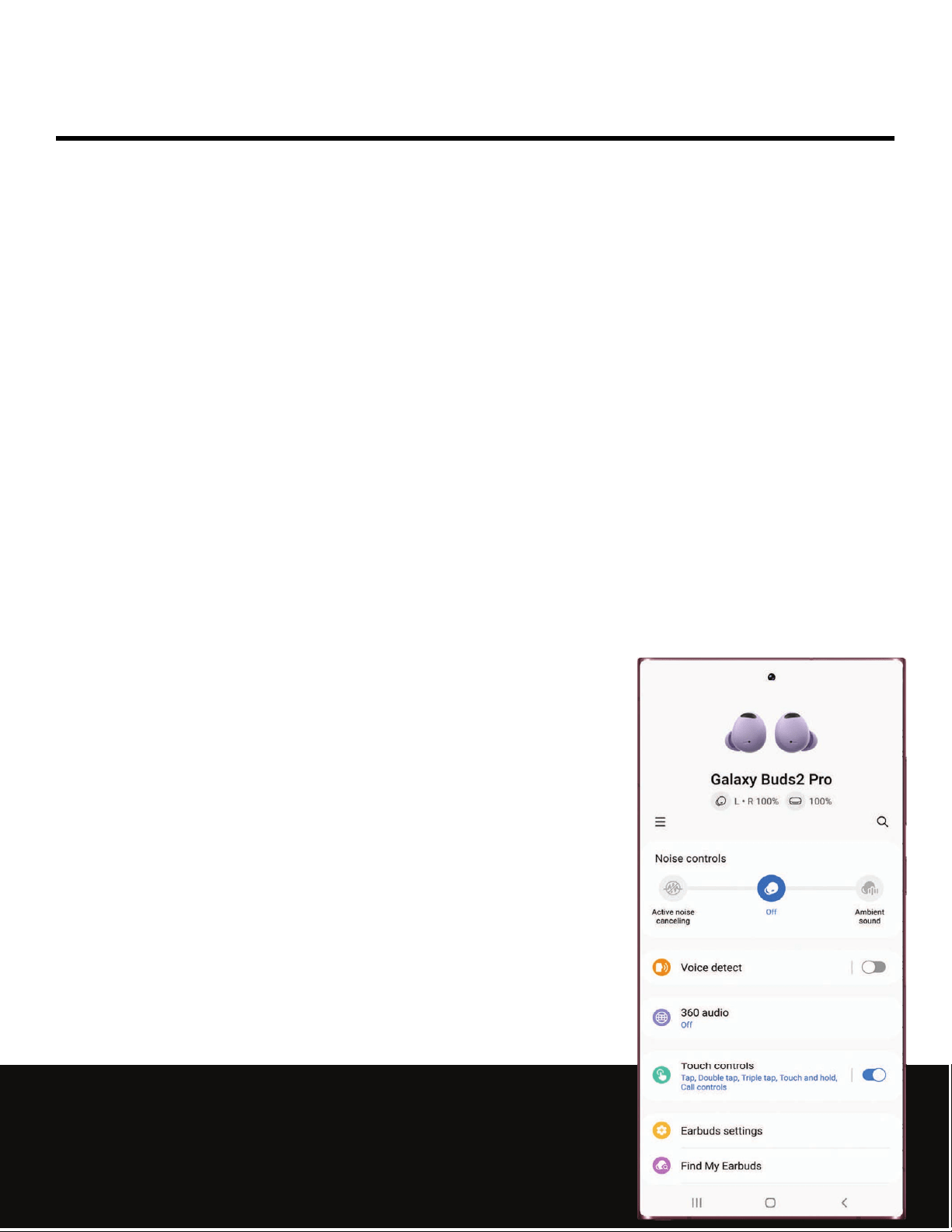
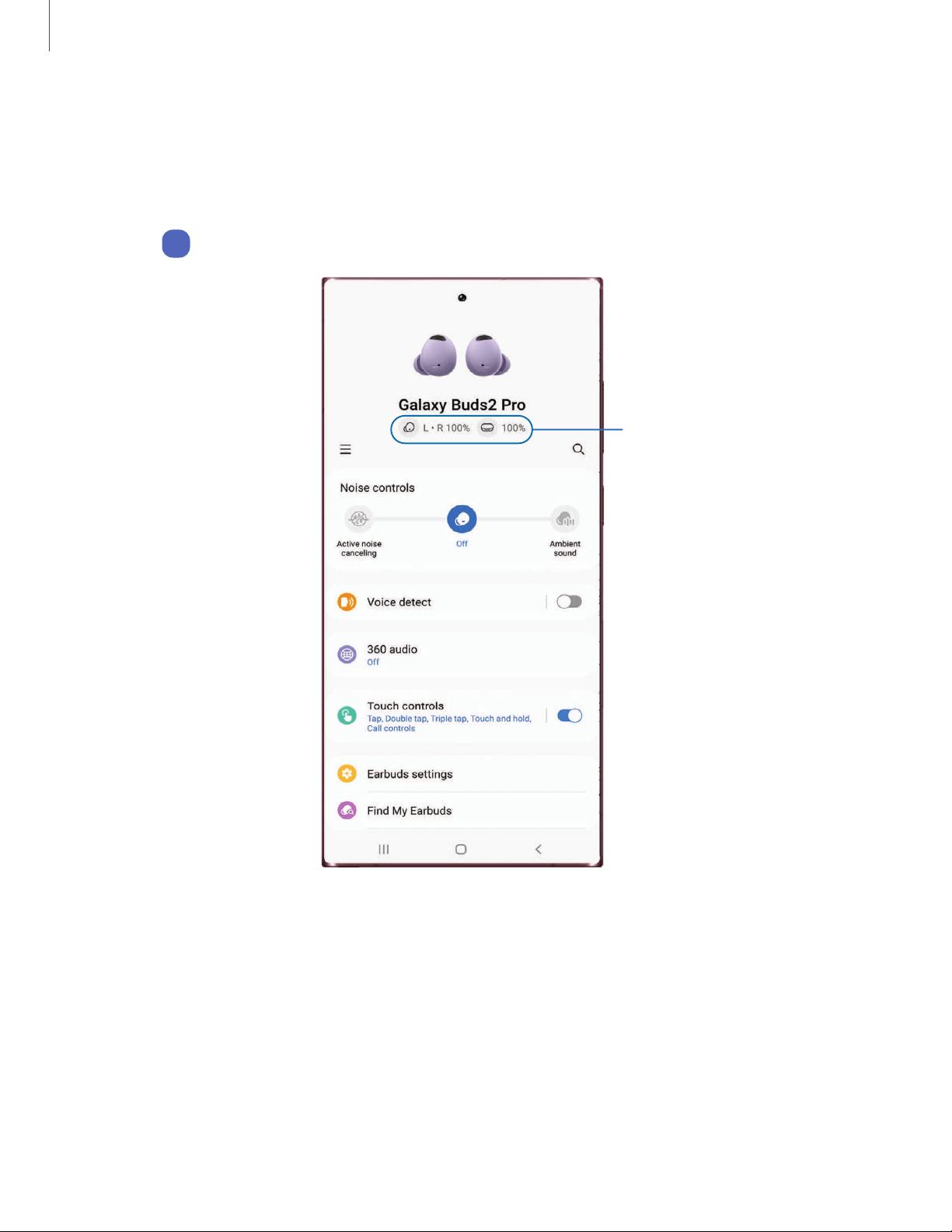
The Galaxy Wearable app displays the battery level for the earbuds at the top of the
screen. When the battery is low a notification will display on your phone.
◌
Open
Wear
Galaxy Wearable to view the battery percentage for the earbuds.
Battery level
Galaxy Wearable app
18
Devices and software are constantly evolving — the illustrations you see here are for reference only.
Noise controls
Use intelligent noise controls to enhance your listening experience. Change your noise
control settings using your Galaxy Wearable app or by tapping your earbuds. For
more information, see Touch controls.
TIPTo avoid feedback when noise controls are activated, make sure the
microphone area of the earbuds are not covered.
Active noise canceling
Quiet unwanted background noise and ambient sounds. This feature is only available
when wearing both earbuds.
◌
From
Wear
Galaxy Wearable, tap Active noise canceling.
Turn off noise controls
Disable all noise canceling and ambient sound features.
◌
From
Wear
Galaxy Wearable, tap Off.
Ambient sound
Control the level of ambient sound while wearing the earbuds.
◌
From
Wear
Galaxy Wearable, tap Ambient sound.
Voice detect
When your voice is detected, automatically turn Ambient sound and lower media
volume to make conversation easier.
1.
From
Wear
Galaxy Wearable, tap Voice detect.
2.
Tap to enable the feature.
19
Galaxy Wearable app

360 audio
Hear vivid, immersive sound coming from all directions so you feel like you are right in
the action when you watch videos or listen to music.
1.
From
Wear
Galaxy Wearable, tap 360 audio.
2.
Tap to enable the feature.
Touch controls
Tap the touch pad on your earbuds to activate different controls. For more
information, see Use Touch controls.
◌
From
Wear
Galaxy Wearable , tap Touch controls and tap an option to enable
the touch control feature.
Customize the touch and hold shortcuts
The left and right earbuds can be assigned different shortcuts.
1.
From
Wear
Galaxy Wearable, tap Touch controls > Touch and hold.
2. Tap an option to set the touch controls for each earbud:
l
Switch noise controls (default): Activate the noise canceling or ambient sound
features. For more information, see Noise controls.
l
Voice command: Say commands to change settings on your earbuds.
l
Volume up or Volume down: The right earbud is volume up, and the left is
volume down. Once one has been set, the other will automatically update to
the volume control option.
20
Galaxy Wearable app
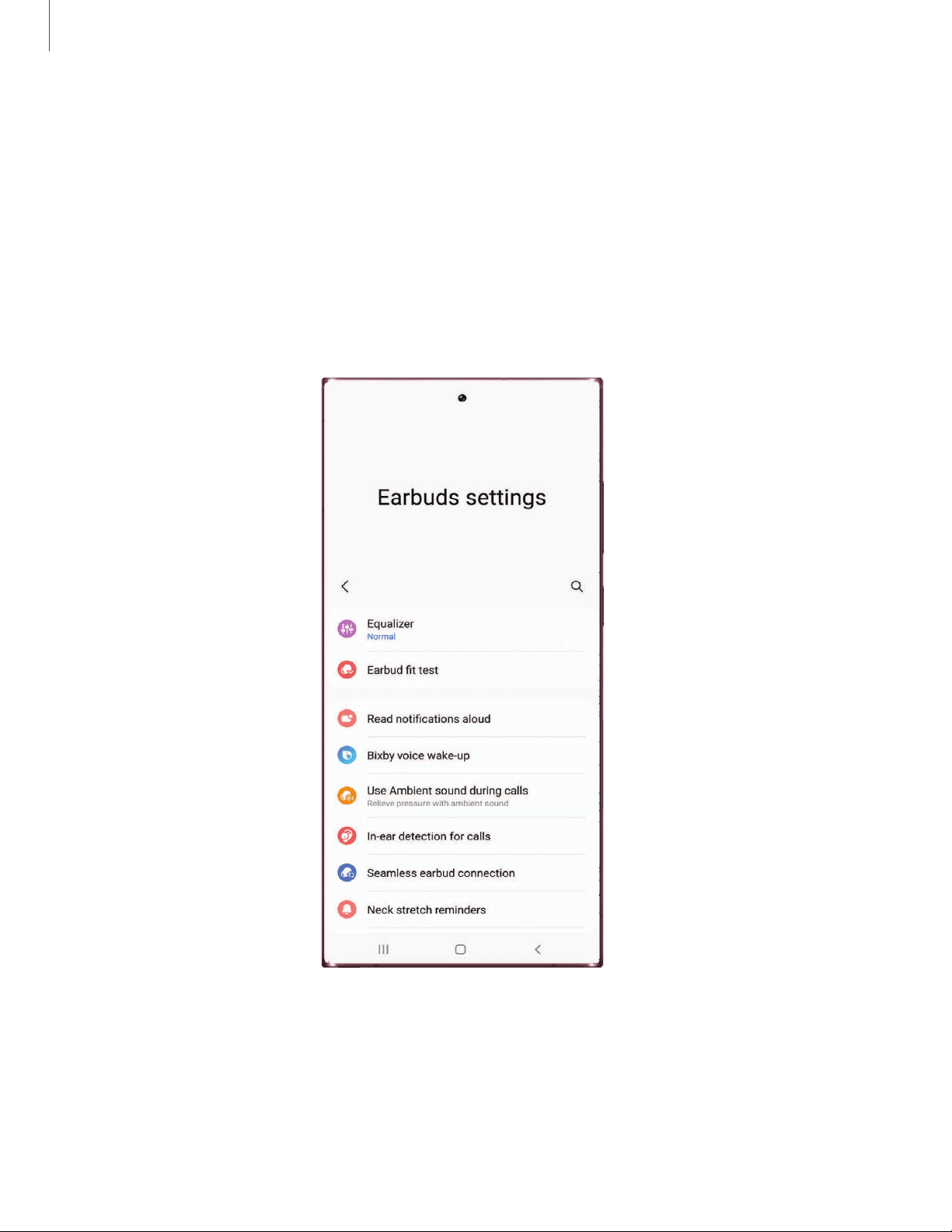
Earbuds settings
Learn more about your device's features and options.
Equalizer| Earbud fit test | Read notifications aloud| Bixby voice wake-up| Use Ambient
sound during calls | In-ear detection for calls | Seamless earbud connection| Neck
stretch reminders | Labs| Reset| Accessibility| Earbuds software update| About
earbuds
Galaxy Wearable app
21
Devices and software are constantly evolving — the illustrations you see here are for reference only.
Equalizer
Select from six different equalizer presets for a unique sound.
1.
From
Wear
Galaxy Wearable, tap Earbuds settings > Equalizer.
2. Select an available option to change the sound settings.
Earbud fit test
Check your earbud fit to make sure you are getting the best sound and active noise
canceling.
1.
From
Wear
Galaxy Wearable, tap Earbuds settings > Earbud fit test.
2. Tap Start to begin and follow the prompts.
Read notifications aloud
Have text notifications from your phone read aloud on your earbuds.
1.
From
Wear
Galaxy Wearable, tap Earbuds settings > Read notifications aloud.
2.
Tap to enable the feature.
l
To hear notifications from your phone on your earbuds, even while using your
phone, tap Read aloud while using phone.
l
To choose which app notifications are read aloud, tap an app in the list.
Bixby voice wake-up
Activate Bixby by saying "Hi Bixby" while wearing your earbuds. Not all Bixby functions
are available. This option is available only when connected to a Samsung phone that
is Bixby-enabled.
1.
From
Wear
Galaxy Wearable, tap Earbuds settings > Bixby voice wake-up.
2.
Tap to enable the feature.
3. Tap Speak seamlessly so that after Voice wake-up you can say the command
you want right away without waiting for sound feedback.
22
Galaxy Wearable app
Use Ambient sound during calls
Hear your own voice clearly when you're on the phone. This makes long calls more
comfortable and helps you avoid unintentionally raising your voice.
1.
From
Wear
Galaxy Wearable, tap Earbuds settings > Use Ambient sound
during calls.
2.
Tap to enable the feature.
In-ear detection for calls
Play calls through your earbuds when they are in your ears and through your phone
when they are not. Turn this off to play calls through your earbuds even when they
are not in your ears.
1.
From
Wear
Galaxy Wearable, tap Earbuds settings > In-ear detection for
calls.
2.
Tap to enable the feature.
Seamless earbud connection
Switch quickly to nearby devices without disconnecting your earbuds or turning on
pairing mode. This works with any nearby device that's signed in to your Samsung
account, even if it has never paired with your earbuds before.
1.
From
Wear
Galaxy Wearable, tap Earbuds settings > Seamless earbud
connection.
2.
Tap to enable the feature.
Neck stretch reminders
Your earbuds can detect your head position and notify you when you have bent your
head down for ten minutes.
1.
From
Wear
Galaxy Wearable, tap Earbuds settings > Neck stretch reminders.
2.
Tap to enable the feature, and follow the prompts to calibrate your
earbuds.
TIP Tap How to stretch your neck to learn more.
23
Galaxy Wearable app
Labs
Explore the earbud's experimental features.
Double tap earbud edge
Double tap the edge of the left earbud to turn the volume down, or the edge of the
right earbud to turn the volume up.
1.
From
Wear
Galaxy Wearable, tap Earbuds settings > Labs.
2.
Tap Double tap earbud edge, then tap to enable the feature.
Gaming mode
Minimize the audio delay for vivid, synchronized gaming sound. For the best
experience, keep your earbuds near your phone. This feature is only available when
connecting with a Samsung mobile device.
1.
From
Wear
Galaxy Wearable, tap Earbuds settings > Labs.
2.
Tap Gaming mode, then tap to enable the feature.
Reset
Reset settings to their factory default values and delete all data.
1.
From
Wear
Galaxy Wearable, tap Earbuds settings > Reset.
2. Tap Reset again to confirm and start the reset.
24
Galaxy Wearable app
Accessibility
Customize the sound accessibility features of your device.
1.
From
Wear
Galaxy Wearable, tap Earbuds settings > Accessibility.
2. Tap an option to customize:
l
Drag the slider to customize the right and left sound balance.
l
Noise controls with one earbud: Use noise controls like ambient sound and
noise cancelling when only wearing one earbud.
l
Customize sound: Adjust the ambient sound volume and tone.
Earbuds software update
Update your earbud's software for the latest features.
◌
From
Wear
Galaxy Wearable, tap Earbuds settings > Earbuds software
update.
•
Download and install: Check for software updates for your earbuds.
•
Auto update: Choose to automatically update software never, using Wi-Fi, or
using Wi-Fi and mobile data when the earbuds are in the case.
About earbuds
View information about the earbuds.
◌
From
Wear
Galaxy Wearable, tap Earbuds settings > About earbuds for the
following information:
•
Device name, model, and serial number
•
Legal information
•
Software information
•
Battery information
25
Galaxy Wearable app

Find my earbuds
If you misplace your earbuds, your phone can help you find it using Samsung
SmartThings.
1.
From
Wear
Galaxy Wearable, tap Find my earbuds.
2. Tap Ring > Start. The earbuds will start beeping.
3. Tap Stop once you have located your earbuds.
Tips and user manual
Learn useful tips to get the most out of your device, and view the user manual.
◌
From
Wear
Galaxy Wearable, tap Tips and user manual.
•
Swipe right and left to view useful tips.
•
Tap More options > User manual to view the manual.
26
Galaxy Wearable app

Legal information
READ THIS INFORMATION BEFORE USING YOUR MOBILE DEVICE.
Arbitration Agreement - This Product is subject to a binding arbitration agreement
between you and SAMSUNG ELECTRONICS AMERICA, INC. (“Samsung”). You can opt out of
the agreement within 30 calendar days of the first consumer purchase by emailing
[email protected] or calling 1-800-SAMSUNG (726-7864) and providing the
applicable information.
The full Arbitration Agreement, Standard One-year Limited Warranty, End User License
Agreement (EULA), and Health & Safety Information for your device are available
online at https://www.samsung.com/us/Legal/Gear-HSGuide.
Restricting children’s access to your
mobile device
Your device is not a toy. Do not allow children to play with it because they could hurt
themselves and others, or damage the device, or make calls that increase your
device bill. Keep the device and all its parts and accessories out of the reach of small
children.
Samsung Electronics America, Inc.
Address:
85 Challenger Road
Ridgefield Park
New Jersey 07660
Phone: 1-800-SAMSUNG (726-7864)
Internet: samsung.com
28

©2022 Samsung Electronics America, Inc. Samsung, Samsung Galaxy, and Samsung
Health are all trademarks of Samsung Electronics Co., Ltd.
Other marks are the property of their respective owners.
Some multimedia (audio/video) files contain Digital Rights Management (DRM)
technology to verify you have the right to use the files. Preloaded apps on your
device may not be compatible with DRM-protected files.
Screen images are simulated. Appearance of device may vary.
Descriptions are based on the device’s default settings. Some content may differ
depending on carrier, model, or software.
The actual available capacity of the internal memory is less than the specified
capacity because the operating system and default applications occupy part of the
memory. The available capacity may change when you upgrade the device.
Please check with your service provider to verify qualifying services/features.
29
Legal information