English
Robot Vacuum
user manual
imagine the possibilities
Thank you for purchasing a Samsung product.
✻
Before operating this unit, please read the instructions carefully.
✻
For indoor use only.
2014. 7. 23. 6:13
02_ safety information
Safety information
SAFETY INFORMATION
• Before operating the appliance, please read this manual thoroughly and retain it for your
reference.
• Because these following operating instructions cover various models, the characteristics of your
vacuum cleaner may differ slightly from those described in this manual.
CAUTION/WARNING SYMBOLS USED
WARNING
Indicates that a danger of death or serious injury exists.
CAUTION
Indicates that a risk of personal injury or material damage exists.
OTHER SYMBOLS USED
NOTE
Indicates that a risk of personal injury or material damage exists.
This Smart Robot vacuum supports from Samsung Smart Home.
More detailed information, please visit Samsung.com/Smarthome.
WARNING
WARNING
2014. 7. 23. 6:13

safety information _03
IMPORTANT SAFETY INSTRUCTIONS
When using an electrical appliance, basic precautions should be observed, including the following:
READ ALL INSTRUCTIONS BEFORE USING YOUR Robot vacuum.
Unplug from outlet when not in use and before conducting maintenance.
WARNING: to reduce the risk of fire, electric shock, or injury:
GENERAL
• Use only as described in this manual.
• Do not operate the Robot vacuum or charger if it has been damaged in any way.
• If the cleaner is not working as it should, has been dropped, damaged, left outdoors, or
dropped in water, return it to a customer care center.
• Do not handle the charger or Robot vacuum with wet hands.
• Use only on dry, indoor surfaces.
• This appliance is not intended for use by persons (including children) with reduced physical,
sensory or mental capabilities, or lack of experience and knowledge, unless they have been
given supervision or instruction concerning use of the appliance by a person responsible for
their safety.
• Children should be supervised to ensure that they do not play with the appliance.
BATTERY CHARGER
• Do not modify the polarized plug to fit a non-polarized outlet or extension cord.
• Do not use outdoors or on wet surfaces.
• Unplug the charger from the outlet when not in use and before servicing.
• Use only the charger supplied by the manufacturer to recharge.
• Do not use with a damaged cord or plug.
• Do not pull or carry by the cord, use the cord as a handle, close the door on the cord, or pull
the cord around sharp edges or corners. Keep the cord away from heated surfaces.
• Do not use extension cords or outlets with inadequate current carrying capacity.
• Do not unplug by pulling on the cord. To unplug, grasp the plug, not the cord.
• Do not mutilate or incinerate batteries as they will explode at high temperatures.
• Do not attempt to open the charger. Repairs should only be carried out by a qualified customer
care centre.
• Do not expose the charger to high temperatures or allow moisture or humidity of any kind to
come into contact with the charger.
2014. 7. 23. 6:13

04_ safety information
Robot vacuum
• Do not pick up hard or sharp objects such as glass, nails, screws, coins, and etc.
• Do not use without a filter in place. When servicing the unit, never put fingers or other objects
into the fan chamber in case the unit accidentally turns on.
• Do not put any objects into openings. Do not use with any openings blocked; keep openings
free of dust, lint, hair, and anything that may reduce air flow.
• Do not pick up toxic materials (chlorine bleach, ammonia, drain cleaner, etc.).
• Do not pick up anything that is burning or smoke, such as cigarettes, matches, or hot ashes.
• Do not use to pick up flammable or combustible liquids such as gasoline, nor use on areas
where they may be present.
• Do not use Robot vacuum in an enclosed space filled with vapours given off by oil based paint,
paint thinner, moth proofing substances, flammable dust, or other explosive or toxic vapours.
• Leaks from battery cells can occur under extreme usage or temperature conditions. If the liquid
gets on skin, wash quickly with water. If the liquid gets into the eyes, flush them immediately
with clean water for a minimum of 10 minutes. Seek medical attention.
safety information
2014. 7. 23. 6:13

contents _05
Contents
SAFETY INFORMATION
02
07 Power Related
08 Before Use
11 In Use
12 Cleaning and Maintenance
PRODUCT FEATURES
14
ASSEMBLING THE CLEANER
16
16 Components
17 Name of each part
OPERATING THE CLEANER
22
22 Installing the Robot vacuum
22 Installation order
22 Turning the Power Switch on or off
23 Installing the Charger (station)
24 Charging
25 About the Battery
26 Setting the Time
27 Installing the VIRTUAL GUARD
29 Using the Robot vacuum
29 Starting/Stopping Cleaning
30 Recharging
31 Auto Cleaning
32 Spot Cleaning
33 Max Cleaning
34 Manual Cleaning
35 Timer Reservation
36 Setting Daily Cleaning
38 Additional Functions
38 Using additional functions
MAINTAIN TOOLS AND FILTERS
39
39 Cleaning the Robot vacuum
39 Please keep the cleaning and maintenance
methods in mind
39 Cleaning the Sensor Window and the Camera
40 Cleaning the Dust Bin and the Filters
41 Maintain tools and filters
41 Cleaning the Power Brush
43 Cleaning the Edge-Cleaning Side rotating Brush
44 Cleaning the Driving Wheel
2014. 7. 23. 6:13

06_ contents
SAMSUNG SMART HOME
MANUAL
45
45 Preparing the network
46 Using the samsung smart home app
52 Matters to Check before Reporting Disorder
53 Remarks and recommendations
TROUBLESHOOTING
54
54 Checklist before SVC Calls
56 Troubleshooting for Error Codes
PRODUCT SPECIFICATION
57
2014. 7. 23. 6:13
safety information _07
01 SAFETY INFORMATION
POWER RELATED
WARNING
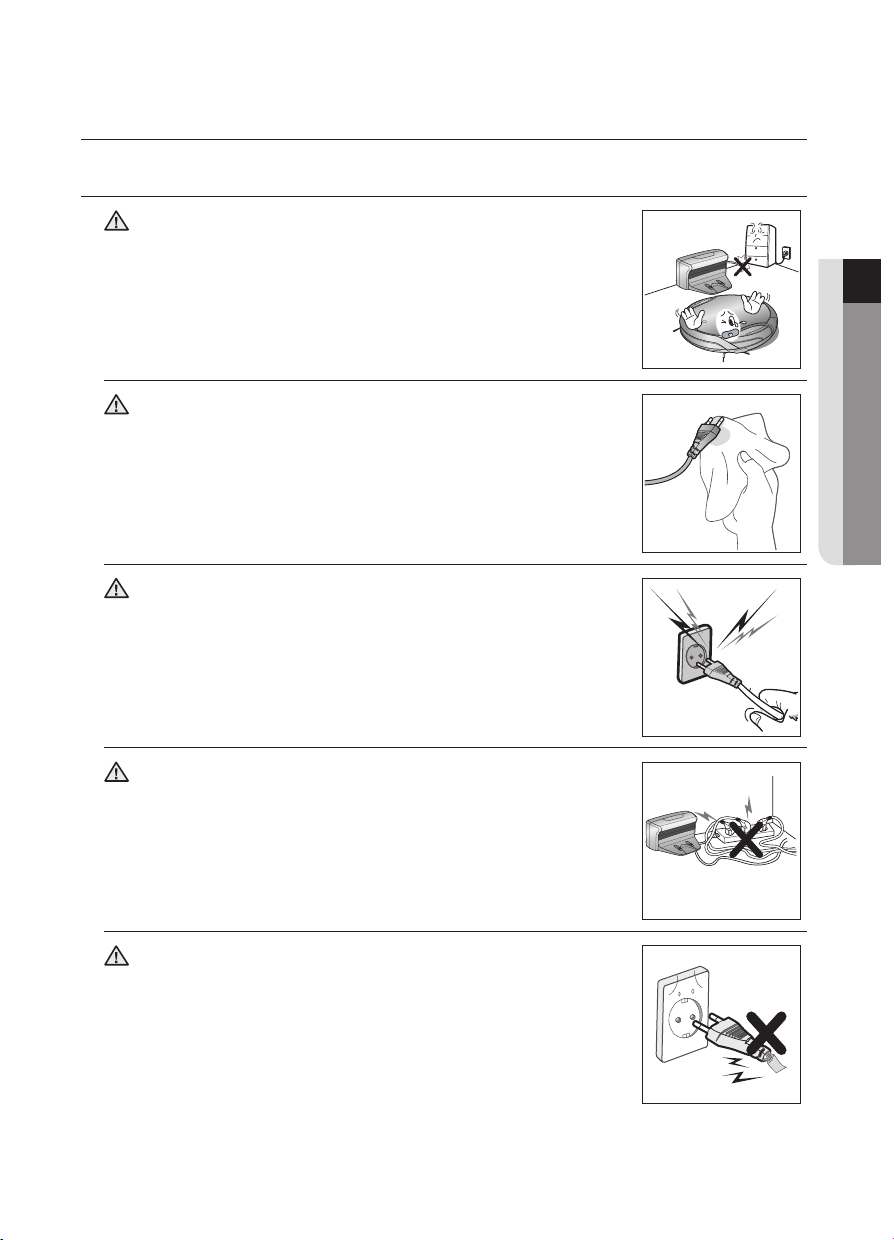
Do not bend the power cord forcefully or place a heavy object
on it that could break it.
- This may result in fire or electric shock.
WARNING
Make sure to remove any dust or water from the power plug.
- Failing to do so may result in a malfunction or electric shock.
WARNING
Do not pull the power plug by the cord or touch the plug with
wet hands.
- This may result in fire or electric shock.
WARNING
Do not use multiple plugs in a single socket.
(Do not leave the cord lying exposed on the floor.)
- This may result in fire or electric shock.
WARNING
Do not use a damaged power cord, plug, or a loose power
outlet.
- This may result in fire or electric shock.
Safety information
2014. 7. 23. 6:13
08_ safety information
BEFORE USE
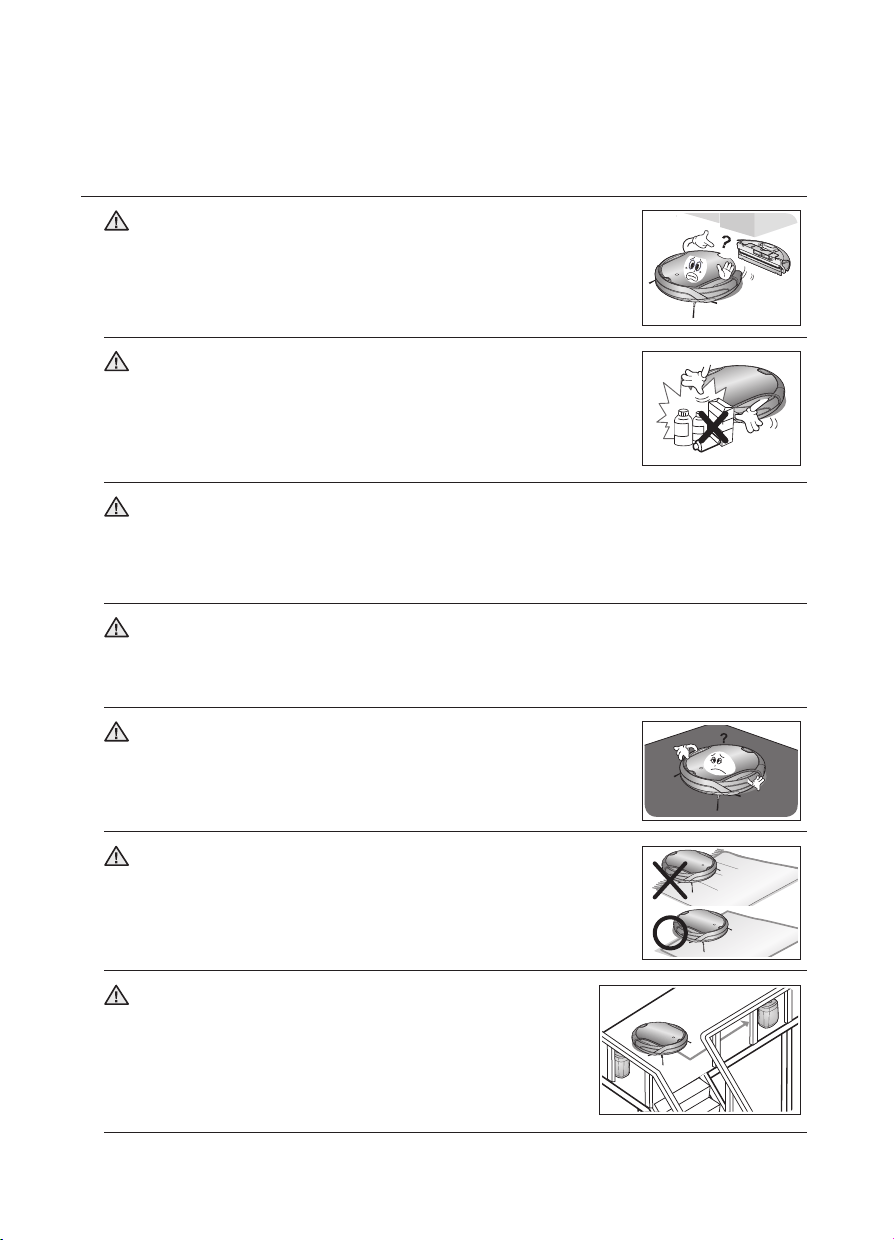
CAUTION
Before activating the Robot vacuum, make sure that the dust
bin is assembled.
- If the dust bin is not inserted, Robot vacuum will not operate.
CAUTION
Never use Robot vacuum in locations with combustible
material such as.
- Locations with candles or desk lamps on the floor.
- Locations with unattended fires (fire or embers).
- Locations with gasoline, distilled alcohol, thinner, ashtrays with
burning cigarettes, etc.
CAUTION
Robot vacuum is for domestic use only. Do not use it in the following locations.
- Attics, basements, warehouses, industrial buildings, separate rooms distant from the
main building, locations exposed to wet or damp conditions such as bathrooms or wash
rooms, and narrow and highly situated locations such as tables or shelves. Critical damage
(abnormal operation and breakage) may occur when used in these locations.
CAUTION
Open all doors to clean all rooms.
- When a door is closed, the Robot vacuum will not be able to enter that room.
- However, make sure to close the doors to the main entrance, the veranda and the
bathroom, and any other rooms where the Robot vacuum may fall to a lower floor.
CAUTION
Do not use the cleaner on a black floor.
- The Robot vacuum may not run normally in this case.
CAUTION
For carpets with long tassels, fold the tassels under the carpet.
- Unfolded tassels may result in critical damage to the carpet and
the machine itself, as they get caught in the driving wheel or the
power brush.
CAUTION
When the cliff sensor is polluted, the Robot vacuum may be in
danger of falling down the stairs.
This may cause personal injury and critical damage to the
product.
To prevent risk, install the VIRTUAL GUARDs (Fence Mode
setting) in front of dagerous areas. Clean the sensor window
and camera.
2014. 7. 23. 6:13
safety information _09
01 SAFETY INFORMATION
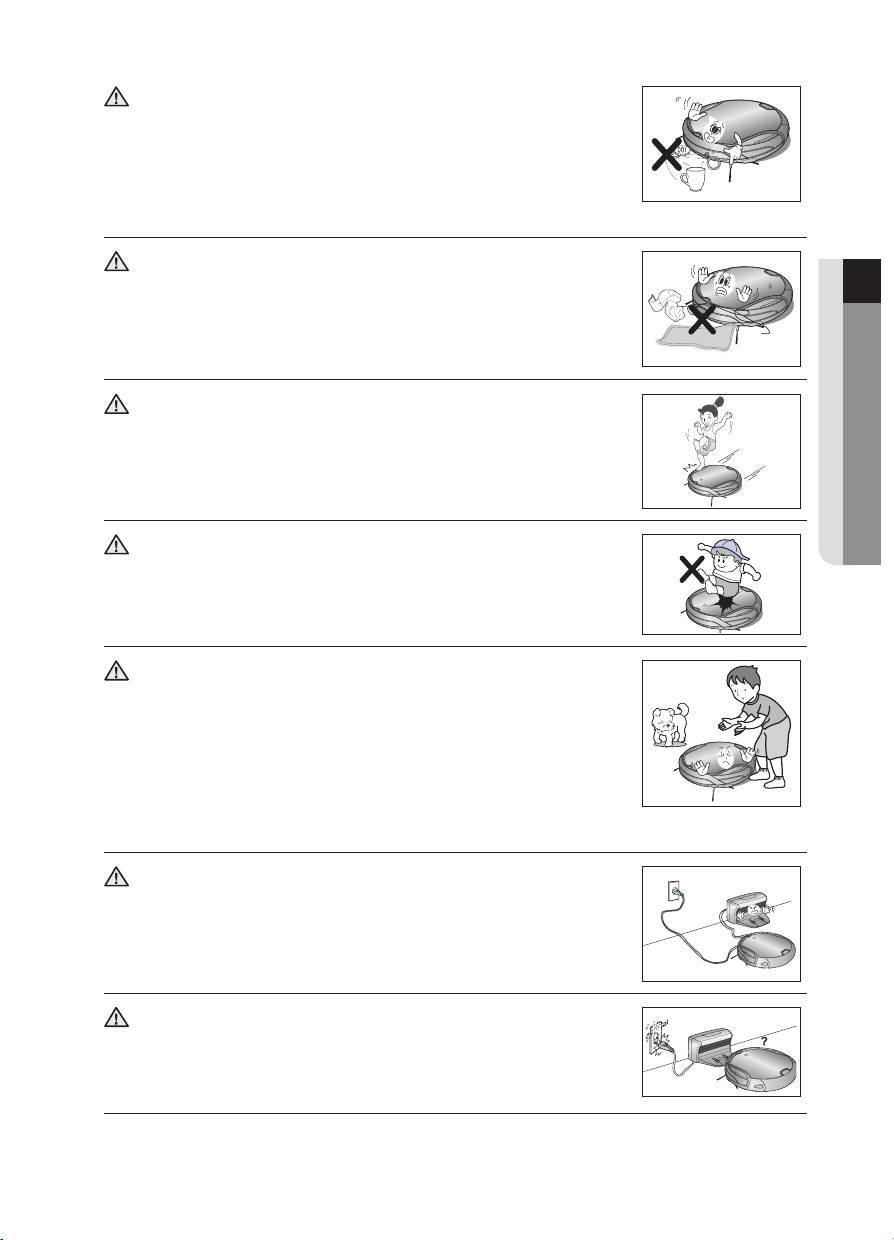
CAUTION
Remove small objects or brittle items from the area to be
cleaned in advance.
- Make sure to clear any objects before cleaning.
- Make sure to remove fragile items such as china, glass objects,
flowerpots, etc.
- Robot vacuum does not recognize coins, rings or other valuable
items such as jewelry.
CAUTION
Remove objects scattered on the floor before cleaning.
- Robot vacuum is designed to detect obstacles 5cm away from it.
- Bath towels, pads in front of bathrooms and sinks, entrances,
utility rooms, power cords, table cloths or belts can become
entangled in the driving wheel or power brush. This can cause
objects to fall from the table.
CAUTION
Inform all family members (or relevant parties) to be cautious
before cleaning or when using the Scheduled Cleaning Mode.
- Robot vacuum may run into children, causing them to fall.
CAUTION
Ensure that children do not step or sit on the Robot vacuum.
- Children may fall and injure themselves or critical damage may
occur to the product.
CAUTION
When a child or pet is left alone, make sure to turn off the
Power Switch of the Robot vacuum.
- Robot vacuum may attract their attention.
- When the rotating wheel or brush catches fingers, feet, clothing or
hair, this may result in injury.
- If a child or pet is in the way of the Robot vacuum, it may be
identified as an obstacle and the area may not cleaned.
- When the Power Switch is turned off, it will cut off the power
supply and deactivate all functions.
CAUTION
When installing the charger station, do not leave the power
cord exposed on the floor.
- When the Robot vacuum automatically recharges or passes by
the charger station, it may drag the power cord around with it.
CAUTION
Always keep the power cord of the charger plugged into the
outlet.
- Although the Robot vacuum has a self-charging function, if the
power cord of the Charger (station) is unplugged, it cannot charge
its battery automatically.
2014. 7. 23. 6:13
10_ safety information
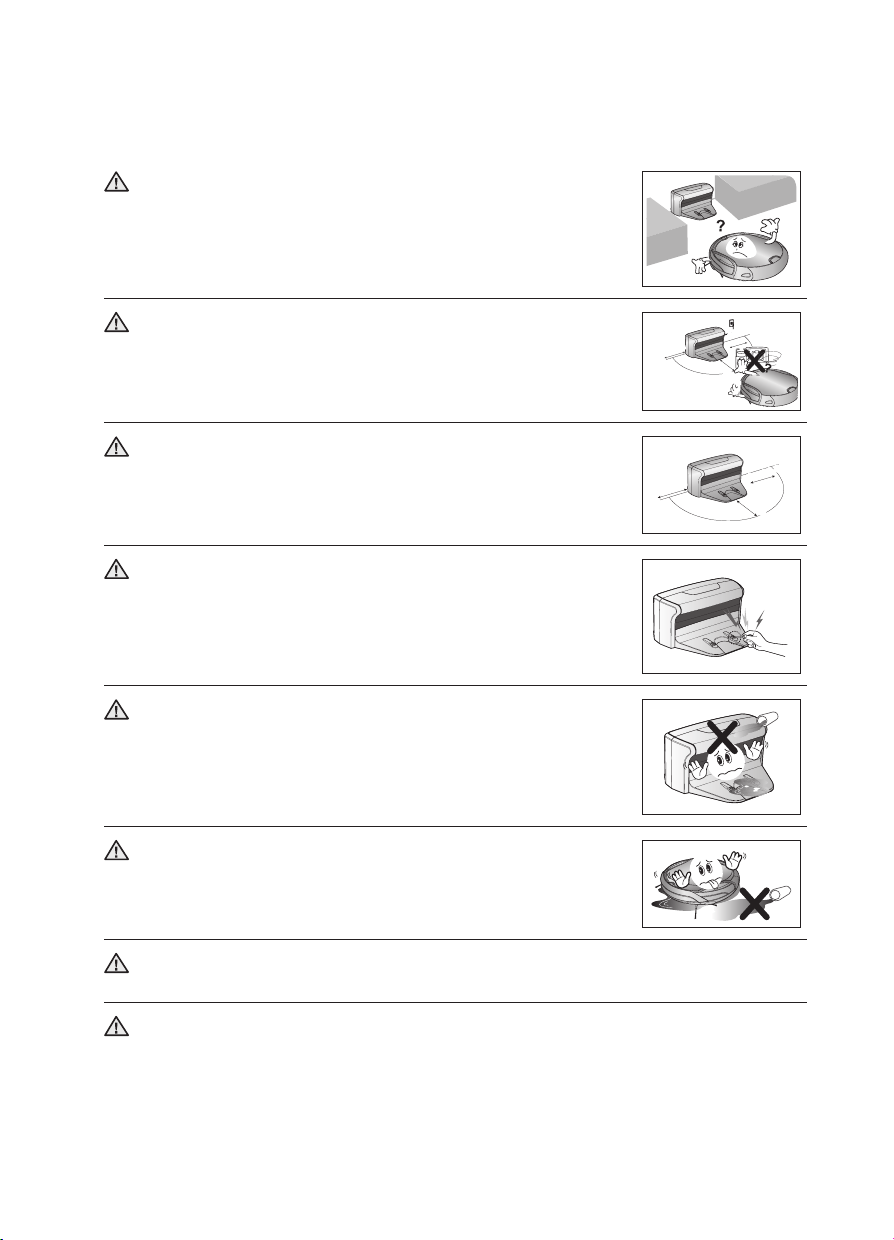
CAUTION
Install the Charger (station) in a location that can be easily
accessed by the Robot vacuum.
- If the charger is installed in a corner, this may cause extra
movements and may disturb the automatic recharging process.
CAUTION
Objects in front of the Charger (station) will prevent the Robot
vacuum from auto-charging itself.
- Clear the area.
about 0.5m
about 0.5m
about 1m
WARNING
There should be no obstacles and cliffs 0.5m to the left and
right and within 1m of the front.
about 0.5m
about 0.5m
about 1m
WARNING
Do not short-circuit the charge pins with metal objects such
as chopsticks, screwdrivers, and etc.
- This will result in critical damage to the charger.
WARNING
Make sure that there is no trace of liquids on the Charger
(station).
- Failing to do so may result in fire or electric shock.
WARNING
Make sure the Robot vacuum does not vacuum or move over
liquids such as water, oil or pet litter.
- This may result in critical damage to the product.
- Liquids may spread through the wheels resulting in contamination.
WARNING
Do not use the Charger (station) for other purposes.
- This may result in critical damage to the charger or cause a fire.
WARNING
Do not install the Charger (station) on a dark floor.
- If the floor where the charger station is installed is dark, it is hard for the Robot vacuum to
return to it.
2014. 7. 23. 6:14
safety information _11
01 SAFETY INFORMATION
IN USE
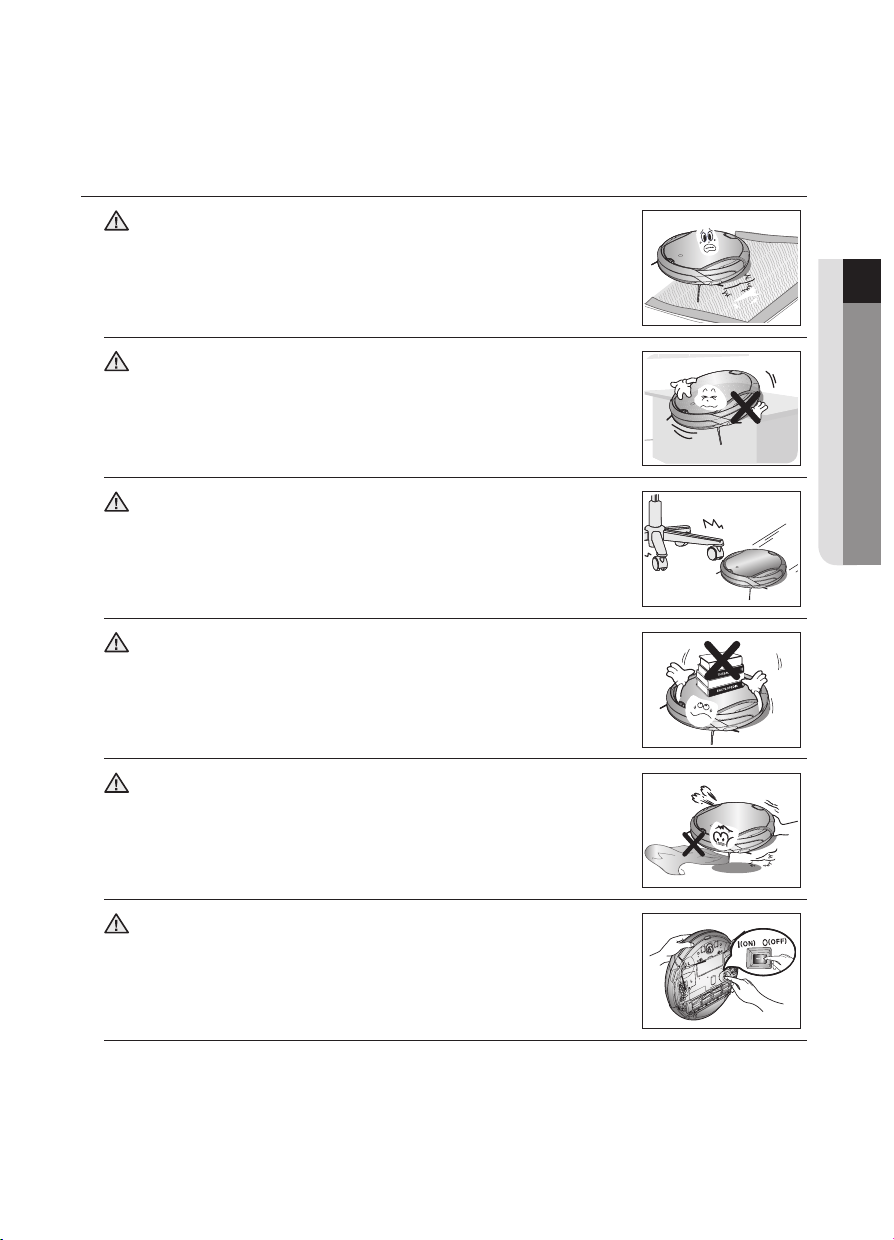
CAUTION
You cannot use the Robot vacuum on thick carpets.
- This may result in problems with the Robot vacuum.
- This may result in damage to carpets.
CAUTION
Do not use the Robot vacuum on a table or other high
locations.
- This may result in damage when the unit accidentally drops.
CAUTION
Robot vacuum may bump into furniture such as chair legs,
table legs, thin and long furniture, etc. while operating.
- For a quicker and cleaner performance, place the chairs on top of
the table.
CAUTION
Do not place any objects on top of the Robot vacuum.
- This may result in malfunction.
CAUTION
Immediately remove any large pieces of paper or plastic bags
from the machine while cleaning.
- Using the machine for an extended period of time with its inlet port
obstructed may result in critical damage to the product.
WARNING
If an unusual sound, smell or smoke is emitted from the Robot
vacuum, immediately turn off the Power Switch and call the
customer care center.
2014. 7. 23. 6:14
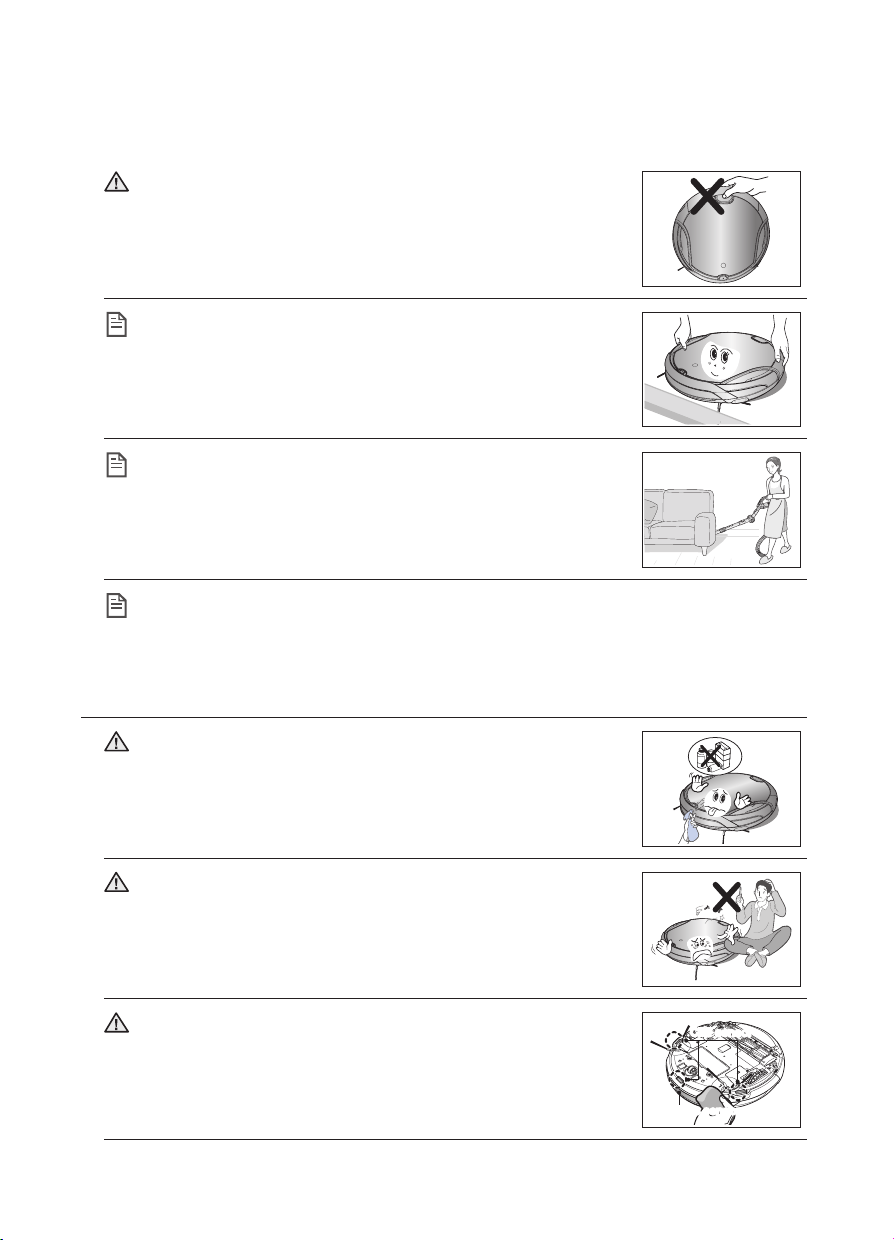
12_ safety information
CAUTION
Do not move the robotic vacuum cleaner holding the dustbin
part.
- This may cause the dustbin to separate, resulting in injury or
serious damage to the product.
NOTE
Robot vacuum may not be able to continue its operation if it is
stuck at the entrance or veranda doorsill.
- To resume operating, turn the Power Switch off and then on again
after moving it to a location where it can continue cleaning.
NOTE
Robot vacuum cannot completely clean locations that it
cannot reach, such as corners, and spaces between sofas and
walls.
- Please clean these locations occasionally.
NOTE
Dust clusters may remain after cleaning, when the Robot vacuum fails to pick up
dust clusters that were formed while cleaning.
- In this case, sweep up the dust with another cleaning tool.
CLEANING AND MAINTENANCE
CAUTION
When cleaning the product, do not spray water directly onto
the exterior or wipe it with a volatile material such as benzene,
thinner or alcohol.
- This may result in critical damage to the product.
CAUTION
The unit must not be disassembled or reconstructed by anyone
other than a qualified service engineer.
- This may result in damage to the product.
WARNING
Remove any foreign substances accumulated on the Obstacle
and Cliff sensors on a regular basis.
- Dirt accumulated on the sensors will result in inaccurate
functioning of the sensors.
Cliff sensor
Obstacle sensor
2014. 7. 23. 6:14
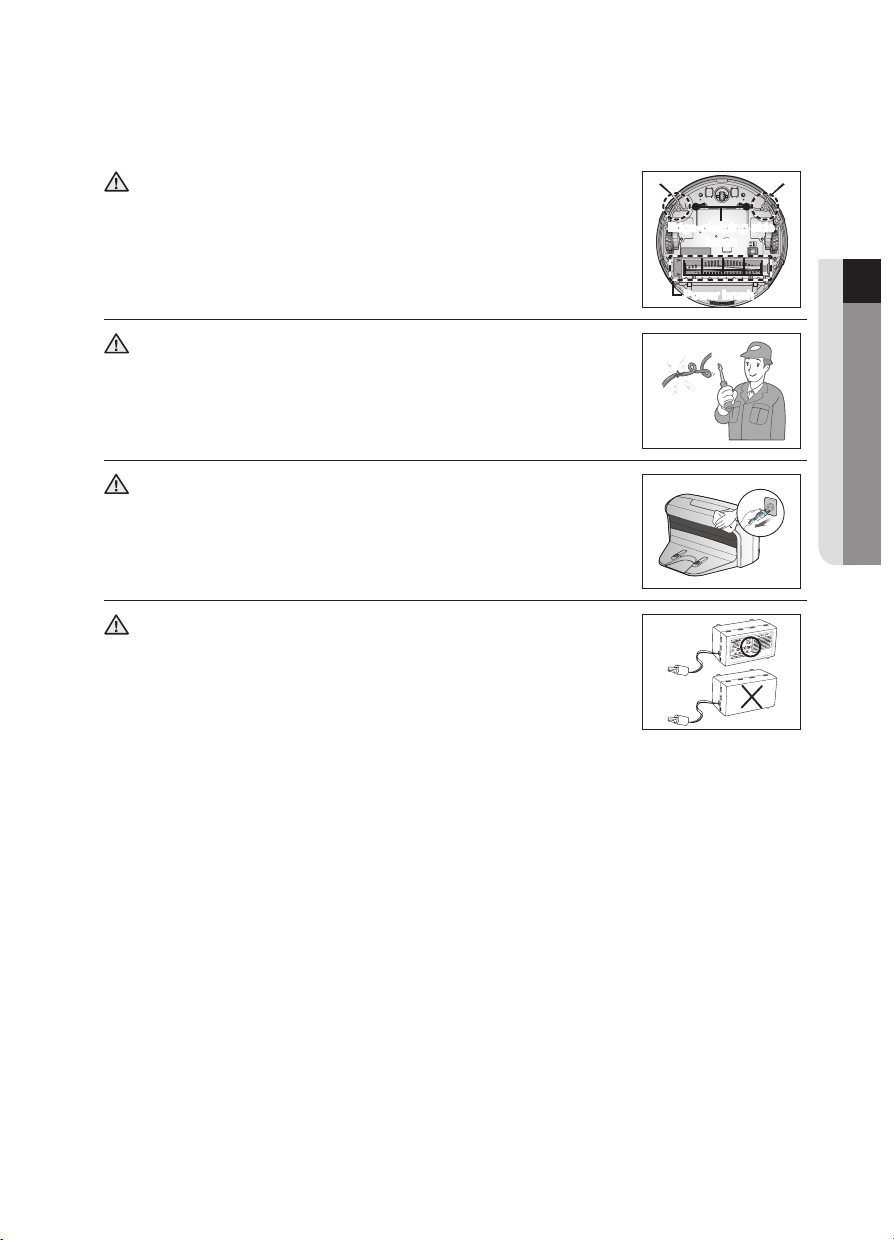
safety information _13
01 SAFETY INFORMATION
WARNING
When removing foreign substances, always use the cleaning
brush after turning the Power Switch off.
- Failing to do so may result in sudden operation of the unit and
cause an injury or critical damage to the product.
Edge-cleaning side
brush
Power brush
WARNING
If the power cord is damaged, have it replaced by a qualified
service engineer from the customer care center.
- Failing to do so may result in fire or electric shock.
WARNING
Before cleaning the Charger (station), make sure to disconnect
the power cord for safety.
WARNING
Contact the Samsung Electronics customer care center to
replace the battery.
- Failing to use original batteries will result in product failure.
2014. 7. 23. 6:14
14_ product features
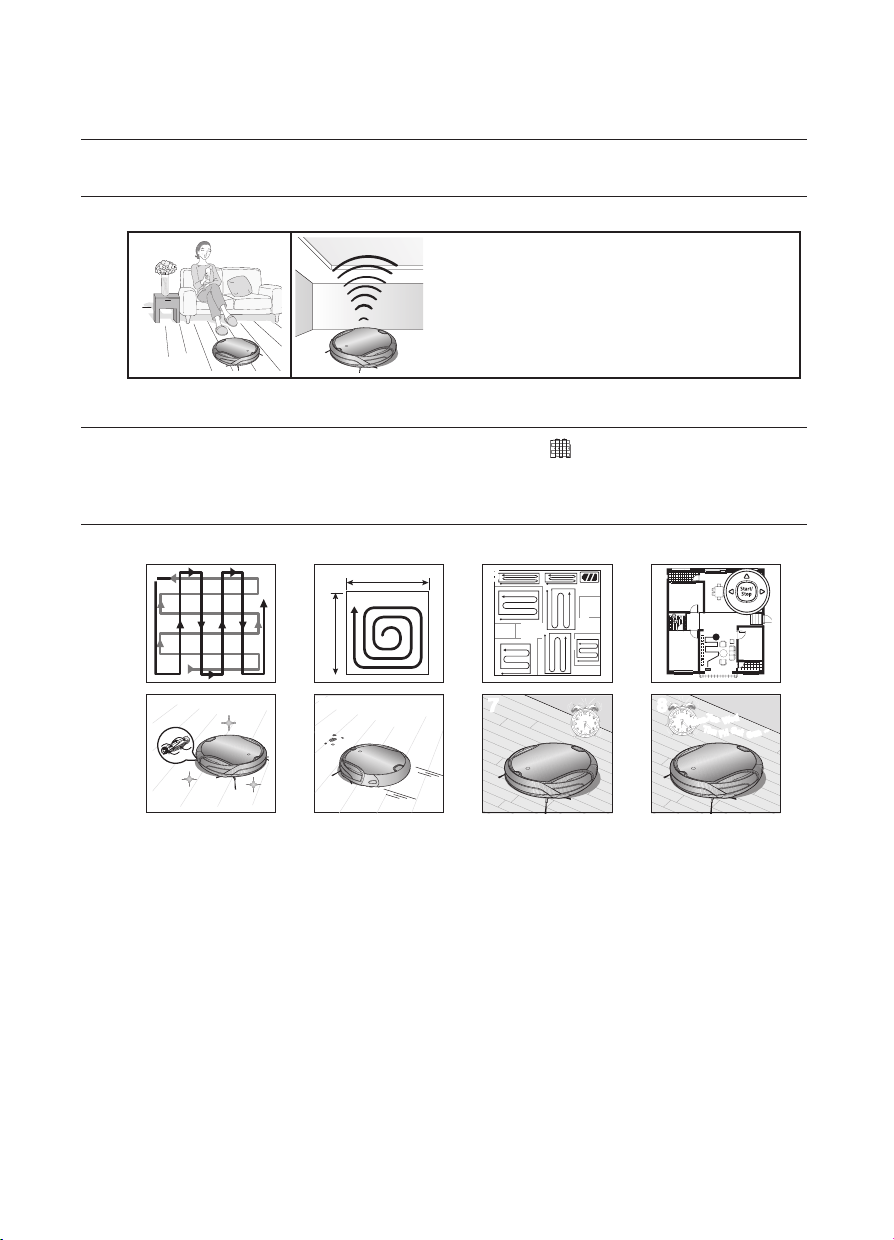
CONVENIENT VIRTUAL GUARD FUNCTION
You can confine the Robot vacuum to a particular section by using the Fence (virtual wall) mode.
•What is ceiling shape recognition (Visionary
mapping plus™)?
This function recognizes the shape of the ceiling
using the camera on top to identify the area to be
cleaned and determines the best way to pass over
and clean every section of the floor.
DELICATE CLEANING OF EVERY CORNER
Since the Robot vacuum cleans the floor in a sequential way (
) along the map determined by
the ceiling shape recognition function, it cleans every corner of the floor.
VARIOUS CLEANING MODES
Various cleaning modes are provided to meet all your needs.
1
About 1.5m
About 1.5m
2
3 4
5
6
7
Mon
Tue
Wed
Thu
Fri
Sat
Sun
~
8
1. Auto Mode : Cleans all rooms automatically.
2. Spot Mode : Cleans a localized area intensely. It can be used to clean bread or cookie
crumbs.
3. Max Mode : Runs until the battery is nearly depleted.
4. Manual Mode : You can clean the floor manually by moving the Robot Vacuum.
5. Turbo Mode : Since the power brush rotates at maximum speed in this mode, the product will
clean more effectively.(You can switch the mode with the remote control.)
6. Dust Sensor Mode : When dust enters the vacuum cleaner, the vacuum cleanin robot starts
to clean its surroundings intensively. (You can operate this with the remote control.)
7. Timer Mode : At the specified time, the Robot Vacuum cleans the floor.
8. Daily Cleaning Mode : The Robot Vacuum cleans the fl oor everyday at the specified time.
Product features
2014. 7. 23. 6:14
product features _15
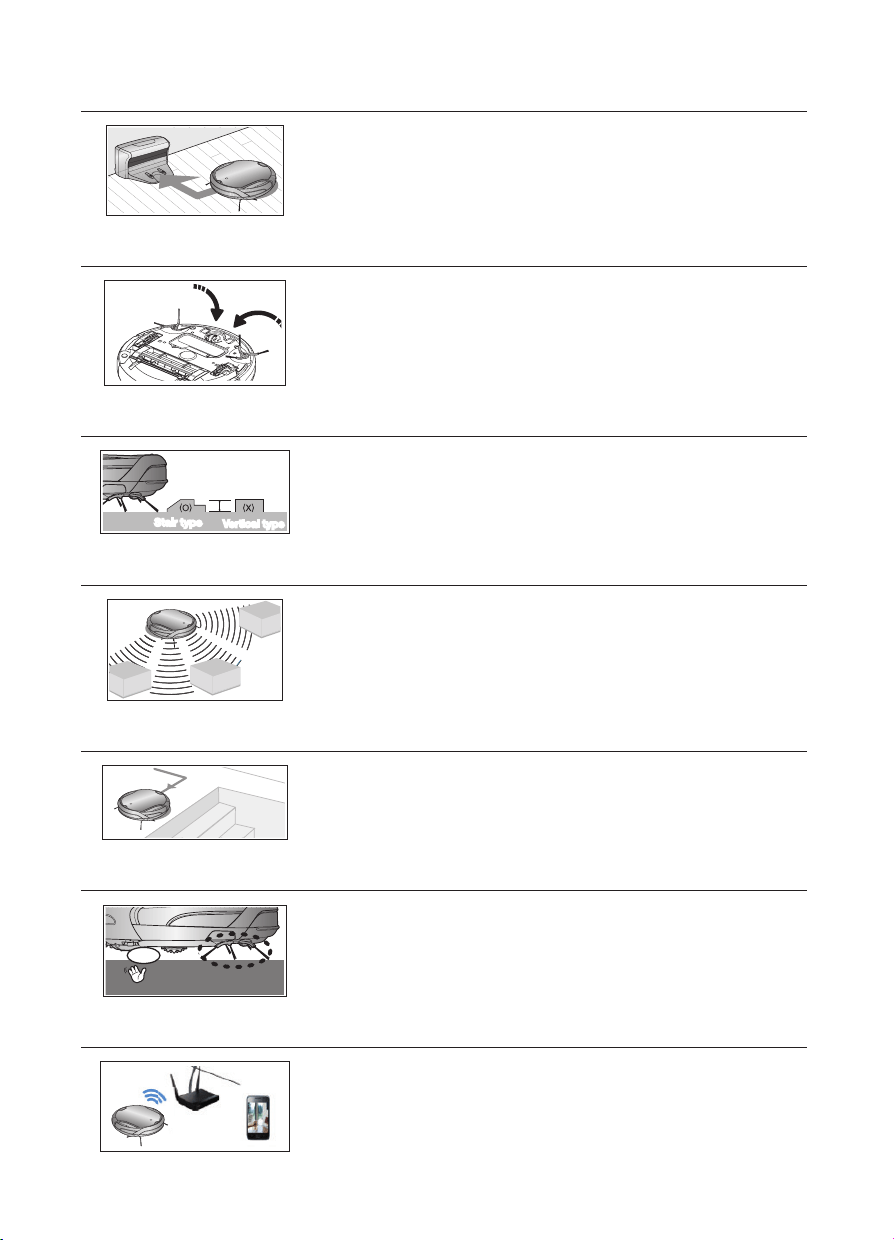
AUTO CHARGING
When the battery is low, the Robot vacuum is automatically guided to
the Charger (station) to enable it to perform a quick auto charge.
EDGE-CLEANING SIDE ROTATING BRUSH
The edge-cleaning side rotating brush cleans dust from the edges.
DOORSILL CROSSING
About 1cm
Stair type
Vertical type
The Robot vacuum innovative driving system makes it possible for it to
cross over doorsills with a height of about 1cm and clean all rooms.
The Robot vacuum may not be able to pass a 1cm doorsill depending
on the shape of the doorsill.
AVOIDING OBSTACLES
When the Robot vacuum encounters an obstacle while cleaning, the
obstacle sensor allows the cleaner to avoid it and continue cleaning.
(It may happen that the cleaner touches thin or fine obstacles.)
ANTI-FALLING
The 3 Cliff sensors detect downward steps such as stairs or the front
door threshold to prevent Robot vacuum from falling down stairs.
SAFETY DEVICE
stop
When the Robot vacuum is lifted up while cleaning, the driving wheels,
power brush, suction motor, and side rotating brush are stopped
automatically by sensor.
WIFI REMOTE CONTROL
You can control and monitor the status of the Robot Vacuum cleaner
even outside your home. Please refer to the SAMSUNG Smart Home
Manual.
2014. 7. 23. 6:14
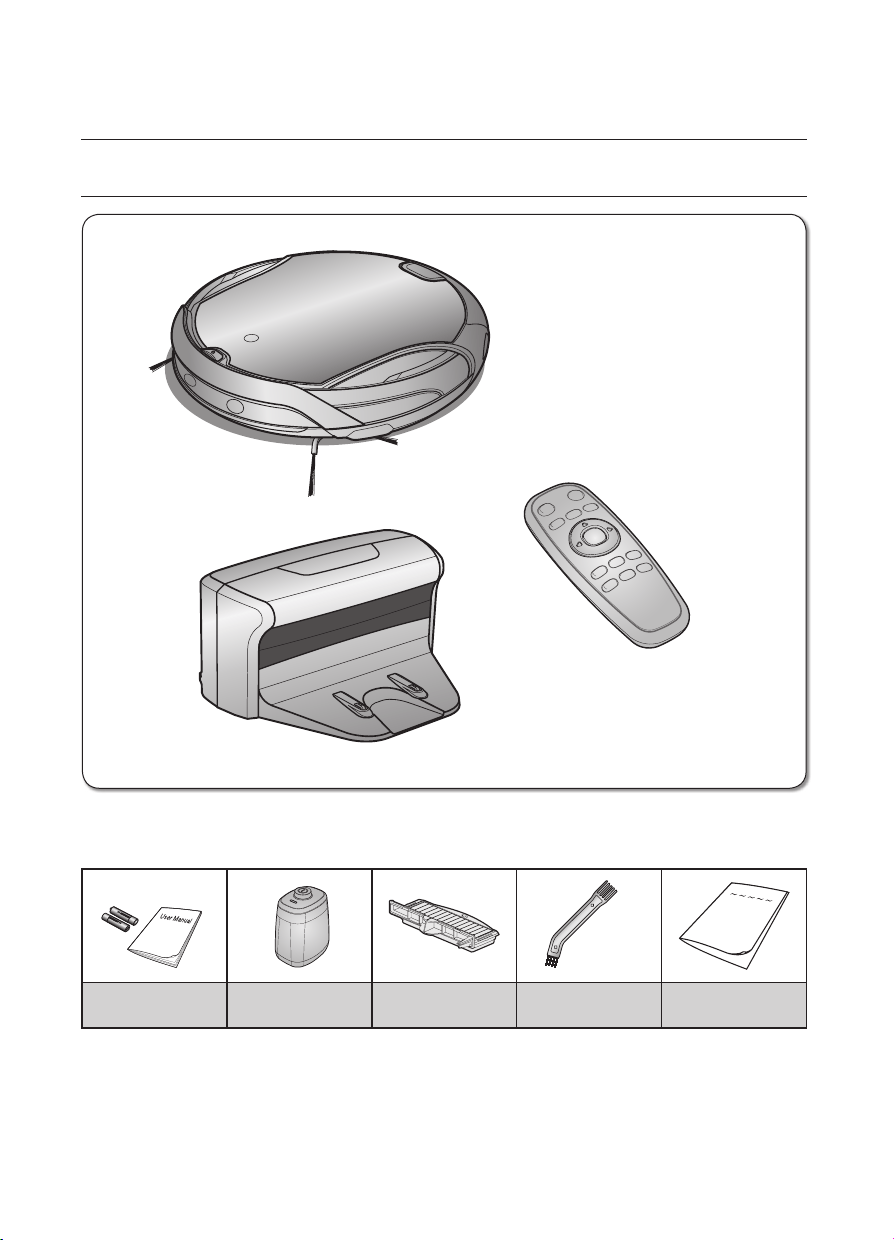
16_ assembling
COMPONENTS
■
Others Components
(AAA-Type Batteries)
User Manual /
2 Battery
VIRTUAL GUARD Spare Filter Cleaning Brush Quick Start Guide
❈
Mesh and Sponge filters are not included in spare filters.
Assembling the cleaner
■
Main Body
■
Charger (Station)
■
Remote Control
2014. 7. 23. 6:14
assembling _17
02 ASSEMBLING
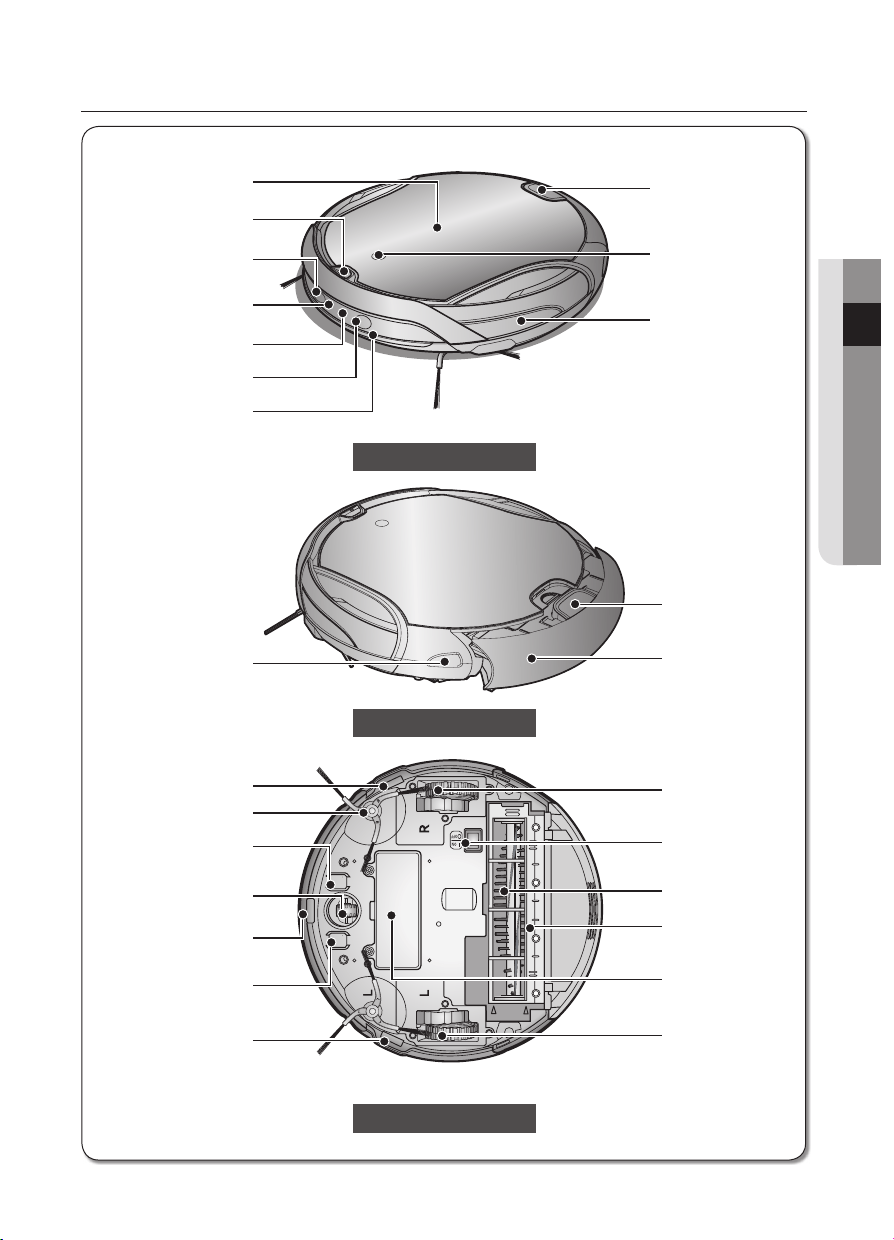
NAME OF EACH PART
Front
Bottom
Side
■
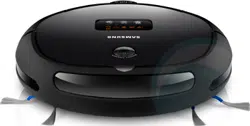
Main unit
Virtual Guard Sensor, Mike
Dustbin Eject Button
Camera
Obstacle Sensor
Dustbin Eject Button
Dust bin
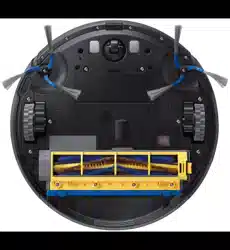
Driving Wheel
Power Switch
Power Brush
Power Brush Cover
Battery Cover
Driving Wheel
Remote Control Sensor
Obstacle Sensor
Bumper Sensor
Remote Control Sensor
Rotating Side Brush
Cliff Sensor
Charge Pin
Roller
Cliff Sensor
Charge Pin
Cliff Sensor
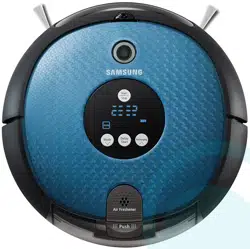
Display panel
Monitoring Camera
Light
2014. 7. 23. 6:14
18_ assembling
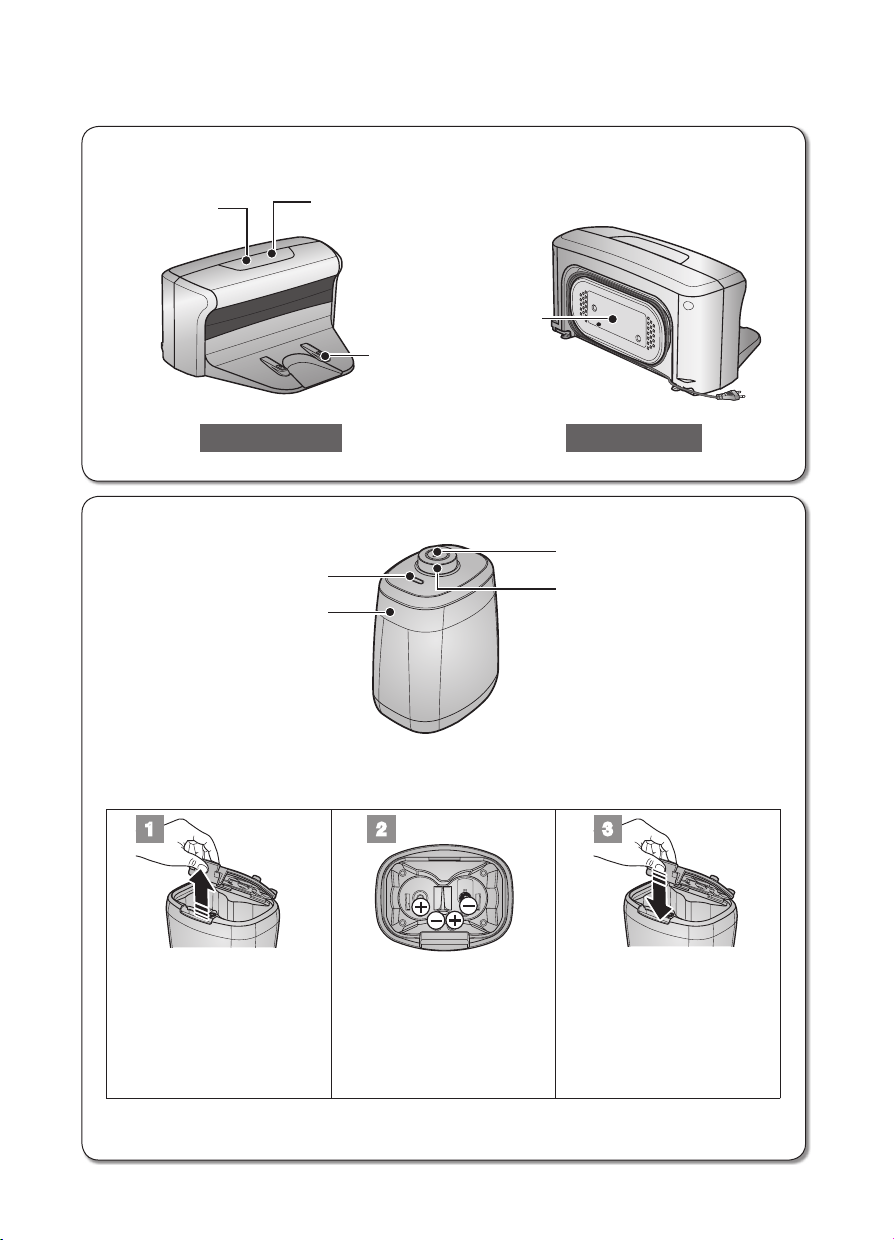
■
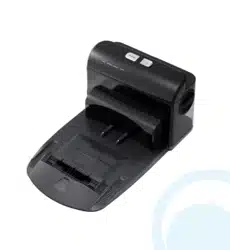
Charger (Station)
■
VIRTUAL GUARD
Distance Detection Sensor
Lamp
Power Button
Main Body Detection Sensor
■
Installing the batteries
Batteries are not supplied with the product. You have to purchase the batteries separately.
Install the batteries (type D) before use.
1 2 3
Lift the cover of the VIRTUAL
GUARD while pressing the
locking tab.
Install the batteries into the
VIRTUAL GUARD as shown
by the figure below. (If the
batteries are installed with
the incorrect polarity, the
VIRTUAL GUARD will not
work.)
After inserting the tip of the
cover into the slot, push the
other end to close it until it
clicks into place.
❈
Specification: Type D (LR20) batteries
Cord winder
Front Back
Charging lamp (green)
Charging terminals
Power lamp
(red)
2014. 7. 23. 6:14
assembling _19
02 ASSEMBLING
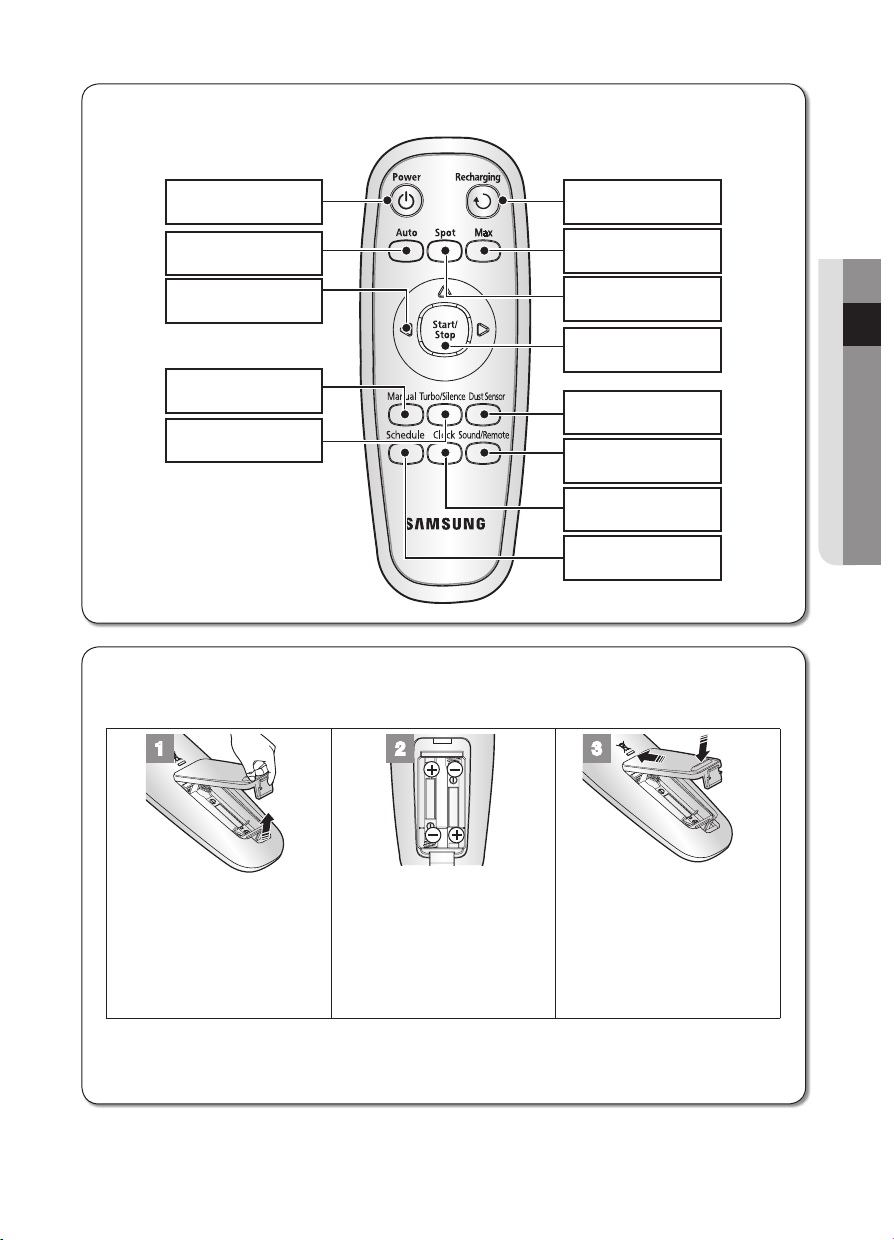
■
Remote Control
■
Installing the Remote Control Batteries
Batteries are not installed in the remote control when purchasing the product.
Install the batteries (type AAA) before use.
1 2 3
Lift the battery compartment
cover at the back of the
remote control, while
pressing the locking tab.
Install the batteries into the
remote control as shown by
the figure below.
(If the batteries are installed
with the wrong polarity, the
remote control will not work.)
After inserting the tip of the
cover into the slot, push the
other end to close it until it
clicks into place.
❈
Specification: AAA type batteries
Power Recharging
Max
Spot
Start/Stop
Dust Sensor
Sound/Remote
Clock
Schedule
Auto
Directional
Buttons
(moving backwards is not
supported.)
Manual
Turbo/Silence
2014. 7. 23. 6:14
20_ assembling
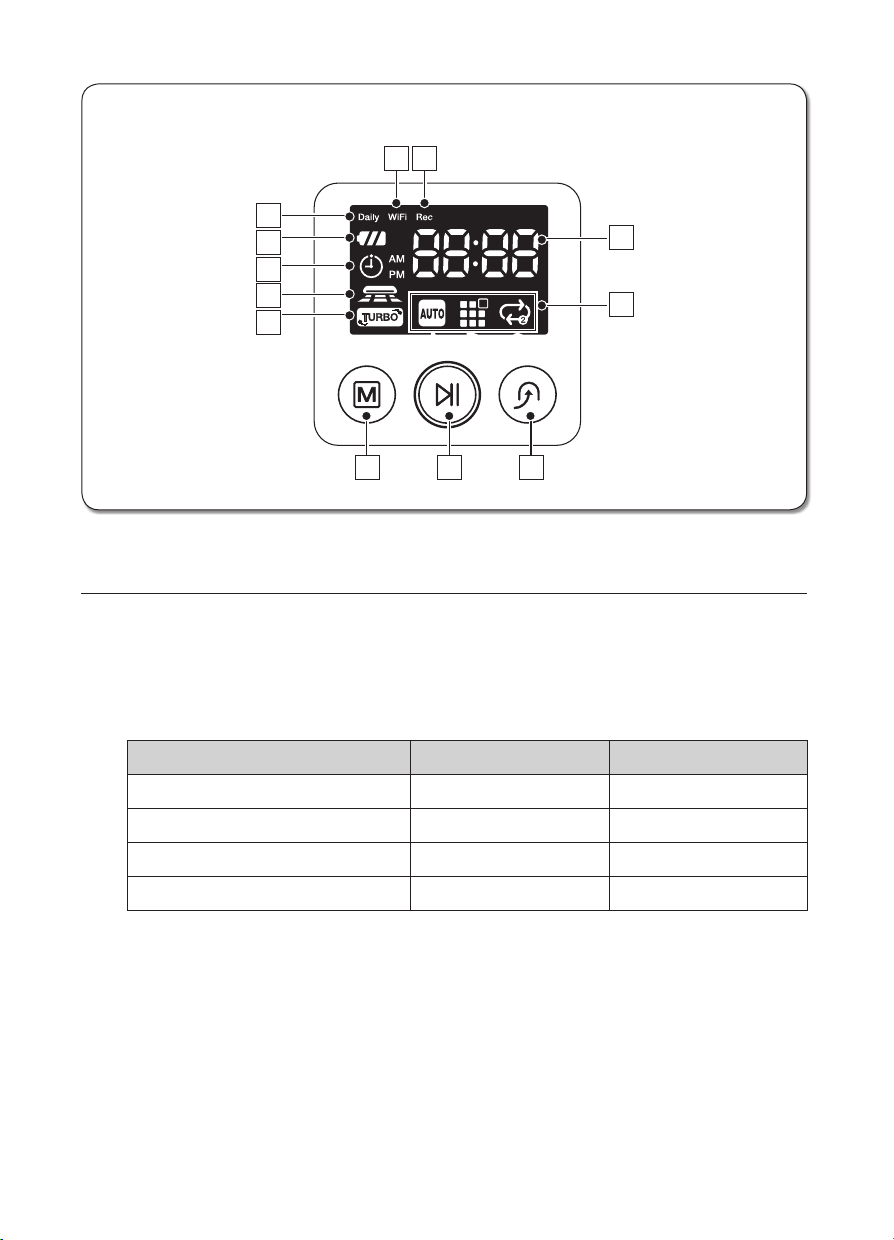
DISPLAY PART
1. Number Display : Shows the timer display, progress status, and error codes using numbers,
letters and graphics.
2. Daily : When daily cleaning is scheduled, the Daily icon is lit.
3. Wi-Fi : Each time you press the Remote Control button of the remote control, the setting gets
done in the order of release of remote control and execution of remote control.
4. Rec : This is a signal notifying that image is in use.
Display Icon Wi-Fi Rec
Block off access Off Off
Permission access On Off
Connection to Wireless router Flicker slowly Off
Connection to Home View Flicker fast On
5. Battery Level Indicator
- Charging : Shows the charging progress in 3 steps.
- In Use : Shows the battery charge level.
The battery charge level is reduced by each level from FULL while operating.
(When the battery is fully discharged, one level will flash to display “Lo”.)
6. Timer : When cleaning is scheduled, the Timer icon is lit.
7. Dust Sensor Mode : This icon turns on when Dust Sensor mode is enabled.
8. Turbo Mode : This icon turns on when Turbo mode is enabled.
■
Display panel
2
1
9
5
6
7
8
10 11 12
A B C
3 4
2014. 7. 23. 6:14
assembling _21
02 ASSEMBLING
9. Cleaning Mode Display
- Each time the Cleaning Mode button is pressed, the corresponding cleaning mode is displayed.
(A) Auto Mode : This icon turns on when Auto cleaning mode is selected.
(B) Spot Mode : This icon turns on when Spot cleaning mode is selected.
(C) Max Mode : This icon turns on when Max cleaning mode is selected.
BUTTON PART
10. Cleaning Mode : Press to select a cleaning mode.
After selecting a cleaning mode, press the (
) button to start cleaning.
11. Start/Stop : Press to start/stop cleaning.
12. Recharging : When this button is pressed, The Robot Vacuum will return to the charger station
to charge its battery.
2014. 7. 23. 6:14
22_ operating
INSTALLING THE ROBOT VACUUM
Installation order
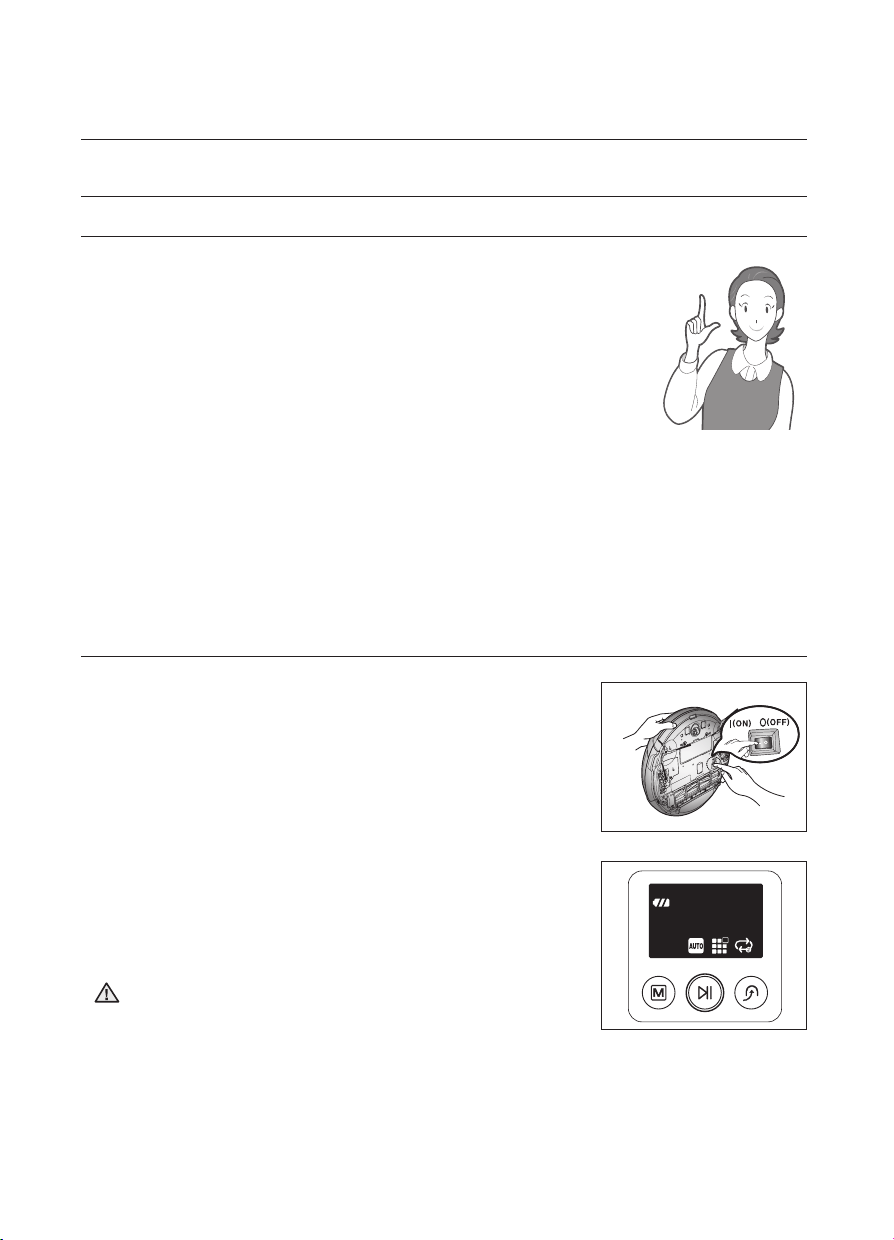
1. Turning the Power Switch on or off
To use the Robot vacuum, you must turn on the Power Switch at the
bottom of the main unit.
2. Installing the Charger (station)
To charge the Robot vacuum, you must first install the charger.
Since the battery is discharged when the product is purchased, you
must fully charge the battery before use.
3. Charging the Battery
You should charge the battery completely before using the Robot
vacuum.
4. Setting the Time
You should set the time to use the Timer reservation and daily cleaning options.
5. Installing the VIRTUAL GUARD
You can confine the Robot vacuum to a particular section by using Fence (virtual wall) mode.
6. Installing the Samsung Smart Home Application
To use Home View, you must install Samsung Smart Home application and registering the
Robot vacuum.
Turning the Power Switch on or off
To use the Robot vacuum, you must turn the Power Switch on.
If you turn off the Power switch, all settings except for the current
time and the Daily reservations are reset.
1. Lift the body and turn on the power switch while making
sure not to press any other button.
- If the icons are not turned on, it indicates that the battery charge
is depleted. In this case, dock the Robot vacuum to the charger
station after turning the Power Switch on.
- The configured time may be different from the current time. If the
configure time is incorrect, set the time to the current time.
If the Power Switch is turned off, the Robot vacuum will not be
charged even if it is docked with the Charger (station).
CAUTION
Operating the cleaner
2014. 7. 23. 6:14
operating _23
03 OPERATING
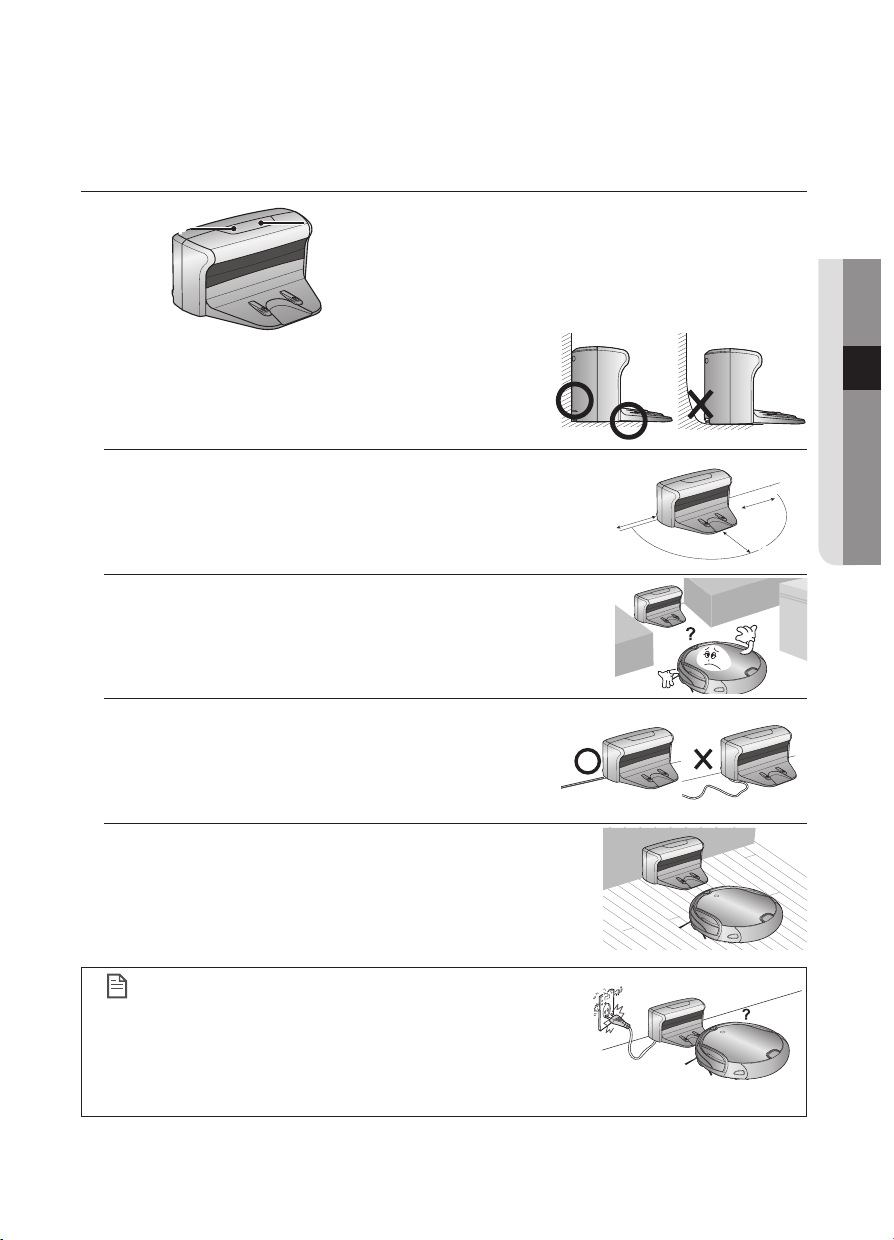
Installing the Charger (station)
1. Install the charger on a flat surface.
2. There should be no obstacles and cliffs 0.5m to the left and
right and within 1 m of the front.
3. Install the Charger (station) in a location where it can be easily
accessed by the Robot vacuum.
4. Arrange the power cord along the wall.
5. When the floor is made of wood, install the Charger (station) in
the same direction as the grain of the wood.
NOTE
Always keep the power cord of the Charger (station)
plugged into the power outlet.
- If no power is supplied to the charger, the Robot vacuum
will not be able to find the charger and will not be able to
charge automatically.
- If the Robot vacuum is separated from the charger, the
battery is automatically discharged.
Power lamp
Charging lamp
about 1m
about 0.5m
about 0.5m
2014. 7. 23. 6:14
24_ operating
Charging
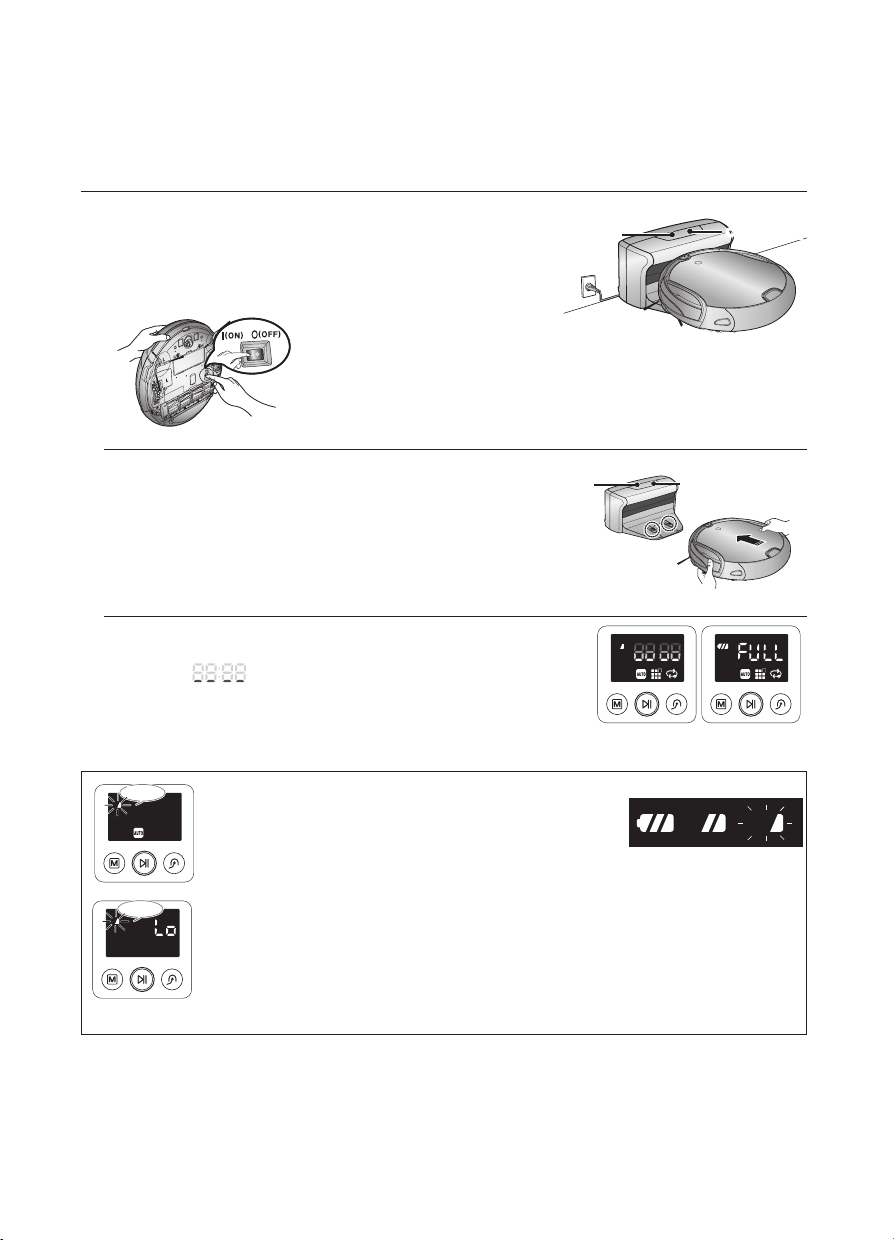
When the product is initially purchased, the battery is fully
discharged, and you must Charger (station) the Robot
vacuum manually.
Turn on the Power Switch at the bottom of the product.
1. After aligning the Charger (station) pins of the
main unit with the Charger (station) pin of the
Charger (station), press the main unit until you hear
“recharging is now starting” sound.
- The Charging Lamp turns green.
2. Check the Charger (station) status of the Robot vacuum.
- When charging starts, “the amount of remaining battery power”
and “
” are displayed on the status display panel in this
sequence.
- When charging is complete, the battery level indicator and
“FULL” will be displayed in the display panel.
Flash
Flash
■
When the battery level display flashes while cleaning,
the Robot vacuum stops vacuuming and automatically
charges itself at the charger.
■
If the Robot vacuum starts the current cleaning run at a
location other than the charging station and fails to locate
the charging station while cleaning, it will stop near the
location where it started cleaning.
■
When the battery level flashes and “Lo” is displayed
while cleaning, Robot vacuum cannot be operated by
the remote control or the buttons on the main unit. In this
case, directly carry the Robot vacuum to the charger to
charge the battery. (This is when the battery is completely
discharged.)
<Charge display>
Charge
complete
Charging Required
charging
Power lamp
Charging lamp
Power lamp
Charging lamp
Charging Fully charged
2014. 7. 23. 6:14
operating _25
03 OPERATING
NOTE
•When the product is initially purchased, it will take about 180 minutes to fully charge the
battery and will run for about 90 minutes. (Normal Mode / On the basis of hard floor)
•When charging the battery while the battery is over-heated, the charging time can increase.
•Measures to take when charging is not smooth.
When the Robot vacuum cannot be automatically charged, check the following:
- Turn the Power Switch at the bottom of the Robot vacuum off and on.
- Re-plug the power of the charger.
- Check whether there are any foreign substances on the Charger (station) connector
and wipe the charge connector on the main unit and the Charger (station) with a dry
cloth.
- Check whether there are objects near the Charger (station) that are strong reflectors.
•When separating the Robot vacuum from the Charger (station), it will discharge naturally.
- Charge the Robot vacuum through the Charger (station), if possible.
(When leaving your home unattended for a long period of time due to a business trip,
travelling etc., turn off the Power Switch of the Robot vacuum and unplug the power
of the Charger (station) to store them.)
About the Battery
■
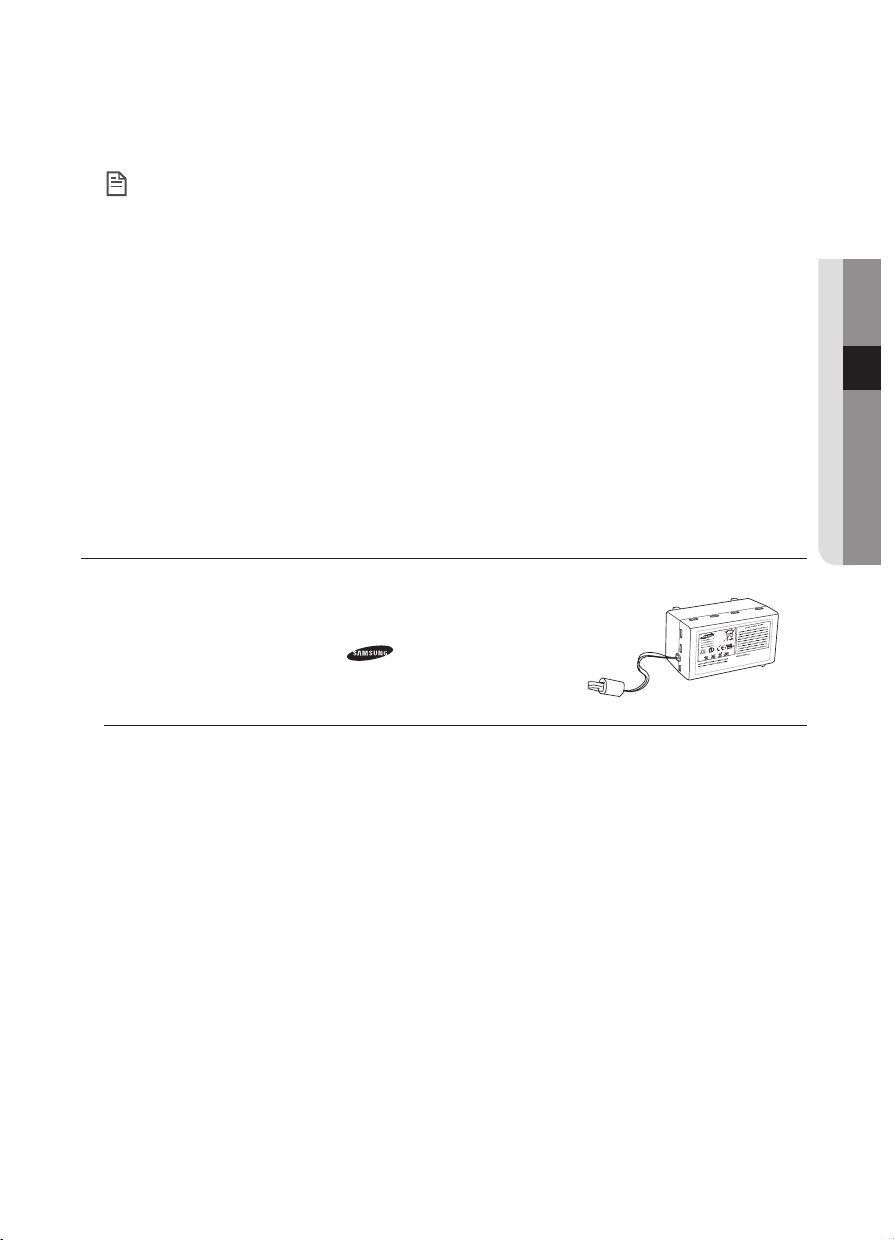
The Robot vacuum is powered by an environment-friendly Lithuim-ion (Li-ion)rechargeable
battery, and an over-charge prevention function guarantees
an extended life time.
■
When purchasing a battery, ask the customer care center
for the genuine part symbol (
) and model number
before purchasing it.
- This battery is only for Samsung Robot vacuum. It is strictly prohibited to use it for other
appliances or for other purposes.
- Do not disassemble or modify the battery.
- Charge it in a location with good ventilation.
- Do not expose the battery to fire and do not heat it.
- Do not connect any metallic objects to the (+) or (-) terminals of the battery.
- Keep it indoors (0°C~40°C).
- Before you discard product, dispose of batteries in an environmentally safe manner.
- Do not discard this batteries with your regular household trash.
- Follow all local regulations when disposing of old batteries.
❈
If the battery is out of order, do not disassemble it. Contact your nearest customer care center.
❈
An increased charging time and a shorter battery life indicates the near end of the battery life.
Please contact an authorized customer care center to replace your battery.
❈
The battery warranty period is 6 months from the date of purchase.
The rechargeable battery incorporated in this product is not user replaceable.
For information on its replacement, please contact your service provider.
2014. 7. 23. 6:14
26_ operating
Setting the Time
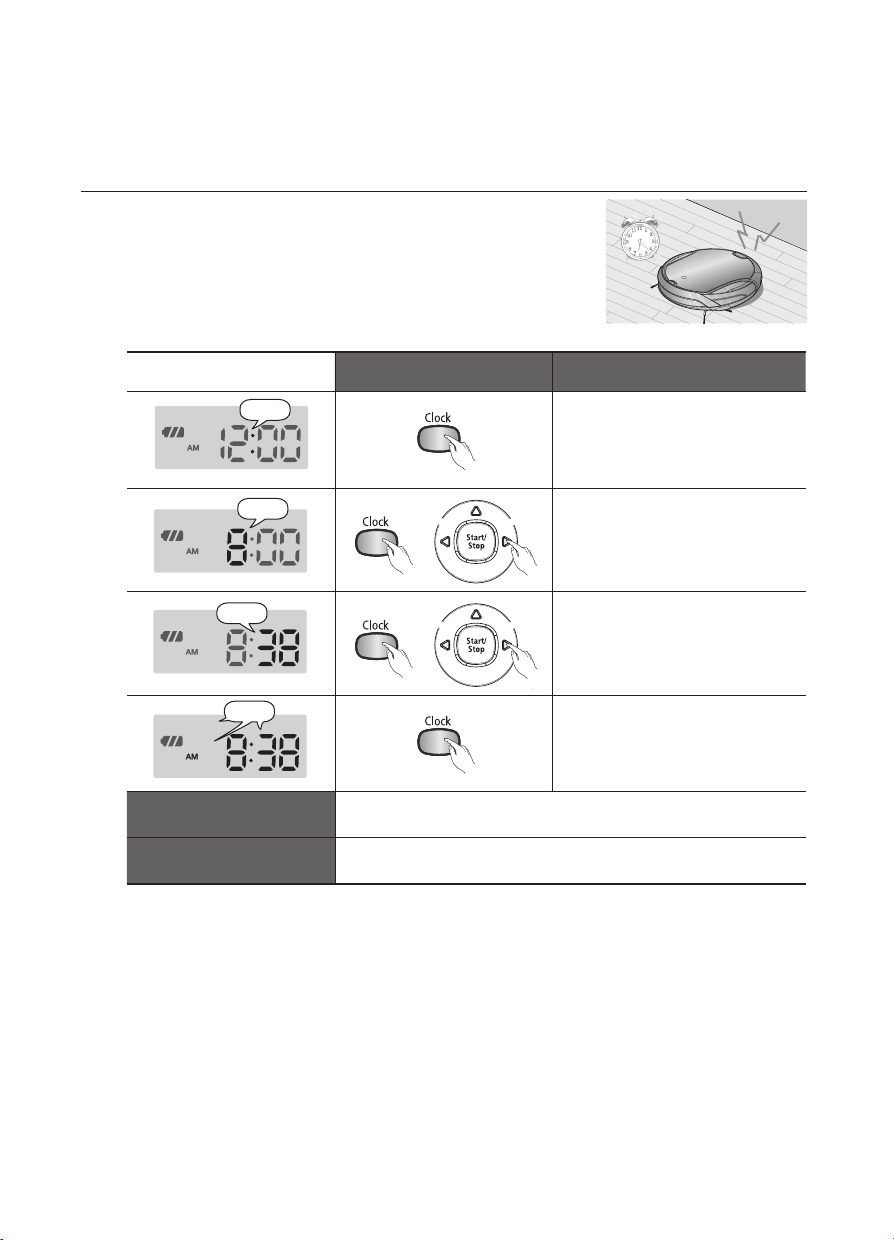
The clock displays the current time. You can change the current time
with the following steps.
■
You can only set the time using the remote control.
Remote Control Configuration Sequence
Blinks
1. Press the Clock button.
- The current time is displayed.
Blinks
Decrease
Increase
2. Press the Clock button. Press
the
or
button to set the
hour.
Blinks
Decrease
Increase
3. Press the Clock button. Press
the
or
button to set the
minutes.
Blinks
4. Press the Clock button.
- The value you set will
blink and the settings are
completed.
Canceling the Settings
- Press the Start/Stop button to cancel the settings and exit
Time Set mode.
Remote Control
- If there is no input for 1 minute while you are setting the time,
the cleaner exits Time Set mode automatically.
2014. 7. 23. 6:14
operating _27
03 OPERATING
Installing the VIRTUAL GUARD
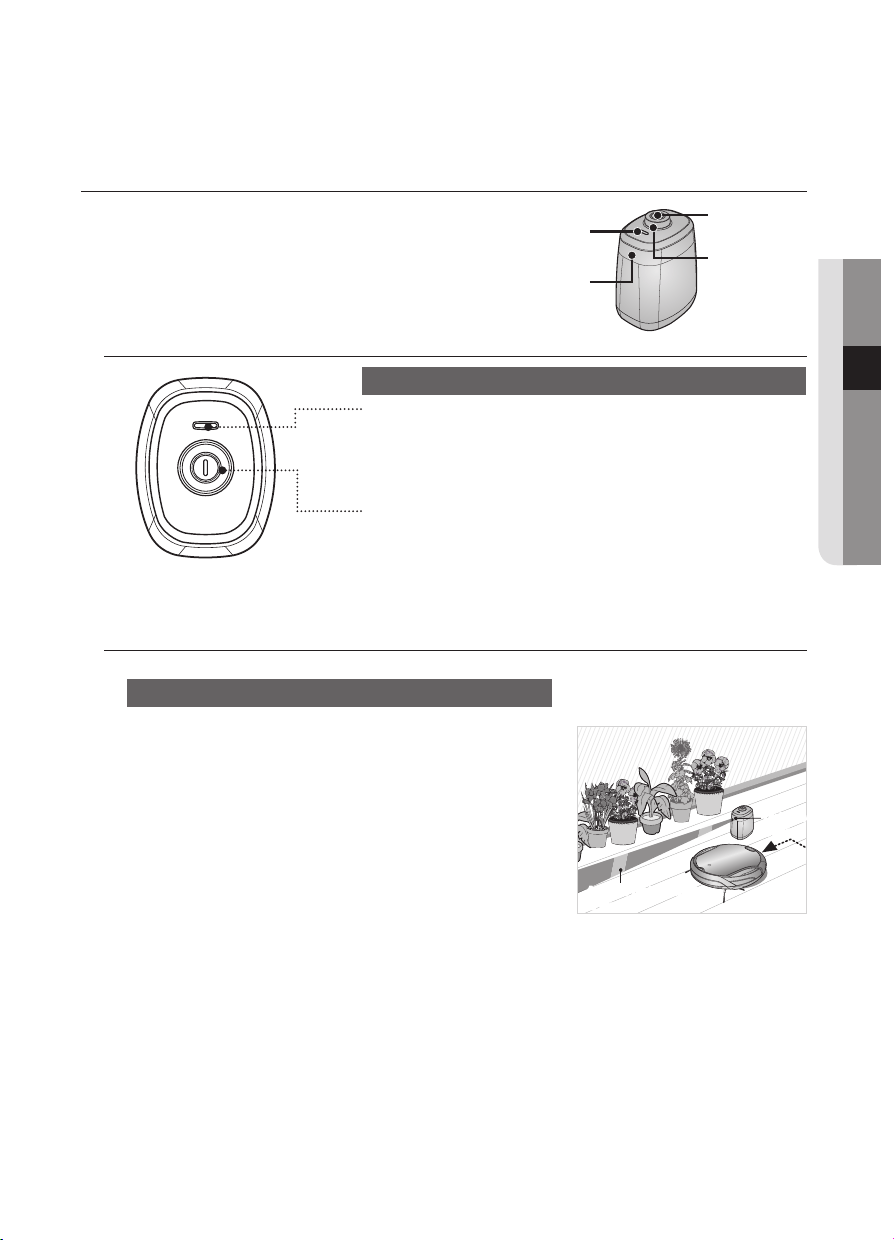
You can confine the Robot vacuum to a particular
section by using Fence (virtual wall) mode.
Button operations
1. Lamp operations
- Fence (virtual wall) Mode: The red lamp flashes.
- Off :The lamp is turned off.
2. Turn the Power Button on
- Whenever you press the Power button, Fence (virtual wall)
mode
➝
Power off is selected in this sequence.
❈
The distance of virtual wall is 2.5m at minimum and may
differ depending on surroundings and movement status of
the robot.
Forming a Fence (virtual wall)
VIRTUAL GUARD creates an invisible barrier that the Robot
vacuum cannot cross.
E.g. in front of pots, furniture, the front door, and so on.
1. Turn the Fence (virtual wall) mode on using the Power
button.
- The mode lamp flashes red.
2. Install the VIRTUAL GUARD in front of the area you
want to block access from the Robot vacuum.
- Install the VIRTUAL GUARD so that the distance detection
sensor can form an invisible barrier that the Robot vacuum cannot cross.
Power Button
Main Body
Detection
Sensor
Lamp
Distance
Detection
Sensor
A fence (virtual wall)
is formed.
Distance
Sensor
2014. 7. 23. 6:14
28_ operating
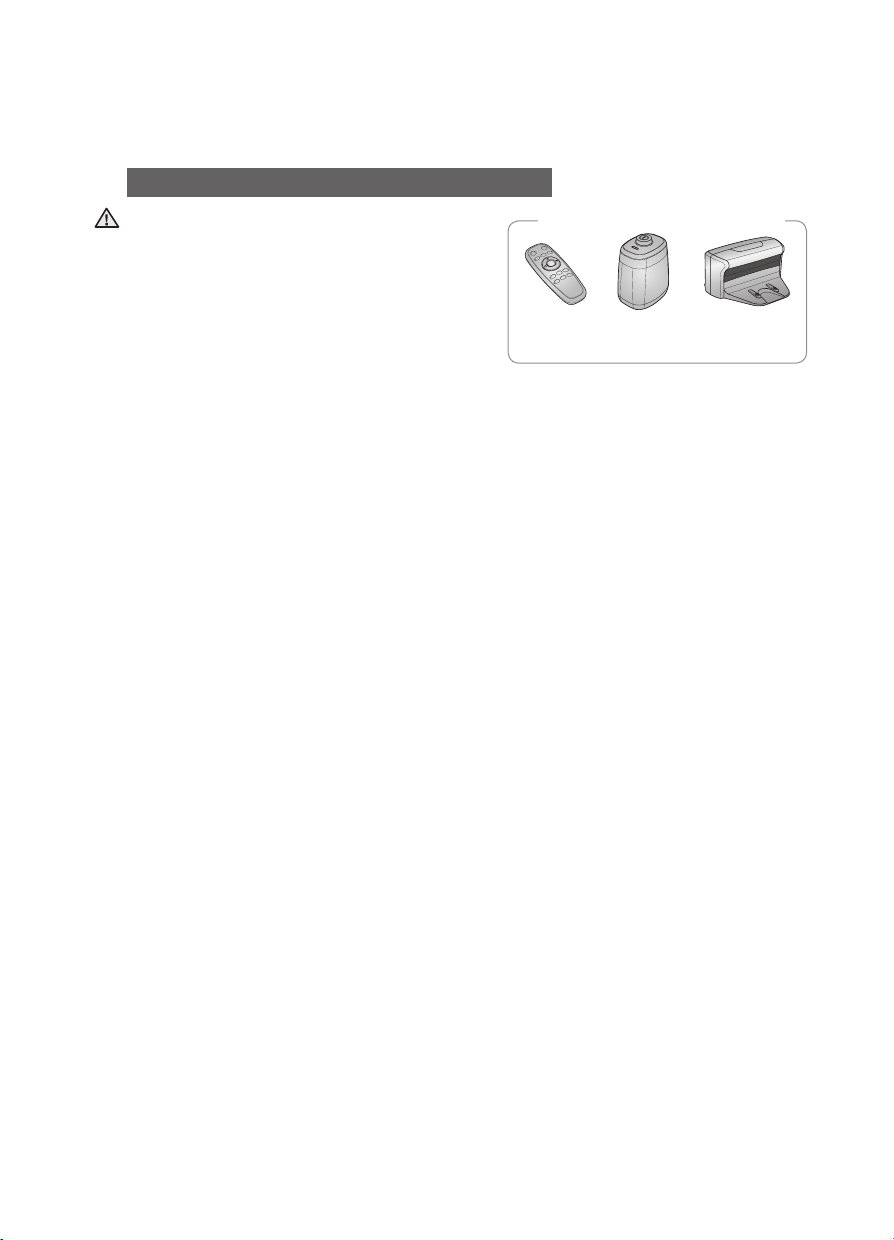
About the IrDA sensor
• The infrared signal transmission may not be
smooth in locations exposed to halogen lamps or
in outdoor locations.
• Robot vacuum uses 3 types of infrared devices
and a device may not work in front of another
device with a higher priority.
• When controlling the Robot vacuum with the
remote control, the Robot vacuum may cross
the virtual fence of the VIRTUAL GUARD or run
against an obstacle, because the remote control signal has a higher priority than the VIRTUAL
GUARD signal.
• When using the Robot vacuum in a small location or at a close distance, it may malfunction due
to interference of the infrared signals.
• Install the VIRTUAL GUARD away from the charger as auto charging may be interrupted if the
VIRTUAL GUARD is near the charger.
• If more than one Robot vacuum is used simultaneously, they may malfunction due to
interference of the infrared signals.
CAUTION
> >
Remote
Control
Virtual
guard
Charger (Station)
[Infrared Signal Priority]
2014. 7. 23. 6:14
operating _29
03 OPERATING
USING THE ROBOT VACUUM
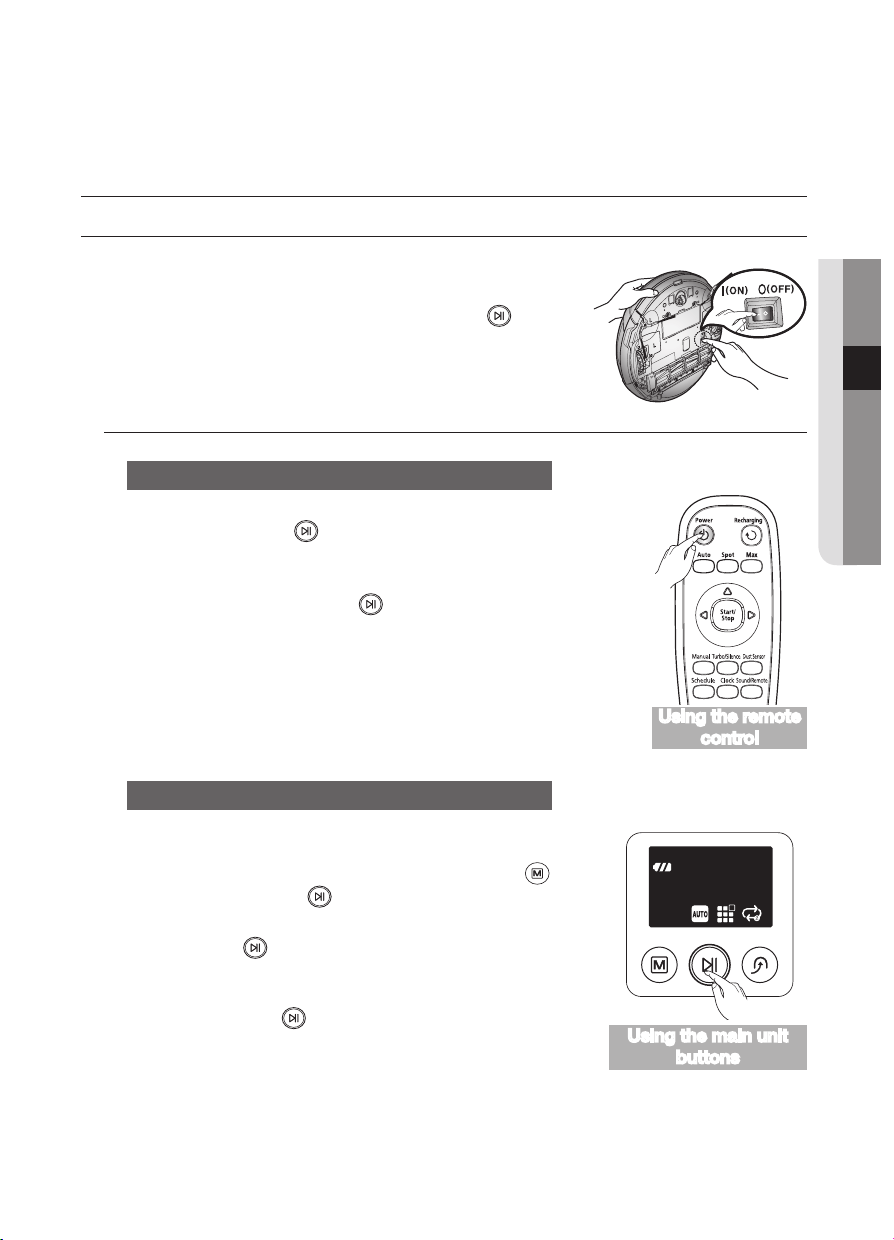
Starting/Stopping Cleaning
You can run or stop all Robot vacuum functions.
■
Each Robot vacuum function only runs when the Power
Switch is turned on.
■
When the Robot vacuum is operating, press the (
) button
to cancel the operation and select a function.
Turning the power on or off
Turning the power on
- Main unit: Press the (
) button.
Turning the power off
- Remote control: Press the [Power] button.
- Main unit: Press and hold the (
) button down for 3 seconds.
❈
If it is left idle for about 15 minutes in the Image Standby mode, then it
returns to Charging mode automatically in order to save battery power.
Please make sure that the robot is docked with the charging station
after every use.
Starting or stopping cleaning
Starting
- Remote control : Press the Auto, Spot, Max, Manual button.
- Main unit : Select Auto, Spot, Max mode by using the (
) button
and then pressing the (
) button.
- When cleaning begins, the Robot vacuum starts to move.
❈
Pressing the (
) button without selecting cleaning mode starts
to perform the Auto mode cleaning.
Stopping
- To stop, press the (
) remote control or main unit button.
- When cleaning is stopped, the Robot vacuum stops.
Using the main unit
buttons
Using the remote
control
2014. 7. 23. 6:14
30_ operating
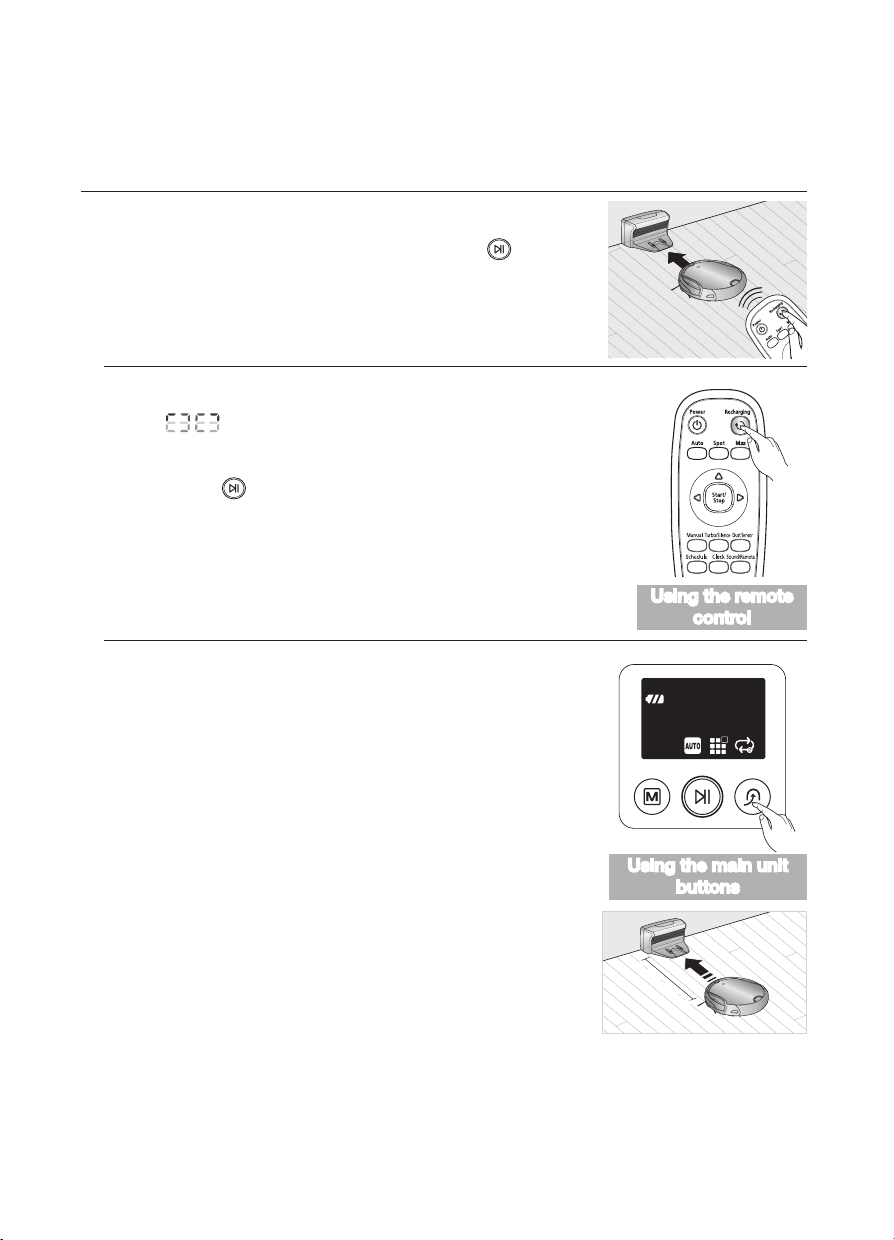
Recharging
You can have the Robot vacuum return to the Charger (Station)
to charge the battery by using the Recharging button.
■
When the Robot vacuum is operating, press the (
) button to
cancel the operation and press the Recharging button.
1. Press the Recharging button.
- (“
”) is displayed on the display panel and the Robot vacuum
returns to the charging station for recharging.
2. To stop the Robot vacuum while it is returning to the Charger (Station),
press the (
) button.
3. To test the auto charge function, press the Recharging button when
the Robot vacuum is less than 1.5m from the Charger (Station).
Troubleshooting when the Robot vacuum does not return to
Charger (Station).
- Check the installation of Charger (Station).
- When the charger is in a location where the charger cannot guide
the Robot vacuum to Charger (Station)
- When the charger is more than 5m away from Robot vacuum.
: It may require a longer time for the Robot vacuum to return to
Charger (Station).
■
Manually charge the Robot vacuum in the following cases.
- When the charger is installed in a corner.
- When the battery is fully discharged.
- When the Robot vacuum is trapped by an obstacle (furniture etc.)
- When the Robot vacuum cannot pass over the doorsill to the
location where the Charger (Station) is installed.
1.5m ahead
Using the main unit
buttons
Using the remote
control
2014. 7. 23. 6:14
operating _31
03 OPERATING
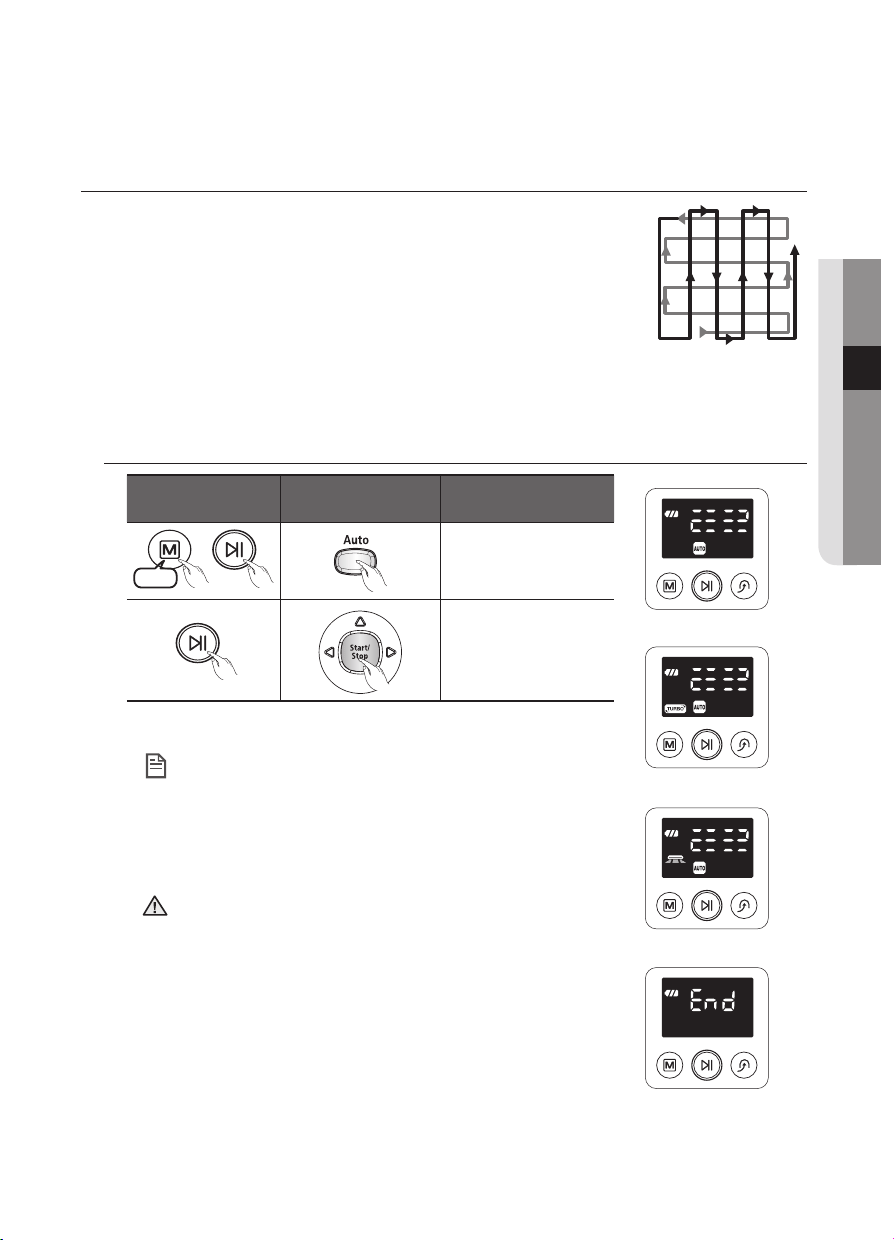
Auto Cleaning
The Robot vacuum will move by itself and automatically clean the
house until cleaning is completed once.
■
If you press the Start/Stop button on the main unit or remote control
without selecting a cleaning mode, an automatic cleaning run starts.
■
If cleaning begins when the Robot vacuum is docked with the Charger
(Station), the time to return to the Charger (Station) is decreased since
the Robot vacuum remembers its original position while moving.
■
If the Robot vacuum starts the current cleaning run at a location other
than the Charger (Station) and fails to locate the Charger (Station) while cleaning, it will stop
near the location where it started cleaning.
■
If the battery level becomes too low while cleaning, the Robot vacuum will automatically return
to the Charger (Station) and resume cleaning after charging its battery.
(Number of cleaning operations resumed : Once)
Main unit button
Remote control
button
Configuration
Sequence
Normal Mode
Turbo Mode
Dust Sensor Mode
Cleaning Complete
1time
▶
1. Set the mode.
2. Cancel the mode.
About the Resume Cleaning function
• If the Robot vacuum has evaluated that cleaning is
complete, the resume cleaning function is not performed.
• If you move the Robot vacuum when it is being charged or
press a button, the Robot vacuum judges cleaning to be
complete and does not resume cleaning.
• Do not move the Robot vacuum when it is cleaning or
press a button while it is cleaning. Otherwise, the Robot
vacuum judges cleaning to be complete and starts cleaning
again from the beginning.
• Each time you press the Turbo button, the Turbo icon on
the display panel is turned on or off sequentially. When the
Turbo icon is turned on, you can start cleaning in Turbo
mode.
• Each time you press the Dust Sensor button, the Dust
Sensor icon on the display panel is turned on or off
sequentially. When the Dust Sensor icon is turned on, you
can start cleaning in Dust Sensor mode.
NOTE
CAUTION
2014. 7. 23. 6:14
32_ operating
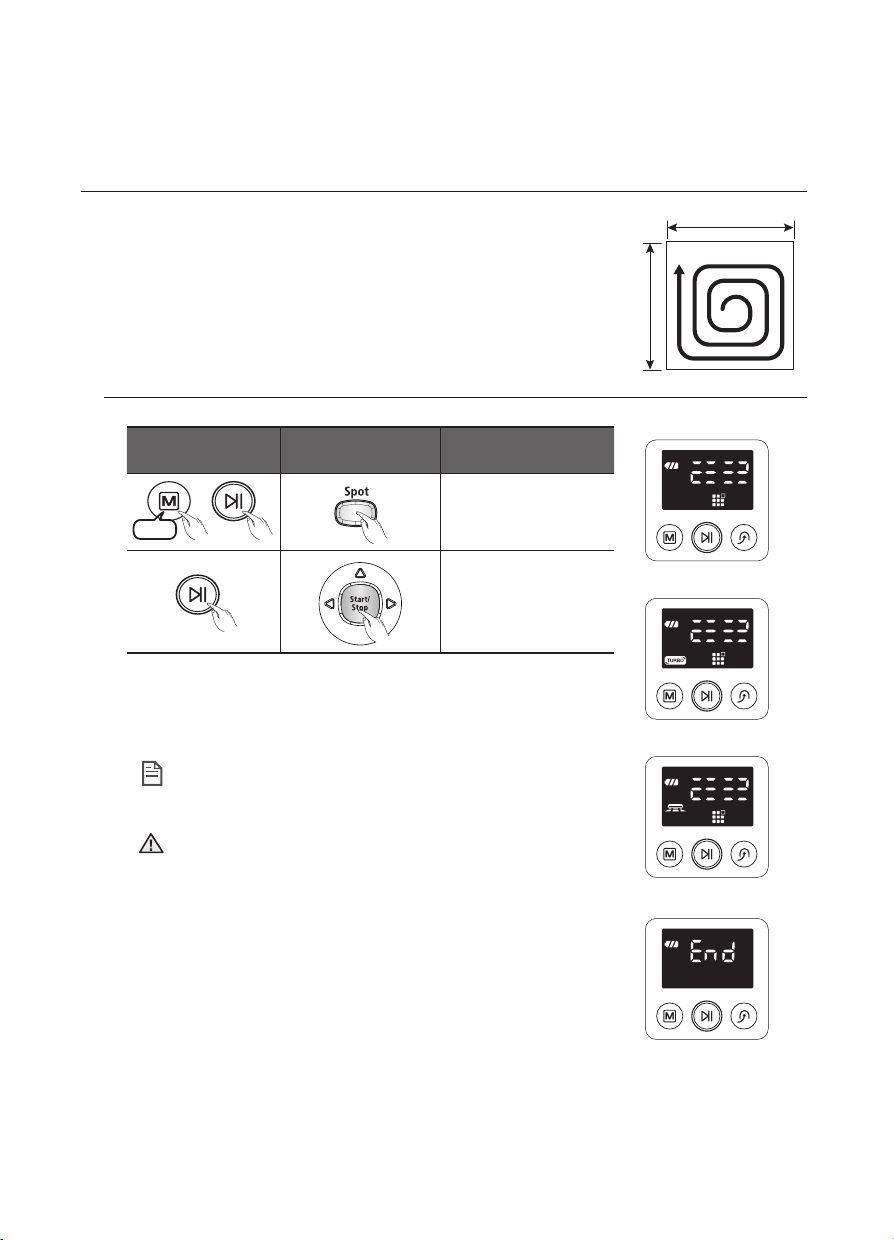
Spot Cleaning
You can conveniently clean a specific area that has a a lot of
cookie crumbs, dust, and etc.
■
Move the Robot vacuum to the location where you want to perform a
spot clean.
Main unit button
Remote control
button
Configuration
Sequence
Normal Mode
Turbo Mode
Dust Sensor Mode
Cleaning Complete
2time
▶
1. Set the mode.
2. Cancel the mode.
- In Spot cleaning mode, the Robot vacuum cleans an area with a
length of 1.5m and a width of 1.5m.
- When cleaning is completed, the Robot vacuum will display End,
Stop, and Stand by.
When the Robot vacuum is docked with the Charger (Station)
spot cleaning is not supported.
• Each time you press the Turbo button, the Turbo icon on
the display panel is turned on or off sequentially. When the
Turbo icon is turned on, you can start cleaning in Turbo
mode.
• Each time you press the Dust Sensor button, the Dust
Sensor icon on the display panel is turned on or off
sequentially. When the Dust Sensor icon is turned on, you
can start cleaning in Dust Sensor mode.
NOTE
CAUTION
About 1.5m
About 1.5m
2014. 7. 23. 6:14
operating _33
03 OPERATING
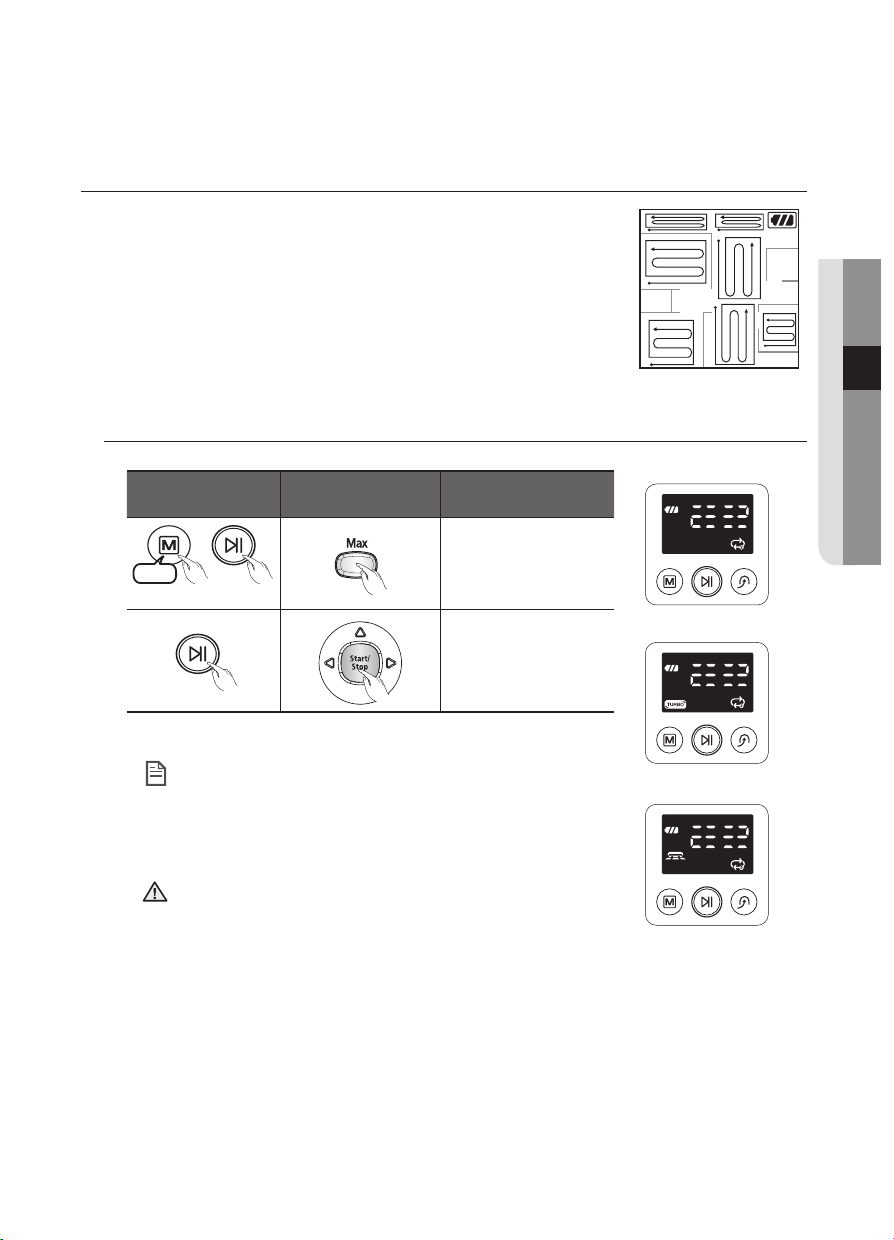
Max Cleaning
The Robot vacuum automatically moves and cleans until the
battery runs out and the battery level flashes only one level.
■
If cleaning begins when the Robot vacuum is docked with the
Charger (Station), the time to return to the charger (station) is
decreased since the Robot vacuum remembers its original position
while moving.
■
If the Robot vacuum starts the current cleaning run at a location other
than the Charger (Station) and fails to locate the Charger (Station)
while cleaning, it will stop near the location where it started cleaning.
■
If the battery level becomes low while cleaning, the Robot vacuum
automatically returns to the Charger (Station) and resumes cleaning after charging the battery.
(Number of resumed cleaning operations: Once)
Main unit button
Remote control
button
Configuration
Sequence
Normal Mode
Turbo Mode
Dust Sensor Mode
3time
▶
2 times in charging mode
1. Set the mode.
2. Cancel the mode.
About the Resume Cleaning function
• If the Robot vacuum judges cleaning to be complete,
resume cleaning is not performed.
• If you move the Robot vacuum while it is being charged
or press a button, Robot vacuum judges cleaning to be
complete (cleaning is not resumed).
• Do not move the Robot vacuum while it is cleaning or press
a button while cleaning. Otherwise, the Robot vacuum
judges cleaning to be complete and starts cleaning again
from the beginning.
• Each time you press the Turbo button, the Turbo icon on
the display panel is turned on or off sequentially. When the
Turbo icon is turned on, you can start cleaning in Turbo
mode.
• Each time you press the Dust Sensor button, the Dust
Sensor icon on the display panel is turned on or off
sequentially. When the Dust Sensor icon is turned on, you
can start cleaning in Dust Sensor mode.
NOTE
CAUTION
2014. 7. 23. 6:14
34_ operating
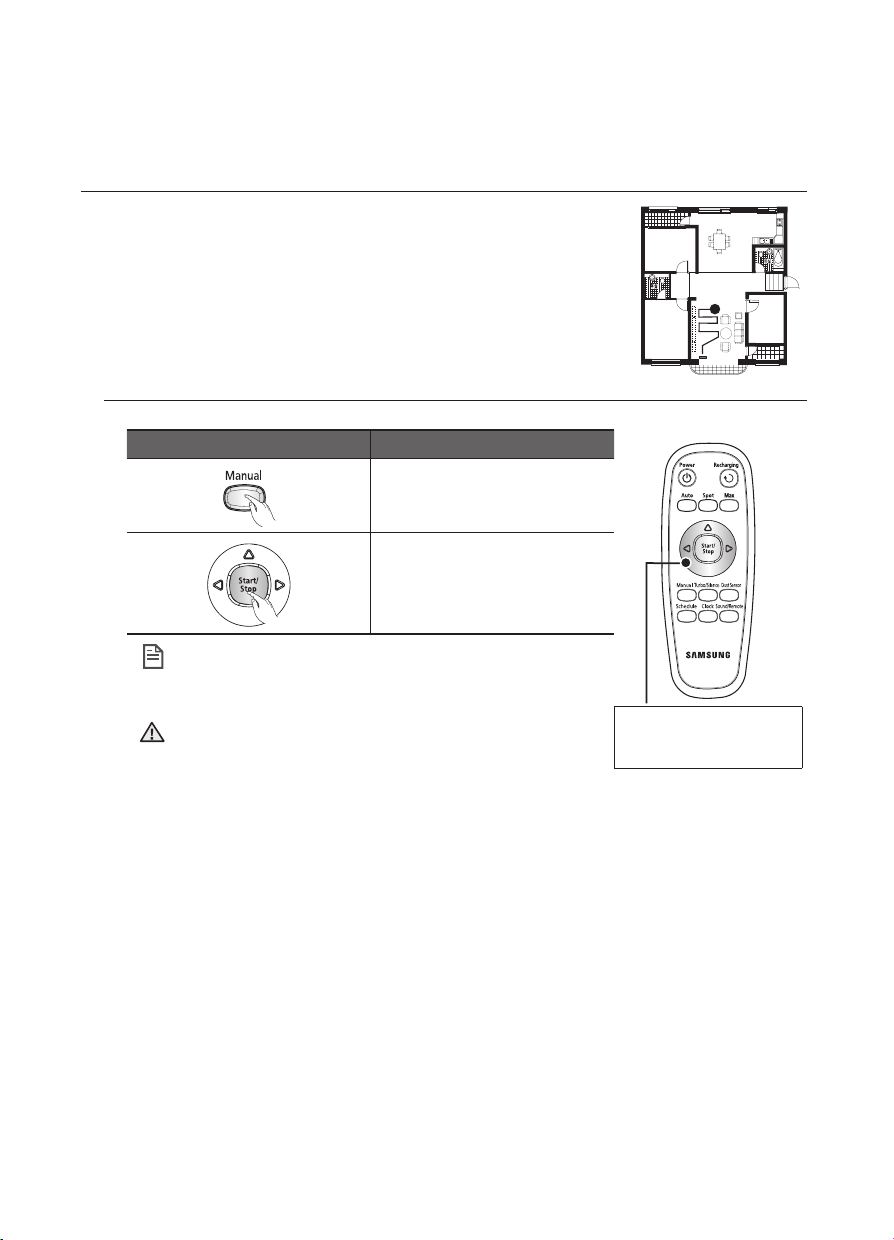
Manual Cleaning
You can move the Robot vacuum to clean a particular location
directly by using the remote control.
■
Move the Robot vacuum to the location where you want to perform
manual cleaning.
■
You can manually clean using the remote control only.
Remote control button Configuration Sequence
Directional Buttons
(Forwards, Left, Right)
A backwards function is not
supported.
1. Set the mode.
2. Cancel the mode.
• When the Robot vacuum is docked with the Charger
(station), manual cleaning is not supported.
• Each time you press the Turbo button, the Turbo icon on
the display panel is turned on or off sequentially. When the
Turbo icon is turned on, you can start cleaning in Turbo
mode.
• Each time you press the Dust Sensor button, the Dust
Sensor icon on the display panel is turned on or off
sequentially. When the Dust Sensor icon is turned on, you
can start cleaning in Dust Sensor mode.
NOTE
CAUTION
2014. 7. 23. 6:14
operating _35
03 OPERATING
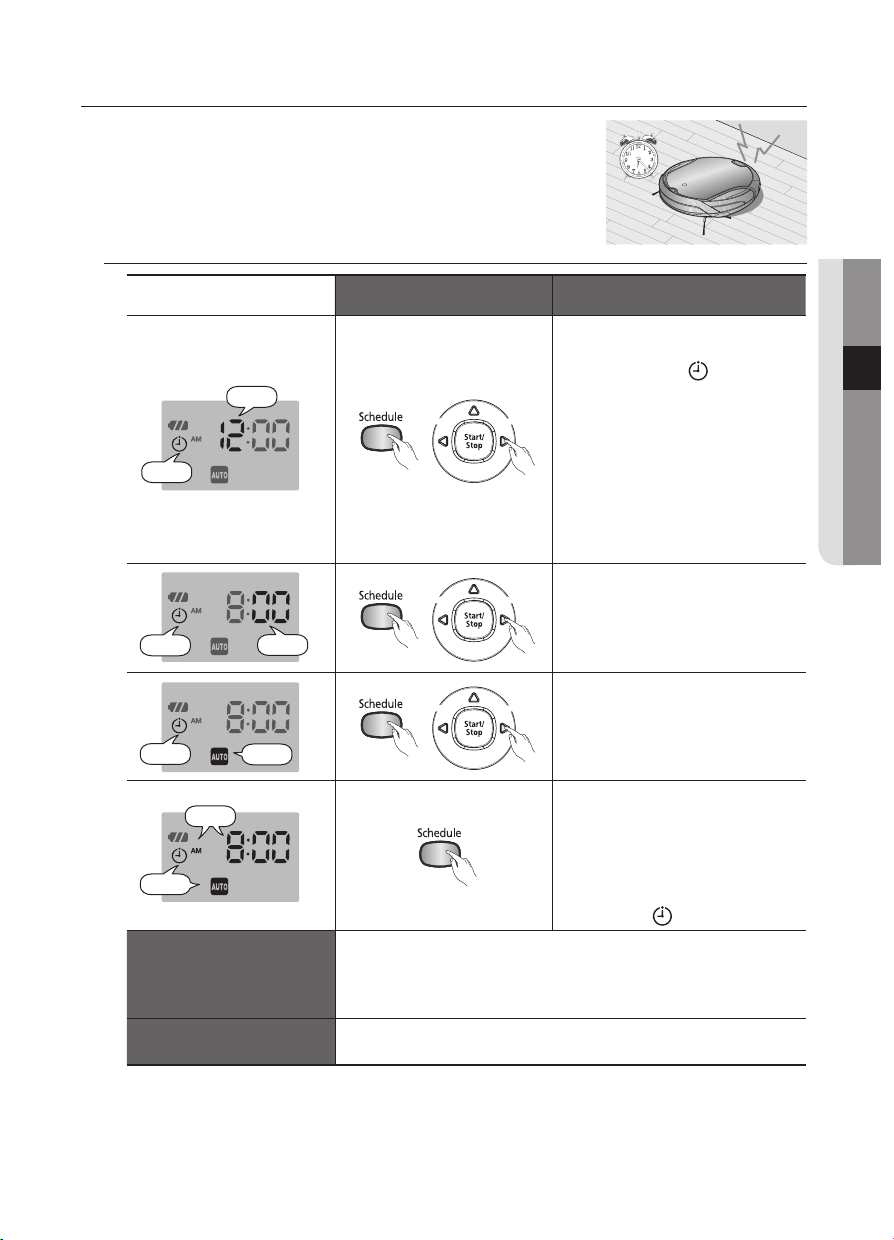
Timer Reservation
In this mode, you can schedule the Robot vacuum to start a
once-off cleaning run from a particular time.
■
A scheduled cleaning run is only performed when the Robot
vacuum is docked to the Charger (Station).
Remote Control Configuration Sequence
Blinks
Blinks
Decrease
Increase
1. Press the Schedule button.
- The current setting is
displayed and
blinks.
Press the
or
button to
set the hour.
❈
Cleaning Mode
- If there is no previous
reservation, the cleaning
mode is set to Auto mode. If
a reservation exists, cleaning
mode is set to the configured
mode.
Blinks
Blinks
Decrease
Increase
2. Press the Schedule button.
- The time increases/decreases
by 5 minutes. Press the
or
button to set the minutes.
Blinks
Blinks
Decrease
Increase
3. Press the Schedule button.
Press the
or
button to
set the cleaning mode.
- You can select either Auto or
Max cleaning mode.
Blinks
Blinks
4. Press the Schedule button.
- The value you set will
blink and the settings are
completed.
- When the settings are
completed, the configured
time and
are displayed.
Canceling the Settings
- If you press the Start/Stop button while the cleaner is charging
or you are setting the time, the settings are canceled.
- Please take note that the settings are canceled if the cleaner
is detached from the Charger (Station).
Timeout
- If there is no input for 1 minute while you are setting the time,
the cleaner exits Time Set mode automatically.
2014. 7. 23. 6:14
36_ operating
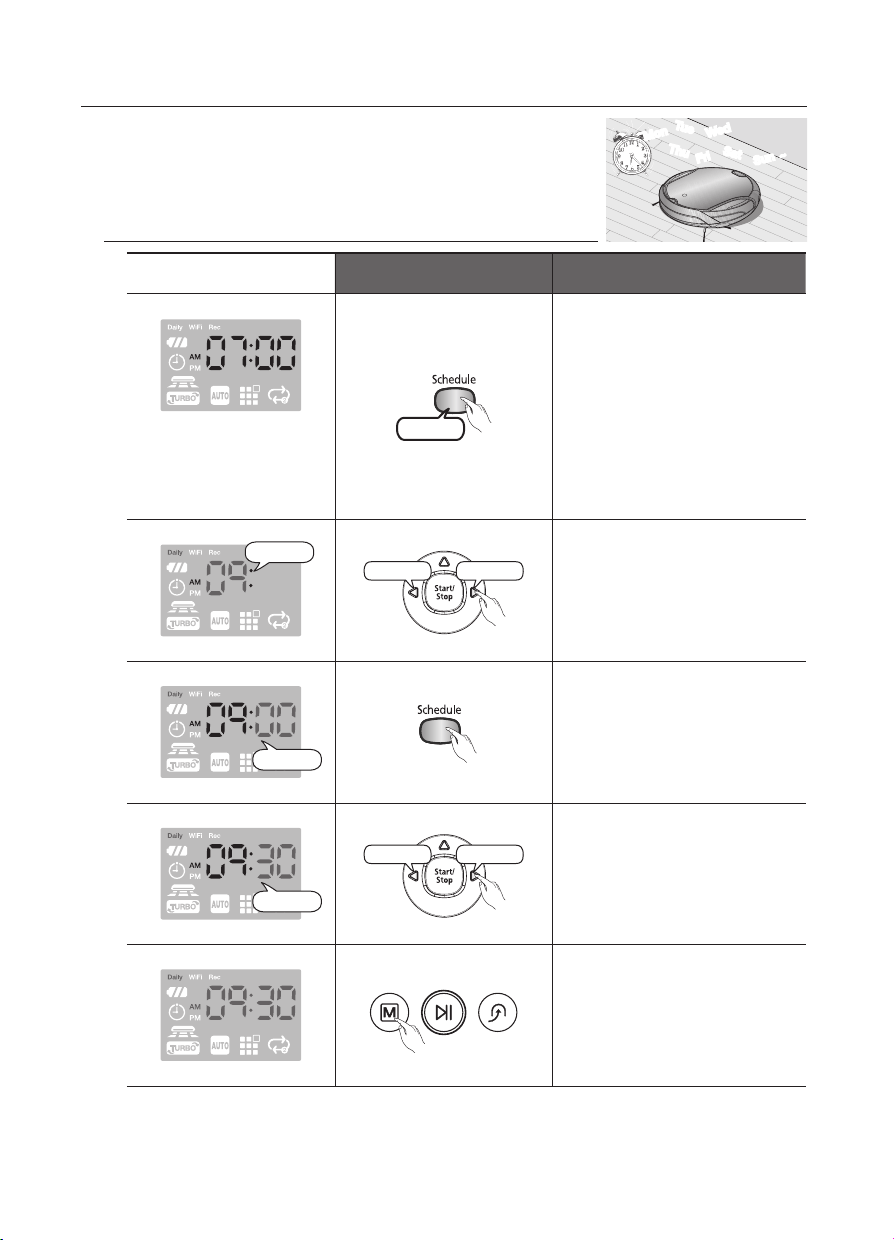
Setting Daily Cleaning
You can schedule the Robot vacuum to start cleaning
everyday from a particular time.
■
Daily cleaning is only performed when the Robot vacuum is
docked with the Charger (Station).
Remote Control Configuration Sequence
Example)
The current time: 07:00a.m.
The desired cleaning start time:
09:30a.m.
3 second
1. Enter Daily Cleaning mode
and confirm that the
configured time is correct.
(Check the daily reservation
time.)
Blinks
Decrease Increase
2. Set the “hour”.
Blinks
3. Confirm the “hour”.
Blinks
Decrease Increase
4. Set the “minutes”.
5. Set the cleaning mode.
Mon
Tue
Wed
Thu
Fri
Sat
Sun
~
2014. 7. 23. 6:14
operating _37
03 OPERATING
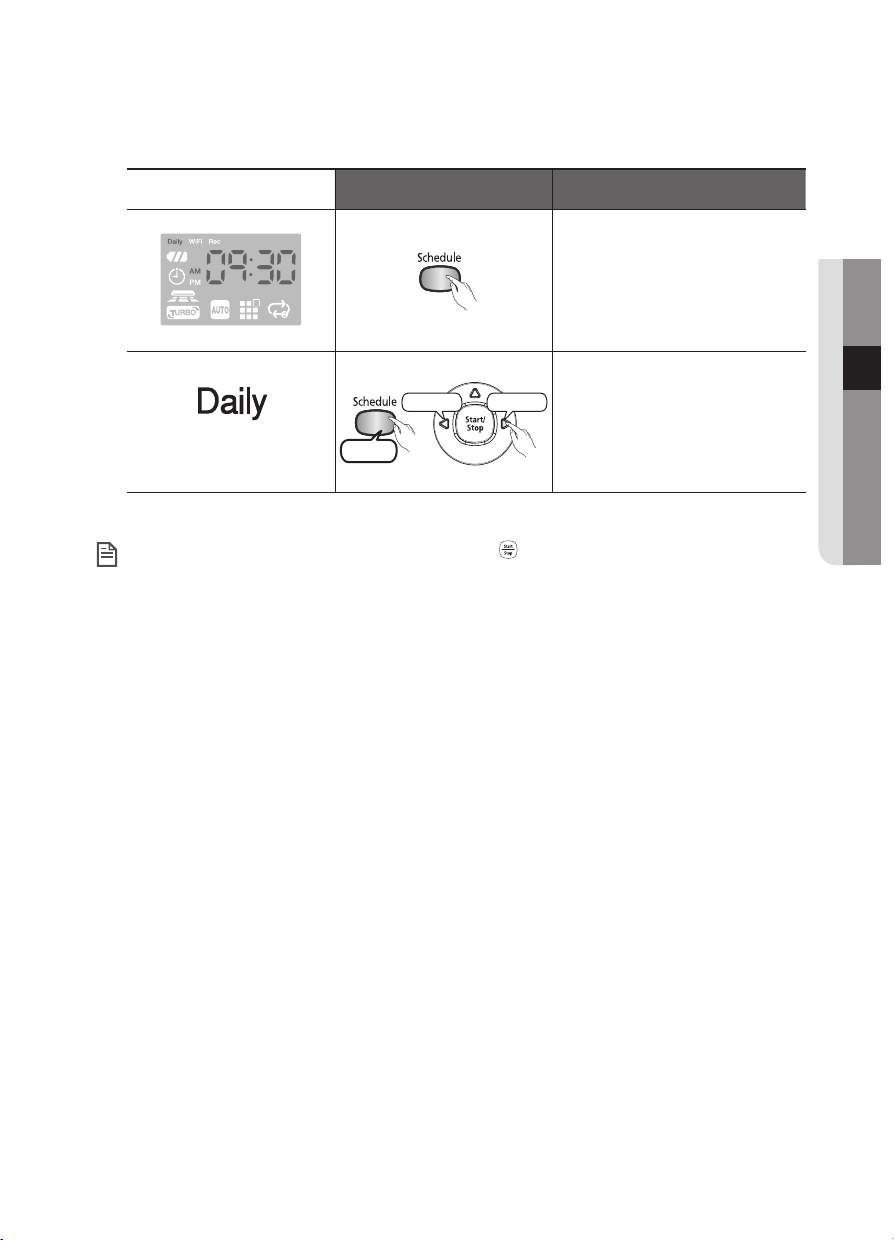
Remote Control Configuration Sequence
6. Complete the settings.
The icon is turned off.
Decrease Increase
3 second
Cancel the settings.
When completing the settings, and you press the ( ) button instead of the Delay/Daily button,
Daily Cleaning mode is exited.
NOTE
2014. 7. 23. 6:14
38_ operating
ADDITIONAL FUNCTIONS
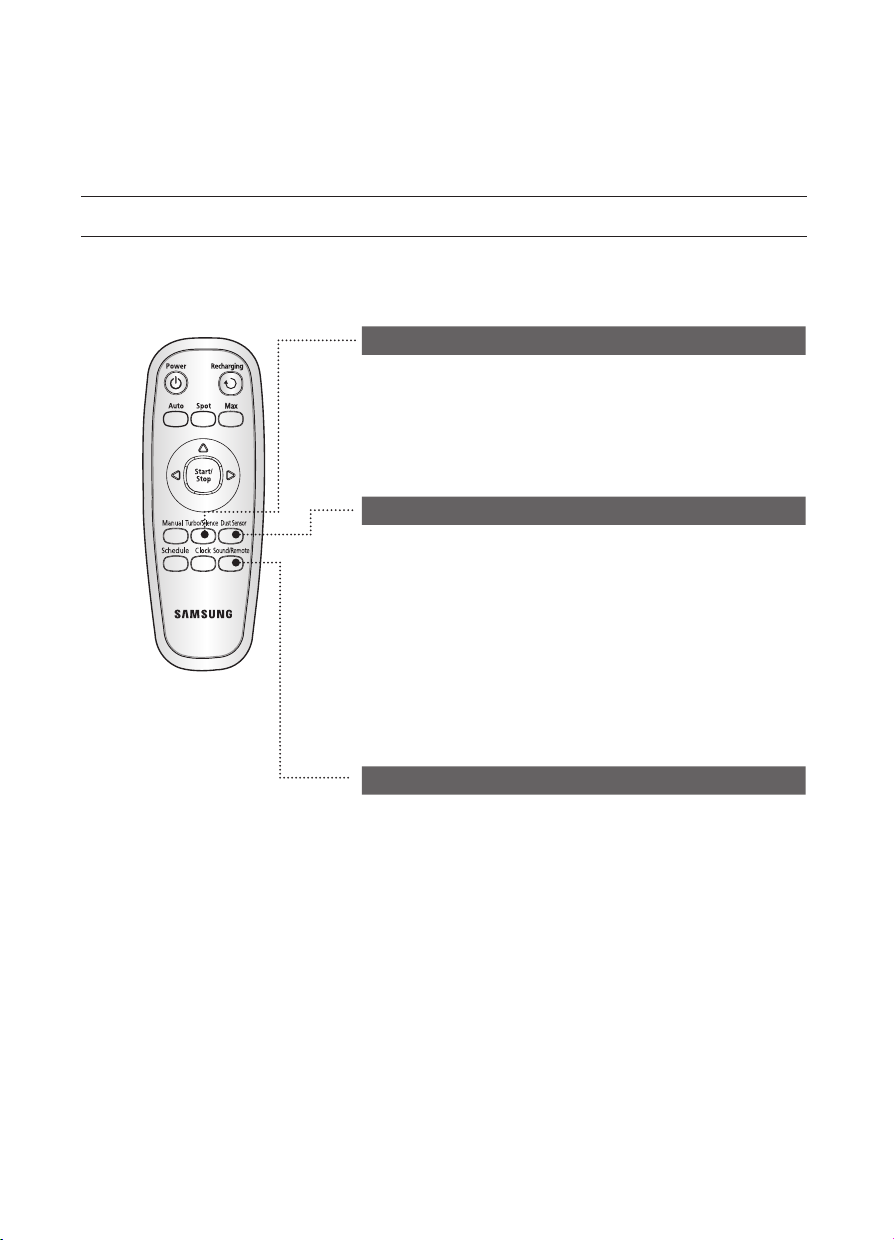
Using additional functions
You can use the Robot Vacuum more easily and conveniently using various additional
functions.
■
You can only configure the additional functions with the remote control.
Turbo Mode
Each time you press the Turbo button, the Turbo icon on the
display panel is turned on or off sequentially.
On Turbo : The power brush rotates at maximum speed.
On Silence : The power brush rotates at normal speed.
Dust Sensor Mode
Each time you press the Dust Sensor button, the Dust Sensor
icon on the display panel is turned off or on sequentially.
Dust Sensor Mode On : In Auto cleaning mode, when the
vacuum cleaner senses that dust has entered a specific area,
the cleaner rotates and changes direction to clean that area,
and then after cleaning that area, resumes its previous course.
In Spot, Max, Manual mode, when the vacuum cleaner senses
that dust has entered a specific area, the boost continues to
operate for several seconds.
Dust Sensor Mode Off : The cleaner does not sense the dust
entering and continues to drive as set in the selected cleaning
mode.
Remote Control Function
Press the Sound/Remote button of the remote control, and the
WiFi LED gets turned on, and the remote control function gets
activated.
- Each time you press the button, the setting gets done in the
order of release of remote control and execution of remote
control.
- You can select Sound Mode in option menu of SAMSUNG
Smart Home App.
- Please refer to SAMSUNG Smart Home Manual for how to
use Home View.
❈
Sound fuction is supported in the SAMSUNG Smart
Home App NOT supported on the remote control.
2014. 7. 23. 6:14
maintain _39
04 MAINTAIN
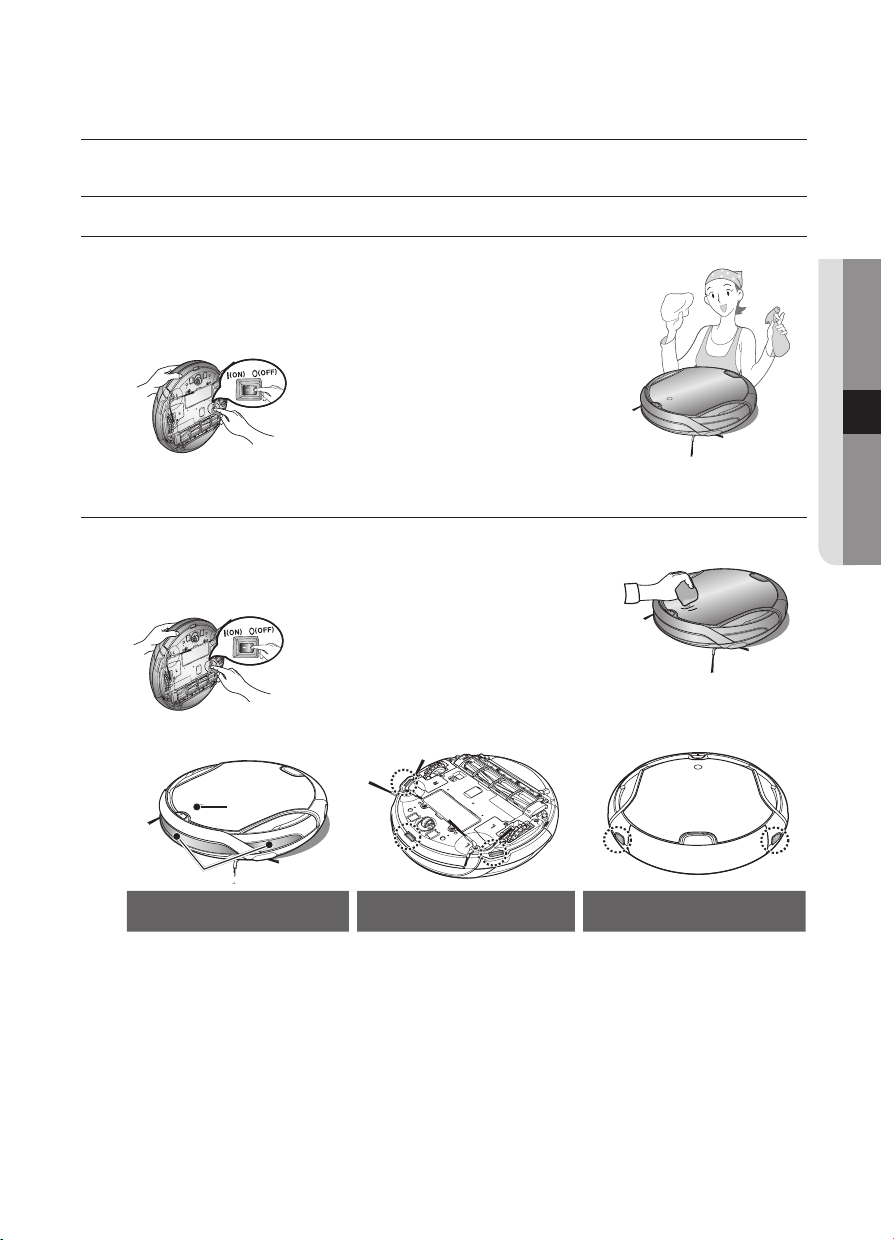
CLEANING THE ROBOT VACUUM
Please keep the cleaning and maintenance methods in mind
■
When the Power Switch is damaged, please contact the service
agent so that it does not cause any accidents.
■
Do not use any means or mechanical devices not installed by the
manufacturer that could accelerate the deformation of the Robot
vacuum.
■
Always turn off the power switch at the
bottom of the main unit before cleaning the
Robot vacuum. The Robot vacuum could
operate suddenly and cause an injury.
Cleaning the Sensor Window and the Camera
You must turn off the Power Switch at the bottom of the main
unit before cleaning the Robot vacuum.
■
Never spray water, thinner, benzene etc. directly onto the main unit
of Robot vacuum.
■
Lightly wipe the sensor window or camera
using a soft cloth.
Front Sensor window
Camera
Front Sensor Window and
Camera
Cliff Sensor Window Rear Sensor Window
Maintain tools and filters
2014. 7. 23. 6:14
40_ maintain
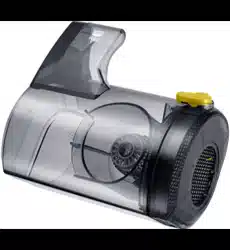
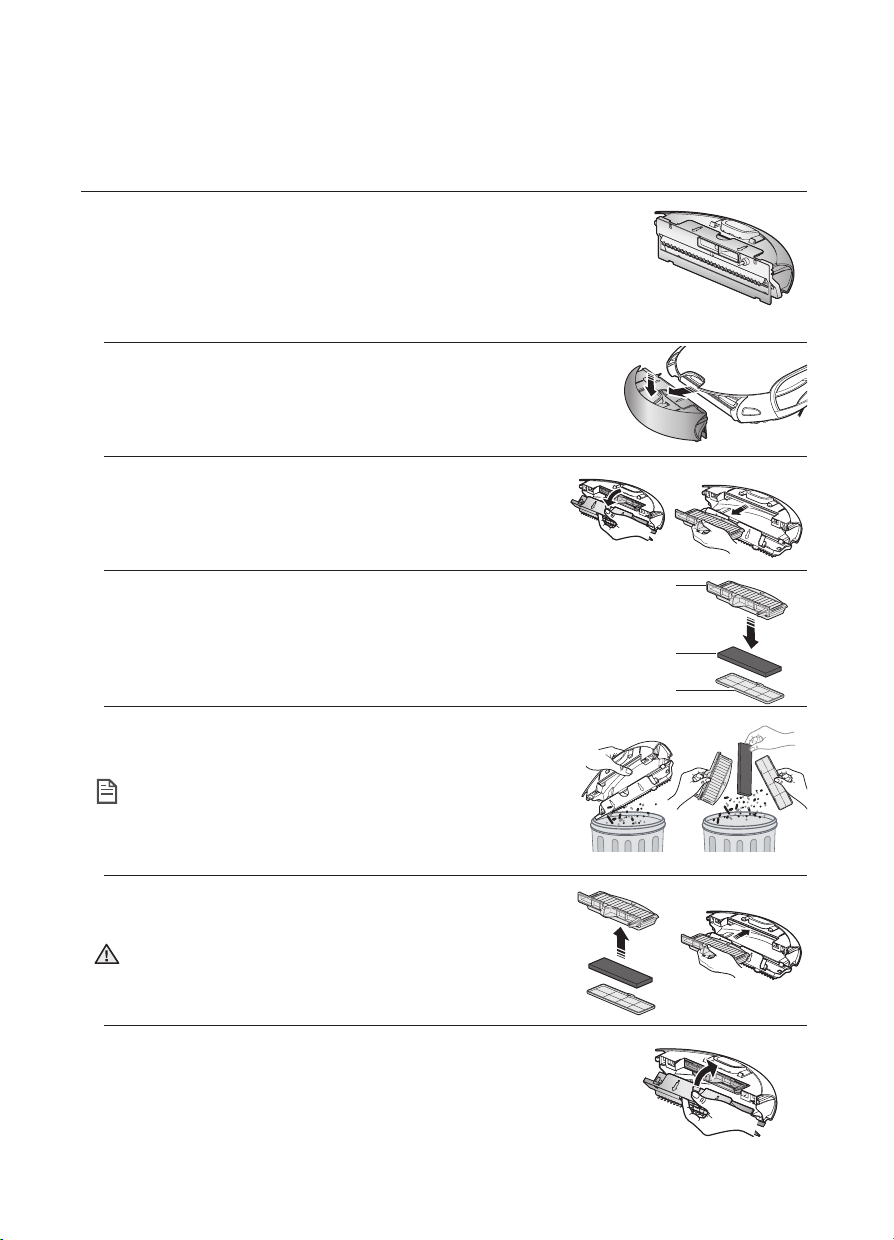
Cleaning the Dust Bin and the Filters
First, empty the dust bin before cleaning it.
■
When separating the dust bin, take care not to spill the dust out of the
dust bin.
■
Empty the dust bin in the following cases.
1. When dust has accumulated inside the dust bin.
2. When the suction power suddenly becomes weak.
3. When the noise suddenly increases.
1. Press the Dust Bin Eject (PUSH) button and pull the dust bin to
separate the dust bin.
2. Open the Dust Bin cover in the direction of the arrow and
remove the filter.
3. Please separate the mesh filter from filter and remove the
sponge filter.
4. Clean dust from dust bin, filter, sponge and mesh filters.
❈
You can clean it with water.
After cleaning it with water :
1. Dustbin : Wipe the water off completely.
2. Filter, sponge and mesh filters: Dry the filters completely
in an airy place out of the sun before putting them
together.
5. Please insert the sponge filter to the filter first and then put
mesh filter together before putting the filters in the dust bin.
If the dustbin is assembled without the filter being mounted,
the error code C08 occurs.
Make sure to mount the filter.
6. Close the dust bin cover and install it into the main unit.
NOTE
CAUTION
Filter
Sponge filter
Mesh filter
2014. 7. 23. 6:14
maintain _41
04 MAINTAIN
MAINTAIN TOOLS AND FILTERS
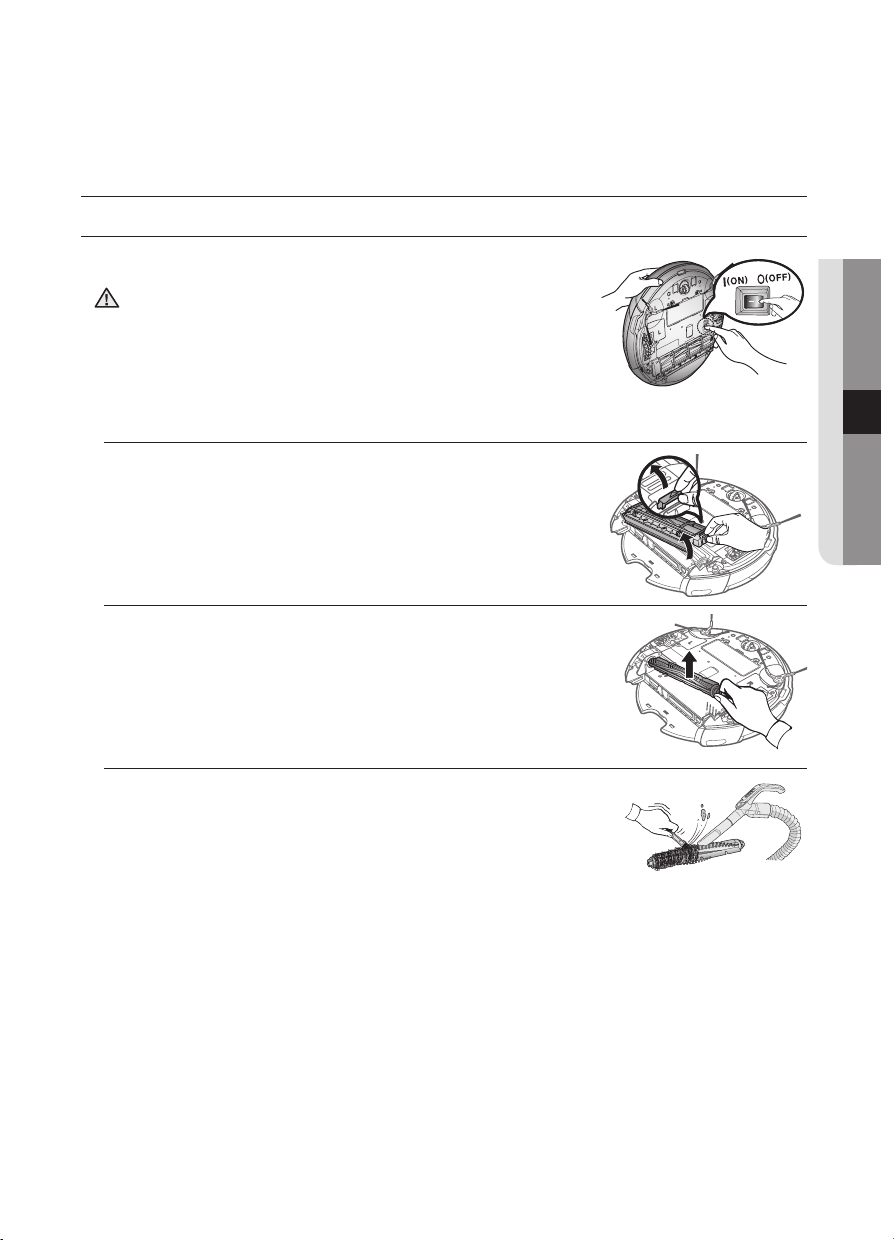
Cleaning the Power Brush
You must turn off the Power Switch at the bottom of the
main unit before cleaning the Robot vacuum.
• Because the dust in the dust bin may come out, separate the
dust bin first before cleaning the power brush.
1. After checking whether there are any foreign substances, press
the hook that is fixing the brush cover to separate it.
2. Lift the power brush up from the main unit.
3. Remove any foreign substances such as long hairs or strings
wrapped around the power brush using a cleaning brush or a
vacuum cleaner.
CAUTION
2014. 7. 23. 6:14
42_ maintain
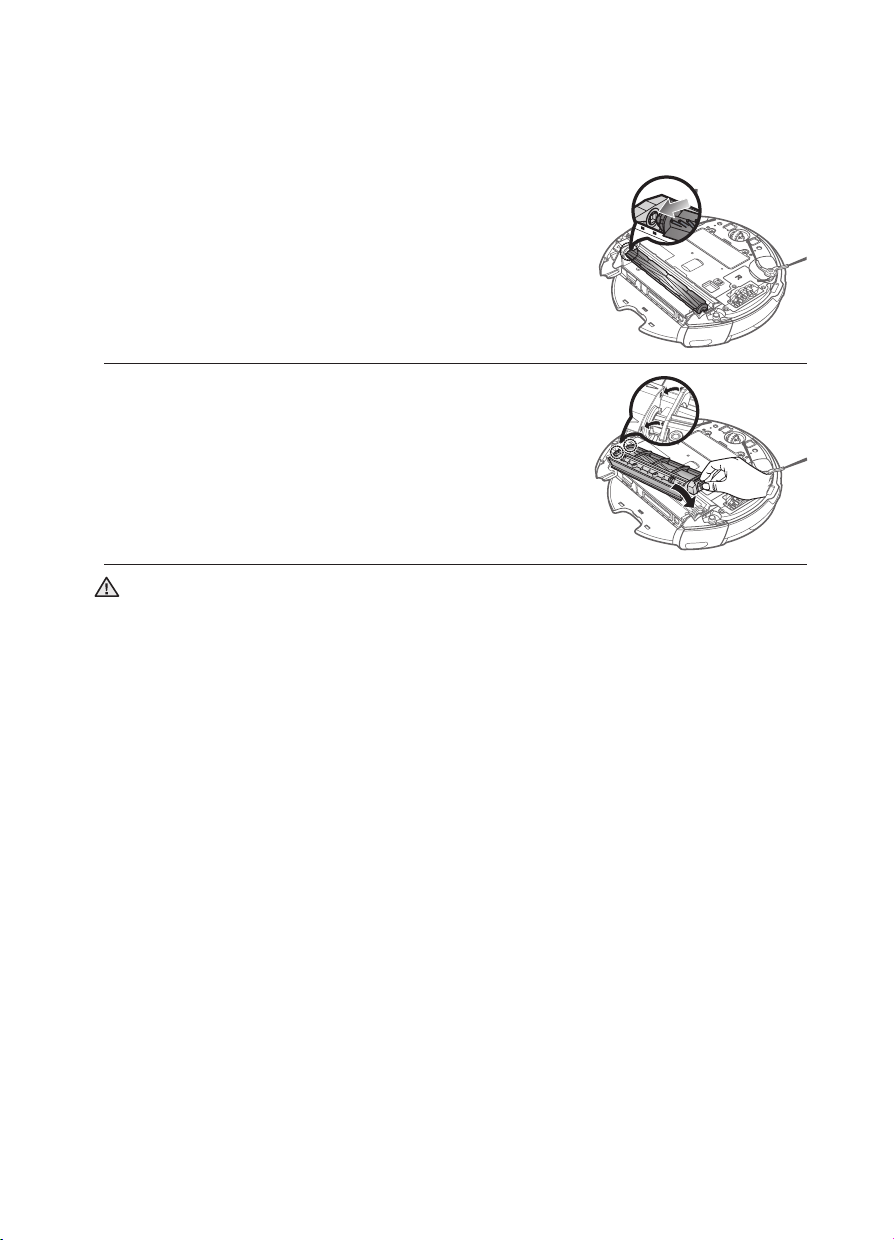
4. After a cleaning run, first fix the side of the power brush
opposite to the Power Switch and then fix the other side.
5. Insert the side into the two grooves and assemble it by
slightly sliding it down until it clicks into place.
• To prevent the Robot vacuum from becoming clogged, be careful not to vacuum tooth picks or
cotton swabs.
• When removing foreign substances becomes difficult, contact a customer care center.
• Because the power brush vacuums the dust on the floor, long strings or hair can become
wrapped around the brush. Check and clean the power brush regularly.
CAUTION
2014. 7. 23. 6:14
maintain _43
04 MAINTAIN
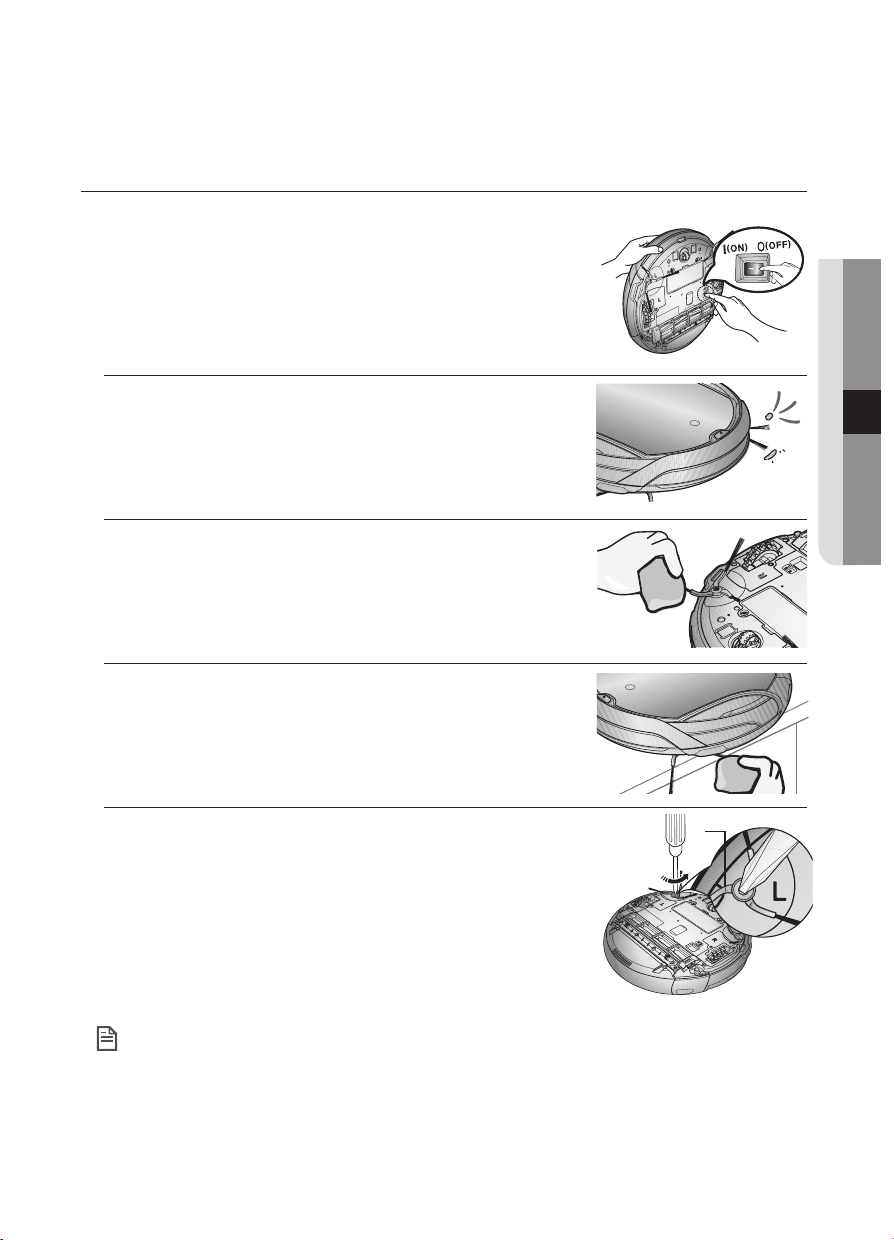
Cleaning the Edge-Cleaning Side rotating Brush
You must turn off the Power Switch at the bottom of the
main unit before cleaning the Robot vacuum.
1. Check whether the side rotating brush is bent or whether there
are any foreign substances stuck on the brush.
2. Wearing rubber gloves, wrap the side rotating brush with a cloth
using hot water for about 10 seconds and wipe it on the cloth.
3. Turning the side rotating brush, repeat the procedures in Step 2.
4. If hair or string is wrapped between the main unit and the side
rotating brush, undo the screw of the side rotating brush using
a (+) driver to remove it. When reassembling the brush, check
the “L” mark on the edge-cleaning side rotating brush and the
“L” mark on the main unit and then reassemble the side rotating
brush. (Letter “R” is carved at the right side rotating brush.)
Because the side rotating brush easily attracts hair and other foreign substances, make sure to
clean it frequently.
Excessive foreign substances on the side rotating brush can damage the brush.
L
NOTE
2014. 7. 23. 6:14
44_ maintain
Cleaning the Driving Wheel
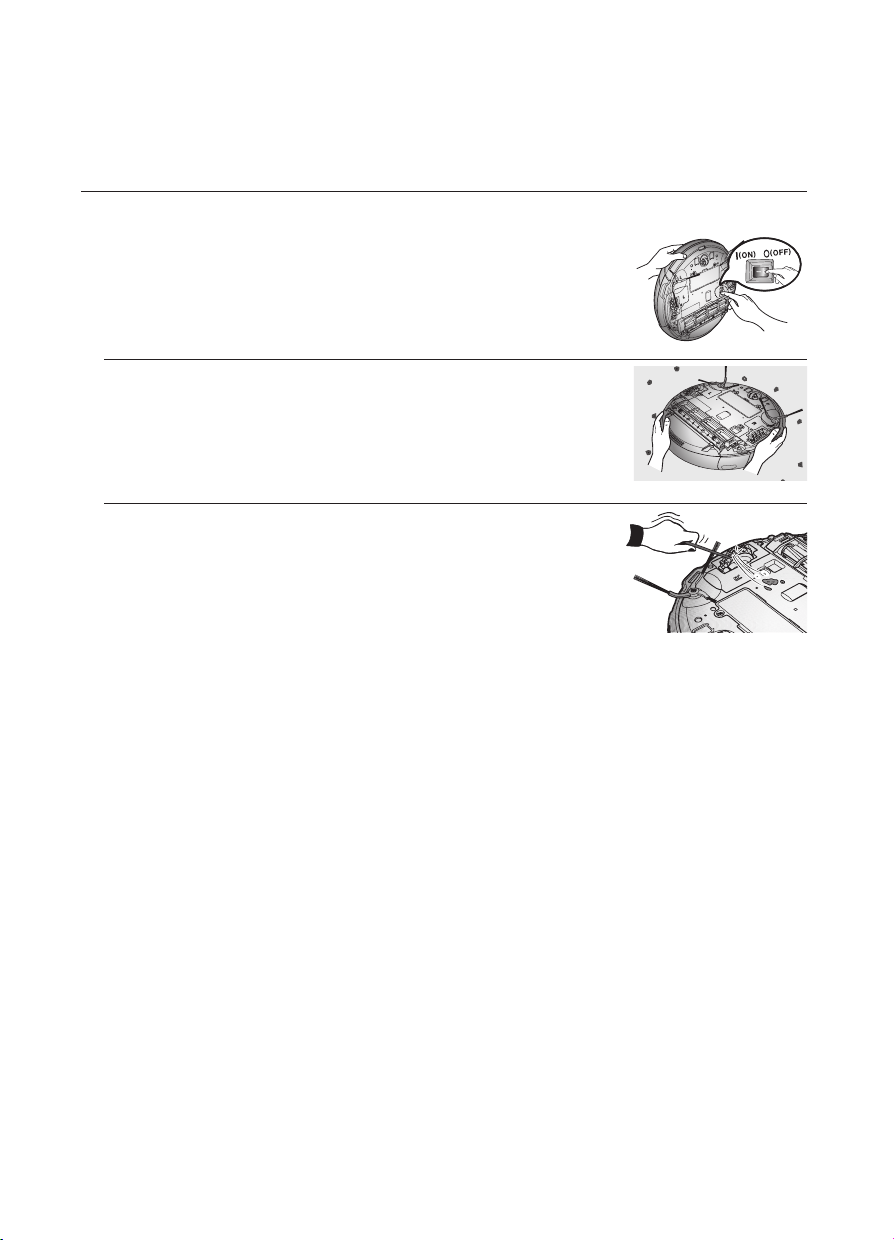
You must turn off the Power Switch at the bottom of the main
unit before cleaning the robot.
■
If the Robot vacuum suddenly starts to zigzag, there may be foreign
substances stuck on the driving wheel.
1. When cleaning the driving wheel, place a soft cloth on the floor and
flip the main unit, placing it down carefully.
2. Check for foreign substances and remove them using a stick or a
pair of blunt nippers if necessary.
2014. 7. 23. 6:14
Samsung Smart Home App _45
05 SAMSUNG SMART HOME APP
Samsung Smart Home Manual
• The Robot Vacuum equipped with the Home View feature shall be classified as an image
processing device under a personal information protection act or other similar laws.
• You shall not use it in a publicly open place or to record others without their consent.
• Whenever the Home View feature is engaged, the Rec lamp will turn on and the voice will be
played to call the attention of others.
PREPARING THE NETWORK
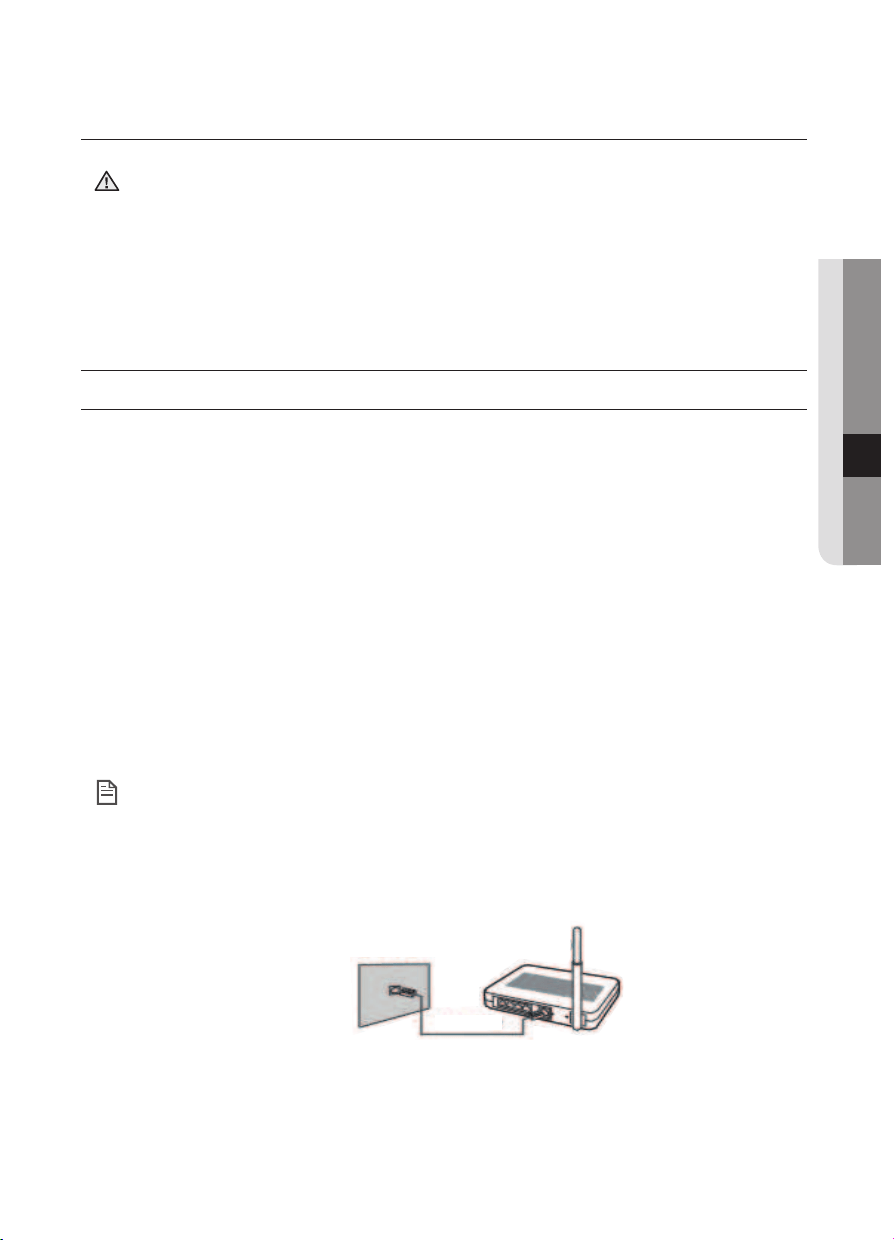
Setting up the wireless router
•The supported types of authorization/encryption of the wireless router are WEP-OPEN, WPA-PSK/
TKIP, and WPA2-PSK/AES.
In 801.11n, WPA2-PSK/AES is recommended to be used.
•The quality of connection of the wireless network may be influenced by the surrounding wireless
environment.
•When your Internet service provider has permanently registered an MAC address (a unique
identification number) of your PC or modem, your vaccum Robot Vacuum may be unavailable to be
connected to the Internet.
Ask your Internet service provider about the procedure to connect an apparatus other than a PC to
the Internet.
•The connection to the Internet may be impossible because of issues of firewall.
Ask your Internet service provider for resolving the issue.
•Some wireless routers may convey an abnormal Domain Name Server (DNS) address even if the
Internet is not connected.
In this case, inquire the provider of the pertinent wireless router and your Internet service provider.
•If you still cannot connect to the Internet even after trying the procedure informed by your Internet
service provider, please ask an agency or service center of Samsung Electronics.
• Please refer to the user manual of the pertinent wireless router without access problems.
• Samsung Cleaning Robots support only Wi-Fi 2.4Ghz.
• Samsung Cleaning Robots support the communication protocol of the methods of
IEEE802.11b/g/n and Wi-Fi Direct. (Samsung Electronics recommends to use IEEE802.11n.)
• A wireless router with no authorization of Wi-Fi may be unavailable to be connected to the
vaccum Robot Vacuum.
LAN terminal on
the wall
LAN cable
Wireless router (a router that supports
the DHCP server)
CAUTION
NOTE
2014. 7. 23. 6:14
46_ Samsung Smart Home App
USING THE SAMSUNG SMART HOME APP
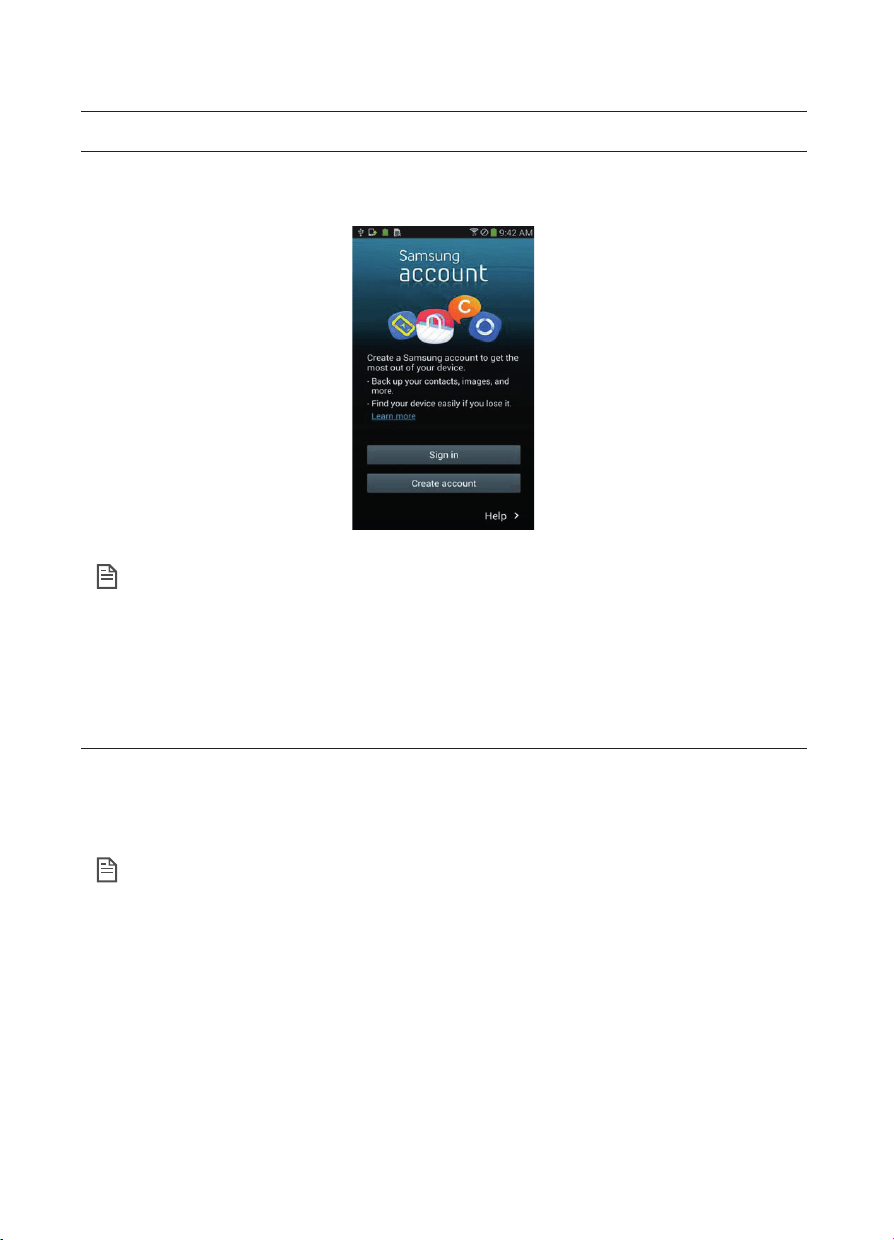
Creating your Samsung Account
If you want to use the Samsung Smart Home App, please register your Samsung account through
Samsung Account.
• When you run the App while you are not automatically logged in to the Samsung Smart Home
App, the screen of Samsung Account appears once initially.
If you are a user of a Samsung smart phone, register your Samsung account in the settings of
the smart phone, and then the automatic login gets set wihtout any separate login process, and
you can use the Samsung Smart Home App immediately.
Samsung Smart Home App Download
•You can download the Samsung Smart Home App by searching for “Samsung Smart Home App” at
the Google Play Store, Samsung Apps, and App Store for iPhones.
•If you are an iPhone user, you can use our service through the App Store from the latter half of the year
2014.
1. Samsung Smart Home apps are compatible with selected Samsung Galaxy S and
Samsung Note series devices.
(1)
- support Android™
(2)
4.0 (since Galaxy S2) or higher and iOS7 or higher
- (1) Application must be downloaded. Internet connection required. Data changes may apply.
- (2) Android is a trademark of Google Inc
2. Samsung Smart Home service cannot be guaranteed in the presence of firewalls.
3. Video streaming requires a uniform upload speed about 1 Mbps or more.
4. Video streaming function requires a uniform upload speed about of 1Mbps or higher more.
- would be suitable to operate onLTE or Fibre
- may experienceinterruption on ADSL2, ADSL2+, or 3G
- cannot be serviced on ADSL
NOTE
NOTE
2014. 7. 23. 6:14
Samsung Smart Home App _47
05 SAMSUNG SMART HOME APP
Registering the Product (Easy-Setup)
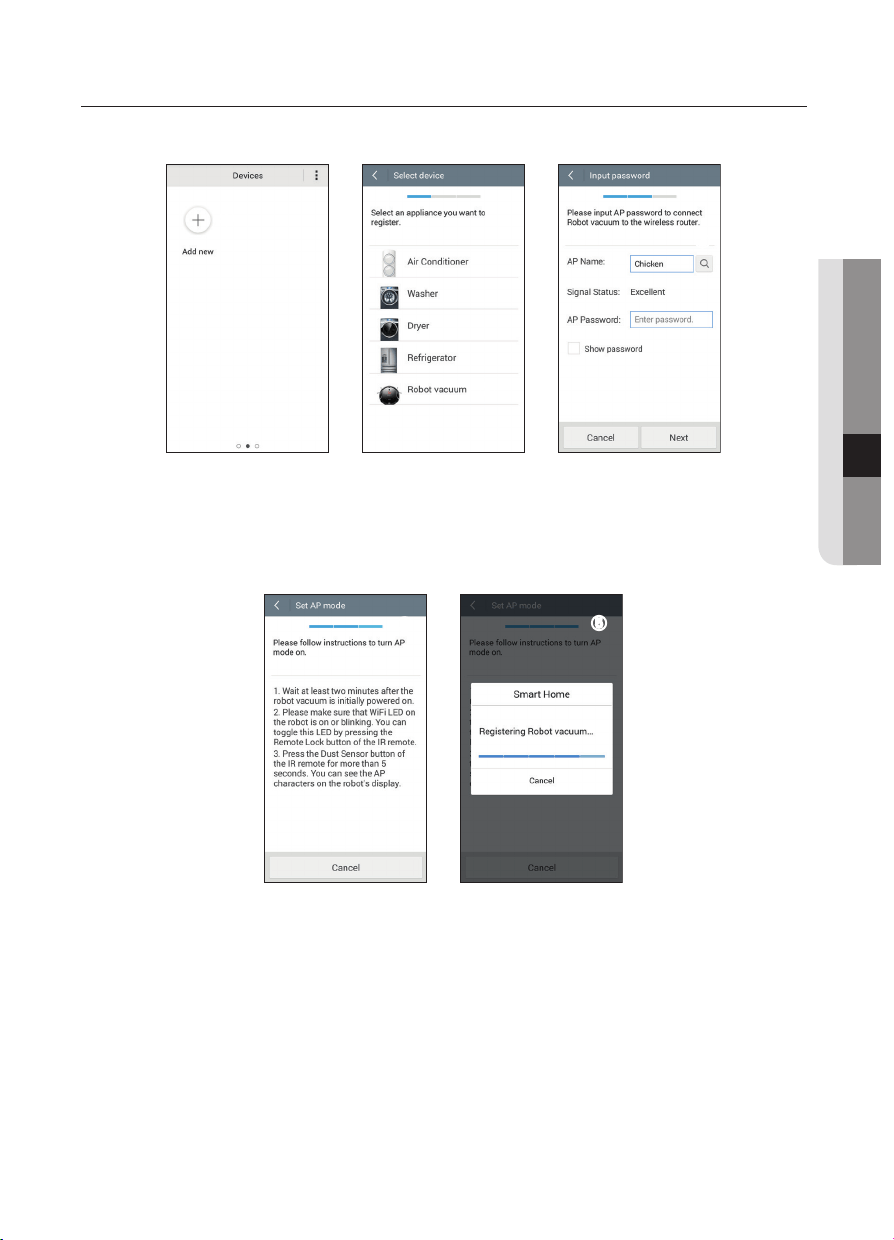
Register the product to the Samsung Smart Home Service before using the Samsung Smart Home App.
➊
➋
➌
1. Press the Add Device button on the Device List screen to start the registration of the product.
2. Select the Robot Cleaner from among the product icons.
3. Enter the information of the wireless router to be connected.
➍
➎
4. Set the vaccum Robot Vacuum according to the guidance on the screen.
5. Then, the registration will proceed automatically.
6. When the product registration is completed, the Main Screen of the Samsung Smart Home App will
appear.
2014. 7. 23. 6:14
48_ Samsung Smart Home App
Samsung Smart Robot Vacuum App Download
You can use more diverse functions through the Samsung Smart Robot Vacuum App, which is exclusively
for the vaccum Robot Vacuum.
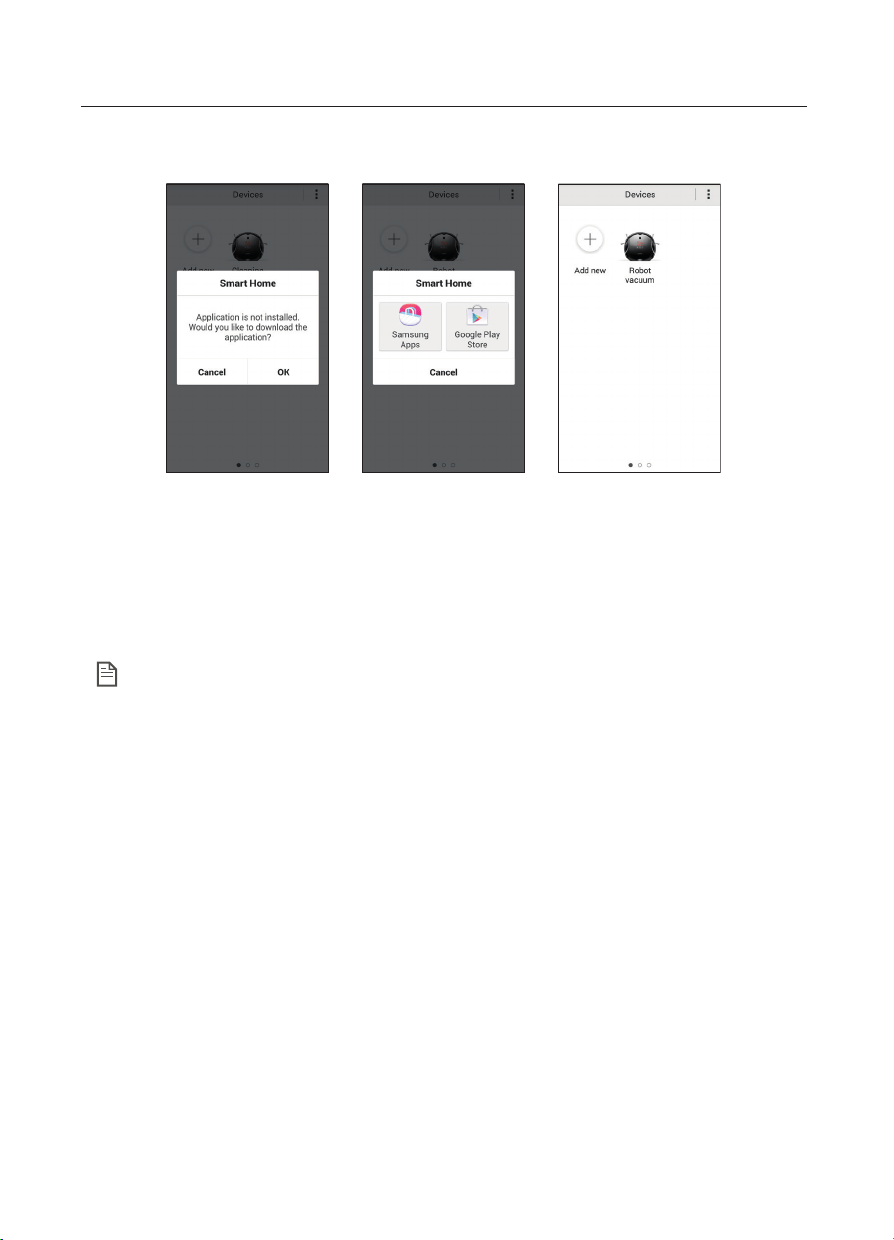
1. Select the Robot Cleaner icon on the DeviceList screen of the Samsung Smart Home App.
If the Samsung Smart Robot Vacuum App is not installed, you will be moved to the Google Play Store
automatically.
2. Install the Samsung Smart Robot Vacuum App.
3. If the installation is complete, select the Robot Cleaner icon again on the Device List screen of the
Samsung Smart Home App.
• In case of the failure, please refer to the popup message and retry the registraion procedure.
NOTE
2014. 7. 23. 6:14
Samsung Smart Home App _49
05 SAMSUNG SMART HOME APP
Screen Description and Major Functions
■
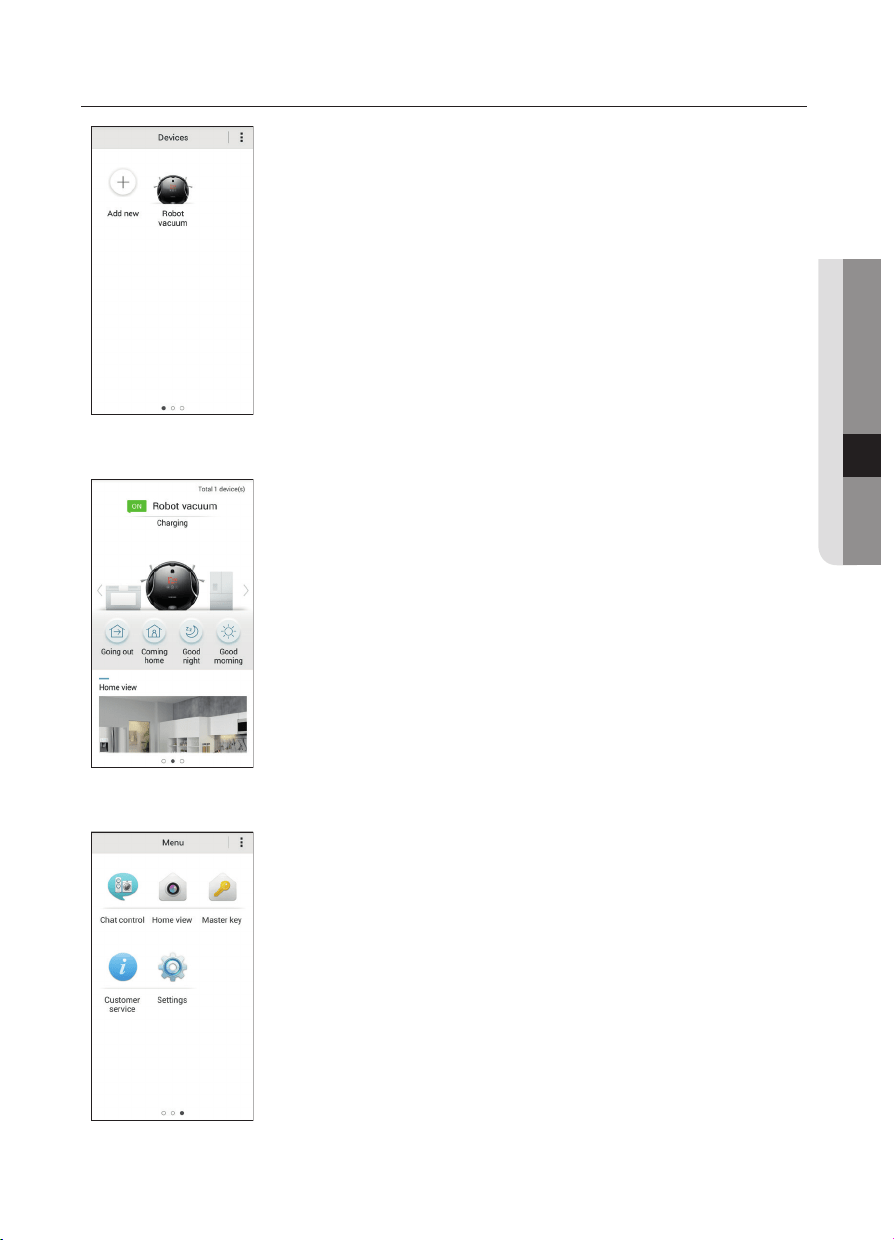
Device screen
•You can register smart home appliances made by Samsung Electronics
on the Smart Home Service to control them altogether remotely.
■
Main Screen
•Select the Robot Vacuum icon on the Main Screen, and you can move to
the Robot Vacuum Control Screen.
•You can control your smart home appliances made by Samsung
Electronics by dividing the status into going out, returning home, sleeping,
and rising.
•You can look up the image of the indoors through the Home View
function.
■
Menu Screen
•You can control the smart home appliances made by Samsung
Electronics with five menus.
2014. 7. 23. 6:14
50_ Samsung Smart Home App
Chat Control
•You can control the smart home appliances or look up the status of
them conveniently.
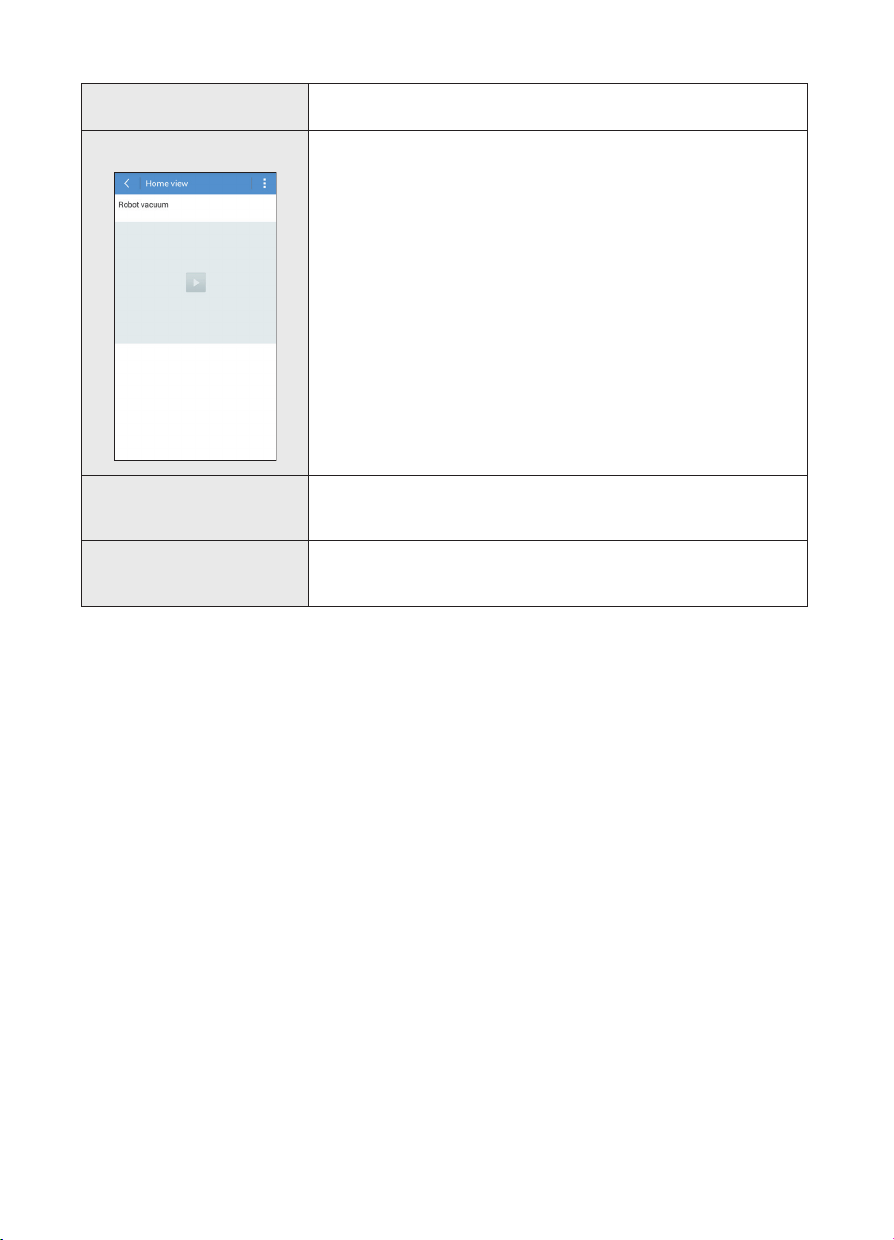
Home View
•You can check the image of the indoors even when you are outside
with the camera built in the smart home appliances.
- You can look up the images of the indoors using the Home View
function.
- You can connect the Home View function through the icons on the
Main Screen and the Menu Screen.
Master Key
•You can simultaneously control several home appliances through
the Master Key composed of going out, returning home, sleeping,
and rising.
Customer Service
•You can check the manual of the product.
Also, when a product disorder occurs, you can consult with our
Customer Center and request for an after-sales service.
2014. 7. 23. 6:14
Samsung Smart Home App _51
05 SAMSUNG SMART HOME APP
Controlling Robot Vacuum
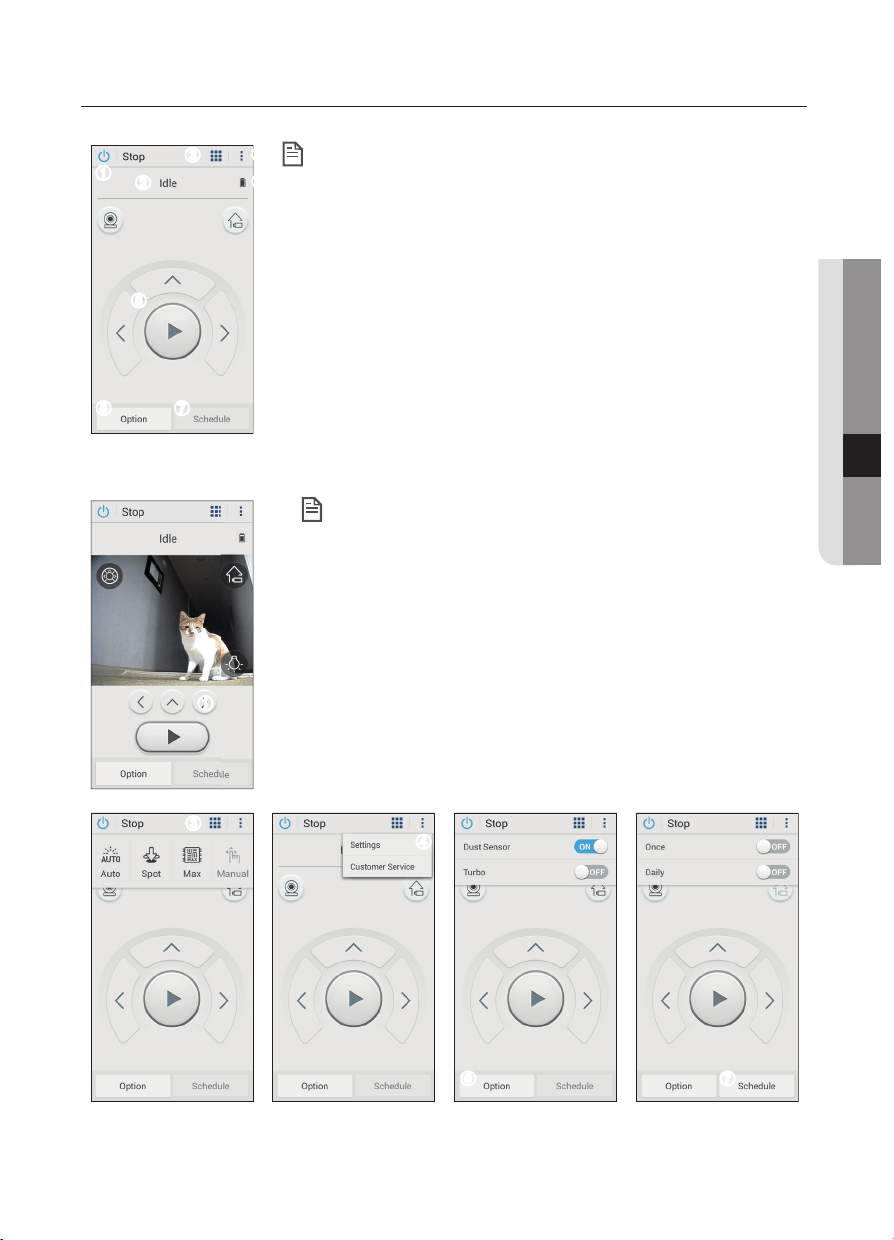
•Access the Samsung Smart Robot Vacuum App, and the Basic Control Screen will appear.
➊
➋
➌
➍
➎
➏ ➐
➑
• The unique functions of the product that you can use on the
Basic Control Screen are as follows.
1. Power supply control
2. Display of cleaning mode and current status (including errors)
3. Cleaning mode (automatic cleaning, partial cleaning, repeated
cleaning, manual cleaning)
4. Setting (voice selection, device information)
5. Services for Users (FAQ, manual, Help Desk)
6. Options (Dust Sensor, Turbo)
7. Reservation (reserved cleaning, daily reservation)
8. Directions control (charge return, forward movement, left turn,
right turn, start/stop) and image lookup
•Click on the Image Lookup button, and the Image Control Screen will appear.
• The unique function of the product you can use additionally on
the Image Control Screen is as follow:
1. Lighting control
➌
➍
➏ ➐
•A scheduled cleaning run is only performed when the Robot vacuum is docked to the Charger (Station).
NOTE
NOTE
➊
2014. 7. 23. 6:15
52_ Samsung Smart Home App
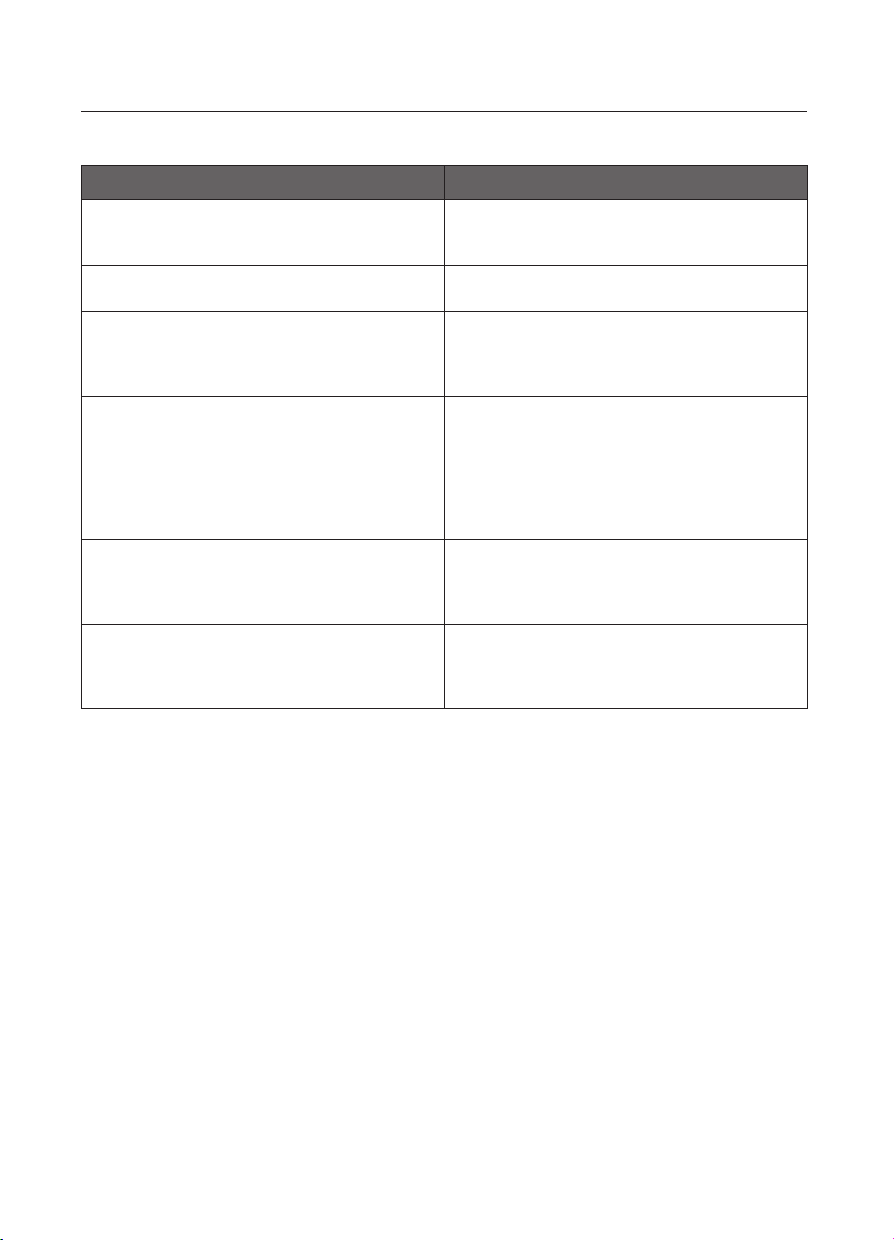
MATTERS TO CHECK BEFORE REPORTING DISORDER
Please check the following matters before you call our Service Center because of a product disorder.
Matters to Check Measure to Take
•I have installed the Samsung Smart Home App,
but, the Robot Vacuum fails to be connected.
•You can use the product after connecting the
wireless router and the Robot Vacuum through
Easy-Setup according to the procedure.
•I fail to log into the Samsung Account. •Check your ID and password on the screen of
the Samsung Account.
•There appears a message saying there is a
failure during Easy-Setup.
•You may have failed temporarily due to the
distance from the wireless router or other
obstacles.
Please try again after a while.
•The products do not work even though the
smart phone is normally connected to the
Robot Vacuum.
•Turn off the Samsung Smart Home App and
then run it again, or disconnect the smart phone
from the wireless router and then connect it
again.
Or turn off the power supply of the Robot
Vacuum, turn it on, wait for a minute or longer,
and then run the Smart Home App again.
•The functions of the Samsung Smart Home
App do not work.
•Check if the remote control blocking function of
the Robot Vacuum is set.
(If the WiFi LED is turned off, the remote control
is blocked.)
•The Samsung Smart Robot Vacuum App fails
to get started.
•Check if the Robot Vacuum is connected to the
wireless router.
(If the WiFi LED is turned off, the remote control
is blocked.)
2014. 7. 23. 6:15

Samsung Smart Home App _53
05 SAMSUNG SMART HOME APP
REMARKS AND RECOMMENDATIONS
Video Streaming
The video streaming feature requires an upload speed around 1Mbps or more. To ensure the non-
interrupted service, you can allocate enough bandwidth to Robot Vacuum’s IP if your wireless router
supports Quality of Service settings. Please refer to an advanced setting section of the user manual
for your wireless router. It is important to note that many factors can affect speeds including volume of
internet traffics, your equipment, location, etc.
Wi-Fi Range Extension
You can install any additional wireless router (repeater or extender) to extend the range of your existing
Wi-Fi network for Robot Vacuum. However, both routers should use the same SSID, password,
authentication, and encryption. A certain wireless repeater can be automatically configured using the
same options as the main router by default. If not, please make sure that your candidate device provides
settings to freely configure those options. We recommend a simple wireless repeater that doesn’t have a
DHCP server feature or a MAC address alteration feature. The transition time between adjacent wireless
networks will be around 1 to 2 minutes.
Firewalls
Please note that some routers come with a built-in firewall. Under firewall environments, you will
experience slow-down in your connection or even encounter failure to connect the streaming service of
Robot Vacuum. If you want to enhance the performance in such cases, you can disable the firewall at
your own risk.
Data Usage
If you don’t have an unlimited data plan, you should carefully monitor the usage while using the streaming
service of Robot Vacuum. It consumes around 1Gbyte of your data if you stream 10 minutes per day for a
month.
Automatic Return
In idle mode, the Robot Vacuum will automatically go back to the charger unless any command is
executed for more than 15 minutes or the video streaming is progressed.
Software Update
When you reset the Robot Vacuum and keep it connected to the charger, it will check to see if any
firmware update is available. If there is an update available, it will be automatically downloaded and
updated. Please note that the emergency switch is located on the bottom side of the cleaning robot.
2014. 7. 23. 6:15
54_ troubleshooting
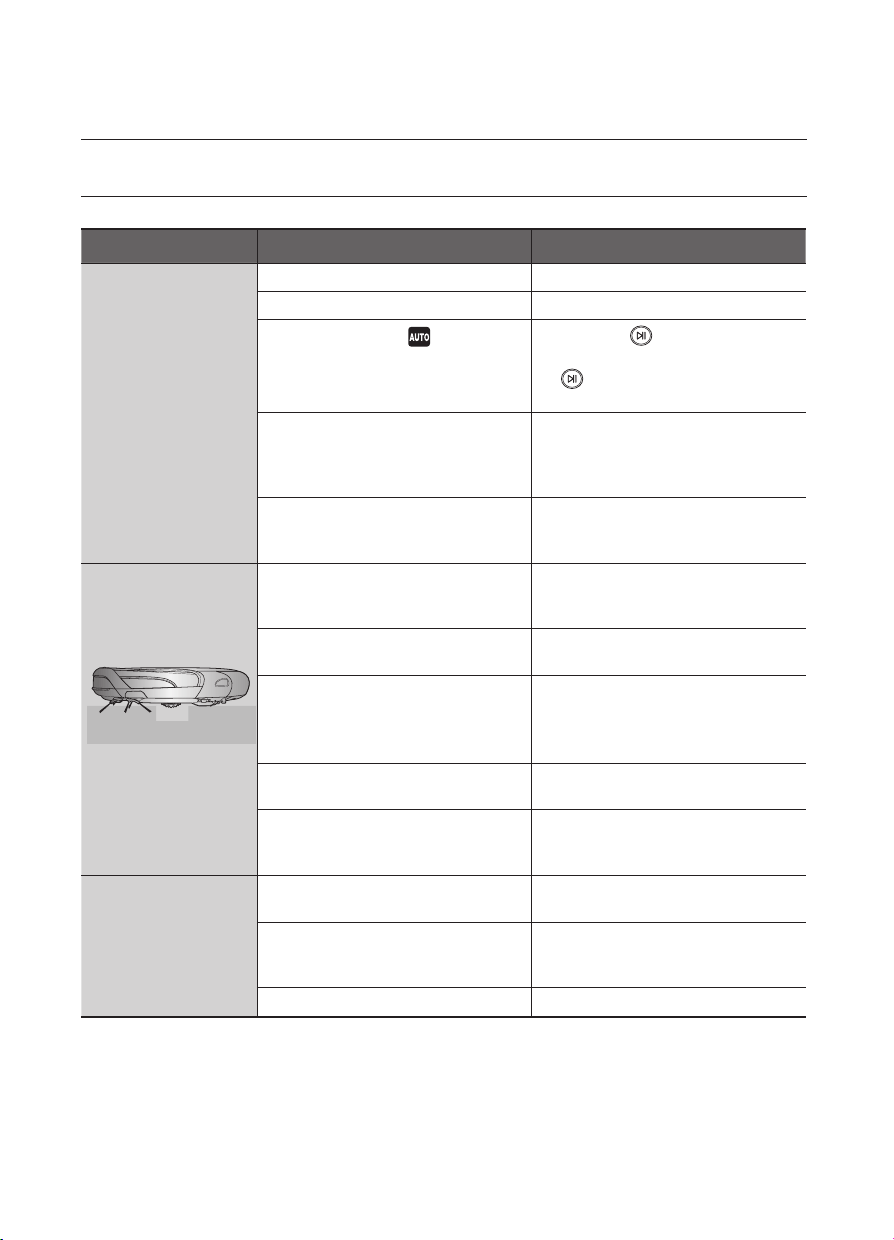
CHECKLIST BEFORE SVC CALLS
Symptom Checklist Measure to Take
Robot vacuum does
not operate at all
before cleaning.
•Is the dust bin assembled? •Install the dust bin.
•Is the Power Switch turned on? •Turn on the Power Switch.
•Is cleaning mode
in the display
panel turned on?
•Press the
button.
(To turn it off, press and hold the
button down for 3 seconds or
longer.)
•Is the battery level flashing only
one level and is ‘Lo’ displayed in
the display panel?
•Lift up the Robot vacuum, and
manually dock the Robot vacuum
onto the Charger (Station) to
charge it.
•Robot vacuum will not operate
when the battery in the remote
control is depleted.
•Replace the batteries in the remote
control. (AAA type)
Robot vacuum
stopped operating
while cleaning.
•Is the battery level flashing only
one level and is ‘Lo’ displayed in
the display panel?
•Lift up the Robot vacuum,
manually dock the robot onto the
Charger (Station) to charge it.
•Has the Robot vacuum become
hooked on wires on the floor?
•Turn off the Power Switch and
remove the wires.
•Is the Robot vacuum stuck to
the floor where there is a height
difference?
- The driving wheel is lifted.
•Turn off the Power Switch and
move the Robot Vacuum vacuum
to another place to clean.
•Is there a thin towel (cloth)
wrapped around the driving wheel?
•Turn off the Power Switch and
remove the thin towel.
•Is the Robot vacuum stuck on the
doorsill?
•Turn off the Power Switch and
move the Robot vacuum to
another place to clean.
The suction power is
weak while cleaning.
•Check whether the dust bin is full
of dust.
•Stop the Robot vacuum and
empty the dust bin.
•Check whether the suction inlet is
clogged by foreign substances.
•Turn off the Power Switch and
remove the foreign substances on
the suction inlet.
•Check whether the filter is clogged. •Clean the filter well.
Troubleshooting
2014. 7. 23. 6:15
troubleshooting _55
06 TROUBLESHOOTING
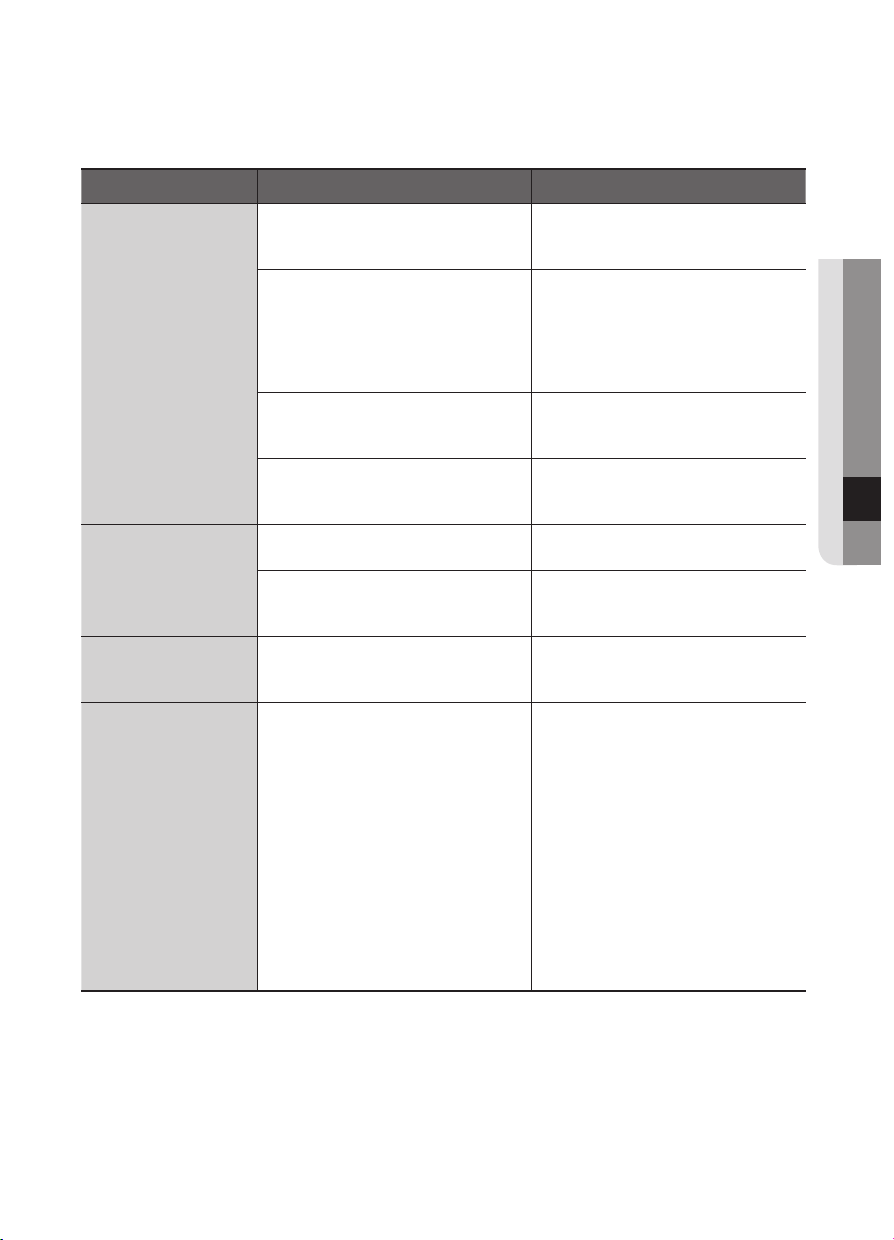
Symptom Checklist Measure to Take
Robot vacuum
cannot find the
Charger (Station).
•Check whether the power plug of
the Charger (Station) is plugged
correctly into the outlet.
•If there are any obstacles within
a range of about 1m in front of
the Charger (Station) and about
0.5m range to the left and right of
the Charger (Station), you should
remove the obstacles.
•If there are any foreign substances
on the change pin, wipe them off
with a dry towel.
•Is the VIRTUAL GUARD installed
near the Charger (Station)?
•Move the VIRTUAL GUARD to
another place so that the Robot
vacuum can charge automatically.
Robot vacuum
passes through the
VIRTUAL GUARD.
•Are the batteries of the VIRTUAL
GUARD worn out?
•Replace the batteries.
(2 type D (LR20) batteries)
•Is the lamp turned off? •Check if the VIRTUAL GUARD
is turned off and then turn the
VIRTUAL GUARD on.
The battery usage
time of the VIRTUAL
GUARD is too short.
•Are you using manganese drycell
batteries?
•Replace the batteries with new
batteries.
(2 type D (LR20) batteries)
The Robot vacuum
suddenly performs
its cleaning operation
in the diagonal
direction.
•The Robot vacuum may clean in a
diagonal direction in the following
cases.
- After the Robot vacuum has been
charged while placed at an angle
in the Charger (Station).
- When the Robot vacuum moves to
another area by a shortened route
after cleaning an area.
- When the angle of making
contact with an obstacle is not
perpendicular (90˚).
- When the floor is made of tiles or
wood.
•The cleaning direction is
determined by the initial location.
Since it cleans areas by drawing a
map, it eventually covers the entire
area. (Normal operation)
Install the charging station in
the direction of the grain of the
wood, and start cleaning while the
Robot vacuum is docked with the
Charger (Station).
❈
In 52 page, there are additional troubleshooting for SAMSUNG Smart Home.
2014. 7. 23. 6:15
56_ troubleshooting
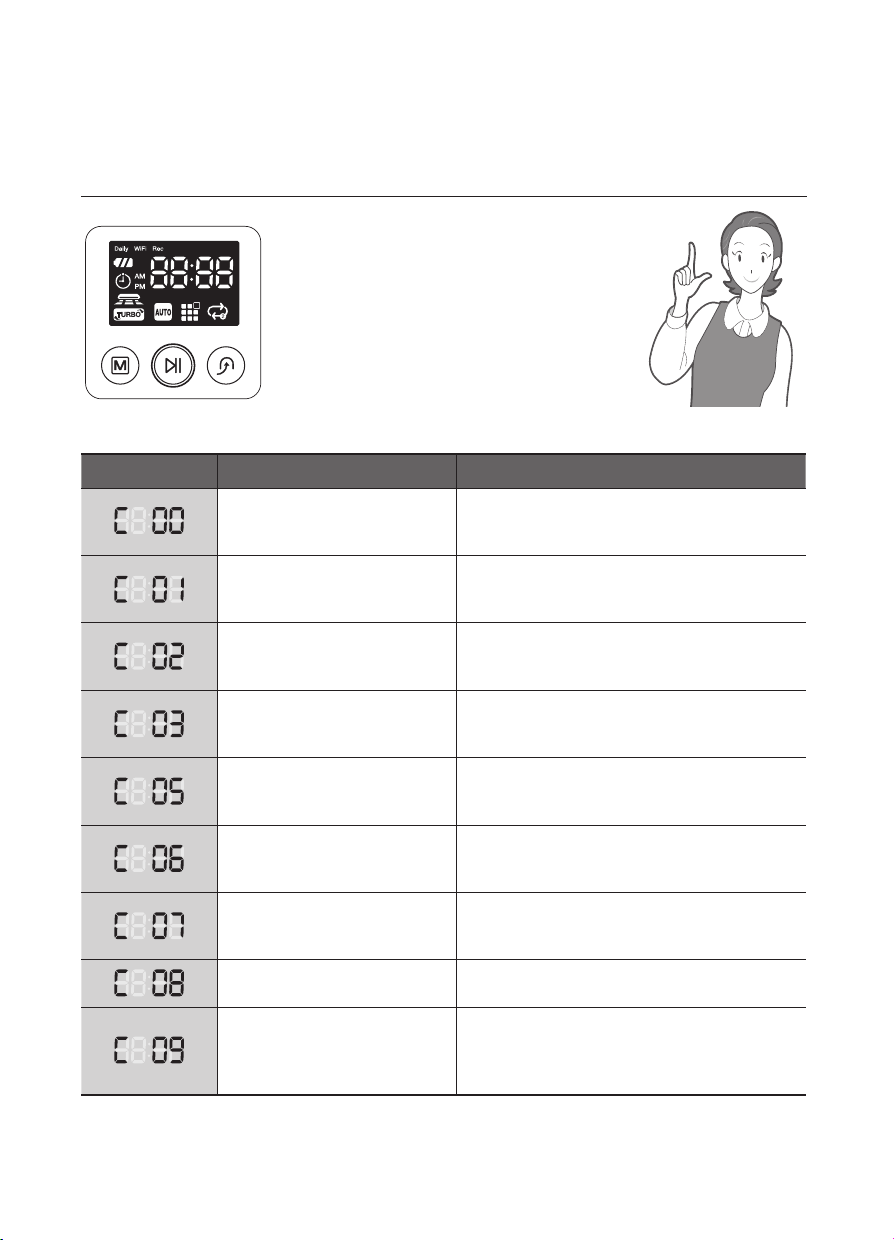
TROUBLESHOOTING FOR ERROR CODES
ERROR CODE CAUSE SOLUTION
•Robotic vacuum cleaner is
caught, stuck or trapped
while navigating.
•Turn off the Power Switch at the bottom and
move the robotic vacuum cleaner to a different
location.
•A foreign substance (string,
paper, toy etc.) is caught in
the power brush.
•Turn off the Power Switch at the bottom and
remove the foreign substance from the power
brush.
•A foreign substance (string,
paper, toy etc.) is caught in
the left driving wheel.
•Turn off the Power Switch at the bottom and
remove the foreign substance from the left
driving wheel.
•A foreign substance (string,
paper, toy etc.) is caught in
the right driving wheel.
•Turn off the Power Switch at the bottom and
remove the foreign substance from the right
driving wheel.
•Check the Bumper sensor. •Turn off the at the bottom, and then remove
the obstacle from the front of the Robot
vacuum or move it to a different location.
•A foreign substance (dust,
stain etc.) is on the Obstacle
sensor window.
•Turn off the Power Switch at the bottom and
wipe the foreign substance from the front and
rear sensor windows using a soft cloth.
•A foreign substance (Dust,
stain etc.) is on the Cliff sensor
window.
•Turn off the Power Switch at the bottom and
wipe the foreign substance on the cilff sensor
window with a soft cloth.
•Dust bin not inserted. •Insert the dust bin until you hear a “Click”
sound.
•A foreign substance (String,
cloth etc.) is caught on the
edge-cleaning side rotating
brush.
•Turn off the Power Switch at the bottom and
wipe the foreign substance from the edge-
cleaning side rotating brush.
❈
If you press the Start/Stop button or turn off the Power Switch, the error code is cleared.
2014. 7. 23. 6:15
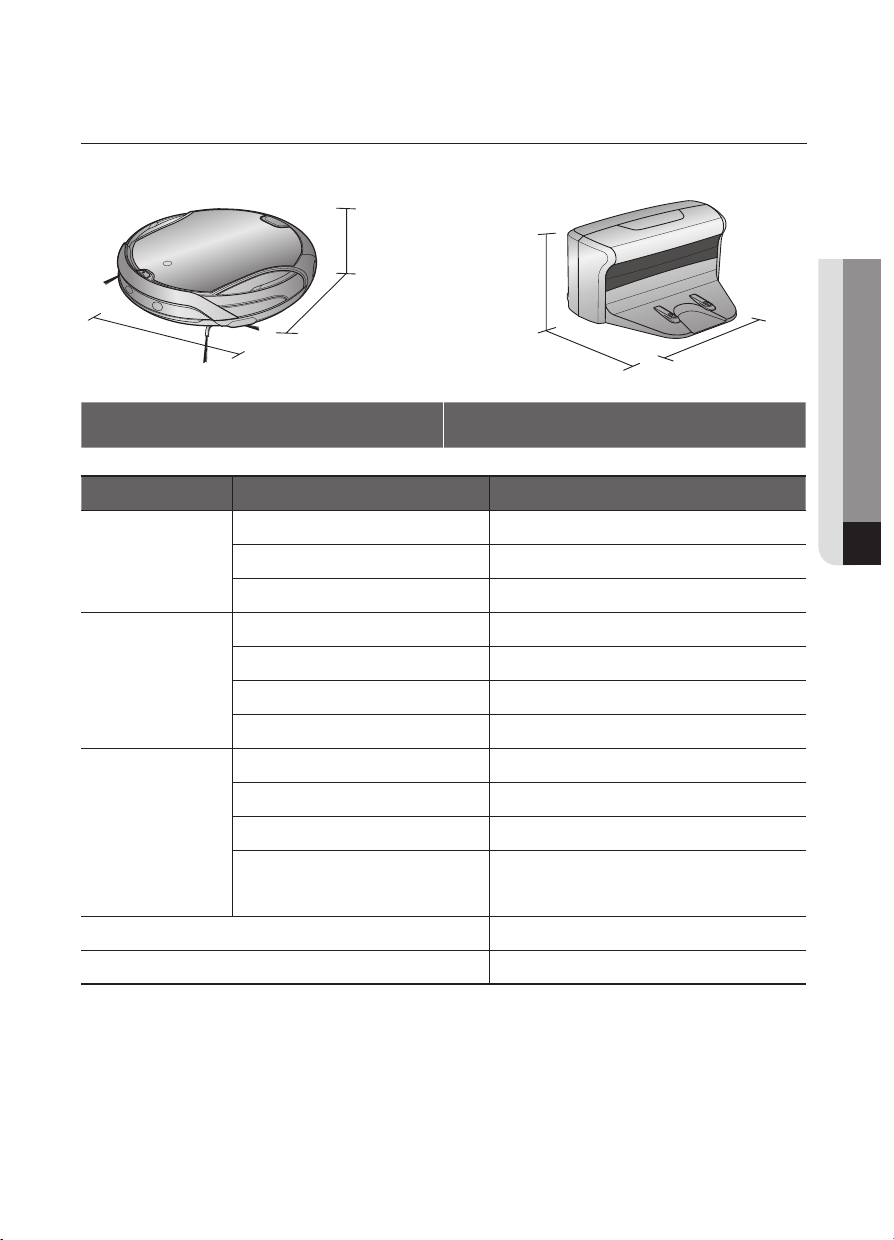
product specification _57
07 PRODUCT SPECIFICATION
80 mm (Height)
350 mm (Length)
350 mm (Width)
275 mm (Width)
161 mm (Length)
122 mm (Height)
Main Body Charger(Station)
Classification Item SR89W0 SERIES
Mechanical
Specifications
Diameter 350mm
Height 80mm
Weight 3.2kg
Electrical
Specifications
Power voltage AC220-240V~, 50-60Hz
Charge power consumption 40 W
Main unit power consumption 40 W
Battery specifications 14.4V / 31.68Wh
Cleaning
Specifications
Charging type Auto Charging/Manual Charging
Cleaning mode Auto, Spot, Max, Manual, Timer, Daily
Charging time About 180 minutes
Cleaning time
(Normal Mode /
On the basis of hard floor)
About 90 minutes
Cleaning method Ceiling shape recognition
Main unit button type Touch type
Product specification
2014. 7. 23. 6:15
OPEN SOURCE ANNOUNCEMENT
The software included in this product contains open source software.
You may obtain the complete corresponding source code for a period of three years after the last
shipment of this product by sending an email to mailto:oss.r[email protected].
It is also possible to obtain the complete corresponding source code in a physical medium such as a CD-
ROM; a minimal charge will be required.
The following URL http://opensource.samsung.com/opensource/VCR_Maxview/seq/0 leads to the
download page of the source code made available and open source license information as related to this
product. This offer is valid to anyone in receipt of this information.
2014. 7. 23. 6:15

Memo
2014. 7. 23. 6:15
DJ68-00630D-00
Contact SAMSUNG WORLD WIDE
If you have any questions or comments relating to Samsung products, please contact the
SAMSUNG customer care center.
Country
Customer Care Center
Web Site
AUSTRALIA 1300 362 603 www.samsung.com/au/support
NEW ZEALAND 0800 SAMSUNG (0800 726 786) www.samsung.com/nz/support
2014. 7. 23. 6:15