INSTALLATION
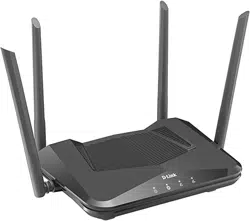
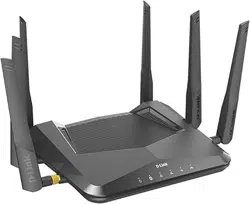
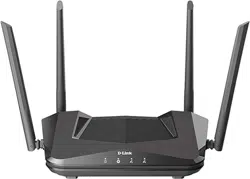
• DIR-LX1870 || AX1800 Mesh Wi-Fi 6 Router
• Power Adapter
• Ethernet Cable
• Quick Installation Guide
• Quick Installation Card
You’re all good to go! Once the setup is complete, you can connect your devices using the Wi-Fi name (SSID) and password that you created during
the setup. Enjoy the Internet!
TECH TIP: Consider using the same Wi-Fi name and password as your old router. This will allow your existing Wi-Fi devices to automatically connect to your new router.
ENGLISH
PACKAGE CONTENTS
OPTION 1
DLINK WIFI APP SETUP WEB BROWSER SETUP
OPTION 2
Quick Installation Guide
DIR-LX1870
AX1800 Mesh Wi-Fi 6 Router
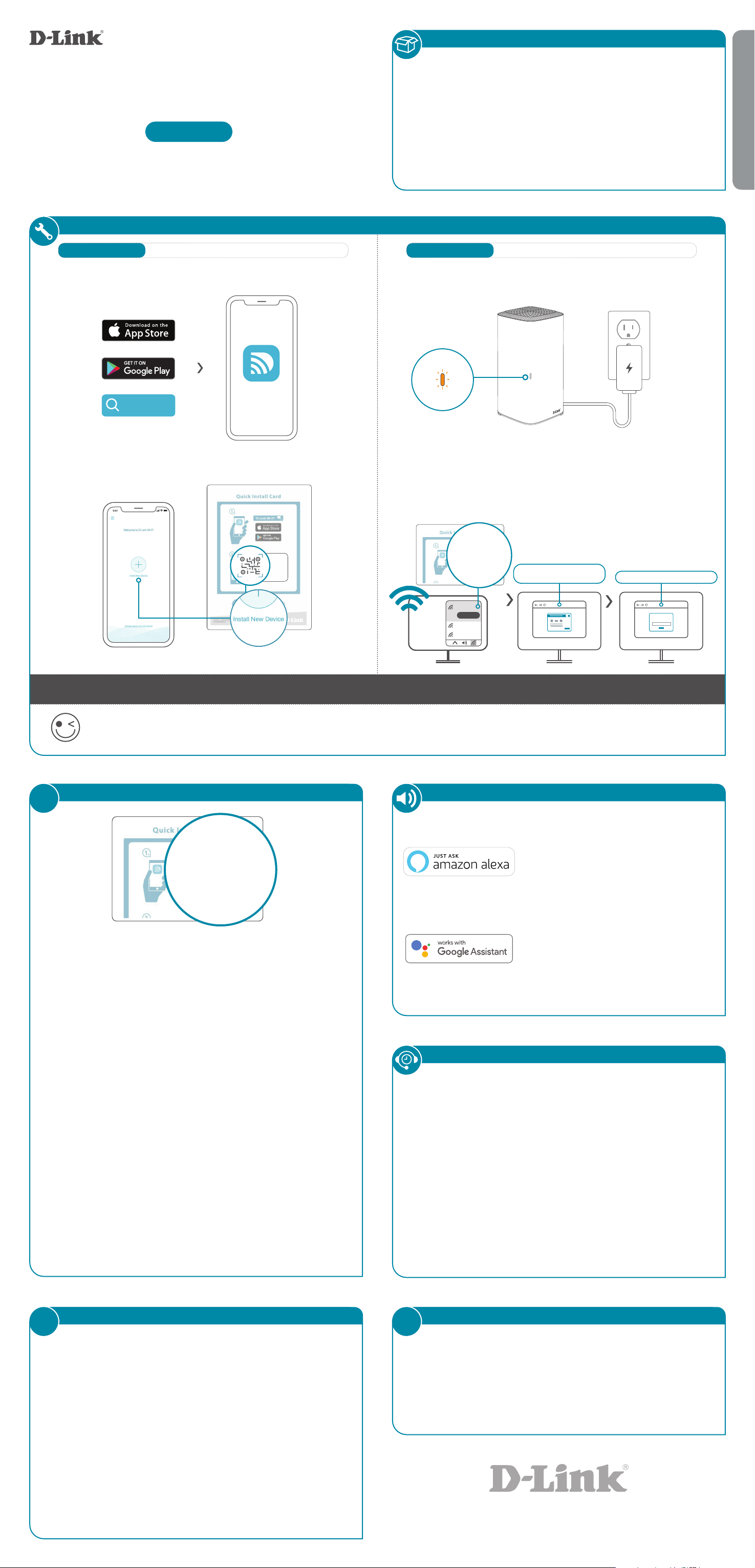
Download the D-Link Wi-Fi app and launch it.
1 /
Tap Install New Device. Scan the QR code on the Quick
Installation Card. Follow the on-screen instructions to complete
the setup.
2 /
Model Name: DEVICE
Wi-Fi Name: dlink-XXXX
Password: XXXXXXXX
S/N: 123456789
SETUP QR CODE
D-Link Wi-Fi
D-Link Wi-Fi
Connect your computer to the Wi-Fi details printed on the
Quick Installation Card. Type http://dlinkrouter.local./ or
http://192.168.0.1 into a web browser. You will be asked
for your Device/Admin Password. By default this password is
“password”. Type that in and follow the on-screen instructions
to complete the setup.
2 /
Model Name: DEVICE
Wi-Fi Name: d-link-XXXX
Password: XXXXXXXX
S/N: 123456789
dlink-xxxx
Connect
xxxxxxxxx
xxxxxxxxx
Wi-Fi Name: dlink-XXXX
Wi-Fi Password:
XXXXXXXX
http://dlinkrouter.local./ or
http://192.168.0.1
Admin Password = password
Admin Password:
Plug the router into a power source. Make sure that the power button
is on. Wait for the status LED to either flash orange or turn
solid white.
1 /
VOICE ASSISTANTS
Why can’t I access the web-based conguration utility?
Verify that http://dlinkrouter.local./ or http://192.168.0.1 has been
correctly entered into your Web browser. Make sure that you are connected
to the correct Wi-Fi Name/SSID and password printed on the Quick
Installation Card. Alternatively, you can use http://dlinkrouterXXXX.local./
where XXXX represents the last 4 characters of the MAC address. The device
specific URL and MAC address are both located on the device label attached
to the device.
Why can’t I access the Internet?
Ensure that your modem/gateway is powered on. Also ensure that the
Ethernet cable is securely connected to both the router and modem. Verify
that the Internet LED is illuminated on your router. If you still cannot access
the Internet, power off your modem and router and power them back on,
wait until all the LED’s are lit and try again.
What do I do if I forgot my Wi-Fi password?
If you forgot your password, you must reset your router. This process will
revert all of your settings back to the factory defaults.
How do I restore the router to its factory default settings?
Locate the reset button on the bottom of the router. With the router
powered on, use a paper clip to hold the button down for 10 seconds.
Release the button and the router will go through the reset procedure.
FREQUENTLY ASKED QUESTIONS
?
Having trouble installing your new product? D-Link’s website
contains the latest user documentation and software updates for
D-Link products. Customers can contact D-Link Technical Support
through our website by choosing the relevant region.
TECHNICAL SUPPORT
This D-Link product includes software code de-
veloped by third parties, including software code
subject to the GNU General Public License (“GPL”)
or GNU Lesser General Public License (“LGPL”). As
applicable, the terms of the GPL and LGPL, and
information on obtaining access to the GPL code
and LGPL code used in this product, are available
to view the full GPL Code Statement at:
https://tsd.dlink.com.tw/GPL
The GPL code and LGPL code used in this product
is distributed WITHOUT ANY WARRANTY and is
subject to the copyrights of one or more authors.
For details, see the GPL code and the LGPL code
for this product and the terms of the GPL and
LGPL.
Written Oer for GPL and LGPL Source Code
Where such specific license terms entitle you
to the source code of such software, D-Link will
provide upon written request via email and/or
traditional paper mail the applicable GPL and LG-
PLsource code files via CD-ROM for a nominal cost
to cover shipping and media charges as allowed
under the GPL and LGPL.
Please direct all inquiries to:
Snail Mail: Email:
Attn: GPLSOURCE REQUEST
D-Link Systems, Inc.
17595 Mt. Herrmann Street
Fountain Valley, CA 92708
GPL CODE STATEMENT
i
Amazon Alexa Setup for D-Link Wi-Fi
https://www.dlink.com/en/alexa
The Google Assistant Setup for D-Link Wi-Fi
https://www.dlink.com/en/google-assistant
Model Name: DEVICE
Wi-Fi Name: d-link-XXXX
Password: XXXXXXXX
S/N: 123456789
Wi-Fi Name: dlink-XXXX
Wi-Fi Password:
XXXXXXXX
United States
Website: http://support.dlink.com
Telephone: (877) 453-5465
Canada
Website: http://support.dlink.ca
Telephone: (800) 361-5265
This device is complies with Part 15 of the FCC Rules. Operation is subject
to the following two conditions:
(1) The device may not cause harmful interference, and
(2) this device must accept any interference received, including
interference that may cause undesired operation.
FCC WARNING
i
INSTALLATION
• DIR-LX1870 || Routeur AX1800 maillé Wi-Fi 6
• Adaptateur secteur
• Câble Ethernet
• Guide d’installation rapide
• Carte de configuration du Wi-Fi
C’est tout! Une fois la configuration terminée, vous pouvez connecter vos périphériques à l’aide du nom Wi-Fi (SSID) et du mot de passe
créés lors de la configuration. Profitez de l’Internet!
FRANÇAIS
CONTENU DE LA BOÎTE
OPTION 1
CONFIGURATION À L’AIDE DE DLINK WIFI CONFIGURATION VIA UN NAVIGATEUR WEB
OPTION 2
Guide d’installation rapide
DIR-LX1870
Routeur AX1800 maillé Wi-Fi 6
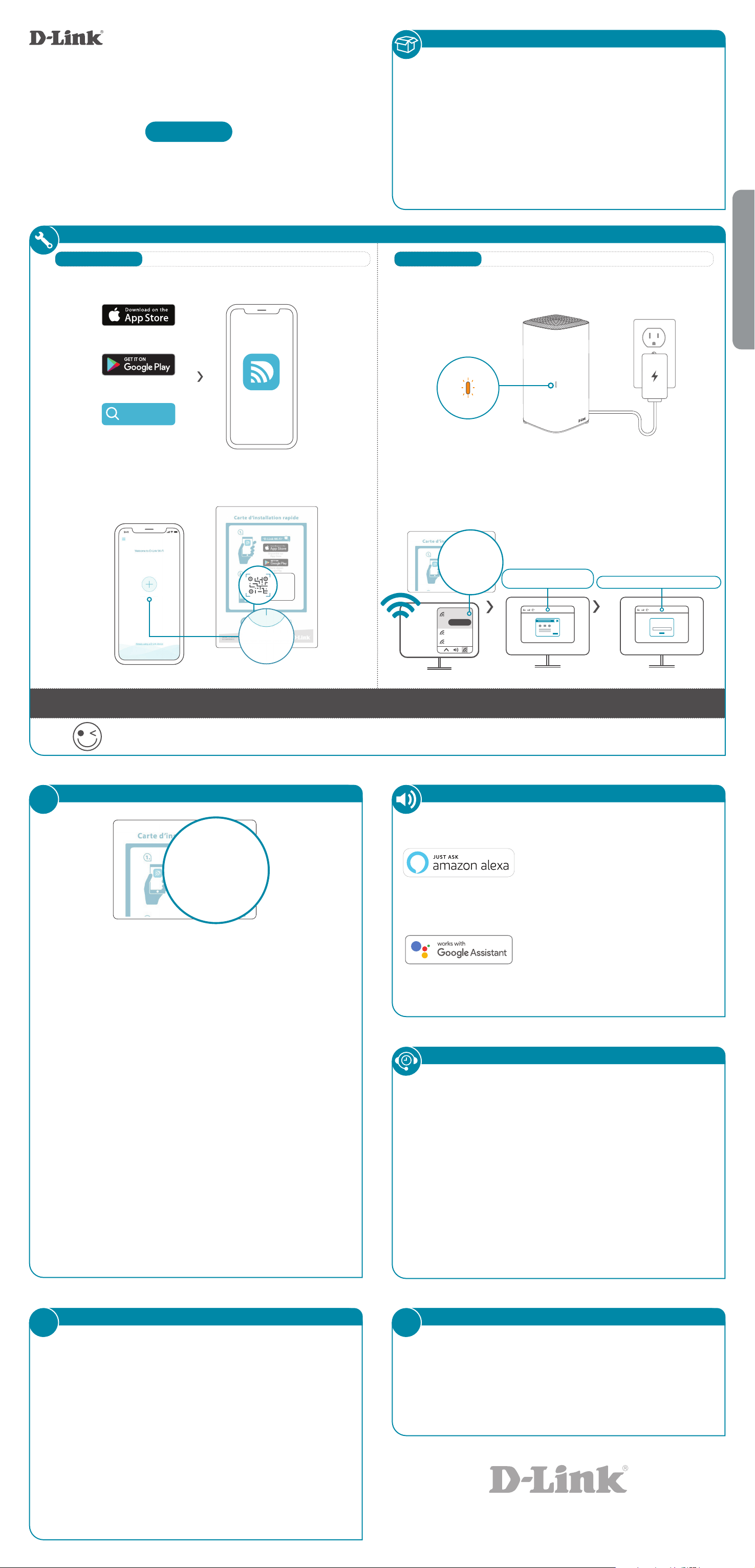
Téléchargez l’application D-Link Wi-Fi et démarrez-la.
1 /
Appuyez sur Installer un nouveau périphérique. Scannez le
code QR de la carte d’installation rapide. Suivez les instructions à
l’écran pour terminer la configuration.
2 /
D-Link Wi-Fi
D-Link Wi-Fi
Connectez votre ordinateur en utilisant les détails Wi-Fi imprimés
sur la carte d’installation rapide. Tapez http://dlinkrouter.local./ ou
http://192.168.0.1 dans un navigateur Web.
On vous demandera
votre mot de passe administrateur/appareil. Par défaut, ce mot de
passe est «password».
Tapez-le et suivez les instructions à l’écran pour
terminer la configuration.
2 /
Disponible
sur Google Play
Télécharger
dans l’App Store
Model Name: DEVICE
Wi-Fi Name: dlink-XXXX
Password: XXXXXXXX
S/N: 123456789
SETUP QR CODE
Installer un nouveau
périphérique
Installer un nouveau périphérique
Model Name: DEVICE
Wi-Fi Name: d-link-XXXX
Password: XXXXXXXX
S/N: 123456789
dlink-xxxx
Connect
xxxxxxxxx
xxxxxxxxx
Nom Wi-Fi :
dlink-XXXX
Mot de passe Wi-Fi :
XXXXXXXX
http://dlinkrouter.local./
ou http://192.168.0.1
Mot de passe administrateur “password”
Admin Password:
Conseil technique : Pensez à utiliser le même nom Wi-Fi et le même mot de passe Wi-Fi que votre ancien routeur. Cela permettra à vos appareils Wi-Fi
existants de se connecter automatiquement à votre nouveau routeur.
Branchez le routeur sur une source d’alimentation. Assurez-vous que le
bouton d’alimentation est allumé. Attendez que le voyant d’état clignote
en orange ou devienne blanc fixe.
1 /
ASSISTANTS VOCAUX
Pourquoi ne puis-je pas accéder à l’utilitaire de conguration Web?
Vérifiez que http://dlinkrouter.local./ ou http://192.168.0.1 a été
correctement entré dans votre navigateur Web. Assurez-vous que vous êtes
connecté au nom Wi-Fi / SSID et au mot de passe corrects imprimés sur
la carte d’installation rapide. Alternativement, vous pouvez utiliser http: //
dlinkrouterXXXX.local./ où XXXX représente les 4 derniers caractères de
l’adresse MAC. L’URL et l’adresse MAC spécifiques à l’appareil sont toutes
deux situées sur l’étiquette de l’appareil attachée sur l’appareil.
Pourquoi ne puis-je pas accéder à Internet?
Assurez-vous que votre modem/passerelle est sous tension. Assurez-vous
également que le câble Ethernet est correctement connecté au routeur et
au modem. Vérifiez que le voyant Internet est allumé sur votre routeur. Si
vous ne parvenez toujours pas à accéder à Internet, éteignez votre modem
et votre routeur, rallumez-les, attendez que tous les voyants s’allument et
essayez à nouveau.
Que dois-je faire si j’ai oublié mon mot de passe Wi-Fi?
Si vous avez oublié votre mot de passe, vous devez réinitialiser votre routeur.
Ce processus rétablira tous les paramètres par défaut.
Comment restaurer les paramètres d’usine du routeur?
Localisez le bouton de réinitialisation sous le routeur. Lorsque le routeur
est sous tension, utilisez un trombone pour maintenir le bouton enfoncé
pendant 10 secondes. Relâchez le bouton pour que le routeur effectue sa
procédure de réinitialisation.
FOIRE AUX QUESTIONS
?
Vous avez des difficultés à installer votre nouveau produit? Le site
Web de D-Link comporte la documentation utilisateur à jour et les
dernières mises à jour logicielles des produits D-Link. Les clients des
États-Unis et du Canada peuvent contacter le support technique de
D-Link via notre site Web.
ASSISTANCE TECHNIQUE
Ce produit D-Link comprend des codes de logiciel
développés par des tiers, y compris des codes de
logiciel soumis à la Licence Publique Générale
GNU ( « GPL ») ou à la Licence Publique Générale
GNU Limitée (« LGPL »). Le cas échéant, les condi-
tions de la GPL et de la LGPL, et les informations
sur l’obtention de l’accès au codes GPL et LGPL
utilisés dans ce produit, sont disponibles sur :
https://tsd.dlink.com.tw/GPL
Les codes GPL et LGPL utilisés dans le produit
sont distribués SANS AUCUNE GARANTIE et sont
soumis aux droits d’auteur d’un ou de plusieurs
auteurs. Pour plus de détails, reportez-vous aux
codes GPL et LGPL de ce produit et aux conditions
de la GPL et de la LGPL.
Ore écrite pour le code source GPL et LGPL
Si des conditions spécifiques de la licence
vous donnent droit au code source du logiciel,
D-Link fournira, sur demande écrite par courrier
électronique et/ou courrier papier traditionnel, les
fichiers de code source GPL et LGPL applicables via
CD-ROM à un coût nominal pour couvrir les frais
d’expédition et de support comme autorisé par la
licence GPL et LGPL.
Veuillez adresser toutes les demandes à :
Courrier ordinaire : Courrier électronique :
Attn: GPLSOURCE REQUEST
D-Link Systems, Inc.
17595 Mt. Herrmann Street
Fountain Valley, CA 92708
DÉCLARATION RELATIVE AU CODE GPL
i
Conguration d’Amazon Alexa
pour D-Link Wi-Fi
https://www.dlink.com/en/alexa
La conguration de Google Assistant pour
D-Link Wi-Fi
https://www.dlink.com/en/google-assistant
Fonctionne avec l’Assistant Google
Demandez à Amazon Alexa
Model Name: DEVICE
Wi-Fi Name: d-link-XXXX
Password: XXXXXXXX
S/N: 123456789
Nom Wi-Fi :
dlink-XXXX
Mot de passe Wi-Fi :
XXXXXXXX
États Unis
Site Web : http://support.dlink.com
Téléphone : (877) 453-5465
Canada
Site Web : http://support.dlink.ca
Téléphone : (800) 361-5265
Cet appareil est conforme à la partie 15 des règles de la FCC. Son
fonctionnement est soumis aux deux conditions suivantes:
(1) cet appareil ne doit pas provoquer d’interférences dangereuses, et
(2) il doit accepter les interférences reçues, y compris celles pouvant
entraîner un fonctionnement indésirable.
AVERTISSEMENT FCC
i
FRANÇAIS
2020/06/18_90x130 v1.00(CA)