User Manual for Smart TV
Installation
- Do not place this apparatus near or over a radiator or heat register, or where it is exposed to direct sunlight.
- Do not place vessels (vases etc.) containing water on this apparatus, as this can result in a fire or electric shock.
- Do not expose this apparatus to rain or moisture.
- Be sure to contact an authorised Samsung service centre for information if you intend to install your TV in a location with heavy dust, high or low temperatures, high humidity, chemical substances, or where it will operate 24 hours a day such as in an airport, a train station, etc. Failure to do so may lead to serious damage to your TV.
- Do not expose this apparatus to dripping or splashing.
Mounting the TV on a wall
 If you mount this TV on a wall, follow the instructions exactly as set out by the manufacturer. If it is not correctly mounted, the TV may slide or fall and cause serious injury to a child or adult and serious damage to the TV.
- To order the Samsung wall mount kit, contact Samsung service centre.
- Samsung is not responsible for any damage to the product or injury to yourself or others if you choose to install the wall mount on your own.
- Samsung is not liable for product damage or personal injury when a non-VESA or non-specified wall mount is used or when the consumer fails to follow the product installation instructions.
- You can install your wall mount on a solid wall perpendicular to the floor. Before attaching the wall mount to surfaces other than plaster board, contact your nearest dealer for additional information. If you install the TV on a ceiling or slanted wall, it may fall and result in severe personal injury.
- When installing a wall mount kit, we recommend you fasten all four VESA screws.
- If you want to install a wall mount kit that attaches to the wall using two top screws only, be sure to use a Samsung wall mount kit that supports this type of installation. (You may not be able to purchase this type of wall mount kit, depending on the geographical area.)
- Do not mount the TV at more than a 15 degree tilt.
- Standard dimensions for wall mount kits are shown in the table on the Quick Setup Guide.
Do not install your wall mount kit while your TV is turned on. This may result in personal injury from electric shock.
- Do not use screws that are longer than the standard dimension or do not comply with the VESA standard screw specifications. Screws that are too long may cause damage to the inside of the TV set.
- For wall mounts that do not comply with the VESA standard screw specifications, the length of the screws may differ depending on the wall mount specifications.
- Do not fasten the screws too firmly. This may damage the product or cause the product to fall, leading to personal injury. Samsung is not liable for these kinds of accidents.
- Always have two people mount the TV onto a wall
– For 82 inch or larger models, have four people mount the TV onto a wall.
Providing proper ventilation for your TV
When you install your TV, maintain a distance of at least 10 cm between the TV and other objects (walls, cabinet sides, etc.) to ensure proper ventilation. Failing to maintain proper ventilation may result in a fire or a problem with the product caused by an increase in its internal temperature
- When you install your TV with a stand or a wall mount, we strongly recommend you use parts provided by Samsung only. Using parts provided by another manufacturer may cause difficulties with the product or result in injury caused by the product falling.
Safety Precaution
 Caution: Pulling, pushing, or climbing on the TV may cause the TV to fall. In particular, ensure your children do not hang on or destabilise the TV. This action may cause the TV to tip over, causing serious injuries or death. Follow all safety precautions provided in the Safety Flyer included with your TV. For added stability and safety, you can purchase and install the anti-fall device, referring to "Preventing the TV from falling".
WARNING: Never place a television set in an unstable location. The television set may fall, causing serious personal injury or death. Many injuries, particularly to children, can be avoided by taking simple precautions such as:
- Always use cabinets or stands or mounting methods recommended by Samsung.
- Always use furniture that can safely support the television set.
- Always ensure the television set is not overhanging the edge of the supporting furniture.
- Always educate children about the dangers of climbing on furniture to reach the television set or its controls.
- Always route cords and cables connected to your television so they cannot be tripped over, pulled or grabbed.
- Never place a television set in an unstable location.
- Never place the television set on tall furniture (for example, cupboards or bookcases) without anchoring both the furniture and the television set to a suitable support.
- Never place the television set on cloth or other materials that may be located between the television set and supporting furniture.
- Never place items that might tempt children to climb, such as toys and remote controls, on the top of the television or furniture on which the television is placed.
If the existing television set is going to be retained and relocated, the same considerations as above should be applied.
- When you have to relocate or lift the TV for replacement or cleaning, be sure not to pull out the stand.
Preventing the TV from falling
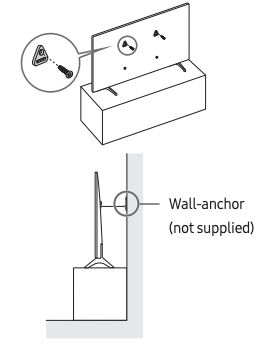
1. Using the appropriate screws, firmly fasten a set of brackets to the wall. Confirm that the screws are firmly attached to the wall.
– You may need additional material such as wall anchors depending on the type of wall.
2. Using the appropriately sized screws, firmly fasten a set of brackets to the TV.
– For the screw specifications, refer to the standard screw part in the table on the Quick Setup Guide.
3. Connect the brackets fixed to the TV and the brackets fixed to the wall with a durable, heavy-duty string, and then tie the string tightly.
– Install the TV near the wall so that it does not fall backwards.
– Connect the string so that the brackets fixed to the wall are at the same height as or lower than the brackets fixed to the TV.
Operation
- This apparatus uses batteries. In your community, there might be environmental regulations that require you to dispose of these batteries properly. Please contact your local authorities for disposal or recycling information.
- Store the accessories (remote control, batteries, or etc.) in a location safely out of the reach of children.
- Do not drop or strike the product. If the product is damaged, disconnect the power cable and contact a
- Samsung service centre.
- Do not dispose of remote control or batteries in a fire.
- Do not short-circuit, disassemble, or overheat the batteries.
- CAUTION: There is danger of an explosion if you replace the batteries used in the remote with the wrong type of battery. Replace only with the same or equivalent type.
- WARNING - TO PREVENT THE SPREAD OF FIRE, KEEP CANDLES AND OTHER ITEMS WITH OPEN FLAMES AWAY FROM THIS PRODUCT AT ALL TIMES.

Caring for the TV
- To clean this apparatus, unplug the power cable from the wall outlet and wipe the product with a soft, dry cloth. Do not use any chemicals such as wax, benzene, alcohol, thinners, insecticide, aerial fresheners, lubricants, or detergents. These chemicals can damage the appearance of the TV or erase the printing on the product.
- The exterior and screen of the TV can get scratched during cleaning. Be sure to wipe the exterior and screen carefully using a soft cloth to prevent scratches.
- Do not spray water or any liquid directly onto the TV. Any liquid that goes into the product may cause a failure, fire, or electric shock.
Initial Setup
When you turn on your TV for the first time, it immediately starts the Initial Setup. Follow the instructions displayed on the screen and configure the TV's basic settings to suit your viewing environment.
Using the TV Controller
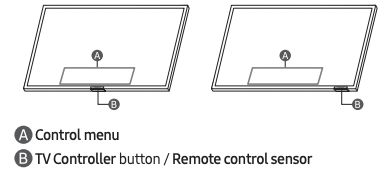
You can turn on the TV with the TV Controller button at the bottom of the TV, and then use the Control menu. The Control menu appears when the TV Controller button is pressed while the TV is On.
- The screen may dim if the protective film on the SAMSUNG logo or the bottom of the TV is not detached. Please remove the protective film.
Setting the sound sensor
- This function is supported only in Q7*B/Q8*B/ QN8*B/QN9*B Series.
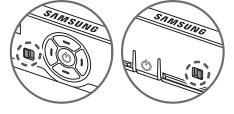
You can turn on or off the sound sensor by using its button at the bottom of the TV.
With the TV on, you can push the button to the left (or backward) to turn on the sound sensor or to the right (or forward) to turn off it.
See the pop-up window on the TV to check whether the sound sensor is turned on or off.
- The position and shape of the sound sensor may differ depending on the model.
- During analysis using data from the sound sensor, the data is not saved.
Troubleshooting and Maintenance
Troubleshooting
For more information, refer to "Troubleshooting" or "FAQ" in the e-Manual.
 Settings > Support > Open e-Manual > Troubleshooting or FAQ
If none of the troubleshooting tips apply, please visit samsung and click Support or contact the Samsung service centre.
- This TFT LED panel is made up of sub pixels which require sophisticated technology to produce. There may be, however, a few bright or dark pixels on the screen. These pixels will have no impact on the performance of the product.
- To keep your TV in optimum condition, upgrade to the latest software. Use the Update Now or Auto update functions on the TV's menu ( Settings Support > Software Update > Update Now or Auto update)
The TV won’t turn on.
- Make sure that the power cable is securely plugged in to the TV and the wall outlet.
- Make sure that the wall outlet is working and the remote control sensor at the bottom of the TV is lit and glowing a solid red.
- Try pressing the TV Controller button at the bottom of the TV to make sure that the problem is not with the remote control. If the TV turns on, refer to "The remote control does not work".
The remote control does not work.
- Check if the remote control sensor at the bottom of the TV blinks when you press the
 button on the remote control.
– Samsung Smart Remote: When the remote's battery is discharged, charge the battery using the USB charging port (C-type), or turn over the remote to expose the solar cell to light.
– Standard Remote Control: If it does not blink, replace the remote control's batteries. Make sure that the batteries are installed with their poles (+/–) in the correct direction. Alkaline batteries are recommended for longer battery life
- Try pointing the remote directly at the TV from 1.5-1.8 m away.
- If your TV came with a Samsung Smart Remote (Bluetooth Remote), make sure to pair the remote to the TV. To pair a Samsung Smart Remote, press the
 and
and buttons together for 3 seconds.
Eco Sensor and screen brightness
Eco Sensor adjusts the brightness of the TV automatically. This feature measures the light in your room and optimises the brightness of the TV automatically to reduce power consumption. If you want to turn this off, go toSettings > All Settings > General & Privacy > Power and Energy Saving > Brightness Optimisation
- The eco sensor is located at the bottom of the TV. Do not block the sensor with any object. This can decrease picture brightness.
About the Samsung SolarCell Remote (Samsung Smart Remote)
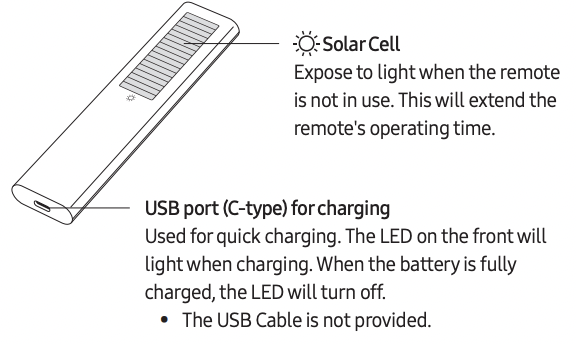
 Fire or explosion may occur, resulting in damage to the remote control or personal injury.
- Do not apply shock to the remote control.
- Be careful not to let foreign substances such as metal, liquid, or dust come in contact with the charging terminal of the remote control.
- When the remote control is damaged or you smell smoke or burning fumes, immediately stop operation and then repair it at the Samsung service centre.
- Do not arbitrarily disassemble the remote control.
- Be careful not to let infants or pets suck or bite the remote control. Fire or explosion may occur, resulting in damage to the remote control or personal injury.
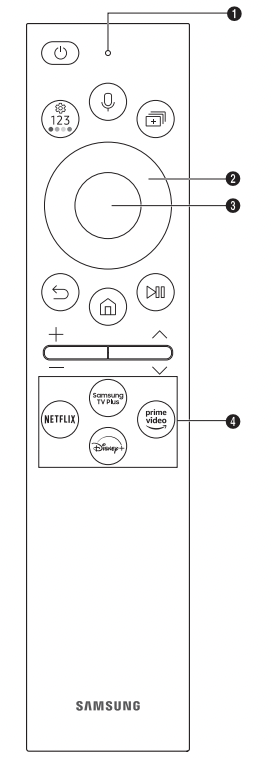
| Button |
Description |
 (Power) (Power) |
Press to turn the TV on or off.
For The Frame model, When watching TV, press to switch to Art mode. In Art mode, press to switch to the Media Home. Press and hold to turn off the TV completely.
|
 MIC / LED MIC / LED |
Used as MIC when using voice recognition with the remote control.
When charging the remote control via the USB port, the LED is lit if charging is in progress.
When charging is complete, the LED is turned off.
• Do not impact the MIC hole or use a sharp object to poke into the hole
|
 (Voice Assistant) (Voice Assistant) |
Runs Voice Assistant. Press and hold the button, say a command, and then release the button to run Voice Assistant.
• The supported Voice Assistant's languages and features may differ by geographical area.
|
 (Settings / Number / Colour button) (Settings / Number / Colour button) |
Each time you press this button, Settings menu / virtual numeric pad / Option pad with Colour buttons are displayed alternately.
• Use this button to access additional options that are specific to the feature in use.
• Press to bring up the virtual numeric pad on the screen. Use the numeric keypad to enter numeric values. Select numbers and then select Done or Enter Number to enter a numeric value. Use to change the channel, enter a PIN, enter a ZIP code, etc.
• When pressed for 1 second or more, the Shortcuts menu screen appears.
|
 (Multi View) (Multi View) |
Press the button to enter Multi View Mode. |
 Directional button (up, down, left, right) Directional button (up, down, left, right) |
Moves the focus and changes the values seen on the TV's menu. |
 Select Select |
Selects or runs a focused item. When pressed while you are watching a broadcast programme, detailed programme information appears |
 (Return) (Return) |
Press to return to the previous menu. When pressed for 1 second or more, the running function is terminated. When pressed while you are watching a programme, the previous channel appears. |
 (Smart Hub) (Smart Hub) |
Press to switch to the Media Home. From the Ambient Mode screen, press to switch to the Ambient Mode Home. For The Frame model, in Art mode, press to switch to the Art Home |
 (Play/pause) (Play/pause) |
When pressed, the playback controls appear. Using these controls, you can control the media content that is playing. To use Game Bar, press and hold the button in Game Mode.
• Game Bar may not be supported depending on the model or geographical area.
|
 (Volume) (Volume) |
Move the button up or down to adjust the volume. To mute the sound, press the button. When pressed for 2 seconds or more, the Accessibility Shortcuts appears. |
 (Channel) (Channel) |
Move the button up or down to change the channel. To see the Guide screen, press the button.
• When pressed for 1 second or more, the Channel List screen appears.
|
 Launch app button Launch app button |
Press each button to run its function.
• Available apps may differ depending on the geographical area or contents provider
|
| + (Pairing) |
If the Samsung Smart Remote does not pair to the TV automatically, point it at the front of the TV, and then press and hold the and buttons simultaneously for 3 seconds or more. |
– Use the Samsung Smart Remote less than 6 m from the TV. The usable distance may vary with the wireless environmental conditions.
– The images, buttons, and functions of the Samsung Smart Remote may differ with the model or geographical area.
– The Universal Remote function operates normally only when you use the Samsung Smart Remote that comes with the TV.
– It is recommended to use an original Samsung charger. Otherwise, it may cause performance degradation or failure of the product. In this case, the warranty service is not applicable.
– When the remote control does not work due to low battery, charge it by using the USB-C type port.
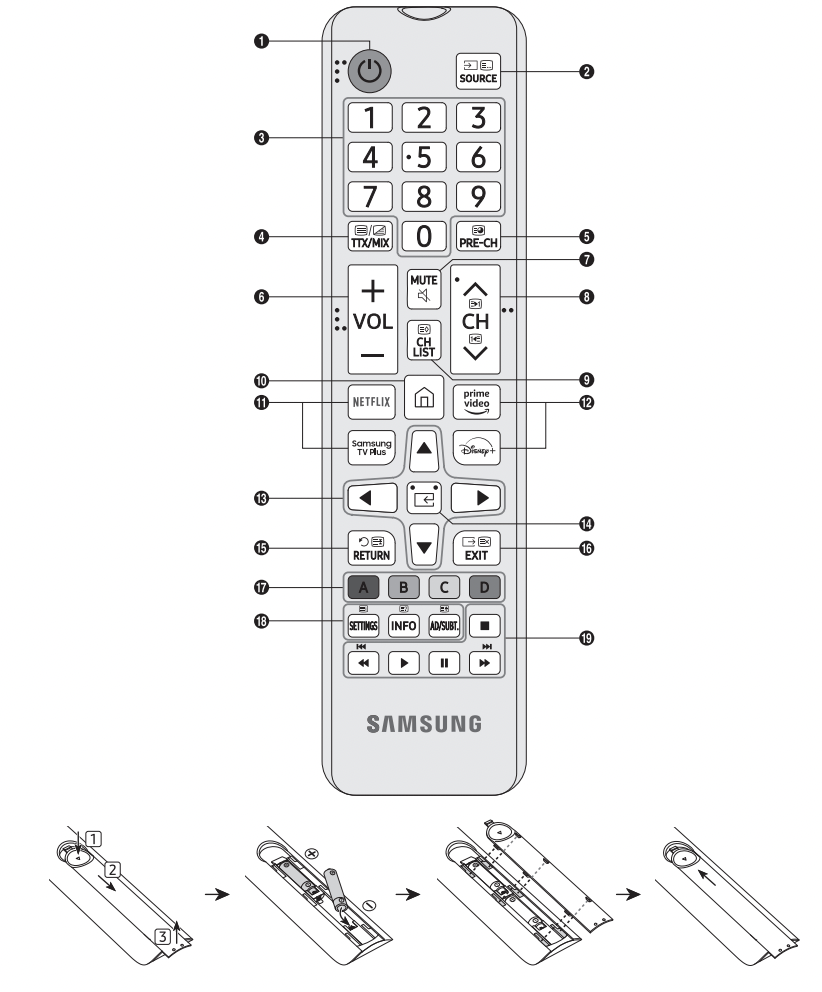
– The images, buttons, and functions of the remote control may differ depending on the model.
– This remote control has Braille points on the Power, Channel, Volume, and Select buttons and can be used by visually impaired persons.
– If you use the remote control that comes with your TV to control another TV, some functions may not operate normally.

 (Power)


 (Select)


