CONTENTS ]
Chapter 1- Your New TV
List of Features ............................................ 1
List of Parts ............................................... 1
Familiarizing Yourself with Your New TV ....................... 2
Top Panel Buttons ................................... 2
Rear Panel Jacks .................................... 3
Remote Control ..................................... 4
Installing Batteries in the Remote Control ................ 6
The remote control doesn't work ....................... 6
Chapter 2- Installation
Connecting VHF and UHF Antennas ........................... 7
Antennas with 300-ohln Flat Twin Leads ................. 7
Antennas with 75-ohm Round Leads .................... 8
Separate VHF and UHF Antennas ...................... 8
Connecting Cable TV ....................................... 8
Cable without a Cable Box ............................ 8
Connecting to a Cable Box that Descrambles All Channels...9
Connecting to a Cable Box that Descrambles Some Channels . .9
Connecting a VCR ......................................... 11
Connecting an S-VHS VCR ................................. 12
Connecting a DVD Player ................................... 13
Connecting a PC .......................................... 14
Chapter 3- Special Features
Turning the TV On and Off .................................. 15
Changing Channels ........................................ 15
Using the Channel Buttons ........................... 15
Using the Pre-CH Button to select the Previous Channel ... 15
Adjusting the Volume ...................................... 15
Using Mute ....................................... 15
Viewing the Di splay ....................................... 16
Viewing the Menus ........................................ 16
Chapter 4: Operation
Plug & Play Feature ........................................ 17
Memorizing the Channels ................................... 18
Selecting the Video Signal-source ..................... 18
Storing Channels in Memory (Automatic Method) ........ 19
To check the channels stored in memory ................ 19
To select channels over 100 .......................... 19
ADD and DEL Channels (Manual Method) .............. 20
Labeling Channel ......................................... 20
To select the Favorite Channels ............................... 21
To select TV/Video ........................................ 21
To Edit the Input Source Name ............................... 22
Using Automatic Picture Settings ............................. 23
Customizing the Picture .................................... 24
Using Automatic Sound Settings .............................. 25
Customizing the Sound ..................................... 26
Selecting a Menu Language ................................. 27
Setting the Blue Screen Mode ................................ 28
Contents 1
CONTENTS ]
Fine Tuning Channels ...................................... 29
Viewing Picture-in-Picture .................................. 30
Activating Picture-in-Picture ......................... 30
PIP Settings ....................................... 30
Changing the PIP Channel ........................... 31
Changing the Size of the PIP Window .................. 31
Changing the Screen Size ................................... 32
Freezing the Picture ........................................ 32
Adjusting the Color Tone ................................... 33
Setting the DNIe ........................................... 34
For automatic volume coutrol ................................ 35
To select the WOW option. .................................. 36
Special Sound Options ..................................... 37
Selecting the Main or Sub Sound ............................. 38
Adjusting the Headphone Sound .............................. 39
Setting the Clock ......................................... 40
Setting the On/OffTimer ................................... 41
Setting the Sleep Timer .................................... 43
Viewing Closed Captions ................................... 44
Using the V-Chip .......................................... 45
Setting Up Your Personal ID Number (PIN) ............. 45
How to Enable/Disable the V-Chip ..................... 46
How m Set up Restrictions Using the 'TV guidelines' . .... 46
How m Set up Restrictions using the MPAA Ratings:
G, PG, PG-13, R, NC-17, X .......................... 48
How m Reset the TV after the V-Chip
Blocks a Channel ('Emergency Escape') ................ 49
Chapter 5: PC Display
Using Your TV as a Computer (PC) Display ..................... 50
How to Set up Your PC Software (Windows only) ........ 50
Adjusting the Screen Quality ......................... 51
Changing the Screen Position ......................... 52
To Initialize the Screen Position or Color Settings ......... 53
PC(Digital/Analog) SiNmt Select ..................... 54
How m Aura Adjust ................................ 55
[;sing Automatic Picture Settings ...................... 56
Customizing the Picture ............................. 57
Adjusting the Color Tone ............................ 58
Chapter 6: Troubleshooting
Identifying Problelns ....................................... 59
Appendix
How to connect the canes and stand base ....................... 61
[;sing the Anti-Theft Kensington Lock ......................... 62
Retractable Stand .......................................... 63
Cleaning and Maintaining Yore TV ........................... 64
Using Your TV in Another Country ............................ 64
Specifications ............................................ 65
Display Modes ............................................ 66
Setting Up Yore Remote Control .............................. 67
Remote Control Codes ..................................... 70
Contents 2
YOUR NEW TV
List of Features
Your TV was designed with the latest technology.
This TV is a high-pertSrmance unit that includes the following special features:
Easy-to-use remote control
Easy-to-use on-screen menu system
Automatic timer to turn the TV on and oft"
Adjustable picture and sound settings that can be stored in the TV's memory
Automatic channel tuning tSr up to 181 channels.(Air : 68, STD : 113 )
A special filter to reduce or eliminate reception problems
Fine tuning control for the sharpest picture possible
A built-in multi-channel sound decoder for stereo and bilinmJal listening
Built-in, dual channel speakers
Headphone .jack tSr private listening
16:9 letter box format available depending upon source
List of Parts
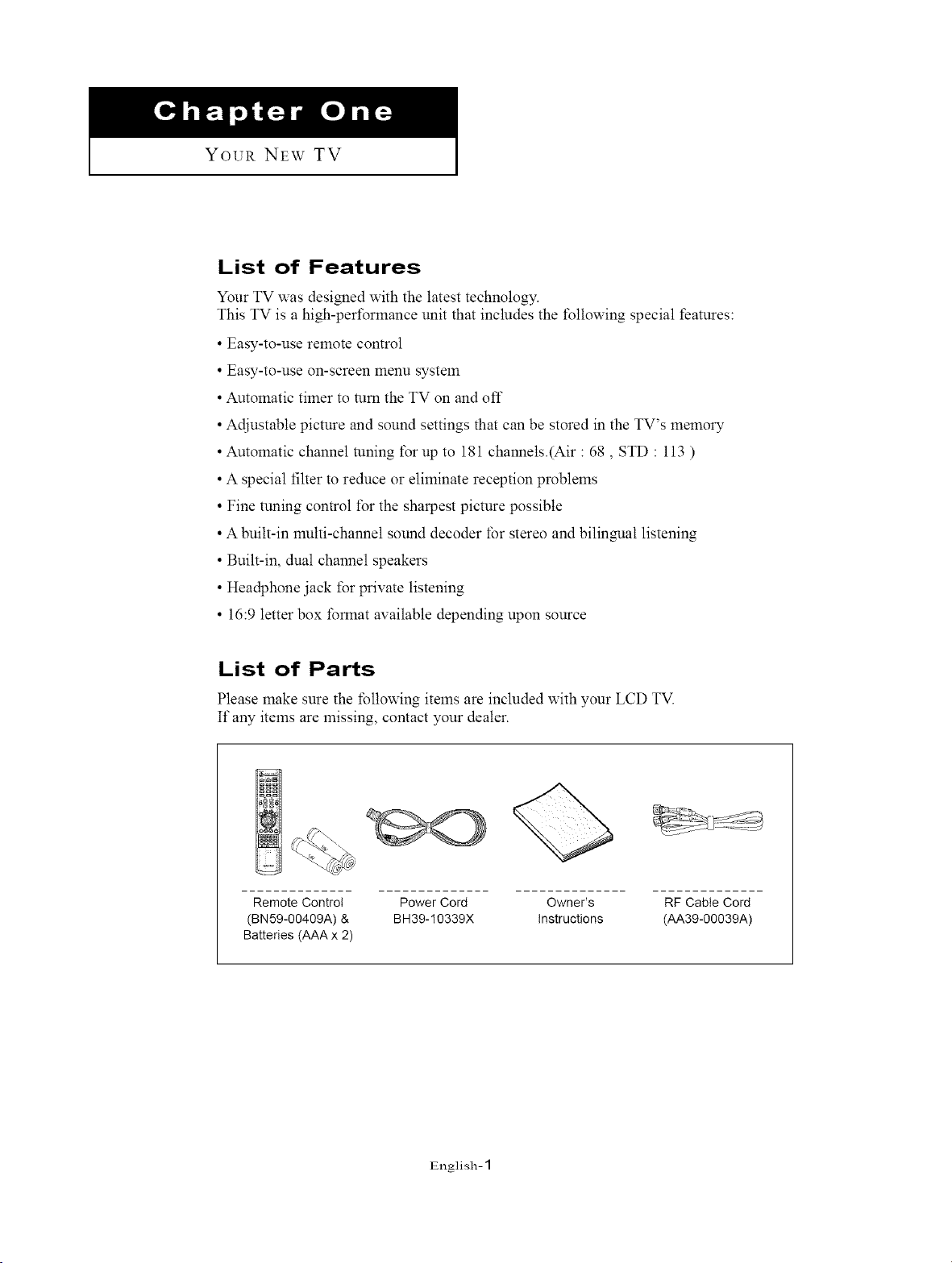
Please make sure the following items are included with your LCD TV.
If aW items are missing, contact your dealer.
Remote Control Power Cord Owner's
(BN59-00409A) & BH39-10339X Instructions
Batteries (AAA x 2)
RF Cable Cord
(AA39-00039A)
English- 1
I YOUR NEW TV I
Familiarizing Yourself with Your New TV
Top Panel Buttons
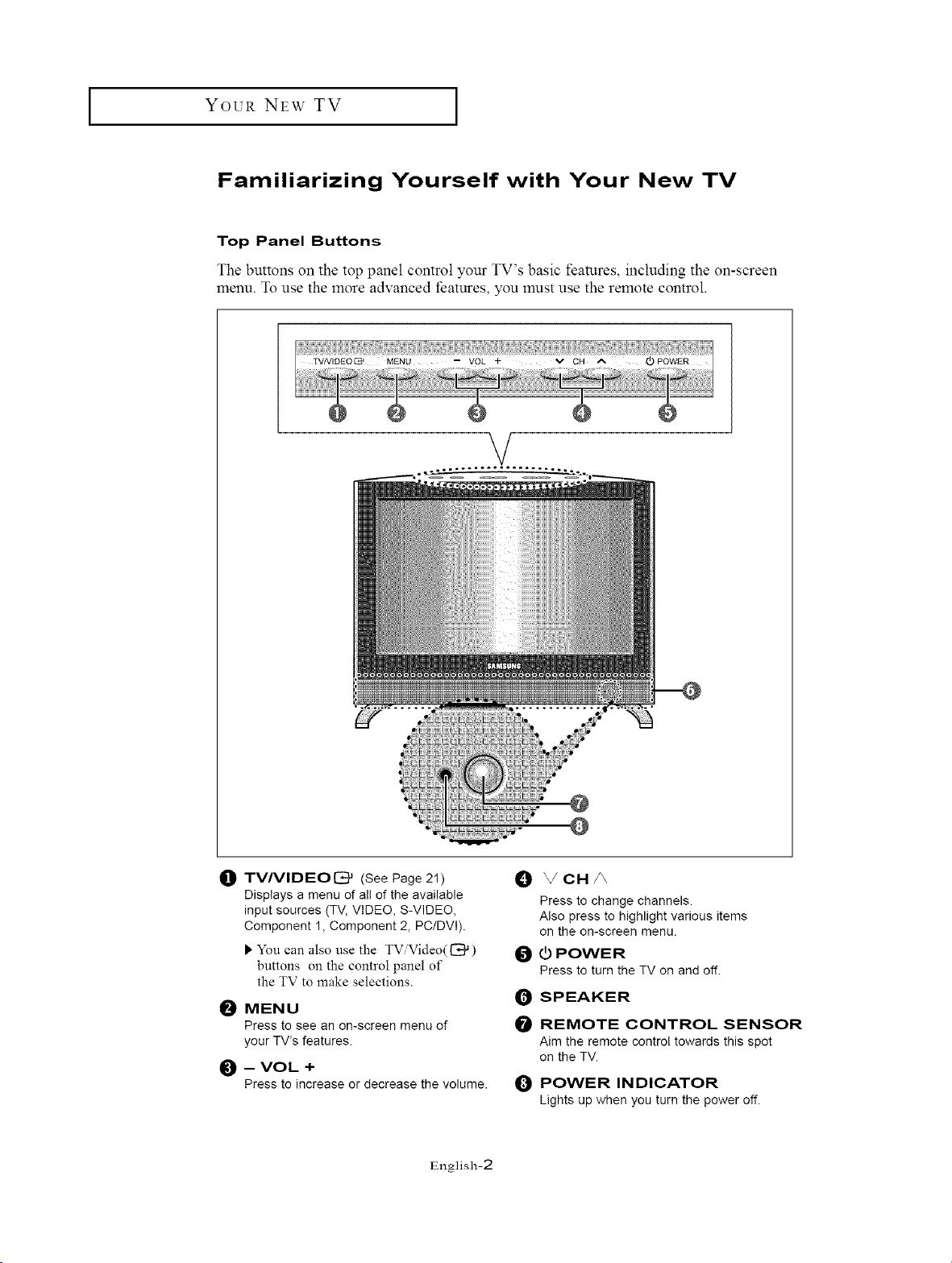
The buttons on the top panel control your TV's basic features, including the on-screen
menu. To use the more advanced features, you must use the remote control.
V
@
I_t TV/VIDEO[_ (See Page 2!)
Displays a menu of all of the available
input sources (TV, VIDEO, S-VIDEO,
Component 1, Component 2, PC/DVl).
_"You can also use the TViVideo(_)
buttons on the control panel of
the TV to make selections.
I_ MENU
Press to see an on-screen menu of
your TV's features.
_) -- VOL +
Press to increase or decrease the volume.
I_) _/CH/_
Press to change channels.
Also press to highlight various items
on the on-screen menu.
I_ _) POWER
Press to turn the TV on and off.
1_ SPEAKER
I_ REMOTE CONTROL SENSOR
Aim the remote control towards this spot
on the TV.
0 POWER INDICATOR
Lights up when you turn the power off.
English-2
YOUR NEW TV
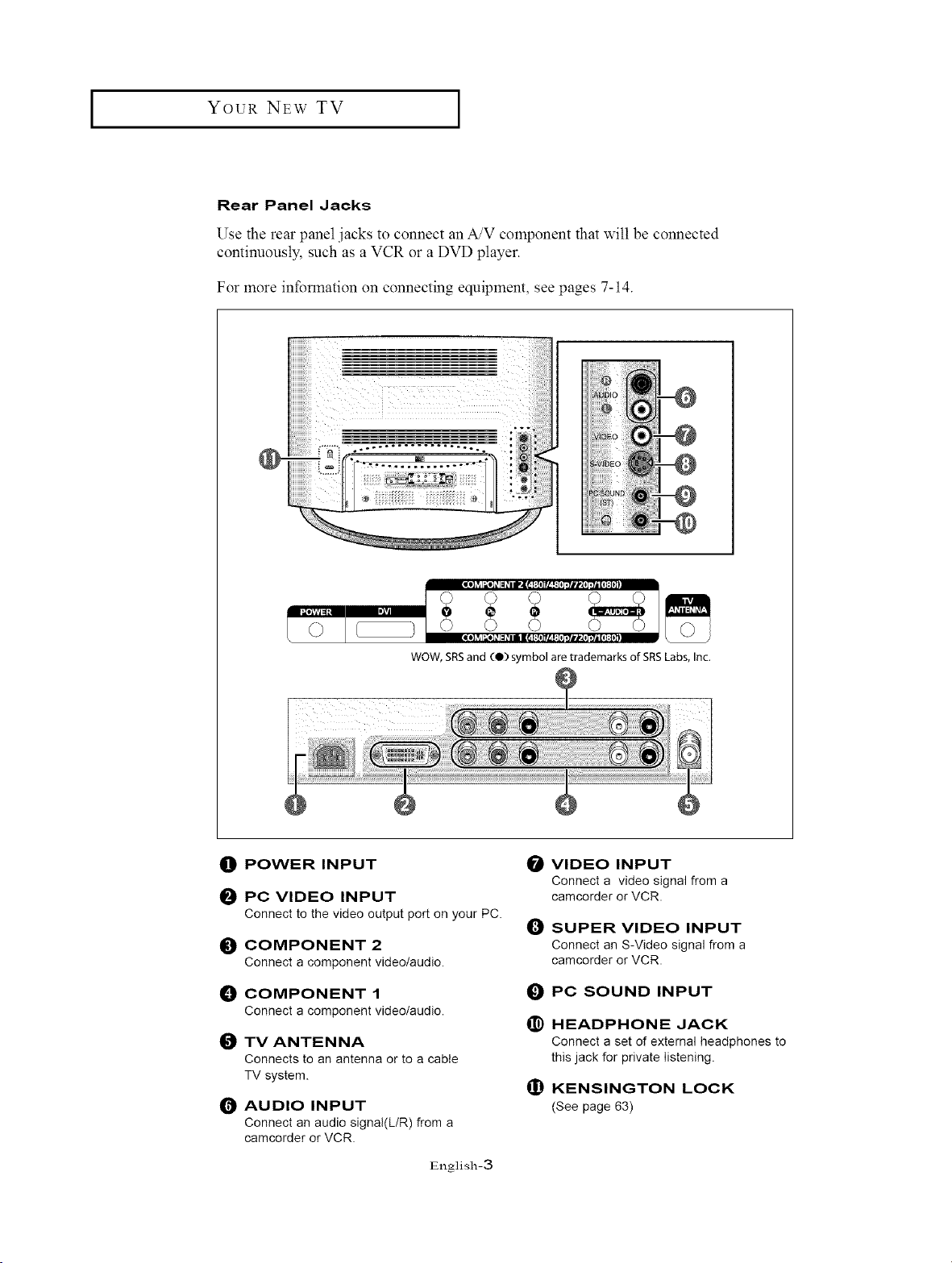
Rear Panel Jacks
Use the rear panel .jacks to connect an A/V component that will be connected
continuously, such as a VCR or a DVD player.
For more information on connecting equipment, see pages 7-14.
@
iiiiiiii!ili:iiii>iiil_..,.-...= ..._... = : _i !iiii_i!i
/
' , ",I
=o] LvJI;de] 21= _i IPI_ f:{* ]r£ !: {*7;71ravi*7;7_[a }:{D]
WOW, SRSand (4)) symbol are trademarks of SRSLabs,Inc.
0 POWER INPUT
_) PC VIDEO INPUT
Connect to the video output port on your PC.
_) COMPONENT 2
Connect a component video/audio.
_) COMPONENT 1
Connect a component video/audio.
_) TV ANTENNA
Connects to an antenna or to a cable
TV system.
_) AUDIO INPUT
Connect an audio signal(L/R) from a
camcorder or VCR.
English-3
VIDEO INPUT
Connect a video signal from a
camcorder or VCR.
I_) SUPER VIDEO INPUT
Connect an S-Video signal from a
camcorder or VCR.
O
@
PC SOUND INPUT
HEADPHONE JACK
Connect a set of external headphones to
this jack for private listening.
(I) KENSINGTON LOCK
(See page 63)
YOUR NEW TV [
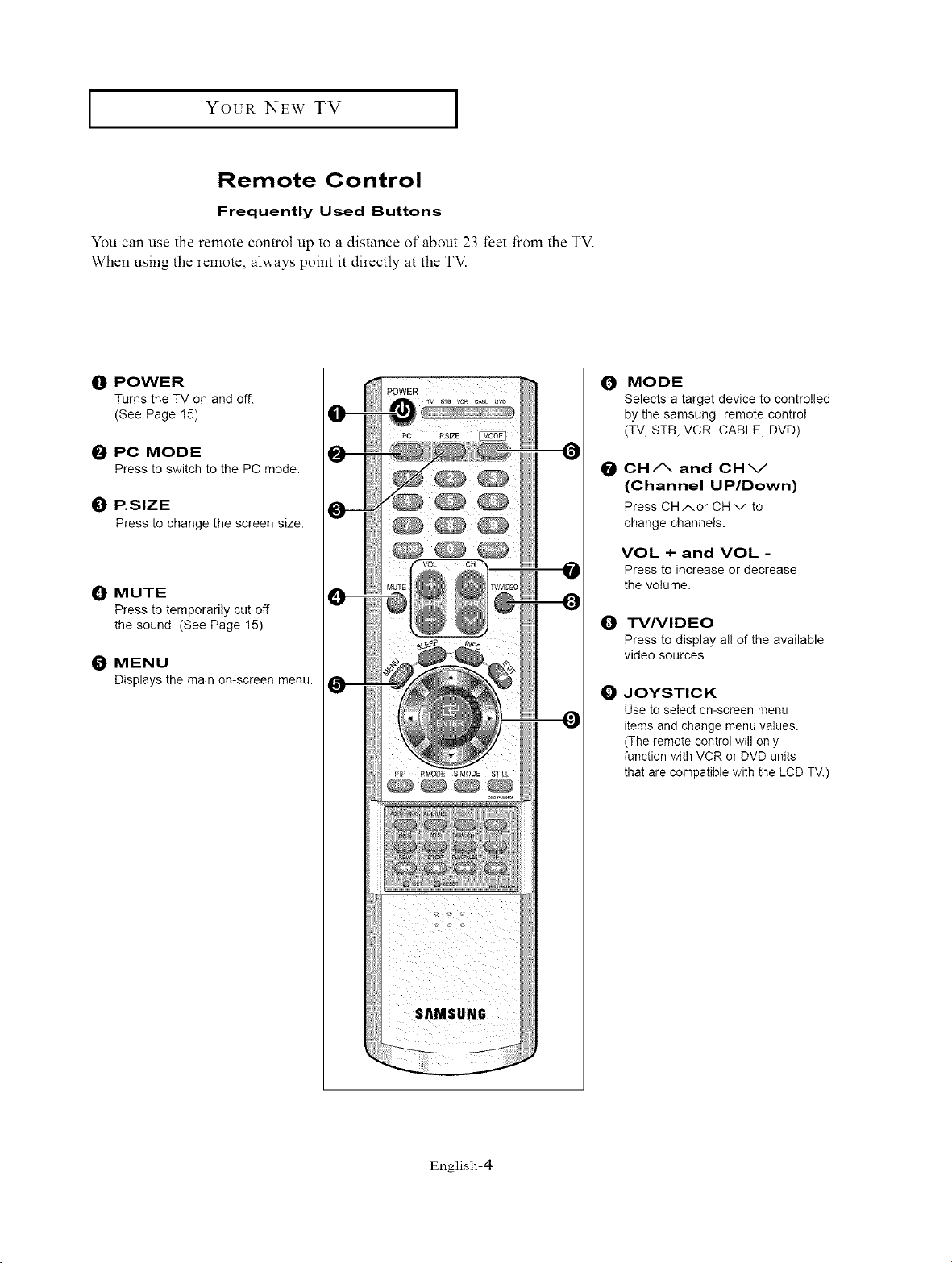
Remote Control
Frequently Used Buttons
You can use the remote control up to a distance of about 23 feet fi'om the TV.
When using the remote, always point it directly at the TM
O POWER
Turns the TV on and off.
(See Page 15)
PC MODE
Press to switch to the PC mode.
0 P.SIZE
Press to change the screen size.
_]P MUTE
Press to temporarily cut off
the sound. (See Page 15)
MENU
Displaysthe main on-screen menu.
O
SAMSUNG
O
MODE
Selects a target device to controlled
by the samsung remote control
(TV, STB, VCR, CABLE, DVD)
@
CH/X and CHV
(Channel UP/Down)
Press CHAor CHv to
change channels.
VOL + and VOL -
Press to increase or decrease
the volume.
TV/VIDEO
Press to display all of the available
video sources.
O JOYSTICK
Use to select on-screen menu
items and change menu values.
(The remote control will only
function with VCR or DVD units
that are compatible with the LCD TV.)
English-4
I Yo_a NEW TV I
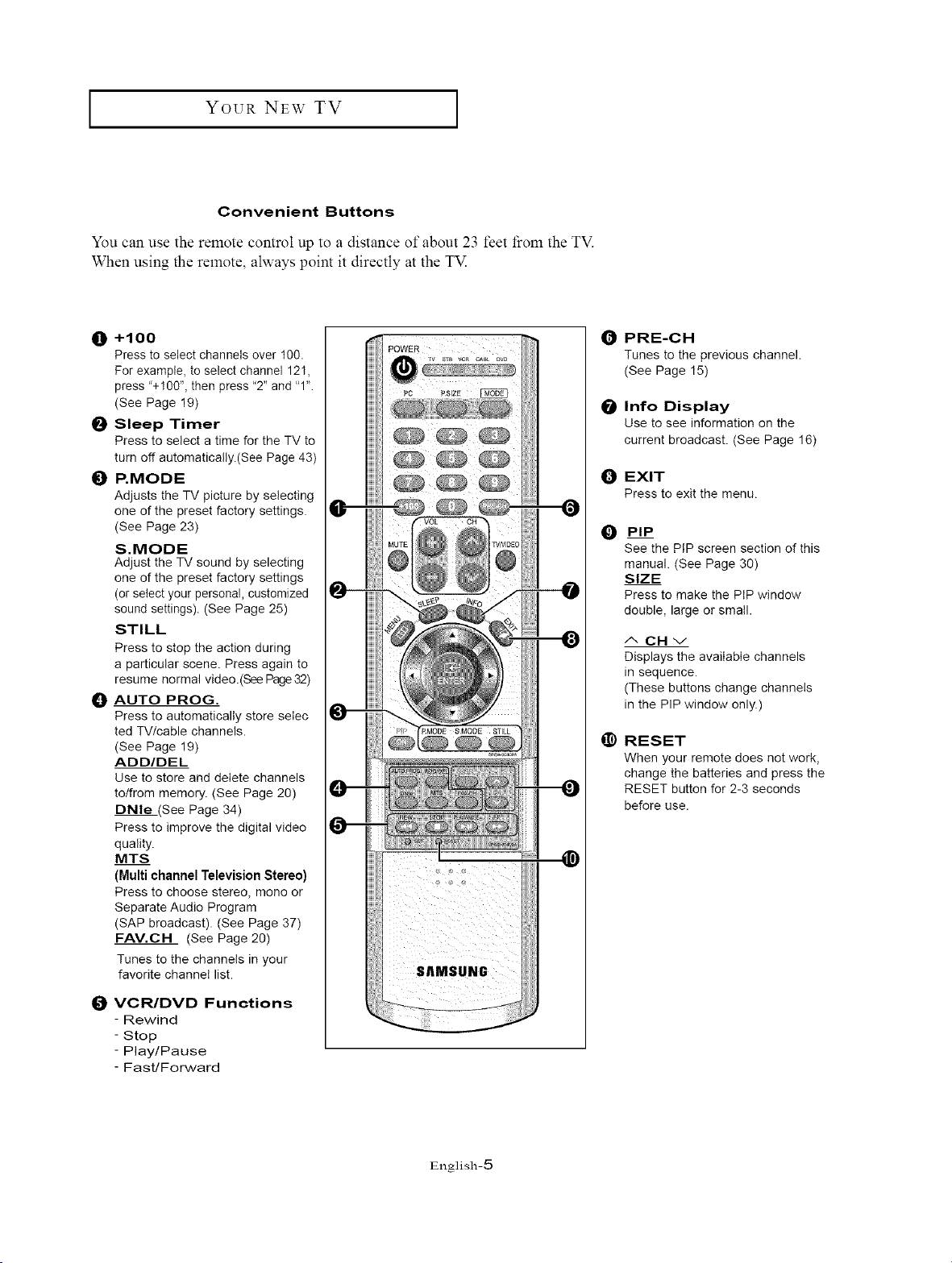
Convenient Buttons
You can use the remote control up to a distance of about 23 feet from the TV.
When using the remote, always point it directly at the TM
0 +1 O0
Press to select channels over t00.
For example, to select channel 121,
press "+100", then press "2" and "1".
(See Page 19)
_) Sleep Timer
Press to select a time for the TV to
turn off automatically.(See Page 43)
{) P.MODE
Adjusts the TV picture by selecting
one of the preset factory settings.
(See Page 23)
S.MODE
Adjust the TV sound by selecting
one of the preset factory settings
(or select your personal, customized
sound settings). (See Page 25)
STILL
Press to stop the action during
a particular scene. Press again to
resume normal video.(See Page32)
O AUTO PROG.
Press to automatically store seIec
ted TV/cable channels.
(See Page 19)
ADD/DEL
Use to store and delete channels
to/from memory. (See Page 20)
DNle .(See Page 34)
Press to improve the digital video
quality.
MTS
(Multi channel Television Stereo)
Press to choose stereo, mono or
Separate Audio Program
(SAP broadcast). (See Page 37)
FAV.CH (See Page 20)
Tunes to the channels in your
favorite channel list.
O VCR/DVD Functions
- Rewind
- Stop
- Play/Pause
- Fast/Forward
PRE-CH
Tunes to the previous channel.
(See Page 15)
0 Info Display
Use to see information on the
current broadcast. (See Page 16)
O EXIT
Press to exit the menu.
O __
@
PIP
See the PIP screen section of this
manual. (See Page 30)
SIZE
Press to make the PIP window
double, large or small.
ACHv
Displays the available channels
in sequence.
(These buttons change channels
in the PIP window only.)
RESET
When your remote does not work,
change the batteries and press the
RESET button for 2-3 seconds
before use.
English-5
YOUR NEW TV ]
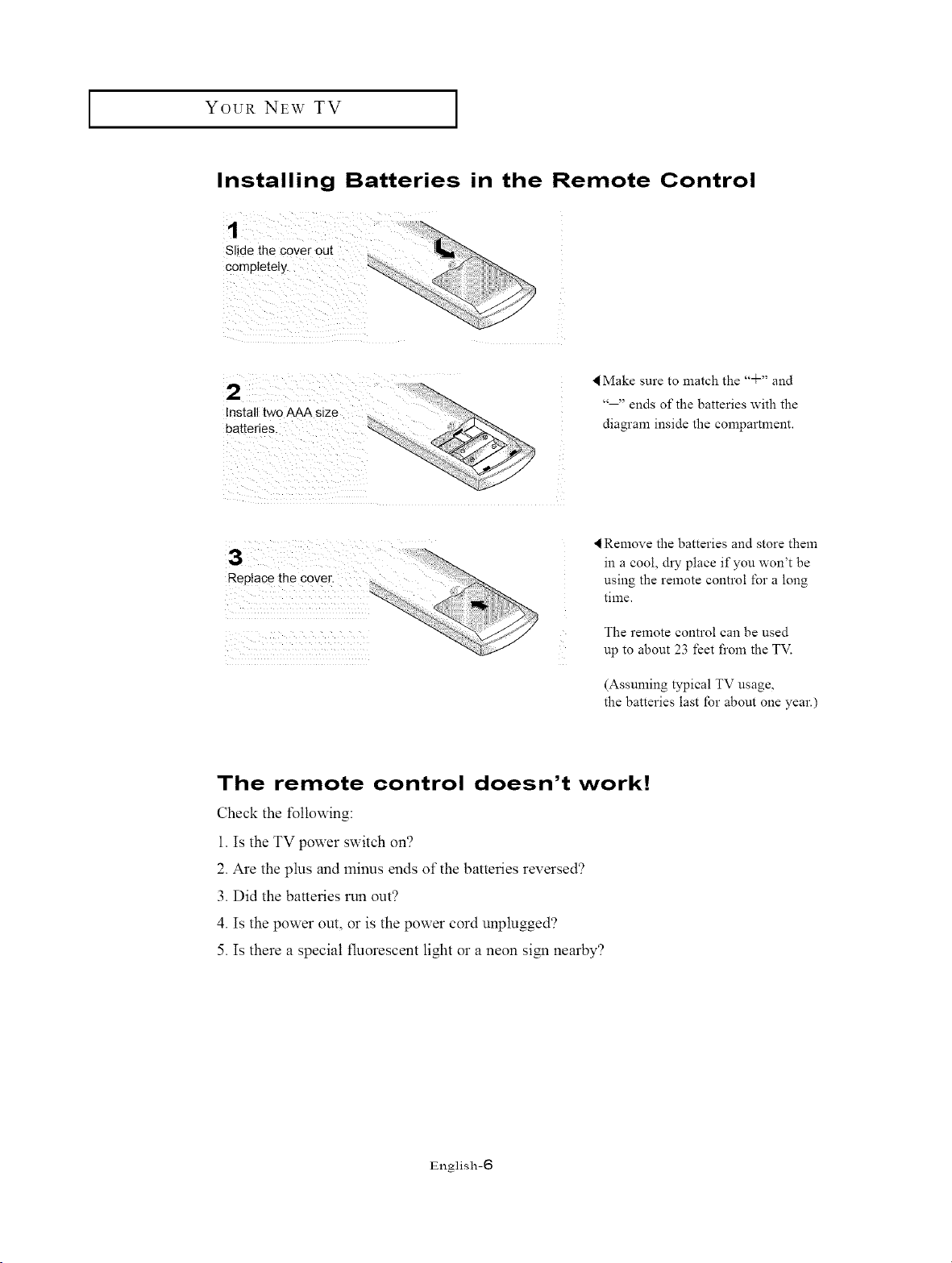
Installing Batteries in the Remote Control
Slide the cover out
completely.
Make sure to match the "q-" and
..... ends of the batteries with the
diagram inside the compartment.
3 ¸(?:)::) :?i%,,........
Replace the Cover.
Remove the batteries and store them
in a cool, &y place if you won't be
using the remote control for a long
time.
The remote control can be used
up to about 23 feet from the TV.
(Assuming typical TV usage,
the batteries last tbr about one year.)
The remote control doesn't work!
Check the following:
1. Is the TV power switch on?
2. Are the plus and minus ends of the batteries reversed?
3. Did the batteries run out?
4. Is the power out, or is the power cord unplugged?
5. Is there a special fluorescent light or a neon siN1 nearby?
English-6
INSTALLATION
Connecting VHF and UHF Antennas
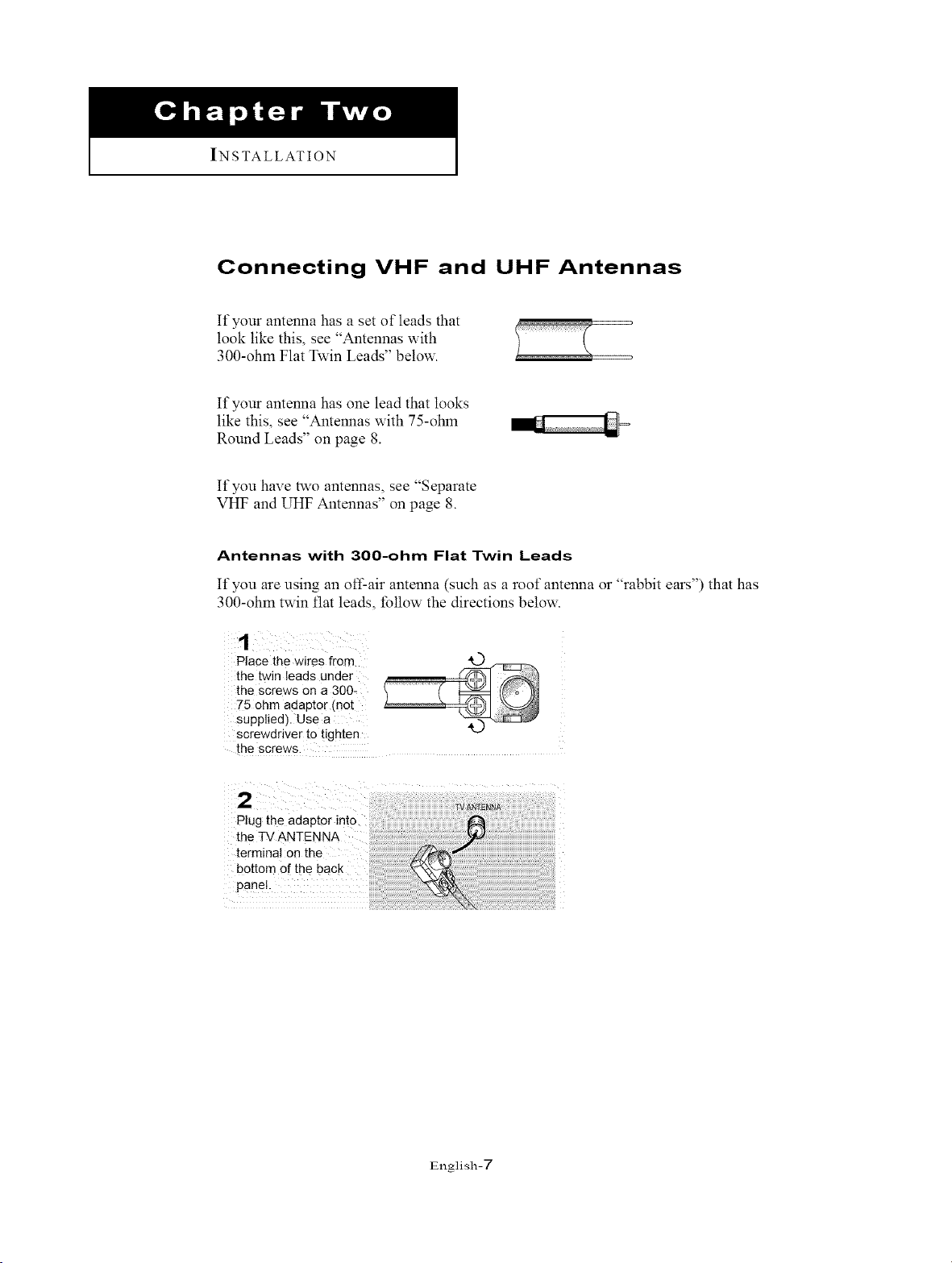
If your antenna has a set of leads that
look like this, see "Antennas with
300-ohm Flat Twin Leads" below.
If your antenna has one lead that looks
like this, see "Antennas with 75-ohm
Round Leads" on page 8.
If you have two antennas, see "Separate
VHF and UHF Antennas" on page 8.
Antennas with 300-ohm Flat Twin Leads
It"you are using an off-air antenna (such as a roof antenna or "rabbit ears") that has
300-ohm twin fiat leads, follow the directions below.
1
Place the wires from
the twin leads under
the screws on a 300-
75 ohm aclaptor (no[
supplied). Use a
screwdrwer to t_ghten
the screws.
the TV ANTENNA
terminal on the
bottom Of the back
panel.
English-T
I INSTALLATION I
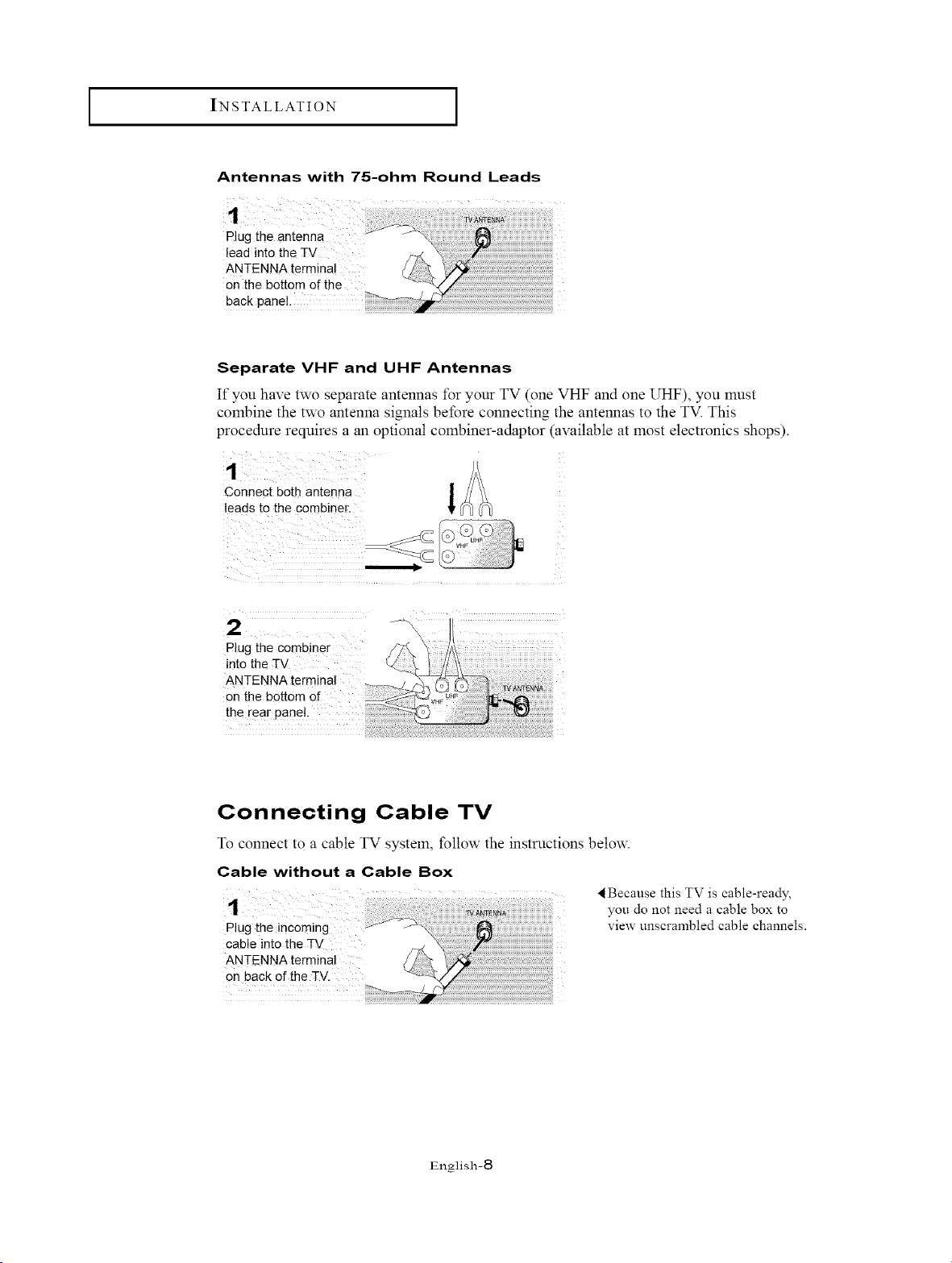
Antennas with 75-ohm Round Leads
Separate VHF and UHF Antennas
If you have two separate antennas for your TV (one VHF and one UHF), you must
combine the two antenna signals before connecting the antennas to the TV. This
procedure requires a an optional combiner-adaptor (available at most electronics shops).
1
Connect both antenna
leads to the combine[.
VHF
Plug the combiner
into the TV
ANTENNA terminal
on the bottom of
the rear panel.
Connecting Cable TV
TOconnect to a cable TV system, follow the instructions below.
Cable without a Cable Box
i__;;;_/_!!_i_i_i_i_i_i_i_i_i_i_i_i_i_i_i_i_i_i_i_i_i_;__ _i_i_i_i_i_i_i_i_i_i_i_i_i_i_i_i_i_i_i_i_i_i_i_i_i_i_i_i_
Plug the incoming _ --\
CableintotheTV
ANTENNAterminal
on back of the TV.
< Because this TV is cable-ready,
you do not need a cable box to
view unscrambled cable channels.
English-8
I INSTALLATION I
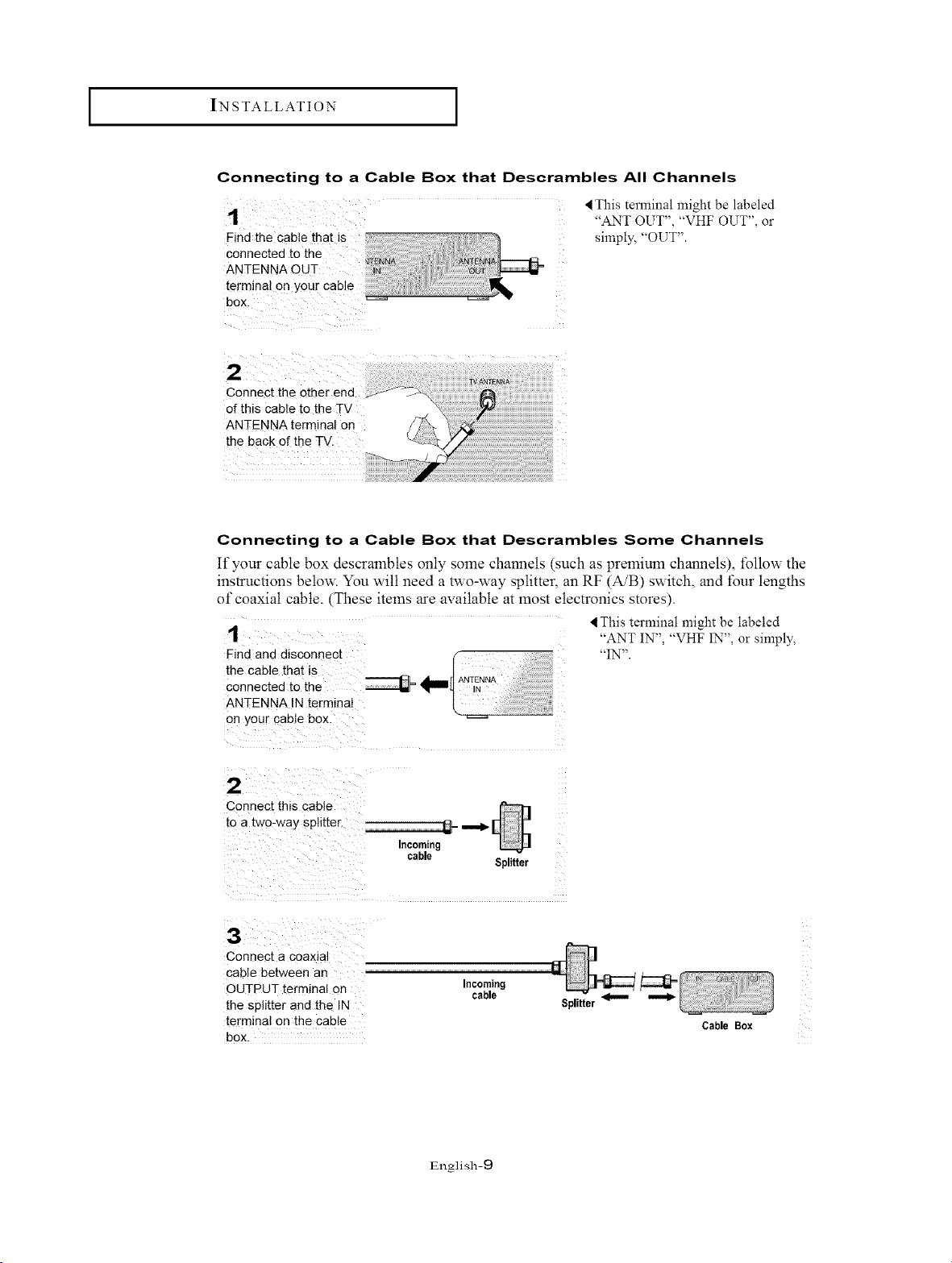
Connecting to a Cable Box that Descrambles All Channels
Find the cab!e that is
connected to the
ANTENNA C
terminal on your cable
box.
< This terminal might be labeled
"ANT OUT", "VHF OUT", or
simply, "OUT".
Connect the other end
of this cable to the TV
ANTENNA terminal on
the back of the TV.
Connecting to a Cable Box that Descrambles Some Channels
It"your cable box descrambles only some channels (such as premium channels), follow the
instructions below. You will need a two-way splitter, an RF (A/B) switch, and tour lengths
of coaxial cable. (These items are available at most electronics stores).
Find ano disconnect
the cable that _s
connected to the
ANTENNA IN term_naI
on your cable box.
4 This terminal might be labeled
"ANT IN", "VHF IN", or simply,
"IN".
2
Connect this cable
to a two4/ay sphtter
Incoming
cable
Splitter
3
Connect a coaxla
cable between an
OUTPUT terminal on
the splitter and the IN
terminal on the cable
box.
Incoming
cable
Splitter
Cable Box
English-9
I INSTALLATION I
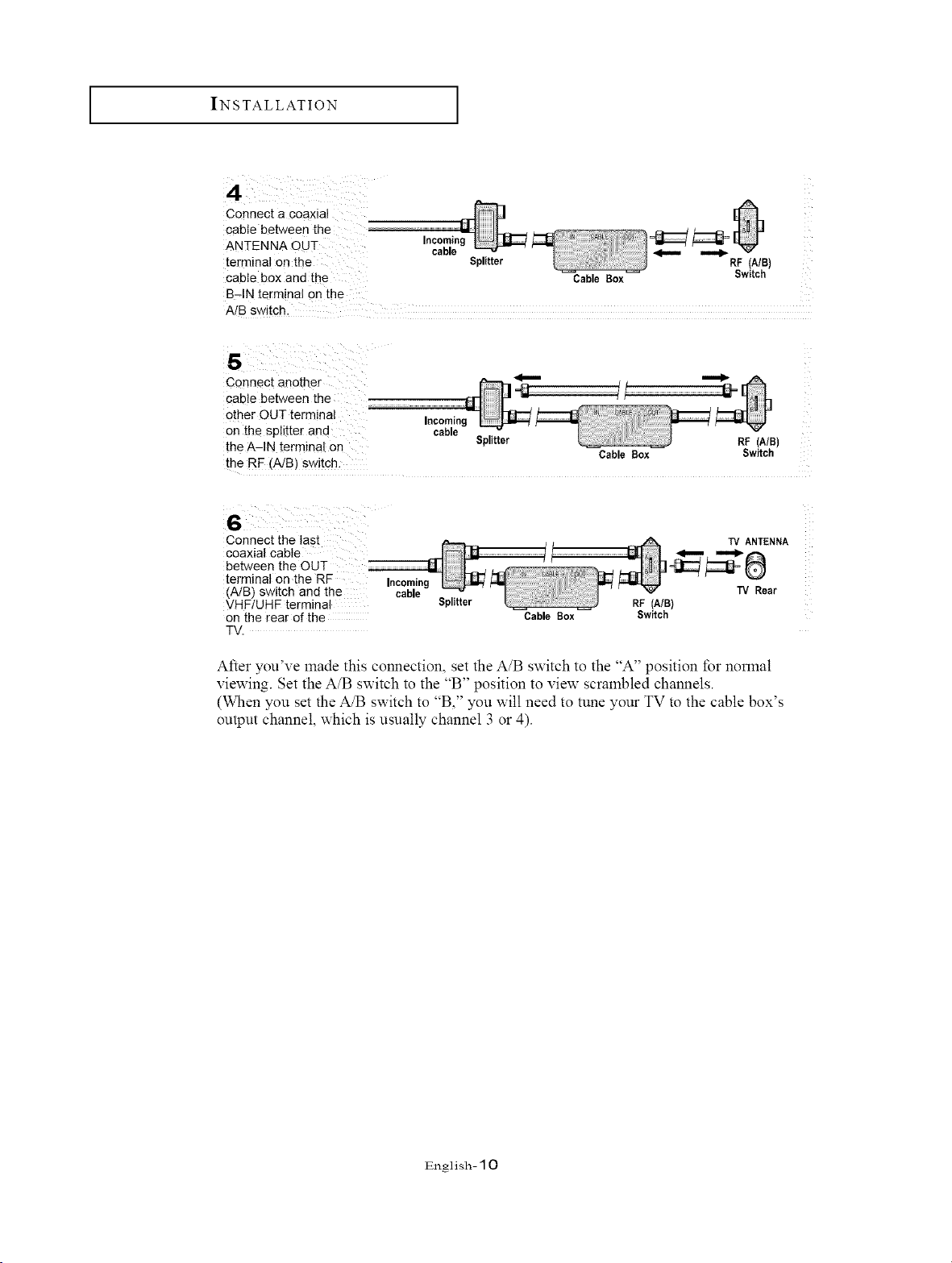
connect a Coaxial
cable between the ..........................................
ANTENNA oUT In_
terminal onthe Splitter
cable box and the
Cable Box
RF (A/B)
Switch
B-IN terminal on the
A/B switch.
s
Connect another _""" ""_
cable between the
other OUT terminal Incoming
on the splitter and cable Splitter RF (A/B)
the A-IN terminal on Cable Box Switch
th e RF (A/B) swjtch-
Connect the last
coaxial cable
between the OUT ............................................................
terminal on the RF Incoming
(A/B) switch and the cable
VHF/UHF terminal
on the rear of the
TV.
Splitter
Cable Sex
TV ANTENNA
TV Rear
RF (A/B)
Switch
After you've made this connection, set the A/B switch to the "A" position for normal
viewing. Set the A/B switch to the "B" position to view scrambled channels.
(When you set the A/B switch to "B," you will need to tune your TV to the cable box's
output channel, which is usually channel 3 or 4).
English- 10
I INSTALLATION I
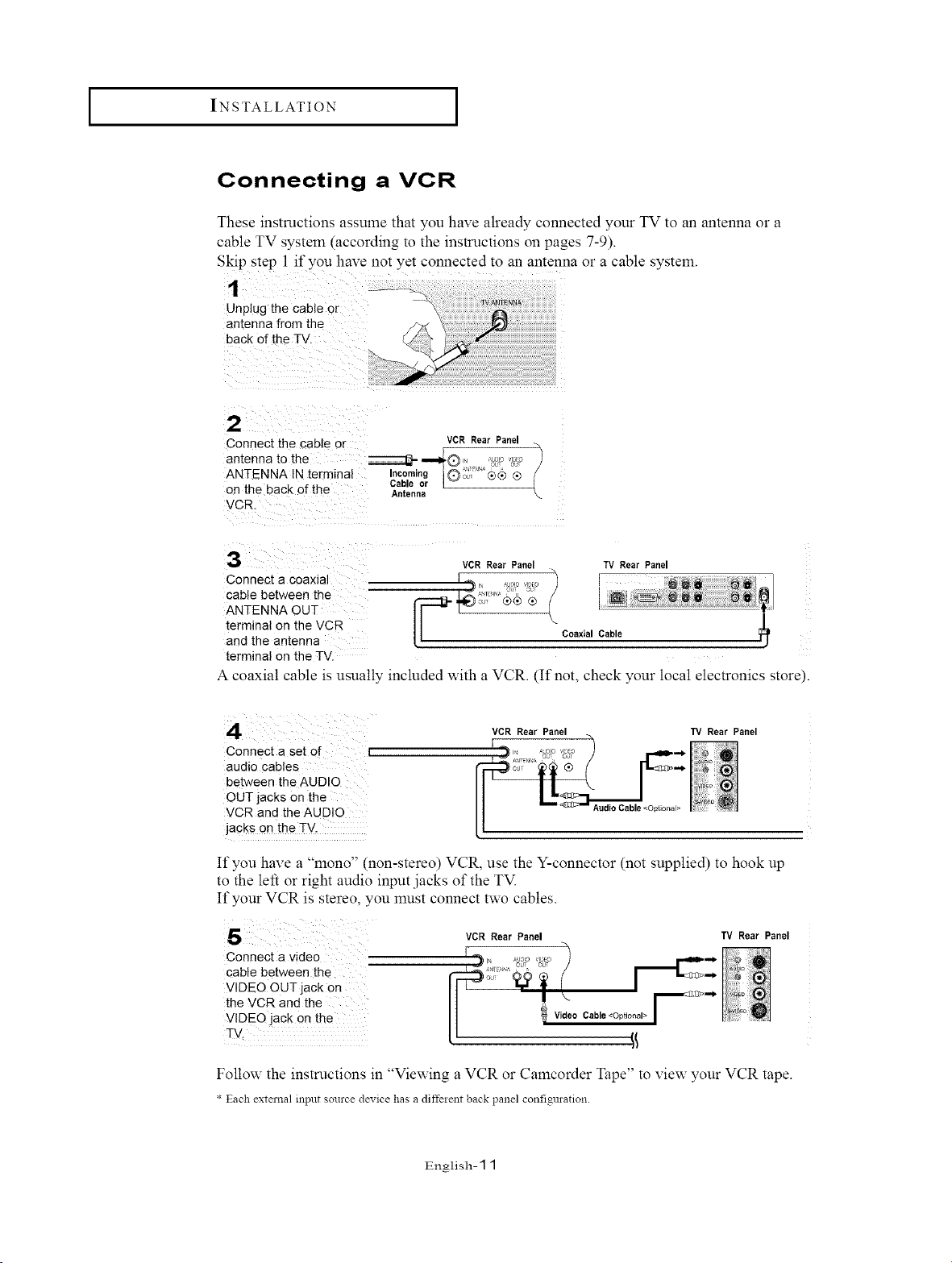
Connecting a VCR
These instructions assume that you have already connected your TV to an antenna or a
cable TV system (according to the instructions on pages 7-9).
Skip step 1 if you have not yet connected to an antenna or a cable system.
1
Unplug the cable or
antenna from the
back of the TV.
2
Connect the cable or VCR _ear Panel
antenna to the n= oL _ 1
ANTENNA IN terminal Incomi C 3_ ®_ ®
Cable or [
on the 3ack of the Antenna
VCR.
3
VCR Rear Panel TV Rear Panel
Connect a coaxla I _ j ")
andCabtetermmaANTENNAthebetweenantenna°nOUTthetheVcR [-_ '_ o0_L,_(_® @ ( Coaxial Cable
terminal on the TV.
A coaxial cable is usually included with a VCR. (If not, check your local electronics store).
Connect a set of L
audio cables
between the AUDIO
OUT jacks on the
VCR and the AUDIO
jacks on the TV.
VCR Rear Panel 13/ Rear Panel
If you hax e a 'mono" (non-stereo) VCR, use the Y-connector (not supplied) to hook up
to the left or right audio input .jacks of the TM
If your VCR is stereo, you must connect two cables.
5
Connect a video
cable between the
VIDEO OUT jack on
the VCR and the
VIDEO jack on the
TV.
VCR Rear Panel 13/ Rear Panel
. F _
Follow the instructions in "Viewing a VCR or Camcorder Tape" to view your VCR tape.
* Each external input source device has a diffeient back panel configuration.
English- 11
I INSTALLATION
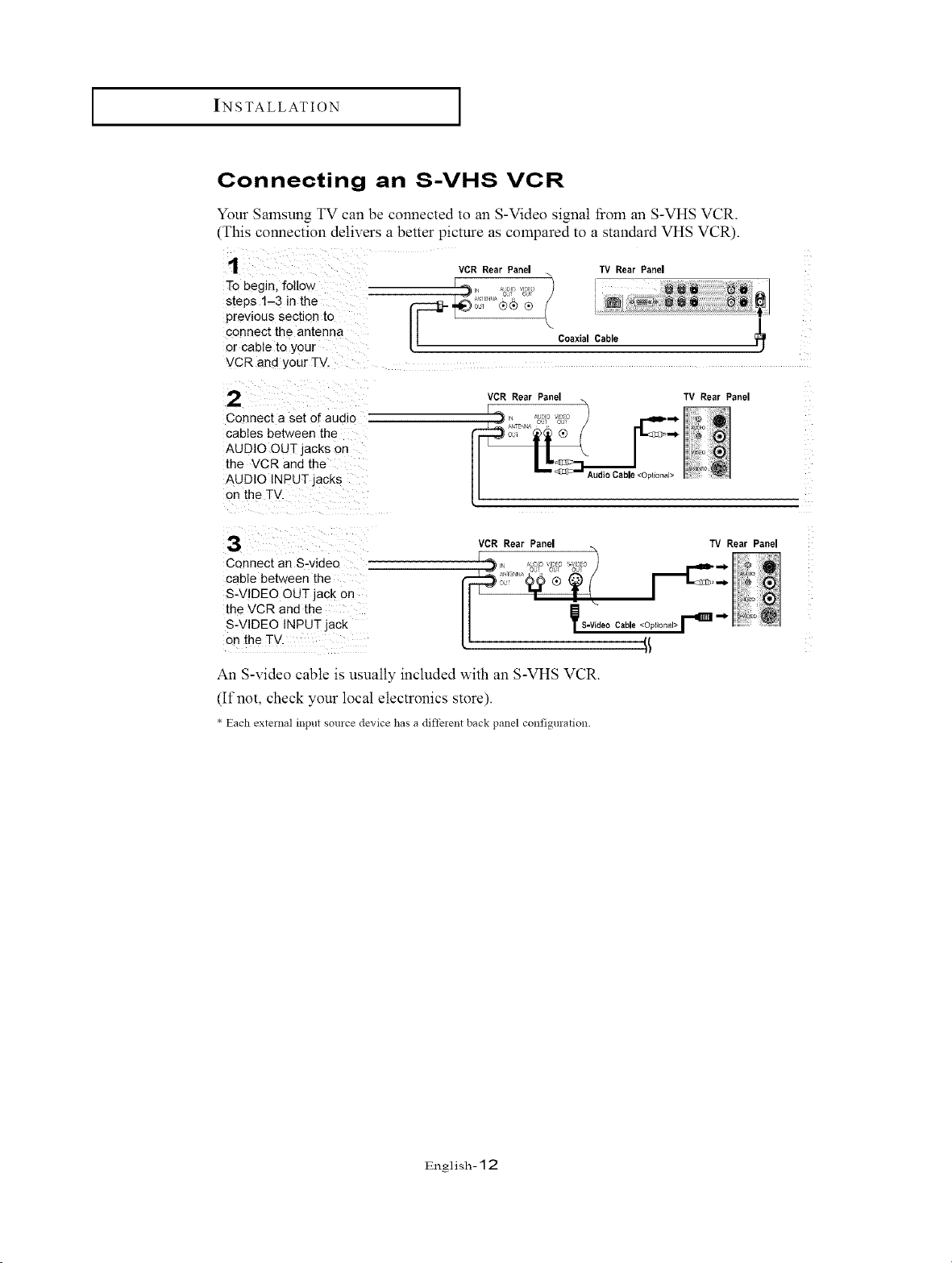
Connecting an S-VHS VCR
Your Samsung TV can be connected to an S-Video signal tiom an S-VHS VCR.
(This connection delivers a better picture as compared to a standard VHS VCR).
1
To begin, follo,_
s:eps 1-3 in the
previous section to
connect the antenna
or cable to your
VCR and your TV.
VCR Rear Panel TV Rear Panel
[
2
Connect a set o_ audio
cables between the
AUDIO OUT jacks on
the VCR and the
AUDIO INPUT jacks
on the TV
Coaxial Cable
VCR Rear Panel TV Rear Panel
[%, ...... _ _==_
3
Connect an S-video
cable between the
S-VIDEO OUT jack on
the VCR and the
S-VIDEO INPUT jack
on the TV
VCR Rear Panel TV Rear Panel
y S-Video Cable <Optional> F _ _i_
An S-video cable is usually included with an S-VHS VCR.
(If not, check your local electronics store).
* Each exte:nal input source device has a diffe:ent back panel configuration.
English- 12
I INSTALLATION I
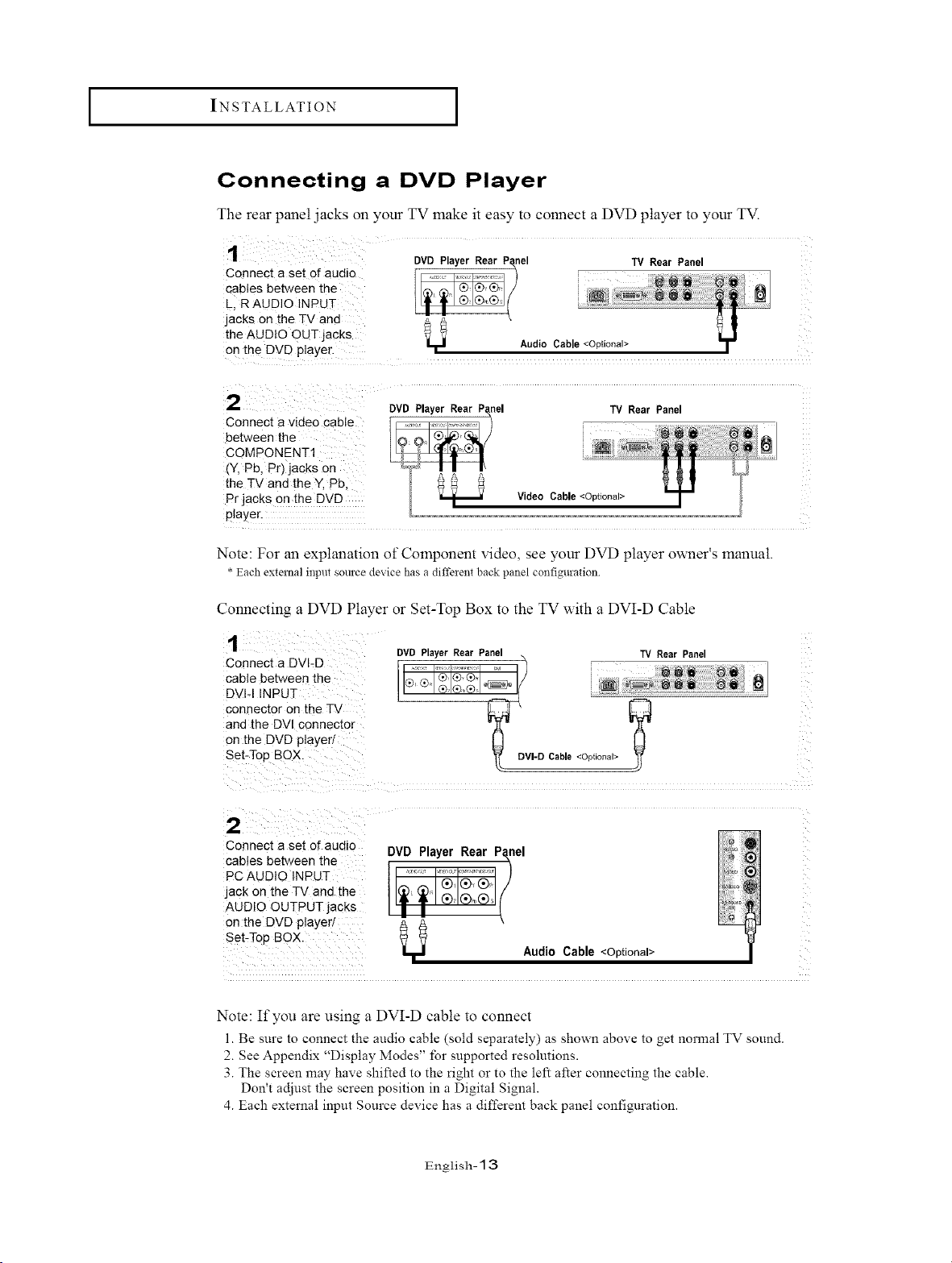
Connecting a DVD Player
The rear panel jacks on your TV make it easy to connect a DVD player to your TV.
DVD PlayerRear P_nel TV Rear Panel
Connect a set of audio .... ..............,,
cables between the _ !L, R AUDIO INPUT
jacks on the TV and
the AUDIO OUT jacks Audio Cable
DVD Player Rear nel TV Rear Panel
Connect a video Cable
between the
COMPONENT1
(Y, Pb, Pr) jacks on
the TV and the Y, Pb,
Pr jacks on the DVD
player.
Note: For an explanation of Component video, see your DVD player owner's manual.
* Each external input source device has a diffeient back panel configuration
Connecting a DVD Player or Set-Top Box to the TV with a DVI-D Cable
DVDPlayerRearPanel TV RearPanel
Connect a DVI-D , .................. "_
i
cable be[ween the ®' ® ® ®®" °_ / i _i
DVI-I INPUT I I ' ®'®'® . , [(
connector on the TV _ €-_
ana the DV[ connector ".[L"
on the DVD player
Set-Tog BOX. DVl-UCable<Optional>
2
Connect a set of audio
cables between the
PC AUDIO INPUT
jack on the TV and the
AUDIO OUTPUT jacks
on the DVD player
Set-Too BOX.
DVD Player Rear Panel
Audio Cable <Optional>
Note: If you are using a DVI-D cable to connect
l. Be sure to connect the audio cable (sold separately) as shown above to get normal TV sound.
2. See Appendix "Display Modes" for supported resolutions.
3. The screen may have shifted to the right or to the left after connecting the cable.
Don't adjust the screen position in a Digital Signal.
4. Each external input Source device has a different back panel configuration.
English- 13
I INSTALLATION I
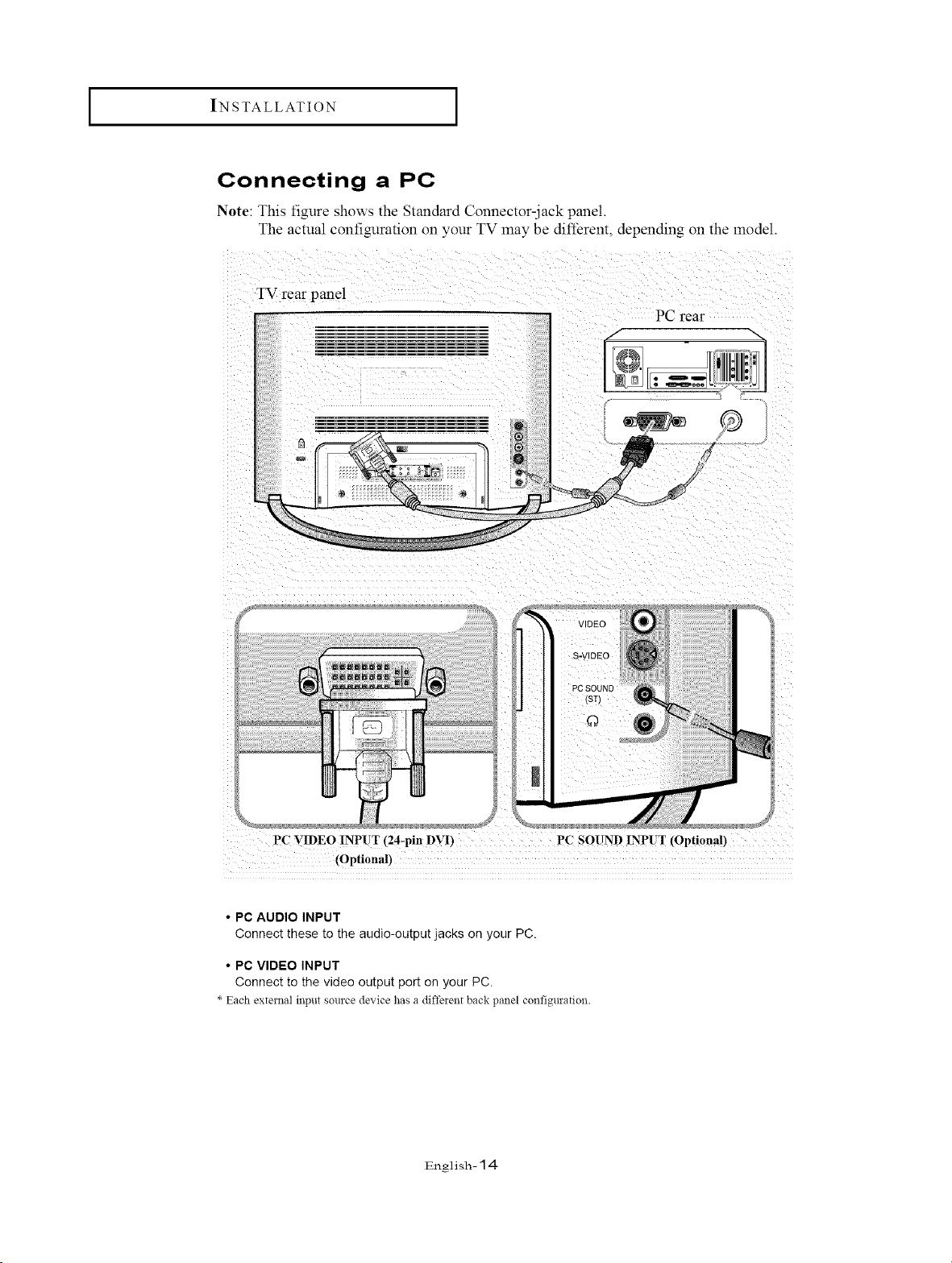
Connecting a PC
Note: This figure shows the Standard Connector-jack panel.
The actual configuration on your TV may be different, depending on the model.
TV rear panel
PC rear
®
a_
VIDEO
S-VIDEO
PC SOUND
#
PC _IDEO INPUT (24-pin _._rvt")PC SOUND INPUT _,..,_€_ptionan
• PC AUDIO INPUT
Connect these to the audio-output jacks on your PC.
• PC VIDEO INPUT
Connect to the video output port on your PC.
* Each exte:nal i!:ptlt source device has a diffeient back panel configuration.
English- 14
SPECIALFEATURES
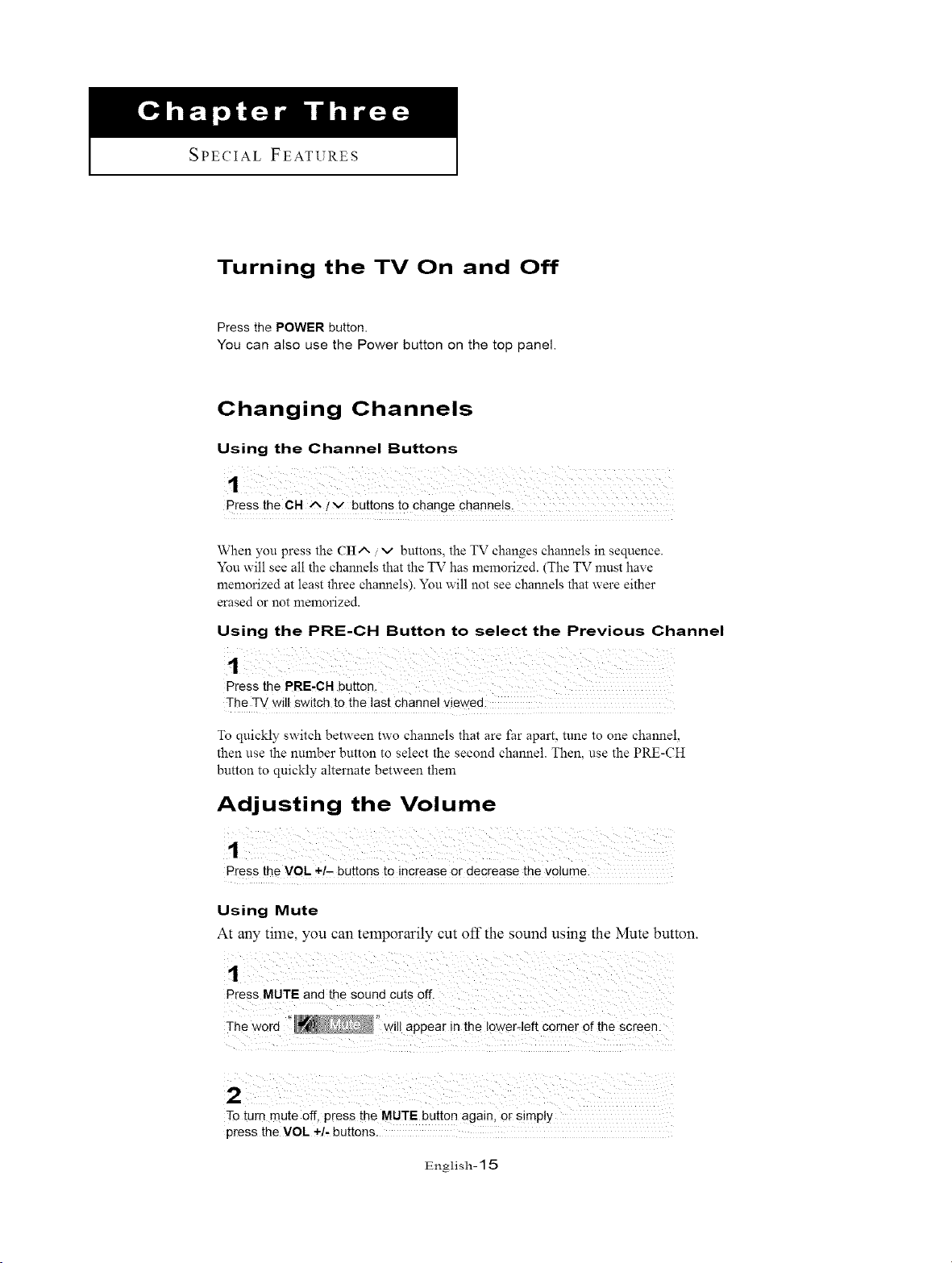
Turning the TV On and Off
Press the POWER button.
You can also use the Power button on the top panel.
Changing Channels
Using the Channel Buttons
Press the CH A !v buttons to change channels.
When you press the CIt^ / v buttons, the TV changes channels in sequence.
You will see all the channels that the TV has memorized. (The TV must have
memorized at least three channels). You will not see channels that were either
erased or not memorized.
Using the PRE-CH Button to select the Previous Channel
The TV will switch to the last channel viewed:
To quickly switch between two channels that are far apart, tune to one channel,
then use the number button to select the second channel. Then, use the PRE-CH
button to quickly alternate between them
Adjusting the Volume
Press the VOL +/- buttons to increase or decrease the volume.
Using Mute
At any time, you can temporarily cut off the sound using the Mute button.
1
Press MUTE and the Sound Cuts 0ft.
Th e word ii ' wil! appear in the lower-left Corner of the Screen:
To turn mute off, press the MUTE button again, Or simply
press the VOL ÷/, buttons.
English- 15
I SPECIAL FEATURES I
Viewing the Display
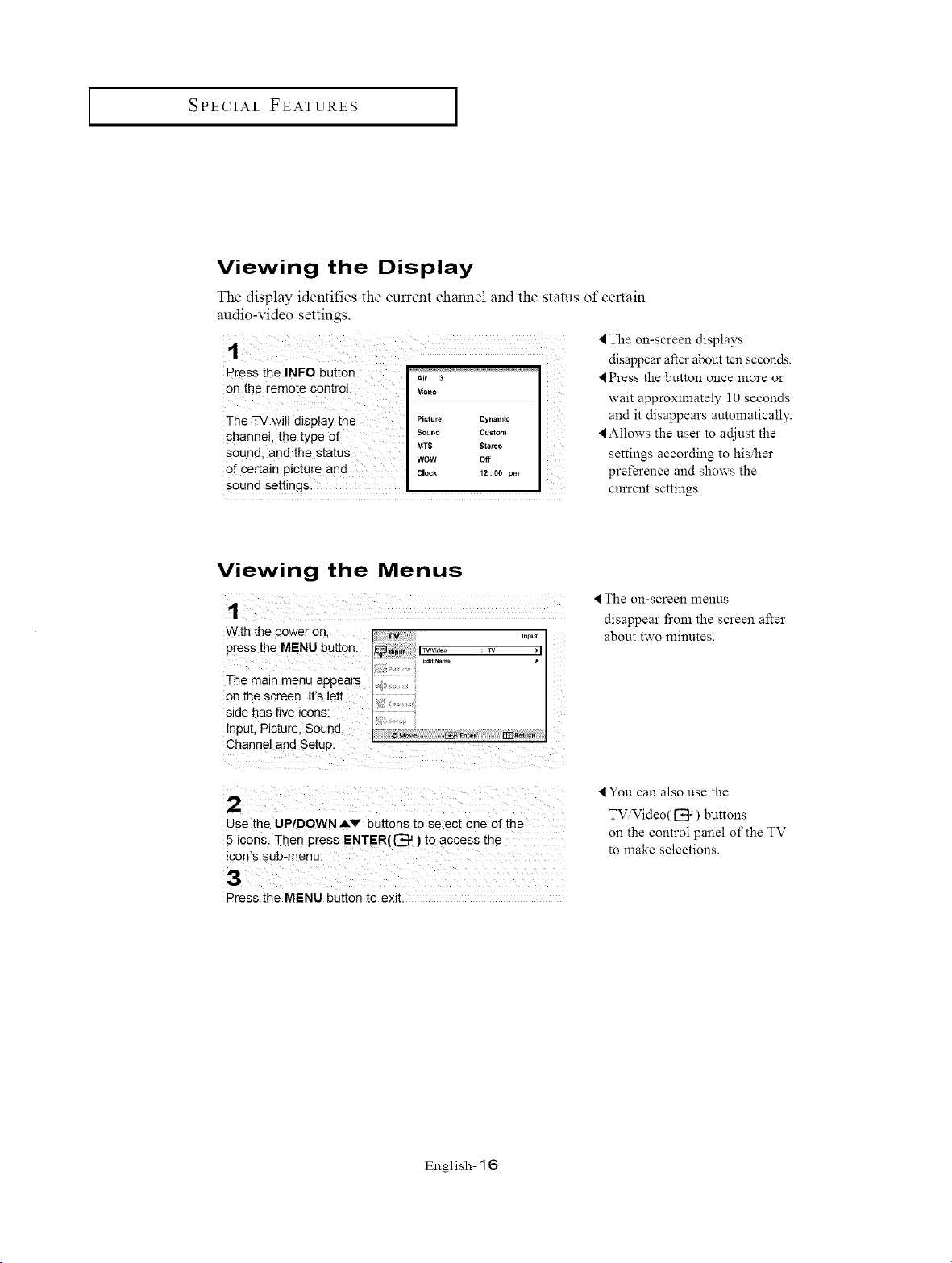
The display identifies the current channel and the status of certain
audio-video settings.
Press the INFO button
on the remote control.
The TV wil! display the
channel, the type of
sound, and the status
of Certain picture and
Air 3
Mono
Picture Dynamic
Sound Custom i_
MTS Stereo
WOW Off i
Ciock 12!00 pm
sound settings. • .
4 The on-screen displays
disappear after about ten seconds.
Press the button once more or
wait approximately 10 seconds
and it disappears automatically.
Allows the user to adjust the
settings according to his/her
preference and shows the
current settings.
Viewing the Menus
With the power on
press the MENU button.
The main menu appears
on the screen. It's left
side has five icons.
Input. Picture. Sound.
Channel and Setup.
4 The on=screen menus
disappear fi'om the screen after
about two minutes.
2
Use the UP/DOWNAV buttons to select one of the
5 icons. Then press ENTER({3 a ) to access the
icon's sub-menu.
3
Press the MENU button to exit.
lYou can also use the
TViVideo( 1_ ) buttons
on the control panel of the TV
to make selections.
English- 16
OPERATION
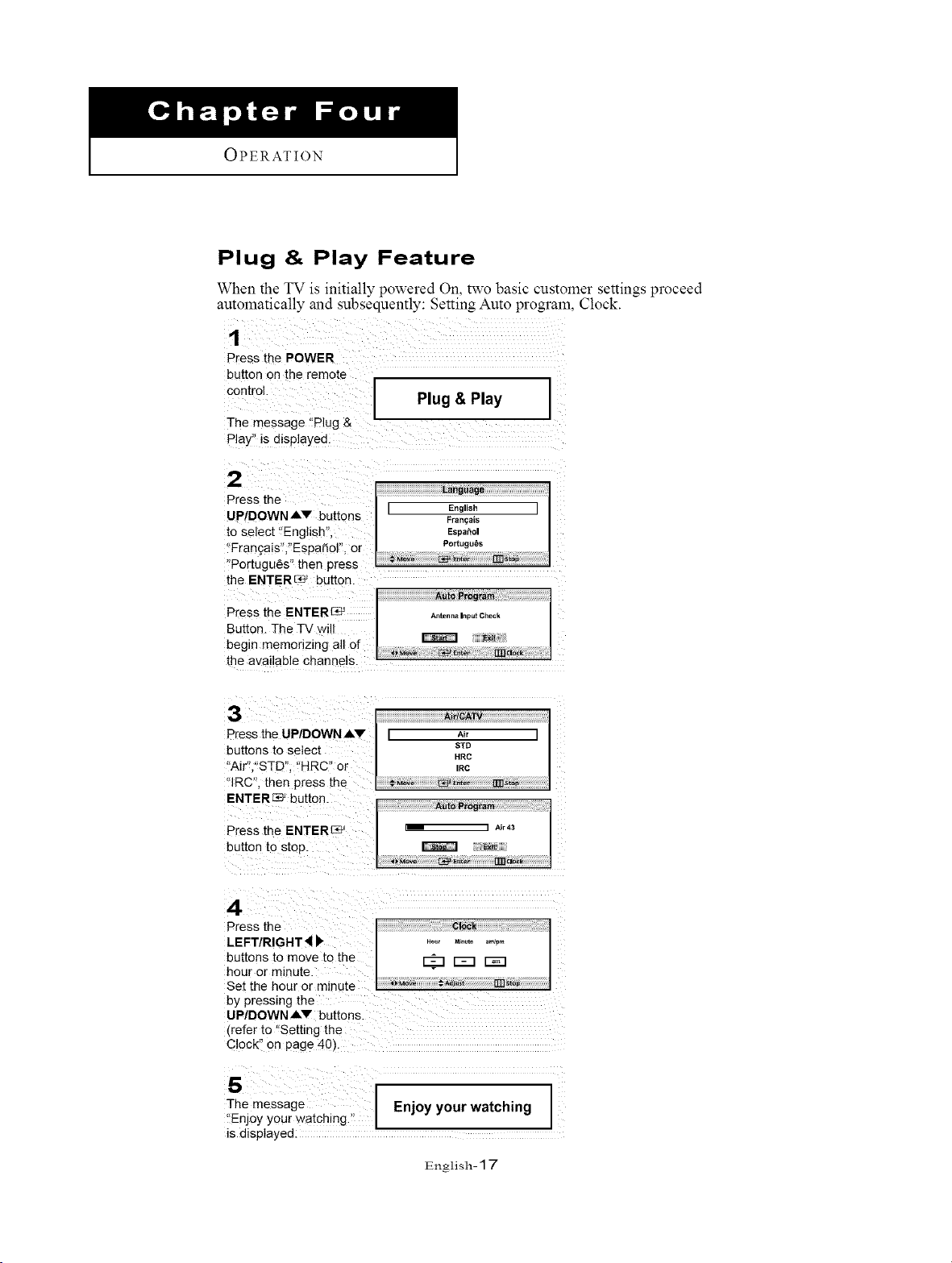
Plug & Play Feature
When the TV is initially powered On, two basic customer settings proceed
automatically and subsequently: Setting Auto program, Clock.
1
Press the POWER
button on the remote
€°nt!°! Plug & Play
The message 'Plug &
Play" is displayed
the ENTERE_ buttor.
3
Press the UP/DOWN Av
buttons to select
"Air' "STD". "HRC" or
"IRC". then press the
ENTERed' button_
Press the ENTERC_
button to stop.
Ai
[ A_r ]
STD
HRC
IRC
stop
i_ i Air43
Exit
•
Press the
LEFT/RIGHT_
buttons to move to the
hour or minute.
Set [he hour or mlnu[e
by pressing the
UP/DOWN AV buttons.
_refer to "Setting the
Clock" on page 40)
Clock
:_ r-=-nr-m
5
The message
"Enjoy your watching."
is displayed.
Enjoy your watching
English- 17
OPERATION [
Memorizing the Channels
Your TV can memorize and store all of the available channels t\_r both "off-air" (antenna)
and cable channels. After the available channels are memorized, use the CH/', and CH v
buttons to scan through the channels. This eliminates the need to change channels by
entering the channel digits. There are three steps for memorizing channels: selecting a
broadcast source, memorizing the channels (automatic) and adding and deleting channels
(manual).
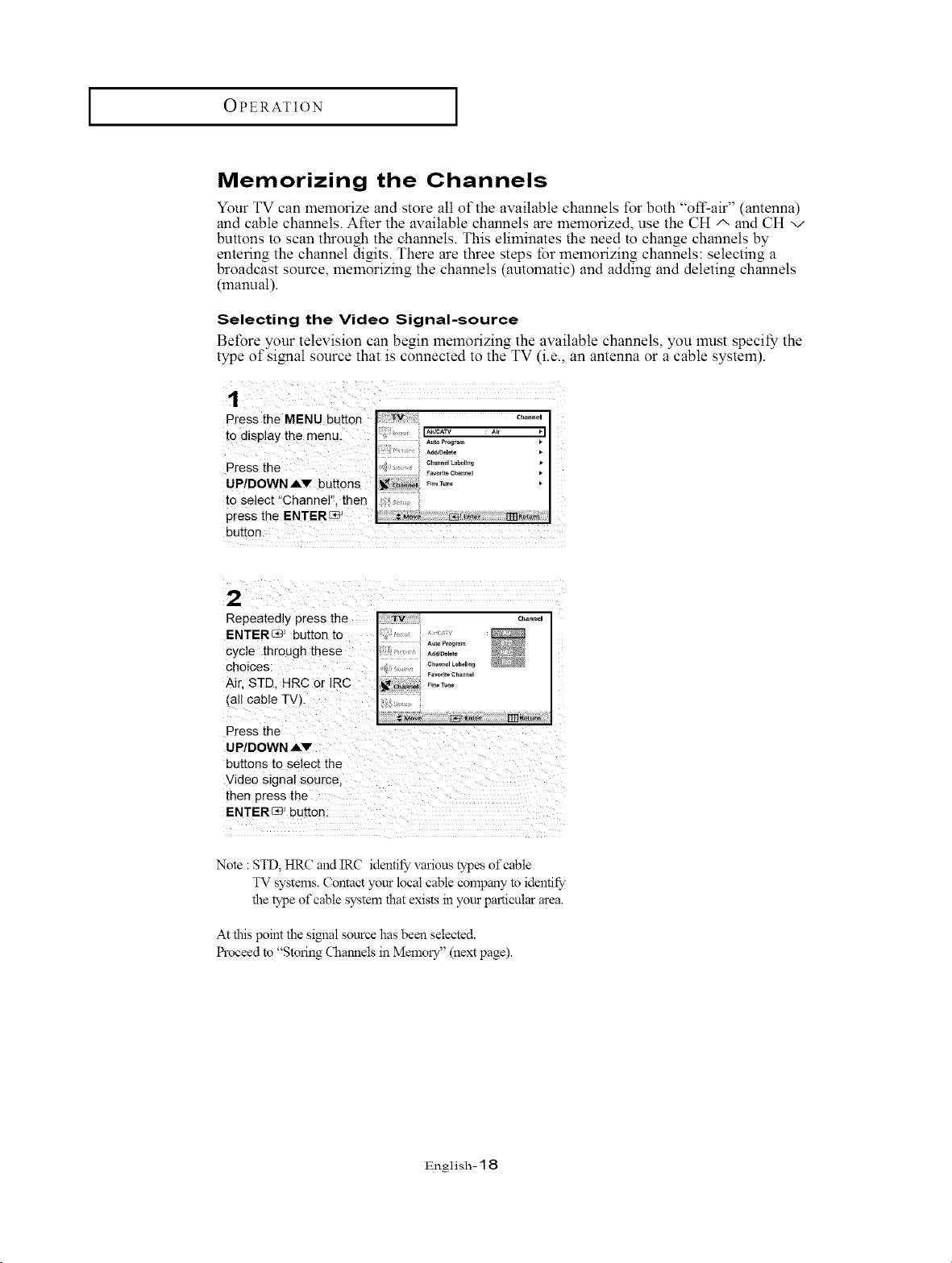
Selecting the Video Signal-source
Before your television can begin memorizing the available channels, you must specii_ the
type of signal source that is connected to the TV (i.e., an antenna or a cable system).
Press the MENU button c.°..o.
to disPlaY the menu: .... I
*d*D,_,,,
Press the ., c_...o,_._o,,._
.................. Favorite C_annM •
UP/DOWN AV buttons .........
to select "Channel", then
press the ENTERG_9_
button:
2
Repeatedly press the
ENTER_ _ button to
cycle through these
choices:
Air. STD. HRC or IRC
jail cable TV.
Press the
UP/DOWN AV
buttons to select the
Video signal source.
then press the
ENTEREe _butter
TV Channel
<...........i _22o';;:;?
Free_une
Note :STD, HRC andIRC identifyvanous types ofcable
TV systems. Contact your local cable company to identify
the type of cable system that exists in your particular area.
At this point the simml source has been selected.
I:h'oceed to "Storing Chmmels in MemolT" (next page).
English- 18
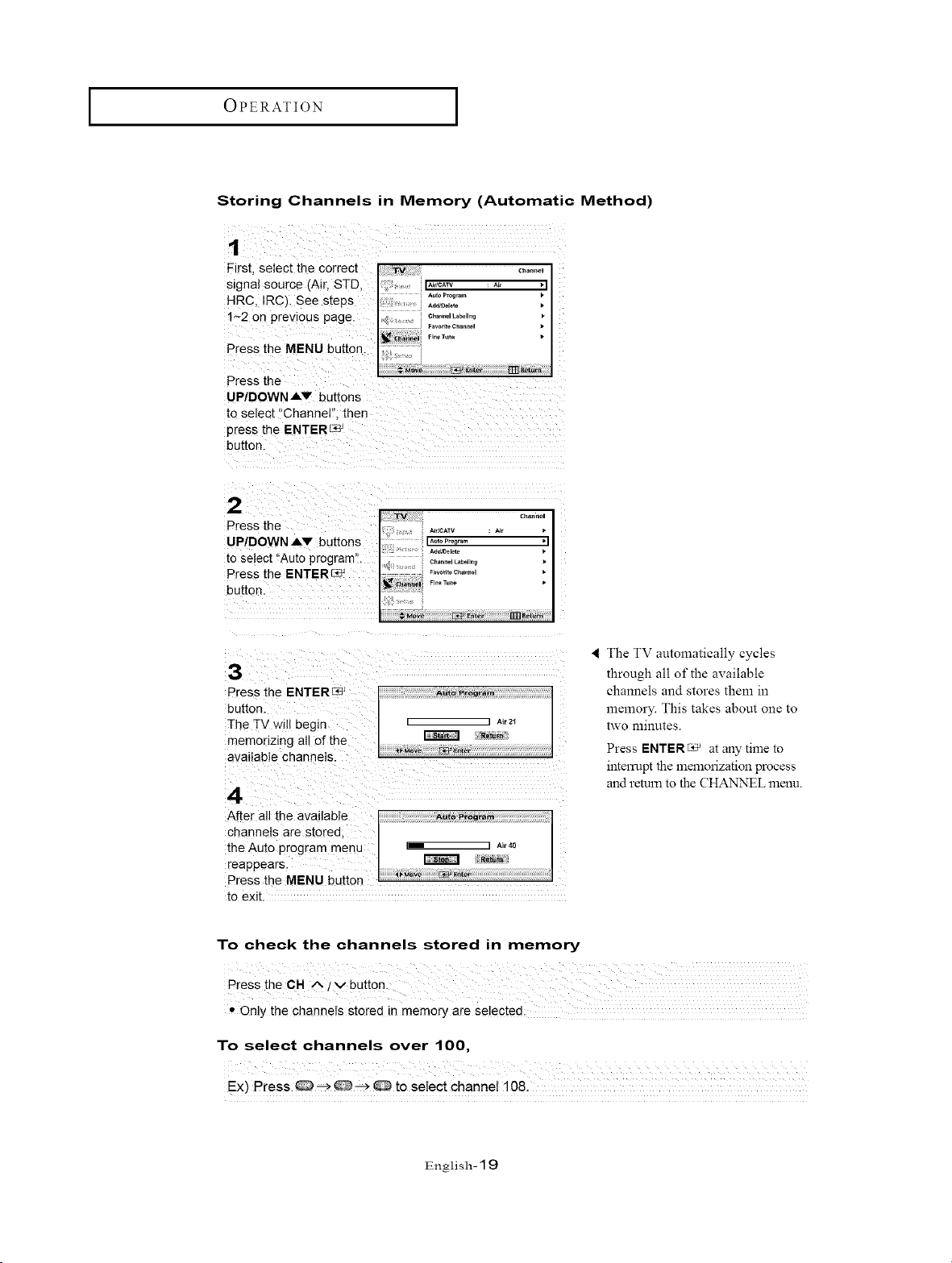
OPERATION [
Storing Channels in Memory (Automatic Method)
Firs[ select the correcl
signal source (Air. STD.
HRC. IRC). See steps
1~2 on previous page
Press the MENU button
Press the
UP/DOWN Av buttons
to select "Channel then
press the ENTERLe
button
2
Press the
UP/DOWN Av buttons
[o select "Auto program'
Press the ENTER_
button
3
Press the ENTER _ A.toP_og_.m
button.
The TV will begin [ ] _,,2_
memonzmg all of the _ _"_
available channels. . ..... _:__._
4
• The TV automatically cycles
through all of the available
channels and stores them in
memory. This takes about one to
two minutes.
Press ENTER_ at any time to
interrupt the mmnorization process
and return to the CHANNEL menu.
to exit.
To check the channels stored in memory
• Only the channels stored in memory are selected;
To select channels over 100,
Ex) Press 0 _ _ _ @ to select channel 108.
English- 19
OPERATION [
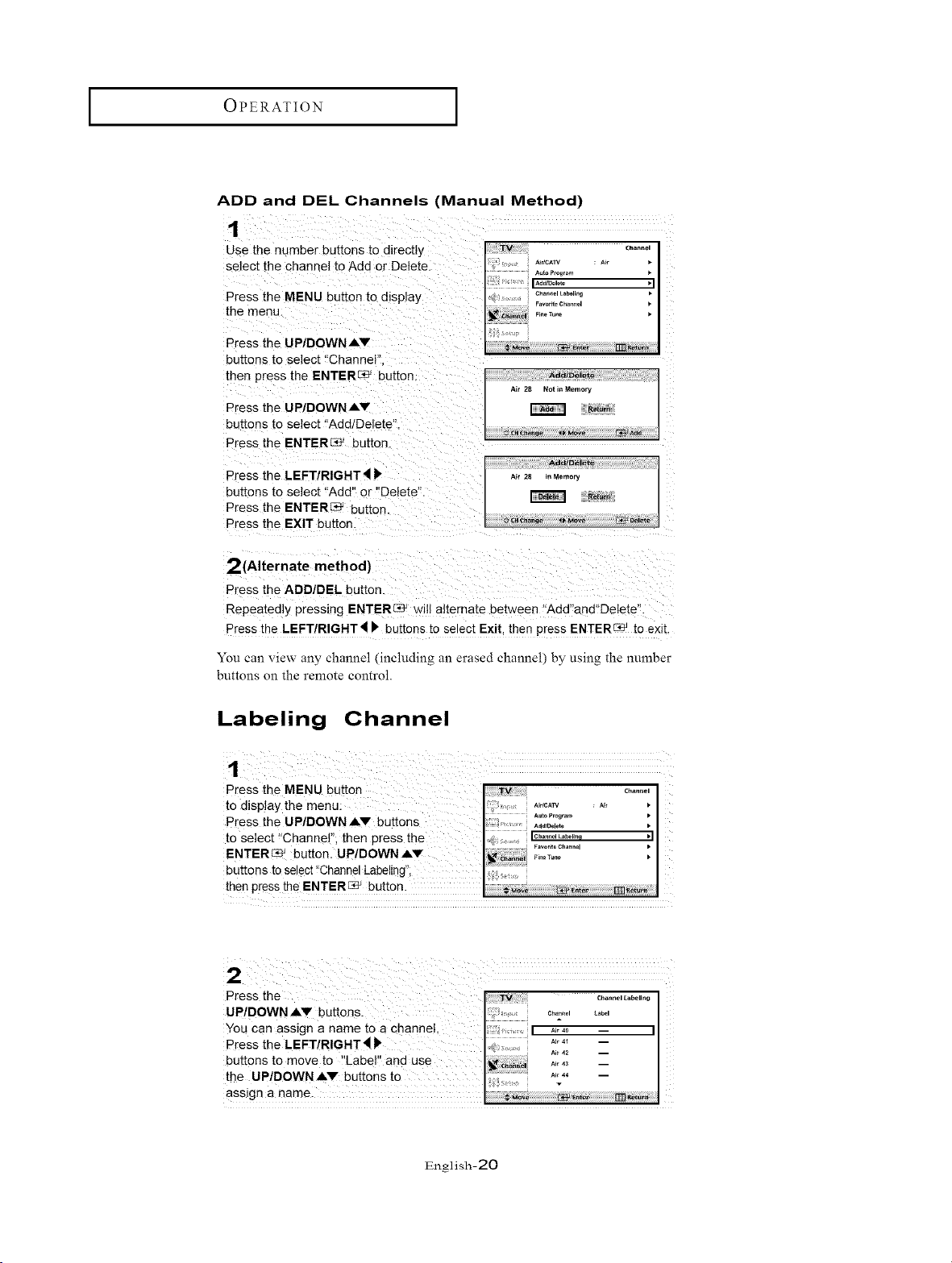
ADD and DEL Channels (Manual Method)
1
Use the number bu[mns to directly
select the channel to Add or Delete.
Press the MENU button to display
[he menu.
Press the UP/DOWN &v
buttons to select "Channel"
then press the ENTER_ button.
Press the UP/DOWN &v
buttons to select "Add/Delete".
Press the ENTER_ button.
Press the LEFT/RIGHT4
buttons [o select "Add" or "Delete'
Press the ENTER[39 _ Du[_on.
Press the EXIT button.
AddlDelete
A_r 28 Not In Memory
_turn
Ad_Delete
Air 28 n Memory
R_Qm
v_ #{_ha_ge _Mo_ r_J Oelete
2(Alternate method)
Press the ADD/DEL bu_ton.
Repeatedly pressing ENTERSe' will alternate between "Add"and"Delete"
Press the LEFT/RIGHT_ b bu[tons to select Exit. then press ENTERC_ to exit.
You can view any channel (including an erased channel) by using the number
buttons on the remote control.
Labeling Channel
Press the MENU button _.°..o.[
to display the menu: ............
_V Auto _rogram •
Press th e UP/DOWNA buttons .......... [
to se ect "Channe" then press the i . I¢.°,,.o_.__ •11
ENTER_ button UP/DOWN" ........
buttons to select !'Channe!Labe!ing'i; "'_"""' I
then press the ENTER_ bUttOn.
English-20
OPERATION [
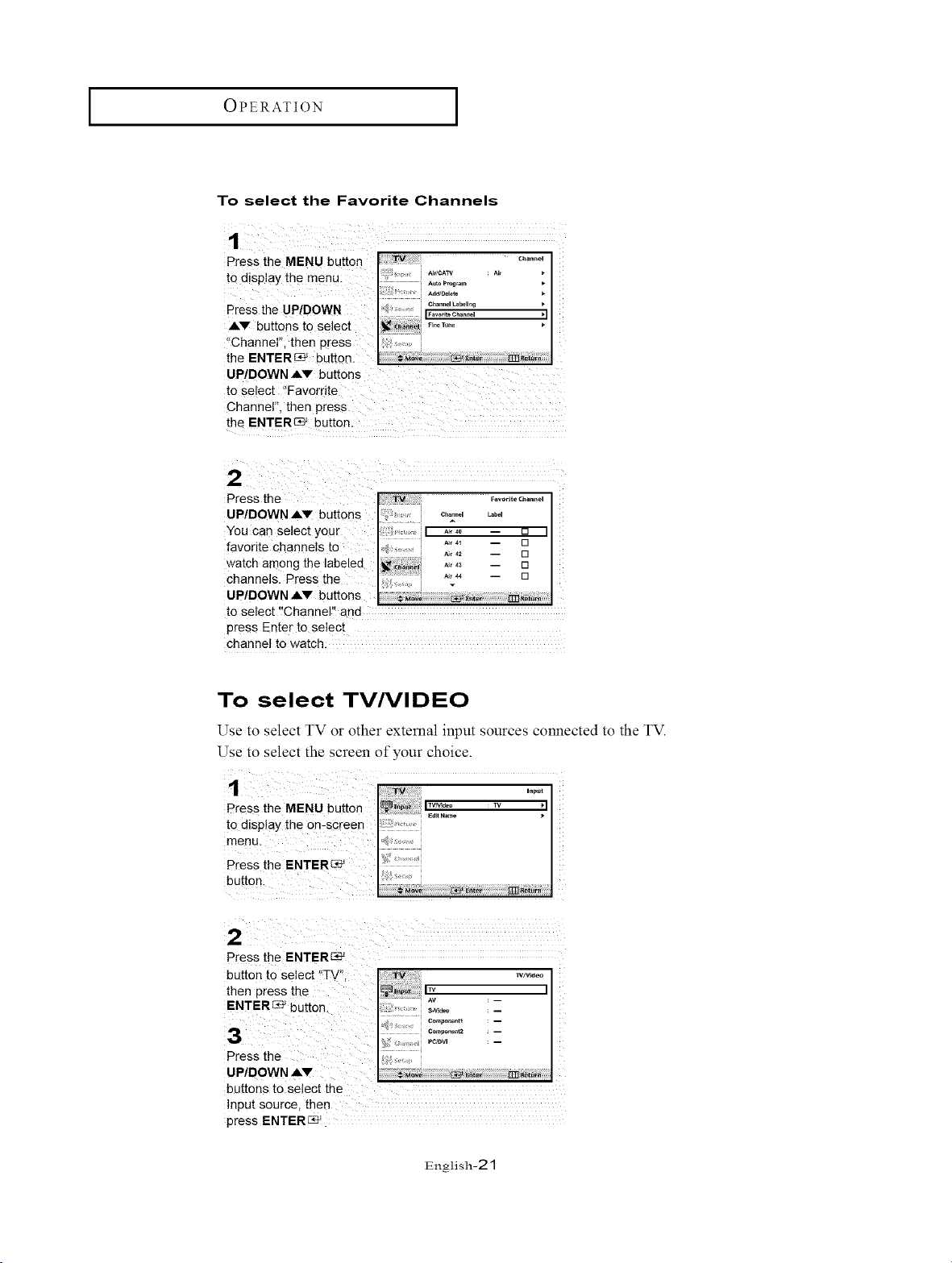
To select the Favorite Channels
Press the MENU button .........
to diSplay the .............
.................. Auto Program _*
' ............... t
: AdeJDet_te
Press the UPtDOWN " ...............
AV butt0nS to Select i ....... I
i
"Channel"; then press
the ENTER_ button.
UP/DOWN AV buttons
to select '!Favorrite
Channel", then press
the ENTERC_ button,
UP/DOWN ,&V buttons c.o°.o,
You can select your [] I
favorite channels to []
[]
watch among the []
channelsl Press the
Up/DOWN AV buttons
to select '!Channel'! and
press Enter to select
channel to watch
To select TVNIDEO
Use to select TV oi other extemal input sources connected to the TV.
Use to select the screen of your choice.
Press the ENTER_
button to select !'TV '_, ii!iii!!_;TM¸i¸¸¸¸¸¸¸¸¸¸¸¸¸¸¸:_¸¸¸¸_¸¸!¸!_ w_v_de0
then press the I__ ._1
ENTER_ button s._.... i - I
a ........°°°'°""............- I
Press the i?i
UP/DOWN AV
buttons to setect the
Input source, then
press ENTERS.
English-21
OPERATION [
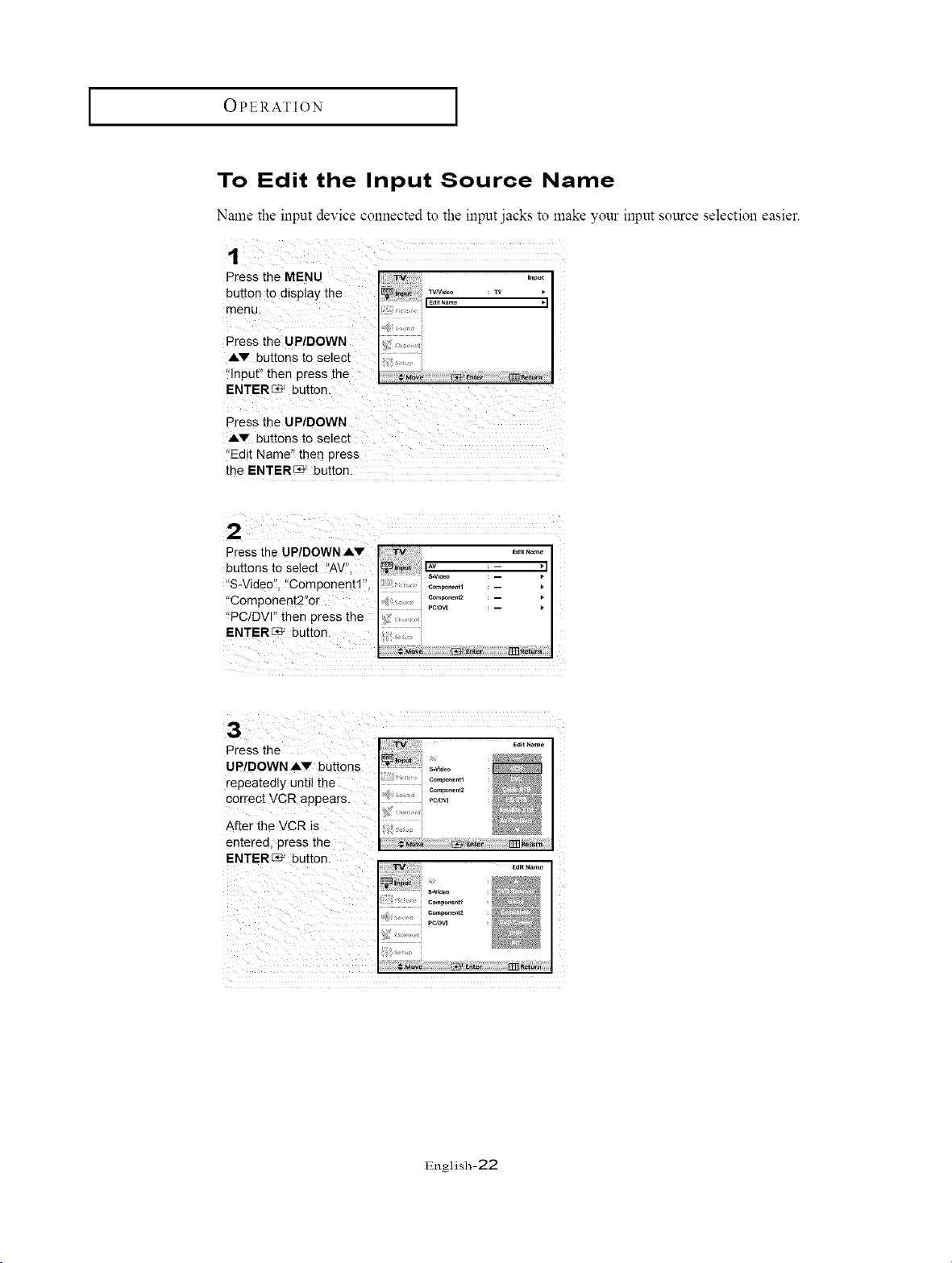
To Edit the Input Source Name
Name the input device connected to the input jacks to make your input source selection easier.
Press the MENU
bu_on to display the
menu:
PreSS the UP/DOWN
,&V buttons to select
I '"p_
WNE.oo : W *
i;: ...........IEa_tN°_° '1
Press the UP/DOWN
AV buttons to Select
"Edit Name '_then press
the ENTER_ button.
Press the UP!DOWN AV ........
buttons to Select I'AV:', I_:,,_o _- :1I
!iS-Vide0!:, "component!!, ......... _ : - [
"Component2"or .... _"v_ ...... ,
,PClDV " then press the ;, ' :- I
I
ENTER_ but!on:
English-22
OPERATION [
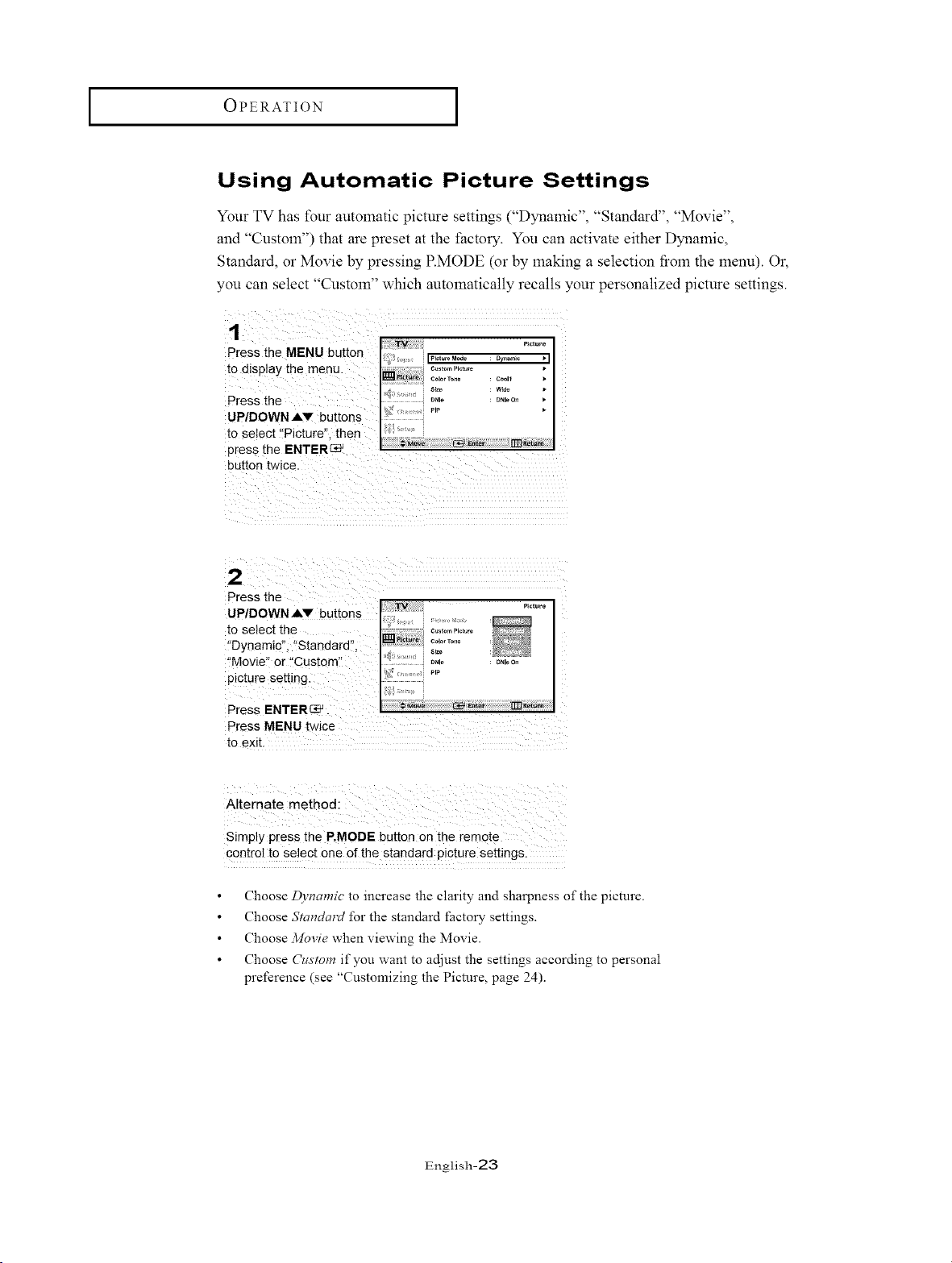
Using Automatic Picture Settings
Your TV has tour automatic picture settings ("Dynamic", "Standard", "Movie",
and "Custom") that are preset at the t:actory. You can activate either Dynamic,
Standard, or Movie by pressing P.MODE (or by making a selection from the menu). Or,
you can select "Custom" which automatically recalls your personalized picture settings.
Press the MENU button .............ip=,_Mo_ D_.,m ,ll
to display the menu. : ..............
_ PI_{_ Color T0a_ ; C_I1 1.
Press the D.,o : D.,oo° ,
UP/DOWN AV buttons ....
to select !!Picture" then ................................ I
press the ENTER_
button twice.
Press the
to exit.
Simply PreSs the P.MODE button on the remot e
control to select one of the standard p!cture settings.
Choose Dynamic to increase the clarity and sharpness of the picture.
Choose Standard for the standard factory settings.
Choose Movie when viewing the Movie.
Choose Cztstom if you want to adjust the settings according to personal
preference (see "Customizing the Picture, page 24).
English-23
OPERATION [
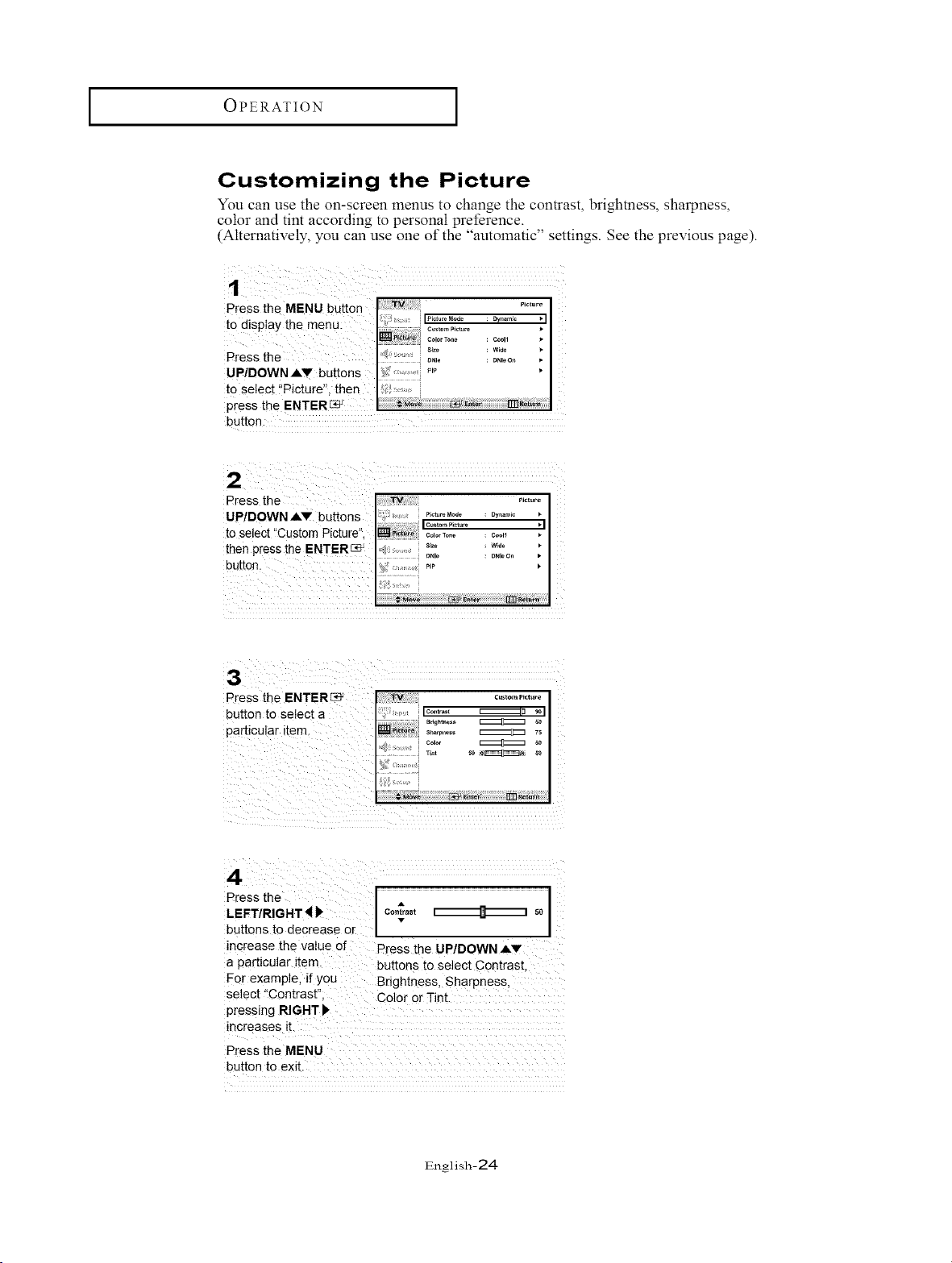
Customizing the Picture
You can use the on-screen menus to change the contrast, brightness, sharpness,
color and tint according to personal preference.
(Alternatively, you can use one of the "automatic" settings. See the previous page).
button.
Press the ....... [
UP/DOWNAV buttons _o_Modo : oyo.,,,,o *
Ic.*o_P_,.* •
toselect Custom Picture _Oa_ ................ '1
button.thenpress the ENTERC_ ,_ ;i ;;;; ,,P°"'°..........: o,,oo. ,•
Press the ENTER_
button to select a
particular item.
Press the ......................A...........................................................................................................................................................
LEFT/R!GHT_ I con_a,t _ ,0 I
buttons to decrease or
increase the vaiu e of Press the UP/DOWN ,_V
a particular item. buttons to Select Contrast,
For example, if you Brightness, Sharpness,
select !!Contrast" Coor or Tnt
pressing RIGHT _
increases it.
Press the MENU
button to exit.
English-24
OPERATION [
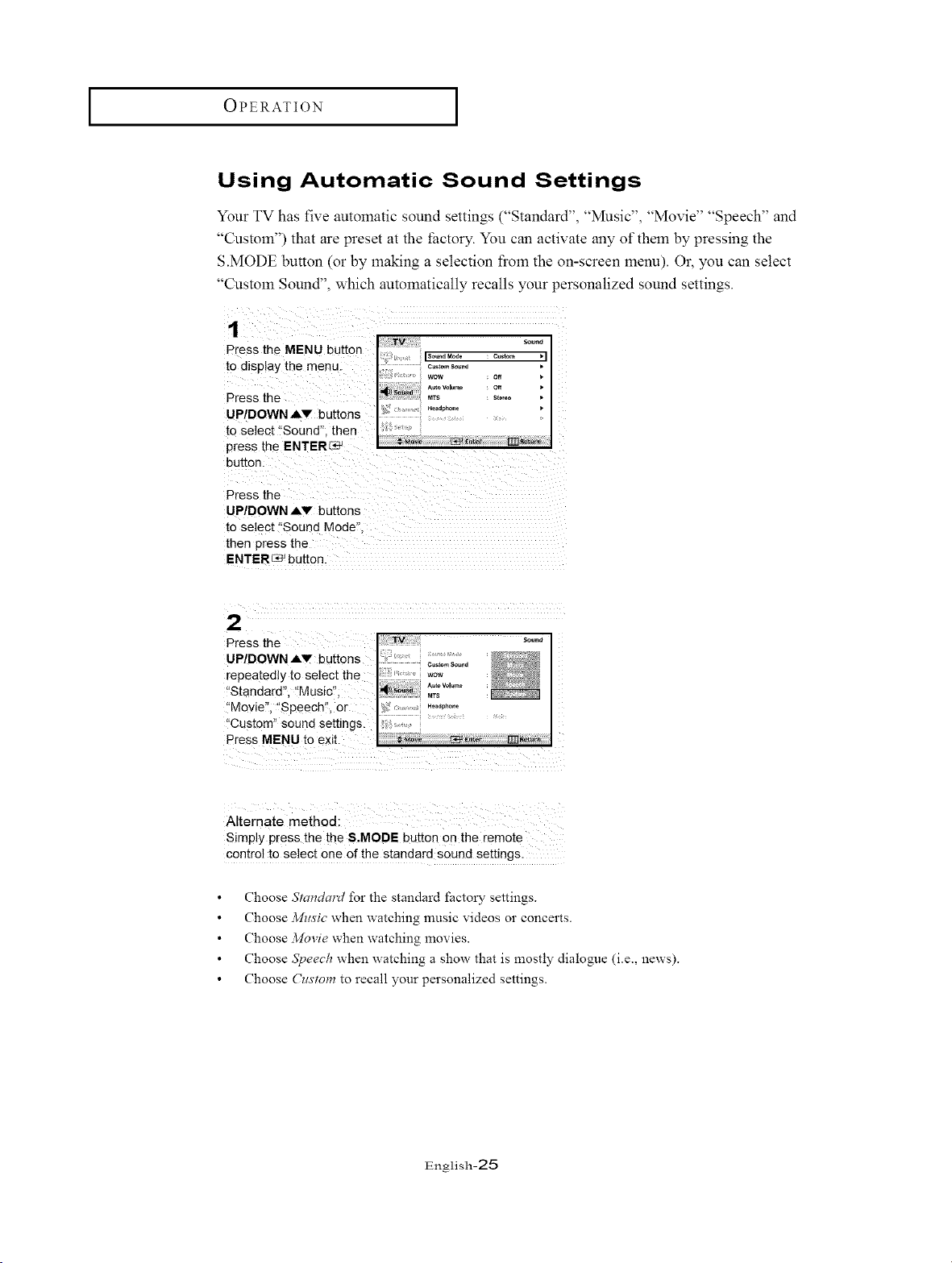
Using Automatic Sound Settings
Your TV has five automatic sound settings ("Standard", "Music", "Movie" "Speech" and
"Custom") that are preset at the factory. You can activate any of them by pressing the
S.MODE button (or by making a selection froln the on-screen lnenu). 0i, you can select
"Custom Sound", which automatically recalls your personalized sound settings.
1
TV s_una
Press the MENU butter Isoo..._o :°*,o_ ,I
to display the menu. c_,omSoo.,
o_
o_
Press the s,o,.o
UP/DOWN AV buttons
to select "Sound". then
press the ENTERC_ _"_"
button.
Press the
UP/DOWN AV buttons
to select "Sound Mode"
[her" aress the
ENTER_ button.
2
Press the
UP/DOWN AV buttons
repeatedly to select
!'Standard!', !_Music";
:'Movie"; '!Speech! _,or
i'Custom!' sound settings.
Simply press the the S.MODE button on the remote
control to select one of the standard sound settings.
Choose Standard for the standard factory settings.
Choose Music when watching music videos or concerts.
Choose Movie when watching movies.
Choose Speech when watching a show that is mostly dialogue (i.e., news).
Choose Custom to recall your personalized settings.
English-25
OPERATION [
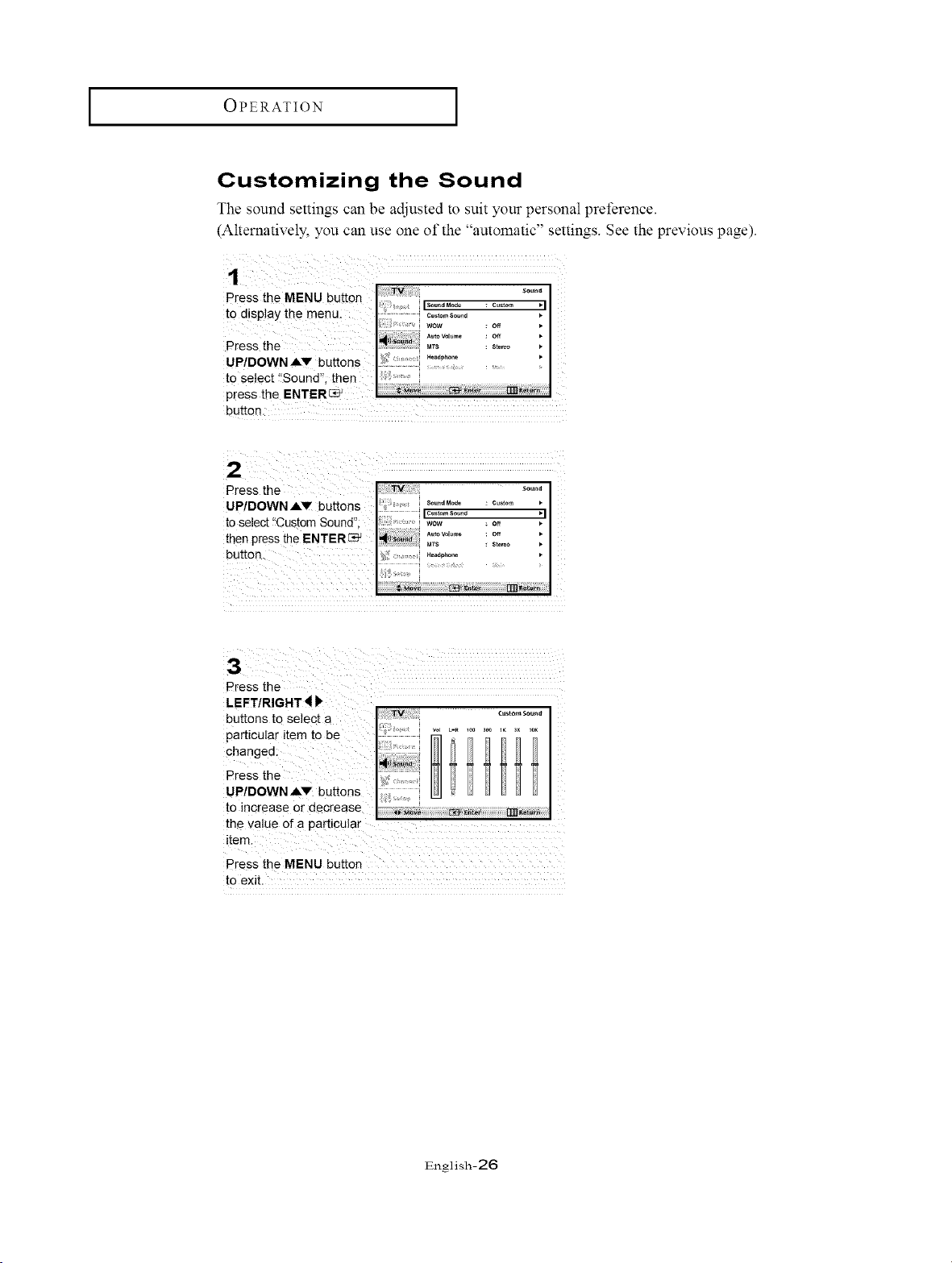
Customizing the Sound
The sound settings can be adjusted to suit your personal preference.
(Alternatively, you can use one of the "automatic" settings. See the previous page).
Llutton.
Press the
the value of a pagticula r
item.
Press the MENU button
to exit.
English-26
I OPERATION I
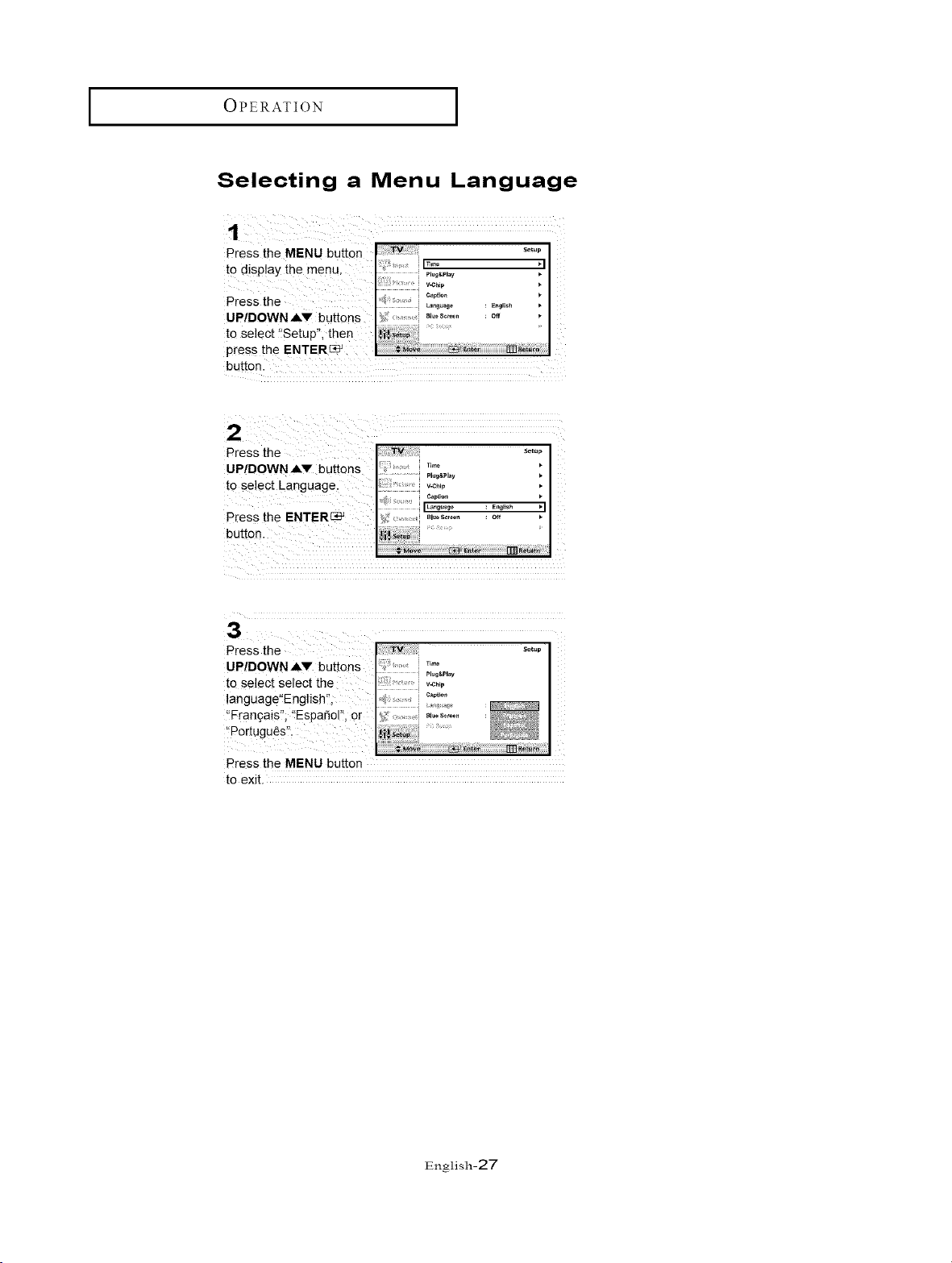
Selecting a Menu Language
Press the MENU button
to_!_pJaythemenu
Press the :
UP/DOWN &V buttOnS
to select 'Setup", the n
pres_ the ENTERC_
button.
Press the
UPIDOWN,&V buttons
to select Language.
Press the ENTERS;
button. :
i
English-27
OPERATION [
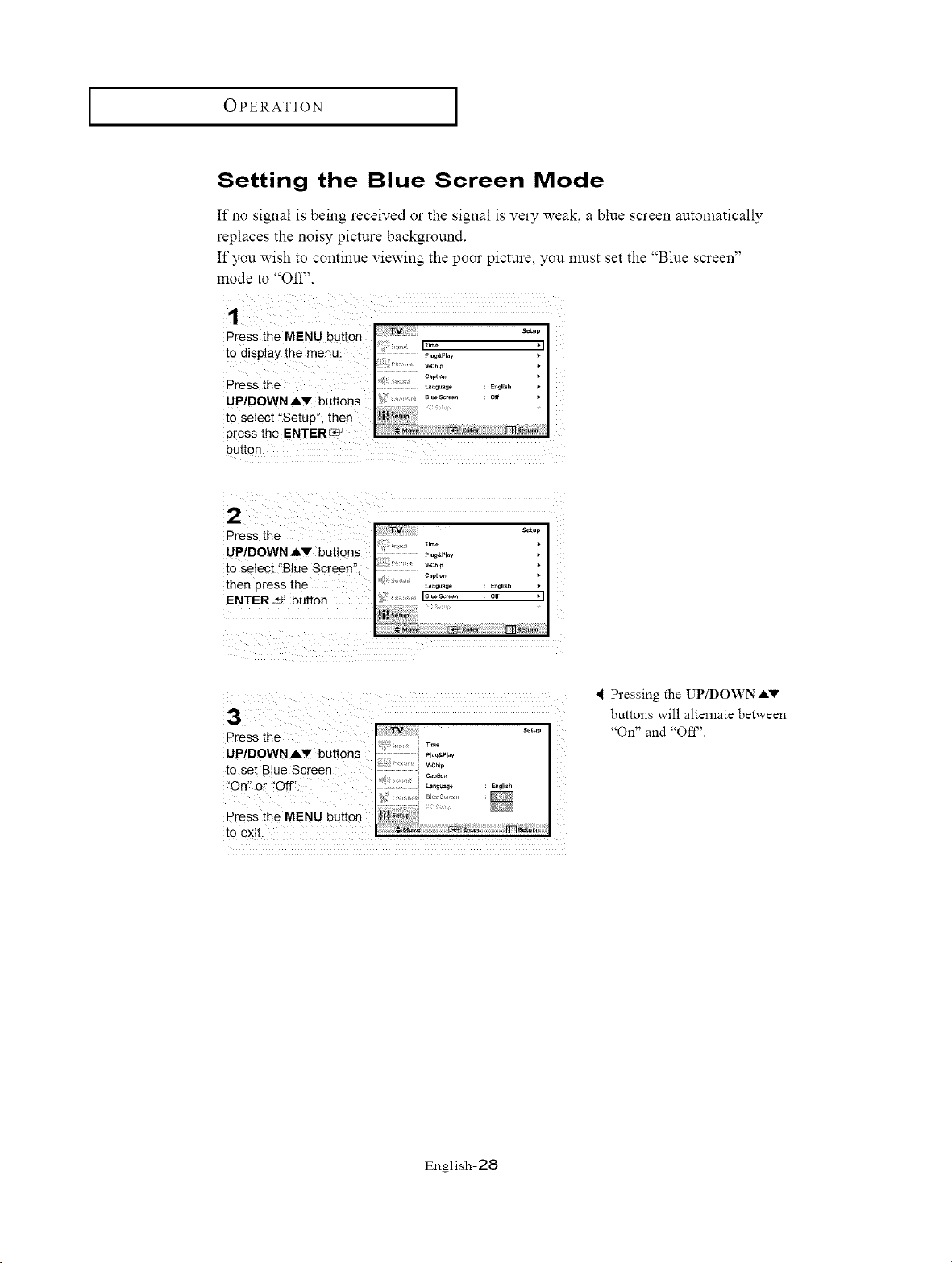
Setting the Blue Screen Mode
If no signal is being received or the signal is very weak, a blue screen automatically
replaces the noisy picture background.
If you wish to continue vie a-ing the poor picture, you must set the "Blue screen"
mode to "Off'.
1 Z
to display the menu .,o_.P,o,
{ 'f whip
Press the _.,,_go : _,,_,.,, .
Press the .....
UPIDOWNAV buttons I;: ;;,:°7.....
to Set Blue Screen :::_
"Off' or "Off': _ ........ I1,1,
I i .............
Press the MENUbutton [$t$ ,_,I
tO exit. |
Pressing the UP/DOWN J,V
buttons will alternate between
"On" and "Of£'.
English-28
OPERATION [
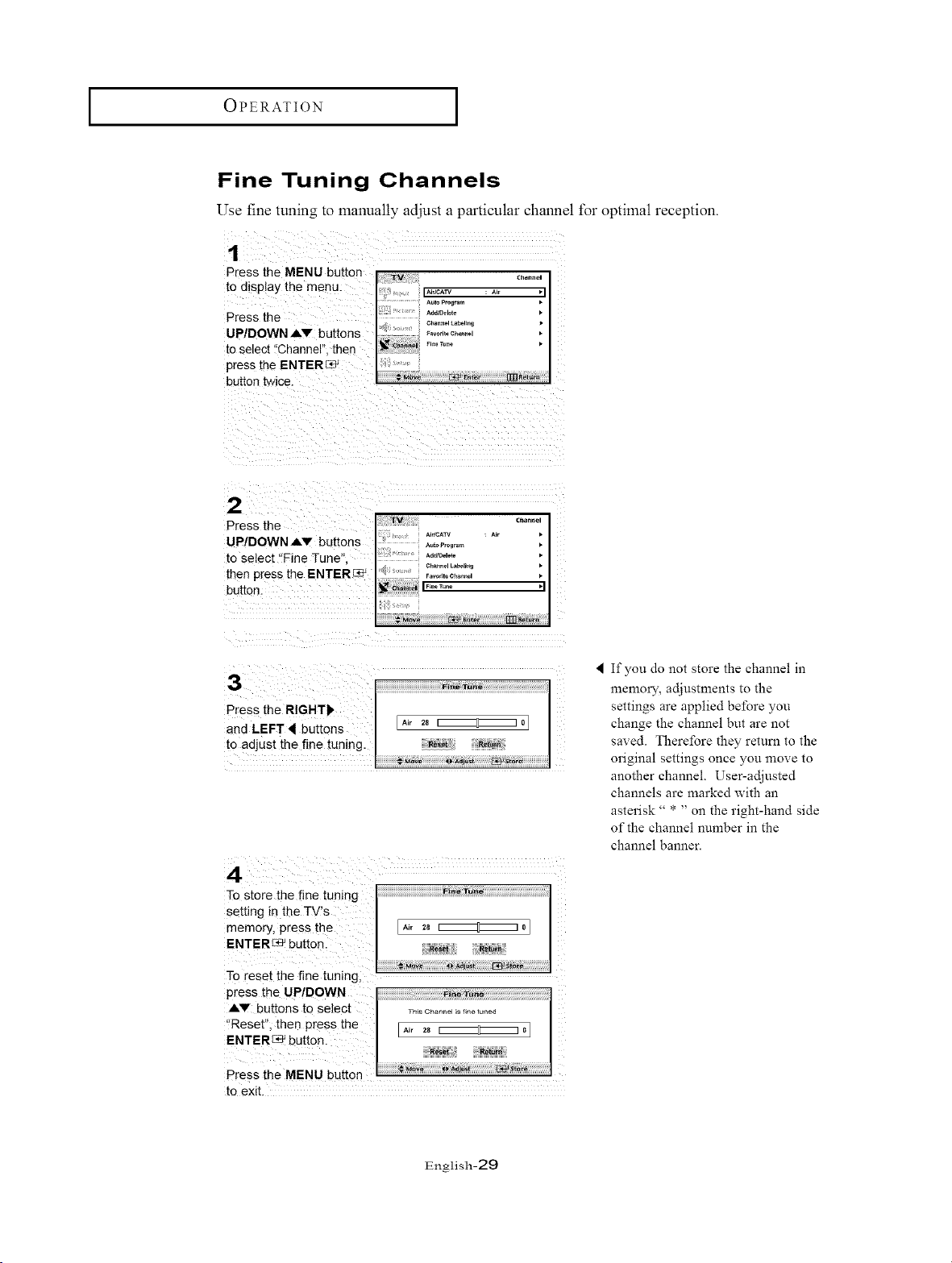
Fine Tuning Channels
Use fine tuning to manually adjust a particular channel for optimal reception.
Press the MENU butter, *v c.°..o,
to display the menu. IA_,,cAw o'_ "1
Auta Pro_ra_n •
Press the _"°_'°'° '
UP/DOWN AV buttons
[o select "Channel". then •
press the ENTER_
button Mice.
2
Press the
UPtDOWN AV buttons
to select "Fine Tune"
then press the ENTERC_
button.
3
Press the RIGHT_,
and LEFT _ buttons
to ad, ust the fine tuning
Fine TUn_
Air 2E I _ l0
RIfset
.,__va _ adjust _ st_r_
If you do not store the channel in
memory, adjustments to the
settings are applied before you
change the channel but are not
saved. Therefore they return to the
original settings once you move to
another channel. User-adjusted
channels are marked with an
asterisk" * " on the right-hand side
of the channel number in the
channel banner.
To reset the fine tuning,
to exit.
English-29
OPERATION [
Viewing Picture-in-Picture
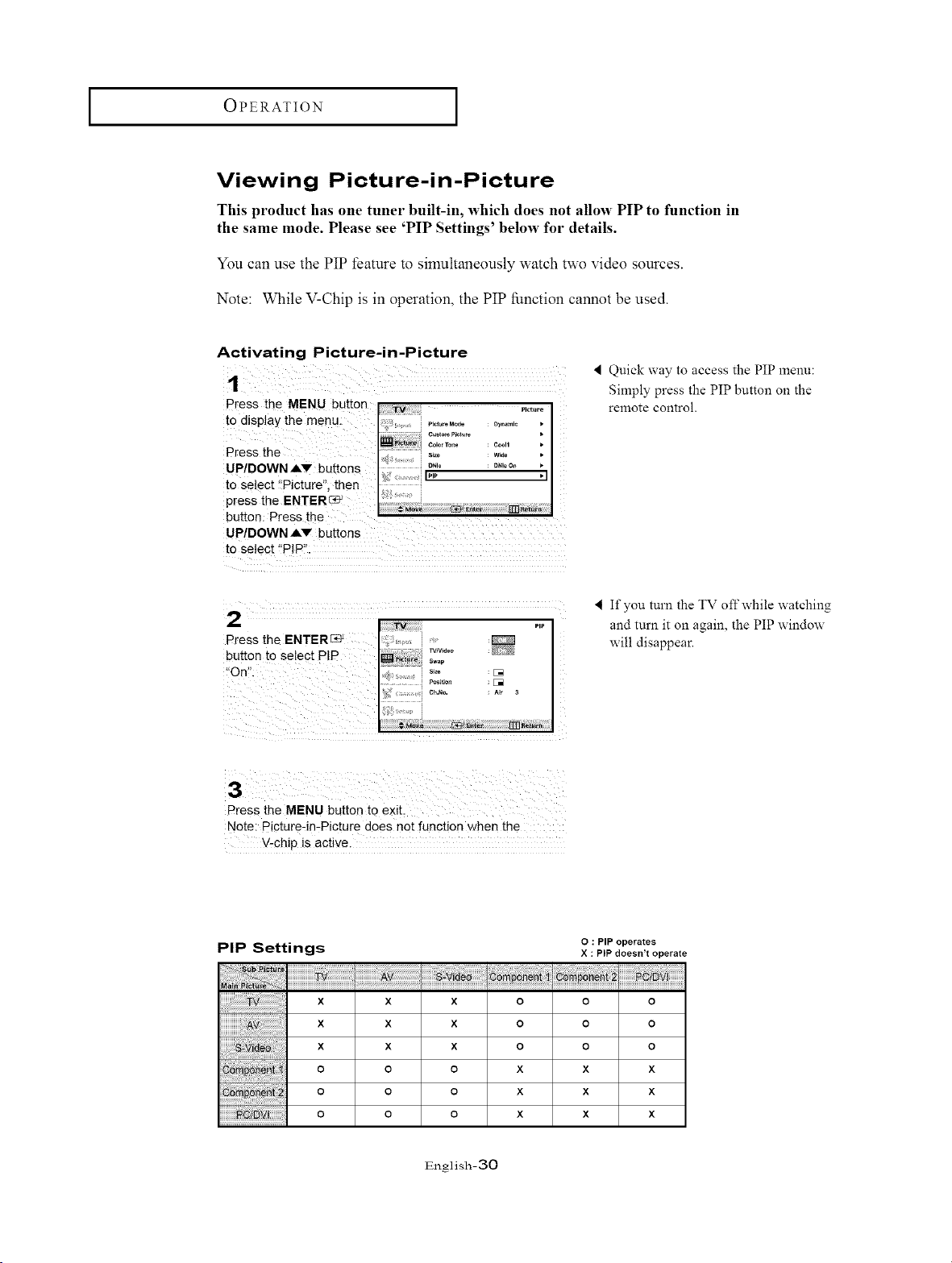
This product has one tuner built-in, which does not allow PIP to function in
the same mode. Please see 'PIP Settings' below for details.
You can use the PIP feature to simultaneously watch two video sources.
Note: While V-Chip is in operation, the PIP function cannot be used.
Activating Picture-in-Picture
press the MENU button I ;;;"rv::;[ ....... I
to display the menu: _ _,,,, ,,o,o,o_o,, oy°,=,o ,
Jm_,,,:................ I
Press the ..............................s_o w_ ,
DNle DNle On _.
UP/DOWNAV buttons t ._
to se ect _!Picture" then :
press the ENTER ............
Du[[on: e'ress me
UP/DOWN AV buttons
to select f'PIP!':
2
Press the ENTER_
button to select P
Quick way to access the PIP menu:
Simply press the PIP button on the
remote control.
If you turn the TV off while watching
and turn it on again, the PIP window
will disappear.
Note: Picture:in-Picture does not function when the
V-chip is active,
PIP Settings
O : PIP operates
X : PIP doesn't operate
x
x
x
o
o
o
x
x
x
o
o
o
x
x
x
o
o
o
o
o
o
x
x
x
o
o
o
x
x
x
o
o
o
x
x
x
English-30
OPERATION ]
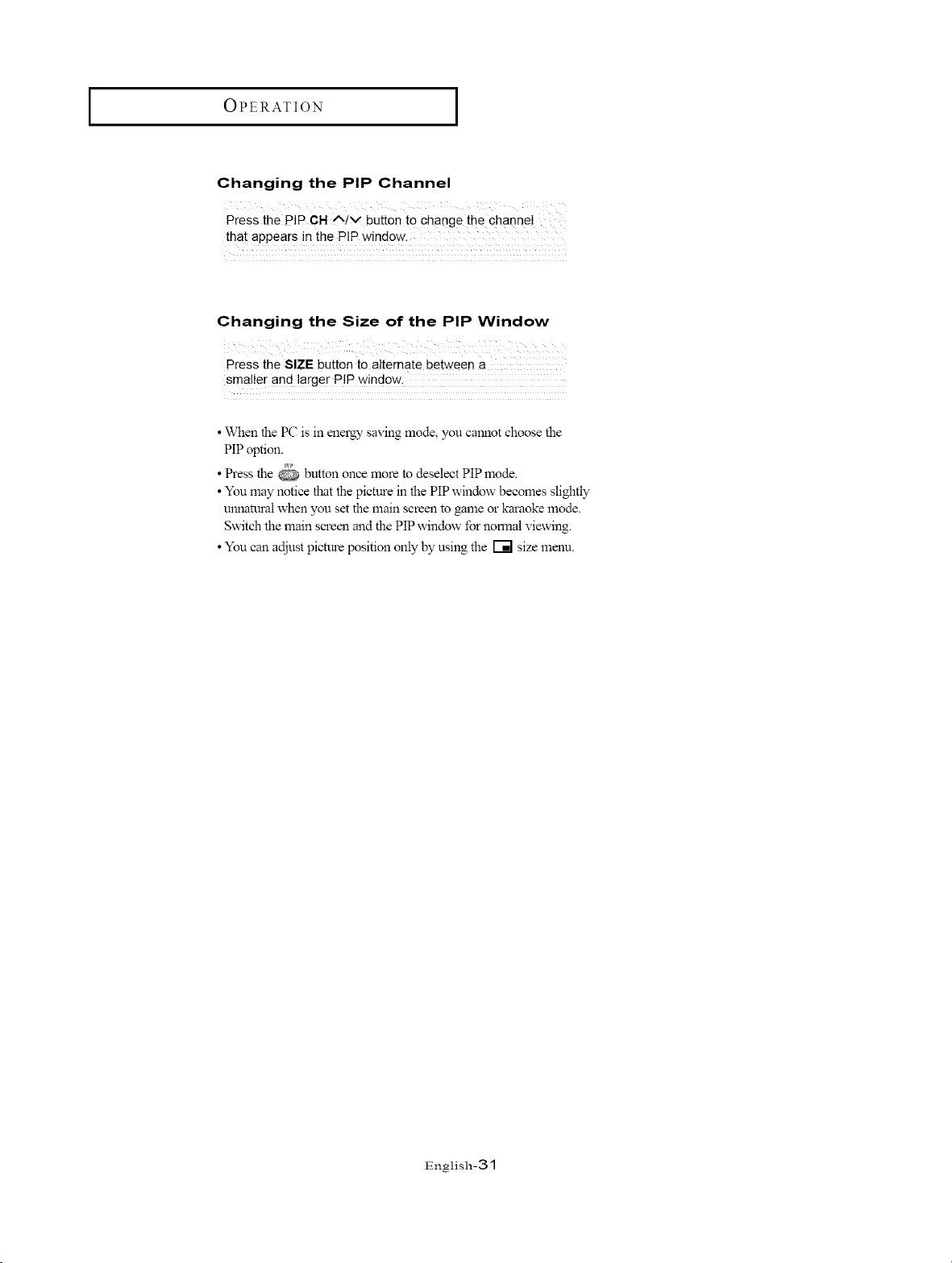
Changing the PIP Channel
Press the PiP CH A/v button to change the channe I
that appears in the PIP window.
Changing the Size of the PIP Window
Press the SIZE button to alternate between a
smaller and large[ PIP wind0w:
• When the PC is in energy saving mode, you calmot choose the
PIP option.
• Press the @ button once more to &select PIP mode.
• You may notice that the picture in the PIP window becomes slightly
mmamral when you set the main screen to game or karaoke mode.
Swit& the main screm_ and the PIP window for nomlal viewing.
• You can adjust pie\rare position only by using the _ size mmm.
English-31
OPERATION [
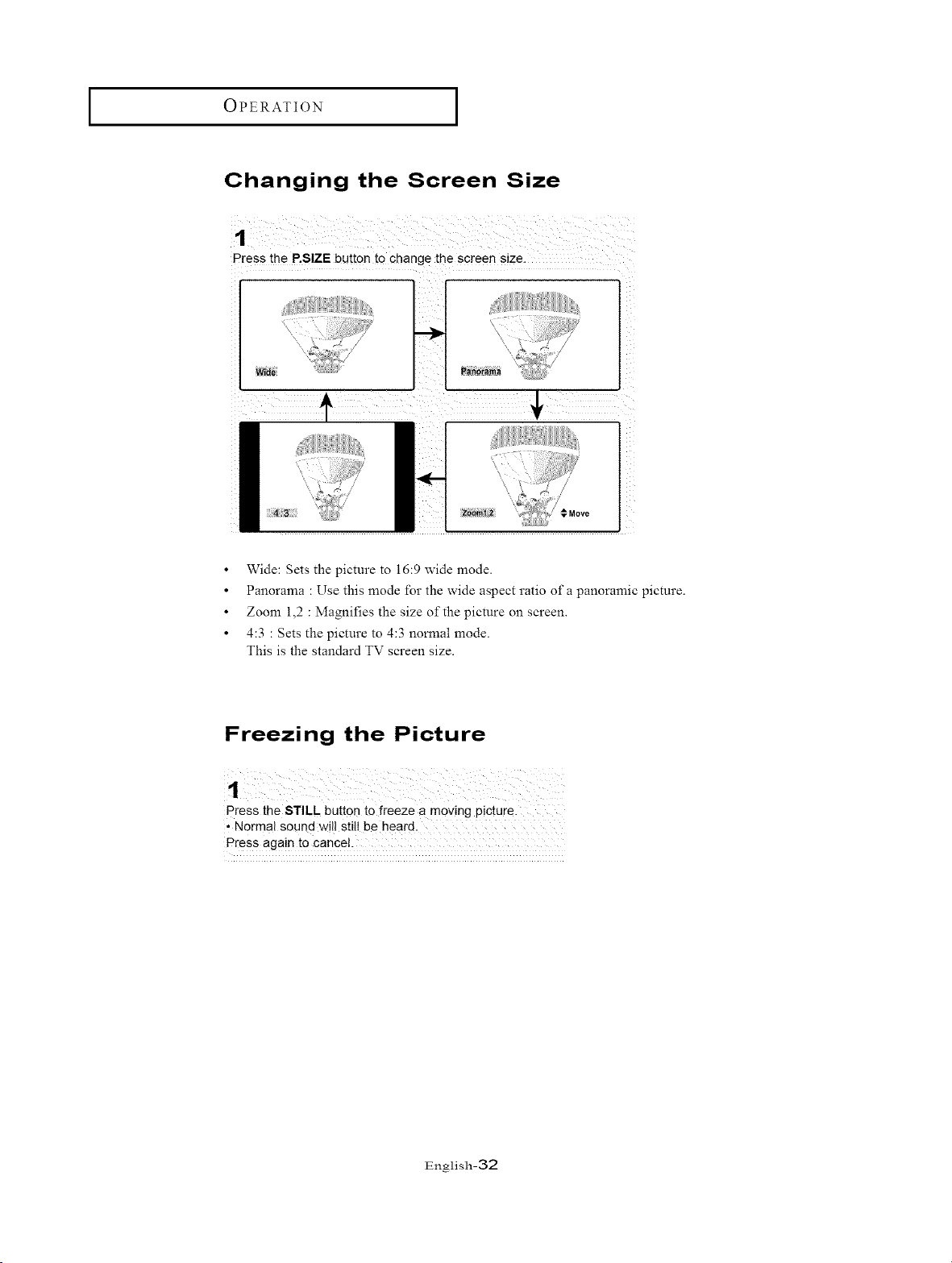
Changing the Screen Size
1
Press the P,SIZE button to change the screen s_ze.
I
Panorama
Zooml.2 _ Move
Wide: Sets the picture to 16:9 wide mode.
Panorama : Use this anode for the wide aspect ratio of a panoramic picture.
Zoom 1,2 : Magnifies the size of the picture on screen.
4:3 : Sets the picture to 4:3 normal mode.
This is the standard TV screen size.
Freezing the Picture
press the STILL button to freeze a moving picture.
' Normal sound will still be heard.
Press again to cancel.
English-32
OPERATION [
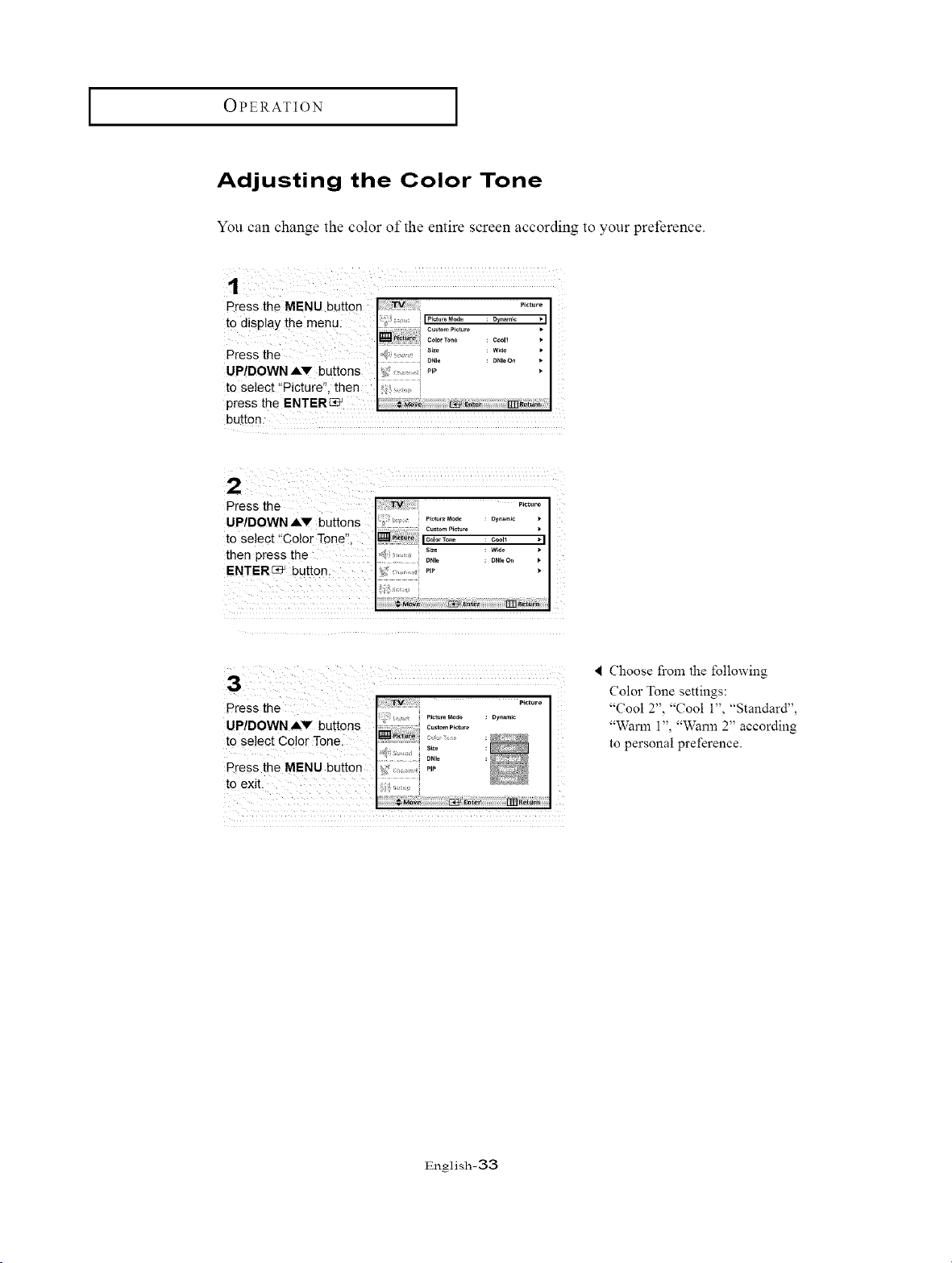
Adjusting the Color Tone
You can change the color of the entire screen according to your preference.
Press the MENU butto n .......
to display th e menu: i_._i_o._._.° : ....... [I
co_°.Tooo : coo, ' I
s_ _ WEd_
Press the o,,o : o,,ooo ' I
UP!DOWN AV buttons '_;'........ ,_,
to Select t Picture", then [
press the ENTENC?P_
button.
¸2¸¸¸¸¸¸¸¸¸¸¸¸¸¸¸, :
Press the ......
P/DO NAY " po.oModo oy.... •
U W buttons I:. ......
, ,, _:i_;2 :"°;'...... o :
to select Color Tone, ..............I ......... I
then press the I:'_ ,::2: j ;:to : _:2_, :
ENTER_ button: 4 ,: P'P
UP/DOWN AV buttons
to Select Color Tonel " :_*;'_
DN_
Press the MENU button P,P
'I Choose from the following
Color Tone settings:
"Cool 2", "Cool i", "Standard",
"Warm 1", "Warm 2" according
to personal preference.
English-33
OPERATION [
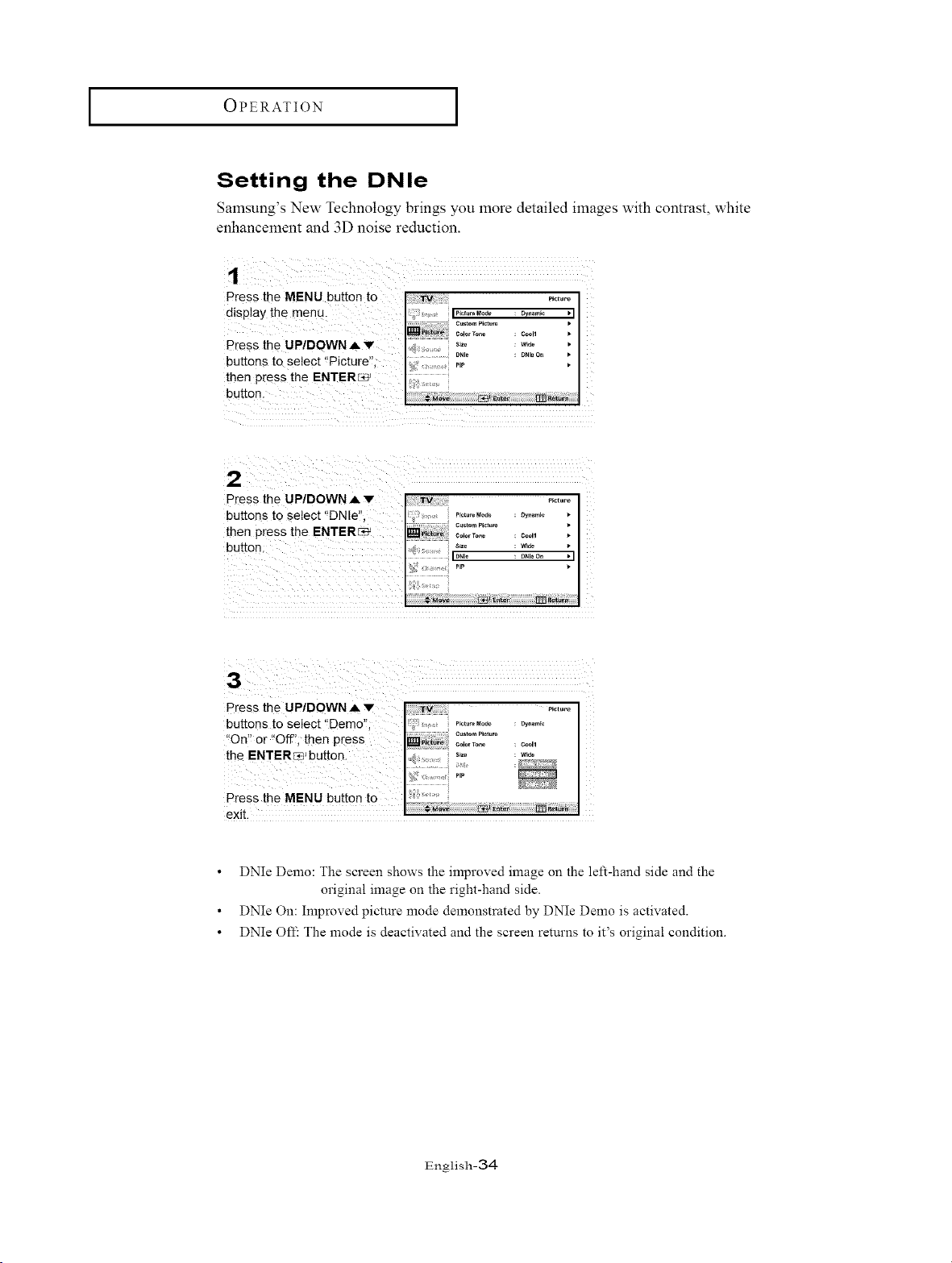
Setting the DNle
Samsung's New Technology brings you more detailed images with contrast, white
enhancement and 3D noise reduction.
Press the MENU button t0 ....... J
display the menu..,o,o,_Mo_o : oy.om_o ,
............. I
Press the UP/DOWNA V s..........
buttons to selec t "Pmture'!; I_,. _'P
then press the ENTER_
button.
Press the UP/DOWNAv _,._.._I
buttons to select 'DNle:' .....
I
C_stompIct_
then Press the ENTER_ ...............
button: s_o w_o
I
: I DNIo : DNI_ O_ • I |
!;S PIP _" I"
I
!,, i
Press the UP/DOWN ._. v ._ot..o
buttons to select "Demo'!; : o_.o_,o
"Oni! or "Off!; then press
the ENTERs, button.
Press the MENU button to
exit.
DNIe Demo: The screen shows the improved image on the left-hand side and the
original image on the right-hand side.
DNIe On: Improved picture mode demonstrated by DNIe Demo is activated.
DNIe OIT: The mode is deactivated and the screen returns to it's original condition.
English-34
OPERATION [
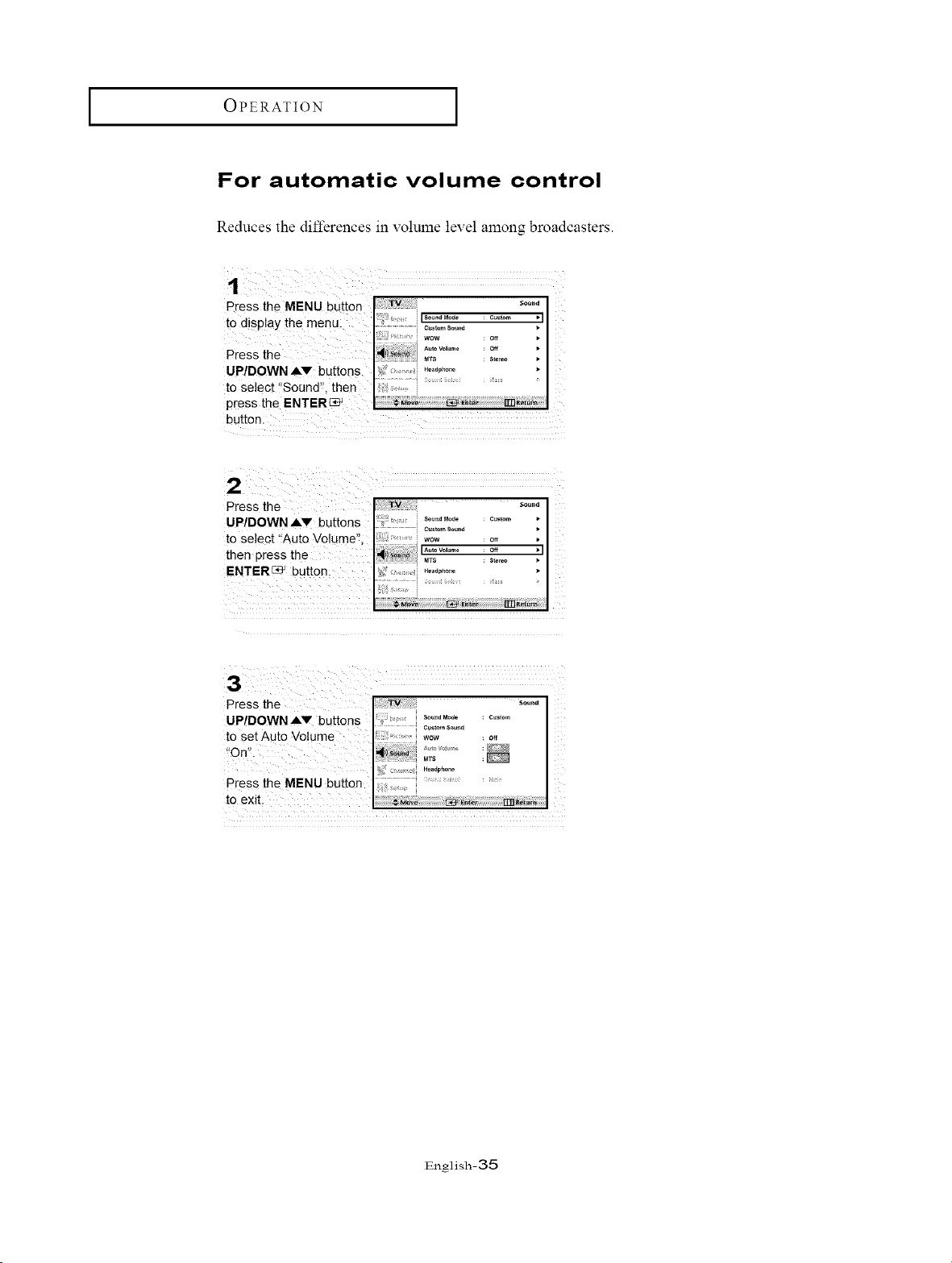
For automatic volume control
Reduces the differences in volume level among broadcasters.
Press the MENU button ;Tv .....
. --- , .-- I, IS°undM°de cusom
t o alsplay [ne menu- ............ '
wow : off
l A_toVol_.,e : off •Press the
UP/DOWNAV buttons b:.........."°°"..... I
to Select i'sound'!, then lli;
press the ENTER_
Press the ,.,.vo,.... off
UP/DOWN AV buttons ...................
.................... Custom Soen d •
to Select 'tAuto Volume'! wow o.
then press the _,s : s......
ENTER_ button: ..........
English-35
OPERATION [
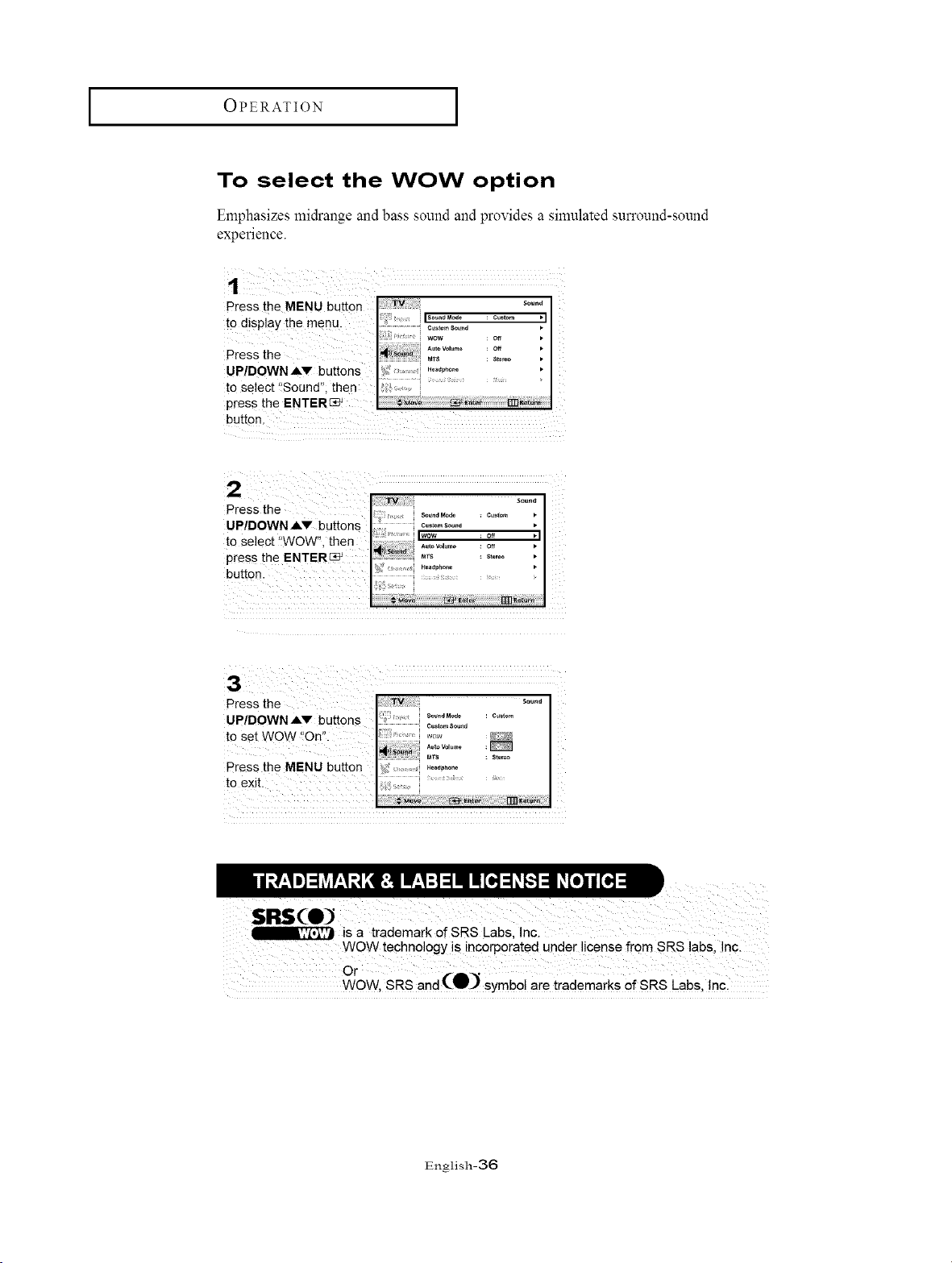
To select the WOW option
Emphasizes midrange and bass sound and provides a simulated surreund-sound
experience.
Press the MENU button Tv : s°..d
to display the menu. i ..................
...................... Custo,_ Sound •
i WOW : off
UP!DOWN AV buttons ': .......' .......... I
to Select Isound" then i ..........
press the ENTER_
2
Press the
UP/DOWN AV buttons
to Select WOW", then
press the ENTER_
button.
i);ii!ii_-_¢ i Sound Moa_ _ Cuslom •
i CustomSound •
IW0W : o'4 •1
Aut° V°lume : Off
MTS : Stereo •
_J' Heallphone •
Pres s the "rv: ;:; .....
UP/DOWN but!ons I : :: ............
to set WOW !On" _,_
Press the MENU button ._ .....
to exit. i i .................................
isa trademark of SRS Labs, Inc.
WOW technology s incorporated underlicense from SRS absl !ncl
Or
WOW, SRS and (J[-_ _ symb0! are trademarks of SRS Labs, !nc.
English-36
OPERATION [
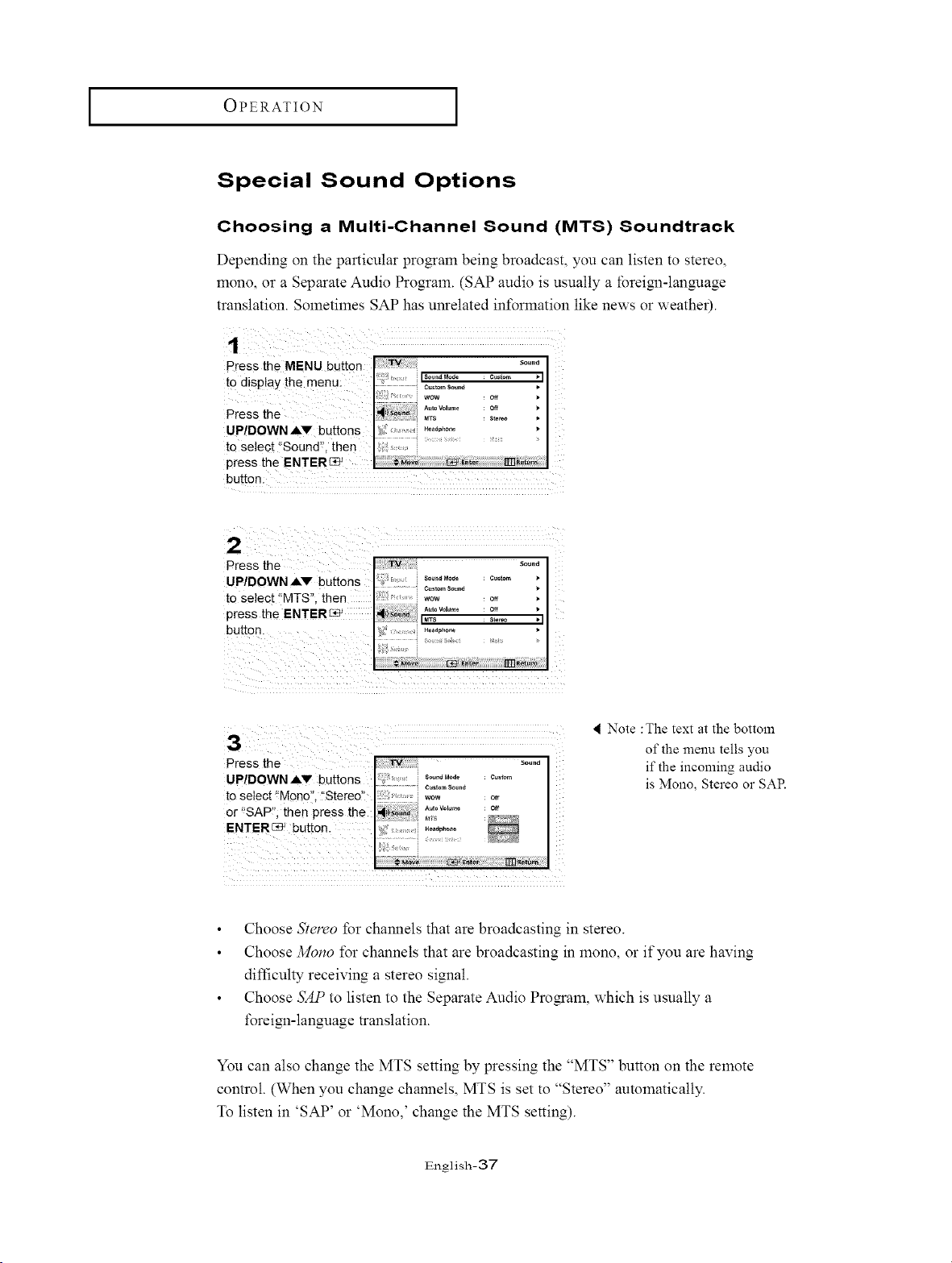
Special Sound Options
Choosing a Multi-Channel Sound (MTS) Soundtrack
Depending on the particular pro_am being broadcast, you can listen to stereo,
mono, or a Separate Audio Program. (SAP audio is usually a foreign-language
translation. Sometimes SAP has unrelated in*Brmation like news or weather).
Press the MENU button '°""
. --- , .-- I ,= [sound _ode cusom
_o a!splay [ne men u ............ '
| : wow : off •
t A_ o vo _le off
Press the .Ts : =.....
UP/DOWN AV buttons ,_ ,o°_.,....
to Select "Sound", then ............................
press the ENTERI:_
button.
Press the
U P/DOWN All" buttons
to Select !'"MTS", then
press the ENTERE_
i iiiiiii i i_iiiiiiiiiiiiiiii
< Note :The text at the bottom
of the menu tells you
if the incoming audio
is Mono, Stereo or SAR
Choose Slereo for channels that are broadcasting in stereo.
Choose Mono for channels that are broadcasting in mono, or if you are having
difficulty receiving a stereo signal.
Choose _S)/Pto listen to the Separate Audio Pro_am, which is usually a
foreiNl-language translation.
You can also change the MTS setting by pressing the "MTS" button on the remote
control. (When you change channels, MTS is set to "Stereo" automatically.
To listen in 'SAP' or 'Mono,' change the MTS setting).
English-37
OPERATION [
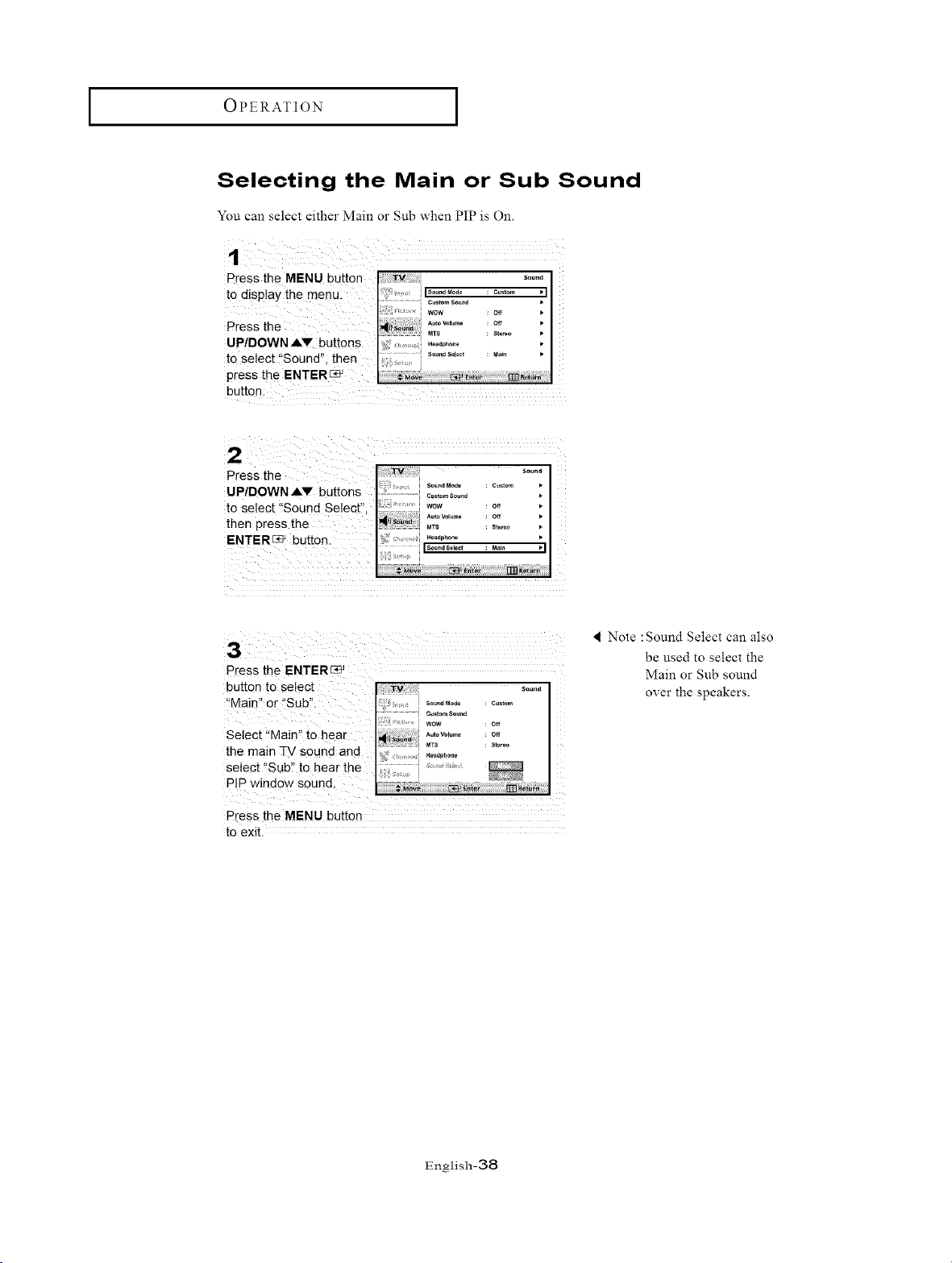
Selecting the Main or Sub Sound
You can select either Main or Sub when PIP is On.
Press the MENU button .....
to dSpay the menu Ii; il s°""M°"° :c ....... I
I wow : o_ ,
AutoVol_ : Off •
Press the _
uP_DOWN-,,buttons ._';..... _..... :
,, ,, so.ha sdec _an •
to select Sound , then ...... i I
press the ENTERC_ [ I
button:
Press the s°...
So..aMod. : c.,_om •
UP/DOWN AV buttons .....................cu.,o,,sou°,
to select 'ISound Select"; wow : o. •
then press the ,u,o_,.... o.
ENTER_e_ button: Is°_,,as°'.... Mei_ '1
_ , Hea_fphone •
Press the ENTERC_
4 Note : Sound Select can also
be used to select the
Main or Sub sound
over the speakers.
Press the MENU button
to exit.
English-38
OPERATION [
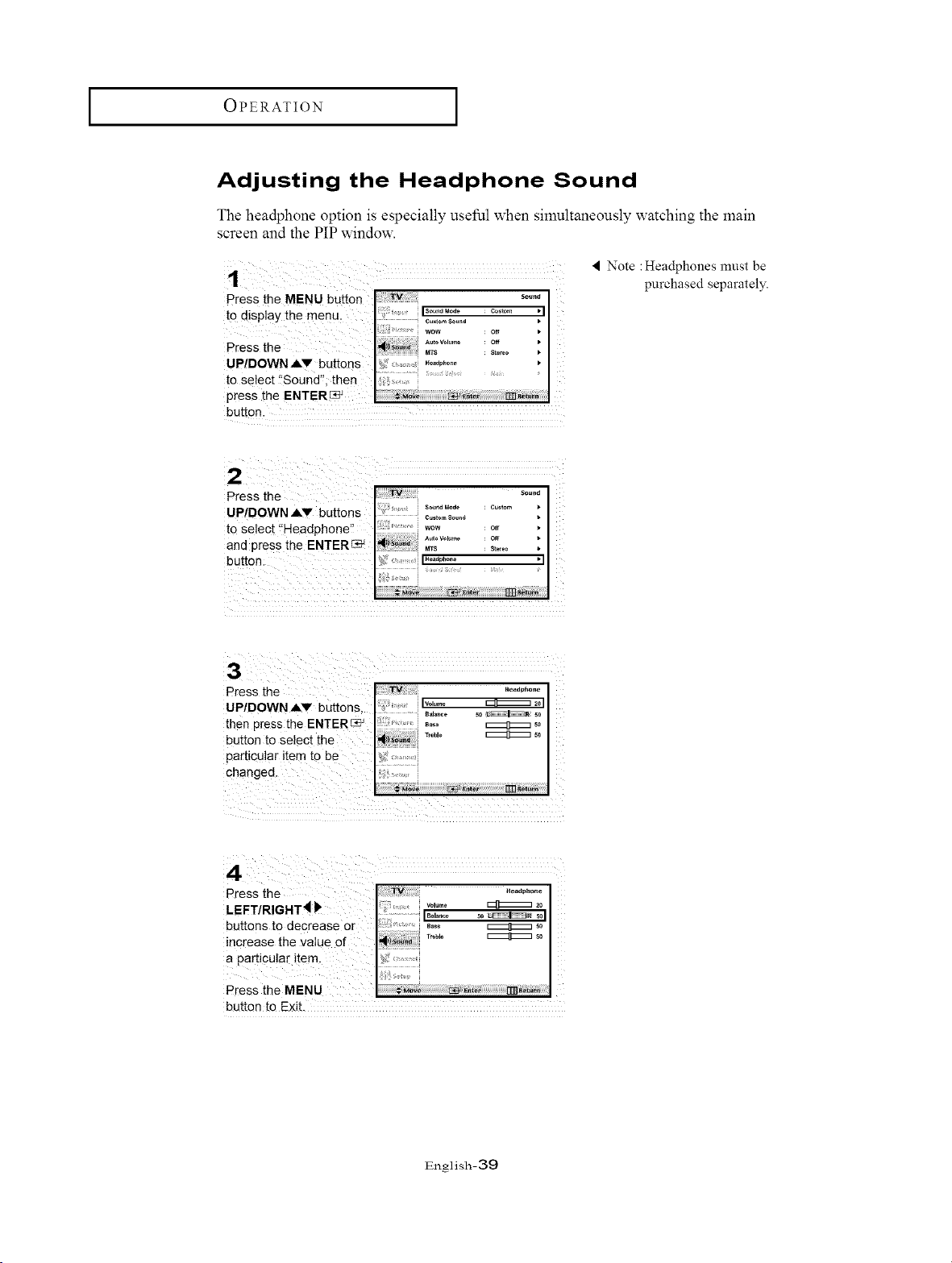
Adjusting the Headphone Sound
The headphone option is especially useful when simultaneously watching the main
screen and the PIP window.
< Note :Headphones must be
purchased separately.
bu_on.
Press the
LEFT/RIGHT4 F
buttons to decrease or
increase the value of
a Particular item
Press the MENU
button to Exit.
English-39
OPERATION [
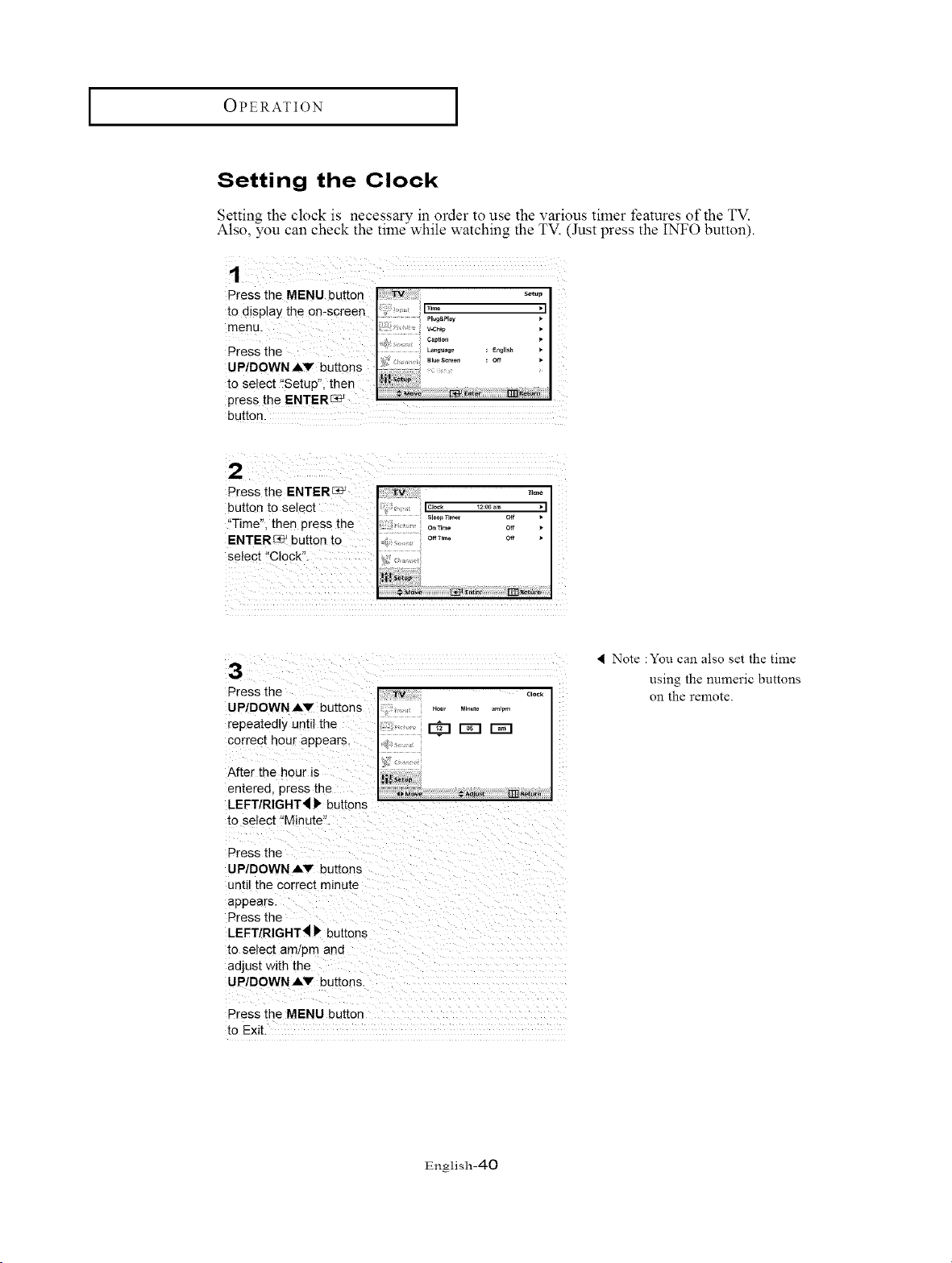
Setting the Clock
Settin_ the clock is necessary in order to use the various timer features of the TV.
Also, you can check the time while watching the TV. (Just press the INFO button).
Press the MENU button _'.
to d sp ay the on.screen _i iTime q
Pt_g&Pt.v •
menu. v.=,,.
..... c.p.°,
i Language ; _ngl]sh •
Press the
_; , ...... Blue Sc_en : Oft •
UP!DOWN AV buttons ............ [
to Select 'setup" then .................. I
;...... '-1_
press me =N!,-_
button.
Press the ENTER c_ _o
button to Select , F' ............ i
?Time", then press the s,........ o. •
on 13me Off
ENTER_ button to o._,,.° c_ .
Select "Clock": {_
3
Press the _ _.°._[
UP/DOWNAV buttons : ..... .o., _,.°,.... _.,
I
repeatedly
until the
correc[ hour appears. 4,,
After the hour is _t$_o_7
entered press the I _-.,_ ¢..j._ rrn._...
LEFTIRIGHT_ )' buttons
[o select "Minute"_
Press the
UP/DOWN AV buttons
untl the correct minute
appears.
Press the
LEFT/RIGHT_ P' buttons
m select amlpm and
adjust with the
UP/DOWN AV buttons.
Press the MENU button
[o Exit
4 Note :You can also set the time
using the numeric buttons
on the remote.
English-40
OPERATION [
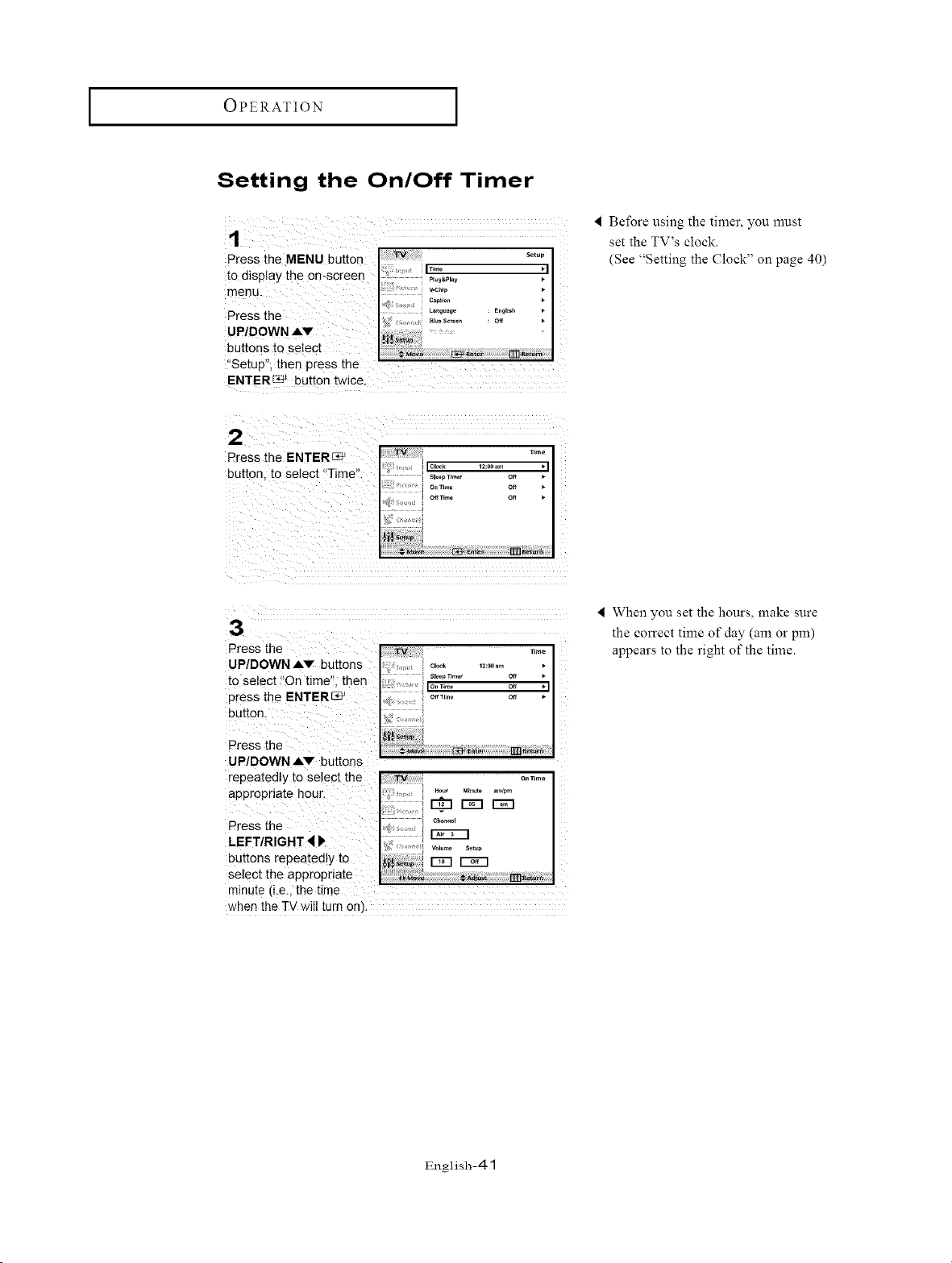
Setting the On/Off Timer
1
Press the MENU button
to display the on-screen
menu.
Press the
UP/DOWN ,&V
buttons to select
"Setup", then press the
ENTERE_ button twice.
Before using the timer, you must
set the TV's clock.
(See "Setting the Clock" on page 40)
2
Press the ENTER_
button to select "Time".
3
Press the
UP/DOWN AV buttons
to select "On time", then
press the ENTER_
button.
Press the
UP/DOWN _,v buttons
repeatedly to select the
appropriate hour.
Press the
LEFT/RIGHT 41'
buttons repea[edly to
select the appropriate
minute (Le. me _me
when the TV will turn on).
4 When you set the hours, make sure
the correct time of day (am or pm)
appears to the right of the time.
English-41
I OPERATION ]
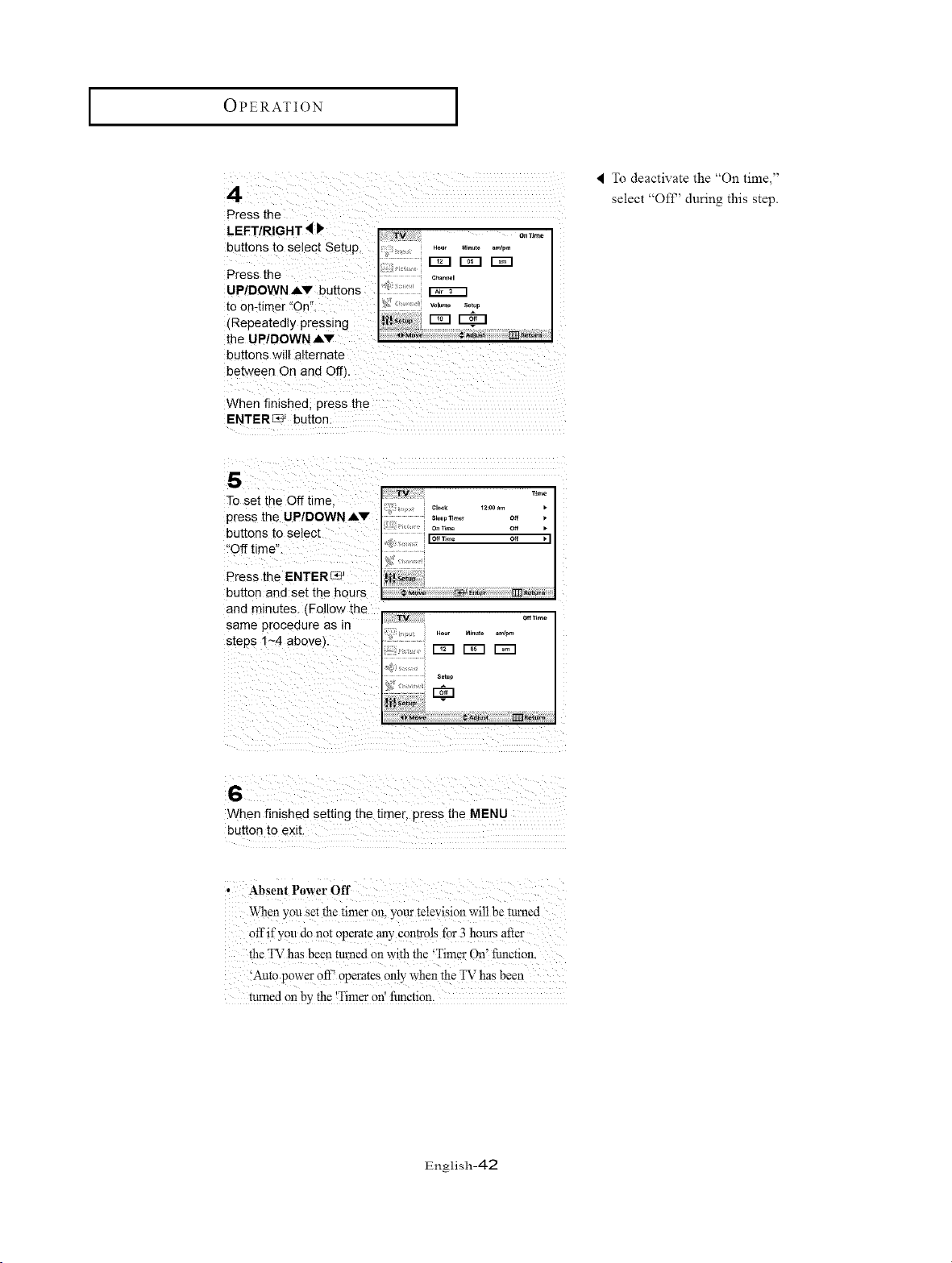
I To deactivate the On tm_ ,
select "Offf' during this step.
LEFT/RIGHT _ _ .... o,,T,m_I
buttons to se ect Setup. , ,o,, M,..,o ._,,,,, I
I
Press the ..... c .oo
UP!DOWNAV buttons _; t:' _ [
to 0n-timer !!On"; '_;:.......... ..........
(RepeatedlYtheUP/DOWNAvpressing [ _/,
buttons will al:ternate
between On and Off).
....
When finishedl press the :
!Sb:i:()iiJ !//:)(ii ¸ ......
To set the Off time,
press the !
buttons to select
"Off time":
Press the ENTER_
button and set the hours
When f nished sett ng the t met press the MENU
Absent Power Off : :
When y0u se£the timer on, youi _elevis!on wii1 be tum¢d
Off if you do not operate any Contsols for 3 hours after i
the TV has beea mined on with the _Timer On' Nnction.
'Auto ower off _operates only when the TV has been
P
turned on by the 'Timer on' Nnction.
English-42
OPERATION [
Setting the Sleep Timer
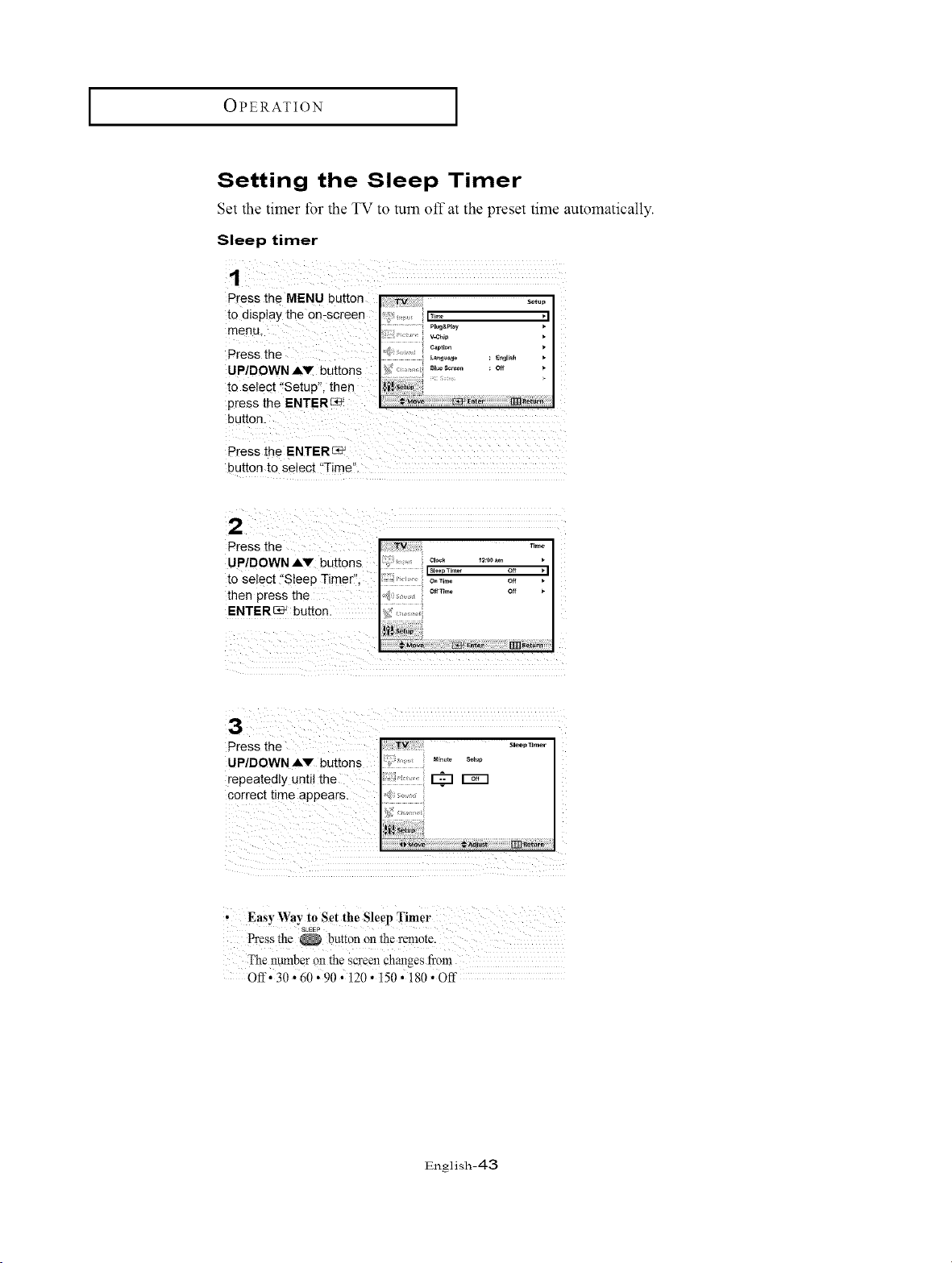
Set the timer for the TV to turn off at the preset time automatically.
Sleep timer
Press the MENU button TV solo.
to display the 0n:screen iT..... i
menu. / .................._"_'"_
Press the ENTERC_
button to select "Time".
Press the
UP/DOWNAV buttons M,.._ so_p
repeatedly until the _
correct time appears,
• Easy Way to Set the Sleep Timer
SkEEP
The number on the screen chmlges fiom
Off'_0 • 60 •90 • i20 • i50 • 180 • Off
English-43
OPERATION [
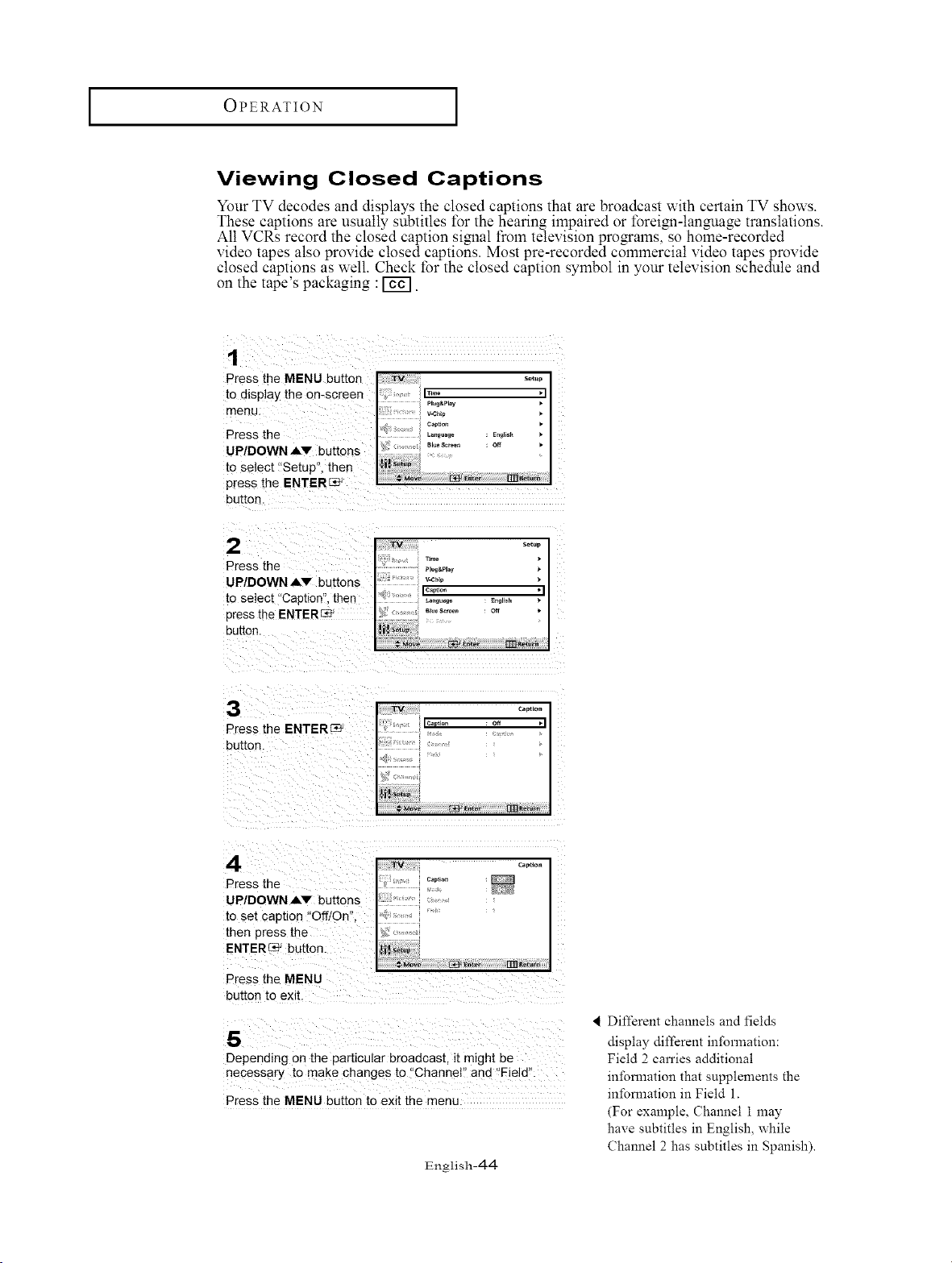
Viewing Closed Captions
Your TV decodes and displays the closed captions that are broadcast with certain TV shows.
These captions are usually subtitles t\_r the hearing impaired or foreiNMangmage translations.
All VCRs record the closed caption signal from television programs, so home-recorded
video tapes also provide closed captions. Most pre-recorded commercial video tapes provide
closed captions as well. Check tbr the closed caption sylnbol in your television schedule and
on the tape's packaging : I-ifif].
Press the MENU button ]
/
to display the on-screen IT'm° _1
menu.
Press the E,,_,,,,,
UP/DOWN AV buttons
to select "Setup". then
press the ENTERS-
button.
2
Press the
UP/DOWN AV buttons
to seIec[ "Caption". then
press the ENTER_
DuEon.
3
Press the ENTER :_
button.
4
Press the
UP/DOWN Av buttons
to set caption "Off/On".
[hen press the
ENTER _e' button.
Press the MENU
button to exit.
J V capao.
_,_ rm_,_
5
Depending on the particular broadcast, it might be
necessary to make changes to "Channel" and "Field".
Press the MENU button to exit the men£
English-44
< Different channels and fields
display different information:
Field 2 carries additional
infomlation that supplements the
infomlation in Field 1.
(For example, Channel 1 may
have subtitles in English, while
Channel 2 has subtitles in Spanish).
OPERATION [
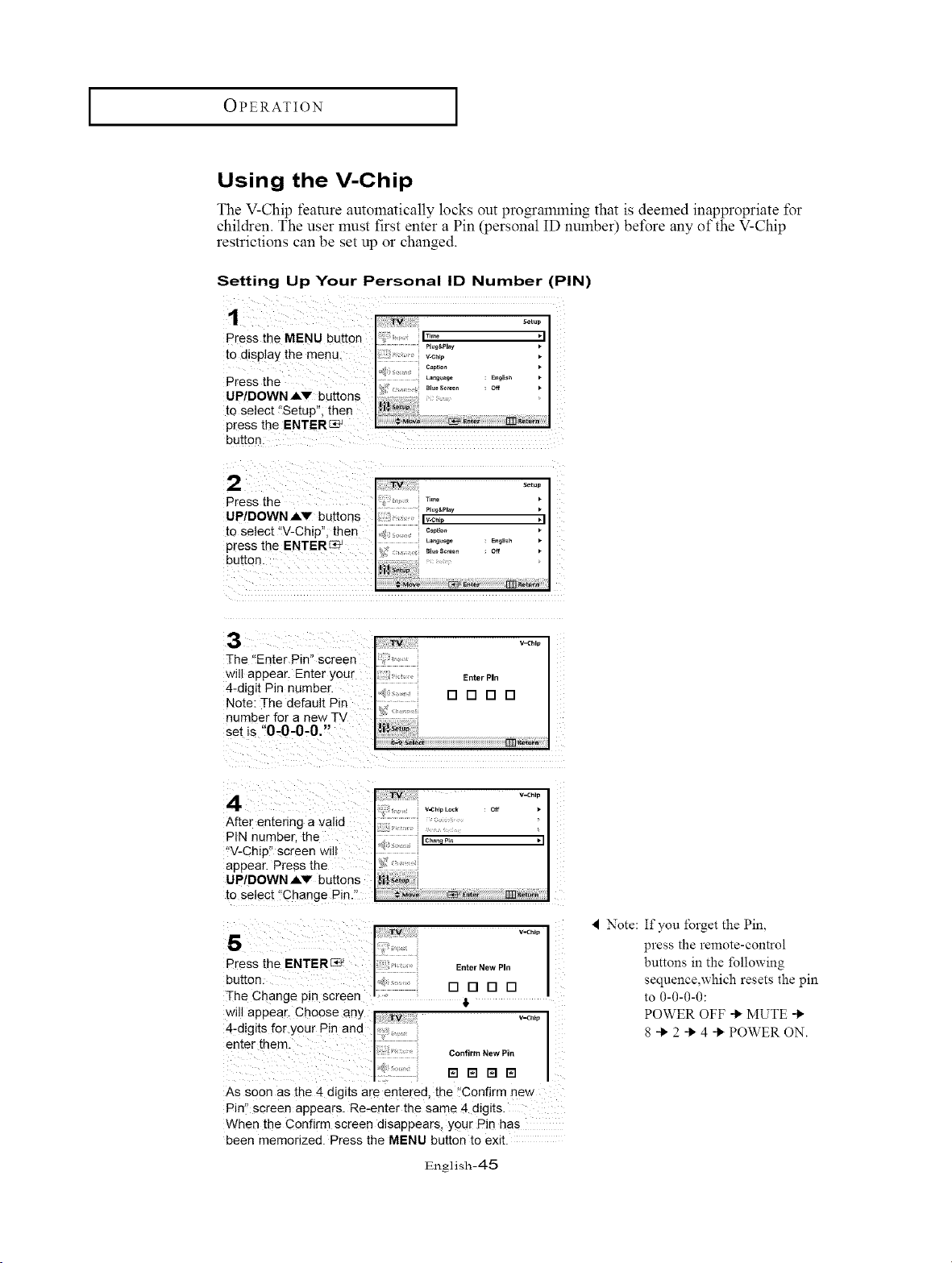
Using the V-Chip
The V-Chip feature automatically locks out prQmamming that is deemed inappropriate t\_r
children. The user must first enter a Pin (personal ID number) before any of the V-Chip
restrictions can be set up or changed.
Setting Up Your Personal ID Number (PIN)
setup
Press the MENU button 17_° "1
to display the menu: :: .........................
: ; , v-cNp •
< CaPtiOn •
Press the _"""° : E..,,. •
UP/DOWN AV buttons ...........
to Select _'Setup"; then .............
press the ENTER_
v_chl_
The "Enter Pin" screen
wdl appear. Enter your EnterPin
4-digit Pin number. [] [] [] []
Note: The default Pin
number for a new TV
set Is 0-0-0-0,"
ITnRet_
TV v-_D
After entering a valid
PIN number, the I¢..,,qP_. .I
"V-Chip' screen w_ll
appear. Press the
UP/DOWNAV buttons _f /_l,_e up
1o select "Change Pin." ,_ _o_._ rm._t_,.
5
v_mp
Enter New PI_
(3 DDD
Press the ENTER_
button.
The Change pin screen
will appear. Choose any
4-digits for your Pin and
enter them.
Confirm New Pin
ra _ ra El
As soon as the 4 d_g_ts are entered, the "Confirm new
Pin" screen appears. Re-enter the same 4 digits.
When the Confirm screen dBappears, your Pin has
been memorized. Press the MENU button to exit.
English-45
4 Note: If you forget the Pin,
press the remote-control
buttons in the following
sequence,which resets the pin
to O-O-O-O:
POWER OFF _ MUTE
8 _ 2 _ 4 _ POWER ON.
OPERATION [
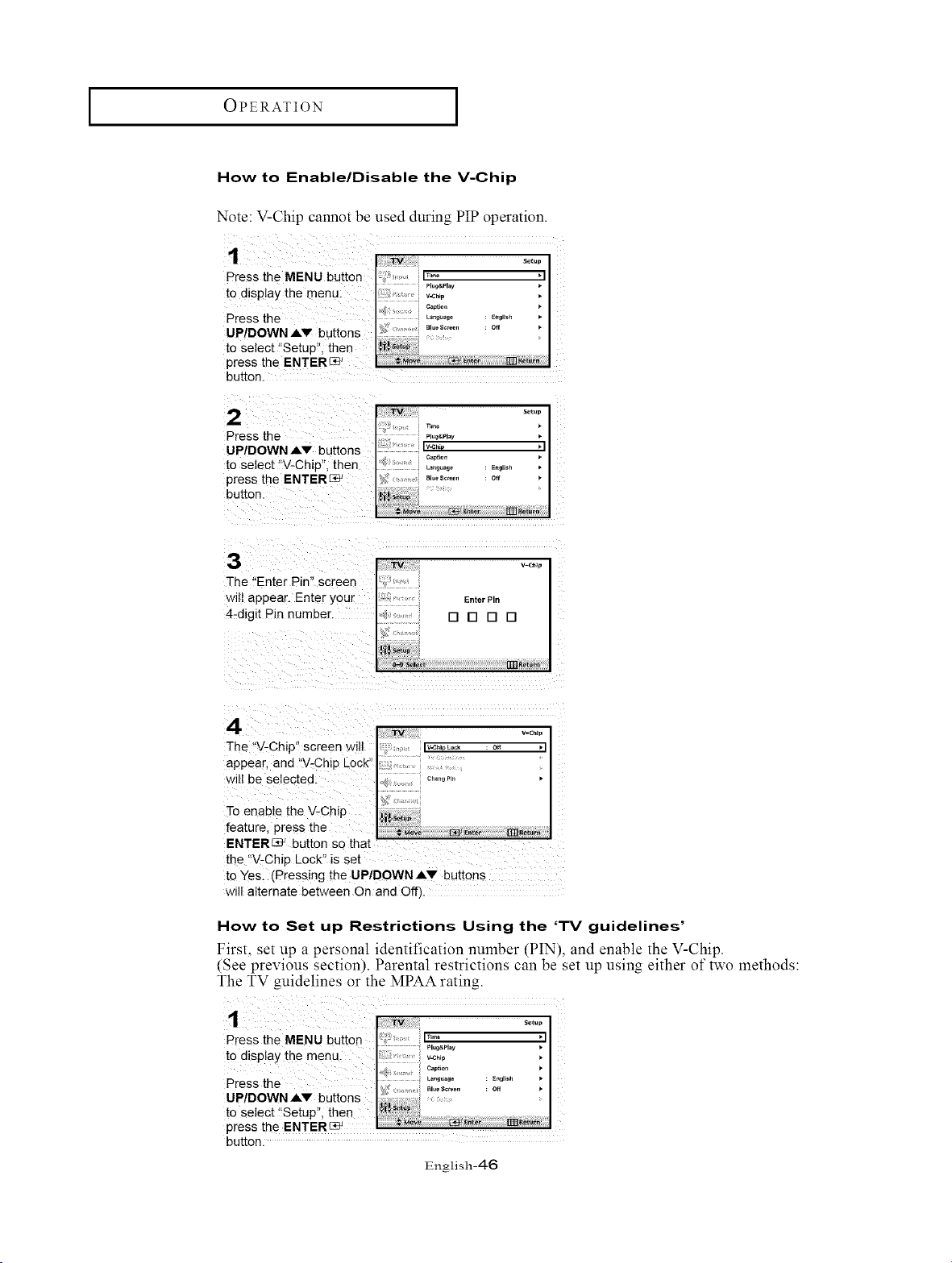
How to Enable/Disable the V-Chip
Note: V-Chip calmot be used during PIP operation.
Press the MENU butte["
to display the menu.
Press the
UP/DOWN AV buttons
to select "Setup", then
press the ENTER[:_
button.
Tv _etu_
TEme
Press the *,°_._,._ ,
UP/DOWN AV buttons _'_ ,I
_aDtior
to select "V-Chip', then
press the ENTER_
button.
The "Enter Pin" screen
Will appear. Enter your EnterPIn
4-d_glt Pin number. [] [] [] []
rm_{et_a
4
ENTERC_ button so thai
the "V-Chip Lock" is set
to Yes. (Pressing the UP/DOWN Av buttons
will alternate between On and Off/.
How to Set up Restrictions Using the 'TV guidelines'
First, set up a personal identification nmnber (PIN), and enable the V-Chip.
(See previous section). Parental restrictions can be set up using either of two methods:
The TV guidelines or the MPAA rating.
button.
English-46
I OPERATION I
2
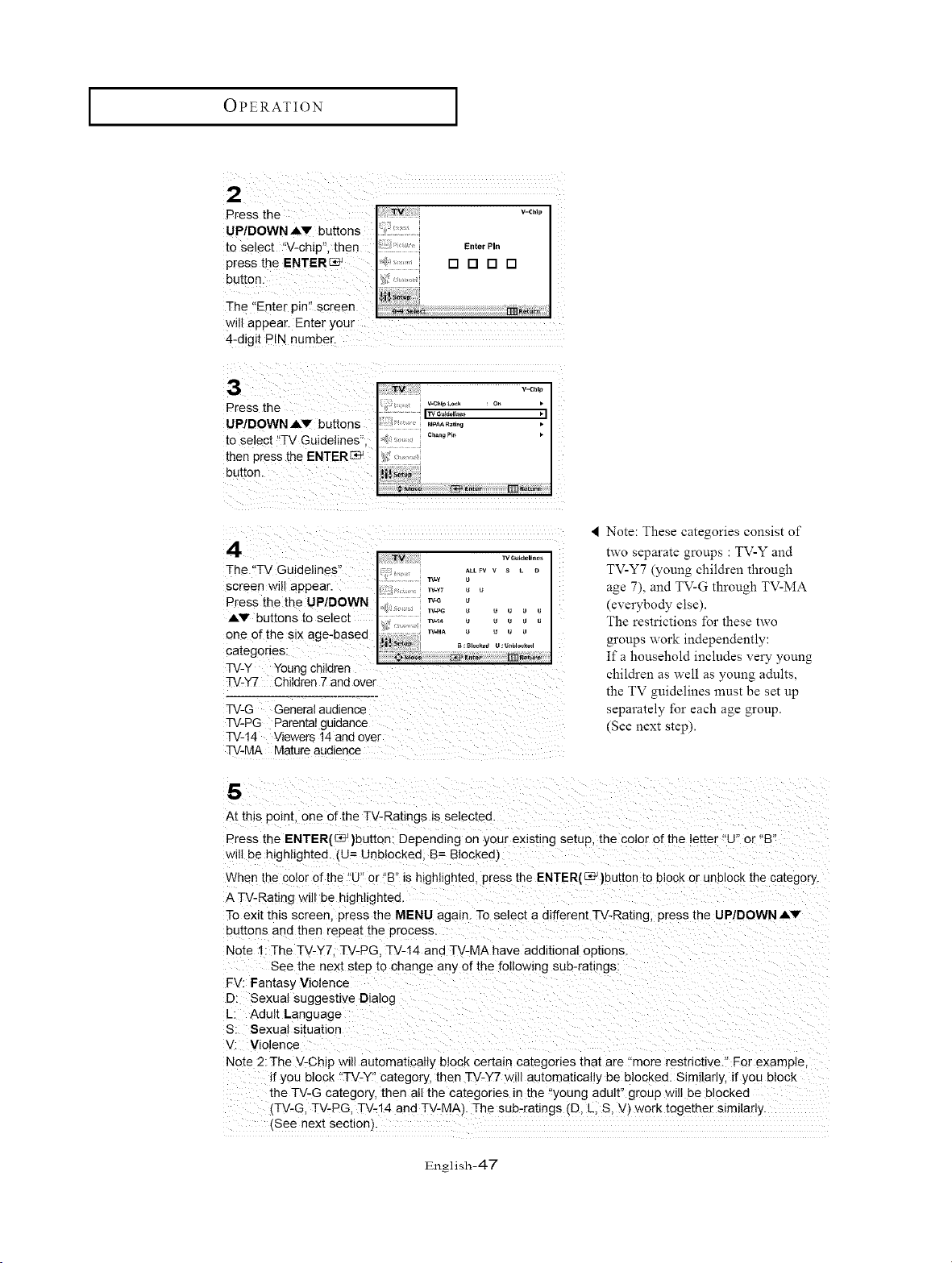
Press the
UP/DOWN A_.v buttons
1o select "V-chip", then
press the ENTERL_
button.
The "Enter pin" screen
will appear. Enter your
4-digit PIN number
3
Press the
UP/DOWN Av buttons
1oselect "TV Guidelines"
then press the ENTER c_
button.
4
]-he "TV Guidelines"
screen will appear.
Press the the UP/DOWN
Av bu[tons to select
one of the six age-based
categories:
TV-Y Young Chllaren
TM w Guidelines I
, ALLFV , S L _)
' .... TV-y U
_ ....... W-Y7 U U
WE U
5' ¸' ¸¸_ W4aA U U U U
}
TV-Y7 Children 7 and over
TV-G General audience
TV-PG Parental guidance
TV-14 Viewers 14 and over
TV-MA Mature audience
Note: These categories consls_ of
_wo separate groups : TV-Y and
TV-Y7 woung children through
age 7_. and TV-G through TV-MA
everybody elseL
The restrictions for these two
groups work independently:
If a household includes very young
children as well as young adults.
the TV guidelines must be set up
separately for each age group.
_See nex_ step).
5
At this point, one of the TV-Ratings is selected
Press the ENTER(_ }button: Depending on your exlsbng setup, the color of the letter "U" or "B
will _e highlighted. (3= Unblockec 3= Blocked]
When the color of the "U" or "B" is highlighted oress the ENTER(L_ }button to block or unblock the category
A TV-Rating will be highhghted.
To exit this screen, press the MENU again. To select a different TV-Rating, press the UP/DOWN AV
buttons and then repeat the process.
Note 1: The TV-Y7. TV-PG. TV-14 and TV-MA have additional options.
See the next step _o change any of the following sub-ratings:
FV: Fantasy Violence
D: Sexual suggestive Dialog
L Adult Language
S: Sexual situation
V: Violence
Note 2: 3-he V-Chip will automatlcaliy block certain categories thai are "more restrictive." For example,
if you block "TV-Y" category, then TV-Y7 will automatically be blocked. Similarly, if you block
the TV-G category, then all the categories in the "young adult" group will be blocked
, TV-G. TV-PG. TV-14 and TV-MAJ. The sub-ratings (D, L, S, V) work together similarl_
, See next sect!am.
English-47
OPERATION [
6
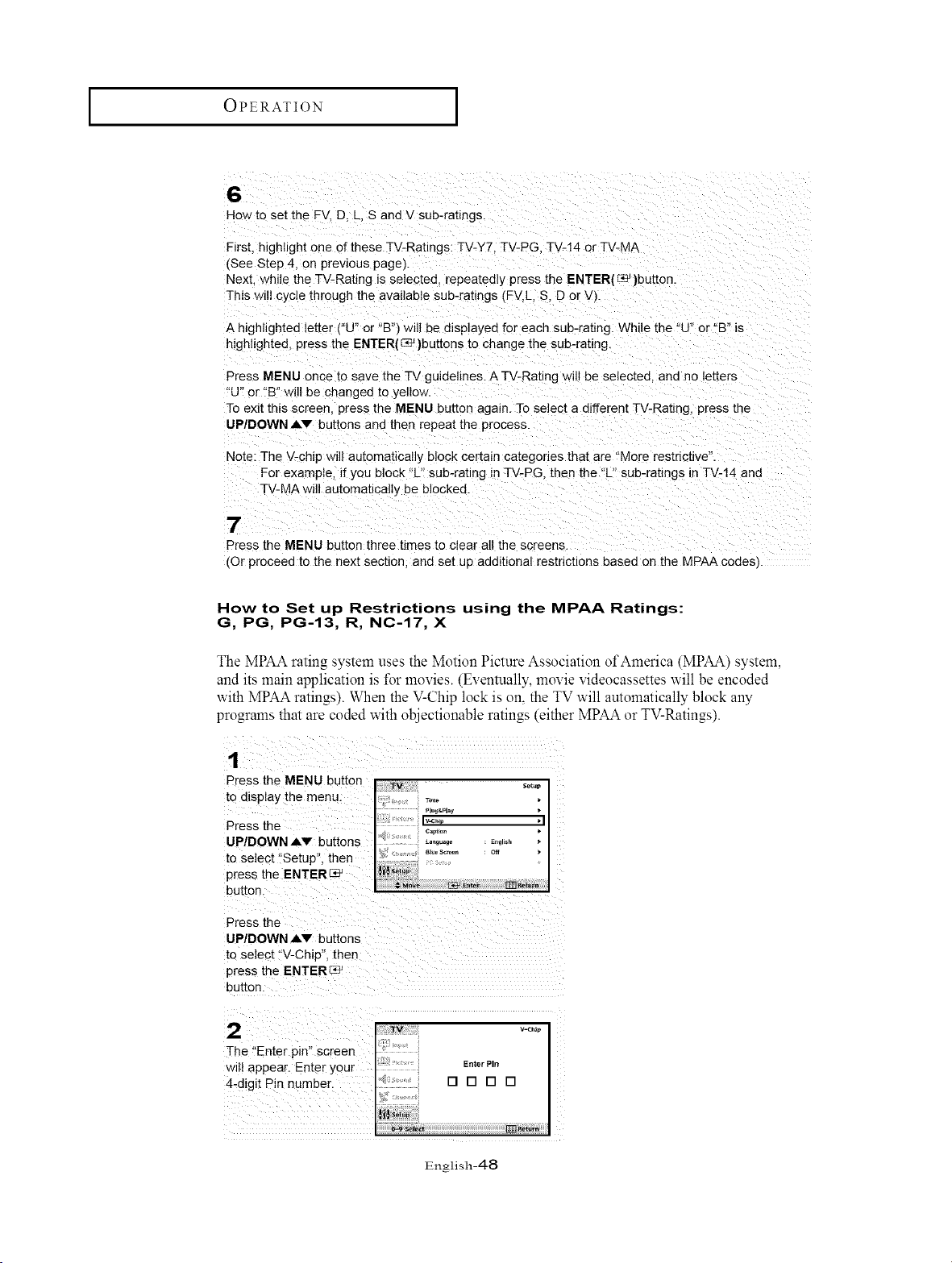
How to set the FV. D. L. S and V sub-ratings.
First, highlight one of these TV-Ratings: TV-Y7. TV-PG. TV-14 or TV-MA
(See Step 4. on previous page).
Next. while the TV-Rating is selected, repeatedly press the ENTER(_ )button.
This will cycle through the available sub-ratings (FV, L. S. D or W.
A highlighted letter !"U" or "Bq will be displayed for each sub-rating While the "U" or "B" is
highlighted, press the ENTER(_ }buttons to change the sub-rating
Press MENU once to save the TV guidelines. A TV-Rating will be selected, and no letters
"U" or "B" will be changed to yellow.
To exit this screen press the MENU button again. To selec[ a different TV-Ratmg, press the
UP/DOWN,IV buttons and then repeat the process.
Note: The V-chip will automatically block certain categories that are "More restrictive".
For example, if you block "L" sub-rating in TV-PG. then the "L" sub-ratings in TV-14 and
TV-MA will automatically be 3locked
7
Press the MENU button three times to clear all the screens.
(Or proceed to the next section, and set up additional restrictions based on the MPAA codes
How to Set up Restrictions using the MPAA Ratings:
G, PG, PG-13, R, NC-17, X
The MPAA rating system uses the Motion Picture Association of America (MPAA) system,
and its main application is fer movies. (Eventually, movie videocassettes will be encoded
with MPAA ratings). When the V-Chip lock is on, the TV will automatically block any
programs that are coded with objectionable ratings (either MPAA or TV-Ratings).
UP/DOWN `IV buttons
to select t'V-Chip", then
press the ENTER[_
2 ..........
]-he !'Enter pin'! screen :;
wil! appear. Ente r Your Enter PIn
4_digit Pin number. [] [] [] []
i
English-48
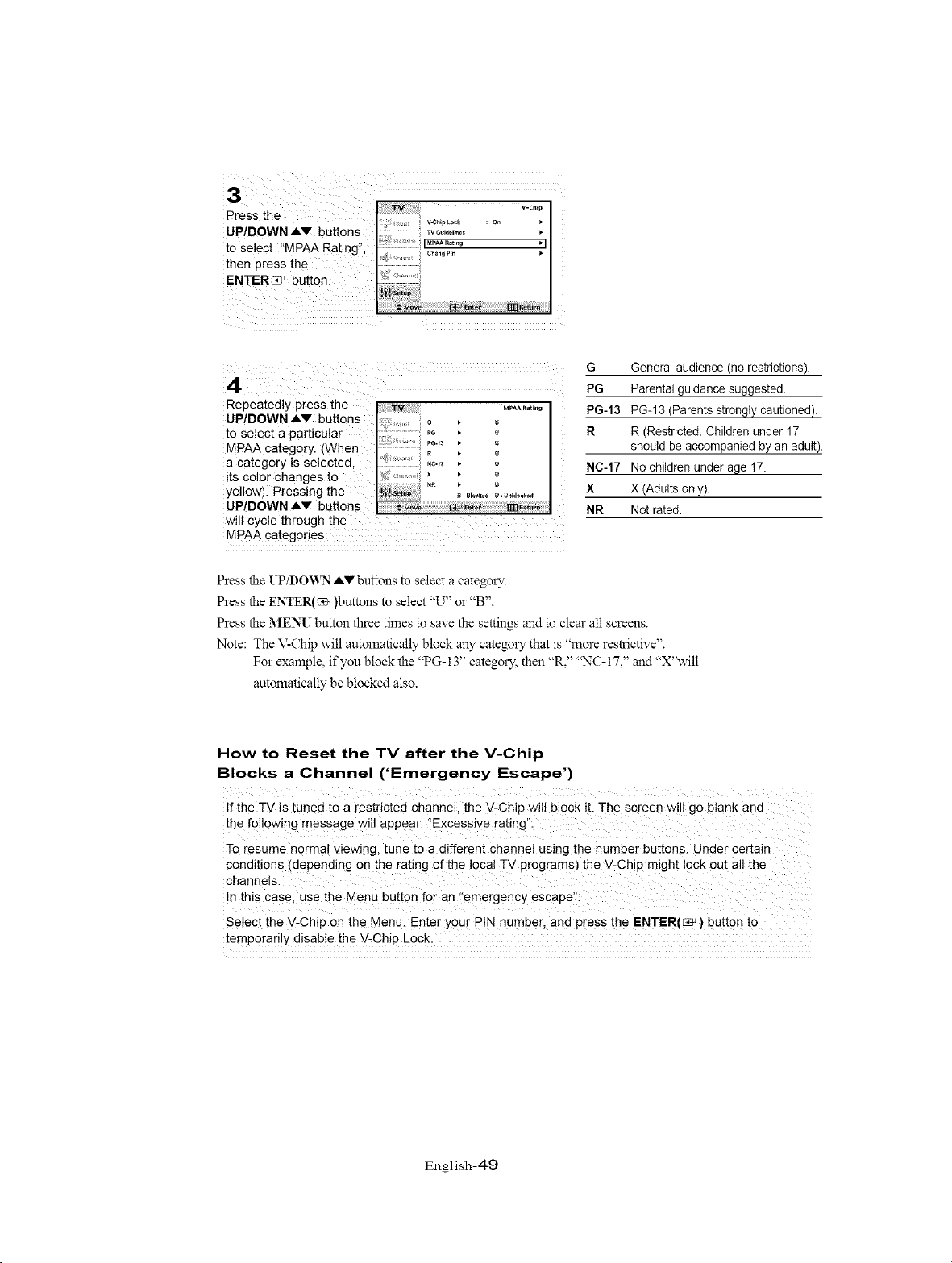
i!i!!!!!i_ii%!__ v-ch_p
Press the ....... h_ _.
UP/DOWN AV buttons ...... TvG._.,,.o.
• . i MPAA R ng i1
to select MPAA Rating'; ....... i c,o._P.
then press the
ENTER_ button: ....
Repeatedly press the
UP/DOWN Av buttons
to Select a particular
MPAA category. (When
a category is selected,
its color changes to
yellow)i Pressing the
UP/DOWN .AV buttons
will cycle through the .............
MPAA categories:
G General audience (no restrictions)•
PG Parental guidance suggested•
PG-13 PG-13 (Parents strongly cautioned).
R R (Restricted. Children under 17
should be accompanied by an adult)•
NC-17 No children under age 17.
X X (Adults only)•
NR Not rated.
Press the UP/DOWN h,V buttons to select a categol T.
Press the ENTER(r_ )buttons to select "U" or "B".
Press the MENU button three times to save the settings and to clear all screens.
Note: The V-Chip will automatically block any categol T that is "more restrictive".
For example, if you block the "PG- 13" catego1% then "R," "NC- 17," and "X"will
automatically be blocked also.
How to Reset the TV after the V-Chip
Blocks a Channel ('Emergency Escape')
If the TV is tuned to a restricted channel, the V-Chip will block it. The screen will go blank and
the following message will appear: "Excessive rating".
To resume normal viewing, tune to a different channel using the number buttons. Under certain
conditions (depending on the rating of the local TV programs) the V-Chip might locK ou[ all the
channels
In this case. use the Menu button for an "emergency escape":
Select the V-Chip on the Menu. Enter your PIN number, and press the ENTER(_ ' ) button to
temporarily disable the V-Chip Lock.
English-49
PC DISPLAY
Using Your TV as a Computer (PC) Display
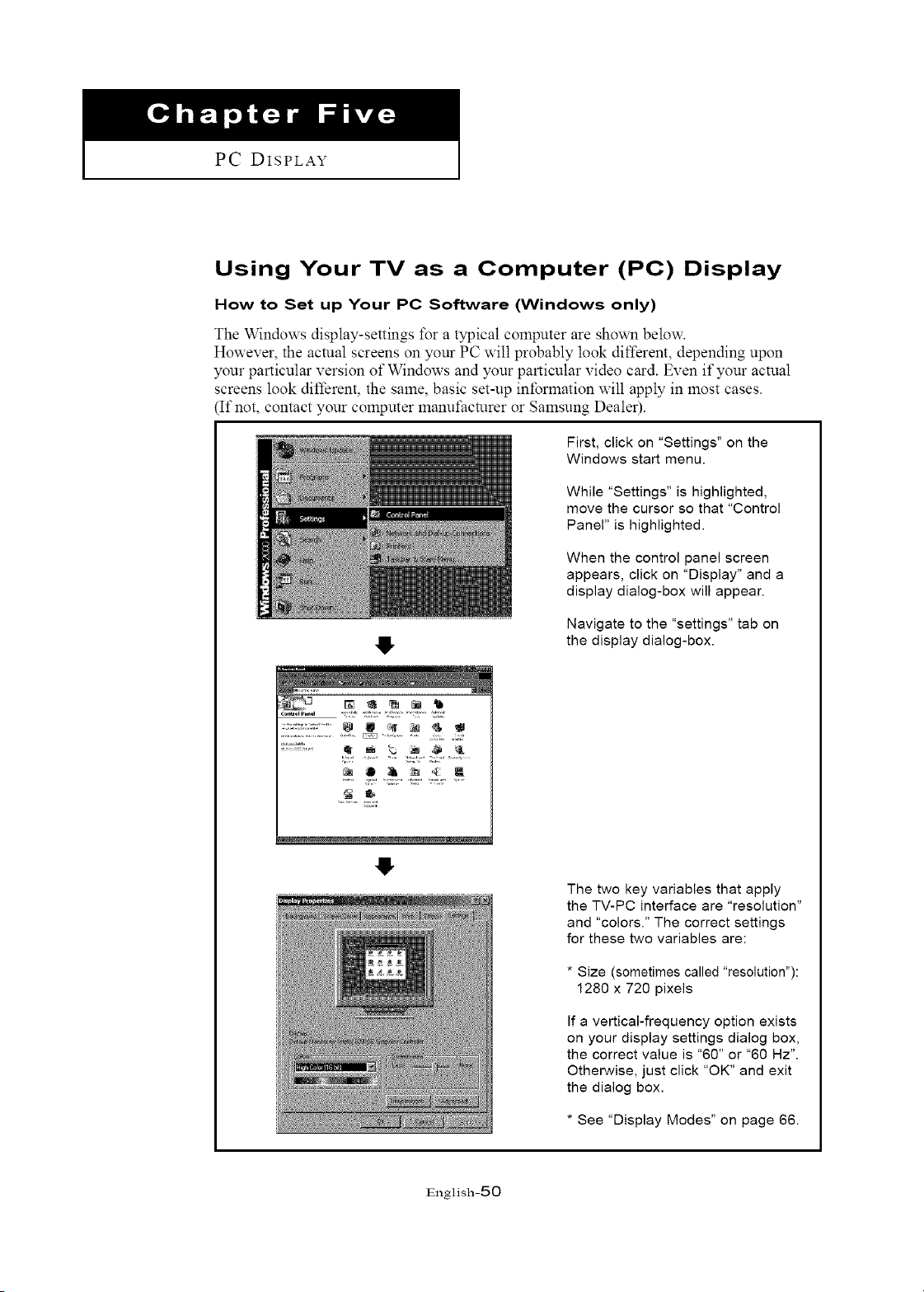
How to Set up Your PC Software (Windows only)
The Windows display-settings tSr a typical computer are shown below.
However, the actual screens on your PC will probably took different, depending upon
your particular version of Windows and your particular video card. Even if your actual
screens look different, the same, basic set-up information will apply in most cases.
[f not, contact your computer manufacturer or Samsung Dealer).
First, click on "Settings" on the
Windows start menu.
While "Settings" is highlighted,
move the cursor so that "Control
Panel" is highlighted.
When the control panel screen
appears, click on "Display" and a
display dialog-box will appear.
O
Navigate to the "settings" tab on
the display dialog-box.
0
The two key variables that apply
the TV-PC interface are "resolution"
and "colors." The correct settings
for these two variables are:
* Size (sometimes called "resolution"):
1280 x 720 pixels
If a vertical-frequency option exists
on your display settings dialog box,
the correct value is "60" or "60 Hz".
Otherwise, just click "OK" and exit
the dialog box.
* See "Display Modes" on page 66.
English-50
I PC DISPLAY I
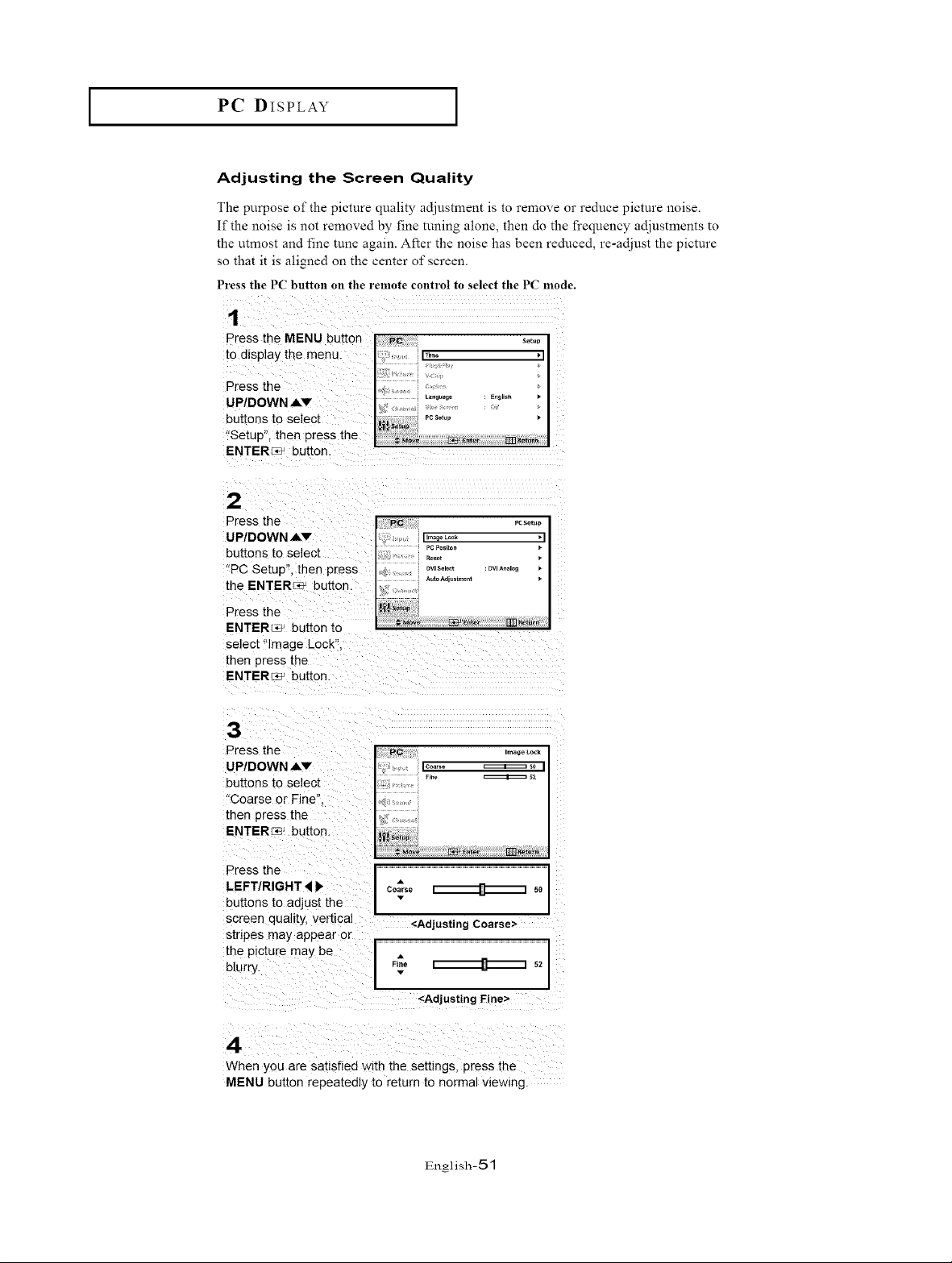
Adjusting the Screen Quality
The purpose of the picture quality adjustment is to remove or reduce picture noise.
If the noise is not removed by fine tuning alone, then do the frequency adjustments to
the utmost and fine tune again. After the noise has been reduced, re-adjust the picture
so that it is aligned on the center of screen.
Press tile PC button on the remote control to select tile PC mode.
Press the MENU button
to display the menu.
Press the
UP/DOWN Av
buttons to selec[
"Setup", then press the
ENTER_ button.
2
Press the
UP/DOWN A'r
buttons to select
"PC Setup", then press
the ENTER_ button.
Press the
PC rc_p
I
............. Pc p_s{ton •
, _ Dv s_ ec DVlA_ _ _ I
I
ENTERs, buKon to
select "Image Lock".
then press the
ENTERr2_ but[on.
3
Press the
UP/DOWN ,&v
buttons to select
"Coarse or Fine"
then press the
ENTERr_ button.
Press the
LEFT/RIGHT _ P" co_ I rl i so
buttons to adjust the
screen quahty, vertical "
<Adjusting Coarse>
stnpes may appear or ,
the 3icture may be I
blurry. F_ i rl i s2
I
<Adjusting Fine>
4
When you are satisfied with the settings, press the
MENU button repeatedly to return to normal wewmg
English-51
I PC DISPLAY I
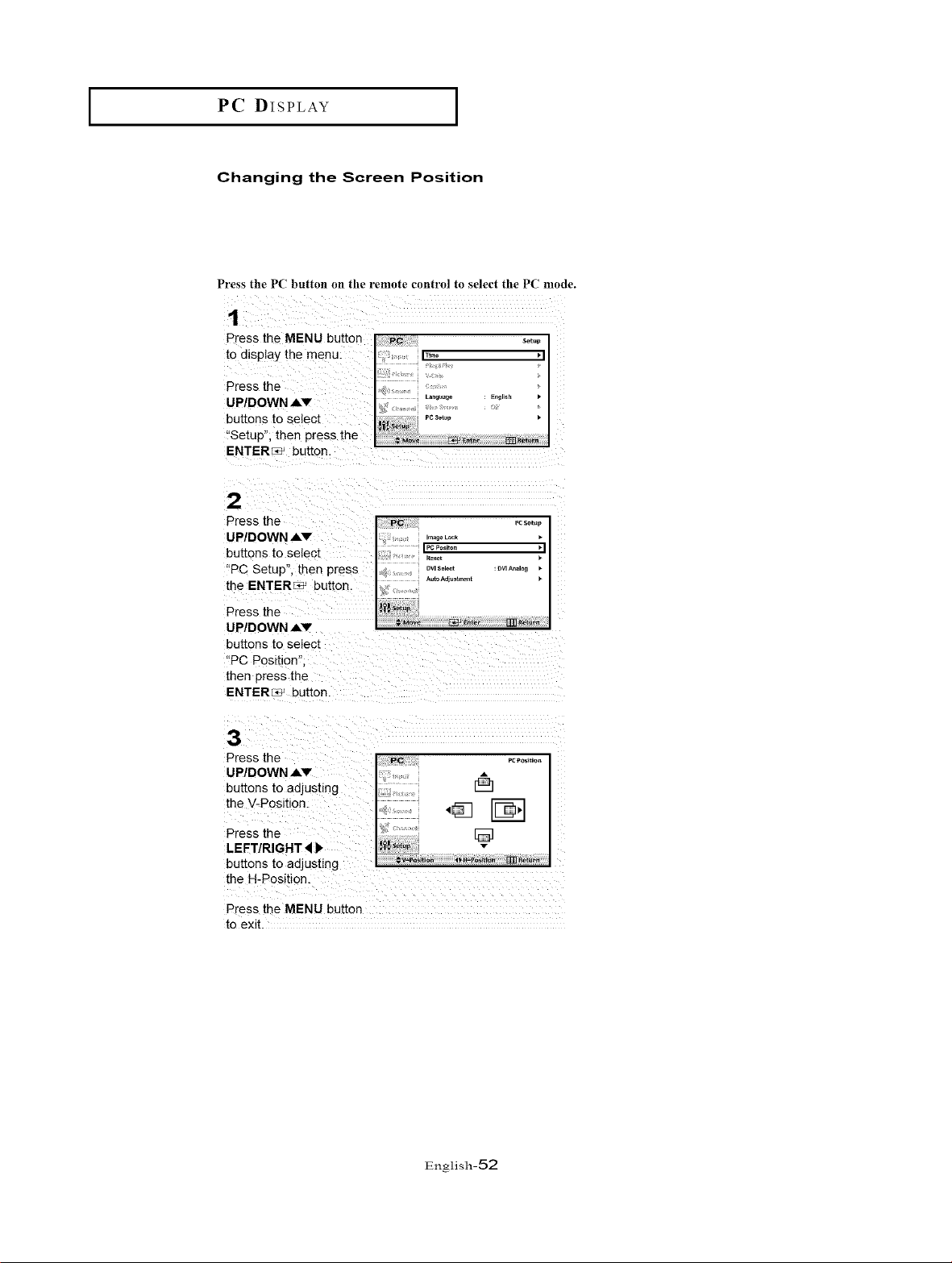
Changing the Screen Position
Press the P( button on the remote control to select the PC mode.
Press the MENU butter
to display the menu.
Press the
U P/DOWN J,v
buttons to selecl
"Setup", then press the
ENTER_ button.
2
Press the
U P/DOWN ,Av
buttons to select
"PC Setup", then press
the ENTER_ button.
Press the
UP/DOWN Av
buttons to select
"PC Posmon.
ther _ress the
ENTER_ button.
3
Press the
the H-Position_
Press the MENU buttor
to exit.
English-52
I PC DISPLAY I
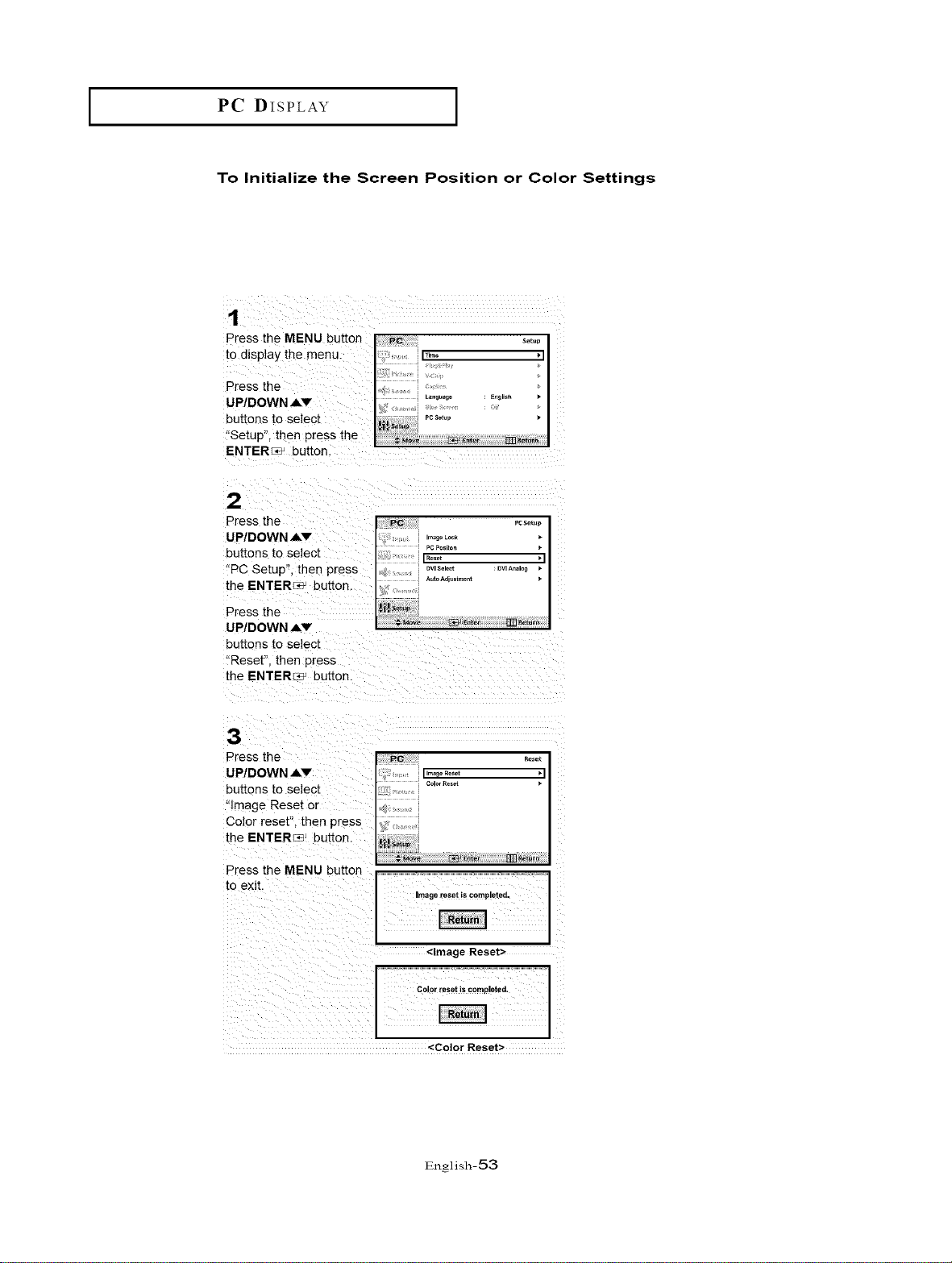
To Initialize the Screen Position or Color Settings
Press the MENU button
1o display the menu.
Press the
UP/DOWN Av
buttons to select
"Setup", then press the
ENTER_ bu[[on.
2
Press the
UP/DOWN _,v
buttons to select
"PC Setup", then press
the ENTER_ button.
Press the
UP/DOWN Av
buttons to select
"Reset". then press
the ENTER_ button.
3
Press the
UP/DOWN =,v
buttons to select
"Image Reset or
Color reset", then press
Lhe ENTER_ but[on.
Press the MENU button
to exit.
Image reset is completed,
<Image Reset>
Color reset is c0mplete_.
<Color Reset>
English-53
I PC DISPLAY I
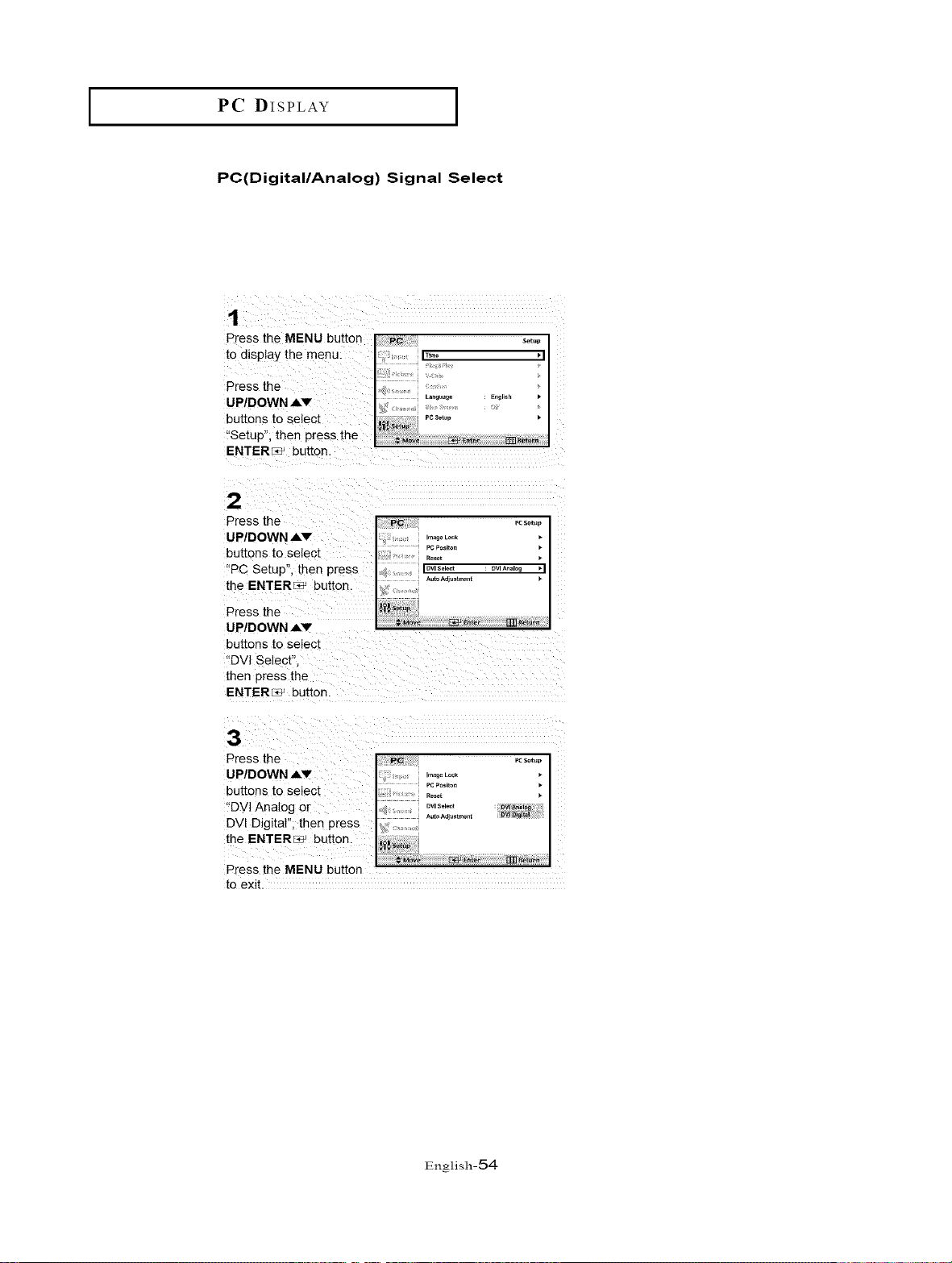
PC(DigitallAnalog) Signal Select
Press the MENU butter
to display the menu.
Press the
U P/DOWN J,v
buttons to selecl
"Setup", then press the
ENTER_ button.
2
Press the
U P/DOWN ,Av
buttons to select
"PC Setup", then press
the ENTER_ button.
Press the
UP/DOWN Av
buttons to selecl
"DVI Select"
ther _ress the
ENTERs' button.
3
[o exit.
English-54
I PC DISPLAY I
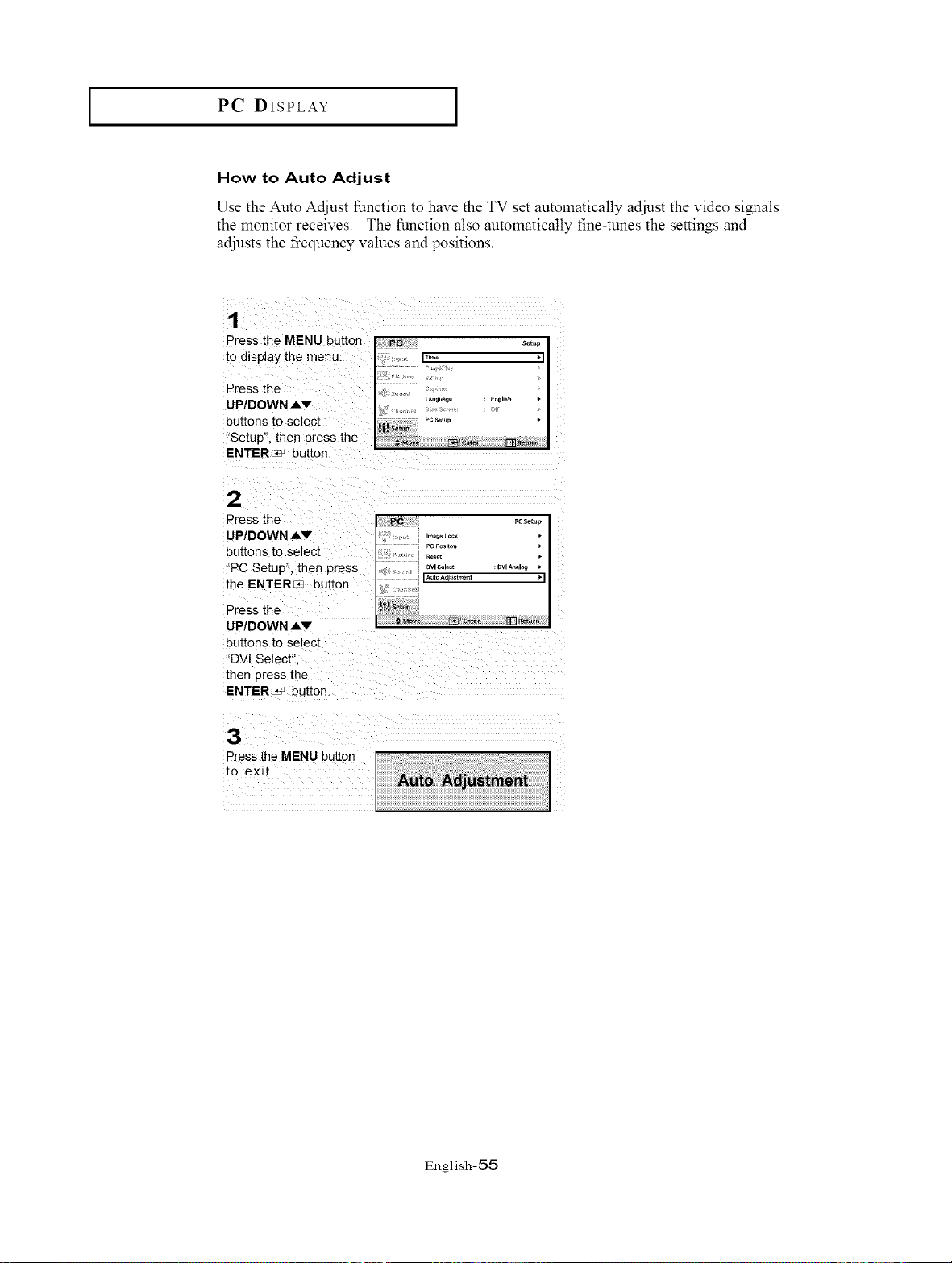
How to Auto Adjust
Use the Auto Adjust function to have the TV set automatically adjust the video si_lals
the monitor receives. The function also automatically fine-tunes the settings and
adjusts the fiequency values and positions.
Press the MENU button
to display the menu.
Press the
UP/DOWN A,v
buttons to select
"Setup", then press the
ENTERc_ button.
2
Press the
UP/DOWN A,v
buttons to select
"PC Setup", then press
the ENTER_ but[on.
Press the
UP/DOWN ,&v
buttons to select
"DVl Select"
then press the
ENTERc_ buuon.
.....il
DVlAnalog
"1
[iT1 I_et_rn
3
Press the MENU button
1o exit.
English-55
I PC DisPLaY I
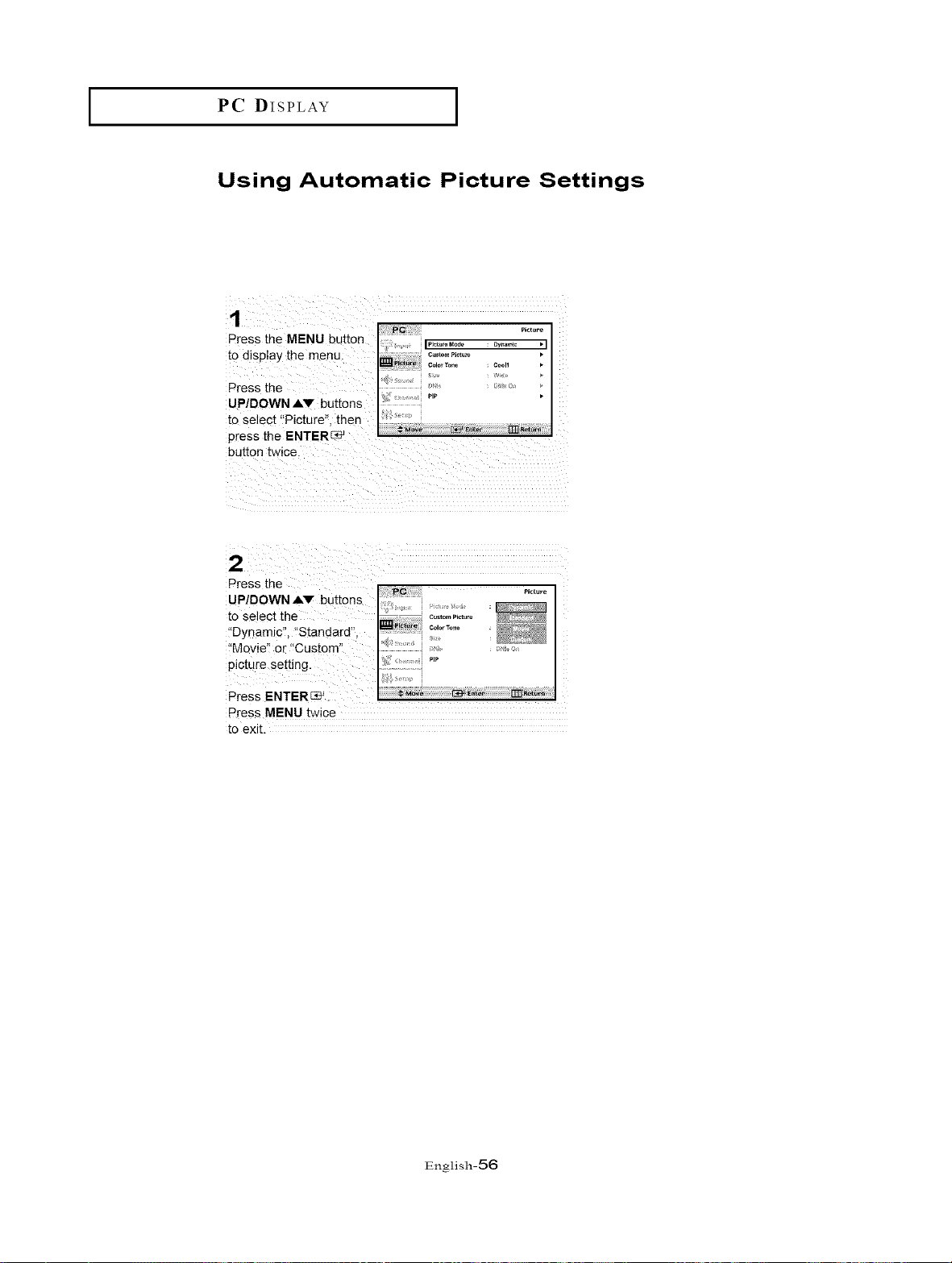
Using Automatic Picture Settings
1
Press the MENU button
to display the menu.
Press the
UP/DOWN Av buttons
to select "Picture". then
press the ENTER_
button twice.
p_ P_¢tute
_ PIP • I
Press the ._t._
UP/DOWN .&V buttons ,,_; ,
to Select the ¢o,o_o°o............
i'Dynamic'l, "Standard",
!'Mevie'! o[ '!Custom'!
picture Setting. _: ""
PressMENUtwice
toexit.
English-56
I PC DISPLAY I
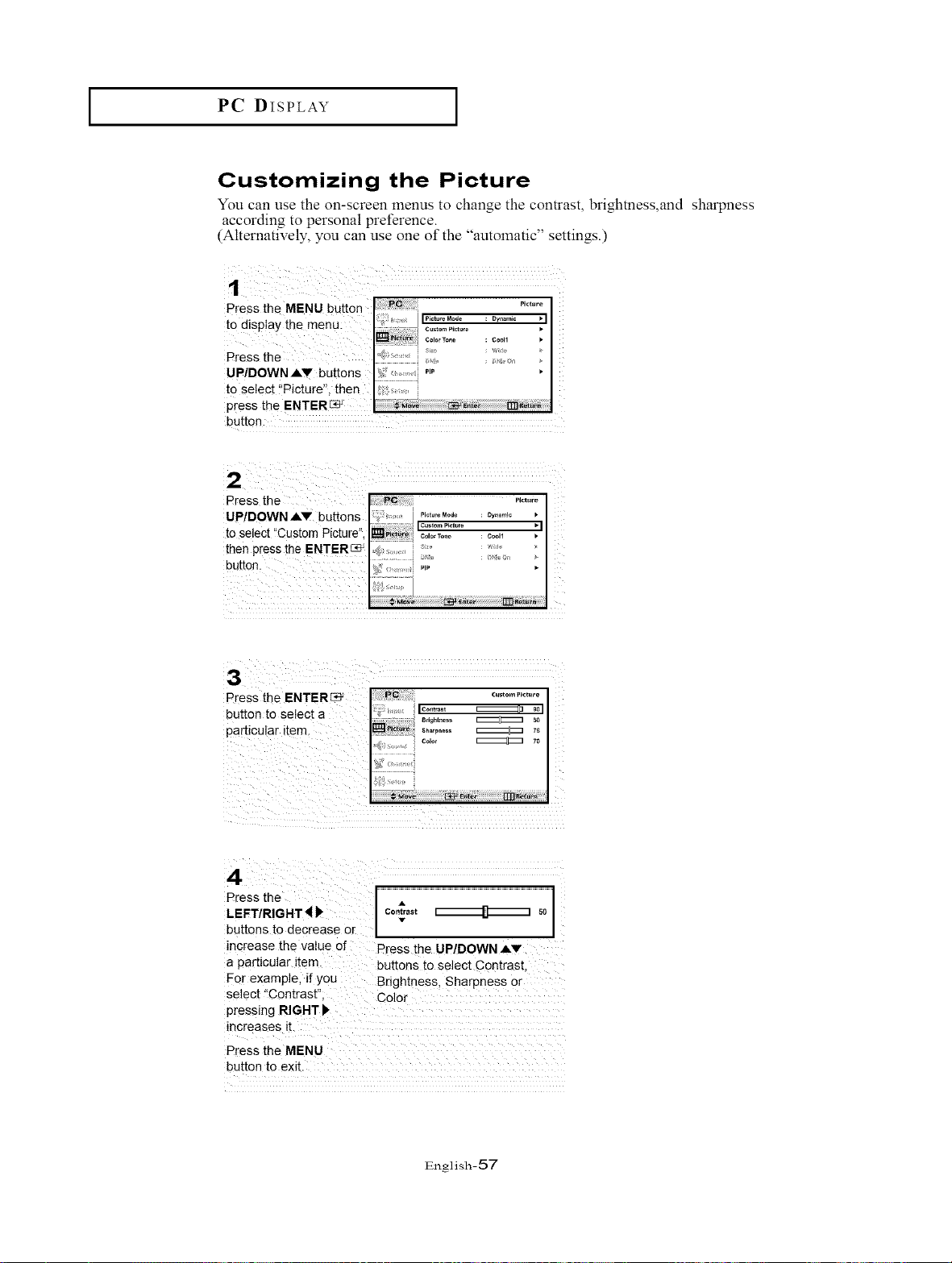
Customizing the Picture
You can use the on-screen menus to change the contrast, brightness,and sharpness
according to personal preference.
(Alternatively, you can use one of the "automatic" settings.)
Press the MENU button _"_
: Dynamic • I
t° display the menu: •
: Cooll
Press the
UP/DOWN AV buttons "_
to select i'Picture", then ,,
press the ENTER_
button.
Press; the P,,t.r_
UP/DOWNAV buttons ;'_ Pictu'eMcde : DYllanli¢
CUStom picture • I
to select "Custom Picture", co,o,To.o : coo.
then press the ENTER{:_ ,,_ ......
button.
;}_[;, , ; PI_' •
Press the ....................................................................................................................................................................................I
LEFT/R!GHT_ co._a,t I B I so
I
buttons to decrease Or
increase the value 0[ Press the UP/DOWN AV
a particular item. buttons to Select Contrast.
For example, if you Brightness, Sharpnes s Or
select !!Contrast" Co or
pressing RIGHT),
increases it.
Press the MENU
button to exit.
English-57
I PC DISPLAY I
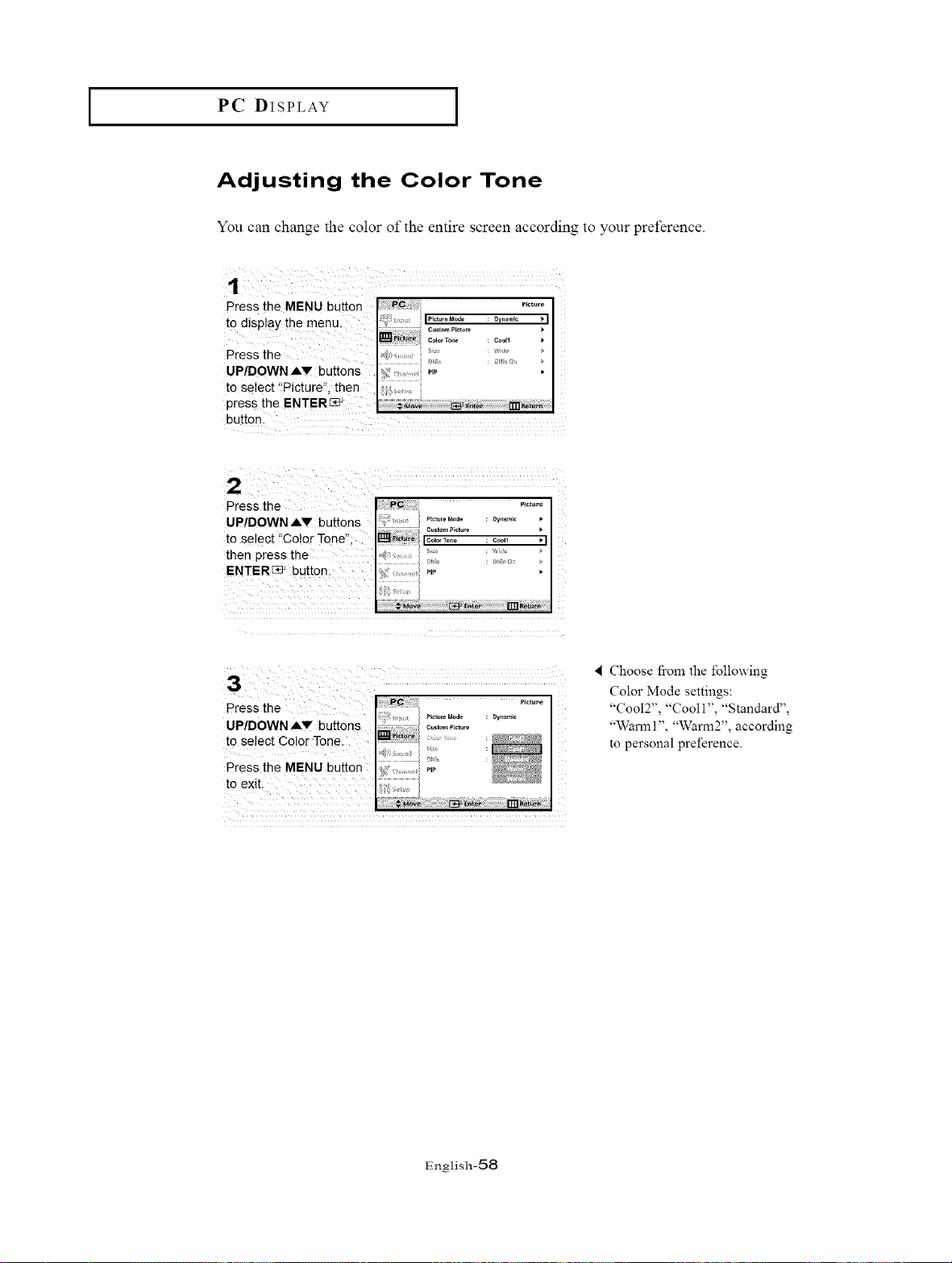
Adjusting the Color Tone
You can change the color of the entire screen according to your preference.
Press the MENU button
to disP!aY the menu.
Press the
U P/DOWN Av buttons
to select 'IPicture", then
press the ENTER_
act.,.
: Dynamic _*I
: 0_11
/ i
: i
buLtonl
Press the
UP!DOWN AV buttons
C_stom picture
to select l'Cotor Tone", IC*torT.... Coo. _1
then press the
ENTER[:_ button: :s
U P/DOWN ,&'_
to select Color Tone.
Press the MENU button
to exit.
Choose fi'om the lbllowing
Color Mode settings:
"Coo12", "Cooll", "Standard",
"Warm 1", "Warm2", according
to personal preference.
English-58
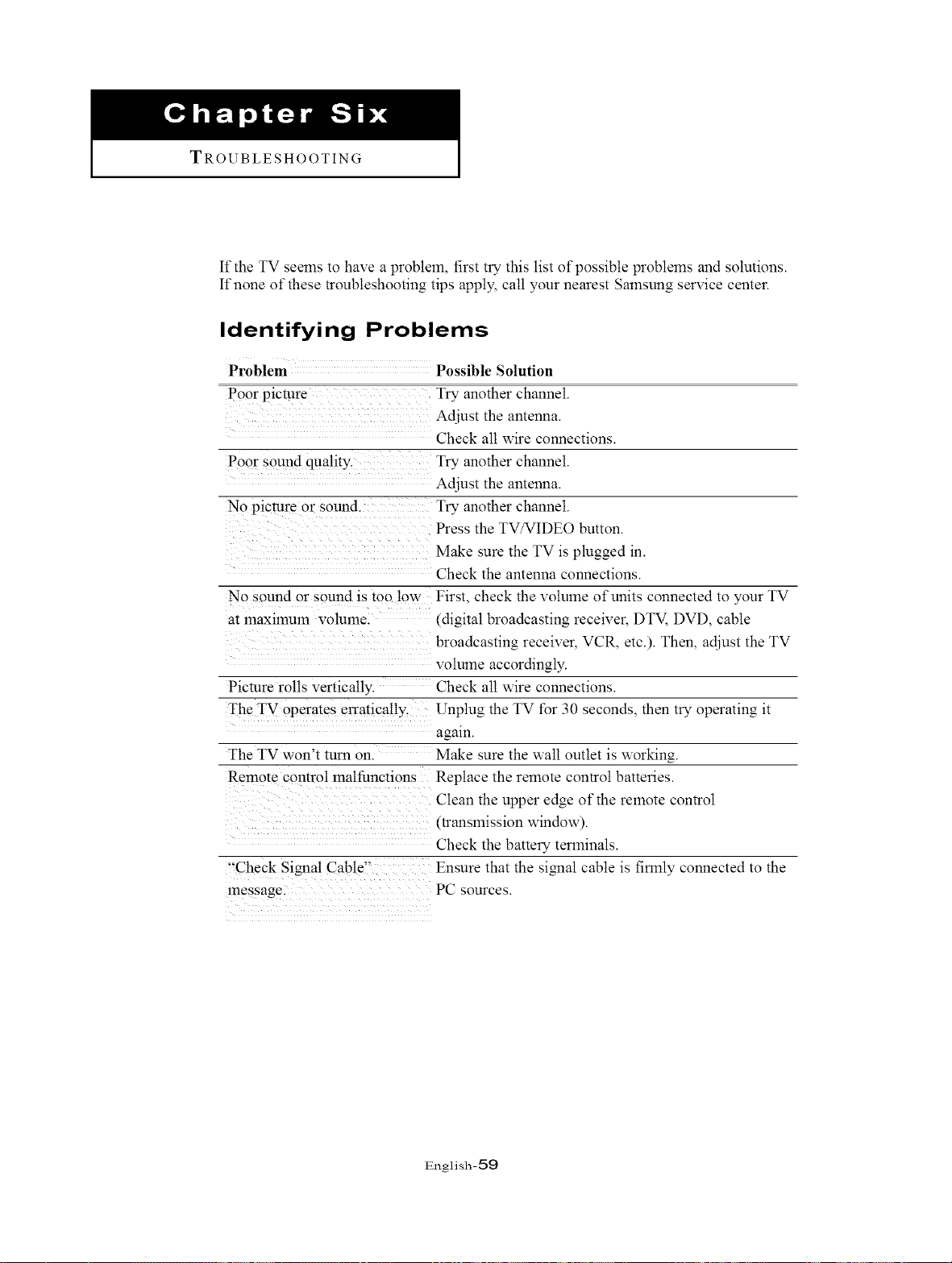
TROUBLESHOOTING
If the TV seems to have a problem, first try this list of possible problems and solutions.
If none of these troubleshooting tips apply, call your nearest Samsung sel-vice center.
Identifying Problems
Problem
Poor picture
Poor sound quality.
No picture or sound.
No sound or sound is too low
at lnaximtun volume.
Picture rolls vertically.
The TV operates erratically.
The TV won't turn on.
Remote control malfunctions
"Check Signal Cable'-
message.
Possible Solution
Try another channel.
Adjust the antenna.
Check all wire connections.
Try another channel.
Adjust the antenna.
Fry another channel.
Press the TV/VIDEO button.
Make sure the TV is plugged in.
Check the antenna connections.
First, check the volume of units connected to your TV
(digital broadcasting receiver, DTV, DVD, cable
broadcasting receiver, VCR, etc.). Then, adjust the TV
volume accordingly.
Check all wire connections.
Unplug the TV for 30 seconds, then try operating it
again.
Make sure the walt outlet is working.
Replace the remote control batteries.
Clean the upper edge of the remote control
(translnission window).
Check the battery terminals.
Ensure that the signal cable is firlnly connected to the
PC sources.
English-59
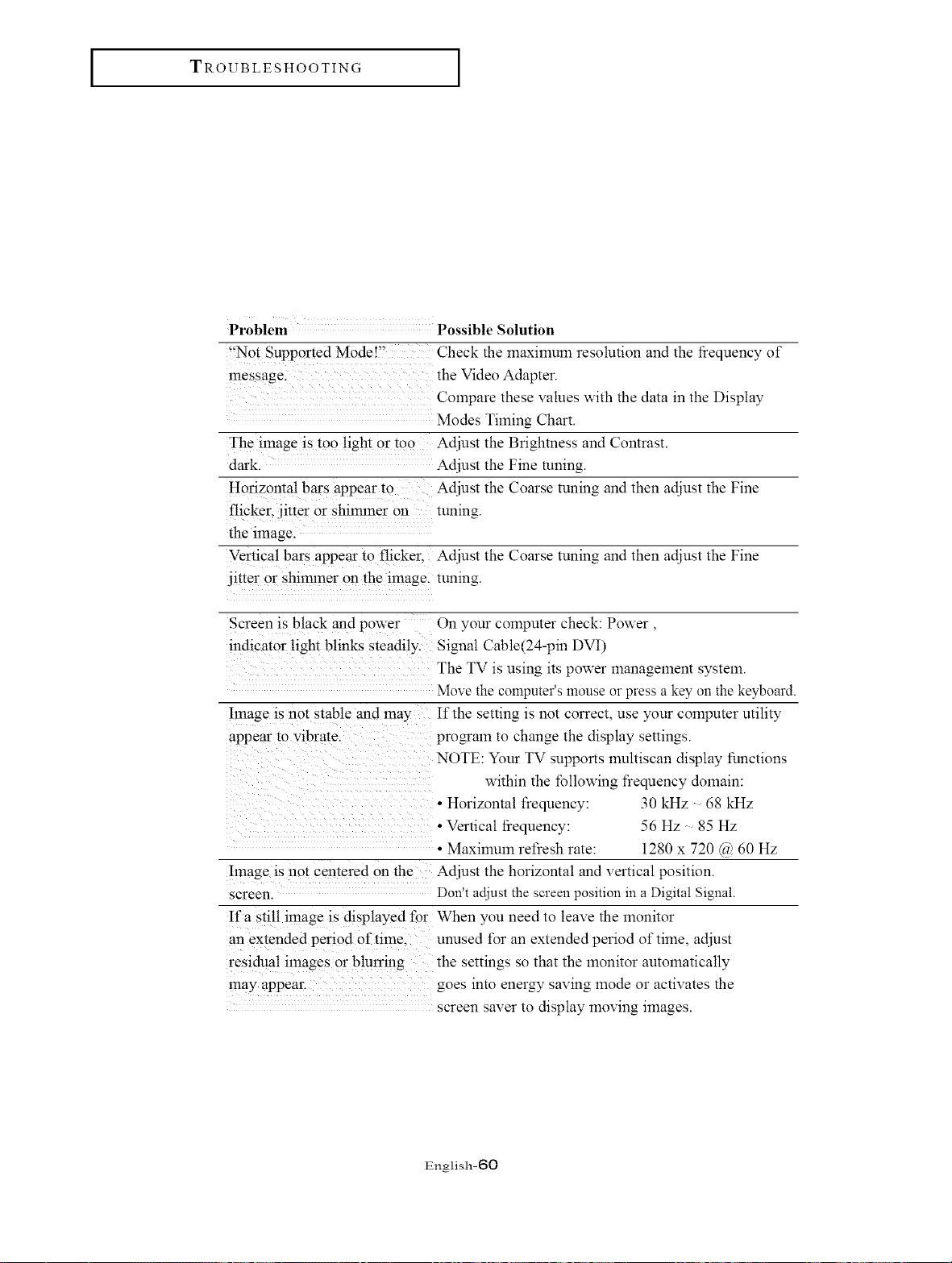
TROUBLESHOOTING
Problem Possible Solution
"Not Supported Mode!" Check the maximum resolution and the frequency of
message, the Video Adapter.
Compare these values with the data in the Display
Modes Timing Chart.
the image is too light or too Adjust the Brightness and Contrast.
dark. Adjust the Fine tuning.
Horizontal bars appear to Adjust the Coarse tuning and then adjust the Fine
flicker, jitter or shilmner Oll tuning.
the image.
Vertical bars appear to flicker. Adjust the Coarse tuning and then adjust the Fine
jitter or shilmner on the image, tuning.
Screen is black and power On your computer check: Power,
indicator light blinks steadily. Signal Cable(24-pin DVI)
The TV is using its power managelnent system.
Move the computer's mouse or press a key on the keyboard.
Image is not stable and may If the setting is not correct, use your computer utility
appear to vibrate, prQm'am to change the display settings.
NOTE: Your TV supports multiscan display functions
within the following frequency domain:
• Horizontal frequency: 30 kHz 68 kHz
• Vertical frequency: 56 Hz 85 Hz
• Maxilnum refresh rate: 1280 x 720 @ 60 Hz
Image is not centered on the Adjust the horizontal and vertical position.
screen. Don't adjust the screen position in a Digital Signal.
If a still image is displayed for When you need to leave the monitor
an extended period of time. unused t\_r an extended period of time, adjust
residual images or blurrmg the settings so that the monitor automatically
may appea_ goes into energy saving mode or activates the
screen saver to display moving images.
English-60
APPENDIX ]
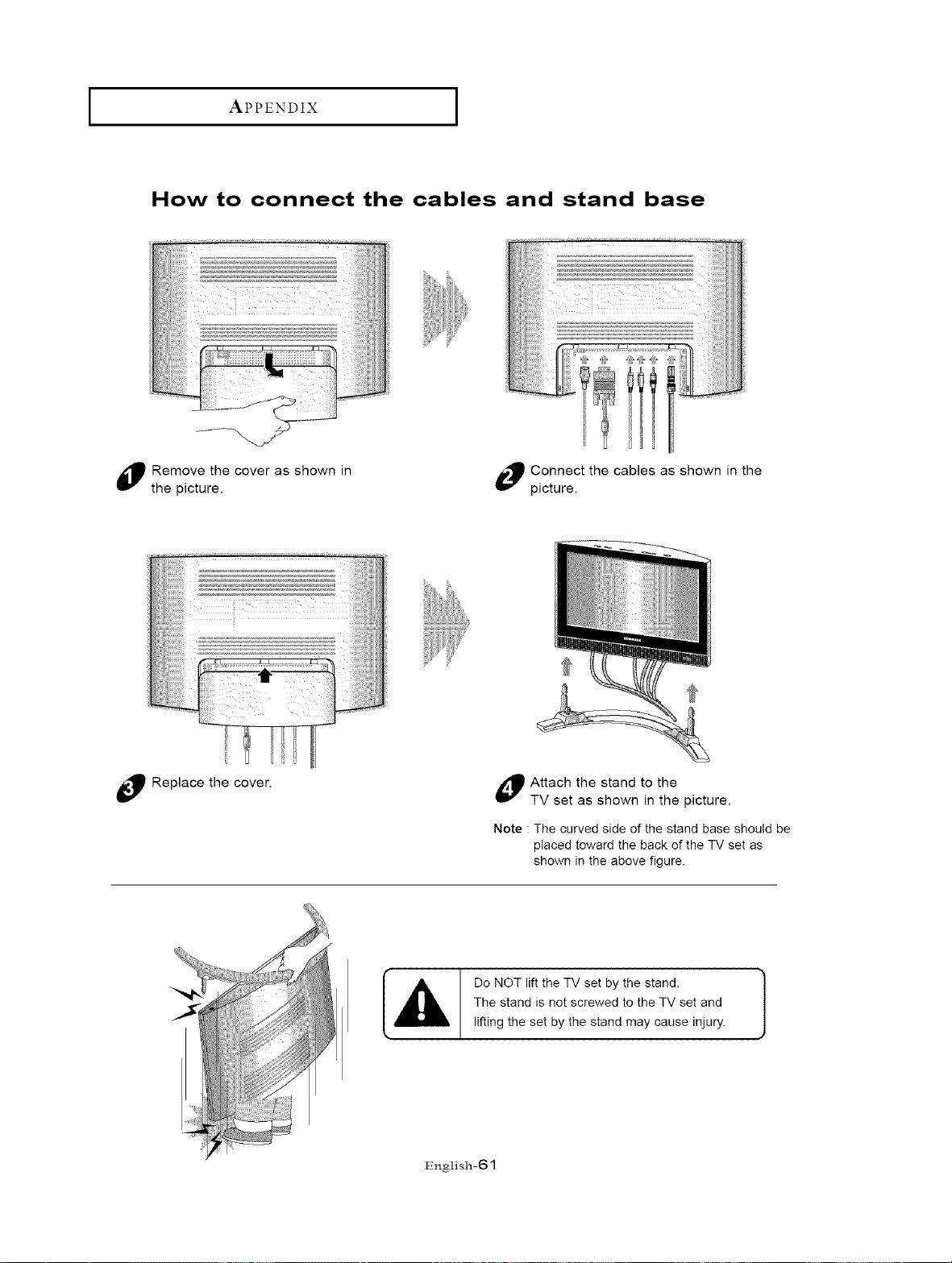
How to connect the cables and stand base
di_ Remove the cover as shown in _ Connect the cables as shown in the
the picture. _ picture.
_ Replace the cover. Attach the stand to the
TV set as shown in the picture.
Note : The curved side of the stand base should be
placed toward the back of the TV set as
shown in the above figure.
Do NOT lift the TV set by the stand.
The stand is not screwed to the TV set and
lifting the set by the stand may cause injury.
English-61
APPENDIX
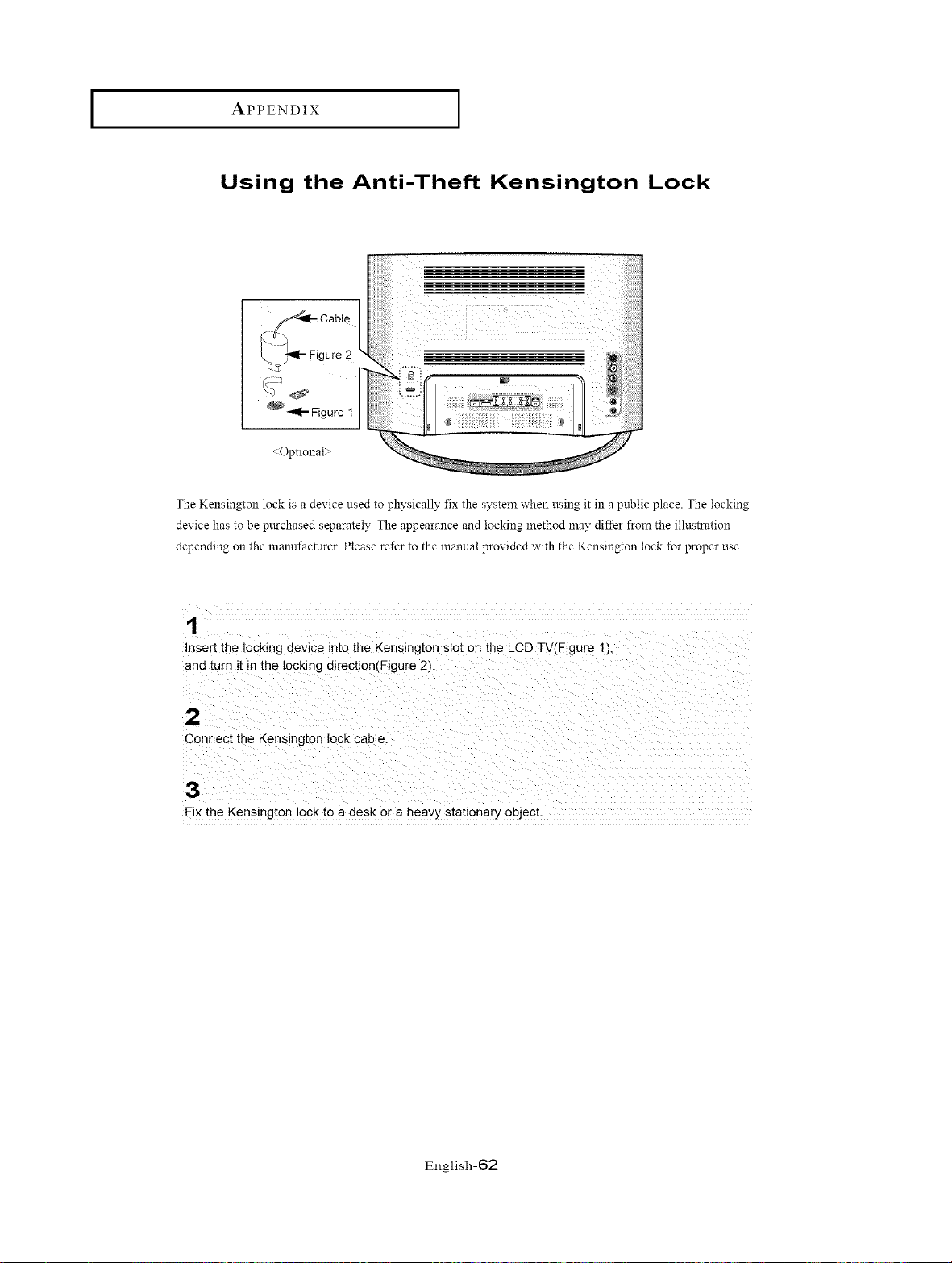
Using the Anti-Theft Kensington Lock
:Optional:"
The Kensington lock is a device used to physically fix the system when using it in a public place. The locking
dex ice has to be purchased separately. The appearance and locking method may differ from the illustration
depending on the manufacturer. Please refer to the manual prox ided with the Kensington lock for proper use.
1
nsert the locking device into the Kensington slot on the LCD TV(Figure I I.
and turn it in the locking direction(Figure 2_
2
Connect the Kensington lock cable
3
Fix the Kensington lock to a desk or a heavy stationary object.
English-62
APPENDIX
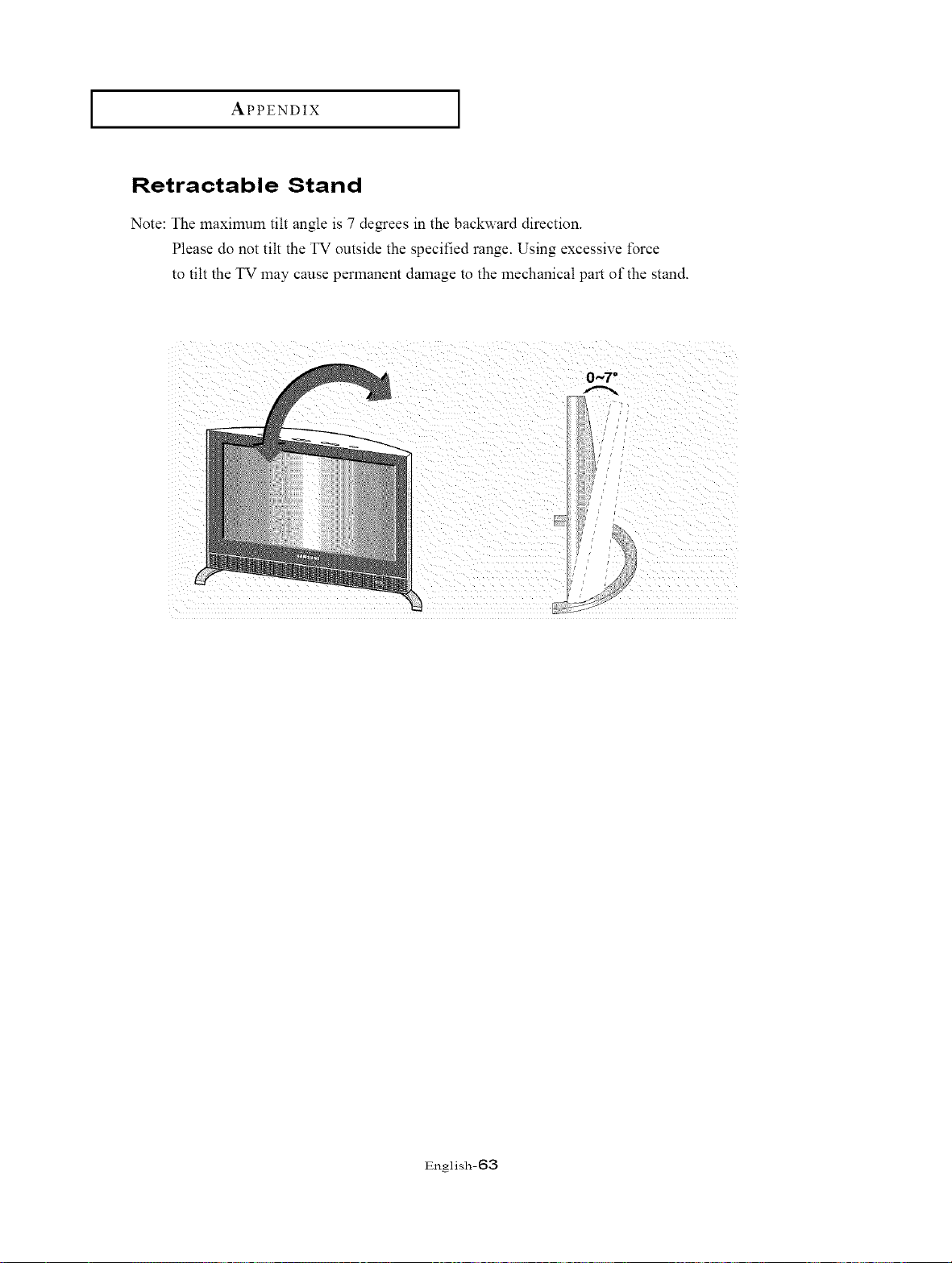
Retractable Stand
Note: The maximum tilt angle is 7 degrees in the backward direction.
Please do not tilt the TV outside the specified range. Using excessive force
to tilt the TV may cause permanent damage to the mechanical part of the stand.
0_7 =
English-63
APPENDIX ]
Cleaning and Maintaining Your TV
With proper care, your TV unit will give you many years of service. Please follow these
guidelines to get the maximum perfonnance from your TV.
Placement
• Do not place the TV near extremely hot, cold, humid or dusty places.
• Do not place the TV near appliances with electric motors that create magnetic fields,
such as vacuum cleaners.
• Keep the ventilation openings clear; do not place the TV on a soft surface, such as
cloth or paper.
• Place the TV in a vertical position only.
Liquids
• Do not handle liquids near oi on the TV.
Liquids that spill into it can cause serious damage.
Cabinet
• Never open the cabinet or touch the parts inside.
• Wipe your TV with a clean, dry cloth. Never use water, cleaning fluids, wax, or
chemicals.
• Do not put heavy objects on top of the cabinet.
Temperature
• If your TV is suddenly moved fiom a cold to a warm place, unplug the power cord,
and allow at least two hours for moisture that may have t\_nned inside the unit to dry
completely.
Using Your TV in Another Country
If you plan to take your TV with you to a foreign country, please be aware of the
different television systems that are in use around the world. A TV desiNled t\3r one
system may not work properly with another system due to differences in the TV channel
frequencies.
English-64
APPENDIX ]
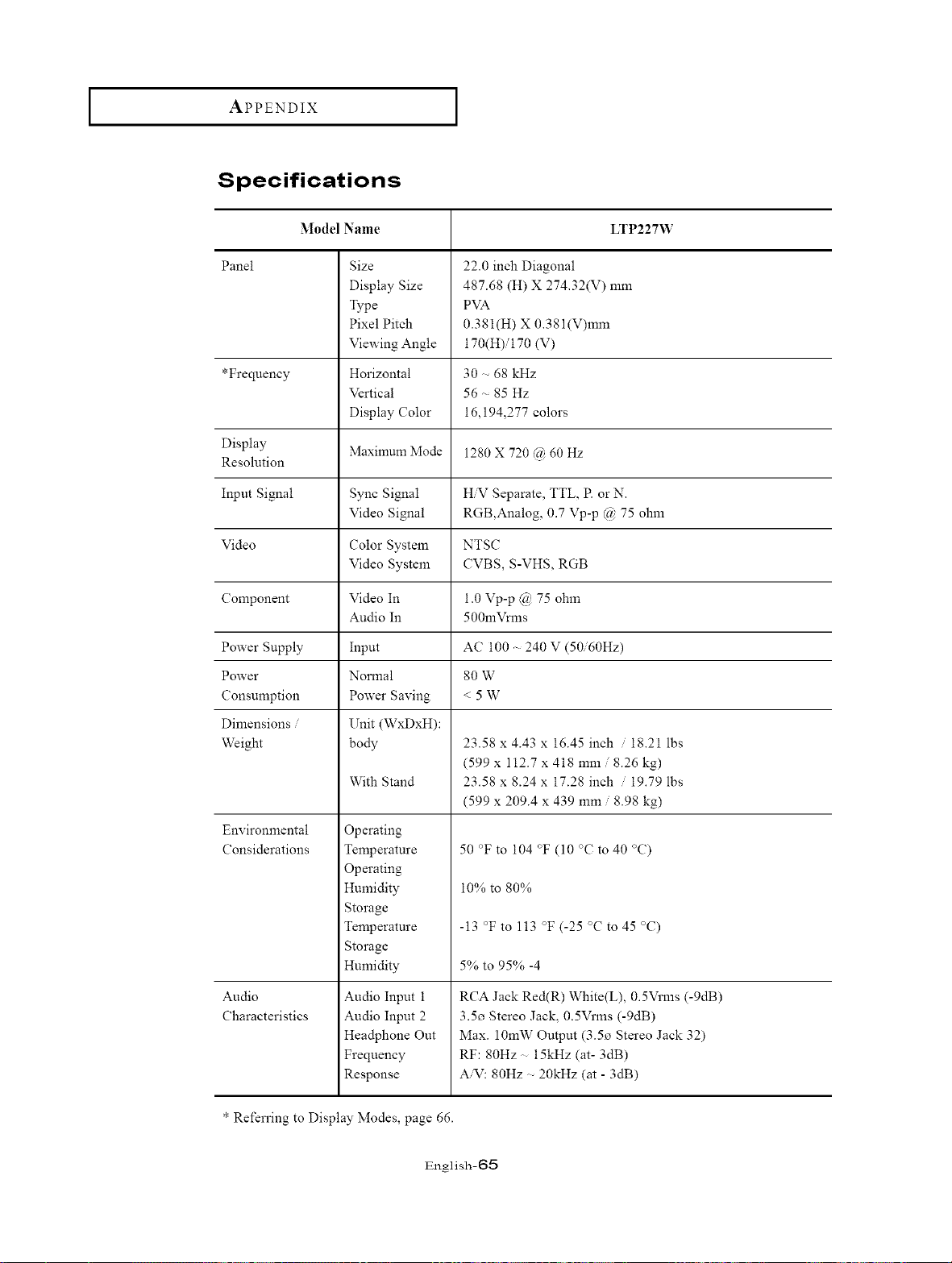
Specifications
Model Name LTP227W
Panel Size
Display Size
Type
Pixel Pitch
Viewing Angle
Horizontal
Vertical
Display Color
22.0 inch Diagonal
487.68 (H) X 274.32(V) mm
PVA
0.381(H) X 0.381(V)mm
170(H)i170 (V)
30 r. 68 kHz
56 r- 85 Hz
16,194,277 colors
*Frequency
Display Maximum Mode 1280 X 720 _b 60 Hz
Resolution
Input Signal Sync Signal HN Separate, TTL, R or N.
Video Signal RGB,Analog, 0.7 Vp-p @ 75 ohm
Video Color System NTSC
Video System CVBS, S-VHS, RGB
Component Video In 1.0 Vp-p @ 75 ohm
Audio In 500mVnns
Power Supply Input AC 100 - 240 V (50i60Hz)
Power Normal 80 W
Consumption Power Saving < 5 W
Dimensions Unit (WxDxH):
Weight body 23.58 x 4.43 x 16.45 inch / 18.21 lbs
(599 x 112.7 x 418 mm / 8.26 kg)
With Stand 23.58 x 8.24 x 17.28 inch / 19.79 lbs
(599 x 209.4 x 439 mm / 8.98 kg)
Environmental
Considerations
Operating
Temperature
Operating
Humidity
Storage
Temperature
Storage
Humidity
Audio Input 1
Audio Input 2
Hea@hone Out
Frequency
Response
Audio
Characteristics
50 °F to 104 °F (10 °C to 40 °C)
10% to 80%
-13 °F to 113 °F (-25 °C to 45 °C)
5% to 95% -4
RCA Jack Red(R) White(L), 0.5Vrms (-9dB)
3.5o Stereo Jack, 0.5Vrlns (-9dB)
Max. 10mW Output (3.5o Stereo Jack 32)
RF: 80Hz- 15kHz (at- 3dB)
A/V: 80Hz _- 20kHz (at - 3dB)
* Refen'ing to Display Modes, page 66.
English-65
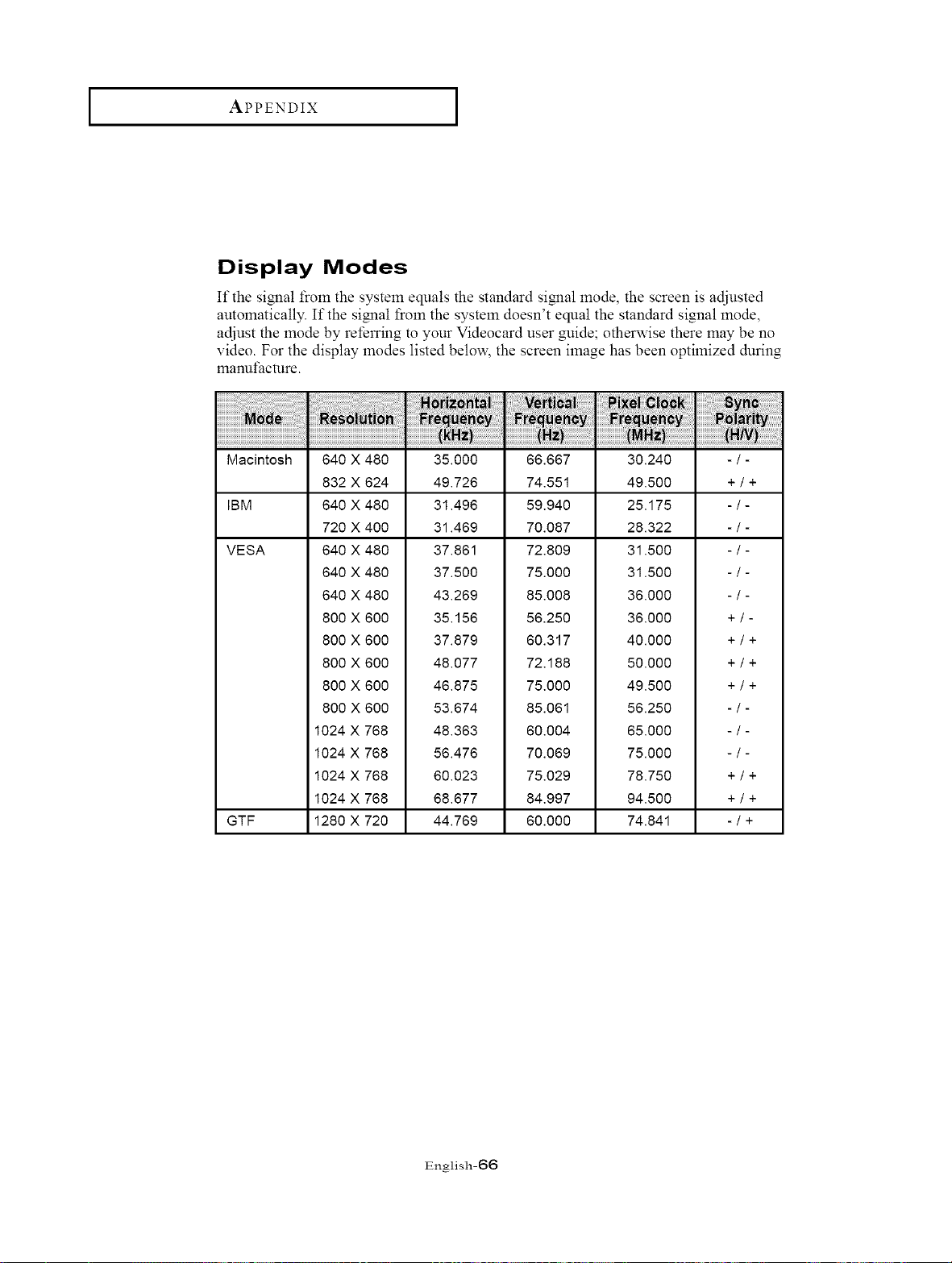
APPENDIX ]
Display Modes
If the signal from the system equals the standard signal mode, the screen is adjusted
automatically. If the signal from the system doesn't equal the standard signal mode,
adjust the mode by referring to your Videocard user guide; otherwise there may be no
video. For the display modes listed belo,a; the screen image has been optimized during
manufacture.
Macintosh
IBM
VESA
GTF
640 X 480
832 X 624
640 X 480
720 X 400
640 X 480
640 X 480
640 X 480
800 X 600
800 X 600
800 X 600
800 X 600
800 X 600
1024 X 768
1024 X 768
1024 X 768
1024 X 768
1280 X 720
35.000
49.726
31.496
31.469
37.861
37.500
43.269
35.156
37.879
48.077
46.875
53.674
48.363
56.476
60.023
68.677
44.769
66.667
74.551
59.940
70.087
72.809
75.000
85.008
56.250
60.317
72.188
75.000
85.061
60.004
70.069
75.029
84.997
60.000
30.240
49.500
25.175
28.322
31.500
31.500
36.000
36.000
40.000
50.000
49.500
56.250
65.000
75.000
78.750
94.500
74.841
-/-
+/+
+/-
+/+
+/+
+/+
+/+
+/+
-/+
English-66
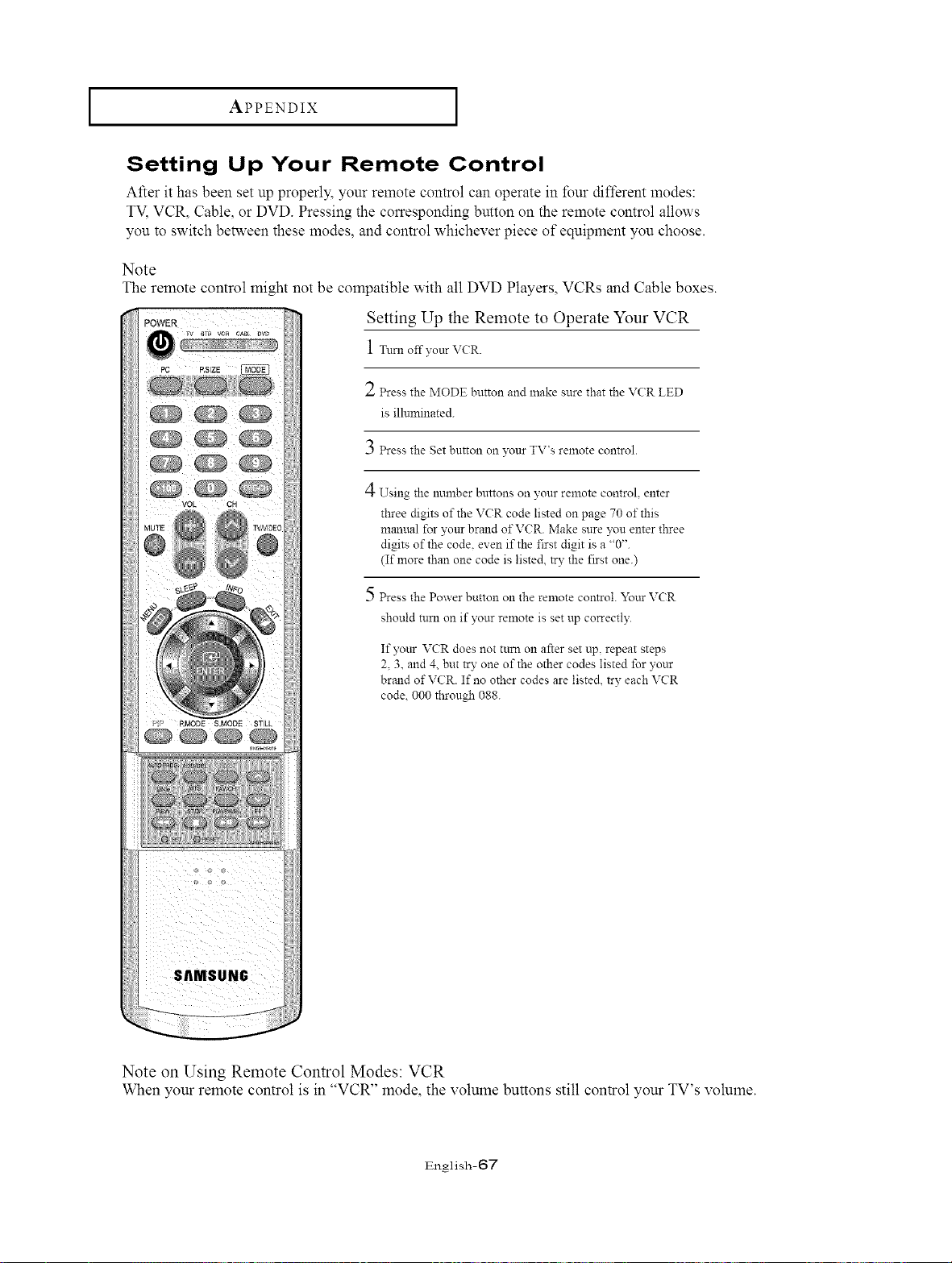
APPENDIX ]
Setting Up Your Remote Control
After it has been set up properly, your remote control can operate in four different modes:
TV, VCR, Cable, or DVD. Pressing the corresponding button on the remote control allows
you to switch between these modes, and control whichever piece of equipment you choose.
Note
The remote control might not be compatible with all DVD Players, VCRs and Cable boxes.
Setting Up the Remote to Operate Your VCR
1 Turn off your VCR.
2 Press the MODE button and make sure that the VCR LED
is ilhnninated.
3 Press the Set button on your TV's remote control.
4 Using the number buttons on your remote control, enter
three digits of the VCR code listed on page 70 of this
manual for your brand of VCR. Make sure you enter three
digits of the code. even if the first digit is a "0".
(If more than one code is listed, try the first one.)
5 Press the Power button on the remote control. Your VCR
should mm on if your remote is set up correctly.
If your VCR does not turn on after set up, repeat steps
2, 3, and 4, but try one of the other codes listed for your
brand of VCR. If no other codes are listed, try each VCR
code. 000 through 088.
Note on Using Remote Control Modes: VCR
When your remote control is in "VCR" mode, the volume buttons still control your TV s xolume.
English-67
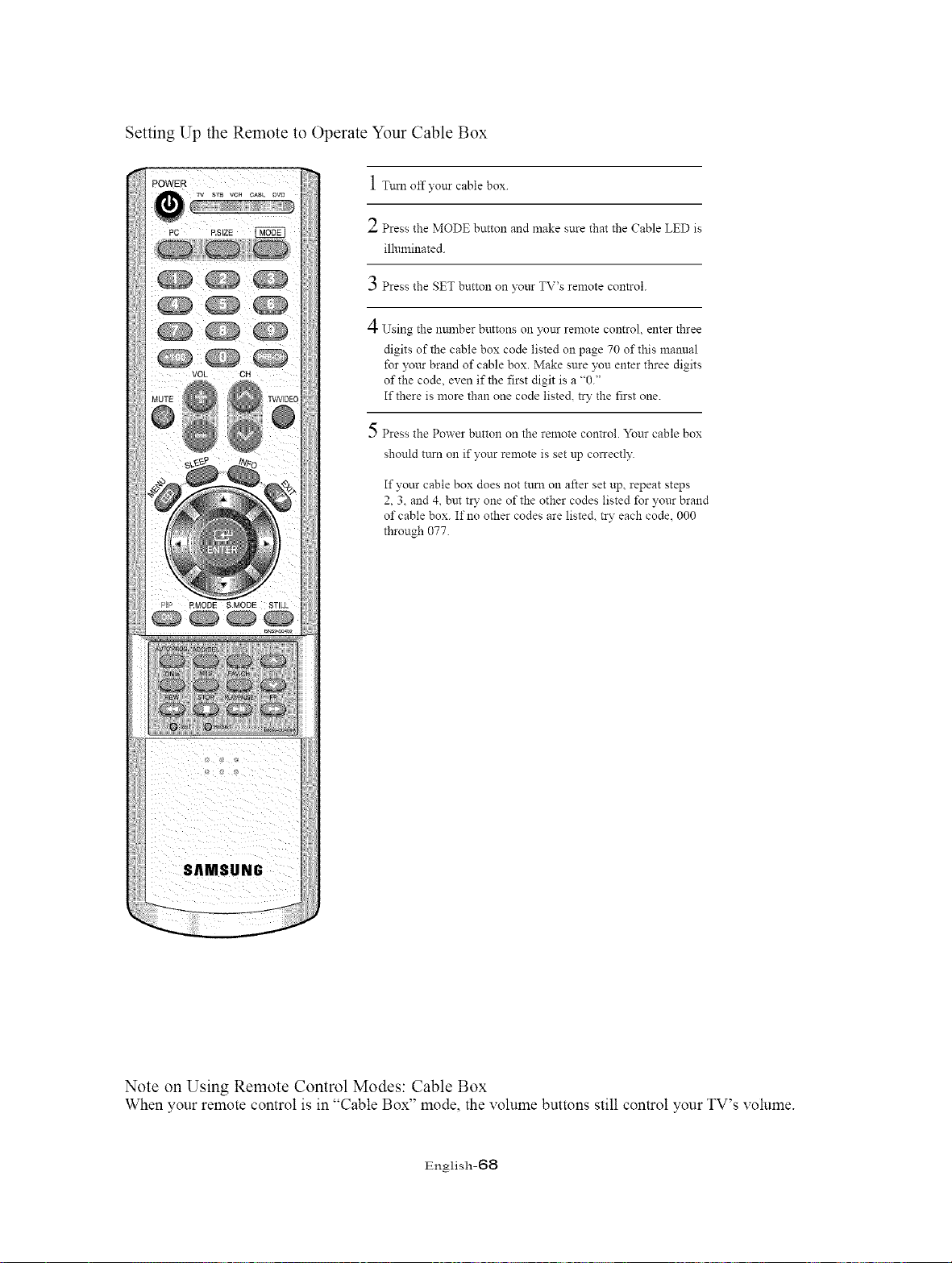
Setting Up the Remote to Operate Your Cable Box
1 T.moffyonrcable box.
2 Press the MODE button and make sure that the Cable LED is
illuminated.
3 Press the SET button on }'our TV's remote control.
4 Using the number buttons on )'our remote control, enter three
digits of the cable box code listed on page 70 of this manual
for yottr brand of cable box. Make sure you enter three digits
of the code, even if the first digit is a "0."
If there is more than one code listed, try the first one.
5 Press the Power button on the remote control. Your cable box
should tttrn on if your remote is set up correctly.
If your cable box does not turn on after set up, repeat steps
2, 3, and 4, bm tlF one of the other codes listed for your brand
of cable box. If no other codes are listed, try each code. 000
through 077.
Note on Using Remote Control Modes: Cable Box
When your remote control is in "Cable Box" mode, the volume buttons still control your TV's volume.
English-68
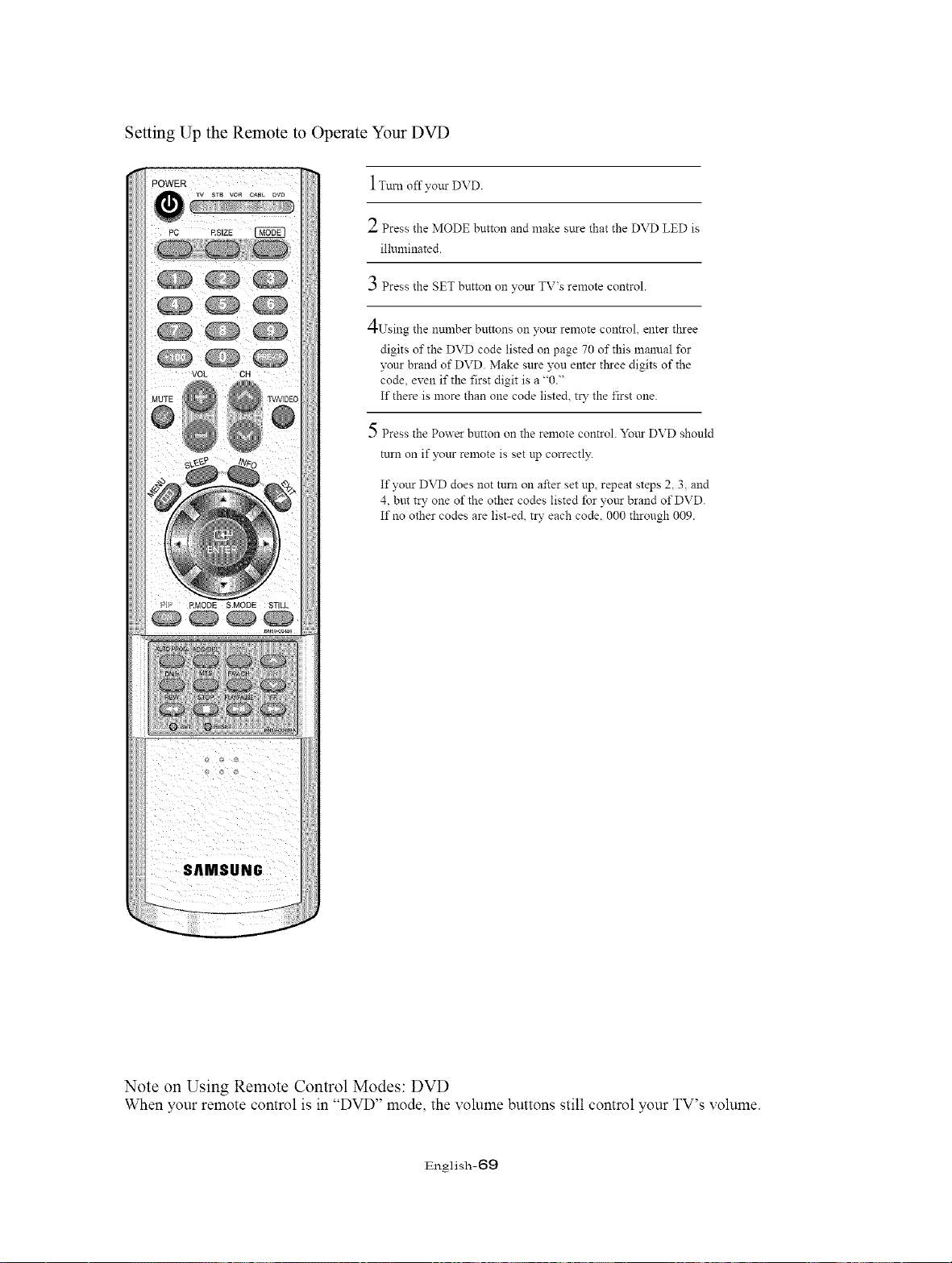
Setting Up the Remote to Operate Your DVD
1Turn off ?'our DVD.
2 Press the MODE button and make sure that the DVD LED is
illuminated.
3 Press the SET button on your TV's remote control.
4Using the number buttons on ?'our remote control, enter three
digits of the DVD code listed on page 70 of this manual t\_r
?'our brand of DVD. Make sure yon enter tllree digits of the
code, exen if the first digit is a "0."
If there is more than one code listed, try the first one.
5 Press the Power button on the remote control. Yottr DVD should
turn on if your remote is set up correctly.
If your DVD does not turn on after set up, repeat steps 2, 3. and
4, but try one of the other codes listed for your brand of DVD.
If no other codes are list-ed try each code 000 through 009.
Note on Using Remote Control Modes: DVD
When your remote control is in "DVD" mode, the volume buttons still control your TV's volume.
English-69
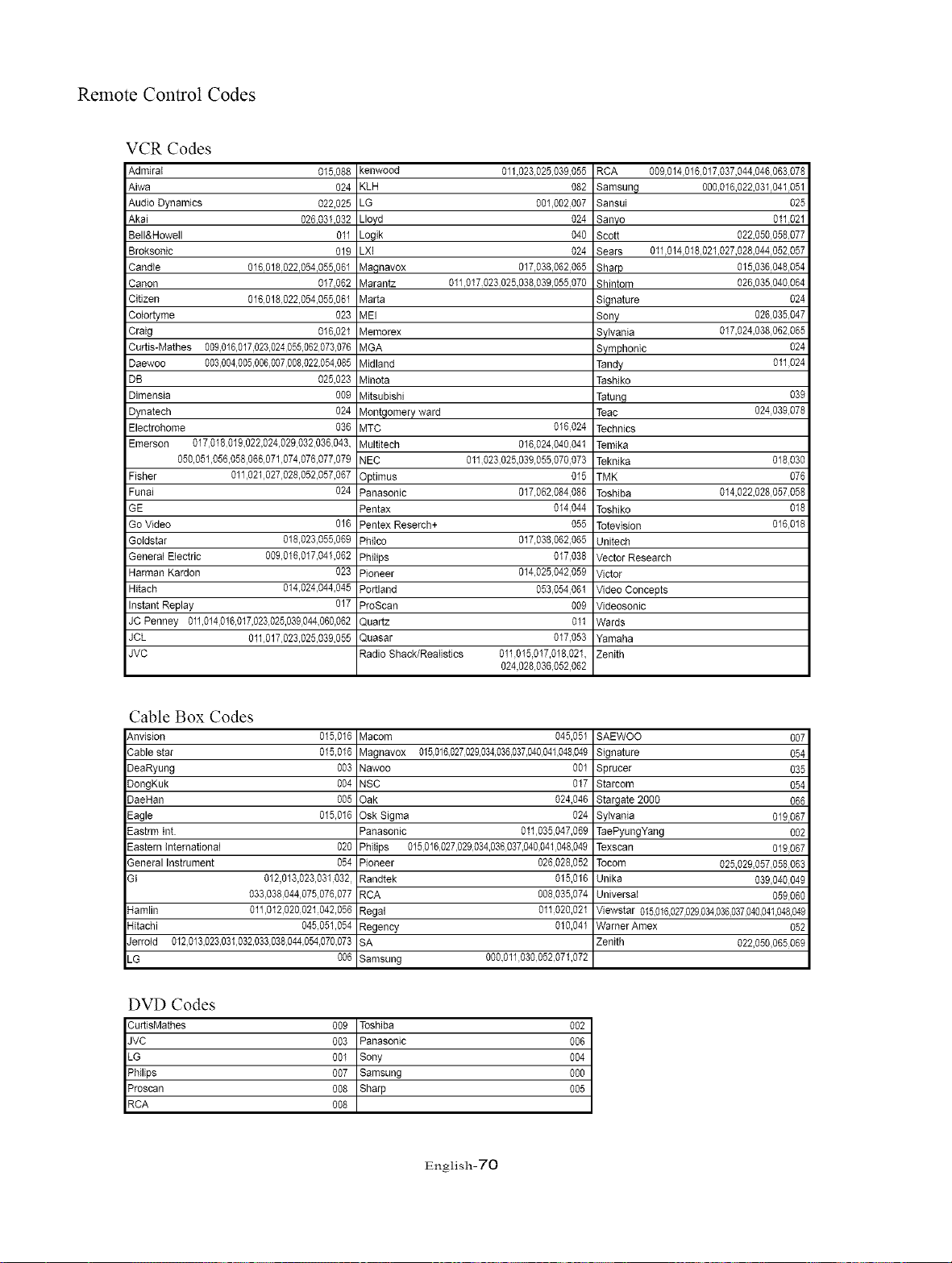
Remote Control Codes
VCR Codes
Admiral 015,088
Aiwa 024
Audio Dynamics 022,025
AkaJ 028,031,032
Bell&Howell 011
Broksonic 019
Candle 016 018 022,054,055,081
Canon 017,082
Citizen 016018022,054,055,061
Colortyme 023
Craig 018,021
Curtis-Mathes 009,016,017,023,024,055,062,073,076
Daewoo 003,004,005,006,007,008,022,054,085
kenwood
KLH
LG
Lloyd
Logik
LXI
Magnavox
Marantz
Manta
MEI
Memorex
MGA
Midland
011,023,025,039,055
082
001,002007
024
040
024
017,038,082_085
011,017,023,025,038,039,05&070
DB 025,023 MJnota
Dimensia 009 MJtsubishi
Dynatech 024 Montgomery ward
Electrohome 038 MTC 016024
Emerson 017,018,019,022,024,029,032,038,043,Multitech 018,024,040,041
050,051,058,058,088,071,074,076,077,079NEC 011023 025,039,055,070,073
Fisher 011,021,027,028,052,057,087OptJmus 015
Funai 024 Panasonic 017,082,084,088
RCA 009,014018,017,037,044,048,083078
Samsung 000,018,022,031,041051
SansuJ 025
Sanyo 011_021
Scott 022,050,058077
Sears 011014 01&021,027,028,044,052057
Sharp 015,038,048054
Shintom 028,035,040084
Signature 024
Sony 026,035047
Sylvania 017,024,038,082085
Symphonic 024
Tandy 011,024
Tashiko
Tatung 039
Teac 024039078
Technics
Temika
Teknika 018030
TMK 078
Toshiba 014,022,028,057058
GE
Go Video 018
Gotdstar 018,023,055,089
General Electric 009018,017,041,062
Harman Kardon 023
Hitach 014,024,044,045
Instant Replay 017
JC Penney 011,014,018,017,023,025,039,044,080,082
JCL 011017 023,025,039,055
JVC
Pentax 014,044
Pentex Reserch+ 055
Philco 017,038,082,085
Philips 017,038
Pioneer 014,025,042,059
Portland 053,054081
ProScan 009
Quartz 011
Quasar 017,053
Radio Shack/ReaIistics 011015 017,018,021,
024,028,036,052,062
Toshiko
Totevision
Unitech
Vector Research
Victor
Video Concepts
Videosonic
Wards
Yamaha
Zenith
018
016018
Cable Box Codes
Anvision
Cable star
DeaRyung
DongKuk
DaeHan
Eagle
Eastrm Int.
Eastern tnternationN
General Instrument
GI
015,016
015,016
0O3
004
0O5
015,016
Macom 045,051
Magnavox 015,016,027,029,034,036,037,040,041,048,049
Nawoo 001
NSC 017
Oak 024,048
Osk Sigma 024
Panasonic 011035047,089
020 Philips 015,018,027,029,034,036,037,040,041,048,049
054 Pioneer
012,013,023,031,032,Randtek
033,038,044,075,076,077RCA
Hamlin 011,012,020,021,042,056Regal
Hitachi 045051,054 Regency
Jerrold 01Z013,023,031,032,033,038,044,054,070,073SA
LG 0% Samsung 000,011,030,052,071,072
SAEWOO 007
Signature 054
Sprucer 035
Starcom 054
Stargate 2000 088
Sylvania 019_067
TaePyungYang 002
Texscan 019067
028028,052
015,016
008035,074
011020,021
010,041
Tocom 025,029,057,058083
Unika 039,040,049
Universal 059,080
Viewstar 015,016,027,029,034,038,037,040,041,048049
Warner Amex 052
Zenith 022,050,085089
DVD Codes
CurtisMathes 009 Toshiba 002
JVC 003 Panasonic 0%
LG 001 Sony 004
Philips 007 Samsung 0%
Proscan 008 Sharp 005
RCA 008
English-70
COVER 10/14/03 3:01 AM Page 1