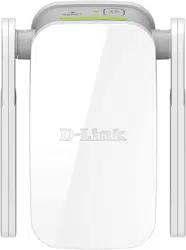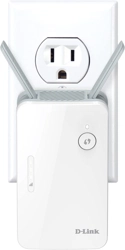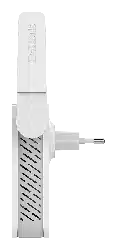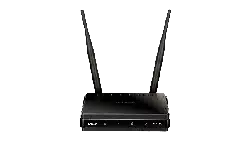
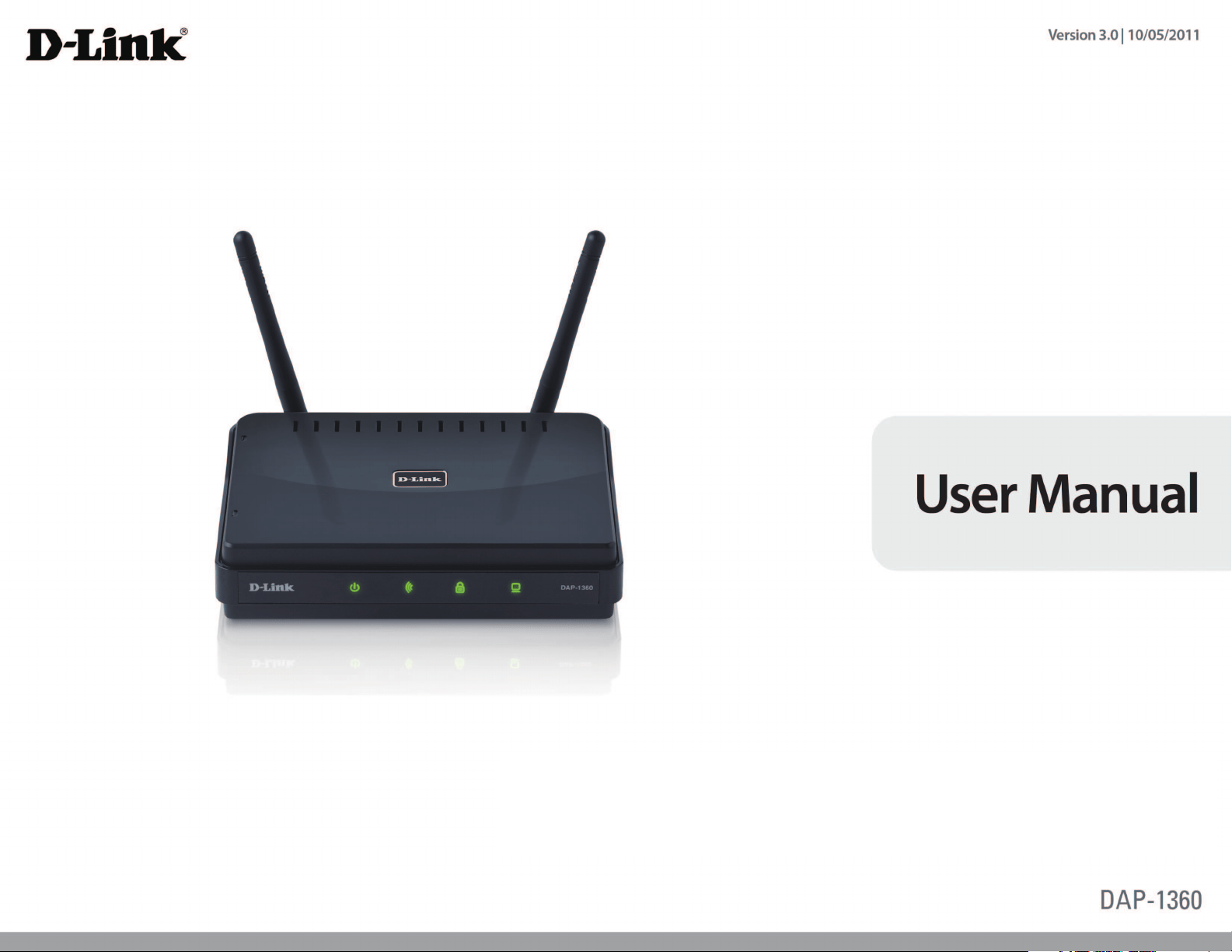
Wireless N Open Source Access Point

2D-Link DAP-1360 User Manual
Table of Contents
Package Contents ......................................................................... 4
System Requirements ................................................................. 5
Introduction ................................................................................... 6
Features ............................................................................................ 8
Hardware Overview ..................................................................... 9
Connections ...........................................................................9
LEDs .........................................................................................10
WPS LED/Button..................................................................11
Installation .......................................................................12
Operation Modes ........................................................................12
Access Point Mode .............................................................13
Wireless Client Mode .........................................................14
Repeater Mode ....................................................................15
Bridge Mode .........................................................................16
Bridge with AP Mode ........................................................17
WISP Client Router Mode .................................................18
WISP Repeater Mode .........................................................19
Wireless Installation Considerations ....................................20
Conguration ...................................................................21
Web-based Conguration Utility ..........................................21
Wireless Setup Wizard ...............................................................22
Access Point Mode .............................................................23
Repeater Mode ....................................................................26
Wireless Client Mode .........................................................30
Manual Conguration ...............................................................34
Wireless Settings .................................................................34
Access Point Mode ........................................................35
Repeater Mode ...............................................................37
Wireless Client Mode ....................................................38
Bridge Mode ....................................................................39
Bridge with AP Mode....................................................40
WISP Client Router/WISP Repeater Modes ...........41
WAN Settings .......................................................................42
Dynamic IP (DHCP) ........................................................42
Static IP ..............................................................................43
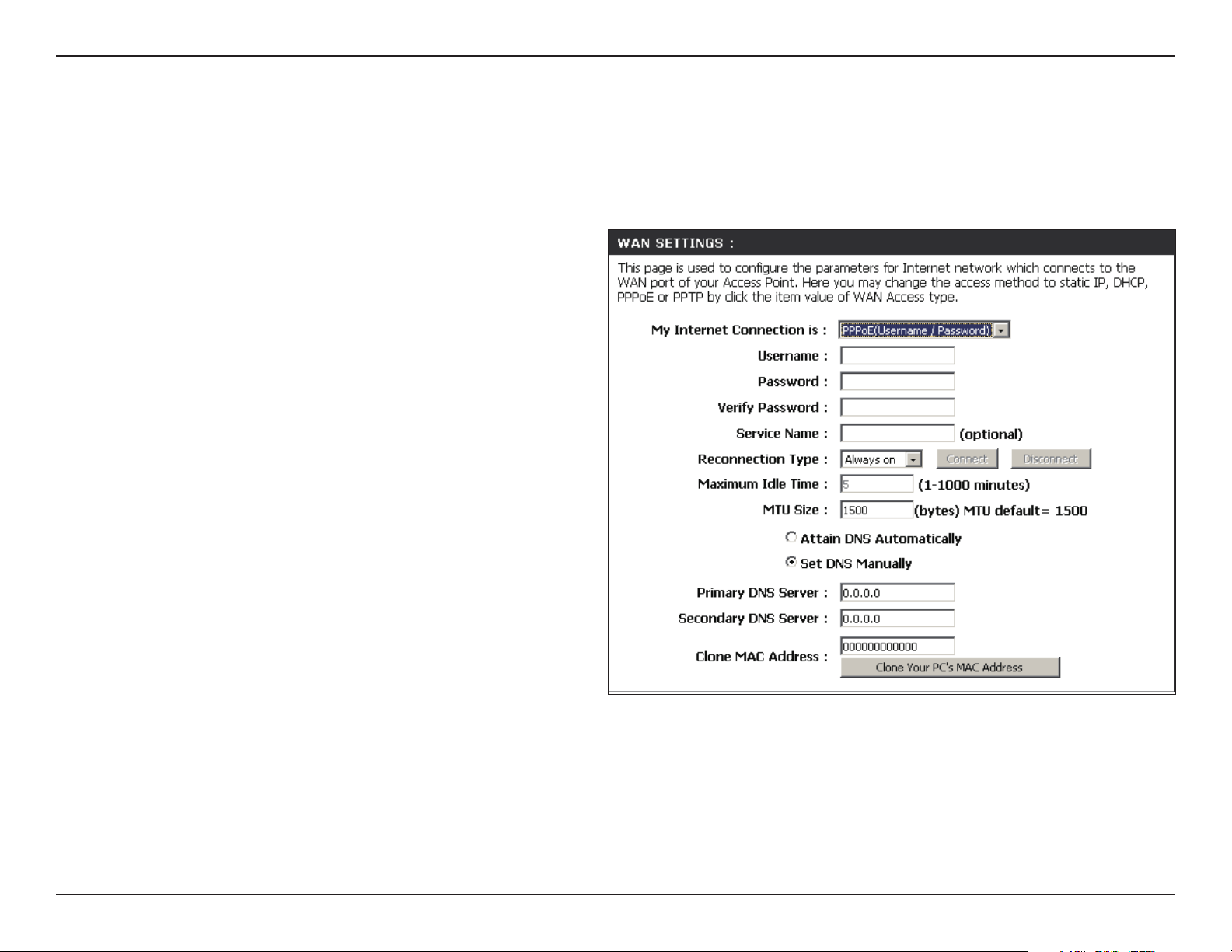
PPPoE .................................................................................44
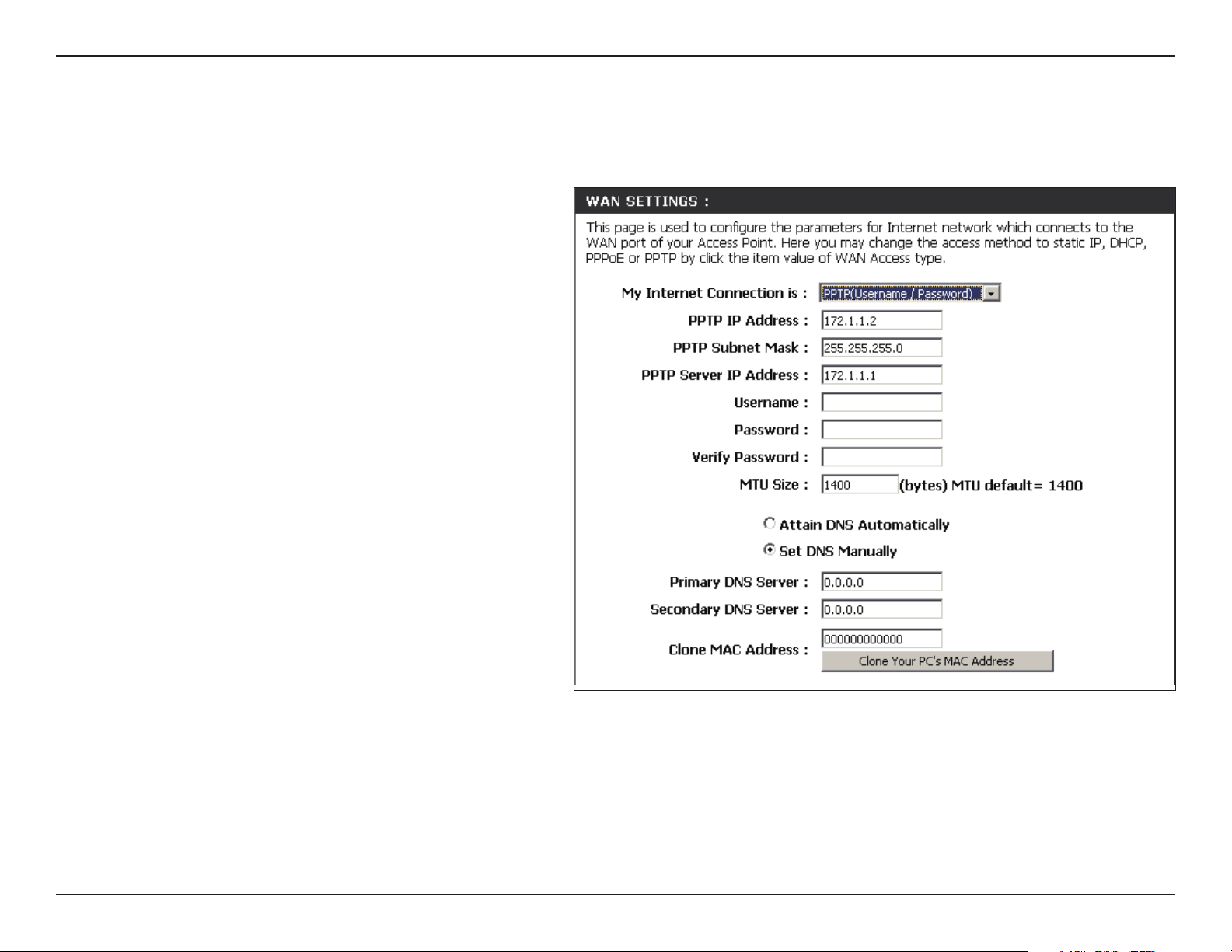
PPTP ....................................................................................45
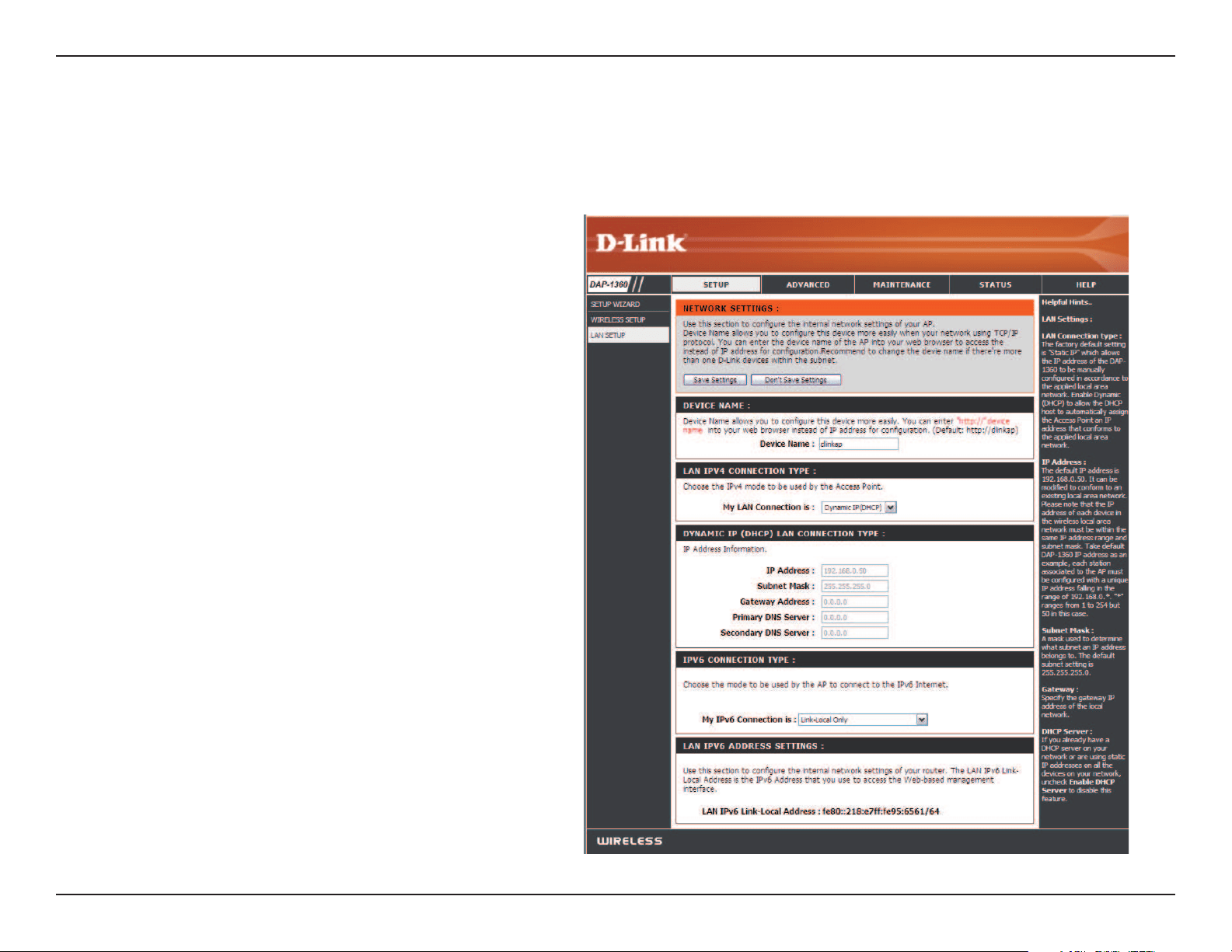
LAN Settings .........................................................................46
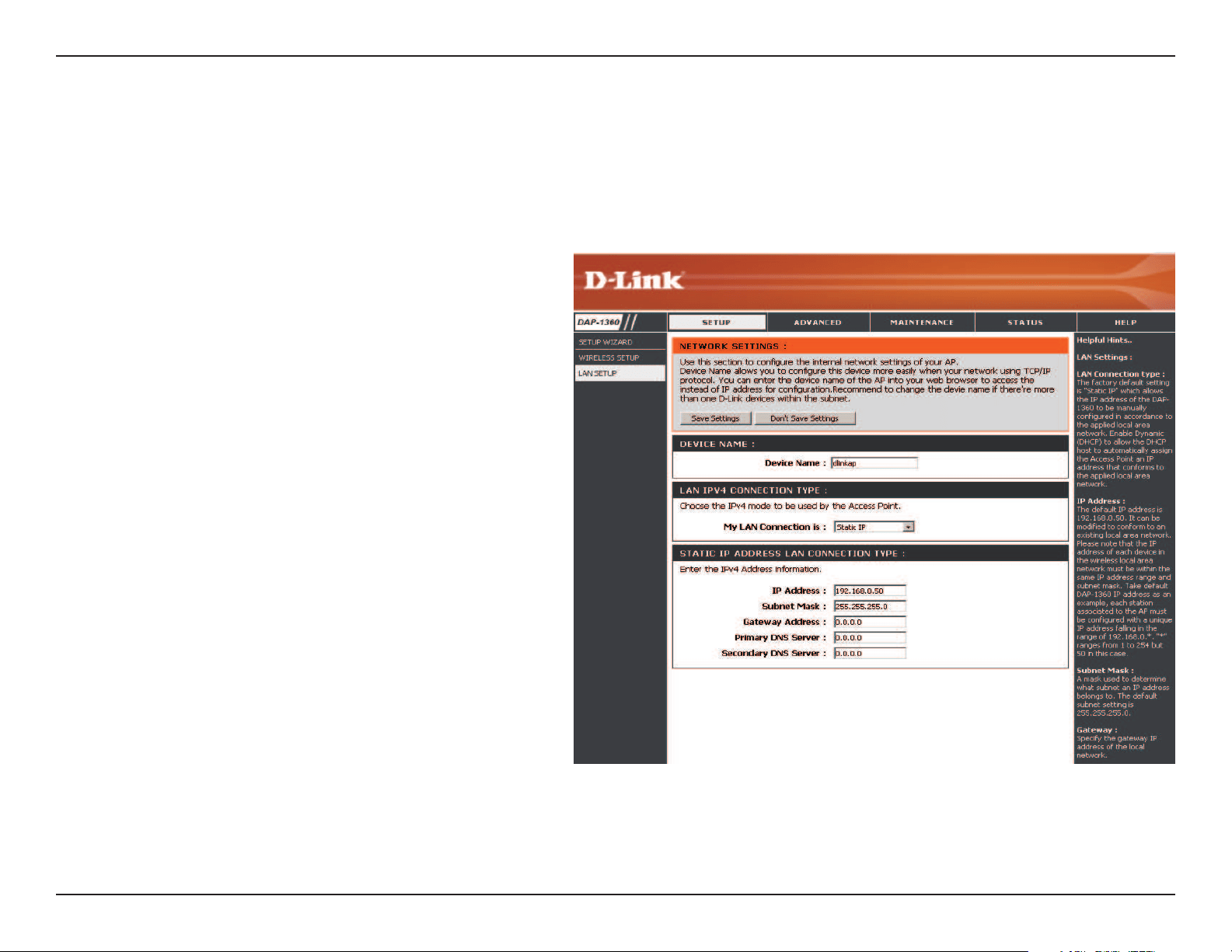
Static IP ..............................................................................47
Advanced ......................................................................................48
Advanced Wireless .............................................................48
MAC Address Filter .....................................................................49
Wi-Fi Protected Setup ...............................................................50
User Limits .....................................................................................51
Port Forwarding (WISP modes only) ...................................52
Port Filter (WISP modes only) ................................................53
DMZ (WISP modes only) ..........................................................54
Parental Control (WISP modes only)....................................55
Advanced Network (WISP modes only) .............................56
Maintenance ................................................................................57
Admin .....................................................................................57
System ....................................................................................58
Language Pack .....................................................................59
Table of Contents

3D-Link DAP-1360 User Manual
Table of Contents
Firmware ................................................................................59
Watchdog ..............................................................................60
Time .........................................................................................61
System Check .......................................................................62
Schedules ..............................................................................63
Status ..............................................................................................64
Device Info ............................................................................64
Logs .........................................................................................65
Statistics .................................................................................66
Wireless ..................................................................................67
IPv6 ..........................................................................................68
Help .................................................................................................69
Wireless Security .............................................................70
What is WPA? ................................................................................71
Congure WPA/WPA2 Personal .............................................72
Congure WPA/WPA2 Enterprise ..........................................73
Connect to a Wireless Network .......................................74
Using Windows
®
XP ....................................................................74
Congure WPA-PSK ....................................................................75
Using Windows Vista
®
...............................................................77
Congure WPA-PSK ....................................................................79
Using Windows
®
7 .......................................................................80
Congure WPS .....................................................................83
Troubleshooting ..............................................................87
Wireless Basics .................................................................91
What is Wireless? .........................................................................92
Tips ...................................................................................................94
Wireless Modes ............................................................................95
Networking Basics ...........................................................96
Check your IP address ...............................................................96
Statically Assign an IP address ...............................................97
Technical Specications ..................................................98

4D-Link DAP-1360 User Manual
Section 1 - Product Overview
Note: Using a power supply with a dierent voltage rating than the one included with the DAP-1360 will cause damage and void
the warranty for this product.
Package Contents
DAP-1360 Wireless N Open Source Access Point
Ethernet Cable
Two Detachable Antennas
CD-ROM with Manual
Power Adapter
5D-Link DAP-1360 User Manual
Section 1 - Product Overview
System Requirements
Network Requirements
•AnEthernet-basedNetwork
•IEEE802.11n/gwirelessclients(AP/RepeaterMode)
•IEEE802.11n/gwirelessnetwork(Client/Bridge/RepeaterMode)
•10/100Ethernet
Web-based Conguration
Utility Requirements
Computer with the following:
•Windows®,Macintosh,orLinux-basedoperatingsystem
•AninstalledEthernetadapter
Browser Requirements:
•InternetExplorer®6.0andhigher
•MozillaFirefox3.0andhigher
•Google™Chrome2.0andhigher
•AppleSafari3.0andhigher
Windows
®
Users: Make sure you have the latest version of Java installed.
Visit
www.java.com to download the latest version.

6D-Link DAP-1360 User Manual
Section 1 - Product Overview
Introduction
D-Link,anindustryleaderinnetworking,introducesthenewD-LinkDAP-1360WirelessNOpenSourceAccessPoint.Withthe
abilitytotransferleswithamaximumwirelesssignalrateofupto300Mbps*,theDAP-1360givesyouhigh-speedwireless
network access for your home or oce.
TheDAP-1360isWi-FiIEEE802.11ncompliant,meaningthatitcanconnectandinteroperatewithother802.11ncompatible
wirelessclientdevices.TheDAP-1360isalsobackwardscompatiblewith802.11b/g.Itcanbeexiblyconguredtooperatein
7 dierent modes Access Point,Wireless Client,Bridge,Bridge with AP,Repeater,WISP Client Router or WISP Repeater.
WithitsSetupWizard,theDAP-1360ensuresthatyouwillbeupandrunningonawirelessnetworkinjustamatterofminutes.
The DAP-1360 features Wi-Fi Protected Access (WPA-PSK/WPA2-PSK) to provide an enhanced level of security for wireless
data communications. The DAP-1360 also includes additional security features to keep your wireless connection safe from
unauthorized access.
TheDAP-1360supportsWPSontheAP,repeaterandwirelessclientoperationmodes,witheachcapableofbeingconveniently
set up by using the PIN method or Push Button.
•Actualdatathroughputwillvary.Networkconditionsandenvironmentalfactors,includingvolumeofnetworktrac,buildingmaterialsandconstruction,andnetwork
overhead,loweractualdatathroughputrate.

7D-Link DAP-1360 User Manual
Section 1 - Product Overview
TOTAL PERFORMANCE
Combines award winning access point features and 802.11n wireless technology to provide the best wireless performance.
TOTAL SECURITY
The most complete set of security features including WPA/WPA2 encryption to protect your network against outside intruders.
TOTAL COVERAGE
Provides greater wireless signal rates even at farther distances for best-in-class Whole Home Coverage.
ULTIMATE PERFORMANCE
The D-Link Wireless N Open Source Access Point (DAP-1360) is an 802.11n compliant device that delivers real world performance of
up to 13X faster than an 802.11g wireless connection (also faster than a 100Mbps wired Ethernet connection). Create a secure wireless
networktosharephotos,les,music,video,printers,andnetworkstoragethroughoutyourhome.ConnecttheDAP-1360torouterand
shareyourhigh-speedInternetaccesswitheveryoneonthenetwork.Inaddition,thisRangeExtenderincludesaQualityofService
(QoS)enginethatkeepsdigitalphonecalls(VoIP)andonlinegamingsmoothandresponsive,providingabetterInternetexperience.
EXTENDED WHOLE HOME COVERAGE
This high performance Wireless Bridge provides superior Whole Home Coverage while reducing dead spots. The DAP-1360 is designed
for use in bigger homes and for users who demand higher performance networking.
TOTAL NETWORK SECURITY
TheDAP-1360supportsallofthelatestwirelesssecurityfeaturestopreventunauthorizedaccess,beitfromoverthewirelessnetwork
orfromtheInternet.SupportforWPAandWPA2standardsensurethatyou’llbeabletousethebestpossibleencryptionmethod,
regardless of your client devices.
*MaximumwirelesssignalratederivedfromIEEEStandard802.11gand802.11nspecications.Actualdatathroughputwillvary.Networkconditionsandenvironmentalfactors,
includingvolumeofnetworktrac,buildingmaterialsandconstruction,andnetworkoverhead,loweractualdatathroughputrate.Environmentalconditionswilladversely
aect wireless signal range.

8D-Link DAP-1360 User Manual
Section 1 - Product Overview
•FasterWirelessNetworking-TheDAP-1360providesupto300Mbps*wirelessconnectionwithother802.11nwireless
clients.Thiscapabilityallowsuserstoparticipateinreal-timeactivitiesonline,suchasvideostreaming,onlinegaming,
and real-time audio.
•CompatiblewithIEEE802.11gDevices-TheDAP-1360isstillfullycompatiblewiththe802.11gstandards,soitcan
connectwithexisting802.11gPCI,USB,andCardbusadapters.
•AdvancedFirewallFeatures-The Web-based user interface displays advanced network management features including
ContentFiltering,whichallowseasilyappliedcontentlteringbasedonMACAddress.
•WPSPBC-(Wi-Fi Protected Setup Push Button Conguration) Push Button Conguration is a button that can be pressed
toaddthedevicetoanexistingnetworkortocreateanewnetwork.Avirtualbuttoncanbeusedontheutilitywhile
a physical button is placed on the side of the device.
This easy setup method allows you to form a secured wireless link between the DAP-1360 and another WPS enabled
device. A PC is no longer needed to log into the Web-based interface.
•WPSPIN-(Wi-Fi Protected Setup Personal Identication Number ) A PIN is a unique number that can be used to add
theaccesspointtoanexistingnetworkortocreateanewnetwork.ThedefaultPINmaybeprintedonthebottomof
theaccesspoint.Forextrasecurity,anewPINcanbegenerated.YoucanrestorethedefaultPINatanytime.Onlythe
Administrator (“admin” account) can change or reset the PIN.
•User-friendlySetupWizard-Throughitseasy-to-useWeb-baseduserinterface,theDAP-1360letsyoucontrolwhat
informationisaccessibletothoseonthewirelessnetwork,whetherfromtheInternetorfromyourcompany’sserver.
Congure your access point to your specic settings within minutes.
Features
9D-Link DAP-1360 User Manual
Section 1 - Product Overview
Hardware Overview
Connections
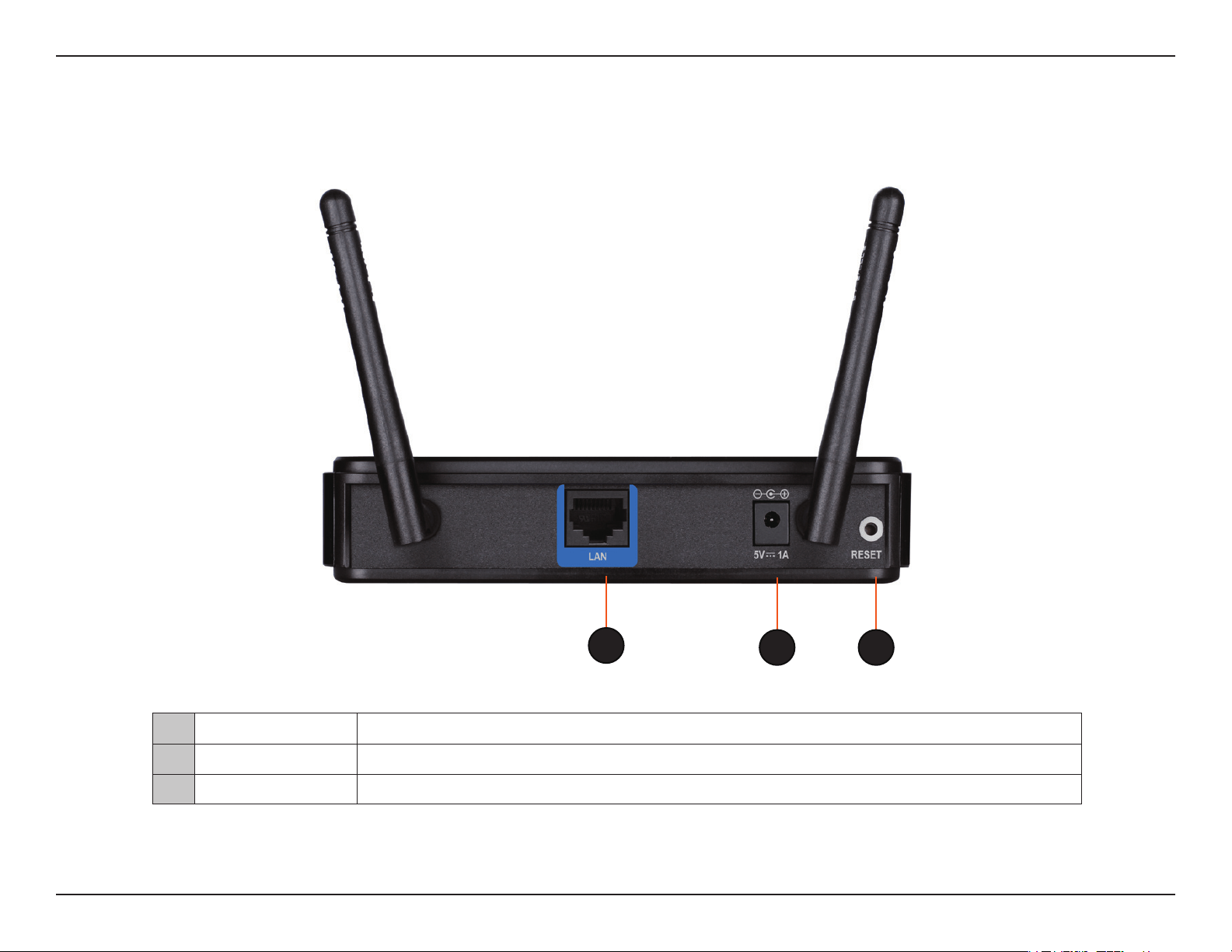
1 LAN Port Connect10/100Ethernetdevicessuchascomputers,switches,andhubs.
2 Power Receptor Receptor for the supplied power adapter.
3 Reset Button Pressing the Reset Button restores the access point to its original factory default settings.
1
2 3
10D-Link DAP-1360 User Manual
Section 1 - Product Overview
Hardware Overview
LEDs
1
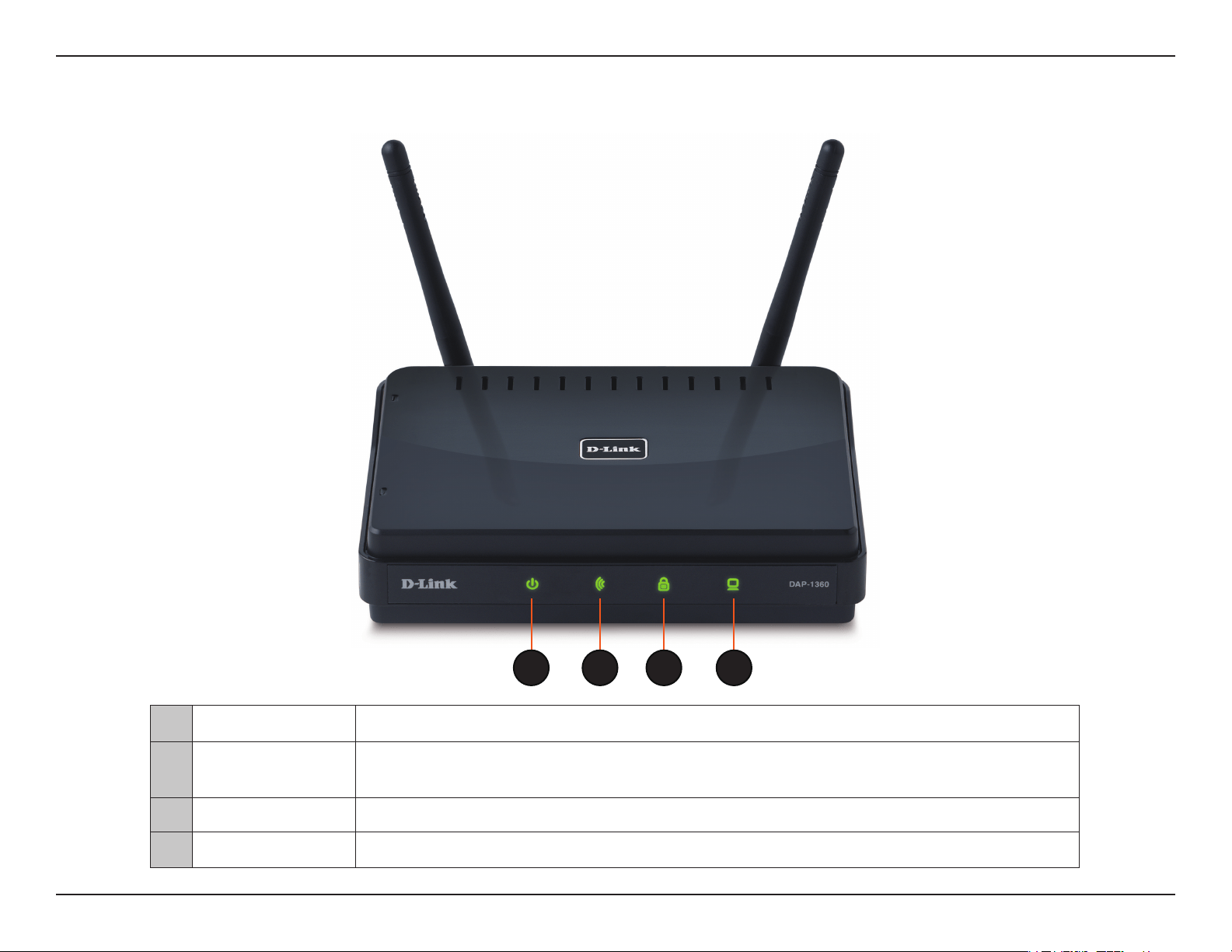
1 Power LED A solid green light indicates a proper connection to the power supply.
2 Wireless LED
A solid green light indicates the wireless function is working. The light will be o during
device reboot or if the wireless radio is disabled.
3 Security LED Asolidgreenlightindicatesthatwirelesssecurity(WEP,WPA,WPA2)isenabled.
4 LAN LED A solid green light indicates the LAN port connection is OK.
2 3 4
11D-Link DAP-1360 User Manual
Section 1 - Product Overview
Hardware Overview
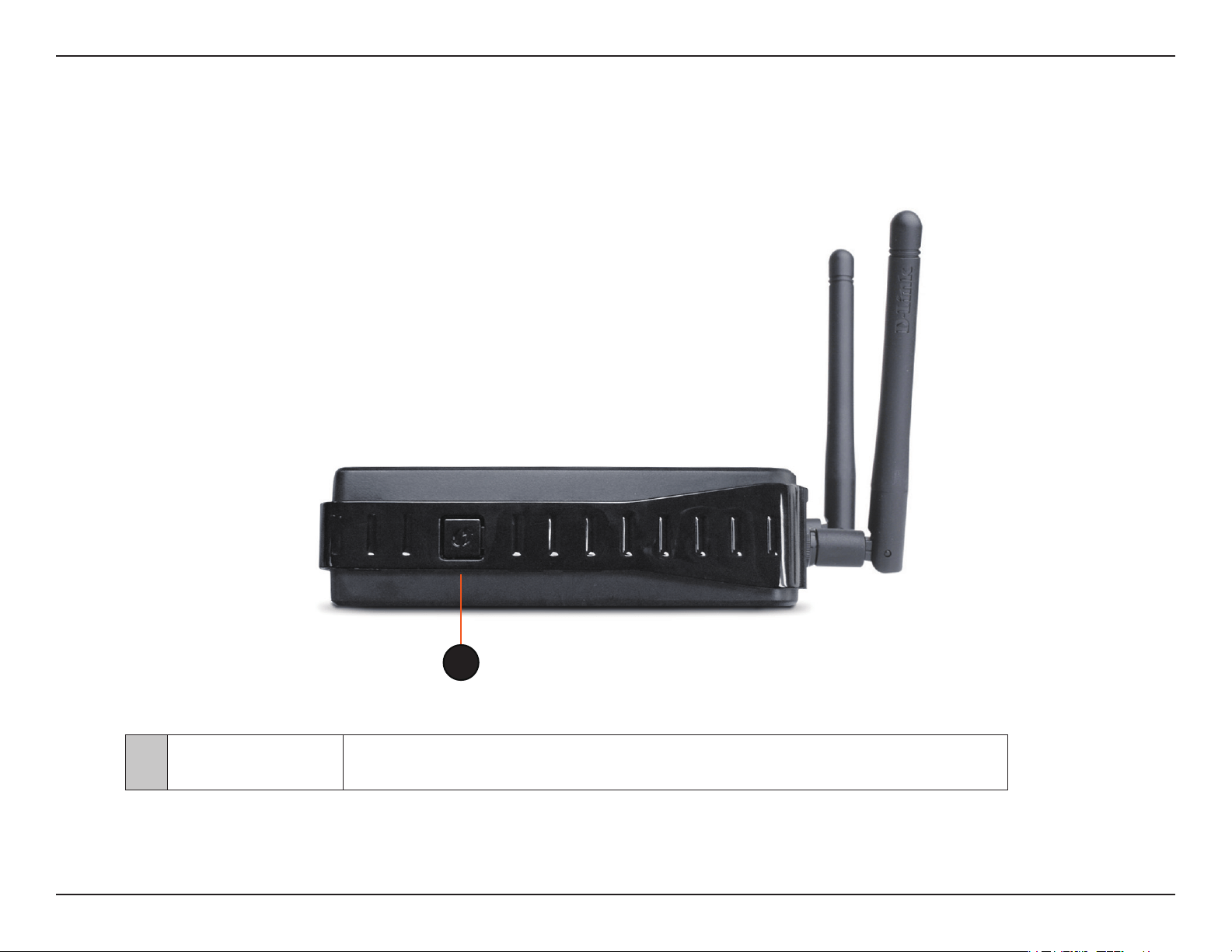
WPS LED/Button
1
1 WPS LED/Button
A solid light indicates a successful WPS connection. A blinking light indicates the
device is trying to establish a connection.

12D-Link DAP-1360 User Manual
Section 2 - Installation
Installation
PleaseconguretheDAP-1360withacomputerconnecteddirectlytotheAP.Thenextfewpageswillexplainthedierent
operational modes you can use.
Operation Modes
Depending on how you want to use your DAP-1360 will determine which mode you use. This section will help you gure out
which setting works with your setup.
•AccessPointmode-page13
•WirelessClientmode-page14
•Repeatermode-page15
•Bridgemode-page16
•BridgewithAPmode-page17
•WISPClientRoutermode-page18
•WISPRepeatermode-page19
13D-Link DAP-1360 User Manual
Section 2 - Installation
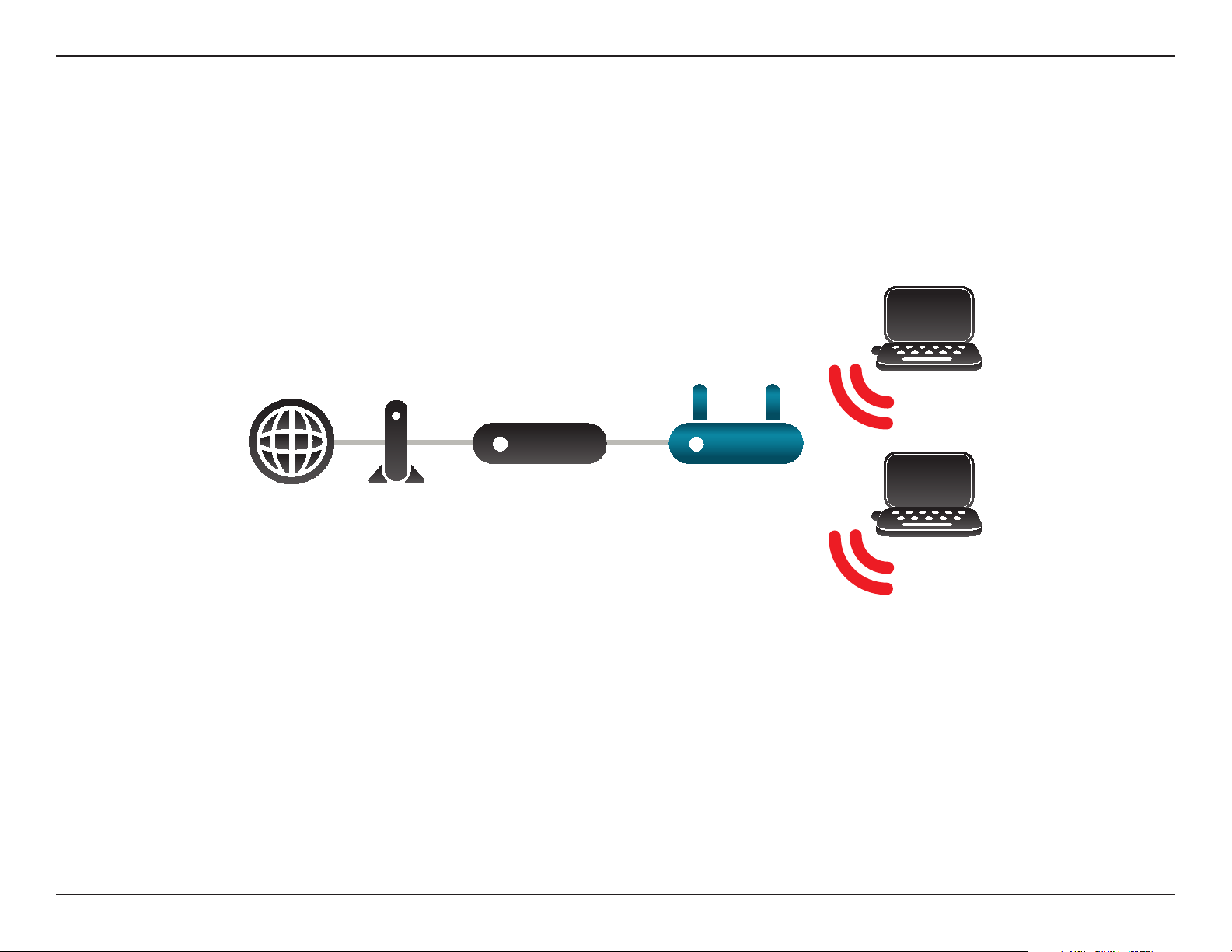
Access Point Mode
IntheAccessPointmode,theDAP-1360actsasacentralconnectionpointforanycomputer(client)thathasa802.11nor
backward-compatible 802.11g wireless network interface and is within range of the AP. Clients must use the same SSID (wireless
networkname)andchannelastheAPinordertoconnect.IfwirelesssecurityisenabledontheAP,theclientwillneedtoenter
apasswordtoconnecttotheAP.InAccessPointmode,multipleclientscanconnecttotheAPatthesametime.
Internet Modem
Router
DAP-1360
(in Access Point Mode)
Computer
Computer
14D-Link DAP-1360 User Manual
Section 2 - Installation
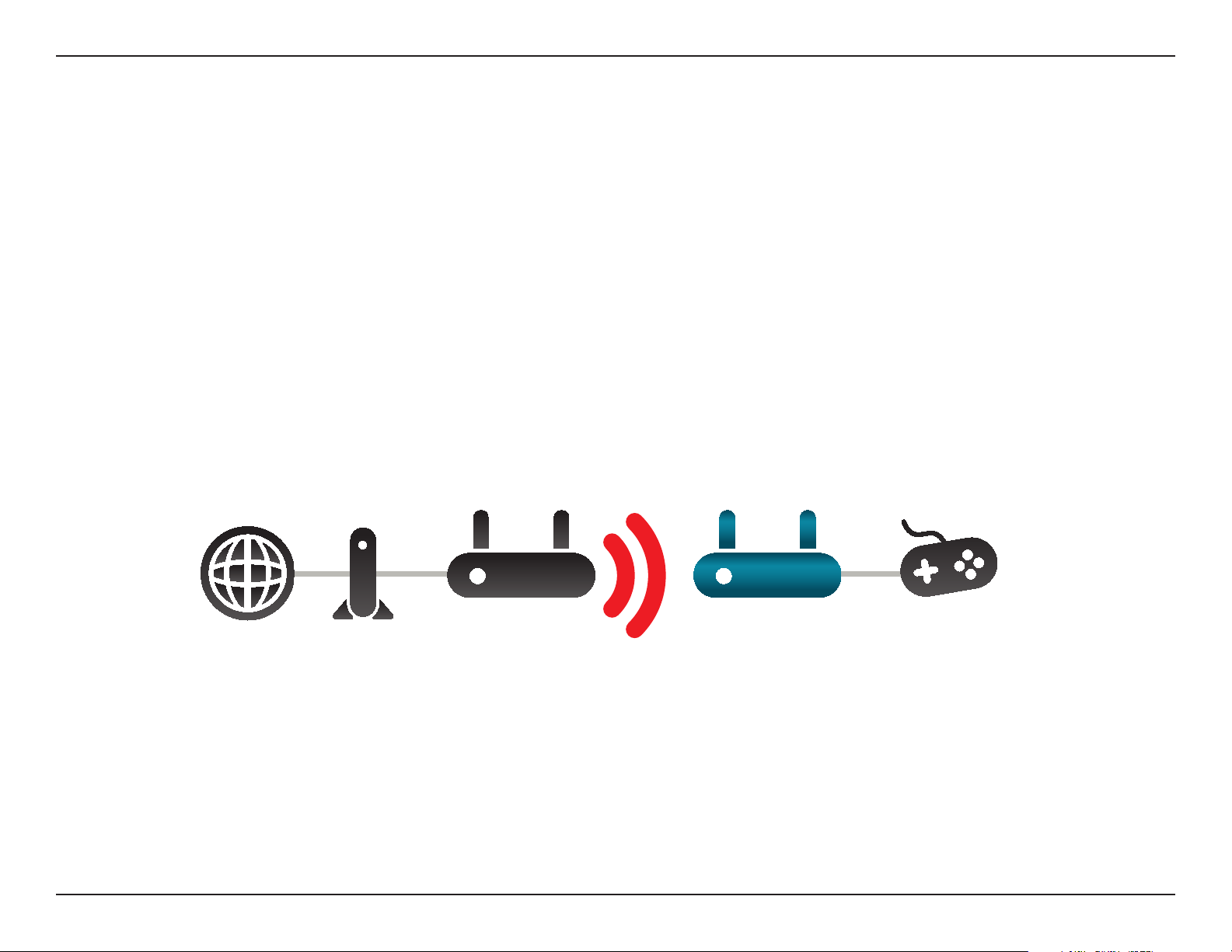
Wireless Client Mode
IntheWirelessClientmode,theDAP-1360actsasawirelessnetworkadapterforyourEthernet-enableddevice(suchasagame
consoleoraTVset-topbox).ConnectyourEthernet-enableddevicetotheAPusinganEthernetcable.TheAPClientmode
can support multiple wired clients.
IfyouaregoingtoconnectseveralEthernet-enableddevicestoyourDAP-1360,connecttheLANportoftheDAP-1360toan
Ethernetswitch,thenconnectyourdevicestothisswitch.
Example: Connect a gaming console using an ethernet cable to the DAP-1360. The unit is set to Wireless Client mode which
will wirelessly connect to a wireless router on your network.
Internet Modem
Router
DAP-1360
(in Wireless Client Mode)
Gaming Console
15D-Link DAP-1360 User Manual
Section 2 - Installation
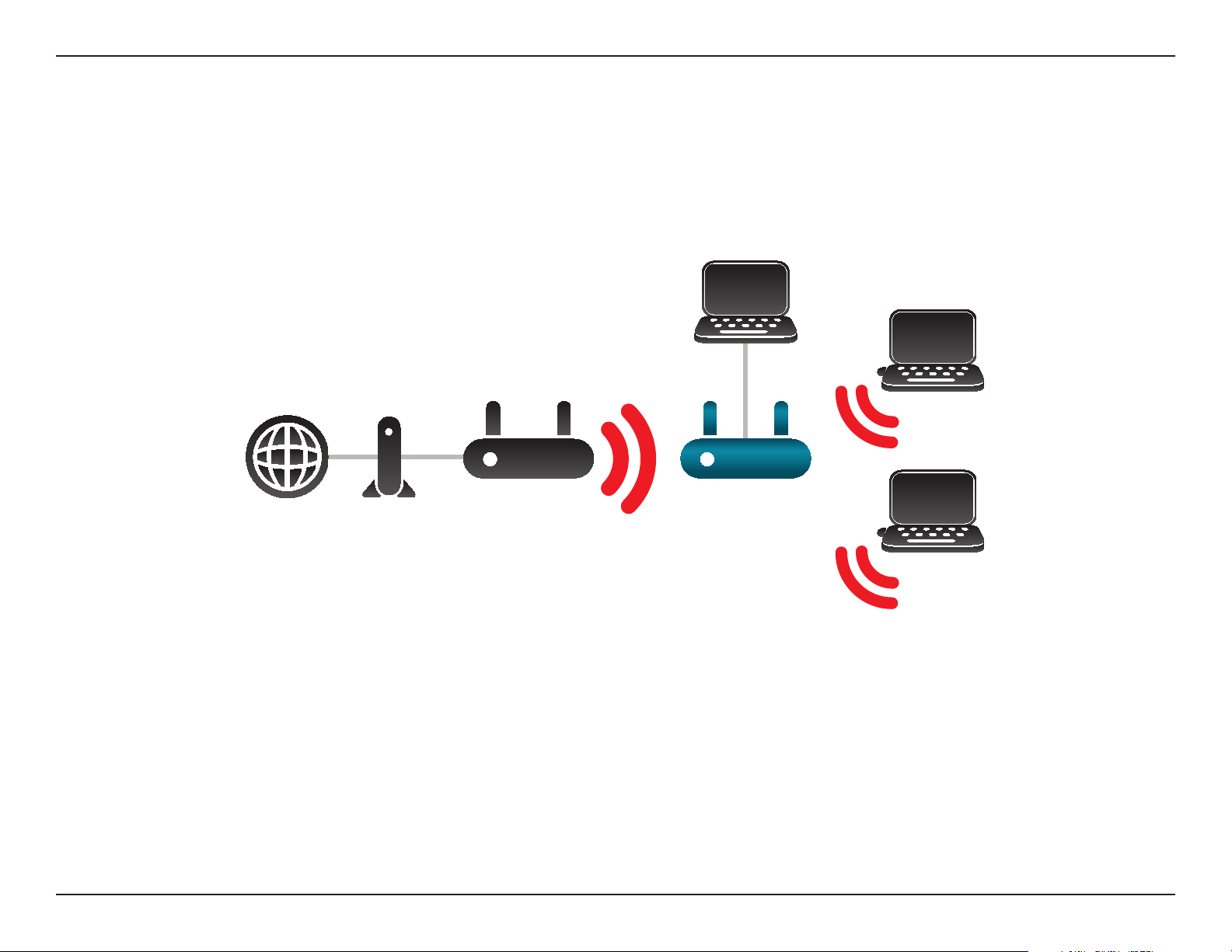
Repeater Mode
InRepeatermode,theDAP-1360increasestherangeofyourwirelessnetworkbyextendingthewirelesscoverageofanother
APorwirelessrouter.TheAPsandwirelessrouter(ifused)mustbewithinrangeofeachother.Makesurethatallclients,APs,
andthewirelessrouterallusethesameSSID(wirelessnetworkname),channel,andsecuritysettings.
Computer
Internet Modem
Router
DAP-1360
(In Repeater Mode)
Computer
Computer
16D-Link DAP-1360 User Manual
Section 2 - Installation
Bridge Mode
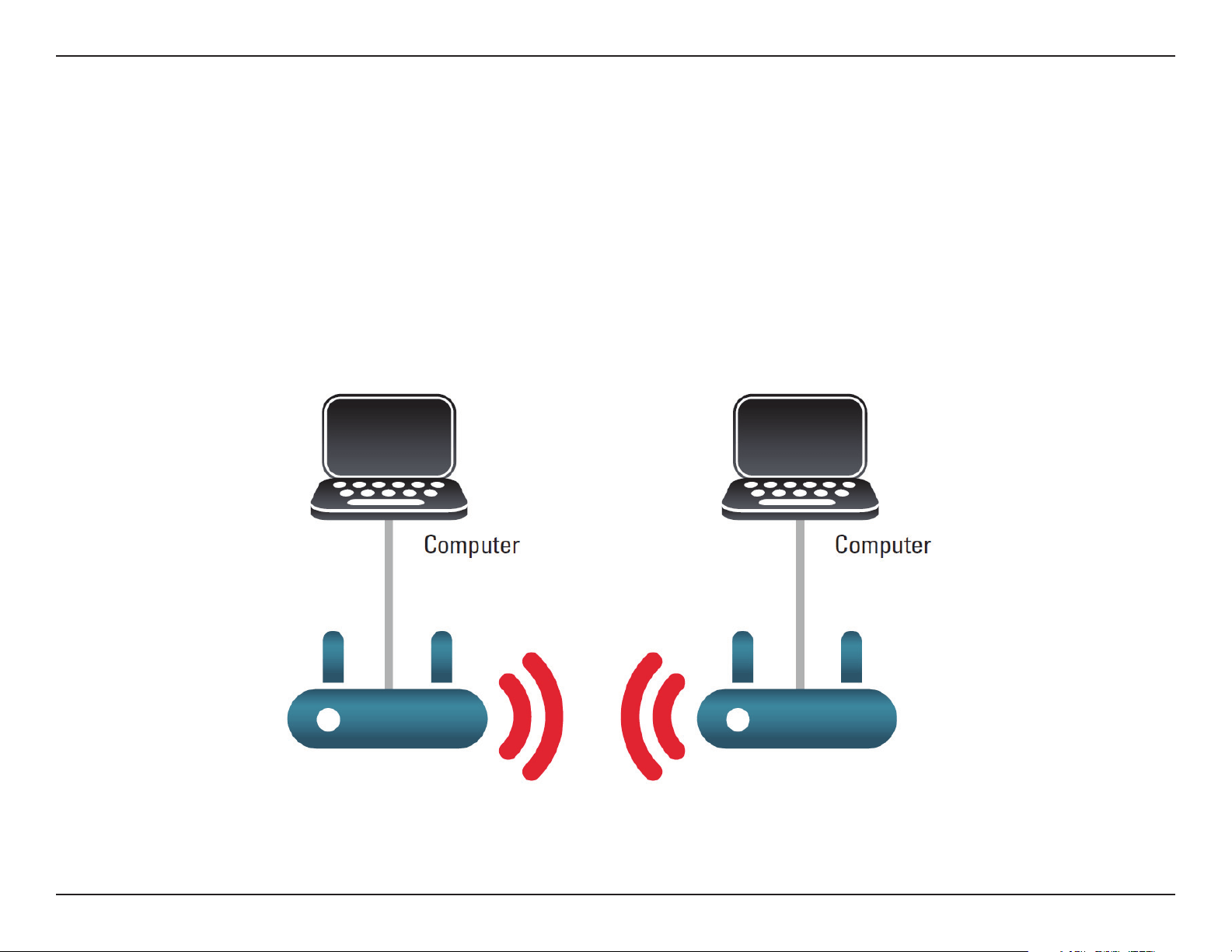
IntheBridgemode,theDAP-1360wirelesslyconnectsseperatelocalareanetworks(LANs)thatcan’teasilybeconnected
togetherwithacable.Forexample,iftherearetwowiredLANsseparatedbyasmallcourtyard,itwouldbeexpensivetobury
cables to connect between the two sides together. A better solution is to use two DAP-1360 units to wirelessly connect the
twoLANs.IntheBridgemode,bothDAP-1360unitsdonotactasAPs.
Note: The Bridge mode is not specified in the Wi-Fi or IEEE standards. This mode will only work using two DAP-1360 units.
Communication with other APs (even other D-Link APs) is not guaranteed.
Connecting Two Separate LANs Together Through Two DAP-1360 Units
17D-Link DAP-1360 User Manual
Section 2 - Installation
Bridge with AP Mode
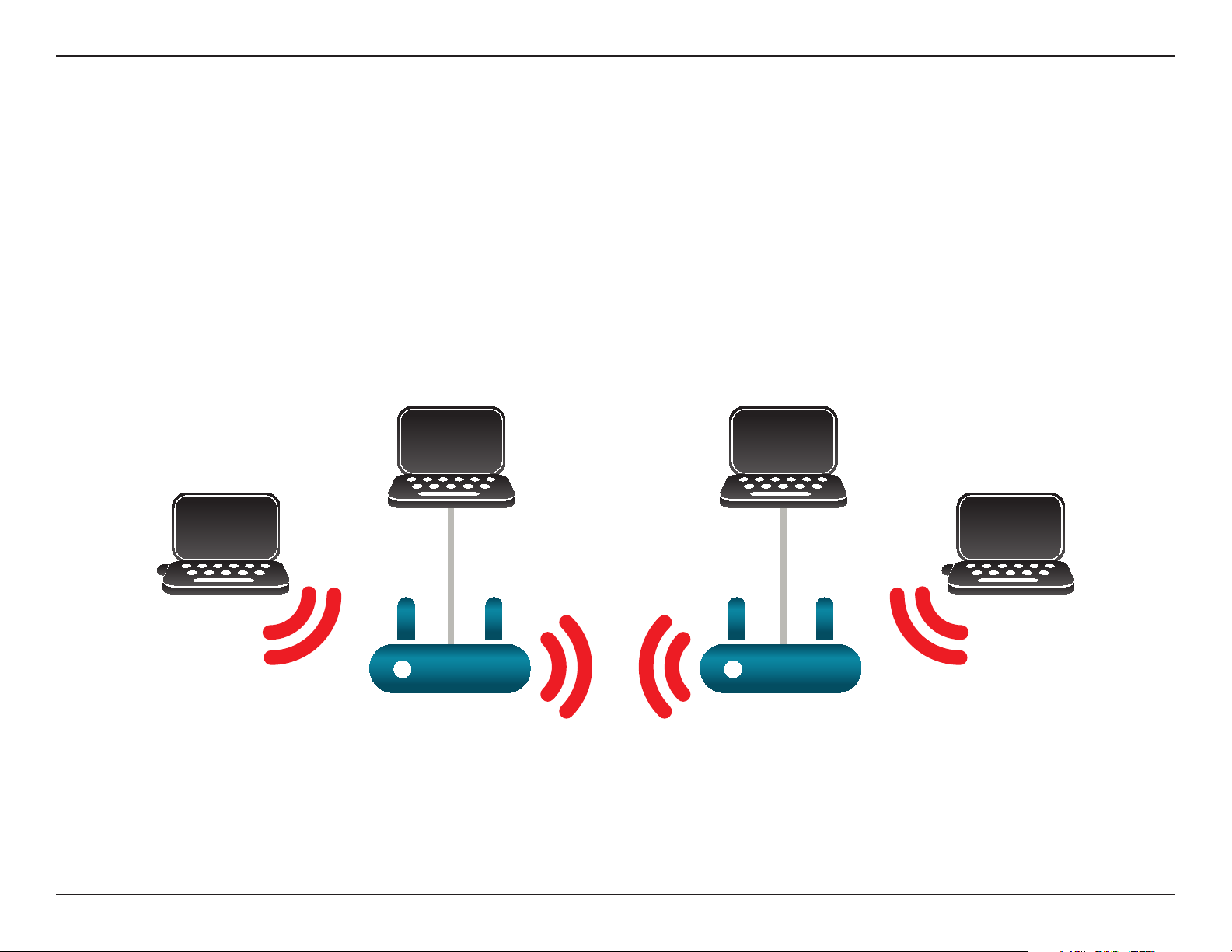
TheBridgewithAPmodeisthesameastheBridgemode,butinthiscase,theDAP-1360alsoactsasanAP.Clientswithwireless
interfaces can wirelessly connect to the DAP-1360 and then connect to the other LAN that the DAP-1360 bridges to.
Note: The Bridge with AP mode is not specied in the Wi-Fi or IEEE standards. This mode will only work using two DAP-1360 units.
Communication with other APs (even other D-Link APs) is not guaranteed.
ComputerComputer
Computer Computer
DAP-1360
(In Bridge Mode with AP Mode)
DAP-1360
(In Bridge Mode with AP Mode)
LAN 1 LAN 2
Connecting Two Separate LANs Together Through Two DAP-1360 Units
(Wireless PCs Can Access the DAP-1360 Units)
18D-Link DAP-1360 User Manual
Section 2 - Installation
WISP Client Router Mode
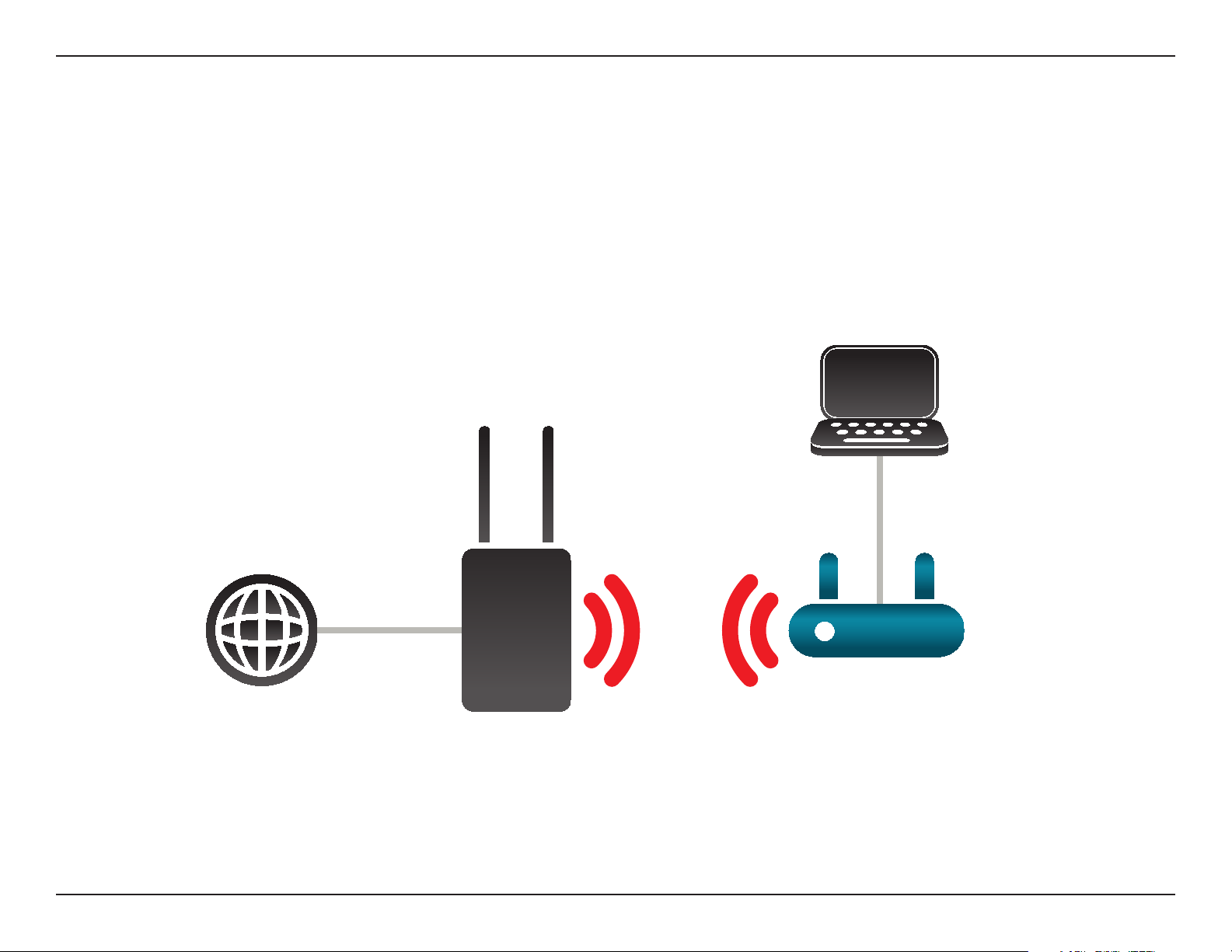
IntheWISPClientRoutermode,theDAP-1360wirelesslyconnectstoaWISP(WirelessInternetServiceProvider)AP.Inthis
mode,theDAP-1360alsoactsasarouterforwiredclientsonyourLANandprovidesNAT(NetworkAddressTranslation)and
a DHCP server to generate IP addresses for wired clients only. NAT and the DHCP server allow many computers to share the
same wireless Internet connection.
IfyouareaWISPsubscriberandwanttoaccessyourWISPaccountusingwiredcomputers,connectyourcomputerstothe
DAP-1360togetNAT,andthenconnectthemtotheWISPAP.
Internet
Computer
DAP-1360
(In WISP Client Mode)
WISP Outdoor AP
Connecting Wired PCs to the Internet Using the DAP-1360
19D-Link DAP-1360 User Manual
Section 2 - Installation
WISP Repeater Mode
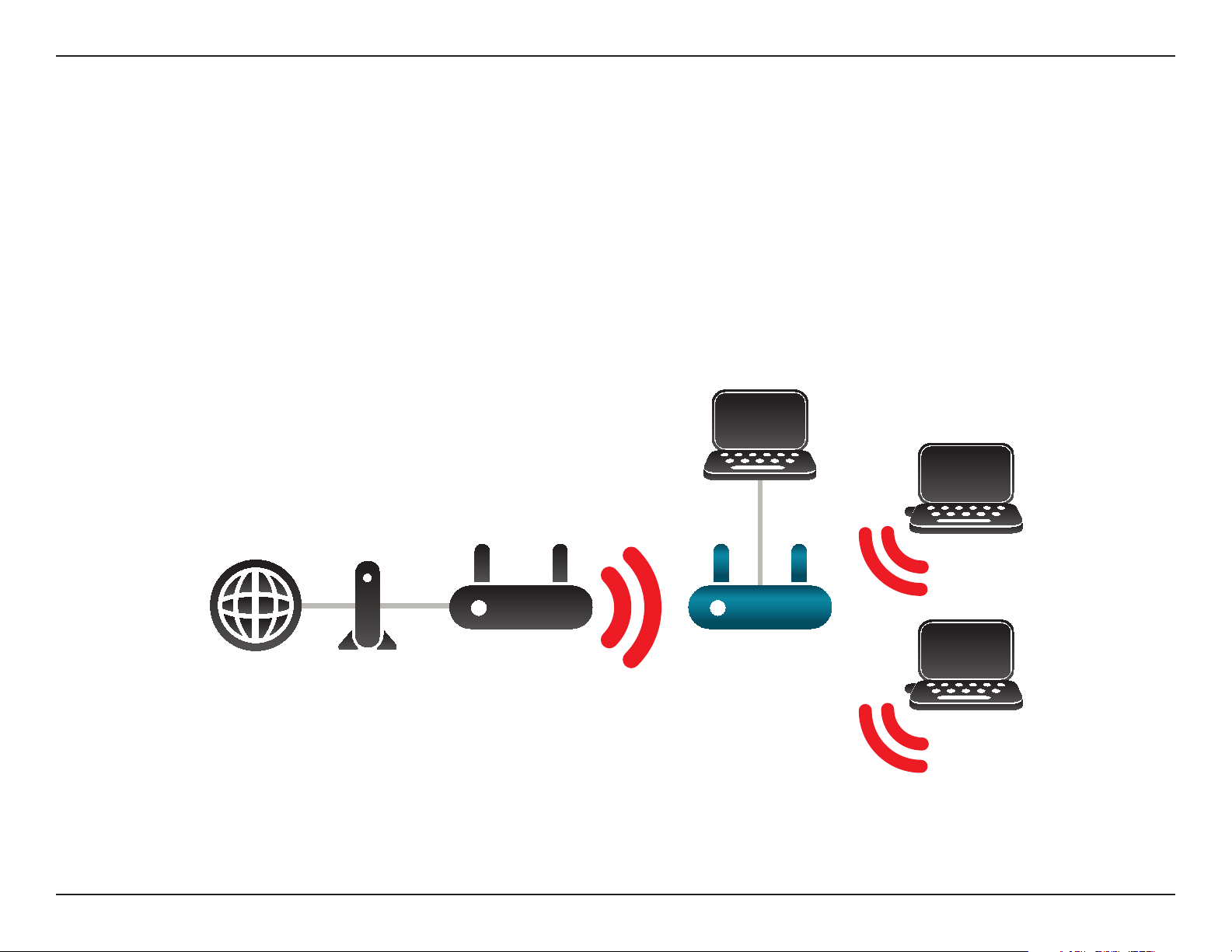
IntheWISPRepeatermode,theDAP-1360wirelesslyconnectstoaWISP(WirelessInternetServiceProvider)AP.Inthismode,
the DAP-1360 also acts as a router for both wireless and wired clients on your LAN. The WISP Repeater mode provides NAT
(Network Address Translation) and a DHCP server to generate IP addresses for both wireless and wired clients. NAT and the
DHCP server allow many computers to share the same wireless Internet connection.
IfyouareaWISPsubscriberandwanttouseyourWISPaccountinyourhouse,butthesignalsfromtheoutdoorWISPAPare
notstrongenoughtoreachalloftheareasinthehouse,usetheDAP-1360tocanextendthesignalsfromtheoutdoorWISP
APandprovideaccesstowirelessclientsinyourhouse.Usingthismode,wirelessaswellaswiredclientscanconnecttothe
outdoor WISP AP through the DAP-1360.
Computer
Internet Modem
Router
DAP-1360
(In Repeater Mode)
Computer
Computer
Connecting Wired and Wireless PCs to the Internet Using the DAP-1360

20D-Link DAP-1360 User Manual
Section 2 - Installation
Wireless Installation Considerations
The D-Link wireless access point lets you access your network using a wireless connection from virtually anywhere within the
operatingrangeofyourwirelessnetwork.Keepinmind,however,thatthenumber,thicknessandlocationofwalls,ceilings,
orotherobjectsthatthewirelesssignalsmustpassthrough,maylimittherange.Typicalrangesvarydependingonthetypes
ofmaterialsandbackgroundRF(radiofrequency)noiseinyourhomeorbusiness.Thekeytomaximizingwirelessrangeisto
follow these basic guidelines:
1. Keep the number of walls and ceilings between the D-Link access point and other network devices to a minimum.
Each wall or ceiling can reduce your adapter’s range from 3-90 feet (1-30 meters.) Position your devices so that
the number of walls or ceilings is minimized.
2.Beawareofthedirectlinebetweennetworkdevices.Awallthatis1.5feetthick(.5meters),ata
45-degree angle appears to be almost 3 feet (1 meter) thick. At a 2-degree angle it looks over 42 feet (14 meters)
thick! Position devices so that the signal will travel straight through a wall or ceiling (instead of at an angle) for
better reception.
3. Building Materials make a dierence. A solid metal door or aluminum studs may have a negative eect on
range.Trytopositionaccesspoints,wirelessaccesspoints,andcomputerssothatthesignalpassesthrough
drywalloropendoorways.Materialsandobjectssuchasglass,steel,metal,wallswithinsulation,water(sh
tanks),mirrors,lecabinets,brick,andconcretewilldegradeyourwirelesssignal.
4. Keep your product away (at least 3-6 feet or 1-2 meters) from electrical devices or appliances that generate RF
noise.
5.Ifyouareusing2.4GHzcordlessphonesorX-10(wirelessproductssuchasceilingfans,lights,andhomesecurity
systems),yourwirelessconnectionmaydegradedramaticallyordropcompletely.Makesureyour2.4GHzphone
base is as far away from your wireless devices as possible. The base transmits a signal even if the phone is not
in use.
21D-Link DAP-1360 User Manual
Section 3 - Conguration
Conguration
This section will show you how to congure your new D-Link wireless access point using the web-based conguration utility.
Web-based Conguration Utility
If you wish to change the default settings or optimize the
performanceoftheDAP-1360,youmayusetheweb-based
conguration utility.
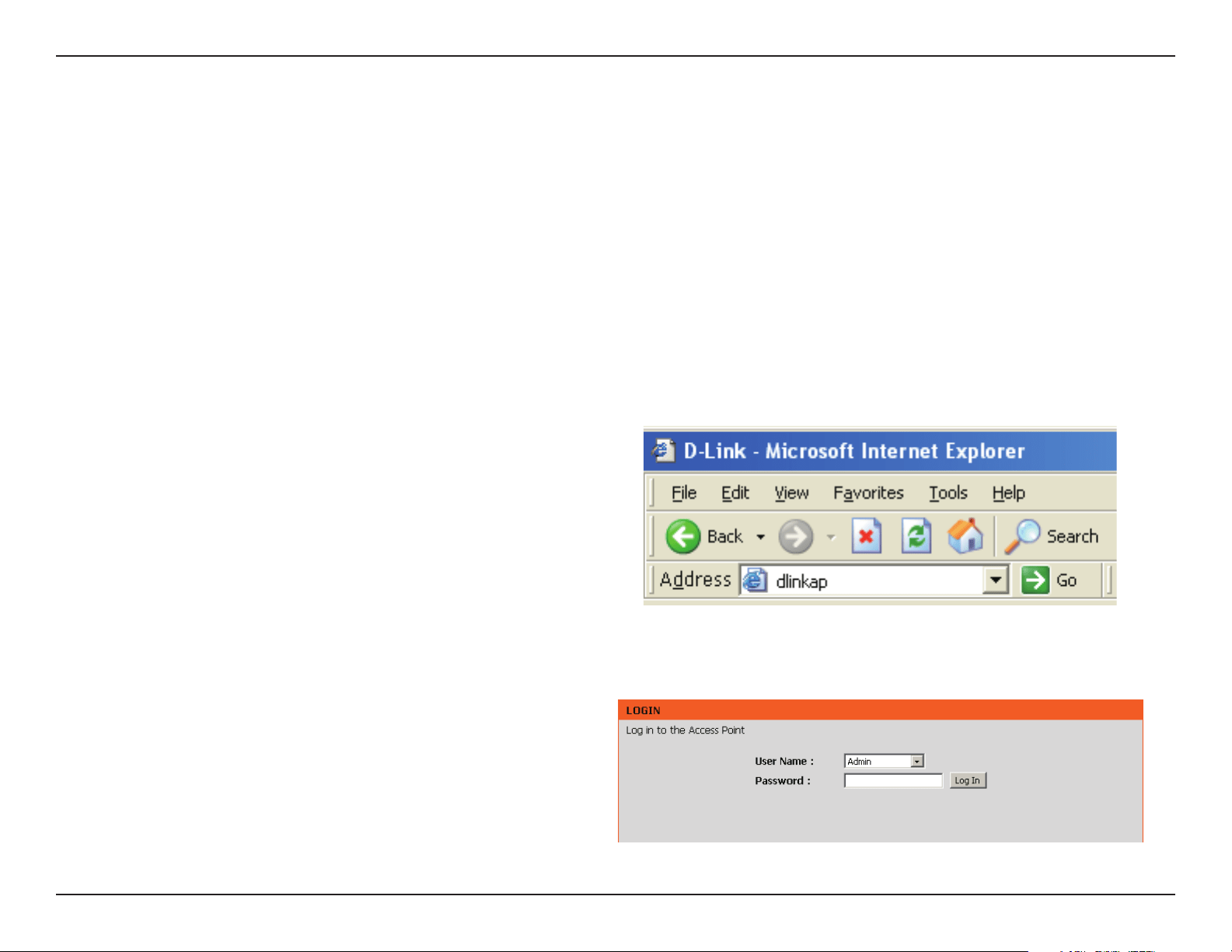
Toaccessthecongurationutility,openawebbrowser
suchasInternetExplorerandenterhttp://dlinkap or
http://192.168.0.50 in the address eld.
Select Admin and then enter your password. Leave the
password blank by default.
IfyougetaPageCannotbeDisplayederror,pleasereferto
the Troubleshooting section for assistance.
22D-Link DAP-1360 User Manual
Section 3 - Conguration
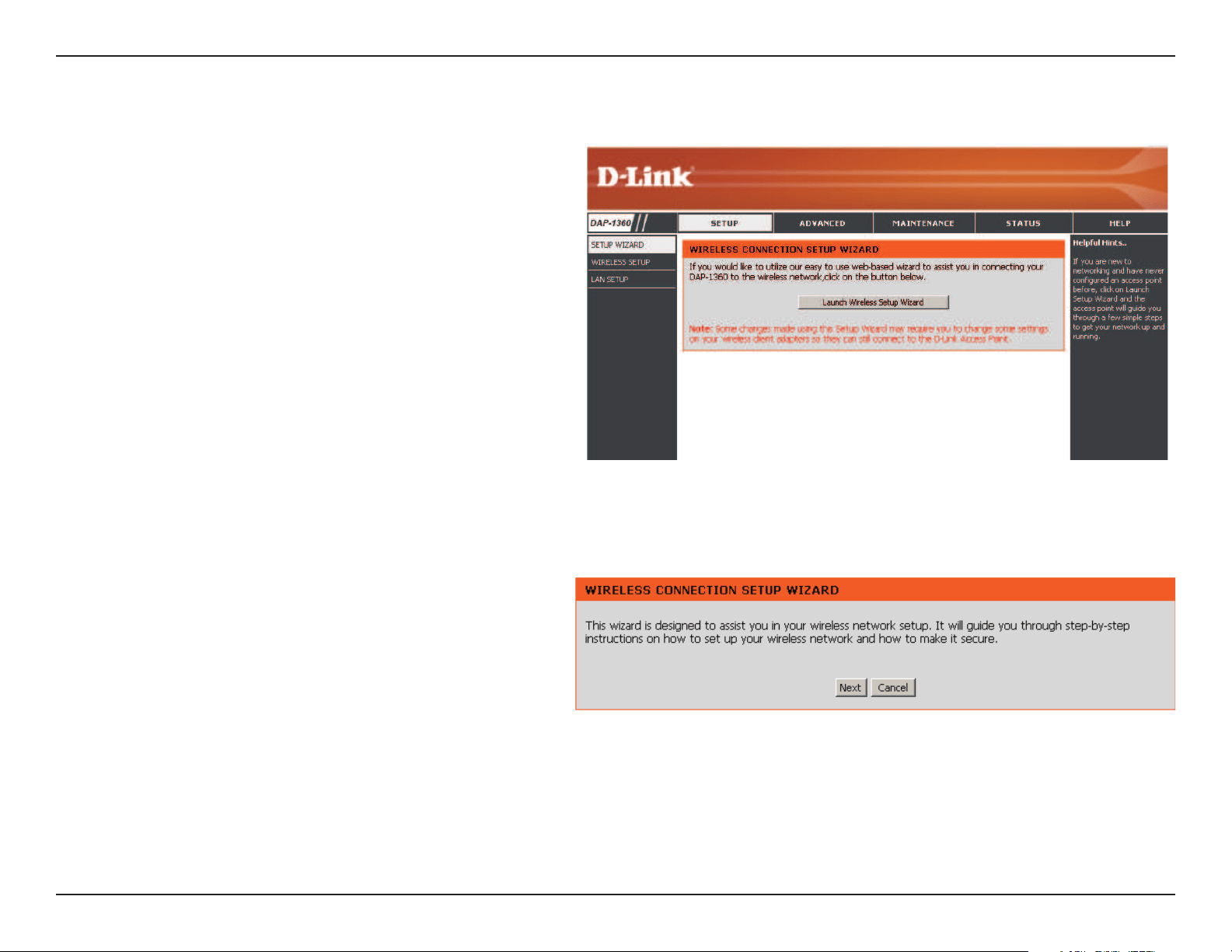
Click LaunchWirelessSetupWizard to congure your
access point.
If you want to enter your settings without running the
wizard,skiptopage34.
Wireless Setup Wizard
Click Next to continue.
23D-Link DAP-1360 User Manual
Section 3 - Conguration
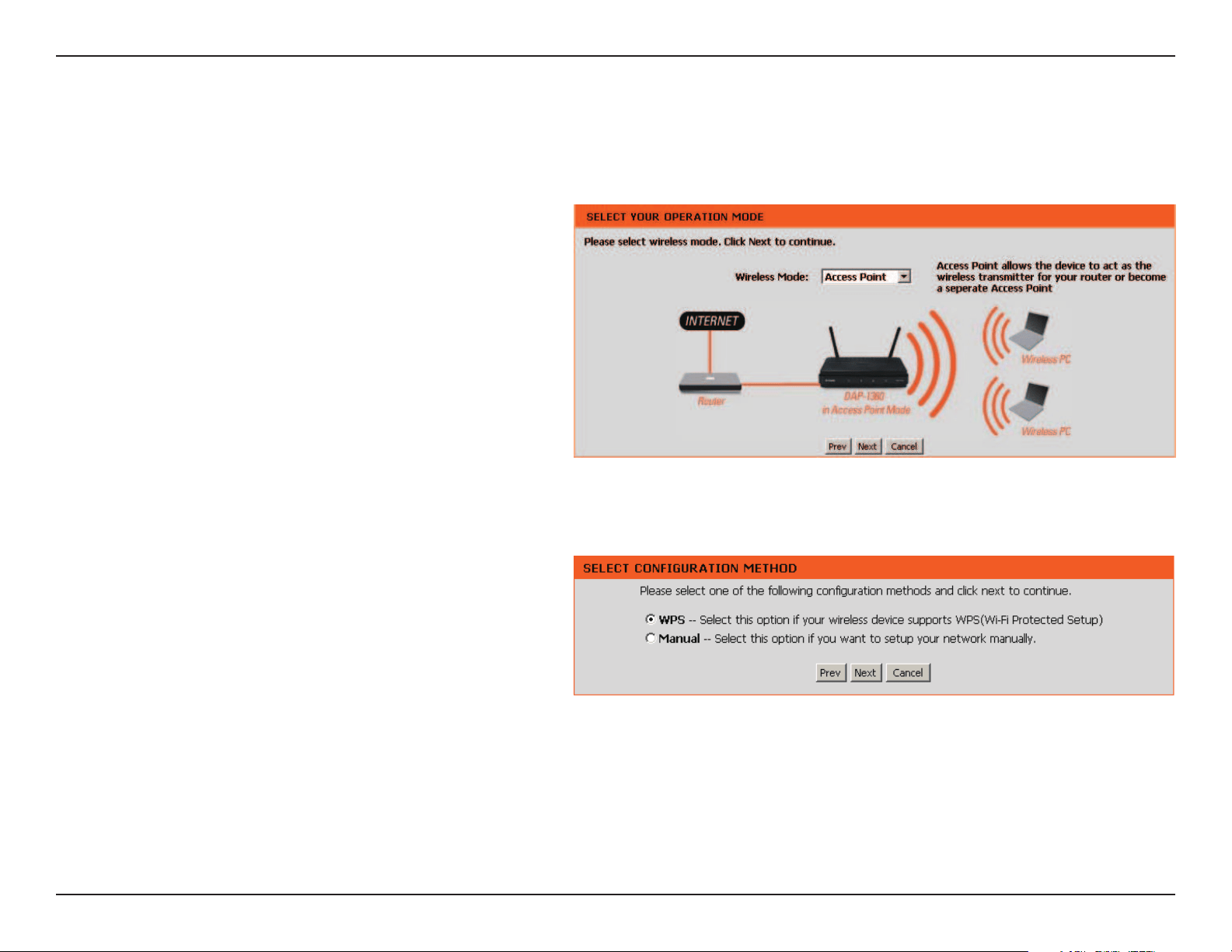
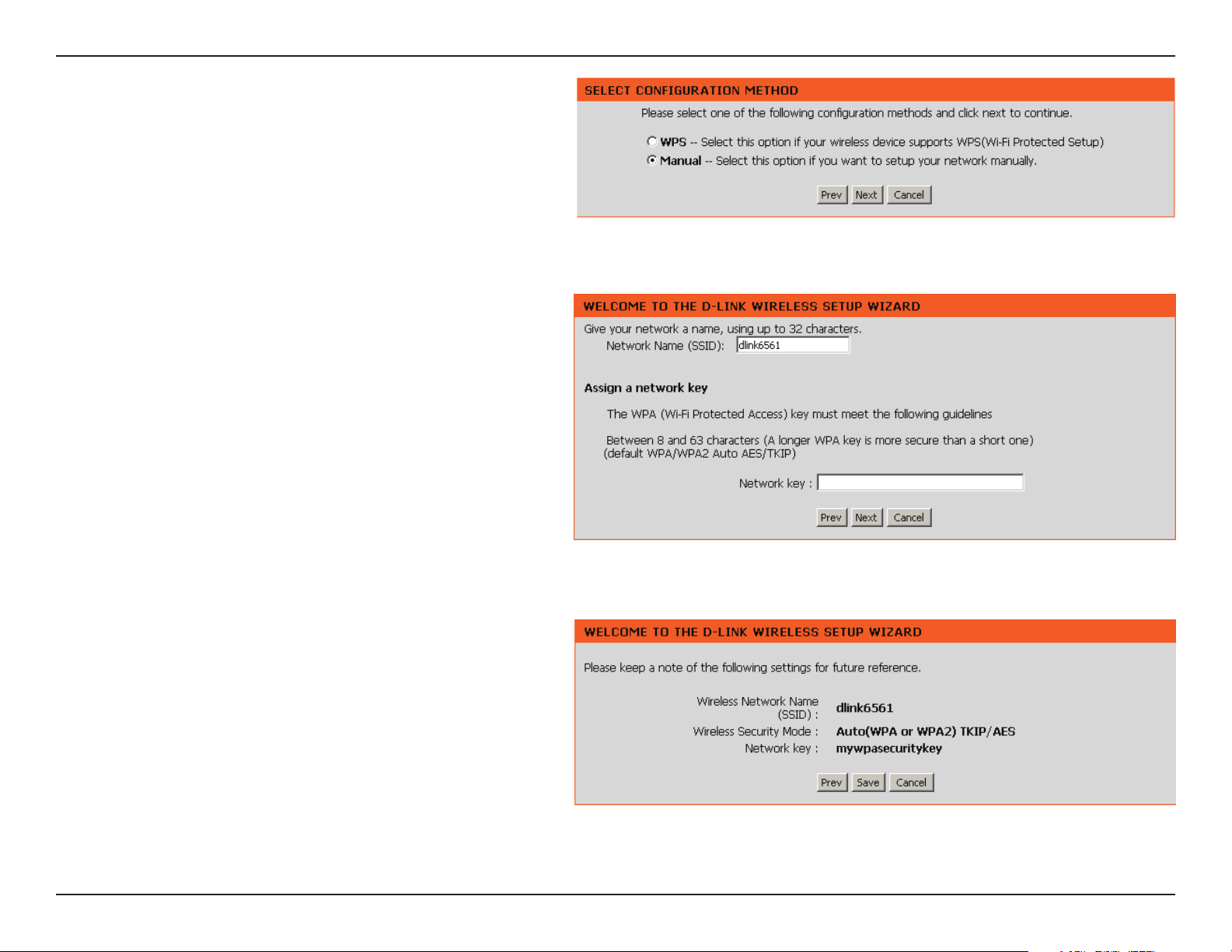
This Wizard is designed to assist you in conguring your DAP-1360 as an access point.
Access Point Mode
Select Access Pointfromthedrop-downmenu.Then,
click Next to continue.
Select WPS as the conguration method only if your
wireless device supports Wi-Fi Protected Setup (WPS).
For Manualsetup,skiptopage25.
Click Next to continue.
24D-Link DAP-1360 User Manual
Section 3 - Conguration
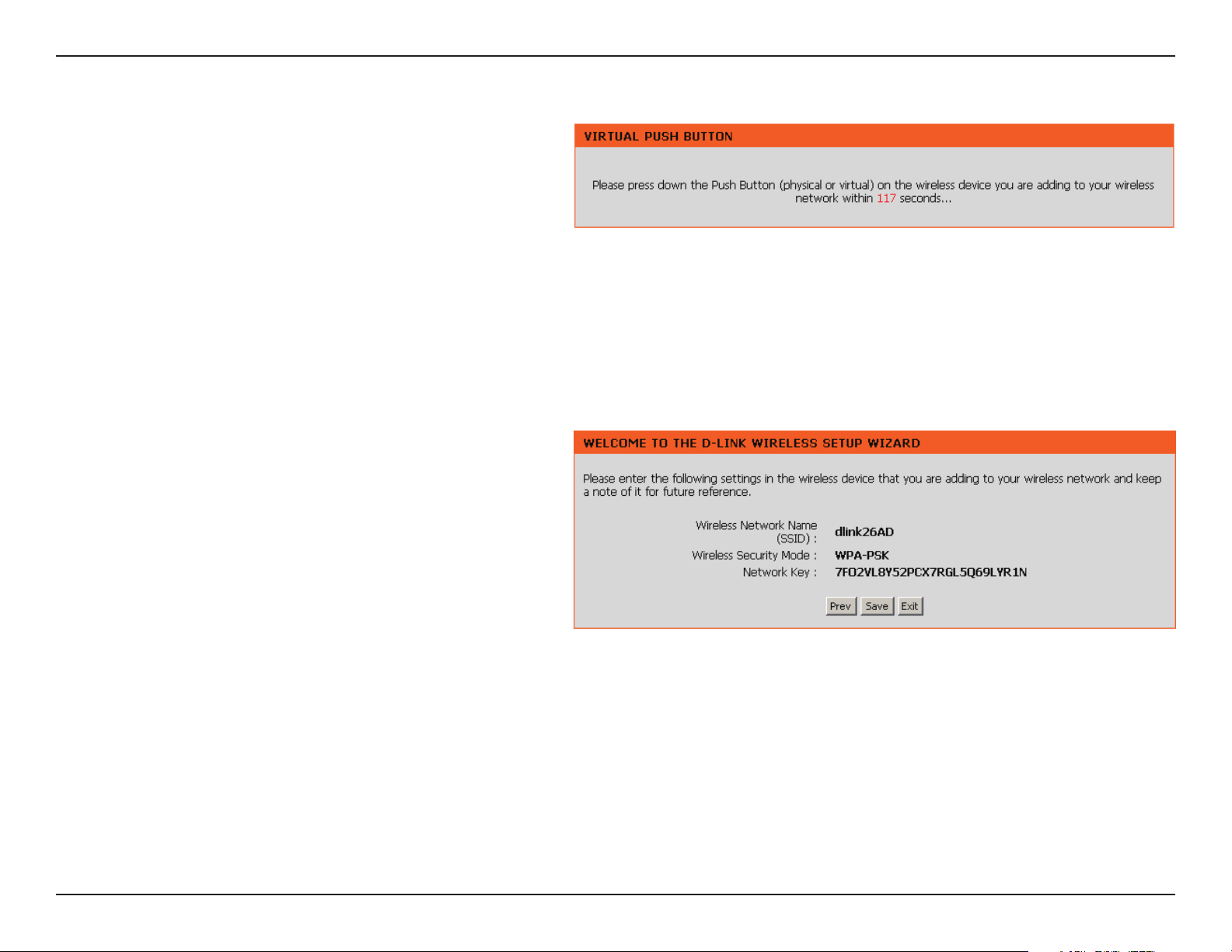
Click Save to save your network settings.
In order for your network settings to take eect AP will
reboot automatically.
When the device has nished rebooting the main screen
will display.
Press down the Push Button on the Wireless device you
are adding to your wireless network.
25D-Link DAP-1360 User Manual
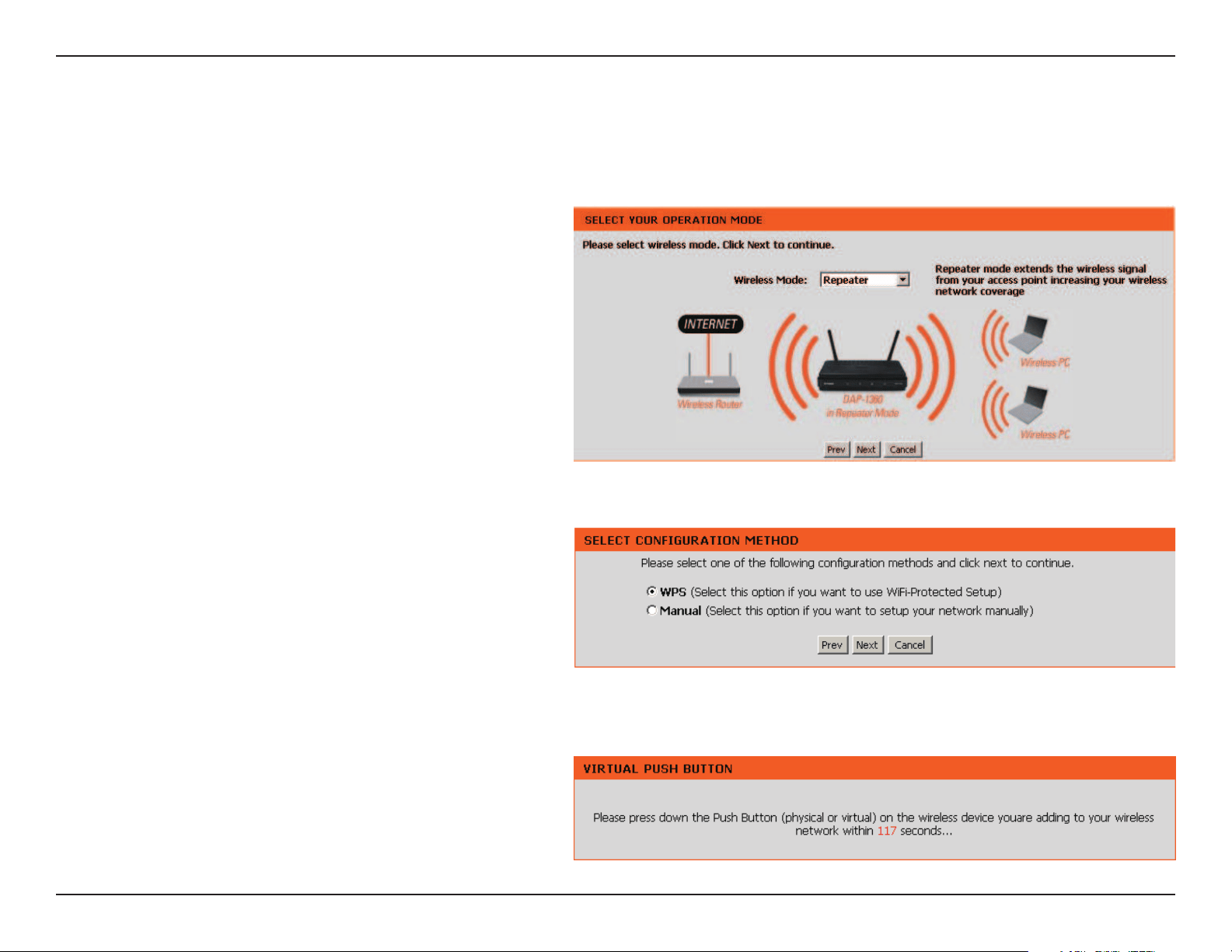
Section 3 - Conguration
Select Manual as the conguration method to set up
your network manually.
Click Next to continue.
Enter a name for your wireless network (SSID).
Enter your network key. This key must be entered on
your wireless clients.
Click Next to continue.
The following screen will show you your network key to
enter on your wireless clients.
Click Save to nish the Setup Wizard.
26D-Link DAP-1360 User Manual
Section 3 - Conguration
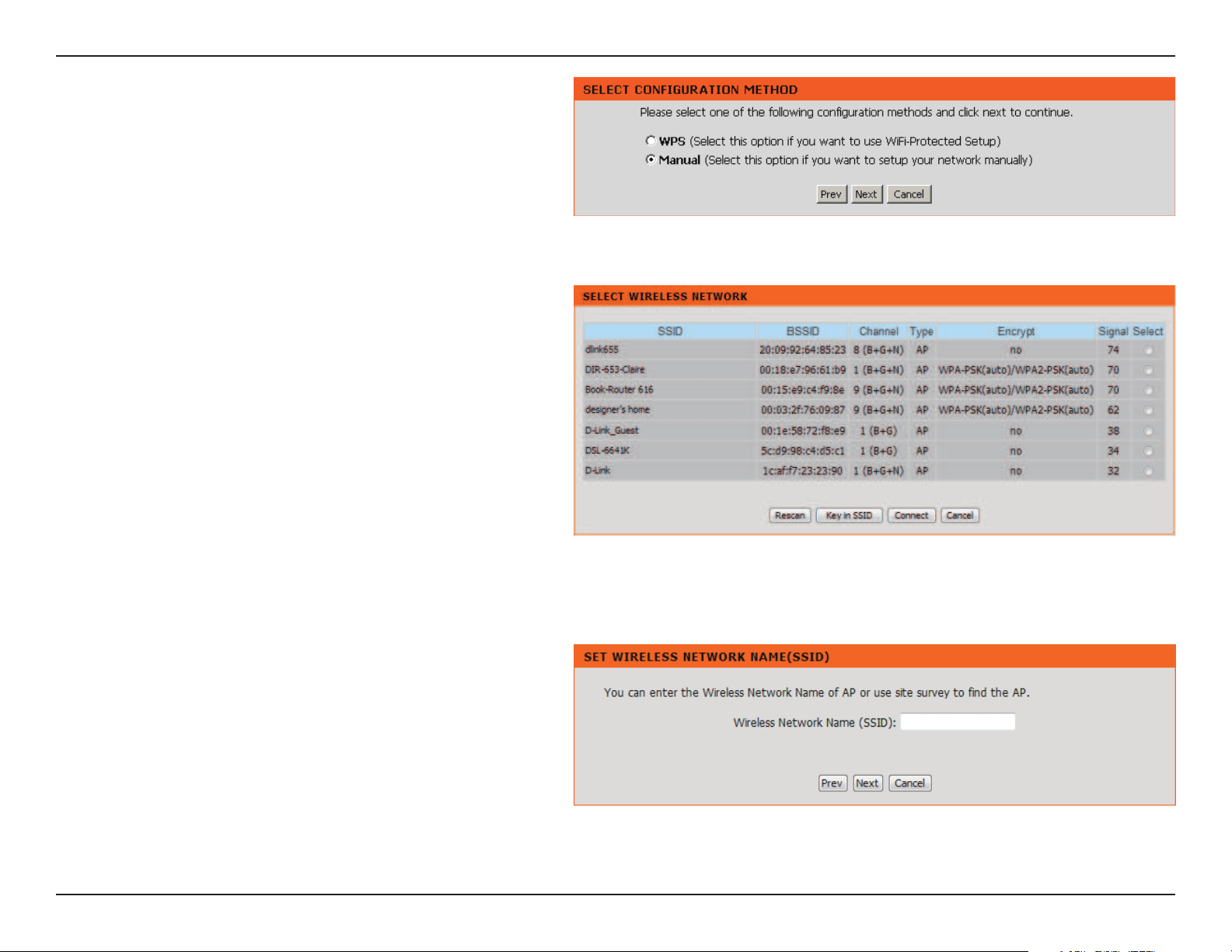
This Wizard is designed to assist you in conguring your DAP-1360 as a repeater.
Repeater Mode
Select Repeater from the drop-down menu.
Select WPS as the conguration method only if your
wireless device supports Wi-Fi Protected Setup (WPS).
For Manualsetup,skiptothenextpage.
Click Next to continue.
Onthedeviceyouwanttoconnectto,startthePBC
processonthedevice.Youwillhave2minutestostart
the PBC process on both devices.
27D-Link DAP-1360 User Manual
Section 3 - Conguration
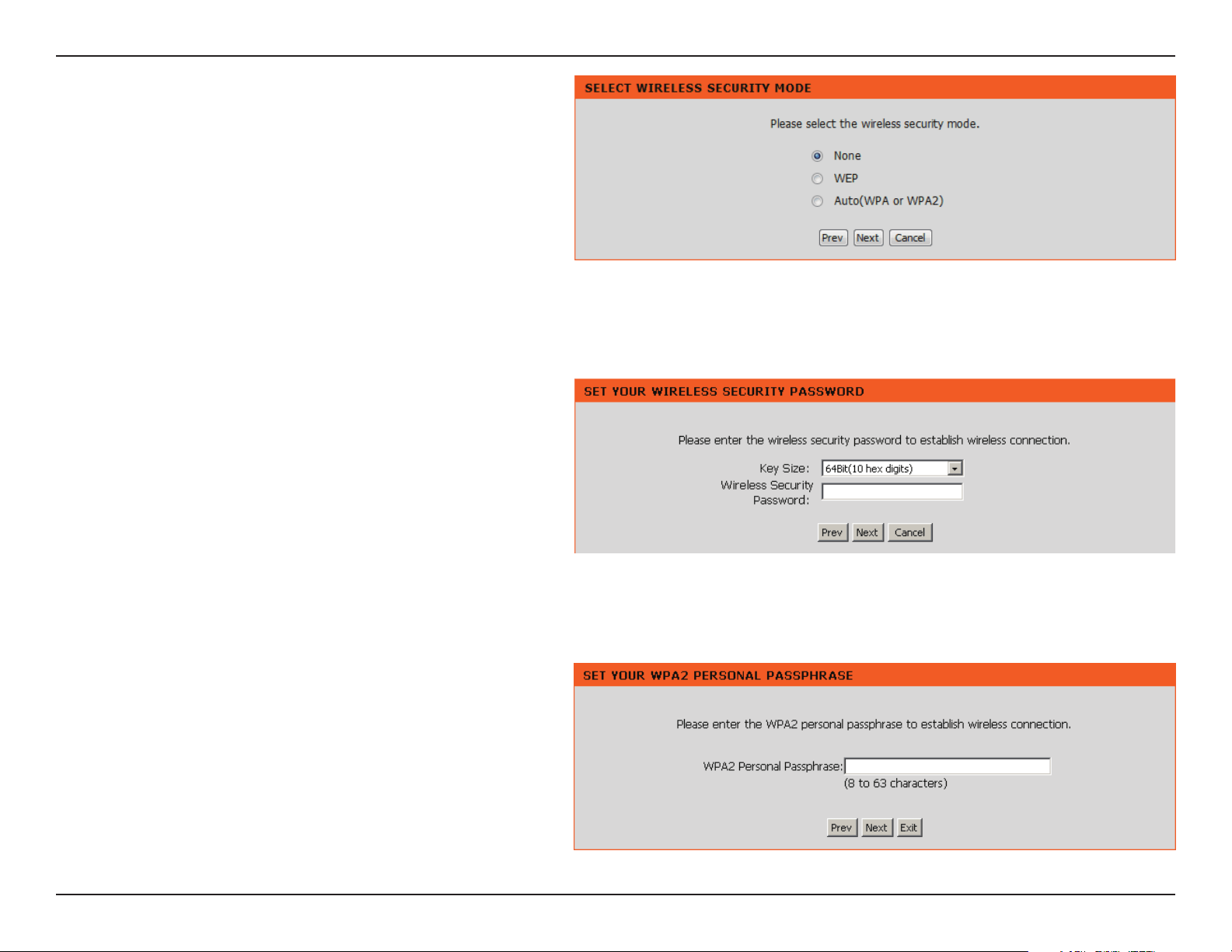
Select Manual conguration to setup your network
manually.
Click Next to continue.
If click Key in SSID,enterthenetworkname(SSID)of
the network you want to connect to.
Findyourrouteroraccesspointfromthelist,clickthe
radiobuttonintherightcolumn,andclickConnect.
28D-Link DAP-1360 User Manual
Section 3 - Conguration
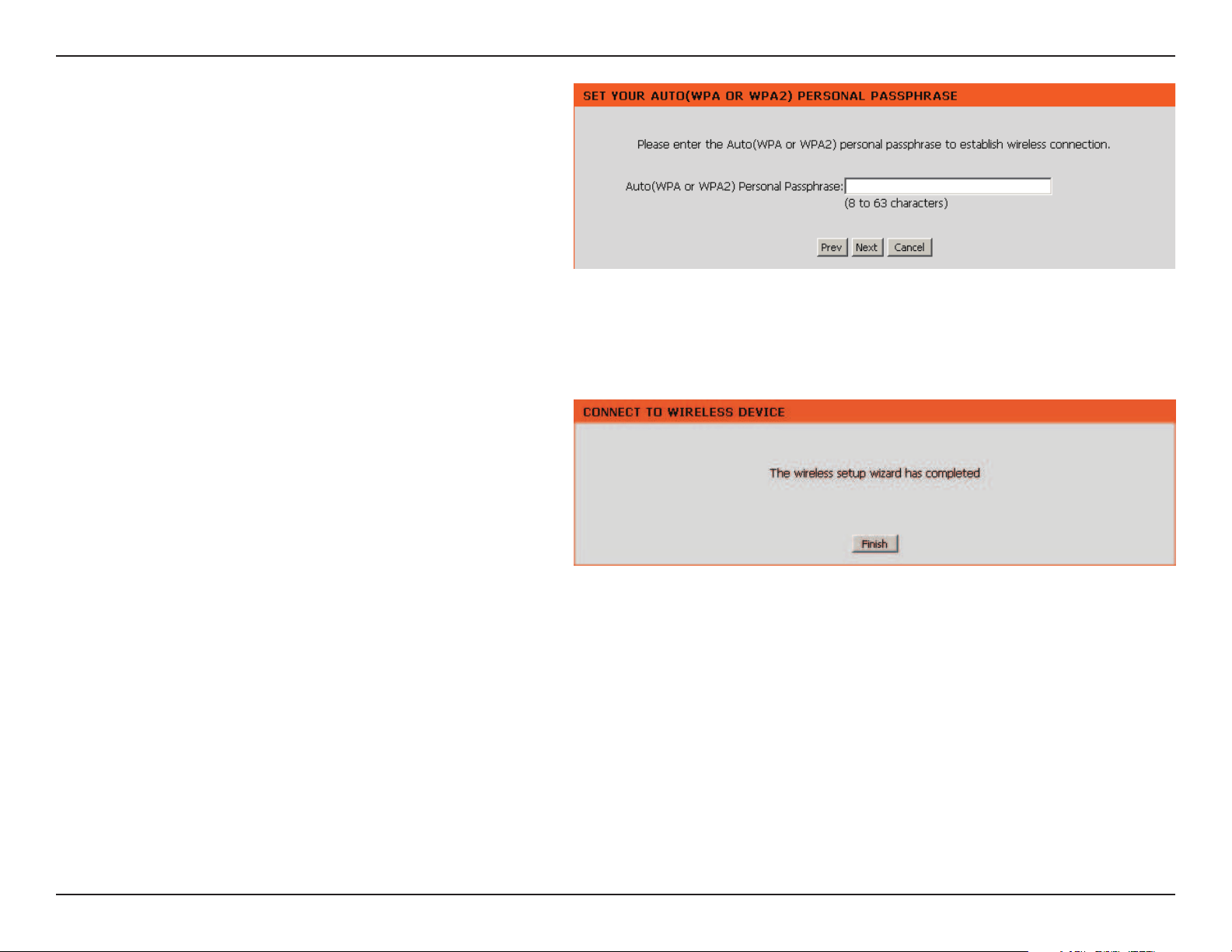
Choose which Security Mode you want to use and click
Next to continue.
If you select WEP,choosethekeytype(ASCIIorHEX),the
keysize(64or128-bit),andenterthewirelesssecurity
password. Click Next to complete the Setup Wizard.
If you select WPA or WPA2,enterthewirelesssecurity
password. Click Next to complete the Setup Wizard.
29D-Link DAP-1360 User Manual
Section 3 - Conguration
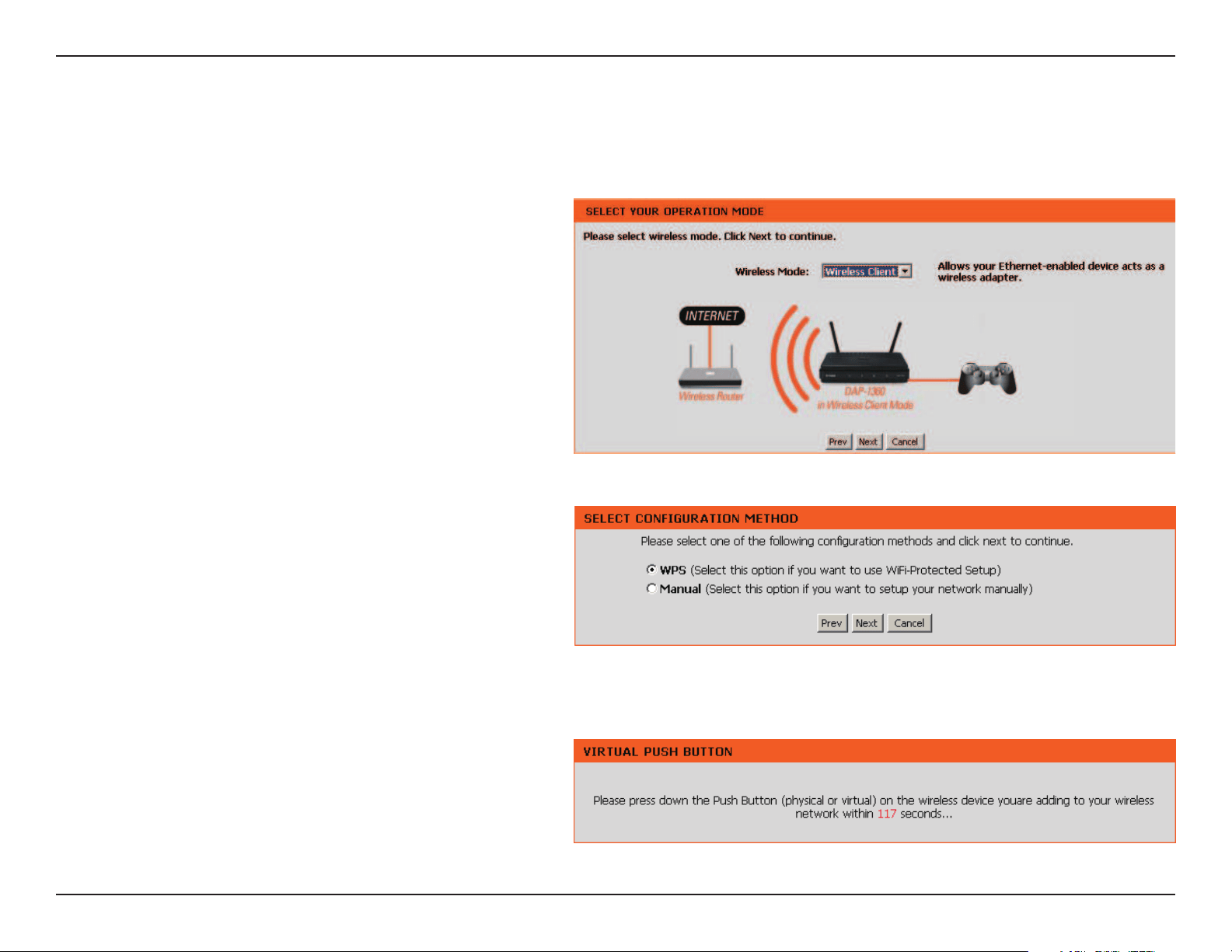
The Wireless Setup Wizard is complete. Click Finish to
reboot the device.
If you select Auto,enterthewirelesssecuritypassword.
Click Next to complete the Setup Wizard.
30D-Link DAP-1360 User Manual
Section 3 - Conguration
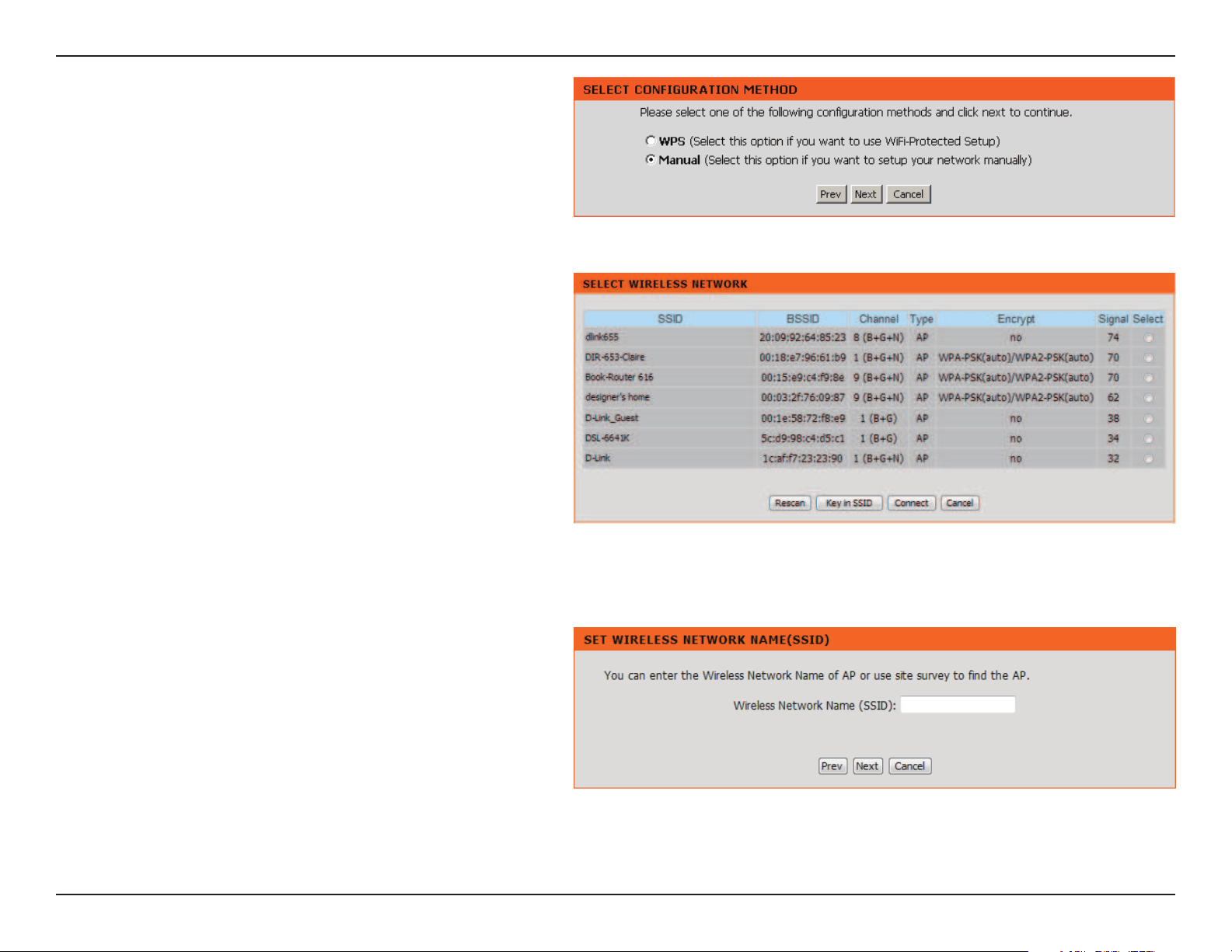
This Wizard is designed to assist you in conguring your DAP-1360 as a wireless client.
Wireless Client Mode
Select Wireless Client from the drop-down menu.
Select WPS as the conguration method only if your
wireless device supports Wi-Fi Protected Setup (WPS).
For Manualsetup,skiptothenextpage.
Click Next to continue.
Onthedeviceyouwanttoconnectto,startthePBC
processonthedevice.Youwillhave2minutestostart
the PBC process on both devices.
31D-Link DAP-1360 User Manual
Section 3 - Conguration
Select Manual conguration to setup your network
manually.
Click Next to continue.
If click Key in SSID,enterthenetworkname(SSID)of
the network you want to connect to.
Findyouraccesspointfromthelist,clicktheradio
buttonintherightcolumn,andclickConnect.

32D-Link DAP-1360 User Manual
Section 3 - Conguration
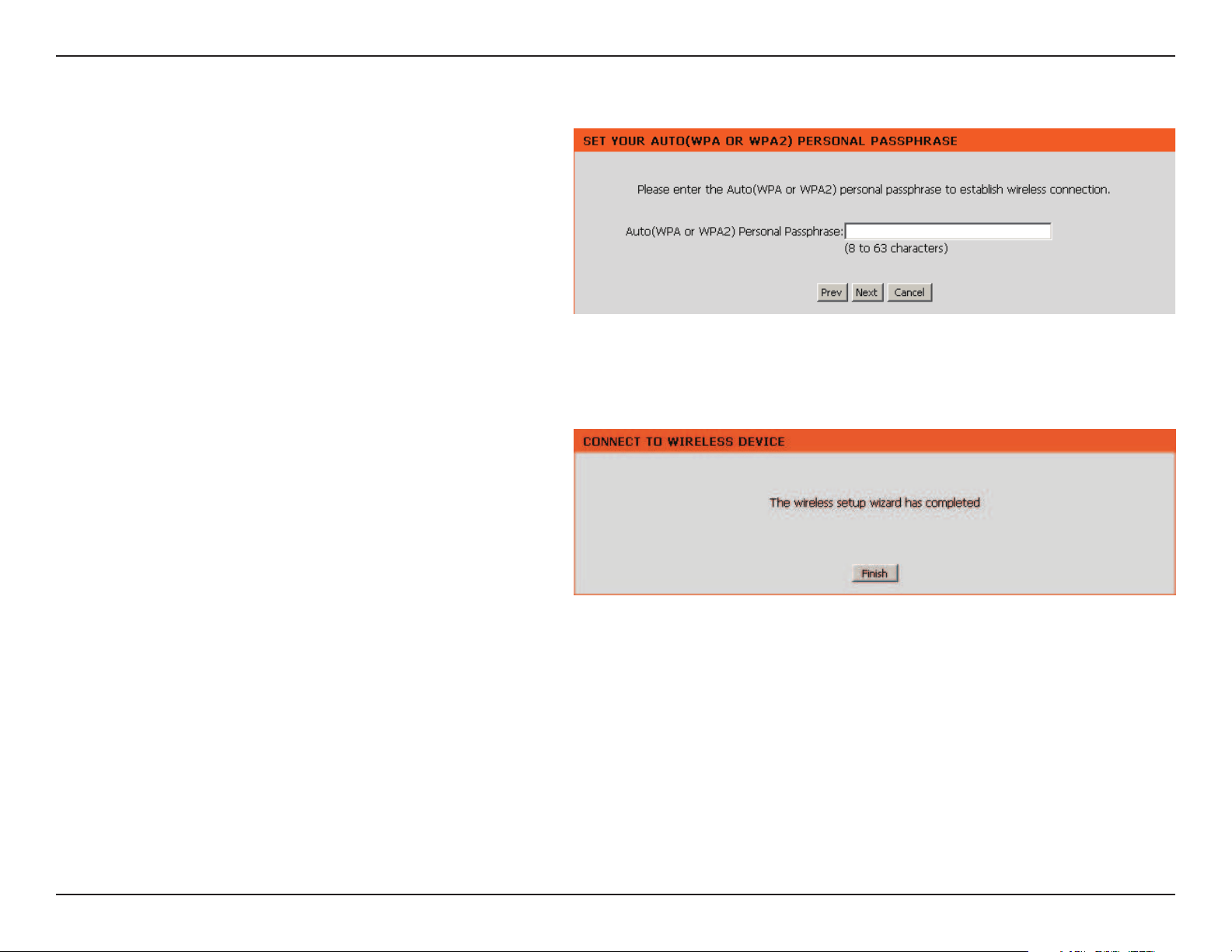
Choose which Security Mode you want to use and click
Next to continue.
If you select WEP,choosethekeytype(ASCIIorHEX),the
keysize(64or128-bit),andenterthewirelesssecurity
password. Click Next to complete the Setup Wizard.
If you select WPA or WPA2,enterthewirelesssecurity
password. Click Next to complete the Setup Wizard.
33D-Link DAP-1360 User Manual
Section 3 - Conguration
The Wireless Setup Wizard is complete. Click Finish to
reboot the device.
If you select Auto,enterthewirelesssecuritypassword.
Click Next to complete the Setup Wizard.

34D-Link DAP-1360 User Manual
Section 3 - Conguration
Manual Conguration
Wireless Settings
YoumaymanuallycongureyourDAP-1360insteadofrunningthesetupwizard.
•AccessPointmode-page35
•Repeatermode-page37
•WirelessClientmode-page38
•Bridgemode-page39
•BridgewithAPmode-page40
•WISPClientRoutermode-page41
•WISPRepeatermode-page41
35D-Link DAP-1360 User Manual
Section 3 - Conguration
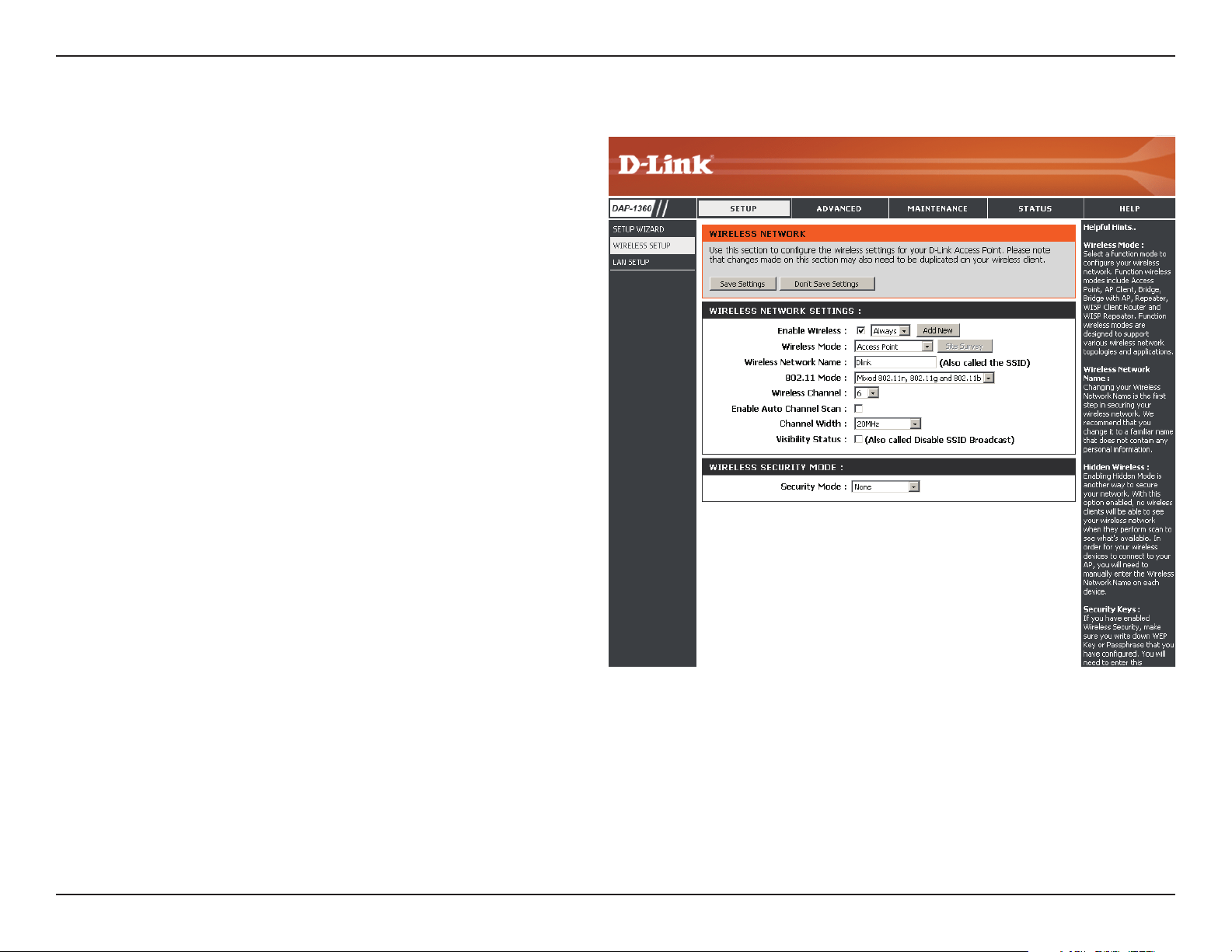
Enable Wireless:
Wireless Mode:
Wireless
Network Name:
802.11 Mode:
Wireless
Channel:
Enable Auto
Channel Scan:
Checktheboxtoenablethewirelessfunction.Ifyou
donotwanttousewireless,unchecktheboxtodisable
allthewirelessfunctions.Youmayalsosetupaspecic
time range (schedule). Select a schedule from the drop-
down menu or click Add New to create a new schedule.
Select Access Point from the drop-down menu.
Whenyouarebrowsingforavailablewirelessnetworks,
this is the name that will appear in the list (unless
VisibilityStatusissettoInvisible,seebelow).Thisname
isalsoreferredtoastheSSID.Forsecuritypurposes,it
is highly recommended to change from the default
network name.
Select one of the following:
802.11b Only - Select if you are only using 802.11b
wireless clients.
802.11g Only - Select if you are only using 802.11g
wireless clients.
802.11n Only - Select if you are only using 802.11n
wireless clients.
Mixed 802.11g and 802.11b - Select if you are using
amixof802.11gand11bwirelessclients.
Mixed 802.11n and 802.11g - Select if you are using
amixof802.11nand11gwirelessclients.
Mixed 802.11n, 802.11g and 802.11b-Selectifyouareusingamixof802.11n,11g,and11bwirelessclients.
IndicatesthechannelsettingfortheDAP-1360.TheChannelcanbechangedtotthechannelsettingforanexistingwirelessnetwork
ortocustomizethewirelessnetwork.IfyouenableAutoChannelScan,thisoptionwillbegrayedout.
The Auto Channel Scan setting can be selected to allow the DAP-1360 to choose the channel with the least amount of interference.
Access Point Mode

36D-Link DAP-1360 User Manual
Section 3 - Conguration
Select the Channel Width:
Auto 20/40 - Select if you are using both 802.11n and non-802.11n wireless devices.
20MHz - Select if you are not using any 802.11n wireless clients.
ChecktheboxifyoudonotwanttheSSIDofyourwirelessnetworktobebroadcastedbytheDAP-1360.Ifchecked,theSSIDofthe
DAP-1360 will not be seen by Site Survey utilities so your wireless clients will have to know the SSID of your DAP-1360 in order to
connect to it.
Refer to page 65 for more information regarding the wireless security.
Channel Width:
Visibility Status:
Security Mode:
37D-Link DAP-1360 User Manual
Section 3 - Conguration
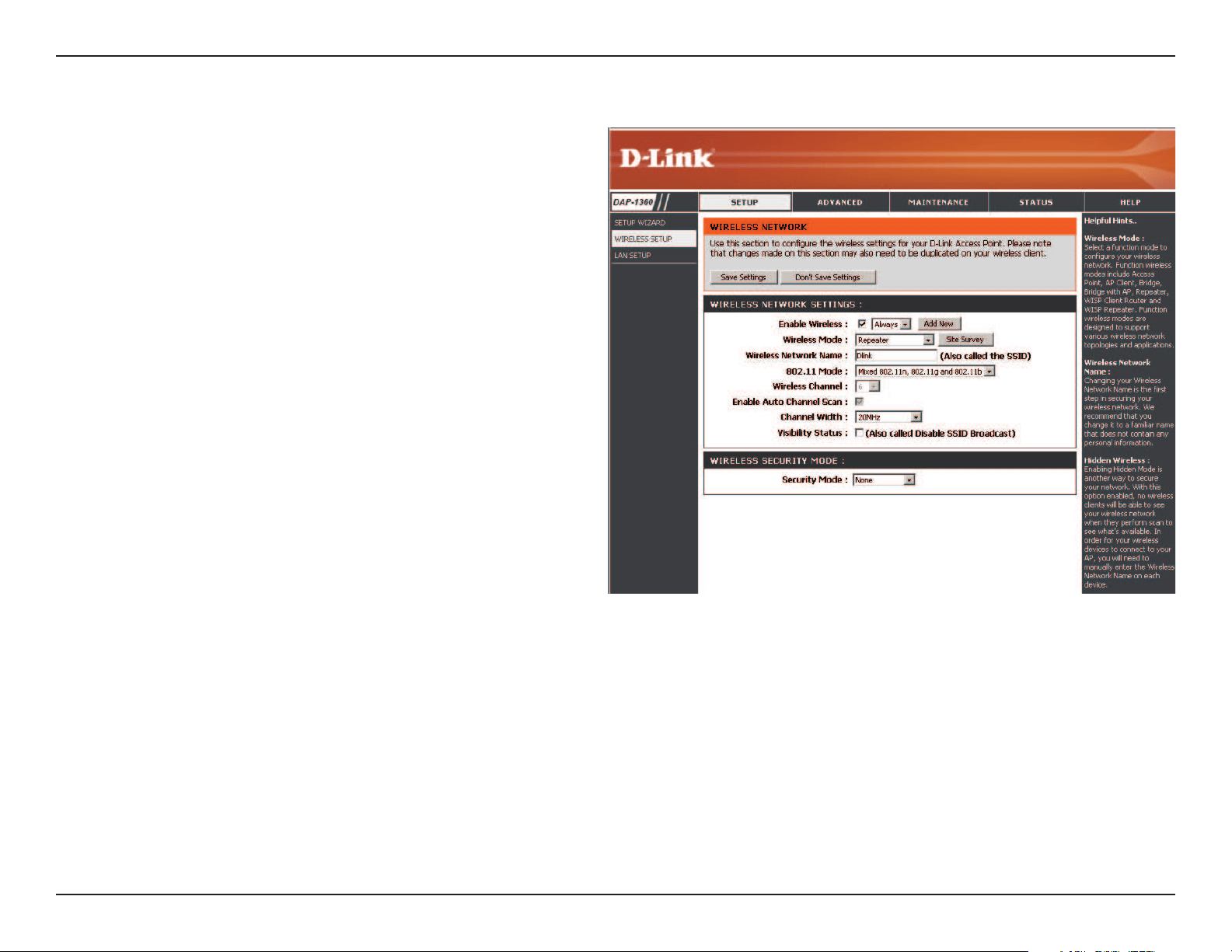
Enable Wireless:
Wireless Mode:
Site Survey:
Wireless Network
Name:
802.11 Mode:
Enable Auto
Channel Scan:
Wireless Channel:
Channel Width:
Visibility Status:
Wireless Security
Mode:
Checktheboxtoenablethewirelessfunction.Ifyoudo
notwanttousewireless,unchecktheboxtodisableall
thewirelessfunctions.Youmayalsosetupaspecictime
range (schedule). Select a schedule from the drop-down
menu or click Add New to create a new schedule.
Select Repeater from the drop-down menu.
Click SiteSurvey to display a list of wireless networks
inyourarea.Youmayselectthewirelessaccesspoint
to connect to.
Enter the SSID of the access point you want to repeat the
signalof.Ifyoudonotknowforsure,clickSiteSurvey
andselectitfromthelist,ifavailable.
Select the appropriate 802.11 mode based on the
wireless clients in your network. The drop-down menu
options are 802.11g Only,Mixed 802.11b/g,802.11b
Only,802.11n Only,orMixed 802.11b/g/n.
The Auto Channel Scan setting can be selected to allow
the DAP-1360 to choose the channel with the least
amount of interference.
The channel will automatically change to the channel of the AP you are connected to.
Select the appropriate channel width between 20MHz or Auto20/40MHz from the drop-down menu.
ChecktheboxifyoudonotwanttheSSIDtobebroadcastbytheDAP-1360.ThispreventstheSSIDfrombeingseenbysitesurvey
utilities,soanywirelessclientswillhavetobepre-conguredwiththeSSIDoftheDAP-1360inordertoconnecttoit.
Select a wireless security setting. Options are None,WEP,WPA,orWPA2. See the Wireless Security section in this manual for a detailed
explanationofthewirelesssecurityoptions.
Repeater Mode
38D-Link DAP-1360 User Manual
Section 3 - Conguration
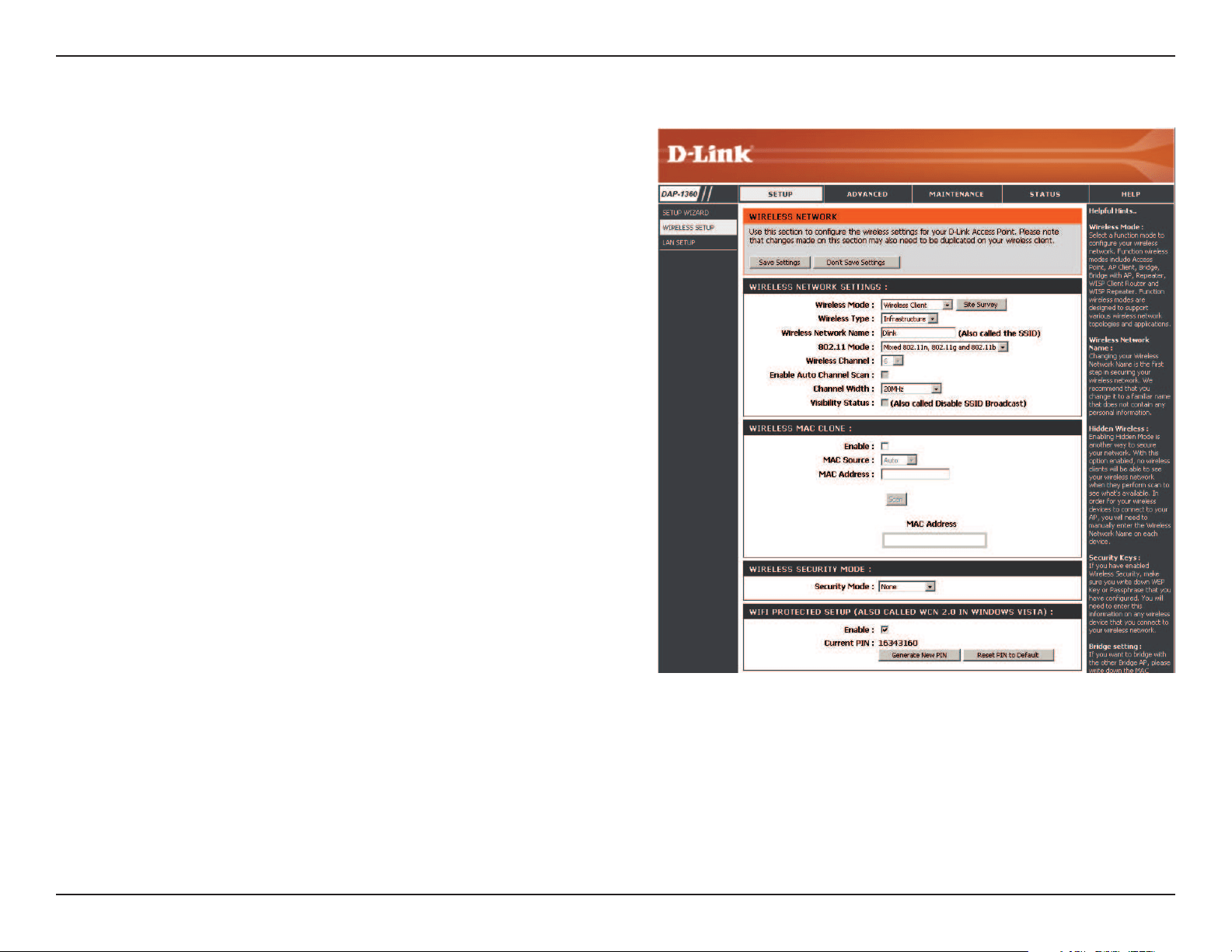
Wireless Mode:
Site Survey:
Wireless Type:
Wireless Network
Name:
802.11 Mode:
Wireless Channel:
Enable Auto
Channel Scan:
Channel Width:
Visibility Status:
Wireless MAC
Clone:
Wireless Security
Mode:
WPS:
Select Wireless Client Mode from the drop-down menu.
Click SiteSurvey to display a list of wireless networks in your
area.Youmayselectthewirelessaccesspointtoconnectto.
Select Infrastructure if connecting to an access point or
wirelessrouter,orselectAd-Hoc if connecting to another
wireless client.
Enter the SSID of the access point you want to repeat the signal
of.Ifyoudonotknowforsure,clickSiteSurvey and select it
fromthelist,ifavailable.
Select the appropriate 802.11 mode based on the wireless
clients in your network. The drop-down menu options are
802.11g Only,Mixed 802.11b/g,802.11b Only,802.11n
Only,orMixed 802.11b/g/n.
The channel will automatically change to the channel of the
AP you are connected to.
The Auto Channel Scan setting can be selected to allow the
DAP-1360 to choose the channel with the least amount of
interference.
Select the appropriate channel width between 20MHz or Auto
20/40MHz from the drop-down menu.
ChecktheboxifyoudonotwanttheSSIDtobebroadcastbytheDAP-1360.ThispreventstheSSIDfrombeingseenbysitesurvey
utilities,soanywirelessclientswillhavetobepre-conguredwiththeSSIDoftheDAP-1360inordertoconnecttoit.
YoucanclonethewirelessMACaddresstoconnectthedevice.
Select a wireless security setting. Options are None,WEP,WPA,orWPA2. See the Wireless Security section in this manual for a detailed
explanationofthewirelesssecurityoptions.
Select enable if you want to congure the DAP-1360 with Wi-Fi Protection setup.
Wireless Client Mode
39D-Link DAP-1360 User Manual
Section 3 - Conguration
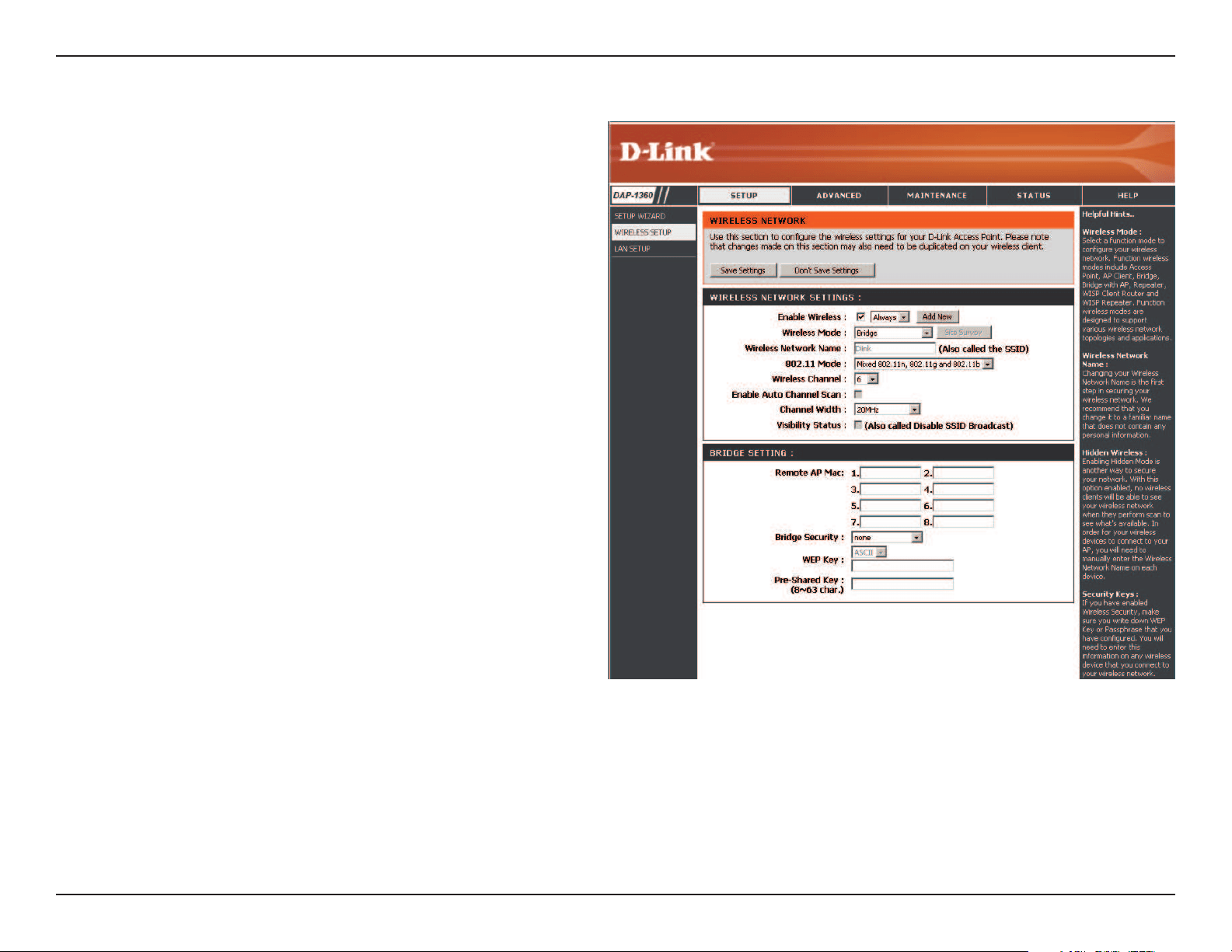
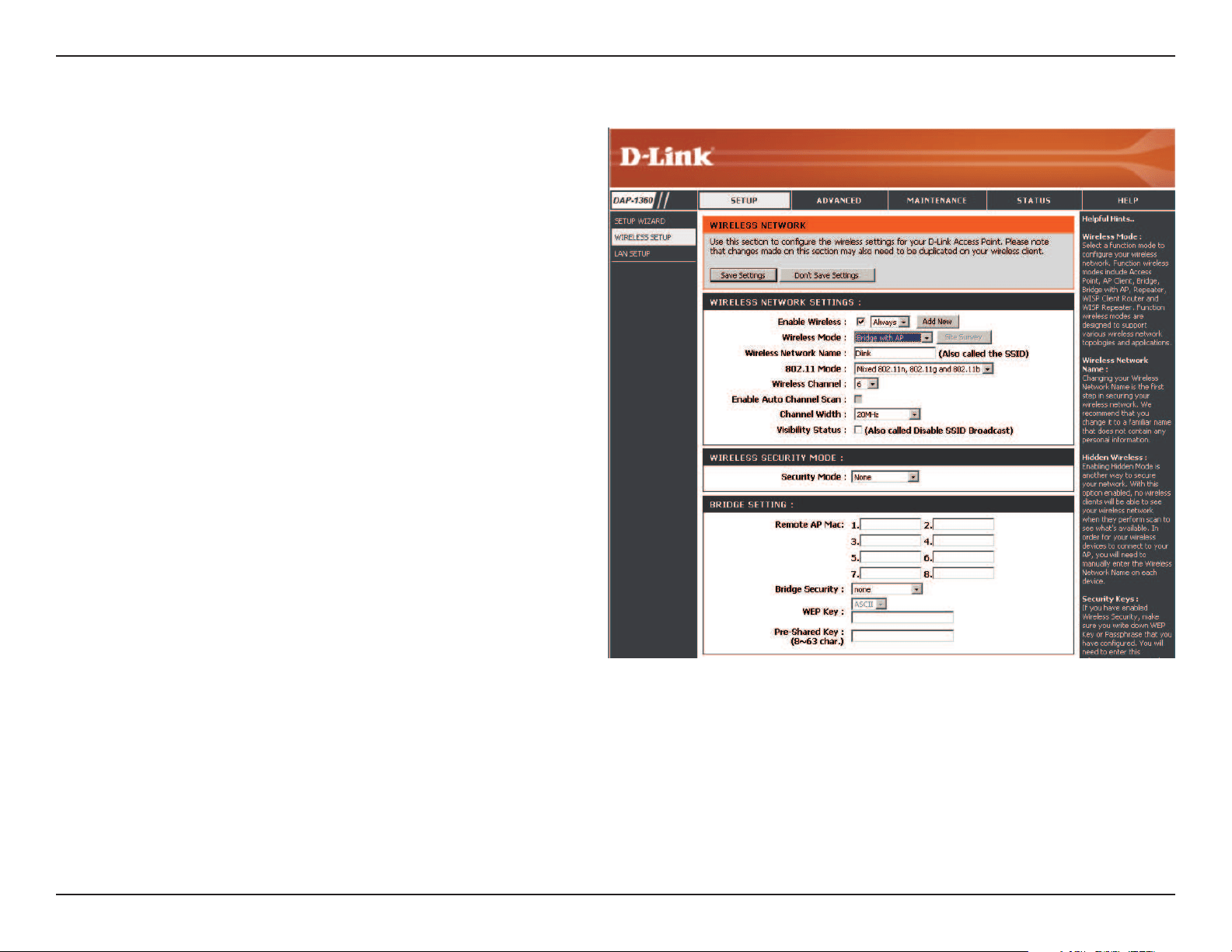
Enable Wireless:
Wireless Mode:
Wireless Network
Name:
802.11 Mode:
Wireless Channel:
Enable Auto
Channel Scan:
Channel Width:
Visibility Status:
Remote AP MAC:
Bridge Security:
Select this to turn the Wi-Fi module on and o. Use the
drop-downboxtoselectifyouwanttouseaschedule.
Click Add New to add or change a schedule.
Select Bridge from the drop-down menu.
The Wireless Network Name is a unique name that
identies a network. All devices on a network must share
the same wireless network name in order to communicate
on the network. If you decide to change the wireless
networknamefromthedefaultsetting,enteryournew
wireless network name in this eld.
Select the appropriate 802.11 mode based on the wireless
clients in your network. The drop-down menu options
are 802.11g Only,Mixed 802.11b/g,802.11b Only,
802.11n Only,orMixed 802.11b/g/n.
All devices on the network must share the same channel.
The Auto Channel Scan setting can be selected to allow
the DAP-1360 to choose the channel with the least
amount of interference.
Select the appropriate channel width between 20MHz
or Auto20/40MHz from the drop-down menu.
Select the transmission rate. It is strongly suggested to use the Auto setting for optimal performance.
Enter the MAC addresses of the APs in your network that will serve as bridges to wirelessly connect multiple networks.
Select None to disable encryption to across the network. Select WEP 64-bit or WEP 128-bit to limit communication to only those
devices that share the same WEP settings. Select WPA-PSK or WPA2-PSK to secure your network using a password and dynamic key
changes (No RADIUS server required).
Bridge Mode
Note: The Bridge mode is not completely specied in the Wi-Fi or IEEE standards. This mode can work with other DAP-1360 units. Communication with
other APs (even other D-Link APs) is not guaranteed.
40D-Link DAP-1360 User Manual
Section 3 - Conguration
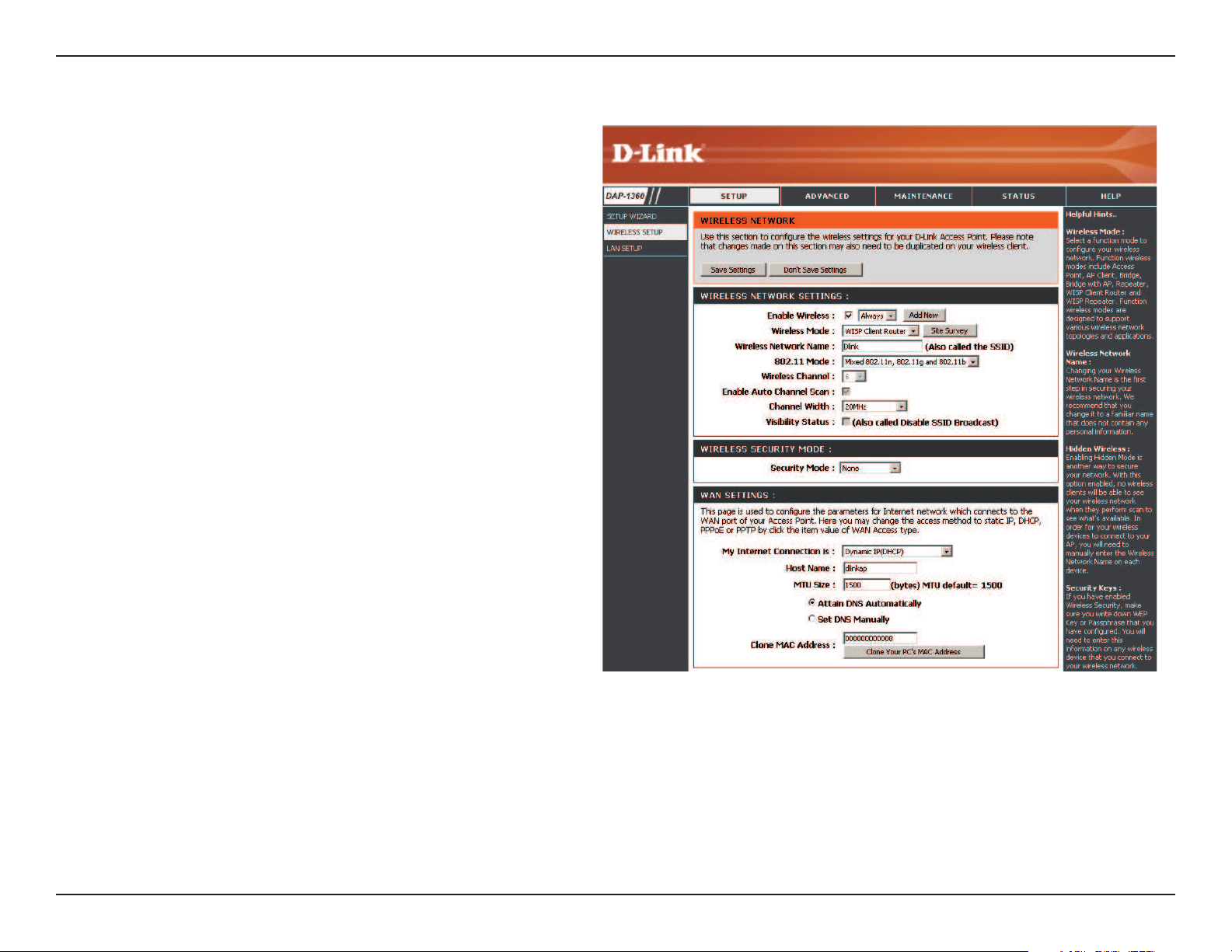
Enable Wireless:
Wireless Mode:
Wireless Network
Name:
802.11 Mode:
Wireless Channel:
Enable Auto Scan:
Channel Width:
Visibility Status:
Remote AP MAC:
Bridge Security:
Select this to turn the Wi-Fi module on and o. Use the
drop-downboxtoselectifyouwanttouseaschedule.
Click Add New to add or change a schedule.
Select Bridge with AP from the drop-down menu.
The Wireless Network Name is a unique name that
identies a network. All devices on a network must
share the same wireless network name in order to
communicate on the network. If you decide to change
thewirelessnetworknamefromthedefaultsetting,
enter your new wireless network name in this eld.
Select the appropriate 802.11 mode based on the
wireless clients in your network. The drop-down menu
options are 802.11g Only,Mixed 802.11b/g,802.11b
Only,802.11n Only,orMixed 802.11b/g/n.
All devices on the network must share the same channel.
The Auto Channel Scan setting can be selected to allow
the DAP-1360 to choose the channel with the least
amount of interference.
Select the appropriate channel width between 20MHz
or Auto20/40MHz from the drop-down menu.
ChecktheboxifyoudonotwanttheSSIDtobebroadcastbytheDAP-1360.ThispreventstheSSIDfrombeingseenbysitesurvey
utilities,soanywirelessclientswillhavetobepre-conguredwiththeSSIDoftheDAP-1360inordertoconnecttoit.
Enter the MAC addresses of the APs in your network that will serve as bridges to wirelessly connect multiple networks.
Select None to disable encryption to across the network. Select WEP 64-bits or WEP 128-bits to limit communication to only those
devices that share the same WEP settings. Select WPA-PSK or WPA2-PSK to secure your network using a password and dynamic key
changes (No RADIUS server required).
Bridge with AP Mode
Note: The Bridge with AP mode is not completely specied in the Wi-Fi or IEEE standards. This mode can work with other DAP-1360 units. Communication with other APs (even other
D-Link APs) is not guaranteed.
41D-Link DAP-1360 User Manual
Section 3 - Conguration
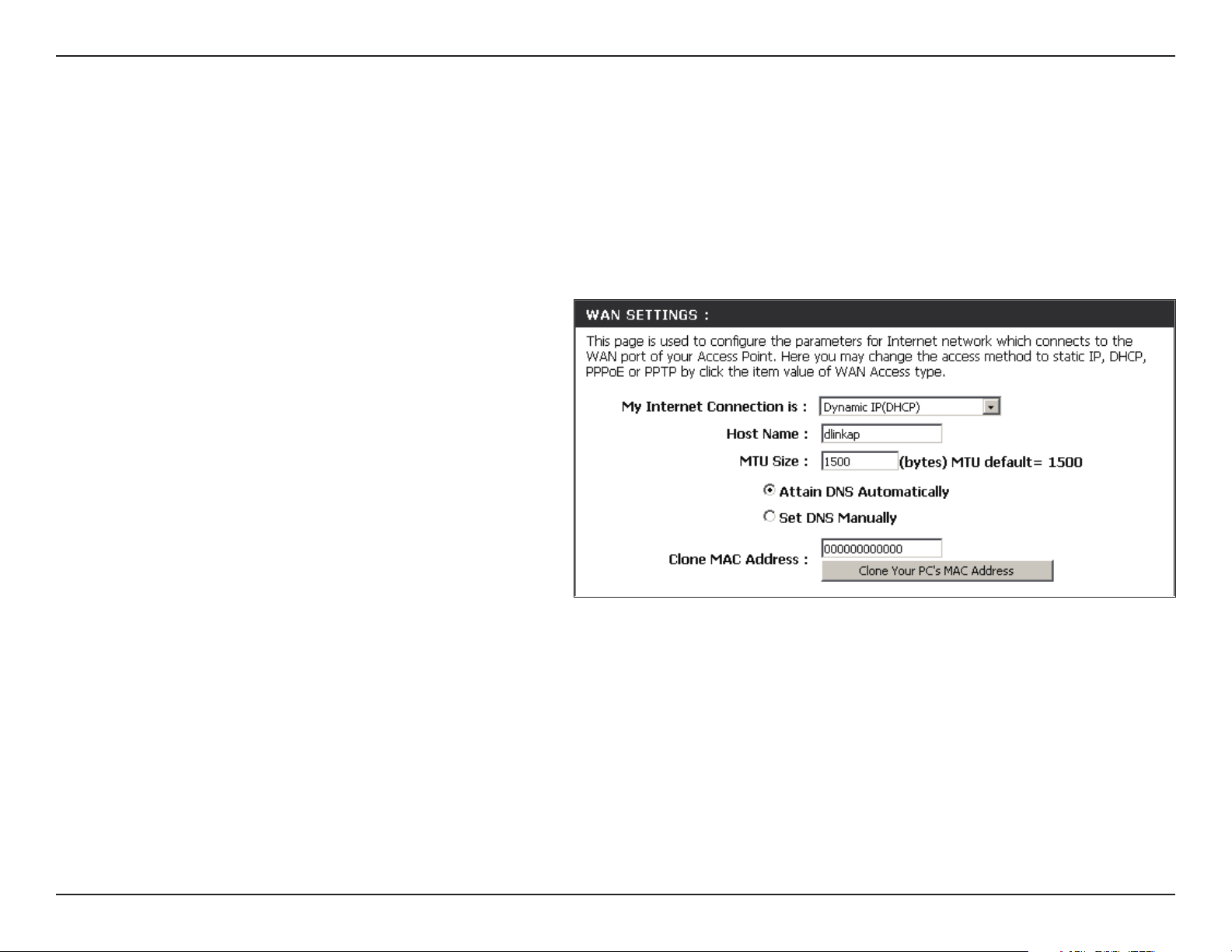
Enable Wireless:
Wireless Mode:
Site Survey:
Wireless Network
Name:
802.11 Mode:
Wireless Channel:
Enable Auto Scan:
Channel Width:
Visibility Status:
Wireless Security
Mode:
Select this to turn the Wi-Fi module on and o.
Usethedrop-downboxtoselectifyouwantto
use a schedule. Click Add New to add or change
a schedule.
Select WISP Client or WISP Repeater from the
drop-down menu.
Click this button to choose the root AP from an
available connection list. If the root AP has wireless
encryption,youhavetousethesamewireless
security mode to connect the root AP.
Youcaninputthewirelessnetworknameofthe
root AP or click the SiteSurvey button to nd the
root AP.
Select the appropriate 802.11 mode based
on the wireless clients in your network. The
drop-down menu options are 802.11g Only,Mixed
802.11b/g,802.11b Only,802.11n Only,orMixed
802.11b/g/n.
The channel used will be displayed. The channel
will follow the root AP.
The Auto Channel Scan setting can be selected to allow the DAP-1360 to choose the channel with the least amount of interference.
Select the appropriate channel width between 20MHz or Auto20/40MHz from the drop-down menu.
ChecktheboxifyoudonotwanttheSSIDtobebroadcastbytheDAP-1360.ThispreventstheSSIDfrombeingseenbysitesurvey
utilities,soanywirelessclientswillhavetobepre-conguredwiththeSSIDoftheDAP-1360inordertoconnecttoit.
Selectawirelesssecuritysetting.OptionsareNone,WEP,WPA,orWPA2.RefertotheWireless Security section of this manual for
adetailedexplanationofthewirelesssecurityoptions.
WISP Client Router/WISP Repeater Modes
42D-Link DAP-1360 User Manual
Section 3 - Conguration
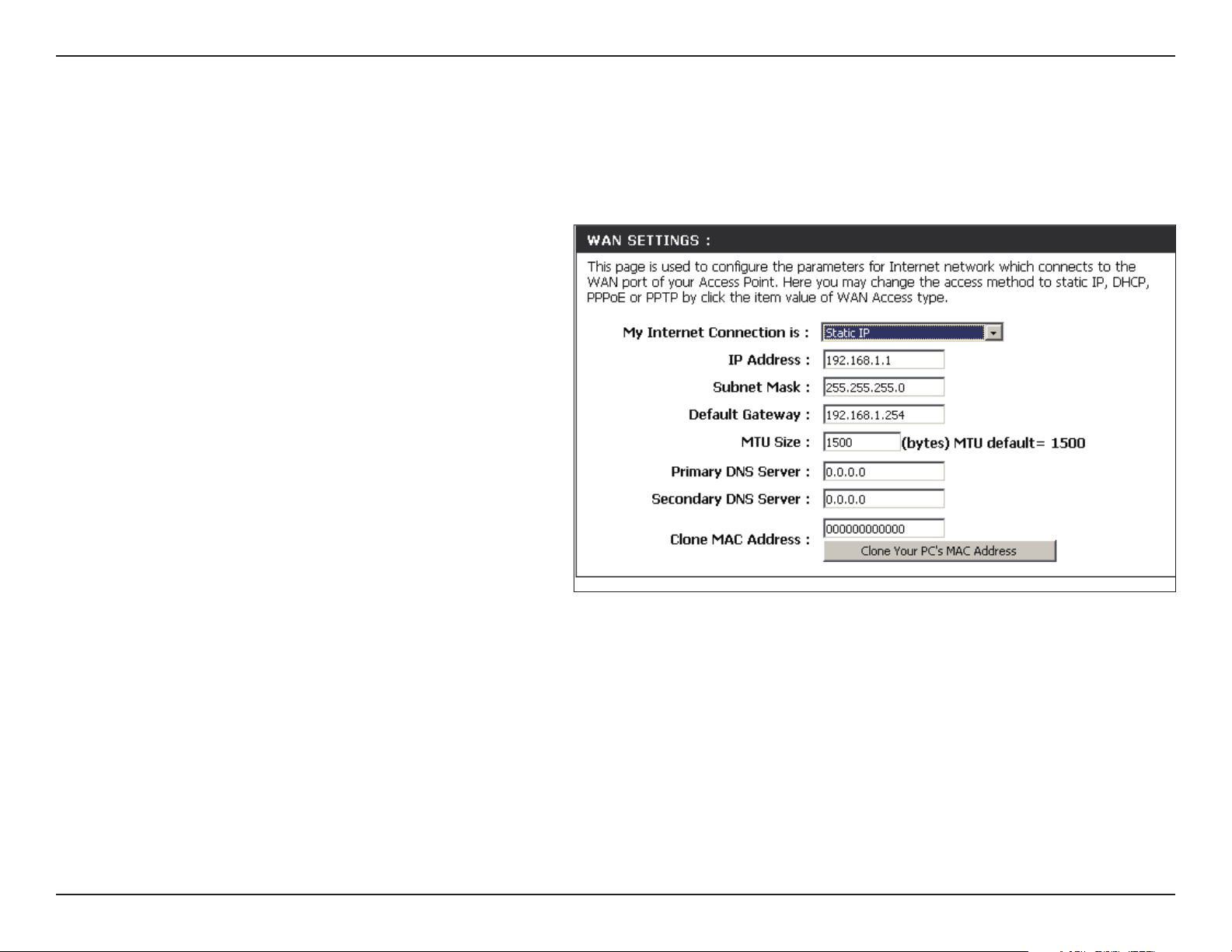
WAN Settings
Dynamic IP (DHCP)
WAN settings are only used in the WISP Client Router wireless mode and the WISP Repeater wireless mode. Choose Dynamic
IP(DHCP) to obtain IP Address information automatically from your ISP. Select this option if your ISP does not give you any IP
number to use. This option is commonly used for Cable modem services.
Host Name:
MTU Size:
Attain DNS
Automatically:
Set DNS manually:
DNS Server:
Clone MAC Address:
The Host Name is optional but may be required
by some ISPs.
YoumayneedtochangetheMTU(Maximum
Transmission Unit) for optimal performance
with your specic ISP. The default MTU size is
1500.
Select this option if you want the DAP-1360 to
get the DNS (Domain Name System) server IP
address automatically.
Select this option if you want to manually enter
the DNS Server IP address(es). The elds to
enter the Primary and Secondary DNS server
IP addresses will appear after you have selected this option.
Enter the Primary and Secondary DNS server IP address assigned by your ISP.
ThedefaultMACaddressissettotheEthernetMACaddressyourDAP-1360.YoucanclicktheCloneYourPC’sMACAddressbutton
to replace the AP’s MAC address with the MAC address of the PC that you used to register with your ISP. It is not recommended
that you change the default MAC address unless required by your ISP.
43D-Link DAP-1360 User Manual
Section 3 - Conguration
Static IP
SelectStaticIPifallWANIPinformationisprovidedtoyoubyyourISP.YouwillneedtoenterintheIPaddress,subnetmask,
gatewayaddress,andDNSaddress(es)providedtoyoubyyourISP.
IP Address:
Subnet Mask:
Default Gateway:
MTU Size:
Primary DNS Server:
Secondary DNS Server:
Clone MAC Address:
192.168.1.1 is the default WAN IP Address of
the DAP-1360.
255.255.255.0 is the default subnet mask.
All devices on the network must have the
same subnet mask to communicate on the
network.
Enter the IP Address of the gateway in your
network.
YoumayneedtochangetheMTU(Maximum
Transmission Unit) for optimal performance
with your specic ISP. The default MTU size
is 1500.
Enter the Primary DNS (Domain Name
System) server IP address assigned by your
ISP.
Enter the Secondary DNS (optional) server IP address assigned by your ISP.
ThedefaultMACaddressissettotheMACaddressontheAP(AccessPoint).YoucanclicktheCloneYourPC’sMACAddress
button to replace the AP’s MAC address with the MAC address of your Ethernet card. It is not recommended that you change
the default MAC address unless required by your ISP.
44D-Link DAP-1360 User Manual
Section 3 - Conguration
PPPoE
SelectPPPoE(Point-to-PointProtocoloverEthernet)ifyourISPusesaPPPoEconnection.YourISPwillprovideyouwitha
username and password. This option is typically used for DSL services. Make sure to remove your PPPoE software from your
computer. The software is no longer needed and will not work through the DAP-1360.
Username:
Password:
Service Name:
Reconnection Type:
Maximum Idle Time:
MTU Size:
Attain
DNS Automatically:
Set DNS Manually:
DNS Servers:
Clone MAC Address:
Enter your PPPoE user name.
Enter your PPPoE password and then retype the
passwordinthenextbox.
Enter the ISP Service Name (optional).
Select Always on,On demand,orManual.
Enteramaximumidletimeduringwhichthe
Internet connection is maintained during inactivity.
YoumayneedtochangetheMTU(Maximum
Transmission Unit) for optimal performance with
yourspecicISP.Themaximum/defaultMTUsize
is 1492.
Select this option if you want the DAP-1360 to get
the DNS (Domain Name System) server IP address
automatically.
Select this option if you want to manually enter
the DNS Server IP address(es). Fields to enter the
Primary and Secondary DNS server IP addresses will appear after you select this option.
Enter the Primary and Secondary DNS server IP address assigned by your ISP.
ThedefaultMACaddressissettotheMACaddressontheAP(AccessPoint).YoucanclicktheClone Your PC’s MAC Address
button to replace the AP’s MAC address with the MAC address of your Ethernet card. It is not recommended that you change
the default MAC address unless required by your ISP.
45D-Link DAP-1360 User Manual
Section 3 - Conguration
PPTP
ChoosePPTP(Point-to-PointTunnelingProtocol)ifyourISPusesaPPTPconnection.YourISPwillprovideyouwithausername
and password. This option is typically used for DSL services.
PPTP IP Address:
PPTP Subnet Mask:
PPTP Server IP Address:
Username:
Password:
MTU Size:
Attain
DNS Automarically:
Set DNS Automatically:
DNS Servers:
Clone MAC Address:
Enter the IP address (Static PPTP only).
Enter the subnet mask.
Enter the Server IP Address provided by your
ISP.
Enter your PPTP username.
Enter your PPTP password and then retype
thepasswordinthenextbox.
YoumayneedtochangetheMTU(Maximum
Transmission Unit) for optimal performance
with your specic ISP. The default MTU size
is 1400.
Select this option if you want the DAP-1360
get DNS server IP address automatically.
Select this option if you want to manually
enter the DNS Server IP address(es). Fields to
enter the Primary and Secondary DNS server
IP addresses will appear after you select this
option.
Enter the Primary and Secondary DNS (Domain Name System) server IP address assigned by your ISP.
ThedefaultMACaddressissettotheMACaddressontheAP(AccessPoint).YoucanclicktheClone Your PC’s MAC Address
button to replace the AP’s MAC address with the MAC address of your Ethernet card. It is not recommended that you change
the default MAC address unless required by your ISP.
46D-Link DAP-1360 User Manual
Section 3 - Conguration
LAN Settings
This section will allow you to change the local network settings of the access point and to congure the DHCP settings.
Device Name:
LAN Connection
Type:
My IPv6
Connection Type:
Enter the Device Name of the AP. It is recommended
to change the Device Name if there is more than
one D-Link device within the subnet.
Use the drop-down menu to select Dynamic IP
(DHCP) to automatically obtain an IP address on
the LAN/private network.
Select from the drop-down menu the type of IPv6
connection you would like to use.
47D-Link DAP-1360 User Manual
Section 3 - Conguration
Device Name:
LAN Connection Type:
IP Address:
Subnet Mask:
Default Gateway:
Enter the Device Name of the AP. It is
recommended to change the Device Name if
there is more than one D-Link device within the
subnet.Youcanenterthedevicenameofthe
AP into your web browser to access the instead
of IP address for conguration. If you are using
thedevicenametoconnect,ensurethatyour
PC and your DAP-1360 are on the same network.
Select Static IP from the drop-down menu.
Enter the IP address of the access point. The
default IP address is 192.168.0.50. If you change
theIPaddress,onceyouclickApply,youwill
need to enter the new IP address in your browser
to get back into the conguration utility.
Enter the Subnet Mask assigned by your ISP.
EntertheGatewayassignedbyyourISP.
Static IP
SelectStaticIPAddressifalltheInternetport’sIPinformationisprovidedtoyoubyyourISP.YouwillneedtoenterintheIP
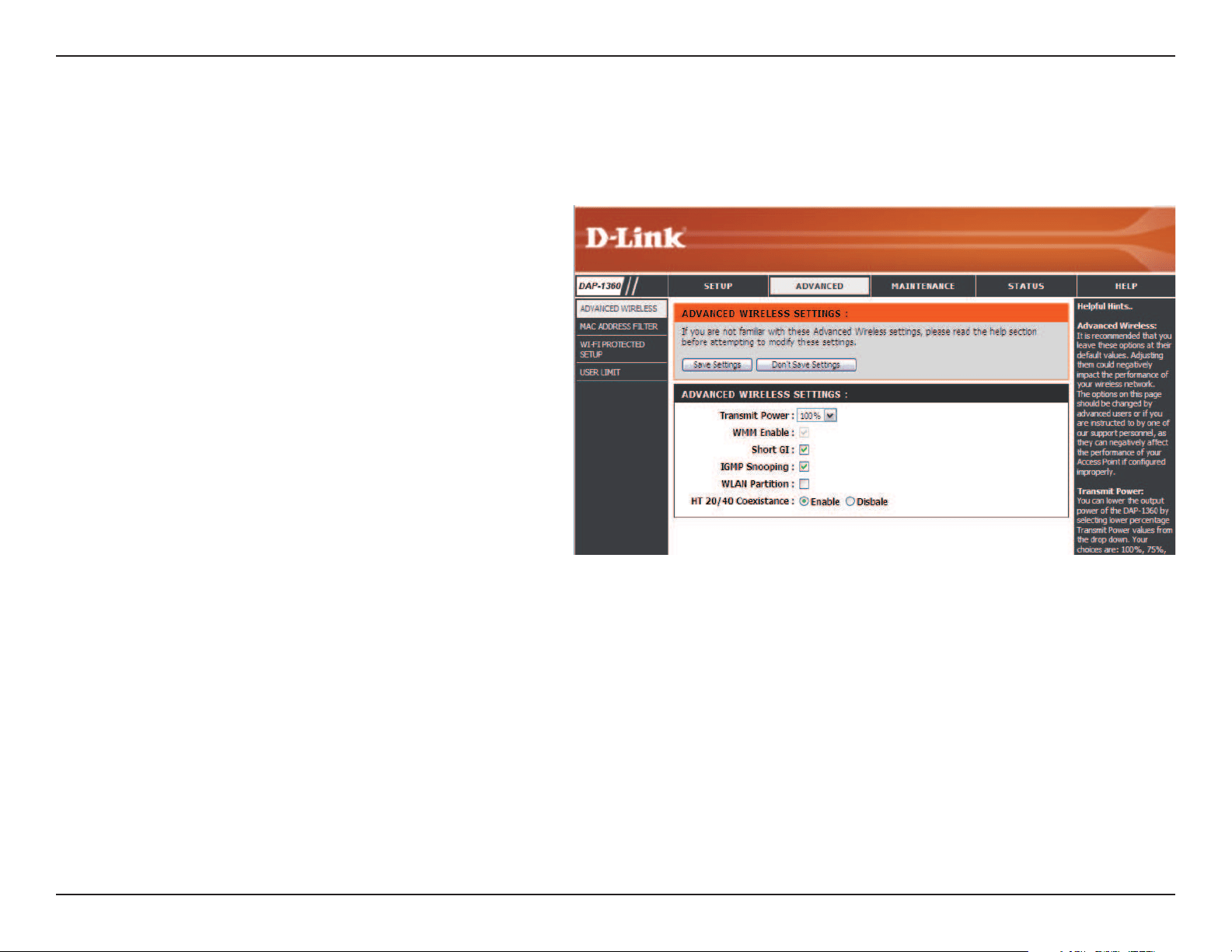
address,subnetmask,gatewayaddress,andDNSaddress(es)providedtoyoubyyourISP.EachIPaddressenteredintheelds
mustbeintheappropriateIPform,whicharefouroctetsseparatedbyadot(x.x.x.x).TheAccesspointwillnotaccepttheIP
address if it is not in this format.
48D-Link DAP-1360 User Manual
Section 3 - Conguration
Advanced
Advanced Wireless
Transmit Power:
WMM Enable:
Short GI:
IGMP Snooping:
WLAN Partition:
HT 20/40
Coexistance:
Sets the transmit power of the antennas.
WMMisQoSforyourwirelessnetwork.Thiswill
improve the quality of video and voice applications
for your wireless clients.
Checkthisboxtoreducetheguardintervaltime
thereforeincreasingthedatacapacity.However,
it’s less reliable and may create higher data loss.
ThisenablesIGMPsnoopingforthewireless
connection. We recommend enabling this if
you often use multicast services such as video
conferencing and streaming audio/video.
Thisfeatureenablesclientisolation.Ifenabling,
all clients will not be able to view or access each
other’s information or within the network.
Check to enable or disable this feature.
49D-Link DAP-1360 User Manual
Section 3 - Conguration
MAC Address Filter
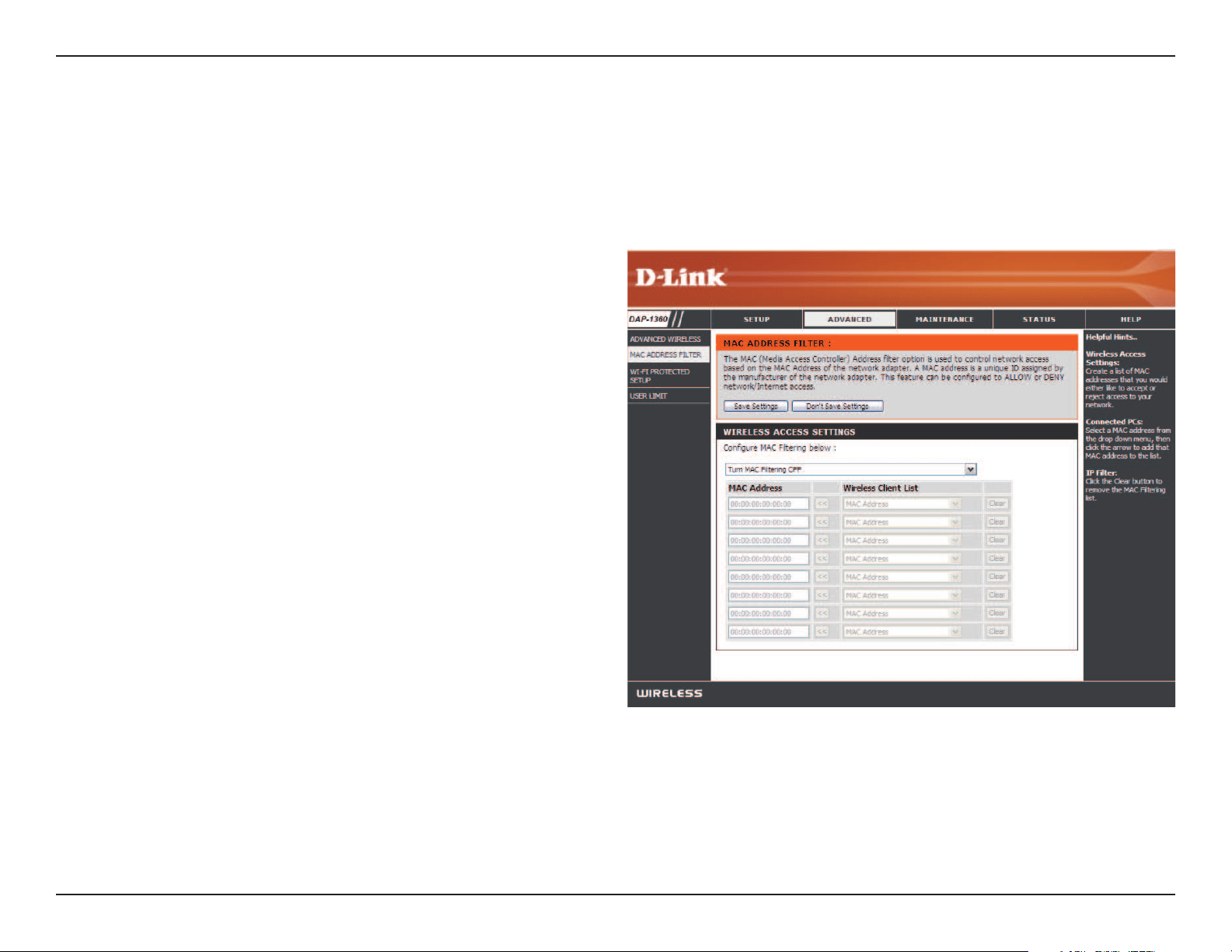
The MAC address lter section can be used to lter network access by machines based on the unique MAC addresses of their
network adapter(s). It is most useful to prevent unauthorized wireless devices from connecting to your network. A MAC address
is a unique ID assigned by the manufacturer of the network adapter.
Congure
MAC Filtering:
Add MAC
Filtering
Rule:
When Turn MAC Filtering OFFisselected,MACaddresses
are not used to control network access. When Turn MAC
Filtering ON and ALLOW computers listed to access the
networkisselected,onlycomputerswithMACaddresses
listed in the MAC Address List are granted network access.
When Turn MAC Filtering ON and DENY computers listed
to access the networkisselected,anycomputerwitha
MAC address listed in the MAC Address List is refused access
to the network.
This parameter allows you to manually add a MAC ltering
rule. Click the Add button to add the new MAC ltering rule
to the MAC Filtering Rules list at the bottom of this screen.
50D-Link DAP-1360 User Manual
Section 3 - Conguration
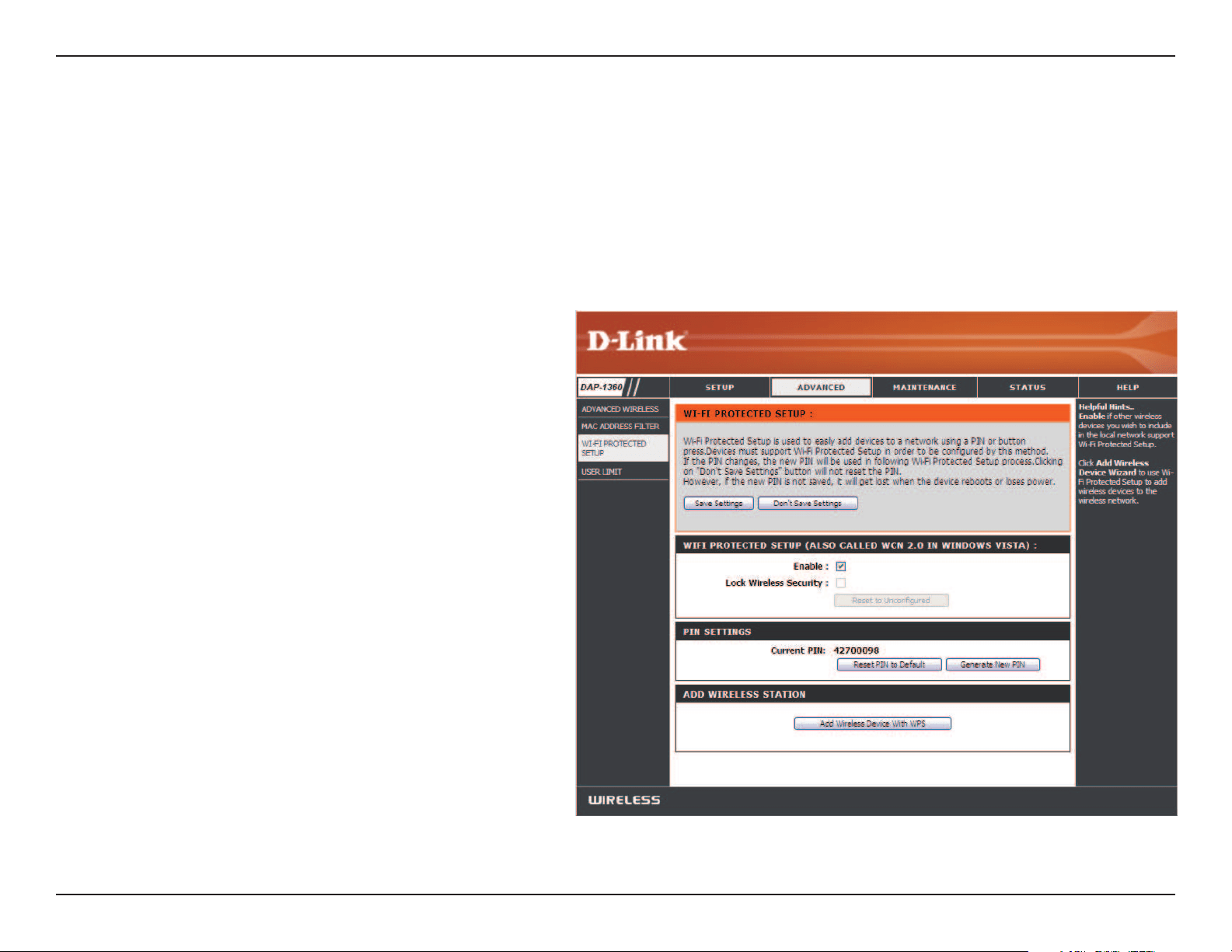
Wi-Fi Protected Setup
Checkthisboxtoenablethefunction
Locking the wireless security settings prevents the
settings from being changed by the Wi-Fi Protected
Setup feature of the router. Devices can still be added
tothenetworkusingWi-FiProtectedSetup.However,
the settings of the network will not change once this
option is checked.
Press the button to generate a new PIN or Reset to
Default.
Shows the current value of the router’s PIN.
Restore the default PIN of the access point.
Create a random number that is a valid PIN. This
becomestherouter’sPIN.YoucanthencopythisPIN
to the user interface of the registrar.
Press the button to start with the wizard to setup
the WPS.
Enable:
Lock Wireless
Security Settings:
Pin Settings:
Current PIN:
Reset PIN to
Default:
Generate New
PIN:
Add Wireless
Station:
Wi-Fi Protected Setup (WPS) System is a simplied method for securing your wireless network during the “Initial setup” as well
as the “Add New Device” processes. The Wi-Fi Alliance (WFA) has certied it across dierent products as well as manufactures.
Theprocessisjustaseasy,asdepressingabuttonforthePush-ButtonMethodorcorrectlyenteringthe8-digitcodeforthe
Pin-CodeMethod.Thetimereductioninsetupandeaseofusearequitebenecial,whilethehighestwirelessSecuritysetting
of WPA2 is automatically used.
51D-Link DAP-1360 User Manual
Section 3 - Conguration
User Limits
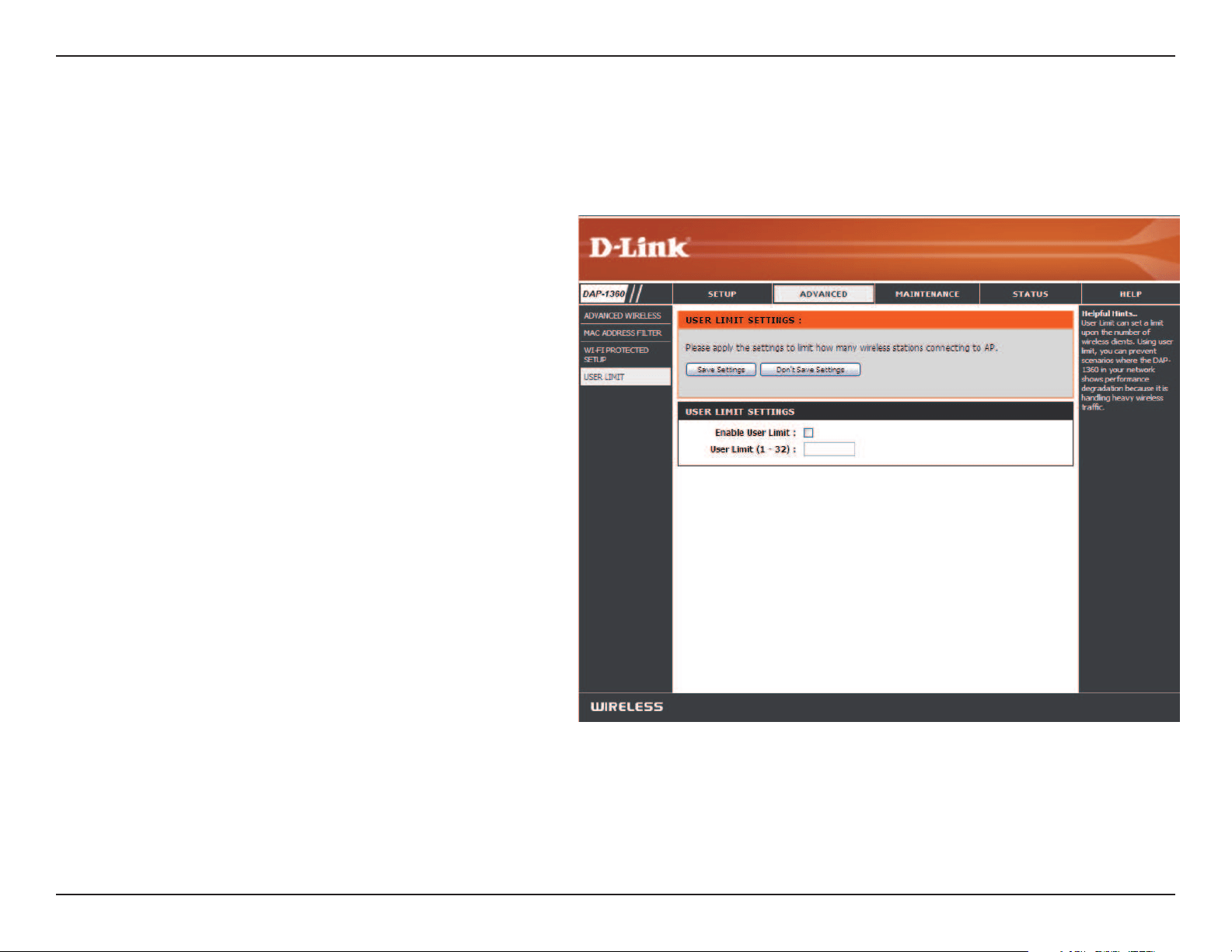
Check the Enable User Limitboxtoenablethis
feature.
Enterthemaximumnumberofclients,between1
and 32.
Click SaveSettings to save and activate the new
changes.
Enable User
Limit:
User Limit:
Save
Settings:
Enterthemaximumnumberofwirelessclientsthatcanconnectatonetimetoyouraccesspoint.
52D-Link DAP-1360 User Manual
Section 3 - Conguration
Port Forwarding (WISP modes only)
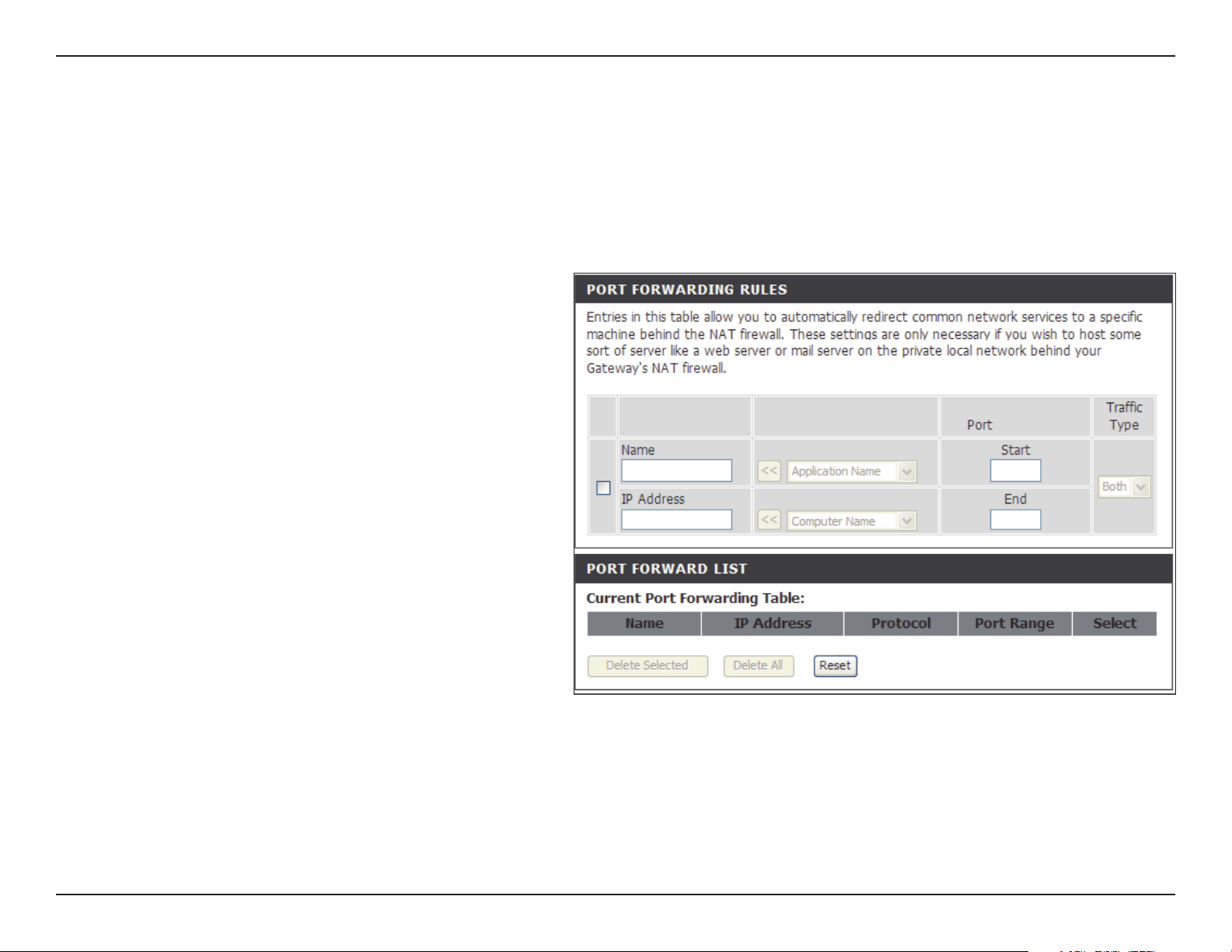
Checktheboxtocongureaportforwardingrule.
Enteranamefortherule.Youcanselectan
application name from the Application Name drop-
down menu. Click the << button to ll in the Name
eld with the application name that you selected.
Enter the IP address of the computer on your local
network that you want to allow the incoming
service to.
Enter the port or ports that you want to open. If
youwanttoopenoneport,enterthesameportin
bothboxes.
Select TCP,UDP,orBoth.
Port Forwarding
Rules:
Name:
IP Address:
Start/End Ports:
Trac Type:
This function is available if your DAP-1360 is in the WISP Client Router or WISP Repeater mode. This feature allows you to open
a single port or a range of ports. Click SaveSettings and the port forwarding rule will be put into the Port Forwarding List.
53D-Link DAP-1360 User Manual
Section 3 - Conguration
Port Filter (WISP modes only)
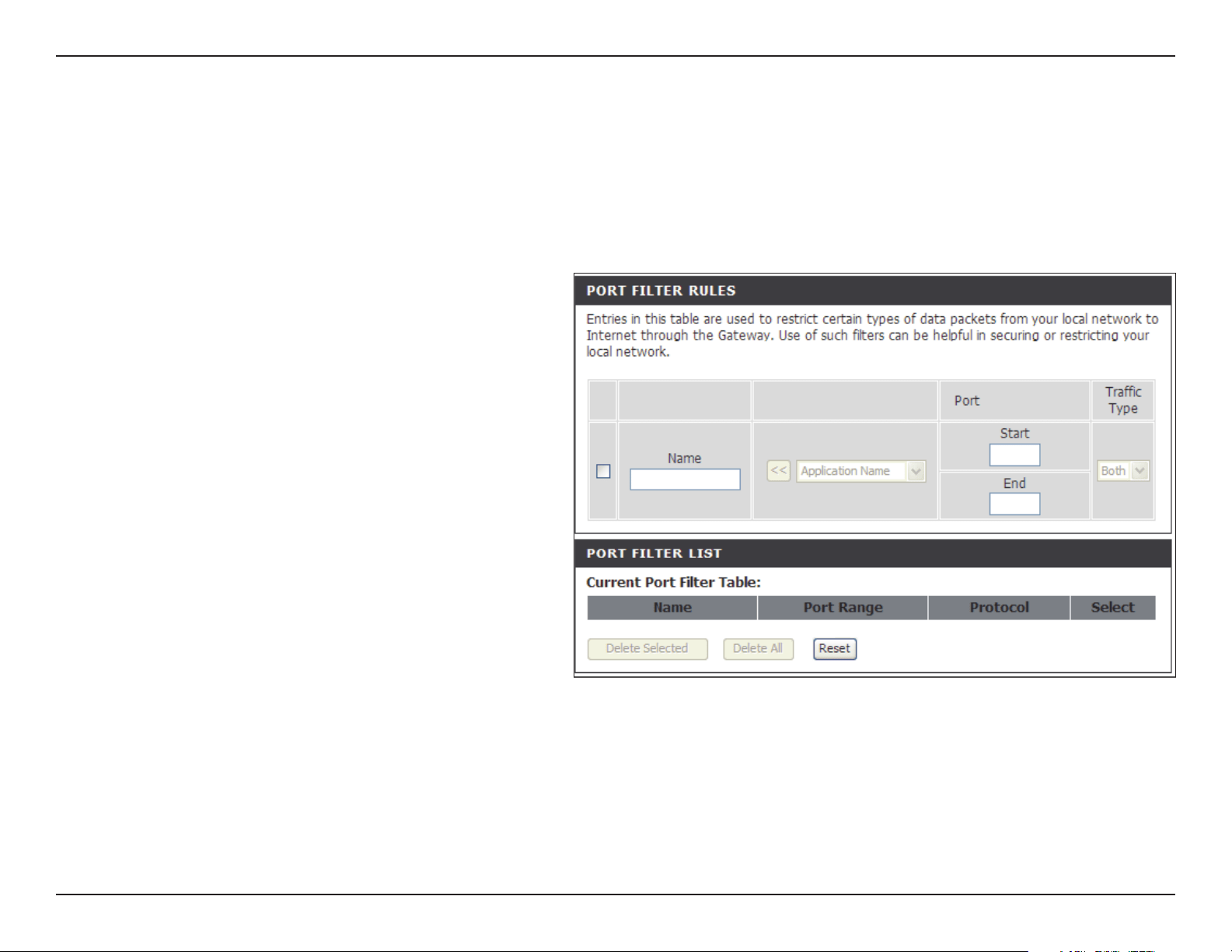
Checktheboxtocongureaportlterrule.
Enteranamefortherule.Youcanselectan
application name from the Application Name drop-
down menu. Click the << button to ll in the Name
eld with the application name that you selected.
Enter the port or ports that you want to open. If
youwanttoopenoneport,enterthesameportin
bothboxes.
Select TCP,UDP,orBoth.
Port Filter
Rules:
Name:
Start/End Ports:
Trac Type:
This function is available if your DAP-1360 is in the WISP Client Router or WISP Repeater mode. This feature is used to secure
or restrict your local network. It will deny the ports that you enter from the local network to the Internet. Click SaveSettings
and the port lter rule will be put into the Port Filter List.
54D-Link DAP-1360 User Manual
Section 3 - Conguration
DMZ (WISP modes only)
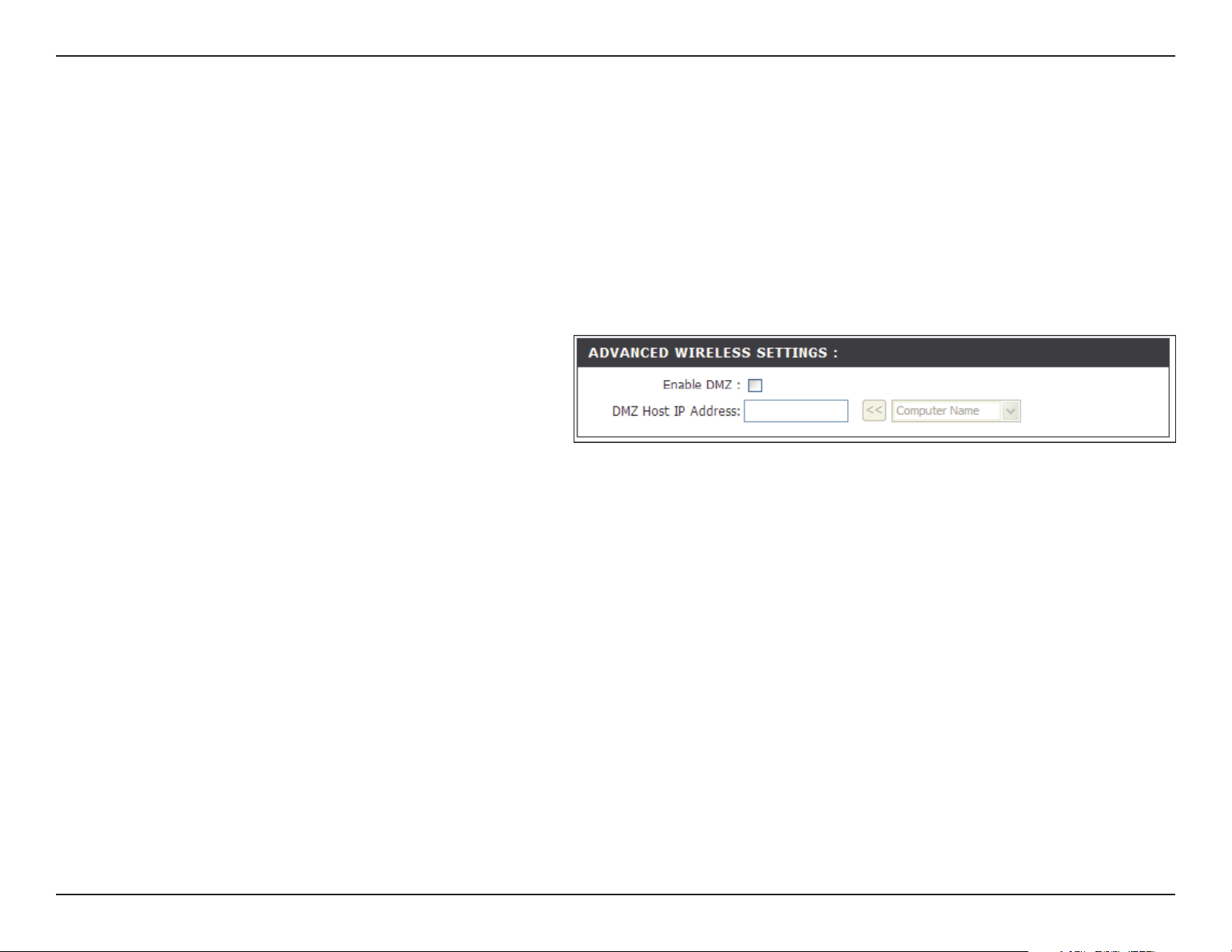
CheckthisboxtoenableDMZ.
Enter the IP address of the computer you would
liketoopenallportsto.Youcanselectacomputer
from the Computer Name drop-down menu and
click << to enter the computer name into the DMZ
Host IP Address eld.
Enable DMZ:
DMZ Host IP
Address:
This function is available only if the DAP-1360 is in the WISP Client Router or WISP Repeater mode. This feature allows you to
set up a DMZ (Demilitarized Zone) host. If you have a client PC that cannot run Internet applications properly from behind the
DAP-1360,thenyoucansettheclientupforunrestrictedInternetaccess.TheDMZallowsacomputertobeexposedtothe
Internet. This feature is useful for gaming purposes. Enter the IP address of the computer that will be the DMZ host. Adding a
clienttotheDMZmayexposeyourlocalnetworktoavarietyofsecurityrisks,soonlyusethisoptionasalastresort.
55D-Link DAP-1360 User Manual
Section 3 - Conguration
Parental Control (WISP modes only)
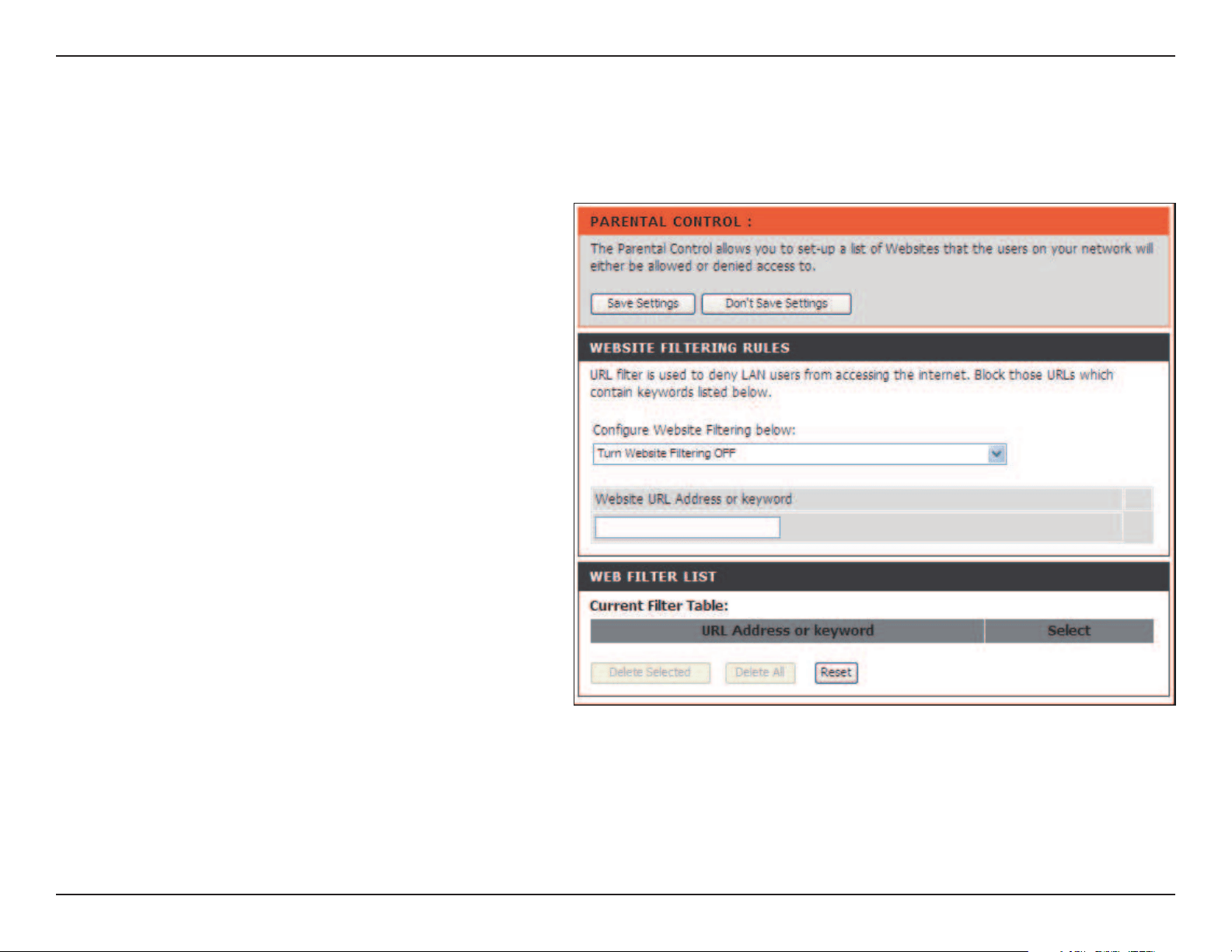
Select Turn Website Filtering OFF or Turn Website
Filtering ON and DENY computers access to
ONLY these sites.
Enter a keyword or URL that you want to block
and click SaveSettings. Any URL that contains the
keyword will be blocked.
Congure
Website
Filtering Below:
Website URL
Address:
This function is available only if the DAP-1360 is in the WISP Client Router or WISP Repeater mode. This feature allows you to
create a list of websites that you want to deny users access.
56D-Link DAP-1360 User Manual
Section 3 - Conguration
Advanced Network (WISP modes only)
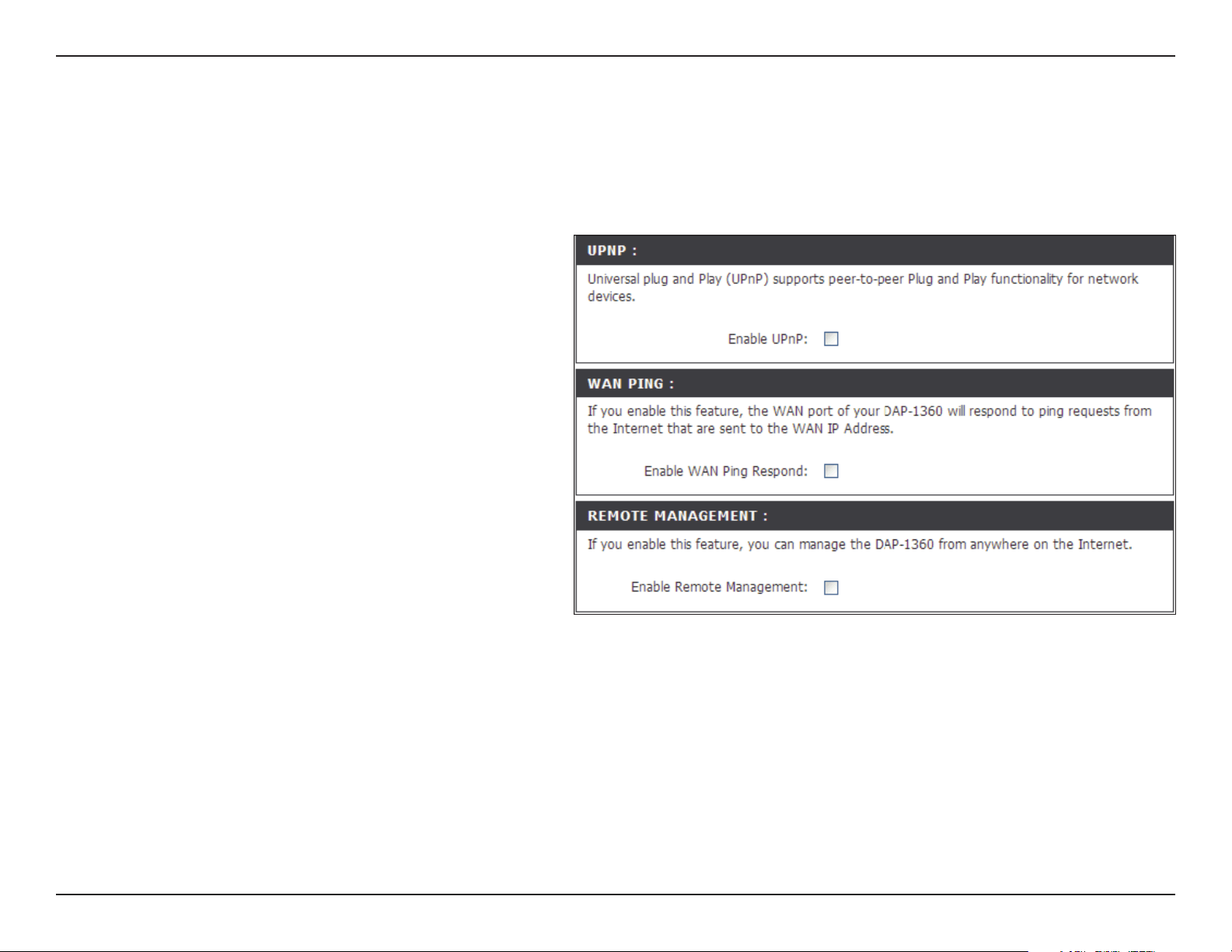
CheckthisboxtousetheUniversalPlugandPlay
(UPnP™)feature.UPnPprovidescompatibilitywith
networkingequipment,softwareandperipherals.
CheckthisboxtoallowtheWANportofthe
DAP-1360tobepinged.Uncheckingthebox
will not allow the DAP-1360 to respond to pings.
Blockingpingresponsemayprovidesomeextra
security from intruders.
Remote management allows the DAP-1360 to be
congured from the Internet by a web browser. A
username and password are still required to access
theWeb-Managementinterface.Ingeneral,onlya
member of your network can browse the built-in
web pages to perform Administrator tasks. This
feature enables you to perform Administrator
tasks from the remote (Internet) host.
Enable UPnP:
Enable WAN Ping
Respond:
Remote
Management:
This function is available if the DAP-1360 is in WISP Client Router or WISP Repeater mode. This feature allows you to change
the LAN settings. Please be aware that any changes to the factory default settings may aect the behavior of your network.
57D-Link DAP-1360 User Manual
Section 3 - Conguration
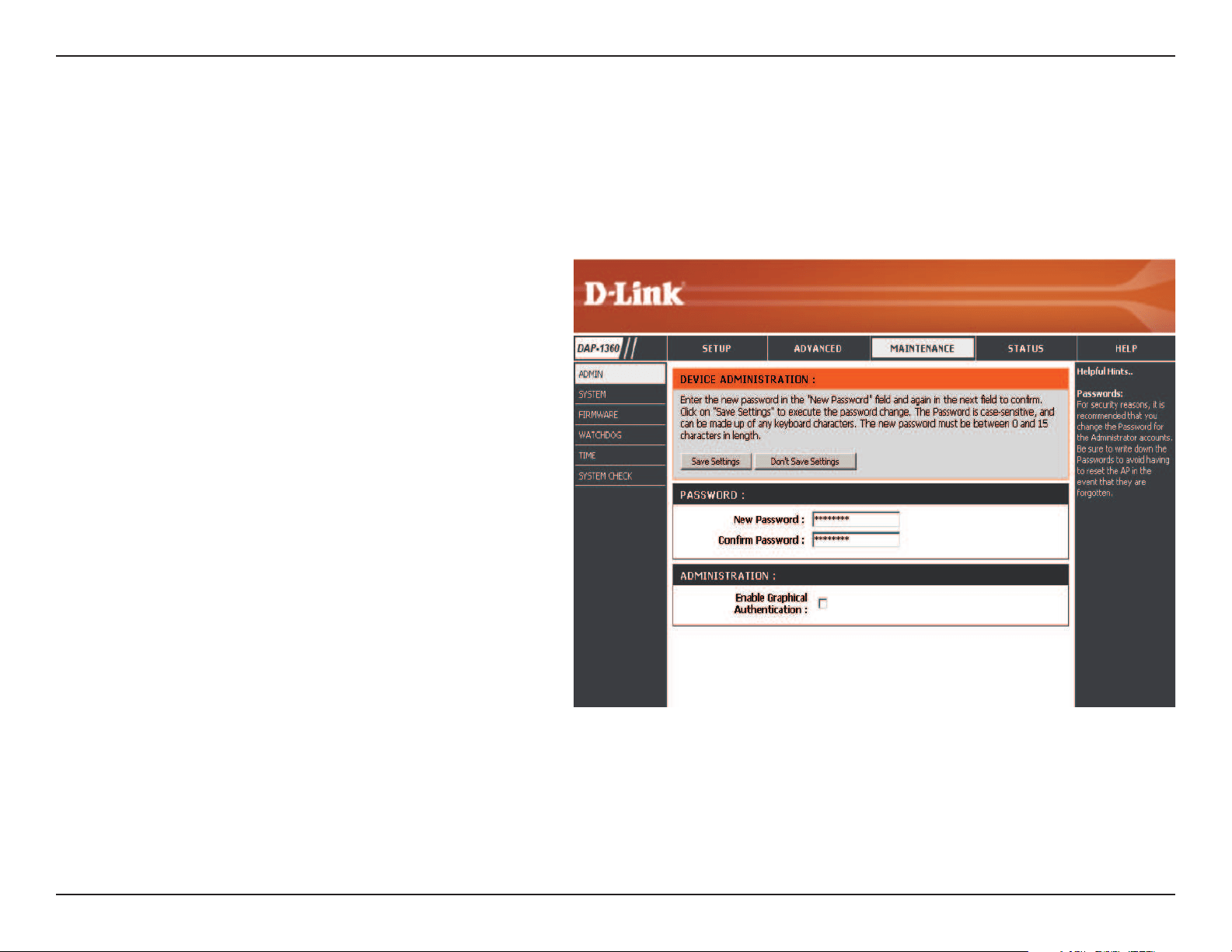
Password:
Conrm
Password:
Enable
Graphical
Authentication:
Enter a new password for the Administrator Login
Name. The administrator can make changes to the
settings.
Enter the same password that you entered in the
previoustextboxinordertoconrmitsaccuracy.
Check to enable this feature.
Maintenance
Admin
This page will allow you to change the Administrator password. The administrator password has read/write access.
58D-Link DAP-1360 User Manual
Section 3 - Conguration
Save to Local
Hard Drive:
Upload from
Local Hard Drive:
Restore to
Factory Default:
Reboot the
Device:
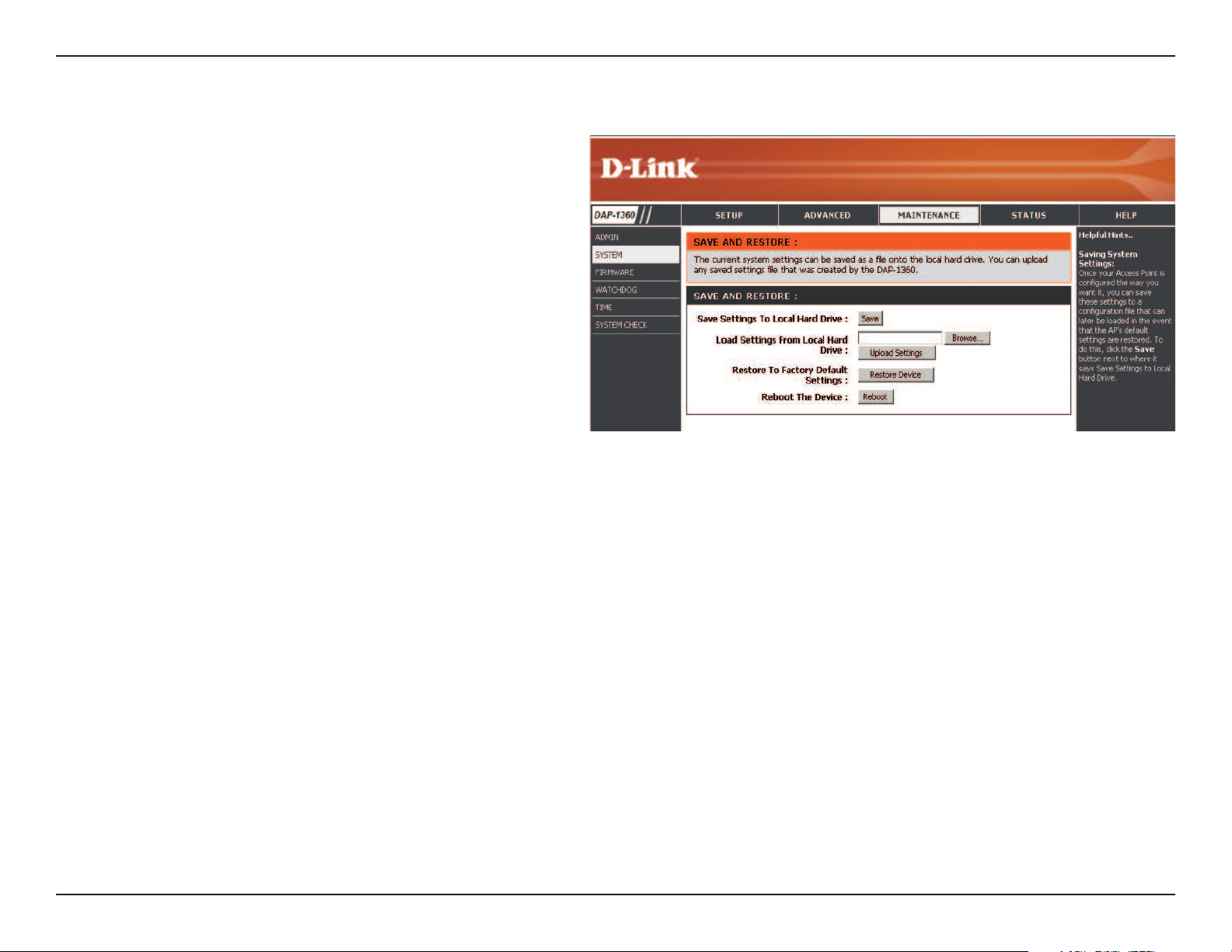
Use this option to save the current access point
conguration settings to a le on the hard disk of the
computer you are using. Click the Savebutton.Youwill
then see a le dialog where you can select a location
and le name for the settings.
Use this option to load previously saved access
point conguration settings. Click Browse to nd a
previouslysavedcongurationle.Then,clickthe
Upload Settings button to transfer those settings to
the access point.
This option will restore all conguration settings back
to the settings that were in eect at the time the access
point was shipped from the factory. Any settings that
havenotbeensavedwillbelost,includinganyrules
that you have created. If you want to save the current
accesspointconfigurationsettings,usetheSave
button above.
Note: Restoring the factory default settings will not reset
the Wi-Fi Protected Status to Not Congured.
Click to reboot the access point.
System
59D-Link DAP-1360 User Manual
Section 3 - Conguration
Firmware
Upgrade:
Browse:
Upload:
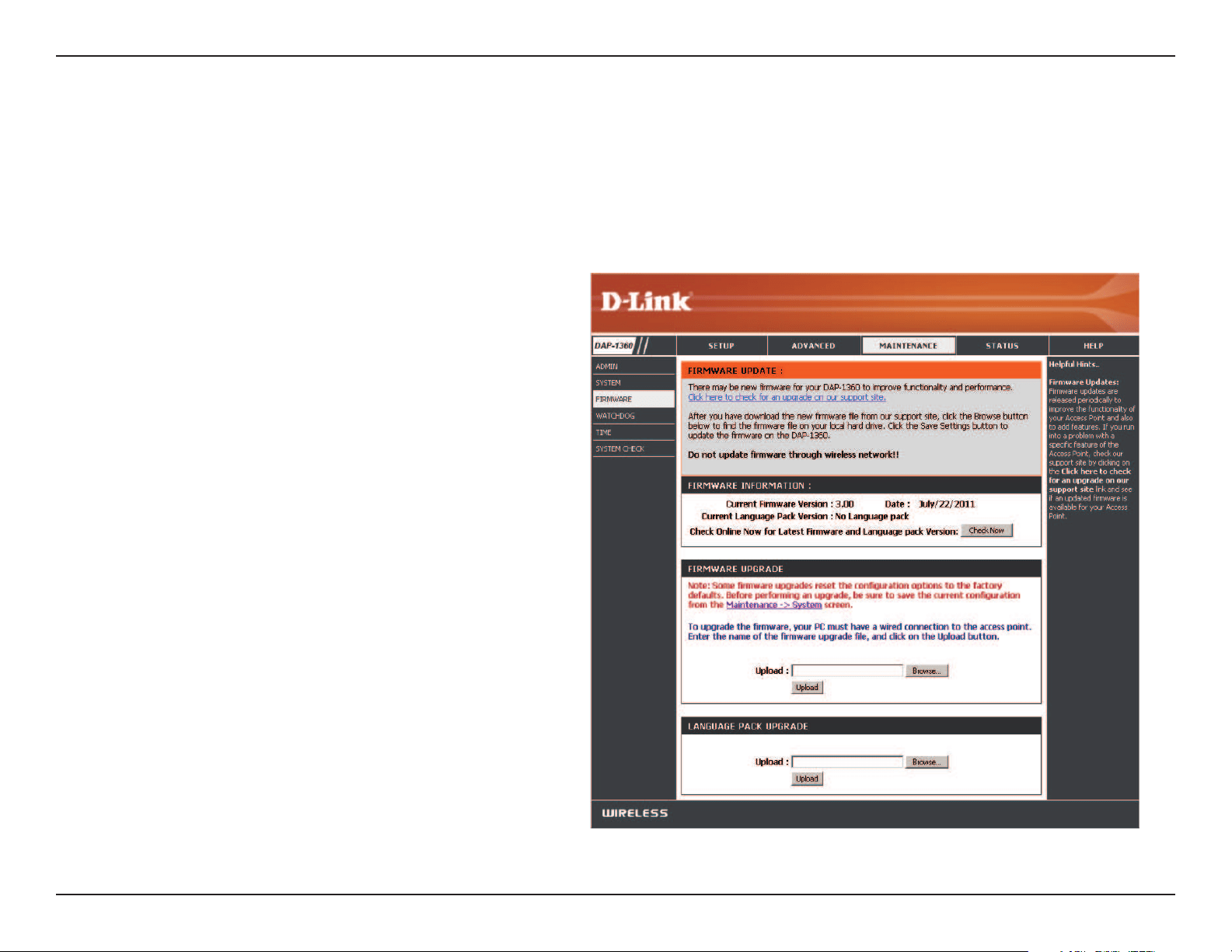
Click on Check Now to nd out if there is an updated
rmware;ifso,downloadthenewrmwaretoyour
hard drive.
Afteryouhavedownloadedthenewrmware,click
Browse to locate the rmware update on your hard
drive. Click Upload to complete the rmware upgrade.
Onceyouhavearmwareupdateonyourcomputer,
use this option to browse for the le and then upload
the information into the access point.
Firmware
Youcanupgradethermwareoftheaccesspointhere.Makesurethermwareyouwanttouseisonthelocalharddriveof
the computer. Click on Browse to locate the rmware le to be used for the update. Please check the D-Link support website
forrmwareupdatesathttp://support.dlink.com.Youcandownloadrmwareupgradestoyourharddrivefromthissite.
Afteryouhavedownloadedthenewlanguagepack,
click Browse to locate the language pack le on your
hard drive. Click Upload to complete the language
pack upgrade.
Language Pack
YoucanchangethelanguageofthewebUIbyuploading
available language packs.
Browse:
60D-Link DAP-1360 User Manual
Section 3 - Conguration
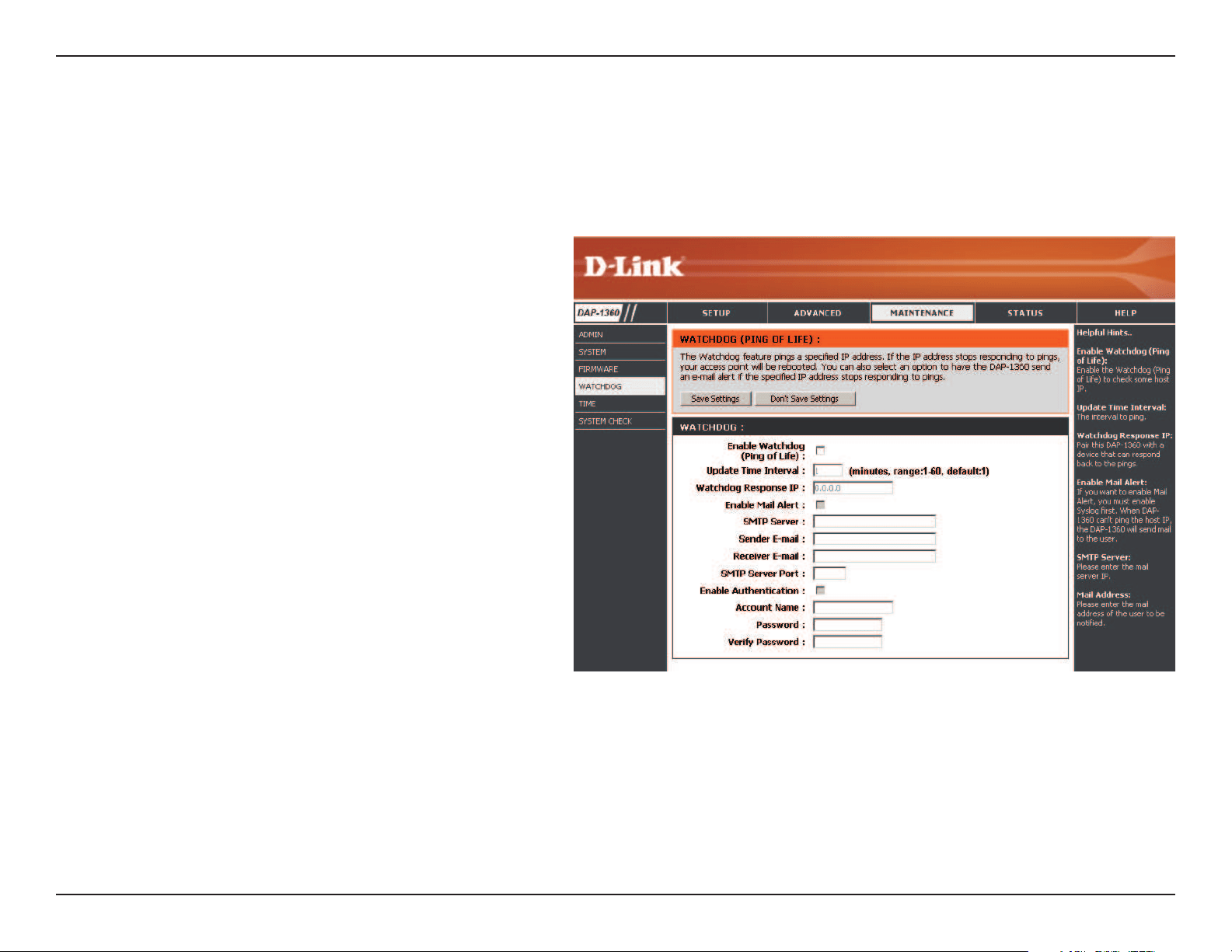
Watchdog
Enable Watchdog
(Ping of Life):
Update Time
Interval:
Watchdog Response
IP:
Enable Mail Alert:
SMTP Server:
Sender E-Mail:
Receiver E-Mail:
Enable
Authentication:
Account Name:
Password:
CheckthisboxtoenabletheWatchdog(Ping
of Life) to check some host IP.
Enter the time interval of how often you would
like the Watchdog to ping the response IP
address.
Enter the IP address that the Watchdog will
ping.
Checkthisboxtoenablee-mailnoticationfor
the Watchdog.
Enter the SMTP server IP address.
Enter the e-mail address from which the
notication will be sent.
Enter the e-mail address which the notication
will be sent to.
ChecktheboxtoenableauthenticationthatisusedwiththeSMTPserver.
Enter your account name that is used with the SMTP server.
EnteryourpasswordthatisusedwiththeSMTPserverandre-enteritinthenextbox.
TheWatchdogfeaturepingsaspeciedIPaddress.IftheIPaddressstopsrespondingtopings,yourAPwillberebooted.You
can also select an option to have the DAP-1360 send an e-mail alert if the specied IP address stops responding to pings.
61D-Link DAP-1360 User Manual
Section 3 - Conguration
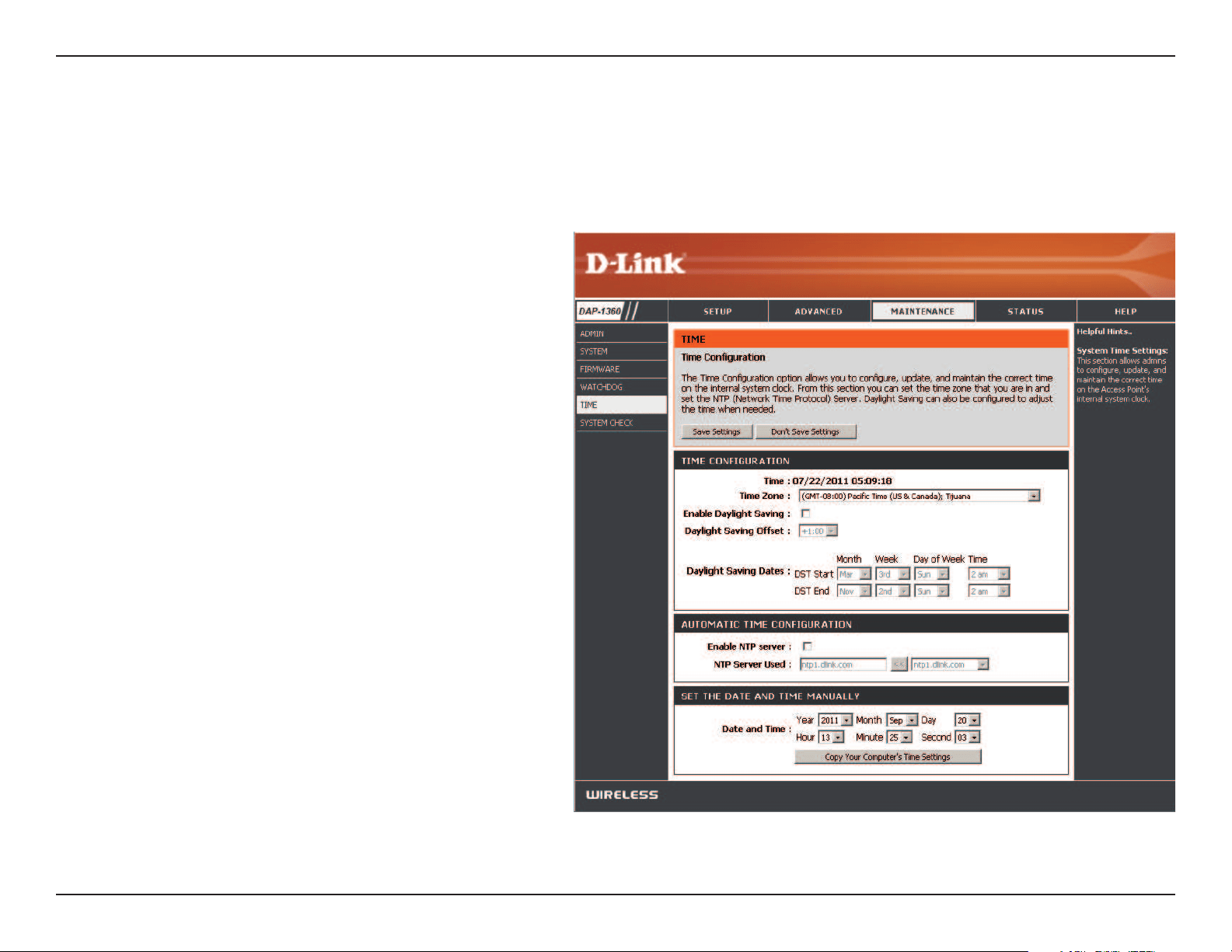
Time Zone:
Daylight Saving:
Enable NTP Server:
NTP Server Used:
Date and Time:
Select the Time Zone from the drop-down menu.
ToselectDaylightSavingtimemanually,clickthe
EnableDaylightSavingcheckbox.Nextusethe
drop-down menu to select a Daylight Saving Oset
and then enter a start date and an end date for
daylight saving time.
NTP is short for Network Time Protocol. NTP
synchronizes computer clock times in a network
ofcomputers.CheckthisboxtouseaNTPserver.
ThiswillonlyconnecttoaserverontheInternet,
not a local server.
Enter the NTP server or select one from the drop-
down menu.
Tomanuallyinputthetime,enterthevaluesin
theseeldsfortheYear,Month,Day,Hour,Minute,
and Second and then click SaveSettings.You
can also click the Copy Your Computer’s Time
Settings button at the bottom of the screen.
Time
TheTimeCongurationoptionallowsyoutocongure,update,andmaintainthecorrecttimeontheinternalsystemclock.
From this section you can set the time zone that you are in. Daylight Saving can also be congured to automatically adjust the
time when needed.
62D-Link DAP-1360 User Manual
Section 3 - Conguration
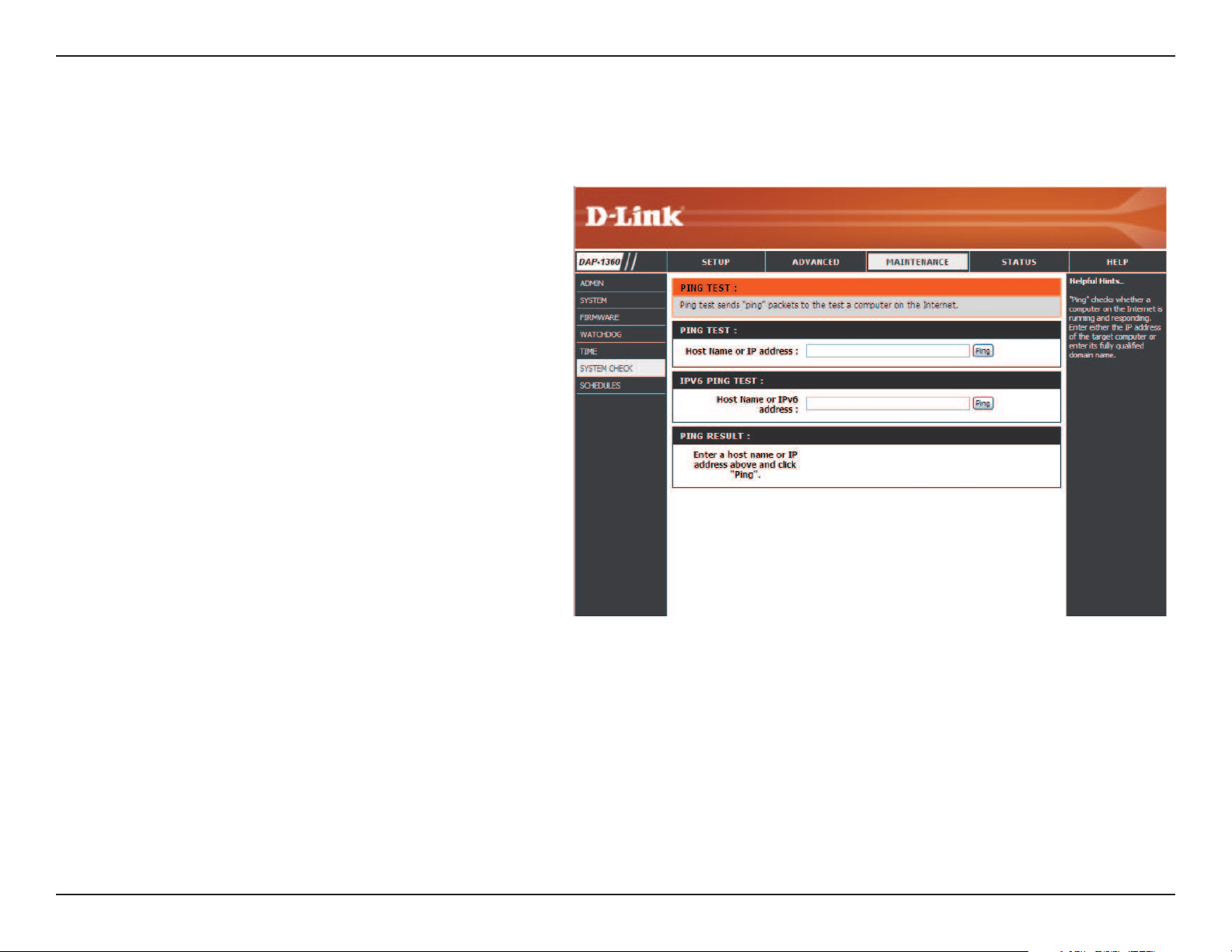
System Check
Ping Test /
IPv6 Ping Test:
Ping Result:
The Ping Test / IPv6 Ping Test is used to send Ping
packets to test if a computer is on the Internet.
Enter the host name or IP/IPv6 address that you
wishtoPing,andclickPing.
The results of your ping attempts will be displayed
here.
This section Ping Tests by sending ping packets to test if a computer on the internet is running and responding.
63D-Link DAP-1360 User Manual
Section 3 - Conguration
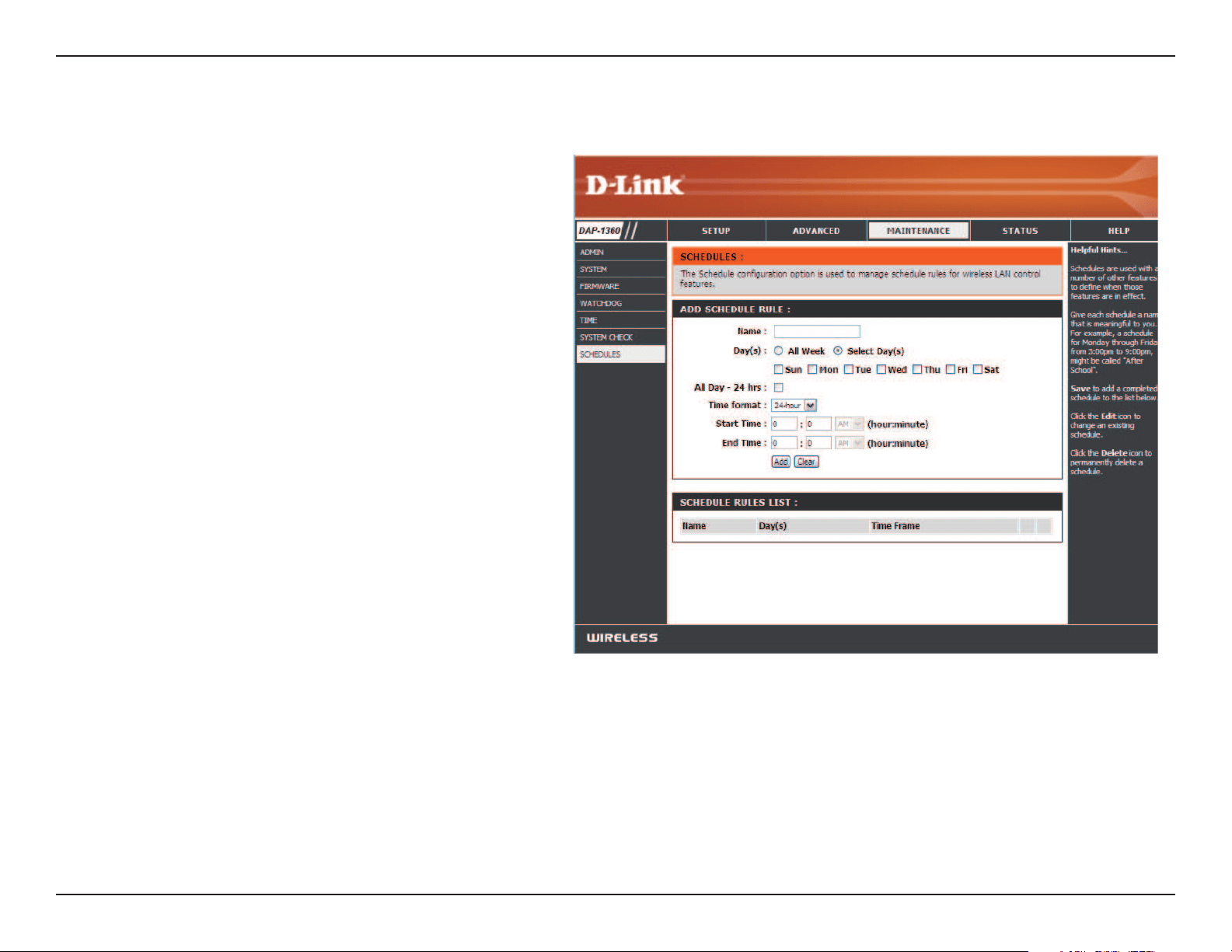
Schedules
Enter a name for your new schedule.
Selectaday,arangeofdays,orAllWeekto
include every day.
Enter a start and end time for your schedule.
The list of schedules will be listed here. Click the
Edit icon to make changes or click the Delete
icon to remove the schedule.
Name:
Days:
Time:
Schedule Rules
List:
64D-Link DAP-1360 User Manual
Section 3 - Conguration
General:
LAN:
Wireless LAN:
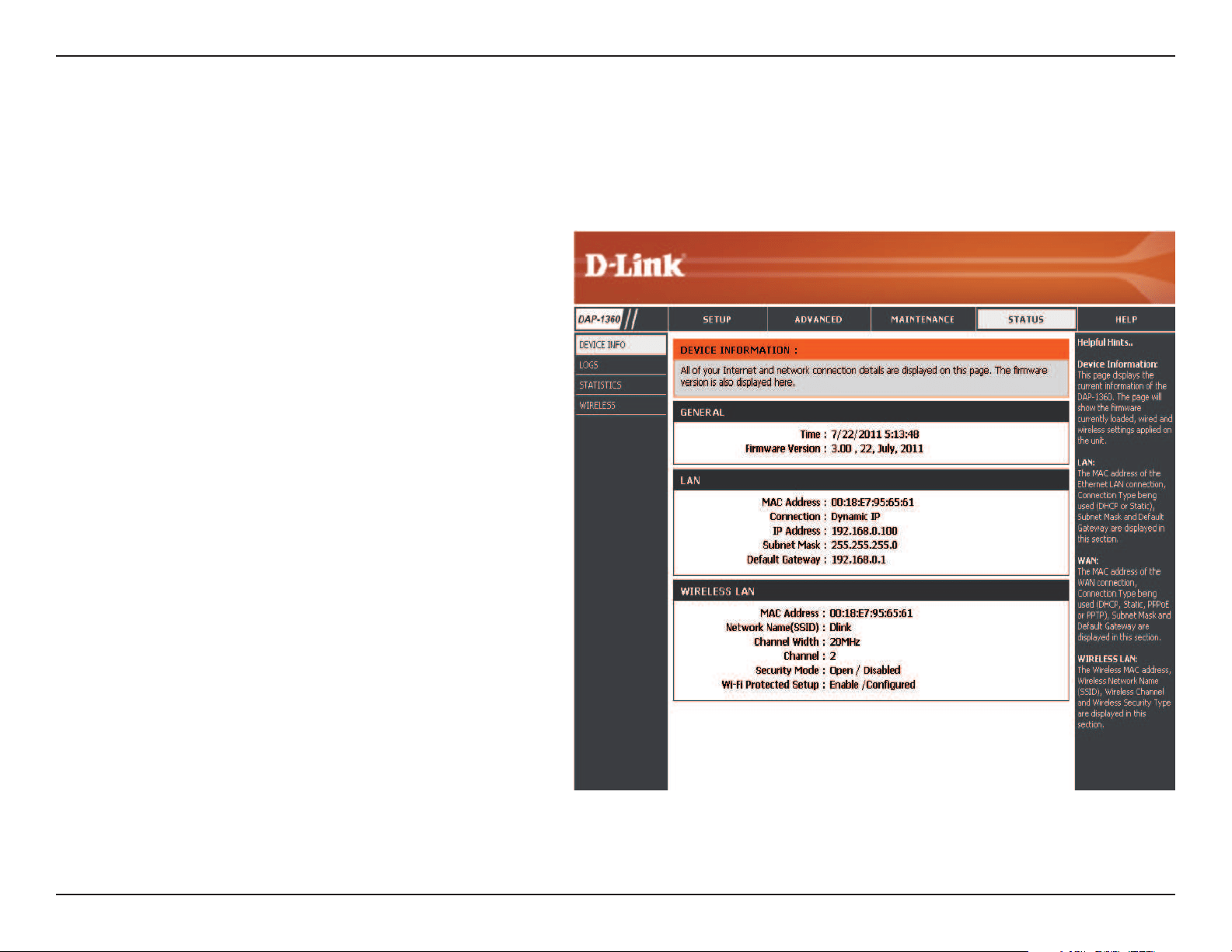
Displays the access point’s time and firmware
version.
Displays the MAC address and the private (local) IP
settings for the access point.
Displays the wireless MAC address and your
wireless settings such as SSID and Channel.
Status
Device Info
This page displays the current information for the DAP-1360. It will display the LAN and wireless LAN information.
65D-Link DAP-1360 User Manual
Section 3 - Conguration
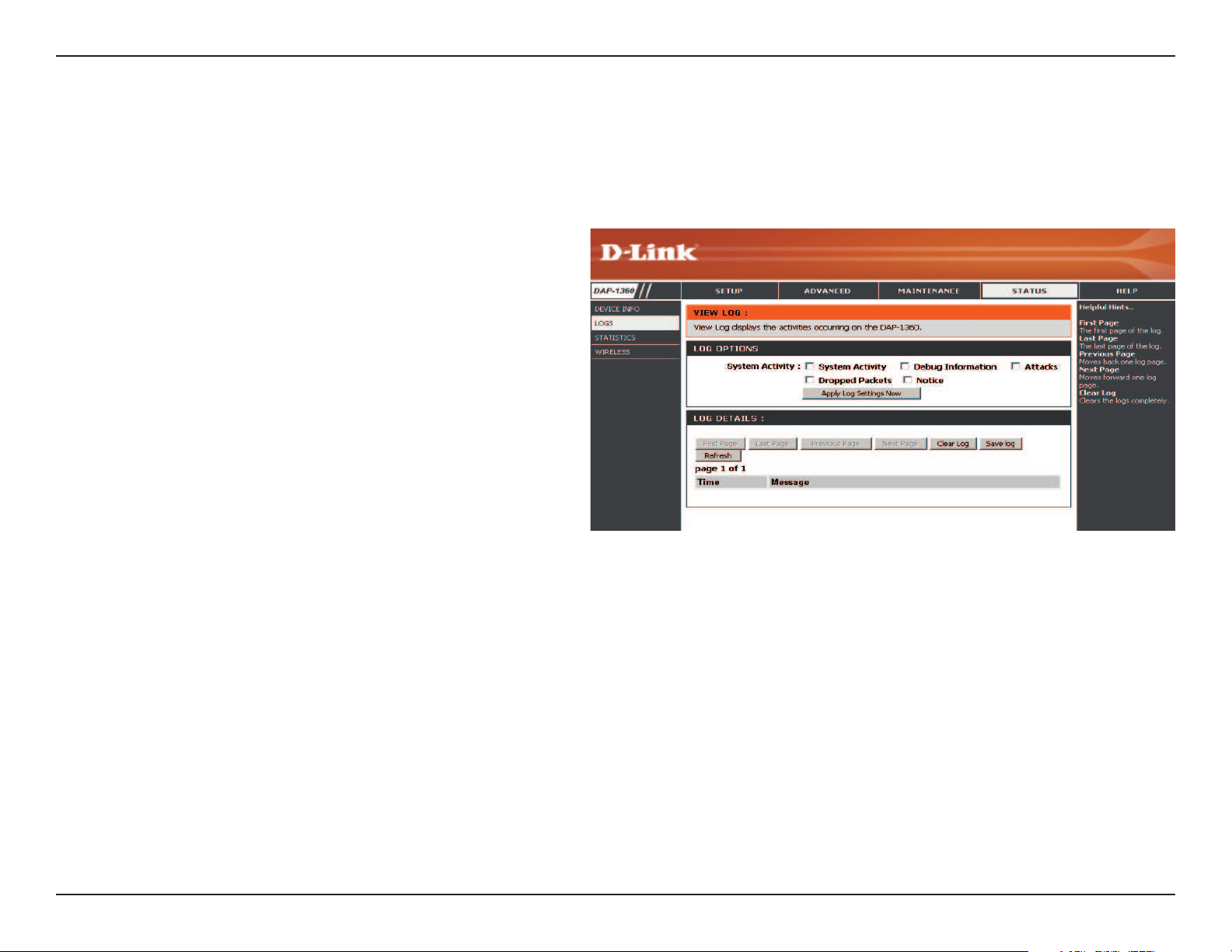
Log Options:
First Page:
Last Page:
Previous Page:
Next Page:
Clear Log:
Log Settings:
Refresh:
There are several types of logs that can be viewed:
SystemActivity,DebugInformation,Attacks,
Dropped Packets and Notice.
This button directs you to the rst page of the log.
This button directs you to the last page of the log.
This button directs you to the previous page of the log.
Thisbuttondirectsyoutothenextpageofthelog.
This button clears all current log content.
This button opens a new menu where you can
congure the log settings.
This button refreshes the log.
Logs
TheDAP-1360keepsarunninglogofeventsandactivitiesoccurringontheAP.IftheAPisrebooted,thelogsareautomatically
cleared.YoucansavetheloglesunderLogSetting.
66D-Link DAP-1360 User Manual
Section 3 - Conguration
Statistics
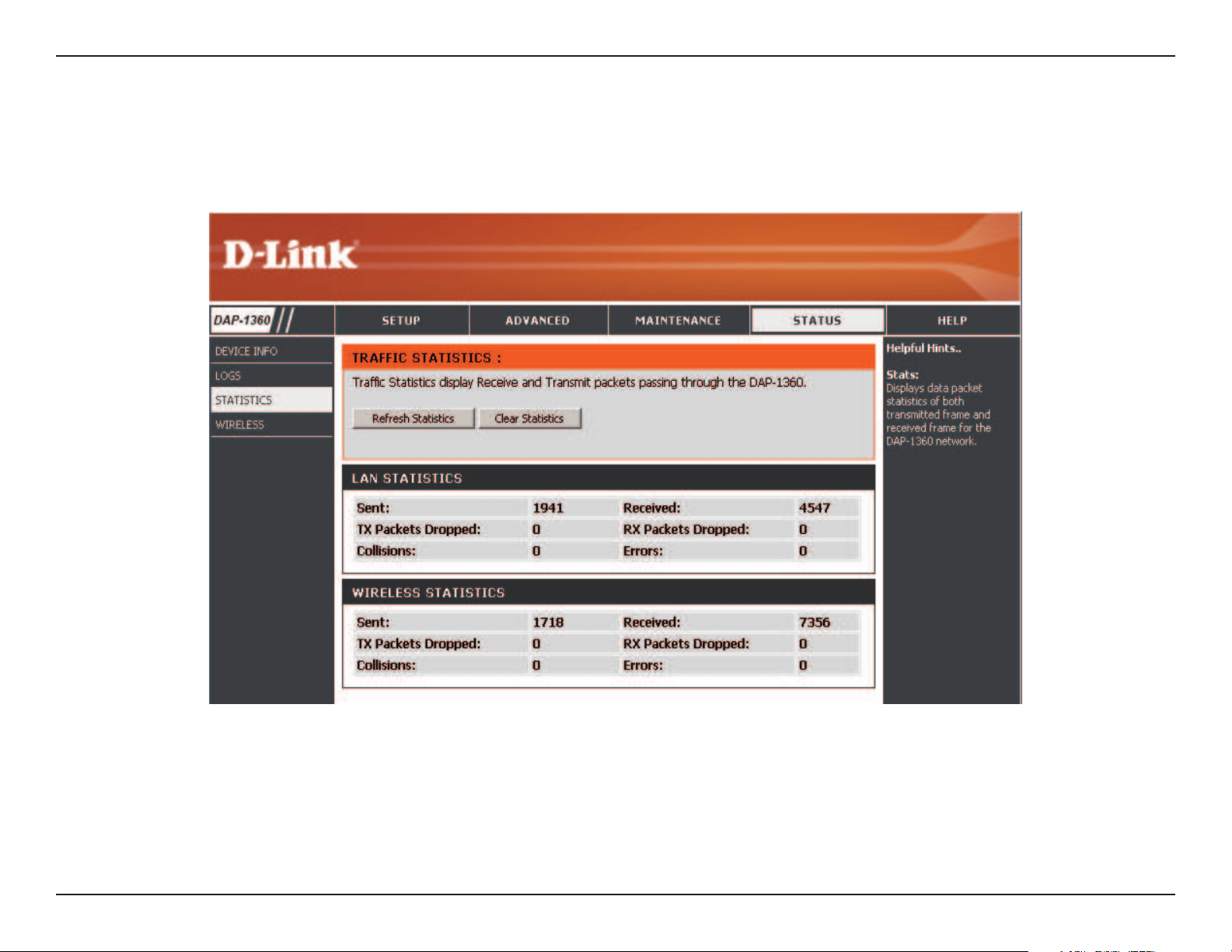
TheDAP-1360keepsstatisticsofthetracthatpassesthroughit.YoucanviewtheamountofpacketsthatpassthroughtheLAN
and wireless portions of the network. The trac counter will reset if the access point is rebooted.
67D-Link DAP-1360 User Manual
Section 3 - Conguration
Wireless
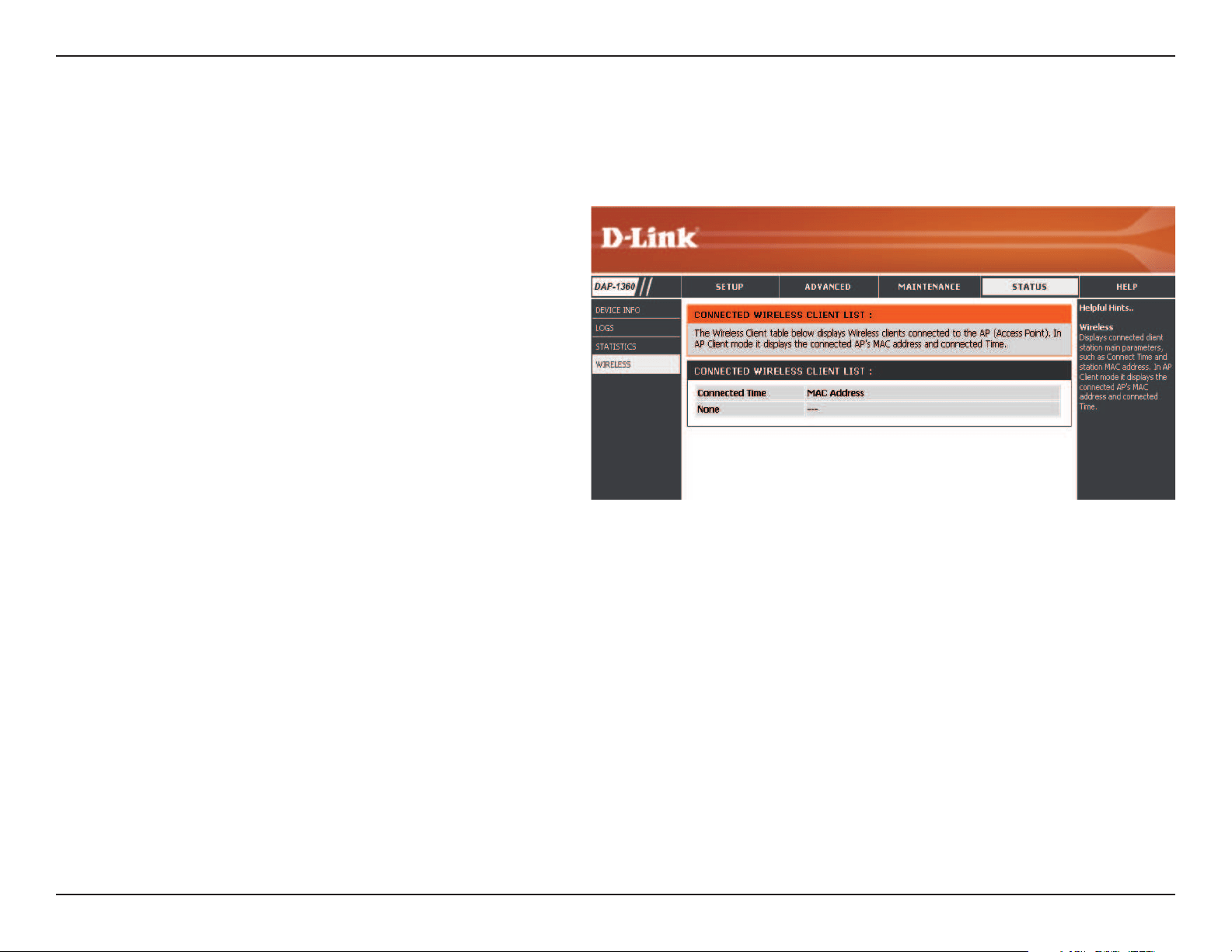
The wireless section allows you to view the wireless clients that are connected to your wireless access point.
Connection Time:
MAC Address:
Displays the amount of time the wireless client has
been connected to the access point.
The Ethernet ID (MAC address) of the wireless client.
68D-Link DAP-1360 User Manual
Section 3 - Conguration
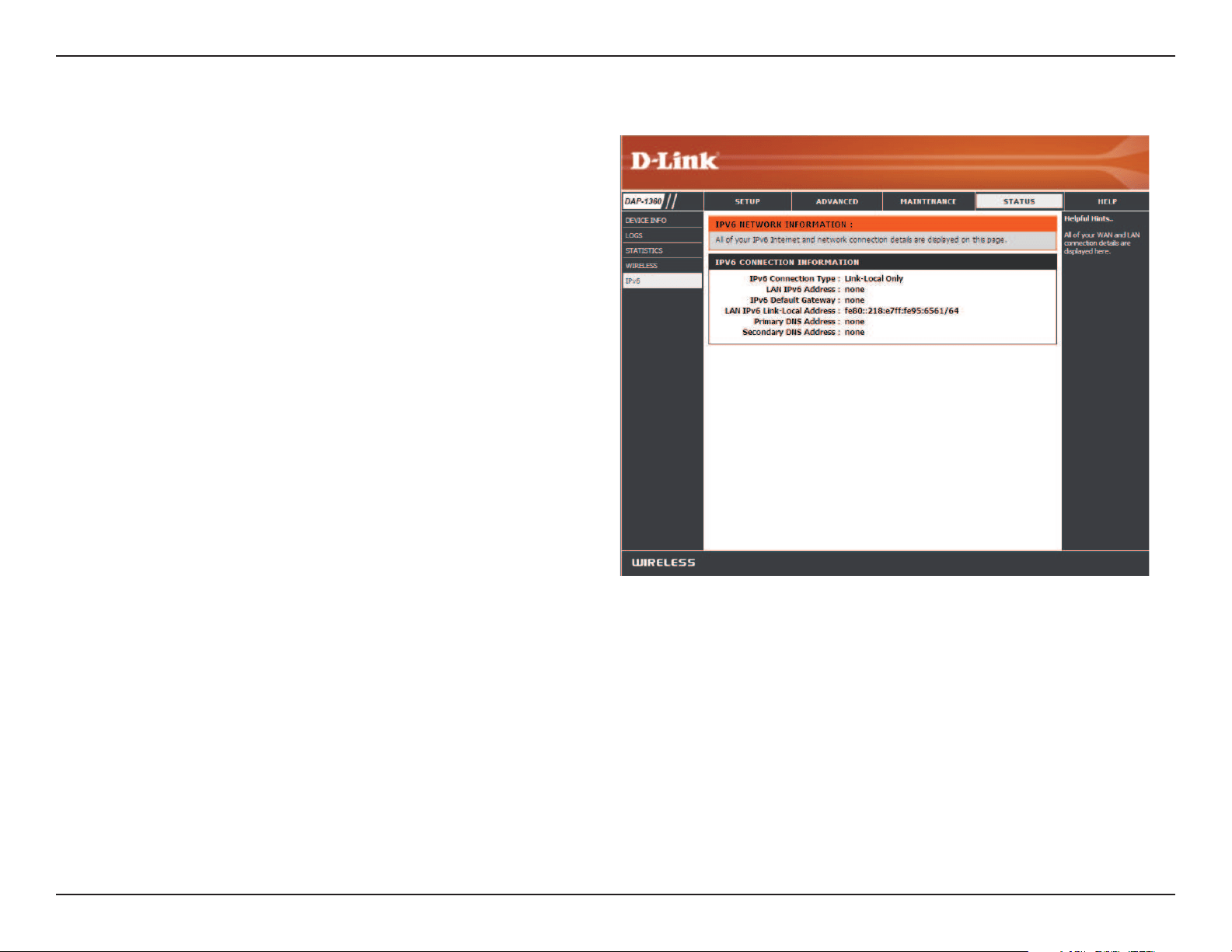
IPv6
This page displays all your IPv6 internet and network
connection information.
69D-Link DAP-1360 User Manual
Section 3 - Conguration
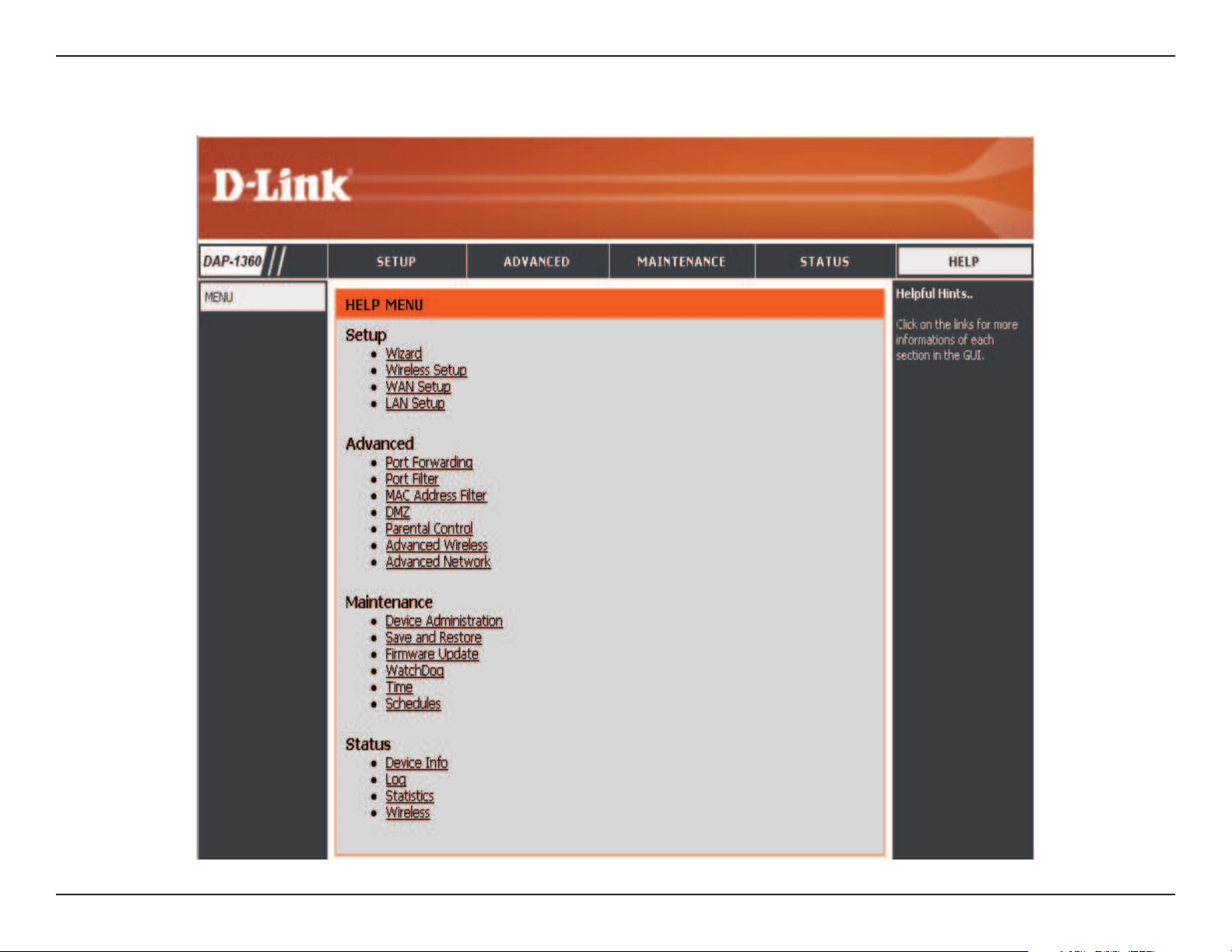
Help

70D-Link DAP-1360 User Manual
Section 4 - Security
Wireless Security
This section will show you the dierent levels of security you can use to protect your data from intruders. The DAP-1360 oers
the following types of security:
•WPA2(Wi-FiProtectedAccess2)•WPA2-PSK(Pre-SharedKey)
•WPA(Wi-FiProtectedAccess)•WPA-PSK(Pre-SharedKey)

71D-Link DAP-1360 User Manual
Section 4 - Security
What is WPA?
WPA,orWi-FiProtectedAccess,isaWi-FistandardthatwasdesignedtoimprovethesecurityfeaturesofWEP(WiredEquivalent
Privacy).
The 2 major improvements over WEP:
•ImproveddataencryptionthroughtheTemporalKeyIntegrityProtocol(TKIP).TKIPscramblesthekeysusinga
hashingalgorithmand,byaddinganintegrity-checkingfeature,ensuresthatthekeyshaven’tbeentampered
with. WPA2 is based on 802.11i and uses Advanced Encryption Standard (AES) instead of TKIP.
•Userauthentication,whichisgenerallymissinginWEP,throughtheextensibleauthenticationprotocol(EAP).
WEPregulatesaccesstoawirelessnetworkbasedonacomputer’shardware-specicMACaddress,whichis
relatively simple to be snied out and stolen. EAP is built on a more secure public-key encryption system to
ensure that only authorized network users can access the network.
WPA-PSK/WPA2-PSK uses a passphrase or key to authenticate your wireless connection. The key is an alpha-numeric password
between8and63characterslong.Thepasswordcanincludesymbols(!?*&_)andspaces.Thiskeymustbetheexactsamekey
entered on your wireless bridge or access point.
WPA/WPA2incorporatesuserauthenticationthroughtheExtensibleAuthenticationProtocol(EAP).EAPisbuiltonamore
secure public key encryption system to ensure that only authorized network users can access the network.
72D-Link DAP-1360 User Manual
Section 4 - Security
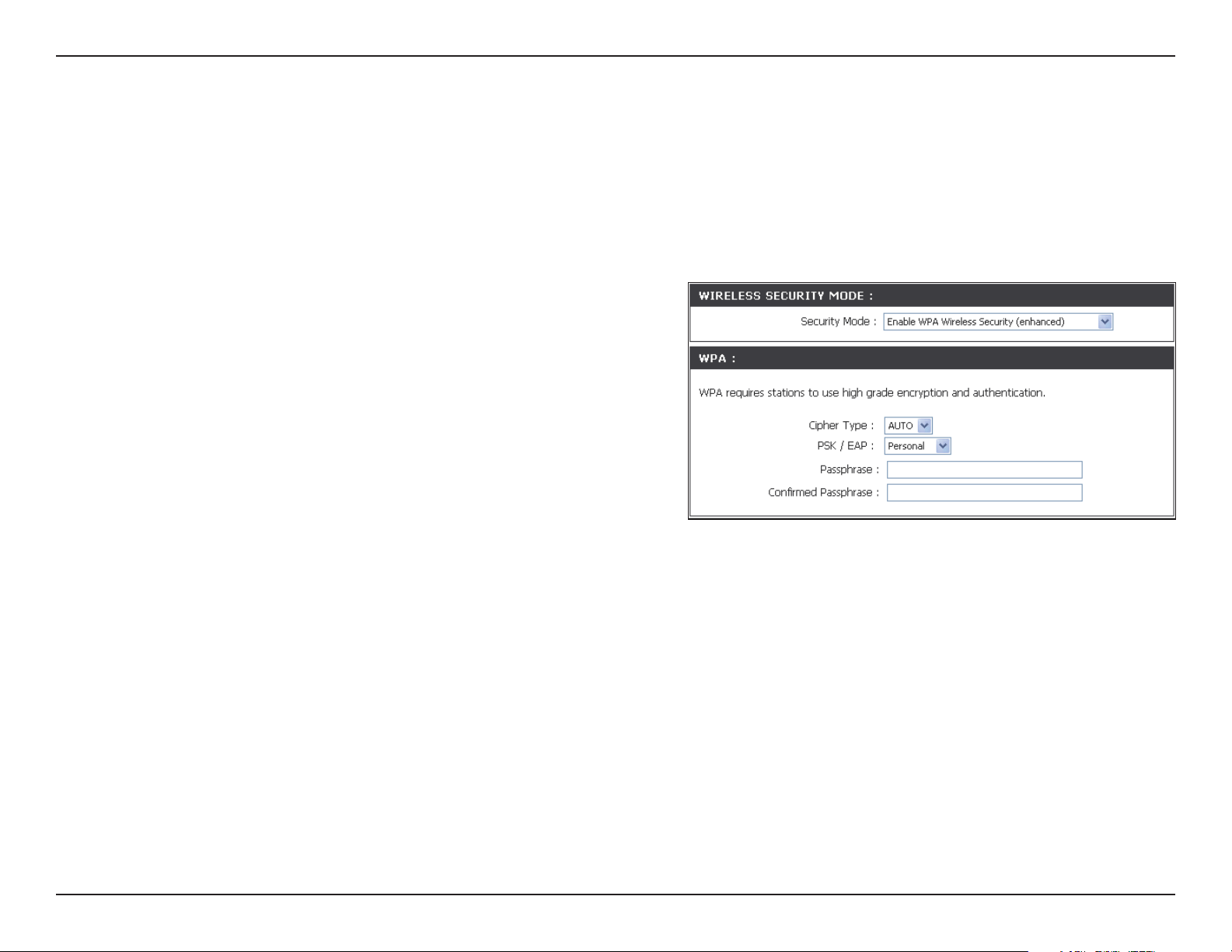
Congure WPA/WPA2 Personal
It is recommended to enable encryption on your wireless access point before your wireless network adapters. Please establish
wirelessconnectivitybeforeenablingencryption.Yourwirelesssignalmaydegradewhenenablingencryptionduetothe
added overhead.
1. Log into the web-based conguration by opening a web browser
and entering the IP address of the access point (192.168.0.50). Click
on Setup and then click Wireless Settings on the left side.
2.NexttoSecurity Mode,selectEnable WPA Wireless Security,
Enable WPA2 Wireless Security,orEnable WPA2-Auto Wireless
Security.
3.NexttoCipher Type,selectTKIP,AES,orAuto.
4.NexttoPSK / EAP,selectPersonal.
5.NexttoPassphrase,enterakey.ThekeyisenteredasapassphraseinASCIIformatatbothendsofthewirelessconnection.
The passphrase must be between 8-63 characters.
6. Click SaveSettings at the top of the window to save your settings. If you are conguring the access point with a wireless
adapter,youwillloseconnectivityuntilyouenableWPA-PSKonyouradapterandenterthesamepassphraseasyoudidon
the access point.
73D-Link DAP-1360 User Manual
Section 4 - Security
It is recommended to enable encryption on your wireless access point before your wireless network adapters. Please establish
wirelessconnectivitybeforeenablingencryption.Yourwirelesssignalmaydegradewhenenablingencryptionduetothe
added overhead.
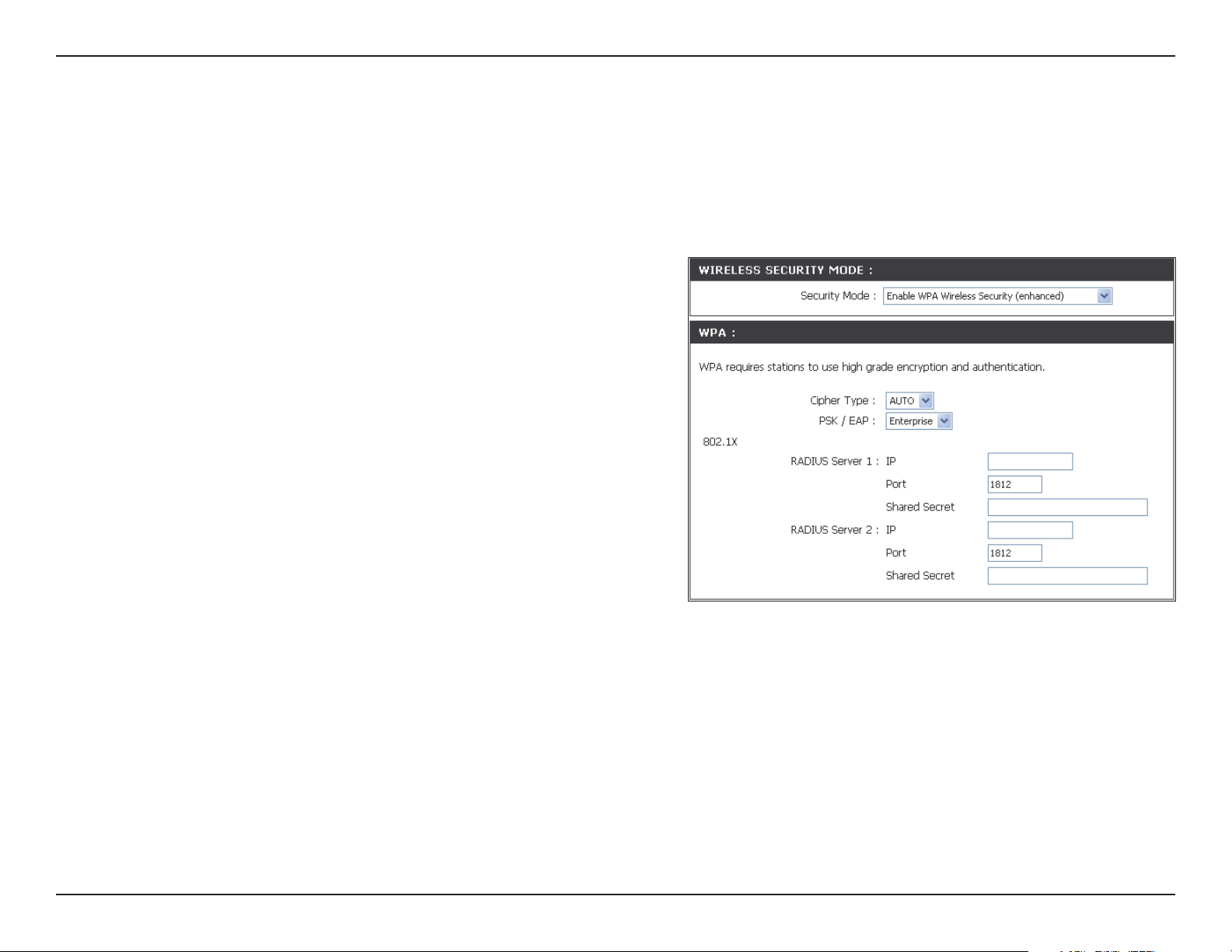
1. Log into the web-based conguration by opening a web browser
and entering the IP address of the access point (192.168.0.50). Click
on Setup and then click Wireless Settings on the left side.
2.NexttoSecurity Mode,selectEnable WPA Wireless Security,Enable
WPA2 Wireless Security,orEnable WPA2-Auto Wireless Security.
3.NexttoCipher Mode,selectTKIP,AES,orAuto.
4.NexttoPersonal / Enterprise,selectEnterprise.
5.NexttoRADIUS Server,entertheIPAddressofyourRADIUSserver.
6.NexttoPort,entertheportyouareusingwithyourRADIUSserver.
1812 is the default port.
7.NexttoShared Secret,enterthesecuritykey.
8. Click SaveSettings to save your settings.
Congure WPA/WPA2 Enterprise
74D-Link DAP-1360 User Manual
Section 5 - Connecting to a Wireless Network
Connect to a Wireless Network
Using Windows
®
XP
Windows
®
XP users may use the built-in wireless utility (Zero Conguration Utility). The following instructions are for Service
Pack 2 users. If you are using another company’s utility or Windows
®
2000,pleaserefertotheusermanualofyourwireless
adapter for help with connecting to a wireless network. Most utilities will have a “site survey” option similar to the Windows
®
XP utility as seen below.
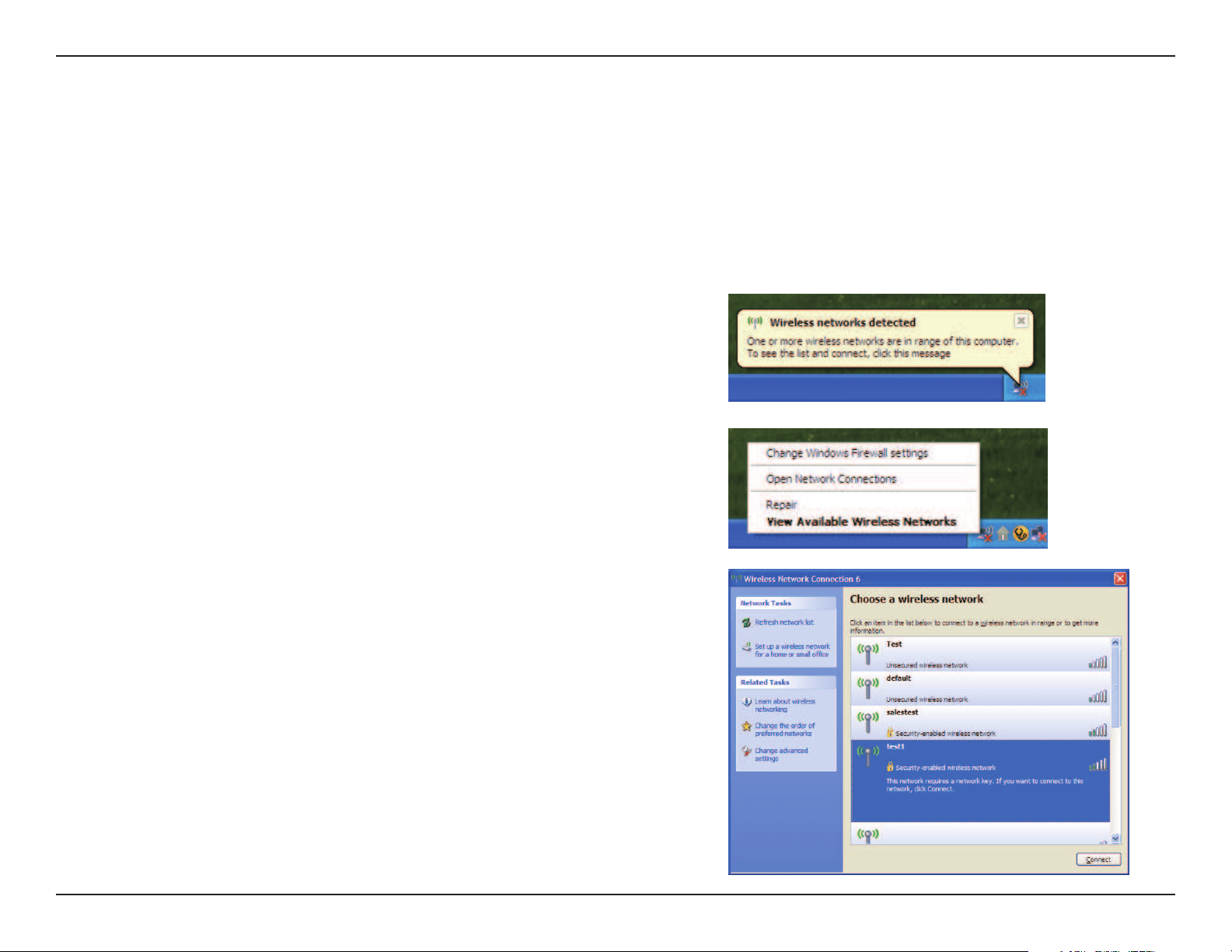
Right-click on the wireless computer icon in your system tray
(lower-rightcornernexttothetime).SelectViewAvailable
Wireless Networks.
If you receive the Wireless Networks Detectedbubble,clickon
the center of the bubble to access the utility.
or
The utility will display any available wireless networks in your area.
Click on a network (displayed using the SSID) and click the Connect
button.
Ifyougetagoodsignal,butcannotaccesstheInternet,checkyou
TCP/IP settings for your wireless adapter. Refer to the Networking
Basics section in this manual for more information.
75D-Link DAP-1360 User Manual
Section 5 - Connecting to a Wireless Network
Congure WPA-PSK
It is recommended to enable WEP on your wireless bridge or access point before conguring your wireless adapter. If you are
joininganexistingnetwork,youwillneedtoknowtheWEPkeybeingused.
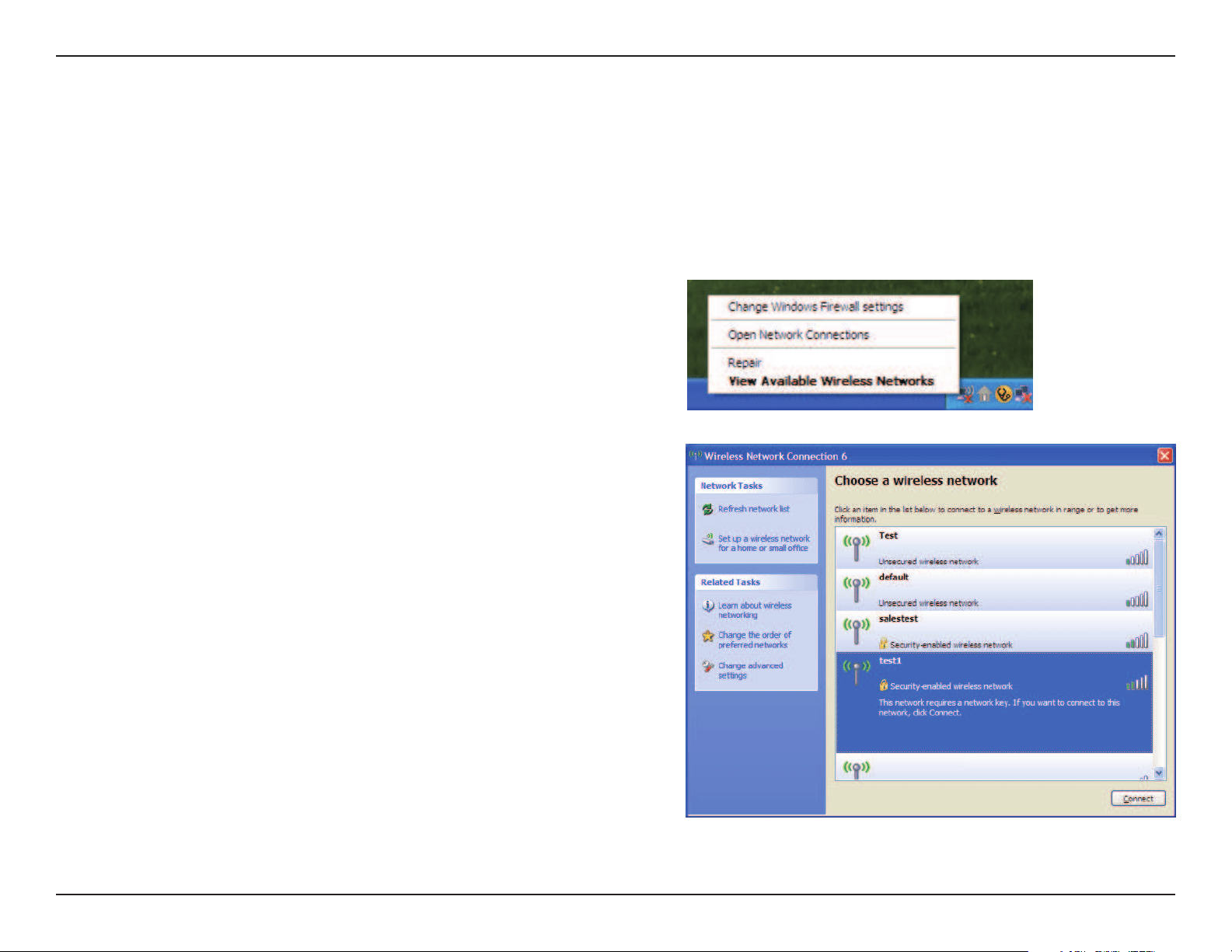
2. Highlight the wireless network (SSID) you would like to
connect to and click Connect.
1. Open the Windows
®
XP Wireless Utility by right-clicking
on the wireless computer icon in your system tray
(lower-right corner of screen). SelectViewAvailableWireless
Networks.
76D-Link DAP-1360 User Manual
Section 5 - Connecting to a Wireless Network
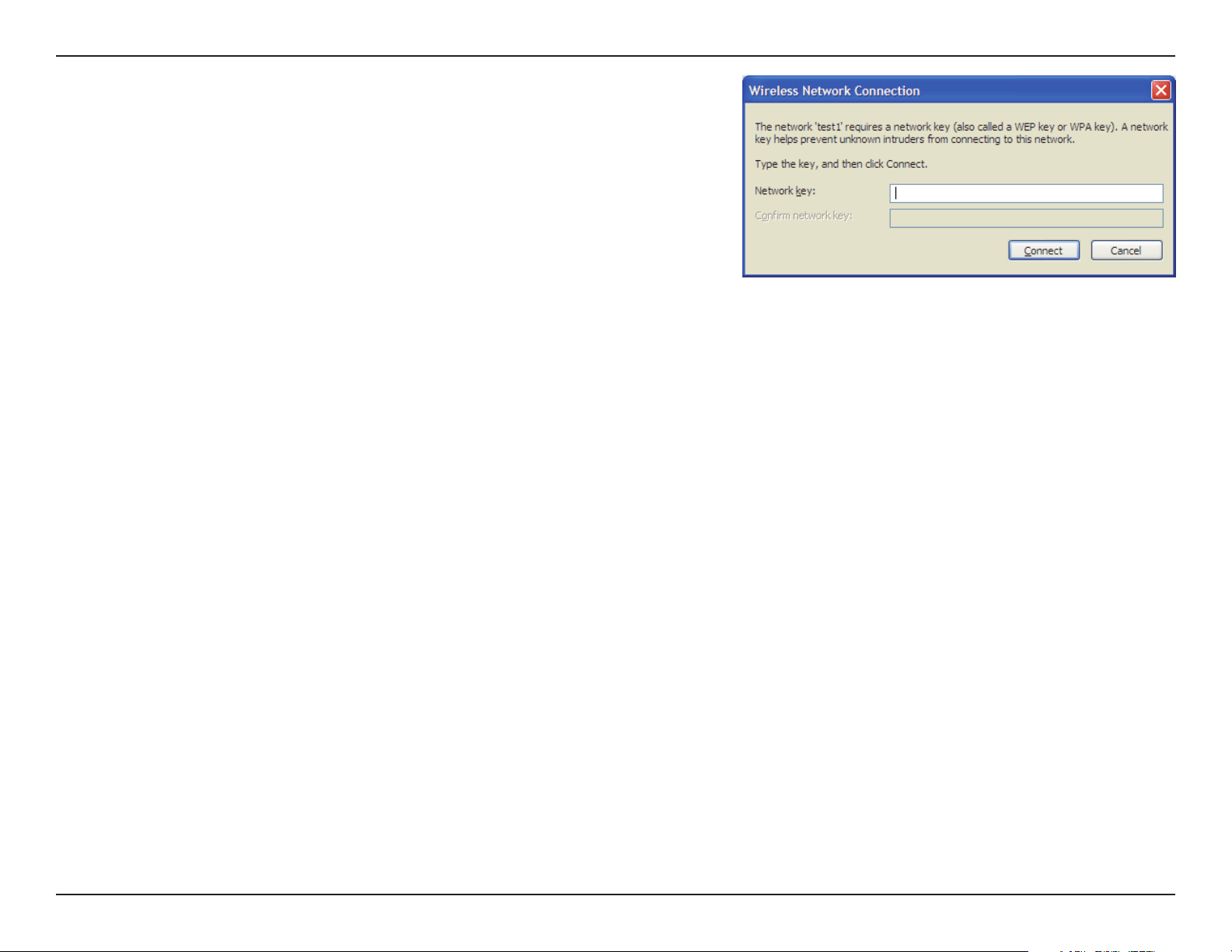
3. The Wireless Network Connection boxwillappear.EntertheWPA-PSK
passphrase and click Connect.
It may take 20-30 seconds to connect to the wireless network. If the
connectionfails,pleaseverifythattheWPA-PSKsettingsarecorrect.The
WPA-PSKpassphrasemustbeexactlythesameasonthewirelessaccess
point.
77D-Link DAP-1360 User Manual
Section 5 - Connecting to a Wireless Network
Using Windows Vista
®
Windows Vista
®
usersmayusetheconvenient,built-inwirelessutility.Followtheseinstructions:
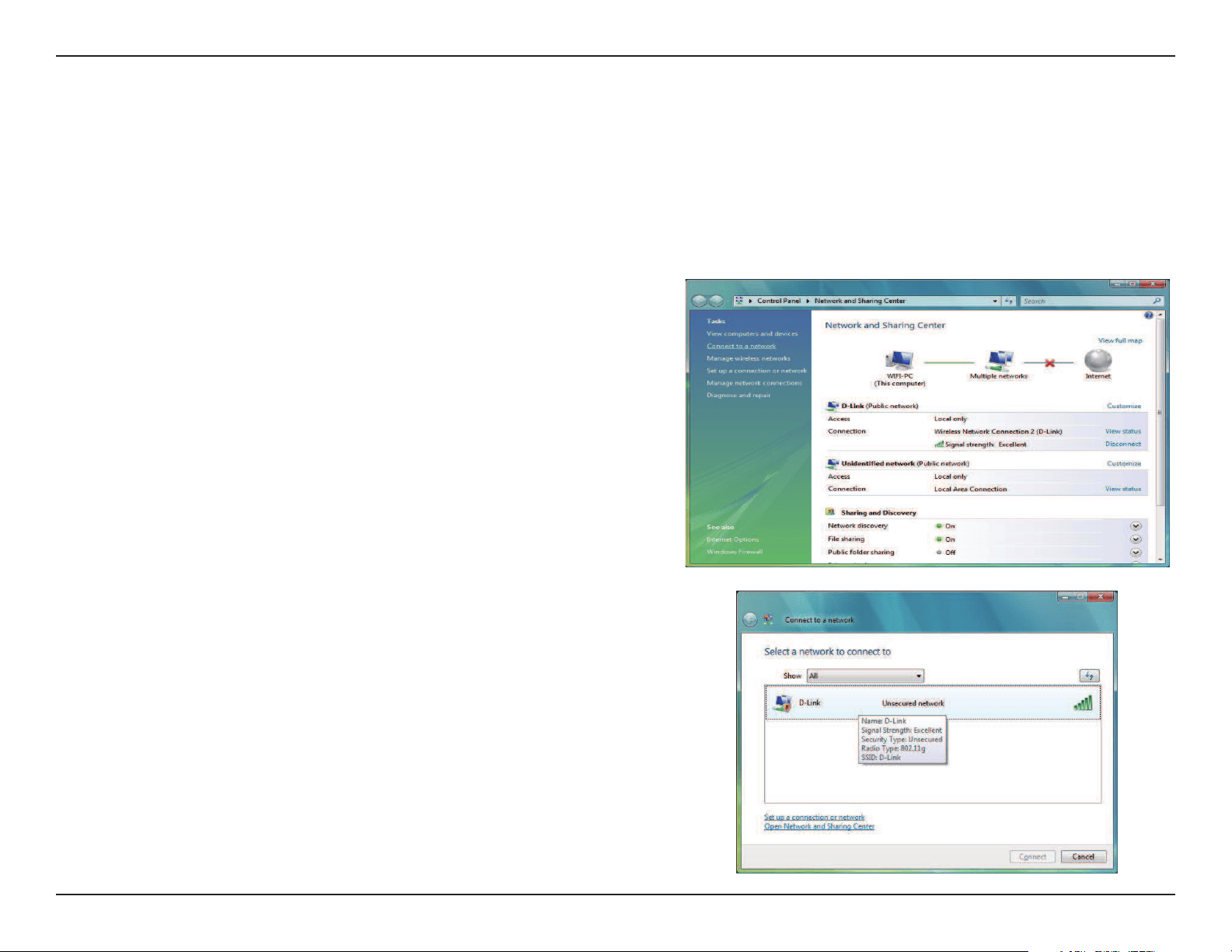
FromtheStartmenu,gotoControlPanel,andthenclickon
Network and Sharing Center.
The utility will display any available wireless networks in your
area. Click on a network (displayed using the SSID) under Select a
network to connect to and then click the Connect button.
78D-Link DAP-1360 User Manual
Section 5 - Connecting to a Wireless Network
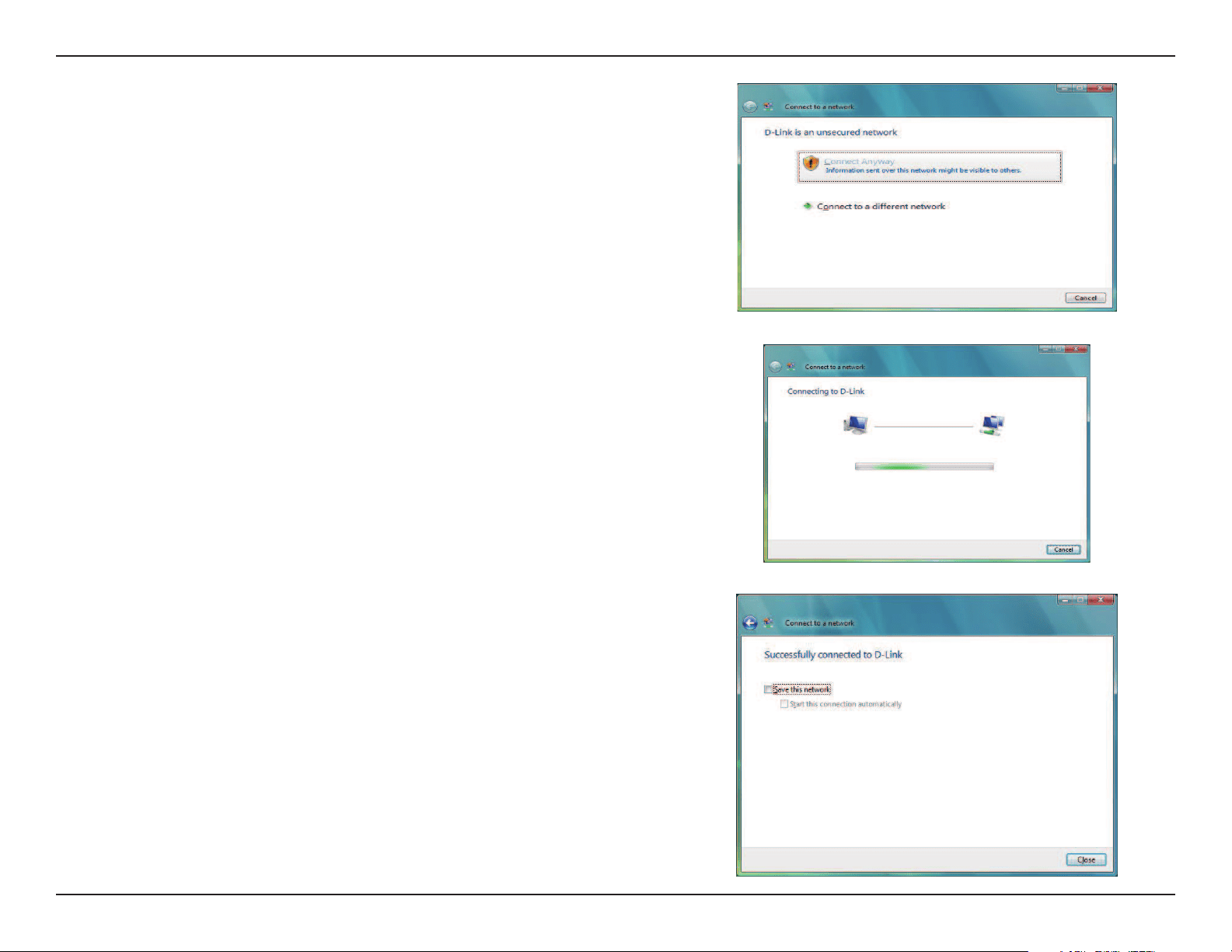
Click Connect Anyway to continue.
The utility will display the following window to indicate a
connection is being made.
The nal window indicates the establishment of a successful
connection.
Thenexttwopagesdisplaythewindowsusedtoconnecttoeither
a WEP or a WPA-PSK wireless network.
79D-Link DAP-1360 User Manual
Section 5 - Connecting to a Wireless Network
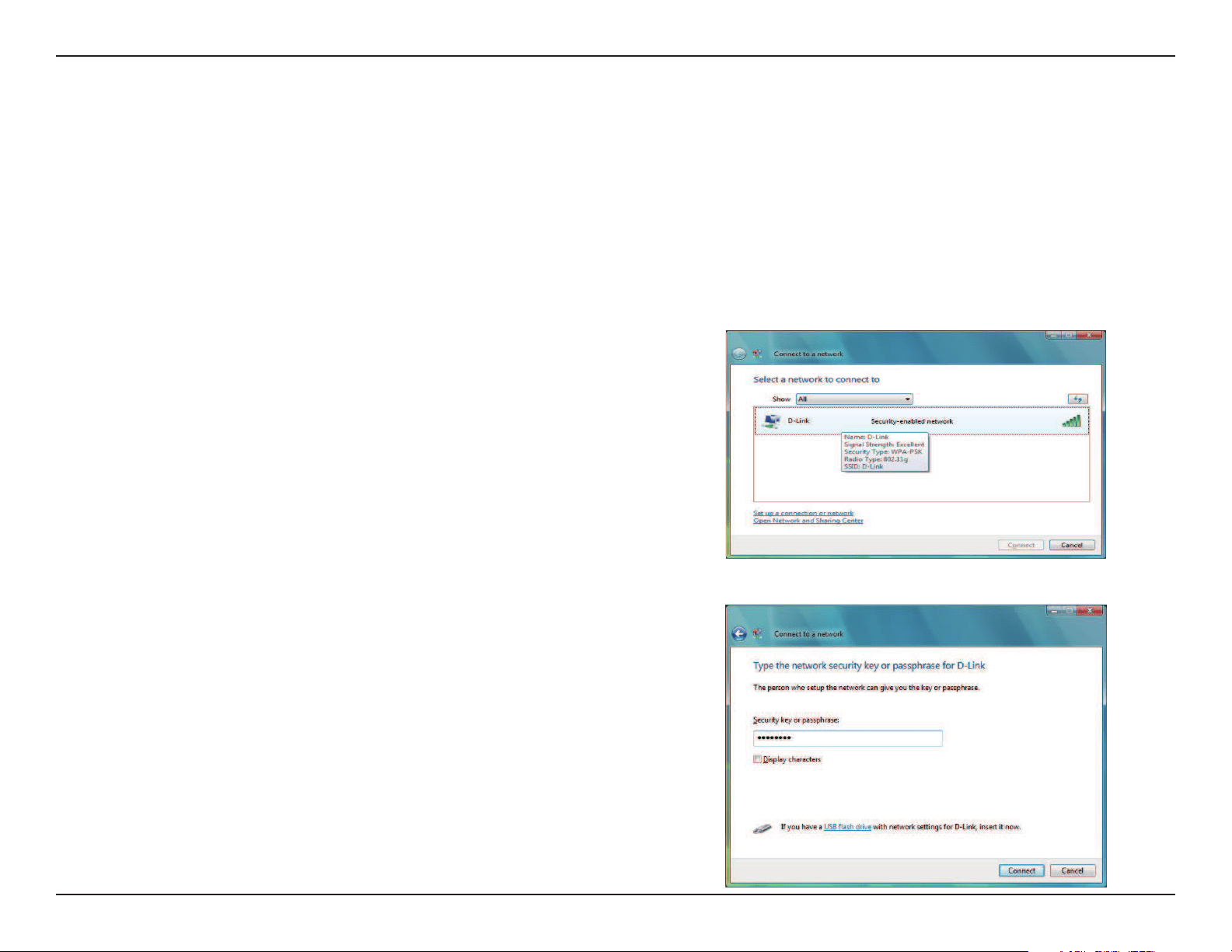
Click on a network (displayed using the SSID) using WPA-PSK under
Select a network to connect to and then click the Connect button.
Enter the appropriate security key or passphrase in the field
provided and then click the Connect button.
Congure WPA-PSK
It is recommended to enable WEP on your wireless bridge or access point before conguring your wireless adapter. If you are
joininganexistingnetwork,youwillneedtoknowtheWEPkeybeingused.
80D-Link DAP-1360 User Manual
Section 5 - Connecting to a Wireless Network
Using Windows
®
7
It is recommended to enable wireless security (WPA/WPA2) on your wireless router or access point before conguring your
wirelessadapter.Ifyouarejoininganexistingnetwork,youwillneedtoknowthesecuritykeyorpassphrasebeingused.
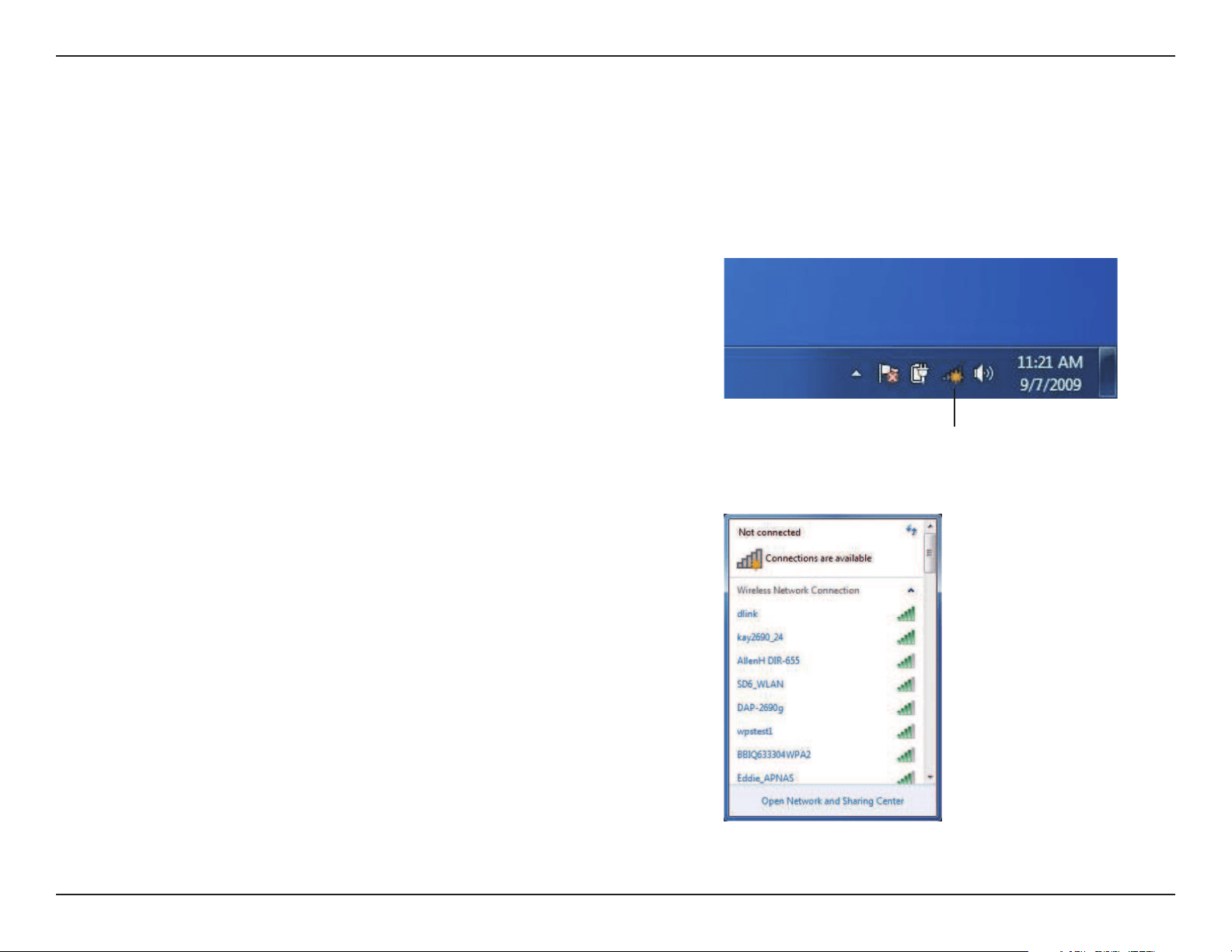
1. Click on the wireless icon in your system tray (lower-right corner).
2. The utility will display any available wireless networks in your area.
Wireless Icon
81D-Link DAP-1360 User Manual
Section 5 - Connecting to a Wireless Network
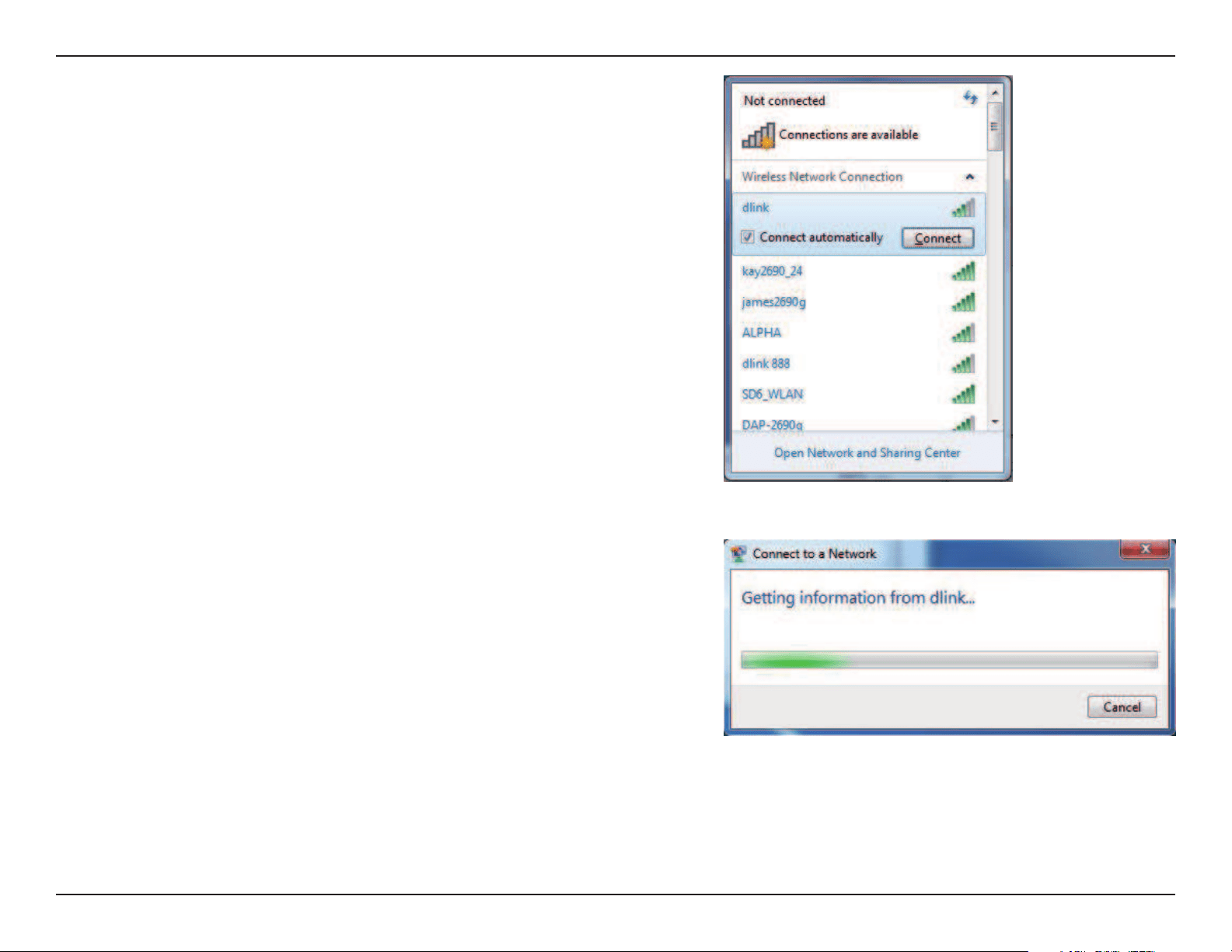
3. Highlight the wireless network (SSID) you would like to connect to
and click the Connect button.
IfyougetagoodsignalbutcannotaccesstheInternet,checkyour
TCP/IP settings for your wireless adapter. Refer to the Networking
Basics section in this manual for more information.
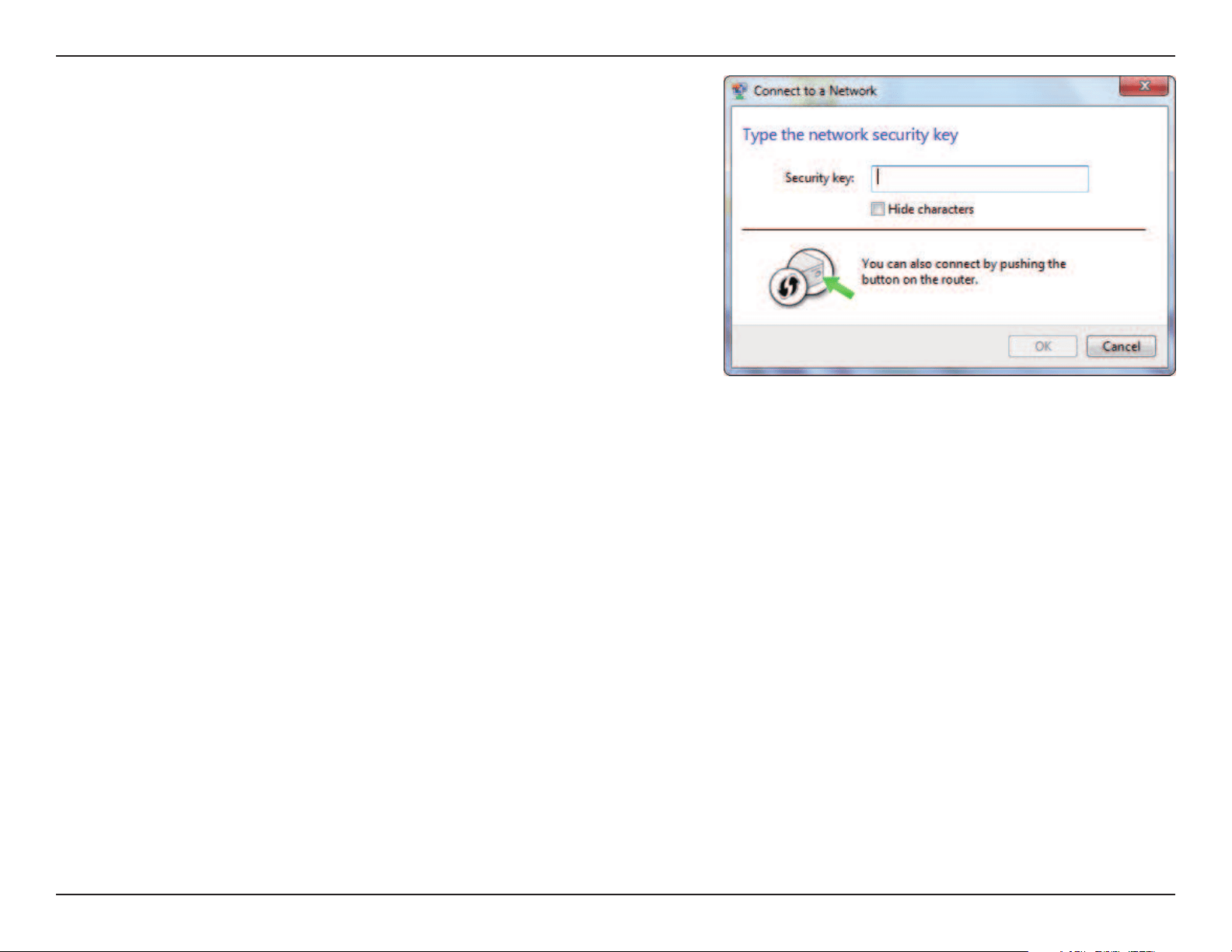
4. The following window appears while your computer tries to
connect to the router.
82D-Link DAP-1360 User Manual
Section 5 - Connecting to a Wireless Network
5. Enter the same security key or passphrase that is on your router
and click Connect.YoucanalsoconnectbypushingtheWPS
button on the router.
It may take 20-30 seconds to connect to the wireless network. If the
connectionfails,pleaseverifythatthesecuritysettingsarecorrect.
Thekeyorpassphrasemustbeexactlythesameasonthewireless
router.
83D-Link DAP-1360 User Manual
Section 5 - Connecting to a Wireless Network
Congure WPS
The WPS feature of the DAP-1360 can be congured using Windows
®
7. Carry out the following steps to use Windows
®
7 to
congure the WPS feature of the DAP-1360:
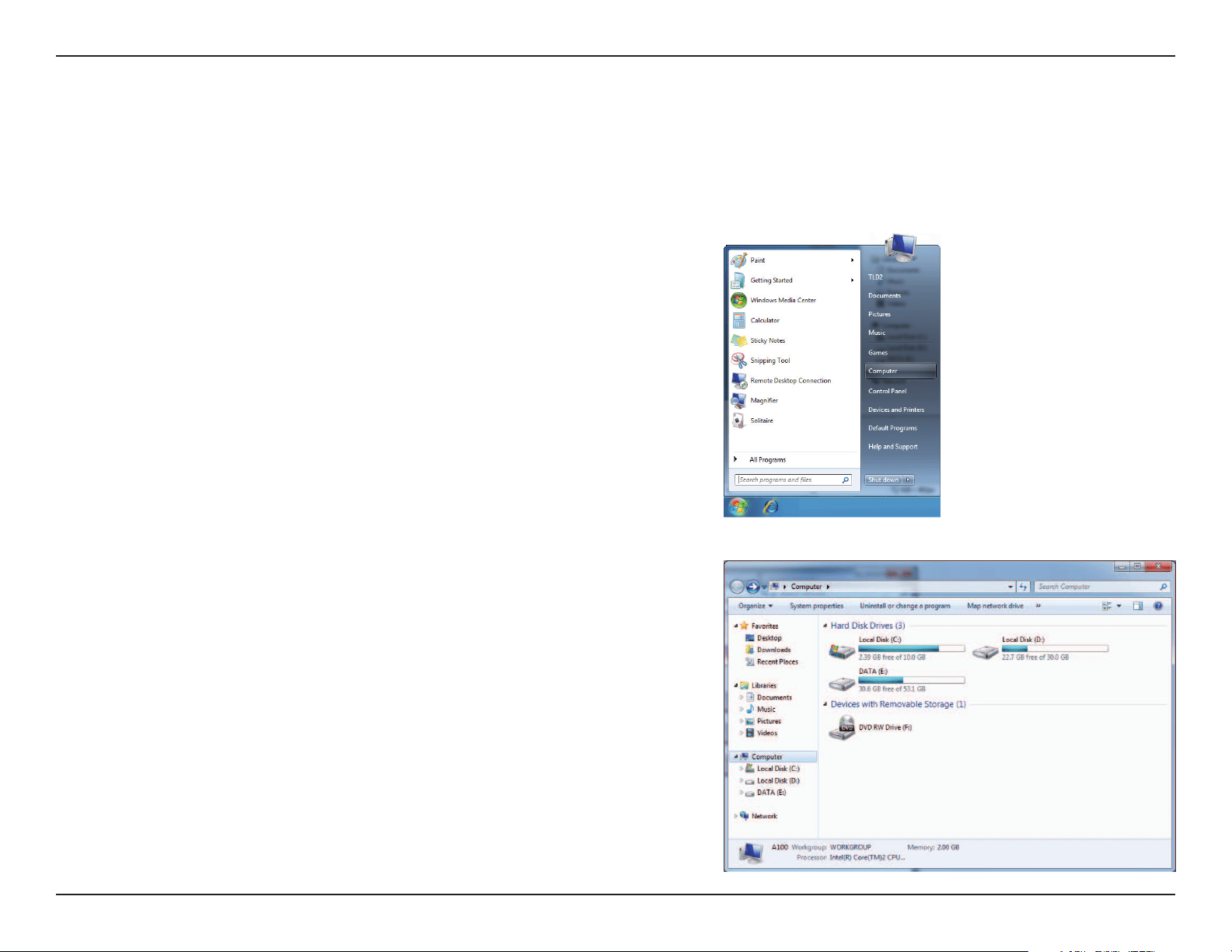
1. Click the Start button and select Computer from the Start
menu.
2. Click the Network option.
84D-Link DAP-1360 User Manual
Section 5 - Connecting to a Wireless Network
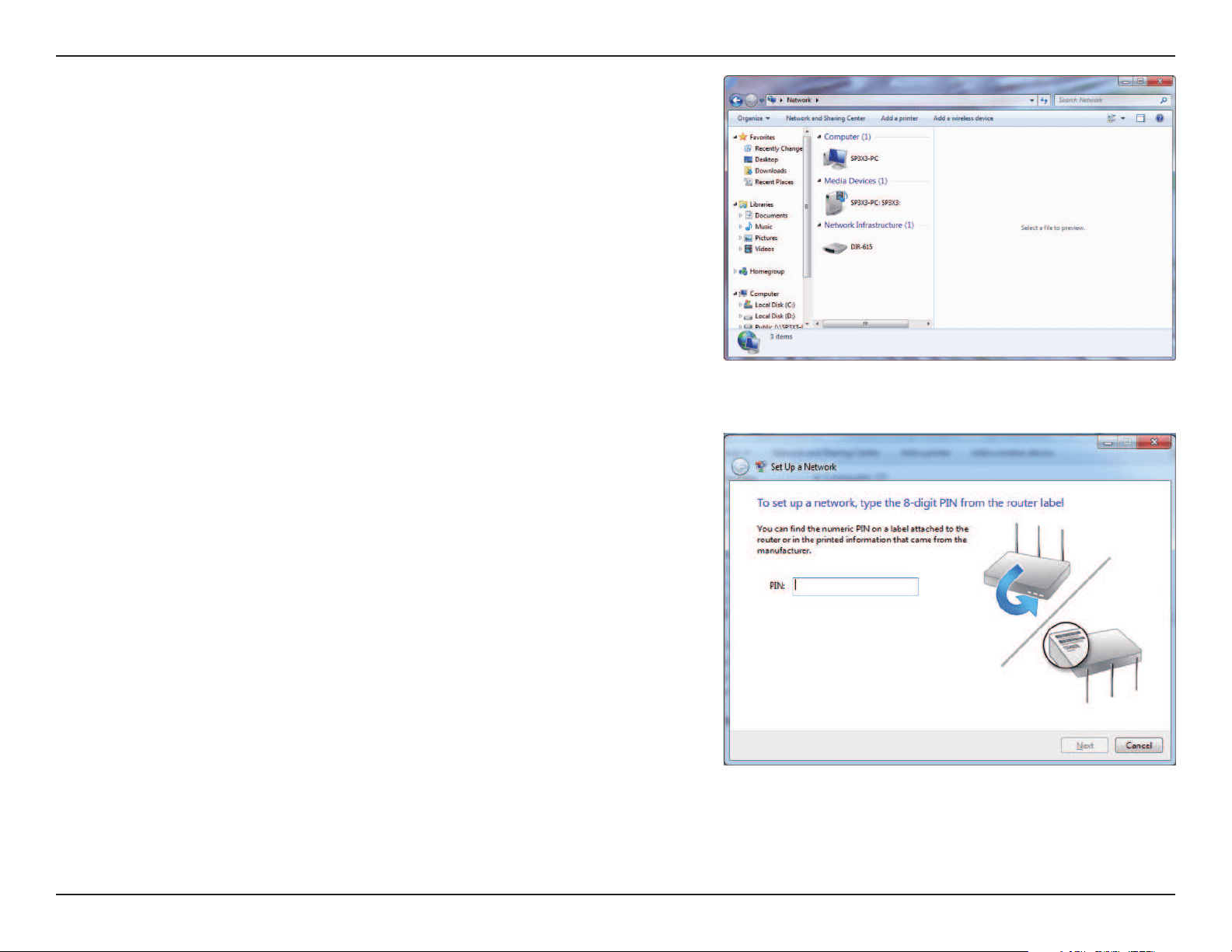
3. Double-click the DAP-1360.
4. Input the WPS PIN number (displayed in the WPS window on the
Router’s LCD screen or in the Setup > Wireless Setup menu in
the Router’s Web UI) and click Next.
85D-Link DAP-1360 User Manual
Section 5 - Connecting to a Wireless Network
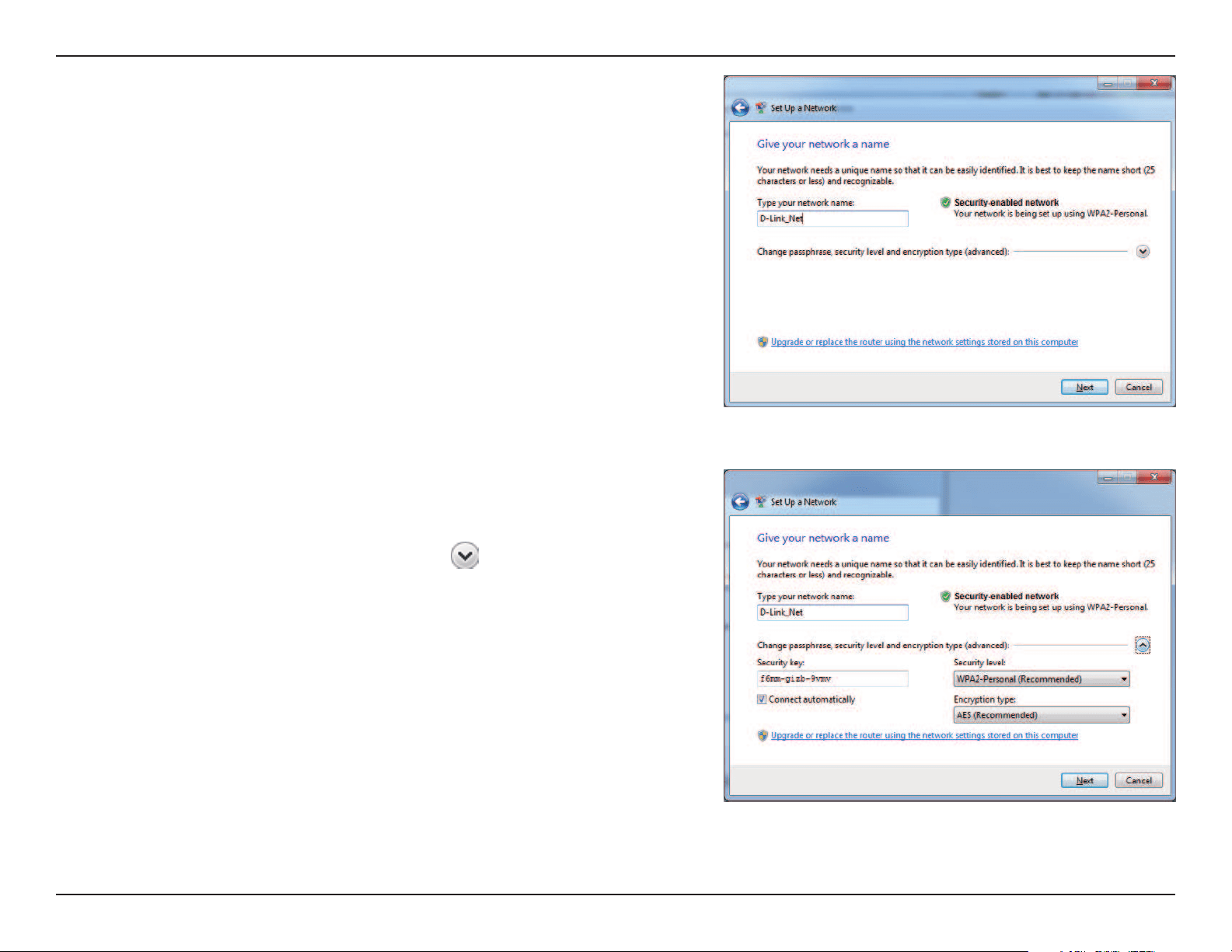
5. Type a name to identify the network.
6.Tocongureadvancedsettings,clicktheicon.
Click Next to continue.
86D-Link DAP-1360 User Manual
Section 5 - Connecting to a Wireless Network
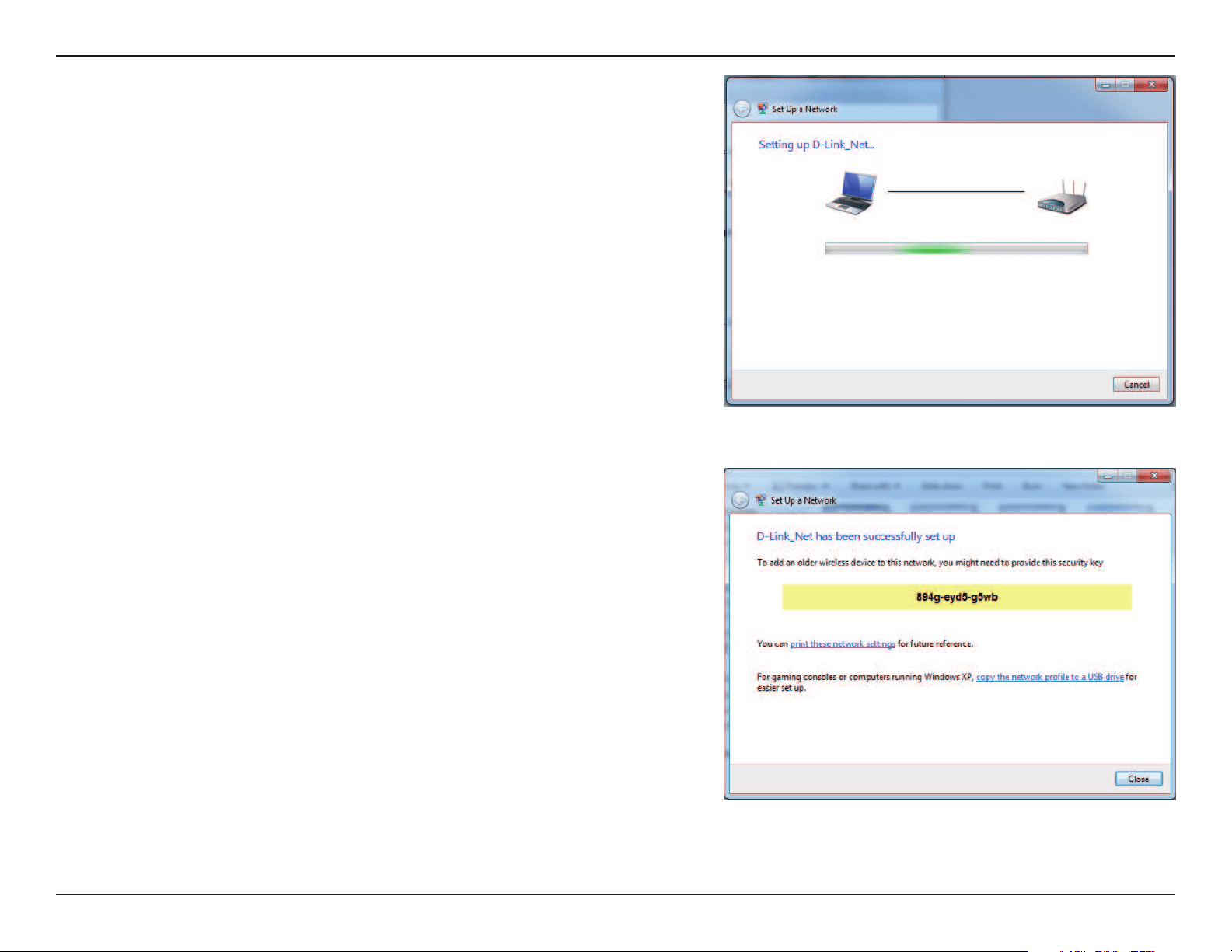
7. The following window appears while the Router is being
congured.
Wait for the conguration to complete.
8. The following window informs you that WPS on the DAP-1360 has
been setup successfully.
Make a note of the security key as you may need to provide this
security key if adding an older wireless device to the network in
the future.
9. Click Close to complete WPS setup.

87D-Link DAP-1360 User Manual
Section 6 - Troubleshooting
Troubleshooting
This chapter provides solutions to problems that can occur during the installation and operation of the DAP-1360. Read the
followingdescriptionsifyouarehavingproblems.(TheexamplesbelowareillustratedinWindows
®
XP. If you have a dierent
operatingsystem,thescreenshotsonyourcomputerwilllooksimilartothefollowingexamples.)
1. Why can’t I access the web-based conguration utility?
WhenenteringtheIPaddressoftheD-Linkaccesspoint(192.168.0.50forexample),youarenotconnectingtoawebsiteon
theInternetorhavetobeconnectedtotheInternet.Thedevicehastheutilitybuilt-intoaROMchipinthedeviceitself.Your
computer must be on the same IP subnet to connect to the web-based utility.
•MakesureyouhaveanupdatedJava-enabledwebbrowser.Werecommendthefollowing:
-MicrosoftInternetExplorer®6.0andhigher
-MozillaFirefox3.0andhigher
-Google™Chrome2.0andhigher
- Apple Safari 3.0 and higher
•Verifyphysicalconnectivitybycheckingforsolidlinklightsonthedevice.Ifyoudonotgetasolidlinklight,tryusingadierent
cableorconnecttoadierentportonthedeviceifpossible.Ifthecomputeristurnedo,thelinklightmaynotbeon.
•Disableanyinternetsecuritysoftwarerunningonthecomputer.SoftwarerewallssuchasZoneAlarm,BlackIce,Sygate,
NortonPersonalFirewall,andWindows
®
XP rewall may block access to the conguration pages. Check the help les included
with your rewall software for more information on disabling or conguring it.

88D-Link DAP-1360 User Manual
Section 6 - Troubleshooting
•CongureyourInternetsettings:
•GotoStart > Settings > Control Panel. Double-click the Internet Options Icon.FromtheSecuritytab,click
the button to restore the settings to their defaults.
•ClicktheConnectiontabandsetthedial-upoptiontoNeverDialaConnection.ClicktheLANSettingsbutton.
Make sure nothing is checked. Click OK.
•GototheAdvancedtabandclickthebuttontorestorethesesettingstotheirdefaults.ClickOKthreetimes.
•Closeyourwebbrowser(ifopen)andopenit.
•Accessthewebmanagement.OpenyourwebbrowserandentertheIPaddressofyourD-Linkaccesspointintheaddress
bar. This should open the login page for your the web management.
•Ifyoustillcannotaccesstheconguration,unplugthepowertotheaccesspointfor10secondsandplugbackin.Waitabout
30secondsandtryaccessingtheconguration.Ifyouhavemultiplecomputers,tryconnectingusingadierentcomputer.
2. What can I do if I forgot my password?
Ifyouforgotyourpassword,youmustresetyouraccesspoint.Unfortunatelythisprocesswillchangeallyoursettingsbackto
the factory defaults.
Toresettheaccesspoint,locatetheresetbutton(hole)ontherearpaneloftheunit.Withtheaccesspointpoweredon,usea
paperclip to hold the button down for 10 seconds. Release the button and the access point will go through its reboot process.
Waitabout30secondstoaccesstheaccesspoint.ThedefaultIPaddressis192.168.0.50.Whenloggingin,theusernameis
Adminandleavethepasswordboxempty.
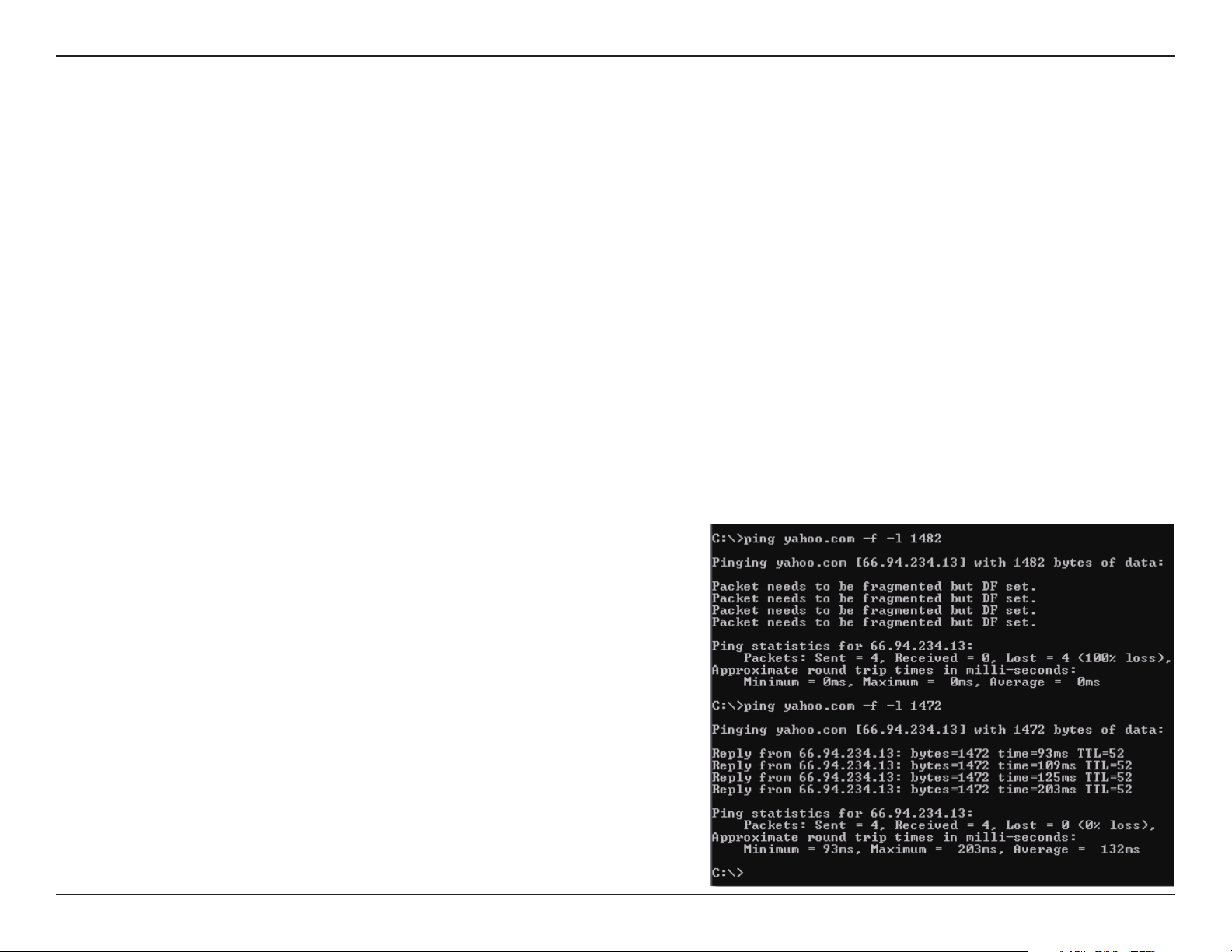
89D-Link DAP-1360 User Manual
Section 6 - Troubleshooting
3.Whycan’tIconnecttocertainsitesorsendandreceiveemailswhenconnectingthroughmyaccesspoint?
Ifyouarehavingaproblemsendingorreceivingemail,orconnectingtosecuresitessuchaseBay,bankingsites,andHotmail,
wesuggestloweringtheMTUinincrementsoften(Ex.1492,1482,1472,etc).
Note: AOL DSL+ users must use MTU of 1400.
TondtheproperMTUSize,you’llhavetodoaspecialpingofthedestinationyou’retryingtogoto.Adestinationcouldbe
anothercomputer,oraURL.
•ClickonStart and then click Run.
•Windows
®
95,98,andMeuserstypeincommand(Windows
®
NT,2000,andXPuserstypeincmd)andpressEnter
(or click OK).
•Oncethewindowopens,you’llneedtodoaspecialping.Usethefollowingsyntax:
ping [url] [-f] [-l] [MTU value]
Example:ping yahoo.com -f -l 1472

90D-Link DAP-1360 User Manual
Section 6 - Troubleshooting
Youshouldstartat1472andworkyourwaydownby10eachtime.Onceyougetareply,goupby2untilyougetafragmented
packet.Takethatvalueandadd28tothevaluetoaccountforthevariousTCP/IPheaders.Forexample,letssaythat1452wasthe
propervalue,theactualMTUsizewouldbe1480,whichistheoptimumforthenetworkwe’reworkingwith(1452+28=1480).
OnceyoundyourMTU,youcannowcongureyouraccesspointwiththeproperMTUsize.
To change the MTU rate on your access point follow the steps below:
•Openyourbrowser,entertheIPaddressofyouraccesspoint(192.168.0.50)andclick OK.
•Enteryourusername(Admin)andpassword(blankbydefault).ClickOK to enter the web conguration page
for the device.
•ClickonSetup and then click Manual Congure.
•TochangetheMTUenterthenumberintheMTUeldandclickSaveSettings to save your settings.
•Testyouremail.IfchangingtheMTUdoesnotresolvetheproblem,continuechangingtheMTUinincrements
of ten.

91D-Link DAP-1360 User Manual
Appendix A - Wireless Basics
D-Link wireless products are based on industry standards to provide easy-to-use and compatible high-speed wireless
connectivitywithinyourhome,businessorpublicaccesswirelessnetworks.StrictlyadheringtotheIEEEstandard,theD-Link
wirelessfamilyofproductswillallowyoutosecurelyaccessthedatayouwant,whenandwhereyouwantit.Youwillbeable
to enjoy the freedom that wireless networking delivers.
A wireless local area network (WLAN) is a cellular computer network that transmits and receives data with radio signals instead of
wires.WirelessLANsareusedincreasinglyinbothhomeandoceenvironments,andpublicareassuchasairports,coeeshops
and universities. Innovative ways to utilize WLAN technology are helping people to work and communicate more eciently.
Increasedmobilityandtheabsenceofcablingandotherxedinfrastructurehaveproventobebenecialformanyusers.
Wireless users can use the same applications they use on a wired network. Wireless adapter cards used on laptop and desktop
systems support the same protocols as Ethernet adapter cards.
Undermanycircumstances,itmaybedesirableformobilenetworkdevicestolinktoaconventionalEthernetLANinorder
touseservers,printersoranInternetconnectionsuppliedthroughthewiredLAN.AWirelessAccesspointisadeviceusedto
provide this link.
Wireless Basics

92D-Link DAP-1360 User Manual
Appendix A - Wireless Basics
What is Wireless?
Wireless or Wi-Fi technology is another way of connecting your computer to the network without using wires. Wi-Fi uses radio
frequencytoconnectwirelessly,soyouhavethefreedomtoconnectcomputersanywhereinyourhomeoroce.
D-Linkistheworldwideleaderandawardwinningdesigner,developer,andmanufacturerofnetworkingproducts.D-Link
delivers the performance you need at a price you can aord. D-Link has all the products you need to build your network.
How does wireless work?
Wirelessworkssimilartohowcordlessphonework,throughradiosignalstotransmitdatafromonepointAtopointB.But
wirelesstechnologyhasrestrictionsastohowyoucanaccessthenetwork.Youmustbewithinthewirelessnetworkrangearea
tobeabletoconnectyourcomputer.TherearetwodierenttypesofwirelessnetworksWirelessLocalAreaNetwork(WLAN),
and Wireless Personal Area Network (WPAN).
Wireless Local Area Network (WLAN)
Inawirelesslocalareanetwork,adevicecalledanAccessPoint(AP)connectscomputerstothenetwork.Theaccesspointhas
asmallantennaattachedtoit,whichallowsittotransmitdatabackandforthoverradiosignals.Withanindooraccesspoint
asseeninthepicture,thesignalcantravelupto300feet.Withanoutdooraccesspointthesignalcanreachoutupto30miles
toserveplaceslikemanufacturingplants,industriallocations,collegeandhighschoolcampuses,airports,golfcourses,and
many other outdoor venues.

93D-Link DAP-1360 User Manual
Appendix A - Wireless Basics
Wireless Personal Area Network (WPAN)
Bluetooth is the industry standard wireless technology used for WPAN. Bluetooth devices in WPAN operate in a range up to
30 feet away.
ComparedtoWLANthespeedandwirelessoperationrangearebothlessthanWLAN,butinreturnitdoesn’tusenearlyas
muchpowerwhichmakesitidealforpersonaldevices,suchasmobilephones,PDAs,headphones,laptops,speakers,andother
devices that operate on batteries.
Who uses wireless?
Wirelesstechnologyhasbecomesopopularinrecentyearsthatalmosteveryoneisusingit,whetherit’sforhome,oce,
business,D-Linkhasawirelesssolutionforit.
Home
•Giveseveryoneathomebroadbandaccess
•Surftheweb,checkemail,instantmessage,etc.
•Getsridofthecablesaroundthehouse
•Simpleandeasytouse
Small Oce and Home Oce
•Stayontopofeverythingathomeasyouwouldatoce
•Remotelyaccessyourocenetworkfromhome
•ShareInternetconnectionandprinterwithmultiplecomputers
•Noneedtodedicateocespace

94D-Link DAP-1360 User Manual
Appendix A - Wireless Basics
Where is wireless used?
Wirelesstechnologyisexpandingeverywherenotjustathomeoroce.Peoplelikethefreedomofmobilityandit’sbecoming
so popular that more and more public facilities now provide wireless access to attract people. The wireless connection in public
places is usually called “hotspots”.
UsingaD-LinkCardbusAdapterwithyourlaptop,youcanaccessthehotspottoconnecttoInternetfromremotelocations
like:Airports,Hotels,CoeeShops,Libraries,Restaurants,andConventionCenters.
Wirelessnetworkiseasytosetup,butifyou’reinstallingitforthersttimeitcouldbequiteatasknotknowingwheretostart.
That’s why we’ve put together a few setup steps and tips to help you through the process of setting up a wireless network.
Tips
Hereareafewthingstokeepinmind,whenyouinstallawirelessnetwork.
CentralizeyouraccesspointorAccessPoint
Make sure you place the bridge/access point in a centralized location within your network for the best performance. Try to
placethebridge/accesspointashighaspossibleintheroom,sothesignalgetsdispersedthroughoutyourhome.Ifyouhave
atwo-storyhome,youmayneedarepeatertoboostthesignaltoextendtherange.
Eliminate Interference
Placehomeappliancessuchascordlesstelephones,microwaves,wirelessspeakers,andtelevisionsasfarawayaspossiblefrom
the bridge/access point. This would signicantly reduce any interference that the appliances might cause since they operate
on same frequency.

95D-Link DAP-1360 User Manual
Appendix A - Wireless Basics
Security
Don’tletyournext-doorneighborsorintrudersconnecttoyourwirelessnetwork.Secureyourwirelessnetworkbyturning
on the WPA or WEP security feature on the access point. Refer to product manual for detail information on how to set it up.
There are basically two modes of networking:
•Infrastructure–All wireless clients will connect to an access point or wireless bridge.
•Ad-Hoc–Directlyconnectingtoanothercomputer,forpeer-to-peercommunication,usingwirelessnetwork
adaptersoneachcomputer,suchastwoormorewirelessnetworkCardbusadapters.
AnInfrastructurenetworkcontainsanAccessPointorwirelessbridge.Allthewirelessdevices,orclients,willconnecttothe
wireless bridge or access point.
AnAd-Hocnetworkcontainsonlyclients,suchaslaptopswithwirelesscardbusadapters.AlltheadaptersmustbeinAd-Hoc
mode to communicate.
Wireless Modes
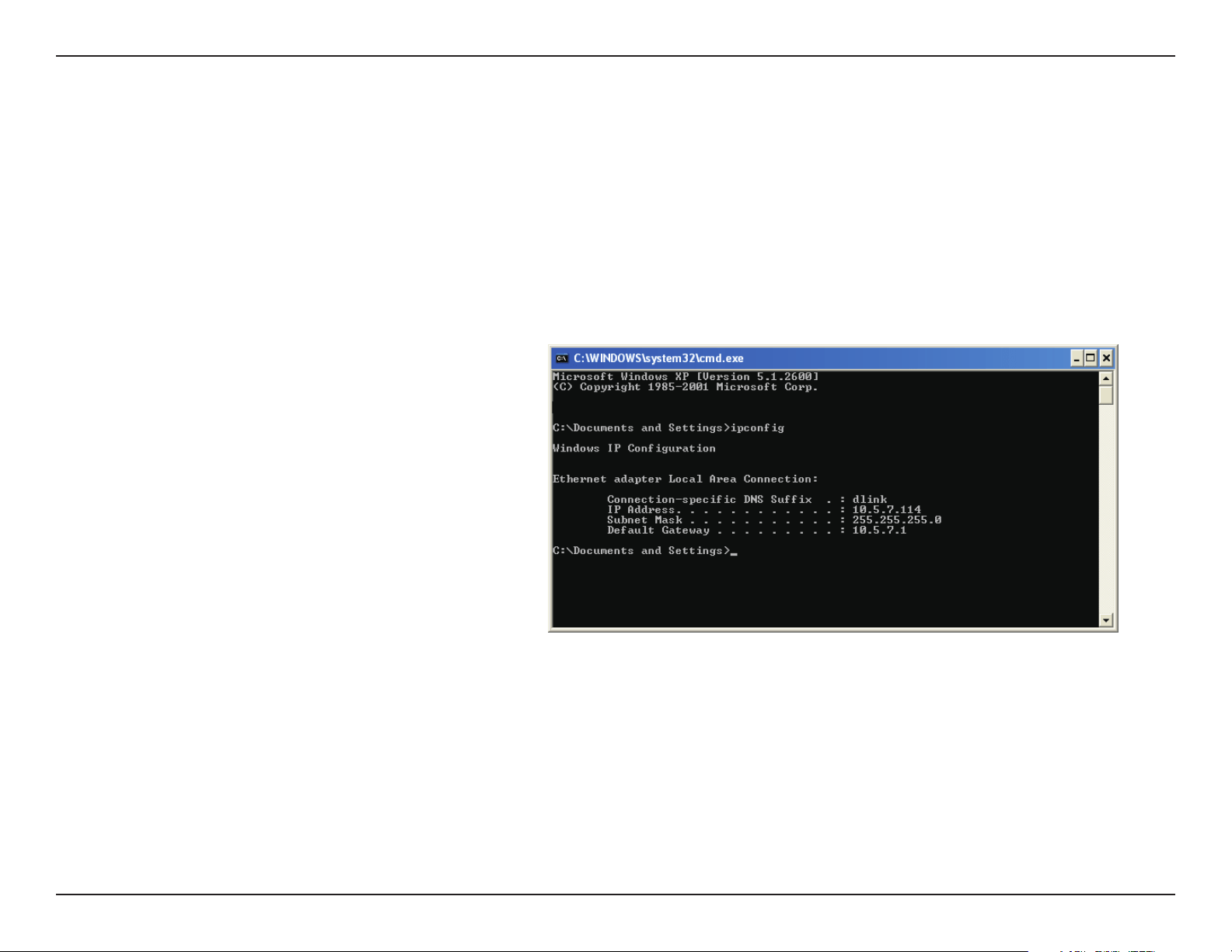
96D-Link DAP-1360 User Manual
Appendix B - Networking Basics
Networking Basics
Check your IP address
Afteryouinstallyouradapter,bydefault,theTCP/IPsettingsshouldbesettoobtainanIPaddressfromaDHCPserver(i.e.
wirelessrouter)automatically.ToverifyyourIPaddress,pleasefollowthestepsbelow.
ClickonStart>Run.Intherunboxtypecmd and click OK. (Windows® 7/Vista®
userstypecmdintheStartSearchbox.)
Attheprompt,typeipcong and press Enter.
ThiswilldisplaytheIPaddress,subnetmask,andthe
default gateway of your adapter.
Iftheaddressis0.0.0.0,checkyouradapterinstallation,
securitysettings,andthesettingsonyourrouter.
Some rewall software programs may block a DHCP
request on newly installed adapters.
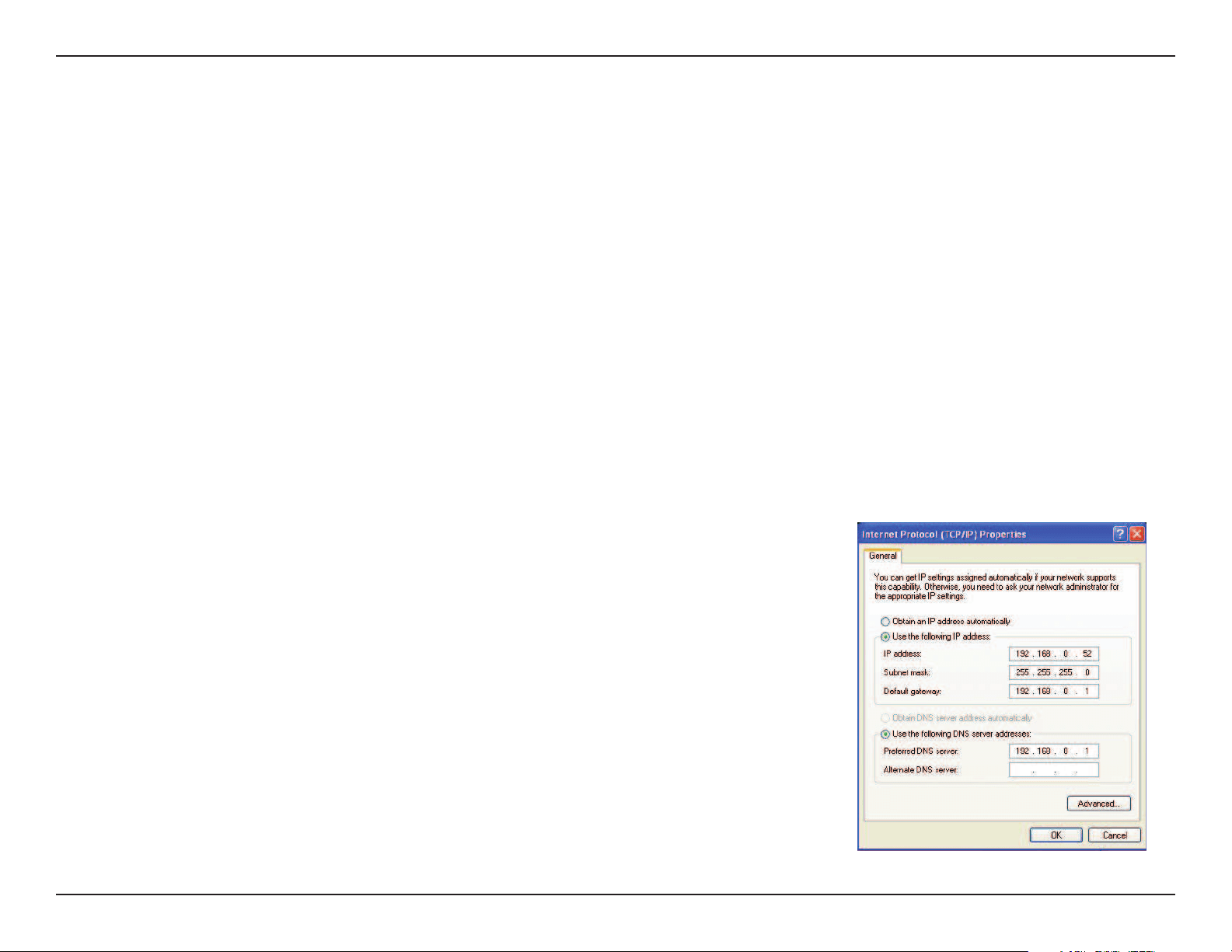
97D-Link DAP-1360 User Manual
Appendix B - Networking Basics
Statically Assign an IP address
IfyouarenotusingaDHCPcapablegateway/router,oryouneedtoassignastaticIPaddress,pleasefollowthestepsbelow:
Step 1
Windows
®
7 - Click on Start > Control Panel > Network and Internet > Network and Sharing Center > Change Adapter
Setting.
Windows Vista
®
- Click on Start > Control Panel > Network and Internet > Network and Sharing Center > Manage Network
Connections.
Windows
®
XP - Click on Start > Control Panel > Network Connections.
Windows
®
2000-Fromthedesktop,right-clickMy Network Places > Properties.
Step 2
Right-click on the Local Area Connection which represents your network adapter and select Properties.
Step 3
Highlight Internet Protocol (TCP/IP) and click Properties.
Step 4
Click Use the following IP address and enter an IP address that is on the same subnet
as your network or the LAN IP address on your router.
Example:Iftherouter´sLANIPaddressis192.168.0.1,makeyourIPaddress192.168.0.X
where X is a number between 2 and 99. Make sure that the number you choose is not in
useonthenetwork.SetDefaultGatewaythesameastheLANIPaddressofyourrouter
(192.168.0.1).
Set Primary DNS the same as the LAN IP address of your router (192.168.0.1). The
Secondary DNS is not needed or you may enter a DNS server from your ISP.
Step 5
Click OK twice to save your settings.

98D-Link DAP-1360 User Manual
Appendix C - Technical Specications
Technical Specications
Standards
•IEEE802.11n
•IEEE802.11g
•IEEE802.11b
•IEEE802.3
•IEEE802.3u
Security
•WPA-Personal
•WPA2-Personal
•WPA-Enterprise
•WPA2-Enterprise
Wireless Signal Rates
1
•300Mbps•108Mbps
•54Mbps•48Mbps
•36Mbps•24Mbps
•18Mbps•12Mbps
•11Mbps•9Mbps
•6Mbps•5.5Mbps
•2Mbps•1Mbps
Maximum Operating Voltage
•5V1A
Maximum Operating Current
•450mA
Modulation
•DQPSK
•DBPSK
•CCK
•OFDM
Frequency Range
2
•2.4GHzto2.483GHz
LEDs
•Power•Wireless
•Security•LAN
Operating Temperature
•32°Fto131°F(0°Cto55°C)
Humidity
•90%maximum(non-condensing)
Safety & Emissions
•FCC•IC
•CE•C-Tick
Dimensions
•144(W)x109(D)x30(H)mm(5.67x4.29x1.18inches)
1
MaximumwirelesssignalratederivedfromIEEEStandard802.11gand802.11nspecications.Actualdatathroughputwillvary.Networkconditionsandenvironmentalfactors,
includingvolumeofnetworktrac,buildingmaterialsandconstruction,andnetworkoverhead,loweractualdatathroughputrate.Environmentalconditionswilladversely
aect wireless signal range.
2
Range varies depending on country’s regulation.

99D-Link DAP-1360 User Manual
Trademarks:
D-LinkisaregisteredtrademarkofD-LinkCorporation/D-LinkSystems,Inc.Othertrademarksorregisteredtrademarksarethepropertyoftheir
respective owners.
Copyright Statement:
No part of this publication or documentation accompanying this product may be reproduced in any form or by any means or used to make any
derivativesuchastranslation,transformation,oradaptationwithoutpermissionfromD-LinkCorporation/D-LinkSystems,Inc.,asstipulatedbythe
United States Copyright Act of 1976 and any amendments thereto. Contents are subject to change without prior notice.
Copyright©2010-2011byD-LinkCorporation/D-LinkSystems,Inc.Allrightsreserved.
CE Mark Warning:
ThisisaClassBproduct.Inadomesticenvironment,thisproductmaycauseradiointerference,inwhichcasetheusermayberequiredtotake
adequate measures.
Federal Communication Commission Interference Statement
ThisequipmenthasbeentestedandfoundtocomplywiththelimitsforaClassBdigitaldevice,pursuanttoPart15oftheFCCRules.Theselimitsare
designedtoprovidereasonableprotectionagainstharmfulinterferenceinaresidentialinstallation.Thisequipmentgenerates,usesandcanradiate
radiofrequencyenergyand,ifnotinstalledandusedinaccordancewiththeinstructions,maycauseharmfulinterferencetoradiocommunications.
However,thereisnoguaranteethatinterferencewillnotoccurinaparticularinstallation.Ifthisequipmentdoescauseharmfulinterferencetoradio
ortelevisionreception,whichcanbedeterminedbyturningtheequipmentoandon,theuserisencouragedtotrytocorrecttheinterferenceby
one of the following measures:
- Reorient or relocate the receiving antenna.
- Increase the separation between the equipment and receiver.
- Connect the equipment into an outlet on a circuit dierent from that to which the receiver is connected.
-Consultthedealeroranexperiencedradio/TVtechnicianforhelp.
FCCCaution:Anychangesormodicationsnotexpresslyapprovedbythepartyresponsibleforcompliancecouldvoidtheuser’sauthorityto
operate this equipment.
This device complies with Part 15 of the FCC Rules. Operation is subject to the following two conditions: (1) This device may not cause harmful
interference,and(2)thisdevicemustacceptanyinterferencereceived,includinginterferencethatmaycauseundesiredoperation.

100D-Link DAP-1360 User Manual
IMPORTANT NOTE:
FCCRadiationExposureStatement:
ThisequipmentcomplieswithFCCradiationexposurelimitssetforthforanuncontrolledenvironment.Thisequipmentshouldbeinstalledand
operatedwithminimumdistance20cmbetweentheradiator&yourbody.
This transmitter must not be co-located or operating in conjunction with any other antenna or transmitter.
The availability of some specic channels and/or operational frequency bands are country dependent and are rmware programmed at the factory
to match the intended destination. The rmware setting is not accessible by the end user.
Industry Canada Statement
This device complies with RSS-210 of the Industry Canada Rules. Operation is subject to the following two conditions:
(1)Thisdevicemaynotcauseharmfulinterference,and(2)thisdevicemustacceptanyinterferencereceived,includinginterferencethatmaycause
undesired operation.
IMPORTANT NOTE:
RadiationExposureStatement:
ThisequipmentcomplieswithICradiationexposurelimitssetforthforanuncontrolledenvironment.Thisequipmentshouldbeinstalledand
operatedwithminimumdistance20cmbetweentheradiator&yourbody.
Thisdevicehasbeendesignedtooperatewithanantennahavingamaximumgainof[2]dB.Antennahavingahighergainisstrictlyprohibited
per regulations of Industry Canada. The required antenna impedance is 50 ohms.
UnderIndustryCanadaregulations,thisradiotransmittermayonlyoperateusinganantennaofatypeandmaximum(orlesser)gainapprovedfor
thetransmitterbyIndustryCanada.Toreducepotentialradiointerferencetootherusers,theantennatypeanditsgainshouldbesochosenthat
the equivalent isotropically radiated power (e.i.r.p.) is not more than that necessary for successful communication.
This radio transmitter (IC: 4216A-AP1360C1 / Model: DAP-1360C1) has been approved by Industry Canada to operate with the antenna types listed
belowwiththemaximumpermissiblegainandrequiredantennaimpedanceforeachantennatypeindicated.Antennatypesnotincludedinthis
list,havingagaingreaterthanthemaximumgainindicatedforthattype,arestrictlyprohibitedforusewiththisdevice.
CedispositifestconformeàlanormeCNR-210d’IndustrieCanadaapplicableauxappareilsradioexemptsdelicence.Sonfonctionnementestsujet
auxdeuxconditionssuivantes:(1)ledispositifnedoitpasproduiredebrouillagepréjudiciable,et(2)cedispositifdoitacceptertoutbrouillagereçu,
ycomprisunbrouillagesusceptibledeprovoquerunfonctionnementindésirable.

101D-Link DAP-1360 User Manual
NOTE IMPORTANTE:
Déclarationd’expositionauxradiations:
Cetéquipementestconformeauxlimitesd’expositionauxrayonnementsICétabliespourunenvironnementnoncontrôlé.Cetéquipementdoit
êtreinstalléetutiliséavecunminimumde20cmdedistanceentrelasourcederayonnementetvotrecorps.
CedispositifaétéconçupourfonctionneravecuneantenneayantungainmaximaldedB[2].Uneantenneàgainplusélevéeststrictementinterdite
parlesrèglementsd’IndustrieCanada.L’impédanced’antennerequiseestde50ohms.
Conformémentàlaréglementationd’IndustrieCanada,leprésentémetteurradiopeutfonctionneravecuneantenned’untypeetd’ungainmaximal
(ouinférieur)approuvépourl’émetteurparIndustrieCanada.Danslebutderéduirelesrisquesdebrouillageradioélectriqueàl’intentiondesautres
utilisateurs,ilfautchoisirletyped’antenneetsongaindesortequelapuissanceisotroperayonnéeéquivalente(p.i.r.e.)nedépassepasl’intensité
nécessaireàl’établissementd’unecommunicationsatisfaisante.
Leprésentémetteurradio(IC:4216A-AP1360C1/Model:DAP-1360C1)aétéapprouvéparIndustrieCanadapourfonctionneraveclestypesd’antenne
énumérésci-dessousetayantungainadmissiblemaximaletl’impédancerequisepourchaquetyped’antenne.Lestypesd’antennenoninclusdans
cetteliste,oudontlegainestsupérieuraugainmaximalindiqué,sontstrictementinterditspourl’exploitationdel’émetteur.
Antennainformation:dipole/2dBi(Brand:D-Link/Manufacturer:WHAYU)