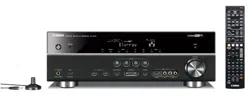
OWNER'S MANUAL
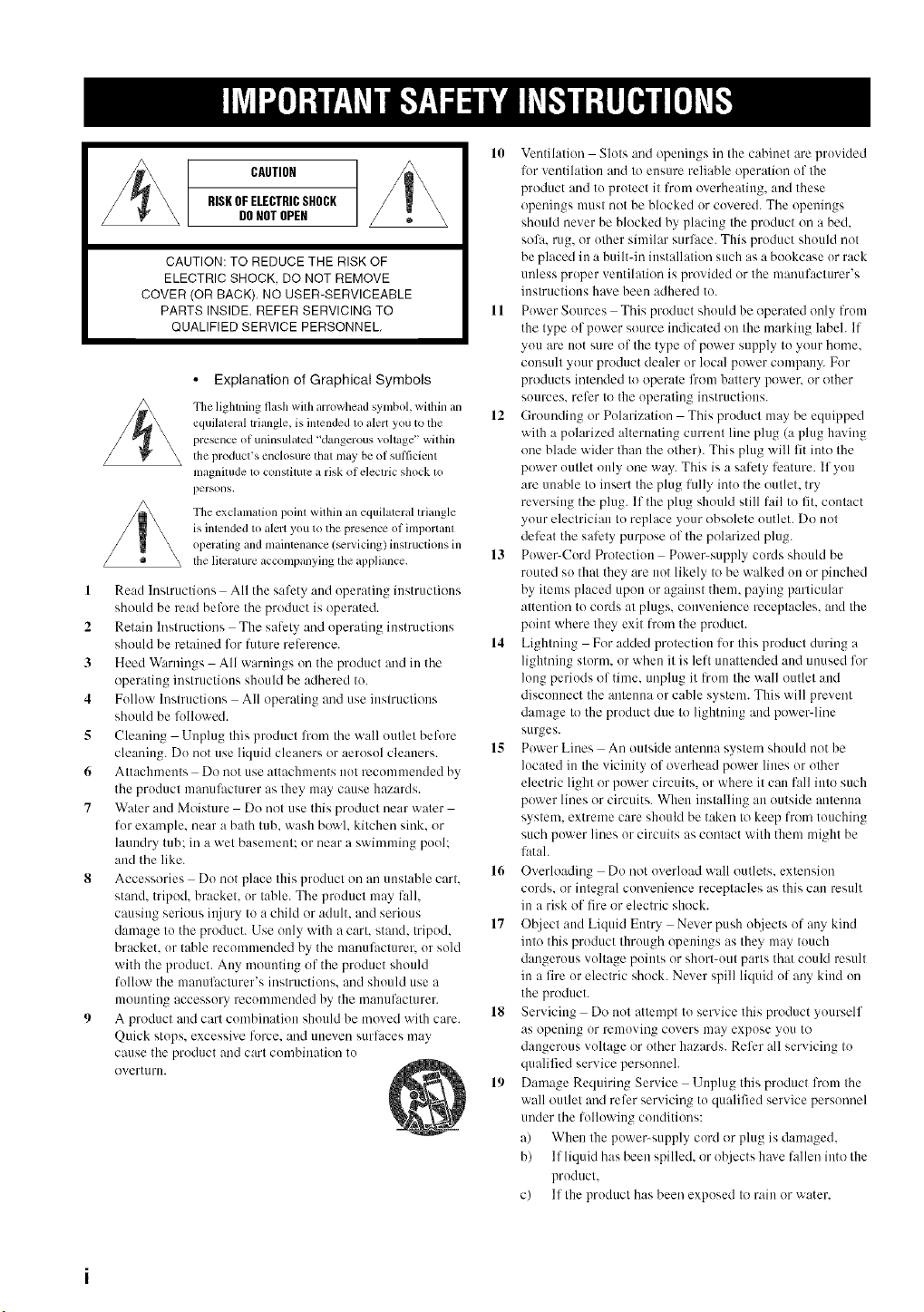
CAUTION
RISKOFELECTRICSHOCK
, DONOTOPEN
CAUTION: TO REDUCE THE RISK OF
ELECTRIC SHOCK, DO NOT REMOVE
COVER (OR BACK). NO USER-SERVICEABLE
PARTS INSIDE. REFER SERVICING TO
QUALIFIED SERVICE PERSONNEL.
• Explanation of Graphical Symbols
The lightning flash with arrowhead symbol,within an
equilateral triangle, is intended m alert you to the
presence of uninsulaled "dangerous vohage" wilhin
the product's enclosure thai may be of sut]iciem
magnitude to constitute a risk of eleclric shock 1()
persolls,
The exclamation point within an equilateral triangle
is intended to alert you to tile presence of important
operating and mainmnancc/_lwicing) instructions in
the literature accompanying the appliance.
1 Read Instructions All the safety and operating instructions
should be read before the product is operated.
2 Retain Instructions The safety and operating instructions
should be retained for luture rel-ereuce.
3 Heed Warnings All warnings on the product and in the
operating instructions should be adhered to.
4 Follow Instructions All operating and use instructions
should be lk)llowed.
5 Cleaning Unplug this product li+(]mthe wall outlet belk_re
cleaning. Do not use liquid cleaners or aerosol cleaners.
6 Attachments Do not use attachments not recommended by
the product manulhcmrer as they may cause hazards.
7 Water and Moisture Do not use this product near water
for example, near a bath tub. wash bowl. kitchen sink. or
hmudry tub: in a wet basement: or near a swimming pool:
and the like.
8 Accessories Do not place this product on an unstable cart.
stand, tripod, bracket, or table. The product may fall.
causing serious it]iury to a child or adult, and serious
dmuage to the product. Use only with a cart. stand, tripod,
bracket, or table recommended by the manulhcturer, or sold
with the product. Any mounting of the product should
follow the manulhcturer's instructions, and should use a
mounting accessory recommeuded by the manufacturer.
9 A product and cart combination should be moved with care.
Quick stops, excessive lbrce, and uneven surlaces may
cause the product and cart combination to
overturn.
10 Ventilation Slots and openings in the cabinet are provided
lot ventilation and to ensure reliable operation of the
product and to protect it from overheating, and these
openings must not be blocked or covered. The openings
should never be blocked by placing the product on a bed.
solid, rug, or other similar surface. This product should not
be placed in a builtdn installation such as a bookcase or rack
unless proper ventilation is provided or the manufacturer's
instructions hme been adhered to.
11 Power Sources This product should be operated only from
the type of power source indicated on the marking label. If
you are not sure of the type of power supply to your home,
consult your product dealer or local power company. For
products intended to operate from battery power, or other
sources, refer to the operating instructions.
12 Grounding or Polarization This product may be equipped
with a polarized alternating current line phtg (a plug ha'dug
one blade wider than the other). This plug will lit into the
power outlet only one way. This is a safety feature. If you
are unable to insert the plug fully into the outlet, try
reversing the plug. If the plug should still fail to lit. contact
your electrician to replace your obsolete outlet. Do not
defeat the safety purpose of the polarized plug.
13 Power-Cord Protection Power-supply cords should be
routed so that they are not likely to be walked on or pinched
by items placed upon or against them, paying particular
attention to cords at plugs, convenience receptacles, and the
point where they exit from the product.
14 Lightning For added protection lot this product during a
lightning storm, or when it is left unattended and unused lk)r
long periods of time. unphtg it from the wall outlet and
disconnect the antenna or cable system. This will prevent
damage to the product due to lightning and power-line
surges.
1S Power Lines An outside antenna system should not he
located in the vicinity of overhead power lines or other
electric light or power circuits, or where it can fall into such
power lines or circuits. When installing an outside autmma
system, extreme cltre should be taken to keep from touching
such power lines or circuits as contact with them might be
latah
16 Overloading Do not overload wall outlets, extension
cords, or integral convenience receptacles as this can result
in a risk of fire or electric shock.
17 Ot)ject and Liquid Entry Never push objects of any kind
into this product through openings as they may touch
dangerous voltage points or short-out parts that could result
in a fire or electric shock. Never spill liquid of any kind on
the product.
18 Servicing Do not attempt to service this product yourself
as opening or removing covers may expose you to
dangerous voltage or other hazards. Reli:r all servicing to
qualified service personneh
19 Damage Requiring Service Unplug this product from the
wall outlet and reli:r servicing to qualified service personnel
under the lollowiug conditions:
a) When the power-supply cord or plug is damaged,
b) If liquid hits been spilled, or objects haxe fallen into the
product.
c) If the product hits been exposed to rain or water.
2O
22
d) If the product does not operate normally by following
the uperating instructions. Adjust uuly those controls
that are covered by the operating instructions as an
improper adjustment of other controls may result in
damage and will often require extensive work by a
qualified technician to restore the pruduct to its normal
operation.
el If the product has been dropped or damaged in any
way, and
f) When the product exhibits a distinct change in
performance - this indicates a need for service.
Replacement Parts When replacement parts are required.
be sure the service technician has used replacement parts
specified by the mauulhcturer or haxe the same
characteristics as the urigiual part. Unauthorized
substitutions may result in fire. electric shock, or other
hazards.
Safety Check Upon completion of any service or repairs to
this product, ask the service technician to perform sali_ty
checks to determine that the pruduct is in proper operating
condition.
Wall ur Ceiling Mounting The unit should be mounted
to a wall or ceiling only as recommended by the
maRul'acturer.
23 Heat The product should be situated away fi'om heat
sources such as radiators, heat registers, stuves, ur other
products (including amplifiers) that produce heat.
24
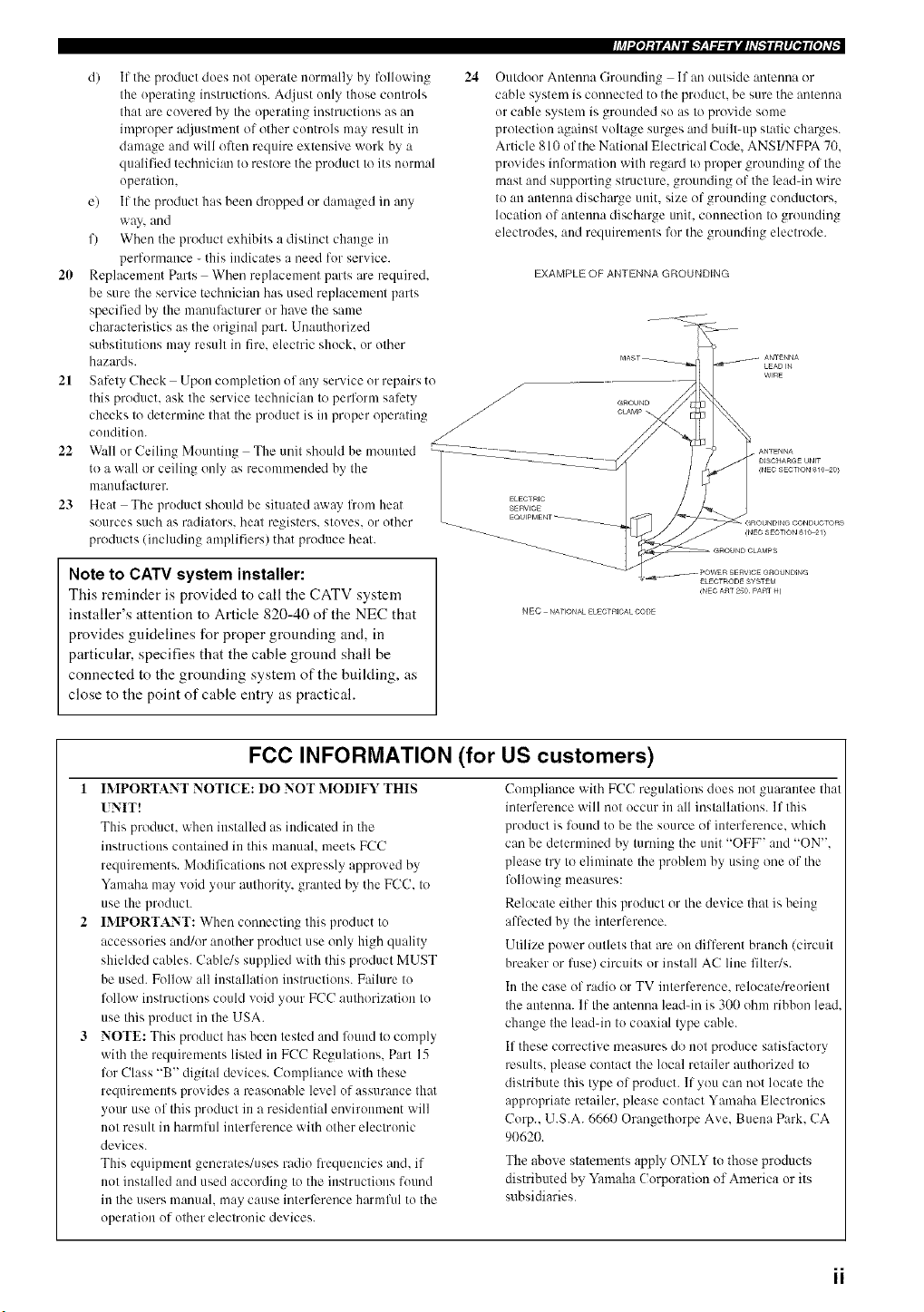
Outdoor Antenna Grounding If an outside antenna or
cable system is connected tu the product, be sure the antmma
or cable system is grounded so as to provide some
protection against voltage surges and built-up static charges.
Article 810 of the National Electrical Code. ANSI/NFPA 70.
provides informatiuu with regard to proper grounding of the
mast and supporting structure, grounding of the lea&in wire
to an antenna discharge unit. size of grounding cunductors.
locatiun of antenna discharge unit. cunuection to grounding
electrudes, and requirements for the grounding electrode.
EXAMPLE OF ANTENNA GROUNDING
Note to CATV system installer:
This reminder is provided to call the CATV system
installer's attention to Article 820-40 of the NEC that
provides guidelines for proper grounding and, in
particular, specifies that the cable ground shall be
connected to the grounding system of the buikting, as
close to the point of cable entry as practical.
NEC NATIONAL ELECTRICALCODE
FCC INFORMATION (for US customers)
1 IMPORTANT NOTI(-E: DO NOT MODIFY THIS
UNIT!
This product, when installed as indicated in the
instructions cuntained in this manual, meets FCC
requirements. Modificatiuns not expressly approved by
Yamaha may void yuur authority, granted by the FCC. to
use the product.
IMPORTANT: When connecting this product to
accessuries and/or another pruduct use only high quality
shielded cables. Cablc/s supplied with this product MUST
be used. Follow all installation instructions. Failure to
fl)llow instructions could void your FCC authorization tu
use this pruduct in the USA.
NOTE: This product has been tested and found to comply
with the requirements listed in FCC Regulations. Part 15
li)r Class "B" digital devices. Compliance with these
requirements provides a reasonable level uf assurance thai
your use of this product in a residential environment will
not result in harmfid interference with other electrunic
devices.
This equipment generates/uses radio li'equencies and. if
not installed and used according to the instructions fuund
in the users manual, may cause interference harmlM to the
operation of other electronic devices.
Compliance with FCC regulations does not guarantee that
interli_rence will not uccur in all installations. If this
product is louud to he the source of interference, which
can be determined by turning the unit "OFF" and "ON".
please try to eliminate the problem by using one of the
following measures:
Relocate either this product or the device that is being
affected by the interlerence.
Utilize puwer outlets that are on dilti_rent branch (circuit
breaker ur fllse) circuits or install AC line filter/s.
In the case of radio or TV interference, relucate/reurient
the antenna. If the antenna lead-in is 300 uhm ribbon lead.
change the leadqn to cuaxial type cable.
If these corrective measures do not produce satislactory
results, please contact the lucal retailer mlthorized to
distribute this type of product. If you can not locate the
appropriate retailer, please contact Yamaha Electrunics
Corp.. U.S.A. 6660 Orangethurpe Ave. Buena Park. CA
90620.
The above statements apply ONLY to those products
distributed by Yamaha ( orporation of America or its
subsidiaries.
1 Toassurethefinestperformance,pleasereadthismanual
carefully.Keepitinasafeplaceforfuturereference.
2 Installthissoundsysteminawellventilated,cool.dry,clean
placeawayt'rom direct sunlight, heat sources, vibration.
dust. moisture, and/or cold. Allow ventilation space of at least
30 cm on the top, 20 cm on the lell and right, and 20 cm on
the back of this unit.
3 Locate this unit away from other electrical appliances, motors.
or transformers to avoid humming sounds.
4 Do not expose this unit to sudden temperature changes I?om
cold to hot. attd do not locate this unit in art mwironment with
high humidity (i.e. a room with a humidifier) to prevent
condensation inside this unit. which may cause an electrical
shock, fire. damage to this unit. and/or personal injury.
5 Avoid installing this unit where loreigu ohjects may fall onto
this unit and/or this unit may be exposed to liquid dripping or
splashing. On the top of this unit. do not place:
Other components, as they may cause damage and/or
discoloration on the surface of this unit.
Burning ot_jects (i.e. candles), as they may cause fire.
damage to this refit, attd/or personal injury.
Contaioers with liquid in them. as they may fall and liquid
may cause electrical shock to the user and/or damage to
this unit.
6 Do not cover this unit with a newspaper, tablecloth, curtain.
etc. in order not to obstruct heat radiation. If the temperature
inside this unit rises, it may cause fire. damage to this unit.
and/or personal il_jury.
7 Do not plug in this unit to a wall outlet tmtil all connections
are complete.
8 Do not operate this unit upside-down. It may overheat.
possibly causing damage.
9 Do not use lorce on switches, knobs and/or cords.
10 When discommcting the power cable from the wall outlet.
grasp the plug; do not pull the cable.
11 Do not clean this trait with chemical solvents: this might
damage the finish. Use a clean, dry cloth.
12 Only voltage specified on this unit must be used. Using this
unit with a higher voltage than specified is dangerous and may
cause fire. damage to this unit. attd/or personal injury.
YAMAHA will not be held responsible for any damage
resulting fi'om use of this unit with a voltage other than
specified.
13 To prevent damage by lightning, keep the power cord and
outdoor antennas disconnected from a wall outlet or the unit
during a lightning storm.
14 Do not attempt to modil} or fix this unit. Contact qualified
YAMAHA service personnel when any service is needed. The
cabinet should never be opened lk_rarty reasons.
15 When not plamting to use this unit fiw long periods of time
(i.e. vacation), disconnect the AC power plug lhom the wall
outlet.
16 Install this unit near the AC outlet and where the AC power
plug can be reached easily.
17 Be sure to read the "TROUBLESHOOTING" section on
common operating errors before concluding that this unit is
faulty.
18 Belore moving this unit, press MASTER ON/OFF to release it
outward to the OFF position to turn off this unit. the main
room. Zone 2 and Zone 3 and then disconnect the AC power
plug lhom the AC wall outlet.
WARNING
TO REDUCE THE RISK OF FIRE OR ELECTRIC
SHOCK, DO NOT EXPOSE THIS UNIT TO RAIN
OR MOISTURE.
As long as this unit is connected to the AC wall outlet,
it is not disconnected from the AC power source even
if yon turn offthis unit by MASTER ON/OFF. In this
state, this unit is designed to consume a very small
quantity of po'a, er.
FOR CANADIAN CUSTOMERS
To prevent electric shock, match wide blade of plug to
wide slot and fully insert.
This Class B digital apparatus complies with Canadian
ICES-003.
POUR LES CONSOMMATEURS CANADIENS
Pour (viter les chocs (lectriques, introduire la lan]e la
plus large de la fiche dans la borne correspondante de
la prise et ponsser jusqu'au fond.
Cet appareil num(rique de la classe Best conforme :5
la norme NMB-003 du Canada.
IMPORTANT
Please record the serial number of this unit in the space
below.
MODEL:
Serial No.:
The serial number is located on the rear of the unit.
Retain this Owner's Manual in a safe place for future
reference.
We Want You Listening For A Lifetime
YAMAHA :rod the Electronic Industries Associations Consumer Electronics Group want you to get the most out of )our
equipment b) playing it at a safe leveh One that lets the sound come through loud :rod dear without amtoying blaring or
distortion and. most importantl), without affecting your sensitive he:wing. Sittce hearing damage l?om loud sounds is
often undetectable until it is too late. YAMAHA and the Electronic Industries Association's Consumer Electronics Group
reconlmend you to avoid prolollged exposure from excessive vo]unle levels.
iii
LISTENING
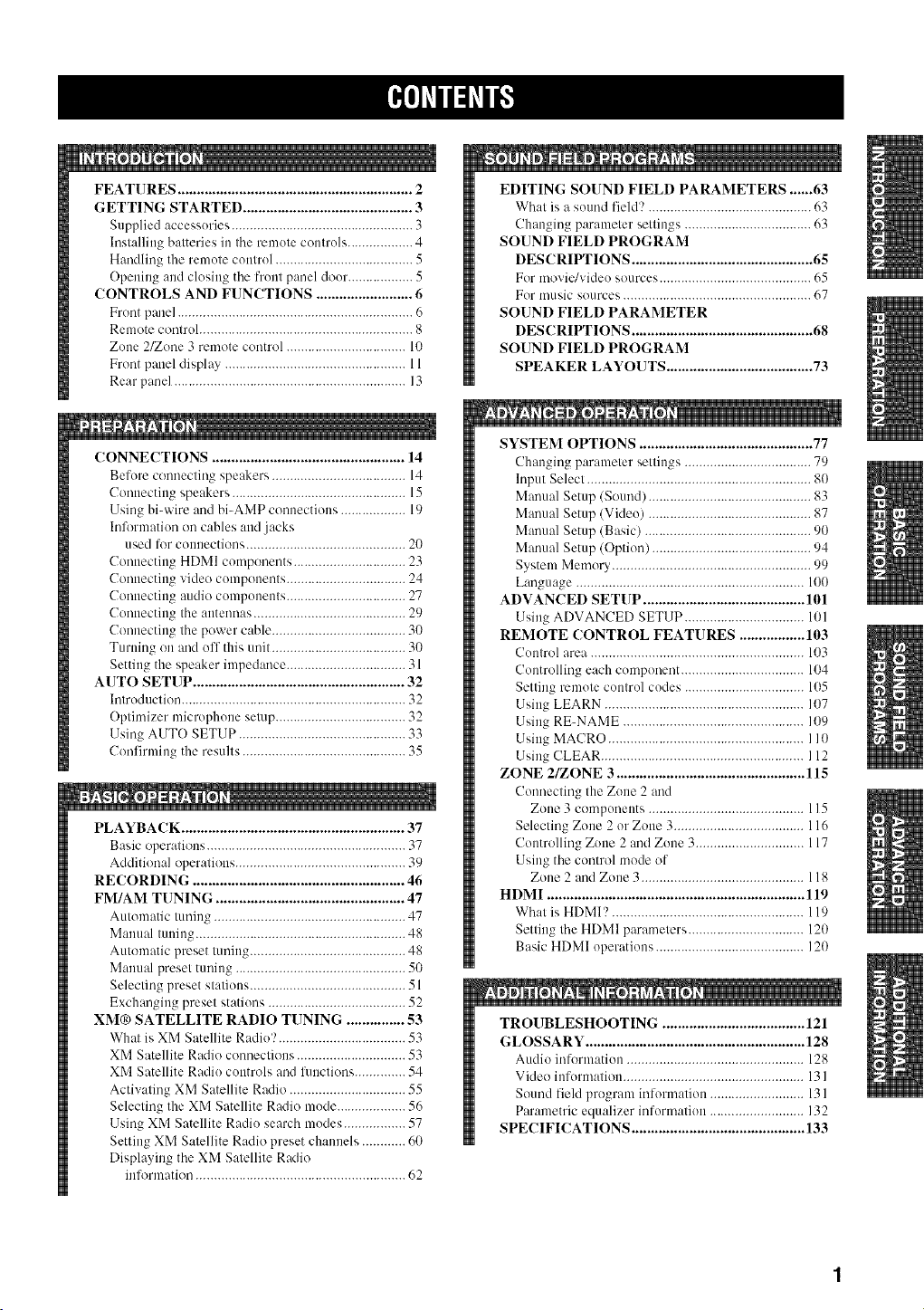
FEATURES ............................................................. 2
GETTING STARTED ............................................ 3
Supplied accessories .................................................. 3
Installiog batteries in the remote controls .................. 4
Handling the remote control ...................................... 5
Opening and closing the front panel door .................. 5
CONTROLS AND FUNCTIONS ......................... 6
Front panel ................................................................. 6
Remote control ........................................................... 8
Zone 2/Zone 3 remote control ................................. 10
Front panel display .................................................. 11
Rear panel ................................................................ 13
CONNECTIONS .................................................. 14
Before connecting speakers ..................................... 14
Connecting speakers ................................................ 15
Using bi-wire and bi-AMP connections .................. 19
Information on cables and jacks
used liw connections ............................................ 20
Commcting HDMI components ............................... 23
Commcting video components ................................. 24
Connecting audio components ................................. 27
Connecting the antennas .......................................... 29
Commcting the power cable ..................................... 30
Turning on and off this unit ..................................... 30
Setting the speaker impedance ................................. 31
AUTO SETUP ....................................................... 32
Introduction .............................................................. 32
Optimizer microphone setup .................................... 32
Using AUTO SETUP .............................................. 33
Confirming the results ............................................. 35
PLAYBACK .......................................................... 37
Basic operations ....................................................... 37
Additional operations ............................................... 39
RECORDING ....................................................... 46
FM/AM TUNING ................................................. 47
Automatic tuning ..................................................... 47
Manual tuning .......................................................... 48
Automatic preset tuning ........................................... 48
Manual preset tuning ............................................... 50
Selecting preset stations ........................................... 51
Exchanging preset stations ...................................... 52
XM® SATELLITE RADIO TUNING ............... 53
What is XM Satellite Radio'? ................................... 53
XM Satellite Radio connections .............................. 53
XM Satellite Radio controls and lm]ctions .............. 54
Activating XM Satellite Radio ................................ 55
Selecting the XM Satellite Radio mode ................... 56
Using XM Satellite Radio search modes ................. 57
Setting XM Satellite Radio preset channels ............ 60
Displaying the XM Satellite Radio
information .......................................................... 62
m
EDITING SOUND FIELD PARAMETERS ...... 63
What is a sound field? ............................................. 63
Changing parameter settings ................................... 63
SOUND FIELD PROGRAM
DESCRIPTIONS ............................................... 65
For movic/video sources .......................................... 65
For music sources .................................................... 67
SOUND FIELD PARAMETER
DESCRIPTIONS ............................................... 68
SOUND FIELD PROGRAM
SPEAKER LAYOUTS ...................................... 73
m
SYSTEM OPTIONS ............................................. 77
Changing parameter settings ................................... 79
Input Select .............................................................. 80
Manual Setup (Sound) ............................................. 83
Manual Setup (Video) ............................................. 87
Manual Setup (Basic) .............................................. 90
Manual Setup (Option) ............................................ 94
System Memory ....................................................... 99
Language ............................................................... 100
ADVANCED SETUP .......................................... 101
Using ADVANCED SETUP ................................. 101
REMOTE CONTROL FEATURES ................. 103
Control area ........................................................... 103
Controlling each component .................................. 104
Setting remote control codes ................................. 105
Using LEARN ....................................................... 107
Using RE-NAME .................................................. 109
Using MACRO ...................................................... 110
Using CLEAR ........................................................ 112
ZONE 2/ZONE 3 ................................................. 115
Connecting the Zone 2 and
Zone 3 components ........................................... 115
Selecting Zone 2 or Zone 3.................................... 116
Controlling Zone 2 and Zone 3 .............................. 117
Using the control mode of
Zone 2 and Zone 3 ............................................. 118
HDMI ................................................................... 119
What is HDMI? ..................................................... 119
Setting the HDMI parameters ................................ 120
Basic HDMI operations ......................................... 120
TROUBLESHOOTING ..................................... 121
GLOSSARY ......................................................... 128
Audio inf_rmation ................................................. 128
Video information .................................................. 13 l
Sound field program inlormation .......................... 131
Parametric equalizer information .......................... 132
SPECIFICATIONS ............................................. 133
Built-in 7-channel power amplifier
• Minimum RMS Output Power
(0.04% THD, 20 Hz to 20 kHz, 8 _Q)
Front: 130 W + 130 W
Center: 130 W
Surround: 130 W + 130 W
Surround Back: 130 W + 130 W
Sound field features
• Proprietary YAMAHA technology for the creation of
sound fields
• THX Select2
• Dolby Digital/Dolby Digital EX decoder
• DTS/DTS-ES Matrix 6.1, Discrete 6.1,
DTS Neo:6 decoder, DTS 96/24
• Dolby Pro Logic/Dolby Pro Logic lix decoder
• Virtual CINEMA DSP
• SILENT CINEMA TM
HDMI (High-Definition Multimedia Interface)
• HDMI interface t_r standard, enhauced or
high-definition video as well as multi-channel digital
audio
• Analog video to HDMI digital video up-conversion
(composite vkteo +_ S-video <_. component video :_
HDMI digital video) and up-scaling (480i _ 480p1
1080i1720p and 480p > 1080i1720p) capabilities for
monitor out
Sophisticated AM/FM tuner
• 40-station random access preset tuning
• Automatic preset tuning
• Preset station shitting capability (preset editing)
XM Satellite Radio (U.S.A. model only)
• XM Satellite Radio tuning capability
Other features
• YPAO (YAMAHA Parametric Room Acoustic
Optimizer) for automatic speaker setup
• 192-kHz/24-bit D/A converter
• GUI (graphical user interface) menus that allow you to
optimize this unit to suit your individual audio/video
system
• GUI display menu hmguage switching capability
(English, Japanese, French, German and Spanish)
• 6 or 8-channel additional input jacks for discrete
nmlti-channel input
• Short message function
• PURE DIRECT for pure fidelity sound with analog and
PCM sources
• S-video input/output capability
• Component video input!output capability
• Analog video I/P conversion from 480i to 480p
• Optical and coaxial digital audio signal jacks
• Sleep timer
• Cinema and music night listening mode
• Remote control with preset remote control codes and
learning/macro capability
• Zone 2/Zone 3 custom installation facility
• Zone 2/Zone 3 remote control to control Zone 2 or
Zone 3
• Zone 20SD (on-screen display) capability
• -"4;'-indicates a tip lor your operation.
• Sonm operations can be performed by using either the buttons on the main unit or on the remote controh In cases when the button
names difli:r hetween the main unit and the remote control, the button nanm on the remote control is given in parentheses.
• This manual is printed prior to production. Design and specifications are subject to change in part as a result of improvements, etc.
111case of dilti_rences between the manual and product, the product has priority.
DIGiTAL, EX
Mauuf:_ctured under license from Dolby Laboratories.
"Dolby". "Surround EX'. and the double-D symbol are
trademarks of Dolby Laboratories.
"DTS'. "DTS-ES'. "Neo:6" and "DTS 96/24" are trademarks of
Digital Theater Systmns. Inc.
"HDMI'. the "HDMI" logo and "High-Definition Multimedia
Interface" are trademarks or registered trademarks of HDMI
Licensing LLC.
SILENT "
CINEMA
"SILENT CINEMA" is a trademark of YAMAHA
CORPORATION.
TAx
The THX logo is a trademark of THX Ltd. which inW be
registered in some jurisdictions. All rights reserved.
REAOY
_) 2005 XM Satellite Radio Inc. All rights reserved. All other
trademarks are the property of their respective owners.
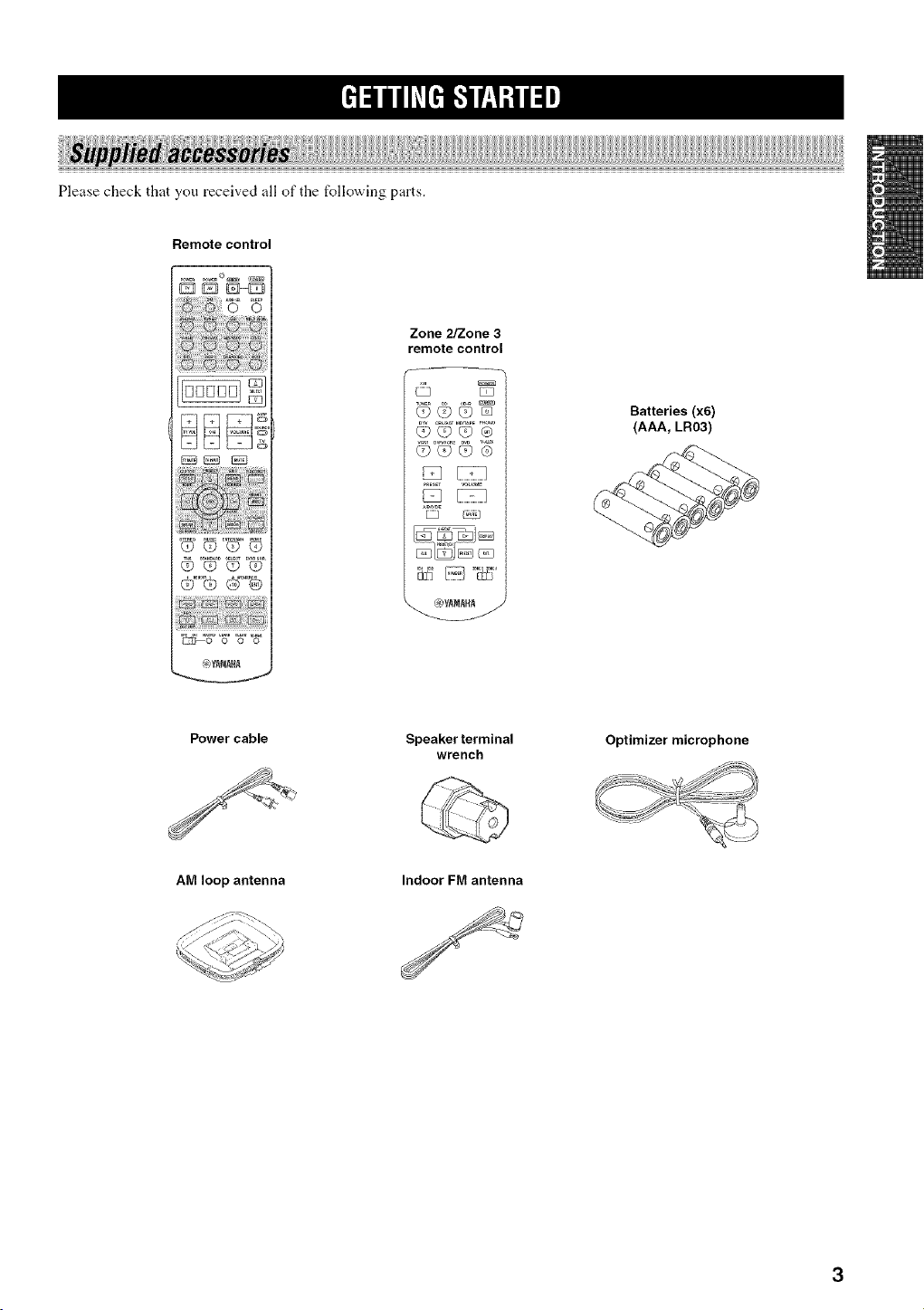
Pleasecheckthatyoureceivedallofthefollowingparts.
Remote control
Zone 2/Zone 3
remote control
Batteries (x6)
(AAA, LR03)
Power cable
Speaker terminal
wrench
Optimizer microphone
AM loop antenna
Indoor FM antenna
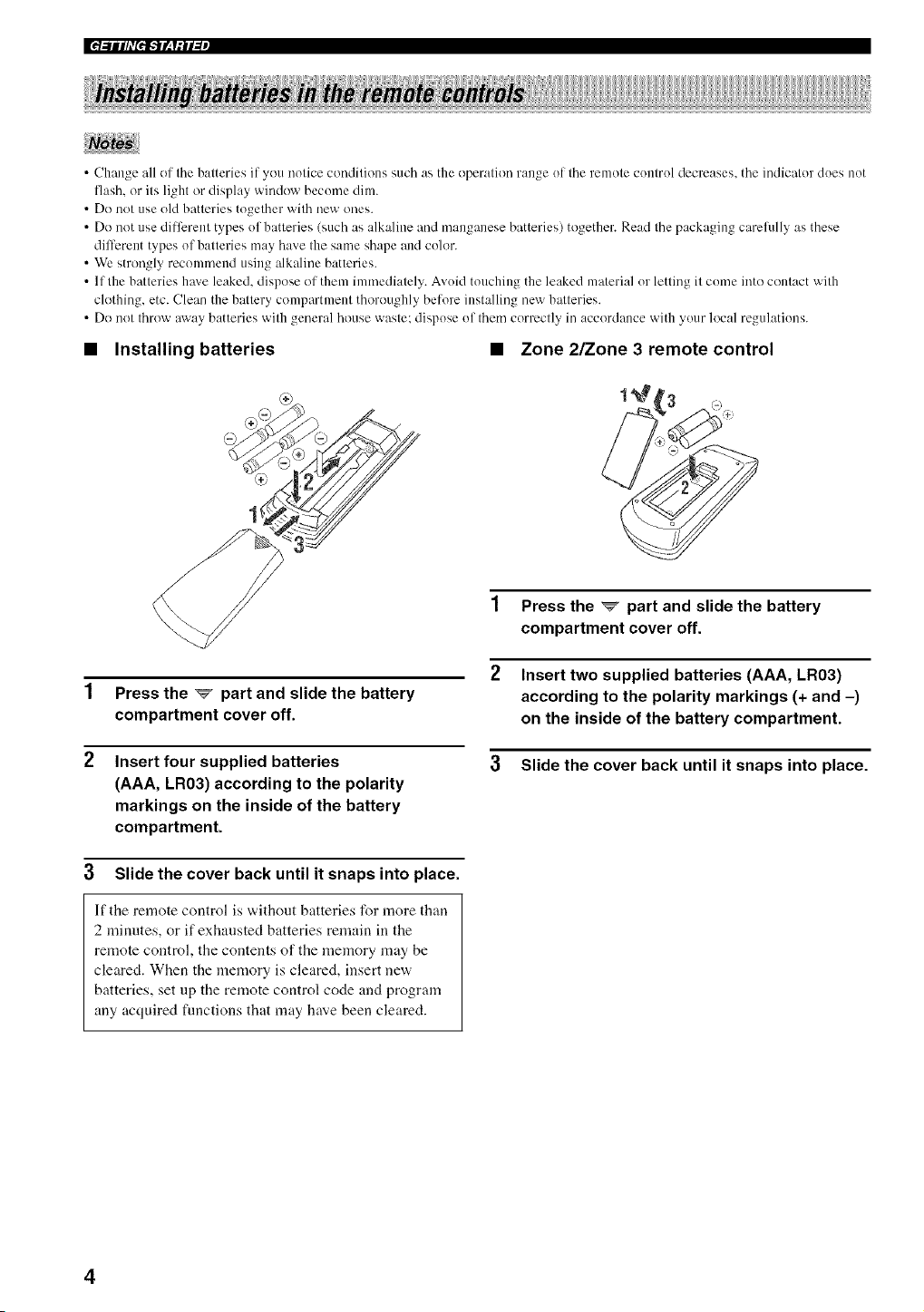
• Change all of the batteries if you notice conditions such as the operation range of the remote control decreases, the indicator does not
flash, or its light or display window become dim.
• [)(7not use old batteries together with new ones.
• [)(7not use dilfcrent types of batteries (such as alkaline and manganese batteries) together. Read the packaging carekdly as these
dilTerent types of batteries may have the same shape and color.
• We strongly recommend using alkaline batteries.
• If the batteries hm'e leaked, dispose of them immediately. Avoid touching the leaked material or letting it come into contact with
clothing, etc. Clean the battery compartment thoroughly before installing new batteries.
• Do not throw away batteries with general house waste: dispose of them correctly in accordance with your local regulations.
• Installing batteries
• Zone 2/Zone 3 remote control
Press the _ part and slide the battery
compartment cover off.
1 Press the _ part and slide the battery
compartment cover off.
2 Insert four supplied batteries
(AAA, LR03) according to the polarity
markings on the inside of the battery
compartment.
3 Slide the cover back until it snaps into place.
Insert two supplied batteries (AAA, LR03)
according to the polarity markings (+ and -)
on the inside of the battery compartment.
3 Slide the cover back until it snaps into place.
If the remote control is without batteries for more than
2 minutes, or if exhausted batteries remain in the
remote control, the contents of the memory may be
cleared. When the memory is cleared, insert new
batteries, set up the remote control code and program
any acquired fimctions that may have been cleared.
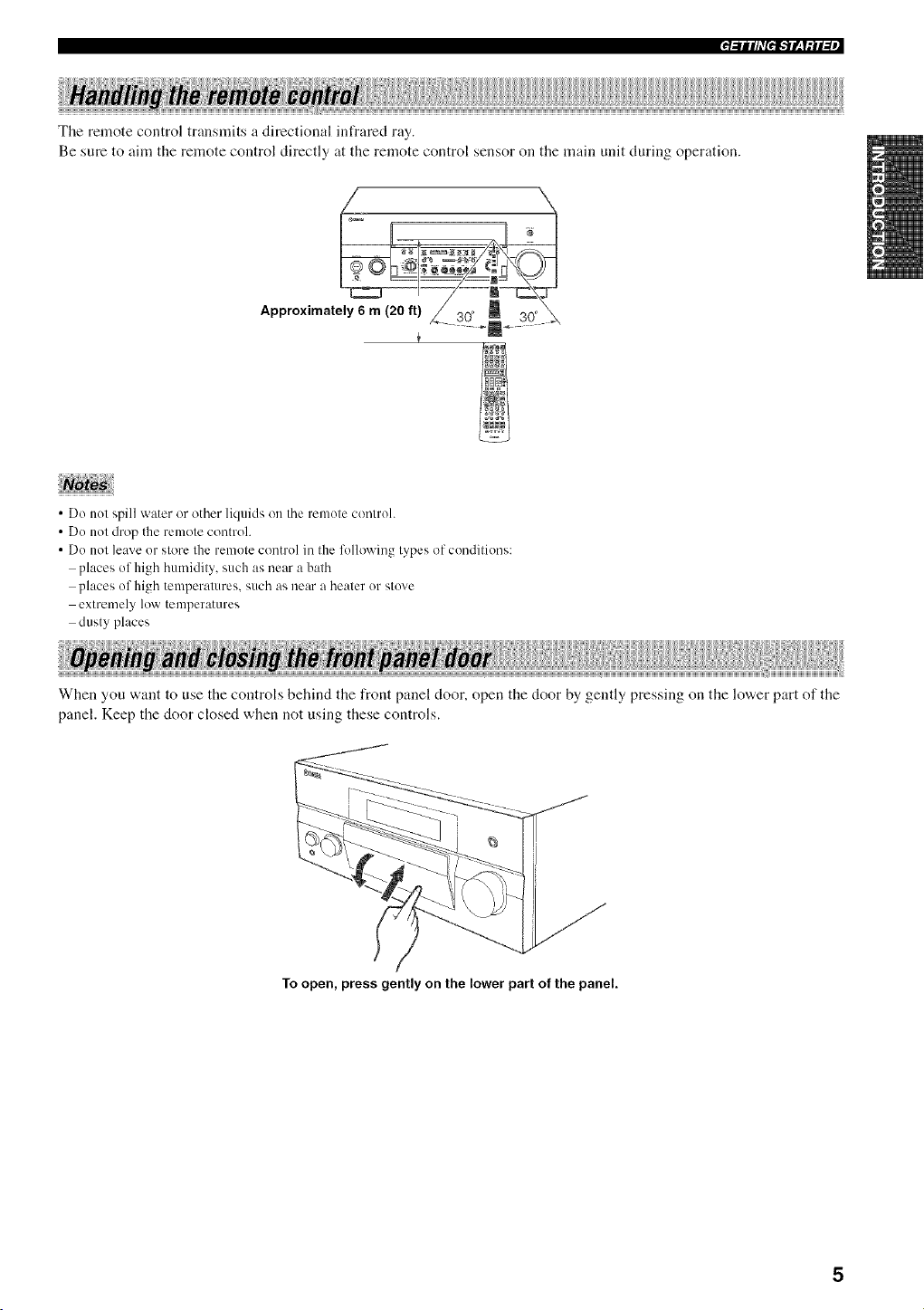
Theremotecontroltransmitsadirectionalinfraredray.
Besuretoaimtheremotecontroldirectlyattheremotecontrolsensoronthemainunitduringoperation.
Approximately 6 m (20 ft) _30[
• Do not spill water or other liquids on the remote control.
• Do not drop the remote control.
• Do not leave or store the remote control in the lkHlowing types of conditions:
places of high humidity, such as near a bath
places of high temperatures, such as near a heater or stove
extremely low temperatures
dusty places
When you want to use the controls behind the front panel door, open the door by gently pressing on the lower part of the
panel. Keep the door closed when not using these controls.
To open, press gently on the lower part of the panel.
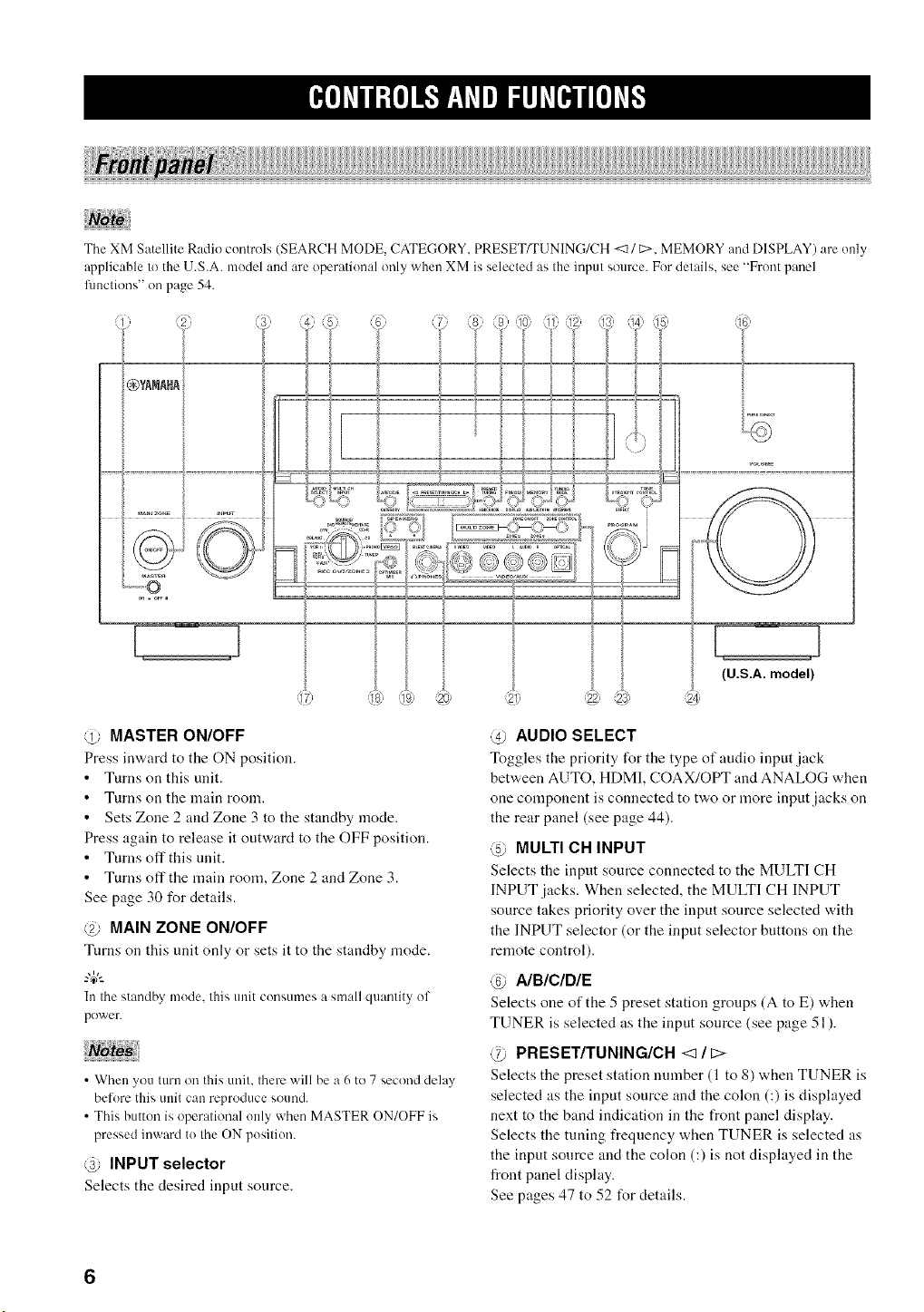
The XM Satellite Radio controls (SEARCH MODE, CATEGORY. PRESET/TUNING/CH <11 C:>. MEMORY and DISPLAY) are only
applicable lo the U.S.A. model and are operational only when XM is selected as Ihe inpul source. For details, see "Front panel
fl]nclions" on page 54.
1¸-
_)YANNt
===:= ........................ ==: ...........................
F
{--
5============
(U.S.A. model)
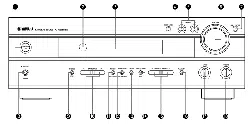
@ MASTER ON/OFF
Press inward to the ON position.
• Turns on this unit.
• Turns on the main room.
• Sets Zone 2 and Zone 3 to the standby mode.
Press again to release it outward to the OFF position.
• Turns off this unit.
• Turns off the main room, Zone 2 and Zone 3.
See page 30 for details.
@ MAIN ZONE ON/OFF
Tnrns on this unit only or sets it to the standby n]ode.
In the standby mode. this unit consumes a small quantity of
power.
• When you turn on this unit. there will be a h to 7 second delay
before this unit can reproduce sound.
• This button is operational only when MASTER ON/OFF is
pressed inward to the ON position.
@ INPUT selector
Selects the desired input source.
@ AUDIO SELECT
Toggles the priority for the type of audio input jack
between AUTO, HDMI, COAX/OPT and ANALOG when
one component is connected to two or more input jacks on
the rear panel (see page 44).
@ MULTI CH INPUT
Selects the input source connected to the MULTI CH
INPUT jacks. When selected, the MULTI CH INPUT
source takes priority over the input source selected with
the INPUT selector (or the input selector buttons on the
remote control).
@ A/B/C/DIE
Selects one of the 5 preset station groups (A to E) when
TUNER is selected as the input source (see page 51).
@ PRESET/TUNING/CN <_ / E>
Selects the preset station number (1 to 8) when TUNER is
selected as the input source and the colon (:) is displayed
next to the band indication in the front panel display.
Selects the tuning frequency when TUNER is selected as
the input source and the colon (:) is not displayed in the
front panel display.
See pages 47 to 52 for details.
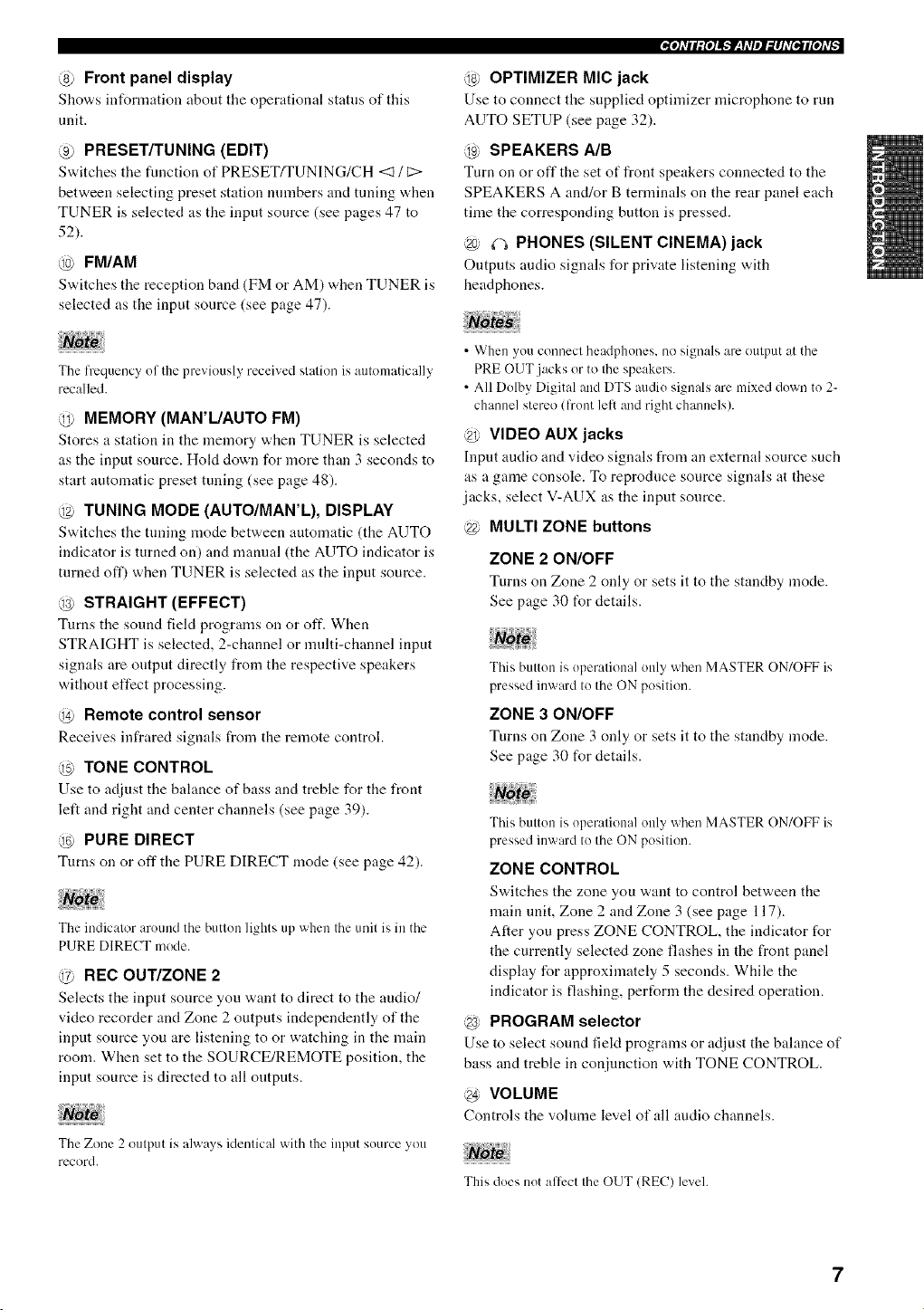
@ Front panel display
Sho'a,s information about tile operational status of this
unit.
@ PRESET/TUNING (EDIT)
Switches tile function of PRESET/TUNING/CH <1/C>
between selecting preset station numbers and tuning when
TUNER is selected as the input source (see pages 47 to
52).
@ FM/AM
Switches tile reception band (FM or AM) when TUNER is
selected as the input source (see page 47).
The frequm/cy of the previously received station is automatically
recalled.
@ MEMORY (MAR'L/AUTO FM)
Stores a station in the memory when TUNER is selected
as the input source. HoLt down for more than 3 seconds to
start automatic preset tuning (see page 48).
@ TUNING MODE (AUTO/MAR'L), DISPLAY
Switches the tuning mode between automatic (the AUTO
indicator is turned on) and mannal (the AUTO indicator is
turned oft') when TUNER is selected as the input source.
STRAIGHT (EFFECT)
Turns the sound field programs on or oft'. When
STRAIGHT is selected, 2-channel or multi-channel input
signals are output directly from the respective speakers
without effect processing.
@ Remote control sensor
Receives infrared signals from the remote controh
@ TONE CONTROL
Use to adjust tile balance of bass and treble for the front
left and right and center channels (see page 39).
_ PURE DIRECT
Turns on or off the PURE DIRECT mode (see page 42).
The indicator around the button lights up when the unit is in the
PURE DIRECT mode.
@ REC OUT/ZONE 2
Selects the input source you "a,ant to direct to the audio/
video recorder and Zone 2 outputs independently of the
input source you are listening to or watching in the main
room. When set to the SOURCE/REMOTE position, the
input source is directed to all outputs.
The Zone 2 output is always identical with the input source you
record.
e.leldll;[el_.'JF_qdlel_#ld[e.*J#[eldg
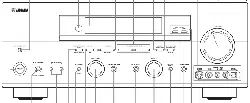
@ OPTIMIZER MIC jack
Use to connect the supplied optimizer microphone to run
AUTO SETUP (see page 32).
@ SPEAKERS MB
Turn on or off the set of front speakers connected to the
SPEAKERS A and/or B terminals on the rear panel each
time the corresponding button is pressed.
@ (-_ PHONES (SILENT CINEMA) jack
Ol.ltputs audio siguals for private listeniilg with
headphones.
• When you connect headphones, no signals arc output at the
PRE OUT jacks or to the speakers.
• All Dolby Digital and DTS audio signals are mixed down to 2-
channel stere() (front left and right channels).
@ VIDEO AUX jacks
Input audio and video signals from an external source such
as a game console. To reproduce source signals at these
jacks, select V-AUX as the input source.
@ MULTI ZONE buttons
ZONE 2 ON/OFF
Turns on Zone 2 only or sets it to the standby mode.
See page 30 t_r details.
This button is operational only when MASTER ON/OFF is
pressed inward to the ON position.
ZONE 3 ON/OFF
Turns on Zone 3 only or sets it to tile standby mode.
See page 30 for details.
This button is operational only when MASTER ON/OFF is
pressed inward to the ON position.
ZONE CONTROL
Switches tile zone you "a,:tnt to control between the
main unit, Zone 2 and Zone 3 (see page 117).
After you press ZONE CONTROL, the indicator for
the currently selected zone flashes in the front panel
display for approximately 5 seconds. While the
indicator is flashing, perform the desired operation.
@ PROGRAM selector
Use to select sound field programs or adjust the balance of
bass and treble in conjunction with TONE CONTROL.
@ VOLUME
Controls tile volume level of :tll audio channels.
This does not affect the OUT (REC) level.
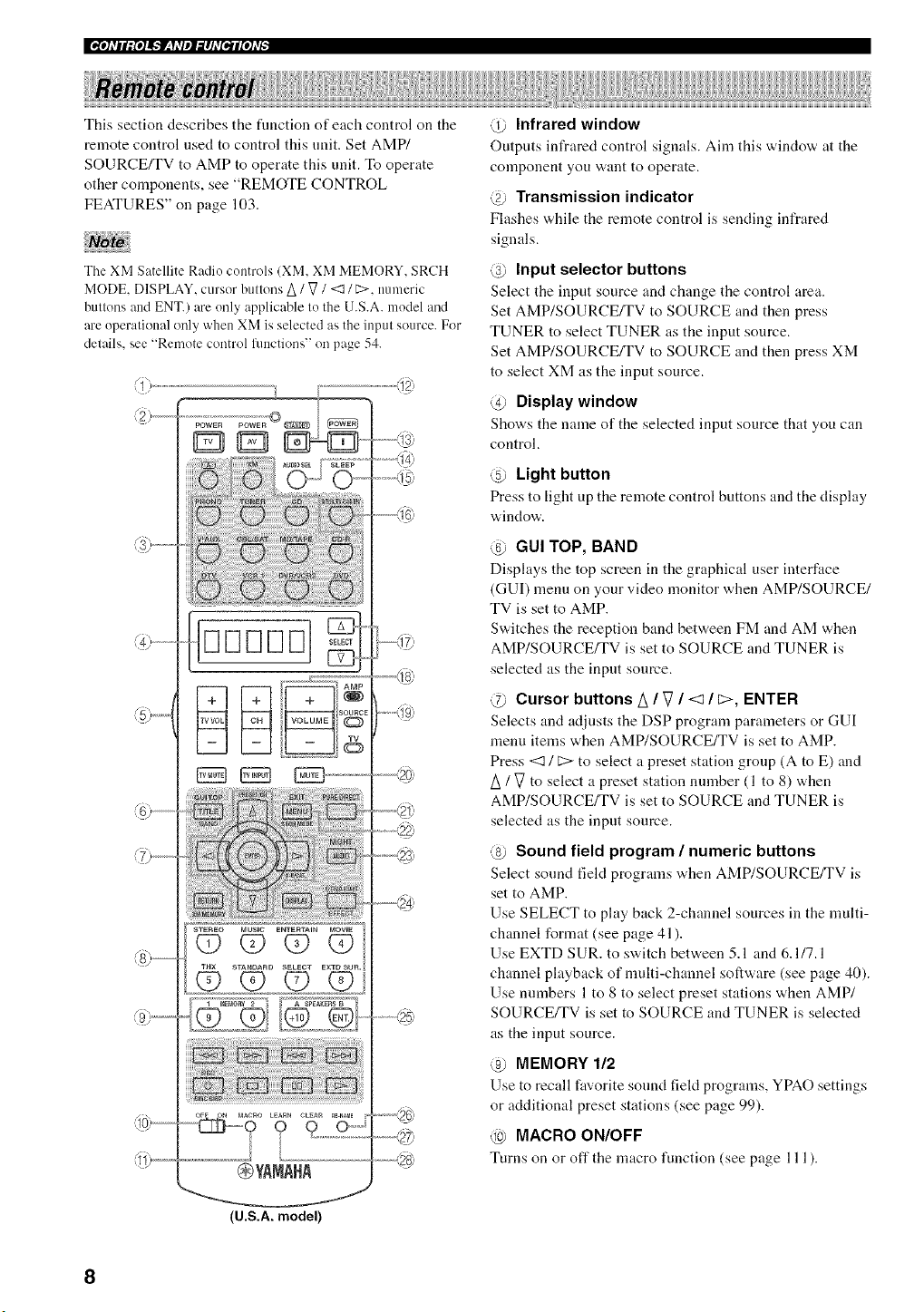
Thissectiondescribesthefimctionofeachcontrolonthe
remotecontrolnsedtocontrolthisunit.SetAMP/
SOURCE/TVtoAMPtooperatethisunit.Tooperate
othercomponents,see"REMOTECONTROL
FEATURES"onpage103.
TheXMSatelliteRadiocontrols(XM,XMMEMORY,SRCH
MODE,DISPLAY,cursorbuttonsA/ V / <3 / c>, nmneric
buttons and ENT.) are unly applicable to the U.S.A. model and
are operational only when XM is selected as the input source. For
details, see "Rmnote control l]mctions" on page 54.
_TEREO MUSIC ENTERTAIN _aOVlE
q9 (D (P O
Sq'A_IC*ARt_ SELECT E×TOSU_
(P (D (D
I I .......................
_J
@YANARA
(U.S.A.model)
............,_
@ Infrared window
Outputs infrared control signals. Aim this windo'a, at the
component you want to operate.
@ Transmission indicator
Flashes "a,hile the remote control is sending infrared
signals.
@ Input selector buttons
Select the inpnt source and ctmnge the control area.
Set AMP/SOURCE/TV to SOURCE and then press
TUNER to select TUNER as the input source.
Set AMP/SOURCE/TV to SOURCE and then press XM
to select XM as the input source.
@ Display window
Shows the name of the selected input source that you can
control.
@ Light button
Press to light up the remote control buttons and the display
window.
@ GUI TOP, BAND
Displays the top screen in the graphical user interface
(GUI) menu on your video monitor when AMP/SOURCE/
TV is set to AMP.
Switches the reception band between FM and AM when
AMP/SOURCE/TV is set to SOURCE and TUNER is
selected as the input source.
@ Cursor buttons !X / g / <1 / 1>, ENTER
Selects and adjusts the DSP program parameters or GUI
menu items when AMP/SOURCE/TV is set to AMP.
Press <3 / C:>to select a preset station group (A to E) and
A / V to select a preset station nnmber (1 to 8) when
AMP/SOURCE/TV is set to SOURCE and TUNER is
selected as the input sonrce.
@ Sound field program / numeric buttons
Select sound field programs vdlen AMP/SOURCE/TV is
set to AMP.
Use SELECT to play back 2-channel sources in the multi-
channel format (see page 41).
Use EXTD SUR. to switch between 5.1 and 6.1/7.1
channel playback of multi-channel software (see page 40).
Use numbers 1 to 8 to select preset stations when AMP/
SOURCE/TV is set to SOURCE and TUNER is selected
as the input source.
@ MEMORY 112
Use to recall fav*orite sonnd fieM progranls, YPAO settings
or additional preset stations (see page 99).
@ MACRO ON/OFF
Turns on or oft" the macro function (see page 111 ).
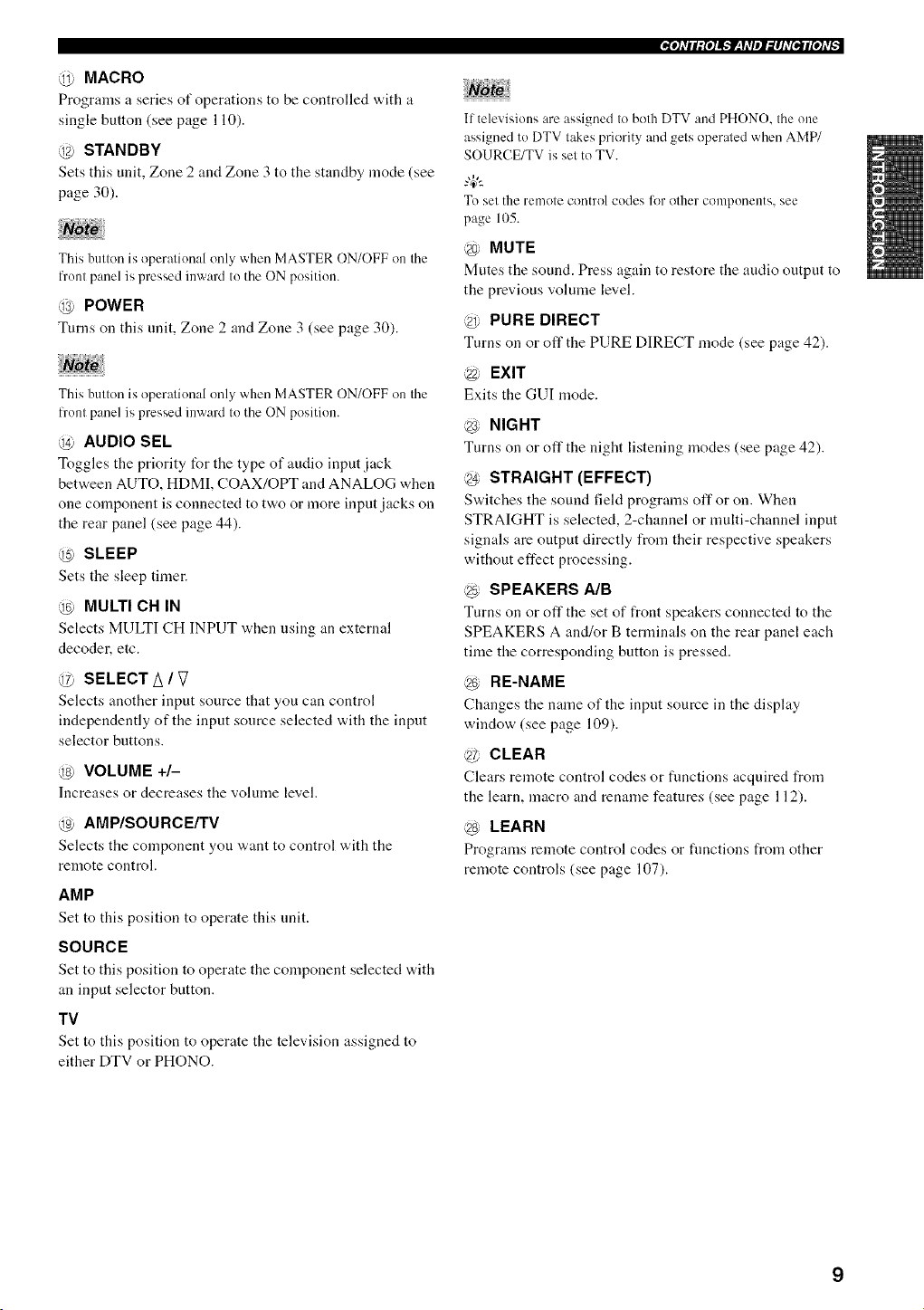
@ MACRO
Programs a series of operations to be controlled with :t
single button (see page 110).
@ STANDBY
Sets this unit, Zone 2 and Zone 3 to the standby mode (see
page 30).
This button is operational only when MASTER ON/OFF on the
front panel is pressed inward to the ON position.
@ POWER
Turns on this unit, Zone 2 and Zone 3 (see page 30).
This button is operational only when MASTER ON/OFF on the
lront panel is pressed inward to the ON position.
_a) AUDIO SEL
Toggles the priority for tire type of audio input jack
between AUTO, HDMI, COAX/OPT and ANALOG when
one component is connected to two or more input jacks on
the rear panel (see page 44).
SLEEP
Sets tire sleep timer.
@ MULTI CH IN
Selects MULTI CH INPUT "a,hen using an external
decoder, etc.
SELECT A / g
Selects another input source that you can control
independently of the input source selected with the input
selector buttons.
@ VOLUME +/-
Increasesor decreases tire volume level.
@ AMP/SOURCE/TV
Selects the cornponent you "a,ant to control with tire
relnote control.
AMP
Set to this position to operate this unit.
SOURCE
Set to this position to operate tire component selected with
an input selector button.
TV
Set to this position to operate the television assigned to
either DTV or PHONO.
_e],Vll;£e]_._Jr:y,Vel_#J,V[e.*J#[e],vg
If televisions are assigned to both DTV and PHONO, the one
assigned to DTV takes priority and gets operated when AMP/
SOURCE/TV is set to TV.
To set the remote control codes lot other conlponents, see
page 105.
_ MUTE
Mutes tire sound. Press again to restore tire andio output to
the previous volume level.
@ PURE DIRECT
Turns on or off the PURE DIRECT mode (see page 42).
;_ EXIT
Exits the GUI mode.
@ NIGHT
Turns on or off the night listening modes (see page 42).
STRAIGHT (EFFECT)
S'a, itches tire sound field programs off or on. When
STRAIGHT is selected, 2-channel or nmlti-channel input
signals are output directly from their respective speakers
without effect processing.
@ SPEAKERS A/B
Turns on or off the set of front speakers connected to tire
SPEAKERS A and/or B terminals on the rear panel each
time the corresponding button is pressed.
@ RE-NAME
Changes the name of the input source in tire display
window (see page 109).
;_ CLEAR
Clears remote control codes or functions acquired from
the learn, macro and rename features (see page 112).
LEARN
Programs remote control codes or functions from other
remote controls (see page 107).
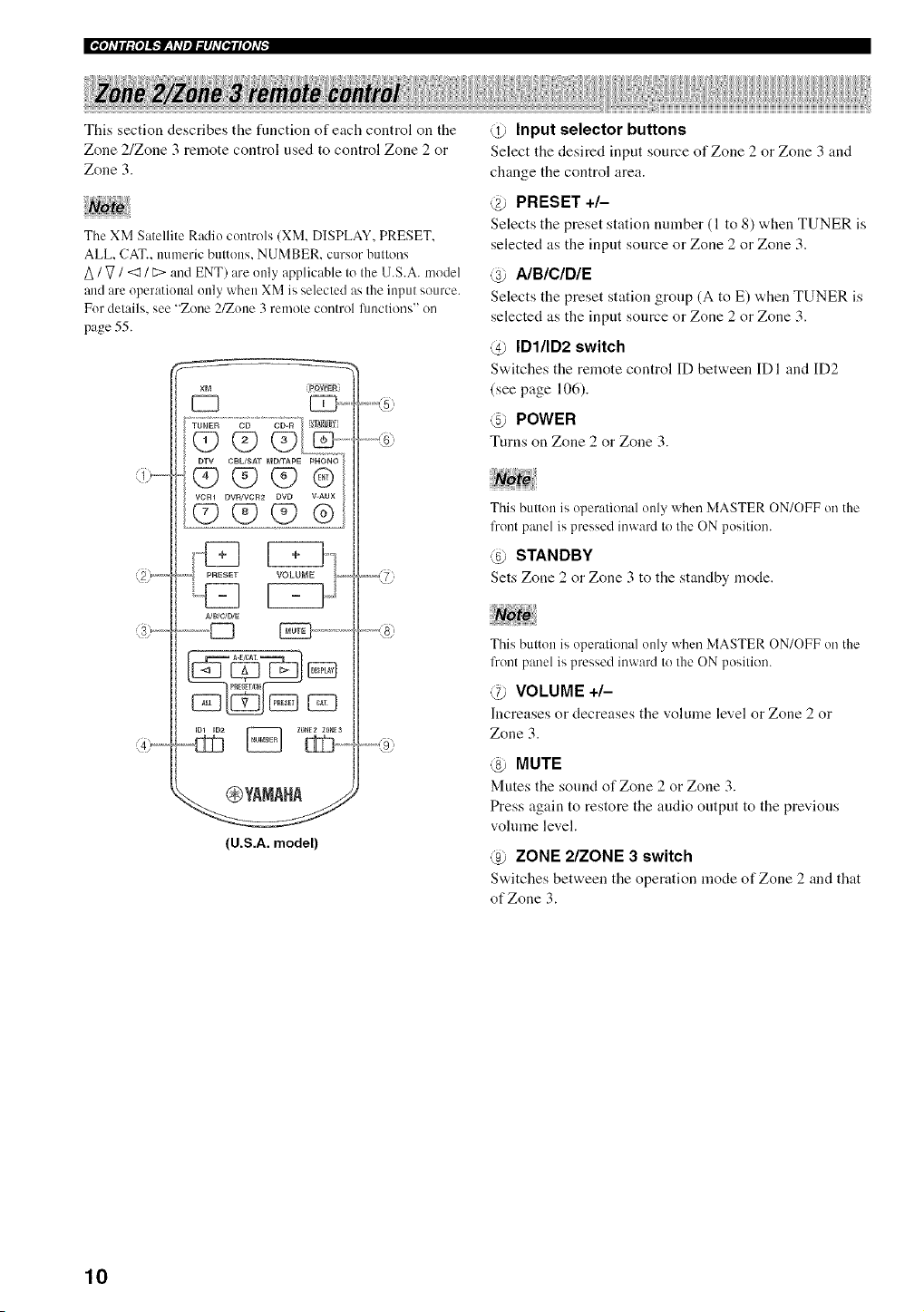
ThissectiondescribestheErectionofeachcontrol on the
Zone 2/Zone 3 remote control used to control Zone 2 or
Zone 3.
The XM Satellite Radio controls (XM. DISPLAY. PRESET.
ALL. CAT.. numeric buttons. NUMBER. cursor buttons
A / V / <:_ / 12>and ENT) are only applicable to the U.S.A. model
and are operational only when XM is selected as the input source.
For details, see "Zone 2/Zone 3 remote control Erections" on
page 55.
A/B/e/D/E
....,,,,_5
........,,_
(U.S.A. model)
@ Input selector buttons
Select the desired input source of Zone 2 or Zone 3 and
change the control area.
PRESET +/-
Selects tile preset station nnlnber (1 to 8) when TUNER is
selected as the input source or Zone 2 or Zone 3.
@ AIBIC/D/E
Selects the preset station group (A to E) "a,hen TUNER is
selected as the input source or Zone 2 or Zone 3.
@ IDI/ID2 switch
S'a, itches the remote control ID between IDI and ID2
(see page 106).
_5 POWER
Turns on Zone 2 or Zone 3.
This button is operational only when MASTER ON/OFF on the
front panel is pressed inward to the ON position.
@ STANDBY
Sets Zone 2 or Zone 3 to tile standby mode.
This button is operational only when MASTER ON/OFF on the
front panel is pressed inward to the ON position.
@ VOLUME +/-
Increases or decreases the volume level or Zone 2 or
Zone 3.
@ MUTE
Mutes the sound of Zone 2 or Zone 3.
Press again to restore the audio outpnt to the previous
volume level.
@ ZONE 2/ZONE 3 switch
Sw,itches between tile operation mode of Zone 2 and that
of Zone 3.
10

_e]dll;{e]J_'JP_qdlel_lJd[e_Jl[e]dA
The XM indicator is only applicable to the U.S.A. model.
@ YPAO indicator
Lights up when the AUTO SETUP procedure is in
progress and when the AUTO SETUP speaker settings are
used without any modifications.
@ HDMI indicator
Lights up when HDMI components are assigned to the
HDMI IN 1 and HDMI IN 2 jacks and they are recognized
by this unit.
Turns off when no HDMI component is assigned to the
either HDMI IN 1 or HDMI IN 2jack or when no HDMI
component is recognized by this unit althongh they are
assigned to the HDMI IN jacks.
See page 119 for details.
@ CINEMA DSP indicator
Lights up when you select a CINEMA DSP sound field
program.
@ Decoder indicators
When any of the decoders of this unit operate, the
respective indicator lights up.
@ Input source indicators
Light up "a,hen the corresponding input source is selected.
@ VOLUME level indicator
Indicates the vohnne leveh
@ MUTE indicator
Flashes while the MUTE flmction is on.
@ AUTO indicator
Lights up when this unit is in the automatic tuning mode.
@ STEREO indicator
Lights up "a,hen this unit is receMng a stereo signal for an
FM stereo broadcast while the AUTO indicator is lit.
@ TUNED indicator
Lights up when this unit is tuned into a station.
@ MEMORY indicator
Fhtshes to indicate that a station can be stored.
@ Headphones indicator
Lights up when headphones are connected.
@ SILENT CINEMA indicator
Lights up when headphones are connected and a sonnd
fiekt program is selected (see page 39).
@ SP A B indicators
Light up according to tile set of front speakers selected.
Both indicators light up when both sets of front speakers
are selected or when bi-wiring.
@ VIRTUAL indicator
Lights up when Virtual CINEMA DSP is active
(see page 44).
@ Sound field indicators
Light up to indicate tile active DSP sound fields.
Presence DSP sound field
J
_-, _ Lislenin_ position
Le s[r)tnc i \,\ 7, :_R_I s[") c
DSP sound held DSP sound held
Surround/surround back DSP sound field
@ HiFi DSP indicator
Lights up when you select a HiFi DSP sound field
program.
@ PCM indicator
Lights up when this unit is reproducing PCM (pulse code
modulation) digital audio signals.
@ DSD indicator
Lights up when this unit is reproducing DSD (direct
stream digital) digital audio signals.
@ Multi-information display
Shows the name of tile cnrrent sonnd field progranl and
other information when adjusting or changing settings.
11
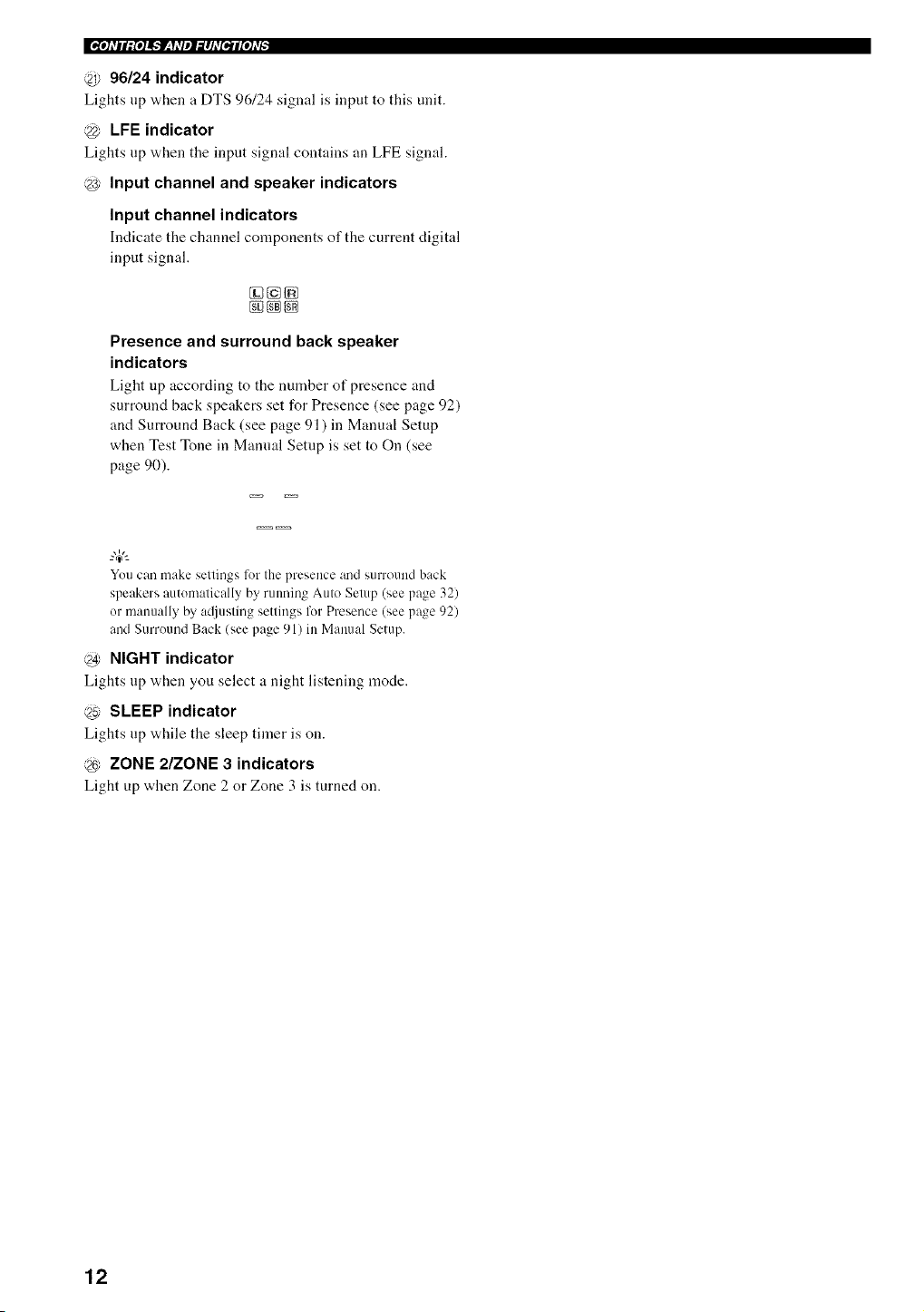
@ 96/24 indicator
Lights up when a DTS 96/24 signal is input to this unit.
_ LFE indicator
Lights up when tile input signal contuins an LFE signal.
@ Input channel and speaker indicators
Input channel indicators
Indicate the channel components of the current digital
input signal.
g3_
Presence and surround back speaker
indicators
Light up according to the number of presence and
surround back speakers set for Presence (see page 92)
and Surround Back (see page 91 ) in Manual Setup
when Test Tone in Manual Setup is set to On (see
page 90).
Yuu can make settings fur the presence and surround back
speakers automatically by running Auto Setup (see page 32)
or manually by a_[iusting settings fur Presence (see page 92)
and Surround Back (see page 91) in Manual Setup.
@ NIGHT indicator
Lights up when you select a night listening mode.
@ SLEEP indicator
Lights up "a,hile the sleep timer is on.
@ ZONE 2/ZONE 3 indicators
Light up when Zone 2 or Zone 3 is turned on.
12
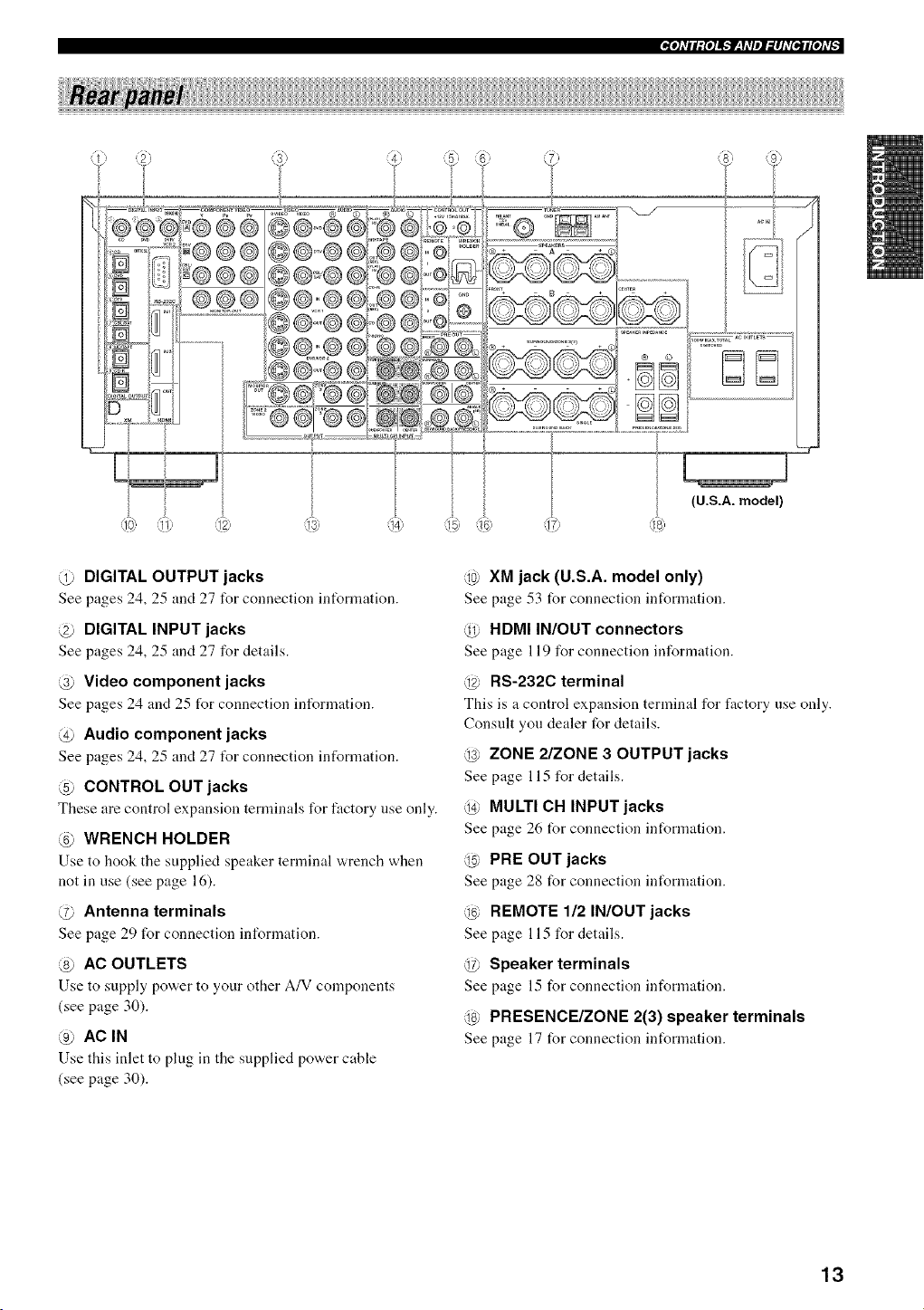
_l]_TiI;{I]ik'JF:hqll_lJ_T[ell[I]_Tt.
(U.S.A. model)
@ DIGITAL OUTPUT jacks
See pages 24, 25 and 27 for connection intbrmation.
@ DIGITAL INPUT jacks
See pages 24, 25 and 27 for details.
@ Video component jacks
See pages 24 and 25 for connection information.
@ Audio component jacks
See pages 24, 25 and 27 t_r connection information.
@ CONTROL OUT jacks
These are control expansion terminals for factory use only.
@ WRENCH HOLDER
Use to hook tile supplied speaker terminal "a,rench when
not in use (see page 16).
@ Antenna terminals
See page 29 for connection information.
@ AC OUTLETS
Use to supply pow, er to your other A/V components
(see page 30).
@ AC IN
Use this inlet to plug ill tile supplied pow, er cable
(see page 30).
@ XM jack (U.S.A. model only)
See page 53 for connection infommtion.
@ HDMI IN/OUT connectors
See page 119 for connection information.
@ RS-232C terminal
This is a control expansion ternlinal for factory use only.
Consult you dealer for details.
@ ZONE 2/ZONE 3 OUTPUT jacks
See page 115 for details.
@ MULTI CH INPUT jacks
See page 26 for connection information.
@ PRE OUT jacks
See page 28 for connection int_rmation.
@ REMOTE 112 IN/OUT jacks
See page 115 for details.
@ Speaker terminals
See page 15 for connection information.
@ PRESENCE/ZONE 2(3) speaker terminals
See page 17 for connection infommtion.
13
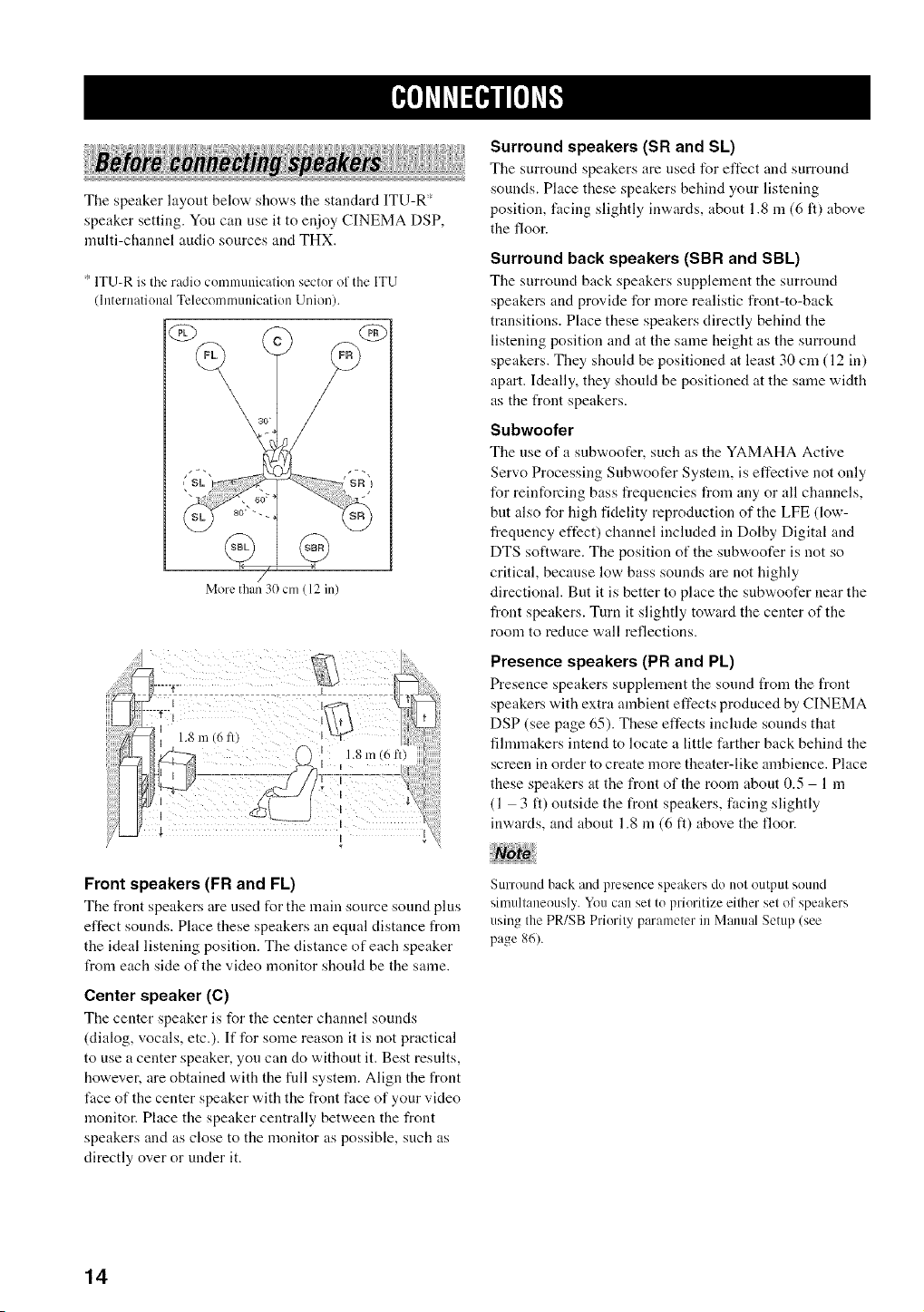
The speaker layout below shows the standard ITU-R*
speaker setting. You can use it to enjoy CINEMA DSP,
multi-channel audio sources and THX.
* ITU-R is the radio communication sector of the ITU
(International Tclec()mmunication Union).
30 +
More than 30 cm (12 in)
Surround speakers (SR and SL)
Tile surround speakers are used for effect and surround
sounds. Place these speakers behind your listening
position, facing slightly inwards, about 1.8 m (6 It) above
the floor.
Surround back speakers (SBR and SBL)
The surround back speakers supplement the surround
speakers and provide for more realistic front-to-back
transitions. Place these speakers directly behind the
listening position and at the same height as the surround
speakers. They should be positioned at least 30 cm (12 in)
apart. Ideally, they shoukt be positioned at the same width
as the front speakers.
Subwoofer
The use of a subwoofer, such as the YAMAHA Active
Servo Processing Subwoofer System, is effective not only
for reinforcing bass frequencies from any or all channels,
but also for high fidelity reproduction of the LFE (low-
frequency effect) channel included in Dolby Digital and
DTS software. The position of the subwoofer is not so
critical, becanse low bass sounds are not highly
directional. But it is better to place the subwoofer near the
front speakers. Turn it slightly toward the center of the
room to reduce wall reflections.
Presence speakers (PR and PL)
Presence speakers supplement the sound from the front
speakers with extra ambient effects produced by CINEMA
DSP (see page 65). These effects include sounds that
filmmakers intend to locate a little farther back behind the
screen in order to create more theater-like ambience. Place
these speakers at the front of the room about 0.5 1 in
(1 3 ft) outside the front speakers, facing slightly
inwards, and about 1.8 in (6 ft) above the floor.
Front speakers (FR and FL)
The front speakers are used for the main source sound plus
effect sounds. Place these speakers an equal distance from
the ideal listening position. The distance of each speaker
from each side of the video monitor should be the same.
Center speaker (C)
The center speaker is for the center channel sounds
(dialog, vocals, etc.). If for some reason it is not practical
to use a center speaker, you can do without it. Best results,
however, are obtained with the fill system. Align the front
face of the center speaker with the front face of your video
monitor. Place the speaker centrally between the front
speakers and as close to the monitor as possible, such as
directly over or under it.
Surround back and presence speakers do not output sound
sinmltaneously. You can set to prioritize either set of speakers
using the PR/SB Priority parameter in Manual Setup (see
page 86).
14
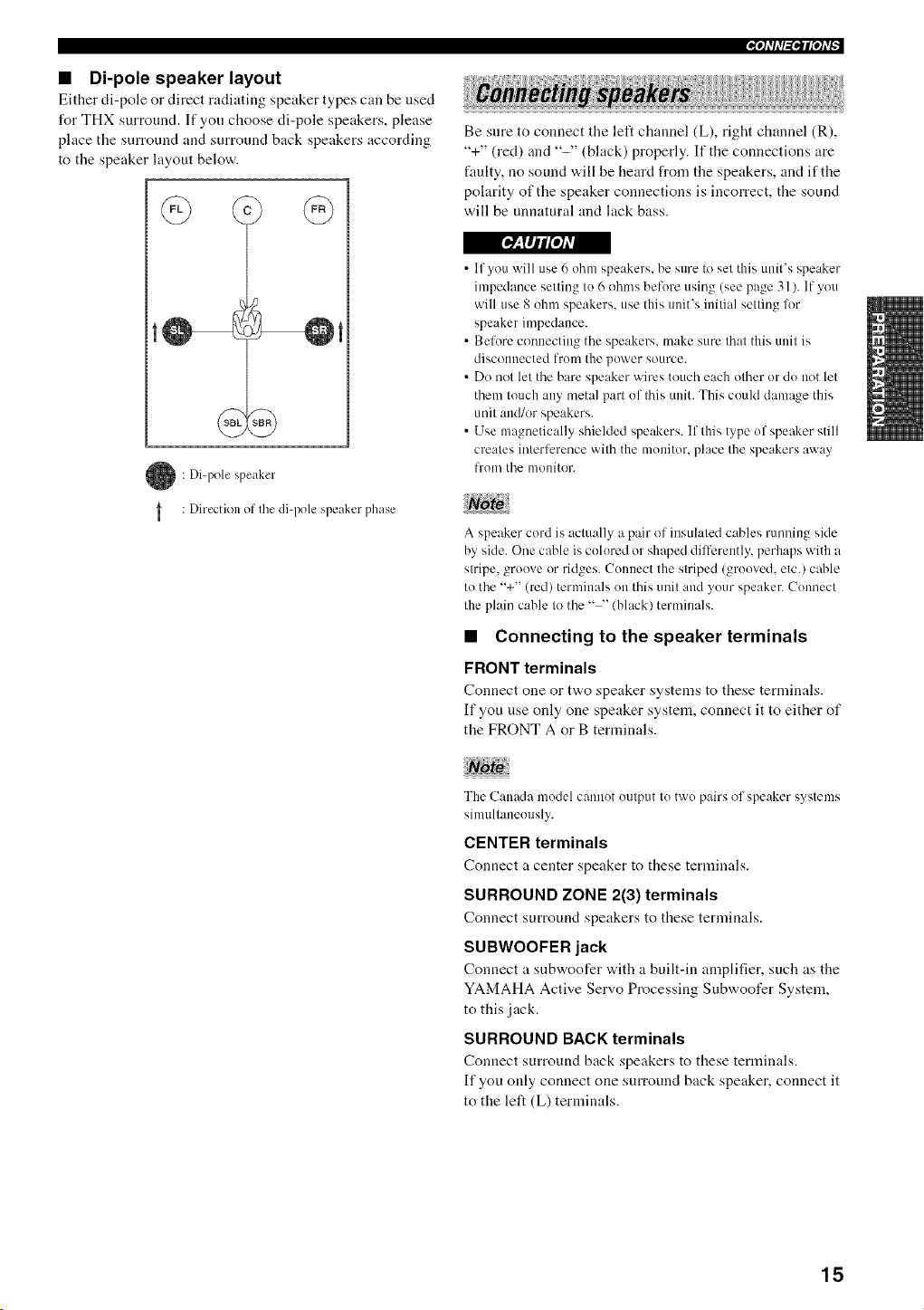
• Di-pole speaker layout
Either di-pole or direct radiating speaker types can be used
for THX surround. If you choose di-pole speakers, please
place the surround and surround back speakers according
to the speaker layout below.
[_7:Tlll [o]=R
: Diqx>le speaker
: Direction of Ihe di-pole speaker phase
Be sure to connect the left channel (L), right channel (R),
"+" (red) and "-" (black) properly. If the connections are
faulty, no sound will be heard from the speakers, and if the
polarity of the speaker connections is incorrect, the sound
will be unnatural and lack bass.
• If you will use 6 ohm speakers, be sure to set this unit's speaker
impedance setting to 6 ohms before using (see page 31). If you
will use 8 ohm speakers, use this unit's initial setting lk)r
speaker impedance.
• Before connecting the speakers, make sure that this unit is
disconnected from the power source.
• Do not let the bare speaker wires touch each other or do not let
them touch any metal part of this unit. This could damage this
unit and/or speakers.
• Use magnetically shielded speakers. If this type of speaker still
creates interli_rence with the monitor, place the speakers away
from the monitor.
A speaker cord is actually a pair of insulated cables running side
by side. One cable is colored or shaped differently, perhaps with a
stripe, groove or ridges. Colmect the striped (grooved, etc.) cable
to the "+" (red) terminals on this unit and your speaker. Commct
the plain cable to the .... (black) terminals.
• Connecting to the speaker terminals
FRONT terminals
Connect one or t'a.o speaker systems to these terminals.
If you use only one speaker system, connect it to either of
the FRONT A or B terminals.
Noto
The Canada model cannot output to two pairs of speaker systems
simultaneously.
CENTER terminals
Connect a center speaker to these terminals.
SURROUND ZONE 2(3) terminals
Connect surround speakers to these terminals.
SUBWOOFER jack
Connect a snbwoofer "a,ith a built-in amplifier, such as the
YAMAHA Active Servo Processing Subwoofer System,
to this jack.
SURROUND BACK terminals
Connect surround back speakers to these temfinals.
If you only connect one surround back speaker, connect it
to the left (L) terminals.
15
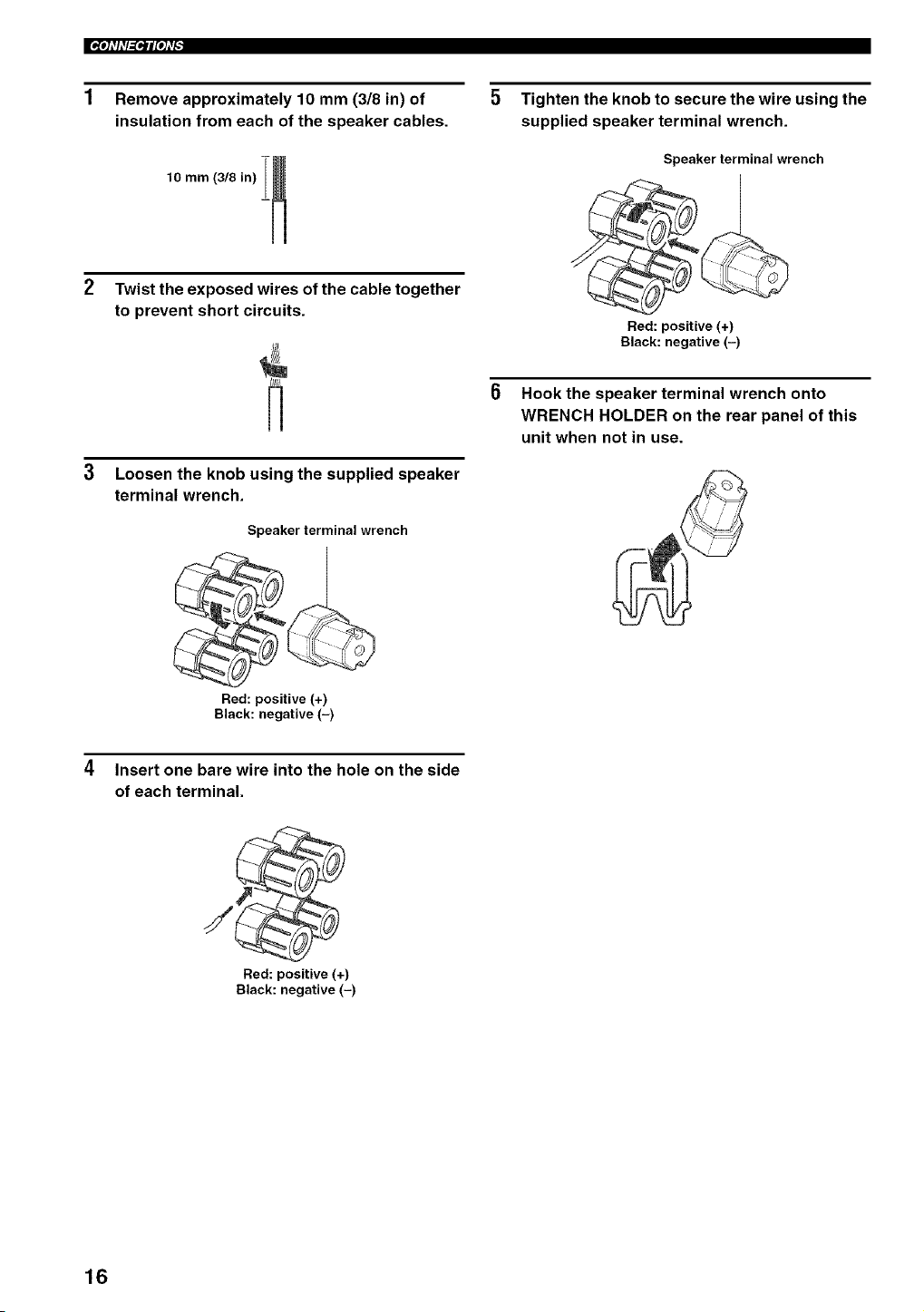
II_'tfll'l'_ql['tl'_
Remove approximately 10 mm (3/8 in) of
insulation from each of the speaker cables.
Tighten the knob to secure the wire using the
supplied speaker terminal wrench.
Speaker terminal wrench
Twist the exposed wires of the cable together
to prevent short circuits.
Red: positive (+)
Black: negative (-)
3 Loosen the knob using the supplied speaker
terminal wrench.
Speaker terminal wrench
6 Hook the speaker terminal wrench onto
WRENCH HOLDER on the rear panel of this
unit when not in use.
Red: positive (+)
Black: negative (-)
4 Insert one bare wire into the hole on the side
of each terminal.
/
Red: positive (+)
Black: negative (-)
16
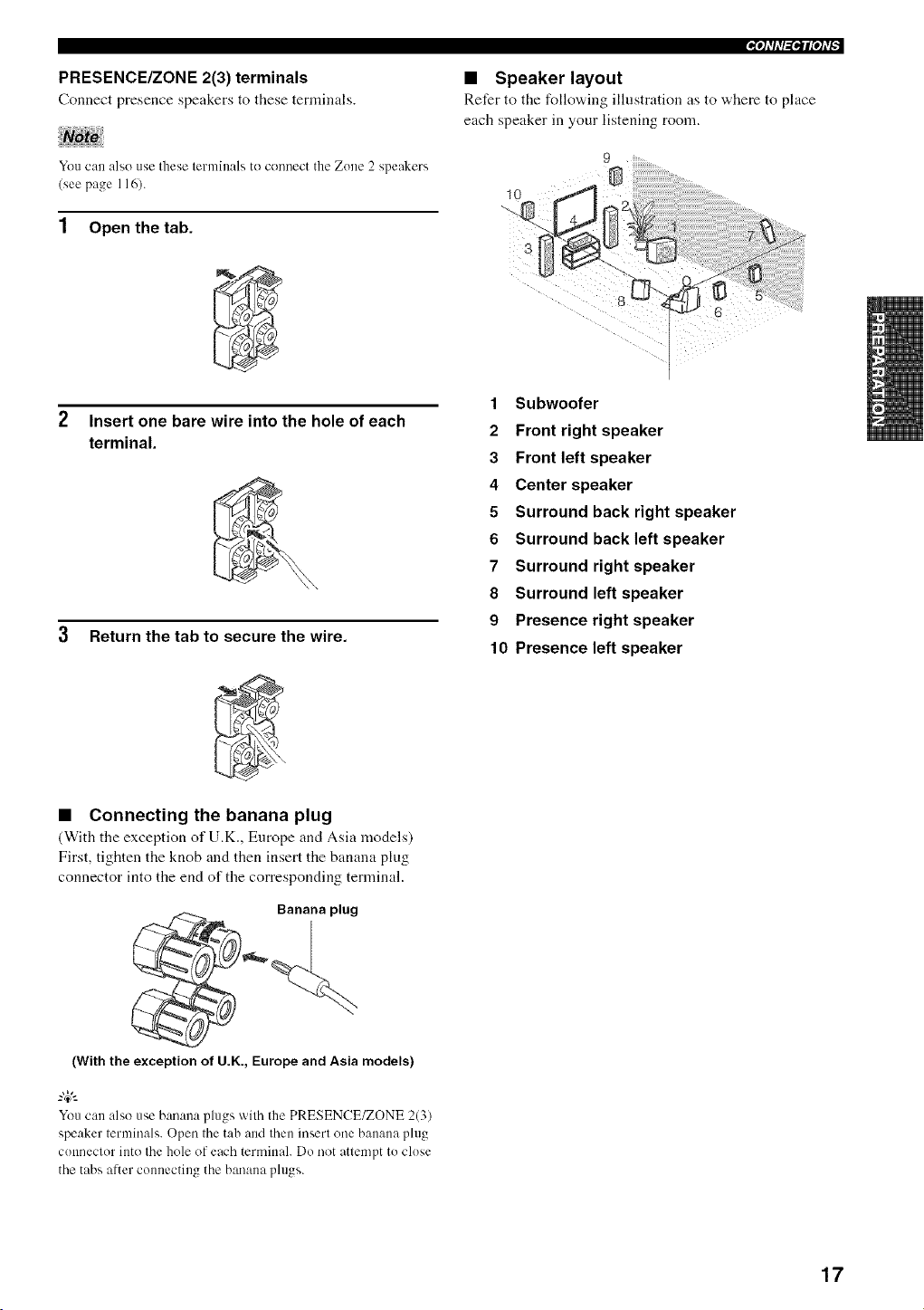
PRESENCE/ZONE 2(3) terminals
Connect presence speakers to these terminals.
You can also use these terminals to connect the Zone 2 speakers
(see page 116).
1 Open the tab.
2 Insert one bare wire into the hole of each
terminal.
3 Return the tab to secure the wire.
• Speaker layout
Refer to the follo'a, ing illustration as to where to phtce
each speaker in your listening room.
1 Subwoofer
2 Front right speaker
3 Front left speaker
4 Center speaker
5 Surround back right speaker
6 Surround backleft speaker
7 Surround right speaker
8 Surround left speaker
9 Presence right speaker
10 Presence left speaker
• Connecting the banana plug
(With the exception of U.K., Europe and Asia models)
First, tighten the knob and then insert the banana plug
connector into the end of the corresponding terminal.
> Banana plug
(With the exception of U.K., Europe and Asia models)
Youcan also use banana plugs with the PRESENCE/ZONE 2(3)
speaker terminals. Open the tab and then insert one banana plug
connector into the hole of each terminah Do not attempt to close
the tabs aRer connecting the banana plugs.
17
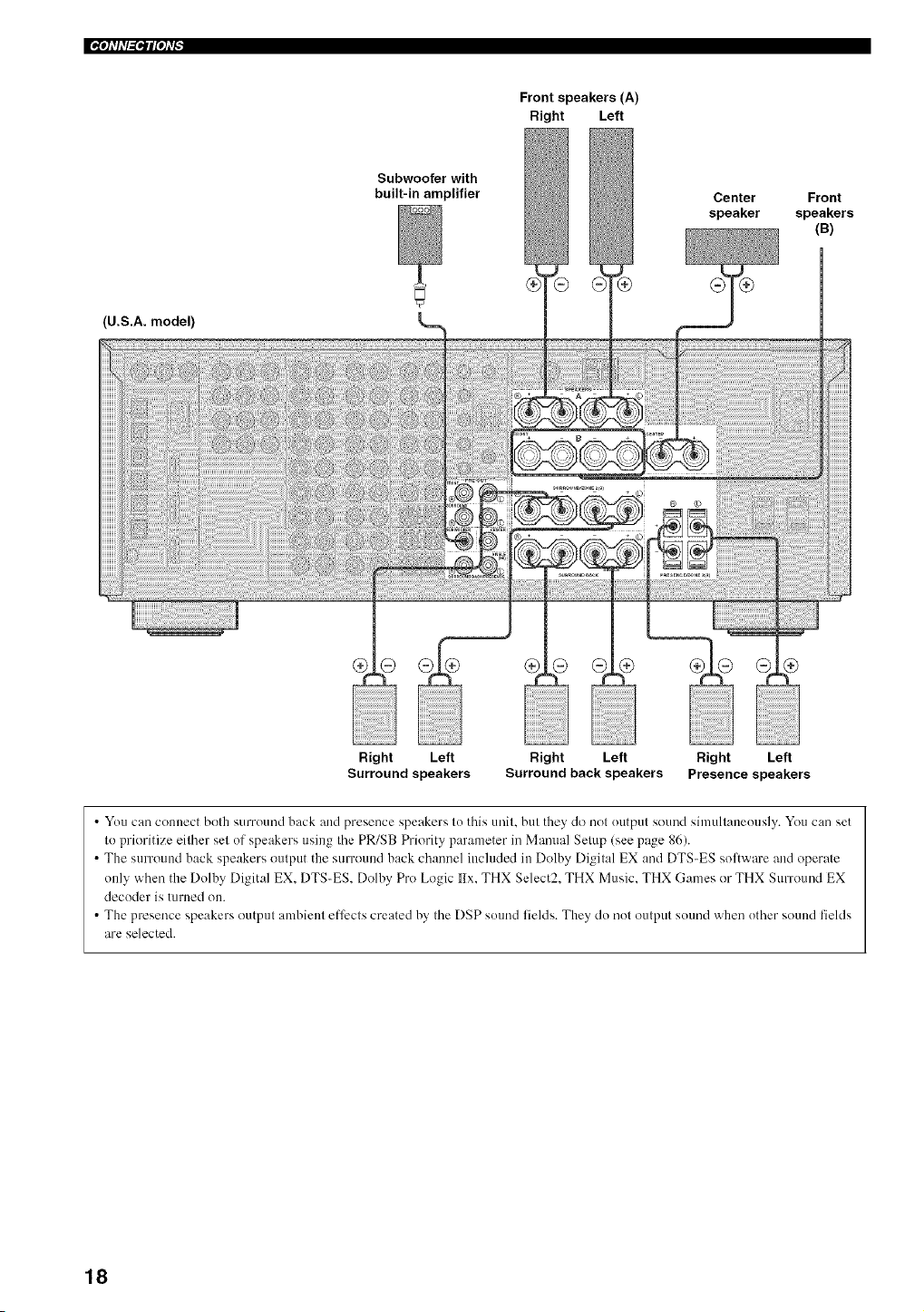
|'_'tflll_ql['tl_
Front speakers (A)
Right Left
Subwoofer with
built-in amplifier
Center
speaker
Front
speakers
(B)
U.S.A. model)
Right Left Right Left Right Left
Surround speakers Surround back speakers Presence speakers
• You can com_ect both surround back and presence speakers to this unit. but they do not output sound simultaneously. You can set
to prioritize either set of speakers using the PR/SB Priority parameter in Manual Setup (see page 86).
• The surround back speakers output the surrotmd back channel included in Dolby Digital EX and DTS-ES software and operate
only when the Dolhy Digital EX. DTS-ES. Dolhy Pro Logic _-lx.THX Select2. THX Music. THX Games or THX Surround EX
decoder is turned on.
• The presence speakers output ambient effects created by the DSP soufld fields. They do not output sound when other sound fields
are selected.
18
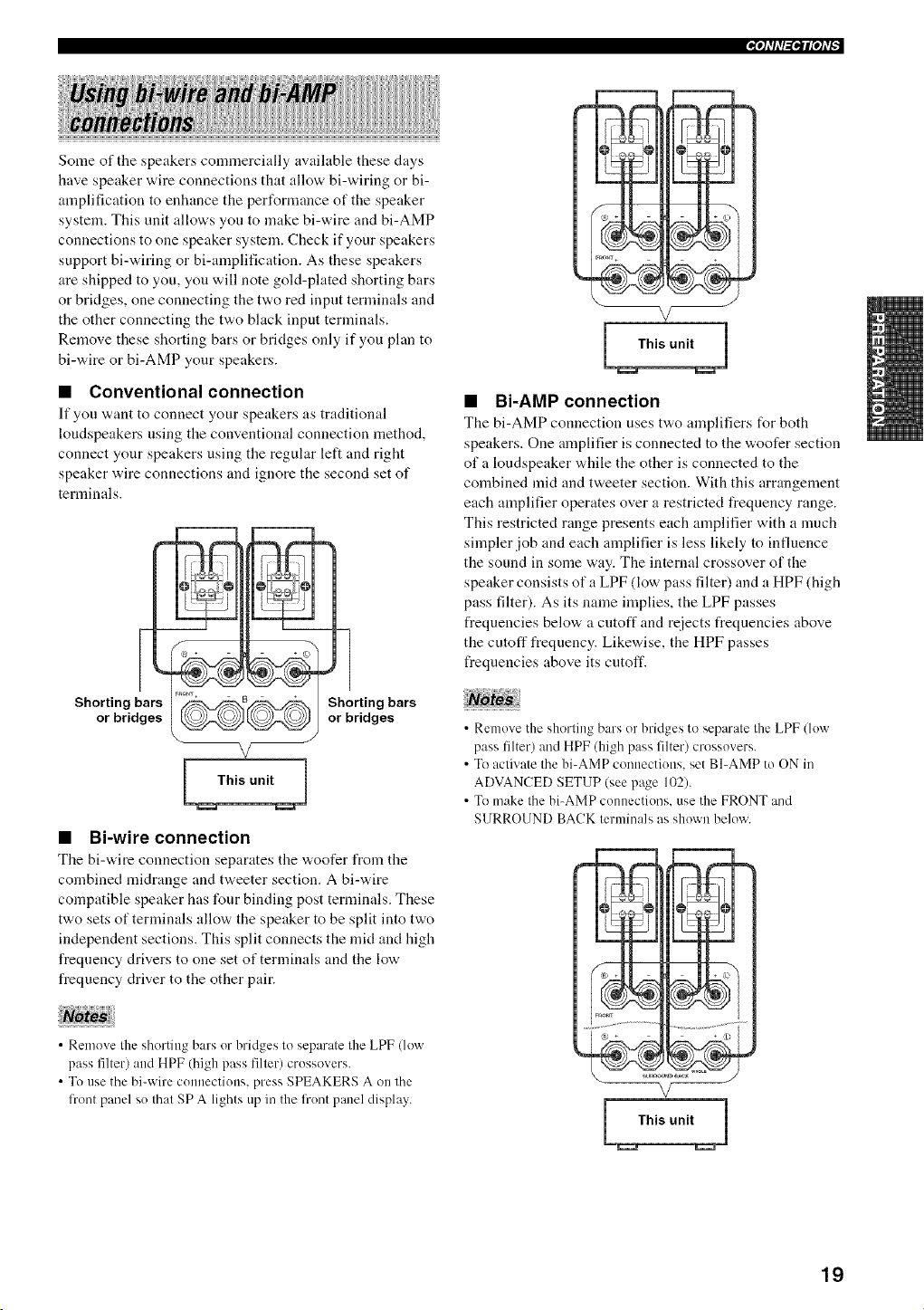
_°tfl_l_
Some of the speakers commercially available these days
have speaker wire connections that allow bi-wiring or bi-
amplification to enhance the performance of the speaker
system. This unit allows you to make bi-wire and bi-AMP
connections to one speaker system. Check if your speakers
support hi-wiring or bi-amplification. As these speakers
are shipped to you, you will note gold-plated shorting bars
or bridges, one connecting the two red input terminals and
the other connecting the two black input terminals.
Remove these shorting bars or bridges only if you plan to
bi-wire or bi-AMP your speakers.
• Conventional connection
It"you "_,ant to connect your speakers as traditional
loudspeakers using the conventional connection method,
connect your speakers using the regular left and right
speaker wire connections and ignore the second set of
terminals.
_)_-(_ tShorting bars
Jor bridges
./
• Bi-wire connection
The bi-'Mre connection separates the "_,oofer from the
combined nfidrange and tweeter section. A hi-wire
compatible speaker has four binding post temfinals. These
two sets of terminals allow the speaker to be split into two
independent sections. This split connects the mid and high
frequency drivers to one set of terminals and the low
frequency driver to the other pair.
• Bi-AMP connection
The bi-AMP connection uses t'a,o amplifiers for both
speakers. One amplifier is connected to the woofer section
of a loudspeaker while the other is connected to the
combined mid and tweeter section. With this arrangement
each amplifier operates over a restricted frequency range.
This restricted range presents each amplifier with a much
simpler job and each amplifier is less likely to influence
the sound in some way. The internal crossover of the
speaker consists of a LPF (low pass filter) and a HPF (high
pass filter). As its name implies, the LPF passes
frequencies below a cutoff and reiects frequencies above
the cutoff frequency. Likewise, the HPF passes
frequencies above its cutoff.
• Remove the shorting bars or bridges to separate the LPF (low
pass filter) and HPF (high pass filter) crossovers.
• To activate the bi-AMP colmections, set BI-AMP to ON in
ADVANCED SETUP (see page 102).
• To make the bi-AMP connections, use the FRONT and
SURROUND BACK terminals as shown below.
• Renmve the shorting bars or bridges to separate the LPF (low
pass filter) and HPF (high pass filter) crossovers.
• To use the bi-wire connections, press SPEAKERS A on the
front panel so that SPA lights up in the front panel display.
L This unit j
19
|'_'tflfl_ql['h'_
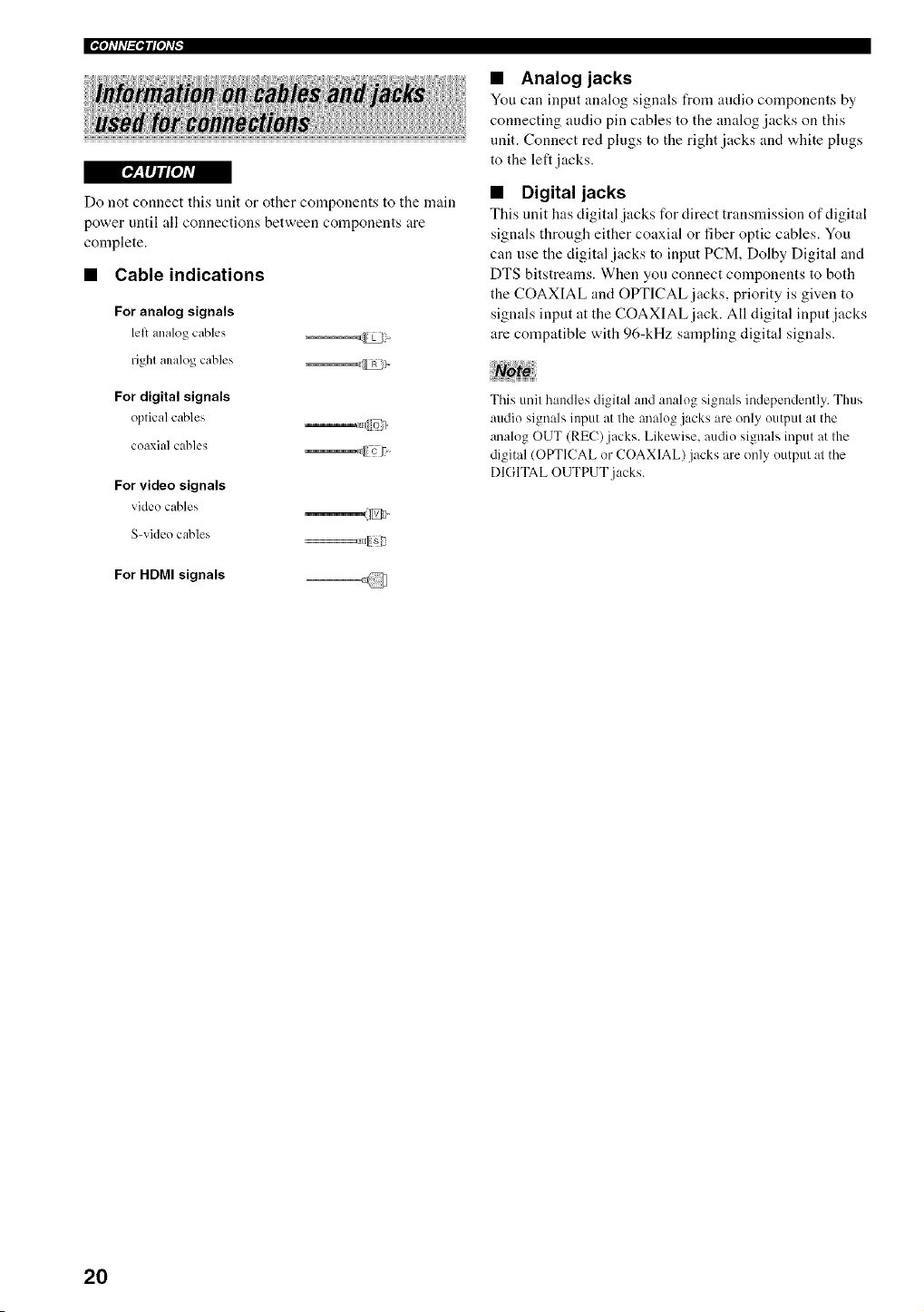
[_'-TIjIf[e]A'J
Do not connect this unit or other components to the main
power until all connections between components are
complete.
• Cable indications
For analog signals
lcl_ amdog cables _'_L£
right analog cables _.
For digital signals
optical cables ,_(o)
coaxial canes "Ill'c f,
For video signals
video cables
S-video cables ___.,cU g
For HDMI signals
• Analog jacks
You can input analog signals from audio components by
connecting audio pin cables to the analog jacks on this
unit. Connect red plugs to the right .jacks and white plugs
to the left jacks.
• Digital jacks
This unit has digital jacks for direct transmission of digital
signals through either coaxial or fiber optic cables. You
can nse the digital jacks to input PCM, Dolby Digital and
DTS bitstreams. When you connect components to both
the COAXIAL and OPTICAL jacks, priority is given to
signals input at the COAXIAL jack. All digital input jacks
are compatible with 96-kHz sampling digital signals.
This unit handles digital and analog signals independently. Thus
audio signals input at the analog jacks are only output at the
analog OUT (REC).jacks. Likewise. audio signals input at the
digital (OPTICAL or COAXIAL) jacks are only output at the
DIGITAL OUTPUT jacks.
2O
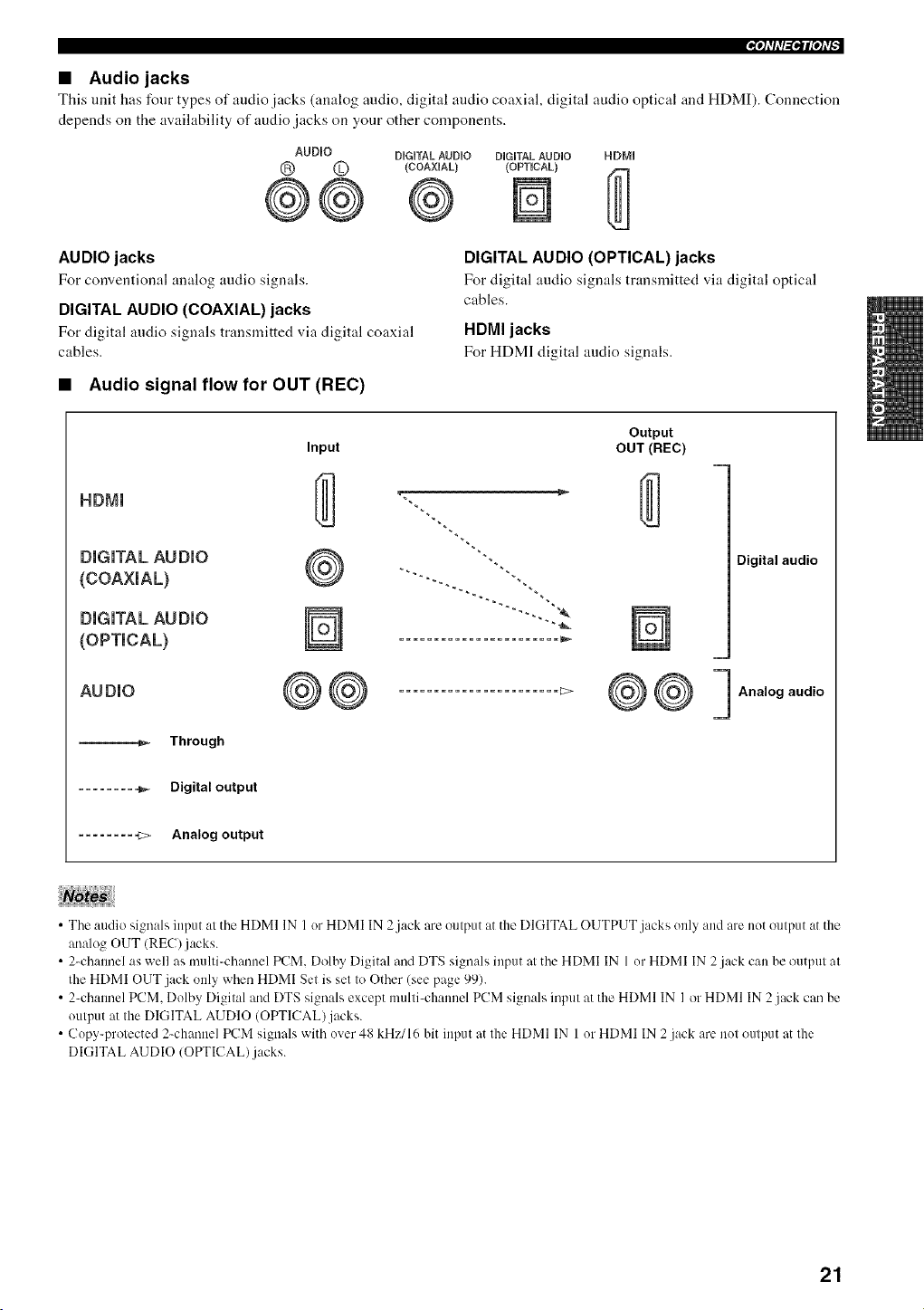
• Audio jacks
This unit has four types of audio.iacks (analog mldio, digital audio coaxial, digit_l _udio optical and HDMI). Connection
depends on the availability of audio jacks on your other components.
AUDHO
® ©
®
DUGUTALAUDUO DUGUTALAUDUO
(COAXUAL) (OPTUCAL}
AUDIO jacks
For corrv'entional an;llog audio sigmlls.
DIGITAL AUDIO (COAXIAL) jacks
For digital audio sign;_ls transmitted via digit;_l co;_xi;_l
cables.
DIGITAL AUDIO (OPTICAL) jacks
F___rdigit_l audio signals transmitted via digital optical
cables.
HDMI jacks
F___rHDMI digital audio signals.
• Audio signal flow for OUT (REC)
HDMm
DIGITAL AUDIO
(COAXIAL)
DIGITAL AUDIO
(OPTICAL)
AUDIO
--_ Through
Output
Input OUT (REC)
1::>
Digital audio
m
Analog audio
......... _ Digital output
......... _> Analog output
• The audio signals input at the HDMI IN I or HDMI IN 2jack are output at the DIGITAL OUTPUT jacks only and are not output at the
analog OUT (REC)jacks.
• 2-channel as well as multi-channel PCM. Dolby Digital and DTS signals input at the HDMI IN 1or HDMI IN 2.jack can be output at
the HDMI OUT jack only when HDMI Set is set to Other (see page 99).
• 2-channel PCM. Dolby Digital and DTS signals except multi-channel PCM signals input at the HDMI IN I or HDMI IN 2 jack can be
output at the DIGITAL AUDIO (OPTICAL) jacks.
• Copy-protected 2-channel PCM signals with over 48 kHz/16 bit input at the HDMI IN I or HDMI IN 2 jack are not output at the
DIGITAL AUDIO (OPTICAL).jacks.
21
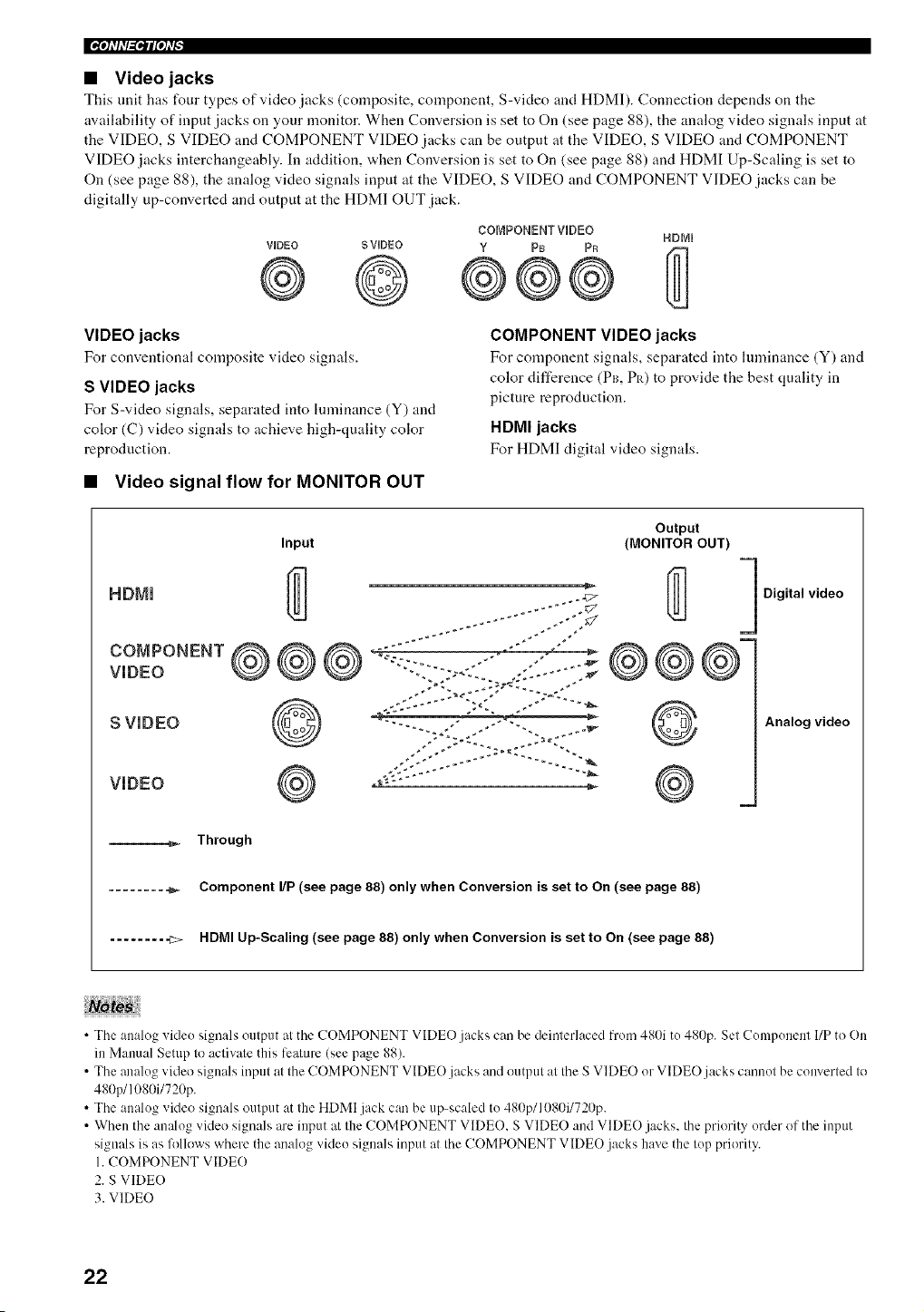
• Video jacks
This unit has four types of video jacks (composite, component, S-video and HDMI). Connection depends on the
availability of input jacks on your monitor. When Conversion is set to On (see page 88), the analog video signals input at
the VIDEO, S VIDEO and COMPONENT VIDEO jacks can be output at the VIDEO, S VIDEO and COMPONENT
VIDEO jacks interchangeably. In addition, when Conversion is set to On (see page 88) and HDMI Up-Scaling is set to
On (see page 88), the analog video signals input at the VIDEO, S VIDEO and COMPONENT VIDEO jacks can be
digitally up-converted and output at the HDMI OUT jack.
VUDEO SVUDEO
©
COMPONENT VUDEO
Y Ps PR
VIDEO jacks
For conventional composite video signals.
S VIDEO jacks
For S-video signals, separated into lmninance (Y) and
color (C) video signals to achieve high-quality color
reproduction.
COMPONENT VIDEO jacks
For component signals, separated into hnninance (Y) and
color difference (Pro PI0 to provide the best quality in
picture reproduction.
HDMI jacks
For HDMI digital video signals.
• Video signal flow for MONITOR OUT
HDMI
COMPONENT
VIDEO
S WDEO
WDEO
Input
Output
(MONITOR OUT)
@=
@ ©
Digital video
Analog video
___ Through
......... _ Component I/P (see page 88) only when Conversion is set to On (see page 88)
........ ,c> HDMI Up-Scaling (see page 88) only when Conversion is set to On (see page 88)
• The analog video signals output at the COMPONENT VIDEO.jacks can be deinterlaced from 480i to 480p. Set Component I/P to On
in Manual Setup to activate this feature (see pa_e 88).
• The analog video signals input at the COMPONENT VIDEO.jacks and output at the S VIDEO or VIDEO.jacks cannot be converted to
480p/1080i/720p.
• The analog video signals output at the HDMI jack can be up-scaled to 480p/1080i/720p.
• When the analog video signals are input at the COMPONENT VIDEO. S VIDEO and VIDE() jacks, the priority order of the input
signals is as follows where the analog video signals input at the COMPONENT VIDEO jacks have the top priority.
1.COMPONENT VIDE()
2. S VIDE()
3. VIDEO
22
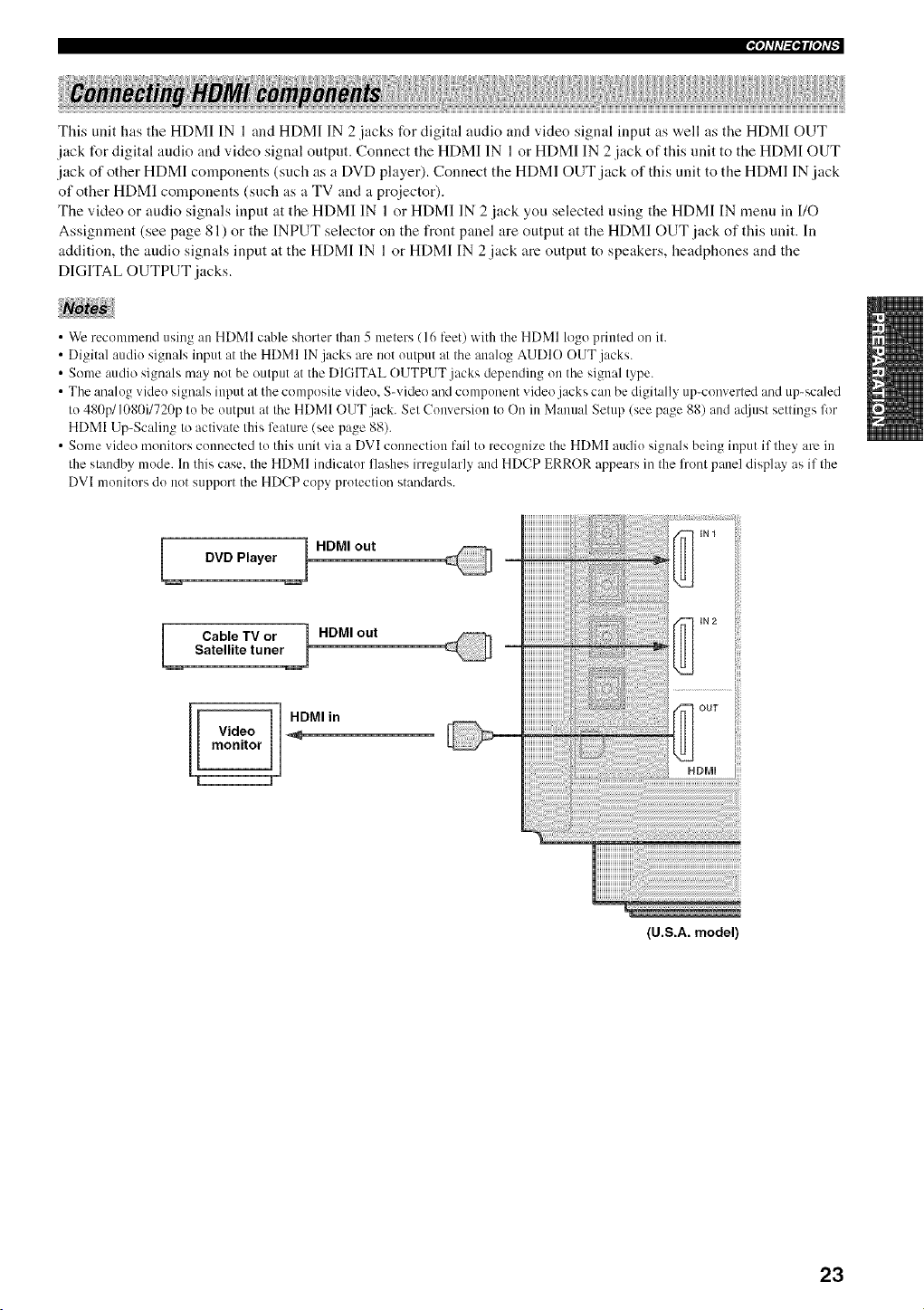
This unit has the HDMI IN 1 and HDMI IN 2 jacks for digital audio and video signal input as well as the HDMI OUT
jack t_r digital audio and video signal output. Connect the HDMI IN 1 or HDMI IN 2 jack of this unit to the HDMI OUT
jack of other HDMI components (such as a DVD player). Connect the HDM] OUT jack of this unit to the HDM] IN jack
of other HDMI components (such as a TV and a projector).
The video or audio signals input at the HDMI IN 1 or HDMI IN 2 jack you selected using the HDMI IN menu in I/O
Assignment (see page 81) or the INPUT selector on the front panel are output at the HDMI OUT jack of this unit. In
addition, the audio signals input at the HDMI IN 1 or Hf)MI IN 2 jack are output to speakers, headphones and the
DIGITAL OUTPUT jacks.
• We recommend using an HDMI cable shorter than 5 meters (16 l'eet) with the HDMI logo printed on it.
• Digital audio signals input at the HDMI IN jacks are not output at the analog AUDIO OUT jacks.
• Some audio signals may not be output at the DIGITAL OUTPUT jacks depending on the signal type.
• The analog video signals input at the composite video. S-video and component video jacks can be digitally up-converted and up-scaled
to 480p/1080i/720p to be output at the HDMI OUT jack. Set Conversion to On in Manual Setup (see page 88) and a@lst settings fl)r
HDMI Up-Scaling to activate this feature (see page 88).
• Some video monitors connected to this unit via a DVI connection lhil to recognize the HDMI audio signals being input if they ale in
the standby mode. In this case. the HDMI indicator flashes irregularly and HDCP ERROR appears in the front panel disph_y as if the
DVI monitors do not support the HDCP copy protection standards.
L DVD Player J HDMI out
[_ Cable TVor j HDMIout
Satellite tuner
iiiiiiiiiiiiiiiiiiiii
iiiiiiiiiiiiiiiiiiiii
HHHHHHHHHHi
HHHHHHHHHHi
HHHHHHHHHH_
HHHHHHHHHH_
HHHHHHHHHH_
HHHHHHHHHH_
HHHHHHHHHH_
HHHHHHHHHH_
HHHHHHHHHH_
HHHHHHHHHH_
HHHHHHHHHH_
HHHHHHHHHH_
HHHHHHHHHH_
HHHHHHHHHH_
HHHHHHHHHH_
HHHHHHHHHH_
IN2
m
(U.S.A. model)
23
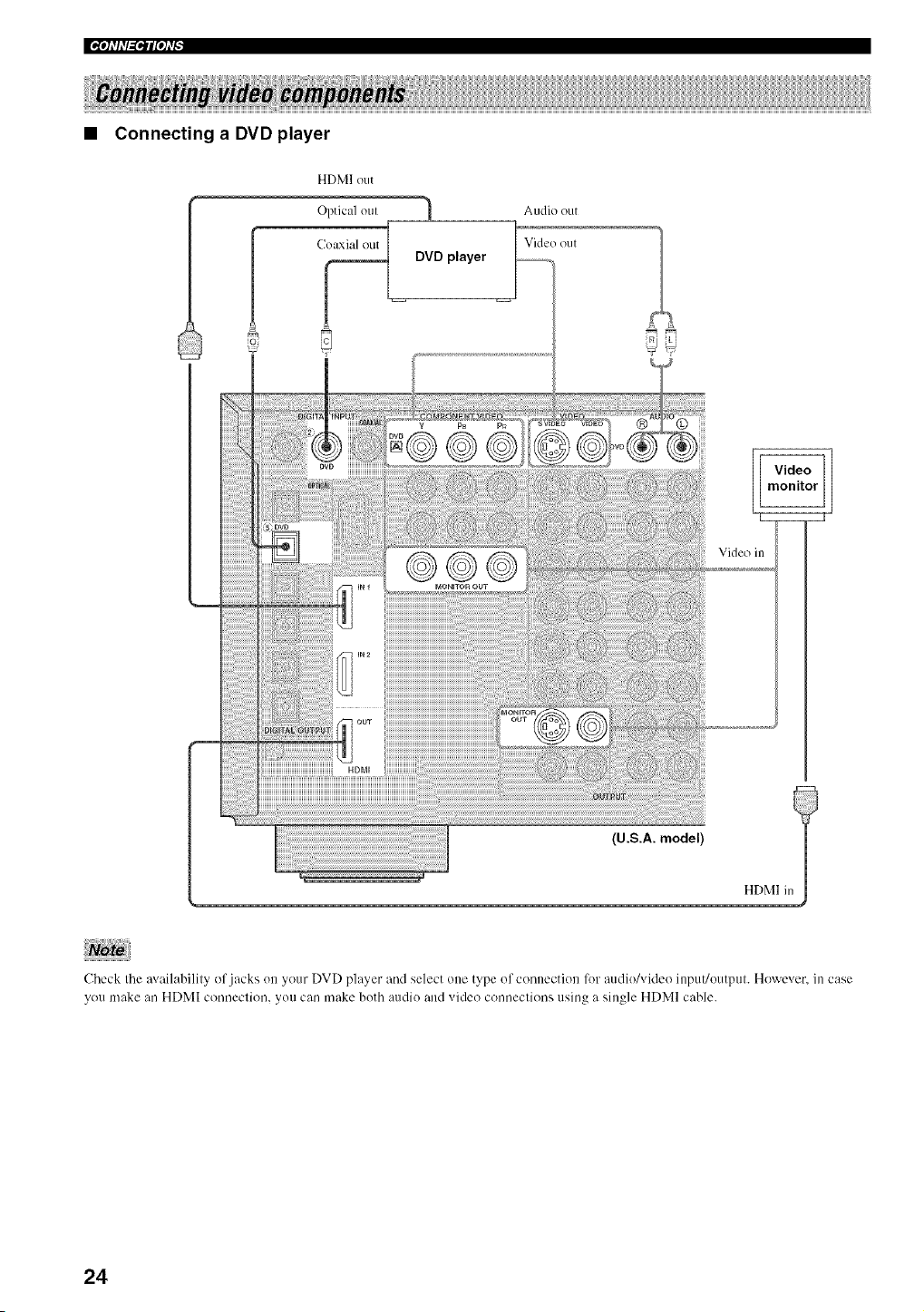
• Connecting a DVD player
HDMI out
Optical oul _ Audio out
J
(_ Vide() out
DVD player
Vide() in
Check the a',,'::dlabilily of jacks on your DVD player :'_nd select one type ol connection lot audio/video input/output. However. in case
you make an HDMI connection, you can make both audio and video conneclions using a single HDMI cable.
24
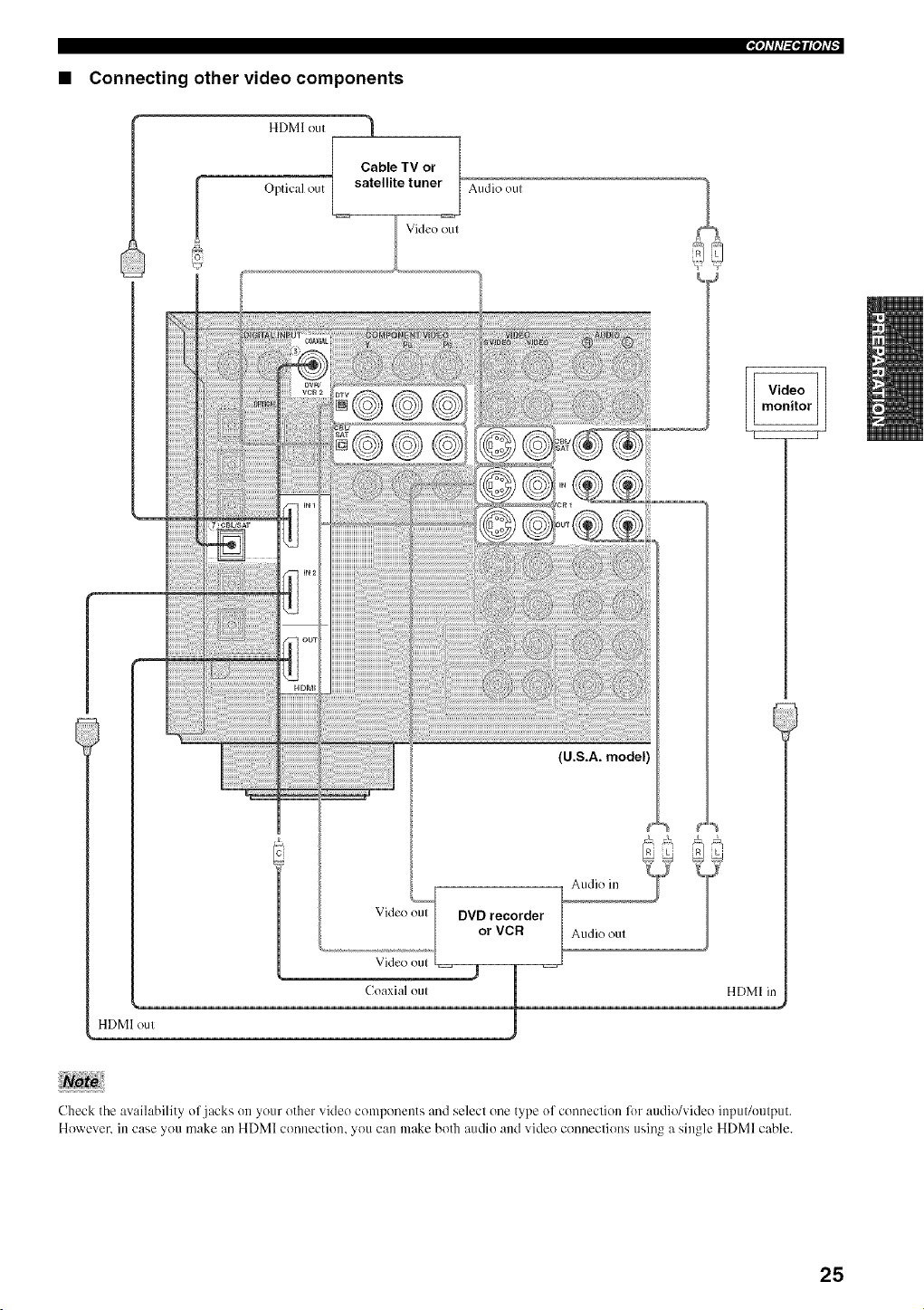
• Connecting other video components
HDMI ()tit 1
Optical ()tit
Cable TV or
satellite tuner
Video out
Audio oul
HDMI ()tit
Vide() oul
Vide() oul
(_oaxialoul
(U.S.A. model)
Audio in
DVD recorder
or VCR Audio out
HDMI ii
Check the availability ol .jacks on your other video components and select one type of connection lot audio/video inpuWouiput.
However. in case you make an HDMI connection, you can make both audio and video conneclions using a single HDMI cable.
25
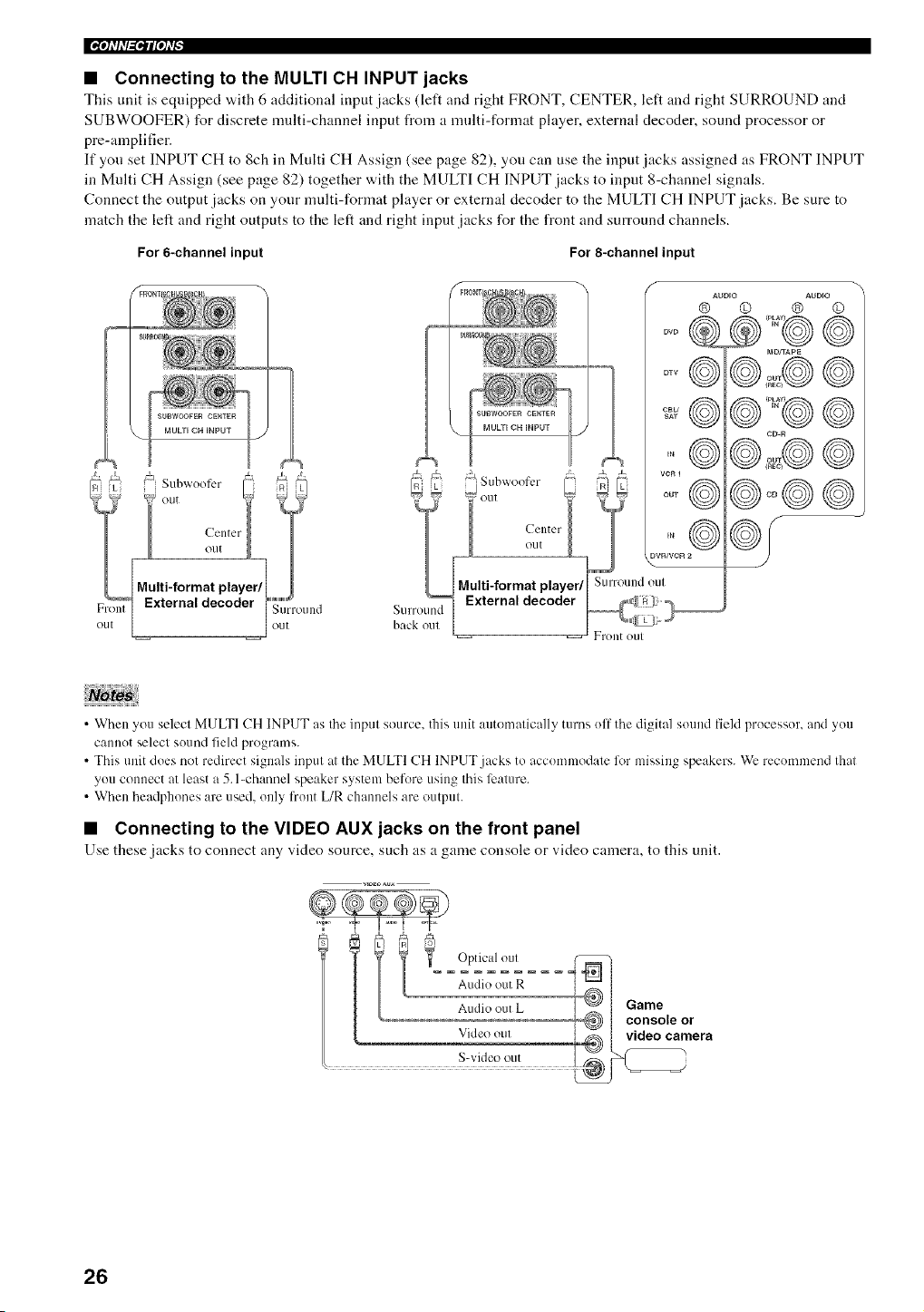
• Connecting to the MULTI CH INPUT jacks
This unit is equipped with 6 additional input jacks (left and right FRONT, CENTER, left and right SURROUND and
SUBWOOFER) for discrete nmlti-channel input from a nmlti-format player, external decoder, sound processor or
pre-amplifier.
If you set INPUT CH to 8ch in Multi CH Assign (see page 82), you can use the input jacks assigned as FRONT INPUT
in Multi CH Assign (see page 82) together with the MULTI CH INPUT jacks to input 8-channel signals.
Connect the output jacks on your multi-format player or external decoder to the MULTI CH INPUT jacks. Be sure to
match the left and right outputs to the left and right input jacks for the front and surround channels.
For 6-channel input For 8-channel input
oTv@
CBU @
_AT
AUDIO AUDIO
® © @ ©
e@2@©
@
CD-R
@
<
• When you select MULTI CH INPUT as the input source, this unit autonmtically turns off the digital sound field processor, and you
cannot select sound field programs.
• This unit does not redirect signals input at the MULTI CH INPUT jacks to accommodate liar missing speakers. We recommend that
you connect at least a 5. l-channel speaker system belore using this lizature.
• When headphones are used. only l'ront L/R channels are output.
• Connecting to the VIDEO AUX jacks on the front panel
Use these jacks to connect any video source, such as a game console or video camera, to this unit.
26
_ql'll'Pf_l_ql'f
Optical in I 1
Oplical in I
MDreeorderor I
_ tapedeck j
Audio ouI--A, A-- Audio ill
(U.S.A. model)
Oplical out |
'_rio
CD player
!
I
Audio out _ |
!
m
GND
Turntable
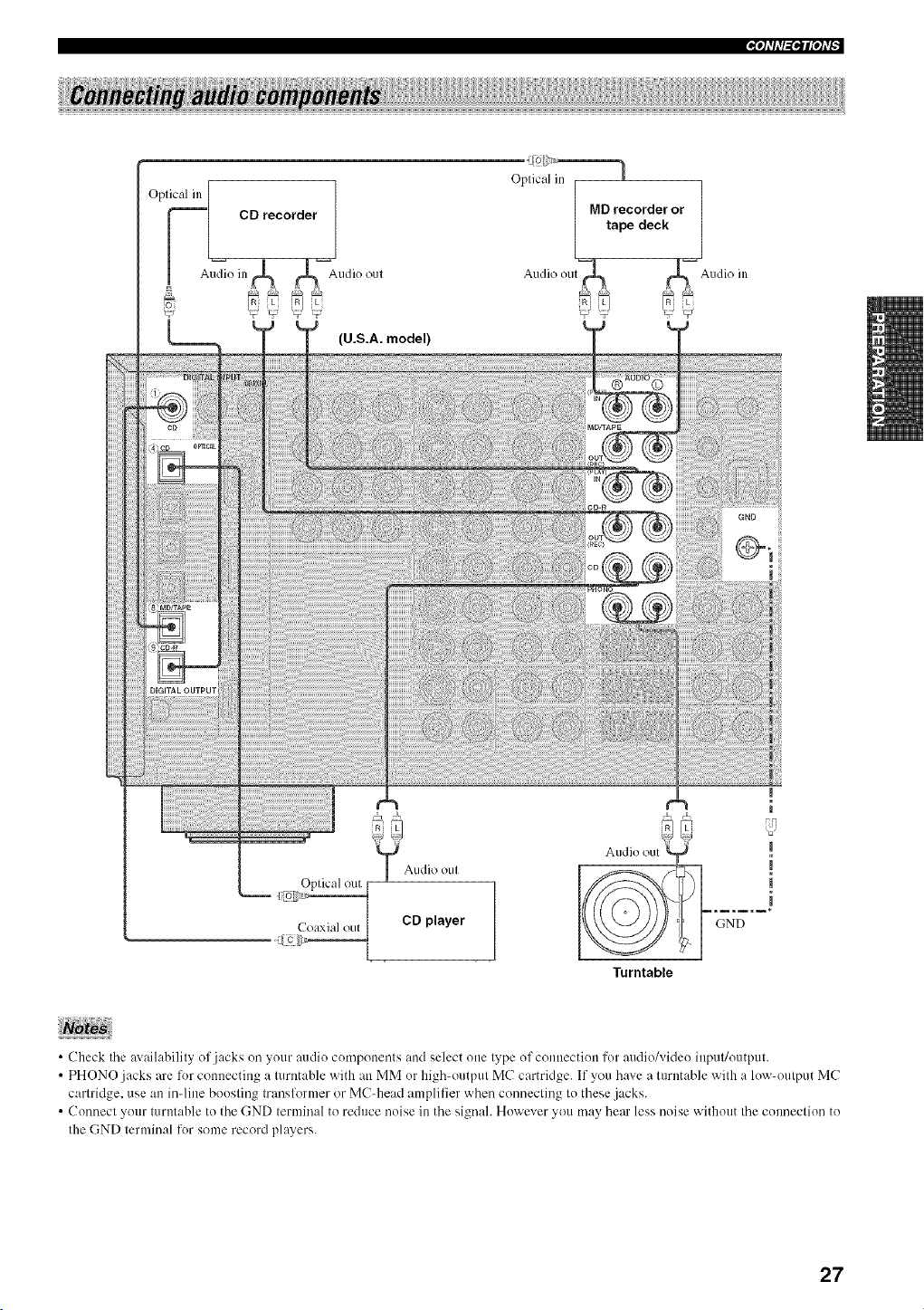
• Check the :_xailability of jacks on your audio components and select one type of commctiou for audio/video iupuffoutput.
• PHONO jacks are for counectiug a turntable with an MM or high-output MC cartridge. If you h_we a turutable with a low-output MC
cartridge, use an inqioe boosting transR_rmer or MC-head amplifier when connecting to these jacks.
• Connect your turntable to the GND terminal to reduce noise in the siguah However you may hear less noise without the commctiou to
the GND terminal for some record ph0'ers.
27
|'_'tfll'l_ql['h'_
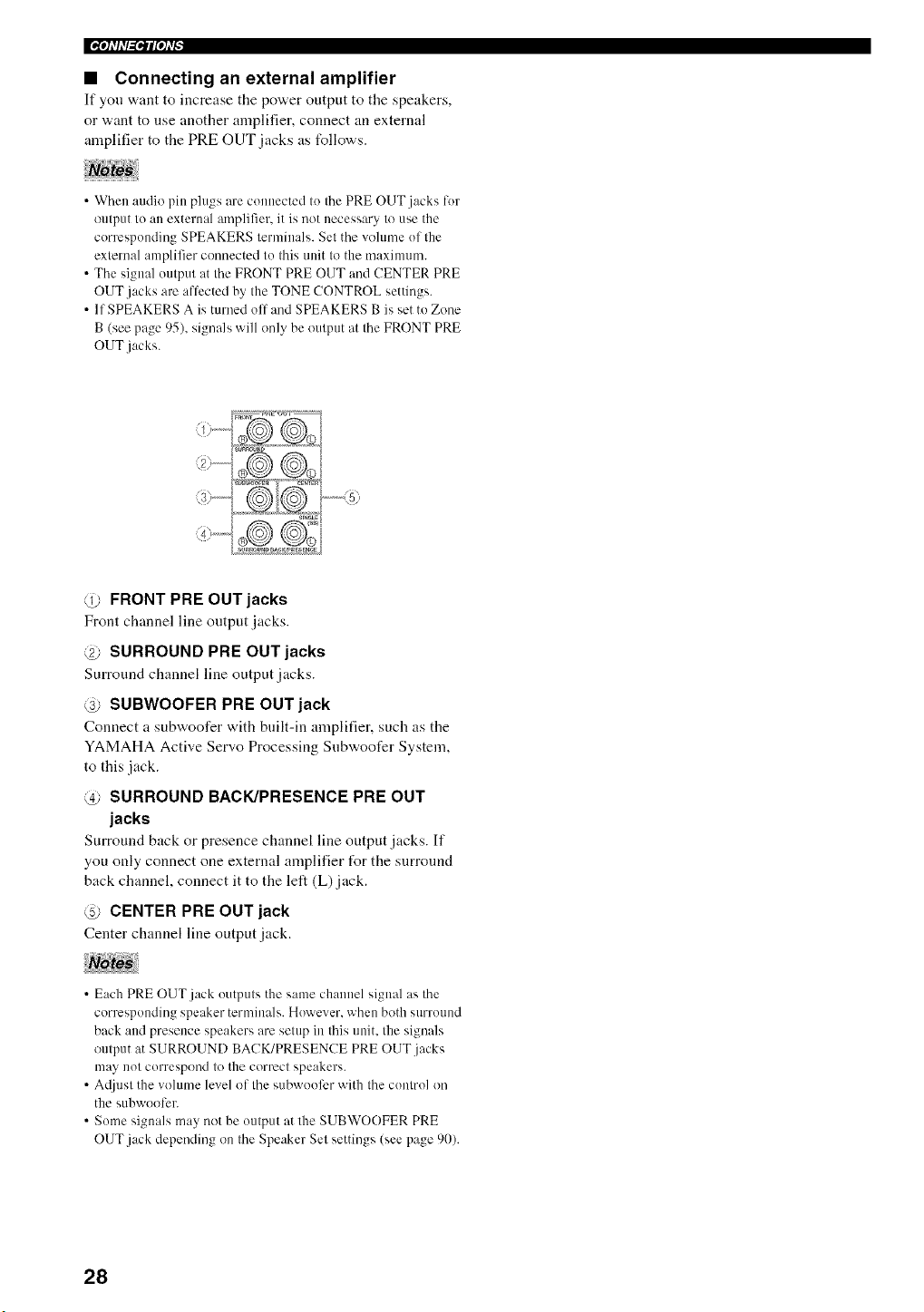
• Connecting an external amplifier
If you want to increase the power output to the speakers,
or want to use another amplifier, connect an external
amplifier to the PRE OUT jacks as tbllows.
• When audio pin plugs are connected to the PRE OUT jacks tor
output to an external amplifier, it is not necessary to use the
corresponding SPEAKERS terminals. Set the volume of the
external amplifier connected to this unit to the maximunl.
• The signal output at the FRONT PRE OUT and CENTER PRE
OUT jacks are at'ti:cted by the TONE CONTROL settings.
• If SPEAKERS A is turned off and SPEAKERS B is set to Zone
B (see page 95), signals will only be output at the FRONT PRE
OUT jacks.
@ FRONT PRE OUT jacks
Front channel line output jacks.
@ SURROUND PRE OUT jacks
Surround channel line output jacks.
@ SUBWOOFER PRE OUT jack
Connect a subwoofer with built-in amplifier, such as the
YAMAHA Active Servo Processing Subwoofer System,
to this jack.
@ SURROUND BACK/PRESENCE PRE OUT
jacks
Surround hack or presence channel line output jacks. If
you only connect one external amplifier t_r the surround
back channel, connect it to the left (L) jack.
@ CENTER PRE OUT jack
Center channel line output jack.
• Each PRE OUT jack outputs the same channel signal as the
corresponding speaker ternfinals. However. when both surround
back and presence speakers are setup in this unit. the signals
output at SURROUND BACK/PRESENCE PRE OUT jacks
may not correspond to the correct speakers.
• A@lst the wflume level of the subwoofer with the control on
the subwoofcr.
• S()me signals may not be output at the SUBWOOFER PRE
OUT.jack depending on the Speaker Set settings (see page 90).
28
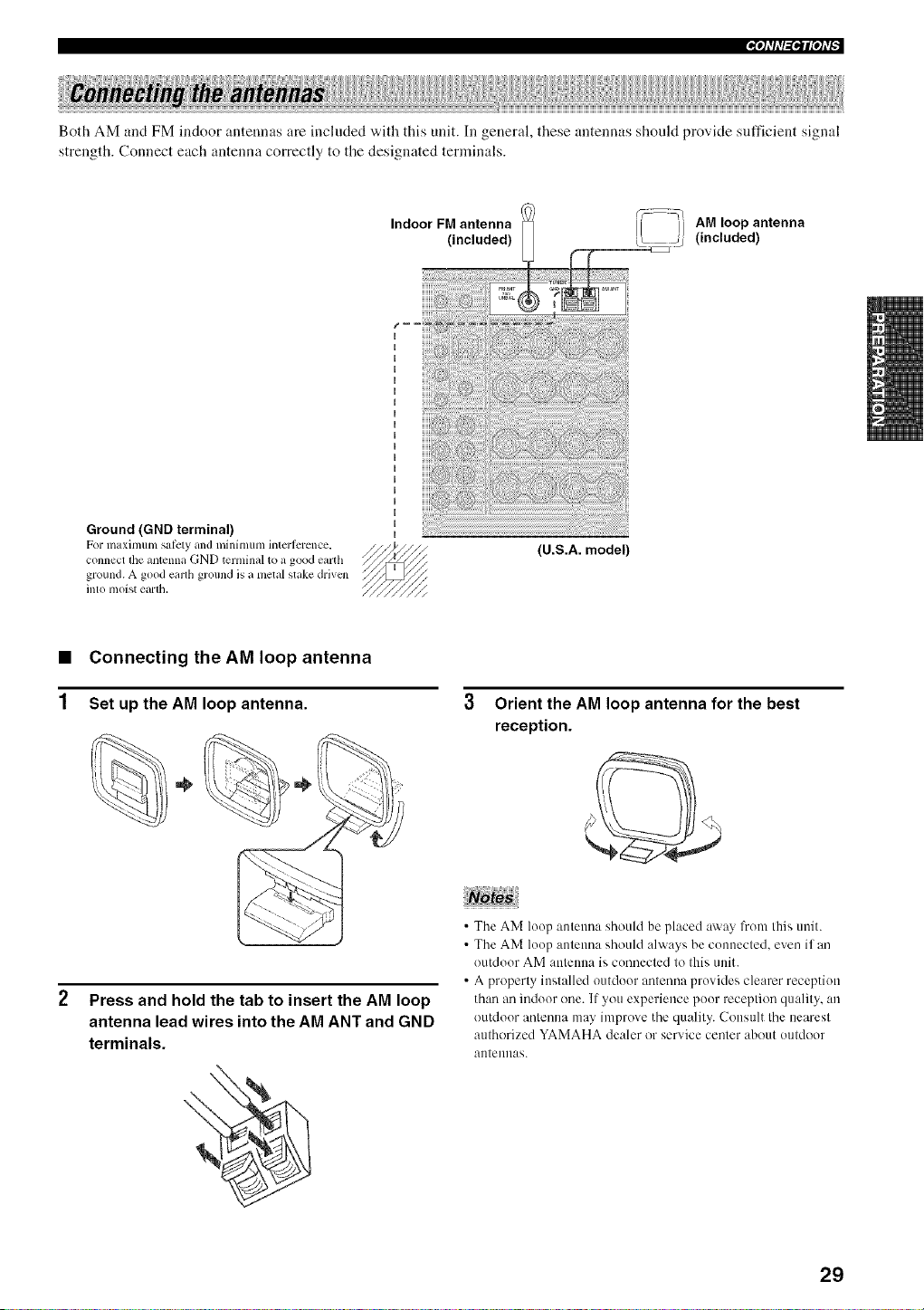
Both AM and FM indoor antennas are included "a,ith this unit. Ill general, these antennas should provide snfficient signal
strength. Connect each antenna correctly to the designated terminals.
Ground (GND terminal)
For m_lximum S_lii:ty and minimum intcrlcrcnce,
connect the mlt_nna GND terminal to _l good em'th
ground. A good earth ground is a met_ll st_ke drivcn
into moist earth.
AM loop antenna
Indoor FM antenna ii ]]
(included) U
(included)
_,_
}
?
J J
(U.S.A. model)
1
Connecting the AM loop antenna
Set up the AM loop antenna.
Press and hold the tab to insert the AM loop
antenna lead wires into the AM ANT and GND
terminals.
3 Orient the AM loop antenna for the best
reception.
• The AM loop antenna should be placed _lw'ayfrom this unit.
• The AM loop antenna should always be connected, even if an
outdoor AM antenna is connected to this unit.
• A property installed outdoor antenna provides clearer reception
than an indoor one. If you experience poor reception quality, an
outdoor antenna m:0' improve the quality. Consult the nearest
authorized YAMAHA dealer or service center about outdoor
antennas.
29
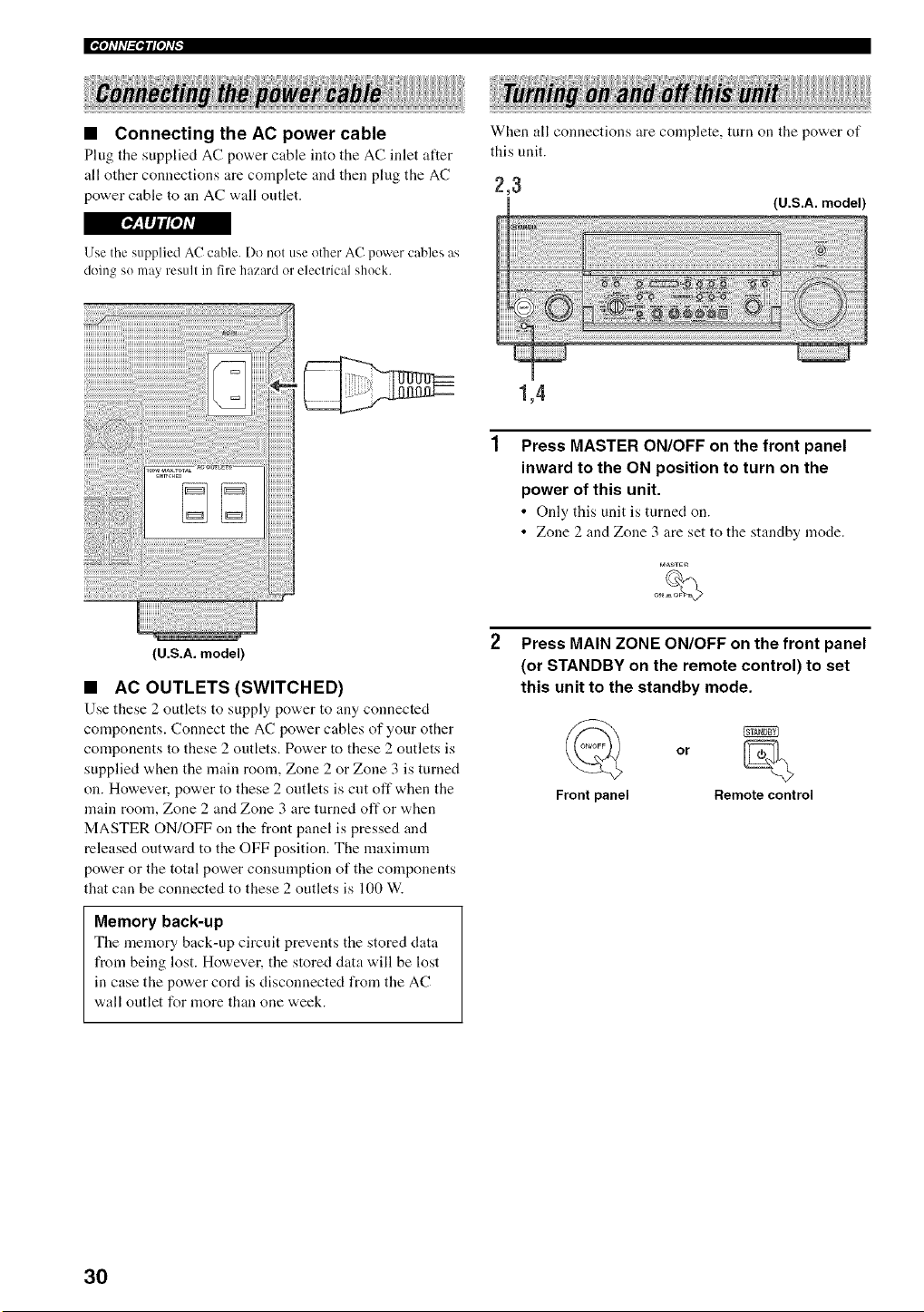
• Connecting the AC power cable
Plug the supplied AC power cable into the AC inlet after
all other connections are complete and then plug the AC
power cable to an AC wall outlet.
When all connections are complete, turn on the power of
this unit.
2,3
(U.S.A. model)
rs,7_,IIJtf[I]lq
Use the supplied AC cable. Do not use other AC power cables as
doing so may result in fire hazard or eleclrical shock.
(U.S.A. model)
• AC OUTLETS (SWITCHED)
Use these 2 outlets to supply power to any connected
components. Connect the AC power cables of your other
components to these 2 outlets. Power to these 2 outlets is
supplied when the main room, Zone 2 or Zone 3 is turned
on. However, power to these 2 outlets is cut off when the
main room, Zone 2 and Zone 3 are turned off or when
MASTER ON/OFF on the front panel is pressed and
released outward to the OFF position. The maximum
power or the total power consumption of the components
that can be connected to these 2 outlets is 100 W.
Memory back-up
Tire nremory back-up circuit prevents tire stored data
from being lost. However, the stored data will be lost
in case the power cord is disconnected from the AC
wall outlet for more than one week.
1,4
Press MASTER ON/OFF on the front panel
inward to the ON position to turn on the
power of this unit.
• Only this unit is tnrned on.
• Zone 2 and Zone 3 are set to the standby mode.
I_ASVE_
Press MAIN ZONE ON/OFF on the front panel
(or STANDBY on the remote control) to set
this unit to the standby mode.
Front panel
or
Remote control
30
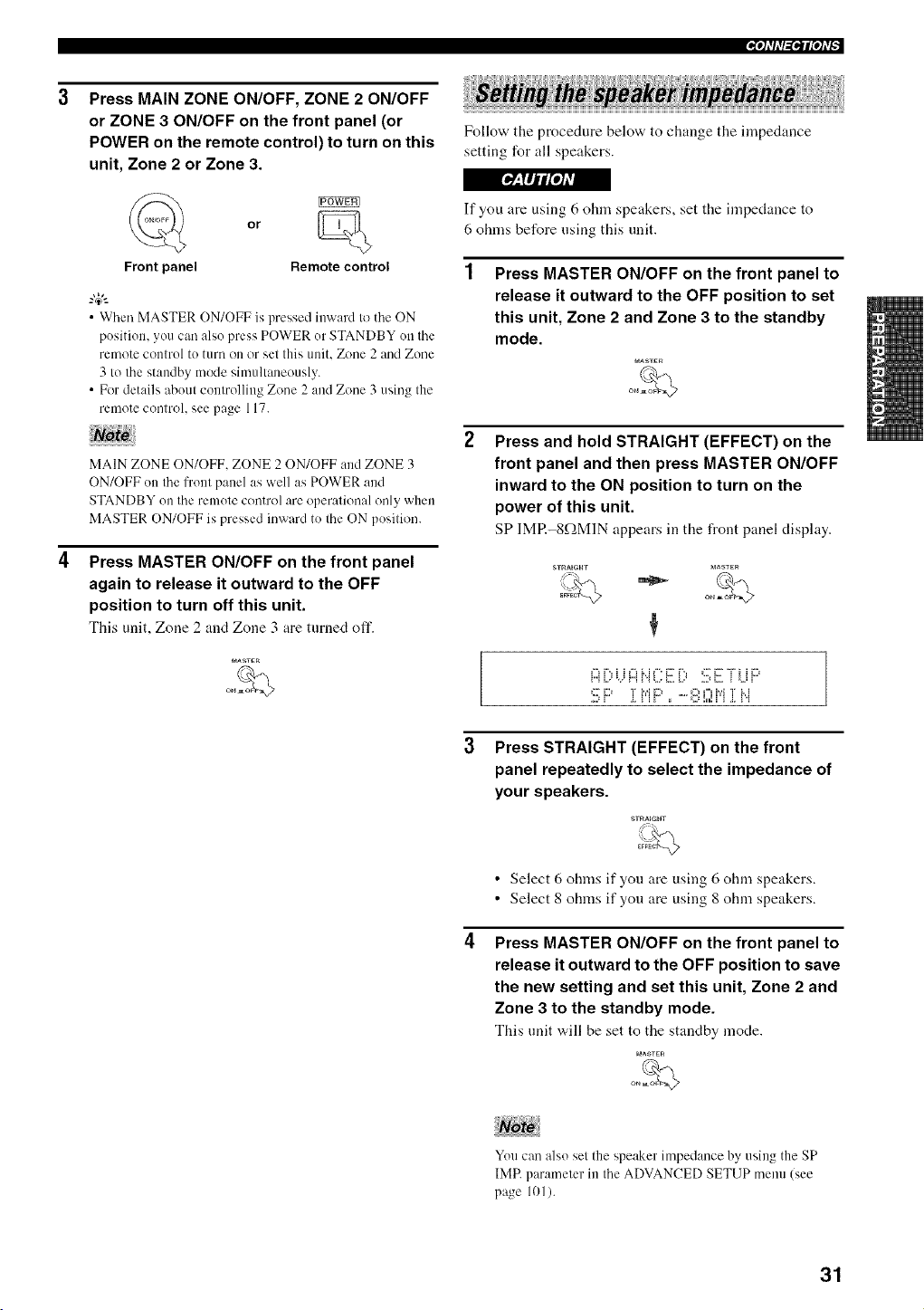
Press MAIN ZONE ON/OFF, ZONE 2 ON/OFF
or ZONE 3 ON/OFF on the front panel (or
POWER on the remote control) to turn on this
unit, Zone 2 or Zone 3.
F_:flilt*JAR
Front panel
or
Remote control
• When MASTER ON/OFF is pressed inward to the ON
position, you can also press POWER or STANDBYon the
remotecontrol to turn on or set this unit, Zone 2 and Zone
3 to the standby mode simultaneously.
• For details about controlling Zone 2 and Zone 3 using the
remotecontroh see page 117.
MAIN ZONE ON/OFF. ZONE 2 ON/OFF and ZONE 3
ON/OFF on the front panel as well as POWER and
STANDBY on the remote control are operational only when
MASTER ON/OFF is pressed inward to the ON position.
Press MASTER ON/OFF on the front panel
again to release it outward to the OFF
position to turn off this unit.
This unit, Zone 2 and Zone 3 are turned off.
r_ASTER
oo.o
Follow the procedure below to change the impedance
setting for all speakers.
If you tire using 6 ohm speakers, set the impedance to
6 ohms before using this unit.
Press MASTER ON/OFF on the front panel to
release it outward to the OFF position to set
this unit, Zone 2 and Zone 3 to the standby
mode.
MASTE_
Press and hold STRAIGHT (EFFECT) on the
front panel and then press MASTER ON/OFF
inward to the ON position to turn on the
power of this unit.
SP IMP.-8f2MIN appears in the front panel display.
$'rRAIGHT MASTER
:=" }% "i b..i }% _"_ u% b..i "i _=i
2) F' 2 i'i F' =_'=" ¢:?!.! i'i ,i i'i
3
Press STRAIGHT (EFFECT) on the front
panel repeatedly to select the impedance of
your speakers.
STRAIGHT
• Select 6 ohms if you tire using 6 ohm speakers.
• Select 8 ohms if you tire using 8 ohm speakers.
Press MASTER ON/OFF on the front panel to
release it outward to the OFF position to save
the new setting and set this unit, Zone 2 and
Zone 3 to the standby mode.
This unit "a,ill be set to the standby mode.
MAa_ER
iii i/
You can also sel the speaker impedance by using the SP
IMP. parameler in Ihe ADVANCED SETUP menu (see
page 101).
31
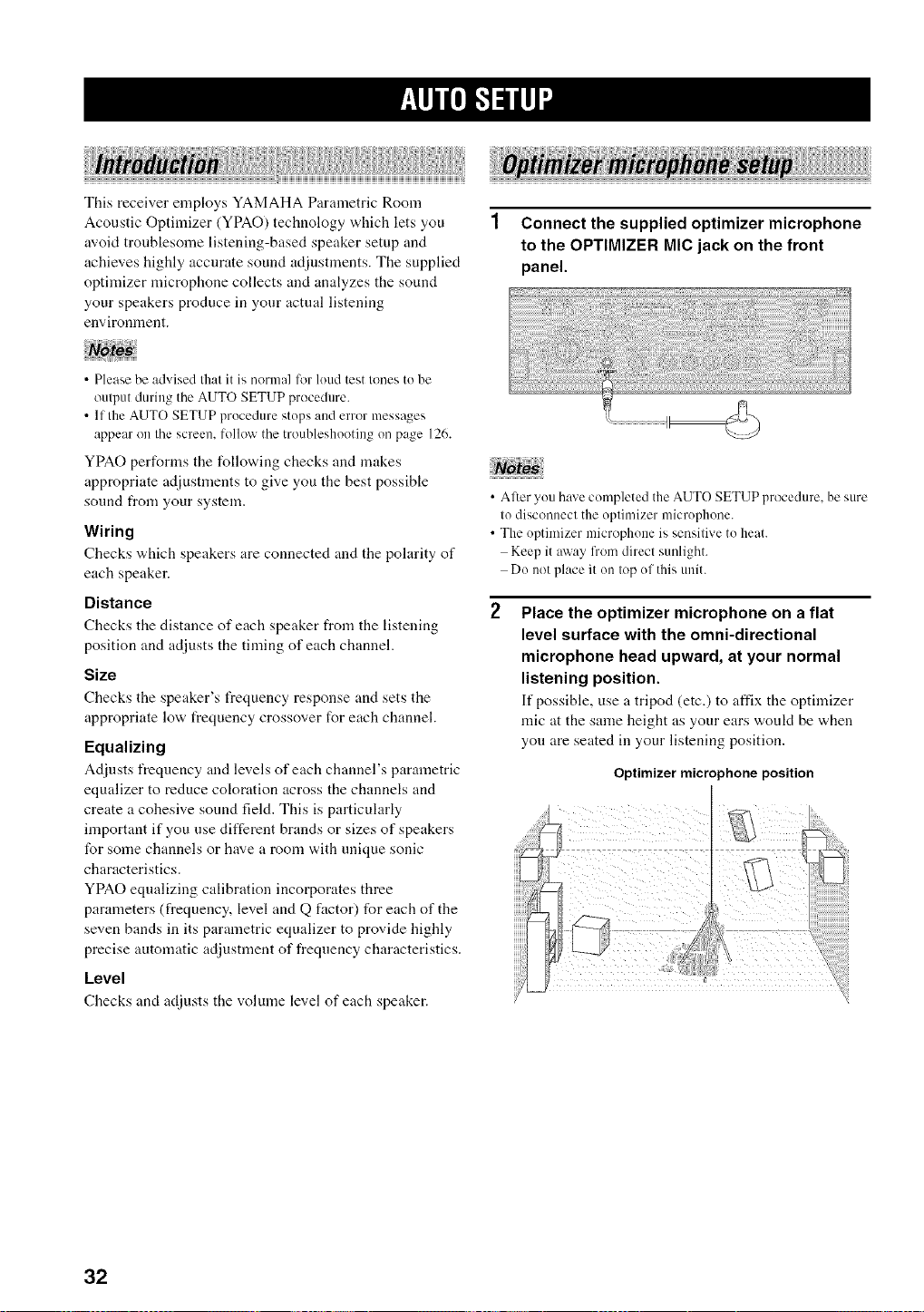
This receiver employs YAMAHA Parametric Room
Acoustic Optimizer (YPAO) technology which lets you
avoid troublesome listening-based speaker setup and
achieves highly accurate sound adjustments. The supplied
optimizer microphone collects and analyzes the sound
your speakers produce in your actual listening
environment.
Connect the supplied optimizer microphone
to the OPTIMIZER MIC jack on the front
panel.
• Please be advised that it is normal lot loud test tones to be
output during the AUTOSETUP procedure.
• If the AUTO SETUP procedure stops and error messa,qes
appear on the screen, lollow the troubleshooting on page 126.
YPAO performs the following checks and makes
appropriate adjustments to give you the best possible
sound from your system.
Wiring
Checks "Milch speakers are connected and the polarity of
each speaker.
Distance
Checks the distance of each speaker from the listening
position and adjusts the timing of each channel.
Size
Checks the speaker's frequency response and sets the
appropriate low t_equency crossover for each channel.
Equalizing
Adjusts frequency and levels of each channel's parametric
equalizer to reduce coloration across the channels and
create a cohesive sound field. This is particularly
important if you use different brands or sizes of speakers
for some channels or have a room with unique sonic
characteristics.
YPAO equalizing calibration incorporates three
parameters (frequency, level and Q factor) for each of the
seven bands in its parametric equalizer to provide highly
precise automatic adjustment of frequency characteristics.
Level
Checks and adjusts the volume level of each speaker.
• After you have completed the AUTO SETUP procedure, be sure
to disconnect the optimizer microphone.
• The optimizer microphone is sensitive to heat.
Keep it away from direct sunlight.
Do not place it on top of this unit.
Place the optimizer microphone on a flat
level surface with the omni-directional
microphone head upward, at your normal
listening position.
It"possible, use a tripod (etc.) to affix the optimizer
mic at the same height as your ears woukt be when
yon are seated in your listening position.
Optimizer microphone position
32
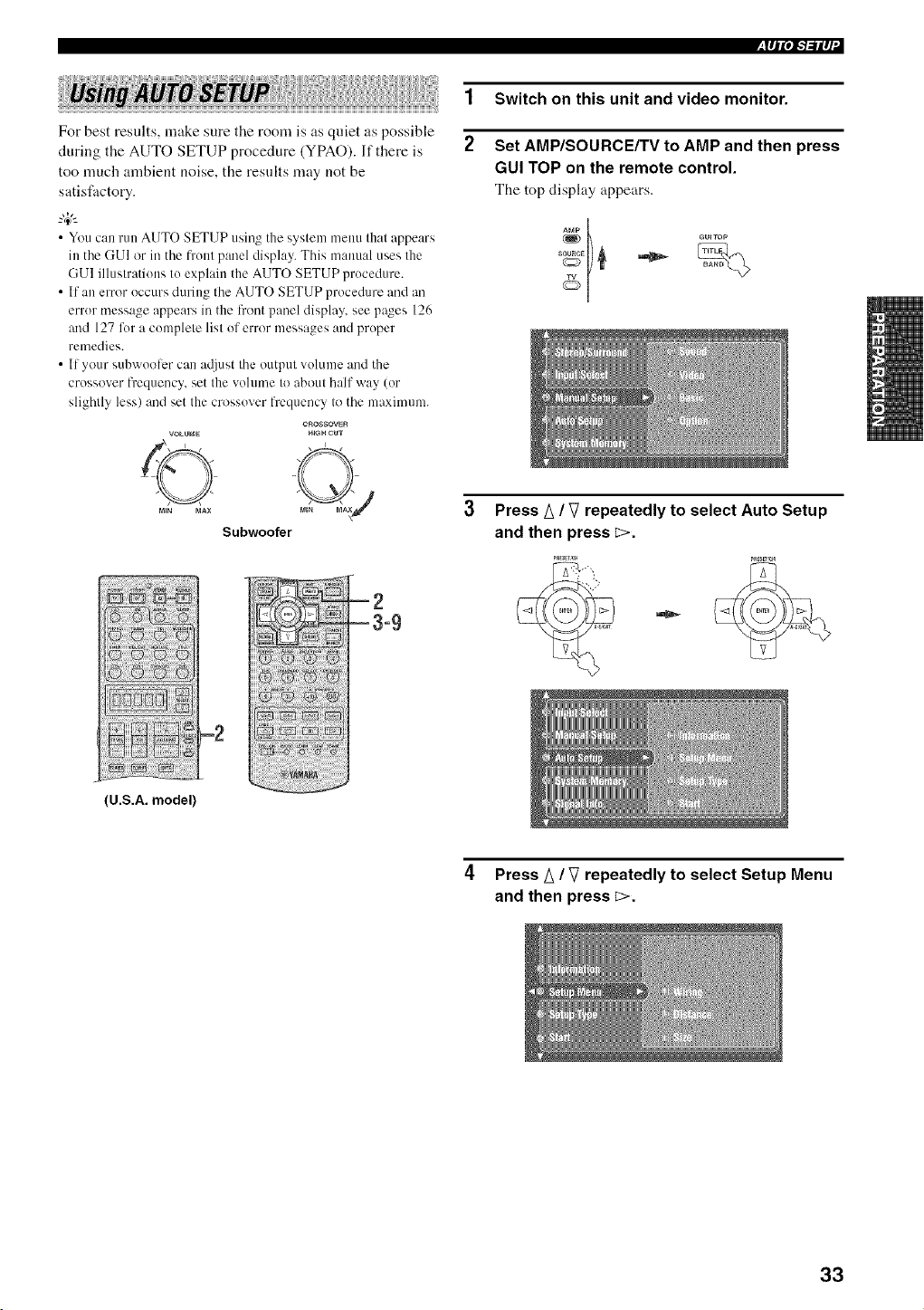
,lll'l.,l-'l-.'illl+
For best results, make sure the room is as quiet as possible
during the AUTO SETUP procedure (YPAO). If there is
too much ambient noise, the results may not be
satisfactory.
_.,#._
• You can run AUTO SETUP using tile systenl menu that appears
in the GUI or in the front panel display. This manual uses tile
GUI illustrations Io explain tilt AUTO SETUP procedure.
• If an error occurs during the AUTO SETUP procedure and an
error message appears in tilt front panel display, see pages 126
and 127 lot a conlplete list of error nlessages and proper
remedies.
• If your subwoolcr can at]illS[ the output volunle and tile
crossover h'equency, set tile volume to about half' way (or
slighlly less) and set tile crossover frequency to the nlaximunl.
CROSSOVER
HIgH CUTVOLOr_lE
rain _IAX
Subwoofer
1
2
Switch on this unit and video monitor.
Set AMP/SOURCE/TV to AMP and then press
GUI TOP on the remote control.
The top display appears.
+++V++ %
++
3 Press/_ / V repeatedly to select Auto Setup
and then press _>.
++
(U.S.A. model)
4 Press/_ / V repeatedly to select Setup Menu
and then press C>.
33
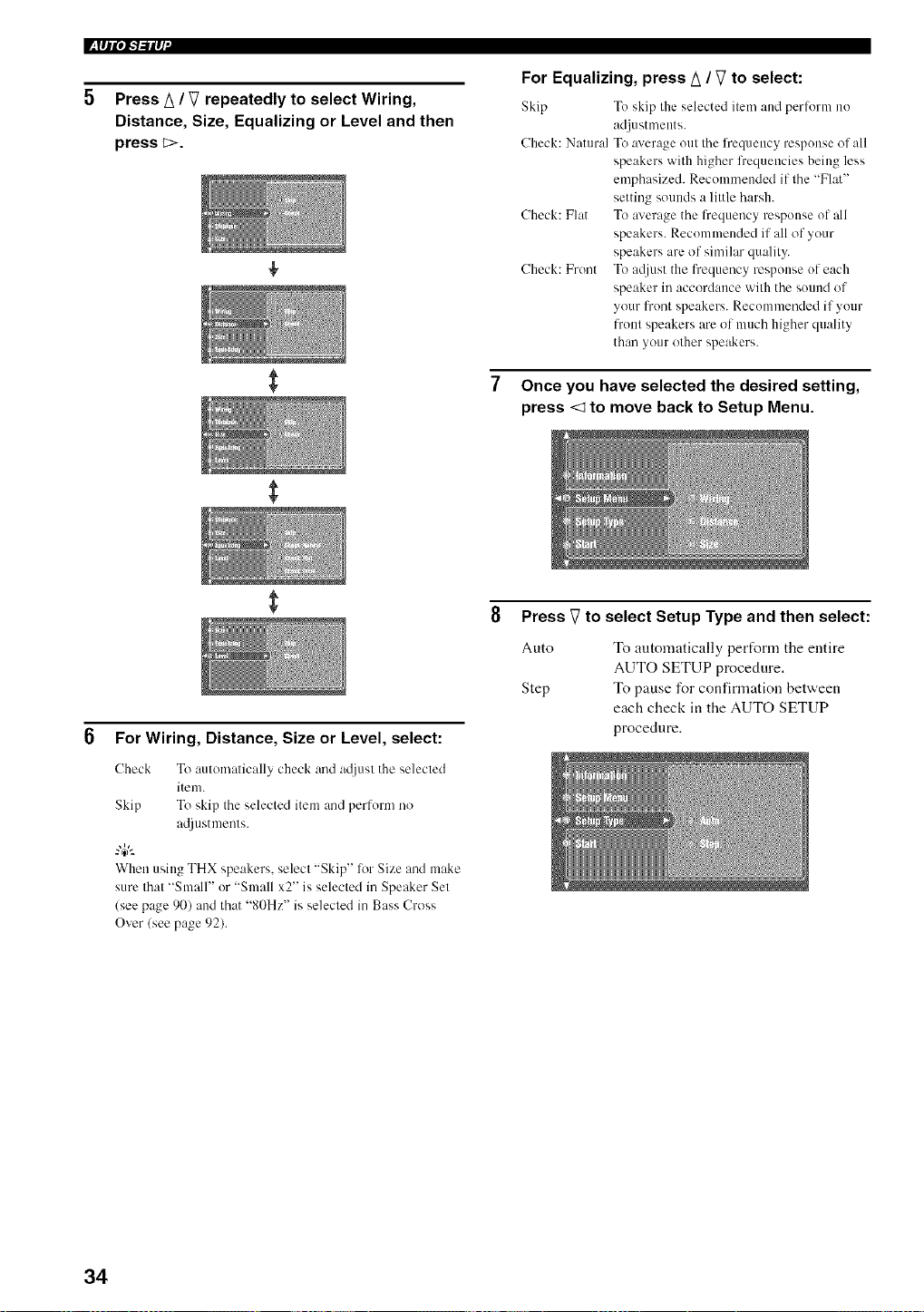
l_lql,,Pb'ilq +
5 Press A / V repeatedly to select Wiring,
Distance, Size, Equalizing or Level and then
press _>.
For Equalizing, press A / V to select:
Ski[> To ski[> the selected itmn and perlbnn i_o
adjustments+
Check: Natural To average out the frequm_cy response of all
speakers with higher fi'equencies being less
emphasized. Recommended if the "Flat"
setting sounds a little harsh.
Check: Flat To average the frequency response of all
speakers. Recommended if all of your
speakers are of similar quality.
Check: Front To a_[just the frequency response of each
speaker in accordance with the sound of
your trout speakers. Recommmxled if your
front speakers are of much higher quality
than your other speakers.
Once you have selected the desired setting,
press <1 to move back to Setup Menu.
6 For Wiring, Distance, Size or Level, select:
Check To automatically check and at!just the selected
item.
Skip To skip the selected item and perlorm no
a@lstments.
When using THX speakers, select "Skip" lot Size and make
sure that "Small" or "Small x2" is selected in Speaker Set
(see page 90) and that "80Hz" is selected in Bass Cross
Over (see page 92).
8 Press V to select Setup Type and then select:
Auto
Step
To automatically pert%rm the entire
AUTO SETUP procedure.
To pause for confirmation between
each check in the AUTO SETUP
procedure.
34
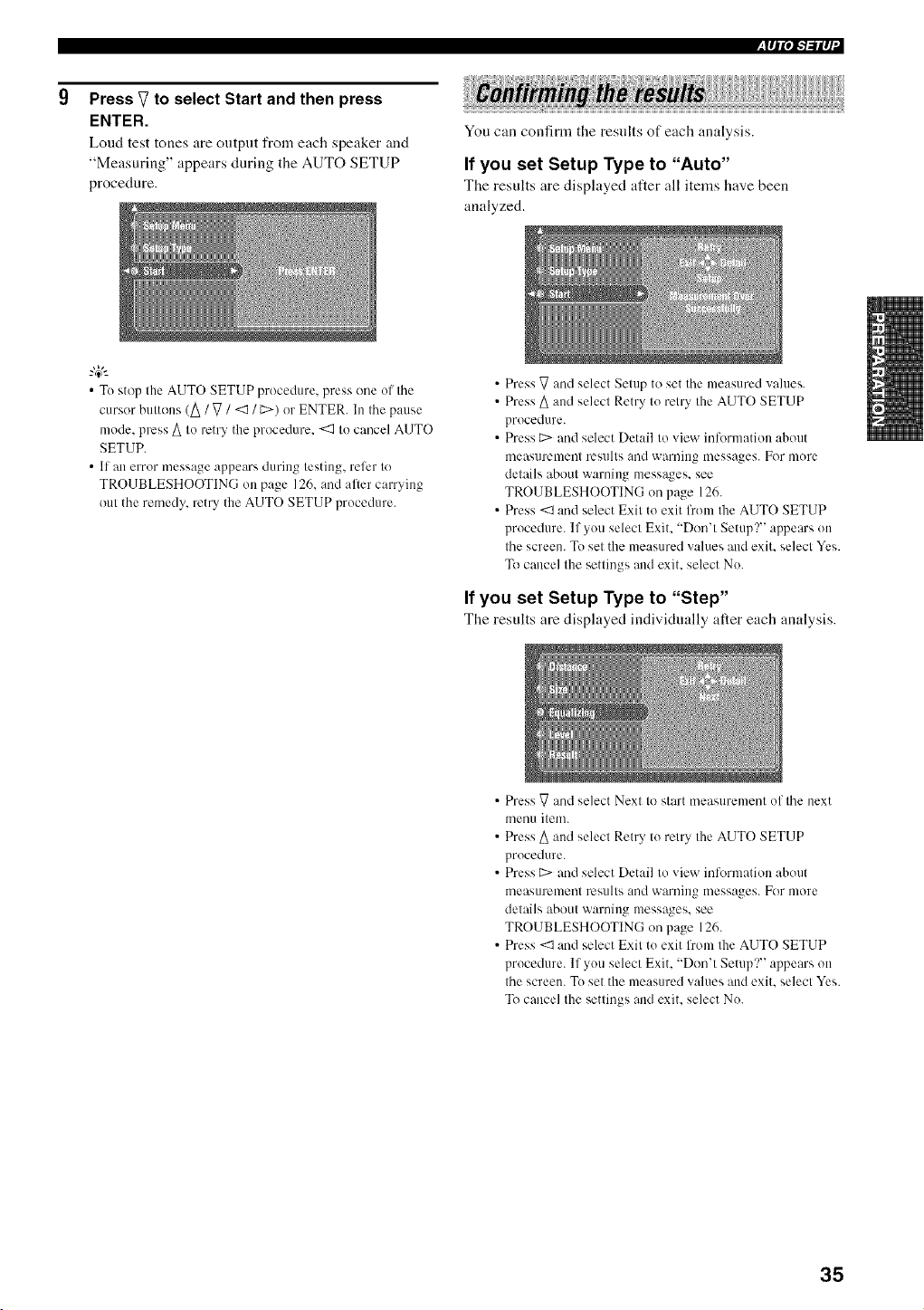
Press V to select Start and then press
ENTER.
Loud test tones are outpnt from each speaker and
"Measuring" appears during the AUTO SETUP
procedure.
You can confirm the resnlts of each analysis.
If you set Setup Type to "Auto"
Tile results are displayed after all items have been
analyzed.
,Iql",l-'l-'ilq +
• To stop the AUTO SETUP procedure, press one of the
cursor buttons (A / V / <51/ [:::>)or ENTER. In the pause
mode, press A to retry the procedure. <:1 to cancel AUTO
SETUP.
• If an error message appears during testing, reli:r to
TROUBLESHOOTING on page 126. and after carrying
out the remedy, retry the AUTO SETUP procedure.
• Press V and select Setup to set the measured values.
• Press A and select Retry to retry the AUTO SETUP
procedure.
• Press C:>and select Detail to view information about
measurement results and warning messages. For more
details about warning messages, see
TROUBLESHOOTING on page 126.
• Press <1 and select Exit to exit from the AUTO SETUP
procedure. If you select Exit. "Don't Setup'?" appears on
the screen. To set the measured wdues and exit. select Yes.
To cancel the settings and exit. select No.
If you set Setup Type to "Step"
The results are disphtyed individually after each analysis.
• Press V and select Next to start measurement of the next
menu item.
• Press _ and select Retry to retry the AUTO SETUP
procedure.
• Press C:>and select Detail to view information about
measurement results and waruing messages. For nlore
details about warning messages, see
TROUBLESHOOTING on page 126.
• Press <1 and select Exit to exit l?om the AUTO SETUP
procedure. If you select Exit. "Don't Setup'?" appears on
the screen. To set the measured wdues and exit. select Yes.
To cancel the settings and exit. select No.
35
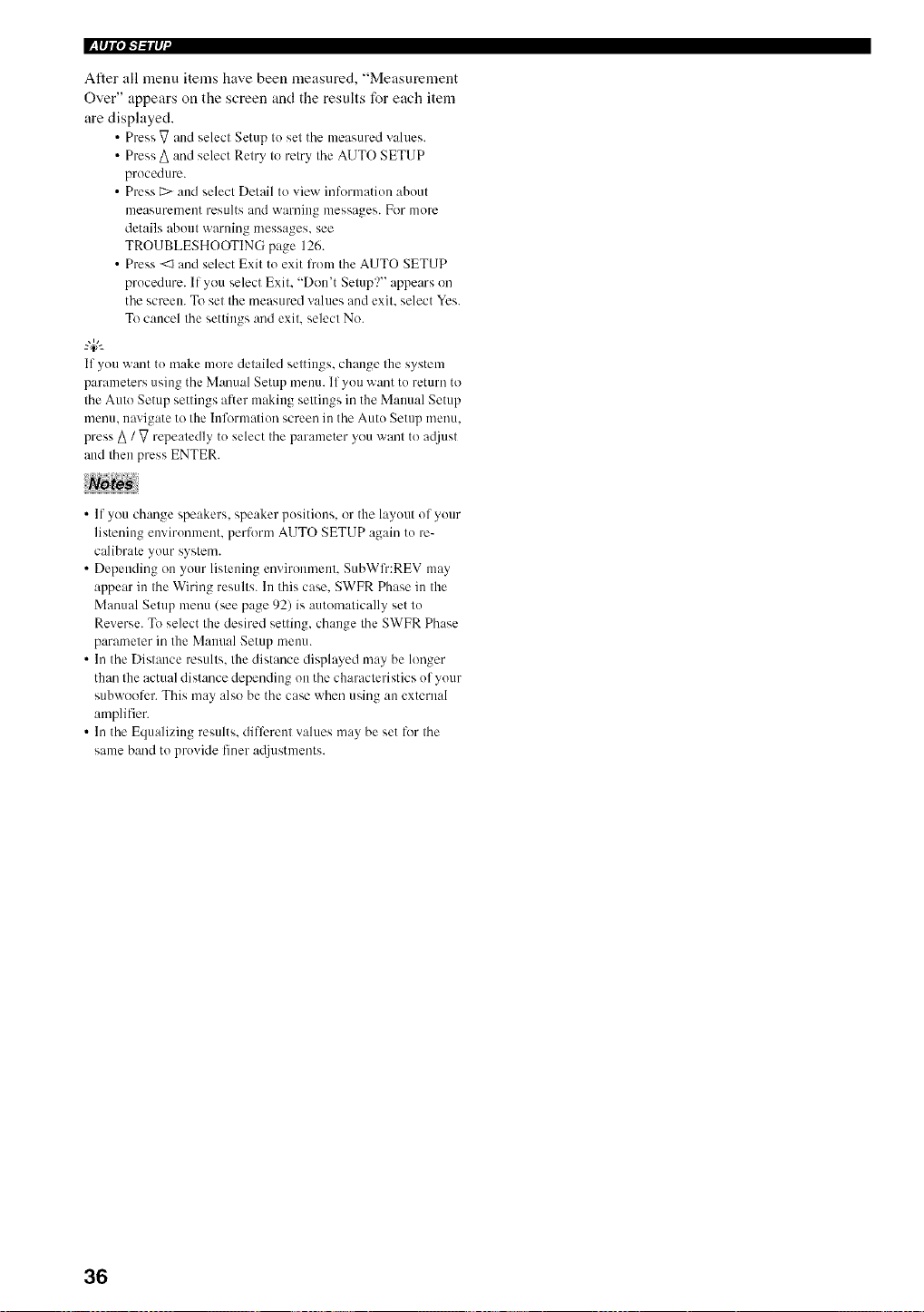
l_lql,,Pb'ilq +
After all menu items have been measured, "Measurement
Over" appears on the screen and the results for each item
are displayed.
• Press V and select Setup tu set the measured values.
• Press A and select Retry to retry the AUTO SETUP
procedure.
• Press E:>and select Detail to view information about
measurement results and warning messages. For inure
details abuut warning messages, see
TROUBLESHOOTING page 126.
• Press <1 and select Exit to exit l?om the AUTO SETUP
procedure. If you select Exit. "Don't Setup?" appears on
the screen. To set the measured vahms and exit. select Yes.
To cancel the settings and exit. select No.
"4+'--
Ifyou want tu make more detailed settings, change the system
parameters using the Manual Setup menu. If you want tu return to
the Auto Setup settings at'ter making settings in the Manual Setup
menu. nuvigate to the hfformatiun screen in the Autu Setup menu.
press A / V repeatedly tu select the parameter you want to a@lst
and then press ENTER.
• If you change speakers, speaker pusitiuns, or the layout of your
listening envirunment, pertorm AUTO SETUP again to re-
calibrate your system.
• Depending on yuur listening enviromnent. SubWli":REV may
appear in the Wiring results. In this case. SWFR Phase in the
Manual Setup mmm (see page 92) is automatically set to
Reverse. To select the desired setting, change the SWFR Phase
parameter in the Manual Setup menu.
• In the Distance results, the distance displayed may be longer
than the actual distance depending on the characteristics of yuur
subwooti:r. This may also be the case when using an external
amplifier.
• In the Equalizing results, different values may be set tbr the
same band to provide finer a@lstments.
36
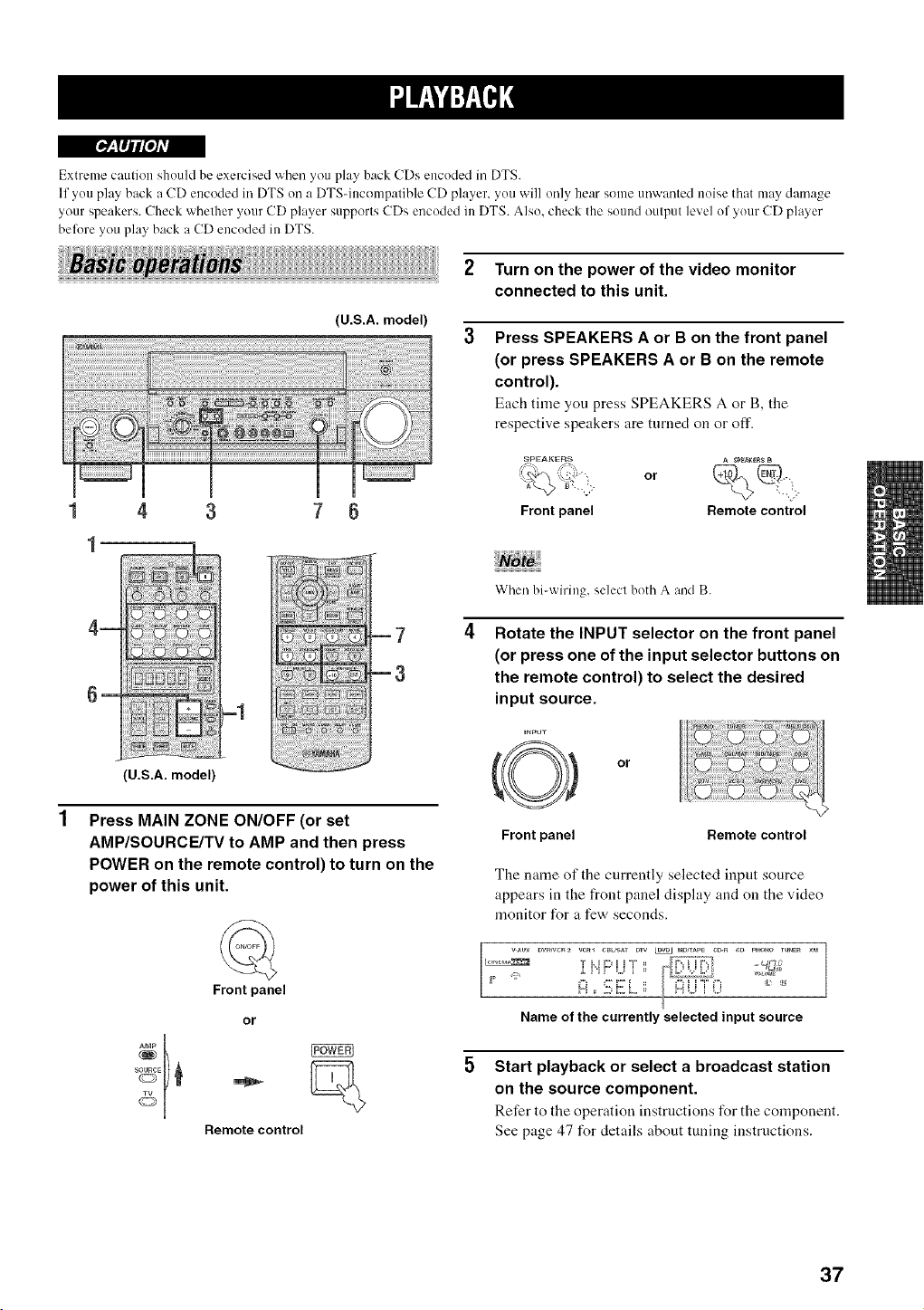
I[o!'_,IIt il'olAVl
Extreme caution should be exercised when you play back CDs encoded in DTS.
If you play back a CD encoded in DTS oil a DTSqncompatible CD player, you will only hear some unwanted noise that may damage
your speakers. Check whether your CD player supports CDs encoded in DTS. Also. check the sound output level of your CD player
before you play back a CD encoded in DTS.
(U.S.A. model)
2 Turn on the power of the video monitor
connected to this unit.
3 Press SPEAKERS A or B on the front panel
(or press SPEAKERS A or B on the remote
control).
Each time you press SPEAKERS A or B, the
respective speakers are turned on or off.
4 7 6
w
i¸.... :_ii_
U.S.A. model
Press MAIN ZONE ON/OFF (or set
AMP/SOURCE/TV to AMP and then press
POWER on the remote control) to turn on the
power of this unit.
SPEAKERS A _PEA_E_ B
_ , ,, or
,5-
Front panel Remote control
When bi-wiring, select both A and B.
Rotate the INPUT selector on the front panel
(or press one of the input selector buttons on
the remote control) to select the desired
input source.
Front panel Remote control
The name of the currently selected input source
appears in the front panel display and on the video
monitor for a few seconds.
Arap
Front panel
or
Remote control
r. _... , -'-/FJ2
Name of the currently selected input source
Start playback or select a broadcast station
on the source component.
Refer to the operation instructions for the component.
See page 47 for details about tuning instructions.
37
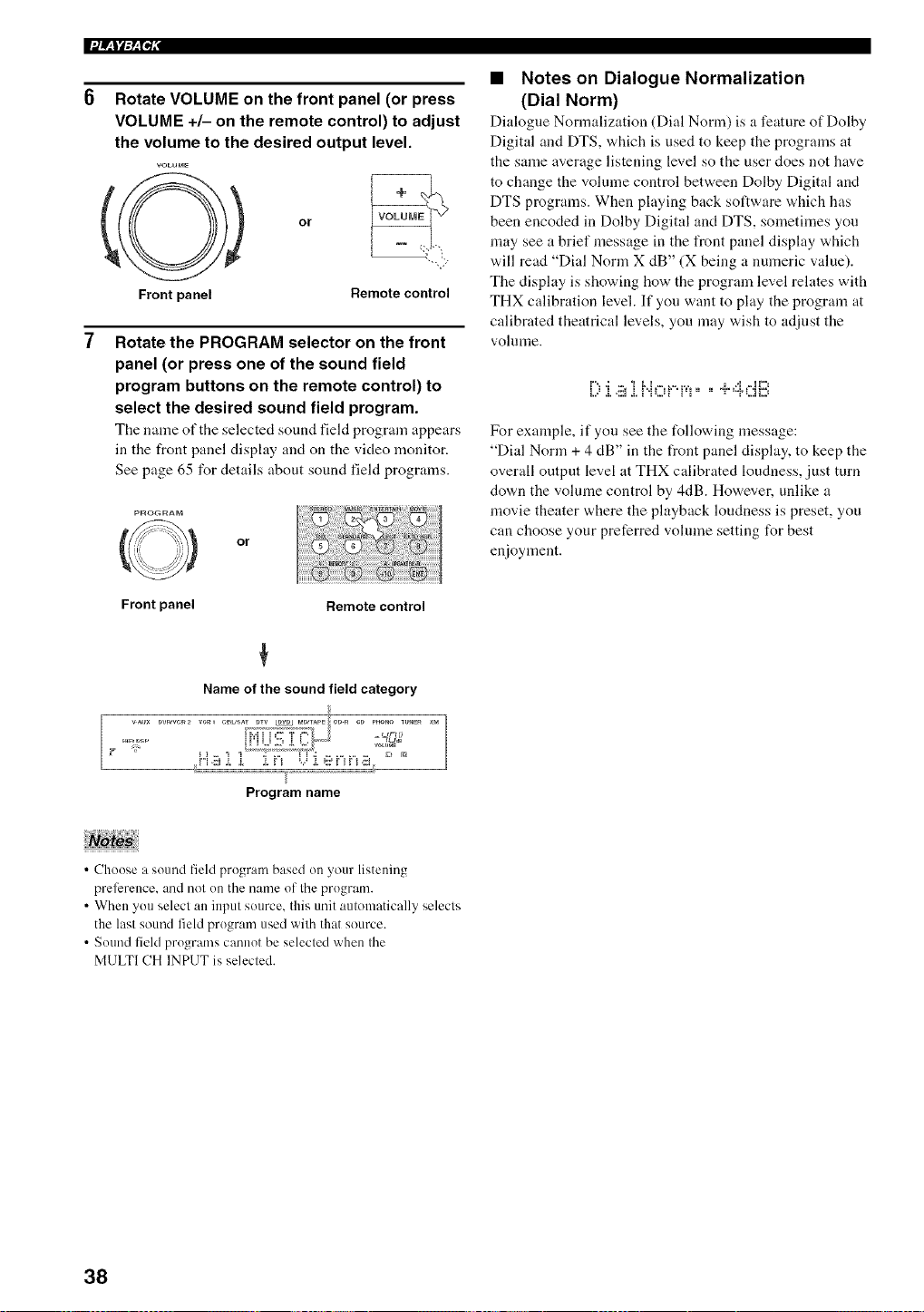
Rotate VOLUME on the front panel (or press
VOLUME +/- on the remote control) to adjust
the volume to the desired output level.
VOLUME
Front panel
or VOLUME
Remote control
Rotate the PROGRAM selector on the front
panel (or press one of the sound field
program buttons on the remote control) to
select the desired sound field program.
The name of the selected sound field program appears
in the front panel display and on the video monitor.
See page 65 for details about sound field programs.
p_OGFtAM
Front panel
or
Remote control
Name of the sound field category
VAL_× DV_VC_2 VCRI C_L_',A_ _TV tm_DJ _aDTAPE ¢D-_ CD P_O_O TU_E_ ×r_
Program name
• Notes on Dialogue Normalization
(Dial Norm)
Dialogue Normalization (Dial Norm) is a feature of Dolhy
Digital and DTS, which is used to keep the programs at
the same average listening level so the user does not have
to change the volmne control between Dolby Digital and
DTS programs. When playing back software which has
been encoded in Dolby Digital and DTS, sometimes yon
may see a brief message in the front panel display which
will read "Dial Norm X dB" (X being a numeric value).
The display is showing how the program level relates with
THX calibration level. If yon want to play the program at
calibrated theatrical levels, yon may wish to adiust the
voh]me.
i..._.L <:i .L i "i L._ {""i =i " " "?" ="i'L.:i{::=
For example, if you see the following message:
"Dial Norm + 4 dB" in the front panel display, to keep the
overall output level at THX calibrated loudness, just turn
down the volume control by 4dB. However, unlike a
movie theater where the playback loudness is preset, you
can choose your preferred vohnne setting for best
enJoyment.
• Choose a sound field program based on your listening
preli:rence, and not on the name of the program.
• When you select a_ input source, this unit automatically selects
the last sound field program used with that source.
• Sound field programs cannot be selected when the
MULTI CH INPUT is selected.
38
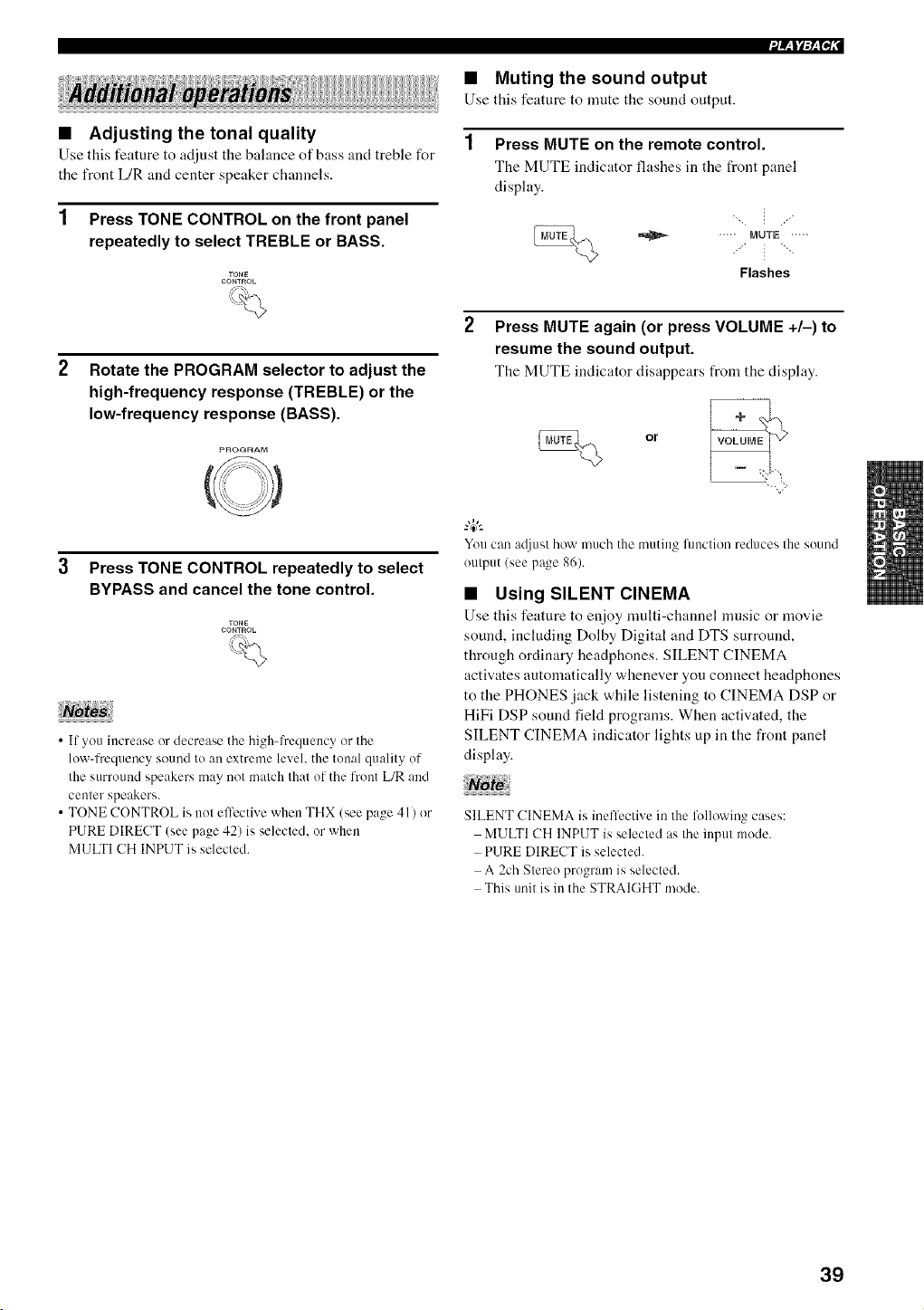
• Adjusting the tonal quality
Use this feature to adjust tile balance of bass and treble for
the front L/R and center speaker channels.
1 Press TONE CONTROL on the front panel
repeatedly to select TREBLE or BASS.
TONE
CONTROL
Rotate the PROGRAM selector to adjust the
high-frequency response (TREBLE) or the
low-frequency response (BASS).
3 Press TONE CONTROL repeatedly to select
BYPASS and cancel the tone control.
TONE
CONTAOL
• If you increase or decrease the highqhequency or the
low-frequency sound to an extreme level, the tonal quality of
the surround speakers may not match that of the front L/R and
center speakers.
• TONE CONTROL is nut effective when THX (see page 41) or
PURE DIRECT (see page 42) is selected, ur when
MULTI CH INPUT is selected.
• Muting the sound output
Use this feature to mute tile sound output.
i/WiliF_Ni
Press MUTE on the remote control.
The MUTE indicator flashes in the front panel
display.
.... MUTE .....
Flashes
Press MUTE again (or press VOLUME +/-) to
resume the sound output.
The MUTE indicator disappears from tile display.
or
Yuu can a(.liLISlhow much the muting function reduces the suund
uulput (see page 86).
• Using SILENT CINEMA
Use this feature to enjoy multi-channel nmsic or movie
sound, including Dolby Digital and DTS surround,
through ordinary headphones. SILENT CINEMA
activates automatically whenever you connect headphones
to the PHONES jack while listening to CINEMA DSP or
HiFi DSP sound field programs. When activated, the
SILENT CINEMA indicator lights up in the front panel
display.
SILENT CINEMA is inefli:ctive in the following cases:
MULTI CH INPUT is selected as the input mode.
PURE DIRECT is selected.
A 2ch Stereo program is selected.
This unit is in the STRAIGHT mode.
39
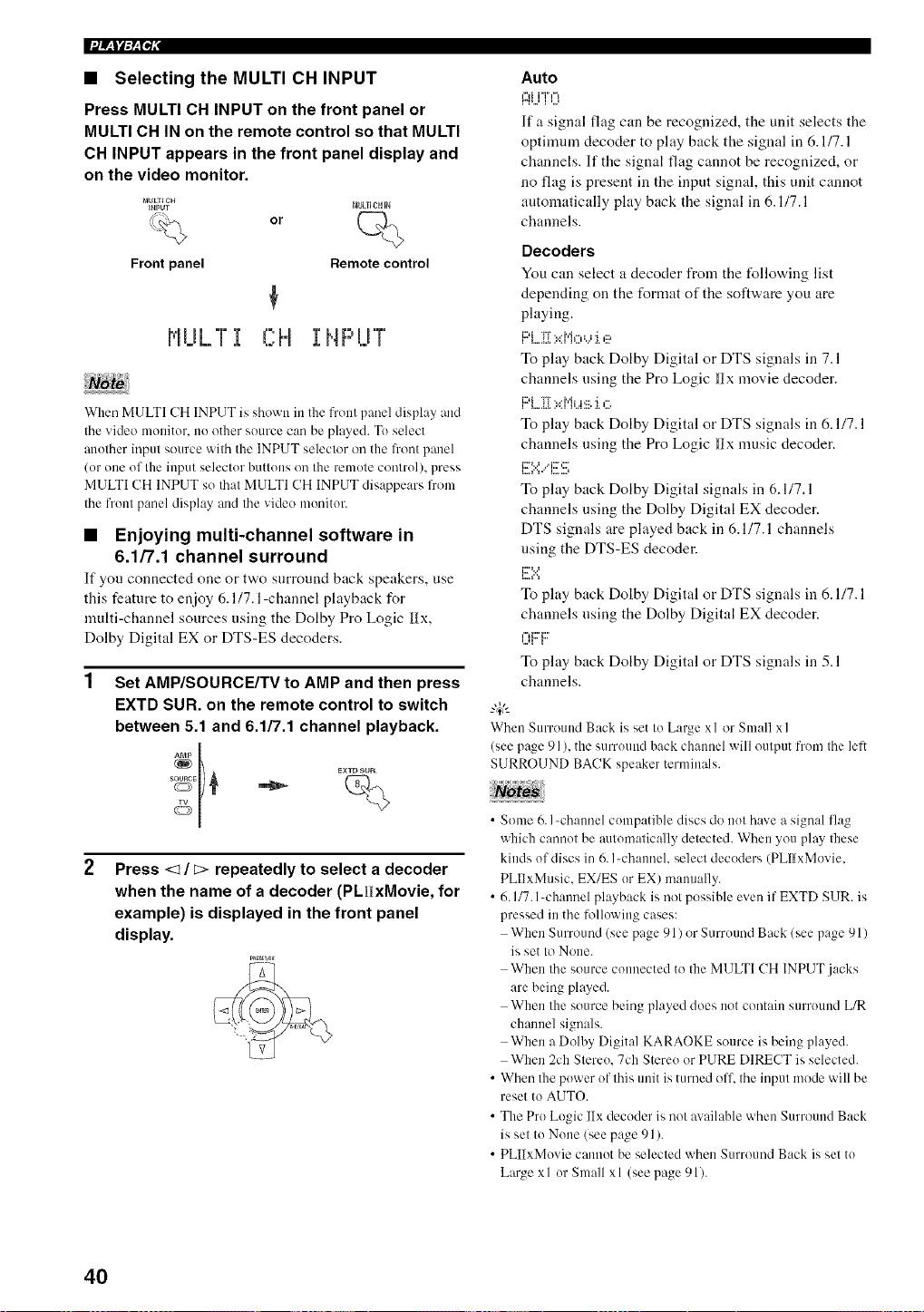
• Selecting the MULTI CH INPUT
Press MULTI CH INPUT on the front panel or
MULTI CH IN on the remote control so that MULTI
CH INPUT appears in the front panel display and
on the video monitor.
blULTI CH
INPUT
= ',
%
Front panel
VlU LT I
MULTICHIN
or
Remote control
CH I: HPUT
When MULTI CH INPUT is shown in the front panel display and
the video monitor, no other source can be played. To select
at)other input source with the INPUT selector on the li'ont panel
(or one of the input selector buttons on the remote control), press
MULTI CH INPUT so that MULTI CH INPUT disappears from
the front panel display and the vide() monitor.
• Enjoying multi-channel software in
6.1/7.1 channel surround
If you connected one or tw,o surround back speakers, use
this feature to enjoy 6.1/7.1-channel playback for
multi-channel sources using the Dolby Pro Logic I[x,
Dolby Digital EX or DTS-ES decoders.
Set AMP/SOURCE/TV to AMP and then press
EXTD SUR. on the remote control to switch
between 5.1 and 6.1/7.1 channel playback.
Press <1 / _> repeatedly to select a decoder
when the name of a decoder (PLllxMovie, for
example) is displayed in the front panel
display.
Auto
l:ii...ii0
lfa signal flag can be recognized, the unit selects the
optimum decoder to play back the signal in 6.117.1
channels. If the signal flag cannot be recognized, or
no flag is present in the input signal, this unit cannot
antonmtically play back the signal in 6.117.1
channels.
Decoders
You can select a decoder from the following list
depending on the format of the sollvvare you are
playing.
F:i....:_[::.::i"i,:::,,...,:i.e
To play back Dolby Digital or DTS signals in 7. l
channels using the Pro Logic l]{x movie decoder.
F::'L :[_x iit..is :i.,:::.
To play back Dolby Digital or DTS signals in 6.1/7.1
channels using the Pro Logic I]{x music decoder.
i::_:.:,.....i::,::_
To play back Dolby Digital signals in 6.1/7.1
channels using the Dolby Digital EX decoder.
DTS signals are played back in 6.1/7.1 channels
using the DTS-ES decoder.
i:::_:.:,.
To play back Dolby Digital or DTS signals in 6.1/7.1
channels using the Dolby Digital EX decoder.
I ll,,, I,,,
,,Jl i
To play back Dolby Digital or DTS signals in 5.1
channels.
_.,#._
When Surround Back is set Io Large x l or Snlall x l
(see page 91 ), tile surround back cht.untel will oulput front Ihe left
SURROUND BACK speaker ternlinals.
• Some 6. l-channel compatible discs do not h:.ve a signal flag
which cannot be automatically detected. When you play these
kinds of discs in 6. I-channel, select decoders (PLl/xMovie,
PLIlxMusic, EX/ES or EX) manually.
• 6. 117.l-channel playback is not possible even if EXTD SUR. is
pressed in the following cases:
When Surround (see page 91) or Surround Back (see page 91 )
is set to None.
When the source connected to the MULTI CH INPUT jacks
are being played.
When the source being played does not contain surround L/R
channel signals.
When a Dolby Digital KARAOKE source is being played.
When 2ch Stereo, 7ch Stereo or PURE DIRECT is selected.
• When the power of this unit is turned off the input mode will be
reset to AUTO.
• The Pro Logic IIx decoder is not available when Surround Back
is set to None (see page 91 ).
• PLi1xMovie cannot be selected when Surround Back is set to
Large xl or Small xl (see page 91).
4O
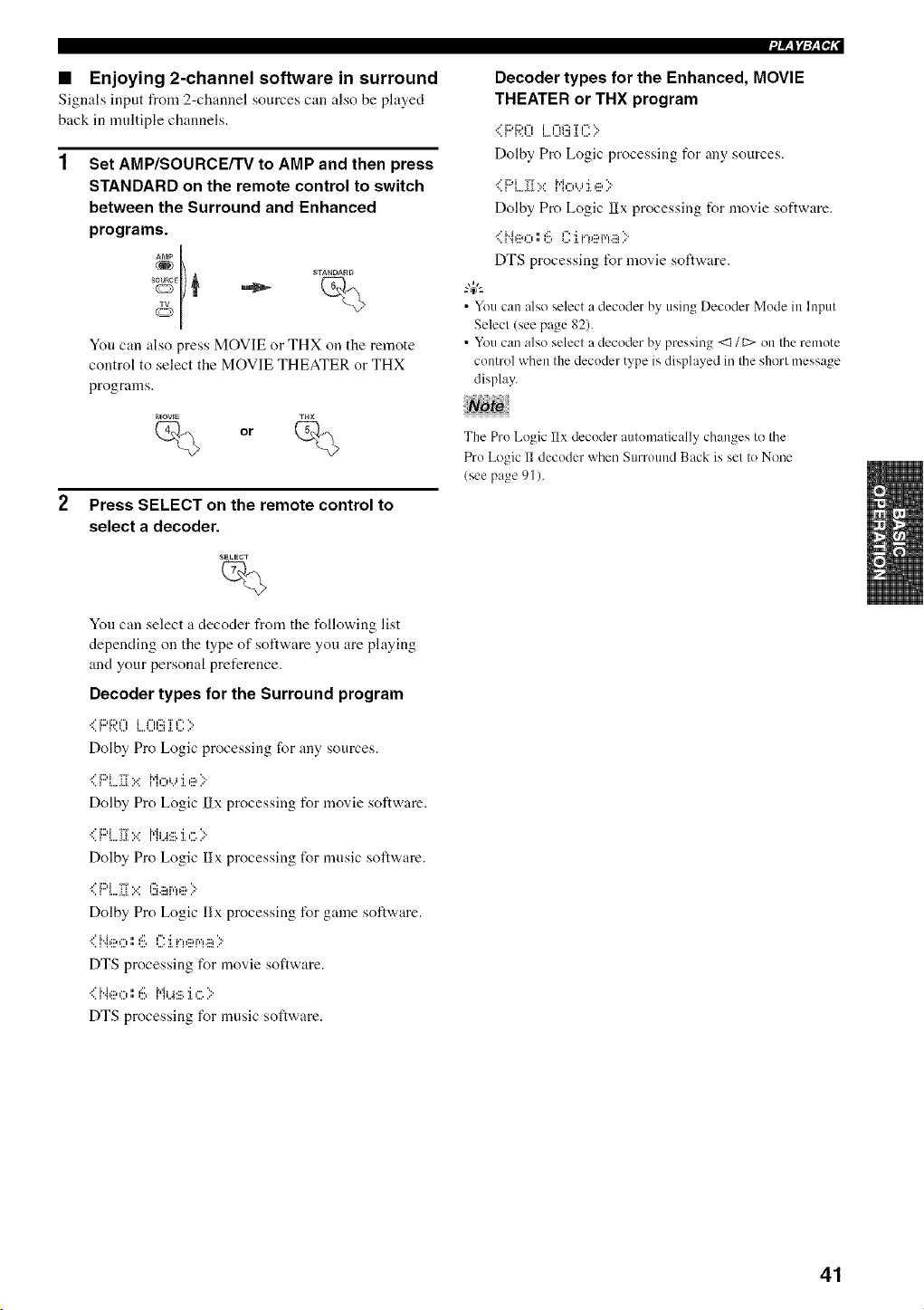
• Enjoying 2-channel software in surround
Signals input from 2-channel sources can also be phtyed
back in multiple channels.
Set AMP/SOURCE/TV to AMP and then press
STANDARD on the remote control to switch
between the Surround and Enhanced
programs.
AMP
You can also press MOVIE or THX on the remote
control to select the MOVIE THEATER or THX
programs.
blOWE THX
% or %
Press SELECT on the remote control to
select a decoder.
You can select a decoder from the following list
depending on the type of software you are playing
and your personal preference.
Decoder types for the Surround program
'_iF::i:;X)L0(!X[C:>
Dolby Pro Logic processing for any sources.
.."i:::.i Ti'.. 1"i,-,,..,i,:::,'>
•. ......... ...
Dolby Pro Logic IIx processing for movie software.
':::F::i....[[[::.::i',iia.:::.i,".'::.
Dolby Pro Logic ]{Ix processing for music software.
,,"i:::.i T',. l'::i.ud,'H:::,'[:"
Dolby Pro Logic 1ix processing for game software.
'::" i"'ig:'l"t "} 6 r:'i F'tl:::,r¢l.:::_'>
DTS processing for movie software.
DTS processing for music software.
Decoder types for the Enhanced, MOVIE
THEATER or THX program
Dolby Pro Logic processing for any sources.
•:::F::'LI[[x MI°',_..''i I::;t"::'
Dolby Pro Logic lIx processing for movie software.
<N,::a,",',',=:.,,1...::I.i.=_,ill,i','!.ii_.::•
DTS processing for movie software.
• Youcan also select a decoder by'using Decoder Mode in Input
Select (see page 82).
• Youcan also select a decoder by pressing <:1/ E:>on the remote
control when the decoder type isdisplayed in the short message
display.
The Pro Logic ilx decoder autonmlically changes to the
Pro Logic ii decoder when Surround Back is set Io None
(see page 91).
41
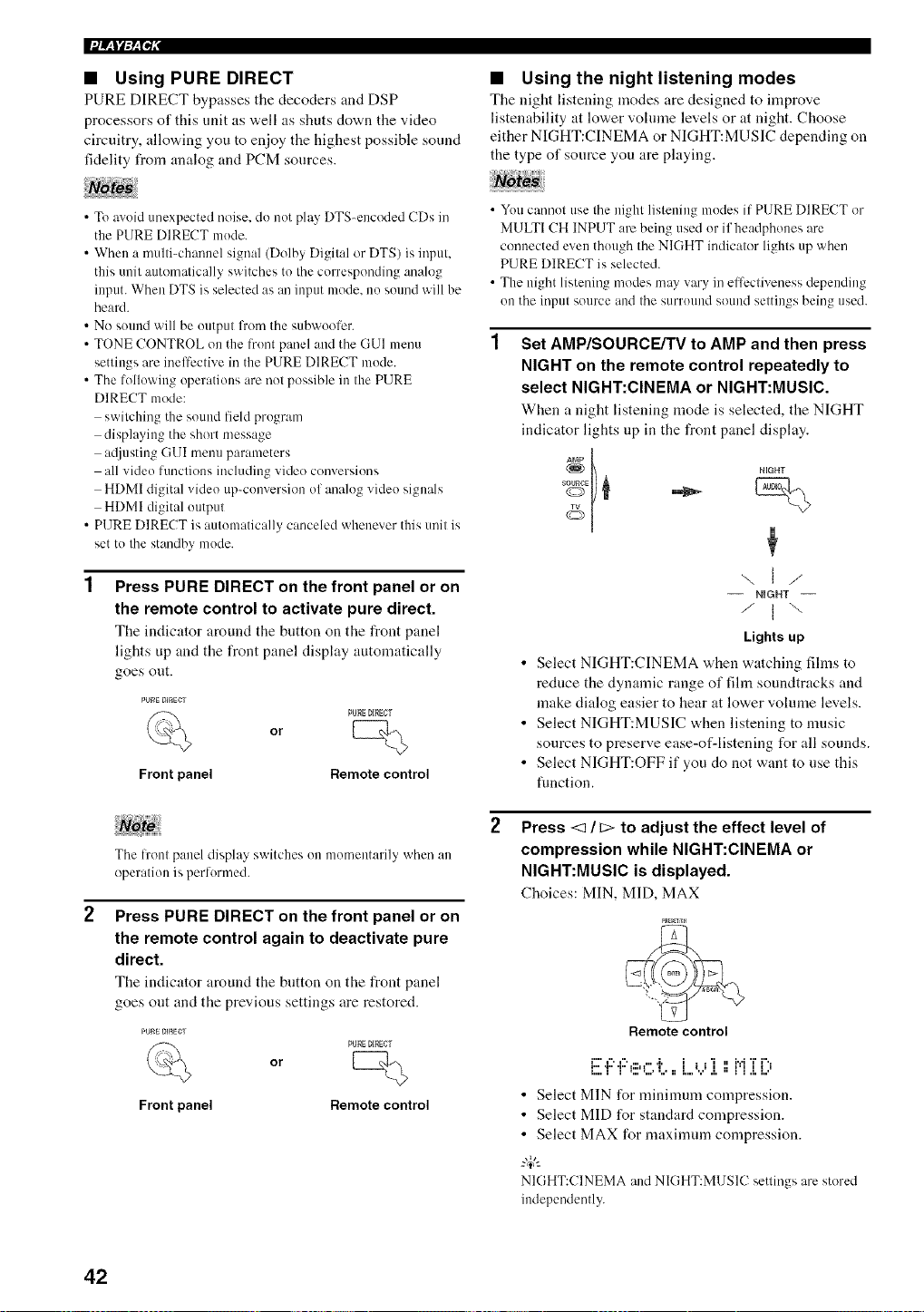
• Using PURE DIRECT
PURE DIRECT bypasses tile decoders and DSP
processors of this unit as well as shuts down the video
circuitry, allow, ing you to enjoy the highest possible sound
fidelity from analog and PCM sources.
• Using the night listening modes
Tile night listeniug modes are designed to improve
listenability at lower voMne levels or at night. Choose
either NIGHT:CINEMA or NIGHT:MUSIC depending on
the type of source you are playing.
• To avoid unexpected noise, do not play DTS-encoded CDs in
the PURE DIRECT mude.
• When a multi-channel signal (Dolby Digital or DTS) is input,
this unit automatically switches to the corresponding analog
input. When DTS is selected as an input mode, m) suuud will be
heard.
• No suund will be output l'ronl the subwuofer.
• TONE CONTROL on the fruut panel and the GUI menu
settings are ineffective in the PURE DIRECT mode.
• The Mlowiug operations are not possible in the PURE
DIRECT mode:
switching the sound field program
displaying the short message
a_[iusting GUI menu parameters
all video functious includiug video conversions
HDMI digital video up-cunversion of analog video signals
HDMI digital uutput
• PURE DIRECT is automatically canceled whenever this unit is
set tu the standby mude.
Press PURE DIRECT on the front panel or on
the remote control to activate pure direct.
The indicator around the button on the front panel
lights up and the front panel display automatically
goes out.
Front panel
or
PUffE DIRECT
Remote control
The froul panel display switches un mun/entarily wheu au
operatiun is performed.
Press PURE DIRECT on the front panel or on
the remote control again to deactivate pure
direct.
The indicator around the button on the front panel
goes out and the previous settings are restored.
Front panel
or
PUF_EDlffECT
Remote control
• You cannot use the night listening mudes if PURE DIRECT or
MULTI CH INPUT arc being used ur if headphones are
connected even thuugh the NIGHT indicator lights up when
PURE DIRECT is selected.
• The night listening modes may vary in effectiveness depending
on the input source and the surruund sound settings being used.
Set AMP/SOURCE/TV to AMP and then press
NIGHT on the remote control repeatedly to
select NIGHT:CINEMA or NIGHT:MUSIC.
When a night listening mode is selected, the NIGHT
indicator lights up in the front panel display.
wt)
"\ I /
-- NIGHT --
/ I \
Lights up
• Select NIGHT:CINEMA when watching films to
reduce the dynamic range of fihn soundtracks and
make dialog easier to hear at lower volume levels.
• Select NIGHT:MUSIC when listening to music
sources to preserve ease-of-listening for all sounds.
• Select NIGHT:OFF if you do not want to use this
function.
Press < / c> to adjust the effect level of
compression while NIGHT:CINEMA or
NIGHT:MUSIC is displayed.
Choices: MIN, MID, MAX
Remote control
i"'l",l", ...... i, i , ,'i II ivlT i",,
12,T' T' t:::,t,,,,i,,,:: I,,,,',,,',I, :: I'I ,I,I,,,'
• Select MIN for mininmm colnpression.
• Select MID for standard compression.
• Select MAX for maximum compression.
-&
NIGHT:CINEMA and NIGHT:MUSIC settings are stored
independently.
42
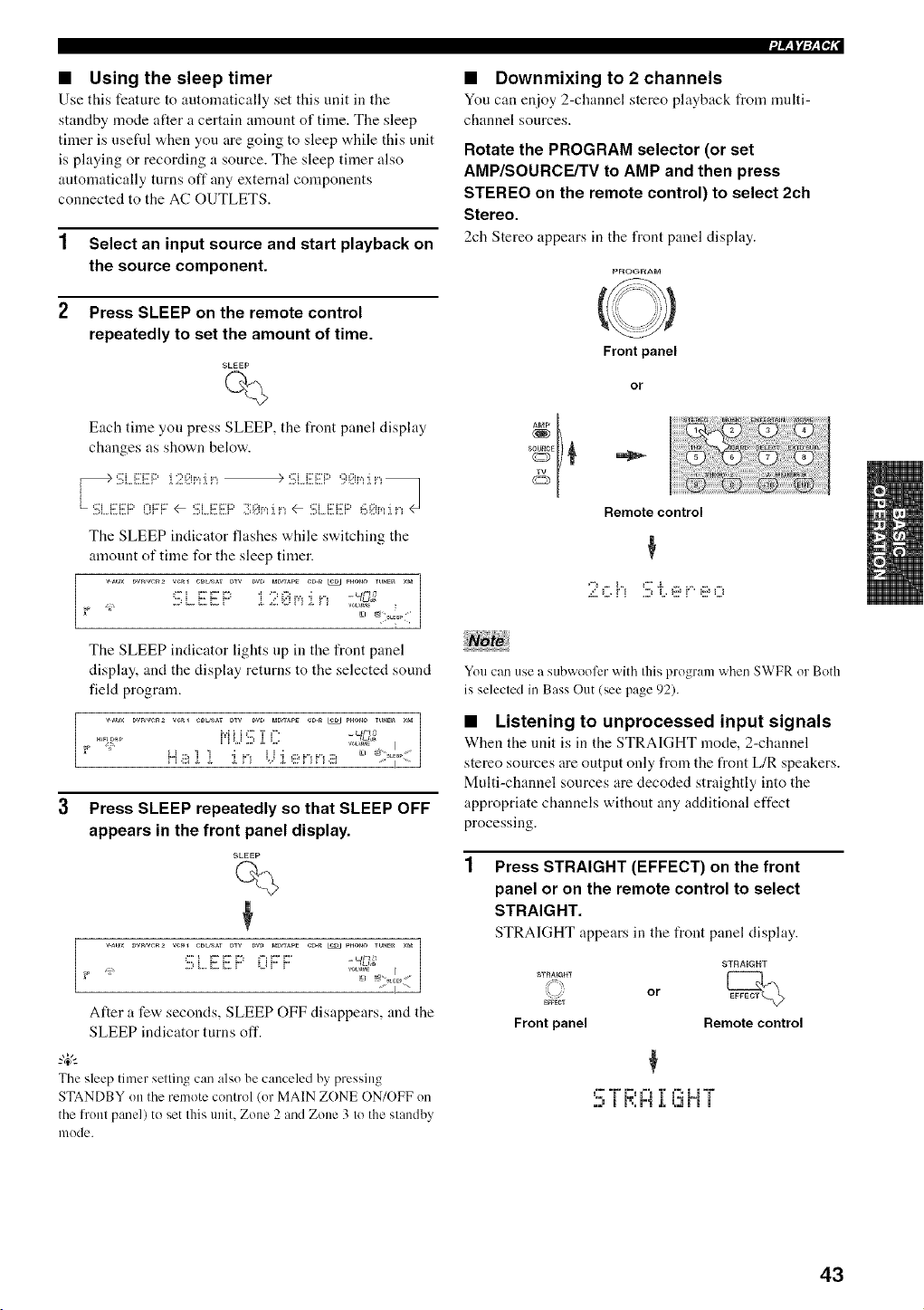
• Using the sleep timer
Use this feature to automatically set this nnit in tile
standby mode after a certain amount of time. The sleep
timer is useful when you are going to sleep while this unit
is playing or recording a source. The sleep timer also
automatically turns off any external components
connected to the AC OUTLETS.
1 Select an input source and start playback on
the source component.
2 Press SLEEP on the remote control
repeatedly to set the amount of time.
SLEEP
%
Each time yon press SLEEP, the front panel display
changes as shown below.
The SLEEP indicator flashes while switching the
amount of time for the sleep timer.
vAtl× Dwme_2 vca_ C_L_'_AT DTV DVD _aO_APS CD-_ _ P_O_O mHE_ Xf_
_ _ ", _"_' i"" j ...'i:.'ip'_;i D -_C2
The SLEEP indicator lights up in the front panel
display, and the display returns to the selected sound
field program.
VAU× DVR/VC_2 VCRI CBLf,¢AT DTV DVD NO_APg _D.R _ PHONO TLINg_ X_
_..____""v ,-. -q2,2
" .iii_. . P'_ i... _i?P'_P'_ii[_
3 Press SLEEP repeatedly so that SLEEP OFF
appears in the front panel display.
SLEEP
%
¢
¢" _ r" r" r': ¢': r" r' _ _a_
_ _ ,D L., C, C, !" LJ !" !" _°_"_ ," I
After a few seconds, SLEEP OFF disappears, and the
SLEEP indicator turns off.
-#-
Thesleep timer setting can also be canceled by pressing
STANDBY GRthe remote control (or MAIN ZONE ON/OFF on
the l?'ont panel) to set this unit. Zone 2 and Zone 3 to the standby
mode.
i/_ltF_lql
• Downmixing to 2 channels
You can enjoy 2-channel stereo playback from nmlti-
channel sources.
Rotate the PROGRAM selector (or set
AMP/SOURCE/TV to AMP and then press
STEREO on the remote control) to select 2ch
Stereo.
2ch Stereo appears in the front panel display.
PROGRA_
O
Front panel
Remote control
.=:LL,= i' i 2) i,,_l:::*i' ' l:::_LJ
You can use a subwoGfer with this program when SWFR GrBoth
is selected in Bass Out (see page 92).
• Listening to unprocessed input signals
When the unit is in the STRAIGHT mode, 2-channel
stereo sources are output only from the front L/R speakers.
Multi-channel sources are decoded straightly into the
appropriate channels without any additional effect
processing.
Press STRAIGHT (EFFECT) on the front
panel or on the remote control to select
STRAIGHT.
STRAIGHT appears in the front panel display.
STRAIGHT
/_-=%
_ECT
Front panel
or
STRAIGHT
Remote control
==_ ====i_= ==== _= ====i i=_
"3 iK H ,i,t'_Vii
43
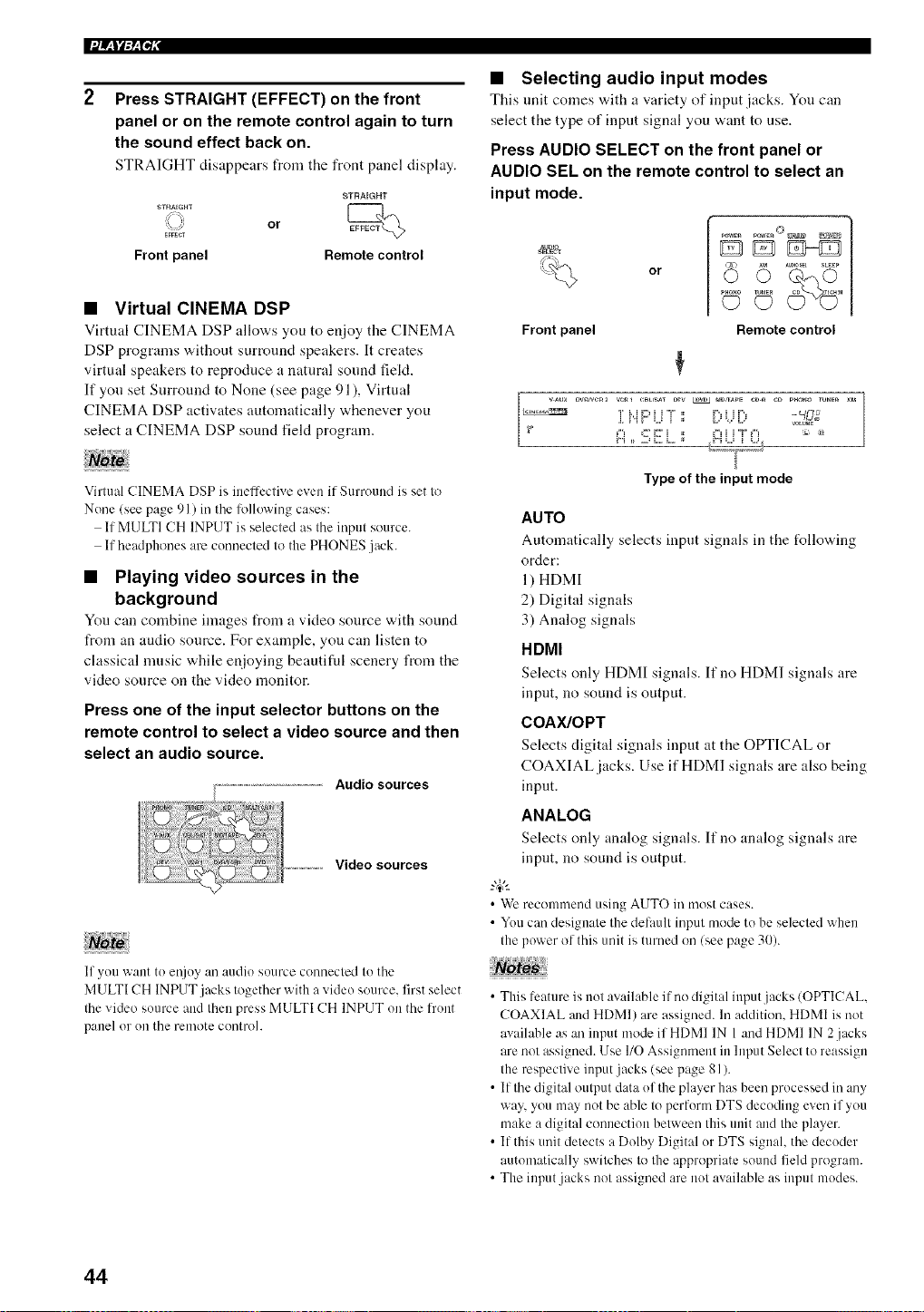
Press STRAIGHT (EFFECT) on the front
panel or on the remote control again to turn
the sound effect back on.
STRAIGHT disappears from tile front panel display.
STRAIGHT
STRAIGHT
:<%,
,b:S _ or
EFFEC_
Front panel Remote control
• Virtual CINEMA DSP
Virtual CINEMA DSP allows you to enjoy the CINEMA
DSP programs without surround speakers. It creates
virtual speakers to reproduce a natural sound fiekt.
If you set Surround to None (see page 91 ), Virtual
CINEMA DSP activates automatically whenever you
select a CINEMA DSP sound field program.
Virtual CINEMA DSP is ineffective even if Surround is set to
Nune (see page 91) in the R!llowing cases:
If MULTI CH INPUT is selected as the input source.
If headphones are cunnected to the PHONES jack.
• Playing video sources in the
background
You can combine images I_om a video source with sound
from an audio source. For example, you can listen to
classical nmsic while enjoying beautiful scenery from the
video source on the video monitor.
Press one of the input selector buttons on the
remote control to select a video source and then
select an audio source.
Audio sources
..................Video sources
If you want tu et!iuy an audio source connected to the
MULTI CH INPUT jacks together with a video source, first select
the video suurce and then press MULTI CH INPIJT on the lrunt
panel or uu the remote cuntroh
• Selecting audio input modes
This unit comes ,a,ith a variety of input jacks. You can
select the type of input signal you vvant to use.
Press AUDIO SELECT on the front panel or
AUDIO SEL on the remote control to select an
input mode.
............
or
PHOTO(_ _ _N
Front panel Remote control
DWNeR2 ve_ eBL_SAT DW _LRK_J_D_A_S eD-_ e_ PUO_O m_E_ ×_a
H =_::::,_:::.L. ;; H .J i ,.i _°_7__
Type of the input mode
AUTO
Automatically selects input signals in the I_llo'aJng
order:
1) HDMI
2) Digital signals
3) Analog signals
HDMI
Selects only HDMI signals. If no HDMI signals are
input, no sound is output.
COAX/OPT
Selects digital signals input at the OPTICAL or
COAXIAL jacks. Use if HDMI signals are also being
input.
ANALOG
Selects only analog signals. It" no analog signals are
input, no sound is output.
-#.
• We recommend using AUTO in most cases.
• You can designate the delimlt input mode to be selected when
the power of this unit is turned on (sue page 30).
• This leature is not available if no digital input.jacks (OPTICAL,
COAXIAL and HDMI) are assigned. In addition, HDMI is not
available as an input mode if HDMI IN l and HDMI IN 2 jacks
are not assigned. Use 110 Assigmnent in Input Select to reassign
the respective input jacks (see page 81).
• If the digital output data uf the player has been processed in any
way, you may not be able to perfurn_ DTS decoding even if you
make a digital connection between this unit and the player.
• If this unit detects a Dolby Digital ur DTS signal, the decuder
autonmtically switches to the appropriate sound field program.
• The input.jacks not assigned are not available as input mudes.
44
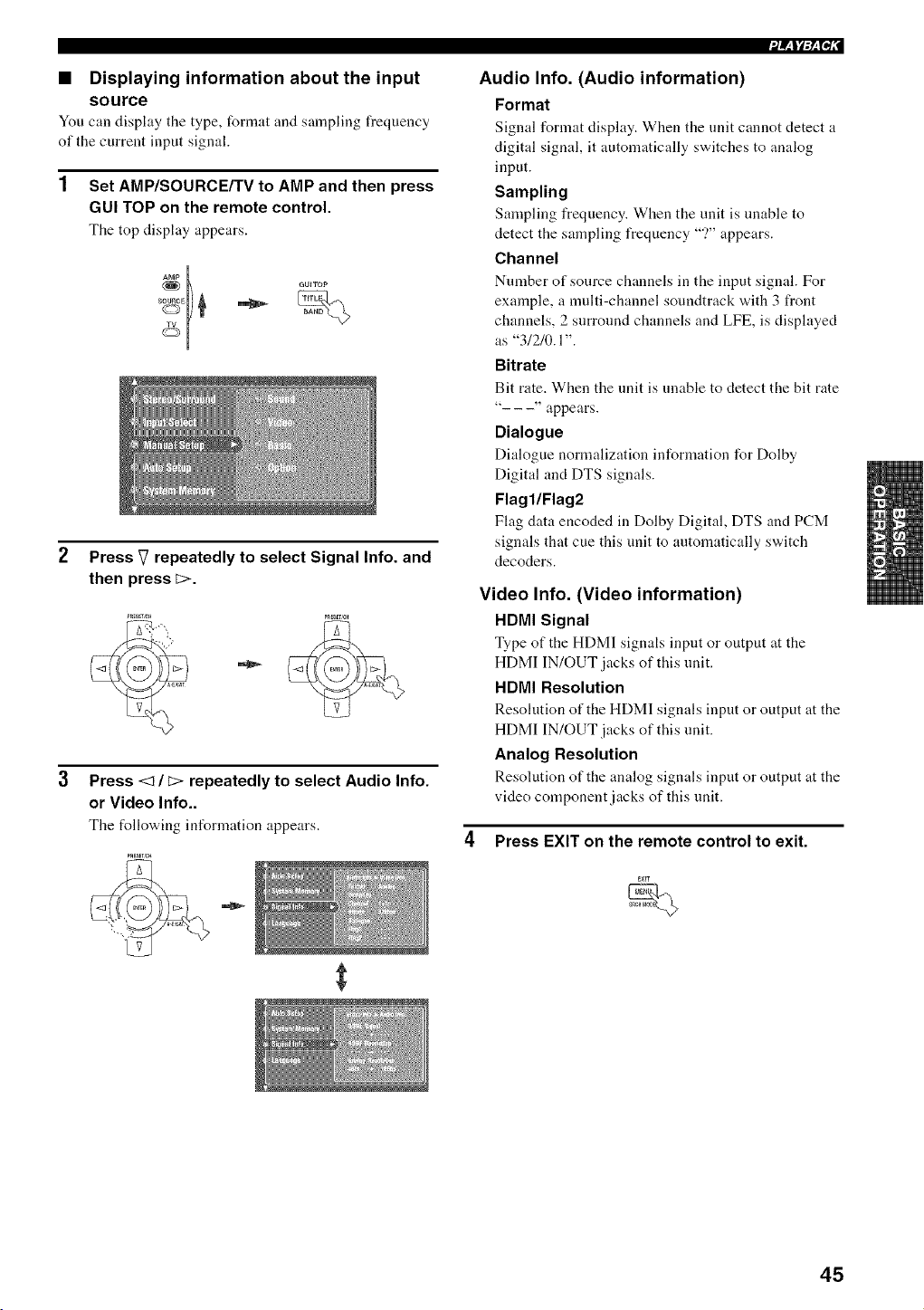
• Displaying information about the input
source
You can display the type, format and sampling frequency
of the current input signal.
1 Set AMP/SOURCE/TV to AMP and then press
GUI TOP on the remote control.
Tile top display appears.
_ GU_TOp
Press V repeatedly to select Signal Info. and
then press _>.
Press <1 / E> repeatedly to select Audio Info.
or Video Info..
Tile following information appears.
Audio Info. (Audio information)
Format
Signal format display. When the unit cannot detect a
digital signal, it automatically switches to analog
input.
Sampling
Sampling frequency. When the unit is unable to
detect the sampling frequency "?" appears.
Channel
Nnmber of source channels in the input signal. For
example, a multi-channel soundtrack with 3 front
channels, 2 surround channels and LFE, is displayed
as "3/2/0.1 ".
Bitrate
Bit rate. When the unit is unable to detect the bit rate
"---" appears.
Dialogue
Dialogue normalization information for Dolby
Digital and DTS signals.
Flagl/Flag2
Flag data encoded in Dolby Digital, DTS and PCM
signals that cue this unit to automatically swdtch
decoders.
Video Info. (Video information)
HDMI Signal
Type of the HDMI signals input or output at the
HDMI IN/OUT jacks of this unit.
HDMI Resolution
Resolution of the HDMI signals input or output at the
HDMI IN/OUT jacks of this unit.
Analog Resolution
Resolution of the analog signals input or output at the
video component jacks of this unit.
4 Press EXIT on the remote control to exit.
45
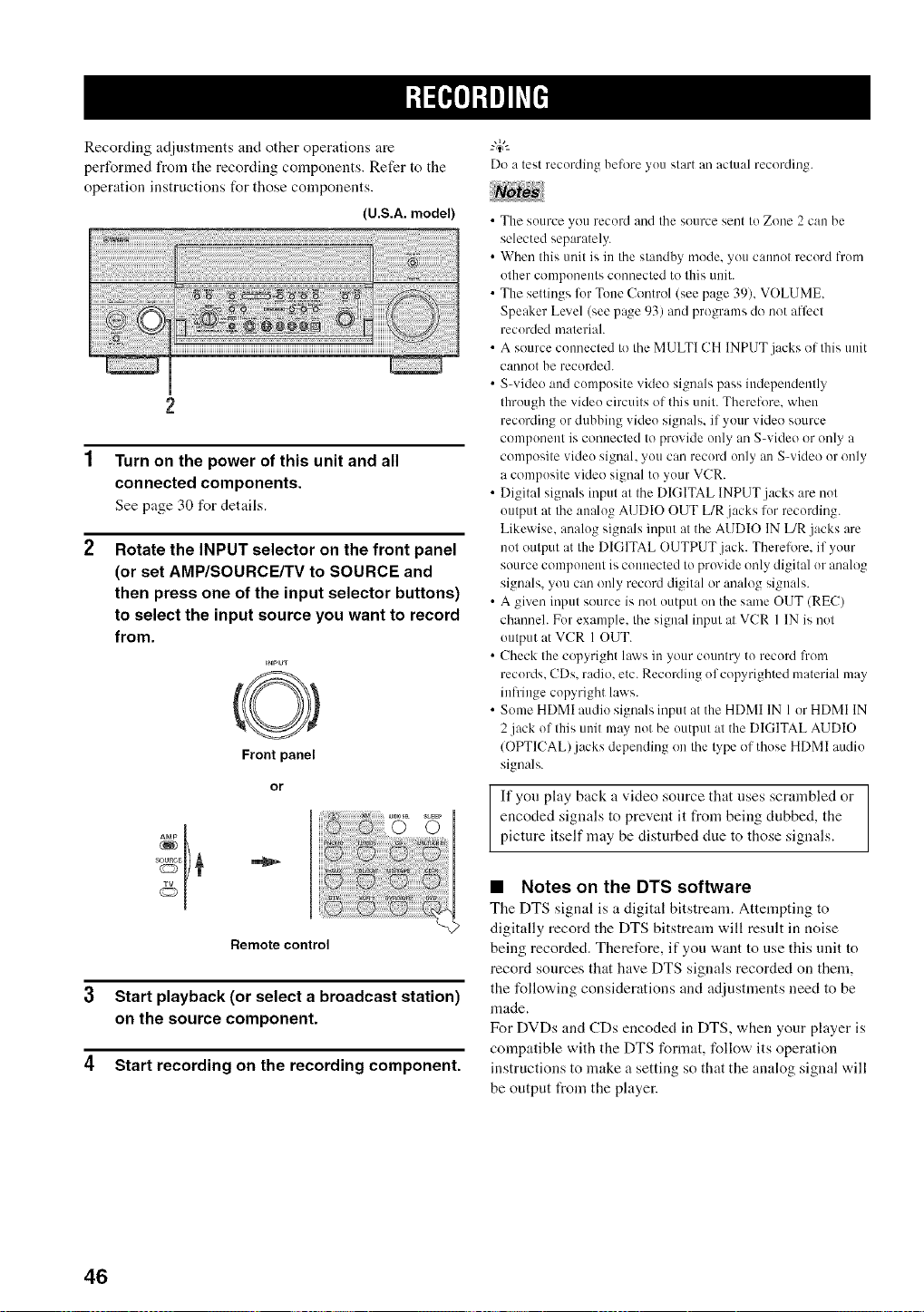
Recording adjustments and other operations are
performed from the recording components. Refer to the
operation instructions for those components.
(U.S.A. model)
Turn on the power of this unit and all
connected components.
See page 30 for details.
Rotate the INPUT selector on the front panel
(or set AMP/SOURCE/TV to SOURCE and
then press one of the input selector buttons)
to select the input source you want to record
from.
,NmJT
O
Front panel
or
-+
Remotecontrol
3 Start playback (or select a broadcast station)
on the source component.
4 Start recording on the recording component.
Do a test recurding before yuu start an actual recording.
• The suurce you recurd and the source sent to Zone 2 can be
selected separately.
• When this unit is in the standby mode, you cam/ot record frum
uther components connected to this unit.
• The settings fl+rTone Control (see page 39), VOLUME.
Speaker Level (see page 93) and programs do not affect
recurded materiah
• A source cuunected to the MULTI CH INPUT jacks of this unit
canuot be recorded.
• S-video and composite video signals pass independently
through the video circuits of this unit. Therelore. when
recording ur dubbing videu signals, if your video source
component is connected to provide unly an S-video or only a
composite videu signal, you can recurd unly an S-video or only
a compusite video signal to yuur VCR.
• Digital signals input at the DIGITAL INPUT jacks are nut
output at the analog AUDIO OUT L/R.jacks Ior recurding.
Likewise. analug signals input at the AUDIO IN L/R jacks are
not output at the DIGITAL OUTPUT.jack. Therelore. if your
source component is connected to pruvide only digital ur analog
signals, you can only record digital or analog signals.
• A given input source is not output un the same OUT (REC)
channeh Fur example, the signal input at VCR 1 IN is not
output at VCR 1OUT.
• Check the copyright laws in your country to record from
recurds. CDs. radio, etc. Reculzliug of copyrighted material may
iufl'iuge copyright laws+
• Some HDMI audio signals input at the HDMI IN 1or HDMI IN
2 jack of this unit may not be uutput at the DIGITAL AUDIO
(OPTICAL) jacks depending on the type of those HDMI audio
signals.
If you play back a video source that uses scrambled or
encoded signals to prevent it from being clubbed, the
picture itself may be disturbed due to those signals.
• Notes on the DTS software
The DTS signal is a digital bitstream. Attempting to
digitally record the DTS bitstream will result in noise
being recorded. Therefore, if you want to use this unit to
record sources that have DTS signals recorded on them,
the following considerations and adjustments need to be
made.
For DVDs and CDs encoded in DTS, when your player is
compatible with the DTS fommt, follow its operation
instructions to make a setting so that the analog signal will
be output t_om the player.
46
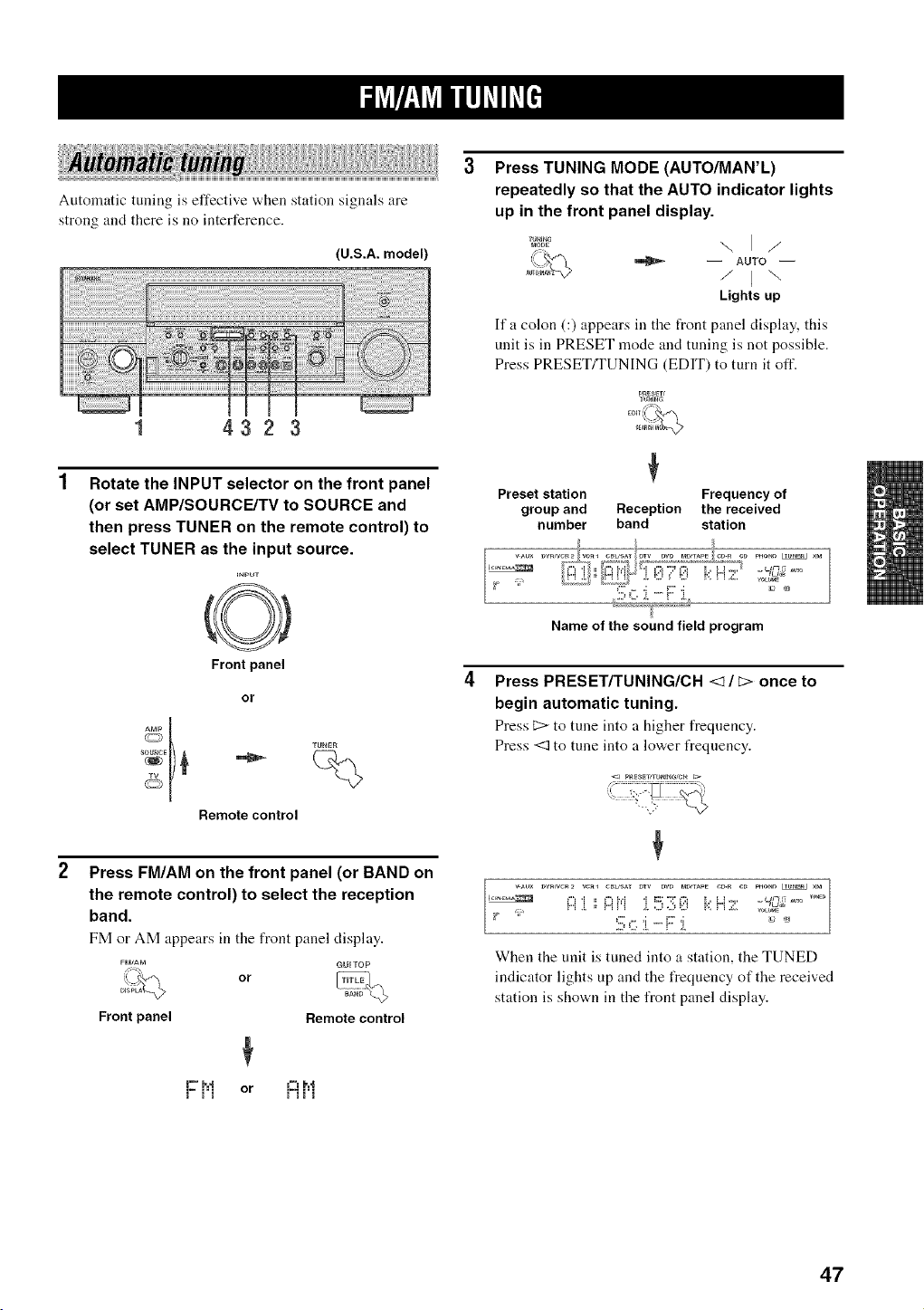
Automatic tuning is effective when station signals are
strong and there is no interference.
(U.S.A. model)
1 4323
Rotate the INPUT selector on the front panel
(or set AMP/SOURCE/TV to SOURCE and
then press TUNER on the remote control) to
select TUNER as the input source.
INPUT
Front panel
or
[ TUNER
Remote control
Press FM/AM on the front panel (or BAND on
the remote control) to select the reception
band.
FM or AM appears ill tile front panel display.
GUITOP
or
FMJAM
Dms_
Front panel
Remote control
or N i'i
Press TUNING MODE (AUTO/MAN'L)
repeatedly so that the AUTO indicator lights
up in the front panel display.
W_ "-,.. I /
[_" _ -- AUTO --
Lights up
Ifa colon (:) appears in the front panel display, this
unit is in PRESET mode and tuning is not possible.
Press PRESET/TUNING (EDIT) to turn it off.
PRESETJ
TUNE_G
Preset station Frequency of
group and Reception the received
number band station
wu× DWN_2 V¢_ ¢BL_SAT DTV DW r_D/TAPE ¢D-n C_ _O_ _ ×{_
" • =="'i-_i ":=':": =" ..... _02_°
Name of the sound field program
Press PRESET/TUNING/CH <1 / _> once to
begin automatic tuning.
Press _ to tune into a higher frequency.
Press <1 to tune into a lower frequency.
When the unit is tuned into a station, the TUNED
indicator lights up and the frequency of the received
station is shown in the front panel display.
47
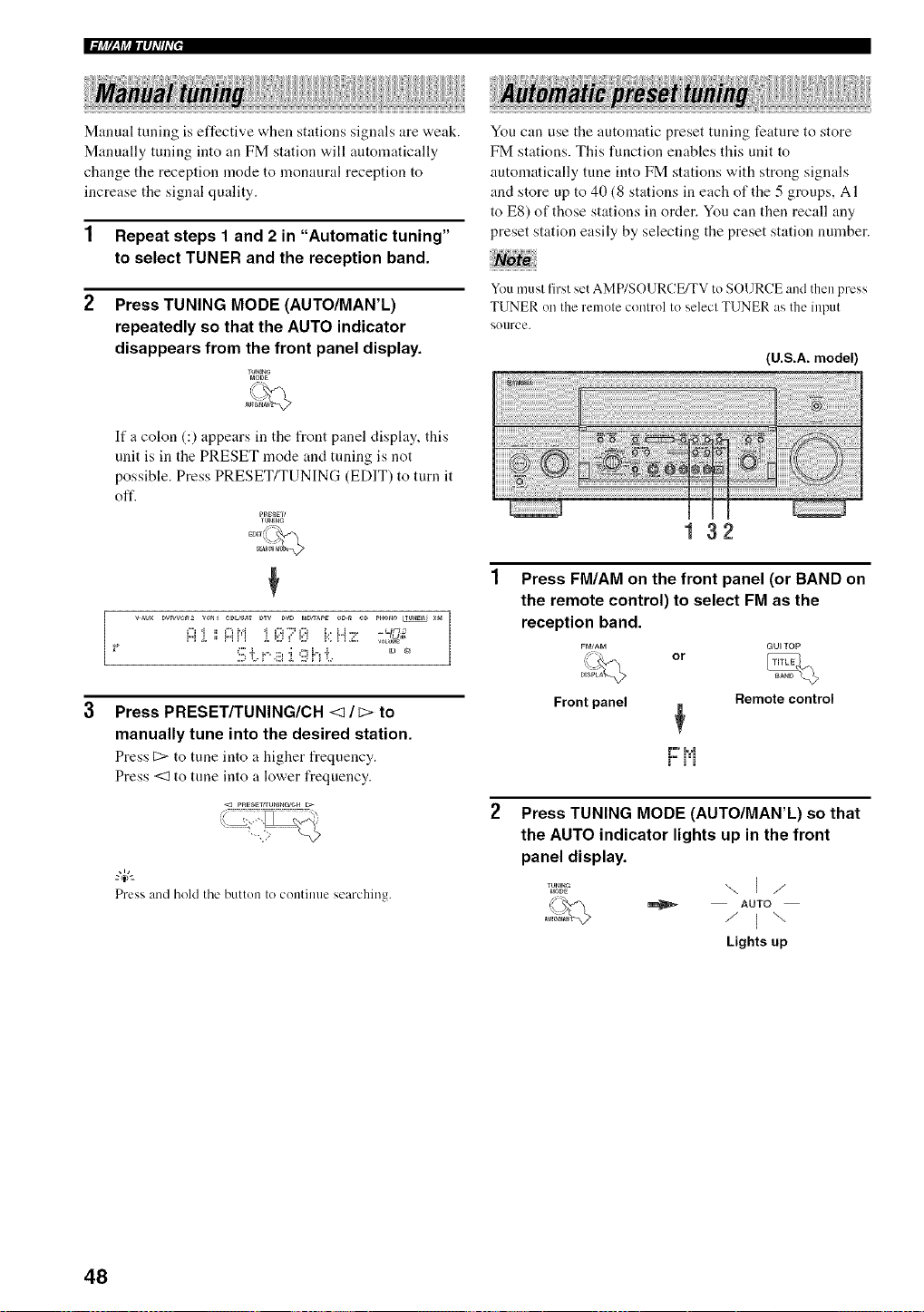
Manual tuning is effective when stations signals are weak.
Manually tuning into an FM station will automatically
change the reception mode to monaural reception to
increase the signal quality.
1 Repeat steps 1 and 2 in "Automatic tuning"
to select TUNER and the reception band.
2 Press TUNING MODE (AUTO/MAN'L)
repeatedly so that the AUTO indicator
disappears from the front panel display.
TU_I_G
P_ODE
Ifa colon (:) appears in the front panel display, this
unit is in the PRESET mode and tuning is not
possible. Press PRESET/TUNING (EDIT) to turn it
oft'.
P_ESETJ
VAU× DV_/VC_2 VCR_ CBL_AT DTV Pro P_D_APg CD._ eD PHONO _ ×f_
g::i:i.=,=,i:::ir=i:i. .::
VOL_,aE
Press PRESET/TUNING/CH <1 / c> to
manually tune into the desired station.
Press C> to tune into a higher frequency.
Press <1 to tune into a lower frequency.
;rw3;
Press and hold the button to contimle searching.
You can use the automatic preset tuning feature to store
FM stations. This function enables this unit to
automatically tune into FM stations with strong signals
and store up to 40 (8 stations in each of the 5 groups, AI
to ES) of those stations in order. You can then recall any
preset station easily by selecting the preset station number.
You musl first set AMP/SOURCE/TV to SOURCE and then press
TUNER on the remote control to select TUNER as the input
source.
132
(U.S.A. model)
Press FM/AM on the front panel (or BAND on
the remote control) to select FM as the
reception band.
GUI TOP
or
F_/AM
Front panel
Remote control
r-, h ,I
_°i'i
Press TUNING MODE (AUTO/MAN'L) so that
the AUTO indicator lights up in the front
panel display.
,_ _ AUTO
Lights up
48
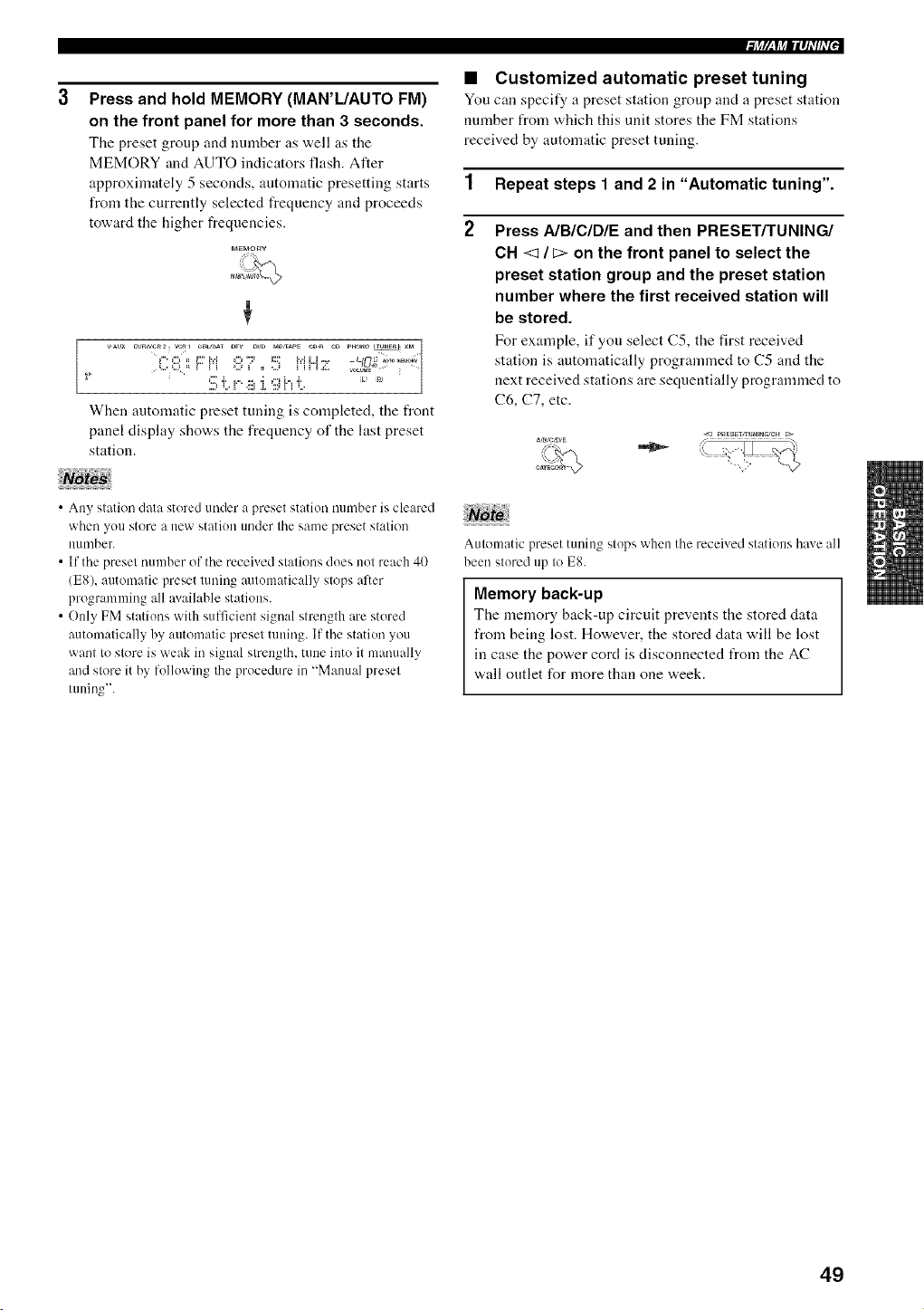
Press and hold MEMORY (MAN'L/AUTO FM)
on the front panel for more than 3 seconds.
Tile preset group and number as "a.ell as tile
MEMORY and AUTO indicators flash. Alter
approximately 5 seconds, automatic presetting starts
from the currently selected frequency and proceeds
toward the higher frequencies.
MgMO'ay
VAU× DWNC_2 VC_ CaLl.AT DTV DVD MO_APE e_-n eD PHONO _ ×Pa_
,., ::5;__' i'i ::5_" ,_:i? i'i !"iZ =c/c'_......
t
When automatic preset tuning is completed, the front
panel display shows the frequency of the last preset
station.
• Any station data stored under a preset station number is cleared
when you store a new station under the same preset station
number.
• If the preset number of the received stations does not reach 40
(E8), automatic preset tuning automatically stops alter
programming all axailable stations.
• Only FM stations with sufficient signal strength are stored
automatically by automatic preset tuning. If the station you
want to store is weak in signal strength, tune into it manually
and store it by following the procedure in "Manual preset
tuning".
• Customized automatic preset tuning
You can specify a preset station group and a preset station
number from which this unit stores the FM stations
received by automatic preset tuning.
1 Repeat steps 1 and 2 in "Automatic tuning".
2 Press A/B/C/D/E and then PRESET/TUNING/
CH <1 / C> on the front panel to select the
preset station group and the preset station
number where the first received station will
be stored.
For example, if you select C5, the first received
station is automatically programmed to C5 and the
next received stations are sequentially programmed to
C6, C7, etc.
Ara/C_O/E
Automatic preset tcmiug stops when the received stations have all
been stored up to E8.
Memory back-up
Tile memory back-up circuit prevents the stored data
from being lost. However, the stored data will be lost
in case the power cord is disconnected from the AC
wall outlet for more than one week.
49
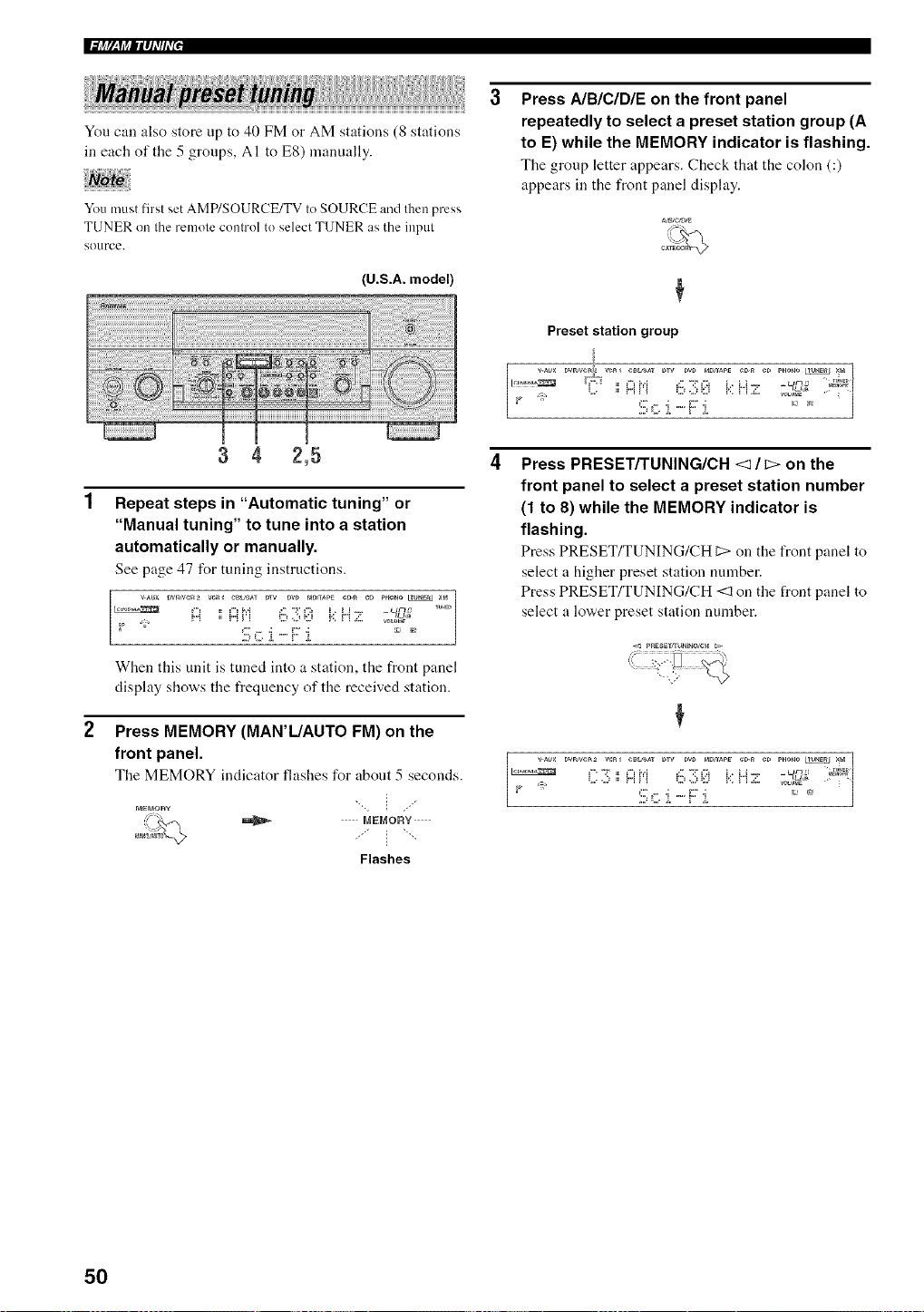
You can also store up to 40 FM or AM stations (8 stations
in each of the 5 groups, AI to E8) manually.
You must firsl set AMP/SOURCE/TV Io SOURCE and Ihen press
TUNER on Ihe remote conlrol to select TUNER as the inpul
SOtlrce.
(U.S.A. model)
3 4 2,5
1 Repeat steps in "Automatic tuning" or
"Manual tuning" to tune into a station
automatically or manually.
See page 47 for tuning instructions.
::i ....................... - 2 ......
,_:;,ii=i !:::,.3i::? i.:,r'!.,::.
When this unit is tuned into a station, the front panel
display shows the frequency of the received station.
2 Press MEMORY (MAR'L/AUTO FM) on the
front panel.
The MEMORY indicator flashes for abont 5 seconds.
MEMORY
(,_" _ MEMORY --
Flashes
Press AIBICID/E on the front panel
repeatedly to select a preset station group (A
to E) while the MEMORY indicator is flashing.
The group letter appears. Check that the colon (:)
appears in the front panel display.
Preset station group
J
PHONOt_UN_ / ;{M
L. ;;i..,ii=i !:::,..::,_::i K H Z c,_ !,_,,o_
5 c i - F :i. _°7 0
Press PRESET/TUNING/CH <1 / _> on the
front panel to select a preset station number
(1 to 8) while the MEMORY indicator is
flashing.
Press PRESET/TUNING/CH D>on the front panel to
select a higher preset station number.
Press PRESET/TUNING/CH <1 on the front panel to
select a lower preset station number.
uw/ve_2 vc_ C_L_SAT DTV DW r_U_AP_ e_ ¢D PHONO_ _M
,....::,;;:>ii=i b .,::,i::? K !"iZ
50
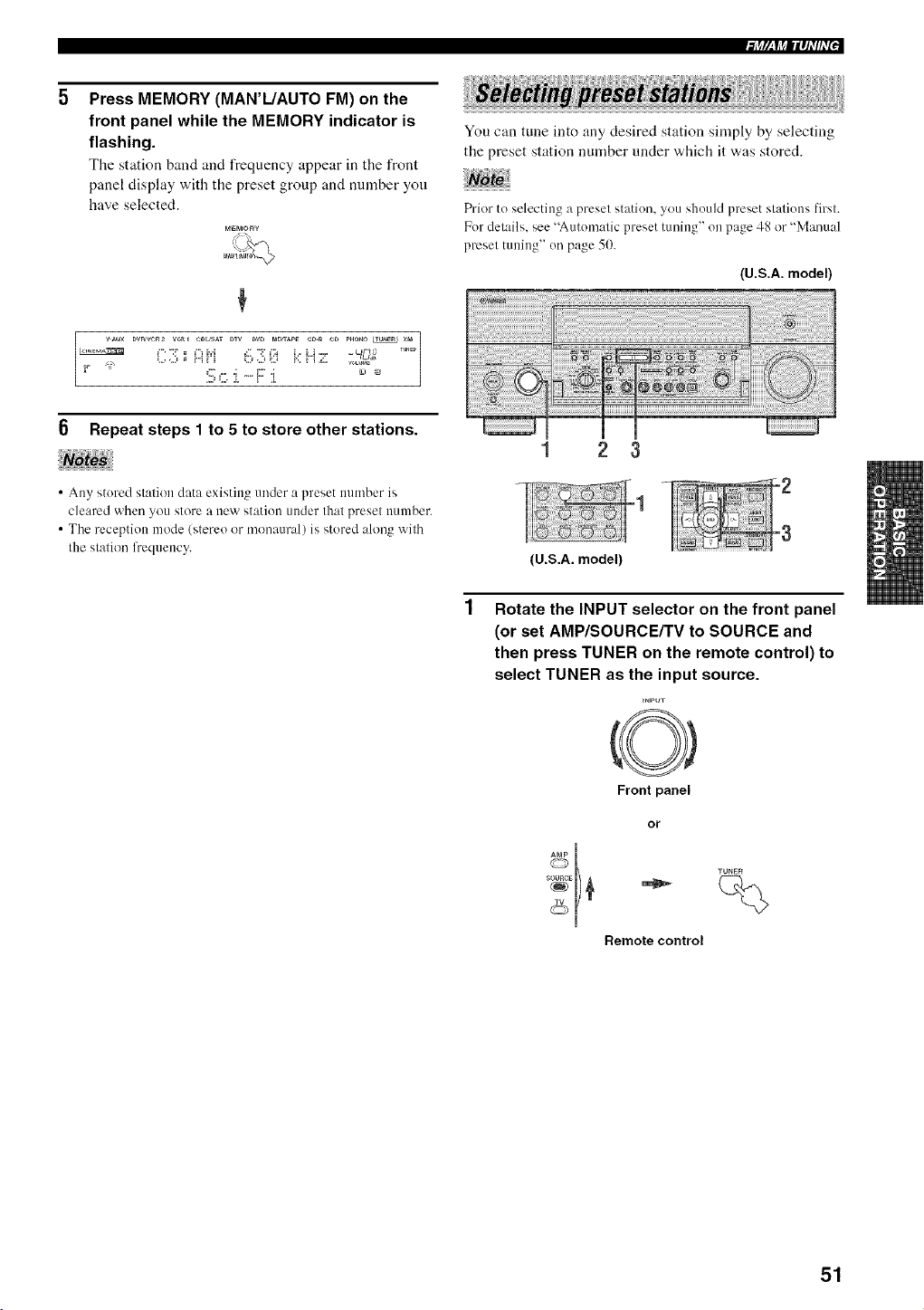
Press MEMORY (MAN'L/AUTO FM) on the
front panel while the MEMORY indicator is
flashing.
The station band and frequency appear in tile front
panel display with the preset group and number you
have selected.
M_Mor_¥
+
DwJvc_2 wa_ C_L_AT DTV DVD P_O_APE eO-_ CD P_O_O _ XM]
x,
/
0 Repeat steps 1 to 5 to store other stations.
• Any stored station data existing under a preset number is
cleared when you store a new station under that preset number.
• The reception mode (stereo or monaural) is stored ahmg with
the station frequency.
i++V+f+tllqi'/li'P
You can tune into any desired station simply by selecting
the preset station number under which it was stored.
Prior to selecting a preset station, you should preset stations first.
For details, see "Auton'mlic preset ttming" on page 48 or "Manual
preset ttming" on page 50.
(U.S.A. model)
1 2 3
(U.S.A. model)
Rotate the INPUT selector on the front panel
(or set AMP/SOURCE/TV to SOURCE and
then press TUNER on the remote control) to
select TUNER as the input source.
=NmJ-r
Front panel
or
Remote control
51
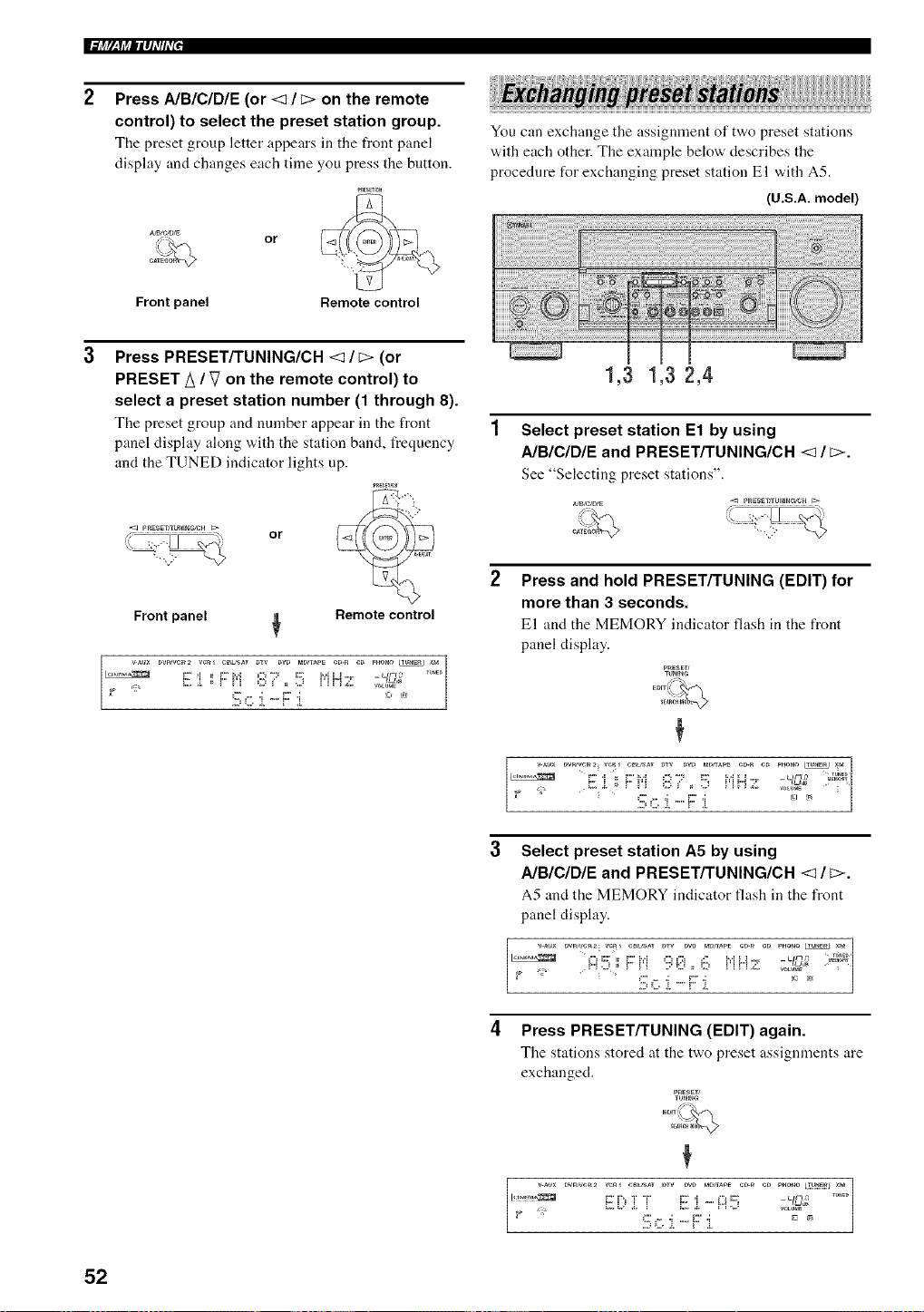
Press A/B/C/DIE (or <1 / _> on the remote
control) to select the preset station group.
The preset group letter appears in tile front panel
display and changes each time you press the button.
/>_, or
Front panel Remote control
You can exchange the assignment of two preset stations
with each other. The example below describes the
procedure for exchanging preset station El with A5.
(U.S.A. model)
Front panel
Press PRESET/TUNING/CH <1 / c> (or
PRESET A / V on the remote control) to
select a preset station number (1 through 8).
The preset group and number appear in the front 1
panel display along with the station band, frequency
and the TUNED indicator lights up.
or j:i; Z
Remote control
wu× DV_VC_2 V_R_ C_USAT DTV DW mD/TAPE eD-_ eD P_OnO _ ×M
[_ F i ::F:i=i :i:::7 !:::; i=iH:i: :%_ ......
/
Sc :L--F::L _..... j
1,3 1,3 2,4
Select preset station E1 by using
A/B/C/DIE and PRESET/TUNING/CH <1 / E>.
See "Selecting preset stations".
¢VNC/D/E
CATI_
Press and hold PRESET/TUNING (EDIT) for
more than 3 seconds.
El and the MEMORY indicator flash in the front
panel display.
P_ESET/
tUN_n_
DW/VC_2 VC_ C_L_SAT _W _VD mD_AP_ e_-_ C_
...... .................... cJmr td.a_
_ o_ _:""i i=,b' ["i i:":," .. :"_ [g !"i "7: _°_i'_?_ :
3 Select preset station A5 by using
A/B/C/DIE and PRESET/TUNING/CH <1 / _>.
A5 and the MEMORY indicator t]ash in the front
panel display.
" "' ......................... '4_'d'; _'_'_i
H :::?; _"i=i ":::_E:i. _::, i=iM Z _o_
2, L,, 2 "" !" ,i,
4 Press PRESET/TUNING (EDIT) again.
The stations stored at the two preset assignments are
exchanged.
E i!!!! iliiil5 .....
_ |
52
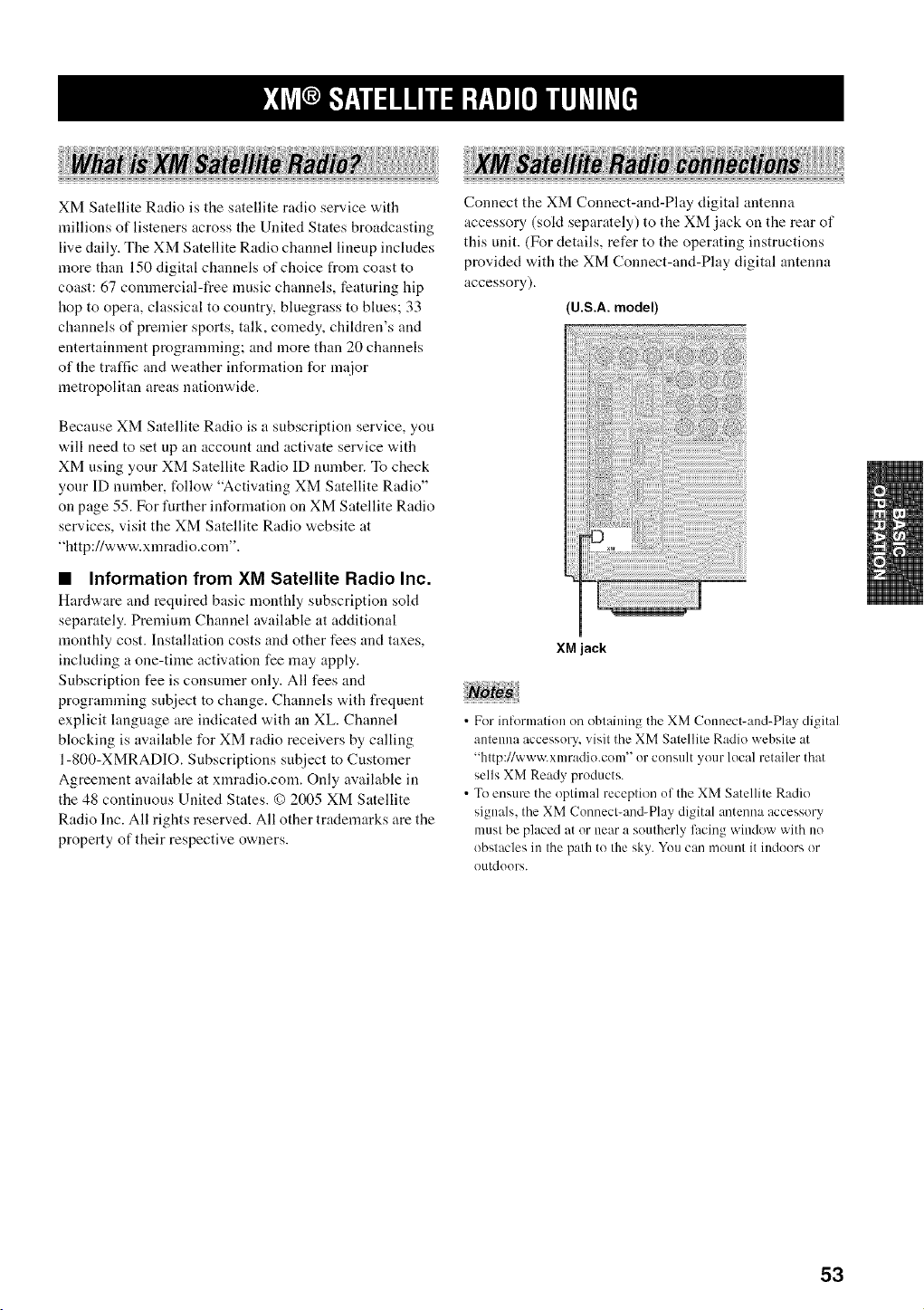
ii!iiiilWh_ii_iiiiiiiii_i_i__i!_!J_iiiYi/iii_iii _ii_}iil_i!ii_i!!J_i;;_ii_i_i,ii!_!_,_iiii;iiliiii?iii__i_i!__ iii_;_;ii_ii/_iil;_;_;ii!i_i_i_Jiiii¸iiiii/i_¸_iiiiiiii_iiiiii,iii!/iiiii_}i_i_i_i_i_i_ilii_i_ii_oiiiii iiii _!ii_i_!_,iii_
XM Satellite Radio is the satellite radio service with
millions of listeners across the United States broadcasting
live daily. The XM Satellite Radio channel lineup includes
more than 150 digital channels of choice from coast to
coast: 67 commercial-free music channels, featuring hip
hop to opera, classical to country, bluegrass to blues; 33
channels of premier sports, talk, comedy, chiktren's and
entertainment programming; and more than 20 channels
of the traffic and weather information for major
metropolitan areas nationwide.
Connect the XM Connect-and-Play digital antenna
accessory (sokt separately) to the XM jack on the rear of
this unit. (For details, refer to the operating instructions
provided with the XM Connect-and-Play digital antenna
accessory).
(U.S.A. model)
Because XM Satellite Radio is a subscription service, you
will need to set up an account al:ld activate service with
XM using your XM Satellite Radio ID number. To check
your ID number, follow "Activating XM Satellite Radio"
on page 55. For further information on XM Satellite Radio
services, visit the XM Satellite Radio website at
"http://www.xmradio.com".
• Information from XM Satellite Radio Inc.
Hardware and required basic monthly subscription sold
separately. Premium Channel available at additional
monthly cost. Installation costs and other fees and taxes,
inclnding a one-time activation fee may apply.
Subscription fee is consumer only. All fees and
programming snbject to change. Channels with frequent
explicit language are indicated with an XL. Channel
blocking is available for XM radio receivers by calling
1-800-XMRADIO. Subscriptions subject to Customer
Agreement available at xmradio.com. Only available in
the 48 continnous United States. {) 2005 XM Satellite
Radio Inc. All rights reserved. All other trademarks are the
property of their respective owners.
XM jack
• For information on obtaining the XM Connect-and-Play digital
antenna accessory, visit the XM Satellite Radio website at
"http://www.xmradio.com" or consult your local retailer that
sells XM Ready products.
• To ensure the optimal reception of the XM Satellite Radio
signals, the XM Connect-and-Play digital antenna accessory
must be placed at or near a southerly l?_cing window with no
obst:_cles in the path to the sky. You can mount it indoors or
outdoors.
53
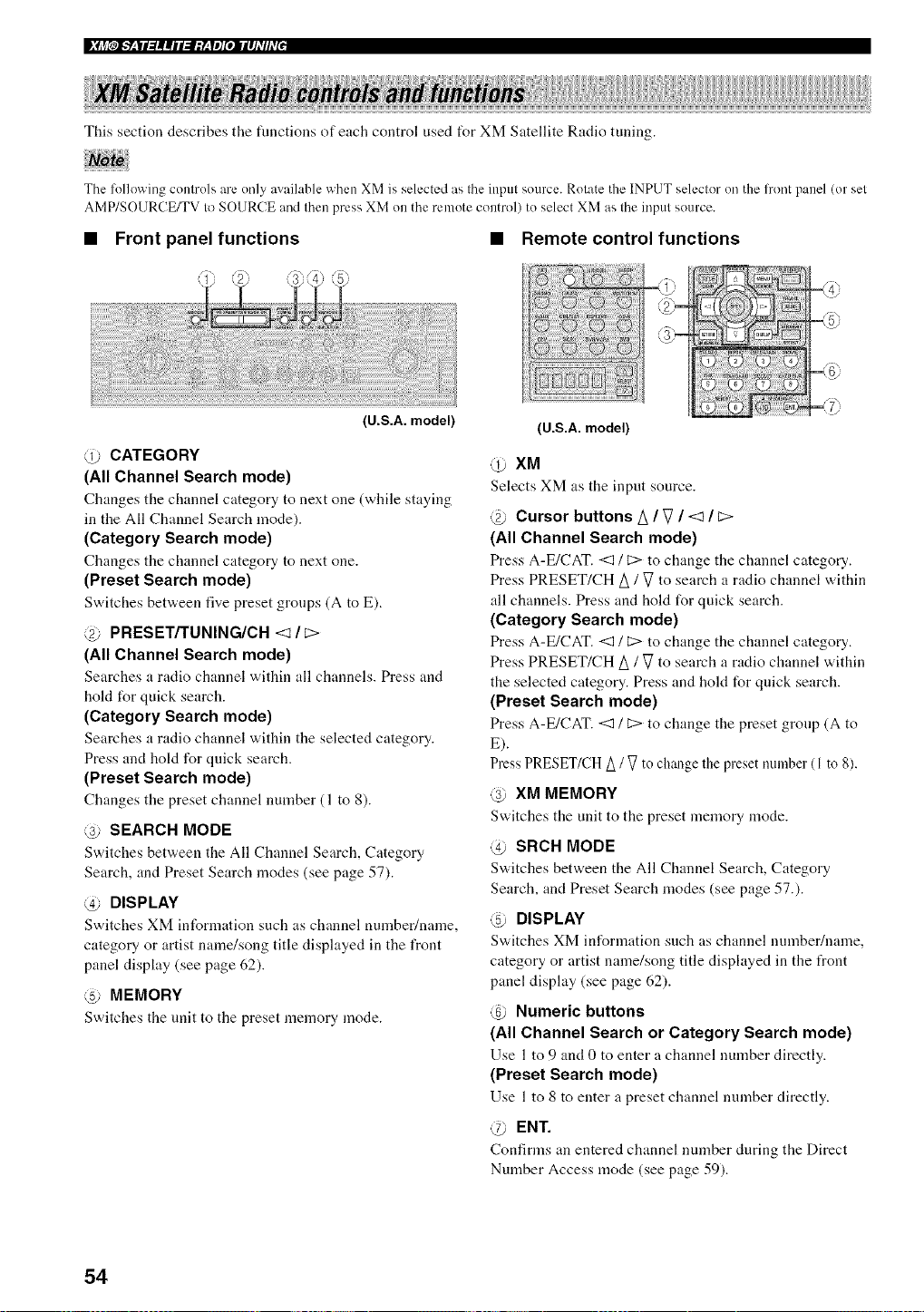
This section describes the fimctions of each control used tUr XM Satellite Radio tuning.
The following controls are only available when XM is selected as the input source. Rotate the INPUT selector on the l?ont panel (or set
AMP/SOURCE/TV to SOURCE and then press XM on the remote control) to select XM as the input source.
• Front panel functions
(U.S.A. model}
@ CATEGORY
(All Channel Search mode)
Changes the channel category to next one (while staying
in the All Channel Search mode).
(Category Search mode)
Changes the chaunel category to next one.
(Preset Search mode)
Switches bet'a,een five preset groups (A to E).
@ PRESET/TUNING/CH <? / E>
(All Channel Search mode)
Searches a radio channel within all channels. Press and
hold l_r quick search.
(Category Search mode)
Searches a radio channel within tile selected category.
Press and hold for quick search.
(Preset Search mode)
Changes tile preset chanuel number (1 to 8).
@ SEARCH MODE
Switches bet'a,een the All Channel Search, Category
Search, and Preset Search modes (see page 57).
@ DISPLAY
Switches XM informatiou such as channel number/name,
category or artist name/song title displayed in the front
panel display (see page 62).
@ MEMORY
Switches tile unit to the preset memory mode.
Remote control functions
ili!i; ......iiii ill
%
@
..................................................................>;: _6;,
(U.S.A. model}
@ XM
Selects XM as the input source.
Cursor buttons A / V / <1 / C>
(All Channel Search mode)
Press A-E/CAT. <1 / C:>to change tile channel category.
Press PRESET/CH A / V to search a radio channel within
all channels. Press and hold for quick search.
(Category Search mode)
Press A-E/CAT. <1 / C:>to change tile channel category.
Press PRESET/CH A / V to search a radio channel within
the selected category. Press and hold for quick search.
(Preset Search mode)
Press A-E/CAT. <1 / C:>to change the preset group (A to
E).
Press PRESET/CH A / V to ch_mgethe preset number (1 to 8).
@ XM MEMORY
Switches the unit to the preset memory mode.
@ SRCH MODE
S'a,itches between the All Chaunel Search, Category
Search, and Preset Search modes (see page 57.).
@ DISPLAY
Switches XM informatiou such as chanuel nunlber/name,
category or artist name/song title displayed in the front
panel display (see page 62).
@ Numeric buttons
(All Channel Search or Category Search mode)
Use 1 to 9 and 0 to enter a channel number directly.
(Preset Search mode)
Use 1 to 8 to enter a preset chanuel number directly.
@ ENT.
Confirms an entered channel number during the Direct
Number Access mode (see page 59).
54
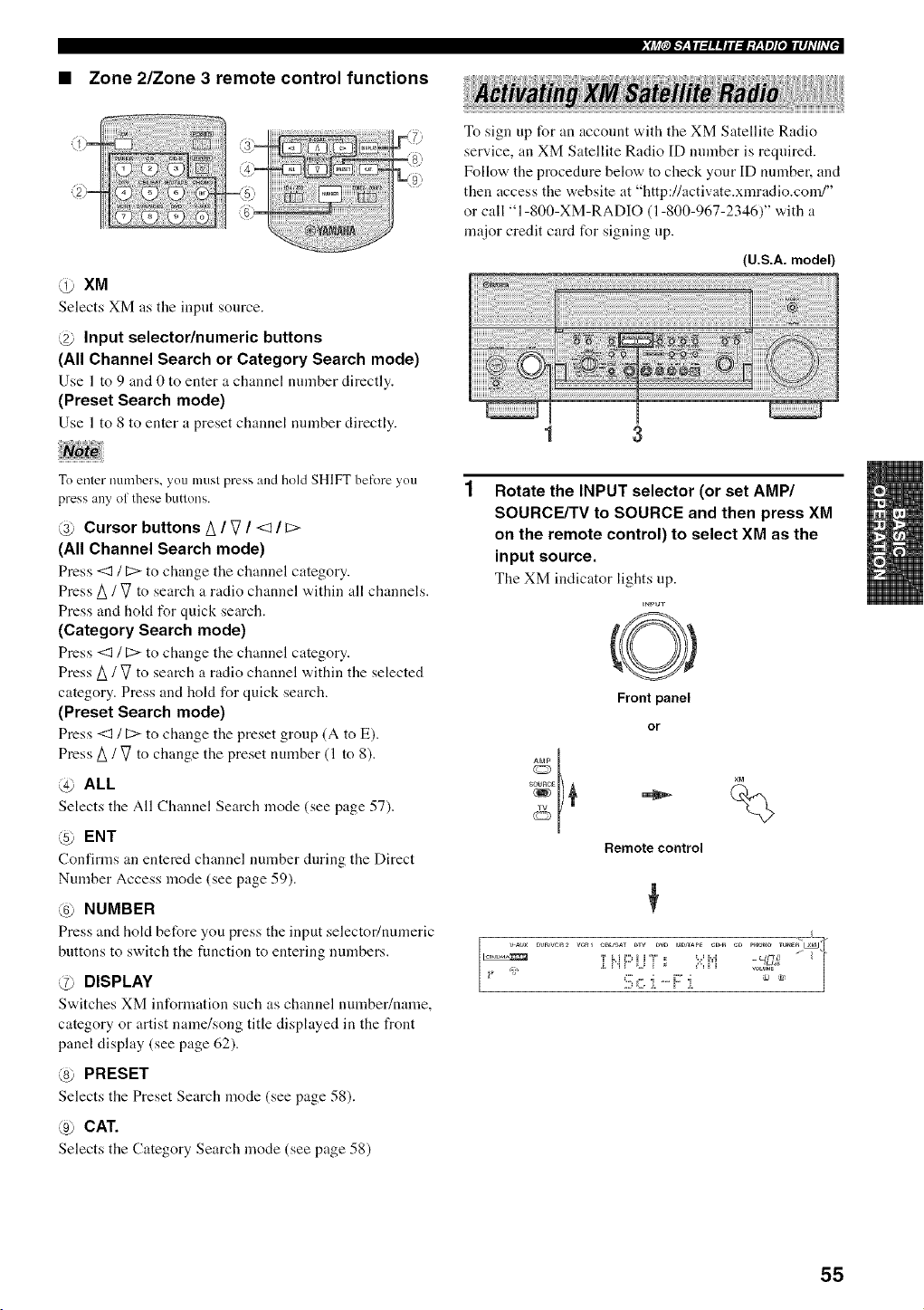
• Zone 2/Zone 3 remote control functions
@ XM
Selects XM as tile inpnt source.
@ Input selector/numeric buttons
(All Channel Search or Category Search mode)
Use 1 to 9 and 0 to enter a channel mnnber directly.
(Preset Search mode)
Use 1 to 8 to enter a preset channel number directly.
To enter immbers, you must press and hold SHIFT befi)re you
press any of these buttons.
@ Cursor buttons A / V / <1 / C>
(All Channel Search mode)
Press <1 / C> to change the channel category.
Press/_ / V to search a radio channel within all channels.
Press and hold for quick search.
(Category Search mode)
Press <1 / C> to change the channel category.
Press/_ / V to search a radio channel within the selected
category. Press and hokt for quick search.
(Preset Search mode)
Press <1 / C> to change the preset gronp (A to E).
Press/_ / V to change the preset number (1 to 8).
@ ALL
Selects the All Channel Search mode (see page 57).
ENT
Confirms an entered channel number during the Direct
Number Access mode (see page 59).
@ NUMBER
Press "andhold before you press the input selector/numeric
buttons to switch the function to entering numbers.
@ DISPLAY
Switches XM information snch as channel number/name,
category or artist name/song title displayed in the front
panel display (see page 62).
@ PRESET
Selects the Preset Search mode (see page 58).
@ CAT.
Selects the Category Search mode (see page 58)
To sign up for an acconnt with the XM Satellite Radio
service, an XM Satellite Radio ID number is required.
Follow the procedure below to check your ID number, and
then access the website at "http://activate.xmradio.com/"
or call "1-800-XM-RADIO (1-800-967-2346)" with a
major credit card for signing up.
(U.S.A. model)
1 3
Rotate the INPUT selector (or set AMP/
SOURCE/TV to SOURCE and then press XM
on the remote control) to select XM as the
input source.
The XM indicator lights up.
=Npm-
Front panel
or
Remote control
Dv_Jvc_2 veRl e_L_SAT DTV m_D PaD_APE eD-_ eD P_O_O TU_E_ "
;b ii. i °" !" Z |
55
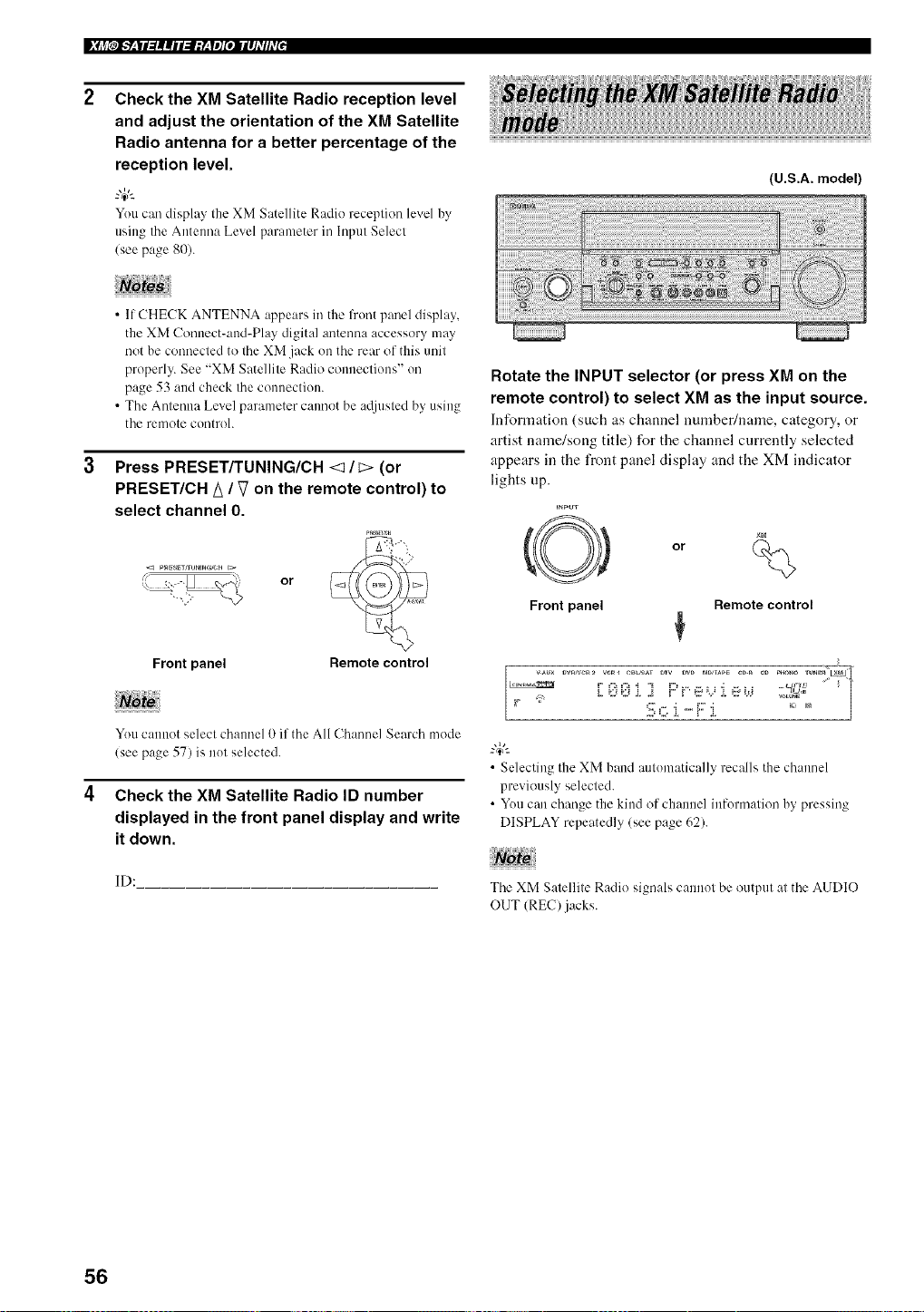
|[_i_[OJ__,JI:I||iI:I;y_,yl][OIIIIJ_TIhT[J
Check the XM Satellite Radio reception level
and adjust the orientation of the XM Satellite
Radio antenna for a better percentage of the
reception level.
"4€'-
Youc:m disphL_ the XM Satellite Radio reception lexel hy
using the Antenna Level parameter in Input Select
(see page 80).
(U.S.A. model)
• If CHECK ANTENNA appears in the front panel display,
the XM Connect-and-Play digital antenna accessory may
not be connected to the XM jack on the rear of this unit
properly. See "XM Satellite Radio connections" on
page 53 and check the connection.
• The Antenna Level parameter cannot be a@lsted by using
the remote controh
Press PRESET/TUNING/CH <1 / c> (or
PRESET/CH A / V on the remote control) to
select channel O.
or
Remote control
Front panel
You cannot select channel 0 if the All Channel Search mode
(see page 57) is not selected.
Check the XM Satellite Radio ID number
displayed in the front panel display and write
it down.
ID:
Rotate the INPUT selector (or press XM on the
remote control) to select XM as the input source.
Information (such its channel number/name, category, or
artist name/song title) for the channel currently selected
appears in the front panel display and the XM indicator
lights up.
=NPUT
Front panel Remote control
• Selecting the XM band automatically recalls the channel
previously selected.
• You can change the kind of channel inlormation by pressing
DISPLAY repeatedly (see page 62).
The XM Satellite Radio signals cannot be output at the AUDIO
OUT (REC) jacks.
56
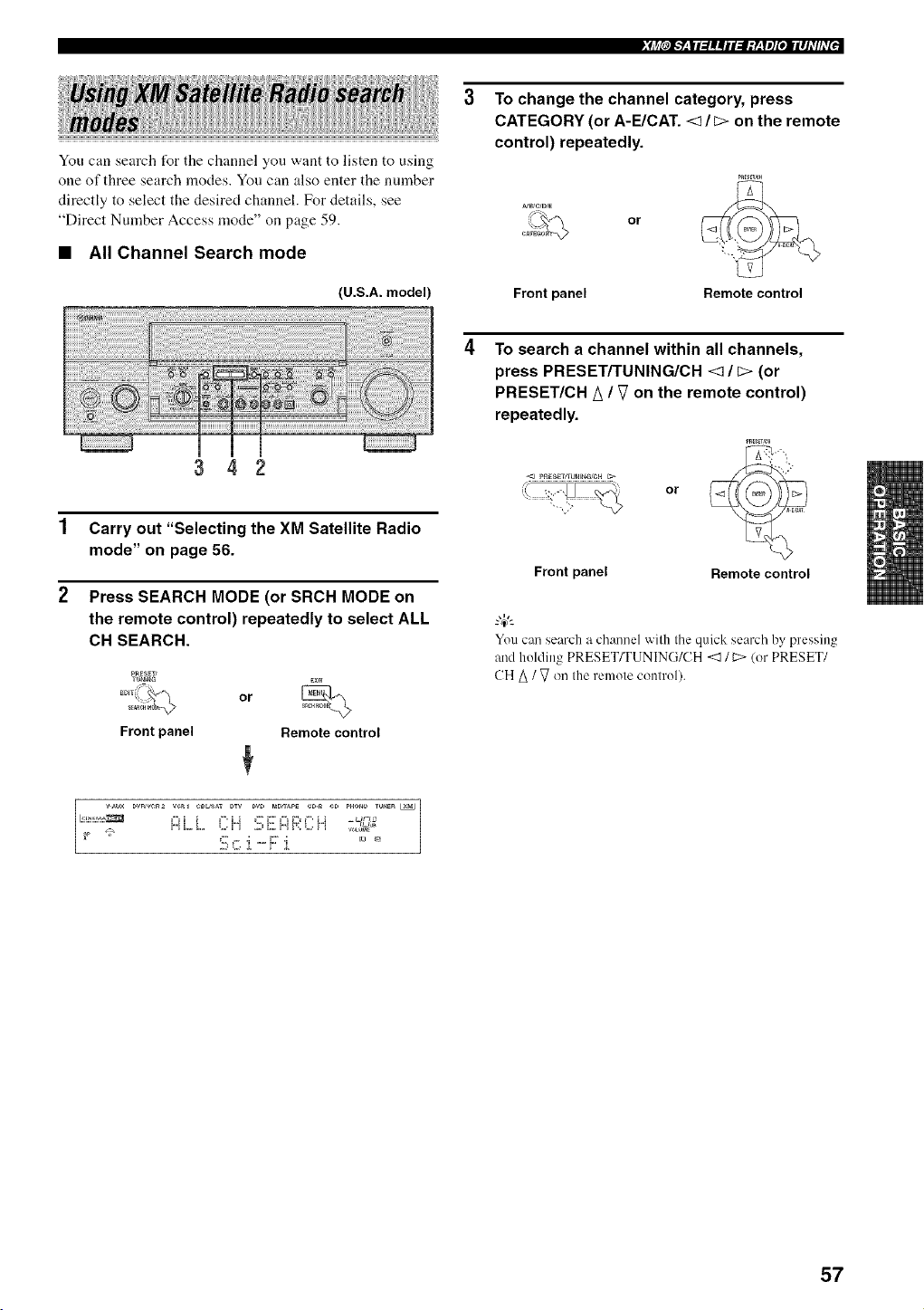
You can search t_r the channel you want to listen to using
one of three search modes. You can also enter the nmnber
directly to select the desired channel. For details, see
"Direct Number Access mode" on page 59.
• All Channel Search mode
(U.S.A. model)
To change the channel category, press
CATEGORY (or A-E/CAT. <1/c> on the remote
control) repeatedly.
\._ orCAT_
Front panel Remote control
3 4 2
1 Carry out "Selecting the XM Satellite Radio
mode" on page 56.
2 Press SEARCH MODE (or SRCH MODE on
the remote control) repeatedly to select ALL
CH SEARCH.
P_ESET_
TU_E_G
Front panel
or
Remote control
r................ FiLL CH !ii;E:i::iFi:C!,..i;%_'
To search a channel within all channels,
press PRESET/TUNING/CH <:1/ c> (or
PRESET/CH A / V on the remote control)
repeatedly.
Front panel
or
Remote control
You can search a channel with the quick search by pressing
and holding PRESET/TUNING/CH <1 / C> (or PRESET/
CH _ / _ on the remote control).
57
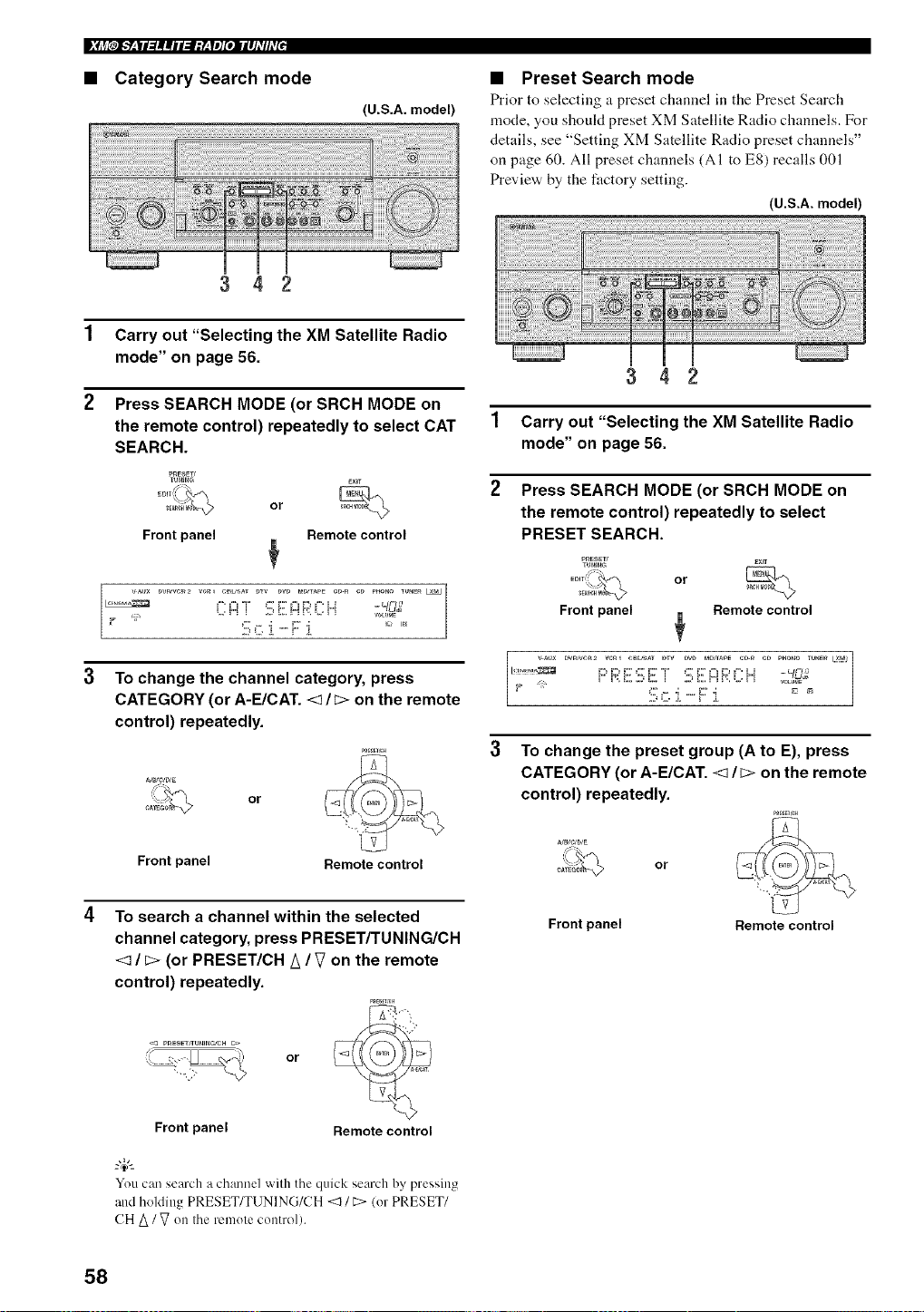
• Category Search mode
(U.S.A. model)
• Preset Search mode
Prior to selecting a preset channel in tile Preset Search
mode, you shoukt preset XM Satellite Radio channels. For
details, see "Setting XM Satellite Radio preset channels"
on page 60. All preset channels (AI to E8) recalls 001
Preview by the factory setting.
(U.S.A. model)
3 4 2
1 Carry out "Selecting the XM Satellite Radio
mode" on page 56.
2 Press SEARCH MODE (or SRCH MODE on
the remote control) repeatedly to select CAT
SEARCH.
PnESEW
m_lUG
Er_r_
%
_E_ or
Front panel Remote control
,M, F:i:iT SFgi;;?(:H _oL,,._-_'92
Sc :[-F:: :[ '.....
To change the channel category, press
CATEGORY (or A-E/CAT. <1 It:> on the remote
control) repeatedly.
N_C/D/E
or
Front panel Remote control
To search a channel within the selected
channel category, press PRESET/TUNING/CH
<1 / c> (or PRESET/CH _ / V on the remote
control) repeatedly.
or@ 'Q
Front panel Remote control
You can search a channel with the quick search by pressing
and holding PRESET/TUNING/CH <1 / C>(or PRESET/
CH _ / V on the remotecontrol).
3 4 2
1 Carry out "Selecting the XM Satellite Radio
mode" on page 56.
2 Press SEARCH MODE (or SRCH MODE on
the remote control) repeatedly to select
PRESET SEARCH.
P_ESET/
TU_I_G
_o_{_._ or
Front panel Remote control
7
/
3 To change the preset group (A to E), press
CATEGORY (or A-E/CAT. <1/_> on the remote
control) repeatedly.
or
Front panel Remote control
58
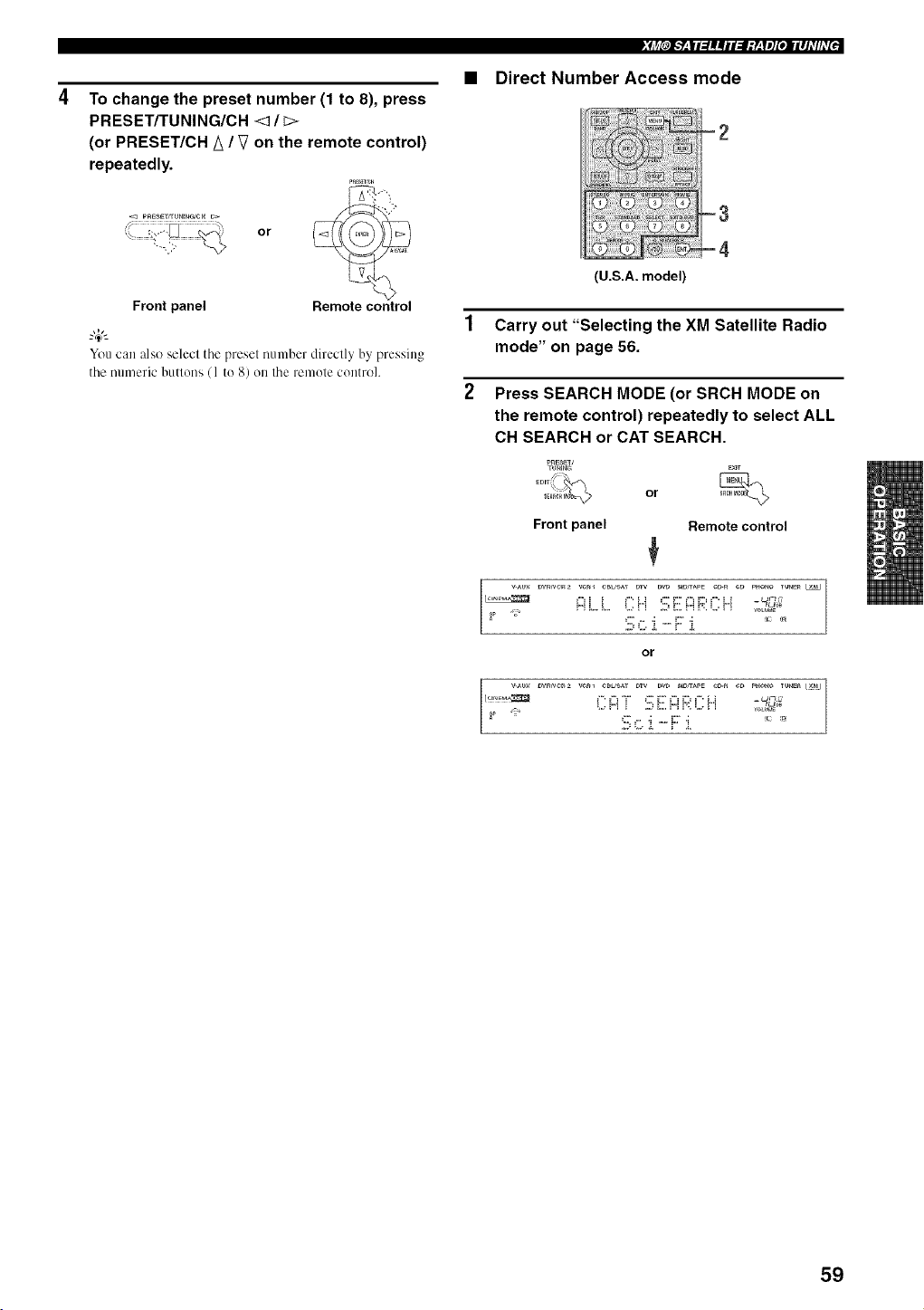
To change the preset number (1 to 8), press
PRESET/TUNING/CH <_ / _>
(or PRESET/CH A / V on the remote control)
repeatedly.
Pn_tT;_H
Remote control
Front panel
_.,#;
You can also select the preset number directly by pressing
the numeric billions ( 1 to 8) on Ihe remote control.
_j_[oJ___|I:/II|iI:I:y__[I]gOIIII]tTI!tT[J
• Direct Number Access mode
(U.S.A. model)
1 Carry out "Selecting the XM Satellite Radio
mode" on page 56.
2 Press SEARCH MODE (or SRCH MODE on
the remote control) repeatedly to select ALL
CH SEARCH or CAT SEARCH.
P_ESEW
TU_I_G
Front panel
or
Remote control
b,{:__, ilH _'_,i"b,iF,:=i!"{ _7
_ " 5 c :[ - F:::[ _°7__'
or
C i:::i 5 E i::iR :::!, .......
59
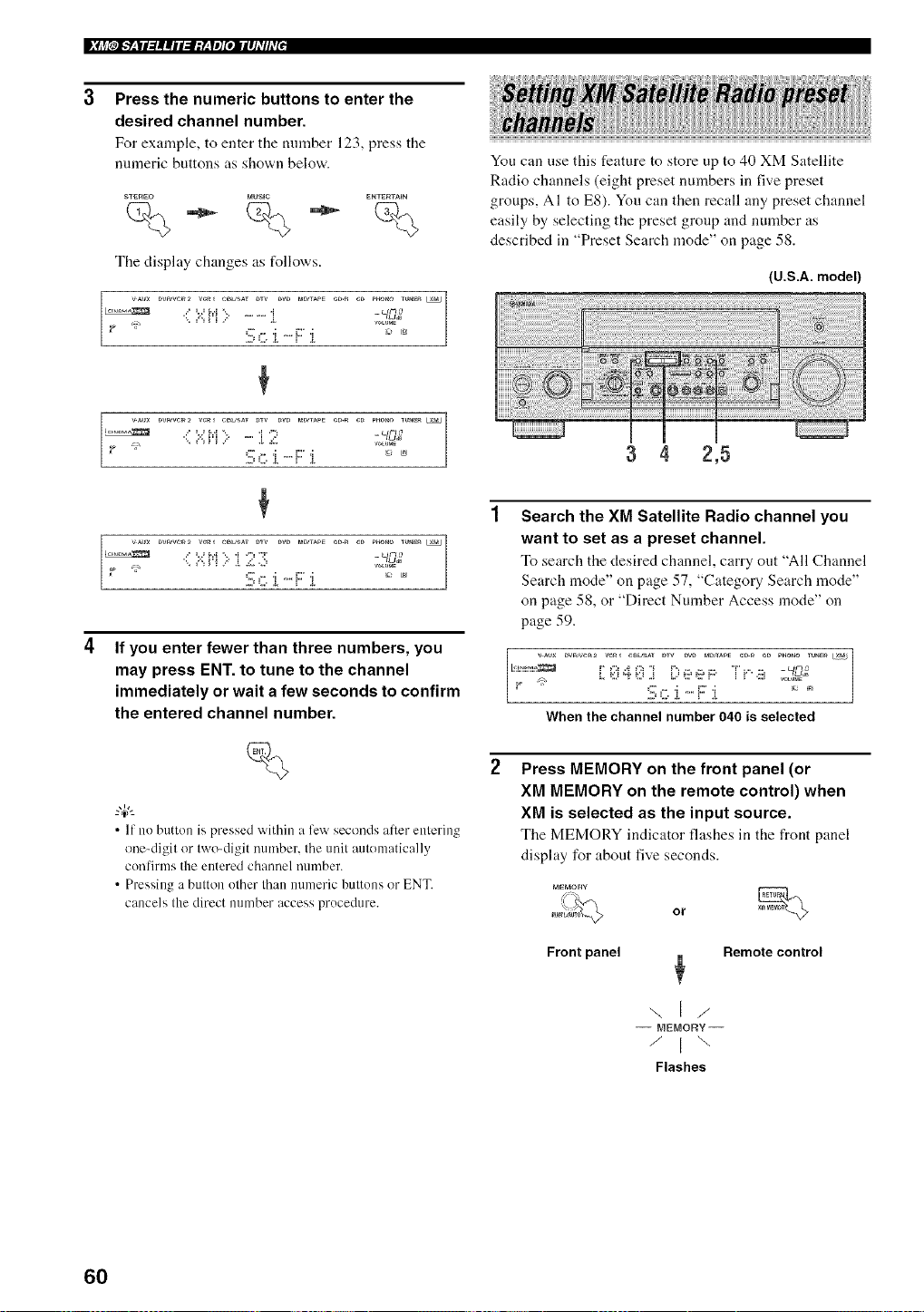
|_j_[OJ__,|I_||iI:I;y_,yl][OII|IJ_T/hTIJ
Press the numeric buttons to enter the
desired channel number.
For example, to enter the nmnber 123, press the
numeric buttons as shown below.
S"_EREO blU_IC ENTE_TABN
%÷%÷%
The display changes as follows.
::;:.::!,i:....... i ;:= -_D_;'
If you enter fewer than three numbers, you
may press ENT. to tune to the channel
immediately or wait a few seconds to confirm
the entered channel number.
%
• If no button is pressed within a few seconds after entering
one-digit or two-digit number, the unit automatically
confirms the entered channel number.
• Pressing a button other than numeric buttons or ENT.
cancels the direct number access procedure.
You can use this feature to store up to 40 XM Satellite
Radio channels (eight preset numbers in five preset
groups, AI to E8). You can then recall any preset channel
easily by selecting the preset group and number as
described in "Preset Search mode" on page 58.
(U.S.A. model)
3 4 2,5
Search the XM Satellite Radio channel you
want to set as a preset channel.
To search the desired channel, carry out "All Channel
Search mode" on page 57, "Category Search mode"
on page 58, or "Direct Number Access mode" on
page 59.
I_ DwJvcu2 veg_ eULmAT DTV DW raD_APE e_ eD PUO_O TUNE__XM|
7
m
When the channel number 040 is selected
2 Press MEMORY on the front panel (or
XM MEMORY on the remote control) when
XM is selected as the input source.
The MEMORY indicator flashes in the front panel
display for about five seconds.
MEMORY
_ or
Front panel Remote control
\l/
-- _E_OF_Y-
/ I \
Flashes
60
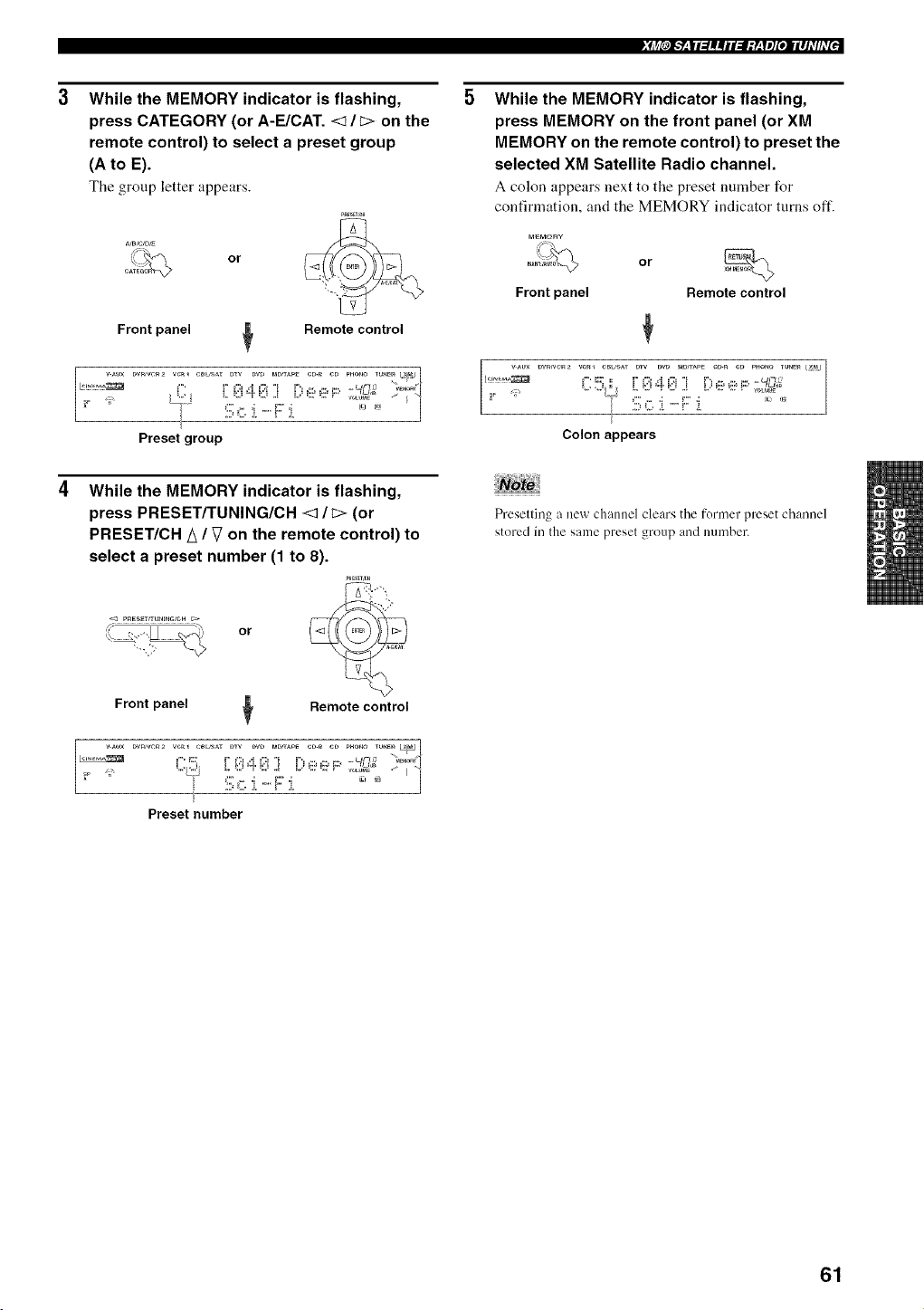
While the MEMORY indicator is flashing,
press CATEGORY (or A-E/CAT. <1/c> on the
remote control) to select a preset group
(A to E).
Tile group letter appears.
f_× or
Front panel _ Remote control
DwJvc_2 wRl CeU'_AT DTV DVD PaD_APE eD-_ CD P_O_O TUI_E_I_Jt
(vJ :n [
Preset group
p_ESEr/rU_I_G/C_
Front panel
While the MEMORY indicator is flashing,
press PRESET/TUNING/CH <1/_> (or
PRESET/CH/_ / V on the remote control) to
select a preset number (1 to 8).
Remote control
1
Preset number
While the MEMORY indicator is flashing,
press MEMORY on the front panel (or XM
MEMORY on the remote control)to preset the
selected XM Satellite Radio channel.
A colon appears next to the preset number for
confirmation, and the MEMORY indicator turns oft'.
Front panel
or
Remote control
i ve_, eBUSAT DTV DVD _APE e_ e_ PHOTO TU_E_ |
[
Colon appears
Preselling a new channel clears the former preset channel
stored in the same preset group and number.
61
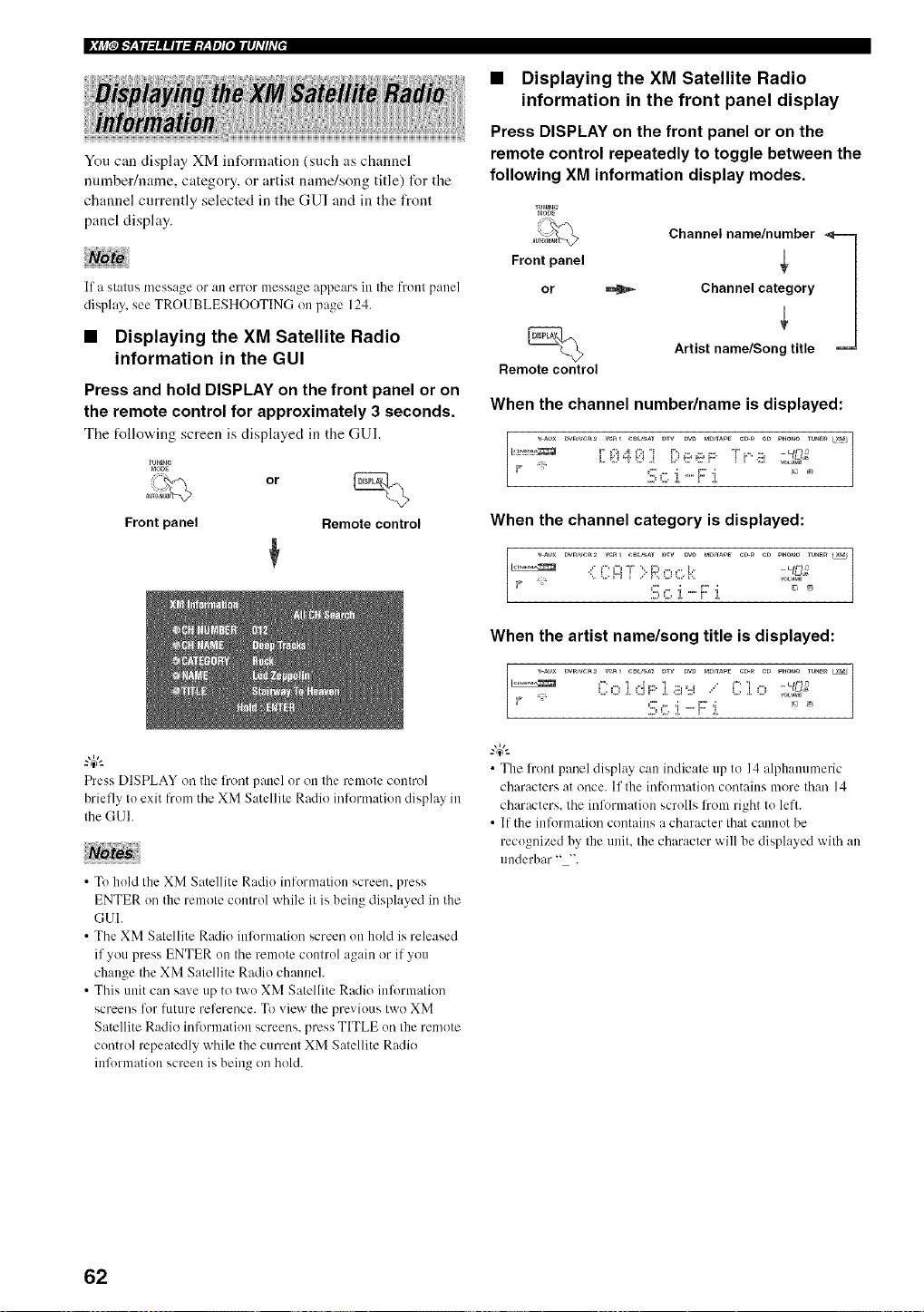
You can display XM information (such as channel
number/name, category, or artist name/song title) for the
channel currently selected in the GUI and in the front
panel display.
II a s[alLis nmssage or all error message appears ill Ihe lrolll panel
display, see TROUBLESHOOTING on page 124.
• Displaying the XM Satellite Radio
information in the GUI
Press and hold DISPLAY on the front panel or on
the remote control for approximately 3 seconds.
The t_llowing screen is disphtyed in the GU].
TU_I_G
..... or
Front panel Remote control
Press DISPLAY on the front panel or on the remote control
briefly to exit from the XM Satellite Radio inlormation display in
the GUI.
• To hold the XM Satellite Radio information screen, press
ENTER on the remote control while it is being displayed in the
GUI.
• The XM Satellite Radio iolormation screen on hold is released
if you press ENTER on the remote control again or if you
change the XM Satellite Radio chamml.
• This unit can save up to two XM Satellite Radio inlk_rmation
screens lbr lilture reference. To view the previous two XM
Satellite Radio information screens, press TITLE on the remote
control repeatedly while the current XM Satellite Radio
inlk)rmation screen is being on hold.
• Displaying the XM Satellite Radio
information in the front panel display
Press DISPLAY on the front panel or on the
remote control repeatedly to toggle between the
following XM information display modes.
Front panel
or
Remote control
Channel name/number_ _=_
Channel category
Artist name/Song title
When the channel number/name is displayed:
i 1:'=iq' 1:'=i i; _:::_¢::_r.::" i V"*i::_-c/02
voLu_
When the channel category is displayed:
When the artist name/song title is displayed:
......... iiii:,ii:i.F:i ....... °:o
• The 1rant panel display can indicate up to 14 alphanumeric
characters at once. If the inlommtion contains more than 14
characters, the inlk_rmation scrolls l?om right to lefl.
• If the inl'ormation contains a character that cannot be
recognized by the unit. the character will be displayed with an
underbar "-'.
62
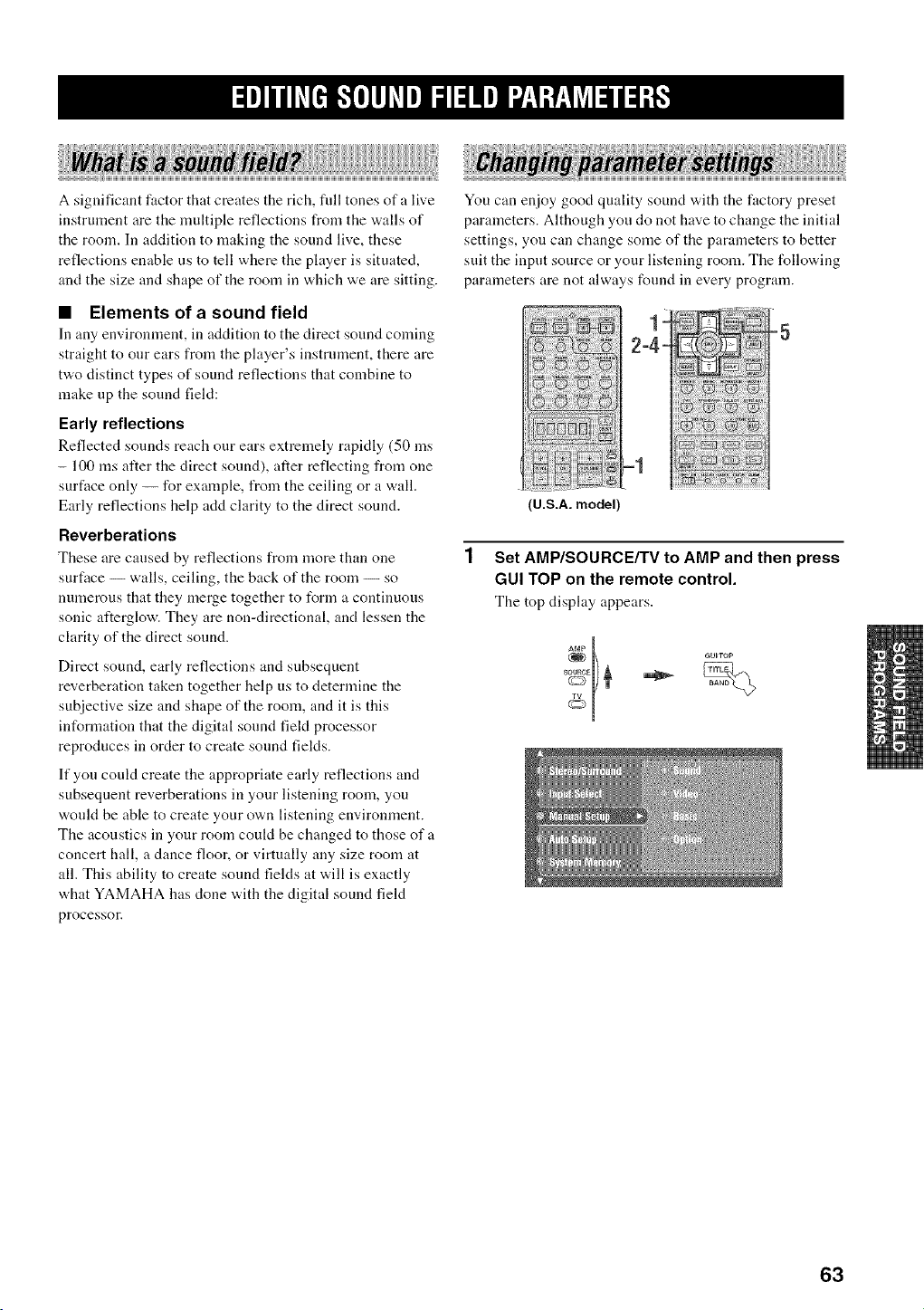
A significant factor that creates the rich, fidl tones of a live
instrument are the nmltiple reflections from the walls of
the room. In addition to making the sound live, these
reflections enable us to tell where the player is situated,
and the size and shape of the room in which we are sitting.
• Elements of a sound field
In any environnlent, in addition to the direct sound coming
straight to our ears from the player's instrument, there are
two distinct types of sound reflections that combine to
make up the sound field:
Early reflections
Reflected sounds reach our ears extremely rapidly (50 ms
- 100 ms after the direct sound), after reflecting from one
surface only -- for example, from the ceiling or a wall.
Early reflections help add clarity to the direct sound.
Reverberations
These are caused by reflections from more than one
surface -- walls, ceiling, the back of the room -- so
numerous that they merge together to form a continuous
sonic afterglow. They are non-directional, and lessen the
clarity of the direct sound.
Direct sound, early reflections and subsequent
reverberation taken together help us to determine the
subjective size and shape of the room, and it is this
information that the digital sound field processor
reproduces in order to create sound fiekts.
If you could create the appropriate early reflections and
subsequent reverberations in your listening room, you
would be able to create your own listening environment.
The acoustics in your room coukt be changed to those of a
concert hall, a dance floor, or virtually any size room at
all. This ability to create sound fields at will is exactly
what YAMAHA has clone with the digital sound field
processoc
You can enjoy good quality sound with the factory preset
parameters. Although you do not have to change the initial
settings, you can change some of the parameters to better
suit the input source or your listening room. The following
parameters are not always found in every program.
1+ +5
2o4°
)-1
U.S.A. model
Set AMP/SOURCE/TV to AMP and then press
GUI TOP on the remote control.
The top display appears.
_ GUITOP
63
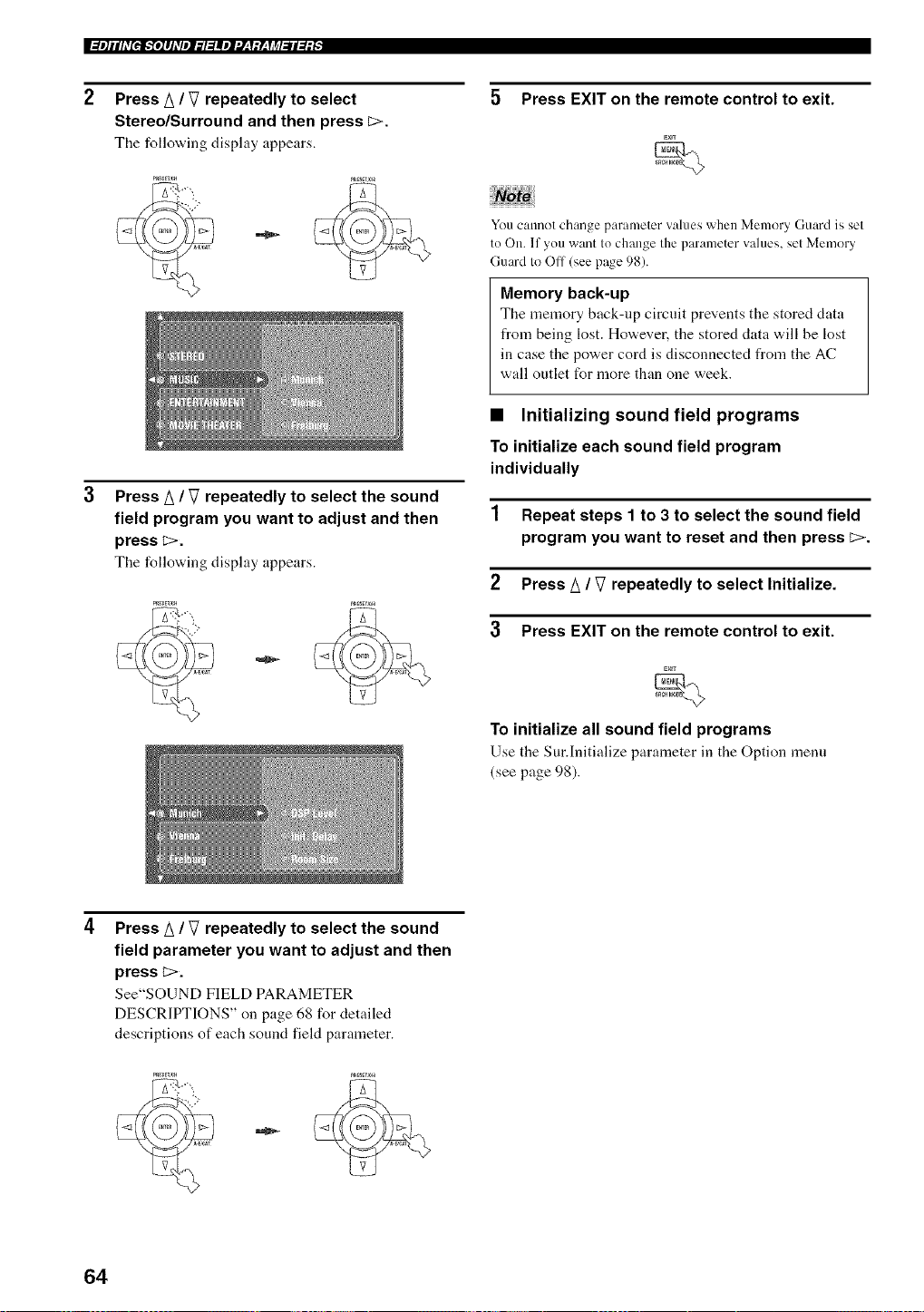
I_ll]llhT[e_'_e]lJ_Tlll_l_lllll:J_,y:y_,yi_l_ll_l:_
Press A / V repeatedly to select
Stereo/Surround and then press c>.
The follovdng display appears.
Press A / V repeatedly to select the sound
field program you want to adjust and then
press _>.
The follo'a, ing display appears.
5 Press EXIT on the remote control to exit.
You cannot change parameter values when Memory Guard is set
to On. If you want to change the parameter values, set Memory
Guard to Off (see page 98).
Memory back-up
The memory back-up circuit prevents the stored data
from being lost. However, the stored data will be lost
in case the power cord is disconnected from the AC
wall outlet for more than one week.
• Initializing sound field programs
To initialize each sound field program
individually
1 Repeat steps 1 to 3 to select the sound field
program you want to reset and then press _>.
2 Press _ / V repeatedly to select Initialize.
3 Press EXIT on the remote control to exit.
To initialize all sound field programs
Use the Sur.Initialize parameter in the Option menu
(see page 98).
Press A / V repeatedly to select the sound
field parameter you want to adjust and then
press c>.
See"SOUND FIELD PARAMETER
DESCRIPTIONS" on page 68 for detailed
descriptions of each sound field parameter.
64
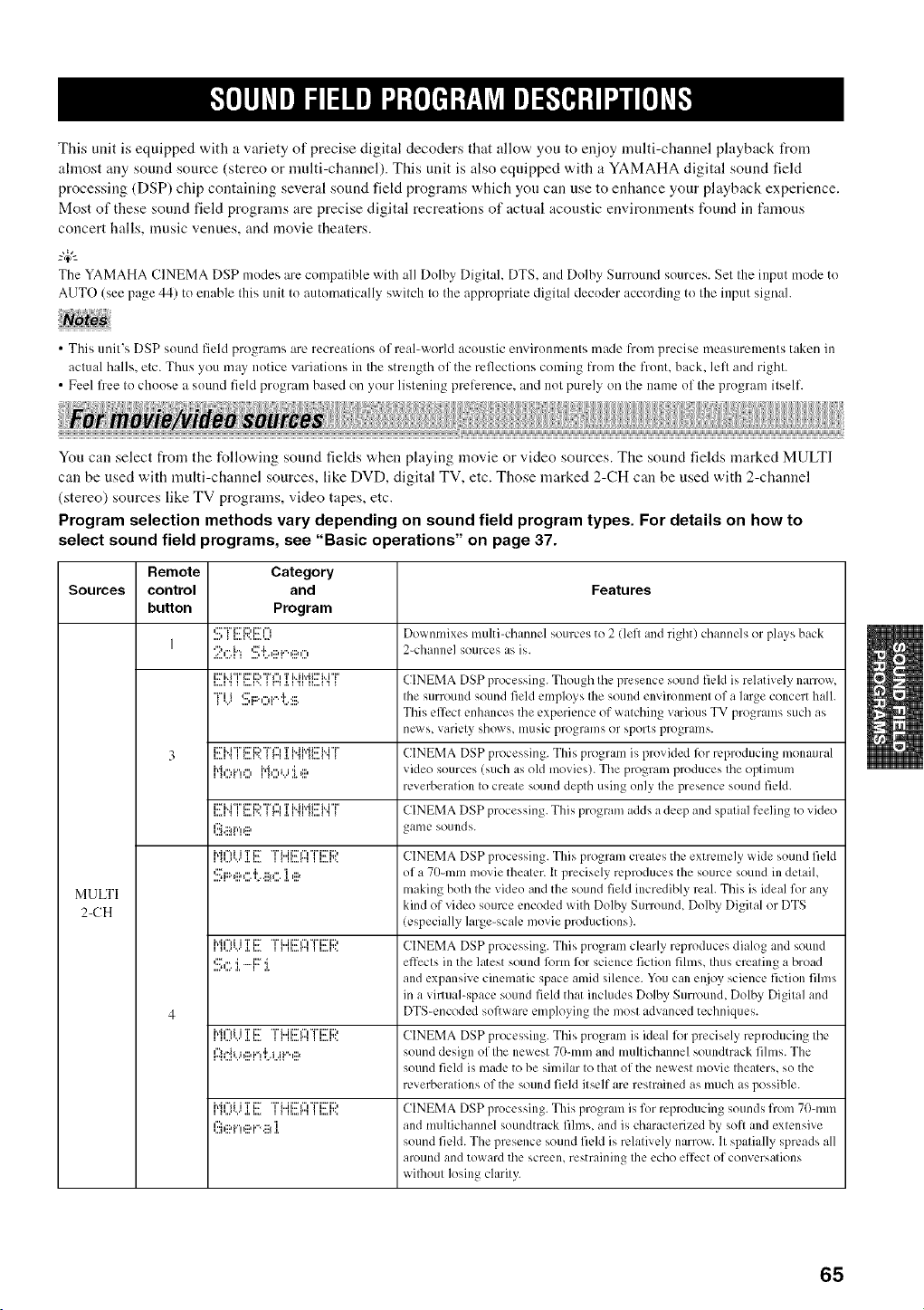
This unit is equipped with a variety of precise digital decoders that allow you to enjoy multi-channel playback from
ahnost any sound source (stereo or nmlti-channel). This unit is also equipped with a YAMAHA digital sound field
processing (DSP) chip containing several sound field programs which you can use to enhance your playback experience.
Most of these sound field programs are precise digital recreations of actual acoustic environments found in famous
concert halls, music venues, and movie theaters.
--'4:--
The YAMAHA CINEMA DSP modes are compatible with all Dolby Digital. DTS. and Dolby Surround sources. Set the input mode to
AUTO (see page 44) to enable this unit to automatically switch to the appropriate digital decoder according to the input signah
• This unit's DSP sound field programs are recrealions (51 real-world acoustic environmeals made from precise measuremenls taken in
aclual halls, etc. Thus you may notice variations in Ihe strength (51 the reflections coming fi'om the front, back. left and righl.
• Feel free to choose a sound field program based on your listening prelerence, and nol purely on the name ol the program ilself.
You can select from the following sound fields when playing movie or video sources. The sound fields marked MULTI
can be used with multi-channel sources, like DVD, digital TV, etc. Those marked 2-CH can be used with 2-channel
(stereo) sources like TV programs, video tapes, etc.
Program selection methods vary depending on sound field program types. For details on how to
select sound field programs, see "Basic operations" on page 37.
Remote Category
Sources control and Features
button Program
...., __....v..,....,..., D¢ x,nllllXe multi-channel sources to 2 (left and light) channels or plays hack
1
2,:::.{q'::.';'L,:::,_".,::a,", 2-channel sources as is.
I,,,. I _1::7M "i" i1::' 1::2,"i%"llI,,,, I ", _ I"I ]',I, I _Ii,.J M i:::' M "i"1I,,,, { 'I _ CINEMA DSP processing. Though Ihe presence SOLIlld field is relatively narrow,
"ri i ':::ii:::.,"_i.".'i'..:::. Ihe surround sound field employs Ihe sotlnd environlnenl of a huge concert hall.
_'v" ...............
This effecl enhances tile experience of walching various TV progralns such as
news, Valiely shows, lllUSic progran/s or sports plogr{llllS.
3 i::H'T'i::Ti:2,"i%",TMi'eii::TM"i" CINEMA DSP processing. This progralil is provided lk>rreproducing monatlral
Moiq() l"{_",_..='i_:::, video sources (such as old movies/. The program produces Ihe oplilmlm
reverberalion Io creale sound depth using only Ihe presence sound field.
I..,A ".'i::ri.. i"r ' i1::'i:::."i%"ll_...l "=._ r"l T.I.l ".qi..H'd i:::' M "i"1i.... _ 'i _ CINEMA DSP processing. This proglam adds a deep {lll(l spalia] feeling to video
(!_.ii_{"! e game sotllld s.
I l'..."v'.l.l..=i'd'%iiT i::: "T'L.ii::r,","f'i::riDl1 ll...A"II I...A'.. CINEMA DSP processillg. This plO_lam_creales tile exnelilelv wide sound field
':::_i:::._:::,¢".'l'..:::_".'i ,::a of a 7t)-mm movie thealer. It precisely reproduces the source sound ill delail,
MULTI making both Ihe video and the sound field incredibly real. This is ideal for any
kind of video source encoded with Dolby Surround, Dolby Digital or DTS
2-CH !especially large-scale movie produclions).
__,...,....a.__i"4"_iiTi::r "r'L.ii::r_","r'i::ri:::,__....r"___...v.. CINEMA DSP processing. Tiffs program clearly reproduces dialog and SOLllld
'.!!;,:::.:i.-F:r:i. effecls ill the latest sound flwm for science ficlion fihns, Ihus crealing a broad
and expansive cinematic space amid silence. You can e@>y science fiction fihns
in a virtual-space sound field that includes Dolby Surround, Dolby Digilal and
4 DTS-encoded software employing Ihe most advanced techniques.
__,...,....a._...i"_'_iiTi::r"r'L.ii::r_","r'i::ri:::,__....r"___....v.. CINEMA DSP processing. This program is ideal fi>rprecisely reproducing Ihe
l::)="{_..=_:::,i'=¢i.i.ii"',::a sound design of Ihe newest 70-ram and lnultichannel soundtrack fillns. The
sound field is made to he simihtr Io that of the newesl movie Ihealers, so the
revel-bel-alionsof the sound fiekl ilself are leSllained as much as possible.
I l'..."v'.I.l..=h=h'=liiT i:::" "T'L.ii:::'l"ff'f'i:::'iDl1 II..,=I"I I I..,A". CINEMA DSP processing. Tiffs prograln is for reproducing sounds froll170-111m
l'::h::ai.",g:,i.%:::_] and muhichannel soundtrack fihns, and is characterized by sofl and exlensive
sound field. The presence sound field is relalively nanow. 11spalially spreads all
alound and toward tile SCleen, restraining Ihe echo effect of conversalions
wilhoul losing clarily.
65
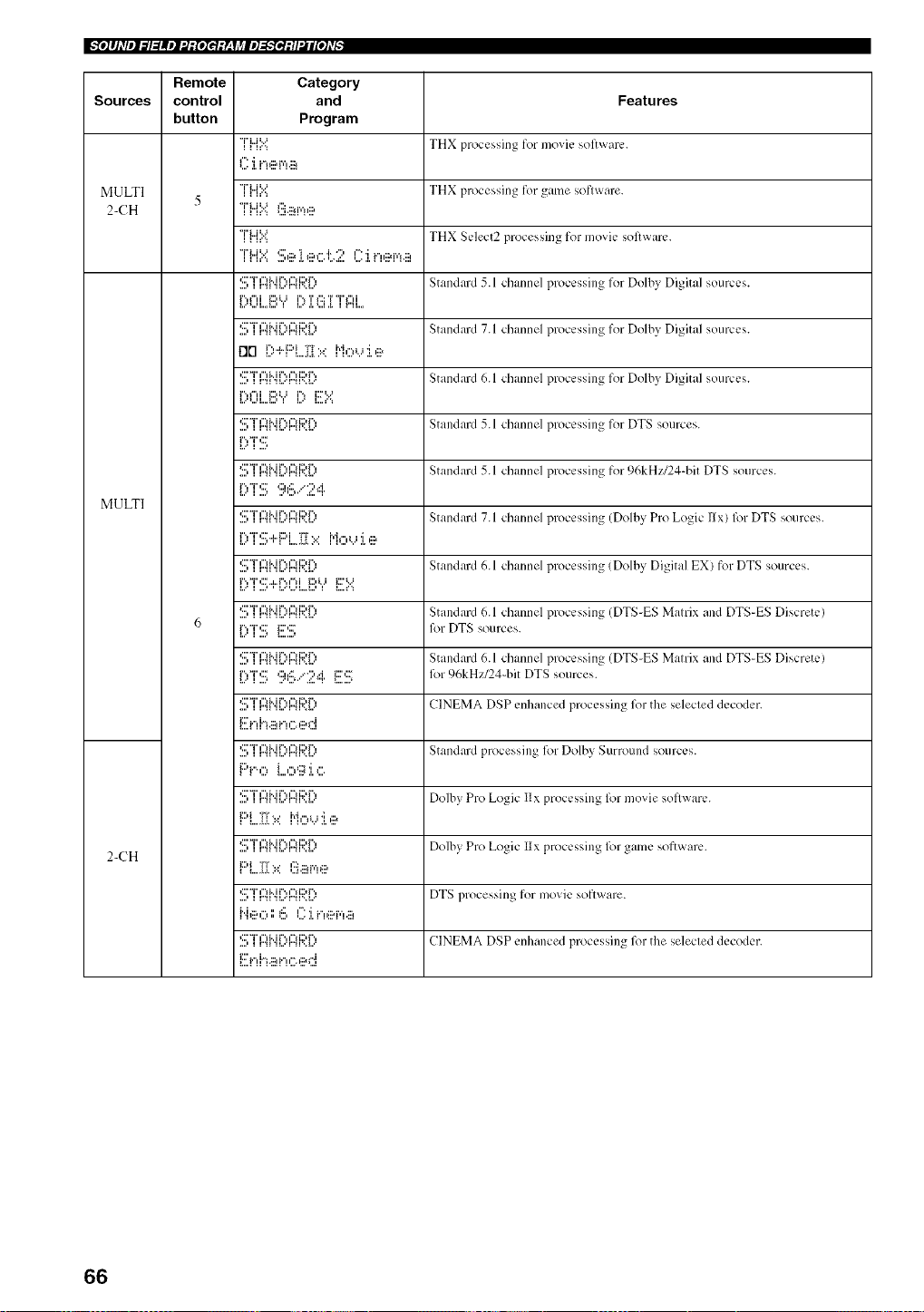
_e]lJ_Vel_l=lllel'.l:[eIel:V_,yj_le]_e]=/l'_li[e]_v_
Remote Category
Sources control and
button Program
i _..i '..."
11 i"ll:::q'¢i.:::_
MULTI ,_'"",,.*,.....
5
2-(7H IH::.::l..1.:::H'¢II:::,
i _,,,i',..*
I I h%
I,,,'*.JL,,A,J I L,=*J, *.,J ,{. I I"IL
*:::'"f' ¢"_i..ir'., ¢"_iD r'.,
,::::T 17a1...ii..)17aD[)
i", "i" ,::F
*:::'"f' ¢"_i..ir'., ¢"_iD r'.,
MULTI
*:::;T l::'ai'..ir')l::'_i:;?r')
[::,i:[[;+F'L2{[::.=:M,:::,_..,:i.e
,:::"T'i"li..i{",i"li:::*i",
_,,,' i ,,,.' ' _,,,",,.q,,,*_,,,'_ _,,,,_":
*:::'"f' ¢"_i..ir'., ¢"_i:::,r'.,
6
i","i",::." i:::',:::"
,:::'"f',"_i..i r'.,,"_iD r'.,
i".,"i" ,::." *:::id: ..**":,...i i:::',:::"
_,,,,_,,,., ,,,,,,,.,,, a:,,*"r _,,,,,,,.,
i" _", I"_.:::,i", ,". ,::a#'I
i:::'{....[[[::.::M,"v..,"i....
':::;T l::'ai'..ii":_l::'ai:;?i":_
2-CH
l:::'{....i[[:=.=:l:_.::ar,',_::,
_".I_:::,,"_',',_:", l...::Li"!,ii?i'q*_ii!
l" i."d"i .:::_i."H", g._i"l
Features
THX processing for movie software.
THX processing for game software.
THX Select2 processing for movie software.
Standard 5.1 channel processing for Dolby Digital sources.
Standard 7.1 channel processing for Dolby Digital sources.
Standard 6.1 channel processing for Dolby Digital sources.
Standard 5.1 channel processing for DTS sources.
Standard 5.1 channel processing for 96kH//24-bit DTS sources.
Standard 7.1 channel processing (Dolby Pro Logic/Ix) l_r DTS sources.
Standard 6.1 channel processing (Dolby Digital EX) for DTS sources.
Standard 6.1 channel processing (DTS-ES Matrix and DTS-ES Discrete)
lk_rDTS sources.
Standard 6.1 channel processing (DTS-ES Matrix and DTS-ES Discrete)
lk_r96kHz/24-bit DTS sources.
CINEMA DSP enhanced processing l_r the selected decoder.
Standard processing liarDolby Surround sources.
Dolby Pro Logic Hx processing lk_rmovie software.
Dolby Pro Logic Ilx processing lk_rgame software.
DTS processing for movie software.
CINEMA DSP enhanced processing for the selected decoder.
66
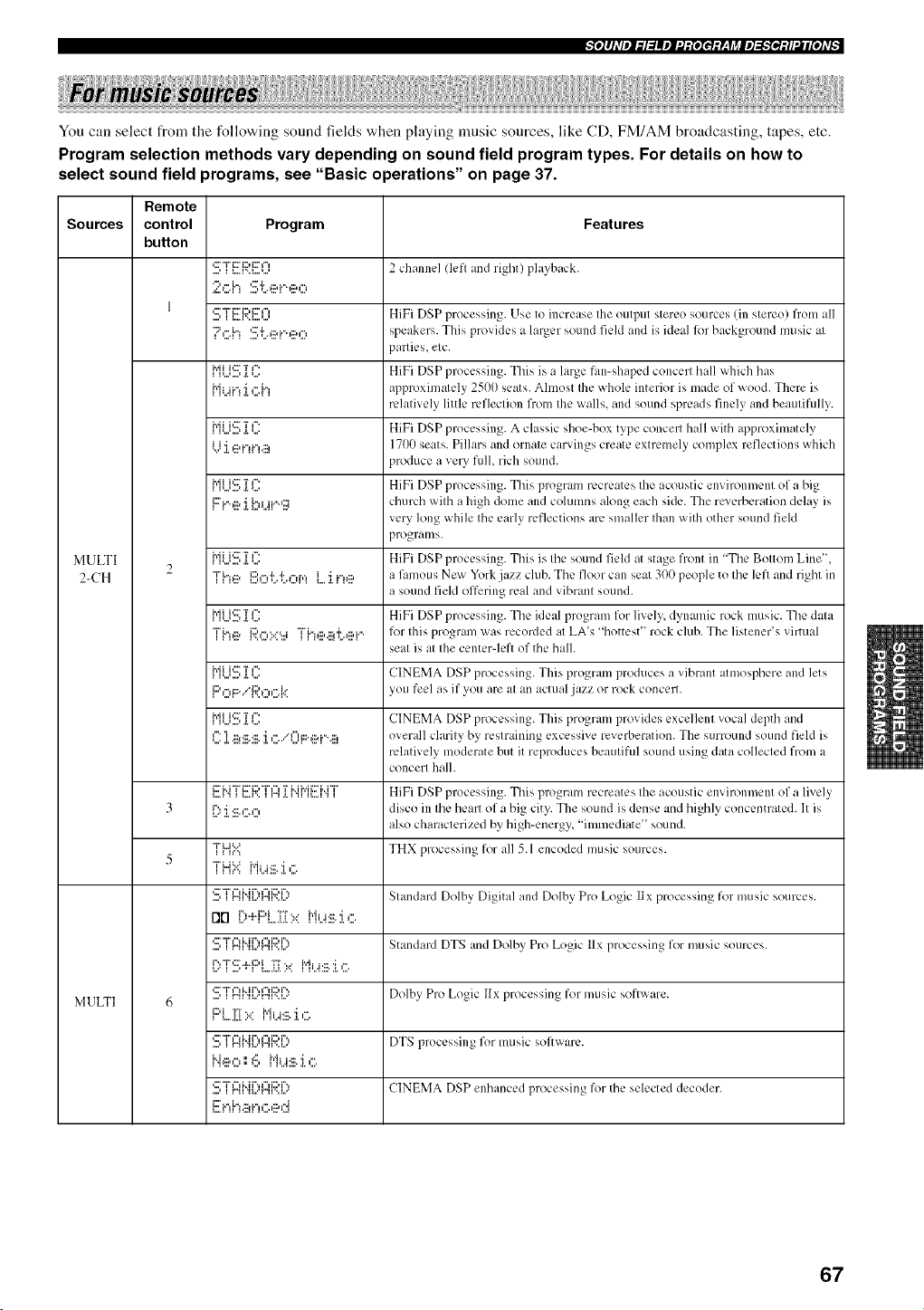
"te]lhVell_lglllell:dg[eItqgy_qj_le]_.'Ietgll2i[e]_Vl_
You can select t?om the following sound fieMs when playing music sources, like CD, FM/AM broadcasting, tapes, etc.
Program selection methods vary depending on sound field program typos. For details on how to
select sound field programs, see "Basic operations" on page 37.
Remote
Sources control Program Features
button
....Cii::<i:)i::'_"t,=_.._v.a....,..., 2 channel (lcfl and right) playback.
2c:.h S{,ei..eo
1 STERi!!ICl HiFi DSP processing. Use Io increase Ihe oulput slereo sources (ill slereo) from all
*?GI'3 S'{.*,ii?i"'@O speakers. Tiffs provides a larger sound fiekl and is ideal l_r background music al
pallies, etc.
h.iJl,=,....,._.,....i':"Ti". HiFi DSP processing. This is a large fan-shaped concert hall which has
J"li.ii'_l 'i I".h approximalely 25fl() seats. Ahnost Ihe whole interior is made of wood. There is
relalively little refleclion from Ihe walls, and sound spreads finely and beaulifully.
_.,.uu...,....,._.,....''"__ ' HiFi DSP processing. A classic shoe-box tvpe_ concerl hall wifll approximately
U "i ,::ai."_i.",.:::, 1700 seats. Pillars and ornale carvings create extremely complex reflections which
produce a very full, rich sound.
iviiu...,....,._.*....i':::'r r. HiFi DSP processing. .....Tiffs program recreates Ihe acoustic environmenl of a bi_
F't"@ :i.bi...N'*g church wilh a high dome and cohunns along each side. The reverberation delay is
very long while Ihe early reflections are smaller Ihan wilh other sound fieM
programs.
MULTI _""u...,....,._.,....''*' _ ' HiFi DSP processing. This is Ihe sound fiekl tit stage front in "The Bollom Line",
2-CH " "J"h,ii? J:::h"_'J'.'J'._",iv_L. ]. p)@ a l_m/otls New York jazz club. The floor can seal 300 people to Ihe left and right in
a sound field offering real and vibranl sound.
IMil'...'....'._.'....i':S'r i", HiFi DSP processing. The ideal program for lively, dynalliic rock music. The dala
"H.".::a i:;?,-c:.:**...i"Fh,:::,.::a'i'.,:::,i.". l_>r Ihis program was recorded al LA's "hottest" rock club. The listener's virtual
seal is al Ihe center-left of the hall.
{"ll...l'.:::,.[l...: CINEMA DSP processing. This prograni produces a vibrant almosphere and lets
P_",i:::*...'*J:;)_",,-.l.:" you feel as if you are al an actual jazz or rock concell.
IMil'...'....'._.'....i':7TI"' CINEMA DSP processing.• This program provides excellent vocal depth and
I":] .:::_.:::=c:.'i ,-_..q"li:::.,::ai.%:::, overall clarily by reslraining excessive reverberation. The surround sound field is
relalively moderate but it reproduces beauliful sound using data collecled from a
concerl hall.
I...._ 'lJ::' M "HSS i::l ii"l{I..,A'.. I r"l .f. 1'llTJ,,iJ'l'i i::ri,.i "i"H,,,A "I I HiFi DSP plocessill_._ This l)ro_ralli recreates Ihe acoustic environli/en/ of a lively
3 [') i .:::.,".P', disco in Ihe hearl of a big city,. The sound is dense and highly concentrated. 11is
also characterized bv high-energv "immediate" sound.
"i"u__=.*:..... THX processing for all 5.1 encoded music sources.
5
11 h"_
,:::'"i",",i..ir'., ¢",i2:, r%
...., i r'_i".,_,'r"u*..i... Slandard Dolby Digital and Dolby Pro Logic Ilx processing for music sources.
13[-Ir'.,..,.i:::,i............"r'r.....i"iia.:::.'i,".
....c:'"r',"_kir",¢",Dr'*,,_ m_".,_...'mv.._... Standard DTS and Dolby Pro Logic llx processing for music sources.
... ............ .,
....CTI'IMr",I'IiSM'%,,,"_,_..'r",,,.,... Dolby Pro Logic/Ix processing for mtlsic soflware.
MULTI 6
i:::,i "-r. • Mi =i':::. i ¢%
....C'T'¢"H..ir",¢"H:::,i%,i r'_ ".q...'mv.._..** DTS processillg for llitlsic software.
l".h:::u"tl{ I:", l"li .i':::.'I i'.
....CT¢"H..ir",¢"H:::d%,_ r".q".,_...'r"u.._..* CINEMA DSP ellhanccd processing for the selected decoder.
l:::.i"!1'3.ii_i"!G@C_
67
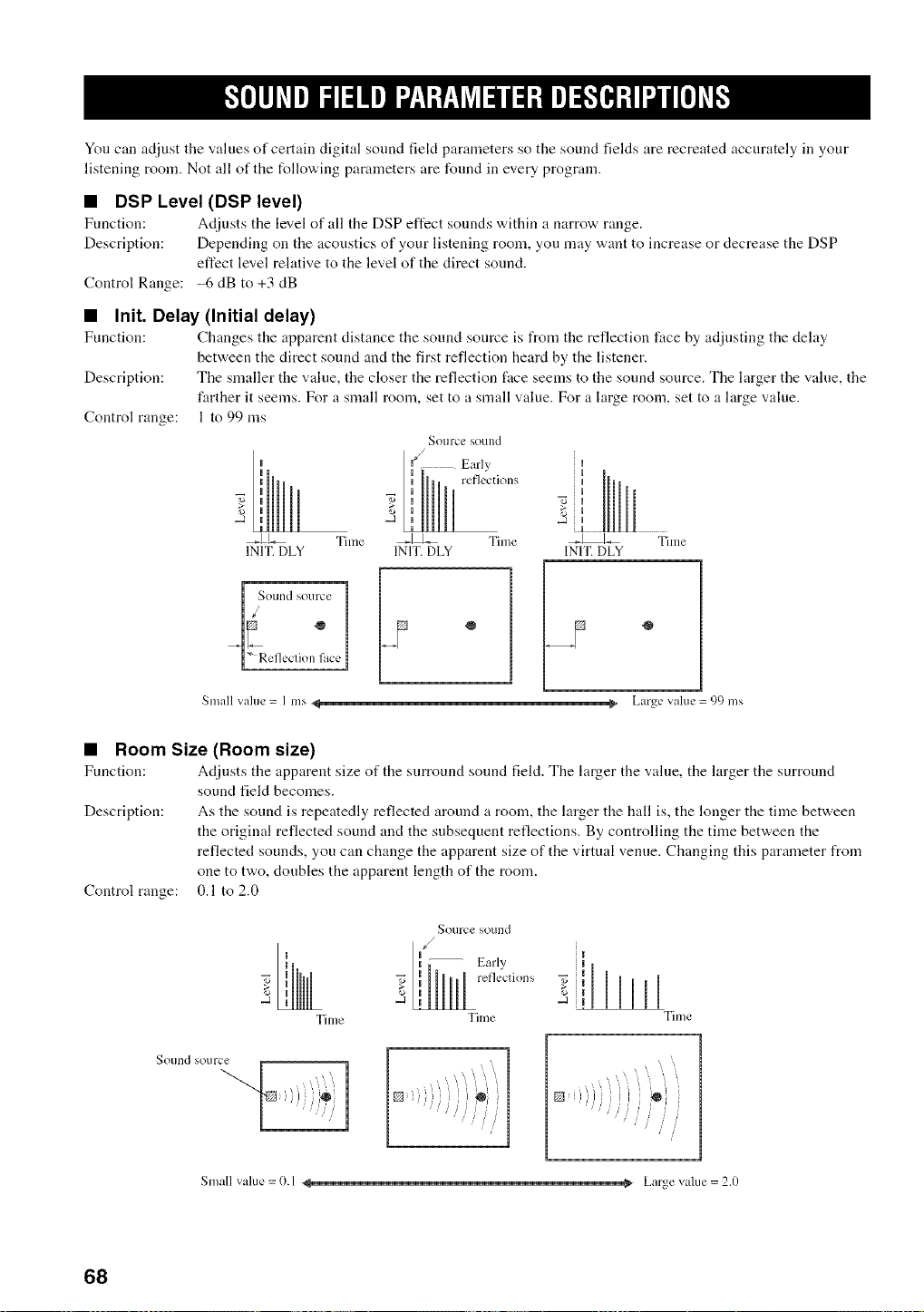
You can adjust the values of certain digital sound fieM parameters so the sound fields are recreated accurately in your
listening room. Not all of the following parameters are found in every program.
• DSP Level (DSP level)
Function: Adjusts tile level of all the DSP effect sounds within a narrow range.
Description: Depending on the acoustics of your listening room, you may want to increase or decrease the DSP
effect level relative to the level of the direct sound.
Control Range: -6 dB to +3 dB
• Init. Delay (Initial delay)
Function: Changes the apparent distance the sound source is from the reflection face by adjusting the dehty
between the direct sound and the first reflection heard by the listener.
Description: The snmller the value, the closer the reflection face seems to the sound source. The larger the value, the
farther it seems. For a small room, set to a small value. For a large room, set to a large value.
Control range: 1 to 99 ms
Sotlrce SOUlld
INIT. DLY
I Sotlnd source
°
Early
reflections
Time _ Time
INIT. DLY
Small value = I ms % _ Large value = 99 ms
• Room Size (Room size)
Function: Adjusts the apparent size of the snrround sound field. The larger the value, the htrger the surround
sound field becomes.
Description: As the sound is repeatedly reflected around a room, the larger the hall is, the longer the time between
the original reflected sound and the subsequent reflections. By controlling the time between the
reflected sounds, you can change the apparent size of the virtual venue. Changing this parameter from
one to two, doubles the apparent length of the room.
0.1 to 2.0
Control range:
Sotlrce sound
/
Early
reflections
Tilne Time
I
Time
Sound source
Small value = 0.1 Large value = 2.0
68
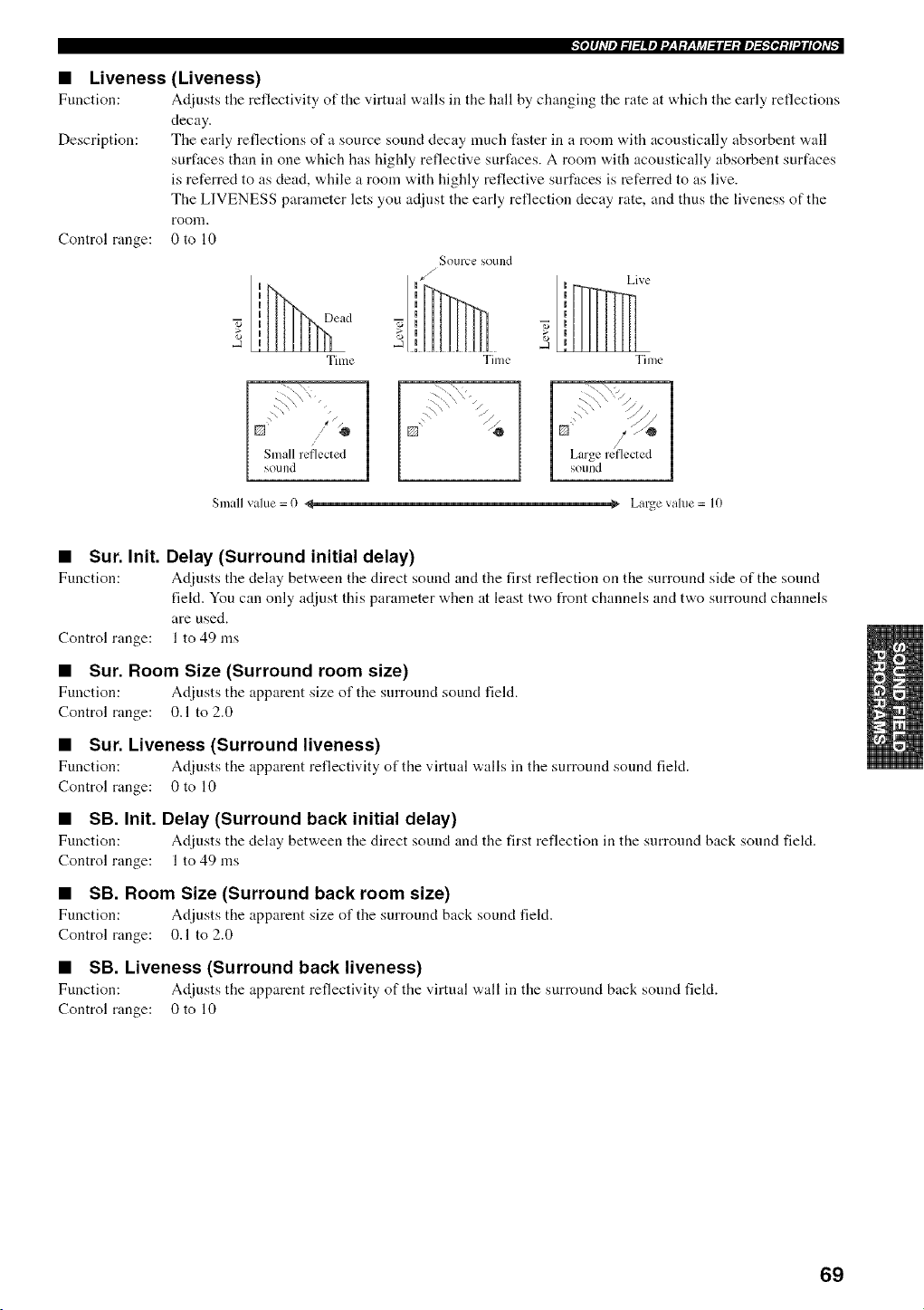
• Liveness
Function:
Description:
Control range:
(Liveness)
Adjusts the reflectivity of the v*irtual walls ill the hall by changing tile rate tit which the early reflections
decay.
The early reflections of a source sound decay much faster in a room with acoustically absorbent wall
surfaces than in one which has highly reflective surfaces. A room vdth acoustically absorbent surfaces
is referred to as dead, while a room with highly reflective surfaces is referred to as live.
The LIVENESS parameter lets you a@lst the early reflection decay rate, and thus the liveness of the
room.
0to 10
uu cad
Time
1 Small reflected
SOLInd
Small valtle = 0 <
Source SOulld
/
J
Live
Time Time
¢_ Large vahle = I0
• Sur. Init. Delay (Surround initial delay)
Function: Adjusts the delay bet'a, een the direct sound and the first reflection on the surround side of the sound
fiekt. You can only adjust this parameter when at least two front channels and two surround channels
are used.
Control range: 1 to 49 ms
• Sur. Room Size (Surround room size)
Function: Adjusts the apparent size of the surround sound field.
Control range: 0.1 to 2.0
• Sur. Liveness (Surround liveness)
Function: Ac[iusts the apparent reflectivity of the virtual walls in the surround sound field.
Control range: 0 to 10
• SB. Init. Delay (Surround back initial delay)
Function: Ac[iusts the delay between the direct sound and the first reflection in the surround back sound field.
Control range: 1 to 49 ms
• SB. Room Size (Surround back room size)
Function: Adjusts the apparent size of the surround back sound field.
Control range: 0.1 to 2.0
• SB. Liveness (Surround back liveness)
Function: Adjusts the apparent reflectivity of the virtual wall in the surround back sound fiekt.
Control range: 0 to 10
69
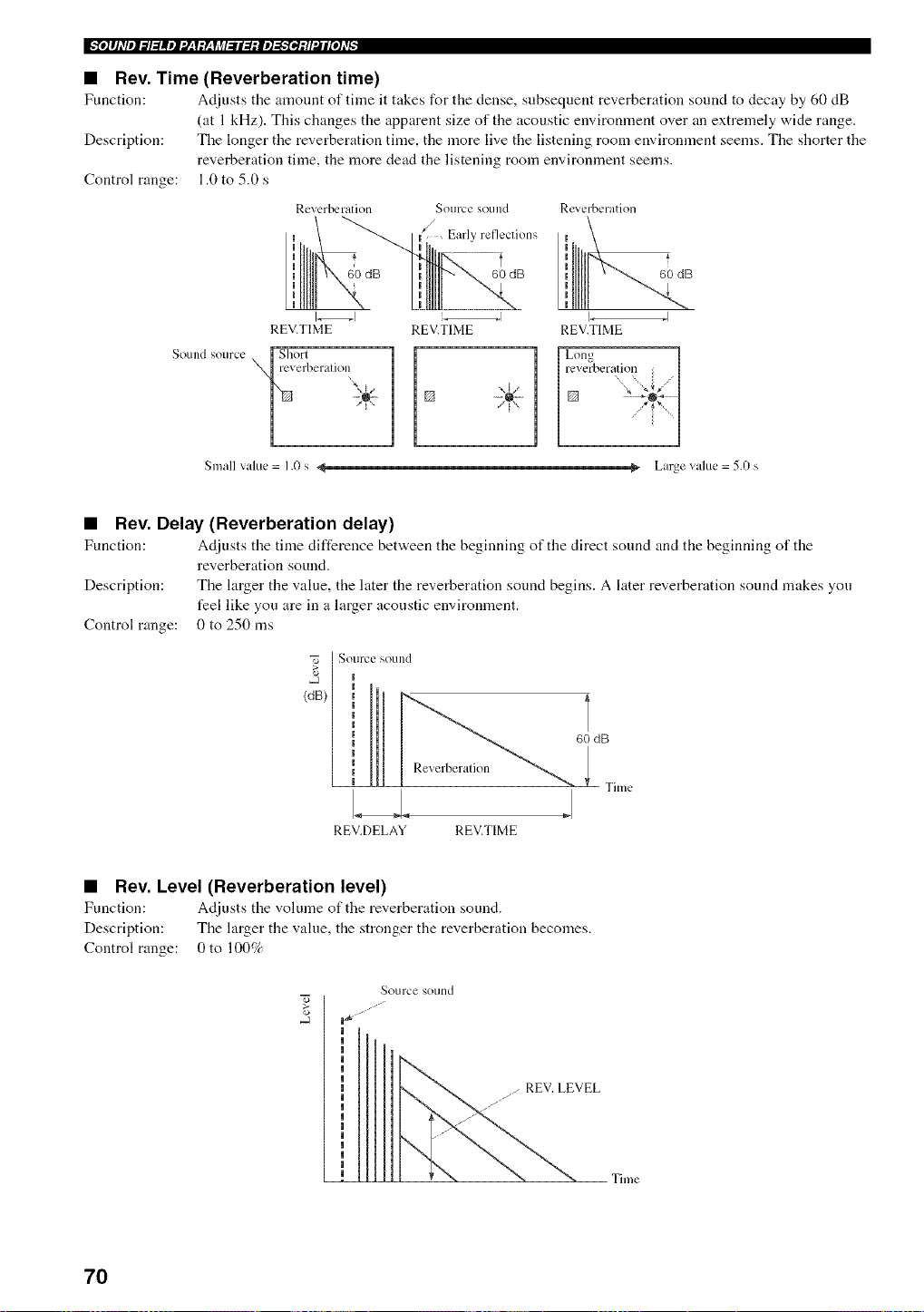
Ir_e]#J,Vel_l:lllel'J:Y:r:YJ_l_ll:l:ie]_:tl'.Jl[e],v_:
• Rev. Time (Reverberation time)
Function: Actiusts the amount of time it takes for the dense, subsequent reverberation sound to decay by (,0 dB
Description:
Control range:
(at l kHz). This changes the apparent size of the acoustic environment over an extremely wide range.
The longer the reverberation time, the more live the listening room environment seems. The shorter the
reverberation time, the more dead the listening room environment seems.
1.0 to 5.0 s
Reverberation Source sound
Early reflections
/
60 dB 60 dB
REV.TIME
r Shorl
Sound source _reverberalion
Small value = 1.0 s 4
I_1 _
REV.TIME
Re-,_erberation
60 dB
<
I .I
REV.TIME
23_V
_- Large value = 5.0 s
• Rev. Delay (Reverberation delay)
Function: Adjusts the time difference bet'a, een the beginning of the direct sound and the beginning of the
reverberation sound.
Description: The larger the value, the later the reverberation sound begins. A later reverberation sound makes you
feel like you are in a larger acoustic environment.
Control range: 0 to 250 ms
I Source %Oulld
(dB)
6O dB
rime
.i
REV.DELAY REV.TIME
• Rev. Level (Reverberation level)
Function: Adjusts the volume of the reverberation sound.
Description: The larger the value, the stronger the reverberation becomes.
Control range: 0 to 100%
Source sound
o __EVEL Time
7O
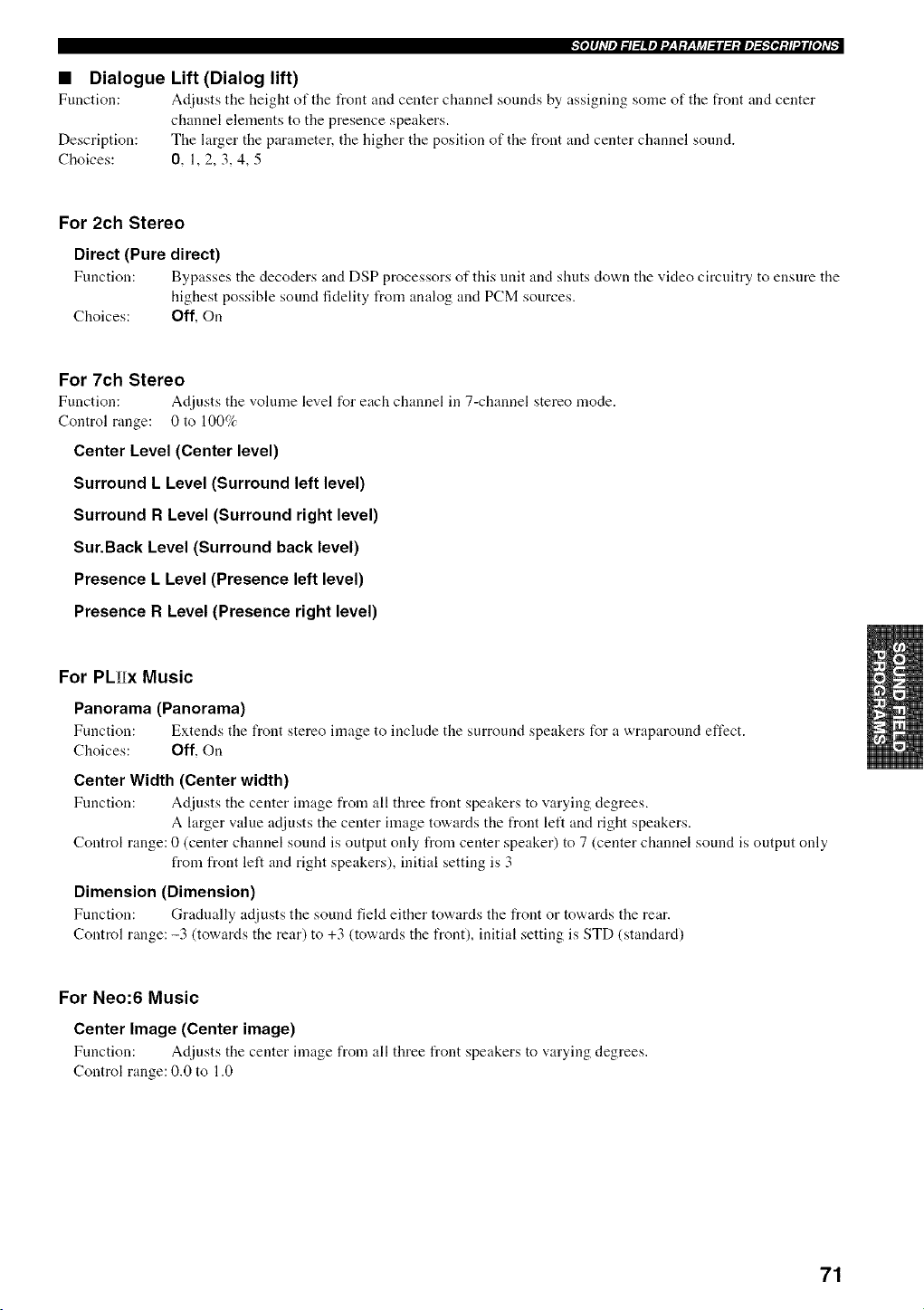
• Dialogue Lift (Dialog lift)
Function: Adjusts the height of tile t_ont and center channel sounds by assigning some of the front and center
channel elements to the presence speakers.
Description: The larger the parameter, the higher the position of the front and center channel sound.
Choices: 0, 1, 2, 3, 4, 5
For 2ch Stereo
Direct (Pure direct)
Function: Bypasses the decoders and DSP processors of this unit and shuts do'an the video circuitry to ensure the
highest possible sound fidelity from analog and PCM sources.
Choices: Oft, On
For 7ch Stereo
Function: Adjusts the volume level for each channel in 7-channel stereo mode.
Control range: 0 to 100%
Center Level (Center level)
Surround L Level (Surround left level)
Surround R Level (Surround right level)
Sur.Back Level (Surround back level)
Presence L Level (Presence left level)
Presence R Level (Presence right level)
For PLIIx Music
Panorama (Panorama)
Function: Extends the front stereo image to include the surround speakers for a wraparound effect.
Choices: Off, On
Center Width (Center width)
Function: Adjusts the center image from all three front speakers to varying degrees.
A larger value adjusts the center image towards the front left and right speakers.
Control range: 0 (center channel sound is output only from center speaker) to 7 (center channel sound is output only
from front left and right speakers), initial setting is 3
Dimension (Dimension)
Function: Gradually adjusts the sound field either towards the front or to'a,ards the rear.
Control range: -3 (towards the rear) to +3 (towards the front), initial setting is STD (standard)
For Neo:6 Music
Center Image (Center image)
Function: Adjusts the center image from all three front speakers to varying degrees.
Control range: 0.0 to 1.0
71
Ir_e]#J,Vel_l:lllel'J:Y:r:YJ_l_ll:l:ie]_:tl'.Jl[e],v_:
• Decode Type (Decoder type)
For MOVIE THEATER
Function: Selects the decoder used to playback 2-charmel sources using MOVIE THEATER programs.
Choices: Pro Logic / Pro Logic IIx / Neo:6
For THX Cinema
Function: Selects tire decoder used to playback 2-channel sources using THX Cinema.
Choices: Pro Logic / Pro Logic IIx / Neo:6
For SURROUND Standard
Function: Selects the decoder used to playback 2-channel sources using SURROUND Standard.
Choices: Pro Logic / PLIIx Movie / PLIIx Music / PLIIx Game / Neo:6 Cinema / Neo:6 Music
For SURROUND Enhanced
Function: Selects the decoder used to playback 2-channel sources using SURROUND Enhanced.
Choices: Pro Logic / Pro Logic ][Ix / Neo:6
Pro Logic l[x appears when the surround back speakers are available.
• Initialize (Initialize)
Function: Initializes each sound field program individually.
Choices: No, Yes
If you want to initialize all sound field programs, use the Sur.lnitialize parameler in lhe Option menu (see page 98).
72
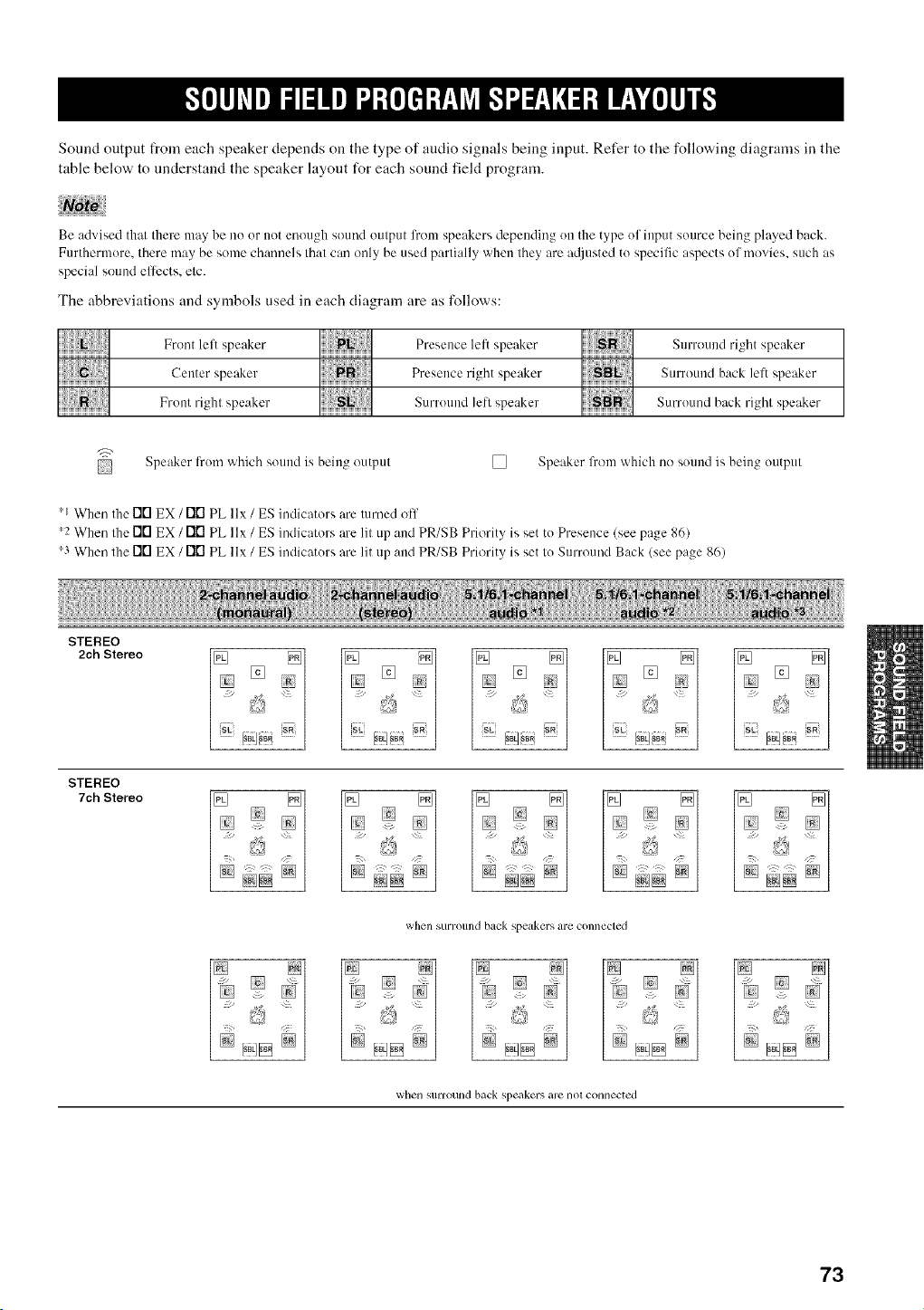
Sound output from each speaker depends oil the type of audio signals being input. Refer to the following diagrams in the
table below to understand the speaker layout for each sound field program.
Be advised thai there may be no or not enough sound oulput lrom speakers depending on the type ol input source being played back.
Furthermore. there may be some channels Ihal can only be used partially when they are a@lsted to specific aspects ol movies, such as
special sound elfects, elc.
The abbreviations and symbols used in each diagram are as follows:
Front lelt speaker Presence lelt speaker Surround right speaker
Center speaker Presence right speaker Surround back lelt speaker
R; i Front righl speaker N S[irrollnd lefl speaker S[irro[li/d back righl speaker
Speaker from which sound is being output
[] Speaker from which no sound is being output
'1 When the FI['I EX / Fill PL llx / ES indicators are turned off
'2 When Ihe Fill EX / Fill PL llx / ES indicators are Ill up and PR/SB Priority is set to Presence (see page 86)
'3 When the Fill EX / Fill PL llx / ES indicators are lit up and PR/SB Priority is set I(! Surround Back (see page 86)
STEREO
2ch Stereo
STEREO
7ch Stereo
when SUl-rotlnd back speakers are connected
when stlrrOUlld back speakers are 1lot COllllected
73

i,:.Iol#J_Ve1._l_llle1".J:Iole'l:L, YitJ_"l'.J-%IN_l:lW:|_ol#Df"
MUSIC
The Bttm Line _ [] i-'
The Roxy Thtr
ENTERTAINMENT ,!_¢
Disco _;
MUSIC
ENTERTAINMENT []
Variety/Sports
Mono Movie _,
Game ......
THX
THX Surround
EX L] [i_
THX
THX Select2
Cinema
THX Music
THX
THX Game [] [] =
STANDARD
PRO LOGIC []
DTS
PRO LOGIC
MOVIE THEATER
Enhanced [__ P!
DOLBY DIGITAL
PRO LOGIC
DTS _
PRO LOGIC
PRO LOGIC
PRO LOGIC
[]
;g:2
[] [] i
;2
12
12
;i};
_:- ::
74
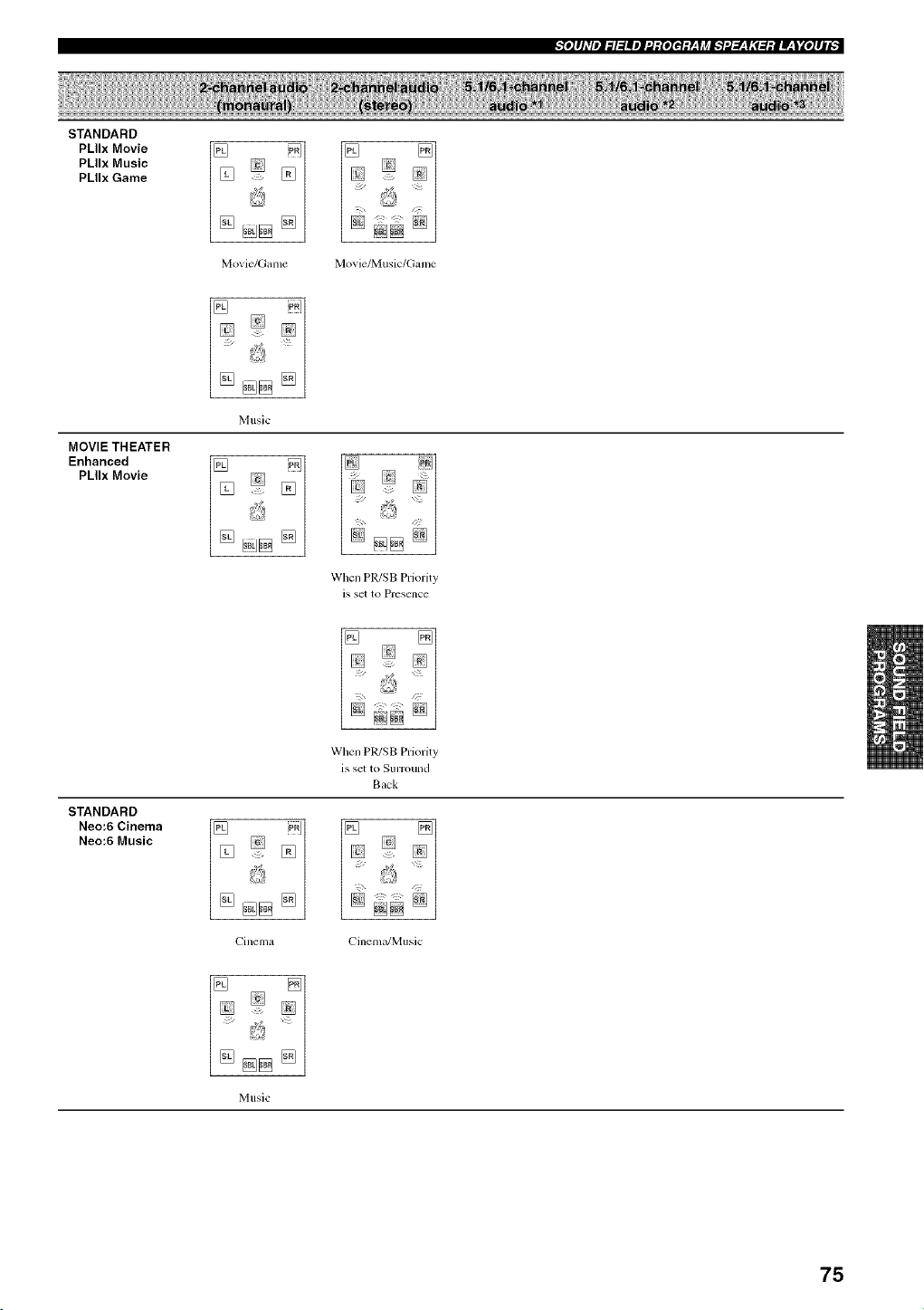
STANDARD
PLIIx Movie
PLIIx Music
PLIIx Game
MOVIE THEATER
Enhanced
PLIIx Movie
STANDARD
Neo:6 Cinema
Neo:6 Music
Movie/Game
Music
Cinema
/!°i
Music
Movie/Music/Game
_r_
When PR/SB Priority
is set to Pr_scllce
When PR/SB Priority
is set to SllrrOulld
Back
Cinema/Music
75
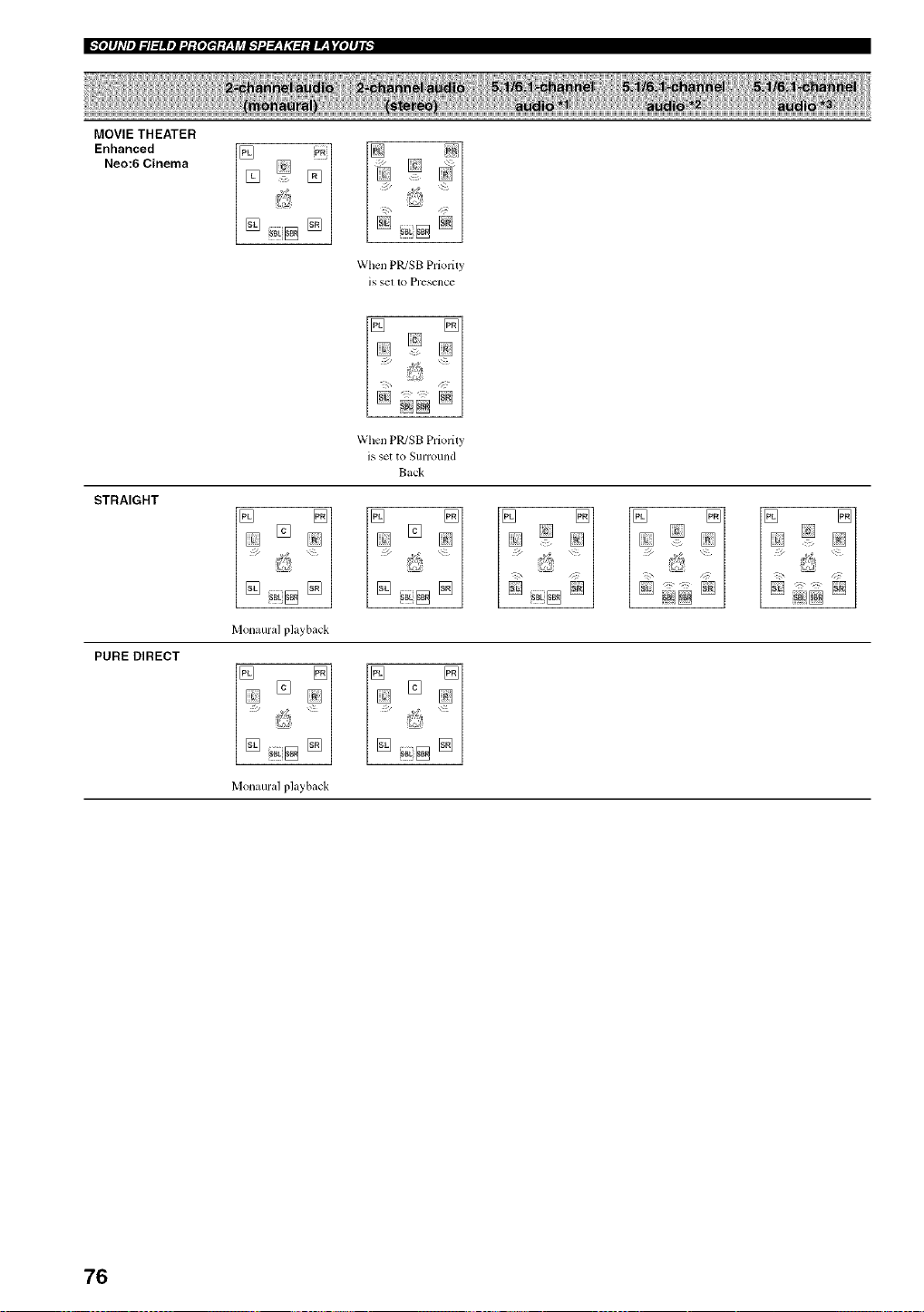
i,.',Iol#J_Ve1._l_llle1".J:Iole'l:L, YitJ_"P.J-%IN_l:lW:|_ol#Df"
MOVIE THEATER
Enhanced
Neo:6 Cinema
STRAIGHT
PURE DIRECT
[] []
When PR/SB Priority
is +,el to Pl+_SCl]ce
When PR/SB Priority
is set to Surro/ind
Back
g_ g_ g_
Monaural playback
Monaural playback
76
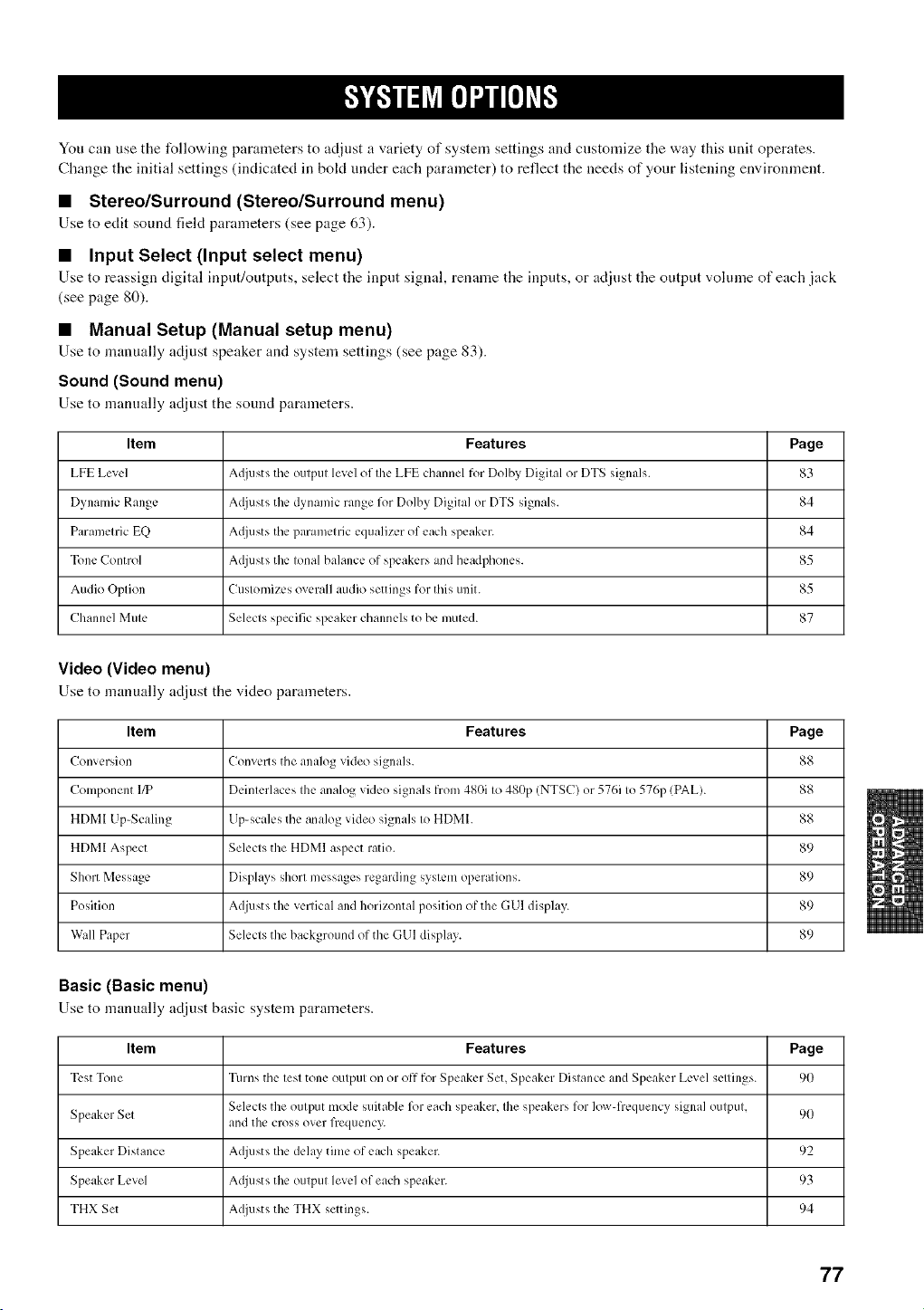
You can use the %llowing parameters to adjust a variety of system settings and mtstomize the way this unit operates.
Change the initial settings (indicated in bokt under each parameter) to reflect the needs of your listening environment.
• Stereo/Surround (Stereo/Surround menu)
Use to edit sound field parameters (see page 63).
• Input Select (Input select menu)
Use to reassign digital input/outputs, select tile input signal, renanle tile inptlts, or adjtlst tile output volume of each jack
(see page 80).
• Manual Setup (Manual setup menu)
Use to manually adjust speaker and system settings (see page 83).
Sound (Sound menu)
Use to manually adjust the sound parameters.
Item Features Page
LFE Level A@lsts the output level of the LFE channel for Dolby Digital or DTS signals. 83
Dynamic Range At!justs the dynamic range for Dolby Digital or DTS signals. 84
Parametric EQ A_!iuststhe parametric equalizer of each speaker. 84
Tone Control Adjusts the tonal balance of speakers and headphones. 85
Audio Option Customizes overall audio settings for this unit. 85
Channel Mute Selects specific speaker channels to be muted. 87
Video (Video menu)
Use to manually adjust the video parameters.
Item Features Page
Conw:rsion Converts the analog video signals. 88
Component 1_ Deinterlaces the analog video signals from 480i to 480p (NTSC) or 576i to 576p (PAL). 88
HDMI Up-Scaling Up-scales the analog video signals to HDMI. 88
HDMI Aspect Selects the HDMI aspect ratio. 89
Short Message Displays short messages regarding system operations. 89
Position Adjusts the verlical and horizontal position of the GUI display. 89
Wall Paper Selects the background of the GUI display. 89
Basic (Basic menu)
Use to manually adjust basic system parameters.
Item Features Page
Test Tone Turns the test tone output on or off for Speaker Set, Speaker Distance and Speaker Level settings. 90
Selects the output mode suitable l_)reach speaker, the speakers for low-frequency signal output, 90
Speaker Set and the cross over frequency.
Speaker Distance Adjusts the delay time of each speaker. 92
Speaker Level Adjusts the output level of each speaker. 93
THX Set A({iuststhe THX settings. 94
77
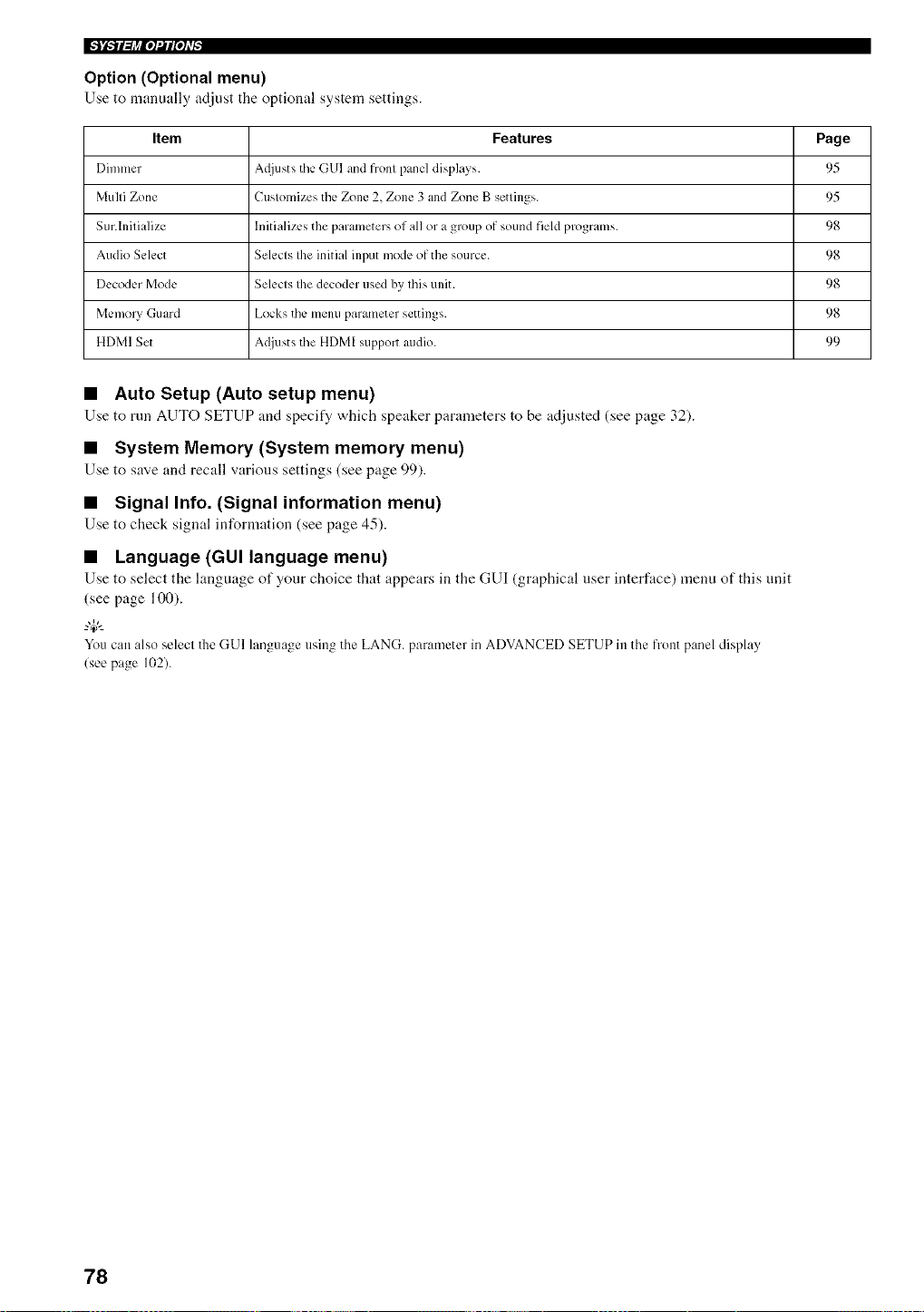
Option (Optional menu)
Use to manually adjust the optional system settings.
Item Features Page
Dimmer A@lsts the.,GUI _lndfront panel displays. 95
Multi Zone Customizes the Zone 2, Zone 3 and Zone B settings. 95
Sur.lnitialize Initializes the parameters of all or a group of sound field programs. 98
Audio Select Selects the initial input mode of the source. 98
Decoder Mode Selects the decoder used by this unit. 98
Memory Guard Locks the menu parameter settings. 98
HDMI Set A(!justs the HDMI support audio. 99
• Auto Setup (Auto setup menu)
Use to run AUTO SETUP and specify which speaker parameters to be adjusted (see page 32).
• System Memory (System memory menu)
Use to save and recall various settings (see page 99).
• Signal Info. (Signal information menu)
Use to check signal information (see page 45).
• Language (GUI language menu)
Use to select the language of your choice that appears in the GUI (graphical user interface) menu of this mlit
(see page 100).
-"4_"-
You can also select the GUI language using the LANG. parameter in ADVANCED SETUP in the front panel display
(see page 102).
78
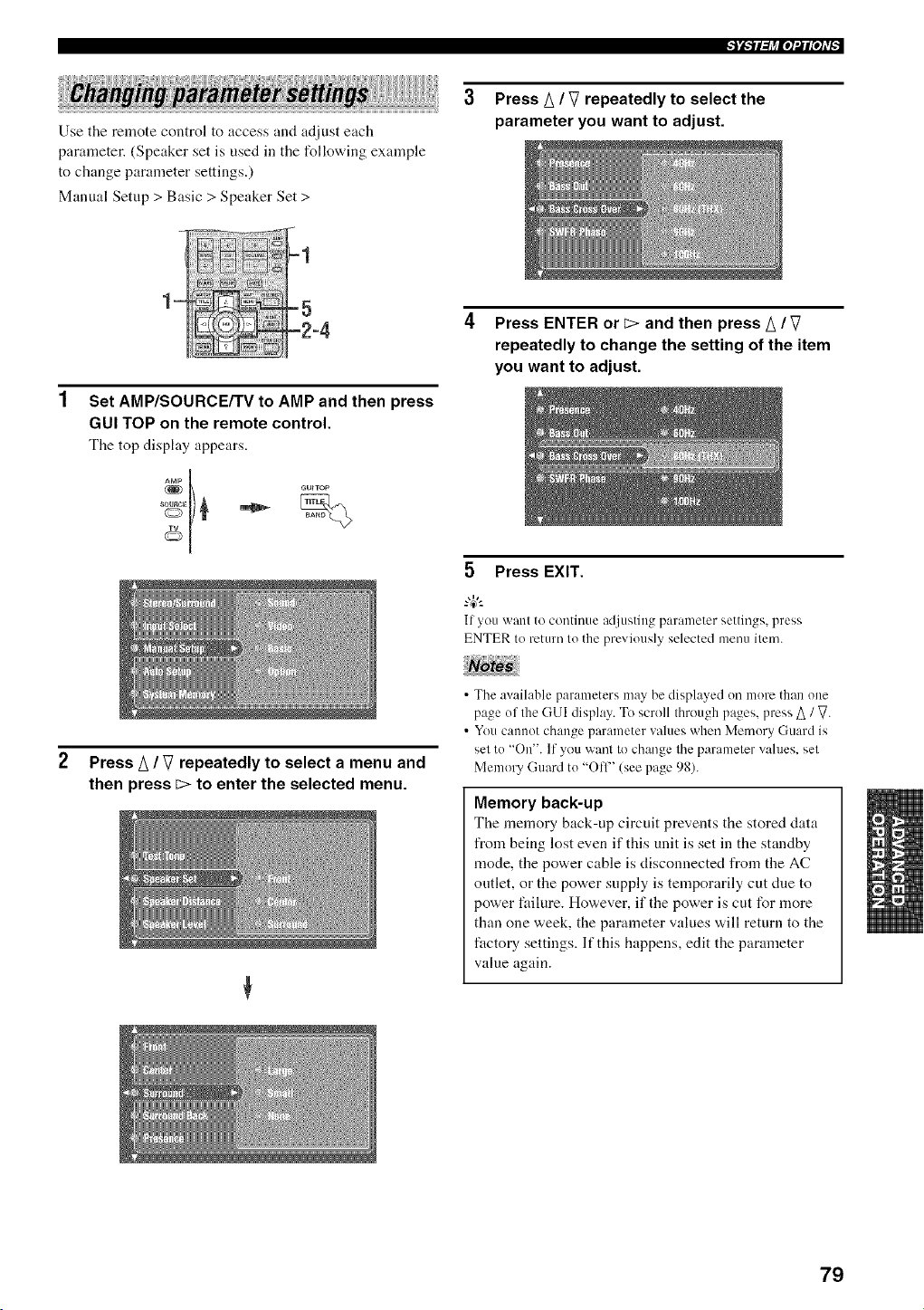
Use the remote control to access and adjust each
parameter. (Speaker set is used in the follovdng exainple
to change parameter settings.)
Manual Setup > Basic > Speaker Set >
Press A / V repeatedly to select the
parameter you want to adjust.
Set AMP/SOURCE/TV to AMP and then press
GUI TOP on the remote control.
Tile top display appears.
4 Press ENTER or E> and then press A / V
repeatedly to change the setting of the item
you want to adjust.
5 Press EXIT.
If you want to continue adjusting parameter settings, press
ENTER to return to the previously selected menu itmn.
Press A / V repeatedly to select a menu and
then press E> to enter the selected menu.
• The available parameters may be displayed on more than one
page of the GUI display. To scroll through pages, press A / V.
• You cannot change paraineter values when Memory Guard is
set to "On'. If you want to change the paralneter values, set
Memory Guard to "Ofl" (see page 98).
Memory back-up
The memory back-up circuit prevents the stored data
from being lost even if this unit is set in the standby
mode, the power cable is disconnected from the AC
outlet, or the power supply is temporarily cut due to
power failure. However, if the power is cut for more
than one week, the parameter values will return to the
factory settings. If this happens, edit the parameter
value again.
79
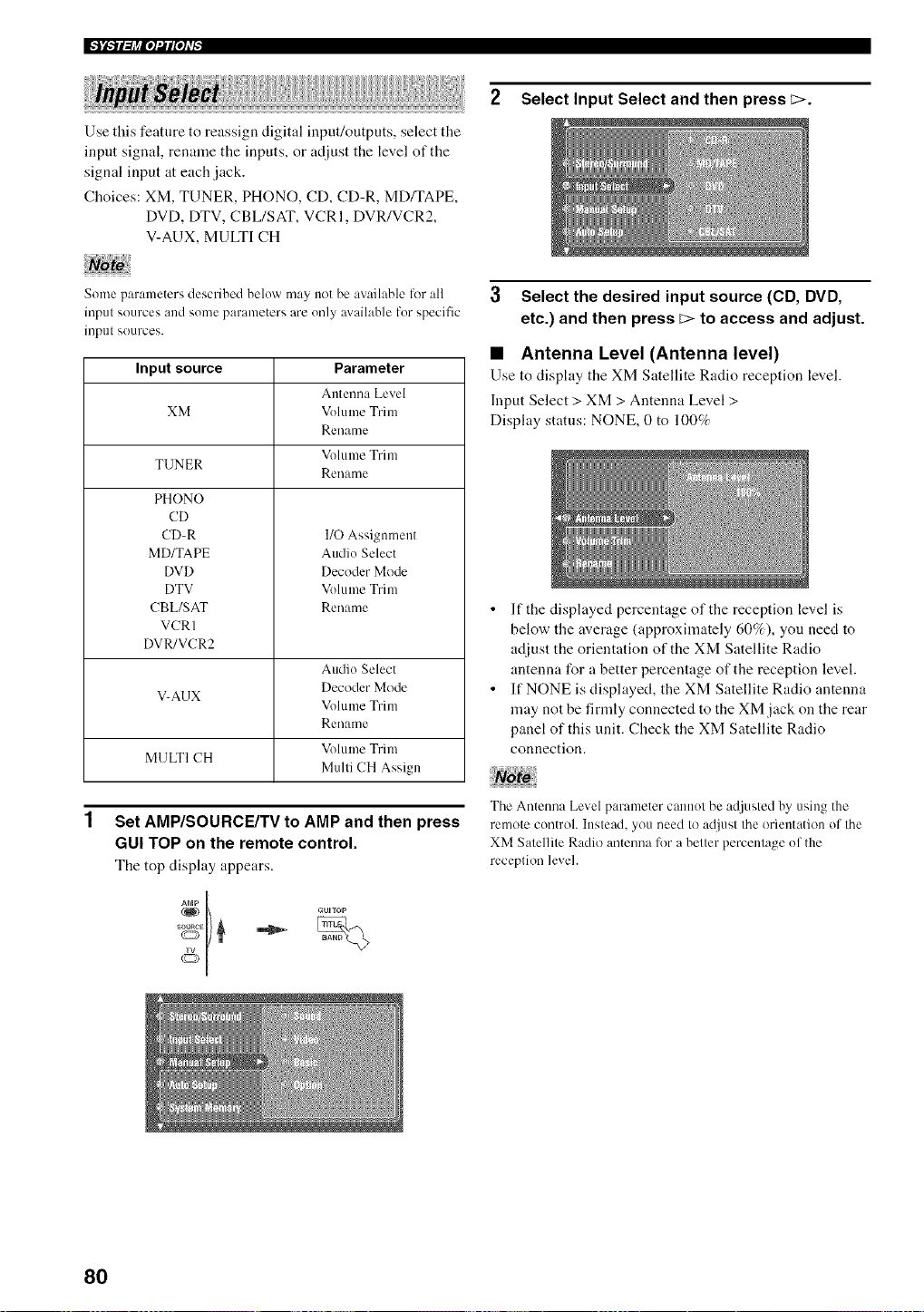
IFJ_TFh_io]_IPt#
Use this featnre to reassign digital input/outputs, select the
input signal, rename the inputs, or adjust the level of the
signal input at each jack.
Choices: XM, TUNER, PHONO, CD, CD-R, MD/TAPE,
DVD, DTV, CBL/SAT, VCRI, DVR/VCR2,
V-AUX, MULTI CH
2 Select Input Select and then press C>.
Some paranaeters described below may not be available for all
input sources and some pamnaeters are only available for specific
inpul sources.
Input source Parameter
Antenna Level
XM Volume Trim
Rename
Volume Trim
TUNER
Rename
PHONO
CD
CD-R
MD/TAPE
DVD
DTV
CBL/SAT
VCRI
DVR/VCR2
1/O Assignment
Audio Select
Decoder Mode
Volume Trim
Rename
Audio Select
Decoder Mode
V-AUX
Volume Trim
Rename
Volume Trim
MULTI CH
Multi CH Assign
1
Set AMP/SOURCE/TV to AMP and then press
GUI TOP on the remote control.
The top display appears.
3 Select the desired input source (CD, DVD,
etc.) and then press c> to access and adjust.
• Antenna Level (Antenna level)
Use to display tile XM Satellite Radio reception level.
Input Select > XM > Antenna Level >
Display status: NONE, 0 to 100%
• If the displayed percentage of the reception level is
below the average (approximately 60%), you need to
adjust the orientation of the XM Satellite Radio
antenna for a better percentage of the reception level.
• If NONE is displayed, the XM Satellite Radio antenna
may not be firmly connected to the XM.jack on the rear
panel of this unit. Check the XM Satellite Radio
connection.
The Antenna Level parameter canllOl be ad.justed by using the
remote control. Inslead. you need to adjusl Ihe orientation of Ihe
XM Salellile Radio antenna lk_ra better percentage of the
reception level.
8O
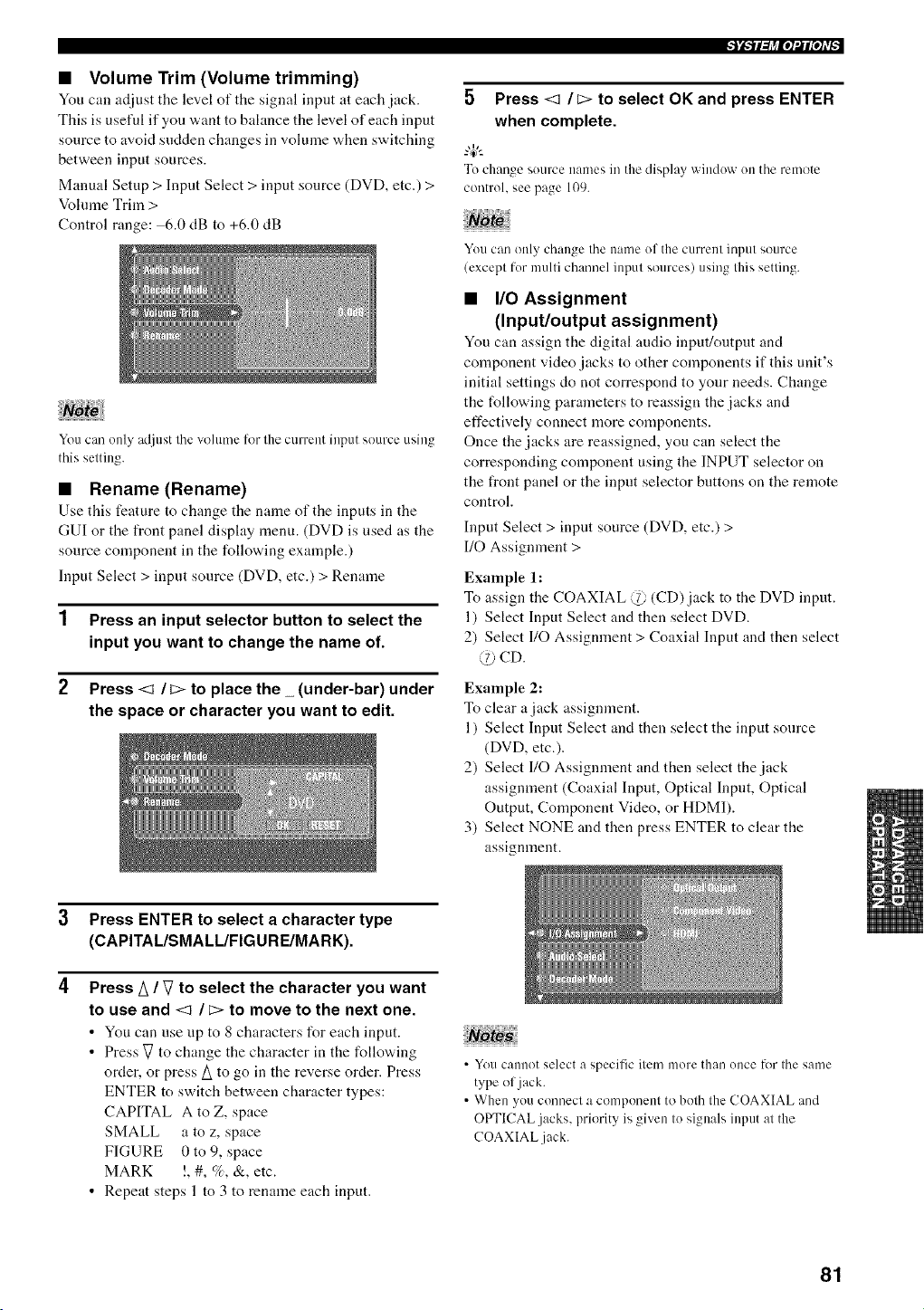
• Volume Trim (Volume trimming)
You can adjust tile level of the signal input at each jack.
This is useful if you want to balance the level of each input
source to avoid sudden changes in volume when switching
between input sources.
Manual Setup > Input Select > input source (DVD, etc.) >
Volume Trim >
Control range: 6.0 dB to +6.0 dB
You can only adjust the volume for the current input source using
this setting.
• Rename (Rename)
Use tiffs feature to change the name of the inputs ira the
GUI or the front panel disphty menu. (DVD is used as the
source component in the following example.)
Input Select > input source (DVD, etc.) > Rename
1 Press an input selector button to select the
input you want to change the name of.
2 Press <1 / _> to place the _ (under-bar) under
the space or character you want to edit.
5 Press <1 /_> to select OK and press ENTER
when complete.
-"4_"-
To change source names in the display window on the remote
control, see page 109.
You can only change the name of the current input source
(except for multi channel input sources) using this setting.
• I/O Assignment
(Input/output assignment)
You can assign the digital audio input/output and
component video jacks to other components if this unit's
initial settings do not correspond to your needs. Change
the following parameters to reassign the jacks and
effectively connect more components.
Once the jacks are reassigned, you can select the
corresponding component using the INPUT selector on
the front panel or the input selector buttons on the remote
control.
Input Select > input source (DVD, etc.) >
I/O Assigmnent >
Example 1:
To assign the COAXIAL @ (CD) jack to the DVD input.
1) Select Input Select and then select DVD.
2) Select I/O Assignment > Coaxial Input and then select
CD.
Example 2:
To clear a jack assignment.
1) Select Input Select and then select the input source
(DVD, etc.).
2) Select I10 Assigmnent and then select the jack
assignment (Coaxial Input, Optical Input, Optical
Output, Component Video, or HDMI).
3) Select NONE and then press ENTER to clear the
assignment.
3 Press ENTER to select a character type
(CAPITAL/SMALL/FIGURE/MARK).
4
Press A / V to select the character you want
to use and <1 / _> to move to the next one.
• You can use up to 8 characters for each input.
• Press V to change the character in the following
order, or press A to go in the reverse order. Press
ENTER to switch between character types:
CAPITAL A to Z, space
SMALL a to z, space
FIGURE 0 to 9, space
MARK !, #, %, &, etc.
• Repeat steps 1 to 3 to rename each input.
• You cannot select a specific item more than once lk_rthe same
type of jack.
• When you connect a component to both the COAXIAL and
OPTICAL jacks, priority is given to signals input at the
COAXIAL .jack.
81
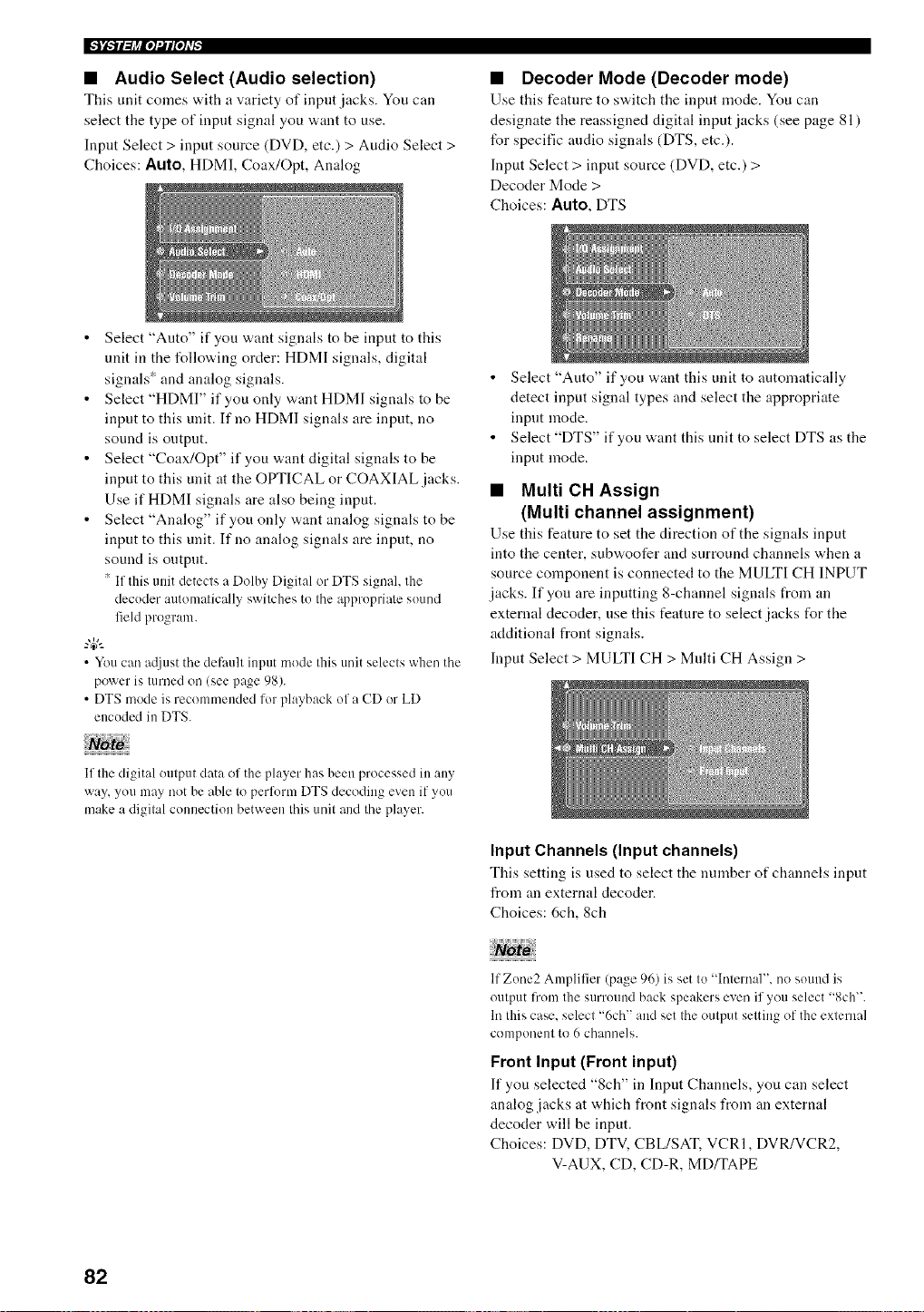
IFJ'i-TFlj_Pl_l_Oh'_
• Audio Select (Audio selection)
This unit comes with a variety of input jacks. You can
select the type of input signal you want to use.
Input Select > input source (DVD, etc.) > Audio Select >
Choices: AUTO, HDMI, Coax/Opt, Analog
• Decoder Mode (Decoder mode)
Use this feature to s'a.itch tile input mode. You can
designate the reassigned digital input jacks (see page 81 )
for specific audio signals (DTS, etc.).
Input Select > input source (DVD, etc.) >
Decoder Mode >
Choices: Auto, DTS
• Select "Auto" if you want signals to be input to this
unit in the follow.'ing order: HDMI signals digital
signals* and analog signals.
• Select "HDMI" if you only want HDMI signals to be
input to this unit. If no HDMI signals are input, no
sound is ontpnt.
• Select "Coax/Opt" if you want digital signals to be
input to this unit at the OPTICAL or COAXIAL jacks.
Use if HDMI signals are also being input.
• Select "Analog" if you only want analog signals to be
input to this unit. If no analog signals are input, no
sound is output.
* If tlais unit detects a Dolby Digital or DTS signal, the
decoder automatically sv¢itches to the appropriate sound
field program.
• You can at[it,st the dethull input mode tlais unit selects when the
power is mined on (see page 98).
• DTS mode is recomn/ended for playback of a CD or LD
encoded in DTS.
{{No:to
If tlae digital output data of the player has been processed in :my
way, you may not be able to perform DTS decoding even if you
make a digital connection between Ihis unil and Ihe player.
• Select "Anto" if you want this unit to automatically
detect input signal types and select the appropriate
input mode.
• Select "DTS" if you want this unit to select DTS as the
input mode.
• Multi CH Assign
(Multi channel assignment)
Use this feature to set the direction of the signals input
into the center, subwoofer and snrround channels when a
source component is connected to the MULTI CH INPUT
jacks. If you are inputting 8-channel signals from an
external decoder, use this feature to select jacks for the
additional front signals.
Input Select > MULTI CH > Multi CH Assign >
Input Channels (Input channels)
This setting is used to select the number of channels input
from an external decoder.
Choices: 6ch, 8ch
) _) 3 o C
lfZ( ne, AmI lifter (pa_e _)6) is set to "Inlernal". no sound is
oulput from the surround back speakers even if you select "8ch'.
In Ihis case. select "6ch" and set the oulput setting of the external
component to 6 channe]s.
Front Input (Front input)
If you selected "8ch" in Input Channels, you can select
analog jacks at which front signals from an external
decoder will be input.
Choices: DVD, DTV, CBL/SAT. VCRI, DVR/VCR2,
V-AUX, CD, CD-R, MD/TAPE
82
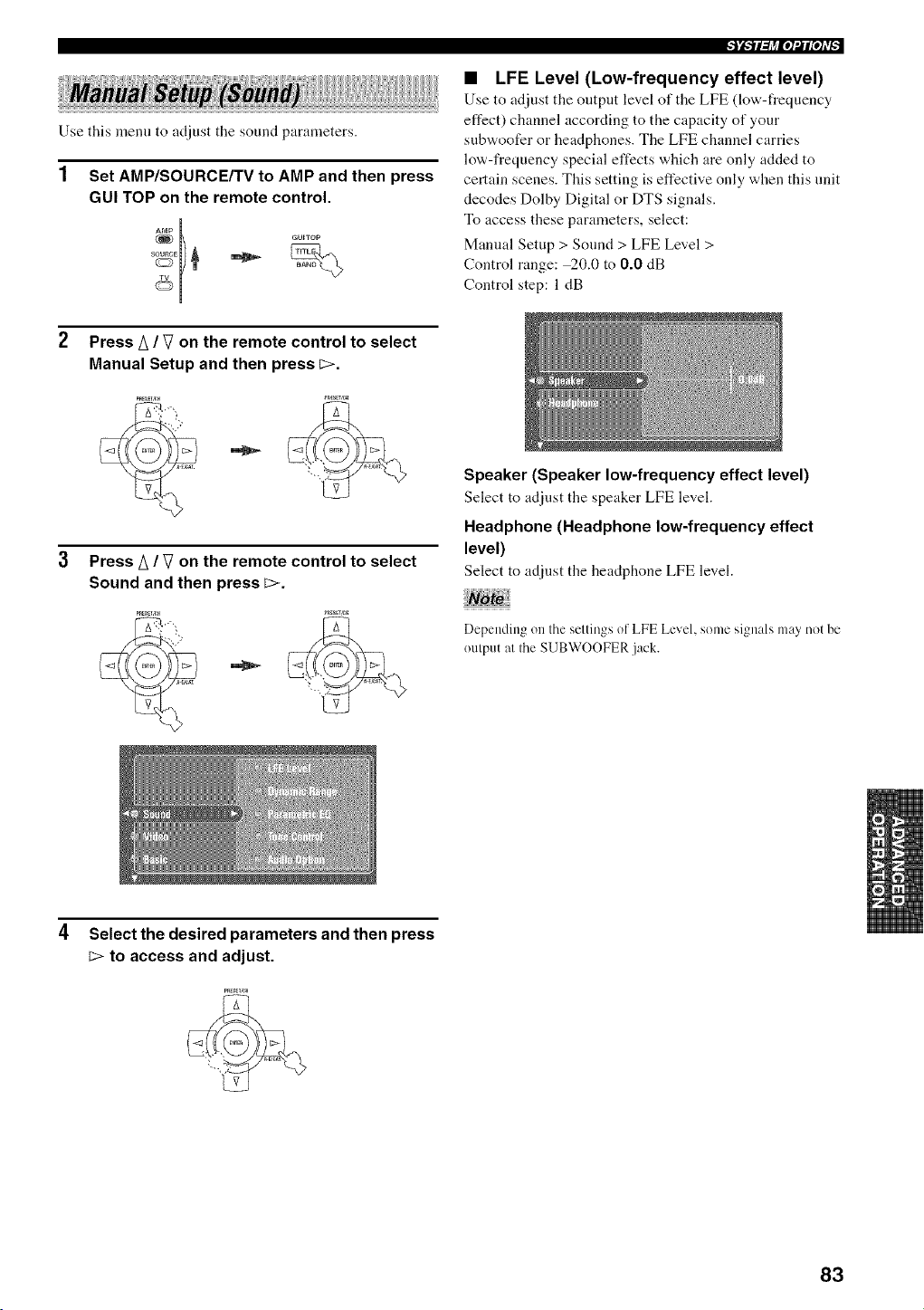
Use this menu to adjust the sound parameters.
1 Set AMP/SOURCE/TV to AMP and then press
GUI TOP on the remote control.
Press A / V on the remote control to select
Manual Setup and then press _>.
Press A / V on the remote control to select
Sound and then press L>.
• LFE Level (Low-frequency effect level)
Use to adjust the output level of the LFE (low-frequency
effect) channel according to the capacity of your
snbwoofer or headphones. The LFE channel carries
low-frequency special effects which are only added to
certain scenes. This setting is effective only when this unit
decodes Dolby Digital or DTS signals.
To access these parameters, select:
Manual Setup > Sound > LFE Level >
Control range: _0.0 to 0.0 dB
Control step: 1 dB
Speaker (Speaker low-frequency effect level)
Select to adjust the speaker LFE level.
Headphone (Headphone low-frequency effect
level)
Select to adjust the headphone LFE level.
Depending onthe settings of LFELevel, some signals may not be
output al the SUBWOOFER jack.
Select the desired parameters and then press
to access and adjust.
83
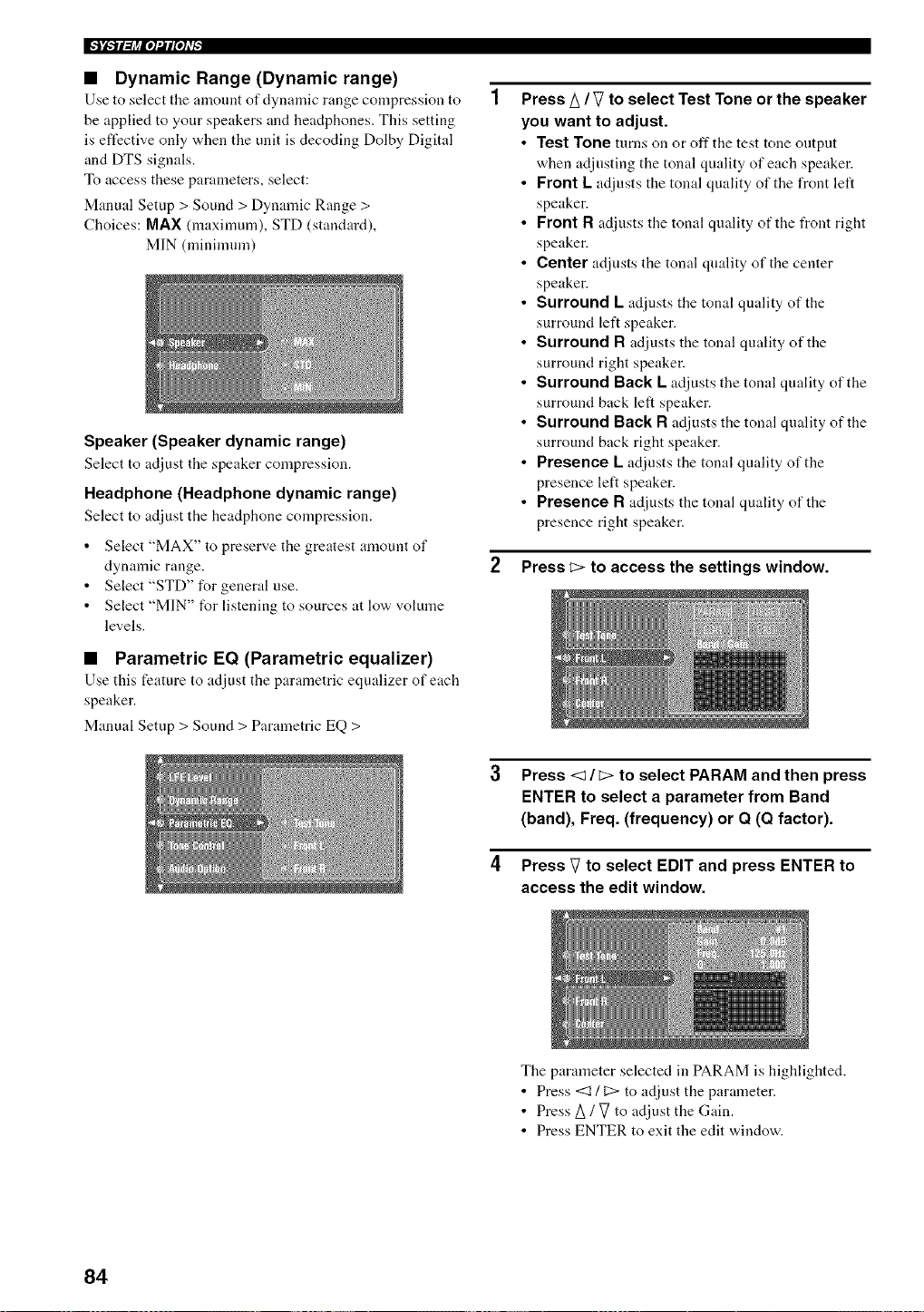
• Dynamic Range (Dynamic range)
Use to select tile amount of dynamic range compression to
be applied to your speakers and headphones. This setting
is effective only when the unit is decoding Dolby Digital
and DTS signals.
To access these parameters, select:
Manual Setup > Sound > Dynamic Range >
Choices: MAX (maximum), STD (standard),
MIN (minimum)
Speaker (Speaker dynamic range)
Select to adjust the speaker compression.
Headphone (Headphone dynamic range)
Select to adjust the headphone compression.
• Select "MAX" to preserve the greatest amount of
dynamic range.
• Select "STD" for general use.
• Select "MIN" for listening to sources at low volume
levels.
• Parametric EQ (Parametric equalizer)
Use this feature to adjust the parametric equalizer of each
speaker.
Manual Setup > Sound > Parametric EQ >
Press A / V to select Test Tone or the speaker
you want to adjust.
Test Tone turns on or off the test tone output
when adjusting the tonal quality of each speaker.
Front L adjusts the tonal quality of the front left
speaker.
Front R adjusts the tonal quality of the front right
speaker.
Center adjusts the tonal quality of the center
speaker.
Surround L adiusts the tonal quality of the
surround left speaker.
Surround R adjusts the tonal quality of the
surround right speaker.
Surround Back L adjusts the tonal quality of the
surround back left speaker.
Surround Back R adjusts the tonal quality of the
surround back right speaker.
Presence L adiusts the tonal quality of the
presence left speaker.
Presence R adjusts the tonal quality of the
presence right speaker.
2 Press L> to access the settings window.
Press <1 / _> to select PARAM and then press
ENTER to select a parameter from Band
(band), Freq. (frequency) or Q (Q factor).
Press V to select EDIT and press ENTER to
access the edit window.
The parameter selected in PARAM is highlighted.
• Press <3 / [2> to adjust the parameter.
• Press/_ / V to adjust the Gain.
• Press ENTER to exit the edit window.
84
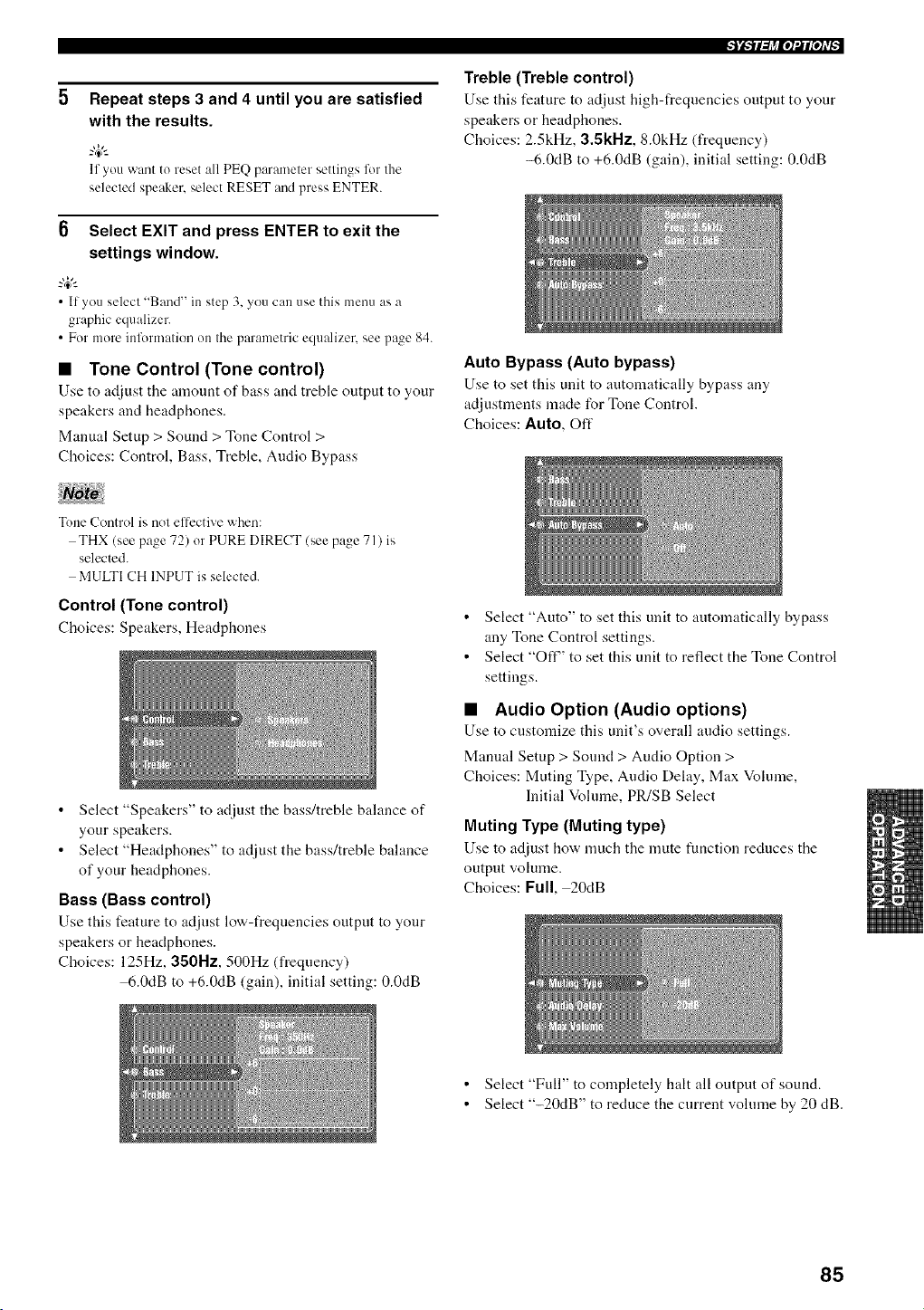
Repeat steps 3 and 4 until you are satisfied
with the results.
If you want to reset all PEQ parameter settings for the
selected speaker, select RESET and press ENTER.
6 Select EXIT and press ENTER to exit the
settings window.
-#.
• If you select "Band" in step 3, you can use this menu as a
graphic equalize1:
• For more information on the parametric equalizer, see p_ge 84.
• Tone Control (Tone control)
Use to adjust tile amount of bass and treble output to your
speakers and headphones.
Manual Setup > Sound > Tone Control >
Choices: Control, Bass, Treble, Audio Bypass
Treble (Treble control)
Use this feature to adjust high-frequencies output to your
speakers or headphones.
Choices: 2.5kHz, 3.5kNz, 8.0kHz (frequency)
-6.0dB to +6.0dB (gain), initial setting: 0.0dB
Auto Bypass (Auto bypass)
Use to set this unit to automatically bypass any
adjustments made for Tone Control.
Choices: Auto, Oft"
Tone Control is not elt'ective when:
THX (see page 72) or PURE DIRECT (see page 71 ) is
selected.
MULTI CH INPUT is selected.
Control (Tone control)
Choices: Speakers, Headphones
Select "Speakers" to adjust the bass/treble balance of
your speakers.
Select "Headphones" to adjust the bass/treble balance
of your headphones.
Bass (Bass control)
Use this feature to adjust low-frequencies output to your
speakers or headphones.
Choices: 125Hz, 350Nz, 500Hz (frequency)
6.0dB to +6.0dB (gain), initial setting: 0.0dB
• Select "Auto" to set this unit to automatically bypass
any Tone Control settings.
• Select "Off"' to set this unit to reflect the Tone Control
settings.
• Audio Option (Audio options)
Use to customize this unit's overall audio settings.
Manual Setup > Sound > Audio Option >
Choices: Muting Type, Audio Delay, Max Volume,
Initial Volume, PR/SB Select
Muting Type (Muting type)
Use to adjust ho'a, much the mute tunctiou reduces the
output volume.
Choices: Full, 20dB
• Select "Full" to completely halt all output of sound.
• Select "-20dB" to reduce the current volume by 20 dB.
85
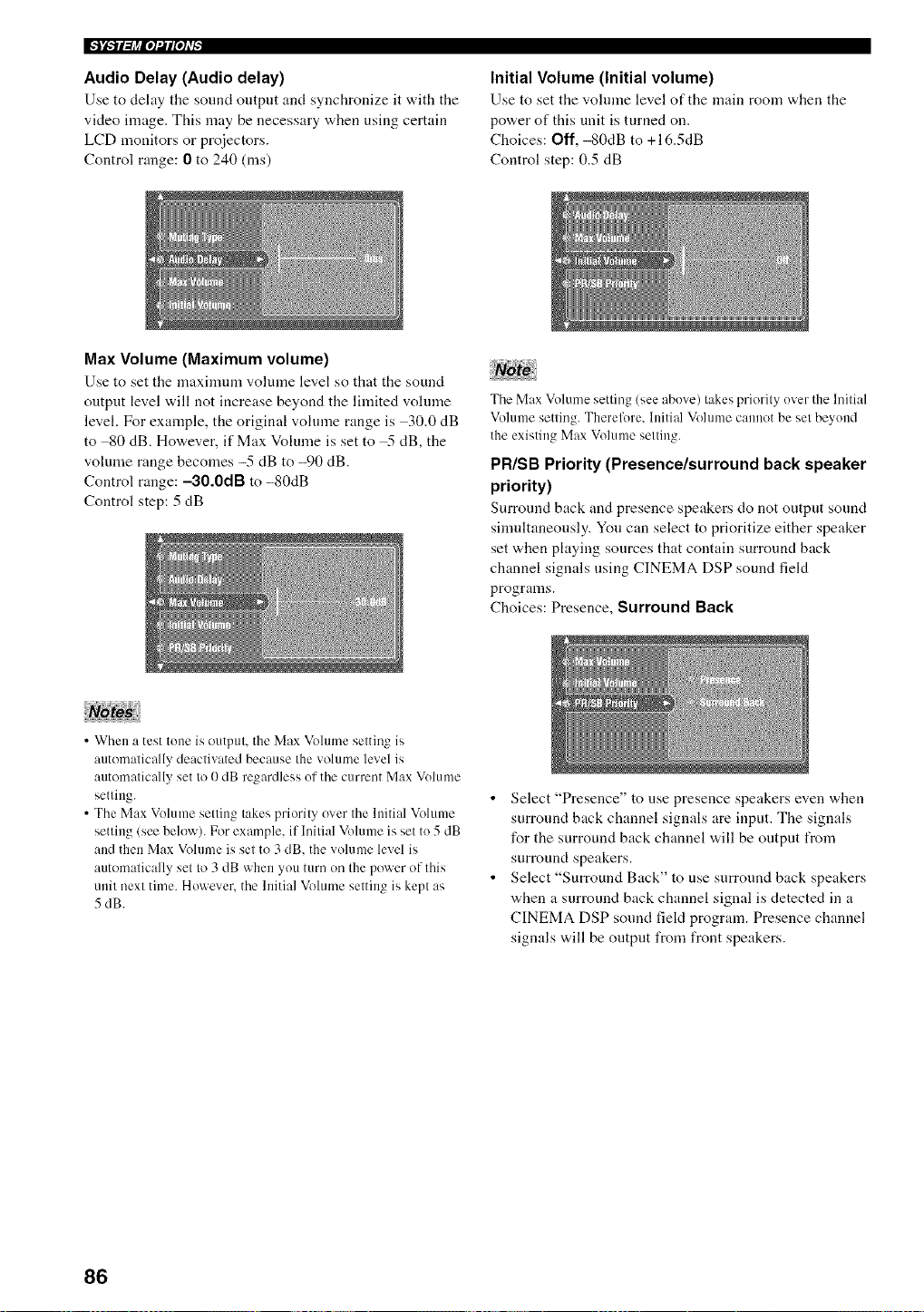
Audio Delay (Audio delay)
Use to dehty tile sound outpnt and synchronize it with the
video image. This may be necessary when using certain
LCD monitors or projectors.
Control range: 0 to 240 (ms)
Initial Volume (Initial volume)
Use to set the volume level of tile main room when the
power of this unit is turned on.
Choices: Off, -80dB to +16.5dB
Control step: 0.5 dB
Max Volume (Maximum volume)
Use to set the maximum volmne level so that the sound
output level will not increase beyond the limited vohnne
level, For example, the original volume range is 30.0 dB
to -80 dB. However, if Max Volume is set to .5 dB, the
volume range becomes -5 dB to -90 dB.
Control range: --30.0dB to -80dB
Control step: 5 dB
The Max Volume setting (see above) takes priority over the Initial
Volume setting. Therelk_re. lnitial Volume cannot be set beyond
the existing Max Volume setting.
PR/SB Priority (Presence/surround back speaker
priority)
Surround back and presence speakers do not output sound
simultaneously. Yon can select to prioritize either speaker
set when playing sources that contain surround back
channel signals using CINEMA DSP sound field
programs.
Choices: Presence, Surround Back
• When a test tone is output, the Max Volume setting is
automatically deactivated because the volume level is
automatically set to 0 dB regardless of the current Max Volume
setting.
• The Max Volume setting takes priority over the lnitial Volume
setting (see below). For example, if Initial Volume is set to 5 dB
and then Max Volume is set to 3 dB. the volume level is
automatically set to 3 dB when you turn on the power of this
unit next time. However. the lnitial Volume setting is kept as
5 dB.
• Select "Presence" to use presence speakers even when
surronnd back channel signals are input. The signals
for the surround back channel will be output from
surround speakers.
• Select "Surround Back" to use surround back speakers
when a surround back channel signal is detected in a
CINEMA DSP sonnd fiekt program. Presence channel
signals will be output from front speakers.
86
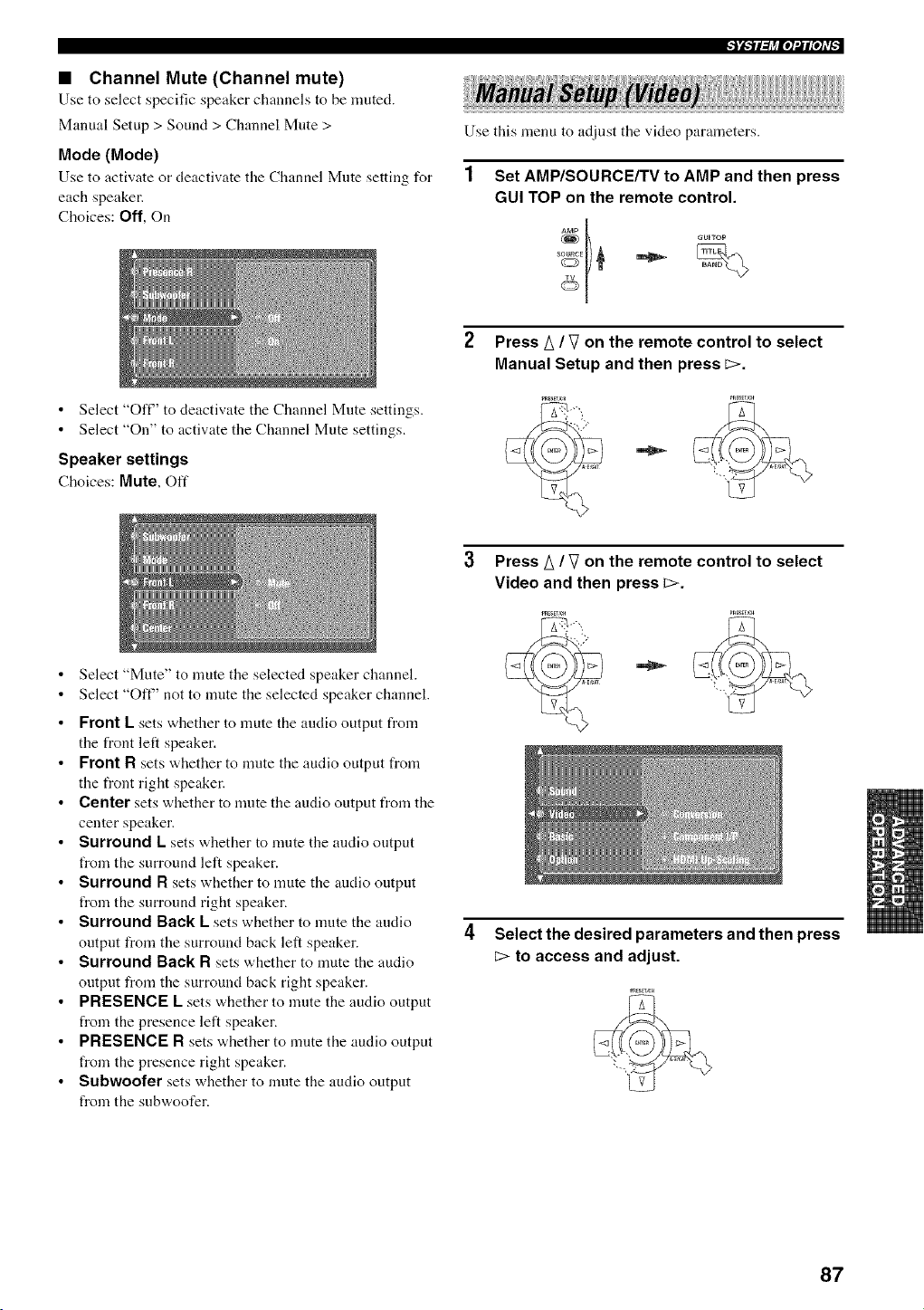
• Channel Mute (Channel mute)
Use to select specific speaker channels to be muted.
Manual Setup > Sound > Channel Mute >
Mode (Mode)
Use to activate or deactivate tile Channel Mute setting for
each speaker.
Choices: Off, On
Use this menu to adjust the video parameters.
1
Set AMP/SOURCE/TV to AMP and then press
GUI TOP on the remote control.
Select "Off' to deactivate the Channel Mute settings.
Select "On" to activate the Channel Mute settings.
Speaker settings
Choices: Mute, Oft"
Press A / V on the remote control to select
Manual Setup and then press c>.
Select "Mute" to nmte the selected speaker channel.
Select "Oft" not to mute the selected speaker channel.
Front L sets whether to mute the audio output from
the front left speaker.
Front R sets whether to mute the audio output from
the front right speaker.
Center sets whether to nmte the audio output from the
center speaker.
Surround L sets whether to nmte the audio output
from the surround left speaker.
Surround R sets whether to nmte the audio output
from the surround right speaker.
Surround Back L sets whether to nmte the audio
output from the surround back left speaker.
Surround Back R sets whether to mute the audio
output from the surround back right speaker.
PRESENCE L sets whether to mute the audio output
from the presence left speaker.
PRESENCE R sets whether to mute the audio output
from the presence right speaker.
Subwoofer sets whether to mute the audio output
from the subwoofer.
Press A / V on the remote control to select
Video and then press c>.
Select the desired parameters and then press
E> to access and adjust.
87
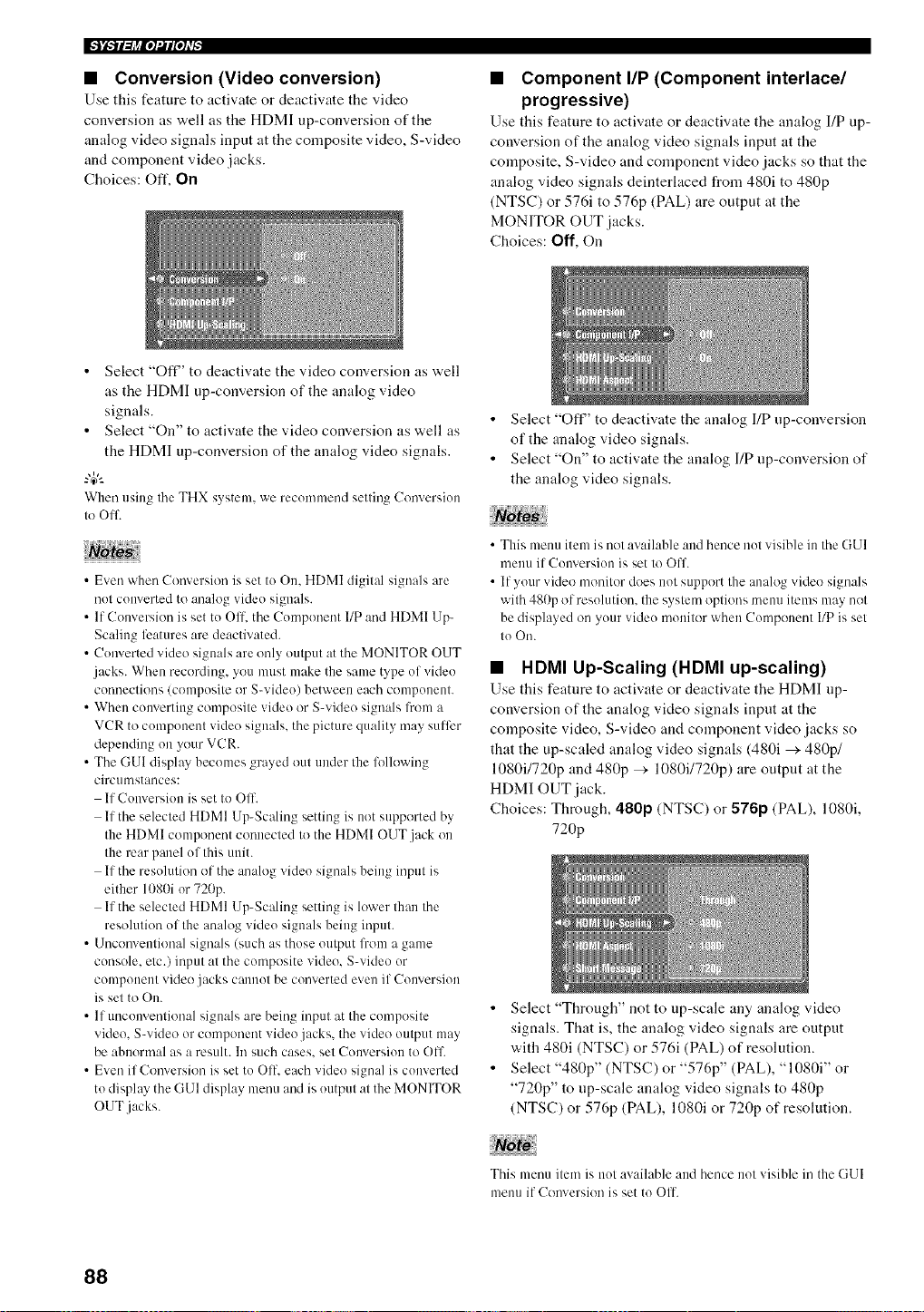
• Conversion (Video conversion)
Use this feature to activate or deactivate the video
conversion as well as the HDMI up-conversion of the
analog video signals input at the composite video, S-video
and component video jacks.
Choices: Oft', On
• Component lIP (Component interlace/
progressive)
Use this feature to activate or deactivate tile analog I/P up-
conversion of the analog video signals input at the
composite, S-video and component video jacks so that the
analog video signals deinterlaced from 480i to 480p
(NTSC) or 576i to 576p (PAL) are output at the
MONITOR OUT jacks.
Choices: Off, On
• Select "OFF' to deactivate the video conversion as well
as the HDMI up-conversion of the analog video
signals.
• Select "On" to activate the video conversion as well as
the HDMI up-conversion of the analog video signals.
When using the THX system, we recommend setting Conversion
to 011".
• Even when Conversion is set to On, HDMI digital signals are
not converted to analog vide() signals.
• If Conversion is set to Olt'. the Conwment I/P and HDMI Up-
Scaling features are deactivated.
• Converted video signals are only output at the MONITOR OUT
.jacks. When recording, you must make the same type of vide()
connections (composite or S-video) between each component.
• When converting composite video or S-video signals from a
VCR to component video signals, the picture quality may suffer
depending on your VCR.
• The GUI display becomes grayed out under the lollowiug
circmnstances:
If Conversion is set to Off.
If the selected HDMI Up-Scaling setting is not supported by
the HDMI component connected to the HDMI OUT jack on
the rear panel of this unit.
If the resolution of the anah)g video signals being input is
either 1080i or 720p.
If the selected HDMI Up-Scaling setting is lower than the
resolution of the analog vide() signals being input.
• Unconventional signals (such as those output from a game
console, etc.) input at the composite video. S-video or
component video jacks cannot be converted even if Conversion
is set to On.
• If unconvm/tional signals are being input at the composite
vide(). S-video or component vide()jacks, the video output may
be abnornml as a result. In such cases, set Conversion to Off
• Even if Conversion is set to OIL each vide() signal is converted
to display the GUI display menu and is output at the MONITOR
OUT jacks.
• Select "Oft" to deactivate the analog I/P up-conversion
of the analog video signals.
• Select "On" to activate the analog I/P up-conversion of
the analog video signals.
• This menu item is not available and hence not visible in the GUI
menu if Conversion is set to Off.
• If your vide() monitor does not support the analog vide() signals
with 480p of resolution, the system options nmnu items may not
be displayed on your vide() monitor when Cmnponent I/P is set
to On.
• HDMI Up-Scaling (HDMI up-scaling)
Use this feature to activate or deactivate the HDMI up-
conversion of the analog video signals input at the
composite video, S-video and component video jacks so
that the up-scaled analog video signals (480i > 480p1
1080i1720p and 480p > 1080i1720p) are output at the
HDMI OUT jack.
Choices: Through, 480p (NTSC) or 576p (PAL), 1080i,
720p
• Select "Through" not to up-scale any analog video
signals. That is, the analog video signals are output
with 480i (NTSC) or 576i (PAL) of resolution.
• Select "480p" (NTSC) or "576p" (PAL), "1080i" or
"720p" to up-scale analog video signals to 480p
(NTSC) or 576p (PAL), 1080i or 720p of resolution.
This menu itmn is not available and hence not visible in the GUI
menu if Conversion is set to Off.
88
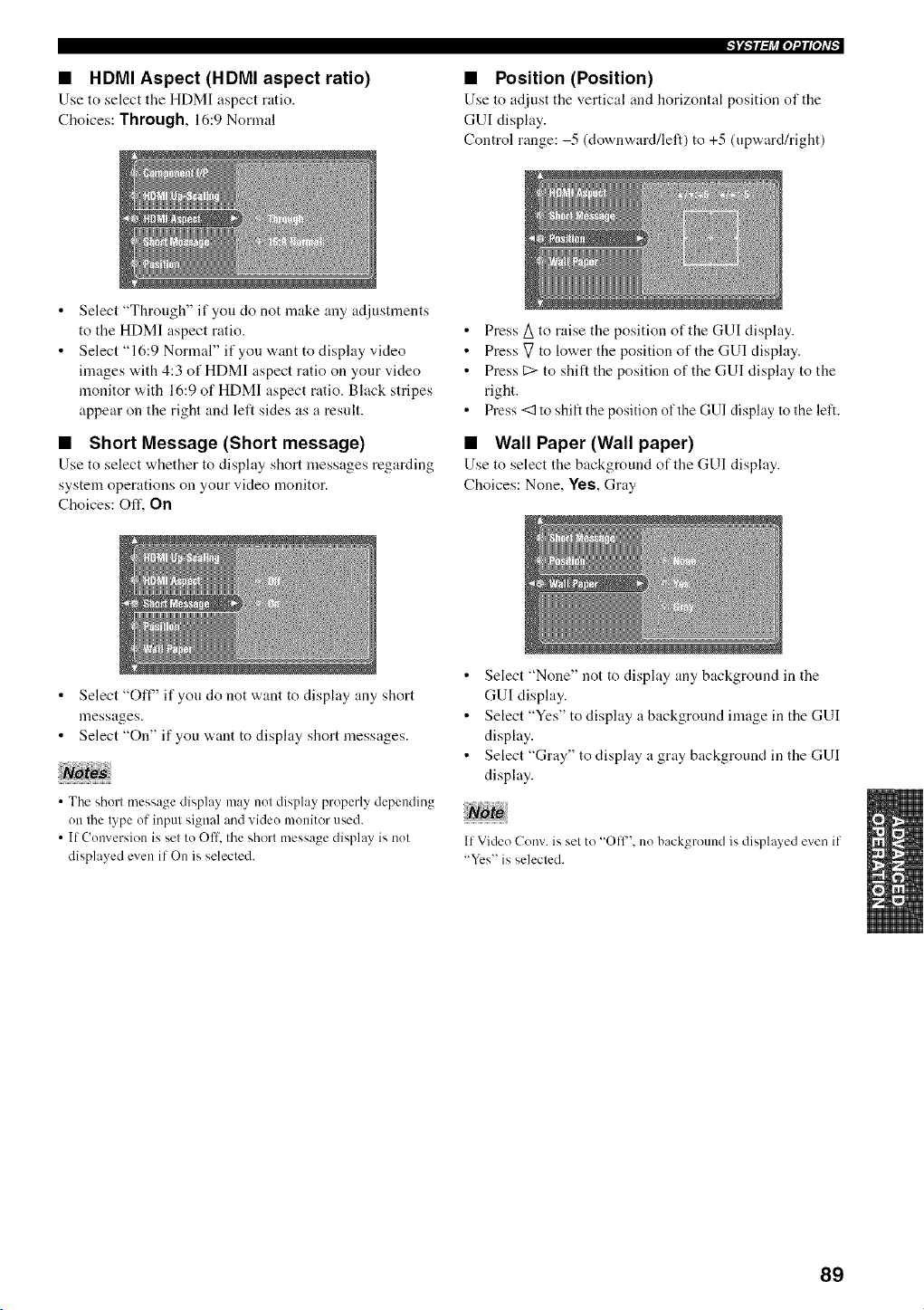
• HDMI Aspect (HDMI aspect ratio)
Use to select the HDMI aspect ratio.
Choices: Through, 16:9 Normal
• Position (Position)
Use to adjust the vertical and horizontal position of the
GUI display.
Control range: -5 (downward/left) to +5 (upward/right)
Select "Through" if you do not make any adjustments
to the HDMI aspect ratio.
Select "16:9 Normal" if you want to display video
images with 4:3 of HDMI aspect ratio on your video
monitor with 16:9 of HDMI aspect ratio. Black stripes
appear on the right and left sides as a result.
• Short Message (Short message)
Use to select whether to display short messages regarding
system operations on your video monitor.
Choices: Off, On
• Press/_ to raise the position of the GUI display.
• Press V to lower the position of the GUI display.
• Press C:>to shift the position of the GUI display to the
right.
• Press <1 to shift the position of the GUI display to the left.
• Wall Paper (Wall paper)
Use to select the background of the GUI display.
Choices: None, Yes, Gray
Select "OFF' if you do not want to display any short
messages.
Select "On" if you want to display short messages.
• The short message display may not display properly depending
on the type of input signal and video monitor used.
• If Conversion is set to Off. the short message display is not
displayed even if On is selected.
• Select "None" not to display any background in the
GUI display.
• Select "Yes" to display a background image in the GUI
display.
• Select "Gray" to display a gray background in the GUI
display.
If Video Cony. is set to "O fl". no background is displayed even if
"Yes" is selected.
89
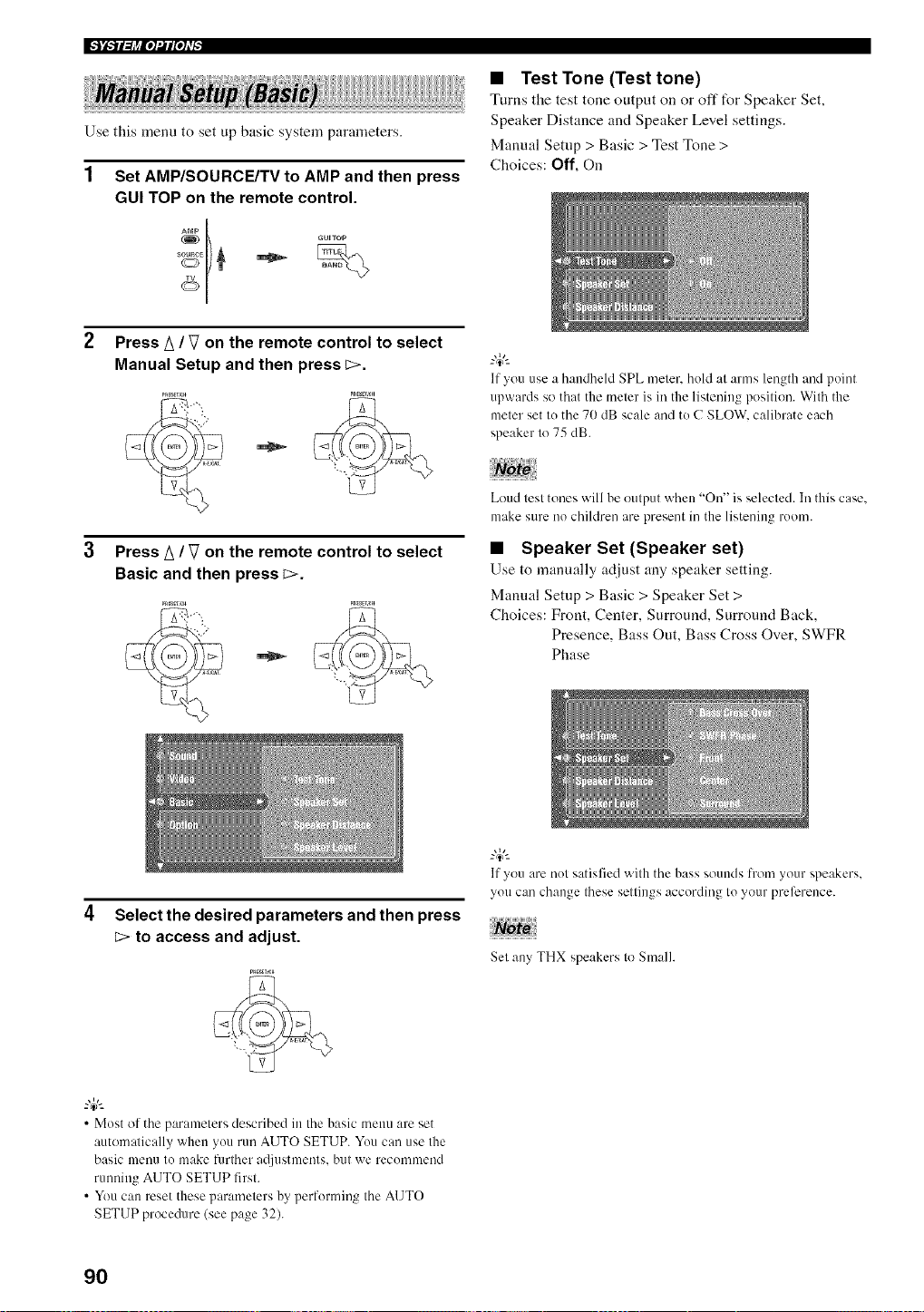
Use this menu to set up basic system parameters.
1
Set AMP/SOURCE/TV to AMP and then press
GUI TOP on the remote control.
• Test Tone (Test tone)
Turns the test tone output on or off t_r Speaker Set,
Speaker Distance and Speaker Level settings.
Manual Setup > Basic > Test Tone >
Choices: Off, On
Press A / V on the remote control to select
Manual Setup and then press c>.
Press A / V on the remote control to select
Basic and then press _>.
If you use a handheld SPL meter, hold at arms length and point
upwards so that the meter is in the listening position. With the
meter set to the 70 dB scale and to C SLOW. calibrate each
speaker to 75 dB.
Loud test tones will be output when "On" is selected. In this case.
make sure no children are present in the listening room.
• Speaker Set (Speaker set)
Use to manually adjust any speaker setting.
Manual Setup > Basic > Speaker Set >
Choices: Front, Center, Surround, Surround Back,
Presence, Bass Out, Bass Cross Over, SWFR
Phase
4 Select the desired parameters and then press
E> to access and adjust.
• Most of the parameters described in the basic menu are set
automatically when you run AUTO SETUP. You can use the
basic menu to make further a_ljostments, but we recommend
running AUTO SETUP first.
• You can reset these parameters by performing the AUTO
SETUP procedure (see page 32).
If you are not satisfied with the bass sounds from your speakers.
you can change these settings according to your preference.
Set any THX speakers to Small.
90
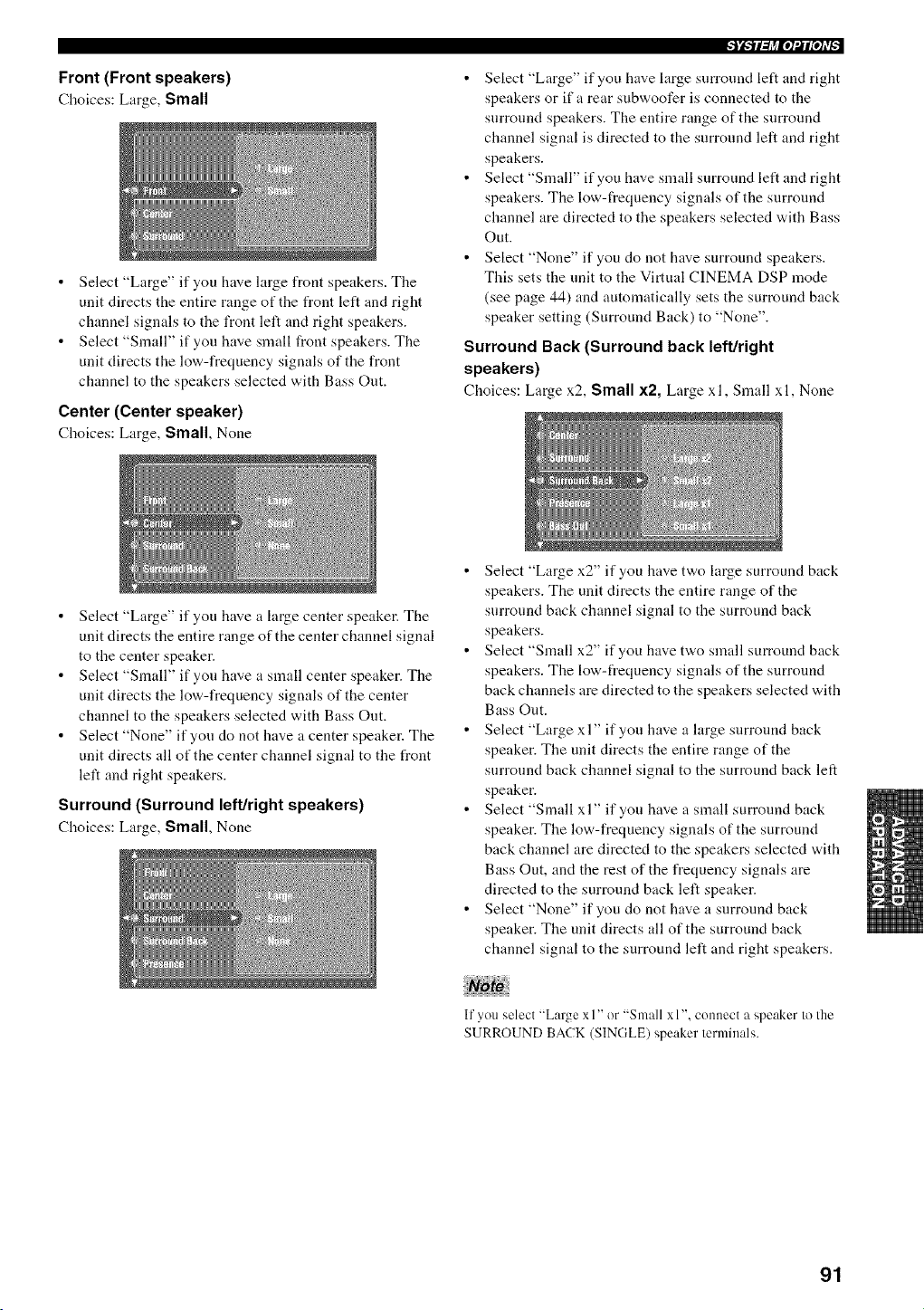
Front (Front speakers)
Choices: Large, Small
Select "Large" if you have large front speakers. The
unit directs the entire range of the front left and right
channel signals to the front left and right speakers.
Select "Small" if you have small front speakers. The
unit directs the low-frequency signals of the front
channel to the speakers selected with Bass Out.
Center (Center speaker)
Choices: Large, Small, Nolle
• Select "Large" if you have large surround left and right
speakers or if a rear subwoofer is connected to the
surround speakers. The entire range of the surround
channel signal is directed to the surround left and right
speakers.
• Select "Small" if you have small surround left and right
speakers. The low-frequency signals of the surround
channel are directed to the speakers selected with Bass
Out.
• Select "None" if you do not have surround speakers.
This sets the unit to the Virtual CINEMA DSP mode
(see page 44) and automatically sets the surround back
speaker setting (Surround Back) to "None".
Surround Back (Surround back left/right
speakers)
Choices: Large x2, Small x2, Large xl, Small xl, None
Select "Large" if you have a large center speaker. The
unit directs the entire range of the center channel signal
to the center speaker.
Select "Small" if you have a small center speaker. The
unit directs the low-frequency signals of the center
channel to the speakers selected with Bass Out.
Select "None" if you do not have a center speaker. The
unit directs all of the center channel signal to the front
left and right speakers.
Surround (Surround left/right speakers)
Choices: Large, Small, None
• Select "Large x2" if you have two large surround back
speakers. The unit directs the entire range of the
surround back channel signal to the surround back
speakers.
• Select "Small x2" if you have two small surround back
speakers. The low-t?equency signals of the surround
back channels are directed to the speakers selected with
Bass Out.
• Select "Large xl" if you have a large surround back
speaker. The unit directs the entire range of the
surround back channel signal to the surround back left
speaker.
• Select "Small xl" if you have a small surround back
speaker. The low-frequency signals of the surround
back channel are directed to the speakers selected with
Bass Out, and the rest of the frequency signals are
directed to the surround back left speaker.
• Select "None" if you do not have a surround back
speaker. The unit directs all of the surround back
channel signal to the surround left and right speakers.
If youselect "Large x I" or "Small x 1",c(mnect a speaker to the
SURROUND BACK(SINGLE) speaker terminals,
91
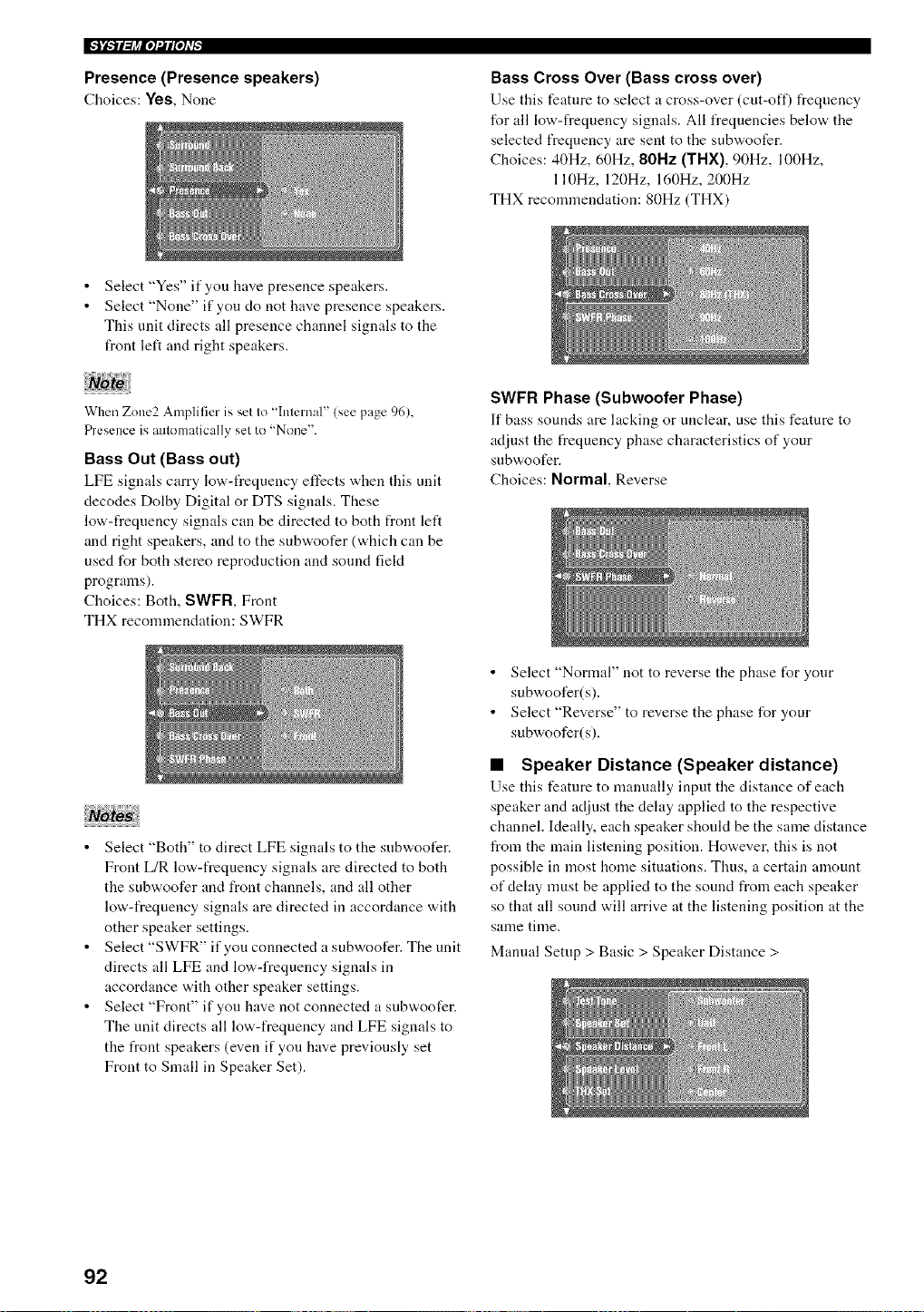
Presence (Presence speakers)
Choices: Yes, None
Bass Cross Over (Bass cross over)
Use this feature to select a cross-over (cut-off) frequency
for all low-frequency signals. All frequencies below the
selected frequency are sent to the subwoofer.
Choices: 40Hz, 60Hz, 80Hz (TNX), 90Hz, 100Hz,
110Hz, 120Hz, 160Hz, 200Hz
THX recommendation: 80Hz (THX)
Select "Yes" if you have presence speakers.
Select "None" if you do not have presence speakers.
This unit directs all presence channel signals to the
front left and right speakers.
When Zone2 Amplifier is set to "Internal" (seepage 96),
Presence is automatically set to "None".
Bass Out (Bass out)
LFE signals carry low-frequency effects when this unit
decodes Dolby Digital or DTS signals. These
low-frequency signals can be directed to both front left
and right speakers, and to the subwoofer (which can be
used for both stereo reproduction and sound fiekt
programs).
Choices: Both, SWFR, Front
THX recommendation: SWFR
SWFR Phase (Subwoofer Phase)
If bass sounds are lacking or unclear, use this feature to
adjust the t?equency phase characteristics of your
subwoofer.
Choices: Normal, Reverse
• Select "Both" to direct LFE signals to the subwoofer.
Front L/R low-frequency signals are directed to both
the subwoofer and front channels, and all other
low-frequency signals are directed in accordance with
other speaker settings.
• Select "SWFR" if you connected a subwoofer. The unit
directs all LFE and low-frequency signals in
accordance with other speaker settings.
• Select "Front" if you have not connected a subwoofer.
The unit directs all low-frequency and LFE signals to
the front speakers (even if you have previously set
Front to Small in Speaker Set).
• Select "Normal" not to reverse the phase for your
subwoofer(s).
• Select "Reverse" to reverse the phase for your
subwoofer(s).
• Speaker Distance (Speaker distance)
Use this feature to manually input the distance of each
speaker and adjust the delay applied to the respective
channel. Ideally, each speaker should be the same distance
from the main listening position. However. this is not
possible in most home situations. Thus, a certain amount
of delay must be applied to the sound from each speaker
so that all sound will arrive at the listening position at the
same time.
Manual Setup > Basic > Speaker Distance >
92
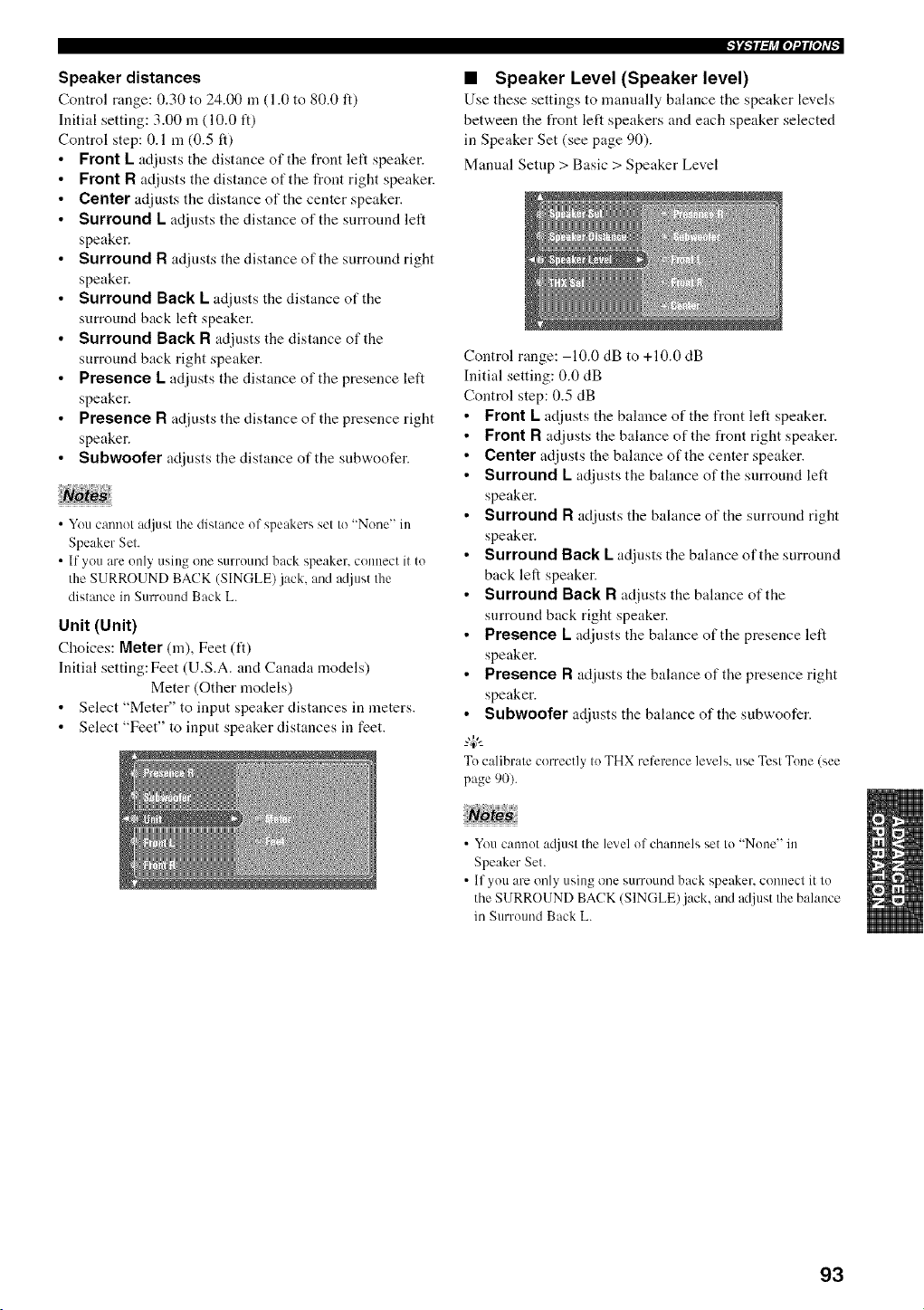
Speaker distances
Control range: 0.30 to 24.00 m (1.0 to 80.0 ft)
Initial setting: 3.00 m (10.0 ft)
Control step: 0.1 m (0.5 ft)
Front L adjusts the distance of the front left speaker.
Front R adjnsts the distance of the front right speaker.
Center adjusts the distance of the center speaker.
Surround L adjnsts the distance of the surround left
speaker.
Surround R adjnsts the distance of the surround right
speaker.
Surround Back L adjusts the distance of the
surround back left speaker.
Surround Back R adjusts the distance of the
surround back right speaker.
Presence L adjusts the distance of the presence left
speaker.
Presence R adjusts the distance of the presence right
speaker.
Subwoofer adjusts the distance of the snbwoofer.
• You cannot adjust the distance of speakers set to "None" in
Speaker Set.
• If you are only using one surround back speaker, connect it to
the SURROUND BACK (SINGLE)jack, and adjust the
distance in Surround Back L.
Unit (Unit)
Choices: Meter (m), Feet (ft)
Initial setting: Feet (U.S.A. and Canada models)
Meter (Other models)
Select "Meter" to input speaker distances in meters.
Select "Feet" to input speaker distances in feet.
• Speaker Level (Speaker level)
Use these settings to manually bahmce the speaker levels
between the front left speakers and each speaker selected
in Speaker Set (see page 90).
Mannal Setup > Basic > Speaker Level
Control range: 10.0 dB to +10.0 dB
Initial setting: 0.0 dB
Control step: 0.5 dB
• Front L adjusts the balance of the front left speaker.
• Front R adjusts the balance of the front right speaker.
• Center adjusts the balance of the center speaker.
• Surround L adjusts the balance of the surround left
speaker.
Surround R adjnsts the balance of the surround right
speaker.
Surround Back Ladjnsts the balance of the surround
back left speaker.
Surround Back R adjusts the balance of the
surround back right speaker.
Presence Ladjusts the balance of the presence left
speaker.
Presence R adjusts the balance of the presence right
speaker.
Subwoofer adjusts the balance of the subwoofer.
-"4_"-
To calibrate correctly to THX relcrence levels, use Test Tone (see
page 90).
• You cannot acljusl the level ol channels set to "None" in
Speaker Set.
• If you are only using one surround back speaker, connecl it lo
the SURROUND BACK (SINGLE)jack, and adjust Ihe balance
in Surround Back L.
93
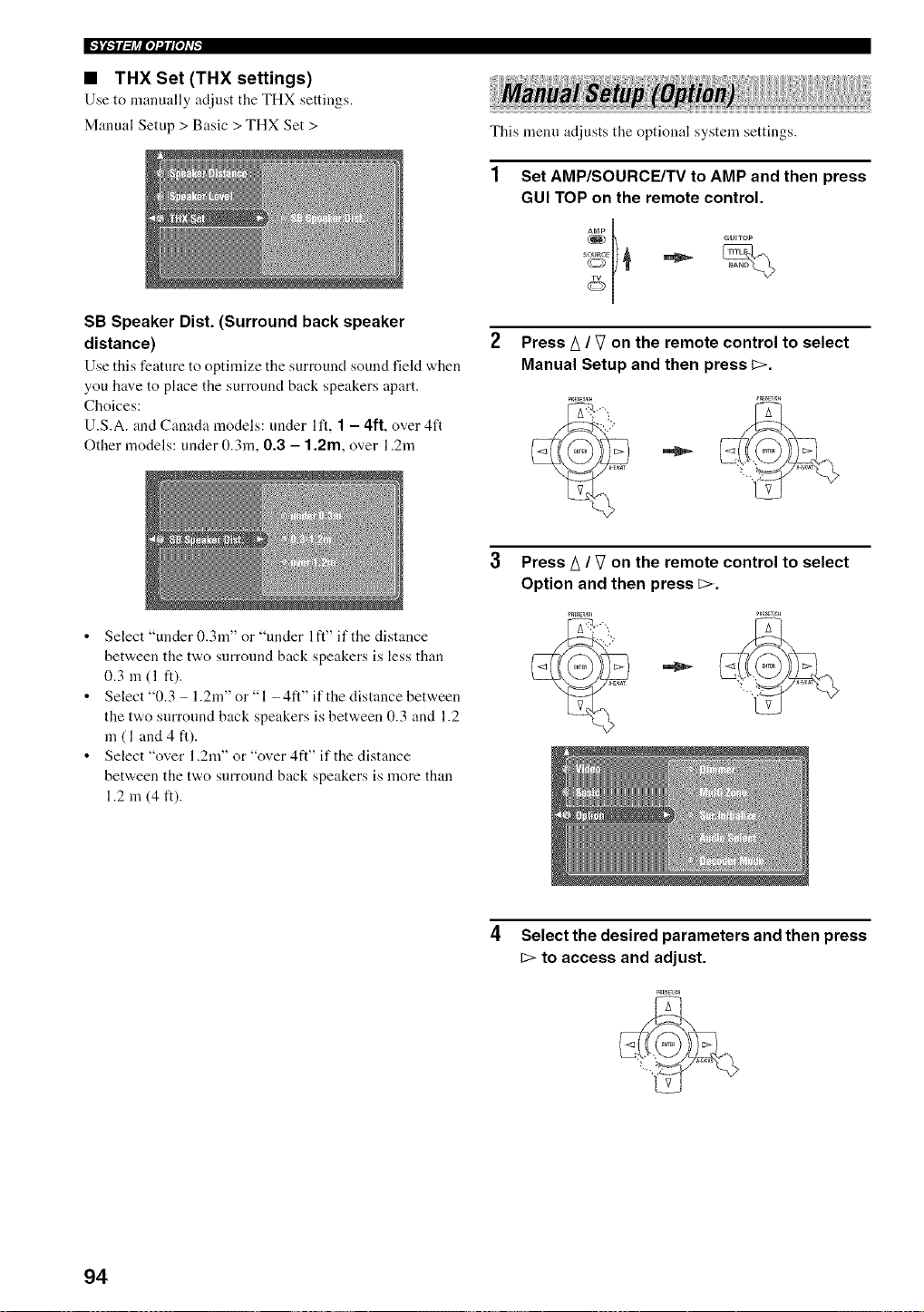
• THX Set (THX settings)
Use to manually adjust the THX settings.
Manual Setup > Basic > THX Set >
SB Speaker Dist. (Surround back speaker
distance)
Use this feature to optimize tile surround sound field when
you have to place the surround back speakers apart.
Choices:
U.S.A. and Canada models: under lit, ] - 4ft, over 4ft
Other models: under 0.3m, 0.3 - 1.2m, over 1.2m
This menu adjusts the optional system settings.
1
Set AMP/SOURCE/TV to AMP and then press
GUI TOP on the remote control.
Press A / V on the remote control to select
Manual Setup and then press E>.
• Select "under 0.3m" or "under I ft" if the distance
between the two surround back speakers is less than
0.3 m (1 ft).
• Select "0.3 - 1.2m" or "1 -4ft" if the distance between
the two surround back speakers is between 0.3 and 1.2
in (1 and 4 ft).
• Select "over 1.2m" or "over 4ft" if the distance
between the two surround back speakers is more than
1.2 in (4 ft).
Press A / V on the remote control to select
Option and then press _>.
Select the desired parameters and then press
to access and adjust.
94
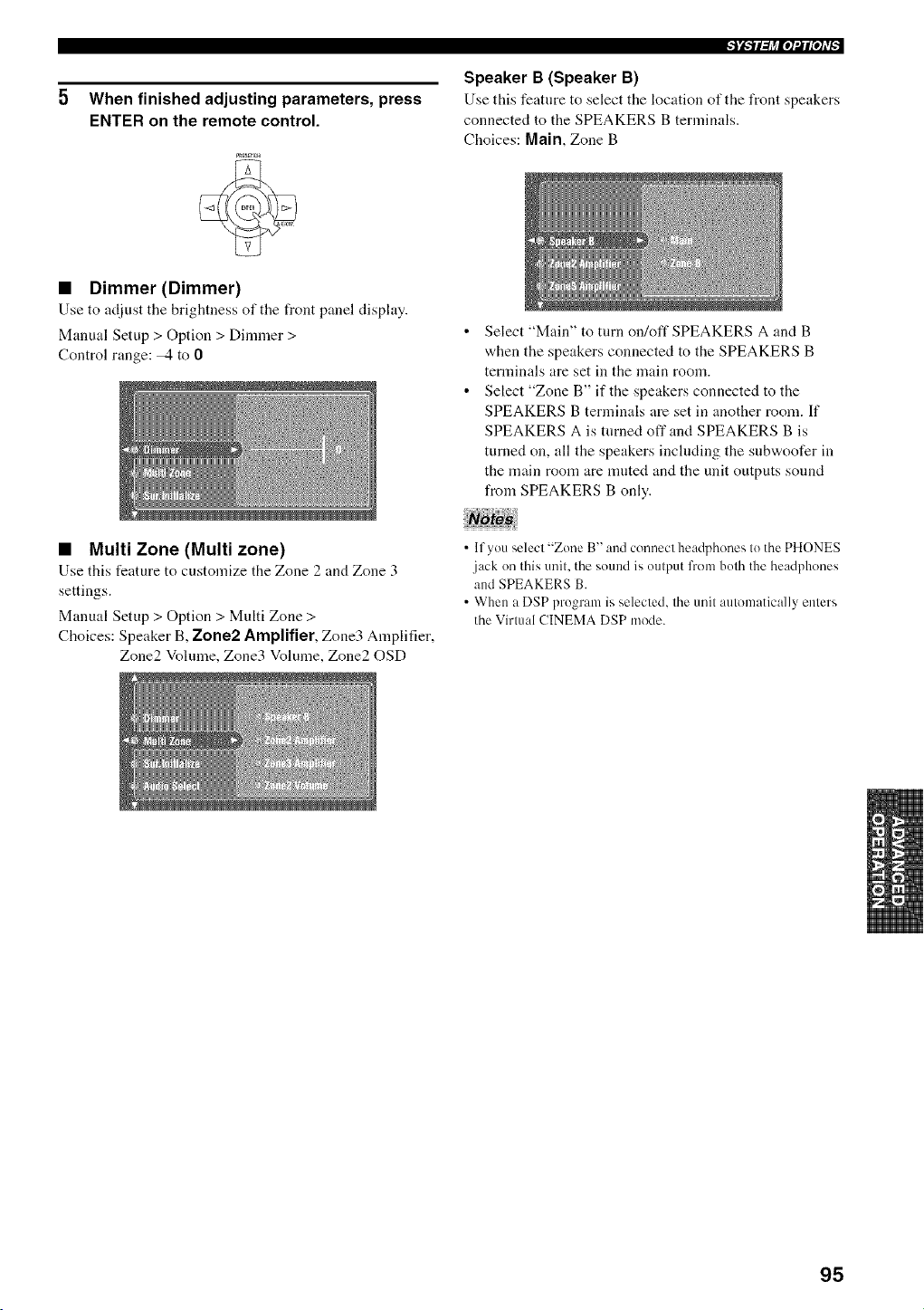
5 When finished adjusting parameters, press
ENTER on the remote control.
• Dimmer (Dimmer)
Use to adjust tile brightness of tile front panel display.
Manual Setup > Option > Dimmer >
Control range: _ to 0
Speaker B (Speaker B)
Use this feature to select the location of the front speakers
connected to the SPEAKERS B terminals.
Choices: Main, Zone B
Select "Main" to turn on/off SPEAKERS A and B
when the speakers connected to the SPEAKERS B
terminals are set in the main room.
Select "Zone B" if the speakers connected to the
SPEAKERS B terminals are set in another morn. If
SPEAKERS A is turned offand SPEAKERS B is
turned on, all the speakers including the subwoofer in
the main room are nmted and the unit outputs sound
from SPEAKERS B only.
• Multi Zone (Multi zone)
Use this feature to customize the Zone 2 and Zone 3
settings.
Manual Setup > Option > Multi Zone >
Choices: Speaker B, Zone2 Amplifier, Zone3 Amplifier,
Zone2 Volmne, Zone3 Volume, Zone20SD
• lfyou select "Zone B" and connect headphones to the PHONES
jack on this unit. the sound is output from both the headphones
and SPEAKERS B.
• When a DSP program is selected, the unit automatically enters
the Virtual CINEMA DSP mode.
95
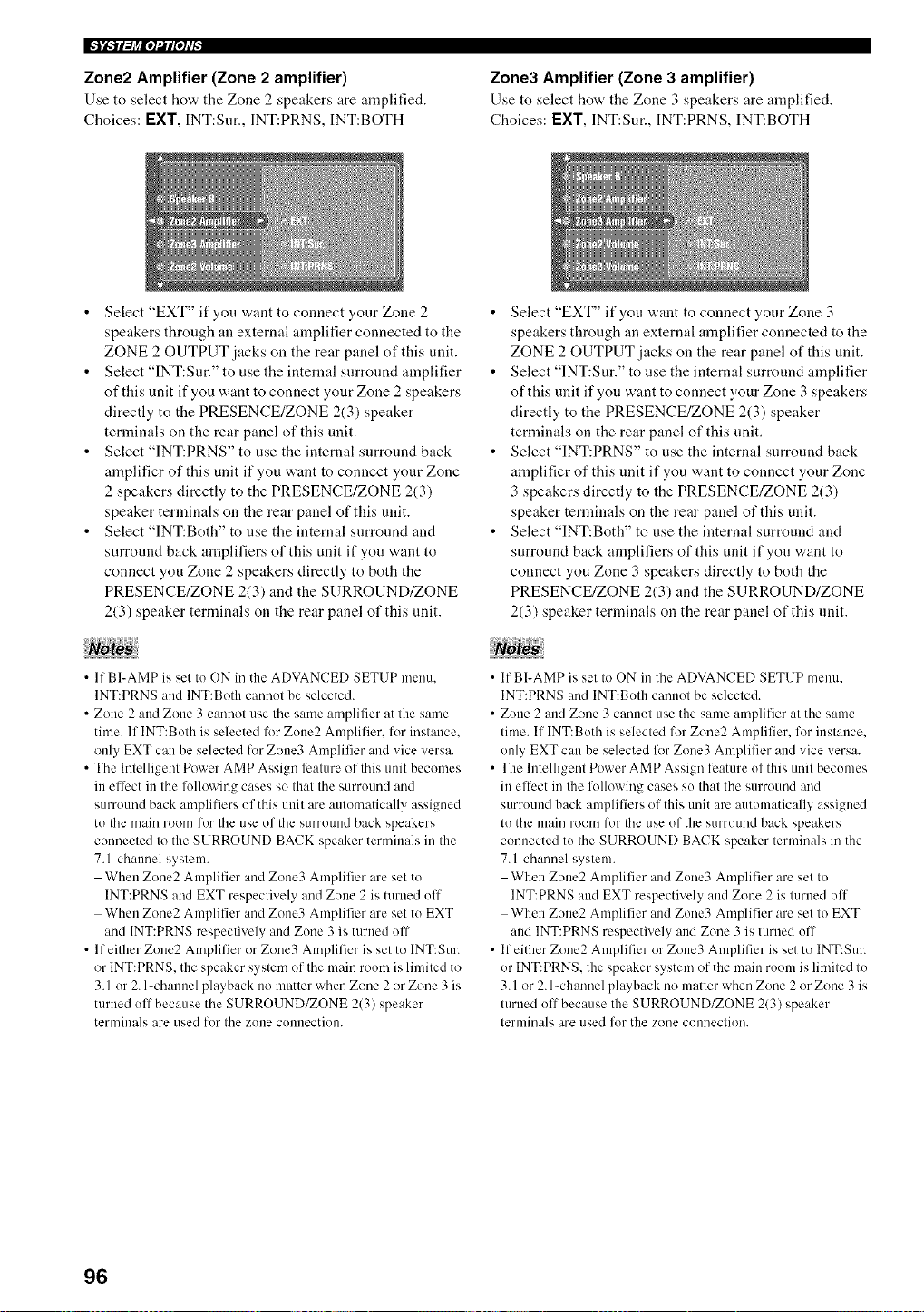
Zone2 Amplifier (Zone 2 amplifier)
Use to select ho'a, the Zone 2 speakers are amplified.
Choices: I=XT, INT:Sur., INT:PRNS, INT:BOTH
Zone3 Amplifier (Zone 3 amplifier)
Use to select how tile Zone 3 speakers are amplified.
Choices: I::XT, INT:Sur., INT:PRNS, INT:BOTH
• Select "EXT" if you want to connect your Zone 2
speakers through an external amplifier connected to the
ZONE 2 OUTPUT jacks on the rear panel of this unit.
• Select "INT:Sur." to use the internal surround amplifier
of this unit if you want to connect your Zone 2 speakers
directly to the PRESENCE/ZONE 2(3) speaker
ternfinals on the rear panel of this unit.
• Select "INT:PRNS" to use the internal surround back
amplifier of this unit if you want to connect your Zone
2 speakers directly to the PRESENCE/ZONE 2(3)
speaker terminals on the rear panel of this unit.
• Select "INT:Both" to use the internal surronnd and
surround back amplifiers of this unit if you want to
connect you Zone 2 speakers directly to both the
PRESENCE/ZONE 2(3) and the SURROUND/ZONE
2(3) speaker terminals on the rear panel of this unit.
• If BI-AMP is set to ON in the ADVANCED SETUP nmnu,
INT:PRNS and lNT:Both cannot be selected.
• Zone 2 and Zone 3 cannot use the santo amplifier at the santo
tinm. If INT:Both is selected for Zone2 Amplilier, liar instance,
only EXT can be selected liar Zone3 Amplifier and vice versa.
• The Intelligmlt Power AMP Assign li:ature of this unit beconms
in effect in the following cases so that the surround and
surround back ampliliers of this unit are autonmtically assigned
to the main morn lot the use of the surround back speakers
connected to the SURROUND BACK speaker terminals in the
7. l-channel system.
When Zone2 Amplifier and Zone3 Amplifier are set to
INT:PRNS and EXT respectively and Zone 2 is turned off
When Zone2 Amplifier and Zone3 Amplifier are set to EXT
and INT:PRNS respectively and Zone 3 is turned off
• If either Zone2 Amplifier or Zone3 Amplifier is set to INT:Sur.
or INT:PRNS, the speaker systmn of the main room is limited to
3.1 or 2. l-channel playback no matter when Zone 2 or Zone 3 is
turned off because the SURROUND/ZONE 2(3) speaker
termina]s are used lor the zone connection.
• Select "EXT" if you want to connect your Zone 3
speakers through an external amplifier connected to the
ZONE 2 OUTPUT jacks on the rear panel of this unit.
• Select "]NT:Sur." to use the internal surround amplifier
of this unit if you want to connect your Zone 3 speakers
directly to the PRESENCE/ZONE 2(3) speaker
terminals on the rear panel of this unit.
• Select "INT:PRNS" to use the internal surround back
amplifier of this unit if you want to connect your Zone
3 speakers directly to the PRESENCE/ZONE 2(3)
speaker terminals on the rear panel of this unit.
• Select "INT:Both" to use the internal surround and
surround back amplifiers of this unit if you want to
connect you Zone 3 speakers directly to both the
PRESENCE/ZONE 2(3) and the SURROUND/ZONE
2(3) speaker terminals on the rear panel of this unit.
• If BI-AMP is set to ON in the ADVANCED SETUP nmnu,
INT:PRNS and INT:Both cannot be selected.
• Zone 2 and Zone 3 cannot use the same amplifier at the same
time. If INT:Both is selected for Zone2 Amplifier, for instance,
only EXT can be selected for Zone3 Amplifier and vice versa.
• The Intelligent Power AMP Assign feature of this unit becomes
in effect in the following cases so that the surround and
surround back amplifiers of this unit are automatically assigned
to the main room lor the use of the surround back speakers
connected to the SURROUND BACK speaker terminals in the
7. l-channel system.
When Zone2 Amplifier and Zone3 Amplifier are set to
INT:PRNS and EXT respectively and Zone 2 is tnrned oil'
When Zone2 Amplifier and Zone3 Amplifier are set to EXT
and ]NT:PRNS respectively and Zone 3 is turned ofl
• If either Zone2 Amplifier or Zone3 Amplifier is set to INT:Sur.
or INT:PRNS. the speaker systmn of the main room is limited to
3.1 or 2. l-channel playback no matter when Zone 2 or Zone 3 is
turned o1_because the SURROUND/ZONE 2(3) speaker
terminals are used fl_rthe zone connection.
96
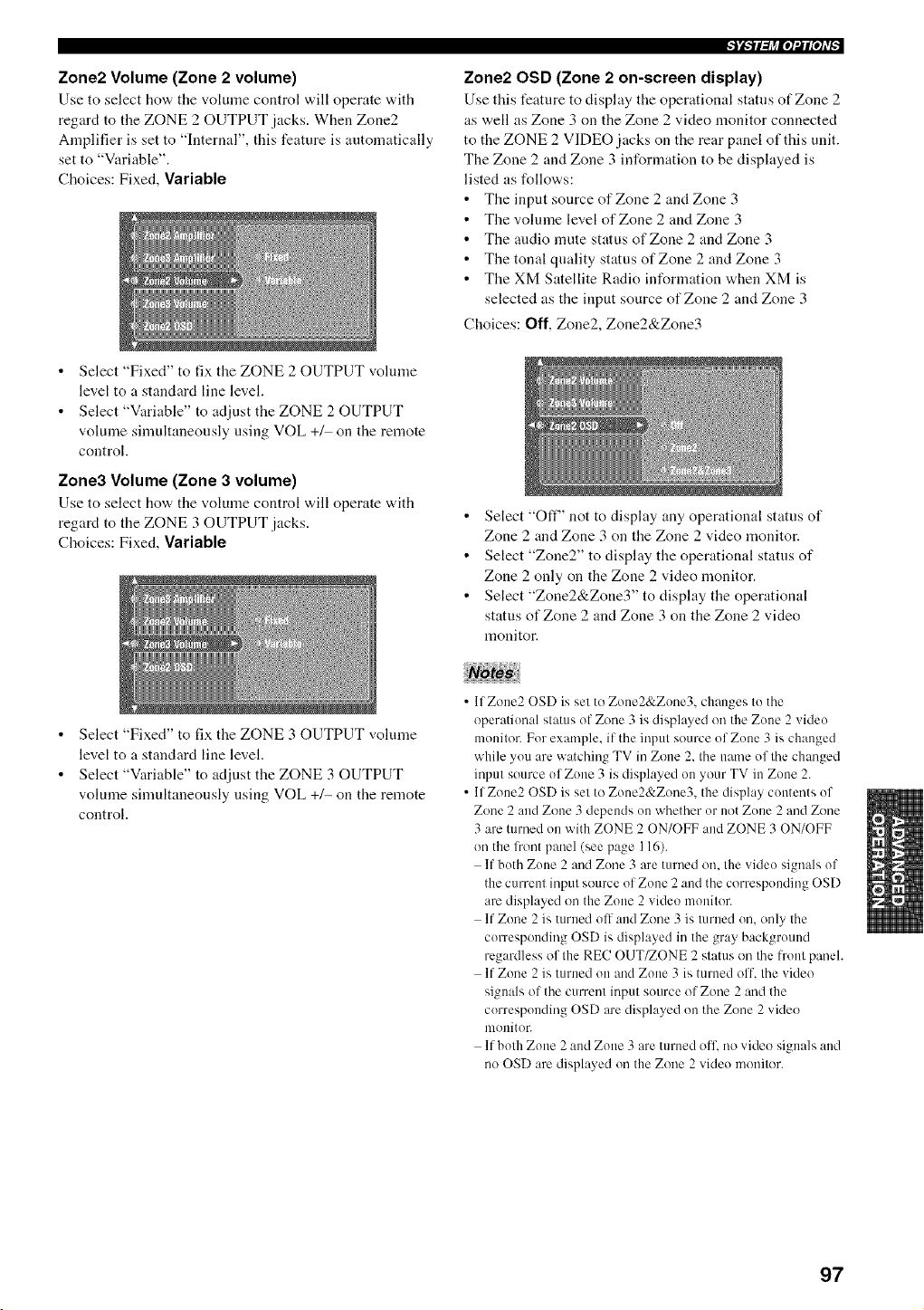
Zone2 Volume (Zone 2 volume)
Use to select how, tile volmne control will operate "a,ith
regard to the ZONE 2 OUTPUT jacks. When Zone2
Amplifier is set to "Internal", this feature is automatically
set to "Variable".
Choices: Fixed, Variable
Select "Fixed" to fix the ZONE 2 OUTPUT volume
level to a standard line level.
Select "Variable" to adjust the ZONE 2 OUTPUT
volume simultaneously using VOL +_ on the remote
control.
Zone3 Volume (Zone 3 volume)
Use to select ho'a, tile volume control will operate "a,ith
regard to the ZONE 3 OUTPUT jacks.
Choices: Fixed, Variable
Zone20SD (Zone 2 on-screen display)
Use this feature to display the operational status of Zone 2
as well as Zone 3 on the Zone 2 video monitor connected
to the ZONE 2 VIDEO jacks on the rear panel of this unit.
The Zone 2 and Zone 3 information to be displayed is
listed as follows:
• The input source of Zone 2 and Zone 3
• The volume level of Zone 2 and Zone 3
• The audio mute status of Zone 2 and Zone 3
• The tonal quality status of Zone 2 and Zone 3
• The XM Satellite Radio information when XM is
selected as the input source of Zone 2 and Zone 3
Choices: Off, Zone2, Zone2&Zone3
• Select "OFF' not to display any operational status of
Zone 2 and Zone 3 on the Zone 2 video monitor.
• Select "Zone2" to display the operational status of
Zone 2 only on the Zone 2 video monitor.
• Select "Zone2&Zoue3" to display the operational
status of Zone 2 and Zone 3 on the Zone 2 video
monitor.
Select "Fixed" to fix the ZONE 3 OUTPUT volume
level to a standard line level.
Select "Variable" to adjust the ZONE 3 OUTPUT
volume simultaneously using VOL +/- on the remote
control.
• If Zone2 OSD is set to Zoue2&Zone3. changes to the
operational status of Zone 3 is displayed on the Zone 2 vide()
monitor. For example, if the input source of Zone 3 is changed
while you are watching TV in Zone 2. the imme of the changed
input source of Zone 3 is displayed on your TV in Zone 2.
• If Zone20SD is set to Zoue2&Zone3. the display contents of
Zone 2 and Zone 3 depends on whether or not Zone 2 and Zone
3 are turned on with ZONE 2 ON/OFF and ZONE 3 ON/OFF
on the l?ont panel (see page 116).
If both Zone 2 and Zone 3 are turned on, the video signals of
the current input source of Zone 2 and the corresponding OSD
are displayed on the Zone 2 video monitor.
If Zone 2 is turned oil and Zone 3 is turned on, only the
corresponding OSD is displayed in the gray background
regardless of the REC OUT/ZONE 2 status on the front paneh
If Zone 2 is turned on and Zone 3 is turned off, the video
signals of the current input source of Zone 2 and the
corresponding OSD are displayed on the Zone 2 video
nloIlitor.
If both Zone 2 and Zone 3 are turned ofli no video signals and
no OSD are displayed on the Zone 2 video monitor.
97
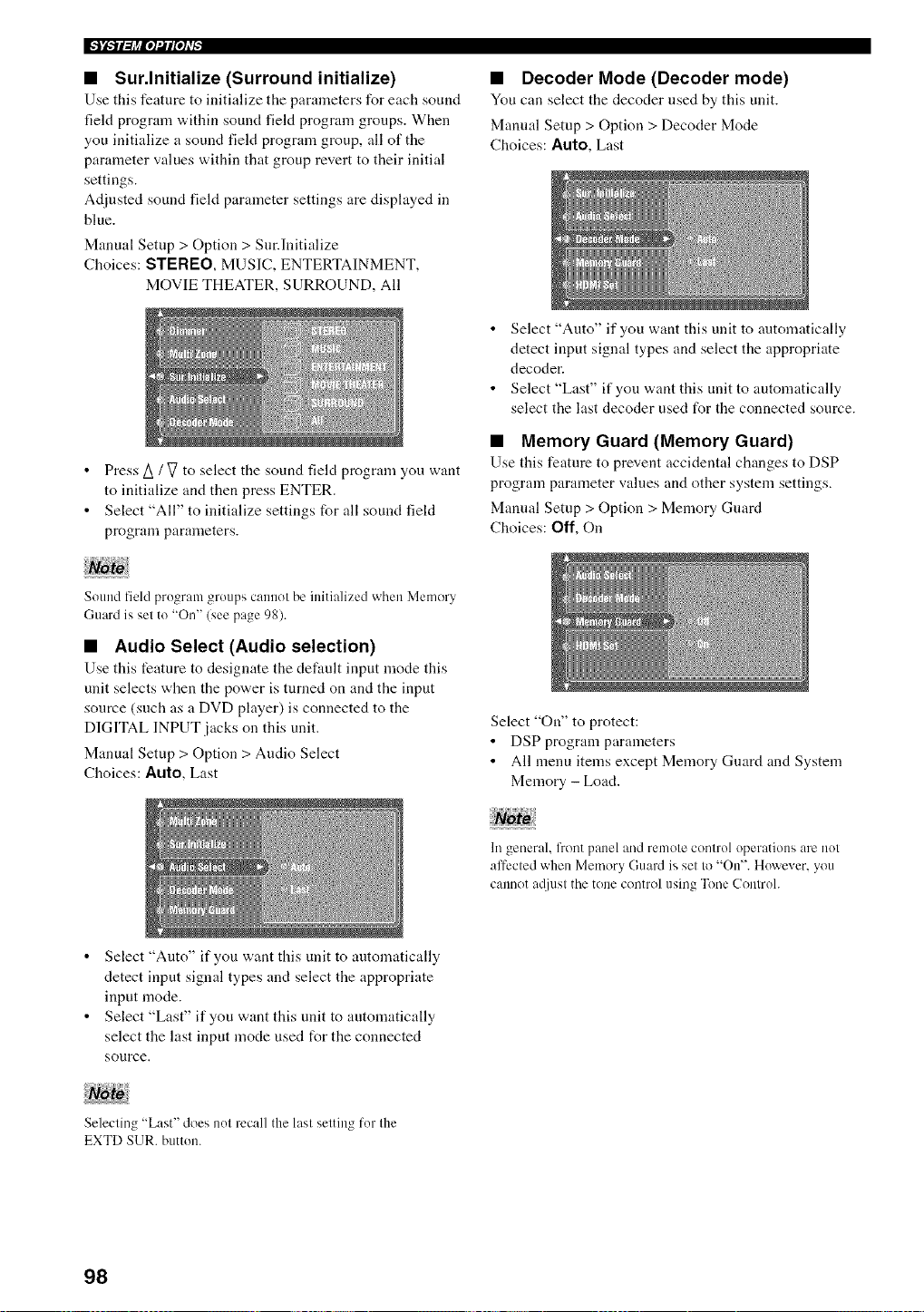
IFJ_W:h_iol_lPh'_
• Sur.lnitialize (Surround initialize)
Use this feature to initialize the parameters for each souM
field program within sound field program groups. When
you initialize a sound field program group, all of the
parameter values within that group revert to their initial
settings.
Adjusted sound field parameter settings are displayed in
blue.
Manual Setup > Option > Sur.lnitialize
Choices: STEREO, MUSIC, ENTERTAINMENT,
MOVIE THEATER, SURROUND, All
• Press/_ / V to select the sound field program you want
to initialize and then press ENTER.
• Select "All" to initialize settings for all sound field
program parameters.
• Decoder Mode (Decoder mode)
You can select the decoder used by this unit.
Manual Setup > Option > Decoder Mode
Choices: Auto, Last
• Select "Auto" if you want this unit to automatically
detect input signal types and select the appropriate
decoder.
• Select "Last" if you want this unit to automatically
select the last decoder used for the connected source.
• Memory Guard (Memory Guard)
Use this feature to prevent accidental changes to DSP
program parameter values and other system settings.
Manual Setup > Option > Memory Guard
Choices: Off, On
Sound fiehl program groups cannot be initialized when Men/ory
Guard is sel to "On" (see page 98).
• Audio Select (Audio selection)
Use this feature to designate the default input mode this
unit selects when the power is turned on and the input
source (such as a DVD player) is connected to the
DIGITAL INPUT jacks on this unit.
Manual Setup > Option > Audio Select
Choices: Auto,Last
Select "On" to protect:
• DSP program parameters
• All menu items except Memory Guard and System
Memory - Load.
lll general, front panel and remole cOnll'ol operatiolJs are nol
alfccled when Memory Guard is sel to "On". However, you
cannot at[jnsl the tone control/lsing Tone ColJlro].
• Select "Auto" if you want this unit to automatically
detect input signal types and select the appropriate
input mode.
• Select "Last" if you want this unit to automatically
select the last input mode used for the connected
source.
Selecling "Last" does not recall the last setting for the
EXTD SUR. bntton.
98
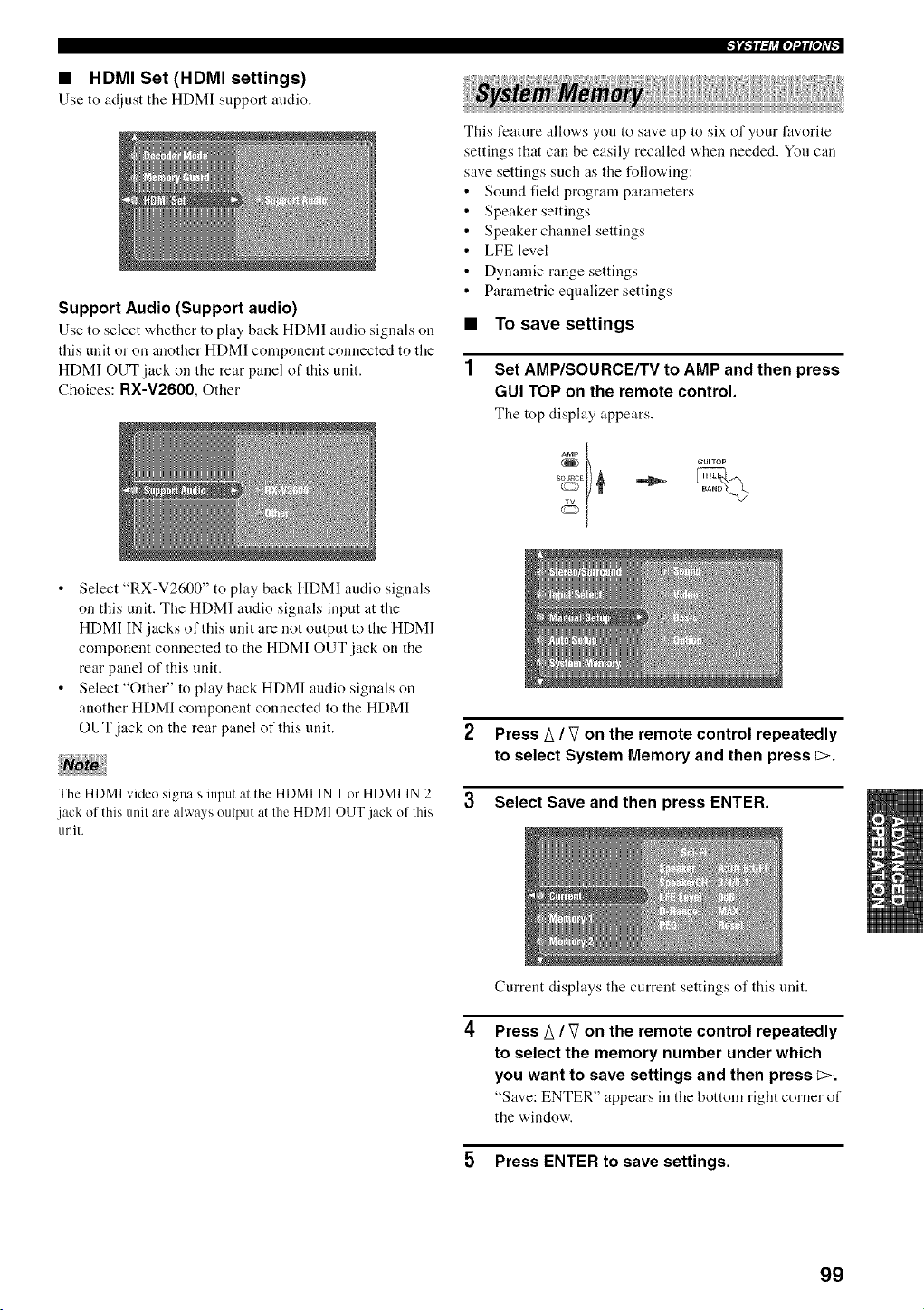
• HDMI Set (HDMI settings)
Use to adjust tile HDMI support audio.
Support Audio (Support audio)
Use to select "a,hether to play back HDMI audio signals on
this unit or on another HDMI component connected to the
HDM] OUT jack on the rear panel of this unit.
Choices: RX-V2600, Other
This feature allows you to save up to six of your favorite
settings that can be easily recalled w,hen needed. You can
save settings such as the following:
Sound fiekt program parameters
Speaker settings
Speaker channel settings
LFE level
Dynamic range settings
Parametric equalizer settings
• To save settings
1 Set AMP/SOURCE/TV to AMP and then press
GUI TOP on the remote control.
The top display appears.
Select "RX-V2600" to play back HDMI audio signals
on this unit. The HDM] audio signals input at the
HDMI IN jacks of this unit are not output to the HDMI
component connected to the HDMI OUT jack on the
rear panel of this unit.
Select "Other" to play back HDMI audio signals on
another HDMI component connected to the HDMI
OUT jack on the rear panel of this unit.
The HDMI vide() signals input at the HDMI IN 1 or HDMI IN 2
jack of this unit are always output at the HDMI OUT.jack of this
unit.
2 Press A / V on the remote control repeatedly
to select System Memory and then press _>.
3 Select Save and then press ENTER.
Current displays the current settings of this unit.
Press A / V on the remote control repeatedly
to select the memory number under which
you want to save settings and then press L>.
"Save: ENTER" appears ill tile bottoln right corner of
the window.
5 Press ENTER to save settings.
99
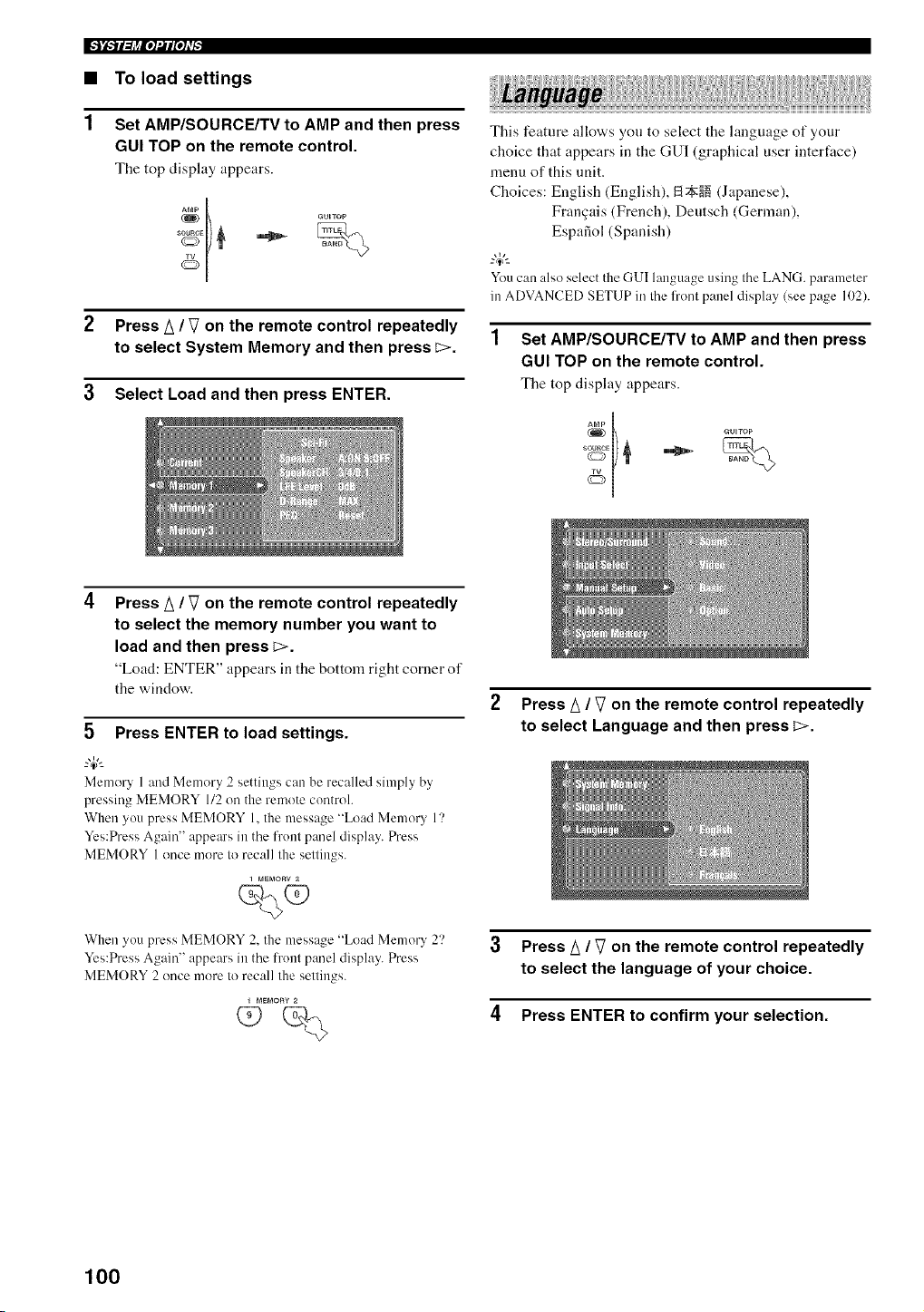
IFi'bTl={l_|q_lP]f#
• To load settings
1 Set AMP/SOURCE/TV to AMP and then press
GUI TOP on the remote control.
The top disphty appears.
2 Press A / V on the remote control repeatedly
to select System Memory and then press _>.
3 Select Load and then press ENTER.
This feature allows you to select the language of your
choice that appears in the GUI (graphical user interface)
menu of this unit.
Choices: English (English), Et_N (Japanese),
FrancTais(French), Deutsch (German),
Espafiol (Spanish)
"4:--
Youcan also select the GUI language using the LANG. parameter
in ADVANCEDSETUP in the front panel display (see page 102).
Set AMP/SOURCE/TV to AMP and then press
GUI TOP on the remote control.
The top display appears.
_ _UlTOP
Press A / V on the remote control repeatedly
to select the memory number you want to
load and then press _>.
"Load: ENTER" appears in the bottom right comer of
the window.
5 Press ENTER to load settings.
Memory l and Memory 2 settings can be recalled simply by
pressing MEMORY 1/2 on the remote control.
When yotl press MEMORY 1, the message "Load Memory 17
g Sg ir
Ye Pre Ae_in appe s he f ) panel display. Press
MEMORY I once more Io recall lhe sellings.
i IaEMOR¥
When you press MEMORY 2. the message "Load Memory 2<?
Yes:Press Again" appears in the ffonl panel display. Press
MEMORY 2 once more Io recall lhe sellings.
2 Press A / V on the remote control repeatedly
to select Language and then press _>.
3 Press/_ / V on the remote control repeatedly
to select the language of your choice.
4 Press ENTER to confirm your selection.
lO0
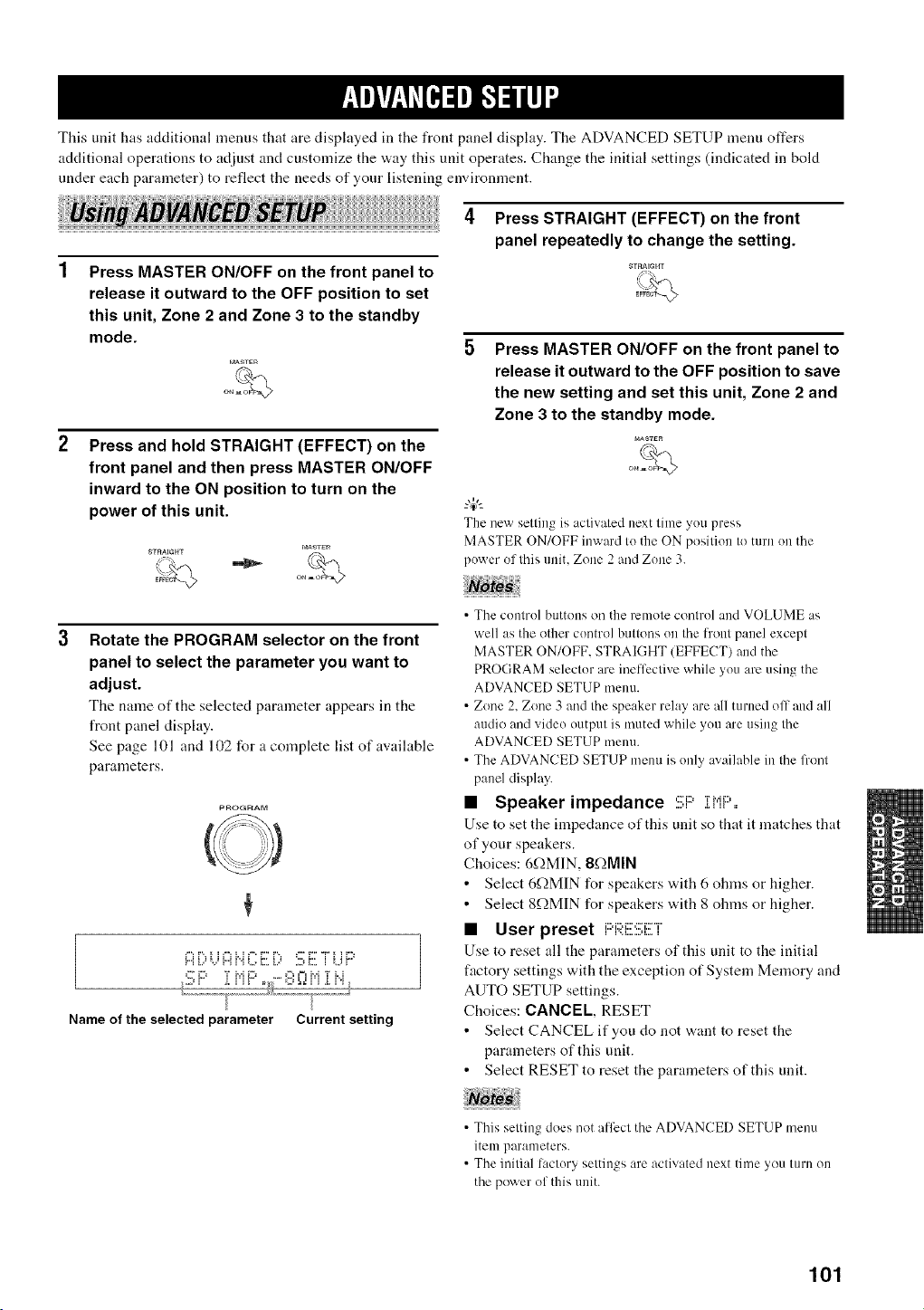
This unit has additional menus that are displayed in the front panel display. The ADVANCED SETUP menu offers
additional operations to adjust and customize the way this unit operates. Change the initial settings (indicated in hold
nnder each parameter) to reflect the needs of your listenim enviromnent.
Press MASTER ON/OFF on the front panel to
release it outward to the OFF position to set
this unit, Zone 2 and Zone 3 to the standby
mode.
f_S_rER
Press and hold STRAIGHT (EFFECT) on the
front panel and then press MASTER ON/OFF
inward to the ON position to turn on the
power of this unit.
MASTE_
STRAEGHT
E#_ oN
Press STRAIGHT (EFFECT) on the front
panel repeatedly to change the setting.
STRAIGHT
= ,
Press MASTER ON/OFF on the front panel to
release it outward to the OFF position to save
the new setting and set this unit, Zone 2 and
Zone 3 to the standby mode.
r_ASTER
The new setting is activated next time you press
MASTER ON/OFF inward to the ON position to turn on the
power of this unit, Zone 2 and Zone 3.
Rotate the PROGRAM selector on the front
panel to select the parameter you want to
adjust.
The name of the selected parameter appears in the
front panel display.
See page 101 and 102 for a complete list of available
parameters.
PROGRAM
O
i::i[:,.)i::if.i2 E [:, !ii;ii:i i.jF::'
,:::"_:::, "r _,,.iE::...... i::i0 M r H
Name of the selected parameter Current setting
• The control buttons on the remote control and VOLUME as
well as the other control buttons on the front panel except
MASTER ON/OFF, STRAIGHT (EFFECT) and the
PROGRAM selector are ineffective while you are using the
ADVANCED SETUP menu.
• Zone 2, Zone 3 and the speaker relay are all turned oil and all
audio and video output is muted while you are using the
ADVANCE[) SETUP menu.
• The ADVANCE[) SETUP menu is only available in the front
panel display.
• Speaker impedance :!!;F::'iMF',,
Use to set the inlpechmce of this unit so that it matches that
of your speakers.
Choices: 6f_MIN, 8f2MIN
• Select 6f_MIN for speakers with 6 ohms or higher.
• Select 8f_MIN for speakers with 8 ohms or higher.
• User preset F:i:;;:I!!!::!!;ET
Use to reset all the parameters of this unit to the initial
factory settings with the exception of System Memory and
AUTO SETUP settings.
Choices: CANCEl_, RESET
• Select CANCEL if you do not want to reset the
parameters of this unit.
• Select RESET to reset the parameters of this unit.
• This setting does not afli:ct the ADVANCED SETUP menu
item parameters.
• The initial lactory settings are activated next time you turn on
the power of this unit.
101
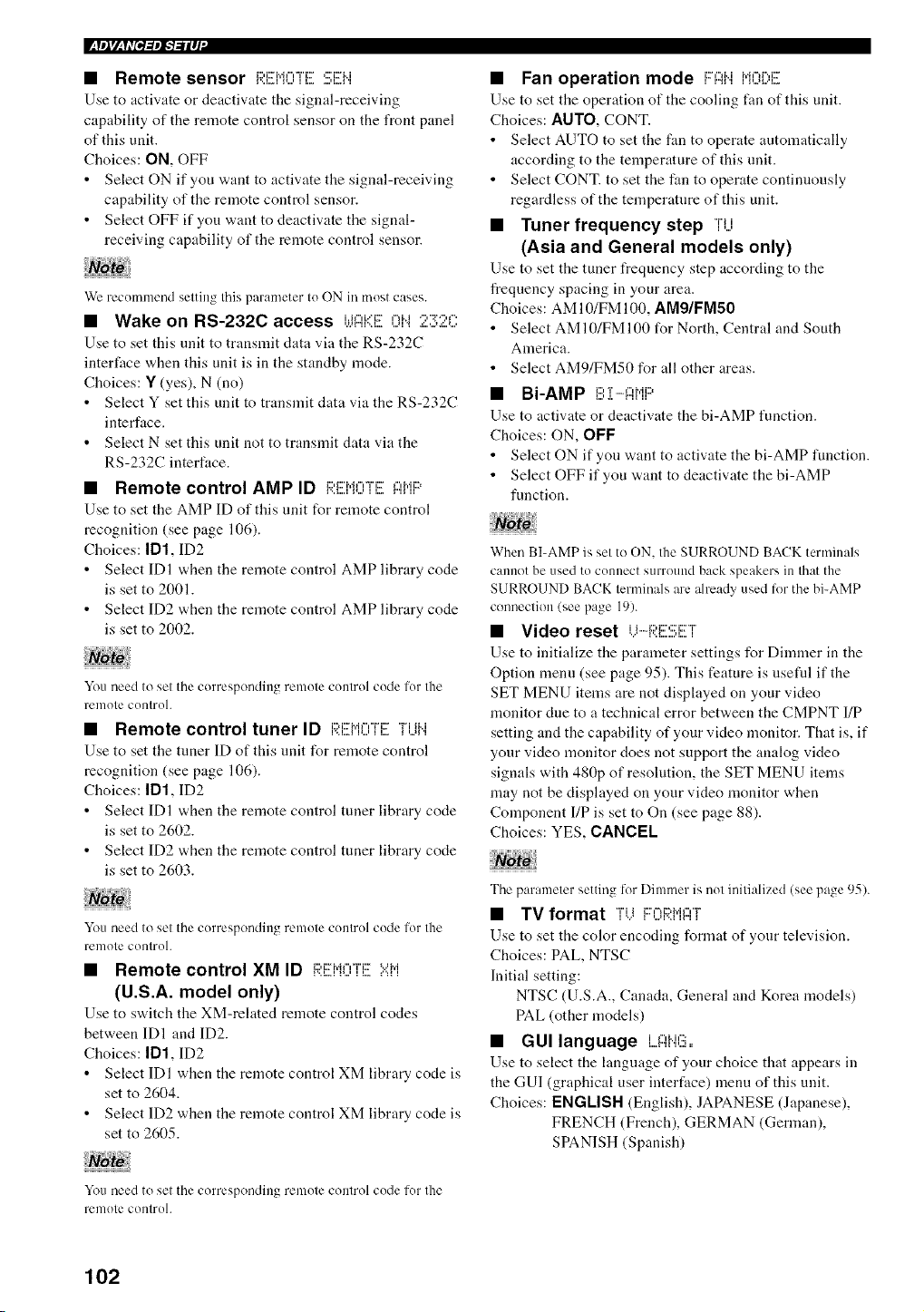
I_Y',I_ h'P'P,',I"I"iIq"
• Remote sensor REMOTE:!!!;1!!!+..1
Use to activate or deactivate the signal-receiving
capability of the remote control sensor on the front panel
of this unit.
Choices: ON, OFF
• Select ON if you want to activate the signal-receiving
capability of the remote control sensor.
• Select OFF if you want to deactivate the signal-
receiving capability of the remote control sensor.
Wc recommend setting this parameter to ON in most cases.
• Wake on RS-2320 access {d+:::{l.::]!!{7i'4 2::!;2C:
Use to set this unit to transmit data via the RS-232C
interfuce when this unit is in the standby mode.
Choices: Y (yes), N (no)
• Select Y set this unit to transmit data via the RS-232C
interface.
• Select N set this unit not to transmit data via the
RS-232C interface.
• Remote control AMP ID I:;I:[!!:MOTEMMF::'
Use to set the AMP ID of this unit for remote control
recognition (see page 106).
Choices: ID1, ID2
• Select IDI when the remote control AMP library code
is set to 2001.
• Select ID2 when the remote control AMP library code
is set to 2002.
You need to set the corresponding remote control code for the
remote control+
• Remote control tuner ID l;_lll_[llll[::lll_[[UI".{
Use to set the tuner ID of this unit for remote control
recognition (see page 106).
Choices: ID1, ID2
• Select IDI when the remote control tuner library code
is set to 2602.
• Select ID2 when the remote control tuner library code
is set to 2603.
You need to set the corresponding remote control code for the
renlote control.
• Remote control XM ID I:;I:EM0TE:@i
(U.S.A. model only)
Use to switch the XM-related remote control codes
between IDI and ID2.
Choices: ID1, ID2
• Select IDI when the remote control XM library code is
set to 2604.
• Select ID2 when the remote control XM library code is
set to 2605.
• Fan operation mode Fq::ii..{M0[:,E
Use to set the operation of the cooling tim of this unit.
Choices: AUTO, CONT.
• Select AUTO to set the fan to operate automatically
according to the temperature of this unit.
• Select CONT. to set the fan to operate continuously
regardless of the temperature of this unit.
• Tuner frequency step TU
(Asia and General models only)
Use to set the tuner frequency step according to the
frequency spacing in your area.
Choices: AM 10/FM 100, AM9IFM50
• Select AMI0/FMI00 for North, Central and South
America.
• Select AM9/FM50 for all other areas.
• Bi-AMP I!!!',i....-{:::IMF:>
Use to activate or deactivate the bi-AMP function.
Choices: ON, OFF
• Select ON if you want to activate the bi-AMP function.
• Select OFF if you want to deactivate the bi-AMP
function.
When BI-AMP is set to ON, the SURROUND BACK terminals
cannot be used to connect surround back speakers in that the
SURROUND BACK terminals are already used ti)r the bi-AMP
connection (see page 19).
• Video reset {.)I:;I:I!!!::!!;I!E"I"
Use to initialize the parameter settings for Dimmer in the
Option menu (see page 95). This feature is useful if the
SET MENU items are not displayed on your video
monitor due to a technical error between the CMPNT I/P
setting and the capability of your video monitor. That is, if
your video monitor does not support the analog video
signals with 480p of resolution, the SET MENU items
may not be displayed on your video monitor when
Component I/P is set to On (see page 88).
Choices: YES, CANCEL
The parameter setting tbr Dimmer is not initialized (see page 95).
• TV format 'li.) i:::{L'Ia?.MI:::IT
Use to set the color encoding format of your television.
Choices: PAL, NTSC
Initial setting:
NTSC (U.S.A., Canada, General and Korea models)
PAL (other models)
• GUI language LIr.t:::IIIIIilE)1'
Use to select the language of your choice that appears in
the GUI (graphical user interface) menu of this unit.
Choices: ENGLISH (English), JAPANESE (Japanese),
FRENCH (French), GERMAN (German),
SPANISH (Spanish)
You need to set the corresponding remote control code tor the
rcnlote control.
102
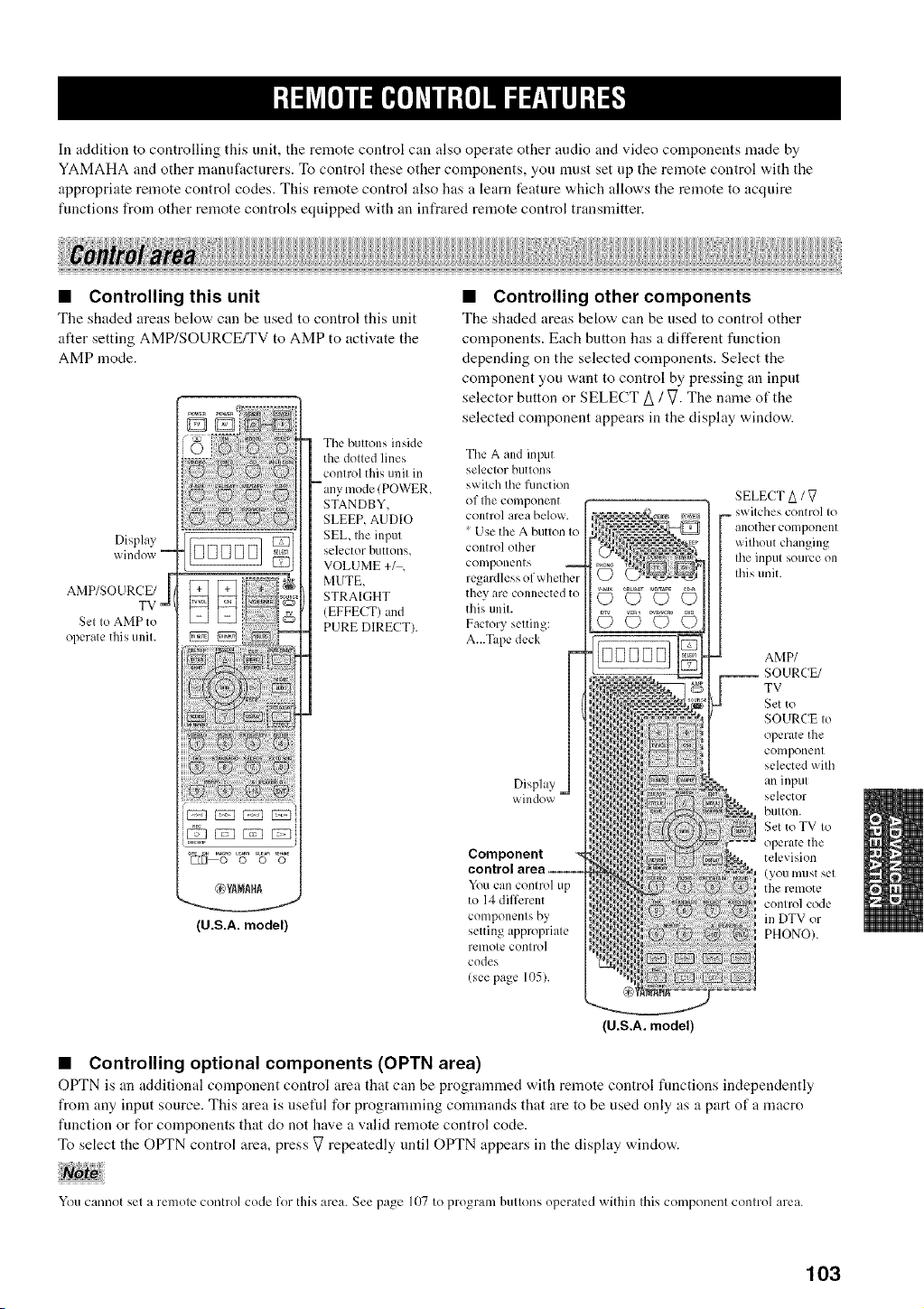
In addition to controlling this unit, the remote control can also operate other audio and video components made by
YAMAHA and other mannfactnrers. To control these other components, yon nmst set up the remote control with the
appropriate remote control codes. This remote control also has a learn feature which allows the remote to acquire
functions from other remote controls equipped with an infrared remote control transmitter.
!llii!!iiii!!! i!tiiiiiiii! iiiiiiiiii!llii liiii! l !iii!!iiit
• Controlling this unit
The shaded areas below can be used to control this unit
alter setting AMP/SOURCE/TV to AMP to activate the
AMP mode.
Display
window --
AMP/SOURCE/
TV-
Set to AMP to
operate this unit.
The buttons inside
the dotted lines
control this unit in
-- any mode (POWER,
STANDBY,
SLEEP, AUD[O
SEL, the input
selector buttons,
VOLUME +1 ,
MUTE,
STRAIGHT
(EFFECT) and
PURE DIRECT).
(U.S.A. model)
• Controlling other components
The shaded areas below can be used to control other
components. Each button has a different fnnction
depending on the selected components. Select the
component you want to control by pressing an input
selector button or SELECT A / V. The name of the
selected component appears in the display window.
The A and input
selector buttons
switch the function
of Ihe component
control area below.
' Use the A button to
control other
componenl s
regardless of whether
they arc connected to
this unit.
Factory setting:
A...Tape deck
Display
window "
Component
control area --
You cancontrol up
to 14 different
components by
setting appropriate
renlote control
codes
(see page 105).
iC) C) C) C)
SELECT A / V
swilches control Io
another component
without changing
the input source on
this unit.
AMP/
TV
Set to
SOURCE to
operate the
component
selected with
an input
selector
button.
Set to TV to
operate the
television
(you must set
the remote
control code
in DTV or
PHONO).
(U.S.A. model)
• Controlling optional components (OPTN area)
OPTN is :m additional component control area that can be programmed with remote control fnnctions independently
from any input source. This area is useful for programming commands that are to be used only as :t part of a macro
function or for components that do not have a valid remote control code.
To select the OPTN control area, press V repeatedly until OPTN appears in the display window.
You cannot sel a remole control code lot this area. See page 107 to program bullons operated within this component conlrol area.
103
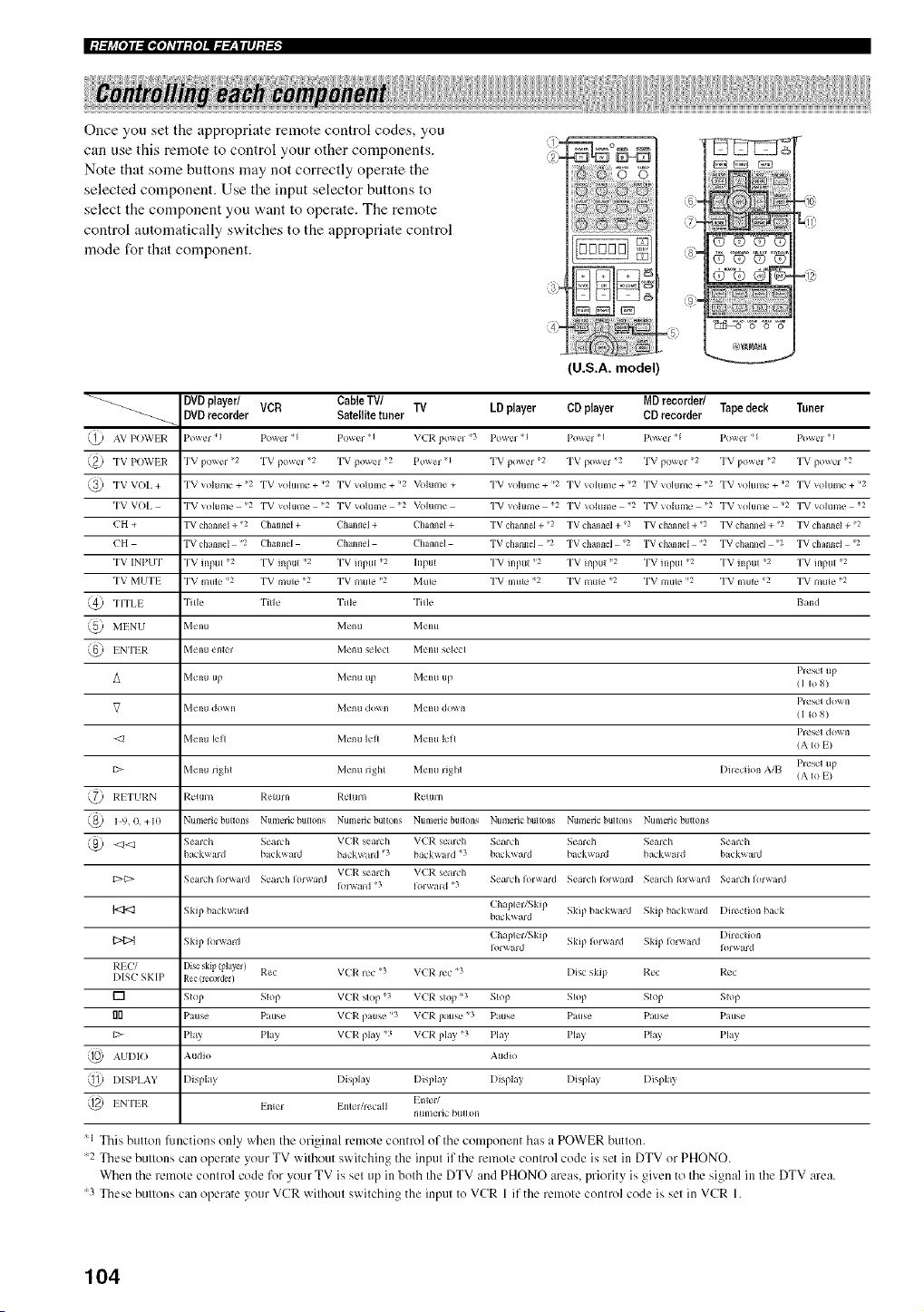
|:t.._j_[O]I_[I,[O]_III:{O]II._.___IlI]:I-'_"
Once you set the appropriate remote control codes, you
can use this remote to control your other components.
Note that some buttons may not correctly operate the
selected component. Use the input selector buttons to
select the component you want to operate. The remote
control automatically switches to the appropriate control
mode for that component.
U.S.A. model
g>
5,) YAIIIAHA
-_-_ DVDplayer/ VCR CableTV/ TV LD player CD player MD recorder/ Tapedeck Tuner
_-_ DVDrecorder $atelIRetuner CD recorder
,_ AV POWIR Pm_r q Po_cl q Powcl I V(R pm_q _3 Po_cl q Powcl I Po\_er q Po_q q Powcl l
,_ TV POWEIT: TV po_q _2 TV powcl 2 TV power 2 Po\_er q TV power 2 TV power 2 TV po_l _2 TV pow_q 2 TV powcl 2
,_ TV VOI, + TV _olumc + 2 TV _olum_ • + _2 TV \olume + _2 _/_)lum_ + TV _olum_ • + _2 TV \olum_ • + _2 TV \olume + *2 TV _olum_ • + 12 TV \olumc + _2
TV VOI, TV volume _2 "I'V voluln_ 2 TV _olum_ 2 _/_)lum_ "I'V _oluln_ 2 "I'V _olum_ 2 TV _olumc 2 TV volum_ _2 "I'V _olum_ 2
(H + TV channel + 2 Channel + Channel + Channel + TV channel + 2 TV channel + '<2 TV channel + 2 TV channel + 2 TV channel + '<2
(H TV channeJ 2 Channel Channel Channel TV channel 2 TV channel '2 TV channel 2 TV channel 2 TV channel '2
TV INPU'I" TV inpul 2 "I'V inpul _2 TV inpul 2 Inpul "I'V inpul _2 "I'V inpul 2 TV inpul '2 TV inpul _2 "I'V inpul 2
TV MU'I'I TV mul_ _2 "I'V muk< 2 TV mule 2 Muk< "I'V muk< _2 "I'V mule 2 TV mule _2 TV mul_ _2 "I'V muk< 2
'_ TITI,I Tilk Tilk" Tille Tilk Band
'_ MINU Menu Mcqlu Menu
,_ I NI'EI _. Menu enl_ Menu sclc{I Menu scqcl
Presel up
A Menu up Menu up Menu up 11 Io 81
Pr_scl down
V Menu do_n Menu dm_n Menu do_n ( 1 Io 8)
Pr_scq down
Menu lell Mcqlu loll Menu kql /A Io I/
B> Menu righl Menu =i_hl Menu righl I)heclion A/B Prescl up
' (A Io I)
'_y I_:I TUP.N I_:ctui n Relurn P.clur n F:clui n
'_ 1 9.0. +I0 Numelic butlons Numerk' buttons Numeiic bullons NumelJc butlons Numerk' bullons Numeiic bullon_ Numeric bullons
,_ _ Seaih Seaidl VL'R searh YX2R caidl Seal{h Seaich Seaih S_qmh
ba_k_ _ld I}_{kwald ba k_ard '3 ba_k_ tld 3 h kward I}_ kward ba_k_ald b_{kwald
VL'R searh V(I?. eardl
_:>_> Se_lh Ior_\_ld Sc_ar{'h Iorward SC_al{h Iorward S_ai{h I)lward Se_lh Ibl_ _ld Sc_arch Iorward
I )iwaid '3 IoB_ _id 3
Skip Im kx_ard Chaplel/Skip
bl kward Skip I}a{'k_\ard Skip bl kward I)h_'{lion bl{k
Skip I )_ward ChapleUSkip I)heclion
It>rward Skip It>l_\ trd Skip I )iward It>rward
I)ISC SKIP Rec (reco]&r) P.ec VCF: i_'{ 3 V(I;: re{ 3 Disc skip Rcc Rec
[] Slop Slop VL'I)_ slop 3 V(R slop _3 Slop Slop Slop Slop
I]0 Ptusc • Pmsc VL'P. pause" _3 V(R pause" _3 Pause PKisc • Pause • I) ttls_ •
B> Pla} Pla} VL'I)_ pla3 3 V(R phi} 3 Pl13 Pl13 Phi} Pla}
AUI)IO Audio Audio
'_ DISPI.AY Disphl_ Display Disphl_ Di_pl I_ DispI I_ Di_pla_
'_ I N I'EI)_ Enler I hi,q/re{ iII I nlcl/
num_q ic bullon
;I This button functions only when the original remote control of the component has a POWER button.
'2 These buttons can operate your TV without switching the input if the remote control code is set in DTV or PHONO.
When the remote control code for your TV is set tip in both the DTV and PHONO areas, priority is given to the signal in the DTV area.
'3 These buttons can operate your VCR without switching the input to VCR 1 if the remote control code is set in VCR 1.
104
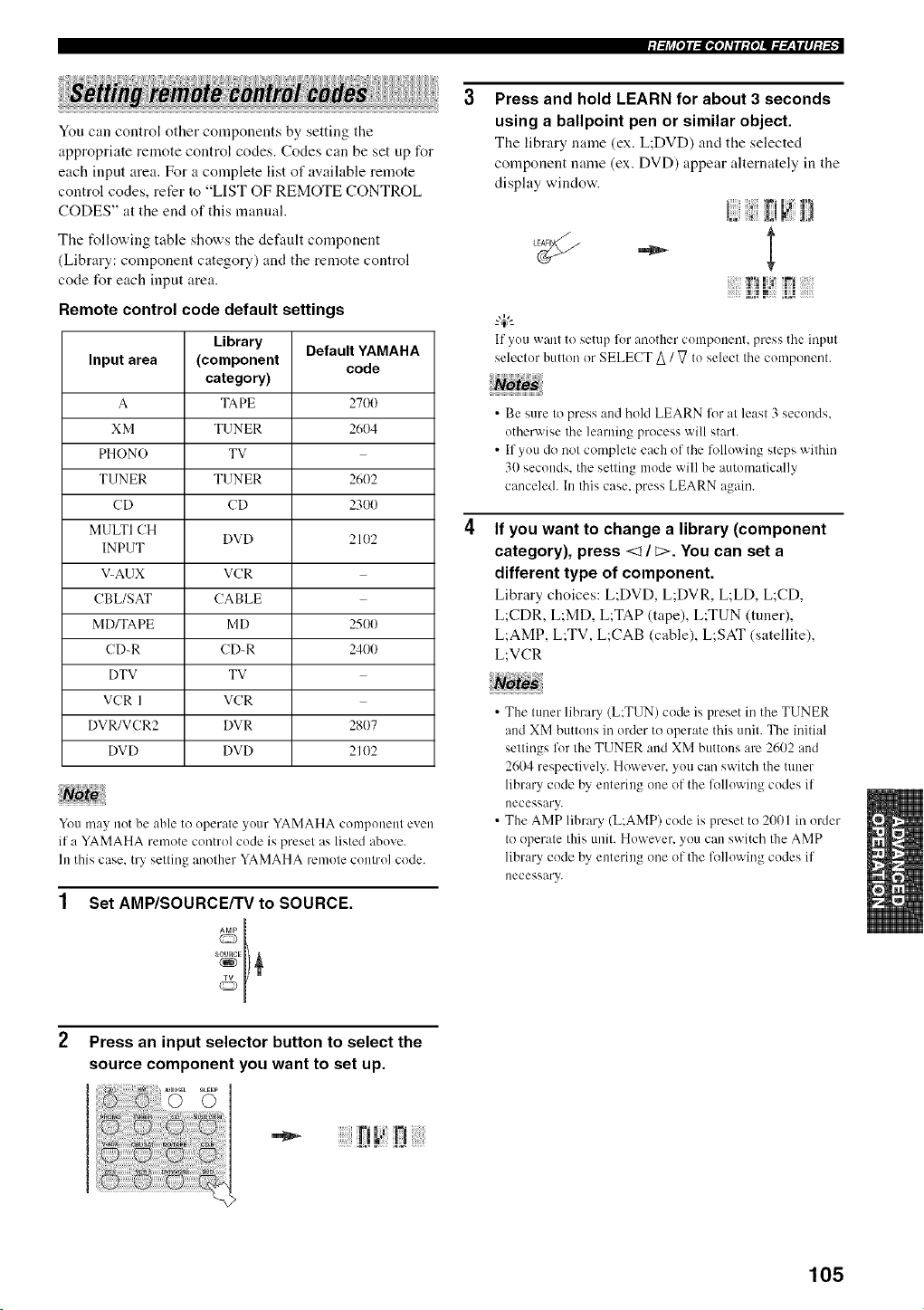
You can control other components by setting the
appropriate remote control codes. Codes can be set up for
each input area. For a complete list of available remote
control codes, refer to "LIST OF REMOTE CONTROL
CODES" at the end of this manual.
The tbllowing table shows the default component
(Library: component category) and the remote control
code for each input area.
Remote control code default settings
Library Default YAMAHA
Input area (component code
category)
A TAPE 2700
X]M TUNER 2604
PHONO TV
TUNER TUNER 2602
CD CD 2300
MULTI CH
DVD 2102
INPUT
V-AUX VCR
CBL/SAT CABLE
MD/TAPE MD 251)I)
(DR (DR 2400
DTV TV
VCR I VCR
DVR/VCR2 DVR 281)7
DVD DVD 2102
You may m)t be able to uperate yuur YAMAHA cumpuneul even
if a YAMAHA rmnote control cude is preset as listed abuve.
In this case, try setting anuther YAMAHA remote cunlrul code.
Set AMP/SOURCE/TV to SOURCE.
Press an input selector button to select the
source component you want to set up.
Press and hold LEARN for about 3 seconds
using a ballpoint pen or similar object.
The library name (ex. L;DVD) and the selected
component name (ex. DVD) appear alternately in the
display window.
I;1 _1
--'4:--
If yuu want to setup for another cumpuumm press the inpm
selectur button or SELECT _ / V tu select Ihe cumpolmnt.
• Be sure to press and hoM LEARN lot at least 3 seconds,
otherwise the learning process will start.
• If yuu do not complete each of the lk)lluwing steps within
30 seconds, the setting mode will be automatically
canceled. In this case, press LEARN again.
If you want to change a library (component
category), press <l / _>. You can set a
different type of component.
Library choices: L;DVD, L;DVR, L;L[), L;CD,
L;CDR, L;MD, L;TAP (tape), L;TUN (tuner),
L;AMP, L;TV, L;CAB (cable), L;SAT (satellite),
L;VCR
• The tuner library (L;TUN) code is preset in the TUNER
and XM buttuns in order to operate this unit. The initial
settings %r the TUNER and XM buttuns are 2602 and
2604 respectively. However, you can switch the tuner
library cude by entering one of the lolluwiug cudes if
necessnry.
• The AMP library (L;AMP) code is preset to 2001 in order
to operate this unit. However, you can switch the AMP
library code by entering one of the lkJlowing codes if
necessary.
105
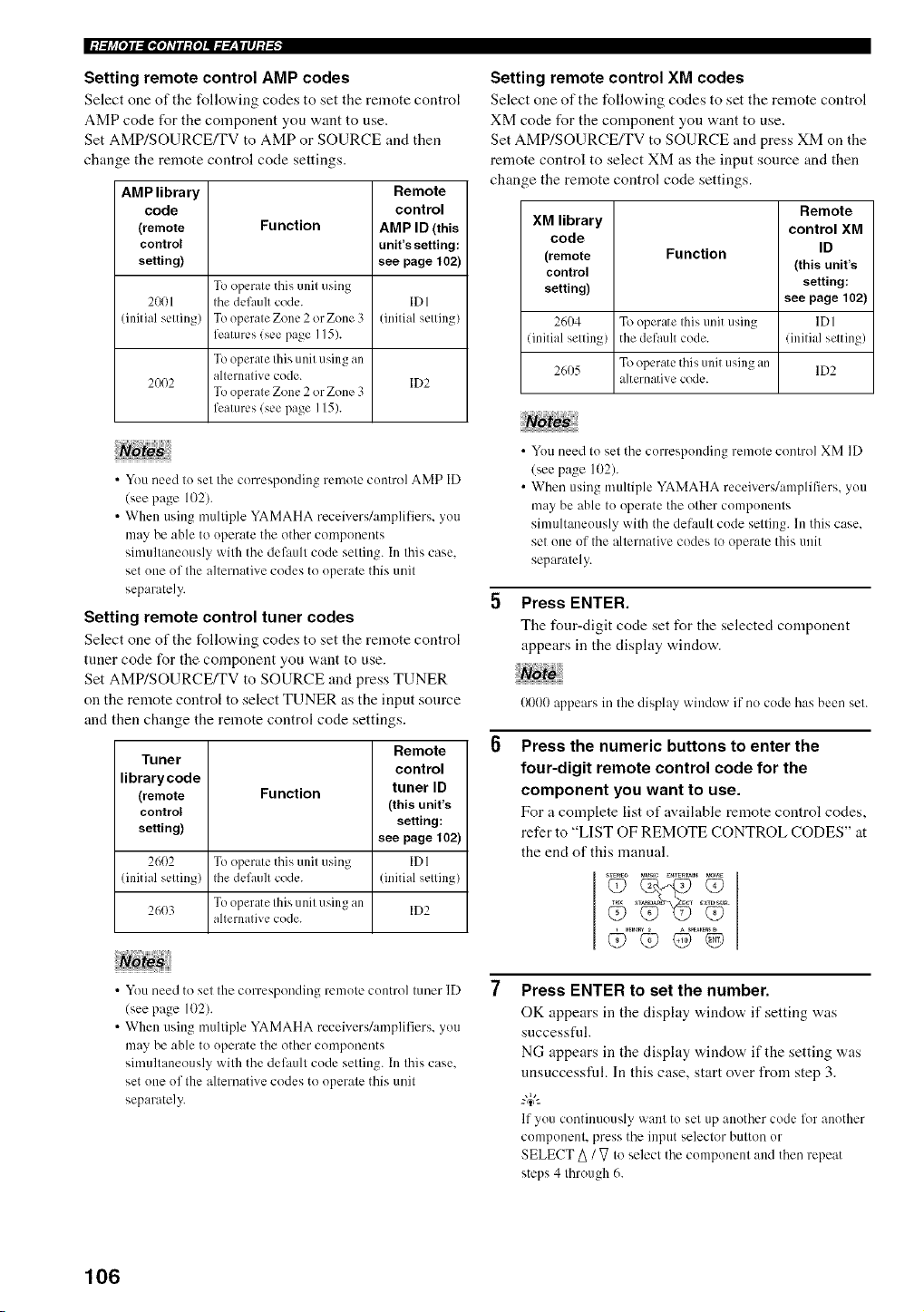
l:/:li_[o]l:lgo]_TIl:{o]llffff__lll]:l-'_"
Setting remote control AMP codes
Select one of the following codes to set tile remote control
AMP code for the component you want to use.
Set AMP/SOURCEFFV to AMP or SOURCE and then
change the remote control code settings.
AMP library
code
(remote
control
setting)
Function
Remote
control
AMP ID (this
unit'ssetting:
see page 102)
To operate this unit clsing
2001 tile def_lult code. IDI
(initial setting) To operate Zone 2 orZone 3 (initial setting/
features (see page 1151.
To operate Ihis unit using an
alternative code.
2002 ID2
To operate Zone 2 or Zone 3
features (see page 115).
• You need to set the corresponding remote control AMP ID
(see page 1021.
• When using nmltiple YAMAHA receiverUamplifiers, you
may be able to operate the other conlponents
simultaneously with the delhult code setting. In this case,
set one of the alternative codes to operate this unit
separately.
Setting remote control tuner codes
Select one of the following codes to set tile remote control
tuner code for the component you want to use.
Set AMP/SOURCEFFV to SOURCE and press TUNER
on the remote control to select TUNER as the input source
and then change the remote control code settings.
Remote
Tuner
control
librarycode tuner ID
(remote Function
control (this unit's
setting) setting:
see page 102)
2602 To opcnltc this unit using ID 1
(initial setting) the default code. (initial setting)
26(}3 To operate Ihis unil using an ID2
alternative code.
• You need to set the corresponding remote control tuner ID
(see page 102).
• When using nmltiple YAMAHA receivers/an/plifiers, you
may be able to operate the other conlponents
sinmltaneously with the default code setting. Ii1this case,
set one of the alternative codes to operate this unit
separately.
Setting remote control XM codes
Select one of tile follo'a, ing codes to set the remote control
XM code for the component you want to use.
Set AMP/SOURCEFFV to SOURCE and press XM on the
remote control to select XM as the input source and then
change the remote control code settings.
Remote
XM library control XM
code
(remote Function ID
control (this unit's
setting) setting:
see page 102)
2604 To operate this unit using IDI
(initial setting) the default code. (initial setting)
2605 To operate this unit using an 1D2
alternative code.
• You need to set the corresponding remote control XM ID
(see page 1021.
• When using nmltiple YAMAHA receivers/amplifiers, you
may be able to operate the other components
simultaneously with the default code setting. In this case,
set one of the alternative codes to operate this unit
separately.
Press ENTER.
Tile four-digit code set for the selected component
appears in the display window.
0000 appears in the display window if no code has been set.
Press the numeric buttons to enter the
four-digit remote control code for the
component you want to use.
For a complete list of available remote control codes,
refer to "LIST OF REMOTE CONTROL CODES" at
the end of this manual.
Press ENTER to set the number.
OK appears ill tile display w,indow, if"setting was
successfld.
NG appears in the display window if the setting was
unsuccessfld. In this case, start over from step 3.
-#.
If you continuously want to set up another code liar another
component, press the input selector button or
SELECT A / V to select the component and then repeat
steps 4 through 6.
106
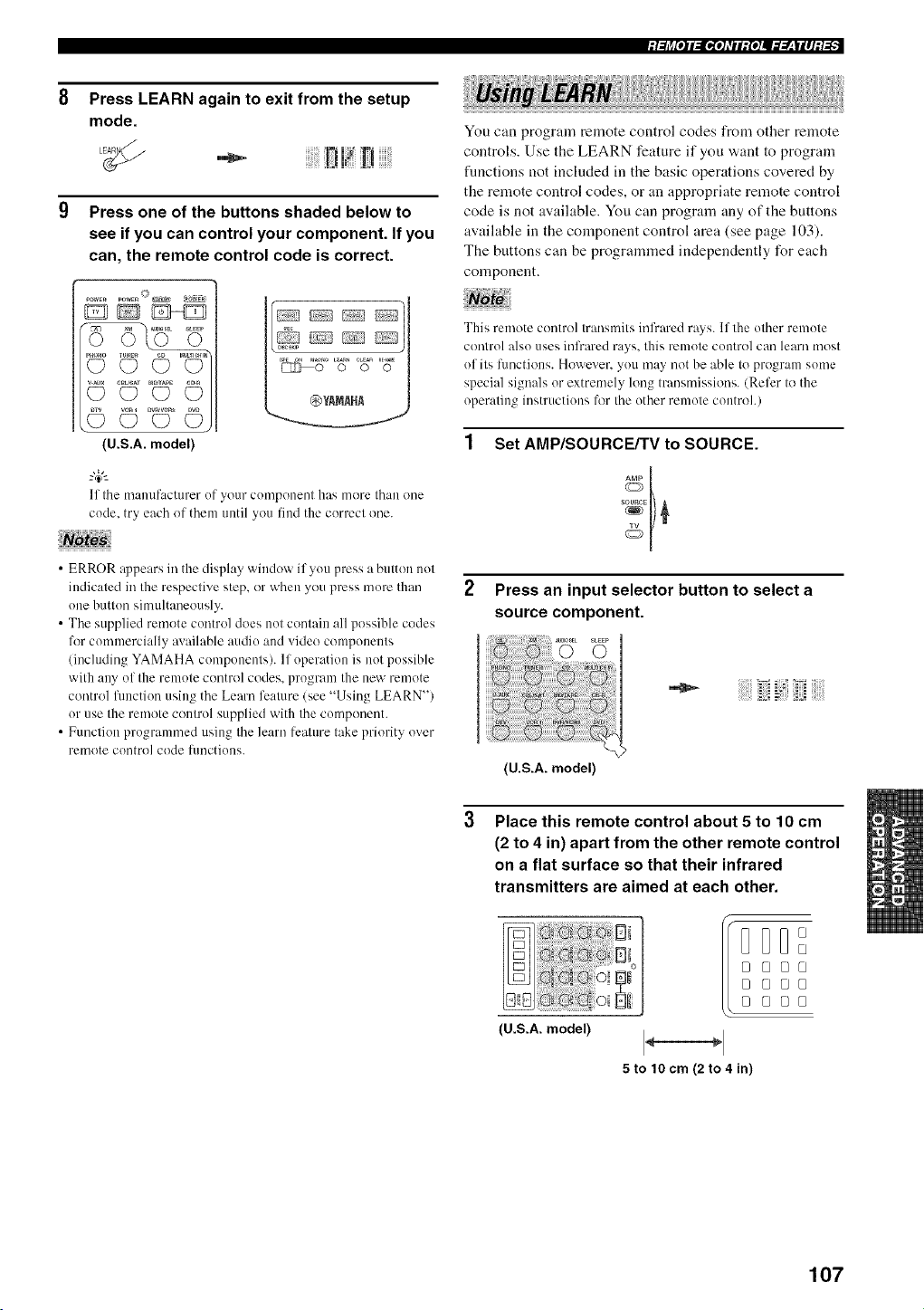
Press LEARN again to exit from the setup
mode.
Press one of the buttons shaded below to
see if you can control your component. If you
can, the remote control code is correct.
POWER _WE_ b) _ _POWE_
DD_D
(U.S.A. model)
If the m:mufacttlrer of your compoImut has more than oue
code. try each of them until you find the correct one.
• ERROR @pears in the display window if you press a button not
indicated in the respective step, or when you press more than
one button simultaneously.
• The supplied rmnote control does not contain all possible codes
lbr commercially av:filableaudio :rodvideo components
(iucluding YAMAHA components). If operation is not possible
with any of the remote control codes, program the new remote
control fimction using the Learn feature (see "Using LEARN")
or use the remote control supplied with the componmlt.
• Function programmed using the learn lhature take priority over
remote control code l/luctions.
You can program remote control codes from other remote
controls. Use the LEARN feature if you want to program
flmctions not included in the basic operations covered by
the remote control codes, or an appropriate remote control
code is not available. You can program any of the buttons
available in the component control area (see page 103).
The buttons can be programmed independently for each
component.
This remote control transmits infrared rays. If the other remote
control also uses iulbared rays. this remote control can learn most
of its luuctious. However. you may not be able to program some
special signals or extrmnely long transmissions. (Refer to the
operating instructions lbr the other remote control.)
Set AMP/SOURCE/TV to SOURCE.
2 Press an input selector button to select a
source component.
(U.S.A. model)
Place this remote control about 5 to 10 cm
(2 to 4 in) apart from the other remote control
on a flat surface so that their infrared
transmitters are aimed at each other.
(U.S.A. model)
DDE]°
o
° °o°
o ooo
o ooo
5 to 10 cm (2 to 4 in)
107
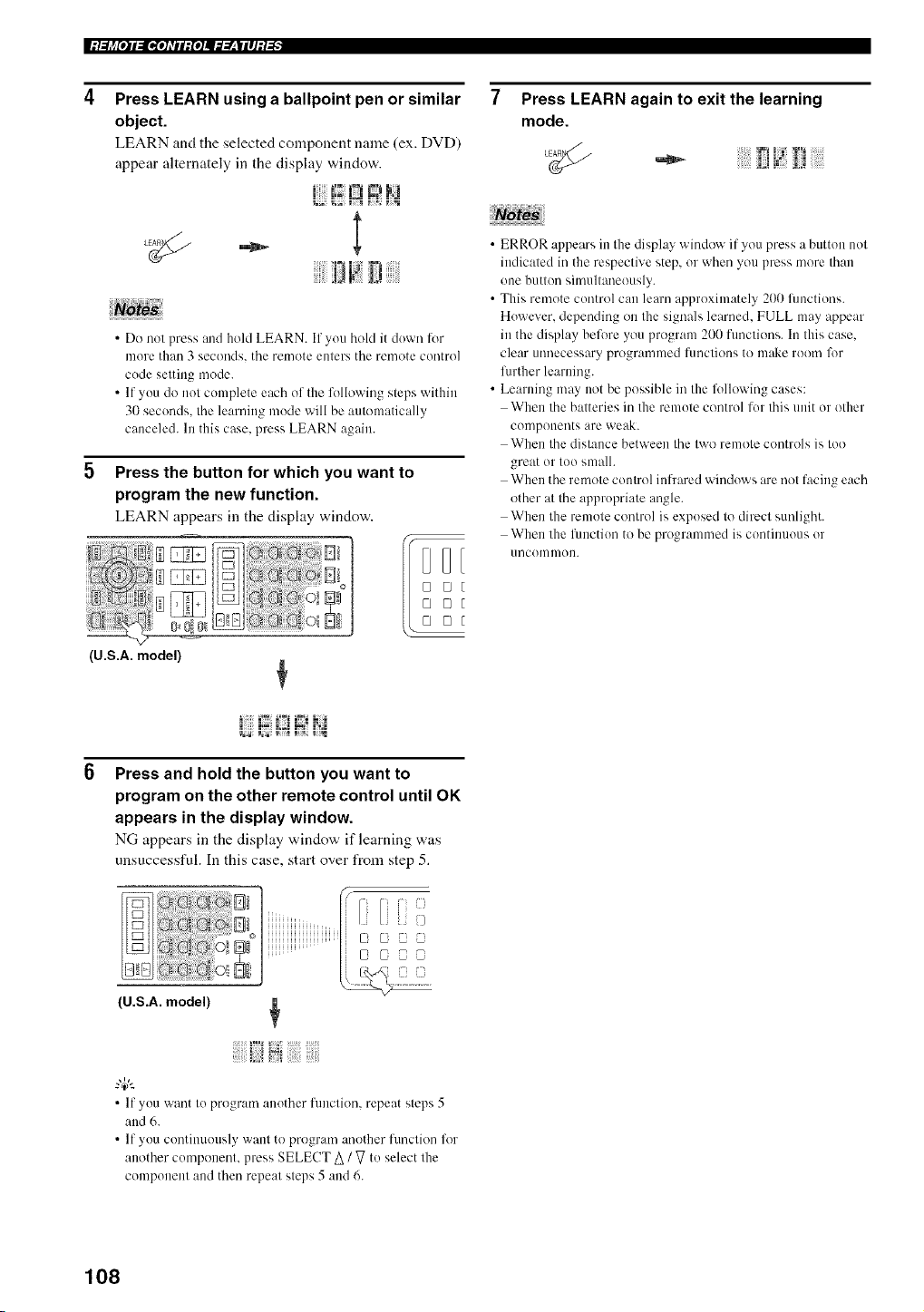
|:/.._j_[O]I_[I,[O]dlI:{O]I_._.___|II]:/-'_"
Press LEARN using a ballpoint pen or similar
object.
LEARN and tile selected componeut l_lalne (ex. DVD)
appear alternately in the display window.
!,. J!lg',
If I I1
• Do clot press and hold LEARN. If you hold it down lbr
nlore than 3 seconds, the remote enters the remote control
code setting mode.
• If you do ]cot complete each of the lk>llowing steps within
30 seconds, the learning mode will be automatically
canceled. In this case. press LEARN again.
Press the button for which you want to
program the new function.
LEARN appears in the display window.
Press LEARN again to exit the learning
mode.
• ERROR appears in the display window if you press a button not
indicated in the respective step, or when you press more than
one button simultaneously.
• This remote control can learn approximately 200 flmctions.
However. depending on the signals learned. FULL may appear
in the display before you program 200 fimctkms. In this case.
clear unnecessary programnled hmctiolcs to nlake room lklr
l_lrther learning.
• Learning may not be possible in the following cases:
When the batteries in the remote control lor this unit or other
compoccents are weak.
When the distance between the two remote controls is too
great or too small.
When the remote control infrared windows are not facing each
other at the appropriate angle.
When the remote control is exposed to direct sunlight.
When the lhnction to be programmed is continuous or
[lllCOm nloIL
(U.S.A. model)
1% 1=_ ; _ =m_ =%,=
Press and hold the button you want to
program on the other remote control until OK
appears in the display window.
NG appears in the display v,,indow if learning was
unsuccessful. In this case, start over from step 5.
(U.S.A. model)
• If you want to program another function, repeat steps 5
and 6.
• If you continuously want to program another function for
another componenl, press SELECT _ / _7to select the
component and then repeal sleps 5 and 6.
108
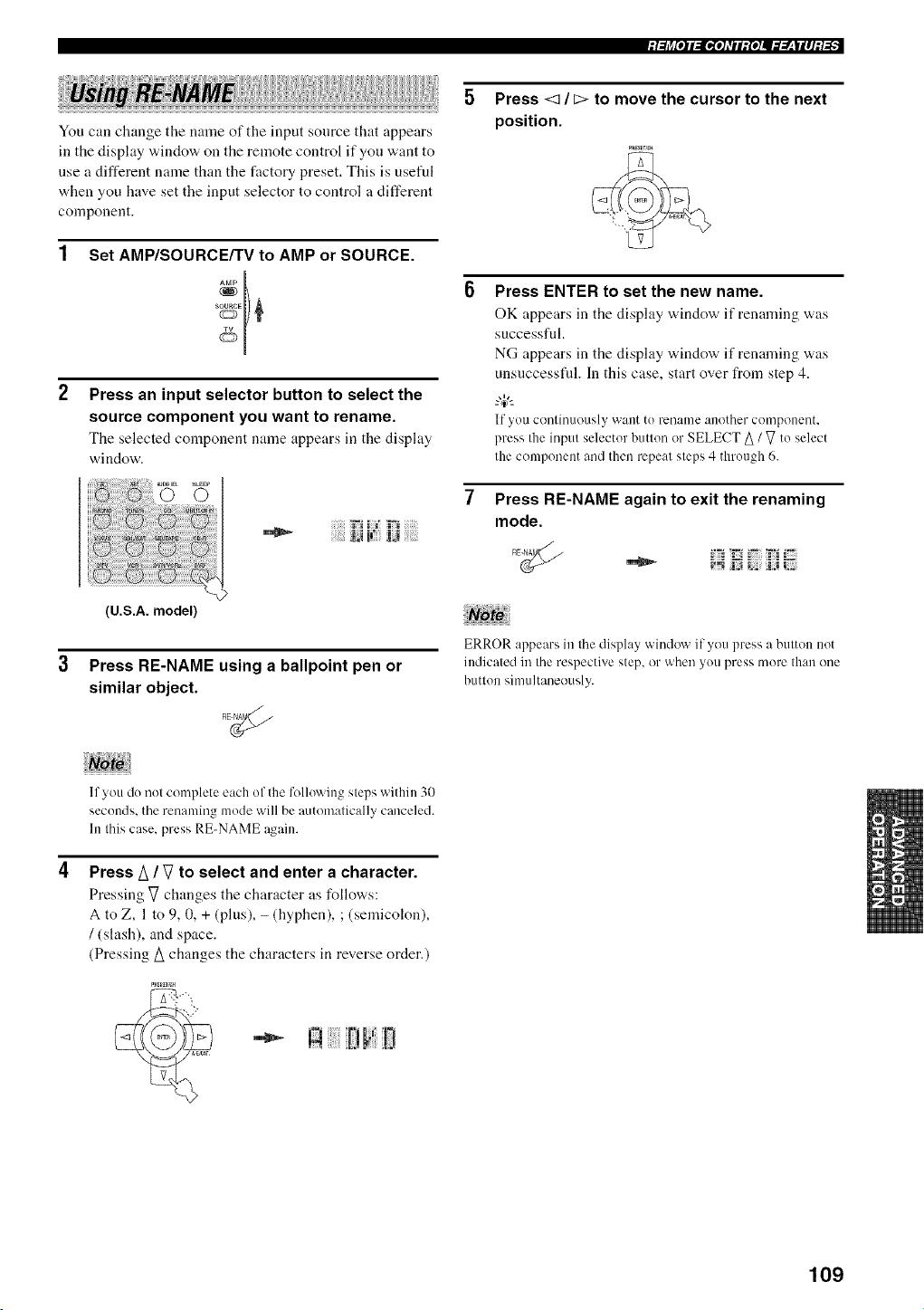
You can change the name of the input source that appears
in the display window on the remote control if you want to
use a different name than the factory preset. This is useful
when you have set the input selector to control a different
component.
Set AMP/SOURCE/TV to AMP or SOURCE.
Press an input selector button to select the
source component you want to rename.
Tile selected component name appears in the display
window.
(U.S.A. model
3 Press RE-NAME using a ballpoint pen or
similar object.
Press <1 / c> to move the cursor to the next
position.
Press ENTER to set the new name.
OK appears in the display ,a,indow if renaming was
successful.
NG appears in the display window if renaming was
unsuccessfid. In this case, start over from step 4.
"4_--
If you conthluously want to rename another compotlent,
press the input selector button or SELECT _ / _ to select
the component and then repeat steps 4 through 6.
Press RE-NAME again to exit the renaming
mode.
-_ H Hi;iJi;:
ERROR appears in the display window if you press a button not
indicated in the respective step, or when you press more than one
button simultaneously.
If you do not complete each of the lbllowing steps within 30
seconds, the renaming mode will be autonmtically canceled.
In this case, press RE-NAME again.
Press A / V to select and enter a character.
Pressing _ changes the character as follows:
A to Z, 1 to 9, 0, + (plus), - (hyphen), ; (semicolon),
/ (slash), and space.
(Pressing/_ changes the characters in reverse order.)
109
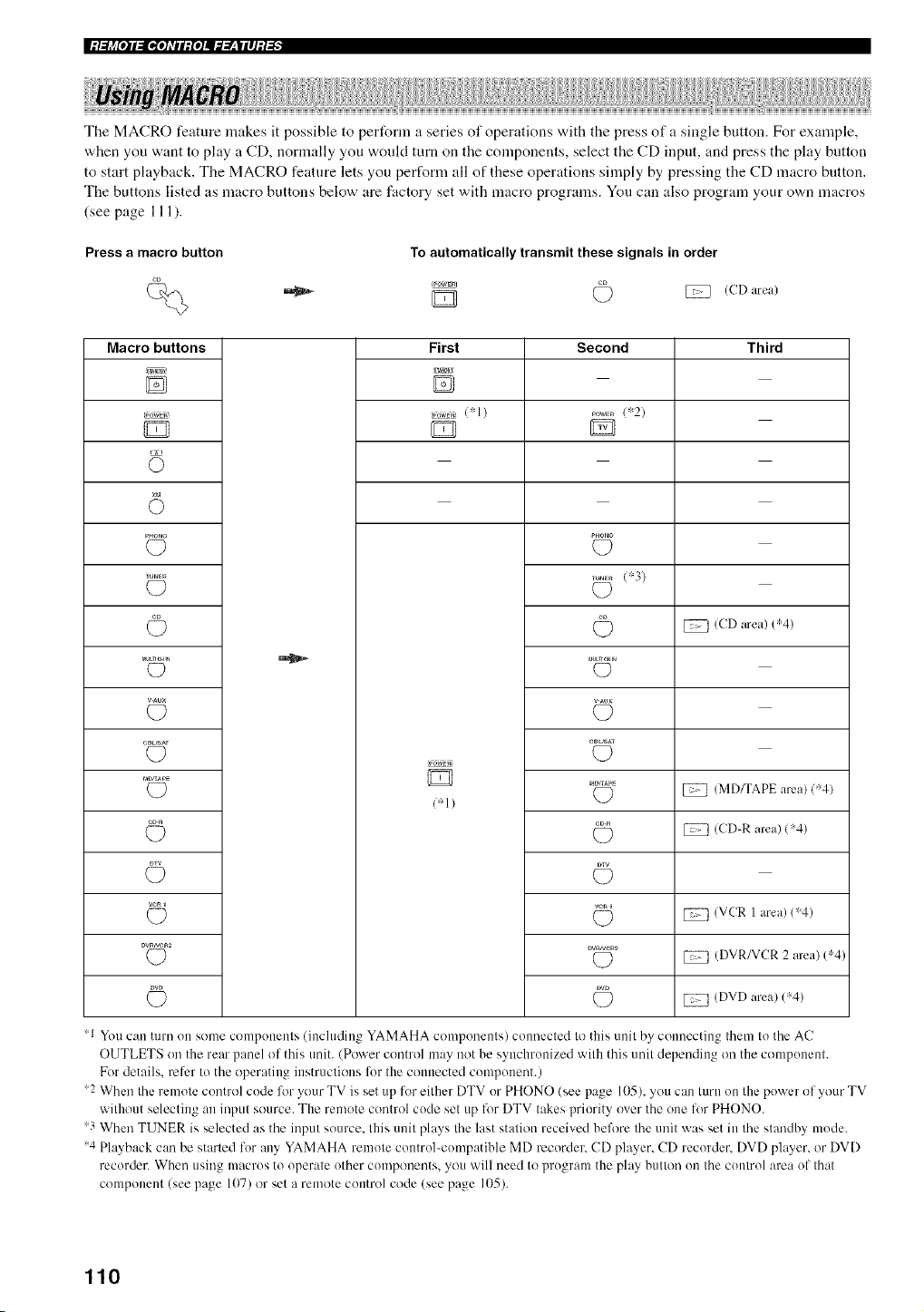
|:t.._j_[o]l_[I,[o]dll:{o]l_._.__,|llJ:J-'_"
The MACRO feature makes it possible to perform a series of operations with the press of a single button. For example,
when you want to play a CD, normally you would turn on the components, select the CD input, and press the play button
to start playback. The MACRO feature lets you perform all of these operations simply by pressing the CD macro button.
The buttons listed as macro buttons below' are factory set with macro programs. You can also program your own macros
(see page 111).
Press a macro button
To automatically transmit these signals in order
/CD area)
Macro buttons
'A
©
TUNE_
V-AUX
eB_SAT
MD_APE
WRI
DW_¢_2
First
D
_o_,_ 1"1)
(*1)
Second
...... (*2)
p.oHo
..... 1"3)
_I_LTr_IN
(D
v._ux
©
(D
_D
Third
(CD area) 1"4)
(MD%APE area) (*4)
(CD-R area) ("4)
(VCR I area) ("4)
/DVR/VCR 2 area) 1"4)
/DVD area) ("4)
'1 You can turn on some components (including YAMAHA components) connected to this unit by connecting them to the AC
OUTLETS on the rear panel of this unit. (Power control may not be synchronized with this unit depending on the component.
For details, refer to the operating instructions for the connected compmmnt.)
2 When the remote control code lk_r your TV is set up for either DTV or PHONO (see page 105), you can turn on the power of your TV
without selecting an input source. The rmnote control code set up for DTV takes priority over the one tbr PHONO.
3 When TUNER is selected as the input source, this unit plays the last station received before the unit was set in the standby mode.
4 Playback can be started for any YAMAHA remote control-compatible MD recorder. CD player. CD recorder. DVD player, or DVD
recorder. When using macros to operate other components, you will need to program the play button on the control area of that
component (see page 1(17) or set a rmnote control code (see page 105).
110
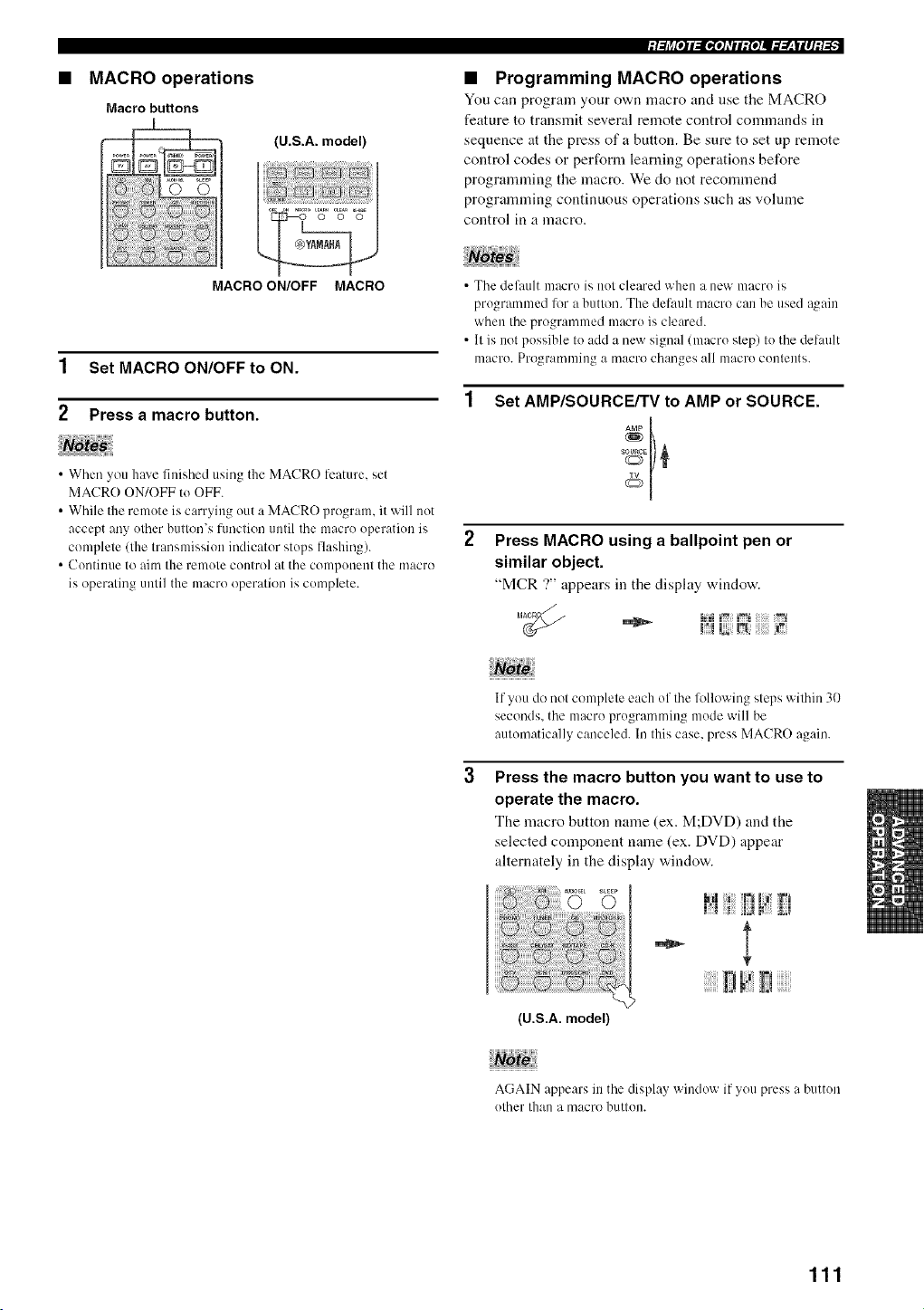
MACRO operations
Macro buttons
(U.S.A. model)
:I:/j_[OJI_[I..ro]_TII:fO]Uffff__|II]:/.'[_
• Programming MACRO operations
You can program your ov,,n macro and use tile MACRO
feature to transmit several remote control commands in
sequence at the press of a button. Be sure to set up remote
control codes or perform learning operations before
progrannning the macro. We do not recommend
programming continuous operations such as volume
control in a macro.
MACRO ON/OFF MACRO
1 Set MACRO ON/OFF to ON.
2 Press a macro button.
• When you haxe finished using the MACRO lbature, set
MACRO ON/OFF to OFF.
• While the remote is carrying out a MACRO program, it will not
accept any other btltton's fm/ction until the macro operation is
complete (the transmission indicator stops flashing).
• Continue to aim the remote control at the component the macro
is operating until the macro operation is complete.
• The def:mlt macro is not cleared when a new macro is
programmed lot a button. The def:mlt macro can be used a_ain
when the progranlmed macro is cleared.
• It is not possible to add a new signal (macro step) to the delault
macro. Programming a macro changes all macro contents.
Set AMP/SOURCE/TV to AMP or SOURCE.
Press MACRO using a ballpoint pen or
similar object.
"MCR ?" appears in the display windov<
If you do not complele each of the lollowing steps wilhin 30
seconds, the macro programnfing mode will be
aulonmtically canceled. In this case, press MACRO again.
Press the macro button you want to use to
operate the macro.
The macro button nanae (ex. M;DVD) and the
selected component name (ex. DVD) appear
alternately in the disphty window.
g D
(U.S.A. model)
,aoto
AGAIN appears in the display window if you press a button
olher than a macro bullion.
111
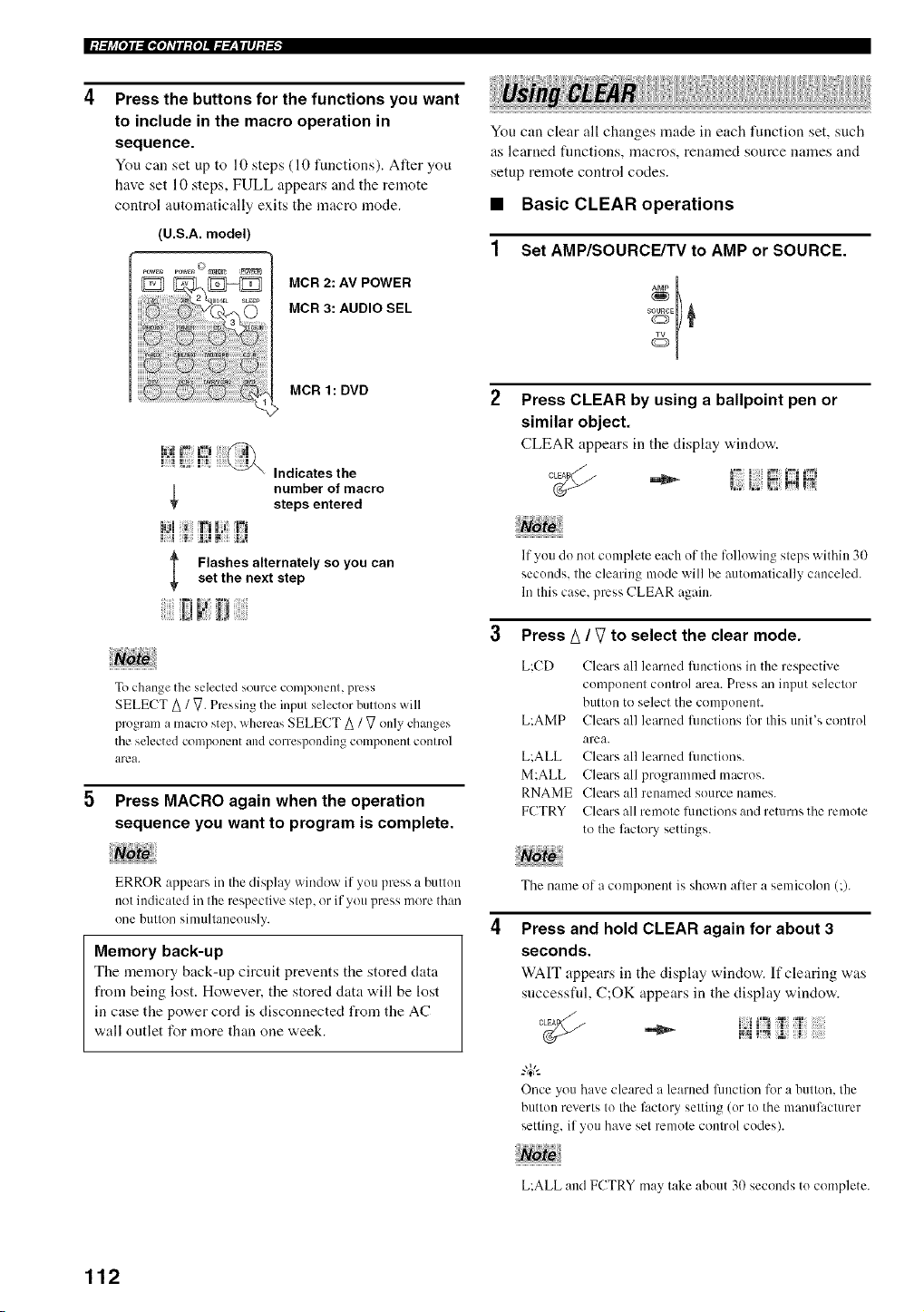
I:t.._l_[I]l_[I,[I]dll:{I]ll._-_4|ll]:l-'_"
Press the buttons for the functions you want
to include in the macro operation in
sequence.
You can set up to 10 steps (10 functions). Alter you
have set 10 steps, FULL appears and the remote
control automatically exits the macro mode.
(U.S.A. model)
s
iiiiiUiiiiiiiiiiiiiiiii_ilili!_!i_!i_!_i:i:iiii!i!iliii_i_i_ii!i:ii:{ii
.......! !!!!!!!!!!!!!!!!!:!I{{{{{{S_
MCR 2: AV POWER
MCR 3: AUDIO SEL
MCR 1: DVD
Indicates the
number of macro
steps entered
You can clear all changes made in each function set, such
as learned fuactions, macros, renamed source names and
setup remote control codes.
• Basic CLEAR operations
Set AMP/SOURCE/TV to AMP or SOURCE.
Press CLEAR by using a ballpoint pen or
similar object.
CLEAR appears in the display window.
l Flashes alternately so you can
set the next step
lip IJ
To change the selected source component, press
SELECT A / V. Pressing the input selector buttons will
program a macro step, whereas SELECT A / _7 only changes
the selected component and corresponding component control
area.
Press MACRO again when the operation
sequence you want to program is complete.
Note
ERROR appears in the display window if you press a hLittoo
not indicated in the respective step, or if you press more than
one bullon simultaneously.
Memory back-up
The memory back-up circuit prevents the stored data
from being lost. However, the stored data will be lost
in case the power cord is disconnected from the AC
wall outlet for more than one week.
lfyou do not complete each of Ihe following steps "within 31)
seconds, the clearing mode will be automatically canceled.
In this case, press CLEAR again.
Press A / V to select the clear mode.
L:CD Clears :ill learned functions in the respective
component control area. Press an input selector
button to select the componenl.
LAMP Clears all learned fnnclions for this unit's control
area.
L:ALL Clears all learned fnnclions.
M:ALL Clears all programmed macros.
RNAME Clears all renamed source names.
FCTRY Clears all remote lunclions and returns the remote
to the factory settings.
The name of a component is shown after a semicolon C).
Press and hold CLEAR again for about 3
seconds.
WAIT appears in the display window. If clearing was
successful, C;OK appears in the display window'.
/.
I I 1
Once you have cleared a learned limction for a button, the
button reverts to the l'actory setting (or to the manulacmrer
setting, if you have set remote control codes).
L:ALL and FCTRY may take about 31)seconds to complete.
112
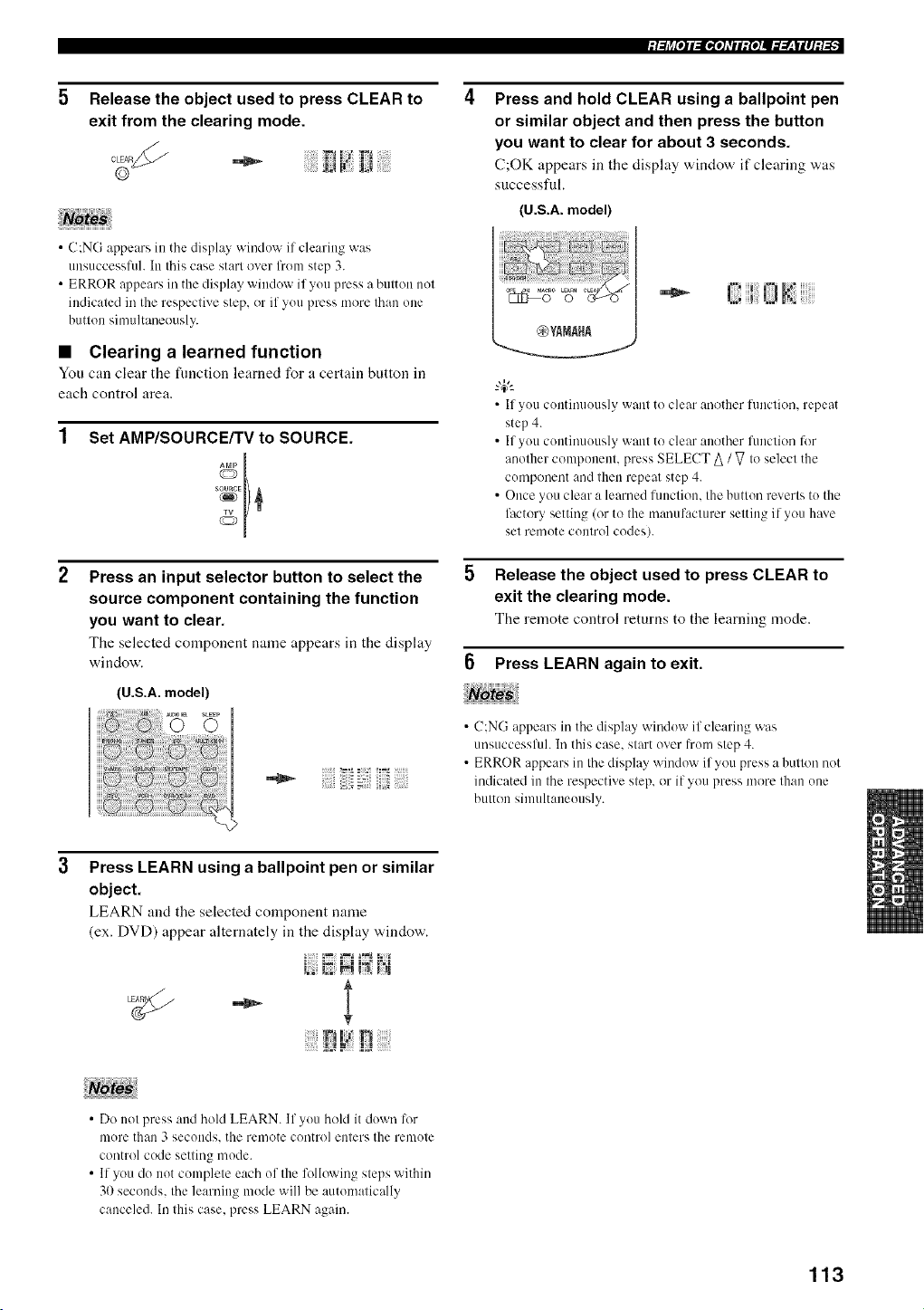
{l_,l_[I, ll:J[I,[I]_lll:[I]ll._2"__flll]:l._
Release the object used to press CLEAR to
exit from the clearing mode.
'El 17V I'_= _ %_
• C:NG appears in the display window if clearing wits
unsuccesslul. In this case start over from step 3.
• ERROR appears in the display window if you press a button not
indicated in the respective step, or if you press more than one
button simultaneously.
• Clearing a learned function
You can clear the function learned for :t certain button in
each control area.
Set AMP/SOURCE/TV to SOURCE.
Press an input selector button to select the
source component containing the function
you want to clear.
Tile selected component name appears in the display
'_,indow.
(U.S.A. model)
Press and hold CLEAR using a ballpoint pen
or similar object and then press the button
you want to clear for about 3 seconds.
(.';OK appears ill tile disphty window if clearing '_,as
successful.
(U.S.A. model)
• If you continuously want to clear another function, repeat
step 4.
• If you continuously want to clear another fimction lbr
another componenh press SELECT A / V to select the
component and then repeat step 4.
• Once you clear a learned function, the button reverts to the
factory setting (or to the manufacturer setting if you haxe
set remote control codes).
Release the object used to press CLEAR to
exit the clearing mode.
Tile remote control returns to the learning mode.
Press LEARN again to exit.
• C:NG appears in the display window if clearing was
unsuccessl_ll. In this case, start over from step 4.
• ERROR appears in the display window if you press a button not
indicated in the respective step, or if you press more than one
button simultaneously.
Press LEARN using a ballpoint pen or similar
object.
LEARN and the selected component name
(ex. DVD) appear alternately ill tile disphty w,'indow.
ii:i
- 1
:5 F!I:_ !!
Iii iiii
• Do not press and hold LEARN. If you hold it down lkw
more than 3 secollds, the remote control enters the renlote
control code setting mode.
• If you do not complete each of the lk_llowing steps within
30 seconds, the learning mode will be automatically
canceled. In this case, press LEARN again.
113
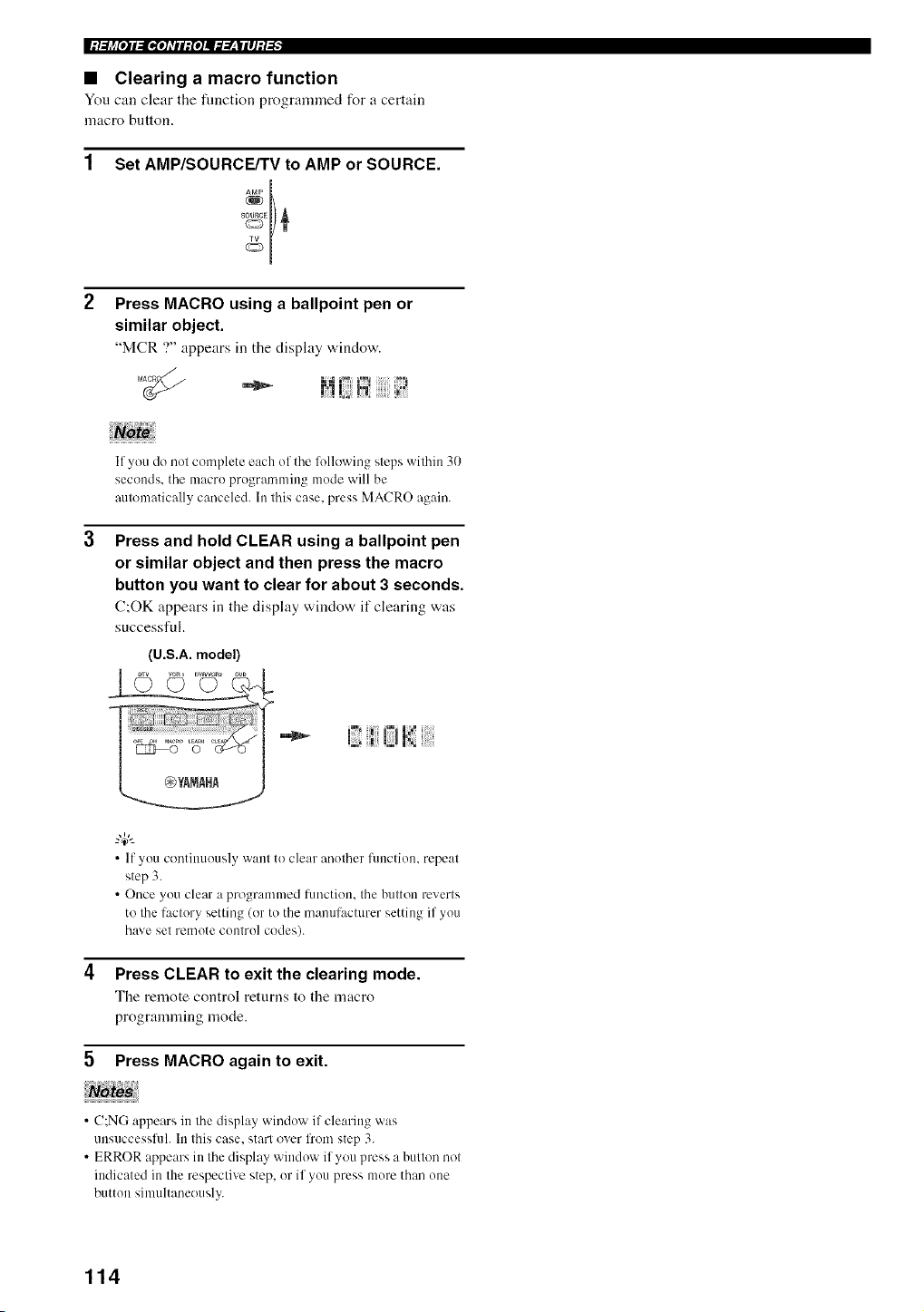
|:/:li_[o]l:lgo]_TIl:{o]ll=:Y__|ll]:l-'_"
• Clearing a macro function
You can clear the function progr:mnned for a certain
macro button.
Set AMP/SOURCE/TV to AMP or SOURCE.
Press MACRO using a ballpoint pen or
similar object.
"MCR '."' appears in tile display "a,indow.
iiJVoteiii!i!i
If you do not complete each of the lollowing steps within 30
seconds, the macro programming mode will be
automatically canceled. In this case, press MACRO again.
Press and hold CLEAR using a ballpoint pen
or similar object and then press the macro
button you want to clear for about 3 seconds.
(.';OK appears in the display windo'a, it"clearing was
successful.
(U.S.A. model)
• If you continuously want to clear another function, repeat
step 3.
• Once you clear a programmed hmction, the button reverts
to the lactory setting (or to the manufacturer setting if you
have set remote control codes).
Press CLEAR to exit the clearing mode.
The remote control returns to the macro
programming mode.
5 Press MACRO again to exit.
• C:NG appears in the display window if clearing was
unsuccessfuh In this case, start over from step 3.
• ERROR appears in the display window if you press a button not
indicated in the respective step, or if you press more than one
button simultaneously.
114
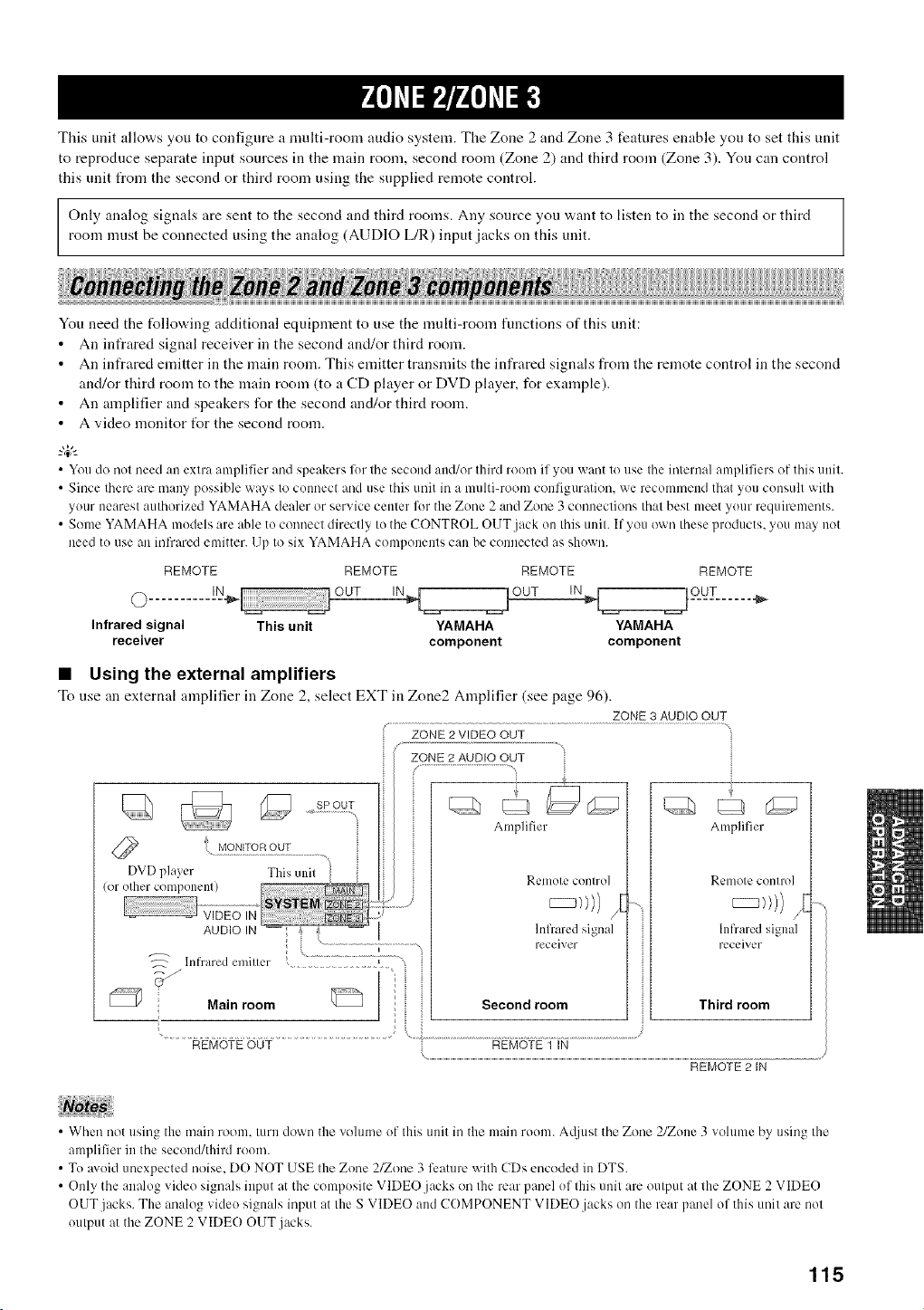
This unit allows you to configure a multi-room audio system. The Zone 2 and Zone 3 features enable you to set this unit
to reproduce separate input sources in the main room, second room (Zone 2) and third room (Zone 3). You can control
this unit from the second or third room using the supplied remote control.
Only analog signals are sent to the second and third rooms. Any source you want to listen to in the second or third
room nmst be connected using the analog (AUDIO L/R) input jacks on this unit.
You need the following additional equipment to use the multi-room functions of this unit:
An infrared signal receiver in the second and/or third room.
An infrared emitter in the main room. This emitter transmits the infrared signals from the remote control in the second
and/or third room to the main room (to a CD player or DVD player, for example).
An amplifier and speakers for the second and/or third room.
A video monitor t_r the second mona.
• You do not need an extra amplifier and speakers for the second and/or third room if you want to use the internal amplifiers of this unit.
• Since there are many possible ways to cmmect and use this unit in a multi-room configuration, we recommend that you consult with
your nearest authorized YAMAHA dealer or service center %r the Zone 2 and Zone 3 connections that best meet your requirements.
• Some YAMAHA models are able to c(mnect directly to the CONTROL OUT jack on this unit. If you own these products, you may not
need to use an infrared emitter. Up to six YAMAHA components can be connected as shown.
REMOTE REMOTE REMOTE
INI_ OUT
(_) ............
Infrared signal This unit YAMAHA YAMAHA
receiver component component
• Using the external amplifiers
To use an external amplifier in Zone 2, select EXT in Zone2 Amplifier (see page 96).
Infrared emiller
REMOTE
ZONE3AUDIO OUT
ZONE2VIDEO OUT
ZONE 2 AUDIO OUT
Amplifier
Rellmle conlrol
Infrared signal
receiver
T
Amplifier
Remole conho]
Infrared signal
receiver
Third room
REMOTE OUT
\ ..............................................................................................................................................................................................................................................................................
REMOTE 2 IN
• When not using the main room. turn down the vohmm of this unit in the main room. A@lst the Zone 2/Zone 3 volume by using the
amplifier in the second/third room.
• To avoid unexpected noise. DO NOT USE the Zone 21Zone 3 feature with CDs encoded in DTS.
• Only the analog video signals input at the composite VIDEO.jacks on the rear panel of this unit are output at the ZONE 2 VIDEO
OUT jacks. The analog video signals input at the S VIDEO and COMPONENT VIDEO jacks on the rear panel of this unit are not
output at the ZONE 2 VIDE() O1JT jacks.
115
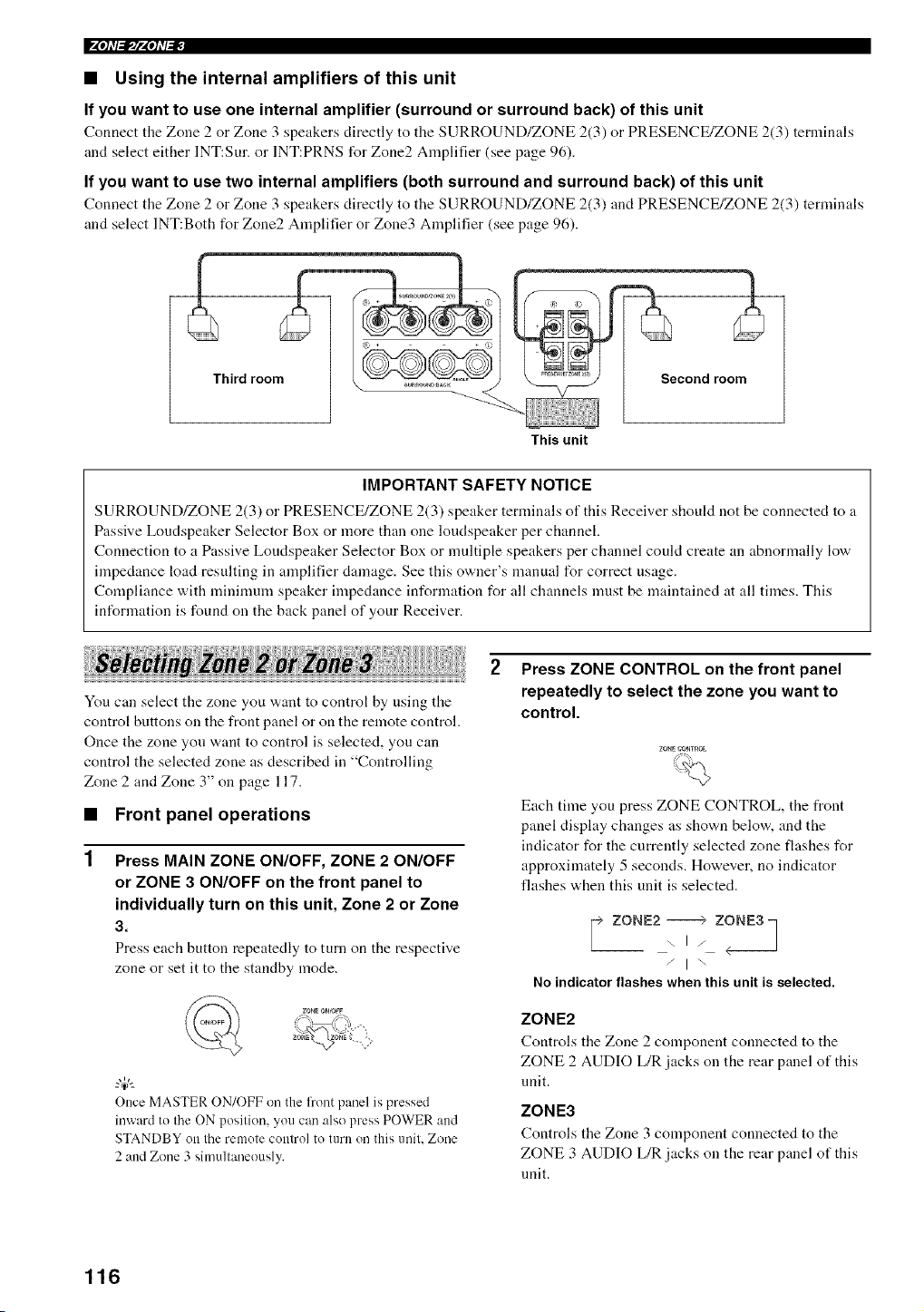
P4ql'l_lf4ql'l_
• Using the internal amplifiers of this unit
If you want to use one internal amplifier (surround or surround back) of this unit
Connect the Zone 2 or Zone 3 speakers directly to the SURROUND/ZONE 2(3) or PRESENCE/ZONE 2(3) terminals
and select either INT:Sur. or INT:PRNS for Zone2 Amplifier (see page 96).
If you want to use two internal amplifiers (both surround and surround back) of this unit
Connect the Zone 2 or Zone 3 speakers directly to the SURROUND/ZONE 2(3) and PRESENCE/ZONE 2(3) terminals
and select INT:Both for Zone2 Amplifier or Zone3 Amplifier (see page 96).
Third rooml I _ _ ......___ ,rn1_ Second room
This unit
IMPORTANT SAFETY NOTICE
SURROUND/ZONE 2(3) or PRESENCE/ZONE 2(3) speaker terminals of this Receiver should not be connected to a
Passive Loudspeaker Selector Box or more than one loudspeaker per channel.
Connection to a Passive Londspeaker Selector Box or multiple speakers per channel could create an abnormally low
impedance load resulting in amplifier damage. See this owner's manual for correct usage.
Compliance with mininmm speaker impedance information for all channels must be maintained at all times. This
information is found on the back panel of your Receiver.
You can select the zone you want to control by using the
control buttons on the front panel or on the remote control.
Once the zone yon want to control is selected, you can
control the selected zone as described in "Controlling
Zone 2 and Zone 3" on page 117.
• Front panel operations
Press MAIN ZONE ON/OFF, ZONE 2 ON/OFF
or ZONE 3 ON/OFF on the front panel to
individually turn on this unit, Zone 2 or Zone
3.
Press each button repeatedly to turn on the respective
zone or set it to the standby mode.
Once MASTER ON/OFF on the front panel is pressed
inward to the ON position, you can also press POWER and
STANDBY on the remote control to turn on this unit. Zone
2 and Zone 3 simultaneously.
2 Press ZONE CONTROL on the front panel
repeatedly to select the zone you want to
control.
Each time you press ZONE CONTROL, the front
panel display changes as shown below, and the
indicator for the currently selected zone flashes for
approximately 5 seconds. However, no indicator
flashes when this unit is selected.
ZONE2 ------> ZONE3
÷ -,1< _
/ [ \
No indicator flashes when this unit is selected.
ZONE2
Controls the Zone 2 component connected to the
ZONE 2 AUDIO L/R jacks on the rear panel of this
unit.
ZONE3
Controls the Zone 3 component connected to the
ZONE 3 AUDIO L/R jacks on the rear panel of this
unit.
116
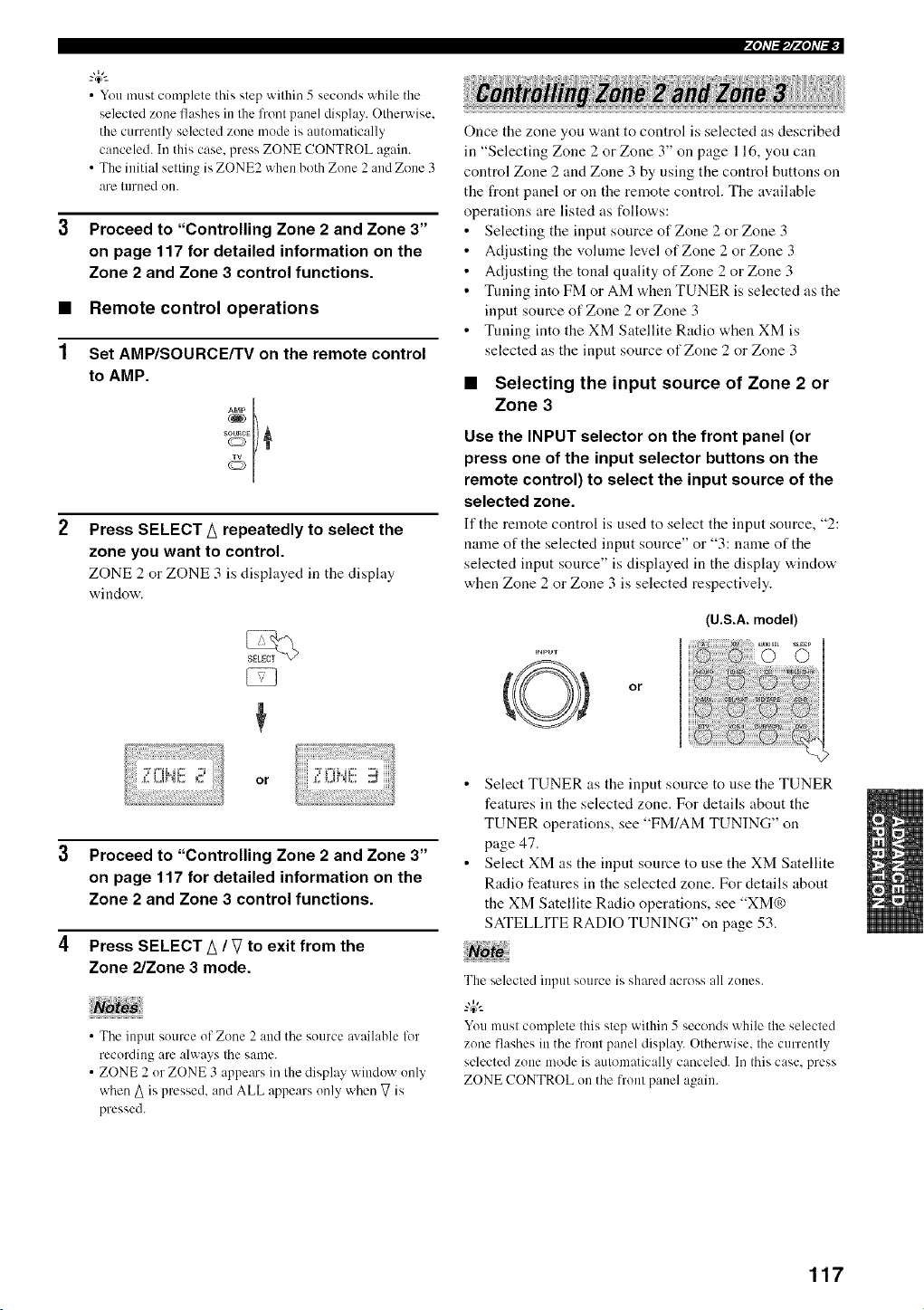
1
• Youmust complete this step within 5 seconds while the
selected zone flashes in the front panel display. Otherwise,
the currently selected zone mode is automatically
canceled. In this case, press ZONE CONTROL again.
• The initial setting is ZONE2 when both Zone 2 and Zone 3
are turued OIt.
Proceed to "Controlling Zone 2 and Zone 3"
on page 117 for detailed information on the
Zone 2 and Zone 3 control functions.
Remote control operations
Set AMP/SOURCE/TV on the remote control
to AMP.
Press SELECT A repeatedly to select the
zone you want to control.
ZONE 2 or ZONE 3 is displayed in the display
window.
4"t1'1_1f4"t1'1_
Once the zone you want to control is selected as described
in "Selecting Zone 2 or Zone 3" on page 116, you can
control Zone 2 and Zone 3 by using the control buttons on
the front panel or on the remote control. The available
operations are listed as follows:
• Selecting the input source of Zone 2 or Zone 3
• Adjusting the volume level of Zone 2 or Zone 3
• Adjusting the tonal quality of Zone 2 or Zone 3
• Tuning into FM or AM when TUNER is selected as the
input source of Zone 2 or Zone 3
• Tuning into the XM Satellite Radio when XM is
selected as the input source of Zone 2 or Zone 3
• Selecting the input source of Zone 2 or
Zone 3
Use the INPUT selector on the front panel (or
press one of the input selector buttons on the
remote control) to select the input source of the
selected zone.
If the remote control is used to select the input source, "2:
name of the selected input source" or "3: name of the
selected input source" is displayed in the display window
when Zone 2 or Zone 3 is selected respectively.
(U.S.A. model)
INPUT
or
or
Proceed to "Controlling Zone 2 and Zone 3"
on page 117 for detailed information on the
Zone 2 and Zone 3 control functions.
Press SELECT A / V to exit from the
Zone 2/Zone 3 mode.
• The input source of Zone 2 attd the source axailable lor
recording are always the same.
• ZONE 2 or ZONE 3 appears in the display window only
when A is pressed, and ALL appears only when V is
pressed.
• Select TUNER as the input source to use the TUNER
features in the selected zone. For details about the
TUNER operations, see "FM/AM TUNING" on
page 47.
• Select XM as the input sonrce to use the XM Satellite
Radio features in the selected zone. For details about
the XM Satellite Radio operations, see "XM®
SATELLITE RADIO TUNING" on page 53.
{
The selected input source is shared across all zones.
-"4_"-
You must complete this step within 5 seconds while the selected
zone flashes in the front panel display. Otherwise, the currently
selected zone mode is automatically canceled. In this case, press
ZONE CONTROL onthe front panel again.
117
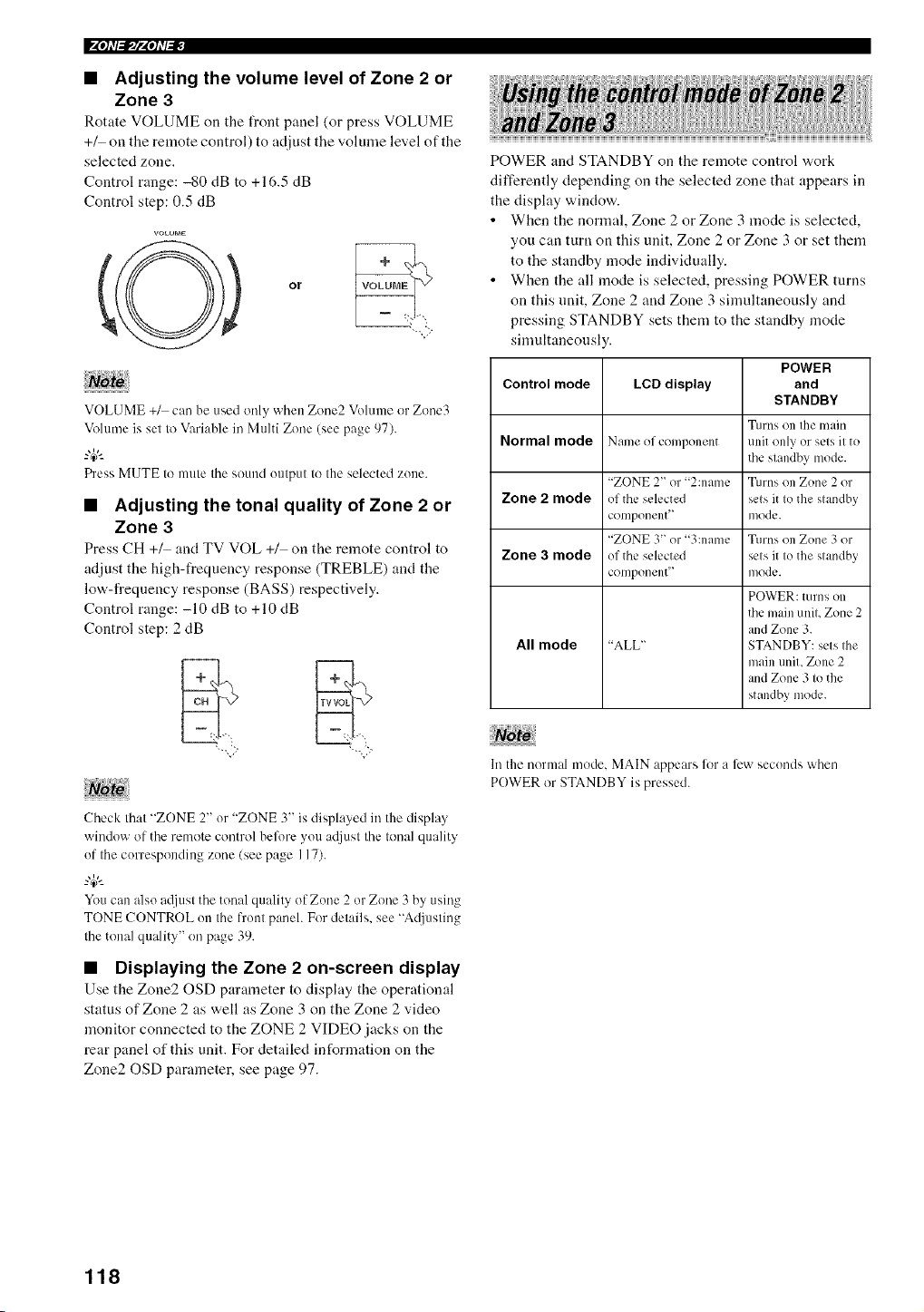
If'4qlT_lt'4qlT_
• Adjusting the volume level of Zone 2 or
Zone 3
Rotate VOLUME on the front panel (or press VOLUME
+_ on the remote control) to adjust the volume level of the
selected zone.
Control range: -80 dB to +16.5 dB
Control step: 0.5 dB
or
--,.. j-,-
VOLUME +/ can be used only when Zone2 Volume or Zone3
Volume is set to Variable in Multi Zone (see page 97).
_%,._
Press MUTE to mute the sound uutput to the selected zune.
• Adjusting the tonal quality of Zone 2 or
Zone 3
Press CH +_ and TV VOL +/ on the remote control to
adjust the high-frequency response (TREBLE) and the
low-frequency response (BASS) respectively.
Control range: -10 dB to +10 dB
Control step: 2 dB
Check that "ZONE 2" or "ZONE 3" is displayed in the display
window of the remote control belt)re you a_!just the tonal quality
of the corresponding zune (see page 117).
_%,._
You can also atljust the tonal quality of Zone 2 or Zone 3 by using
TONE CONTROL uu the Dout panel. For details, see "Adjusting
the tonal quality" on page 39.
• Displaying the Zone 2 on-screen display
Use the Zone20SD parameter to display the operational
status of Zone 2 as well as Zone 3 on the Zone 2 video
monitor connected to the ZONE 2 VIDEO jacks on the
rear panel of this unit. For detailed information on the
Zone20SD parameter, see page 97.
POWER and STANDBY on the remote control work
differently depending on the selected zone that appears in
the display window.
• When the normal, Zone 2 or Zone 3 mode is selected,
you can turn on this unit, Zone 2 or Zone 3 or set them
to the standby mode individually.
• When the all mode is selected, pressing POWER turns
on this unit, Zone 2 and Zone 3 simultaneously and
pressing STANDBY sets them to the standby mode
simultaneously.
Control mode LCD display
Normal mode Name of component
"ZONE 2" or "2:name
Zone 2 mode of the selected
col71ponent '_
"ZONE 3' or "3:name
Zone 3 mode of the selected
col71ponent _
All mode "ALL"
POWER
and
STANDBY
Turns on the main
unit only or sets it to
the standby mode.
Turns OI7 Zone 2 or
sets it to the standby
mode.
Turns on Zone 3 or
sets it to the standby
mode.
POWER: turns on
the main unit, Zone 2
and Zone 3.
STANDBY: sets the
main unit, Zone 2
and Zone 3 to the
standby mode.
117the normal mode. MAIN appears liar a few secunds when
POWER or STANDBY is pressed.
118
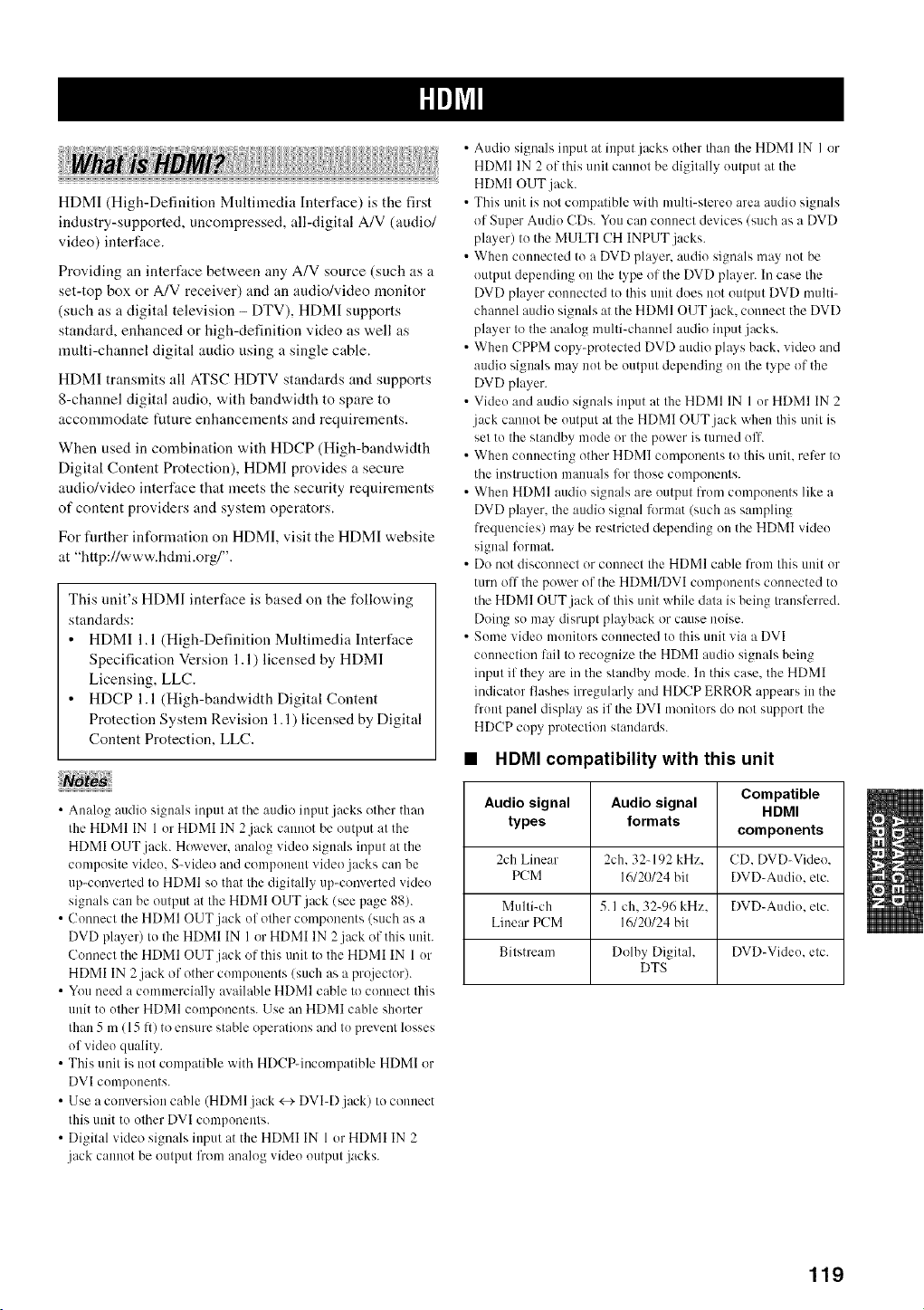
HDMI (High-Definition Multimedia Interface) is the first
industry-supported, uncompressed, all-digital A/V (audio/
video) interface.
Providing an interface between any A/V source (such as a
set-top box or A/V receiver) and an audio/video monitor
(such as a digital television - DTV), HDMI supports
standard, enhanced or high-definition video as well as
multi-channel digital audio using a single cable.
HDMI transmits all ATSC HDTV standards and supports
8-channel digital audio, with bandwidth to spare to
accommodate future enhancements and requirements.
When used in combination with HDCP (High-bandwidth
Digital Content Protection), HDMI provides a secure
audio/video interface that meets the security requirements
of content providers and system operators.
For flmher information on HDMI, visit the HDMI website
at "http://www.hdmi.org/".
This unit's HDMI interface is based on the follovdng
standards:
• HDMI 1.1 (High-Definition Multimedia Interface
Specification Version 1.1) licensed by HDM]
Licensing, LLC.
• HDCP 1.1 (High-bandwidth Digital Content
Protection System Revision 1.1) licensed by Digital
Content Protection, LLC.
iiii i!
• Analog audio signals input at the audio input.jacks other than
the HDMI IN 1 or HDMI IN 2jack cannot be output at the
HDMI OUT jack. However. anah)g video signals input at the
composite video. S-video and component vide()jacks can be
up-converted to HDMI so that the digitally up-converted video
signals can be output at the HDMI OUT jack (see page 88).
• Connect the HDMI OUT.jack of other components (such as a
DVD player) to the HDMI IN 1 or HDMI IN 2jack of this unit.
Connect the HDMI OUT jack of this trait to the HDMI IN 1 or
HDMI IN 2.jack of other components (such as a projector).
• You need a commercially available HDMI cable to connect this
unit to other HDMI components. Use an HDMI cable shorter
than 5 m (15 It) tu ensure stable operations and to prevent lusses
of video quality.
• This unit is not compatible with HDCP-incompatible HDMI or
DVI components.
• Use a conversion cable (HDMI jack <_- DVI-D jack) to connect
this unit to other DVI components.
• Digital video signals input at the HDMI IN 1 or HDMI IN 2
.jack cannot be output frum analog video output jacks.
• Audio signals input at input jacks other than the HDMI IN I or
HDMI IN 2 of this unit cannot be digitally output at the
HDMI OUT jack.
• This trait is not compatible with multi-stereo area audio signals
of Super Audio CDs. You can connect devices (such as a DVD
player) to the MULTI CH INPUT jacks.
• When commcted to a DVD player, audio signals may not be
output depending on the type of the DVD player. In case the
DVD player connected to this unit does not output DVD multi-
channel audio signals at the HDMI OUT jack, connect the DVD
player to the analog umlti-chaunel audio input jacks.
• When CPPM copy-prutected DVD audio plays back, vide() and
audio signals may not be output depending on the type of the
DVD player.
• Video and audio signals input at the HDMI IN 1 or HDMI IN 2
.jack cannot be output at the HDMI OUT jack when this trait is
set to the standby mode or the power is turned off.
• When connecting other HDMI components tu this unit, refer to
the instruction manuals for those componmlts.
• When HDMI audio signals are output l?'om components like a
DVD player, the audio signal format (such as sampling
frequencies) may be restricted depending on the HDMI video
signal li_rmat.
• Do not disconnect or commct the HDMI cable from this unit or
turn off the power of the HDMI/DVI components cummcted to
the HDMI OUT jack of this unit while data is being transllzrred.
Doing so may disrupt playback or cm,se noise.
• Some video monitors com_ected to this unit via a DVI
commction lail to recognize the HDMI audio signals being
input if they are in the standby mode. In this case, the HDMI
indicator flashes irregularly and HDCP ERROR appears in the
front panel display as if the DVI monitors du not support the
HDCP copy protection standards.
• HDMI compatibility with this unit
Audio signal Audio signal Compatible
HDMI
types formats
components
2ch Linear 2ch. 32q92 kHz. CD. DVD-Video.
PCM 16/20/24 bit DVD-Audio. etc.
Multi-ch 5. I ch. 32-96 kHz. DVD-Audio. etc.
Linear PCM 16/20/24 bit
Bitstream Dolby Digital, DVD-Video, etc.
DTS
119
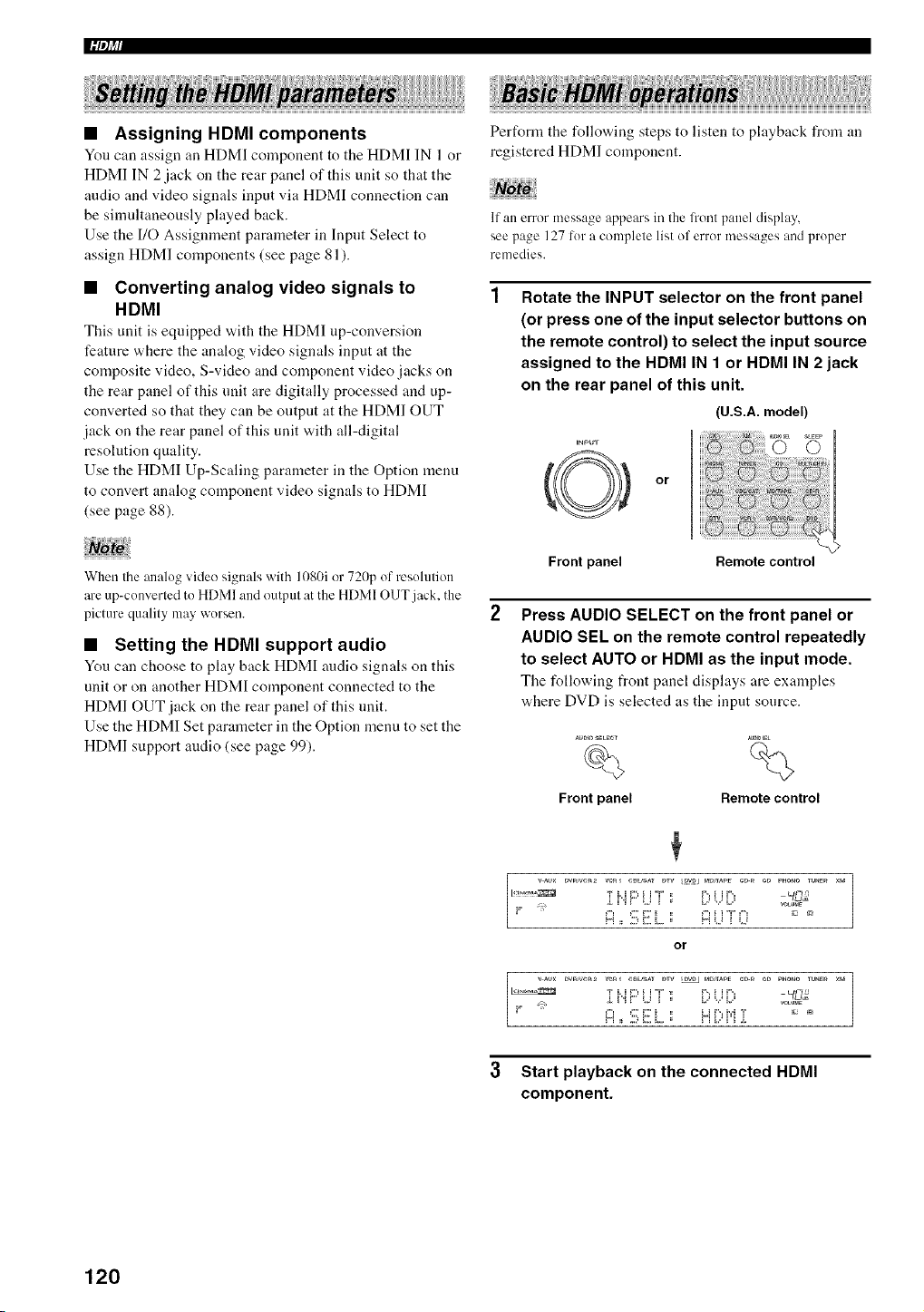
|ilotj_
• Assigning HDMI components
You can assign an HDMI component to tile HDMI IN 1 or
HDMI IN 2jack on the rear panel of this unit so that the
audio and video signals input via HDMI connection can
be simultaneously played back.
Use the I/O Assignment parameter in Input Select to
assign HDM] components (see page 81).
• Converting analog video signals to
HDMI
This unit is equipped v,,ith the HDMI up-conversion
feature where the analog video signals input at the
composite video, S-video and component video jacks on
the rear panel of this unit are digitally processed and up-
converted so that they can be outpnt at the HDMI OUT
jack on the rear panel of this unit with all-digital
resolution quality.
Use the HDMI Up-Scaling parameter in the Option menu
to convert analog component video signals to HDMI
(see page 88).
Perform the following steps to listen to playback from an
registered HDMI component.
If an error message appears ill the lronl panel display,
see page 127 for a complete list of error messages and proper
remedies.
Rotate the INPUT selector on the front panel
(or press one of the input selector buttons on
the remote control) to select the input source
assigned to the HDMI IN 1 or HDMI IN 2 jack
on the rear panel of this unit.
(U.S.A. model)
or
When the analog video signals with 1080i or 720p of resolution
are up-converted to HDMI and output at the HDMI OUT jack. the
picture quality may xx.'orsen.
• Setting the HDMI support audio
You can choose to play back HDMI audio signals on this
unit or on another HDMI component connected to the
HDMI OUT jack on the rear panel of this unit.
Use the HDMI Set parameter in the Option menu to set the
HDMI support audio (see page 99).
Front panel Remote control
Press AUDIO SELECT on the front panel or
AUDIO SEL on the remote control repeatedly
to select AUTO or HDMI as the input mode.
Tile following front panel disphtys are examples
where DVD is selected as the input source.
auo_ S_UEeT _01_Et
%
Front panel Remote control
3 Start playback on the connected HDMI
component.
120
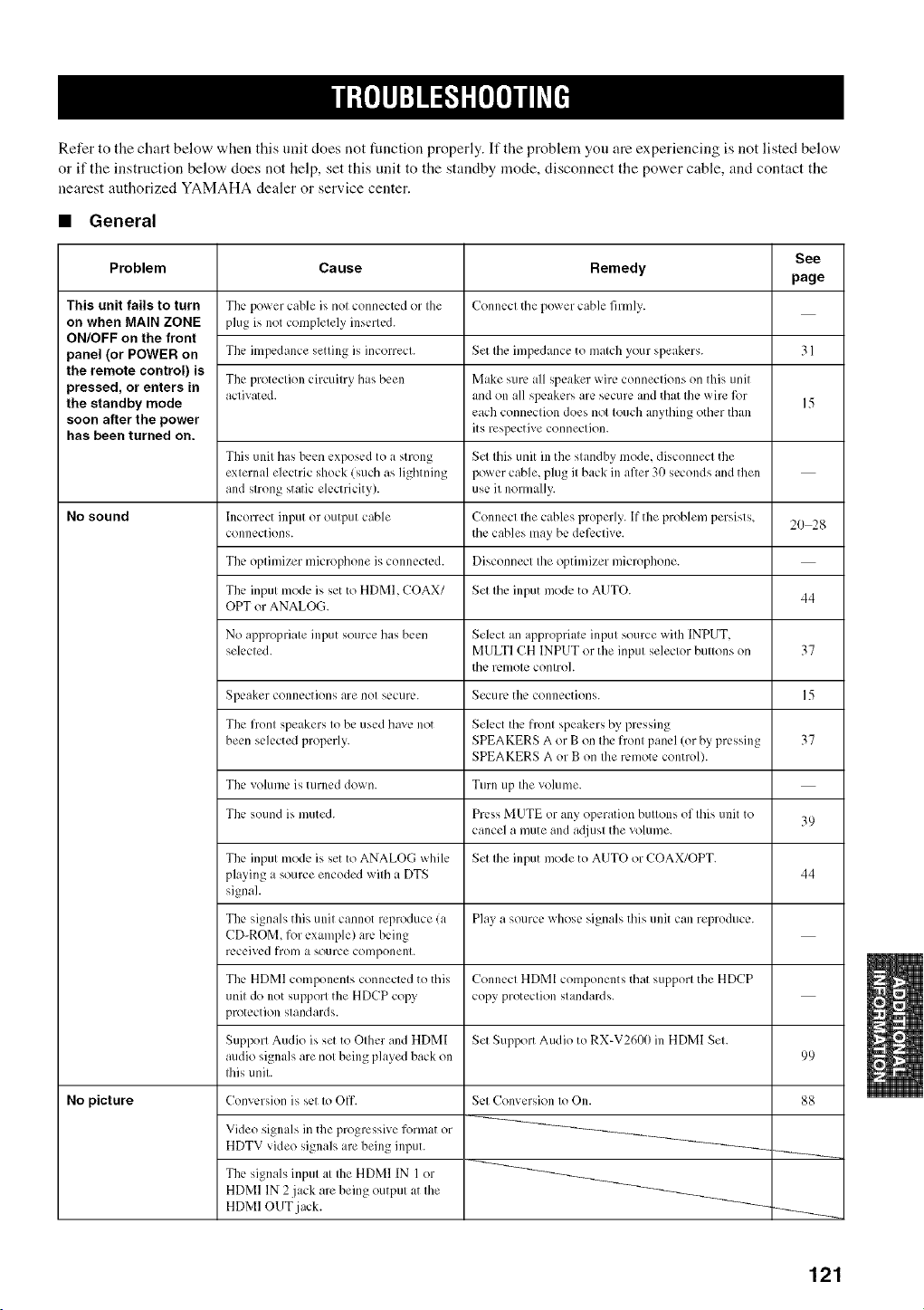
Refer to the chart below when this unit does not function properly. If the problem you are experiencing is not listed below
or if the instruction below does not help, set this unit to the standby mode, disconnect the power cable, and contact the
nearest authorized YAMAHA dealer or service center.
• General
Problem
This unit fails to turn
on when MAIN ZONE
ON/OFF on the front
panel (or POWER on
the remote control) is
pressed, or enters in
the standby mode
soon after the power
has been turned on.
No sound
No picture
Cause
The power cable is not connected or the
plug is not completely inserted.
The impedance setting is incorrect.
Tbe protection circuitry has been
activated.
Tbis unit has been exposed to a strong
external electric shock (such as lighming
and strong static electricity).
Incorrect input or output cable
connections.
The optimizer microphone is connected.
The input mode is set to HDMI, COAX/
OPT or ANALOG.
No appropriate input source has been
selected.
Speaker connections are not secure.
The front speakers to be used have not
been selected properly.
The volume is turned down.
The sound is muted.
The input mode is set to ANALOG while
playing a source encoded with a DTS
signal.
The signals this unit cannot reproduce (a
CD-ROM, for example) arc.being
received from a source component.
The HDMI components connected to this
unit do not SUl)porlthe HDCP copy
protection standards.
Support Audio is set to Other and HDMI
audio signals are not being played back on
Ibis unit.
Conversion is set to Off.
Video signals in the progressive format or
HDTV video signals are being input.
Tbe signals input at the HDMI IN 1 or
HDMI IN 2 jack are being output at the
HDMI OUT jack.
Remedy
Connect the power cable firmly.
Set the impedance to match your speakers.
Make sure all speaker wire connections on this unit
and on all speakers are secure and that the wire for
each connection does not touch anything other than
its respective connection.
Set this unit in the standby mode, disconnect the
power cable, plug it back in after 30 seconds and then
use it normally.
Connect the cables properly. If the problem persists,
the cables may be defective.
Disconnect the optimizer microphone.
Set the input mode to AUTO.
Select an appropriate input source with INPUT,
MULTI CH INPUT or the input selector buttons on
the remote control.
Secure the connections.
Select the front speakers by pressing
SPEAKERS A or B on the front panel (or by pressing
SPEAKERS A or B on Ihe remote control).
Turn up the volume.
Press MUTE or any operation buttons of this unit to
cancel a mute and adjust the volume.
Set the input mode to AUTO or COAX/OPT.
Play a source whose signals this unit can reproduce.
Connect HDMI components that support the HDCP
copy protection standards.
Set Support Audio to RX-V260(t in HDMI Set.
Set Conversion to On.
See
page
31
2O 28
44
37
15
37
39
44
99
88
121
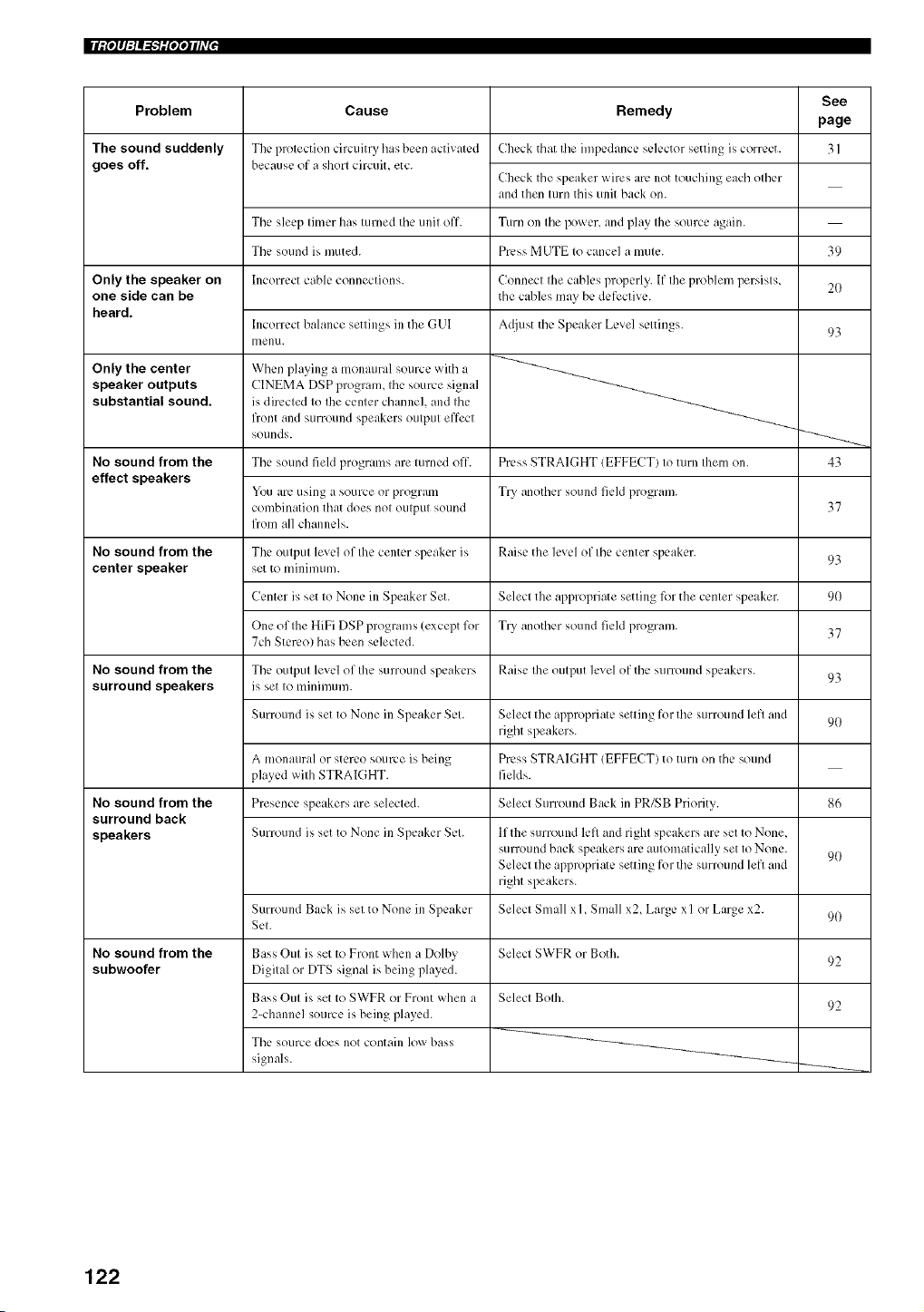
IIIit'i q:lA1"T'lilqqlh'l •
Problem
The sound suddenly
goes off.
Only the speaker on
one side can be
heard.
Only the center
speaker outputs
substantial sound.
No sound from the
effect speakers
No sound from the
center speaker
No sound from the
surround speakers
No sound from the
surround back
speakers
No sound from the
subwoofer
Cause Remedy
The protection circuitry has been activated
because of a shorl circuit, etc.
Check that tile impedance selector setting is correct.
Check the speaker wires are not touching each other
and then turn this unit back on.
The sleep timer has turned the unit off. Turn on the power, and play the source again.
The sound is muted. Press MUTE to cancel a mute.
Incorrect cable connections.
Incorrect bahmce settings in the GUI
[llenu.
When playing a monaural source with a
CINEMA DSP program, the source signal
is directed to the center channeh and the
flont and stlrround speakers output effect
sounds.
Connect the cables properly. If the problem persists,
the cables may be defective.
A([just the Speaker Level settings.
Tile sound field programs are turned off. Prc.ss STRAIGHT (EFFECT) to turn them on.
You arc,using a source or progrmn Try another sound field program.
combination that does not output sound
flom all channels.
The output level of Ihe center speaker is Raise the level of tile center speaker.
set to minilnum.
Center is set to None in Speaker Set. Select the appropriate setting for the center speaker.
One of the HiFi DSP programs (except %r Try another sound field program.
7cb Stereo) has been selected.
The output level of the surround speakers Raise the output level of tile surround speakers.
is set to minimum.
Surround is set to None ill Speaker Set.
A monaural or stereo source is being
played with STRAIGHT.
Presence speakers are selected.
Select the appropriate setting for tile surround left and
right speakers.
Press STRAIGHT (EFFECT) to turn on the sound
fields.
Select Surround Back in PR/SB Priority.
Surround is set to None ill Speaker Set.
Surround Back is set to None ill Speaker
Set.
lfthe surround left and right speakers are set to None,
surround back speakers arc,automatically set to None.
Select the appropriate setting for tile surround left and
right speakers.
Select Small x I, Small x2, Large x I or Large x2.
Bass Out is set to Front when a Dolby
Digital or DTS signal is being played.
Bass Out is set to SWFR or Front when a
2-channel source is being played.
The source does not contain low bass
signals.
Select SWFR or Both.
Select Both.
See
page
31
39
2O
93
43
37
93
90
37
93
90
86
90
90
92
92
122
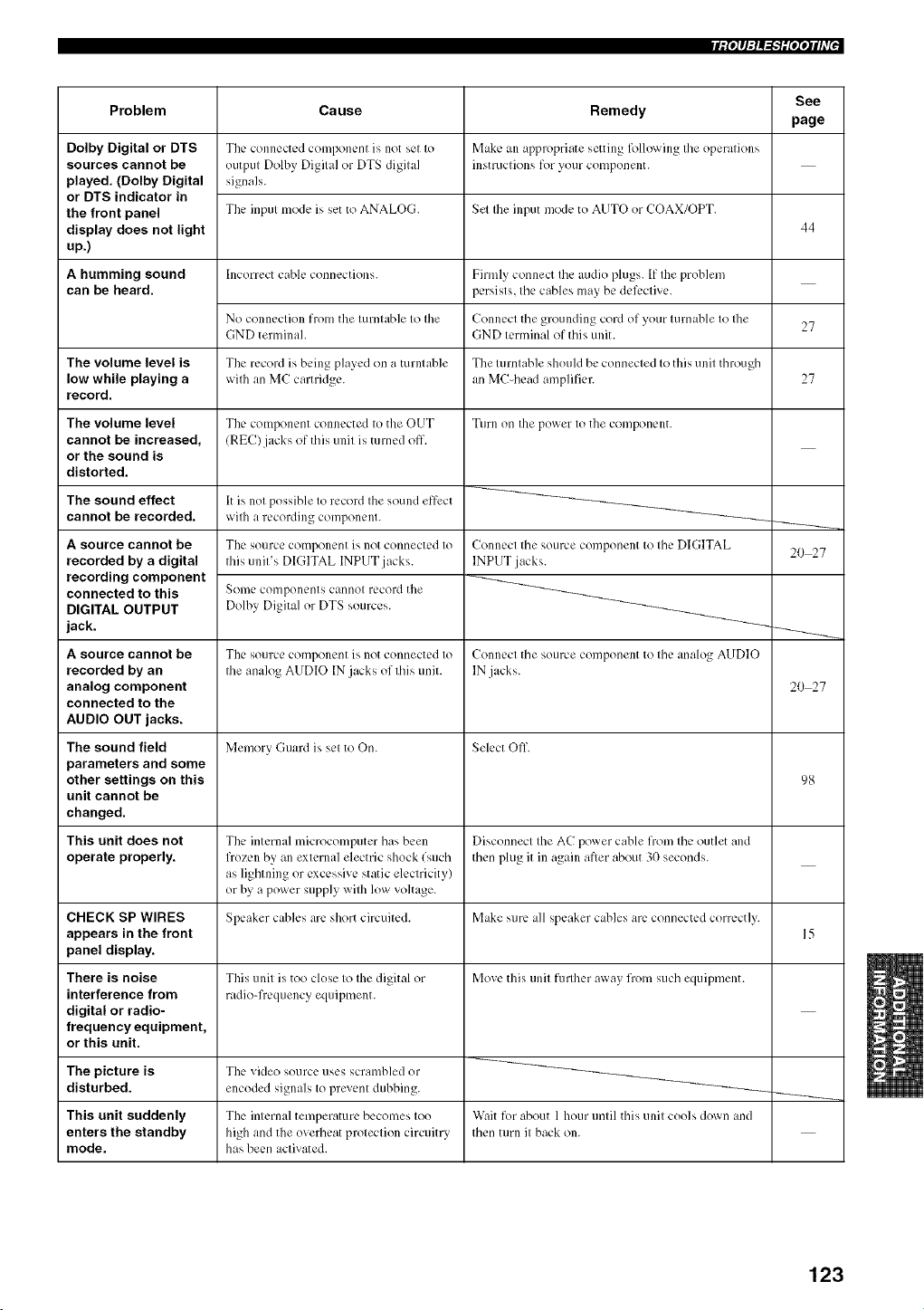
Problem
Dolby Digital or DTS
sources cannot be
played. (Dolby Digital
or DTS indicator in
the front panel
display does not light
up.)
A humming sound
can be heard.
The volume level is
low while playing a
record.
The volume level
cannot be increased,
or the sound is
distorted.
The sound effect
cannot be recorded.
A source cannot be
recorded by a digital
recording component
connected to this
DIGITAL OUTPUT
jack.
A source cannot be
recorded by an
analog component
connected to the
AUDIO OUT jacks.
The sound field
parameters and some
other settings on this
unit cannot be
changed.
This unit does not
operate properly.
CHECK SP WIRES
appears in the front
panel display.
There is noise
interference from
digital or radio-
frequency equipment,
or this unit.
Cause
The connected component is not set to
output Dolby Digital or DTS digital
signals.
The input mode is set to ANALOG.
hlcorrcct cable connections.
No connection from the turntable to the
GND terminah
The record is being played on a turntable
wilh an MC cartridge.
The component connected to the OUT
(REC) jacks of this unit is turned off.
It is not possible to record the sound effect
wilh a recording component.
The soclrce component is not connected to
this unit's DIGITAL INPUT jacks.
Some components cannot record the
Dolby Digital or DTS sources.
The source component iS not connected to
the analog AUDIO IN jacks of this unit.
Memory Guard is set to On.
The internal microcomDiter has been
frozen by an external electric shock (such
as lightning or excessive static electricity)
or by a power supply with low voltage.
Speaker cables arc. short circuited.
This unit is too close to the digital or
radio-frequency equipment.
Remedy
Make an appropriate setting l'ollo_ ing the operations
instr/ictions for your component.
Set Ihe input mode to AUTO or COAX/OPT.
Firmly connect the audio plugs. If the problem
persists, the cables may be deli:ctive.
Connect the grounding cord of your turnable to Ihe
GND terminal of this unit.
The turntable should be connected to this unit through
an MC-head amplifier.
Turn on the power to the component.
Connect the source component to the DIGITAL
INPUT jacks.
Connect the source component to the analog AUDIO
IN jacks.
Select Off
Disconnect the AC power cable from the outlet and
then phlg it in again after about 3(1 seconds.
Make sure all speaker cables arc. connected correctly.
Move this unit further away from such equipment.
See
page
44
27
27
20 27
20 27
98
The picture is The video source uses scrambled or
disturbed, encoded signals Io prevent dubbing.
This unit suddenly The internal temperature becomes too Wait for about 1 hour until this unit cools down and
enters the standby high and the overheat protection circuitry then turn it back on.
mode. has been activated.
123
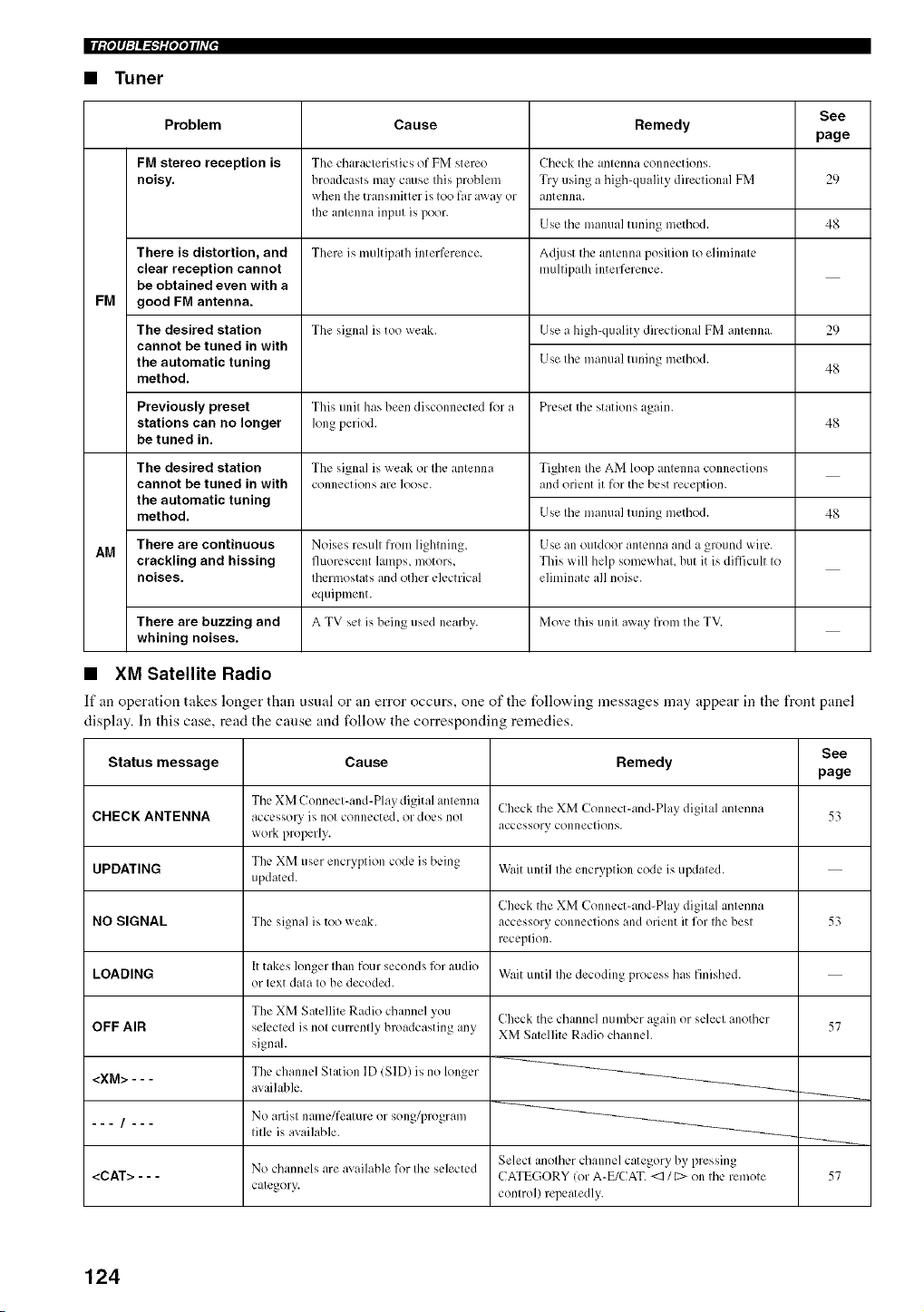
FM
AM
Problem
FM stereo reception is
noisy.
There is distortion, and
clear reception cannot
be obtained even with a
good FM antenna.
The desired station
cannot be tuned in with
the automatic tuning
method.
See
Cause Remedy
page
The characteristics of FM stereo
broadcasts may cause tiffs problem
when the transmitter is too far away or
the antenna input is poor.
Check tile antenna connections.
Try using a high-quality directional FM
antenna.
29
Use tile manual tuning method. 48
There is multipath interli:rence. A(liust the antenna position to eliminate
multipath interference.
The signal is too weak. Use a Ifigb-quality directional FM antenna.
Use the manual tuning method.
29
48
Previously preset This trait has been disconnected l_r a Preset the stations again.
stations can no longer long period. 48
be tuned in.
The signal is weak or the antenna
connections are loose.
Noises result from lightning,
l]llorcscent lamps, motors,
thermostats and other electrical
equipment.
A TV set is being used nearby.
The desired station
cannot be tuned in with
the automatic tuning
method.
Tighten the AM loop antenna connections
and orient it for the best reception.
Use the manual tuning method.
Use an Otltdoor antenna and a ground wire.
This will help somewhat, but it is difficult to
eliminate all noise.
Move this unit away from the TV.
There are continuous
crackling and hissing
noises.
There are buzzing and
whining noises.
48
• XM Satellite Radio
If an operation takes longer than usual or an error occurs, one of the following messages may appear in the front panel
display. In this case, read the cause and follow the corresponding remedies.
Status message
CHECK ANTENNA
UPDATING
NO SIGNAL
LOADING
OFF AIR
<XM> - - -
<CAT> - - -
Cause
The XM Connect-and-Play digital antenna
accessory is not connected, or does not
work properly.
The XM user encryption code is being
updated.
The signal is too weak.
Ittakes longer than four seconds for audio
or text data to be decoded.
The XM Satellite Radio channel you
selected is not currently broadcasting any
signal.
The channel Station ID (SID) is no longer
avaihlble.
See
Remedy
page
Check the XM Connect-and-Play digital antenna
accessory connections.
Wait until the encryption code is updated.
Check the XM Connect-and-Play digital antenna
accessory connections and orient it for the best
reception.
Wait until the decoding process has finished.
Check the channel number again or select another
XM Satellite Radio channel.
No artist name/feature or song/1)rogram
title is available.
No channels are available for Ihe selected Select anolher cbalmel category by pressing
CATEGORY (or A-E/CAT. <31[:> on the remote
calegory, conlro] repeatedly.
53
53
57
57
124
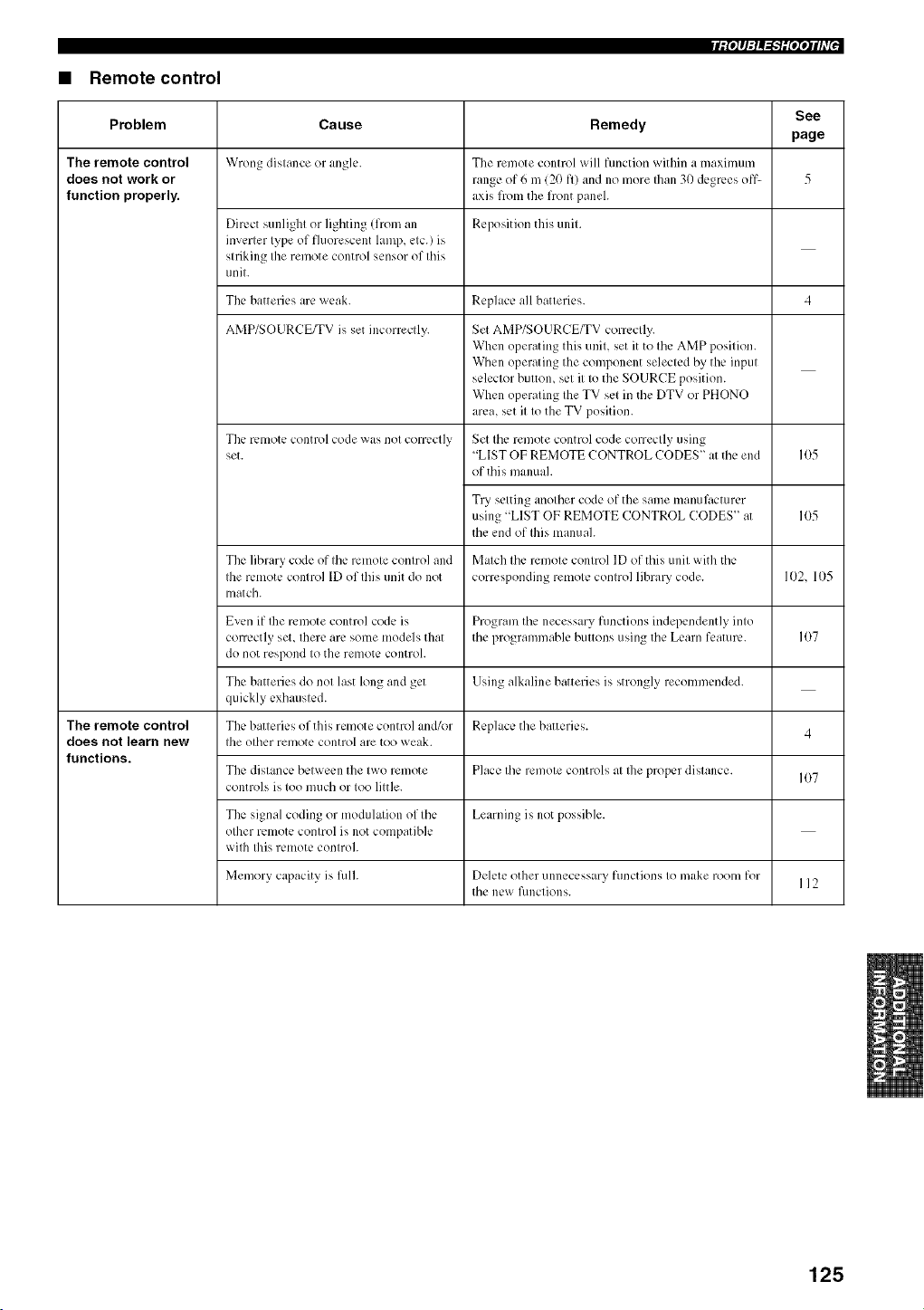
rfp_li:l_=h'li_,jqiff_J
• Remote control
See
Problem Cause Remedy
page
The remote control Wrong distance or angh:. The remote control will fimction within a maximum
does not work or range of 6 m (20 fl/and no more than 30 degrees off 5
function properly, axis fiom the front panel.
Direct sunlight or lighting (from an Reposition this unit.
inverter type of fluorescent lamp, etc.) is
striking the remote control sensor of this
unit.
The batteries arc. weak. Replace all batteries. 4
AMP/SOURCE/TV is set incorrectly.
The remote control code was not correctly
set. 105
Set AMP/SOURCE/TV correctly.
When operating this unit, set it to the AMP position.
When operating the component selected by the input
selector button, set it to the SOURCE position.
When operating the TV set in the DTV or PHONO
arc& set it to the TV position.
Set the remote control code correctly using
"LIST OF REMOTE CONTROL CODES" at the end
of this manual.
Try setting another code of the same manufacturer
using "LIST OF REMOTE CONTROL CODES" at
the end of this manuah
IO5
The library code of the remote control and Match the remote control ID of this unit with the
the remote control ID of this unit do not corresponding remote control library code. 102. 105
match.
Even if Ibe remote control code is Program the necessa W fimctions independently into
correctly set, there ar,: some models that the programmable buttons using the Learn feature. 107
do not respond to the remote control.
Tbe batteries do not last long and get Using alkaline batteries is strongly recommended.
quickly exhausted.
The remote control Tbe batteries of this remote control and/or Replace the batteries. 4
does not learn new the other remote control are too weak.
functions.
Tbe dislance bLqween tbe I\x,roremote Place Ihe remole controls al Ihe proper dislance. 107
controls is too much or too little.
The signal coding or modulation of the Learning is not possible.
other remote control is not compatible
with this remote control.
Memory capacity is l]dh Delete other unnecessary functions to make room for
112
the new functions.
125
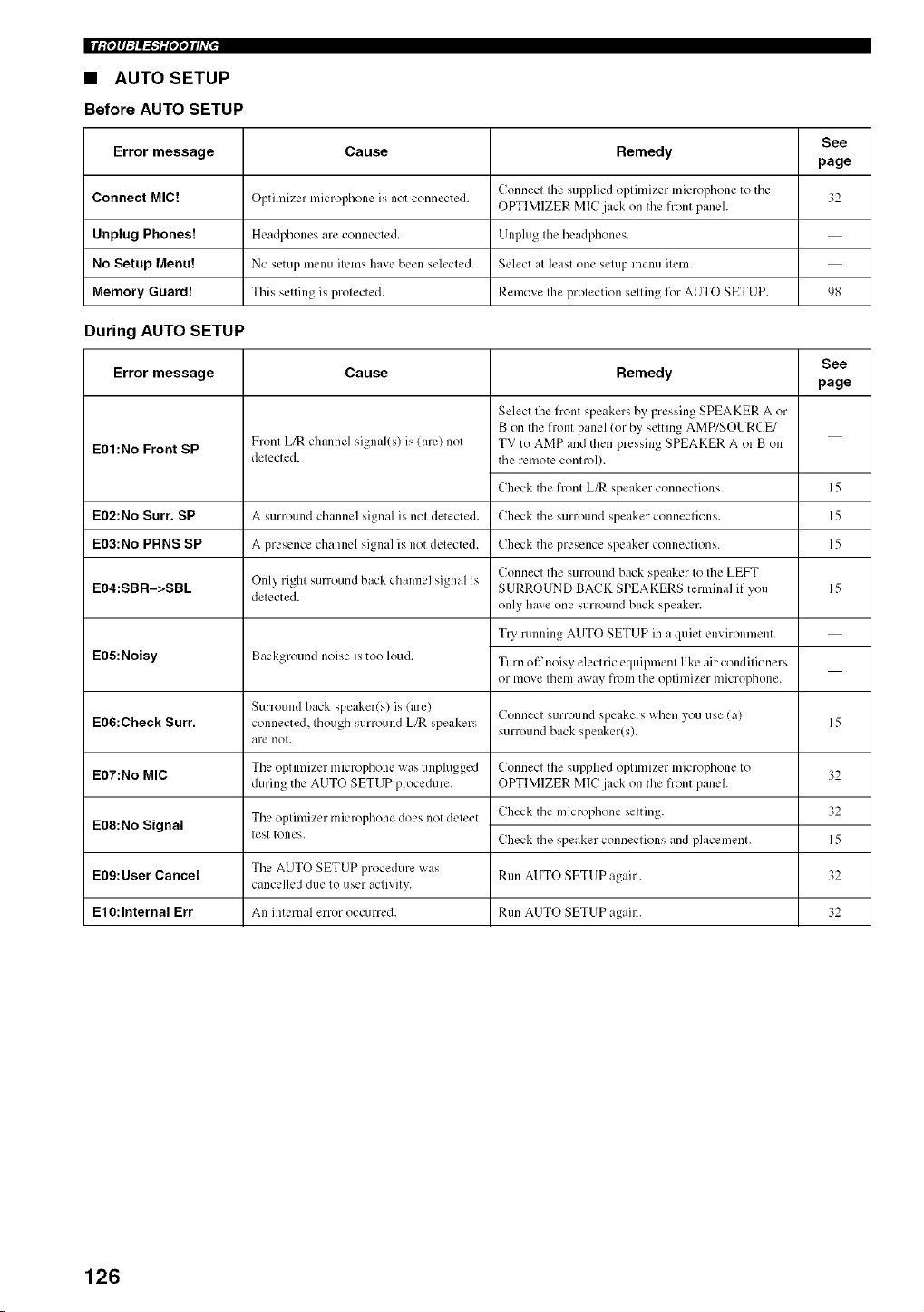
IIIiPPl:lAI-T'lilqqlffl •
• AUTO SETUP
Before AUTO SETUP
See
Error message Cause Remedy
page
Connecl Ihe supplied oplimizer microphone to the 52
Connect MIC! Optimizer microphone is not connecled. OPTIMIZER MIC jack on the front panel.
Unplug Phones! Headphones are connected. Unplug the headphones.
No Setup Menu! No setup menu items have been selected. Select at least one setup menu item.
Memory Guard! This setting is protected. Remove the protection setting for AUTO SETUP. 98
During AUTO SETUP
See
Error message Cause Remedy
page
E01:No Front SP
Front L/R channel signal/s) is (are) not
detected.
Select the front speakers by pressing SPEAKER A or
B on the fiont panel (or by setting AMP/SOURCE/
TV to AMP and then pressing SPEAKER A or B on
the remote control).
Check the front L/R speaker connections. 15
EO2:No Surr. SP A surround channel signal ix not detected. Check the surround speaker connections. 15
EOa:No PRNS SP A presence channel signal is not detected. Check the presence speaker connections. 15
EO4:SBR->SBL Only righl sunound back channel signal ix Connecl the surround back speaker to Ihe LEFT
detected. SURROUND BACK SPEAKERS terminal if you 15
only ha',e one surround back speaker.
Try running AUTO SETUP in a quiet environment.
E05:Noisy
Background noise is too loud.
Turn off noisy electric equipment like air conditioners
or move them away from the optimizer microphone.
Surround back speaker(s) is (are)
Connecl surround speakers when you use (a/
connected, Ihough surround L_ speakers surround back speaker/s). 15
are [IOI.
The optimizer microphone was unplugged
during the AUTO SETUP procedure.
Connect the supplied optimizer microphone to
OPTIMIZER MIC jack on the fiont panel.
Check the microphone setting.
Check the speaker connections and placement.
E06:Check Surr.
E07:No MIC
E08:No Signal
E09: User Cancel
E10:Internal Err
The optimizer microphone does not detect
test tones.
The AUTO SETUP procedure was Run AUTO SETUP a_,ain.
cancelled due to user aclivity.
An internal error occurred. Run AUTO SETUP again.
32
32
15
32
32
126
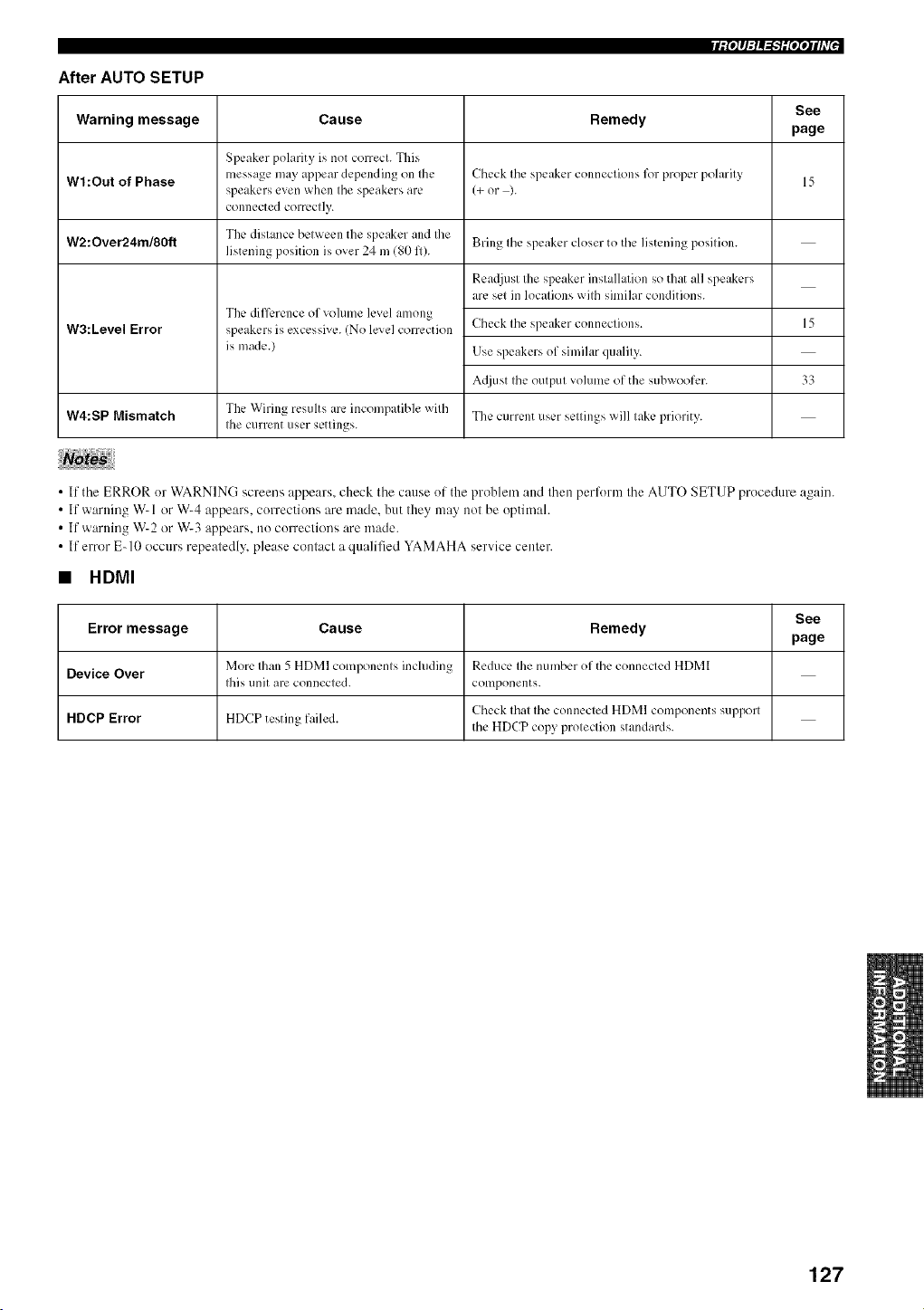
rfP_q:l_ff:liPPtih'[ J
After AUTO SETUP
Warning message Cause See
page
Speaker polarity is not correct. This
WI:Out of Phase message may appear depending on Ihe 15
speakers even when tile speakers are
connected correctly.
W2:Over24m/80ft The dislance belween the speaker and Ihe
listening position is over 24 m (80 fl).
W3:Level Error
The difference of vohlme level among
speakers is excessive. (No le,, el correction
is made./
The Wiring results arc incompatible with
W4:SP Mismatch
the current user settings.
Remedy
Check the speaker connections lk)r proper polarity
(+ or ).
Bring the speaker closer to the listening position.
Rea;ljust the speaker installation so that all speakers
arc, set in locations with similar conditions.
Check the speaker connections.
Use speakers of similar quality.
A;!just the output volume of the subwoofcr.
The current user settings will take priority.
15
33
• If the ERROR or WARNING screens appears, check the cause of the problem and then perlk)rm the AUTO SETUP procedure again.
• If warning W- 1or W-4 appears, corrections are made. but they may not be optimah
• If warning W-2 or W-3 appears, no corrections are made.
• If error E- 10 occurs repeatedly, please contact a qualified YAMAHA service center.
• HDMI
See
Error message Cause Remedy
page
Device Over More Ihan 5 HDMI componcnls including Reduce Ihe number of the conneclcd HDMI
fills unit are connected, components.
HDCP Error HDCP testin_ failed. Check tirol Ihe connecled HDMI components suplx)rl
the HDCP copy proleclion standards.
127
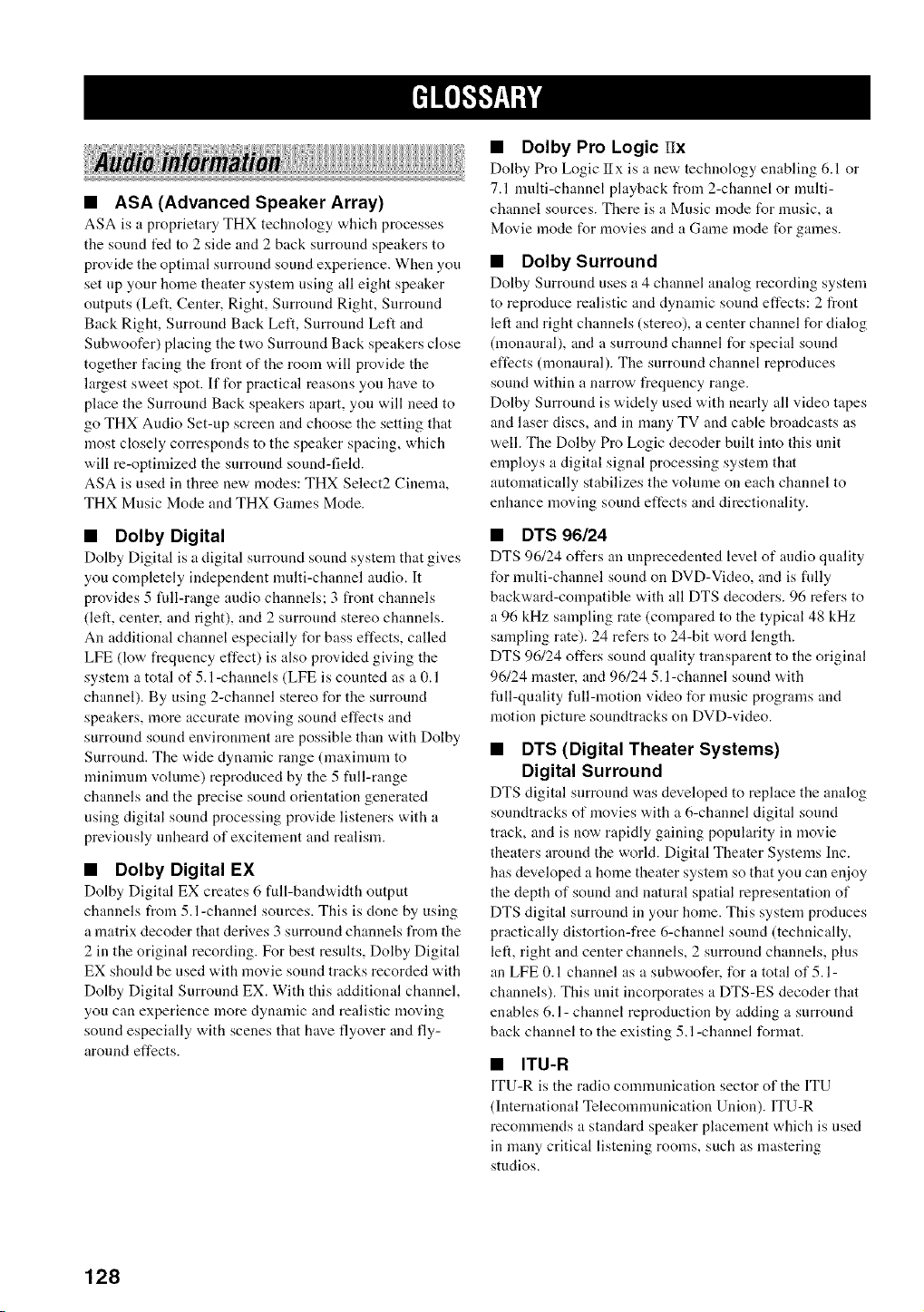
i!!+ !!+
• ASA (Advanced Speaker Array)
ASA is a proprietary THX technology which processes
the sound fed to 2 side and 2 back surround speakers to
provide the optimal surround sound experience. When you
set up your home theater system using all eight speaker
outputs (Left, Center, Right, Surround Right, Surround
Back Right, Surround Back Left, Surround Left and
Subwoofer) placing the two Surround Back speakers close
together facing the front of the room will provide the
largest sweet spot. If for practical reasons you have to
place the Surround Back speakers apart, you will need to
go THX Audio Set-up screen and choose the setting that
most closely corresponds to the speaker spacing, which
will re-optimized the surround sound-field.
ASA is used in three new modes: THX Select2 Cinema,
THX Music Mode and THX Games Mode.
• Dolby Digital
Dolby Digital is a digital surround sound system that gives
you completely independent nmlti-channel audio. It
provides 5 full-range audio channels; 3 front channels
(left, center, and right), and 2 surround stereo channels.
An additional channel especially for bass effects, called
LFE (low frequency effect) is also provided giving the
system a total of 5.l-channels (LFE is counted as a 0.1
channel). By using 2-channel stereo for the surround
speakers, more accurate moving sound effects and
surround sound environment are possible than with Dolby
Surround. The wide dynamic range (maxinmm to
minimum volume) reproduced by the 5 fldl-range
channels and the precise sound orientation generated
using digital sound processing provide listeners with a
previously unheard of excitement and realism.
• Dolby Digital EX
Dolby Digital EX creates 6 full-band'a, idth output
channels from 5. l-channel sources. This is clone by using
a matrix decoder that derives 3 surround channels from the
2 in the original recording. For best results, Dolby Digital
EX should be used with movie sound tracks recorded with
Dolby Digital Surround EX. With this additional channel,
you can experience more dynamic and realistic moving
sound especially with scenes that have flyover and fly-
around effects.
• Dolby Pro Logic Hx
Dolby Pro Logic IIx is a new technology enabling 6.1 or
7.1 nmlti-channel playback from 2-channel or multi-
channel sources. There is a Music mode for nmsic, a
Movie mode for movies and a Game mode for games.
• Dolby Surround
Dolby Surround uses a 4 channel analog recording system
to reproduce realistic and dynamic sound effects: 2 front
left and right channels (stereo), a center channel for dialog
(monaural), and a surround channel for special sound
effects (monaural). The surround channel reproduces
sound within a narrow frequency range.
Dolby Surround is widely used with nearly all video tapes
and laser discs, and in many TV and cable broadcasts as
well. The Dolby Pro Logic decoder built into this unit
employs a digital signal processing system that
automatically stabilizes the volume on each channel to
enhance moving sound effects and directionality.
• DTS 96/24
DTS 96/24 offers an unprecedented level of audio quality
for nmlti-channel sound on DVD-Video, and is fidly
backward-compatible with all DTS decoders. 96 refers to
a 96 kHz sampling rate (compared to the typical 48 kHz
sampling rate). 24 refers to 24-bit word length.
DTS 9(,/24 offers sound quality transparent to the original
96/24 master, and 96/24 5. l-channel sound with
fidl-quality full-motion video for nmsic programs and
motion picture soundtracks on DVD-video.
• DTS (Digital Theater Systems)
Digital Surround
DTS digital surround was developed to replace the analog
soundtracks of movies with a 6-channel digital sound
track, and is now rapidly gaining popularity in movie
theaters around the world. Digital Theater Systems Inc.
has developed a home theater system so that you can enjoy
the depth of sound and natural spatial representation of
DTS digital surround in your home. This system produces
practically distortion-free 6-channel sound (technically,
left, right and center channels, 2 surround channels, plus
an LFE 0.1 channel as a subwoofer, for a total of 5. l-
channels). This unit incorporates a DTS-ES decoder that
enables 6.1- channel reproduction by adding a surround
back channel to the existing 5.1-channel format.
• ITU-R
ITU-R is the radio communication sector of the ITU
(International Telecommunication Union). ITU-R
recommends a standard speaker placement which is used
in many critical listening rooms, such as mastering
studios.
128
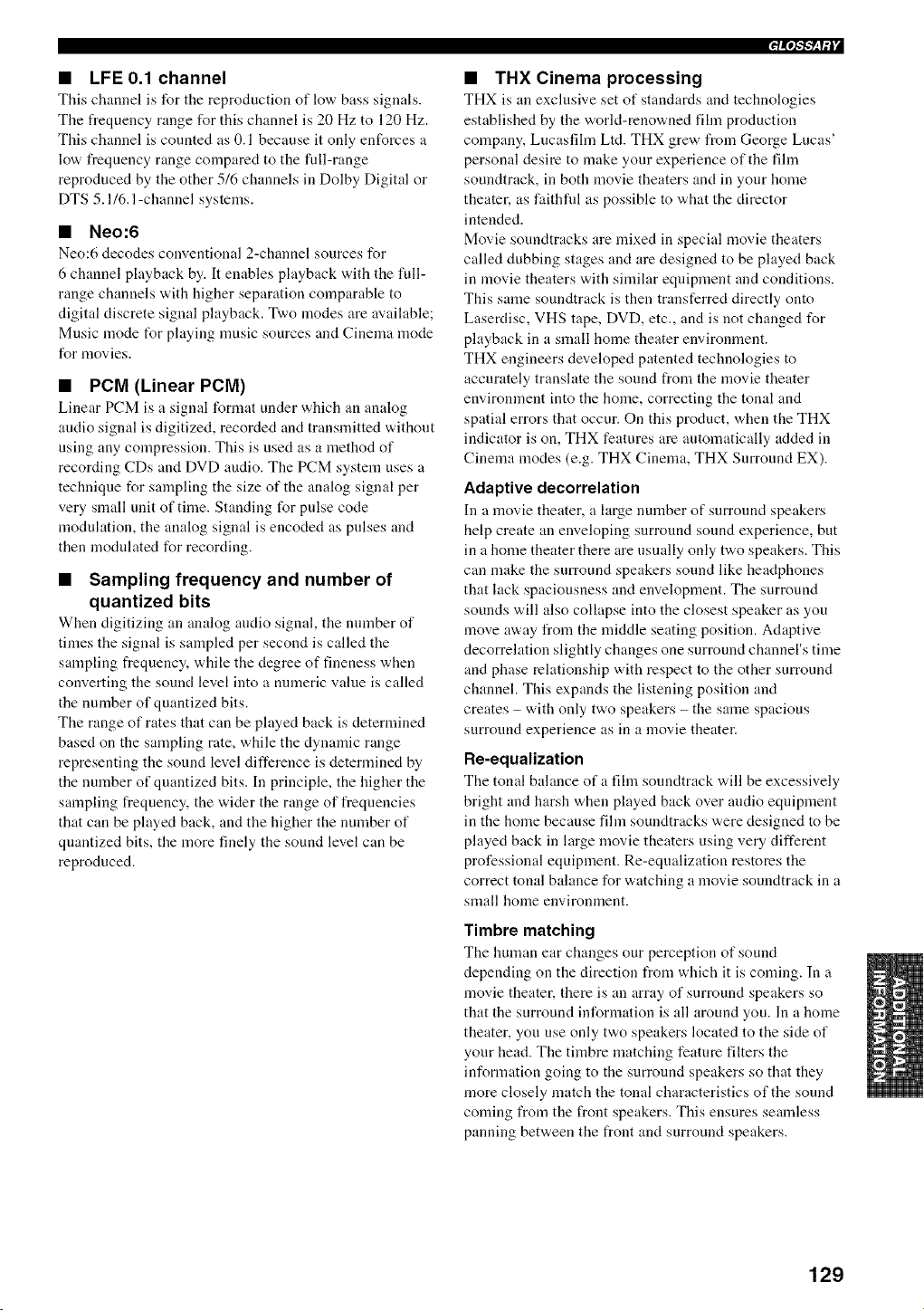
• LFE0.1 channel
This channel is for the reproduction of low bass signals.
The frequency range for this channel is 20 Hz to 120 Hz.
This channel is corrnted as 0.1 because it only enforces a
low frequency range compared to the full-range
reproduced by the other 5/6 channels in Dolby Digital or
DTS 5.1/6.1 -channel systems.
• Neo:6
Neo:6 decodes conventional 2-channel sources for
6 channel playback by. It enables playback with the full-
range channels with higher separation comparable to
digital discrete signal playback. Two modes are available;
Music mode t_r playing nmsic sources and Cinema mode
for movies.
• PCM (Linear PCM)
Linear PCM is a signal format under which an analog
andio signal is digitized, recorded and transmitted without
using any compression. This is used as a method of
recording CDs and DVD audio. The PCM system uses a
technique for sampling the size of the analog signal per
very small unit of time. Standing for pulse code
modulation, the analog signal is encoded as pulses and
then modulated for recording.
• Sampling frequency and number of
quantized bits
When digitizing an amtlog audio signal, the number of
times the signal is sampled per second is called the
sampling frequency, while the degree of fineness when
converting the sound level into a turmeric value is called
the nmnber of quantized bits.
The range of rates that can be played back is determined
based on the sampling rate, while the dynamic range
representing the sound level difference is determined by
the number of quantized bits. In principle, the higher the
sampling frequency, the wider the range of frequencies
that can be played back, and the higher the number of
quantized bits, the more finely the sound level can be
reproduced.
qiN'_G_lli
• THX Cinema processing
THX is an exclusive set of standards aud technologies
established by the world-renowned fihn production
company, Lucasfilm Ltd. THX grew from George Lucas'
personal desire to make your experience of the fihn
soundtrack, in both movie theaters and in your home
theater, as faithfid as possible to what the director
intended.
Movie soundtracks are mixed in special movie theaters
called dubbing stages and are designed to be played back
in movie theaters with sinfilar equipment and conditions.
This same soundtrack is then transferred directly onto
Laserdisc, VHS tape, DVD, etc., and is not changed for
playback in a small home theater environment.
THX engineers developed patented technologies to
accurately translate the sound from the movie theater
environment into the home, correcting the tonal and
spatial errors that occur. On this product, when the THX
indicator is on, THX features are arrtomatically added in
Cinema modes (e.g. THX Cinema, THX Surround EX).
Adaptive decorrelation
Ill a movie theater, a large nunrber of surrourld speakers
help create an enveloping surround sound experience, but
in a home theater there are usually only two speakers. This
can make the surround speakers sound like headphones
that lack spaciousness and envelopment. The surround
sounds will also collapse into the closest speaker as you
move away from the middle seating position. Adaptive
decorrelation slightly changes one surround channel's time
and phase relationship with respect to the other surround
channel. This expands the listening position and
creates - with only two speakers - the same spacious
snrround experience as in a movie theater.
Re-equalization
Tire tonal bahmce of a fihn soundtrack will be excessively
bright and harsh when played back over audio equipment
in the home because fihn soundtracks were designed to be
played back in large movie theaters using very different
professional equipment. Re-equalization restores the
correct tonal balance for watching a movie soundtrack in a
small home environment.
Timbre matching
The human ear changes our perception of sound
depending on the direction from which it is coming. In a
movie theater, there is an array of surround speakers so
that the surround information is all around you. In a home
theater, you use only two speakers located to the side of
your head. The timbre matching feature filters the
information going to the surround speakers so that they
more closely match the tonal characteristics of the sound
confing from the front speakers. This ensures seamless
panning between the front and surround speakers.
129
|l"llll_lill"
• THX Games Mode
For the replay of stereo and multi-channel game audio the
THX Games Mode should be selected. In this mode THX
ASA processing is applied to the surround channels of all
5.1 and 2.0 encoded game soumes such as analog, PCM,
DTS and Dolby Digital. This accurately places all game
audio surround information, providing a full 360 degree
playback environment. THX Games Mode is unique as it
gives you a smooth transition of audio in all points of the
surround field.
• THXMusic Mode
For the replay of nmlti-channel nit.isle tile THX Music
Mode should be selected. In this mode THX ASA
processing is applied to the surround channels of all 5.1
encoded music sources such as DTS, Dolby Digital and
DVD-Audio to provide a wide stable rear soundstage.
• THX Select2
Before any home theater component can be THX Select2
certified, it must incorporate all the features described in
THX Cinema processing and also pass a rigorous series of
quality and performance tests. Only then can a product
feature the THX Select2 logo, which is your guarantee
that the Home Theater products yon purchase will give
you superb performance t_r many years to come.
THX Select2 requirements cover every aspect of the
product including power amplifier and pre-ainplifier
performance and operation, and hundreds of other
parameters in both the digital and analog domain.
• THX Select2 Cinema mode
THX Select2 Cinema mode plays 5.1 movies using all
8 speakers giving you the best possible movie watching
experience. In this mode ASA processing blends the side
surround speakers and back surround speakers providing
the optimal mix of ambient and directional surround
sounds.
DTS-ES (Matrix and 6.1 Discrete) and Dolby Digital
Surround EX encoded soundtracks will be antomatically
detected in THX Select2 Cinema mode if the appropriate
flag has been encoded.
Some Dolby Digital Surround EX soundtracks are missing
the digital flag that allows automatic switching. If you
know that the movie that yon are watching is encoded in
Surround EX, you can manually select the THX Surround
EX playback mode; otherwise, THX Select2 Cinema
mode will apply ASA processing to provide optimum
replay.
• THX Surround EX
THX Surround EX-Dolby Digital Surround EX is a joint
development of Dolby Laboratories and the THX Ltd.
In a movie theater, film soundtracks that have been
encoded with Dolby Digital Surround EX technology are
able to reproduce an extra channel which has been added
during the mixing of the program. This channel, called
Surround Back, places sounds behind the listener in
addition to the currently available front left, front center,
front right, surround right, surround left and subwoofer
channels. This additional channel provides the opportunity
for more detailed imaging behind the listener and brings
more depth, spacious ambience and sound localization
than ever before.
Movies that were created using the Dolby Digital
Surround EX technology, when released into the home
consumer market may exhibit wording to that effect on the
packaging. A list of movies created using this technology
can be found on the Dolby web site at www.dolby.com.
A list of available DVD software titles encoded with this
technology can be found at www.thx.com.
Only receiver and controller products bearing the
THX Surround EX logo, when in the THX Surround EX
mode, faithfidly reproduce this new technology in the
home.
This product may also engage the THX Surround EX
mode during the playback of 5.1 channel material that is
not Dolby Digital Surround EX encoded. In such cases the
information delivered to the Surround Back channel will
be program dependent and may or may not be pleasing
depending on the particular soundtrack and the tastes of
the individual listener.
130
qiN-_'_lli
• Component video signal
With tile component video signal system, tile video signal
is separated into the Y signal for the hnninance and the
PB and Pit signals for the chrominance. Color can be
reproduced more faithfully with this system because each
of these signals is independent. A monitor with
component input jacks is required in order to use the
component signal for output.
• Composite video signal
With tile composite video signal system, the video signal
is composed of three basic elements of a video picture;
color, hnninance and synchronization data. A composite
video jack on a video component transmits these three
elements combined.
• S-video signal
With the S-video signal system, the video signal normally
transmitted using a pin cable is separated and transmitted
as the Y signal for the luminance and the C signal for the
chrominance through the S-video cable. Using the
S VIDEO jack eliminates video signal transmission loss
and allows recording and playback of even more beautiful
images.
• CINEMA DSP
Since the Dolby Surround and DTS systems were
originally designed Ibr use in movie theaters, their effect
is best felt in a theater having many speakers and designed
for acoustic effects. Since home conditions, such as room
size, wall nmterial, number of speakers, and so on, can
differ so widely, it's inevitable that there are differences in
the sound heard. Based on a wealth of actually measured
data, YAMAHA CINEMA DSP uses YAMAHA original
sound field technology to combine Dolby Pro Logic,
Dolby Digital and DTS systems to provide the visual and
audio experience of a movie theater in the listening room
of your own home.
• SILENT CINEMA
YAMAHA has developed a natural, realistic sound effect
DSP algorithm for headphones.
Parameters for headphones have been set for each sound
field so that accurate representations of all the sound fiekt
programs can be enjoyed on headphones.
• Virtual CINEMA DSP
YAMAHA has developed :t Virtual CINEMA DSP
algorithm that allows you to enjoy DSP sound field
snrround effects without any surround speakers by using
virtual surround speakers.
It is even possible to enjoy Virtual CINEMA DSP using a
minimal two-speaker system that does not include a center
speaker.
131
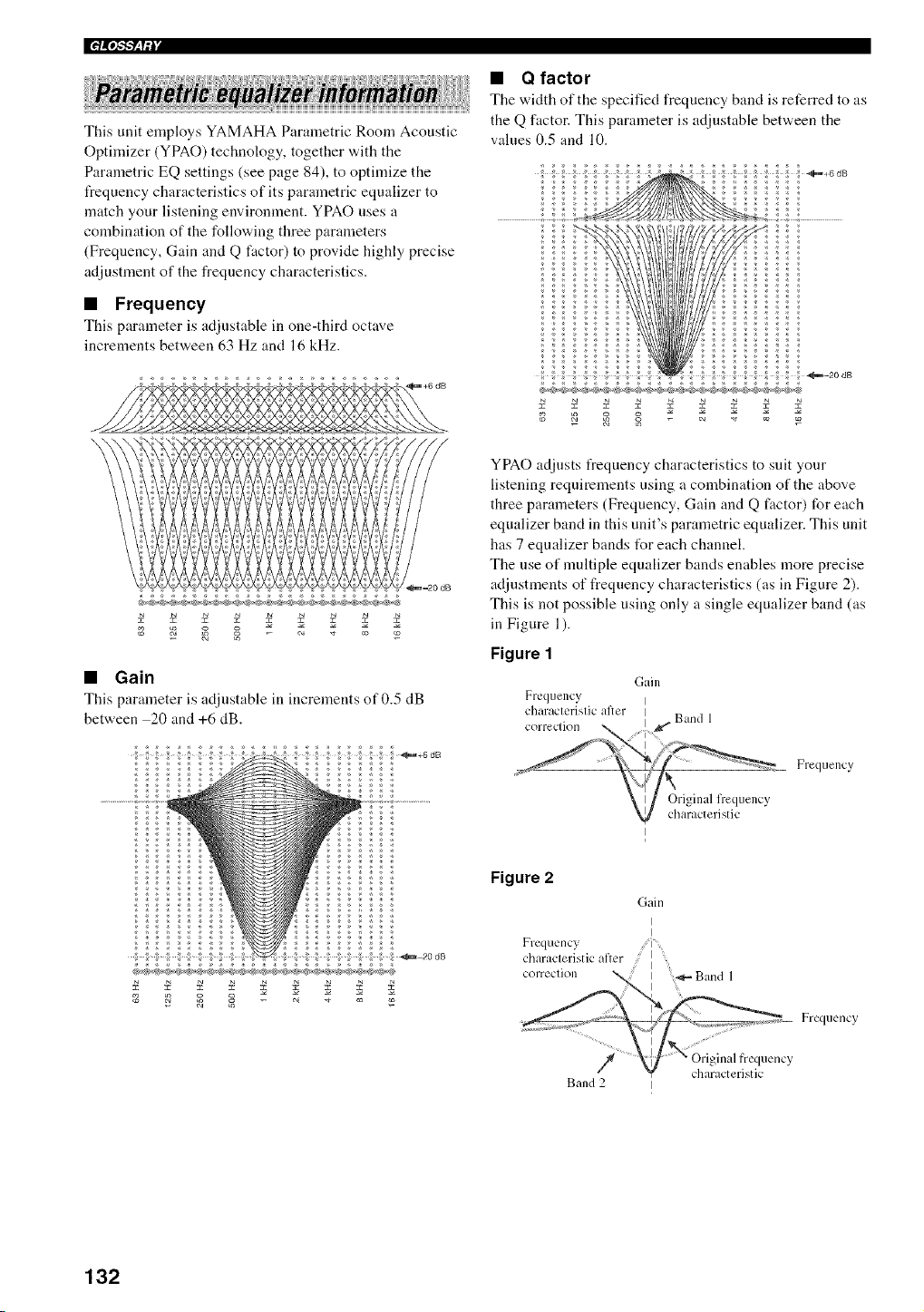
II"lllli_'_ fi I"
This unit employs YAMAHA Parametric Room Acoustic
Optimizer (YPAO) technology, together with the
Parametric EQ settings (see page 84), to optimize the
frequency characteristics of its parainetric equalizer to
match your listening environment. YPAO uses a
combination of the following three parameters
(Frequency, Gain and Q factor) to provide highly precise
adjustment of the frequency characteristics.
• Frequency
This parameter is adjustable in one-third octave
increments between 63 Hz and 16 kHz.
_=20 dB
• Gain
This parameter is adjustable in increments of 0.5 riB
between 20 and +6 dB.
_+6dB
• Q factor
The width of the specified frequency band is referred to as
the Q factor. This parameter is adjustable between the
values 0.5 and 10.
i << 1; ,;
11:¢ ;; :;: .....
17 7 7 {{ ',_ ',: :
{ 77i7{ !' 7 77 +
g 74 g P_ ....
YPAO adjusts frequency characteristics to suit your
listening requirements using a combination of the above
three parameters (Frequency, Gain and Q factor) for each
equalizer band in this unit's parametric equalizer. This unit
has 7 equalizer bands t_r each channel.
The use of multiple equalizer bands enables more precise
adjustments of frequency characteristics (as in Figure 2).
This is not possible using only a single equalizer band (as
in Figure 1).
Figure 1
Gain
Frequency I
characlerislic alter I
I _ Band 1
correclion ........i
Freqtlency
Original frequency
characteristic
I
Figure 2
Gain
I
I
Frequency i
characlerist ic ai'lcr I
I
correcllon _ I Band 1
i Frequency
Y
Band 2 I
132
AUDIO SECTION
• Minimum RMS Output Power R_rFront, Center, Surround,
Surround back
20 Hz to 20 kHz, 0.04_._ THD, 8 _ .................................... 13(1W
• Dynamic Power (IHF)
8/6/4/2 _ ........................................................ 165/2115/260/340 W
• Maximum Power (EIAJ)
[Asia, General, China and Korea models]
1 kHz, 10c_ THD, 6 _ ......................................................... 18(1W
• Maximum Output Power [U.K. and Europe models]
1 kHz, 0.7_. THD, 4 t:, ........................................................ 190 W
• Dynmnic Headroom
8_) ..................................................................................... 1.11 dB
• IEC Output Power [U.K. and Europe models]
1 kHz, 0.04% THD. 8 t) ...................................................... 14(1W
• Damping Factor (IHF)
2(1Hz to 2(1 kHz, 8 t) .................................................. 140 or more
•lnput Sensitivity/Input hnpedance
PHONO .................................................................. 3.5 mV/47 kK]
CD, etc .................................................................. 211/)mV/47 k_
MULTI CH INPUT ............................................... 200 mV/47 kK_
• Maximum lnput Signal
PHONO (1 kHz, 0.1 P; THD) ................................ 60 mV or more
CD, etc. ( 1 kHz, 0.5c.k THD) .................................. 2.4 V or more
• Output Level/Output hnpedance
OUT (REC) .......................................................... 200 mV/l.2 k_
PRE OUT ................................................................... 1.0 V/500 _
SUBWOOFER ........................................................... 2.(1 V/50tt _
ZONE 2/ZONE 3 OUT
[U.S.A., Canada, Australia, U.K. and Europe models]
................................................................................ 1.0 V/l.2 k_
• Headphone Jack Rated Output/hnpedance
CD, etc. (1 kHz, 4(1 mV, 8 t)) ............................... 1511mV/100 _
• Frequency Response
CD to Front L/R ............................... 10 Hz to 100 kHz, +0/ 3 dB
• R[AA Equalization Deviation
PHONO (211 Hz to 20 kHz) .......................................... tt _+ 11.5dB
• Total Harmonic Distortion
PHONO to OUT (REC)
(211 Hz to 20 kHz, l V) ......................................... 0.02P; or less
CD, etc. to Front L/R
(20 Hz to 20 kHz. 65 W, 8 t)) ............................... 0.04c, k or less
• Signal to Noise Ratio (IHF-A Network)
PHONO (5 mV) to Front L/R
[Australia, U.K. and Europe models] ..................... 81 dB or more
[Other models] ........................................................ 86 dB or more
CD, etc. (250 mV) to Front L/R ........................... It)0 dB or more
• Residual Noise (IHF-A Network)
Front L/R ............................................................... 150 {*V or less
• Channel Separation (1 kH//10 kHz)
PHONO (shortened) to Front L/R ............... 60 dB/55 dB or more
CD, etc.
(5. I k_ shortened) to Front L_ ............... 60 dB/45 dB or more
• Tone Control Characteristics (Front L/R)
BASS Boost/Uut ........................................................ _+6dB/50 Hz
BASS Turnover Frequency ................................................. 350 Hz
TREBLE Boost/Cut ................................................ _+6dB/20 kHz
TREBLE Turnover Frequency ........................................... 3.5 kHz
• Zone 2/Zone 3 Tone Control Characteristics (Front L/R)
BASS Boost/Uut .................................................... _+10 dB/I 0It Hz
BASS Turnover Frequency ................................................. 451/Hz
TREBLE Boost/Cut .............................................. _+10 dB/20 kHz
TREBLE Turnover Frequency ........................................... 1.5 kHz
• Filter Characteristic s (fc=40/60/811/90/100/1 I0/121t/160/200 Hz)
H.RE (Front, Center, Surround, Surround back) ........... 12 dB/oct.
L.RF. (Subwoofcr) ......................................................... 24 dB/oct.
VIDEO SECTION
• Video Signal Type (Gray Back)
[U.S.A., Canada, General and Korea models] .................... NTSC
[U.K., Europe, Australia, Asia and China models] ................ PAL
• Video Signal Type (Video Conversion) .......................... NTSC/PAL
• Signal Level
Composite ................................................................. 1 Vp-p/75 t)
S-video ............................ 1 Vp-p/75 t) (y), 0.286 Vp-p/75 t) (C)
Component ................... 1 Vp-p/75 t) (y), 0.7 Vp-p/75 t) (PB/PR)
• Maximum Input Level IV CONV. off) ................. 1.5 Vp-p or more
• Signal to Noise Ratio (V CONV. off) ....................... 60 dB or more
• Frequency Response (MONITOR OUT)
Component (V CONV. off) ................... 5 Hz to 100 MHz. _+3 dB
FM SECTION
• Tuning Range
[U.S.A. and Canada models] ........................... 87.5 to 11t7.9 MHz
[Asia and General models] ........ 87.5187.50 to 108.01108.00 MHz
[Other models] ............................................ 87.50 to 108.1)0 MHz
• 51) dB Quieting Sensitivity ([HF)
Mono/Stereo ........................................ 2.0125 _lV (17.3139.2 dBf)
• Usable Sensitivity (IHF) ....................................... 1.0 _lV (11.2 dBf)
• Selectivity (400 kHz) .............................................................. 71) dB
• Signal to Noise Ratio (IHF)
Mono/Stereo .............................................................. 76 dB/70 dB
• Harmonic Distortion (1 kHz)
Mono/Stereo .................................................................... tt.2/tt.3P;
• Stereo Separation (1 kHz)
Stereo ..................................................................................... 42 dB
• Frequency Response
Stereo .............................................. 211Hz to 15 kHz, +1t.5, 2 dB
• Antenna Input (unbalanced) ..................................................... 75 t)
AM SECTION
• Tuning Range
[U.S.A. and Canada models] .............................. 530 to 1710 kHz
[Asia and General models] ................. 530/531 to 1710/161 I kHz
[Other models] ................................................... 531 to 1611 kHz
• Usable Sensitivity ............................................................. 300 !lV/m
133
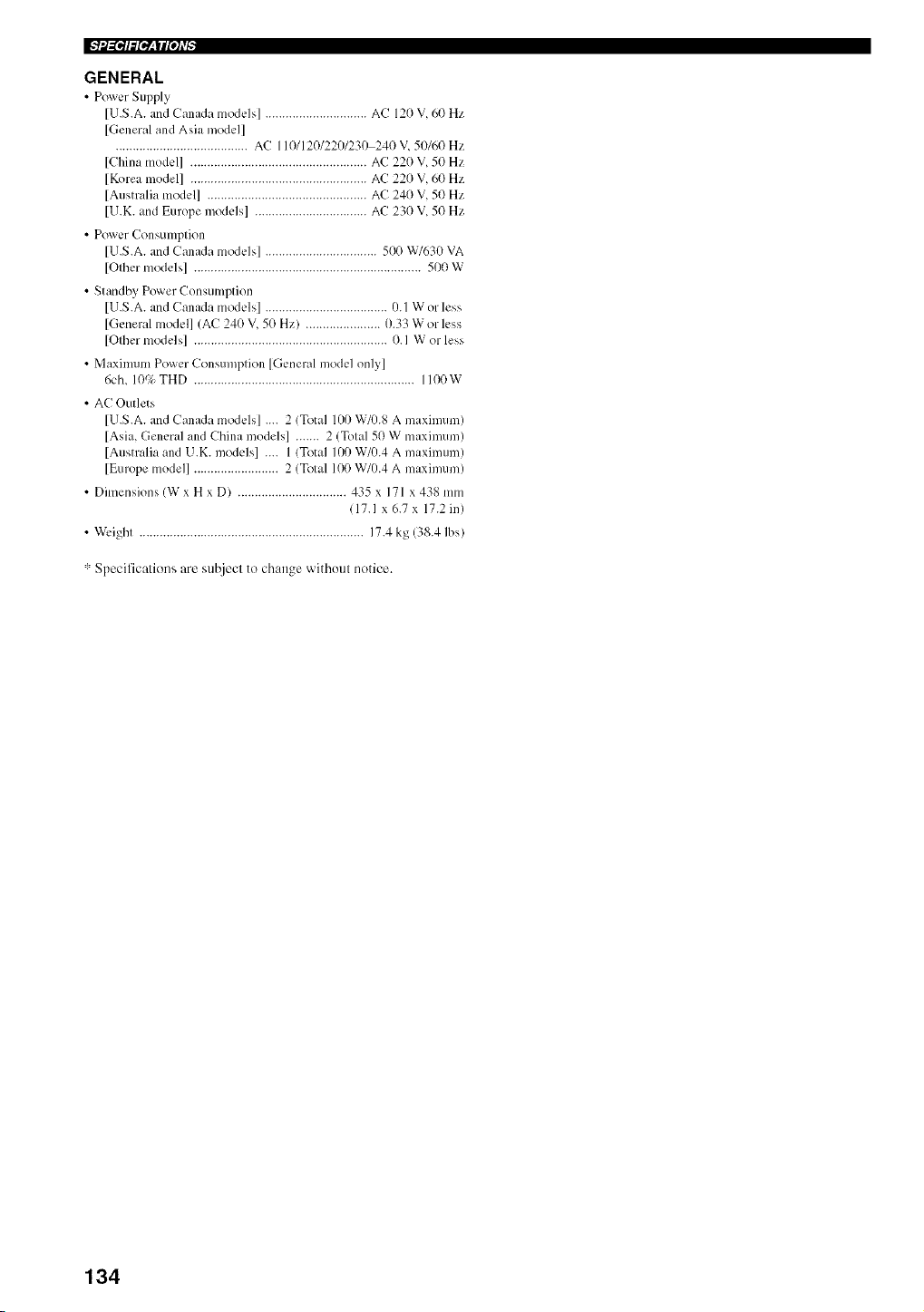
GENERAL
• Power Supply
[U.S.A. and Canada models] .............................. AC 120 V, 60 Hz
[General and Asia model]
....................................... AC 110/120/220/230 24(t V, 50/60 Hz
[China model] .................................................... AC 22(t V, 50 Hz
[Korea model] .................................................... AC 22(t V, 6(t Hz
[Australia model] ............................................... AC 240 V, 50 Hz
[U.K. and Europe models] ................................. AC 23(t V, 5(t Hz
• Power Consumption
[U.S.A. and Canada models] ................................. 500 W/630 VA
[Other models] ................................................................... 500 W
• Standby Po_er Consumption
[U.S.A. and Canada models] .................................... //. 1 W or less
[General model] (AC 24(t V, 5(t Hz) ...................... 11.33 W or less
[Other models] ......................................................... 0. I W or less
• Maximum Po_er Consumption [General model only]
6ch, 1(t% THD ................................................................. 1100W
• AC Outlets
[U.S.A. and Canada models] .... 2 (Total Ill0 W/t/.8 A maximum)
[Asia, General and China models] ....... 2 (Total 50 W maximum)
[Australia and U.K. models] .... 1 (Total 100 W/0.4 A maximum)
[Europe model] ......................... 2 (Total 100 W//).4 A maximum)
• Dimensions (W x H x D) ................................ 435 x 171 x 438 mm
(17.1 x6.7x 17.2 in/
• Wk.ight .................................................................. 17.4 kg (38.4 lbs)
".'Specifications are sut_ject to change without notice.
134
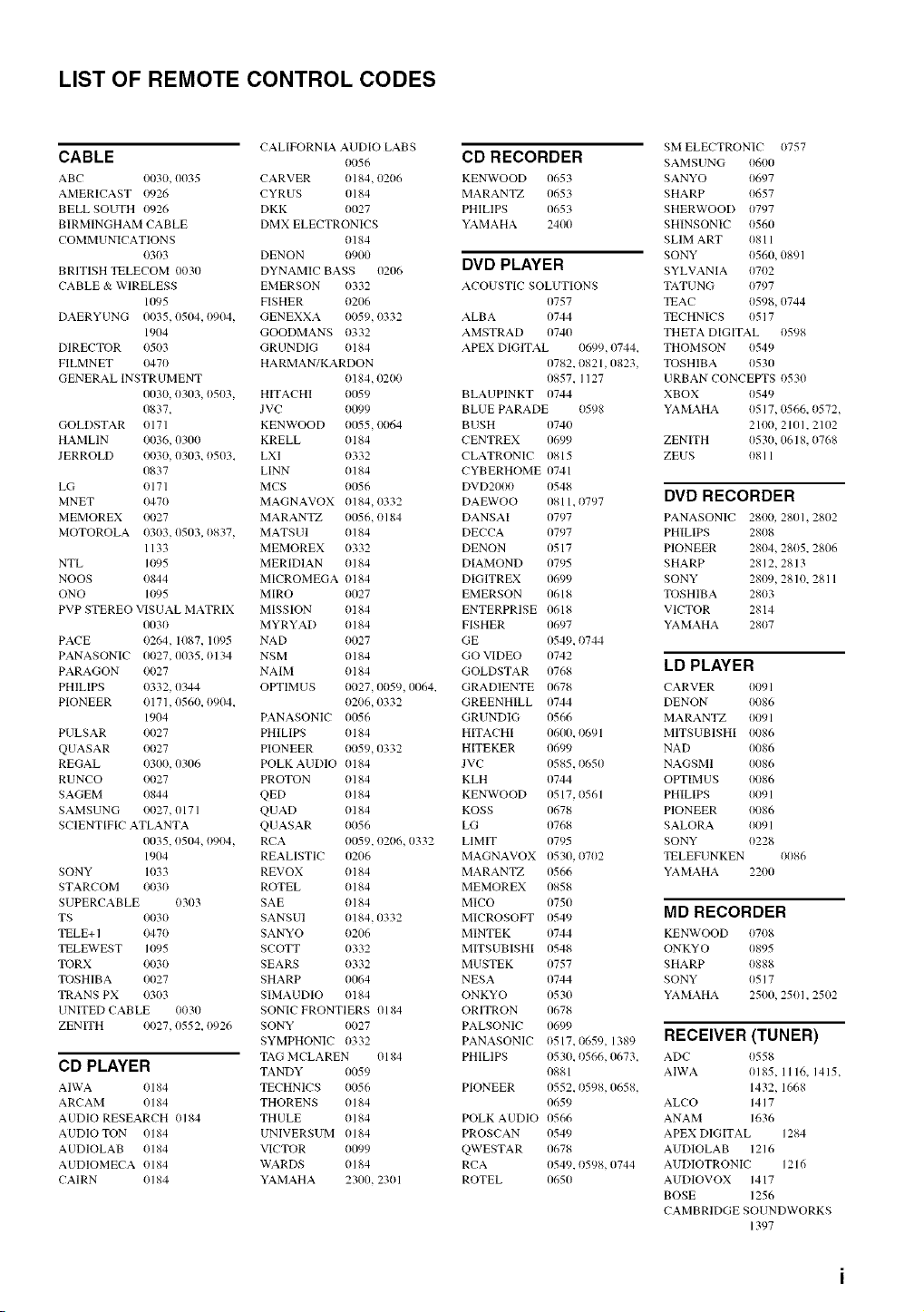
LIST OF REMOTE CONTROL CODES
CALIFORNIA AUDIO LABS
CABLE t1(156
ABC 0030,1X135 CARVER 0184, 0206
AMERICAST 0926 CYRUS 0184
BELL SOUTH 0926 DKK 0027
BIRMINGHAM CABLE DMX ELECTRONICS
COMMUNICATIONS 0184
0303 DENON 091Xt
BRITISH TELECOM 0030 DYNAMIC BASS 0206
CABLE & WIRELESS EMERSON 0332
1095 FISHER 0206
DAERYUNG 0035,0504, 0904, GENEXXA 0059, 0332
1904 GOODMANS 0332
DIRECTOR 0503 GRUNDIG 0184
FILMNET 0470 HARMANTKARDON
GENERAL INSTRUMENT 0184, 0200
(1030, 0303, 0503, HITACHI 0059
0837, JVC 01199
GOLDSTAR 0171 KENWOOD 0055, 0064
HAMLIN 0036, 0300 KRELL 0184
JERROLD 0030, 0303, 0503, LXI 0332
0837 LINN 0184
LG 0171 MCS 0056
MNET 0470 MAGNAVOX 0184,0332
MEMOREX 0027 MARANTZ 0056, 0184
MOTOROLA 0303,0503, 0837, MATSUI 0184
1133 MEMOREX 0332
NTL 1095 MERIDIAN 0184
NOOS 0844 MICROMEGA 0184
ONO 1095 MIRO 0027
PVP STEREO VISUAL MATRIX MISSION 0184
(1030 MYRYAD 0184
PACE 0264, 1087, 1095 NAD 0027
PANASONIC 0027, 0035, 0134 NSM 0184
PARAGON 0027 NAlM 0184
PHILIPS t)332, 0344 OPTIMUS 0027, 0059,11064,
PIONEER 0171,0560, 0904, t)2t)6, 0332
1904 PANASONIC 0056
PULSAR 0027 PHlLlPS 0184
QUASAR 0027 PIONEER 0059, 0332
REGAL 0300,0306 POLK AUDIO t)184
RUNCO 0027 PROTON t) 184
SAGEM t)844 QED 0184
SAMSUNG t)tt27,(1171 QUA[) t)184
SCIENTIFIC ATLANTA QUASAR 0056
(1035, 0504, 0904, RCA 0059, 0206, 0332
1904 REALISTIC (12(16
SONY 1033 REVOX 0184
STARCOM 0030 ROTEL 0184
SUPERCABLE 0303 SAE 0184
TS 0030 SANSUI 0184, 0332
TELE+ 1 0470 SANYO 0206
TELEWEST 1095 SCOTT 0332
TORX 0030 SEARS 0332
TOSHIBA 0027 SHARP 0064
TRANS PX 0303 SIMAUDIO 0184
UNITED CABLE 0030 SONIC FRONTIERS 0184
ZENITH 0027, 0552, 0926 SONY 0027
SYMPHONIC 0332
TAG MCLAREN 0184
CD PLAYER TANDY 0(159
AIWA 0184 TECHNICS 0(156
ARCAM 0184 THORENS 0184
AUDIO RESEARCH 0184 THULE 0184
AUDIO TON 0184 UNIVERSUM 0184
AUDIOLAB 0184 VICTOR 0099
AUDIOMECA 0184 WARDS 0184
CAIRN 0184 YAMAHA 23(1(}, 2301
CD RECORDER
KENWOOD 0653
MARANTZ 0653
PHILIPS 0653
YAMAHA 24(10
DVD PLAYER
ACOUSTIC SOLUTIONS
0757
ALBA 0744
AMSTRAD 0740
APEX DIGITAL (1699, 0744,
0782, 0821,0823,
0857, I 127
BLAUPINKT 0744
BLUE PARADE 0598
BUSH 0740
CENTREX 0699
CLATRONIC 0815
CYBERHOME 0741
DVD2000 0548
DAEWOO 0811,0797
DANSAI 0797
DECCA (1797
DENON 0517
DIAMOND 0795
DIGITREX 0699
EMERSON 0618
ENTERPRISE 0618
FISHER 0697
GE 0549, 0744
GO VIDEO 0742
GOLDSTAR 0768
GRADIENTE 0678
GREENHILL 0744
GRUNDIG 0566
HITACHI 0600, 0691
HITEKER 0699
JVC 0585, 0650
KLH 0744
KENWOOD 0517,0561
KOSS 0678
LG 0768
LlMIT 0795
MAGNAVOX 0530, 0702
MARANTZ 0566
MEMOREX 0858
MICO 0750
MICROSOFT 0549
MINTEK 0744
MITSUBISHI 0548
MUSTEK 0757
NESA 0744
ONKYO 0530
ORITRON 0678
PALSONIC 0699
PANASONIC 0517, 0659, 1389
PHILIPS 0530, 0566, 0673,
0881
PIONEER 0552, 0598, 0658,
0659
POLK AUDIO 0566
PROSCAN 0549
QWESTAR 0678
RCA 0549, 0598, 0744
ROTEL 0650
SM ELECTRONIC 0757
SAMSUNG 0600
SANYO 0697
SHARP 0657
SHERWOOD 0797
SHINSONIC 0560
SLIM ART 0811
SONY 0560, 0891
SYLVANIA 0702
TATUNG 0797
TEAC 0598, 0744
TECHNICS 0517
THETA DIGITAL 0598
THOMSON 0549
TOSHIBA 0530
URBAN CONCEPTS 0530
XBOX 0549
YAMAHA 0517, 0566, 0572,
2100, 2101, 2102
ZENITH 0530, 0618, 0768
ZEUS 0811
DVD RECORDER
PANASONIC 2800, 2801, 2802
PHILIPS 2808
PIONEER 2804, 2805, 2806
SHARP 2812, 2813
SONY 2809, 2810, 2811
TOSHIBA 2803
VICTOR 2814
YAMAHA 2807
LD PLAYER
CARVER 009 l
DENON 0086
MARANTZ 0091
MlTSUBlSHI 0086
NAD 0086
NAGSMl 0086
OPTIMUS 0086
PHILIPS 0091
PIONEER 0086
SALORA 0091
SONY 0228
TELEFUNKEN 0086
YAMAHA 2200
MD RECORDER
KENWOOD 0708
ONKYO 0895
SHARP 0888
SONY 0517
YAMAHA 2500, 2501, 25(12
RECEIVER (TUNER)
ADC 0558
AIWA 0185, 1116, 1415,
1432, 1668
ALCO 1417
ANAM 1636
APEX DIGITAL 1284
AUDIOLAB 1216
AUDIOTRONIC 1216
AUDIOVOX 1417
BOSE 1256
CAMBRIDGE SOUNDWORKS
1397
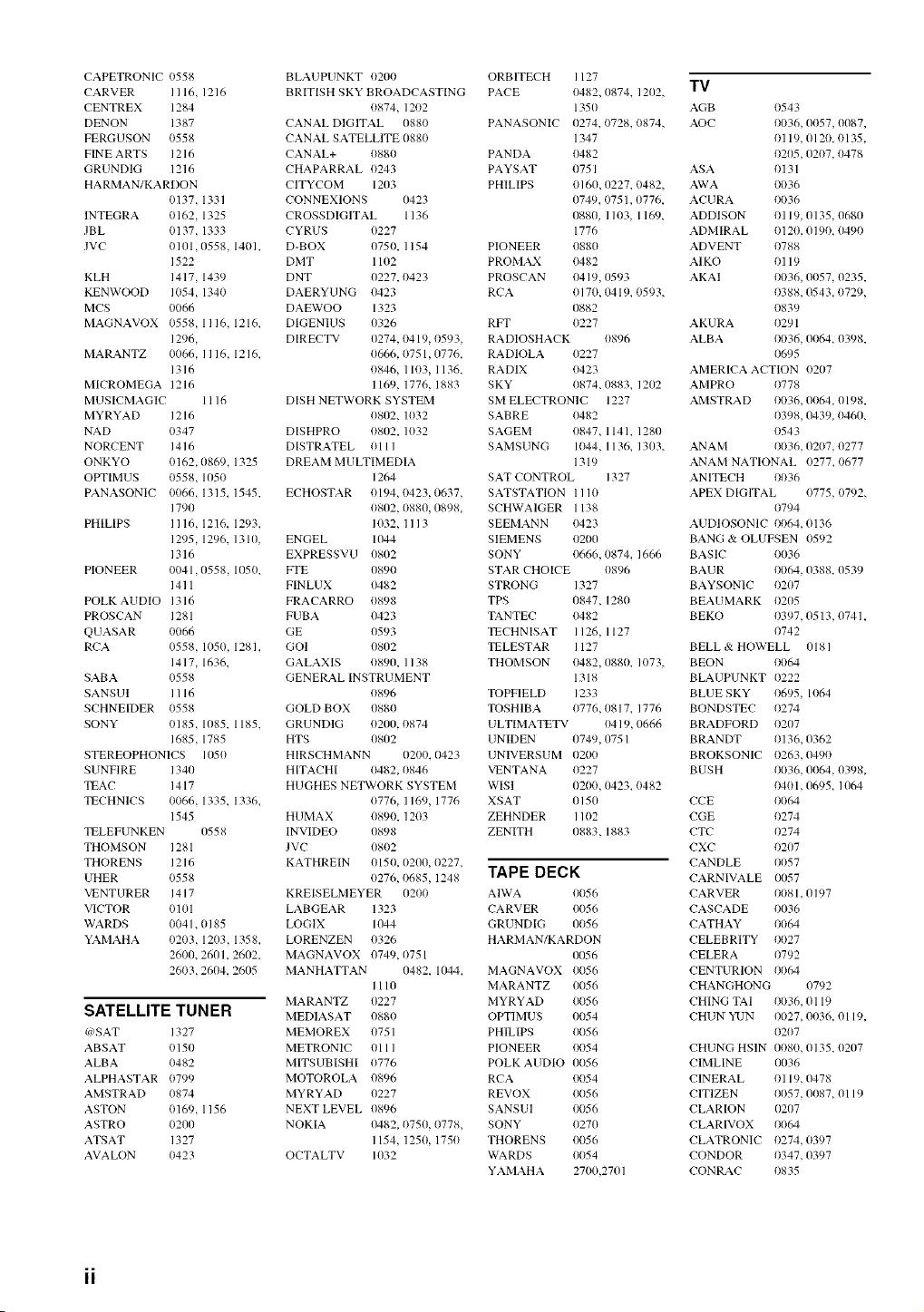
CAPETRONIC0558
CARVERI116,1216
CENTREX1284
DENON 1387
FERGUSON0558
FINEARTS1216
GRUNDIG1216
HARMANTKARDON
0137.1331
lNTEGRA0162.1325
JBL 0137.1333
JVC 0101,0558,1401,
1522
KLH 1417.1439
KENWOOD1054,1340
MCS 0066
MAGNAVOX0558,1116,1216,
1296,
MARANTZ0066,1116,1216,
1316
MICROMEGA1216
MUSICMAGIC1116
MYRYAD1216
NAD 0347
NORCENT1416
ONKYO 0162,0869,1325
OPTIMUS0558.1050
PANASONIC0066,1315_1545,
1790
PHILIPS I116,1216,1293,
1295,1296,1310,
1316
PIONEER0041,11558,1050,
1411
POLKAUDIO1316
PROSCAN1281
QUASAR0066
RCA 0558,1050,1281,
1417,1636,
SABA 0558
SANSUI I116
SCHNEIDERt)558
SONY 0185,1085,1185,
1685.1785
STEREOPHONICS1050
SUNFIRE1340
TEAC 1417
TECHNlCSt)t)66,1335_1336_
1545
TELEFUNKEN0558
THOMSON1281
THORENS1216
UHER t)558
VENTURER1417
VICTOR 0101
WARDS 0041,0185
YAMAHA0203,12t)3,1358,
2600,2601,2602,
2603,2604,2605
SATELLITE TUNER
(s_SAT 1327
ABSAT 0150
ALBA 0482
ALPHASTAR 0799
AMSTRAD 0874
ASTON 0169, 1156
ASTRO 0200
ATSAT 1327
AVALON 0423
BLAUPUNKT 0200
BRITISH SKY BROADCASTING
0874, 1202
CANAL DIGITAL 0880
CANAL SATELLITE 0880
CANAL+ 0880
CHAPARRAL 0243
CITYCOM 1203
CONNEXIONS 0423
CROSSDIGITAL 1136
CYRUS 0227
D-BOX 0750, 1154
DMT 1102
DNT 0227, 0423
DAERYUNG 0423
DAEWOO 1323
DIGENIUS 0326
DIRECTV 0274, 0419, t)593,
0666, 0751,0776,
0846, 1103, 1136,
1169, 1776, 1883
DISH NETWORK SYSTEM
0802, 1032
DISHPRO 0802, 1032
DISTRATEL 0111
DREAM MULTIMEDIA
1264
ECHOSTAR 0194, 0423, 0637,
0802, 0880, 0898,
1032, 1113
ENGEL 1044
EXPRESSVU 0802
FTE 08911
FINLUX 0482
FRACARRO 0898
FUBA 11423
GE 0593
GOI 0802
GALAXIS 0890, 1138
GENERAL INSTRUMENT
0896
GOLD BOX 0880
GRUNDIG 0200, 0874
HTS 0802
HIRSCHMANN 0200, 0423
HITACHI 0482, t)846
HUGHES NETWORK SYSTEM
0776, 1169, 1776
HUMAX 0890, 1203
INVIDEO 0898
JVC 0802
KATHREIN 0150, 0200, 0227,
0276, 0685, 1248
KREISELMEYER 02t)t)
LABGEAR 1323
LOGIX 1044
LORENZEN 0326
MAGNAVOX 0749_ 0751
MANHATTAN 0482, 1044_
1110
MARANTZ 0227
MEDIASAT 0880
MEMOREX 0751
METRONIC 0111
MITSUBISHI 0776
MOTOROLA 0896
MYRYAD 0227
NEXT LEVEL 0896
NOKIA 0482, 0750, 0778,
1154, 1250, 175t)
OCTALTV 1032
ORBITECH 1127
PACE 0482, 0874, 1202,
1350
PANASONIC (}274, 0728, 0874,
1347
PANDA 0482
PAYSAT (1751
PHILIPS 0160, 0227, t)482,
0749,1)75 L 0776,
0880, 1103, 1169_
1776
PIONEER 0880
PROMAX 0482
PROSCAN 1)419, 0593
RCA 0170, tM 19, 0593,
0882
RFT 0227
RADIOSHACK 0896
RADIOLA 0227
RADIX 0423
SKY 0874, 0883, 1202
SM ELECTRONIC 1227
SABRE 0482
SAGEM 0847, 1141, 1280
SAMSUNG 1044, 1136, 1303,
1319
SAT CONTROL 1327
SATSTATION Ill0
SCHWAIGER 1138
SEEMANN 0423
SIEMENS 0200
SONY 0666, 0874, 1666
STAR CHOICE 0896
STRONG 1327
TPS 0847, 1280
TANTEC 0482
TECHNISAT I 126, 1127
TELESTAR I 127
THOMSON 0482, 0880, 1073,
1318
TOPFIELD 1233
TOSHIBA t)776,0817, 1776
U LTIMATETV 1)419, 0666
UNff)EN (1749, 0751
UNIVERSUM 0200
VENTANA t)227
WISI 0200, 0423_ t)482
XSAT 0150
ZEHNDER I 102
ZENITH 0883, 1883
TAPE DECK
AIWA 0056
CARVER 0056
GRUNDIG 0056
HARMANTKARDON
0056
MAGNAVOX 0056
MARANTZ 0056
MYRYAD 0056
OPTIMUS 0054
PHILIPS 0056
PIONEER t)t)54
POLK AUDIO 0056
RCA 0054
REVOX 0056
SANSUI 0056
SONY 0270
THORENS 0056
WARDS 0054
YAMAHA 2700,2701
TV
AGB 0543
AOC 0036, 0057, 0087,
0119,0120,0135,
0205, 0207, 0478
ASA 0131
AWA 0036
ACURA 0036
ADDISON 0119, 0135, 0680
ADMIRAL 012t/, 0190, 0490
ADVENT 0788
AIKO 0119
AKAI 0036, 0057, 0235,
0388, 0543, 0729,
0839
AKURA 0291
ALBA 0036, 0064_ 0398,
0695
AMERICA ACTION 0207
AMPRO 0778
AMSTRAD 0036, 0064, 0198,
0398, 0439, 0460,
0543
ANAM 0036, 0207, 0277
ANAM NATIONAL 0277_ 0677
ANITECH 0036
APEX DIGITAL 0775, 0792,
0794
AUDIOSONIC 0064, 0136
BANG 84 OLUFSEN 0592
BASIC 0036
BAUR 0064, 0388, 0539
BAYSONIC t)207
BEAUMARK 0205
BEKO t)397, 0513,0741,
t)742
BELL & HOWELL 0181
BEON 0064
BLAUPUNKT 0222
BLUE SKY t)695, 11)64
BONDSTEC t)274
BRADFORD t)207
BRANDT 0136,0362
BROKSONIC 0263, 0490
BUSH 0036, 0064, 0398,
0401,0695_ 1064
CCE 0064
CGE t)274
CTC t)274
CXC 0207
CANDLE t)t)57
CARNIVALE (1057
CARVER 0081,0197
CASCADE 0036
CATHAY 0064
CELEBRITY 0027
CELERA t)792
CENTURION t)t)64
CHANGHONG 0792
CHING TAl 0036, 0119
CHUN YUN 0027, 0036, 0119,
0207
CHUNG HSIN 0080, 0135, 0207
CIMLINE 0036
CINERAL 0119, 0478
CITIZEN 0057, 008Z 0119
CLARION 11207
CLARIVOX 0(164
CLATRONIC 0274,11397
CONDOR 0347, 0397
CONRAC 0835
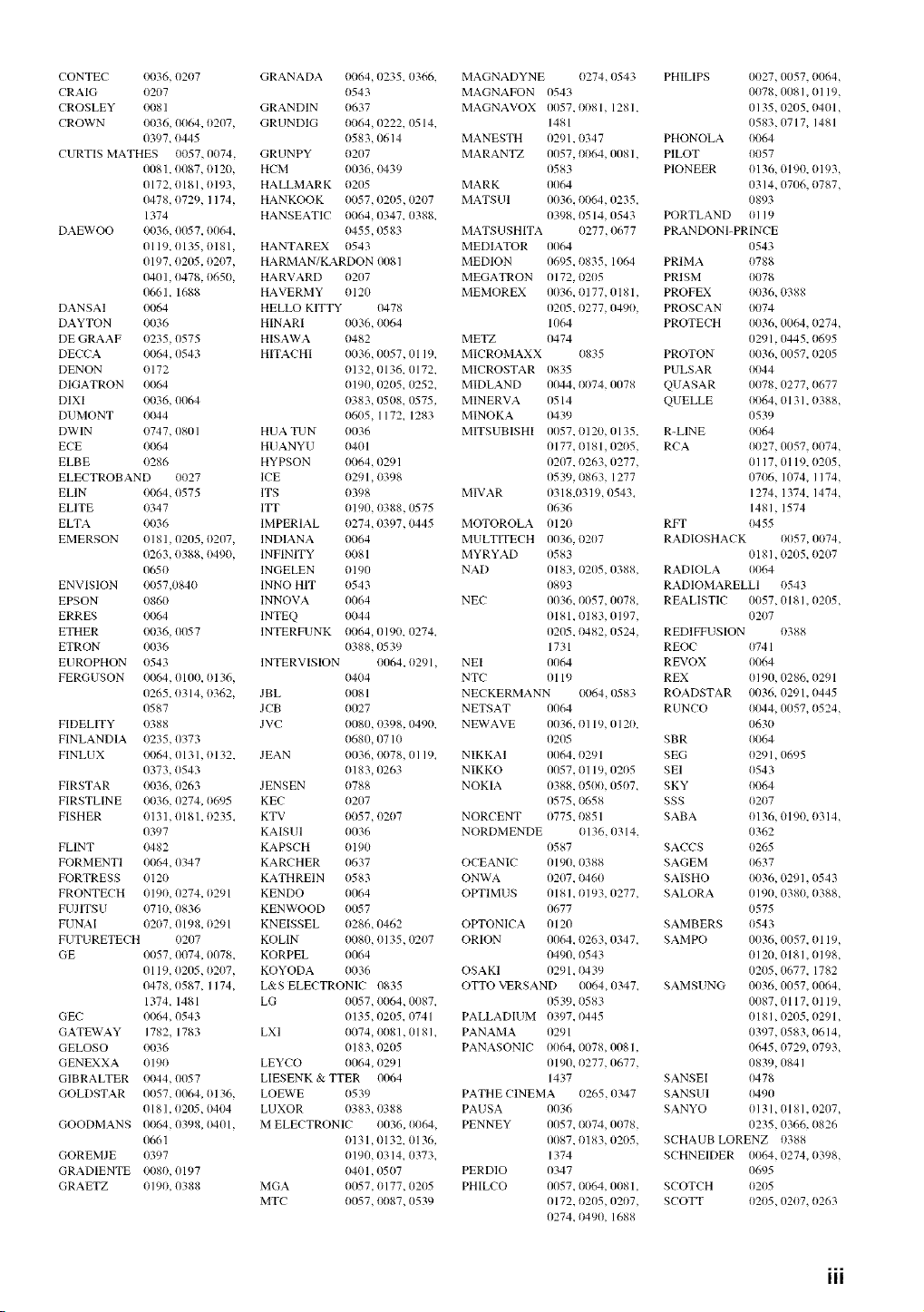
CONTEC0036,0207 GRANADA0064,0235,0366,MAGNADYNE0274,0543 PHILIPS0027,0057,0064,
CRAIG 0207 0543 MAGNAFON0543 0078,0081,0119,
CROSLEY0081 GRANDIN0637 MAGNAVOX0057,0081,1281, 0135,0205,0401,
CROWN0036,(11164,0207,GRUNDlG0064_(1222,0514, 1481 0583,0717_1481
039Z0445 0583,11614MANESTH0291,0347 PHONOLA0064
CURTISMATHES0057,0074,GRUNPYt)207 MARANTZ0057,t)t)64,0081,PILOT 0057
0081,0087,0120,HCM t)(136,t)439 0583 PIONEER0136,0190,0193,
0172,0181,0193,HALLMARK0205 MARK 0064 0314,0706,0787,
11478,0729,1174,HANKOOK0057,0205,0207 MATSUI 0036,0064,0235, 0893
1374 HANSEATIC0064,0347,0388,
DAEWOO0036,0057,0064_ 0455,0583
0119,0135,0181,HANTAREX0543
019Z0205,0207,HARMANTKARDON0081
11401,0478,0650,HARVARD0207
0661,1688 HAVERMY0120
DANSAl 0064 HELLOKlTTY 0478
DAYTON0036 HINARI 0036,t)tt64
DEGRAAF0235,0575 HISAWA0482
0398_0514,0543 PORTLAND0119
MATSUSHlTA(1277,0677 PRANDONI-PRINCE
MEDIATOR0064 0543
MEDION0695,0835,1064 PRIMA 0788
MEGATRON0172,0205 PRISM 0078
MEMOREX0036,0177,0181,PROFEX0036,0388
0205,0277,0490,PROSCAN0074
1064 PROTECH0036,0064,0274,
METZ 11474 0291,0445,0695
DECCA 0064,0543
DENON 0172
DIGATRON0064
DIXI 0036,0064
DUMONT0044
DWIN 0747,0801
ECE 0064
ELBE 0286
ELECTROBAND0027
ELIN 0064,0575
ELITE 0347
ELTA 0036
EMERSON0181,0205,(t207,INDIANA0064
0263,0388,0490,INFINITY0081
0650 lNGELEN0190
ENVISION0057,0840 INNOHIT 0543
EPSON 0860 INNOVA0064 NEC
ERRES 0064 INTEQ 0044
ETHER 0036,0057 INTERFUNK0064_0190,0274_
ETRON 0036 0388,0539
EUROPHON0543 INTERVISION0064,0291,NEI
FERGUSON0064,0100,0136, 0404 NTC
HITACHI0036,0057,0119,MICROMAXX0835 PROTON0036,0057,0205
0132,0136,0172,MICROSTAR0835 PULSAR0044
0190_0205,0252,MIDLAND0044,0074,0078 QUASAR0078,027Z0677
0383,0508,0575,MINERVA0514 QUELLE0064,0131,0388,
0605_1172,1283MINOKA0439 0539
HUATUN 0036 MITSUBISHI0057,0120,0135,R-LINE 0064
HUANYU0401 0177,0181,0205,RCA 0027,0057,0074,
HYPSON0064,0291 0207,t)263,0277, 0117,0119,t)205,
ICE 0291,0398 0539,0863,1277 0706,1(174,1174,
ITS 0398 MIVAR 0318,0319,0543_ 1274,1374,1474,
ITT 0190,0388,0575 0636 1481,1574
IMPERIAL0274,0397,0445MOTOROLA0120 RFP 0455
MULTITECH0036,0207 RADIOSHACK0057,0074,
MYRYAD0583 0181,0205_0207
NAD 0183,0205,0388,RADIOLA0064
0893 RADIOMARELLI0543
0036,0057,0078,REALISTIC0057,0181,0205,
0181,0183,0197, 0207
0205,0482,(1524,REDIFFUSION0388
1731 REOC 0741
0064 REVOX 0064
0119 REX 0190,0286,0291
0265,0314,0362,JBL
0587 JCB
FIDELITY0388 JVC
FINEANDIA0235,0373
FINEUX 0064,0131,0132,JEAN
0373,0543 0183,0263
FIRSTAR0036,0263 JENSEN0788
FIRSTLINE0036,0274,0695 KEC 0207
FISHER 0131,0181,0235_KTV 0057,0207
0397 KAlSUl 0036
FLlNT t)482 KAPSCHt)190
FORMENTI0064,0347 KARCHERt)637
FORTRESS0120 KATHRElNt)583
0081 NECKERMANN0064,0583 ROADSTAR0036,0291,0445
0027 NETSAT0064 RUNCO 0044,005Z0524,
0080,0398,0490,NEWAVE0036,0119,0120, 0630
0680,0710 0205 SBR 0064
0036,0078,0119_NIKKAI 0064,0291 SEG 0291,0695
NIKKO 0057,0119,0205 SEI 0543
NOKIA 0388,0500,050Z SKY 0064
0575,0658 SSS 0207
NORCENT0775,0851 SABA 0136,0190,0314,
NORDMENDE0136,0314, 0362
0587 SACCS 0265
OCEANIC(119(I,0388 SAGEM 0637
ONWA 0207,0460 SAISHOt)t)36,0291,0543
FRONTECH0190,0274,0291KENDO 0064 OPTIMUS0181,0193,0277,SALORA0190,0380,0388,
FUJITSU0710,0836 KENWOOD0057 0677 0575
FUNAI 0207,0198,0291KNEISSEL0286,0462 OPTONICA0120 SAMBERS0543
FUTURETECH0207 KOLIN 0080,0135,0207 ORION 0064,0263,0347,SAMPO 0036,(11157,0119,
GE t)t)57,0074,0078,KORPEL0064 11490,t)543 0120,0181,0198,
0119,0205,t)2t)7,KOYODAt)tt36 OSAKI 0291,t)439 0205,0677,1782
0478,0587,1174,L&SELECTRONIC0835 OTTOVERSAND0064_0347_SAMSUNG0036,0057,0064,
1374,1481 LG 0057,0064,0087, 0539,0583
GEC 0064,0543 0135,0205,0741PALLADIUM0397,0445
GATEWAY1782,1783 LXI 0074,0081,0181,PANAMA0291
GELOSO0036 0183,0205 PANASONIC0064,0078,0081,
GENEXXA0190 LEYCO 0064,0291 0190,0277,0677,
GIBRALTER0044,0057 LIESENK&TTER0064 1437 SANSEI
GOLDSTAR0057,0064,0136,LOEWE 0539 PATHECINEMA0265,0347 SANSUI
0181,0205,0404 LUXOR 0383,t)388 PAUSA 0036 SANYO
GOODMANS0064,0398,0401,MELECTRONIC0036,0064,PENNEY0057,0074,0078,
0661
GOREMJE0397
GRADIENTE0080,0197
GRAETZ0190,0388
0087,0117,0119,
0181,0205,0291,
0397,0583,0614,
0645,0729_0793,
0839,0841
0478
0490
0131,0181,0207,
0235,0366,0826
0131,0132,0136, 0087,0183,0205,SCHAUBLORENZ0388
0190,0314,0373_ 1374 SCHNEIDER0064,0274,0398,
0401,0507 PERDIO0347 0695
MGA 0057,0177,0205 PHILCO (11157,0064,0081,SCOTCH0205
MTC 0057_0087,0539 0172,0205,0207,SCOTT 0205,0207_0263
0274,0490,1688
iii
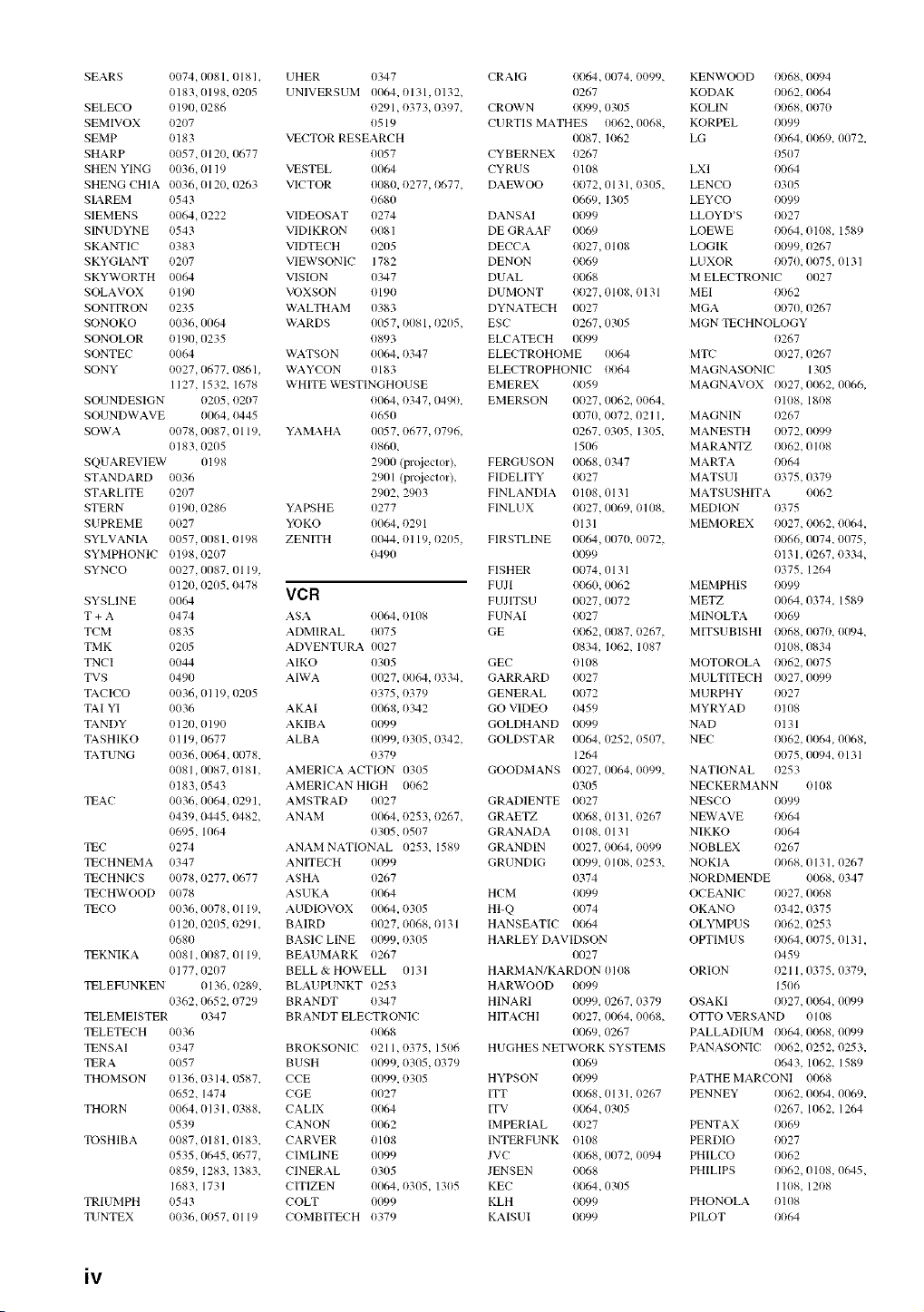
SEARS 0074, {1{181, 0181,
0183, 0198, 0205
SELECO 11190. 0286
SEMIVOX 0207
SEMP 11183
SHARP 0057, 0120,11677
SHEN YING 0036, 0119
SHENG CHIA 0036,0120,0263
SIAREM 0543
SIEMENS 0064, 0222
SINUDYNE 0543
SKANTIC 0383
SKYGIANT 0207
SKYWORTH 11064
SOLAVOX 0190
SONITRON 0235
SONOKO 0036. {1{}64
SONOLOR t)190. 0235
SONTEC t)064
SONY 0027, 0677, 0861,
1127, 1532, 1678
SOUNDESIGN t)2{15, t)2t)7
SOUNDWAVE 1)1164, t)445
SOWA 0078, 0087, 0119_
0183. 0205
SQUAREVIEW 0198
STANDARD 11036
STARLITE 0207
STERN 11190. 0286
SUPREME 0027
SYLVANIA 0057, 0081,1) 198
SYMPHONIC t)198. 0207
SYNCO 0027, 0087, 0119,
1)120, 0205, t)478
SYSLINE 111164
T + A 0474
TCM 0835
TMK 0205
TNCI 11044
TVS 0490
TACICO 0036, 0119, 0205
TAl YI t)036
TAN DY 1)120. 019t)
TASHIKO 0119,11677
TATUNG 0036, 0064, 0078,
t)081, {1{187, 0181,
t)183,0543
TEAC t)036, 0064, 0291,
t)439, 0445, t)482,
t)695. 1064
TEC t)274
TECHNEMA t)347
TECHNlCS t)078, 0277, 0677
TECHWOOD 0078
TECO t)036, 0078, 0119,
0120, 0205, 0291,
0680
TEKNI KA 0081, tXt87, 0119,
0177. 0207
TELEFUNKEN 1) 136, 0289,
0362,11652, 0729
TELEMEISTER 0347
TELETECH (1036
TENSAI 0347
TERA (1057
THOMSON 0136,0314,0587,
(1652. 1474
THORN 0064, 0131,0388,
0539
TOSHIBA t)087,0181,0183,
t)535,11645, 0677,
t)859, 1283, 1383,
1683. 1731
TRlUMPH t)543
TUNTEX 0036, 005Z 0119
UHER 0347
UNIVERSUM tXK14,1)131, 0132,
0291,0373, 039Z
0519
VECTOR RESEARCH
0057
VESTEL 11{164
VICTOR 0080, t)277, t)677,
0680
VIDEOSAT 0274
VIDIKRON 0081
VIDTECH 0205
VIEWSONIC 1782
VISION 0347
VOXSON 0190
WALTHAM 0383
WARDS {1{}57, t)081, t)2t)5,
t)893
WATSON 01}64, 0347
WAYCON 0183
WHITE WESTINGHOUSE
1)1}64, t)347, 0490,
0650
YAMAHA {1{}57, 0677, t)796,
0860,
29{1{} (prqiector),
2901 (prqieclor),
2902, 29t)3
YAPSHE 0277
YOKO {1{}64, t)291
ZENITH {1{}44, 0119, t)2t)5,
0490
VCR
ASA 1)1}64,1)108
ADMIRAL 0075
ADVENTURA {1{}27
AIKO 0305
AIWA 0027, 0064, t)334,
t)375, t)379
AKAI {1{}68, 0342
AKIBA {1{}99
ALBA 0099,11305_ 0342,
0379
AMERICA ACFION 0305
AMERICAN HIGH 0062
AMSTRAD 0027
ANAM 11{}64, 0253, 0267,
0305, t)5t)7
ANAM NATIONAL 11253_ 1589
ANITECH 11{199
ASHA 0267
ASUKA {1{}64
AUDIOVOX {1{}64, 0305
BAIRD {}027, 0068, 013 l
BASIC LINE 0{}99, t)305
BEAUMARK 0267
BELL & HOWELL 0131
BLAUPUNKT 0253
BRANDT 0347
BRANDT ELECTRONIC
01}68
BROKSONIC 021 l, 0375, 1506
BUSH {}{}99, 03{}5, 0379
CCE {1{}99, 0305
CGE {1{127
CALIX 0{}64
CANON {1{162
CARVER 0108
CIMLlNE 0099
ClNERAL 0305
CITlZEN 0{}64, t)305, 13t)5
COLT {1{1')9
COMBITECH 0379
CRAIG 0064, {1{}74, 0099,
0267
CROWN 0099, 0305
CURTIS MATHES 0062, 0068,
{1{}87, 1062
CYBERNEX 0267
CYRUS 0108
DAEWOO 0072, 0131,11305,
066% 1305
DANSAI 0099
DE GRAAF 0069
DECCA 0027, 0108
DENON 0069
DUAL 0068
DUMONT 0027, 0108, 0131
DYNATECH 0027
ESC 0267, 0305
ELCATECH 0099
ELECTROHOME 0064
ELECTROPHONIC 0064
EMEREX 0059
EMERSON 0027,11{}62, 0064,
0070, 0072, 0211,
0267, 0305, 131)5_
151}6
FERGUSON 0068, 0347
FlDELlTY 0027
FlNLANDlA 0108,0131
FlNLUX t)t)27, {1{}69, t)108,
0131
FlRSTLINE 0064, {1{}70, t)t)72,
{}{D9
FISHER (}074, 0131
FUJI 0060, {1{}62
FUJITSU 0027, {1{}72
FUNAI 0027
GE 0062, {1{}87, 0267,
0834, 1062, 1087
GEC 0108
GARRARD 0027
GENERAL 0072
GO VIDEO 0459
GOLDHAND 0099
GOLDSTAR 0{164, (}252, t)507,
1264
GOODMANS {1{}27, {1{}64_t)t)99,
03{}5
GRADIENTE 0027
GRAETZ 0068, 0131, 0267
GRANADA 0108, 0131
GRANDIN {1{}27, 0064, 0099
GRUNDIG {}{}')9, ()108_ 0253,
0374
HCM 0099
HI-Q 0074
HANSEATIC 0064
HARLEY DAVIDSON
{1{}27
HARMAN/KA RDON 11108
HARWOOD 0099
HINARI 0099, 0267, 0379
HITACHI 0027,11{}64, 0068,
11{}69, 0267
HUGHES NETWORK SYSTEMS
0{}69
HYPSON 0099
ITT 0068, 0131,0267
ITV 0064, 0305
IMPERIAL 0027
INTERFUNK 0108
JVC 0068, {1{}72, 0094
JENSEN 0068
KEC 0064, 0305
KLH 0099
KAISUI 0099
KENWOOD 0068, 0094
KODAK 0062, 0064
KOLIN 0068, 0070
KORPEL 11099
LG 0064, 0()69_ {1{}72,
0507
LXI 0064
LENCO 0305
LEYCO 11099
LLOYD'S 0027
LOEWE 0064, 0108, 1589
LOGIK 0099, (}267
LUXOR 0070, 0075, 0131
M ELECTRONIC t)027
MEl t)062
MGA 0070, 0267
MGN TECHNOLOGY
t)267
MTC 0027, 0267
MAGNASONIC 13{}5
MAGNAVOX 0027,0062, {1{}66,
0108, 1808
MAGNIN 0267
MANESTH 0072, 0099
MARANTZ 0062,0108
MARTA 0064
MATSUI 0375, 0379
MATSUSHITA 0062
MEDION 0375
MEMOREX 0027, 0062, {}{}64,
0066, {1{}74, 0075,
013 l, 0267, 0334,
0375, 1264
MEMPHIS 0099
METZ 0064, 0374, 1589
MINOLTA 0069
MITSUBISHI 0068,0070, {1{}94_
0108, 0834
MOTOROLA (1062, 0075
MULTITECH 0027, 0099
MURPHY 0027
MYRYAD 0108
NAD 0131
NEC 0062, 0064,11{}68,
0075,1X194_ (t 131
NATIONAL t)253
NECKERMANN 0108
NESCO 0099
NEWAVE 0064
NIKKO 0064
NOBLEX 0267
NOKIA 0068, 0131, 0267
NORDMENDE 0068, 0347
OCEANIC t)027, 0068
OKANO t)342, 0375
OLYMPUS t)062, 0253
OPTIMUS t)064,0075,0131,
t)459
ORION t)211,0375, 0379,
1506
OSAKI 0027, 0064,1X}99
OTTO VERSAND 0108
PALLADIUM 0064, 0068, {1{199
PANASONIC 0062,0252, 0253,
0643, 1062, 1589
PATHE MARCONI 01}68
PENNEY (1062, 0064,11{}69,
0267, 1062, 1264
PENTAX (1069
PERDIO (1027
PHILCO (1062
PHILIPS 0062, 0108, 0645_
1108, 1208
PHONOLA t) 108
PILOT t)t)64
iv
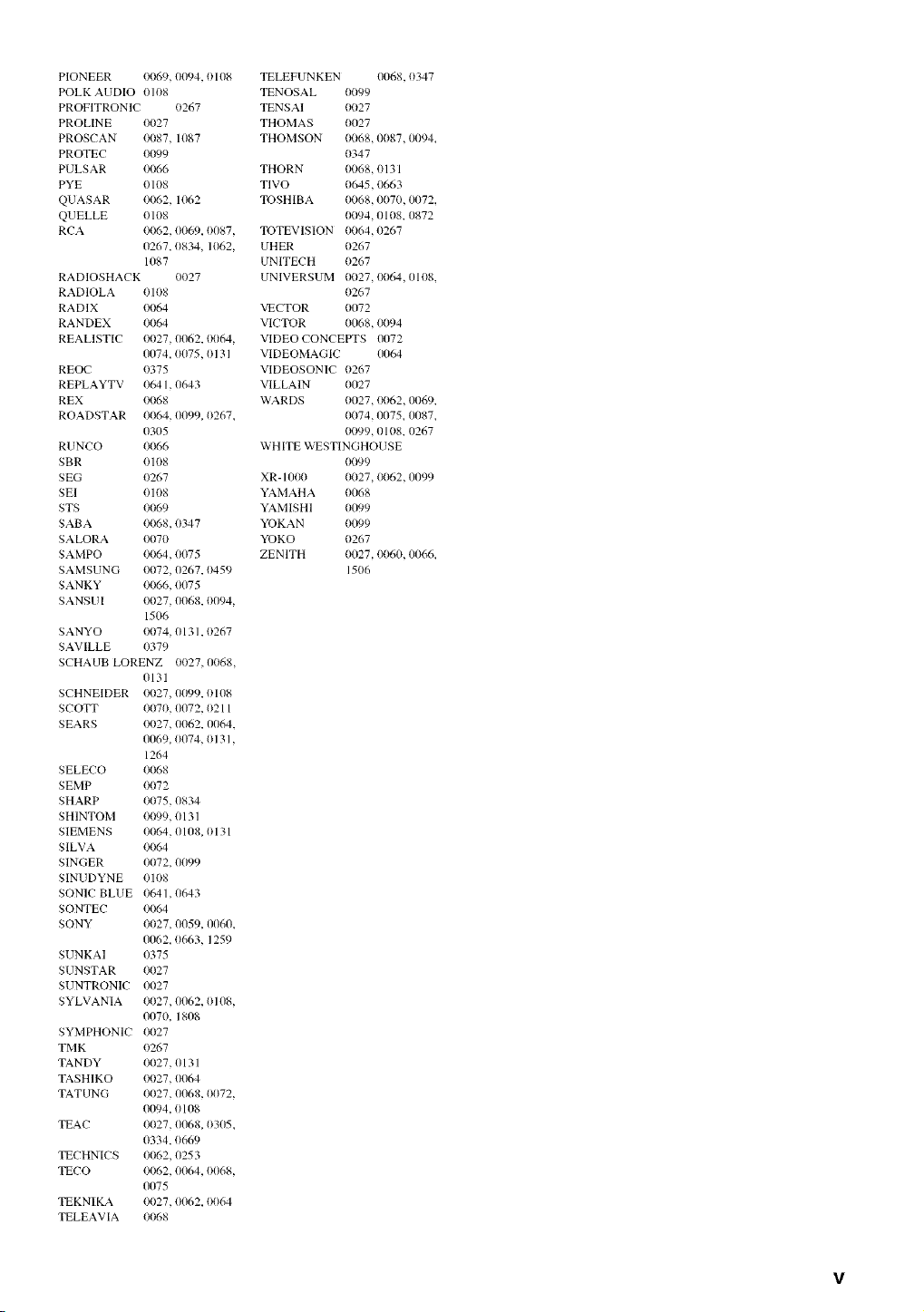
PIONEER 0069, 0094, 0108 TELEFUNKEN 0068, 0347
POLK AUDIO 0108 TENOSAL 0099
PROFITRONIC 0267 TENSAI 0027
PROLINE 0027 THOMAS 0027
PROSCAN 0087, 1087 THOMSON 0068, 0087, 0094_
PROTEC 0099 0347
PULSAR 0066 THORN 0068, 0131
PYE 0108 TIVO 0645, 0663
QUASAR 0062, 1062 TOSHIBA 0068, 0070, 0072,
QUELLE 0108 0094, 0108, 0872
RCA 0062,0069, 0087, TOTEVISION 0064,0267
0267, 0834, 1062, UHER 0267
1087 UNITECH 0267
RADIOSHACK 0027 UNIVERSUM 0027,0064,0108,
RADIOLA 0108 0267
RADIX 0064 VECTOR 0072
RANDEX 0064 VICTOR 0068, 0094
REALISTIC 0027, 0062, 0064, VIDEO CONCEPTS 0072
0074, 0075, 0131
REOC 0375
REPLAYTV 0641,0643
REX 0068
ROADSTAR 0064,11099, 0267_
0305
RUNCO 0066
SBR 0108
SEG 0267
SEI 0108
STS 0069
SABA 0068, 0347
SALORA 0070
SAMPO 0064, 0075
SAMSUNG 0072, (}267, 0459
SANKY 0066, 0075
SANSUI 0027, 0068, 0094,
1506
SANYO 0074, 0131,0267
SAVILLE 0379
SCHAUB LORENZ 0027,0068,
0131
SCHNEIDER 0027, (1{1')9, 0108
SCOTT 0070, 0072, 0211
SEARS 0027, 0062, 0064,
0069, 0074, 0131,
1264
SELECO 0068
SEMP 0072
SHARP 0075, 0834
SHINTOM 0099, 0131
SIEMENS 0064,0108,0131
SILVA 0064
SINGER 0072, 0099
SINUDYNE 0108
SONIC BLUE 0641,0643
SONTEC 0064
SONY 0027, 0059, 0060,
0062, 0663, 1259
SUNKAI 0375
SUNSTAR 0027
SUNTRONIC 0027
SYLVANIA 0027, 0062, 0108,
0070, 1808
SYMPHONIC 0027
TMK 0267
TANDY 0027, 0131
TASHIKO 0027,1/064
TATUNG 0027, 0068, 0072,
0094, 0108
TEAC 0027,11068, 0305_
0334, 0669
TECHNICS 0062, 0253
TECO 0062, 0064, 0068,
0075
TEKNI KA 0027, 0062, 0064
TELEAVIA 0068
VIDEOMAGIC (1{}64
VIDEOSONIC 0267
VILLAIN 0027
WARDS 0027, 0062,1X169,
0074, 0075, {1087,
{){)99, 01 ()8, (1267
WHITE WESTINGHOUSE
0099
XR- 1000 0027, {){)62,1X199
YAMAHA 0068
YAMISHI 01D9
YOKAN 0099
YOKO 0267
ZENITH 0027, 0060, (1{}66,
1506
v

(@2005 YA_,,C_'-iACORPORK[/ON All rights reserved.
YAMAHA ELECTRONICS CORPORATION, USA 6660 ORANGETHORPE AVE., BUENA PARK, CALIF. 90620, U.S.A.
YAMAHA CANADA MUSIC LTD. 135 MILNER AVE., SOARBOROUGR, ONTARIO M1S 3R1, CANADA
YAMAHA ELECTRONIK EUROPA G,m.b.H. SIEM ENSSTR. 22-34, 25462 RELUNGEN BEI HAMBURG, GERMANY
YAMAHA ELECTRONIQUE FRANCE S.A. RUE AMBROISE OROIZAT BP70 CROISSY-BEAUBOURG 77312 MARNE-LA-VALLEE CEDEX02, FRANCE
YAMAHA ELECTRONICS (UK) LTD. YAMAHA HOUSE, 200 RICKMANSWORTH ROAD WATFORD, HERTS WD18 7GQ, ENGLAND
YAMAHA SCANDINAVIA A.B. J A WETTERGRENS GATA 1, BOX 30053, 400 43 V_,STRA FROLUNDA, SWEDEN
YAMAHA M USIC AUSTRALIA PTY, LTD. 17-33 MARKET ST., SOUTH MELBOURNE, 3205 VIO., AUSTRALIA
YAMAHA CORPORATION
Printed in Malaysia c WF99990