Dji FLY APP
Product's Documents
Below are documents related to this product, you can read online or download:
- Owner's manual - (English) Read Online | Download pdf
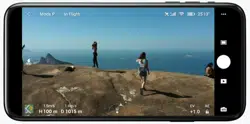
Download DJI FLY App here.
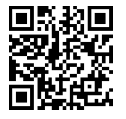
Or scan Qcode:
Launch DJl Fly and enter the home sereen.
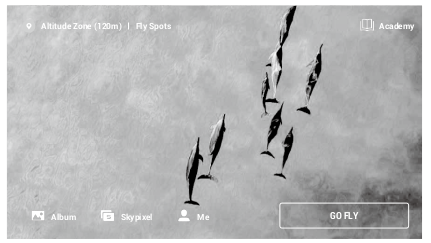
Fly Spots
View or share nearby suitable fight and shooting locations, leam more about GEO zones, and preview aerial photos of different locations taken by other users
Academy
Tap the icon in the top right comer to enter Academy and view product tutorial, fight tins, fight safety. and manual documents.
Album
View photos and videos from Dul Fly and your mobile device, Trimmed Download is supported when downloading a video. Select the ip to download. QuickShot videos can be created and viewed after downloading to the mobile device and rendering. Create contains Templates and Pro. Templates automatically edit imported footage. Pro alows users to edit footage manually.
SkyPixel
Enter SkyPixel to view videos and photos shared by users.
Profile
View the account information, fight records, Dul forum, entine store, Find My Drone feature, and other settings.
Trimmed Download is not supported in the following situations:
* The duration of the video is less than 5 seconds.
* There is no cached video in the mobile device corresponding to the original video. Make sure to download using the mobile device that was used for shooting.
* The difference in duration between the cached video in the mobile device and the original video from the microSD card of the aircraft is too large. This may occur due to the following reasons:
a) Exited Dul Fly while recording such as to answer a phone call or to reply to a message.
b) Video transmission disconnected while recording.
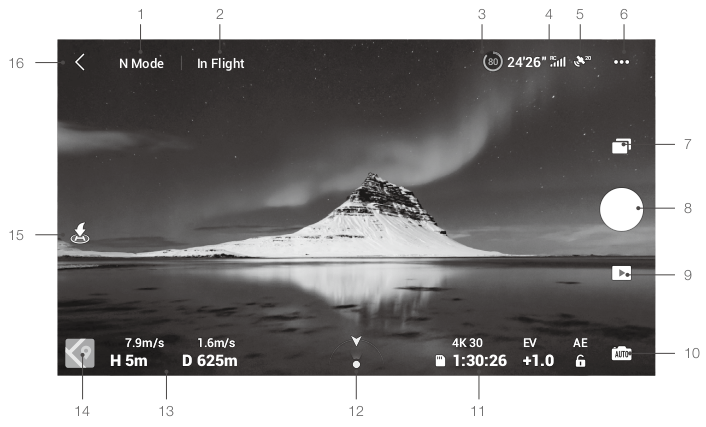
1. Flight Mode
N Mode: displays the current flight mode.
2. System Status Bar
In Flight: indicates the aircraft flight status and displays various warning messages. Tap to view more information when a warning prompt appears.
3. Battery Information
 24°26": displays the current battery level and remaining flight time. Tap to view more information about the battery.
4. GPS Status
 displays the current GPS signal strength. Tap to view more information about the GPS signal.
5. Video Downlink Signal Strength
 : displays the video downlink signal strength between the aircraft and remote controller. Tap to view
More information about the video downlink signal.
6. System Settings
 : tap to view information about safety, control, camera, and transmission.
Safety
Flight Protection: tap to set the max altitude, max distance, Auto RTH altitude, and to update the Home Point.
Sensors: view the IMU and compass status and calibrate if necessary.
Advanced Settings: includes Emergency Propeller Stop and Payload mode. “Emergency Only” indicates that the motors can only be stopped mid-flight in an emergency situation such as if there is a collision, a motor has stalled, the aircraft is rolling in the air, or the aircraft is out of control and is ascending or descending very quickly. “Anytime” indicates that the motors can be stopped mid-flight anytime once the user performs a combination stick command (CSC). Stopping the motors mid-flight will cause the aircraft to crash.
If accessories are mounted to DUI Mini 2, it is recommended to enable Payload mode for enhanced safety. After takeoff, Payload mode is enabled automatically if a payload is detected. Note that the max service ceiling above sea level is 2000 m and the max flight speed is limited when Payload mode is enabled.
The Find My Drone feature helps to find the location of the aircraft on the ground.
Control
Aircraft Settings: tap to set the measurement system.
Gimbal Settings: tap to set the gimbal mode, allow upward gimbal rotation, recenter the gimbal, and to calibrate the gimbal. Advanced gimbal settings include speed and smoothness for pitch and yaw.
Remote Controller Settings: tap to set the function of the customizable button, to calibrate the remote controller, to enable phone charging when an iOS device is connected, and to switch control stick modes.
Make sure to understand the operations of a control stick mode before changing control stick mode.
Beginner Flight Tutorial: view the flight tutorial.
Connect to Aircraft: when the aircraft is not linked to the remote controller, tap to start linking.
Camera
Photo: tap to set the photo size.
General Settings: tap to view and set histogram, overexposure warning, gridlines, white balance, and auto sync HD photos.
Storage: tap to check microSD card capacity and format.
Cache Settings: tap to set to cache when recording and the max video cache capacity.
Reset Camera Settings: tap to restore all the camera settings to default.
Transmission
Frequency and channel mode settings.
About
View device information, firmware information, app version, battery version, and more.
7. Shooting Mode
 Photo: Single, AEB, and Timed Shot.
Video: video resolution can be set to 4K 24/25/30 fps, 2.7K 24/25/30 fps, and 1080p 24/25/30/48/50/60 fps.
Pano: Sphere, 180°, and Wide Angle. The aircraft automatically takes several photos according to the selected type of Pano and generates a panoramic shot in DJl Fly.
QuickShots: choose from Dronie, Circle, Helix, Rocket, and Boomerang.
8. Shutter/Record Button
 : tap to take a photo or to start or stop recording a video. During video recording, up to 4x digital zoom is supported. Tap "1X to switch the zoom ratio. 1080P supports 4x digital zoom, 2.7K supports 3x digital zoom, and 4K supports 2x digital zoom. Zoom is not supported in photo mode.
9. Playback
 : tap to enter playback and preview photos and videos as soon as they are captured.
After entering aloum, tap  , to switch between QuickTransfer mode (Wi-Fi connection) and flight mode (OcuSync 2.0 video transmission connection).
10. Camera Mode Switch
 : choose between Auto and Manual mode when in photo mode. In Manual mode, shutter and ISO can be set. In Auto mode, AE lock and EV can be set.
11. microSD Card Information
 : displays the remaining number of photos or video recording time of the current microSD card. Tap to view the available capacity of the microSD card.
12. Aircraft Orientation
 : displays the real-time orientation of the aircraft.
13. Flight Telemetry
D 12m, H6m, 1.6m/s, 1m/s: displays the distance between the aircraft and the Home Point, height from the Home Point, aircraft horizontal speed, and aircraft vertical speed.
14. Map
 : tap to view the map.
15. Auto Takeoff/Landing/RTH
 : tap the icon. When the prompt appears, press and hold the button to initiate auto takeoff or landing.
Tap  to initiate Smart RTH and have the aircraft return to the last recorded Home Point.
16. Back
 : tap to return to the home screen.
Press the screen until a circle appears and drag the circle up and down to control the tilt of the gimbal.
« Make sure to fully charge your mobile device before launching Dul Fly.
« Mobile cellular data is required when using Dul Fly. Contact your wireless carrier for data charges.
« DO NOT accept phone calls or use texting features during flight if you are using a mobile phone as your display device.
« Read all safety tips, warning messages, and disclaimers carefully. Familiarize yourself with the related regulations in your area. You are solely responsible for being aware of all relevant regulations and flying in a way that is compliant.
a) Read and understand the warning messages before using the auto-take off and auto-landing features.
b) Read and understand the warning messages and disclaimer before setting the altitude beyond the default limit.
c) Read and understand the warning messages and disclaimer before switching between flight modes.
d) Read and understand the warning messages and disclaimer prompts near or in GEO zones.
e) Read and understand the warning messages before using the Intelligent Flight modes.
« Land the aircraft immediately at a safe location if a prompt appears in the app instructing you to do so.
« Review all warning messages on the checklist displayed in the app before each flight.
« Use the in-app tutorial to practice your flight skills if you have never operated the aircraft or if you do not have sufficient experience to operate the aircraft with confidence.
« Cache the map data of the area where you intend to fly the aircraft by connecting to the internet before each flight.
« The app is designed to assist your operation. Use sound discretion and DO NOT rely on the app to control the aircraft. The use of the app is subject to DJl Fly Terms of Use and DJI Privacy Policy.
Read them carefully in the app.