ENGLISH
2
Preface
D-Link reserves the right to revise this publication and to make changes in the content hereof without obligation to notify any person or organization
of such revisions or changes.
Manual Revisions
Trademarks
D-Link and the D-Link logo are trademarks or registered trademarks of D-Link Corporation or its subsidiaries in the United States or other countries.
All other company or product names mentioned herein are trademarks or registered trademarks of their respective companies.
Copyright Statement
No part of this publication or documentation accompanying this product may be reproduced in any form or by any means or used to make any
derivative such as translation, transformation, or adaptation without permission from D-Link Corporation/D-Link Systems, Inc., as stipulated by the
United States Copyright Act of 1976 and any amendments thereto. Contents are subject to change without prior notice.
Copyright ©2010 by D-Link Corporation/D-Link Systems, Inc. All rights reserved.
FCC Statement
This equipment has been tested and found to comply with the limits for a Class B digital device, pursuant to Part 15 of the FCC Rules. These limits
are designed to provide reasonable protection against harmful interference when the equipment is operated in a commercial environment. This
equipment generates, uses, and can radiate radio frequency energy and, if not installed and used in accordance with this user’s guide, may cause
harmful interference to radio communications. Operation of this equipment in a residential area is likely to cause harmful interference in which
case the user will be required to correct the interference at his own expense.
Revision Date Description
1.0 February 19, 2010 DGS-1008G - Hardware revision A1
1.1 May 18, 2010 Added Windows® 7 Support

ENGLISH
3
Table of Contents
Preface ............................................................................................. 2
Manual Revisions ..........................................................................................2
Trademarks .....................................................................................................2
Copyright Statement ..................................................................................2
FCC Statement ...............................................................................................2
Safety Instructions ......................................................................... 4
Safety Cautions .............................................................................................4
Protecting Against Electrostatic Discharge ........................................6
Product Overview ........................................................................... 7
Package Contents ........................................................................................7
Setup .................................................................................................................7
Introduction ...................................................................................................7
D-Link Green Ethernet Technology ..............................................7
Fast Ethernet Technology .................................................................8
Gigabit Ethernet Technology ..........................................................8
Switching Technology .......................................................................9
802.1p Priority Tagging .....................................................................9
Jumbo Frame Support ......................................................................9
Features .........................................................................................................10
Hardware Overview ...................................................................................11
Top Panel (LEDs) ................................................................................11
Rear Panel (Connections) ...............................................................13
Installation .................................................................................... 14
Before You Connect to the Network ....................................................14
Mounting the Switch on the Wall .........................................................15
Mounting on a cement wall ..........................................................15
Mounting on a wood wall ..............................................................15
Connecting the Switch .............................................................................16
DGS-1008G to End Node ................................................................16
Hub/Switch to DGS-1008G ............................................................16
Connecting To Network Backbone or Server ..........................16
Troubleshooting ........................................................................... 17
Networking Basics ........................................................................ 18
Check your IP address ...............................................................................18
Statically Assign an IP address ...............................................................19
Glossary ......................................................................................... 20
Technical Specications ............................................................... 25
RJ-45 Pin Specications ...........................................................................26
Contacting Technical Support ..................................................... 27
Registration .................................................................................. 28

ENGLISH
4
To reduce the risk of bodily injury, electrical shock, re, and damage to the equipment, observe the following precautions.
Observe and follow service markings. Do not service any product except as explained in your system documentation. Opening or removing covers
that are marked with the triangular symbol with a lightning bolt may expose you to an electrical shock. Only a trained service technician should
service components inside these compartments.
If any of the following conditions occur, unplug the product from the electrical outlet and replace the part or contact your trained service
provider:
– The power cable, extension cable, or plug is damaged.
– An object has fallen into the product.
– The product has been exposed to water.
– The product has been dropped or damaged.
– The product does not operate correctly when you follow the operating instructions.
• Keepyoursystemawayfromradiatorsandheatsources.Also,donotblockcoolingvents.
• Donotspillfoodorliquidsonyoursystemcomponents,andneveroperatetheproductinawetenvironment.Ifthesystemgets
wet, see the appropriate section in your troubleshooting guide or contact your trained service provider.
• Donotpushanyobjectsintotheopeningsofyoursystem.Doingsocancauseareoranelectricshockbyshortingoutinterior
components.
• Usetheproductonlywithapprovedequipment.
• Allowtheproducttocoolbeforeremovingcoversortouchinginternalcomponents.
• Operatetheproductonlyfromthetypeofexternalpowersourceindicatedontheelectricalratingslabel.Ifyouarenotsureof
the type of power source required, consult your service provider or local power company.
Safety Instructions
Safety Cautions
Use the following safety guidelines to ensure your own personal safety and to help protect your system from potential damage.

ENGLISH
5
• Tohelpavoiddamagingyoursystem,besurethevoltageselectionswitch(ifprovided)onthepowersupplyissettomatchthe
power available at your location:
– 115 volts (V)/60 hertz (Hz) in most of North and South America and some Far Eastern
countriessuchasSouthKoreaandTaiwan.
– 100 V/50 Hz in eastern Japan and 100 V/60 Hz in western Japan.
– 230 V/50 Hz in most of Europe, the Middle East, and the Far East.
• Alsobesurethatattacheddevicesareelectricallyratedtooperatewiththepoweravailableinyourlocation.
• Useonlyapprovedpowercable(s).IfyouhavenotbeenprovidedwithapowercableforyoursystemorforanyAC-poweredoption
intended for your system, purchase a power cable that is approved for use in your country. The power cable must be rated for the
product and for the voltage and current marked on the product’s electrical ratings label. The voltage and current rating of the
cable should be greater than the ratings marked on the product.
• Tohelppreventanelectricshock,plugthesystemandperipheralpowercablesintoproperlygroundedelectricaloutlets.These
cables are equipped with three-prong plugs to help ensure proper grounding. Do not use adapter plugs or remove the grounding
prong from a cable. If you must use an extension cable, use a 3-wire cable with properly grounded plugs.
• Observeextensioncableandpowerstripratings.Makesurethatthetotalampereratingofallproductspluggedintotheextension
cable or power strip does not exceed 80 percent of the ampere ratings limit for the extension cable or power strip.
• Tohelpprotectyoursystemfromsudden,transientincreasesanddecreasesinelectricalpower,useasurgesuppressor,lineconditioner,
or uninterruptible power supply (UPS).
• Positionsystemcablesandpowercablescarefully;routecablessothattheycannotbesteppedonortrippedover.Besurethat
nothing rests on any cables.
• Donotmodifypowercablesorplugs.Consultalicensedelectricianoryourpowercompanyforsitemodications.Alwaysfollowyour
local/national wiring rules.
• Whenconnectingordisconnectingpowertohot-pluggablepowersupplies,ifoeredwithyoursystem,observethefollowing
guidelines:
– Install the power supply before connecting the power cable to the power supply.
– Unplug the power cable before removing the power supply.
– If the system has multiple sources of power, disconnect power from the system by unplugging all power cables from the power
supplies.

ENGLISH
6
Static electricity can harm delicate components inside your system. To prevent static damage, discharge static electricity from your body before
you touch any of the electronic components, such as the microprocessor. You can do so by periodically touching an unpainted metal surface on
the chassis.
You can also take the following steps to prevent damage from electrostatic discharge (ESD):
1. When unpacking a static-sensitive component from its shipping carton, do not remove the component from the antistatic packing
material until you are ready to install the component in your system. Just before unwrapping the antistatic packaging, be sure to
discharge static electricity from your body.
2. When transporting a sensitive component, rst place it in an antistatic container or packaging.
3. Handle all sensitive components in a static-safe area. If possible, use antistatic oor pads, workbench pads, and an antistatic grounding
strap.
Protecting Against Electrostatic Discharge

ENGLISH
7
Product Overview
Setup
The setup of the DGS-1008G can be performed using the following steps:
• Thepoweroutletshouldbewithin1.82meters(6feet)oftheSwitch.
• VisuallyinspecttheDCpowerjackandmakesurethatitisfullysecuredtothepoweradapter.
• DonotcovertheventilationholesonthesidesoftheSwitch,andmakesurethereisadequateventilationaroundit.
• Donotplaceheavyobjectsontheswitch.
Package Contents
Introduction
D-Link Green Ethernet Technology
D-Link Green Ethernet Technology implements special power-saving features under speed at 1000Mbps that detect cable length and link status
and adjust power usage accordingly.
Green Ethernet Technology saves energy in two specic ways:
1. Ifthereisnolinkonaport(whenthereisnoconnectionorthedeviceconnectedisturnedo)theport(s)willentera“sleepmode”
which will drastically reduce the amount of power used.
2. D-Link Green Ethernet Technology detects the length of connected Ethernet cable and adjusts power usage accordingly without
aectingperformance.Thisway,aportconnectedtoa20mcableonlyusesasmuchpowerasitneeds,insteadofusingfullpower,
which is only needed for 100m cables.
WallMountKit
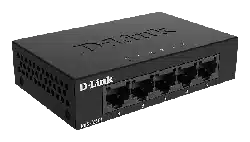
D-Link DGS-1008G 8-port Gigabit Desktop Switch
Power Adapter
Warranty Card
Quick Install Guide

ENGLISH
8
Fast Ethernet Technology
The growing importance of LANs and the increasing complexity of desktop computing applications are fueling the need for high performance
networks.100BASE-TX(FastEthernet)providesa cost-eectiveand high-performancesolutionforsmallworkgroups,SMBs(SmalltoMedium
Businesses), and any network supporting bandwidth-intensive applications. Fast Ethernet technology operates at 10 times the speed of traditional
Ethernet,oeringmaximumperformanceandenhancedcapabilityforexistingEthernet-basednetworks.
100Mbps Fast Ethernet is a standard specied by the IEEE 802.3 LAN committee. It is an extension of the 10Mbps Ethernet standard with the
ability to transmit and receive data at 100Mbps, while maintaining the CSMA/CD Ethernet protocol. Since the 100Mbps Fast Ethernet is compatible
with all other 10Mbps Ethernet environments, it provides a straightforward upgrade and takes advantage of the existing investment in hardware,
software, and personnel training.
Gigabit Ethernet Technology
Gigabit Ethernet is an extension of IEEE 802.3 Ethernet utilizing the same packet structure, format, and support for CSMA/CD protocol, full duplex,
ow control, and management objects, but with a tenfold increase in theoretical throughput over 100Mbps Fast Ethernet and a one hundred-
fold increase over 10Mbps Ethernet. Since it is compatible with all 10Mbps and 100Mbps Ethernet environments, Gigabit Ethernet provides a
straightforward upgrade without wasting a company’s existing investment in hardware, software, and trained personnel.
TheincreasedspeedandextrabandwidthoeredbyGigabitEthernetareessentialtocopingwiththenetworkbottlenecksthatfrequentlydevelop
as computers and their busses get faster and more users use applications that generate more trac. Upgrading key components, such as your
backbone and servers to Gigabit Ethernet can greatly improve network response times as well as signicantly speed up the trac between your
subnetworks.
Gigabit Ethernet enables fast optical ber connections to support video conferencing, complex imaging, and similar data-intensive applications.
Likewise, since data transfers occur 10 times faster than Fast Ethernet, servers outtted with Gigabit Ethernet NIC’s are able to perform 10 times the
numberofoperationsinthesameamountoftime.Inaddition,thephenomenalbandwidthdeliveredbyGigabitEthernetisthemostcost-eective
method to take advantage of today and tomorrow’s rapidly improving switching and routing internetworking technologies

ENGLISH
9
Switching Technology
Switches provide full-line speed and dedicated bandwidth for all connections. This is in contrast to hubs, which use the traditional shared
networking topology, where the connected nodes contend for the same network bandwidth. When two switching nodes are communicating, they
are connected with a dedicated channel between them, so there is no contention for network bandwidth with other nodes. As a result, the switch
reduces considerably, the likelihood of trac congestion.
ForEthernetnetworks,aswitchisaneectivewayofeliminatingtheproblemofchaininghubsbeyondthe“two-repeaterlimit.”Aswitchcanbe
usedtosplitpartsofthenetworkintodierentcollisiondomains,makingitpossibletoexpandyourEthernetnetworkbeyondthe205-meter
network diameter limit for 100BASE-TX networks. Switches supporting both 10Mbps Ethernet and 100Mbps Fast Ethernet are also ideal for bridging
between existing 10Mbps networks and newer 100Mbps networks.
Switching LAN technology is a marked improvement over the previous generation of network hubs and bridges, which were characterized by
higher latencies. Routers have also been used to segment local area networks, but the cost of a router, the setup and maintenance required, make
routers relatively impractical. Today switches are an ideal solution to most kinds of local area network congestion problems.
802.1p Priority Tagging
802.1p places a tag in a frame to indicate the priority of the frame. A tag will represent a priority of 0-7 and an 802.1p compliant switch can read
this tag and prioritize trac accordingly. In 802.1p a port can receive frames with varying priority tags and classify them based on these tags. A
VoIP phone that supports 802.1p can assign a priority to its VoIP trac and when it enters the switch the switch can give it a higher priority so that
voice trac is always clear and jitter free. The DGS-1008G supports the 802.1p feature with 4 precongured priority queues. When a frame tagged
with an 802.1p priority bit is received by the switch it places the frame into one of 4 queues prioritized according to its tag number. For example,
trac tagged with a priority bit of 7 will have a higher priority then trac tagged with a priority bit of 6 and so forth.
Jumbo Frame Support
The DGS-1008G switch supports Jumbo Frames up to 9720 Bytes in size. Jumbo Frame support is designed to improve network throughput and
signicantly reduce the CPU utilization of large le transfers such as multimedia les or large data les by enabling more ecient larger payloads
per packet.

ENGLISH
10
Features
The DGS-1008G 8-port 10/100/1000BASE-T Gigabit Ethernet Switch was designed for easy installation and high performance in an environment
where trac on the network and the number of users increase continuously.
• Eight(8)10/100/1000BASE-TGigabitEthernetports
• SupportsAuto-Negotiationfor10/100/1000Mbpsandduplexmode
• SupportsAuto-MDI/MDI-Xforeachport
• SupportsFull/Halfduplextransfermodefor10and100Mbps
• SupportsFull-duplextransfermodefor1000Mbps
• SupportsIEEE802.1pPriorityQueuing,upto4queues
• Fullwirespeedreceptionandtransmission
• Store-and-Forwardswitchingmethod
• Supports4KabsoluteMACaddresses
• Extensivefront-paneldiagnosticLEDs
• JumboFrame9720Bytesin1000MbsMode
• IEEE802.3xowcontrolforfullduplex
• Backpressureowcontrolforhalfduplex

ENGLISH
11
Hardware Overview
Top Panel (LEDs)
The LED indicators of the Switch include Power and Link/Act/Speed. The following shows the LED indicators for the Switch along with an explanation
of each indicator (refer to the next page).

ENGLISH
12
Power Indicator
This green indicator illuminates when the Switch is receiving power.
Link/Act/Speed
This indicator illuminates steadily when a port is connected to a device successfully and has a good link. The indicator will blink to indicate that a
port is transmitting or receiving data on the network.
The LED will illuminate amber when the port is connected to a 10/100Mbps Ethernet station. It is green when the port is connected to a 1000Mbps
Ethernet station.
Cable Diagnostics − LED Indications
When the Switch is booted up (when the Switch is powered on), the Cable Diagnostic function is initialized and run. The Cable Diagnostics function
will detect two common faults in an Ethernet cable connecting the Switch to a remote network device: an open circuit (a lack of continuity between
the pins at each end of the Ethernet cable or a disconnected cable) and a short circuit (two or more conductors short-circuited). Any of these common
cable faults will be detected by the Cable Diagnostic function and the LEDs will display the results of the Cable Diagnostics function as follows:
Open, Short, or Improper Termination:
Link/Act/Speed LED: Amber
Cable connection good:
Link/Act/Speed LED: Green
The Cable Diagnostics function operates only during the Switch boot up (when the Switch is rst powered on). The Cable Diagnostic rst scans the
eight Ethernet ports to determine if the Ethernet cable is in good working order. This process is indicated by the Speed LED blinking green for each
of the eight ports, sequentially. If a cable fault is detected, it is indicated by the corresponding port’s Speed LED glowing amber, after the initial
port scan. The Switch is then reset for normal operation.

ENGLISH
13
Auto MDI/MDI-X Ports:
Eight (8) Gigabit Ethernet, Auto-Negotiating ports (10/100/1000Mbps) Comprehensive LED indicators display the conditions of the Switch and
status of the network.
Power Jack:
Power is supplied through an external power adapter. Check the technical specication section for information about the power input voltage.
Since the DGS-1008G does not require a power button, plugging its power adapter into a power outlet will immediately power it on.
Rear Panel (Connections)

ENGLISH
14
Installation
This section will explain how to connect Ethernet devices to your new D-Link switch and how to mount the switch.
Before You Connect to the Network
ThesitewhereyouinstalltheSwitchmaygreatlyaectitsperformance.PleasefollowtheseguidelinesforsettinguptheSwitch.
• InstalltheSwitchonasturdy,levelsurfacethatcansupportatleast3kg(6.6lbs.)ofweight.Donotplaceheavyobjectsonthe
Switch.
• Thepoweroutletshouldbewithin1.82meters(6feet)oftheSwitch.
• VisuallyinspectthepowercordandseethatitisfullysecuredtotheACpowerport.
• MakesurethatthereisadequatespaceforproperheatdissipationfromandadequateventilationaroundtheSwitch.Leaveatleast
10 cm (4 inches) of space at the front and rear of the Switch for ventilation.
• InstalltheSwitchinafairlycoolanddryplacefortheacceptabletemperatureandhumidityoperatingranges.
• InstalltheSwitchinasitefreefromstrongelectromagneticeldgenerators(suchasmotors),vibration,dust,anddirectexposure
to sunlight.

ENGLISH
15
Mounting the Switch on the Wall
The DGS-1008G can also be mounted on a wall. Two mounting slots are provided on the bottom of the switch for this purpose. Please make sure
that the front panel is exposed in order to view the LEDs. Please refer to the illustration below:
Mounting on a cement wall
1. Mount the Nylon screw anchors into a cement wall.
2. Drive the T3 x 15L screws into the Nylon screw anchors.
3. Hook the mounting holes of the switch back on the screws.
Mounting on a wood wall
1. Drive the T3 x 15 L screws into the wood wall.
2. Hook the mounting holes of the switch back on the screws.
(1) 3/4 inch minimum for wood wall
(2) 3 inch minimum for cement wall.

ENGLISH
16
Connecting the Switch
DGS-1008G to End Node
End nodes include PCs outtted with a 10, 100, or 1000Mbps RJ-45 Ethernet Network Interface Card (NIC) and most routers. An end node can
be connected to the Switch via a twisted-pair Category 3, 4, 5, or 5e UTP/STP cable. The end node can be connected to any of the ports of the
Switch.
The Link/Act LEDs for each UTP port light green when the link is valid. The LED over the port label indicates a port speed of either 10/100Mbps or
1000Mbps. A blinking LED on the bottom indicates packet activity on that port.
Hub/Switch to DGS-1008G
These connections can be accomplished in a number of ways using a standard Ethernet cable.
• A10BASE-ThuborswitchcanbeconnectedtotheSwitchviaatwisted-pairCategory3,4,5,or5eUTP/STPcable.
• A100BASE-ThuborswitchcanbeconnectedtotheSwitchviaatwisted-pairCategory5UTP/STPcable.
• A1000BASE-TswitchcanbeconnectedtotheSwitchviaatwisted-pairCategory5/5eorbetterUTP/STPcable.
Connecting To Network Backbone or Server
Any of the eight Gigabit Ethernet ports are ideal for uplinking to a network backbone or network server.

ENGLISH
17
Troubleshooting
1. Why can´t I share my Internet connection to multiple computers when using my D-Link DGS-1008G switch?
IfyouareconnectingdirectlytoaCableorDSLmodem,youwillneedarouterto“share”yourInternetconnectionoracomputerusingICS
(Internet Connection Sharing) or Proxy. Switches and hubs do not allow you to share a single IP address to multiple computers.
Another alternative is to contact your ISP and purchase extra IP addresses for each additional computer.
2. Does the DGS-1008G switch have an uplink port?
The DGS-1008G has Auto-MDI ports which automatically sense the type of cable being used (e.g. Crossover or Straight-through) and adjust
themselves accordingly to pass data over the network.
3. What is the maximum length of Category 3, 4 or 5 twisted pair cable that can be used between the DGS-1008G and other devices such
as routers, switches, computers, etc.?
The maximum length of Category 3, 4 or 5 twisted pair cable that can be used between computers and other devices on a network is 100
metersorabout328feet.Keepinmindthatthisisatheoreticallimit.Usually,youwillwanttokeepthedistancebetweendeviceswell
below the limit.

ENGLISH
18
Networking Basics
Check your IP address
After you install your new D-Link adapter or if you already have an Ethernet adapter installed on your computer, by default, the TCP/IP settings
should be set to obtain an IP address from a DHCP server (i.e. router) automatically. To verify your IP address, please follow the steps below.
• ClickonStart > Run. In the run box type cmd and click OK. (Windows® 7 and Vista® users type cmd in the Start Search box.)
• Attheprompt,typeipcong and press Enter.
• ThiswilldisplaytheIPaddress,subnetmask,andthedefaultgatewayofyouradapter.

ENGLISH
19
Statically Assign an IP address
If you are not using a DHCP capable gateway/router, or you need to assign a static IP address, please follow the steps below:
Step 1
Windows® 7 - Click on Start > Control Panel > Network and Internet > Network and Sharing Center > Change Adapter Setting.
Windows Vista® - Click on Start > Control Panel > Network and Internet > Network and Sharing Center > Manage Network Connections.
Windows® XP - Click on Start > Control Panel > Network Connections.
Windows® 2000 - From the desktop, right-click My Network Places and select Properties.
Step 2
Right-click on the Local Area Connection which represents your network adapter and select Properties.
Step 3
Highlight Internet Protocol (TCP/IP) and click Properties.
Step 4
Click Use the following IP address and enter an IP address that is on the same subnet as your network
or the LAN IP address on your router.
Example: If the router´s LAN IP address is 192.168.0.1, make your IP address 192.168.0.X where X is a
number between 2 and 99. Make sure that the number you choose is not in use on the network. Set
Default Gateway the same as the LAN IP address of your router (192.168.0.1).
Set Primary DNS the same as the LAN IP address of your router (192.168.0.1). The Secondary DNS is
not needed or you may enter a DNS server from your ISP.
Step 5
Click OK twice to save your settings.

ENGLISH
20
Glossary
1000BASE-LX
A short laser wavelength on multimode ber optic cable for a maximum length of 550 meters.
1000BASE-SX
Alongwavelengthfora“longhaul”beropticcableforamaximumlengthof10kilometers.
100BASE-FX
100Mbps Ethernet implementation over ber.
100BASE-TX
100Mbps Ethernet implementation over Category 5 and Type 1 Twisted Pair cabling.
10BASE-T
The IEEE 802.3 specication for Ethernet over Unshielded Twisted Pair (UTP) cabling.
Aging
The automatic removal of dynamic entries from the Switch Database which have timed-out and are no longer valid.
ATM
Asynchronous Transfer Mode. A connection oriented transmission protocol based on xed length cells (packets). ATM is designed to carry a complete
range of user trac, including voice, data, and video signals.
Auto-Negotiation
A feature on a port, which allows it to advertise its capabilities for speed, duplex, and ow control. When connected to an end station that also
supports auto-negotiation, the link can self-detect its optimum operating setup.
Backbone Port
A port that does not learn device addresses, and that receives all frames with an unknown address. Backbone ports are normally used to connect
the Switch to the backbone of your network. Note that backbone ports were formerly known as designated downlink ports.
Backbone
The part of a network used as the primary path for transporting trac between network segments.

ENGLISH
21
Bandwidth
Information capacity, measured in bits per second, that a channel can transmit. The bandwidth of Ethernet is 10Mbps, the bandwidth of Fast
Ethernet is 100Mbps.
Baud Rate
The switching speed of a line. Also known as line speed.
BOOTP
The BOOTP protocol allows you to automatically map an IP address to a given MAC address each time a device is started. In addition, the protocol
can assign the subnet mask and default gateway to a device.
Bridge
A device that interconnects local or remote networks no matter what higher level protocols are involved. Bridges form a single logical network,
centralizing network administration.
Broadcast
A message sent to all destination devices on the network.
Broadcast Storm
Multiple simultaneous broadcasts that typically absorb available network bandwidth and can cause network failure.
Console Port
The port on the Switch accepting a terminal or modem connector. It changes the parallel arrangement of data within computers to the serial form
used on data transmission links. This port is most often used for dedicated local management.
CSMA/CD
Channel access method used by Ethernet and IEEE 802.3 standards, in which devices transmit only after nding the data channel clear for some
period of time. When two devices transmit simultaneously, a collision occurs and the colliding devices delay their retransmissions for a random
amount of time.
Data Center Switching
The point of aggregation within a corporate network where a switch provides high performance access to server farms, a high-speed backbone
connection, and a control point for network management and security.
Ethernet
A LAN specication developed jointly by Xerox, Intel, and Digital Equipment Corporation. Ethernet networks operate at 10Mbps using CSMA/CD
to run over cabling.

ENGLISH
22
Fast Ethernet
100Mbps technology based on the Ethernet/CD network access method.
Flow Control – (IEEE 802.3x)
A means of holding packets back at the transmit port of the connected end station. Prevents packet loss at a congested switch port.
Forwarding
The process of sending a packet toward its destination by an internetworking device.
Full Duplex
Asystemthatallowspacketstobetransmittedandreceivedatthesametimeand,ineect,doublesthepotentialthroughputofalink.
Half Duplex
A system that allows packets to be transmitted and received, but not at the same time. Contrast with full duplex.
IP Address
Internet Protocol address. A unique identier for a device attached to a network using TCP/IP. The address is written as four octets separated with
full-stops (periods), and is made up of a network section, an optional subnet section and a host section.
IPX
Internetwork Packet Exchange. A protocol allowing communication in a NetWare network.
LAN
Local Area Network. A network of connected computing resources (such as PCs, printers, servers) covering a relatively small geographic area (usually
not larger than a oor or building). Characterized by high data rates and low error rates.
Latency
The delay between the time a device receives a packet and the time the packet is forwarded out of the destination port.
Line Speed
See baud rate.
Main Port
The port in a resilient link that carries data trac in normal operating conditions.
MDI
Medium Dependent Interface. An Ethernet port connection where the transmitter of one device is connected to the receiver of another device.

ENGLISH
23
MDI-X
Medium Dependent Interface Cross-over. An Ethernet port connection where the internal transmit and receive lines are crossed.
MIB
Management Information Base. Stores a device’s management characteristics and parameters. MIBs are used by the Simple Network Management
Protocol (SNMP) to contain attributes of their managed systems. The Switch contains its own internal MIB.
Multicast
Single packets copied to a specic subset of network addresses. These addresses are specied in the destination-address eld of the packet.
Protocol
A set of rules for communication between devices on a network. The rules dictate format, timing, sequencing, and error control.
Resilient Link
A pair of ports that can be congured so that one will take over data transmission should the other fail. See also main port and standby port.
RJ-45
Standard 8-wire connectors for IEEE 802.3 10BASE-T networks.
RMON
RemoteMonitoring.SubsetofSNMPMIBII,whichallowsmonitoringandmanagementcapabilitiesbyaddressinguptotendierentgroupsof
information.
RPS
Redundant Power System. A device that provides a backup source of power when connected to the Switch.
Server Farm
A cluster of servers in a centralized location serving a large user population.
SLIP
Serial Line Internet Protocol. A protocol that allows IP to run over a serial line connection.
SNMP
Simple Network Management Protocol. A protocol originally designed to be used in managing TCP/IP internets. SNMP is presently implemented
on a wide range of computers and networking equipment and may be used to manage many aspects of network and end station operation.

ENGLISH
24
Spanning Tree Protocol – (STP)
A bridge-based system for providing fault tolerance on networks. STP works by allowing you to implement parallel paths for network trac, and
to ensure that redundant paths are disabled when the main paths are operational and enabled if the main paths fail.
Stack
A group of network devices that are integrated to form a single logical device.
Standby Port
The port in a resilient link that will take over data transmission if the main port in the link fails.
Switch
A device that lters, forwards, and oods packets based on the packet’s destination address. The Switch learns the addresses associated with each
switch port and builds tables based on this information to be used for the switching decision.
TCP/IP
A layered set of communications protocols providing Telnet terminal emulation, FTP le transfer, and other services for communication among a
wide range of computer equipment.
Telnet
A TCP/IP application protocol that provides virtual terminal service, letting a user log in to another computer system and access a host as if the user
were connected directly to the host.
TFTP
Trivial File Transfer Protocol. Allows you to transfer les (such as software upgrades) from a remote device using your switch’s local management
capabilities.
UDP
User Datagram Protocol. An Internet standard protocol that allows an application program on one device to send a datagram to an application
program on another device.
VLAN
Virtual LAN. A group of location- and topology-independent devices that communicate as if they are on a common physical LAN.
VLT
Virtual LAN Trunk. A Switch-to-Switch link which carries trac for all the VLANs on each Switch.
VT100
A type of terminal which uses ASCII characters. VT100 screens have a text-based appearance.

ENGLISH
25
Standards
• IEEE802.310BASE-TEthernet
• IEEE802.3u100BASE-TXFastEthernet
• IEEE802.3ab1000BASE-TGigabitEthernet
• IEEE802.3xFlowControl
• IEEE802.1pPriorityQueuing
Protocol
• CSMA/CD
Data Transfer Rate
Ethernet:
• 10Mbps(half-duplex)
• 20Mbps(full-duplex)
Fast Ethernet:
• 100Mbps(half-duplex)
• 200Mbps(full-duplex)
Gigabit:
•2000Mbps(full-duplex)
Network Cables
• 10BASE-T:2-pairUTPCat.3,4,5(100m),EIA/TIA-568
100-ohm STP (100 m)
• 100BASE-TX:2-pairUTPCat.5(100m),EIA/TIA-568
100-ohm STP (100 m)
• 1000BASE-T:4-pairUTPCat.5(100m),EIA/TIA-568
100-ohm STP (100 m)
Number of Ports
• 8x10/100/1000Mbpsauto-negotiation,autoMDI/MDI-Xports
DC inputs
• Switching=5V/1.2A
Technical Specications
Temperature
• Operating:0°~40°C(32ºto104ºF)
• Storage:-10°~70°C(14ºto158ºF)
Dimensions (W x H x D)
• 6.5x4.5x1.4inches(164.5x112.4x35.0mm)
Humidity
• Operating:10%~90%RH,Non-condensing
• Storage:5%~90%RH,Non-condensing
EMI
• FCCClassB,CEClassB
EMI
• cUL
• LVD
Transmission Method
• Store-and-forward
RAM Buer
• 192KBytesperdevice
Filtering Address Table
• 4Kentriesperdevice
Packet Filtering / Forwarding Rate
• 10MbpsEthernet:14,880/pps
• 100MbpsFastEthernet:148,800/pps
• 1000MbpsGigabitEthernet=148,800/pps
MAC Address Learning
• Automaticupdate

ENGLISH
26
RJ-45 Pin Specications
The following table shows the standard RJ-45 receptacle/connector and their pin assignments.
RJ-45 Connector pin assignment
Contact Media Direct Interface Signal
1 Rx +(receive)
2 Rx - (receive)
3 Tx + (transmit)
4 Not used
5 Not used
6 Tx - (transmit)
7 Not used
8 Not used

ENGLISH
27
Contacting Technical Support
U.S. and Canadian customers can contact D-Link technical support through our web site or by phone.
Before you contact technical support, please have the following ready:
• Modelnumberoftheproduct(e.g.DGS-1008G)
• HardwareRevision(locatedonthelabelonthebottomoftheswitch(e.g.revA1))
• SerialNumber(s/nnumberlocatedonthelabelonthebottomoftheswitch)
You can nd software updates and user documentation on the D-Link website as well as frequently asked questions and answers to technical
issues.
For customers within the United States:
Phone Support:
(877) 453-5465
Internet Support:
http://support.dlink.com
For customers within Canada:
Phone Support:
(800) 361-5265
Internet Support:
http://support.dlink.ca

ENGLISH
28
Product registration is entirely voluntary and failure to complete or return this form will not diminish your warranty rights.
Registration
Version 1.1
May 18, 2010