
2
CONGRATULATIONS ON YOUR PURCHASE OF
THIS FINE PIONEER PRODUCT.
Pioneer is on the leading edge of DVD research for
consumer products and this unit incorporates the latest
technological developments.
We are sure you will be fully satisfied with the DVD
player.
Thank you for your support.
WARNING: TO PREVENT FIRE OR SHOCK HAZARD,
DO NOT EXPOSE THIS APPLIANCE TO RAIN OR
MOISTURE.
IMPORTANT NOTICE
The serial number for this equipment is located on the
rear panel. Please write this serial number on your
enclosed warranty card and keep it in a secure area. This
is for your security.
CAUTION:
This product satisfies FCC regulations when
shielded cables and connectors are used to connect
the unit to other equipment. To prevent
electromagnetic interference with electric appliances
such as radios and televisions, use shielded cables
and connectors for connections.
NOTE:
This equipment has been tested and found to comply
with the limits for a Class B digital device, pursuant to
Part 15 of the FCC Rules. These limits are designed
to provide reasonable protection against harmful
interference in a residential installation. This
equipment generates, uses, and can radiate radio
frequency energy and, if not installed and used in
accordance with the instructions, may cause harmful
interference to radio communications. However,
there is no guarantee that interference will not occur
in a particular installation. If this equipment does
cause harmful interference to radio or television
reception, which can be determined by turning the
equipment off and on, the user is encouraged to try
to correct the interference by one or more of the
following measures:
– Reorient or relocate the receiving antenna.
– Increase the separation between the equipment and
receiver.
– Connect the equipment into an outlet on a circuit
different from that to which the receiver is
connected.
– Consult the dealer or an experienced radio/TV
technician for help.
Information to User
Alteration or modifications carried out without
appropriate authorization may invalidate the user's
right to operate the equipment.
THE STANDBY/ON BUTTON IS SECONDARY
CONNECTED AND THEREFORE DOES NOT
SEPARATE THE UNIT FROM MAINS POWER IN
STANDBY POSITION.
[For Canadian model]
CAUTION: TO PREVENT ELECTRIC SHOCK, DO NOT
USE THIS (POLARIZED) PLUG WITH AN EXTENSION
CORD, RECEPTACLE OR OTHER OUTLET UNLESS THE
BLADES CAN BE FULLY INSERTED TO PREVENT
BLADE EXPOSURE.
ATTENTION: POUR PREVENIR LES CHOCS
ELECTRIQUES NE PAS UTILISER CETTE FICHE
POLARISEE AVEC UN PROLONGATEUR, UNE PRISE
DE COURANT OU UNE AUTRE SORTIE DE COURANT,
SAUF SI LES LAMES PEUVENT ETRE INSEREES A
FOND SANS EN LAISSER AUCUNE PARTIE A
DECOUVERT.
[For Canadian model]
This Class B digital apparatus complies with Canadian
ICES-003.
CAUTION
• Use of controls or adjustments or performance of
procedures other than those specified herein may
result in hazardous radiation exposure.
• The use of optical instruments with this product
will increase eye hazard.
[Pour le modèle Canadien]
Cet appareil numérique de la classe B est conforme à
la norme NMB-003 du Canada.
This product incorporates copyright protection
technology that is protected by method claims of
certain U.S. patents and other intellectual property
rights owned by Macrovision Corporation and other
rights owners. Use of this copyright protection
technology must be authorized by Macrovision
Corporation, and is intended for home and other
limited viewing uses only unless otherwise
authorized by Macrovision Corporation. Reverse
engineering or disassembly is prohibited.
3
Please read through these operating instructions so you will know how to operate your model properly. After you
have finished reading the instructions, put them away in a safe place for future reference.
• This player is not suitable for commercial use.
The lightning flash with arrowhead symbol, within
an equilateral triangle, is intended to alert the user
to the presence of uninsulated "dangerous voltage"
within the product's enclosure that may be of
sufficient magnitude to constitute a risk of electric
shock to persons.
RISK OF ELECTRIC SHOCK
DO NOT OPEN
CAUTION
IMPORTANT
CAUTION:
TO PREVENT THE RISK OF ELECTRIC SHOCK,
DO NOT REMOVE COVER (OR BACK). NO
USER-SERVICEABLE PARTS INSIDE. REFER
SERVICING TO QUALIFIED SERVICE
PERSONNEL.
The exclamation point within an equilateral triangle
is intended to alert the user to the presence of
important operating and maintenance (servicing)
instructions in the literature accompanying the
appliance.
READ INSTRUCTIONS — All the safety and
operating instructions should be read before
the product is operated.
RETAIN INSTRUCTIONS — The safety and
operating instructions should be retained for
future reference.
HEED WARNINGS — All warnings on the product
and in the operating instructions should be
adhered to.
FOLLOW INSTRUCTIONS — All operating and
use instructions should be followed.
CLEANING — Unplug this product from the wall
outlet before cleaning. The product should be
cleaned only with a polishing cloth or a soft dry
cloth. Never clean with furniture wax, benzine,
insecticides or other volatile liquids since they
may corrode the cabinet.
ATTACHMENTS — Do not use attachments not
recommended by the product manufacturer
as they may cause hazards.
WATER AND MOISTURE — Do not use this
product near water — for example, near a
bathtub, wash bowl, kitchen sink, or laundry
tub; in a wet basement; or near a swimming
pool; and the like.
ACCESSORIES — Do not place this product on
an unstable cart, stand, tripod, bracket, or
table. The product may fall, causing serious
injury to a child or adult, and serious damage
to the product. Use only with a cart, stand,
tripod, bracket, or table recommended by the
manufacturer, or sold with the product. Any
mounting of the product should follow the
manufacturer’s instructions, and should use a
mounting accessory recommended by the
manufacturer.
CART — A product and cart combination should
be moved with care. Quick stops, excessive
force, and uneven surfaces may cause the
product and cart combination to overturn.
VENTILATION — Slots and openings in the
cabinet are provided for ventilation and to
ensure reliable operation of the product and to
protect it from overheating, and these openings
must not be blocked or covered. The openings
should never be blocked by placing the product
on a bed, sofa, rug, or other similar surface.
This product should not be placed in a built-in
installation such as a bookcase or rack unless
proper ventilation is provided or the
manufacturer’s instructions have been
adhered to.
POWER SOURCES — This product should be
operated only from the type of power source
indicated on the marking label. If you are not
sure of the type of power supply to your
home, consult your product dealer or local
power company.
LOCATION – The appliance should be installed in
a stable location.
NONUSE PERIODS – The power cord of the
appliance should be unplugged from the outlet
when left unused for a long period of time.
GROUNDING OR POLARIZATION
• If this product is equipped with a polarized
alternating current line plug (a plug having one
blade wider than the other), it will fit into the
outlet only one way. This is a safety feature. If
you are unable to insert the plug fully into the
outlet, try reversing the plug. If the plug should
still fail to fit, contact your electrician to replace
your obsolete outlet. Do not defeat the safety
purpose of the polarized plug.
• If this product is equipped with a three-wire
grounding type plug, a plug having a third
(grounding) pin, it will only fit into a grounding
type power outlet. This is a safety feature. If
you are unable to insert the plug into the
outlet, contact your electrician to replace your
obsolete outlet. Do not defeat the safety
purpose of the grounding type plug.
POWER-CORD PROTECTION — Power-supply
cords should be routed so that they are not
likely to be walked on or pinched by items
placed upon or against them, paying particular
attention to cords at plugs, convenience
receptacles, and the point where they exit
from the product.
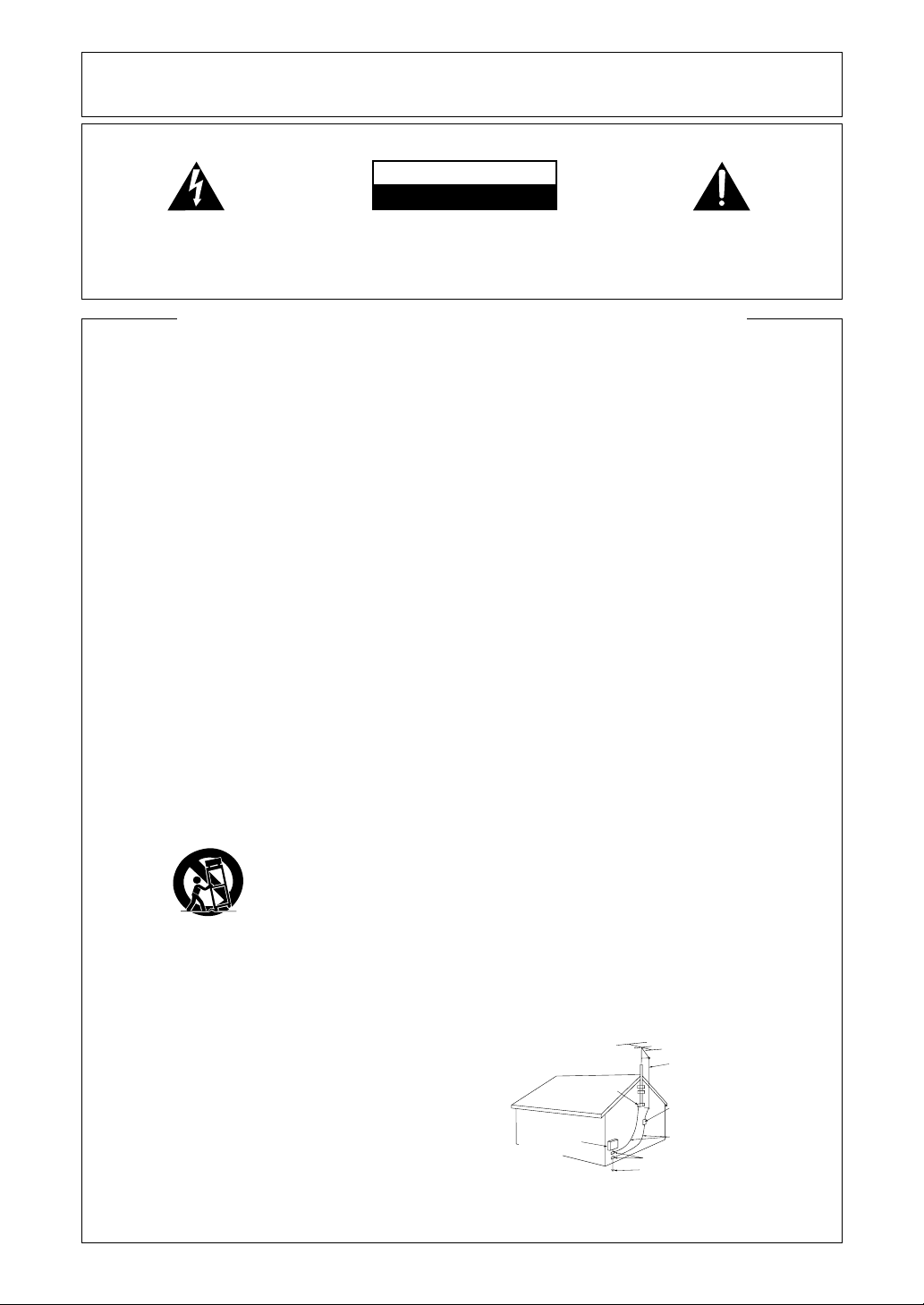
OUTDOOR ANTENNA GROUNDING — If an
outside antenna or cable system is connected
to the product, be sure the antenna or cable
system is grounded so as to provide some
protection against voltage surges and built-up
static charges. Article 810 of the National
Electrical Code, ANSI/NFPA 70, provides
information with regard to proper grounding of
the mast and supporting structure, grounding
of the lead-in wire to an antenna discharge
unit, size of grounding conductors, location of
antenna-discharge unit, connection to
grounding electrodes, and requirements for
the grounding electrode. See Figure A.
LIGHTNING — For added protection for this
product during a lightning storm, or when it is
left unattended and unused for long periods of
time, unplug it from the wall outlet and
disconnect the antenna or cable system. This
will prevent damage to the product due to
lightning and power-line surges.
POWER LINES — An outside antenna system
should not be located in the vicinity of overhead
power lines or other electric light or power
circuits, or where it can fall into such power
lines or circuits. When installing an outside
antenna system, extreme care should be taken
to keep from touching such power lines or
circuits as contact with them might be fatal.
OVERLOADING — Do not overload wall outlets,
extension cords, or integral convenience
receptacles as this can result in a risk of fire or
electric shock.
OBJECT AND LIQUID ENTRY — Never push
objects of any kind into this product through
openings as they may touch dangerous voltage
points or short-out parts that could result in a
fire or electric shock. Never spill liquid of any
kind on the product.
SERVICING — Do not attempt to service this
product yourself as opening or removing
covers may expose you to dangerous voltage
or other hazards. Refer all servicing to qualified
service personnel.
DAMAGE REQUIRING SERVICE — Unplug this
product from the wall outlet and refer servicing
to qualified service personnel under the
following conditions:
• When the power-supply cord or plug is
damaged.
• If liquid has been spilled, or objects have fallen
into the product.
• If the product has been exposed to rain or
water.
• If the product does not operate normally by
following the operating instructions. Adjust
only those controls that are covered by the
operating instructions as an improper
adjustment of other controls may result in
damage and will often require extensive work
by a qualified technician to restore the product
to its normal operation.
• If the product has been dropped or damaged
in any way.
• When the product exhibits a distinct change in
performance — this indicates a need for
service.
REPLACEMENT PARTS — When replacement
parts are required, be sure the service
technician has used replacement parts
specified by the manufacturer or have the
same characteristics as the original part.
Unauthorized substitutions may result in fire,
electric shock, or other hazards.
SAFETY CHECK — Upon completion of any
service or repairs to this product, ask the
service technician to perform safety checks to
determine that the product is in proper
operating condition.
WALL OR CEILING MOUNTING — The product
should not be mounted to a wall or ceiling.
HEAT — The product should be situated away
from heat sources such as radiators, heat
registers, stoves, or other products (including
amplifiers) that produce heat.
IMPORTANT SAFETY INSTRUCTIONS
POWER SERVICE GROUNDING
ELECTRODE SYSTEM
(NEC ART 250, PART H)
GROUND CLAMPS
GROUNDING CONDUCTORS
(NEC SECTION 810-21)
ANTENNA
DISCHARGE UNIT
(NEC SECTION 810-20)
GROUND
CLAMP
Fig. A
NEC — NATIONAL ELECTRICAL CODE
ANTENNA
LEAD IN WIRE
ELECTRIC
SERVICE
EQUIPMENT

4
Features of This Player
Compatible with DVD, Video CD
and CD formats
DVD, Video CD and CD discs that display the logos
shown below can be played back on PIONEER DVD
players. For more information on discs compatible with
this player, refer to the table below.
The disc format logos shown above are found on disc
labels or on disc jackets.
• To prevent malfunction, do not use an 8 cm (3 in.)
adaptor (for CDs).
• Discs other than the ones indicated above cannot be
played on this unit.
• DVDs that have incompatible region numbers, DVD-
Audio, DVD-ROM, and CD-ROM cannot be played on
this unit. The region number of the player can be
found on the rear panel.
* Playing recordable CDs
• Note that this unit cannot record onto recordable discs.
• This unit can play music-use CD-R and CD-RW discs.
However, depending on the condition of the CD-Recorder
and the disc, you may find that not all discs will play
successfully. (For example, if the disc is scratched or
dirty, or if the player’s pickup lens is dirty.)
12 cm (5in.)/
single-sided
12 cm (5in.)/
double-sided
8 cm (3 in.)/
single-sided
8 cm (3 in.)/
double-sided
1 layer
2 layer
1 layer
2 layer
1 layer
2 layer
1 layer
2 layer
DVD VIDEO DVD VIDEO
Types of playable
discs and their marks
Diameter/
Playable sides Playback time
Digital audio
Digital video
(MPEG 2)
133 min.
242 min.
266 min.
484 min.
VIDEO CD
CD
Digital audio
Digital video
(MPEG 2)
DVD VIDEO
VIDEO CD
CD
41 min.
75 min.
82 min.
150 min.
VIDEO CD single
CD single
Digital audio
Digital video
(MPEG 1)
Max. 74
minutes
Digital audio
Digital video
(MPEG 1)
Max. 20
minutes
Digital audio
Max. 74
minutes
12 cm (5 in.)/
single-sided
8 cm (3 in.)/
single-sided
12 cm (5 in.)/
single-sided
8 cm (3 in.)/
single-sided
Digital audio
Max. 20
minutes
*
*
We
Want You
LISTENING
For A Lifetime
Selecting fine audio equipment such as the unit you’ve just
purchased is only the start of your musical enjoyment. Now
it’s time to consider how you can maximize the fun and
excitement your equipment offers. This manufacturer and
the Electronic Industries Association’s Consumer Electronics
Group want you to get the most out of your equipment by
playing it at a safe level. One that lets the sound come through
loud and clear without annoying blaring or distortion-and,
most importantly, without affecting your sensitive hearing.
Sound can be deceiving. Over time your hearing “comfort
level” adapts to higher volumes of sound. So what sounds
“normal” can actually be loud and harmful to your hearing.
Guard against this by setting your equipment at a safe level
BEFORE your hearing adapts.
To establish a safe level:
• Start your volume control at a low setting.
• Slowly increase the sound until you can hear it comfortably
and clearly, and without distortion.
Once you have established a comfortable sound level:
• Set the dial and leave it there.
Taking a minute to do this now will help to prevent hearing
damage or loss in the future. After all, we want you listening
for a lifetime.
We Want You Listening For A
Lifetime
Used wisely, your new sound equipment will provide a
lifetime of fun and enjoyment. Since hearing damage from
loud noise is often undetectable until it is too late, this
manufacturer and the Electronic Industries Association’s
Consumer Electronics Group recommend you avoid prolonged
exposure to excessive noise. This list of sound levels is
included for your protection.
Decibel
Level Example
30 Quiet library, soft whispers
40 Living room, refrigerator, bedroom away from traffic
50 Light traffic, normal conversation, quiet office
60 Air conditioner at 20 feet, sewing machine
70 Vacuum cleaner, hair dryer, noisy restaurant
80 Average city traffic, garbage disposals, alarm clock
at two feet.
THE FOLLOWING NOISES CAN BE
DANGEROUS UNDER CONSTANT EXPOSURE
90 Subway, motorcycle, truck traffic, lawn mower
100 Garbage truck, chain saw, pneumatic drill
120 Rock band concert in front of speakers, thunderclap
140 Gunshot blast, jet plane
180 Rocket launching pad
Information courtesy of the Deafness Research Foundation.
We
Want You
LISTENING
For A Lifetime
EST 1924
EIA
E
L
E
C
T
R
O
N
I
C
I
N
D
U
S
T
R
I
E
S
•
A
S
S
O
C
I
A
T
I
O
N
•
EST 1924
EIA
E
L
E
C
T
R
O
N
I
C
I
N
D
U
S
T
R
I
E
S
•
A
S
S
O
C
I
A
T
I
O
N
•
5
Smooth variable speed scanning in
forward and reverse directions
This player incorporates technology that enables smooth
playback of DVDs and Video CDs not only at different
speeds but also in both forward and reverse directions.
Control the direction and scanning speeds from 1/16
normal play speed to extremely quick scanning using the
MULTI DIAL on the remote control (page 46).
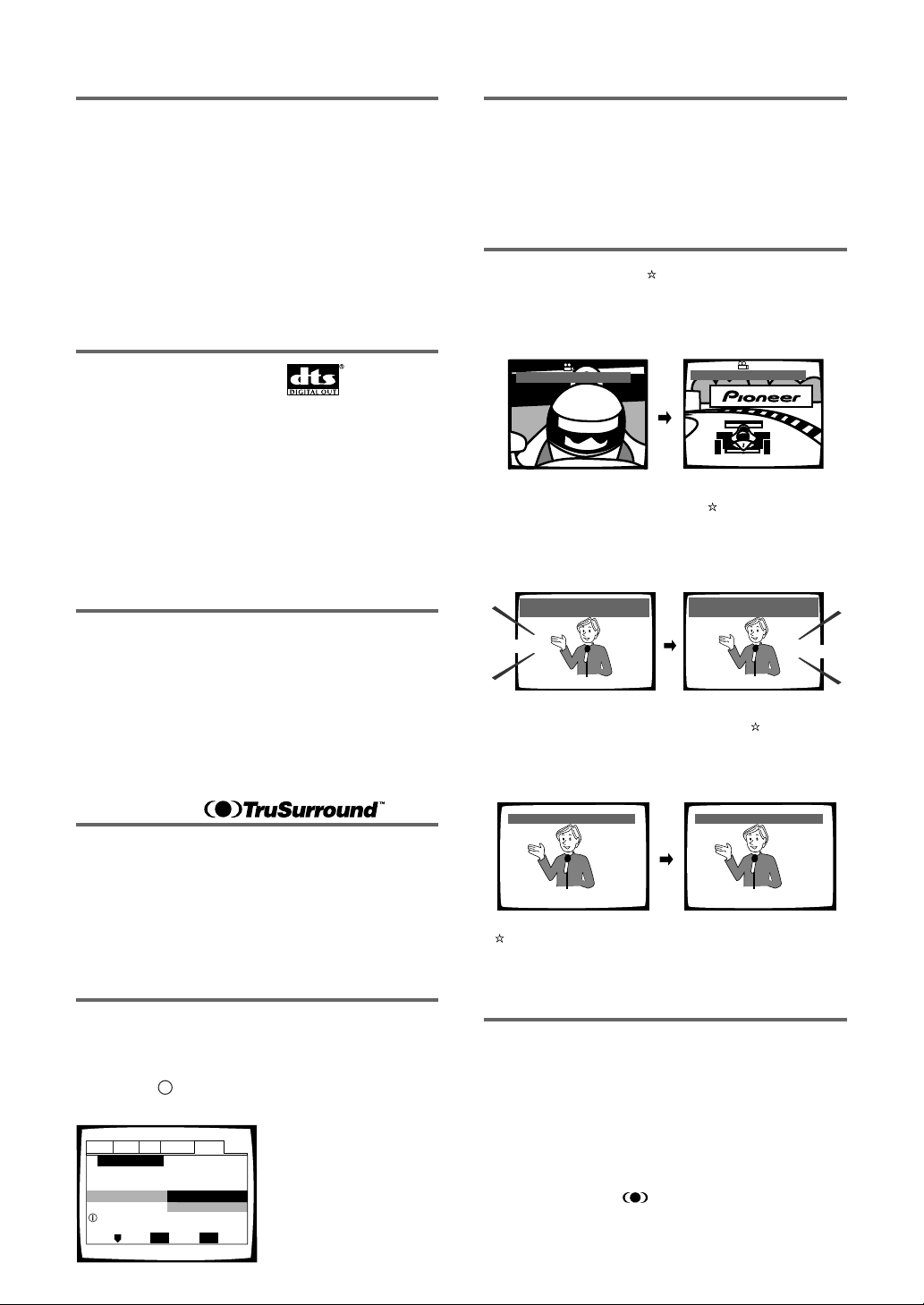
Wide range of DVD viewing options
Multi-Angle (page 34)
You can view scenes from different camera angles when
watching movies or other media with multiple angle
playback available.
Multiple Languages (page 35)
You can select the language on when watching movies
or other media that have multiple language and/or audio
soundtracks recorded on them.
Multi-Language Subtitles (page 37)
You can select a subtitle language or turn subtitles off
when watching movies or other media with subtitles
available.
This mark indicates this may not be possible with certain
discs.
Energy-saving design
This unit is designed to use less than 1 W of energy
when this player is in standby mode.
Audio : 1 English
Dolby Digital
5.1CH
Audio : 2 Spanish
HELLO
HOLA
Dolby Digital
5.1CH
HELLO!
HOLA!
Subtitle :1 English Subtitle :2 Spanish
ANGLE : 3/4
ANGLE : 2/4
Answer a few questions and
have all the necessary audio,
video, and on-screen
language adjustments set
automatically by the player
using the Setup Navigator
(page 19).
Audio1 Audio2 GeneralLanguageVideo
Setup Navigator
Move
Exit
SETUP
Select
ENTER
Setup using the Setup Navigator
Setup Navigator
Auto Start Off
Start
525 line digital progressive-scan
component video output
Compared to standard interlaced video, progressive scan
effectively doubles the amount of video information fed
to your TV or monitor. The result is a stable, flicker-free
image. (Check your TV/monitor for compatibility with this
feature.)
For the very highest picture quality, try watching a movie
on DVD-Video on a progressive-scan compatible TV.
The DV-37 offers complete flexibility and compatibility
with all types of AV equipment with composite video and
S-Video outputs, as well as component video outs.
Compatible with a wide range of
DVD digital audio output formats
DVDs are recorded in one of four types of digital audio
formats (as of October 1998). The digital audio output
jacks of this player output Dolby Digital*, DTS**, MPEG,
and linear PCM digital bitstreams.
This player has a function that converts Dolby Digital and
MPEG audio formats into the linear PCM format. This
allows playback of DVDs recorded in Dolby Digital and
MPEG without the need for a decoder.
Digital Noise Reduction PRO
(Video Quality Enhancer)
This new type of DNR (Digital Noise Reduction) for
encoding video (called VQE or Video Quality Enhancer)
enables you to adjust the video settings on a more
detailed and exact level. There are three possible
settings to choose from. These include: TV (CRT),
Projector, and Professional. This technology can
remember which setting you’ve chosen and employ it at
the proper time.
TruSurround and Virtual Dolby
Digital
TruSurround*** uses technology that simulates
multichannel surround sound using only two speakers.
Virtual Dolby Digital works in conjunction with Dolby
Digital audio sources to create a realistic surround
sound. Virtual Dolby Digital is selected automatically
when Dolby Digital sources are loaded.
Easy setup and adjustment using
on-screen menus
Press SETUP on the remote control to open the Setup
screen and you’ll find setting up and adjusting the
system easy to do with on-screen menus conveniently
organized and arranged. Additionally, on-screen
information (
i
) appears to clarify the functions and
explain the options available.
1
* Manufactured under license from Dolby Laboratories.
“Dolby” and the double-D symbol are trademarks of Dolby
Laboratories. Confidential unpublished works, © 1992-1997
Dolby Laboratories. All rights reserved.
** “DTS” is trademarks of Digital Theater Systems, Inc.
***TruSurround and the
symbol are trademarks of SRS
Labs, Inc. in the United States and selected foreign
countries. TruSurround technology is incorporated under
license from SRS Labs, Inc.
6
How to Proceed in This
Manual
DVD is an incredible format that presents the highest
quality digital audio and video available today. The
amount of information that can be recorded onto a DVD
disc is remarkable, allowing it to offer numerous
functions and features available with no other format.
Because using the DVD player and DVDs may be
confusing at first, following the order below should help
you get through the important stages of getting set up
so you can start using your player as soon as possible.
Get familiar with the player.
Refer to the section
“Before Using”
on page 8 to
confirm that all the accessories were included with the
player. If you are new to DVD, it might be beneficial for
you to go through the
“Names and Functions”
section
starting on page 9 to get familiar with the parts and
buttons on the main unit and remote control as they will
be referred to throughout this manual.
There is also a list of terms that can be found on page 62
if you are having trouble understanding some of the
terminology associated with DVD.
Make the necessary connections.
No entertainment system seems to be set up exactly
the same way. The
“Making Connections”
section
starting on page 15 shows how video and audio
connections may be made to suit your home
entertainment system.
Set up the necessary player
menus.
Before you can begin to enjoy the benefits of the DVD
format, it is first necessary to set up the player to output
the video and audio information that corresponds to your
system. The section
“Setting Up the Player”
starting
on page 19 explains how to use the Setup Navigator, a
function that automatically sets up the player
corresponding to the answers given in a multiple-choice
on-screen procedure. The Setup screen menus,
described in the section starting on page 28, are also
used in a number of other functions. Learning the
procedure for operating these menus will make using
this player much easier and more enjoyable.
Play a disc.
When all the connections and setups have been made,
you are ready to play a DVD, Video CD, or CD with the
player. The section
“Getting Started Using Your DVD
Player”
starting on page 22 outlines the basic player
operations.
Enjoy the many features available.
Once you are comfortable using the basic player
functions, you are ready to take advantage of the various
options DVD and this player have to offer. The section
“Advanced Functions”
starting on page 40 describes
how to use the features available on many DVDs.
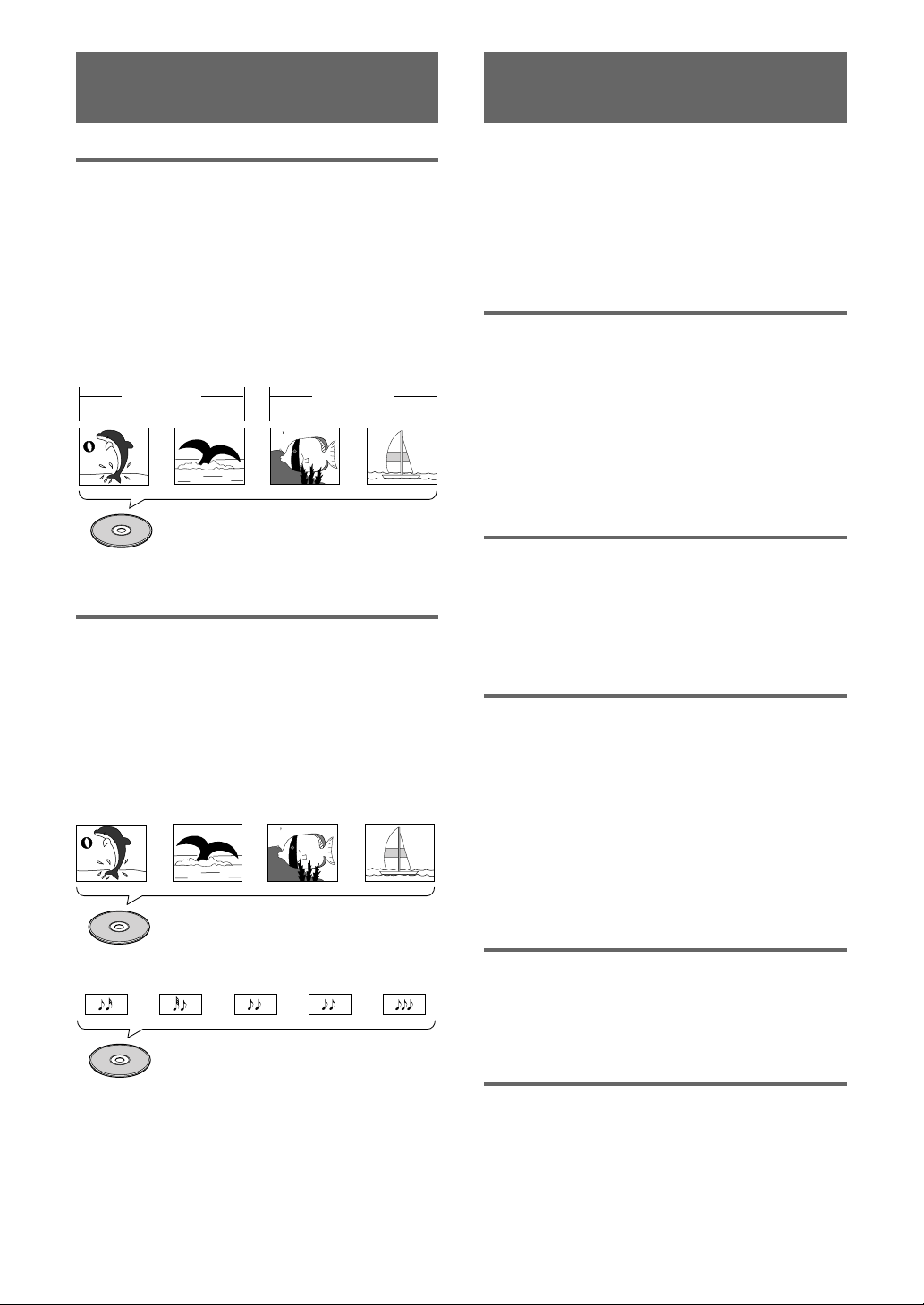
Differences in Disc
Composition
DVD
DVDs are divided into units referred to as titles, and
titles are divided into chapters. A DVD which contains a
movie may have only one title with many or no chapter
divisions. Karaoke DVDs may have many titles, assigning
a title to each song on the disc. Menu screens do not
belong to any title.
DVD player functions generally apply to titles on a disc or
chapters within a selected title. The player functions
available may also vary from title to title, depending on
the disc. When discs have a unique title division, it
should be noted that search and program functions may
be affected.
Video CD/CD
Video CDs and CDs are divided into units referred to as
tracks (Video CD tracks may also be referred to as
scenes). One song generally corresponds to one track.
Some tracks are further divided into units referred to as
indexes. Video CDs with PBC (Playback Control) also
contain menus recorded on the disc which enable easy
access to the contents of the disc.
When played back on a DVD player, both Video CDs and
CDs are considered to be a single title, regardless of the
number of tracks.
Title 1
Title 2
Chapter 1 Chapter 2
Chapter 2
DVD
Chapter 1
Video CD
Track 1 Track 2 Track 3 Track 4
CD
Track 2 Track 4Track 3Track 1 Track 5
7
Table of contents
Features of This Player ....................... 4
Differences in Disc Composition .....................6
How to Proceed in This Manual ......................6
Before Using ........................................ 8
Checking Accessories .....................................8
Preparing the Remote Control .........................8
Names and Functions ......................... 9
Front Panel ......................................................9
Display Window.............................................10
Rear Panel .....................................................11
Remote Control .............................................12
Making Connections ......................... 15
Connecting Your DVD Player .........................15
Audio Connections ........................................16
Video Connections.........................................17
System Control Connections .........................18
Setting Up the Player ....................... 19
Using the Setup Navigator.............................19
Getting Started Using Your DVD
Player.................................................. 22
Playing DVDs, Video CDs and CDs................22
Chapter (Track) Skip Forward/Skip Back ........24
Forward and Reverse Scanning .....................24
Resuming playback from where you stopped
.................................................................25
Stopping Playback and Switching Power Off
.................................................................25
Adjusting Audio and Video Settings
............................................................ 26
Using the Setup Screen Menus ....................26
Changing to the Setup Menu Mode ..............27
Setting the Digital Audio Output To Be
Compatible with Your AV Component......28
Getting Surround Sound from Stereo Speakers
.................................................................30
Adjusting the Dynamic Range of the Audio
Soundtrack ...............................................30
Setting the TV Screen Size ............................31
525 line Digital Progressive Scan Compatible
Video Output ............................................32
Switching the S-Video Output .......................33
Selecting the type of paused image to display
.................................................................33
Setting the position of the on-screen display
.................................................................33
Viewing from a Desired Camera Angle (Multi-
Angle) .......................................................34
Selecting the type of search mode................34
Setting the Language Options......... 35
Setting the on-screen display (OSD) language
.................................................................35
Setting Language and Subtitle Preferences in
the Setup Screen Menus .........................35
Changing the Audio Language (Multi-Language
Function) ..................................................36
Selecting a Subtitle Language (Multi-Language
Subtitles) ..................................................37
Advanced Functions ......................... 40
Setting the Parental Lock Level .....................40
Turning the Screen Saver On and Off ............42
Changing the Background Color of the Screen
.................................................................42
Adjusting the Video Quality (Digital Noise
Reduction) ................................................43
Still Frame/Slow Play/Frame Advance Playback
.................................................................45
Scanning in Forward and Reverse Directions at
Different Speeds ......................................46
Manual scanning using the Jog Mode...........46
Searching for a Title, Chapter, Track, or Location
on a Disc ..................................................47
Repeat Play.................................................... 48
Random Play..................................................49
Playback in a Desired Order (Program Play)
.................................................................50
Continuing Playback from a Specified Location
(Last Memory)..........................................53
Memorizing Regularly Used Menu Settings
(Function Memory)...................................54
Memorizing Settings for Often Viewed DVDs
(Condition Memory) .................................55
Viewing Disc Information ..............................56
Resetting the Player to System Settings.......57
Language Code List .......................................58
Additional Information ..................... 59
Disc Care .......................................................59
For Proper and Long Use of This Unit ...........59
Troubleshooting .............................................60
Terms .............................................................62
Specifications ................................................63
8
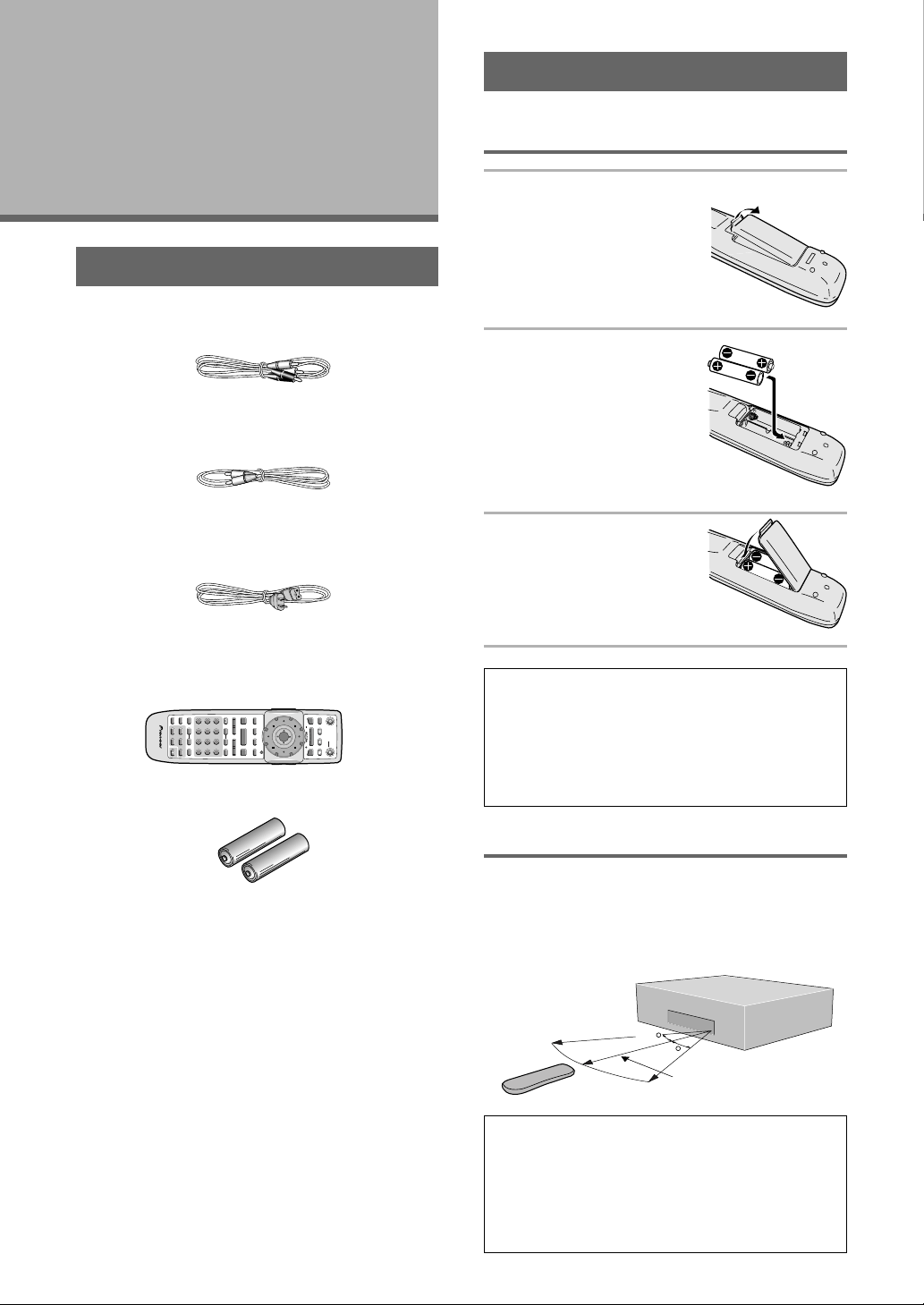
Preparing the Remote Control
Inserting batteries into the remote
control
1 While pushing the tab
on the battery
compartment cover
toward the center of
the remote, pull out in
the direction indicated
by the arrow.
2 Insert batteries.
Make sure to match the
plus (+) and minus
(–) polarity guides on the
batteries with the marks
inside the battery
compartment.
3 Close the cover.
Notes
• Do not mix old and new batteries.
• When replacing batteries, use all new batteries.
• When not using the remote control for a long period of time
(over 1 month), remove the batteries to avoid possible
damage from battery corrosion. If battery leakage occurs,
wipe the battery liquid from the battery component, then
insert new batteries.
Remote control operation
When operating the remote control, point it at the
remote sensor (Î) located on the player’s front panel.
The remote control can be used up to 23 feet (7 m) from
the player and within a 30° angle on each side of the
sensor.
Notes
• Exposing the remote sensor to direct sunlight or strong
light may cause faulty operation.
• If the CONTROL IN jack on the player’s rear panel is
connected to the CONTROL OUT jack of another
component, point the remote control at the other
component to operate the player. Operation will not be
possible when pointed at this player (page 18).
Before Using
Checking Accessories
Please confirm that the following were received with the
player.
Audio cord
Video cord
Power cord
Remote control unit
AA/R6P dry cell batteries
• When disposing of used batteries, please comply with
governmental regulations or environmental public
instruction’s rules that apply in your country or area.
H048 En
Operating instructions (this manual)
30
30
23feet (7m)
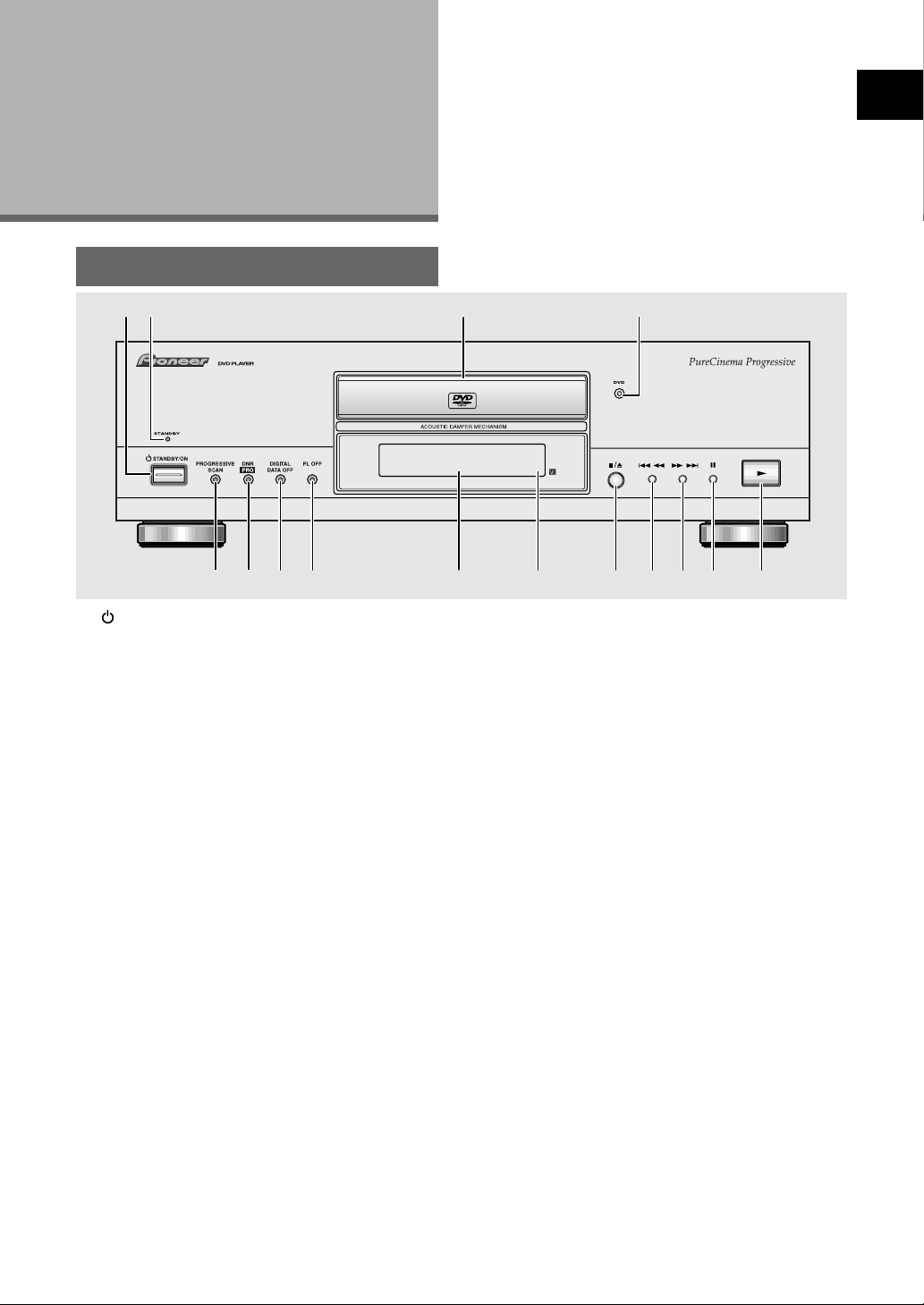
SEARCH MODESTEP / SLOWRETURN
PREVIOUS NEXT REV FWD
PAUSEPLAY
VIDEO
ADJUST
DIMMER JOG MODE
TOP
MENU
SET UP
DISPLAY AUDIO SUBTITLE ANGLE
OPEN /
CLOSE
FUNCTION
MEMORY
STOP
PROGRAM
CONDITION
MEMORY
LAST
MEMORY
REPEAT
VOLUME CHANNEL
TV CONTROL
RANDOM
MENU
ENTER
V.ADJ
FL
F.MEM
DISP
JOG
873
A-BRPT
RDM
LAST
Vol + CH + FUNC
CH –
Vol –
COND.
PGM
4¢ 1
eE
¡
Î
TV
0987
+
10
654
C321
CLEAR
9
Names and
Functions
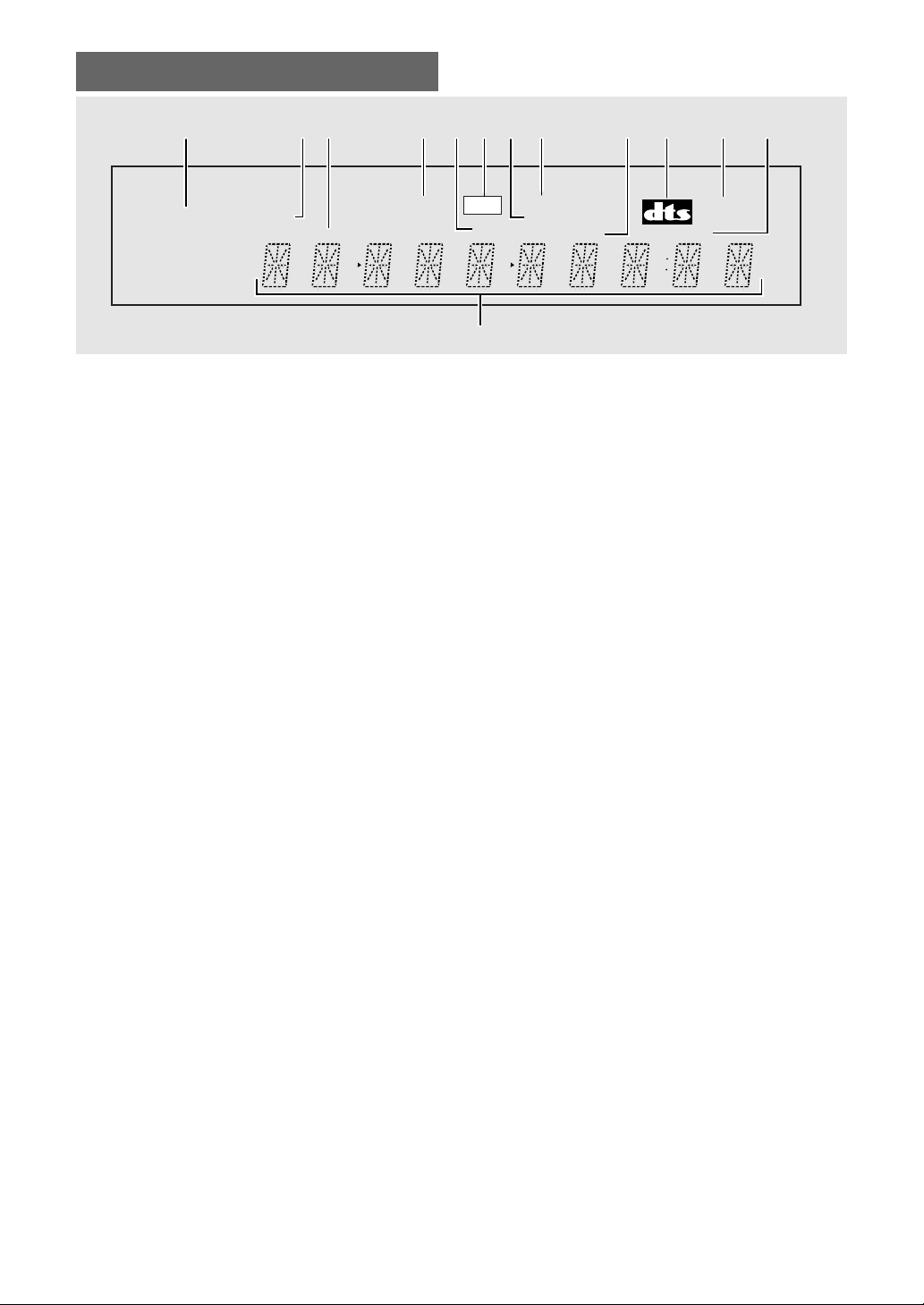
1 STANDBY/ON button
Press to switch the player on or to put in standby
(pages 22, 25).
2 STANDBY indicator
Lights when the player is in standby, using a
minimum amount of power to maintain system
settings (pages 22, 25).
3 Disc tray
When loading a disc, place discs in the disc tray with
the label side facing up (pages 22, 25).
4 DVD indicator
Lights when a DVD disc is loaded.
5 PROGRESSIVE SCAN indicator
Lights when unit is outputing 525 line progressive
scan (non-interlaced) video.
6 DNR PRO indicator
Lights when unit is set to DNR PRO (YNR and/or
CNR) (page 43).
7 DIGITAL DATA OFF indicator
Lights when unit is set to Digital Out Off (page 29).
8 FL OFF indicator
Lights when the fluorescent (FL) display is switched
off.
9 Display window
Displays system information (page 10).
0 Remote sensor
Point the remote control toward the remote sensor
to operate the player (page 8).
- 7/0 (stop/open/close) button
Press to open and close the disc tray (pages 22, 25).
Press to stop playback. Pressing once enables
playback to resume from a point shortly before the
location where it stopped. During playback, press
twice to open the disc tray (page 25).
= 4 1 (reverse) button
Press to go back to previous title/chapters/tracks.
Press and hold to perform reverse playback scanning
(pages 24).
~ ¡ ¢ (forward) button
Press to advance to title/chapters/tracks. Press and
hold to perform fast-forward scanning (page 24).
! 8 (pause) button
Press during playback to pause. Press again to
resume playback (page 45).
@ 3 (play) button
Press to start or resume playback (pages 22, 25).
Front Panel
BEFORE USING / NAMES AND FUNCTIONS
@
1
6
4
5
32
87-09~=!
10
Display Window
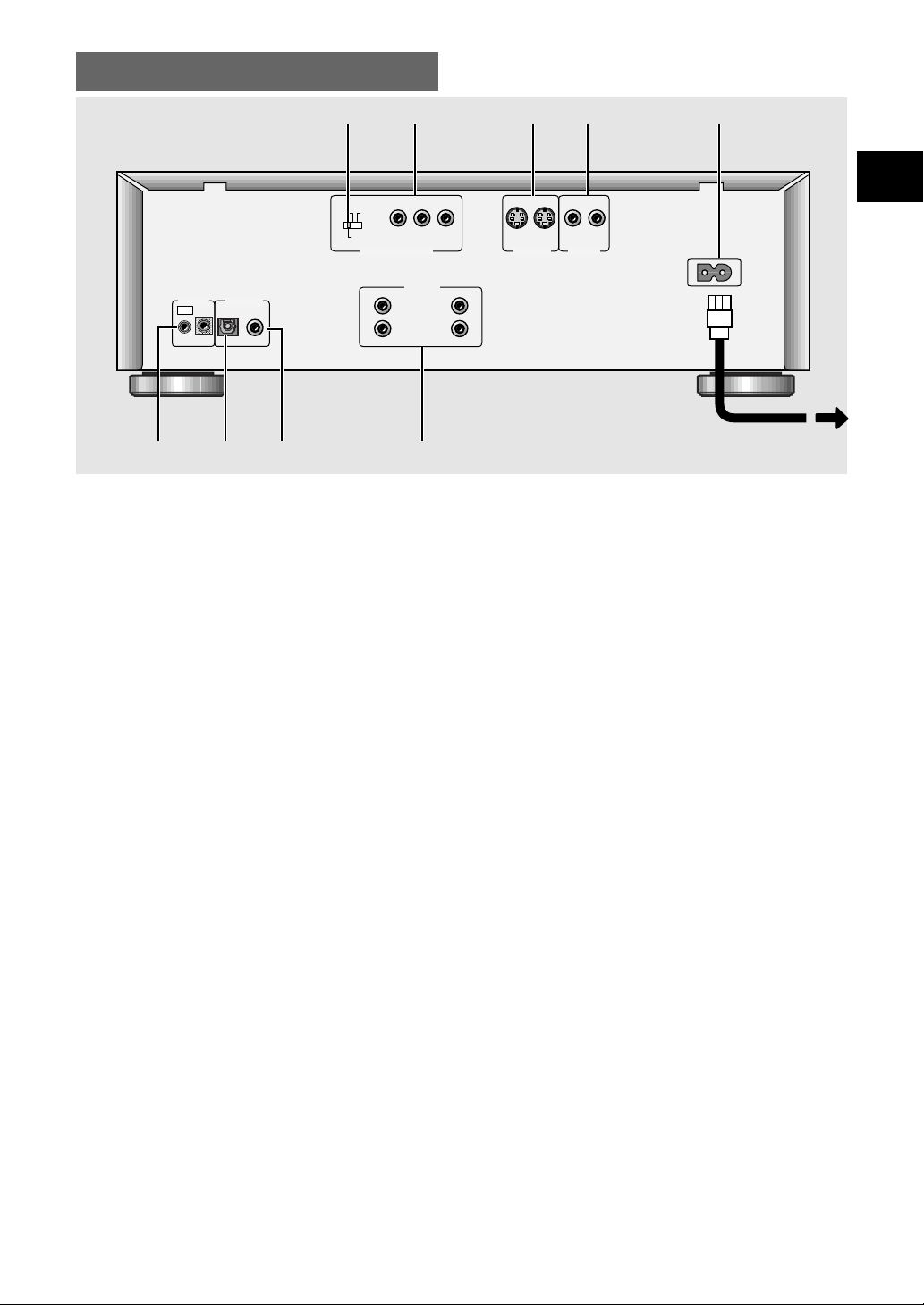
1 96 kHz indicator
Indicates a DVD disc containing high-sampling rate
(96 kHz) audio is playing.
2 ANGLE indicator
Indicates Multi-Angle playback is in progress (page
34).
3 TITLE indicator
Indicates a title number is being displayed.
4 REPEAT indicator
Indicates that the Repeat function is on and that the
current title, chapter, or track is being repeated (page
48).
5 TRK/CHP indicator
Indicates a track/chapter number is being displayed.
6 GUI indicator
Indicates an player menu operation is being
performed (page 19).
7 LAST MEMO indicator
Indicates the Last Memory location is recorded in
memory for the currently loaded DVD or Video CD
(page 53).
8 COND. MEMORY indicator
Indicates that Condition Memory settings are
memorized for the currently loaded DVD (page 55).
9 TOTAL indicator
Indicates that the disc in the player is stopped and
DISPLAY has been pressed (page 56).
0 DTS indicator
Indicates DTS audio playback.
- DOLBY DIGITAL indicator
Indicates Dolby Digital audio playback.
= REMAIN indicator
Indicates that the remaining playback time of a title
or chapter/track is being displayed.
~ Counter display
Displays the playback mode, type of disc, title and
chapter/track numbers, playback time, etc.
COND. MEMORY
REPEAT DOLBY
DIGITAL
TITLE
TRK
CHP
TOTAL REMAIN
LAST MEMORY
ANGLE96 kHz
GUI
1 75 6
~
432809 -=
11
Rear Panel
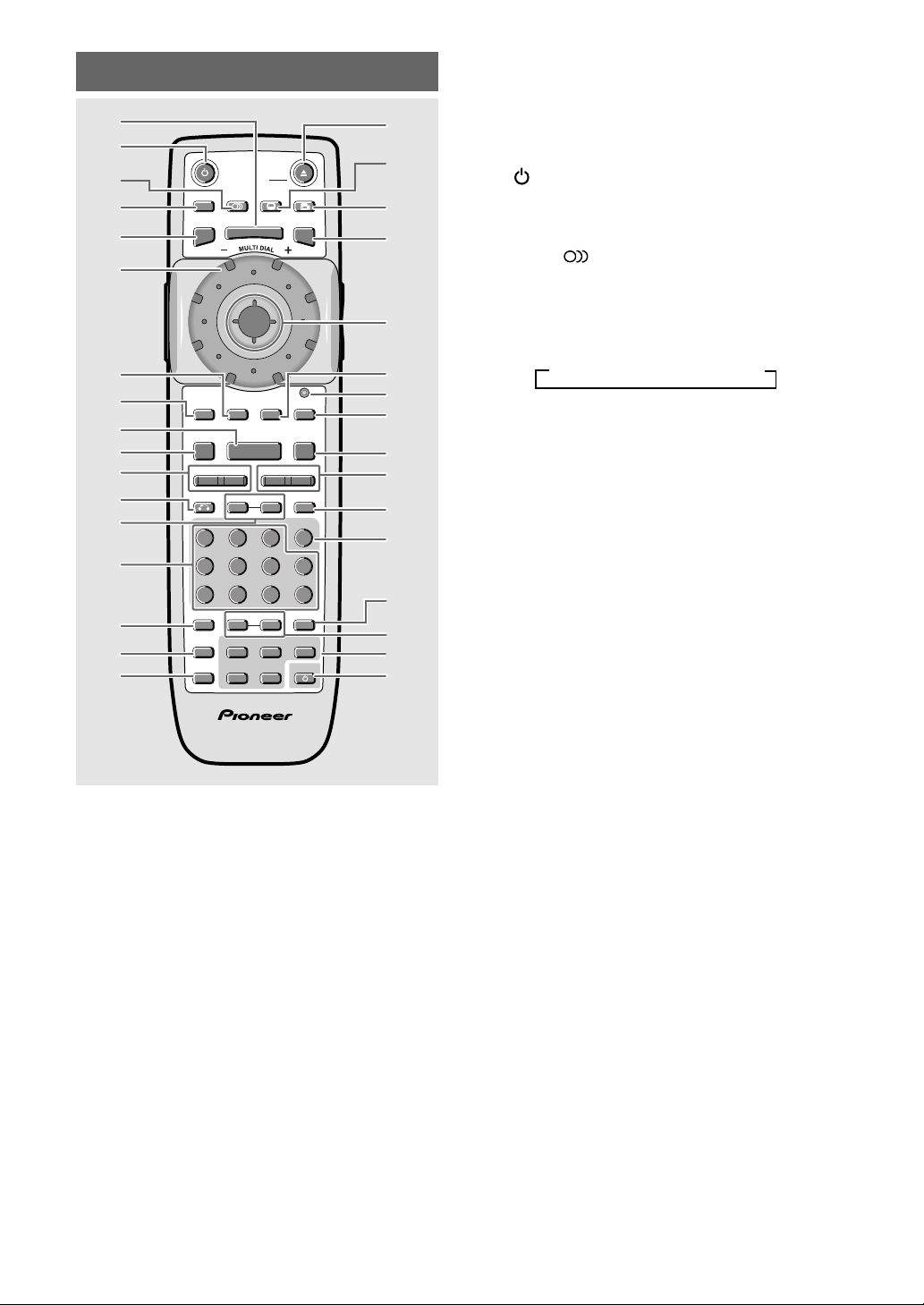
1 COMPONENT VIDEO OUT switch
You only need to set this switch if you’re using an
NTSC TV/monitor connected via the component
video outputs of this player. This player can output
NTSC video as a standard interlaced signal (the
525i(480i) setting), or as a non-interlaced, or
progressive scan signal (the 525p(480p) setting).
If your TV/monitor is compatible with progressive
scan video, set this switch to either 525p(480p) or
MENU SELECT. When set to MENU SELECT, you
can use the on-screen Setup menu to switch
between progressive and interlaced video output.
If your TV/monitor is not progressive scan
compatible, you will not be able to see any picture if
this player is set to output progressive scan video. In
this case, set the switch to 525i(480i) to restore the
picture.
2 COMPONENT VIDEO OUT jacks
(Interlace/Progressive-scan)
If your TV or monitor has component video inputs,
you can produce a higher quality picture on your TV
or monitor by connecting to the component video
outputs on this unit (page 17).
3 S-VIDEO OUT jacks
If your TV or monitor has an S-video input, clear
picture reproduction is possible by connecting the
player to your TV or monitor via the S-Video jack
(page 17).
You can switch between [S1] and [S2] S-video
output from the Setup menu (page 33).
4 VIDEO OUT jacks
Connect to the video input on a TV or monitor or AV
amplifier or receiver with video input capability.
(pages 15, 17).
5 AC IN power cord connection terminal
Use to connect the power cord to the wall outlet
(page 15).
6 CONTROL IN/OUT jacks
Use to connect this player to another component
bearing the Pioneer Î mark. This lets you control
this unit as though it were a component in a system.
Player operations are then performed by pointing the
remote control at the component that the player is
connect to (page 18).
7 DIGITAL OUT jack (optical (OPT))
Use to output the digital audio signal recorded on
discs. You can output the digital signal via either
optical output jack to an AV amplifier or receiver
(page 16).
8 DIGITAL OUT jack (coaxial (COAX))
Use to output the digital audio signal recorded on
discs. You can output the digital signal via either
coaxial output jack to an AV amplifier or receiver
(page 16).
9 AUDIO OUT jacks
Use to output two-channel audio (analog) to the
audio stereo inputs on a TV or stereo amplifier. If you
are connecting to a receiver that has both digital and
analog input jacks for DVD player connection, it may
be beneficial to make both connections (pages 15,
16).
NAMES AND FUNCTIONS
RL
Y
P
BR
P
525i
(480i)
525p
(480p)
MENU
SELECT
COAX
OPT
AC IN
AUDIO OUT
S-VIDEO OUT
CONTROL DIGITAL OUT
INOUT
COMPONENT VIDEO OUT
1
1
2
2
1
2
1
2
VIDEO OUT
12 34 5
678 9
12
Remote Control
=
Stereo = 1/L (Left) = 2/R (Right)
SEARCH MODESTEP / SLOWRETURN
PREVIOUS NEXT REV FWD
PAUSEPLAY
VIDEO
ADJUST
DIMMER JOG MODE
TOP
MENU
SET UP
DISPLAY AUDIO SUBTITLE ANGLE
OPEN /
CLOSE
STANDBY
/ON
FUNCTION
MEMORY
STOP
PROGRAM
CONDITION
MEMORY
LAST
MEMORY
REPEAT
VOLUME CHANNEL
TV CONTROL
RANDOM
MENU
ENTER
V.ADJ
FL
F.MEM
DISP
JOG
873
A-BRPT
RDM
LAST
Vol + CH + FUNC
CH –
Vol –
COND.
PGM
4¢ 1
eE
¡
Î
TV
0987
+
10
654
C321
CLEAR
(*
~
%
)
7
*=
9
^
™
+
_
¡
¢
¶
£
•
-
@
0
8
&
**
*!
4
*5
6
3
#
$
2
*1
§
∞
(Buttons indicated with * are used for menu operation.)
1 MENU button*
Use to display or close the DVD menu screen (page
23).
2 (standby/on) button
Press to switch the player on or to put in standby
(pages 22, 25).
3 AUDIO button
Press repeatedly to select one of the audio
languages and/or audio formats programmed on a
DVD (page 35, 36).
For Video CD and CD, each press changes the audio
output as follows.
4 DISPLAY (DISP) button
Press during playback to display statistical disc
information. Press repeatedly to display different
information (page 56).
5 SETUP button*
Press when the player is in either play or stop mode
to open and close the Setup screen (pages 19, 26).
6 MULTI DIAL
Use to control the rate of playback according to the
speed at which MULTI DIAL is turned. When the
Jog Mode is on, frame by frame scanning in both
forword and reverse directions is possible (page 46).
7 VIDEO ADJUST (V.ADJ) button
Various attributes of the video presentation can be
adjusted to suit the program type or personal
preferences. Press VIDEO ADJUST (V.ADJ) to
display the on-screen options (page 43).
8 FUNCTION MEMORY (F.MEM) button
Press to incorporate a menu item into a shortcut list
that is stored in memory and can be called up at any
time (page 54).
9 PLAY 3 button
Press to start disc playback (page 22).
0 STOP 7 button
Press to stop playback. Pressing once enables
playback to resume from a point shortly before the
location where it was stopped. Pressing twice
causes the disc to return to the beginning of the disc
when playback starts again (page 22).
- PREVIOUS 4/NEXT ¢ buttons
During playback, press PREVIOUS 4 to go back to
a previous chapter/track and NEXT ¢ to advance
to the next chapter/track (page 24).
All of the command buttons on the remote control glow
in the dark for easy control of the player even in the dark.
Hold the unit under a light for optimal results.

13
= RETURN button*
Use to go one menu back (current settings are
maintained). Use RETURN when you do not
want to change the option setting in a menu (pages
19, 23, 27).
~ STEP/SLOW e/E buttons
Press STEP/SLOW E during playback to view
slow playback. In pause mode, press STEP/SLOW
E to advance DVDs and Video CDs frame by
frame and STEP/SLOW e to back up a DVD a few
frame by frame at a time (page 45).
! Number buttons (1-9, 0, +10)*
Use to perform direct title and chapter/track
searches, and to input numerical values.
@ RANDOM button
Press to play titles/chapters/tracks in random order
(page 49).
# LAST MEMORY button
You can resume DVD or Video CD playback from the
point you last watched even if the disc is removed
from the player. Press LAST MEMORY during
playback to set a Last Memory point. When you
want to resume playback of that disc, press LAST
MEMORY in the stop mode and playback starts
from the memorized point. Last Memory locations
can be stored for up to 5 DVDs and 1 Video CD (page
53).
$ CONDITION MEMORY button
You can store in memory the settings for up to 15
DVDs. Press CONDITION MEMORY during DVD
playback to memorize the settings (page 55).
% OPEN/CLOSE 0 button
Press to open or close the disc tray (pages 22, 25).
^ SUBTITLE button
Press repeatedly to select one of the subtitle
languages programmed on a DVD or to turn the
subtitles off (page 37).
& ANGLE button
Some DVDs are recorded with various camera angle
playback options. Press ANGLE repeatedly to
display different camera angles (page 34).
* TOP MENU button*
Press to call up the top menu programmed on the
DVD. Depending on the DVD, the top menu may be
identical to the DVD menu (page 23).
( Cursor control joystick*
Use to move the cursor through the options on
menu screens and to change settings.
ENTER button*
Press to implement settings selected with the
cursor control joystick or to set items highlighted in a
menu.
) DIMMER (FL) button
Press to change the brightness of the FL display and
disc illumination in four steps: maximum brightness,
medium brightness, minimum brightness, and off.
When the FL display is turned off, the FL OFF
indicator on the front panel lights.
_ JOG MODE indicator
Lights red when the player is in the Jog Mode (page
46).
+ JOG MODE (JOG) button
Press to put the player in the Jog Mode. When this
mode is on, rotate MULTI DIAL clockwise to scan
frame by frame in the forword direction and
counterclockwise to scan frame by frame in the
reverse direction (page 46).
¡ PAUSE 8 button
Press to pause playback of a disc. Press again to
resume playback (page 45).
™ REV 1/FWD ¡ (fast reverse/ fast forward)
buttons
During playback of DVD and Video CD, press
FWD ¡ to perform fast forward scanning. Press
REV 1 to perform fast reverse scanning of DVD
and Video CD. When a CD is loaded, audio scanning
is performed (page 24).
£ SEARCH MODE button
Press to perform a title, chapter/track, elapsed time
search or time & frame search (page 47).
¢ CLEAR button
Works in conjunction with a number of player
functions. Use to cancel repeat and random
playback, and to edit programs (pages 37, 48, 50,
51, 53).
∞ PROGRAM button
You can program titles, chapters, or tracks to play
back in a desired order. Programs can be a
maximum of 24 steps. Additionally, DVD programs
for up to 24 discs can be stored in the player’s
memory for future use (page 50).
§ REPEAT button
Press once to repeat playback of current chapter/
track. Press twice to repeat playback of current title
(page 48).
A-B button
Press at the beginning and end of the section you
want to repeat or to mark a location you want to
return to (page 48).
NAMES AND FUNCTIONS
14
¶ TV CONTROL buttons
FUNC: Press FUNC to select the TV for
remote control operation.
CHANNEL: Use to select TV channel.
VOLUME: Use to adjust the volume.
• TV button
Press TV to turn the TV’s power on or put in
standby.
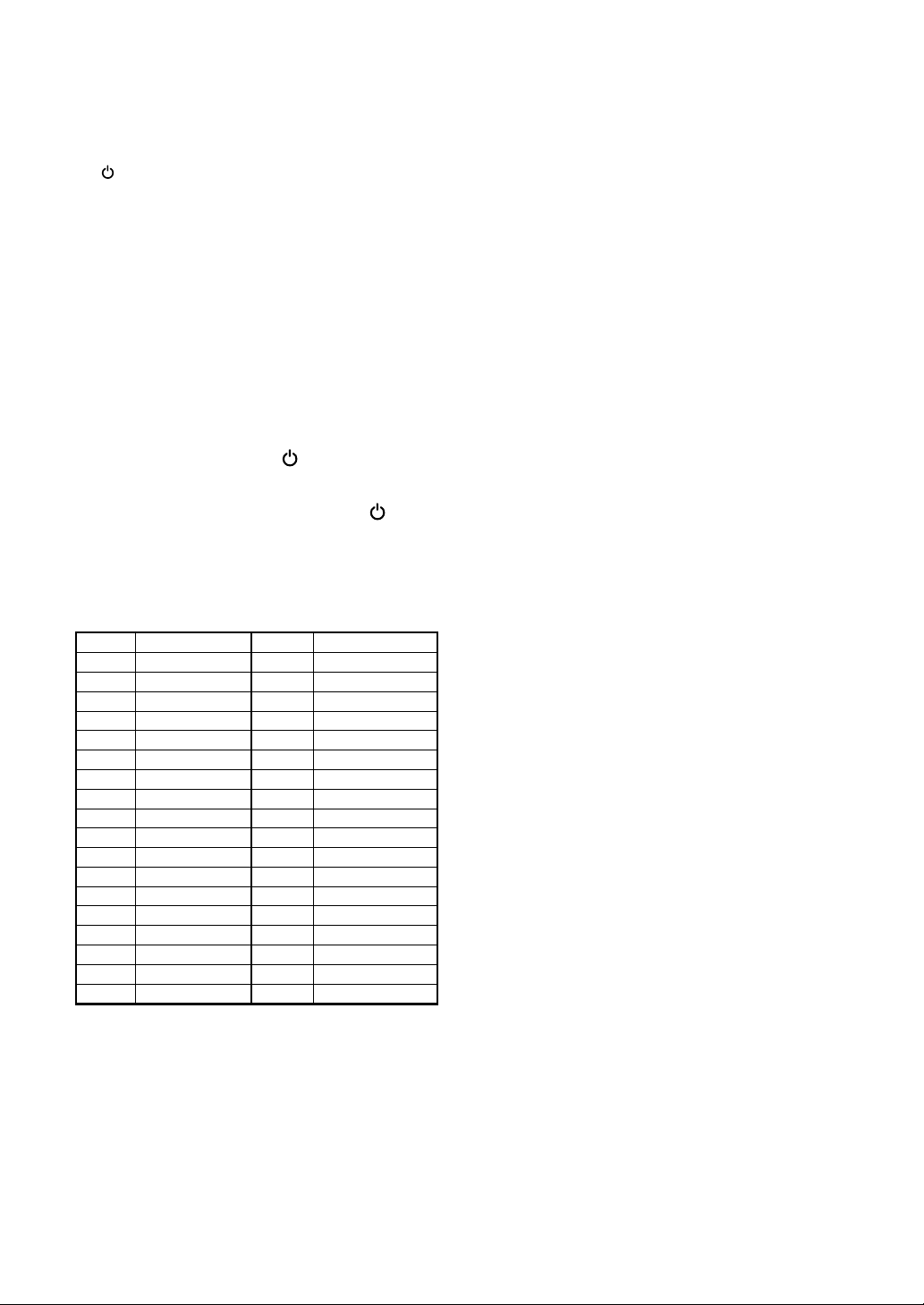
Setting up the Remote Control to TV.
1. Input the Manufacturer code.
While holiding down the CLEAR button, input the
two digit code from the table below that
corresponds to the make of your TV.
For example, If you have a Pioneer TV, press and
hold CLEAR, then press 0, 0 on the remote
control.
2. Confirm that the TV is responding to the
programmed code.
On the remote, press the TV button. If the TV
swithches on (or into standby if it was on
previously), then you have the correct code.
If nothing happens when you press the TV
button, start again from step 1 using a different
code.
• Some Manufacturer have several codes. Try
each one until you find the one that works.
18 RCA 5
19 SHARP 1
20 ZENITH 2
21 SANYO 1
22 PANASONIC 2
23 GOLDSTAR 2
24 HITACHI 2
25 HITACHI 3
26 TOSHIBA 2
27 SHARP 2
28 GE 2
29 MAGNAVOX 2
30 TOSHIBA 3
31 HITACHI 4
32 JVC 2
33 FUJITSU
34 PIONEER 2
35 GRANDIENTE
00 PIONEER 1
01 RCA 1
02 SHARP 3
03 ZENITH 1
04 SONY
05 TOSHIBA 1
06 HITACHI 1
07 PHILIPS
08 PANASONIC 1
09 MITSUBISHI
10 GOLDSTAR 1
11 GE 1
12 MAGNAVOX 1
13 JVC 1
14 SANYO 2
15 RCA 2
16 RCA 3
17 RCA 4
Code Manufacturer Code Manufacturer
Preset Code List

15
Making
Connections
Connection Guide
The illustration on this page shows the basic setup using
the audio and video cords included with this player. Use
this illustration as a guide to setting up your home
system.
An explanation of each type of audio and video
connection available can be found on pages 16 to 18 . To
determine the best audio and video connection setup for
your system, refer to the manuals supplied with the
components you are making connections to.
In addition to making physical connections to your TV or
monitor, it is also necessary to assign the TV screen size.
You can use the [Setup Navigator] in the Setup screen
General menu to set whether you are using a wide
screen or standard size TV or monitor (page 20).
Additionally, you can use the [TV Screen] setting in the
Setup screen Video menu (page 31).
Notes
• When making connections to this unit or when changing
connections, check that the unit is off by pressing
STANDBY/ON and unplug the power cord from the
power outlet.
• The video output on this player uses copy protect circuitry
to prevent the video playback on DVDs from being copied.
If you connect the player to a TV via a VCR, or record and
play back the contents of a disc with a VCR, the playback
picture may not be normal.
Connecting Your DVD Player
Unlike any other audiovisual media format, DVD offers a
wide array of audio and video output options which
allows playback to be enjoyed in any number of system
configurations from a standard TV with stereo audio
input to a home theater system with a TV or monitor and
full surround sound capabilities.
Audio cord
(Included)
Video cord
(Included)
TV or monitor
Make video connections from the VIDEO
OUT jacks on the player to the VIDEO IN
jack on the TV or monitor using the video
cord included with the player.
Make audio connections from the AUDIO
OUT jacks on the player to the AUDIO IN
jacks on the TV or monitor using the stereo
audio cord included with the player. Be sure
to match the color of the plugs with the
color of the jacks (red and white).
Finally, connect to a
power outlet.
NAMES AND FUNCTIONS / MAKING CONNECTIONS
RL
AUDIO IN
S-VIDEO INVIDEO IN
RL
Y
P
BR
P
525i
(480i)
525p
(480p)
MENU
SELECT
COAX
OPT
AC IN
AUDIO OUT
S-VIDEO OUT
CONTROL DIGITAL OUT
INOUT
COMPONENT VIDEO OUT
1
1
2
2
1
2
1
2
VIDEO OUT

16
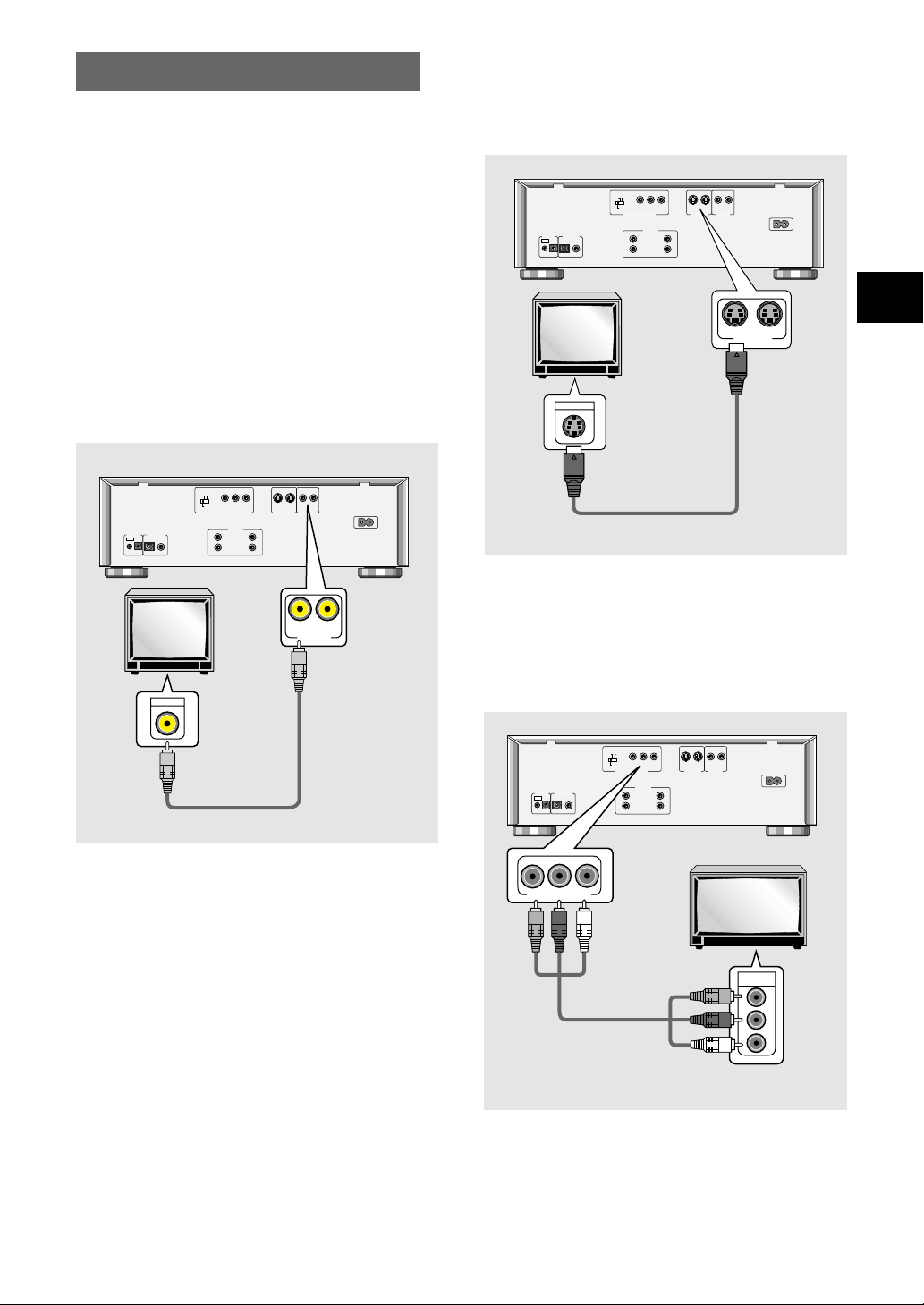
Audio Connections
This player features two digital (optical and coaxial) and
also analog audio output formats.
Digital Audio Connections:
You can enjoy the digital audio recorded on discs from
both optical digital and coaxial digital output jacks.
When making digital audio connections, do not
make connections from both the coaxial and optical
digital outputs to the same component.
When a DVD recorded in Dolby Digital, DTS, or MPEG is
loaded, noise will be output if you have made
connections via the digital audio jacks to a receiver or
amplifier that cannot decode a Dolby Digital, DTS, or
MPEG digital bitstream. In this case, be sure to set up
the Setup Navigator audio settings to best reflect the
type of system you are using (page 21). Additionally, the
digital audio settings can be adjusted manually in the
Setup screen Audio 1 menu (pages 28–29).
DIGITAL OUT (Optical)
The digital signal is transmitted as light pulses through a
fiber-optic cable.
• Use to connect to an AV amplifier or receiver with
built-in Dolby Digital, DTS, or MPEG decoder.
• Use a fiber-optic cable (not supplied) to connect the
DIGITAL OUT OPT (digital optical output) on the
player to the digital optical input on an AV amplifier or
receiver.
DIGITAL OUT (Coaxial)
The digital signal is transmitted electronically through a
coaxial cable.
• Use to connect to an AV amplifier or receiver with
built-in Dolby Digital, DTS, or MPEG decoder.
• Use a coaxial cable (not supplied) to connect the
DIGITAL OUT COAX (coaxial digital output) on the
player to the coaxial digital input on an AV amplifier or
receiver.
AV amplifier or receiver with
built-in Dolby Digital, DTS, or
MPEG decoder
RL
Y
P
BR
P
525i
(480i)
525p
(480p)
MENU
SELECT
COAX
OPT
AC IN
AUDIO OUT
S-VIDEO OUT
CONTROL DIGITAL OUT
INOUT
COMPONENT VIDEO OUT
1
1
2
2
1
2
1
2
VIDEO OUT
DIGITAL IN
COAX
OPT
DIGITAL OUT
Analog Audio Connection:
AUDIO OUT
• Make analog audio connections to a stereo amplifier
or receiver.
• Analog audio connections can also be made to a TV or
monitor with stereo input jacks.
• Use the supplied audio cord to connect the AUDIO
OUT on the player to the audio input on the stereo
amplifier or receiver.
• When making analog audio connections, be sure to
match the color of the plugs with the color of the
jacks (red and white).
RL
Y
P
BR
P
525i
(480i)
525p
(480p)
MENU
SELECT
COAX
OPT
AC IN
AUDIO OUT
S-VIDEO OUT
CONTROL DIGITAL OUT
INOUT
COMPONENT VIDEO OUT
1
1
2
2
1
2
1
2
VIDEO OUT
AUDIO IN
AUDIO OUT
L
R
22
11
LR
Stereo amplifier or receiver
AV amplifier or receiver with
built-in Dolby Digital, DTS, or
MPEG decoder
RL
Y
P
BR
P
525i
(480i)
525p
(480p)
MENU
SELECT
COAX
OPT
AC IN
AUDIO OUT
S-VIDEO OUT
CONTROL DIGITAL OUT
INOUT
COMPONENT VIDEO OUT
1
1
2
2
1
2
1
2
VIDEO OUT
DIGITAL IN
COAX
OPT
DIGITAL OUT
(Included)
17
MAKING CONNECTIONS
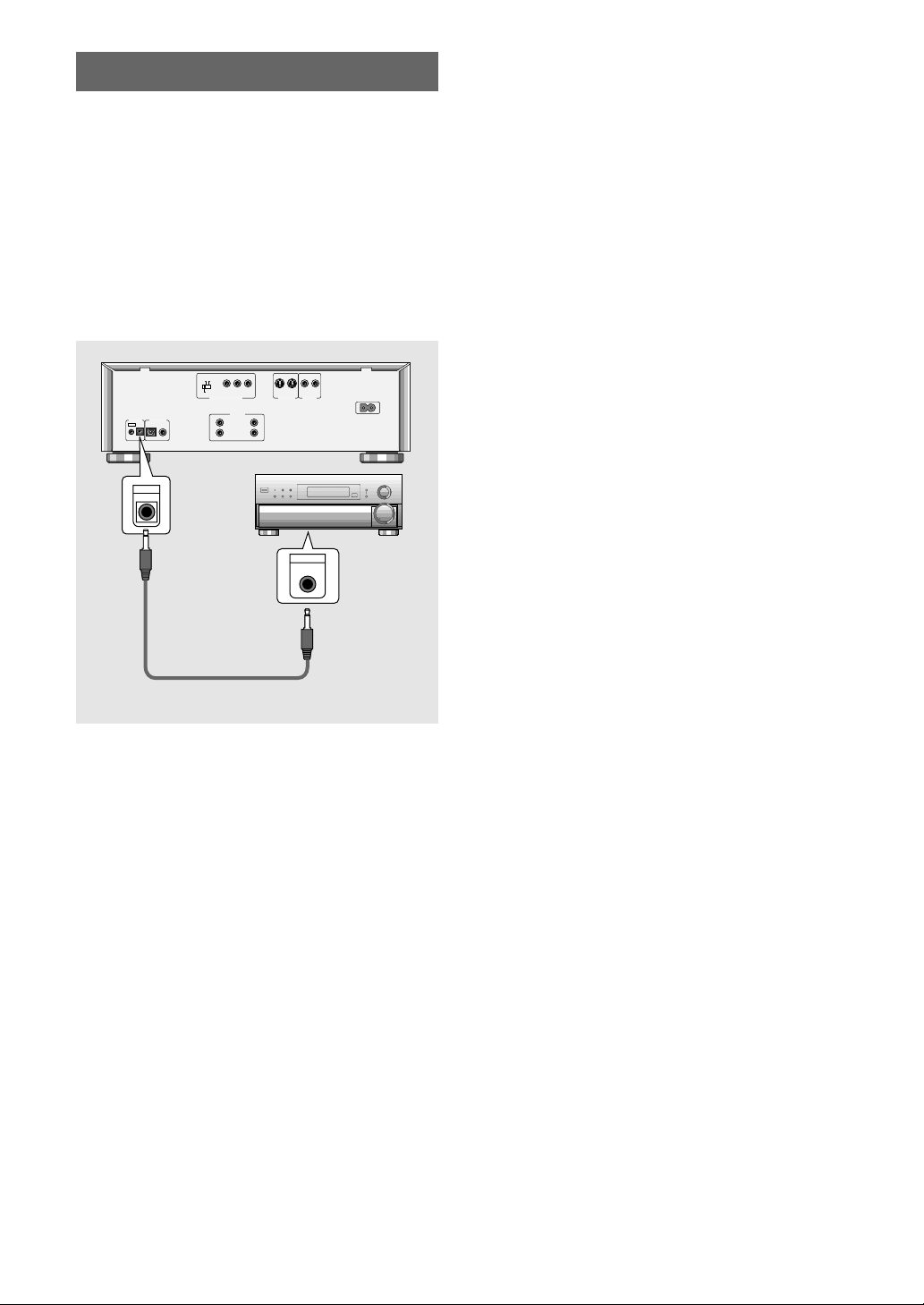
Video Connections
This player features S-video, composite, and
component video output possibilities.
Check the manual supplied with your TV or monitor to
determine the best possible connection for your
system.
In addition to making physical connections to your TV
or monitor, it is also necessary to assign the TV
screen size. You can use the [Setup Navigator] in
the Setup screen General to set whether you are
using a wide screen or standard size TV or monitor
(page 20). Additionally, you can use the [TV Screen]
setting in the Setup screen Video menu (page 31).
VIDEO OUT
• Make composite video connections to a standard
TV or monitor with a video input jack.
• Use the supplied video cable to connect one of the
VIDEO OUT jack on the player to the video input
on the TV or monitor.
• Be sure to match the color of the plug with the
color of the jack (yellow).
TV or monitor
RL
Y
P
BR
P
525i
(480i)
525p
(480p)
MENU
SELECT
COAX
OPT
AC IN
AUDIO OUT
S-VIDEO OUT
CONTROL DIGITAL OUT
INOUT
COMPONENT VIDEO OUT
1
1
2
2
1
2
1
2
VIDEO OUT
S-VIDEO IN
S-VIDEO OUT
12
TV or monitor
RL
Y
P
BR
P
525i
(480i)
525p
(480p)
MENU
SELECT
COAX
OPT
AC IN
AUDIO OUT
S-VIDEO OUT
CONTROL DIGITAL OUT
INOUT
COMPONENT VIDEO OUT
1
1
2
2
1
2
1
2
VIDEO OUT
VIDEO IN
VIDEO OUT
12
COMPONENT VIDEO OUT
• Make component video connections to a TV or
monitor with component inputs to produce a higher
quality video image.
• Use a component video cable or 3 video cords (not
supplied) to connect the COMPONENT VIDEO OUT
jacks on the player to the component jacks on the
monitor.
TV or monitor
RL
Y
P
BR
P
525i
(480i)
525p
(480p)
MENU
SELECT
COAX
OPT
AC IN
AUDIO OUT
S-VIDEO OUT
CONTROL DIGITAL OUT
INOUT
COMPONENT VIDEO OUT
1
1
2
2
1
2
1
2
VIDEO OUT
Y
P
B
P
R
COMPONENT
VIDEO IN
COMPONENT VIDEO OUT
YP
B
P
R
S-VIDEO OUT
• Make S-video connections to a TV or monitor with S-
video input to produce a high quality video image.
• Use an S-video cable (not supplied) to connect the S-
VIDEO OUT jack on the player to S-video input on the
TV or monitor.
(Included)
18
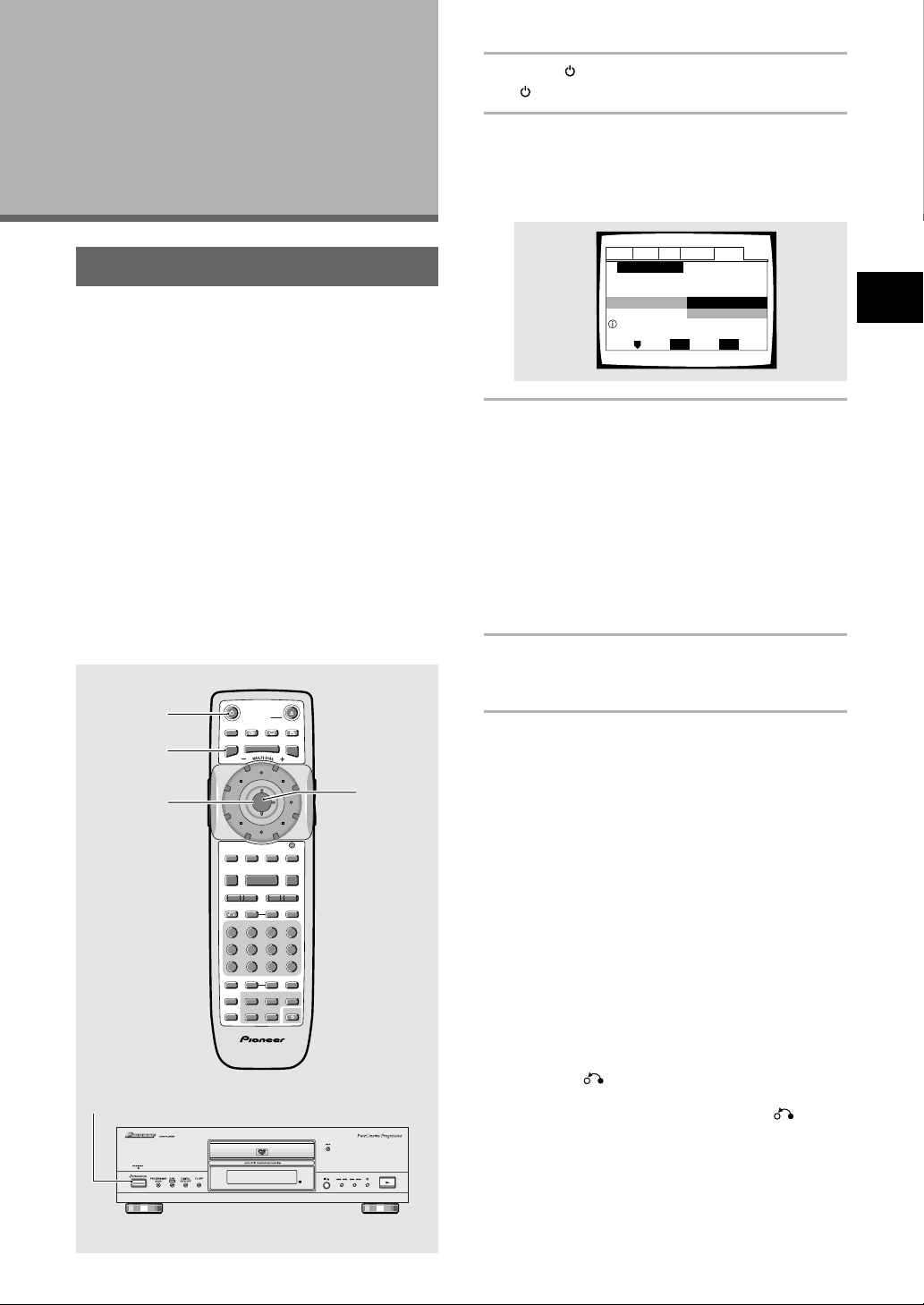
System Control Connections
Using a commercially available cord with a mini plug
(3.5 mm dia. with no resistance) to connect this player’s
CONTROL IN jack to the CONTROL OUT jack of
another PIONEER component bearing the Î mark, you
can control the player as though it were a component in
a system (system control).
• If you connect for system control, you cannot operate
the player directly. Point the remote control unit at the
component (AV amplifier, etc.) connected to the
CONTROL OUT jack to operate.
• When controlling as a system, be sure to make a
connection to the amplifier using an audio or video
cord, even when using only digital components.
• For details, refer to the operation manuals of the
connected components.
Pioneer component with Î mark.
RL
Y
P
BR
P
525i
(480i)
525p
(480p)
MENU
SELECT
COAX
OPT
AC IN
AUDIO OUT
S-VIDEO OUT
CONTROL DIGITAL OUT
INOUT
COMPONENT VIDEO OUT
1
1
2
2
1
2
1
2
VIDEO OUT
CONTROL
OUT
CONTROL
IN
19
Setting Up the
Player
1 Press STANDBY/ON on the front panel
(
on the remote control).
2 Press SETUP.
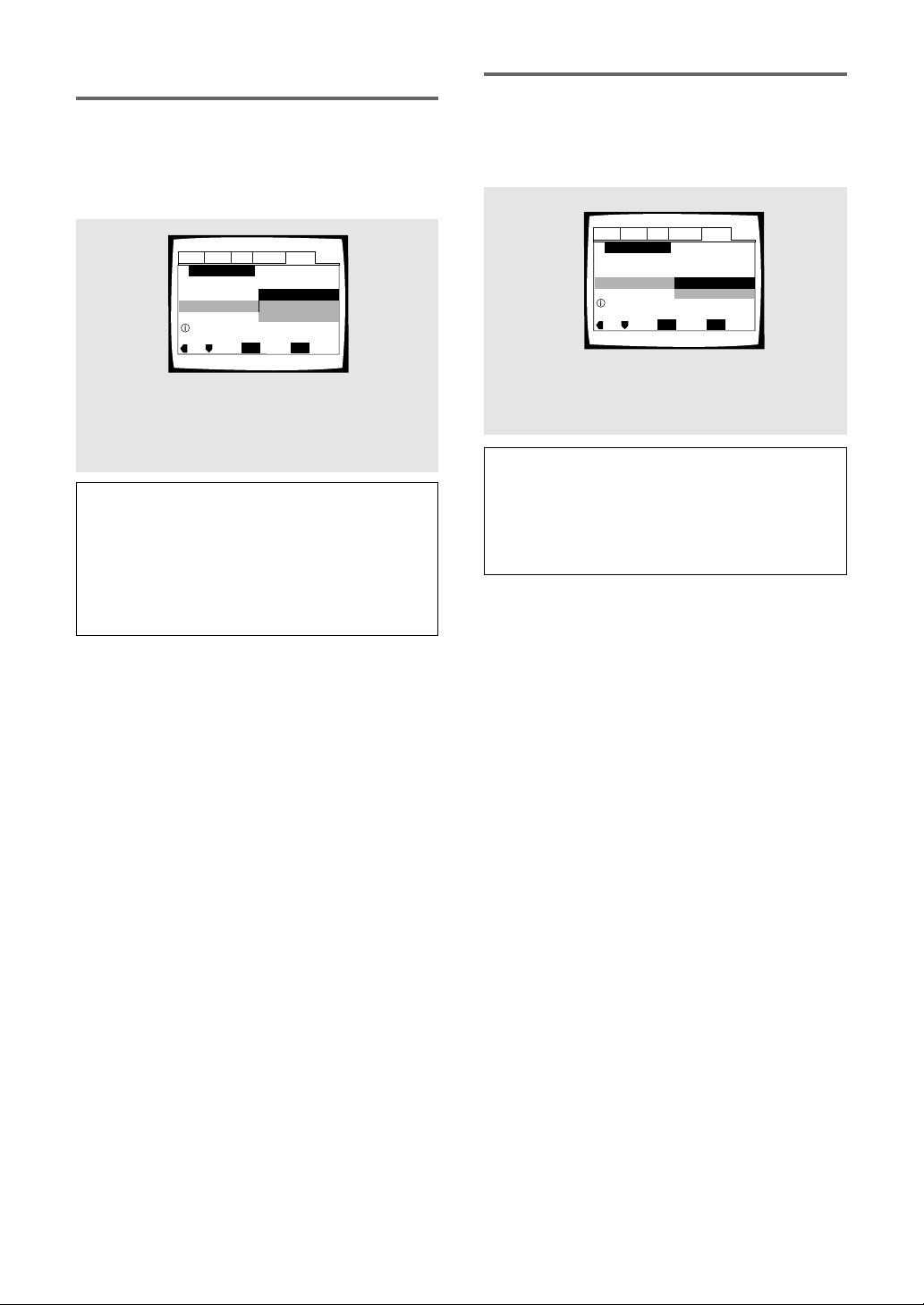
When SETUP is pressed for the first time, the
following screen appears. Though the Setup
Navigator may be used more than once, this screen
only appears the first time SETUP is pressed.
3 Move the cursor control joystick up or
down to make a selection.
• If you are going to use the Setup Navigator, it is
not necessary to change the setting on the first
screen. Please proceed to the next step.
• If you do not want to set up the player using
the Setup Navigator, use the cursor control
joystic down to select [Auto Start Off] at this
time.
The Setup Navigator function may still be used at
a later time in manual Setup screen menu
operation (page 26).
4 Press ENTER.
The selection is entered and the next Setup
Navigator screen appears.
Use steps 3 and 4 as a basis for entering selections on
the all of the Setup Navigator screens described on the
following pages.
To change the answer to a prior question
Move the cursor control joystick left to return to previous
screens. Please note, however, that you cannot go
forward by moving the cursor control joystick right, so it
will be necessary to answer all the questions that occur
after the screen that was returned to.
To exit the Setup Navigator
Press SETUP while on any of the screens to exit the
Setup Navigator. Please note that if the Setup Navigator
is exited before all the questions are answered, no
settings are changed.
To return to the Setup screen
Press RETURN . The Setup Navigator is exited and
the Setup screen General menu screen appears. Please
note that no settings are changed if RETURN is
pressed before the Setup Navigator is finished.
SEARCH MODESTEP / SLOWRETURN
PREVIOUS NEXT REV FWD
PAUSEPLAY
VIDEO
ADJUST
DIMMER JOG MODE
TOP
MENU
SET UP
DISPLAY AUDIO SUBTITLE ANGLE
OPEN /
CLOSE
STANDBY
/ON
FUNCTION
MEMORY
STOP
PROGRAM
CONDITION
MEMORY
LAST
MEMORY
REPEAT
VOLUME CHANNEL
TV CONTROL
RANDOM
MENU
ENTER
V.ADJ
FL
F.MEM
DISP
JOG
873
A-BRPT
RDM
LAST
Vol + CH + FUNC
CH –
Vol –
COND.
PGM
4¢ 1
eE
¡
Î
TV
0987
+
10
654
C321
CLEAR
1
2
3
4
1
Using the Setup Navigator
The Setup Navigator has been designed to simplify the
process of getting the DVD player ready to perform.
Designed as a series of on-screen multiple-choice
questions, the Setup Navigator automatically sets the
audio, video, and language settings according to how the
questions are answered. Once this procedure is
complete, it will be possible to begin using the DVD
player to enjoy DVDs.
The procedure on this page describes the operations
necessary to function within the Setup Navigator
screens. A detailed description of the contents of each
question that appears on the screen can be found on
the following pages.
When setting up for the first time
Some DVDs start playing automatically when loaded in
the player. Because the Setup Navigator cannot be used
if a disc is playing, it is recommended to set up the
player using the Setup Navigator before loading a DVD
for the first time. If a DVD has been loaded, be sure to
press STOP 7 before proceeding.
Audio1 Audio2 GeneralLanguageVideo
Setup Navigator
Move
Exit
SETUP
Select
ENTER
Setup using the Setup Navigator
Setup Navigator
Auto Start Off
Start
MAKING CONNECTIONS / SETTING UP THE PLAYER
20
Setting the OSD Language
(On-Screen Display Language)
The [OSD Language] screen establishes the OSD
language, or on-screen display language, which refers to
the language that is used by the player in menus and
on-screen messages. Additionally, the language that is
established at this setting will also be used for the
default audio and subtitle language.
Settings: English*
français
Español
* Factory setting
Notes
• The languages that can be selected may be different from
those shown above.
• In addition to setting the [OSD Language], the audio and
subtitle language are also set at this time. If you wish to
change the audio or subtitle language to a different
language, make changes in the Setup screen Language
menu [Audio Language] and [Subtitle Language] as
needed (page 35, 37).
Setting the TV screen size
The [TV Type] screen establishes the size, or more
appropriately the width to height ration of your television
or monitor. The width-to-height ratio of conventional TVs
is 4:3, while the width-to-height ratio of wide screen and
high-definition TVs is 16:9. This width-to-height ratio is
called the aspect ratio.
Settings: Widescreen (16:9)*
Standard (4:3)
* Factory setting
Note
There are two screen formats that can be used to display
wide-screen format DVDs: letter box and pan & scan. When
[Standard (4:3)] is selected in the Setup Navigator, the letter
box screen format is automatically selected. To switch the
preference to the pan & scan format, make changes in the
Setup screen Video menu [TV Screen] setting (page 31).
Audio1 Audio2 GeneralLanguageVideo
Setup Navigator
Move
Exit
SETUP
Select
ENTER
OSD Language
Español
français
English
Language
Select the On Screen Language
Audio1 Audio2 GeneralLanguageVideo
Setup Navigator
Move
Exit
SETUP
Select
ENTER
TV Type
Standard (4:3)
Widescreen (16:9)
TV Connection
Widescreen TV
16:9 aspect ratio

21
SETTING UP THE PLAYER
Confirming the settings
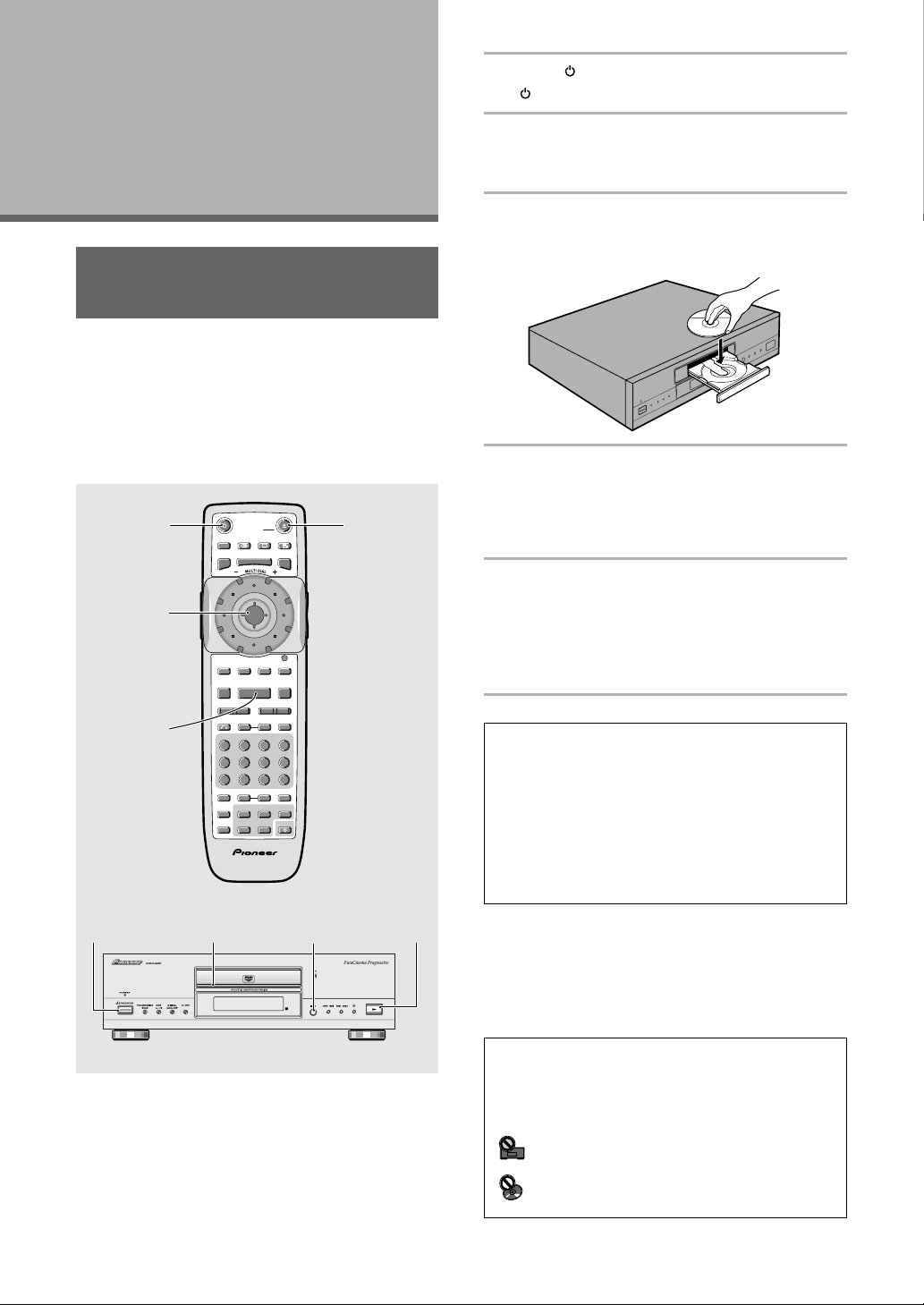
The [Exit Setup Navigator] is the final screen in the
Setup Navigator.
Settings: Save Changes*
Select to have the player make all of the
necessary audio, video and language settings
according to your responses in the Setup
Navigator.
Delete Changes
Select to exit the Setup Navigator without
changing any of the system settings.
Start Again
Select to return to the [OSD Language]
screen of the Setup Navigator and do the
settings again.
* Factory setting
To exit the Setup screen
When you have completed setting up the player using
the Setup Navigator or if you exit the Setup Navigator,
the Setup screen General menu appears. Press SETUP
to close the Setup screen.
To change other player settings in the Setup
screen menus
The procedure for changing the settings in the Setup
screen menus is described on page 26.
Setting digital audio connections
to an AV amplifier or decoder
The [Digital Jack] screen establishes whether digital
connections have been made to an AV amplifier,
receiver, or external decoder. As there are numerous
options available, please refer to the instructions
supplied with the component the player is connected to
determine what digital audio formats can be decoded. If
you have made no digital connections, select [Not
Connected].
Settings: Dolby Digital*
Dolby Digital/DTS
Dolby Digital/MPEG
Dolby D/DTS/MPEG
PCM
Not Connected
* Factory setting
Setting compatibility with 96 kHz
output
The [96 kHz PCM Audio] screen establishes whether or
not the AV component the player is connected to is
capable of processing an audio signal with a sampling
rate of 96 kHz. This screen only appears if connections
have been made to an external AV component as
determined in previous screens.
Settings: No*
Select if the connected AV component
cannot process an audio signal with a
sampling rate of 96 kHz.
Yes
Select if the connected AV component can
process an audio signal with a sampling rate
of 96 kHz.
Don’t Know
Select if you are uncertain whether the
connected AV component can process an
audio signal with a sampling rate of 96 kHz.
* Factory setting
Audio1 Audio2 GeneralLanguageVideo
Setup Navigator
Move
Exit
SETUP
Select
ENTER
Digital Jack
Not Connected
Dolby D/DTS/MPEG
Dolby Digital/MPEG
Dolby Digital/DTS
PCM
Dolby Digital
Amp Connection
Compatible with Dolby Digital
Audio1 Audio2 GeneralLanguageVideo
Setup Navigator
Move
Exit
SETUP
Select
ENTER
96 kHz PCM Audio
Don't Know
Yes
No
Amp Connection
Digital jack not compatible with 96kHz
Audio1 Audio2 GeneralLanguageVideo
Setup Navigator
Move
Exit
SETUP
Select
ENTER
Exit Setup Navigator
Start Again
Delete Changes
Save Changes
Changes are saved
22
Playing DVDs, Video CDs and
CDs – DVD/Video CD/CD
Before you can start to enjoy the digital audio and video
on DVDs, be sure that you have either performed the
Setup Navigator procedure described in the previous
section or made the necessary settings in the Setup
screen menus as outlined in the next section to set up
the player to correspond to your home system. Having
made these settings, you are now ready to start using
the player to enjoy DVDs, Video CDs, and CDs.
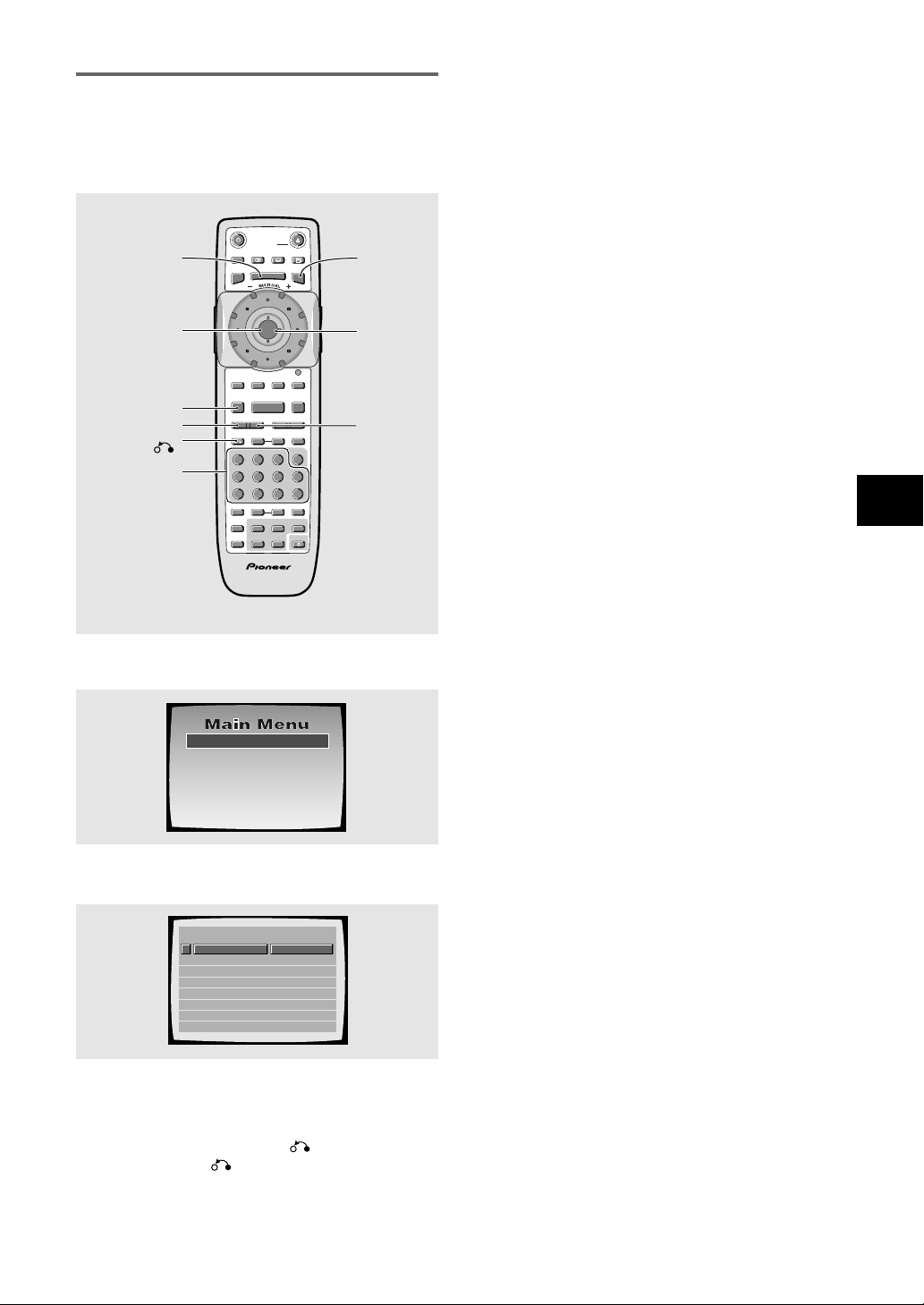
1 Press STANDBY/ON on the front panel
(
on the remote control).
2 Press OPEN/CLOSE (7/0 on the front
panel).
The disc tray comes out.
3 Load a disc.
• Load a disc with the label side facing up, using
the disc tray guide to align the disc.
4 Press PLAY 3 (3 on the front panel).
• The disc tray closes, and playback begins.
• Depending on the disc, a menu may be
displayed. If a menu is displayed, proceed to
step 5.
5 Select the item you want to view.
• When a DVD is loaded:
Select the item with the cursor control joystick
or the number buttons then press ENTER.
• When a Video CD is loaded:
Use the number buttons to select the item.
Notes
• Noise is output if you make digital audio connections to a
receiver or amplifier that does not have a built-in decoder.
Check that the digital audio output format selected in the
Audio 1 menu corresponds to the audio components you
have made connections to (pages 28-29).
• The TV screen size is factory set to present the wide
screen format (16:9 aspect ratio). If you have a standard TV
screen (4:3 aspect ratio), this setting can be changed to
match your TV screen size in the Video menu (page 31).
Getting Started
Using Your DVD
Player
When an operation is prohibited
There are times when you are using the player and attempt to
perform an operation, but for some reason it cannot be
performed. When this occurs, one of the two following icons
appears on the screen.
The operation is prohibited by the player.
The operation is prohibited by the programming on
the disc.
SEARCH MODESTEP / SLOWRETURN
PREVIOUS NEXT REV FWD
PAUSEPLAY
VIDEO
ADJUST
DIMMER JOG MODE
TOP
MENU
SET UP
DISPLAY AUDIO SUBTITLE ANGLE
OPEN /
CLOSE
STANDBY
/ON
FUNCTION
MEMORY
STOP
PROGRAM
CONDITION
MEMORY
LAST
MEMORY
REPEAT
VOLUME CHANNEL
TV CONTROL
RANDOM
MENU
ENTER
V.ADJ
FL
F.MEM
DISP
JOG
873
A-BRPT
RDM
LAST
Vol + CH + FUNC
CH –
Vol –
COND.
PGM
4¢ 1
eE
¡
Î
TV
0987
+
10
654
C321
CLEAR
1
5
4
2
1
342
0
4
¢
1
¡
7/0
8
3
23
GETTING STARTED USING YOUR DVD PLAYER
When a menu screen is displayed
Menu screens are displayed for DVDs that have menu
screens or Video CDs that include Playback Control
(PBC). DVDs often contain extra information that can be
accessed in the DVD menu and sometimes makes
navigating DVD menu screens as enjoyable as watching
the feature presentation.
To open or return to the DVD or Video CD
menu screen
Although this differs depending on the disc, pressing
MENU, TOP MENU, or RETURN during DVD
playback or RETURN during Video CD playback
displays the menu screen. Refer to the DVD or Video CD
disc jacket and accompanying documentation for more
information.
1 Highlight Clips
2 Chapter List
3 Commercial Header
4 Subtitles
5 Soundtrack
6 Start Main Feature
1
2
3
4
5
6
7
8
Don't Tekno for an Answer
Bad Whack Naff Riff
dubmyheadbassman
Gooey Love Jingle
Praise the Day
G3, Ba-san
Abstract Jazz Phunk
Rock the Love Jive
Bertie B.& the Goans
Hood in the Boyz
Sleek Machine
Philip William
Formerly an Artist
Pfeuti
John Torn
Hot Monkey Stick
STANDARD VOCAL BEST
Example: When a DVD that has menu screens is loaded
Example: When a Video CD that has Playback Control is
loaded
SEARCH MODESTEP / SLOWRETURN
PREVIOUS NEXT REV FWD
PAUSEPLAY
VIDEO
ADJUST
DIMMER JOG MODE
TOP
MENU
SET UP
DISPLAY AUDIO SUBTITLE ANGLE
OPEN /
CLOSE
STANDBY
/ON
FUNCTION
MEMORY
STOP
PROGRAM
CONDITION
MEMORY
LAST
MEMORY
REPEAT
VOLUME CHANNEL
TV CONTROL
RANDOM
MENU
ENTER
V.ADJ
FL
F.MEM
DISP
JOG
873
A-BRPT
RDM
LAST
Vol + CH + FUNC
CH –
Vol –
COND.
PGM
4¢ 1
eE
¡
Î
TV
0987
+
10
654
C321
CLEAR
MENU
TOP MENU
ENTER
RETURN
STOP 7
Number
buttons
NEXT ¢
PREVIOUS 4
Cursor control
joystick
To navigate a menu screen
• Although individual DVD titles may differ, when a
menu screen is displayed, use the cursor control
joystick and ENTER on the remote control. The
cursor contro joystick is used to move around the
options on the screen and ENTER is used for
selection.
• Occasionally, the number buttons may also be used
to make selections. If this is possible, using number
buttons serves to directly select an option on a menu
screen. Only number buttons are used to make
selections on Video CD menu screens.
• When the Video CD has more than one menu, pages
can be returned to or advanced to with PREVIOUS
4 or NEXT ¢.
To play Video CDs without displaying menu
screens
Video CDs with Playback Control (PBC) display a menu
screen when play is started. It is possible, however, to
play back Video CDs without displaying menu screens.
When a Video CD with PBC is loaded, press STOP 7,
and then the number button of the track you want to
play.
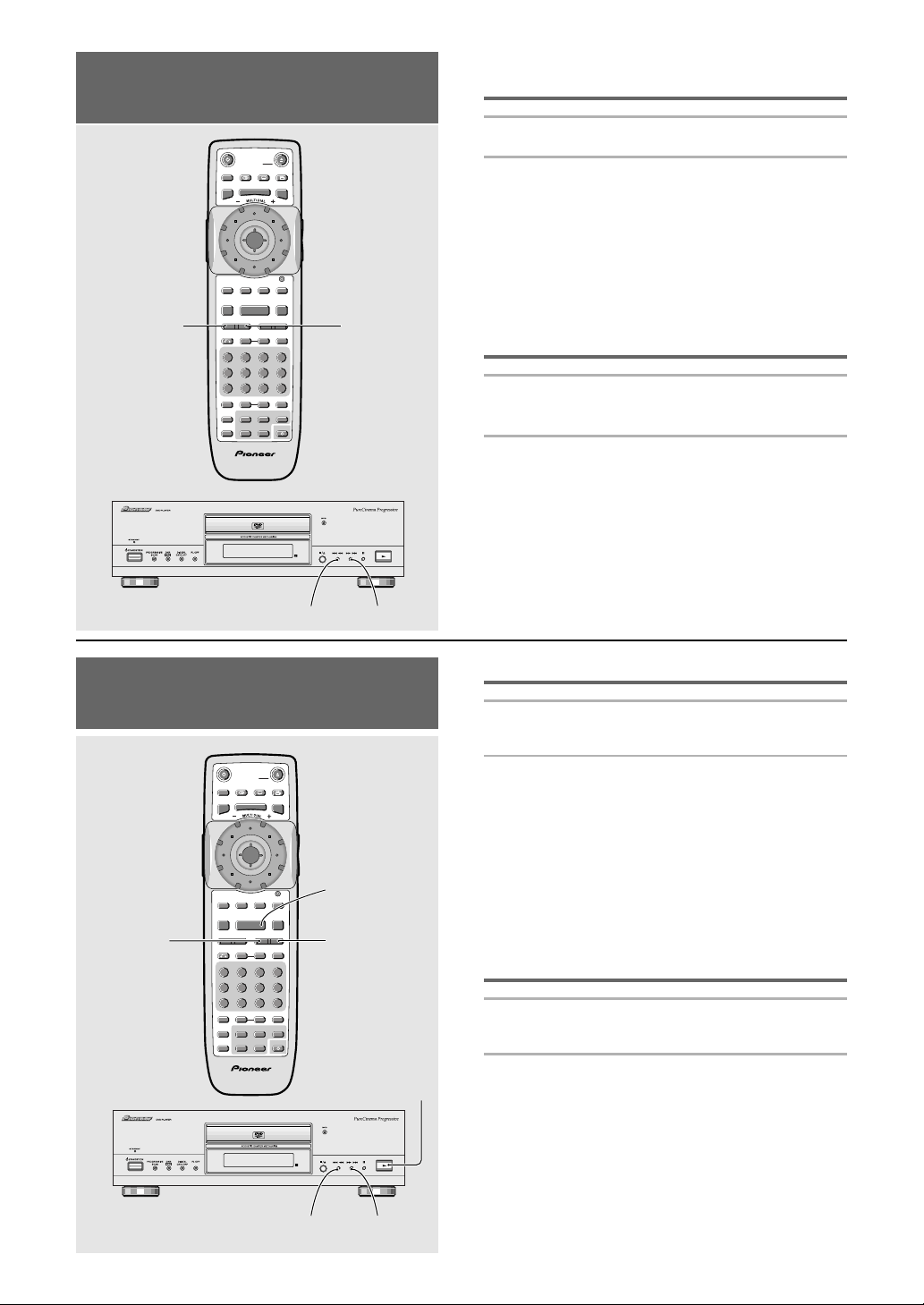
24
Forward and Reverse
Scanning – DVD/Video CD/CD
Advancing to the next chapter
(track)
Press NEXT ¢ (¡ ¢ on the front panel).
• Press to skip forward to the next chapter (track).
• You can advance more than one chapter (track)
forward by pressing and holding NEXT ¢ and
releasing when the desired chapter (track) number
appears in the display.
Note: Press and hold ¡ ¢ to start scanning.
Skipping back to the previous
chapter (track)
Press PREVIOUS 4 (4 1 on the front
panel).
• Press once to skip back to the start of the chapter
(track) currently playing.
• Press twice to skip back to the start of the previous
chapter (track).
• You can skip back to previous chapters (tracks) by
pressing and holding PREVIOUS 4 and releasing
when the desired chapter (track) number appears in
the display.
Note: Press and hold 4 1 to start scanning.
Chapter (Track) Skip Forward/
Skip Back – DVD/Video CD/CD
SEARCH MODESTEP / SLOWRETURN
PREVIOUS NEXT REV FWD
PAUSEPLAY
VIDEO
ADJUST
DIMMER JOG MODE
TOP
MENU
SET UP
DISPLAY AUDIO SUBTITLE ANGLE
OPEN /
CLOSE
STANDBY
/ON
FUNCTION
MEMORY
STOP
PROGRAM
CONDITION
MEMORY
LAST
MEMORY
REPEAT
VOLUME CHANNEL
TV CONTROL
RANDOM
MENU
ENTER
V.ADJ
FL
F.MEM
DISP
JOG
873
A-BRPT
RDM
LAST
Vol + CH + FUNC
CH –
Vol –
COND.
PGM
4¢ 1
eE
¡
Î
TV
0987
+
10
654
C321
CLEAR
NEXT ¢PREVIOUS
4
¡
¢4 1
SEARCH MODESTEP / SLOWRETURN
PREVIOUS NEXT REV FWD
PAUSEPLAY
VIDEO
ADJUST
DIMMER JOG MODE
TOP
MENU
SET UP
DISPLAY AUDIO SUBTITLE ANGLE
OPEN /
CLOSE
STANDBY
/ON
FUNCTION
MEMORY
STOP
PROGRAM
CONDITION
MEMORY
LAST
MEMORY
REPEAT
VOLUME CHANNEL
TV CONTROL
RANDOM
MENU
ENTER
V.ADJ
FL
F.MEM
DISP
JOG
873
A-BRPT
RDM
LAST
Vol + CH + FUNC
CH –
Vol –
COND.
PGM
4¢ 1
eE
¡
Î
TV
0987
+
10
654
C321
CLEAR
1 REV
3
¡
¢4 1
PLAY 3
FWD ¡
Fast forward scanning
Press and hold FWD ¡ (¡ ¢ on the front
panel) during playback.
• Release FWD ¡ when you reach the desired
location. Normal playback resumes.
• On DVDs, when the flashing “SCAN 2” on the screen
changes to a flashing “SCAN 3” , fast forward
scanning will continue even if the button is released.
On Video CDs and CDs, the scanning speeds are
“SCAN 1” and “SCAN 2”. When the desired location
has been reached, press PLAY 3.
• Variable speed scanning is also possible using the
MULTI DIAL on the remote control (page 46).
Fast reverse scanning
Press and hold REV 1 (4 1 on the front
panel) during playback.
• Release REV 1 when you reach the desired
location. Normal playback resumes.
• On DVDs, when the flashing “SCAN 2” on the screen
changes to a flashing “SCAN 3”, fast reverse
scanning will continue even if the button is released.
On Video CDs and CDs, the scanning speeds are
“SCAN 1” and “SCAN 2”. When the desired location
has been reached, press PLAY 3.
• Variable speed scanning is also possible using the
MULTI DIAL on the remote control (page 46).
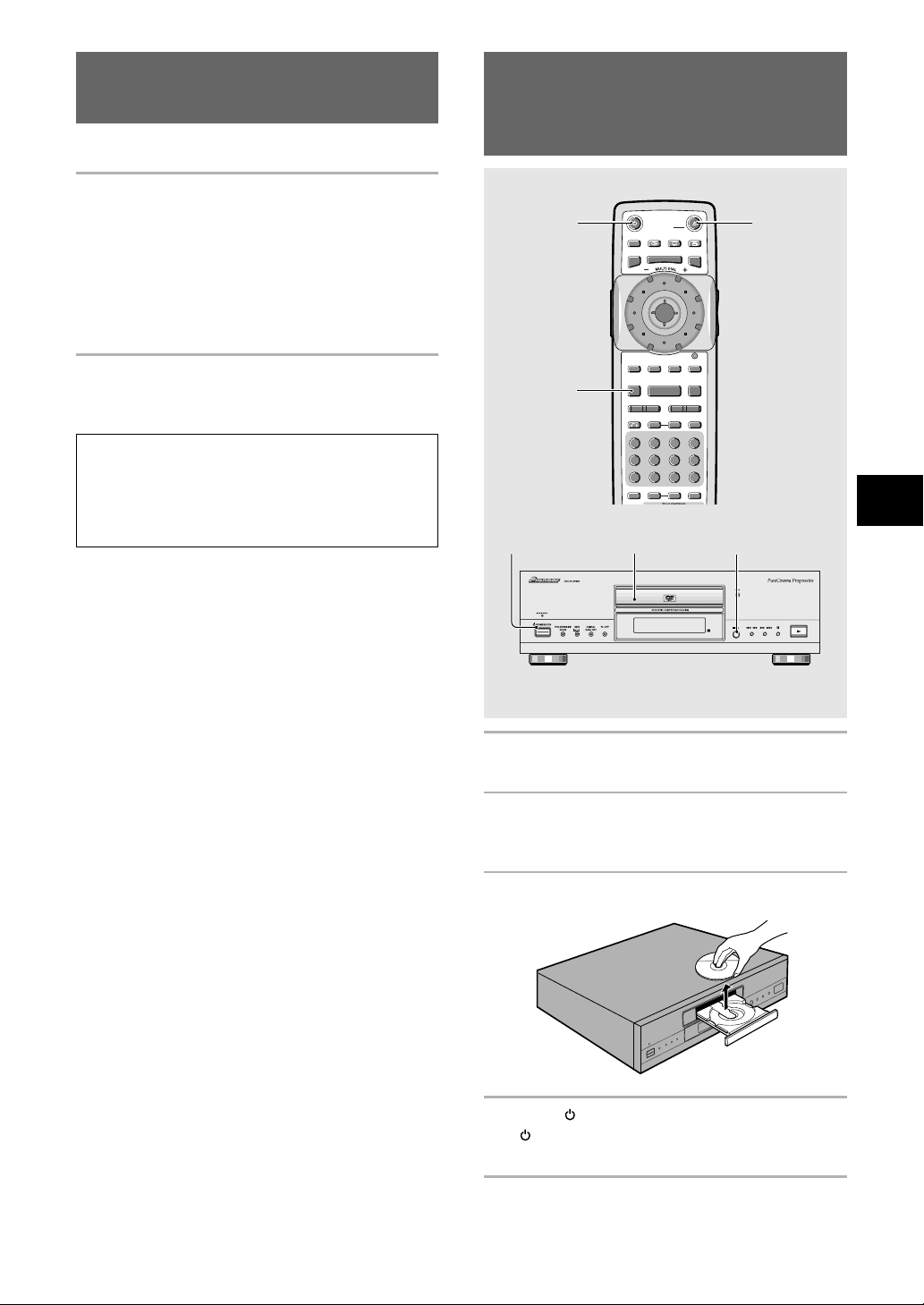
25
GETTING STARTED USING YOUR DVD PLAYER
Resuming playback from
where you stopped – DVD/Video CD
Use the resume feature to restart playback from the
point that the disc was stopped last time.
Press STOP 7 once.
The display shows “RESUME” and the stop position is
memorized.
• The resume position remains memorized as long as
the disc is in the player — even if you switch the
power off.
• Pressing STOP 7 twice causes the disc to return to
the beginning when PLAY 3 is pressed again. The
display shows the disc type (DVDs or Video CDs).
Press PLAY 3.
Playback starts from the resume position.
Notes
• The actual restart position may be slightly before or after
the resume position.
• If you want to remove the disc, but still want to resume
playback from the last stopped position, use the LAST
MEMORY feature instead (page 53).
0
4
¢
1
¡
7 0
8
3
Stopping Playback and
Switching Power Off
– DVD/Video CD/CD
SEARCH MODESTEP / SLOWRETURN
PREVIOUS NEXT REV FWD
PAUSEPLAY
VIDEO
ADJUST
DIMMER JOG MODE
TOP
MENU
SET UP
DISPLAY AUDIO SUBTITLE ANGLE
OPEN /
CLOSE
STANDBY
/ON
FUNCTION
MEMORY
STOP
PROGRAM
LAST
REPEAT
TV CONTROL
RANDOM
MENU
ENTER
V.ADJ
FL
F.MEM
DISP
JOG
873
A-BRPT
RDM
PGM
4¢ 1
eE
¡
0987
+
10
654
C321
CLEAR
4
1
2
3
1, 2
1 Press STOP 7 (7/0 on the front panel).
Playback stops.
2 Press OPEN/CLOSE (7/0 on the front
panel).
The disc tray comes out.
3 Remove the disc.
4 Press STANDBY/ON on the front panel
(
on the remote control).
The disc tray goes back in.
4
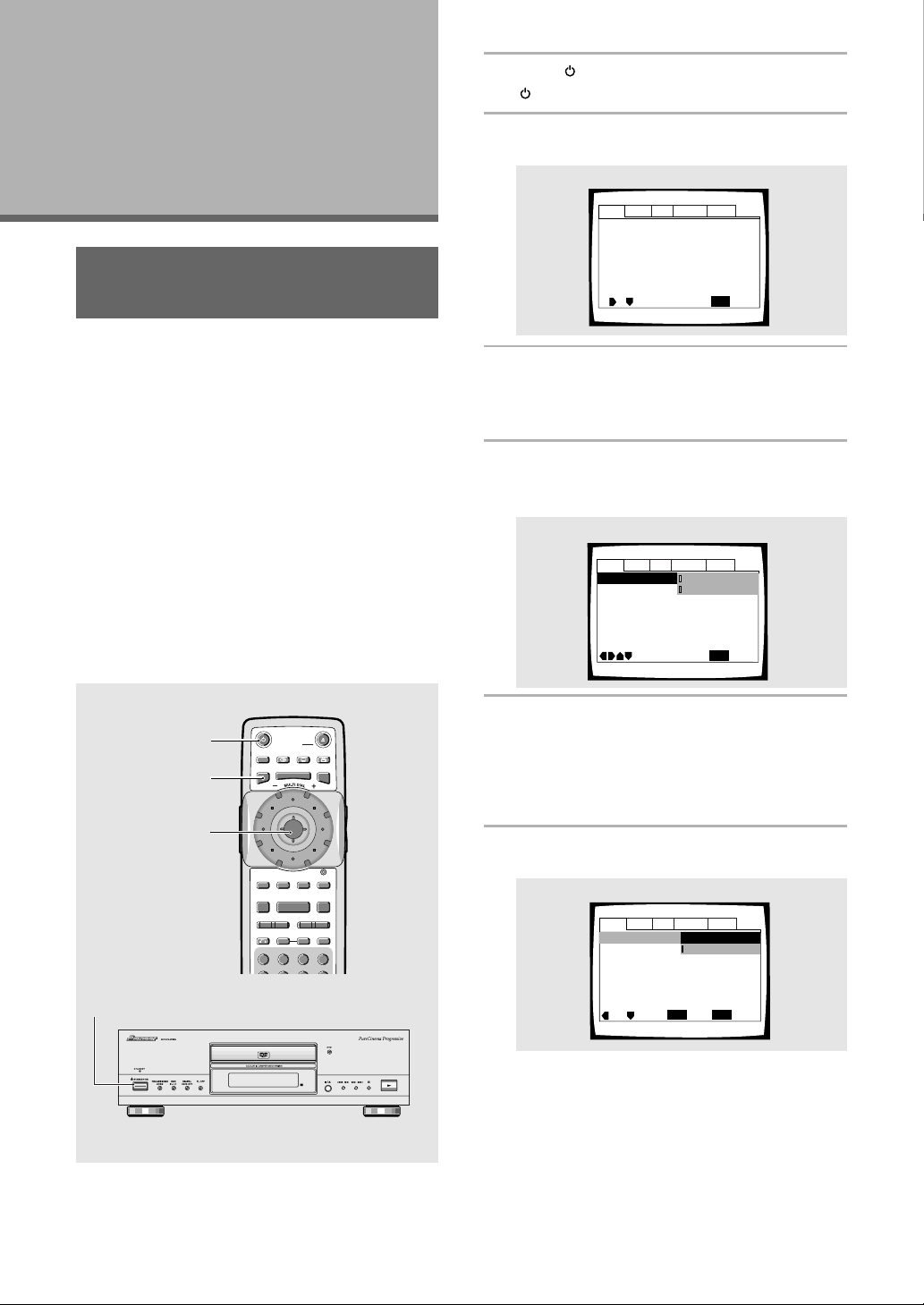
26
Using the Setup Screen
Menus
The procedure on this page describes how to operate the
menus on the Setup screen. These menus are used to
set and adjust a number of system settings. The various
functions that can be adjusted are covered throughout
this manual. The procedure on this page provides a basic
outline for using the Setup screen menus.
When setting up for the first time
It is recommended to set up player using the Setup
Navigator (page 19). If you selected [Auto Start Off]
when the Setup Navigator appeared, you may still set up
the player using the Setup Navigator in the General menu
screen.
If you choose not to use the Setup Navigator, be sure to
make the necessary settings in the Setup screen
Audio 1, Audio 2, Video, and Language menus as
described on the following pages.
Some DVDs start playing automatically when loaded in
the player. If a DVD has been loaded, be sure to press
STOP 7 before proceeding.
1 Press STANDBY/ON on the front panel
(
on the remote control).
2 Press SETUP.
The Setup screen appears.
3 Move the cursor control joystick right or
left to select the menu you want.
As each menu is selected with the cursor, the
settings appear below the menu heading.
4 Move the cursor control joystick down to
enter the menu.
The top item within the menu becomes highlighted.
5 Move the cursor control joystick up or
down to select the setting you want to
change.
The options available for each setting appear to the
right when the setting is selected. The current
setting appears with the setting indicator lit.
6 Move the cursor control joystick right to
enter the setting options.
• Not all menu options can be changed while a disc
is playing. In these cases, the options appear
grayed out on the screen and cannot be adjusted.
To change these settings, press STOP 7 first
before pressing SETUP.
• Operating the menu after pressing STOP 7 may
cancel the resume function.
• Some menu options are not immediately
effective if set while a disc is playing. To make
these settings effective, stop playback and then
start again, or change the settings while the disc
is stopped.
(Example)
(Example)
Audio1 Audio2 GeneralLanguageVideo
Dolby Digital Out
DTS Out -
96kHz PCM Out – 96kHz 3 48kHz
MPEG Ou
t – MPEG 3 PCM
Move
Exit
Dolby Digital 3 PCM
Dolby Digital
SETUP
Select
ENTER
Digital Out – On
(Example)
Adjusting Audio
and Video
Settings
Audio1 Audio2 GeneralLanguageVideo
Dolby Digital Out – Dolby Digital
Digital Out – On
DTS Out – Off
96kHz PCM Out – 96kHz 3 48kHz
MPEG Ou
t – MPEG 3 PCM
SETUP
Move
Exit
continued
SEARCH MODESTEP / SLOWRETURN
PREVIOUS NEXT REV FWD
PAUSEPLAY
VIDEO
ADJUST
DIMMER JOG MODE
TOP
MENU
SET UP
DISPLAY AUDIO SUBTITLE ANGLE
OPEN /
CLOSE
STANDBY
/ON
FUNCTION
MEMORY
STOP
MENU
ENTER
V.ADJ
FL
F.MEM
DISP
JOG
873
4¢ 1
eE
¡
C321
CLEAR
1
2
3, 4, 5, 6
1
Audio1 Audio2 GeneralLanguageVideo
DTS Out -
96kHz PCM Out – 96kHz 3 48kHz
MPEG Ou
t – MPEG 3 PCM
Move
Exit
Dolby Digital 3 PCM
Dolby Digital
SETUP
Dolby Digital Out
Digital Out – On
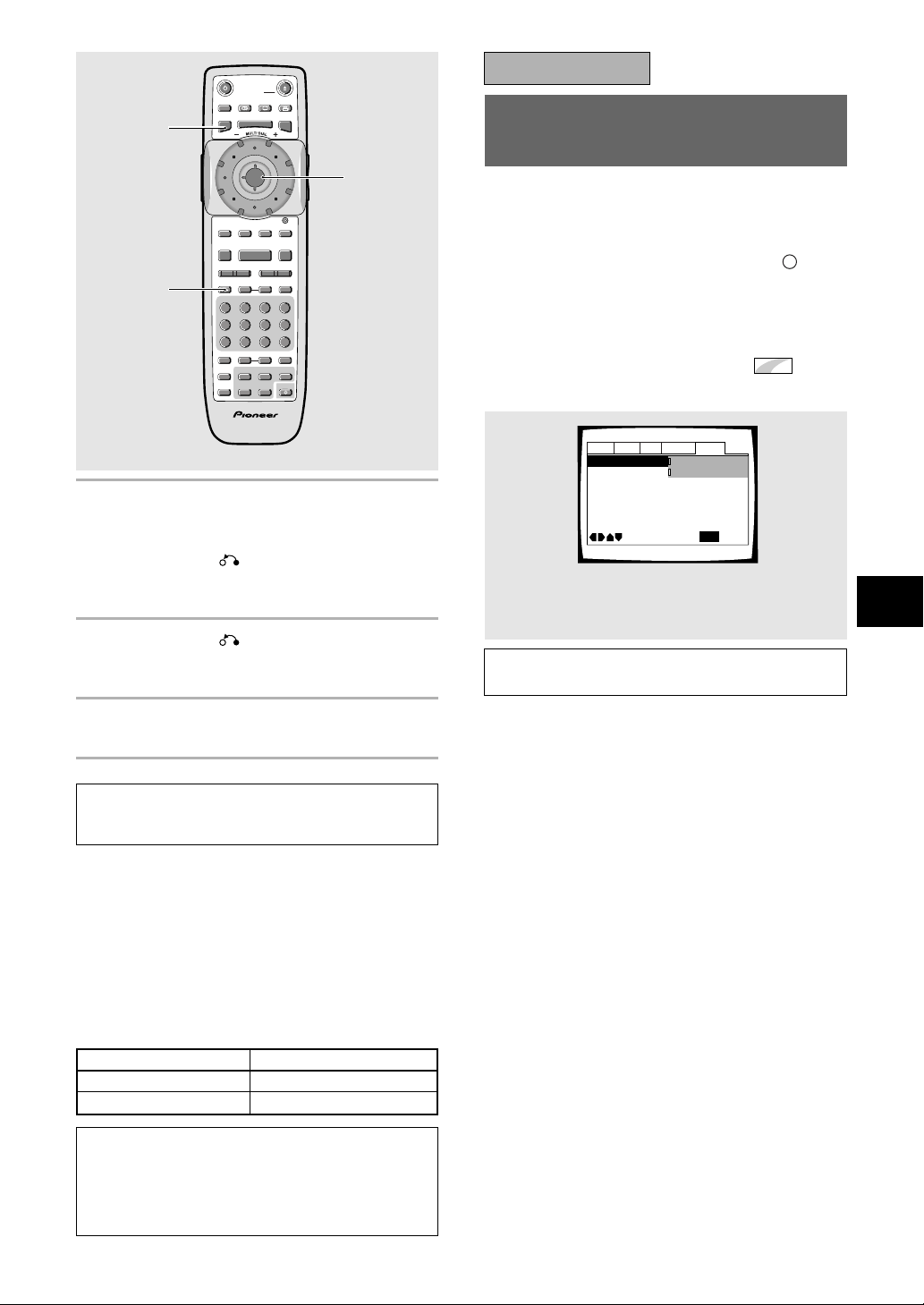
27
ADJUSTING AUDIO AND VIDEO SETTINGS
Changing to the Setup Menu
Mode
The Setup screen menus are divided into two levels,
[Basic] and [Expert], to make this unit more convenient
to operate for different levels of users. The [Basic]
menu mode contains functions that may be considered
necessary for the basic operations of this player and
helpful on-screen information identified by the
i
mark.
The [Expert] menu mode adds to the [Basic] menu
mode additional functions of the player that can be
adjusted to further personalize performance of the
player.
In this manual, functions that are contained in the
[Expert] menu mode are identified by the
Expert
icon.
Make changes to the [Setup Menu Mode] setting in the
Setup screen General menu.
7 Move the cursor control joystick up or
down to select a new setting and press
ENTER to set the new setting in memory.
Press RETURN
or move the cursor
control joystick left to exit the options
without making any changes.
8 Press RETURN or move the cursor
control joystick left to go back to the main
menu bar to select another menu.
9 Press SETUP to close the Setup screen.
The Setup screen closes.
Note
The next time you press SETUP, you’ll see the menu screen
that you exited from last time.
How to interpret the setting indicator colors in
the Setup screen menus
When setting up the system, or when making
adjustments, it is convenient to know what settings are
applicable to the different disc formats. When the
settings appear for each menu option, the currently
selected setting appears with the setting indicator
highlighted in one of two colors: blue or green. These
colors correspond to what formats the menu option
effects as shown in the table below.
Note
If a setting applicable only to DVDs is changed while a Video
CD or CD is loaded, a blue DVD icon appears in the upper
right hand corner of the screen to indicate that the setting is
not applicable to the currently loaded disc. The setting will be
effective the next time a DVD is loaded.
Audio1 Audio2 GeneralLanguageVideo
Setup Navigator –
Screen Saver – Off
Background Color – Black
Parental Lock – Level 8
Setup Menu Mode
Move
Exit
Expert
Basic
SETUP
SEARCH MODESTEP / SLOWRETURN
PREVIOUS NEXT REV FWD
PAUSEPLAY
VIDEO
ADJUST
DIMMER JOG MODE
TOP
MENU
SET UP
DISPLAY AUDIO SUBTITLE ANGLE
OPEN /
CLOSE
STANDBY
/ON
FUNCTION
MEMORY
STOP
PROGRAM
CONDITION
MEMORY
LAST
MEMORY
REPEAT
VOLUME CHANNEL
TV CONTROL
RANDOM
MENU
ENTER
V.ADJ
FL
F.MEM
DISP
JOG
873
A-BRPT
RDM
LAST
Vol + CH + FUNC
CH –
Vol –
COND.
PGM
4¢ 1
eE
¡
Î
TV
0987
+
10
654
C321
CLEAR
7, 8
9
IMPORTANT
Settings: Expert*
Basic
* Factory setting
Note
On-screen information only appears [Basic] menu mode.
Color of indicator Disc format(s)
Blue DVD only
All compatible formatsGreen
7, 8
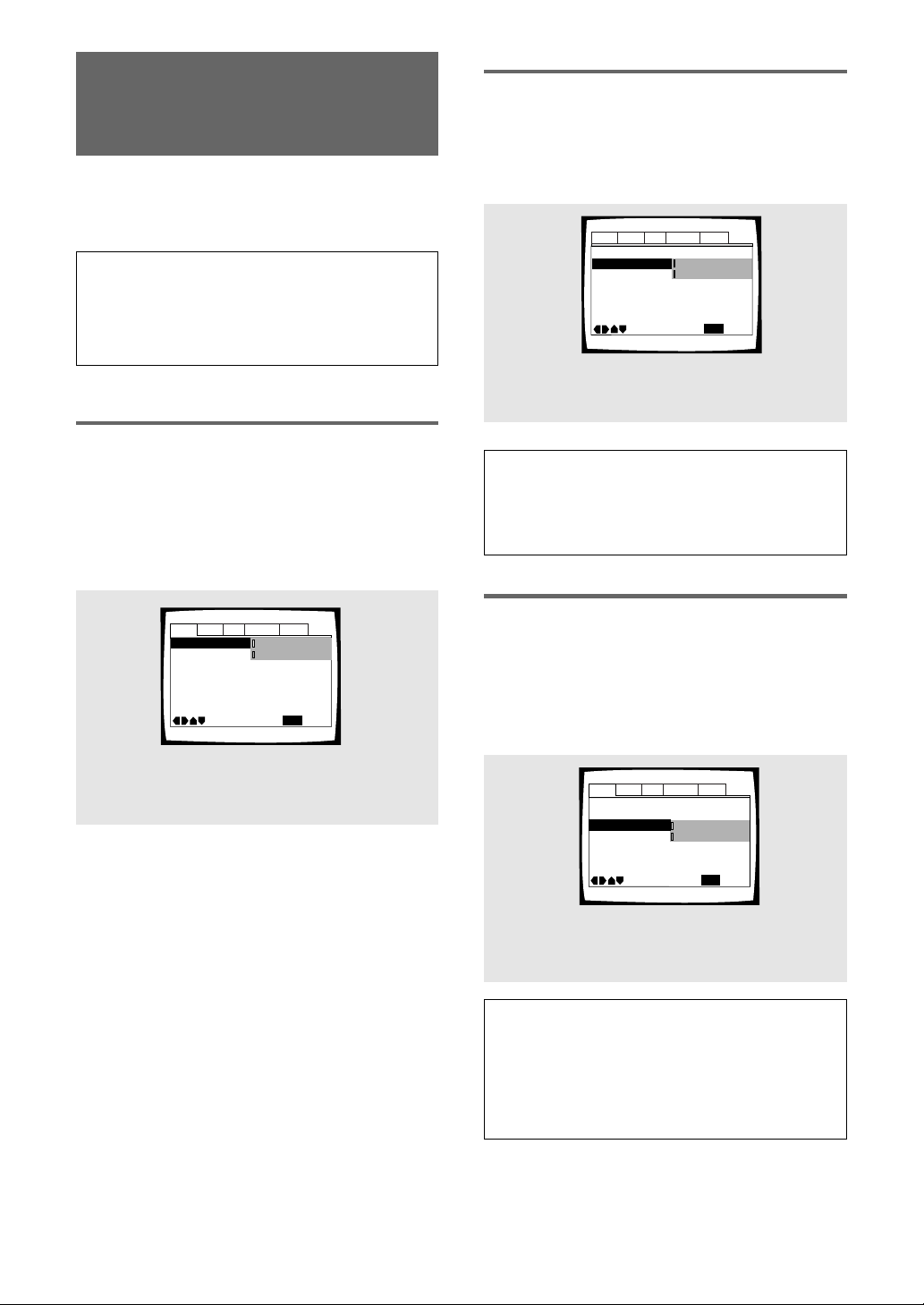
28
Setting the Digital Audio
Output To Be Compatible with
Your AV Component – DVD
This player is capable of digital audio output for Dolby
Digital, DTS, MPEG, and signals with a sampling rate of
96 kHz. Make settings in the Setup screen Audio 1
menu to reflect the capabilities of the components that
you have made digital connections to.
Notes
• If you have already completed the Setup Navigator screen
operations, the settings on this page have already been set
by the player.
• If you have made only stereo line connections (analog)
using the supplied audio cord, it is not necessary to make
any changes in this menu.
Dolby Digital Out
This player is capable of outputting the Dolby Digital
surround sound audio signal. When the player is
connected to an AV component that has a built-in Dolby
Digital decoder, select [Dolby Digital]. This player can
also convert the Dolby Digital signal to a digital Linear
PCM signal, the same digital signal output from a CD.
Select [Dolby Digital 3 PCM] when you have made
connections to an amplifier or receiver with a Dolby Pro
Logic decoder or a Digital Analog Converter (DAC).
DTS Out
This player is capable of outputting DTS digital audio for
DVDs recorded in DTS. When this player is connected to
an AV component that has a built-in DTS decoder, select
[DTS]. If your system is not equipped to decode DTS,
select [Off]. Refer to the operating instructions supplied
with your audio components if you are unsure about
compatibility with DTS.
96 kHz PCM Out
This player is capable of outputting digital signals with a
sampling frequency of 96 kHz. If you have made
connections to a component capable of processing this
signal rate, select [96 kHz] for the signal to be output as
is. As some components are incapable of processing
digital signal input with sampling rates of 96 kHz,
selecting [96 kHz 3 48 kHz] compresses the signal to a
standard signal with a sampling rate of
48 kHz.
Settings: Dolby Digital*
Dolby Digital 3 PCM
* Factory setting
Settings: Off*
DTS
* Factory setting
Note
If you have made digital audio connections to component(s)
not equipped to decode the DTS digital bitstream, be sure to
select [Off]. If a DTS signal is output without decoding, the
output is digital noise that could potentially cause damage to
your speakers.
Settings: 96 kHz 3 48 kHz*
96 kHz
* Factory setting
Audio1 Audio2 GeneralLanguageVideo
DTS Out -
96kHz PCM Out – 96kHz 3 48kHz
MPEG Ou
t – MPEG 3 PCM
Move
Exit
Dolby Digital 3 PCM
Dolby Digital
SETUP
Dolby Digital Out
Digital Out – On
Dolby Digital Out –
DTS Out
96kHz PCM Out - 96kHz>48kHz
MPEG Ou
t – MPEG 3 PCM
Move
Exit
DTS
Off
Dolby Digital
SETUP
Audio1 Audio2 GeneralLanguageVideo
Digital Out – On
MPEG Ou
t - PCM
Dolby Digital Out –
DTS Out –
96kHz PCM Out
Move
Exit
96kHz
96kHz 3 48kHz
Dolby Digital
Off
SETUP
Audio1 Audio2 GeneralLanguageVideo
Digital Out – On
Notes
• On DVDs that contain copy protection, the 96 kHz signal
may only be output from the analog audio jacks. When this
type of disc is encountered, even if [96 kHz] is selected,
the player automatically outputs the digital audio signal at a
compressed rate of 48 kHz.
• Changes to the [96 kHz PCM Out] setting cannot be made
when a disc is playing.
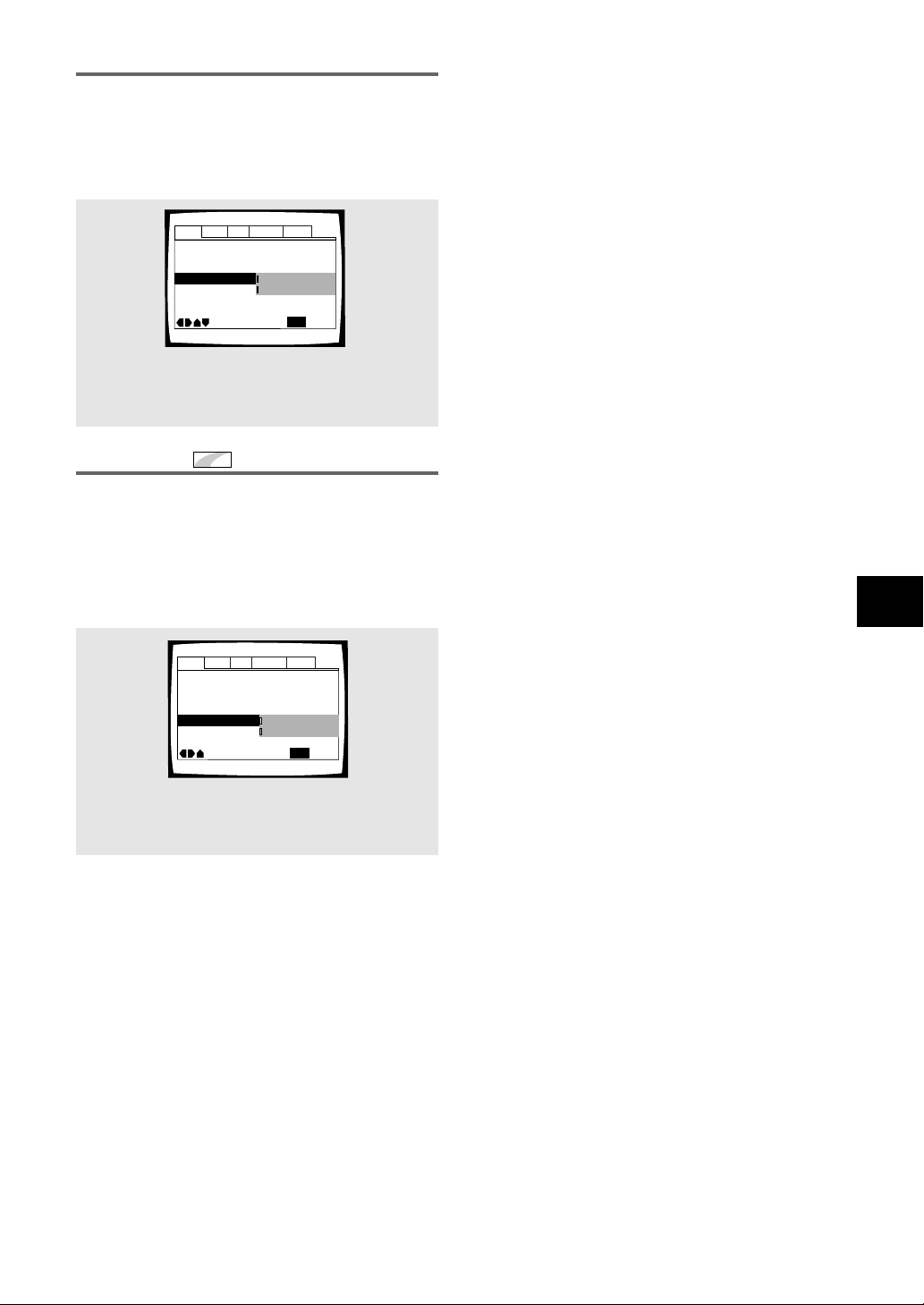
29
ADJUSTING AUDIO AND VIDEO SETTINGS
Digital Out
Expert
Depending on your preferences and the type of
connections made, you may opt not to have the digital
audio signal output at all. When this setting is set to
[Off] there is no signal output from the digital audio
output jacks.
Make changes to the [Digital Out] setting in the Setup
screen Audio 1 menu in the [Expert] menu mode (page 27).
MPEG Ou
t – MPEG 3 PCM
Dolby Digital Out –
DTS Out –
96kHz PCM Out – 96kHz 3 48kHz
Move
Exit
Dolby Digital
Off
SETUP
Audio1 Audio2 GeneralLanguageVideo
Digital Out On
Off
On
MPEG Out
This player is capable of outputting the MPEG digital
bitstream. When the player is connected to an AV
component that has a built-in MPEG decoder, select the
[MPEG] setting. Otherwise, select [MPEG 3 PCM] to
convert the digital signal to the PCM signal, the digital
signal output from a CD.
Settings: MPEG
MPEG 3 PCM*
* Factory setting
Settings: On (Digital bitstream is output)*
Off (Digital bitstream is not output)
* Factory setting
MPEG Ou
t - PCM
Dolby Digital Out –
DTS Out –
96kHz PCM Out – 96kHz 3 48kHz
Move
Exit
Dolby Digital
Off
SETUP
Audio1 Audio2 GeneralLanguageVideo
Digital Out – On
MPEG 3 PCM
MPEG
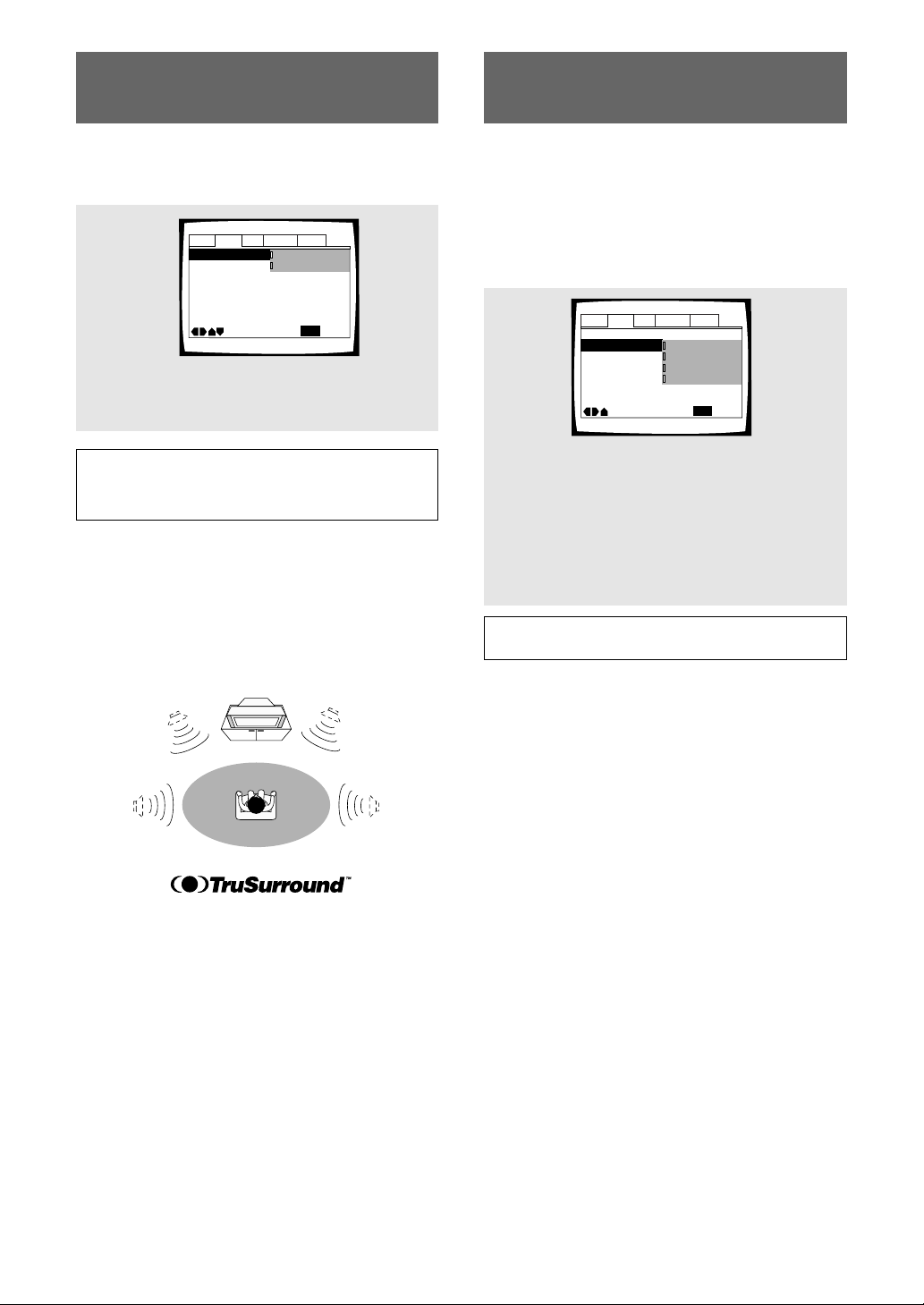
30
Adjusting the Dynamic Range
of the Audio Soundtrack – DVD
Audio DRC stands for Audio Dynamic Range
Compression. When Audio DRC is on, soft sounds such
as dialog can be heard more clearly without making loud
sounds even louder. Select from three levels of
compression depending on how much effect you want.
When Audio DRC is set to [Off], there is no effect on
the audio source.
Make changes to the [Audio DRC] setting in the Setup
screen Audio 2 menu.
Audio DRC
Move
Exit
High
Medium
Low
Off
SETUP
Audio1 Audio2 GeneralLanguageVideo
Virtual Surround – Off
Settings: High
(maximum compression of audio source)
Medium
(moderate compression of audio source)
Low
(very little compression of audio source)
Off*
* Factory setting
Note
Audio DRC is only effective with Dolby Digital audio sources.
Getting Surround Sound from
Stereo Speakers – DVD/Video CD
Depending on the audio source, this player is capable of
switching between Virtual Dolby Digital (multichannel
audio sources) and TruSurround (stereo audio sources) to
produce a surround sound effect from stereo speakers.
Settings: Off*
2V/TruSurround
*Factory setting
Note
There is no effect when the audio source is either DTS or
96 kHz LPCM.
TruSurround and Virtual Dolby Digital
TruSurround uses technology that simulates
multichannel surround sound using only two speakers.
Virtual Dolby Digital works in conjunction with Dolby
Digital audio sources to create a realistic surround
sound. Virtual Dolby Digital is selected automatically
when Dolby Digital sources are loaded.
Audio DRC –
Move
Exit
2V/TruSurround
Off
SETUP
Audio1 Audio2 GeneralLanguageVideo
Virtual Surround

31
ADJUSTING AUDIO AND VIDEO SETTINGS
Setting the TV Screen Size
The width-to-height ratio of conventional TVs is 4:3,
while the width-to-height ratio of wide screen and
high-definition TVs is 16:9. This width-to-height ratio is
called the aspect ratio.
When viewing software recorded in different aspect
ratios, the image’s height to width ratio can be switched
to match the TV or monitor being used.
Make changes to the TV screen size in the [TV Screen]
setting in the Setup screen Video menu. Please note
that changes to the [TV Screen] setting cannot be made
when a disc is playing. Stop playback of the disc before
attempting to make any changes.
When viewing a wide screen TV or monitor
Standard screen format DVD
When viewing a standard screen
format DVD on a wide screen
TV, black bars may be
automatically placed at the side
of the screen to adjust to the
DVD format.
“Wide” setting
Wide screen format DVD
Please note that there are some
wide screen letter box formats
that place black bars at the top
and bottom of the screen. This
is not a malfunction.
“Wide” setting
“Wide” setting
Standard screen format DVD
(unnatural stretched effect)
If you are viewing a standard
screen format DVD on a wide
screen TV, the picture may
appear ‘stretched’ on the
screen. To remedy this
condition, change your wide
screen TV to display a standard
(4:3) screen. Refer to the
instructions supplied with your
wide screen TV or monitor for
more information.
DVD screen size format Setting and Appearance
Standard screen format DVD
If you have a standard TV, the
standard screen format will be
presented regardless of the
setting.
When viewing a standard size TV or monitor
Wide screen format DVD
The Pan & Scan presentation
crops both sides of the wide
screen presentation to use the
full standard TV screen.
“Letter Box” setting
Wide screen format DVD
The Letter box presentation
places black bars at the top and
bottom portions of the screen to
provide the full wide screen
presentation of a movie on a
standard TV (4:3 aspect ratio).
“Pan & Scan” setting
Any setting
Wide screen format DVD
(unnatural squeezed effect)
If you are viewing a wide screen
format DVD on a standard TV
and the [TV Screen] setting is
set to [16:9 (Wide)], the picture
may appear ‘squeezed’ on the
screen. To remedy this
condition, select either [4:3
(Letter Box)] or [4:3 (Pan &
Scan)].
DVD screen size format Setting and Appearance
“Wide” setting
Settings: 4:3 (Letter Box)
4:3 (Pan & Scan)
16:9 (Wide)*
* Factory setting
Notes
• If [Standard (4:3)] is selected in the Setup Navigator
screen, [4:3 (Letter Box)] is selected on this screen. If you
prefer the pan&scan format, change the settings on this
screen.
• Whether the aspect can be switched or not depends on the
disc. Please refer to the information written on the disc
jacket, etc.
• Some discs may not include the screen format selected in
the [TV Screen] setting. When this occurs, the standard TV
screen format available on the disc is automatically
selected.
Differences in screen sizes and DVD formats
The number of screen size formats currently available
can be somewhat confusing. If set incorrectly, the video
presentation may not appear as it should. The following
diagrams and descriptions are intended to help you set
your TV screen size in a way that will allow you to fully
enjoy the digital video of DVD.
The settings in the [TV Screen] setting are perhaps
most applicable when the DVD you are watching is
programmed in the wide screen format. If you have a
standard TV, select either [4:3 (Letter Box)] or [4:3 (Pan
& Scan)] based on your personal preference. If you have
a wide screen TV, select [16:9 (Wide)].
Audio1 Audio2 GeneralLanguageVideo
TV Screen
Component Out -
Frame Search – Off
Angle Indicator – On
On Screen Display – Position-Normal
Still Picture – Auto
S-Video Out -
Move
Exit
16:9(Wide)
4:3(Pan&Scan)
4:3(Letter Box)
SETUP
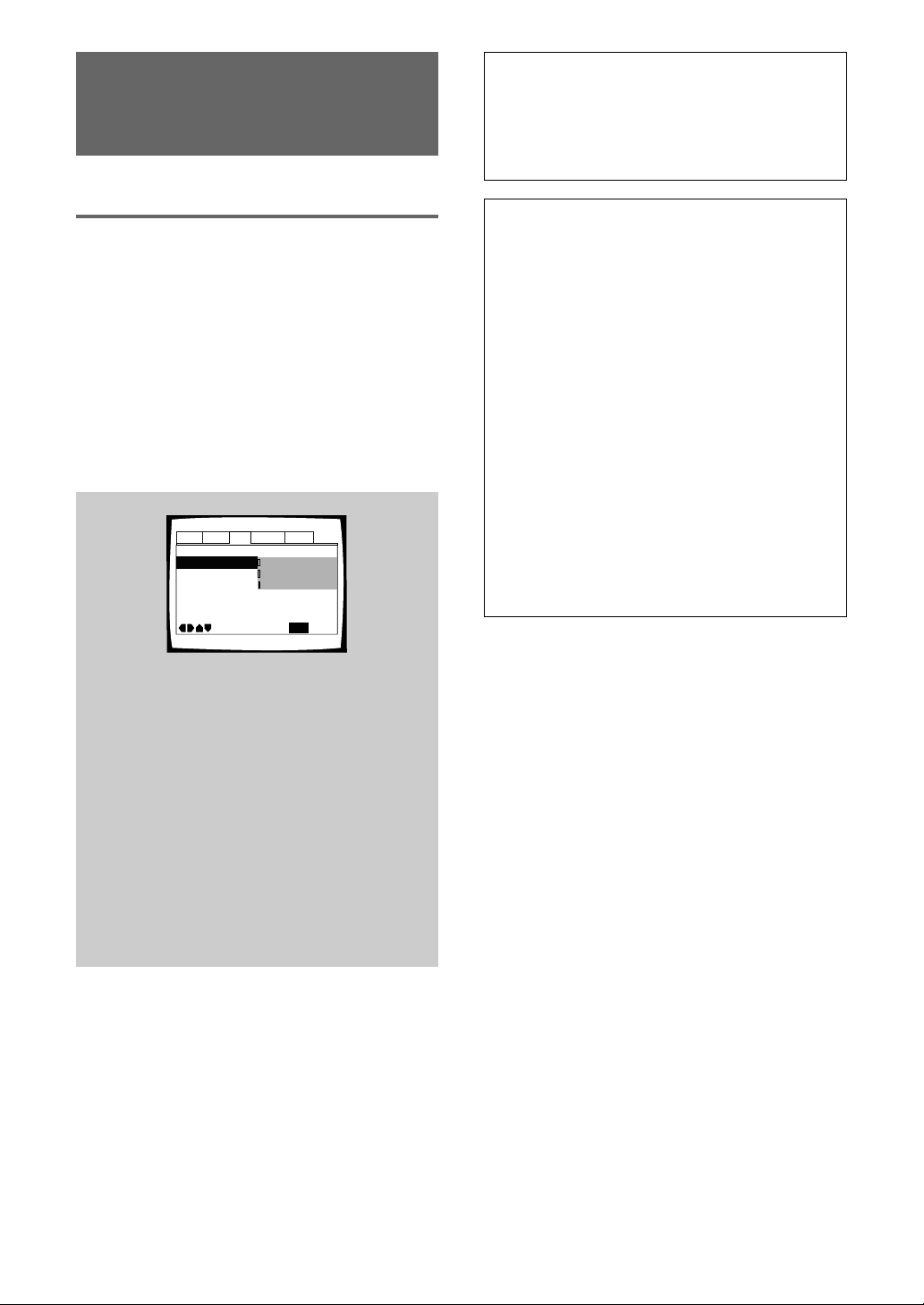
32
525 line Digital Progressive
Scan Compatible Video Output
– DVD
Connecting to a progressive scan-
compatible TV
Compared to a standard interlaced TV picture, a
progressive scan TV is capable of stable, flicker-free
images.
Set only if you connected the COMPONENT VIDEO
OUT jacks to a progressive scan-compatible TV or
monitor. For this setting to be effective, the rear panel
COMPONENT VIDEO OUT switch set to 525p (480p)
or MENU SELECT.
When a progressive-scan video signal is output, the
“PROGRESSIVE SCAN” indicator lights on the front
panel.
When the switch is set to MENU SELECT, make
changes to the [Component Video] setting in the Setup
screen Video menu.
Settings: Interlace*
Use this setting with regular TVs that are not
compatible with progressive scan. Check the
TV’s instruction manual if you are not sure
about this.
Progressive
Use this setting with TVs and monitors that
have progressive scan component video
inputs. Check the TV’s instruction manual if
you are not sure about this.
Auto Progressive
Switches to progressive scan when 16:9
DVD discs are played, 4:3 DVD discs uses
interlace setting. Your TV/monitor must be
compatible with progressive scan to use this
setting.
* Factory setting
Tip:
If this player is set to output progressive-scan video, it’s
possible that the picture will appear stretched when playing
discs recorded in 4:3 format. This happens when the TV’s
aspect ratio is set at 16:9. To see the picture in its correct
aspect ratio, change the TV setting to 4:3.
If your TV can be switched between 4:3 and 16:9, set this
player to [Interlace].
Note
If you connect a TV that is not compatible with a
progressive scan signal and choose one of the
progressive scan settings, you will not be able to see any
picture at all.
Set the rear panel COMPONENT VIDEO OUT switch to
the 525i(480i) position.
Compatibility of this unit with progressive-scan TVs.
‘CONSUMERS SHOULD NOTE THAT NOT ALL HIGH
DEFINITION TELEVISION SETS ARE FULLY
COMPATIBLE WITH THIS PRODUCT AND MAY
CAUSE ARTIFACTS TO BE DISPLAYED IN THE
PICTURE. IN CASE OF 525 PROGRESSIVE SCAN
PICTURE PROBLEMS, IT IS RECOMMENDED THAT
THE USER SWITCH THE CONNECTION TO THE
“STANDARD DEFINITION” OUTPUT. IF THERE ARE
QUESTIONS REGRADING OUR TV SET
COMPATIBILITY WITH THIS MODEL 525p DVD
PLAYER, PLEASE CONTACT OUR CUSTOMER
SERVICE CENTER.‘
“525P DVD PLAYER is compatible with the
following Pioneer displays and monitors.”
PLASMA DISPLAY
•PDP-505HD •PDP-502MX
PROJECTION MONITOR RECEIVER
•Pro-700HD •Pro-710HD •Pro-610HD
•Pro-510HD •SD-641HD5 •SD-582HD5
•SD-532HD5
Audio1 Audio2 GeneralLanguageVideo
TV Screen – 16:9(Wide)
Component Video
Frame Search – Off
Angle Indicator – On
On Screen Display – Position-Normal
Still Picture - Auto
S-Video Out -
Move
Exit
SETUP
Auto Progressive
Progressive
Interlace
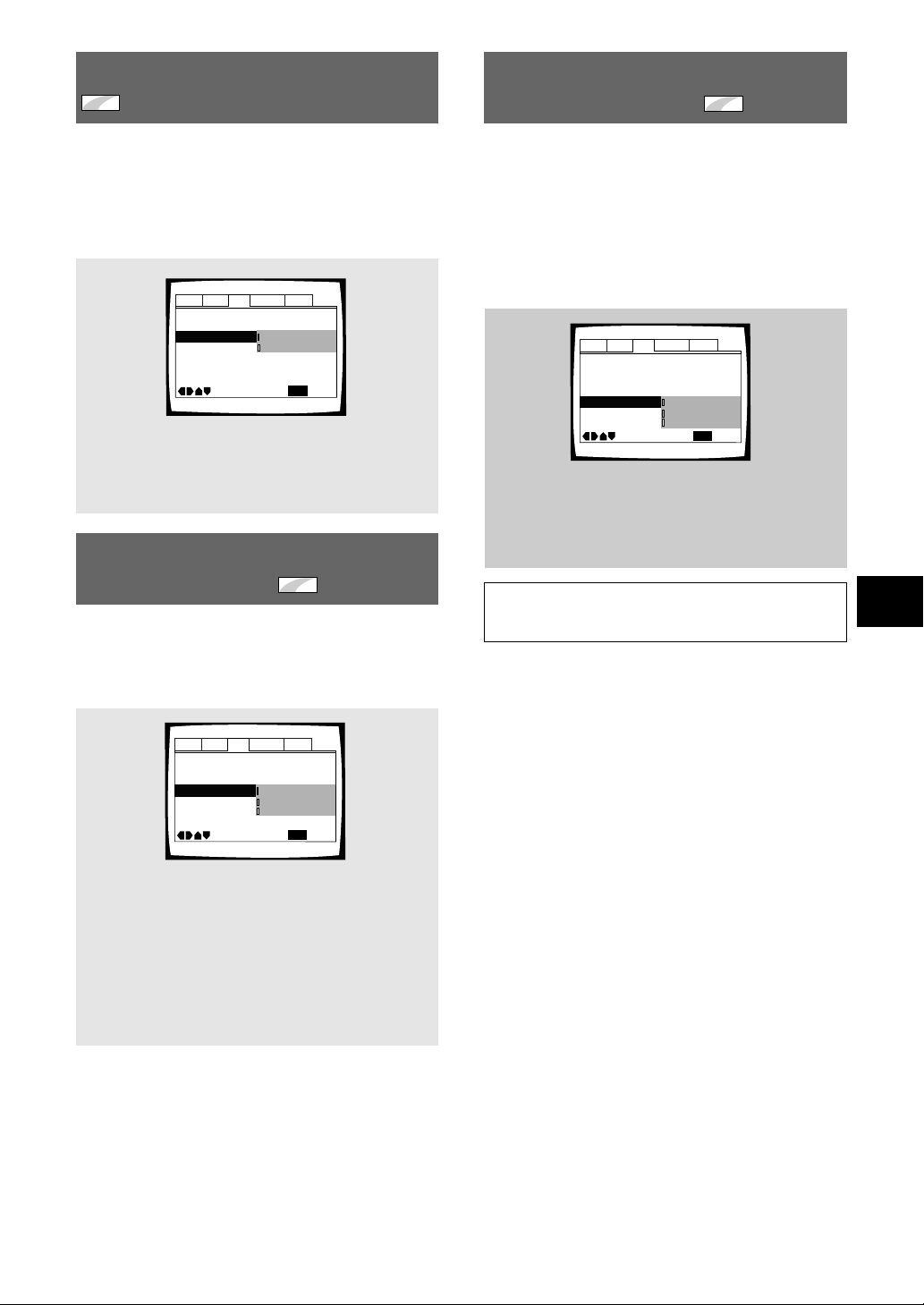
33
ADJUSTING AUDIO AND VIDEO SETTINGS
Selecting the type of paused
image to display
Expert
This function lets you view a clear still-image when DVD
playback is paused.
Make changes in the [Still Picture] setting in the Setup
screen Video menu in the [Expert] menu mode (page
27).
Settings: Field
(Picture shake will be eliminated during a
paused picture.)
Frame
(Select to obtain higher picture quality.)
Auto*
(Selects [Field] or [Frame] automatically
according to the disc.)
* Factory setting
Audio1 Audio2 GeneralLanguageVideo
TV Screen – 16:9(Wide)
Component Video – Interlace
Frame Search – Off
Angle Indicator – On
On Screen Display – Position-Normal
Still Picture Auto
S-Video Out – S2
Move
Exit
SETUP
Frame
Field
Auto
Settings: Position-Wide
Position-Normal*
Off
* Factory Setting
Audio1 Audio2 GeneralLanguageVideo
TV Screen – 16:9(Wide)
Component Video – Interlace
Frame Search – Off
Angle Indicator – On
On Screen Display
Still Picture – Auto
S-Video Out – S2
Move
Exit
SETUP
Position-Normal
Position-Wide
Off
Setting the position of the
on-screen display
Expert
When watching conventional software on a wide screen
TV, the operation display is at the very top of the screen,
and may be difficult to see. Changing the position of the
display lets you see operation indicators clearly even on
a wide screen TV.
Alternatively, you can choose to turn them off
completely with the [Off] setting.
Make changes in the [On Screen Display] in the Setup
screen Video menu in the [Expert] menu mode (page
27).
Note
This setting is only effective with DVDs that contain a 4:3
aspect ratio video presentation.
Switching the S-Video Output
Expert
– DVD
You can Switch the kind of S-Video signal output from
the S-Video outputs. If you connected your TV with an S-
Video cord, in rare cases the TV picture may appear
stretched. In this case switch the output from [S2] to
[S1].
Make changes in the [S-Video Out] in the Setup screen
Video menu in the [Expert] menu mode (page 27).
Settings: S1
S2*
* Factory Setting
Audio1 Audio2 GeneralLanguageVideo
TV Screen – 16:9(Wide)
Component Video – Interlace
Frame Search – Off
Angle Indicator – On
On Screen Display – Position-Normal
Still Picture - Auto
S-Video Out
Move
Exit
SETUP
S2
S1
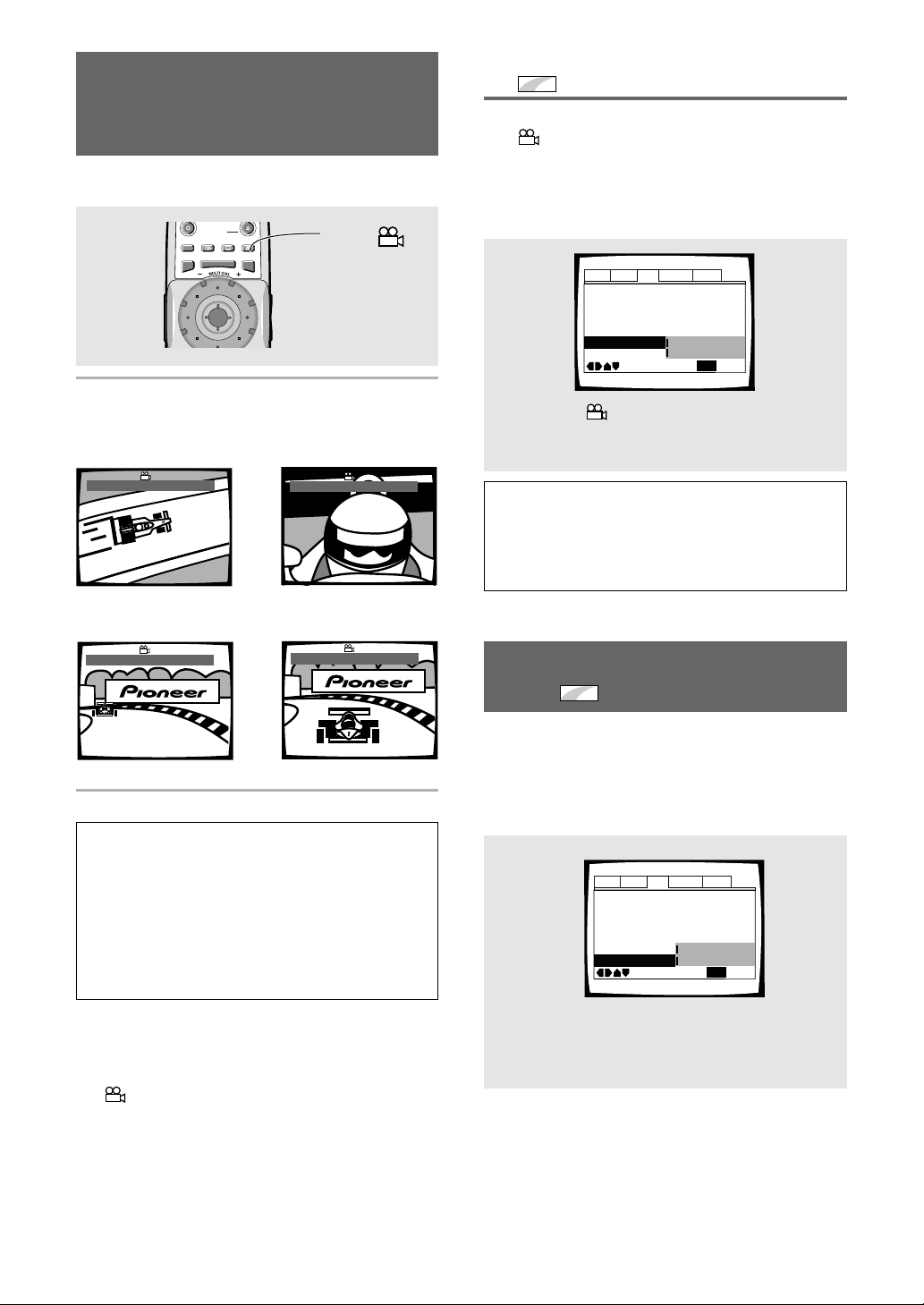
34
ANGLE : 2/4
Viewing from a Desired
Camera Angle (Multi-Angle)
– DVD
You can select a camera angle when viewing DVDs with
the multi-angle option.
Press ANGLE during playback.
The camera angle changes each time you press the
button.
Notes
• You can use the Multi-Angle function only with discs
featuring recordings of images shot from different camera
angles.
• During Multi-Angle playback, the ANGLE indicator in the
display lights.
• For some discs, selection can be made using the DVD
menu.
In this case, press MENU to display the DVD menu screen
and then make your selection.
To check whether or not a disc is recorded with
angles:
The jacket of discs that are recorded with angles will be marked
with
. When locations on discs that are recorded with angles
are played back, the ANGLE indicator can be displayed.
To cancel the angle mark, set [Angle Indicator] to [Off] in the
Setup screen Video menu described in the section below.
\
«»
|
ANGLE : 1/4
ANGLE : 3/4
ANGLE : 4/4
TOP
MENU
SET UP
DISPLAY AUDIO SUBTITLE ANGLE
OPEN /
CLOSE
STANDBY
/ON
MENU
ENTER
DISP
ANGLE
Turning the angle indicator on and
off
Expert
When a picture recorded in different angles is played
back is displayed on the screen. This setting lets you
see clearly whether the playback picture is recorded in
multiple angles or not.
Turn the angle indicator on or off in the [Angle
Indicator] setting in the Setup screen Video menu in
the [Expert] menu mode (page 27).
Note
Even when the [Angle Indicator] setting is set to [Off], the
ANGLE indicator in the display panel of the player lights
during multi-angle playback. Therefore, it is possible to know
when the multi-angle function can be used without having to
display the icon on the screen.
Audio1 Audio2 GeneralLanguageVideo
TV Screen – 16:9(Wide)
Component Video – Interlace
Frame Search – Off
Angle Indicator On
On Screen Display – Position-Normal
Still Picture – Auto
S-Video Out – S2
Move
Exit
SETUP
On
Off
Settings: On* ( is displayed)
Off (Not Displayed)
* Factory setting
Selecting the type of search
mode
Expert
– DVD
Set this On if you want to be able to do frame-accurate
searching of DVD discs (see page 47 for how to do a
time & frame search).
Make changes in the [Frame Search] in the Setup
screen Video menu in the [Expert] menu mode (page
27).
Audio1 Audio2 GeneralLanguageVideo
TV Screen – 16:9(Wide)
Component Video – Interlace
Frame Search Off
Angle Indicator On
On Screen Display – Position-Normal
Still Picture – Auto
S-Video Out – S2
Move
Exit
SETUP
On
Off
Settings: On
Off*
* Factory setting
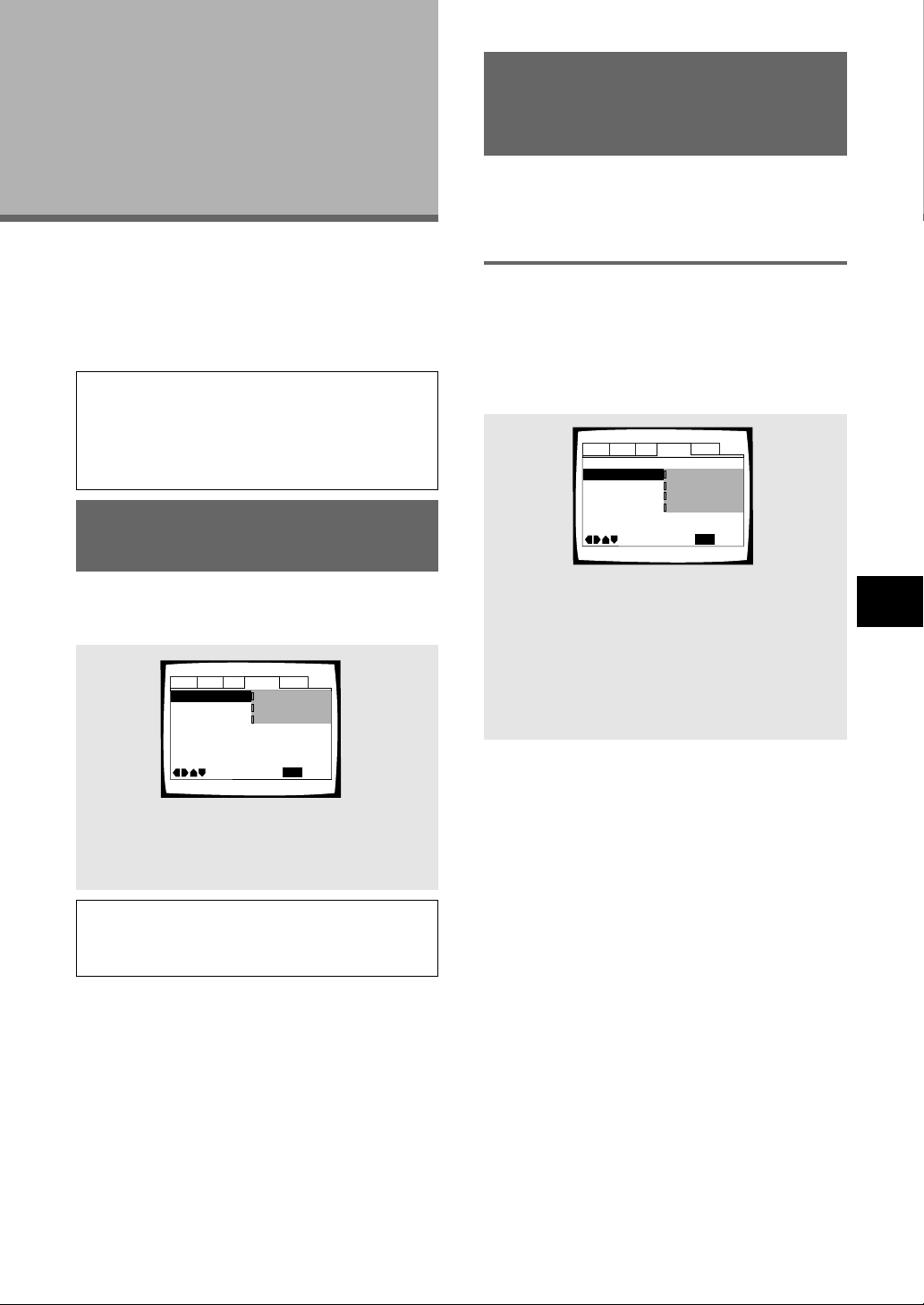
35
Setting the on-screen display
(OSD) language
This setting is used to establish the language that
operation indicators and on-screen messages and
operations display. Change this setting in the Setup
screen Language menu [OSD Language] setting.
Setting the
Language
Options
DVDs have the capacity to contain a great deal of audio
information, which includes the ability to hold up to 8
different language tracks and subtitle information in as
many as 32 different languages. This section outlines
the variety of audio language and subtitle options
available with this player.
Notes
• DVDs differ in content and do not all contain multiple
language or subtitle information. Therefore making settings
in this section may have no effect on some DVDs.
• If you have already completed the Setup Navigator screen
operations, the settings on this page have already been set
by the player.
Note
The [OSD Language] setting is factory set to [English]. If
you want English to be displayed, it is not necessary to
adjust this setting.
Settings: English*
français
Español
* Factory setting
Selecting an audio language
preference
The audio language that you normally listen to can be
selected from the various audio languages on a DVD.
Even when the audio language is changed during
playback by pressing AUDIO, the language selected at
this setting will be selected as the default when the DVD
is changed.
Make changes to the [Audio Language] setting in the
Setup screen Language menu.
Settings: English*
French
Spanish
Other
(For details on how to select other languages,
see
‘When “Other” is selected’
on page
38.)
*Factory setting
Audio1 Audio2 GeneralLanguageVideo
OSD Language – English
Audio Language English
Subtitle Language - Japanese
DVD Language -
English
Subtitle Off
– Selected Subtitle
Auto Language
- On
Subtitle Display
– On
Move
Exit
SETUP
English
French
Spanish
Other
Setting Language and Subtitle
Preferences in the Setup
Screen Menus
The Setup screen Language menu contains a number of
settings related to the audio and subtitle language
preferences.
ADJUSTING AUDIO AND VIDEO SETTINGS/
SETTING THE LANGUAGE OPTIONS
Audio1 Audio2 GeneralLanguageVideo
OSD Language English
Audio Language - English
Subtitle Language - Japanese
DVD Language –
English
Subtitle Off
– Selected Subtitle
Auto Language
– On
Subtitle Display
– On
Move
Exit
English
français
Español
SETUP
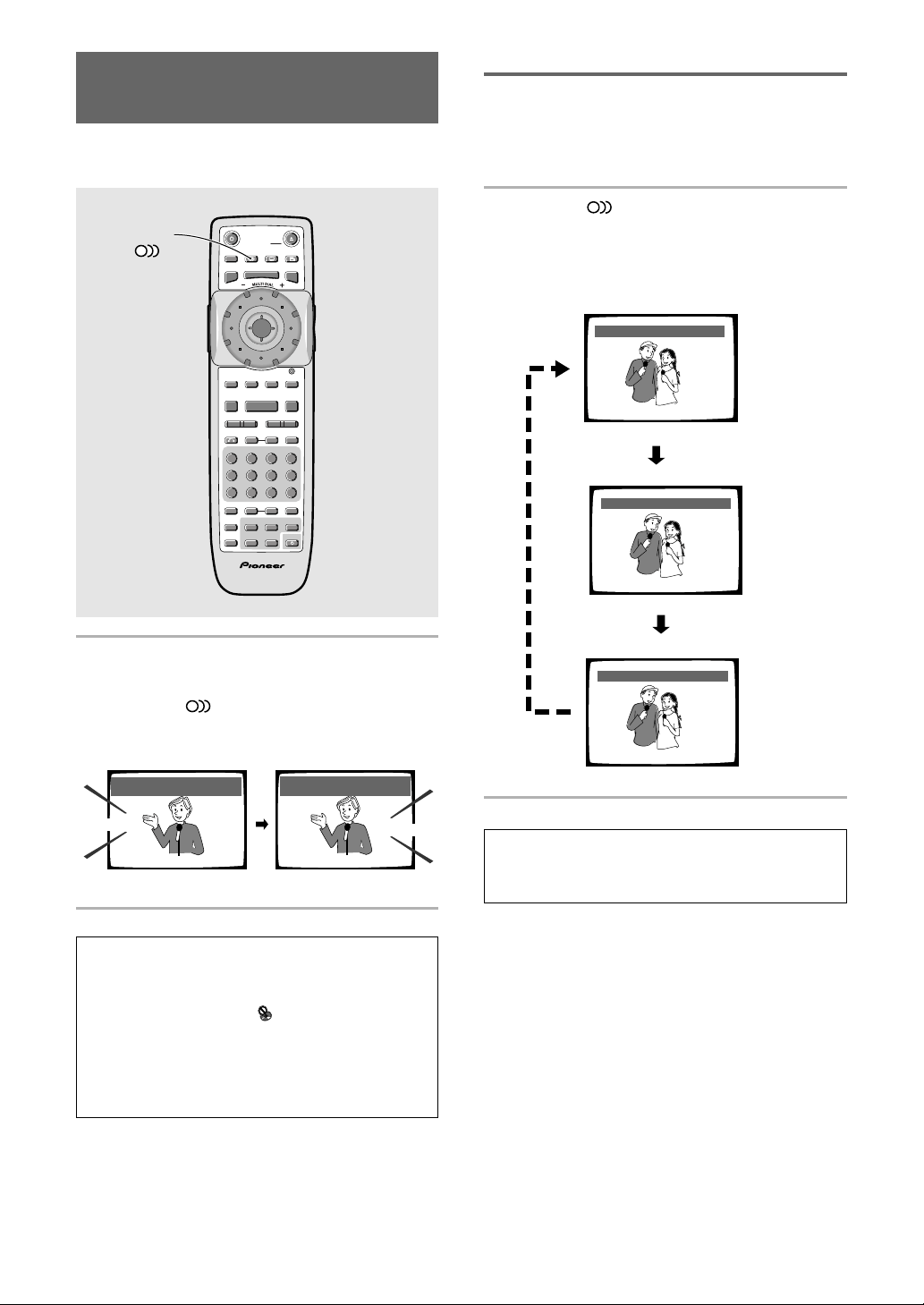
36
Changing the Audio Language
(Multi-Language Function) – DVD
Dolby Digital, PCM, and other audio data can be
recorded on DVDs in a number of languages or audio
tracks, letting you choose the desired language or audio.
Press AUDIO repeatedly to select the desired
language.
Pressing AUDIO once displays the currently
selected language. Subsequent presses rotates through
the audio languages available on the DVD.
Notes
• You cannot switch languages if there is only one language
recorded on the disc.
• Switching the audio language may not be possible with
some titles. In this case, the
mark is displayed.
• For some titles, selection can be made using the DVD
menu.
In these cases, press MENU to display the DVD menu
screen and then make your selection.
• If a DTS audio soundtrack is selected, then is no output
from the analog audio jacks.
Audio : 1 English
Dolby Digital
5.1CH
Audio : 2 Spanish
HELLO
HOLA
Dolby Digital
5.1CH
Changing Audio Type – Video CD/CD
For enjoyment of karaoke or similar format Video CDs
and CDs, it is possible to select stereo audio, or either
right or left channel mono depending on the
requirements of the source.
Press AUDIO repeatedly during playback to
switch the audio type.
Audio output changes from [1/L] (Left channel) to
[2/R] (Right channel) to [Stereo].
Note
With karaoke and other discs, set the appropriate audio type
for singing and accompaniment after referring to information
on the disc jacket or accompanying material.
SEARCH MODESTEP / SLOWRETURN
PREVIOUS NEXT REV FWD
PAUSEPLAY
VIDEO
ADJUST
DIMMER JOG MODE
TOP
MENU
SET UP
DISPLAY AUDIO SUBTITLE ANGLE
OPEN /
CLOSE
STANDBY
/ON
FUNCTION
MEMORY
STOP
PROGRAM
CONDITION
MEMORY
LAST
MEMORY
REPEAT
VOLUME CHANNEL
TV CONTROL
RANDOM
MENU
ENTER
V.ADJ
FL
F.MEM
DISP
JOG
873
A-BRPT
RDM
LAST
Vol + CH + FUNC
CH –
Vol –
COND.
PGM
4¢ 1
eE
¡
Î
TV
0987
+
10
654
C321
CLEAR
AUDIO
Audio : 1/L
Audio : 2/R
Audio : Stereo
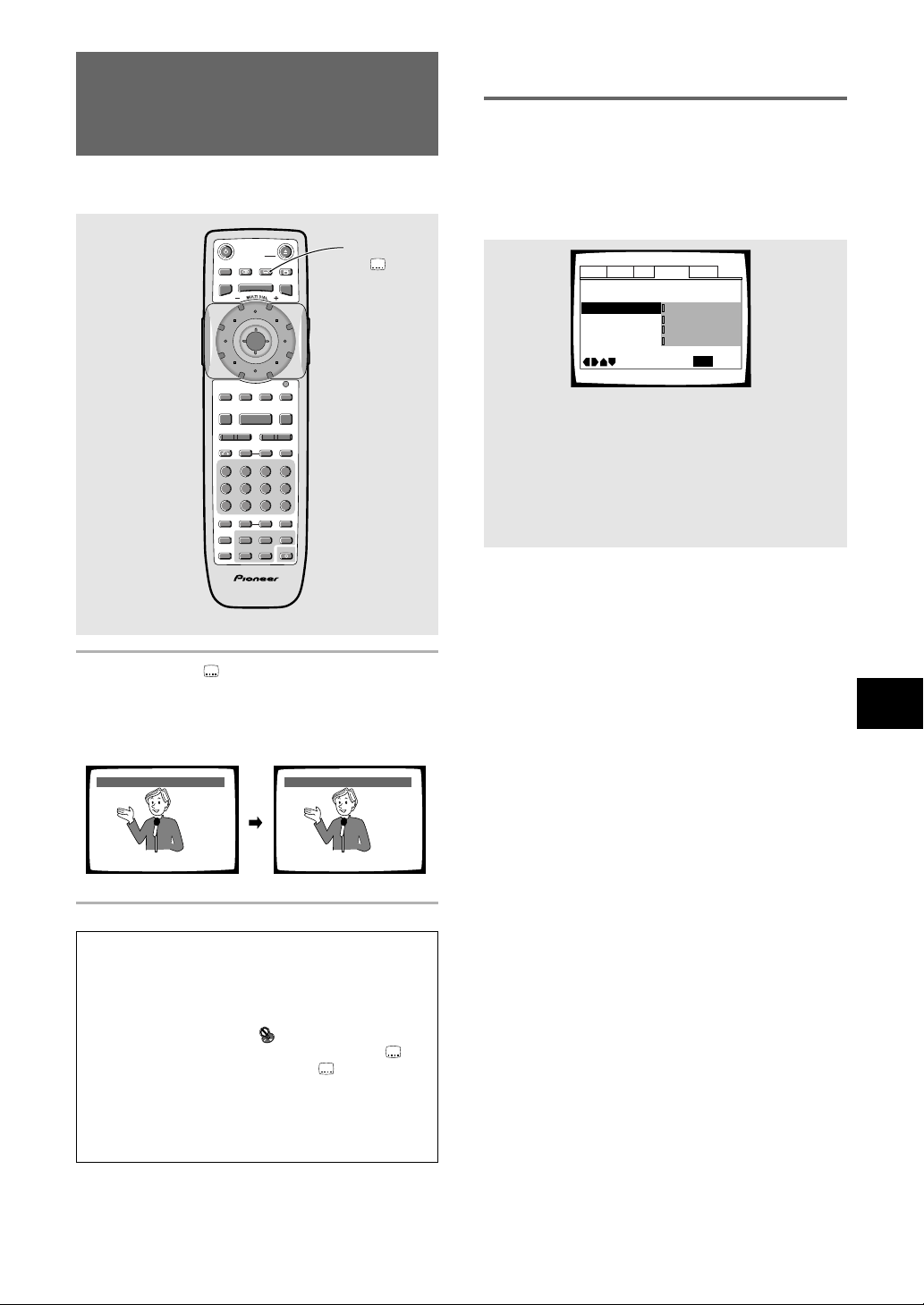
37
SETTING THE LANGUAGE OPTIONS
Selecting a Subtitle Language
(Multi-Language Subtitles)
– DVD
You can select a desired subtitle language with DVDs
that have subtitle data in multiple languages recorded on
them.
Press SUBTITLE repeatedly during playback.
Pressing SUBTITLE once displays the currently selected
subtitle language. Subsequent presses rotates through
the subtitle languages available on the DVD.
Notes
• The subtitle language cannot be switched if the subtitle
language is not recorded, or if only one language is
recorded.
• Switching the subtitle language may not be possible with
some discs. In this case, the
mark will be displayed.
• To clear subtitles during playback, press SUBTITLE
and
then press CLEAR, or press SUBTITLE
until [Off]
appears.
• For some discs, subtitle language selection can be made
using the menu on the DVD. In this case, press MENU to
display the DVD menu screen and then make your
selection.
HELLO!
HOLA!
Subtitle :1 English Subtitle :2 Spanish
SEARCH MODESTEP / SLOWRETURN
PREVIOUS NEXT REV FWD
PAUSEPLAY
VIDEO
ADJUST
DIMMER JOG MODE
TOP
MENU
SET UP
DISPLAY AUDIO SUBTITLE ANGLE
OPEN /
CLOSE
STANDBY
/ON
FUNCTION
MEMORY
STOP
PROGRAM
CONDITION
MEMORY
LAST
MEMORY
REPEAT
VOLUME CHANNEL
TV CONTROL
RANDOM
MENU
ENTER
V.ADJ
FL
F.MEM
DISP
JOG
873
A-BRPT
RDM
LAST
Vol + CH + FUNC
CH –
Vol –
COND.
PGM
4¢ 1
eE
¡
Î
TV
0987
+
10
654
C321
CLEAR
SUBTITLE
Selecting a subtitle language
preference
The subtitle language that you will normally display can
be selected from the subtitles programmed on a disc.
Even when the subtitle language is changed during
playback by pressing SUBTITLE, the language selected
at this setting will be selected when the disc is changed.
Make changes to the [Subtitle Language] setting in the
Setup screen Language menu.
Audio1 Audio2 GeneralLanguageVideo
OSD Language – English
Audio Language – English
Subtitle Language - Japanese
DVD Language -
English
Subtitle Off
– Selected Subtitle
Auto Language
- On
Subtitle Display
– On
Move
Exit
SETUP
English
French
Spanish
Other
Settings: English*
French
Spanish
Other
(For details on how to select other languages,
see
‘When “Other” is selected’
on page 38.)
*Factory setting
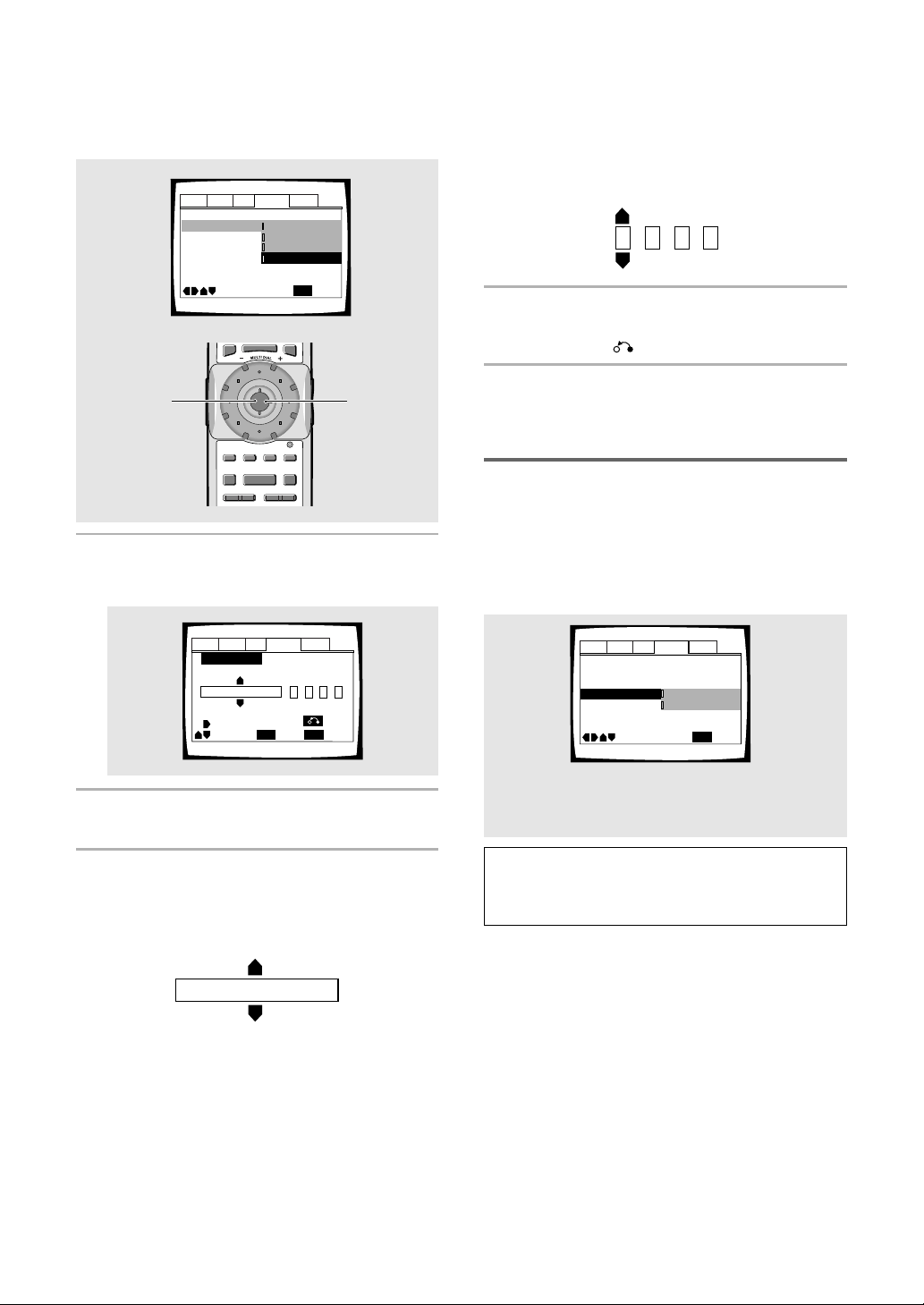
38
Setting Auto Language to control
subtitle and audio language based
on program content
When the Auto Language function is used, foreign
movies are shown with the original audio soundtrack and
subtitles in the language selected in the [Subtitle
Language] menu option. Domestic films are shown with
the original audio soundtrack and no subtitles (This
setting may not be effective with all DVD discs.)
Make changes to the [Auto Language] setting in the
Setup screen Language menu.
Settings: On*
Off
* Factory setting
Note
The Auto Language function operates only when this
function is set to [On], and the language set for the [Audio
Language] and [Subtitle Language] settings is the same.
Audio1 Audio2 GeneralLanguageVideo
OSD Language – English
Audio Language – English
Subtitle Language – English
DVD Language -
English
Subtitle Off
– Selected Subtitle
Auto Language
- On
Subtitle Display
– On
Move
Exit
SETUP
On
Off
Code (0~2)
1001
When “Other” is selected
When you want to select one of the 136 languages as
the main audio language, follow the steps below when
the following screen appears.
A language code list can be found on page 58.
1 Move the cursor control joystick to select
[Other] and press ENTER.
The language selection screen appears.
2 Move the cursor control joystick to select
either [List of Languages] or [Code].
3 If you select [List of Languages], move the
cursor control joystick up or down to
select the language.
Audio1 Audio2 GeneralLanguageVideo
+/–
Audio Language
SETUP
Move
Exit
ENTER
Select
Return
ja: Japanese
List of Languages
Code (0~2)
1001
ja: Japanese
List of Languages
PREVIOUS NEXT REV FWD
PAUSEPLAY
VIDEO
ADJUST
DIMMER JOG MODE
TOP
MENU
SET UP
FUNCTION
MEMORY
STOP
MENU
ENTER
V.ADJ
FL
F.MEM
JOG
873
4¢ 1 ¡
1, 4
(Cursor)
1, 2, 3
(ENTER)
If you select [Code], move the cursor control
joystick up or down to input the numbers of
the input code.
Move the cursor control joystick right or left to change
the position of the cursor. You can also use the number
buttons to enter the code.
4 Press ENTER to set the new language.
To exit the screen without making any changes,
press RETURN .
Audio1 Audio2 GeneralLanguageVideo
OSD Language – English
Audio Language English
Subtitle Language - Japanese
DVD Language -
English
Subtitle Off
– Selected Subtitle
Auto Language
- On
Subtitle Display
– On
Move
Exit
SETUP
English
French
Spanish
Other
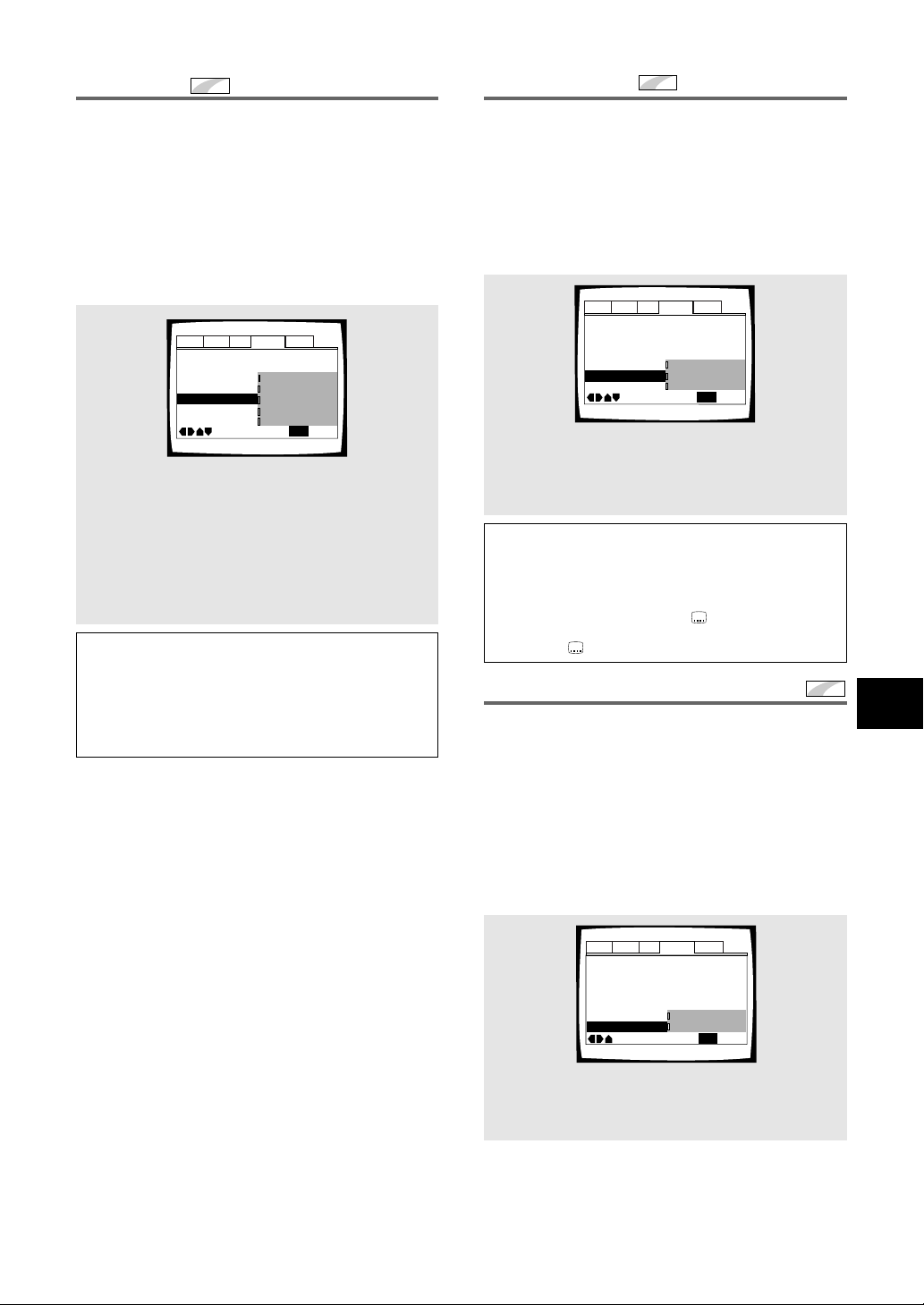
39
SETTING THE LANGUAGE OPTIONS
Selecting a DVD menu language
preference
Expert
In addition to containing different audio languages, DVD
may also contain menu screens in different languages as
well. Setting a DVD language preference, sets the
selected language as a default when DVDs with menu
information in that language are encountered.
Selecting [w/ Subtitle Language] automatically assigns
the language selected in the [Subtitle Language]
setting.
Make changes to the [DVD Language] setting in the
Setup screen Language menu in the [Expert] menu
mode (page 27).
Audio1 Audio2 GeneralLanguageVideo
OSD Language – English
Audio Language – English
Subtitle Language Japanese
DVD Language
English
Subtitle Off
- Selected Subtitle
Auto Language
- On
Subtitle Display
- On
Move
Exit
w/ Subtitle Language
English
French
Spanish
Other
SETUP
Notes
• The menu settings may look different from the one shown
above.
• If this function is not effective, the languages that can be
selected may also be selected in the DVD menu. Press
MENU to open the DVD menu and make your selection
accordingly.
Settings: w/ Subtitle Language*
English
French
Spanish
Other
(For details on how to select other languages,
see
‘When “Other” is selected’
on page 38.)
* Factory setting
Forcing subtitles to be displayed
Expert
Even when the subtitles are turned off, some DVDs will
nevertheless display them on the screen. This setting
allows you to select the language of the subtitles to be
displayed with this type of DVD.
Select [With Audio] to display the subtitles in the same
language as the currently selected audio language.
Select [Selected Subtitle] to display the subtitles in the
language set in the [Subtitle Language] setting.
Make changes to the [Subtitle Off] setting in the Setup
screen Language menu in the [Expert] menu mode
(page 27).
Selecting subtitles, assist subtitles
or no subtitles
Expert
Use this function to turn the subtitles on or off.
Additionally, some DVDs provide assist subtitles that
provide additional explanations of scenes in addition to
the standard subtitles for viewers who are hard of
hearing. Select [Assist Subtitle] to display these
subtitles on DVDs where this function is offered.
Make changes to the [Subtitle Display] setting in the
Setup screen Language menu in the [Expert] menu
mode (page 27).
Audio1 Audio2 GeneralLanguageVideo
OSD Language – English
Audio Language – English
Subtitle Language – Spanish
DVD Language –
English
Subtitle Off
Selected Subtitle
Auto Language
– On
Subtitle Display
- On
Move
Exit
With Audio
Selected Subtitle
SETUP
Audio1 Audio2 GeneralLanguageVideo
OSD Language – English
Audio Language – English
Subtitle Language – English
DVD Language -
English
Subtitle Off
– Selected Subtitle
Auto Language
– On
Subtitle Display
On
Move
Exit
SETUP
On
Off
Assist Subtitle
Notes
• If there is no subtitle information recorded on the DVD, no
subtitles are displayed even if this function is set to [On].
• This setting serves as a default as whether or not to display
subtitles. Even if this option is set to [Off], subtitles can be
displayed by pressing SUBTITLE
. Similarly, if this option
is set to [On], the subtitles can be turned off by pressing
SUBTITLE
and then CLEAR.
Settings: On*
Off
Assist Subtitle
* Factory setting
Settings: With Audio
Selected Subtitle*
* Factory setting
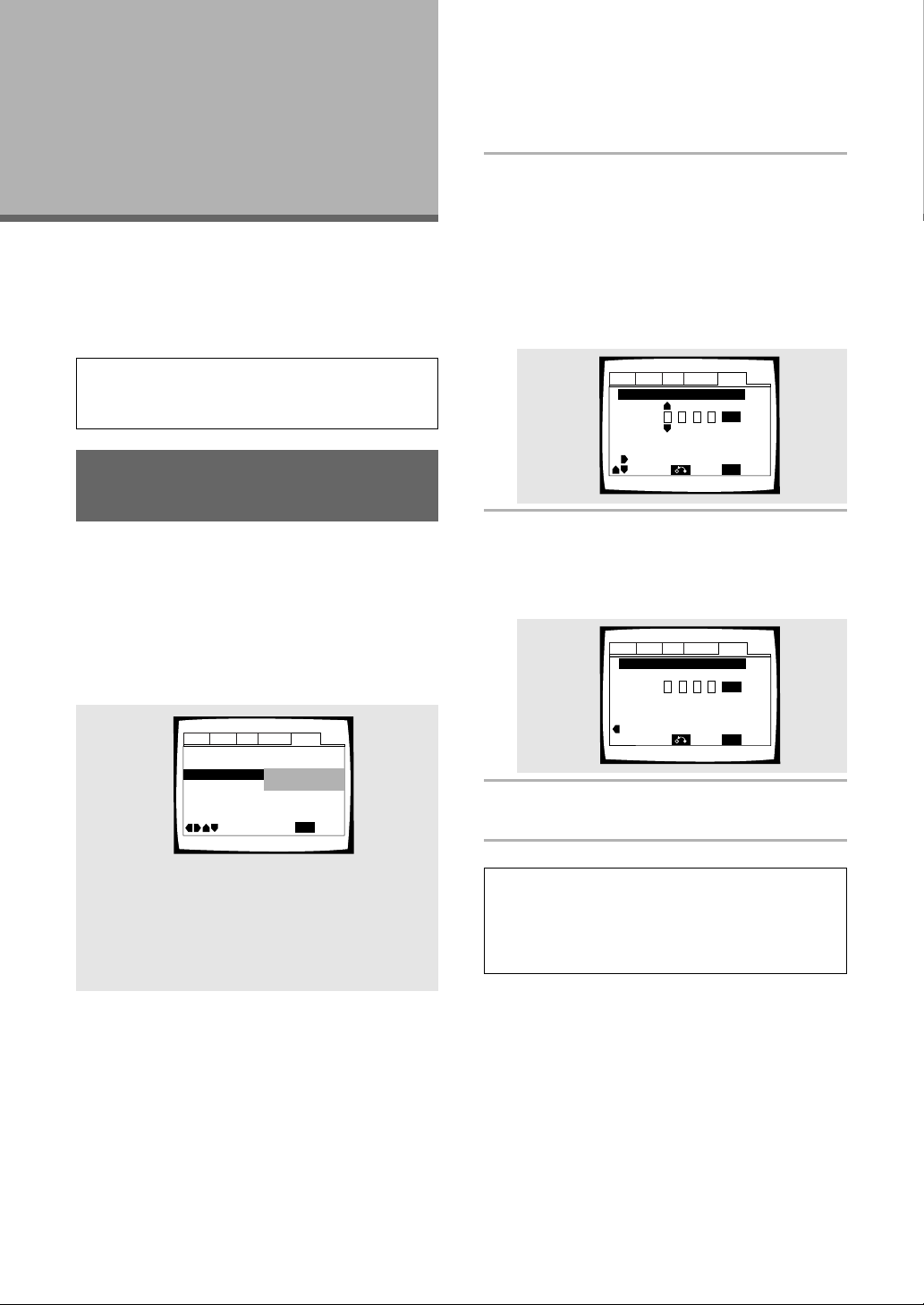
40
Advanced
Functions
This player is compatible with DVD, Video CD, and CD
disc formats. Users already familiar with Video CD or CD
will already be familiar with some of the functions the
player is capable of performing. With DVD, an even
greater number of possibilities and functions are
available.
Note
DVDs differ in content and do not all contain the same
information. Therefore some functions in this section may
not work or have no effect on some DVDs.
Setting the Parental Lock
Level – DVD
This player lets you set the Parental Lock if the DVD has
a parental lock level recorded on it. With Parental Lock
capable discs, you can block access to material you feel
is inappropriate for your children. Refer to the DVD disc
jacket and the accompanying documentation to see if a
particular disc contains a parental lock level.
Make changes to the [Parental Lock] setting in the
Setup screen General menu. Please note that changes
to the Parental Lock level can only be made when the
player is stopped.
Settings: Level Change
(For information, refer to
‘Setting the
Parental Lock level’
on the following page.)
Password Change
(For information, refer to
‘Changing the
password’
on the following page.)
When a DVD with a set Parental Lock level is
loaded
Playback cannot be started until the code number has been
correctly input by using the cursor control joystick or the
number buttons, and ENTER has been pressed.
Audio1 Audio2 GeneralLanguageVideo
Setup Navigator
Screen Saver – Off
Background Color – Black
Parental Lock Level 8
Setup Menu Mode –
Expert
Move
Exit
SETUP
Level Change
Password Change
Entering the password
When you select either [Level Change] or [Password
Change], it is necessary to enter the password (4-digit
code number). Use the following steps at any time you
are asked to enter or confirm your password.
1 Move the cursor control joystick up or
down or the number buttons to select a
number between 0 and 9.
You can also use the number buttons to enter the
numbers directly. When entering your password for
the first time, or changing it, you will be asked to
reenter your password. When using the number
buttons to confirm the password, the numbers
appear as asterisks, and the cursor advances
automatically to the next position.
2 Move the cursor control joystick right or
left to move the cursor to a different
position in the password.
When all four numbers of the passoword have been
entered, ENTER appears on the screen.
3 Press ENTER to set the new password.
The password is entered.
Note
Be sure not to forget your password. If you should forget it,
reset the system, and enter a new password. To reset the
system, see
‘Resetting the Player to System Settings’
(page 57). Please note that this procedure resets the system,
and clears all saved settings, not just the password.
Audio1 Audio2 GeneralLanguageVideo
Parental Lock: Register Code Number
Move
Exit
––––
Return
SETUP
ENTER
+/–
Audio1 Audio2 GeneralLanguageVideo
Parental Lock: Register Code Number
Move
Exit
1019
Return
+/–
SETUP
ENTER
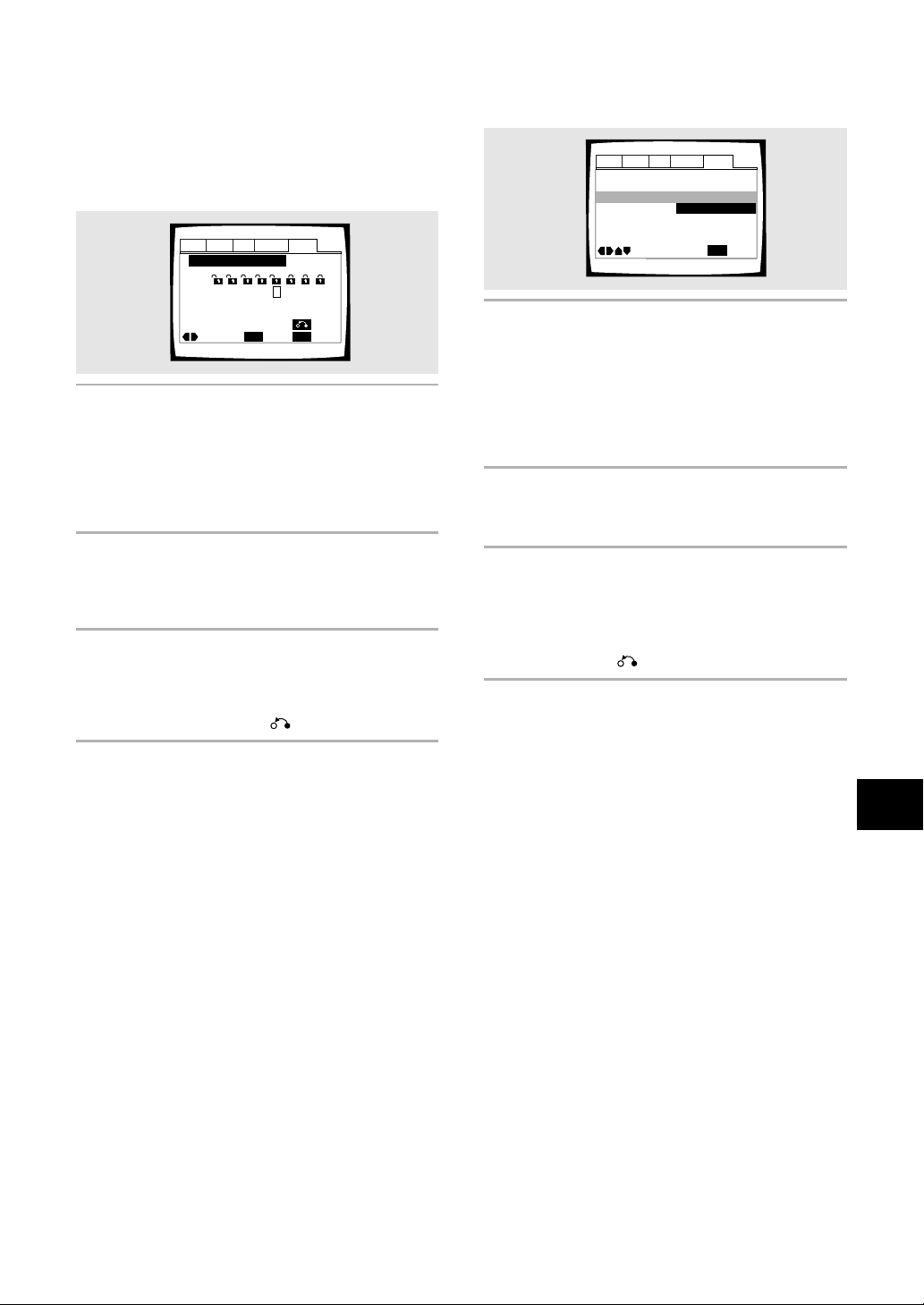
41
ADVANCED FUNCTIONS
Changing the password
Change your password whenever you feel it is
necessary. However, if you forget your existing
password, you cannot enter this screen to change it.
1 Select [Password Change] in the [Parental
Lock] setting.
The screen changes to the password input screen.
To enter the password, refer to
‘Entering the
password‘
on the previous page.
If you have not yet set a password, you cannot
select this setting. Establish a password by
selecting [Level Change] first.
2 Move the cursor control joystick right or
left to or the number buttons to enter the
new password.
3 When the new password has been
entered, press ENTER.
The new password is set and the screen returns to
the General menu screen. To go back to the
General menu screen without making any changes,
press RETURN .
Setting the Parental Lock level
Change the Parental Lock level to a higher or lower level
according to the settings printed on the DVD disc jacket
or accompanying documentation. If you use the
Condition Memory function to save the settings for a
particular disc, the Parental Lock level is saved as well.
Because it is saved in memory, Parental Lock levels can
be set for individual discs according to their content
rather than a set level for all DVDs.
1 Select [Level Change] in the [Parental
Lock] setting.
The screen changes to the password input screen.
If you have not yet set a password, you will be
asked to do so at this time. To enter the password,
refer to
‘Entering the password’
on the previous
page.
2 Move the cursor control joystick right or
left to to adjust the Parental Lock level.
The lock icons appear “unlocked” up to the
selected level to indicate that access is available.
3 Press ENTER to set the new level.
The new Parental Lock level is set and the screen
returns to the General menu screen. To go back to
the General menu screen without making any
changes, press RETURN .
Audio1 Audio2 GeneralLanguageVideo
Setup Navigator
Screen Saver – Off
Background Color – Black
Parental Lock Level 8
Setup Menu Mode –
Expert
Move
Exit
SETUP
Level Change
Password Change
Audio1 Audio2 GeneralLanguageVideo
Parental Lock: Level Change
Move
ExitSelect
1
234 6785
Return
Level
SETUP
ENTER
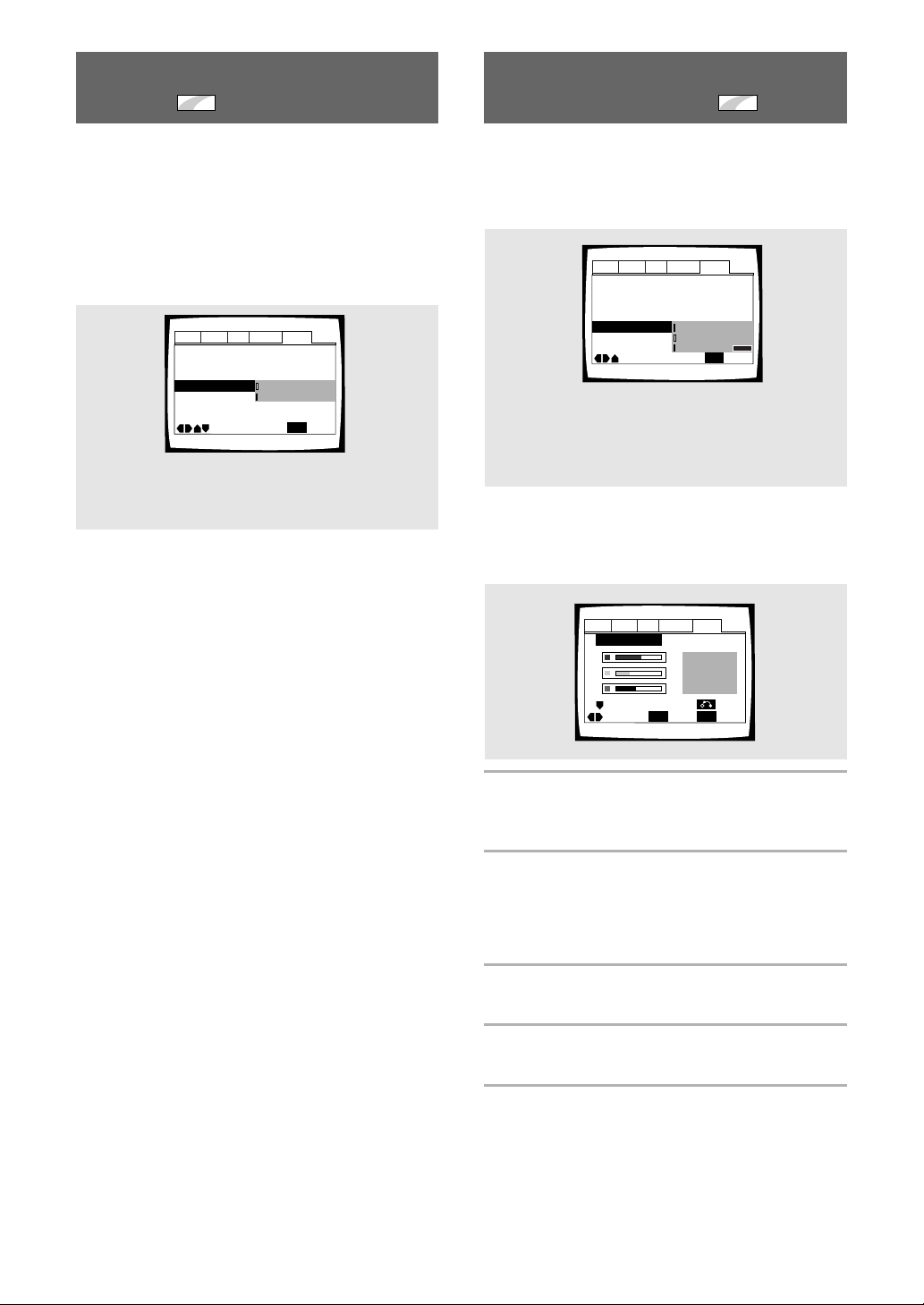
42
Changing the Background
Color of the Screen
Expert
You can select a blue or black background to appear
when the player is in the stop mode.
Make changes to the [Background Color] setting in the
Setup screen General menu in the [Expert] menu mode
(page 27).
Settings: Black*
Blue
Other
*Factory setting
When “Other” is selected
This player gives you the option of creating your own
background color by adjusting the red, green and blue
levels.
1 Move the cursor control joystick up or
down to select a color bar.
The selected color bar becomes highlighted.
2 Move the cursor control joystick right or
left to adjust the level of the color.
As the color bar is adjusted, the square on the right
side of the screen indicates how the current mix of
the three colors appears.
3 Repeat steps 1 and 2 until you have
achieved a color that you like.
4 Press ENTER to set the color as the
background color.
Turning the Screen Saver On
and Off
Expert
As a protective function against residual images on the
TV screen or monitor, a phenomenon referred to as
“screen burn”, the screen saver appears when the
same screen has been displayed for a length of time. By
default, the screen saver is turned off. However, the
screen saver function can be turned on and off at your
discretion.
Make changes to the [Screen Saver] setting in the
Setup screen General menu in the [Expert] menu mode
(page 27).
Settings: On
Off*
*Factory setting
Audio1 Audio2 GeneralLanguageVideo
Screen Saver – On
Parental Lock – Level 8
Setup Navigator
Background Color
Move
Exit
Blue
Other
Black
SETUP
Setup Menu Mode
–
Expert
Audio1 Audio2 GeneralLanguageVideo
Background Color
–/+
SETUP
Move
Exit
ENTER
Select
Return
Audio1 Audio2 GeneralLanguageVideo
Screen Saver
Parental Lock – Level 8
Setup Navigator
Background Color -
Move
Exit
Off
On
SETUP
Setup Menu Mode
–
Expert
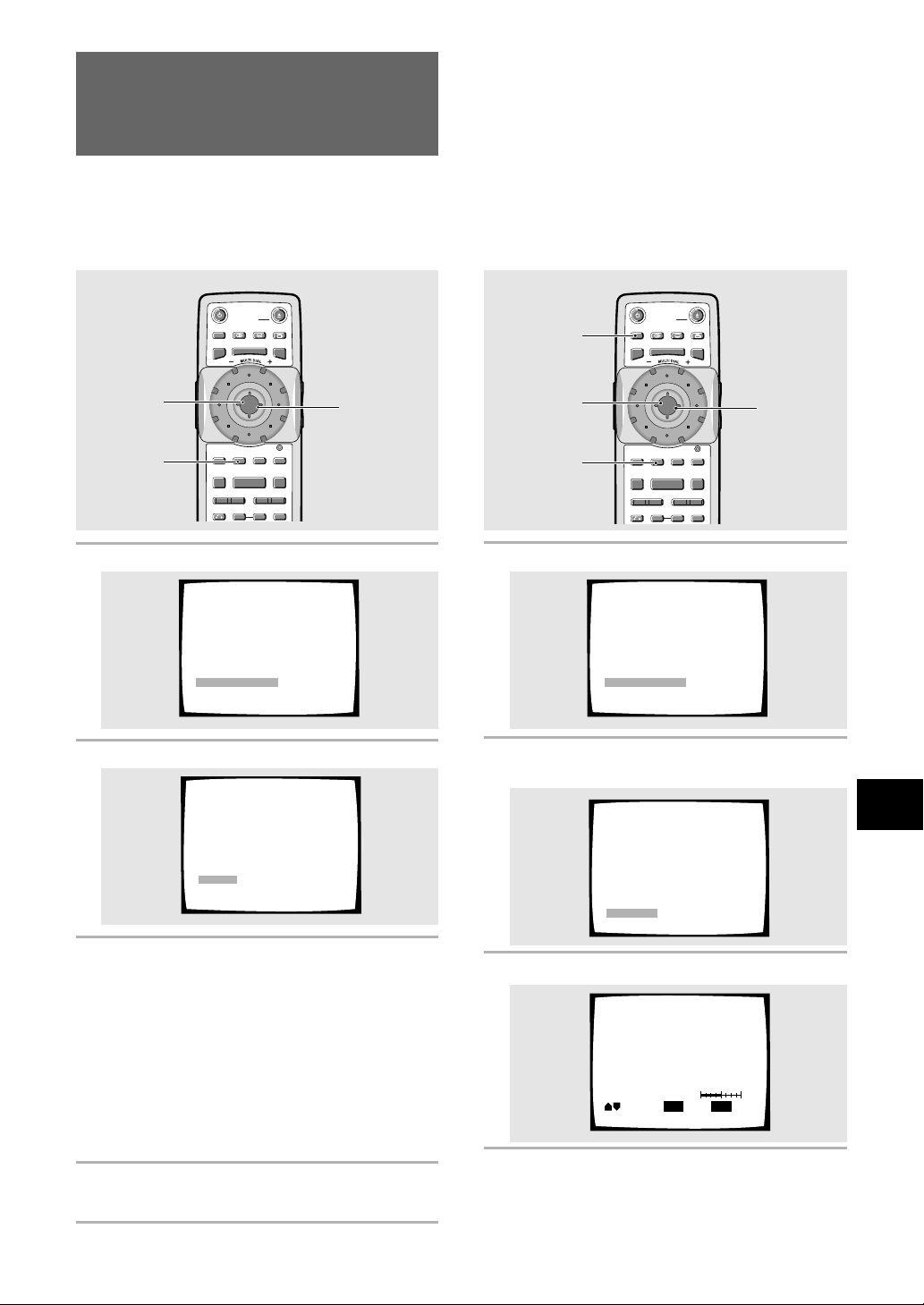
43
ADVANCED FUNCTIONS
Adjusting the Video Quality
(Digital Noise Reduction)
– DVD/Video CD
You can either select a preprogrammed setting designed
to match certain program types or make adjustments to
match your own preferences and save them in the
player’s memory.
Selecting a preprogrammed setting
1 Press VIDEO ADJUST (V.ADJ).
2 Press ENTER.
3 Move the cursor control joystick to select
one of the preprogrammed picture quality
settings.
TV(CRT)* – (default setting) optimized settings for
a standard television set.
Projector – optimized for a projector or projection
TV.
Professional – optimized for a professional monitor.
Memory1–3 – user setups (see page 44 for more
on these).
*Factory setting
4 Press ENTER.
The new selection is set.
2, 4
(ENTER)
3
(Cursor)
1
Video Memory Select
Video Setup
ProfessionalTV(CRT)
Memory1 Memory2 Memory3
Projector
Adjusting the picture quality settings
1 Press VIDEO ADJUST (V.ADJ).
2 Move the cursor control joystick down to
select “Video Setup”.
3 Press ENTER.
4 Move the cursor control joystick up or
down to select the setting to adjust.
SEARCH MODESTEP / SLOWRETURN
PREVIOUS NEXT REV FWD
PAUSEPLAY
VIDEO
ADJUST
DIMMER JOG MODE
TOP
MENU
SET UP
DISPLAY AUDIO SUBTITLE ANGLE
OPEN /
CLOSE
STANDBY
/ON
FUNCTION
MEMORY
STOP
MENU
ENTER
V.ADJ
FL
F.MEM
DISP
JOG
873
4¢ 1
eE
¡
3,7
(ENTER)
2,4,5,6
(Cursor)
1
DISPLAY
Video Memory Select
Video Setup
DISPLAY
Prog.Motion
Move
Check
ENTER
Select
fast Slow
Video Memory Select
Video Setup
SEARCH MODESTEP / SLOWRETURN
PREVIOUS NEXT REV FWD
PAUSEPLAY
VIDEO
ADJUST
DIMMER JOG MODE
TOP
MENU
SET UP
DISPLAY AUDIO SUBTITLE ANGLE
OPEN /
CLOSE
STANDBY
/ON
FUNCTION
MEMORY
STOP
MENU
ENTER
V.ADJ
FL
F.MEM
DISP
JOG
873
4¢ 1
eE
¡
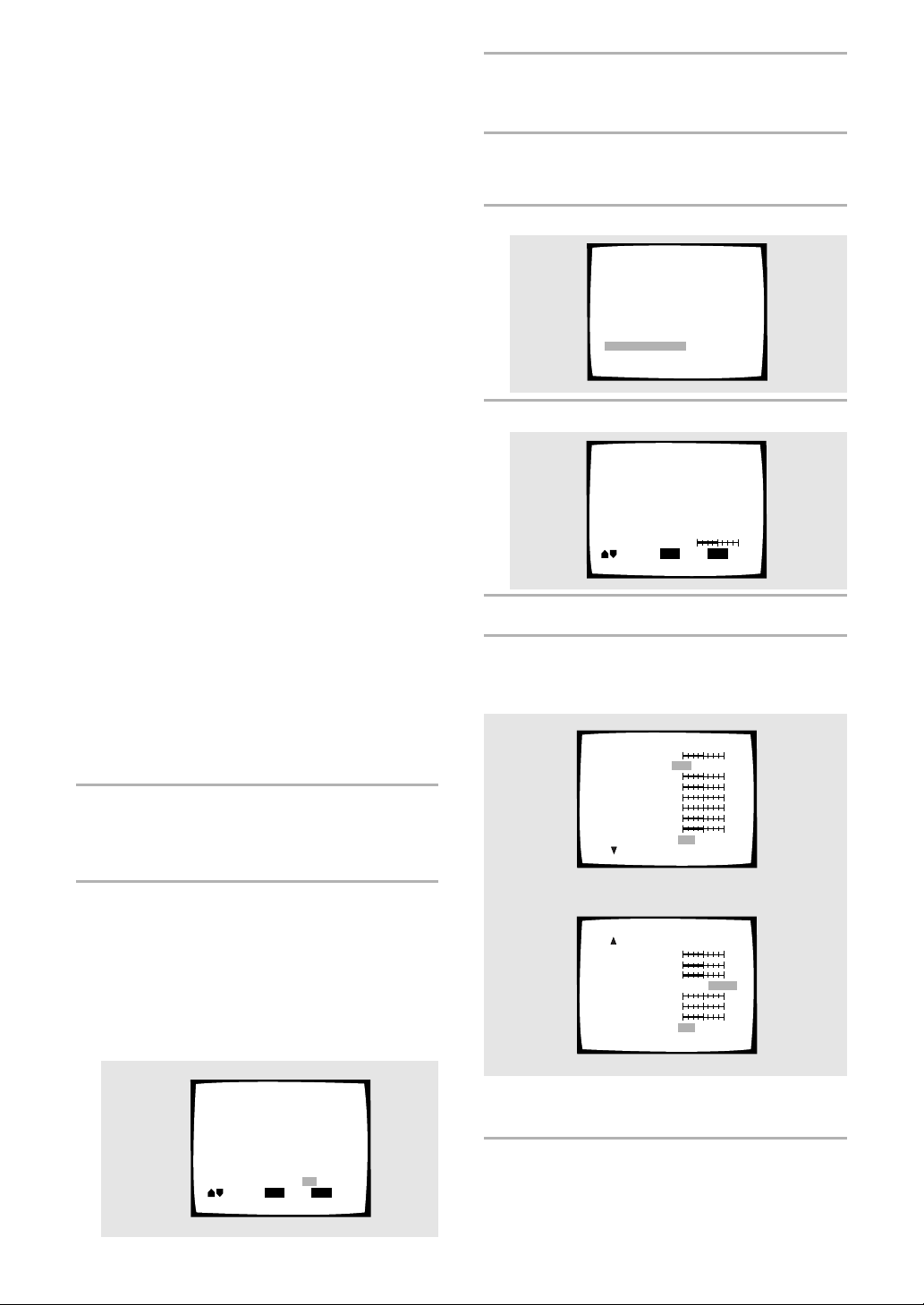
44
Video Memory Select
Video Setup
To create your own setting (1):
You can adjust any or all of the following picture quality
factors:
Prog. Motion – When using progressive scan, this
adjusts the motion and still picture quality.
PureCinema – When watching DVD movies,
PureCinema optimizes the picture quality. The
default setting is Auto, but if the picture appears
unnatural, then set to On or Off as desired and
adjust the Prog. Motion setting (see above). See
PureCinema in the glossary starting on page 63.
YNR – Adjusts the amount of noise reduction (NR)
applied to the Y (brightness) component.
CNR – Adjusts the amount of noise reduction (NR)
applied to the C (colour) component.
MNR (Mosquite Noise Reduction) – Adjusts the
amount of noise reduction applied to the mosquito
noise (video artifacts on the edge of the image
resulting from MPEG compression).
BNR (Block Noise Reduction) – Adjusts the amount
of noise reduction applied to the block noise.
Sharpness High – Adjusts the sharpness of the
high-frequency (finely detailed) elements in the
picture.
Sharpness Mid – Adjusts the sharpness of the mid-
frequency (less detailed) elements in the picture.
Detail – Adjusts how sharp edges appear in the
picture.
White Level – Adjusts the intensity of white in the
picture.
Black Level – Adjusts the intensity of black in the
picture.
Black Setup – For correction of floating black
colour.
Hue – Adjusts the overall colour balance between
red and green.
Chroma Level – Adjusts how saturated colours
appear.
Chroma Delay – Compensates for misalignment of
the Y (brightness) and the C (colour) components.
5 Move the cursor control joystick right or
left to adjust the settings.
If a DVD or Video CD is playing, the changes will be
visible on the screen as they are adjusted.
6 Repeat steps 4 and 5 to make adjustments
to other settings.
If you would like to save the settings in the player’s
memory, be sure to select either “1”, “2”, or “3” in
the [Memory] setting to establish which memory
location to save the new settings in. Please note
that if you select a location where settings have
already been saved, the old settings will be
replaced by the new ones.
7 When you are finished making
adjustments, press ENTER to establish the
new settings.
To create your own setting (2):
1 Press VIDEO ADJUST (V.ADJ).
2 Select Video Setup, then press ENTER.
3 Press DISPLAY.
4 Move the cursor control joystick up or
down to select a setting; move it left or
right to adjust that setting.
Adjust these while a disc is playing to see the effect of
changes immediately.
5 To memorize the setting, select memory 1,
2 or 3, then press ENTER.
The previous setting will be erased.
DISPLAY
Memory
Check
ENTER
Select
Off 3
21
Move
Prog.Motion
fast Slow
Page 1/2
PureCinema
Auto Off
Off 1 2 3
YNR
off
off
off
off
max
CRN
max
MNR
max
BNR
max
Sharpness High
fine
Sharpness Mid
soft
soft
fine
Memory
On
Detail
max
Page 2/2
White Level
Off 1 2 3
Black Level
off
min
0 IRE 7.5 IRE
min
green
min
–
max
Black Setup
max
Hue
red
Chroma Level
max
Chroma Delay
+
Memory
DISPLAY
Prog.Motion
Move
Check
ENTER
Select
fast Slow
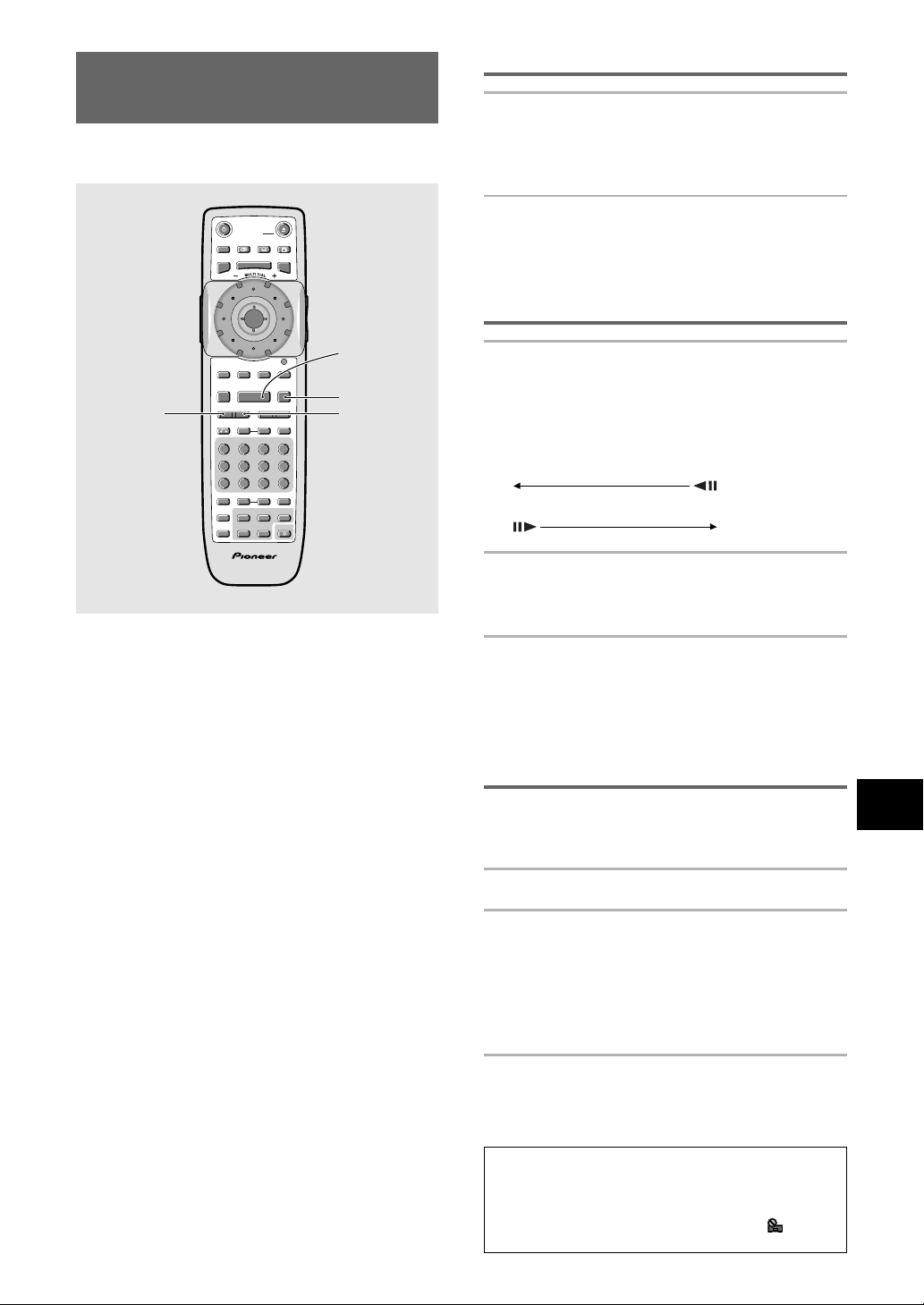
45
ADVANCED FUNCTIONS
Still Frame/Slow Play/Frame
Advance Playback – DVD/Video CD
The video images on DVD and Video CD can be viewed
as a still frame, played back at slow speeds and even
advanced frame by frame.
Viewing a still frame
Press PAUSE 8.
When viewing a DVD, if the paused picture shakes,
select the [Field] setting in the Setup screen Video
menu [Still Picture] setting as described on page 33.
To return to normal playback
When viewing a still frame playback, pressing PAUSE 8
or PLAY 3 restores normal playback operation.
Viewing slow playback
Press and hold STEP/SLOW E for about 2
seconds during playback.
• Slow playback is engaged.
• During slow playback, the speed of playback can be
adjusted from 1/2 normal playback speed to 1/16
normal playback speed in four steps using
STEP/SLOW e and STEP/SLOW E.
1/16 – 1/8 – 1/4 – 1/2
Press and hold STEP/SLOW e for about 2
seconds during DVD playback.
• Slow playback in the reverse direction is engaged.
To return to normal playback
When viewing still frames or slow playback, pressing
PLAY 3 restores normal playback operation.
Frame by frame advance playback:
Viewing one frame at a time
With this function, DVDs can be viewed in both forward
and reverse directions. Video CDs can only be moved in
the forward direction.
1 Press PAUSE 8.
2 Press STEP/SLOW e or STEP/SLOW E.
STEP/SLOW E: The picture advances one frame each
time the button is pressed.
STEP/SLOW e: The picture backs up a DVD a few
frames each time the button is
pressed.
To return to normal playback
When viewing frame by frame playback, pressing
PLAY 3 restores normal playback operation.
Notes
• There is no sound when viewing still frames or slow
playback, or when advancing one frame at a time.
• Still frame, slow play, or frame advance playback may not
be possible with certain titles. In this case, the
mark is
displayed.
PLAY 3
PAUSE 8
STEP/SLOW
e
SEARCH MODESTEP / SLOWRETURN
PREVIOUS NEXT REV FWD
PAUSEPLAY
VIDEO
ADJUST
DIMMER JOG MODE
TOP
MENU
SET UP
DISPLAY AUDIO SUBTITLE ANGLE
OPEN /
CLOSE
STANDBY
/ON
FUNCTION
MEMORY
STOP
PROGRAM
CONDITION
MEMORY
LAST
MEMORY
REPEAT
VOLUME CHANNEL
TV CONTROL
RANDOM
MENU
ENTER
V.ADJ
FL
F.MEM
DISP
JOG
873
A-BRPT
RDM
LAST
Vol + CH + FUNC
CH –
Vol –
COND.
PGM
4¢ 1
eE
¡
Î
TV
0987
+
10
654
C321
CLEAR
STEP/SLOW
E
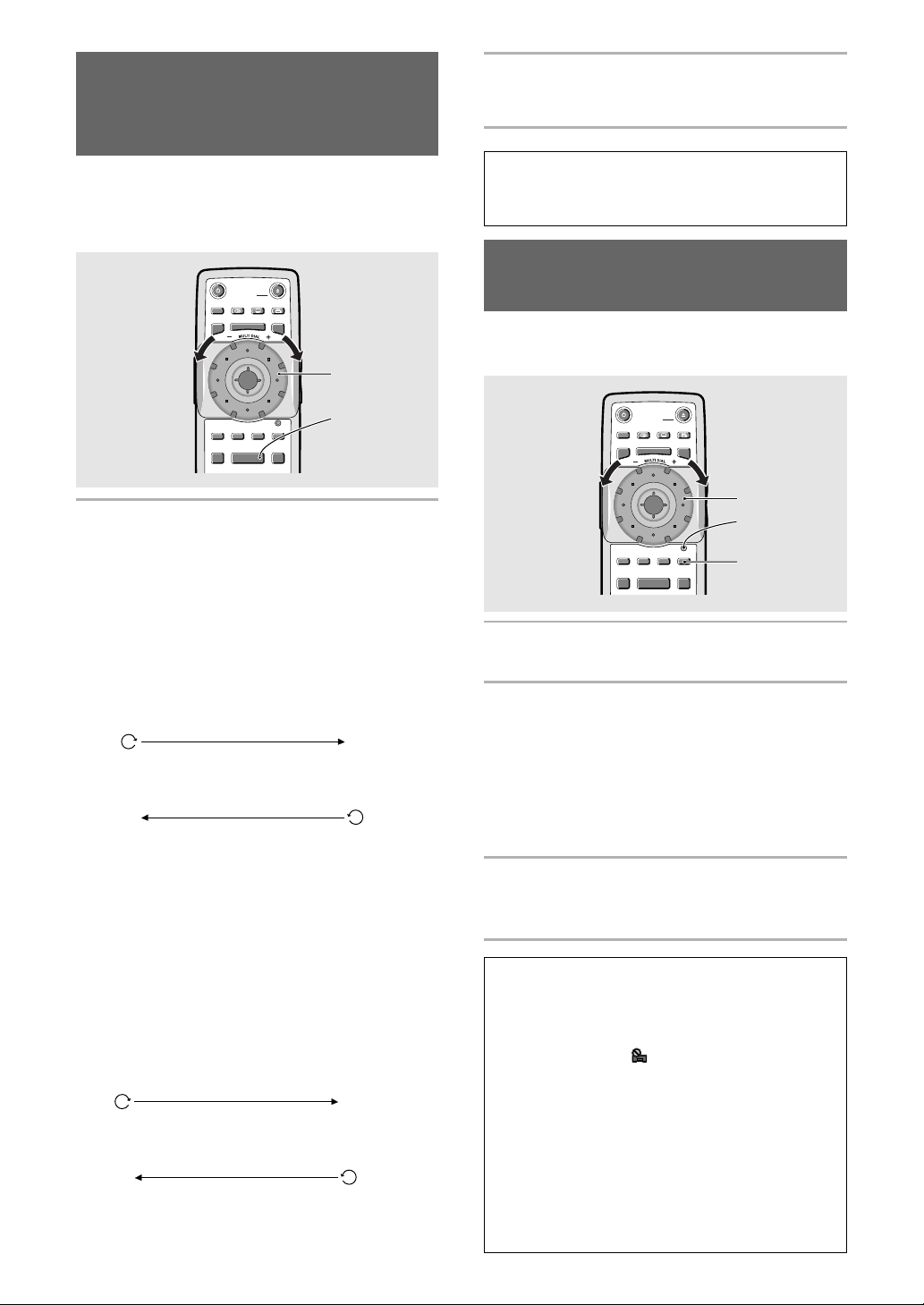
46
Scanning in Forward and
Reverse Directions at
Different Speeds – DVD/Video CD/CD
This player incorporates technology that enables smooth
playback of DVDs and Video CDs not only at different
speeds but also in both forward and reverse directions.
Video CDs cannot be played slowly in the reverse
direction.
1 Rotate MULTI DIAL in the direction you
want to scan until the appropriate scan
speed is displayed on the screen.
• Rotate MULTI DIAL clockwise to scan in the
forward direction.
• Rotate MULTI DIAL counterclockwise to scan in
the reverse direction.
The incremental rate of scanning is the same in
both directions, however, differs depending on the
speed at which MULTI DIAL is turned as follows.
When MULTI DIAL is turned slowly
Clockwise rotation:
Counterclockwise rotation:
• It is possible to return to slower scan rates by
turning MULTI DIAL in the opposite direction.
• If the dial is turned rapidly after being first turned
slowly, the rates of search will jump to the type
of scanning described below.
• Rates preceding “1/1” are slowed playback.
”1/1” refers to the normal playback rate. “SCAN
1”, “SCAN 2”, and “SCAN 3”, refer to
progressively faster rates of scanning.
When MULTI DIAL is turned quickly
Clockwise rotation:
Counterclockwise rotation:
2 During scanning, turn MULTI DIAL quickly
in the opposite direction of the search to
resume normal playback.
Note
Pressing PLAY 3 also ends slow or scan playback and returns
to normal playback of the disc.
Manual scanning using the
Jog Mode – DVD/Video CD
The Jog Mode can additionally be used to locate a frame
you want to view, or a scene in a movie you wish to
watch at a slow speed.
1 Press JOG MODE.
The JOG MODE indicator lights red.
2 Rotate MULTI DIAL clockwise to scan
frame by frame in the forward direction.
Rotate MULTI DIAL counterclockwise to
scan frame by frame in the reverse
direction. Video CDs cannot be scanned in
the reverse direction.
When MULTI DIAL is not being turned, the video
image is paused.
3 Press JOG MODE again to turn the Jog
Mode off.
The JOG MODE indicator turns off.
Notes
• There is no audio when a slow or scan playback function is
being performed, even when the speed is “1/1” in forward
play.
• Slow or scan playback may not be possible with certain
titles. In this case, the
mark is displayed.
• With Video CDs, slow or scan playback is not possible
when the menu is displayed (PBC playback).
• With Video CDs, slow playback in the reverse direction is
not possible.
• Depending on the DVD, slow reverse playback may not be
smooth (picture shake or frames jump) and there may be
some degradation of the picture quality. This is not a
malfunction.
• Depending on the DVD, slow reverse playback or reverse
frame by frame scanning may be canceled when the
beginning of a chapter is encountered. This is not a
malfunction.
PREVIOUS NEXT REV FWD
PAUSEPLAY
VIDEO
ADJUST
DIMMER JOG MODE
TOP
MENU
SET UP
DISPLAY AUDIO SUBTITLE ANGLE
OPEN /
CLOSE
STANDBY
/ON
FUNCTION
MEMORY
STOP
MENU
ENTER
V.ADJ
FL
F.MEM
DISP
JOG
873
1
2
PLAY=1/16=1/8=1/4=1/2=1/1=SCAN 1=SCAN 2=SCAN 3
SCAN 3+SCAN 2+SCAN 1+1/1+1/2+1/4+1/8+1/16+PLAY
Video CD: SCAN 1=SCAN 2
Video CD: SCAN 2+SCAN 1
DVD: SCAN 1=SCAN 2=SCAN 3
DVD: SCAN 3+SCAN 2+SCAN 1
PAUSEPLAY
VIDEO
ADJUST
DIMMER JOG MODE
TOP
MENU
SET UP
DISPLAY AUDIO SUBTITLE ANGLE
OPEN /
CLOSE
STANDBY
/ON
FUNCTION
MEMORY
STOP
MENU
ENTER
V.ADJ
FL
F.MEM
DISP
JOG
873
2
1
JOG MODE
indicator
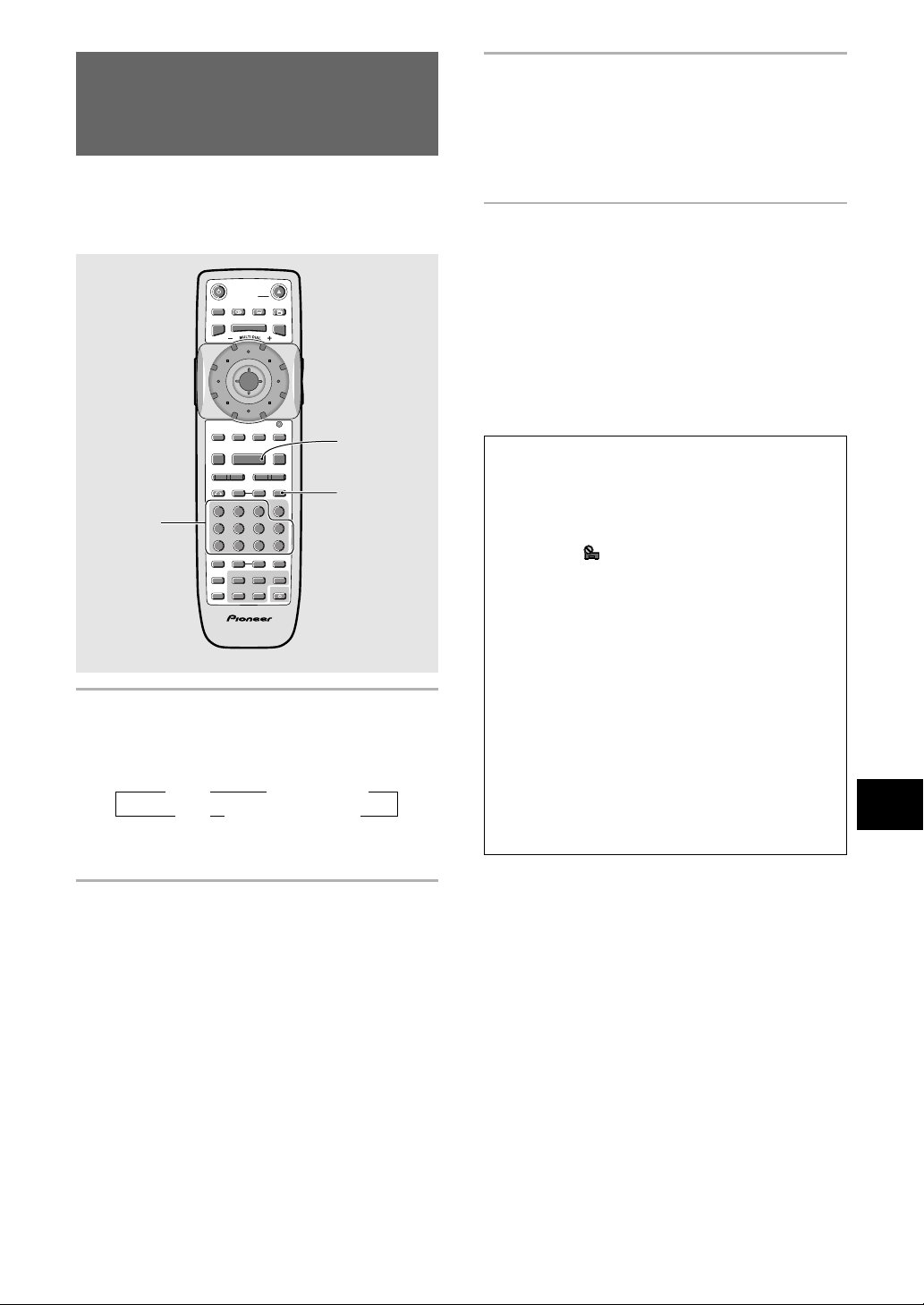
47
ADVANCED FUNCTIONS
Searching for a Title, Chapter,
Track, or Location on a Disc
– DVD/Video CD/CD
This player offers different ways of accessing the
information on a DVD, Video CD, or CD. Using SEARCH
MODE, you can search for titles or chapters on a DVD,
tracks on a Video CD or CD, and even select the point in
time to start playback.
1 Press SEARCH MODE repeatedly to select
the type of search.
The type of search changes which each press as
follows.
* The [Frame Search] option in the Video menu
must be [On] to use this.(DVD)
2 Press the number button(s) of the desired
title, chapter or track or of the specific time
where you would like to begin playback.
• To select number 3, press 3.
• To select number 10, press 1 and 0.
• To select number 87, press 8 and 7.
When performing a time/time & frame search:
(Frame search is only possible with DVD discs.)
• To select 21 minutes, 43 seconds, press
2, 1, 4, and 3.
• To select 1 hour, 14 minutes, press 7, 4, 0,
and 0.
• To select 21 minutes, 43 seconds and 16
frames, press 2, 1, 4, 3, 1 and 6.
3
1
2
SEARCH MODESTEP / SLOWRETURN
PREVIOUS NEXT REV FWD
PAUSEPLAY
VIDEO
ADJUST
DIMMER JOG MODE
TOP
MENU
SET UP
DISPLAY AUDIO SUBTITLE ANGLE
OPEN /
CLOSE
STANDBY
/ON
FUNCTION
MEMORY
STOP
PROGRAM
CONDITION
MEMORY
LAST
MEMORY
REPEAT
VOLUME CHANNEL
TV CONTROL
RANDOM
MENU
ENTER
V.ADJ
FL
F.MEM
DISP
JOG
873
A-BRPT
RDM
LAST
Vol + CH + FUNC
CH –
Vol –
COND.
PGM
4¢ 1
eE
¡
Î
TV
0987
+
10
654
C321
CLEAR
3 Title 3 Chapter/Track
Off 2 *(Time & frame)Time 2
To perform a direct title or chapter/track
search using the number buttons
Press the number buttons while the disc is stopped to
select a title number.
Press the number buttons while the disc is playing to
select a chapter or track.
• To select number 3, press 3.
• To select number 10, press +10 and 0.
• To select number 37, press +10, +10, +10 and
7.
Notes
• For some discs, selection can be made using the top menu
on the DVD. In this case, press TOP MENU to display the
menu screen and then make your selection.
• With some DVDs, the search operation may not be
possible and may stop shortly after being performed. In
this case, the
mark is displayed.
• Time search is not possible with CDs.
• When performing DVD time search, playback may start
from a slightly different time than that specified.
• Time/time & frame search is not possible during when the
disc is stopped.
• Search using SEARCH MODE is not possible during PBC
playback of Video CDs.
• NTSC display 30 frames per seconds, number 0–29.
The Frame Search option in the Video menu must be [On]
to use this. Press DISPLAY while a still picture is displayed
to see the frame number.
Depending on the disc, it may not be possible to search for
a specific frame. Also, when using frame advance, forward
step or reverse step, it may not be possible to view every
frame. Each frame may not be appear in exact order when
stepping through them. The number assigned to a specific
frame may be different when stepping through the frames
in forward or reverse mode.
3 Press PLAY 3.
• Playback of the selected title, chapter or track
starts.
• When a time search is performed, playback
begins at the appointed time.
• When you do a time & frame search, the
selected frame is displayed as a still.
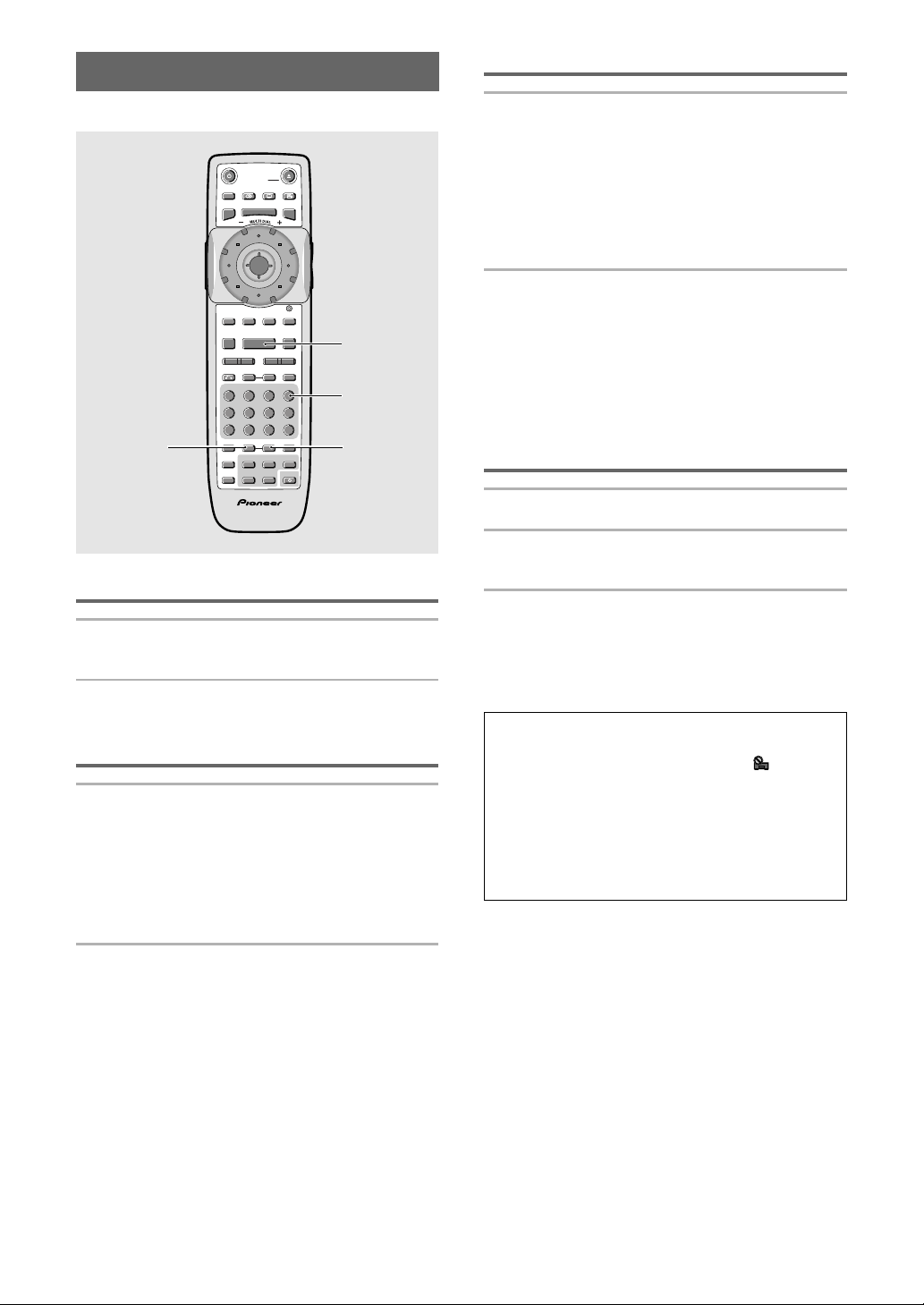
48
Repeat play of a chapter/track
Press REPEAT once during playback of the
chapter or track you want to repeat.
Repeat play of a title
Press REPEAT twice during playback of the
title you want to repeat.
• With DVDs, the title continues playing until the end,
and then playback starts once more from the
beginning of that title.
• With CDs and Video CDs, a disc is considered a single
title, so the entire disc is repeated.
To repeat a program
Press REPEAT once during program playback to repeat
the program.
To cancel repeat play
Press CLEAR. Playback continues, but the repeat
function is canceled.
Repeat Play – DVD/Video CD/CD
You can repeat an entire title, chapter or track, or just a
part.
Repeat play of a specified section
Press REPEAT A–B at the beginning and end of
the section you want to repeat.
• When REPEAT A–B is pressed a second time, the
disc returns to the location where REPEAT A–B was
pressed first and plays the selected section
repeatedly.
• You can only perform A–B repeat within the same
title.
To cancel A–B repeat play
Press CLEAR. Playback continues, but the repeat
function is canceled.
Return to a specified location on a
disc
1 Press REPEAT A–B at the desired location.
2 When you want to return to the specified
location, press PLAY 3.
To clear the specified location
Press CLEAR to cancel repeat play or to clear the
specified location that was set using REPEAT A–B.
Notes
• With some DVD discs, there may be times when repeat
playback is not possible. In these cases, the mark will
appear on the screen.
• With Video CDs, repeat play is not possible when the menu
is displayed (PBC playback). To perform repeat play, start
playback without displaying a menu by pressing the track
number to be repeated when the disc is stopped, and then
press REPEAT.
• If you switch camera angle during repeat play, repeat play
is cancelled.
REPEAT
REPEAT
A-B
PLAY 3
CLEAR
SEARCH MODESTEP / SLOWRETURN
PREVIOUS NEXT REV FWD
PAUSEPLAY
VIDEO
ADJUST
DIMMER JOG MODE
TOP
MENU
SET UP
DISPLAY AUDIO SUBTITLE ANGLE
OPEN /
CLOSE
STANDBY
/ON
FUNCTION
MEMORY
STOP
PROGRAM
CONDITION
MEMORY
LAST
MEMORY
REPEAT
VOLUME CHANNEL
TV CONTROL
RANDOM
MENU
ENTER
V.ADJ
FL
F.MEM
DISP
JOG
873
A-BRPT
RDM
LAST
Vol + CH + FUNC
CH –
Vol –
COND.
PGM
4¢ 1
eE
¡
Î
TV
0987
+
10
654
C321
CLEAR
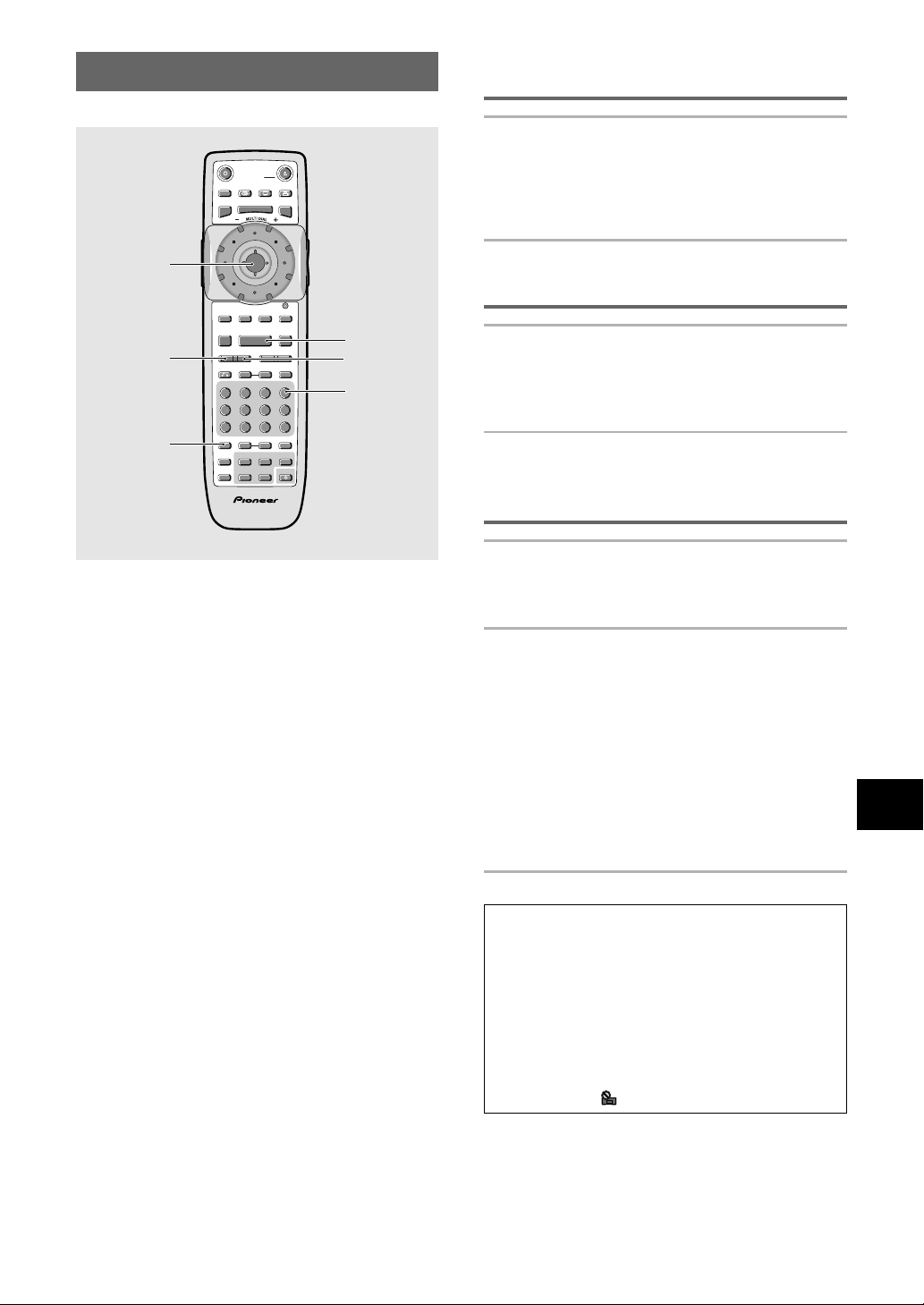
49
ADVANCED FUNCTIONS
Random playback of chapters
within one title – DVD
Press RANDOM once, then press ENTER or
PLAY 3.
“Random Chapter” appears on the screen, and
chapters within the title will be played back in random
order.
Random playback of titles – DVD
Press RANDOM twice, then press ENTER or
PLAY 3.
“Random Title” appears on the screen, and titles will
be played back in random order.
Random playback of tracks
–Video CD/CD
Press RANDOM.
“Random” appears on the screen, and random playback
begins.
To change titles, chapters, or tracks during
random play
• Press NEXT ¢ and the next randomly selected track
starts playing.
• Press PREVIOUS 4 and playback of the current
track starts again from the beginning.
To stop random play
Press CLEAR. This returns you to normal playback of
chapters/tracks in order from the chapter/track currently
playing.
Notes
• With Video CDs, random play is not possible during
playback when the menu is displayed (PBC playback). To
perform random play, start playback without displaying a
menu by pressing a track number button while in the stop
mode, and then press RANDOM.
• Random play of programmed chapters/tracks is not
possible.
• In the case of DVDs, random playback may not be possible
with some discs.
• Repeat playback of random playback is not possible. In
these cases, the
mark will appear on the screen.
Random Play – DVD/Video CD/CD
Play titles, chapters, or tracks on a disc in random order.
RANDOM
ENTER
PREVIOUS
4
NEXT ¢
PLAY 3
CLEAR
SEARCH MODESTEP / SLOWRETURN
PREVIOUS NEXT REV FWD
PAUSEPLAY
VIDEO
ADJUST
DIMMER JOG MODE
TOP
MENU
SET UP
DISPLAY AUDIO SUBTITLE ANGLE
OPEN /
CLOSE
STANDBY
/ON
FUNCTION
MEMORY
STOP
PROGRAM
CONDITION
MEMORY
LAST
MEMORY
REPEAT
VOLUME CHANNEL
TV CONTROL
RANDOM
MENU
ENTER
V.ADJ
FL
F.MEM
DISP
JOG
873
A-BRPT
RDM
LAST
Vol + CH + FUNC
CH –
Vol –
COND.
PGM
4¢ 1
eE
¡
Î
TV
0987
+
10
654
C321
CLEAR
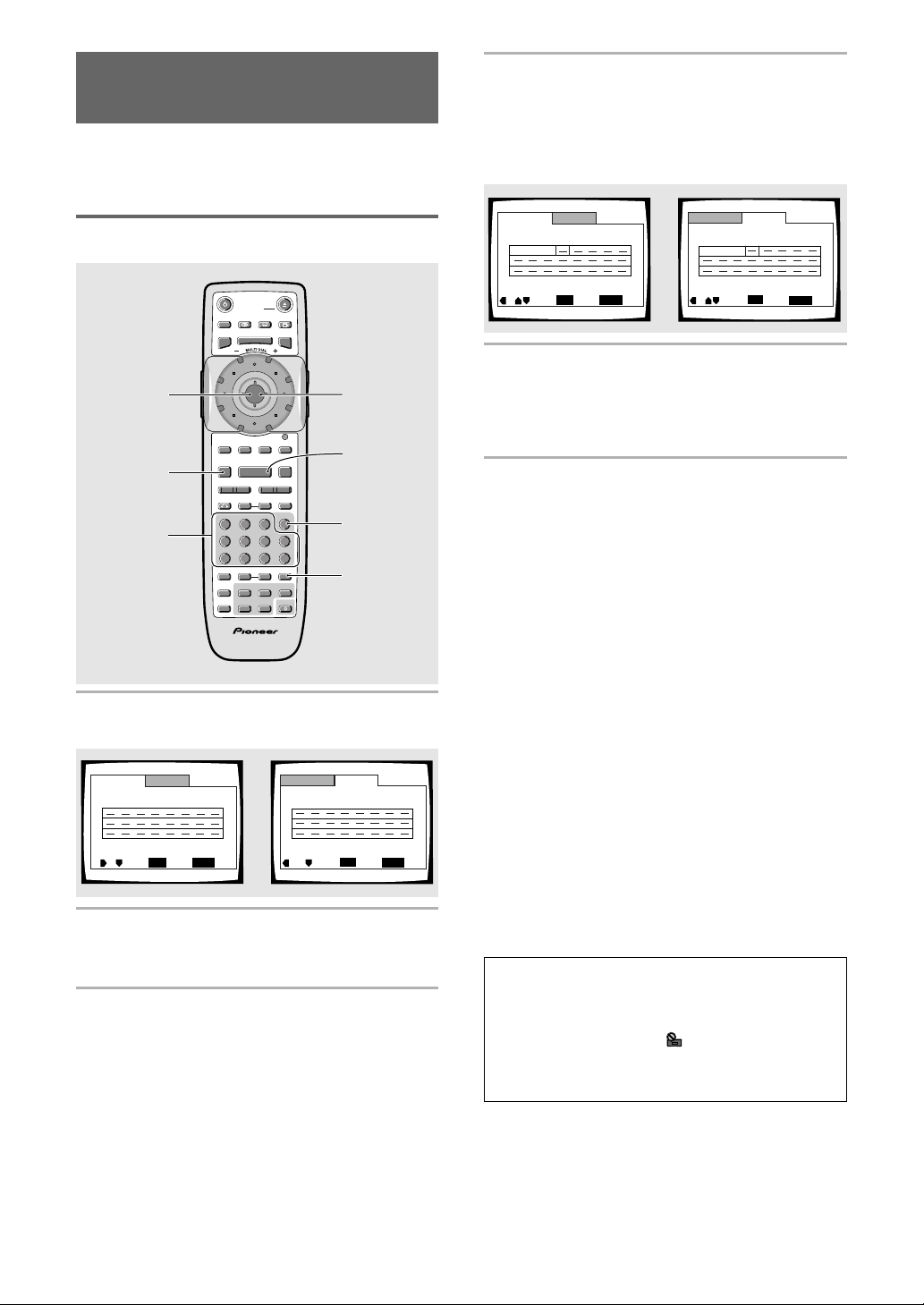
50
1 Press PROGRAM.
The Program screen appears.
2 Move the cursor control joystick right or
left to select either Chapter or Title
program.
3 Once the program type is selected. Move
the cursor control joystick down to enter
the program window.
When [Program Chapter] is selected, you must
also select what title the chapters to be
programmed are in. Use the cursor control
joystick up to highlight “Title” and then use the
number buttons to enter the title number to be
used.
4 In the program window, use the number
buttons to enter the numbers of the titles
or chapters in the order you want to
program them in.
• To program DVD titles/chapters 9, 7, and 18 in
order, press 9, 7, +10 and 8.
5 Press ENTER or PLAY 3.
• Playback starts in the set order.
• Press PROGRAM to return to the previous
display. The program will not begin until PLAY 3
is pressed.
To program a pause in a program
Press PAUSE 8 instead of a number button.
“8” appears on the screen and the pause can be
programmed.
A pause cannot be programmed as the first or last
position in a program, and two or more pauses cannot
be programmed in succession.
To delete a number:
Use the cursor control joystick to highlight the
incorrect number and then press CLEAR.
The number is deleted. If the number was before
another number, the later numbers are reordered
automatically.
To insert a number:
Use the cursor control joystick to highlight the number
to be placed after the new number and then press the
number button(s) of the number to be inserted.
The new number is inserted before the previously
selected number.
To stop program play
Press STOP 7.
Notes
• When programming chapters, chapters not programmed
may appear on the screen. This is not a malfunction.
• Programming may not be possible with certain DVD discs.
On these types of discs, the
mark will appear on the
screen when programming is attempted.
• Only chapters within the same title can be programmed
during chapter programming.
Program Chapter
Program Title
Current: Title
2(/20)
Program Memory – Off
PROGRAM
Exit
ENTER
PlayMove
Program Chapter Program Title
Current: Title
Title
7 Chapter 1
1
(Chapter 1~ 18)
Program Memory – Off
PROGRAM
Exit
ENTER
PlayMove
Program Chapter
Program Title
Current: Title
2(/20)
Program Memory – Off
PROGRAM
Exit
ENTER
PlayMove
09 07 18
Program Chapter Program Title
Current: Title
Title
7 Chapter 1
1
(Chapter 1~ 18)
Program Memory – Off
PROGRAM
Exit
ENTER
PlayMove
09 07 18
Playback in a Desired Order
(Program Play) – DVD/Video CD/CD
The titles and chapters within a title on a DVD and
similarly the tracks on a Video CD or CD can be arranged
to play in the order you want.
Programming DVDs
A program with a maximum of 24 steps can be
memorized.
5
1
2, 3
4
5
CLEAR
STOP 7
SEARCH MODESTEP / SLOWRETURN
PREVIOUS NEXT REV FWD
PAUSEPLAY
VIDEO
ADJUST
DIMMER JOG MODE
TOP
MENU
SET UP
DISPLAY AUDIO SUBTITLE ANGLE
OPEN /
CLOSE
STANDBY
/ON
FUNCTION
MEMORY
STOP
PROGRAM
CONDITION
MEMORY
LAST
MEMORY
REPEAT
VOLUME CHANNEL
TV CONTROL
RANDOM
MENU
ENTER
V.ADJ
FL
F.MEM
DISP
JOG
873
A-BRPT
RDM
LAST
Vol + CH + FUNC
CH –
Vol –
COND.
PGM
4¢ 1
eE
¡
Î
TV
0987
+
10
654
C321
CLEAR
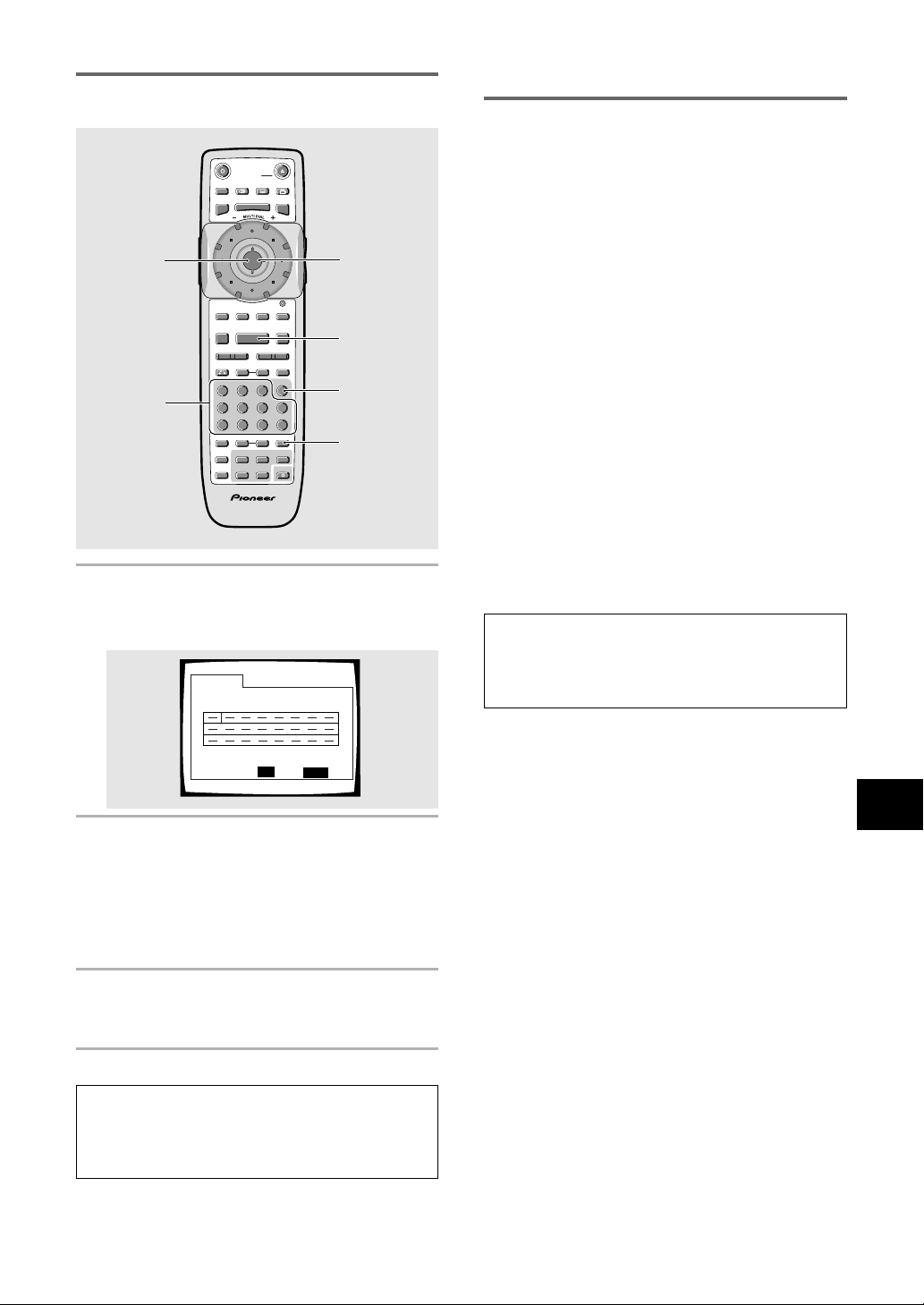
51
ADVANCED FUNCTIONS
Program Track
Current: Track
Total Time
0.00
1(/10)
PROGRAM
Exit
ENTER
PlayMove
Additional programming options
– DVD/Video CD/CD
After you have made a program, it is then possible to
confirm, add, or clear the contents of the program.
To confirm the contents of a program:
On a CD or Video CD track program, press PROGRAM
to confirm. The program screen displays the current
program.
On a DVD, select the program type (title or chapter) by
moving the cursor control joystick right or left. The
current DVD title or chapter program can then be
confirmed on the appropriate program screen.
To add to a program:
1 Press PROGRAM.
2 Press a number button to add a new title, chapter, or
track at the end of the program.
3 Press PROGRAM to exit the program screen.
To delete a program:
1 Press PROGRAM.
2 Select the program by moving the cursor control
joystick right or left, then press CLEAR.
3 Press PROGRAM to exit the program screen.
Notes
• The complete program will be deleted even if the disc tray
is open.
• Pressing CLEAR when the disc is stopped will clear all
programs.
Programming Video CDs, CDs
A program with a maximum of 24 steps can be
memorized.
1 Press PROGRAM.
The program screen appears. When a Video CD or
CD is loaded, the cursor appears in the program
window.
2 Use the number buttons to enter the
numbers of the tracks in the order you
want to program them in.
• To program tracks 9, 7, and 18 in order, press 9,
7, +10 and 8.
• To edit the program, refer to the procedures on
the previous page.
3 Press ENTER or PLAY 3.
• Playback starts in the specified track order.
• To stop the program play, press STOP 7.
Notes
• To program a pause, or to add or delete a number, refer to
the procedures for programming DVDs on page 50.
• You cannot program when playing a Video CD using menu
selections (during PBC).
1
3
2
Cursor
control
joystick
CLEAR
3
SEARCH MODESTEP / SLOWRETURN
PREVIOUS NEXT REV FWD
PAUSEPLAY
VIDEO
ADJUST
DIMMER JOG MODE
TOP
MENU
SET UP
DISPLAY AUDIO SUBTITLE ANGLE
OPEN /
CLOSE
STANDBY
/ON
FUNCTION
MEMORY
STOP
PROGRAM
CONDITION
MEMORY
LAST
MEMORY
REPEAT
VOLUME CHANNEL
TV CONTROL
RANDOM
MENU
ENTER
V.ADJ
FL
F.MEM
DISP
JOG
873
A-BRPT
RDM
LAST
Vol + CH + FUNC
CH –
Vol –
COND.
PGM
4¢ 1
eE
¡
Î
TV
0987
+
10
654
C321
CLEAR
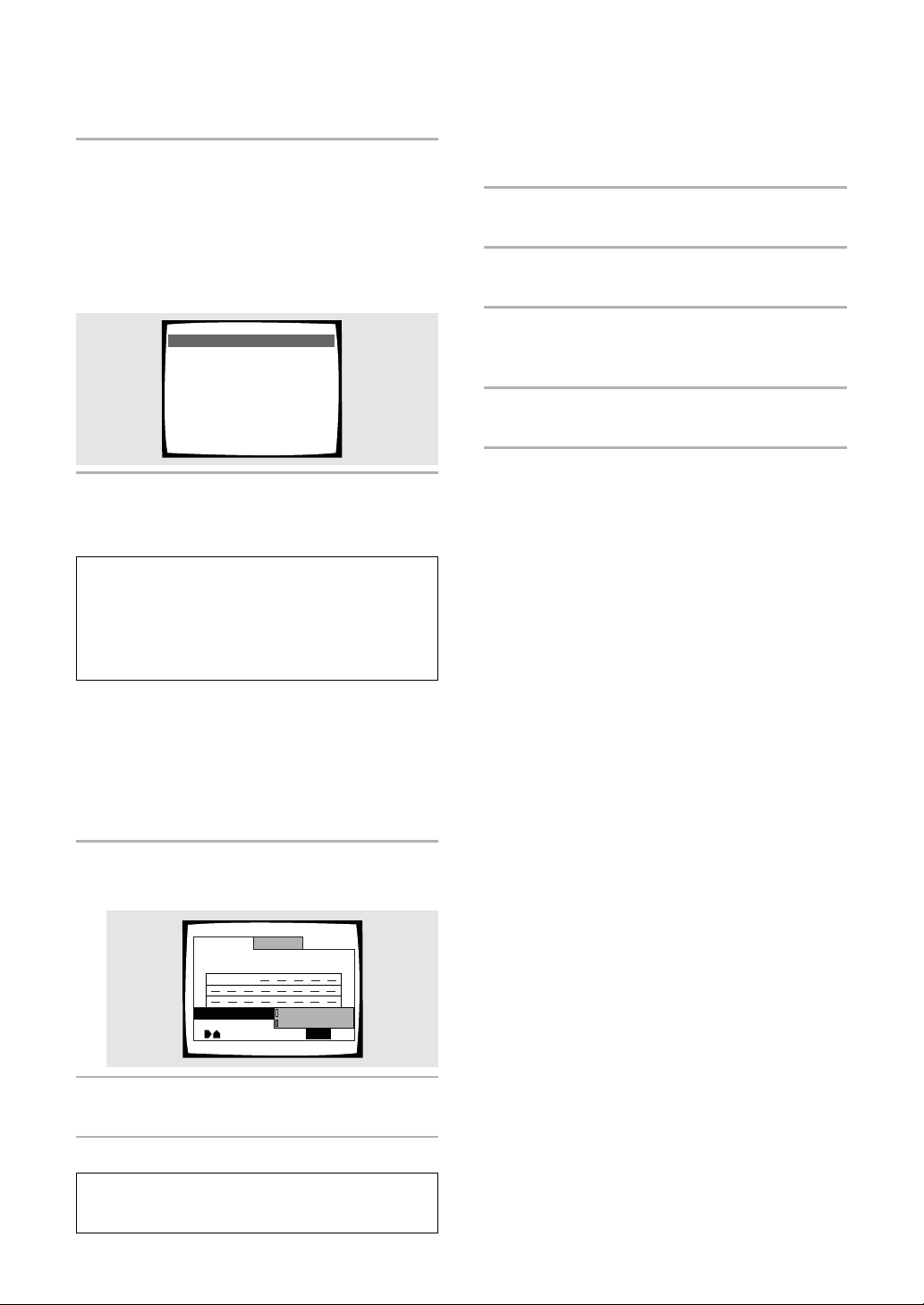
52
To make a program of your favorite parts of a
disc as it plays – DVD/Video CD/CD
With this player, it is possible to make a program as you
watch a DVD or Video CD or while listening to a CD.
Press and hold PROGRAM for at least 2
seconds at any point during playback of a title,
chapter, or track you want to program, and it
will be made into or added to a program
without displaying a Program screen. When a
title, chapter, or track is successfully added to
the program, it is shown momentarily in the
display as well as its position in the program.
To confirm the contents of a program:
Press PROGRAM.
Notes
• When using this function to program DVDs, the program
being created corresponds to the Program screen (chapter
or title) that appears when PROGRAM is pressed. Be sure
to check that the appropriate program type is selected.
• You cannot make a program containing chapters in
different titles.
To save a program in memory – DVD
This player can memorize the programs on up to 24
DVDs. By turning the [Program Memory] to [On], the
player will save your program and recall it the next time
you use the same DVD. When the program memory
exceeds 24, programs will be erased in chronological
order from the oldest program in memory.
1 Move the cursor control joystick down to
highlight [Program Memory] and then
right to select [On].
2 Press ENTER.
The program is saved in memory.
Note
When a DVD with a program stored in memory is loaded,
program playback may start automatically.
Program Chapter Program Title
Current:
Title
Title
1
(Chapter 1 ~ 49)
Program Memory
PROGRAM
ExitMove
09 07 18
On
Off
7
Chapter
1
Chapter 07 3 Program 03
To erase a program saved in memory – DVD
The player erases programs in chronological order when
the maximum number of programs that can be held in
memory is exceeded. To prevent the player from erasing
older programs that you may still use regularly, or when
you don’t want to use a program anymore, it is possible
to manually erase programs stored in memory.
1 Load a DVD that has a program stored in
memory.
2 Press PROGRAM.
The program screen appears.
3 Move the cursor control joystick down to
highlight [Program Memory] and then
right and down to select [Off].
4 Press ENTER.
The program is cleared from memory.
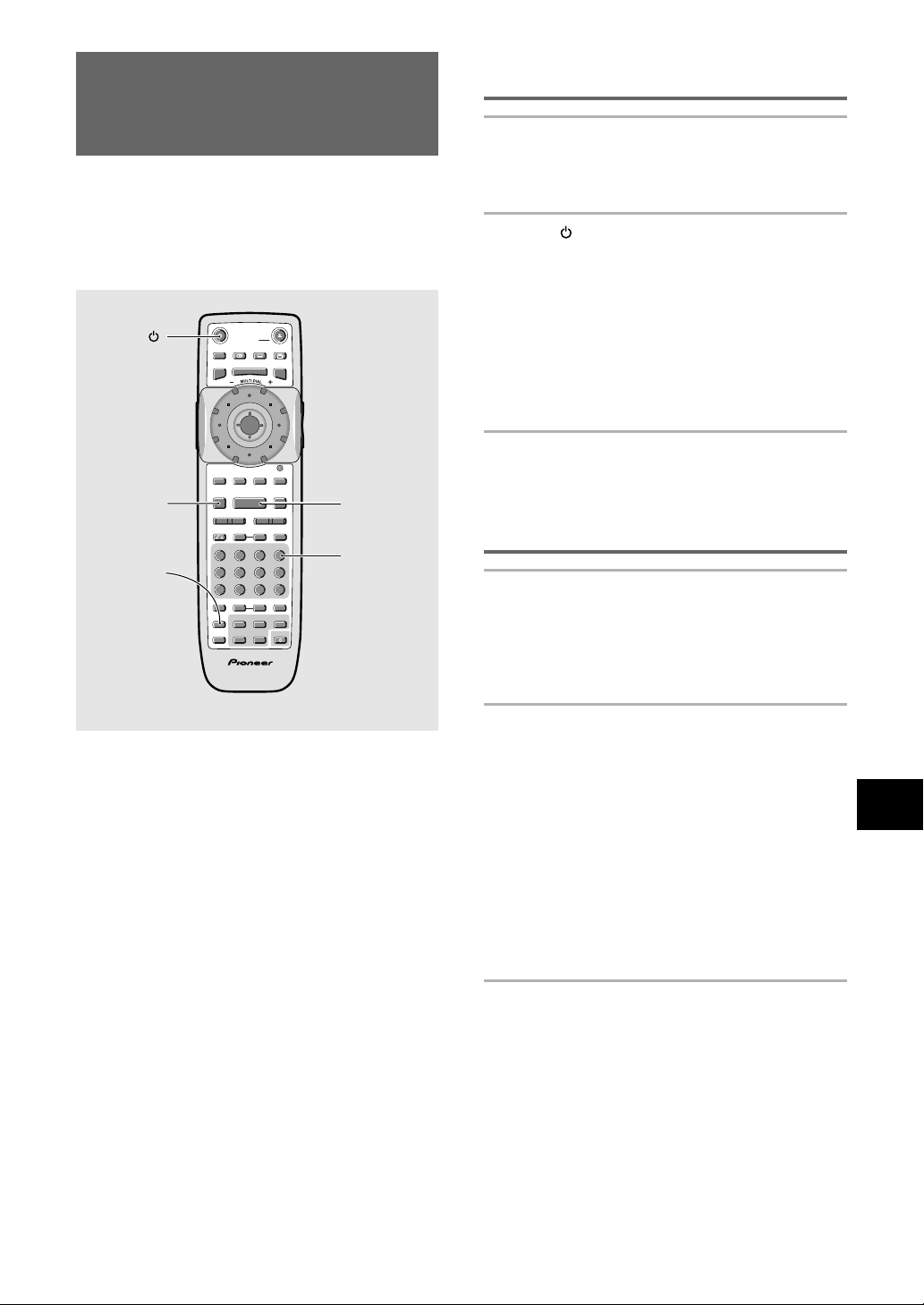
53
ADVANCED FUNCTIONS
Continuing Playback from a
Specified Location
(Last Memory) – DVD/Video CD
The Last Memory function is convenient when you want
to continue viewing a disc from the point where you
were watching before. Unlike the resume function, the
Last Memory function is effective even if the DVD is
removed from the player (Last Memory locations saved
for Video CDs are effective only if the disc remains
loaded in the player).
Memorizing a Last Memory
location to return to later
1 Press LAST MEMORY during play.
The “LAST MEMORY” indicator lights on the
player.
2 Press to turn the power to standby, or
stop playback with STOP 7.
Once memorized, the memorized point will be
recalled even if the power is turned off, or if the
disc is ejected. Points on up to 5 discs can be
memorized, and those points are recalled the next
time any of the discs are played back.
• A Last Memory point can be memorized for only
one Video CD at a time as the function is only
effective until the Video CD is removed from the
player.
Resuming playback from where
LAST MEMORY was pressed
1 Load a disc that has a Last Memory point
memorized.
Some DVDs will start playback automatically when
loaded. In this case, press STOP 7 to stop
playback.
2 Press LAST MEMORY while in the stop
mode.
The disc begins playback at the memorized point.
• Last Memory mode may not function for some
DVDs.
• If you register more than five DVDs, details of the
latest disc are memorized, while details of the
least recent disc (the disc you registered first) is
erased.
• Even with a disc you have memorized with Last
Memory, playback begins at the start of the disc
if you press PLAY 3.
• This function is for playback of DVDs or Video
CDs only. You cannot use it with CDs.
To clear the Last Memory location
Call up the Last Memory location by pressing LAST
MEMORY. Then press CLEAR while “Last Memory” is
still being displayed on the screen.
The “LAST MEMORY” indicator disappears from the
display.
LAST
MEMORY
STOP 7
PLAY 3
CLEAR
SEARCH MODESTEP / SLOWRETURN
PREVIOUS NEXT REV FWD
PAUSEPLAY
VIDEO
ADJUST
DIMMER JOG MODE
TOP
MENU
SET UP
DISPLAY AUDIO SUBTITLE ANGLE
OPEN /
CLOSE
STANDBY
/ON
FUNCTION
MEMORY
STOP
PROGRAM
CONDITION
MEMORY
LAST
MEMORY
REPEAT
VOLUME CHANNEL
TV CONTROL
RANDOM
MENU
ENTER
V.ADJ
FL
F.MEM
DISP
JOG
873
A-BRPT
RDM
LAST
Vol + CH + FUNC
CH –
Vol –
COND.
PGM
4¢ 1
eE
¡
Î
TV
0987
+
10
654
C321
CLEAR
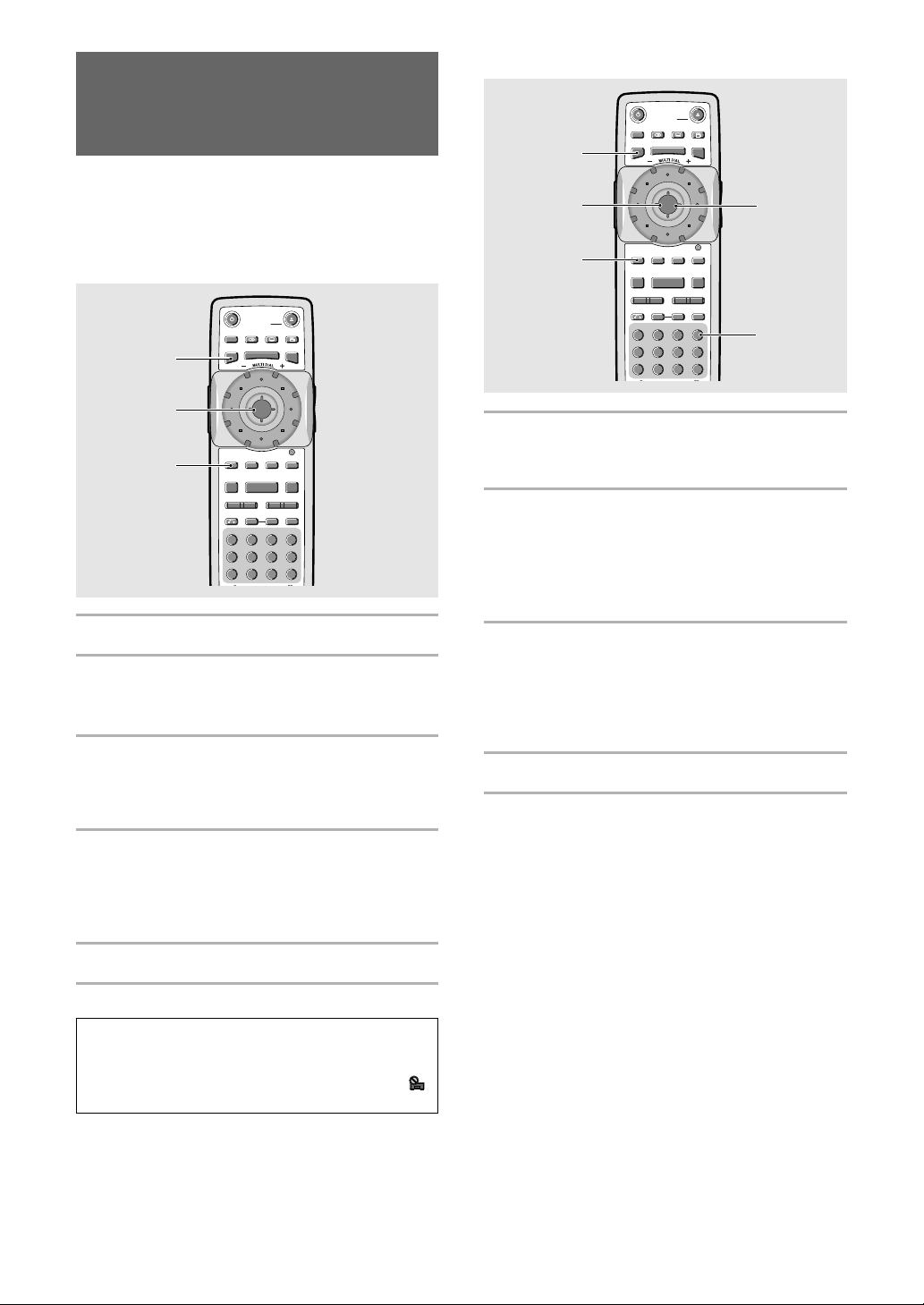
54
Memorizing Regularly Used
Menu Settings (Function
Memory) – DVD/Video CD/CD
You can create a shortcut menu that contains settings
that you frequently change and call up this menu
whenever you need to change one of the stored
settings. Settings remain in memory regardless of the
disc loaded in the player.
Creating the Function Memory item list
1 Press SETUP to display the Setup screen.
2 Move the cursor control joystick to select
the menu and then the menu item you
want to add to the Function Memory.
3 Press FUNCTION MEMORY.
If “FM” appears next to the menu item, the item
has been successfully added to the Function
Memory.
4 Repeat steps 2 and 3 to add as many as 5
items to the Function Memory.
When 5 items have already been stored, “FM”
does not appear next to the item when FUNCTION
MEMORY is pressed.
5 Press SETUP to close the Setup screen.
Note
Items that cannot be changed when the disc is playing cannot
be added to Function Memory if the disc is currently playing.
When these items are selected, on-screen information or
will be displayed.
Calling up the Function Memory item list
1 Press FUNCTION MEMORY.
The Function Memory item list appears on the
screen.
2 Move the cursor control joystick to select
the item you want to adjust and press
ENTER.
The Setup screen opens, and the cursor is moved
to the appropriate menu and menu item as selected
in the Function Memory item list.
3 Move the cursor control joystick to make
setting adjustments, then press ENTER.
The setting is changed. For more information on
making adjustments in the Setup screen menus,
refer to the section “Using the Setup Screen Menus”
on page 26.
4 Press SETUP to close the Setup screen.
To clear an item from the FUNCTION MEMORY
1 Press SETUP to open the Setup screen.
2 Move the cursor control joystick to the menu and
menu item marked with ”FM”.
3 Press FUNCTION MEMORY to clear the item from
the Function Memory. If “FM” disappears, the item
has been cleared.
4 Press SETUP to close the Setup screen.
SEARCH MODESTEP / SLOWRETURN
PREVIOUS NEXT REV FWD
PAUSEPLAY
VIDEO
ADJUST
DIMMER JOG MODE
TOP
MENU
SET UP
DISPLAY AUDIO SUBTITLE ANGLE
OPEN /
CLOSE
STANDBY
/ON
FUNCTION
MEMORY
STOP
OGO
MENU
ENTER
V.ADJ
FL
F.MEM
DISP
JOG
873
4¢ 1
eE
¡
0987
+
10
654
C321
CLEAR
SEARCH MODESTEP / SLOWRETURN
PREVIOUS NEXT REV FWD
PAUSEPLAY
VIDEO
ADJUST
DIMMER JOG MODE
TOP
MENU
SET UP
DISPLAY AUDIO SUBTITLE ANGLE
OPEN /
CLOSE
STANDBY
/ON
FUNCTION
MEMORY
STOP
OGO
MENU
ENTER
V.ADJ
FL
F.MEM
DISP
JOG
873
4¢ 1
eE
¡
0987
+
10
654
C321
CLEAR
1, 5
2
3
4
1
2, 3 2, 3
CLEAR
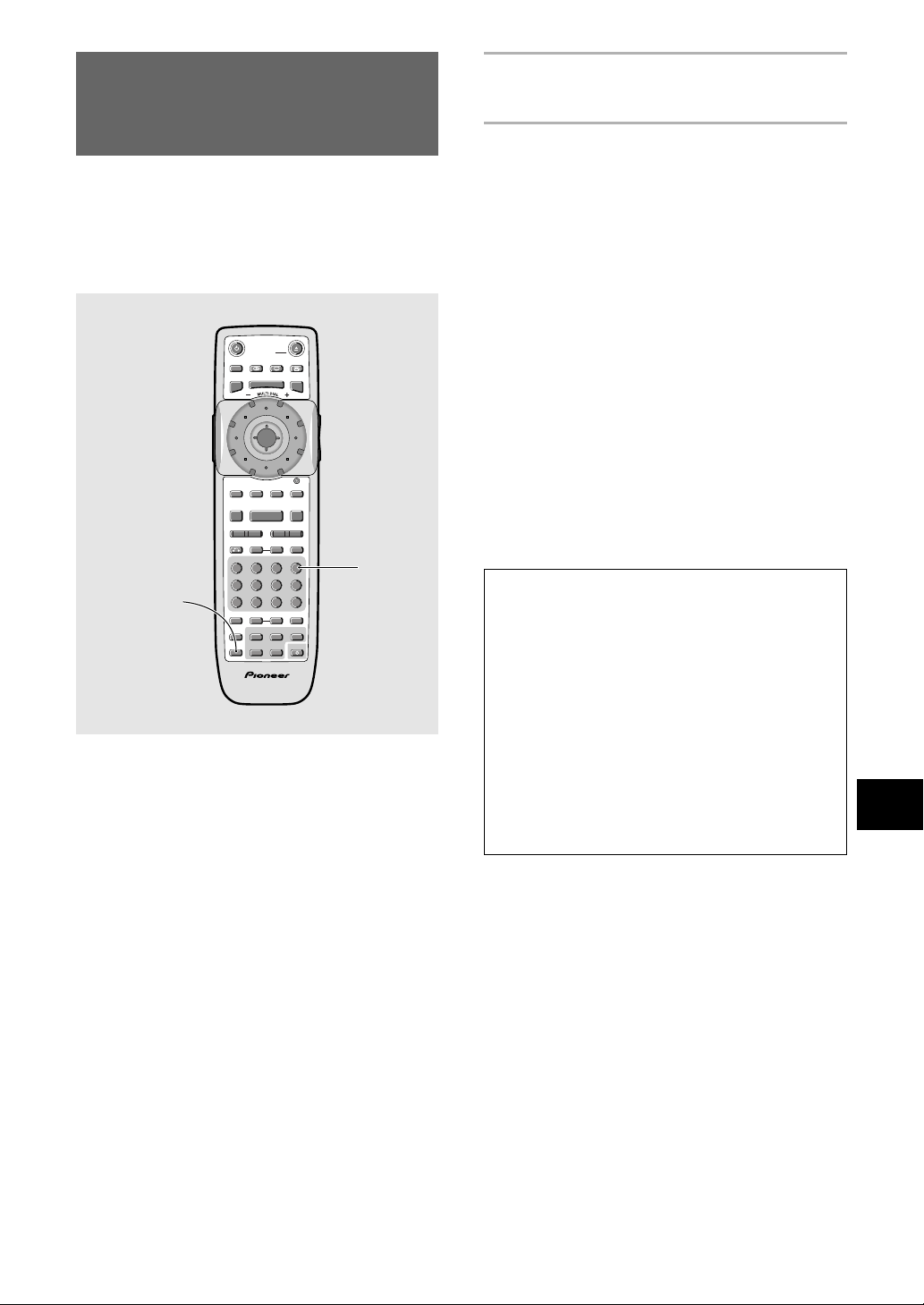
55
ADVANCED FUNCTIONS
Press CONDITION MEMORY during playback.
Settings are memorized for the disc currently playing.
The following six settings are memorized:
On Screen Display (page 33)
Multi-Angle (page 34)
Multi-language (pages 35, 36)
Multi-Language subtitles (page 37)
Parental Lock Level (page 40)
Video Quality (page 43)
When a disc that has memorized settings is
loaded
“Condition Memory” will appear on the screen, and
the previously memorized settings will be selected.
Erasing the recorded contents
Load a disc that has memorized settings, and press
CLEAR while “Condition Memory” is being displayed.
The disc’s recorded data will be erased.
Notes
• Settings are stored in memory for use any time.
• You can store settings for up to 15 DVDs in
memory. If you memorize settings for more than 15
DVDs, previously memorized settings are erased in
chronological order from the least recently
memorized. Subsequently, if you load a disc with
erased settings, the settings of the most recently
played disc are used.
• If you make changes to any of the settings
memorized in Condition Memory, press
CONDITION MEMORY during playback to
memorize new settings.
• Switching of the multi-language mode etc., is
automatic on some discs.
Memorizing Settings for Often
Viewed DVDs
(Condition Memory) – DVD
You can store in memory settings for DVDs you often
watch. Settings remain in memory even if you remove
the disc from the player, or switch power to the player to
standby. If you load a disc that has its settings
memorized, “CONDITION” appears in the display.
When you start playing the disc, the memorized settings
are automatically recalled.
CONDITION
MEMORY
SEARCH MODESTEP / SLOWRETURN
PREVIOUS NEXT REV FWD
PAUSEPLAY
VIDEO
ADJUST
DIMMER JOG MODE
TOP
MENU
SET UP
DISPLAY AUDIO SUBTITLE ANGLE
OPEN /
CLOSE
STANDBY
/ON
FUNCTION
MEMORY
STOP
PROGRAM
CONDITION
MEMORY
LAST
MEMORY
REPEAT
VOLUME CHANNEL
TV CONTROL
RANDOM
MENU
ENTER
V.ADJ
FL
F.MEM
DISP
JOG
873
A-BRPT
RDM
LAST
Vol + CH + FUNC
CH –
Vol –
COND.
PGM
4¢ 1
eE
¡
Î
TV
0987
+
10
654
C321
CLEAR
CLEAR
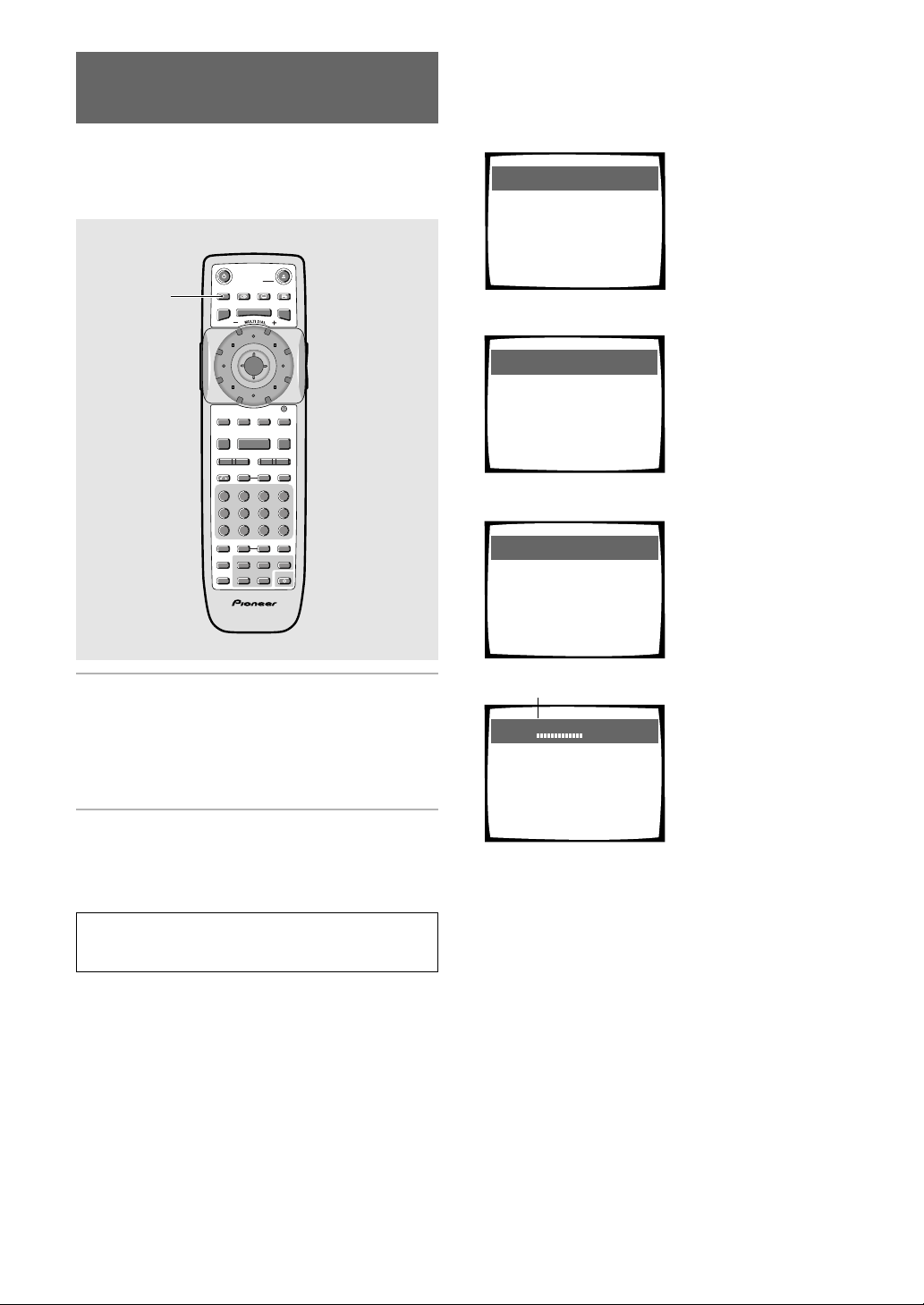
56
The display changes for each type of disc as follows
each time the button is pressed.
DVD
TITLE information:
Top Row: title and chapter
number, elapsed time of
current title
Bottom Row: remaining
time in title, total time of
title
CHAPTER information:
Top Row: title and
chapter number, elapsed
time of current title
Bottom Row: remaining
time in current chapter,
total time of chapter
Data transmission rate
information:
Top Row: title and
chapter number, total
elapsed time of DVD
Bottom Row: bitstream
transmission rate level
* The hash mark (#)
indicates that the
current display is film
material (page 63)
CHAPTER information:
Top Row: title and
chapter number, elapsed
time of current title
Bottom Row: time in
current chapter, total
time of chapter
Display off
Play
Title
2–1 0.24
0.29–0.05/
Play
Chapter
1–1 1.19
2.181.19/
Play
Tr. Rate :
1–1 1.32
8.9
#
«
«
«
Play
Chapter
1–1 1.19
2.18–0.59/
«
Viewing Disc Information
– DVD/Video CD/CD
Use DISPLAY to get current information about the disc
currently loaded. You can get information about the titles
and chapters on a DVD or tracks on a Video CD or CD.
When viewing DVDs, you can also check the digital
bitstream transmission rate.
Press DISPLAY during while a disc is playing.
Press DISPLAY repeatedly to change the
information being displayed.
The disc information is displayed superimposed over the
video image on the screen.
Press and hold DISPLAY to display the time
remaining on the disc.
When you release the button, the information
disappears.
Note
Depending on the format and type of disc being used, not all
screens may be displayed.
DISPLAY
SEARCH MODESTEP / SLOWRETURN
PREVIOUS NEXT REV FWD
PAUSEPLAY
VIDEO
ADJUST
DIMMER JOG MODE
TOP
MENU
SET UP
DISPLAY AUDIO SUBTITLE ANGLE
OPEN /
CLOSE
STANDBY
/ON
FUNCTION
MEMORY
STOP
PROGRAM
CONDITION
MEMORY
LAST
MEMORY
REPEAT
VOLUME CHANNEL
TV CONTROL
RANDOM
MENU
ENTER
V.ADJ
FL
F.MEM
DISP
JOG
873
A-BRPT
RDM
LAST
Vol + CH + FUNC
CH –
Vol –
COND.
PGM
4¢ 1
eE
¡
Î
TV
0987
+
10
654
C321
CLEAR
*
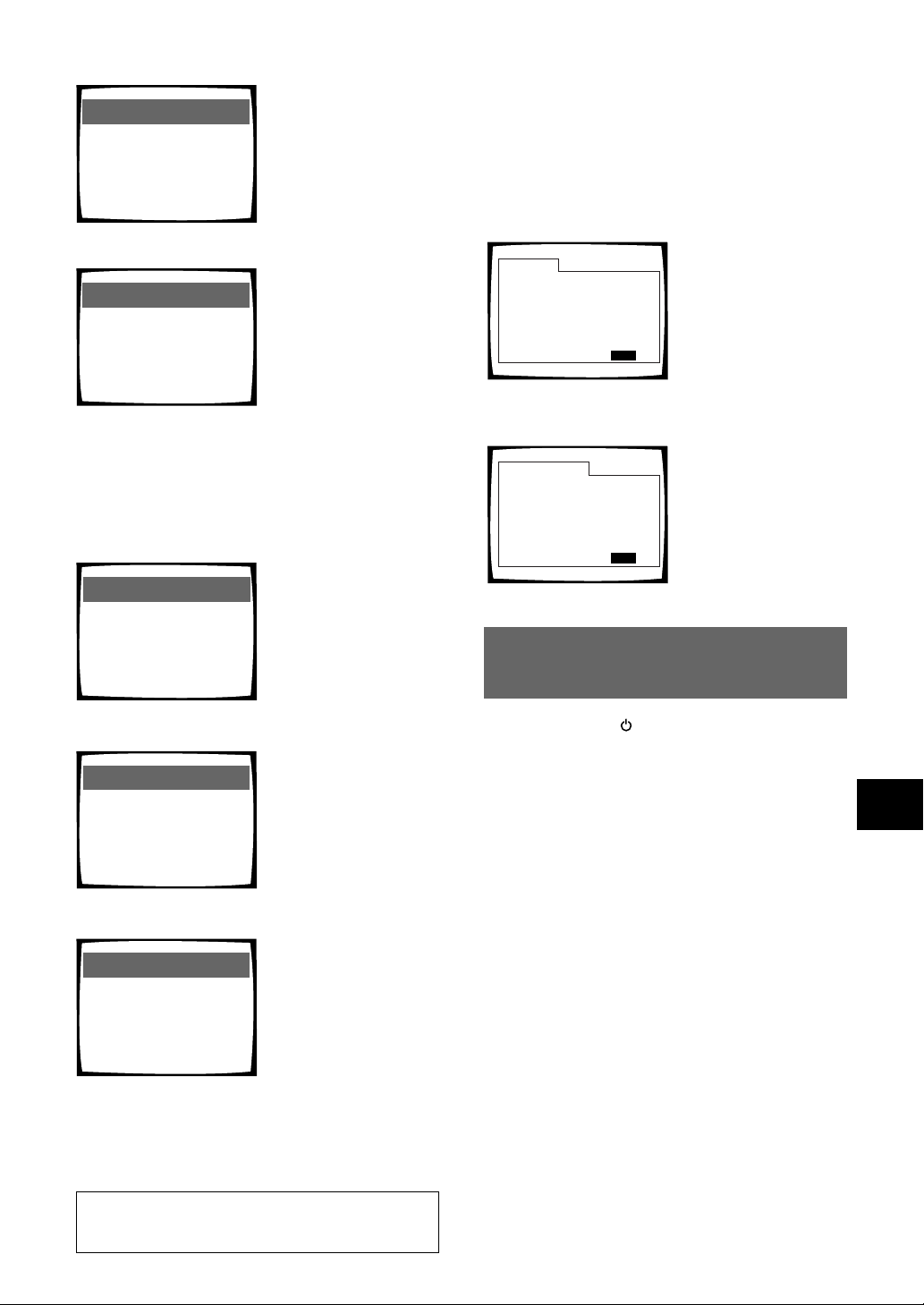
57
ADVANCED FUNCTIONS
Press DISPLAY during while a disc is stopped to
display DVD title and chapter information or Video
CD and CD track information. Press DISPLAY again to
turn the display off.
Information about the titles and chapters or tracks on a
disc is displayed. When the information exceeds the
space on the screen, use the cursor control joystick
right or left to move to other screens.
Information: DVD
Title Chapter Title Chapter
DISPLAY
Exit
01
02
03
04
06
07
08
09
05
1~ 1
1~ 1
1~ 1
1~ 1
1~ 1
1~ 1
1~ 1
1~ 4
1~ 1
1/1
Information: Compact Disc
Total Time
Track Time
DISPLAY
Exit
6.30
3.32
2.58
01
02
1/1
CD and Video CD
DVD
DVD information
When a DVD is loaded,
each title and the number
of chapters within each
title is displayed.
CD and Video CD
information
When a CD or Video CD is
loaded, the total time of
the disc and the time of
each track on the disc is
displayed.
CD
Display off
Track Information:
Top Row: current track
number, track time
Bottom Row: remaining
time of current track, and
total time of track
Disc information:
Top Row: current track
number, total number of
tracks on CD, total elapsed
time of CD
Bottom Row: remaining time
of CD, total time of CD
Play
Track
1 0.03
3.32
–3.29/
Play
All
1/2 0.15
6.32–6.15/
«
«
«
Video CD (with PBC disabled)
Play
All
5/10 20.19
22.57–2.38/
Play
Track
5 20.19
4.40 2.38/
Play
Track
5 20.19
4.40 –2.02/
«
Display off
«
Disc information:
Top Row: current track
number, total number of
tracks, total elapsed time of
Video CD
Bottom Row: remaining time
of Video CD, total time of
Video CD
Track information:
Top Row: current track
number, total elapsed time of
Video CD
Bottom Row: track time,
total time of track
Track information:
Top Row: current track
number, total elapsed time of
Video CD
Bottom Row: remaining time
of track, total time of track
Note
When playing Video CDs in PBC mode or unfinalized CD-Rs
not all the above information is displayed.
Resetting the Player to System
Settings
To reset the player, press and hold 7/0 on the front
panel when pressing STANDBY/ON on the front
panel to turn the unit from standby to on.
All program memory, saved settings from functions such
as Last Memory and Condition Memory are cleared, and
all Setup screen menus are returned to factory settings.
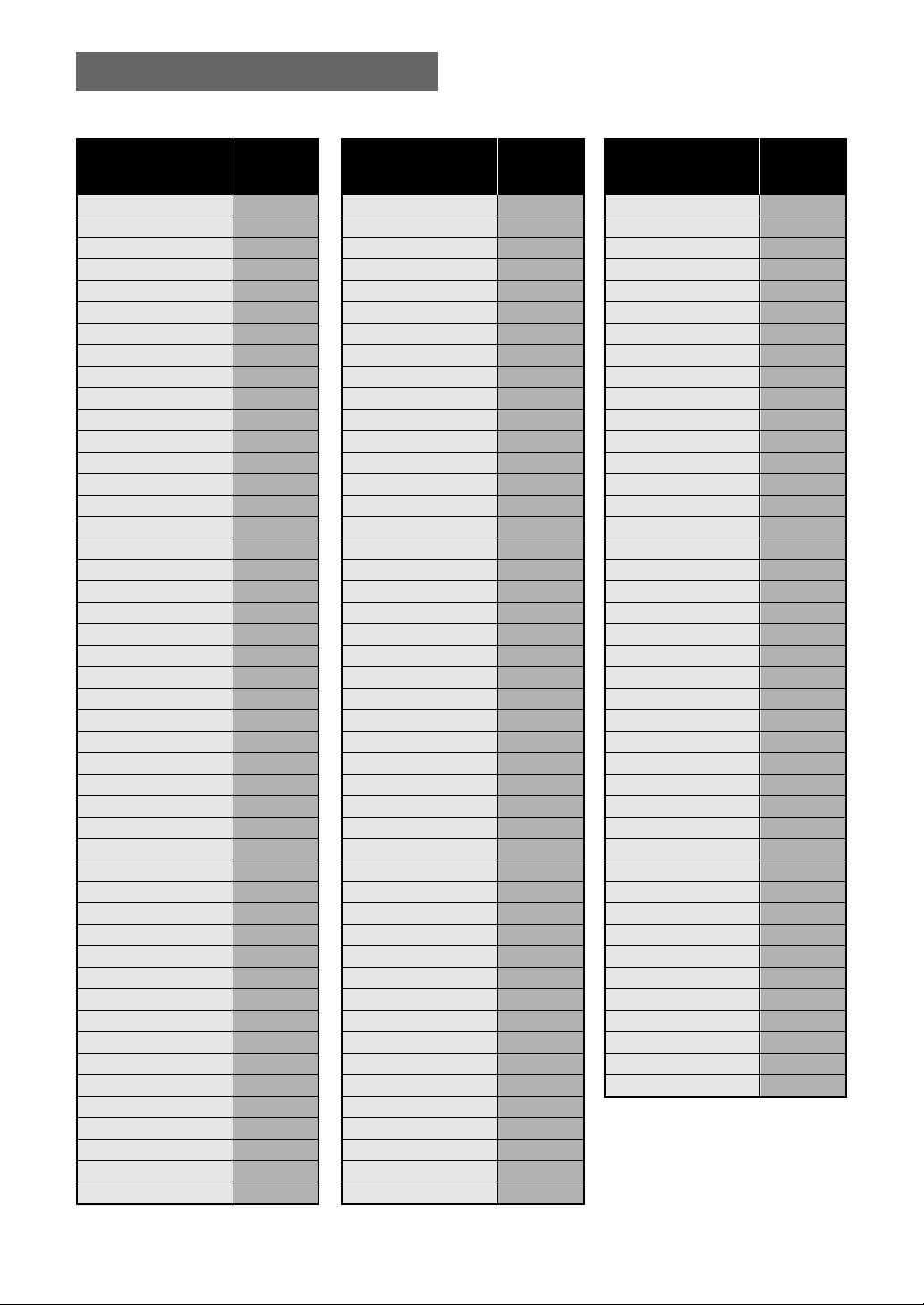
58
Language Code List
Language codes are used when setting the audio and
subtitle language preferences (page 38).
Japanese (ja)
English (en)
French (fr)
German (de)
Italian (it)
Spanish (es)
Chinese (zh)
Dutch (nl)
Portuguese (pt)
Swedish (sv)
Russian (ru)
Korean (ko)
Greek (el)
Afar (aa)
Abkhazian (ab)
Afrikaans (af)
Amharic (am)
Arabic (ar)
Assamese (as)
Aymara (ay)
Azerbaijani (az)
Bashkir (ba)
Byelorussian (be)
Bulgarian (bg)
Bihari (bh)
Bislama (bi)
Bengali (bn)
Tibetan (bo)
Breton (br)
Catalan (ca)
Corsican (co)
Czech (cs)
Welsh (cy)
Danish (da)
Bhutani (dz)
Esperanto (eo)
Estonian (et)
Basque (eu)
Persian (fa)
Finnish (fi)
Fiji (fj)
Faroese (fo)
Frisian (fy)
Irish (ga)
Scots-Gaelic (gd)
Galician (gl)
Guarani (gn)
1001
0514
0618
0405
0920
0519
2608
1412
1620
1922
1821
1115
0512
0101
0102
0106
0113
0118
0119
0125
0126
0201
0205
0207
0208
0209
0214
0215
0218
0301
0315
0319
0325
0401
0426
0515
0520
0521
0601
0609
0610
0615
0625
0701
0704
0712
0714
Language Input-code
Gujarati (gu)
Hausa (ha)
Hindi (hi)
Croatian (hr)
Hungarian (hu)
Armenian (hy)
Interlingua (ia)
Interlingue (ie)
Inupiak (ik)
Indonesian (in)
Icelandic (is)
Hebrew (iw)
Yiddish (ji)
Javanese (jw)
Georgian (ka)
Kazakh (kk)
Greenlandic (kl)
Cambodian (km)
Kannada (kn)
Kashmiri (ks)
Kurdish (ku)
Kirghiz (ky)
Latin (la)
Lingala (ln)
Laothian (lo)
Lithuanian (lt)
Latvian (lv)
Malagasy (mg)
Maori (mi)
Macedonian (mk)
Malayalam (ml)
Mongolian (mn)
Moldavian (mo)
Marathi (mr)
Malay (ms)
Maltese (mt)
Burmese (my)
Nauru (na)
Nepali (ne)
Norwegian (no)
Occitan (oc)
Oromo (om)
Oriya (or)
Panjabi (pa)
Polish (pl)
Pashto, Pushto (ps)
Quechua (qu)
0721
0801
0809
0818
0821
0825
0901
0905
0911
0914
0919
0923
1009
1023
1101
1111
1112
1113
1114
1119
1121
1125
1201
1214
1215
1220
1222
1307
1309
1311
1312
1314
1315
1318
1319
1320
1325
1401
1405
1415
1503
1513
1518
1601
1612
1619
1721
Language Input-code
Rhaeto-Romance (rm)
Kirundi (rn)
Romanian (ro)
Kinyarwanda (rw)
Sanskrit (sa)
Sindhi (sd)
Sangho (sg)
Serbo-Croatian (sh)
Sinhalese (si)
Slovak (sk)
Slovenian (sl)
Samoan (sm)
Shona (sn)
Somali (so)
Albanian (sq)
Serbian (sr)
Siswati (ss)
Sesotho (st)
Sundanese (su)
Swahili (sw)
Tamil (ta)
Telugu (te)
Tajik (tg)
Thai (th)
Tigrinya (ti)
Turkmen (tk)
Tagalog (tl)
Setswana (tn)
Tonga (to)
Turkish (tr)
Tsonga (ts)
Tatar (tt)
Twi (tw)
Ukrainian (uk)
Urdu (ur)
Uzbek (uz)
Vietnamese (vi)
Volapük (vo)
Wolof (wo)
Xhosa (xh)
Yoruba (yo)
Zulu (zu)
1813
1814
1815
1823
1901
1904
1907
1908
1909
1911
1912
1913
1914
1915
1917
1918
1919
1920
1921
1923
2001
2005
2007
2008
2009
2011
2012
2014
2015
2018
2019
2020
2023
2111
2118
2126
2209
2215
2315
2408
2515
2621
Language Input-code
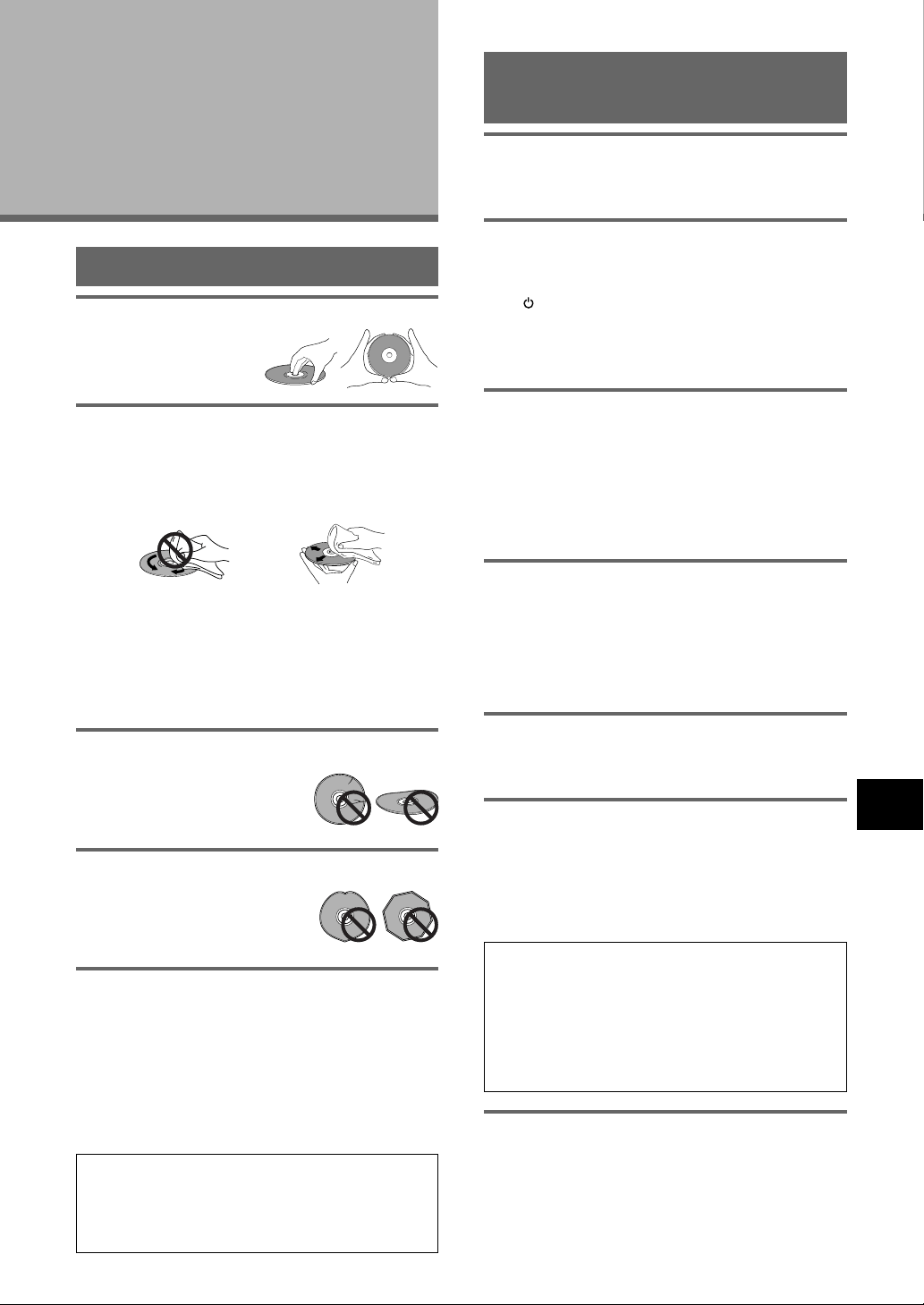
59
ADVANCED FUNCTIONS / ADDITIONAL INFORMATION
Additional
Information
Disc Care
How to hold discs
When loading or removing
discs, try not to touch their
playing surfaces.
Cleaning
Fingerprints or other dirt on the disc may affect sound
and picture quality.
To clean your discs, use a soft clean cloth to wipe them.
If necessary, moisten a soft cloth with diluted neutral
detergent to remove heavy dirt or fingerprints.
Discs must not be cleaned with record cleaning sprays,
or static prevention sprays, etc. Also do not use volatile
liquids such as benzine, or thinner, etc.
Never play cracked or warped discs
The disc revolves in the player at
high speed when it is played. Never
play a cracked, scratched or warped
disc. This may damage the player or
cause it to malfunction.
Never use discs with special shapes
CD’s with special shapes (heart-
shaped CDs, octagonal CDs, etc.)
cannot be played on this set.
Attempting to do so may damage the
set. Do not use such CDs.
After using discs, store them upright
After playing a disc, always remove it from the player
and return it to its jacket. Then store it standing upright
away from heat and humidity.
• Store discs carefully. If you store discs at an angle, or
stacked on top of each other, discs may become
warped even when in their jackets.
• Do not leave discs in locations such as the seat of a
car, which may become excessively hot.
CAUTION WHEN USING THE DISC
All rights reserved.
Unauthorized public performance, broadcasting or
copying is a violation of applicable laws.
Gently wipe from the
inside toward the outer
edge.
Do not wipe in a circular
direction (Concentric
scratches in the disc groove
tend to cause noise).
For Proper and Long Use of
This Unit
Do not move the unit during playback
During playback, the disc rotates at high speed. Do NOT
lift or move the unit during playback. Doing so may
damage the disc.
When moving the unit
When changing places of installation or packing the unit
for moving, be sure to remove the disc and return the
disc table to its original position in the player. Then,
press STANDBY/ON and switch the power to
standby. Check that the “--OFF--” indication on the
display goes off, then disconnect the power cord.
Moving this unit with the disc loaded may result in
damage to this unit.
Installation
• Select a stable place to the side of a TV set or stereo
system to be connected to the unit.
• When using the unit with a stereo system, install the
speakers a little bit away from the TV.
• Do NOT install the unit on top of a TV or color monitor.
Install the unit away from equipment that may be
affected by magnetism, such as a cassette deck.
• Do NOT place objects on top of the unit.
Avoid installing in a place that is:
• Exposed to direct sunlight
• Exposed to humidity or where ventilation is poor
• Extremely hot or cold
• Exposed to vibration
• Exposed to dust
• Exposed to oily smoke, steam or heat (for example, a
kitchen)
Do not block vents
Do NOT use the player on top of a long-fibered carpet,
bed or sofa, and do not cover it with a cloth, etc. This
will prevent heat radiation and could result in damage.
Avoid heat
Do NOT place the unit on equipment which generates
heat, such as an amplifier.
When installing the unit in a rack, place it on the lowest
shelf possible (however, not where it is exposed to dust)
and separated from the amplifier to avoid the heat
generated by the amplifier or other audio equipment.
CAUTION: WHEN PLACING THE UNIT IN A
STEREO RACK WITH GLASS DOORS
Be sure there is ample space between the unit and
the glass doors when opening the disc table using
the remote control. If the disc table opens against
strong resistance, such as a closed glass door,
damage to the unit may result.
Lens cleaner
The player's pickup lens should not become dirty in
normal use, but if for some reason it should malfunction
due to soiling, contact your nearest PIONEER authorized
service center. Lens cleaners are commercially available,
but special care should be exercised in their use since
some may cause damage to the lens.
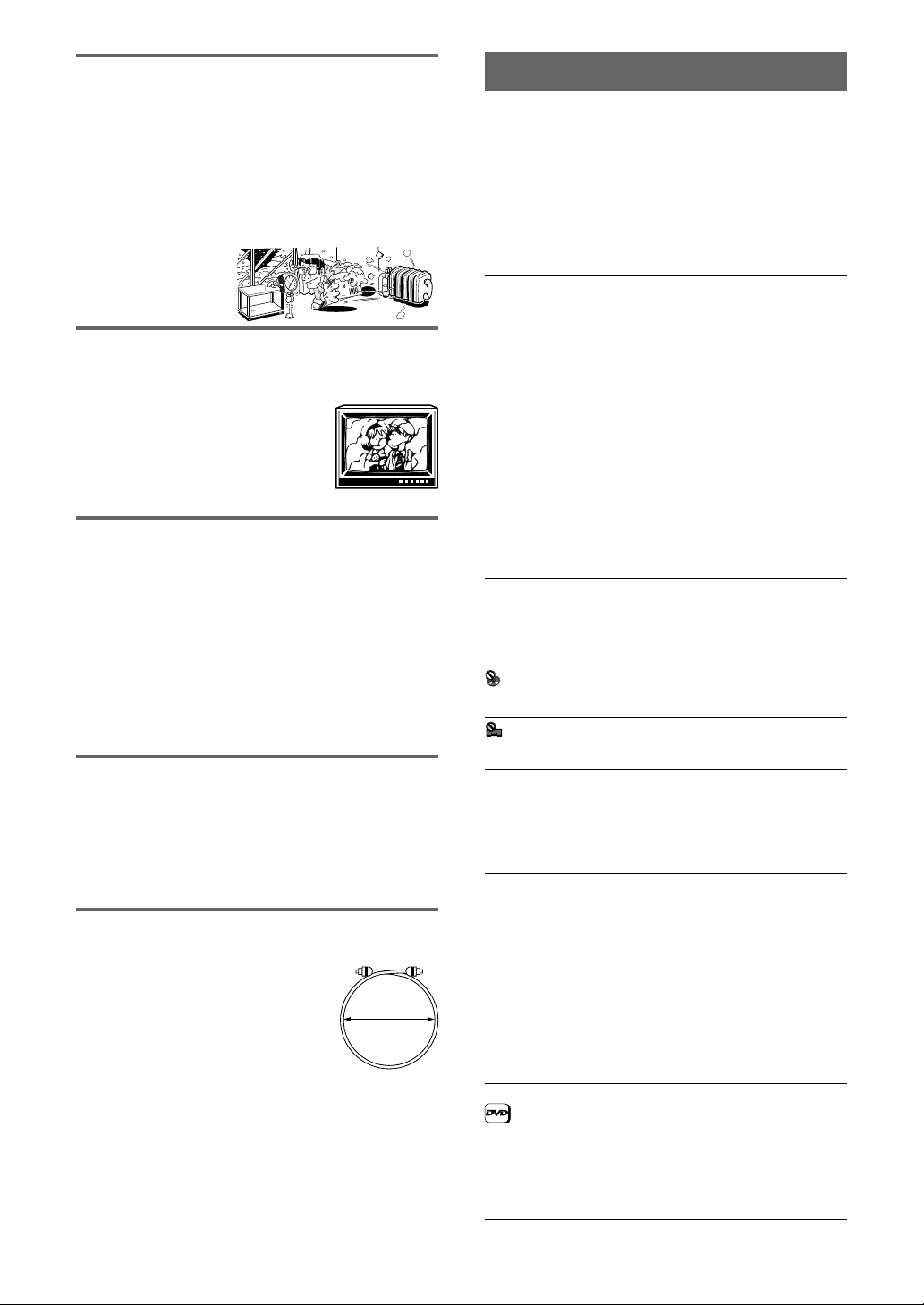
60
15 cm (6 in.) dia.
or more
Condensation
Moisture may form in the operating section of the player
if the player is brought from cool surroundings into a
warm room or if the temperature of the room rises
suddenly. When this happens, the player’s performance
will be impaired.
To prevent this, let the player stand in its new
surroundings for about an hour before switching it on, or
make sure that the room temperature rises gradually.
Condensation may also form during the summer if the
player is exposed to
the breeze from an air
conditioner. In such
cases, change the
location of the player.
Switch POWER to STANDBY when not using
the unit
Depending on the strength of the TV or radio broadcast
signal, having the TV or radio on while
power to the unit is on may result in
stripes on the TV screen or noise.
However, this is not a malfunction of
this unit or the TV or radio. In such a
case, switch the power of the unit to
standby.
Power-cord caution
Handle the power cord by the plug. Do not pull out the
plug by tugging the cord and never touch the power cord
when your hands are wet as this could cause a short
circuit or electric shock. Do not place the unit, a piece of
furniture, etc., on the power cord, or pinch the cord.
Never make a knot in the cord or tie it with other cords.
The power cords should be routed in such a way that
they are not likely to be stepped on. A damaged power
cord can cause a fire or give you an electrical shock.
Check the power cord once in a while. When you find it
damaged, ask your nearest PIONEER authorized service
center or your dealer for a replacement.
Cleaning the player
To clean the PLAYER, wipe with a soft, dry cloth. For
stubborn dirt, wet a soft cloth with a mild detergent
solution made by diluting one part detergent to 5 or 6
parts water, wring well, then wipe off the dirt. Also use a
dry cloth to wipe the surface dry. Do not use volatile
liquids such as benzene and thinner which are harmful to
the unit.
Notes on using optical cables
• Do not route cords around sharp angles. When storing,
wind the cords so that they have a
diameter of at least 15 cm (6 in.).
• When connecting, push all the way
into the terminal.
• Do not use cords with a length of
over 3 m.
• If moisture or dust has collected on
the plug, wipe it with a soft cloth
before connecting.
Troubleshooting
Incorrect operations are often mistaken for trouble and
malfunctions. If you think that there is something wrong
with this component, check the points below.
Sometimes the trouble may lie in another component.
Inspect the other components and electrical appliances
being used. If the trouble cannot be rectified even after
exercising the checks listed below, ask your nearest
PIONEER authorized service center or your dealer to
carry out repair work.
The disc table comes back out automatically, shortly
after the disc table is closed.
The disc is dirty or warped.
\ Refer to
‘Disc Care’
(page 59).
The disc is not placed properly on the disc table.
\ Use the disc table guide to align the disc (page 22).
Region number does not conform with this unit.
\ If the region number on the disc does not match
the number on the player, the disc cannot be used
(page 63).
There is condensation on the operating section of the
player.
\ Allow time for condensation to evaporate. If player
is near an air conditioning unit, you should move
the player (page 60).
Playback is not possible.
The disc has been loaded upside down.
\ Check that the disc has been loaded with the label
side facing up.
mark appears on screen.
The selected function does not operate for that disc.
mark appears on screen.
The operation is prohibited by the player.
Picture playback stops and the operation buttons
cannot be used.
Player malfunctions.
\ Stop disc playback (press STOP 7), then start
playback again.
New settings made in the Setup screen menus while
a disc is playing are ineffective.
Some settings can be changed while a disc is playing,
but are not effective. This is not a malfunction.
\ Make the same setting when the player is
stopped.
\ Stop disc playback (press STOP 7), then start
playback again. When playback is resumed, the
new settings should be in effect. Please note that
making settings in the Setup screen menus may
cancel the resume function.
When making changes in the Setup screen menus,
is displayed.
There is a Video CD or CD loaded in the player and the
setting that was changed only applies to DVD
performance.
\ The setting will be effective the next time a DVD
is loaded.
61
ADDITIONAL INFORMATION
Settings are canceled.
When the power is turned off by power failure or by
unplugging the power cord, settings will be canceled.
\ Before unplugging the power cord, press
STANDBY/ON and check that “--OFF--”
disappears in the display.
No picture.
Connection is incorrect.
\ Check that cord connections are correct and that
plugs are firmly connected.
Operation (settings) of TV or AV amplifier is not
appropriate.
\ Be sure that your TV, receiver, or amplifier is set
up to view DVD playback.
The screen is stretched or aspect does not change.
The multi aspect setting is not appropriate.
\ Change the aspect setting in the [TV Screen]
setting in the Setup screen Video menu to the
screen type most appropriate to the TV or monitor
you are using (page 31).
The screen is suddenly squeezed when the Setup
screen is opened.
If the Setup screen is opened during playback of a
DVD being viewed in the letter box format, the screen
may switch to the wide screen format.
\ This is not a malfunction. The screen will return to
normal when the Setup screen is closed.
Picture disturbance during playback or dark.
This is not a malfunction.
\ This player is compatible with Macro-Vision
System copy guard. Some discs include a copy
prevention signal, and when this type of disc is
played back, stripes etc., may appear on some
sections of the picture depending on the TV.
When using a component video connection, if
progressive scan output is selected with a TV that is
not compatible with progressive scan video, you will
not be able to see any picture. To, remedy this, do
one of the following:
\ Set the rear panel COMPONENT VIDEO OUT
switch to 525i (480i). (This overrides the Setup
menu setting.)
When recorded on a VCR or passed through an AV
selector, there is disturbance in the playback picture.
This is not a malfunction.
\ Due to the player’s copy protection circuits,
connection of this device through a VCR or an AV
selector may prevent recording or cause picture
problems.
Remote control operation is not possible.
The rear panel control input jack on the player is being
used.
\ Point the remote control at the component that
the player is connected to (page 18).
The remote control is too far from the player, or the
angle with the remote sensor is too wide.
\ Be sure to operate the remote from a location
within its operating range (page 8).
The batteries are exhausted.
\ Replace the exhausted batteries with all new
batteries (page 8).
Audio is not output or is distorted.
The Setup screen Audio 1 menu [96 kHz PCM Out]
setting is set to [96 kHz]. Digital output is prohibited
on some discs.
\ Be sure to make analog audio connections as well
as digital connections (page 16).
The disc is dirty.
\ Refer to
‘Disc Care’
(page 59).
The connection plugs are not inserted fully into the
terminals or are not connected.
\ Check that all connection plugs are firmly inserted.
The connection plug or terminal is dirty.
\ Check that the plugs and terminals are wiped
clean of dirt, etc.
Audio cable connection is wrong.
\ Check to make sure that the audio cables are
connected correctly (page 15).
Connection is made to the stereo amplifier‘s PHONO
input terminal.
\ Change connection to any input terminal except
PHONO.
The pause mode is engaged.
\ Press PLAY 3 or PAUSE 8 to exit the pause
mode.
Stereo amplifier operation is incorrect.
\ Check input (CD, AUX, etc.) selector to determine
if it is selected for DVD playback.
The DVD or CD is recorded in DTS audio.
\ DTS audio is only output from the digital output
jacks. Connect the digital output on the player to
the digital input on a receiver or amplifier with a
built in DTS decoder to hear DTS audio.
Noticeable difference in DVD and CD volume.
DVDs and CDs use different recording methods.
\ This is not a malfunction.
Caution
Static electricity or other external influence may cause
malfunctioning of this unit. In this case, unplugging
the power cord and then re-plugging it in will usually
reset the unit for proper operation. If this does not
correct the problem, please consult your nearest
PIONEER service center.
62
Terms
Aspect ratio
Aspect ratio refers to the length to height ratio of TV
screens. The ratio of a standard TV is 4:3, while the ratio
of a high-definition or wide TV is 16:9. The latter allows
you to enjoy a picture with a wider perspective.
Chapter number
Chapter numbers are the numbers assigned to sections
of a title on the disc, similar to chapters in a book. If the
disc includes chapter numbers, you can locate the
section you want very quickly using search and other
functions.
Component (color difference) video output
The color signal of the TV is divided into the luminance
(Y) signal and the color (P
B
and P
R
) signals and then
output. In this way mutual interference of each signal is
avoided. On a TV with component input jacks, these
signals are synthesized to produce the picture.
Condition memory
“Condition” refers to the various mode settings, etc. On
this player, various conditions, such as those set during
playback, can be memorized. This function allows you to
play back the same disc at any time without having to
redo your preferred settings.
Digital bitstream
The bitstream does not refer to the audio signal, but
rather to the digital data that, once converted, becomes
the audio signal. The player outputs digital bitstreams via
the digital optical or digital coaxial output. If the
bitstream cannot be decoded by the connected AV
amplifier etc., digital noise is produced. Digital bitstream
formats compatible with different entertainment
systems can be selected in the Setup screen Audio 1
menu.
Digital output (Coaxial)
Output of the digital audio signal is transmitted
electronically using a coaxial cable. Because the signal
being transmitted is digital, connection must be made to
the coaxial digital input of another component. Noise will
be output if connected to the analog audio inputs as the
digital signal cannot be decoded.
Digital output (Optical)
Normally, audio is converted to an electric signal and
transmitted through an electric wire from the player to
the amplifier, etc. Changing this signal to a digital signal
and transmitting it through an fiber-optic cable is called
optical digital output. Similarly, optical digital input
receives digital signals from external units such as an AV
amplifier or receiver.
Dolby Digital
Using a maximum of 5.1 channels of audio, this high
quality surround system is used in many of the finer
movie theaters around the world.
1
DTS
DTS stands for Digital Theater System. DTS
is a surround system different from Dolby
Digital that has become a popular surround
sound format for movies, as well as CDs.
In order to enjoy the benefits of DTS encoded discs, the
digital output jack (either coaxial or optical) of this player
needs to be connected to an AV amplifier or receiver or
to a DTS decoder to be able to enjoy the surround sound
of DTS audio. DTS audio is not output from the analog
audio outputs.
Dynamic range
Dynamic range refers to the difference between the
maximum and minimum levels of the audio soundtrack
as measured in decibels (dB).
Compressing the dynamic range raises the minimum
signal level and lowers the maximum signal level. This
allows you to hear voices and other low level audio
signals clearly while lowering strong audio signals like
the sound of explosions.
Interlaced video
A method of displaying a picture in which odd-numbered
lines are updated in one pass, then even-numbered lines
updated in the next. See also Progressive scan video.
MPEG
Short for Moving Picture Experts Group. This is an
international standard for compression of moving
images. On some DVDs, digital audio has been
compressed and recorded in this format.
Multi-angle
When you watch a TV program, you are watching the
image filmed through the TV camera. Because of this,
the picture is displayed on your TV from the viewpoint of
the TV camera’s position. In a TV studio, the image is
filmed by many cameras at the same time, and one of
those images is selected by the program director and
transmitted to your TV. If all the filmed images were
transmitted to your TV you would be able to select the
camera image you want. Some DVD discs are recorded
with the angles of more than one camera used for
filming, and these can be selected using this player.
These types of discs are called multi-angle discs.
Parental lock level
This function was suggested by parents concerned
about what type of media their children were able to
watch. Parental lock restrictions are restrictions
incorporated into titles which include scenes that
parents may not wish their children to view.
PCM
PCM stands for Pulse Code Modulation and is digital
audio. The digital audio of CDs is PCM. This player also
has a function that converts Dolby Digital and MPEG
digital bitstreams into PCM to enable you to listen to
quality digital sound even without a special decoder.
Playback Control (PBC)
This refers to signals recorded on a Video CD (Version
2.0) enabling playback control.
You can use menus recorded on discs with PBC for
easy, interactive search for desired scenes, and
playback.
You can also enjoy viewing high-resolution/standard
resolution still images.
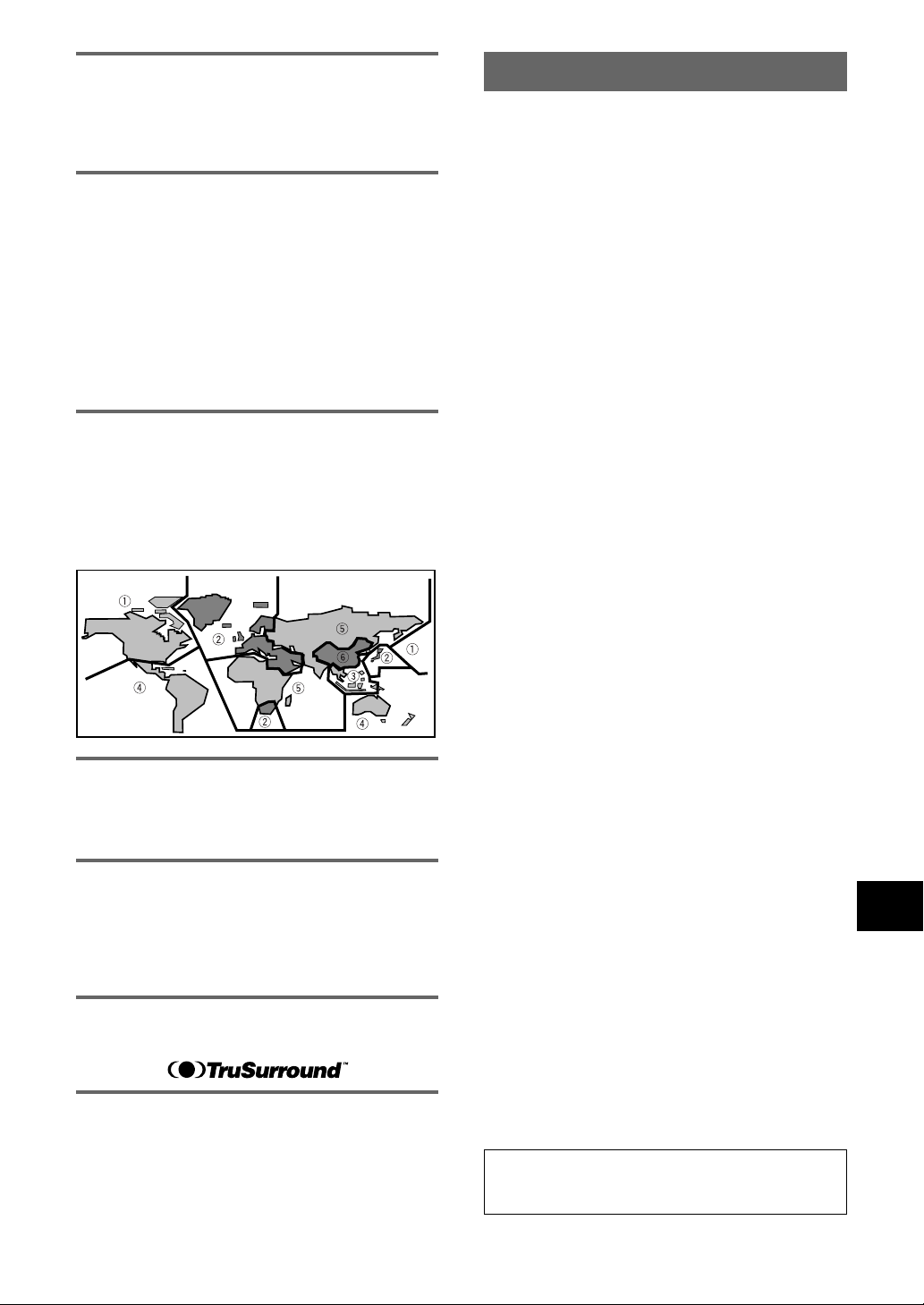
63
ADDITIONAL INFORMATION
Progressive scan video
Also called non-interlaced video, this method of
displaying a picture updates all the lines in one pass,
resulting in a more stable, flicker-free image than
interlaced video (for a given scanning rate). See also
Interlaced video.
PureCinema
Video on a DVD discs may be either video material
(originally shot on video) or film material (originally shot
on film). Video material has a frame rate of 30 frames/
sec., compared with 24 frames/sec. for film. This player
converts film material to 60 frames/sec. (in progressive
scan mode). PureCinema adjusts the picture so that it
matches more closely the picture quality of a cinema
screen.
You can see whether video on a DVD disc is film or video
material by displaying the video transmission rate.
If a hash mark (#) appears above the transmission rate
display, it is film material.
Regional restriction codes (region number)
Regional restriction codes are built in to DVD players and
DVD discs for each sales region. If the regional code of
the DVD player does not match one of the regional
codes of the DVD disc, playback is not possible.
The region number can be found on the rear panel of the
DVD player. The illustration below shows the regions
and corresponding region numbers.
Subtitle
Subtitles are language titles superimposed on movies, or
other media. Up to 32 different subtitle languages can be
recorded on a DVD disc. The subtitle function can be
used to select the language of your choice.
S-video
Connecting the S-video output on the player to a TV or
monitor with S-video input via an S-video cable produces
clearer picture reproduction by sending separate signals
for the luminance and the color. These signals are then
combined by the television to produce a better quality
picture.
TruSurround
TruSurround is a simulated surround system which
produces a surround sound effect from stereo speakers.
Virtual Dolby Digital
Virtual Dolby Digital uses Dolby Digital multichannel
audio sources to create a realistic surround sound effect
from stereo speakers.
Specifications
General
System ... DVD system and Compact Disc digital audio system
Power requirements ............................. AC 120 V, 60 Hz
Power consumption ................................................ 25 W
Power consumption in standby mode ....... less than 1 W
Weight ................................................ 6.5 kg (14 lb 6 oz)
Dimensions (Not including protruding cables, etc.)
.................................. 420 (W) x 370 (D) x 128 (H) mm
(16 9/16 (W) x 14 10/16 (D) x 5 1/16(W) in.)
Operating temperature +5°C to +35°C (+36°F to +96°F)
Operating humidity .......... 5% to 85% (no condensation)
S-Video output (2 individual outputs)
Y (luminance) - Output level ........................ 1 Vp-p (75 Ω)
C (color) - Output level ........................ 286 mVp-p (75 Ω)
Jacks .......................................................... S-VIDEO jack
Video output (2 individual outputs)
Output level ................................................1 Vp-p (75 Ω)
Jacks ................................................................. RCA jack
Component video output
(Y, P
B
, P
R
)
Output level ......................................... Y: 1.0 Vp-p (75 Ω)
P
B
, P
R
: 0.7 Vp-p (75 Ω)
Jacks ............................................................... RCA jacks
Audio output (2 individual outputs)
Output level
During audio output ............. 200 mVrms (1 kHz, –20 dB)
Number of channels ....................................................... 2
Jacks ............................................................... RCA jacks
Digital audio characteristics
Frequency response ..... 4 Hz to 44 kHz (DVD fs: 96 kHz)
S/N ratio ............................................................... 115 dB
Dynamic range ..................................................... 109 dB
Total harmonic distortion .................................... 0.001%
Wow and flutter ............................ Limit of measurement
(±0.001% W. PEAK) or lower
Digital output
Optical digital output ........................... Optical digital jack
Coaxial digital output ......................................... RCA jack
Other terminals
CONTROL IN .......................................... Minijack (3.5 ø)
CONTROL OUT ....................................... Minijack (3.5 ø)
Accessories
Audio cord ...................................................................... 1
Video cord ......................................................................1
Power cord ..................................................................... 1
Remote control unit ....................................................... 1
AA (R6P) dry cell batteries ............................................. 2
Operating Instructions ...................................................1
Note
The specifications and design of this product are subject to
change without notice, due to improvement.
Printed in Japan <VRB1262-A>
<00G00ZF0D01>
Published by Pioneer Corporation.
Copyright © 2000 Pioneer Corporation.
All rights reserved.
PIONEER CORPORATION
4-1, Meguro 1-Chome, Meguro-ku, Tokyo 153-8654, Japan
PIONEER ELECTRONICS [USA] INC.
P.O. BOX 1540, Long Beach, California 90801-1540, U.S.A.
PIONEER ELECTRONICS OF CANADA, INC.
300 Allstate Parkway, Markham, Ontario L3R OP2, Canada
PIONEER EUROPE NV
Haven 1087, Keetberglaan 1, B-9120 Melsele, Belgium TEL: 03/570.05.11
PIONEER ELECTRONICS AUSTRALIA PTY. LTD.
178-184 Boundary Road, Braeside, Victoria 3195, Australia, TEL: [03] 9586-6300
PIONEER ELECTRONICS DE MEXICO S.A. DE C.V.
San Lorenzo 1009 3er Piso Desp. 302 Col. Del Valle Mexico D.F. C.P.
03100 TEL: 5-688-52-90