E-MANUAL
Thank you for purchasing this Samsung product.
To receive more complete service, please register
your product at
www.samsung.com/register
Model
Serial No.
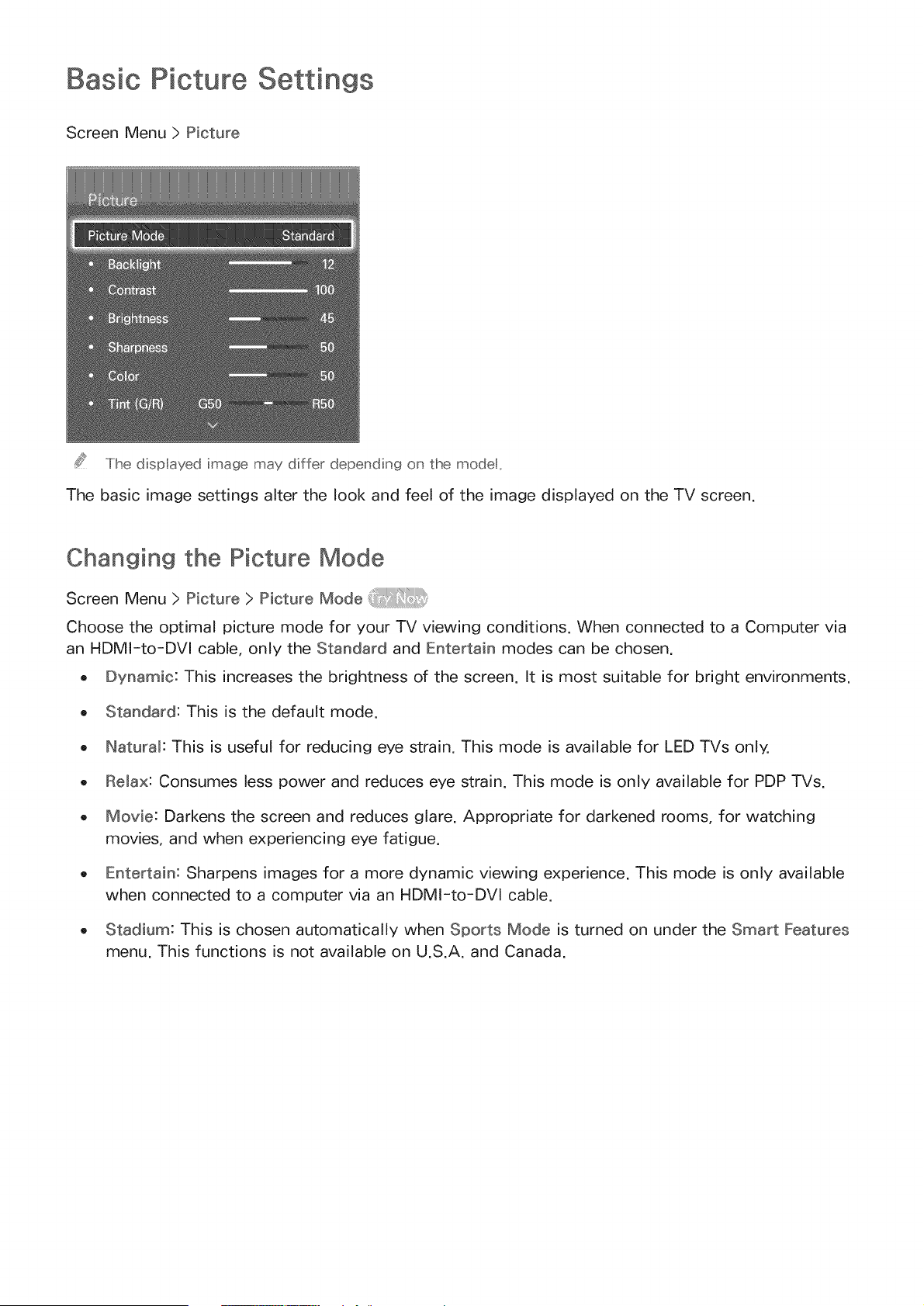
Basic Picture Settings
Screen Menu > Picture
The dispIayed image may differ depending on the modet,
The basic image settings alter the look and feel of the image displayed on the TV screen.
Changing the Picture Mode
Screen Menu > Picture > Picture Mode
Choose the optimal picture mode for your TV viewing conditions. When connected to a Computer via
an HDMI-to-DVl cable, only the Standard and Entertain modes can be chosen.
o Dynamic: This increases the brightness of the screen. It is most suitable for bright environments.
o Standard: This is the default mode.
o Natural: This is useful for reducing eye strain. This mode is available for LED TVs only.
o Relax: Consumes less power and reduces eye strain. This mode is only available for PDP TVs.
o Movie: Darkens the screen and reduces glare. Appropriate for darkened rooms, for watching
movies, and when experiencing eye fatigue.
o Entertain: Sharpens images for a more dynamic viewing experience. This mode is only available
when connected to a computer via an HDMI-to-DVl cable.
o Stadium: This is chosen automatically when Sports Mode is turned on under the Smart Features
menu. This functions is not available on U.S.A. and Canada.
Picture Quality
Screen Menu > Picture
Choose a Picture Mode and then select the following options to display a slide bar that allows the
corresponding setting to be adjusted. Adjust the value by dragging left/right on the touch pad and
change the setting by dragging up/down on the touch pad. Adjusted values are applied to the current
source and will remain in effect the next time the source is selected. When connected to a computer
via an HDMI-to-DVI cable, only the Color and Tint (G/R} adjustment options can be chosen.
Adjusts the brightness of individual pixels. Decreasing the brightness reduces power
consumption. This option is only available for LED TVs.
Cell Light
Adjusts the brightness of the panel. Decreasing the brightness reduces power consumption. This
option is only available for PDP TVs.
Contrast
Adjusts the screen contrast.
Adjusts the overall brightness.
Sharpens or dulls the edges of objects.
Color
Adjusts the overa II co Ior saturati on.
Tint (G/R}
Adjusts the ratio of green to red. Increase the green value to saturate the greens and the red
value to saturate the reds.
Applying the Cup'rent Pictu_e Quality Setting to Another _nput
Screen Menu> Picture > AppNy Picture Mode
You can apply the picture quality setting that you configured for the TV to all external devices
connected to the TV.
To apply the setting to all external devices connected to the TV, select ANI Sources. To only apply the
setting to the current input, select Current Source.
Picture Size
Screen Menu ) Picture ) Picture Size ) Picture Size
Most TV programs and videos are displayed in full screen, but some programs and videos don't fit the
screen. Users can change the picture size for such programs and videos. However, the available size
options may differ, depending on the video source. For details, see "Picture Size and Input Signal".
o 16:9: Set the picture to the 16:9 wide-screen format.
Zoom1: Magnifies the 16:9 screen size to up and down. A magnified picture can be moved up
and down.
Zoom2: Magnifies the Zoom1 screen size to up and down. A magnified picture can be moved up
and down.
Wide Fit: Enlarge the aspect ratio of the picture so it fits the entire screen. Enjoy 4:3 images as
undistorted 16:9 images.
4:3: Sets the picture to basic 4:3 mode.
A Do not leave the TV in 4:3 mode for an extended period. The dark borders displayed on the left
and right/top and bottom of the screen may cause image retention (screen burn). This is not
covered by the warranty. This mode is available for PDP TVs only.
Screen Fit: Displays the full image without any cutoff,
Smart View 1: Reduces a 16:9 picture by 50%. This mode is only available for LED TVs and in
HDMI mode.
Smart View 2: Reduces a 16:9 picture by 25%. This mode is only available for LED TVs and in
HDMI or DTV mode.
The Picture Size opton s not ava lable with mages n the UHD resolut on because the supported screen
sze s fxed,
Screen Position
Screen Menu ) Picture ) Picture Size ) Position
The screen position can be adjusted if Picture Size is set to Zoom1, Zoom2, Wide Fit, or Screen Fit. In
DTV mode, the screen position cannot be adjusted if the Picture Size is set to Screen Fit.
To adjust the screen position, select Position and then Position from the popup window.
2, Drag on the touch pad to move the screen. Once done, select Position and then Close. Select
Reset to reset the screen position.
The Position opton s not ava lable with mages n the UHD resolut on because the supported screen sze s
fxed.
Picture Off
Screen Menu ) Picture ) Picture Off
Turns off the screen and plays audio only. To turn the screen back on, press any button except TV and
volume buttons.
Reset mmage Settings
Screen Menu ) Picture ) Reset Picture i !c
Reset all image settings for the current Picture Mode to the default settings. This does not affect other
Picture Modes.
Advanced ngs
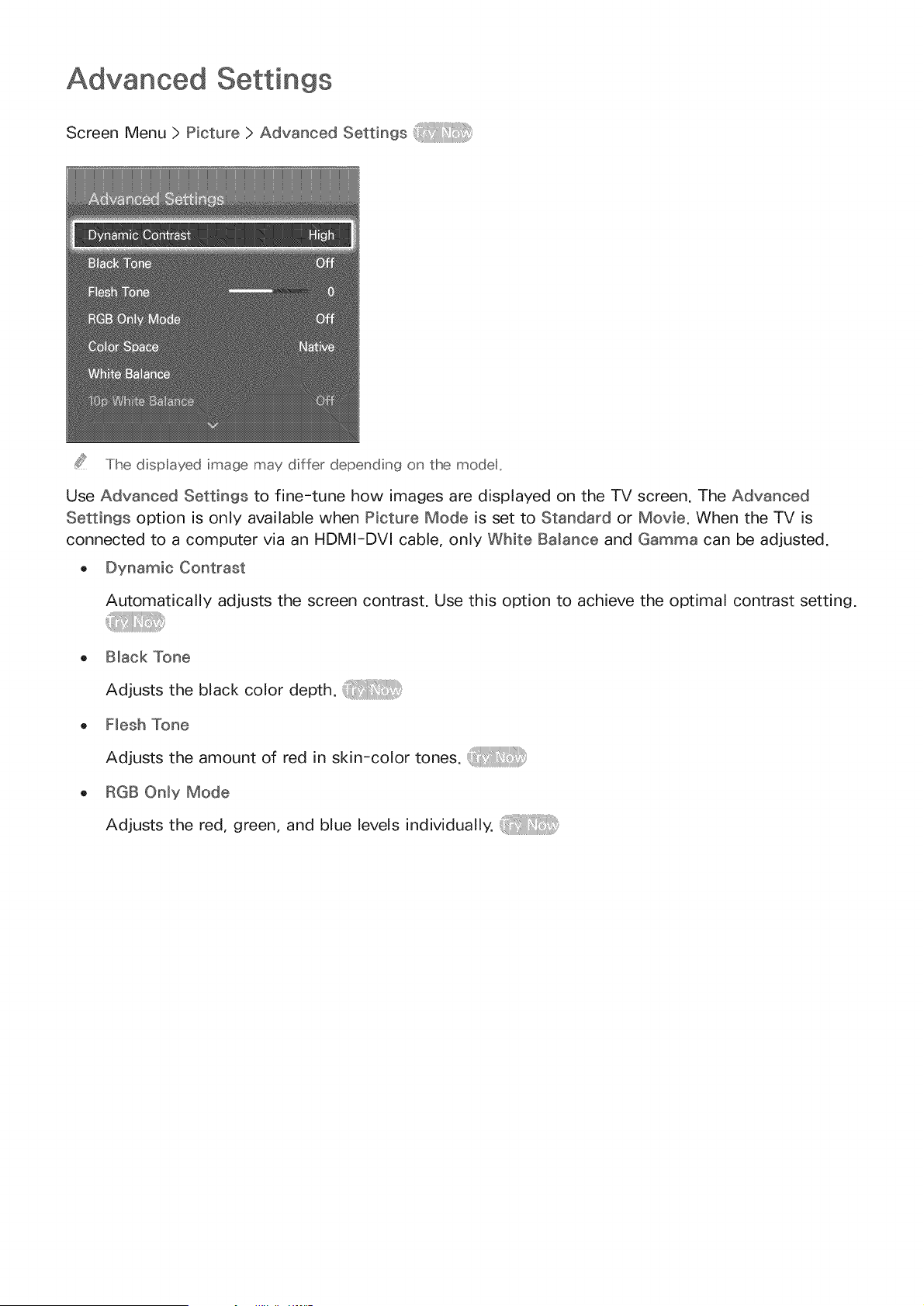
Screen Menu > Picture > Advanced Settings
The disp ayed image may differ depending on the mode,
Use Advanced Settings to fine-tune how images are displayed on the TV screen. The Advanced
Settings option is only available when Picture Mode is set to Standard or Movie. When the TV is
connected to a computer via an HDMI-DVl cable, only White Balance and Gamma can be adjusted.
o Dynamic Contrast
Automatically adjusts the screen contrast. Use this option to achieve the optimal contrast setting.
o Black Tone
Adjuststheblackcolordepth.
o Flesh Tone
Adjusts the amount of red in skin-color tones.
o RGB Only Mode
Adjusts the red, green, and blue levels individually.
o Color Space
Adjuststhe rangeof colors that can be expressedon screen.Auto automaticallyadjuststhe
color spacedependingon the inputsignal,and Nativeappliesa rangethat is wider than the input
signal.Customallow the userto manuallyadjusta rangeof the desiredcolor in the colors of the
input signal. _i:i!_:i:::::_
White Balance
Adjuststhe color temperatureof the pictureto makewhite objectslook white and the overall
pictureappearnatural.Adjust eachcolor's luminositywith the offset menuand the brightness
with the gain menu.To restorethe default values,selectReset.
10pWhiteBalance
Adjuststhe white balanceby adjustingthe brightnessof the red,green,and blueelementsin
10-point intervals.This option is only availablewhenPictureMode is set to Movie and may not
be supportedby some externaldevices.
Gamma
Adjuststhe primarycolor intensity.
ExpertPattern
Displayspicturecalibrationpatternson the screenwithout usinga separatepattern generatoror
filter. Pattern1is usedto calibratethe contrast,andPattern2 is usedfor calibratingthe color and
color saturation.If the screenmenudisappearsor a different menuis activatedwhile the screen
is beingcalibrated,this option will savethe changesup to that point and automaticallydeactivate
that menu.Thisfeatureis enabledin Componentand HDMImodesonly. _1:ii::::,:!:_j'
• Motion Lighting
Adjuststhe picture brightnessdependingon the on-screenmovementsfor reducedpower
consumption.This feature is only availablewhenPicture Mode is set to Standardand is not
availablein 3D mode. In addition, adjustingContrastor Brightnessautomaticallydeactivatesthis
feature.
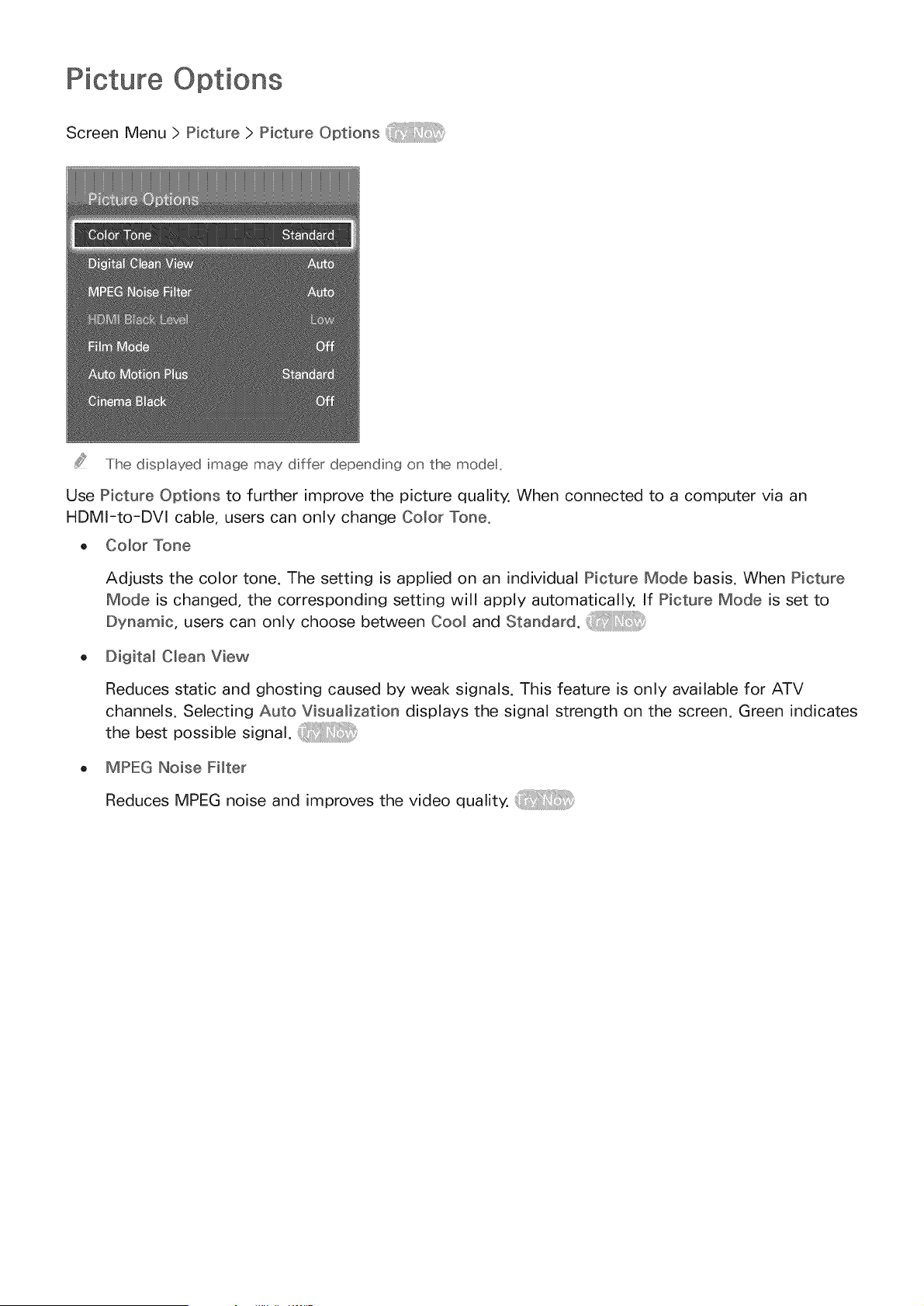
Picture Options
Screen Menu > Picture > Picture Options
The displayed image may differ depending on the model,
Use Picture Options to further improve the picture quality. When connected to a computer via an
HDMI-to-DVl cable, users can only change Color Tone.
,, Color Tone
Adjusts the color tone. The setting is applied on an individual Picture Mode basis. When Picture
Mode is changed, the corresponding setting will apply automatically. If Picture Mode is set to
Dynamic, users can only choose between Cool and Standard. _ :!/:_
,, Digital Clean View
Reduces static and ghosting caused by weak signals. This feature is only available for ATV
channels. Selecting Auto Visualization displays the signal strength on the screen. Green indicates
t he best possible sign a I.
,, MPEG Noise Filter
Reduces MPEG noise and improves the video quality.
o HDM_BlackLevem
This is availableonly for video input via an HDMIcable.Usethis to reduceimageretentionthat
may occurwhen watchingvideofrom anexternaldevice.Chooseoneof the black levels.
Film Mode
Optimizesthe picturequality for movies.Selectthe modefor watching movies.This featureis
only availablewhenwatching TV or whenthe inputsignal is AV,Component(480i,1080i),or
HDMI(1080i).TheCinemaSmooth option is only active whenthe TV inputsan HDMI24Hzsignal.
TheCinemaSmooth option is only availablefor PDP8500 series.
Motion Judder Canceller
Optimizescreenfor displayingfast pacescenesfor movies.Thisfeatureis only availablefor PDP
TVs.
Black optimizer
Adjust overallblackcolor depthto givea changeto picturedepth. This is not availablewhen
playing a mediafile or usingthe TV as a computerdisplay.Thisfeature is only availablefor PDP
TVs.
Auto Motion Plus
Use this to reduce blur and judder from scenes with rapid movement. If you select Custom, you
can configure the afterimage and screen trembling removal ratio and you can view a sharper
image through the LED Clear Motion function. This feature is only available for LED TVs.
While Auto Motion Hus s _unrfinfj, select the virtua remote panes HIFO button to disp ay tlhe
_eso _tion and freq_ ency of the ncoming video sgna (60Hz)Iihe disp ayed freq_ency s _ot the same
as the fleq_ ency of the p ct_ re the IiV sdispayn_whenAttoMotio_li:::>_s sactivated
Smart LED
This controls the brightness of individual areas on screen to maximum contrast automatically,
This function is not supported depending on the region or model.
Cinema Black
In Movie mode, this feature dims the top and bottom areas of the video image to provide a more
immersive viewing experience. This function is available for LED 7450/7500, 8000 series models
only.
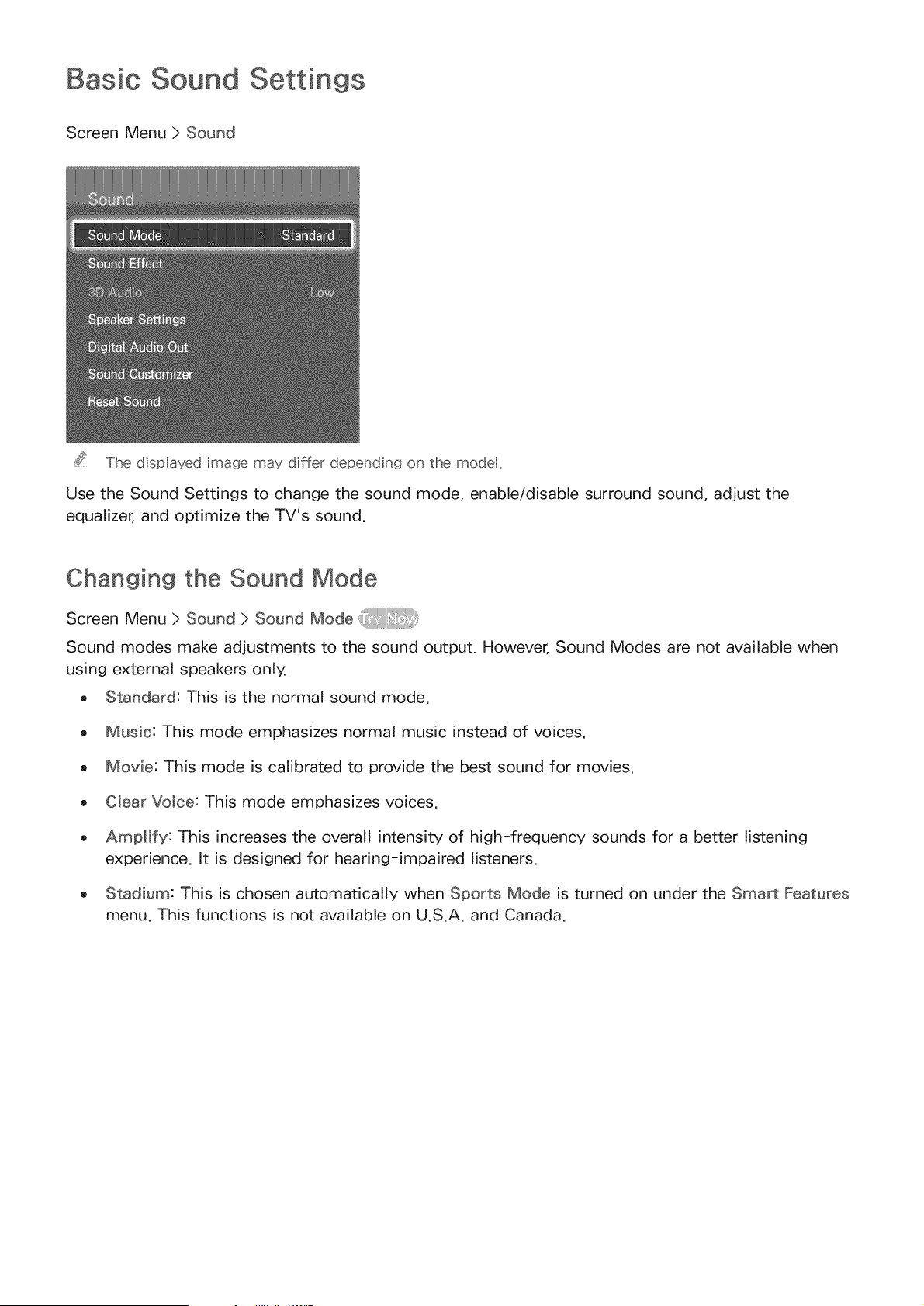
Basic Sound ngs
Screen Menu > Sound
The dispIayed image may differ depending on the modet,
Use the Sound Settings to change the sound mode, enable/disable surround sound, adjust the
equalizer, and optimize the TV's sound.
Changing the Sound Mode
Screen Menu > Sound > Sound Mode
Sound modes make adjustments to the sound output. However, Sound Modes are not available when
using external speakers only.
o Standard: This is the normal sound mode.
o Music: This mode emphasizes normal music instead of voices.
o Movie: This mode is calibrated to provide the best sound for movies.
o Clear Voice: This mode emphasizes voices.
o Amplify: This increases the overall intensity of high-frequency sounds for a better listening
experience. It is designed for hearing-impaired listeners.
o Stadium: This is chosen automatically when Sports Mode is turned on under the Smart Features
menu. This functions is not available on U.S.A. and Canada.
Adjusting the Sound Settings
Screen Menu > Sound > Sound Effect
Use sound effects to alter how the TV projects sound. These options are available only when Speaker
Sebct is set to TV Speaker and Sound Mode is set to Standard.
. VirtuaN Surround: Produces sound that will make you feel like you are sitting in a movie theater or
concert hall.
o Diab9 Clarity: Increases the voice intensity to make dialog clearer.
- Equalizer: Adjusts the speaker balance and makes bandwidth adjustments. Select Reset to reset
the settings. _:_
Auto Volume
Screen Menu > Sound > Speaker Settings > Auto VoBme
Because each station has its own set of broadcasting conditions, the volume may fluctuate as the
channel changes. The Auto Volume function automatically adjusts the volume of a channel by lowering
or raising the sound output. Normal applies a normal level of volume adjustment, whereas Night
applies a slightly lower volume level than Norman and is ideal for nighttime TV viewing. To use the
volume control of a connected source device, deactivate the Auto Volume function. When using the
Auto Volume function with a source device, the device's volume control may not function properly.
TV mnsta Mation Type
Screen Menu > Sound > Speaker Settings ) TV _nstaIBtion Type
Select the TV's installation type. Choose between Wall Mount and Stand to optimize the TV's sound
automatically.
Resetting the Sound
Screen Menu > Sound > Reset Sound
This resets all sound settings to the factory defaults.
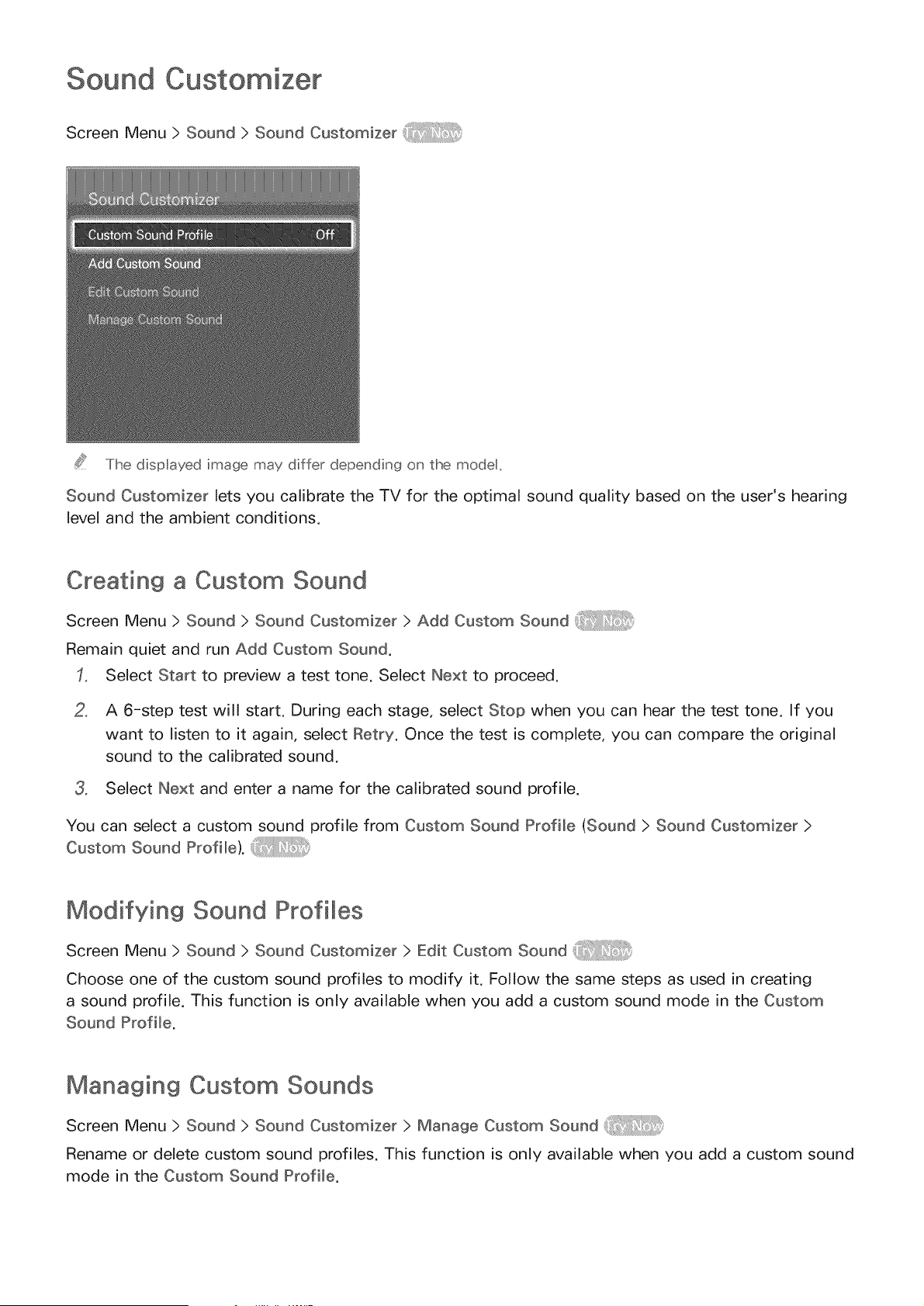
Sound Customizer
Screen Menu ) Sound ) Sound Customizer
The displayed image may differ depending on the modet,
Sound Customizer lets you calibrate the TV for the optimal sound quality based on the user's hearing
level and the ambient conditions.
Creating a Custom Sound
Screen Menu ) Sound ) Sound Customizer ) Add Custom Sound
Remain quiet and run Add Custom Sound.
Select Start to preview a test tone. Select Next to proceed.
2, A 6-step test will start. During each stage, select Stop when you can hear the test tone. If you
want to listen to it again, select Retry. Once the test is complete, you can compare the original
sound to the calibrated sound.
3, Select Next and enter a name for the calibrated sound profile.
You can select a custom sound profile from Custom Sound Profile (Sound) Sound Customizer )
Custom Sound Profile). _ :!/:_
Modifying Sound Profiles
Screen Menu ) Sound ) Sound Customizer ) Edit Custom Sound
Choose one of the custom sound profiles to modify it. Follow the same steps as used in creating
a sound profile. This function is only available when you add a custom sound mode in the Custom
Sound Profile.
Managing Custom Sounds
Screen Menu ) Sound ) Sound Customizer ) Manage Custom Sound
Rename or delete custom sound profiles. This function is only available when you add a custom sound
mode in the Custom Sound Profile.
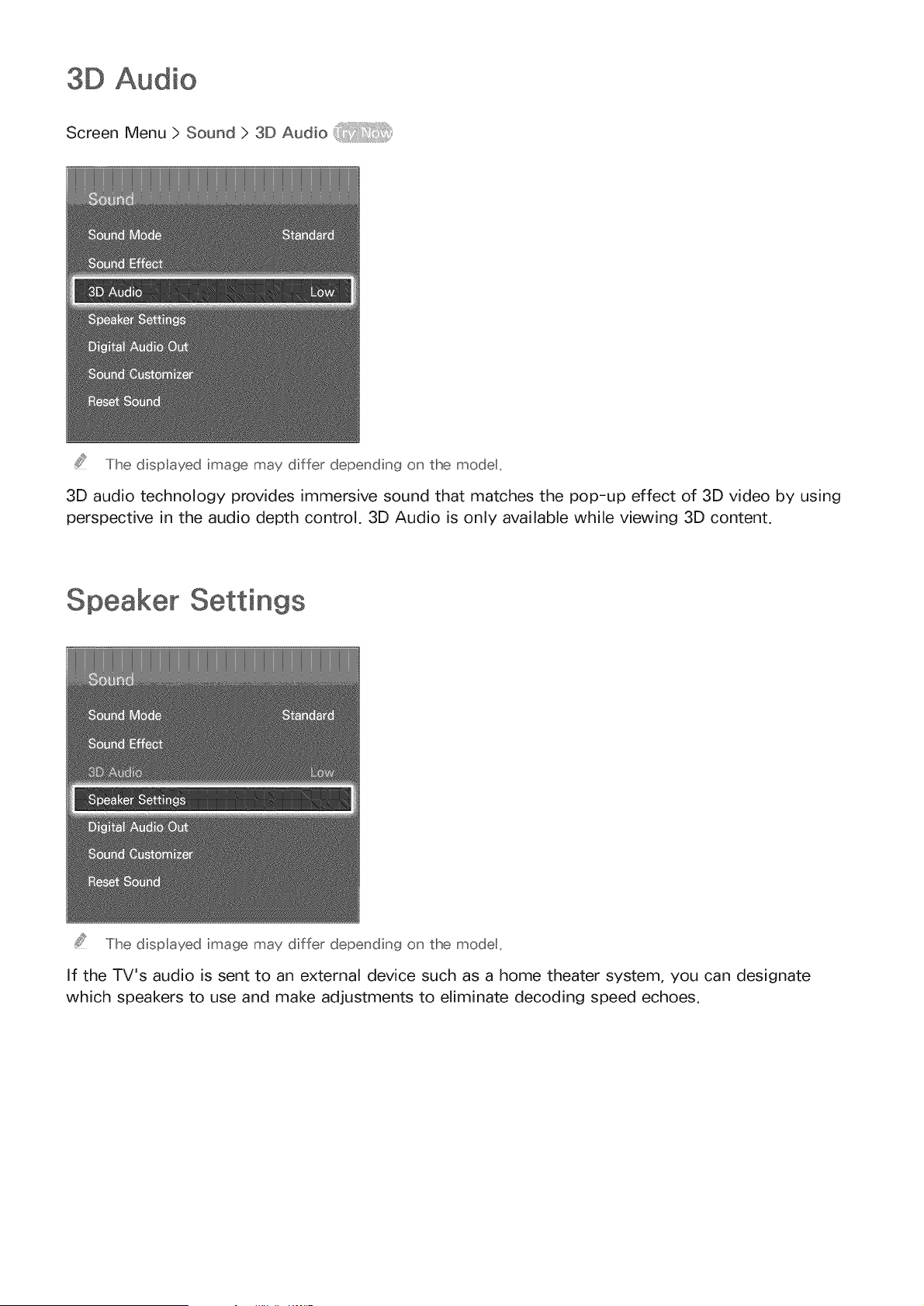
3D Audio
Screen Menu > Sound > 3D Audio
The dispIayed image may differ depending on the modet,
3D audio technology provides immersive sound that matches the pop-up effect of 3D video by using
perspective in the audio depth control. 3D Audio is only available while viewing 3D content.
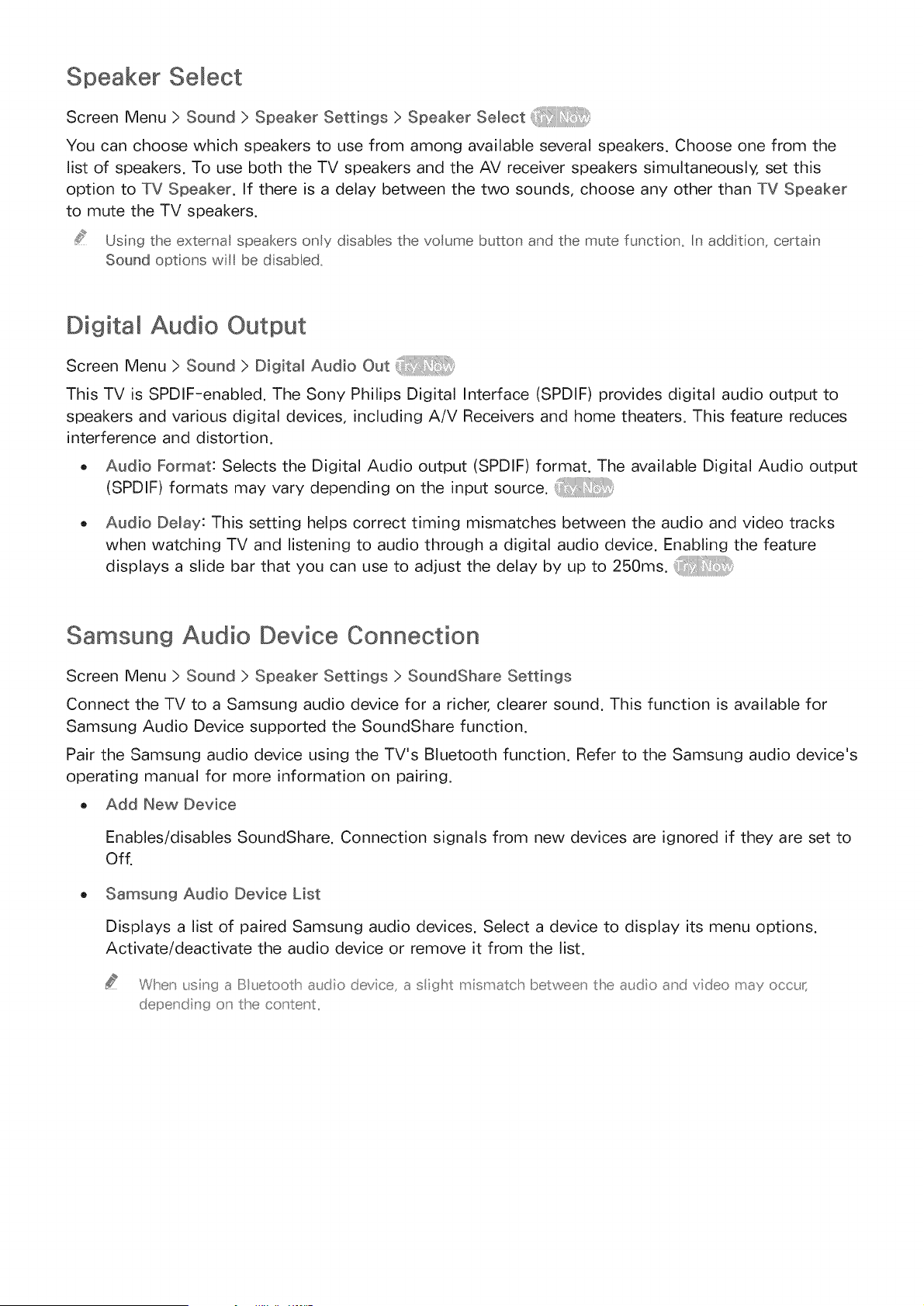
Speaker Settings
The dispIayed image may differ depending on the modet,
If the TV's audio is sent to an external device such as a home theater system, you can designate
which speakers to use and make adjustments to eliminate decoding speed echoes.
Speaker Select
Screen Menu > Sound > Speaker Settings ) Speaker Select
You can choose which speakers to use from among available several speakers. Choose one from the
list of speakers. To use both the TV speakers and the AV receiver speakers simultaneously, set this
option to TV Speaker. If there is a delay between the two sounds, choose any other than TV Speaker
to mute the TV speakers.
Using the external speakers only d sabes the voume button and the mute funct on, In add t on, certa n
Soundoptonswi bedsabed,
Digital Audio Output
Screen Menu > Sound > Digital Audio Out
This TV is SPDIF-enabled. The Sony Philips Digital Interface (SPDIF) provides digital audio output to
speakers and various digital devices, including A/V Receivers and home theaters. This feature reduces
interference and distortion.
o Audio Format: Selects the Digital Audio output (SPDIF) format. The available Digital Audio output
(SPDIF) formats may vary depending on the input source.
Audio Demay: This setting helps correct timing mismatches between the audio and video tracks
when watching TV and listening to audio through a digital audio device. Enabling the feature
displays a slide bar that you can use to adjust the delay by up to 250ms.
Samsun9 Audio Device Connection
Screen Menu > Sound > Speaker Settings > SoundShare Settings
Connect the TV to a Samsung audio device for a richer, clearer sound. This function is available for
Samsung Audio Device supported the SoundShare function.
Pair the Samsung audio device using the TV's Bluetooth function. Refer to the Samsung audio device's
operating manual for more information on pairing.
Add New Device
Enables/disables SoundShare. Connection signals from new devices are ignored if they are set to
Off.
Samsun9 Audio Device List
Displays a list of paired Samsung audio devices. Select a device to display its menu options.
Activate/deactivate the audio device or remove it from the list.
When using a B uetootlit audio de4ce, a sight mismatch between the a_dio and video may occt¢
depending o_ the co _tent
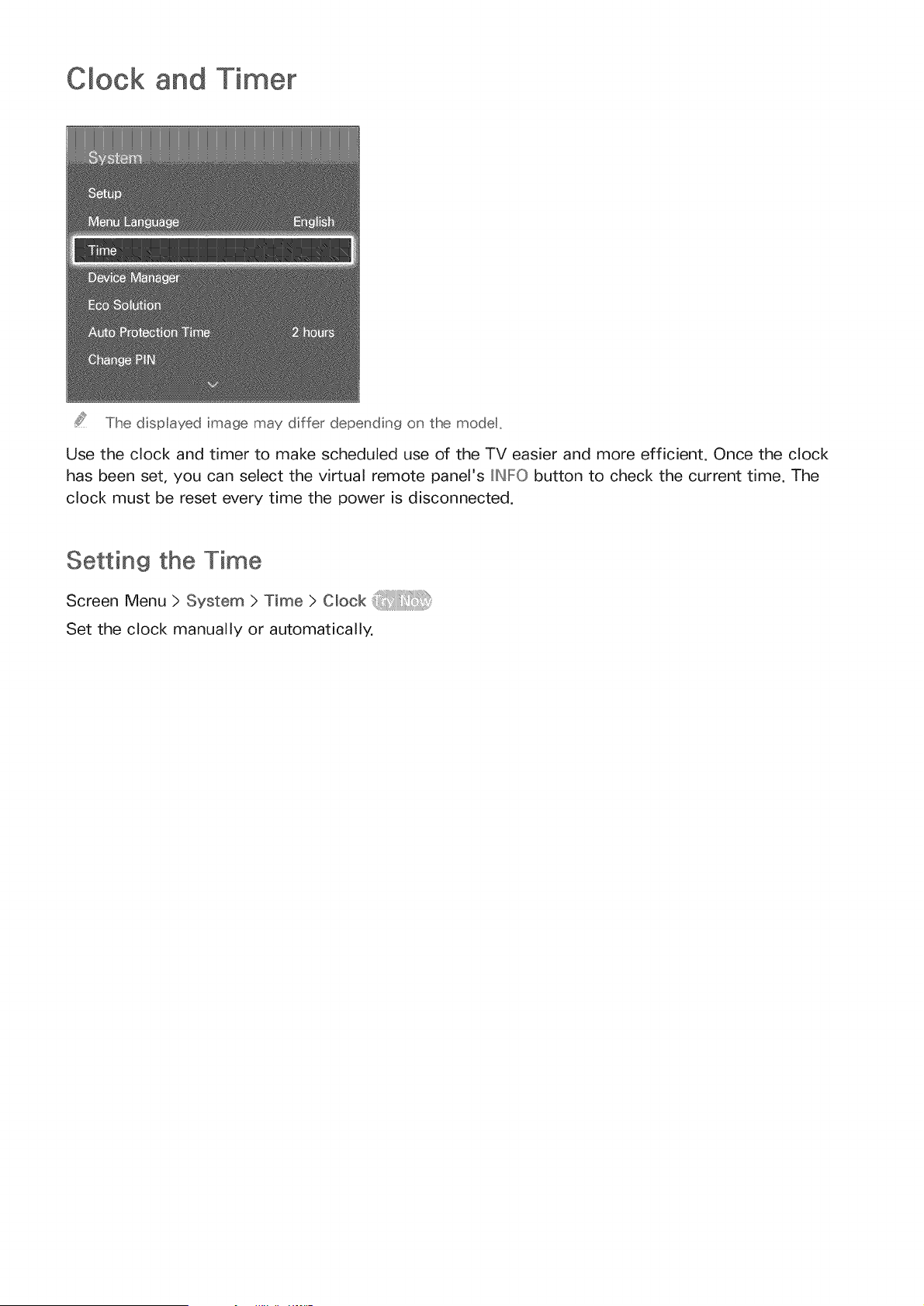
C ock and Timer
The displayed image may differ depending on the modet,
Use the clock and timer to make scheduled use of the TV easier and more efficient. Once the clock
has been set, you can select the virtual remote panel's IINIFO button to check the current time. The
clock must be reset every time the power is disconnected.
Setting the Time
Screen Menu > System > Time > Clock
Set the clock manually or automatically.
Automaticallydownloadthe correcttime from a digital channel.To enablethis option, an antenna
cablehasto be connectedto the TV.Theaccuracyof the time informationreceivedmayvary
dependingon the channeland signal.Set Clock Modeto Auto.
Time Zone and DST may not be supported depend ng on the country_
o DST: Set the DST (Daylight Savings Time).
Time Zone: Choose your time zone.
Time Offset
Screen Menu ) System ) Time ) Clock ) Time Offset _:_
If the set time is not accurate, users can set the time offset to adjust the time difference hourly from
-12 to +12 hour. Changing Time Offset is only available, when the Time is set to auto, and is set
through a network.
The current time will be set through a network, if the TV fails to receive the time information including
the broadcast signal from TV stations. (ex: Watching TV via set-top box, Satellite receiver, or etc)
Manually enter the time. Set Clock Mode to Manual and then select Clock Set to enter the current
time and date.
Sleep Timer
Screen Menu ) System ) Time ) S_eep Timer
This function automatically shuts off the TV after a preconfigured period of time. You can set the timer
up to 180 minutes in 30 minute increments.
On Timer
Screen Menu > System > Time > On Timer
Set the On Timer so that the TV turns on automatically at a chosen time. Only three On Timer settings
can run concurrently. The clock must be set for the On Timer to work.
o Setup: Specify the dates and duration. Use Manual to specify the days of the week.
Time: Specifies the on time.
Volume: Specifies the volume when the TV turns on.
Source: Selects a signal source from the list. Specify a channel or source to be displayed when
the TV turns on. To specify a USB device, a USB device must first be connected to the TV. To
playback media from an HDMI or Component source such as a DVD player or Blu-ray player, the
device must already be turned on and playing the media when the TV is turned on.
Antenna: Set Source to TV to select a broadcast signal.
Channel" Set Source to TV to select a channel.
Music / Photo: Set Source to USB to specify a USB device folder containing music and image
files. Selecting both music and image files plays the music files and displays the images at the
same time.
This feature wl not funct on properly f the seected USB device does not conta n meda ftes or a foder
has not been spec fed,
The sideshow wil not start f there s only one mage fte on the USB device,
Fo ders with long names cannot be seected,
Always use d fferent foder names for mut pie USB devices,
Use a USB memory stick or mult-card readec On Timer may not work wth certain battery-powered USB
devices, MP3 players, or PMPs because the TV may take too long to recognize the device,
Off Timer
Screen Menu > System > Time > Off Timer
Set the Off Timer to turn the TV off automatically at a specific time. Only three Off Timer settings can
be entered concurrently. The clock must be set for the Off Timer to work.
Setup: Specifies the date or period to run the function. Use Manual to specify the days of the
week.
Time: Sets the time for the TV to automatically turn off.
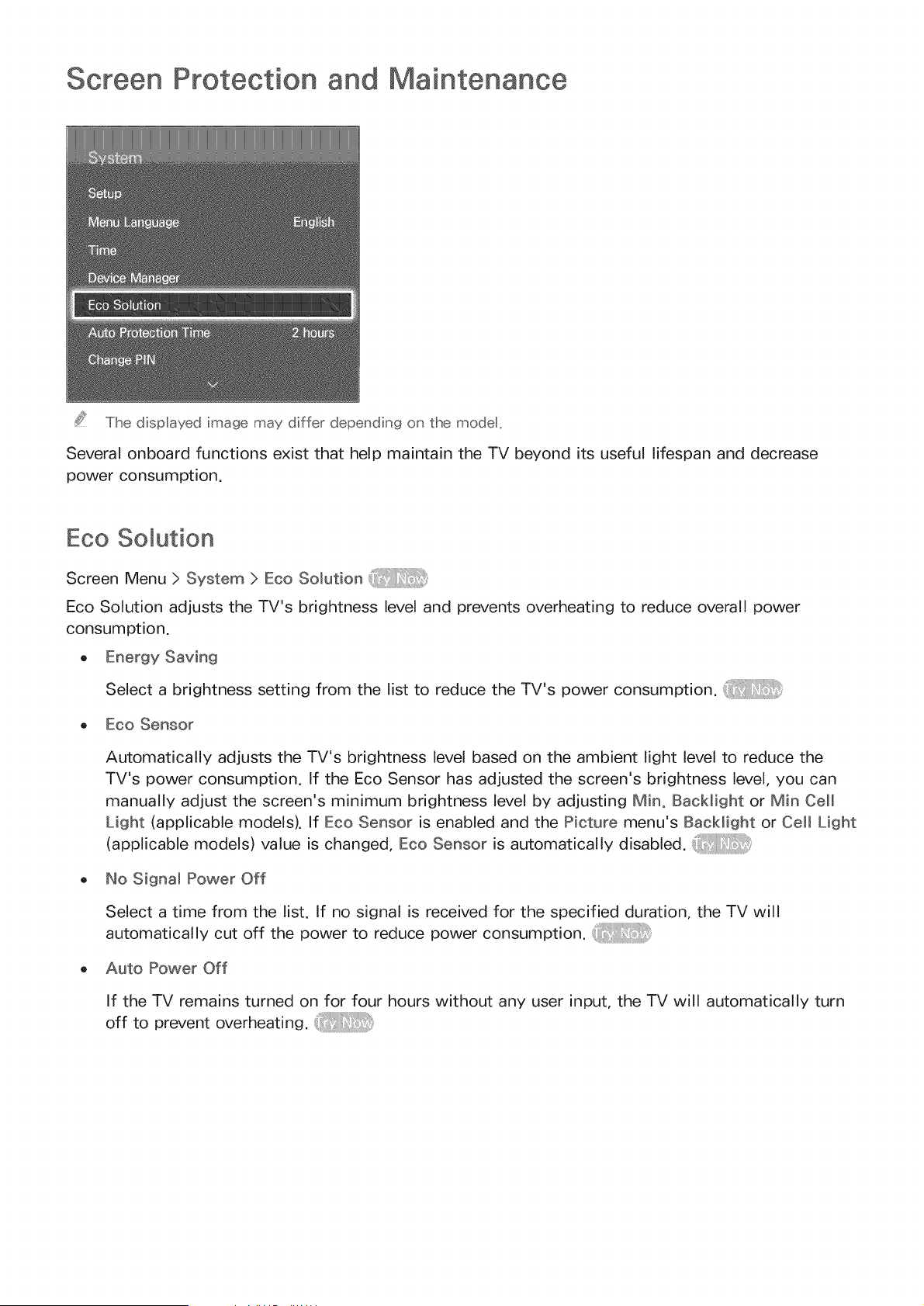
Screen Protection and Maintenance
The dispIayed image may differ depending on the modet,
Several onboard functions exist that help maintain the TV beyond its useful lifespan and decrease
power consumption.
Eco Solution
Screen Menu > System > Eco Solution
Eco Solution adjusts the TV's brightness level and prevents overheating to reduce overall power
consumption,
o Energy Saving
Select a brightness setting from the list to reduce the TV's power consumption. _:!/_
, Eco Sensor
Automatically adjusts the TV's brightness level based on the ambient light level to reduce the
TV's power consumption. If the Eco Sensor has adjusted the screen's brightness level, you can
manually adjust the screen's minimum brightness level by adjusting Mino BacMight or Min Cell
Light (applicable models). If Eco Sensor is enabled and the Picture menu's BacMight or Cell Light
(applicable models) value is changed, Eco Sensor is automatically disabled. _:!/_
,, No Signal Power Off
Select a time from the list. If no signal is received for the specified duration, the TV will
automatically cut off the power to reduce power consumption. _:!/_
, Auto Power Off
If the TV remains turned on for four hours without any user input, the TV will automatically turn
off to prevent overheating.
Screen Burn Protection
Screen Menu > System > Screen Burn Protection
This feature is only available for PDP TVs.
To reduce the possibility of screen burn, the TV uses Pixel Shift screen burn prevention technology.
Pixel Shift moves the picture slightly on the screen to avoid over-using some elements and under-
using others. The PixeN Shift Time setting allows users to program the time between picture
movements, in minutes.
The TV also has the following additional screen burn protection functions:
o Pixel Shift
Auto Protection Time
o
Side Gray
Pixel Shift
Screen Menu > System > Screen Burn Protection > Pixel Shift
Set the TV to very slightly shift pixels on the PDP screen in a horizontal or vertical direction to
minimize burned-in after-images.
The PixeN Shift value may differ depending on the monitor size and mode. It is not available in Screen
Fit mode.
Settings:
Horizontal: Available Settings: 0 - 4 (pixels), Optimum settings for TV/AV/Component/HDMl: 4
Vertical: Available Settings: 0 - 4 (pixels), Optimum settings for TV/AV/Component/HDMl: 4
Time (minutes): 1 - 4 min, Optimum settings for TV/AV/Component/HDMl: 4 min
Auto P_"otection _ime
Screen Menu > System > Screen Burn Protection > Auto Protection Time
If the screen displays a still image for a certain period of, the TV activates the screen saver to prevent
the formation of burnt-in ghost images.
Scro ing
Screen Menu > System > Screen Burn Protection > Scrolling
This removes after-images on the screen by illuminating all the pixels on the PDP according to a set
pattern. Use this when there are after-images or symbols on the screen, especially when a still image
was displayed on the screen for a long time.
The after-image removal function has to be executed for approximately 1 hour to effectively remove
after-images. If the after-image is not removed the first time, repeat the process.
Press any button to cancel this process.
Side Gray
Screen Menu > System > Screen Burn Protection > Side Gray
This allows selection of colors for the sidebars the TV displays when the screen size is set to 4:3. The
default color is gray.
Auto Protection Time
Screen Menu > System > Auto Protection Time
Select a time from the list. If a still image is shown on the screen for the specified duration of time,
the TV will automatically activate the Screen Burn Protection function to prevent burnt-in ghost
images. This feature is only available for LED TVs.
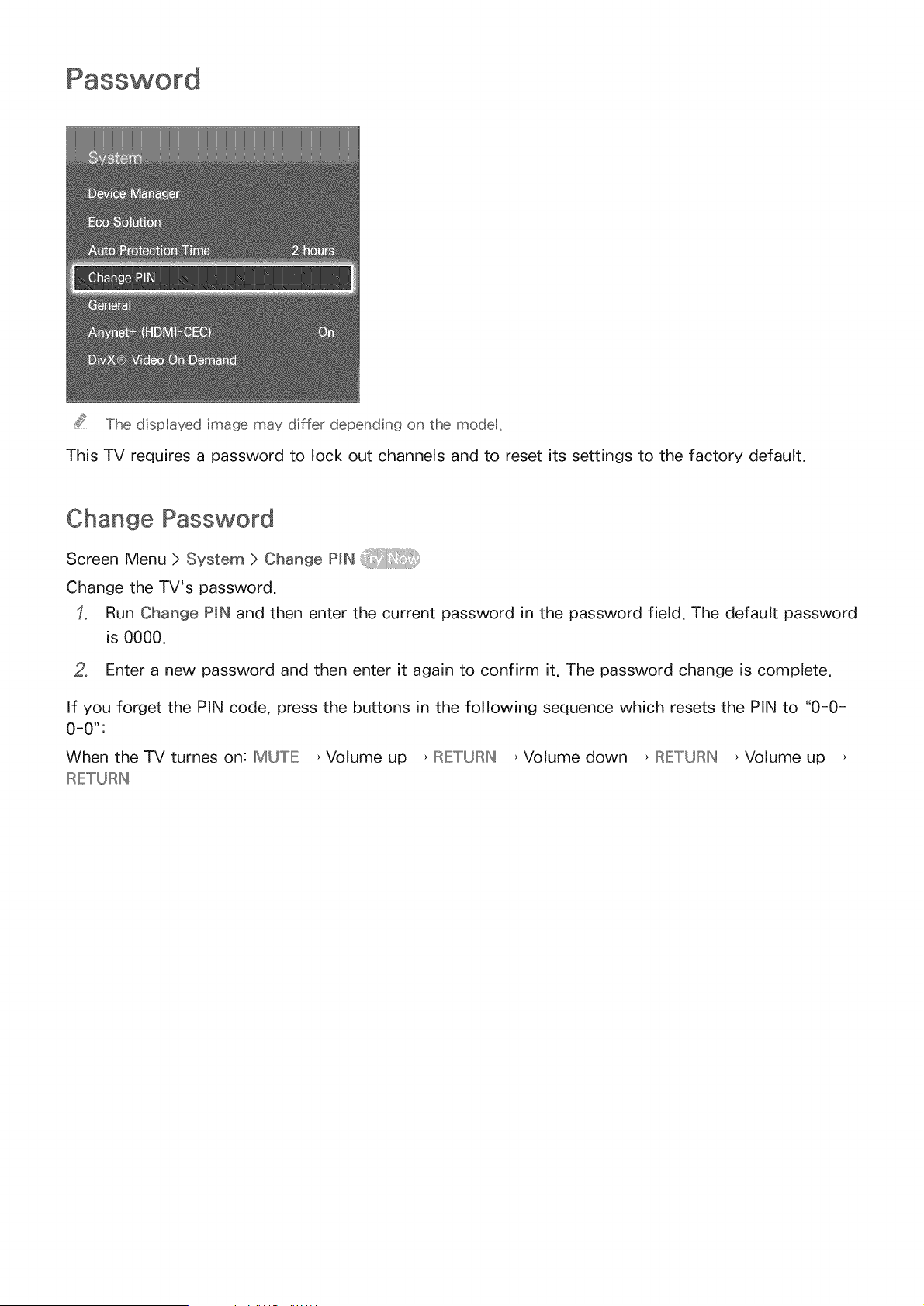
ThedispIayedimagemaydifferdependingonthemodel.
ThisTV requiresa passwordto lock out channelsand to resetits settings to the factory default.
Change Password
Screen Menu > System > Change PIN
Change the TV's password.
Run Change PIN and then enter the current password in the password field. The default password
is 0000.
2, Enter a new password and then enter it again to confirm it. The password change is complete.
If you forget the PIN code, press the buttons in the following sequence which resets the PIN to "0-0-
0-0":
When the TV turnes on: IMUTIE:_ Volume up _ RETURN _ Volume down _ IRIE:TURIN_ Volume up
II::I-:TURN
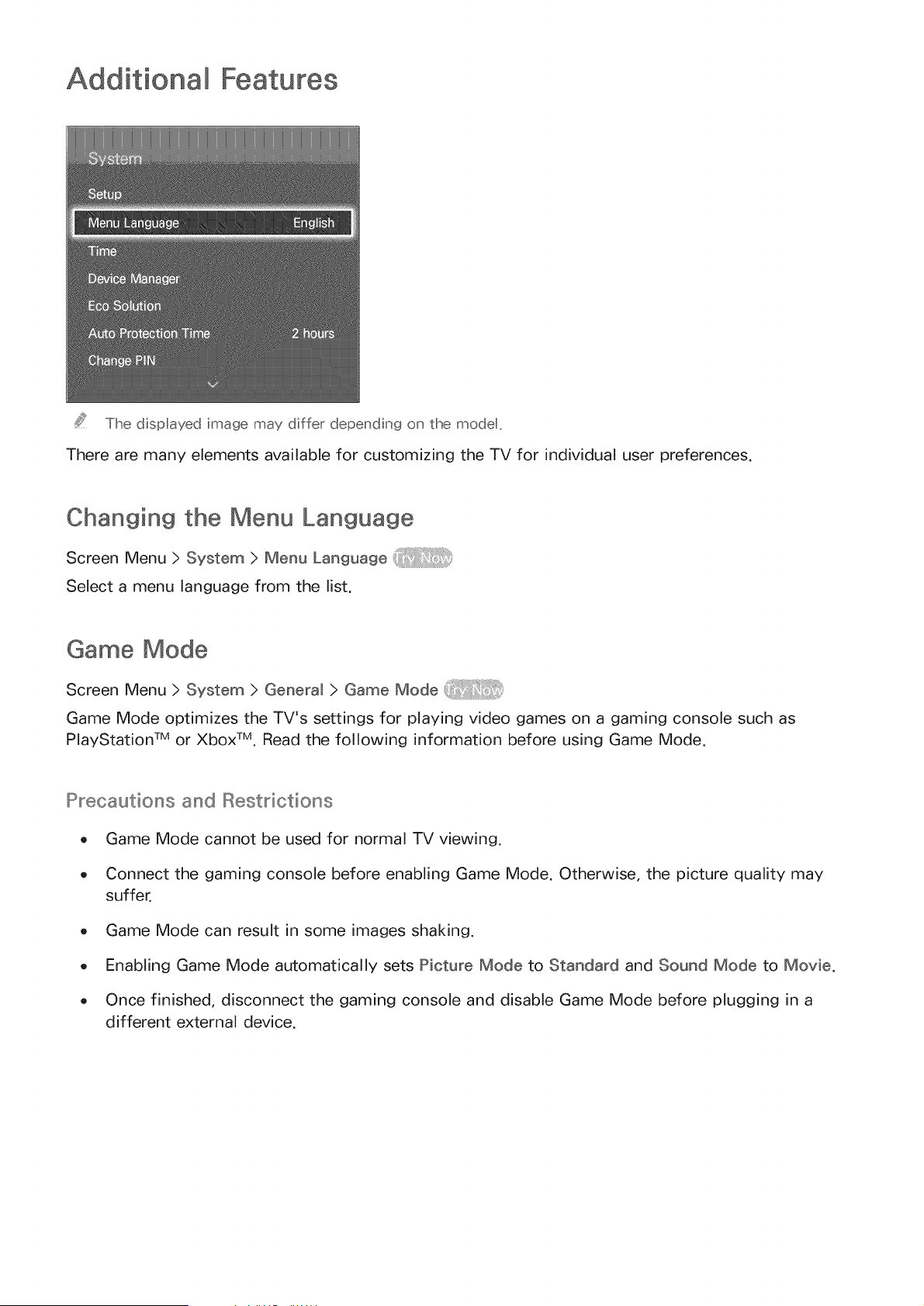
Additional Features
The dispIayed image may differ depending on the modet,
There are many elements available for customizing the TV for individual user preferences.
Changing the Menu Language
Screen Menu > System > Menu Language
Select a menu language from the list.
Game Mode
Screen Menu > System > General > Game Mode
Game Mode optimizes the TV's settings for playing video games on a gaming console such as
PlayStation TM or Xbox TM, Read the following information before using Game Mode.
Precautions and Restrictions
o Game Mode cannot be used for normal TV viewing.
o Connect the gaming console before enabling Game Mode. Otherwise, the picture quality may
suffer,
o Game Mode can result in some images shaking.
o Enabling Game Mode automatically sets Picture Mode to Standard and Sound Mode to Movie.
o Once finished, disconnect the gaming console and disable Game Mode before plugging in a
different external device.
BD Wise
Screen Menu > System > General > BD Wise
Connecting a Samsung DVD player, Blu-ray player, or home theater system that supports BD Wise
enables you to enjoy the richest colors and picture quality possible. Enabling BD Wise automatically
optimizes the TV's resolution. This feature is only available when the external device is connected via
an HDMI cable.
Menu Transparency
Screen Menu > System > General > Menu Transparency
Adjust the menu screen's transparency.
Sound Feedback
Screen Menu > System > General > Sound Feedback
Adjust the sound feedback volume or disable it entirely. Sound feedback is an audio cue that plays
when you move the focus or make a selection.
Panel Locking
Screen Menu > System > General > Panel Lock
Lock or unlock all the keys on the front panel. The panel keys are located at the back of the TV and
can be used to select options, to change the channel, and to adjust the volume.
Booting Logo
Screen Menu > System > General > Boot Logo
Enable/disable displaying the logo while the TV starts up.
Light Effect
Screen Menu > System > General > Light Effect
You can turn the LED on the TV's front panel on or off. Turn it off to save power or if the LED is too
bright for you. This function may not be available, depending on the model.
Set the Light Effect to Off to reduce the power consumpt on,
The color of Ight may vary depend ng on the model,
DivX@ Video On Demand
Screen Menu > System > DivX® Video On Demand
Product registration is required to play back videos protected with DivX® DRM. Visit the DivX website
and register the code displayed on the screen.
Smart Hub
Screen Menu > Smart Features > Open Smart Hub
This TV features Smart Hub, a multi-purpose entertainment and family center. With Smart Hub, users
can surf the web, download applications, and stay in touch with family and friends through social
networking services. In addition, you can enjoy photo, video, and music files stored on external
storage devices.
Press the t_ button to launch Smart Hub. Choose a service using the icons displayed in the top part
of the screen.
o Social: Watch the latest YouTube videos and you and your friends' video posts on Facebook and
Twitter. You can also make video calls to friends by the TV camera.
o Apps: Samsung Apps offers an extensive collection of free and paid news, sports, weather, and
gaming content you can directly download to and enjoy on your TV.
o On TV: Check a listing of programs that are currently airing and are scheduled to air.
o Movies & TV Shows: Purchase and watch movies and TV shows without the need for a separate
external device.
o Photos, Videos & Music: Play back photo, video, and music files from an external storage device.
Use _ or _ to change the Smart Hub screens.
Agreements Required to Use Smart Hub
Screen Menu > Smart Features > Terms & Pomicy
Carefully read the terms and conditions to use Smart Hub, and determine whether or not to agree to
them. Users cannot use Smart Hub fully unless they agree to them.
Samsung Account
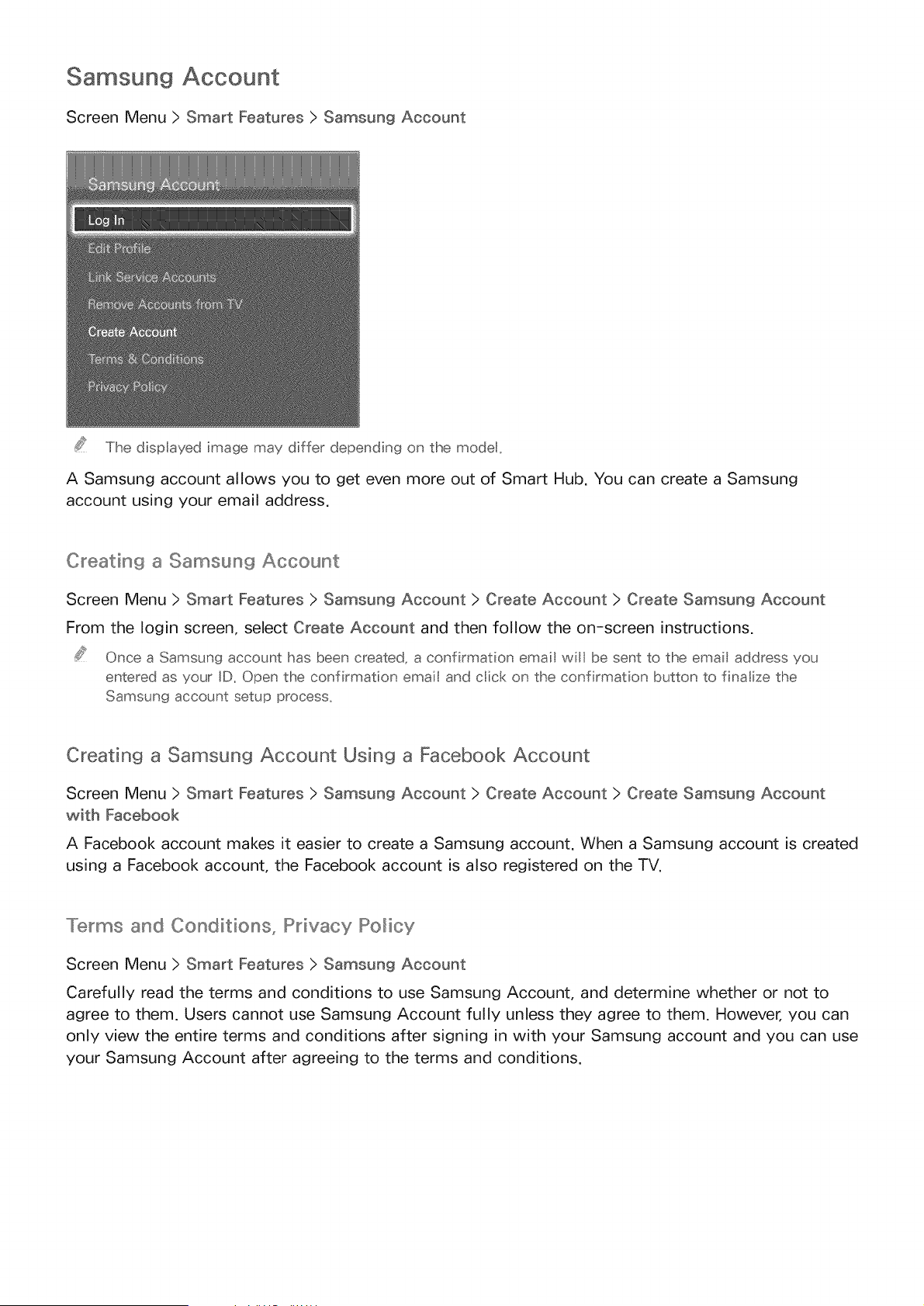
Screen Menu > Smart Features > Samsung Account
The dispIayed image may differ depending on the modet,
A Samsung account allows you to get even more out of Smart Hub. You can create a Samsung
account using your email address.
Creating a Samsung Account
Screen Menu > Smart Features > Samsung Account > Create Account > Create Samsung Account
From the Iogin screen, select Create Account and then follow the on-screen instructions.
Once a Samsung account has been created, a confirmation emait will be sent to the email address you
entered as your ID. Open the confirmation emait and cic< on the confirmation button to finalize the
Samsung account setup process_
Creating a Samsung Account Using a Facebook Account
Screen Menu > Smart Features > Samsung Account > Create Account > Create Samsung Account
with Facebook
A Facebook account makes it easier to create a Samsung account. When a Samsung account is created
using a Facebook account, the Facebook account is also registered on the TV.
Terms and Conditions, Privacy Policy
Screen Menu > Smart Features > Samsung Account
Carefully read the terms and conditions to use Samsung Account, and determine whether or not to
agree to them. Users cannot use Samsung Account fully unless they agree to them. However, you can
only view the entire terms and conditions after signing in with your Samsung account and you can use
your Samsung Account after agreeing to the terms and conditions.
Logging _n
Screen Menu > Smart Features > Samsung Account > Log Jn
Use your Samsung account to log into the Smart Hub. Enter your ID and password and then select Log
in.
The Remember ray password option lets you Iogin without having to enter your password each time.
Check this option to enable it. Check the Sign me in automatically option if you want to log into
Smart Hub automatically.
If you forgot your password, select Reset password to receive the password resetting instructions via
email.
Linking a Samsung Account to Othe Accounts
Screen Menu > Smart Features > Samsung Account > Link Service Accounts
Linking your Samsung account to other accounts lets you automatically log into your linked accounts
when you log into your Samsung account. For example, you can download the Facebook application
and link your Facebook account to your Samsung account. Logging into your Samsung account then
automatically logs you into your Facebook account as well.
Log into your Samsung account and select Link Service Accounts to view a list of applications that
require Iogin information.
o Register Service Account: Select an application, select Register, and then provide the ID and
password.
Edit: It is possible to change a registered account. Select an application, select Edit, and enter the
ID and password for the new account.
Remove: Select an application to which an account has been registered and then select
Managing Accounts
Screen Menu > Smart Features > Samsung Account
Using the Samsung Account menu, you can manage your Samsung account. You can only use this
function after signing in with your Samsung account.
Edit Profile: You can change the basic user information and register your photo and credit card
information.
Remove Accounts from TV: The Samsung account used to sign into the Smart Hub is
automatically saved on the TV. You can delete your account information from among the saved
accounts on the TV.
Resettin9 Smart Hub
Screen Menu > Smart Features > Smart Hub Reset
It is possible to remove Samsung accounts and everything linked to them, including apps, from the TV.
Enter the password when accessing this menu.
To use Smart Hub fully again after resetting it, users are required to agree to the terms of conditions.
Open the System menu, choose Setup, and then follow the initial setup process.
Users can search many apps and their contents on the TV as well as the Web.
Keyword Search
For U.S.A. and Canada
Press the RECOIMIM._/ SEARCH button. The list appears at the bottom of the screen. Press the
IRIECOIMIM._/ SEARCH button again. Enter search criteria using the on-screen keyboard that appears,
and then select Done. A list of search results appears. Select a desired item from a list of search
results. The selected item's page appears.
For the other countries
Press the HISTORY / SEARCH button. The list appears at the bottom of the screen. Press the HISTORY
/ SEARCH button again. Enter search criteria using the on-screen keyboard that appears, and then
select Done. A list of search results appears. Select a desired item from a list of search results. The
selected item's page appears.
Setting Search Scope
Select _ icon on the Search result screen. User can set up the desired search range in the scope list.
Status and Notification
A notification message window appears at the top of the screen when important messages concerning
application updates and Samsung account Iogins are available. This message window notifies the user
of the TV's operating status.
Show Status and Notification Banner
Press the MORE button on the Smart Touch Control and then select STATUS on the virtual remote
panel that appears on the screen. The status and notification banner is shown at the top of the screen.
Voice Recognition & Motion Contro_ Configuration
Enable/disable the status and notification banner's Voice Recognition and Motion Control functions.
It's also possible to perform the Voice Recognition Environment Test and the Motion Control
Environment Test.
Samsung Account Configuration
Select My Account from the status and notification banner to manage your Samsung account, For
more information, refer to "Managing Accounts",
Network Configuration
Select Network Settings from the status and notification banner to configure the network.
For details on how to connect to a wired network, see "Wired Network Setup".
For details on how to connect to a wireless network, see "Wireless Network Setup".
Check Notifications
If you were not able to check the notification message, you can see a list of unread notification
messages in the status and notifications banner. You can also check notifications from Notifications
(Smart Features > Notifications).
Selecting a notification from the list allows you to perform corresponding actions with ease. To delete
all notifications, select Delete All.
Selecting Service Notice launches WebBrowser to display the notification webpage of the Samsung
website.
Socia
The d splayed image may differ depend ng on the mode,
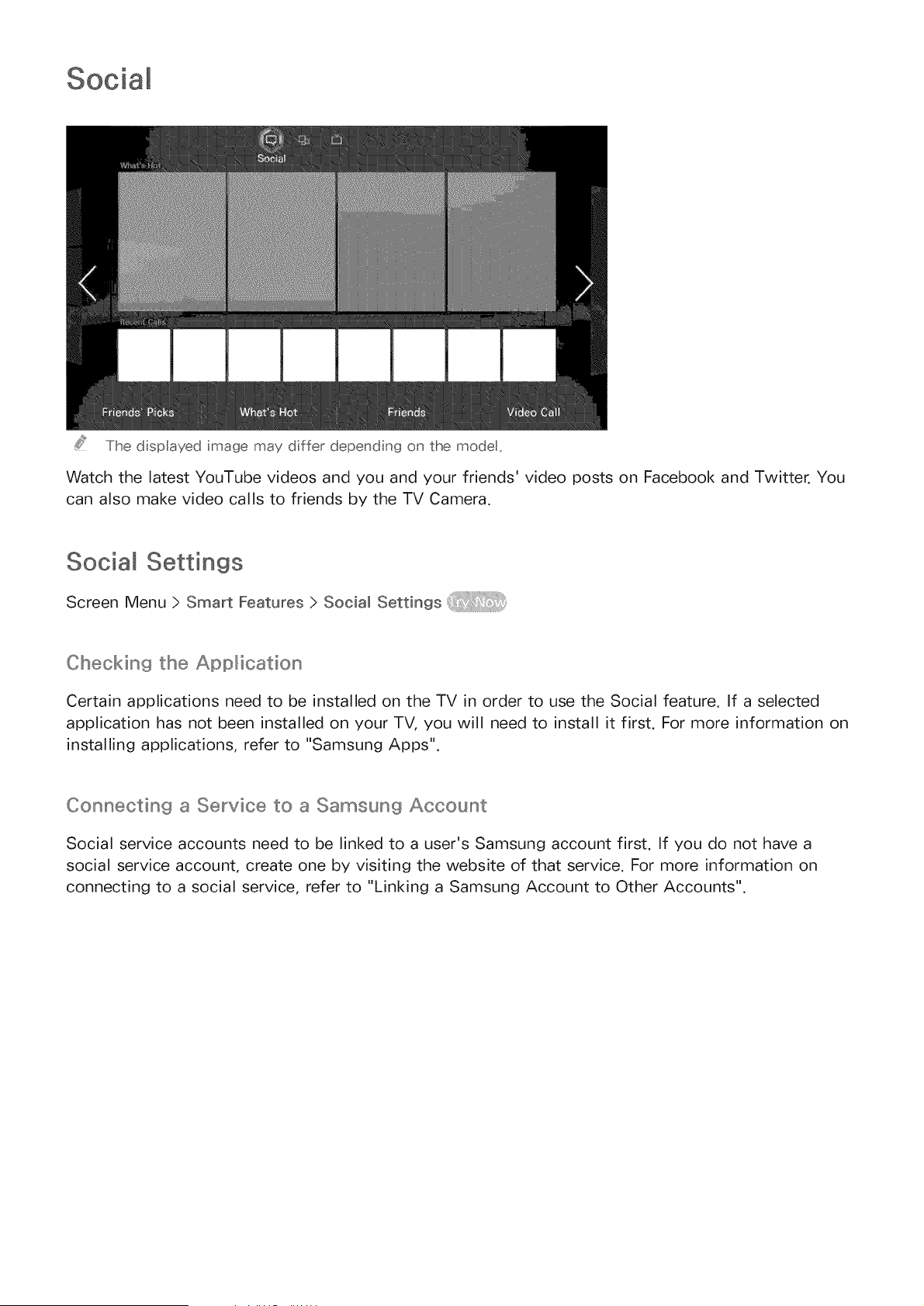
Watch the latest YouTube videos and you and your friends' video posts on Facebook and Twitter. You
can also make video calls to friends by the TV Camera.
Social Settings
Screen Menu > Smart Features > Social Settings
Checkin9 the Application
Certain applications need to be installed on the TV in order to use the Social feature. If a selected
application has not been installed on your TV, you will need to install it first. For more information on
installing applications, refer to "Samsung Apps".
Connectin9 a Service to a Samsun9 Account
Social service accounts need to be linked to a user's Samsung account first. If you do not have a
social service account, create one by visiting the website of that service. For more information on
connecting to a social service, refer to "Linking a Samsung Account to Other Accounts".
Watching Videos
Select Friends' Picks or What's Hot at the bottom of the Social screen to display a list of videos.
Select a video from the list to view its information and then select Play.
Friend Profile
Select Friends at the bottom of the SociaN screen to display a list of Facebook and Twitter friends.
Select a friend from the list. The selected friend's profile containing his/her basic information and
posts is displayed
Select a friend to calm
Select Video Call at the bottom of the Social screen. This launches Skype and displays a list of
friends. Select a friend to call.
Log in to a Samsung account to use this function.
Select either Friends' Picks or Friends and Video Call on the SociaN screen. Use the filter option at
the top of the screen to rearrange the list. Select an item. However, this option cannot be used in the
What's Hot list.

The d splayed mage may dffer depend ng on the model,
Samsung Apps offers an extensive collection of free and paid news, sports, weather, and gaming
content you can directly download to and enjoy on your TV, First, check the network and make sure
the TV is connected to the Internet, Your TV needs to be connected to the Internet in order to use
Apps,
o
o
o
o
o
o
Due to the product characteristics featured on the Samsung Smart Hub, as well as limitations in
available content, certain features, applications, and services may not be available on all devices
or in all territories. Some Smart Hub features may also require additional peripheral devices
or membership fees. Visit http://www.samsung.com for more information on specific device
information and content availability. Services and content availability are subject to change
without prior notice.
Samsung Electronics takes no legal responsibility for any interruption of the Smart Hub service
caused by the service provider for any reason.
Application services may be provided in English only and available content may vary, depending
on the area.
For more information about applications, visit the applicable service provider's website.
An unstable Internet connection may cause delays or interruptions. In addition, applications may
terminate automatically depending on the network environment. If this occurs, check your Internet
connection and try again.
Application services and updates may become unavailable.
Application content is subject to change by the service provider without prior notice.
The service details may vary depending on the user's firmware version.
The application usage method may vary with future versions of the application. If this is the case,
run the application's tutorial or visit the service provider's website.
In some applications, depending on the policy of the service provider, multi-tasking is not
supported,

[nstalMing Standard Applications
Launching Smart Hub for the first time and loading the Apps screen. The TV is automatically
downloads and installs the basic applications that correspond to the network your TV is connected to.
The types of basic applications may vary depending on your location.
Launching an Application
Navigate to the Smart Hub's Apps screen and then select More Apps located at the bottom of the
screen. The list of applications currently installed on your TV is displayed. From this list, select the
application you want to launch. Select View (top of the screen) to rearrange the list of downloaded
applications by the installation date, launch date, or title.
Samsun9 Apps
Samsung Apps offers various free and paid news, sports, weather, and gaming applications. Samsung
Apps lets you search for applications and install them directly on your TV. Read and agree to the
terms and conditions of use and then browse through the categories or directly search for applications.
Searchin9 for Apps
Search for applications by name. On the Samsung Apps screen, select the Search Samsun9 Apps to
bring up the keypad. Enter the application's name and then select Done.
_nsta_in9 Applications
Select the application you wish to install to bring up a screen with detailed information about
that application. Select Download to install the selected application. Paid applications, however,
must be purchased before you can install them. Visit the Samsung Apps TV website at http://
tv.samsungapps.com and recharge your account with App Cash before purchasing paid applications.
Apps Management
You can customize the My Apps screen. You can also manage
application update settings.
installed applications and configure
Edit My Apps
Navigate to More Apps screen, select Options, and then select Edit My Apps. You can customize the
My Apps screen.
Change Order
From the Edit My Apps screen, select the applications you wish to rearrange, change the order, and
then press the IRE]°URN button.
Removing AppJications
Remove unused applications from the My Apps' application list. Removed applications are moved to
the More Apps list.
From the Edit My Apps screen, select the applications you wish to remove and then press the touch
pad again. A popup window will appear. Select Yes from the popup window to remove the selected
applications from the My Apps list.
From the Edit My Apps screen, select Delete All to remove all applications from the My Apps list.
Adding Applications
Applications that have been installed on the TV but do not show up in the My Apps list can be added
to the list,
Select the applications you wish to add from the More Apps list at the top of the Edit My Apps
screen. Selected apps are added to the My Apps list.
Deleting Applications
Delete applications installed on your TV. Deleting an application deletes all data associated with that
application.
Navigate to More Apps screen, select Options, and then select Delete. A check box appears on the
application icons. Select all the applications you wish to delete. Select all the applications you wish
to delete and then select De_ete. A popup window appears, select Yes. Applications in gray cannot be
deleted.
You can re nsta deleted applcat ons for free from Samsung Apps,
Managing Application Fo_ders
Create folders and manage applications by group. Navigate to More Apps screen, select Options, and
then Create Folder. Enter a name for the new folder.
Select Options to rename the folder or move applications to that folder.
Application Lock/Unlock
Lock/unlock applications. Navigate to More Apps screen, select Options, and then select Lock /
Unlock. Enter the password and then select the applications you wish to lock. A lock symbol appears
on the selected applications. To unlock, simply select the application again.
Application Update
When the application require to update to the latest version, select Apps and then select More
Apps. On the More Apps screen, select Update Apps, and then select application from the list. The
application starts updating to the latest version. However, Update Apps appears on the screen only
when the update is required.
Setting up the Application Auto Update
To update the applications automatically, select Options in the More Apps screen, and then select Auto
Update Apps. Applications will then be updated automatically when an update becomes available.
Fitnessis an applicationthat helpsyou stay fit. Createa profile,set up an exerciseplan,and start
exercisingaccordingto a structuredregimen.Readand agreeto the terms and conditionsbeforeusing
Fitness.
/iX Do a warm-up or some stretches before exercising. Users must stop exercising immediately if
they experience pain, or become dizzy, exhausted or short of breath.
Creatilng a Profile
Follow the on-screen instructions and enter your information to create a profile.
This is a quick launcher and recommended list for applications and content that is suitable for
children and even provides services not currently installed on your TV. Using Kids, you can download
applications and content for your children to your TV. Certain services, however, are fee-based.
On the Kids screen, select the TOOLS button on the virtual remote panel. The list screen appears.
Select Tutorial Video from the list, user can view the introductory video for more information about
Kids anytime.
WebBrowseris a web-browsingapplication.UsingWebBrowser,you can browsethe Interneton
your TV as you would on your computerandevenwatch TV while you surf the web. Thebrowsing
experience,however,maynot be the sameas it is on your computer.Usea keyboardand mousefor a
moreconvenientweb browsingexperience. :!:1!
Social Networks
Share your thoughts and comments about a program on the air through social networking services.
Social Networks displays social network services such as Twitter, Facebook, Google Talk, on a single
screen. You can even post messages and comments in the same manner as you would using a
computer. You must first link your Samsung account to the respective SNS accounts before you can
access them using Social Networks.
For more information about using the service, visit the application's website.
Linking Service Accounts
Link your SNS (Twitter, Facebook, Google Talk, etc.) to your Samsung account. Launch Social
Networks, select an SNS, and then register the account you have with that SNS.
Once linked, you can use the buttons at the bottom of the screen to access the registered SNS. You
can update your feed, post comments, and even change the viewing mode.
Apps Settings
Screen Menu > Smart Features > Apps Settings
Configure the apps installed on your TV.
Auto Ticker
Configure selected tickers to display automatically when the TV is turned on. A ticker is a service
that displays stock values, news, and weather updates on the screen in real-time. Enabling the Ticker
service brings you up-to-the-minute information while you watch TV. From the Auto Ticker list, select
the applications to run. If a selected application has not been installed on your TV, you will need to
install it first.
Push Notification Settings
Enable/disable push notifications from applications. Push notifications are displayed on the screen as
you watch TV. You can then select these notifications to get more information.
Channel-Bound Apps
Channel-Bound Apps can be used when watching a channel that supports applications for the current
program's data services,
You can view the Apps version, the TV's serial number, and the Netflix ESN. In addition, you can check
the TV's total and available memory capacity.
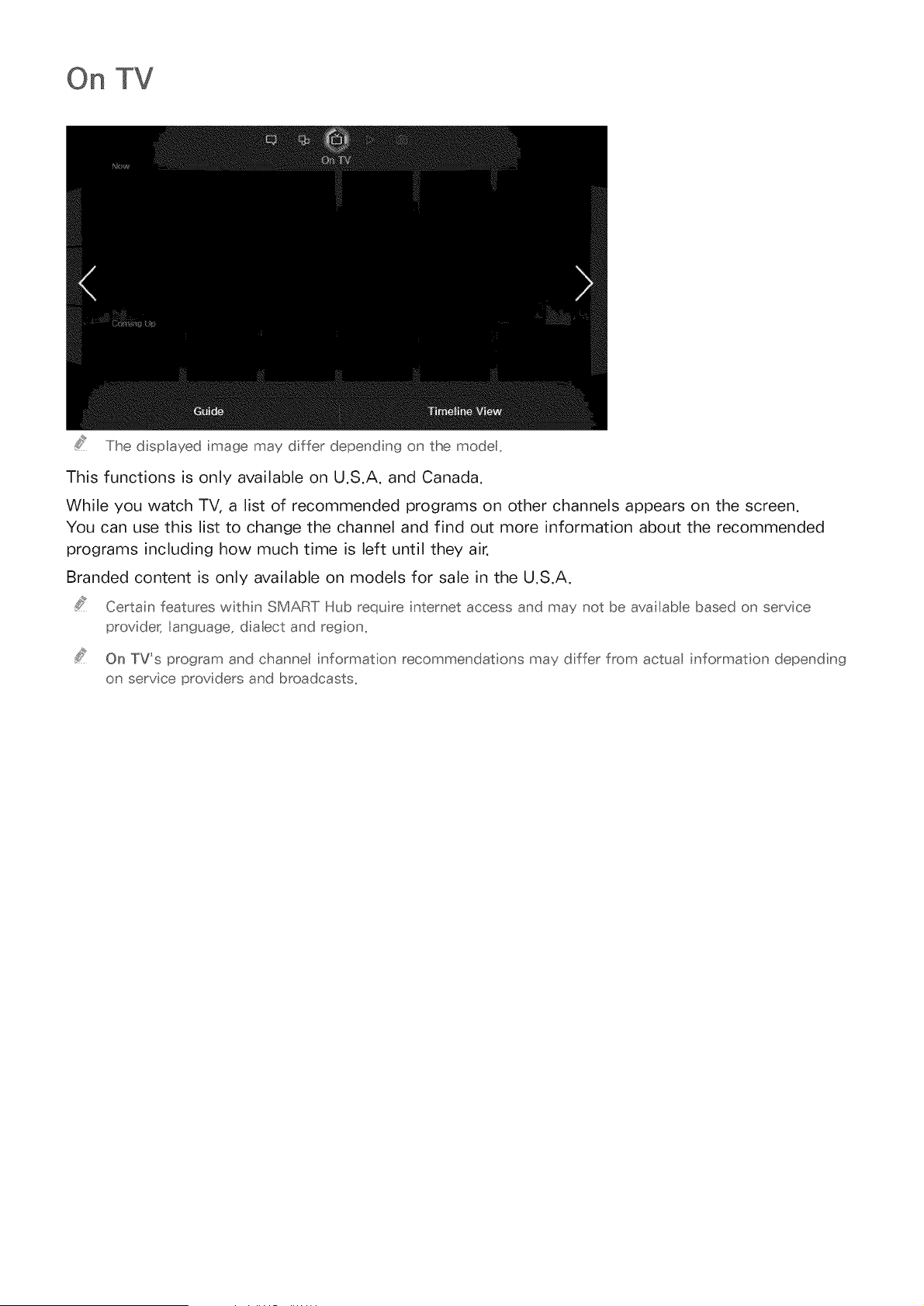
On TV
The d splayed mage may differ depend ng on the model,
This functions is only available on U,S,A, and Canada,
While you watch TV, a list of recommended programs on other channels appears on the screen,
You can use this list to change the channel and find out more information about the recommended
programs including how much time is left until they air,
Branded content is only available on models for sale in the U,S,A,
Certain features within SMART Hub requ re nternet access and may not be ava abe based on service
provider_ language, d aIect and reg on_
On TV's program and channel informat on recommendat ons may dffer from actual nformat on depend ng
on service providers and broadcasts,
On TV Settings
Screen Menu ) Smart Features ) On TV Settings
Customize the On TV screen.
On "[V Setup
Set a broadcast media type and TV stations for the On TV screen, following the on-screen
instructions.
Recommendation Notice
With this enabled, when one of popular TV programs that the user has often watched is currently on
the air, the TV notifies the user.
Auto Sta_'t
You can configure On TV to automatically launch when the TV is turned on.
Recommendation Method
Determine whether to display upcoming TV programs by user preference or general popularity,
Adult Contents Block
With this enabled, adult TV programs are not listed on the On TV screen.
Watching an On-Air Recommended Program
Select a program from the right side of the screen. This changes the channel to the selected program.
Schedumed Recommended Program mnfo
The following list displays the information and viewing times of recommended programs that have not
yet aired. Select a program from the list to see more information about the program and to access the
following options:
o Jump to Channel: Jump to the selected program's channel.
Timer: Set up a Schedule Viewing.
Related Contents: Displays the related contents list of the selected program. Select a desired
contents in the list. User can view the information screen of the selected contents.
Share: Like/dislike the selected program or share information about the selected program via an
SNS.
Activating the Guide
Select Guide at the bottom of the screen to launch the Guide. For more information, refer to "Guide",
Program Recommendations by Time
Select Timeline View at the bottom of the screen to display program recommendations for different
times of the day.
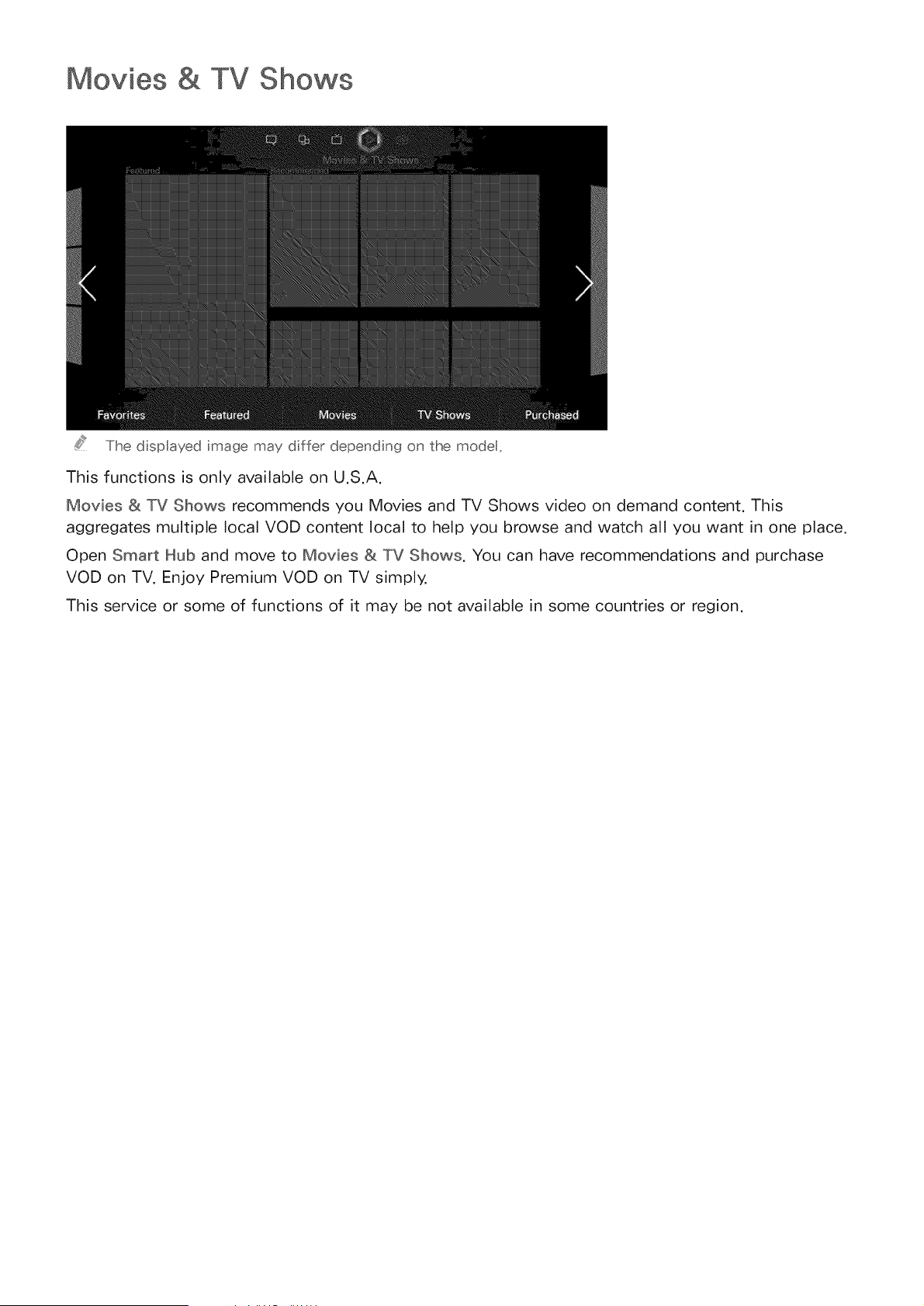
Movies & TV Shows
The d splayed image may differ depending on the model,
This functions is only available on U.S.A.
Movies & TV Shows recommends you Movies and TV Shows video on demand content. This
aggregates multiple local VOD content local to help you browse and watch all you want in one place.
Open Smart Hub and move to Movies & TV Shows. You can have recommendations and purchase
VOD on TV. Enjoy Premium VOD on TV simply.
This service or some of functions of it may be not available in some countries or region.

Buying Movies
To browse movies and TV shows, select one of the following on the bottom of the screen.
o Favorites: View the user's preferred movies and TV shows.
Featured: View the most outstanding movies and TV shows.
Movies: View the latest movies.
TV Shows: View the latest TV shows.
Playing Movies
Select Purchased at the lower-right corner of the screen. Select one of purchased movies and TV
shows to play it.
Parenta Control
Screen Menu > Smart Features > VOD Rating Lock
Lock movies and TV shows rated a certain class or higher to prevent children from watching them.
Open the Smart Features menu, choose VOD Rating Lock, and enter the passcode.
Turn on VOD Rating Lock and set any necessary options.
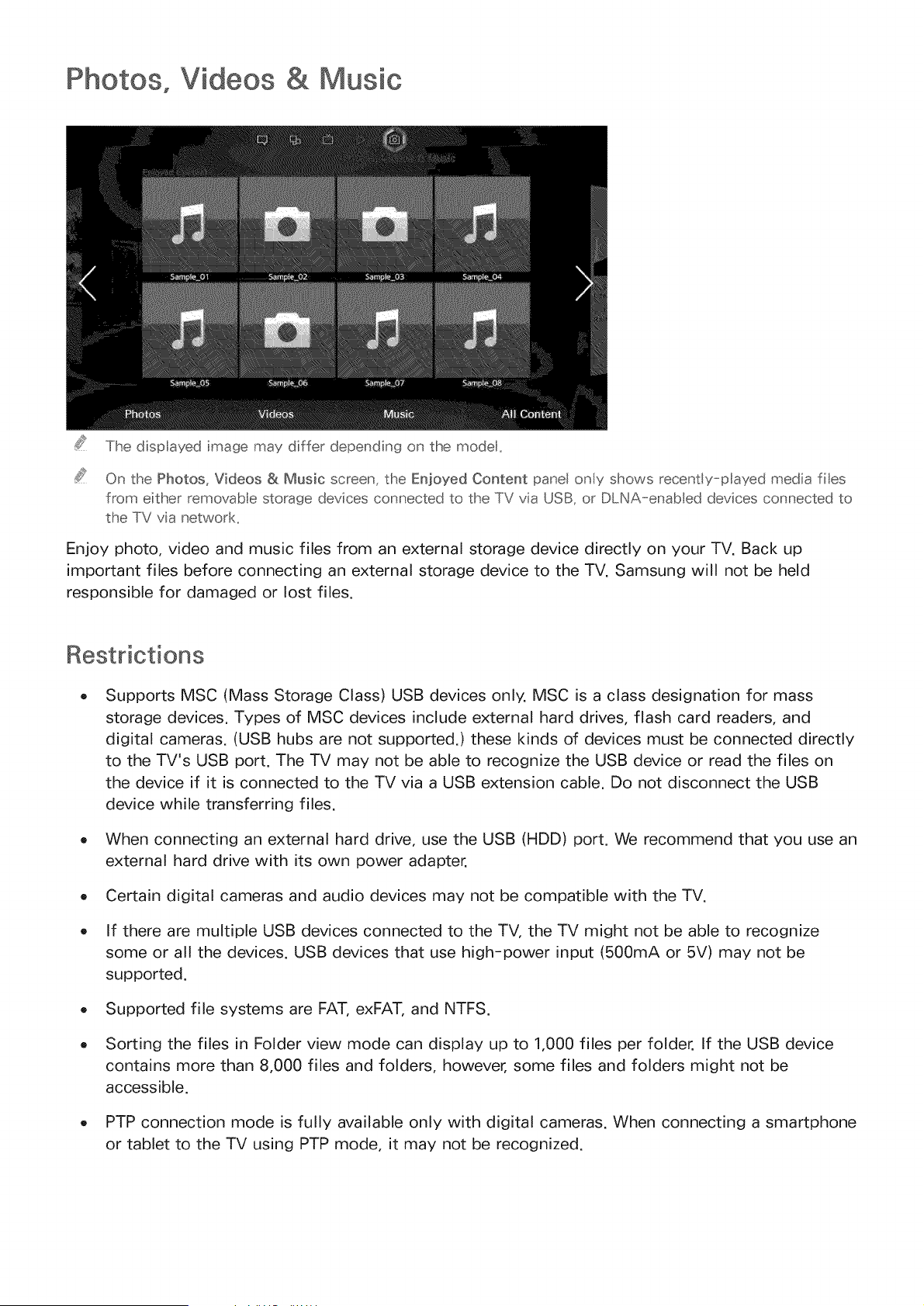
Photos, Videos & Music
The displayed image may differ depending on the model.
On the Photos, Videos & Music screen, the Enjoyed Content paneI ony shows recenSy-played media files
from either removab e storage devices connected to the TV via USB, or DLNA-enabted devices connected to
the TV via network.
Enjoy photo, video and music files from an external storage device directly on your TV. Back up
important files before connecting an external storage device to the TV. Samsung will not be held
responsible for damaged or lost files.
Restrictions
Supports MSC (Mass Storage Class) USB devices only. MSC is a class designation for mass
storage devices. Types of MSC devices include external hard drives, flash card readers, and
digital cameras. (USB hubs are not supported.) these kinds of devices must be connected directly
to the TV's USB port. The TV may not be able to recognize the USB device or read the files on
the device if it is connected to the TV via a USB extension cable. Do not disconnect the USB
device while transferring files.
When connecting an external hard drive, use the USB (HDD) port. We recommend that you use an
external hard drive with its own power adapter.
, Certain digital cameras and audio devices may not be compatible with the TV.
, If there are multiple USB devices connected to the TV, the TV might not be able to recognize
some or all the devices. USB devices that use high-power input (500mA or 5V) may not be
supported.
, Supported file systems are FAT, exFAT, and NTFS.
, Sorting the files in Folder view mode can display up to 1,000 files per folder. If the USB device
contains more than 8,000 files and folders, however, some files and folders might not be
accessible.
, PTP connection mode is fully available only with digital cameras. When connecting a smartphone
or tablet to the TV using PTP mode, it may not be recognized.
Supported FiJe Formats
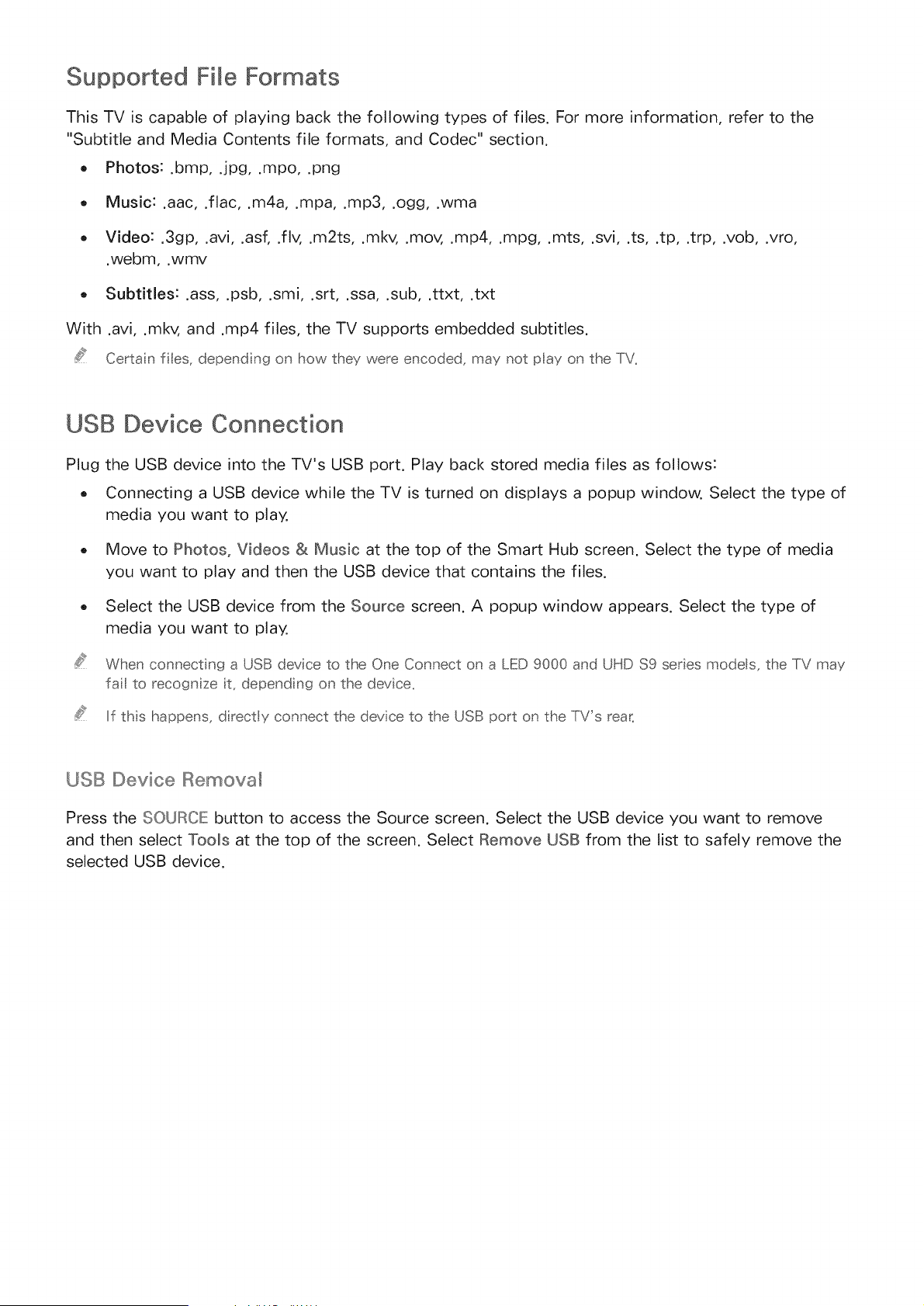
This TV is capable of playing back the following types of files. For more information, refer to the
"Subtitle and Media Contents file formats, and Codec" section.
o Photos: .bmp, .jpg, .mpo, .png
Music: .aac, .flac, .m4a, .mpa, .mp3, .ogg, .wma
Video: .3gp, .avi, .as{ .flv, .m2ts, .mkv, .mov, .mp4, .mpg, .mrs, .svi, .ts, .tp, .trp, .vob, .vro,
.webm, .wmv
Subtitles: .ass, .psb, .smi, .srt, .ssa, .sub, .ttxt, .txt
With .avi, .mkv, and .mp4 files, the TV supports embedded subtitles.
Certa n fles, depend ng on how they were encoded, may not play on the TV.
USB Device Connection
Plug
o
the USB device into the TV's USB port. Play back stored media files as follows:
Connecting a USB device while the TV is turned on displays a popup window. Select the type of
media you want to play.
Move to Photos, Videos & Music at the top of the Smart Hub screen. Select the type of media
you want to play and then the USB device that contains the files.
Select the USB device from the Source screen. A popup window appears. Select the type of
media you want to play.
When connect}ng a USB device to the One Connect on a LED 9000 and UHD $9 series models, the TV may
fa to recognize t, depend ng on the device,
If ths happens, d rectly connect the device to the USB port on the TV's rear:
USB Device Remova_
Press the SOURCE button to access the Source screen. Select the USB device you want to remove
and then select Tools at the top of the screen. Select Remove USB from the list to safely remove the
selected USB device.
Playing the Content on a Storage Device
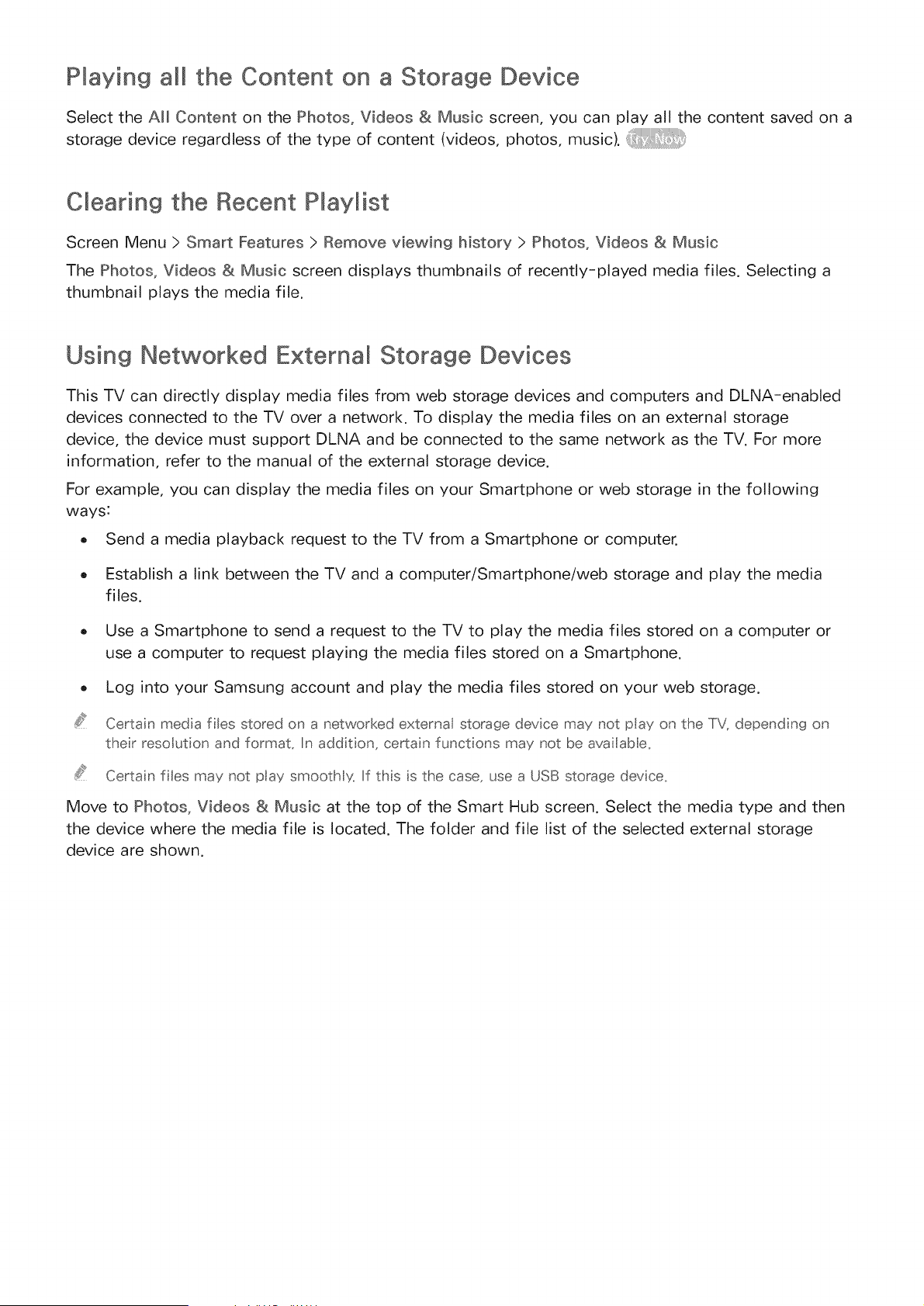
Select the AEI Content on the Photos, Videos & Music screen, you can play al! the content saved on a
storage device regardless of the type of content (videos, photos, music).
Clearing the Recent PWaylist
Screen Menu > Smart Features > Remove viewing history > Photos, Videos & Music
The Photos, Videos & Music screen displays thumbnails of recently-played media files. Selecting a
thumbnail plays the media file.
Using Networked External Storage Devices
This TV can directly display media files from web storage devices and computers and DLNA-enabled
devices connected to the TV over a network. To display the media files on an external storage
device, the device must support DLNA and be connected to the same network as the TV. For more
information, refer to the manual of the external storage device.
For example, you can display the media files on your Smartphone or web storage in the following
ways:
o Send a media playback request to the TV from a Smartphone or computer.
Establish a link between the TV and a computer/Smartphone/web storage and play the media
files,
Use a Smartphone to send a request to the TV to play the media files stored on a computer or
use a computer to request playing the media files stored on a Smartphone.
Log into your Samsung account and play the media files stored on your web storage.
Certain media fbs stored on a networked external storage device may not pay on the TV, depend ng on
ther resoluton and format, In additon, certan functons may not be ava abe,
Certa n fbs may not play smooth y_ If this s the case, use a USB storage device,
Move to Photos, Videos & Music at the top of the Smart Hub screen. Select the media type and then
the device where the media file is located. The folder and file list of the selected external storage
device are shown.
All,owing DLINA Device Connections
Screen Menu > Network > ANIShare Settings > Content Sharing
Select Content Sharing, and a list of devices connected to the same network as the TV appears. Select
a device to connect it to the TV. Select a device to allow it to connect to the TV. You can only play
media files from devices that have been allowed to connect to the TV. This function is available for all
DLNA DMC devices. Alternatively, you can send a media playback request from an external device that
has not yet been allowed to connect to the TV and then accept the connection when prompted.
AIIShare makes it easy to retrieve and enjoy media files from computers and DLNA-enabled devices.
However, computers need to be installed with AIIShare PC and mobile devices need to support
AIIShare. For more information, visit the Samsung Content & Service portal (http://link.samsung.com).
You may experience compat bility ssues when attempt ng to pay meda fes via a th rd-party DLNA serve_:
Exporting Contents
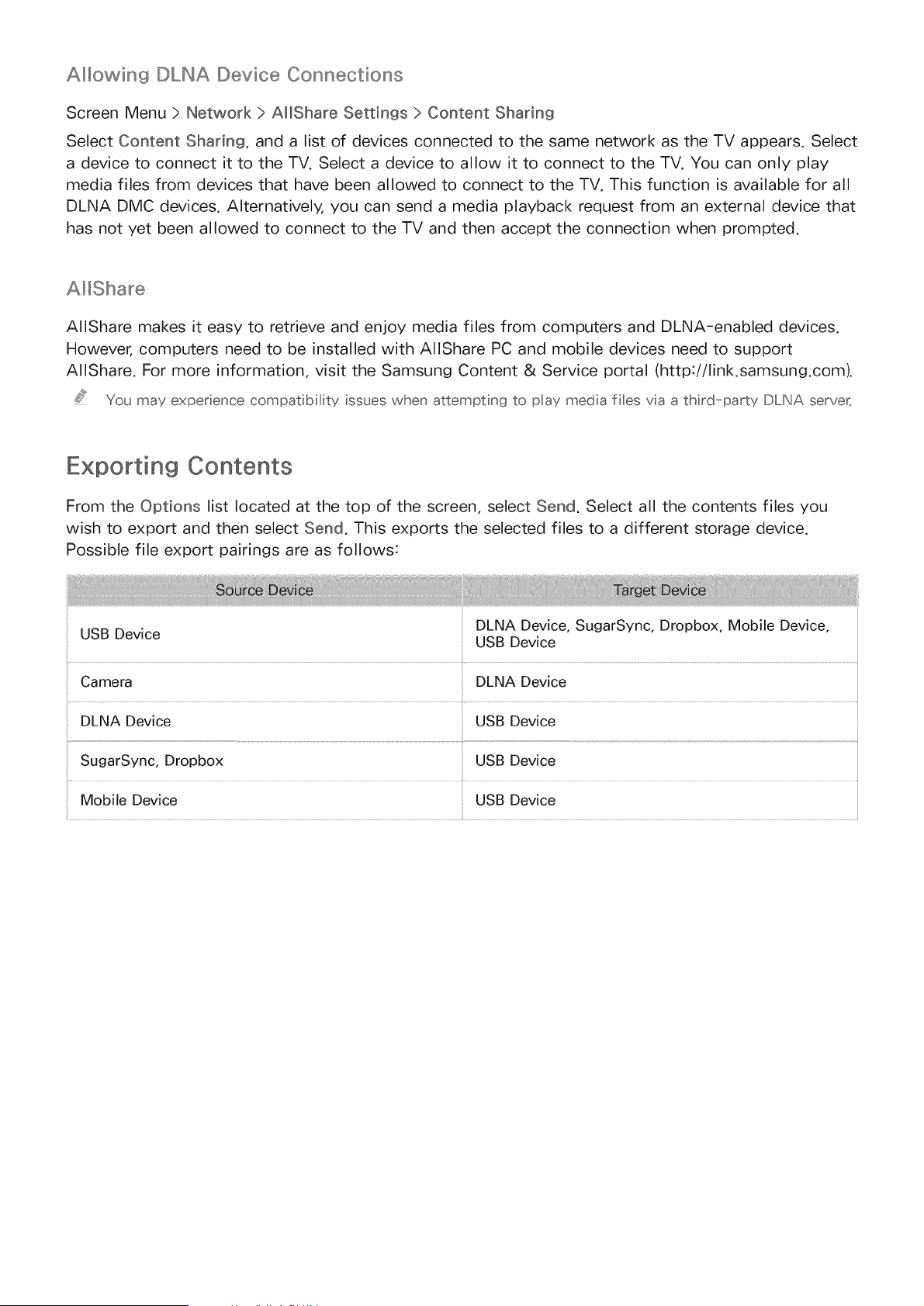
From the Options list located at the top of the screen, select Send. Select all the contents files you
wish to export and then select Send. This exports the selected files to a different storage device.
Possible file export pairings are as follows:
USB Device
DLNA Device, SugarSync, Dropbox, Mobile Device,
USB Device
Camera DLNA Device
DLNA Device USB Device
SugarSync, Dropbox USB Device
Mobile Device USB Device
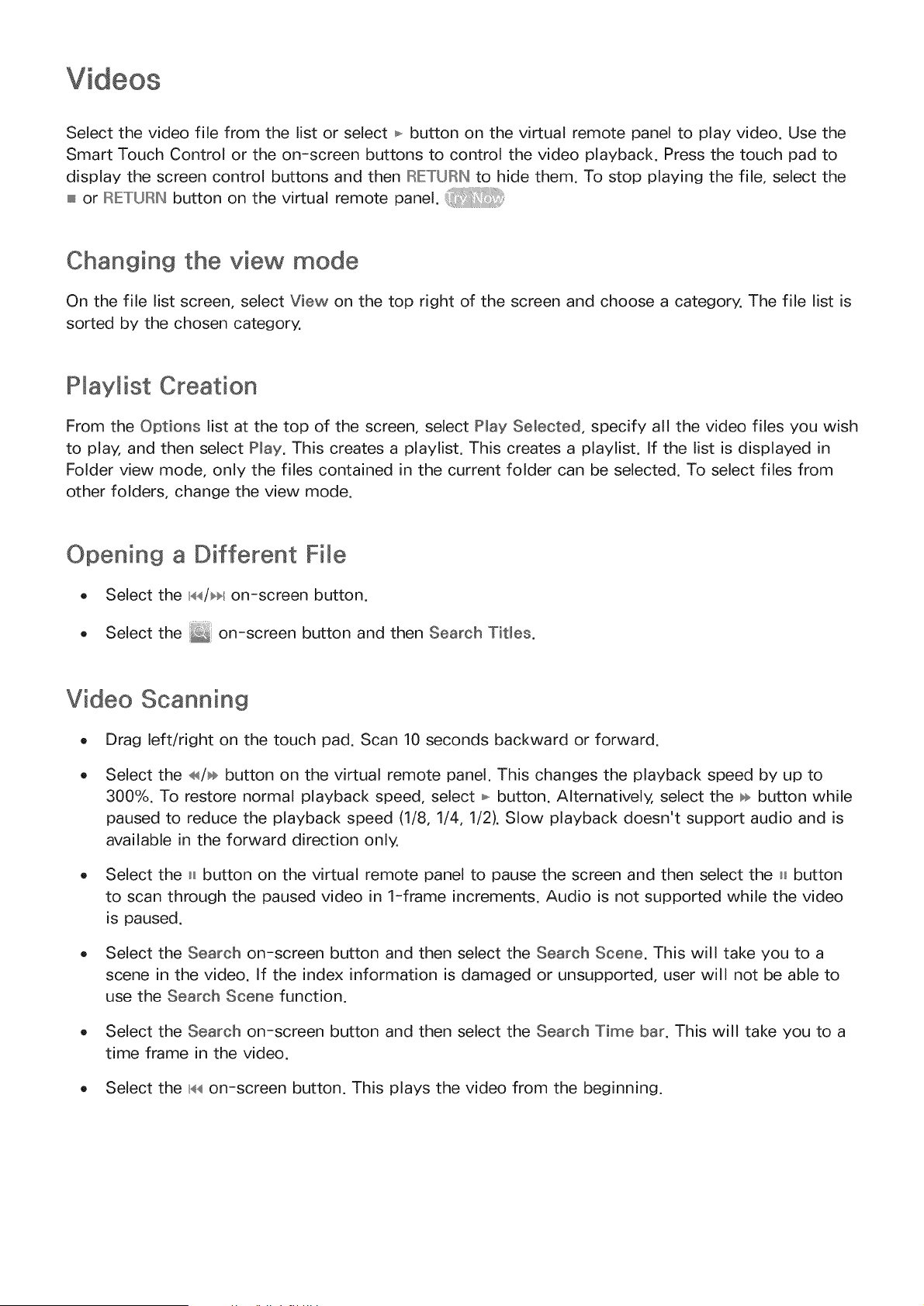
Selectthe video file from the list or select _-button on the virtual remote panelto play video. Usethe
SmartTouchControlor the on-screenbuttons to control the video playback.Pressthe touch padto
display the screencontrolbuttonsand then IRETLR/_to hidethem.To stop playingthe file, selectthe
or II::II{-:TURNbutton on the virtual remote panel.
Changing the view mode
On the file list screen, select View on the top right of the screen and choose a category. The file list is
sorted by the chosen category.
Playlist Creation
From the Options list at the top of the screen, select Play Selected, specify all the video files you wish
to play, and then select Play. This creates a playlist. This creates a playlst. If the list is displayed in
Folder view mode, only the files contained in the current folder can be selected. To select files from
other folders, change the view mode.
Opening a Different File
o Select the n,a,_/_lon-screen button.
o Select the
on-screen button and then Search Titles.
Video Scanning
o Drag left/right on the touch pad. Scan 10 seconds backward or forward.
Select the _/÷ button on the virtual remote panel. This changes the playback speed by up to
300%. To restore normal playback speed, select _ button. Alternatively, select the ÷ button while
paused to reduce the playback speed (1/8, 1/4, 1/2). Slow playback doesn't support audio and is
available in the forward direction only.
o Select the H button on the virtual remote panel to pause the screen and then select the H button
to scan through the paused video in 1-frame increments. Audio is not supported while the video
is paused.
o Select the Search on-screen button and then select the Search Scene. This will take you to a
scene in the video. If the index information is damaged or unsupported, user will not be able to
use the Search Scene function.
o Select the Search on-screen button and then select the Search Time bar. This will take you to a
time frame in the video.
o Select the n,4,<on-screen button. This plays the video from the beginning.
Show Subtitles
If the external storage device contains a subtitle file with the same name as the video file being
played, you can choose to display subtitles on the screen. Select the Settings on-screen button and
then select Subtitle Settings to show subtitles.
If the subtitles appear corrupted, try changing the encoding setting. If the subtitles do not match the
video, adjust the sync.
If the subtitles are too small, increase the font size.
Additional Video Playback Settings
o Repeat: Select the Repeat Mode on-screen button. This changes the repeat mode. Repeat One
repeats the current file only, whereas Repeat ANI repeats all files contained in the folder.
Picture Size: Select the Picture Size on-screen button and then select the picture size. However,
this function is not available on the UHD resolution screen that is supported by LED 9000 and
UHD $9 series models.
Rotate: Select the Rotate on-screen button to rotate the current video 90 degrees clockwise.
However, this function is not available on the UHD resolution screen that is supported by LED
9000 and UHD $9 series models.
Receiver: Select the Receiver on-screen button and then power on the receiver.
Picture Mode: Select the Settings on-screen button and then select Picture Mode. Select a
picture mode.
Sound Mode: Select the Settings on-screen button and then select Sound Mode. Select a sound
mode.
Audio Language: Select the Settings on-screen button and then select Audio Language. Select
an audio language. However, this option is only available with streaming videos that support
multiple audio formats.
Information: Select the Settings on-screen button and then select Information to view detailed
information about the current video.
Selectthe musicfile from the list or pressthe _ button on the virtual remotepanelto play music.To
exit, select_ button on the virtual remotepanelor pressthe IRETUF_Nbutton.
Changing the view mode
On the file list screen, select View on the top right of the screen and choose a category. The file list is
sorted by the chosen category.
Playlist Creation
From the Options list at the top of the screen, select Hay Selected, specify all the music files you
want to play, and then select Play.
This creates a playlist. If the list is displayed in Folder view mode, only the files contained in the
current folder can be selected. To select files from other folders, change the view mode.
Music Scanning
o Select the _/÷ button on the virtual remote panel. Scan 10 seconds backward or forward.
Select the H button on the virtual remote panel. This pauses the currently playing music file.
Opening a Different File
Select the n,_,</_,_lon-screen button.
Select a file from the playlist.
Additional Music Playback Settings
Repeat: Select the Repeat on-screen button. This changes the repeat mode. One Song repeats
the current file only, whereas All repeats all files contained in the playlist.
Shuffle: Select the Shuffle on-screen button. Choose between normal and random play.
Reoeiver: Select the Receiver on-screen button and then power on the receiver.
Sound Mode: Select the Sound Mode on-screen button. Select a sound mode.
Information: Select the virtual remote panel's INIFO button from the playlist to view detailed
information about the selected file.
Selecta photofrom the list to display it on the screen.Pressthe touch padto display the screen
control buttons. Pressthe RETURNto hidethem.To exit, selectthe _ button on the virtual remote
panelor Pressthe RETURNbutton.
Changing the view mode
On the file list screen, select View on the top right of the screen and choose a category. The file list is
sorted by the chosen category.
Slide Show
. From the Options list located at the top of the screen, select S_ide Show. You can view all photos
in the list as a slideshow.
. Press _ from the list.
. Press _ or select the Start SHde Show on-screen button to begin the slideshow.
Slide Show Settings
o Speed: Select the _/_ button on the virtual remote panel or select the S_ideshow Settings on-
screen button and then select Speed.
Effect: Select the SHdeshow Settings on-screen button and then select Effects.
Playlist Creation
From the Options list at the top of the screen, select Play Selected. specify all the photos you want to
play, and then select Play. This creates a playlist. If the list is displayed in Folder view mode, only the
files contained in the current folder can be selected. To select files from other folders, change the view
mode.
Opening a Different FiJe
o Drag left/right on the touch pad.
Select the Previous / Next on-screen button.
Background Music
Enable music to play in the background during a slide show. However, all music files must be located
on the same storage device.
Select the Background Music on-screen button while a photo is displayed on the screen or a slide
show is in progress. Select the music files you want to listen to and then Play. To play the files in a
random order, select Shuffle.
Mini Player
When viewing photos with background music, you can control the music.
Select Background Music from among the on-screen control buttons and select Mini Player.
You can pause playback or skip to the previous or next song.
Additional Photo Playback Settings
Zoom: Select the Zoom on-screen button. Zoom in by up to a factor of 4.
Rotate: Select the Rotate on-screen button. This rotates the current photo 90 degrees clockwise.
Receiver: Select the Receiver on-screen button and then power on the receiver.
Picture Mode: Select the Settings on-screen button and then select Picture Mode. Select a
picture mode.
Sound Mode: Select the Settings on-screen button and then select Sound Mode. Select a sound
mode. However, this option is not available while background music is playing.
Information: Select the Settings on-screen button and then select Information to view detailed
information about the current video.
Anynet+ (HDMi CEC)
This SMART TV is enabled with Anynet+ (HDMI-CEC), a feature that makes it possible to control
Samsung external devices connected to the TV with ease. With Anynet+ (HDMI-CEC), you can use the
TV remote panel to operate all compatible Samsung devices that are connected to the TV. However,
Anynet+ (HDMI-CEC) only works with the remote panel and not with the panel keys.
Use the TV_s remote pan@ to operate third-party cable boxes, BIu-ray payers, and home theaters connected
to the TV, For more nformat on, refer to "UniversaI Remote Setup",
o
o
This feature does not support other manufacturer's products.
Anynet+ devices must be connected to the TV using an HDMI cable. Some HDMI cables may not
support Anynet+ (HDMI-CEC). In this case, you will need to replace the HDMI cable.
The TV remote panel may not function under certain circumstances. In this case, select the
Anynet+ device again.
Anynet+ (HDMI-CEC) only works with external devices that support Anynet+ (HDMI-CEC) and
only when those devices are either in standby mode or turned on.
Anynet+ (HDMI-CEC) can control up to 12 compatible external devices (up to 3 of the same type).
With home theater systems, however, the number of systems that can be controlled is limited to
one.
A home theater system that has been connected to the TV using an HDMI cable and an optical
cable supports 2-channel audio only. However, the home theater is capable of supporting
5.1-channel audio from digital broadcasts.
To listen to 5.1-channel audio from an external device, connect the device to the TV via an HDMI
cable and the device's digital audio output connector directly to the home theater system.
Anynet+ (HDMI-CEC} Setup
Screen Menu > System > Anynet+ (HDM_-CEC} ,ii,:::!_:11:::i::
Enable/disable Anynet+ (HDMI-CEC).
o Anynet+ (HDMm-CEC}: Enables/disables Anynet+ (HDMI-CEC). Disabling this turns off all
Anynet+-related features.
Auto Turn Off: Turns off external devices when the TV is turned off. Some devices do not support
this option.
Using the Anynet+ (HDMm-CEC}
You can operate external devices using just the TV remote panel.
Switchin_j between Anynet+ Devices
2_
Select the virtual remote panel's TOOLS button to display the list, Select Anynet+ (HDM_-CEC}
from the list, A device selection screen will appear,
Select a device and wait for the switch to take place. This process may take up to 2 minutes to
complete and cannot be cancelled when started,
AIternativelx swtch to a different Anynet+ (HDMI-CEC) device by setect ng its name from the Source Ist,
However: Anynet+ (HDMI-CEC) cannot be used f a connected nput connector s seected,
Anynet+ (_,,,,,,,_DMI-CEC}Device Menu
Once the TV has switched over to the selected device, you can access the device's menu using the
TV's remote panel. Select the virtual remote panel's TOOLS button to display the list.
The items displayed by Tools may vary:, depend ng on the externaI device_
o Anynet+ (HDM_-CEC}: A list appears showing Anynet+ compatible ones of external devices
connected to the TV. Either choose View TV to close the current Anynet+ and watch TV, or
choose an external device to switch to the device.
(Connected Device) MENU: Display the menu of the connected device. If the target device is a
DVD player, the DVD menu is shown.
(Connected Device) TooNs: Display a list of frequently-used functions that are available for the
device. If the target device is a DVD player, the DVD playback menu is shown. Some external
devices may not support this option.
(Connected Device) Title Menu: Display the connected device's title menu. If the target device is
a DVD player, the DVD title menu is shown. Some external devices may not support this option.
ARC enables digital sound to be output using just an HDMI cable. However, ARC is only available with
AV receivers that support ARC.
Mobile Device Screens on the TV
This TV is capable of displaying mobile device screens. You can use the following features to enjoy
video, photo, and music files from mobile devices directly on your TV.
o Use an MHL cable to display a mobile device's screen on the TV.
Use the Screen Mirroring menu to display a mobile device's screen on the TV.
MHL
This Smart TV supports MHL (Mobile High-definition Link) via an MHL cable. Connect an MHL cable to
the mobile device and the TV. However, MHL is only available through the TV's HDMI (MHL) port and
only when used in conjunction with an MHL-enabled mobile device.
This feature is only available with MHL-certified mobile devices. To find out if your mobile device is
certified, visit its manufacturer's website. You can also view a list of MHL-certified devices on the
official MHL website (http://www.mhlconsortium.org).
MHL USE
Connect an MHL cable to the mobile device and the TV. Press the SOURCE button and then select the
MHL connector to display the mobile device's screen on the TV. The following remote panel functions
will also be available:
Touch pad (Menu navigation / Select), _ (nEW), ÷ (FF), _ (Play), H (Pause), _ (Stop), _1_ (Previous
menu)
When your device s connected with an MHL cabe, t charges even when the TV s n Standby mode.
MHL
o
o
o
o
o
has several requirements:
If you are using an HDMI adapter, the TV recognizes the signal as an HDMI signal and may
respond differently than it would to an MHL-to-HDMI cable connection.
Upgrade the software to the latest version.
This product is officially MHL-certified. If users encounter any problem when using the MHL
function, they must contact the manufacturer of the device.
Some mobile devices may not have sufficient specifications or features to support MHL.
Because the TV screen is wider than most mobile device screens, the picture quality may appear
lower on the TV.
Screen Mirroring
Screen Menu > Network > AIIShare Settings > Screen Mirroring
Displays mobile device screens on your TV wirelessly. However, Screen Mirroring is only available
with mobile devices that support AIIShare Cast. For more information, visit the mobile device
manufacturer's website.
Depending on the network cond t on, screen or voice dropouts may occur when the Screen Mirroring
functon srunning_
Mobile Device Connection
Run Screen Mirroring (Network > AIIShare Settings > Screen Mirroring) function. Alternatively,
press the SOURCE button and select Screen Mirroring from the source list. After running the Screen
Mirroring, run Mirroring function on the mobile device. The TV will connect with the mobile device,
and user can view the connected mobile device's screen on the TV.
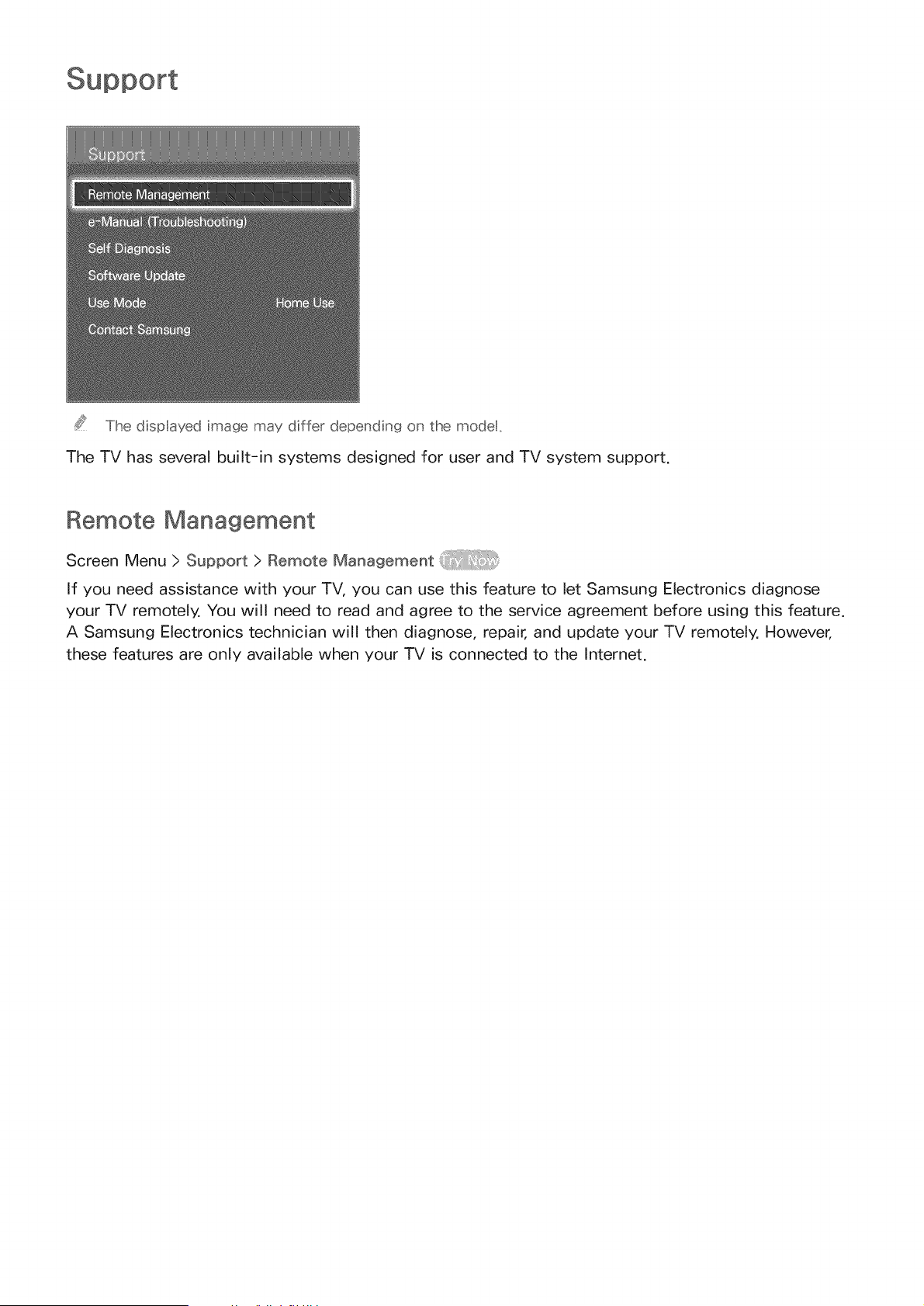
ThedispIayedimagemaydifferdependingonthemodet,
TheTV hasseveralbuilt-in systemsdesignedfor userandTV systemsupport.
Remote Management
Screen Menu > Support > Remote Management
If you need assistance with your TV, you can use this feature to let Samsung Electronics diagnose
your TV remotely. You will need to read and agree to the service agreement before using this feature.
A Samsung Electronics technician will then diagnose, repair, and update your TV remotely. However,
these features are only available when your TV is connected to the Internet.
What is Remote Support?
Samsung Remote Support service offers you one-on-one support with a Samsung Technician who can
remotely,
e Diagnose your TV
o Adjust the TV settings for you
Perform a factory reset your TV
Install recommended firmware updates
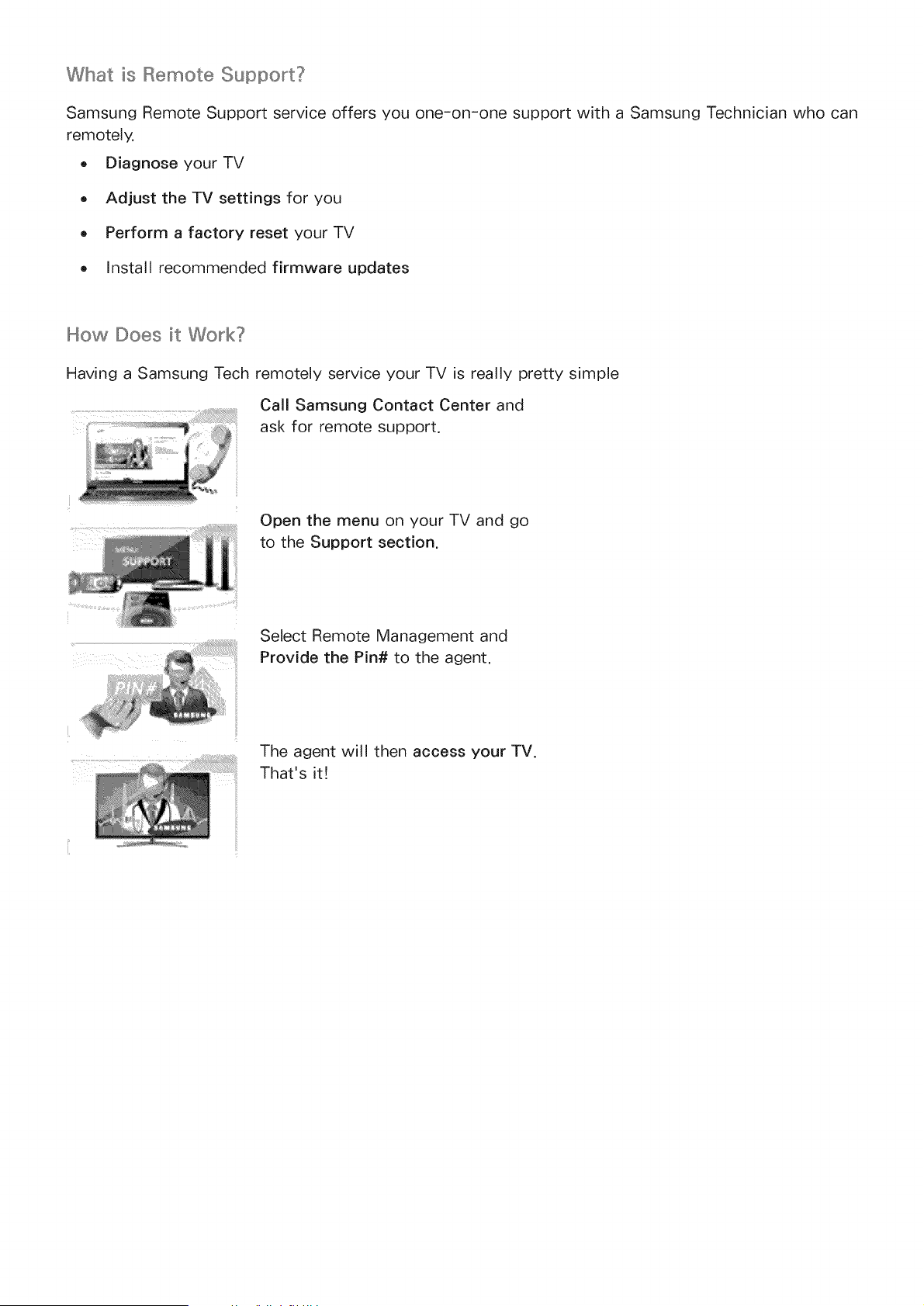
How Does it Work?
Having a Samsung Tech remotely service your TV is really pretty simple
Call Samsung Contact Center and
ask for remote support,
Open the menu on your TV and go
to the Support section.
Select Remote Management and
Provide the Pin# to the agent.
The agent will then access your TV.
That's it!
ScreenMenu> Support> e-Manual (Troubleshooting)
This TV features a built-in electronic user manual. For details on how to use the e-Manual, See
"Viewing the e-Manual".
Self Diagnosis
Screen Menu > Support > Self Diagnosis
Your TV is capable of diagnosing itself for picture-, sound-, and signal-related issues. The self-
diagnosis function consists of the following options:
o Picture Test
Sound Test
Voice & Motion Control Environment Check
Signal Information
Reset
Picture Test
Screen Menu > Support ) Self Diagnosis ) Picture Test
The Picture Test displays a high definition picture to examine it for flaws or faults.
If the test picture does not appear or there is noise or distortion, the TV may have a problem. Contact
Samsung's Call Center for assistance. If the test picture is displayed properly, there may be a problem
with the external device. Please check the connections. If the problem persists, check the signal
strength or refer to the external device's user manual.
Sound Test
Screen Menu > Support > Self Diagnosis > Sound Test
Use the built-in melody to check for sound problems.
If no melody is played by the TV's speakers, make sure Speaker Select is set to TV Speaker and then
try again. If the problem persists, there may be a problem with the TV. Contact Samsung's Call Center
for assistance. If the melody is played, there may be a problem with the external device. Please check
the connections. If the problem persists, refer to the external device's user manual.
Voice & Motion Contro[I Environment Check
Screen Menu > Support > Self Diagnosis > Voice & Motion Control Environment Check
Test the ambient noise and brightness levels to see if they are suitable for SMART Interaction use.
Signa_ _nformation
Screen Menu > Support > Self Diagnosis > Signal information
The signal Information displays the digital channel signal information and strength. Users can then
adjust the antenna to increase the signal strength and receive HD channels. This option is only
available for digital channels.
Screen Menu > Support > Self Diagnosis > Reset
This resets all settings to the factory default settings except for the network settings. Select Reset,
enter the PIN code when requested, and then select Yes. All settings are then reset. The TV turns off
and on again automatically and then displays the Setup screen. For more information on resetting the
TV, refer to the user manual that came with the TV.
Updating the Software
Screen Menu > Support > Software Update
Check your TV's software version and upgrade it if necessary.
/k DO NOT turn off the TV's power until the upgrade is complete. The TV will turn off and on
automatically after completing the software upgrade. All video and audio settings return to the
default settings after a software upgrade.
Update now
Screen Menu > Support > Software Update > Update now
An online upgrade downloads and installs the upgrade software directly from the Internet. Configure
the TV to connect to a network and make sure it can access the Internet.
Manua_ Update
Download the latest update file from the Samsung website. Decompress the file and copy it into the
root directory of a flash drive. Insert the flash drive one of the TV's USB ports to install the update.
Auto Update
Screen Menu > Support > Software Update > Auto Update
This option upgrades the TV while it is in Standby Mode. In Standby Mode, the TV appears to be
turned off but still has access to the Internet. This allows the TV to upgrade itself automatically
while it is not in use. Because the TV's internal processes are operating, the screen may emit a faint
glow, and this may continue for more than 1 hour until the software download is complete. Check the
network configuration and internet connectivity and then enable this option.
Standby Mode Upgrade Settings
Specify when you want the upgrade to take place. This TV can be set to periodically check and install
updates.
Usage Mode
Screen Menu > Support > Use Mode
Select the TV's usage mode. If your TV has been unintentionally set to Store Demo, you can change
the mode with this option. Store Demo should be used in retail environments only. With Store Demo,
certain functions are disabled and the TV automatically resets itself after a certain amount of time.
Support [nfo
Screen Menu > Support > Contact Samsung
Check the information below if your TV is not working properly or you need information on upgrading
the software. The section below contains useful information about the product and instruction on
obtaining the latest software.
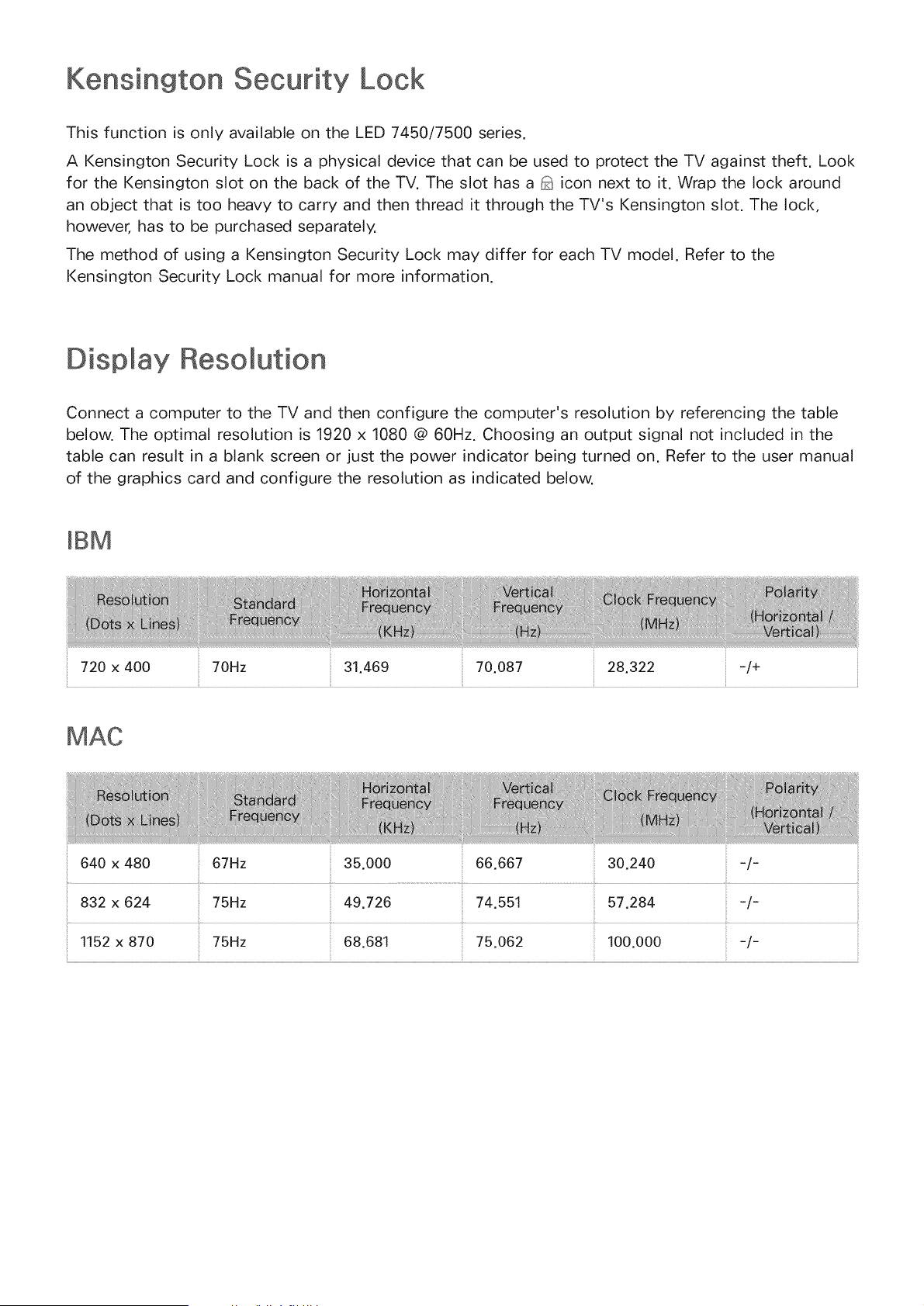
Kensington Security Lock
This function is only available on the LED 7450/7500 series.
A Kensington Security Lock is a physical device that can be used to protect the TV against theft. Look
for the Kensington slot on the back of the TV. The slot has a _ icon next to it. Wrap the lock around
an object that is too heavy to carry and then thread it through the TV's Kensington slot. The lock,
however, has to be purchased separately.
The method of using a Kensington Security Lock may differ for each TV model. Refer to the
Kensington Security Lock manual for more information.
Dispmay Resomution
Connect a computer to the TV and then configure the computer's resolution by referencing the table
below. The optimal resolution is 1920 x 1080 @ 60Hz. Choosing an output signal not included in the
table can result in a blank screen or just the power indicator being turned on. Refer to the user manual
of the graphics card and configure the resolution as indicated below
mBM
720 x 400 70Hz 31.469 70.087 28.322 i! -/+
640 x 480 67Hz 35.000 66.667 30.240 -/-
832 x 624 75Hz 49.726 74.551 57.284 -/-
1152 x 870 75Hz 68.681 75.062 100.000 -/-
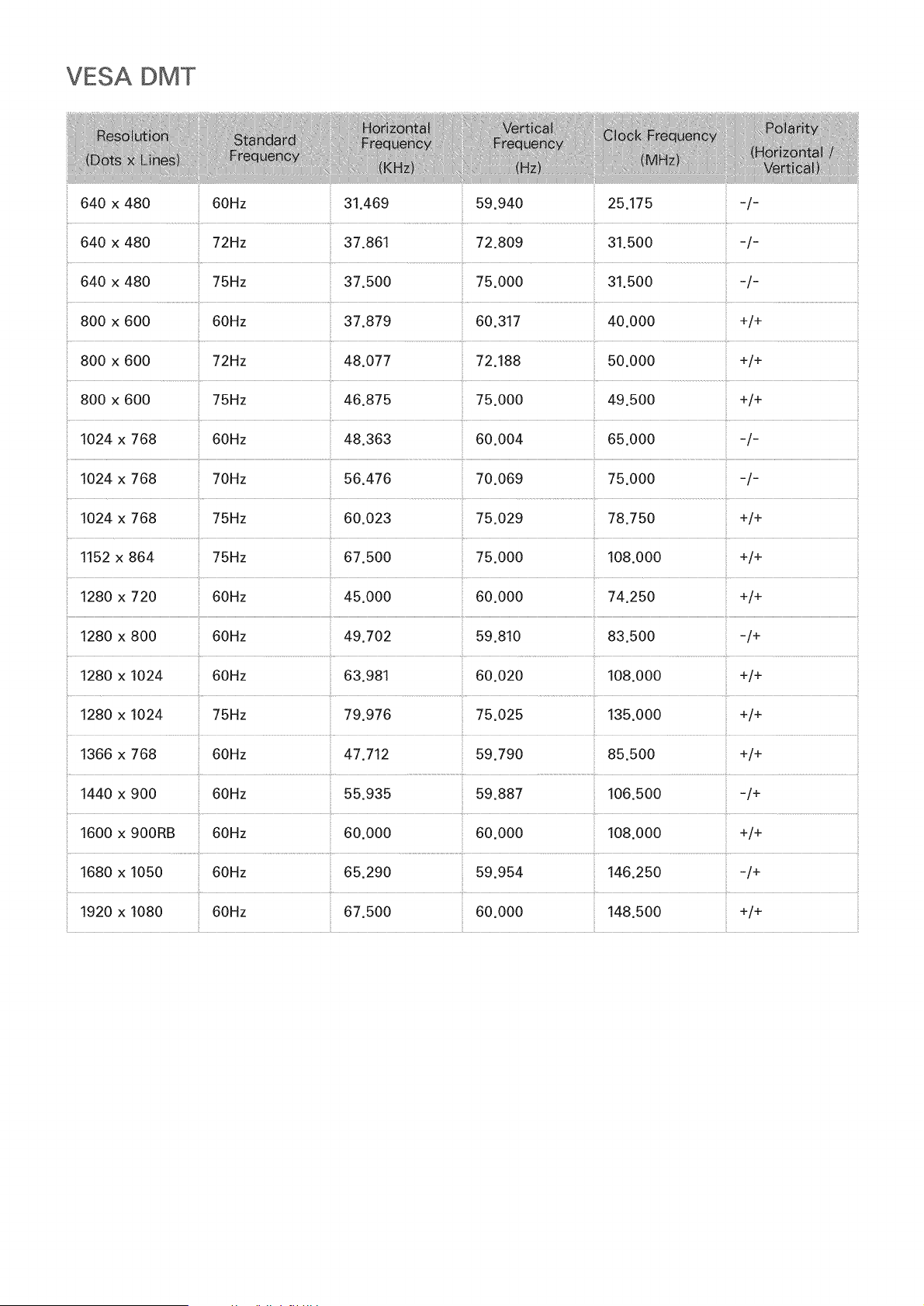
VESA DMT
640 x 480 60Hz 31.469 59.940 25.175 -/-
640 x 480 72Hz 37.861 72.809 31.500 -/-
640 x 480 75Hz 37.500 75.000 31.500 -/-
800 x 600 60Hz 37.879 60.317 40.000 +/+
800 x 600 72Hz 48.077 72.188 50.000 +/+
800 x 600 75Hz 46.875 75.000 49.500 +/+
65.000 -/-1024
x 768 60Hz 48.363 60.004
i
1024 x 768 70Hz 56.476 70.069 75.000 -/-
!024 x 768 75Hz 60.023 75.029 78.750 +/+
!152 x 864 75Hz 67.500 75.000 108.000 +/+
1280 x 720 60Hz 45.000 60.000 74.250 +/+
1280 x 800 60Hz 49.702 59.810 83.500 -/+
!280 x 1024 60Hz 63.981 60.020 108.000 +/+
!280 x 1024 75Hz 79.976 75.025 135.000 +/+
1366 x 768 60Hz 47.712 59.790 85.500 +/+
1440 x 900 60Hz 55.935 59.887 106.500 -/+
1600 x 900RB 60Hz 60.000 60.000 !08.000 +/+
1680 x 1050 60Hz 65.290 59.954 !46.250 -/+
!920 x 1080 60Hz 67.500 60.000 !48.500 +/+
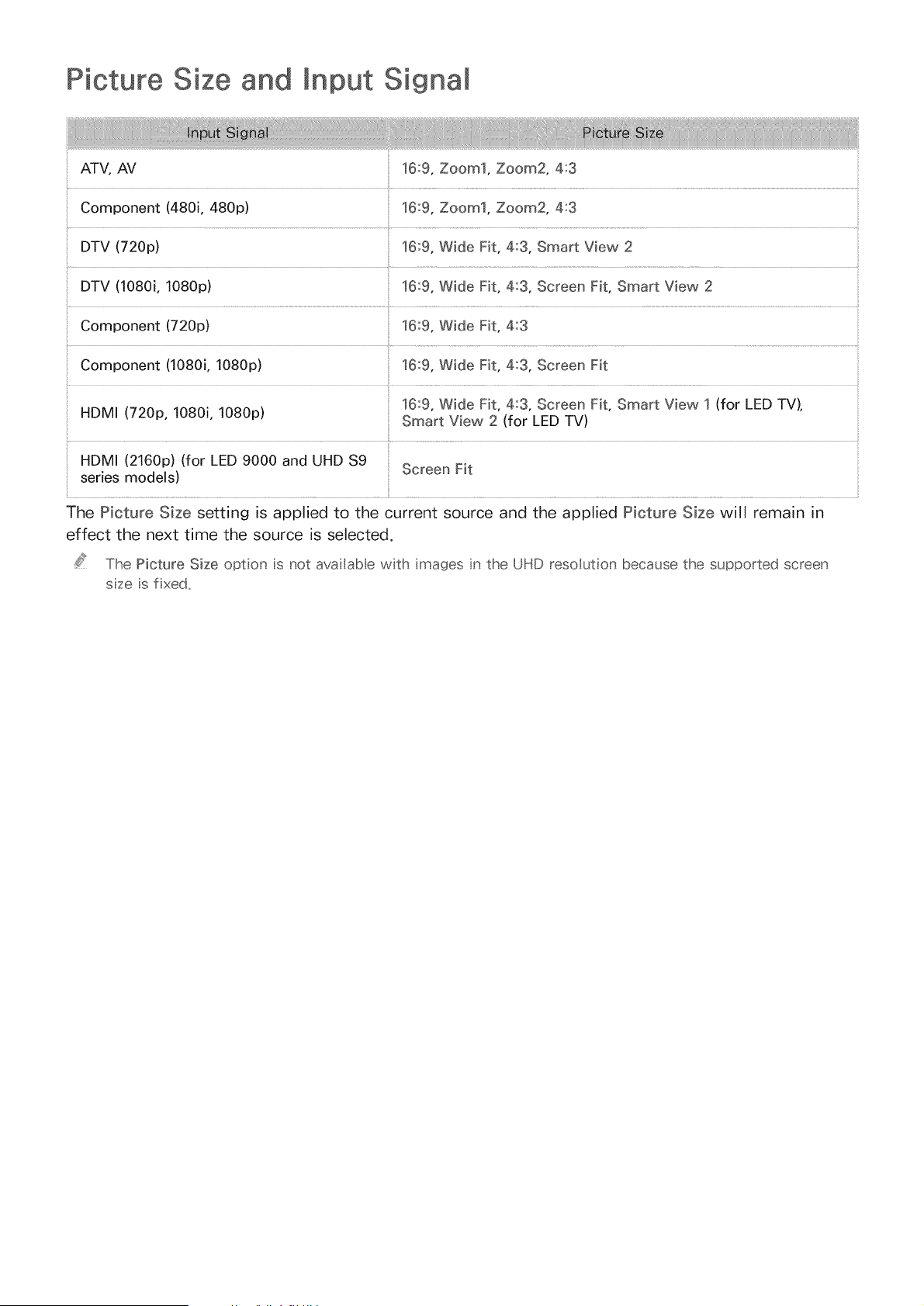
Picture Size and Signal
ATV, AV 16:9, Zoom1, Zoom2, 4:3
Component (480i, 480p) 16:9, Zoom1, Zoom2, 4:3
DTV (720p) 16:9, Wide Fit, 4:3, Smart View 2
DTV (1080i, 1080p)
Component (720p) 16:9, Wide Fit, 4:3
Component (1080i, 1080p) 16:9, Wide Fit, 4:3, Screen Fit
HDMI (720p, 1080i, 1080p)
HDMI (2160p) (for LED 9000 and UHD $9
series models)
16:9, Wide Fit, 4:3, Screen Fit, Smart View 1 (for LED TV),
Smart View 2 (for LED TV)
Screen Fit
The Picture Size setting is applied to the current source and the applied Picture Size will remain in
effect the next time the source is selected.
The Picture Size opton s not ava abe with mages n the UHD resouton because the supported screen
sze s fxed.
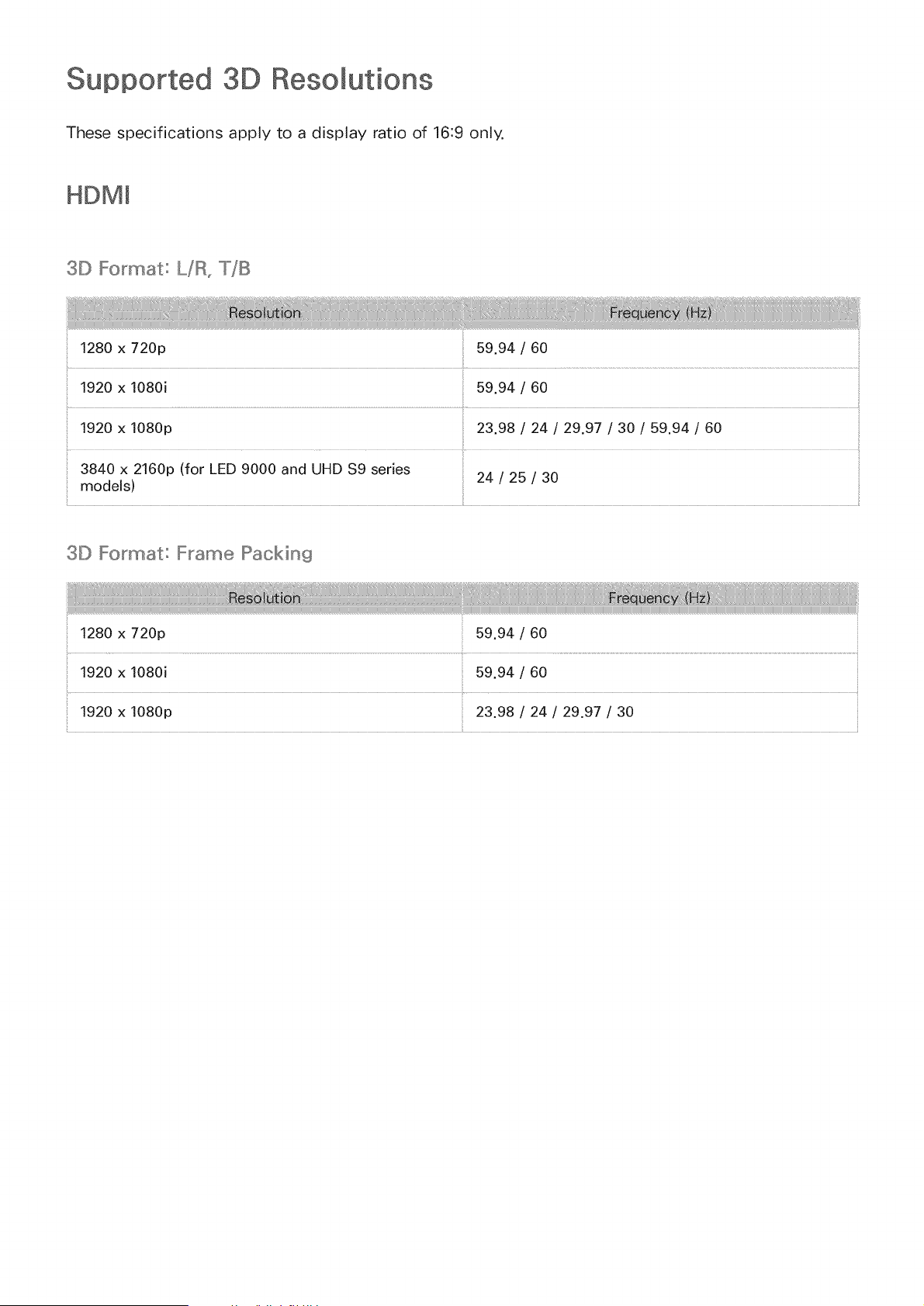
3D Resomutions
These specifications apply to a display ratio of 16:9 only.
HDMm
3D Format: _,,,,,,,,/R,T/B
!280 x 720p 59.94 / 60
!920 x 1080i 59.94 / 60
1920 x 1080p 23.98 / 24 / 29.97 / 30 / 59.94 / 60
3840 x 2160p (for LED 9000 and UHD $9 series
models) 24 / 25 / 30
3D Format: Frame Packin9
1280 x 720p 59.94 / 60
!920 x 1080p 23.98 / 24 / 29.97 / 30
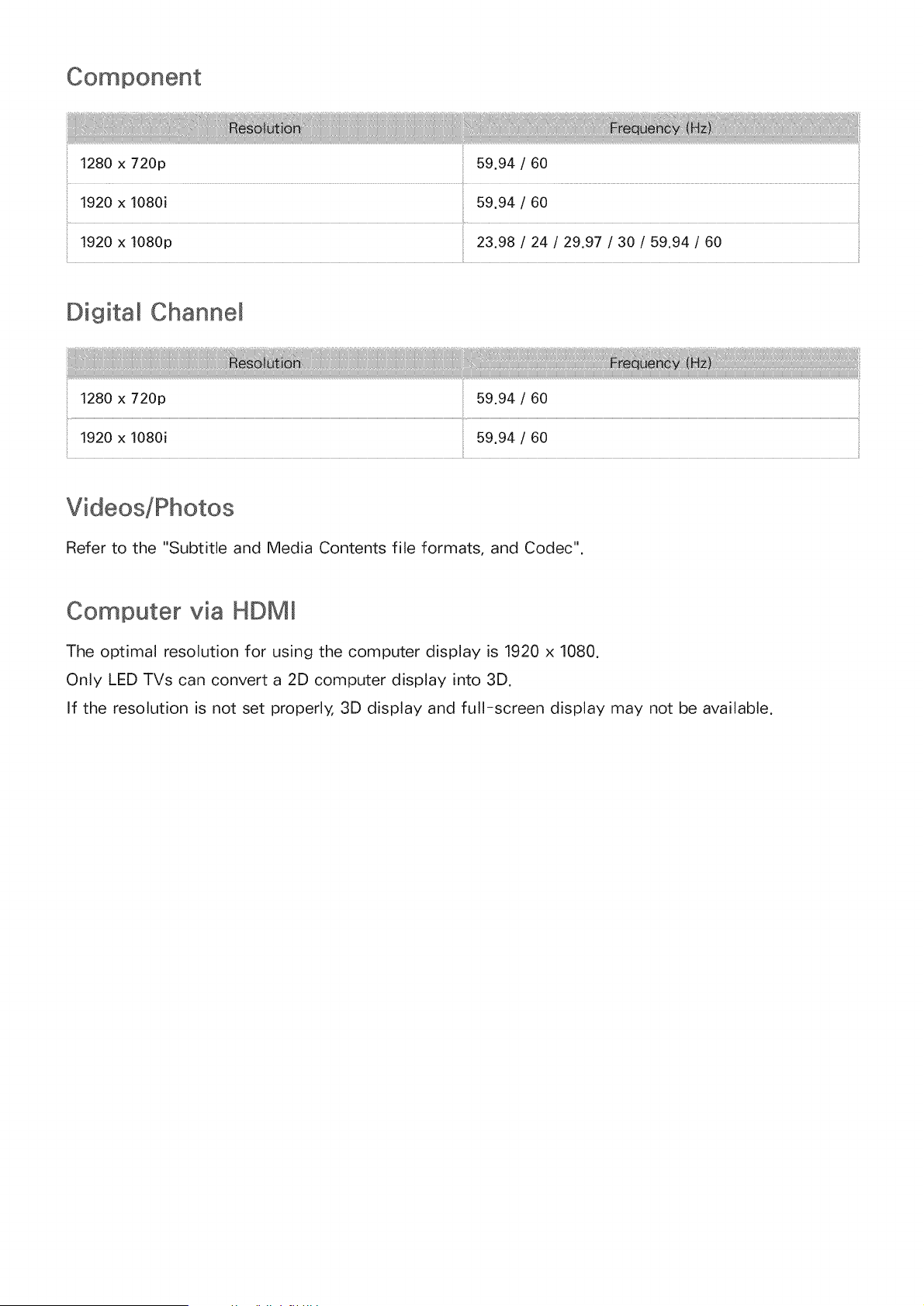
59.94 / 60
1920 x 1080i 59.94 / 60
!920 x 1080p 23.98 / 24 / 29.97 / 30 / 59.94 / 60
Digital Channem
1280 x 720p
1920 x 1080i 59.94 / 60
Refer to the "Subtitle and Media Contents file formats, and Codec".
Computer via HDMm
The optimal resolution for using the computer display is 1920 x 1080.
Only LED TVs can convert a 2D computer display into 3D.
If the resolution is not set properly, 3D display and full-screen display may not be available.
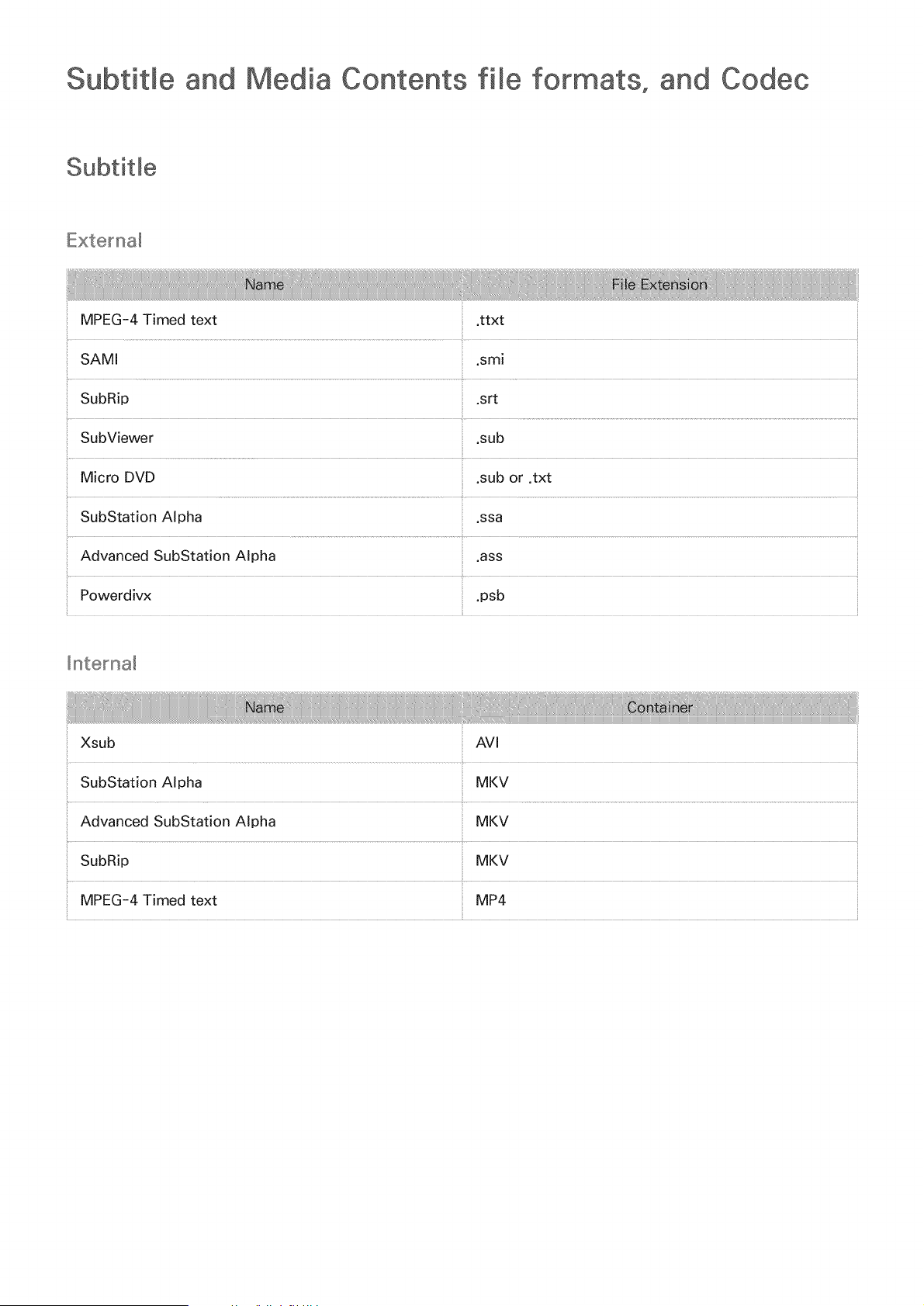
Subtitle and Media Contents fi_e formats, and
MPEG-4 Timed text ttxt
SAMI .smi
SubRip srt
SubViewer .sub
Micro DVD .sub or .txt
SubStation Alpha .ssa
Advanced SubStation Alpha ass
Powerdivx .psb
Xsub AVI
SubStation Alpha MKV
Advanced SubStation Alpha MKV
SubRip MKV
MPEG-4 Timed text MP4

Supported image resolutions
*'JPg 15360x8640
*.jpeg
*.prig PNG 4096x4096
*.bmp BMP 4096x4096
*.mpo MPO 15360x8640
Supported music file formats
*.mp3 MPEG MPEG1 Audio Layer 3
*.m4a
*.mpa MPEG4 AAC
*.aac
*.flac FLAC FLAC Supports up to 2 channel
Supports up to 2 channel
*.wma WMA WMA Iossless audio is not supported. Supports up to
*.way way way
*.mid
*.midi midi midi type O, type 1 are supported.
*.ape ape ape
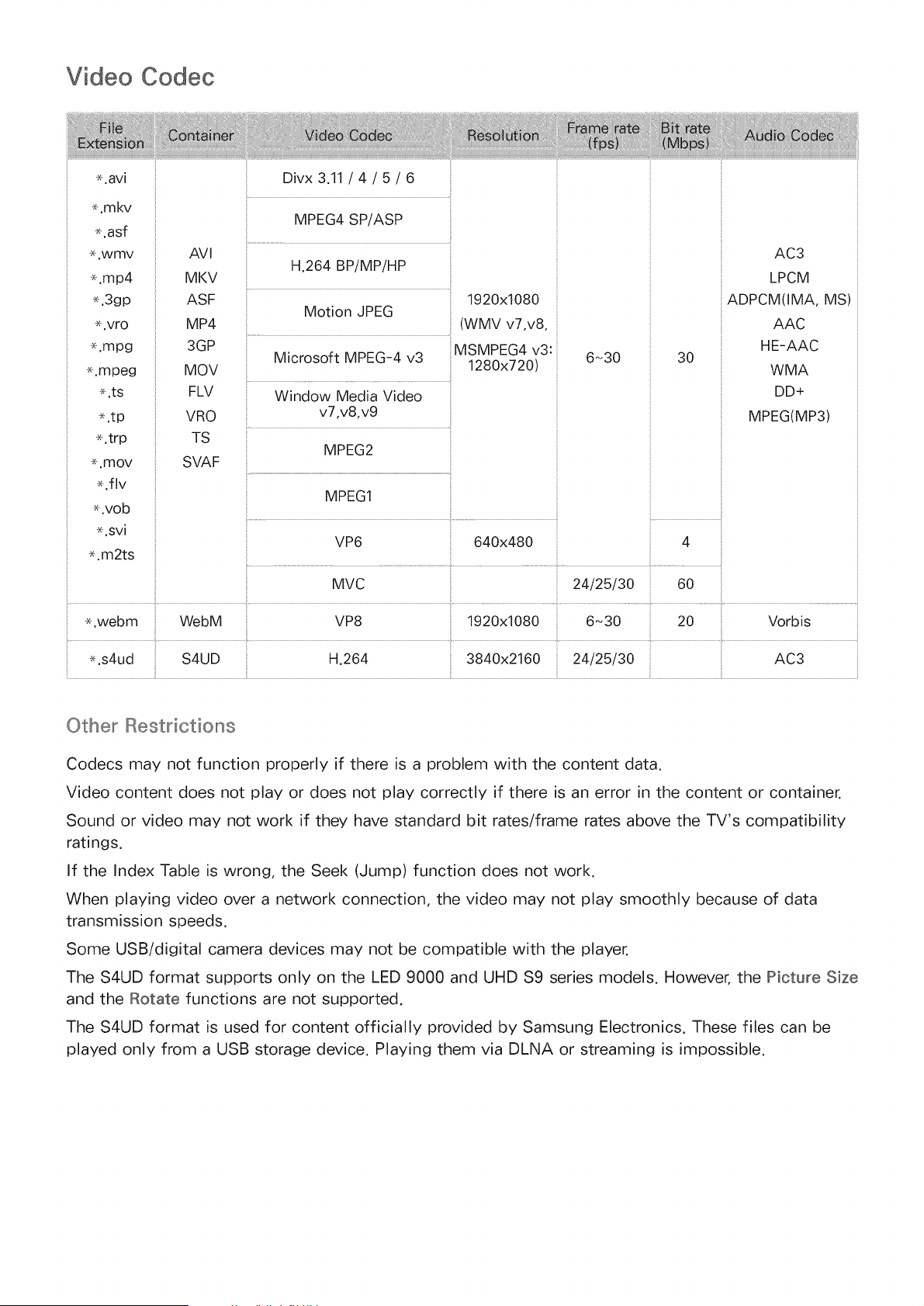
Video Codec
*.avi
.mkv
*.asf
.wmv
.mp4
*.3gp
-_,vro
.mpg
.mpeg
.ts
.tp
.trp
*.mov
.flv
*.vob
*.svi
*.m2ts
AVI
MKV
ASF
MP4
3GP
MOV
FLV
VRO
TS
SVAF
Divx 3.11 / 4 / 5 / 6
MPEG4 SP/ASP
H.264 BP/MP/HP
1920x1080
Motion JPEG
(WMV v7,v8,
MSMPEG4 v3:
Microsoft MPEG-4 v3 1280x720)
Window Media Video
v7,v8,v9
MPEG2
MPEG1
6~30 30
VP6 640x480 4
IVlVC 24/25/30 60
i
AC3
LPCM
ADPCM(IMA, MS)
AAC
HE-AAC
WMA
DD+
MPEG(MP3)
Other Restrictions
Codecs may not function properly if there is a problem with the content data.
Video content does not play or does not play correctly if there is an error in the content or container.
Sound or video may not work if they have standard bit rates/frame rates above the TV's compatibility
ratings.
If the Index Table is wrong, the Seek (Jump) function does not work.
When playing video over a network connection, the video may not play smoothly because of data
transmission speeds.
Some USB/digital camera devices may not be compatible with the player.
The S4UD format supports only on the LED 9000 and UHD $9 series models. However, the Picture Size
and the Rotate functions are not supported.
The S4UD format is used for content officially provided by Samsung Electronics. These files can be
played only from a USB storage device. Playing them via DLNA or streaming is impossible.
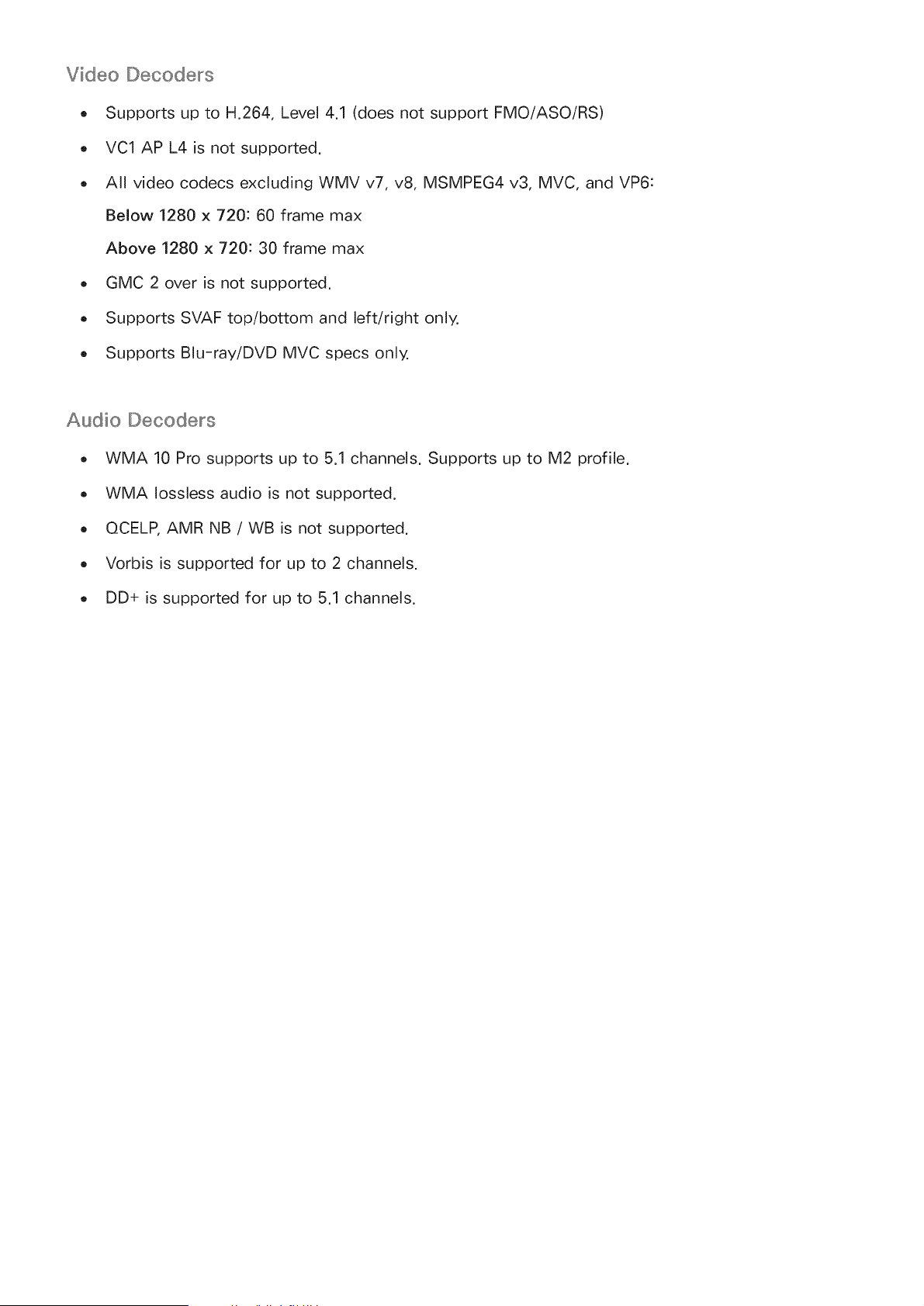
Video Decoders
e Supports up to H.264, Level 4.1 (does not support FMO/ASO/RS)
o VCl AP L4 is not supported.
All video codecs excluding WMV v7, v8, MSMPEG4 v3, MVC, and VP6:
Below 1280 x 720:60 frame max
Above 1280 x 720:30 frame max
. GMC 2 over is not supported.
. Supports SVAF top/bottom and left/right only.
. Supports Blu-ray/DVD MVC specs only.
Audio Decoders
- WMA 10 Pro supports up to 5.1 channels. Supports up to M2 profile.
. WMA Iossless audio is not supported.
- QCELR AMR NB / WB is not supported.
. Vorbis is supported for up to 2 channels.
. DD+ is supported for up to 5.1 channels.
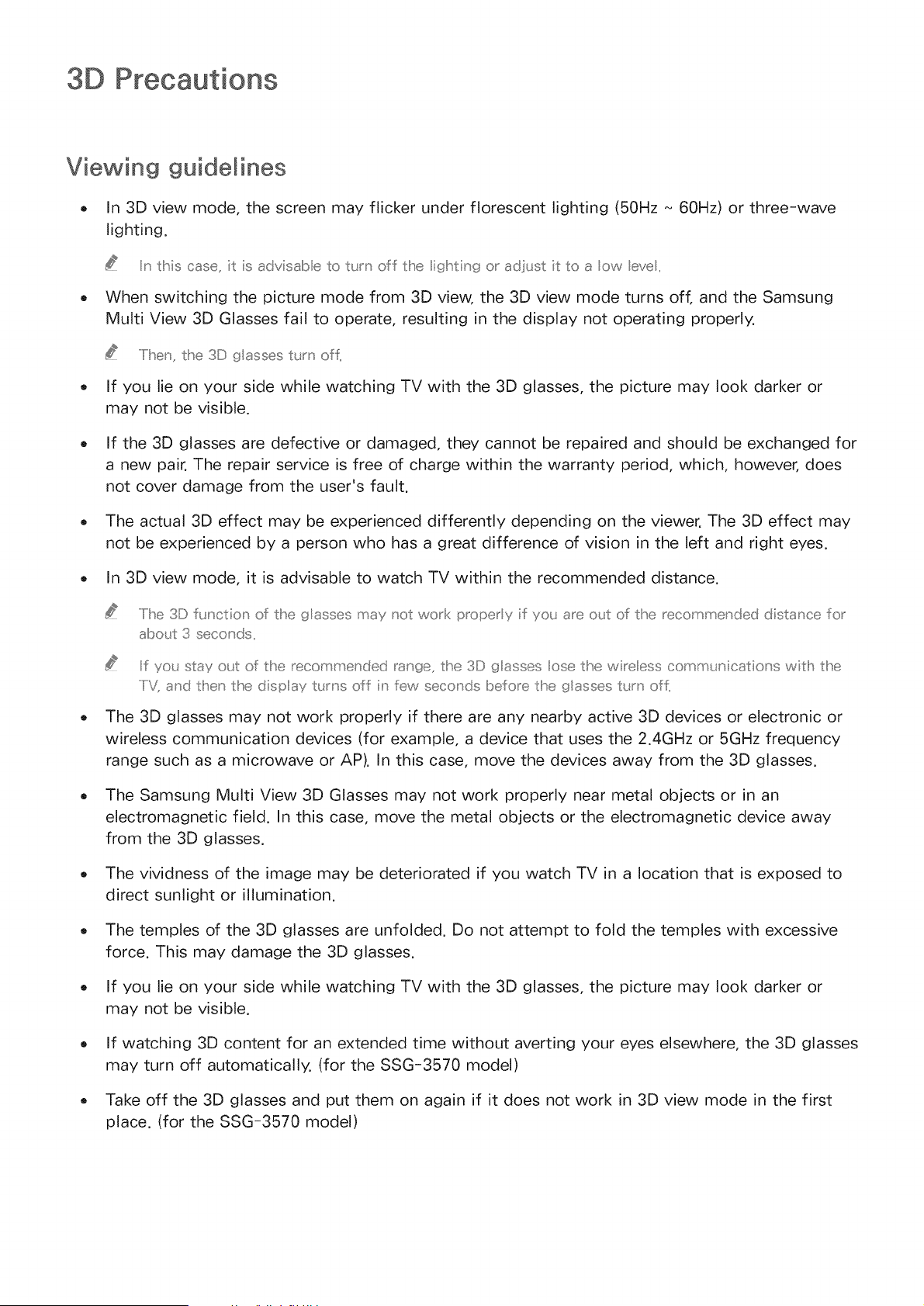
3D Precautions
Viewing guidelines
o In 3D view mode, the screen may flicker under florescent lighting (50Hz ~ 60Hz) or three-wave
lighting.
Iin this case t s advsabe to ttrn off the ighting or ad]tst t to a ow eve,,
When switching the picture mode from 3D view, the 3D view mode turns off, and the Samsung
Multi View 3D Glasses fail to operate, resulting in the display not operating properly.
.....Iihen the 3D glasses t_rn of L
If you lie on your side while watching TV with the 3D glasses, the picture may look darker or
may not be visible.
If the 3D glasses are defective or damaged, they cannot be repaired and should be exchanged for
a new pair. The repair service is free of charge within the warranty period, which, however, does
not cover damage from the user's fault.
The actual 3D effect may be experienced differently depending on the viewer. The 3D effect may
not be experienced by a person who has a great difference of vision in the left and right eyes.
In 3D view mode, it is advisable to watch TV within the recommended distance.
.....Iihe 3D f_nctior_ of the glasses may _ot wo_k p_ope_ y f yo_ a_e o_£ of the _ecommended distance for
abo_£ 3 seco _ds,,
Iif yo_ stay o_,_ of the recommended _ange, the 3D glasses ose the w _eess comm_ n catio _s wth the
.....1i',4 and then the disp ay t_fns off n few seco _ds befo_e the glasses t_rn of{,
The 3D glasses may not work properly if there are any nearby active 3D devices or electronic or
wireless communication devices (for example, a device that uses the 2.4GHz or 5GHz frequency
range such as a microwave or AP). In this case, move the devices away from the 3D glasses.
The Samsung Multi View 3D Glasses may not work properly near metal objects or in an
electromagnetic field. In this case, move the metal objects or the electromagnetic device away
from the 3D glasses.
The vividness of the image may be deteriorated if you watch TV in a location that is exposed to
direct sunlight or illumination.
The temples of the 3D glasses are unfolded. Do not attempt to fold the temples with excessive
force. This may damage the 3D glasses.
If you lie on your side while watching TV with the 3D glasses, the picture may look darker or
may not be visible.
If watching 3D content for an extended time without averting your eyes elsewhere, the 3D glasses
may turn off automatically. (for the SSG-3570 model)
Take off the 3D glasses and put them on again if it does not work in 3D view mode in the first
place. (for the SSG-3570 model)

IMPORTANT HEALTH AND SAFETY INFORMATION FOR 3D IMAGES. READ THE FOLLOWING
CAUTIONS BEFORE YOU OR YOUR CHILD USE THE 3D FUNCTION.
o Adults should frequently check on children who are using the 3D function. If there are any
complaints of tired eyes, headaches, dizziness or nausea, stop the child from viewing the 3D TV
and ensure that they rest.
Do not use the 3D glasses for any purpose other than the intended purpose, such as general
eyeglasses, sunglasses, protective goggles.
Some viewers may experience discomfort such as dizziness, nausea and headaches while viewing
3D TV. If you experience any of these symptoms, stop watching the 3D content, remove the 3D
glasses, and take a rest.
An extended period of watching TV in 3D view mode may cause eye fatigue. In this case, stop
watching the 3D content immediately, take off the 3D glasses and allow your eyes to rest.
Do not use the 3D function or the 3D glasses while walking or moving around. Wearing the 3D
glasses while moving around may result in injury due to running into objects, tripping and/or
falling.
If you sleep with the 3D glasses on, the temples on the glasses may become broken.
The temples of the 3D glasses are unfolded. Do not attempt to fold the temples with excessive
force. Folding the temples with excessive force may damage the 3D glasses.
Do not shake your 3D glasses repeatedly. Shaking the glasses will power them on and can cause
the battery to discharge faster than it should. (for the SSG-3570 model)

SAFETY PRECAUTIONS
The following safety instructions are to ensure your personal safety and prevent property damage.
Please read them to ensure the proper use of the product.
o Do not place the product in a location exposed to direct sunlight, heat, fire, or water. Exposure
may result in a product malfunction or fire.
Do not apply force to the lenses of the 3D glasses. Do not drop or bend the product. Applying
force, dropping, or bending may result in a product malfunction.
Keep components of the 3D glasses out of reach of children, and especially ensure children do
not swallow one of the components. If your child swallowed a component, consult your doctor
immediately.
When cleaning the product, do not spray water or cleaner directly onto the surface of the product.
Spraying water or cleaner directly onto the glasses may result in fire or electric shock, damage to
the product's surface, or cause the indicator labels on the product's surface to come loose.
Do not apply chemicals containing alcohol, solvent, or surfactant such as wax, benzene, thinner,
pesticide, air freshener, lubricant, or cleaner to the product. These chemicals may cause the
product's exterior to be discolored or cracked, or labels or instructions to be removed. Use only
a soft cloth such as superfine fibers or cotton flannels for cleaning the product as the surface or
the lenses easily cracks. Because the product can be easily scratched with foreign substances,
make sure to dust off the cloth before using.
Do not sleep while wearing the 3D glasses. Wearing the 3D glasses while sleeping may damage
them.
Do not disassemble, repair, or modify the 3D glasses by yourself. Do not use a product that is
damaged.
Take care that you do not injure your eyes with the edges of the frame of the 3D glasses when
wearing them.
o
o
Put the 3D glasses on and take them off with both hands.
Use only approved batteries, and make sure to insert the batteries in the correct polarities. If
the batteries are replaced in the wrong polarities, the batteries may implode or leak its internal
chemicals, which may cause fire, inflict injury on users, or contaminate (damage) its environment.
(for the SSG-3570 model)
Keep the removed batteries out of childrens' reach to prevent children from swallowing them. If
they swallow them, consult with a doctor immediately. (for the SSG-3570 model)
S-Recommendation DiscNaimer
For U.S.A. only
S Recommendation "with Voice mnteraction
Recommendation given to common speech commands
Voice Interaction limited to the official language of the country of purchase.Performance may vary
based on content availability, clarity and volume of your voice, and ambient noise levels.Strong
regional accents may not be recognized.
Certain Samsung Smart TV features may not be available without express consent to the collection
and use of personal information.
Certain features within S Recommendation require internet access and may not be available based on
service provider, language, dialect and region.
On TV listings are available from many major video providers and broadcasters. For a complete list of
supported video providers visit www.samsung.com/ONTV.
Actual remote control may differ from image shown.
S Recommendation
Content recommendations to fit your TV viewing preferences
Certain Samsung Smart TV features may not be available without express consent to the collection
and use of personal information.
Certain features within S Recommendation require internet access and may not be available based on
service provider, language, dialect and region.
On TV listings are available from many major video providers and broadcasters. For a complete list of
supported video providers visit www.samsung.com/ONTV.
Actual remote control may differ from image shown.

Licenses
HD
DivX Certified@ to play DivX@ video up to HD 1080p, including premium content.
DivX@, DivX Certified@ and associated Iogos are trademarks of Rovi Corporation or its subsidiaries and are used
under license.
ABOUT DIVX VIDEO: DivX@ is a digital video format created by DivX, LLC, a subsidiary of Rovi Corporation. This
is an official DivX Certified@ device that plays DivX video. Visit divx.com for more information and software
tools to convert your files into DivX videos.
ABOUT DIVX VIDEO-ON-DEMAND: This DivX Certified@ device must be registered in order to play purchased
DivX Video-on-Demand (VOD) movies. To obtain your registration code, locate the DivX VOD section in your
device setup menu. Go to vod.divx.com for more information on how to complete your registration.
Covered by one or more of the following U.S. patents: 7,295,673; 7,460,668; 7,515,710; 7,519,274
PremiumS0und 15.1
Manufactured under a license from U.S. Patent No's: 5,956,674, 5,974,380, 5,978,762, 6,487,535, 6,226,616,
7,212,872, 7,003,467, 7,272,567, 7,668,723, 7,392,195, 7,930,184, 7,333,929 and 7,548,853. DTS, the Symbol,
and DTS and the Symbol together are registered trademarks & DTS Premium Sound I 5.1 is a trademark of DTS,
Inc. @2012 DTS, Inc. All Rights Reserved.
| DOLBY
DIGITAL PLUS I
PULSE I
Manufactured under license from Dolby Laboratories.
Dolby and the doubte-D symbol are trademarks of Dolby Laboratories.
The terms HDMI and HDMI High-Definition Multimedia Interface, and the HDMI Logo are trademarks or registered
trademarks of HDMI Licensing LLC in the United States and other countries.
Open Source License Notice
In the case of using open source software, Open Source Licenses are available on the product menu.
Open Source License Notice is written only English.
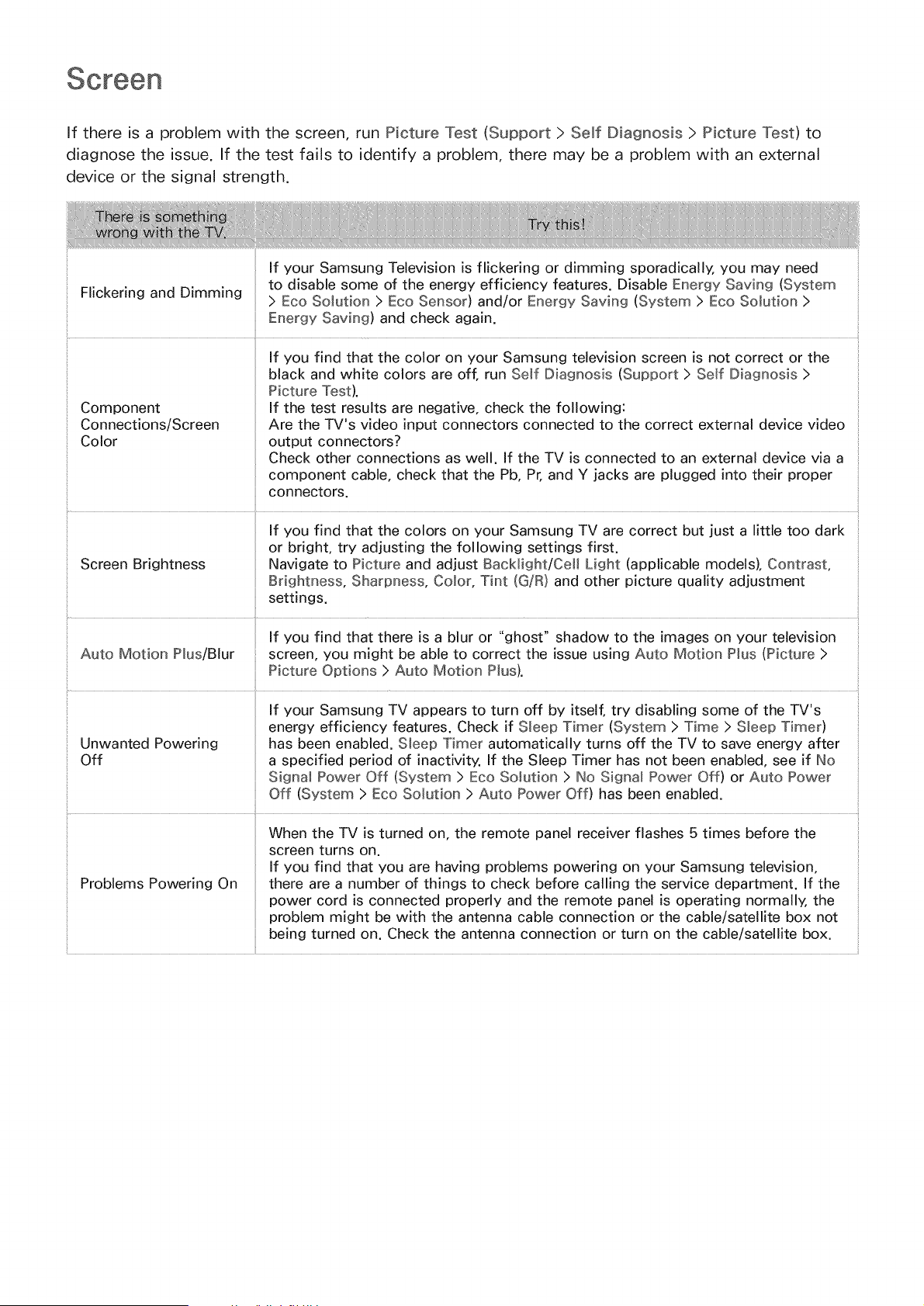
If there is a problem with the screen, run Picture Test (Support > Semf Diagnosis > Picture Test) to
diagnose the issue. If the test fails to identify a problem, there may be a problem with an external
device or the signal strength.
If your Samsung Television is flickering or dimming sporadically, you may need
Flickering and Dimming to disable some of the energy efficiency features. Disable Energy Saving (System
> Eco Solution > Eco Sensor) and/or Energy Saving (System > Eco Solution >
Energy Saving) and check again.
If you find that the color on your Samsung television screen is not correct or the
black and white colors are off, run Self Diagnosis (Support > Self Diagnosis >
Picture Test).
Component If the test results are negative, check the following:
Connections/Screen Are the TV's video input connectors connected to the correct external device video
Color output connectors?
Check other connections as well. If the TV is connected to an external device via a
component cable, check that the Pb, Pr, and Y jacks are plugged into their proper
connectors.
you find that the colors on your Samsung TV are correct but just a little too dark
If
or bright, try adjusting the following settings first.
Screen Brightness Navigate to Picture and adjust BacMight/Cell Light (applicable models), Contrast,
Brightness, Sharpness, Color, Tint (G!R) and other picture quality adjustment
settings.
Unwanted Powering
Off
Problems Powering On
If your Samsung TV appears to turn off by itself, try disabling some of the TV's
energy efficiency features. Check if Sleep Timer (System > Time > Sleep Timer)
has been enabled. Sleep Timer automatically turns off the TV to save energy after
a specified period of inactivity. If the Sleep Timer has not been enabled, see if [to
Signa_ Power Off (System > Eco Solution > No Signa_ Power Off) or Auto Power
Off (System > Eco Solution > Auto Power Off) has been enabled.
When the TV is turned on, the remote panel receiver flashes 5 times before the
screen turns on.
If you find that you are having problems powering on your Samsung television,
there are a number of things to check before calling the service department. If the
power cord is connected properly and the remote panel is operating normally, the
problem might be with the antenna cable connection or the cable/satellite box not
being turned on. Check the antenna connection or turn on the cable/satellite box.
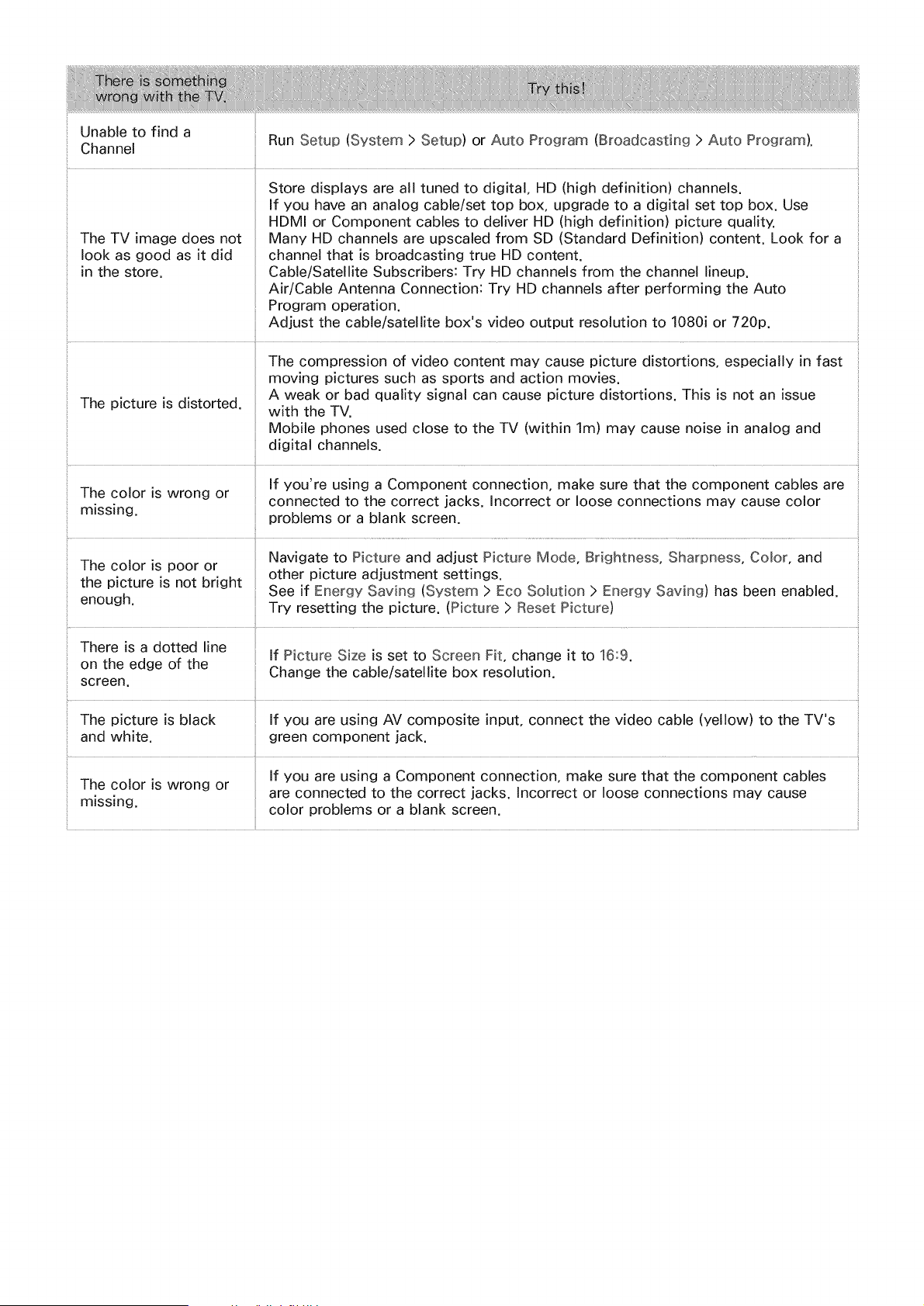
Unableto find a
RunSetup(System>Setup)or AutoProgram(Broadcasting>AutoProgram).
Channel
i
Store displays are all tuned to digital, HD (high definition) channels.
If you have an analog cable/set top box, upgrade to a digital set top box. Use
HDMI or Component cables to deliver HD (high definition) picture quality.
The TV image does not Many HD channels are upscaled from SD (Standard Definition) content. Look for a
look as good as it did channel that is broadcasting true HD content.
in the store. Cable/Satellite Subscribers: Try HD channels from the channel lineup.
Air/Cable Antenna Connection: Try HD channels after performing the Auto
Program operation.
Adjust the cable/satellite box's video output resolution to 1080i or 720p.
The compression of video content may cause picture distortions, especially in fast
moving pictures such as sports and action movies.
A weak or bad quality signal can cause picture distortions. This is not an issue
The picture is distorted, with the TV.
Mobile phones used close to the TV (within lm) may cause noise in analog and
digital channels.
If you're using a Component connection, make sure that the component cables are
The color is wrong or
connected to the correct jacks. Incorrect or loose connections may cause color
missing, problems or a blank screen.
_, . Nav gate to P cture and adjust P cture Mode Br ghtness Sharpness Color and
/ne color is poor or . . . " " " "
.......... other p_cture adjustment settings
tne picture is not orlgnt
See if Energy Sawng (System > Eco Solution > Energy Saving) has been enabled,
enough. Try resetting the picture, (Picture > Reset Picture)
There is a dotted line
If Picture Size is set to Screen Fit, change it to 16:9.
on the edge of the
Change the cable/satellite box resolution.
screen.
The picture is black If you are using AV composite input, connect the video cable (yellow) to the TV's
and white, green component jack.
If you are using a Component connection, make sure that the component cables
The color is wrong or are connected to the correct jacks. Incorrect or loose connections may cause
missing, color problems or a blank screen.
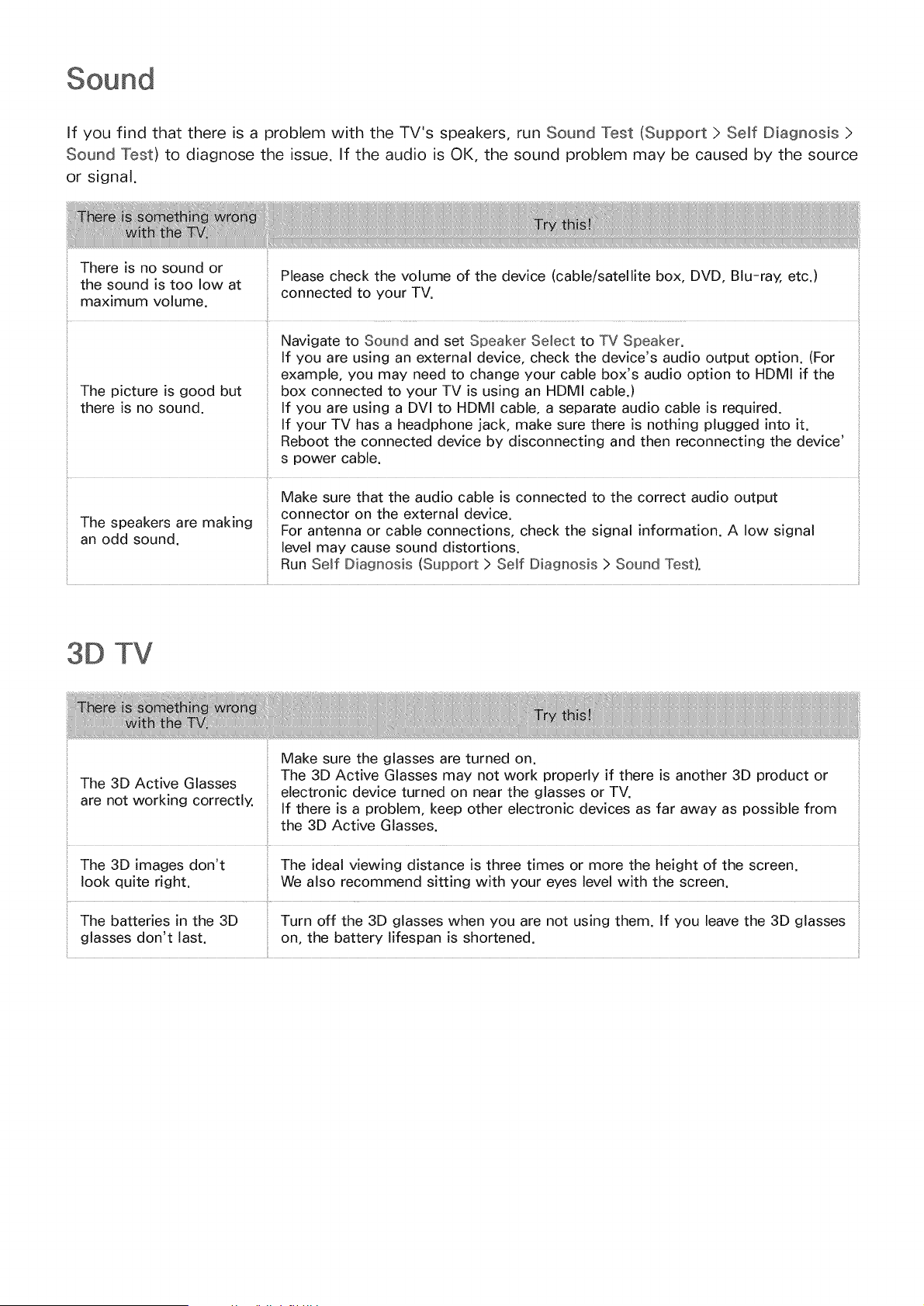
If you find that there is a problem with the TV's speakers, run Sound Test (Support > Self Diagnosis >
Sound Test) to diagnose the issue. If the audio is OK, the sound problem may be caused by the source
or signal.
There is no sound or Please check the volume of the device (cable/satellite box, DVD, Btu-ray. etc.)
the sound is too low at
connected to your TV.
maximum volume.
Navigate to Sound and set Speaker Select to TV Speaker.
If you are using an external device, check the device's audio output option. (For
example, you may need to change your cable box's audio option to HDMI if the
The picture is good but box connected to your TV is using an HDMI cable.)
there is no sound. If you are using a DVl to HDMI cable, a separate audio cable is required.
If your TV has a headphone jack, make sure there is nothing plugged into it.
Reboot the connected device by disconnecting and then reconnecting the device'
s power cable.
Make sure that the audio cable is connected to the correct audio output
connector on the external device.
The speakers are making For antenna or cable connections, check the signal information. A low signal
an odd sound, level may cause sound distortions.
Run Self Diagnosis (Support > Self Diagnosis > Sound Test).
3D TV
Make sure the glasses are turned on.
The 3D Active Glasses may not work properly if there is another 3D product or
The 3D Active Glasses
are not working correctly, electronic device turned on near the glasses or TV.
If there is a problem, keep other electronic devices as far away as possible from
the 3D Active Glasses.
The 3D images don't The ideal viewing distance is three times or more the height of the screen.
look quite right. We also recommend sitting with your eyes level with the screen.
The batteries in the 3D Turn off the 3D glasses when you are not using them. If you leave the 3D glasses
glasses don't last. on, the battery lifespan is shortened.
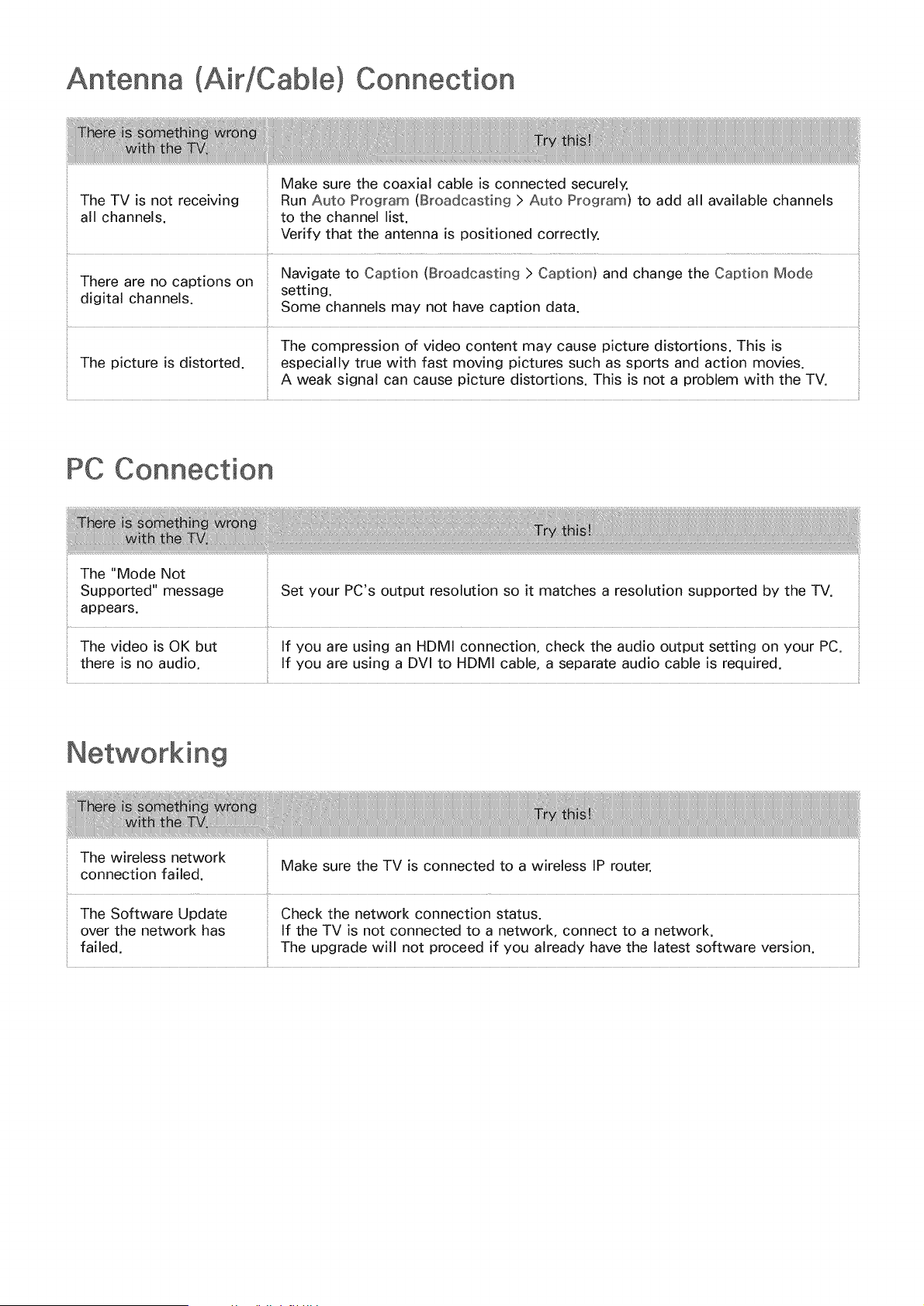
Antenna (Air/Cable) Connection
Make sure the coaxial cable is connected securely.
The TV is not receiving Run Auto Program (Broadcasting > Auto Program) to add all available channels
all channels, to the channel list.
Verify that the antenna is positioned correctly.
Navigate to Caption (Broadcasting > Caption) and change the Caption Mode
There are no captions on
digital channels, setting.
Some channels may not have caption data.
The compression of video content may cause picture distortions. This is
The picture is distorted, especially true with fast moving pictures such as sports and action movies.
A weak signal can cause picture distortions. This is not a problem with the TV.
PC Connection
The "Mode Not
Supported" message
appears.
Set your PC's output resolution so it matches a resolution supported by the TV.
The video is OK but : If you are using an HDMI connection, check the audio output setting on your PC. :
there is no audio. If you are using a DVl to HDMI cable, a separate audio cable is required.
Networking
The wireless network
connection failed.
Make sure the TV is connected to a wireless IP router.
The Software Update
over the network has
failed.
Check the network connection status.
If the TV is not connected to a network, connect to a network.
The upgrade will not proceed if you already have the latest software version.
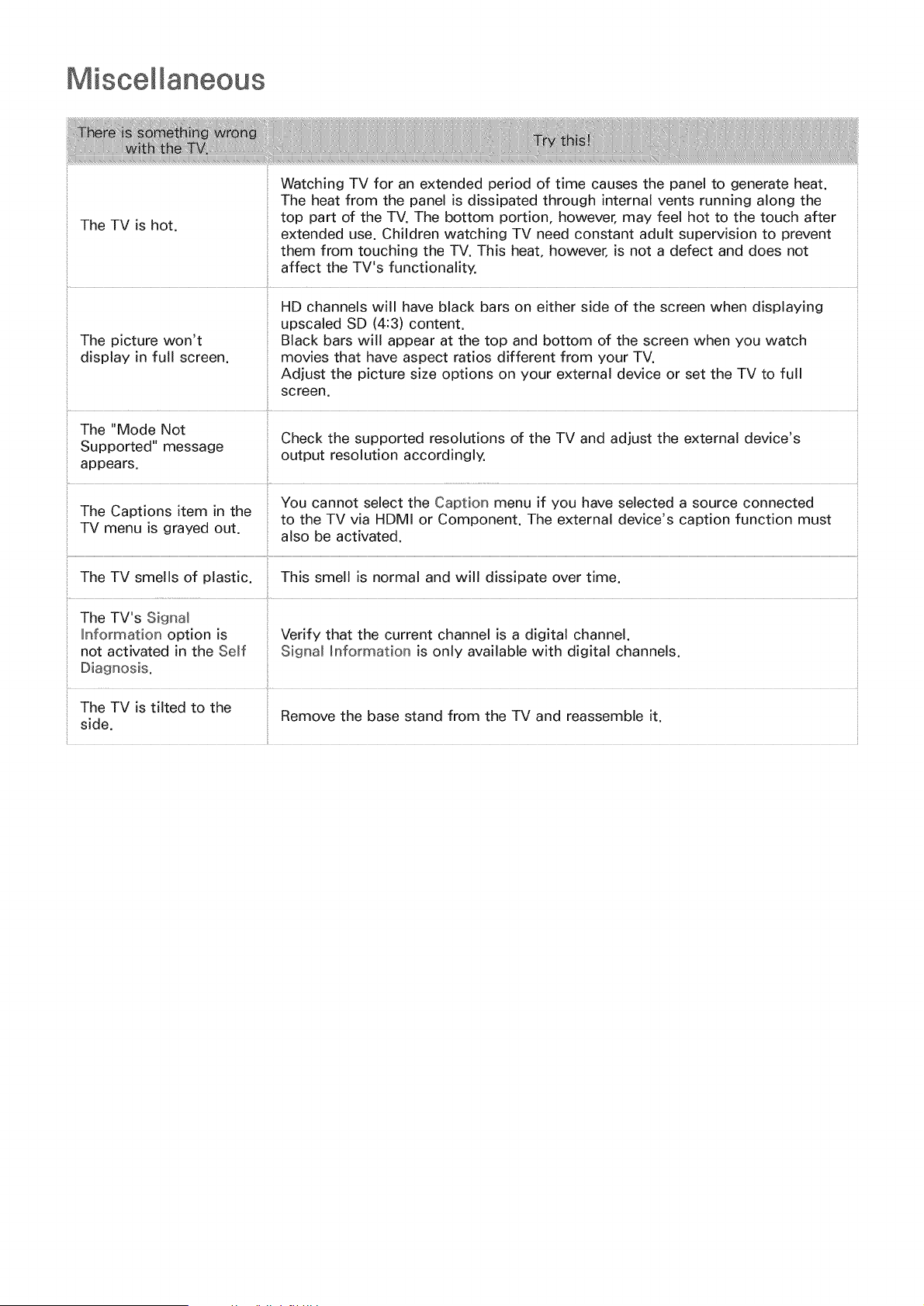
Miscellaneous
Watching TV for an extended period of time causes the panel to generate heat.
The heat from the panel is dissipated through internal vents running along the
The TV is hot. top part of the TV. The bottom portion, however, may feel hot to the touch after
extended use. Children watching TV need constant adult supervision to prevent
them from touching the TV. This heat, however, is not a defect and does not
affect the TV's functionality.
HD channels will have black bars on either side of the screen when displaying ::
upscaled SD (4:3) content.
The picture won't Black bars wi!l appear at the top and bottom of the screen when you watch
display in full screen, movies that have aspect ratios different from your TV.
Adjust the picture size options on your external device or set the TV to full
screen.
The "Mode Not
Check the supported resolutions of the TV and adjust the external device's
Supported" message
output resolution accordingly.
appears.
You cannot select the Caption menu if you have selected a source connected
The Captions item in the
to the TV via HDMI or Component. The external device's caption function must
TV menu is grayed out. also be activated.
The TV smells of plastic. This smell is normal and will dissipate over time.
The TV's Signal
Information option is Verify that the current channel is a digital channel.
not activated in the Se_f Signal Information is only available with digital channels.
Diagnosis.
The TV is tilted to the
Remove the base stand from the TV and reassemble it.
side.

Broadcastingisgrayed
out.
Thesettingsarelost
after30 minutesor every
timetheTVisturnedoff.
TheBroadcastingmenuisonlyavailablewhenSourceis setto TV.
TheBroadcastingmenucannotbeaccessedwhilewatchingTVusinga cable
boxor satellitereceiver.
if UseModeis setto StoreDemo,theTV'saudioandvideosettingsare
automaticallyresetevery30minutes.
ChangeUseMode(Support>UseMode)to HomeUse.
Checkthecableconnectionsandreconnectthem.
Thereis anintermittent Lossof audioorvideocanbecausedbyusingoverlyrigidorthickcables.
lossof audioorvideo. Makesurethecablesareflexibleenough for long term use. If you are mounting
the TV to a wall, we recommend using cables with 90-degree connectors.
There are small particles This is part of the product's design and is not a defect.
on the TV's bezel.
The PIP menu is not ProPfunctionality is only available when you are using an HDMI or Component
available, source.
A POP (TV's internal
banner ad) appears on Change Use Mode (Support > Use Mode) to Home Use.
the screen.
The TV is making a The expansion and contraction of the TV's outer casing may cause a popping
popping noise, noise. This does not indicate a product malfunction. The TV is safe to use.
..........................................................................................................................................................................................................................................................................i ............................................................................................................................................................................................................................................................................................................................................................................................................................................................................................................................................
Your TV utilizes high-speed switching circuits and high levels of electrical
current, and depending on the brightness level being used may seem slightly
noisier than a conventional TV.
The TV is making a
Your TV has undergone strict quality control procedures that meet our
humming noise.
demanding performance and reliability requirements.
Some noise coming from the TV is considered normal and is not an acceptable
cause for an exchange or refund.
This issue affects PDP TVs only. Watching TV for an extended period of time or
using the 4:3 screen ratio only may result in burn-ins.
PDP TVs are equipped with Pixel Shift screen burn reduction technology. Pixel
image Retention (Burn Shift technology reduces screen burn-ins in PDP TVs.
in) issue
it does this by moving the picture slightly vertically or horizontally.
Use Screen Burn Protection (System > Screen Burn Protection) to prevent
screen burn-ins.
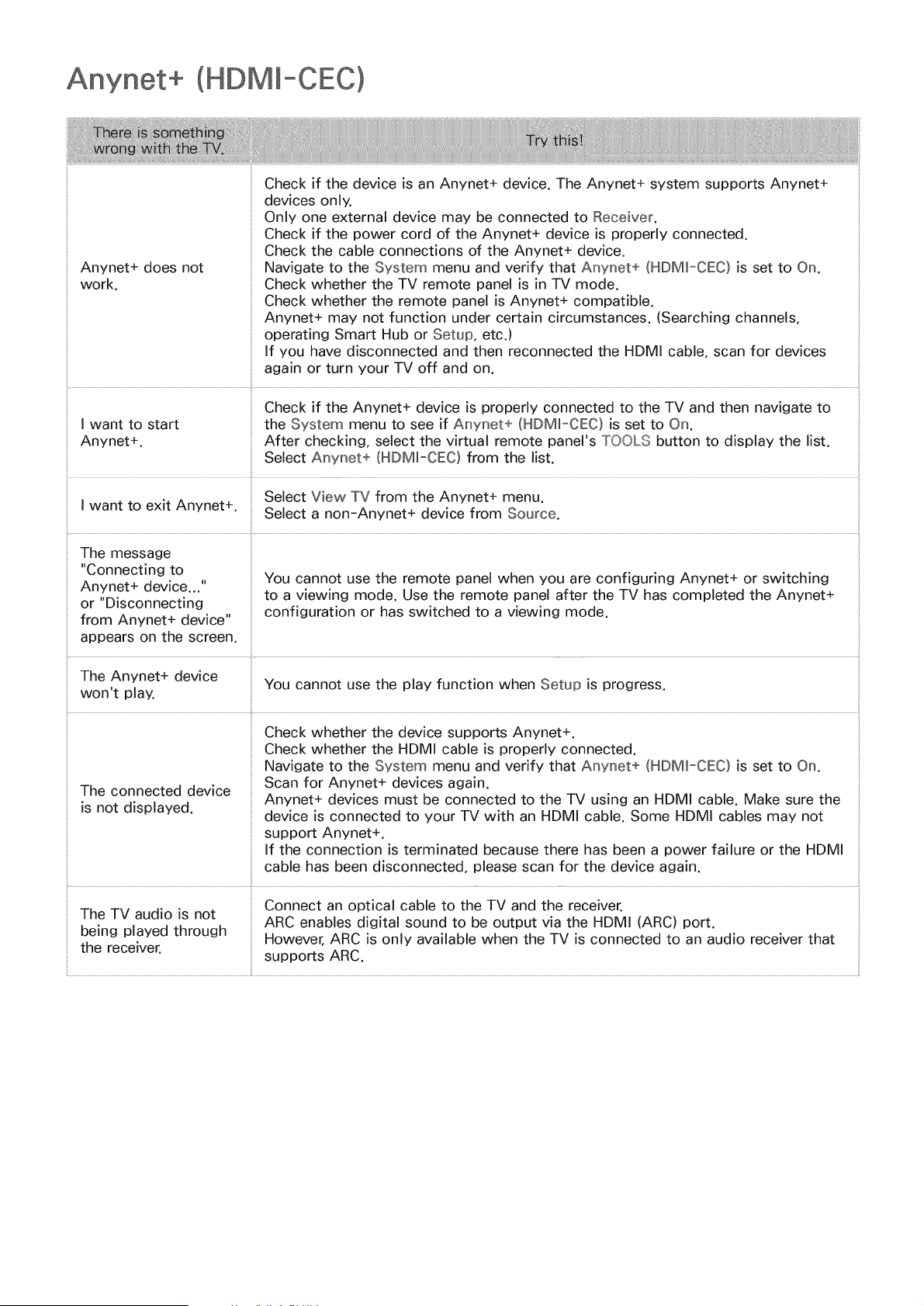
(HDMI-CEC)
Check if the device is an Anynet+ device. The Anynet+ system supports Anynet+
devices only.
Only one external device may be connected to Receiver.
Check if the power cord of the Anynet+ device is properly connected.
Check the cable connections of the Anynet+ device.
Anynet+ does not Navigate to the System menu and verify that Anynet+ (HDM_-CEC) is set to On.
work. Check whether the TV remote panel is in TV mode.
Check whether the remote panel is Anynet+ compatible.
Anynet+ may not function under certain circumstances. (Searching channels,
operating Smart Hub or Setup, etc.)
If you have disconnected and then reconnected the HDMI cable, scan for devices
again or turn your TV off and on.
Check if the Anynet+ device is properly connected to the TV and then navigate to
I want to start the System menu to see if Anynet+ (HDM_-CEC) is set to On.
Anynet+. After checking, select the virtual remote panel's TOOLS button to display the list.
Select Anynet+ (HDMJ=CEC) from the list.
Select View TV from the Anynet+ menu.
I
want to
exit
Anynet+.
Select a non-Anynet+ device from Source.
The message
"Connecting to
Anynet+ device..."
or "Disconnecting
from Anynet+ device"
appears on the screen.
i
You cannot use the remote panel when you are configuring Anynet+ or switching
to a viewing mode. Use the remote panel after the TV has completed the Anynet+
configuration or has switched to a viewing mode.
The Anynet+ device
You cannot use the play function when Setup is progress.
won't play.
Check whether the device supports Anynet+.
Check whether the HDMI cable is properly connected.
Navigate to the System menu and verify that Anynet+ (HDM_-CEC) is set to On.
Scan for Anynet+ devices again.
The connected device
is not displayed. Anynet+ devices must be connected to the TV using an HDMI cable. Make sure the
device is connected to your TV with an HDMI cable. Some HDMI cables may not
support Anynet+.
If the connection is terminated because there has been a power failure or the HDMI
cable has been disconnected, please scan for the device again.
Connect an optical cable to the TV and the receiver.
The TV audio is not
ARC enables digital sound to be output via the HDMI (ARC) port.
being played through However, ARC is only available when the TV is connected to an audio receiver that
the receiver.
supports ARC.
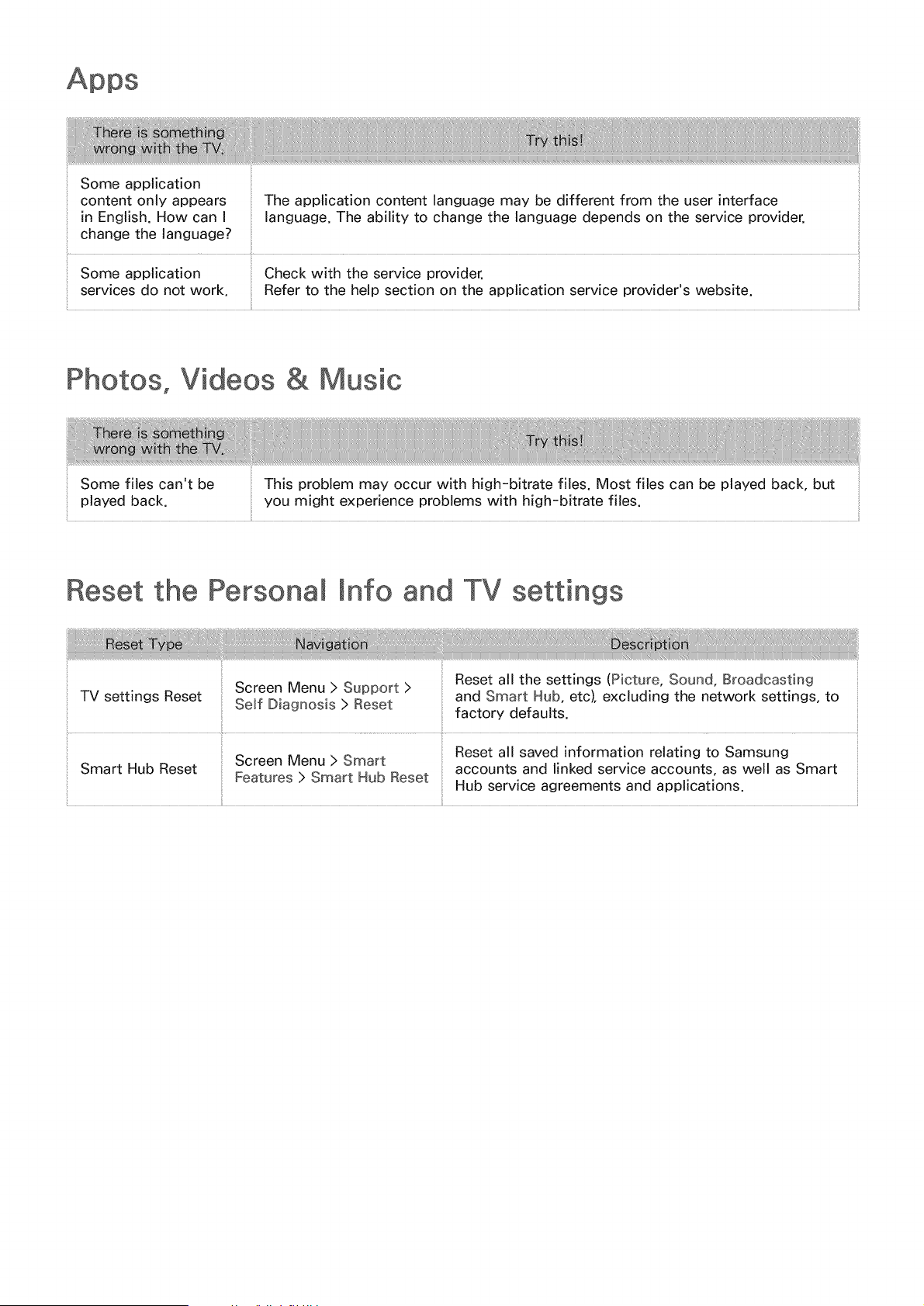
Someapplication
contentonlyappears Theapplicationcontentlanguagemaybedifferentfromtheuserinterface
in English.HowcanI language.Theabilityto changethelanguagedependsontheserviceprovider.
changethelanguage?
Someapplication Checkwith theserviceprovider.
servicesdo notwork. Referto thehelpsectionontheapplicationserviceprovider'swebsite.
Photos, Videos & Music
Some files can't be
played back.
This problem may occur with high-bitrate files. Most files can be played back, but
you might experience problems with high-bitrate files.
Reset the
lnfo and TV settings
Screen Menu > Support >
TV settings Reset
SeJf Diagnosis > Reset
Smart Hub Reset
Screen Menu > Smart
Features > Smart Hub Reset
{iii}ii}!}}!}}!}}!}}!}}!}}!}}!}}!}}!}}!}}!}}!}}!}}!}}!}}!}}!}}!}}!}}!}}!}}!}}!}}!}}!}}!}}!}}!}}!}}!}}!}}!}}!}}!}}!}}!}}!}}!}}!}}!}}@!}}!}}!}}!}}!}}!}}!}}!}}!}}!}}]}}!}}!}}!}}!}}!}}!}}!}}!}}!}}!}}!}}!}}!}}!}}!}}!}}!}}!}}!}}!}}!}}!}_!}i_}]}}!}}!}}!}}!}}!}!}i_}]}}!}}!}!}i_}]}}!}}!}}!}}!}}!}}!}}!}}!}}!}}!}}!}}!}}!}}!}}!}}[i_}}!ii@@@@@@@i!ii!ii!ii!ii!ii!i_<```<``!i@ii!ii!ii!ii!ii!ii!ii!ii!ii!ii!(i!{_
Reset all the settings (Picture, Sound, Broadcasting
and Smart Hub, etc), excluding the network settings, to
factory defaults.
Reset all saved information relating to Samsung
accounts and linked service accounts, as well as Smart
Hub service agreements and applications.
Web Browser
Select Web Browser. The browsing screen may differ from the one on your computer.
2, The web browser is not compatible with Java applications.
3, You cannot download files. If you attempt to download a file, you will receive an error message
instead.
4, The web browser may not be able to access certain websites.
Playing Flash videos may be restricted.
6, E-commerce for online purchases is not supported.
With websites that have scrollable windows, scrolling through such a window can result in
corrupted characters.
ActiveX is not supported.
Certain options are not accessible in Link Browsing mode. (Switch to Pointer Browsing to activate
this.)
10, Only a limited number of fonts are supported. Certain symbols and characters may not be
displayed properly.
The response to remote commands and the resulting on-screen display may be delayed while a
webpage is loading.
Loading a webpage may be delayed or suspended completely with certain operating systems.
The copy and paste operations are not supported.
When composing an email or a simple message, certain functions such as the font size and color
selection may not be available.
There is a limit to the number of bookmarks and the size of the log file that can be saved.
16, The number of windows that can be opened concurrently varies depending on the search
conditions and the TV model.
17, The web browsing speed will vary depending on the network environment.
PlayingembeddedvideoautomaticallydisablesPIP.Video playbackmaynot commenceafter PIP
is disabled.Inthis case,you will haveto reloadthe page.
Theweb browsersupports .mp3audio files only.
Theweb browsersupportsa specific file format for importingand exporting bookmarks.
(CompatibleFormat:Netscape-bookmarkfile-1)
Thefolder tree information is not includedwhenimporting and exporting bookmarks.
Exportingbookmarksto a USBdeviatceconnectedto the TV savesthe bookmarksundera folder
named"SamsungSmartTVBookmark".
If Clock (System>Time > Clock)has not beenenabled,the browsinghistory will not be saved.
Thebrowsinghistory is savedin the orderof latestto oldest, with the oldest entriesbeing
overwrittenfirst.
Dependingon the types of video/audiocodecssupported,it might not be possibleto play back
certainvideoand audiofiles duringFlashplayback.
A suddenchangein the picture brightnessinsidea video window may affect the brightnessof
the screen.Thisproblemappliesto PDPTVs only.
Videosourcesfrom PC-optimizedstreamingserviceprovidersmay not play properlyon our
proprietaryweb browser.
Usingthe on-screenQWERTYkeyboardautomaticallydisablesPIP.(Exceptwhenenteringa URL.)