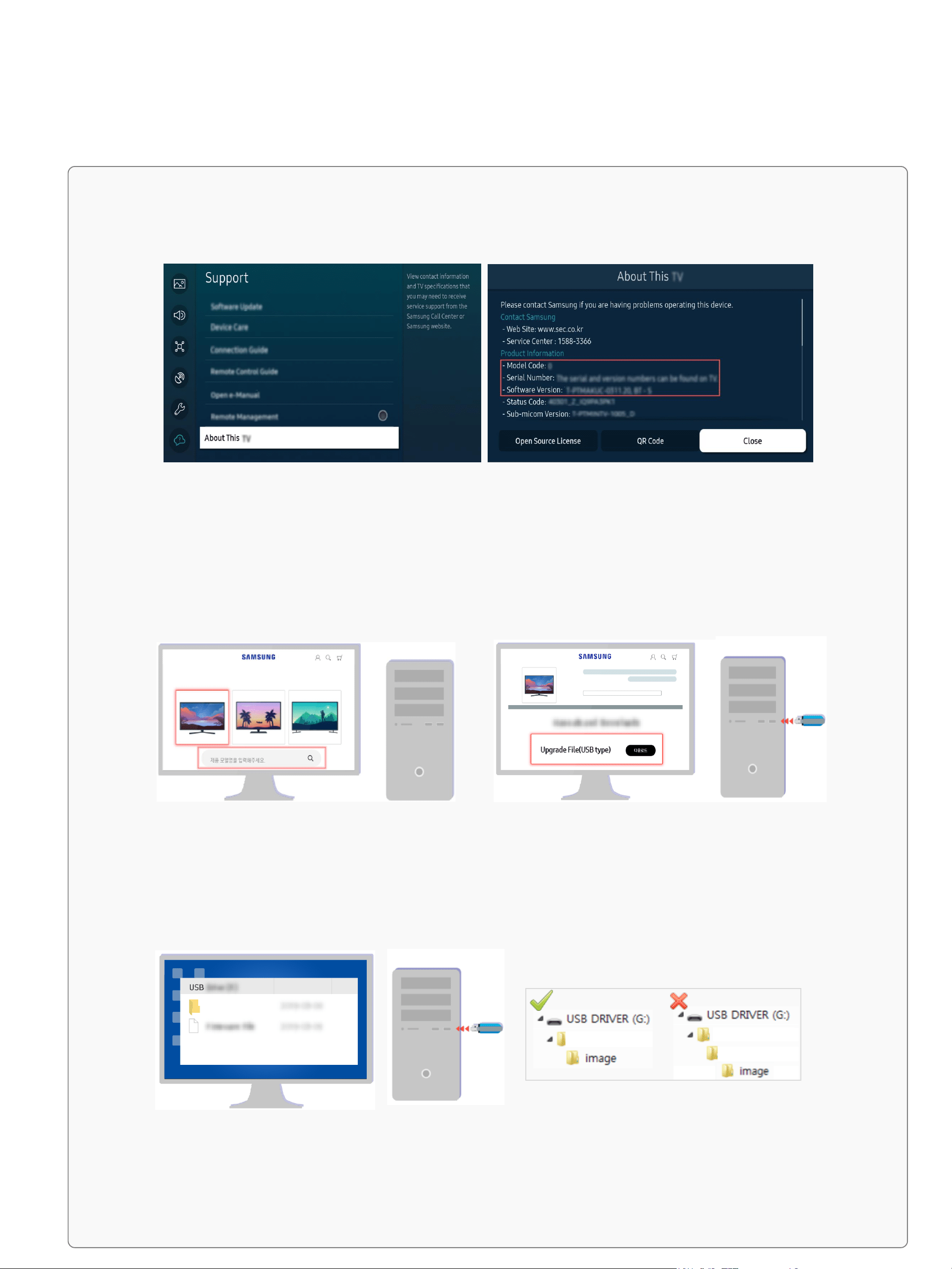
Step1. Select Menu> Settings > Support > About This TV and check the model code
and software version.
Step2. Using a computer, connect to www.samsung.com.
Step3. Find your TV model and download the upgrade file to the USB drive
connected to your PC.
Step4. Unzip the downloaded file stored in the USB drive. If you download the exe file,
double-click the exe file to extract the update package.
Update using USB
Updating the Software
〮 Support > Manuals & Software
〮 Save the update package (“image” folder) in the USB drive's top-level folder.
Otherwise, the TV will not be able to locate the update package.
※ For more information on how to decompress, see the appendix.
〮 T-OSCSBDEUC.zip (for all OS) or
T-OSCSBDEUC_xxxx.x.exe (for windows only)
Ex) top level folder
T-OSCSBDEUC
T-OSCSBDEUC
T-OSCSBDEUC
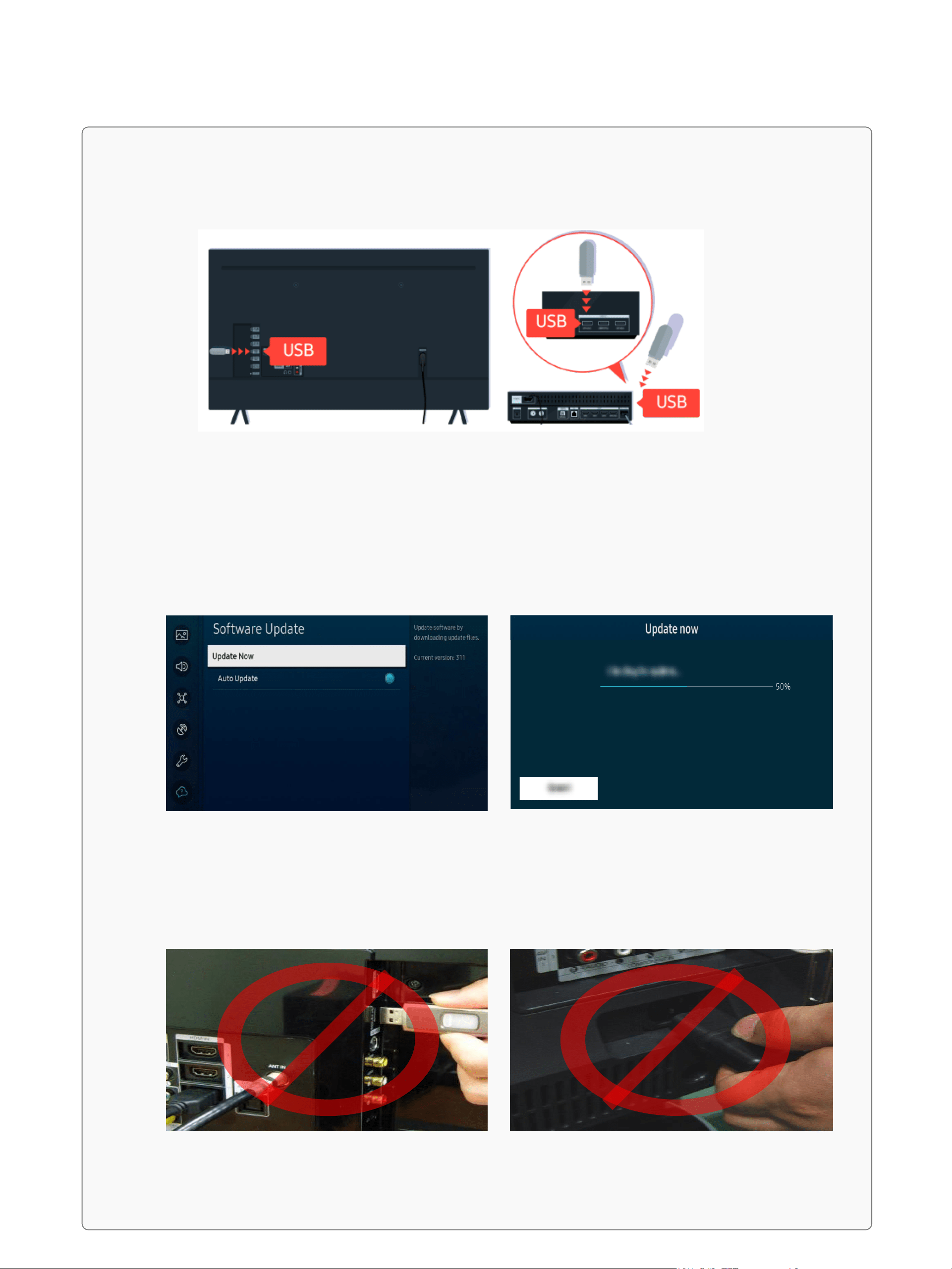
Step5. Insert the USB drive into the USB slot on the back of your TV
or the side of the One Connect Box.
Step6. After a while, the Software update begins automatically.
If It does not begin automatically, Select menu > Settings > Support >
Software Update > Update Now.
TV
One Connect
〮 DO NOT turn off the TV or delete your USB drive until the update is complete.
The TV will turn off and on automatically after completing the software update.
〮 Video and audio settings may be reset to their defaults after a software update.
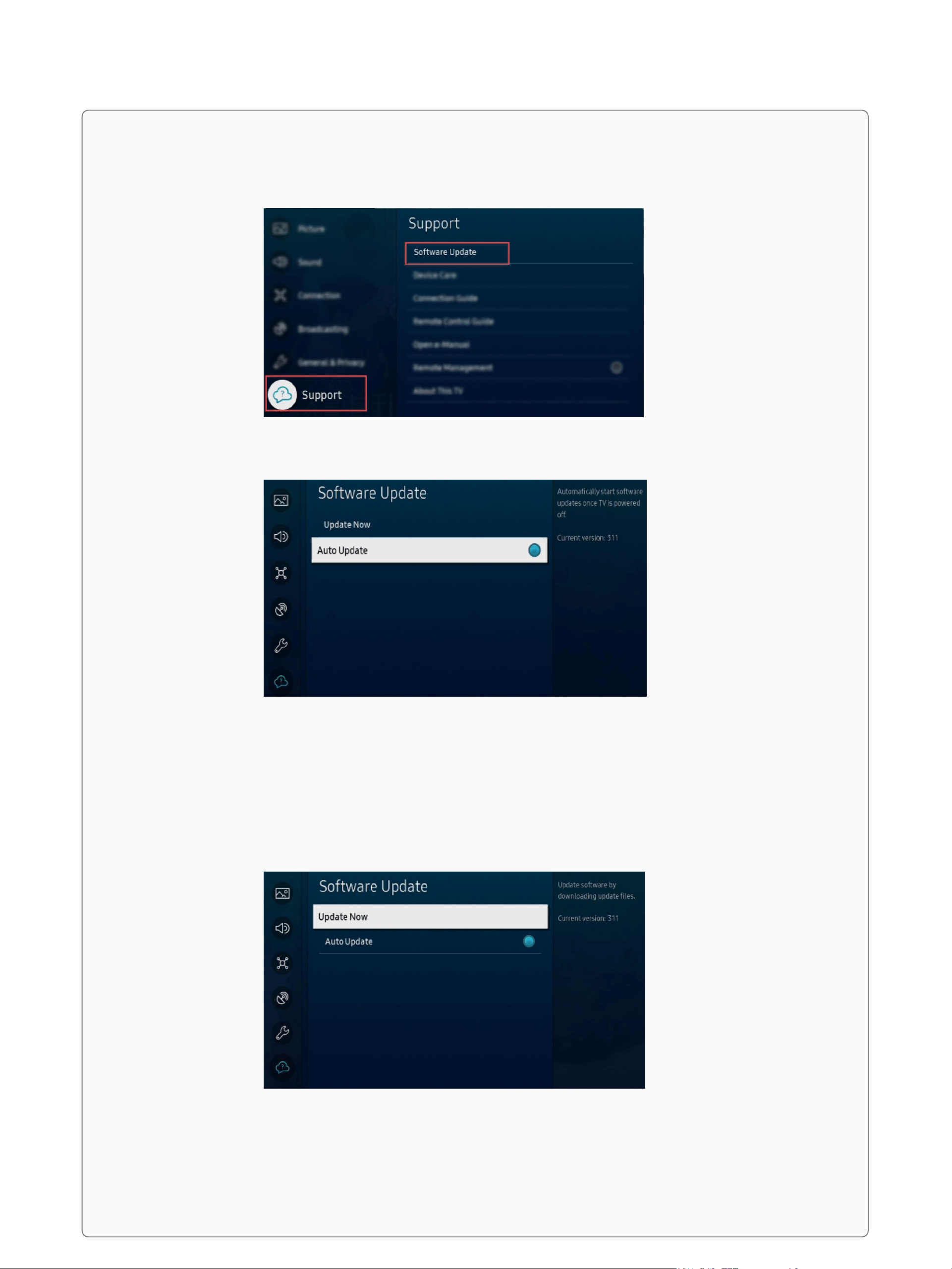
Step1. On the remote control, press the button and move to Menu > Settings >
Support using the directional button.
Step2. To enable automatic updates, select Software Update > Auto Update.
To update over the Internet now, select Software Update > Update Now.
Update automatically (Network connection is required)
〮 If the TV is connected to the network, you can have the TV's software update
itself automatically while you are watching the TV. When the background update is
completed, it is applied the next time the TV is turned on.
〮 New updates will be downloaded and installed on your TV. Updates usually take a
few minutes, please do not turn off the TV until the update is complete.
When the update is finished, the TV will restart automatically.
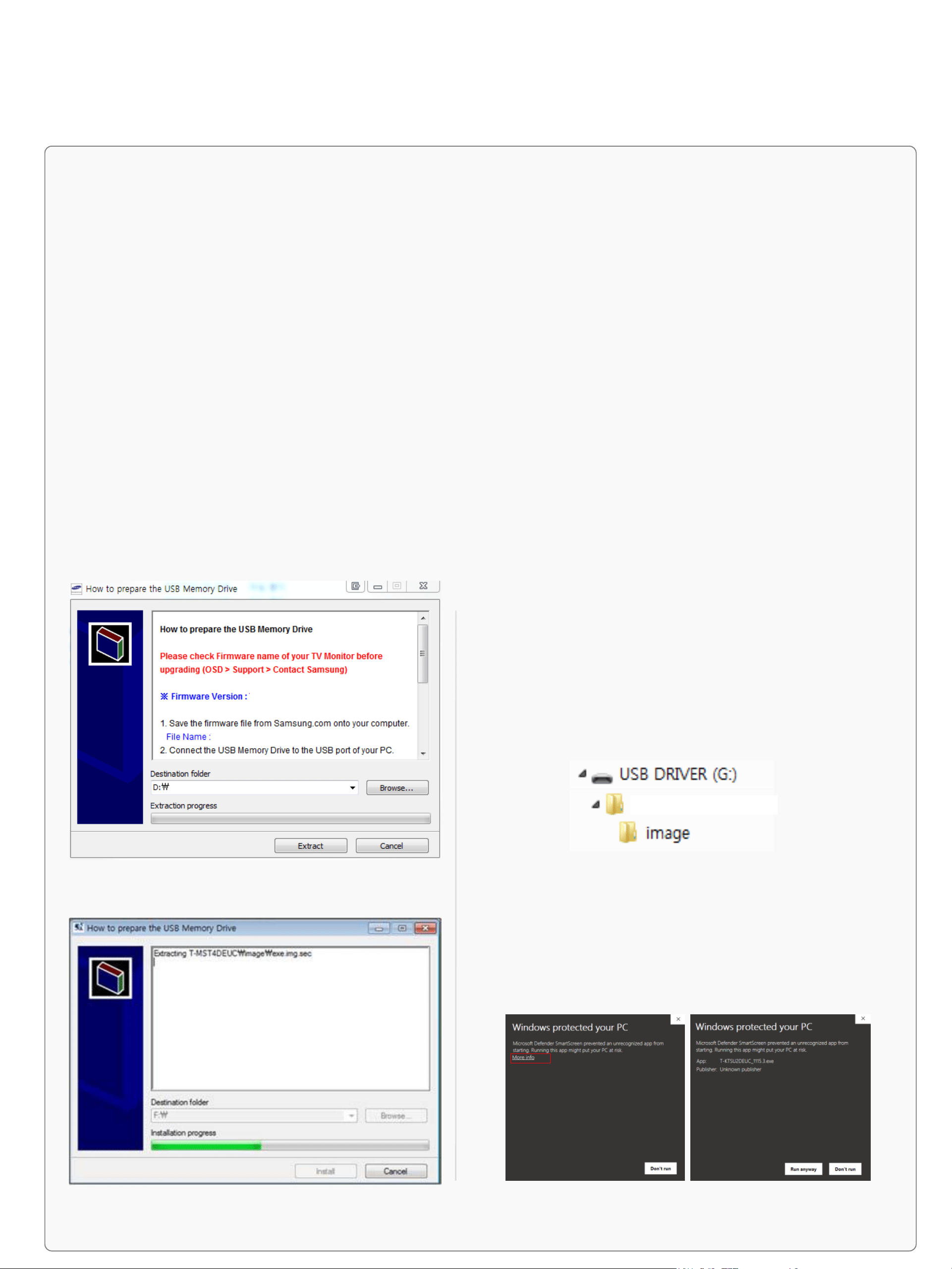
2. Connect the USB Memory Drive to the USB port of your PC.
Copy the file to USB Memory Drive.
1. Download the firmware file from Samsung.com into your computer.
File Name : T-OSCSBDEUC_XXXX.X.exe
※ XXXX.X indicates the version of the firmware.
3. Go to the USB Memory Drive, and select the file by double clicking it.
4. Click the “Extract” button.
5. The file will be installed.
6. Confirm that a folder containing the
firmware files has been added to the USB
memory drive.
7. Safely disconnect the USB memory drive
by clicking in ‘Safely Remove’ in Task Bar.
T-OSCSBDEUC
6-1. Make sure that USB Driver has a folder
named ‘T-OSCSBDEUC’ in the root directory.
※ If Windows Defender may identifies the file as harmful,
Click the “More info” and then select the “Run anyway”
*********
*********
[ Appendix ]
How to prepare the USB Memory Drive (All Windows)
Case1. Exe file download
How to prepare the USB Memory Drive (All OS)
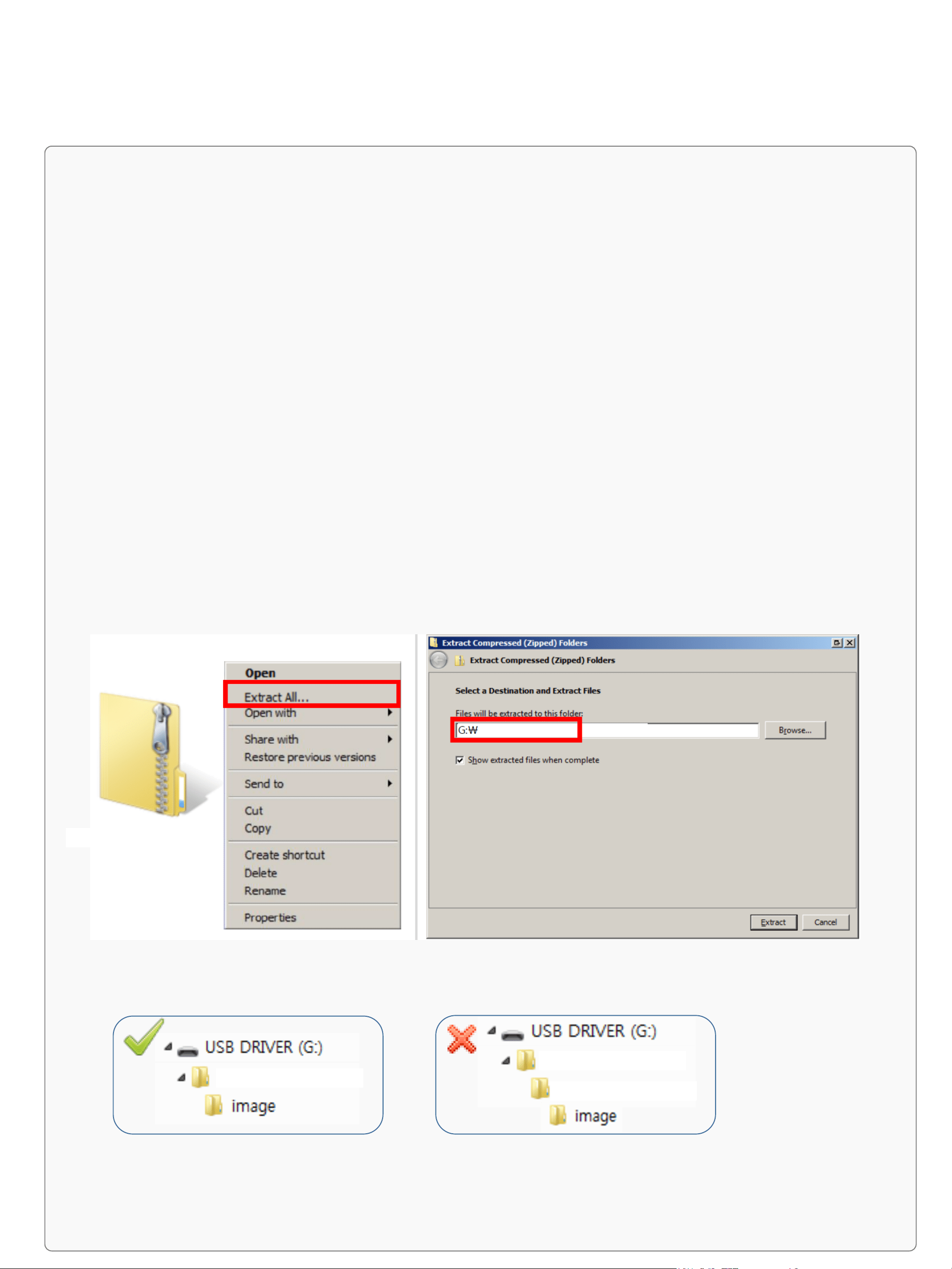
2. Connect the USB Memory Drive to the USB port of your PC.
Copy the file to USB Memory Drive.
1. Download the firmware file from Samsung.com into your computer.
File Name : T-OSCSBDEUC.zip
3. Follow below steps to extract the file and make a folder for firmware.
The folder should have same name with the file and exist in the root directly
※ An extracting process might be different by application in PC
4. Safely disconnect the USB memory drive by clicking in ‘Safely Remove’ in Task Bar.
T-OSCSBDEUC
3-A. Click the file and ‘Extract All…’. Then select USB driver that files will be extracted.
T-OSCSBDEUC.zip
3-B. Make sure that USB Driver has a folder named ‘T-OSCSBDEUC’
T-OSCSBDEUC
T-OSCSBDEUC
[ Appendix ]
Case2. Zip file download

