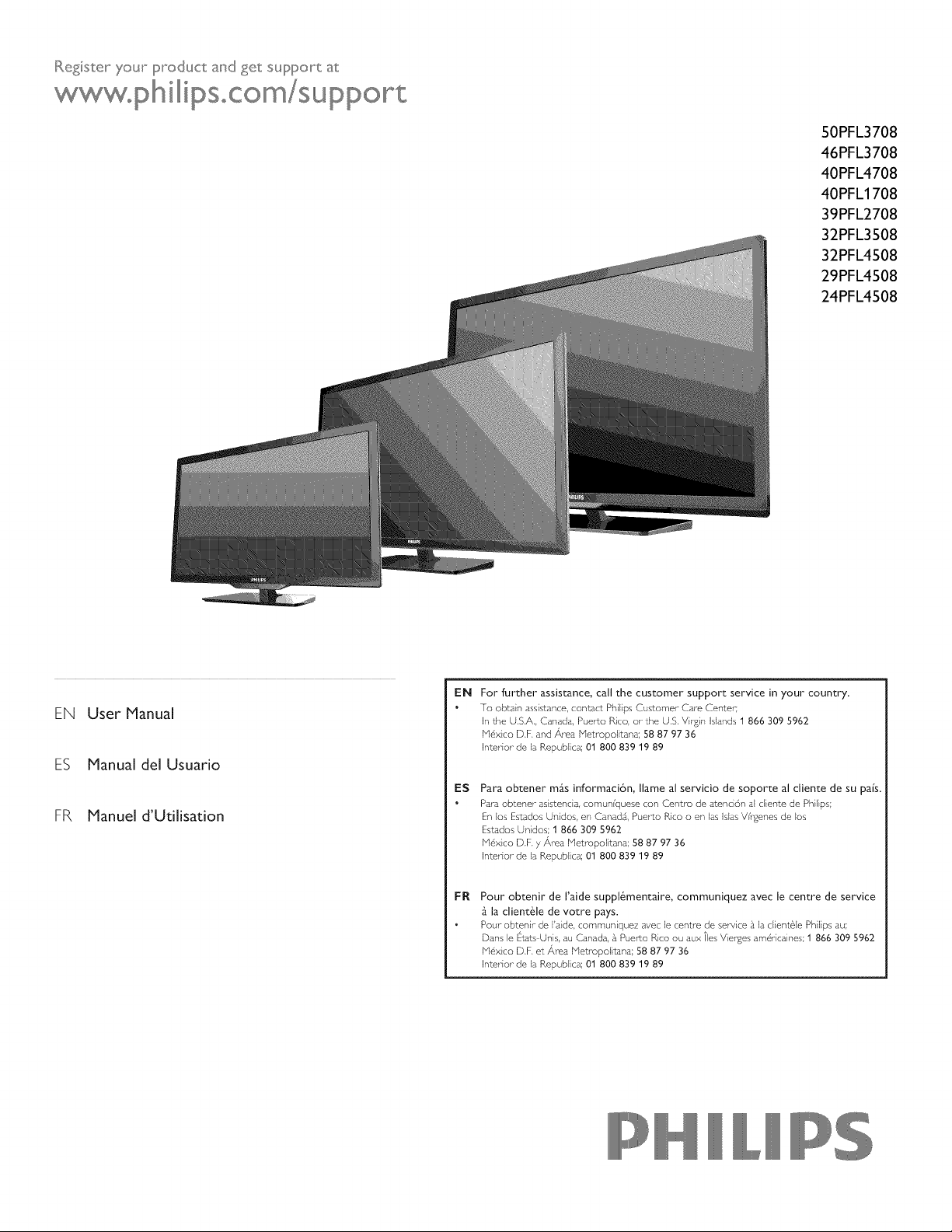
Register your product and get support at
WWWopsilipSoCOm/support
50PFL3708
46PFL3708
40PFL4708
40PFL1708
39PFL2708
32PFL3508
32PFL4508
29PFL4508
24PFL4508
EN User Manual
ES Manual del Usuario
FR Manuel d'Utilisation
EN
E$
FR
For further assistance, call the customer support service in your country.
To obtain assistance, contact Ph[l[ps Customer Care Center;
In the U.S.A., Canada, Puerto Rico, orthe U.S. Vir£[n Islands 1 866 309 5962
M6x[co D.F. and Area Metropolitana; 58 87 97 36
Interior de la Republ[ca; 01 800 839 19 89
Para obtener m_s informaci6n, Ilame al servicio de soporte al cliente de su pal's.
Para obtener as[stenda, comun[quese con Centro de atenciGn aEd[ente de Ph[l[ps;
En Eos Estados Unidos, en Canada, Puerto Rico o en las Bias V[rgenes de los
Estados Un[dos; 1 866 309 5962
M6x[co D.F. 7 Area Metropol[tana; 58 87 97 36
Interior de la Republ[ca; 01 800 839 19 89
Pour obtenir de I'aide suppl_mentaire, communiquez avec le centre de service
la clientele de votre pays.
Pour- obtenir de I'a[de, commun[quez avec le centre de service £ la cl[ent61e PNl[ps au;
Dans le Etats Unis, au Canada, £ Puerto Rico ou aux Ties Vierges am@-icaines; 1 866 309 5962
M6x[co D.F. et _,ma Metropol[t_sna; 58 87 97 36
Interior de la Republ[ca; 01 800 839 19 89
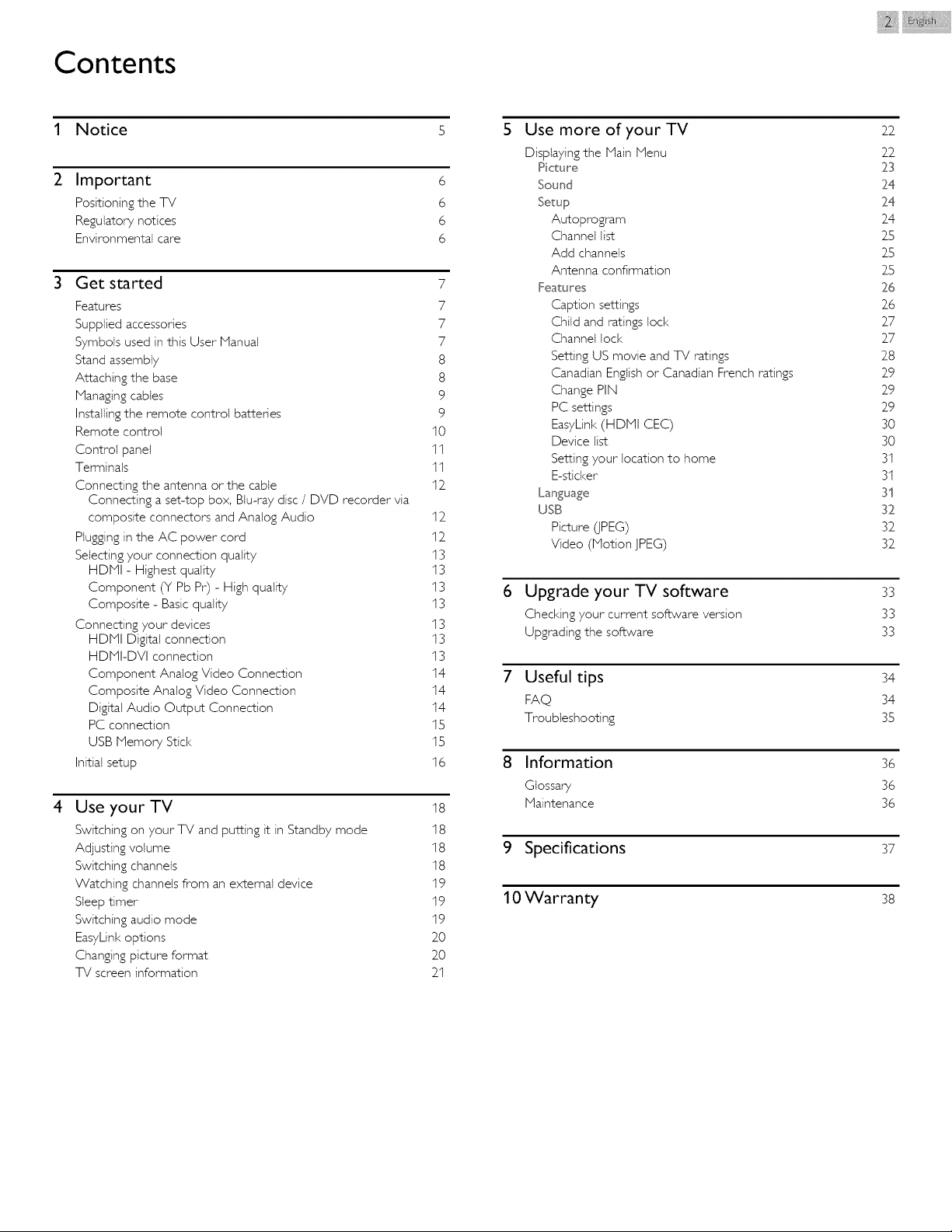
Contents
1 Notice s
2 Important
Positioning the TV
Regulatory notices
Environmental care
Get staked
6
6
6
6
4
7
Features 7
Supplied accessories 7
Symbols used in this User Manual 7
Stand assembly 8
Attaching the base 8
Managing cables 9
Installingthe remote control batteries 9
Remote control I 0
Control panel 1 I
Terminals 11
Connecting the antenna or the cabte I2_
Connecting a set-top box, Blu-ray disc / DVD recorder via
composite connectors and Analog Audio I2_
Plugging in the AC power cord I 2
Selecting your connection quality I3
HDNI - Highest quality I3
Component (Y Pb Pr) - High quality I3
Composite - Basic quality I3
Connecting your devices 13
HDNI Digital connection I3
HDNI-DVI connection 13
Component Analog Video Connection I4
Composite Analog Video Connection I4
Digital Audio Output Connection I4
PC connection I5
USB Memory Stick I5
Initial setup I6
Use your TV
Switching on your TV and putting it in Standby mode
Adjusting volume
Switching channels
Watching channels from an external device
Sleep timer
Switching audio mode
EasyLinl< options
Changing picture format
TV screen information
I8
I8
I8
I8
I9
I9
I9
20
20
2I
Use more of your TV
Displaying the Main Menu
Picture
Sound
Setup
Autoprogram
Channet list
Add channels
Antenna confirmation
Features
Caption settings
Child and ratings lock
Channel loci<
Setting US movie and TV ratings
Canadian English or Canadian French ratings
Change PIN
PC settings
EasyLinl< (HDNI CEC)
Device list
Setting your location to home
E-sticker
Language
USB
Picture (JPEG)
Video (Motion JPEG)
6
7
8
Upgrade your TV software
Checking your current software version
Upgrading the software
22
2_2_
23
24
24
2_4
25
25
25
26
2_6
2_7
2_7
28
2_9
2_9
2_9
30
30
31
3t
31
32
32_
32_
33
33
33
9 Specifications 37
10 Warranty 38
Information 36
Glossary 36
Maintenance 36
Useful tips 34
FAQ 34
Troubleshooting 35
i!iii! iiil@ ii¸
Registering your model with Philips makes you eligible for all of the valuable benefits listed below, so don't miss out.
Register online at www.productrecords.comlphl to ensure:
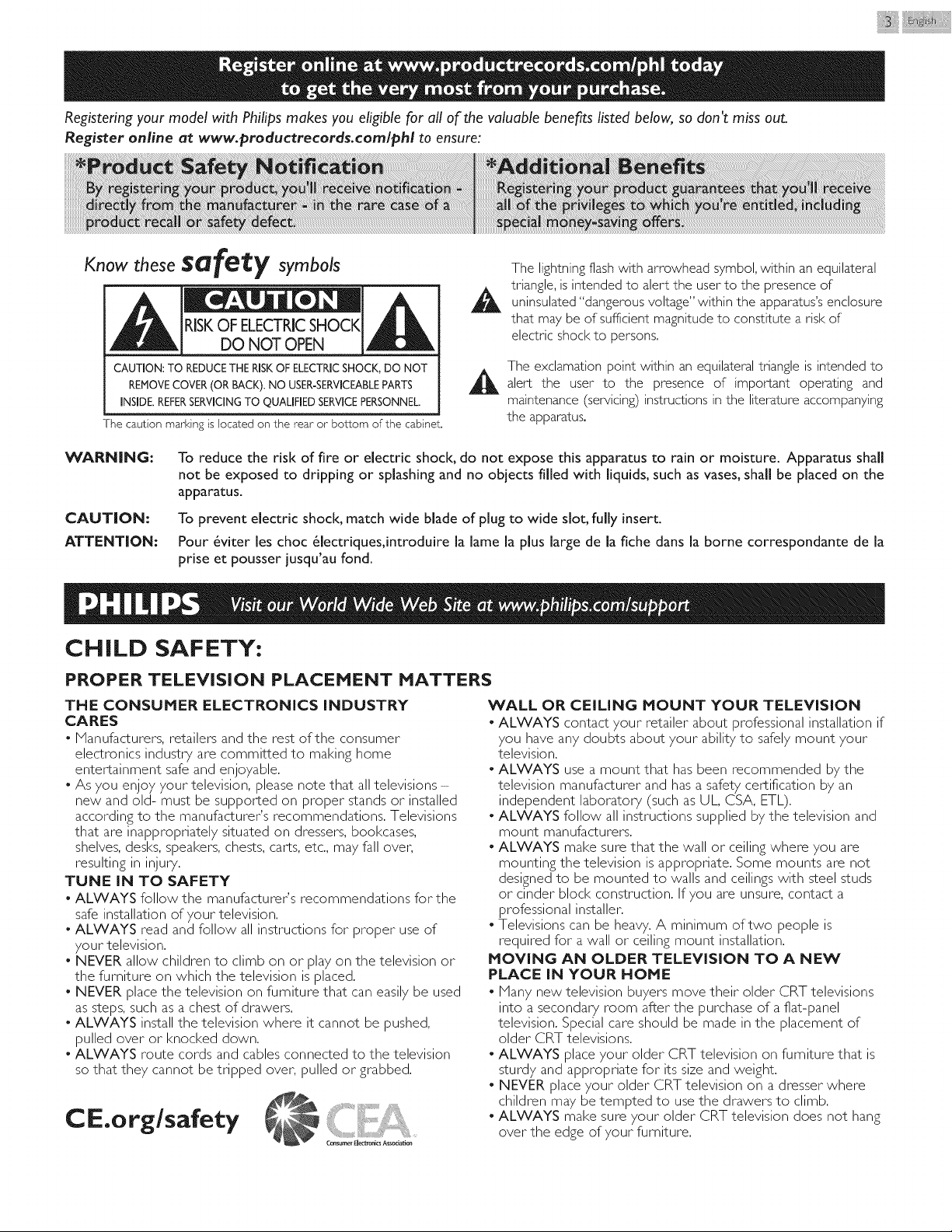
Know these sQfe_ symbols
RISKOF ELECTRICSHOCK
DO NOT OPEN
CAUTION:TO REDUCETHERISKOFELECTRICSHOCK,DONOT
REMOVECOVER(ORBACK).NOUSER-SERVICEABLEPARTS
INSIDE.REFERSERVICINGTOQUALIFIEDSERVICEPERSONNEL.
The cautionmarkingis locatedon therearor bottom of the cabinet.
A
The lightning flash with arrowhead symbol, within an equilateral
triangle, is intended to alert the user to the presence of
uninsulated "dangerous voltage" within the apparatus's enclosure
that may be of sufficient magnitude to constitute a risk of
electric shock to persons.
The exclamation point within an equilateral triangle is intended to
_ alert the user to the presence of important operating and
maintenance (servicing) instructions in the literature accompanying
the apparatus.
WARNING:
CAUTION:
ATTENTION:
To reduce the risk of fire or electric shock, do not expose this apparatus to rain or moisture. Apparatus shall
not be exposed to dripping or splashing and no objects filled with liquids, such as vases, shall be placed on the
apparatus.
To prevent electric shock, match wide blade of plug to wide slot, fully insert.
Pour _viter les choc _lectriques,introduire la lame la plus large de la fiche dans la borne correspondante de la
prise et pousser jusqu'au fond.
CHILD SAFETY:
PROPER TELEVISION PLACEHENT HATTERS
THE CONSUMER ELECTRONICS INDUSTRY
CARES
• Manufacturers, retailers and the rest of the consumer
electronics industry are committed to making home
entertainment safe and enjoyable.
• As you enjoy your" television, please note that all televisions -
new and old- must be supported on proper stands or" installed
according to the manufacturer's recommendations. Televisions
that are inappropriately situated on dressers, bookcases,
shelves, desks, speakers, chests, carts, etc., may fall over',
resulting in injury.
TUNE IN TO SAFETY
• ALWAYS follow the manufacturer's recommendations for" the
safe installation of your television.
• ALWAYS read and follow all instructionsfor" proper use of
your" television.
• NEVER allow children to climb on or" play on the television or"
the furniture on which the television is placed.
• NEVER place the television on furniture that can easily be used
as steps, such as a chest of drawers.
• ALWAYS install the television where it cannot be pushed,
pulled over" or" knocked down.
• ALWAYS route cords and cables connected to the television
so that they cannot be tripped over', pulled or"grabbed.
C E.org/safety
Cons_me_ El_t tunics Associati_
WALL OR CEILING MOUNT YOUR TELEVISION
• ALWAYS contact your retailer about professional installation if
you have any doubts about your" ability to safely mount your"
television.
• ALWAYS use a mount that has been recommended by the
television manufacturer and has a safety certification by an
independent laboratory (such as UL, CSA, ETL).
• ALWAYS follow all instructions supplied by the television and
mount manufacturers.
• ALWAYS make sure that the wall or" ceiling where you are
mounting the television is appropriate. Some mounts are not
designed to be mounted to walls and ceilings with steel studs
or" cinder" block construction. If you are unsure, contact a
professional installer'.
• Televisions can be heavy. A minimum of two people is
required for" a wall or" ceiling mount installation.
MOVING AN OLDER TELEVISION TO A NEW
PLACE IN YOUR HOME
• Many new television buyers move their" older" CRT televisions
into a secondary room after"the purchase of a flat-panel
television. Special care should be made in the placement of
older" CRT televisions.
• ALWAYS place your" older" CRT television on furniture that is
sturdy and appropriate for" its size and weight.
• NEVER place your" older" CRT television on a dresser where
children may be tempted to use the drawers to climb.
• ALWAYS make sure your" older" CRT television does not hang
over" the edge of your" furniture.
i!ii! ii ¸
Important Safety Instructions
1. Read these instructions,
2. Keep these instructions,
3. Heed all warnings
4. Follow all instructions
5. Do not use this apparatus nearwatel:
6, Clean onl 7 with dry cloth
7. Do not block an7 ventilation openings Install in accordance with the
manufacturer's instructions
8. Do not install near any heat sources such as radiators, heat registers,
stoves, or other apparatus (including amplifiers) that produce heat.
9. Do not defeat the safety purpose of the polarized or grounding-
type plug. A polarized plug has two blades with one wider than the
othel:A grounding type plug has two blades and a third grounding
prong.The wide blade or the third prong are provided for your
safety. If the provided plug does not fit into your outlet, consult an
electrician for replacement of the obsolete outlet.
10. Protect the power cord fi-om being walked on or pinched
particularl 7 at plugs, convenience receptacles, and the point where
the 7 exit from the apparatus.
11. Onl 7 use attachments / accessories specified b7 the manufacturel:
12. Use onl 7 with the cart, stand, tripod, bracket or table
specified by the manufacturer, or sold with the
apparatus.When a cart is used, use caution when
moving the cart / apparatus combination to avoid injury
fi-om tip-ovel:
1 3. Unplug this apparatus during lightning storms or when unused for
long periods of time
14. Refer all servicing to qualified service personnel. Servicing is
required when the apparatus has been damaged in any way, such
as powel_suppl7 cord or plug is damaged, liquid has been spilled
or objects have fallen into the apparatus, the apparatus has been
exposed to rain or moisture, does not operate normally, or has
been dropped.
Note to the CATV system installer:
This reminder is provided to call the CATV system installeCs
attention to Article 820-40 of the NEC that provides guidelines for
proper grounding and, in particulac specifies that the cable ground
shall be connected to the grounding system of the building, as close
to the point of cable entry as practical.
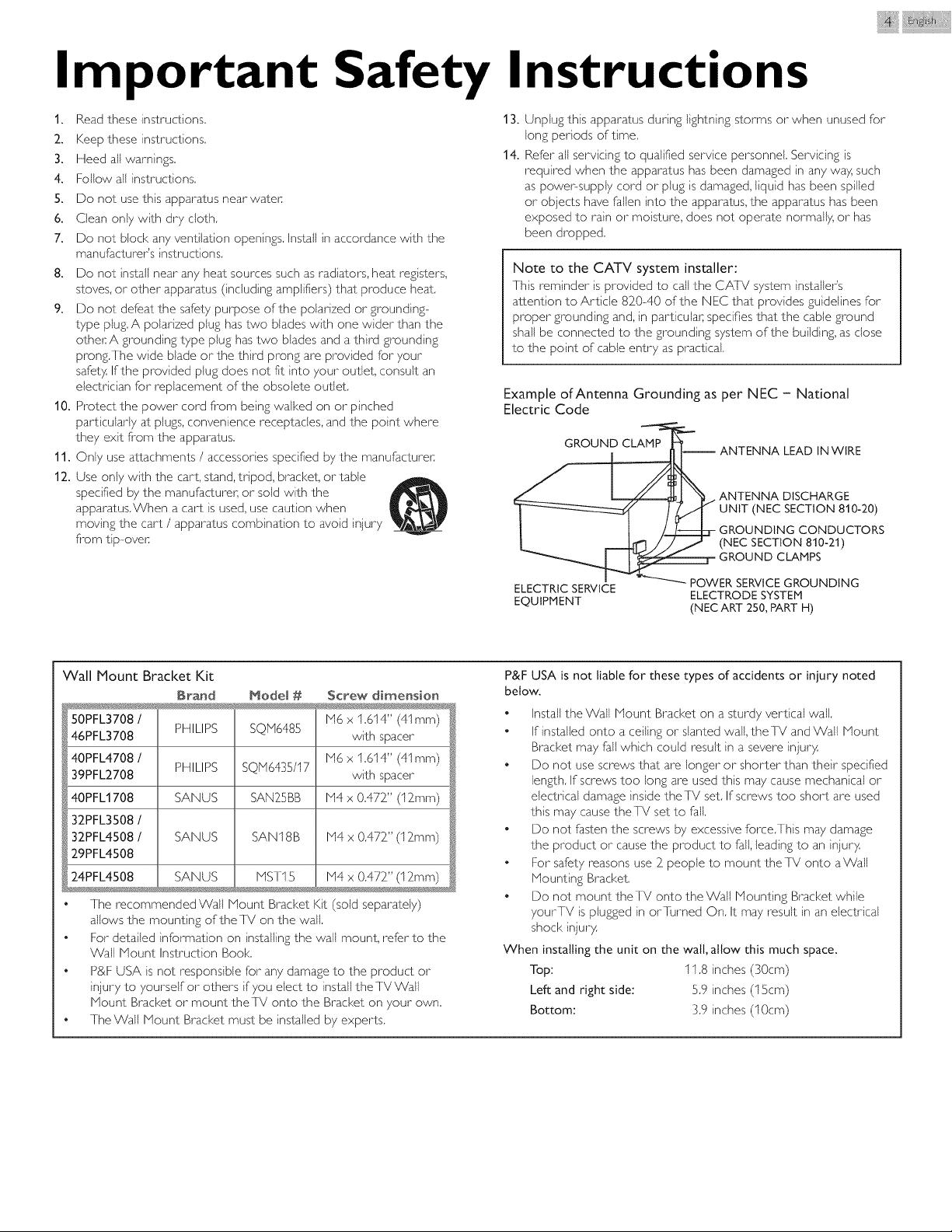
Example of Antenna Grounding as per NEC - National
Electric Code
GROUND CLA-MP_ ANTENNA LEAD INWlRE
___. ANTENNA DISCHARGE
2 Z'22; ,T2'c°;Z°S
ELECTRIC SERVICE T...._..._ POWER SERVICEGROUNDING
EQUIPMENT ELECTRODE SYSTEM
(NEC ART 250, PART H)
Wall Mount Bracket Kit
Brand
50PFL3708 /
PHILIPS
46PFL3708
40PFL4708 /
PHILIPS
39PFL2708
40PFL1708 SANUS
32PFL3508 /
32PFL4508 / SANUS
29PFL4508
24PFL4508 SANUS
Model #
SQH6485
SQH6435/17
SAN25BB
SAN18B
MST15
Screw dimension
M6 x 1.614" (41ram)
with spacer
M6 x 1.614" (41ram)
with spacer
M4 x 0.472" (12ram)
M4 x 0.472" (12ram)
M4 x 0.472" (12ram)
The recommended Wall Mount Bracl<et Kit (sold separately)
allows the mounting of theTV on the wall.
. For detailed information on installing the wall mount, refer to the
Wall Mount Instruction Book
. P&F USA is not responsible for any damage to the product or
injury to yourself or others if you elect to install the TV Wall
Mount Bracket or mount theTV onto the Bracl<et on your own.
. The Wall Mount Bracl<et must be installed by experts.
P&F USA is not liable for these types of accidents or injury noted
below.
. Install the Wall Mount Bracket on a sturdy vertical wall.
. If installed onto a ceiling or slanted wall, the TV and Wall Mount
Bracket may fall which could result in a severe injury.
. Do not use screws that are longer or shorter than their specified
length. If screws too long are used this may cause mechanical or
electrical damage inside theTV set. If screws too short are used
this may cause theTV set to fall.
. Do not fasten the screws by excessive force.This may damage
the product or cause the product to fall, leading to an injury.
. For safety reasons use 2 people to mount theTV onto aWali
Mounting Bracl<et
. Do not mount theTV onto the Wall Mounting Bracl<et while
7ourTV is plugged in orTurned On. It may result in an electrical
shock injury.
When installing the unit on the wall, allow this much space.
Top: 11.8 inches (30cm)
Left and right side: 5.9 inches (1Scm)
Bottom: 3.9 inches (10cm)
1 Notice
Trademarks are the property of Koninldijke Philips NM or their
respective owners
P&F USA reserves the right to change products at any time without
being obliged to adju£ earlier supplies accordingly.
The material in this manual is believed adequate for the intended use of
the sy£em If the product or its individual modules or procedures are
used for purposes other than those specified herein, confirmation of
their validity and suitability mug be obtained P&F USA warrants that
the material itself does not infifinge any United States patents No
further warranty is expressed or implied
P&F USA cannot be held responsible neither for any errors in the
content of this document nor for any problems as a result of the
content in this document Errors reported to P&F USA will be adapted
and published on the P&F USA support website as soon as possible
Pixel characteristics
This LCD product has a high number of color pixels.Although it has
effective pixels of 99.999% or more, black dots or bright points of light
(red, green or blue) may appear con£antly on the screen This is a
£ructural property of the display (within common indu£ry £andards)
and is not a real@notion
Warranty
No components are user serviceable. Do not open or remove covers
to the inside of the product Repairs may only be done by Service
Centers and official repair shops. Failure to do so shall void any
warranty, stated or implied
Any operation expressly prohibited in this manual, any adjustments or
assembly procedures not recommended or authorized in this manual
shall void the warranty.
Federal Communications Commission Notice
This equipment has been tested and found to comply with the limits
for a Class B Digital device, pursuant to part 15 of the FCC Rules.
These limits are designed to provide reasonable protection against
harmful interference in a residential installation.This equipment
generates, uses and can radiate radio frequency energy and, if not
installed and used in accordance with the instructions, may cause
harmful interference to radio communications. However, there is no
guarantee that interference will not occur in a particular installation. If
this equipment does cause harmful interference to radio or television
reception, which can be determined by turning the equipment off and
on, the user is encouraged to try to correct the interference by one
or more of the following measures:
. Reorient or relocate the receiving antenna
, Increase the separation between the equipment and the receivel:
, Connect the equipment into an outlet on a circuit different fi-om
that to which the receiver is connected
, Consult the dealer or an experienced radio or television technician
for help
Trade Name :
Responsible Party :
Model:
Declaration of Conformity
PHILIPS
P&F USA, Inc.
50PFL3708, _6PFL3708, _0PFL4708,
40PFL1708, 39PFL2708, 32PFL3508,
32PFL4508, 29PFL4508, 24PFL4508
Address: PC Box 2_2`48,Alpharetta, GA 3002_3-2_2_48
USA
Telephone Number : 1 866 309 5962_
@!,li!iil@ i i iii¸
Modifications
This apparatus may generate or use radio frequency energy. Changes
or modifications to this apparatus may cause harmful interference
unless the modifications are expressly approved in the User Manual
The user could lose the authority to operate this apparatus if an
unauthorized change or modification is made
Cables
Connections to this device must be made with shielded cables with
metallic RFI / EMI connector hoods to maintain comp%nce with FCC
Rules and Regulations
Canadian notice
CAN ICES-3 (B)/NHB-3 (B)
Standard Television ReceivingApparatus, Canada BETS-7 / NTHR-7.
Copyright
All other registered and unregistered trademarl<s are the property of
their respective owners
HI ITIIll °
HI_-DEFI_ITlaNMU_IM_IA I_TERFAaE
The terms HDN1 and HDMI High-Definition
Nultimedia Interface, and the HDNI Logo are
trademarks or registered trademarks of HDNI
Licensing LLC in the United States and other
countries
[_ DOLBY
DiGiTAL
Manufactured under license fi-om Dolby
Laboratories. Dolby and the double-D symbol
are trademarl<s of Dolby Laboratories
S[S_ is a trademark of SRS Labs,Inc.
SfS_ TruSurround XT technology is incorporatedunder license from SRS Labs, Inc.
TruSurroundXT SRSTruSurround XT ® creates a truly immersive
surround sound experience with rich bass and
clear dialog from only two speal<ers.
÷ SRSTruSurround XT technolog 7 is supported in 40PFL4708,
39PFL2_708, 32_PFL3S08, 32_PFL4508, 2_9PFL4508, 2_4PFL4508 only.
ENERGY STAR® is a joint program of the U.S.
Environmental Protection Agency and the U.S.
Department of Energy helping us all save
money and protect the environment through
energy efficient products and practices.
Consumer Notice:
ThisTV has been set to maximize energy efficiency while delivering the
best possible picture using the factory installed home mode settings.
Changing or enabling other features in thisTV (e.g. brightened
backlighting) will possibly increase energy consumption beyond the
original ENERGY STAR® qualified limits.
LED bacldightingtechnology useslessenergy
when compared with a standard CCFL
bacldightingLCD television of the same
screen sizeActual energy savingswill vary
depending on the screen size
Portions of this software are copyright @The FreeType Project
(www.freetype.org).
The American Academy of Pediatrics discourages television viewing
for children younger than two years of age.
2 Important
Positioning the TV
e
e
e
e
e
e
e
e
e
e
e
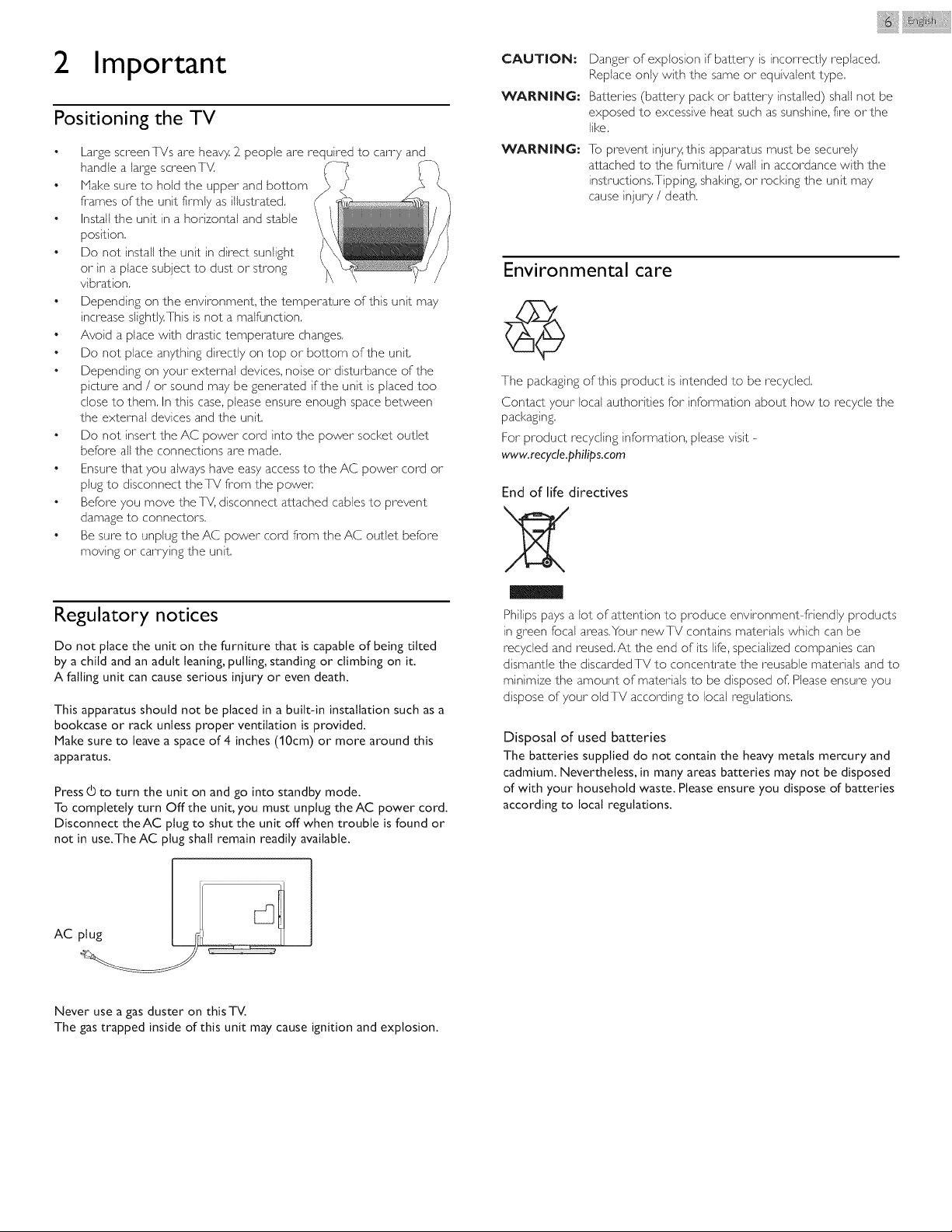
Large screen TVs are heavy. 2_people are required to carry and
handle a large screenT_4
Make sure to hold the upper and bottom
frames of the unit firmly as illustrated.
Install the unit in a horizontal and stable
position.
Do not install the unit in direct sunlight
or in a place subject to dust or strong
vibration
Depending on the environment, the temperature of this unit may
increase slightly.This is not a malfunction
Avoid a place with drastic temperature changes
Do not place anything directly on top or bottom of the unit
Depending on your external devices, noise or disturbance of the
picture and / or sound may be generated if the unit is placed too
dose to them In this case, please ensure enough space between
the external devices and the unit
Do not insert the AC power cord into the power socket outlet
before all the connections are made
Ensure that you always have easy access to the AC power cord or
plug to disconnect theTV from the power.
Before you move theTV, disconnect attached cables to prevent
damage to connectors
Be sure to unplug the AC power cord fi-om the AC outlet before
moving or carrying the unit
Regulatory notices
Do not place the unit on the furniture that is capable of being tilted
by a child and an adult leaning, pulling, standing or climbing on it.
A falling unit can cause serious injury or even death.
This apparatus should not be placed in a built-in installation such as a
bookcase or rack unless proper ventilation is provided.
Make sure to leave a space of 4 inches (10cm) or more around this
apparatus.
Press (_ to turn the unit on and go into standby mode.
To completely turn Offthe unit, you must unplug theAC power cord.
Disconnect theAC plug to shut the unit off when trouble is found or
not in use.TheAC plug shall remain readily available.
plug _ "
Never use a gas duster on thisTV.
The gas trapped inside of this unit may cause ignition and explosion.
CAUTION:
WARNING:
WARNING:
i!iii! !ii!i@ i i iii¸
Danger of explosion if battery is incorrectly replaced
Replace only with the same or equivalent type
Batteries (battery pack or battery installed) shall not be
exposed to excessive heat such as sunshine, fire orthe
like
To prevent injury, this apparatus must be securely
attached to the fiJrniture / wall in accordance with the
instructions Tipping, shaking, or rocking the unit may
cause injury / death
Environmental care
The packaging of this product is intended to be recycled
Contact your local authorities for information about how to recycle the
packaging
For product recycling information, please visit -
www, recyde,pflilips,com
End of life directives
Philips pays a Jot of attention to produce environment-friendly products
in green focal areas.Your newTV contains materials which can be
recycled and reused.At the end of its life, specialized companies can
dismantle the discarded TV to concentrate the reusable materials and to
minimize the amount of materials to be disposed of. Please ensure you
dispose of your old TV according to local regulations.
Disposal of used batteries
The batteries supplied do not contain the heavy metals mercury and
cadmium. Nevertheless, in many areas batteries may not be disposed
of with your household waste. Please ensure you dispose of batteries
according to local regulations.
3 Get started
Featu res
• DTV / Analog TV / CATV
You can use your remote control to select channels whici7 are broadcast in Digital
formal and conventional Analog forma±. Also, cable subscribers can access their cable
]V channels,
• Information display
You can display the title, contents (DTV only) and other information of the current
program on the TV screen,
• Autoprogram
Ihis unit automatically scans and memorizes channels available in your area, eliminating
difficult setup procedures.
• Child lock
Ihis feature allows you to block children's access to inappropriate programs.
• Closed Caption decoder
Built in Closed Caption decoder displays text for Closed Cap_ion supported programs.
• MTS / SAP tuner
Audio can be selected fi-om the remote control
• Auto Standby
If there is no Input signal and no operation for I 5 minutes, the unit will go into Standby
mode automatically.
• Sleep timer
You carl se_ the unit to go into Standby mode after a specific amount of time.
• Choices for on-screen language
Selec_ your on screen language: English, Spanish or French.
• Stereo sound function
• PLL frequency synthesized tuning
Provides free and easy channel selection and lets you tune directly to any channel using
the number and decimal point "•" buttons on the remote control.
• Various adjustment for picture and sound
Customizes image quality suitable for your room and sets your sound preference,
• EasyLink via HDMI link
EasyLink allows your other- HDMI link devices to be controlled by the HDNI cable
connected to your IV.
• HDMI Input
• HDMI-DVI Input
If your video device has DVI Output jack, use an HDMI DVI conversion cable to
connect the unit.
• Component Video Input
• PC Input
• AV Input
• USB terminal
]he picture (]PEG) and video (Motion jPEG) files stored on a USB Memory Stick can
be played back on this unit.
• Digital Audio Output
• Headphone Audio Output
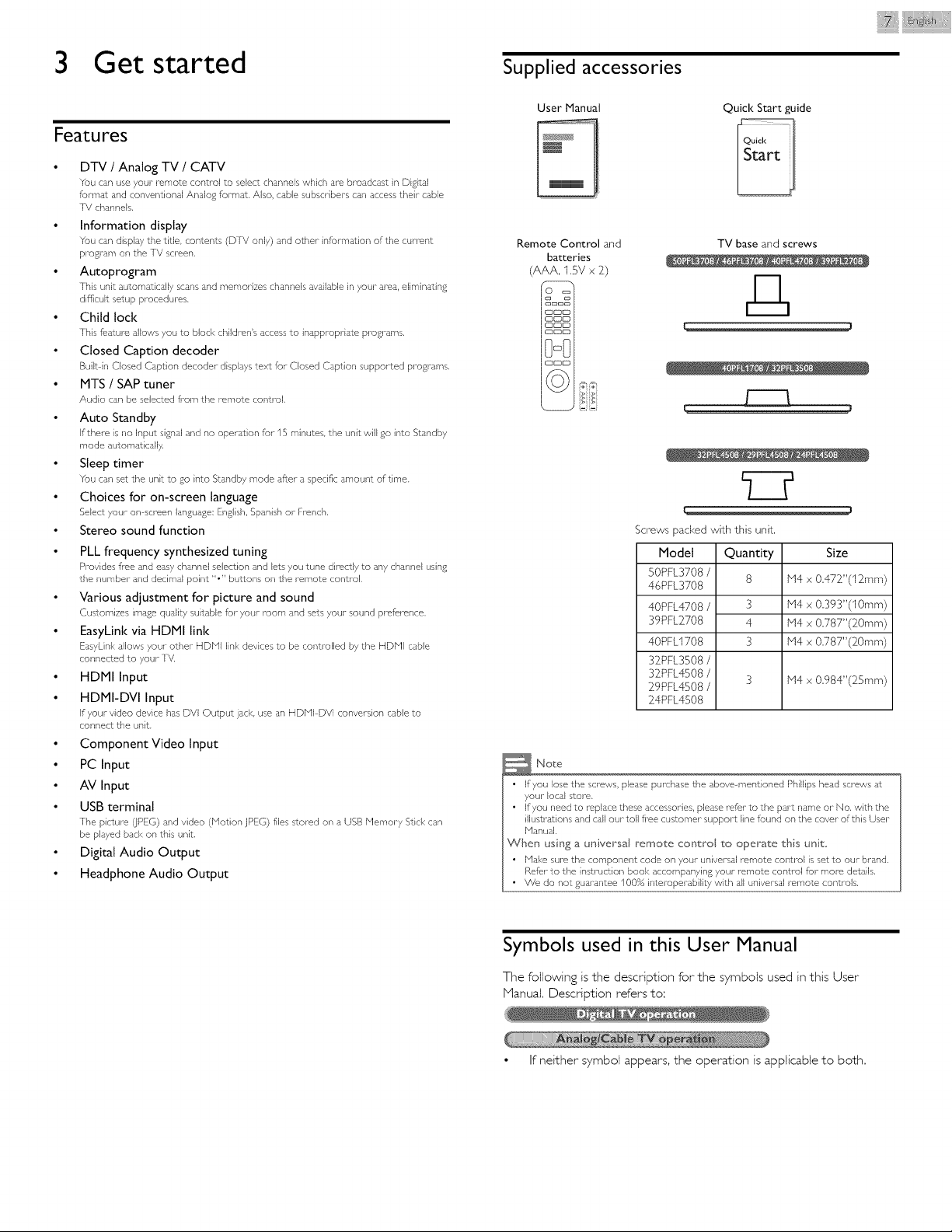
Supplied accessories
User Manual
Quick Start guide
i!iil; iii/@ i i iii¸
Remote Control and
batteries
(AAA, 1.5V x 2)
O
ca c_
C3C3CD
C3CDCD
C3C73CD
C3C3CD
DoO
C3C23C3
TV base and screws
Screws packed with this unit.
Model Quantity Size
50PFL3708/
8
46PFL3708
40PFL4708/ 3
39PFL2708 4
40PFL1708 3
32PFL3508/
32PFL4508/
3
29PFL4508/
24PFL4508
H4 x 0.472"(12ram)
H4 x 0.393"(10mm)
H4 x 0.787"(20mm)
H4 x 0.787"(20mm)
H4 x 0.984"(25mm)
Note
• If you lose the screws, please purchase the above-mentioned Phillips head screws at
your local store.
• If you need to replace these accessories, pMase ref:sr to dqe part name or No. with the
illustrations and call our toll fi-ee customer support line found on the cover of this User
Manual.
When using a universal remote control to operate ths uniL
• Make sure the component code on your universal remote control is set to our brand.
Refer to the instruction book accompanying your remote control for more details,
• We do not guarantee 100% interoperability with all universal remote controB,
Symbols used in this User Manual
The following is the description for the symbols used in this User
Manual. Description refers to:
• If neither symbol appears, the operation is applicable to both.
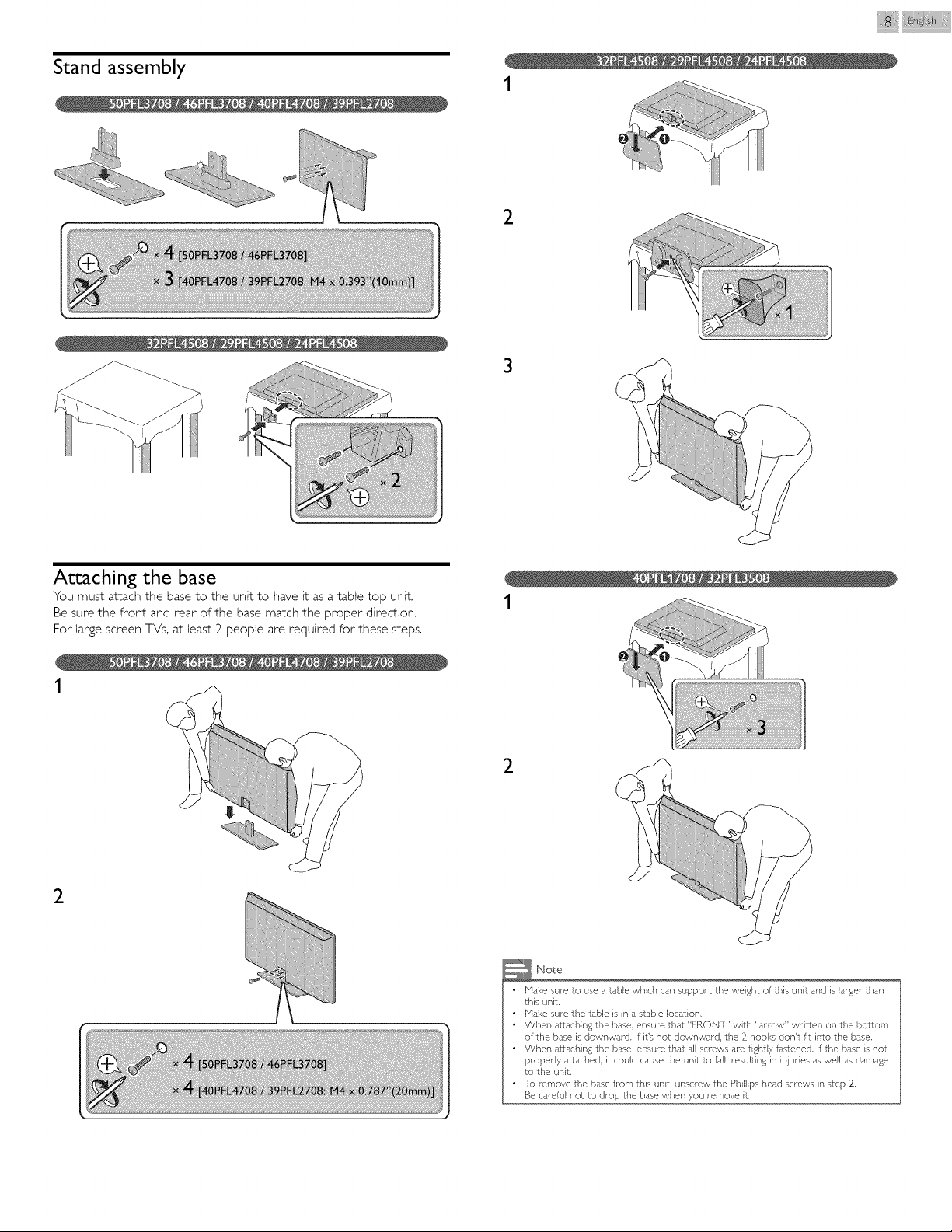
Stand assembly
i!ii!_!l@_i_i_iii¸
1
2
3
Attaching the base
You must attach the base to the unit to have it as a table top unit,
Be sure the front and rear of the base match the proper direction,
For large screen TVs, at least 2 people are required for these steps.
1
1
2
2
Note
• Make sure to use a table which can support the weight of this unit and is lar£er than
this unit,
• Mal<e sure the table is in a stable location,
• When attaching the base, ensure that "FRON] " with "arrow" written on the bottom
of the base is downward. If it's not downward, the 2 hooks don't fit into the base.
• When a_aching the base, ensure that all screws are tightly fdsSened. If the base is not
properly attached, it could cause the unit to full, resulting in injuries as well as damage
to the unit.
• Io remove the base fi_om this unit unscrew the Phillips head screws in step 2.
Be careful not to drop the base when you remove it.
i!ii li ¸
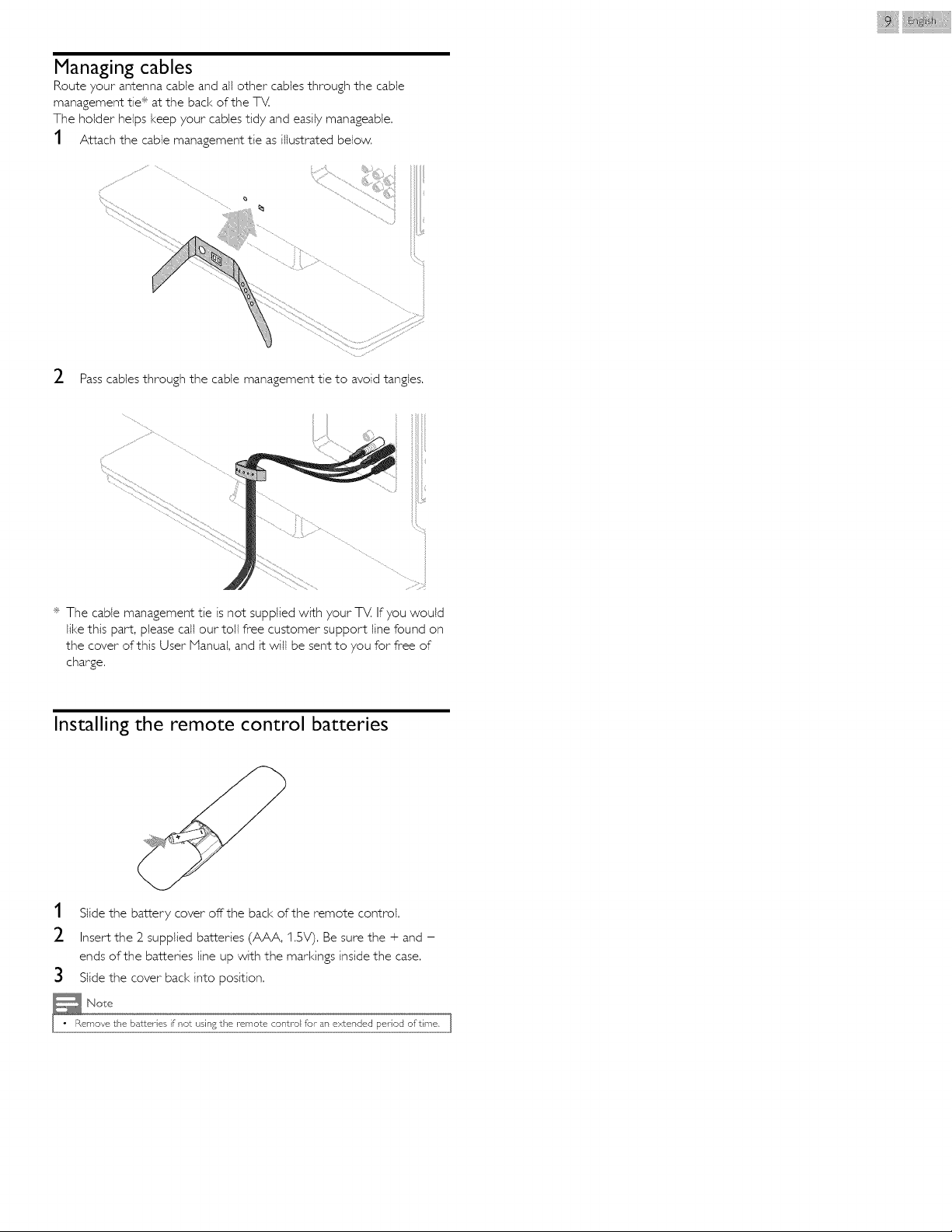
Managing cables
Route your antenna cable and all other cables through the cable
management tie* at the back of the TV.
The holder helps keep your cables tidy and easily manageable.
1 Attach the cable management tie as illustrated below.
_- Pass cables through the cable management tie to avoid tangles.
f"
* The cable management tie is not supplied with your TV, If you would
like this part, please call our toll free customer support line found on
the cover of this User Manual, and it will be sent to you for free of
charge.
Installing the remote control batteries
1 Slide the battery cover offthe back of the remote control.
_- Insert the 2 supplied batteries (AAA, 1.5V). Be sure the + and -
ends of the batteries line up with the markings inside the case.
3 Slide the cover back into position.
_e N°bs
move the batteries if not using the remote control for an extended period of time, ]
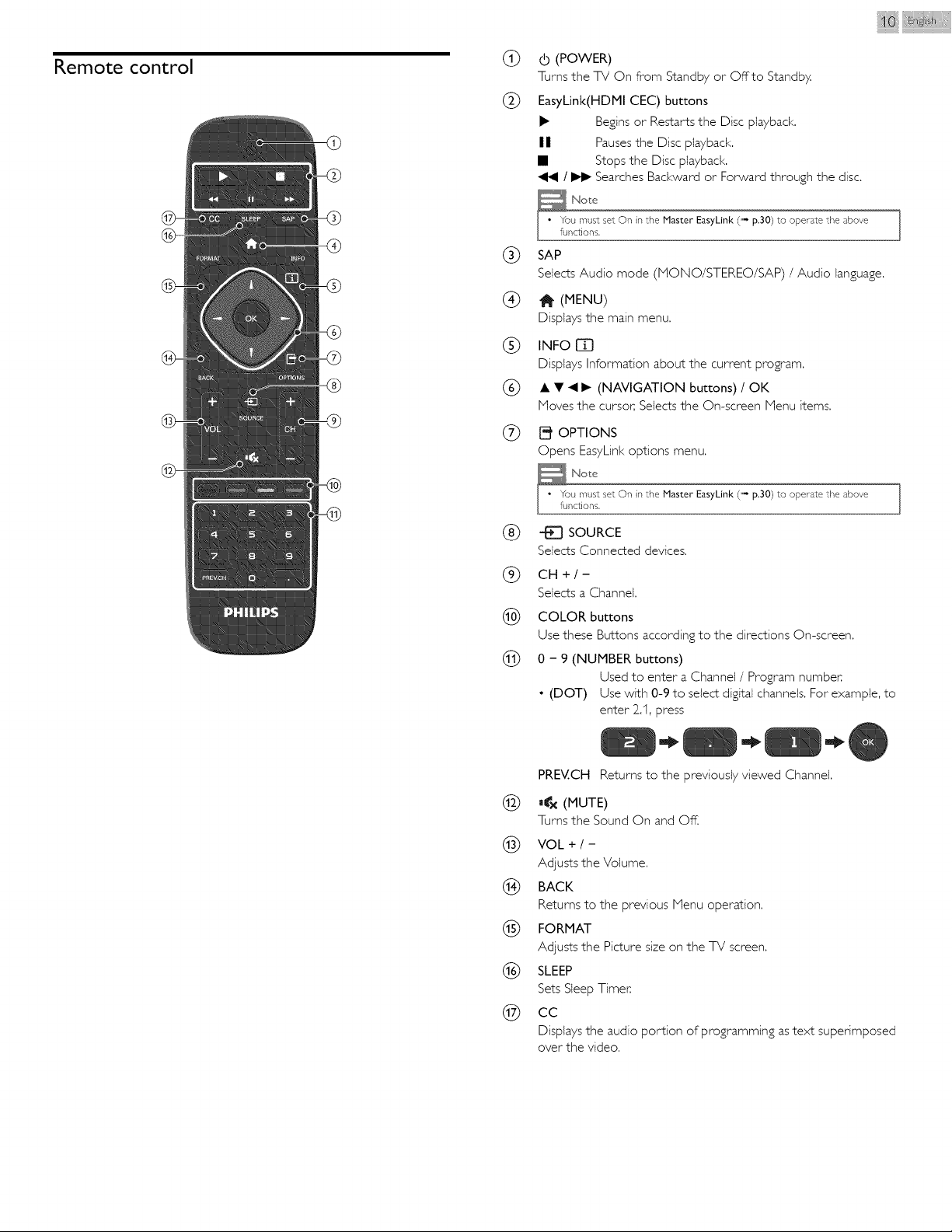
Remote control
®
®
®
®
@
®
®
@
@
iii_}}i_l_@__i_i_iii¸
0 (POWER)
Turns the TV On from Standby or Offto Standby,
EasyLink(HDMI CEC) buttons
• Begins or Restarts the Disc playback,
IIII Pauses the Disc playback,
• Stops the Disc playback,
/ _ Searches Backward or Forward through the disc,
,No_e
u must set On in the Master EasyLink (" p.30) to operate the above
notions,
SAP
Selects Audio mode (MONO/STEREO/SAP) / Audio lan£ua£e,
1_ (MENU)
Displaysthe main menu.
INFO []_]
Displays Information about the current program.
• • _11_ (NAVIGATION buttons) / OK
Moves the cursor, Selects the On-screen Menu items.
[_ OPTIONS
Opens EasyLinl< options menu.
u must set On in the Master EasyLink (" p.30) to operate the above
nctions.
SOURCE
Selects Connected devices.
CH+I-
Selects a Channel.
COLOR buttons
Use these Buttons according to the directions On-screen,
0 - 9 (NUMBER buttons)
Used to enter a Channel / Program number.
• (DOT) Use with 0-9 to select digital channels. For example, to
enter Z1, press
PREV.CH Returns to the previously viewed Channel.
(_ '_x (MUTE)
Turns the Sound On and Off,
(_) VOL + / -
Adjusts the Volume.
(_) BACK
Returns to the previous Menu operation.
(_) FORMAT
Adjusts the Picture size on the TV screen.
(_) SLEEP
Sets Sleep Timer.
(_) cc
Displays the audio portion of programming as text superimposed
over the video,
iii }}i iii ¸
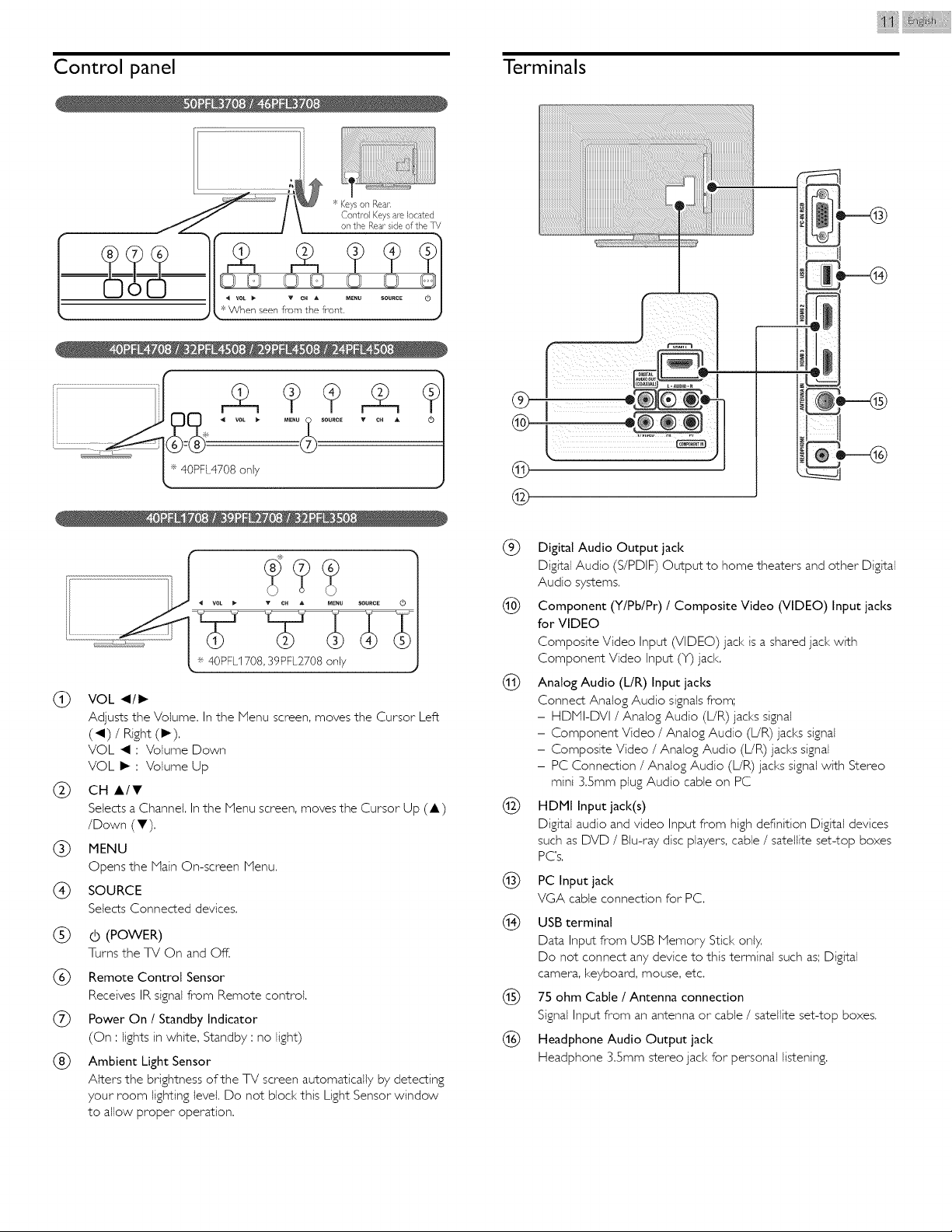
Control panel
Terminals
®
®
®
®
®
®
VOL _III_
Adjusts the Volume. In the Menu screen, moves the Cursor Left
(_1) / Right (1_).
VOL _1 : Volume Down
VOL I_ : Volume Up
CH &IT
Selects a Channel. In the Menu screen, moves the Cursor Up (&)
/Down (V).
MENU
Opens the Main On-screen Menu.
SOURCE
Selects Connected devices.
(POWER)
Turns the TV On and Off.
Remote Control Sensor
Receives IR signal from Remote control,
Power On / Standby Indicator
(On :lights in white, Standby : no light)
Ambient Light Sensor
Alters the brightness of the TV screen automatically by detecting
your room lighting levet. Do not block this Light Sensor window
to allow proper operation.
®
©
® Digital Audio Output jack
Digital Audio (S/PDIF) Output to home theaters and other Digital
Audio systems.
(_ Component (Y/Pb/Pr) / Composite Video (VIDEO) Input jacks
for VIDEO
Composite Video Input (VIDEO) jack is a shared jack with
Component Video Input (Y) jack,
(_ Analog Audio (L/R) Input jacks
Connect Analog Audio signals from;
- HDHI-DVI / Analog Audio (L/R) jacks signal
- Component Video / Analog Audio (L/R) jacks signal
- Composite Video / Analog Audio (L!R) jacks signal
- PC Connection / Analog Audio (L!R) jacks signal with Stereo
mini 3.5mm plug Audio cable on PC
(_ HDMI Input jack(s)
Digital audio and video Input from high definition Digital devices
such as DVD / Blu-ray disc players, cable / satellite set-top boxes
PC's.
(_) PC Input jack
VGA cable connection for PC.
®
USB terminal
Data Input from USB Memory Stick only,
Do not connect any device to this terminal such as; Digital
camera, keyboard, mouse, etc.
75 ohm Cable / Antenna connection
Signal Input from an antenna or cable / satellite set-top boxes.
Headphone Audio Output jack
Headphone 3.5mm stereo jack for personal listening.
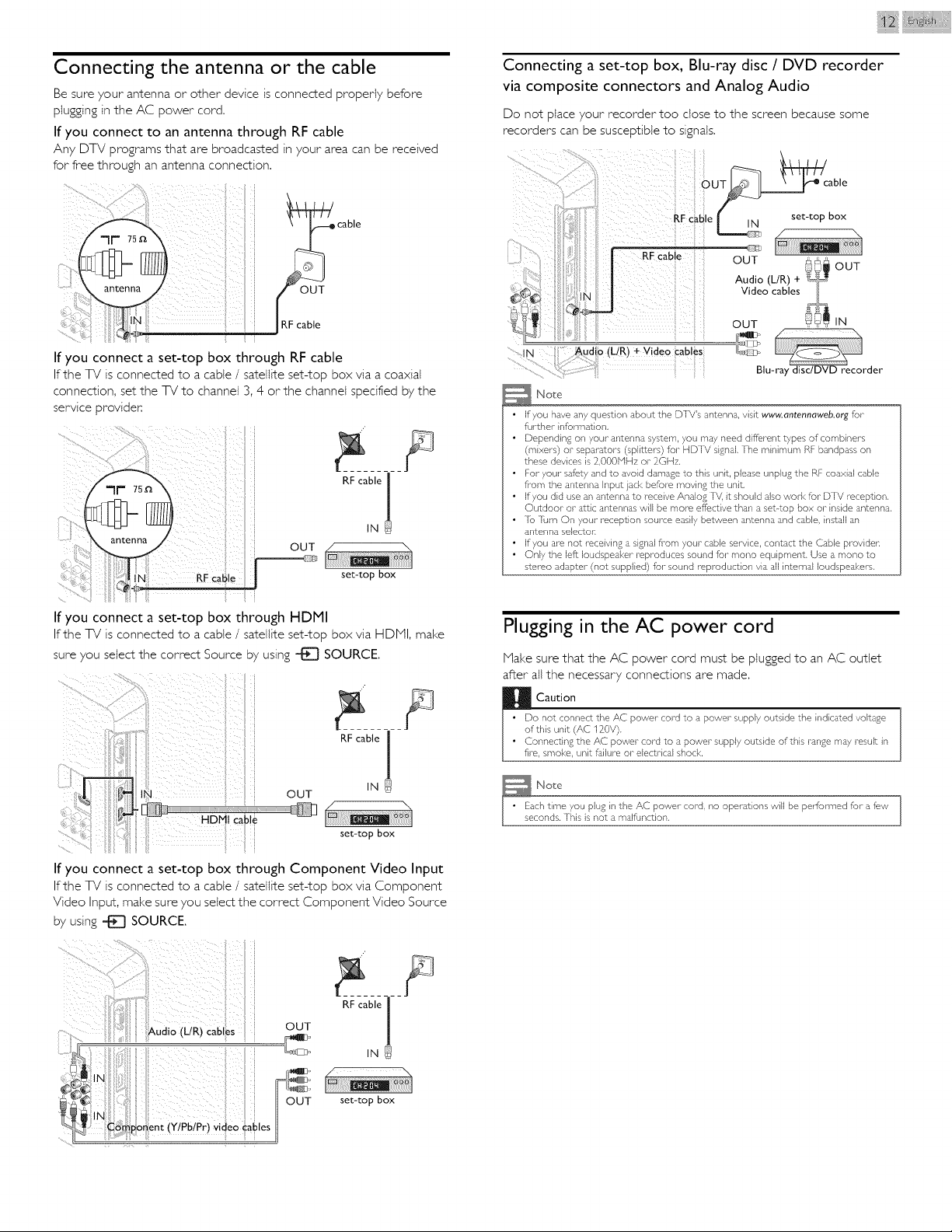
Connecting the antenna or the cable
Be sure your antenna or other device is connected properly before
pIugging in the AC power cord.
If you connect to an antenna through RF cable
Any DTV programs that are broadcasted in your area can be received
for free through an antenna connection,
If you connect a set-top box through RF cable
If the TV is connected to a cable / satellite set-top box via a coaxial
connection, set the TV to channel 3, 4 or the channet specified by the
service provider.
OUT
RF cable J
IN@
RF cable set-top box
I
If you connect a set-top box through HDMI
If the TV is connected to a cable / satellite set-top box via HDkII, make
sure you select the correct Source by using _ SOURCE.
OUT
set-top box
If you connect a set-top box through Component Video Input
If the TV is connected to a cable / satellite set-top box via Component
Video Input, make sure you select the correct Component Video Source
by using _ SOURCE.
Connecting a set-top box, Blu-ray disc / DVD recorder
via composite connectors and Analog Audio
Do not place your recorder too dose to the screen because some
recorders can be susceptible to signals.
IN
Note
) + Video _cabl_s
OUT AA
Audio (L/R) + _ OUT
Video cables _
OUT IN
Blu-ray disc/DVD recorder
If you have any question about the DIV's antenna, visit www.antennaweb.org for
further information,
• Dependi% on your antenna system_ you may need different types of combhqers
(mixers) or separators (splitters) for HDIV signal, ]he minimum RF bandpass on
these devices is 2,000MHz or 2GHz,
• For your safety and to avoid damage to this unit, please unplug the RF coaxial cable
from the antenna Input jack before moving the unit,
• If you did use an antenna to receive Analog ]_ it should also work for DTV receptiorL
Outdoor or attic antennas will be more effective than a set-top box or inside antenna.
• Io ]urn On your reception source easily between antenna and cable, install an
antenna selector:
• If you are not receiving a signal from your cable service, contact the Cable provider:
• Only the left loudspeaker reproduces sound for mono equipment Use a mono to
stereo adapter (not supplied) for sound reproduction via all internal loudspeakers.
Plugging in the AC power cord
Hake sure that the AC power cord must be pIugged to an AC outlet
after all the necessary connections are made.
Noso
ch time you plug in the AC power cord, no operations will be performed for a few
conds, This is not a malfunction.
OUT
RF cable [
set-top box
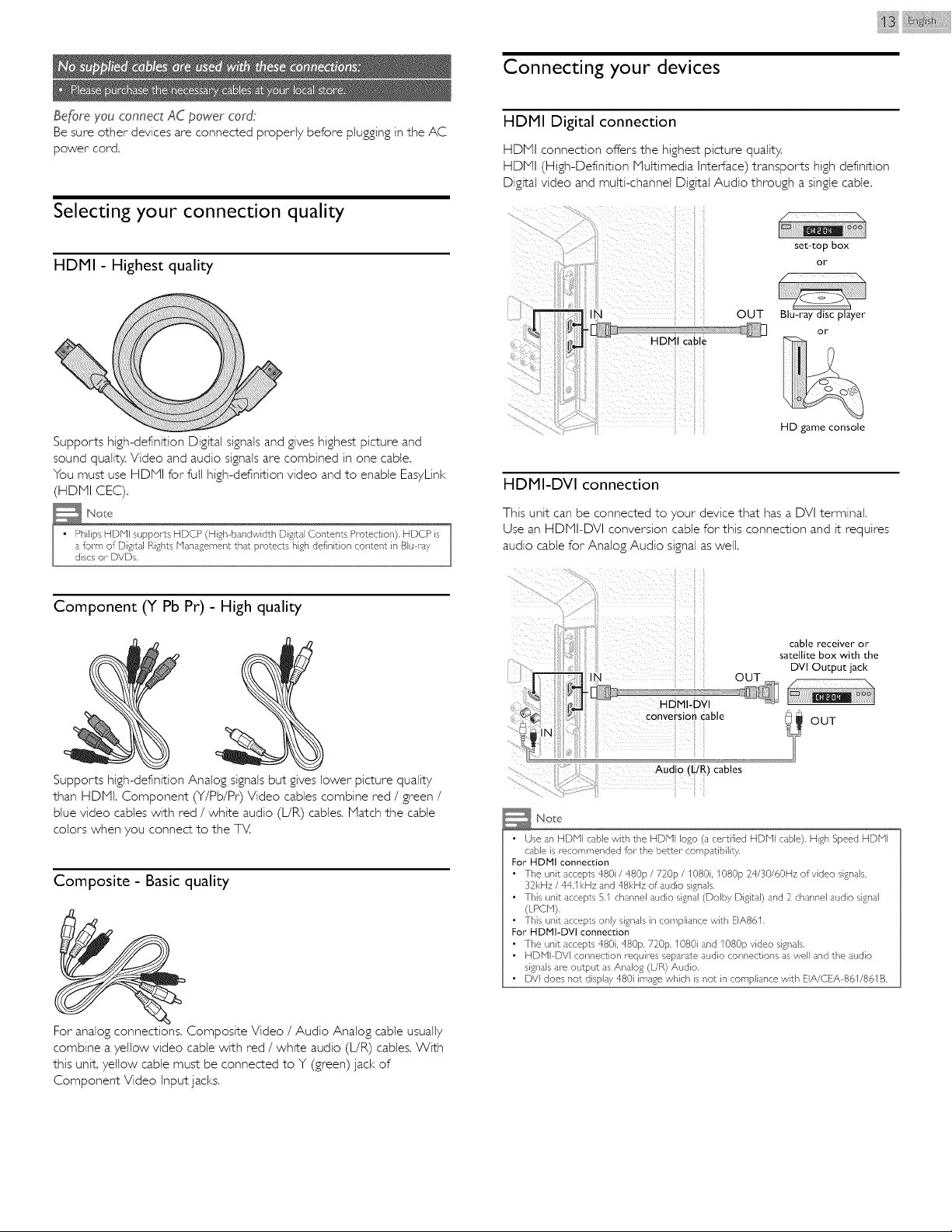
Before you connect AC power cord:
Be sure other devices are connected properly before plugging in the AC
power cord.
Selecting your connection quality
HDMI - Highest quality
Supports high-definition Digital signals and gives highest picture and
sound quality. Video and audio signals are combined in one cable.
You must use HDMI for full high-definition video and to enable EasyLinl<
(HDNI CEC).
Component (Y Pb Pr) - High quality
Supports high-definition Analog signals but gives lower picture quality
than HDMI. Component (Y/Pb/Pr) Video cables combine red / green /
blue video cables with red / white audio (L/R) cables. Match the cable
colors when you connect to the TV.
Composite - Basic quality
For analog connections, Composite Video / Audio Analog cable usually
combine a yellow video cable with red / white audio (L/R) cables. With
this unit, yellow cable must be connected to Y (green) jack of
Component Video Input jacks.
Connecting your devices
HDMI Digital connection
HDMI connection offers the highest picture quality.
HDMI (High-Definition Multimedia Interface) transports high definition
Digital video and multi-channel Digital Audio through a single cable.
set-top box
or
/ \
Blu-ray discplayer
or
ItD game console
HDMI-DVI connection
This unit can be connected to your device that has a DVI terminal.
Use an HDNI-DVI conversion cable for this connection and it requires
audio cable for Analog Audio signal as well.
cable receiver or
satellite box with the
DVI Output jack
OUT
Aud o (UR) cables
Note
• Use an HDNI cable with the HDHI logo (a certified HDNI cable). High Speed HDHI
cable is recommended for the better compatibility.
For HDMI connection
• The unit accepts 480i / 480p / 720p / 1080i, I080p 24/30/60Hz of video signals,
32kHz / 44.1 kHz and 48kHz of audio signals.
• This unit accepts 5.1 channel audio signal (Dolby Digital) and 2 channel audio signal
(LPCN),
• This unit accepts only signals in compliance with EIA861.
For HDMI-DVI connection
• The unit accepts 480i, 480p, 720p, I080i and 1080p video signals.
• HDNPDVI connection requires separ-_¢e audio connections as well and the audio
signals are output as Analog (UR) Audio.
• DVI does not display 480i image which is not in compliance with EIA/CEA 861/861B
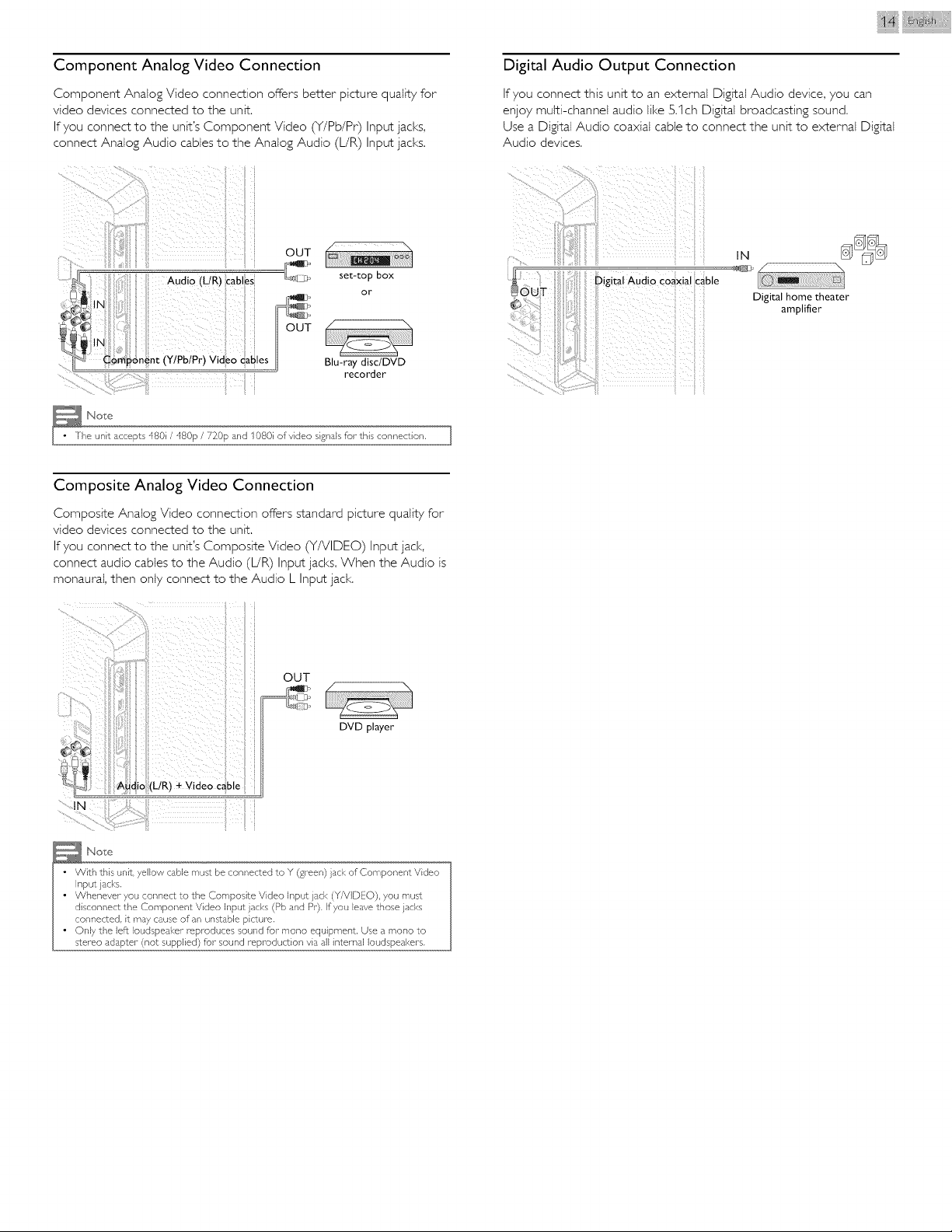
Component Analog Video Connection
Component Analog Video connection offers better picture quality for
video devices connected to the unit,
If you connect to the unit's Component Video (Y/Pb/Pr) Input jacks,
connect Analog Audio cables to the Analog Audio (L/R) Input jacks.
iii }@@ i i iii¸
Digital Audio Output Connection
If you connect this unit to an external Digital Audio device, you can
enjoy multi-channel audio like 5.I ch Digital broadcasting sound.
Use a Digital Audio coaxial cable to connect the unit to external Digital
Audio devices.
OUT
_J_L Audio(L/R)cables ri_
IN
[)'_ C6mponent (Y/Pb/Pr) Video cab,es
set-top box
or
Blu-ray disc/DVD
recorder
IN
Digital home theater
amplifier
_j x_oxe
e unit accepts 480i / 480p / 720p and 1080i of video signals for this connection. ]
Composite Analog Video Connection
Composite Analog Video connection offersstandard picture quality for
videodevicesconnected to the unit.
If you connect to the unit's Composite Video (Y/VIDEO) Input jack,
connect audio cables to the Audio (L/R) Input jad<s. When the Audio is
monaural, then only connect to the Audio L Input jad<.
OUT
.......tN
(UR) _ Video c_ble
DVD player
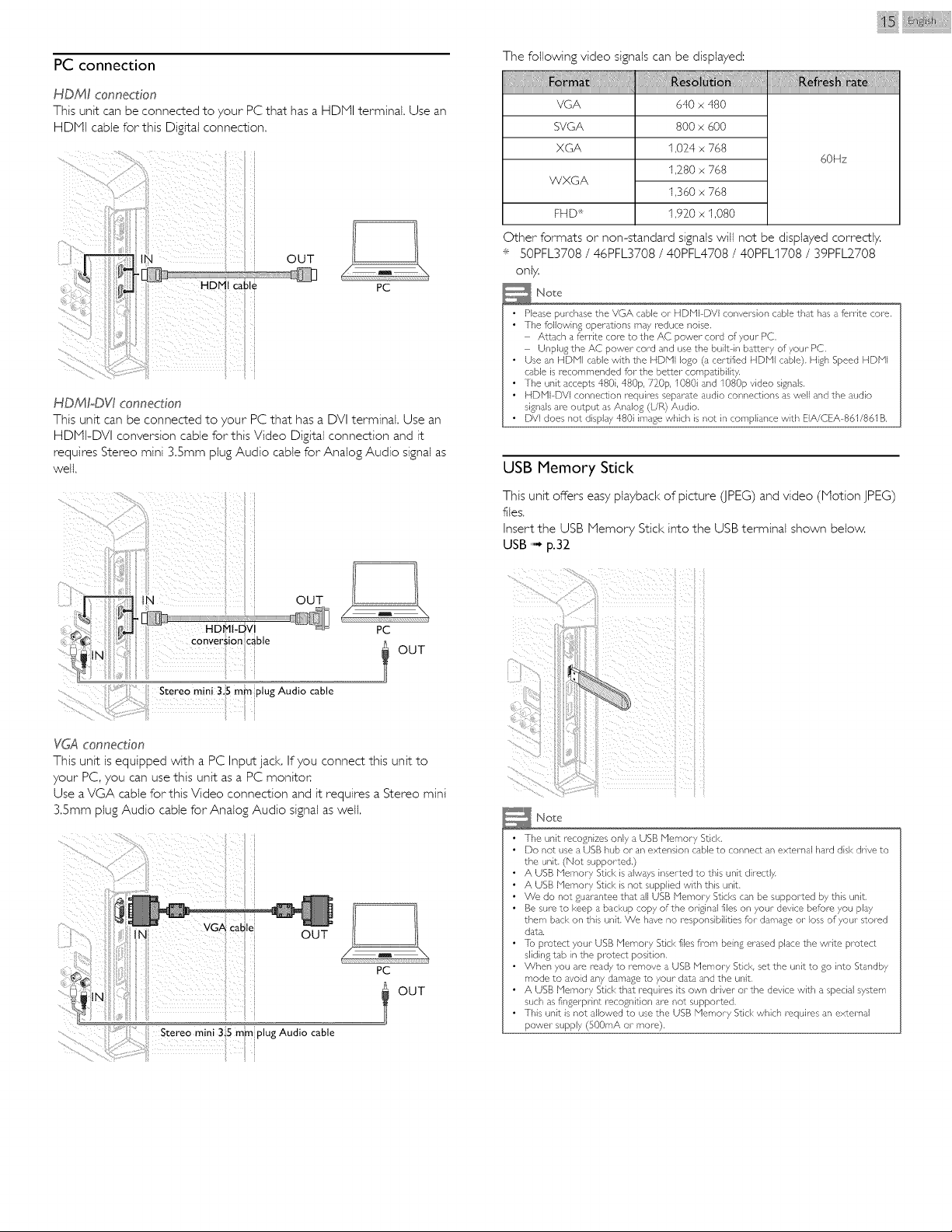
PC connection
HDMI connection
This unit can be connected to your PC that has a HDNI terminal. Use an
HDNI cable for this Digital connection.
OUT
PC
HDMIoDW connection
This unit can be connected to your PC that has a DVI terminak Use an
HDNI-DVI conversion cable for this Video Digital connection and it
requires Stereo mini 3.Smm plug Audio cable for Analog Audio signal as
well.
OUT
PC
OUT
Stereo m n 35 mO plug Audio cable
ii i
YGA connection
This unit is equipped with a PC Input jack. If you connect this unit to
your PC, you can use this unit as a PC monitor
Use a VGA cable for this Video connection and it requires a Stereo mini
3.Smm plug Audio cable for Analog Audio signal as welt.
OUT
PC
OUT
The following video signals can be displayed:
VGA
SVGA
XGA
WXGA
FHD ÷
640 x 480
800 x 600
1,024 x 768
1280 x 768
1,360 x 768
1,920 x 1,080
60Hz
Other formats or non-standard signals witl not be displayed correctly.
* SOPFL3708/ 46PFL3708/ 40PFL4708/ 40PFLI708 / 39PFL2_708
only.
Note
• Please purchase the VGA cable or HDNI DVI corwersion cable that has a feiTite core.
• The following operations may reduce noise.
A_tach a ferrite core to the AC power- cord of your- PC,
Unplug the AC power cord and use the built in bakery of your- PC.
• Use an HDNI cable with the HDHI logo (a certified HDNI cable). High Speed HDNI
cable is recommended for the better compatibility.
• The unit accepts 480i, 480p, 720p, I080i and 1080p video signals.
• HDHPDVI connection requires separ_¢e audio connections as well and the audio
signals are output as Analog (UR) Audio.
• DVI does not display 480i image which is not in compliance with EIA/CEA 861/861B,
USB Memory Stick
This unit offers easy playback of picture (JPEG) and video (Motion JPEG)
files.
Insert the USB Memory Stid< into the USB terminal shown below.
USB '"- p.32
i
Note
• The unit recognizes only a USB I_lemory Stick.
• Do not use a USB hub or an extension cable to connect an external hard disk drive to
the unit. (Not supported,)
• A USB Memory Sdck is always inserted to this unit direcdy.
• A USB Memory Stick is not supplied with this unit.
• We do not guarantee that all USB Memory Sticks can be supported by this unit.
• Be sure to keep a backup copy of the original files on your device before you pby
them back on this unit. We have no responsibilities for damage or loss of your stored
data.
• Io protec*_ your USB Memory Stick files fi_om being erased place the write protec_
sliding tab in the protect position,
• When you are ready to remove a USB Memory Stick, set the unit to go into Standby
mode to avoid any damage to your- data and the unit.
• A USB Memory Stick that requires its own @-iver or the device with a special system
such as fingerprint i_ecognition are not supported,
• This unit is not allowed to use the USB Memory Stick which requires an external
power supply (500mA or more).
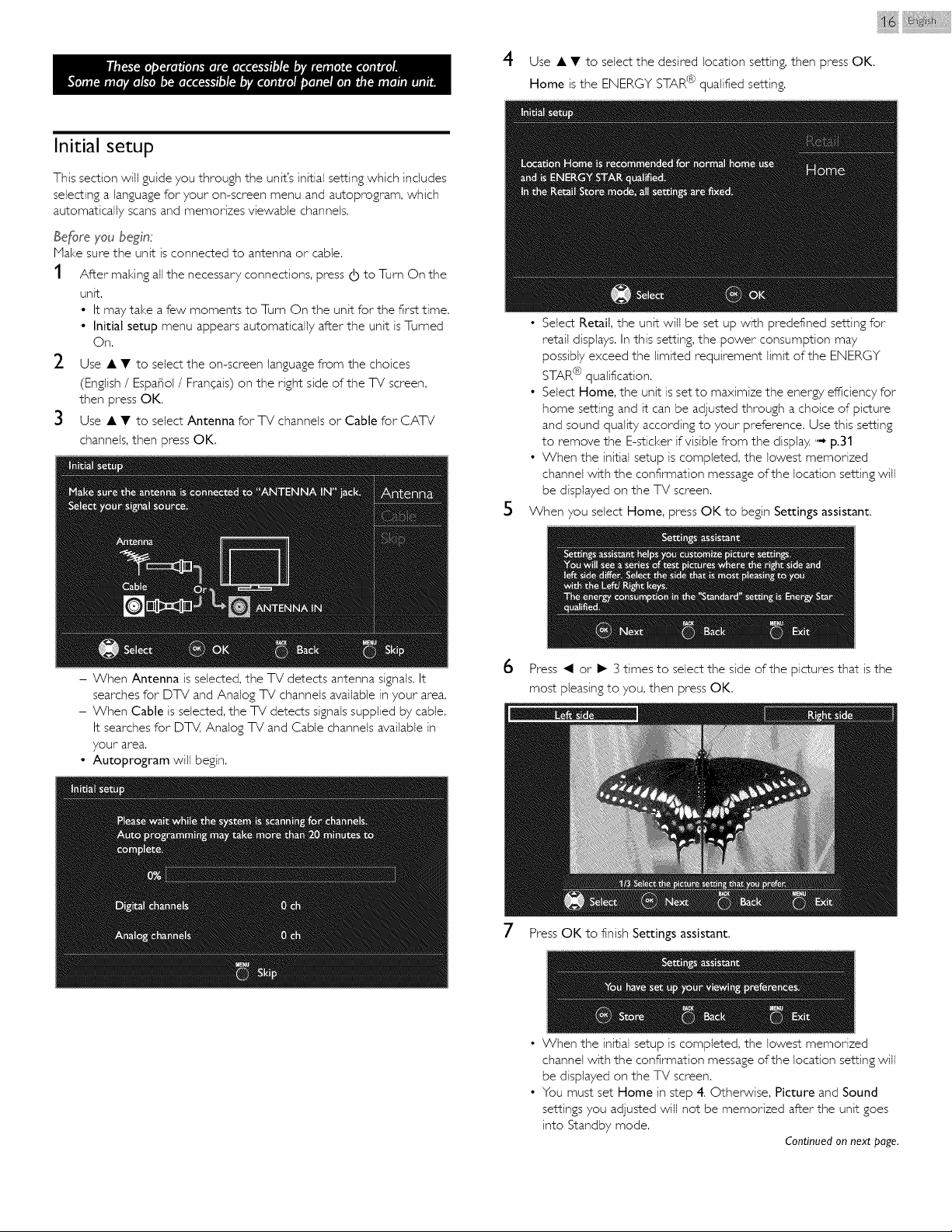
4
iii }! i ¸
Use • • to setect the desired location setting, then press OK.
Home is the ENERGY STAR@ qualified setting.
Initial setup
This section will guide you through the unit's initial setting which includes
selecting a language for your on-screen menu and autoprogram, which
automatically scans and memorizes viewable channels.
be_re you begin:
Make sure the unit is connected to antenna or cable.
1 After making all the necessary connections, press (b to Turn On the
unit.
• It may take a few moments to Turn On the unit for the first time.
• Initial setup menu appears automatically after the unit is Turned
On.
2
Use • • to select the on-screen language from the choices
(English / Espafiol / FranCais) on the right side of the TV screen,
then press OK.
Use • • to select Antenna for TV channels or Cable for CATV
channels, then press OK.
5
• Select Retail, the unit will be set up with predefined setting for
retail displays. In this setting, the power consumption may
possibly exceed the limited requirement limit of the ENERGY
STAR @ qualification.
• Select Home, the unit isset to maximize the energy efficiency for
home settingand itcan be adjustedthrough a choice ofpicture
and sound qualityaccordingto your preference.Use thissetting
to remove the E-stickerifvisiblefrom the displa7.'"-p.31
• When the initialsetup iscompleted,the lowestmemorized
channelwiththe confirmationmessage ofthe locationsettingwill
be displayedon the TV screen.
When you select Home, press OK to begin Settings assistant.
- When Antenna is selected, the TV detects antenna signals. It
searches for DTV and Analog TV channels available in your area.
- When Cable is selected, the TV detects signals supplied by cable.
It searches for DTV, Analog TV and Cable channels available in
your area.
• Autoprogram will begin.
6 Press _1 or I_ 3 times to select the side of the pictures that is the
most pleasing to you, then press OK.
7 Press OK to finish Settings assistant,
• When the initial setup is completed, the lowest memorized
channet with the confirmation message of the location setting witl
be displayed on the TV screen.
• You must set Home in step 4. Otherwise, Picture and Sound
settings you adjusted witl not be memorized after the unit goes
into Standby mode.
Continued on next page.
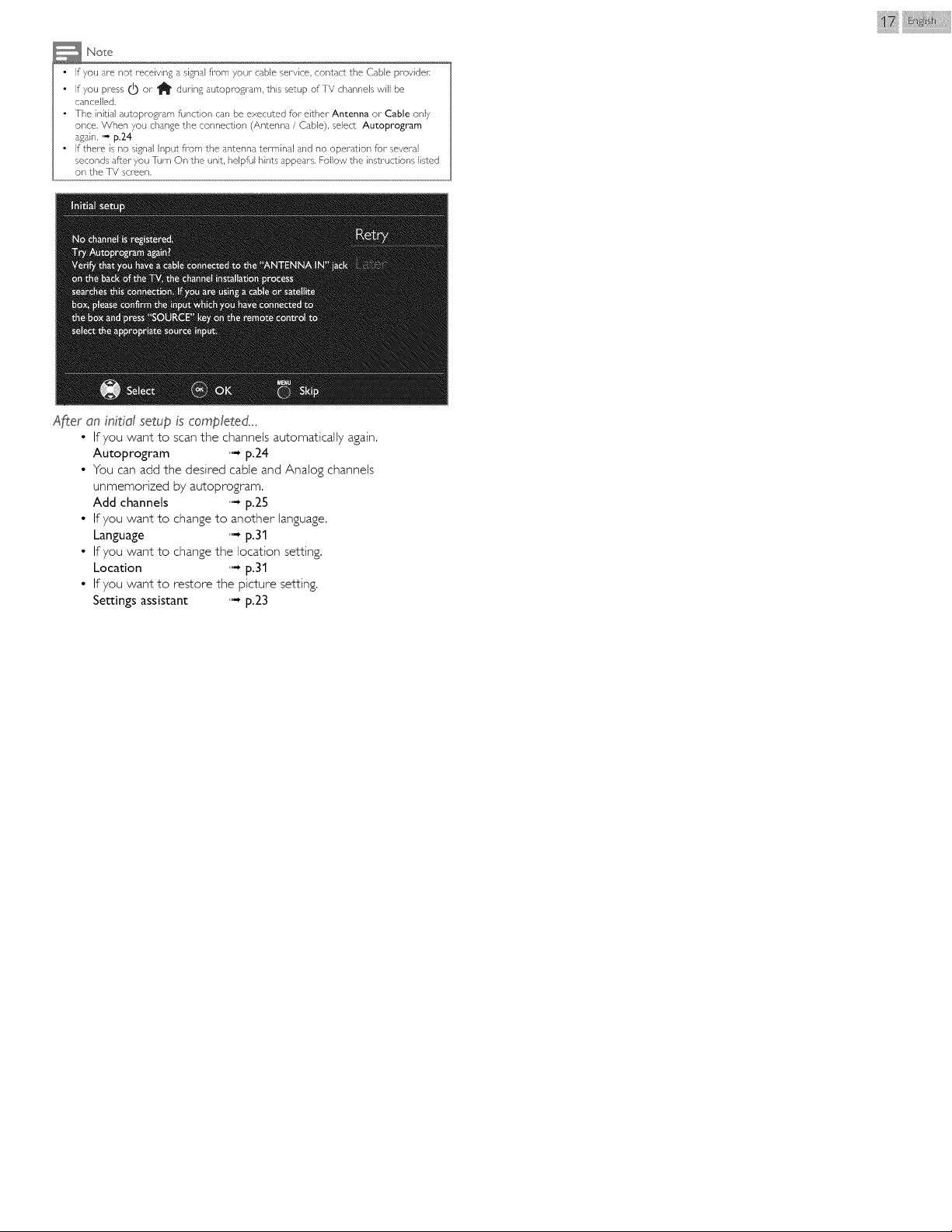
Note
• If you are not receiving a signal fi-om your cable service, contact the Cable provider.
• If you press (!) or _ during autoprogram, this setup ofIV channels will be
cancelled,
• the initial autoprogram function can be executed for either Antenna or Cable only
once, When you change the connection (Antenna / Cable), select Autoprogram
again. " p.24
• If there is no signal Ir_put fi_om the antenns terminal a-_d no opera_ion for several
seconds after you rum On the unit, helpful hints appears, Follow the instructions listed
on the ]V screen,
iii i}i @ i i iii¸
A_er an inis'c]l setup is completed,.,
• If you want to scan the channels automatically again,
Autoprogram .... p.2_4
• You can add the desired cable and Analog channets
unmemorized by autoprogram,
Add channels .... p.2_5
• If you want to change to another language,
Language .... p.31
• If you want to change the location setting,
Location ,,i, p.31
• If you wantto restore the picture setting,
Settings assistant ,,i, p.2_3
4 Use your TV
Switching channels
iii_ii_i@_i_i_iii¸
Switching on your TV and putting it in
Standby mode
50PFL3708/
46PFL3708
b
K
40PFL4708/
32PFL4508/ 40PFL1708/
29PFL4508/ 39PFL2708/
24PFL4508 32PFL3508
40PFL4708/
32PFL4508/
50PFL3708 / 29PFL4508 /
46PFL3708 24PFL4508
40PFL1708/
39PFL2708/
32PFL3508
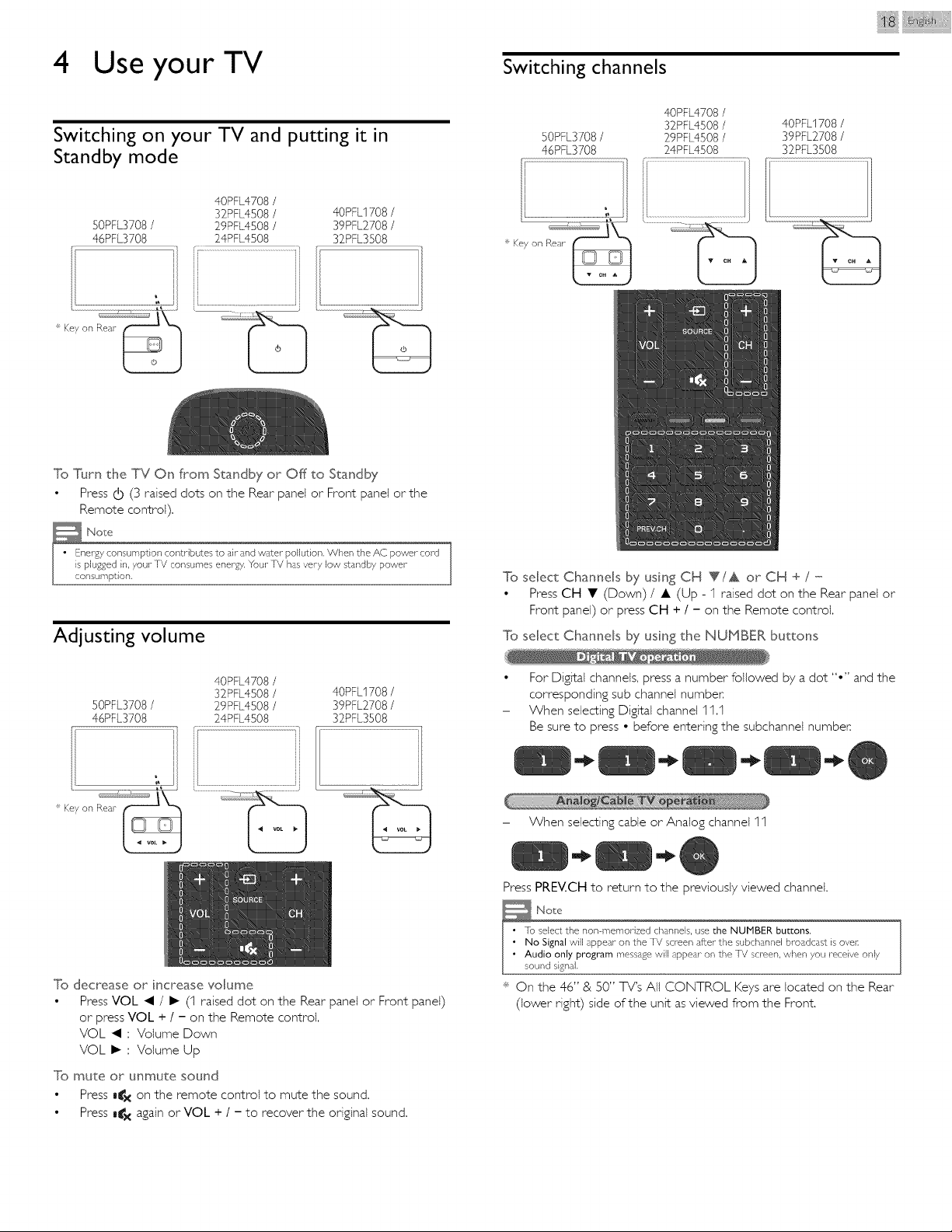
To Turn the TV On from Standby or Off to Standby
• Press (b (3 raised dots on the Rear panel or Front panel or the
Remote control).
Adjusting volume
50PFL3708/
46PFL3708
': Key on Rear
40PFL4708 /
32PFL4508/ 40PFL1708 /
29PFL4508 / 39PFL2708/
24PFL4508 32PFL3508
/..................
To select Channels by using CH VIA or CH + / -
• Press CH • (Down) / • (Up - 1 raised dot on the Rear panel or
Front panel) or press CH + / - on the Remote control.
To select Channels by using the NUMBER buttons
• For Digital channels, press a number followed by a dot "•" and the
corresponding sub channel number
- When selecting Digital channel 11.1
Be sure to press • before entering the subchannet number
- When selecting cable or Analog channel 11
Press PREV.CH to return to the previously viewed channel.
To decrease or increase volume
• Press VOL _1 / I_ (t raised dot on the Rear panel or Front panel)
or press VOL + / - on the Remote control.
VOL _1 : Volume Down
VOL I_ : Volume Up
To mute or unmute sound
• Press m_x on the remote control to mute the sound.
• Press m_x again or VOL + / - to recover the original sound.
÷ On the 46" & 50" TV's All CONTROL Keys are located on the Rear
(lower right) side of the unit as viewed from the Front.
Watching channels from an external device
Switching Each Input Node can easily switch with the remote control
between TV (DTV or Analog TV) and external devices when they are
connected to the unit,
1 Turn On a set-top box orthe connected device,
• The picture from your set-top box or the connected device
might appear automatically on the TV screen,
If the picture does nat appear
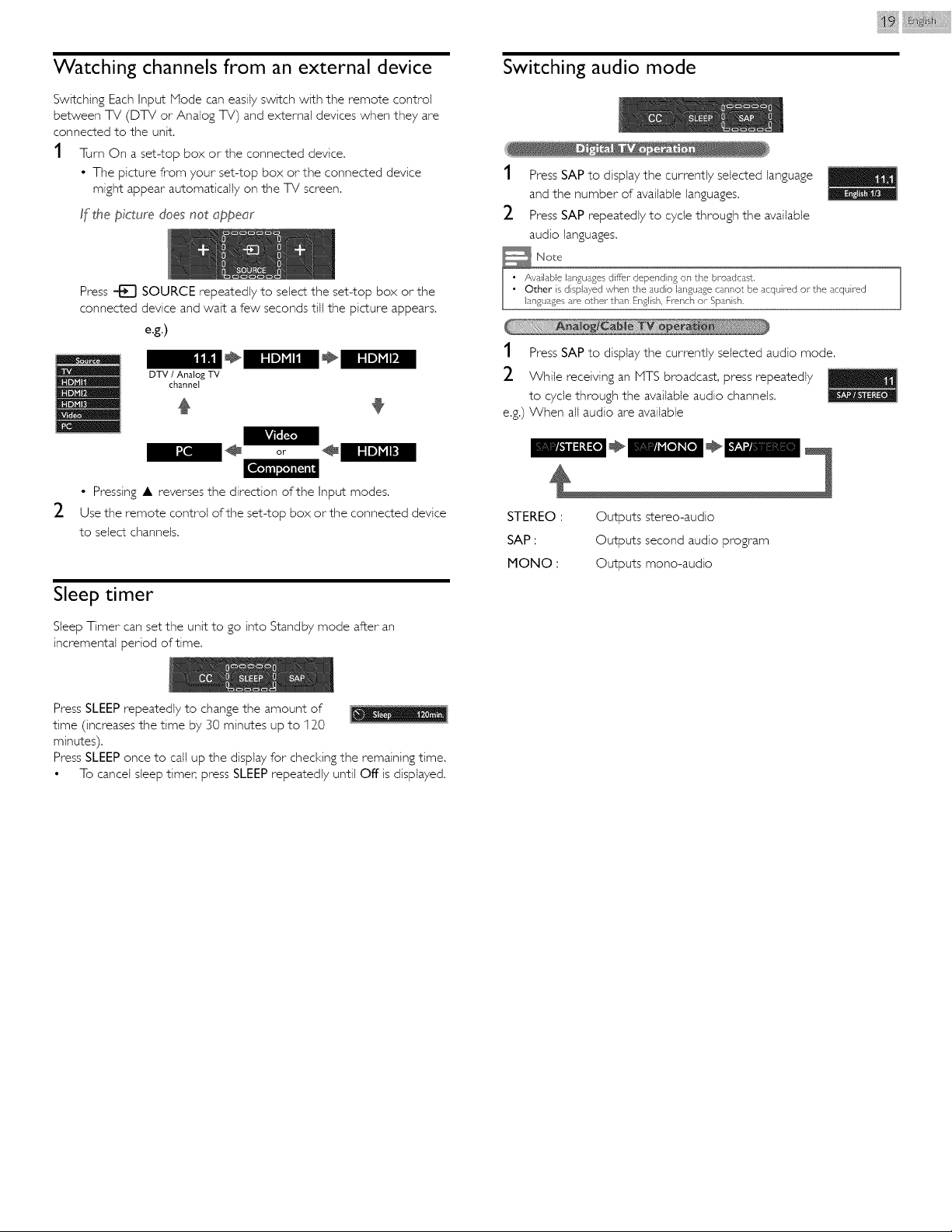
Press "-_ SOURCE repeatedly to select the set-top box or the
connected device and wait a few seconds till the picture appears,
e.g.)
DTV / Analog TV
channel
[__
• Pressing • reverses the direction of the Input modes.
2 Use the remote control of the set-top box orthe connected device
to select channels.
Sleep timer
Sleep Timer can set the unit to go into Standby mode after an
incremental period of time.
Press SLEEP repeatedly to change the amount of
time (increases the time by 30 minutes up to 120
minutes).
Press SLEEP once to call up the display for checking the remaining time.
• To cancel sleep timec press SLEEP repeatedly until Off is displayed.
Switching audio mode
1 Press SAP to display the currently selected language
and the number of available languages.
2 Press SAP repeatedly to cycle through the available
audio languages.
_ Nx_te
vailable languages differ depending on the broadcast.
ther is displayed when the audio language cannot be acquired or the acquired
nguages are other than English, French or Spanish.
1 Press SAP to display the currently selected audio mode.
2 While receiving an NTS broadcast, press repeatedly
to cycle through the available audio channels.
e.g.) When all audio are available
STEREO : Outputs stereo-audio
SAP : Outputs second audio program
MONO : Outputs mono-audio
EasyLink options
If you have our brand products such as Blu-ray disc player or DVD
recorder that are compatible with EasyLink functions, connect them to
this unit via an HDPII cable so you can simpI 7 operate various items
from this unit's remote control,
be_re you begin:
You must set On in Device control and EasyLink control. '"- p.30
Otherwise, LINK does not wod< even if you connected our brand
devices to this unit,
1 Press [_ OPTIONS to display EasyLink options menu.
Device-menu Controls the menu of your connected EasyLinl<
device.
Device-contents Controls the top menu of your DVD or Blu-ray
discs,
Device-favorite Controls the pop-up menu of your Blu-ray discs.
2 Use • • or OK on this unit's remote control to operate the
desired functions for your devices.
Changing picture format
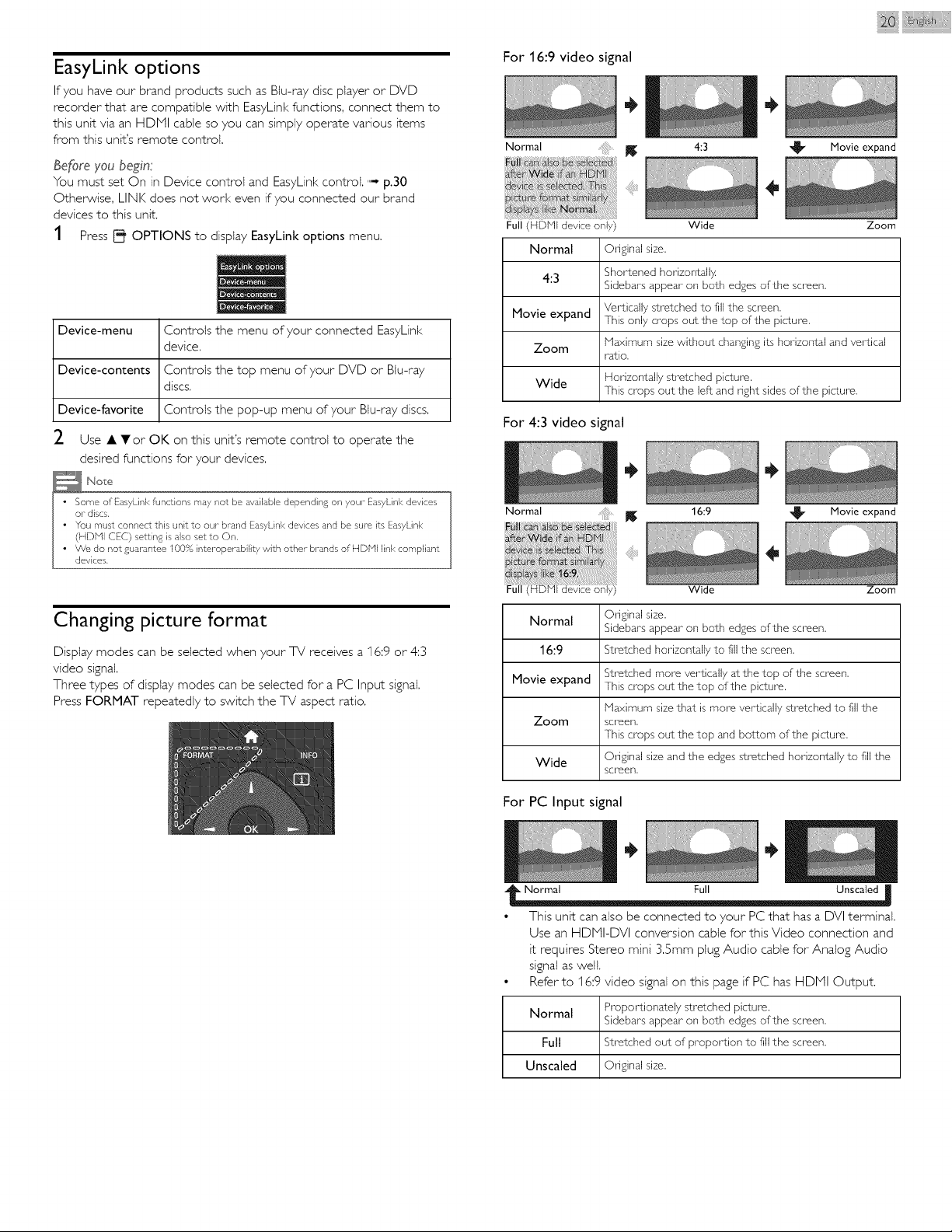
Display modes can be selected when your %/receives a I6:9 or 4:3
video signal.
Three types of display modes can be selected for a PC Input signal.
Press FORMAT repeatedly to switch the TV aspect ratio.
For 16:9 video signal
¸
Normal 4:3 Movie expand
Full (HDNI device only) Wide Zoom
Normal Original size.
4:3 Shortened horizontally
Sidebars appear on both edges of the screen.
Movie expand Vertically stretched to fill the screen.
This only crops out the top of the picture.
Zoom Maximum size without changing its horizontal and vertical
ratio.
Wide Horizontally stretched picture.
This crops out the left and right sides of the picture.
For 4:3 video signal
Normal 16:9 _ Movie expand
_ew!a :ian i
ayi}
Wide Zoom
Normal Original size.
Sidebars appear on both edgesof the screen.
16:9 Stretched horizontally to fill the screen.
Stretched more vertically at the top of the screen.
Movie
ex_an_ This crops out the top of the picture.
Maximum sizethat ismore vertically stretched to fill the
Zoom screen,
This crops out the top and bottom of the picture.
Wide Original sizeand the edgesstretched horizontally to fill the
screen.
For PC Input signal
Normal Full Unscaled
• This unit can also be connected to your PC that has a DVI terminal,
Use an HDPII-DVI conversion cable for this Video connection and
it requires Stereo mini 3.Smm plug Audio cable for Analog Audio
signal as well.
• Refer to I6:9 video signal on this page if PC has HDPII Output.
Normal Proportionately stretched picture.
Sidebars appear on both edges of the screen.
Full Stretched out of proportion to fill the screen.
Unscaled Original size.
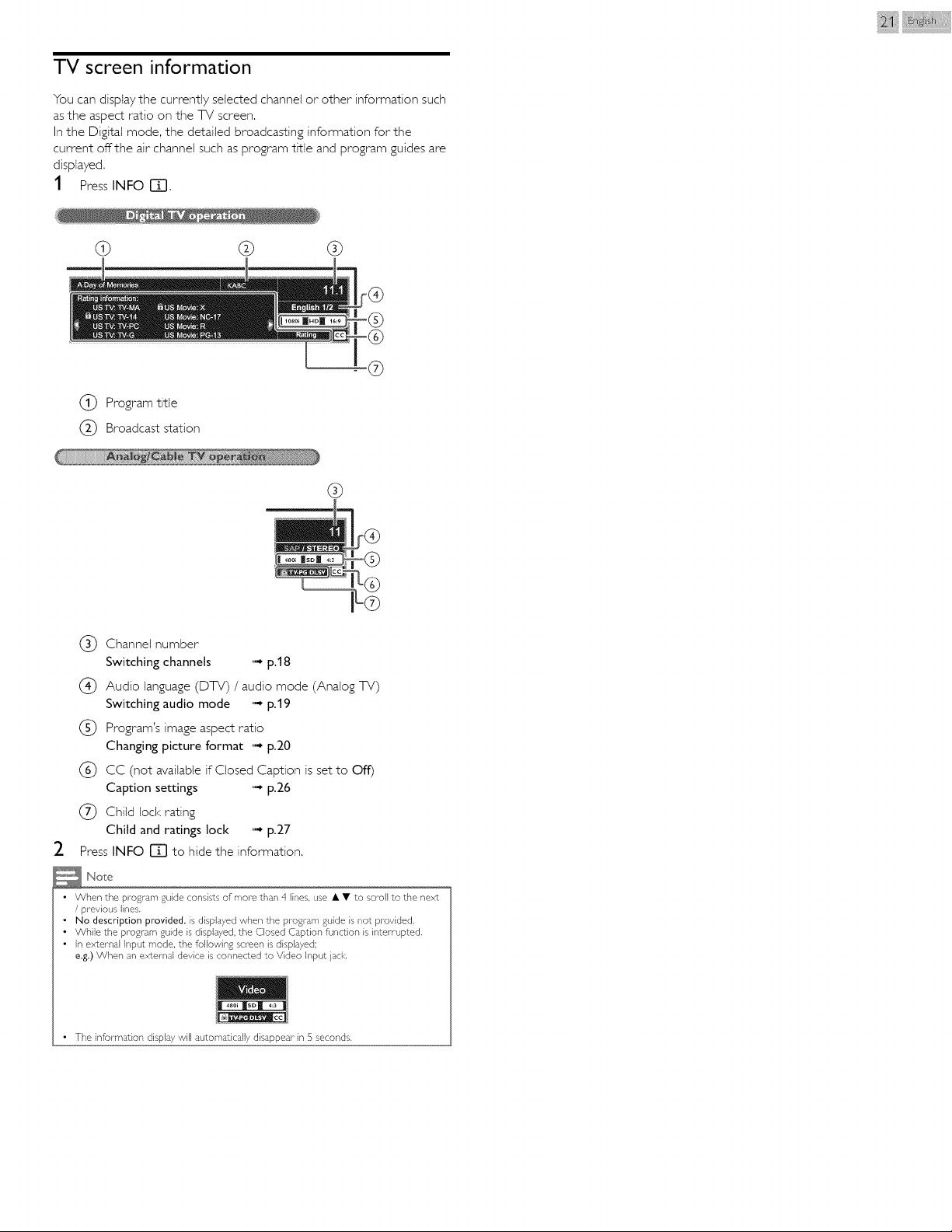
TV screen information
You can displaythe currentl 7 selected channel or other information such
as the aspect ratio on the TV screen,
In the Digital mode, the detailed broadcasting information for the
current offthe air channel such as program title and program guides are
displayed.
1 Press INFO []].
d) G ®
(_ Program title
(_) Broadcast station
®
(_) Channel number
Switching channels '"- p.18
(_) Audio language (DTV) / audio mode (Analog TV)
Switching audio mode '"- p.19
(_ Program's image aspect ratio
Changing picture format '"- p.20
(_) CC (not available if Closed Caption is set to Off)
Caption settings '"- p.26
(_ Child lock rating
Child and ratings lock '"- p.27
2 Press INFO []]] to hide the information.
Note
• When the program guide consists of more than 4 lines, use • • to scroll to the next
/ previous lines,
• No description provided, is displayed when the progr_,m guide is noz provided.
• While the program guide is displayed, the Closed Caption function is interrupted,
• In external Input mode, the following screen is displayed;
e.g.) When an external device is connected to Video Input jack.
• q-he information display will automaticall 7 disappear in 5 seconds,
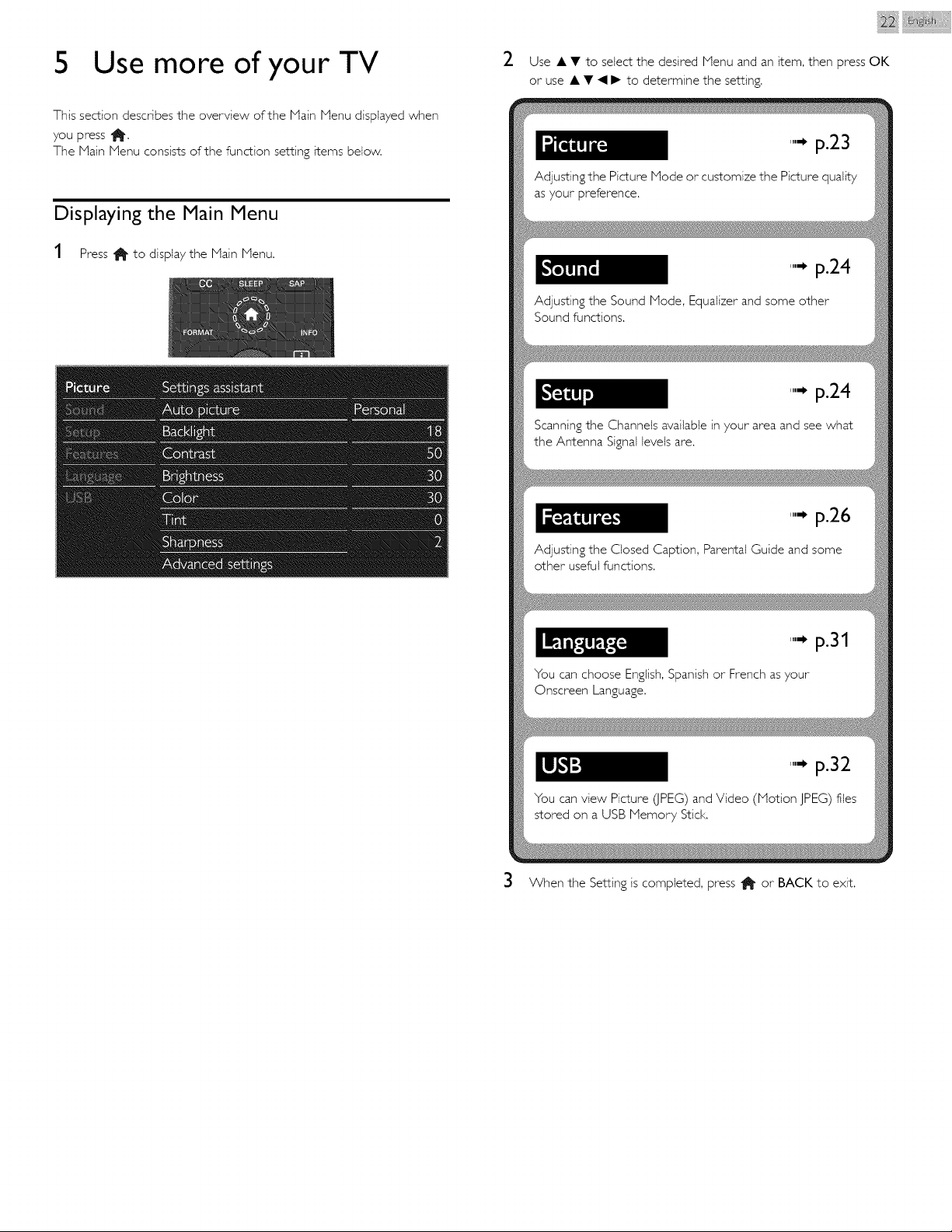
5 Use more of your TV
This section describes the overview of the Main Menu displayed when
you press _.
The Main Menu consists of the function setting items below,
Displaying the Main Menu
1 Press 1_ to display the Nain Nenu.
I/
2
i_ @_i_i_iii¸
Use • • to select the desired Nenu and an item, then press OK
or use • • _I I_ to determine the setting.
'"" p.23
Adjusting the Picture Node or customize the Picture quality
as your preference.
'"" p.24
Adjusting the Sound Node, Equalizer and some other
Sound functions.
'"" p.24
Scanning the Channels available in your area and see what
the Antenna Signal levels are.
"" p.26
Adjusting the Closed Caption, Parental Guide and some
other useful functions.
'"" p.31
You can choose English, Spanish or French as your
Onscreen Language.
'"" p.32
You can view Picture dPEG) and Video (Notion JPEG) flies
stored on a USB Nemory Stick.
3 When the Setting is completed, press 1_ or BACK to exit.
i iii¸
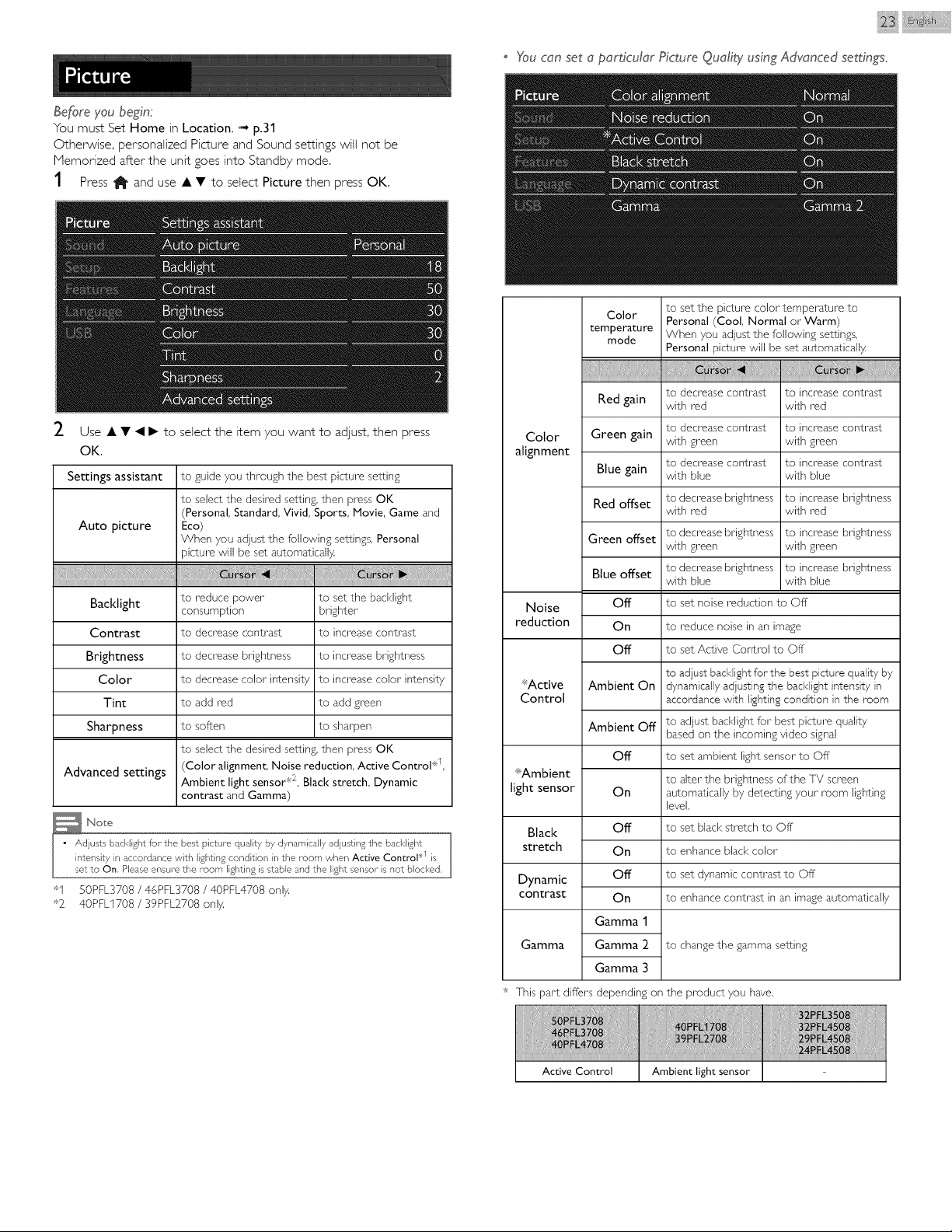
o 'Youcan set a particular Picture Quality using Advanced settings.
genre you begin:
You must Set Home in Location. '"- p.31
Otherwise, personalized Picture and Soundsettings witt not be
Nemorized after the unit goes into Standbymode.
1 Press11_and use • • to select Picture then press OK.
I/
2
Use • • _11_ to select the item you want to adjust, then press
OK.
Settings assistant to guide you through the best picture setting
to select the desired setting, then press OK
(Personal, Standard, Vivid, Sports, Movie, Game and
Auto picture Eco)
When you adjust the following settings, Personal
picture will be set automatically
Backlight
Contrast
Brightness
Color
Tint
Sharpness
Advanced settings
to reduce power
consumption
to decrease contrast
to decrease brightness
to decrease color intensity
to add red
to soften
to set the bad<light
brighter
to increase contrast
to increase brightness
to increase color intensity
to add green
to sharpen
to select the desired setting, then press OK
(Color alignment, Noise reduction, Active Control _ ,
Ambient light sensor _:2,Black stretch, Dynamic
contrast and Gamma)
"1 SOPFL3708/ 46PFL3708/ 40PFL4708only
*2 40PFL1708 / 39PFL2708 only
to set the picture color temperature to
Color Personal (Cool, Normal or Warm)
temperature
mode When you adjust the following settings,
Personal picture will be set automatically
Red gain to decrease contrast to increase contrast
with red with red
to decrease contrast to increase contrast
Color Green gain with green with green
alignment
Blue gain to decrease contrast to increase contrast
with blue with blue
Red offset to decrease brightness to increase brightness
with red with red
Green offset to decrease brightness to increase brightness
with green with green
Blue offset to decrease brightness to increase brightness
with blue with blue
Noise Off to set noise reduction to Off
reduction On to reduce noise in an image
Off to set Active Control to Off
to adjust backlight for the best picture quality by
SActive Ambient On dynamically adjusting the backJight intensity in
Control accordance with lighting condition in the room
Ambient Off to adjust backlight for best picture quality
based on the incoming video signal
Off to set ambient light sensor to Off
SAmbient to alter the brightness of the TV screen
light sensor On automatically by detecting your room lighting
level.
Black to set black stretch to Off*
stretch to enhance blad< color
Dynamic to set dynamic contrast to Off
contrast to enhance contrast in an image automatically
Gamma
Off
On
Off
On
Gamma 1
Gamma 2
Gamma 3
to change the gamma setting
÷ This part differs depending on the product you have.
Active Control Ambient light sensor
Bepre you bedn:
You must set Home in Location, '"-, p.31
Otherwise, personalized Picture and Sound settings will not be
memorized after the unit goes into Standby mode,
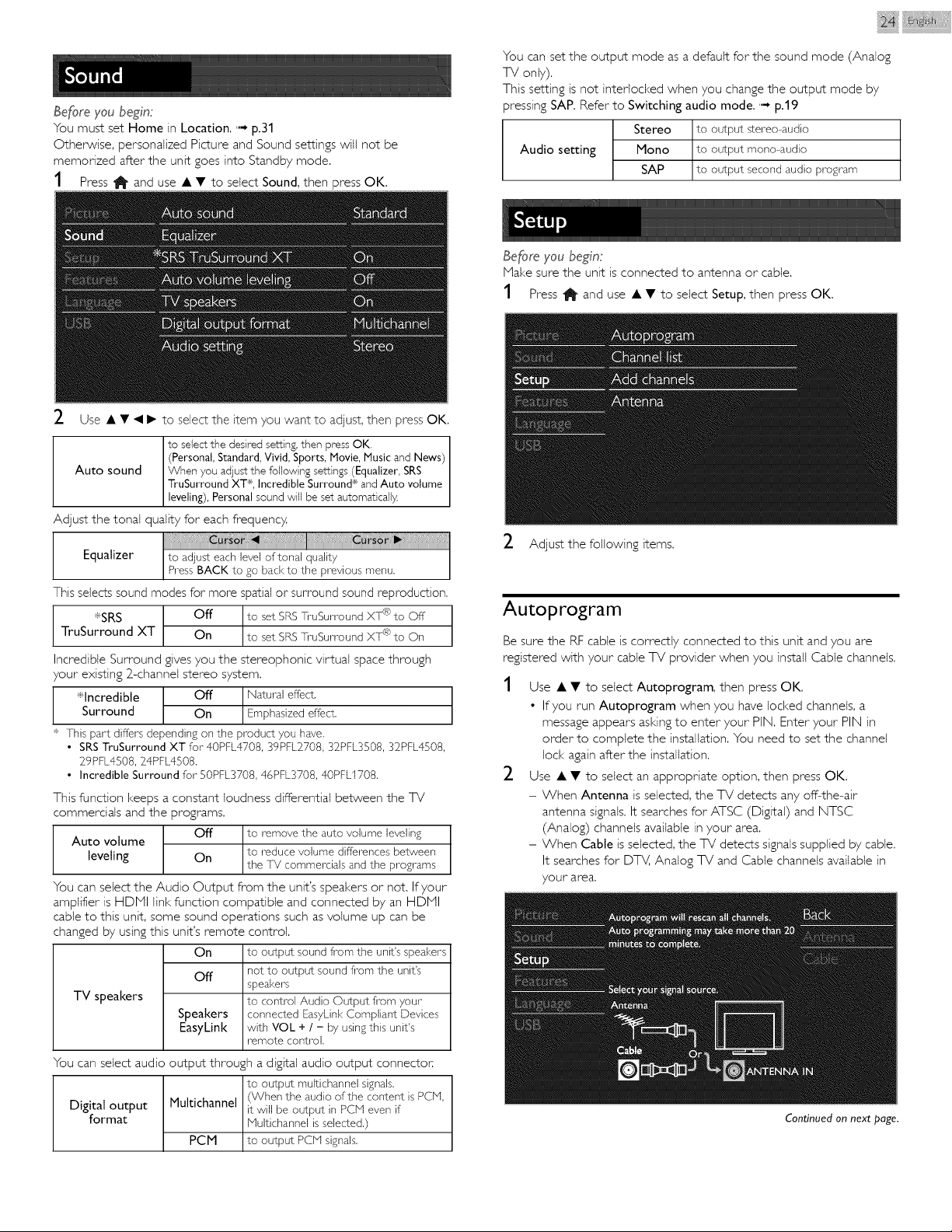
1 Press 1_ and use • • to select Sound, then press OK.
m
2 Use •T_II_
m
to select the item you want to adjust, then press OK.
to select the desired setting, then press OK.
(Personal, Standard, Vivid, Sports, Movie, Music and News)
Auto sound When you adjust the following sett}ngs (Equalizer, SRS
TruSurround XT ×, Incredible Surround x and Auto volume
leveling), Personal sound will be set automaticall}4
Adjust the tonal quality for each frequency.
I c@
Equalizer to adjust each level of tonal quality
PressBACK to go backto the previous menu.
This selects sound modes for more spatial or surround sound reproduction,
*SRS Off __
TruSurround XT On R)
I __ und X] '_)to On
Incredible Surround gives you the stereophonic virtual space through
your existing 2-channel stereo system.
*Incredible I Off t Natural effectSurround On Emphasizedeffect.
÷ This part differs depending on the product you have.
• SRSTruSurround XT for 40PFL4708, 39PFL2708,32PFL3508,32PFL4508,
29PFL4508,24PFL4508.
• Incredible Surround for SOPFL3708,46PFL3708, 40PFL1708.
This function keeps a constant loudness differential between the TV
commercials and the programs.
Off to remove the auto volume leveling
Auto volume
leveling On to reduce volume differences between
the T1! commerciaB and the programs
You can select the Audio Output from the unit's speakers or not. If your
amplifier is HDPII link function compatible and connected by an HDPII
cable to this unit, some sound operations such as volume up can be
changed by using this unit's remote control.
On to output sound fi_om the unit's speakers
Off not to output sound fi_om the unit's
speakers
TV speakers to control Audio Output fi_om your
Speakers connected EasyLink Compliant Devices
EasyLink with VOL + / - by using this unit's
remote control.
You can select audio output through a digital audio output connector.
to output multichannel signals.
(When the audio of the content is PCM,
Digital output Multichannel it will be output in PCPq even if
format Hultichannel is selected.)
PCM to output PCN signals.
@ i i iii¸
You can set the output mode as a default for the sound mode (Analog
TV only),
This setting is not interlocked when you change the output mode by
pressing SAP, Refer to Switching audio mode, '"-_p.19
Stereo to output stereo-audio
Audio setting Mono to output mono-audio
SAP to output second audio program
Before you begin:
Make sure the unit is connected to antenna or cable,
1 Press _ and use • • to select Setup, then press OK.
2 Adjustthe following items,
Autoprogram
Be sure the RF cable is correctly connected to this unit and you are
registered with your cable TV provider when you install Cable channels.
2
Use • • to select Autoprogram, then press OK,
• If you run Autoprogram when you have locked channels, a
message appears asking to enter your PIN. Enter your PIN in
order to complete the installation. You need to set the channel
loci< again after the installation,
Use • • to select an appropriate option, then press OK,
- When Antenna is selected, the TV detects any off-the-air
antenna signals, It searches for ATSC (Digital) and NTSC
(Analog) channels available in your area,
- When Cable is selected, the TV detects signals supplied by cable,
It searches for DTV, Analog TV and Cable channels available in
your area.
Continued on next page.
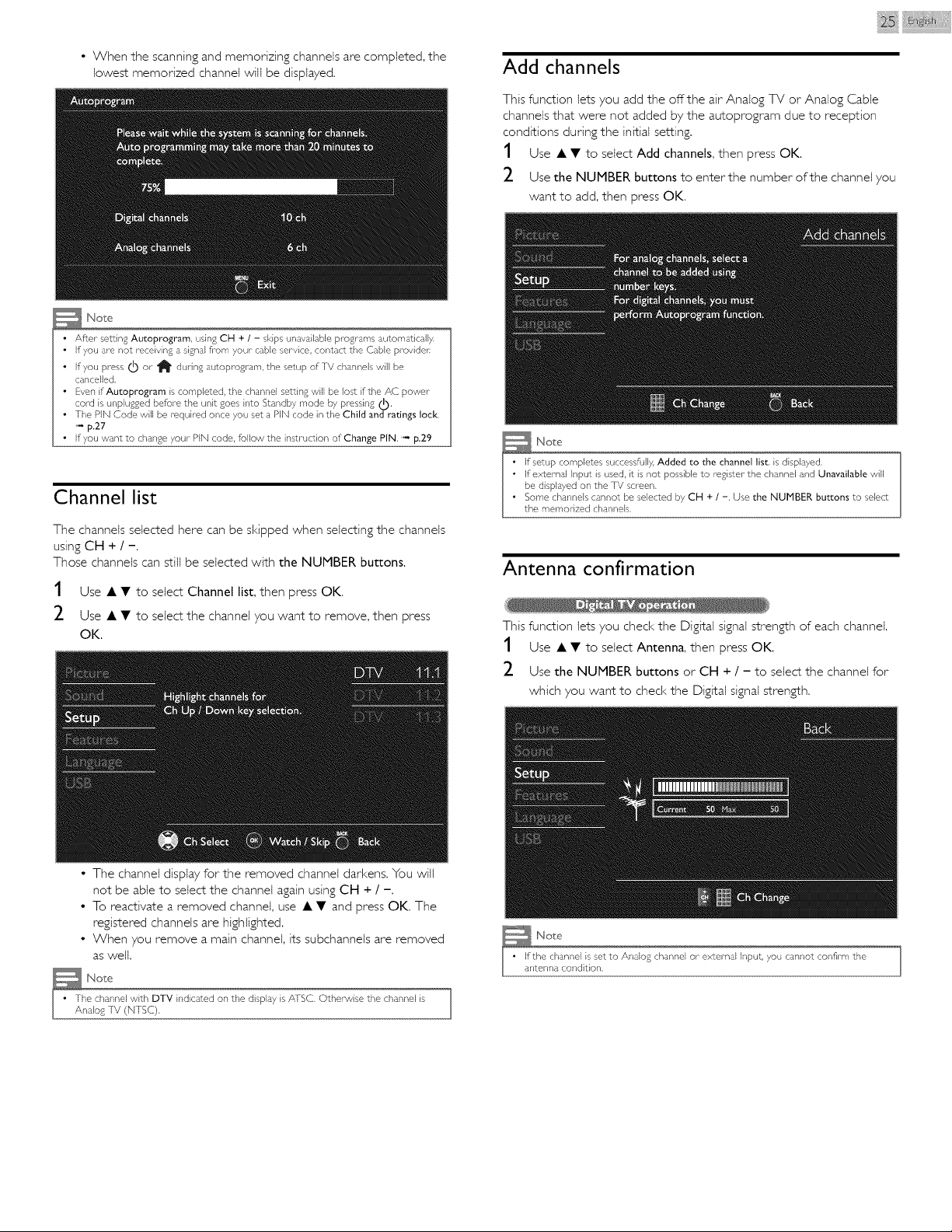
• When the scanning and memorizing channels are completed, the
lowest memorized channet will be displayed.
@ i i iii¸
Add channels
This function lets you add the offthe air Analog TV or Analog Cable
channels that were not added by the autoprogram due to reception
conditions during the initial setting.
1 Use • • to select Add channels, then press OK.
2 Use the NUMBER buttons to enterthe number of the channel you
want to add, then press OK.
Note
• After setting Autoprogram, using CH + / - skips unav_,ilable progr_,ms automatically.
• If you are not receiving a signal fi-om your cable service, contact the Cable provider.
• If you press _ or _ during autoprogram, the setup of iV channels will be
cancelled.
• Even if Autoprogram is completed, the channel setting will be lost if the AC power
cord is unplugged before the unit goes into Standby mode by pressing (I),
• The PIN Code will be required once you set a PIN code in the Child and ratings loci<.
.... p.27
• If you want to change your PIN code, follow the instruction of Change PIN. " p.29
Channel list
The channels selected here can be skipped when selecting the channels
using CH + / -.
Those channels can still be selected with the NUMBER buttons.
1 Use • • to select Channel list, then press OK.
2 Use • • to select the channel you want to remove, then press
OK.
Antenna confirmation
This function lets you check the Digital signal strength of each channel.
1 Use • • to select Antenna, then press OK.
2 Use the NUMBER buttons or CH + / - to select the channel for
which 7ou want to check the Digital signal strength.
• The channel displa7 for the removed channel darkens. You will
not be able to select the channel again using CH + / -.
• To reactivate a removed channel, use • • and press OK. The
registered channels are highlighted.
• When you remove a main channel, its subchannets are removed
as welt.
N o_e
e channel with DTV indicated on the display is AFSC. Otherwise the channel is
alog1V (N1SC).
}
,_ Note
the channel is set to Analog channel or external Input, 7ou cannot confirm the
tenna condition.
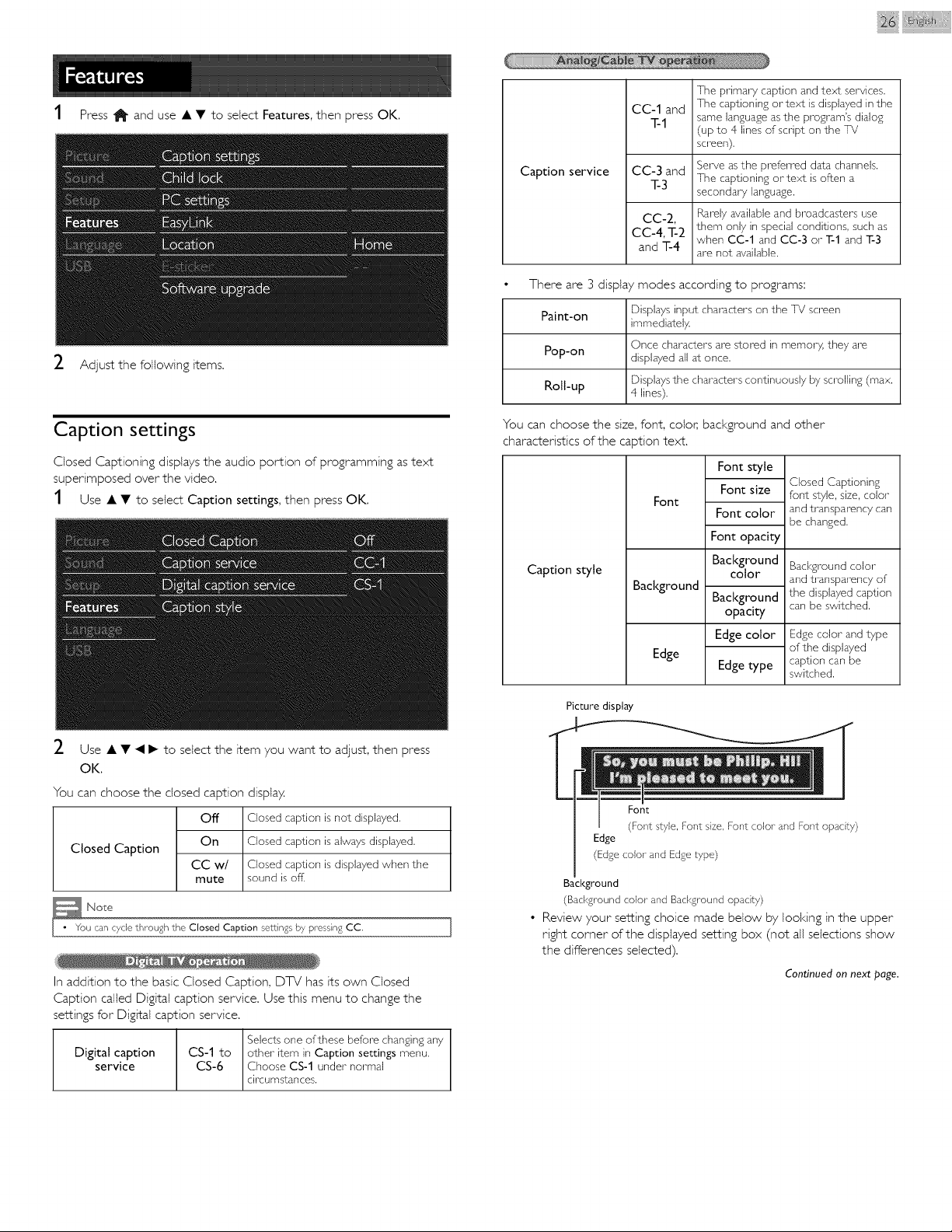
1 Press _ and use • • to select Features, then press OK,
m
2
Adjust the following items.
/I
Caption settings
Closed Captioning displays the audio portion of programming as text
superimposed over the video.
1 Use • • to select Caption settings, then press OK,
2 Use • • _I I_ to select the item you want to adjust, then press
OK.
You can choose the closed caption display.
Closed Caption
Off
On
CC w/
mute
Closed caption is not displayed.
Closed caption is always displayed.
Closed caption is displayed when the
sound is ofl1
Note
• You can cyclethrough the Closed Caption settings b7 pressing CC ]
ii
In addition to the basic Closed Caption, DTV has its own Closed
Caption called Digital caption service. Use this menu to change the
settings for Digital caption service.
Digital caption CS-1 to
service CS-6
Selects one of these before changing any
other item in Caption settings menu.
Choose CS-1 under normal
circumstances.
i iii¸
Caption service
CC-1 and
T-1
The primary caption and text services.
The captioning or text is displayed in the
same language as the program's dialog
(up to 4 lines of script on the T_!
screen).
CC-3 and Serve as the preferred data channels.
7-3 The captioning or'text is often a
secondary language.
CC-2,
CC-4, T-2
and T-4
Rarely available and broadcasters use
them only in special conditions, such as
when CC-1 and CC-3 or T-1 and T-3
are not available.
• There are 3 display modes according to programs:
Paint-on Displaysinput characters on the TV screen
immediately
Once characters are stored in memory, they are
Pop-on displayed all at once.
Displaysthe characters continuously by scrolling (max,
Roll-up 4 lines).
You can choose the size, font, color, background and other
characteristics of the caption text.
Caption style
Font
Background
Edge
Font style
Font size
Font color
Font opacity
Background
color
Background
opacity
Edge color
Edge type
Closed Captioning
font style, size, color
and transparency can
be changed.
Background color
and transparency of
the displayed caption
can be switched.
Edge colorandtype
ofthe displayed
caption can be
switched.
Picture display
Font
(Font style, Font size, Font color- and Font opacity)
Edge
(Edge color- and Edge type)
Background
(Backgroundcolor and Backgroundopacity)
• Review your setting choice made below by looking in the upper
right corner of the displayed setting box (not all selections show
the differences selected).
Continued on next page.
Note
• Digital caption service that you can switch differs depending on the broadcast
description.
• Cap_ion style will not effect if the User setting is set to Of£
• Closed Captioning service may not be controlled by this unit's menu options if you are
watching television through an external cable or satellite set-top box, In which case
you will need to use the menu options on the external set-top box to control Closed
Captioning,
• ]he captions do not always use correct spelling and gramman
• Not all IV programs and product commercMs include Closed Caption information,
Refer to your area TV program listings for the IV channels and times of Closed
Capdon shows. ]he captioned programs are usually noted in the IV listings with
service marks such as CC,
• Not all capdorfing services are used by a IV channel during the transmission of a
Closed Caption program,
• Closed Caption will NOI be displayed when you are using an HDMI connection.
• Io show the Closed Caption on your IV screen, broadcast signal muss contain the
Closed Caption data.
• Not all IV programs and commercials have the Closed Caption or all types of the
Closed Caption.
• Captions and texts may not exactly match the TV voice,
• Changing channels may deb T the Closed Caption for- a few seconds.
• Adjusting or- muting the volume may deby the Closed Caption for a few seconds.
• Abbreviations, symbols and other grammatical shortcuts may be used in order to keep
pace with the on-screen action, ]his is not a malfunction.
• The caption or text characters will not be displayed while the main menu or functions
dispby is shown.
• If a black box appears on the IV screen, this means that the Closed Caption is set to
the text mode. ]o clear- the box, select CC-1, CC-2, CC-3or CC-4,
• If the unit receives poor quality television signals, the captions may contain errors or
there might be no captions a_ all, Some possible causes of poor quality signals are:
Automobile ignition noise
Electric motor noise
Weak signal reception
blultiplex signal reception (ghosts or screen flutter)
Data dropout and PixeBtion (for D1V only)
• The unit retains the Closed Caption setting if the power fails,
• When the unit receives special efl_czs playback signal (e,g. Search, Slow and Still) fi-om
a VCR's video Output channel (oh} or ch4), the unit may not display the correct
caption or text,
• The EU] selSing tha_ satisfies § 79,102 (e) is as follows:
Font: blono-font
Character size: Large
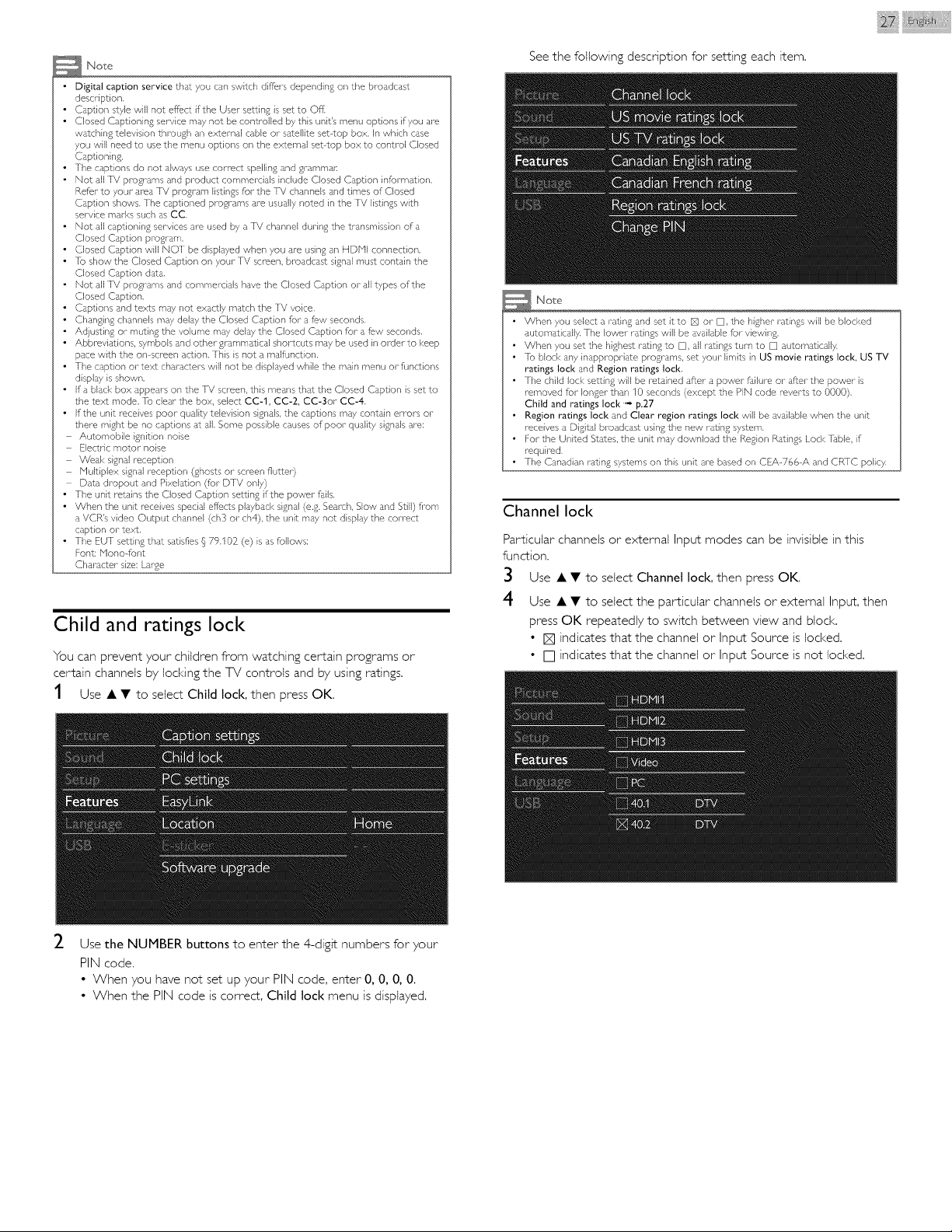
Child and ratings loci<
You can prevent your children from watching certain programs or
certain channels by locking the TV controls and by using ratings.
1 Use • • to select Child lock, then press OK.
B
2
I
Use the NUMBER buttons to enter the 4-digit numbers for your
PIN code.
• When you have not set up your PIN code, enter 0, 0, 0, 0.
• When the PIN code is correct, Child lock menu is displayed.
See the following description for setting each item,
@ i i iii¸
Note
• When you select a rating and set itto [] or [], the higher ratings will be blocked
automatically. ]he lower ratings will be available for viewing,
• When you set the highest rating to [], all ratings turn to [] automatically.
• Io block any inappropriate programs, set your limits in US movie ratings lock, US TV
ratings lock and Region ratings lock,
• The child lock setting will be retained after a power failure or after the power- is
removed for longer than 10 seconds (except the PIN code reverts to 0000),
Child and ratings lock " p.27
• Region ratings lock and Clear region ratings lock will be available when the unit
receives a Digital broadcast using the new rating system.
• For the United States, the unit may download the Region Ratings Lock ]able, if
required.
• ]he Canadian ra_ing systems on this unit are based on CEA-766-A and CRTC policy.
Channel loci<
Particular channels or external Input modes can be invisible in this
function,
3
4
Use • • to select Channel lock, then press OK,
Use • • to select the particular channels or external Input, then
press OK repeatedly to switch between view and block,
• [] indicates that the channel or Input Source is locked.
• [] indicates that the channet or Input Source is not locked.
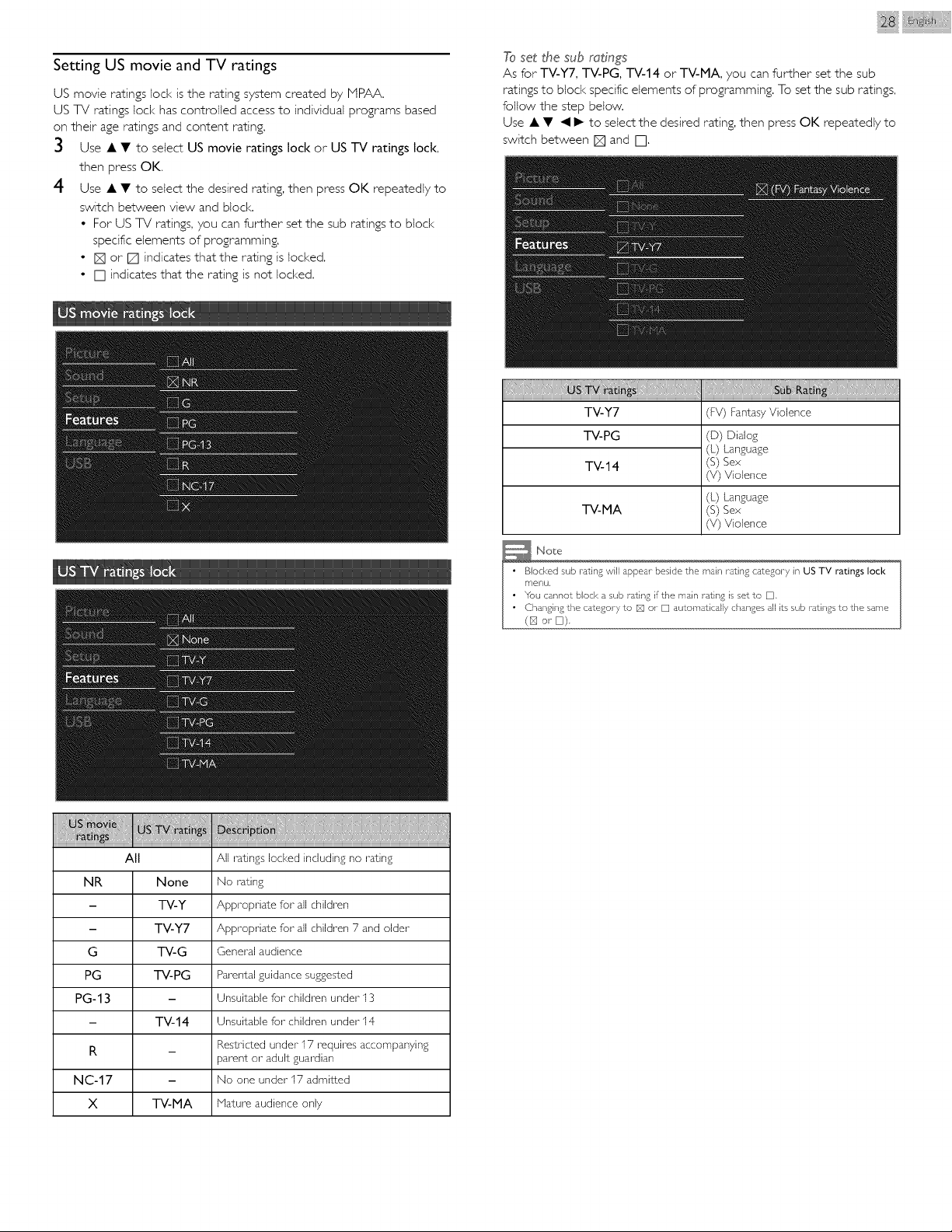
Setting US movie and TV ratings
US movie ratings lock is the rating system created by PIPAA.
US TV ratings loci< has controlled access to individual programs based
on their age ratings and content rating.
3 Use • • to select US movie ratings lock or US TV ratings lock,
then press OK.
4 Use • • to select the desired rating, then press OK repeatedly to
switch between view and block.
• For US TV ratings, you can further set the sub ratings to blocl<
specific elements of programming.
• [] or [] indicates that the rating is locked.
• [] indicates that the rating is not locked.
i iii¸
To set the sub mdngs
As for TV-Y7, TV-PG, TV-14 or TV-MA, you can further set the sub
ratings to block specific elements of programming. To set the sub ratings,
follow the step below.
Use • • _11_ to select the desired rating, then press OK repeatedly to
switch between [] and [].
TV-Y7 (FV) Fantasy VJoJence
TV-PG
(D) Dialog
(L) Language
(S) Sex
(V) Violence
TV-14
(L) Language
-i-V-MA (S) Sex
(V) Violence
All All ratings locked including no rating
NR None No rating
- TV-Y Appropriate for all children
- TV-Y7 Appropriate for all children 7 and older
G TV-G General audience
PG TV-PG Parental guidance suggested
PG-13 - Unsuitable for children under I 3
- TV-14 Unsuitable for children under 14
Restricted under 17 requires accompanying
R
parent or adult guardian
NC-17 - No one under 17 admitted
X TV-MA Mature audience only
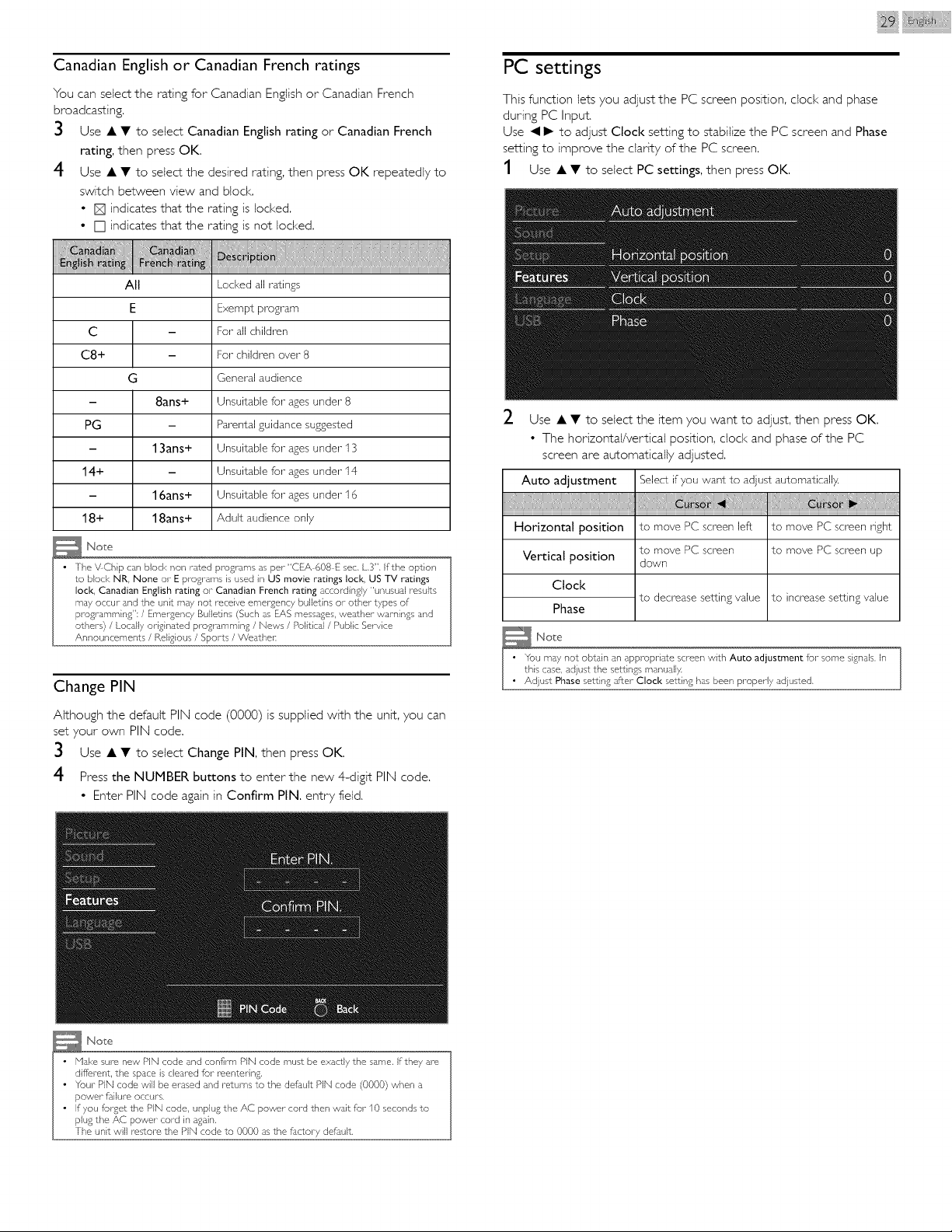
Canadian English or Canadian French ratings
You can select the rating for Canadian English or Canadian French
broadcasting.
3 Use • • to select Canadian English rating or Canadian French
rating, then press OK.
4 Use • • to select the desired rating, then press OK repeatedly to
switch between view and block,
• [] indicates that the rating is locked,
• [] indicates that the rating is not locked,
All Locked all ratings
E Exempt program
C - For all children
C8+ - For children over 8
G General audience
- 8ans+ Unsuitable for ages under 8
PG - Parental guidance suggested
- 13ans+ Unsuitable for ages under 13
14+ - Unsuitable for ages under 14
- 16ans+ Unsuitable for ages under I B
18+ 18ans+ Adult audience only
Change PIN
Although the default PIN code (0000) is supplied with the unit, you can
set your own PIN code.
3 Use • • to select Change PIN, then press OK.
4 Press the NUMBER buttons to enter the new 4-digit PIN code.
• Enter PIN code again in Confirm PIN. entry field.
i ! liI ii¸
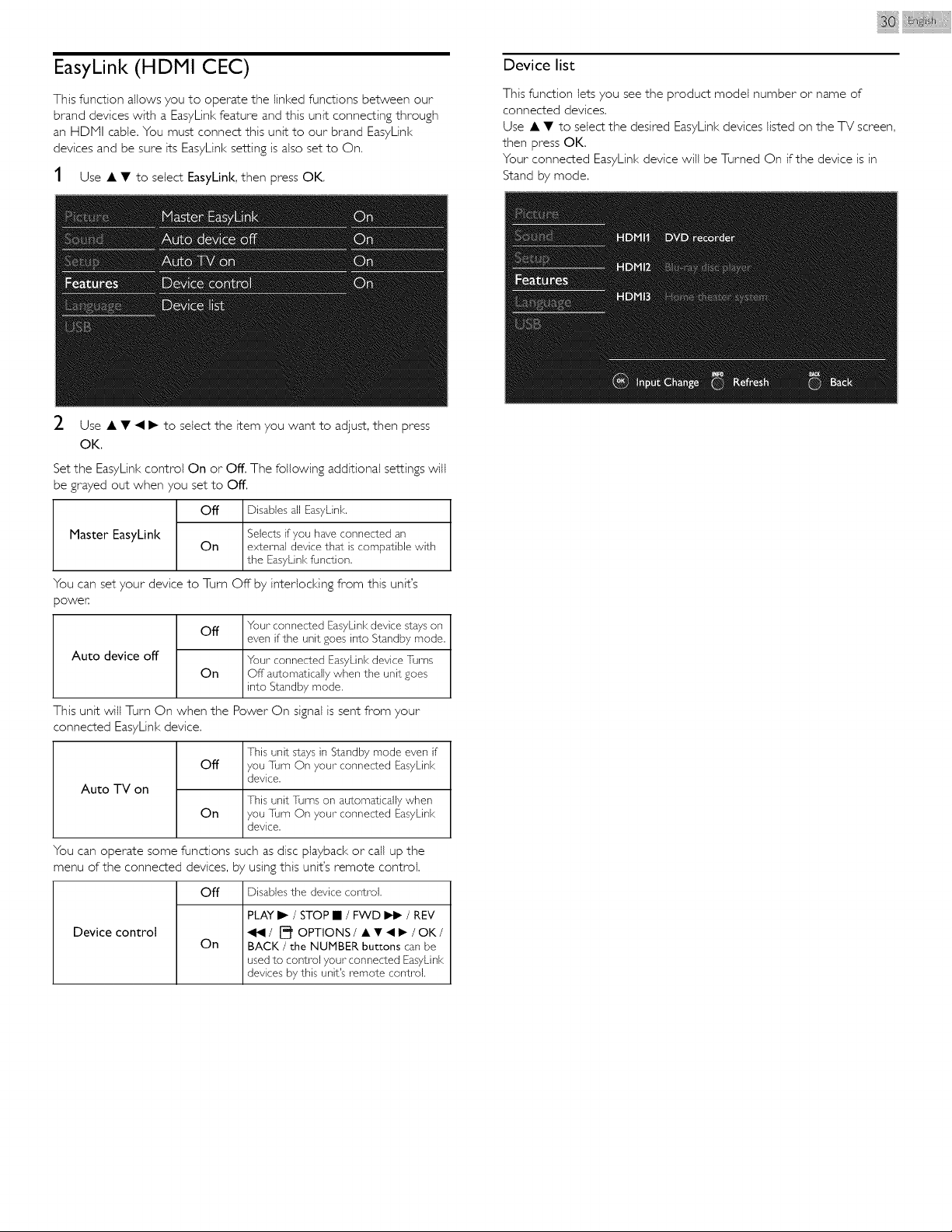
PC settings
This function lets you adjust the PC screen position, clock and phase
during PC Input.
Use _11_ to adjust Clock setting to stabilize the PC screen and Phase
setting to improve the clarity of the PC screen,
1 Use • • to select PC settings, then press OK.
2 Use • • to select the item you want to adjust, then press OK.
• The horizontal/vertical position, clod< and phase of the PC
screen are automatically adjusted.
Auto adjustment Select if you want to adjust automatically
Horizontal position to move PC screen left to move PC screen right
to move PC screen to move PC screen up
Vertical position down
Clock
to decrease setting vaJue to increasesetting vaJue
Phase
u may not obtain an appropris,te screen with Auto adjustment for some signals, In
! this case, adjust the settings manu_,ll7.
!o ° Adust Phase setting after Clock setting has been properly ad usted.
iiii @ ii¸
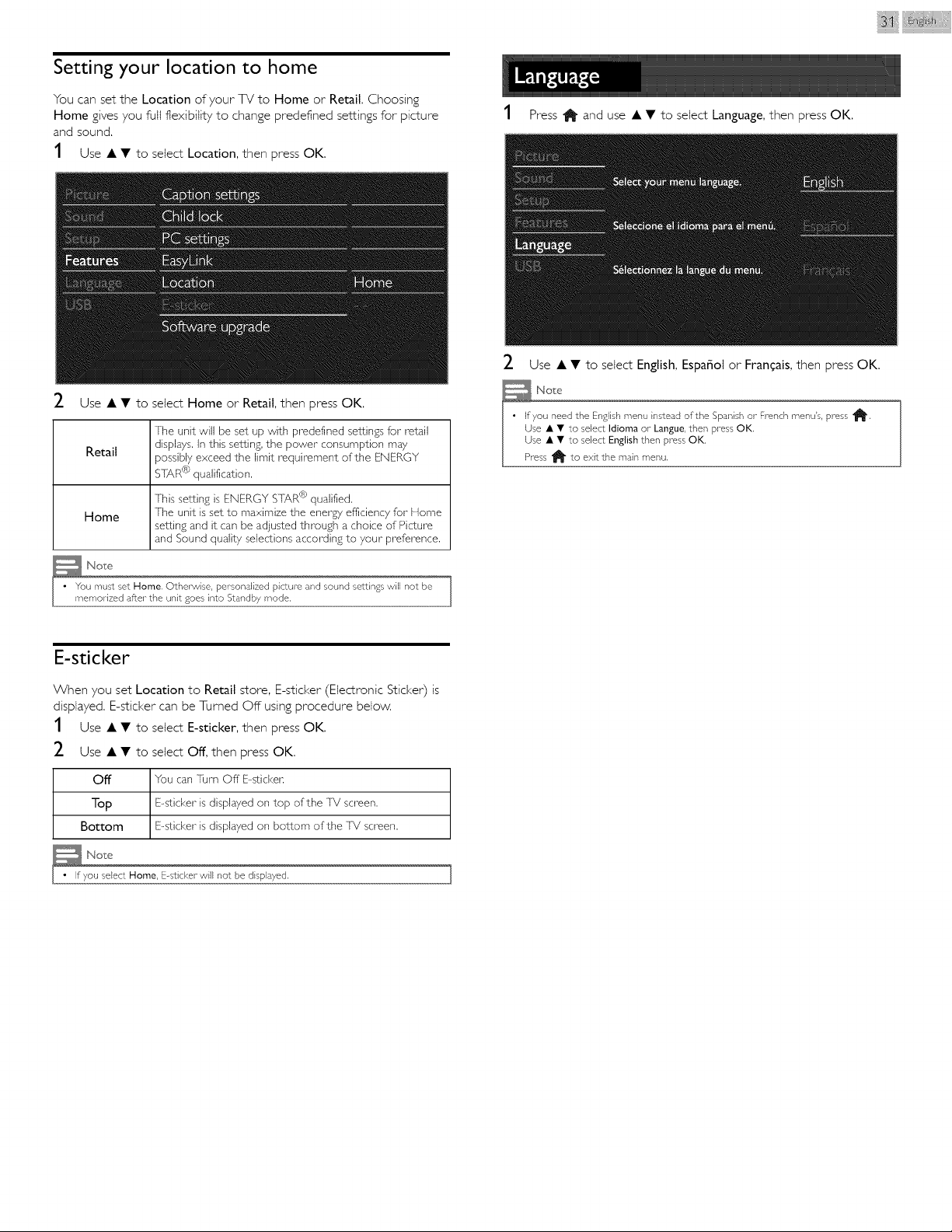
EasyLink (HDMI CEC)
This function allows you to operate the linl<ed functions between our
brand devices with a EasyLink feature and this unit connecting through
an HDMI cable. You must connect this unit to our brand EasyLink
devices and be sure its EasyLink setting is also set to On.
1 Use • • to select EasyLink, then press OK,
Device list
This function lets you see the product modet number or name of
connected devices,
Use • • to select the desired EasyLink devices listed on the TV screen,
then press OK.
Your connected EasyLink device will be Turned On if the device is in
Stand by mode,
2 Use • • _1 I_ to select the item you want to adjust, then press
OK.
Set the EasyLink control On or Off. The following additional settings will
be grayed out when you set to Off.
Master EasyLink
off
On
Disables all EasyLink.
Selects if you have connected an
external device that is compatible with
the EasyLink function.
You can set your device to Turn Off by interiocl<ing from this unit's
power:,
Auto device off
off
On
Your connected EasyLink device stays on
even if the unit goes into Standby mode.
Your connected EasyLink device ]urns
Off automatically when the unit goes
into Standby mode.
This unit will Turn On when the Power On signal is sent from your
connected EasyLinl<device.
Off
Auto TV on
On
This unit stays in Standby mode even if
you ]urn On your connected EasyLink
device.
This unit ]urns on automatically when
you Turn On your connected EasyLink
device.
You can operate some functions such as disc playback or call up the
menu of the connected devices, by using this unit's remote control.
Off Disablesthe device control.
Device control
On
PLAY I_ / STOP • / FWD _ / REV
/ [_ OPTIONS/•••I_/OK/
BACK / the NUMBER buttons can be
used to control your connected EasyLink
devices by this unit's remote control.
Setting your location to home
You can set the Location of your TV to Home or Retail. Choosing
Home gives you full flexibility to change predefined settings for picture
and sound,
1 Use • • to select Location, then press OK.
P //
2 Use • • to select Home or Retail, then press OK.
The unit will be set up with predefined settingsfor retail
Retail displays.In this setting,the power consumption may
possibly exceed the limit requirement of the ENERGY
STAR@qualification.
This setting is ENERGYSTAR@qualified.
Home The unit is set to maximize the energy efficiencyfor" Home
setting and it can be adjusted through a choice of Picture
and Sound quality selections according to your preference.
1
u must set Home. Otherwise, personalized picture and sound settings will not be
emorized after the unit goes into Standby mode, ]
E-sticker
When you set Location to Retail store, E-sticker (Electronic Sticker) is
displayed. E-sticker can be Turned Off using procedure below.
1
2
Off
Top
Bottom
_ No'_c
9
• If you select Home, E-sticker will not be displayed. ]
Use • • to setect E-sticker, then press OK,
Use • • to select Off, then press OK,
You can Turn Off E-sticken
E-sticker is displayed on top of the T_! screen.
E-sticker is displayed on bottom of the T_! screen.
iiii_iiii_@__i_i_iii¸
1 Press 1_ and use • • to select Language, then press OK,
2 Use • • to select English, EspaSol or FranCais, then press OK,
you need the English menu instead of the SpaMsh or French menu's, press _'.
se • • to select Idioma or- Langue, then press OK.
se• • to selectEnglishthenpressOK,
ess1_ to exitthe mainmenu.
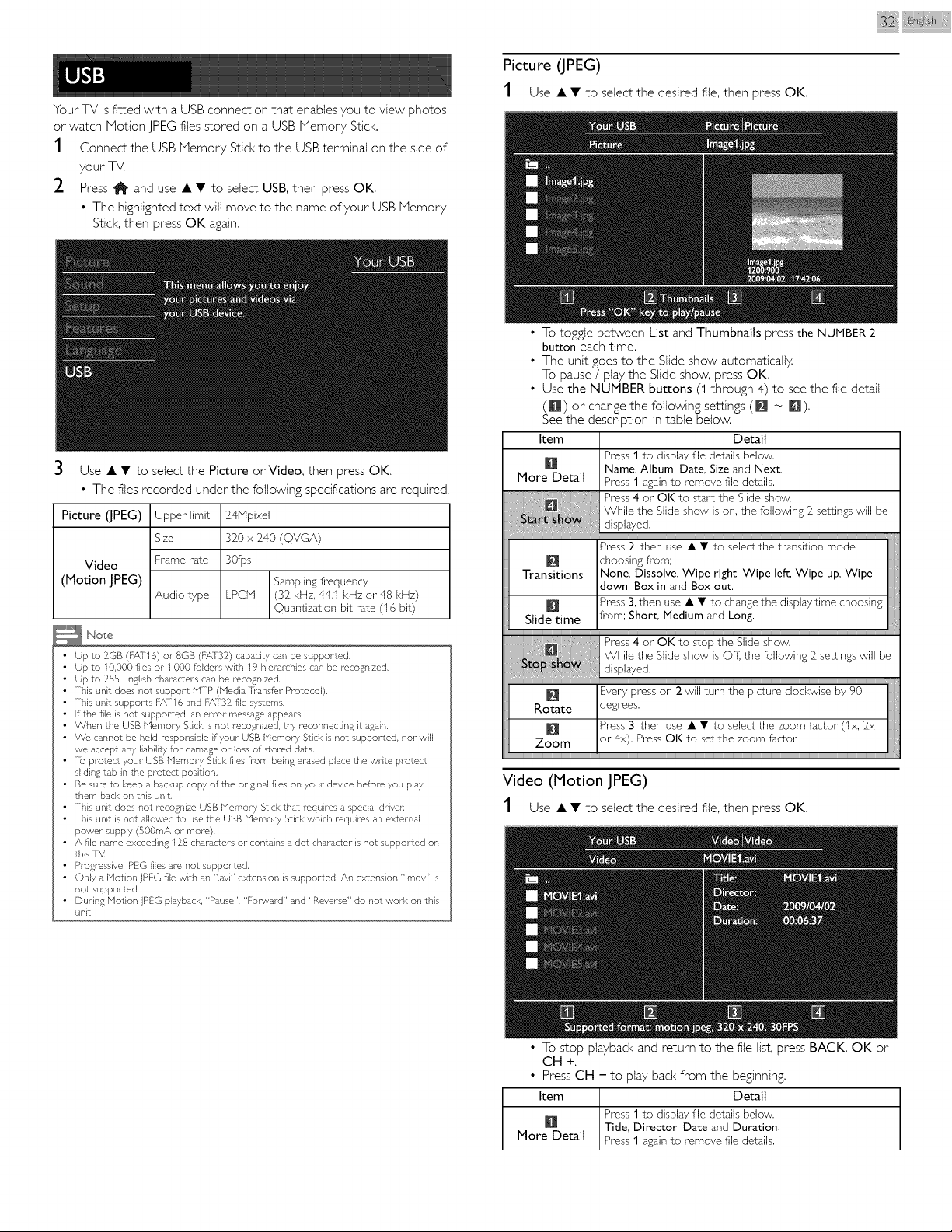
YourTVisfittedwithaUSBconnectionthatenablesyoutoviewphotos
orwatchNotionJPEGfilesstoredonaUSBMemoryStick,
1 ConnecttheUSBMemorySticktotheUSBterminalonthesideof
yourTV,
2 Press1_anduse• • toselectUSB,thenpressOK.
• ThehighlightedtextwillmovetothenameofyourUSBMemory
Stick,thenpressOKagain.
Picture (JPEG)
1 Use • • to setect the desired file, then press OK.
iiii i @ i i iii¸
3 Use • • to select the Picture or Video, then press OK.
• The flies recorded under the following specifications are required.
Picture (JPEG)
Video
(Motion JPEG)
Upper limit
Size
Frame rate
Audio type
24Npixel
320 x 240 (QVGA)
30fps
Samplingfi_equency
LPCH (32 kHz, 44.1 kHz or 48 kHz)
Quantization bit rate (16 bit)
Note
Up to 2GB (FAT16) or 8GB (FA132) capacity can be supported,
Up to 10,000 files or 1,000 folders with 19 hierarchies can be recognized,
Up to 255 English characters can be recognized,
]his unit does not support NTP (Nedb ]]_ansfer Protocol).
This unit supports FAII 6 and FA_[32 file systems,
If the file is not supported, an error message appears.
When the USB Nemory Szicl< is not recognized, try reconnecting it again,
We cannot be held responsible if your USB Nemory Sdcl< is not supported, nor will
we accept any liability for damage or loss of stored data.
• ]b pr-otec_ your USB Memory Stick files fi_om being erased place the write protec_
sliding tab in the protec_ position.
• Be sure to keep a bad<up copy of the original files on your device before you play
them back on this unit.
• ]his unit does not recognize USB Nemory Szickthat requires a special driver.
• ]his unit is not allowed to use the USB Nemory Stid< which requires an external
power supply (S00mA or more).
• A file name exceeding 128 characters or contains a dot character is not supported on
this 1_4
• Progressive jPEG files are not supported.
• Only a Notion jPEG file with an '.avi" extension is supported, An extension ,mov _s
not supported.
• During Notion jPEG playback, "Pause", "Forward" and "Reverse" do not work on this
unit.
• To toggle between List and Thumbnails press the NUMBER 2
button each time,
• The unit goes to the Slide show automatically.
To pause / play the Slide show, press OK.
• Use the NUMBER buttons (1 through 4) to see the file detail
(El) or change the following settings (_ _ D),
See the description in table below.
Item Detail
Press 1 to displayfile details below.
Name, Album, Date, Size and Next.
More Detail Press 1 againto remove file details.
Press4 or OK to start the Slide show.
While the Slide show is on, the following 2 settings will be
displayed.
Press :2,then use • • to selectthe transition mode
choosing fi_om;
Transitions I None, Dissolve, Wipe right, Wipe left, Wipe up, Wipe
_n and Box out. ____
Bess 3,then use • • to changethe displaytime choosing
pom:Short, Medium and Long,
Slide time
i
Press4 or OK to stop the Slide show.
While the Slide show is Off*,the following 2 settings will be
displayed,
Video (Motion JPEG)
1 Use • • to select the desired file, then press OK,
• To stop playback and return to the file list, press BACK, OK or
CH +.
• Press CH - to play back from the beginning.
Item Detail
Press 1 to displayfile details below.
Title, Director, Date and Duration,
More Detail Press 1 againto remove file details.
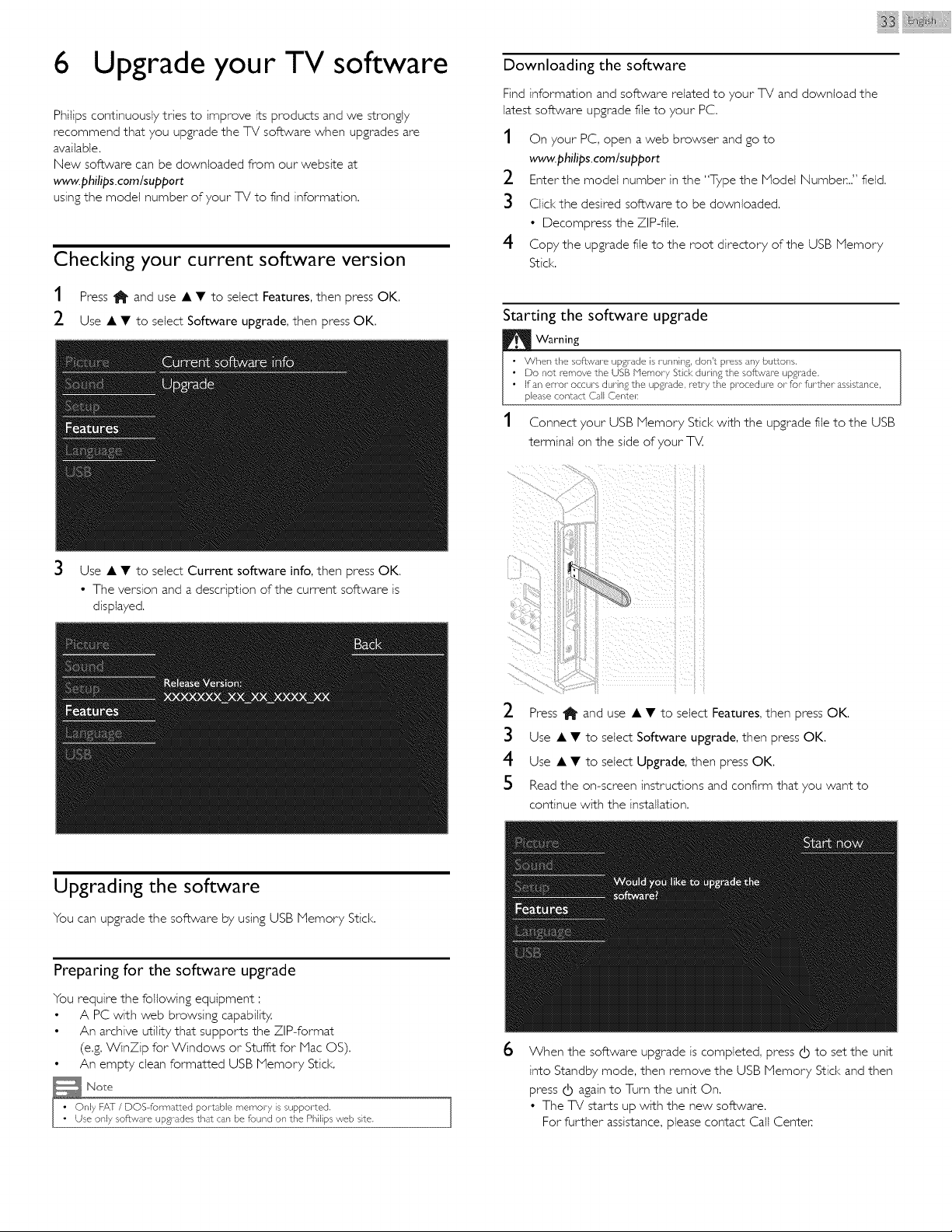
6 Upgrade your TV software
Philips continuously tries to improve its products and we strongly
recommend that you upgrade the TV software when upgrades are
available.
New software can be downloaded from our website at
www.pflilips.comlsupport
using the model number of your TV to find information,
Checking your current software version
1 Press 1_ and use • • to select Features, then press OK.
2 Use • • to select Software upgrade, then press OK.
iiii@l ii¸
Downloading the software
Find information and software related to your TV and download the
latest software upgrade file to your PC.
1 On your PC, open a web browser and go to
www.philips, comlsupport
2 Enter the model number in the "Type the Model NumbeR.." field.
3 Click the desired software to be downloaded.
• Decompress the ZIP4ie.
4 Copy the upgrade file to the root directory of the USB Memory
Stick.
Starting the software upgrade
1 Connect your USB Memory Stick with the upgrade file to the USB
terminal on the side of your TV.
Use • • to select Current software info, then press OK.
• The version and a description of the current software is
displayed.
.............. i ¸ ii
2 Press 1_ and use • • to select Features, then press OK.
3 Use • • to select Software upgrade, then press OK.
4 Use • • to select Upgrade, then press OK.
5 Read the on-screen instructions and confirm that you want to
continue with the installation.
Upgrading the software
You can upgrade the software by using USB Memory Stick.
Preparing for the software upgrade
You require the following equipment :
• A PC with web browsing capability.
• An archive utility that supports the ZIP-format
(e.g. WinZip for Windows or Stuffit for Mac OS).
• An empty clean formatted USB Memory Stick.
nly FAY / DOS-formatted portable memory is supported.
e only software upgrades that can be found on the Philips web site.
6
When the software upgrade is completed, press @ to set the unit
into Standby mode, then remove the USB Memory Stick and then
press @ again to Turn the unit On.
• The TV starts up with the new software.
For further assistance, please contact Call Center
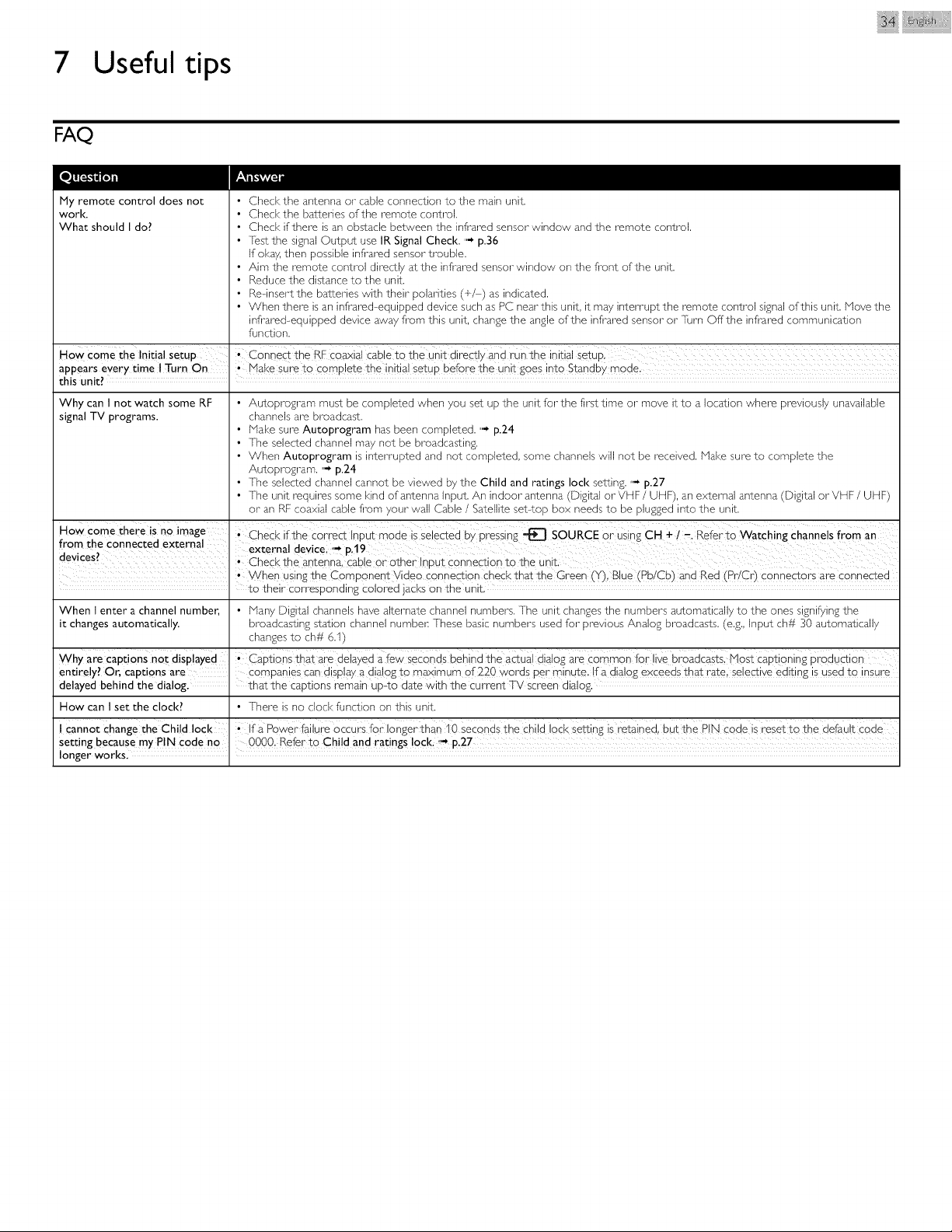
7 Useful tips
iii@ii ii¸
FAQ
My remote control does not • Check the antenna or cable connection to the main unit.
work. • Checkthe batteries of the remote control.
What should I do? • Check if there is an obstacle between the intimated sensor window and the remote control.
• Test the signal Output use IR Signal Check. "_ p.36
If okay, then possible intimated sensor trouble.
• Aim the remote control directly at the intimated sensor window on the fi_ont of the unit.
• Reduce the distance to the unit.
• Rednsert the batteries with their polarities (+/-) as indicated.
• When there is an intimated-equipped device such as PC near this unit, it may interrupt the remote control signal of this unit. Hove the
infrared-equipped device away fi_om this unit, change the angle of the intimated sensor or Turn Offthe intimated communication
function.
How Come the Initial setup, €0nne_ the RF _oaxi_! Cable ta ihe unit directly _nd runth e initial setuPl
appears eyery time ! Turn On , Make sure to complete the initial setup before the unit goes into Standby mode,
this unit? I
Why can t not watch some RF • Autoprogram must be completed when you set up the unit for the first time or move it to a location where previously unavailable
signal TV programs, channels are broadcast.
• Hake sure Autoprogram has been completed. "_ p.24
• The selected channel may not be broadcasting.
• When Autoprogram is inten_upted and not completed, some channels will not be received. Hake sure to complete the
Autoprogram. "_ p.24
• The selected channel cannot be viewed by the Child and ratings lock setting. ,,-_p.27
• The unit requires some kind of antenna input. An indoor antenna (Digital or VHF/UHF), an external antenna (Digital or VHF / UHF)
or an RF coaxial cable fi_om your wall Cable / Satellite set4op box needs to be plugged into the unit.
How come there is no image I; Check if the Correct input mode is selected by p_ieSsing _ SOURCE or using CH + i -, Refer t0 Watching Channels from an
from the connected external externa devce -_Lt9
dev ces_ I ' P_ i ; :
: , Check the antenna, cable o: other Input connecaon to the unit.
' whe_ usin£ the C0mpanen! Video Connection che_k that the Green (Y),B!Ue(Pb!Cb)and Red (Pr/C r) C0nnect0is are C0nnected
to their corresponding Colored }acks on the unit.
When I enter a channel number, • Many Digital channels have alternate channel numbers. The unit changes the numbers automatically to the ones signifying the
it changes automatically, broadcasting station channel numbelc These basic numbers used for previous Analog broadcasts. (e.g.. Input oh# 30 automatically
changes to oh# 6.1)
Why are Captions no_ displayed , Captions that sre de!ayed a few S_cencls behind the a_ual dialog are common for li_e broadcastsl Host Captioning D:dducti0n
entirely? Or, captions are , companies can display a dialog to maximum of 220 words per minute, !f a dialog exceeds that rate, selective editing is used to insure
delayed behind the dialog, that the captions remain up4o date with the current TV screen dialog.
How can t set the clock? • There is no clod< function on this unit.
I Cannot Change the Child loci<, if a PoWer failure 0ccu_s fo, longer than 10 seconds the child lock Settin£ is retained, but the PiN code is _eset t0 the defaU!t code
Setting because my PIN Code no 0000, Refer to Child and ratings lock. ,_ p.27
longer works. I
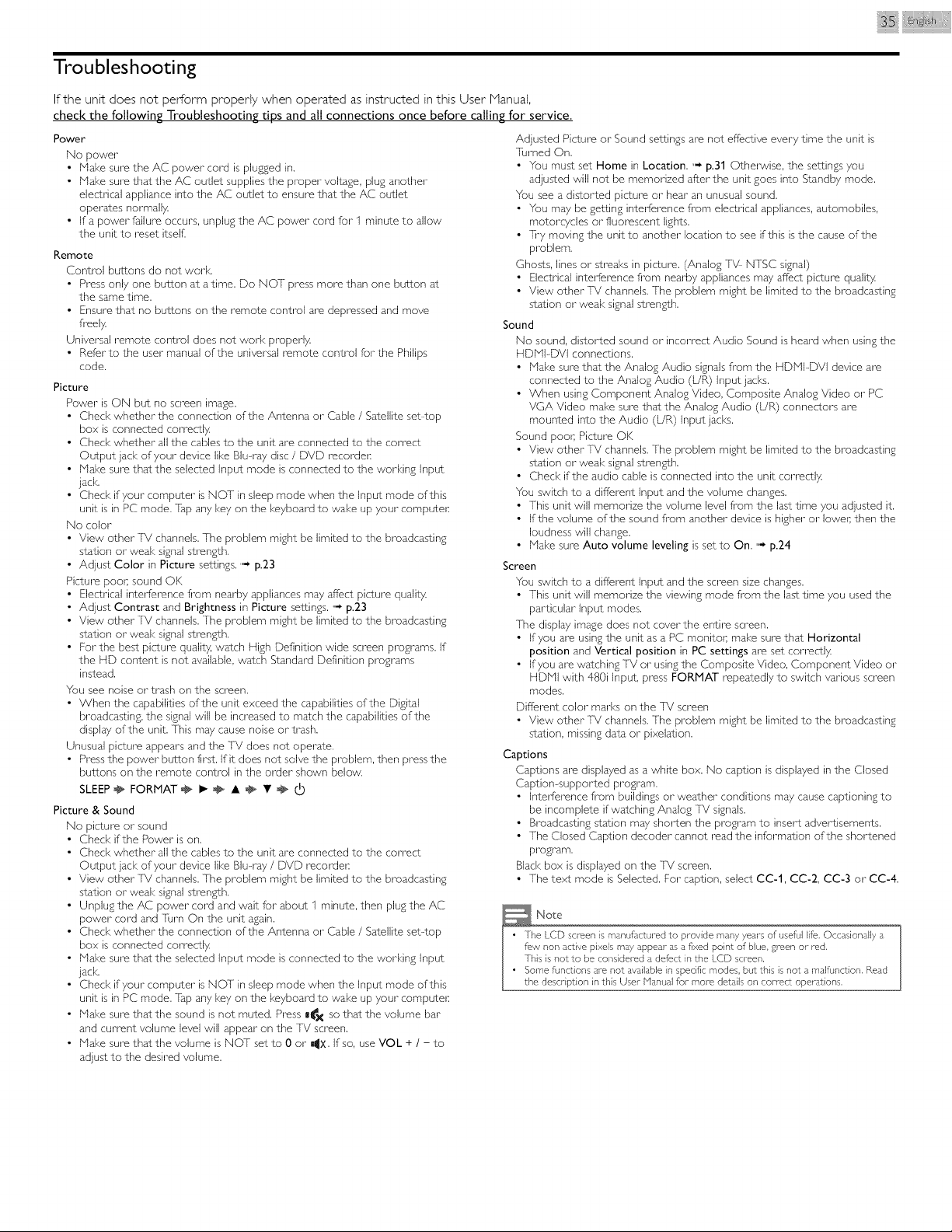
iiii i i@+ i i+iii¸
Troubleshooting
If the unit does not perform properly when operated as instructed in this User P1anual,
check the following Troubleshooting tips and all connections once before calling for service.
Power
No power
• Nake sure the AC power cord is plugged in,
• Nake sure that the AC outlet supplies the proper voltage, plug another
electrical appliance into the AC outlet to ensure that the AC outlet
operates normally
• if a power failure occurs, unplug the AC power cord for I minute to allow
the unit to reset itseE
Remote
Control buttons do not work.
• Press only one button at a time. Do NOT press more than one button at
the same time.
• Ensure that no buttons on the remote control are depressed and move
fl_eely
Universal remote control does not work properly
• Refer to the user manual of the universal remote control for the Phiiips
code.
Picture
Power is ON but no screen image.
• Check whether the connection of the Antenna or Cable / Satellite set4op
box is connected correctly
• Check whether all the cablesto the unit are connected to the correct
Output jack of your device like Blu-ray disc/ DVD recorden
• Nake sure that the selected Input mode isconnected to the working Input
jack.
• Ched< if your computer is NO] in sleep mode when the Input mode of this
unit is in PC mode. Tap any key on the keyboard to wake up your compute_:
No color
• View other TV channels.The problem might be limited to the broadcasting
station or weal<signalstrength.
• Adjust Color in Picture settings."_ p.23
Picture pool sound OK
• Electrical interference fi_om nearby appliancesmay affect picture quality
• Adjust Contrast and Brightness in Picture settings. "_ p.23
• View other 'IV channels.The problem might be limited to the broadcasting
station or weal<signalstrength,
• For the best picture quality, watch High Definition wide screen programs. If
the HD content is not available,watch Standard Definition programs
instead.
You see noise or trash on the screen.
• When the capabilities of the unit exceed the capabilities of the Digital
broadcasting,the signalwill be increasedto match the capabilities of the
display of the unit. This may cause noise or trash,
Unusual picture appears and the TV does not operate.
• Pressthe power button first. If it does not solve the problem, then press the
buttons on the remote control in the order shown below.
SLEEP_ FORMAT _ I_ _ • ÷ • _ (b
Picture & Sound
No picture or sound
• Check if the Power is on,
• Check whether all the cables to the unit are connected to the correct
Output jack of your device like Blu-ray / DVD recolden
View other TV channels. The problem might be limited to the broadcasting
station or weal< signal strength,
Unplug the AC power cold and wait for about I minute, then plug the AC
power cold and Turn On the unit again.
Check whether the connection of the Antenna or Cable / Satellite set4op
box is connected correctly
Nake sure that the selected Input mode is connected to the working Input
jack.
Ched< if your computer is NOT in sleep mode when the Input mode of this
unit is in PC mode. Tap any key on the keyboard to wake up your compute_:
Nake sure that the sound is not muted. Press _X so that the volume bar
and current volume level will appear on the TV screen,
Nake sure that the volume is NOT set to 0 or miX. if so, use VQL + / - to
adjust to the desired volume.
Adjusted Picture or Sound settings are not effective every time the unit is
Turned On,
• You must set Home in Location. "_ p.31 Otherwise, the settings you
adjusted will not be memorized after the unit goes into Standby mode.
You see a distorted picture or hear an unusual sound.
• You may be getting interference fi'om electrical appliances, automobiles,
motorcycles or fluorescent lights.
• Ti_y moving the unit to another location to see if this is the cause of the
problem.
Ghosts, lines or streaks in picture. (Analog TV- NTSC signal)
• Electrical interference fi_om nearby appliances may affect picture quality
• View other TV channels. The problem might be limited to the broadcasting
station or weak signal strength.
Sound
No sound, distorted sound or incorrect Audio Sound isheard when usingthe
HDNI-DVI connections.
• Hake sure that the Analog Audio signalsfi_omthe HDNPDVI device are
connected to the Analog Audio (L/R) Input jacks.
• When using Component Analog Video, Composite Analog Video or PC
VGA Video make sure that the Analog Audio (UP,) connectors are
mounted into the Audio (UR) Input jacks.
Sound pool Picture OK
• View other TV channels.The problem might be limited to the broadcasting
station or weal<signalstrength,
• Ched< if the audio cable is connected into the unit correctly
You switch to a different Input and the volume changes.
• This unit will memorize the volume level fi_omthe last time you adjusted it.
• If the volume of the sound fi_omanother device is higher or IoweL then the
loudness will change.
• Hake sure Auto volume leveling is setto On. " p.24
Screen
You switch to a different Input and the screen size changes.
• This unit will memorize the viewing mode fi_om the last time you used the
particular Input modes.
The display image does not covet'the entire screen,
• If you are using the unit as a PC monitol: make sure that Horizontal
position and Vertical position in PC settings are set correctly
• If you are watching TV or using the Composite Video, Component Video or
HDNI with 480i Input, press FORMAT repeatedly to switch various screen
modes.
Different color marks on the TV screen
• View other T_! channels. The problem might be limited to the broadcasting
station, missing data or pixelation.
Captions
Captions are displayed as a white box, No caption is displayed in the Closed
Caption-supported program.
• Interference fi_om buildings or weather conditions may cause captioning to
be incomplete if watching Analog TV signals.
• Broadcasting station may shorten the program to insert advertisements.
• The Closed Caption decoder cannot read the in;formation of the shortened
program.
Black box is displayed on the TV screen.
• The text mode is Selected. For caption, select CC-1, CC-2, CC-3 or CC-4.
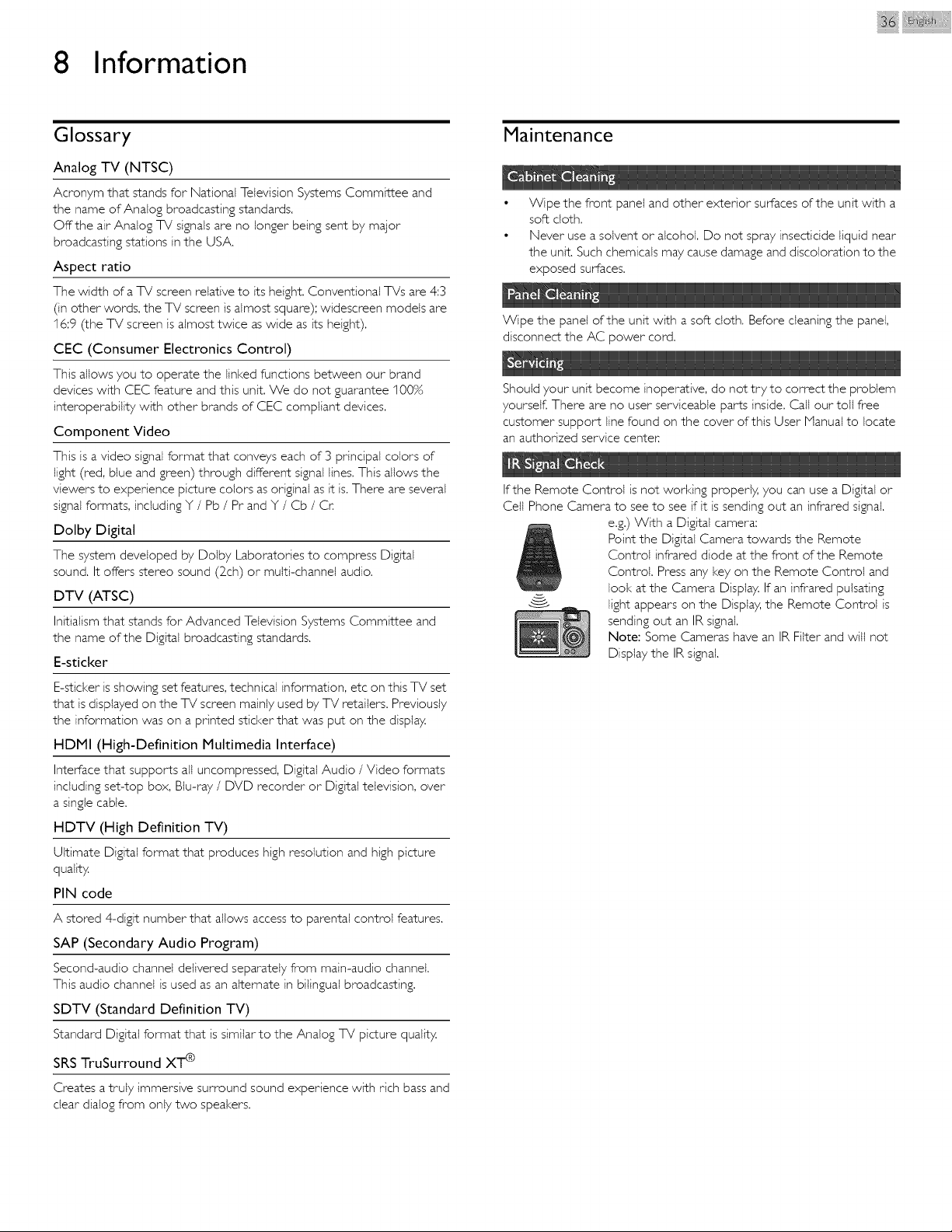
8 Information
iiii l: ii¸
Glossary
Analog TV (NTSC)
Acronym that stands for National Television Systems Committee and
the name of Analog broadcasting standards,
Offthe air Analog TV signals are no longer being sent by major
broadcasting stations in the USA,
Aspect ratio
The width ofa TV screen relative to its height. Conventional TVs are 4:3
(in other words, the TV screen is almost square); wfdescreen models are
I6:9 (the TV screen is almost twice as wide as its height).
CEC (Consumer Electronics Control)
This allows you to operate the linked functions between our brand
devices with CEC feature and this unit, We do not guarantee 100%
interoperabflity with other brands of CEC compliant devices.
Component Video
This is a video signal format that conveys each of 3 principal colors of
light (red, blue and green) through different signal lines. This allows the
viewers to experience picture colors as original as it is. There are several
signal formats, including Y / Pb / Pr and Y / Cb / Cr
Dolby Digital
The system developed by Dolby Laboratories to compress Digital
sound. It offers stereo sound (2ch) or multi-channel audio.
DTV (ATSC)
Initfalism that stands for Advanced Television Systems Committee and
the name of the Digital broadcasting standards,
E-sticker
E-sticker is showing set features, technical information, etc on this TV set
that is displayed on the TV screen mainly used by TV retailers. Previously
the information was on a printed sticker that was put on the display.
HDMI (High-Definition Multimedia Interface)
Interface that supports all uncompressed, Digital Audio / Video formats
including set-top box, Blu-ray / DVD recorder or Digital television, over
a single cable.
HDTV (High Definition TV)
Ultimate Digital format that produces high resolution and high picture
quality.
PIN code
A stored 4-digit number that allows access to parental control features.
SAP (Secondary Audio Program)
Second-audio channel delivered separately from main-audio channel.
This audio channel is used as an alternate in bilingual broadcasting.
SDTV (Standard Definition TV)
Standard Digital format that is similar to the Analog TV picture quality.
SRS TruSurround XT @
Creates a truly immersive surround sound experience with rich bass and
clear dialog from only two speakers.
Maintenance
• Wipe the front panel and other exterior surfaces of the unit with a
soft cloth,
• Never use a solvent or alcohol. Do not spray insecticide liquid near
the unit, Such chemicals may cause damage and discoloration to the
exposed surfaces.
Wipe the panel of the unit with a soft cloth, Before cleaning the paneI,
disconnect the AC power cord.
Should your unit become inoperative, do not tryto correct the problem
yourself, There are no user serviceable parts inside, Call our toll free
customer support line found on the cover of this User iVianual to locate
an authorized service center,
i
If the Remote Control is not working properly, you can use a Digital or
Cett Phone Camera to see to see if it is sending out an infrared signal.
e.g.) With a Digital camera:
Point the Digital Camera towards the Remote
Control infrared diode at the front of the Remote
Control, Press any key on the Remote Control and
look at the Camera Display, If an infrared pulsating
-_ bightappears on the Display, the Remote Control is
sending out an IR signal.
Note: Some Cameras have an IR Filter and will not
Display the IR signal.
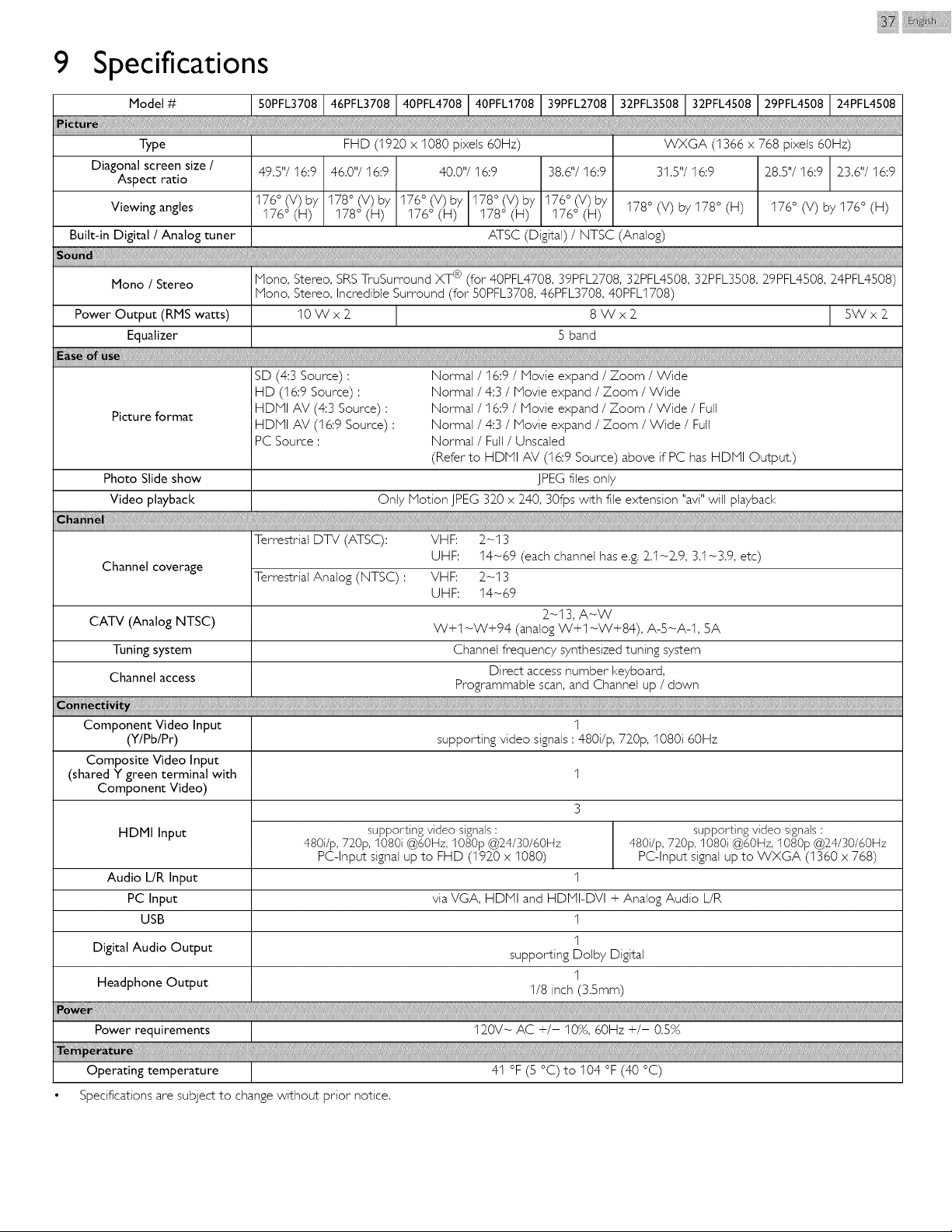
9 Specifications
iiii @ i i iii¸
Type
Diagonal screen size /
Aspect ratio
Viewing angles
Built-in Digital / Analog tuner
49.5"/16:9
I76 ° (V) by
I76 ° (H)
FHD (t92_0 x I080 pixeJs 60Hz) VVXGA (1366 x 768 pixeJs 60Hz)
46,0"/16:9 40,0"/16:9 38,6"/I6:9 31,5"/16:9 28,5"/I6:9 23,6"/I6:9
I78 ° (V) by I76 ° (V) by I78 ° (V) by I76 ° (V) by I78 ° (V) by I78 ° (H) I76 ° (V) by I76 ° (H)
I78 ° (H) I76 ° (H) I78 ° (H) I76 ° (H)
ATSC (Digital) / NTSC (Analog)
Mono / Stereo Nono, Stereo, SRS TruSurround XT ® (for 40PFL4708, 39PFL2708, 32PFL4508, 32PFL3508, 29PFL4508, 24PFL4508)
Nono, Stereo, Incredible Surround (for 50PFL3708, 46PFL3708, 40PFLI708)
Power Output (RMS watts) I0 W x 2 8 W x 2 5W x 2
Equalizer 5 band
SD (4:3 Source):
HD (16:9 Source):
HDNI AV (4:3 Source) :
HDNI AV (16:9 Source) :
PC Source :
Picture format
Normal / I6:9 / Movie expand / Zoom / Wide
Normal / 4:3 / Movie expand / Zoom / Wide
Normal / 16:9 / Movie expand / Zoom / Wide / Full
Normal / 4:3 / Movie expand / Zoom / Wide / Fuji
Normal / Fuji /Unscaled
(Refer to HDMI AV (t6:9 Source) above if PC has HDMI Output.)
JPEG files only
Only Motion JPEG 320 x 240, 30fps with file extension "avi" witl playback
Photo Slide show
Video playback
Terrestrial DTV (ATSC): VHF: 2-t 3
UHF: I4-69 (each channel has e.g. 2.I-2.9, 3.t-3.9, etc)
Channel coverage
Terrestrial Analog (NTSC) : VHF: 2_-t 3
UHF: I4-69
2-13, A-W
CATV (Analog NTSC) W+I -W+94 (analog W+I -W+84), A-S-A-I, 5A
Tuning system Channel frequency synthesized tuning system
Direct access number keyboard,
Channel access Programmable scan, and Channel up / down
................................................. .......................................................................................................[
Component Video Input 1
(Y/Pb/Pr) supporting video signals : 480i/p, 720p, I080i 60Hz
Composite Video Input
(shared Y green terminal with I
Component Video)
3
HDMI Input supporting video signals : supporting video signals :
480i/p, 720p, I080i @60Hz, 1080p @24/30/60Hz 480i/p, 720p, 1080i @60Hz, 1080p @24/30/60Hz
PC-Input signal up to FHD (t92_0 x I080) PC-Input signal up to WXGA (1360 x 768)
Audio L/R Input I
PC Input via VGA, HDNI and HDNI-DVI + Analog Audio L/R
USB I
I
Digital Audio Output supporting Dolby Digital
1
Headphone Output I/8 inch (3.5mm)
Operating temperature
Specifications are subject to change without prior notice.
4I °F (S °C)to I04 °F (40 °C)
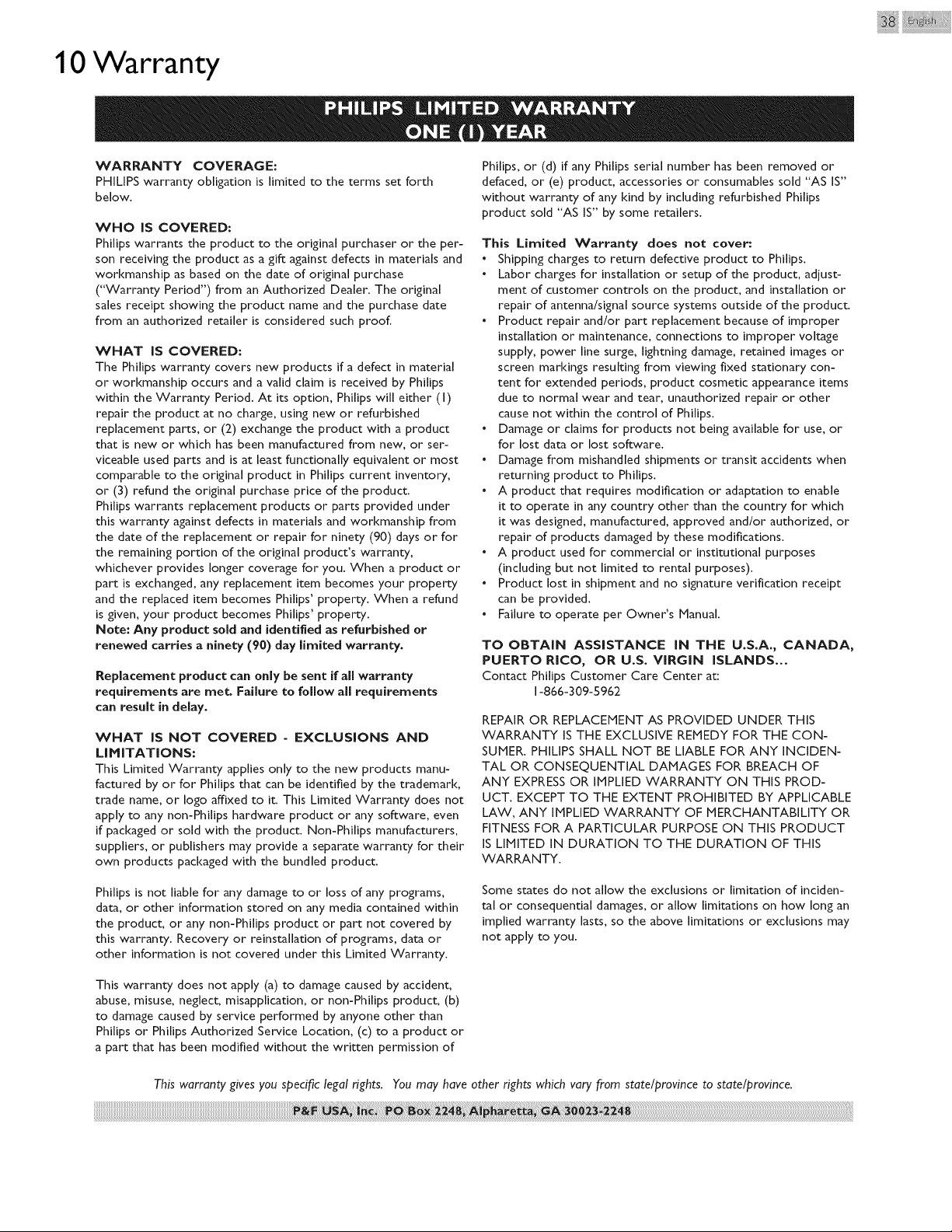
10
Warranty
WARRANTY COVERAGE:
PHILIPS warranty obligation is limited to the terms set forth
below.
WHO IS COVERED:
Philips warrants the product to the original purchaser or the per-
son receiving the product as a gift against defects in materials and
workmanship as based on the date of original purchase
({{Warranty Period") from an Authorized Dealer. The original
sales receipt showing the product name and the purchase date
from an authorized retailer is considered such proof.
WHAT IS COVERED:
The Philips warranty covers new products if a defect in material
or workmanship occurs and a valid claim is received by Philips
within the Warranty Period. At its option, Philips will either (I)
repair the product at no charge, using new or refurbished
replacement parts, or (2) exchange the product with a product
that is new or which has been manufactured from new, or ser-
viceable used parts and is at least functionally equivalent or most
comparable to the original product in Philips current inventory,
or (3) refund the original purchase price of the product.
Philips warrants replacement products or parts provided under
this warranty against defects in materials and workmanship from
the date of the replacement or repair for ninety (90) days or for
the remaining portion of the original product's warranty,
whichever provides longer coverage for you. When a product or
part is exchanged, any replacement item becomes your property
and the replaced item becomes Philips' property. When a refund
is given, your product becomes Philips' property.
Note: Any product sold and identified as refurbished or
renewed carries a ninety (90) day limited warranty.
Replacement product can only be sent if all warranty
requirements are met. Failure to follow all requirements
can result in delay.
WHAT IS NOT COVERED - EXCLUSIONS AND
LIMITATIONS:
This Limited Warranty applies only to the new products manu-
factured by or for Philips that can be identified by the trademark,
trade name, or logo affixed to it. This Limited Warranty does not
apply to any non-Philips hardware product or any software, even
if packaged or sold with the product. Non-Philips manufacturers,
suppliers, or publishers may provide a separate warranty for their
own products packaged with the bundled product.
Philips is not liable for any damage to or loss of any programs,
data, or other information stored on any media contained within
the product, or any non-Philips product or part not covered by
this warranty. Recovery or reinstallation of programs, data or
other information is not covered under this Limited Warranty.
Philips, or (d) if any Philips serial number has been removed or
defaced, or (e) product, accessories or consumables sold "AS IS"
without warranty of any kind by including refurbished Philips
product sold "AS IS" by some retailers.
This Limited Warranty does not cover:
. Shipping charges to return defective product to Philips.
. Labor charges for installation or setup of the product, adjust-
ment of customer controls on the product, and installation or
repair of antenna/signal source systems outside of the product.
. Product repair and/or part replacement because of improper
installation or maintenance, connections to improper voltage
supply, power line surge, lightning damage, retained images or
screen markings resulting from viewing fixed stationary con-
tent for extended periods, product cosmetic appearance items
clue to normal wear and tear, unauthorized repair or other
cause not within the control of Philips.
. Damage or claims for products not being available for use, or
for lost data or lost software.
. Damage from mishandled shipments or transit accidents when
returning product to Philips.
. A product that requires modification or adaptation to enable
it to operate in any country other than the country for which
it was designed, manufactured, approved and/or authorized, or
repair of products damaged by these modifications.
. A product used for commercial or institutional purposes
(including but not limited to rental purposes).
. Product lost in shipment and no signature verification receipt
can be provided.
. Failure to operate per Owner's Manual.
TO OBTAIN ASSISTANCE IN THE U.S.A., CANADA,
PUERTO RICO, OR U.S. VIRGIN ISLANDS...
Contact Philips Customer Care Center at:
1-866-309-5962
REPAIR OR REPLACEMENT AS PROVIDED UNDER THIS
WARRANTY IS THE EXCLUSIVE REMEDY FOR THE CON-
SUMER. PHILIPS SHALL NOT BE LIABLE FOR ANY INCIDEN-
TAL OR CONSEQUENTIAL DAMAGES FOR BREACH OF
ANY EXPRESS OR IMPLIED WARRANTY ON THIS PROD-
UCT. EXCEPT TO THE EXTENT PROHIBITED BY APPLICABLE
LAW, ANY IMPLIED WARRANTY OF MERCHANTABILITY OR
FITNESS FOR A PARTICULAR PURPOSE ON THIS PRODUCT
IS LIMITED IN DURATION TO THE DURATION OF THIS
WARRANTY.
Some states do not allow the exclusions or limitation of inciden-
tal or consequential damages, or allow limitations on how long an
implied warranty lasts, so the above limitations or exclusions may
not apply to you.
This warranty does not apply (a) to damage caused by accident,
abuse, misuse, neglect, misapplication, or non-Philips product, (b)
to damage caused by service performed by anyone other than
Philips or Philips Authorized Service Location, (c) to a product or
a part that has been modified without the written permission of
iiii i@ i i iii¸
This warranty gives you specific legal rights. You may have other rig_htswhich vary from state/province to state/province.
II H IIIIIIII!,III S
P&F USA, inc.
PO Box 2248, Alpharetta, GA 30023-2248
P&F Me×icana, S.A. de C.V.
Av. La Palma No. 6, Col. San Fernanclo La Herraclura.
Hui×quiJucan, Ecio. de M6×ico. C.P. 52787
Philips and Philips Shield are used under license of A3AU2UH / A3AQ2UH / A31P2UH / A3APAUH / A31T2UH / A3AF2UT / A31F2UT / A31N2UT / A31L2UT
Koninklijke Philips N.V. ****