
ezi-dab owners’ manual

1
Introducon
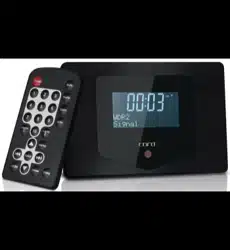
Thank you for purchasing a CORD Ezi Dab, DAB+ & FM Radio Module. The Ezi Dab is
just one product in our range embracing our philosophy of ‘extraordinary audio visual
gear.’
This product has been designed and engineered to give you many years of enjoy-
ment. Please ensure you carefully read this manual to gain the maximum benet
from your purchase.
We suggest you keep your original proof of purchase receipt, this manual and the
original packaging for future reference, in case you need to move your product, or in
the unlikely event that you need to return the product for service.
Product updates, technical info, warranty and service centre details are available on
our web site at www.cord-av.com

2
Contents
Introducon• 1
Important Safety Messages• 3
What’s in the box• 4
Set Up and Controls• 5
Connecons• 5
Remote Control Operaon• 6
Inial Startup• 7
Modes of Operaon• 7
Listening in DAB+ Mode• 8
Listening in FM Radio Mode• 9
Playback Informaon Display• 10
Alarm Funcons• 11
Sleep Funcon• 12
Menu Funcons• 12-14
Specicaons• 14
Troubleshoong• 15
Warranty• 16-17
What Is Not Covered• 17

3
Important Safety Messages
Before you power on your new CORD product, to ensure safe and ecient operaon,
please take the me to read the following:
Keep these instrucons in a safe place for future reference.•
Pay aenon to all warnings as these are important to ensure your safety •
and the opmum operaon of this product.
Always use this product in accordance with the instrucons.•
Do not use this product in or near water or in direct sunlight.•
Do not place items full of water on or near this product. •
Do not expose this product to rain or moisture of any kind.•
Do not use near any cooking, heang, cooling or venlaon appliances.•
Do not block any of the venlaon openings on this product.•
Turn this appliance o at the mains power switch during mes of electrical •
storms or when the product will not be used for long periods of me.
Only use the power adaptor or exact equivalent, supplied with this product.•
Please consult a qualied electrician if the plug does not t your power •
outlet.
To ensure your safety, protect the power adaptor from being walked on, •
cut, pinched, twisted or otherwise compromised.
No user serviceable parts are used in this product. Refer all servicing to •
qualied and authorised service personnel.
If the product has been damaged in any way - for example; if the power •
adaptor, cord or plug is damaged, liquid has been spilled or objects
have fallen inside the product, the product has been exposed to rain or
moisture, does not operate normally or it has been dropped - refer
the product to your nearest authorised service centre.
4
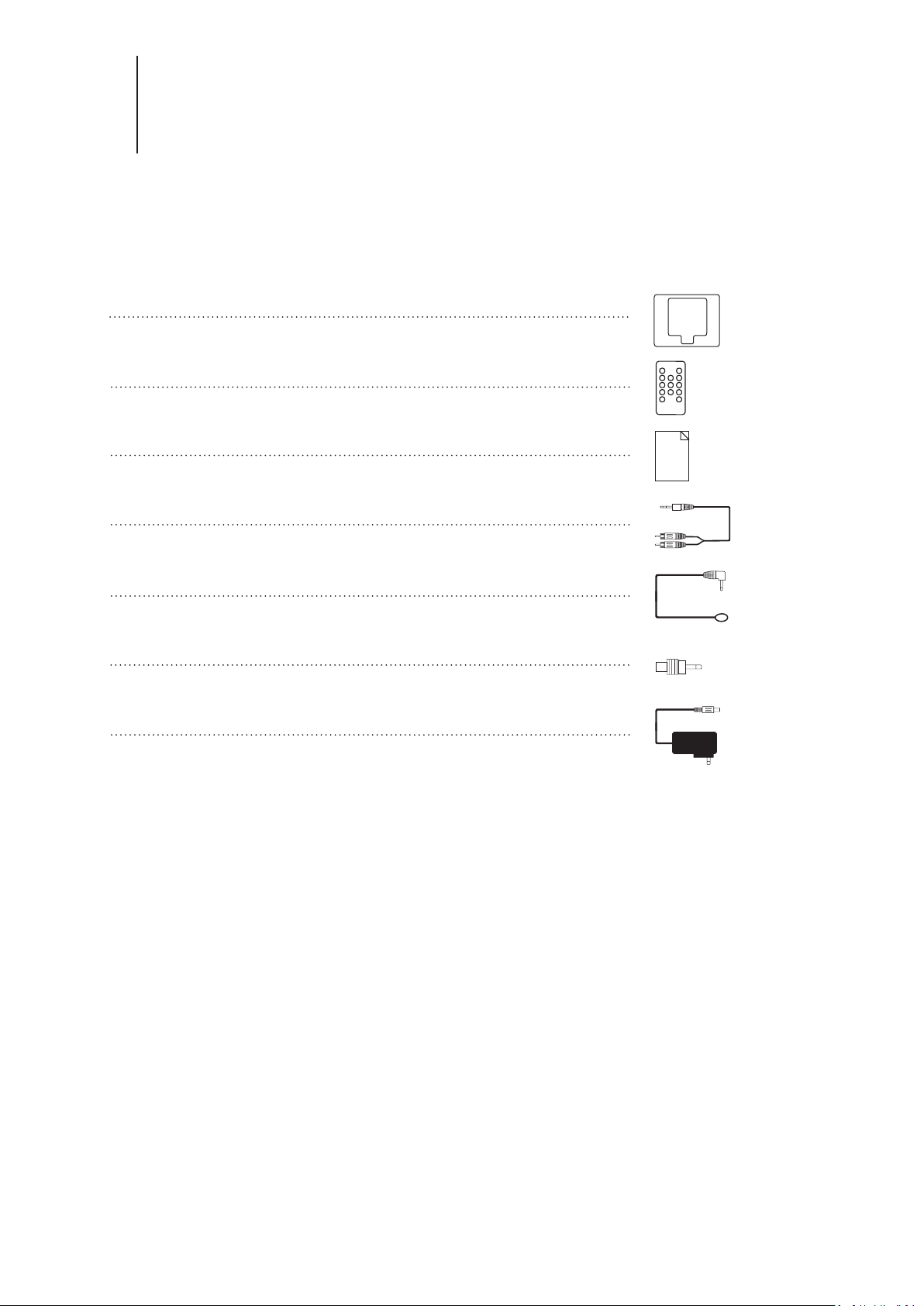
What’s in the box
One CORD Ezi-dab Radio Adaptor Module•
One remote control•
One owners manual•
One 3.5mm stereo mini jack to stereo RCA audio cable•
One 3.5mm y lead single wire antenna•
One 3.5mm to 75 Ohm coaxial antenna adaptor•
One AC power adaptor•
5
Set Up and Controls
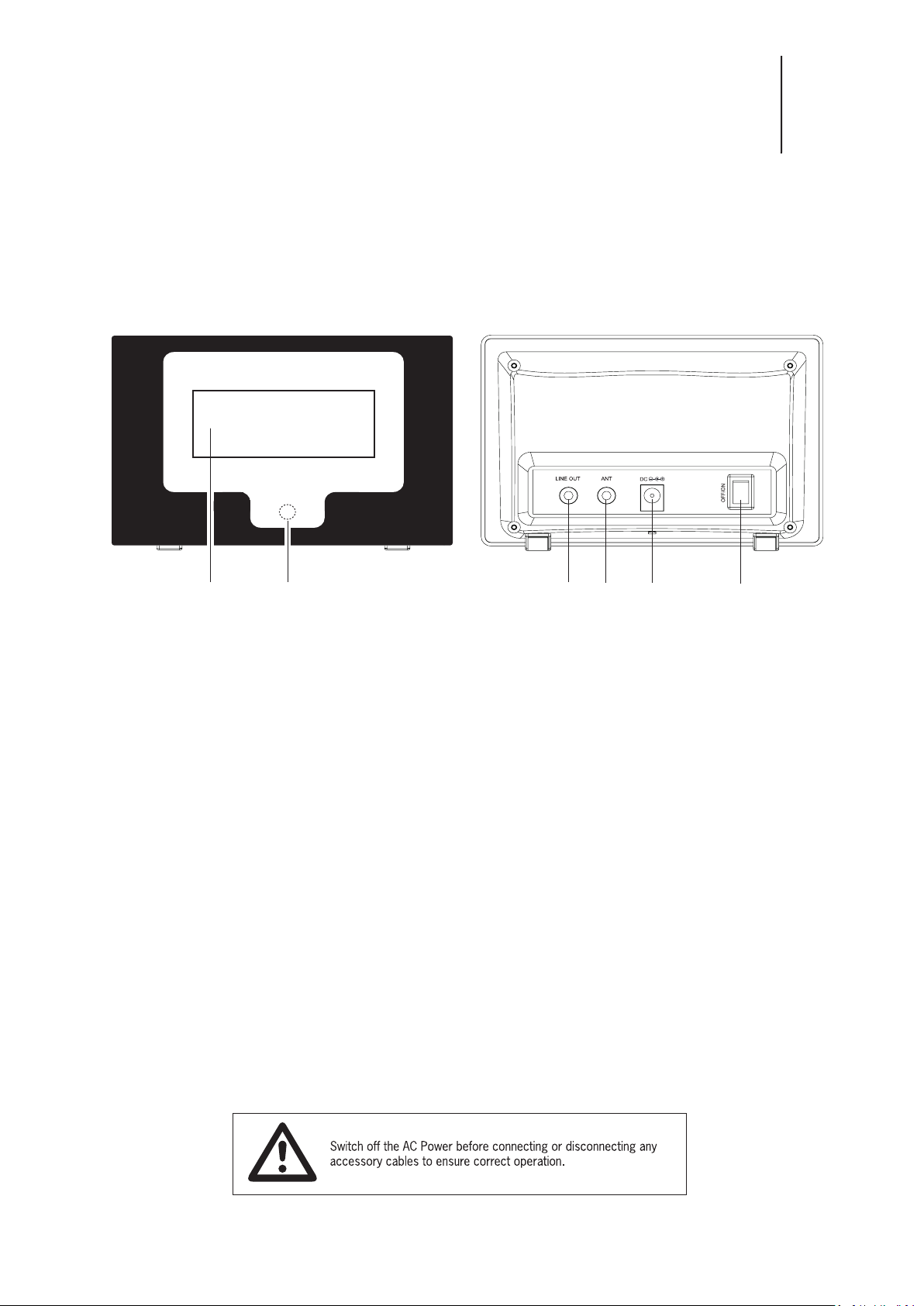
Connect the 3.5mm stereo mini jack to stereo RCA cable in to the line output sock-•
et (3), and connect the RCA to your Auxillary (or equivilent) input of your amplier
or home stereo system.
Connect the 3.5mm y lead Antenna into the ANT input socket (4). •
Connect the AC power adaptor to the 5V power input socket (5).•
Turn on the mains power at your wall socket.•
Once all connecons are made, it is safe to turn on the power switch (6).•
Connecons
1 2 3 4 5 6
1. LCD Display Window
2. IR Remote Control Sensor
3. 3.5mm Stereo Line Output Socket
4. 3.5mm Antenna Input Socket
5. 5V DC Power Input Socket
6. Power Switch
6
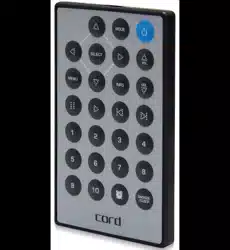
Remote Control Operaon
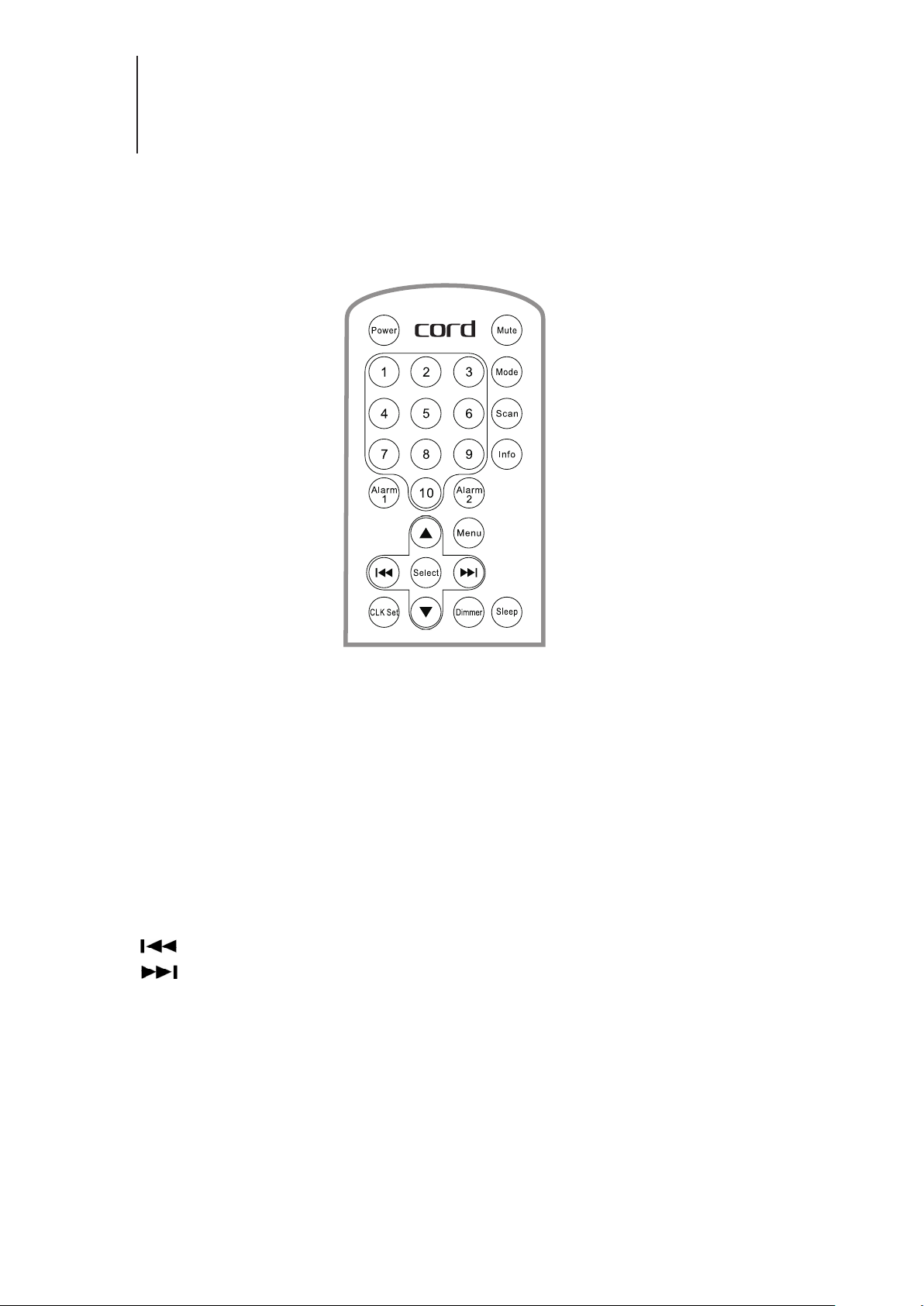
Power•
Mute•
Mode•
Scan•
Info•
Numbers 1 - 10•
Alarm 1•
Alarm 2•
Menu•
• q / p
•
•
Select•
CLK Set•
Dimmer•
Sleep•
Turns the Ezi DAB on or into standby mode
Audio mute on and audio mute o
Changes the mode from DAB+ to FM or from FM to DAB+
Scans for new DAB+ or FM staons, depending on selected mode
Scrolls between informaon sent by the broadcaster, (DLS, RDS,
Time, Date, etc.)
Numeric buons to store and recall staon presets
Access to alarm funcon #1
Access to alarm funcon #2
Displays menu sengs
Controls volume up & volume down
Controls menu navigaon or selects previous staon frequency
Controls menu navigaon or selects next staon frequency
Conrms menu operaon
Manually set the clock
Turn LCD display backlight on or o
Controls sleep me funcon
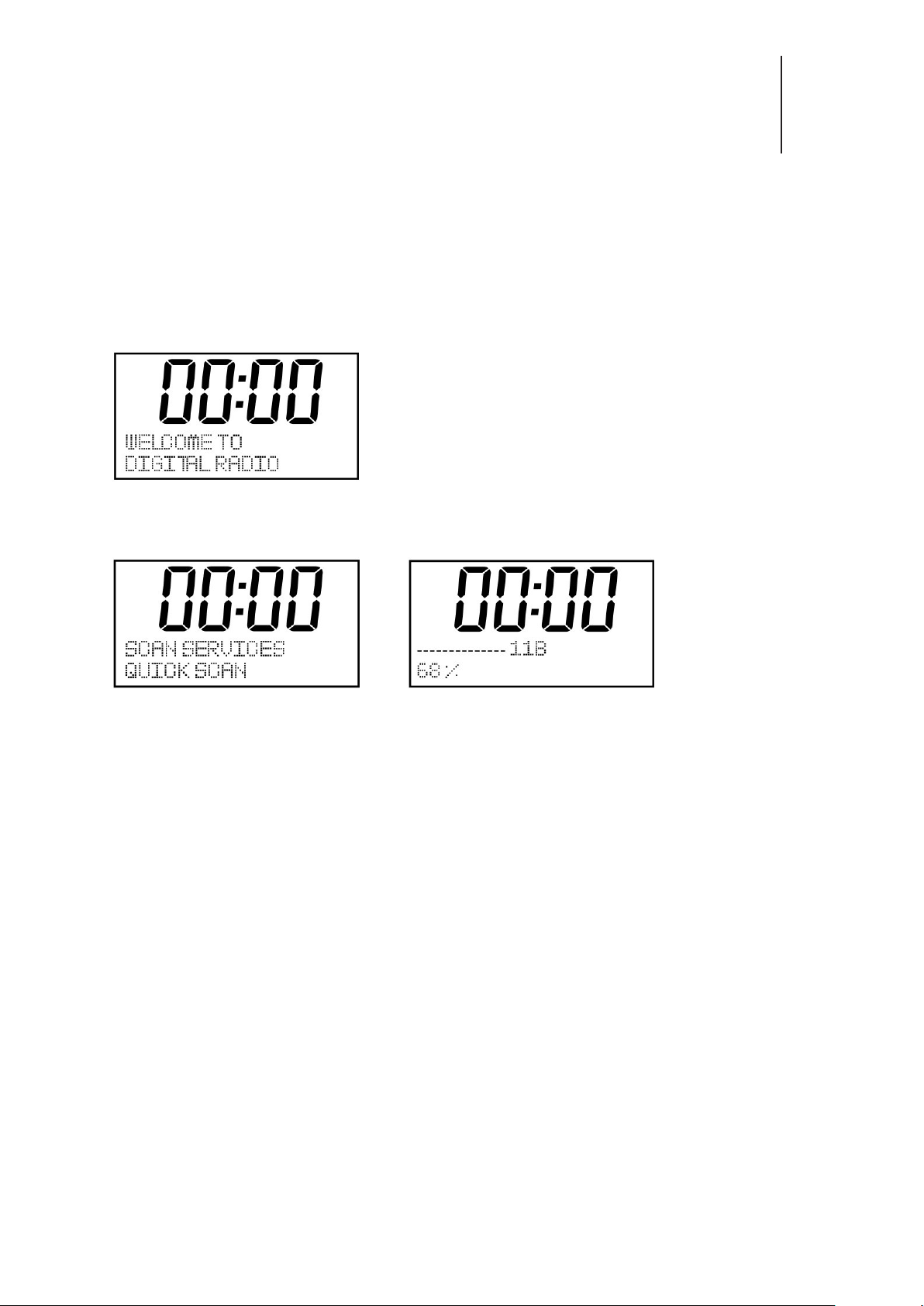
Inial Startup
1. Once connecons have been made (refer to page 5) and power to the unit is
switched on, the LCD display will show the following:
7
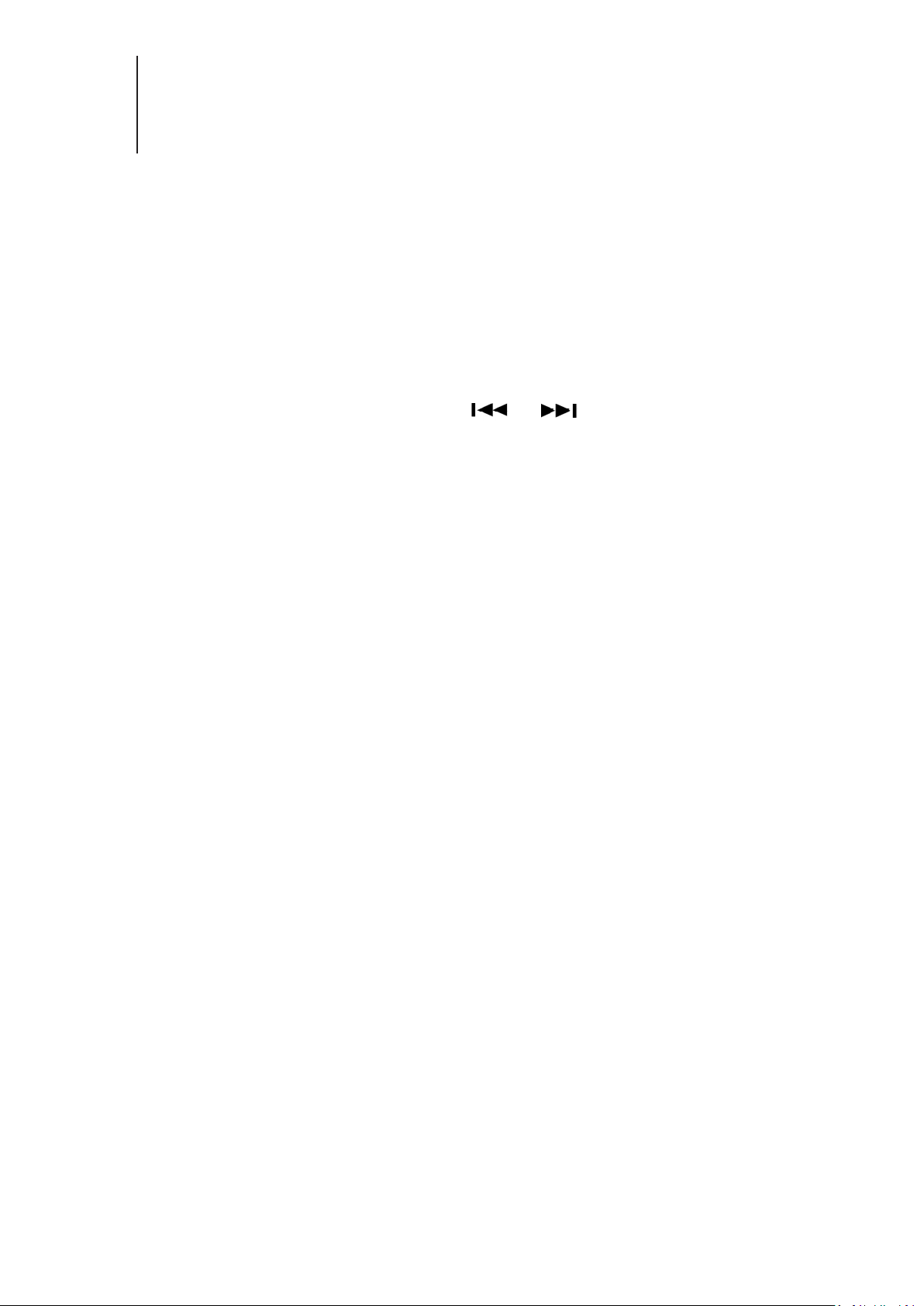
3. Once the scan has completed, the rst staon (alphabecally) will be selected and
playback will begin. If no staons have been found, adjust your antenna and press
the ‘SCAN’ buon on the remote control to restart the scan procedure.
Modes of Operaon
The Ezi Dab has 2 modes of operaon:
DAB+ Digital Radio•
FM Radio •
Press the ‘Mode’ buon on the remote control to switch between DAB+ or FM
mode.
2. Next the DAB+ services will be scanned for automacally, as follows:
8
Listening to DAB+ Mode
Press the ‘Mode’ buon on the remote control to select ‘DAB’ mode.1.
If there are no staons available the Ezi Dab will automacally begin a scan for 2.
digital radio staons available in your area.
Once the scan has completed, and if staons have been found, the rst staon 3.
listed (alphabecally) will be displayed and begin playing.
Staons can be browsed by pressing the or buons, then press the 4.
‘Select’ buon once the desired staon is displayed and playback will begin.
Storing Staon Presets:
Your Ezi Dab can store up to 10 DAB+ staons into memory as follows:
Select desired staon and begin playback.1.
Press and hold the desired numeric buon (1-10) on the remote control unl the 2.
following is displayed (for example): ‘Preset 1 Stored’.
Recalling Stored Staon Presets:
Press the numeric buon (1-10) on the remote control according to which order it 1.
was stored above.
9
Listening to FM Radio Mode
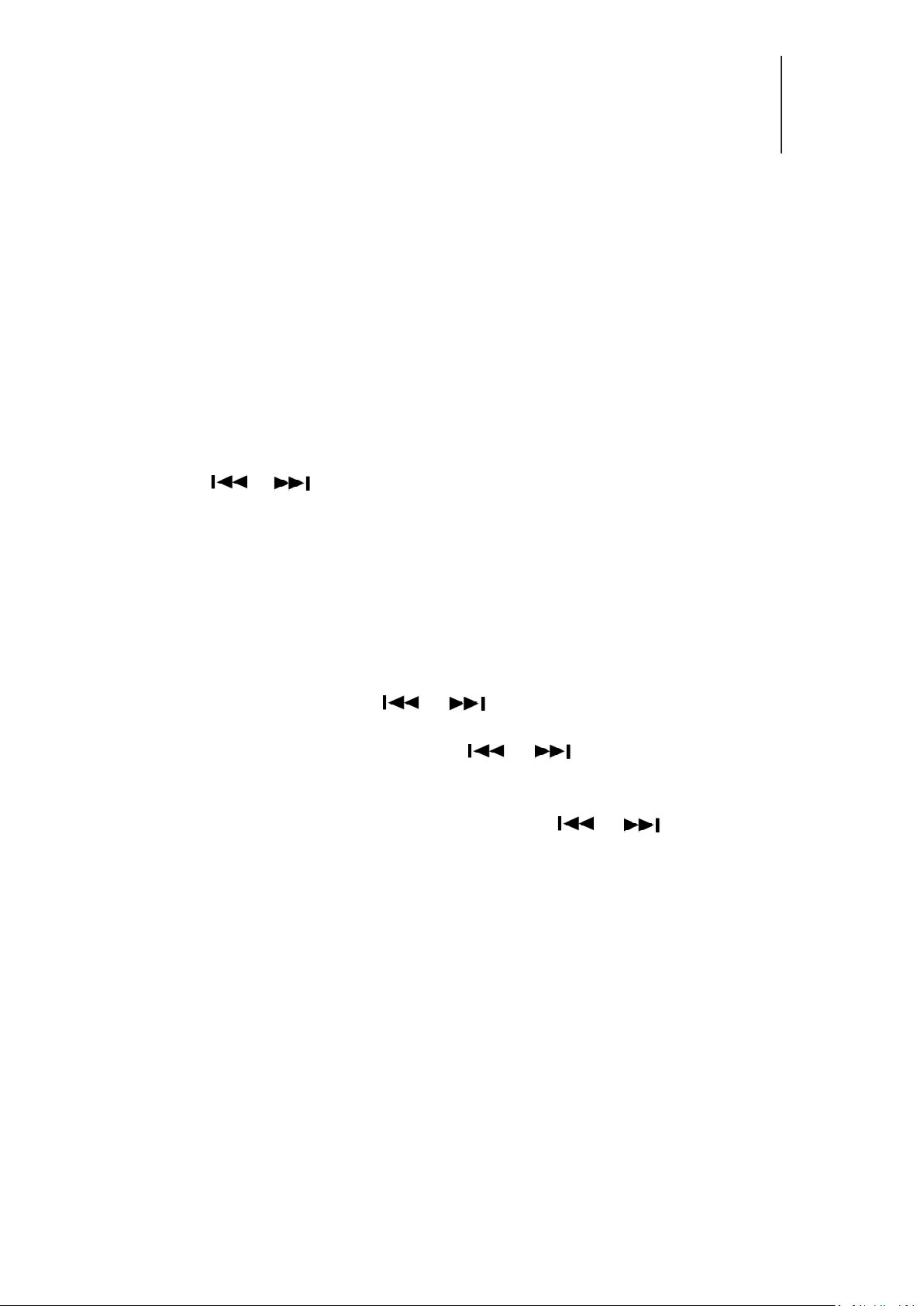
Press the ‘Mode’ buon on the remote control to select FM Radio mode. The following 1.
screen will be displayed:
Tuning Methods:
Scan - This will scan the FM band for available staons.•
Press ‘Scan’ on the remote control. The unit will scan up the FM band unl it nds the 1.
next available staon.
Connue to press the ‘Scan’ buon unl the desired staon is reached. Playback will 2.
begin automacally.
Manual Tune - This will allow you to manually search for a frequency.•
Press the or buon on the remote control to go up or down the FM band by 1.
0.05MHz per buon press.
Storing Staon Presets:
Your Ezi Dab can store up to 10 FM Radio staons into memory as follows:
1. Select desired staon and begin playback.
2. Press and hold the desired numeric buon (1-10) on the remote control unl the follow-
ing is displayed (for example): ‘Preset 1 Stored’
Recalling Stored Staon Presets:
Press the numeric buon (1-10) on the remote control according to which order it was 1.
stored above.

10
Playback Informaon Display
Your Ezi Dab has the capability to display various pieces of informaon, specic to
the broadcast you are listening to. This Informaon service is broadcast dependant,
so all informaon may not be available at all mes, depending on what you are lis-
tening to.
Pressing the ‘Info’ buon on the remote control will change the boom line of dis-
play on the LCD screen, and is capable of showing you the following informaon:
In DAB+ mode:
Stereo or Mono audio output mode.•
Area (geographically) that you are tuned in to.•
Current me and date.•
Program type (PTY) - Displays the program type, for example ‘Pop Music’.•
Audio format - Stereo or Mono / Bit Rate (Kbps).•
Dynamic Lablel Segment (DLS) - Scrolling text informaon supplied by the broad-•
caster. This informaon can include such things as, but not limited to: Song tle,
arst, radio presenters name or contact details for the radio staon.
Channel Frequency (eg: 9A 202.928 MHz).•
In FM Radio mode:
Stereo or Mono audio output mode.•
Channel Frequency (eg: 107.5 MHz).•
Radio Text (RDS) - Scrolling text informaon supplied by the broadcaster. This •
informaon can include such things as, but not limited to: Song tle, arst, radio
presenters name or contact details for the radio staon.
Current me and date.•
Program type (PTY) - Displays the program type, for example ‘Pop Music’.•
11
Alarm Funcons
Your Ezi Dab has 2 separate alarm funcons. These alarms can be set at specic
mes, and alarm alerts can be in the form of DAB+ radio playback / FM radio play-
back or 2 dierent types of buzzer (Series of high pitched beeps or low pitched
beeps).
To Set the Alarm:
Press and hold either the ‘Alarm 1’ buon or the ‘Alarm 2’ buon on the remote 1.
control unl ‘ALARM 1 TYPE SET’. You will see the word ‘OFF’ ashing repeatedly.
Use the 2. or buon on the remote control to select between ‘BUZZER’,
‘FM’, ‘DAB’ or ‘OFF’, then press ‘Select’ on the remote control to conrm your
choice.
Aer you select the desired alarm type, you can now choose between the follow-3.
ing alarm modes:
DAILY - The alarm will go o every day of the week.•
WEEK DAY - The alarm will go o only on days Monday to Friday.•
WEEKEND - The alarm will go o only on weekend days (Saturday and Sunday).•
ONCE - The alarm will only go o on the day that you set it.•
Make your selecon with the or buon then press ‘Select’.•
Choose the me of your alarm with the or buons, then press the 4.
‘Select’ buon. Set the hour, then hit ‘Select’ buon to move on to the minute.
Again press ‘Select’ aer rst seng the hour and minute.
Choose the desired volume of your alarm with the or buons, then hit 5.
‘Select’.
Choose the desired beep type (Type 1 is 4 high pitched beeps, Type 2 is 4 lower 6.
pitched beeps), then press ‘Select’ to conrm.
Your alarm is now set and will now show a small bell (numbered #1 for alarm 1, 7.
and numbered #2 for alarm 2) in the middle of the le side of the LCD display.
12
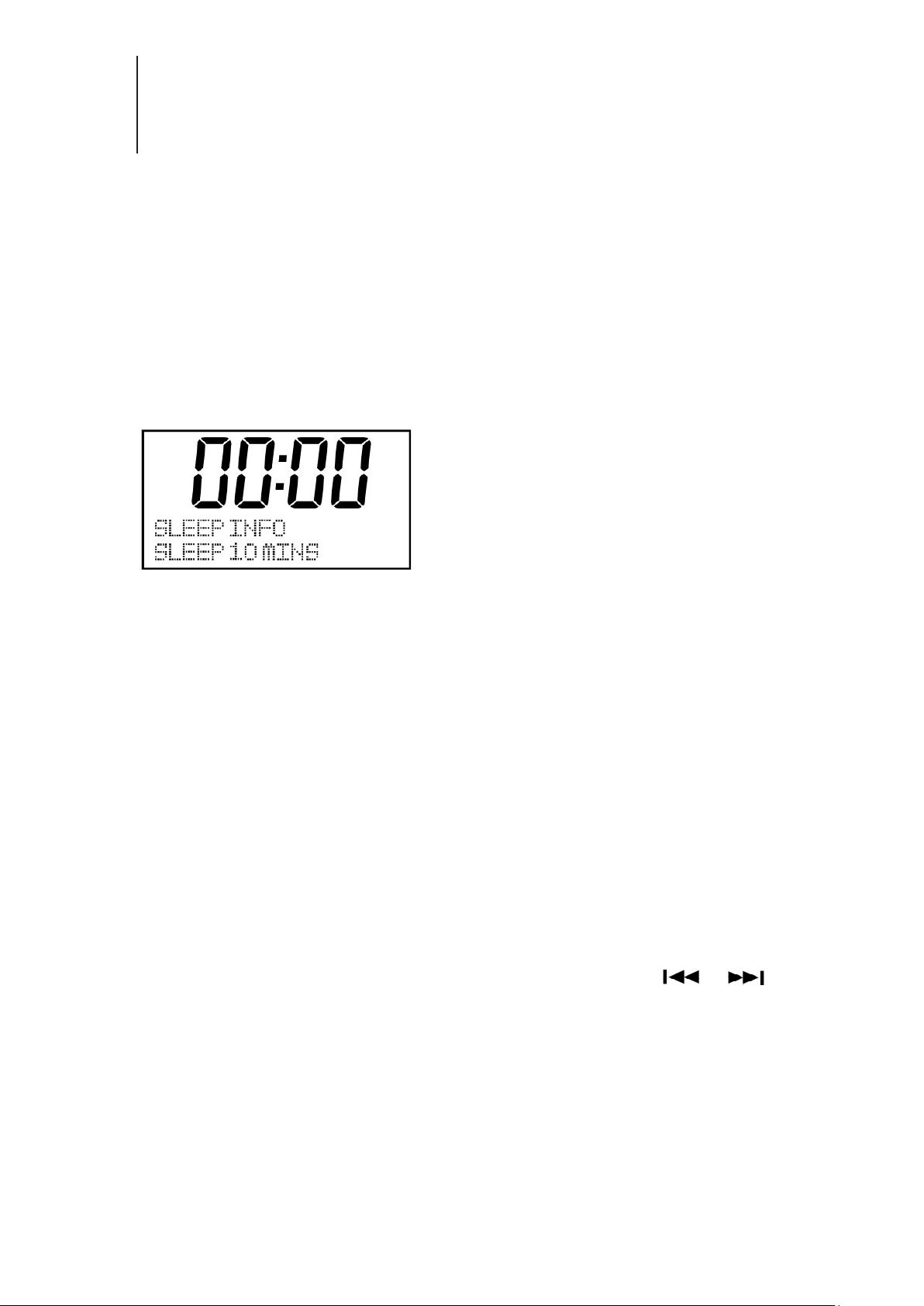
Sleep Funcon
Your Ezi Dab has a sleep funcon, which when acvated will automacally shut down
your unit (into standby mode) aer your chosen period of me. Here’s how to use it:
Press the ‘Sleep’ buon on your remote control. The following screen will be 1.
displayed:
You can select the desired period of the sleep funcon by repeatedly pressing 2.
the ‘Sleep’ buon on the remote control unl the desired period is displayed.
You can choose between 15 minutes, 30 minutes, 60 minutes, 90 minutes or OFF.
Press the ‘Select’ buon on the remote control to conrm your choice. The Ezi
Dab will now automacally shut down aer your chosen period of me.
If you wish to cancel the preselected sleep funcon, use the steps above and 3.
choose ‘OFF’, then press ‘Select’ on your remote control to conrm.
Menu Funcons
Your Ezi Dab has a ‘System’ Menu to control certain important opons. Enter the
system menu as follows:
1. Press the ‘MENU’ buon on your remote control, then press the or
buon on your remote control unl ‘<System>’ is displayed, then press the select
buon to enter the System Sengs Menu. The following opons are available here:
Time:
Your Ezi DAB has 4 me display sengs:
Set Time/Date: 1. This allows the user to manually set the current Time and Date.
Auto Update:2. This funcon will set your Ezi Dab’s me and date automacally
with data sent along with the broadcast of either the FM or DAB radio staon.
*Note that FM auto Time/Date update may not work in your area, so the DAB
auto update opon is recommended.

13
Menu Funcons Contd
3. Set 12/24 Hour: This opon will change the format of your clock to either 12
hour or 24 hour format.
4. Set Date Format: Changes the date display format between DD-MM-YYYY /
MM-DD-YYYY.
Backlight:
Your Ezi DAB has 3 backlight sengs:
Timeout:1. This opon is used to set the period of me that you wish your display’s
backlight to remain lit when your Ezi Dab is in both ON and STANDBY modes. The
available opons are; On/10 sec/20 sec/30 sec/45 sec/60 sec/90 sec/120 sec/180
sec. Selecng ‘On’ will force your Ezi Dab’s backlight to remain on constantly. If
you select a specic me delay, aer the selected me period has lapsed the dis-
play will dim down under the following two situaons:
When the radio is turned on and no operaon under selected me out period.•
When the radio turns o into Standby mode, the backlight will dim down aer the •
me out period has lapsed.
On Level:2. This opon will determine how bright the display’s backlight is lit while
the Ezi DAB is in ON mode. There are 3 opons for this seng; High, Medium &
Low.
Dim Level: 3. There are 3 brightness levels of the Dimmed backlight available – low/
medium/high.
Language: This seng will change the language in which the menu sysyem is dis-
played on your Ezi DAB.
Factory Reset:
Resets your Ezi Dab back to factory (out of box) state. Once this is opon is select-•
ed you will need to re-tune and re-program both your DAB+ and FM radio staons
and memory presets. You will also lose any alarms you have previously set up.
SW Version:
This screen will tell you the soware version that your unit is currently running. This •
informaon may be helpful when seeking technical support from an authorised service
department.

Specicaons
Type: DAB+ / FM Radio adaptor•
Size: 93mm (H) x 137mm (W) x 40mm (D)•
Weight: 0.35Kgs without packaging•
Power supply adaptor: 100V-240V AC Input, 5V DC, 1.0A Output•
FM tuner secon frequency range: 87.5 ~ 108MHz•
DAB+ tuner secon frequency range: 174.928 MHz (5A) ~ 239.200MHz (13F)•
14
Menu Funcons Contd
DRC:
DRC Stands for Dynamic Range Control. The DRC feature is only available when in
DAB mode. By adjusng the compression of the broadcast DAB signal, DRC can make
quieter sounds easier to hear when your radio is used in a noisy environment.
Your Ezi DAB has 3 DRC sengs
DRC High: Maximum compression. 1.
DRC Low: Minimum compression.2.
DRC O: No compression.3.
Seng the compression to maximum will “boost” the quiet sounds, whilst
keeping the loudest sounds at their original level.
PRUNE:
Some DAB services may stop broadcasng or you may not be able to
receive a staon any longer. The prune staons funcon will delete any DAB staons
from your staon list that can no longer be received, therefore ‘pruning’ your DAB
staons list, only showing staons that are within listening range.

15
Troubleshoong
If you experience any dicules with the operaon of your CORD Ezi Dab, please
check the table below before contacng an authorised CORD sercive centre:
Problem Possible Cause Remedy
No Power AC Power Cord is out•
AC socket switch is o•
Connect the AC cord•
Switch ON the AC •
socket
Poor Radio Recepon No Antenna is con-•
nected
The antenna is not •
posioned for the best
recepon
The frequency of the •
desired staon is not
tuned in.
Connect the Antenna•
Change the posion of •
the antenna
Tune in the frequency •
of the desired radio sta-
on
Interference to Radio Re-
cepon
Weak signal or fringe •
recepon area
Noise related to inu-•
ence of an electric ap-
plicance
Noice related to a •
nearby television set
Install an outdoor exter-•
nal antenna
Turn o the power to •
the interfering appli-
ance
Install this unit further •
away from the TV set
Connuous or intermiant
hissing sound from radio
playback
Weak signal or fringe •
recepon area
Change the posion of •
the antenna
install an outdoor exter-•
nal antenna
Bubbling sound is heard Weak signal or fringe •
recepon area
Change the posion of •
the antenna
install an outdoor exter-•
nal antenna
Remote Control does not
operate
Baery is not loaded •
correctly, or has gone
at.
Replace the baery•
Remove obstacles from •
IR path to unit

Warranty Condions
Limited Warranty - Australia & New Zealand
CORD products are engineered and manufactured with pride for excellent perfor-
mance, value and years of trouble free operaon. In the unlikely event that you
should have trouble with your CORD product we are pleased to oer this warranty.
It is important that you read the contents of this warranty and be familiar with your
rights and obligaons.
Our goods come with guarantees that cannot be excluded under the Australian
Consumer Law. You are entled to a replacement or refund for a major failure and
for compenson for any other reasonably forseeable loss or damage. You are also
entled to have the goods repaired or replaced if the goods fail to be of acceptable
quality and the failure does not amount to a major failure.
The benets of this warranty are in addion to any rights and remedies imposed by
Australian State and Federal legislaon that cannot be excluded. Nothing in this war-
ranty os to be interpreted as excluding, restricng or modifying any State or Federal
legislaon applicable to the supply of goods and services which cannot be excluded,
restricted or modied.
Scope Of Warranty
CORD warrants to the original retail purchaser that we will repair or replace, at our
opon, any CORD product which is found to be defecve in material and/or work-
manship for 12 months from the date of purchase. During the warranty period, an
authorised CORD Service Centre will provide both parts and labour free of charge to
correct any defect in materials or workmanship, subject to the warranty terms and
condions.
Warranty Terms & Condions
This warranty is valid within Australia and New Zealand for CORD products pur-•
chased in Australia or New Zealand for domesc home use only and where used
in accordance with any instrucons provided with or on the product.
The warranty shall be void if the serial number is removed, defaced or altered. •
You must provide a copy of the original purchase receipt to obtain warranty •
repairs. We reserve the right to quote for and or charge for repairs outside the
warranty period or where the date of original purchase cannot be veried.
Warranty repairs must be undertaken by an authorised CORD Service Centre. Visit •
our web site for the locaon of your nearest CORD Service Centre.
No person is authorised to make or give any asserons, statements or undertak-•
ings whether expressed or implied about other, or addional to, the terms of this
warranty.
16

Warranty Condions Contd
We reserve the right to make changes or improvements in design or manufacture •
without any obligaon to change or improve previously manufactured product.
CORD shall not be responsible for incidental and or consequenal damages or
loss.
What Is Not Covered
The cost of delivery and insurance in transit to the service centre. 1.
It is your sole responsibility to arrange for your product to be forwarded to your 2.
nearest CORD Service Centre for repair or replacement.
Time taken to invesgate your warranty claim where the product is found to be in 3.
good working order. This includes where you have not followed instrucons
contained in any manuals provided with the product or where the fault is caused
by use with incompable equipment and or soware.
Warranty repairs where the product has been tampered with, altered, modied 4.
or repaired by an unauthorised person.
Misuse, mishandling or abuse to the product including cosmec imperfecons, 5.
scratches, Acts of God and or electrical surge.
Normal wear & tear and maintenance, cleaning, periodic check-ups or charges 6.
for installaon, removal or reinstallaon of the product.
Audio or video data stored on your iPod and or other devices used with or con-7.
nected to your CORD product or media of any type.
When You Need Service
If you do require warranty service please visit our web site for details of any 1.
warranty updates and the locaon your nearest authorised Service Centre. Alter-
navely you may contact our oce directly via phone or email. Contact details
can be found on the last page of this booklet.
Securely pack and send the product to the authorised Service Centre. DO NOT 2.
return any accessories with your product unless the accessory is malfunconing.
We strongly suggest transit insurance as we cannot be responsible for products 3.
lost and or damaged when in transit to the Service Centre.
Include a clear descripon of the problem you are experiencing with your product 4.
and your name, address and dayme contact details.
This warranty gives you specic legal rights and you may have other rights which vary
from locaon to locaon. This limited warranty does not intend to aect these rights in
any way whatsoever.
17

Ezi Dab July 2013
PROUDLY DISTRIBUTED IN AUSTRALIA AND NEW ZEALAND BY:
VOLITION AUSTRALIA PTY LTD
20 Corporate Boulevard, Bayswater VIC 3153 Australia
PHONE: 03 9729 9300 / SERVICE: 03 9729 7300 / FAX: 03 9729 7900
Email: service@volion.com.au