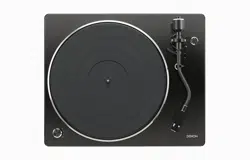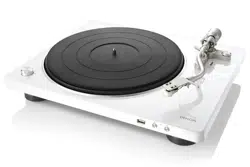

Accessories
4
Features
5
Part names and functions
7
Front panel
7
Rear panel
10
Preparations
Assembly
12
Mounting the turntable
13
Mounting the counterweight
14
Mounting the head shell with cartridge
14
Attaching the dust cover
15
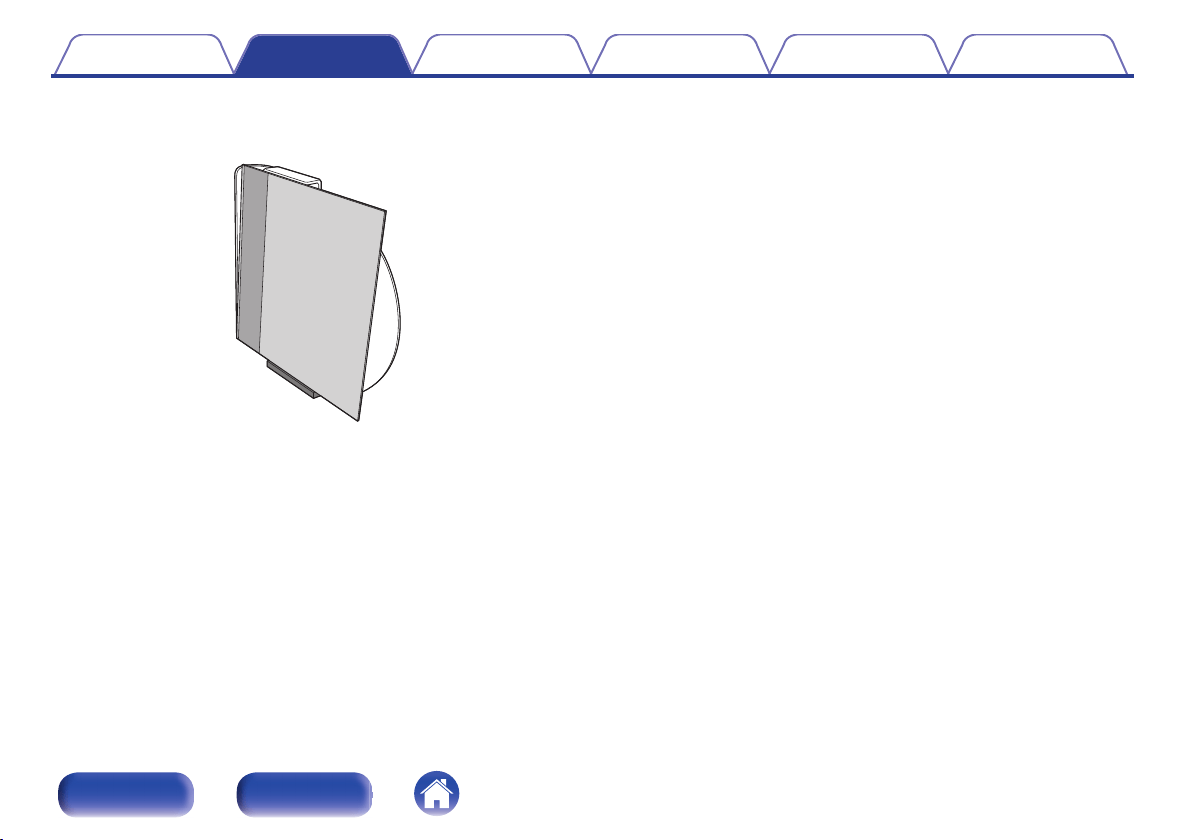
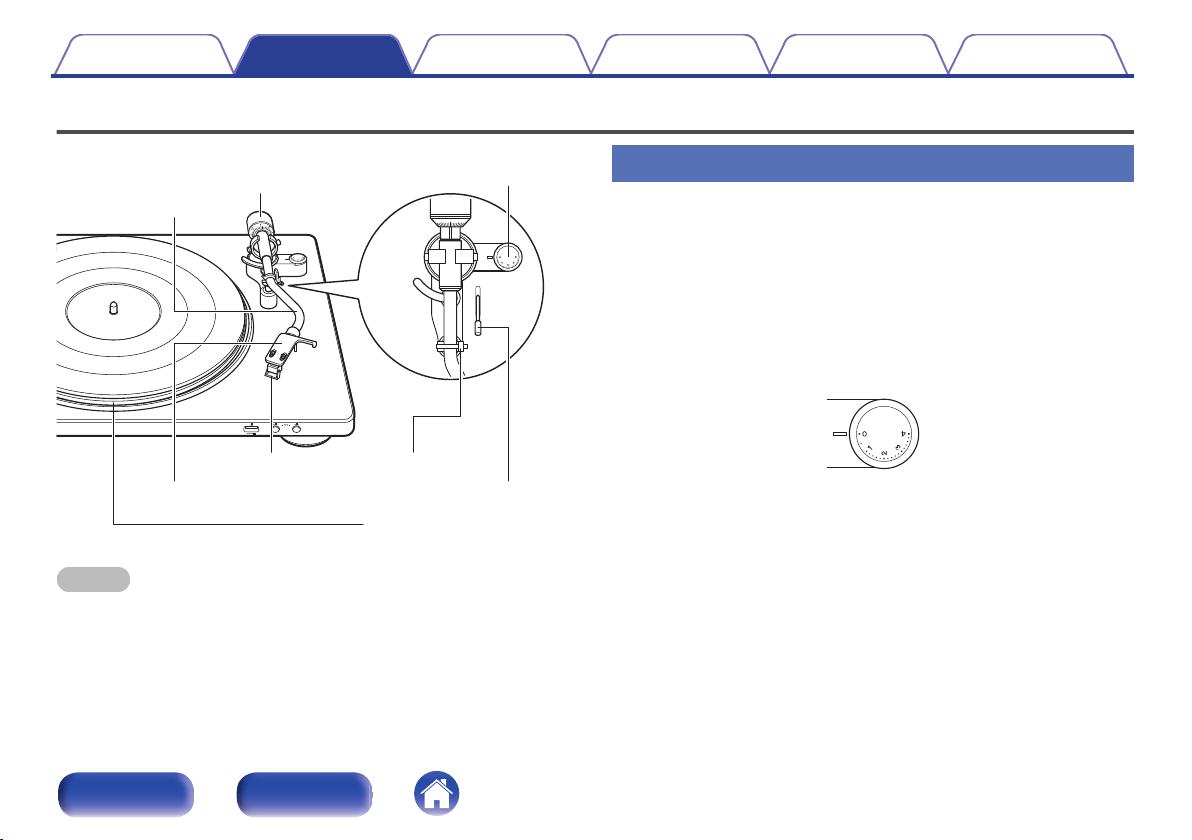
Using the dust cover as a record stand
15
Adjustments
17
Adjusting the stylus pressure
17
Adjusting anti-skating
19
Connections
Connecting devices that do not have a phono input
21
Connecting devices that have a phono input
22
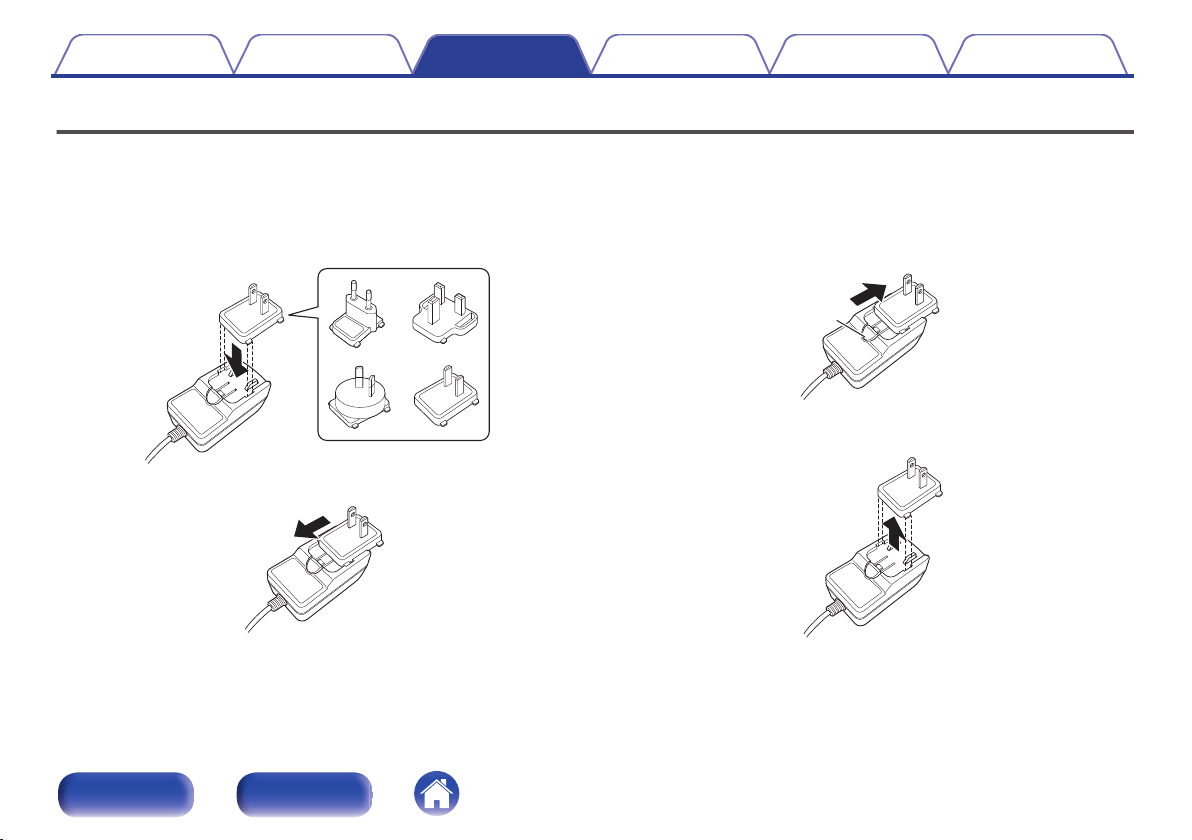
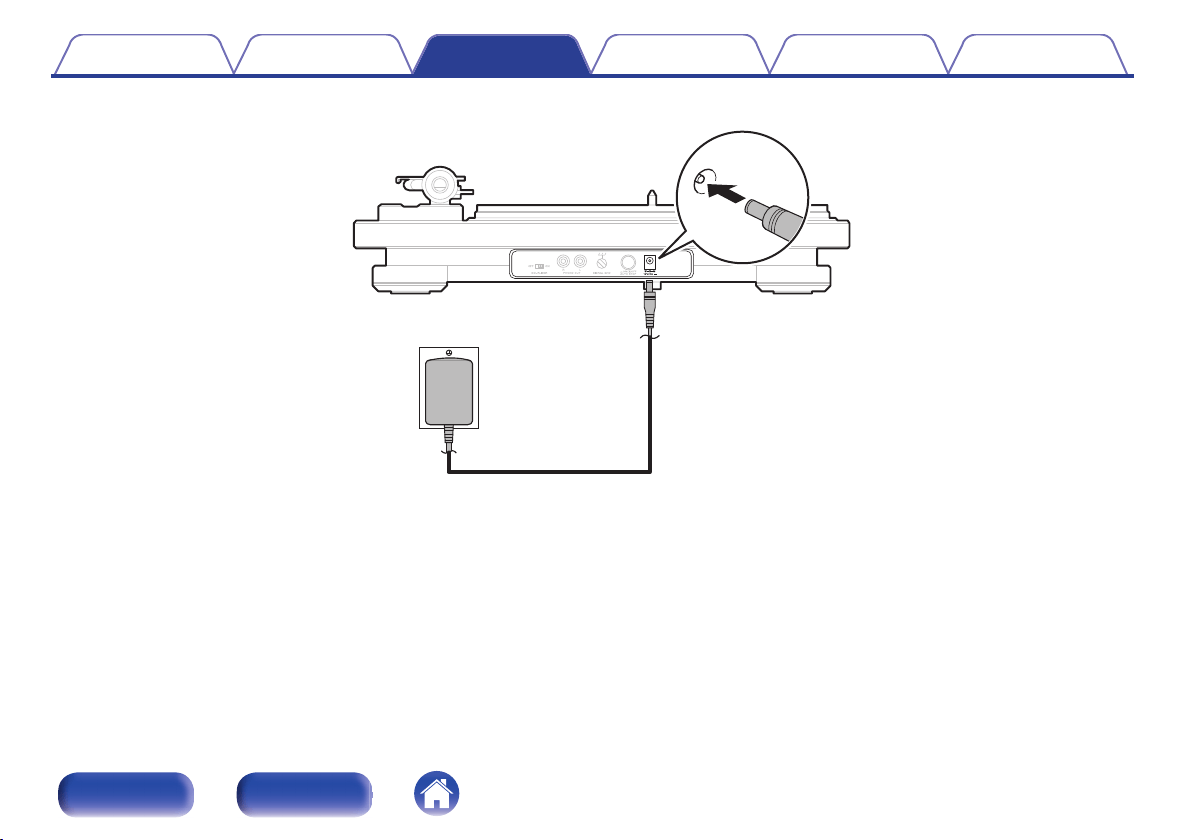
Connecting the AC adapter
23
Playback and recording
Record playback
26
Record playback
26
Stopping playback
28
Using the automatic stop function
29
Recording to a USB memory device
30
Recording to a USB memory device
31
Installing the “MusiCut for DENON” digital file editing software
32
Contents Preparations Connections
Playback and recording
Tips Appendix
2
Front panel Rear panel
Tips
Contents
33
Troubleshooting
34
Power does not turn on/Power is turned off
35
The turntable does not spin
35
No sound comes out
36
Audio skips, scratches or is distorted
36
Howling is produced
37
The tone arm stops moving halfway
37
Audio cannot be recorded to the USB memory device
38
Cannot install “MusiCut for DENON” onto the computer
38
Appendix
Replacing the stylus
39
Specifications
40
Contents Preparations Connections
Playback and recording
Tips Appendix
3
Front panel Rear panel
Thank you for purchasing this Denon product. To ensure proper operation, please read this owner’s manual carefully before using the product.
After reading this manual, be sure to keep it for future reference.
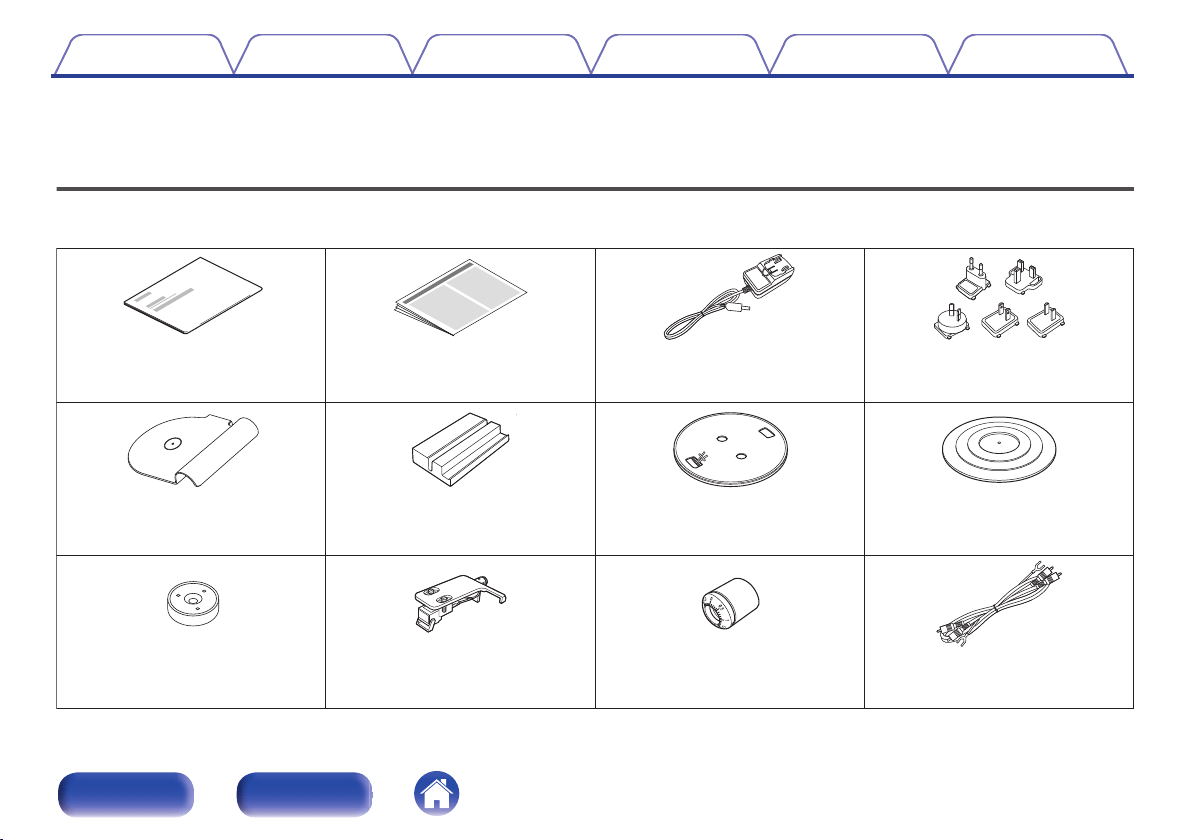
Accessories
Check that the following parts are supplied with the product.
.
P
US
H
Quick Start Guide
Safety Instructions AC adapter
AC adapter plugs
(5 pieces)
Dust cover
Dust cover stand
Turntable Turntable sheet
45 rpm adaptor
Head shell with cartridge Counterweight Audio cable
Contents Preparations Connections
Playback and recording
Tips Appendix
4
Front panel Rear panel
Features
0
Converting analog audio from records to digital formats and
saving to a USB memory device
Analog audio can be converted to a digital format (44.1 kHz/192 kbps
MP3 or 44.1 kHz/16 bit WAV) and saved to a USB memory device. This
audio can then be played back on any device that supports playback
from a USB memory device.
0
Digital files saved to a USB memory device can be split up, song
information acquired and file names edited using the supported
“MusiCut
TM
for DENON” software (MP3 only)
Space in between songs (silence) can be searched for manually or
detected automatically to split up the file, track numbers can be
assigned to each song and song information can be acquired from the
Gracenote audio database. For access, download software from our
website for use on your computer.
0
Modern design
Much like the PMA-60, DRA-100 and other devices in our Denon
Design Series, all unnecessary decoration has been eliminated for an
updated minimalistic design.
0
The automatic arm lifter function automatically raises the tone
arm at the end of record playback
0
Stabilizing rotation control improves rotation precision
A sensor has been installed that measures the RPM to maintain a
precise rotation speed.
0
An MM cartridge is pre-attached to the headshell to enable
immediate use without assembly
0
Equipped with an equalizer switch to turn the built-in phono
equalizer on and off
The phono equalizer is built in to enable direct connection, even if the
amplifier or mini component system does not have phono input. Use the
switch to turn the equalizer off to enable connection to amplifiers with a
phono input.
Contents
Preparations Connections
Playback and recording
Tips Appendix
5
Front panel Rear panel
0
Equipped with a function to switch RPM between 33 1/3, 45 and
78
Change record playback speed between 33 1/3, 45 and 78 RPM as
needed. This means that both 7 inch and 12 inch record playback in all
RPM formats is supported.
0
Equipped with a dust cover that can be used as a record stand
The included dust cover can also be set up for use as a record stand.
Use it to display the sleeves of your records.
Contents Preparations Connections
Playback and recording
Tips Appendix
6
Front panel Rear panel
.
0
3.5
3
0.5
1
qe rwytu
oi
A
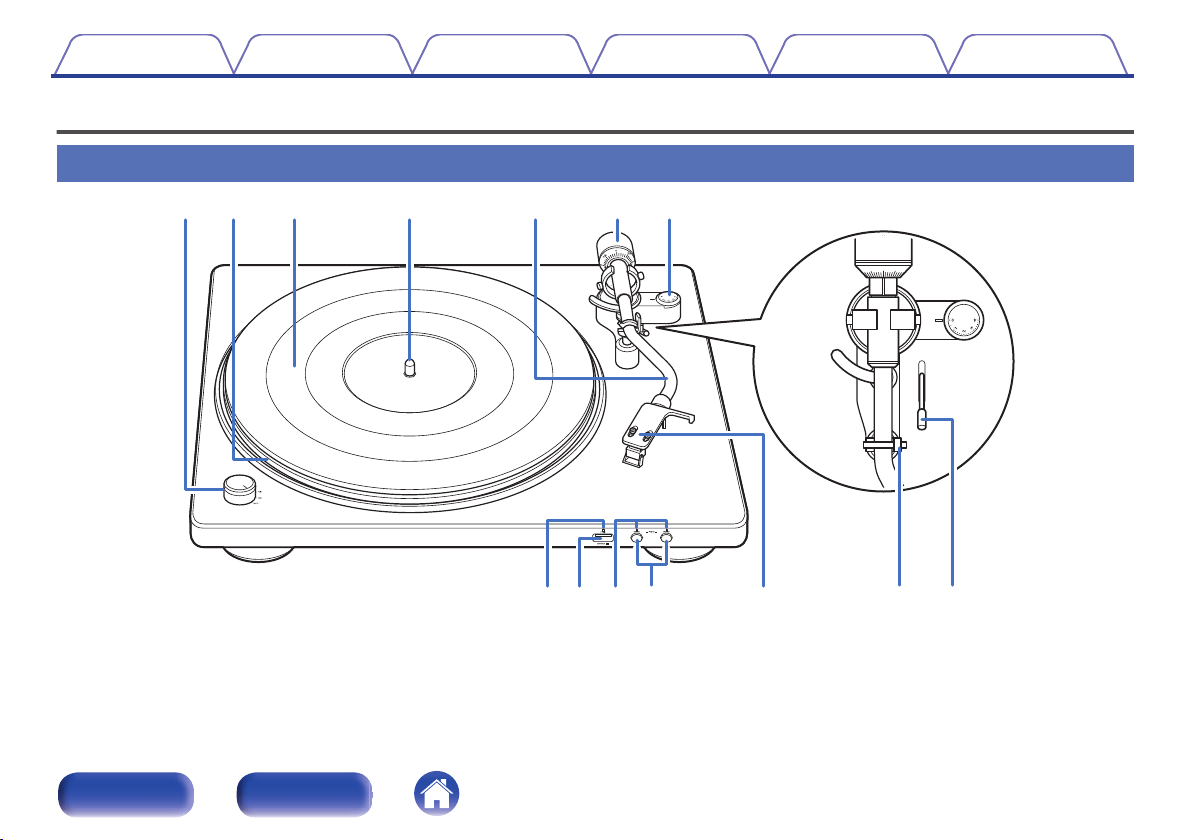
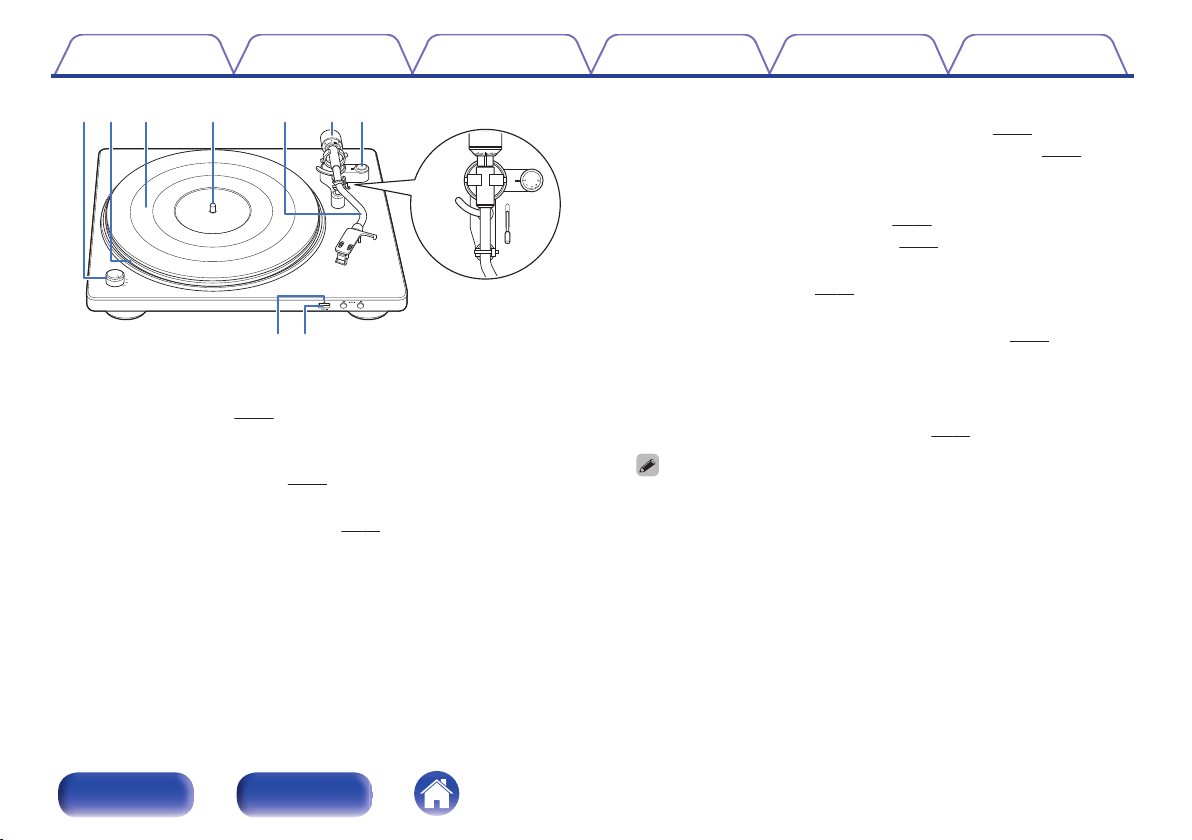
Power/rpm switch knob
Turn the power on and off and change the RPM as needed during
record playback. (v p. 26)
B
Turntable
Attached by mounting on the center spindle on the main unit. The belt
is equipped underneath. (v p. 13)
C
Turntable sheet
Mounted on top of the turntable. (v p. 13)
D
Center spindle
Place the turntable and records so that it comes out through the center.
E
Tone arm
0
The counterweight is mounted on the back. (v
p. 14)
0
The head shell with cartridge is attached to the tip. (v p. 14)
F
Counterweight
Attached to the back of the tone arm to adjust stylus pressure.
0
“Mounting the counterweight” (v p. 14)
0
“Adjusting the stylus pressure” (v p. 17)
G
Anti-skating dial
Adjusts anti-skating. (v p. 19)
H
USB indicator
The following indicate the USB recording status. (v
p. 31)
0
White light on: A USB memory device is inserted in the USB port
0
White light flashing: Recording to a USB memory device
I
USB port (T)
Used to insert USB memory devices. (v p. 30)
0
The device can convert audio played back from analog sources to digital
formats (MP3 or WAV) and save to a USB memory device. Saved audio files
cannot be played back from a USB memory device.
Contents Preparations Connections
Playback and recording
Tips Appendix
8
Front panel Rear panel
.
0
3.5
3
0.5
1
Q
1
Q3
Q
0
Q
2
Q4
J
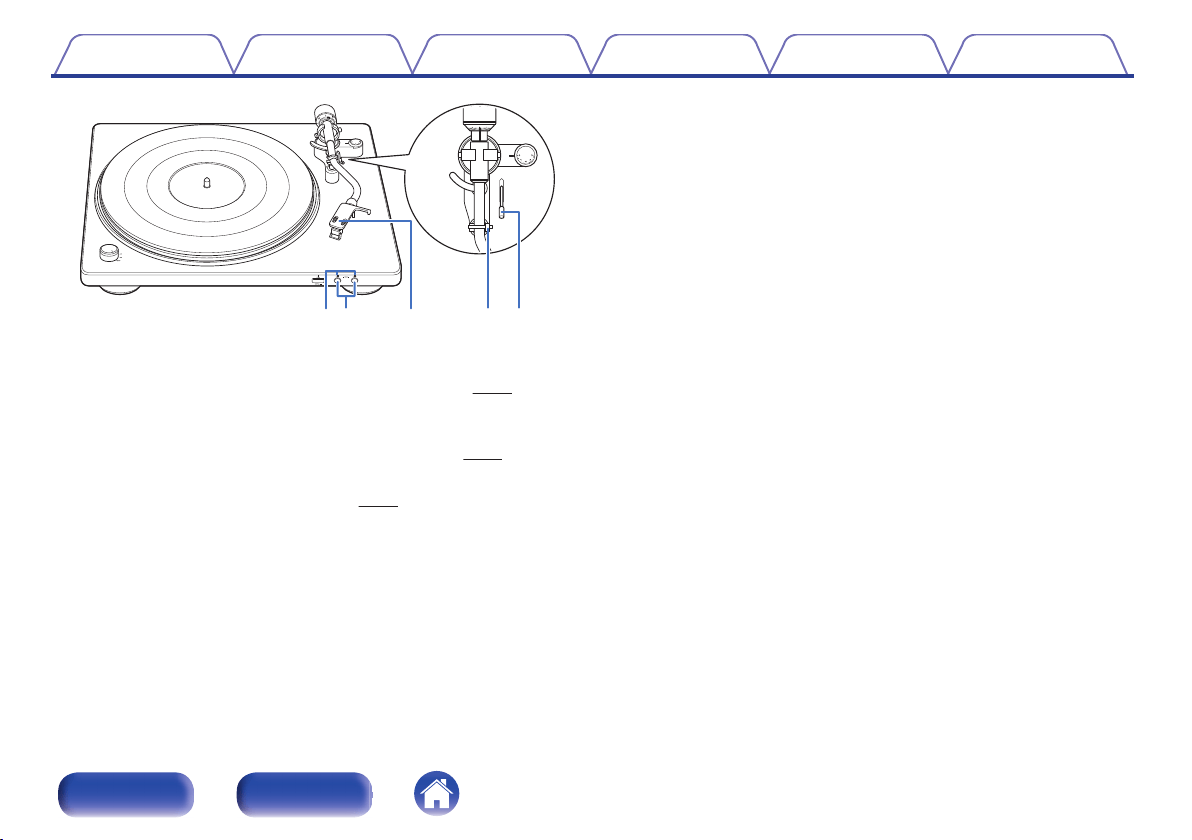
REC MP3/WAV indicators
Lights in blue after the REC MP3/WAV buttons is pressed to indicate
that the device is currently recording audio to USB. (v p. 31)
K
REC MP3/WAV buttons
Used to select the digital audio format (MP3 or WAV) when recording to
USB. Also used to start and stop audio recording. (v p. 31)
L
Head shell with cartridge
Attached to the tip of the tone arm. (v p. 14)
M
Armrest
Rest the tone arm here when it is not in use for record playback.
N
Lifter lever
Raises and lowers the tone arm. Lowering the lever slowly lowers the
tone arm to place the stylus without damaging it or the record to be
played.
Contents Preparations Connections
Playback and recording
Tips Appendix
9
Front panel Rear panel
Rear panel
.
qewtr
A
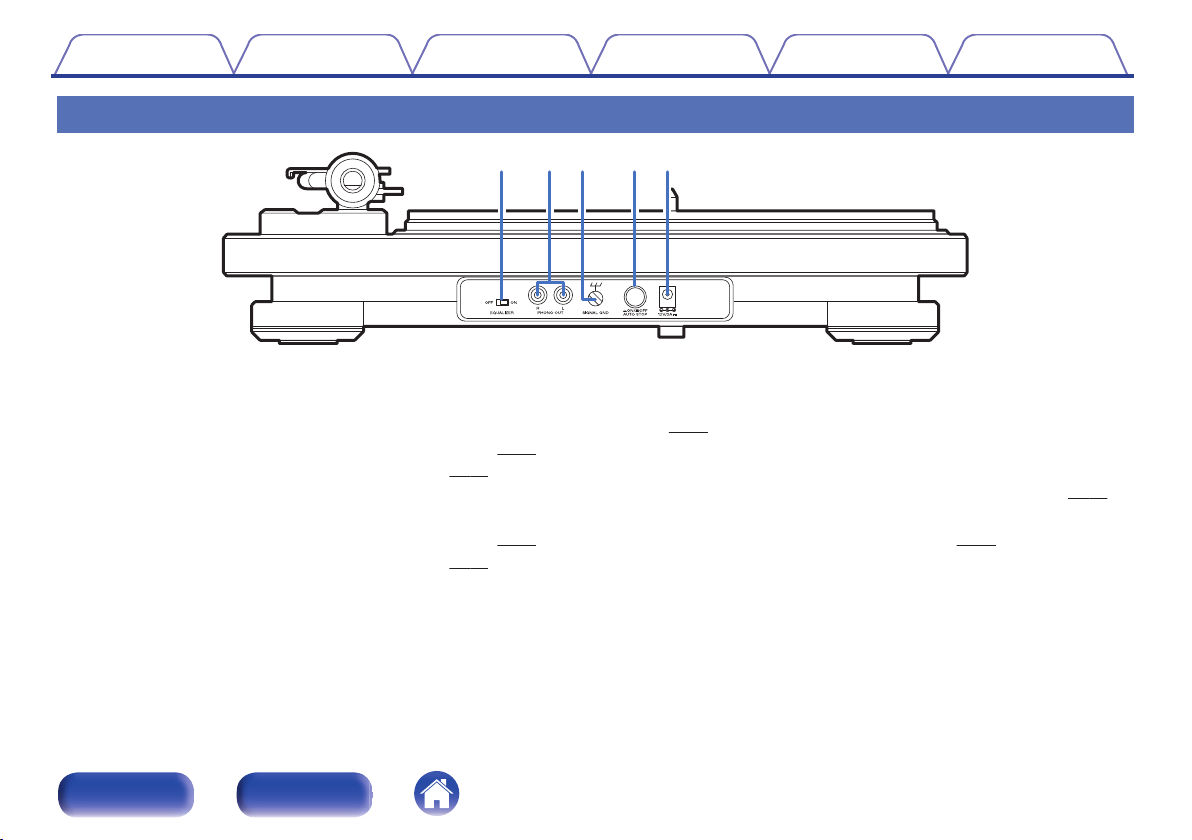
EQUALIZER ON/OFF switch
This switches the built-in equalizer on and off. Switch as needed
depending on whether the connected amplifier or mini component
system are equipped with phono input or not.
0
“Connecting devices that do not have a phono input” (v
p. 21)
0
“Connecting devices that have a phono input” (v p. 22)
B
PHONO OUT connectors
For connecting devices with external audio or phono inputs.
0
“Connecting devices that do not have a phono input” (v p. 21)
0
“Connecting devices that have a phono input” (v
p. 22)
C
SIGNAL GND terminal
Use the grounding wire on the supplied audio cable, even when
connecting this device to amplifiers with grounded connections.
(v p. 22)
D
AUTO STOP ON/OFF button
Automatically raises the tone arm and stops the turntable at the end of
a record when this function is on during record playback. (v p. 29)
E
AC adapter input connector
For connecting the included AC adapter. (v p. 23)
Contents Preparations Connections
Playback and recording
Tips Appendix
10
Front panel Rear panel
o
Contents
Assembly
Mounting the turntable 13
Mounting the counterweight 14
Mounting the head shell with cartridge 14
Attaching the dust cover 15
Using the dust cover as a record stand 15
Adjustments
Adjusting the stylus pressure 17
Adjusting anti-skating 19
Contents Preparations Connections
Playback and recording
Tips Appendix
11
Front panel Rear panel
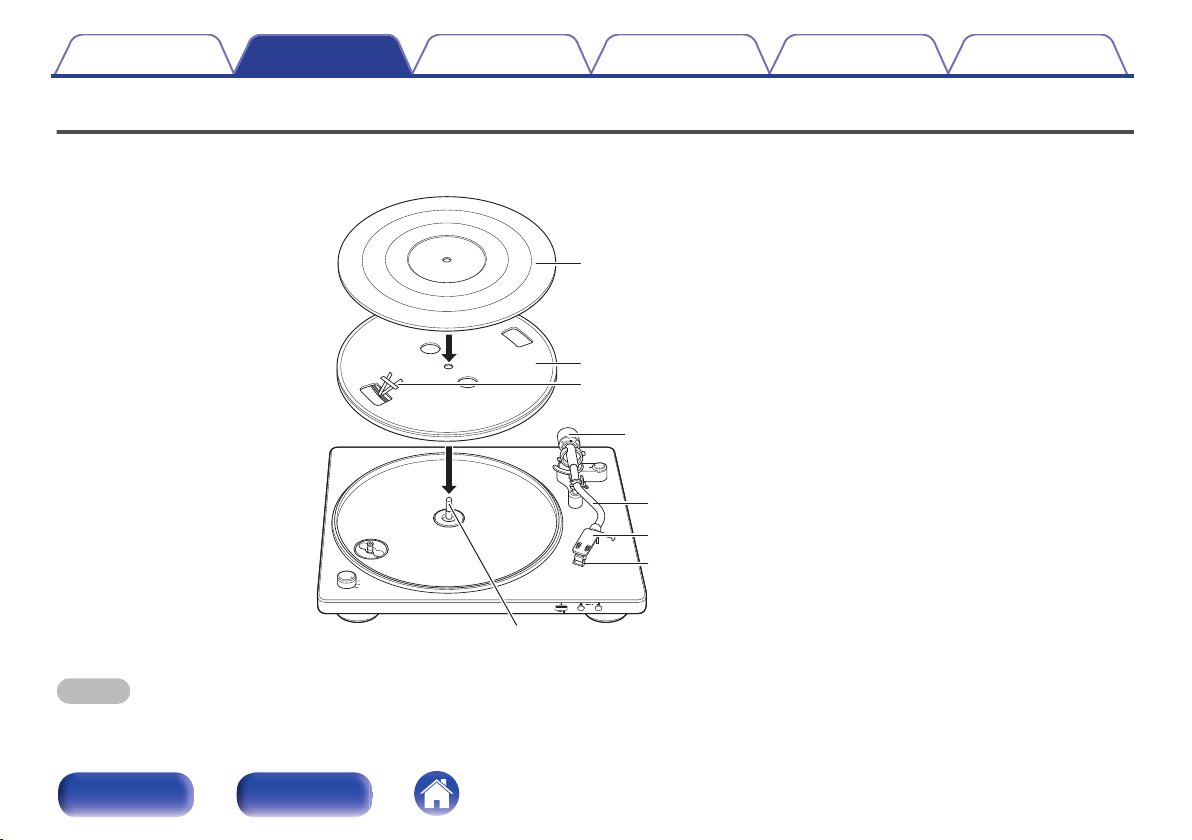
Assembly
Mount these included parts on the main unit before use.
Make sure to perform setup on a stable, even surface to prevent the influence of vibration or slanted angles on record playback.
.
Turntable sheet
Turntable
Ribbon tape
Center spindle
Stylus cover
Head shell with cartridge
Tone arm
Counterweight
NOTE
0
Make sure the AC adapter is not connected from this unit to a wall socket during assembly.
Contents Preparations Connections
Playback and recording
Tips Appendix
12
Front panel Rear panel
Mounting the turntable
1
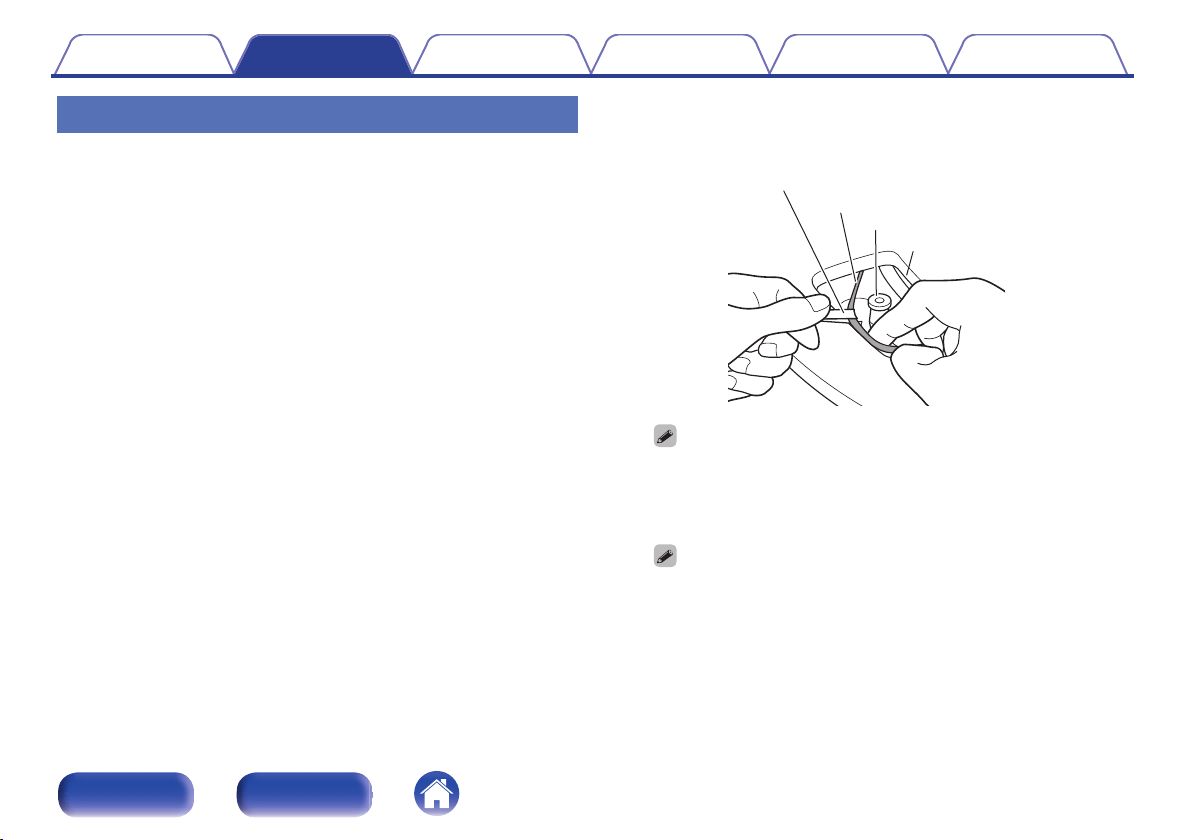
Mount the hole in the center of the turntable on the
center spindle.
2
Turn the turntable until the roller of the main unit is
visible from the square hole on the side with the ribbon
tape.
3
Pull out the ribbon tape, and hang the belt on the roller.
0
Remove the ribbon tape after hanging the belt.
.
Ribbon tape
Belt
Roller
Square hole
0
Take care not to twist the belt when hanging it.
0
Store the ribbon tape after use, as it is required when replacing the belt.
4
Mount the turntable sheet on the turntable.
0
Mount the sheet with the side featuring the DENON logo facing down.
Contents Preparations Connections
Playback and recording
Tips Appendix
13
Front panel Rear panel
Mounting the counterweight
1
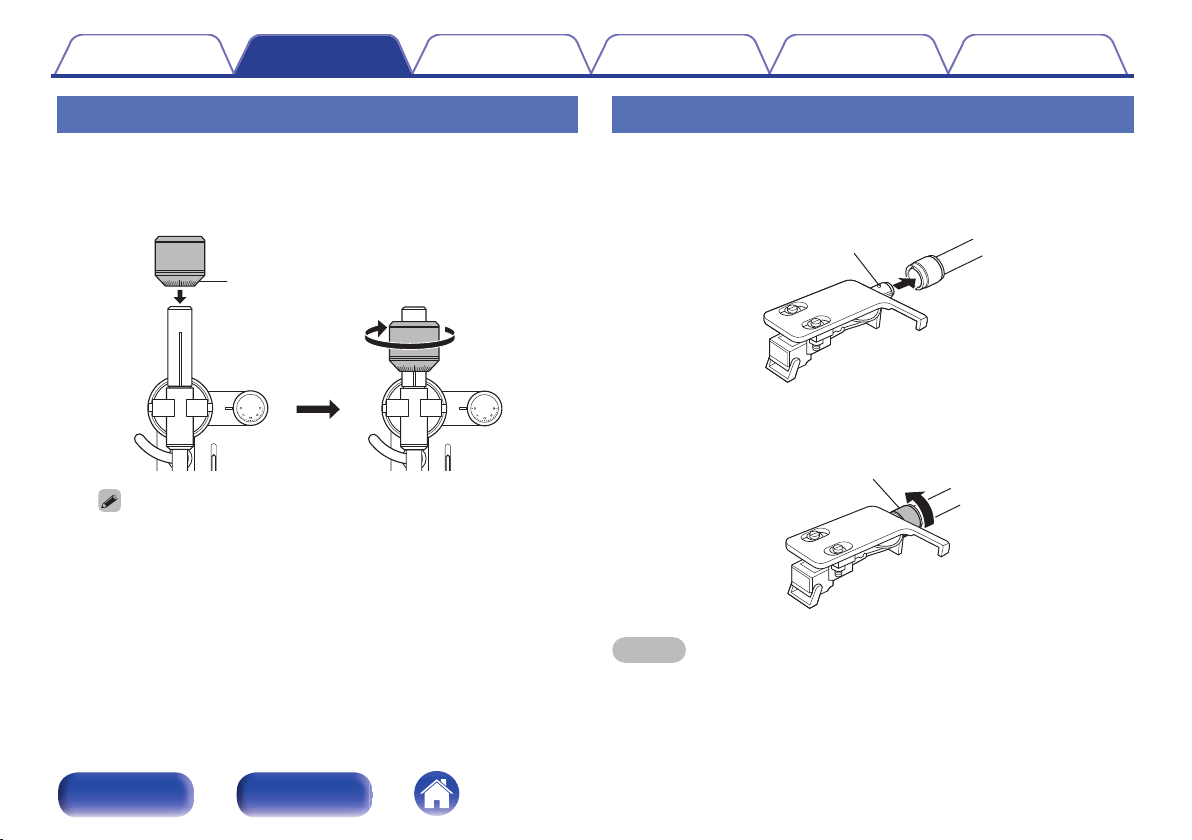
Insert the counterweight into the shaft on the back of
the tone arm, and turn it in the direction of the arrow
while gently pushing it.
.
0
3.5
3
0.5
1
0
3.5
3
0.5
1
Stylus pressure adjustment ring
0
Mount the counterweight so that its stylus pressure adjustment ring is facing
the front.
Mounting the head shell with cartridge
1
Insert the head shell into the tip of the tone arm.
0
Insert the head shell with its guide pin facing up and aligned with
the hole on the top of the tone arm.
.
Guide pin
2
Turn the lock nut in the direction of the arrow to secure
the head shell.
.
Lock nut
NOTE
0
Perform this operation with the stylus cover of the cartridge lowered to protect the
stylus tip.
Contents Preparations Connections
Playback and recording
Tips Appendix
14
Front panel Rear panel
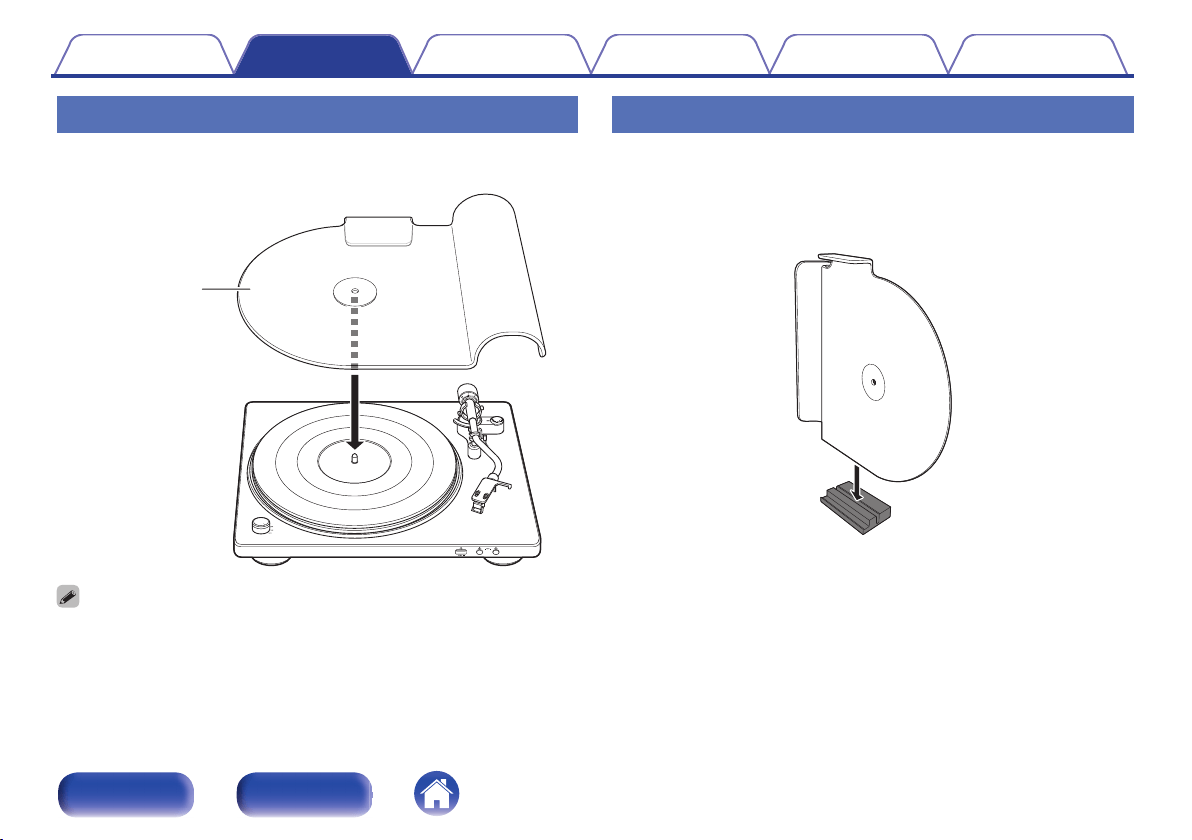
Attaching the dust cover
1
Mount the hole on the dust cover on the center spindle.
.
Dust cover
0
Remove the dust cover before record playback.
Using the dust cover as a record stand
Attach the dust cover to the included dust cover stand to use it as a record
stand. Use it in this way when it is not attached to the main unit.
1
Face the dust cover as shown in the picture below to
insert it into the groove in the dust cover stand.
.
Contents
Preparations Connections
Playback and recording
Tips Appendix
15
Front panel Rear panel
Adjustments
.
0
3.5
3
0.5
1
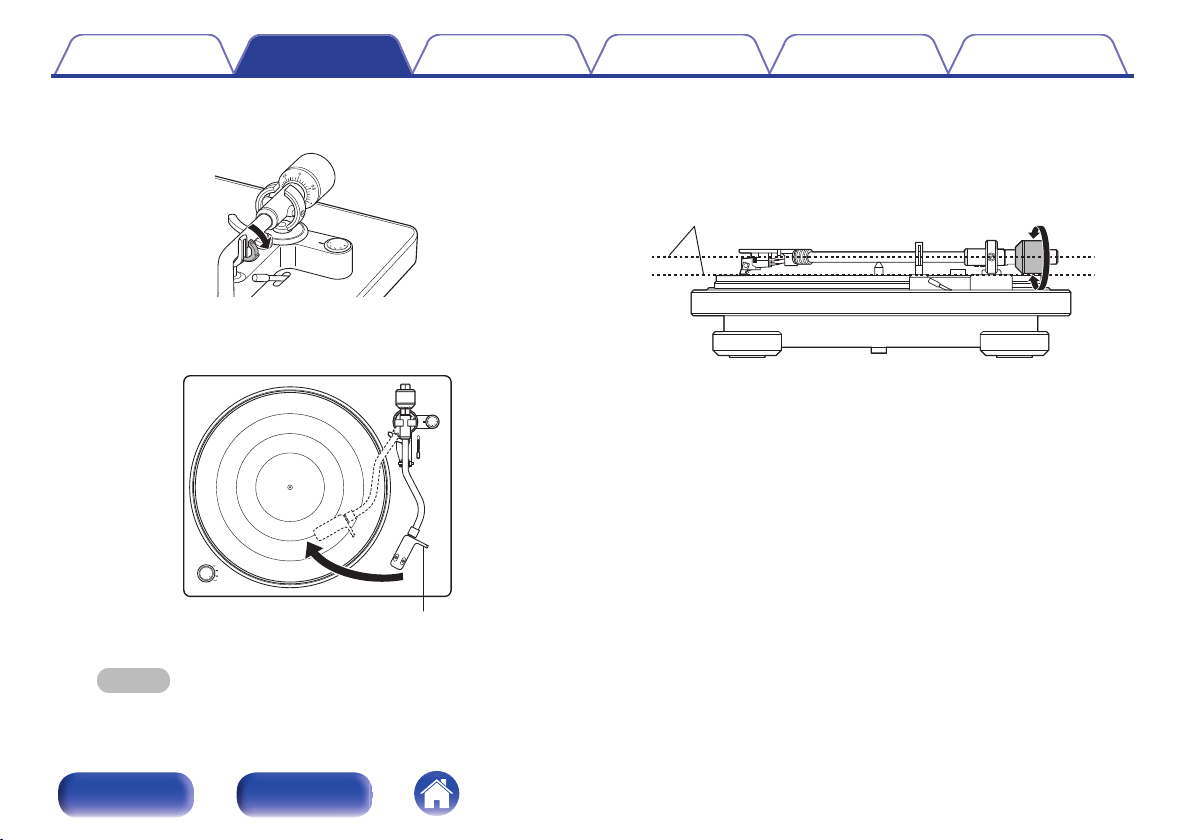
Counterweight
Tone arm
Anti-skating
dial
Armrest
Lifter lever
Turntable
Stylus cover
Head shell
NOTE
0
Make sure the AC adapter is not connected from this unit to a wall socket when
performing adjustments.
Adjusting the stylus pressure
To enable the record stylus to follow the grooves of the record and pick up
sound (vibrations), it is necessary to apply a constant pressure (stylus
pressure) to the record from the stylus tip. A suitable stylus pressure value
is specified for each cartridge. If the stylus pressure is higher or lower than
the specified value, not only will the record playback sound be distorted
and the stylus jump, but the record stylus may wear out faster and the
record may become damaged. Therefore, make sure to adjust the stylus
pressure to the suitable value.
1
Set the anti-skating dial to “0”.
.
2
Lower the lifter lever.
Contents Preparations Connections
Playback and recording
Tips Appendix
17
Front panel Rear panel
3
Release the armrest lock.
.
4
Holding the finger lift of the headshell, move the tone
arm over the turntable.
.
2.5
1
.
3
1
3
.
5
0
.
5
0
Finger lift
NOTE
0
Perform this operation with the stylus cover of the cartridge lowered to
protect the stylus tip.
5
Turn twist the counterweight so that the tone arm is
floating parallel to the turntable.
0
Perform adjustment by turning the counterweight gradually while
periodically removing your hand to check the position.
.
Keep it parallel
6
Return the tone arm to the armrest.
Contents Preparations Connections
Playback and recording
Tips Appendix
18
Front panel Rear panel
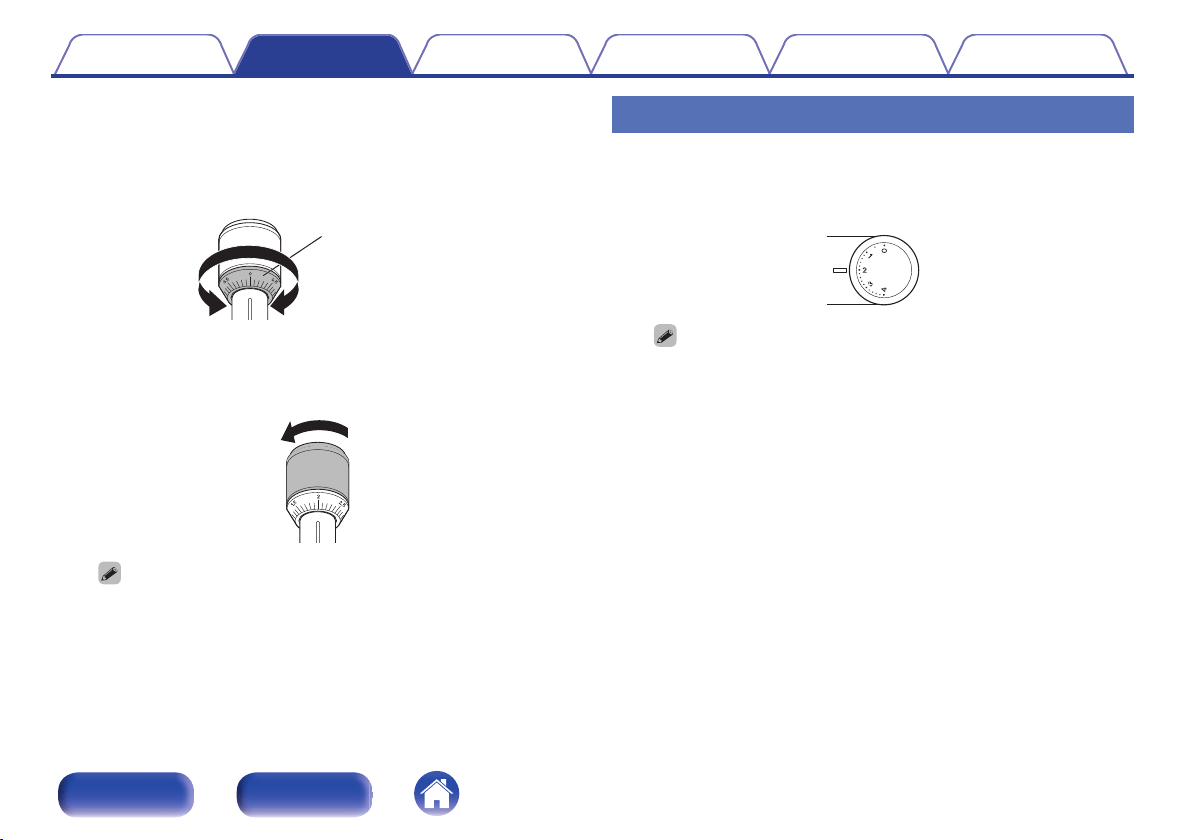
7
Holding the counterweight with a finger so that it does
not move, turn the stylus pressure adjustment ring so
that its “0” mark is lined up with the line on the tone
arm.
.
Stylus pressure
adjustment ring
8
Turn the counterweight in the direction of the arrow so
that the “2” mark of the stylus pressure adjustment
ring is lined up with the line on the tone arm.
.
0
The appropriate stylus pressure for the cartridge included with this unit is
2.0 g (19.6 mN).
Adjusting anti-skating
Anti-skating adjustment is performed to counter the force which pulls the
stylus tip inside due to the record rotation.
1
Turn the anti-skating dial so that it is lined up with “2”.
.
0
Make sure that the anti-skating value is the same as the stylus pressure
value.
Contents Preparations Connections
Playback and recording
Tips Appendix
19
Front panel Rear panel
o
Contents
Connecting devices that do not have a phono input 21
Connecting devices that have a phono input 22
Connecting the AC adapter 23
NOTE
0
Do not plug in the AC adapter until all connections have been completed.
0
Do not bundle AC adapter together with connection cables. Doing so can result in
humming or noise.
Contents
Preparations Connections
Playback and recording
Tips Appendix
20
Front panel Rear panel
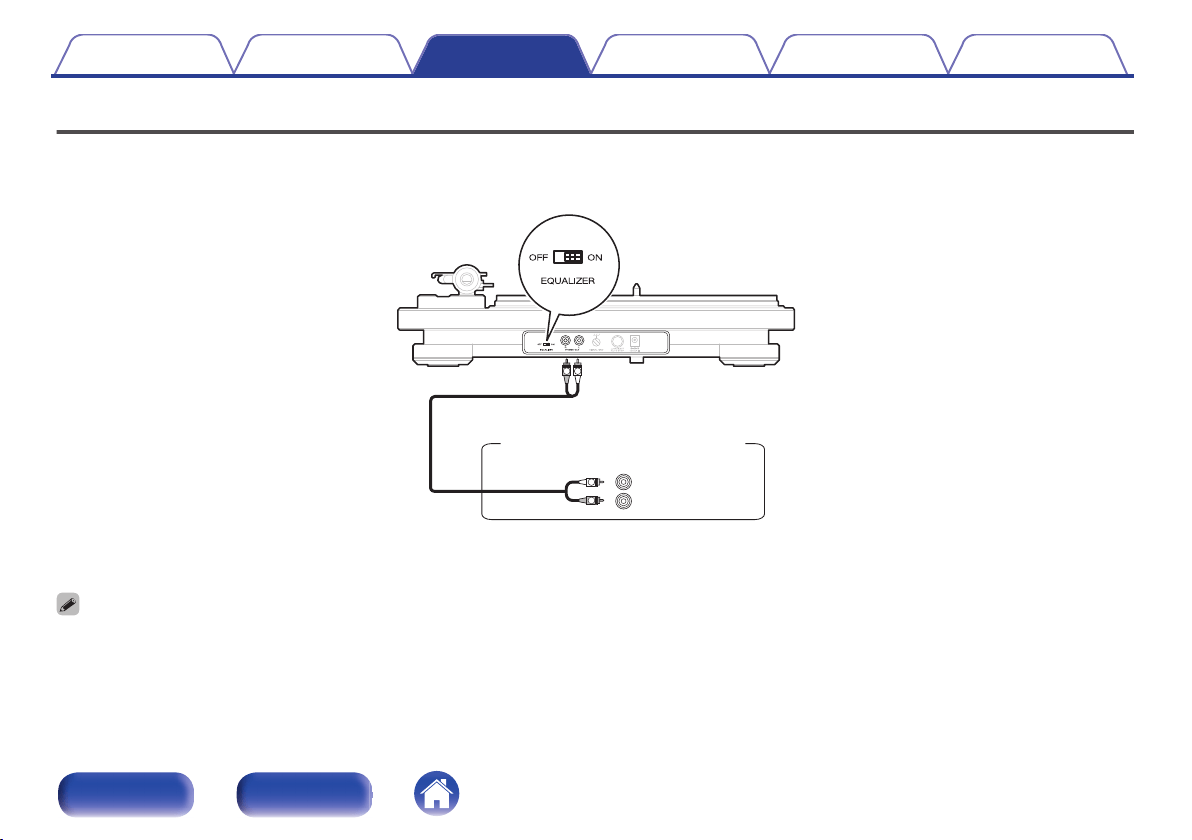
Connecting devices that do not have a phono input
This unit has a built-in phono equalizer that enables record playback when connected to devices with external audio input without a built-in phono
equalizer or with mini component system. Use the EQUALIZER ON/OFF switch to turn the phono equalizer on this unit “ON” when connected to a device
without a built-in phono equalizer.
.
R
L
AUXIN
R
L
R
L
Audio cable
(supplied)
Amplifier/mini stereo system
without a PHONO input terminal
0
It is recommended that the earth wire of the included audio cable is kept out of the way by securing it with a tie such as the twist tie of the audio cable.
0
If the EQUALIZER ON/OFF switch is not set correctly, audio will be extremely low or distorted.
Contents Preparations Connections
Playback and recording
Tips Appendix
21
Front panel Rear panel
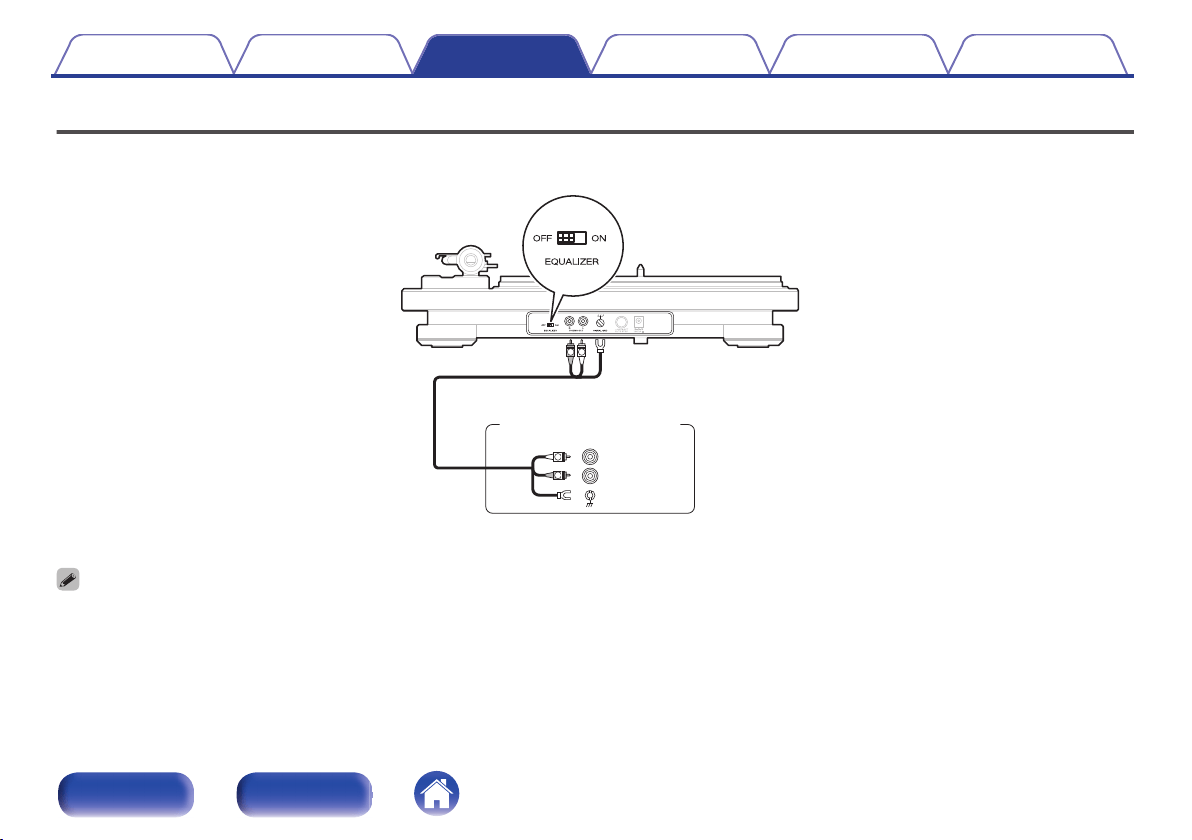
Connecting devices that have a phono input
When connected to a device with a built-in phono equalizer, use that device’s phono equalizer during record playback. Use the EQUALIZER ON/OFF
switch to turn the phono equalizer on this unit “OFF” when connected to a device with a built-in phono equalizer.
.
R
SIGNAL
GND
L
PHONOIN
R
L
R
L
Audio cable
(supplied)
Amplifiers with a
phono input
0
If a device connected to this unit has an earth terminal, connect the earth wire of the audio cable (supplied) to the earth terminal of this unit (SIGNAL GND). This may reduce
noise during playback.
0
If the EQUALIZER ON/OFF switch is not set correctly, audio will be extremely low or distorted.
Contents
Preparations Connections
Playback and recording
Tips Appendix
22
Front panel Rear panel
Connecting the AC adapter
Wait until all connections have been completed before connecting the AC adapter.
Attach the plug needed for your wall outlet as shown in the figure below.
【Attaching the AC adapter plug】
1. Insert the nubs on the bottom of the AC adapter plug into the grooves
on the AC adapter as shown in the picture below.
.
PU
SH
2. Push in the direction of the arrow until it locks in with an audible click.
.
P
US
H
【Removing the AC adapter plug】
1. Slide the AC adapter plug out in the direction of the arrow as far as it
can go while holding the A button.
.
PUSH
A
2. Once the AC adapter plug has been slid out as far as possible, lift it up
in the direction of the arrow to remove.
.
PUSH
Contents
Preparations Connections
Playback and recording
Tips Appendix
23
Front panel Rear panel
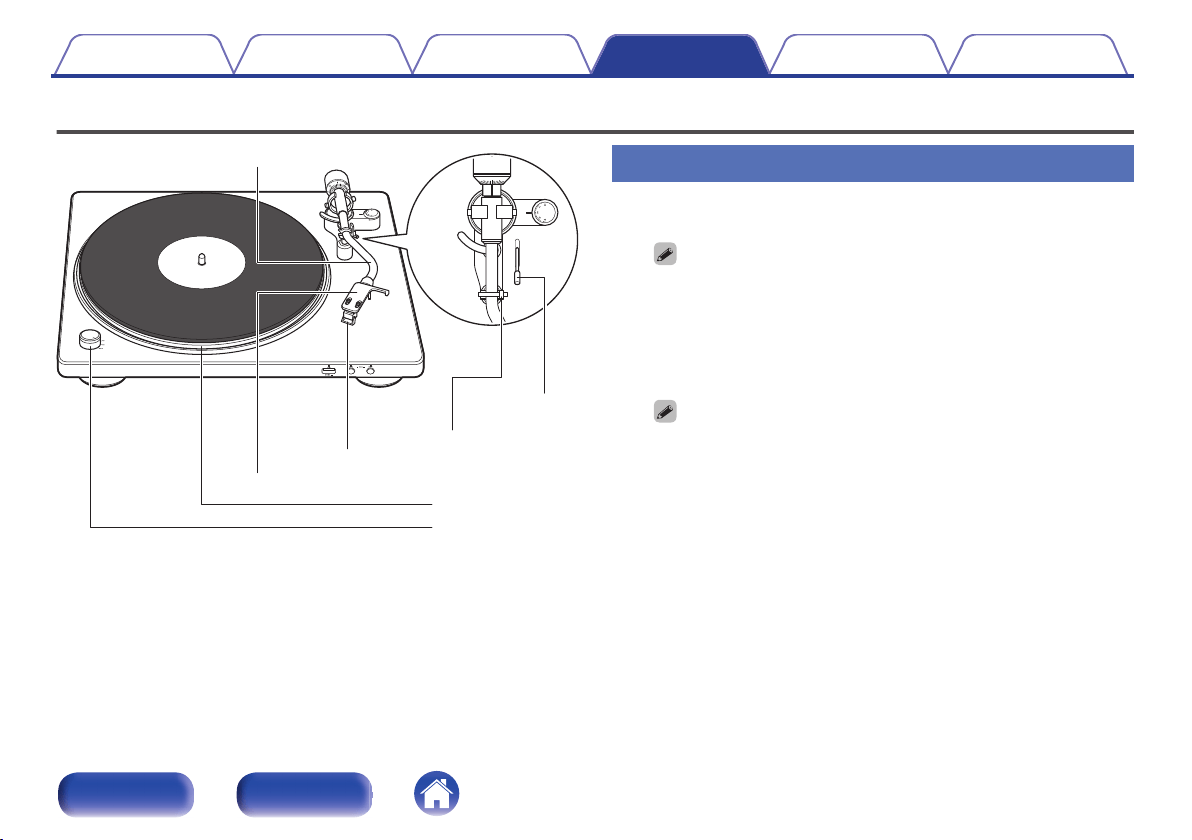
Record playback
.
2
1.5
1
2.5
3
Power/rpm switch knob
Turntable
Armrest
Lifter lever
Tone arm
Head shell with cartridge
Stylus cover
Record playback
1
Place a record on the turntable.
0
For EP (“doughnut”) records, insert the included 45 rpm adapter onto the
center spindle.
2
Turn the power/rpm switch knob to match the turntable
rpm with the rpm of the record.
The turntable will start turning.
0
You can select 33 1/3, 45, 78 rpm as the turntable speed per minute.
0
The record rpm is normally indicated on the jacket or label of the record.
Contents Preparations Connections
Playback and recording
Tips Appendix
26
Front panel Rear panel
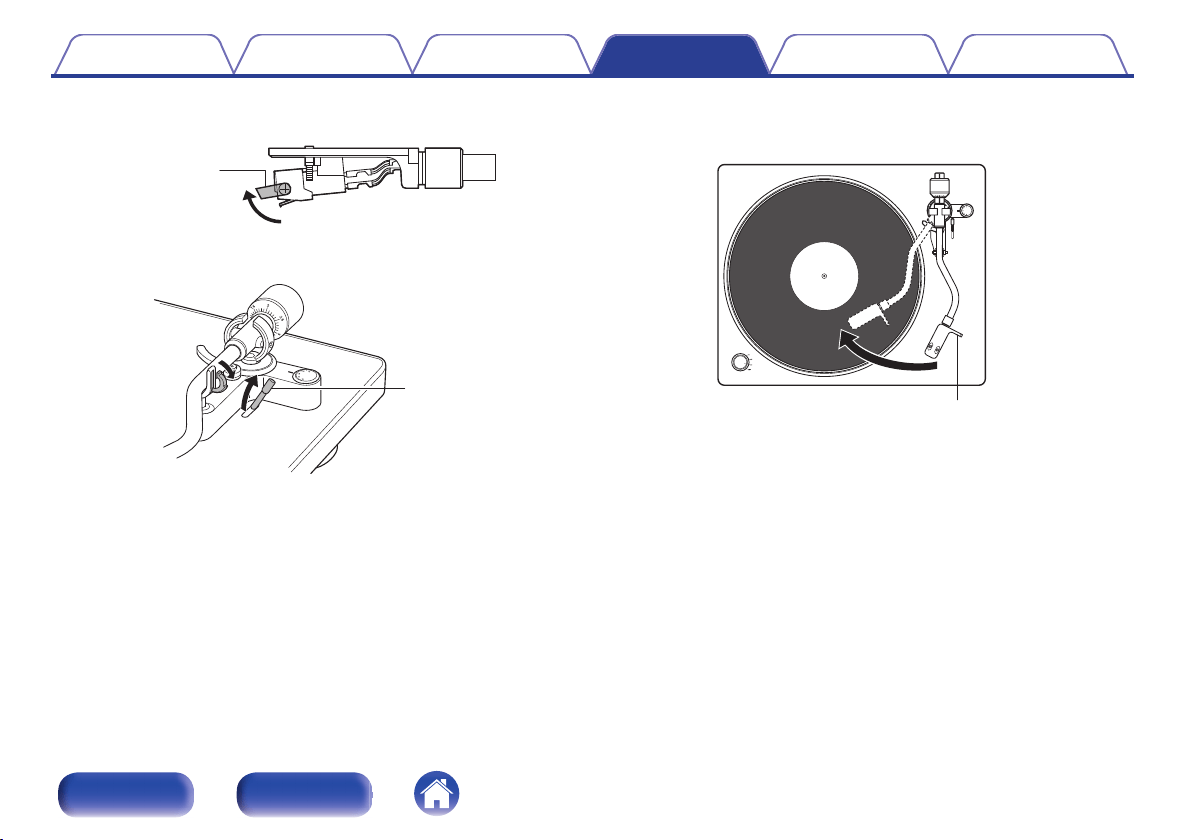
3
Raise the stylus cover of the cartridge.
.
Stylus cover
4
Release the arm rest lock and raise the lifter lever.
.
Lifter lever
5
Grip the finger lift, and move the stylus tip directly
above the start position of the track to play.
.
2
.
5
1
.
5
2
.
5
1
2
Finger lift
Contents
Preparations Connections
Playback and recording
Tips Appendix
27
Front panel Rear panel
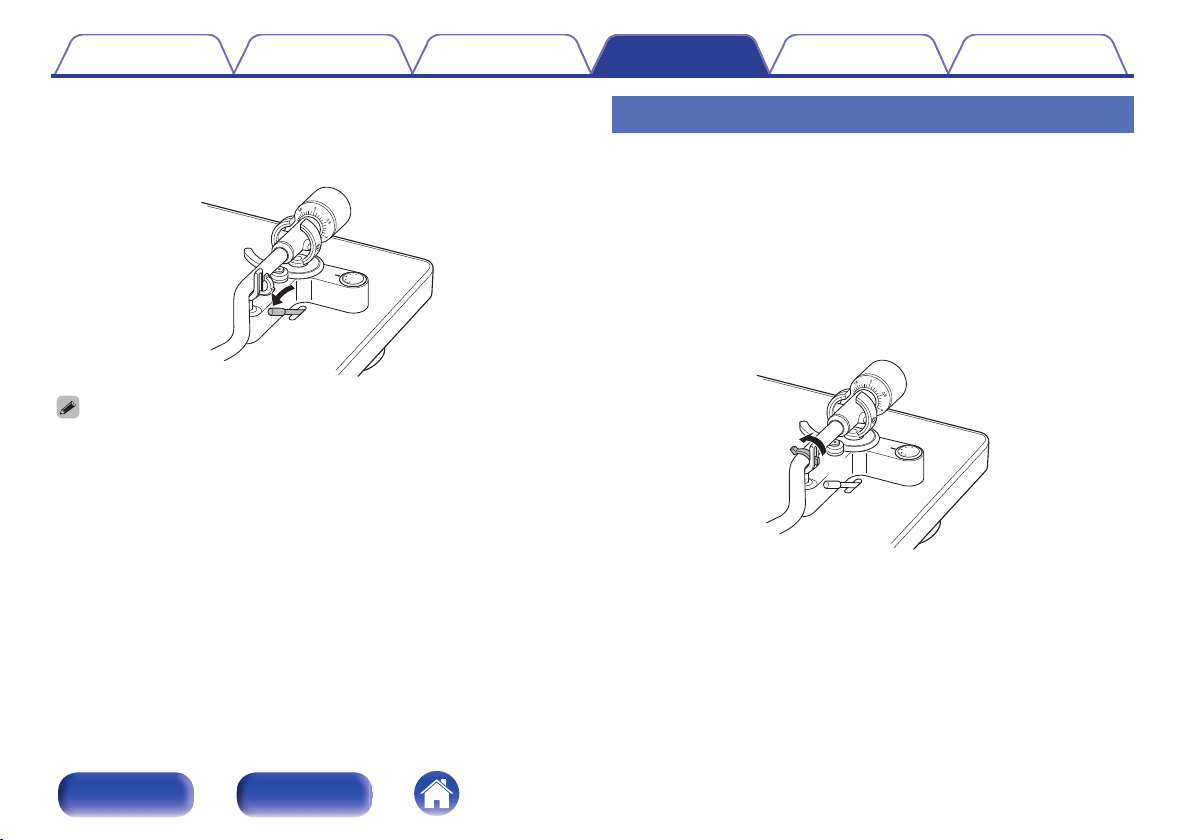
6
Lower the lifter lever.
The tone arm slowly lowers, and playback starts when the stylus tip
reaches the record.
.
0
Be careful not to scratch records.
0
Observe the following during playback.
0
Do not touch the tone arm or turntable.
0
Do not disconnect the power.
0
Make sure the device is not subjected to vibration or impact.
0
Do not change the record until the turntable has completely stopped.
0
Do not apply pressure with your hand to stop the turntable while it is turning. Doing
so creates internal heat which can lead to equipment failure or fire.
Stopping playback
1
Raise the lifter lever.
Raise the tone arm to remove the stylus from the record.
2
Holding the finger lift of the headshell, return the tone
arm to the armrest.
3
Lower the lifter lever.
4
Lock the tone arm into the armrest.
.
Contents
Preparations Connections
Playback and recording
Tips Appendix
28
Front panel Rear panel
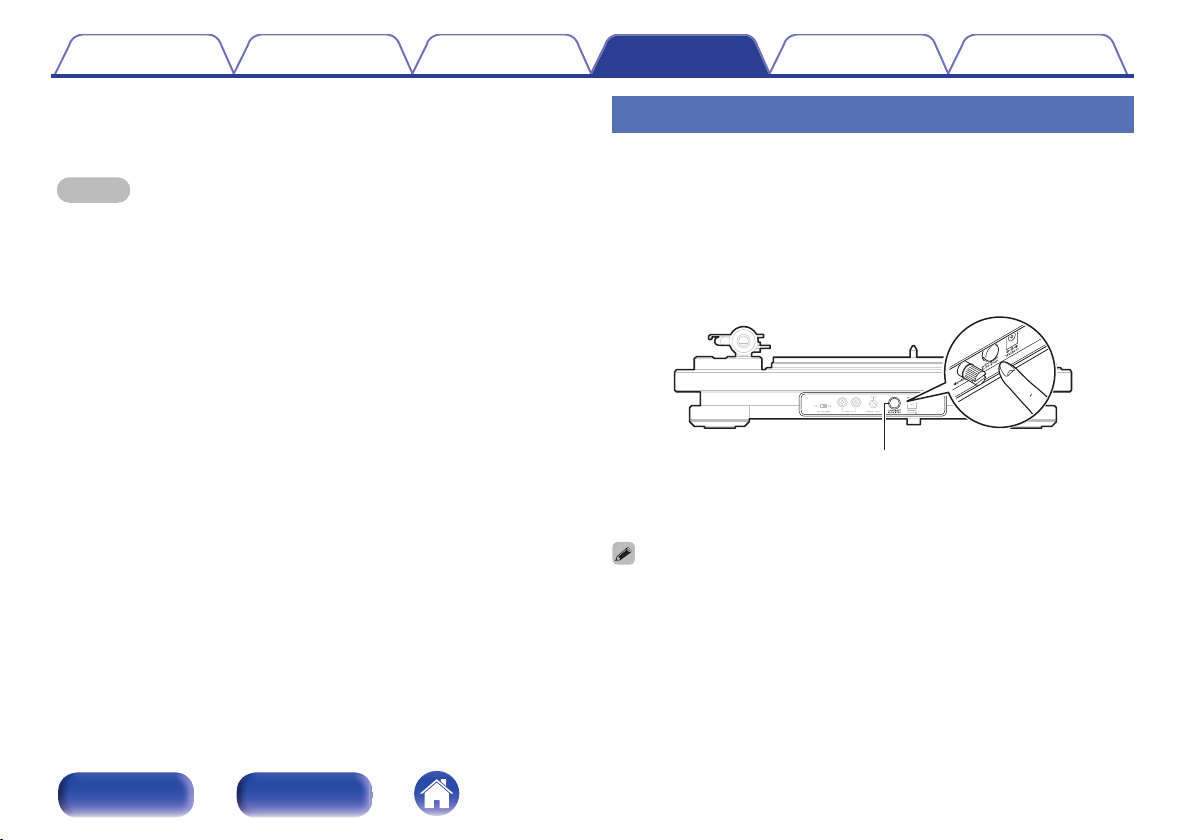
5
Turn the power/rpm switch knob to OFF.
The turntable stops.
NOTE
0
Flip down the stylus cover to protect the stylus in the cartridge when this unit is not
in use.
Using the automatic stop function
When automatic stop is on, the tone arm automatically raises after
playback and then the turntable stops. This keeps the turntable from
continuing to turn and cause stylus wear should you accidentally fall
asleep while listening to a record, etc.
0
The default setting is on.
1
Press AUTO STOP ON/OFF on the rear panel to turn the
automatic stop function on.
.
AUTO STOP ON/OFF
0
Make sure that AUTO STOP ON/OFF is pressed all the way in to make
ensure that automatic stop is on.
0
The power will turn off approximately 20 minutes after the turntable stops. Use the
power/rpm switch knob to restart playback.
Contents Preparations Connections
Playback and recording
Tips Appendix
29
Front panel Rear panel
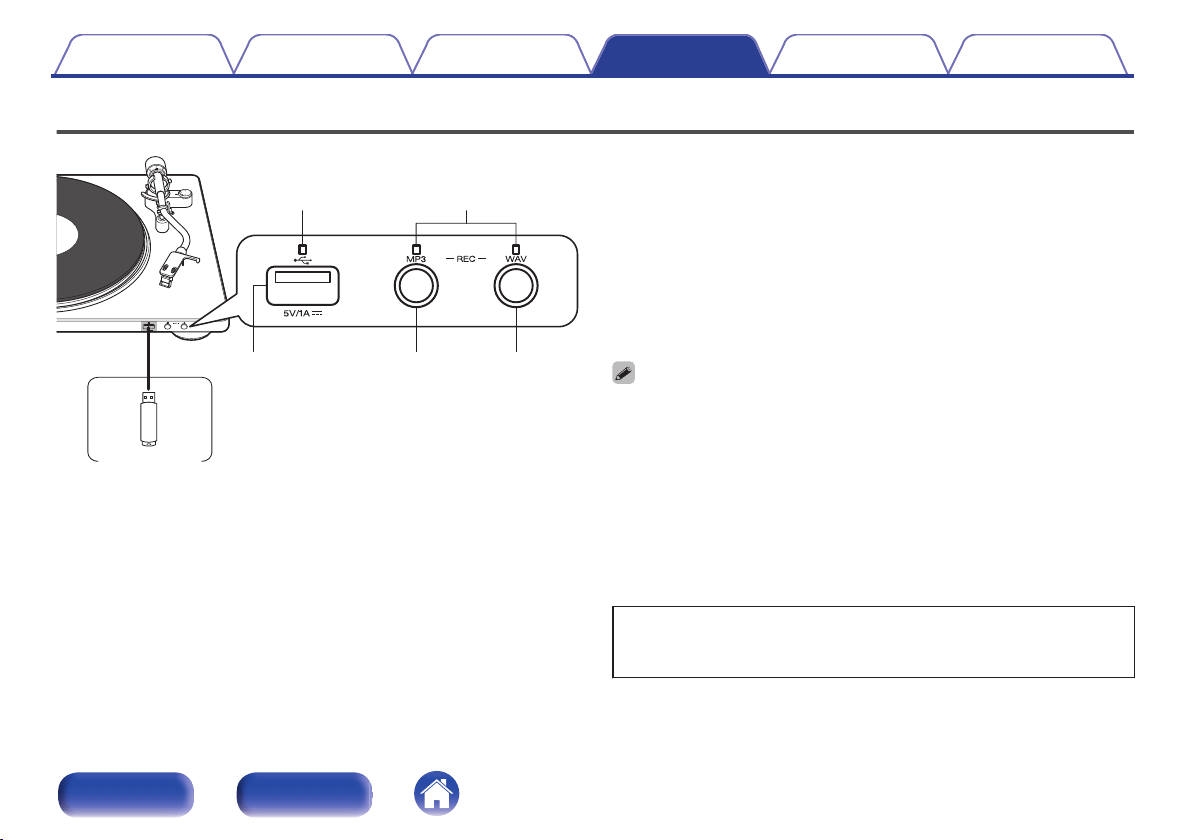
Recording to a USB memory device
.
USB memory device
USB indicator
Recording indicators
USB port
REC MP3 REC WAV
0
Audio played back from analog sources can be converted to digital
formats and saved to a USB memory device.
0
This unit can record to mass storage class-compatible USB memory
devices.
0
This unit is compatible with USB memory devices in “FAT16” or
“FAT32” format.
0
The audio format types and specifications supported by this unit for
recording are as follows.
0
MP3 (44.1 kHz/192 kbps)
0
WAV (44.1 kHz/16 bit)
0
Do not connect USB devices other than flash drives to the USB port.
0
USB memory devices will not work via a USB hub.
0
Denon does not guarantee that all USB memory devices will operate or receive
power.
0
It is not possible to use this unit by connecting the unit’s USB port to a PC via a
USB cable.
0
Write-protected USB memory devices cannot be used.
0
Audio cannot be recorded to external hard drives.
0
Recording cannot be performed via USB cables (including extension cables).
0
The USB port of this unit conforms to “Universal Serial Bus Specification Rev.2.0”.
In accordance with copyright laws, recordings you have made
should only be used for your personal enjoyment and may not be
used in other ways without permission of the copyright holder.
Contents
Preparations Connections
Playback and recording
Tips Appendix
30
Front panel Rear panel
Recording to a USB memory device
Prepare the record you want to record to a USB memory device in
advance.
1
Insert the USB memory device into the USB port.
The USB indicator lights up in white.
2
Lower the stylus to a silent part of the record for
recording.
3
Before playback starts, press REC MP3 or REC WAV to
set the recording format.
The USB indicator flashes in white and recording starts.
0
A blue light indicates that an audio file is being recorded.
4
Once recording is over, once again press the same
button you pressed in step 3.
The recording indicator goes out and recording stops.
0
If the USB memory device has a lock switch to prevent writing, release the lock
before recording.
0
A single file is created on the USB memory device for a single recording operation
(recording start to finish).
NOTE
0
Do not remove the USB memory device during recording. Audio will not be
recorded correctly if the USB memory device is removed during recording. Stop
recording before removing the USB memory device.
0
Recording stops and the indicator turns off if the USB memory device runs out of
free space during recording.
0
Recording does not stop automatically when record playback ends. Press REC
MP3 or REC WAV to stop recording.
0
The volume level on audio recorded to USB memory device cannot be adjusted.
Instead, adjust the volume on the playback device before playback starts.
0
Note that Denon will accept no responsibility whatsoever for any problems arising
with the data on a USB memory device when using this unit in conjunction with the
USB memory device.
Contents Preparations Connections
Playback and recording
Tips Appendix
31
Front panel Rear panel
Installing the “MusiCut for DENON” digital file editing software
You can install “MusiCut for DENON” of the digital file editing software on
your computer from our website. Using “MusiCut for DENON”, digital files
saved to a USB memory device can be split up, song information acquired
and file names edited (MP3 only).
0
MusiCut is the trademark of TrackSafe,Inc.
0
Microsoft, Windows 8, Windows 8.1 and Windows 10 are either
registered trademarks or trademarks of Microsoft Corporation
in the United States and/or other countries.
o
Recommended devices and system
requirements for using “MusiCut for DENON”
OS
0
Windows 8, Windows 8.1 or Windows 10
HDD
0
HDD with 50 MB or more free space
USB
0
USB 2.0: USB High speed
o
Installing “MusiCut for DENON”
1
Download “MusiCut for DENON” to your computer from
“Downloads” on the DP-450USB page on our website.
2
Unzip the downloaded file, and double-click the exe
file.
The installation setup screen is displayed.
3
Follow the instructions on the setup screen to install.
o
Editing with “MusiCut for DENON”
See “Help” in “MusiCut for DENON” for editing operations.
Contents
Preparations Connections
Playback and recording
Tips Appendix
32
Front panel Rear panel
Contents
o
Troubleshooting
Power does not turn on/Power is turned off 35
The turntable does not spin 35
No sound comes out 36
Audio skips, scratches or is distorted 36
Howling is produced 37
The tone arm stops moving halfway 37
Audio cannot be recorded to the USB memory device 38
Cannot install “MusiCut for DENON” onto the computer 38
Contents Preparations Connections
Playback and recording
Tips Appendix
33
Front panel Rear panel
Troubleshooting
If a problem should arise, first check the following:
1. Are the connections correct?
2. Is the set being operated as described in the owner’s manual?
3. Are the other devices operating properly?
If this unit does not operate properly, check the corresponding symptoms in this section.
If the symptoms do not match any of those described here, consult your dealer as it could be due to a fault in this unit. In this case, disconnect the power
immediately and contact the store where you purchased this unit.
Contents Preparations Connections
Playback and recording
Tips Appendix
34
Front panel Rear panel
Power does not turn on/Power is turned off
Power is not turned on.
0
Check whether the power plug is correctly inserted into the power outlet. (v
p. 24)
0
The power is off. Turn the power/rpm switch knob to the appropriate setting for the record you want to play. (v p. 26)
Power automatically turns off.
0
Automatic stop is on. Press the AUTO STOP ON/OFF button on the rear panel to turn the automatic stop function off. (v p. 29)
The turntable does not spin
The turntable does not spin.
0
Check whether the power plug is correctly inserted into the power outlet. (v
p. 24)
0
Make sure that the belt is hooked on both the turntable and roller correctly. Follow the following steps if the belt has come off.
1. Take the turntable off the main unit and turn it over.
2. Hook the belt around the outside edge of the circular part on the bottom of the turntable.
3. Turn the turntable right-side up and pass the ribbon from the square hole between the turntable and the belt.
4.
Set up the turntable as shown in “Mounting the turntable” (v p. 13).
Contents Preparations Connections
Playback and recording
Tips Appendix
35
Front panel Rear panel
No sound comes out
No sound is produced. Or sound is distorted.
0
Check the connections for all devices. (v
p. 20)
0
Insert connection cables all the way in.
0
Check that input connectors and output connectors are not reversely connected.
0
Check cables for damage.
0
Check the amplifier’s functions and controls and adjust as necessary.
0
Make sure the stylus is correctly attached. (v
p. 39)
0
If connecting an amplifier, mini component system, etc. with no built-in phono equalizer to this unit, set the EQUALIZER ON/OFF switch of this unit to
“ON”. (v p. 21)
Audio skips, scratches or is distorted
Audio skips, scratches or is distorted.
0
The correct stylus pressure is not applied. Adjust to the correct pressure. (v
p. 17)
0
Make sure there are no scratches on the record.
0
Make sure the record is not warped.
0
Make sure there is no dirt or dust on the stylus or the record.
0
Make sure the stylus has not been worn down. Replace the stylus if necessary. (v
p. 39)
Contents
Preparations Connections
Playback and recording
Tips Appendix
36
Front panel Rear panel
Howling is produced
Howling is produced.
0
This unit and speaker are too close together. Move the speaker away from this unit.
0
This unit is in an unstable position. Install in a stable, level location.
0
Playback volume is too loud. Adjust the volume of the connected amplifier to the appropriate level.
The tone arm stops moving halfway
The tone arm not tracking during playback.
0
Make sure there are no scratches on the record.
0
Make sure nothing is obstructing the tone arm.
Contents Preparations Connections
Playback and recording
Tips Appendix
37
Front panel Rear panel
Audio cannot be recorded to the USB memory device
USB memory device is not recognized.
0
Disconnect and reconnect the USB memory device. (v
p. 30)
0
This unit does not support a connection through a USB hub. Connect the USB memory device directly to the USB port.
0
Not all USB memory devices are guaranteed to work. Some USB memory devices are not recognized.
0
Make sure there is free space on the USB memory device.
Audio is not recorded to the USB memory device.
0
Disconnect and reconnect the USB memory device.
0
Make sure there is free space on the USB memory device.
0
Audio will not be recorded correctly if the USB memory device is removed during recording. Press the REC MP3 or REC WAV button to stop recording
before removing the USB memory device. (v
p. 31)
0
The USB memory device is incompatible with this device.
Cannot format the USB memory device.
0
This unit cannot format USB memory devices. Format USB memory devices on your computer.
Cannot install “MusiCut for DENON” onto the computer
Cannot install “MusiCut for DENON” onto the computer.
0
Make sure your computer is connected to the internet.
0
Make sure your computer has the correct system requirements for “MusiCut for DENON”. (v
p. 32)
Contents
Preparations Connections
Playback and recording
Tips Appendix
38
Front panel Rear panel
Replacing the stylus
The supplied stylus is good for approximately 400 hours of playback. Replace the stylus in a timely fashion to prevent damage to your record collection.
When replacing the stylus, make sure to request the DSN-85 for dedicated use with this unit at either the location where you purchased this unit or a local
repair shop.
o
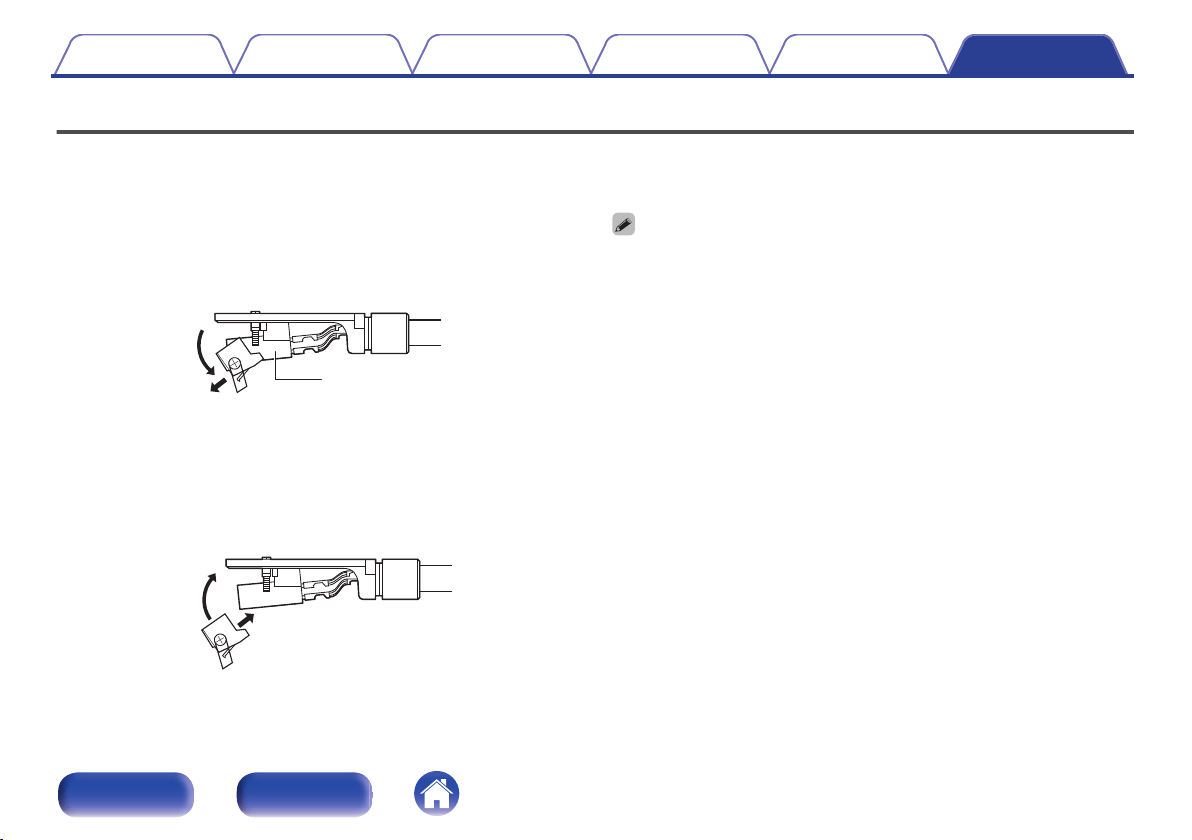
Removing the stylus
Holding the cartridge in one hand, use your other hand to hold the
stylus and pull it down in the direction of arrow ①, then pull the stylus
in the direction of arrow ② to remove it.
.
q
w
Cartridge
o
Attaching a stylus
Holding the cartridge in one hand, use your other hand to hold the
stylus and insert the hooked part of the stylus into the long hole in the
cartridge in the direction of arrow ①, then push it up in the direction of
arrow ② until it clicks in place.
.
q
w
0
Make sure this unit and any connected amplifiers are off before replacing the
stylus.
0
Be very careful when handling the delicate stylus tip. Remove dirt or dust from the
stylus tip with a soft brush, etc.
0
Replacing the stylus is easier when the headshell is removed from the tone arm.
Contents Preparations Connections
Playback and recording
Tips Appendix
39
Front panel Rear panel
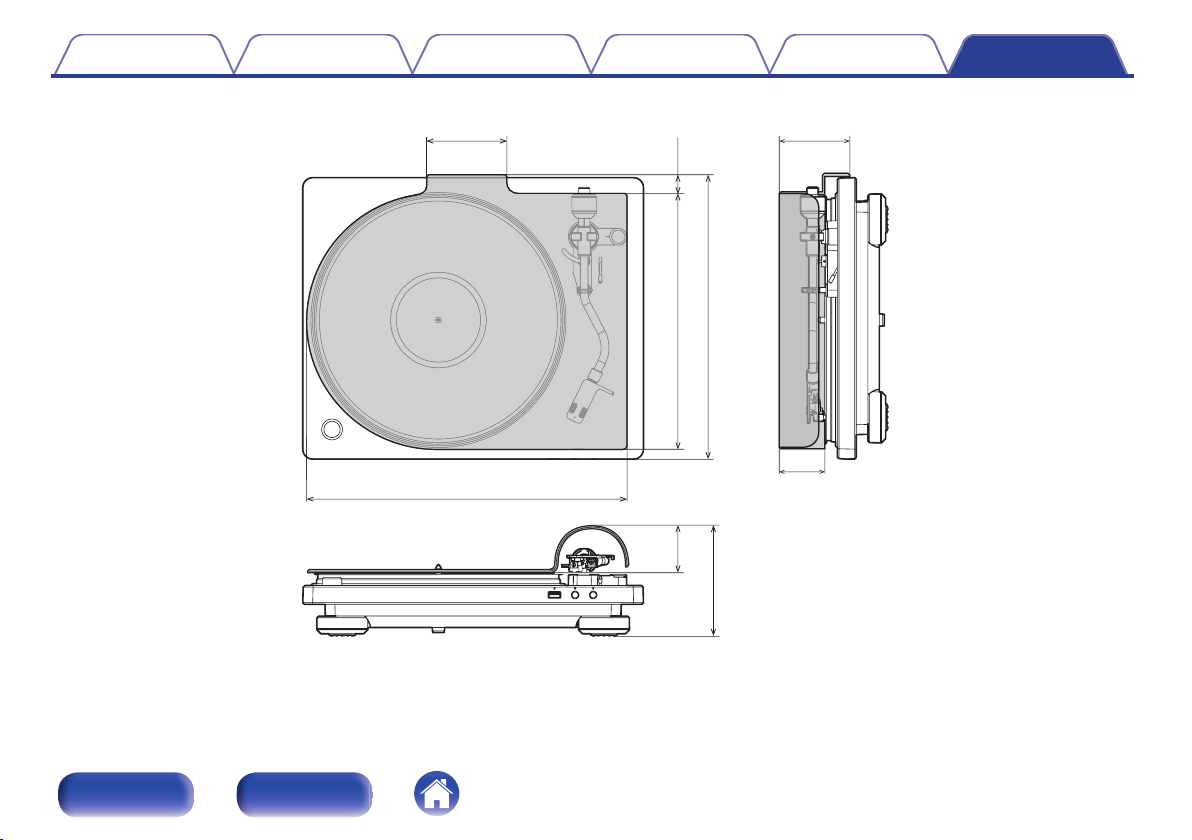
Specifications
o
Turntable section
Drive type: Belt drive
Motor: DC servo motor
RPM speeds: 33 1/3, 45, 78 RPM
Wow & flutter: 0.1% WRMS
S/N ratio: 62 dB
o
Tone arm section
Tone arm: Static balanced type
Tone arm effective length: 220 mm
Overhang: 16 mm
Stylus pressure range: 0 – 4.0 g (0 – 39.2 mN)
1 gradation is 0.1 g (0.98 mN)
Compatible cartridge weight: 5.0 – 13.0 g (59.2 mN – 127.5 mN)
Contents Preparations Connections
Playback and recording
Tips Appendix
40
Front panel Rear panel
o
Cartridge section
Cartridge: MM type
Output voltage: Equalizer off: 2.5 mV
Equalizer on: 150 mV
Optimum stylus pressure: 2.0 g (19.6 mN)
Replacement stylus product number: DSN-85
o
USB section
USB port: USB recording, type A USB port, version 2.0
o
General
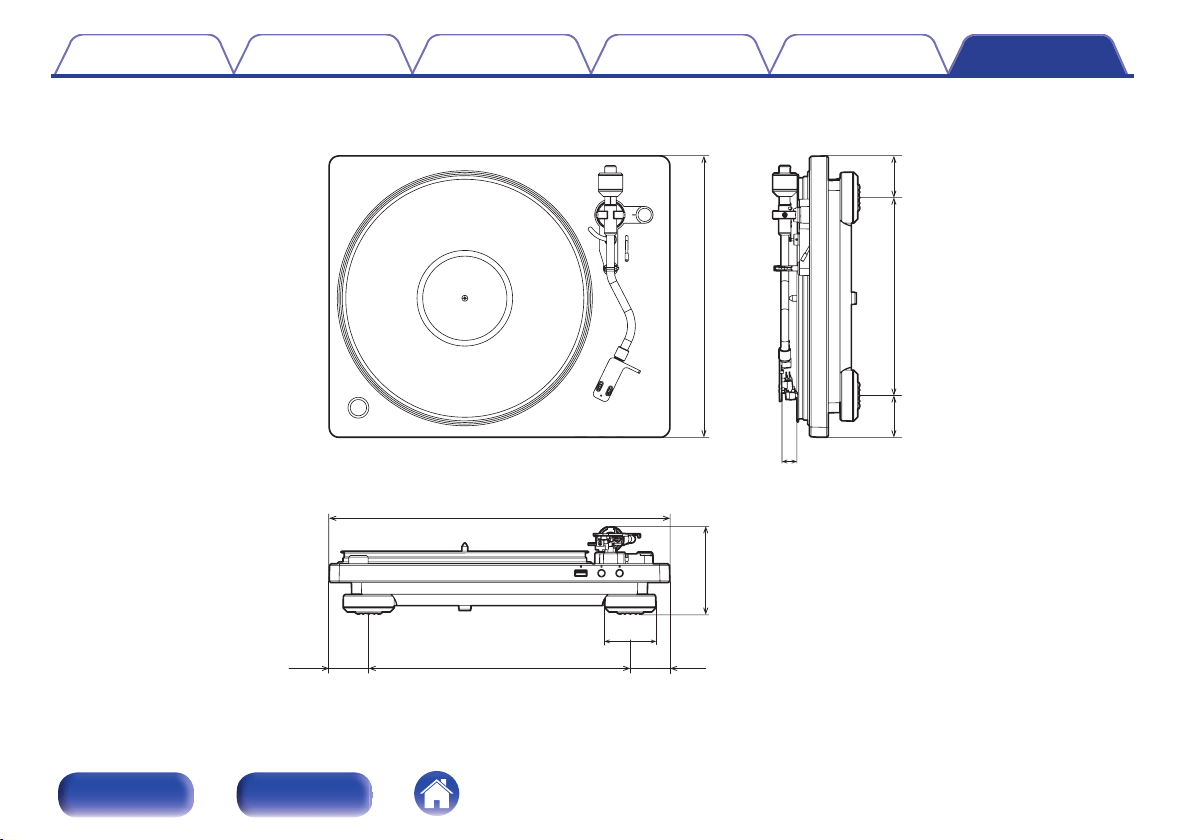
Power supply: AC 100 – 230 V, 50/60 Hz
Power consumption: 10 W
Power consumption in standby mode:
0.5 W or less
z
z
When automatic stop function is enabled
For the purpose of improvement, the specifications and design are subject to change without notice.
Contents
Preparations Connections
Playback and recording
Tips Appendix
41
Front panel Rear panel

.
www.denon.com
3520 10641 00ADA
Copyright ©2018 D&M Holdings Inc. All Rights Reserved.
44