Before using your new product, please read these instructions to prevent any damage.
USER GUIDE
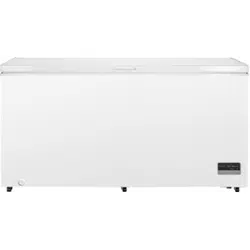
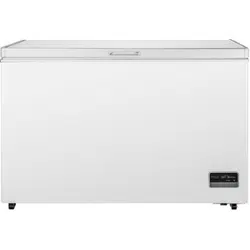
WiFi Connected Chest
Freezer (12.2, 14.1, or 17.6
Cu.Ft.)
NS-CZ12XWH7/NS-CZ14XWH7/NS-CZ18XWH7
NS-CZ12XWH7-CZ14XWH7-CZ18WH7_16-0448_MAN_V1_ENG.fm Page 1 Wednesday, October 26, 2016 8:47 AM
www.insigniaproducts.com
2
Contents
Introduction . . . . . . . . . . . . . . . . . . . . . . . . . . . . . . . . . . . . . . . . . . . . . . . . . . . . .2
Important Safety Instructions. . . . . . . . . . . . . . . . . . . . . . . . . . . . . . . . . . . . .3
Grounding requirement . . . . . . . . . . . . . . . . . . . . . . . . . . . . . . . . . . . . .5
Features . . . . . . . . . . . . . . . . . . . . . . . . . . . . . . . . . . . . . . . . . . . . . . . . . . . . . . . . .5
Package contents . . . . . . . . . . . . . . . . . . . . . . . . . . . . . . . . . . . . . . . . . . .5
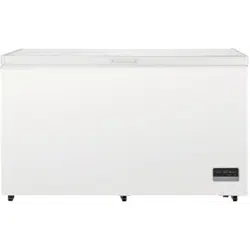
Exterior (NS-CZ14WH7 shown) . . . . . . . . . . . . . . . . . . . . . . . . . . . . . .6
Touch pad controls . . . . . . . . . . . . . . . . . . . . . . . . . . . . . . . . . . . . . . . . . 6
Setting up your freezer . . . . . . . . . . . . . . . . . . . . . . . . . . . . . . . . . . . . . . . . . . .7
Before using your freezer. . . . . . . . . . . . . . . . . . . . . . . . . . . . . . . . . . . .7
Finding a suitable location . . . . . . . . . . . . . . . . . . . . . . . . . . . . . . . . . .7
Leveling your freezer. . . . . . . . . . . . . . . . . . . . . . . . . . . . . . . . . . . . . . . .7
Providing a proper power supply . . . . . . . . . . . . . . . . . . . . . . . . . . . .8
Using your freezer. . . . . . . . . . . . . . . . . . . . . . . . . . . . . . . . . . . . . . . . . . . . . . . .8
Locking and unlocking the control panel . . . . . . . . . . . . . . . . . . . .9
Quick Freezing foods. . . . . . . . . . . . . . . . . . . . . . . . . . . . . . . . . . . . . . . .9
Switching between Fahrenheit and Celsius . . . . . . . . . . . . . . . . . .9
Connecting your freezer to WiFi (optional) . . . . . . . . . . . . . . . . . .10
Using the Insignia Connect app . . . . . . . . . . . . . . . . . . . . . . . . . . . .11
Defrosting your freezer. . . . . . . . . . . . . . . . . . . . . . . . . . . . . . . . . . . . . . . . . .12
Maintaining your freezer . . . . . . . . . . . . . . . . . . . . . . . . . . . . . . . . . . . . . . . .13
Storing your freezer . . . . . . . . . . . . . . . . . . . . . . . . . . . . . . . . . . . . . . . . . . . . .13
Moving your freezer. . . . . . . . . . . . . . . . . . . . . . . . . . . . . . . . . . . . . . . . . . . . .13
Tips on saving energy . . . . . . . . . . . . . . . . . . . . . . . . . . . . . . . . . . . . . . . . . . .14
Understanding Alerts . . . . . . . . . . . . . . . . . . . . . . . . . . . . . . . . . . . . . . . . . . .14
High Temp Alert . . . . . . . . . . . . . . . . . . . . . . . . . . . . . . . . . . . . . . . . . . .14
Door Open Alert . . . . . . . . . . . . . . . . . . . . . . . . . . . . . . . . . . . . . . . . . . .15
How do I reset WiFi on my freezer?. . . . . . . . . . . . . . . . . . . . . . . . . . . . . . .15
Troubleshooting . . . . . . . . . . . . . . . . . . . . . . . . . . . . . . . . . . . . . . . . . . . . . . . .15
General. . . . . . . . . . . . . . . . . . . . . . . . . . . . . . . . . . . . . . . . . . . . . . . . . . . .16
WiFi, app, and control panel . . . . . . . . . . . . . . . . . . . . . . . . . . . . . . . .17
Specifications . . . . . . . . . . . . . . . . . . . . . . . . . . . . . . . . . . . . . . . . . . . . . . . . . . .18
ONE-YEAR LIMITED WARRANTY. . . . . . . . . . . . . . . . . . . . . . . . . . . . . . . . . .19
Introduction
Congratulations on your purchase of a high-quality Insignia product. Your
NS-CZ12XWH7, NS-CZ14XWH7, or NS-CZ18XWH7 represents the state of
the art in chest freezer design and is designed for reliable and trouble-free
performance.
NS-CZ12XWH7-CZ14XWH7-CZ18WH7_16-0448_MAN_V1_ENG.fm Page 2 Wednesday, October 26, 2016 8:47 AM
3
WiFi Connected Chest Freezer (12.2, 14.1, or 17.6 Cu.Ft.)
www.insigniaproducts.com
Important Safety Instructions
WARNING
1 Read these instructions.
2 Keep these instructions.
3 Heed all warnings.
4 Follow all instructions.
5 Do not use this appliance near water.
6 Clean only with damp cloth.
7 Do not block any ventilation openings. Install in accordance with the
manufacturer's instructions.
8 Do not install near any heat sources such as radiators, heat registers,
stoves, or other apparatus (including amplifiers) that produce heat.
9 Do not defeat the safety purpose of the polarized or grounding-type
plug. A polarized plug has two blades with one wider than the other. A
grounding type plug has two blades and a third grounding prong. The
wide blade or the third prong are provided for your safety. If the
provided plug does not fit into your outlet, consult an electrician for
replacement of the obsolete outlet.
10 Protect the power cord from being walked on or pinched particularly
at plugs, convenience receptacles, and the point where they exit from
the appliance.
11 Do not attempt to modify or extend the power cord of this appliance.
12 Unplug this appliance during lightning storms or when it will not be
used for long periods of time.
13 Make sure that the available AC power matches the voltage
requirements of this appliance.
CAUTION
RISK OF ELECTRIC SHOCK
DO NOT OPEN
This symbol indicates that dangerous voltage
constituting a risk of electric shock is present
within your freezer.
This symbol indicates that there are important
operating and maintenance instructions in the
literature accompanying your freezer.
NS-CZ12XWH7-CZ14XWH7-CZ18WH7_16-0448_MAN_V1_ENG.fm Page 3 Wednesday, October 26, 2016 8:47 AM
4
NS-CZ12XWH7/NS-CZ14XWH7/NS-CZ18XWH7
www.insigniaproducts.com
14 Do not handle the plug with wet hands. This could result in an electric
shock.
15 Unplug the power cord by holding the plug, never by pulling the cord.
16 Do not turn the appliance on or off by plugging or unplugging the
power cord.
17 Refer all servicing to qualified service personnel. Servicing is required
when the appliance has been damaged in any way, such as the
power-supply cord or plug is damaged, liquid has been spilled or
objects have fallen into the appliance, the appliance has been exposed
to rain or moisture, does not operate normally, or has been dropped.
18 To reduce the risk of fire or electric shock, do not expose this appliance
to rain, moisture, dripping, or splashing, and no objects filled with
liquids should be placed on top of it.
WARNING
Electric Shock Hazard
Failure to follow these instructions can result in electric shock, fire, or
death.
1 WARNING–Keep ventilation openings, in both the freezer and the
built-in structure, clear of obstruction.
2 WARNING–Do not touch the interior of the freezer with wet hands.
This could result in frost bite.
3 WARNING–Do not use mechanical devices or other means to
accelerate the defrosting process, other than those recommended by
the manufacturer.
4 WARNING–Do not damage the refrigerant circuit.
5 WARNING–Do not damage the refrigerant tubing when handling,
moving, or using the freezer.
6 WARNING–DANGER—Never allow children to play with, operate, or
crawl inside the freezer.
Risk of child entrapment. Before you throw away your old freezer,
remove the lid.
7 Unplug the freezer before carrying out user maintenance on it.
8 This freezer can be used by children age eight years and older and
persons with reduced physical or mental capabilities or lack of
experience and knowledge if they are given supervision or instruction
concerning the use of the freezer in a safe way and understand the
hazards involved. Children should not play with the freezer. Cleaning
and maintenance should not be performed by children without
supervision.
NS-CZ12XWH7-CZ14XWH7-CZ18WH7_16-0448_MAN_V1_ENG.fm Page 4 Wednesday, October 26, 2016 8:47 AM

5
WiFi Connected Chest Freezer (12.2, 14.1, or 17.6 Cu.Ft.)
www.insigniaproducts.com
9 If a component part is damaged, it must be replaced by the
manufacturer, its service agent, or similar qualified persons in order to
avoid a hazard.
10 Please dispose of the freezer according to local regulations as the
freezer contains flammable gas and refrigerant.
11 Follow local regulations regarding disposal of the freezer due to
flammable refrigerant and gas. All refrigeration products contain
refrigerants, which under the guidelines of federal law must be
removed before disposal. It is the consumer's responsibility to comply
with federal and local regulations when disposing of this product.
12 This freezer is intended to be used in household and similar
environments.
13 Do not store or use gasoline or any flammable liquids inside or in the
vicinity of this freezer.
14 Do not use extension cords or ungrounded (two-prong) adapters with
this freezer. If the power cord is too short, have a qualified electrician
install an outlet near the freezer. Use of an extension cord can
negatively affect the freezer’s performance.
Grounding requirement
This freezer must be grounded. This freezer is equipped with a cord
having a grounding wire with a grounding plug. The plug must be
inserted into an outlet that is properly installed and grounded.
Improper use of the grounding plug can result in a risk of electric shock.
Consult a qualified electrician or service person if the grounding
instructions are not completely understood, or if doubt exists as to
whether the freezer is properly grounded.
Features
Package contents
• 12.2, 14.1, or 17.6 cubic foot chest freezer
•Storage basket
•Quick Setup Guide
NS-CZ12XWH7-CZ14XWH7-CZ18WH7_16-0448_MAN_V1_ENG.fm Page 5 Wednesday, October 26, 2016 8:47 AM
6
NS-CZ12XWH7/NS-CZ14XWH7/NS-CZ18XWH7
www.insigniaproducts.com
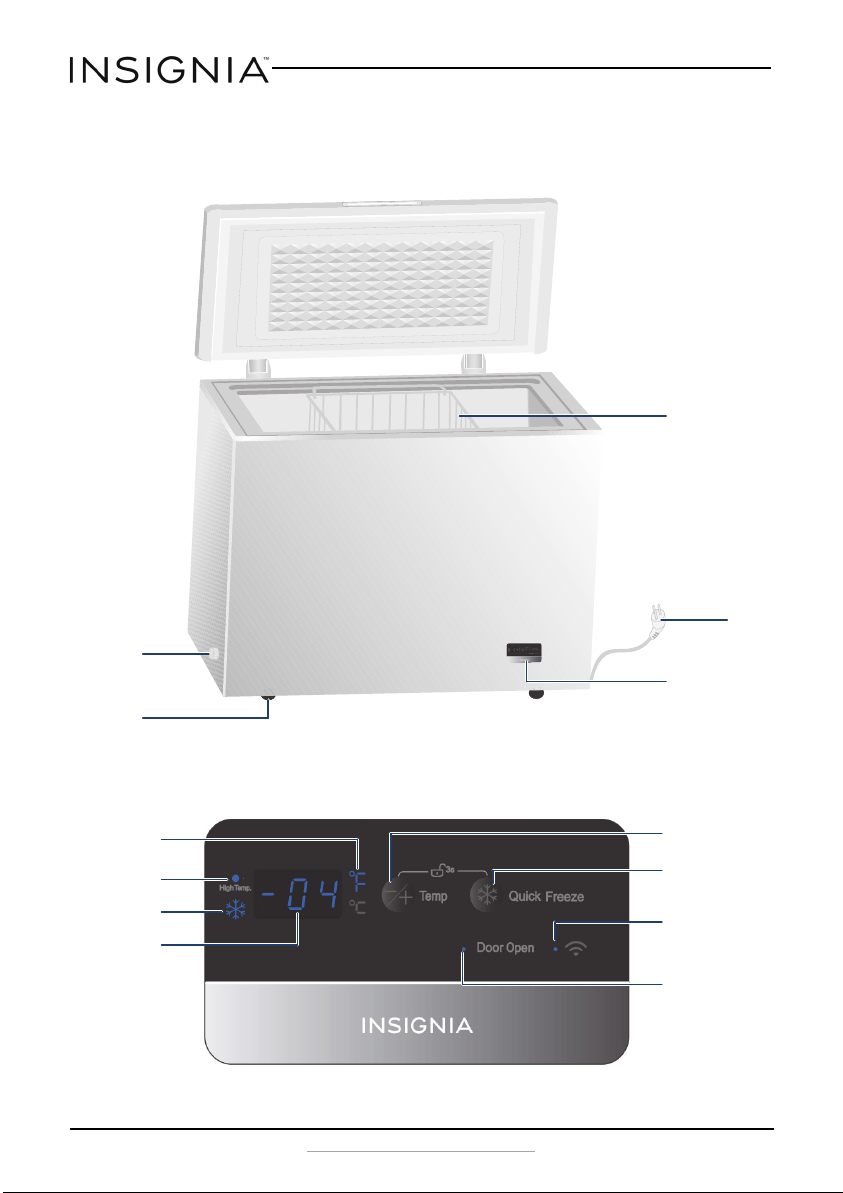
Exterior (NS-CZ14WH7 shown)
Touch pad controls
Drain plug
(drain plug on front
of NS-CZ18WH7)
Control panel
Storage basket
Wheel
Power
cord
WiFi
indicator
Temperature
raise/lower button
Temperature
indicator
High temperature
indicator/alert
Door open
indicator/alarm
Quick freeze
button
Tem pe ra tur e
display
Quick freeze
indicator
NS-CZ12XWH7-CZ14XWH7-CZ18WH7_16-0448_MAN_V1_ENG.fm Page 6 Wednesday, October 26, 2016 8:47 AM

7
WiFi Connected Chest Freezer (12.2, 14.1, or 17.6 Cu.Ft.)
www.insigniaproducts.com
Setting up your freezer
Before using your freezer
• Remove the exterior and interior packing, especially the foam packing
between the outside condenser and the cabinet.
• Let the freezer stand upright for approximately two hours before
connecting it to power. This reduces the possibility of a malfunction in the
cooling system from improper handling during transportation.
• Wash the inside with a damp, warm cloth and a baking soda solution (two
tablespoons in a quart of water), then wipe dry with a dry cloth. Do this
periodically to keep your freezer looking new.
• For proper operation, it’s very important that you level the freezer using
the leveling feet. If this is not done, the door may not close or seal
properly, causing cooling, frost, and moisture problems. Turn the leveling
feet clockwise to raise that side of the freezer or counterclockwise to lower
that side. The leveling feet are easier to adjust if you have someone push
against the top of the freezer to take some weight off.
• When moving your freezer, do not tilt it beyond 45° from upright.
Finding a suitable location
• Place your freezer on a floor that is strong enough to support the freezer
when it is fully loaded.
• This freezer is designed to be free standing only, and should not be
recessed or built-in.
• Allow 7.9 inches (20 cm) of space between the sides of the freezer and the
walls, 3.9 inches (10 cm) between the back of the freezer and the wall. This
allows for proper air ventilation. Adjust the feet to keep the freezer level.
• If you locate the freezer next to a fixed wall, allow sufficient space on the
hinge side for the door to swing open.
• Locate the freezer away from direct sunlight and sources of heat, such as a
stove, heater, or radiator. Direct sunlight may affect the acrylic coating and
heat sources may increase electrical consumption. Extremely cold
temperatures may also prevent the freezer from performing properly.
• Avoid locating the freezer in moist areas.
• If your freezer is located too far from your WiFi router, the signal may be
too weak for a good connection. In such cases, a WiFi range extender will
improve connectivity.
Leveling your freezer
• It is very important for the freezer to be level. If the freezer is not
leveled during installation, the door may not close or seal properly,
causing cooling, frost, or moisture problems.
NS-CZ12XWH7-CZ14XWH7-CZ18WH7_16-0448_MAN_V1_ENG.fm Page 7 Wednesday, October 26, 2016 8:47 AM
8
NS-CZ12XWH7/NS-CZ14XWH7/NS-CZ18XWH7
www.insigniaproducts.com
• To level your freezer, rotate the leveling feet clockwise (to raise) the
freezer or counter-clockwise (to lower).
Providing a proper power supply
Check your local power source. This freezer requires a 115V, 60Hz power
supply.
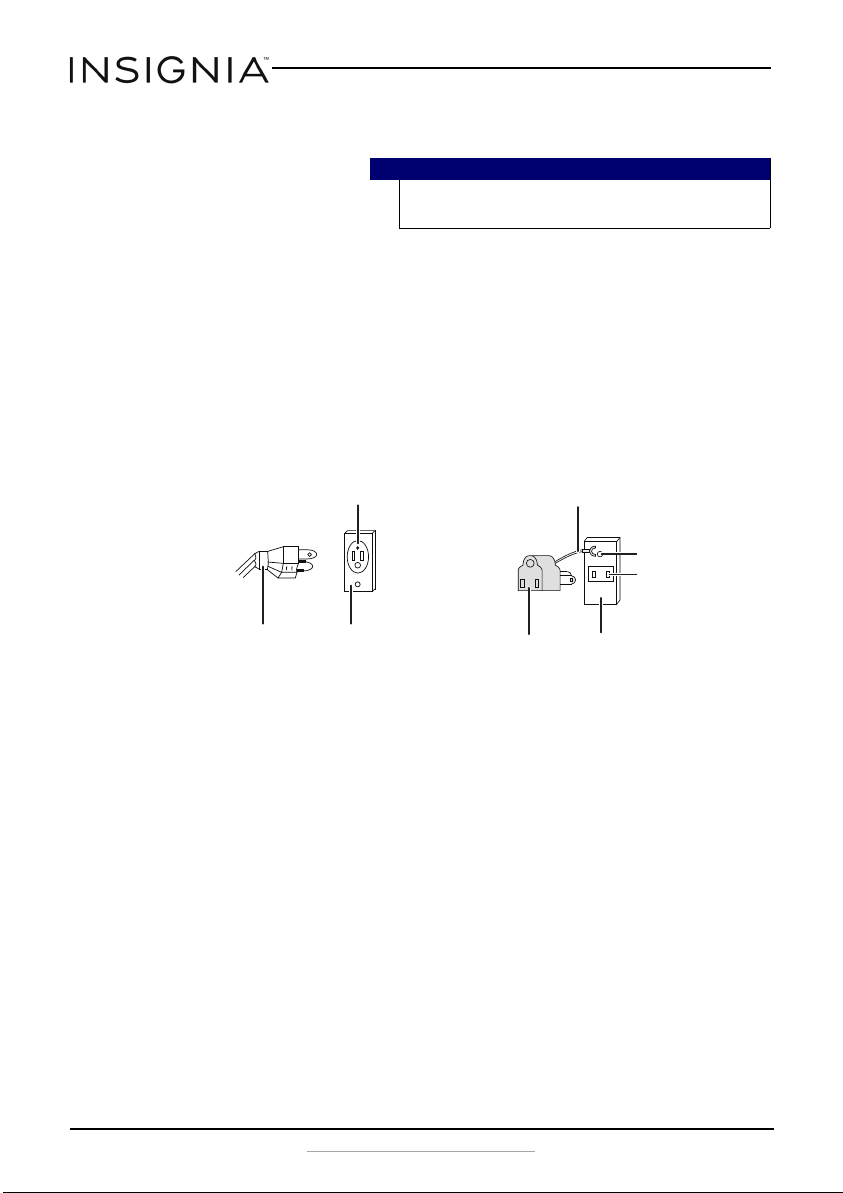
Use a receptacle that accepts the grounding prong. The power cord is
equipped with a 3-prong (grounding) plug which mates with a standard
3-prong (grounding) wall outlet to minimize the possibility of electric
shock hazard from this freezer. We recommend that the freezer be
plugged into an electrical circuit serving only this appliance and that the
circuit cannot be turned off with a switch or pull-chain.
Using your freezer
The storage life of frozen foods varies and the recommended storage time
should not be exceeded.
Place frozen food into the freezer as quickly as possible after purchase. If
there are instructions on the packet, carefully follow these instructions
regarding storage times.
Pre-packed, commercially frozen food should be stored in accordance
with the frozen food manufacturer's instructions for a three star frozen
food storage compartment or home freezer.
1 Plug in your freezer. Wait for 30 minutes, then open the freezer door to
determine if the freezer is working properly.
2 Press the +/- and Quick Freeze buttons at the same time for three
seconds on the control panel touch pad to unlock the control panel,
then press +/- to set the temperature inside the freezer. The
temperature loops to the maximum setting when the minimum
setting is reached.
The default temperature is 0° F (-18° C). The temperature range is
10° F ~-11° F (-12° C~-24° C).
Note
Have someone push against the top of the freezer to help take
some weight off the leveling foot, making it easier to adjust.
3-prong receptacle
Receptacle box cover
3-prong plug
Grounding lead
Grounding adapter Receptacle box cover
Screw
Receptacle
Using a 3-prong plug and outlet
Using a grounding adapter
NS-CZ12XWH7-CZ14XWH7-CZ18WH7_16-0448_MAN_V1_ENG.fm Page 8 Wednesday, October 26, 2016 8:47 AM

9
WiFi Connected Chest Freezer (12.2, 14.1, or 17.6 Cu.Ft.)
www.insigniaproducts.com
Locking and unlocking the control panel
To prevent accidental activation, the control panel automatically locks
after 30 seconds of inactivity. To use the control panel, you must unlock it
first.
Press and hold the +/- and Quick Freeze buttons at the same time for
three seconds to lock the control panel. The lock icon turns on. Press again
for another three seconds to unlock it. The lock icon turns off.
Quick Freezing foods
The quick freeze mode lowers the temperature below the normal
operating temperature to quickly freeze foods. Press the Quick Freeze
button to enter quick freeze mode. The blue snowflake turns on. You can
only use the control panel to quick freeze foods. You cannot use the
Insignia Connect App.
The quick freeze mode turns off after three hours, if the temperature falls
below -13° F (-25° C). If the temperature does not fall below -13° F (-25° C),
the quick freeze mode turns off after 24 hours. You can press the button a
second time to exit quick freeze mode.
Switching between Fahrenheit and Celsius
Using the Control Panel on the freezer
1 Press and hold +/- and Quick Freeze for three seconds to unlock the
control panel.
2 Press and hold +/- for three seconds to switch settings.
Using the App
•Tap Edit, then tap the slider next to Temperature Unit to switch
settings.
Notes
• If the freezer is unplugged or loses power, you must wait
three to five minutes before restarting it. The freezer will
not start if you attempt to restart it sooner.
• Large amounts of food lower the cooling efficiency of the
freezer.
• If you choose to change the thermostat setting, adjust the
thermostat control by one increment at a time. Allow
several hours for the temperature to stabilize between
adjustments.
• Do not put bottled food or drinks in the freezer.
NS-CZ12XWH7-CZ14XWH7-CZ18WH7_16-0448_MAN_V1_ENG.fm Page 9 Wednesday, October 26, 2016 8:47 AM
10
NS-CZ12XWH7/NS-CZ14XWH7/NS-CZ18XWH7
www.insigniaproducts.com
Connecting your freezer to WiFi (optional)
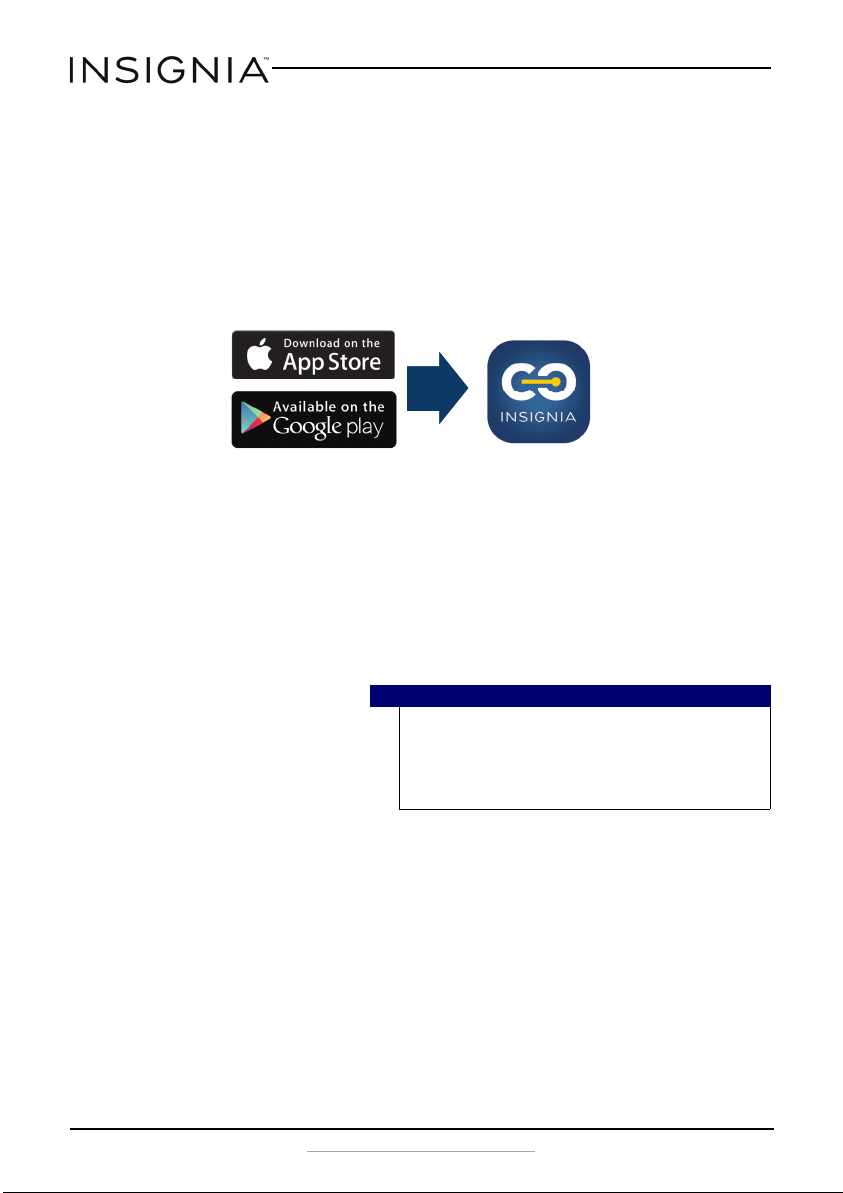
Download the Insignia Connect app from the Apple App Store or Google
Play Store to use additional features, such as open-door and temperature
alerts. App download is optional – your freezer works normally without it!
1 Make sure that your mobile device is connected to your preferred WiFi
network.
2 Download and open the free Insignia Connect Device app from the
App Store or Google Play. (Apple: iOS 9 or later, Android: 6.0.1
Marshmallow or later).
3 Log in or sign up for a Best Buy or Insignia Connect Device account.
4 On your freezer, press and hold the +/- and Quick Freeze buttons for
three seconds to unlock the control panel.
5 Press and hold the Quick Freeze button for five seconds until you see
“0” on the control panel.
6 Press +/- once. “AP” is displayed.
7 In the app, tap Set Up Device, then follow the on-screen directions to
complete setup.
Note
• You may need to repeat steps 4-6 to put the freezer back
into AP mode if the app cannot find your freezer.
• Your freezer uses the 2.4 GHz WiFi spectrum. If your router
provides both 2.4 GHz and 5 GHz bands, select the network
corresponding to the 2.4 GHz band.
NS-CZ12XWH7-CZ14XWH7-CZ18WH7_16-0448_MAN_V1_ENG.fm Page 10 Wednesday, October 26, 2016 8:47 AM
11
WiFi Connected Chest Freezer (12.2, 14.1, or 17.6 Cu.Ft.)
www.insigniaproducts.com
Using the Insignia Connect app
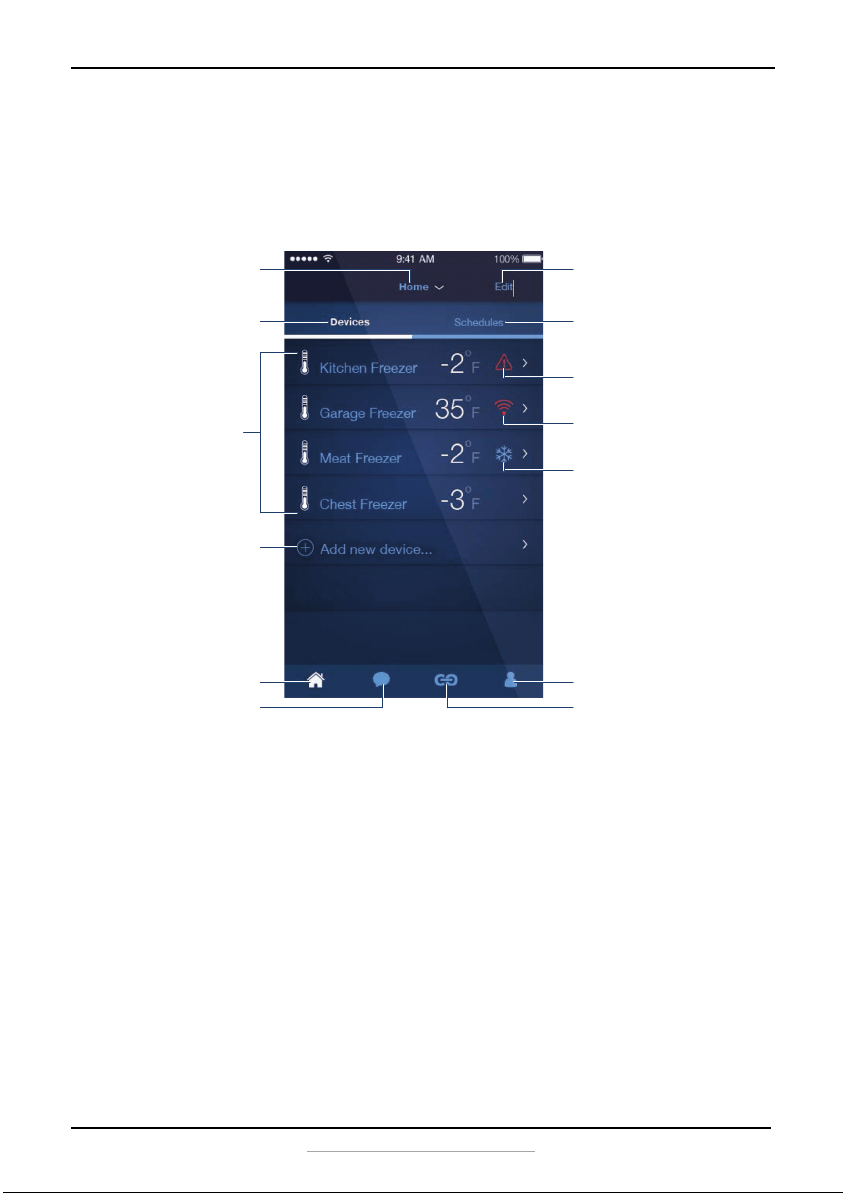
When you open the app on your smartphone, the following screen is
displayed.
Tap to select a location, if you
have multiple locations
Tap to see the Insignia
connect devices at the
selected location
Tap a device to view
more information and
change settings. See
the Device view on the
following page.
Home Page view
Tap to add an Insignia connect
device to the network
Home page
Tap to learn more about the
Insignia Connect experience
Tap to logout.
Support page
Quick Freeze notification.
Use the control panel on
the freezer to turn on Quick
Freeze.
Tap to change the location
name, network settings,
Time Zone, and preferred
temperature units.
Tap to see schedules for devices
that support the scheduling
function, like the Smart Plug.
Alert notification. Tap for
more information.
WiFi fault notification. Tap
for more information.
NS-CZ12XWH7-CZ14XWH7-CZ18WH7_16-0448_MAN_V1_ENG.fm Page 11 Wednesday, October 26, 2016 8:47 AM
12
NS-CZ12XWH7/NS-CZ14XWH7/NS-CZ18XWH7
www.insigniaproducts.com
Defrosting your freezer
For your freezer to operate most efficiently and with minimum energy
consumption, it should be defrosted when the frost on the freezer walls is
in excess of .12 to .20 inches (3 to 5 mm) thick. To minimize food spoilage,
choose a time when your stock of frozen food is low.
The instructions regarding the care of frozen foods should be followed
when defrosting the freezer. Defrosting usually takes a few hours. Leaving
the door open helps speed the process.
1 Remove the frozen food from your freezer and place it in a refrigerator
or cooler to protect the food.
2 Unplug the power cord from the wall outlet.
3 When your freezer has defrosted, clean the interior of the freezer.
Cautions
• Do not use boiling water to defrost your freezer because it
may damage the plastic parts. You can use warm water to
speed up the process.
• Never use a sharp or metallic instrument to remove frost as
it may damage the cooling coils and will void the warranty.
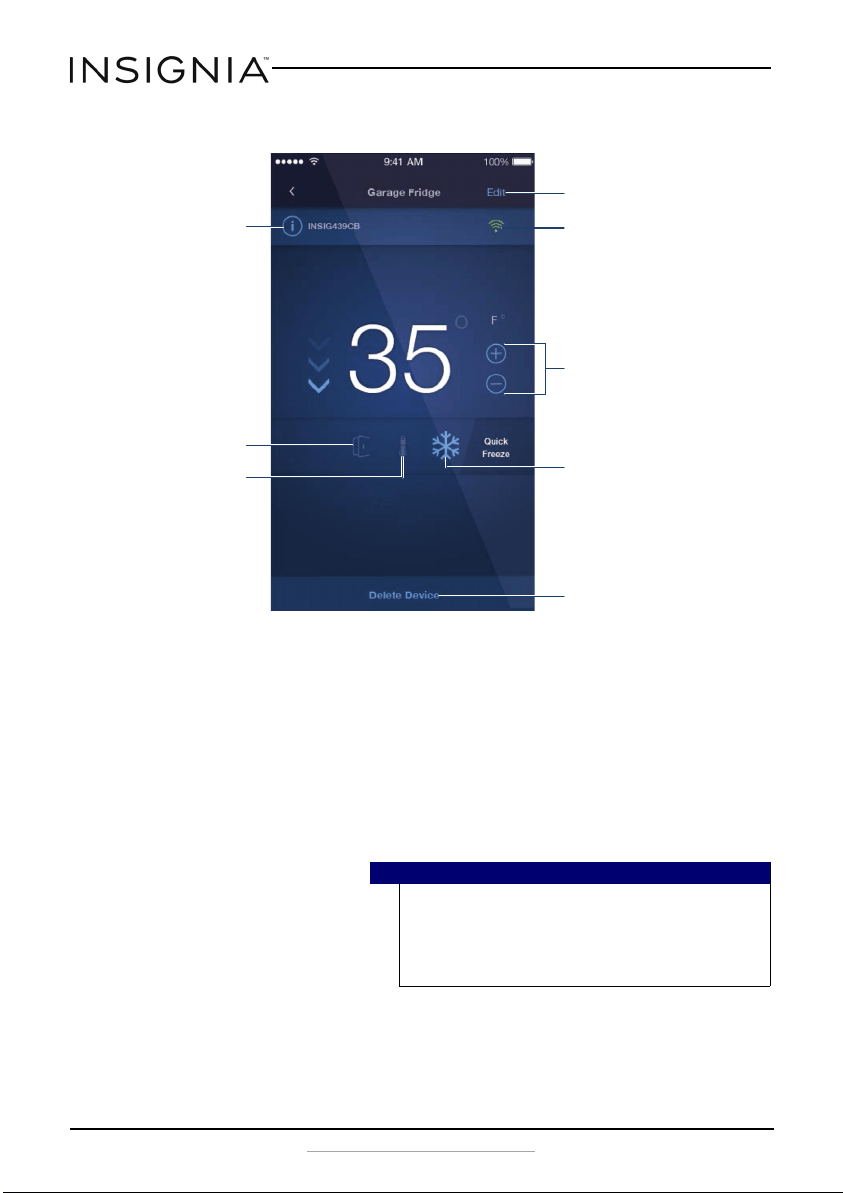
Device view
Quick Freeze notification. Use the
control panel on the freezer to
turn on Quick Freeze.
Tap to change the device name
Tap to adjust the temperature.
You can also swipe the numbers
to change the temperature.
WiFi signal strength
Tap to delete this device from the
network
Model number. Tap to view
the serial number, firmware
version, and last status.
Door Open Alert notification
High Temp Alert notification
NS-CZ12XWH7-CZ14XWH7-CZ18WH7_16-0448_MAN_V1_ENG.fm Page 12 Wednesday, October 26, 2016 8:47 AM
13
WiFi Connected Chest Freezer (12.2, 14.1, or 17.6 Cu.Ft.)
www.insigniaproducts.com
4 Reset the thermostat to the desired setting, then allow the freezer to
cool for one hour.
5 Return the food to the freezer.
Maintaining your freezer
Your freezer is designed for year-round use with only minimal cleaning
and maintenance. We recommend that you do the following every time
you defrost it to keep your freezer running odor free and efficiently:
1 Unplug your freezer from the wall outlet.
2 Remove all food.
3 Wash the inside with a damp warm cloth soaked in a solution of one
quart of lukewarm water to two tablespoons of baking soda solution.
4 Dry the interior and exterior with a soft cloth.
5 Be sure to keep the door gasket (seal) clean to keep the unit running
efficiently.
Storing your freezer
1 Unplug your freezer from the wall outlet.
2 Remove all food.
3 Clean the freezer.
4 Leave the door open slightly to avoid possible formation of
condensation, mold, or odor.
Moving your freezer
1 Unplug your freezer from the wall outlet.
2 Remove all food.
3 Securely tape down all loose items inside your freezer.
4 Tape the door shut.
Be sure the freezer does not tilt more than 45° from the upright
position during transportation.
Caution
To prevent damage to the finish, do not use gasoline, benzine,
thinner, or other solvents, and do not use abrasive cleaners.
Caution
Use extreme caution with children. The unit should not be
accessible to child's play.
NS-CZ12XWH7-CZ14XWH7-CZ18WH7_16-0448_MAN_V1_ENG.fm Page 13 Wednesday, October 26, 2016 8:47 AM
14
NS-CZ12XWH7/NS-CZ14XWH7/NS-CZ18XWH7
www.insigniaproducts.com
Tips on saving energy
• Locate your freezer in the coolest area of the room, away from heat
producing appliances or heating ducts and out of the direct sunlight.
• Let hot foods cool to room temperature before placing them in the
freezer. Overloading the freezer forces the compressor to run longer.
Foods that freeze too slowly may lose quality or spoil.
• Wrap foods properly and wipe containers dry before placing them in the
freezer. This cuts down on frost build-up inside the freezer.
• Organize and label food to reduce door openings and extended searches.
Remove as many items as needed at one time, and close the door as soon
as possible.
Understanding Alerts
A notification appears on your smartphone when an alert is triggered.
High Temp Alert
The freezer is having trouble maintaining a cold temperature. You will get
this alert if the inside temperature is over 18° F (-8° C) for 36 hours. The
LED on the control panel turns on. If the temperature returns to a normal
range, the alert turns off. You can also press any button to turn it off. Here
are some possible causes:
• The room is too warm. For example, the freezer is in a garage in the
summer next to a car with a hot engine.
• The ventilation openings are blocked or dusty.
• There is too much frost build up.
• There are door seal gaps.
Temp Out of Range Alert
The freezer is having trouble maintaining its temperature. You will get this
alert if internal temperature is at least 12.6° F (7° C) different from the
temperature you set, 42 hours after you shut the door. If the temperature
returns to a normal range, the alert turns off. You can also press any
button to turn it off. Here are some possible causes:
• The room is too warm or cold. Adjust the room temperature.
• The ventilation openings are blocked or dusty.
• There is too much frost build up.
• There are door seal gaps.
NS-CZ12XWH7-CZ14XWH7-CZ18WH7_16-0448_MAN_V1_ENG.fm Page 14 Wednesday, October 26, 2016 8:47 AM
15
WiFi Connected Chest Freezer (12.2, 14.1, or 17.6 Cu.Ft.)
www.insigniaproducts.com
Door Open Alert
If the door is open for more than five minutes, the door open alert is
activated. Close the door to turn off the alert and check to make sure that
nothing is blocking the door, preventing it from closing. Also, check to
make sure that the freezer is level. An unlevel freezer may prevent the
door from closing properly.
How do I reset WiFi on my freezer?
1 Press and hold the -/+ and Quick Freeze buttons for three seconds to
unlock the control panel.
2 Press and hold the Quick Freeze button for five seconds until you see
“0″ on the control panel.
3 Press +/- once. “AP” is displayed.
4 In the app, tap Set Up Device, then follow the on-screen directions to
complete setup.
How do I reset my freezer to factory
defaults?
1 Press and hold -/+ and Quick Freeze for three seconds to unlock the
control panel.
2 Press and hold the Quick Freeze button for five seconds until you see
“0” on the control panel.
3 Press -/+ until “2” is displayed.
4 Press and hold -/+ and Quick Freeze. All of the indicators turn on for
three seconds. If the compressor is running, it pauses for five minutes,
then restarts.
Troubleshooting
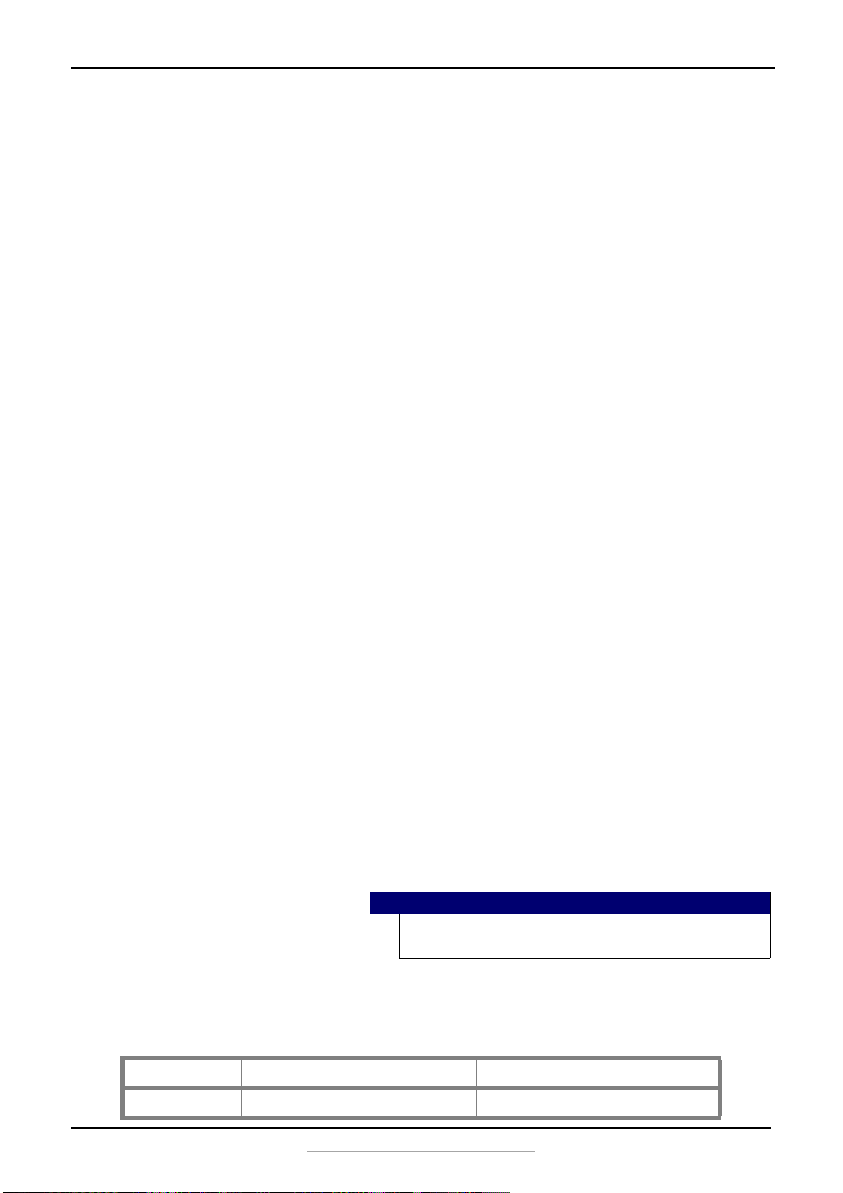
Fault indication
If a fault is detected, the display shows one of the following codes. If a
fault is indicated, call for service:
Caution
Do not try to repair your freezer yourself. Doing so invalidates the
warranty.
Fault code E2 E7
Description Temperature sensor fault Ambient Temperature sensor fault
NS-CZ12XWH7-CZ14XWH7-CZ18WH7_16-0448_MAN_V1_ENG.fm Page 15 Wednesday, October 26, 2016 8:47 AM
16
NS-CZ12XWH7/NS-CZ14XWH7/NS-CZ18XWH7
www.insigniaproducts.com
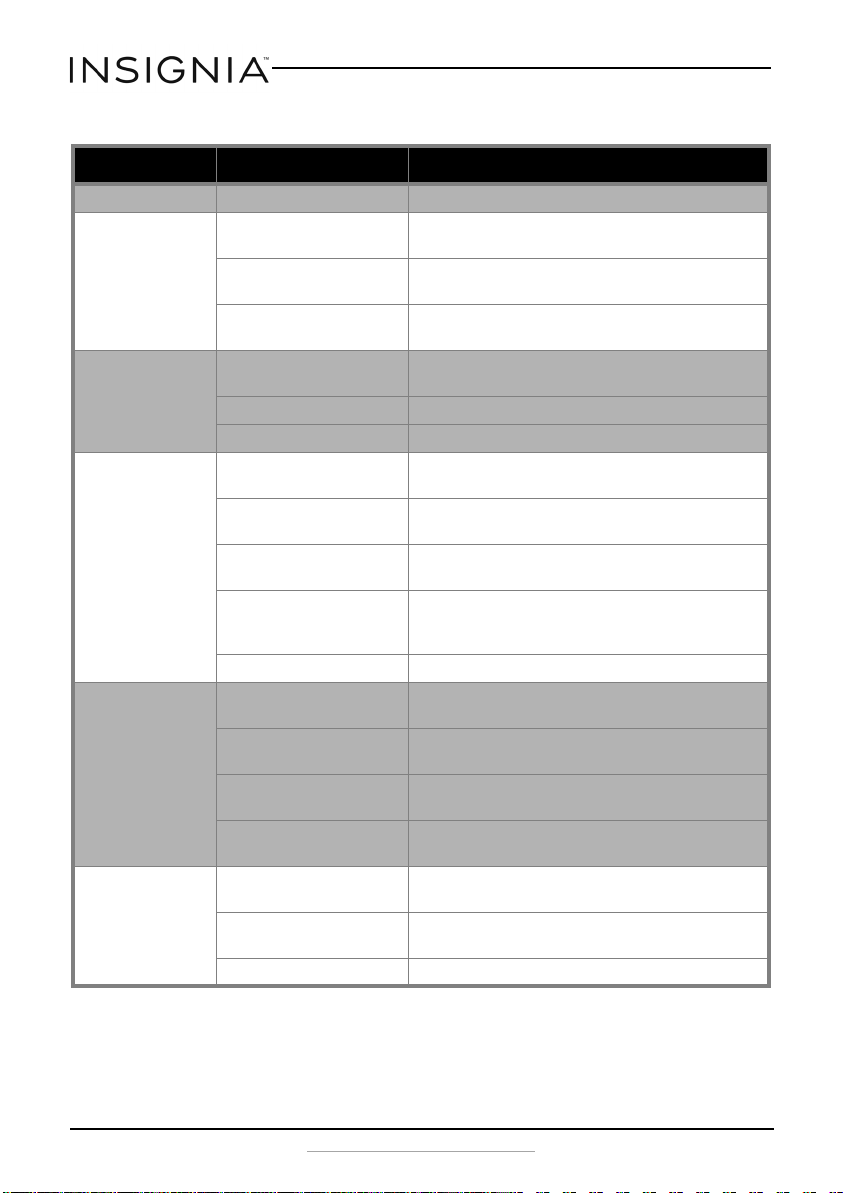
General
Problem Possible cause Possible solution
I got an alert See “Understanding Alerts” on page 14.
The freezer does not
operate
The freezer is unplugged. Make sure that the freezer is plugged in and that the plug is
pushed completely into the outlet.
The fuse on the circuit is blown
or the circuit breaker is tripped.
Check the house fuse/circuit breaker box and replace the fuse or
reset the circuit breaker.
Power failure. If a power failure occurs, the freezer turns off. Wait until the
power is restored.
The freezer door does
not close completely
Food packages are interfering
with the door.
Move the food packages or remove some food.
The door gaskets are dirty. Clean the door gaskets.
The freezer may not be level. Level the freezer.
Food in the freezer is
not cold
The door has been opened too
often or was not closed properly.
Make sure that the door is closed properly.
You have just added a large
amount of food to the freezer.
Allow time for the new food to cool, then check again.
The door is not closed
completely.
Check the door gasket and food distribution and make sure that
the door closes completely.
The freezer has recently been
disconnected for a period of
time.
Allow time for the freezer to cool before adding food. Four
hours are required for the freezer to cool down completely.
The thermostat is set too warm. Set the thermostat to a colder setting.
The freezer makes
unusual noises or
vibrations
The freezer may not be level on
the floor.
Level the freezer with the leveling feet.
The body of the freezer is
touching a wall.
Move the freezer out from the wall.
Metal parts undergo expansion
and contraction.
This is normal.
Refrigerant is circulating
throughout the system.
This is normal.
Moisture is building up
in the interior of the
freezer
The door has been opened too
often or was not closed properly.
Make sure that the door is closed properly.
The freezer is in a location that is
very humid.
Move the freezer to a dryer location.
The weather is hot and humid. This is normal.
NS-CZ12XWH7-CZ14XWH7-CZ18WH7_16-0448_MAN_V1_ENG.fm Page 16 Wednesday, October 26, 2016 8:47 AM
17
WiFi Connected Chest Freezer (12.2, 14.1, or 17.6 Cu.Ft.)
www.insigniaproducts.com
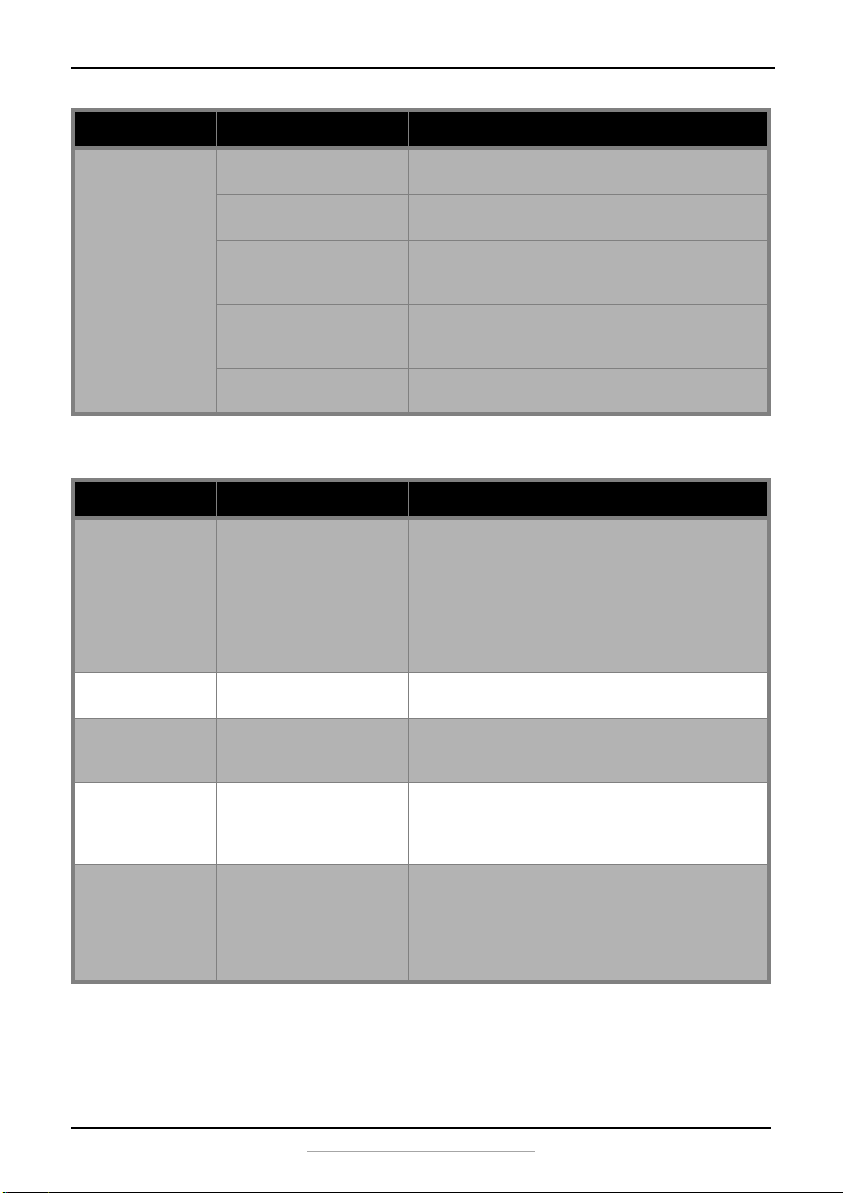
WiFi, app, and control panel
The compressor turns
on and off frequently
The room temperature is hotter
than normal.
This is normal.
You have just added a large
amount of food to the freezer.
Allow time for the new food to cool, then check again.
The door is not closed
completely or was opened too
often.
Check the door gasket and food distribution and make sure that
the door closes completely.
The freezer has recently been
disconnected for a period of
time.
Allow time for the freezer to cool before adding food. Four
hours are required for the freezer to cool down completely.
The thermostat was not set
correctly.
Set the thermostat to the correct setting.
Problem Possible cause Possible solution
My mobile device
cannot connect to WiFi
• Check the WiFi settings on your mobile device to make
sure that WiFi is turned on.
• Make sure that you selected the right network and entered
the correct password.
• Make sure that your router/modem is on and that you are
within range of it.
• Turn your mobile device off, then back on.
• Reset your router/modem.
The control panel of the
freezer is unresponsive
The control panel is locked. Press and hold the +/- and Quick Freeze buttons for three
seconds to unlock the control panel.
I could not find the
Insignia app in the app
market
The Insignia app is available for smartphones that run iOS 9 or
later, or Android: 6.0.1 Marshmallow or later.
The Insignia app is
successfully connected
to my freezer, but does
not run
Possible connection problems. • Exit and restart the Insignia app or reboot your router.
• Unplug your freezer and plug it back in after one minute.
The freezer won't
connect to WiFi
• Make sure that you selected the right network and entered
the correct password.
• Make sure Caps Lock is not on.
• Make sure your router/modem is on and that you are
within range of it.
• Reset your router/modem.
Problem Possible cause Possible solution
NS-CZ12XWH7-CZ14XWH7-CZ18WH7_16-0448_MAN_V1_ENG.fm Page 17 Wednesday, October 26, 2016 8:47 AM
18
NS-CZ12XWH7/NS-CZ14XWH7/NS-CZ18XWH7
www.insigniaproducts.com
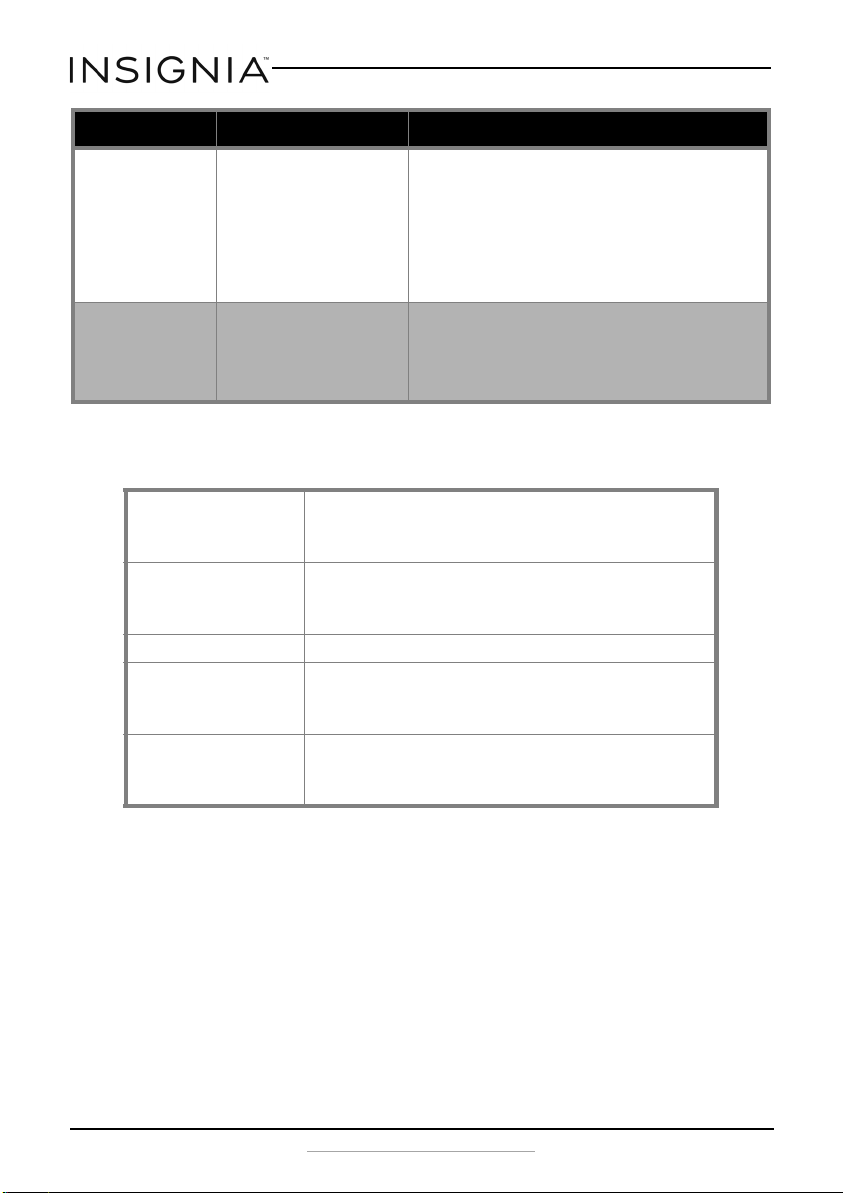
Specifications
The app cannot find the
freezer
• Make sure that your freezer is connected to a working
power outlet.
• Make sure that the blue light next to the WiFi symbol is on.
If it is off, go to “How do I reset WiFi on my freezer?” on
page 15.
• Make sure that your network is working properly.
• Make sure that your router/modem is on and that you are
within range of it.
I got an alert that I have
a weak signal
• Make sure that your router/modem is on.
• Your router may be too far away or may be obstructed.
Adjust the router's antennas or move the router (if
possible). You may need to purchase a range extender to
boost the signal.
Dimensions (WxDxH) 12.2 Cu.ft. -- 49.4 x 27.1 x 34.1 in (125.4 x 68.7 x 86.5 cm)
14.1 Cu.ft. -- 56.1 x 27.1 x 34.1 in (142.4 x 68.7 x 86.5 cm)
17.6 Cu.ft. -- 64.6 x 28.4 x 34.5 in (164 x 72 x 87.5 cm)
Weight 12.2 Cu.ft. -- Gross weight: 121.3 lbs (55kg) Net weight: 103.6 lbs (47kg)
14.1 Cu.ft. -- Gross weight: 141.1 lbs (64kg) Net weight: 114.6 lbs (52kg)
17.6 Cu.ft. -- Gross weight: 165.3 lbs (75kg) Net weight: 141.1 lbs (64kg)
Power requirements 110-125 V~60Hz
Current 12.2 Cu.ft. -- 0.8A
14.1 Cu.ft. --1.2A
17.6 Cu.ft. --1.6A
Power consumption (annual) 12.2 Cu.ft. --264kWh/year
14.1 Cu.ft. --288kWh/year
17.6 Cu.ft. --333kWh/year
Problem Possible cause Possible solution
NS-CZ12XWH7-CZ14XWH7-CZ18WH7_16-0448_MAN_V1_ENG.fm Page 18 Wednesday, October 26, 2016 8:47 AM

19
WiFi Connected Chest Freezer (12.2, 14.1, or 17.6 Cu.Ft.)
www.insigniaproducts.com
ONE-YEAR LIMITED WARRANTY
Definitions:
The Distributor* of Insignia branded products warrants to you, the original purchaser of this
new Insignia-branded product (“Product”), that the Product shall be free of defects in the
original manufacturer of the material or workmanship for a period of one (1) year from the
date of your purchase of the Product (“Warranty Period”).
For this warranty to apply, your Product must be purchased in the United States or Canada
from a Best Buy branded retail store or online at www.bestbuy.com or www.bestbuy.ca, and
is packaged with this warranty statement.
How long does the coverage last?
The Warranty Period lasts for 1 year (365 days) from the date you purchased the Product.
Your purchase date is printed on the receipt you received with the Product.
What does this warranty cover?
During the Warranty Period, if the original manufacture of the material or workmanship of
the Product is determined to be defective by an authorized Insignia repair center or store
personnel, Insignia will (at its sole option): (1) repair the Product with new or rebuilt parts; or
(2) replace the Product at no charge with new or rebuilt comparable products or parts.
Products and parts replaced under this warranty become the property of Insignia and are
not returned to you. If service of Products or parts are required after the Warranty Period
expires, you must pay all labor and parts charges. This warranty lasts as long as you own your
Insignia Product during the Warranty Period. Warranty coverage terminates if you sell or
otherwise transfer the Product.
How to obtain warranty service?
If you purchased the Product at a Best Buy retail store location, please take your original
receipt and the Product to any Best Buy store. Make sure that you place the Product in its
original packaging or packaging that provides the same amount of protection as the original
packaging. If you purchased the Product from a Best Buy online web site (www.bestbuy.com
or www.bestbuy.ca), mail your original receipt and the Product to the address listed on the
web site. Make sure that you put the Product in its original packaging or packaging that
provides the same amount of protection as the original packaging.
To obtain warranty service, in the United States call 1-888-BESTBUY, Canada call
1-866-BESTBUY. Call agents may diagnose and correct the issue over the phone.
Where is the warranty valid?
This warranty is valid only in the United States and Canada at Best Buy branded retail stores
or websites to the original purchaser of the product in the county where the original
purchase was made.
What does the warranty not cover?
This warranty does not cover:
• Food loss/spoilage due to failure of refrigerator or freezer
• Customer instruction/education
•Installation
•Set up adjustments
•Cosmetic damage
• Damage due to weather, lightning, and other acts of God, such as power surges
•Accidental damage
•Misuse
•Abuse
NS-CZ12XWH7-CZ14XWH7-CZ18WH7_16-0448_MAN_V1_ENG.fm Page 19 Wednesday, October 26, 2016 8:47 AM
20
NS-CZ12XWH7/NS-CZ14XWH7/NS-CZ18XWH7
www.insigniaproducts.com
•Negligence
• Commercial purposes/use, including but not limited to use in a place of business or in
communal areas of a multiple dwelling condominium or apartment complex, or
otherwise used in a place of other than a private home.
• Modification of any part of the Product, including the antenna
• Display panel damaged by static (non-moving) images applied for lengthy periods
(burn-in).
• Damage due to incorrect operation or maintenance
• Connection to an incorrect voltage or power supply
• Attempted repair by any person not authorized by Insignia to service the Product
• Products sold “as is” or “with all faults”
• Consumables, including but not limited to batteries (i.e. AA, AAA, C etc.)
• Products where the factory applied serial number has been altered or removed
• Loss or Theft of this product or any part of the product
• Display panels containing up to three (3) pixel failures (dots that are dark or incorrectly
illuminated) grouped in an area smaller than one tenth (1/10) of the display size or up
to five (5) pixel failures throughout the display. (Pixel based displays may contain a
limited number of pixels that may not function normally.)
• Failures or Damage caused by any contact including but not limited to liquids, gels or
pastes.
REPAIR REPLACEMENT AS PROVIDED UNDER THIS WARRANTY IS YOUR EXCLUSIVE REMEDY
FOR BREACH OF WARRANTY. INSIGNIA SHALL NOT BE LIABLE FOR ANY INCIDENTAL OR
CONSEQUENTIAL DAMAGES FOR THE BREACH OF ANY EXPRESS OR IMPLIED WARRANTY ON
THIS PRODUCT, INCLUDING, BUT NOT LIMITED TO, LOST DATA, LOSS OF USE OF YOUR
PRODUCT, LOST BUSINESS OR LOST PROFITS. INSIGNIA PRODUCTS MAKES NO OTHER
EXPRESS WARRANTIES WITH RESPECT TO THE PRODUCT, ALL EXPRESS AND IMPLIED
WARRANTIES FOR THE PRODUCT, INCLUDING, BUT NOT LIMITED TO, ANY IMPLIED
WARRANTIES OF AND CONDITIONS OF MERCHANTABILITY AND FITNESS FOR A PARTICULAR
PURPOSE, ARE LIMITED IN DURATION TO THE WARRANTY PERIOD SET FORTH ABOVE AND
NO WARRANTIES, WHETHER EXPRESS OR IMPLIED, WILL APPLY AFTER THE WARRANTY
PERIOD. SOME STATES, PROVINCES AND JURISDICTIONS DO NOT ALLOW LIMITATIONS ON
HOW LONG AN IMPLIED WARRANTY LASTS, SO THE ABOVE LIMITATION MAY NOT APPLY TO
YOU. THIS WARRANTY GIVES YOU SPECIFIC LEGAL RIGHTS, AND YOU MAY ALSO HAVE OTHER
RIGHTS, WHICH VARY FROM STATE TO STATE OR PROVINCE TO PROVINCE.
Contact Insignia:
For customer service please call 1-877-467-4289
www.insigniaproducts.com
INSIGNIA is a trademark of Best Buy and its affiliated companies.
Distributed by Best Buy Purchasing, LLC
7601 Penn Ave South, Richfield, MN 55423 U.S.A.
©2016 Best Buy. All rights reserved.
Made in China
NS-CZ12XWH7-CZ14XWH7-CZ18WH7_16-0448_MAN_V1_ENG.fm Page 20 Wednesday, October 26, 2016 8:47 AM
www.insigniaproducts.com
1-877-467-4289 (U.S. and Canada) or 01-800-926-3000 (Mexico)
INSIGNIA is a trademark of Best Buy and its affiliated companies.
Distributed by Best Buy Purchasing, LLC
7601 Penn Ave South, Richfield, MN 55423 U.S.A.
©2016 Best Buy. All rights reserved.
Made in China.
V1 ENGLISH
16-0448
NS-CZ12XWH7-CZ14XWH7-CZ18WH7_16-0448_MAN_V1_ENG.fm Page 21 Wednesday, October 26, 2016 8:47 AM